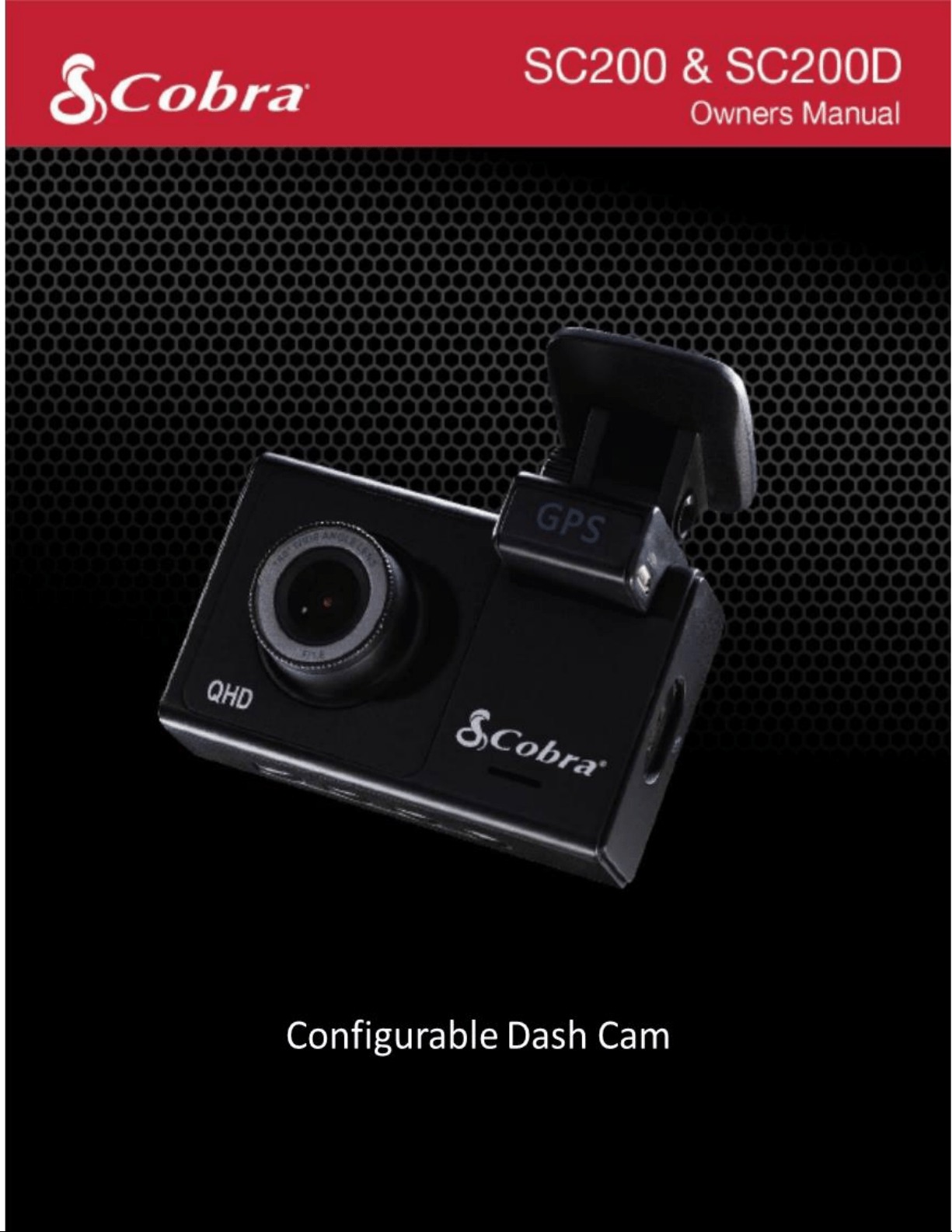
bra Electronics Corporation Version A

2 | P a g e
CONTENTS
CONTENTS ........................................................................................................................................................ 2
INTRODUCTION ................................................................................................................................................ 3
SC 200 DASH CAM FEATURES .......................................................................................................................... 3
PRODUCT SERVICE AND SUPPORT ................................................................................................................... 4
WHAT’S IN THE BOX ......................................................................................................................................... 4
HARDWARE INTERFACE ................................................................................................................................... 5
INSTALLATION .................................................................................................................................................. 6
BASIC OPERATION ............................................................................................................................................ 8
INITIAL SETUP................................................................................................................................................... 9
DRIVE SMARTER® APP CONNECTION .......................................................................................................................... 9
iRADAR® APP CONNECTION ...................................................................................................................................... 10
VIDEO SCREEN ............................................................................................................................................... 11
VIDEO SETTINGS ............................................................................................................................................ 13
VIDEO AND PHOTO PLAYBACK MODE ........................................................................................................... 13
VOICE ANNOUNCEMENTS ............................................................................................................................. 14
VOICE COMMANDS ........................................................................................................................................ 14
MEMORY CARD STORAGE.............................................................................................................................. 15
SAFETY FEATURES .......................................................................................................................................... 16
GENERAL SETTINGS ........................................................................................................................................ 14
FIRMWARE UPDATES ..................................................................................................................................... 18
CAMERA SPECIFICATIONS .............................................................................................................................. 20
TROUBLESHOOTING....................................................................................................................................... 21
FAQ................................................................................................................................................................. 21
TRADEMARKS ACKNOWLEDGEMENT, WARNINGS, and REGULATORY INFORMATION ................................ 22

3 | P a g e
INTRODUCTION
Congratulations! You made the smart choice by purchasing an SC Series Dash Cam from Cobra.
SC Series cameras provide peace of mind by continuously recording the road in beautiful HD
video. With cutting edge features, phenomenal video quality, and an industry-leading focus on
user experience, SC Dash Cams are the best solution to record your ride. This User Manual
covers the SC 200 and SC 200D.
SC 200 DASH CAM FEATURES
Dual Lens
With 1600P QHD single-view recording. Full HD 1080P when recording in dual-view.
Dual Band Wi-Fi
Flawless Connectivity
Instant Driver Alerts
Red-Light & Speed Cameras, Police, and Community Radar alerts
140°
Field of View
Embedded GPS
Location and Speed Information
3” Display
Crystal Clear LCD
Includes
SC200: 8GB SD Card
SC200D: 16GB SD Card
Display Interface Supports these Languages:
o English
o Spanish
o French
o German
4 | P a g e
PRODUCT SERVICE AND SUPPORT
For any questions about operating or installing this new Cobra product, PLEASE CONTACT
COBRA FIRST…do not return this product to the retail store. The contact information for Cobra
will vary depending on the country in which you purchased and utilize the product. For the
latest contact information, please go to www.cobra.com/support.
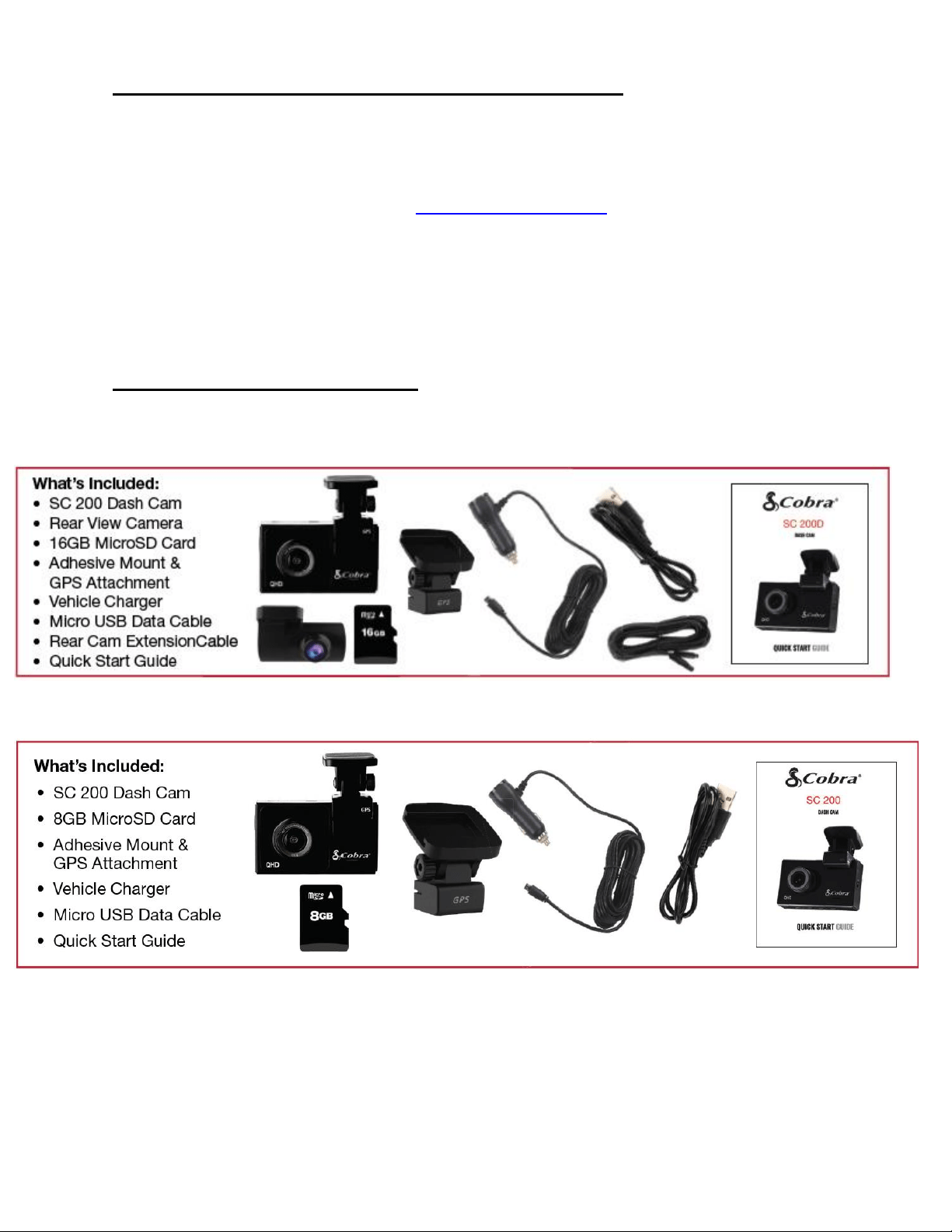
WHAT’S IN THE BOX
SC200D
SC200
5 | P a g e
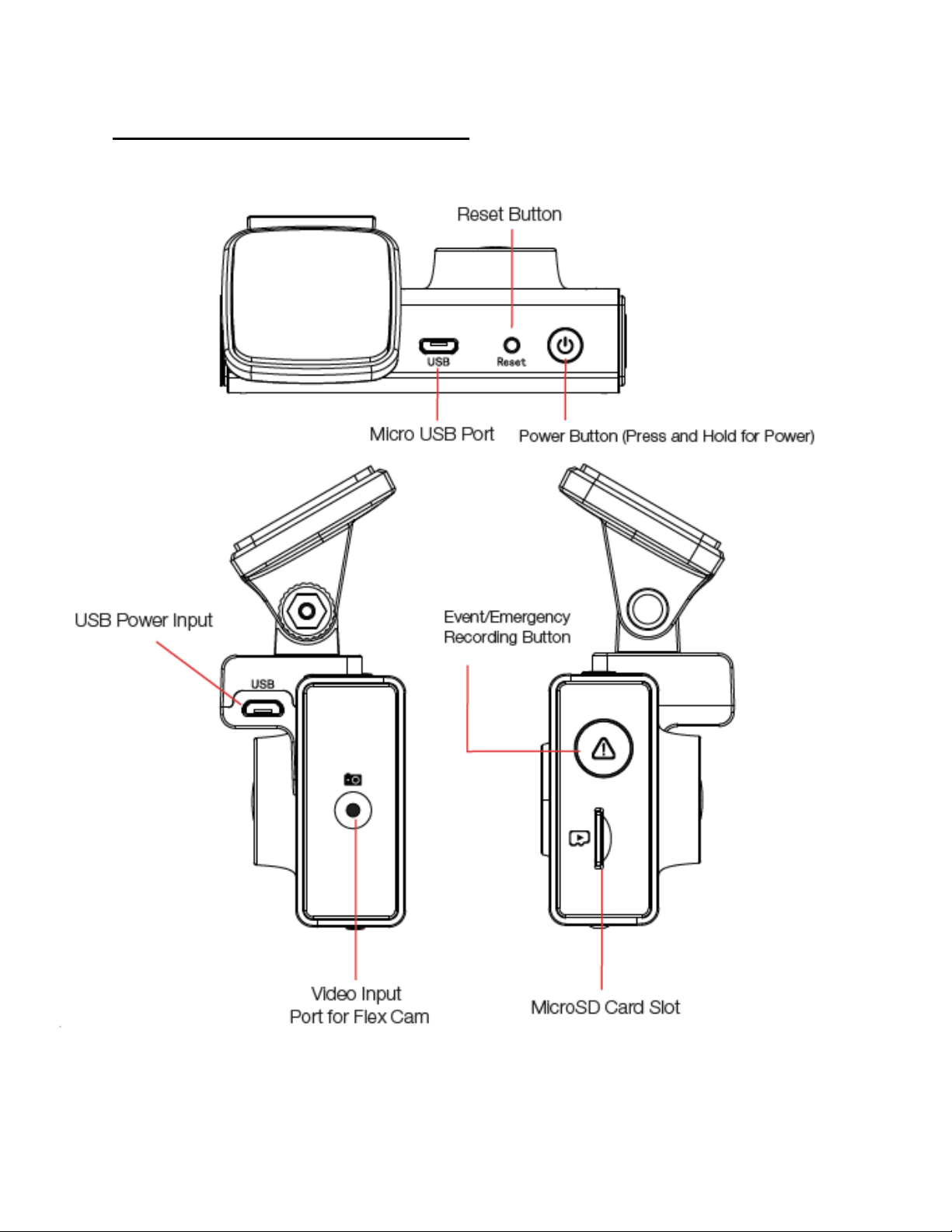
HARDWARE INTERFACE
6 | P a g e
INSTALLATION
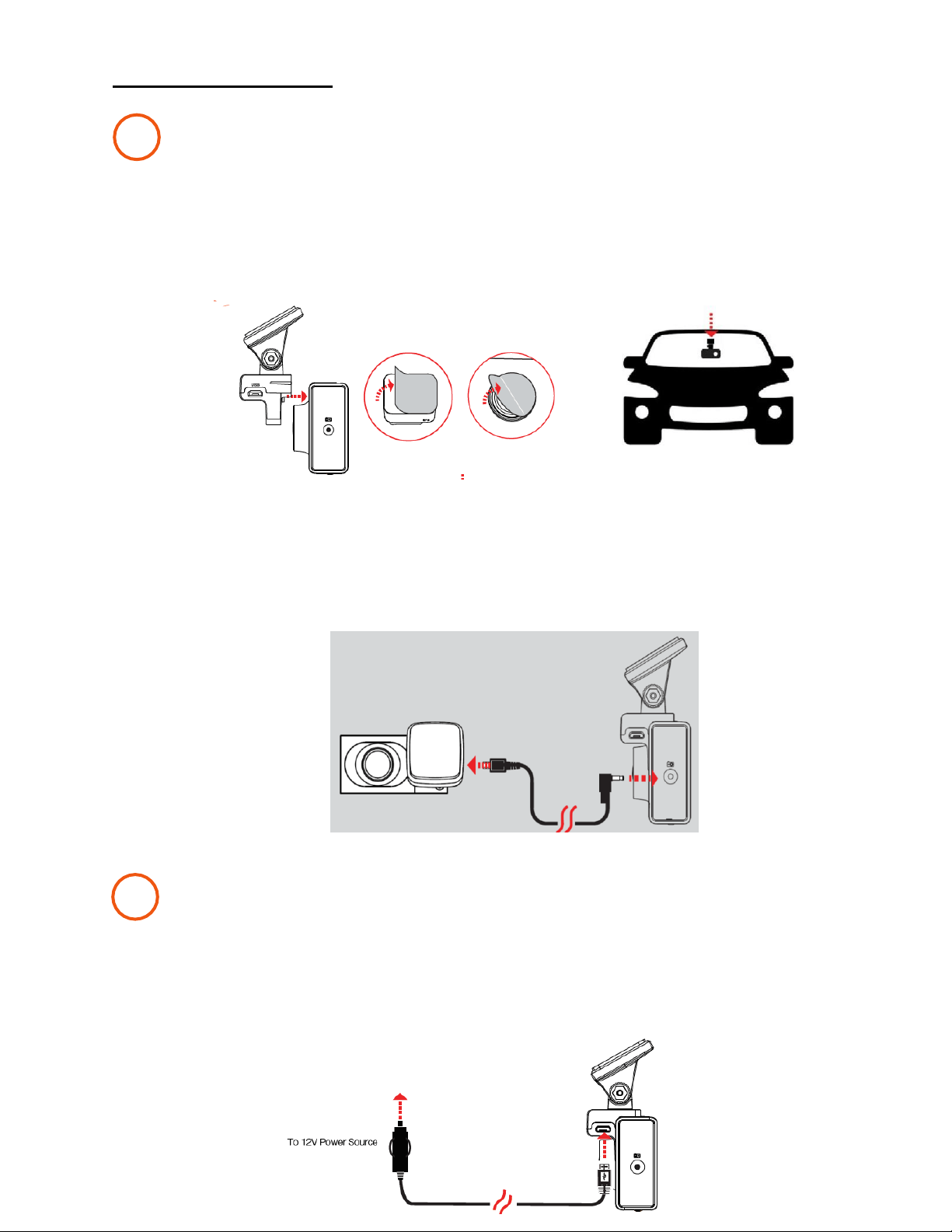
MOUNT
To install the Adhesive Windshield Mount, slide the dash cam onto the mount. Remove protective film
from camera lens and display. Find the spot on your windshield where you would like to mount the
camera and confirm the placement. Reminder, this is an adhesive mount, so it is important to mount
correctly the first time. Next, peel the plastic film off the 3M adhesive and press the mount FIRMLY onto
the windshield.
For a View of the Road Behind You
Connect Extension Cable to the Video Input Port on the Dash Cam and run the cable along the floor of
your car. Connect the Extension Cable to the Rear Camera and attach to the vehicle’s back window. Please
orient the rear camera so it faces out the windshield as shown here.
POWER
Plug one end of the supplied 12V Vehicle Power Adapter into your vehicle’s cigarette lighter, and the
other end into the micro USB port. The unit will automatically turn on and start recording. To manually
power on the device PRESS AND HOLD the Power button until the display activates.
1
2

7 | P a g e
Note: A Hardwire Kit is available at www.cobra.com for a more permanent installation that allows for
discrete routing of the power cable and recording while your vehicle is off.
DRIVE!
Your dashcam is designed for easy operation. After powering the camera will instantly
begin loop recording. When the MicroSD Card is full the oldest footage will be deleted to
make way for the new. If you witness something that you do not want deleted simply
press the Emergency Record button and it will be saved.
3

8 | P a g e
BASIC OPERATION
POWERING ON THE DEVICE
The device will power on automatically when plugged in and can also be powered by PRESSING AND
HOLDING the On/Off button until the display activates (when connected to power).
LOOP RECORDINGS:
Once the SD card is full, the camera will continuously overwrite the oldest footage recorded with recent
recordings. To protect a clip so that it will not be overwritten, press the Emergency Record/Favorites
Button so that the clip is moved into the locked content partition.
EMERGENCY RECORDINGS:
An Emergency Recording is triggered when the Emergency Record/Favorites Button is pressed or
when the G-Sensor registers a significant impact (hard braking or collision). Emergency Recordings create
locked files that are not overwritten by Continuous Loop Recording. To ensure that important footage is
not lost surrounding an incident, the prior video clip is locked if the incident happens within 30 seconds of
the beginning or end of a clip.
THE MICRO SD MEMORY CARD
The device comes with a Micro SD memory card. To remove the SD card, press firmly on the SD card to
push it further into the slot. There will be a click and the SD card will pop out on release. Extract the card
and replace as necessary by inserting a card into the slot and pressing until it locks in place. This camera is
compatible with Micro SD cards up to 256GB. Please be sure to format the card in-camera before use.
Class 10 high-endurance cards from reputable brands are recommended for constant video recording of a
dash camera.
NAVIGATING MENUS
When in a menu, press or to navigate to the menu item you want to select or change
and then
press to select or change the option associated with that item. Pressing at
any time will exit
the menu without saving changes.
VOLUME ADJUST
Models with LCD displays allow the user to select “Volume” in the setting menu to and adjust volume of
notifications and voice announcements. Both products with LCD displays and without allow for volume
adjustment using the Drive Smarter Mobile App.
9 | P a g e
INITIAL SETUP
When first powered on, the device will show you the video stream and automatically begin
loop recording.
When the Dash Cam is first turned on, we strongly recommend to pair with the Drive
Smarter App to download the latest firmware and ensure your camera contains the latest
features. Please follow the directions below to pair the app with the camera.
DRIVE SMARTER® APP CONNECTION
Your Dash Cam uses a Bluetooth® connection to the Drive Smarter app. Smartphone
integration allows for…
Cloud Video Management: Viewing your camera’s footage from the phone without having to
connect the camera or SD card to the computer. From here you can download videos and
save them to your phone
Live-View: Viewing a live-stream into the camera when within proximity of the camera’s WiFi
network.
MayDay: Cobra’s MayDay feature allows you create an emergency contact and auto-upload
your location and MayDay notice when the camera’s G-Sensor detects a severe
impact/collision.
Over-The-Air Firmware Updates: Have the latest features and bug-fixes loaded to your
camera via the mobile application.
DRIVE SMARTER
CONNECTION INSTRUCTIONS
1. Start the Drive Smarter App and log in/create an account.
2. Follow the instructions in the Drive Smarter App to create a vehicle and connect the camera
3. When complete, a chime will sound on the camera and it will appear as Connected in the Drive
Smarter App.
10 | P a g e
iRADAR® APP CONNECTION
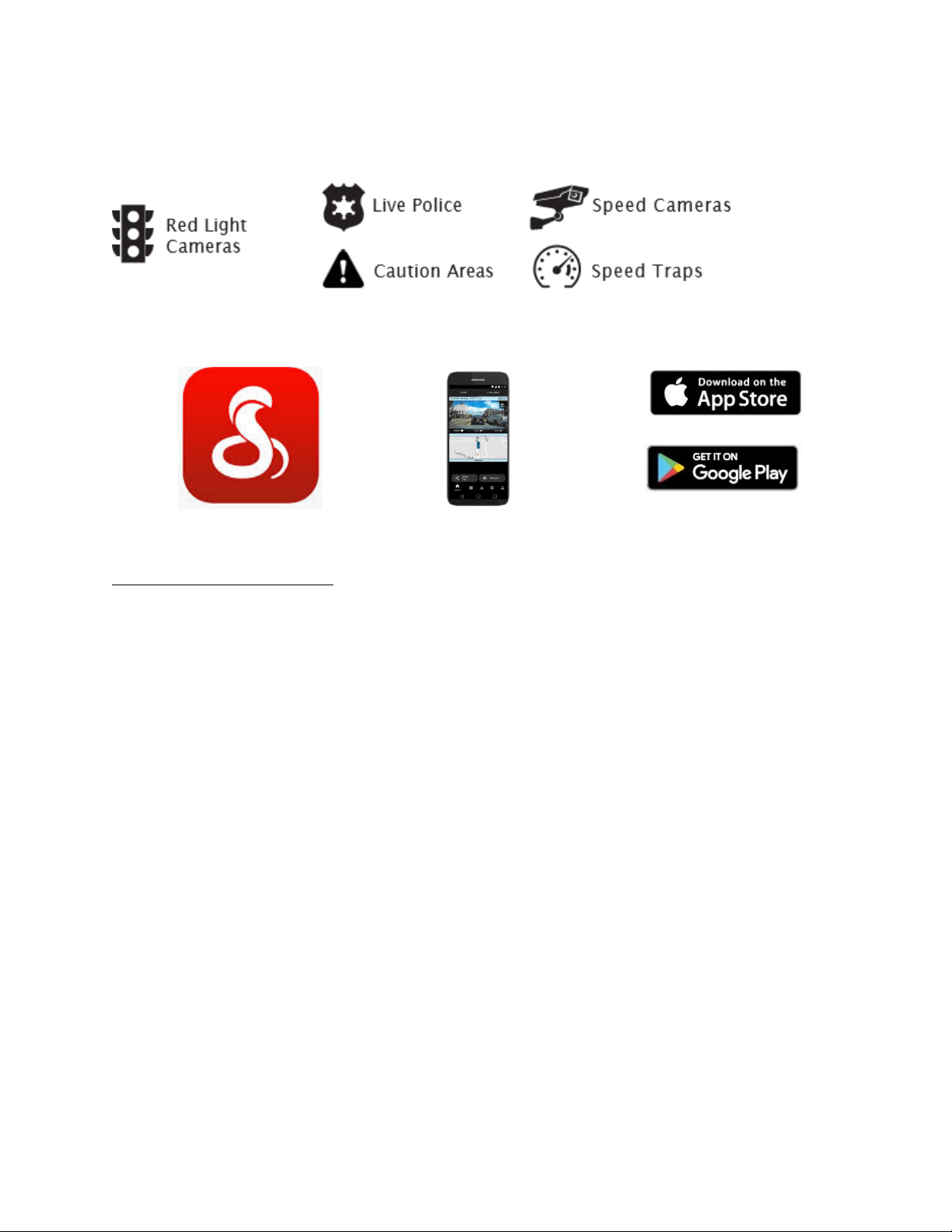
Connecting to the iRadar App enables your camera to receive real-time driver alerts about
what is on the road ahead including:
CONNECTION INSTRUCTIONS
For iPhone® 6s and later.
• Power on your dash cam and be sure that Bluetooth is enabled
• Make sure your iPhone’s Bluetooth is ON. The dash cam
will NOT APPEAR in the iPhone’s Bluetooth Settings Menu.
• Start the Cobra iRadar App. Press the Menu button in the
upper left of the app and select Devices. Follow the onscreen
instructions to complete the pairing and connection.
• When complete, a “connected” chime will sound and the
Bluetooth icon will turn white on the dash cam display.
For Android™ Devices.
• Power on your dash cam.
• Enter your Android device’s Bluetooth Settings Menu.
• Scan for Devices and select Drive HD to pair.
• Enter the Cobra iRadar App. A “connected” chime will sound,
and the Bluetooth icon will turn white on the dash cam display
11 | P a g e
VIDEO SCREEN
The Video Screen is the home screen for the device. With the SC200, based on settings, you
can have one view or two views (picture-in-picture).
VIDEO SCREEN BASICS:
When first powered on, the display will show you what the camera sees.
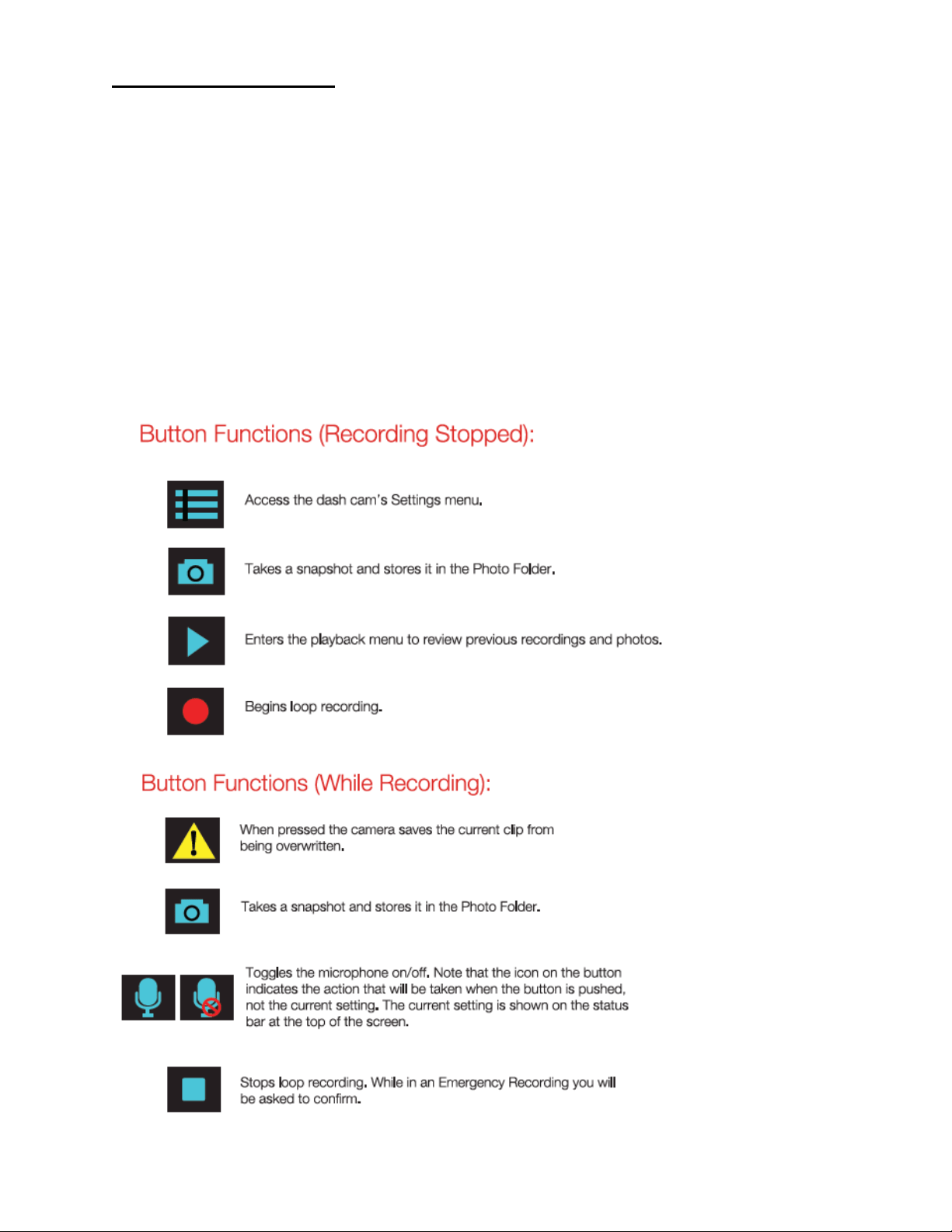
Note that the button functions are different depending on whether the unit is currently
recording or not.
When first turned on or connected to power, the dash camera is in Loop Recording
mode.
Loop recording must be stopped for the unit to enter the Settings Menu.
12 | P a g e
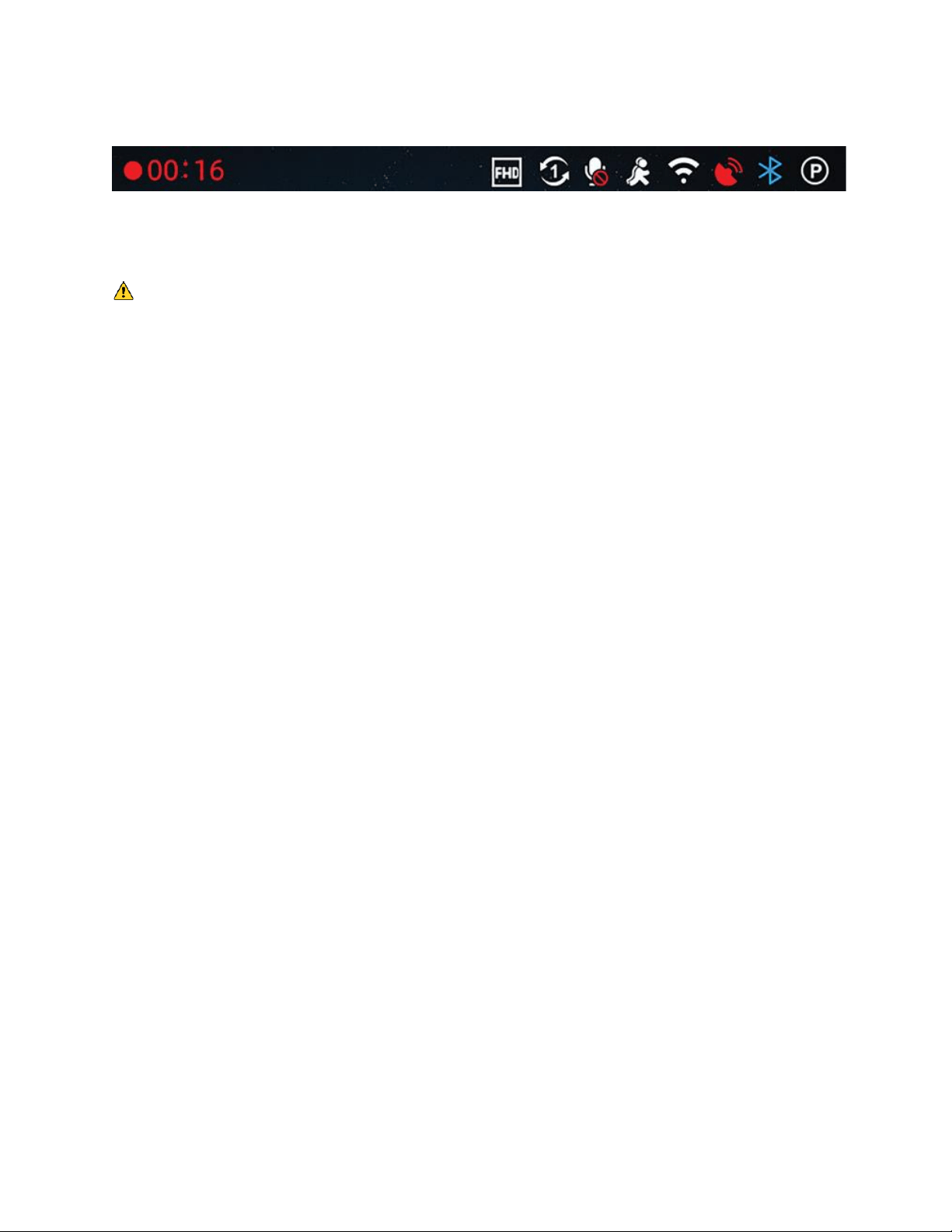
STATUS BAR ICONS:
A B C D E F G H I J
A - Indicates when camera is loop recording
Hazard icon appears in status bar if an Emergency Recording is in progress. The videos is being locked.
B - Indicates the recording time of the current clip
C - Indicates resolution of current recording
D - Indicates loop clip time (1 minute, 2 minutes, 3 minutes)
E - Indicates whether the microphone is active or muted
F - Indicates if Motion Detection is enabled
G - Indicates that WiFi is enabled on the Dash Cam, WiFi connection is possible if paired with phone
H – Red icon indicates that GPS is on, but there is no satellite lock. Green GPS icon indicates that the GPS
has a satellite lock.
I - Indicates that Bluetooth is enabled, Bluetooth connection is possible if paired
with phone
J – Indicates that Parking Mode is enabled

13 | P a g e
VIDEO SETTINGS
Video Resolution:
This setting allows you to set the following resolutions on your SC 200. Higher resolutions will give you a
clearer image but take up more space on the memory card.
The available resolutions are:
1600P QHD 2560 x 1440 30 Frames per Second (Front View Only)
1080P Full HD 1920x1080 30 Frames per Second
720P HD 1280x720 60 Frames per Second
720P HD 1280x720 30 Frames per Second
Loop Clip Time:
This setting allows you to control the duration of each individual movie clip on the device. Video clips can
be set to durations of 1 minutes, 2 minutes, or 3 minutes.
VIDEO AND PHOTO PLAYBACK MODE
This device stores video and pictures on its removable Micro SD Card. Playback mode will allow
you to review the saved video and photos and play back the video with sound. To select a video or
photo for playback navigate with the arrows and select with the OK key. The Back key will return
you to the previous screen.
Photos can be viewed and deleted. It is not necessary to lock photo files – they are not overwritten
by continuous loop recording.
14 | P a g e
VOICE ANNOUNCEMENTS
Your camera can warn you when you are approaching red-light and speed-cameras, user-reported
police, radars detected in the area, accidents, and more from our community of users. When
connected to the iRadar Mobile App, your camera can tell you what kind of threat you are
approaching (For example: “Police Spotted Ahead” or “Accident Ahead”) to help keep you safe on
the road.
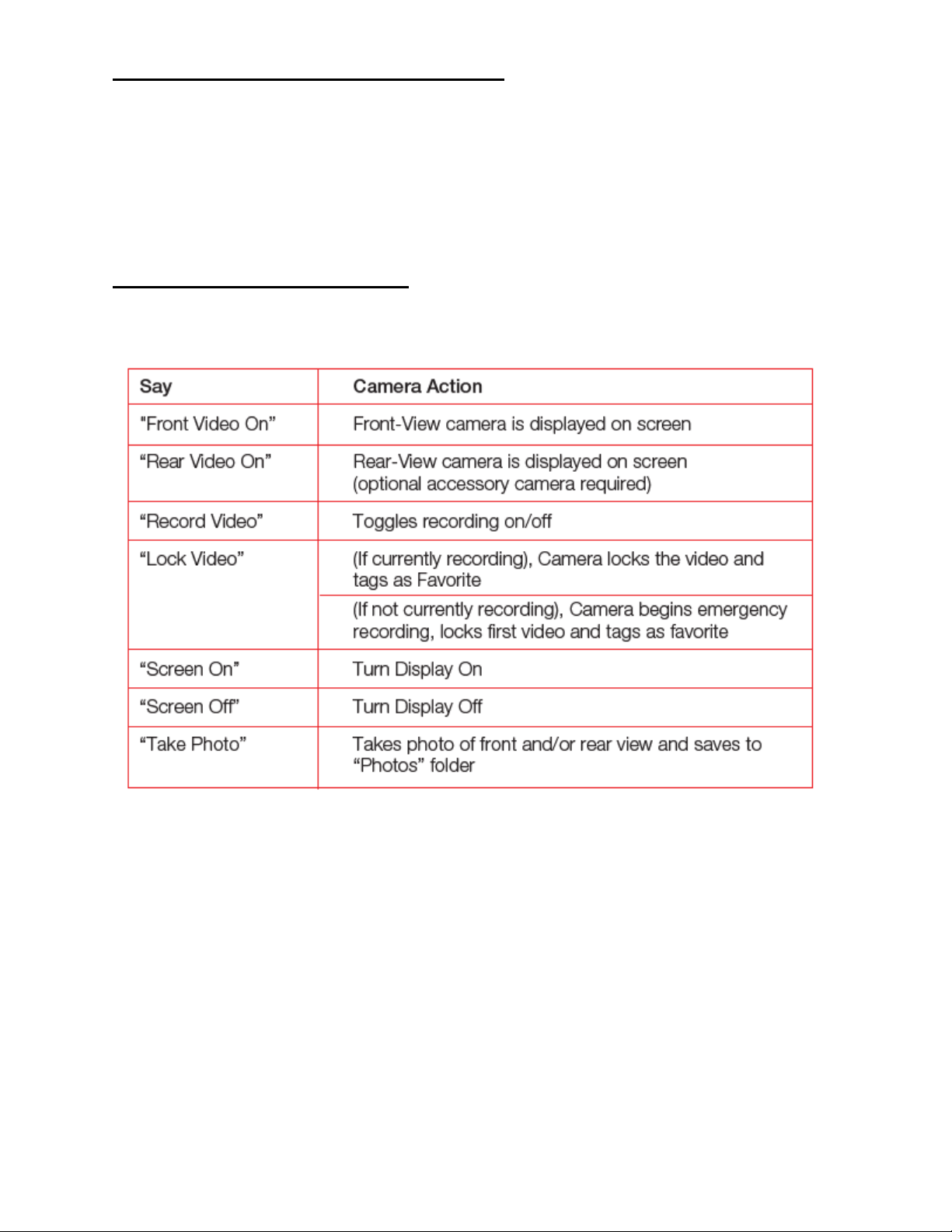
VOICE COMMANDS
Your unit supports the following voice commands to keep your hands on the wheel and eyes on the
road. Note: Please ensure you turn down your stereo when controlling the unit with your voice.
13 | P a g e
MEMORY CARD STORAGE
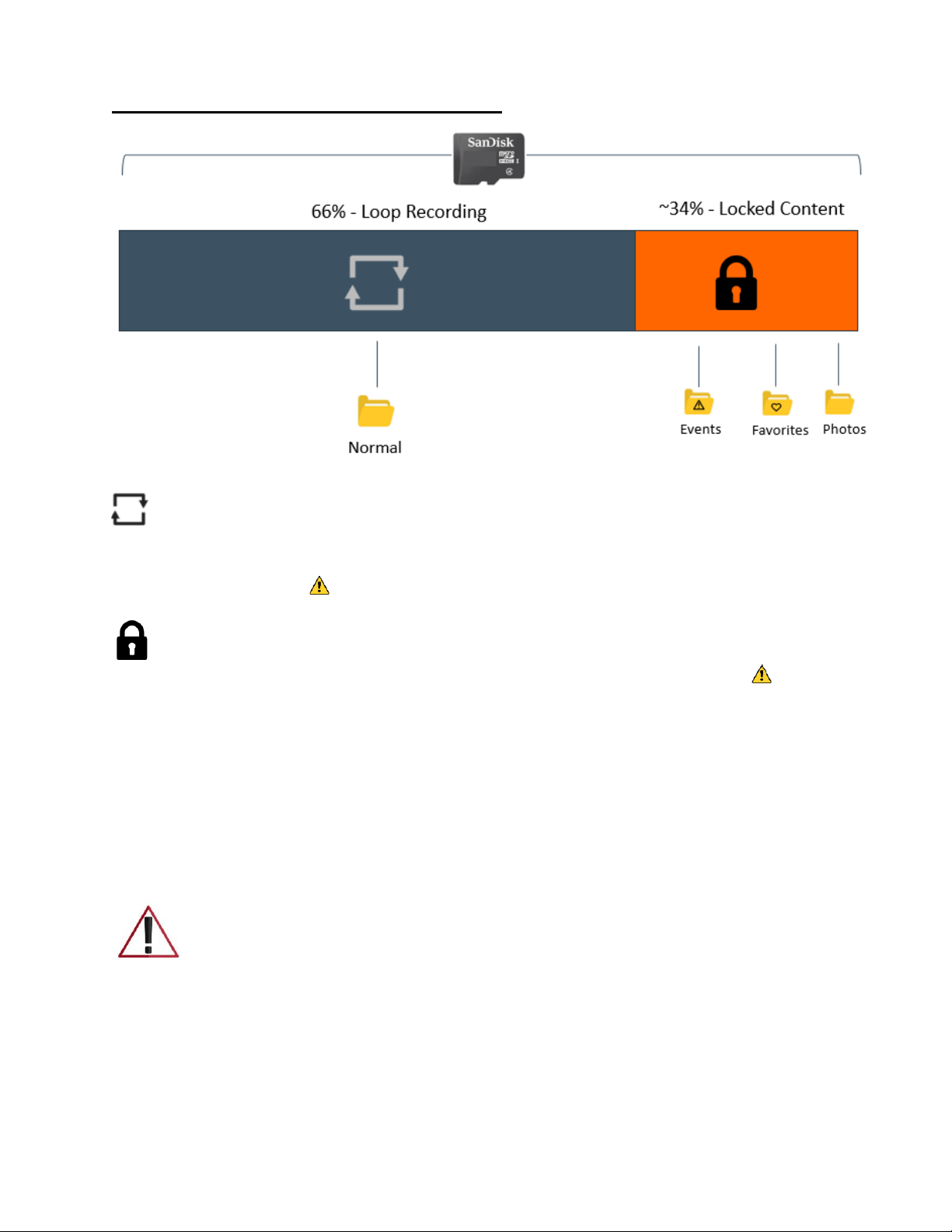
LOOP RECORDINGS:
Once the SD card is full, the camera will continuously overwrite the oldest footage recorded with
recent recordings. To protect a clip so that it will not be overwritten, press the Emergency
Record/Favorites Button so that the clip is moved into the locked content partition.
EMERGENCY RECORDINGS:
An Emergency Recording is triggered when the Emergency Record/Favorites Button is pressed
or when the G-Sensor registers a significant impact (hard braking or collision). Emergency
Recordings create locked files that are not overwritten by Continuous Loop Recording. To ensure
that important footage is not lost surrounding an incident, the prior video clip is locked if the
incident happens within 30 seconds of the beginning or end of a clip.
PHOTOS:
Photos are automatically saved in the Locked partition of the SD card.
You may be occasionally asked to “Format the SD Card” by the camera. This will
delete all SD card content and to help the memory card continue operating
properly. Please save all important footage by downloading via the Drive Smarter
app or by manually uploading to your PC before doing this.

13 | P a g e
SAFETY FEATURES
The SC Series Dash Cams come with several safety features designed to protect you and your
vehicle. You can adjust the level of protection that fits you via Camera and Drive Smarter App
settings.
G-Sensor Impact Detection:
Your Dash Cam includes a built in G-Sensor which allows the device to determine when the car
has been in a collision. If it detects a collision, it automatically locks the recording being made at
the time of the accident. Additionally, if the event occurs within 30 seconds of the start or end of
a clip, the adjacent recording will also be locked so you always have at least 30 seconds saved
from before and after the event. You can use this setting to set the sensitivity of the G-Sensor
from 1-3 or turn it off. Level 1 is the easiest to activate the G-sensor. Level 3 will only lock videos
when the most severe impacts are detected. Locked videos created as a result of a G-sensor
impact detection are stored in the Events folder on the SD card.
Parking Mode & Motion Detection:
Parking Mode uses the Motion Sensor and G-Sensor to monitor while your vehicle is parked. The
idea is that when you are parked, the dash cam will be “sleeping”, but it will monitor
surroundings for motion along with G-Sensor impacts. If it detects motion or if it detects an
impact, then the unit will wake up and start recording.
The camera will enter parking mode after 5 minutes. If there is no motion is during this period,
the display will turn off and the recording will stop (the camera monitors for g-sensor impacts or
motion). If motion is detected or if a G-sensor impact above Level 1 is triggered, the unit will wake
up and start saving 1 minute clips for as long as activity is being detected.
Notes:
• Parking Mode only works properly if the dash cam is powered. Either the Cigarette Lighter
Socket must remain on with the ignition off, or the dash cam must be hardwired to a
constant power source (please check www.cobra.com for available accessories).
• If you park where there is lots of activity which keeps triggering the motion sensor, then
the unit might never time out and enter the sleep state. For this you can use the
“Auto Surveillance Shutoff” setting to prevent unnecessary recording.
If leaving your vehicle off for more than 48 hours (or less if your battery is old) please use the
“Auto Surveillance Shutoff” setting to set a time-limit on Parking Mode and prevent your
battery from being drained.
• You can choose to have your camera monitor for impacts and/or motion by controlling
the ‘Parking Mode’ and ‘Motion Detection’ settings separately.
13 | P a g e
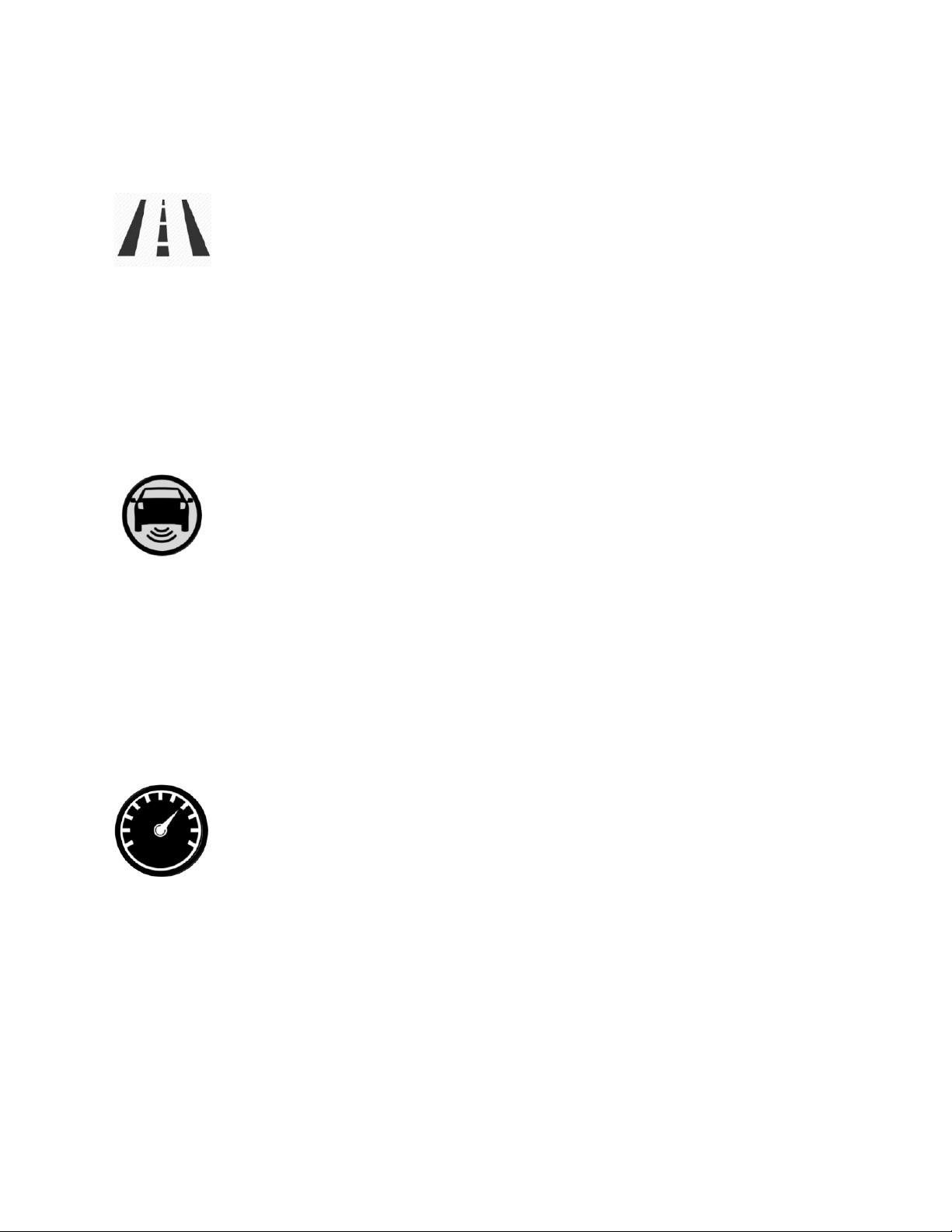
Lane Departure Warning
The Lane Departure Warning System (LDWS) provides audible and visual warnings as you
approach a lane boundary. It will indicate whether you are departing the lane to the left or to the
right. Note that this feature relies solely on analyzing video of the road ahead and, therefore,
works best on clearly marked roads with good visibility. This feature is for informational purposes
only. See the Trademark Acknowledgement, Warnings, and Regulatory Information section below
for the full legal disclaimer for using this feature.
Forward Collision Warning
The Frontal Collision Warning System (FCWS) provides audible and visual warnings if you are
quickly approaching an obstacle in the road ahead. Note that this feature relies solely on analyzing
video of the road ahead and therefore works best with good visibility. This feature is for
information purposes only. See the Trademark Acknowledgement, Warnings, and Regulatory
Information section below for the full legal disclaimer for using this feature.
Speed Alert
The Speed Alert system uses the GPS included in your camera to monitor your speed. In the ADAS
Settings menu, you can set a speed limit for yourself. If the camera detects that you are driving
faster than your pre-set speed limit, it will alert you with an audible tone and by flashing the alert
on the camera display.

14 | P a g e
GENERAL SETTINGS
Video Resolution:
Allows you to select the desired video resolution for loop recordings and emergency videos.
Lower resolution settings result in smaller file sizes, which results in more space on the SD card.
Loop Clip Time:
Loop recordings and emergency videos can be saved in 1 min, 2 min, or 3 min clips depending on
your preference. Smaller (1 min) files are easier to transfer to your phone and share.
Wi-Fi:
Allows enabling/disabling WiFi connection on the device and viewing the camera’s WiFi name
and password.
GPS:
GPS can be disabled if needed. Enabling this setting allows your recordings to have an exact GPS
location stamped on the footage. This also always allows you to know the location of your
vehicle if the camera is wired via a hardwire kit and connected to a WiFi hotspot is installed in
the car.
Bluetooth:
Allows you to disable Bluetooth if needed. Bluetooth is enabled by default. Note: The camera
will not be able to connect to the Drive Smarter App if Bluetooth is disabled.
Display:
Setting allows you to choose the feeds that are displayed on the screen while the camera is
powered. Choose Front view, cabin view, or Picture in Picture (Front View and Cabin View)
Date/Time:
• Enable “Automatic” mode to have date / time settings based on the camera’s GPS signal.
Having the correct date and time ensures that timestamps associated with your videos
are accurate. In this mode, you will still have to ensure that you have picked the correct
“Time Zone” and enabled or disabled “Daylight Savings” based on your location.
• To manually set the date and time, cursor down to “Manual”, and select it. You will now
be able to enter Date and Time information.
Voice Commands:
Voice Commands can be toggled on/off in this setting.
Microphone:
Microphone can be enabled or disabled via settings or on the main screen. When disabled your
recorded videos will be silent. Voice Commands are not affected by turning off the microphone.
Motion Detection:
Enabling Motion Detection allows your camera to monitor movement around the camera
(changes in light) which can be used to record any suspicious activity around the vehicle when
parked. This setting screen allows you to choose which of the available cameras should be used

15 | P a g e
to monitor for activity. If leaving your vehicle off for more than 48 hours (or less if your battery is
old) please use the “Auto Surveillance Shutoff” setting to set a time-limit on Motion Detection
and prevent your battery from being drained.
Note: For Motion Detection to work the camera needs to be connected via hardwire kit (part:
CA-MICROUSB-001) or be plugged into an ‘always on’ Cigarette Lighter Socket. You can check if
your vehicle has an ‘always on’ CLA adapter online or in the vehicle’s owner’s manual.
Parking Mode:
Enabling Parking Mode allows your camera to monitor for changes in its internal G-
Sensor/accelerometer. Bumps, Collisions, and break-ins can trigger the G-Sensor to save
valuable footage from the moment of impact. If leaving your vehicle off for more than 48 hours
(or less if your battery is old) please use the “Auto Surveillance Shutoff” setting to set a time-
limit on Motion Detection and prevent your battery from being drained.
Note: For Parking Mode to work the camera needs to be connected via hardwire kit (part: CA-
MICROUSB-001) or be plugged into an ‘always on’ Cigarette Lighter Socket. You can check if your
vehicle has an ‘always on’ CLA adapter online or in the vehicle’s owner’s manual.
Surveillance Auto Shutoff:
If leaving your vehicle off for more than 48 hours (or less if your battery is old) please use the
“Auto Surveillance Shutoff” setting to set a time-limit on Motion Detection and Parking Mode to
prevent your battery from being drained.
G-Sensor:
You can use this setting to set the sensitivity of the G-Sensor from 1-3 or turn it off. Level 1 is the
easiest to activate the G-sensor. Level 3 is the setting which will only lock videos when the most
severe impacts are detected. Level 1 is recommended for most users.
Watermark (Date/Time, Speed, GPS, Driver ID Video Stamp
The watermark settings allow you to toggle having the date/time, speed, GPS coordinates, the
Cobra logo and a custom Driver ID be stamped into the bottom of all recorded video.
Driver ID Watermark:
This setting allows you to associate a Driver ID with the camera (for example: John, Employee 12,
etc). This allows you to set the name of the driver which will be stamped on the footage as part of
the watermark.
Exposure:
Allows you to adjust how light or dark videos and images will appear on the camera.
Button Beep:
Turns the sound on or off for button presses. Note: this only affects normal button presses. Error
messages or Voice Announcements are not affected by this setting.
Screen Saver:

16 | P a g e
Allows you to set a duration after which the device’s display turn off with the camera still
recording. This setting is useful to avoid distracted driving and having a bright LED screen when
driving at night.
Interior Night Vision:
The interior camera’s infrared LEDs allow for clear recording at night. You can set this to be
always on, off, or select Auto to allow the camera to detect low-light conditions and
automatically enable Interior Night Vision recording.
Language:
This setting allows you to pick the on-screen language for the camera unit.
Driver Assistance (ADAS):
ADAS features allow you to receive warnings when you are in danger of colliding with an object
in front of you (Forward Collision Warning), drifting out of your lane (Lane Departure Warning),
and Speeding beyond a limit you can pre-set for yourself (Speed Alert). You can toggle each of
these alerts on/off within this menu.
To use ADAS features, please ensure that the camera’s vision system is properly calibrated, and
that the dash camera is properly oriented relative to the road ahead.
To Calibrate:
Cursor over the “Calibration” item and press “OK” to select.
For a properly mounted dash camera,
• The vertical line would appear to divide the windshield into equal parts.
• The horizontal line would align with the front edge of your vehicle’s hood if your hood is
visible.
iRadar Network Alerts:
This setting allows the user to program real-time driver alerts acquired from the iRadar network.
Here you can choose to have the camera make a voice announcement when there is a red-light
camera or speed-camera ahead, or to simply display the warning on the LCD display. You can
also choose to turn notifications from the unit off completely and simply follow along using the
iRadar App.
Drive Smarter Services:
These settings allow you to select which videos you would like auto-uploaded to the Drive
Smarter App for sharing/review. You can also choose to have Incident Reports sent to your
insurance provider, as well as Mayday alerts sent to your Emergency Contact if a severe G-
Sensor event is detected.
Speed Units
Choose between miles/hour or kilometers/hour as the speed unit stamped in the watermark.

17 | P a g e
Volume:
Allows you to raise and lower the volume of notifications and button beeps from your camera.
WDR:
Enabling Wide Dynamic Range allows your camera to accurately capture footage in very bright
conditions. Enabling this feature is recommended for most recording conditions.
GPS Format:
Choose between Decimals and Degrees as the GPS format that is stamped in the watermark.
Frequency:
Choose between 50Hz and 60Hz as your operating frequency if you are experiencing flickering in
your video.
Format Reminder:
Choose the recurrence at which you are reminded to format the Micro SD card. Formatting the
SD card frequently ensures your videos are protected and the SD card is saving content properly.
Delete Videos Reminder:
Set this to be periodically reminded to free up locked video content so that the camera does not
run out of “Emergency Recordings” and “Favorites” space.
Restore Defaults:
Resets the device to factory settings. Note that restoring defaults will NOT erase data on your
memory card.
Format SD Card:
Allows you to format the inserted SD Card. NOTE: This action will permanently delete all data
on the card. It is recommended to format any new card and periodically format existing cards.
About
You can use this setting to view your cameras electronic serial number, manufacturer part
number, and Firmware

18 | P a g e
FIRMWARE UPDATES
Ensure the camera is connected to a constant power source during the update
process. Failure to do so could result in your unit becoming non-functional. Your
vehicles cigarette lighter socket or a household outlet work best
Using the Drive Smarter App
• View the current firmware version under the About menu item on the Dash Cam
o Stop loop recording
o Press the MENU button, cursor down to the ABOUT item
o Note the firmware version shown on the screen
• Power up your camera by connecting to constant power source such as your vehicles CLA
adapter or a household outlet.
• When you Connect your camera, the app will check if a newer firmware update is available
on the server.
• Press ‘Download’ on the notification to download the latest Firmware.
• Follow the instructions on the Drive Smarter Mobile Application. If successful, the camera’s
LED’s will begin blinking while the firmware is being installed.
• To check that the Firmware update was successful, you can check the ‘About’ screen in your
camera’s settings menu
Using a Mac or PC
For optimal performance, check www.cobra.com periodically for software updates.
• View the current firmware version under the About menu item on the Dash Cam
o Stop loop recording
o Press the MENU button, cursor down to the ABOUT item
o Note the firmware version shown on the screen
• Connect the Dash Cam to your computer using the included USB to Micro-USB cable.
• Power on the Dash Cam and select Connect to Computer using the record/select button.
• The camera will be listed in Windows Explorer/Finder.
• Download the update file from www.drivesmarter.com and save it to your computer. It will
end with “.bin” as the file extension. Note: You do not need to double click or open this file
on the computer.
• Copy/paste or drag the update file you downloaded .bin file into the root directory of the
Camera’s SD Card.
• Wait for the file to transfer and then safely disconnect the Dash Cam from the computer. The
Dash Cam will turn off.

19 | P a g e
• Plug the Micro USB cord into a reliable power source such as your home’s outlet or your
vehicle’s CLA adapter. The Dash Cam will turn on and automatically boot into the Firmware
Update Menu.
• Follow the directions on the camera display to update firmware if the unit has one. Units
without displays will update automatically.
• You can check if your camera is up to date by checking the firmware in your camera’s ‘About’
setting submenu in the camera or via the app.
20 | P a g e
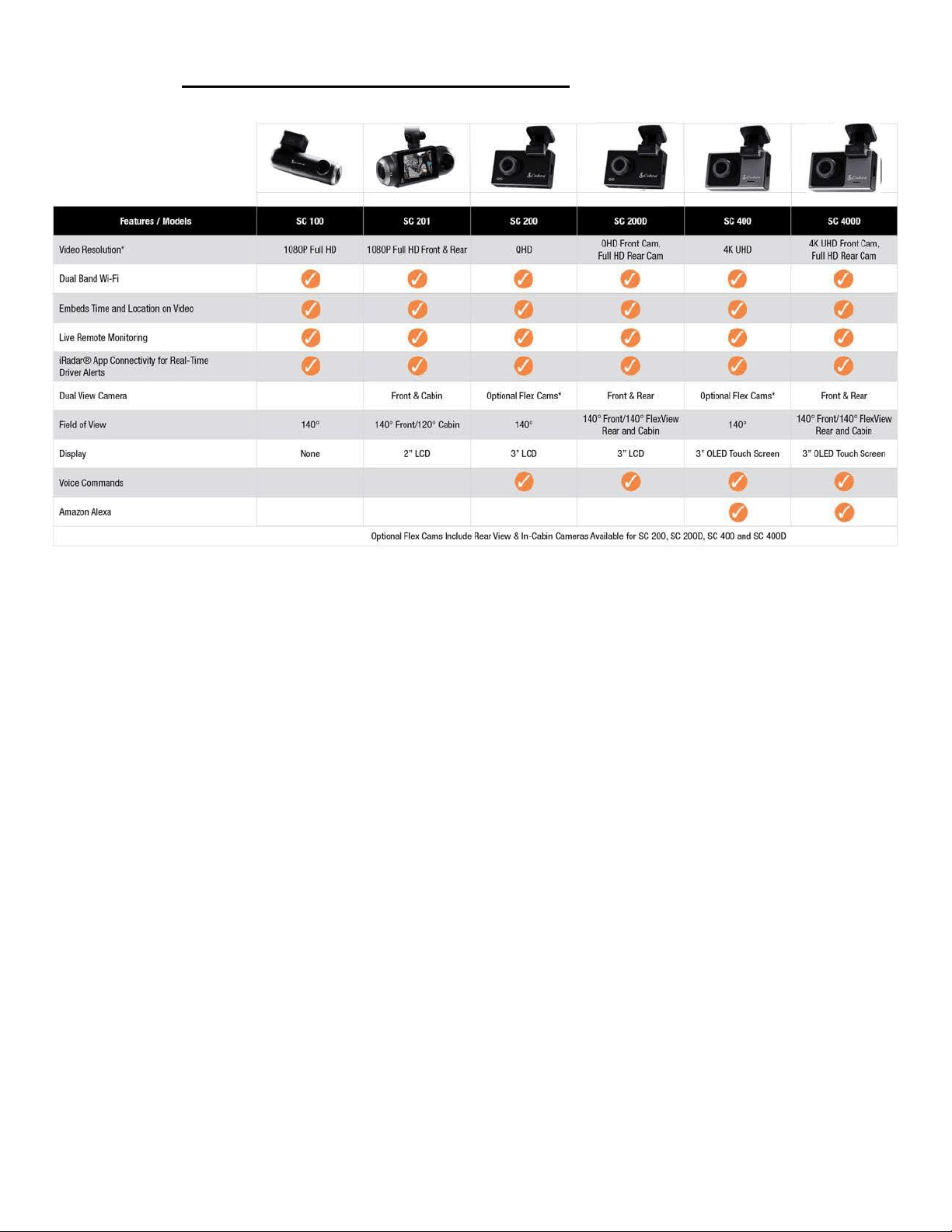
CAMERA SPECIFICATIONS

21 | P a g e
TROUBLESHOOTING
If your unit does not appear to be operating properly, please follow these troubleshooting steps:
• Make sure the power cord is properly connected.
• Make sure the socket of your vehicle’s cigarette lighter is clean and free of corrosion.
• Make sure the power cord’s cigarette lighter adapter is firmly seated in your cigarette lighter
• Make sure you have downloaded the latest firmware to your unit
FAQ
• Where do I mount/position my Dash Camera on the windshield?
a. Power on your dash cam so you can see the camera’s view while mounting. We recommend centering
your camera and mounting under the rear-view mirror.
If your unit has a display, you can use the Camera’s “Calibrate” feature found in the ADAS menu to line
up your view. SC100 users can use the Drive Smarter app to get a live-view of what the camera is
seeing to help with mounting.
• What is the largest MicroSD card size I can use in my camera?
a. We recommend using a Class 10 Micro SD card from a reputable vendor up to the following sizes.
Model
SC100
SC201
SC200
Max SD Card Size
128GB
256GB
256GB
• Why is my unit not powering up?
a. Please ensure your unit is properly connected. If you have turned the unit off, press and hold the power
button to turn on again.
If you are using Parking Mode and Motion Detection Mode with a hardwire kit, the unit might not
“wake up” when you enter. Simply begin driving and when your unit detects this it will wake up and
begin recording.
• Why do recordings of the cabin/vehicle’s interior appear black and white?
o This is normal operation of the Infrared LED night-vision camera. Infrared recording allows the camera
to accurately record your vehicle’s cabin in low-light conditions. You can turn Infrared recordings off in
the settings menu.
• How do I use Parking Mode and Motion Detection?
a. Parking Mode and Motion Detection can be turned on in the camera’s settings. These two features will
monitor your vehicle automatically when the unit is connected directly to the car’s vehicle via hardwire
kit (check for availability at www.cobra.com).
Note: When the car is parked your unit will go into a low-power “standby”/sleeping state where it
monitors for activity. The unit will automatically wake up when it detects significant motion or driving.
• Why is my unit not getting a GPS Lock (GPS icon is red)?
a. The GPS inside the device locks in with the satellite best when you are on the road. You may not be able
to get a GPS lock while in your garage, parking structures, or if testing the camera in your home.

22 | P a g e
TRADEMARKS ACKNOWLEDGEMENT, WARNINGS, and
REGULATORY INFORMATION
Cobra and the snake design are proprietary trademarks of Cobra Electronics Corporation, USA. Other trademarks and trade names are those of
their respective owners.
Cobra Electronics Corporation™ is a trademark of Cobra Electronics Corporation, USA.
The Bluetooth® word mark is a registered trademark owned by Bluetooth SIG, Inc. and any use of such marks by Cobra Electronics Corporation
is under license. Other trademarks and trade names are those of their respective owners.
The Driver Awareness Alert display feature is subject to US Patent Numbers 8,842,004 and 8,970,422 and additional pending US Patent
Applications.
Warning ! The forward collision warning system (FCWS) feature, when turned on, is for limited informational purposes only. The FCWS does
NOT replace a driver’s responsibility to use safe driving judgment, comply with all traffic regulations and observe all road and driving conditions
at all times. The FCWS uses the camera to provide a warning of upcoming vehicles [and large objects] and, as a result, may have reduced or no
functionality in low visibility or certain weather conditions.
Driver is responsible for the safe operation and control of the vehicle. Do not substitute your driving judgment with the information provided by
this feature. Cobra disclaims liability for injuries, damages, or death arising from use of this feature.
Warning ! The Lane Departure Warning System (LDWS) feature, when turned on, is for limited informational purposes only. The LDWS does
NOT replace a driver’s responsibility to use safe driving judgment, comply with all traffic regulations and observe all road and driving conditions
at all times. The LDWS uses the camera to provide a determine if the vehicle is drifting toward or departing from designated lane markings and,
as a result, may have limited functionality in low visibility or certain weather conditions or when driving on unmarked or poorly marked roads.”
Driver is responsible for the safe operation and control of the vehicle. Do not substitute your driving judgment with the information provided by
this feature. Cobra disclaims liability for injuries, damages, or death arising from use of this feature.
NOTE: This device complies with part 15 of FCC rules: Operation is subject to the following two conditions: (1) This device may not cause
harmful interference, and (2) This device must accept any interference received including interference that may cause undesired operation.
CAUTION: Modifications or parts not approved by Cobra Electronics Corporation may violate FCC Rules and void authority to operate this
equipment. This device complies with RSS-310 of Industry Canada. Operation is subject to the condition that this device does not cause harmful
interference.
CAN ICES-3B/NMB-3B.
DISPOSAL OF ELECTRONICS EQUIPMENT: This product may contain hazardous substances that could impact health and the environment if not
disposed of properly.
The crossed out wheeled bin symbol indicates that the product should not be disposed of along with household waste. It should be handed
over to an applicable collection point for the recycling of electrical equipment. By ensuring that this product is disposed of correctly you will
help/prevent potential negative impact on the environment.
If you need more information on the collection, reuse and recycling systems, please contact your local civic office or the shop where it was
originally purchased.