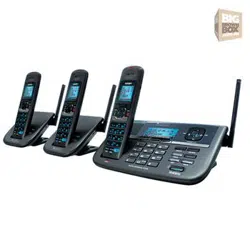

XDECT R055
XDECT R055 OM.indd 1 22/9/11 2:16:13 PM

IMPORTANT NOTICE:
Under power failure conditions this appliance may not operate. Please ensure that a
separate telephone, not dependent on local power, is available for emergency use.
GENERAL NOTICES FOR NEW ZEALAND MODEL:
The grant of a NZ Telepermit for any item of terminal equipment indicates only
that Telecom has accepted that the item complies with minimum conditions for
connection to its network. It indicates no endorsement of the product by Telecom,
nor does it provide any sort of warranty. Above all, it provides no assurance that any
item will work correctly in all respects with another item of Telepermitted equipment
of a different make or model, nor does it imply that any product is compatible with
all of Telecom's network services.
The maximum volume setting of this telephone exceeds the Telecom specified
volume requirement. Telecom takes no responsibility for the high volume available
on this telephone, customer’s who believe this telephone is too loud should contact
the manufacturer at the website indicated on owner’s manual warranty page.
For telephone networks other than Telecom there may be a charge incurred for
local calls if the Insert 0 feature is on. Turn Insert 0 off.
This equipment may not provide for the effective hand-over of a call to another
device connected to the same line.
XDECT R055 OM.indd 2 22/9/11 2:16:14 PM
Headset
(HS910)
XDECT R055 Series Owner's Manual
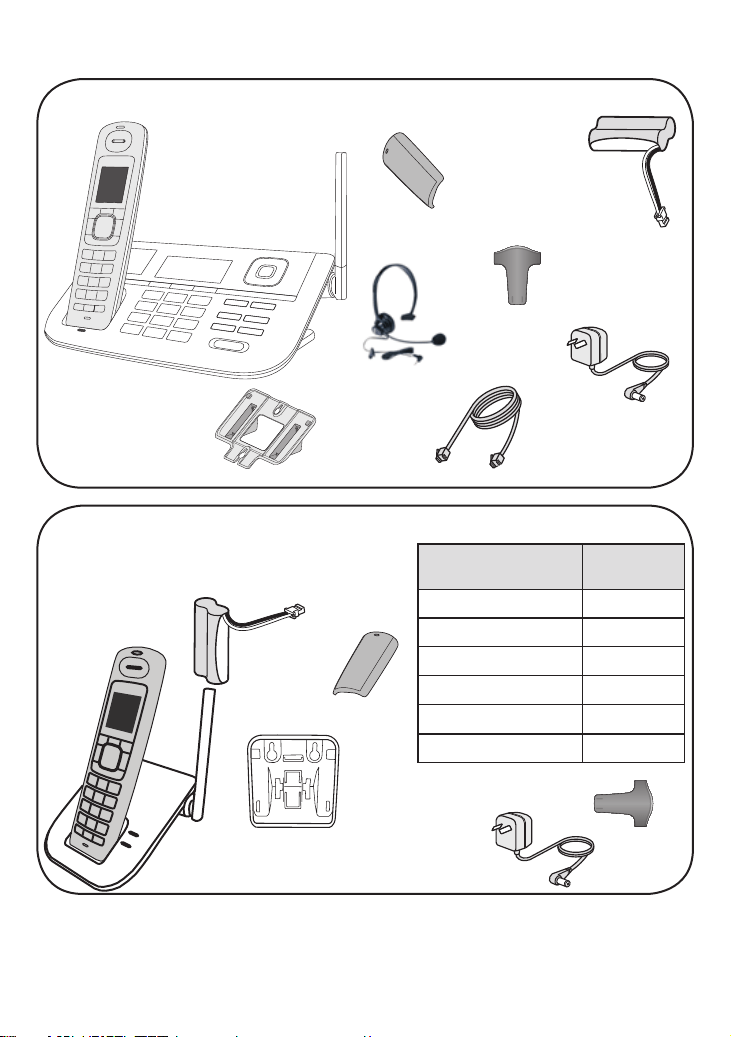
What's in the box?
Base AC adapter
(AAD-041S(M))
2 x Telephone
cords
Belt clip
XDECT R005
accessory
handset and
repeater with
charger
If you purchased
model number:
You should
have:
XDECT R055 None
XDECT R055+1 1 of each
XDECT R055+2 2 of each
XDECT R055+3
3 of each
XDECT R055+4
4 of each
XDECT R055+5 5 of each
You might also find:
Desk stand/wall
mount bracket
Battery
cover
Rechargeable
battery pack
(BT-694 or BT-694s)
Belt
clip
Battery
cover
Rechargeable
battery pack (BT-
694 or BT-694s)
Charger AC
adapter
(AAD-041S(M))
XDECT R055 two-line
base with cordless
handset and dual
answering system
If any items are missing or damaged, contact your place of
purchase. Never use damaged products!
Desk stand/wall
mount bracket
XDECT R055 OM.indd 3 22/9/11 2:16:16 PM

Important Safety Instructions!
When using your telephone equipment, basic safety precautions should always be followed to
reduce the risk of re, electric shock and injury to persons, including the following:
This unit is NOT waterproof.
DO NOT expose this unit to rain or moisture.
Do not use this product near water, for example, near a bath tub, wash bowl, kitchen sink or
laundry tub, in a wet basement or near a swimming pool.
Avoid using a telephone (other than a cordless type) during an electrical storm. There may be a
remote risk of electric shock from lightning.
Do not use the telephone to report a gas leak in the vicinity of the leak.
Use only the power cord and batteries indicated in this manual. Do not dispose of batteries in a
re. They may explode. Check with local codes for possible special disposal instructions.
Do not place the handset in any charging cradle without the battery installed and the battery
cover securely in place.
SAVE THESE INSTRUCTIONS!
What's in the manual?
Installing Your Phone ................................1
Setup the Base .........................................1
Setup the Repeater/Charger(s)
(if included) ...............................................4
Setup the Handset(s) ................................5
Using the Belt Clip ....................................6
Test the Connection ..................................7
Using the Repeater ...................................8
Getting to Know Your Phone ..................11
Parts of the Base ....................................11
Parts of the Handset ...............................13
Reading the Displays .............................15
Using the Soft Keys ................................17
Entering Text on Your Phone..................19
Using the Menus ......................................20
The
Handset
and
Base Setup
Menu 21
The
Clock Setup
Menu ........................22
The
Global Setup
Menu .....................22
Special Feature Menus ...........................23
Using Your Phone ...................................24
Working with Two Lines ..........................24
Changing the Volume .............................26
Using the Caller ID and Redial Lists .......26
Using Call Waiting ...................................28
Finding a Lost Handset ...........................28
Using the Headset ..................................29
Using the Phonebook ..............................30
Setting Up Your Phonebook ...................30
Phonebook Menu Options ......................32
Chain Dialing...........................................32
Using Multi-station Features ..................33
Expanding Your Phone ...........................33
Using Multi-Station Conference Calling ..33
Using Privacy Mode ................................34
Using Call Transfer .................................34
Using the Intercom ..................................35
Using Special Features ...........................36
Using Do Not Disturb ..............................36
Using Call Block ......................................36
Using the Alarm Feature .........................38
Using Voice Message Notication ..........39
Using the Answering System ................40
Setting Up Your Answering System ........40
Getting Your Messages ..........................42
Screening Your Calls ..............................43
Using the System While You're Away
from Home............................................44
Solving Problems ....................................45
Weak or Hard To Hear Audio .................47
Noise or Static On The Line ....................47
Resetting and Registering Handsets ......49
Registering Repeaters ............................50
Handling Liquid Damage .........................51
Important Information .............................52
Battery Information..................................53
Index .........................................................54
One-year Limited Warranty .....................55
XDECT R055 OM.indd 4 22/9/11 2:16:16 PM
1
Installing Your Phone
Setup the Base
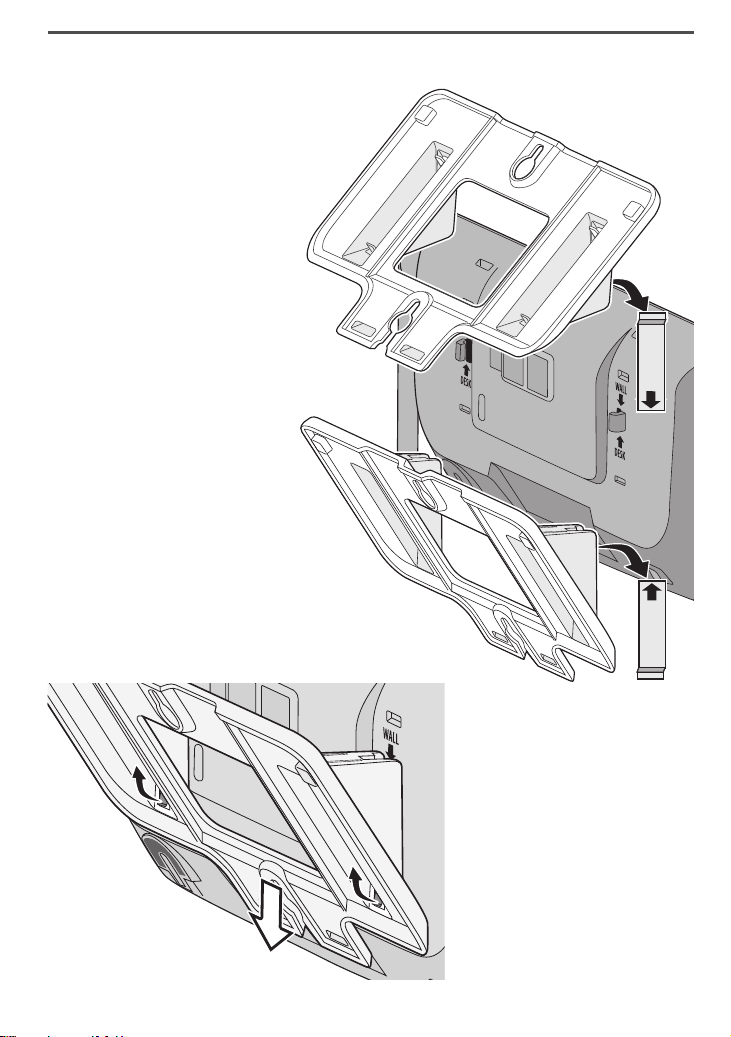
Attach the stand
Before you attach the
stand, you have to decide
if you want the phone to
rest on a desk or hang on
a wall.
For desktop use, turn 1.
the stand so the locking
tabs that say
DESK
are
facing the base with the
arrows pointing up.
OR
For wall mount use,
turn the stand so the
locking tabs that say
WALL
are facing the base
with the arrows pointing
down.
Align the stand with the 2.
notches on the base.
Slide the stand onto the notches until 3.
it clicks into place.
To remove the stand
Pull the locking tabs up
and back (see the black
arrows in the illustration
to the right). Then, slide
the stand straight off the
same direction you put it
on.
W
A
L
L
D
E
S
K
XDECT R055 OM.indd 1 22/9/11 2:16:16 PM
2
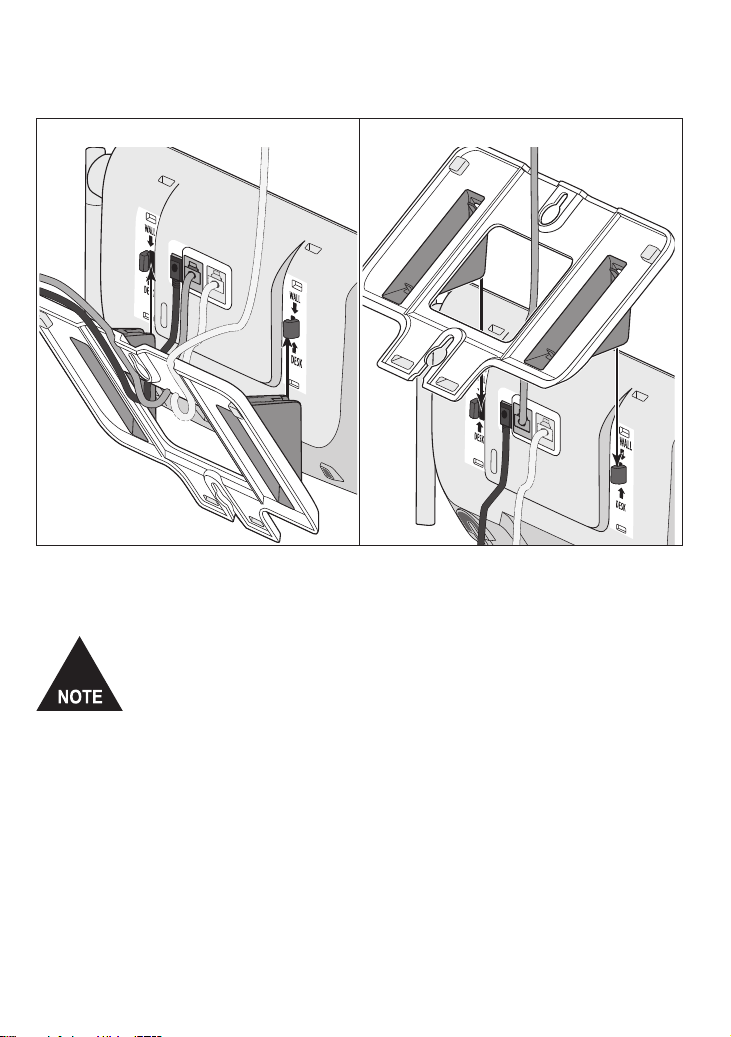
Connect the power and telephone cord(s)
Connect the base AC adapter to the 1.
DC IN 9V
jack and route the
cord as shown:
For desktop use For wall mount use
PRIMARY LINE
TEL LINE 2
DC IN
9V
PRIMARY LINE
TEL LINE 2
DC IN
9V
Connect one of the included telephone cords to the 2. PRIMARY
LINE jack.
If you wish to connect a second telephone line then
remove the label cover to access the TEL LINE 2 jack.
Connect the second telephone cord to the TEL LINE 2
jack. Route the cords as shown above.
Connect the cord from 3. PRIMARY LINE to the phone jack for line 1;
then, if you have a second telephone line, connect the cord from
TEL LINE 2 to the phone jack for line 2.
Plug the AC adapter into a standard 240V AC power outlet.4.
XDECT R055 OM.indd 2 22/9/11 2:16:17 PM
3
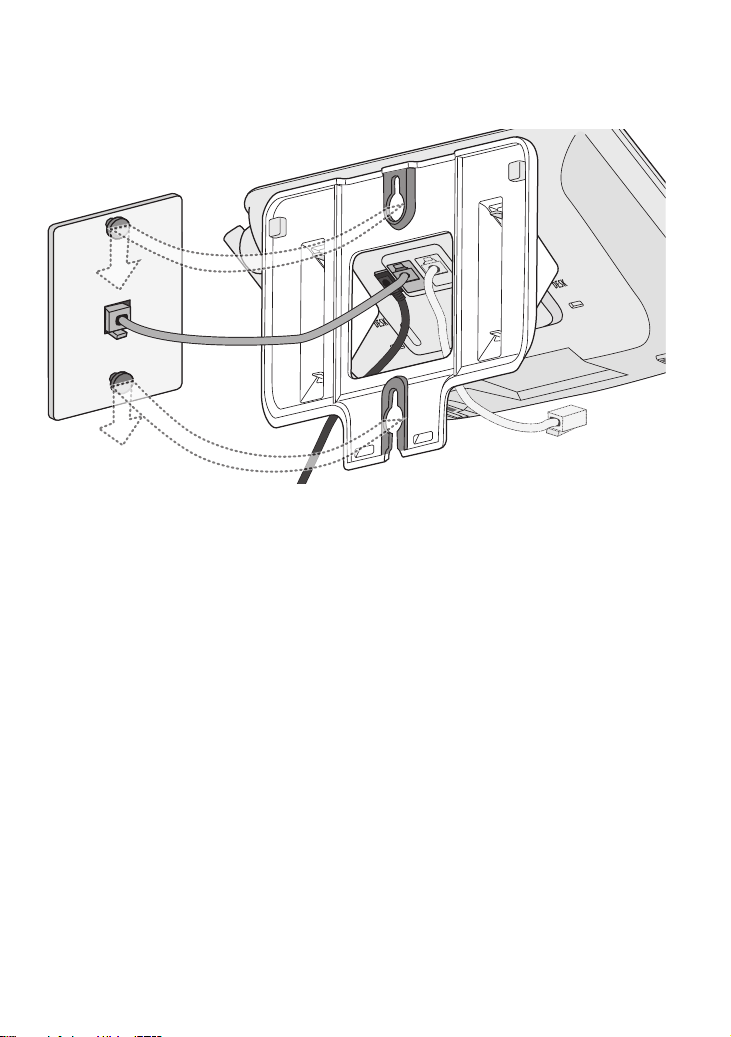
Place the main base on the wall
Place the mounting slots (hole spacing is 100mm vertical) over the
pins on the wall plate, and slide the base down to lock it into place.
(To telephone jack for optional
second line)
XDECT R055 OM.indd 3 22/9/11 2:16:18 PM
4
Setup the Repeater/Charger(s) (if included)
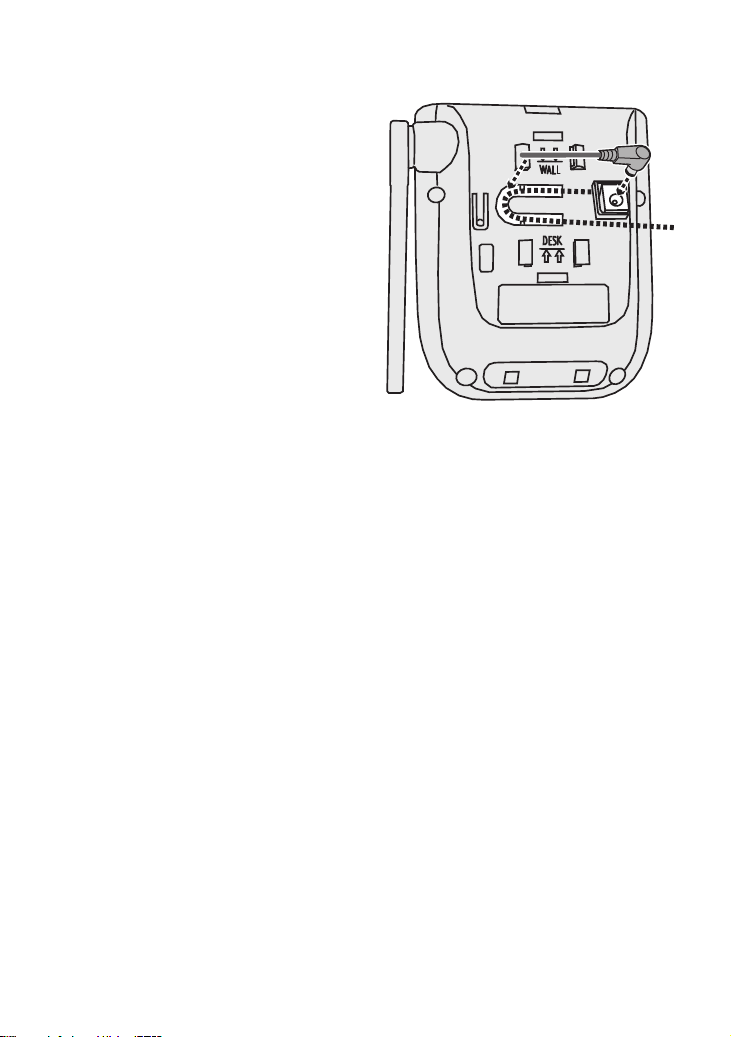
Connect the repeater/charger power cord
1. If your phone came with any
accessory handsets and
chargers, connect a charger AC
adapter to each charger's
DC IN 9V
jack and set the plug
into the notch as shown. (These
adapters might already be
connected.)
Plug the other end of the 2.
adapter into a standard 240V
AC power outlet.
Attach the stand
To attach the stand, you have to decide if you want the repeater 3.
to rest on a desk or hang on a wall.
For desktop use, turn the stand so the locking tabs that say
DESK
are facing the base with the arrows pointing up.
OR
For wall mount use, turn the stand so the locking tabs that say
wall are facing the base with the arrows pointing down.
Align the stand with the notches on the repeater.4.
Slide the stand onto the notches until it clicks into place. (To 5.
remove the stand, pull the locking tabs up and back. Then, slide
the stand straight off the same direction you put it on.)
Place the repeater/charger on the wall
For wall mount use, place the mounting slots (hole spacing is 6.
30mm horizontal) over the pins on the wall, and slide the base
down to lock it into place.
XDECT R055 OM.indd 4 22/9/11 2:16:18 PM
5
Setup the Handset(s)
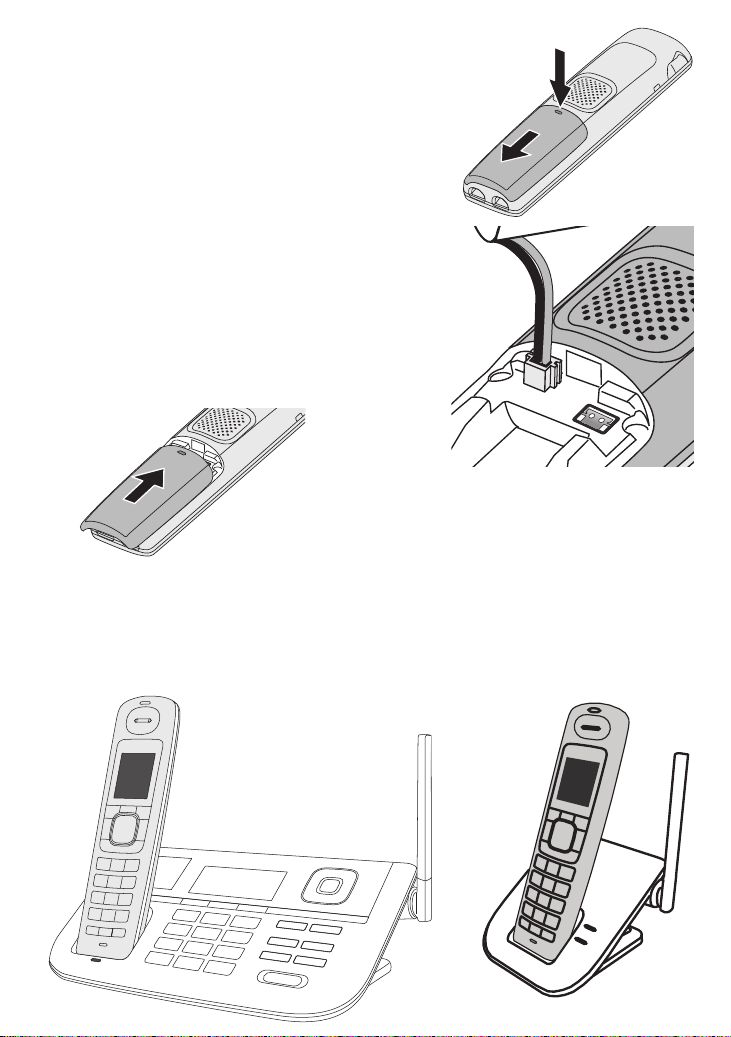
Install the battery
Unpack all handsets, battery packs, 1.
and battery covers. If any handset has
the battery cover already attached,
press in on the notch and slide the
cover down and off.
Line up the battery pack connector 2.
with the jack inside the handset. (The
battery connector will only fit one way.)
Push the battery pack connector in 3.
until it clicks into place. Tug gently on
the wires to make sure the battery
pack is securely connected.
Place the cover over the 4.
battery compartment and slide
it up into place.
Charge the battery
Place one handset in the base and any other handsets in a charger
with the displays facing forward. (It doesn't matter which handset you
place in the base.) The
CHARGE
lights on the base and all chargers
should turn on.
XDECT R055 OM.indd 5 22/9/11 2:16:19 PM

6
If... Try...
a
CHARGE
light doesn't
turn on
reseating the handset. -
checking the AC adapter connection. -
Charge all handsets completely (about 15 hours) before using
them. When fully charged the battery will provide up to 8hrs talk
time and 7 days standby time.
Using the Belt Clip
To attach the belt clip
Line up the holes on each side of the handset. Insert the belt clip into
the holes on each side of the handset. Press down until it clicks.
To remove the belt clip
Pull either side of the belt clip to release the tabs from the holes.
XDECT R055 OM.indd 6 22/9/11 2:16:20 PM
7
Test the Connection
Pick up the handset from the base and press
TALK/FLASH.
. The phone
should pick up line 1 automatically and change the display to show
Talk
, and you should hear a dial tone.
When you get a dial tone, make a test call; press
END
to hang up.
If... Try...
the base display says
Check
or you don't hear a
dial tone
checking the connection between the
base and the phone jack: make sure the
cord is connected to
PRIMARY LINE
.
there's a lot of noise or
static
see page 47 for tips on avoiding
interference.
the handset display says
Unavailable
resetting the handset (see page 49). If
you have accessory handsets, try using
a different handset for the test call.
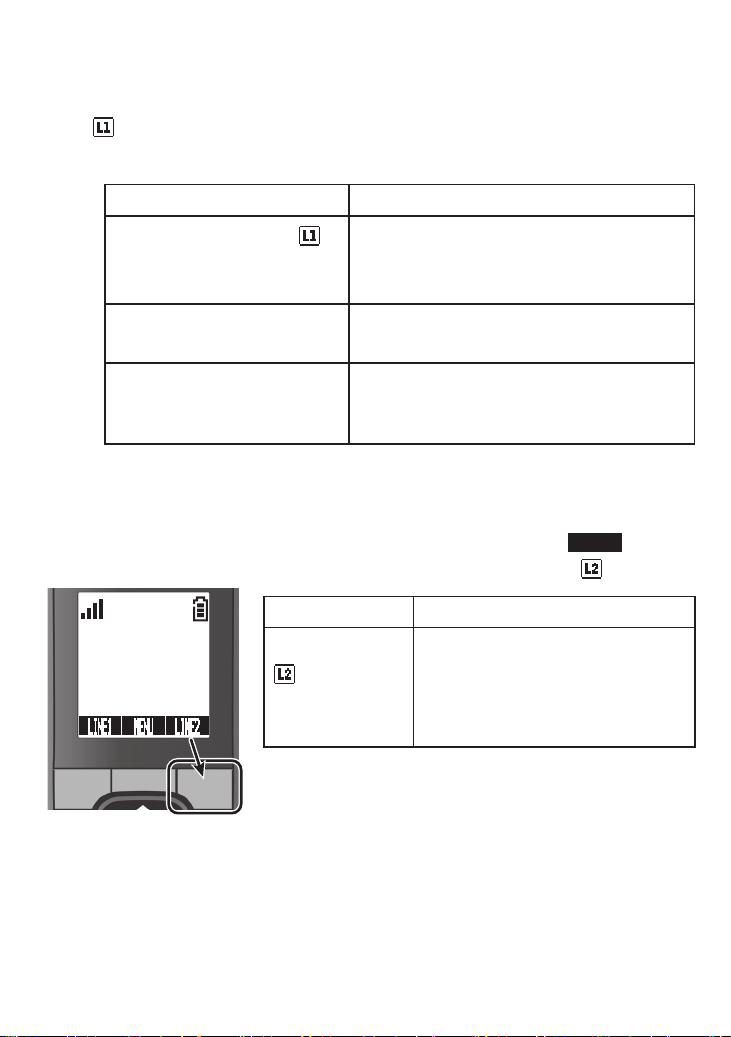
Test Line 2 (Optional)
If a second line is connected, make a test call on the second line.
Pick up the handset and press the unmarked key under
LINE2
. You
should hear a dial tone and the display should show
Talk
.
If... Try...
the display says
Check
or
you don't hear a
dial tone
checking the connection
between the base and the phone
jack: if you have a separate jack
for each line, make sure the
cord is connected to
TEL LINE 2
.
Test any accessory handsets the same way. If
you can't get a dial tone or the handset display
says
Unavailable
, try moving the handset
closer to the base or resetting it (see page 49).
SUN 12:00A
Handset #1
LINE1 MENU LINE2
XDECT R055 OM.indd 7 22/9/11 2:16:22 PM
8
Using the Repeater
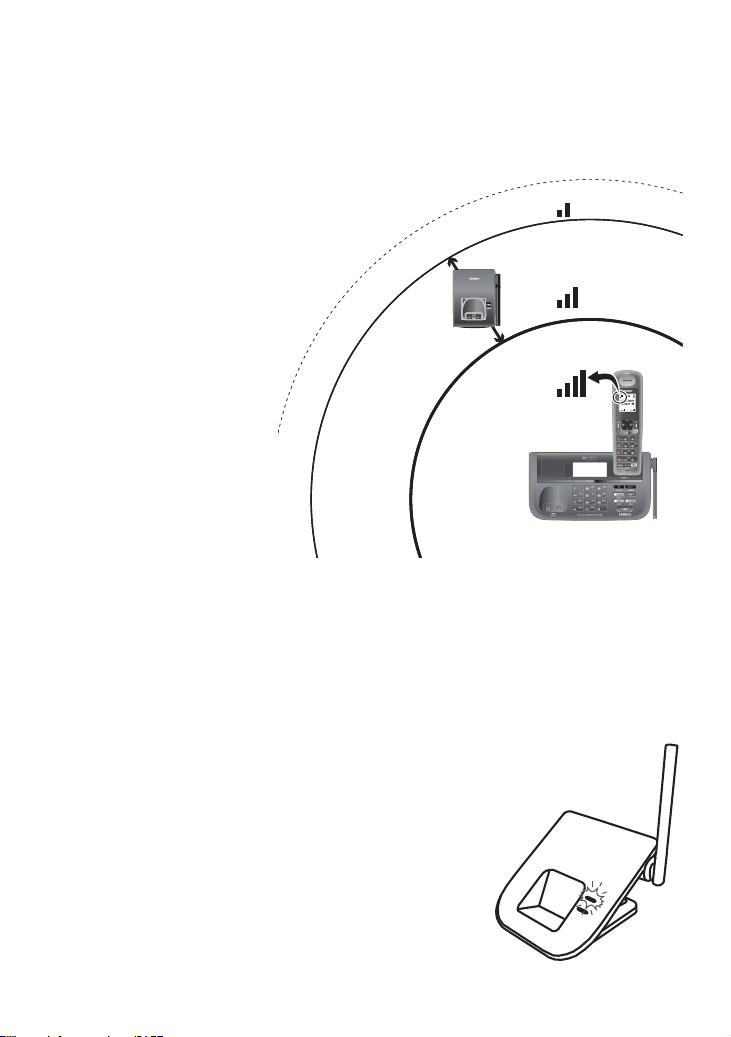
How it works
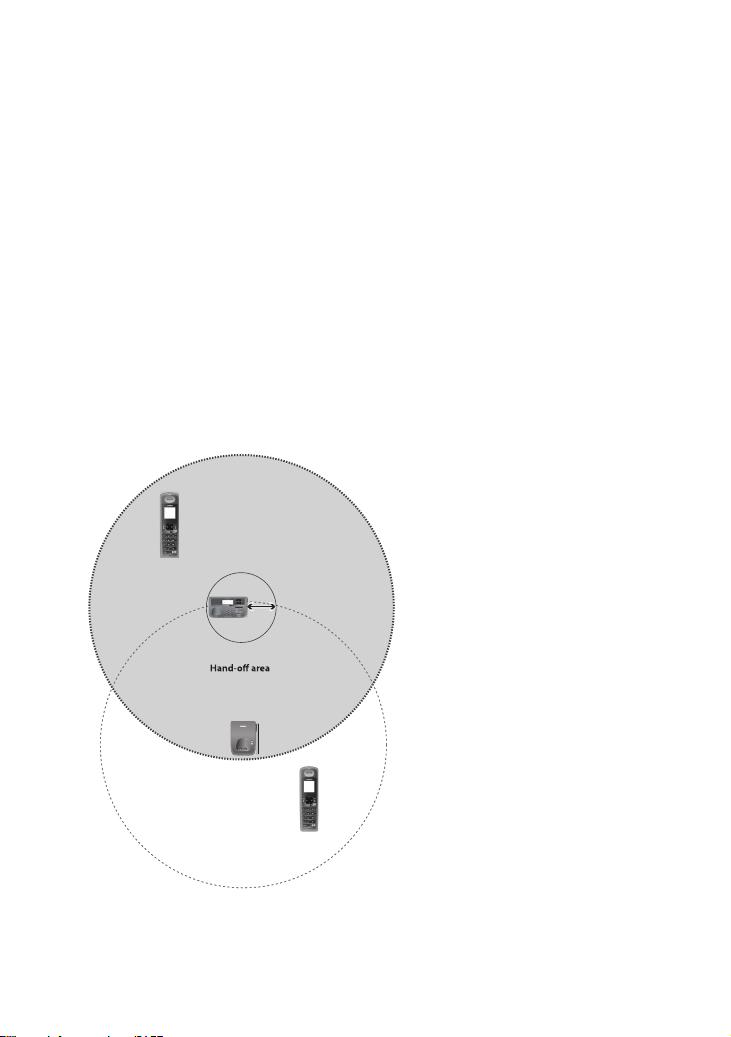
An XDECT R005 repeater can extend the range of your base in all
directions, including up and down. The XDECT R005 repeater unit is
also a charger for the accessory handset.
Each handset will automatically connect to the repeater or the base,
depending on which signal is stronger, and the handset operates
exactly the same way whether it's connected to the base or to the
repeater.
The repeaters must be registered to the base before you can use
them. Any repeaters that come packaged with the base are
already registered to that base. For instructions on registering
repeaters to the base, see page 50.
Note: Base range (grey
area) and repeater range
(dotted outline around
repeater) is represented
here as circular. Actual
coverage area will vary
depending on environment.
Your base supports a
total of six
XDECTR005
repeaters, including
any that were supplied
with your phone.
10m
Base
Repeater
Base coverage area
(The base signal is
stronger; handsets
in this area connect
to the base.)
(Handsets in this area can
connect to either unit.)
(Minimum
separation
distance)
Handset
Handset
Repeater coverage area
(The repeater signal is
stronger; handsets in
this area connect to
the repeater. )
XDECT R055 OM.indd 8 22/9/11 2:16:23 PM
9
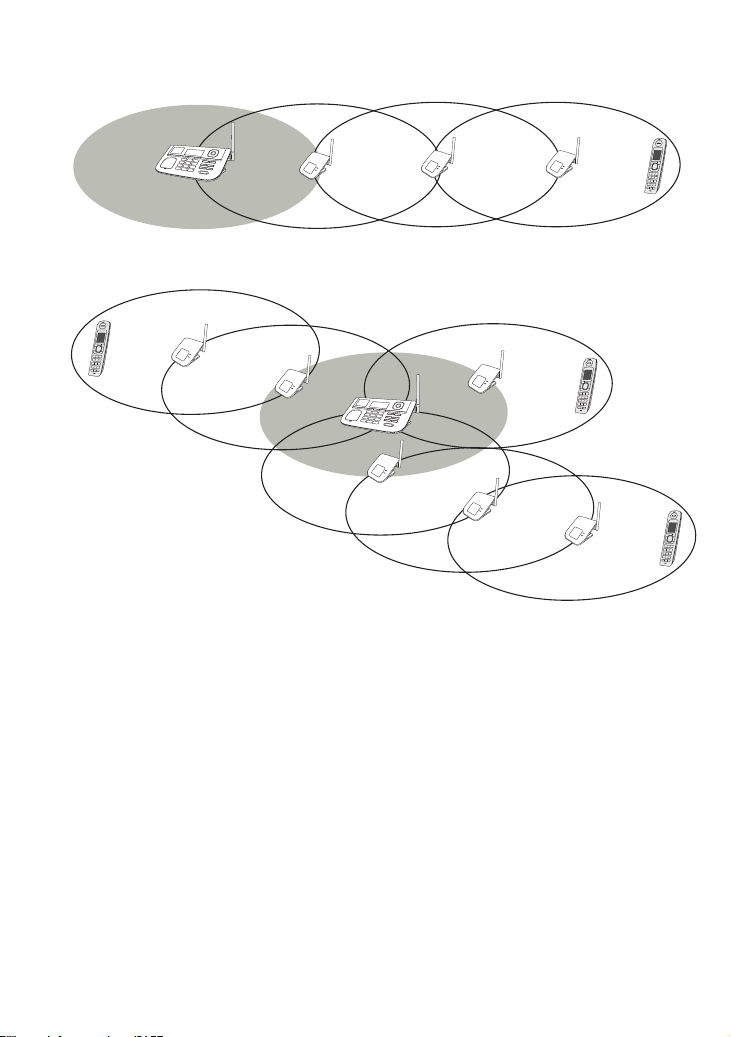
Repeaters can be up to 3 chain-links (maximum) from the base
Example of coverage area with 6 repeaters (maximum total)
You can
roam anywhere
within range of the
base or the
repeater(s) and make and
receive calls as usual from your handsets.
If you want to use the repeater with a new base, simply register
the repeater to the new base (see page 50). The repeater
overwrites its own link to the base.
Placing repeaters
Here are a few tips for placing your repeater so that you get the
clearest signal and the maximum range:
Make sure you have good reception from the base
For best performance put the repeater at least 10m away from
the base or any other repeater. (If you install the repeater on a
different floor from the base, don't forget to allow 10m vertically,
also).
If possible, mount the repeater on the wall.
XDECT R055 OM.indd 9 22/9/11 2:16:24 PM
10
Picking the best spot
The best spot for the repeater is as far from the base as possible
while still maintaining a good signal, or near the edge of the base’s
coverage area. To find the edge of the coverage area:
Stand near the base 1.
and make a call on
the handset.
While on the call, 2.
carry the handset
away from the base
towards the general
area where you want
to put the repeater.
Watch the signal 3.
strength icon on the
handset. Make a
note where the icon
drops from 4 bars to
3 bars.
Continue walking 4.
away from the base.
Make a note where the signal strength icon drops from 3 bars to 2
or if you start to hear noise on the line (which indicates the signal
is getting weaker).
Place the repeater anywhere inside the range where the signal 5.
strength icon showed 3 bars and the handset had a clear signal
with no noise.
Testing the location
Connect the repeater's AC adapter and make sure the
LINK
light
comes on and steady. If the light flashes, the repeater
is not getting a good signal. The repeater may be too
far away from the base, there may be interference
from electronic devices, or the signal might be
blocked by thick walls or metal objects. Try
moving the repeater to another location.
XDECT R055 OM.indd 10 22/9/11 2:16:26 PM
11
Getting to Know Your Phone
Parts of the Base
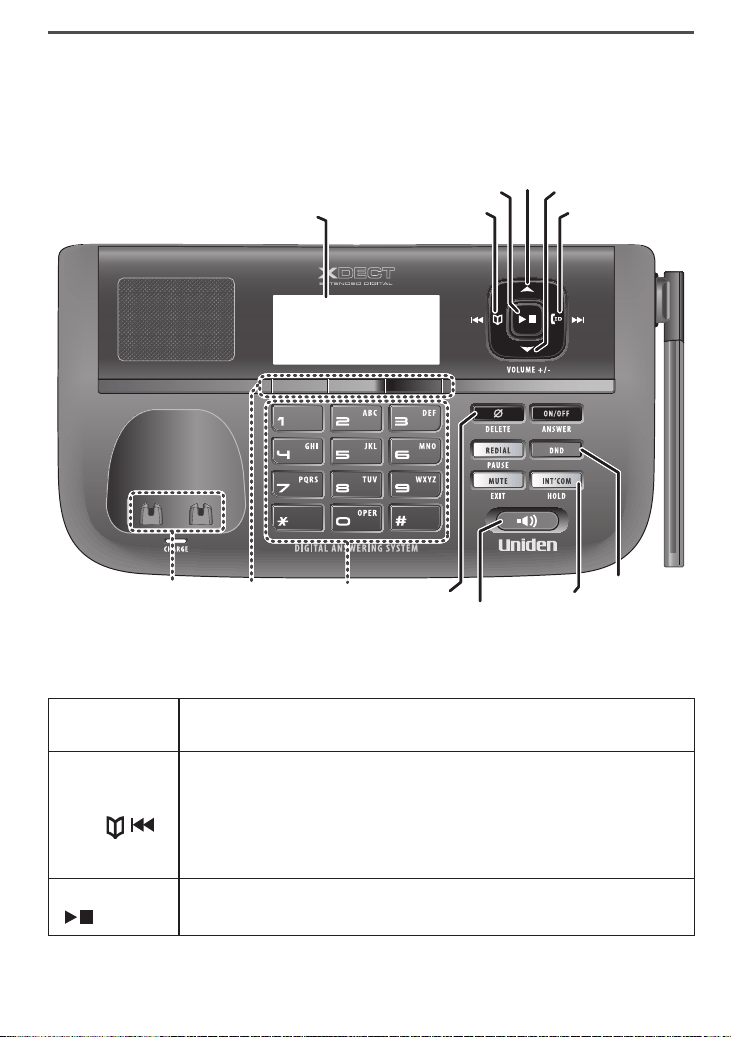
If the key name is spelled out on the key itself, it's not labeled in the
drawing below.
Base keys and how they work
Key name
(and icon)
What it does
PHONEBOOK/
LEFT (
/ )
In standby or during a call: open the phonebook. -
During text entry: move the cursor to the left. -
In the first 2 seconds of a message: go to the previous -
message.
Anytime after that: go to the beginning of this message. -
PLAY/STOP
(
)
In standby: start playing messages. -
While a message is playing: stop playing messages. -
UP
PHONEBOOK/
LEFT
DOWN
CALLER ID/
RIGHT
INTERCOM/
HOLD
12-key
dial pad
Display
DELETE
SPEAKER
PLAY/STOP
DO NOT
DISTURB
Soft
keys
Charging
contacts
XDECT R055 OM.indd 11 22/9/11 2:16:27 PM

12
Key name
(and icon)
What it does
UP ( )
In standby: increase the ringer volume for line 1 or line 2. -
During a speakerphone call or while a message is playing: -
increase the speaker volume.
In the menu or any list: move the cursor up one line. -
CALLER ID/
RIGHT
(
/ )
In standby or during a call: open the Caller ID list. -
During text entry: move the cursor to the right. -
While a message is playing: skip to the next message. -
DOWN ( )
In standby: decrease the ringer volume for line 1 or line 2. -
During a speakerphone call or while a message is playing: -
decrease the speaker volume.
In the menu or any list: move the cursor down one line. -
ON/OFF
In standby: turn the answering system on or off. -
DO NOT
DISTURB
( )
In standby: turn the Do Not Disturb feature on or off (see -
page 36).
INTERCOM/
HOLD
In standby: page a handset using the intercom. -
During a call: put the call on hold and start a call transfer. -
SPEAKER
(
)
In standby: start a speakerphone call (get a dial tone). -
During a speakerphone call: hang up. -
MUTE/EXIT
While this station is ringing: mute the ringer for this call only. -
During a call: mute the microphone. -
In the menu or any list: exit the menu completely. -
REDIAL/
PAUSE
In standby: open the redial list. -
While entering a phone number: insert a 2-second pause. -
DELETE ( )
While a message is playing: delete this message. -
In standby: delete all messages. -
While entering text: delete one character, or press and hold -
to delete all the characters.
SOFT KEYS
The soft keys automatically change their function based on -
what you are doing. See "Using the Soft Keys" on page 17.
XDECT R055 OM.indd 12 22/9/11 2:16:28 PM
13
Parts of the Handset
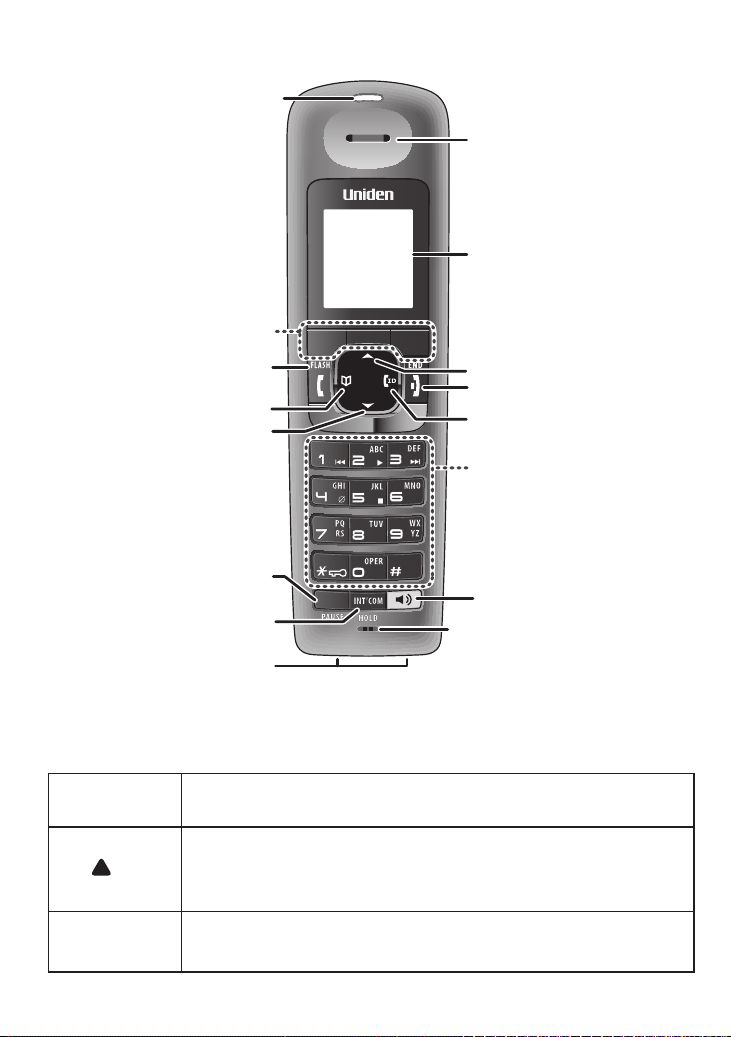
Handset keys and how they work
Key name
(and icon)
What it does
UP ( )
In standby: increase the ringer volume for line 1 or line 2. -
During a call: increase the call volume. -
In the menu or any list: move the cursor up one line. -
END
During a call: hang up. -
In the menu or any list: exit and go to standby. -
REDIAL
Microphone
12-key
dial pad
Message
waiting
LED, visual
Display
Charging
contacts
Earpiece
UP
PHONEBOOK/
LEFT
SPEAKER
DOWN
CALLER ID/
RIGHT
REDIAL/
PAUSE
INTERCOM/
HOLD
TALK/FLASH
END
Soft keys
XDECT R055 OM.indd 13 22/9/11 2:16:29 PM
14
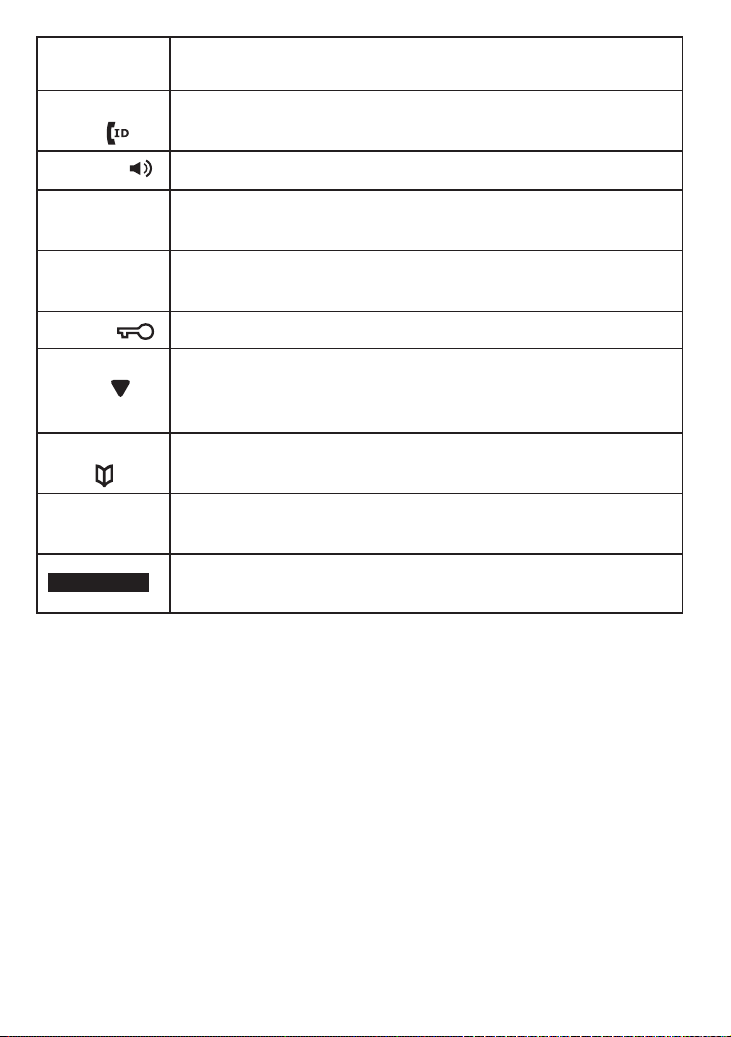
Key name
(and icon)
What it does
CALLER ID/
RIGHT (
)
In standby or during a call: open the Caller ID list. -
During text entry: move the cursor to the right. -
SPEAKER ( )
Switch a normal call to the speakerphone (and back). -
INTERCOM/
HOLD
In standby: page another station using the intercom. -
During a call: put the call on hold and start a call transfer. -
REDIAL/
PAUSE
In standby: open the redial list. -
While entering a phone number: insert a 2-second pause. -
*/ LOCK( )
In standby: press and hold to lock or unlock the keypad.
-
DOWN ( )
In standby: decrease the ringer volume for line 1 or line 2. -
During a call: decrease the call volume. -
In the menu or any list: move the cursor down one line. -
PHONEBOOK/
LEFT
( )
In standby or during a call: open the phonebook. -
During text entry: move the cursor to the left. -
TALK/FLASH
In standby: start a telephone call (get a dial tone). -
During a call: switch to a waiting call. -
SOFT KEYS
The soft keys automatically change their function based on -
what you are doing. See "Using the Soft Keys" on page 17.
XDECT R055 OM.indd 14 22/9/11 2:16:30 PM
15
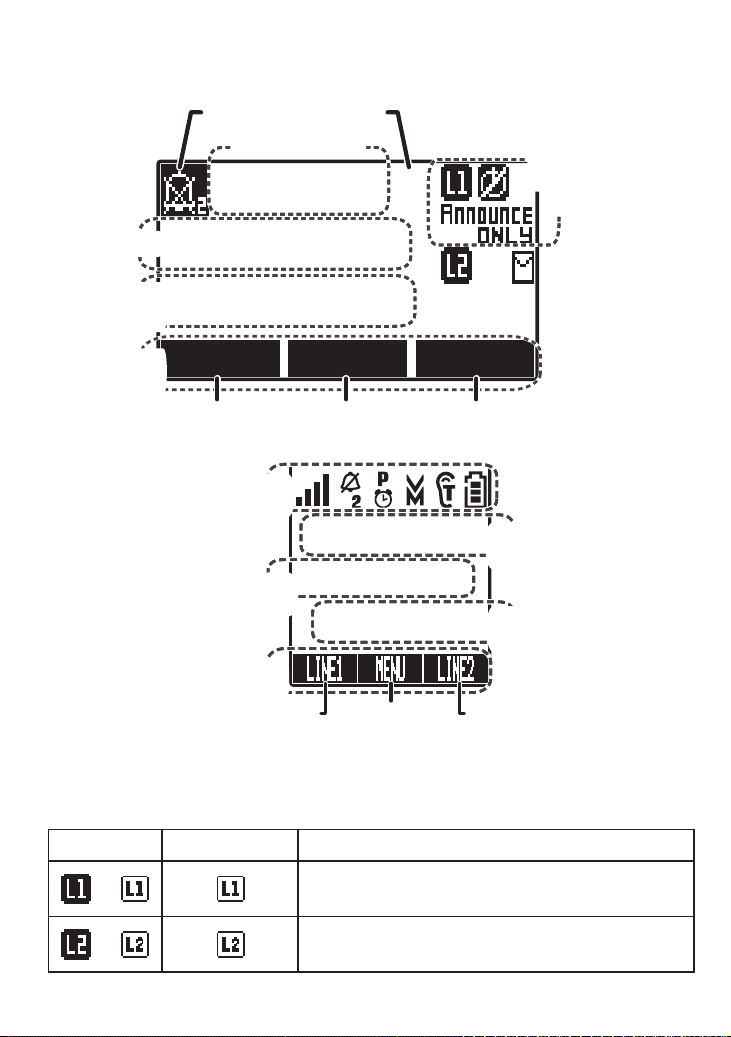
Reading the Displays
On the base
On the handset
The table below shows the possible icons and what they mean. Since
the icons appear based on what you're doing with the phone, you
won't ever see all of these icons at the same time.
Base Icon Handset Icon What it means
or
The accompanying information (in use, on
hold, etc.) applies to line 1.
or
The accompanying information (in use, on
hold, etc.) applies to line 2.
12
LINE 1 LINE 2MENU
SUN 12:00A
31/12/08
New CID: 4
Answering
system status
for:
Status icon areas
Caller ID
count
Day & time
Current
functions
for:
Soft key 1 Soft key 2 Soft key 3
Date
Line 2
Line 1
SUN 12:00A
Handset #1
New CID: 2
LINE1 MENU LINE2
Handset
banner
Status
icons
Caller ID
count
Day and
time
Current
functions for:
Soft key 1 Soft key 2 Soft key 3
XDECT R055 OM.indd 15 22/9/11 2:16:32 PM
16
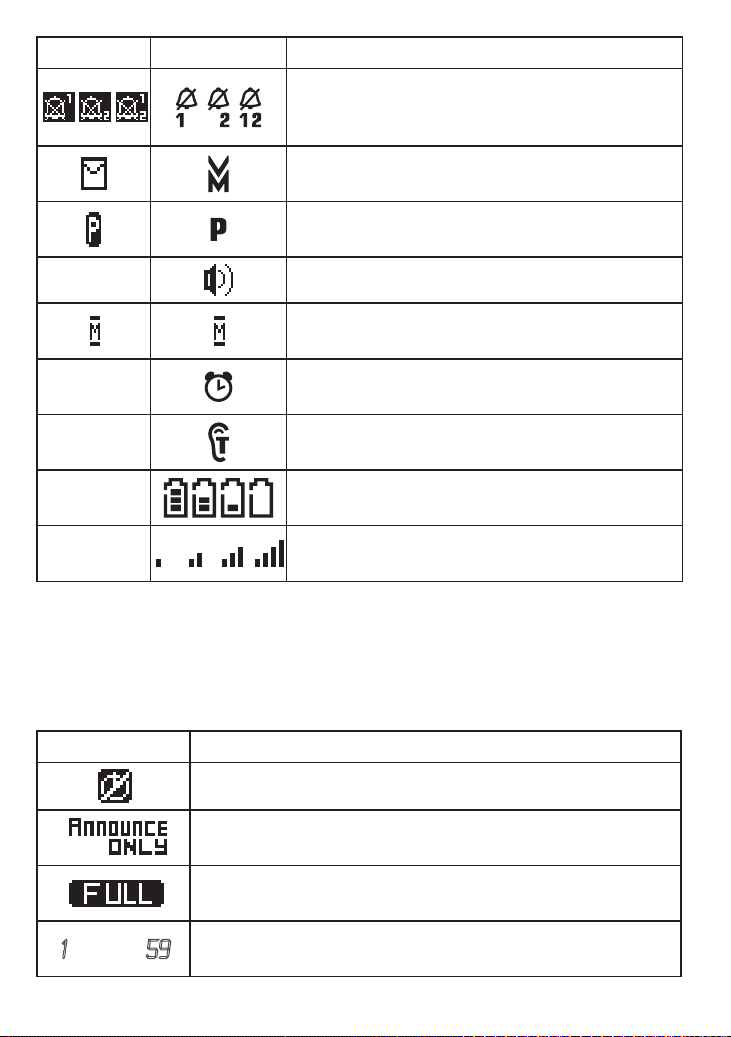
Base Icon Handset Icon What it means
The ringer is turned off for 1) line 1 only, 2)
line 2 only, or 3) both. This station will not ring
when a call comes in on the indicated lines.
You have a voice message waiting (see "Using
Voice Message Notification" on page 39).
Privacy Mode is on: no other station can join
your call.
NA
The speakerphone is on.
The microphone is muted, and the caller can't
hear you.
NA
The alarm is set. (See "Using the Alarm
Feature" on page 38.)
NA
T-coil mode is on. (See "Do you use a T-coil
hearing aid?" on page 48.)
NA
The battery is 1) fully charged, 2) half
charged, 3) getting low, or 4) empty.
NA
The signal from the base is 1) very weak, 2)
low, 3) strong, or 4) very strong.
Answering system status icons
The icons on the right hand side of the base display indicate the
status of the answering system. Each icon will appear separately
for line 1 (at the top) and line 2 (at the bottom). See Using Your
Answering System on page 40 for more information.
Icon What it means
The answering system is off: it will not answer the phone.
The answering system is set to announce only: it will
answer the phone but will not record any messages.
The answering system memory is full: you must delete
some saved messages.
1
through
59
This number indicates the number of new messages for
each line.
XDECT R055 OM.indd 16 22/9/11 2:16:35 PM
17
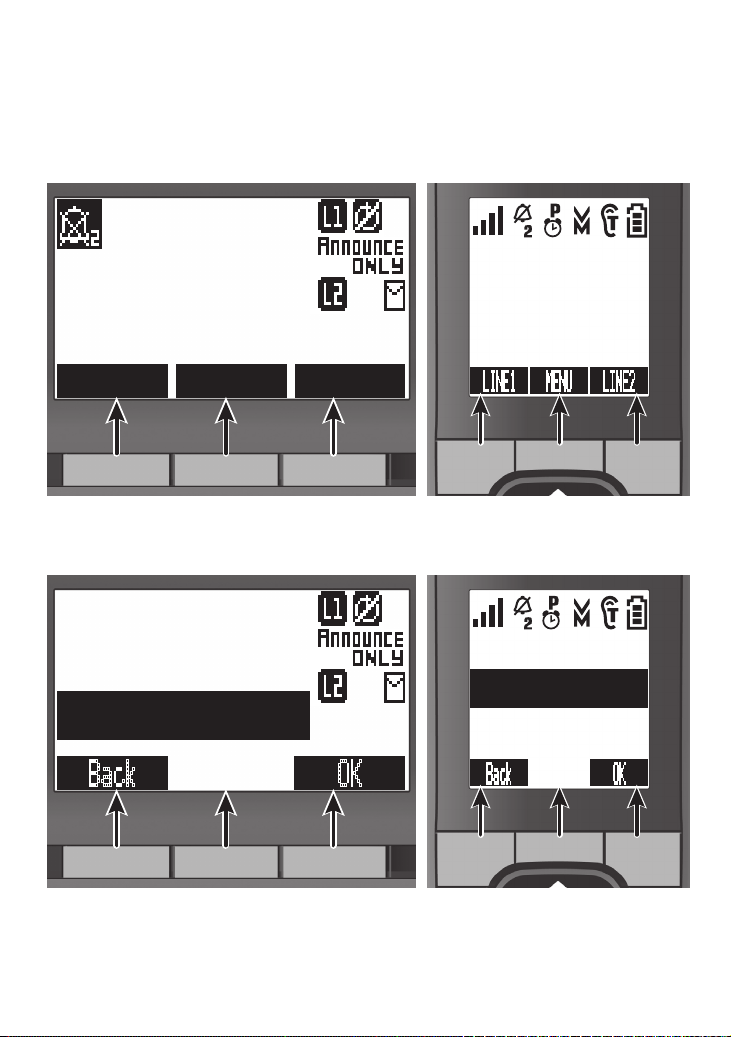
Using the Soft Keys
Soft keys are controlled by the software: they will automatically
change their function depending on what you're currently doing:
Soft keys with the phone in standby
On the base On the handset
12
LINE 1 LINE 2MENU
SUN 12:00A
31/12/08
New CID: 4
Soft key 1 Soft key 2 Soft key 3
SUN 12:00A
Handset #1
New CID: 2
LINE1 MENU LINE2
Soft key
1
Soft key 2 Soft key
3
Soft keys in the main menu
On the base On the handset
1212
OK Back
<Options>
Base Setup
Ans. Setup
Soft key 1 Soft key 2 Soft key 3
<Options>
Handset Setup
Ans. Setup
OK Back
Soft key
1
Soft key 2 Soft key
3
The description of the soft key's current function appears in the
bottom of the display directly above the corresponding key.
XDECT R055 OM.indd 17 22/9/11 2:16:40 PM
18
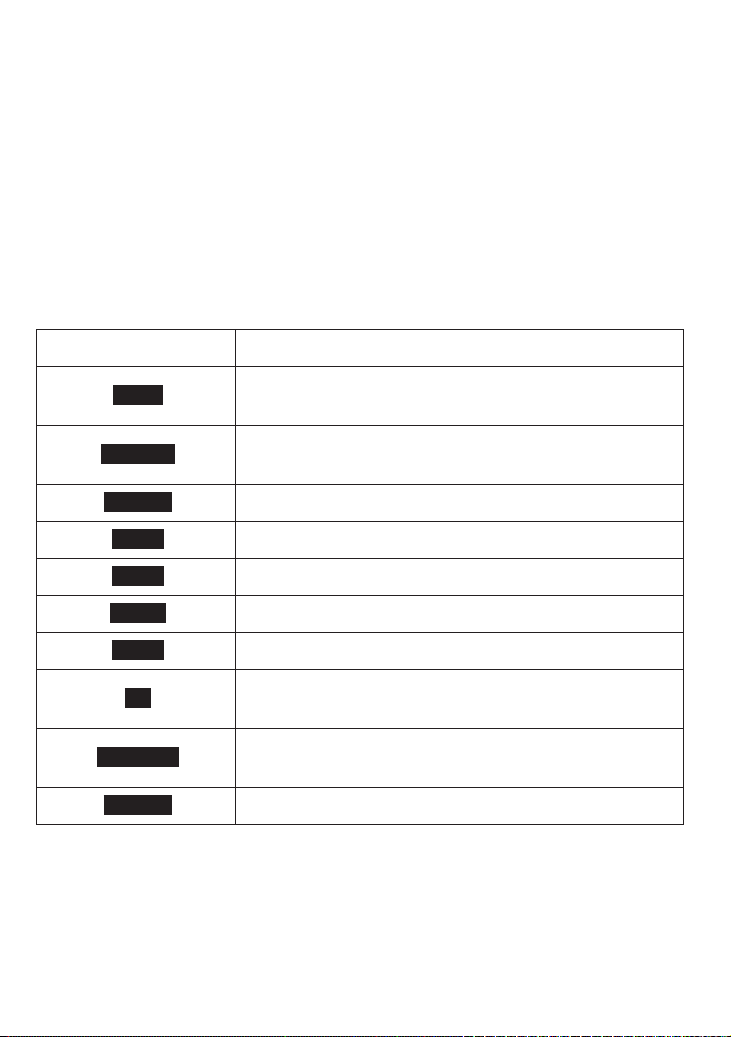
If the description for a soft key is blank, that key doesn't currently
have a function.
Sometimes, the current function of a soft key can duplicate the
function of a regular key. If this happens, you can press either key.
When this manual refers to a soft key, it uses the soft key's
description printed on a black background.
Common soft key descriptions
The table below lists some soft key descriptions that the phone uses
across several menus or operations. These are not all the soft key
descriptions, but these are probably the ones you'll see most often.
Soft key description: What it does:
BACK
Go back to the previous screen. Any unsaved
changes on the current screen will be canceled.
CANCEL
Cancel the current operation without saving any
changes.
DELETE
Erase the highlighted item.
LINE1
Use line 1 for the current operation.
LINE2
Use line 2 for the current operation.
MENU
Open the main menu screen.
MUTE
Turn off the ringer, speaker, or microphone.
OK
Select the highlighted option or confirm the current
operation.
OPTIONS
Show available choices for the current operation or
for the highlighted item.
SELECT
Choose the highlighted option.
XDECT R055 OM.indd 18 22/9/11 2:16:41 PM
19
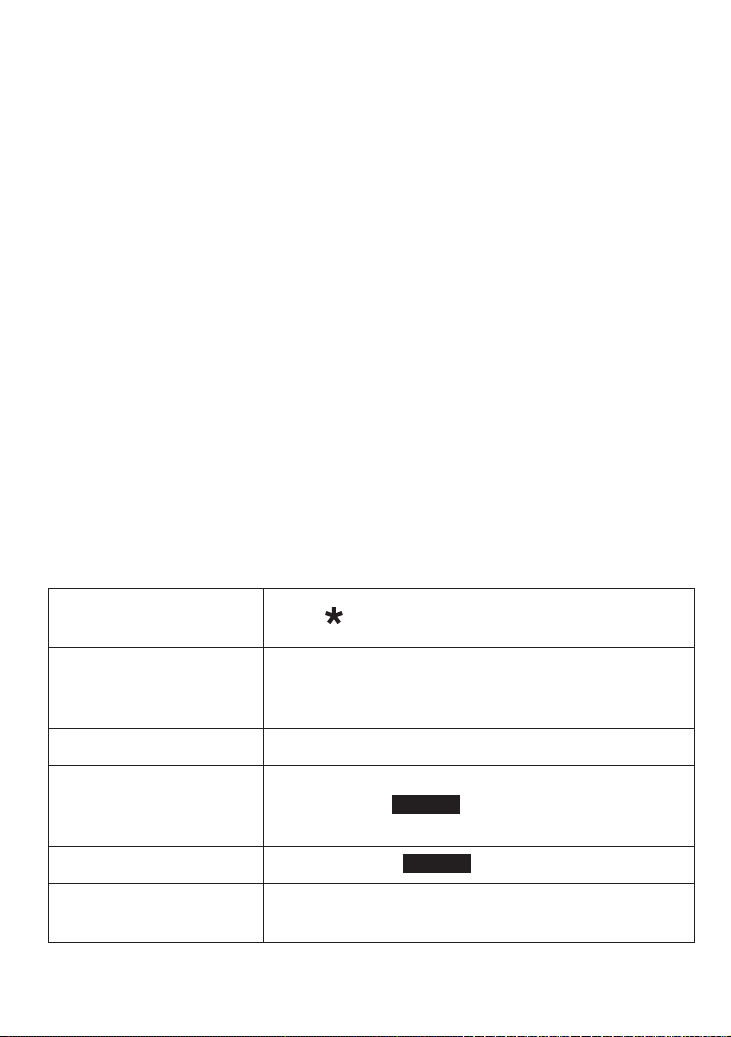
Entering Text on Your Phone
When you want to enter text into your phone (for example, a name
in the phonebook), use the twelve-key dial pad to enter the letters
printed on the number keys. Here's how it works:
The phone enters the letters in the order they appear on the key.
For example, if you press the number key
2
once, the phone
enters the letter
A
. Press
2
twice for
B
, and three times for
C
.
If you press the key again after the last letter, the phone starts the
same letter sequence with small letters. If you press
2
four times
in a row, the phone enters
a
(small letter). Press
2
five times for
b
,
and six times for
c
.
If you see the icon
[Aa]
in the display, the phone enters capital
letters first (
A B C
), then small letters (
a b c
), then the number on
the key (
2
). The icon
[aA]
means the phone starts at the small
letters, so it enters small letters first, then the number on the key,
then capital letters.
The phone automatically uses a capital letter for the first letter and
any letter right after a space; all other times, it uses small letters.
If two letters in a row use the same number key, enter the first
letter, then use
CALLER ID/RIGHT
to move the cursor to the next
position to enter the second letter.
Switch between capital
and small letters
Press .
Move the cursor
Press
PHONEBOOK/LEFT
to move the cursor to the
left or
CALLER ID/RIGHT
to move the cursor to the
right.
Leave a blank space Press
#
(
POUND
).
Erase one letter
Move the cursor to the letter you want to erase
and press the
DELETE
soft key. (On the base, you
can also press
DELETE
.)
Erase the entire entry
Press and hold
DELETE
.
Enter punctuation or a
symbol
Press
0
to rotate through the available symbols.
XDECT R055 OM.indd 19 22/9/11 2:16:41 PM
20
Using the Menus
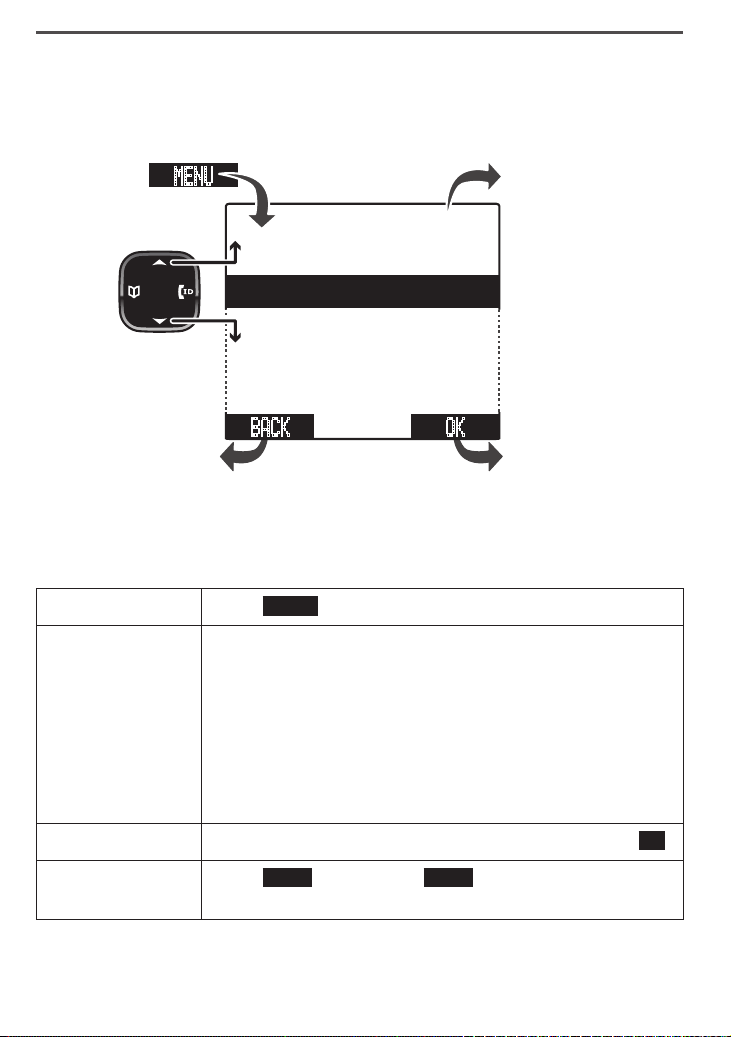
The menus are designed to be as easy as possible. Some users don't
even need the manual once they know how to perform these actions:
If you don't press any keys for thirty seconds, the phone times out
and exits the menu. (When setting the day and time, the time-out
period is extended to two minutes.)
Open the menu Press
MENU
.
Move the cursor
The cursor (the black bar with the white text) shows
which menu item is currently highlighted; when you're
entering characters, the cursor shows where you are in
the line.
Use -
UP
to move the cursor up one line.
Use -
DOWN
to move it down one line.
Use -
PHONEBOOK/LEFT
to move it one space to the left.
Use -
CALLER ID/RIGHT
to move it one space to the right.
Select an option
Move the cursor to highlight the option, then press
OK
.
Return to the
previous screen
Press
BACK
. If you press
BACK
on the first screen, the
phone exits the menu.
To open the menu,
press
Select the
current item.
To close the
menu:
Use
UP
and
DOWN
to move
the cursor.
MENU
Go back one
screen.
on the
handset,
press
END
;
on the base,
press
MUTE/EXIT.
OK BACK
<Options>
Retrieve Msg
Handset Setup
Ans. Setup
Clock Setup
Global Setup
XDECT R055 OM.indd 20 22/9/11 2:16:41 PM
21
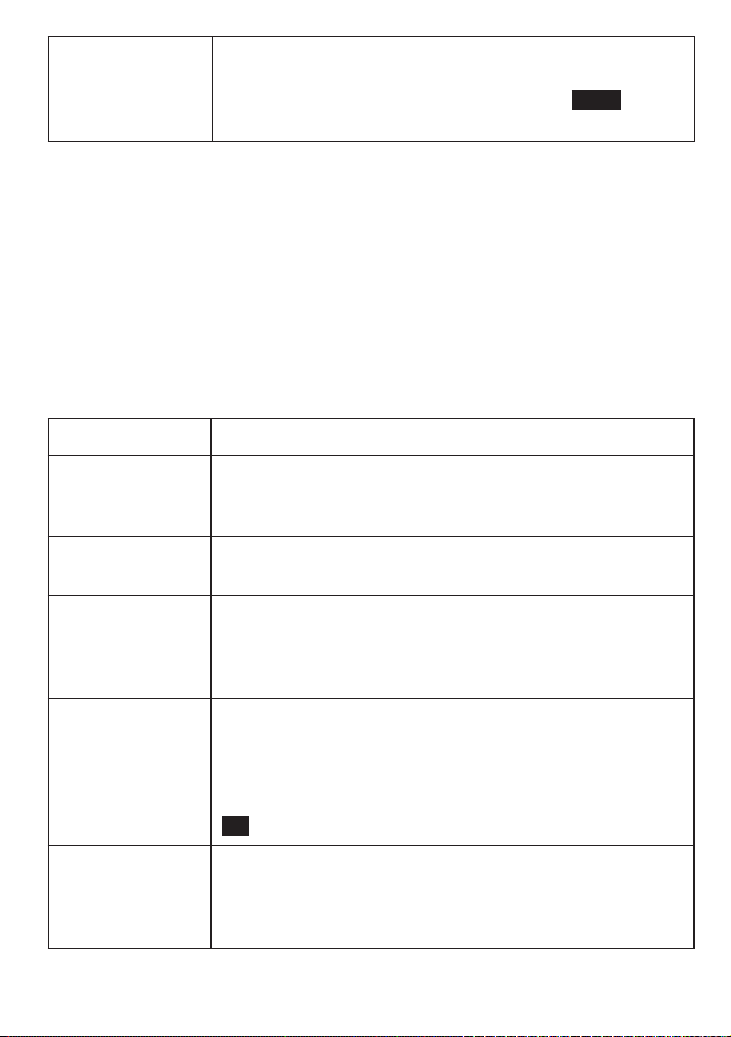
Close the menu
On the handset, press
END
; on the base, press
MUTE/
EXIT
.
(If you open the menu during a call, press
BACK
to back
out of the menu without hanging up.)
The next several pages list all the available menu options and how to
use them. Most of the menus are the same for the base and cordless
handsets; any option that is available only for the base or handset is
noted in the description.
The
Handset
and
Base Setup
Menu
When you open the menu on a handset, this menu is called
Handset
Setup
. On the base, this menu is called
Base Setup
. Each of these
options can be set separately for each station. (A station can be any
cordless handset or the base.)
Menu option: Use it to:
T-coil
(Handset only) Turn on T-coil mode to reduce noise on
some hearing aids (see "Do you use a T-coil hearing
aid?" on page 48).
Alarm Setting
(Handset only) Set alarms on your handset (see "Using
the Alarm Feature" on page 38).
Primary Line
Select the line you want this station to use as the default
line when you make a call (see "Assigning a primary
line" on page 24). Do not change this setting if you are
using only one line.
Ringer Tones
(Handset only) See the ring tones the handset is using
as the main ring tone for each line. To change the tone,
select the line, then choose a ring tone from the list. (As
you highlight each ring tone, the phone plays a sample
of the tone. When you hear the tone you want, press
OK
.)
Personal Ring
(Handset only) Turn on the personal ring feature. If you
have Caller ID, this feature lets you assign special ring
tones to anyone in your phonebook: this handset will
use the special ring tone when that person calls.
XDECT R055 OM.indd 21 22/9/11 2:16:41 PM
22
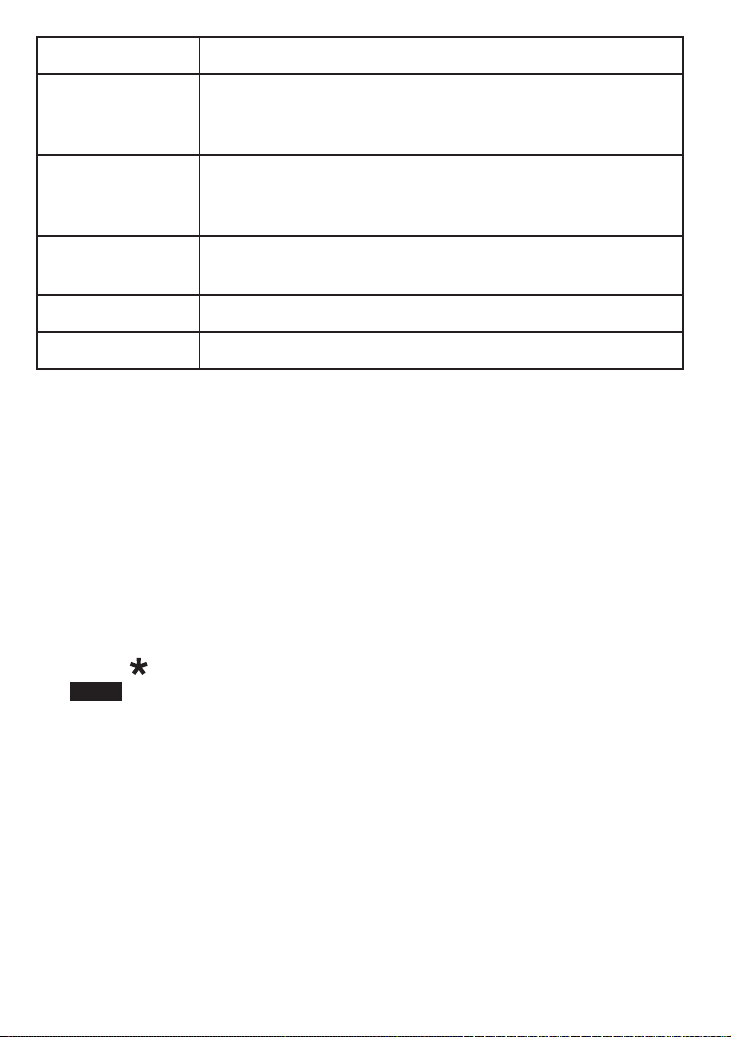
Menu option: Use it to:
Autotalk
(Handset only) Turn on Auto Talk so you can answer the
phone just by picking up the handset from the cradle
(without having to press any buttons).
Any Key
Answer
(Handset only) Turn on Any Key Answer so you can
answer the phone by pressing a key on the twelve-key
dial pad.
Banner
(Handset only) Change the name used on the handset's
display. Enter any name up to 10 characters.
LCD Contrast
Change the contrast of the display.
Key Touch Tone
Have the keypad sound a tone when you press a key.
The
Clock Setup
Menu
You must set the date and time if you want to use the handset's
alarm feature; setting the clock will also ensure the answering system
stamps your messages with the correct time and day. You can set the
clock from the base or any cordless handset.
Open the menu and select 1.
Clock Setup
.
Use the numbers on the twelve-key dial pad to enter the date.2.
Move the cursor to the next line, then use the dial pad to enter the 3.
time.
Press 4.
to switch between
AM
and
PM
; when you're finished, press
SAVE
.
The
Global Setup
Menu
The settings on this menu are separate for each line: changing the
settings for line 1 will not affect line 2, and vice versa. However, the
settings for each line apply to all stations whenever they use that line.
Before changing these settings, make sure the phone is in standby
and all handsets are within range of the base. (Only one station at a
time can change these settings.)
XDECT R055 OM.indd 22 22/9/11 2:16:42 PM
23
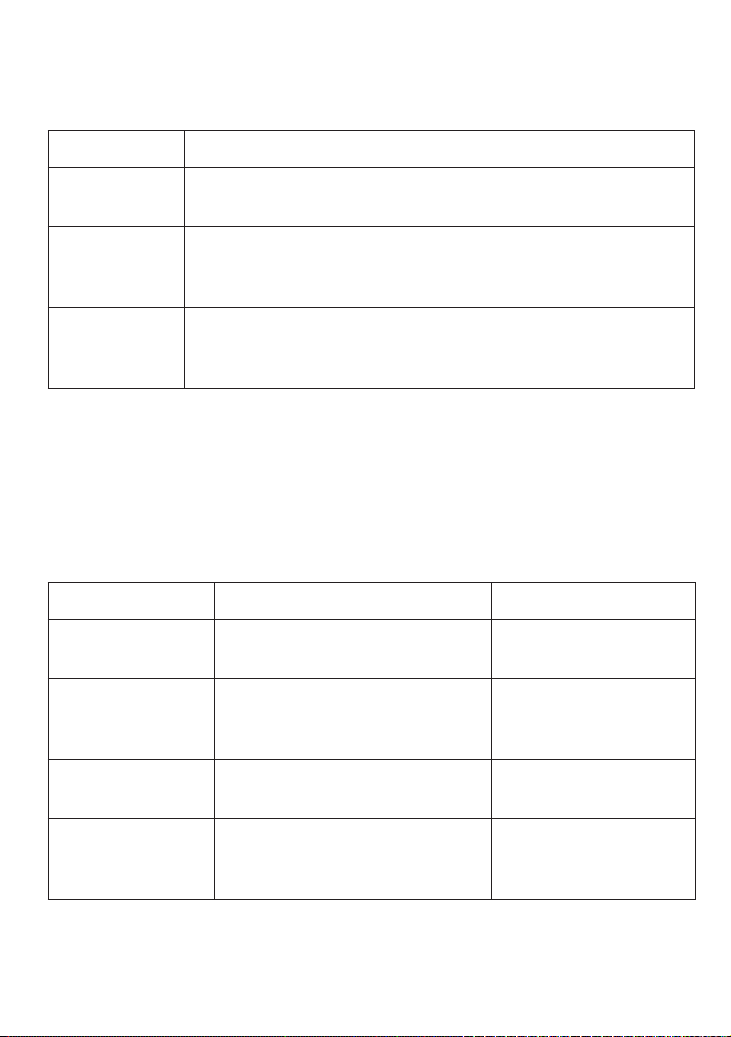
When you select the
Global Setup
menu, the phone prompts you to
select
Line 1
or
Line 2
. Then, you can choose one of the following
options to change the global settings for that line:
Menu option: Use it to:
Set Line
Mode
Do not change this setting unless instructed to by customer
service.
VMWI Reset
(
Base only)
Reset the voice message waiting indicator to bring it back
into sync with your voice mail service (see "Using Voice
Message Notification" on page 39).
Insert 0
This feature adds “0” or “00” at the beginning of the
number received from Caller ID. The default setting for
New Zealand is ON. The default setting for Australia is OFF.
Special Feature Menus
The following menus control specific features of your phone. These
menus are explained under the section that describes the feature in
detail:
Menu: Use it to: For details, see:
Retrieve Msg
(handset only)
Access your answering system
from a cordless handset
"Getting Your
Messages" on page 42
Ans. Setup
Change the settings for the
answering system on each
line.
"
Ans. Setup
menu
options" on page 41
Call Blocking
View and edit the Call block list
"Using Call Block" on
page 36
Register
Handset
(base
only)
Add new handsets or reset
a handset that isn't working
properly.
"Resetting and
registering handsets"
on page 49
XDECT R055 OM.indd 23 22/9/11 2:16:42 PM
24
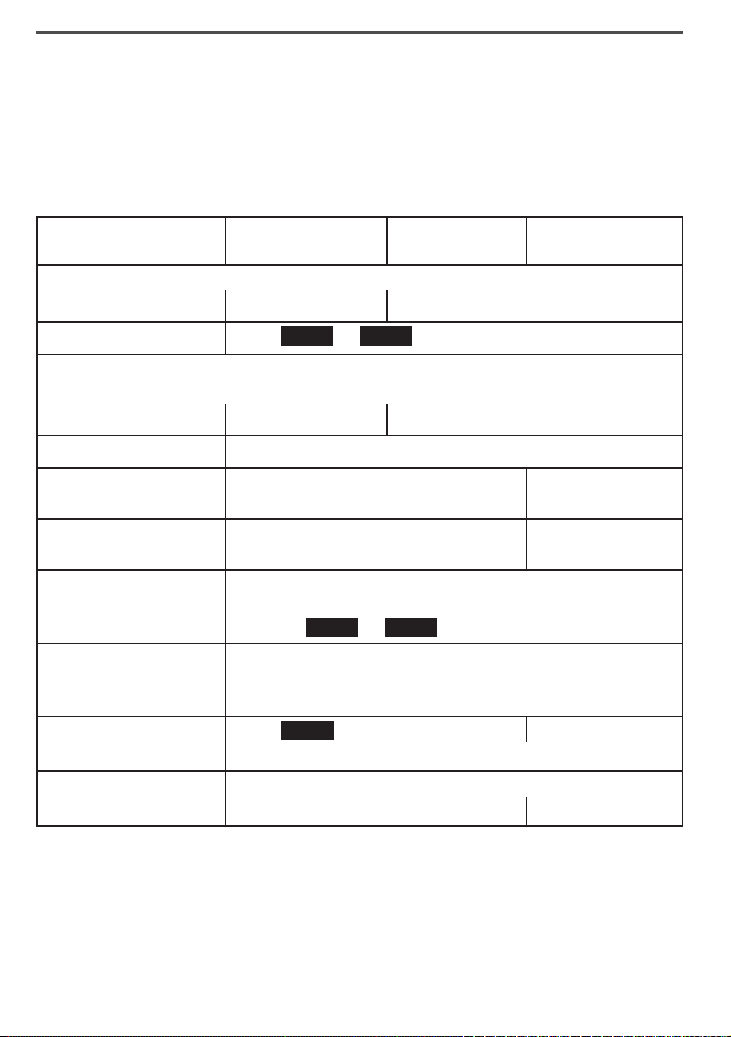
Using Your Phone
Working with Two Lines
When performing common tasks, you can let the station use the
primary line, or you can manually choose a particular line for each
task. Using the primary line makes common tasks much simpler, but
you will need to assign a primary line to each station (see below).
If you want to... From a handset
From a handset
speakerphone
From the base
speakerphone
make a call: Dial the number, then
with the primary line -
Press
TALK/FLASH
. Press
SPEAKER
.
by choosing a line -
Press
LINE1
or
LINE2
.*
answer a call
When a call comes in, the soft keys blink to tell you which line is ringing.
with the primary line -
Press
TALK/FLASH
. Press
SPEAKER
.
by choosing a line -
Press the soft key for the line you want to answer.*
hang up
Press
END
or return the handset to
the cradle.
Press
SPEAKER
.
switch between the
speaker and earpiece
Press
SPEAKER
. Not available
put a call on hold
Press
INTERCOM/HOLD
; the soft key blinks to remind
you the line is on hold. To return to the call, press the
soft key (
LINE1
or
LINE2
) for the holding line.
switch lines during a
call (automatic hold)
Press the soft key for the other line; the current call
is automatically put on hold (see above). To return to
the call, press the soft key for the holding line.
mute the microphone
during a call
Press
MUTE
.
Press
MUTE/EXIT
.
Press again to turn the microphone back on.
mute the ringer for
this call only
While the phone is ringing,
press
END
. press
MUTE/EXIT
.
* On the handset, press
SPEAKER
to switch to the speakerphone.
Assigning a primary line (Two Line Only)
You can assign a primary line to each station; the station connects
to its primary line whenever it goes off hook (that is, when you press
TALK/FLASH
or
SPEAKER
). Whenever you want, you can bypass the
XDECT R055 OM.indd 24 22/9/11 2:16:42 PM

25
primary line assignment by manually choosing line for your current
task.
To assign a primary line, open the menu and select
Handset Setup
or
Base Setup
. Select
Primary Line
, then choose the line you want this
station to connect to when it goes off hook:
Line 1
Always connect to line 1, regardless of either line's status.
Line 2
Always connect to line 2, regardless of either line's status.
Auto
(default
setting)
Connect to line 1 except under the following circumstances:
there is an incoming call on line 2 -
there is a holding call on line 2 -
the answering system has picked up line 2 -
line 1 is being used for an active call or for screening a call -
If any one of these conditions is true, the station connects to line 2.
Conferencing two lines together
When you have active calls on both lines, you can join the two lines
together in a conference call.
Place the first call on hold.1.
Switch to the other line and start the second call.2.
Press 3.
MENU
, then select
Conference
.
During a conference call, you can speak with both outside callers
at the same time, and the callers can speak with each other.
To separate the conference call back into two independent calls,
press the soft key for either line. The other line is automatically put
on hold, and you can switch between calls normally.
To disconnect both callers at the same time, just hang up
normally.
To disconnect one caller at a time, select the line you want to
disconnect, then hang up. Press the soft key to return to the other
caller (on hold).
Other stations can also join in the conference call. See Using Multi-
station Features on page 33 for more information.
XDECT R055 OM.indd 25 22/9/11 2:16:42 PM
26
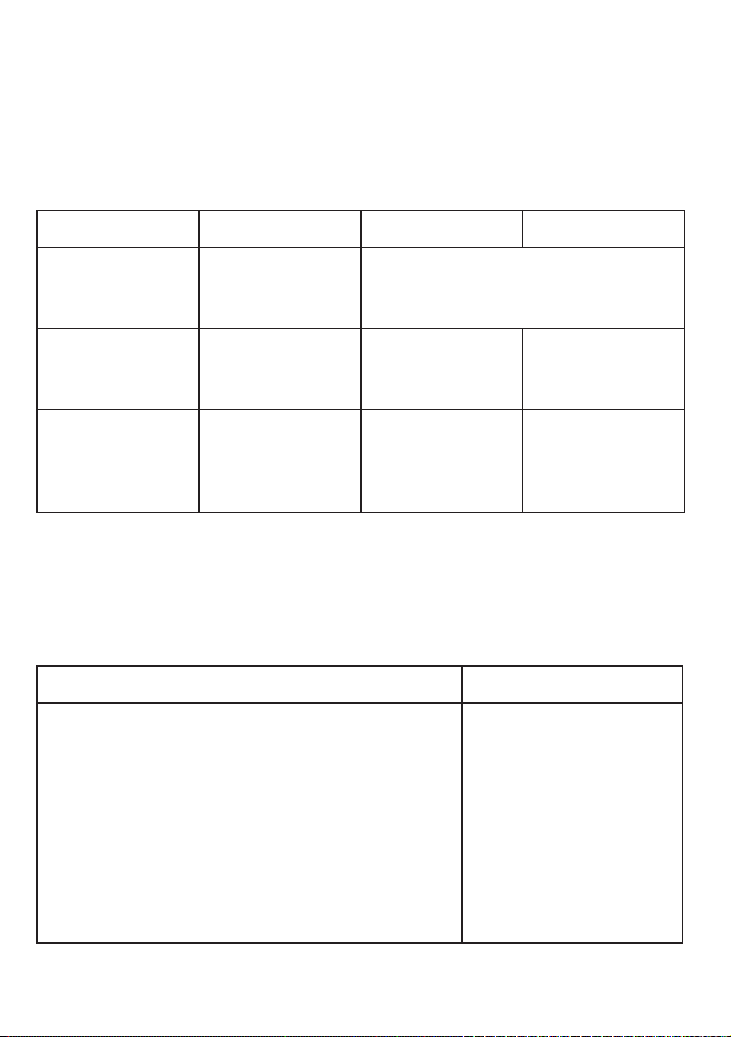
Changing the Volume
You can set the volume of the ringer and speaker separately for the
base and each handset; you can also set the earpiece volume on
each handset. The available volume levels and how to change them
are listed below; for each item, press
UP
to make it louder or
DOWN
to
make it softer.
Change the When On the base On a handset
ringer volume
the phone is in
standby
Press
UP
or
DOWN
, select line 1
(single line), then select
Off, Low,
Medium
,
or
High
earpiece volume
you are on a
normal call
Not available
choose one of 6
volume levels for
the active line
speaker volume
you use the
speaker-phone
for a call or
getting messages
choose one of 10
volume levels for
the active line
choose one of 6
volume levels for
the active line
Using the Caller ID and Redial Lists
You have to subscribe to Caller ID to use Caller ID features: contact
your telephone provider for more information.
Caller ID list information Redial list information
When a call comes in, the phone displays the -
caller’s number and name (if available) along with
which line is receiving the call.
The phone saves the information for the last 50 -
calls received on either line to the CID list. The
phone records which line the call came in on.
When it's in standby, each station displays the -
total number of calls received on both lines since
the last time you checked the CID list.
You can edit the list separately on each station. -
Each station has its -
own redial list.
The redial list contains -
the last 10 phone
numbers dialed from
that station.
The redial list does -
not record which line
was used to dial the
number.
XDECT R055 OM.indd 26 22/9/11 2:16:42 PM
27
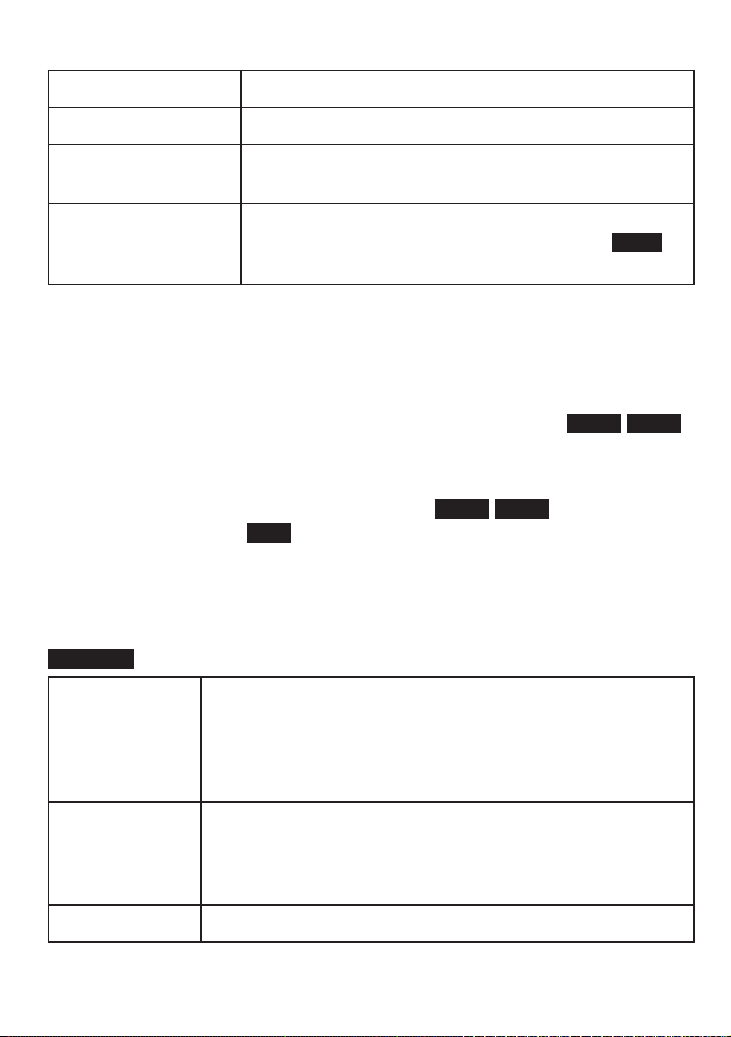
Using the lists
Open the CID list Press
CALLER ID/RIGHT
.
Open the redial list Press
REDIAL/PAUSE
.
Scroll through the
CID or redial list
Press
DOWN
to scroll through the list from newest to
oldest. Press
UP
to scroll from oldest to newest.
Close the CID or
redial list
Press
END
on a handset or
MUTE/EXIT
on the base.
(If you open the CID list during a call, press
BACK
to
back out of the list without hanging up.)
Dialing from the CID or redial list
Find the entry you want to dial.1.
To dial the entry with the primary line for this station, press 2.
TALK/
FLASH
or
SPEAKER
; to manually choose a line, press
LINE1
/
LINE2
to dial the entry.
You can also go off hook before you open the list. Press
TALK/FLASH
or
SPEAKER
(for the primary line) or press
LINE1
/
LINE2
. Find the entry
you want, then press
DIAL
.
Caller ID and redial menu options
Open the CID or the redial list. Find the entry you want and press
OPTIONS
. Choose one of the following:
Store into PB
Add the selected CID/redial list entry to this station's
phonebook. The phone creates a new phonebook entry,
then prompts you to edit the name and phone number;
cordless handsets also prompt you to choose a personal
ring (see page 30).
Store & Edit
Append the selected phone number to an existing
phonebook entry. The phone prompts you to select the
phonebook entry you want to add the number to, then
opens that entry for editing (see page 31).
Delete Entry
Erase this entry from the CID or redial list.
XDECT R055 OM.indd 27 22/9/11 2:16:42 PM
28
Delete All
Erase all entries from this station's CID or redial list.
(This doesn't affect the CID or redial lists on any other
stations.)
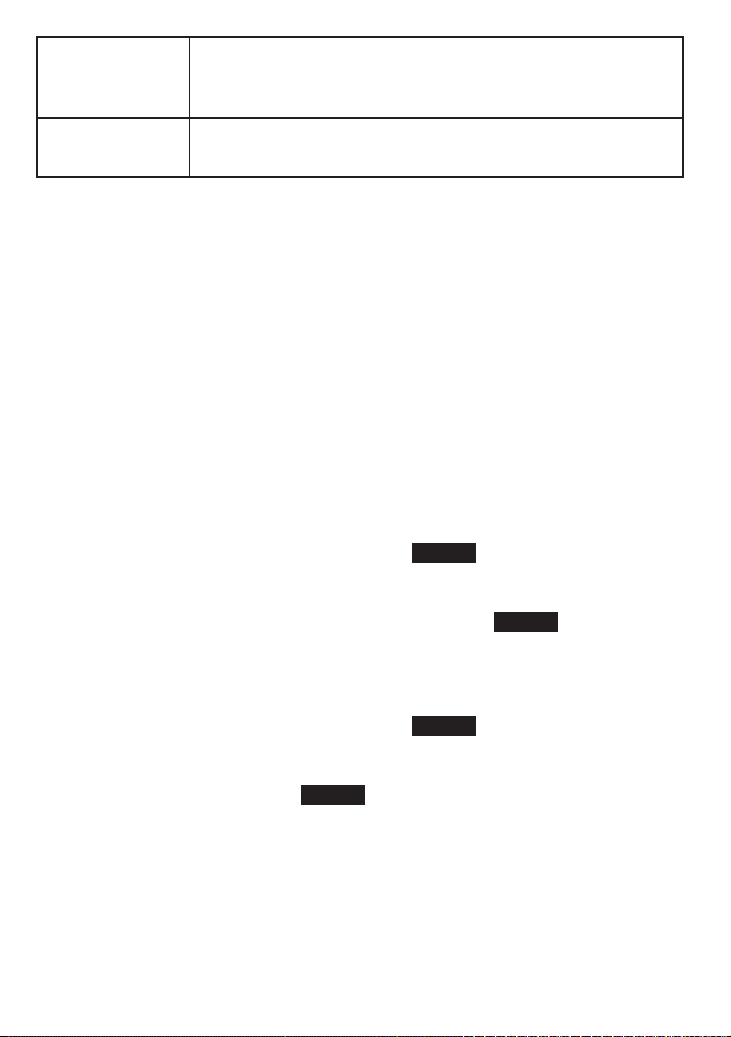
Add Call Block
(CID list only) Add the number to the call block list (see
page 36).
Using Call Waiting
A Call Waiting call refers to a call received on a line while that line
is already in use.
Call Waiting and Caller ID on Call Waiting are services provided
by your telephone company. You must subscribe to these services
to use these features.
Call Waiting is independent for each line: Call Waiting calls do not
roll over to the second line.
When you get a Call Waiting call, the phone sounds a tone and
displays any CID information received for the waiting call.
For Australian Model:
Press
TALK/FLASH
on the handset (or
FLASH
on the base) and
then press
2
to accept the waiting call. The first caller is put on
hold, and you will hear the new caller after a short pause. To
return to the original caller, press
TALK/FLASH
(
FLASH
on the base)
and then
2
again.
For New Zealand Model:
Press
TALK/FLASH
on the handset (or
FLASH
on the base) to
accept the waiting call. The first caller is put on hold, and you will
hear the new caller after a short pause. To return to the original
caller, press
TALK/FLASH
(
FLASH
on the base) again.
Finding a Lost Handset
With the phone in standby, press
INTERCOM/HOLD
on the base. Select
the handset you want to find, or select
All
to page all handsets at the
same time. The paged handset(s) will beep for 1 minute or until you
XDECT R055 OM.indd 28 22/9/11 2:16:42 PM

29
press
INTERCOM/HOLD
again or press
TALK/FLASH
followed by
END
on
the handset.
Using the Headset
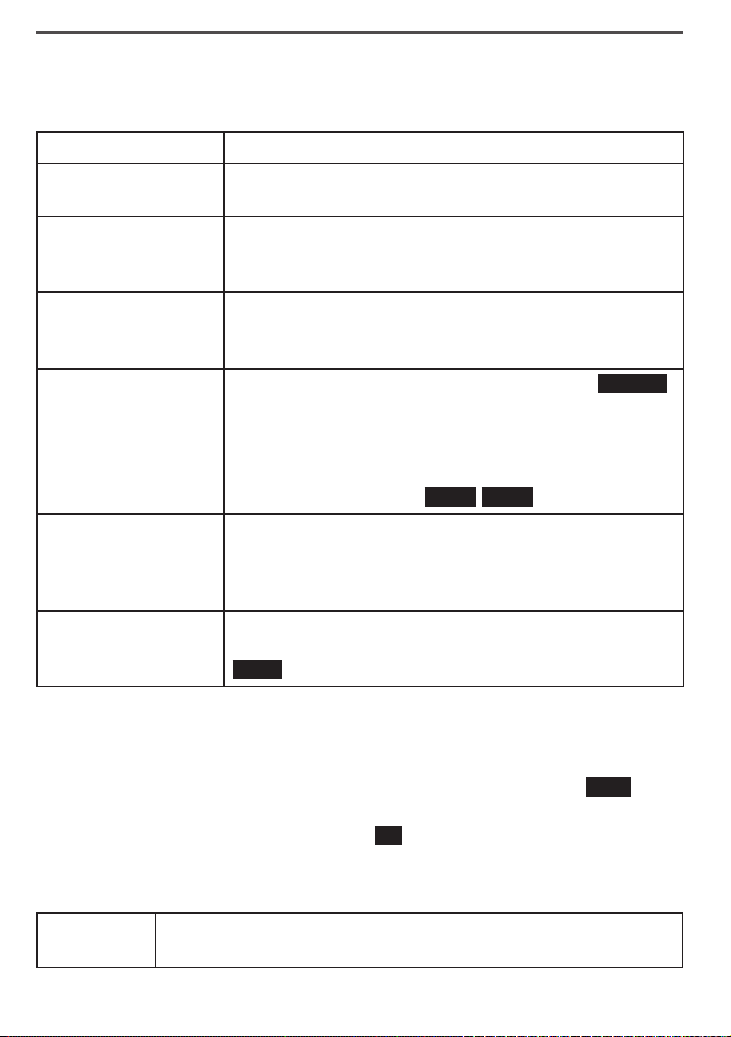
You can use a standard 2.5 mm telephone
headset with your cordless handsets. To
purchase additional headsets (HS910), visit our
website; www.uniden.com.au for Australian
model or www.uniden.co.nz for New Zealand
model.
To install a headset, remove the headset
jack cover and insert the headset plug into
the jack.
Just make and receive calls as usual, and use your headset to talk
to the caller after the call connects.
When you connect a headset, the handset automatically mutes
the earpiece and speaker. To re-activate the earpiece or speaker,
just unplug the headset.
(Belt clip
hole)
XDECT R055 OM.indd 29 22/9/11 2:16:43 PM
30
Using the Phonebook
Each station can store up to 100 entries in its phonebook, and each
entry can have two different phone numbers.
Open the phonebook Press
PHONEBOOK/LEFT.
Scroll through the
entries
Press
DOWN
to scroll through the phonebook from A
to Z or
UP
to scroll from Z to A.
Jump to entries that
start with a certain
letter
Press the number key corresponding to the letter you
want to jump to.
Quick dial the
primary number for
an entry
Find the entry you want to dial.1.
Press 2.
TALK/FLASH
or
SPEAKER
. The phone dials
with the primary line for this station.
Dial either number
for an entry
Find the entry you want to dial and press 1.
SELECT
.
Select one of the two phone numbers for that 2.
entry.
To dial the number with the primary line for this 3.
station, press
TALK/FLASH
or
SPEAKER
; to manually
choose a line, press
LINE1
/
LINE2
.
Use a speed dial
number to open a
phonebook entry
On the dial pad, press and hold the number assigned
to the phonebook entry you want. The phone opens
the phonebook and goes directly to that entry. Follow
the instructions for dialing an entry above.
Close the phonebook
On the handset, press
END
; on the base, press
MUTE/
EXIT
. (If you open the phonebook during a call, press
BACK
to back out without hanging up.)
Setting Up Your Phonebook
Creating a new entry
Open the phonebook with the phone in standby, and press
NEW
.
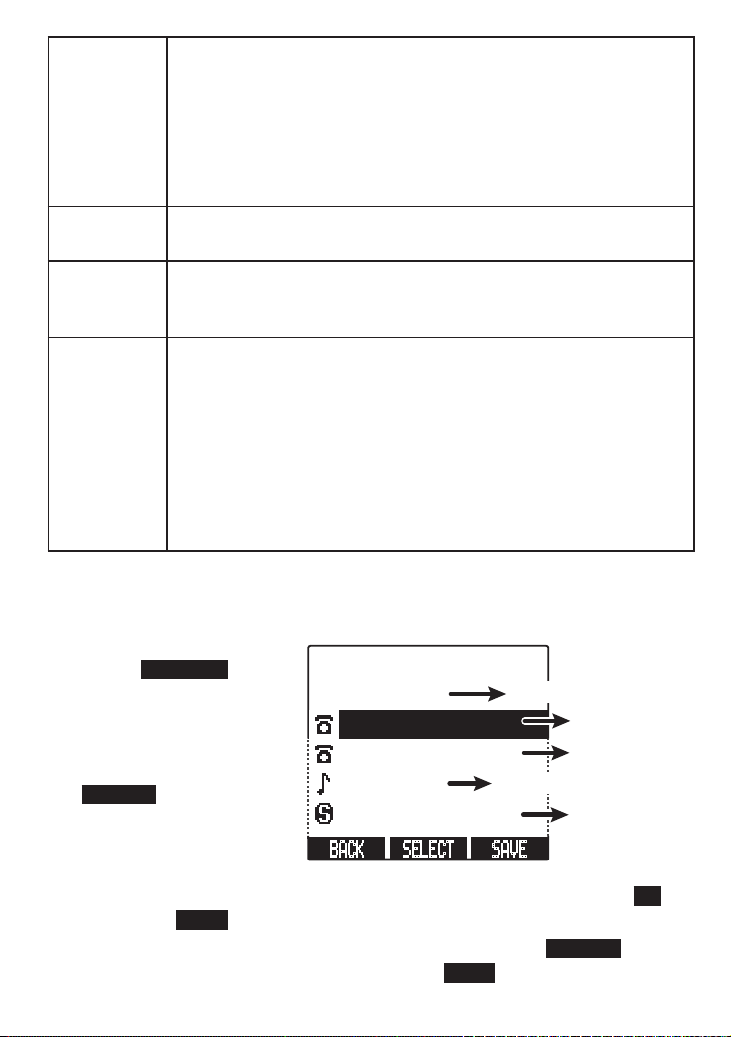
The phone walks you through the phonebook entry items in the order
listed below. On each screen, press
OK
when you're finished editing
the item or if you want to skip the item:
Edit Name
Enter the name (up to 16 characters) you want to use for this
entry.
XDECT R055 OM.indd 30 22/9/11 2:16:43 PM
31
Edit
Number1
Enter the primary number (up to 32 digits) for this entry
exactly the way you would dial it.
If you need the phone to wait before sending the next set of -
digits, press
REDIAL/PAUSE
to enter a two-second pause.
If two seconds isn't long enough, you can enter as many -
pauses as you want.
Each pause counts as one digit (you'll see a -
P
in the number).
Edit
Number2
Enter the secondary number for this entry just like you did the
primary number.
Personal
Ring
selection
(Handset only) Choose the ring tone you want the handset to
use when this person calls. As you highlight each ring tone,
the handset sounds a sample of that tone.
Speed Dial
Select the speed dial number (
SPD0
through
SPD9
) you want
to assign to this entry.
The speed dial numbers correspond to the numbers (0 through -
9) on the twelve key dial pad.
Each speed dial number can be assigned to only one entry. -
If the speed dial number is already assigned, the phone shows -
the name of the entry assigned to the number. If you want to
change it, select the number, and the phone overwrites the
existing assignment.
Editing an existing entry
With the station in standby, open the phonebook and find the entry you 1.
want.
2. Press
OPTIONS
, then
choose
Edit
.
Highlight the individual 3.
item you want to
change and press
SELECT
. The phone
goes to the edit screen
for that item.
Edit the item as 4.
described under "Creating a new entry" (above), and press
OK
.
OR press
BACK
to cancel editing and return to the main entry.
Highlight the next item you want to edit and press 5.
SELECT
. If
you're finished editing this entry, press
SAVE
.
SAVE SELECT BACK
Edit
Bob Smith
987-555-1234
123-555-9876
Clatter
Speed Dial 4
Edit Name
Edit Number1
Edit Number2
Personal ring (handset
only)
Edit
Speed
Dial
XDECT R055 OM.indd 31 22/9/11 2:16:43 PM
32
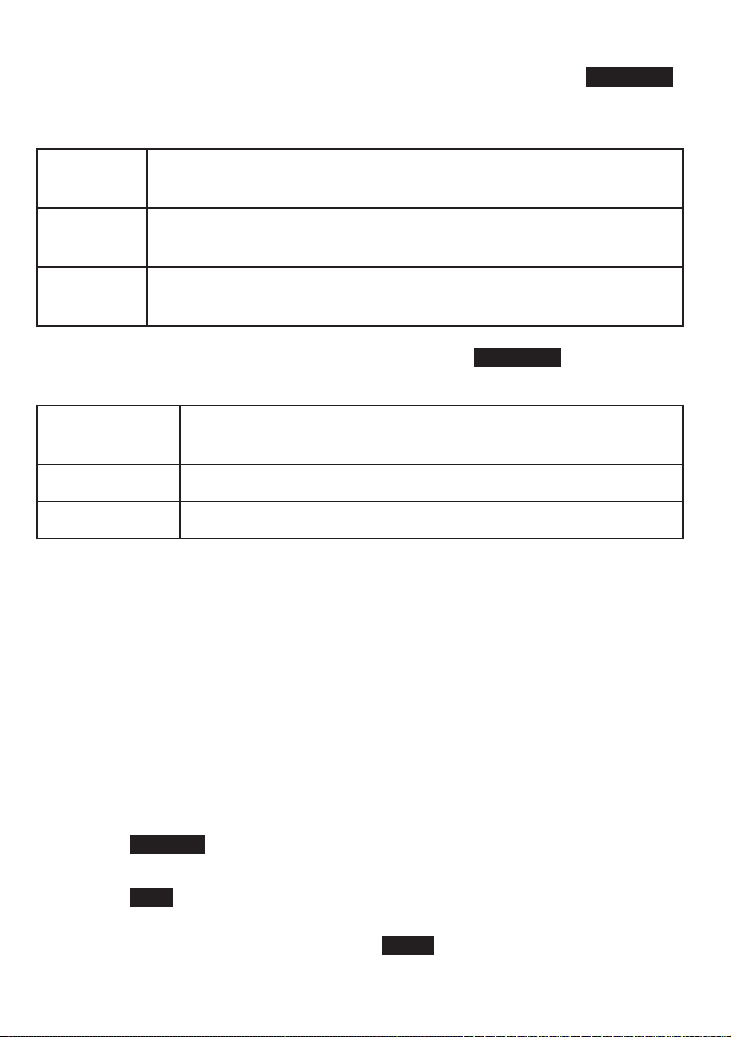
Phonebook Menu Options
Open the phonebook with the phone in standby, and press
OPTIONS
to open the phonebook menu. From the main phonebook screen, you
have three options:
Create
New
Add an entry to your phonebook. (See "Creating a new entry"
on page 30.)
Copy All
Copy the whole phonebook to another station. (You must have
at least one cordless handset to use this multi-station feature.)
Delete All
Erase all the entries in this station's phonebook. (This does not
affect the entries saved on any other stations.)
If you select an individual entry and then press
OPTIONS
, you have
these additional options:
Copy
Copy this entry to another station. (You must have at least
one cordless handset to use this multi-station feature.)
Edit
Edit this entry. (See "Editing an existing entry" on page 31.)
Delete
Erase this entry.
Chain Dialing
If you often have to enter a series of digits or a code number
during a call, you can save that code number to a phonebook
entry and use the phonebook to send the code number.
Enter the code number (up to 32 digits) into the phonebook just
like a regular phonebook entry. Be sure to enter the code number
into the phonebook exactly as you would enter it during a call.
During your call, when you hear the prompt to enter the code number:
Open the phonebook and find the entry that contains your code 1.
number.
Press 2.
SELECT
and select the number (phone number 1 or 2) you
want.
Press 3.
DIAL
to transmit the code. The phone transmits the code
number exactly as you entered it in the phonebook.
OR if you change your mind, use
BACK
to close the phonebook.
XDECT R055 OM.indd 32 22/9/11 2:16:44 PM
33
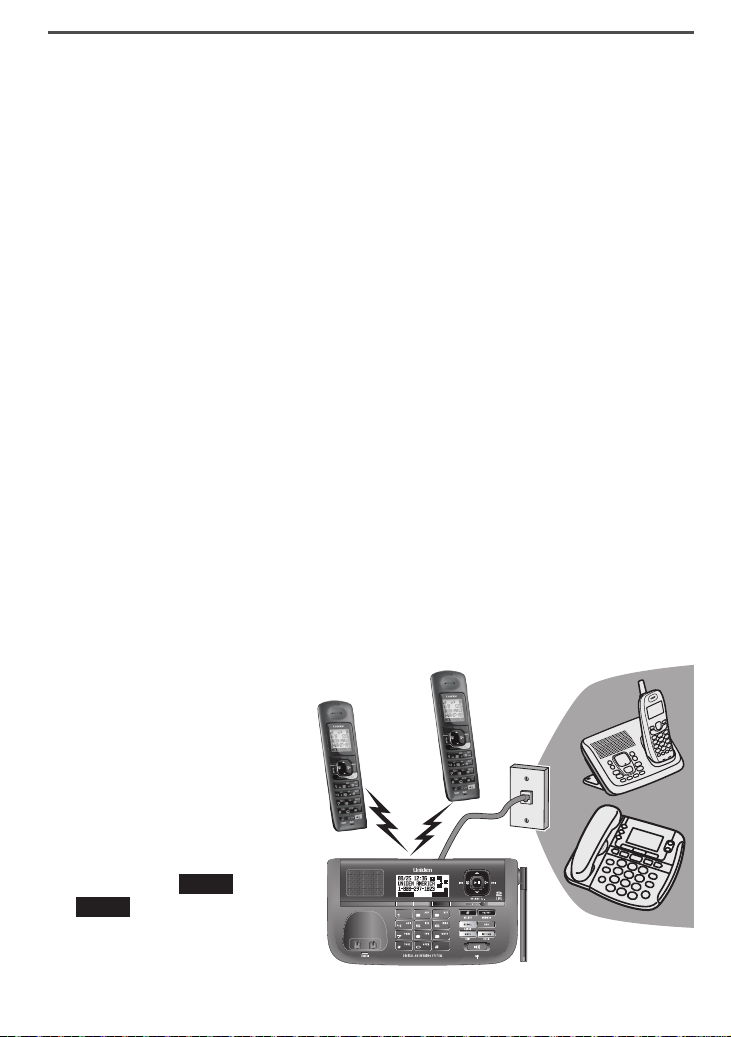
Using Multi-station Features
The expandable base works together with the accessory handsets
to give you some useful multi-station features. (A station can be any
cordless handset or the base.) You must have at least one accessory
handset to use the features in this section.
Expanding Your Phone
Your base supports a total of six XDECT R005 accessory
handsets, including any that were supplied with your phone.
Your base might be compatible with other Uniden accessory
handsets: please visit our website for a list of compatible handsets.
Accessory handsets must be registered to the base before you
can use them. Handsets that aren't registered display a
Handset
not registered
message. For instructions on registering handsets to
this base, see page 49 or refer to the manual that came with the
accessory handset.
Any accessory handsets that came packaged with the base are
already registered to that base for you.
If a handset was previously registered to a base, you have to reset
it so you can register it to a new base (see page 49 for XDECT
R005 handsets).
Using Multi-Station Conference Calling
When an outside call
comes in on either line,
the base and four
cordless handsets can
join in a six-way
conference call with the
outside caller.
To join a call in progress,
just connect to the active
line (press
LINE1
or
LINE2
).
XDECT R055 OM.indd 33 22/9/11 2:16:45 PM
34
To leave a conference call, hang up normally; all other stations
remains connected to the call.
If you conference line 1 and line 2 together (see page
25), the
base and four cordless handsets can hold a seven-way call with
both outside callers at the same time.
You can also use the speakerphone for a conference call, just like
you can with a normal call.
Using Privacy Mode
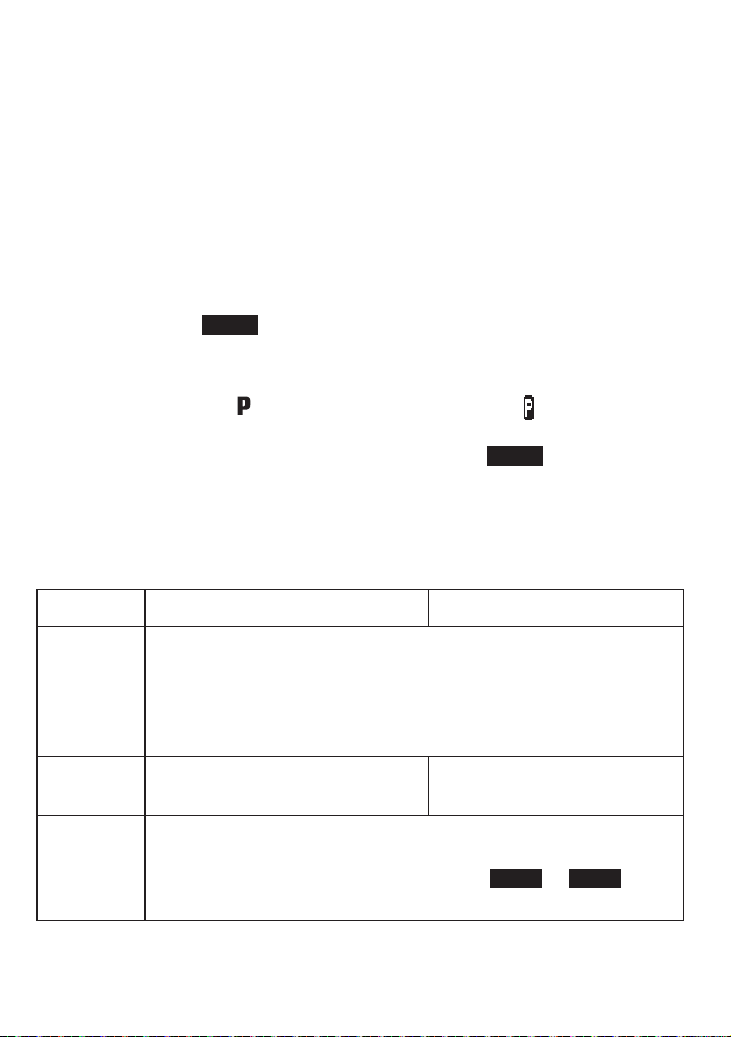
You can prevent other stations from joining a call. Start your call as
usual, then press
MENU
and select
Call Privacy
. When you hang up,
privacy mode turns off automatically.
As long you have privacy mode on, no other stations can interrupt
your call (you'll see a
in the handset display and a in the base
display). To allow another station to join the call, just turn privacy
mode off by repeating the process above (press
MENU
and select
Call Privacy
).
Using Call Transfer
To...
From the base From a handset
transfer a
call
Press 1.
INTERCOM/HOLD
to put the call on hold.
Select the station you want to transfer the call to, or select 2.
All
to page all the stations at the same time.
When the other station accepts the call, you'll be disconnected,
but you can join the call again.
cancel a
transfer
Press
SPEAKER
to return to the
call.
Press
TALK/FLASH
to return
to the call.
accept a
transferred
call
To answer the page and speak to the transferring station, 1.
press
INTERCOM/HOLD.
To accept the call, press the soft key (2.
LINE1
or
LINE2
) for
the holding line.
XDECT R055 OM.indd 34 22/9/11 2:16:46 PM
35
Using the Intercom
Here are some things you need to know about using the intercom:
Whenever the phone is in standby, you can make an intercom call
between stations without using the phone line.
You can make an intercom call from any station, but only two
stations can be in an intercom call at any time.
If an outside call comes in during an intercom call, the phone
shows the CID information. If the other station hasn't answered
the page, the phone cancels the page so you can answer the
incoming call.
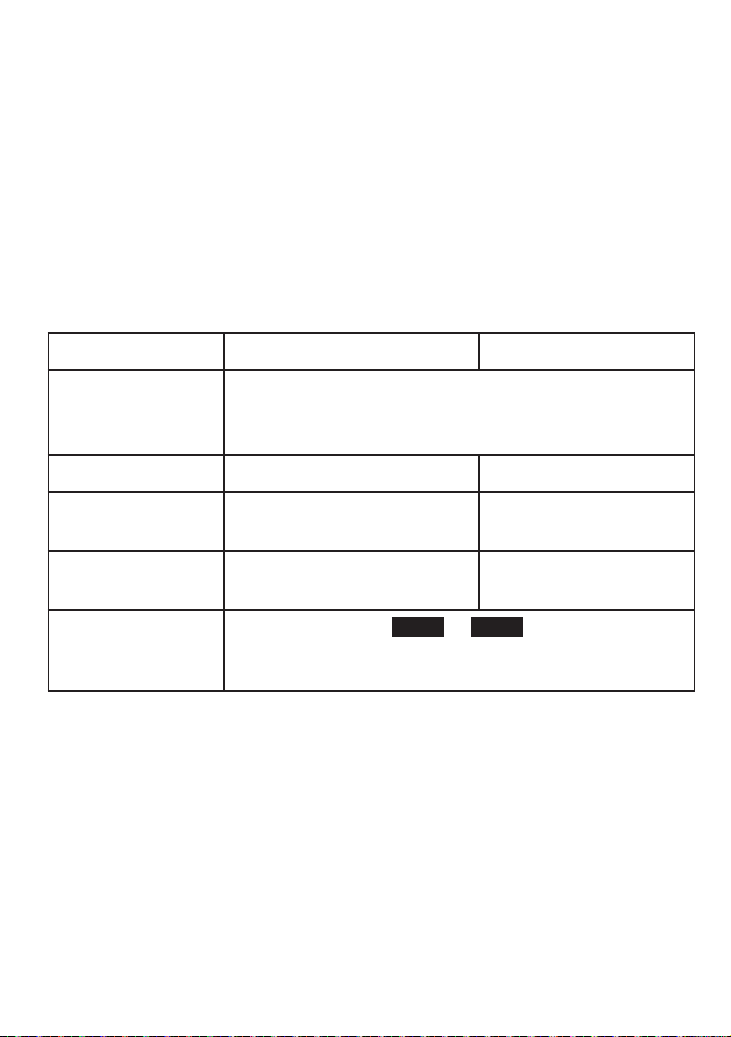
To... From the base From a handset
make an intercom
page
Press 1.
INTERCOM/HOLD
.
Select the station you want to talk with, or select 2.
All
to page all the stations at the same time.
cancel a page Press
INTERCOM/HOLD.
Press
END
.
answer an
intercom page
Press
INTERCOM/HOLD
.
Press
INTERCOM/HOLD
or
TALK/FLASH
.
leave an intercom
call
Press
INTERCOM/HOLD.
Press
END
.
answer an outside
call during an
intercom call
Press the soft key (
LINE1
or
LINE2
) for the line you
want to answer. The phone automatically disconnects
the intercom call and connects you to the outside line.
XDECT R055 OM.indd 35 22/9/11 2:16:46 PM

36
Using Special Features
Using Do Not Disturb
The
Do Not Disturb or DND feature turns off the ringers of the
base and all handsets at the same time.
With the phone in standby, press and hold
DO NOT DISTURB
on the
base. The phone automatically turns on the answering system and
shows
Do Not Disturb
in the display on all stations.
To cancel, press
DO NOT DISTURB
again.
If you turn the answering system off while DND is on, the phone turns
off DND along with the answering system.
Using Call Block
If you subscribe to Caller ID, you can block incoming calls by adding
numbers to the call block list.
When either line receives a call, the phone compares the received
phone number to the numbers on the call block list. If the phone
number is on the list, the phone replaces the caller's name with
Call Blocked
and disconnects the call. (The caller hears a reject
message.)
The call block list holds 20 entries; this list applies to all stations
and both lines.
You can add a number to the call block list through the CID list
options (select
Add Call Block
), or through the
Call Blocking
menu
(select
New Entry
).
Only one station can edit the call block list at a time.
XDECT R055 OM.indd 36 22/9/11 2:16:46 PM
37
Call Blocking menu options
With the phone in standby, open the menu and select
Call Blocking
.
Choose one of these options:
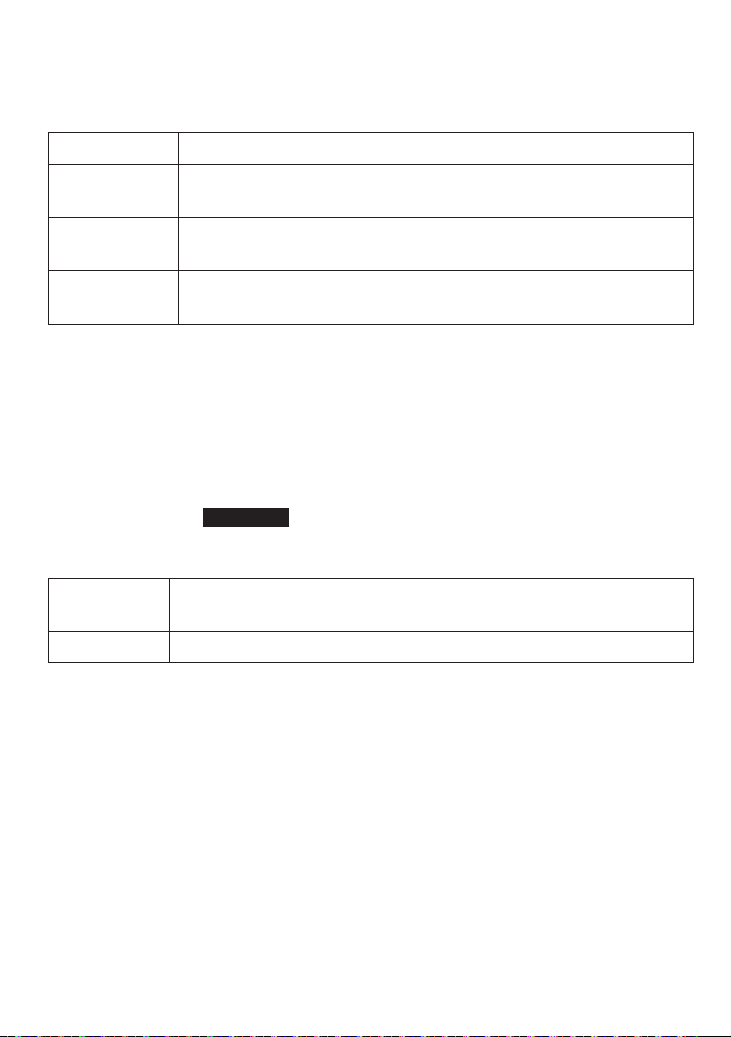
View Number
See the numbers on your call block list.
Create New
Add an entry to your call block list. The phone will prompt
you to enter a name (optional) and phone number.
Private
Number
Block all calls from numbers reported by CID as "Private."
(This does not count as one of the 20 entries.)
Unknown
Number
Block all calls from numbers reported by CID as
"Unknown". (This does not count as one of the 20 entries.)
Add Caller ID number to Call block list
With the phone in standby, open the Caller ID list and find the entry
you want. Press [OPTIONS] to open the individual entry menu.
Choose Add Call Block to copy the number into the Call block list.
Call block entry options
With the phone in standby, open the call block list and find the entry
you want. Press
OPTIONS
to open the individual entry menu. Choose
one of these options:
Edit
Edit this entry. The phone will prompt you to edit the name
and phone number.
Delete Entry
Erase this entry from the list and allow calls from this number.
XDECT R055 OM.indd 37 22/9/11 2:16:46 PM
38
Using the Alarm Feature
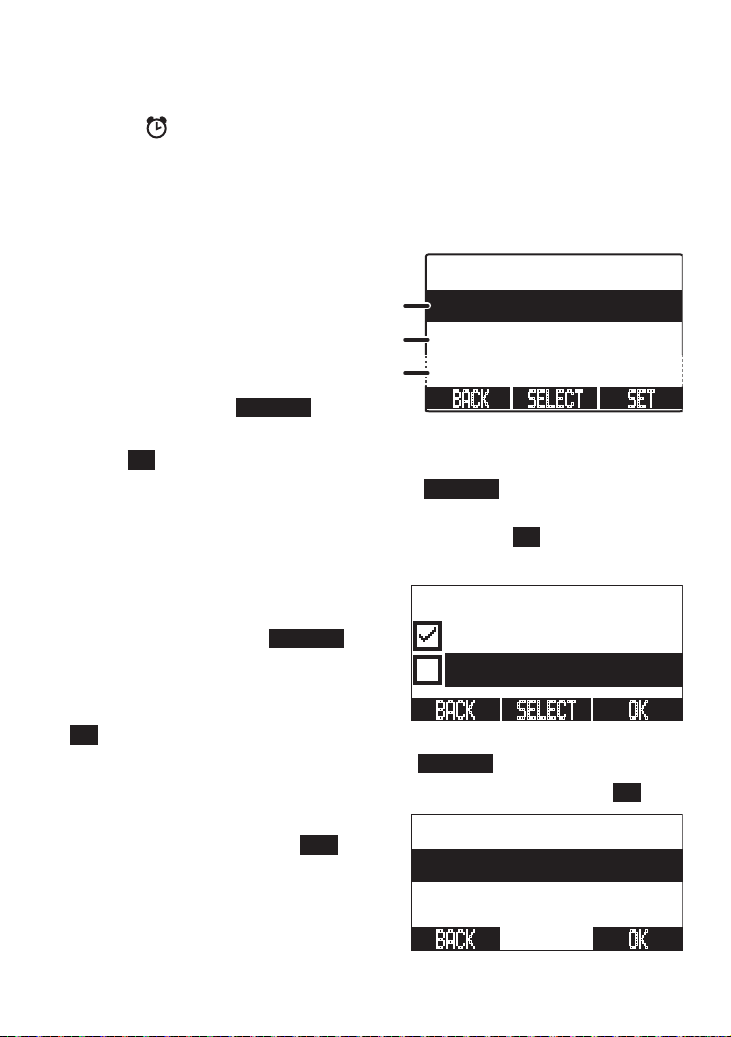
You can set 3 different alarms on each cordless handset so your
phone can remind you of important events. When an alarm is set, the
alarm icon (
) appears on the top of the screen.
Setting an alarm
Open the menu and select 1.
Handset Setup
.
Select 2.
Alarm Setting
, then select the alarm (
Alarm1
,
Alarm2
, or
Alarm3
) you want to set.
To turn on the alarm, 3.
select
On
. The phone
goes to the alarm
edit screen.
Highlight the time 4.
setting and press
SELECT
.
Use the number keys to set the time you want the alarm to ring; 5.
press
OK
when you're finished.
Highlight the repeat setting and press 6.
SELECT
. Select how often
you want the alarm to ring—once only (
1 time
), every day (
Daily
),
or on a weekly basis (
Select Days
)—then press
OK
.
7. If you choose
Select Days
, the handset prompts you to choose
which days of the week the alarm
should ring. To choose a day,
highlight it and press
SELECT
; a
check mark appears beside that to
show that it is selected. Select as
many days as you want, then press
OK
. The alarm will ring on each day with a check mark beside it.
Highlight the ringer setting and press 8.
SELECT
.
Select the ring tone you want the alarm to use, then press 9.
OK
.
10. When you are finished setting all
the alarm options, press
SET
to
activate the alarm. The time and
repeat setting will show on the
main
Alarm Setting
screen. (If you
selected specific days, the repeat
setting displays as
Weekly
.)
Select Days
Monday
Tuesday
OK SELECT BACK
Alarm Setting
08:00AM Weekly
Alarm2
OK BACK
Alarm 1
00:00AM
1 time
No Selection
SET
SELECT
BACK
Time setting
Repeat setting
Ringer setting
XDECT R055 OM.indd 38 22/9/11 2:16:47 PM
39
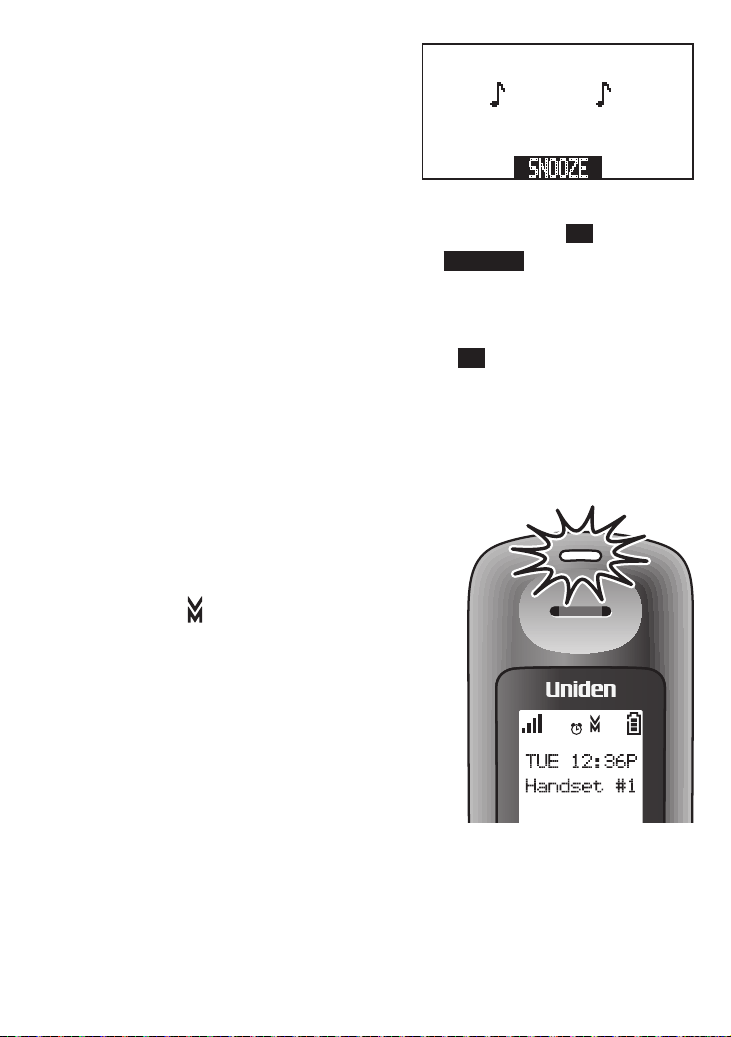
When an alarm rings
When the day and time on the phone
matches the day and time of an alarm
setting, the handset sounds the
selected tone and displays the alarm
screen.
The alarm will ring for three minutes. To turn off the alarm, press
END
. When the phone prompts you to confirm, press
OK
.
To temporarily turn off the alarm, press
SNOOZE
(or just let the
alarm ring for the three minutes). The alarm will ring again in five
minutes.
To cancel snooze, press
END
the next time the alarm rings. When
the phone prompts you to confirm, press
OK
.
Using Voice Message Notification
This feature supports Frequency-Shift Keying (FSK) message
notification. Contact your voice mail provider for more details.
If you subscribe to a voice mail service,
your phone can notify you when you have a
new message waiting on either line. When
you have new messages, the voice
message icon
(
) appears in the display,
and the new message light (at the top of the
handset) blinks.
Resetting the voice message indicator
If the voice message icon remains after you
check your messages, you can reset it from
the base:
Open the menu and select 1.
Global Setup
.
When the phone prompts you to select a line, select 2. Line 1 or
Line 2,
Select 3.
VMWI Reset
, then select
Yes
to reset the indicator.
Alarm
SNOOZE
TUE 12:36P
Handset #1
XDECT R055 OM.indd 39 22/9/11 2:16:47 PM

40
Using the Answering System
Each line has a separate answering system. Whenever you access
the answering system, the phone prompts you to choose a line.
After that, any settings or operations will affect only the answering
system for that line. For example, deleting all the messages from the
answering system from line 1 does not affect any messages on the
answering system for line 2.
Setting Up Your Answering System
Recording your outgoing message
Your personal outgoing message or greeting can be between 2
seconds and 30 seconds long. If you don't want to record an outgoing
message, the system will use its pre-recorded greeting:
Hello, no one is available to take your call. Please leave a
message after the tone.
To record your greeting:
Open the menu and select 1.
Ans. Setup
.
Select 2.
Line 1
or
Line 2
, then select
Record Greeting
.
Press 3.
START
. Wait for the system to say "Record greeting" and
then and begin your recording.
When you're finished, press 4.
STOP
. The system plays back your
new greeting.
To keep this greeting, press 5.
OK
again. To delete it and try again,
press
DELETE
.
Switch between the pre-recorded greeting and your greeting
Open the menu and select 1.
Ans. Setup
.
Select 2.
Line 1
or
Line 2
, then select
Greeting Options
.
The system plays back the current greeting (personal or pre-3.
recorded) for this line. Press
CHANGE
to switch greetings or
OK
to
keep the current greeting.
XDECT R055 OM.indd 40 22/9/11 2:16:48 PM
41
Delete your greeting
Open the menu and select 1.
Ans. Setup
.
Select 2.
Line 1
or
Line 2
, then select
Greeting Options
.
While the system plays back the current greeting, press 3.
DELETE
to erase the personal greeting for this line. (You can't erase the
pre-recorded greeting.)
Ans. Setup menu options
You can change the answering system options separately for each
line. When you select the
Ans. Setup
menu, the phone prompts you
to select
Line 1
or
Line 2
. Then, you can choose one of the following
options to change the answering system settings for that line:
Security Code
Enter a 2-digit PIN so you can access your answering
system from any touch-tone phone (see page 44).
Ring Time
Set the number of rings (6, 9, or 12) before the answering
system answers the phone. Choose
Toll Saver
to have
the system pick up after 2 rings if you have new messages
or after 4 rings if you don't.
Record Time
Set the amount of time callers have to leave a message,
either
1
minute or
4
minutes. Choose
Announce Only
if you don't want the system to let callers to leave a
message.
Message Alert
Have the system beep about every 20 seconds when you
have a new message; the beeping stops when you listen
to all your new messages. (To mute the alert without
listening to your messages, press any key on the base.)
Call Screen
Turn on the call screen feature so you can hear callers as
they leave messages on the base speaker (see page 43).
Ans. On/Off
Turn your answering system on or off. (To turn your
system on or off from the base, just press
ON/OFF
.)
Record Greeting
Record a personal greeting (see page 40).
Greeting
Options
Switch between your personal greeting and the pre-
recorded greeting or delete your personal greeting (see
page 40).
XDECT R055 OM.indd 41 22/9/11 2:16:48 PM
42
Getting Your Messages
Accessing your system from a handset (remote operation)
You can access your system from a handset whenever the phone
is in standby. Only one handset at a time can access the system
through remote operation, and you can't use remote operation if the
base is using the answering system.
To start remote operation, open the menu and select
Retrieve
Msg
. When the phone prompts you to select a line, press
LINE1
or
LINE2
.
During remote operation, the handset beeps to let you know it's
waiting for your next command. If you don't press any keys for 30
seconds, the phone returns to standby.
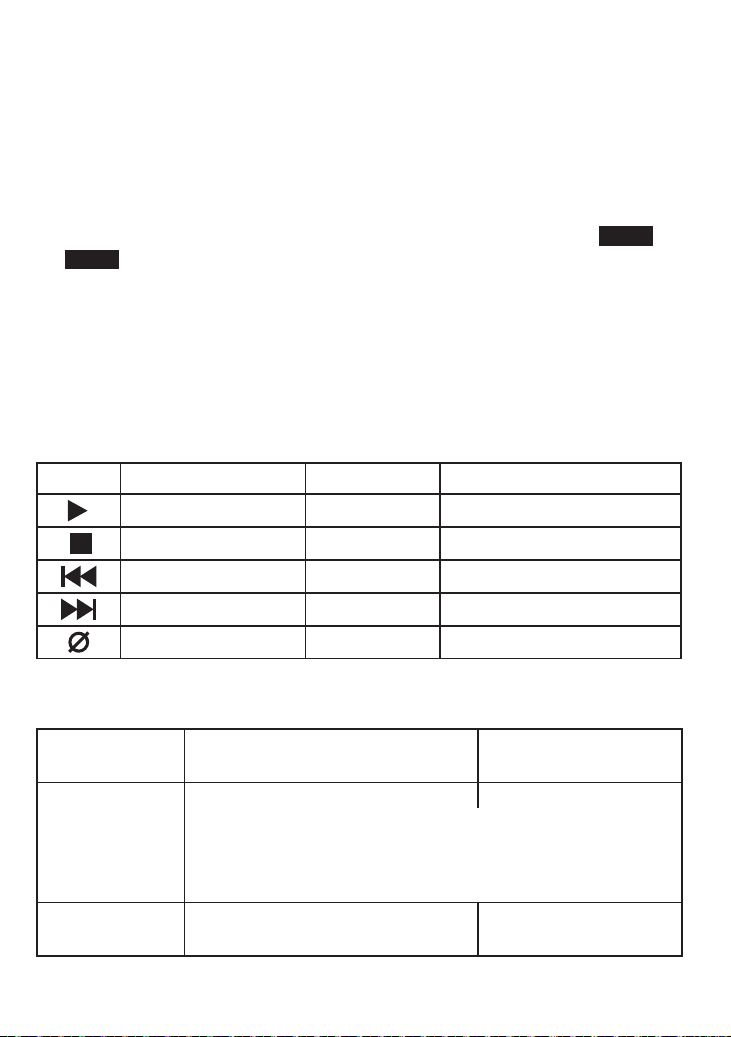
The icons on the handset's number keys and display show you
which number key activates each answering system command;
these commands correspond to the answering system keys on the
base:
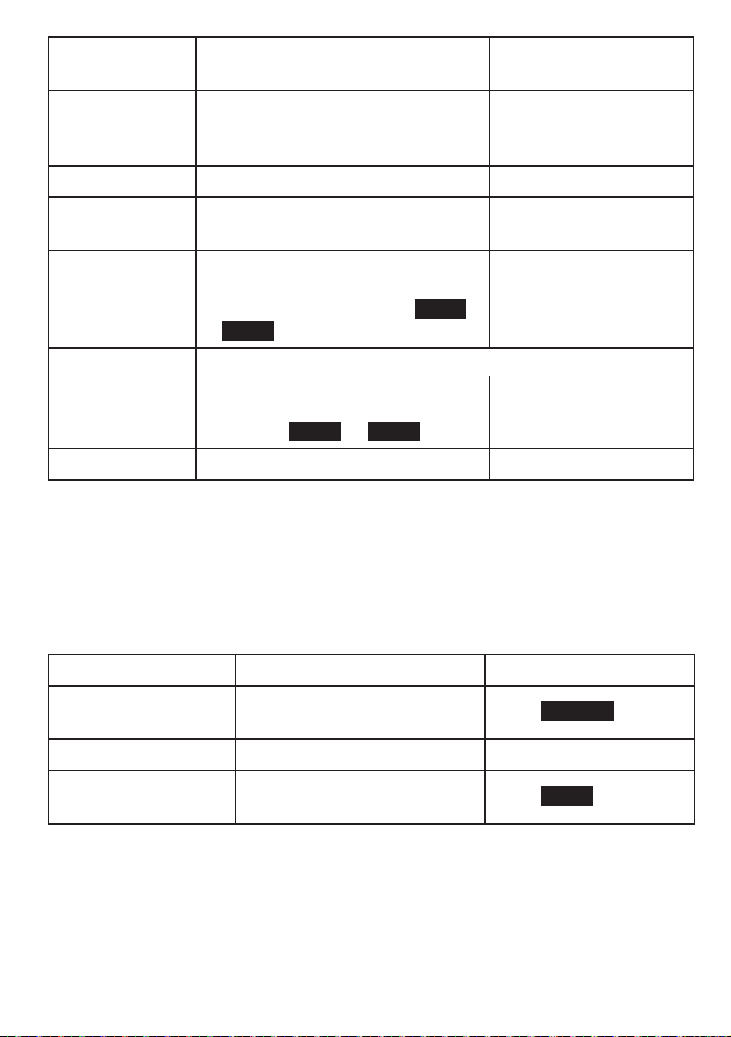
Icon Command Name Handset key Base key
Play
2
PLAY/STOP
Stop
5
PLAY/STOP
Repeat
1
PHONEBOOK/LEFT
Skip
3
CALLER ID/RIGHT
Delete
4
DELETE
How to operate your answering system
To... From the base
From a handset (during
remote operation)
play new
messages
Press
PLAY/STOP
then select a line
.
Press
2
.
The system announces the number of new and old
messages, then plays the first new message followed by
the day and time it was received. Then the system plays
the new messages in the order they were received.
restart the
current message
Press
PHONEBOOK/LEFT
. Press
1
.
XDECT R055 OM.indd 42 22/9/11 2:16:49 PM
43
To... From the base
From a handset (during
remote operation)
replay previous
messages
Press
PHONEBOOK/LEFT
repeatedly
until you hear the message you
want to replay.
Press
1
repeatedly until
you hear the message
you want to replay.
skip a message Press
CALLER ID/RIGHT
. Press
3
.
delete a
message
While the message is playing,
press
DELETE
.
While the message is
playing, press
4
.
delete all of your
messages
With the phone in standby, press
DELETE
. When the system prompts
you to select a line, press
LINE1
or
LINE2
.
Not available.
play old
messages
After the system plays the new messages,
press
PLAY/STOP
again. When the
system prompts you to select a
line, press
LINE1
or
LINE2
.
press
2
.
exit the system Press
PLAY/STOP
. Press
END
.
Screening Your Calls
Another feature your answering system gives you is call screening.
While the system is taking a message, you can hear the caller on the
base speaker (if you turn on
Call Screen)
or from a handset.
To... From the base From a handset
hear the caller
leaving a message
Just listen to the caller over
the speaker.
Press
SCREEN
.
answer the call Press
SPEAKER
. Press
TALK/FLASH
.
mute the call screen
without answering
Press
MUTE/EXIT.
Press
MUTE
If you mute the call screen, the system continues taking the
message: it just stops playing through the speaker.
Only one handset at a time can screen calls. If another handset
tries to screen the call, the handset sounds an error tone and
displays a
System Busy
message.
XDECT R055 OM.indd 43 22/9/11 2:16:49 PM

44
Using the System While You're Away from Home
You can also operate your answering system from any touch-tone
phone. Before you can use this feature, you have to program a
security code.
Programming a security code
With the phone in standby, open the menu and select 1.
Ans. Setup
.
When the phone prompts you to select a line, select 2. Line 1 or
Line 2, then select
Security Code
.
Use the number keypad to enter a two-digit security code (3.
00
to
99
). Press
OK
when you’re finished.
Remember to make a note of your new security code!
Dialing in to your system
Call your telephone number and wait for the system to answer. 1.
(If your answering system is off, it will answer after about fifteen
rings and sound a series of beeps instead of your greeting.)
During the greeting (or beeps), press 2.
#
and immediately enter
your security code. (You have 3 tries to enter you security code:
if you enter it wrong 3 times, the system hangs up and returns to
standby.)
The system announces the current time, the number of messages 3.
stored in memory, and a help prompt. Then it starts beeping
intermittently to let you know it's waiting for your command.
4. When you hear the intermittent
beeping, enter a command from the
chart to the right.
If you don't press any keys for 15 seconds,
the phone will hang up and return to
standby.
#-1 Repeat message
#-2 Play message
#-3 Skip message
#-4 Delete message
#-5 Stop playback
#-6 Turn the system on
#-9 Turn the system off
#-0 Hear help prompts
XDECT R055 OM.indd 44 22/9/11 2:16:49 PM
45
Solving Problems
If you have any trouble with your phone, try these simple steps first.
If you still have a question, call our Customer Care Line listed on the
front cover.
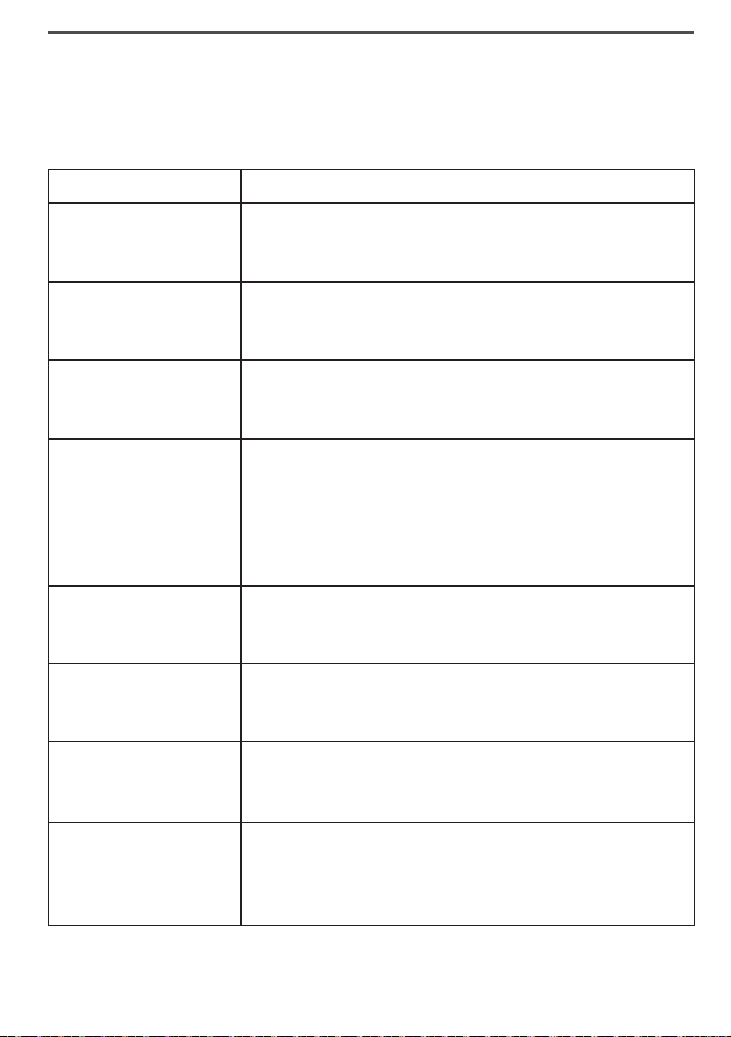
If… Try…
No stations can
make or receive
calls.
Checking the telephone cord connection. -
Disconnecting the base AC adapter. Wait a few -
minutes, then reconnect it.
One cordless
handset can’t make
or receive calls.
Moving the handset closer to the base. -
Resetting the handset. -
A station can make
calls, but it won’t
ring.
Making sure the ringer is turned on. -
Making sure Do Not Disturb is turned off (see page -
36).
I can't make or
receive calls on line
2.
Making sure line 2 is properly connected (see page -
2).
Seeing if another station has activated Privacy Mode -
on line 2.
Making sure you have subscribed to 2 separate lines -
from your phone company.
I can't conference
line 1 and line 2
together.
Seeing if another station has activated Privacy Mode -
on one of the lines (see page 34).
A cordless handset's
display won't turn
on.
Charging the battery for 15-20 hours. -
Checking the battery pack connection. -
A cordless handset
is not working.
Charging the battery for 15-20 hours. -
Checking the battery pack connection. -
Resetting the handset. -
A cordless handset
says
Unavailable
.
Moving the handset closer to the base. -
Seeing if another station has Privacy Mode on (see -
page 34).
Making sure the base is plugged in. -
XDECT R055 OM.indd 45 22/9/11 2:16:49 PM

46
If… Try…
No stations will
display any Caller ID
information.
Letting calls ring at least twice before answering. -
Seeing if the call was placed through a switchboard. -
Checking with your telephone service provider to -
make sure your Caller ID service is active.
Caller ID displays
briefly and then
clears.
You may have to change the line mode. Contact -
customer service for more information.
I can’t transfer calls.
Resetting all the handsets (see page - 49).
I can’t get two
cordless handsets to
talk to the caller.
Making sure both handsets are registered to this -
base.
Making sure no station is in Privacy Mode (see page -
34).
The phone keeps
ringing if I answer
on an extension.
You may have to change the line mode. Contact -
customer service for more information.
I can't save a number
to an existing
phonebook entry.
Seeing if the number is already in the phonebook. -
Seeing if that entry already has two phone numbers. -
The answering
system does not
work.
Making sure the answering system is turned on. -
Making sure the base AC adapter is not plugged into -
an that's controlled by a wall switch.
The answering
system won't record
messages.
Making sure the -
Record Time
is not set to
Announce Only
(see page 41).
Deleting messages (the memory may be full). -
A handset can't
access the
answering system.
Making sure no other handset is using the system. -
Making sure the phone is in standby. -
My outgoing
message is gone.
Seeing if there was a power failure. You may have to -
re-record your personal outgoing message.
I can’t hear the base
speaker.
Making sure call screening is turned on -
(see page
41).
Changing the base speaker volume. -
XDECT R055 OM.indd 46 22/9/11 2:16:49 PM
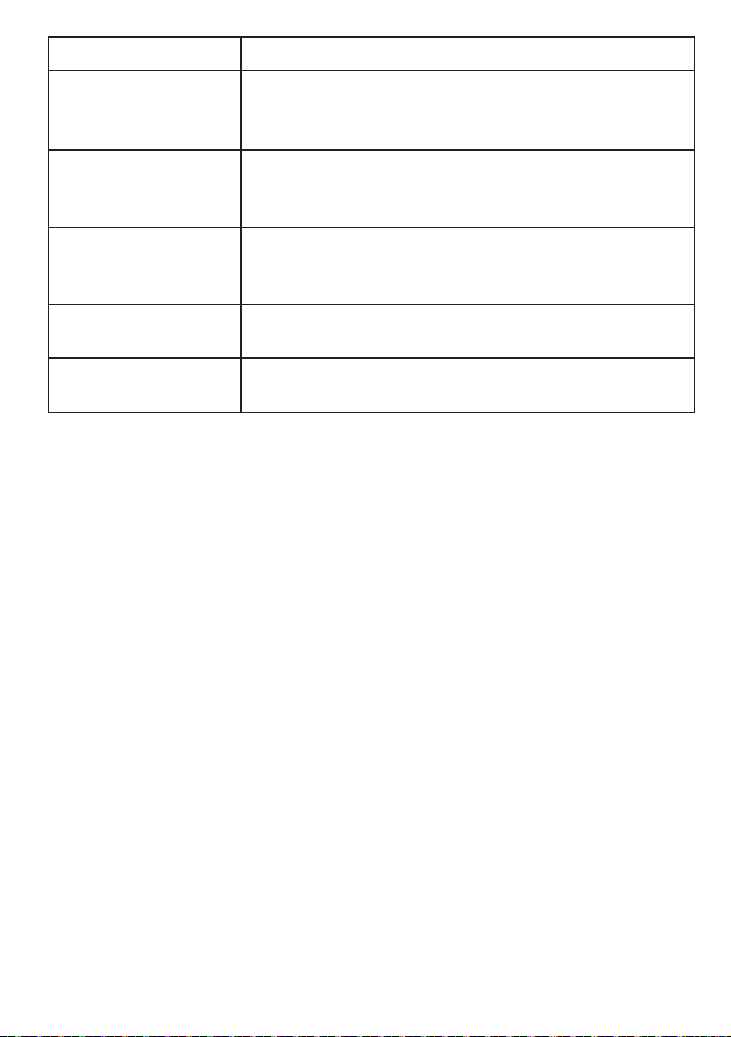
47
If… Try…
Messages are
incomplete.
The incoming messages may be too long. Remind -
callers to leave a brief message.
Deleting messages (the memory may be full). -
The system keeps
recording if I answer
on an extension.
You may have to change the line mode. Contact -
customer service for more information.
I can't register a
handset.
Seeing if there are 10 handsets registered to this -
base.
Resetting the handset. -
My alarm rings at
the wrong time.
Making sure the time is set correctly (see page 22). -
My alarm won't ring
on the right day(s).
Making sure the days are selected (see page - 38).
Making sure the date is set correctly (see page 22). -
Weak or Hard To Hear Audio
If a caller’s voice sounds weak or soft, the signal might be blocked by
large metal objects or walls; you might also be too far from the base,
or the handset’s battery may be weak.
Try moving around while you’re on a call or moving closer to the
base to see if the sound gets louder.
Make sure the handset’s battery is fully charged.
Try adjusting the earpiece volume.
Noise or Static On The Line
Interference is the most common cause of noise or static on a
cordless phone. Here are some common sources of interference:
electrical appliances, especially microwave ovens
computer equipment, especially wireless LAN equipment and DSL
modems
XDECT R055 OM.indd 47 22/9/11 2:16:49 PM
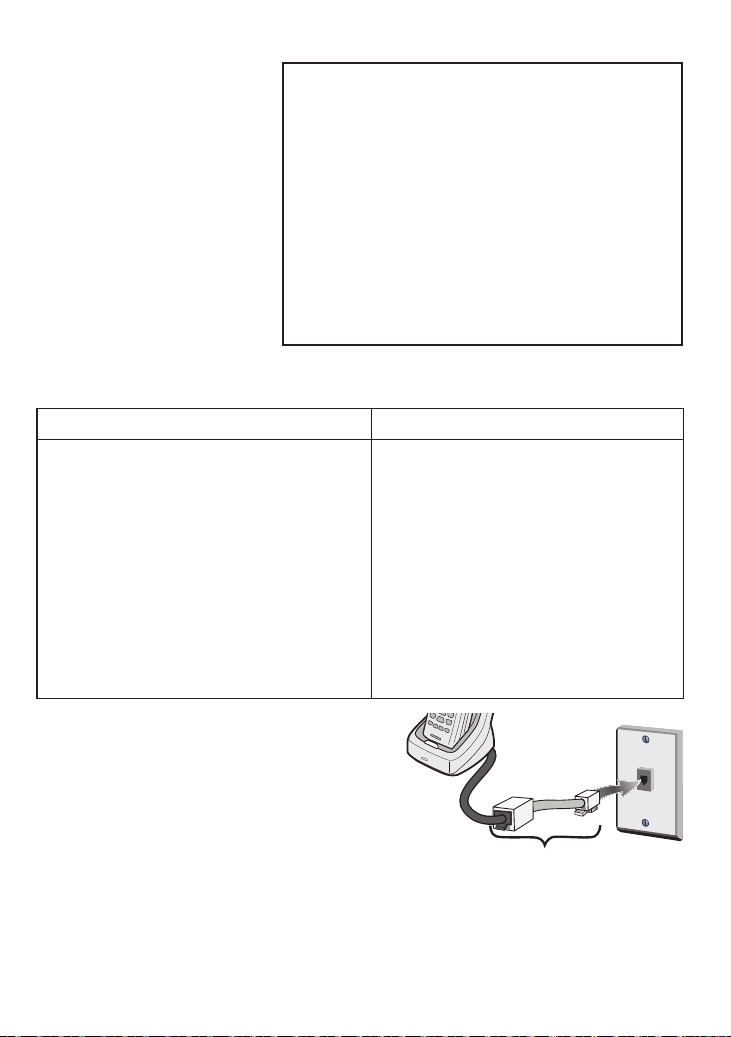
48
radio-based wireless devices, such as room monitors, wireless
controllers, or wireless
headphones or
speakers
large fluorescent light
fixtures (especially if
they give off a buzzing
noise)
other services that
use your phone line,
like alarm systems,
intercom systems, or
broadband Internet
service
Here are some hints for when the static is...
on 1 handset or in 1 location: on all handsets or in all locations:
Check nearby for one of the common -
interference sources.
Try moving the handset away from a -
suspected source, or try moving the
suspected source so it’s not between
the handset and the base.
Try moving closer to the base. There -
is always more noise at the edges
of the base's range. If the handset
displays an
Out of Range
message,
you need to move closer to the base.
Check near the base for the source -
of interference.
Try moving the base away from a -
suspected source, or turn off the
source if possible.
If the base has an adjustable -
antenna, try raising the antenna so
it stands straight up.
If you have any service that uses -
the phone line, you might need a
filter (see below).
Installing a line filter or DSL filter
Sometimes, broadband Internet
services that use the telephone line
can interfere with phones. One of
these services -DSL- often causes
static on telephones. A DSL filter or
telephone line filter usually solves this problem. The technician who
installed your DSL service might have left some filters for you; if not,
call your DSL provider or look in any electronics store.
Plug the DSL filter into the telephone wall jack and plug your phone’s
base into the filter. Make a test call to make sure the noise is gone.
Do you use a T-Coil hearing aid?
If you have a hearing aid equipped with
a telecoil (T-coil) feature, the interaction
between the hearing aid and digital cordless
phones can cause noise in the handset. If
you have a T-coil hearing aid and you have
problems with noise on the line, try turning
on
T-coil
mode. Open the menu; select
Handset Setup
, then select
T-coil
.
Using T-coil mode can shorten the handset’s
talk time; make sure to watch the battery
status and keep the battery charged.
DSL filter
Telephone
cord
Telephone
wall jack
XDECT R055 OM.indd 48 22/9/11 2:16:50 PM
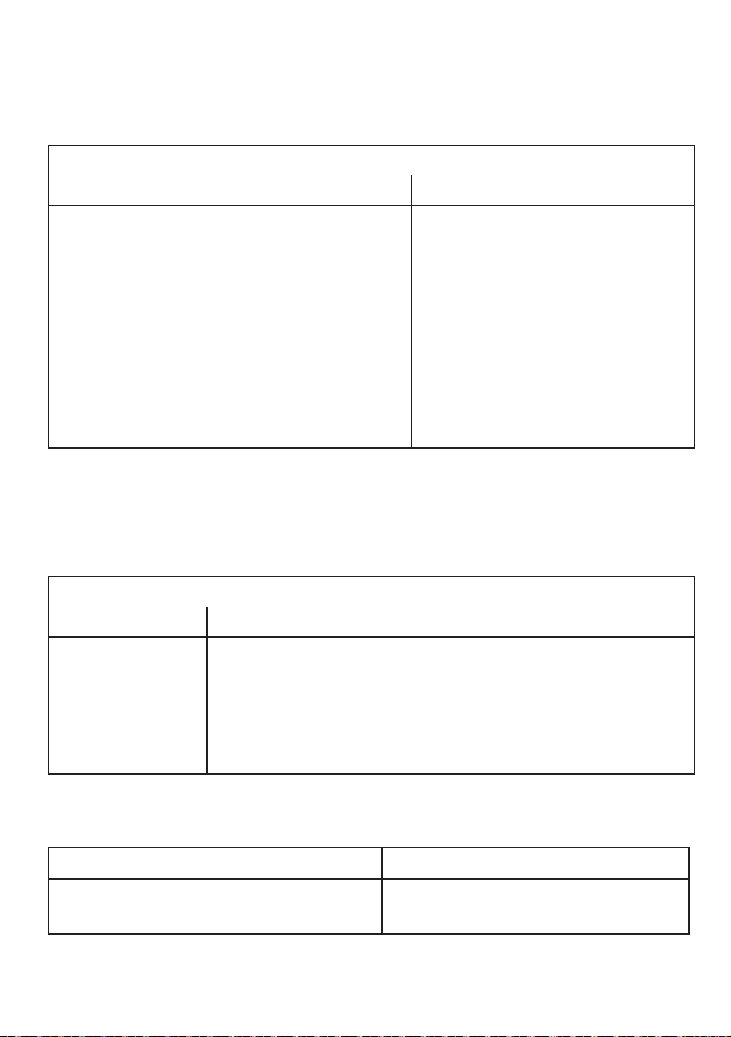
49
Resetting and Registering Handsets
If you are having trouble with a cordless handset or if you want to
replace one, you need to clear the registration information from the
base and the handset:
Do you have the base the handset is registered to?
Yes No
Press and hold 1.
END
and
#
until the
System Reset
menu appears (about 5
seconds).
Select 2.
Deregister HS.
The display
lists all registered handsets.
Select the handset you want to reset.3.
When the handset asks you to confirm, 4.
select
Yes
. (It may ask you twice, just
to be sure.) The handset clears its
information from the base and deletes
its own link to the base.
Press and hold 1.
END
and
#
until the
System Reset
menu appears (about 5
seconds).
Select 2.
Base Unavailable
.
When the handset asks you 3.
to confirm, select
Yes
. (It
may ask you twice, just to be
sure.) The handset deletes its
own link without contacting
the base.
When you reset a handset (or if you buy a new one), that handset
displays a
Handset Not Registered
message. If you see this message
on a handset, you need to register it to a base before you can use it.
Registering a handset
Does the handset fit in the base cradle?
Yes No
Place the
handset in
the base. The
display should
say
Handset
Registering
.
On the base, open the menu and select 1.
Register
Handset
.
On the handset you want to register, press and hold 2.
#
until the display says
Handset Registering (
about
2 seconds).
In about 30 seconds, the handset display should say
Registration
Complete
. Press
TALK/FLASH
and make sure you get a dial tone.
If... Try...
you don't hear a dial tone -
the display says -
Registration Failed
Making sure the handset is fully
charged, then start over at step 1.
To register a handset to a different base, see the section "Expanding
Your Phone" in the owner's manual for the other base.
XDECT R055 OM.indd 49 22/9/11 2:16:50 PM
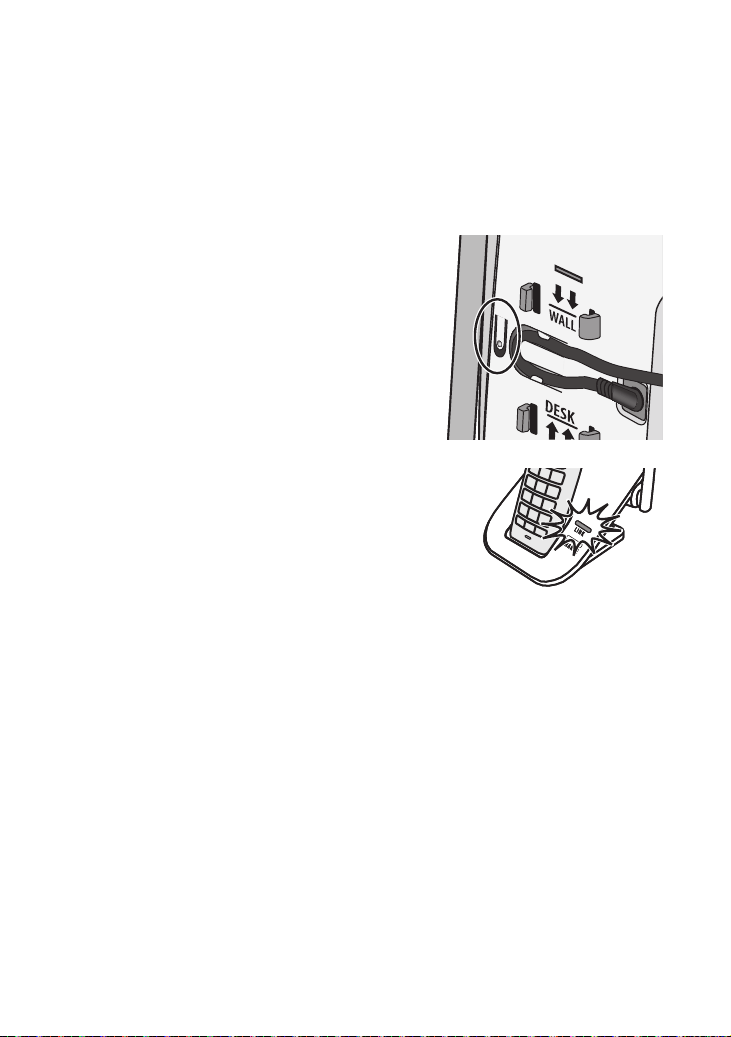
50
Registering Repeaters
If you are having trouble with a repeater or if you want to replace one,
you need to register the repeater to the base.
TIP: Connect the repeater close to the base for easy access to the
necessary buttons and indicators. Locate the repeater in the desired
position after registration is complete.
On the base, open the menu and select 1.
Register Handset
.
On the bottom of the repeater you 2.
want to register, press and hold the
registration button until the
LINK
light
blinks rapidly.
In about 90 seconds, the 3. LINK light on
the repeater will turn on. The repeater has
been registered to the base.
If the LINK light doesn't turn on, try these steps again.
- Only register one repeater at a time. If more than one repeater
is in registration mode at the same time then they can interfere
with each other.
- Only register a repeater to one base at a time. If more than one
base is in registration mode at the same time then you can't
control which base the repeater registers to.
7
Each of these bases can support up to two DRX402 Ultra-
Range chargers, including any that were supplied with
your phone.
Usually, you can't tell when a handset switches between
the base and the charger in the middle of a call, but
sometimes, you might notice a brief pause in your
conversation.
Registering the Ultra-Range charger
Registering the Ultra-Range charger is a separate
process from registering the handset. You can use
the charger even if the handset is not registered.
On the base, open the menu and select
Register Handset
.
On the bottom of the Ultra-
Range charger, press and
hold the registration button
until the
LINk
light starts to
blink (about 2 seconds).
Release the button and wait
for the
LINk
light to turn on
and steady (this can take
about 90 seconds).
If the
LINk
light doesn't turn on,
disconnect the charger's AC adapter.
Wait about ten seconds, then try these
steps again.
Some important things to remember:
Only register one charger at a time. If more than one
charger is in registration mode at the same time, they can
interfere with each other.
If you want to use the Ultra-Range charger with a different
base, just register the charger to the new base. The
1.
2.
3.
7
Each of these bases can support up to two DRX402 Ultra-
Range chargers, including any that were supplied with
your phone.
Usually, you can't tell when a handset switches between
the base and the charger in the middle of a call, but
sometimes, you might notice a brief pause in your
conversation.
Registering the Ultra-Range charger
Registering the Ultra-Range charger is a separate
process from registering the handset. You can use
the charger even if the handset is not registered.
On the base, open the menu and select
Register Handset
.
On the bottom of the Ultra-
Range charger, press and
hold the registration button
until the
LINk
light starts to
blink (about 2 seconds).
Release the button and wait
for the
LINk
light to turn on
and steady (this can take
about 90 seconds).
If the
LINk
light doesn't turn on,
disconnect the charger's AC adapter.
Wait about ten seconds, then try these
steps again.
Some important things to remember:
Only register one charger at a time. If more than one
charger is in registration mode at the same time, they can
interfere with each other.
If you want to use the Ultra-Range charger with a different
base, just register the charger to the new base. The
1.
2.
3.
XDECT R055 OM.indd 50 22/9/11 2:16:51 PM

51
Handling Liquid Damage
Moisture and liquid can damage your cordless phone.
If the handset or base is exposed to moisture or liquid, but only the
exterior plastic housing is affected, wipe off the liquid, and use as
normal.
If moisture or liquid has entered the plastic housing (i.e. liquid can
be heard in the phone or liquid has entered the handset battery
compartment or vent openings on the base), follow these steps:
Handset Base
Remove the battery cover and disconnect the 1.
battery.
Let dry for at least 3 days with the battery 2.
disconnected and the cover off for ventilation.
After the handset dries, reconnect the battery 3.
pack and replace the cover. Recharge the
battery fully (15-20 hours) before using.
Disconnect the AC 1.
adapter to cut off the
power.
Disconnect the 2.
telephone cord.
Let dry for at least 3 days 3.
before reconnecting.
IMPORTANT: You must unplug the telephone line while recharging
the battery pack to avoid charge interruption.
CAUTION! DO NOT use a microwave oven to speed up
the drying process. This will cause permanent damage
to the handset, base and the microwave oven.
XDECT R055 OM.indd 51 22/9/11 2:16:52 PM
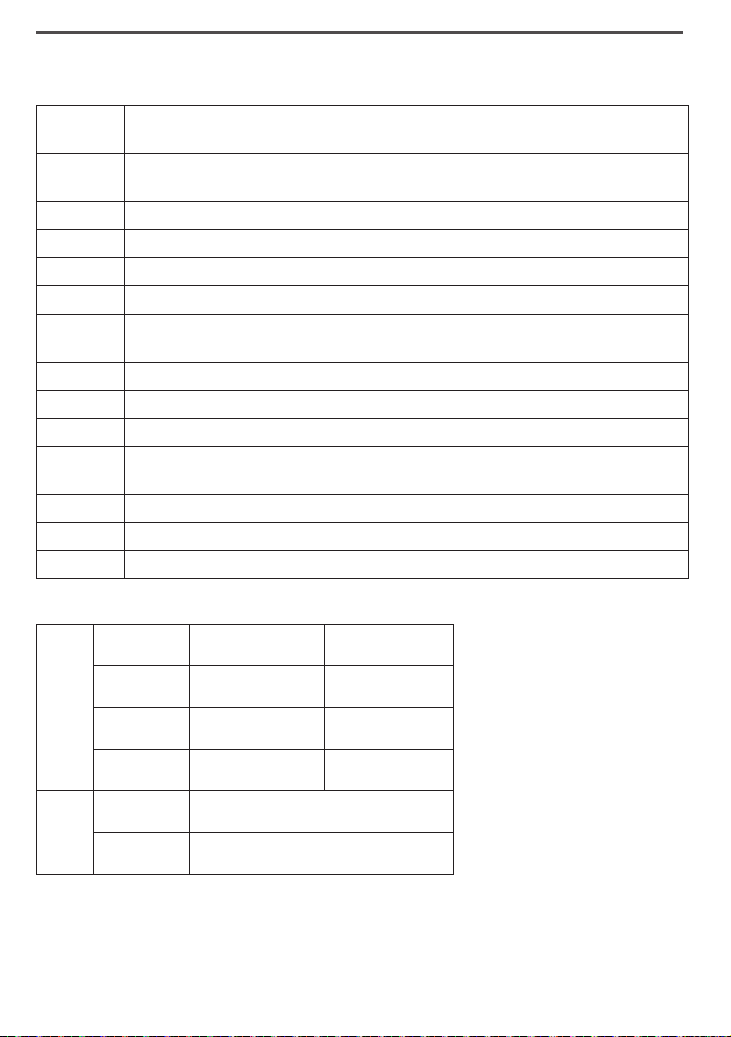
52
Important Information
Terms Used In This Manual
Accessory
Handset
An extra handset that can register to and be used with an expandable phone base. All
accessory handsets must be registered to a base.
Base
The main part of the phone. It connects to your phone line and lets you make and receive
calls. Most bases also have a cradle to store a handset.
CIDCW (CID on Call Waiting.) A service that shows CID for calls that come in during another call.
Call Waiting A service that lets you receive calls while you are on another call.
Caller ID (Also called CID.) A service that shows the name and number of incoming callers.
Charger A cradle that stores and charges a handset but doesn’t connect to the phone line.
Cradle
The part of the phone that stores a handset. While in a cradle, a handset is always in
standby, and any keys are locked.
During a call The station is currently on a call or has activated a dial tone.
Handset A cordless handset that you use to dial the phone and talk to callers.
In standby The phone is inactive: there is no dial tone, no station is on a call or listening to messages.
Line 1 and
Line 2
Line 1 is connected to
PRIMARY LINE
, and line 2 is connected to
TEL LINE 2
. You
can switch Line 1 and Line 2 just by swapping the connectors.
Off hook The phone is connected to an outside line: there is a dial tone or an ongoing call.
Soft key A software-controlled button that can change its function to t the current operation.
Station Any handset or the base.
Specifications
Use only the supplied AC
adapters.
Be sure to use the proper
adapter for the base and any
chargers.
Do not place the power cord
where it creates a trip hazard
or where it could become
chafed and create a re or
electrical hazard.
Do not place the base in direct
sunlight or subject it to high
temperatures.
AC
adapter
Base Repeater/Charger
Part number AAD-041S(M) AAD-041S(M)
Input voltage 240V AC, 50Hz 240V AC, 50Hz
Output voltage 9V DC@ 350mA 9V DC@ 350mA
Battery
pack
Part number BT-694 or BT-694s
Capacity 650mAh (BT-694) or 500mAh (BT-694s)
XDECT R055 OM.indd 52 22/9/11 2:16:52 PM

53
Battery Information
Fully charged, the battery should provide about 8 hours of talk time and about 7 days of standby
time. For best results, return the handset to the cradle after each call to keep it fully charged.
Keep an eye on the battery status icon. When the battery gets too low, the handset shows a
low battery alert. If you hear a strange beep during a call, check the display: if you see the low
battery alert, nish your conversation as quickly as possible and return the handset to the cradle.
If the handset is in standby, none of the keys will operate.
With normal use, the battery should last about one year. Replace the battery when the talk
time becomes short even when the battery is charged. To buy a replacement battery, visit the
website; www.uniden.com.au for Australian model or www.uniden.co.nz for New Zealand model.
Rechargeable Nickel-Metal-Hydride Battery Warning
CAUTION! Risk of explosion if battery is replaced by an
incorrect type! Dispose of used batteries according to
the instructions. Do not open or mutilate the battery.
Disconnect the battery before shipping this product.
This equipment contains a rechargeable Nickel-Metal-Hydride battery.
The rechargeable batteries contained in this equipment may explode if disposed of in a re.
Do not short-circuit the battery.
Do not charge the rechargeable battery pack used in this equipment with in any charger other
than the one designed to charge this battery pack as specied in the owner's manual. Using
another charger may damage the battery pack or cause the battery pack to explode.
Rechargeable Batteries Must Be Recycled or Disposed of Properly.
Uniden works to reduce lead content in PVC coated cords in our products &
accessories.
XDECT R055 OM.indd 53 22/9/11 2:16:52 PM

54
Index
A
Alarm Feature ....................................... 38
Answering a Call ................................... 24
Answering System ................................ 40
Any Key Answer ................................... 22
AutoTalk ................................................ 22
B
Base Unavailable .................................. 49
Battery Install .......................................... 5
Battery Specications ........................... 52
Battery Information ............................... 53
C
Caller ID ................................................ 26
Call Block .............................................. 36
Call Waiting ........................................... 28
Conferencing .................................. 25, 33
Controls Parts of the Phone ............ 11, 13
D
Date and Time ..................................... 22
Deleting a Redial Record. ..................... 27
Deleting Caller ID Numbers .................. 27
Deleting Phonebook Entries ................. 32
Deregistration........................................ 49
Do Not Disturb ...................................... 36
E
Earpiece Volume................................... 26
Entering Text from the Phone ............... 19
F
Finding a handset ................................. 28
H
Handset Banner .................................... 22
Hanging up............................................ 24
Headset................................................. 29
I
Important Safety Instructions ................. 4
Installing the Phone ............................... 1
Intercom ................................................ 35
K
Key Touch Tone.................................... 22
Keypad Lock ......................................... 14
L
LCD contrast. ........................................ 22
Liquid Damage ...................................... 51
Low Battery Alert................................... 53
M
Making a call ......................................... 24
Making a call from a Caller ID
Record .................................................. 27
Making a call with Speed Dial. .............. 30
Message Alert ...................................... 41
Muting the Microphone ........................ 24
Muting the Ringer ................................. 24
O
Out of Range......................................... 48
P
Personal Ring ................................. 21, 31
Phonebook ........................................... 30
Placing a Call on Hold .......................... 24
Privacy Mode ....................................... 34
R
Redialing a Number .............................. 27
Register Handset ................................. 49
Register Repeater ................................. 50
Repeaters ............................................... 8
Resetting the Handset .......................... 49
Ringer Tones ....................................... 21
Ringer Volume ..................................... 26
S
Screening calls................................ 41, 43
Second Telephone Line .................... 7, 24
Security Code ................................. 41, 44
Speaker Volume ................................... 26
Speed Dial .......................................... 30
T
T-coil ............................................... 21, 48
Talk and Standby Times ................... 6, 53
Transferring a Call ................................ 34
Troubleshooting .................................. 45
V
Voice Mail ...................................... 23, 39
Voice Message Waiting Indicator
Reset .................................................... 39
W
Wall Mount the Base ............................... 3
Wall Mount the Repeater/Charger .......... 4
XDECT R055 OM.indd 54 22/9/11 2:16:52 PM

55
One-year Limited Warranty
UNIDEN XDECT R055
IMPORTANT Satisfactory evidence of the original purchase is required for warranty service
Please refer to our Uniden website for any details or warranty durations offered in addition to those
contained below.
Warrantor
The warrantor is either Uniden Australia Pty Limited ABN 58 001 865 498 (“Uniden Aust”) or Uniden
New Zealand Limited (“Uniden NZ”) as the case may be.
Terms of Warranty
Uniden Aust/NZ warrants to the original retail purchaser only that the XDECT R055 (“the Product”), will
be free from defects in materials and craftsmanship for the duration of the warranty period, subject to
the limitations and exclusions set out below.
Warranty Period
This warranty to the original retail purchaser is only valid in the original country of purchase for a
Product first purchased either in Australia or New Zealand and will expire one (1) year from the date of
the original retail sale.
If a warranty claim is made, this warranty will not apply if the Product is found by Uniden to be:
(A) Damaged or not maintained in a reasonable manner or as recommended in the relevant Uniden
Owner’s Manual;
(B) Modified, altered or used as part of any conversion kits, subassemblies or any configurations not
sold by Uniden Aust or Uniden NZ;
(C) Improperly installed contrary to instructions contained in the relevant Owner’s Manual
(D) Repaired by someone other than an authorized Uniden Repair Agent in relation to a defect or
malfunction covered by this warranty; or
(E) Used in conjunction with any equipment, parts or a system not manufactured by Uniden.
Parts Covered
This warranty covers the Product and included accessories.
User-generated Data
This warranty does not cover any claimed loss of or damage to user-generated data (including but
without limitation phone numbers, addresses and images) that may be stored on your Product.
Statement of Remedy
If the Product is found not to conform to this warranty as stated above, the Warrantor, at its discretion,
will either repair the defect or replace the Product without any charge for parts or service. This warranty
does not include any reimbursement or payment of any consequential damages claimed to arise from a
Product’s failure to comply with the warranty.
Our goods come with guarantees that cannot be excluded under the Australian Consumer Law. You are
entitled to a replacement or refund for a major failure and for compensation for any other reasonably
foreseeable loss or damage. You are also entitled to have the goods repaired or replaced if the goods
fail to be of acceptable quality and the failure does not amount to a major failure.
This warranty is in addition to and sits alongside your rights under either the COMPETITION AND
CONSUMER ACT 2010 (Australia) or the CONSUMER GUARANTEES ACT (New Zealand) as the case
may be, none of which can be excluded.
Procedure for Obtaining Warranty Service
Depending on the country in which the Product was first purchased, if you believe that your Product
does not conform with this warranty, you should deliver the Product, together with satisfactory evidence
of your original purchase (such as a legible copy of the sales docket) to Uniden at the addresses shown
below. You should contact Uniden regarding any compensation that may be payable for your expenses
incurred in making a warranty claim. Prior to delivery, we recommend that you make a backup copy of
any phone numbers, images or other data stored on your Product, in case it is lost or damaged during
warranty service.
UNIDEN AUSTRALIA PTY LTD
Service Division
345 Princes Highway,
Rockdale, NSW 2216
Phone number: 1300 366 895
Email address: [email protected]
UNIDEN NEW ZEALAND LTD
Service Division
150 Harris Road, East Tamaki
Auckland 2013
Phone number: (09) 273 8377
Email address: [email protected]
XDECT R055 OM.indd 55 22/9/11 2:16:52 PM

© 2011 Uniden Australia Pty Ltd/Uniden New Zealand Limited
Printed in Vietnam UNZZ01096BA(0)
XDECT R055 OM.indd 56 22/9/11 2:16:52 PM