
Keep these instructions for future
reference. If the equipment changes
ownership, be sure this manual
accompanies equipment. Please refer to
the SAFETY INSTRUCTIONS for important
safety information prior to using this oven
Owner’s Manual
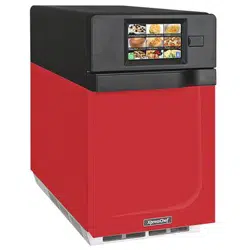
HIGH SPEED COMMERCIAL COMBINATION OVEN
This document covers ARX* and MRX* series models

Table of Contents
Model Identication .....................................................................................................................................................3
Online Oven Resources ����������������������������������������������������������������������������������������������������������������������������������������������3
ACP Programming Application: ���������������������������������������������������������������������������������������������������������������������������������� 3
Firmware Updates ������������������������������������������������������������������������������������������������������������������������������������������������������ 3
Important Safety Instructions ..................................................................................................................................4-5
Grounding and Installation .........................................................................................................................................6
Cooking Tips ................................................................................................................................................................ 7
Features........................................................................................................................................................................8
Touch Panel Menu Descriptions ................................................................................................................................9
Touch Screen Icon Descriptions .............................................................................................................................. 10
General Oven Operation ........................................................................................................................................... 11
Preprogrammed Menu ..............................................................................................................................................12
Cooking with Preprogrammed Menu Items����������������������������������������������������������������������������������������������������������������12
Preprogrammed Menu Items .................................................................................................................................... 13
Manual Cooking .........................................................................................................................................................14
Manual Programming ................................................................................................................................................15
Save a Menu Item from Manual Cook: ���������������������������������������������������������������������������������������������������������������������15
Manually Edit an Existing Menu Item: ������������������������������������������������������������������������������������������������������������������������15
Manually Move Recipe:����������������������������������������������������������������������������������������������������������������������������������������������15
Manual Organization: Folders .................................................................................................................................. 16
Manual Organization: Tabs ....................................................................................................................................... 17
Oven Programming: USB Flash Drive ..................................................................................................................... 18
Export Menu via USB Flash Drive �����������������������������������������������������������������������������������������������������������������������������18
Open Menu in ACP Programming Application �����������������������������������������������������������������������������������������������������������18
Import Menu via USB Flash Drive������������������������������������������������������������������������������������������������������������������������������18
Oven Programming: Wi-Fi and Ethernet .................................................................................................................19
Connect Oven to Network: �����������������������������������������������������������������������������������������������������������������������������������������19
To connect via Wi-Fi: ������������������������������������������������������������������������������������������������������������������������������������������������ 19
To connect via Ethernet: �������������������������������������������������������������������������������������������������������������������������������������������19
Connect Computer to Oven via Wi-Fi/Ethernet:���������������������������������������������������������������������������������������������������������19
Transfer Recipe Information via Wi-Fi/Ethernet: �������������������������������������������������������������������������������������������������������� 19
Log-in Information ����������������������������������������������������������������������������������������������������������������������������������������������������19
Care and Cleaning ................................................................................................................................................20-21
Recommended Cleaning Supplies ���������������������������������������������������������������������������������������������������������������������������20
For a new oven, before using it for the rst time ��������������������������������������������������������������������������������������������������������20
Best Practices ������������������������������������������������������������������������������������������������������������������������������������������������������������ 20
Daily Cleaning ������������������������������������������������������������������������������������������������������������������������������������������������������������21
Weekly Cleaning ��������������������������������������������������������������������������������������������������������������������������������������������������������21
1� Clean Air Filter ������������������������������������������������������������������������������������������������������������������������������������������������������21
User Options ............................................................................................................................................................. 22
Access and Modify User Options: �����������������������������������������������������������������������������������������������������������������������������22
Default User Options ................................................................................................................................................23
Before Calling for Service.........................................................................................................................................24
©2018 ACP, Inc.
Cedar Rapids, IA 52404 Page 3 of 24
Part No. 20217501
Original Instructions
Model Identication
Any questions or to locate an authorized ACP servicer,
call ACP ComServ Service Support�
– Inside the U�S�A� or Canada, call toll-free at
866-426-2621�
– Outside the U�S�A� and Canada, call 319-368-8195�
– Email: commercialservice@acpsolutions�com
Warranty service must be performed by an authorized
ACP servicer� ACP also recommends contacting an
authorized ACP servicer, or ACP ComServ Service
Support if service is required after warranty expires�
When contacting ACP, provide product information�
Product information is located on oven serial plate�
Record the following information:
Model Number: _____________________________
Serial or S/N Number: ________________________
Date of installation: __________________________
Dealer’s name and address: ___________________
__________________________________________
__________________________________________
Online Oven Resources
ACP Programming Application
Download and install the ACP Programming Application to create, edit, and customize menu
and display settings for your oven, using a desktop computer or tablet�
To download the latest and greatest version of the ACP Programming Application
please visit acpsolutions.com/oven-programming/
Firmware Updates
For the optimal user experience, ACP recommends using the latest version of oven rmware.
To download rmware updates and installation instructions, or to opt-in for email update
notications, please visit acpsolutions.com/oven-programming/
Before using your oven, please take the time to read the Safety Instructions which shipped
with the oven�
Information herein is subject to change without notice Errors are subject to correction�
For the most recent product literature, please visit acpsolutions.com/product-literature/

©2018 ACP, Inc.
Cedar Rapids, IA 52404 Page 4 of 24
Part No. 20217501
Original Instructions
SAVE THESE INSTRUCTIONS
PRECAUTIONS TO AVOID POSSIBLE EXPOSURE TO
EXCESSIVE MICROWAVE ENERGY
A. DO NOT attempt to operate this oven with the door open since open door operation can result in harmful exposure to
microwave energy� It is important not to defeat or tamper with the safety interlocks�
B. DO NOT place any object between the oven front face and the door too allow soil or cleaner residue to accumulate on
sealing surfaces�
C. DO NOT operate the oven if it is damaged� It is particularly important that the oven door close properly and that there is
no damage to the:
1� door (bent)
2� hinges and latches (broken or loosened)
3� door seals and sealing surfaces�
D� The oven should not be adjusted or repaired by anyone except properly qualied service personnel.
1� READ all instructions before using equipment�
2� READ AND FOLLOW the specic “PRECAUTIONS
TO AVOID POSSIBLE EXPOSURE TO EXCESSIVE
MICROWAVE ENERGY” on this page�
3� This equipment MUST BE GROUNDED� Connect only
to properly GROUNDED outlet. See “ GROUNDING /
EARTHING INSTRUCTIONS” on page 6�
4� Install or locate this equipment ONLY in accordance with
the installation instructions in this manual�
5� Liquids or other foods, must NOT be HEATED in sealed
containers since they are liable to explode�
6� Eggs in their shell and whole hard-boiled eggs should
NOT be HEATED in microwave ovens since they may
explode even after microwave heating has ended�
7� Use this equipment ONLY for its intended use as
described in this manual� Do not use corrosive
chemicals or vapors in this equipment� This type of oven
is specically designed to heat, cook, or dry food. It is
not designed for industrial or laboratory use�
8� This appliance is NOT intended for use by
persons(including children) with reduced physical,
sensory or mental capabilities, or lack of experience and
knowledge, unless they have been given supervision or
instruction concerning use of the appliance by a person
responsible for their safety
9� CHILDREN SHOULD BE SUPERVISED to ensure that
they DO NOT play with the appliance
10� Failure to maintain the oven in a clean condition could
lead to deterioration of the surface that could adversely
aect the life of the appliance and possibly result in a
hazardous situation;
11� See door cleaning instructions on page 20-21 of this
product safety manual�
12� DO NOT heat baby bottles in oven� Baby food jars shall
be open when heated and contents stirred or shaken
before consumption, in order to avoid burns�
13� DO NOT operate this equipment if it has a damaged
cord or plug, if it is not working properly, or if it has
been damaged or dropped�
14� This equipment, including power cord, must be
serviced ONLY by qualied service personnel. Special
tools are required to service equipment� Contact
nearest authorized service facility for examination,
repair, or adjustment�
15� DO NOT cover or block louvers or other openings on
equipment�
16� DO NOT store this equipment outdoors� DO NOT use
this product near water – for example, near a kitchen
sink, in a wet basement, a swimming pool, or a similar
location�
17� DO NOT immerse cord or plug in water�
18� Keep cord AWAY from HEATED surfaces�
19� DO NOT let cord hang over edge of table or counter�
20� For commercial use only�
When using electrical equipment, basic safety precautions should be followed to reduce the risk of burns,
electrical shock, re, or injury to persons including the following.
IMPORTANT SAFETY INSTRUCTIONS
⚠
RECOGNIZE THIS SYMBOL AS A SAFETY MESSAGE
⚠
WARNING

©2018 ACP, Inc.
Cedar Rapids, IA 52404 Page 5 of 24
Part No. 20217501
Original Instructions
a� DO NOT overcook food� Carefully attend oven
when paper, plastic, or other combustible materials
are placed inside the oven, due to the possibility of
ignition�
b� Remove wire twist-ties from paper or plastic bags
before placing bag in oven�
c� If materials inside the oven ignite, keep oven door
CLOSED, turn oven o and disconnect the power
cord, or shut o power at the fuse or circuit breaker
panel�
d� DO NOT use the cavity for storage� DO NOT leave
paper products, cooking utensils, or food in the cavity
when not in use�
To avoid risk of re in the oven cavity:
Liquids such as water, coee, or tea are able to be
overheated beyond the boiling point without appearing
to be boiling due to surface tension of the liquid� Visible
bubbling or boiling when the container is removed
from the microwave oven is not always present� THIS
COULD RESULT IN VERY HOT LIQUIDS SUDDENLY
BOILING OVER WHEN A SPOON OR OTHER
UTENSIL IS INSERTED INTO THE LIQUID� To reduce
the risk of injury to persons:
i� Do not overheat the liquid�
ii� Stir the liquid both before and halfway through
heating it�
iii� Do not use straight-sided containers with narrow
necks�
iv� After heating, allow the container to stand in the
microwave oven for a short time before removing
the container�
v� Use extreme care when inserting a spoon or
other utensil into the container�
1� Do not deep fat fry in oven� Fat could overheat and be
hazardous to handle�
2� Do not cook or reheat eggs in shell or with an unbroken
yolk using microwave energy� Pressure may build up
and erupt� Pierce yolk with fork or knife before cooking�
3� Pierce skin of potatoes, tomatoes, and similar foods
before cooking with microwave energy� When skin is
pierced, steam escapes evenly�
4� Do not operate equipment without load or food in oven
cavity�
5� Microwave popcorn should not be popped in oven�
6� Do not use regular cooking thermometers in oven� Most
cooking thermometers contain mercury and may cause
an electrical arc, malfunction, or damage to oven�
7� Do not use metal utensils in oven�
8� Do not use aluminum foil in oven
9� Never use paper, plastic, or other combustible
materials that are not intended for cooking�
10� When cooking with paper, plastic, or other combustible
materials, follow manufacturer’s recommendations on
product use�
11� Do not use paper towels which contain nylon or other
synthetic bers. Heated synthetics could melt and
cause paper to ignite�
12� Do not heat sealed containers or plastic bags in
oven� Food or liquid could expand quickly and cause
container or bag to break� Pierce or open container or
bag before heating�
13� To avoid pacemaker malfunction, consult physician or
pacemaker manufacturer about eects of microwave
energy on pacemaker�
14� An authorized servicer MUST inspect equipment
annually� Record all inspections and repairs for future
use�
To avoid personal injury or property damage, observe the following:
SAVE THESE INSTRUCTIONS
⚠
CAUTION
⚠
WARNING
⚠
WARNING
©2018 ACP, Inc.
Cedar Rapids, IA 52404 Page 6 of 24
Part No. 20217501
Original Instructions
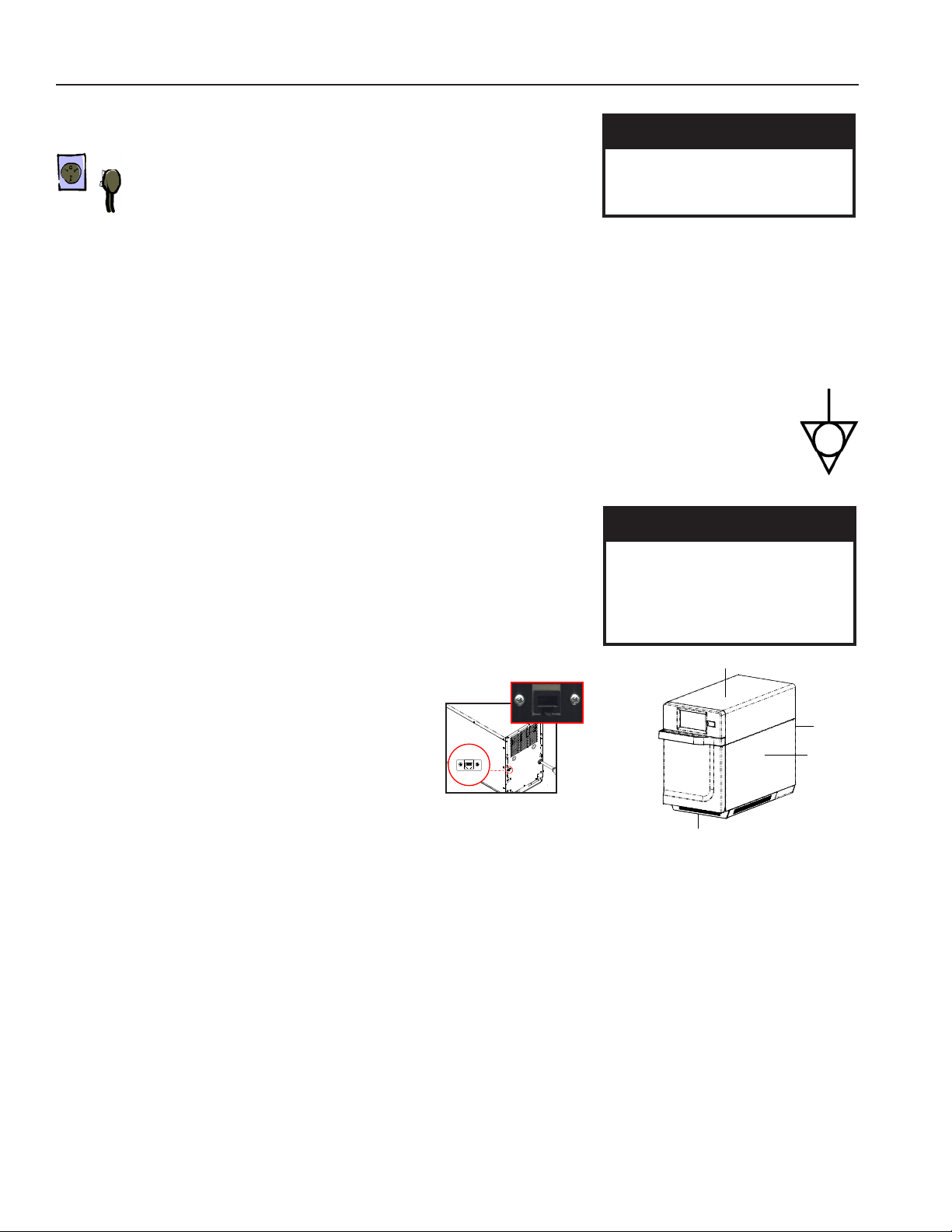
Grounding/Earthing Instructions
Oven MUST be grounded. Grounding reduces risk of electric
shock by providing an escape wire for the electric current if an
electrical short occurs� This oven is equipped with a cord having
a grounding wire with a grounding plug� The plug must be
plugged into an outlet that is properly installed and grounded�
Consult a qualied electrician or servicer if grounding instructions are not completely understood,
or if doubt exists as to whether the oven is properly grounded�
Do not use an extension cord.
If the product power cord is too short, have a qualied electrician install a three-slot receptacle. This oven should be
plugged into a separate circuit with the electrical rating as provided in product specications. When the combination
oven is on a circuit with other equipment, an increase in cooking times may be required and fuses can be blown�
External Equipotential Earthing Terminal (export only)
Equipment has secondary earthing terminal� Terminal provides external earthing connection used in addition
to earthing prong on plug� Located on outside of oven back, terminal is marked with symbol shown at right
Installation
STEP 1 - Unpack Oven
• Inspect oven for damage such as dents in door or inside oven cavity�
• Report any dents or breakage to source of purchase immediately�
Do not attempt to use oven if damaged.
• Remove all packing materials from oven interior�
• If oven has been stored in extremely cold area, wait a few hours before
connecting power�
• If you plan to program via Ethernet, remove plastic
plug from port on the right rear of oven� Gently use
pliers if necessary�
STEP 2 - Place Oven on Counter
• Recommended countertop surface depth is 28” (71 cm)�
• Do not install oven next to or above source of heat, such as pizza oven
or deep fat fryer� This could cause oven to operate improperly and could
shorten life of electrical parts�
• Do not block or obstruct oven lters. Allow access for cleaning.
• Install oven on level countertop surface�
• Outlet should be located so that plug is accessible when oven is in place�
STEP 3 - Install Cook Plate
• Install oven cook plate
1� Oven cavity must be cool to touch�
2� Place cook plate in oven with curved edge toward the front of cavity�
⚠
DO NOT cook food directly on oor of oven.
Oven Clearances
A� Allow at least 2” (5�1 cm) of
clearance around top of oven�
Proper air ow around oven
cools electrical components�
With restricted air ow, oven
may not operate properly and
life of electrical parts is reduced�
B� There is not an installation
clearance requirement for the
back of the oven�
C� Allow at least 1/2” (1�27 cm) of
clearance around sides of oven�
D� Install oven so oven bottom is
at least 3 feet (91�5 cm) above
oor.
A
B
C
D
⚠
WARNING
Excessive Weight Hazard
Use two or more people to move and
install oven�
Failure to do so can result in back or
other injury
⚠
WARNING
To avoid risk of electrical shock or
death, this oven must be grounded
and plug must not be altered�
Grounding and Installation

©2018 ACP, Inc.
Cedar Rapids, IA 52404 Page 7 of 24
Part No. 20217501
Original Instructions
Cooking Tips
Time
MW
Fan
EGG ROLLS
(
FROZEN
)
Total Cook Time:1:30
Temperature: 520° F (270°C)
Stage 1 Stage 2
Time 1:00 :30
Microwave 100% 90%
Fan 80% 60%
Cooking Tips
1� Metal containers can be used in the ARX & MRX oven with a height no more than 1½ inches (38mm). Dierent types of metal
conduct heat at dierent speeds. Aluminum heats faster than stainless steel. Avoid using silicone pans and accessories.
2� Stage cooking aids in retaining the quality of frozen and delicate foods�
Finishing baked goods at 0% Microwave and Fan is a great way to get the added browning and crisping without overcooking�
3� Take advantage of the accessories:
• Cook Plate Shelf Accessory (CP10): Aids in browning and crisping of breads, pizzas, and more�
• Non-Stick Basket (SB10S, TB10S, MB10S): Aids in browning and crisping of food� Also makes cleaning up easier�
Great for breaded products like chicken ngers, fries, mozzarella sticks, jalapeno poppers. (SB10S, TB10S, MB10S have solid bottom)
• Pizza Stone(ST10R): Aids in crisping and browning breads and pizzas�
• Panini Grill Accessory (RGR10): Aids in adding grill marks on a product�
• Oven Paddle (PA10, PA10R): Aids in removal of sandwiches and pizza from ARX and MRX high speed combination ovens� PA10R
paddle designed to store under ARX and MRX ovens with installed LG10 leg kit (purchased separately)�
• Non-Stick Liner Kit (TL10R): Make cleanup easier and protect oven components�
• Leg Kit (LG10): Lifts oven 4 inches (102 mm)�
• Oven Back Cover (BC10R): Color-matched back cover hides spacers, power cord, vents and labels� Allows for open platform, front of
the house installation�
• Stacking Cart (SC10R): Cart used for stacking neatly installing 2 ovens, one on each shelf, with accessory shelf below
• Top Shelf Accessory (TS10R): Accessory rack with sides for top-of-oven installation� Allows operator to conveniently store and access
paddle, baskets, etc�
• Ceramic Dish: Great for foods that need to be contained such as ready-to-serve foods, cut vegetables or soups. (Available o the shelf)
4� The most frequently used oven temperature is 520º F (270º C)�
Reduce the oven temperature if the product is cooked for an extended period of time�
5� Line pans with parchment paper for easy removal of food after heating and cleaning�
6� Mun tins (6 cup) work great for individual cakes & brownies.
Spray with cooking spray prior to cooking for easy removal of food after heating�
7� Frequent cleaning prevents unnecessary buildup that may aect the oven performance.
8� Use a cleaner such as ACP Oven Cleaner (CL10 (US), CL10W (EU)) & ACP Oven Shield Protectant (SH10 (US), PR10W
(EU)), or another cleaning product that does NOT contain ammonia, phosphates, chlorine, sodium hydroxide or potassium
hydroxide as they can damage critical oven parts and may void the warranty on those parts� For best results, use non-stick
liners and replace whenever you encounter excessive peeling or wear�
9� Items will be hot when nished cooking. Use oven mitt, tongs ,or pizza paddle to safely remove items from oven.
When to Use Stage Cooking
Stage cooking enables you to use up to four dierent cooking cycles or stages to be used consecutively without
repeated input from the user� Stage cooking can be set to defrost food initially, then cook it, and then keep the food
warm until serving time�
Note: Maximum cook time cannot exceed 99:99 (100 minutes and 39 seconds)�
Example:
©2018 ACP, Inc.
Cedar Rapids, IA 52404 Page 8 of 24
Part No. 20217501
Original Instructions
Features
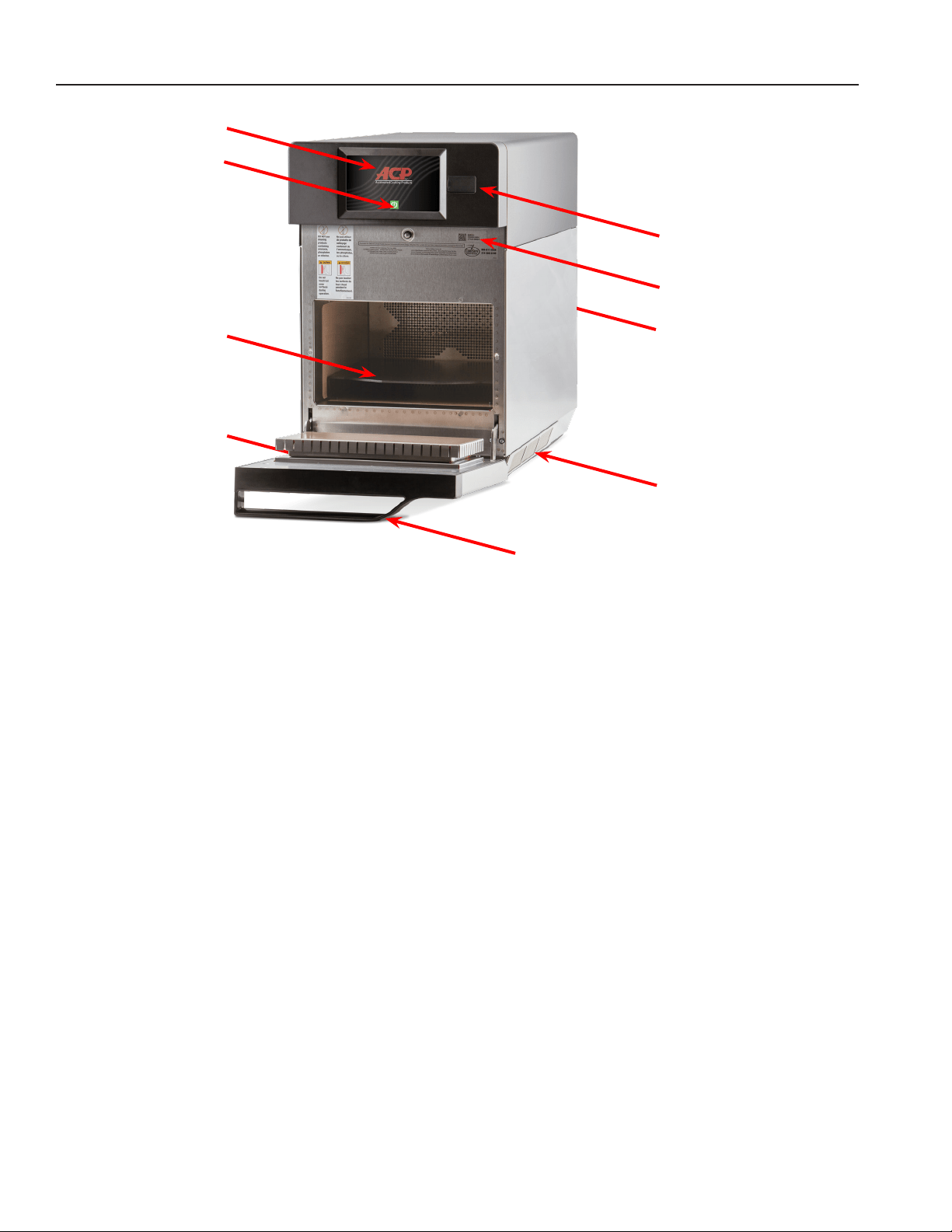
1. Door Handle
Ergonomically designed for one handed operation�
2. Unit Serial Number
Located inside the door and on the back of the oven�
3. Air Filters
The oven has 3 magnetic air lters. Two located on the
lower sides of the oven and one located below the door�
4. Touch Screen Display
Display provides user interface� Use for time input,
programming and oven operation
5. ON/OFF Button
Use to turn oven on�
6. USB Port / Protective Cover
The oven is equipped with an USB Data Port� Use with
standard ash drives.
7. Ethernet Port
The oven is equipped with an Ethernet Port� Use with
standard Ethernet cables�
8. Cook Plate (CP10)
The oven is equipped with a removable cook plate which
aids in browning and crisping of breads, pizzas, and more�
9. Emergency Power Reset Button
The oven is equipped with an emergency power reset
button which allows users to quickly and easily restart the
oven—without accessing the power source�
To access reset button:
a� Remove front magnetic air lter.
b� Reach through far left-hand air intake hole and press
upwards on button to reset oven
1
3
2
4
5
6
7
8
9
©2018 ACP, Inc.
Cedar Rapids, IA 52404 Page 9 of 24
Part No. 20217501
Original Instructions
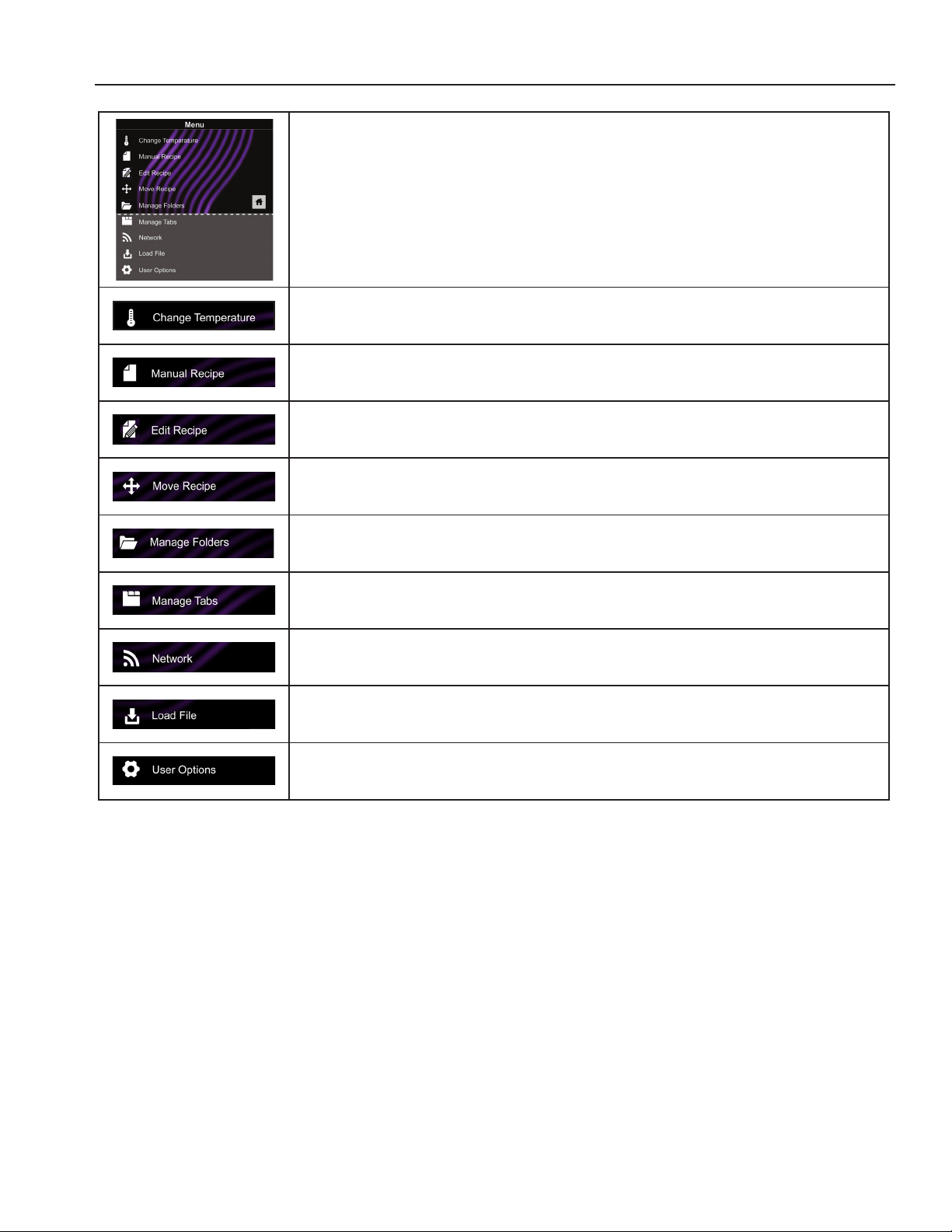
MENU SCREEN
• Scroll up or down to choose from dierent categories
CHANGE TEMPERATURE
• Changes current oven temperature
MANUAL RECIPE
• Manually enter settings for a recipe
EDIT RECIPE
• Change current oven temperature
MOVE RECIPE
• Move/reorganize individual programmed recipes
MANAGE FOLDERS
• Add or edit recipe folders
MANAGE TABS
• Add or edit recipe tabs
NETWORK
• Connect the oven to Wi-Fi
LOAD FILE
• Transfer a menu le to the oven via USB ash drive
USER OPTIONS
• Modify a variety of user options such as key beep, temperature, etc�
Touch Panel Menu Descriptions
©2018 ACP, Inc.
Cedar Rapids, IA 52404 Page 10 of 24
Part No. 20217501
Original Instructions
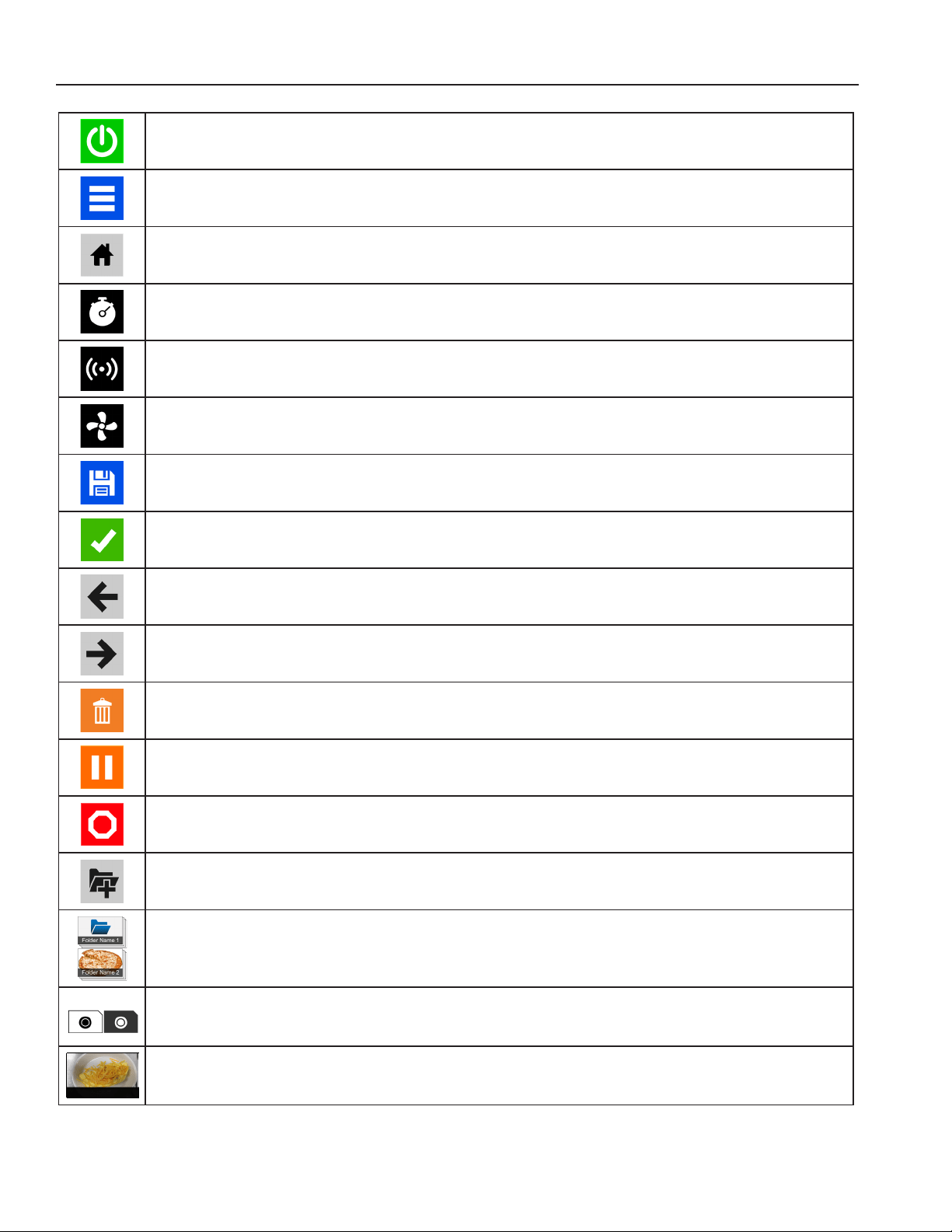
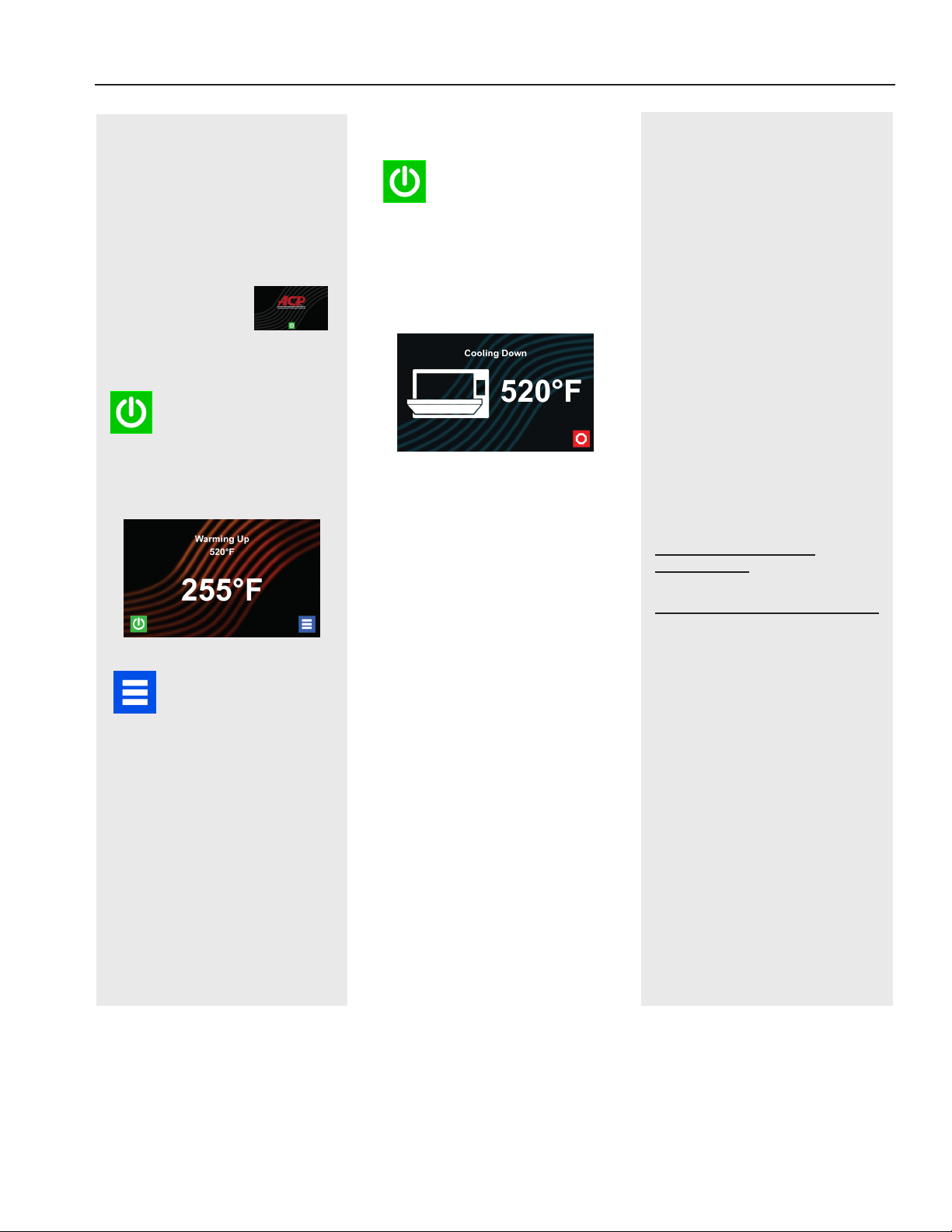
POWER ON ICON
• Press to preheat oven�(Fan will continue to run if temperature is over 200°F / 95°C)�
MENU ICON
• Press to access a menu screen for manually editing recipes, changing user options, etc�
HOME ICON
• Press to return to the home screen
TIME ENTRY
• Indicates the time entry column in manual cooking entry
MICROWAVE POWER ENTRY
• Indicates the microwave power entry column in manual cooking entry
FAN POWER ENTRY
• Indicates the fan power entry column in manual cooking entry
SAVE ICON
• Press to save a manually programmed recipe and return to the main screen
GREEN CHECK MARK ICON
• Press to begin cooking after manually entering a recipe� Press to save changes
BACK ICON
• Press to return to previous screen
NEXT ICON
• Press to move to next screen
DELETE ICON
• Press to delete menu item, folder, or network
PAUSE ICON
• Press to pause a cook cycle
STOP ICON
• Press to cancel a cook cycle� Press to stop and return to the main screen�
NEW FOLDER ICON
• Press to add new folder�
FOLDER ICONS
• Used to organize programmed recipes� Can be customized with color, icon, or image
Example: Pizza folder - cheese pizza, pepperoni pizza, etc�
TAB ICONS
• Used to organize programmed recipes� Example: AM or PM menus
Breakfast Casse...
Salmon
Breakfast Sand...
Omelet
Tuna Melt
Crab Cakes
Pizza
Reuben Panini
Muffaleta Panini
Fish Tacos
PROGRAMMED RECIPE ICON
• Press to begin the cook cycle for the desired recipe
Touch Screen Icon Descriptions
©2018 ACP, Inc.
Cedar Rapids, IA 52404 Page 11 of 24
Part No. 20217501
Original Instructions
Power On Oven,
Preheat
This oven can be set to a
preheat temperature between
200°F (95°C) and 520°F
(270°C)�
Oven must be
plugged in� (Screen
will power on to
“Standby mode” within
approximately 30
seconds�)
Touch green
“Power” icon
Preheat temperature of oven
will appear in display�
Touch the power key
again to interrupt
preheating, or touch the
blue menu icon to access main
menu and user options�
General Oven Operation
Methods of Cooking
and Programming
• Cooking with Preprogrammed
Menu Items
• Manual Cooking and Oven
Programming
• Recipe and Menu creation via
ACP Programming Application
• USB Programing
• Wi-Fi Programming
• Ethernet Programming
You may add and organize
recipe information by creating
new recipes, folders and tabs�
See the following pages for
more information� (p14-17)
To download and view example
menus, please visit
acpsolutions.com/oven-
programming/
First Time Use
Set User Options
There are several options you
can change to customize the
operation of the oven for your
business� To access and edit
user options, please see page
22 and page 23.
Set Time and Date settings
for your local time� This oven
maintains a data log which
is used to diagnose and
troubleshoot errors� An accurate
date and time are important for
the data log�
Power Off Oven
At the end of the day,
turn the oven o by
touching the green
“Power” icon on the screen. The
oven will begin cooling down��
The oven fan will continue to
run to cool the oven�
“Cooling Down” screen appears
and stays on until oven
temperature is below 200°F
(95°C)
⚠
Caution: To avoid
damage to the convection
motor do not turn o power
by unplugging the unit or
shutting o the power breaker
until the fan stops.
©2018 ACP, Inc.
Cedar Rapids, IA 52404 Page 12 of 24
Part No. 20217501
Original Instructions
Preprogrammed Menu
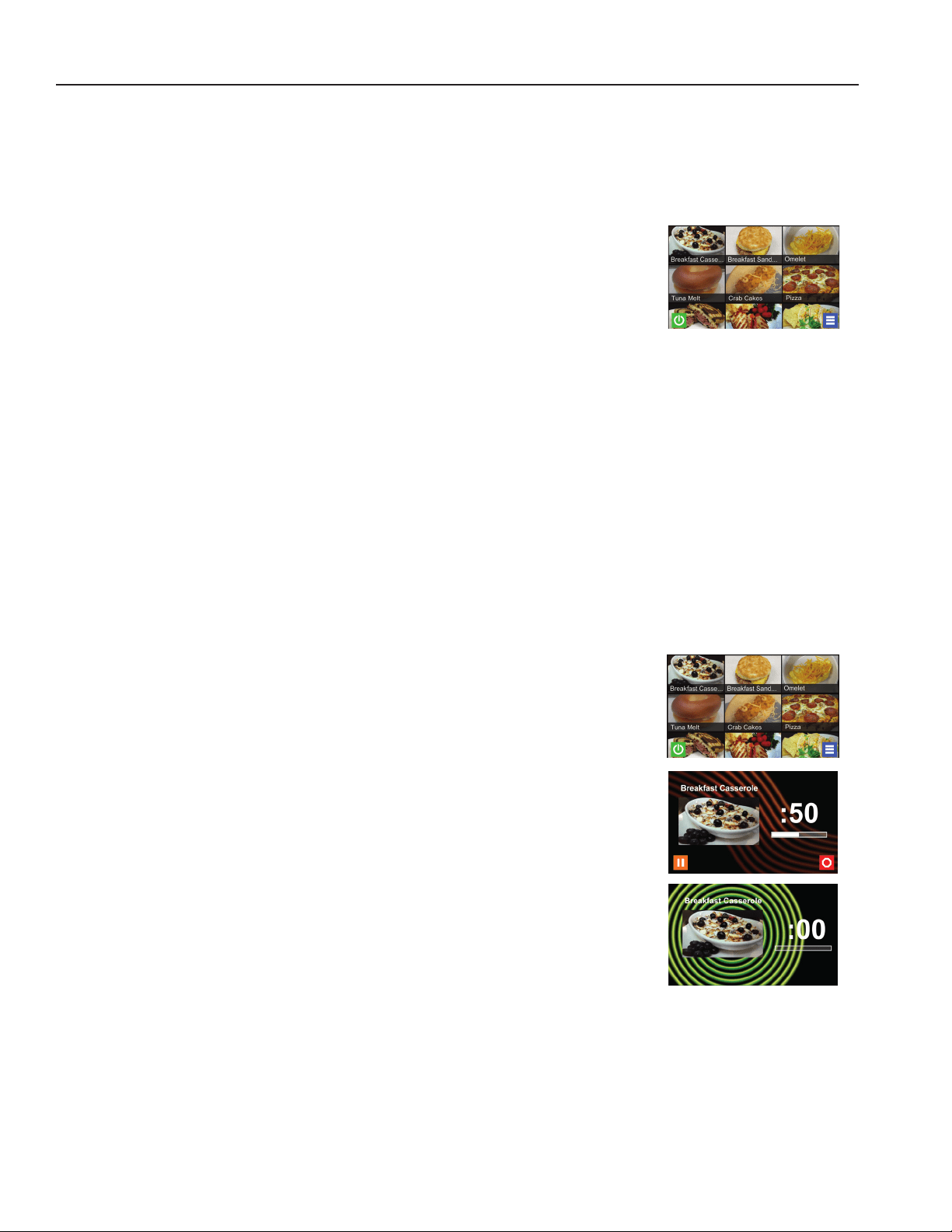
Cooking with Preprogrammed Menu Items
1� After oven has preheated to desired temperature, open oven door,
place food in oven and close door
2� Scroll to choose desired food item from menu and touch the food
item you wish to cook� The cook cycle will begin and screen will show
remaining cook time�
Note: If “Preheat Warning” is enabled (customized user setting, see page
23), and preheat temperature diers from default preheat temperature,
the control will interrupt cook cycle�
To guarantee that oven reaches desired temperature before cook cycle
begins, enable “Preheat Warning” in user options�
3� At the end of the cooking cycle, the oven beeps, and displays animation�
Use oven mitts and/or paddle to carefully remove food from oven�
The home screen on the oven displays recipe options. Scroll up and down with your nger to navigate through
on screen menus and recipes� After the oven has preheated, the menu appears� The high speed oven comes
preprogrammed with several menu items to simplify cooking�
Note: Please see the next page for settings of each preprogrammed menu item�
Standard Preprogrammed Menu Items:
1� Breakfast Casserole
2� Breakfast Sandwich
3� Omelet
4� Tuna Melt
5� Crab Cakes
6� Pizza
7� Reuben Panini
8� Muuletta Panini
9� Fish Tacos
10� Salmon
11� Roasted Vegetables
12� Baked Potato
13� Ice Cream Sandwich
14� Grilled Pineapple
15� Chicken Wings
16� Fries
17� Shrimp
1
3
2
©2018 ACP, Inc.
Cedar Rapids, IA 52404 Page 13 of 24
Part No. 20217501
Original Instructions
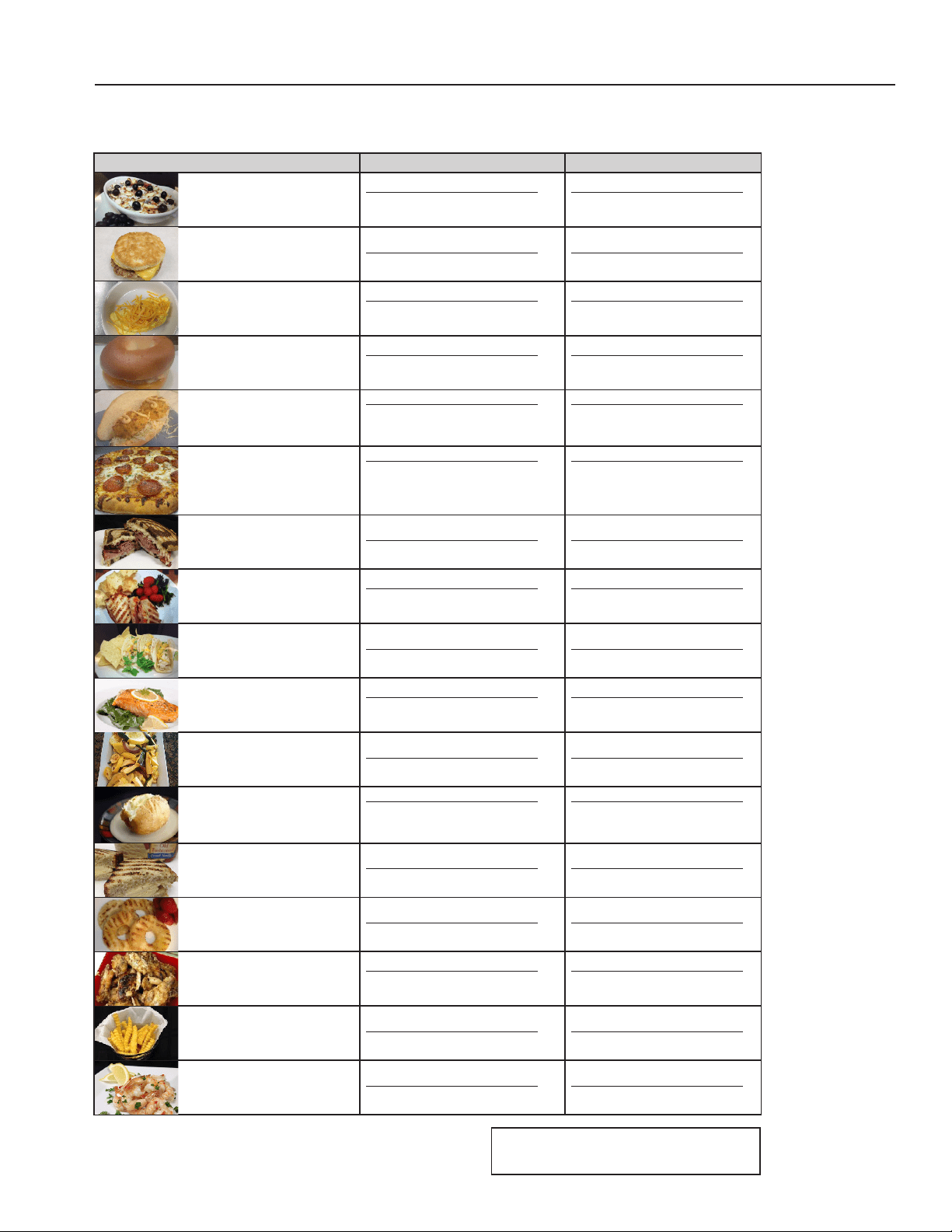
ABBREVIATION MEANINGS:
MW = Microwave Energy
FAN = Convection Energy
RECIPE & OVEN TEMP SETTINGS FOR 2000W UNIT SETTINGS FOR 1000W UNIT
BREAKFAST CASSEROLE
Temperature: 520°F (270°C)
STAGE TIME MW FAN
1 1:00 50% 0%
2 0:40 40% 40%
STAGE TIME MW FAN
1 2:45 50% 10%
BREAKFAST SANDWICH
Temperature: 520°F (270°C)
STAGE TIME MW FAN
1 0:50 60% 10%
STAGE TIME MW FAN
1 0:55 60% 0%
OMELET
Temperature: 520°F (270°C)
STAGE TIME MW FAN
1 1:00 60% 0%
2 0:50 50% 10%
STAGE TIME MW FAN
1 2:10 60% 0%
TUNA MELT
Temperature: 520°F (270°C)
STAGE TIME MW FAN
1 0:20 60% 0%
2 0:10 40% 10%
STAGE TIME MW FAN
1 0:45 60% 10%
CRAB CAKES
Temperature: 520°F (270°C)
STAGE TIME MW FAN
1 0:40 90% 10%
2 0:25 60% 40%
3 0:10 100% 100%
STAGE TIME MW FAN
1 1:30 90% 10%
2 0:15 60% 50%
PIZZA
Temperature: 520°F (270°C)
STAGE TIME MW FAN
1 2:00 40% 0%
2 0:20 60% 30%
3 0:10 70% 30%
4 0:20 0% 60%
STAGE TIME MW FAN
1 2:00 80% 0%
2 1:00 40% 0%
3 0:10 100% 30%
REUBEN PANINI
Temperature: 520°F (270°C)
STAGE TIME MW FAN
1 0:40 60% 10%
STAGE TIME MW FAN
1 1:00 60% 10%
MUFFULETTA PANINI
Temperature: 520°F (270°C)
STAGE TIME MW FAN
1 0:40 50% 50%
2 0:05 80% 80%
STAGE TIME MW FAN
1 1:00 60% 50%
FISH TACOS
Temperature: 520°F (270°C)
STAGE TIME MW FAN
1 1:30 50% 30%
STAGE TIME MW FAN
1 2:10 50% 30%
SALMON
Temperature: 520°F (270°C)
STAGE TIME MW FAN
1 1:55 40% 20%
2 0:10 100% 20%
STAGE TIME MW FAN
1 2:30 50% 20%
2 0:10 100% 20%
ROASTED VEGETABLES
Temperature: 520°F (270°C)
STAGE TIME MW FAN
1 1:30 10 0% 100%
STAGE TIME MW FAN
1 2:00 10 0% 100%
BAKED POTATO
Temperature: 520°F (270°C)
STAGE TIME MW FAN
1 0:55 100% 10%
2 2:00 80% 0%
3 2:00 60% 10%
STAGE TIME MW FAN
1 5:00 100% 10%
2 2:45 80% 10%
ICE CREAM SANDWICH
Temperature: 520°F (270°C)
STAGE TIME MW FAN
1 0:35 30% 20%
STAGE TIME MW FAN
1 0:35 50% 40%
GRILLED PINEAPPLE
Temperature: 520°F (270°C)
STAGE TIME MW FAN
1 1:00 80% 40%
STAGE TIME MW FAN
1 1:00 80% 40%
CHICKEN WINGS
Temperature: 520°F (270°C)
STAGE TIME MW FAN
1 1:15 100% 0%
2 1:15 80% 10%
STAGE TIME MW FAN
1 2:00 100% 0%
2 2:00 100% 10%
FRIES
Temperature: 520°F (270°C)
STAGE TIME MW FAN
1 1:00 100% 100%
STAGE TIME MW FAN
1 1:30 100% 80%
SHRIMP
Temperature: 520°F (270°C)
STAGE TIME MW FAN
1 1:05 30% 60%
STAGE TIME MW FAN
1 1:05 60% 60%
Preprogrammed Menu Items
The high speed oven comes preprogrammed with several menu items to simplify cooking�
You may use these items as a basis for developing new menu items�
©2018 ACP, Inc.
Cedar Rapids, IA 52404 Page 14 of 24
Part No. 20217501
Original Instructions
Manual Cooking
Note: “Manual cooking” must be enabled in user options (see page 22 and page 23 )
Use manual cooking when a specic entered time and cooking power levels are desired. It’s very useful when you
are experimenting with new food items� Maximum cook time is 99:99 (100 minutes and 13 seconds) � Microwave
and Fan can be set to power levels between 0-100%�
Note: You may also create and edit recipes using the ACP Programming Application�
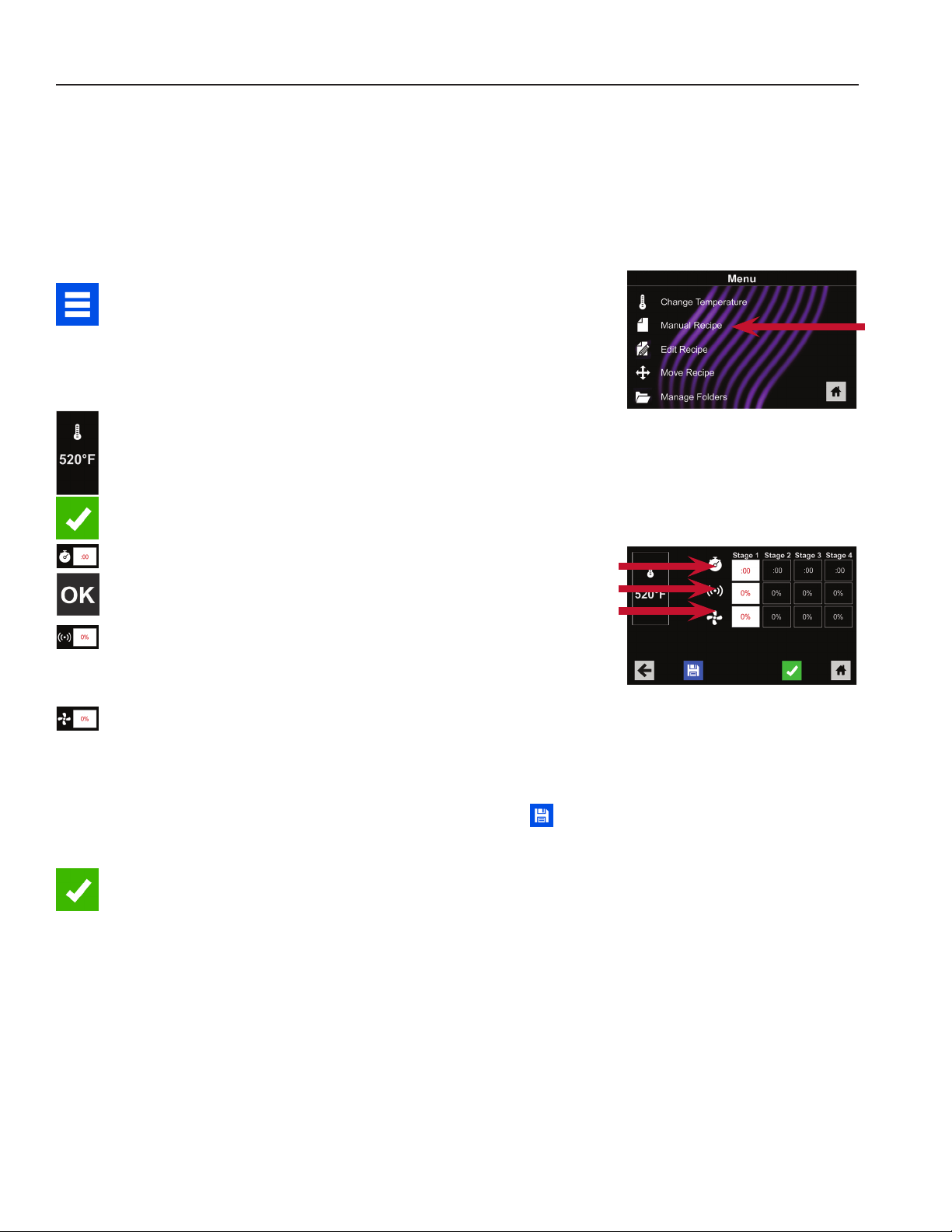
1� After oven has preheated touch blue menu icon�
Note: To guarantee that oven reaches the desired temperature
before the start of cook cycle, enable “Preheat Warning” in user
options
2� Touch the “Manual Recipe” option�
3� To change cooking temperature for recipe, touch temperature
icon on the left, and input new temperature� Two frequently used
temperatures will appear for quick selection�
Touch green check mark after inputting a temperature�
4� For Stage 1, enter cooking time by touching time entry box�
A number pad will appear� Enter the desired cook time�
Touch the “OK” icon.
5� Select desired microwave power by touching microwave power
entry box� Choose from options ranging from 0% - 100%�
6� Select desired fan speed by touching fan speed entry box�
Choose from options ranging from 0% - 100%�
7� Repeat steps 4-6 for each cooking stage, if more than one
cooking stage is necessary�
Note: To save without cooking rst, touch the save icon.
Follow instructions on the next page�
8� Open oven door and place food in oven� Touch green
check mark icon to begin cooking�
Once the cook cycle is complete, open door and use oven mitts
and/or paddle to carefully remove food�
The display will return to the manual input screen� See
instructions on next page to save and edit menu item from
manual cook�
2
4-6
Time
MW
Fan
©2018 ACP, Inc.
Cedar Rapids, IA 52404 Page 15 of 24
Part No. 20217501
Original Instructions
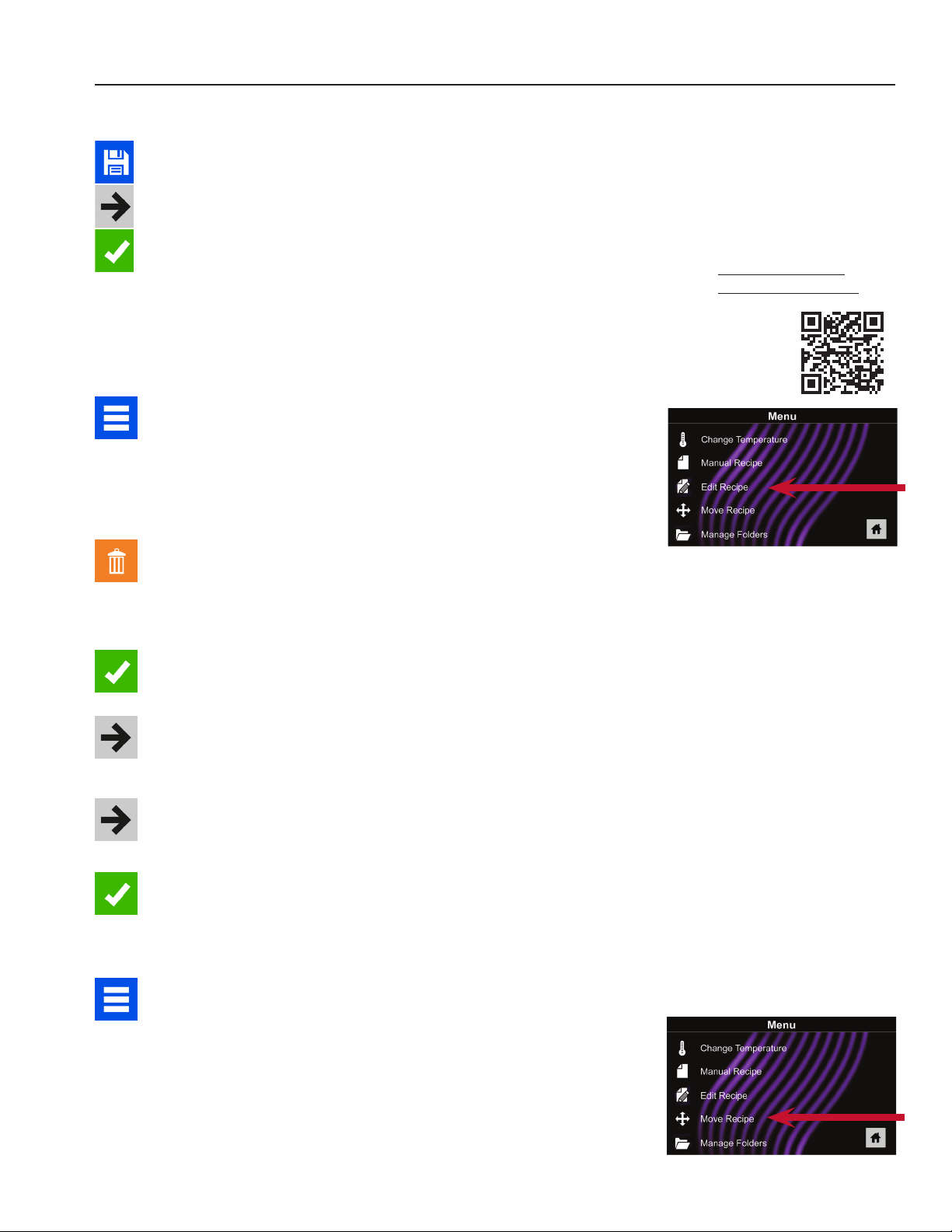
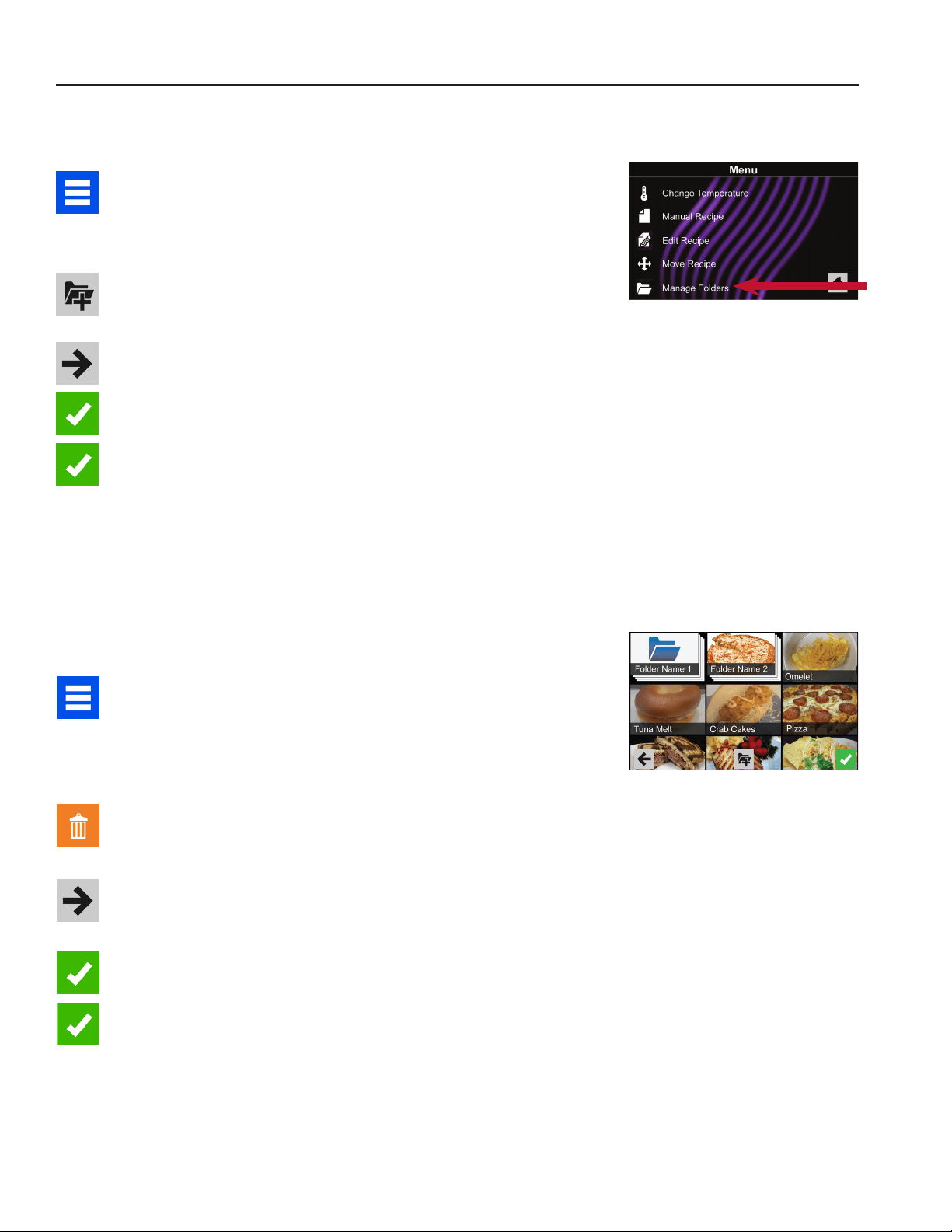
Save a Menu Item from Manual Cook:
1� To save the settings and create menu item, touch the blue save icon
2� Choose a background color and icon, or an image to customize the
menu item� Touch the right arrow to move to the next screen�
3� Name recipe and touch the green check mark to save�
4� To reorganize menu items, you may touch, hold and drag them�
Touch green check mark to complete this step and save the menu
item�
Manually Edit an Existing Menu Item:
1� Touch the blue menu icon at the bottom of the screen�
2� Touch the “Edit Recipe” option�
3� Touch the desired recipe to be edited� The control will prompt you
to the manual editing screen, where you may revise the cooking
settings�
To delete the menu item, touch the orange garbage can icon�
Touch the green check mark to conrm, or touch the “X” to dismiss.
4� Note: Skip this step if you do not want to cook anything�
Open the oven door and place the food in the oven� Touch green
check mark icon to begin cooking with the revised menu item
settings� The display will return to the manual input screen at the end
of the cook cycle�
5� Touch the right arrow icon to save any changes made to cook
settings and move to the next screen�
6� If desired, choose a dierent background color. Touch the right arrow
to select an image at the next screen� Touch the right arrow again to
move to the next screen�
7� If desired, change the name of the recipe� Touch green check mark
to save the menu item�
Manually Move Recipe:
1� Touch the blue menu icon at the bottom of the screen�
2� Touch the “Move Recipe” option�
3� Touch, hold, and drag recipes to dierent locations on the screen
Move a recipe into a folder: Touch, hold and drag the recipe to the
folder�
Move a recipe out of a folder: Touch, hold and drag the recipe to the
top of the screen
Manual Programming
Note: For larger, and
more complex menus, it
may be more
manageable to create
and edit menus using the
ACP Programming
Application� For detailed
instructions, please visit:
acpsolutions.com/
oven-programming/
2
2
©2018 ACP, Inc.
Cedar Rapids, IA 52404 Page 16 of 24
Part No. 20217501
Original Instructions
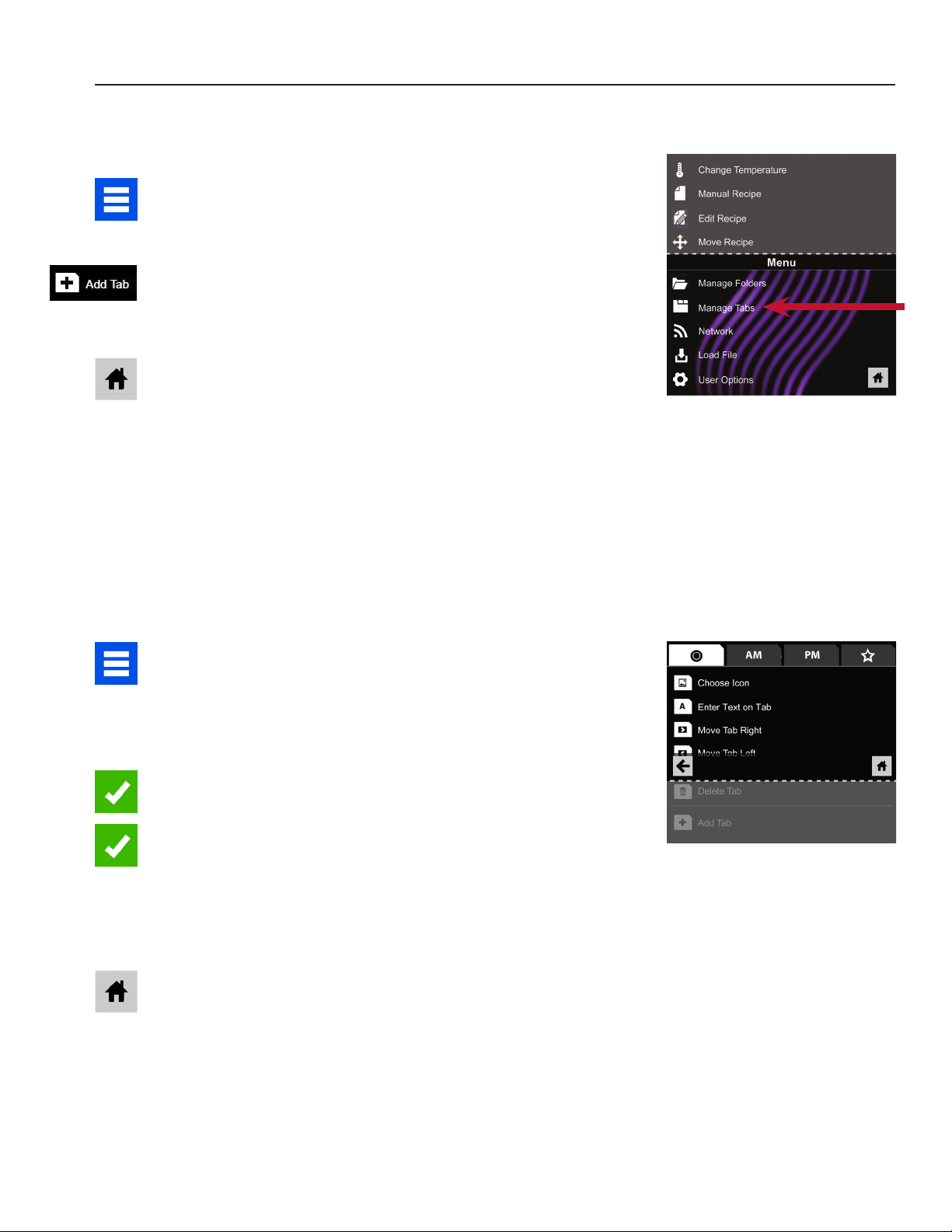
Manually Edit an Existing Recipe Folder:
Note: You may also edit folders using the ACP Programming Application�
1� Touch the blue menu icon at the bottom of the screen�
2� Touch the “Manage Folders” option in the menu screen
3� Touch the desired folder to be edited�
To delete the folder: Touch the orange garbage can icon�
Touch the check mark to conrm deletion. Or, touch the “X” to dismiss.
4� If desired, select a dierent photo, icon, or color for the folder.
Touch the right arrow icon to move to the next screen�
5� If desired, change the name of the recipe�
Touch green check mark to save changes�
6� Touch the green check mark icon once more to save the revised folder�
Manual Organization: Folders
Manually Create a Recipe Folder:
Note: You may also create folders using the ACP Programming Application�
1� Touch the blue menu icon at the bottom of the screen�
2� Touch the “Manage Folders” option in the menu screen�
3� To create new folder, touch grey folder icon at the bottom of
screen�
4� Choose a background color and icon, or an image to customize
the folder� Touch the right arrow icon�
5� Name folder and touch the green check mark to save�
6� Conrm that your new folder appears on the main screen.
Touch the green check mark icon again to save the new folder�
2
©2018 ACP, Inc.
Cedar Rapids, IA 52404 Page 17 of 24
Part No. 20217501
Original Instructions
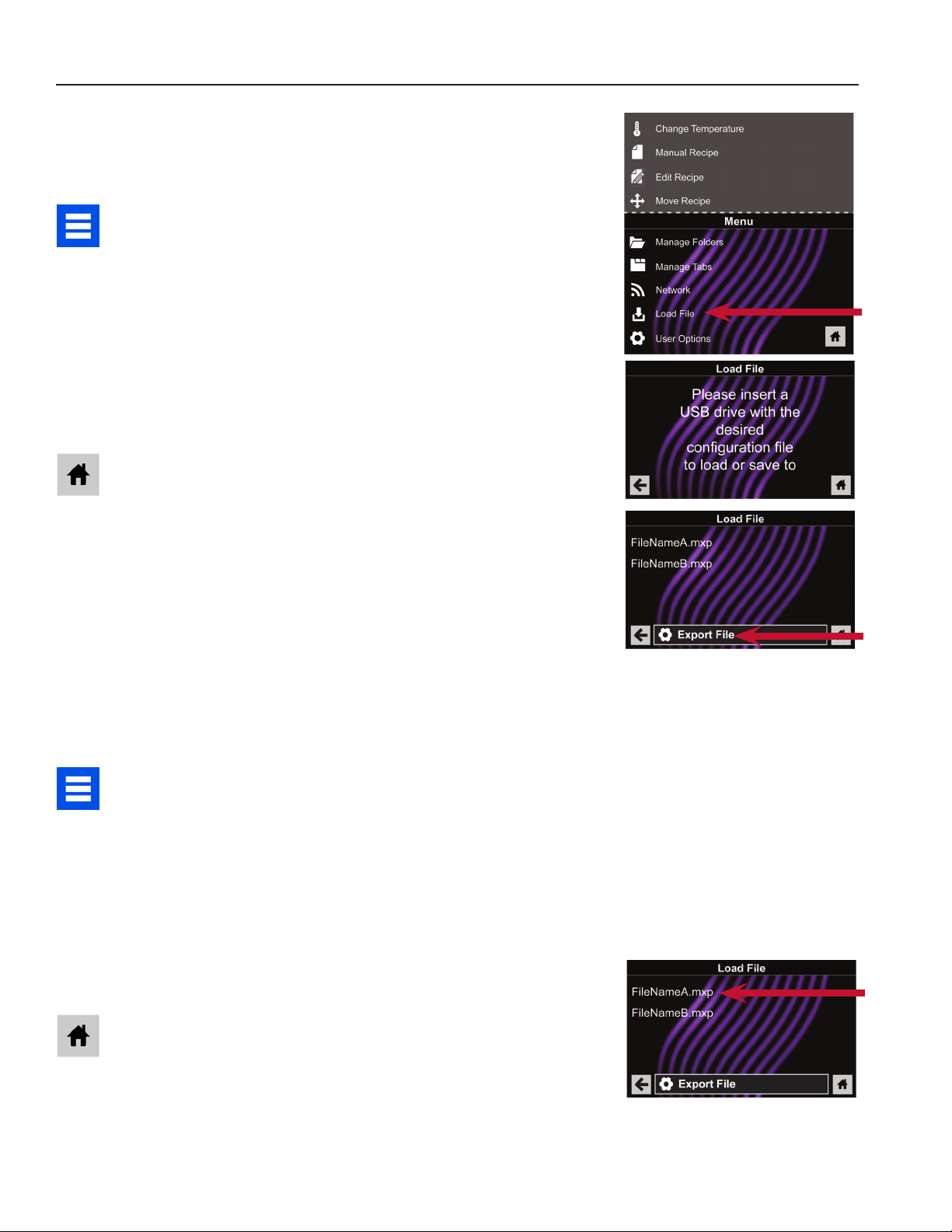
Manually Create a Recipe Tab
Note: You may also add recipe tabs using the ACP Programming Application�
1� Touch the blue menu icon at the bottom of the screen�
2� Touch the “Manage Tabs” option in the menu screen�
3� Touch the “Add Tab” option
4� A new tab will appear at the top of the screen�
5� Touch the home icon to return to the main screen�
Manual Organization: Tabs
Manually Edit an Existing Recipe Tab
Note: You may also edit tabs using the ACP Programming Application�
1� Touch the blue menu icon at the bottom of the screen�
2� Touch the “Manage Tabs” option in the menu screen�
3� Touch the desired tab to be edited�
Change the image on the tab: Touch the “Choose Icon”
option� Select an image� Touch the green check mark icon�
Add text to the tab: Touch the “Enter Text on Tab” option.
Enter the desired text�Touch the green check mark to save�
Relocate the tab: Touch the “Move Tab Right” or “Move Tab
Left” option�
Delete the tab: Touch the “Delete Tab” option.
4� After changes have been made, touch the home icon to save and
return to the main screen�
2
©2018 ACP, Inc.
Cedar Rapids, IA 52404 Page 18 of 24
Part No. 20217501
Original Instructions
Caution: Uploading a new le will overwrite existing items on oven. To
ensure items are not lost, rst backup les by exporting to USB drive.
Export Menu via USB Flash Drive
1� Touch the blue menu icon at the bottom of the screen�
2� Scroll down and touch the “Load File” option
3� When prompted, insert the ash drive into the USB port
4� When prompted, select “Export Files”.
“Copying Files” screen will appear.
Do not remove USB Flash Drive until “Success” screen
appears�
5� Once the le have copied, touch the “Home” icon to return to the
main screen� Remove USB Flash Drive�
Settings and menu items will be loaded on USB Flash Drive and
ready to share or open in ACP Programming Application �
Open Menu in ACP Programming Application
Note: For more comprehensive instructions, see ACP Programming
Application User Guide online
1� Insert ash drive into USB port on computer.
2� Open ACP Programming Application�
3� Select “File,” then “Open.” Navigate to ash drive.
Select the menu le and open.
Import Menu via USB Flash Drive
1� Touch the blue menu icon at the bottom of the screen�
2� Scroll down and touch the “Load File” option
Caution: Uploading a new le will overwrite existing items on
oven.To ensure items are not lost, rst backup les by exporting
to USB drive�
3� When prompted, insert the ash drive into the USB port
4� Touch the desired le to be uploaded.
5� Once le has uploaded, touch the “Home” icon to return
to the main screen�
Settings and menu items will now be loaded and ready to use�
Oven Programming: USB Flash Drive
4
2
4
3
©2018 ACP, Inc.
Cedar Rapids, IA 52404 Page 19 of 24
Part No. 20217501
Original Instructions
Connect Oven to Network:
1� Touch the blue menu icon at the bottom of the screen�
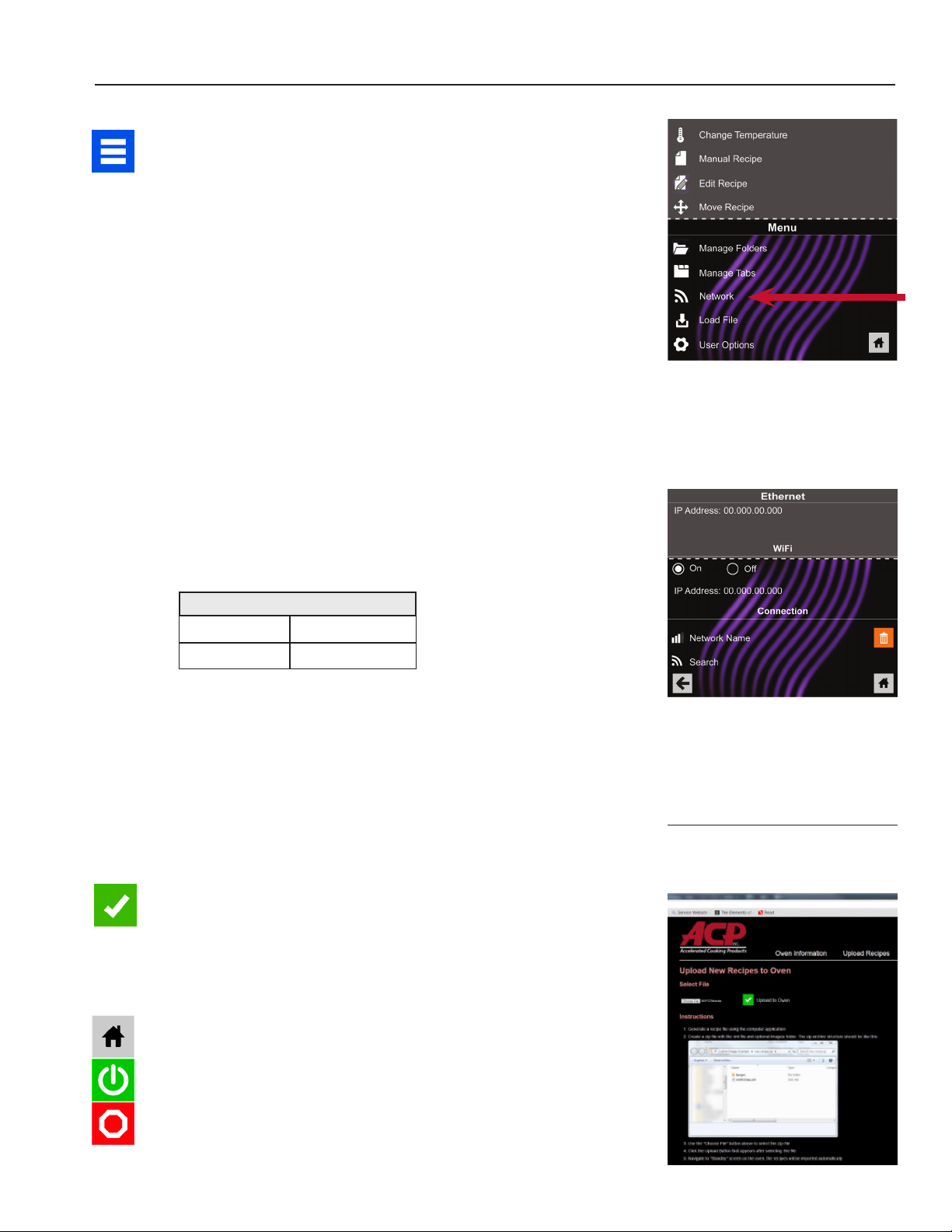
2� Touch the “Network” option�
3� Connect to network using your choice of Ethernet or Wi:
To connect via Wi-Fi:
• Enable Wi-Fi capability by touching the “On” option.
• Select the desired Wi-Fi network� Enter the network’s
password� If the network does not immediately appear,
touch “Search” to locate the Wi-Fi network.
To connect via Ethernet:
• Make sure the Ethernet cord is plugged into the back of
the oven and wall jack� If necessary, use pliers to gently
remove plastic plug from Ethernet port on right rear of
oven� Insert Ethernet cable�
Connect Computer to Oven via Wi-Fi/Ethernet:
1� Connect computer to same network and enter password�
2� An IP address will appear on oven control once it has connected
to the network� Open an internet browser window on computer
and type in the IP address exactly as it appears on oven screen�
3� Enter your log-in information:
4� The oven and computer are now connected�
Transfer Recipe Information via Wi-Fi/Ethernet:
1� After connecting the computer to the oven and logging in, click
on the “Upload Recipes” tab in browser window.
Caution: Uploading a new le will overwrite existing items on
oven.To ensure items are not lost, rst backup les by exporting
to USB drive�
2� Upload menu le by following the instructions on web page.
Touch the green check mark�
3� Once the le has been fully uploaded, a message will appear
that says “Upload Successful!” The recipes will be imported
when the oven enters standby mode�”
4� To cycle the oven through standby mode, touch the home icon
then the green power icon� Oven will begin cooling down� Touch
the red stop icon to return to home screen� Menu items and
settings will be uploaded and ready to use�
Log-in Information
Username ACP_MXP
Password Express
Oven Programming: Wi-Fi and Ethernet
2
Need to update recipe information
for multiple locations?
Contact us at
for more details about SFTP and Enterprise
Wi-Fi support�
©2018 ACP, Inc.
Cedar Rapids, IA 52404 Page 20 of 24
Part No. 20217501
Original Instructions
Care and Cleaning
Follow the recommendations below and on the following page for proper
maintenance of ARX & MRX ovens�
⚠
The use of caustic cleaning products or those containing ammonia,
phosphates, chlorine, sodium or potassium hydroxide (lye) can damage
critical oven parts� Do not use water pressure type cleaning systems�
Use of unapproved cleaning agents will void the terms of the
warranty.
Recommended Cleaning Supplies:
Damp towel, plastic scouring pad, ACP Oven Cleaner (Item CL10 (US),
Item CL10W (EU)), ACP Oven Shield Oven Protectant (Item SH10 (US),
Item PR10W (EU)), mild liquid dishwashing detergent, rubber gloves,
safety glasses, microber cloth
For a new oven, before using it for the rst time:
When oven is clean, spray damp towel with ACP Oven Shield Protectant
(SH10) and wipe all interior surfaces� Do not remove Oven Shield� Turn
oven on and pre-heat to start cooking�
⚠
WARNING
Wear protective gloves and protective
glasses when cleaning the oven�
To prevent burns, handle utensils,
accessories, and door with care�
Allow oven, utensils, and accessories
to cool before cleaning� Oven,
utensils, and accessories become hot
during operation
Failure to maintain the oven in a clean
condition could lead to deterioration of
the surface that could adversely aect
the life of the appliance and possibly
result in a hazardous situation�
Best Practices
DO clean oven daily�
DO use non-caustic cleaner�
DO wear protective gloves and glasses while cleaning�
DO always use recommended cleaning supplies: Damp
towel, plastic scouring pad, ACP Oven Cleaner (CL10) and ACP
Oven Shield Protectant (SH10).
DO allow oven and tools to cool before cleaning
DO remove food from oven at end of cycle�
DO use only accessories that are both high
temperature oven-safe and microwave-safe�
DO wash cook plate with warm, soapy water and air dry
DO place cookware in center of oven rack, not touching
oven sides�
Do NOT use caustic cleaning products or those
containing ammonia, phosphates, chlorine, sodium or
potassium hydroxide (lye)�
Do NOT use water pressure style cleaning systems
Do NOT spray cleaning solution into perforations�
DO NOT use abrasive scouring pads to clean cavity
ceiling cover or red sealant in cavity corners�
DO NOT cook foods with plastic wrap on them�
DO NOT operate oven without a load (empty) in
microwave mode�
Amana® Commercial ARX
Contact:
Menumaster® MRX
Contact:
Any chemical questions please refer to Chemco’s MSDS’ for ACP Oven Cleaner and
ACP Oven Shield Protectant or contact ACP, Inc� ComServ Customer Service�
email: [email protected]
©2018 ACP, Inc.
Cedar Rapids, IA 52404 Page 21 of 24
Part No. 20217501
Original Instructions
Care and Cleaning
DAILY CLEANING:
1. PREPARE
OVEN
1� Shut oven o by pressing ON/OFF button. The fan will run for a few minutes to cool the oven interior faster.
Let the oven interior reach room temperature before cleaning�
Note: To accelerate cool down time of oven, put a tray lled with ice in oven cavity after shutting the oven down.
2� Once cooled, remove cook plate and other accessories from the cavity�
2. CLEAN OVEN INTERIOR
FOR OVENS WITH NON-STICK LINERS
2. CLEAN OVEN INTERIOR
FOR OVENS WITHOUT NON-STICK LINERS
1� Using a warm, damp, clean towel, wipe
the oven interior� Rinse the towel and
wring dry� Repeat 2-3 times to remove
remaining particles from the oven�
2� FOR STUBBORN DEBRIS, use ACP Oven
Cleaner (CL10):
a� Wear rubber gloves and safety
glasses� Spray oven door and cavity
with ACP Oven Cleaner (CL10)� Avoid
spraying into perforations� Allow
cleaner to soak for 2 minutes�
⚠
Do NOT spray cleaning solution
into perforations.
b� WIPE OVEN INTERIOR. Using a damp
clean towel, wipe the oven interior,
then rinse the towel and wring
dry� Repeat 2-3 times to remove
remaining oven cleaner and particles
from the oven�
1� Wear rubber gloves and safety glasses�
2� CLEAN OVEN INTERIOR: Spray oven door and cavity with ACP
Oven Cleaner (CL10)�
⚠
Do NOT spray cleaning solution into perforations
Allow cleaner to soak for 2 minutes�
a� Clean metal portions of the oven door and interior using
a plastic scouring pad�
b� Clean cavity ceiling cover with a damp cloth sprayed
with cleaner and apply gentle pressure to clean cavity
ceiling cover�
c� Clean perforated area with damp cloth sprayed with
cleaner�
3� WIPE OVEN INTERIOR. Using a damp clean towel, wipe the
oven interior, then rinse the towel and wring dry�
Repeat 2-3 times to remove remaining oven cleaner and
particles from the oven�
4� APPLY OVEN SHIELD. When oven is clean, spray a thin layer
of ACP Oven Shield (SH10) on all interior surfaces�
Do not remove Oven Shield�
3. CLEAN
ACCESSORIES
1. CLEAN COOK PLATE: Allow cook plate to cool before cleaning,
a� Clean the cook plate with liquid dishwashing detergent such as Dawn®, and a non-abrasive sponge or soft
bristle brush�
b� FOR STUBBORN DEBRIS: soak cook plate in hot, soapy water for 10 minutes. Burnt-on foods should lift o
after soaking� Maintain with Bar Keeper’s Friend® cleanser and a plastic scouring pad, being sure to rinse
thoroughly�
⚠
Do NOT use lye-based cleaners (e.g., sodium hydroxide) as they react with aluminum and will degrade
the surface
2� For other accessories, please refer to instruction sheet included in original packaging
4. CLEAN OVEN
EXTERIOR
1. CLEAN EXTERIOR DOOR and other surfaces with a clean cloth, sponge or nylon pad; using a mild detergent and warm
water solution�
2. CLEAN TOUCHSCREEN with a dry or damp microber cloth.
⚠
Do NOT use Windex or other harsh chemicals. Do NOT spray liquid on the screen
WEEKLY CLEANING
1. CLEAN AIR
FILTERS
1� Remove all 3 of the magnetic air lters located along the front base and sides of the oven.
⚠
CAUTION: Do NOT operate oven without air lters in place.
2� Wash lters in a mild detergent solution made with warm water.
3� Rinse and dry thoroughly�
4� Place the clean lters on oven front base and sides.
©2018 ACP, Inc.
Cedar Rapids, IA 52404 Page 22 of 24
Part No. 20217501
Original Instructions
User Options
There are several options you can change to customize the operation of the
oven for your business� The table on page 23 shows these options;
the factory setting is shown in bold type.
Access and Modify User Options:
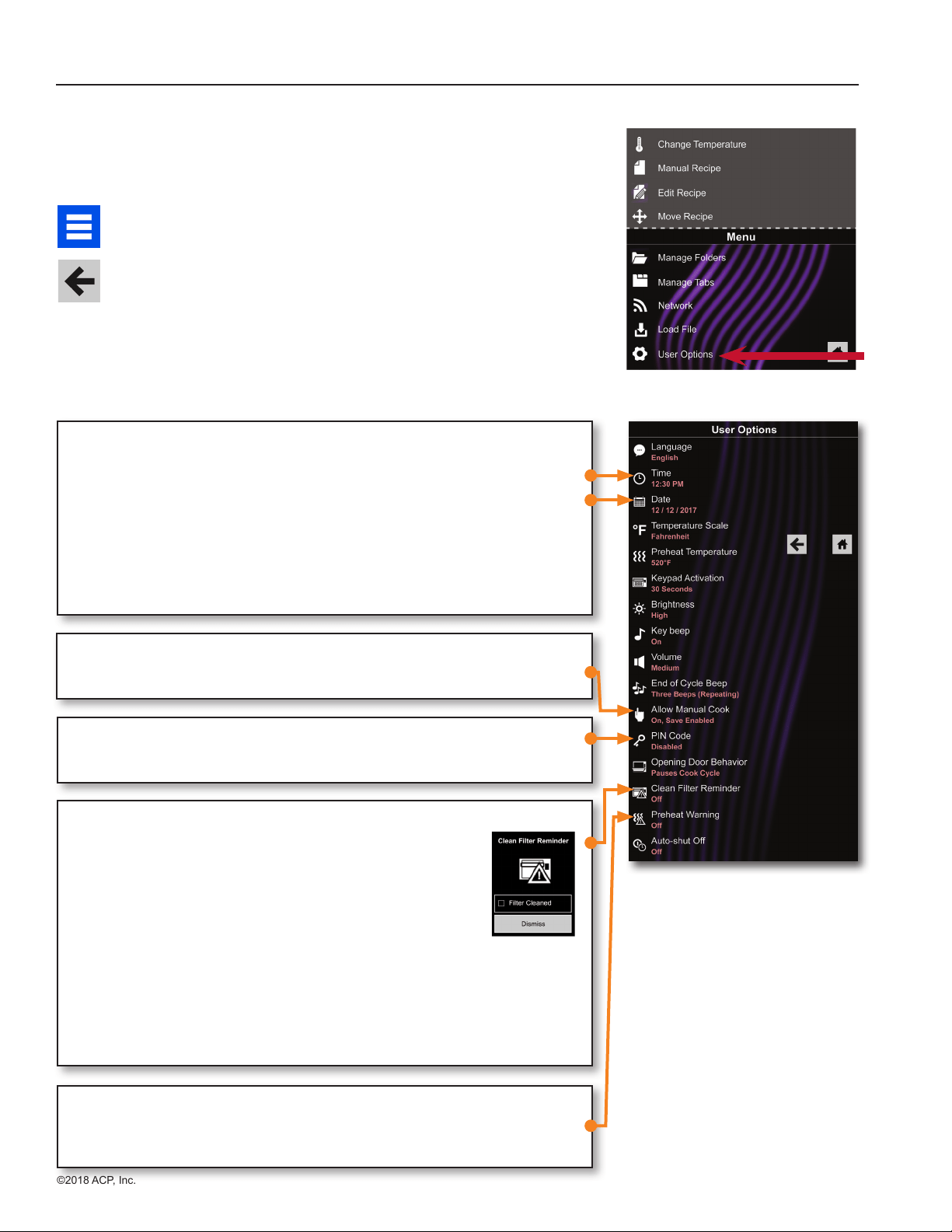
1� Touch the blue menu icon at the bottom of the screen�
2� Scroll down and touch to select “User Options.”
3� Use this menu to modify oven settings�
Touch the left arrow to return to the menu after making each change�
Note: You may also make user options changes using the ACP
Programming Application�
Note: Programming the preheat temperature in the user options menu will
set the oven to heat to a certain temperature each time it is powered on
ALLOW MANUAL COOK
Allow Manual Cook option must be enabled in order to
view Allow Manual Save options�
CLEAN FILTER REMINDER
When “Clean Filter” message displays, clean air lters thoroughly.
Cleaning the air lters will not shut o message.
Message will automatically stop displaying after 24 hours�
a� Check “Filter Cleaned” box to conrm clean.
b� Select “Dismiss” to close popup.
Note: If “Filter Cleaned” box is checked, reminder time resets�
Necessary cleaning frequency of air lters dependant on microwave use and
environmental conditions� Once frequency is determined, set the user option for
appropriate time frame�
Air lters and vents must be cleaned regularly to prevent overheating of oven.
Refer to “1. Clean Air Filters” on page 21 for cleaning instructions.
PIN CODE
If enabling PIN Code, select a 4-digit numeric PIN� PIN Code must be enabled
before trained technician may enter Service Mode
PREHEAT WARNING
To guarantee that oven reaches the desired temperature before the start of cook
cycle, enable Preheat Warning in user options� Enable setting when using recipe
with dierent starting temperature than default Preheat Temperature
TIME AND DATE
This oven maintains a data log of information, including date and time of operation�
This information is used to diagnose and troubleshoot errors� An accurate date and
time are important for the data log�
1� Select Time� Choose format (12 HR or 24 HR)� Enter local time�
2� Touch the left arrow to return�
3� Select Date� Choose format (MM/DD/YYYY or DD/MM/YYYY)�
Enter today’s date�
4� Touch the left arrow to return�
2

©2018 ACP, Inc.
Cedar Rapids, IA 52404 Page 23 of 24
Part No. 20217501
Original Instructions
Default User Options
The table below shows the standard user options; the factory setting for each model is shown in bold type.
STANDARD DEFAULT PER MODEL
User Option ARX & MRX, 60Hz ARX & MRX, 50Hz
Language
English, Chinese (Mandarin),
Japanese, Korean, Russian, German,
French, Italian, Polish, Danish, Greek,
Latin, Swedish, Portuguese, Spanish,
Thai, Lao, Dutch, Vietnamese, Arabic,
Ukrainian, Filipino, Norwegian, Hindi,
Bengali
English, Chinese (Mandarin),
Japanese, Korean, Russian, German,
French, Italian, Polish, Danish, Greek,
Latin, Swedish, Portuguese, Spanish,
Thai, Lao, Dutch, Vietnamese, Arabic,
Ukrainian, Filipino, Norwegian, Hindi,
Bengali
Time
*time entry can be customized by
hour and minute
*12 Hr
*24 Hr
*12 Hr
*24 Hr
Date
*date entry can be customized by
day, month, and year
*MM / DD / YYYY
*DD / MM / YYYY
*MM / DD / YYYY
*DD / MM / YYYY
Temperature Scale
Celsius
Fahrenheit
Celsius
Fahrenheit
Preheat Temperature
2000F - 5200F (930C - 2700C)
520°F ( 270°C ) 270°C ( 520°F )
Keypad Activation
30 seconds
60 seconds
2 minutes
30 seconds
60 seconds
2 minutes
Brightness
Low
Med
High
Low
Med
High
Key Beep
On
O
On
O
Volume
Low
Medium
High
Low
Medium
High
End of Cycle Beep
Three Beeps (Once)
Three Beeps (Repeating)
Continuous Until Door is Opened
Three Beeps (Once)
Three Beeps (Repeating)
Continuous Until Door is Opened
Allow Manual Cook
On
O
On
O
Allow Manual Save
On
O
On
O
PIN Code
*must be a 4-digit numeric PIN
*On
Off
*On
Off
Opening Door Behavior
Reset Timer
Pauses Cook Cycle
Reset Timer
Pauses Cook Cycle
Clean Filter Reminder
Every 7 Days
Every 30 Days
Every 90 Days
Off
Every 7 Days
Every 30 Days
Every 90 Days
Off
Preheat Warning
On
Off
On
Off
Auto Shut O
2 Hours
4 Hours
8 Hours
Off
2 Hours
4 Hours
8 Hours
Off

©2018 ACP, Inc.
Cedar Rapids, IA 52404 Page 24 of 24
Part No. 20217501
Original Instructions
Before Calling for Service
PROBLEM POSSIBLE CAUSE
Oven does not operate Conrm oven is plugged in.
Conrm oven is connected to a grounded circuit.
Check fuse or breaker�
Oven operates intermittently Check air lters and discharge air vents
If oven does not accept entries when
pad is pressed
Make sure oven is preheated� Open and close door, press pad again�
Oven fan turns on while oven is not
preheating or cooking
Normal operation
When I turn the oven OFF, the display
is still lit
Normal operation
Clean Filter displays This is normal and will appear for 24 hours�
Frozen oven display Oven display needs to reset�
Models without reset button:
Unplug oven� Wait 5 seconds� Plug back in�
Models equipped with reset button:
a� Remove front magnetic air lter.
b� Reach through far left hand air intake hole and press upwards on button to
reset oven
“G0” error displays on screen Oven Exceeded Max� Temp�
After oven cools, press the red reset button found on the
back, bottom-right hand corner of unit�
If “G0” error continues to appear, or reoccurs,
contact ACP, Inc� ComServ Customer Service
⚠
WARNING
To avoid electrical shock which can cause severe personal injury or death, do not remove outer case at any time�
Only an authorized servicer should remove outer case�
This is a Class A product� In a domestic environment this product may cause radio interference in which case the
user may be required to take adequate measures�
email: [email protected]
For full product documentation visit:
www.acpsolutions.com
Amana® Commercial ARX
Contact:
Menumaster® MRX
Contact: