2
.
CAUTION
TO PREVENT THE RISK OF ELECTRIC SHOCK, DO NOT
REMOVE COVER (OR BACK). NO USER-SERVICEABLE
PARTS INSIDE. REFER SERVICING TO QUALIFIED
SERVICE PERSONNEL.
D3-4-2-1-1_B1_En
WARNING
This equipment is not waterproof. To prevent a fire or
shock hazard, do not place any container filled with
liquid near this equipment (such as a vase or flower
pot) or expose it to dripping, splashing, rain or
moisture.
D3-4-2-1-3_A1_En
WARNING
To prevent a fire hazard, do not place any naked flame
sources (such as a lighted candle) on the equipment.
D3-4-2-1-7a_A1_En
This product is for general household purposes. Any
failure due to use for other than household purposes
(such as long-term use for business purposes in a
restaurant or use in a car or ship) and which requires
repair will be charged for even during the warranty
period.
K041_A1_En
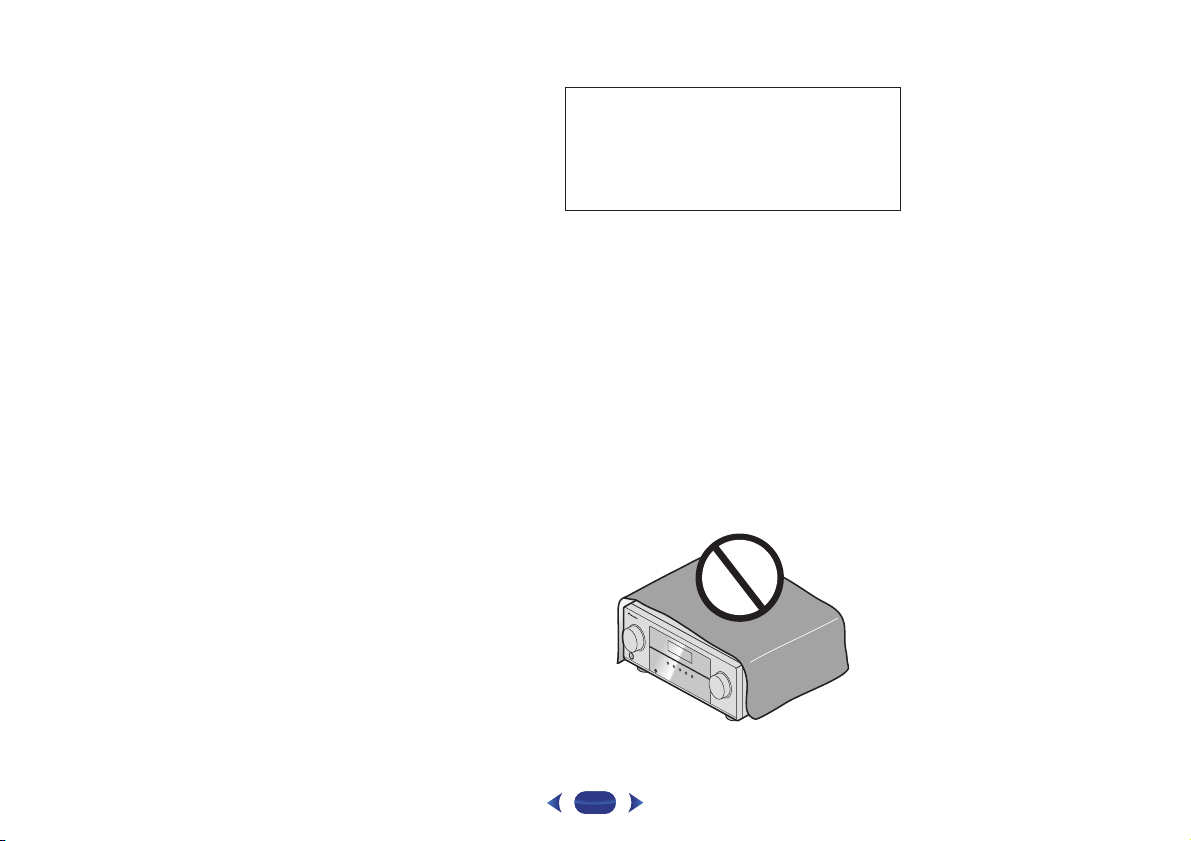
VENTILATION CAUTION
When installing this unit, make sure to leave space
around the unit for ventilation to improve heat radiation
(at least 40 cm at top, 20 cm at rear, and 20 cm at each
side).
WARNING
Slots and openings in the cabinet are provided for
ventilation to ensure reliable operation of the product,
and to protect it from overheating. To prevent fire
hazard, the openings should never be blocked or
covered with items (such as newspapers, table-cloths,
curtains) or by operating the equipment on thick carpet
or a bed.
D3-4-2-1-7b*_A1_En
Operating Environment
Operating environment temperature and humidity:
+5 °C to +35 °C (+41 °F to +95 °F); less than 85 %RH
(cooling vents not blocked)
Do not install this unit in a poorly ventilated area, or in
locations exposed to high humidity or direct sunlight (or
strong artificial light).
D3-4-2-1-7c*_A2_En
.
3
Information for users on collection and disposal of old equipment and used batteries
These symbols on the products, packaging, and/or accompanying documents mean
that used electrical and electronic products and batteries should not be mixed with
general household waste.
For proper treatment, recovery and recycling of old products and used batteries,
please take them to applicable collection points in accordance with your national
legislation.
By disposing of these products and batteries correctly, you will help to save valuable
resources and prevent any potential negative effects on human health and the
environment which could otherwise arise from inappropriate waste handling.
For more information about collection and recycling of old products and batteries,
please contact your local municipality, your waste disposal service or the point of sale
where you purchased the items.
These symbols are only valid in the European Union.
For countries outside the European Union:
If you wish to discard these items, please contact your local authorities or dealer and
ask for the correct method of disposal.
K058a_A1_En
Symbol examples
for batteries
Symbol for
equipment
Pb
CAUTION
The STANDBY/ON switch on this unit will not
completely shut off all power from the AC outlet.
Since the power cord serves as the main disconnect
device for the unit, you will need to unplug it from the
AC outlet to shut down all power. Therefore, make
sure the unit has been installed so that the power
cord can be easily unplugged from the AC outlet in
case of an accident. To avoid fire hazard, the power
cord should also be unplugged from the AC outlet
when left unused for a long period of time (for
example, when on vacation).
D3-4-2-2-2a*_A1_En
WARNING
Store small parts out of the reach of children and
infants. If accidentally swallowed, contact a doctor
immediately.
D41-6-4_A1_En
4
Thank you for buying this Pioneer product. Please read
through these operating instructions so you will know how to
operate your model properly.
Features
. . . . . . . . . . . . . . . . . . . . . . . . . . . . . . . . . . . . . 6
Before you start
. . . . . . . . . . . . . . . . . . . . . . . . . . . . . . 8
Checking what’s in the box. . . . . . . . . . . . . . . . . . . . . . . . . 8
Installing the receiver . . . . . . . . . . . . . . . . . . . . . . . . . . . . . 8
Flow of settings on the receiver
. . . . . . . . . . . . . . . 8
01 Controls and displays
Front panel . . . . . . . . . . . . . . . . . . . . . . . . . . . . . . . . . . . . . 9
Display . . . . . . . . . . . . . . . . . . . . . . . . . . . . . . . . . . . . . 10
Remote control. . . . . . . . . . . . . . . . . . . . . . . . . . . . . . . . . 11
Loading the batteries. . . . . . . . . . . . . . . . . . . . . . . . . . . 12
Operating range of remote control . . . . . . . . . . . . . . . . 13
02 Connecting your equipment
Placing the speakers . . . . . . . . . . . . . . . . . . . . . . . . . . . . 14
Hints on the speaker placement . . . . . . . . . . . . . . . . . . 14
Connecting the speakers . . . . . . . . . . . . . . . . . . . . . . . . . 15
Making cable connections . . . . . . . . . . . . . . . . . . . . . . . . 16
HDMI cables . . . . . . . . . . . . . . . . . . . . . . . . . . . . . . . . . 16
About HDMI . . . . . . . . . . . . . . . . . . . . . . . . . . . . . . . . . 16
Analog audio cables . . . . . . . . . . . . . . . . . . . . . . . . . . . 16
Digital audio cables. . . . . . . . . . . . . . . . . . . . . . . . . . . . 17
Standard RCA video cables . . . . . . . . . . . . . . . . . . . . . . 17
About video outputs connection. . . . . . . . . . . . . . . . . . . . 17
Connecting a TV and playback components . . . . . . . . . . . 18
Connecting using HDMI . . . . . . . . . . . . . . . . . . . . . . . . 18
Connecting your TV with no HDMI input . . . . . . . . . . . . 19
Connecting optional Bluetooth
®
ADAPTER
(VSX-529 only) . . . . . . . . . . . . . . . . . . . . . . . . . . . . . . . . . 20
Connecting to the network through LAN interface . . . . . . 20
Connecting to a wireless LAN. . . . . . . . . . . . . . . . . . . . . . 20
Connecting antennas . . . . . . . . . . . . . . . . . . . . . . . . . . . . 21
Using external antennas . . . . . . . . . . . . . . . . . . . . . . . . 21
Connecting an iPod . . . . . . . . . . . . . . . . . . . . . . . . . . . . . 22
Connecting a USB device. . . . . . . . . . . . . . . . . . . . . . . . . 22
Connecting a MHL-compatible device . . . . . . . . . . . . . . . 22
Connecting an HDMI-equipped component to the front
panel input . . . . . . . . . . . . . . . . . . . . . . . . . . . . . . . . . . . . 23
Plugging in the receiver . . . . . . . . . . . . . . . . . . . . . . . . . . 23
03 Basic Setup
Canceling the Auto Power Down . . . . . . . . . . . . . . . . . . . 24
Automatically setting up for surround sound (MCACC) . . 24
Other problems when using the Auto MCACC setup . . . 25
04 Basic playback
Playing a source . . . . . . . . . . . . . . . . . . . . . . . . . . . . . . . . 26
Selecting the audio input signal . . . . . . . . . . . . . . . . . . 26
Playing an iPod. . . . . . . . . . . . . . . . . . . . . . . . . . . . . . . . . 28
Playing back files stored on an iPod . . . . . . . . . . . . . . . 28
Basic playback controls. . . . . . . . . . . . . . . . . . . . . . . . . 28
Switches between the iPod controls and the receiver
controls . . . . . . . . . . . . . . . . . . . . . . . . . . . . . . . . . . . . . 28
Playing a USB device . . . . . . . . . . . . . . . . . . . . . . . . . . . . 28
Playing back audio files stored on a USB memory
device . . . . . . . . . . . . . . . . . . . . . . . . . . . . . . . . . . . . . . 29
Playing back photo files stored on a USB memory
device . . . . . . . . . . . . . . . . . . . . . . . . . . . . . . . . . . . . . . 29
About playable file formats . . . . . . . . . . . . . . . . . . . . . . 29
Playing a MHL-compatible device. . . . . . . . . . . . . . . . . . . 30
Music playback using Bluetooth wireless technology
(VSX-824 only). . . . . . . . . . . . . . . . . . . . . . . . . . . . . . . . . . 31
Remote control operation . . . . . . . . . . . . . . . . . . . . . . . 31
Pairing with the unit (Initial registration). . . . . . . . . . . . . . 31
Listen to music on the unit from a Bluetooth capable
device . . . . . . . . . . . . . . . . . . . . . . . . . . . . . . . . . . . . . . . . 31
Radio wave caution. . . . . . . . . . . . . . . . . . . . . . . . . . . . . . 32
Scope of operation . . . . . . . . . . . . . . . . . . . . . . . . . . . . 32
Radio wave reflections. . . . . . . . . . . . . . . . . . . . . . . . . . 32
Precautions regarding connections to products
supported by this unit . . . . . . . . . . . . . . . . . . . . . . . . . . 32
Bluetooth
®
ADAPTER for Wireless Enjoyment of Music
(VSX-529 only). . . . . . . . . . . . . . . . . . . . . . . . . . . . . . . . . . 33
Wireless music play. . . . . . . . . . . . . . . . . . . . . . . . . . . . 33
Pairing the Bluetooth ADAPTER and Bluetooth wireless
technology device . . . . . . . . . . . . . . . . . . . . . . . . . . . . . 33
Listening to Music Contents of Bluetooth wireless
technology device with Your System . . . . . . . . . . . . . . . 34
Listening to the radio . . . . . . . . . . . . . . . . . . . . . . . . . . . . 35
Improving FM sound . . . . . . . . . . . . . . . . . . . . . . . . . . . 35
Saving station presets . . . . . . . . . . . . . . . . . . . . . . . . . . 35
Listening to station presets . . . . . . . . . . . . . . . . . . . . . . 35
Naming preset stations . . . . . . . . . . . . . . . . . . . . . . . . . 35
An introduction to RDS. . . . . . . . . . . . . . . . . . . . . . . . . . . 36
Searching for RDS programs. . . . . . . . . . . . . . . . . . . . . 36
05 Listening to your system
Choosing the listening mode . . . . . . . . . . . . . . . . . . . . . . 37
Auto playback . . . . . . . . . . . . . . . . . . . . . . . . . . . . . . . . 37
Listening in surround sound . . . . . . . . . . . . . . . . . . . . . 37
Using the Advanced surround . . . . . . . . . . . . . . . . . . . 38
Using Stream Direct . . . . . . . . . . . . . . . . . . . . . . . . . . . 38
Using the Sound Retriever . . . . . . . . . . . . . . . . . . . . . . . . 38
Listening with Acoustic Calibration EQ . . . . . . . . . . . . . . . 38
Setting the Audio options . . . . . . . . . . . . . . . . . . . . . . . . . 39
06 Playback with NETWORK features
Introduction . . . . . . . . . . . . . . . . . . . . . . . . . . . . . . . . . . . 41
About playable DLNA network devices. . . . . . . . . . . . . . 41
Using AirPlay on iPod touch, iPhone, iPad, and
iTunes . . . . . . . . . . . . . . . . . . . . . . . . . . . . . . . . . . . . . . 41
About the DHCP server function . . . . . . . . . . . . . . . . . . 41
Authorizing this receiver . . . . . . . . . . . . . . . . . . . . . . . . 41
About HTC Connect . . . . . . . . . . . . . . . . . . . . . . . . . . . . 42
Playback with Network functions . . . . . . . . . . . . . . . . . . . 42
Basic playback controls . . . . . . . . . . . . . . . . . . . . . . . . . 42
Listening to Internet radio stations. . . . . . . . . . . . . . . . . 43
About the Spotify audio stream playback function . . . . . . 43
Preparations (1) Installing the Spotify application
on mobile devices and registering a Spotify Premium
account . . . . . . . . . . . . . . . . . . . . . . . . . . . . . . . . . . . . . 43
Preparations (2) Connecting this unit to the network . . . 44
In order to use the Spotify audio stream playback
function from the Spotify application . . . . . . . . . . . . . . . 44
Playing back audio files stored on components on the
network . . . . . . . . . . . . . . . . . . . . . . . . . . . . . . . . . . . . . 44
Playing back your favorite songs . . . . . . . . . . . . . . . . . . 44
The Network Setup menu . . . . . . . . . . . . . . . . . . . . . . . . . 44
Network Configuration . . . . . . . . . . . . . . . . . . . . . . . . . . 45
Language. . . . . . . . . . . . . . . . . . . . . . . . . . . . . . . . . . . . 46
Firmware Update . . . . . . . . . . . . . . . . . . . . . . . . . . . . . . 46
Network setting using Safari browser . . . . . . . . . . . . . . 46
Friendly Name setting using Safari browser. . . . . . . . . . 47
Firmware update using Safari browser. . . . . . . . . . . . . . 47
Factory Reset . . . . . . . . . . . . . . . . . . . . . . . . . . . . . . . . . 48
System Information . . . . . . . . . . . . . . . . . . . . . . . . . . . . 48
About network playback . . . . . . . . . . . . . . . . . . . . . . . . . . 48
Content playable over a network . . . . . . . . . . . . . . . . . . 49
About playback behavior over a network . . . . . . . . . . . . 49
Glossary . . . . . . . . . . . . . . . . . . . . . . . . . . . . . . . . . . . . . . 49
About playable file formats . . . . . . . . . . . . . . . . . . . . . . . . 50
Contents
5
Contents
07 Home Menu
Using the Home Menu . . . . . . . . . . . . . . . . . . . . . . . . . . . 52
Manual speaker setup . . . . . . . . . . . . . . . . . . . . . . . . . . . 52
Speaker Setting. . . . . . . . . . . . . . . . . . . . . . . . . . . . . . . 52
X.Over . . . . . . . . . . . . . . . . . . . . . . . . . . . . . . . . . . . . . . 53
Channel Level . . . . . . . . . . . . . . . . . . . . . . . . . . . . . . . . 53
Speaker Distance . . . . . . . . . . . . . . . . . . . . . . . . . . . . . 54
The Input Assign menu . . . . . . . . . . . . . . . . . . . . . . . . . . 54
Analog Input . . . . . . . . . . . . . . . . . . . . . . . . . . . . . . . . . 54
The Auto Power Down menu . . . . . . . . . . . . . . . . . . . . . . 54
The Network Standby menu . . . . . . . . . . . . . . . . . . . . . . . 55
The MHL Setup menu. . . . . . . . . . . . . . . . . . . . . . . . . . . . 55
The OSD Setup menu. . . . . . . . . . . . . . . . . . . . . . . . . . . . 55
08 Control with HDMI function
Making Control with HDMI connections. . . . . . . . . . . . . . 56
HDMI Setup . . . . . . . . . . . . . . . . . . . . . . . . . . . . . . . . . . . 56
Before using synchronization . . . . . . . . . . . . . . . . . . . . . . 57
About synchronized operations . . . . . . . . . . . . . . . . . . . . 57
Cautions on the Control with HDMI function . . . . . . . . . . 57
09 Additional information
Troubleshooting . . . . . . . . . . . . . . . . . . . . . . . . . . . . . . . . 58
General . . . . . . . . . . . . . . . . . . . . . . . . . . . . . . . . . . . . . 58
NETWORK feature. . . . . . . . . . . . . . . . . . . . . . . . . . . . . 59
Troubleshooting of wireless LAN . . . . . . . . . . . . . . . . . . 60
HDMI . . . . . . . . . . . . . . . . . . . . . . . . . . . . . . . . . . . . . . 61
Important information regarding the HDMI
connection . . . . . . . . . . . . . . . . . . . . . . . . . . . . . . . . . . 61
Windows 8 . . . . . . . . . . . . . . . . . . . . . . . . . . . . . . . . . . . . 61
MHL . . . . . . . . . . . . . . . . . . . . . . . . . . . . . . . . . . . . . . . . . 62
HTC Connect . . . . . . . . . . . . . . . . . . . . . . . . . . . . . . . . . . 62
About iPod/iPhone . . . . . . . . . . . . . . . . . . . . . . . . . . . . . . 62
About apt-X (VSX-824 only) . . . . . . . . . . . . . . . . . . . . . . . . 62
About Bluetooth wireless technology . . . . . . . . . . . . . . . . 62
Apple Lossless Audio Codec . . . . . . . . . . . . . . . . . . . . . . 62
About FLAC . . . . . . . . . . . . . . . . . . . . . . . . . . . . . . . . . . . 62
About messages displayed when using network
functions . . . . . . . . . . . . . . . . . . . . . . . . . . . . . . . . . . . . . 63
Resetting the main unit . . . . . . . . . . . . . . . . . . . . . . . . . . 63
Cleaning the unit . . . . . . . . . . . . . . . . . . . . . . . . . . . . . . . 63
Specifications. . . . . . . . . . . . . . . . . . . . . . . . . . . . . . . . . . 64
6
4
58
9
Audio
Easy setup using MCACC
The MCACC automatically creates the optimum acoustic environment by compensating for
differences in speaker size, level and distance, and equalizing response.
Phase Control
Phase Control effectively eliminates phase lag which makes the sound lack synchronization
and significantly improves the multi-channel sound without any extra operation.
Video
Ultra HD (with 4K/60p video support) - Pass-through -
Up to 4K/60p resolution images can be passed through and displayed as such. A separate
monitor supporting Ultra HD (4K video) is required.
HDMI (3D, Audio Return Channel)
6 in/1 out
A compatible component is required to use the above function.
Connectivity
Easy Network connection with the Wireless LAN converter
With the AS-WL300 wireless LAN converter, you can enjoy using a wireless LAN connection for
the AV receivers. The AS-WL300 works with power supply from the AV receiver’s dedicated USB
terminal, so no AC adapter is required.
Bluetooth
adapter ready
Using the Bluetooth ADAPTER (AS-BT100 or AS-BT200) lets you enjoy music files on an iPhone
or other Bluetooth wireless technology enabled device wirelessly.
Built in
Bluetooth
Wireless Technology
This receiver equipped with Bluetooth wireless technology, lets you enjoy music files on an
iPhone or other Bluetooth wireless technology enabled device wirelessly.
MHL™ (Mobile High-definition Link) - compatible device playback
An incorporates MHL 2 mobile device can be connected to enjoy 3D videos, Full-HD videos,
high quality multi-channel audio, and photos etc., with charge the battery on the receiver.
iPod Playback
Your iPod or iPhone can be connected to the receiver’s USB terminal to play the music files on
the iPod or iPhone. Also, the iPod or iPhone is charged when it is connected to the receiver.
Network
Spotify Digital Music-Streaming Service ready
Spotify is a digital music-streaming service that gives you on-demand access to millions of
songs. This receiver is ready for the Connect from Spotify, which lets you select songs on your
Spotify app for listening on your audio system. For service availability in your country check
www.spotify.com.
Compatible with Windows 8.1
This receiver is compatible with Windows 8.1, letting you easily stream music from compatible
PCs on your home network.
Apple AirPlay
With AirPlay you can stream music from iTunes to this receiver and play it through your home
theater system. You can even use the receiver to view metadata including song titles, artist as
well as the album art on a connected display. You can easily enjoy your iTunes music in any
room in the house.
DLNA Certified (1.5)
This receiver is DLNA certified (1.5), enabled to work not only as a DMP (Digital Media Player)
for playing DMS (Digital Media Server) audio files, but also as a DMR (Digital Media Renderer)
to be remote controlled by a device such as a smartphone or PC.
Internet Radio
By connecting this receiver to the network via the LAN terminal, you can listen to internet radio
stations.
Features
7
4
58
9
Playback / Processing
High Resolution Music Playback
High resolution music files with resolutions of 96 kHz/24 bit to 192 kHz/24 bit can be played.
Playback of AIFF, Apple Lossless, WAV and FLAC files via the front USB port and network is
supported.
Gapless Playback
The silent section between tracks is skipped when playing music files, eliminating the
interruptions that usually occur when playing live or concert contents.
Advanced Sound Retriever
Advanced Sound Retriever restores the output of compressed audio - such as WMA, AAC and
MP3 - to the level of CD sound by creating new signals to restore the minor details left out
during the compression process.
Installation
iControlAV5 Remote Application
This is an application that allowing intuitive operation of many of the receiver’s functions.
This application is available on the App Store for iPhone, iPod touch and iPad.
And also, you can get it on Google Play for Android smartphones.
The application can be downloaded free of charge.
Energy Saving Design
This AV receiver has an ecological design. In addition to even lower power consumption in
standby, the receiver is equipped with an “eco mode” for low power consumption when playing
contents as well. Furthermore, the eco mode can easily be set with a dedicated button on the
remote control or the iControlAV5.
Features
8
4
58
9
Before you start
Checking what’s in the box
Please check that you’ve received the following supplied
accessories:
•
Setup microphone
•
Remote control
•
AAA size IEC R03 dry cell batteries (to confirm system
operation) x2
•
AM loop antenna
•
FM wire antenna
•
Power cord
•
Warranty card
•
Quick start guide
•
Safety Brochure
•
SPEAKER CAUTION Sheet (English only)
•
These operating instructions (CD-ROM)
Installing the receiver
•
When installing this unit, make sure to put it on a level and
stable surface.
Don’t install it on the following places:
– on a color TV (the screen may distort)
– near a cassette deck (or close to a device that gives off a
magnetic field). This may interfere with the sound.
– in direct sunlight
– in damp or wet areas
– in extremely hot or cold areas
– in places where there is vibration or other movement
– in places that are very dusty
– in places that have hot fumes or oils (such as a kitchen)
Flow of settings on the receiver
The unit is a full-fledged AV receiver equipped with an
abundance of functions and terminals. It can be used easily
after following the procedure below to make the connections
and settings.
The colors of the steps indicate the following:
- - - - - - - - - - - - - - - - - - - - - - - - - - - - - - - - - - - - - - - - - -
Required setting item
Setting to be made as necessary
1
Connecting the speakers
Where you place the speakers will have a big effect on
the sound.
•
By connecting the left and right front speakers (L/R),
the center speaker (C), the left and right surround
speakers (SL/SR), and the subwoofer (SW), a 5.1 ch
surround system can be enjoyed. To achieve the best
possible surround sound, install your speakers as
shown below (
page 14
).
•
Connecting the speakers (page 15)
•
Making cable connections (page 16)
2
Connecting the components
For surround sound, you’ll want to hook up using a
digital connection from the Blu-ray Disc/DVD player to
the receiver.
•
About video outputs connection (page 17)
•
Connecting a TV and playback components (page 18)
•
Connecting antennas (page 21)
•
Plugging in the receiver (page 23)
3
Power On
Make sure you’ve set the video input on your TV to this
receiver. Check the manual that came with the TV if you
don’t know how to do this.
4
The Input Assign menu (page 54)
(When using connections other than the recommended
connections.)
HDMI Setup (page 56)
(When the connected TV supports the HDMI Audio Return
Channel function.)
5
Use the on-screen automatic MCACC setup to set up
your system
•
Automatically setting up for surround sound (MCACC)
(
page 24
)
6
Basic playback (page 26)
•
Selecting the audio input signal (page 26)
•
Playing an iPod (page 28)
•
Switches between the iPod controls and the receiver
controls (
page 28
)
•
Choosing the listening mode (page 37)
7
Adjusting the sound as desired
•
Using the Sound Retriever (page 38)
•
Listening with Acoustic Calibration EQ (page 38)
•
Setting the Audio options (page 39)
•
Manual speaker setup (page 52)
1
1
Chapter
9
4
58
9
Controls and displays
Front panel
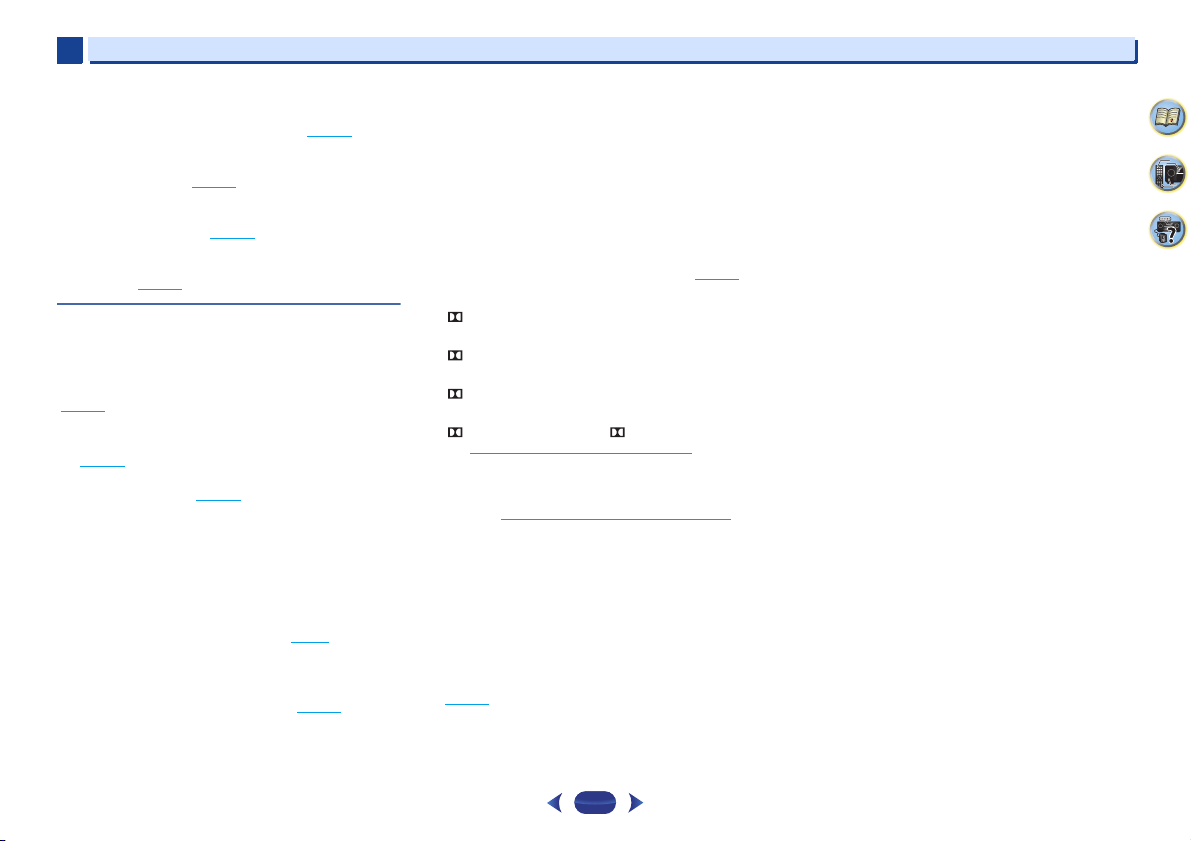
1
INPUT SELECTOR
dial
Selects an input source (page 26).
2
SPEAKERS
See Making cable connections on page 16.
The Speaker System setting may or may not be displayed,
depending on the input source you have selected.
3
MCACC indicator
Lights when Acoustic Calibration EQ (page 38) is on (Acoustic
Calibration EQ is automatically set to on after the Auto
MCACC setup (
page 24
)).
4
Receiver control buttons
DIMMER
– Dims or brightens the display. The brightness
can be controlled in four steps.
STATUS
– Switches the display of this unit. The listening
mode, input format, sound volume, input name can be
checked by selecting an input source.
The Input format may or may not be displayed, depending
on the input source you have selected.
5
Character display
See Display on page 10.
6
Tuner control buttons
BAND
– Switches between AM, FM ST (stereo) and FM
MONO radio bands (
page 35
).
TUNER EDIT
– Use with
TUNE
/
,
PRESET
/
and
ENTER
to memorize and name stations for recall
(
page 35
).
TUNE
/
– Used to find radio frequencies (page 35).
PRESET
/
– Use to select preset radio stations
(
page 35
).
7
HDMI indicator
Blinks when connecting an HDMI-equipped component;
lights when the component is connected (
page 18
).
8
iPod iPhone indicator
Lights when an iPod/iPhone is connected and iPod/USB
input is selected (
page 28
).
9
Remote sensor
Receives the signals from the remote control (see Operating
range of remote control on page 13).
10
MASTER VOLUME
dial
11
STANDBY/ON
12
PHONES jack
Use to connect headphones. When the headphones are
connected, there is no sound output from the speakers. The
listening mode when the sound is heard from the headphone
can be selected only from PHONES SURR, STEREO or
STEREO ALC mode (S.R AIR mode can be also selected with
ADAPTER input).
13
MCACC SETUP MIC jack
Use to connect a microphone when performing Auto MCACC
setup (
page 24
).
14
Listening mode buttons
AUTO SURROUND/STREAM DIRECT
– Switches between
Auto surround mode (
page 37
) and Stream Direct
playback (
page 38
).
ALC/STANDARD SURR
– Press for standard decoding
and to switch between the modes of Pro Logic II and
NEO:6, and the Auto level control stereo mode (
page 37
).
ADVANCED SURROUND
– Switches between the various
surround modes (
page 38
).
56
7
11
12 1514 17 1813
321 8 1049
16
19 20 21 22 23 21
26 27 28 29 29 30
24
25
VSX-824
Controls and displays
1
1
10
4
58
9
15
ECO
Switches between ECO Mode 1/ECO Mode 2. When ECO
Mode is turned ON, the display will go dark (
page 38
).
16
iPod iPhone DIRECT CONTROL
Change the receiver’s input to the iPod and enable iPod
operations on the iPod (
page 29
).
17
iPod/iPhone terminals
Use to connect your Apple iPod/iPhone or USB mass storage
device as an audio source (
page 22
).
18
HDMI INPUT connector
Use for connection to a compatible HDMI device (Video
camera, etc.) (
page 23
).
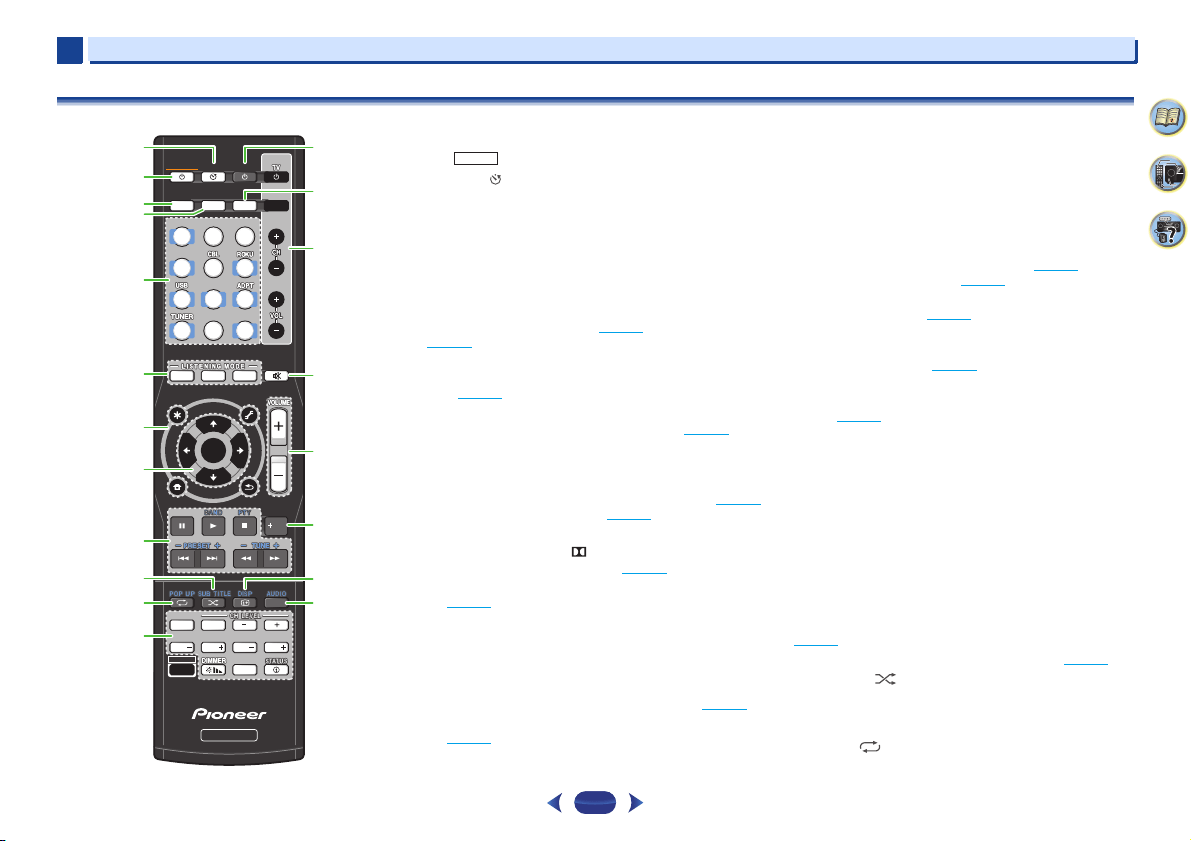
Display
19
PHASE
Lights when the Phase Control is switched on.
20
AUTO
Lights when the Auto Surround feature is switched on
(
page 37
).
21
Tuner indicators
RDS – Lights when an RDS broadcast is received
(
page 36
).
ST – Lights when a stereo FM broadcast is being received
in auto stereo mode (
page 35
).
TUNE – Lights when a normal broadcast channel.
PRESET – Shows when a preset radio station is registered
or called.
MEM – Blinks when a radio station is registered.
kHz/MHz – Lights when the character display is showing
the currently received AM/FM broadcast frequency.
22
Speaker indicators
Shows if the speaker system is on or not (page 9).
SP
A means the speakers are switched on.
SP
means the speakers are switched off.
23
Sleep timer indicator
Lights when the receiver is in sleep mode (page 11).
24
PRESET information or input signal indicator
Shows the preset number of the tuner or the input signal type,
etc.
25
Character display
Displays various system information.
26
DTS indicators
DTS – Lights when a source with DTS encoded audio
signals is detected.
HD – Lights when a source with DTS-EXPRESS or DTS-HD
encoded audio signals is detected.
96/24 – Lights when a source with DTS 96/24 encoded
audio signals is detected.
NEO:6 – When one of the NEO:6 modes of the receiver is
on, this lights to indicate NEO:6 processing (
page 37
).
27
Dolby Digital indicators
D – Lights when a Dolby Digital encoded signal is
detected.
D+ – Lights when a source with Dolby Digital Plus
encoded audio signals is detected.
HD – Lights when a source with Dolby TrueHD
encoded audio signals is detected.
PLII – Lights to indicate Pro Logic II decoding
(see
Listening in surround sound
on page 37 for more on
this).
28
ADV.S.
Lights when one of the Advanced Surround modes has been
selected (see
Using the Advanced surround
on page 38 for
more on this).
29
SIGNAL SELECT indicators
DIGITAL – Lights when a digital audio signal is selected.
Blinks when a digital audio signal is selected and selected
audio input is not provided.
HDMI – Lights when an HDMI signal is selected. Blinks
when an HDMI signal is selected and selected HDMI input
is not provided.
30
DIR.
Lights when the DIRECT or PURE DIRECT mode is switched
on (
page 38
).
Controls and displays
1
1
11
4
58
9
Remote control
•
The following buttons are not used with this receiver:
-
1
SLEEP
Press to change the amount of time before the receiver
switches into standby (30 min – 60 min – 90 min – Off). You
can check the remaining sleep time at any time by pressing
SLEEP
once.
2
STANDBY/ON
Switches the receiver between standby and on.
3
RECEIVER
CTRL
Switches the remote to control the receiver. Also use this
button to set up
HOME MENU
(page 52) or Audio parameters
(
page 39
).
4
SIGNAL SEL
S.SEL
Press to select the audio input signal of the component to play
back (
page 26
).
5
Input function buttons
Use to select the input source to this receiver (page 26). Also
switch the remote control mode when operating other device
and various inputs (
TUNER
, etc.).
6
Listening mode buttons
AUTO
– Switches between Auto surround mode (page 37)
and Stream Direct playback (
page 38
).
SURR
– Press for standard decoding and to switch
between the modes of Pro Logic II and NEO:6, and the
Auto level control stereo mode (
page 37
).
ADV
– Switches between the various surround modes
(
page 38
).
7
Receiver and component control buttons
The following button controls can be accessed after you have
selected the corresponding input function button (
BD
,
DVD
,
etc.).
Press
RECEIVER
first to access:
AUDIO P.
– Use to access the Audio options (page 39).
HOME MENU
– Press to access the Home Menu
(
page 52
).
RETURN
– Confirm and exit the current menu screen.
Press
BD
and
DVD
first to access:
TOP MENU
– Displays the disc ‘top’ menu of a Blu-ray
Disc/DVD.
HOME MENU
– Displays the HOME MENU screen.
RETURN
– Confirm and exit the current menu screen.
MENU
– Displays the TOOLS menu of Blu-ray Disc player.
Press
TUNER
first to access:
TOOLS
– Memorizes stations for recall (page 35), also
used to change the name (
page 35
).
BAND
– Switches between AM, FM ST (stereo) and FM
MONO radio bands (
page 35
).
Press
iPod USB
first to access:
HOME MENU
– Switches between the iPod controls and
the receiver controls (
page 28
).
8
///
,
ENTER
Use the arrow buttons when setting up your surround sound
system (
page 52
). Also used to control Blu-ray Disc/DVD
menus/options.
9
Component control buttons
The main buttons (
,
, etc.) are used to control a component
after you have selected it using the input function buttons.
The
BD
,
DVD
, and
CD
operation using the component control
buttons are limited only to Pioneer components.
The controls above these buttons can be accessed after you
have selected the corresponding input function button (
BD
,
DVD
and
CD
). These buttons also function as described
below.
Press
TUNER
first to access:
Use
TUNE +/–
can be used to find radio frequencies and
PRESET +/–
can be used to select preset radio stations
(
page 35
).
PTY
– Use to search for RDS program types (page 36).
10
SUB TITLE
The subtitle will be switched for BD and DVD.
CD, NETWORK, iPod/USB, MHL, and BT (ADPT) will be
random playback.
11
POP UP
Popup menu will be displayed for BD.
SLEEP
INPUT
MUTE
CTRL
BD
AUTO SURR ADV
DVD
iPod
TUN
GAME
SAT
CD
TV
HDMI
MHL
BT
NET
S.SEL ECO
STANDBY/ON
ENTER
CLR
SB CH
CH SEL
SP-A/B
Fav
RETURN
AUDIO P.
TOP
MENU
HOME
MENU
RECEIVER
RECEIVER SIGNAL SEL
SOURCE
TOOLS
MENU
SHIFT
BASS
BASS
TRE TRE
1
2
13
14
15
16
17
18
19
20
3
4
5
6
7
8
9
10
11
12
SHIFT
Controls and displays
1
1
12
4
58
9
CD, NETWORK, iPod/USB, MHL, and BT (ADPT) will be
repeat playback.
12
Other component controls
There are other buttons that can be accessed after
RECEIVER
is pressed.
SB CH
– Cannot use for this unit.
CH SEL
– Press repeatedly to select a channel, then use
CH LEVEL +/–
to adjust the level (page 53).
CH LEVEL +/–
– Use to adjust the channel level.
BASS +/–
,
TRE +/–
– Use to adjust Bass or Treble.
• These controls are disabled when the listening mode is
set to DIRECT or PURE DIRECT.
• When the front speaker is set at SMALL in the Speaker
Setting (or automatically via the Auto MCACC setup)
and the X.Over is set above 150 Hz, the subwoofer
channel level will be adjusted by pressing
BASS +/–
(
page 53
).
DIMMER
– Dims or brightens the display. The
brightness can be controlled in four steps.
During ECO mode, the brightness switches between 2
levels. If the dimmest level is selected, DIMMER will be
shown on the display. (Mode other than ECO: 4 levels, ECO
mode: 2 levels)
SP-A/B
– Cannot use for this unit.
STATUS
– Switches the display of this unit. The
listening mode, input format, sound volume or input name
can be checked by selecting an input source.
The Input format may or may not be displayed, depending
on the input source you have selected.
13
SOURCE
Press to turn on/off the power to the Pioneer device
connected to the receiver.
14
ECO
Switches between ECO Mode 1/ECO Mode 2. When ECO
Mode is turned ON, the display will go dark (
page 38
).
15
TV
buttons
Operates a TV. When operating other manufacturer’s TV,
setup as follows.
– Use to turn on/off the power of the TV.
INPUT
– Use to select the TV input signal.
CH +/–
– Use to select channels.
VOL +/–
– Use to adjust the volume on your TV.
While holding down
TV
button, press the input function
buttons (listed in the table below) for component you want to
control for about five seconds.
This may not operate depending on the TV.
Default setting: Pioneer
TV preset
16
MUTE
Mutes/unmutes the sound.
17
VOLUME +/–
Use to set the listening volume.
18
+Fav
Press while a song is being played back or stopped. The
selected song is then registered in the Favorites folder
(
page 44
).
19
DISP
Each entry source information will be displayed.
20
AUDIO
CLR
Songs and preset radio stations registered will be deleted
when NETWORK is selected.
Audio will be switched when set to other than NETWORK.
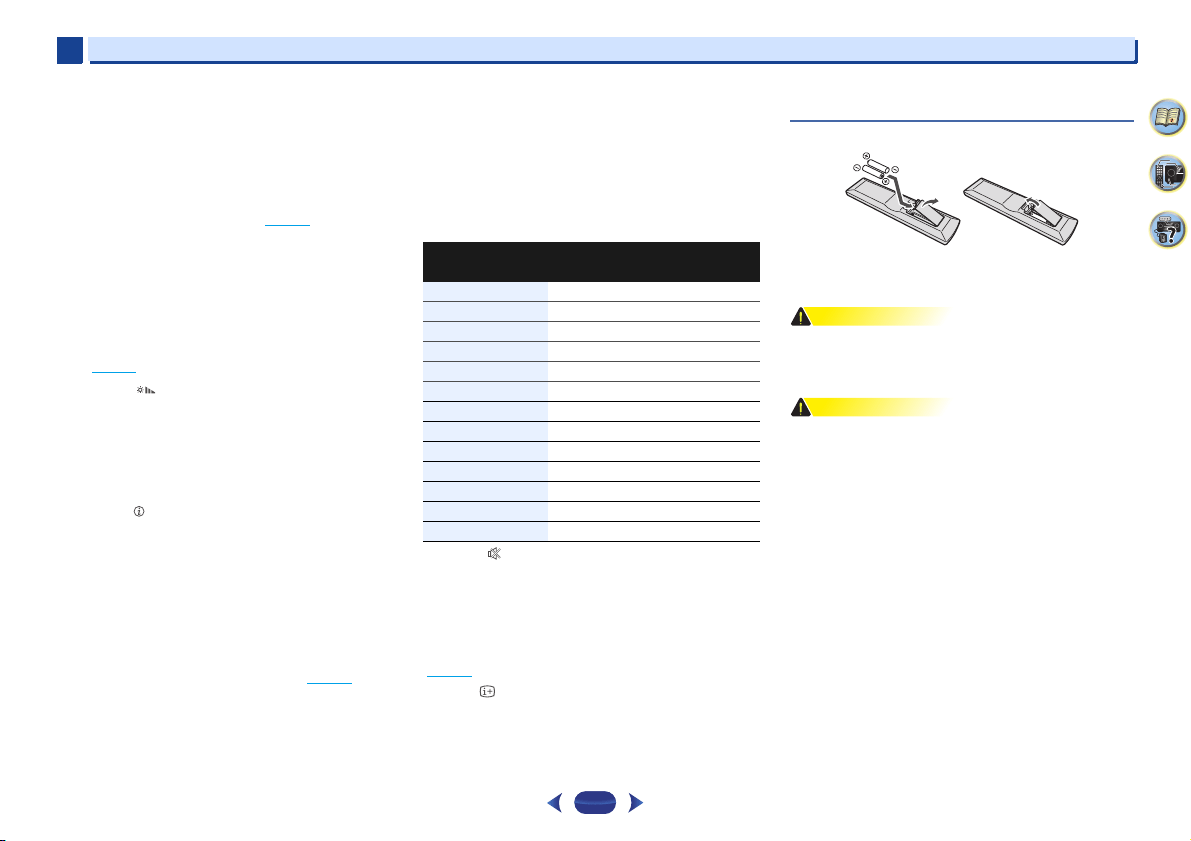
Loading the batteries
The batteries included with the unit are to check initial
operations; they may not last over a long period. We
recommend using alkaline batteries that have a longer life.
WARNING
•
Do not use or store batteries in direct sunlight or other
excessively hot place, such as inside a car or near a heater.
This can cause batteries to leak, overheat, explode or catch
fire. It can also reduce the life or performance of batteries.
CAUTION
•
Incorrect use of batteries may result in such hazards as
leakage and bursting. Observe the following precautions:
-
Never use new and old batteries together.
-
Insert the plus and minus sides of the batteries properly
according to the marks in the battery case.
-
Batteries with the same shape may have different
voltages. Do not use different batteries together.
-
When disposing of used batteries, please comply with
governmental regulations or environmental public
institution’s rules that apply in your country/area.
-
When inserting the batteries, make sure not to damage
the springs on the battery’s (–) terminals. This can cause
batteries to leak or overheat.
Input Function
button
TV Brand
RECEIVER
CTRL
Pioneer
BD
Panasonic
GAME
Sony
HDMI
Sharp
DVD
Toshiba
SAT
Mitsubishi
MHL
Philips/AOC/TPV
iPod
Vizio
CD
Samsung
BT
/
ADPT
LG Electric
TUNER
Skyworth
TV
Hisense
NET
TCL

Controls and displays
1
1
13
4
58
9
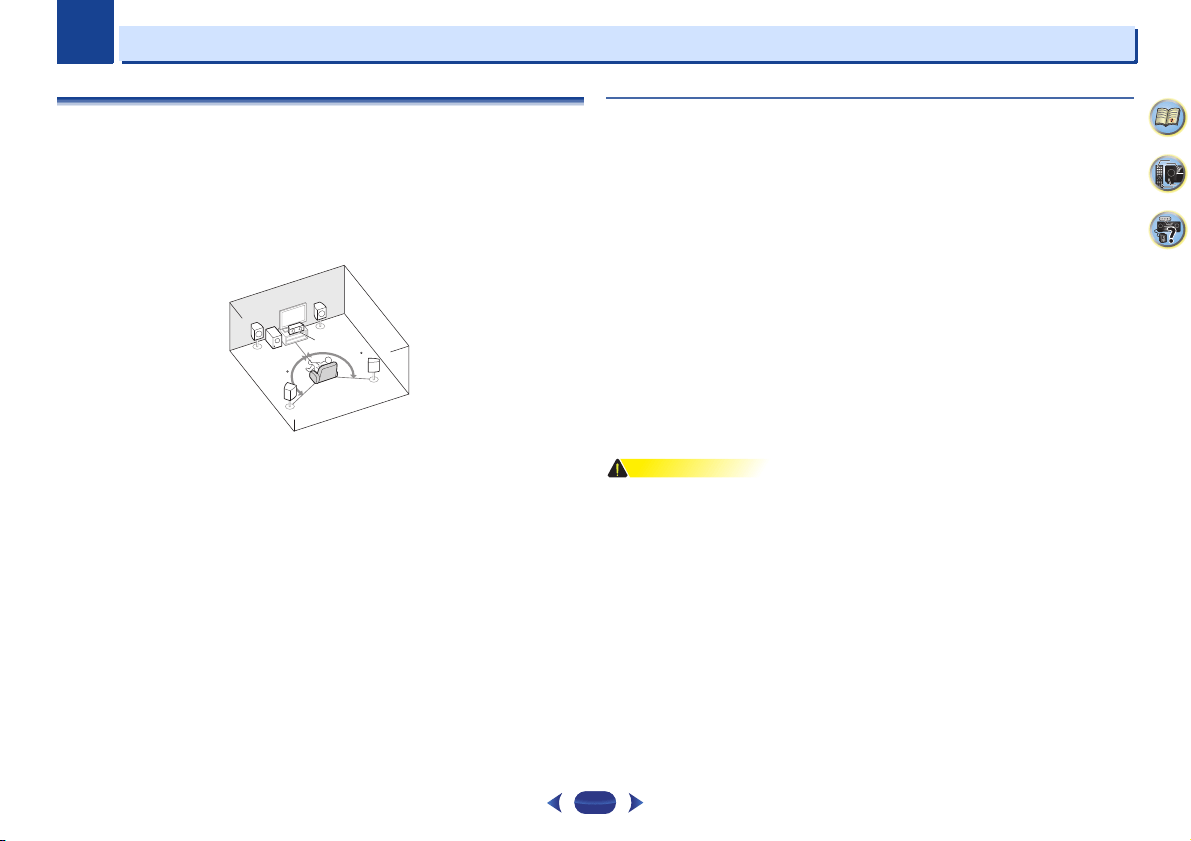
Operating range of remote control
The remote control may not work properly if:
•
There are obstacles between the remote control and the
receiver’s remote sensor.
•
Direct sunlight or fluorescent light is shining onto the
remote sensor.
•
The receiver is located near a device that is emitting
infrared rays.
•
The receiver is operated simultaneously with another
infrared remote control unit.
30°
7 m
30°
2
2
14
Chapter
4
58
9
Connecting your equipment
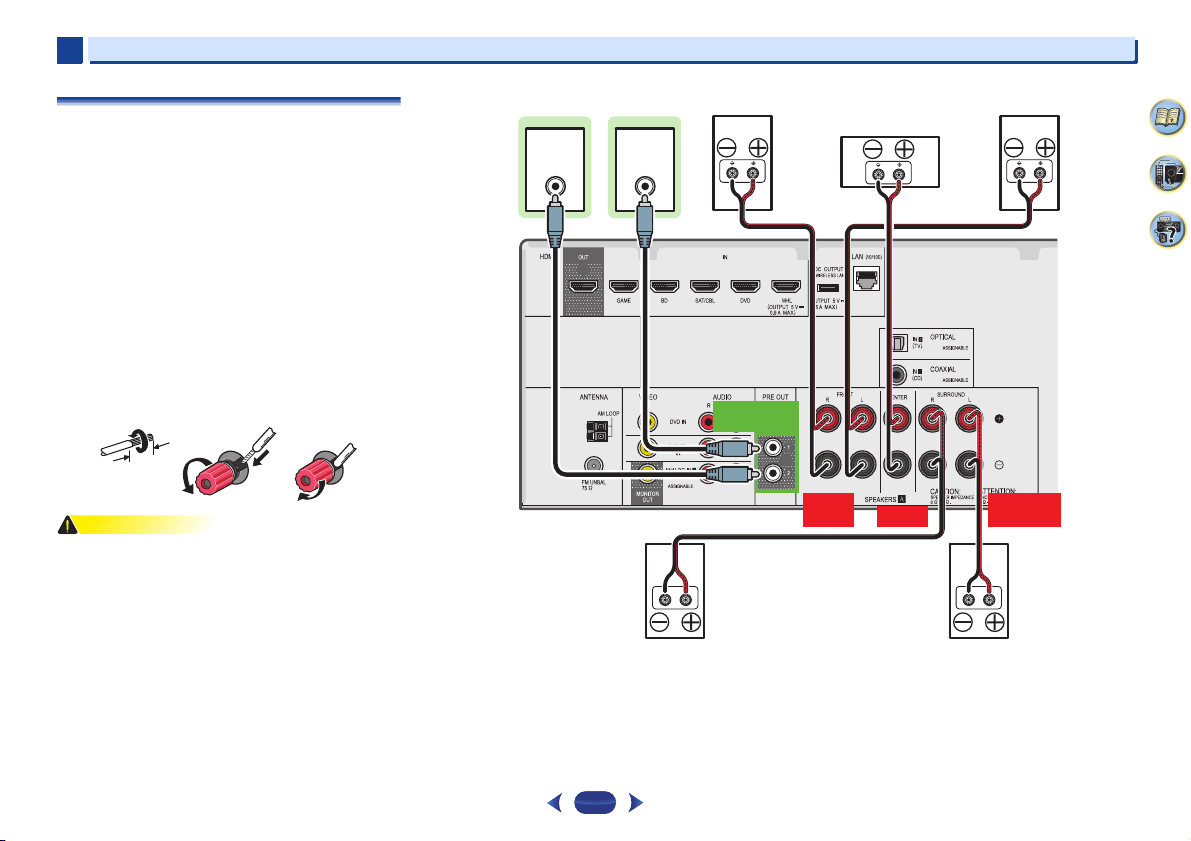
Placing the speakers
By connecting the left and right front speakers (L/R), the center speaker (C), the left and right
surround speakers (SL/SR), and the subwoofer (SW), a 5.1 ch surround system can be enjoyed.
To achieve the best possible surround sound, install your speakers as shown below.
If you have two subwoofers, the second subwoofer can be connected to the SUBWOOFER 2
terminal. Connecting two subwoofers increases the bass sound to achieve more powerful
sound reproduction.
In this case, the same sound is output from the two subwoofers.
Hints on the speaker placement
Where you put your speakers in the room has a big effect on the quality of the sound. The
following guidelines should help you to get the best sound from your system.
•
The subwoofer can be placed on the floor. Ideally, the other speakers should be at about ear-
level when you’re listening to them. Putting the speakers on the floor (except the subwoofer),
or mounting them very high on a wall is not recommended.
•
For the best stereo effect, place the front speakers 2 m to 3 m apart, at equal distance from
the TV.
•
If you’re going to place speakers around your CRT TV, use shielded speakers or place the
speakers at a sufficient distance from your CRT TV.
•
If you’re using a center speaker, place the front speakers at a wider angle. If not, place them
at a narrower angle.
•
Place the center speaker above or below the TV so that the sound of the center channel is
localized at the TV screen. Also, make sure the center speaker does not cross the line formed
by the leading edge of the front left and right speakers.
•
It is best to angle the speakers towards the listening position. The angle depends on the size
of the room. Use less of an angle for bigger rooms.
•
Surround speakers should be positioned 60 cm to 90 cm higher than your ears and titled
slight downward. Make sure the speakers don’t face each other. For DVD-Audio, the
speakers should be more directly behind the listener than for home theater playback.
•
Try not to place the surround speakers farther away from the listening position than the front
and center speakers. Doing so can weaken the surround sound effect.
CAUTION
•
Make sure that all speakers are securely installed. This not only improves sound quality, but
also reduces the risk of damage or injury resulting from speakers being knocked over or
falling in the event of external shocks such as earthquakes.
120
120
SL
L
SW
C
R
SR
5.1 channel surround system:
Connecting your equipment
2
2
15
4
58
9
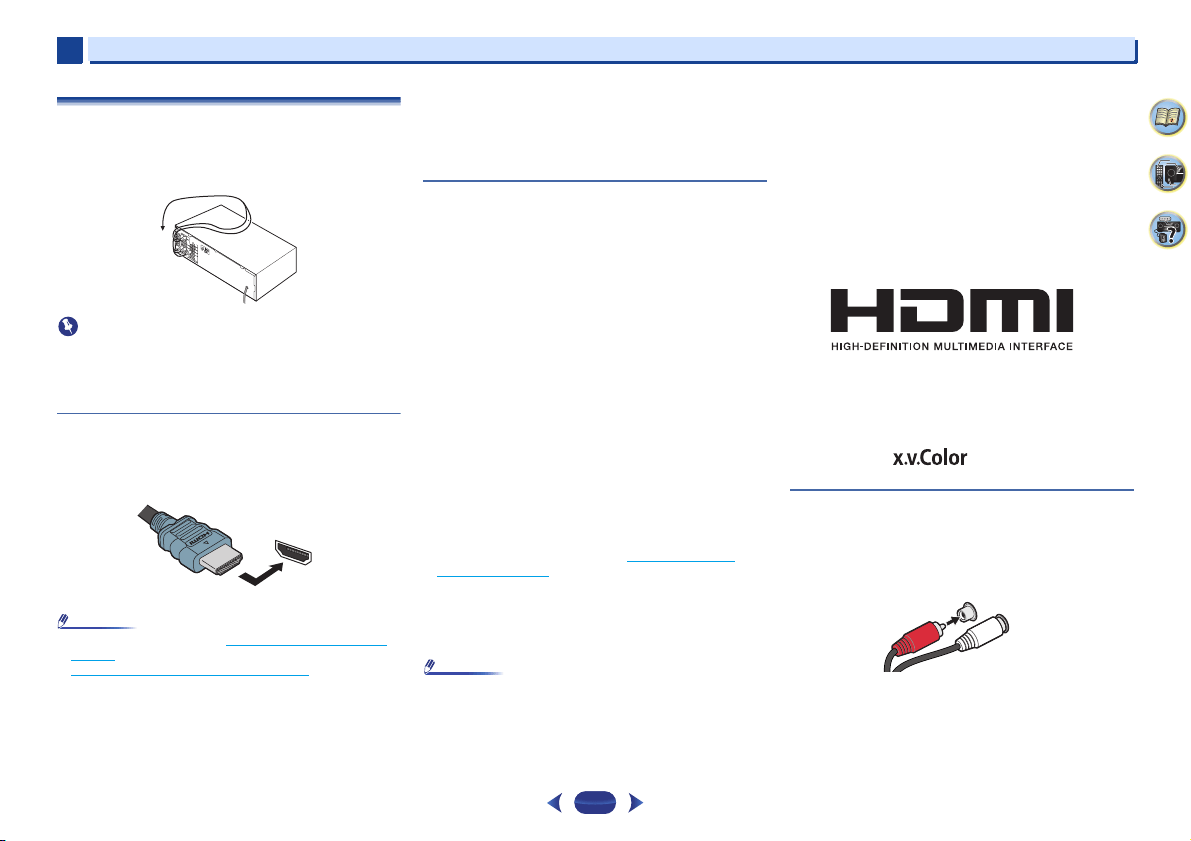
Connecting the speakers
The receiver will work with just two stereo speakers (the front
speakers in the diagram) but using at least three speakers is
recommended, and a complete setup is best for surround
sound.
Make sure you connect the speaker on the right to the right (R)
terminal and the speaker on the left to the left (L) terminal.
Also make sure the positive and negative (+/–) terminals on
the receiver match those on the speakers.
You can use speakers with a normal impedance between 6
and 16 .
Be sure to complete all connections before connecting this unit
to the AC power source.
Bare wire connections
1
Twist exposed wire strands together.
2
Loosen terminal and insert exposed wire.
3
Tighten terminal.
CAUTION
•
These speaker terminals carry HAZARDOUS LIVE voltage.
To prevent the risk of electric shock when connecting or
disconnecting the speaker cables, disconnect the power
cord before touching any uninsulated parts.
•
Make sure that all the bare speaker wire is twisted together
and inserted fully into the speaker terminal. If any of the
bare speaker wire touches the back panel it may cause the
power to cut off as a safety measure.
12 3
10 mm
LINE LEVEL
INPUT
LINE LEVEL
INPUT
FRONT
R L
SURROUND
R L
CENTER
PREOUT
SUBWOOFER
Center
Surround right
Front right Front left
Subwoofer 1
Surround left
Subwoofer 2
VSX-824
Connecting your equipment
2
2
16
4
58
9
Making cable connections
Make sure not to bend the cables over the top of this unit (as
shown in the illustration). If this happens, the magnetic field
produced by the transformers in this unit may cause a
humming noise from the speakers.
Important
•
Before making or changing connections, switch off the
power and disconnect the power cord from the AC outlet.
•
Before unplugging the power cord, switch the power into
standby.
HDMI cables
Both video and sound signals can be transmitted
simultaneously with one cable. If connecting the player and
the TV via this receiver, for both connections, use HDMI
cables.
Be careful to connect the terminal in the proper direction.
Note
•
Set the HDMI parameter in Setting the Audio options on
page 39 to THRU (THROUGH) and set the input signal in
Selecting the audio input signal
on page 26 to HDMI, if you
want to hear HDMI audio output from your TV (no sound
will be heard from this receiver).
•
If the video signal does not appear on your TV, try adjusting
the resolution settings on your component or display. Note
that some components (such as video game units) have
resolutions that may not be displayed. In this case, use a
(analog) composite connection.
•
When the video signal from the HDMI is 480i, 480p, 576i or
576p, Multi Ch PCM sound and HD sound cannot be
received.
About HDMI
The HDMI connection transfers uncompressed digital video,
as well as almost every kind of digital audio that the
connected component is compatible with, including DVD-
Video, DVD-Audio, SACD, Dolby Digital Plus, Dolby TrueHD,
DTS-HD Master Audio (see below for limitations), Video CD/
Super VCD and CD.
This receiver incorporates High-Definition Multimedia
Interface (HDMI
®
) technology.
This receiver supports the functions described below through
HDMI connections.
•
Digital transfer of uncompressed video (contents protected
by HDCP (1080p/24, 1080p/60, etc.))
•
3D signal transfer
•
Deep Color signal transfer
•
x.v.Color signal transfer
•
Audio Return Channel
•
Input of multi-channel linear PCM digital audio signals
(192 kHz or less) for up to 8 channels
•
Input of the following digital audio formats:
– Dolby Digital, Dolby Digital Plus, DTS, High bitrate audio
(Dolby TrueHD, DTS-HD Master Audio), DVD-Audio, CD,
SACD (DSD 2 ch only), Video CD, Super VCD
•
Synchronized operation with components using the
Control with HDMI function (see
Control with HDMI
function on page 56)
•
4K signal transfer
– This may not operate properly, depending on the
connected equipment.
– 4K 24p, 4K 25p, 4K 30p, 4K 50p and 4K 60p signals are
supported
Note
•
Use a High Speed HDMI
®/
™ Cable. If HDMI cable other
than a High Speed HDMI
®/
™ Cable is used, it may not work
properly.
•
When an HDMI cable with a built-in equalizer is connected,
it may not operate properly.
•
3D, Deep Color, x.v.Color, 4K signal transfer and Audio
Return Channel are only possible when connected to a
compatible component.
•
HDMI format digital audio transmissions require a longer
time to be recognized. Due to this, interruption in the audio
may occur when switching between audio formats or
beginning playback.
•
Turning on/off the device connected to this unit’s HDMI
OUT terminal during playback, or disconnecting/
connecting the HDMI cable during playback, may cause
noise or interrupted audio.
The terms HDMI and HDMI High-Definition Multimedia
Interface, and the HDMI Logo are trademarks or registered
trademarks of HDMI Licensing, LLC in the United States and
other countries.
“x.v.Color” and are trademarks of Sony
Corporation.
Analog audio cables
Use stereo RCA phono cables to connect analog audio
components. These cables are typically red and white, and
you should connect the red plugs to R (right) terminals and
white plugs to L (left) terminals.
HDMI
®
AUDIO
L
R
Red (Right)
White (Left)
Connecting your equipment
2
2
17
4
58
9
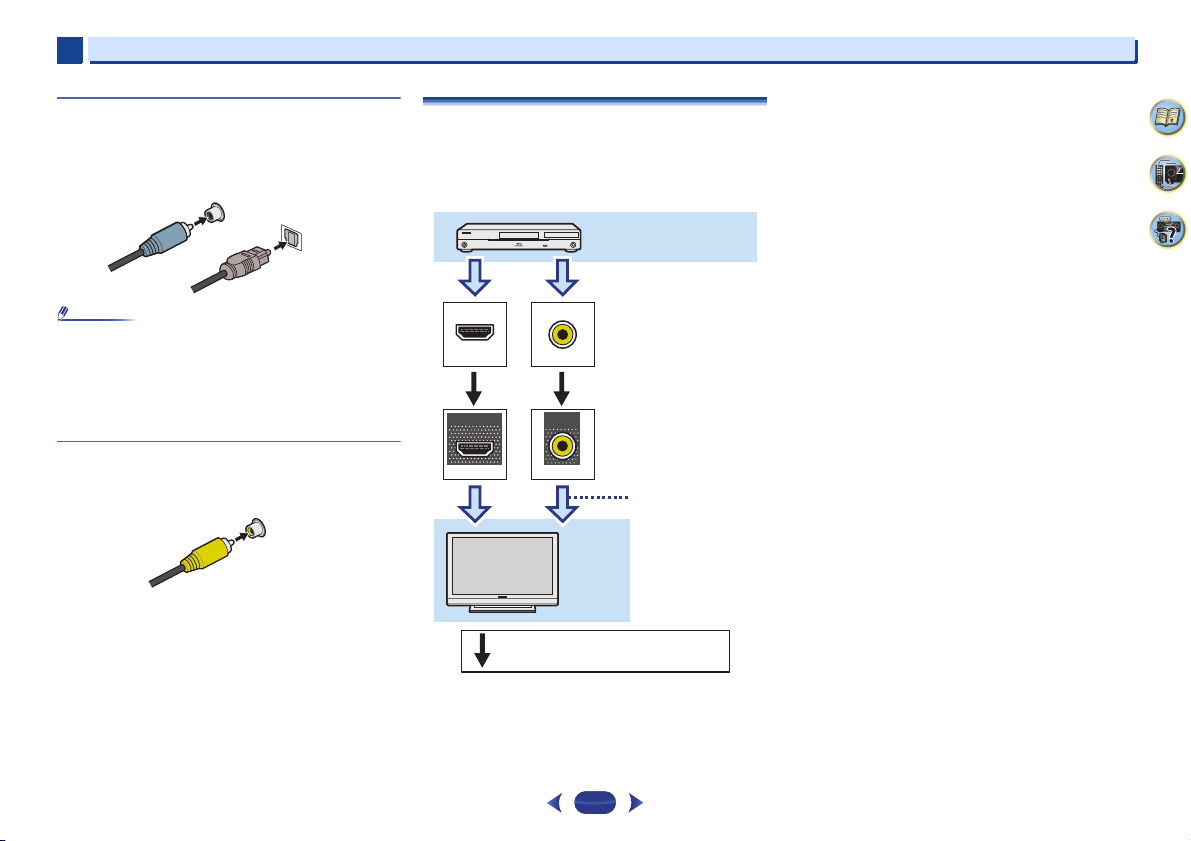
Digital audio cables
Commercially available coaxial digital audio cables or optical
cables should be used to connect digital components to this
receiver.
Note
•
When connecting optical cables, be careful when inserting
the plug not to damage the shutter protecting the optical
socket.
•
When storing optical cable, coil loosely. The cable may be
damaged if bent around sharp corners.
•
You can also use a standard RCA video cable for coaxial
digital connections.
Standard RCA video cables
These cables are the most common type of video connection
and are used to connect to the composite video terminals. The
yellow plugs distinguish them from cables for audio.
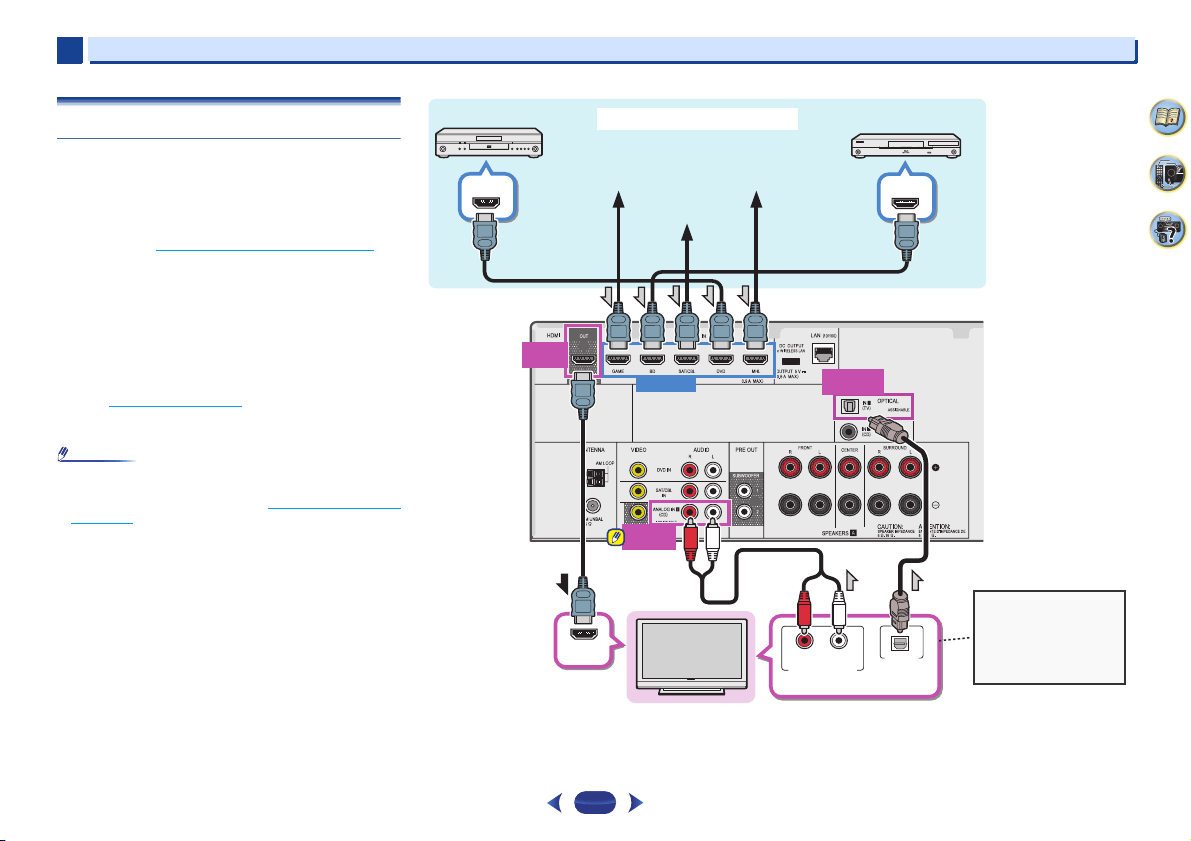
About video outputs connection
This receiver is not loaded with a video converter. When you
use HDMI cables for connecting to the input device, the same
cables should be used for connecting to the TV.
The signals input from the analog (composite) video inputs of
this unit will not be output from the HDMI OUT terminal.
COAXIAL
IN
OPTICAL
IN
Coaxial digital
audio cable
Optical cable
VIDEO
Yellow
VIDEO
VIDEO
IN
IN
HDMI
MONITOR
OUT
HDMI
OUT
Terminal for connection with
source device
Terminal for connection
with TV monitor
Playback component
TV
The OSD will
not appear.
Video signals can be output.
Connecting your equipment
2
2
18
4
58
9
Connecting a TV and playback components
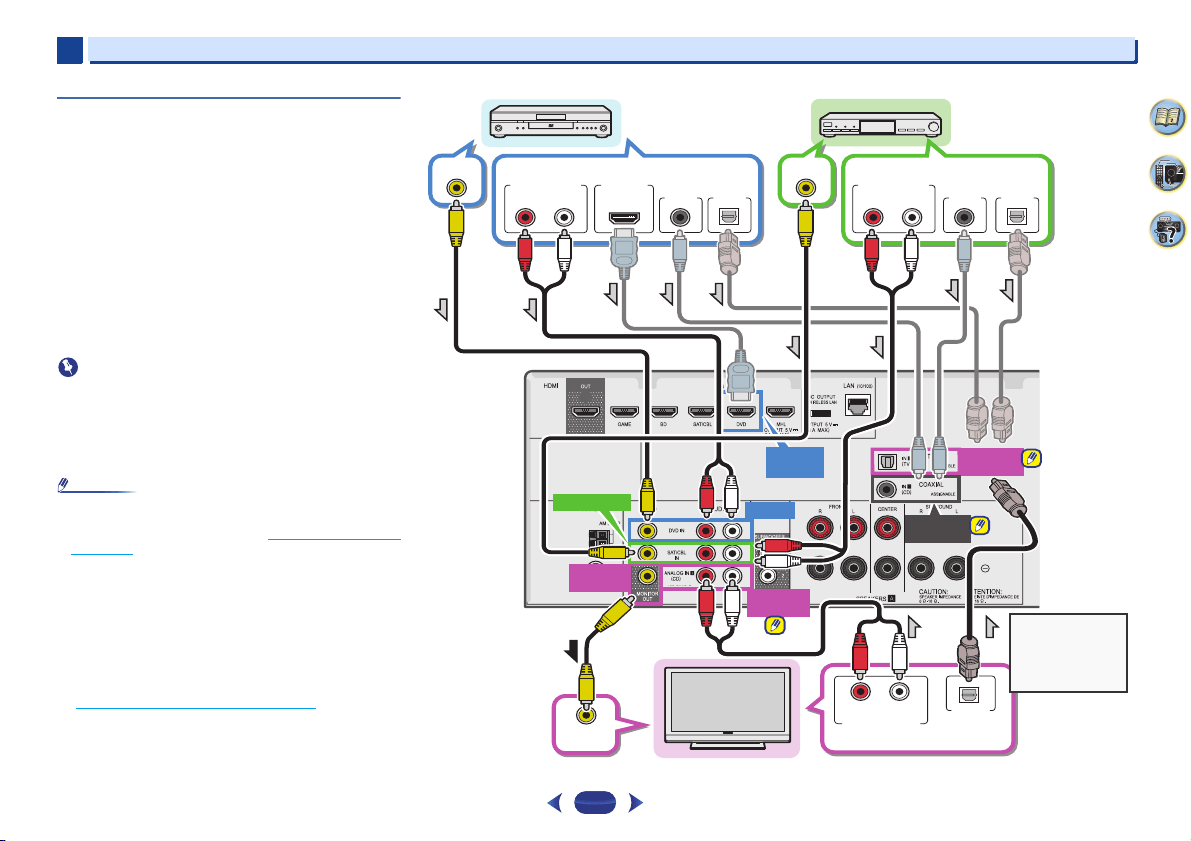
Connecting using HDMI
If you have an HDMI or DVI (with HDCP) equipped component
(Blu-ray Disc player, etc.), you can connect it to this receiver
using a commercially available HDMI cable.
If the TV and playback components support the Control with
HDMI feature, the convenient Control with HDMI functions
can be used (see
Control with HDMI function
on page 56).
•
The following connection/setting is required to listen to the
sound of the TV over this receiver.
-
If the TV does not support the HDMI Audio Return
Channel function, connect the receiver and TV with audio
cables (as shown).
-
If the TV supports the HDMI Audio Return Channel
function, the sound of the TV can be input to the receiver
via the HDMI terminal, so there is no need to connect an
audio cable. In this case, set ARC at HDMI Setup to ON
(see
HDMI Setup
on page 56).
-
Please refer to the TV’s operation manual for directions
on connections and setup for the TV.
Note
•
In order to listen to the audio from the TV that is connected
to this receiver using an analog audio cables, set-up for
analog audio input is required (see
The Input Assign menu
on page 54).
On 4K support for HDMI input terminal
Supports the following HDMI input terminals:
•
(BD, GAME, SAT/CBL)- 4K/60p, 4K/50p, 4K/30p, 4K/25p,
4K/24p.
•
(DVD, MHL, HDMI (front))- 4K/30p, 4K/25p, 4K/24p.
HDMI
OUT
ANALOG
IN1 (CD)
HDMI OUT
HDMI IN
DIGITAL AUDIO OUT
OPTICAL
HDMI OUT
HDMI IN
RL
ANALOG AUDIO OUT
OPTICAL
IN1 (TV)
Select one
HDMI/DVI-compatible TV
Game console
DVD player
Blu-ray Disc player
Set-top box
HDMI/DVI-compatible components
If the TV does not support
the HDMI Audio Return
Channel function, this
connection is required to
listen to the TV sound over
the receiver.
DVD recorder, Blu-ray
Disc recorder MHL-
compatible device
VSX-824
Connecting your equipment
2
2
19
4
58
9
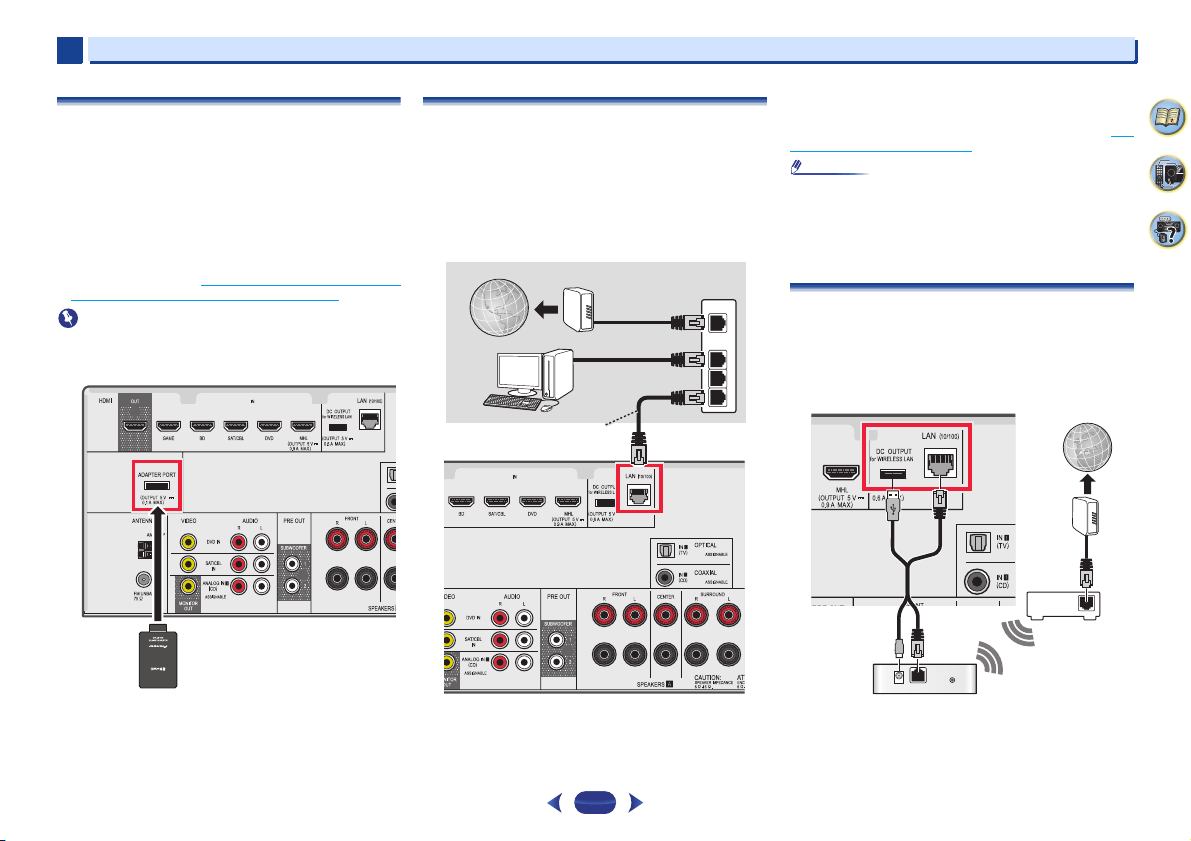
Connecting your TV with no HDMI input
This diagram shows connections of a TV (with no HDMI input)
and DVD player (or other playback component) to the receiver.
•
With these connections, the picture is not output to the TV
even if the DVD player is connected with an HDMI cable.
Connect the DVD player’s video signals using a composite
cable.
•
In order to listening to HD audio with this receiver, connect
an HDMI cable, and use analog video cable for video signal
input.
Depending on the player, it may not be possible to output
video signals to both HDMI and other video output
(composite, etc.) simultaneously, and it may be necessary
to make video output settings. Please refer to the
operating instructions supplied with your player for more
information.
Important
•
When the receiver and TV are connected by composite
cable, the OSD function allowing display of the receiver’s
settings, operations, etc., on the TV’s screen cannot be
used. In this case, watch the receiver’s front panel display
while performing the various operations and making
settings.
Note
•
In order to listen to the audio from the TV that is connected
to this receiver using a analog audio cables, set-up for
analog audio input is required (see
The Input Assign menu
on page 54).
•
Only one component can be connected to both the optical
input terminal and coaxial input terminal. If connecting
other devices, please use a different method to connect the
audio.
In order to listen to the audio from the source component
that is connected to this receiver using an optical cable or
a coaxial cable, first, switch to the DVD (DVD player) or
SAT/CBL (set-top box), then use
S. SEL
to choose the
audio signal O1 (OPTICAL1) or C1 (COAXIAL1) (see
Selecting the audio input signal
on page 26).
ANALOG
IN1 (CD)
VIDEO IN
DIGITAL AUDIO OUT
OPTICAL
RL
ANALOG AUDIO OUT
OPTICAL
IN1 (TV)
DVD IN
SAT/CBL IN
VIDEO OUT
DIGITAL AUDIO OUT
OPTICALCOAXIAL
RL
ANALOG AUDIO OUT
RL
ANALOG AUDIO OUT
VIDEO OUT
COAXIAL
IN1 (CD)
MONITOR
OUT
DIGITAL AUDIO OUT
OPTICALCOAXIAL
HDMI OUT
HDMI
DVD IN
Select one
Select one
Select one
TV
DVD player
Set-top box
This connection is
required in order to
listen to the sound
of the TV over the
receiver.
VSX-824
Connecting your equipment
2
2
20
4
58
9
Connecting optional
Bluetooth
® ADAPTER
(VSX-529 only)
When the Bluetooth ADAPTER (Pioneer Model No. AS-BT100
or AS-BT200) is connected to this unit, a product equipped
with Bluetooth wireless technology (portable cell phone,
digital music player, etc.) can be used to listen to music
wirelessly.
Connect a Bluetooth ADAPTER to the ADAPTER PORT
terminal on the rear panel.
•
For instructions on playing the Bluetooth wireless
technology device, see
Pairing the
Bluetooth ADAPTER and
Bluetooth wireless technology device on page 33.
Important
•
Do not move the receiver with the Bluetooth ADAPTER
connected. Doing so could cause damage or faulty contact.
Connecting to the network through LAN
interface
By connecting this receiver to the network via the LAN
terminal, you can listen to Internet radio stations. To listen to
Internet radio stations, you must sign a contract with an ISP
(Internet Service Provider) beforehand.
When connected in this way, you can play audio files stored
on the components on the local network, including your
computer.
Connect the LAN terminal on this receiver to the LAN terminal
on your router (with or without the built-in DHCP server
function) with a straight LAN cable (CAT 5 or higher).
Turn on the DHCP server function of your router. In case your
router does not have the built-in DHCP server function, it is
necessary to set up the network manually. For details, see
The
Network Setup menu on page 44.
Note
•
Refer to the operation manual of the equipment you have as
the connected equipment and connection method may
differ depending on your Internet environment.
•
When using a broadband Internet connection, a contract
with an Internet service provider is required. For more
details, contact your nearest Internet service provider.
Connecting to a wireless LAN
Wireless connection to the network is possible through a
wireless LAN connection. Use the separately sold AS-WL300
for connection.
For details, refer to the operating instructions of the wireless
LAN converter.
Bluetooth
®
ADAPTER
VSX-529
WAN
3
2
1
LAN
to LAN port
LAN cable (sold
separately)
Router
Modem
Internet
VSX-824
Computer
DC 5V WPS
Ethernet
WAN
FM
75
Internet
Modem
Router
Wireless LAN converter (AS-WL300)
Connecting your equipment
2
2
21
4
58
9
Connecting antennas
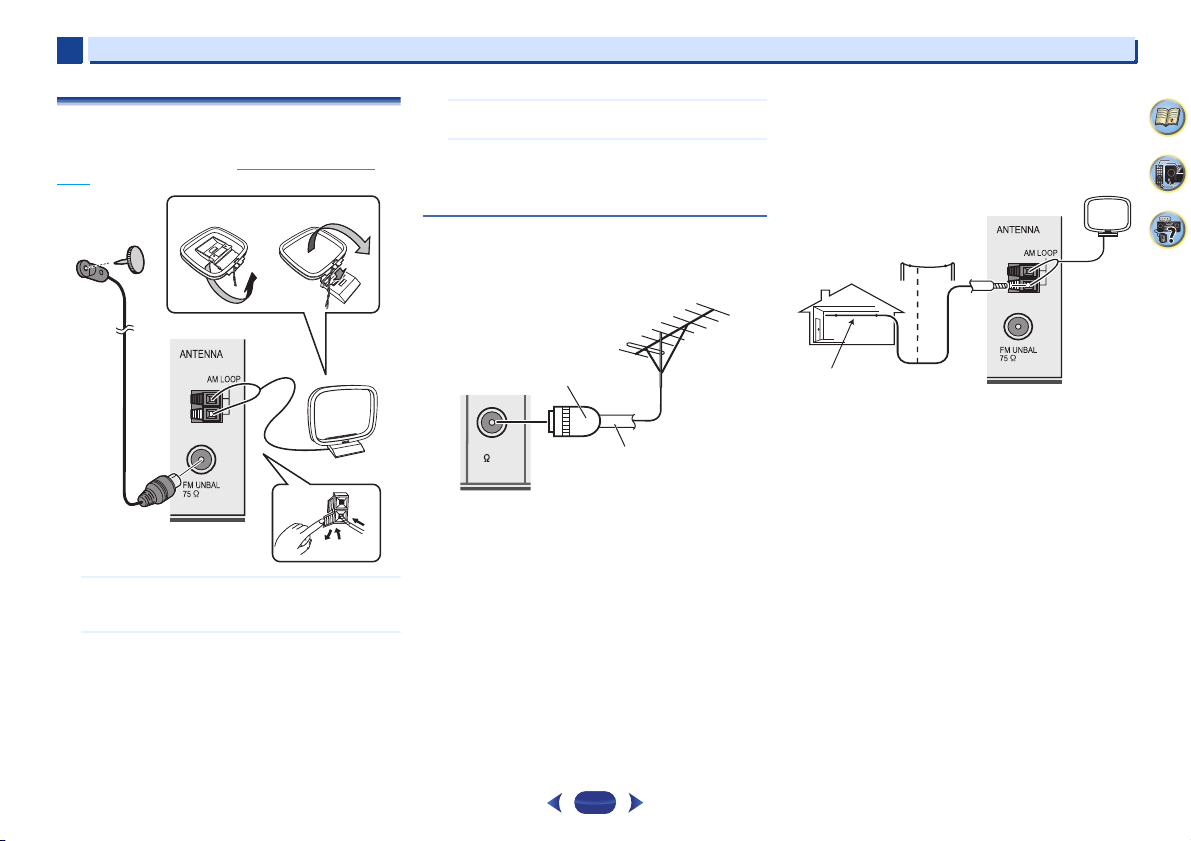
Connect the AM loop antenna and the FM wire antenna as
shown below. To improve reception and sound quality,
connect external antennas (see
Using external antennas
below).
1
Push open the tabs, then insert one wire fully into each
terminal, then release the tabs to secure the AM
antenna wires.
2
Fix the AM loop antenna to the attached stand.
To fix the stand to the antenna, bend in the direction
indicated by the arrow (fig. a) then clip the loop onto the
stand (fig. b).
3
Place the AM antenna on a flat surface and in a
direction giving the best reception.
4
Connect the FM wire antenna into the FM antenna
socket.
For best results, extend the FM antenna fully and fix to a
wall or door frame. Don’t drape loosely or leave coiled up.
Using external antennas
To improve FM reception
Use a PAL connector (not supplied) to connect an external FM
antenna.
To improve AM reception
Connect a 5 m to 6 m length of vinyl-coated wire to the AM
antenna terminal without disconnecting the supplied AM
loop antenna.
For the best possible reception, suspend horizontally
outdoors.
2
1
3
4
fig. a
fig. b
FM UNBAL
75
75 coaxial cable
One-touch PAL
connector
Outdoor
antenna
5 m to 6 m
Indoor antenna
(vinyl-coated
wire)
Connecting your equipment
2
2
22
4
58
9
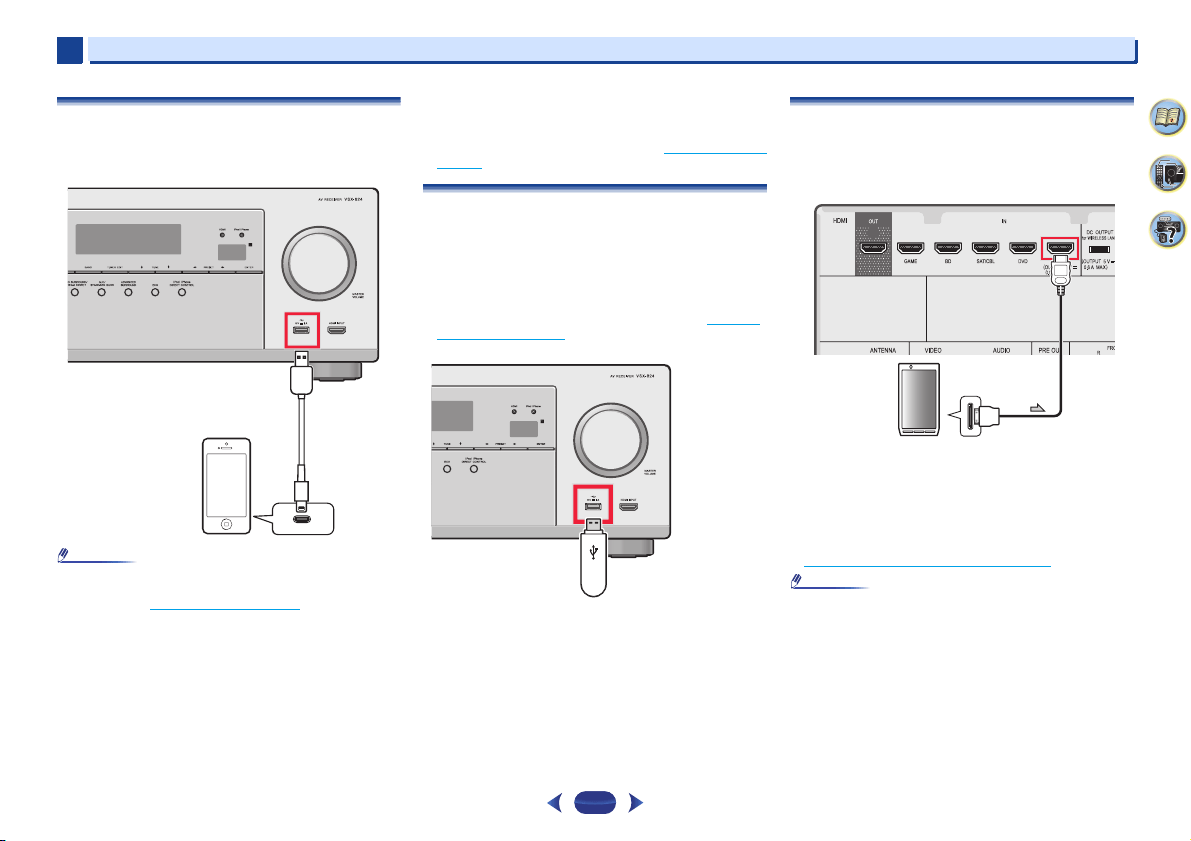
Connecting an iPod
This receiver has a dedicated iPod/iPhone terminals that will
allow you to control playback of audio content from your iPod
using the controls of this receiver.
Note
•
An iPod/iPhone can be connected to the receiver. For
details on supported models and versions of the respective
products, see
Playing an iPod
on page 28.
Switch the receiver into standby, and then use the iPod
cable to connect your iPod to the iPod/iPhone terminals
on the front panel of this receiver.
•
For the cable connection, also refer to the operating
instructions for your iPod.
•
When connecting an iPhone to this unit, keep the iPhone
at least 20 cm away from this unit. If the iPhone is kept
closer to this unit and a telephone call is received by the
iPhone, noise may be output from this device.
•
iPod recharging occurs whenever an iPod is connected to
this unit. (Recharging is enabled only when the unit’s
power is turned on.)
•
For instructions on playing the iPod, see Playing an iPod on
page 28.
Connecting a USB device
It is possible to play audio and photo files by connecting USB
devices to this receiver.
Switch the receiver into standby then connect your USB
device to the iPod/iPhone terminals on the front panel of
this receiver.
•
This receiver does not support a USB hub.
•
For instructions on playing the USB device, see Playing a
USB device on page 28.
Connecting a MHL-compatible device
An MHL-compatible mobile device can be connected to enjoy
full-HD videos, high quality multi-channel audio, and photos
etc., with charge the battery on the receiver. Use the MHL
cable (sold separately) to connect the device.
Switch the receiver into standby then use the MHL cable
(sold separately) to connect your MHL enabled device to
the MHL terminal on the front panel of this receiver.
•
The MHL-compatible device is recharged whenever it is
connected to this unit. (Recharging is enabled only when
the unit’s power is turned on.)
•
For instructions on playing the MHL-compatible device, see
Playing a MHL-compatible device
on page 30.
Note
•
Do not place the MHL device on this unit which has the
power turned ON.
iPod/iPhone
USB cable that
comes with the iPod
USB mass
storage device
MHL-compatible
device
MHL cable (sold
separately)
Connecting your equipment
2
2
23
4
58
9
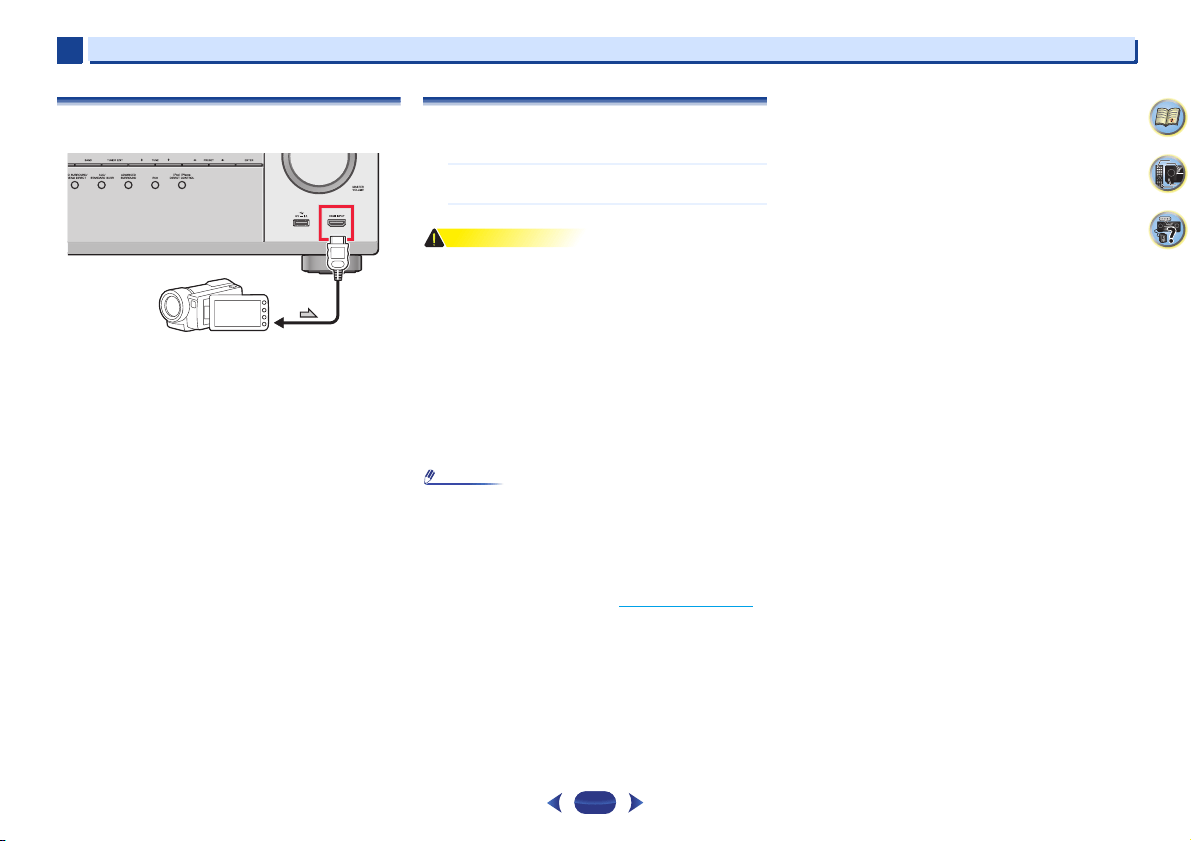
Connecting an HDMI-equipped component to
the front panel input
Plugging in the receiver
Only plug in after you have connected all your components to
this receiver, including the speakers.
1
Plug the supplied power cord into the AC IN socket on
the back of the receiver.
2
Plug the other end into a power outlet.
CAUTION
•
Handle the power cord by the plug. Do not pull out the plug
by tugging the cord and never touch the power cord when
your hands are wet as this could cause a short circuit or
electric shock. Do not place the unit, a piece of furniture,
etc., on the power cord, or pinch the cord. Never make a
knot in the cord or tie it with other cords. The power cords
should be routed such that they are not likely to be stepped
on. A damaged power cord can cause a fire or give you an
electrical shock. Check the power cord once in a while.
When you find it damaged, ask your nearest PIONEER
authorized service center or your dealer for a replacement.
•
The receiver should be disconnected by removing the
mains plug from the wall socket when not in regular use,
e.g., when on vacation.
Note
•
After this receiver is connected to an AC outlet, a 2 second
to 10 second HDMI initialization process begins. You
cannot carry out any operations during this process. The
HDMI indicator in the front panel display blinks during this
process, and you can turn on this receiver once it has
stopped blinking. When you set the Control with HDMI to
OFF, you can skip this process. For details about the
Control with HDMI feature, see
HDMI Setup
on page 56.
Video camera (etc.)
3
Chapter
3
24
4
58
9
Basic Setup
Canceling the Auto Power Down
When this receiver is not used over a period of several hours,
it will power down automatically. The automatic power-off
timer is set to 15 minutes under factory settings, and the
timing can be changed or the power-off function switched off
altogether. For details, see
The Auto Power Down menu
on
page 54.
Automatically setting up for surround sound
(MCACC)
The Auto Multi-Channel ACoustic Calibration (MCACC) setup
measures the acoustic characteristics of your listening area,
taking into account ambient noise, speaker size and distance,
and tests for both channel delay and channel level. After you
have set up the microphone provided with your system, the
receiver uses the information from a series of test tones to
optimize the speaker settings and equalization for your
particular room.
CAUTION
•
The test tones used in the Auto MCACC setup are output at
high volume.
Important
•
The OSD will not appear if you have connected using the
composite output to your TV. Use HDMI connection for
Auto MCACC setup.
•
The Auto MCACC setup will overwrite any existing speaker
settings you’ve made.
•
Before using the Auto MCACC setup, the NETRADIO,
M.SERVER, FAVORITE, iPod/USB or ADAPTER input
should not be selected as an input source.
1
Switch on the receiver and your TV.
2
Switch the TV input to the input that connects this
receiver to the TV through the corresponding HDMI
cable.
3
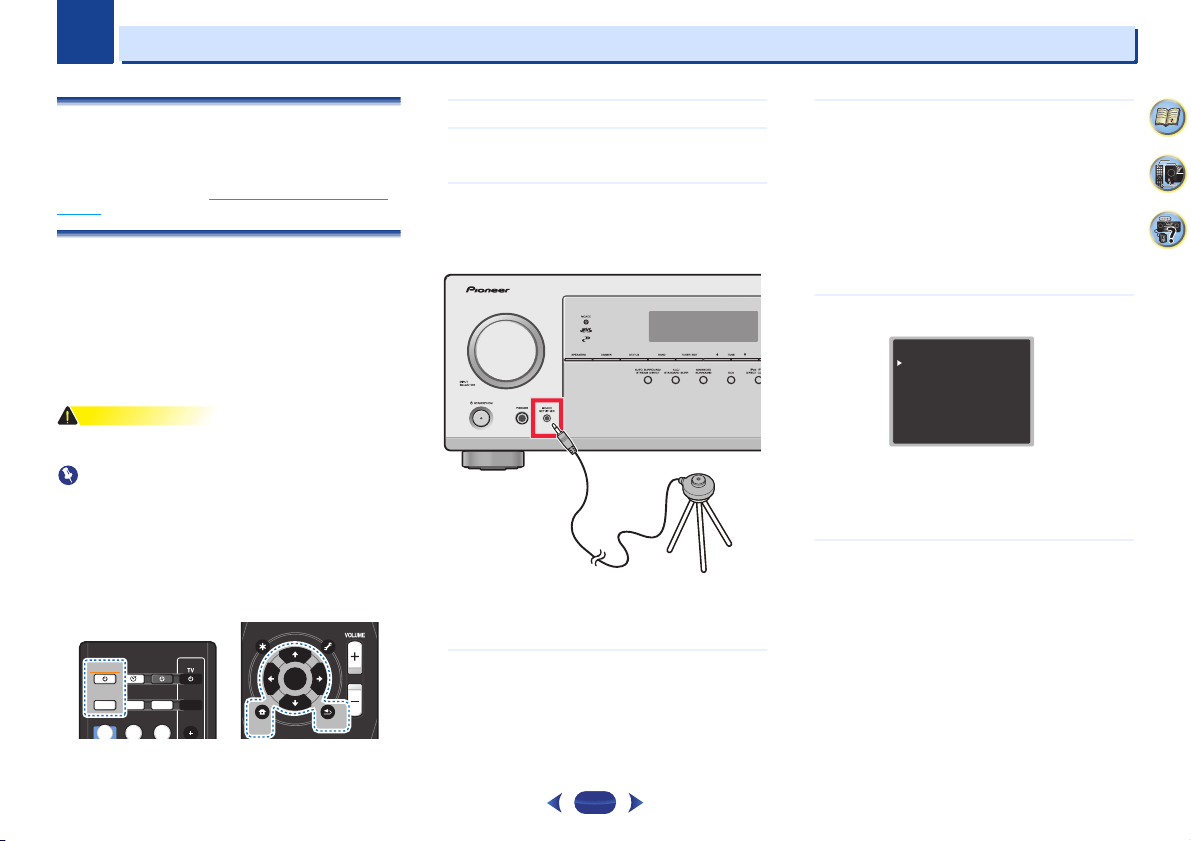
Connect the microphone to the MCACC SETUP MIC jack
on the front panel.
Make sure there are no obstacles between the speakers
and the microphone.
If you have a tripod, use it to place the microphone so that
it’s about ear level at your normal listening position.
Otherwise, place the microphone at ear level using a
table or a chair.
4
Press BD button on the remote control to switch to BD
entry.
5
Press
RECEIVER
on the remote control, then press the
HOME MENU
button.
The Home Menu appears on your TV. Use
///
and
ENTER
on the remote control to navigate through the
screens and select menu items. Press
RETURN
to exit
the current menu.
•
Press
HOME MENU
at any time to exit the Home
Menu. If you cancel the Auto MCACC setup at any
time, the receiver automatically exits and no settings
will be made.
•
The screensaver automatically starts after three
minutes of inactivity.
6
Select ‘Auto MCACC’ from the Home Menu, then press
ENTER
.
•
Mic In! blinks when the microphone is not connected
to MCACC SETUP MIC jack.
Try to be as quiet as possible after pressing
ENTER
. The
system outputs a series of test tones to establish the
ambient noise level.
7
Follow the instructions on-screen.
•
Make sure the microphone is connected.
•
Make sure the subwoofer is on and the volume is
turned up.
•
See below for notes regarding background noise and
other possible interference.
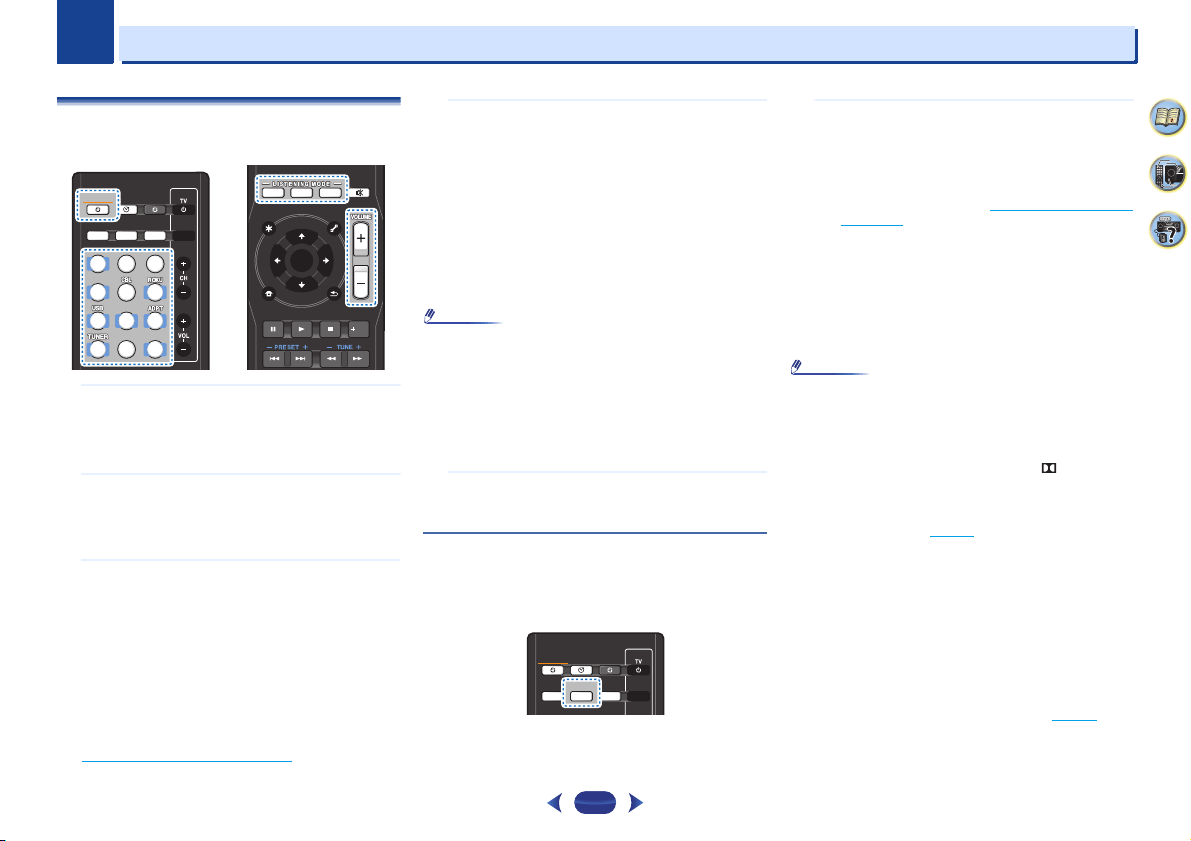
SLEEP
INPUTCTRL
BD GAME HDMI
S.SEL ECO
STANDBY/ON
RECEIVER SIGNAL SEL
SOURCE
STANDBY/ON
RECEIVER
CTRL
ENTER
RETURN
AUDIO
P
.
TOP
MENU
HOME
MENU
TOOLS
MENU
BAND PTY
ENTER
RETURN
HOME
MENU
Tripod
Microphone
Home Menu
1
. Auto MCACC
2
. Manual SP Setup
3
. Input Assign
4. Auto Power Down
5. HDMI Setup
6. Network Standby
7. MHL Setup
8. OSD Setup
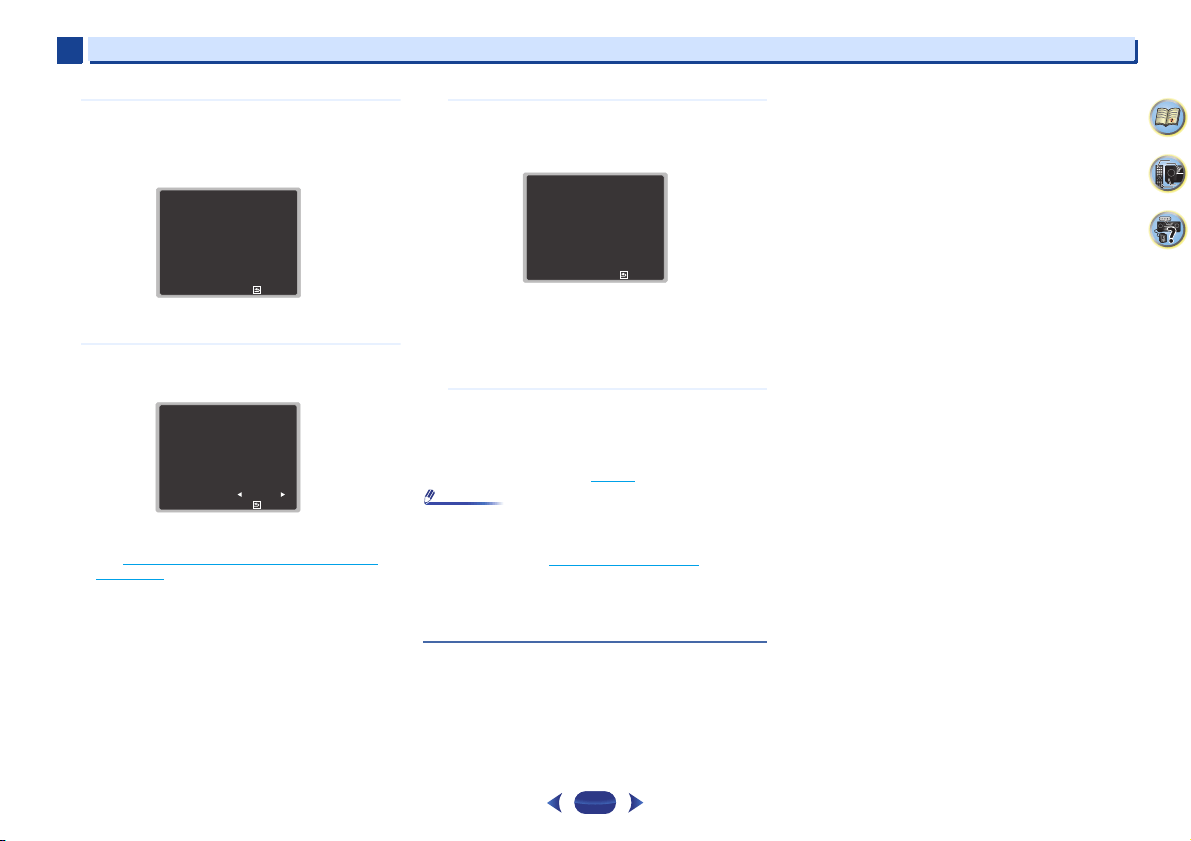
Basic Setup
3
3
25
4
58
9
8
Wait for the test tones to finish.
A progress report is displayed on-screen while the
receiver outputs test tones to determine the speakers
present in your setup. Try to be as quiet as possible while
it’s doing this.
•
For correct speaker settings, do not adjust the volume
during the test tones.
9
Confirm the speaker configuration.
The configuration shown on-screen should reflect the
actual speakers you have.
•
With error messages (such as Too much ambient
noise) select RETRY after checking for ambient noise
(see
Other problems when using the Auto MCACC
setup below).
If the speaker configuration displayed isn’t correct, use
/
to select the speaker and
/
to change the
setting. When you’re finished, go to the next step.
If you see an error message (ERR) in the right side
column, there may be a problem with the speaker
connection. If selecting RETRY doesn’t fix the problem,
turn off the power and check the speaker connections.
10
Make sure ‘OK’ is selected, then press
ENTER
.
If the screen in step 9 is left untouched for 10 seconds
and
ENTER
is not pressed in step 10, the Auto MCACC
setup will start automatically as shown.
A progress report is displayed on-screen while the
receiver outputs more test tones to determine the
optimum receiver settings for channel level, speaker
distance, X.Over, and Acoustic Calibration EQ.
Again, try to be as quiet as possible while this is
happening. It may take 1 to 3 minutes.
11
The Auto MCACC setup has finished! You return to the
Home Menu.
The settings made in the Auto MCACC setup should give
you excellent surround sound from your system, but it is
also possible to adjust these settings manually using the
Home Menu (starting on
page 52
).
Note
•
Depending on the characteristics of your room, sometimes
identical speakers with cone sizes of around 12 cm will end
up with different size settings. You can correct the setting
manually using the
Speaker Setting
on page 52.
•
The subwoofer distance setting may be farther than the
actual distance from the listening position. This setting
should be accurate (taking delay and room characteristics
into account) and generally does not need to be changed.
Other problems when using the Auto MCACC
setup
If the room environment is not optimal for the Auto MCACC
setup (too much background noise, echo off the walls,
obstacles blocking the speakers from the microphone) the
final settings may be incorrect. Check for household
appliances (air conditioner, fridge, fan, etc.), that may be
affecting the environment and switch them off if necessary. If
there are any instructions showing in the front panel display,
please follow them.
•
Some older TVs may interfere with the operation of the
microphone. If this seems to be happening, switch off the
TV when doing the Auto MCACC setup.
1
. Auto MCACC
Now Analyzing
Environment Check
Ambient Noise
Speaker YES/NO
Return
1
. Auto MCACC
Check
OK
Return
10:Next
Front
Center
Surr
Subwoofer
[ YES ]
[ YES ]
[ YES ]
[ YES ]
1
. Auto MCACC
Now Analyzing
Surround Analyzing
Speaker System
X.Over
Speaker Distance
Channel Level
Acoustic Cal EQ
Return
4
Chapter
4
26
4
58
9
Basic playback
Playing a source
Here are the basic instructions for playing a source (such as
a DVD disc) with your home theater system.
1
Switch on your system components and receiver.
Start by switching on the playback component (for
example a DVD player), your TV and subwoofer (if you
have one), then the receiver (press
STANDBY/ON
).
•
Make sure the setup microphone is disconnected.
2
Switch the TV input to the input that connects this
receiver.
For example, if you connected this receiver to the VIDEO
jacks on your TV, make sure that the VIDEO input is now
selected.
3
Press input function buttons to select the input function
you want to play.
•
The input of the receiver will switch over, and you will
be able to operate other components using the remote
control. To operate the receiver, first press
RECEIVER
on the remote control, then press the appropriate
button to operate.
•
The input source can also be selected by using the
front panel
INPUT SELECTOR
dial. In this case, the
remote control won’t switch operational modes.
If you selected the proper input source and there is still
no sound, select the audio input signal for playback (see
Selecting the audio input signal
below).
4
Press
AUTO
to select ‘AUTO SURROUND’ and start
playback of the source.
If you’re playing a Dolby Digital or DTS surround sound
DVD disc, with a digital audio connection, you should
hear surround sound. If you’re playing a stereo source or
if the connection is an analog audio connection, you will
only hear sound from the front left/right speakers in the
default listening mode.
It is possible to check on the front panel display whether
or not surround sound playback is being performed
properly.
If the display does not correspond to the input signal and
listening mode, check the connections and settings.
Note
•
You may need to check the digital audio output settings on
your DVD player or digital satellite receiver. It should be set
to output Dolby Digital, DTS and 88.2 kHz/96 kHz PCM (2
channel) audio, and if there is an MPEG audio option, set
this to convert the MPEG audio to PCM.
•
Depending on your DVD player or source discs, you may
only get digital 2 channel stereo and analog sound. In this
case, the receiver must be set to a multichannel listening
mode if you want multichannel surround sound.
5
Use
VOLUME +/–
to adjust the volume level.
Turn down the volume of your TV so that all sound is
coming from the speakers connected to this receiver.
Selecting the audio input signal
The audio input signal can be selected for each input source.
Once it is set, the audio input that was selected will be applied
whenever you select the input source using the input function
buttons.
Press
SIGNAL SEL
to select the audio input signal
corresponding to the source component.
Each press cycles through the following:
•
H – Selects an HDMI signal. H can be selected for BD,
DVD, SAT/CBL, MHL or GAME input. For other inputs,
H cannot be selected.
-
When the HDMI option in Setting the Audio options
on page 39 is set to THRU, the sound will be heard
through your TV, not from this receiver.
•
A – Selects the analog inputs.
•
C1/O1 – Selects the digital input. The coaxial 1 input is
selected for C1, and the optical 1 audio input is
selected for O1.
When H (HDMI) or C1/O1 (digital) is selected and the
selected audio input is not provided, A (analog) is
automatically selected.
Note
•
BD, MHL and GAME inputs are fixed to H (HDMI). It cannot
be changed.
•
For the TV input, only A (analog) or C1/O1 (digital) can be
selected. However, if the ARC at HDMI Setup is set to ON,
the input is fixed to H (HDMI) and cannot be changed.
•
When set to H (HDMI) or C1/O1 (digital), lights when
a Dolby Digital signal is input, and DTS lights when a DTS
signal is input.
•
When the H (HDMI) is selected, the A and DIGITAL
indicators are off (see
page 10
).
•
When digital input (optical or coaxial) is selected, this
receiver can only play back Dolby Digital, PCM (32 kHz to
96 kHz) and DTS (including DTS 96 kHz/24 bit) digital signal
formats. The compatible signals via the HDMI terminals
are: Dolby Digital, DTS, SACD (DSD 2 ch only), PCM
(32 kHz to 192 kHz sampling frequencies), Dolby TrueHD,
Dolby Digital Plus, DTS-EXPRESS, DTS-HD Master Audio
and DVD Audio (including 192 kHz). With other digital
signal formats, set to A (analog).
•
You may get digital noise when a LD or CD player
compatible with DTS is playing an analog signal. To prevent
noise, make the proper digital connections (
page 17
) and
set the signal input to C1/O1 (digital).
SLEEP
INPUTCTRL
BD
DVD
iPod
TUN
GAME
SAT
CD
TV
HDMI
MHL
BT
NET
S.SEL ECO
STANDBY/ON
RECEIVER SIGNAL SEL
SOURCE
BD
DVD
iPod
TUN
GAME
SAT
CD
TV
HDMI
MHL
BT
NET
STANDBY/ON
MUTE
AUTO SURR ADV
ENTER
Fav
RETURN
AUDIO P.
TOP
MENU
HOME
MENU
TOOLS
MENU
BAND PTY
AUTO SURR ADV
SLEEP
INPUTCTRL S.SEL ECO
STANDBY/ON
RECEIVER SIGNAL SEL
SOURCE
S.SEL
SIGNAL SEL
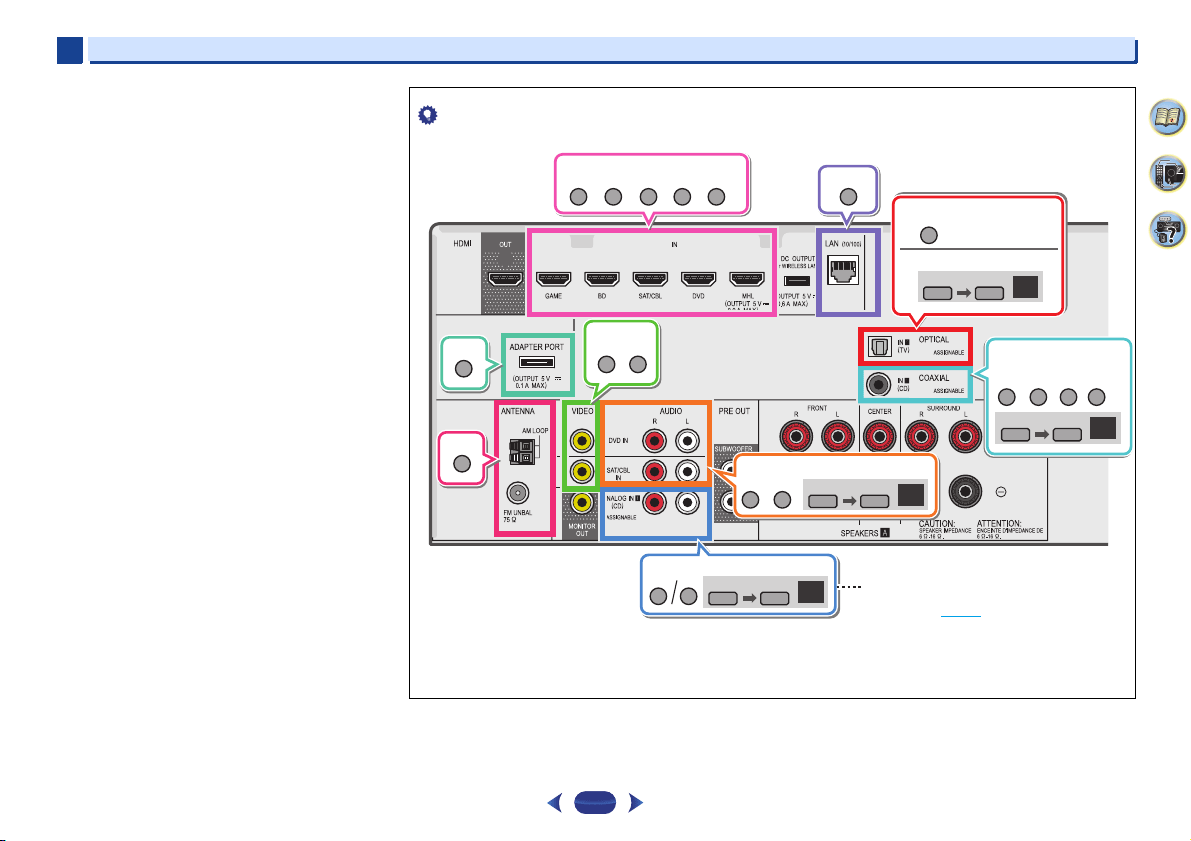
Basic playback
4
4
27
4
58
9
•
Some DVD players don’t output DTS signals. For more
details, refer to the instruction manual supplied with your
DVD player.
Tip
•
In order to enjoy the picture and/or sound from devices connected to each terminal, select the input by doing the following.
DVD BD
TUNER
ADAPTER
SAT/CBL
DVD
SAT/CBL
DVD
SAT/CBL
GAME MHL NETWORK
A
CD
TV
A
RECEIVER
SIGNAL SEL
A
RECEIVER
SIGNAL SEL
DVD
SAT/CBL
C1
TV
1.
2.
CD
TV
RECEIVER
SIGNAL SEL
O1
RECEIVER
SIGNAL SEL
S.SELCTRL
S.SELCTRL
S.SELCTRL
S.SELCTRL
Audio
Audio
Audio
Audio
Video/Audio (HDMI)
Video
Other than TV input
(TV input)
ANALOG IN1 audio input terminal is
assigned to CD under factory settings. If
you want to change this to TV input,
please change the settings in the Input
Assign menu (
page 54).
VSX-529
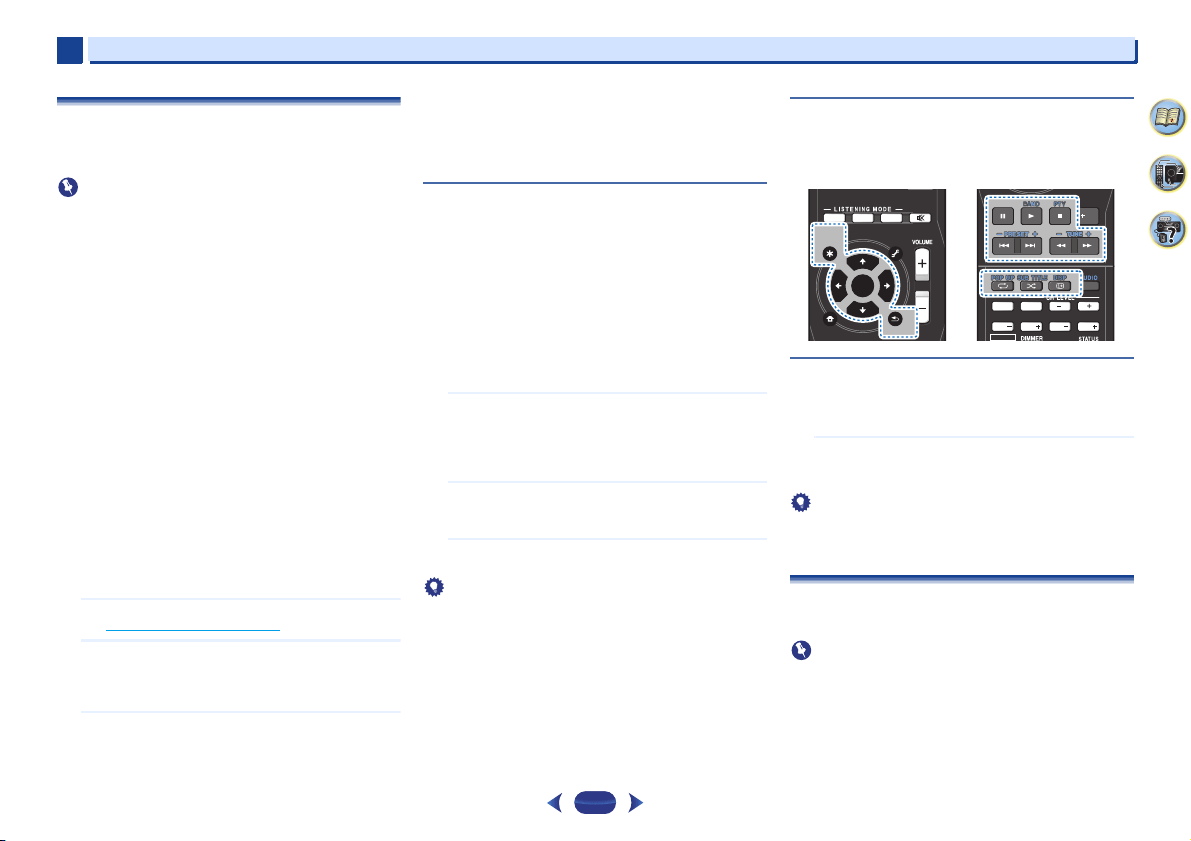
Basic playback
4
4
28
4
58
9
Playing an iPod
This receiver has the iPod iPhone USB terminal that will allow
you to control playback of audio content from your iPod using
the controls of this receiver.
Important
•
Pioneer cannot under any circumstances accept
responsibility for any direct or indirect loss arising from any
inconvenience or loss of recorded material resulting from
the iPod failure.
•
About one minute is required between turning the power
on and completion of startup.
•
USB works with iPhone 5s, iPhone 5c, iPhone 5, iPhone 4s,
iPhone 4, iPhone 3GS, iPhone 3G, iPhone, iPod touch (1st
through 5th generation) and iPod nano (3rd through 7th
generation). However, some of the functions may be
restricted for some models.
•
This receiver has been developed and tested for the
software version of iPod/iPhone indicated on the website of
Pioneer (http://pioneer.jp/homeav/support/ios/eu/).
•
Installing software versions other than indicated on the
website of Pioneer to your iPod/iPhone may result in
incompatibility with this receiver.
•
iPod and iPhone are licensed for reproduction of non-
copyrighted materials or materials the user is legally
permitted to reproduce.
•
Features such as the equalizer cannot be controlled using
this receiver, and we recommend switching the equalizer
off before connecting.
•
Make sure the receiver is in standby when disconnecting
the iPod/iPhone.
1
Switch on the receiver and your TV.
See Connecting an iPod on page 22.
2
Switch the TV input so that it connects to the receiver.
•
Switch the TV input to the input that connects this
receiver to the TV through the corresponding HDMI
cable.
3
Press
iPod USB
to switch the receiver to the iPod/USB
input.
When the display shows the names of folders and files,
you’re ready to play music from the iPod.
•
If after pressing
iPod USB
the display shows NO
DEVICE, try switching off the receiver and
reconnecting the iPod to the receiver.
•
The controls of your iPod will be inoperable when
connected to this receiver.
Playing back files stored on an iPod
To navigate songs on your iPod, you can take advantage of the
OSD of your TV connected to this receiver.
•
Note that non-roman characters in the title are displayed as
‘#’.
•
This feature is not available for photos or video clips on your
iPod.
Finding what you want to play
When your iPod is connected to this receiver, you can browse
songs stored on your iPod by playlist, artist, album name,
song name, genre or composer, similar to using your iPod
directly.
1
Use
/
to select a category, then press
ENTER
to
browse that category.
•
When or is pressed at the list screen, the
page switches.
•
To return to the previous level any time, press
RETURN
.
2
Use
/
to browse the selected category (e.g.,
albums).
•
Use
/
to move to previous/next levels.
3
Continue browsing until you arrive at what you want to
play, then press
to start playback.
Tip
•
If you’re in the song category, you can also press
ENTER
to
start playback.
•
You can play all of the songs in a particular category by
selecting the All item at the top of each category list. For
example, you can play all the songs by a particular artist.
Basic playback controls
This receiver’s remote control buttons can be used for basic
playback of files stored on an iPod.
•
Press
iPod USB
to switch the remote control to the iPod/
USB operation mode.
Switches between the iPod controls and the
receiver controls
This allows you to switch between performing iPod operations
via the receiver remote control or on the iPod itself.
Press
HOME MENU
to switch to the iPod controls.
•
Press
HOME MENU
again to switch back to the receiver
controls when you’re done.
Tip
•
Change the receiver’s input to the iPod in one action by
pressing
iPod iPhone DIRECT CONTROL
on the front
panel to enable iPod operations on the iPod.
Playing a USB device
It is possible to play files using the USB interface on the front
of this receiver.
Important
•
Pioneer cannot guarantee compatibility (operation and/or
bus power) with all USB mass storage devices and
assumes no responsibility for any loss of data that may
occur when connected to this receiver.
•
About one minute is required between turning the power
on and completion of startup.
MUTE
AUTO SURR ADV
ENTER
RETURN
AUDIO P.
TOP
MENU
HOME
MENU
TOOLS
MENU
BAND PTY
ENTER
RETURN
AUDIO P.
TOP
MENU
CLR
SB CH
CH SEL
Fav
RETURNHOME
MENU
SHIFT
BASS
BASS
TRE TRE
BAND PTY
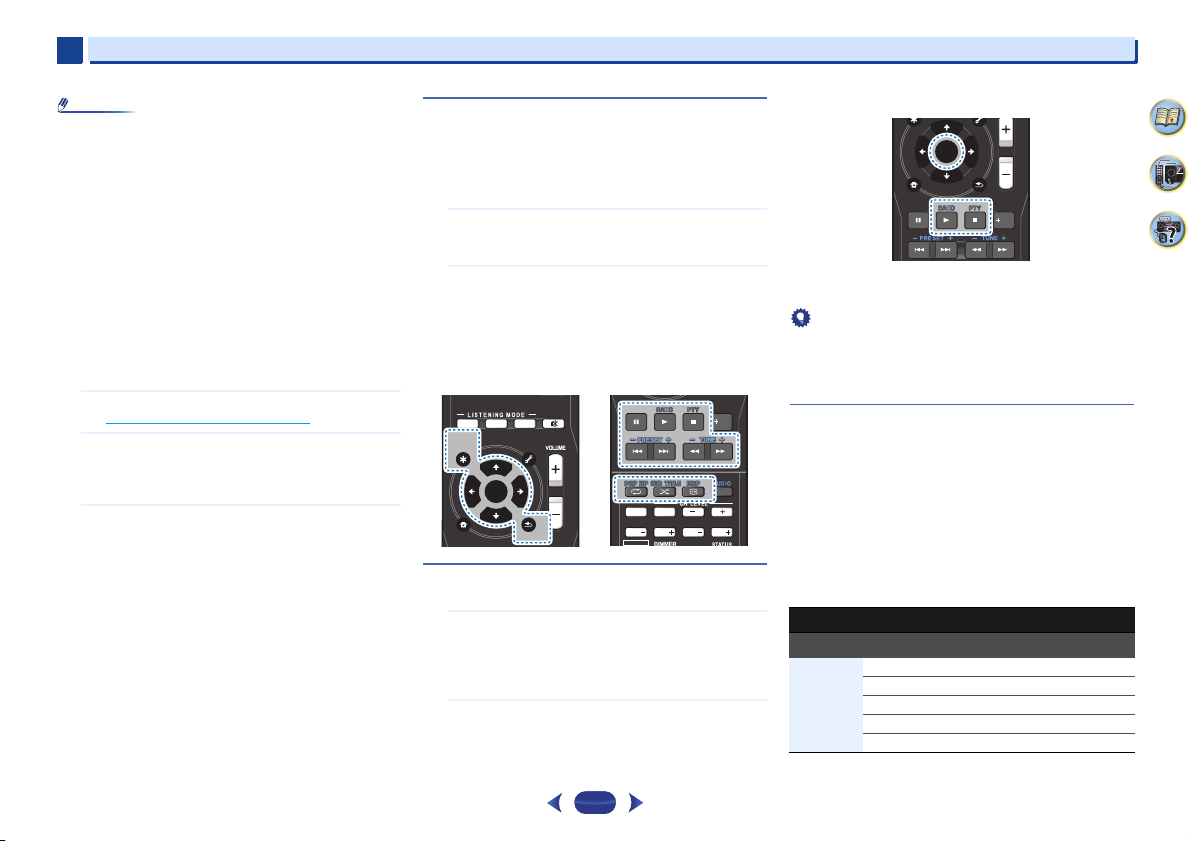
Basic playback
4
4
29
4
58
9
Note
•
Compatible USB devices include external magnetic hard
drives, portable flash memory (particularly keydrives) and
digital audio players (MP3 players) of format FAT16/32.
•
Copyrighted audio files cannot be played back on this
receiver.
•
With large amounts of data, it may take longer for the
receiver to read the contents of a USB device.
•
If the file selected cannot be played back, this receiver
automatically skips to the next file playable.
•
When the file currently being played back has no title
assigned to it, the file name is displayed in the OSD instead;
when neither the album name nor the artist name is
present, the row is displayed as a blank space.
•
Note that non-roman characters in the playlist are
displayed as ‘#’.
•
Make sure the receiver is in standby when disconnecting
the USB device.
1
Switch on the receiver and your TV.
See Connecting a USB device on page 22.
2
Switch the TV input so that it connects to the receiver.
•
Switch the TV input to the input that connects this
receiver to the TV through the corresponding HDMI
cable.
3
Press
iPod USB
on the remote control to switch the
receiver to the iPod/USB input.
When the display shows the names of folders and files,
you’re ready to play from the USB device.
If a USB Error message lights in the display, try following
the points below:
•
Switch the receiver off, then on again.
•
Reconnect the USB device with the receiver switched
off.
•
Select another input source (like BD), then switch back
to iPod/USB.
•
Use a dedicated AC adapter (supplied with the device)
for USB power.
If this doesn’t remedy the problem, it is likely your USB
device is incompatible.
Playing back audio files stored on a USB memory
device
The maximum number of levels that you can select in Step 1
(below) is 9.
•
Note that non-Roman characters in the playlist are
displayed as ‘#’.
1
Use
/
to select a folder, then press
ENTER
to browse
that folder.
•
To return to the previous level any time, press
RETURN
.
2
Continue browsing until you arrive at what you want to
play, then press
to start playback.
Basic playback controls
This receiver’s remote control buttons can be used for basic
playback of files stored on USB devices.
•
Press
iPod USB
to switch the remote control to the iPod/
USB operation mode.
Playing back photo files stored on a USB memory
device
1
Use
/
to select a folder, then press
ENTER
to browse
that folder.
•
For high resolution files, some time may be required
for the photo to appear.
•
To return to the previous level any time, press
RETURN
.
2
Continue browsing until you arrive at what you want to
play, then press
to start playback.
The selected content is displayed in full screen and a
slideshow starts.
Basic playback controls
ENTER
,
– Starts displaying a photo and playing a slideshow.
– Stops the player and returns to the previous menu.
Tip
•
Slideshows of photo files can be played while listening to
music files by returning to the folder/file list display while
playing a music file on a USB device then playing the photo
files.
About playable file formats
The USB function of this receiver supports the following file
formats. Note that some file formats are not available for
playback although they are listed as playable file formats.
With MP3, WAV, AAC, FLAC, AIFF and Apple Lossless files,
when music files with the same format, sampling frequency,
quantization bit number and number of channels are played
successively, they are played with no gap.
-
Make sure the gap is at the minimum when using MP3 or
AAC. If you are concerned about the gap, please use
WAV or FLAC files.
Music files
MUTE
AUTO SURR ADV
ENTER
RETURN
AUDIO P.
TOP
MENU
HOME
MENU
TOOLS
MENU
BAND PTY
ENTER
RETURN
AUDIO P.
TOP
MENU
CLR
SB CH
CH SEL
Fav
RETURNHOME
MENU
SHIFT
BASS
BASS
TRE TRE
BAND PTY
Extension Stream
MP3 (MPEG-1 Audio Layer 3)
.mp3
a
Sampling frequency 32 kHz, 44.1 kHz, 48 kHz
Quantization bitrate 16 bit
Channel 2 ch
Bitrate 8 kbps to 320 kbps
VBR/CBR Supported/Supported
ENTER
Fav
RETURN
HOME
MENU
BAND PTY
ENTER
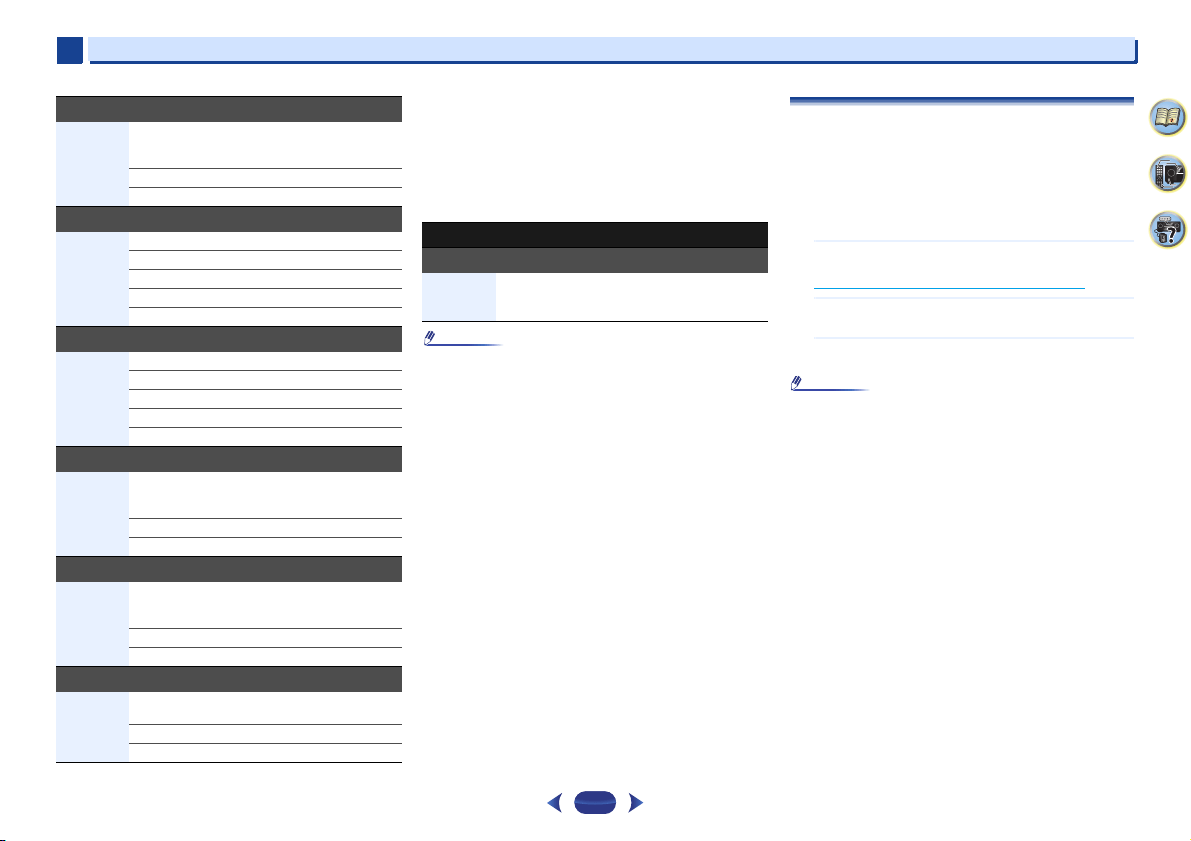
Basic playback
4
4
30
4
58
9
a. MPEG Layer-3 audio decoding technology licensed from
Fraunhofer IIS and Thomson multimedia.
b. Files encoded using Windows Media Codec 9 may be playable
but some parts of the specification are not supported;
specifically, Pro, Lossless, Voice.
c. Uncompressed FLAC files are not supported. Pioneer does not
guarantee playback.
Photo files
Note
•
When playing a music file while doing a slide show, make
sure the contents are less than 48 kHz.
Playing a MHL-compatible device
MHL (Mobile High-definition Link) is an interface standard for
transmitting digital signals with mobile devices. MHL can
carry high quality multi-channel audio data and full-HD video
formats.
The MHL-compatible device’s video signals are output from
the TV connected to the receiver, the audio signals are output
from the speakers connected to the receiver or TV.
1
Press
STANDBY/ON
to switch on the receiver and
your TV.
See Connecting a MHL-compatible device on page 22.
2
Press
MHL ROKU
on the remote control to switch the
receiver to the MHL.
3
Select and play the desired contents on the MHL-
compatible device.
Note
•
MHL-compatible devices can be operated with the
receiver’s remote control by pressing the remote control’s
MHL ROKU
button, but depending on the MHL-compatible
device being used, some buttons may not be operable.
•
To playback from a MHL-compatible device connected to
the receiver on a TV that is also connected to the receiver,
the power to the receiver must be turned on.
WAV (LPCM)
.wav Sampling frequency 32 kHz, 44.1 kHz, 48 kHz,
88.2 kHz, 96 kHz,
176.4 kHz, 192 kHz
Quantization bitrate 16 bit, 24 bit
Channel 2 ch
WMA (WMA2/7/8/9)
.wma
b
Sampling frequency 32 kHz, 44.1 kHz, 48 kHz
Quantization bitrate 16 bit
Channel 2 ch
Bitrate 5 kbps to 320 kbps
VBR/CBR Supported/Supported
AAC (MPEG-4 AAC LC, MPEG-4 HE AAC)
.m4a
.aac
.3gp
.3g2
Sampling frequency 32 kHz, 44.1 kHz, 48 kHz
Quantization bitrate 16 bit
Channel 2 ch
Bitrate 16 kbps to 320 kbps
VBR/CBR Supported/Supported
FLAC
.flac
c
Sampling frequency 32 kHz, 44.1 kHz, 48 kHz,
88.2 kHz, 96 kHz,
176.4 kHz, 192 kHz
Quantization bitrate 16 bit, 24 bit
Channel 2 ch
AIFF
.aif
.aiff
Sampling frequency 32 kHz, 44.1 kHz, 48 kHz,
88.2 kHz, 96 kHz, 176.4 kHz,
192 kHz
Quantization bitrate 16 bit, 24 bit
Channel 2 ch
Apple Lossless
.m4a
.mp4
Sampling frequency 32 kHz, 44.1 kHz, 48 kHz,
88.2 kHz, 96 kHz
Quantization bitrate 16 bit, 24 bit
Channel 2 ch
Extension Format
JPEG
.jpg Meeting the following conditions:
• Baseline JPEG format
• Y:Cb:Cr – 4:2:2
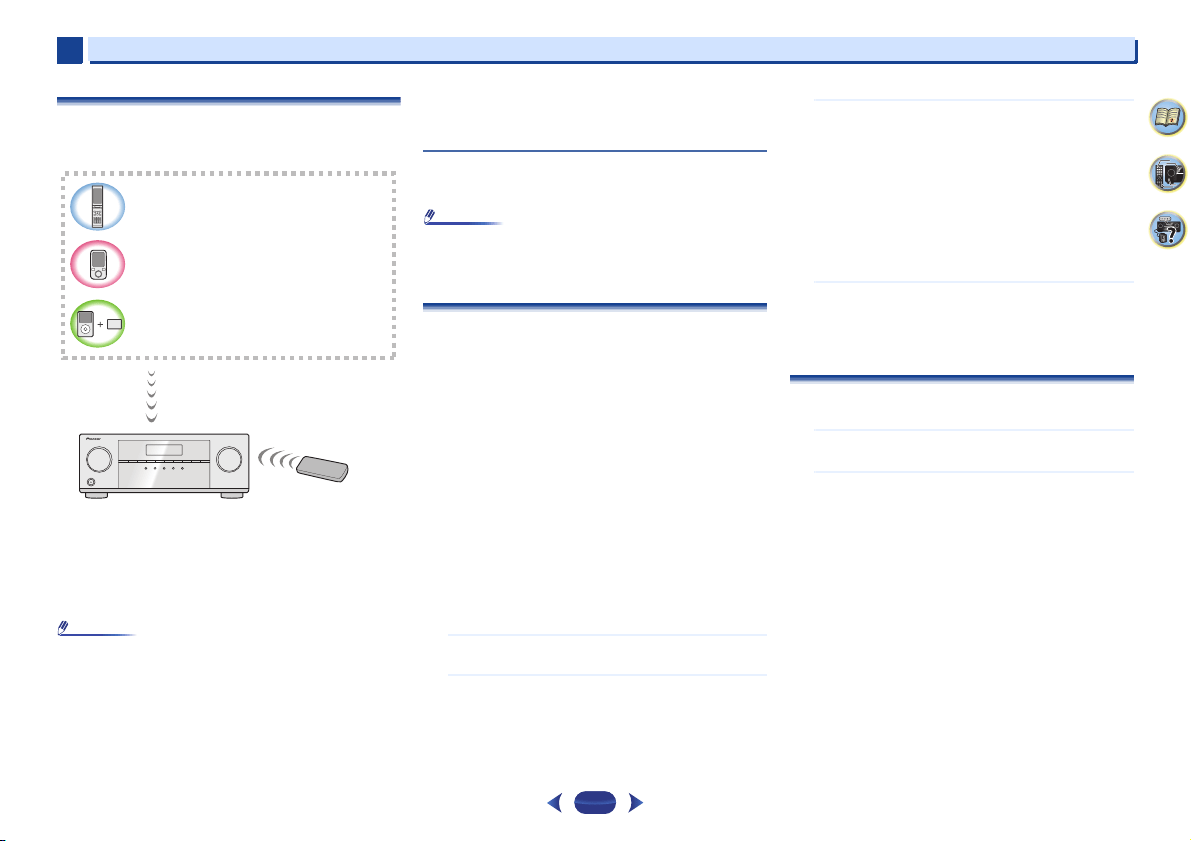
Basic playback
4
4
31
4
58
9
Music playback using
Bluetooth
wireless
technology (VSX-824 only)
The unit is capable of playing back music stored on Bluetooth
capable devices (cell phones, digital music players etc.)
wirelessly. You can also use a Bluetooth audio transmitter
(sold separately) to enjoy music from devices that do not have
Bluetooth functionality. Please refer to the user’s manual for
your Bluetooth capable device for more details.
Note
•
The Bluetooth
®
word mark and logos are registered
trademarks owned by Bluetooth SIG, Inc. and any use of
such marks by PIONEER CORPORATION is under license.
Other trademarks and trade names are those of their
respective owners.
•
The Bluetooth wireless technology enabled device must
support A2DP profiles.
•
Pioneer does not guarantee proper connection and
operation of this unit with all Bluetooth wireless technology
enabled devices.
Remote control operation
The remote control supplied with this unit allows you to play
and stop media, and perform other operations.
Note
•
The Bluetooth wireless technology enabled device must
support AVRCP profiles.
•
Remote control operations cannot be guaranteed for all
Bluetooth wireless technology enabled devices.
Pairing with the unit (Initial registration)
In order for the unit to playback music stored on a Bluetooth
capable device, pairing must first be performed. Pairing
should be performed when first using the unit with the
Bluetooth capable device, or when the pairing data on the
device has been erased for any reason.
Pairing is a step required to allow communication using
Bluetooth wireless technology to be carried out.
•
Pairing is performed the first time that you use the unit and
the Bluetooth capable device together.
•
In order to allow communication using Bluetooth wireless
technology to take place, pairing must be performed on
both the unit and the Bluetooth capable device.
•
After pressing the
BT ADPT
and switching to BT AUDIO
input, perform the pairing procedure on the Bluetooth
capable device. If pairing has been performed correctly,
you will not need to perform the pairing procedures for the
unit as shown below.
Please refer to the user’s manual for your Bluetooth capable
device for more details.
1
Press the
STANDBY/ON and turn the power to the
unit on.
2
Press the
BT ADPT
.
The unit switches to BT AUDIO and PAIRING will be
displayed on the front panel of the unit.
3
Turn on the power to the Bluetooth capable device that
you wish to pair with, and perform pairing procedure
on it.
Pairing will start.
•
Place the Bluetooth capable device close to the unit.
•
Please refer to the user’s manual for your Bluetooth
capable device for details on when pairing can be
performed and the procedures required for pairing.
•
When PIN code entry is requested, enter 0000. (This
unit does not accept any PIN code setting other than
0000.)
4
Confirm on the Bluetooth capable device that pairing
has been completed.
If pairing with the Bluetooth capable device has been
completed correctly, CONNECT will be displayed on the
front panel of the unit.
Listen to music on the unit from a
Bluetooth
capable device
1
Press the
BT ADPT
.
The unit will switch to BT AUDIO input.
2
A Bluetooth connection will be created between the
Bluetooth capable device and the unit.
Procedures for connecting to the unit should be
performed from the Bluetooth capable device.
•
Please refer to the user’s manual for your Bluetooth
capable device for details of the connection
procedures.
•
Will automatically connect with the Bluetooth capable
device it was last connected to. If you want to connect
with another Bluetooth capable device, please cut off
the connection with the automatically connected
device before connecting with the other device.
Bluetooth wireless technology enabled device:
cell phone
Bluetooth wireless technology enabled device:
Digital music player
Device not equipped with Bluetooth wireless
technology: Digital music player + Bluetooth
audio transmitter (sold commercially)
Music data
Remote control
operation
This receiver
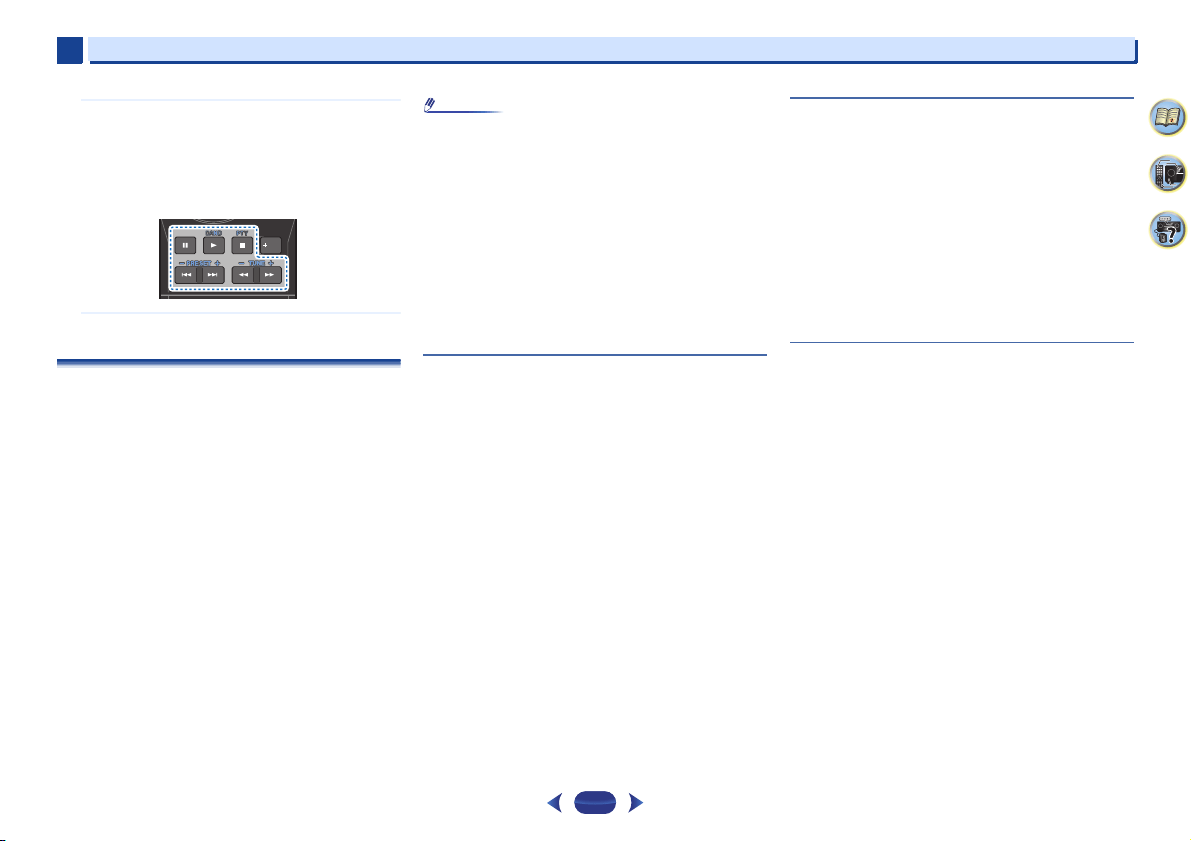
Basic playback
4
4
32
4
58
9
3
Playback music from the Bluetooth capable device.
This receiver’s remote control buttons can be used for
basic playback of files stored on the Bluetooth wireless
technology device.
•
Depending on Bluetooth wireless technology device
you use, operation may differ from what is shown in
the remote control buttons.
4
While listening to a source, press RECEIVER then press
ADV repeatedly to select S.R AIR.
Radio wave caution
This unit uses a 2.4 GHz radio wave frequency, which is a band
used by other wireless systems (see list below). To prevent
noise or interrupted communication, do not use this unit
nearby such devices, or make sure these devices are switched
off during use.
•
Cordless phones
•
Cordless facsimiles
•
Microwave ovens
•
Wireless LAN devices (IEEE802.11b/g)
•
Wireless AV equipment
•
Wireless controllers for game systems
•
Microwave-based health aids
•
Some baby monitors
Other, less common, equipment that may operate on the
same frequency:
•
Anti-theft systems
•
Amateur radio stations (HAM)
•
Warehouse logistic management systems
•
Discrimination systems for train or emergency vehicles
Note
•
In the event noise appears in your television image, there is
the possibility that a Bluetooth wireless technology enabled
device or this unit (including products supported by this
unit) are causing signal interference with the antenna input
connector of your television, video, satellite tuner, etc. In
this event, increase the distance between the antenna
input connector and the Bluetooth wireless technology
enabled device or this unit (including products supported
by this unit).
•
If there is something obstructing the path between this unit
(including devices supported by this unit) and the device
equipped with Bluetooth wireless technology (such as a
metal door, concrete wall, or insulation containing tinfoil),
you may need to change the location of your system to
prevent signal noise and interruptions.
Scope of operation
Use of this unit is limited to home use. (Transmission
distances may be reduced depending on communication
environment).
In the following locations, poor condition or inability to receive
radio waves may cause the audio to be interrupted or stopped:
•
In reinforced concrete buildings or steel framed or iron-
framed buildings.
•
Near large metallic furniture.
•
In a crowd of people or near a building or obstacle.
•
In a location exposed to the magnetic field, static electricity
or radio wave interference from radio communication
equipment using the same frequency band (2.4 GHz) as
this unit, such as a 2.4 GHz wireless LAN device
(IEEE802.11b/g) or microwave oven.
•
If you live in a heavily populated residential area
(apartment, townhouse, etc.) and if your neighbor’s
microwave is placed near your system, you may experience
radio wave interference. If this occurs, move your unit to a
different place. When the microwave is not in use, there will
be no radio wave interference.
Radio wave reflections
The radio waves received by this unit include the radio wave
coming directly from the device equipped with Bluetooth
wireless technology (direct wave) and waves coming from
various directions due to reflections by walls, furniture and
building (reflected waves). The reflected waves (due to
obstacles and reflecting objects) further produce a variety of
reflected waves as well as variation in reception condition
depending on locations. If the audio cannot be received
properly due to this phenomenon, try moving the location of
the device equipped with Bluetooth wireless technology a
little. Also note that audio may be interrupted due to the
reflected waves when a person crosses or approaches the
space between this unit and the device equipped with
Bluetooth wireless technology.
Precautions regarding connections to products
supported by this unit
•
Complete connections for all devices supported by this
unit, including all audio cords and power cables before
connecting them to this unit.
•
After completing connections to this unit, check the audio
and power cables to confirm that they not twisted together.
•
When disconnecting this unit, confirm that you have
sufficient working space in the surrounding area.
•
When changing connections of audio or other cables for
products supported by this unit, confirm that you have
sufficient working space in the surrounding area.
Fav
RETURN
HOME
MENU
BAND PTY
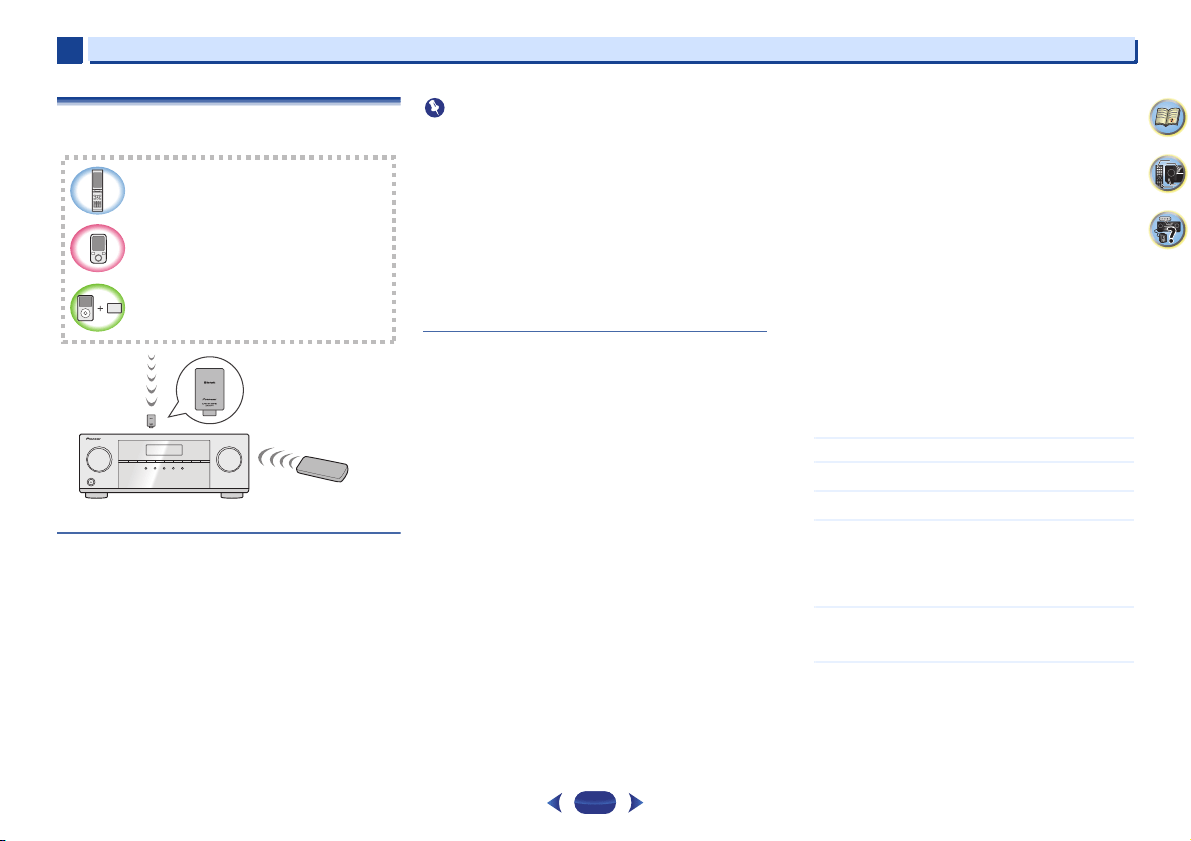
Basic playback
4
4
33
4
58
9
Bluetooth
®
ADAPTER for Wireless Enjoyment of
Music (VSX-529 only)
Wireless music play
When the Bluetooth ADAPTER (Pioneer Model No. AS-BT100
or AS-BT200) is connected to this unit, a product equipped
with Bluetooth wireless technology (portable cell phone,
digital music player, etc.) can be used to listen to music
wirelessly. Also, by using a commercially available transmitter
supporting Bluetooth wireless technology, you can listen to
music on a device not equipped with Bluetooth wireless
technology. The AS-BT100 and AS-BT200 model supports
SCMS-T contents protection, so music can also be enjoyed on
devices equipped with SCMS-T type Bluetooth wireless
technology.
•
It must be necessary that the Bluetooth wireless technology
enabled device supports A2DP profiles.
Important
•
Pioneer does not guarantee proper connection and
operation of this unit with all Bluetooth wireless technology
enabled devices.
•
About one minute is required between turning the power
on and completion of startup.
Remote control operation
The remote control supplied with this unit allows you to play
and stop media, and perform other operations.
•
It must be necessary that the Bluetooth wireless technology
enabled device supports AVRCP profiles.
•
Remote control operations cannot be guaranteed for all
Bluetooth wireless technology enabled devices.
Pairing the
Bluetooth
ADAPTER and
Bluetooth
wireless technology device
“Pairing” must be done before you start playback of Bluetooth
wireless technology content using Bluetooth ADAPTER. Make
sure to perform pairing first time you operate the system or
any time pairing data is cleared. “Pairing” is the step
necessary to register Bluetooth wireless technology device to
enable Bluetooth communications. For more details, see also
the operating instructions of your Bluetooth wireless
technology device.
•
Pairing is required when you first use Bluetooth wireless
technology device and Bluetooth ADAPTER.
•
To enable Bluetooth communication, pairing should be
done with both of your system and Bluetooth wireless
technology device.
•
If the Bluetooth wireless technology device’s security code
is “0000”, there is no need to make the security code setting
on the receiver. Press
BT
ADPT
to switch the ADAPTER
input, then conduct the pairing operation on the Bluetooth
wireless technology device. If pairing is successful, there is
no need to performing the pairing operation below.
•
When using the AS-BT200 only: This unit complies with
Bluetooth Specifications Ver. 2.1. When this unit and
another device equipped with Bluetooth wireless
technology both comply with Bluetooth Specification Ver.
2.1, pairing of the two may be possible without the need for
inputting a password.
In this case, a passcode may be displayed on this receiver
and on the device equipped with Bluetooth wireless
technology. If this happens, check that the same passcode
is displayed on this receiver and the device equipped with
Bluetooth wireless technology, then press
ENTER
. After
this, also perform the connection operation on the
Bluetooth device to be connected. If the passcode does not
match the code displayed on the Bluetooth device to be
connected, press
RETURN
to cancel pairing, then try
starting over.
Press
BT
ADPT
to set the ADAPTER input, then conduct
the pairing operation on the Bluetooth wireless technology
device. If pairing is successful, there is no need to
performing the pairing operation below.
•
Pair one unit at a time.
•
When connecting this receiver by Bluetooth connections
with a device equipped with the Bluetooth function to listen
to music, do not connect any devices other than this
receiver by Bluetooth connection to the Bluetooth-equipped
device. If a Bluetooth connection is already established with
a device other than this receiver, disconnect the other
device before connecting this receiver.
1
Press
BT
ADPT
to switch the receiver to ADAPTER input.
2
Press
TOP MENU
to select Bluetooth Setup.
3
Use
/
to select PIN, then press
ENTER
.
4
Use
/
to select one of PIN codes 0000, 1234 or 8888,
then press
ENTER
.
You can use any of 0000/1234/8888 PIN codes.
Bluetooth wireless technology device using any other PIN
code cannot be used with this system.
5
Switch on the Bluetooth wireless technology device
that you want to make pairing, place it near the system
and set it into the pairing mode.
6
Check to see that the Bluetooth ADAPTER is detected by
the Bluetooth wireless technology device.
When Bluetooth wireless technology device is connected:
Bluetooth wireless technology device name appears in
the receiver display.
•
The system can display alphanumeric characters only.
Other characters may not be displayed correctly.
Bluetooth wireless technology enabled device:
cell phone
Bluetooth wireless technology enabled device:
Digital music player
Device not equipped with Bluetooth wireless
technology: Digital music player + Bluetooth
audio transmitter (sold commercially)
Music data
Remote control
operation
Bluetooth
®
ADAPTER
This receiver

Basic playback
4
4
34
4
58
9
When Bluetooth wireless technology device is not
connected:
WAITING appears in the receiver display. In this case,
perform the connection operation from the side of the
Bluetooth wireless technology device.
7
From the Bluetooth wireless technology device list,
select Bluetooth ADAPTER and enter the PIN code
selected in the step 4.
•
PIN code may in some case be referred to as
PASSKEY.
Listening to Music Contents of
Bluetooth
wireless
technology device with Your System
1
Press
BT
ADPT
to switch the receiver to ADAPTER input.
2
Perform the connection operation from the side of the
Bluetooth wireless technology device to the Bluetooth
ADAPTER.
•
When the Bluetooth ADAPTER is not plugged into the
ADAPTER PORT terminal, NO ADP will be displayed if
ADAPTER input is selected.
3
Start playback of music contents stored in Bluetooth
wireless technology device.
This receiver’s remote control buttons can be used for
basic playback of files stored on the Bluetooth wireless
technology device.
•
Bluetooth wireless technology device should be
compatible with AVRCP profile.
•
Depending on Bluetooth wireless technology device
you use, operation may differ from what is shown in
the remote control buttons.
4
While listening to a source, press
RECEIVER
then press
ADV
repeatedly to select S.R AIR.
The Bluetooth
®
word mark and logos are registered
trademarks owned by Bluetooth SIG, Inc. and any use of such
marks by PIONEER CORPORATION is under license. Other
trademarks and trade names are those of their respective
owners.
Note
•
With this receiver, when an iPod is connected or
disconnected while the music of a Bluetooth wireless
technology device is playing, the connection with the
Bluetooth wireless technology device may be canceled.
Fav
RETURN
HOME
MENU
BAND PTY
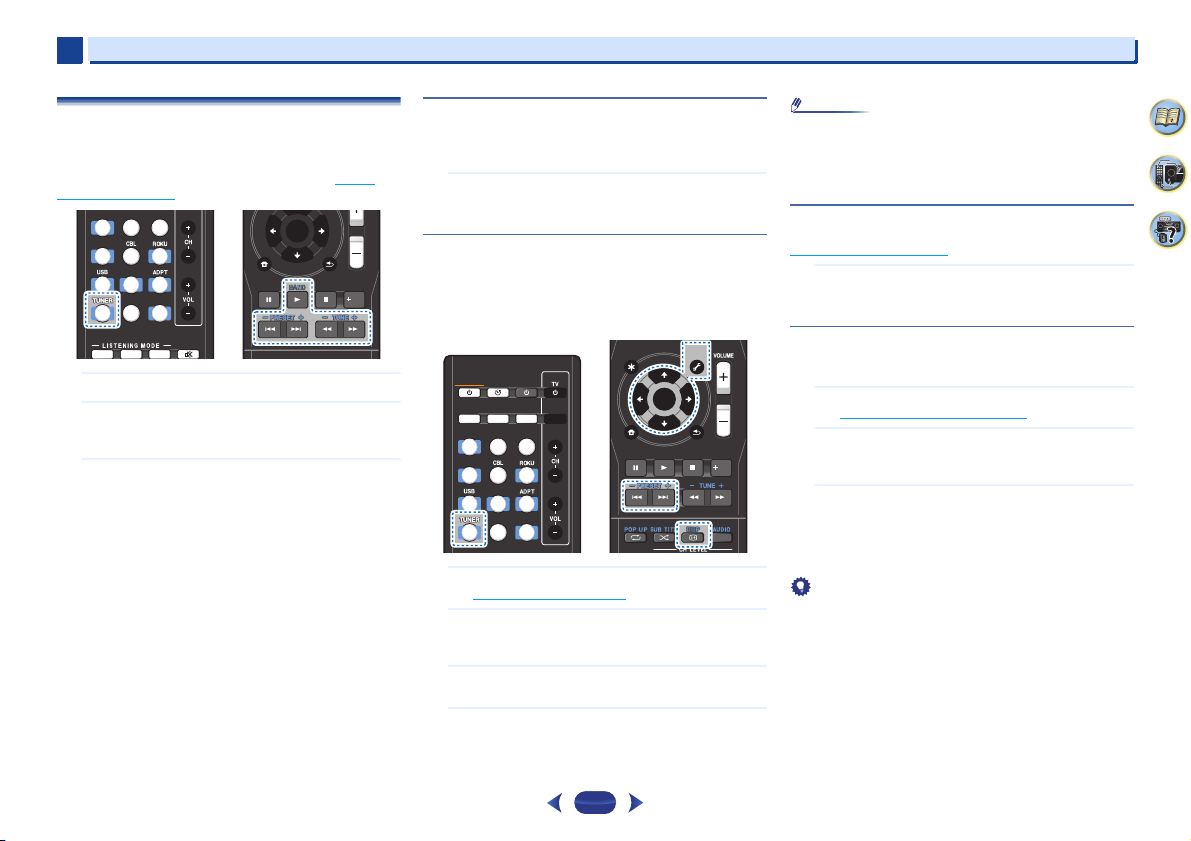
Basic playback
4
4
35
4
58
9
Listening to the radio
The following steps show you how to tune in to FM and AM
radio broadcasts using the automatic (search) and manual
(step) tuning functions. Once you are tuned to a station you
can memorize the frequency for recall later—see
Saving
station presets below for more on how to do this.
1
Press
TUNER
to select the tuner.
2
Use
BAND
to change the band (FM or AM), if necessary.
Each press switches the band between FM (stereo or
mono) and AM.
3
Tune to a station.
There are three ways to do this:
Automatic tuning
To search for stations in the currently selected band,
press and hold
TUNE +/–
for about a second. The receiver
will start searching for the next station, stopping when it
has found one. Repeat to search for other stations.
Manual tuning
To change the frequency one step at a time, press
TUNE +/–
.
High speed tuning
Press and hold
TUNE +/–
for high speed tuning.
Improving FM sound
If the TUNE or ST indicators don’t light when tuning to an FM
station because the signal is weak, set the receiver to the
mono reception mode.
Press
BAND
to select FM MONO.
This should improve the sound quality and allow you to
enjoy the broadcast.
Saving station presets
If you often listen to a particular radio station, it’s convenient
to have the receiver store the frequency for easy recall
whenever you want to listen to that station. This saves the
effort of manually tuning in each time. This unit can memorize
up to 30 stations.
1
Tune to a station you want to memorize.
See Listening to the radio above for more on this.
2
Press
TOOLS
.
The display shows PRESET, then a blinking MEM and
station preset.
3
Press
PRESET +/–
to select the station preset you want.
You can also use the number buttons.
4
Press
ENTER
.
The preset number stop blinking and the receiver stores
the station.
Note
•
If the receiver is left disconnected from the AC power outlet
for over a month, the station memories will be lost and will
have to be reprogrammed.
•
Stations are stored in stereo. When the station is stored in
the FM MONO mode, it shows as ST when recalled.
Listening to station presets
You will need to have some presets stored to do this. See
Saving station presets
above if you haven’t done this already.
Press
PRESET +/–
to select the station preset you want.
•
You can also use the number buttons on the remote
control to recall the station preset.
Naming preset stations
For easier identification, you can name all of your preset
stations.
1
Choose the station preset you want to name.
See Listening to station presets above for how to do this.
2
Press
TOOLS
twice.
The cursor at the first character position is blinking on
the display.
3
Input the name you want.
Choose a name up to eight characters long.
•
Use
/
to select character position.
•
Use
/
to select characters.
•
The name is stored when
ENTER
is pressed.
Tip
•
To erase a station name, follow steps 1 and 2, and press
ENTER
while the display is blank. Press
TOOLS
while the
display is blank, to keep the previous name.
•
Once you have named a station preset, Press
DISP
to show
the name. When you want to return to the frequency
display, press
DISP
several times to show the frequency.
MUTE
BD
AUTO SURR ADV
DVD
iPod
TUN
GAME
SAT
CD
TV
HDMI
MHL
BT
NET
TUN
ENTER
Fav
RETURNHOME
MENU
BAND PTY
SLEEP
INPUTCTRL
BD
DVD
iPod
TUN
GAME
SAT
CD
TV
HDMI
MHL
BT
NET
S.SEL ECO
STANDBY/ON
RECEIVER SIGNAL SEL
SOURCE
TUN
ENTER
CLR
Fav
RETURN
AUDIO P.
TOP
MENU
HOME
MENU
TOOLS
MENU
BAND PTY
TOOLS
MENU
ENTER
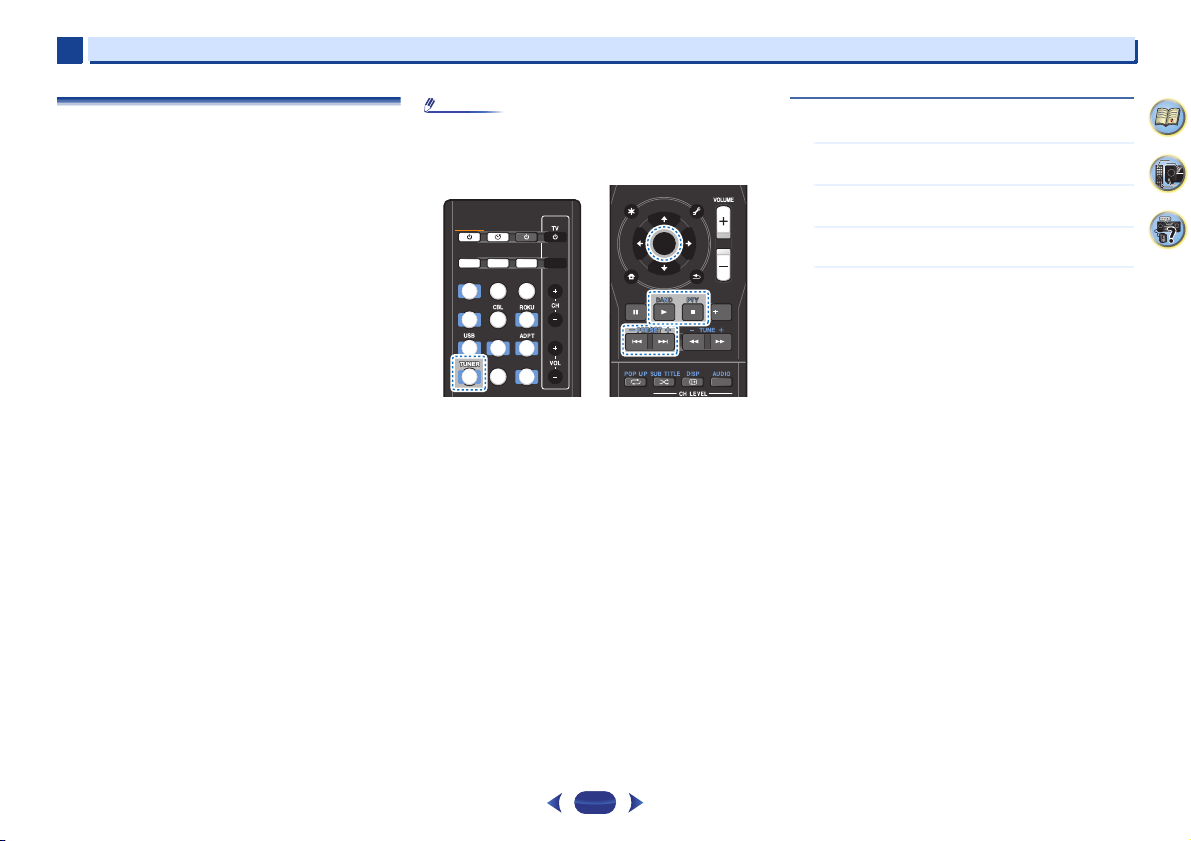
Basic playback
4
4
36
4
58
9
An introduction to RDS
Radio Data System (RDS) is a system used by most FM radio
stations to provide listeners with various kinds of
information—the name of the station and the kind of show
they’re broadcasting, for example.
One feature of RDS is that you can search by type of program.
For example, you can search for a station that’s broadcasting
a show with the program type, JAZZ.
You can search the following program types:
Note
•
In addition, there are three other program types, ALARM,
ALARMTST, and NO TYPE. ALARM and ALARMTST are
used for emergency announcements. NO TYPE appears
when a program type cannot be found.
Searching for RDS programs
You can search for a program type listed above.
1
Press
TUNER
then press
BAND
to select the FM band.
•
RDS is only possible in the FM band.
2
Press
PTY
.
SEARCH shows in the display.
3
Press
PRESET +/–
to select the program type you want
to hear.
4
Press
ENTER
to search for the program type.
The system starts searching through the station presets for a
match, stopping when it was found one. Repeat to search for
other stations.
If NO PTY is displayed it means the tuner couldn’t find that
program type at the time of the search.
RDS searches station presets only. If no stations have been
preset, or if the program type could not be found among the
station presets NO PTY is displayed.
FINISH means the search is complete.
NEWS – News
AFFAIRS – Current Affairs
INFO – General Information
SPORT – Sport
EDUCATE – Educational
DRAMA – Radio plays, etc.
CULTURE – National or
regional culture, theater, etc.
SCIENCE – Science and
technology
VARIED – Usually talk-based
material, such as quiz shows
or interviews.
POP M – Pop music
ROCK M – Rock music
EASY M – Easy listening
LIGHT M – ‘Light’ classical
music
CLASSICS – ‘Serious’ classical
music
OTHER M – Music not fitting
above categories
WEATHER – Weather reports
FINANCE – Stock market
reports, commerce, trading,
etc.
CHILDREN – Programs for
children
SOCIAL – Social affairs
RELIGION – Programs
concerning religion
PHONE IN – Public expressing
their views by phone
TRAVEL – Holiday-type travel
rather than traffic
announcements
LEISURE – Leisure interests
and hobbies
JAZZ – Jazz
COUNTRY – Country music
NATION M – Popular music in
a language other than English
OLDIES – Popular music from
the ’50s and ’60s
FOLK M – Folk music
DOCUMENT – Documentary
SLEEP
INPUTCTRL
BD
DVD
iPod
TUN
GAME
SAT
CD
TV
HDMI
MHL
BT
NET
S.SEL ECO
STANDBY/ON
RECEIVER SIGNAL SEL
SOURCE
TUN
ENTER
CLR
Fav
RETURN
AUDIO P.
TOP
MENU
HOME
MENU
TOOLS
MENU
BAND PTY
ENTER
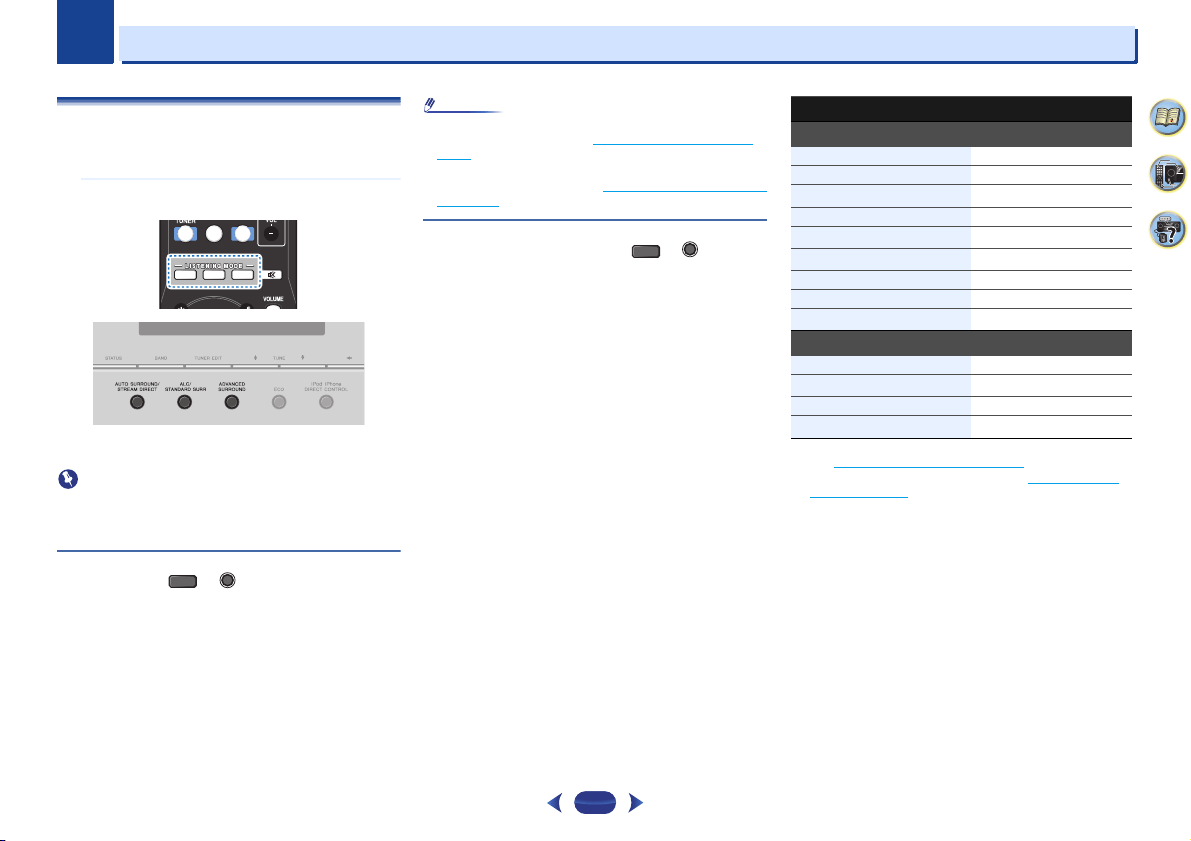
5
Chapter
5
37
4
58
9
Listening to your system
Choosing the listening mode
This receiver offers a variety of listening modes to
accommodate playback of various audio formats. Choose one
according to your speaker environment or the source.
While listening to a source, press the listening mode
button repeatedly to select a listening mode you want.
•
The listening mode is shown on the display on the front
panel.
Important
•
The listening modes and many features described in this
section may not be available depending on the current
source, settings and status of the receiver.
Auto playback
The simplest, most direct listening option is the AUTO
SURROUND feature. With this, the receiver automatically
detects what kind of source you’re playing and selects
multichannel or stereo playback as necessary.
•
Press
AUTO
repeatedly until AUTO SURROUND shows
briefly in the display (it will then show the decoding or
playback format). Check the digital format indicators in the
display to see how the source is being processed.
Note
•
Stereo surround (matrix) formats are decoded accordingly
using NEO:6 CINEMA (see
Listening in surround sound
below for more on these decoding formats).
•
When listening to the ADAPTER input, the S.R AIR feature
is selected automatically (see
Using the Advanced surround
on page 38 for more on this).
Listening in surround sound
Using this receiver, you can listen to any source in surround
sound. However, the options available will depend on your
speaker setup and the type of source you’re listening to.
•
If the source is Dolby Digital, DTS, or Dolby Surround
encoded, the proper decoding format will automatically be
selected and shows in the display.
When you select STEREO ALC (Auto Level Control stereo
mode), this unit equalizes playback sound levels if each sound
level varies with the music source recorded in a portable
audio player.
When you select STEREO, you will hear the source through
just the front left and right speakers (and possibly your
subwoofer depending on your speaker settings). Dolby Digital
and DTS multichannel sources are downmixed to stereo.
The following modes provide basic surround sound for stereo
and multichannel sources.
a. You can also adjust the C.WIDTH, DIMEN., and PNRM. effect
(see
Setting the Audio options on page 39).
b. You can also adjust the C.IMG effect (see Setting the Audio
options on page 39).
c. The audio is heard with your surround settings and you can still
use the Midnight, Loudness, Phase Control, Sound Retriever
and Tone functions.
MUTE
AUTO SURR ADV
TUN TV NET
AUDIO P.
TOP
MENU
TOOLS
MENU
AUTO SURR ADV
AUTO SURROUND
/
STREAM DIRECT
AUTO
ALC/
STANDARD SURR
SURR
Type of surround modes Suitable sources
Two channel sources
STEREO ALC See above.
DOLBY PLII MOVIE Movie
DOLBY PLII MUSIC
a
Music
DOLBY PLII GAME Video games
NEO:6 CINEMA
b
Movie
NEO:6 MUSIC
b
Music
DOLBY PRO LOGIC Old movies
Straight Decode No additional effects
STEREO
c
See above.
Multichannel sources
STEREO ALC See above.
DTS NEO:6
Movie/Music
Straight Decode No additional effects
STEREO
c
See above.
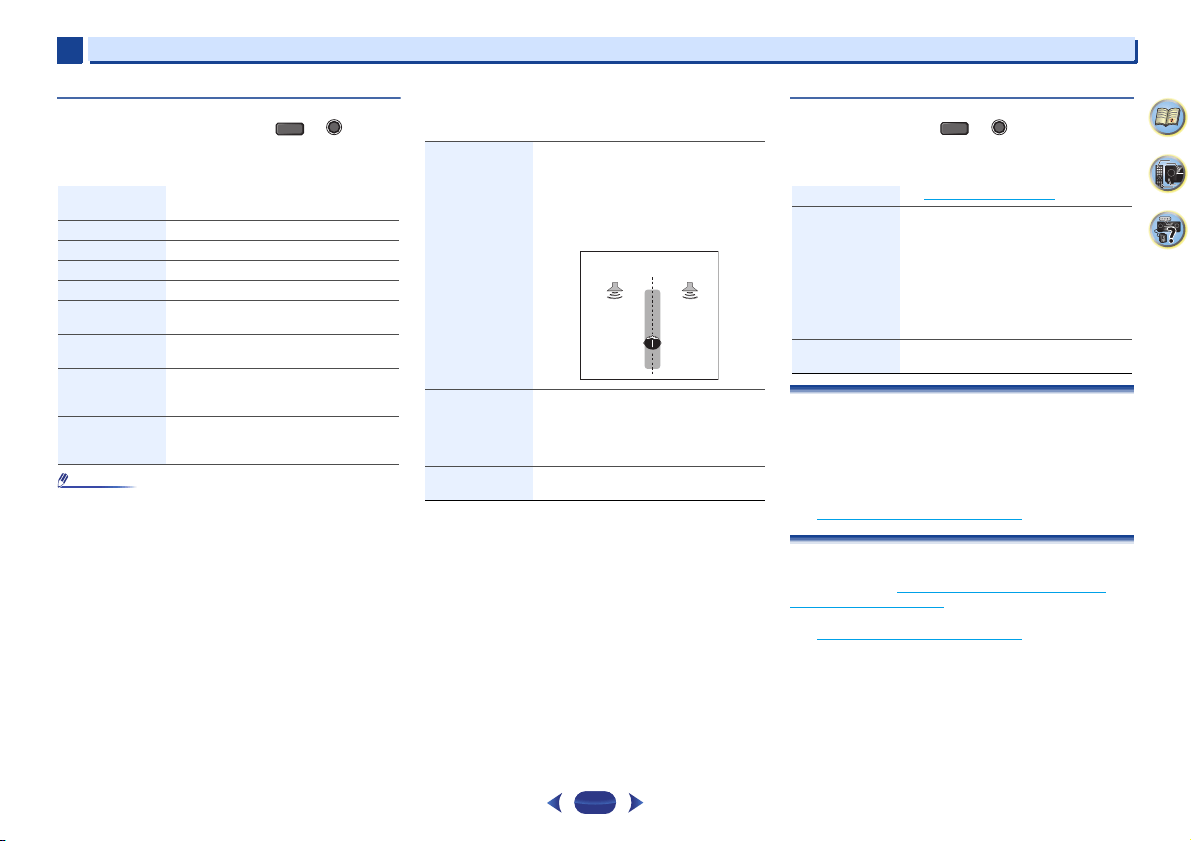
Listening to your system
5
5
38
4
58
9
Using the Advanced surround
The Advanced surround feature creates a variety of surround
effects. Try different modes with various soundtracks to see
which you like.
Note
•
During ECO mode, the brightness switches between 2
levels. If the dimmest level is selected, DIMMER will be
shown on the display. (Mode other than ECO: 4 levels, ECO
mode: 2 levels)
•
ECO MODE will switch OFF automatically when switched
to other listening modes (Advanced surround mode and
Auto surround mode).
Using Stream Direct
Use the Stream Direct modes when you want to hear the
truest possible reproduction of a source. All unnecessary
signal processing is bypassed.
Using the Sound Retriever
When audio data is removed during the compression
process, sound quality often suffers from an uneven sound
image. The Sound Retriever feature employs new DSP
technology that helps bring CD quality sound back to
compressed 2-channel audio by restoring sound pressure
and smoothing jagged artifacts left over after compression.
(see
Setting the Audio options
on page 39).
Listening with Acoustic Calibration EQ
You can listen to sources using the Acoustic Calibration
Equalization set in
Automatically setting up for surround
sound (MCACC) on page 24. Refer to these pages for more on
Acoustic Calibration Equalization.
(see
Setting the Audio options
on page 39).
ACTION Designed for action movies with dynamic
soundtracks.
DRAMA Designed for movies with lots of dialog.
ADVANCED GAME Suitable for video games.
SPORTS Suitable for sports programs.
CLASSICAL Gives a large concert hall-type sound.
ROCK/POP Creates a live concert sound for rock and/or
pop music.
EXT.STEREO Gives multichannel sound to a stereo
source, using all of your speakers.
ECO MODE 1 Cut back on power consumption. Suitable
for contents that are mainly high level
(mainly music).
ECO MODE 2 Cut back on even more power consumption
than ECO MODE 1. Suitable for contents
with wider dynamic range (mainly movies).
ADVANCED
SURROUND
ADV
F.S.S.ADVANCE
(Front Stage
Surround
ADVANCE)
Allows you to create natural surround
sound effects using just the front speakers
and the subwoofer.
Use to provide a rich surround sound effect
directed to the center of where the front left
and right speakers sound projection area
converges.
S.R AIR (Sound
Retriever AIR)
Suitable for listening to the sound from a
Bluetooth wireless technology device.
The S.R AIR listening mode can only
selected when the ADAPTER, BT AUDIO
input.
PHONES SURR When listening through headphones, you
can still get the effect of overall surround.
Front left
speaker
Front right
speaker
AUTO SURROUND See Auto playback on page 37.
DIRECT Sources are heard according to the settings
made in the Manual SP Setup (speaker
setting, channel level, speaker distance), as
well as with dual mono settings. You will
hear sources according to the number of
channels in the signal.
Phase Control, Acoustic Calibration EQ,
Sound Delay, Auto Delay, LFE Attenuate
and Center image functions are available.
PURE DIRECT Analog and PCM sources are heard without
any digital processing.
AUTO SURROUND
/
STREAM DIRECT
AUTO
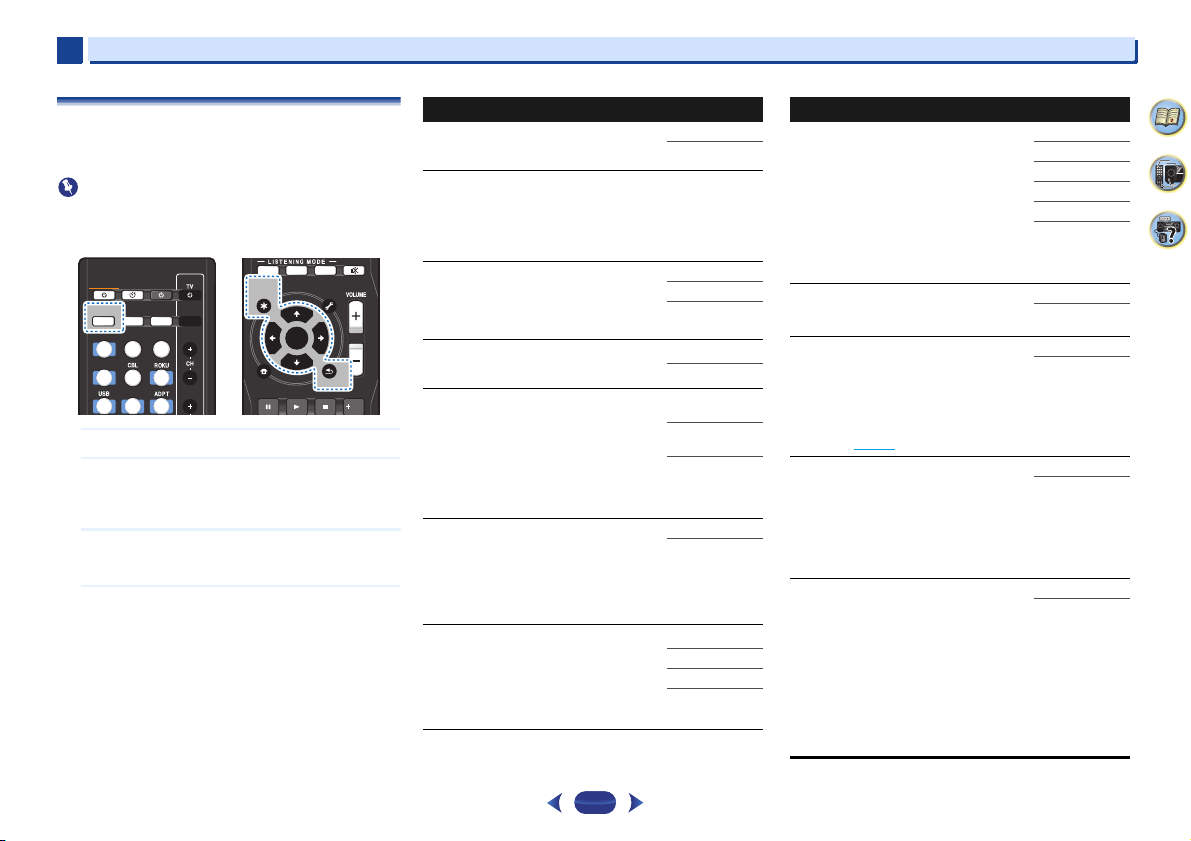
Listening to your system
5
5
39
4
58
9
Setting the Audio options
There are a number of additional sound settings you can
make using the AUDIO PARAMETER menu. The defaults, if
not stated, are listed in bold.
Important
•
Note that if a setting doesn’t appear in the AUDIO
PARAMETER menu, it is unavailable due to the current
source, settings and status of the receiver.
1
Press
RECEIVER
, then press
AUDIO P.
.
2
Use
/
to select the setting you want to adjust.
Depending on the current status/mode of the receiver,
certain options may not be able to be selected. Check the
table below for notes on this.
3
Use
/
to set it as necessary.
See the table below for the options available for each
setting.
4
Press
RETURN
to confirm and exit the menu.
SLEEP
INPUTCTRL
BD
DVD
iPod
GAME
SAT
CD
HDMI
MHL
BT
S.SEL ECO
STANDBY/ON
RECEIVER SIGNAL SEL
SOURCE
RECEIVER
CTRL
MUTE
AUTO SURR ADV
ENTER
Fav
RETURN
AUDIO P.
TOP
MENU
HOME
MENU
TOOLS
MENU
BAND PTY
ENTER
RETURN
AUDIO P.
TOP
MENU
Setting/What it does Option(s)
EQ (Acoustic Calibration EQ)
Switches on/off the effect of Acoustic
Calibration EQ.
ON
OFF
S.DELAY (Sound Delay)
Some monitors have a slight delay when
showing video, so the soundtrack will be
slightly out of sync with the picture. By adding
a bit of delay, you can adjust the sound to
match the presentation of the video.
0 to 500 ms (1
step : 5 ms)
Default: 0
MIDNIGHT/LOUDNESS
The MIDNIGHT allows you to hear effective
surround sound of movies at low volumes.
The LOUDNESS is used to get good bass and
treble from music sources at low volumes.
M/L OFF
MIDNIGHT
LOUDNESS
S.RTV (Sound Retriever)
Switches ON/OFF the effect of Sound
Retriever.
OFF
a
ON
DUAL MONO
b
Specifies how dual mono encoded Dolby
Digital soundtracks should be played.
CH1 – Channel 1
is heard only
CH2 – Channel 2
is heard only
CH1 CH2 – Both
channels heard
from front
speakers
F.PCM (Fixed PCM)
This is useful if you find there is a slight delay
before OFF recognizes the PCM signal on a
CD, for instance.
When ON is selected, noise may be output
during playback of non-PCM sources. Please
select another input signal if this is a problem.
OFF
ON
DRC (Dynamic Range Control)
Adjusts the level of dynamic range for movie
soundtracks optimized for Dolby Digital, DTS,
Dolby Digital Plus, Dolby TrueHD, DTS-HD
and DTS-HD Master Audio (you may need to
use this feature when listening to surround
sound at low volumes).
AUTO
c
MAX
MID
OFF
LFE ATT (LFE Attenuate)
Some Dolby Digital and DTS audio sources
include ultra-low bass tones. Set the LFE
attenuator as necessary to prevent the ultra-
low bass tones from distorting the sound from
the speakers.
The LFE is not limited when set to 0 dB, which
is the recommended value. When set to –15
dB, the LFE is limited by the respective
degree. When OFF is selected, no sound is
output from the LFE channel.
0 (0 dB)
5 (–5 dB)
10 (–10 dB)
15 (–15 dB)
20 (–20 dB)
** (OFF)
SACD G. (SACD Gain)
d
Brings out detail in SACDs by maximizing the
dynamic range (during digital processing).
0 (0 dB)
+6 (+6 dB)
HDMI (HDMI Audio)
Specifies the routing of the HDMI audio signal
out of this receiver (AMP) or through to a TV
(THRU). When THRU is selected, no sound is
output from this receiver.
The HDMI Audio setting cannot be switched
while performing synchronized amp mode
operations (
page 56).
AMP
THRU
A.DLY (Auto Delay)
e
This feature automatically corrects the audio-
to-video delay between components
connected with an HDMI cable. The audio
delay time is set depending on the operational
status of the display connected with an HDMI
cable. The video delay time is automatically
adjusted according to the audio delay time.
OFF
ON
PHASE CTRL (Phase Control)
f
Phase Control feature uses phase correction
measures to make sure your sound source
arrives at the listening position in phase,
preventing unwanted distortion and/or
coloring of the sound.
Phase Control technology provides coherent
sound reproduction through the use of phase
matching for an optimal sound image at your
listening position. The default setting is on
and we recommend leaving Phase Control
switched on for all sound sources.
ON
OFF
Setting/What it does Option(s)
Listening to your system
5
5
40
4
58
9
a. The default setting when the iPod/USB, ADAPTER,
NETRADIO, M.SERVER or FAVORITE input is selected is ON.
b. This setting works only with dual mono encoded Dolby Digital
and DTS soundtracks.
c. The initial set AUTO is only available for Dolby TrueHD signals.
Select MAX or MID for signals other than Dolby TrueHD.
d. You shouldn’t have any problems using this with most SACD
discs, but if the sound distorts, it is best to switch the gain
setting back to 0 dB.
e. This feature is only available when the connected display
supports the automatic audio/video synchronizing capability
(‘lip-sync’) for HDMI. If you find the automatically set delay time
unsuitable, set A.DLY to OFF and adjust the delay time
manually. For more details about the lip-sync feature of your
display, contact the manufacturer directly.
f. Phase matching is a very important factor in achieving proper
sound reproduction. If two waveforms are ‘in phase’, they crest
and trough together, resulting in increased amplitude, clarity
and presence of the sound signal. If a crest of a wave meets a
trough, then the sound will be ‘out of phase’ and an unreliable
sound image will be produced.
If your subwoofer has a phase control switch, set it to the plus
(+) sign (or 0°). However, the effect you can actually feel when
Phase Control is set to ON on this receiver depends on the type
of your subwoofer. Set your subwoofer to maximize the effect.
It is also recommended you try changing the orientation or the
place of your subwoofer.
Set the built-in lowpass filter switch of your subwoofer to OFF.
If this cannot be done on your subwoofer, set the cutoff
frequency to a higher value.
If the speaker distance is not properly set, you may not have a
maximized Phase Control effect.
The Phase Control mode cannot be set to ON in the following
cases:
– When the PURE DIRECT mode is switched on.
– When the headphones are connected.
g. Only available with 2-channel sources in DOLBY PLII MUSIC
mode.
h. Only when listening to 2-channel sources in NEO:6 CINEMA
and NEO:6 MUSIC mode.
C.WIDTH (Center Width)
g
(Applicable only when using a center speaker)
Spreads the center channel between the front
right and left speakers, making it sound wider
(higher settings) or narrower (lower settings).
0 to 7
Default: 3
DIMEN (Dimension)
g
Adjusts the surround sound balance from
front to back, making the sound more distant
(minus settings), or more forward (positive
settings).
–3 to +3
Default: 0
PNRM. (Panorama)
g
Extends the front stereo image to include
surround speakers for a ‘wraparound’ effect.
OFF
ON
C.IMG (Center Image)
h
(Applicable only when using a center speaker)
Adjust the center image to create a wider
stereo effect with vocals. Adjust the effect
from 0 (all center channel sent to front right
and left speakers) to 10 (center channel sent
to the center speaker only).
0 to 10 Default: 3
(NEO:6 MUSIC),
10 (NEO:6
CINEMA)
Setting/What it does Option(s)

6
Chapter
6
41
4
58
9
Playback with NETWORK features
Introduction
This receiver is equipped with the LAN terminal and you can
enjoy the following features by connecting your components
to these terminals.
Listening to Internet radio stations
You can select and listen to your favorite Internet radio station
from the list of Internet radio stations created, edited, and
managed by the vTuner database service exclusively for use
with the Pioneer products.
See
Playback with Network functions
on page 42 and Listening
to Internet radio stations on page 43.
Playback the music files stored in PCs
You can playback a lot of musics stored in your PCs using this
unit.
•
Besides a PC, you can also play back audio files stored on
your other components with the built-in media server
function based on DLNA 1.0 or DLNA 1.5 framework and
protocols (i.e. network-capable hard disks and audio
systems).
See
Playback with Network functions
on page 42 and Playing
back audio files stored on components on the network on
page 44.
Using the Spotify audio stream playback function
See About the Spotify audio stream playback function on
page 43.
Note
•
To listen to Internet radio stations, you must sign a contract
with an ISP (Internet Service Provider) beforehand.
•
Photo or video files cannot be played back.
•
With Windows Media Player 11 or Windows Media Player
12, you cannot play back copyrighted audio files on this
receiver.
About playable DLNA network devices
This unit allows you to play music on media servers connected
on an identical Local Area Network (LAN) as the receiver. This
unit allows for the playing of files stored on the following
devices:
•
PCs running Microsoft Windows Vista or XP with Windows
Media Player 11 installed
•
PCs running Microsoft Windows 7 or 8 with Windows
Media Player 12 installed
•
DLNA-compatible digital media servers (on PCs or other
components)
Files stored in a PC or DMS (Digital Media Server) as
described above can be played via command from an external
Digital Media Controller (DMC). Devices controlled by this
DMC to play files are called DMRs (Digital Media Renderers).
This receiver supports this DMR function. When in the DMR
mode, such operations as playing and stopping files can be
performed from the external controller. Volume adjustment
and the muting control are also possible.
•
Depending on the external controller being used, playback
may be interrupted when the volume is adjusted from the
controller. In this case, adjust the volume from the receiver
or remote control.
Using AirPlay on iPod touch, iPhone, iPad, and
iTunes
AirPlay works with iPhone, iPad, and iPod touch with iOS
4.3.3 or later, Mac with OS X Mountain Lion, and Mac and PC
with iTunes 10.2.2 or later.
To use AirPlay, select your receiver on your iPod touch,
iPhone, iPad or in iTunes. *1
The receiver’s input will switch automatically to AirPlay when
AirPlay is in use. *2
The following operations can be performed when in AirPlay
mode:
•
Adjustment of the receiver’s volume from iPod touch,
iPhone, iPad or iTunes.
•
Pause/resume, next/previous track, and shuffle/repeat
from the remote control of the receiver. (Press
NET
to
switch the remote control to the network operation mode.)
*1: For more information, see the Apple website (http://
www.apple.com).
*2: The receiver’s power automatically turns on when
Network Standby is set to ON (
page 55
).
Note
•
A network environment is required to use AirPlay.
•
AirPlay provided on this receiver has been developed and
tested based on the software versions for the iPod, iPhone,
iPad and the software versions for iTunes that are indicated
on the Pioneer website. AirPlay may not be compatible with
iPod, iPhone, iPad or iTunes software versions other than
those indicated on the Pioneer website.
About the DHCP server function
To play back audio files stored on components on the network
or listen to Internet radio stations, you must turn on the DHCP
server function of your router. In case your router does not
have the built-in DHCP server function, it is necessary to set
up the network manually. Otherwise, you cannot play back
audio files stored on components on the network or listen to
Internet radio stations. See
The Network Setup menu
on
page 44 for more on this.
Authorizing this receiver
This receiver must be authorized to enable playback. This
happens automatically when the receiver makes a connection
over the network to the PC. If not, please authorize this
receiver manually on the PC. The authorization (or
permission) method for access varies depending on the type
of server currently being connected. For more information on
authorizing this receiver, refer to the instruction manual of
your server.

Playback with NETWORK features
6
6
42
4
58
9
About HTC Connect
This receiver features “HTC Connect”, a simple way to enjoy
music content from your HTC Connect certified smart phone.
1
HTC Connect music streaming provided on this product
has been developed based on interoperability testing as
defined by the HTC Connect Certification program with
the HTC Connect-compatible smartphones.
2
Music Navigation via the music progress bar is not
currently supported with HTC Connect.
3
Third party music applications (those other than HTC’s
pre-installed “Music” app) have not been tested for
compatibility and may not work. HTC Connect has been
tested with MP3, AAC, WMA and WAV encoding
formats. Other formats may not be compatible.
4
High network congestion may interfere with the
operation of HTC Connect.
HTC Connect Certified Smartphones
The HTC Connect-compatible smartphones, Please check
Pioneer website for up to date information about compatible
devices and audio format support.
http://www.pioneer.eu/eur
(for Europe)
http://www.pioneer.eu/uk
(for UK)
Specifications and design subject to modification without
notice.
HTC, HTC Connect and the HTC Connect logo are trademarks
of HTC Corporation.
Playback with Network functions
Important
•
In case a domain is configured in a Windows network
environment, you cannot access a PC on the network while
you are logged onto the domain. Instead of logging onto the
domain, log onto the local machine.
•
There are cases where the time elapsed may not be
correctly displayed.
•
About one minute is required between turning the power
on and completion of startup.
1
Press
NET
repeatedly to select the category you want to
play back.
It may take several seconds for this receiver to access the
network.
Select a category from the following list:
•
NETRADIO – Internet radio
-
When NETRADIO is selected, the radio station that
was playing last time is played.
•
M.SERVER – Server components on the network
(Media server)
•
FAVORITE – Favorite songs currently being registered
Depending on the selected category, the names of
folders, files, and Internet radio stations are displayed.
2
Use
/
to select the folder, music files or Internet
radio station to play back, and then press
ENTER
.
Press
/
to scroll up and down the list and select the
desired item. When you press
ENTER
, playback starts
with the playback screen being displayed for the selected
item. To return to the list screen, press
RETURN
.
When the list screen is displayed from the playback
screen, the playback screen reappears automatically if
no operation is performed for 180 seconds while the list
screen is displayed. Will return to playback screen even if
DISP
button is pressed.
Only audio files with the mark can be played. In case
of the folders with the mark, use
/
and
ENTER
to
select the desired folder and audio files.
•
When or is pressed at the list screen, the
page switches.
3
Repeat step 2 to play back the desired song.
For detailed operating instructions, refer to the section
shown below.
•
Internet radio stations – See Listening to Internet radio
stations on page 43.
•
Media server – See Playing back audio files stored on
components on the network on page 44.
•
Favorites – See Playing back your favorite songs on
page 44.
Basic playback controls
You can perform the following operations with the remote
control of this receiver. Note that some buttons are not
available for operation depending on the category currently
being played back.
Press
NET
to switch the remote control to the
NETRADIO, M.SERVER or FAVORITE operation mode.
Note
•
When selecting input for M.SERVER and FAVORITE,
depending on the server or file:
-
the button will not operate.
-
the button will not operate or will act identical to
the button.
•
If the
TOOLS
button is pressed for the list displayed screen
when selecting input for M.SERVER, one can realign the
displayed title alphabetically or the track No.
MUTE
AUTO SURR ADV
TUN TV NET
ENTER
RETURN
AUDIO P.
TOP
MENU
HOME
MENU
TOOLS
MENU
BAND PTY
AUDIO P.
TOP
MENU
TOOLS
MENU
ENTER
RETURN
CLR
SB CH
CH SEL
SP-A/B
Fav
RETURN
HOME
MENU
SHIFT
BASS
BASS
TRE TRE
BAND PTY
Fav
CLR
Playback with NETWORK features
6
6
43
4
58
9
Listening to Internet radio stations
Internet radio is an audio broadcasting service transmitted via
the Internet. There are a large number of Internet radio
stations broadcasting a variety of services from every corner
of the world. Some are hosted, managed, and broadcast by
private individuals while others are by the corresponding
traditional terrestrial radio stations or radio networks.
Whereas terrestrial, or OTA (over-the-air), radio stations are
geographically restricted on the range of radio waves
broadcast from a transmitter through the air, Internet radio
stations are accessible from anywhere in the world, as long as
there is a connection to the Internet, as services are not
transmitted through the air but are delivered over the World
Wide Web. On this receiver you can select Internet radio
stations by genre as well as by region.
Depending on the Internet line conditions, the sound may not
be smooth when playing Internet radio.
About list of Internet radio
The list of Internet radio stations on this receiver is created,
edited, and managed by the vTuner database service
exclusively for use with this receiver. For details about vTuner,
see
vTuner
on page 49.
Saving and retrieving Internet radio stations
You can easily save and retrieve saved Internet radio stations.
See
Playing back your favorite songs
on page 44 for more on
this.
•
To listen to Internet radio stations, you must have high-
speed broadband Internet access. With a 56 K or ISDN
modem, you may not enjoy the full benefits of Internet
radio.
•
The port number varies depending on the Internet radio
station. Check the firewall settings.
•
A list of Internet radio stations provided by the vTuner
database service is subject to change or deletion without
notice due to various reasons.
•
Broadcasts may be stopped or interrupted depending on
the Internet radio station. In this case, you cannot listen to
a radio station selected from the list of Internet radio
stations.
Registering broadcast stations not on the vTuner list
from the special Pioneer site
With the receiver, broadcast stations not included on the list
of station distributed by vTuner can be registered and played.
Check the access code required for registration on the
receiver, use this access code to access the special Pioneer
Internet radio site and register the desired broadcast stations
in your favorites. The address of the special Pioneer Internet
radio site is:
http://www.radio-pioneer.com
1
Display the Internet Radio list screen.
To display the Internet Radio list screen, perform step 1 at
Playback with Network functions
on page 42.
2
Use
/
to select ‘Help’, then press
ENTER
.
3
Use
/
to select ‘Get access code’, then press
ENTER
.
The access code required for registration on the special
Pioneer Internet radio site is displayed. Make a memo of
this address.
The following can be checked on the Help screen:
•
Get access code – The access code required for
registration on the special Pioneer Internet radio site is
displayed.
•
Show Your WebID/PW – After registering on the
special Pioneer Internet radio site, the registered ID
and password are displayed.
•
Reset Your WebID/PW – Resets all the information
registered on the special Pioneer Internet radio site.
When reset, all the registered broadcast stations are
also cleared. If you want to listen to the same stations,
re-register after resetting.
4
Access the special Pioneer Internet radio site from your
computer and perform the registration process.
http://www.radio-pioneer.com
Access the above site and use the access code in step 3
to perform user registration, following the instructions on
the screen.
5
Register the desired broadcast stations as your
favorites, following the instructions on the computer’s
screen.
Both broadcast stations not on the vTuner list and
stations on the vTuner list can be registered. In this case
they are registered on the receiver as favorite broadcast
stations and can be played.
About the Spotify audio stream playback
function
Spotify is a music streaming distribution service managed
and operated by Spotify Ltd. and distributing music over the
Internet.
Spotify audio streams can be enjoyed using this unit and your
smartphone or other mobile digital device.
Preparations (1) Installing the Spotify application
on mobile digital devices and registering a
Spotify Premium account
Important
•
The Spotify application must be installed on mobile digital
devices and you must have registered a Spotify Premium
account (for a charge) in order to use the Spotify audio
stream playback function on this unit.
For registration procedures, see the Spotify website.
http://www.spotify.com/
http://www.spotify.com/connect
For information on the countries and regions where Spotify
services can be used, see the website below.
http://www.spotify.com/
Spotify functions may be changed without notice.
An Internet connection is required on the mobile digital
device in order to use the Spotify application. Using the
mobile telephone line for the Internet connection tends to
lead to high packet communication charges, so we
recommend subscribing to a fixed packet rate plan. For
details, contact your mobile telephone operator.
Playback with NETWORK features
6
6
44
4
58
9
Preparations (2) Connecting this unit to the
network
•
Connect this unit to the network and also to the Internet.
For instructions on connecting, see this unit’s operating
instructions.
•
Connect the mobile digital device by Wi-Fi to the wireless
LAN router of the same network as the one to which this
unit is connected. For instructions on connecting, see the
operating instructions of the mobile digital device and the
wireless LAN router.
In order to use the Spotify audio stream playback
function from the Spotify application
To use the Spotify audio stream playback function, select this
unit on the Spotify application.
When Spotify audio streaming starts, this unit’s input
automatically switches to Spotify.
CAUTION
•
Even if you are away from home, if you start Spotify audio
streaming to play music on your mobile digital device and
this unit is selected, the sound will be output from this unit.
Depending on the volume level, the output may be loud, so
be sure to check the audio output selection carefully before
starting audio streaming. In addition, if you accidentally
select this unit and play the sound on it, switch the audio
output selection to the mobile digital device.
Note
•
A separate contract with/payment to an Internet service
provider is required to use the Spotify audio stream
playback function.
•
This unit’s name is displayed as the playback device on the
Spotify application. Also, this unit’s name can be changed
at “Friendly Name” in the network settings.
•
When this unit is selected with the Spotify application, the
account information is registered on this unit as well.
When disposing of this unit, reset this unit’s settings in
order to delete the account information registered on this
unit. For instructions on resetting, see this unit’s operating
instructions.
Playing back audio files stored on components on
the network
This unit allows you to play music on media servers connected
on an identical Local Area Network (LAN) as the receiver. This
unit allows for the playing of files stored on the following
devices:
•
PCs running Microsoft Windows Vista or XP with Windows
Media Player 11 installed
•
PCs running Microsoft Windows 7 or 8 with Windows
Media Player 12 installed
•
DLNA-compatible digital media servers (on PCs or other
components)
Playing back your favorite songs
Up to 64 favorite tracks on the media server and/or Internet
radio stations can be registered in the Favorites folder. Note
that only the audio files stored on components on the network
can be registered.
Registering and deleting audio files and Internet
radio stations in and from the Favorites folder
1
Press
NET
to switch the remote control to the M.SERVER
or NETRADIO operation mode.
2
With the track or Internet radio station you want to
register selected, press
+Fav
.
The selected song or Internet radio station is then
registered in the Favorite.
Note
•
To delete a registered song, select the Favorites folder,
select the song you want to delete from the folder, and
press
CLR
. The selected song is then deleted from the
Favorites folder.
The Network Setup menu
Setting up the network to listen to Internet radio on this
receiver.
1
Press
NET
.
2
Press
HOME MENU
.
Network Setup menu appears on your TV. Use
///
and
ENTER
on the remote control to navigate through
the screens and select menu items. Press
RETURN
to
exit the current menu.
•
Press
HOME MENU
at any time to exit the Network
Setup menu.
3
Select the setting you want to adjust.
•
Network Configuration
-
IP Address, Proxy – Sets up the IP address/Proxy of
this receiver (see below).
-
Friendly Name – The name of the receiver displayed
on a computer or other device connected to the
network can be changed (see below).
-
Parental Lock – Restricts usage of network
functions (
page 45
).
•
Language – Language can be set the NETWORK
function OSD screen (
page 46
).
•
Firmware Update – Use to update the receiver’s
firmware and check the version (
page 46
).
•
Factory Reset – Use to reset all network connection
settings to their initial, factory-setting condition
(
page 48
).
•
System Info – You can check the network settings of
this receiver (
page 48
).
Playback with NETWORK features
6
6
45
4
58
9
Network Configuration
IP address/Proxy setting
In case the router connected to the LAN terminal on this
receiver is a broadband router (with a built-in DHCP server
function), simply turn on the DHCP server function, and you
will not need to set up the network manually. You must set up
the network as described below only when you have
connected this receiver to a broadband router without a
DHCP server function. Before you set up the network, consult
with your ISP or the network manager for the required
settings. It is advised that you also refer to the operation
manual supplied with your network component.
•
IP Address
The IP address to be entered must be defined within the
following ranges. If the IP address defined is beyond the
following ranges, you cannot play back audio files stored on
components on the network or listen to Internet radio
stations.
Class A: 10.0.0.1 to 10.255.255.254
Class B: 172.16.0.1 to 172.31.255.254
Class C: 192.168.0.1 to 192.168.255.254
•
Subnet Mask
In case an xDSL modem or a terminal adapter is directly
connected to this receiver, enter the subnet mask provided
by your ISP on paper. In most cases, enter 255.255.255.0.
•
Default Gateway
In case a gateway (router) is connected to this receiver,
enter the corresponding IP address.
•
Primary DNS Server/Secondary DNS Server
In case there is only one DNS server address provided by
your ISP on paper, enter it in the “Primary DNS Server”
field. In case there are more than two DNS server
addresses, enter “Secondary DNS Server” in the other
DNS server address field.
•
Proxy Hostname/Proxy Port
This setting is required when you connect this receiver to
the Internet via a proxy server. Enter the IP address of your
proxy server in the “Proxy Hostname” field. Also, enter the
port number of your proxy server in the “Proxy Port” field.
1
Select ‘Network Configuration’ from the Network
Setup menu.
2
Select ‘IP Address, Proxy’ from the Network
Configuration menu.
3
Select the DHCP setting you want.
When you select ON, the network is automatically set up,
and you do not need to follow Steps 4. Proceed with Step
5.
If there is no DHCP server on the network and you select
ON, this receiver will use its own Auto IP function to
determine the IP address.
•
The IP address determined by the Auto IP function is
169.254.X.X. You cannot listen to an Internet radio
station if the IP address is set for the Auto IP function.
4
Enter the IP Address, Subnet Mask, Default Gateway,
Primary DNS Server and Secondary DNS Server.
Press
/
to select a number and
/
to move the
cursor.
5
Select ‘OFF’ or ‘ON’ for the Enable Proxy Server setting
to deactivate or activate the proxy server.
In case you select OFF, proceed with Step 8. In case you
select ON, on the other hand, proceed with Step 6.
6
Enter the address of your proxy server or the domain
name.
Use
/
to select a character,
/
to set the position,
and
ENTER
to confirm your selection.
7
Enter the port number of your proxy server.
Use
/
to select a character,
/
to set the position,
and
ENTER
to confirm your selection.
8
Select ‘OK’ to confirm the IP Address/Proxy setup.
Friendly Name
1
Select ‘Network Configuration’ from the Network
Setup menu.
2
Select ‘Friendly Name’ from the Network Configuration
menu.
3
Select ‘Edit Name’ then select ‘Rename’.
If after changing the name you want to restore the name
to the default, select Default.
4
Input the name you want.
Use
/
to select a character,
/
to set the position,
and
ENTER
to confirm your selection.
Parental Lock
Set restrictions for using Internet services. Also set the
password accompanying the usage restrictions.
•
Upon shipment from the factory, the password is set to
“0000”.
1
Select ‘Network Configuration’ from the Network
Setup menu.
2
Select ‘Parental Lock’ from the Network Configuration
menu.
3
Input the password.
Use
/
to select a character,
/
to set the position,
and
ENTER
to confirm your selection.
4
Specify whether to turn Parental Lock on or off.
•
OFF – Internet services are not restricted.
•
ON – Internet services are restricted.
5
If you want to change the password, select ‘Change
Password’.
In this case, the procedure returns to step 3.

Playback with NETWORK features
6
6
46
4
58
9
Language
Language can be set on the NETWORK function OSD screen.
1
Select ‘Language’ from the Network Setup menu.
2
Select the language you want.
3
When you’re finished, press
RETURN
.
You return to the Network Setup menu.
Firmware Update
Use this procedure to update the receiver’s firmware.
If an update file does not exist in the Pioneer’s website,
updating the firmware for the receiver is not necessary.
Updating via a USB memory device is performed by
downloading the update file from a computer, reading this file
onto a USB memory device then inserting this USB memory
device into the USB port on the receiver’s front panel. With
this procedure, the USB memory device containing the
update file must first be inserted into the USB port on the
receiver’s front panel.
•
If an update file is provided on the Pioneer website,
download it onto your computer. When downloading an
update file from the Pioneer website onto your computer,
the file will be in ZIP format. Unzip the ZIP file before saving
it on the USB memory device. If there are any old
downloaded files or downloaded files for other models on
the USB memory device, delete them.
Important
•
DO NOT unplug the power cord during updating.
•
Do not disconnect the USB memory device during
updating.
•
Verify the firmware version of the receiver in the System
Info menu before updating and confirm that the firmware
in the USB memory device is a newer version.
•
Updating may reset the receiver’s settings to the initial,
factory-setting condition. Whether this is applicable to your
receiver can be confirmed at our Pioneer website.
1
Select ‘Firmware Update’ from the Network Setup
menu.
The receiver checks whether the USB memory device
inserted into the USB port on the receiver’s front panel
contains updatable firmware.
2
To update, select ‘Start’.
3
When ‘Updating in progress, don’t unplug!’ is
displayed, select ‘Start’.
•
If ‘File Not Found’ is displayed, try the following:
-
No update file was found on the USB memory
device. Store the file in the USB memory device’s
root directory.
-
Try disconnecting then reconnecting the USB device
or storing the update file again. If the error still
occurs, try using a different USB memory device.
4
The firmware update will start. Please wait.
The OSD display will turn off during update and the words
‘UPDATE’ will flash on the front panel.
The HDMI indicator will blink during UPDATE.
5
Will automatically restart after update is completed.
The screen will return automatically to the last selected
function.
•
If ‘FAIL’ or ‘SUB FAIL’ is displayed on the front panel
display, updating has failed. Try the following:
-
If ‘SUB FAIL’ is displayed, please wait for a while.
Update will start automatically. If update does not
resume or if ‘SUB FAIL’ is displayed again, try the
following.
-
Turn the receiver’s power off, then turn it back on
and try updating the firmware again.
-
Try disconnecting then reconnecting the USB device
or storing the update file again. If the error still
occurs, try using a different USB memory device.
Network setting using Safari browser
1
Launch Safari on your computer.
2
Press Bookmark icon. Click Bonjour list (a), and then
select this receiver’s name (Friendly Name) (b) in
Bookmark.
If Bonjour list is not displayed, access the IP address
“http://(the receiver’s IP address)” from Safari.
3
Select ‘Network Setup’.
4
Click IP, Proxy Setting.
VSX-824
VSX-824
a
b
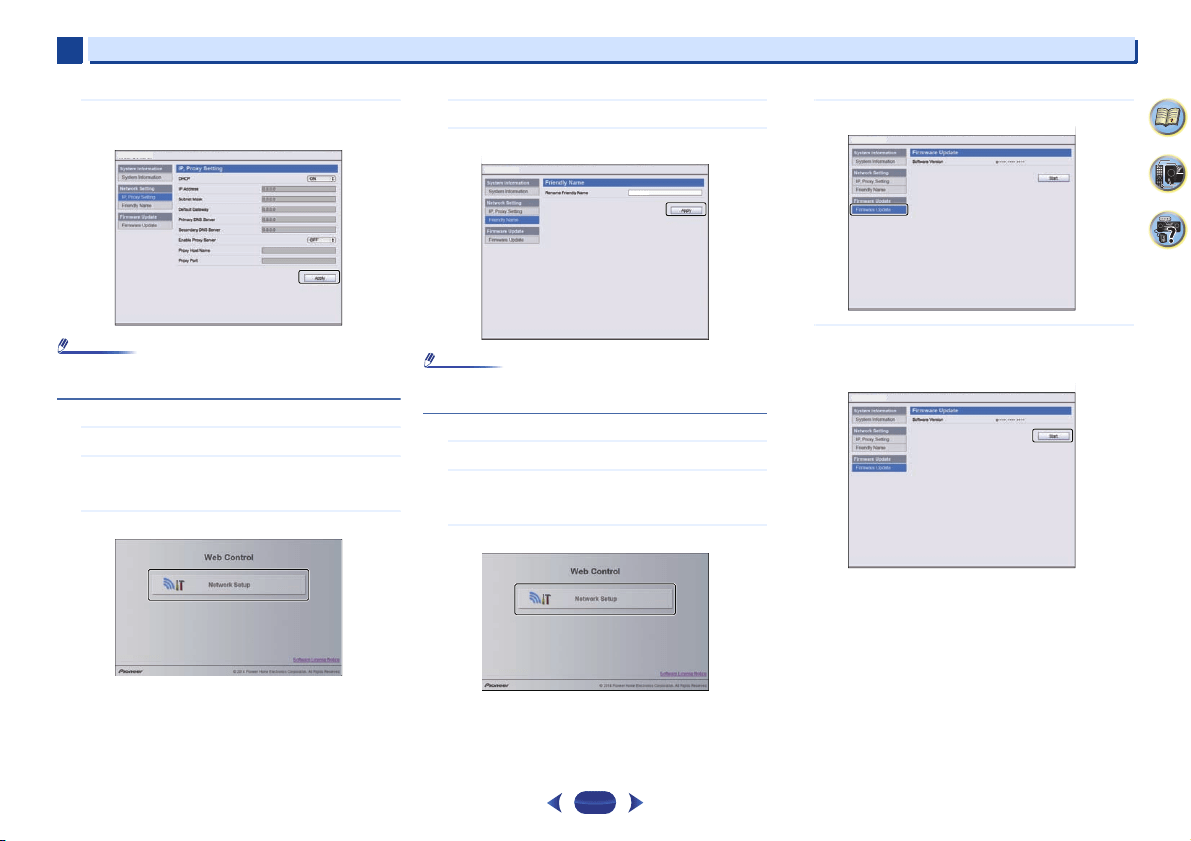
Playback with NETWORK features
6
6
47
4
58
9
5
Setup the network settings manually and then press
Apply.
Note
•
This setting for the network has been confirmed for Mac OS
X 10.7 and Safari 5.1.
Friendly Name setting using Safari browser
1
Launch Safari on your computer.
2
Press Bookmark icon. Click Bonjour list (a), and then
select this receiver’s name (Friendly Name) (b) in
Bookmark.
3
Select ‘Network Setup’.
4
Click Friendly Name.
5
Enter friendly name and then press Apply.
Note
•
This setting for the network has been confirmed for Mac OS
X 10.7 and Safari 5.1.
Firmware update using Safari browser
1
Launch Safari on your computer.
2
Press Bookmark icon. Click Bonjour list (a), and then
select this receiver’s name (Friendly Name) (b) in
Bookmark.
3
Select ‘Network Setup’.
4
Click Firmware Update.
5
Press Start.
The firmware update prepare screen is displayed. If the
screen does not switch automatically, click Click here.
Network Setup
VSX-824
Network Setup
Network Setup
Network Setup
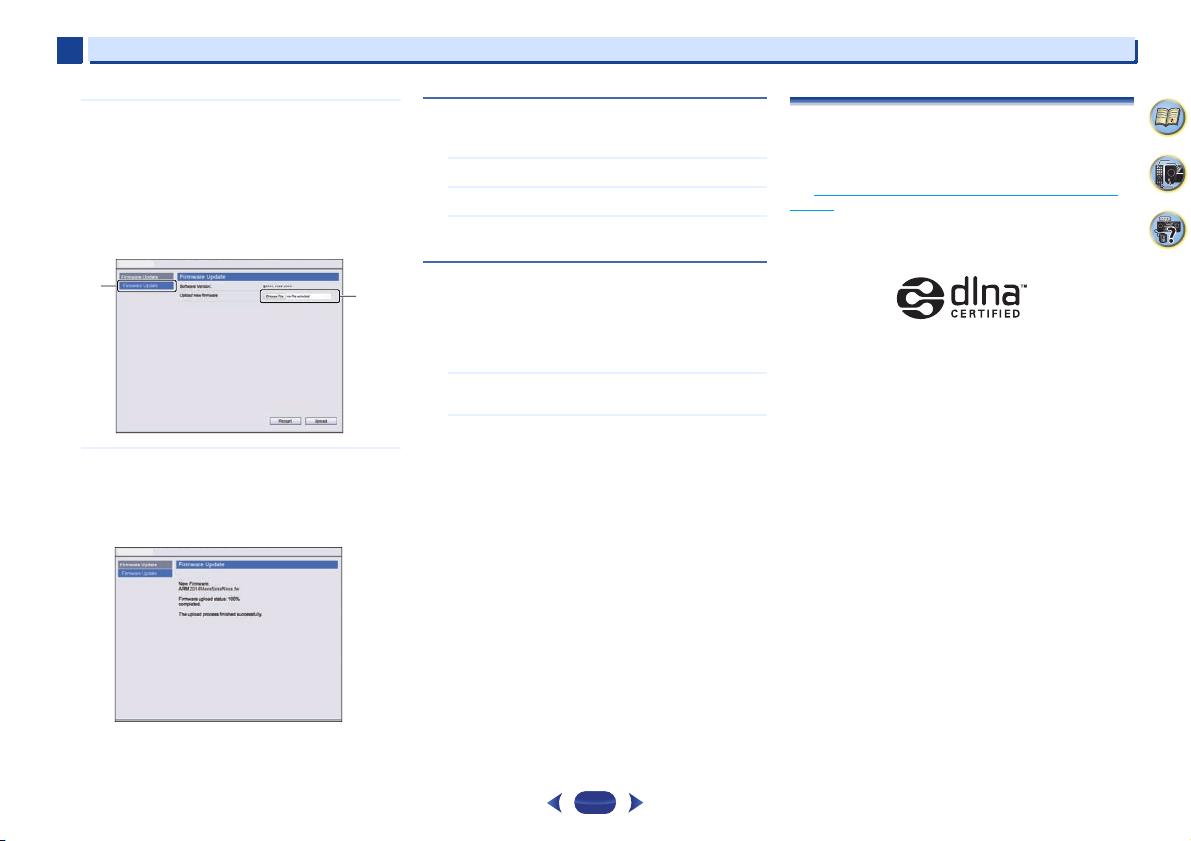
Playback with NETWORK features
6
6
48
4
58
9
6
Browse the latest firmware on your computer (a) and
then press Upload (b).
The extension of the firmware is fw. Please select a file
that has the fw extension.
The confirmation screen is displayed. If you continue the
firmware update, press OK. Once the firmware update
process starts, you can't stop it. Wait until the file is
uploaded (about one minute may be required depending
on your LAN connection environment).
7
The firmware upload status screen is displayed.
“The upload process finished successfully.” will be shown
when the update is completed.
Unplug the power cord from the AC outlet after the
update is completed.
Factory Reset
Use to reset all network connection settings to their initial,
factory-setting condition.
1
Select ‘Factory Reset’ from the Network Setup menu.
2
Select ‘Start’.
3
Select ‘OK’ to confirm.
The screen will return automatically to the play screen.
System Information
The setting status of the following network-related items can
be checked.
•
IP Address – Check the IP address of this receiver.
•
MAC Address – Check the MAC address of this receiver.
•
Ver – Check the firmware version of this receiver.
1
Select ‘System Info’ from the Network Setup menu.
Display the setting status of the network-related items.
2
When you’re finished, press
RETURN
.
You return to the Network Setup menu.
About network playback
The network playback function of this unit uses the following
technologies:
Windows Media Player
See Windows Media Player 11/Windows Media Player 12 on
page 50 for more on this.
DLNA
DLNA CERTIFIED™ Audio Player
The Digital Living Network Alliance (DLNA) is a cross-industry
organization of consumer electronics, computing industry
and mobile device companies. Digital Living provides
consumers with easy sharing of digital media through a wired
or wireless network in the home.
The DLNA certification logo makes it easy to find products
that comply with the DLNA Interoperability Guidelines. This
unit complies with DLNA Interoperability Guidelines v1.5.
When a PC running DLNA server software or other DLNA
compatible device is connected to this player, some setting
changes of software or other devices may be required. Please
refer to the operating instructions for the software or device
for more information.
DLNA™, the DLNA Logo and DLNA CERTIFIED™ are
trademarks, service marks, or certification marks of the Digital
Living Network Alliance.
a
b
Network Setup
Network Setup
Playback with NETWORK features
6
6
49
4
58
9
Content playable over a network
•
Even when encoded in a compatible format, some files may
not play correctly.
•
Movie or Photo files cannot be played back.
•
There are cases where you cannot listen to an Internet radio
station even if the station can be selected from a list of
radio stations.
•
Some functions may not be supported depending on the
server type or version used.
•
Supported file formats vary by server. As such, files not
supported by your server are not displayed on this unit. For
more information check with the manufacturer of your
server.
Disclaimer for Third Party Content
Access to content provided by third parties requires a high
speed internet connection and may also require account
registration and a paid subscription.
Third party content services may be changed, suspended,
interrupted, or discontinued at any time without notice, and
Pioneer disclaims any liability in connection with such
occurrences.
Pioneer does not represent or warrant that content services
will continue to be provided or available for a particular period
of time, and any such warranty, express or implied, is
disclaimed.
About playback behavior over a network
•
Playback may stall when the PC is switched off or any
media files stored on it are deleted while playing content.
•
If there are problems within the network environment
(heavy network traffic, etc.) content may not be displayed or
played properly (playback may be interrupted or stalled).
For best performance, a 100BASE-TX connection between
player and PC is recommended.
•
If several clients are playing simultaneously, as the case
may be, playback is interrupted or stalled.
•
Depending on the security software installed on a
connected PC and the setting of such software, network
connection may be blocked.
Pioneer is not responsible for any malfunction of the player
and/or the NETWORK features due to communication error/
malfunctions associated with your network connection and/
or your PC, or other connected equipment. Please contact
your PC manufacturer or Internet service provider.
This product includes technology owned by Microsoft
Corporation and cannot be used or distributed without a license
from Microsoft Licensing, Inc.
Microsoft, Windows, Windows Media and Windows Vista are
either registered trademarks or trademarks of Microsoft
Corporation in the United States and/or other countries.
Glossary
FLAC
FLAC (Free Lossless Audio Codec) is an audio format allows
lossless codec. Audio is compressed in FLAC without any loss
in quality. For more details about FLAC, visit the following
website: http://flac.sourceforge.net/
vTuner
vTuner is a paid online database service that allows you to
listen to radio and TV broadcasts on the Internet. vTuner lists
thousands of stations from over 100 different countries
around the globe. For more detail about vTuner, visit the
following website:
http://www.radio-pioneer.com
“This product is protected by certain intellectual property rights
of NEMS and BridgeCo. Use or distribution of such technology
outside of this product is prohibited without a license from
NEMS and BridgeCo or an authorized subsidiary.”
Windows Media
Windows Media is a multimedia framework for media
creation and distribution for Microsoft Windows. Windows
Media is either a registered trademark or trademark of
Microsoft Corporation in the U.S. and/or other countries. Use
an application licensed by Microsoft Corporation to author,
distribute, or play Windows Media formatted content. Using
an application unauthorized by Microsoft Corporation is
subject to malfunction.
Playback with NETWORK features
6
6
50
4
58
9
Windows Media Player 11/Windows Media Player 12
Windows Media Player is software to deliver music, photos
and movies from a Microsoft Windows computer to home
stereo systems and TVs.
With this software, you can play back files stored on the PC
through various devices wherever you like in your home.
This software can be downloaded from Microsoft’s website.
•
Windows Media Player 11 (for Windows XP or Windows
Vista)
•
Windows Media Player 12 (for Windows 7 or 8)
For more information check the official Microsoft website.
About playable file formats
The NETWORK feature of this receiver supports the following
file formats. Note that some file formats are not available for
playback although they are listed as playable file formats.
Also, the compatibility of file formats varies depending on the
type of server. Check with your server to ensure the
compatibility of file formats supported by your server.
•
Internet radio playback may be affected by the Internet
communications environment, and in this case playback
may not be possible even with the file formats listed here.
•
With MP3, WAV, AAC, FLAC, AIFF and Apple Lossless files,
when music files with the same format, sampling
frequency, quantization bit number and number of
channels are played successively, they are played with no
gap.
-
Make sure the gap is at the minimum when using MP3 or
AAC. If you are concerned about the gap, please use
WAV or FLAC files.
-
Gapless playback is not possible when the format is
being converted (transcoded) by the server.
-
Gapless playback is not possible in the DMR mode.
Music files
Extension Stream
MP3 (MPEG-1 Audio Layer 3)
.mp3
a
Sampling frequency 32 kHz, 44.1 kHz, 48 kHz
Quantization bitrate 16 bit
Channel 2 ch
Bitrate 8 kbps to 320 kbps
VBR/CBR Supported/Supported
WAV (LPCM)
.wav Sampling frequency 32 kHz, 44.1 kHz, 48 kHz,
88.2 kHz, 96 kHz,
176.4 kHz, 192 kHz
Quantization bitrate 16 bit, 24 bit
Channel 2 ch
WMA (WMA2/7/8/9)
.wma
b
Sampling frequency 32 kHz, 44.1 kHz, 48 kHz
Quantization bitrate 16 bit
Channel 2 ch
Bitrate 5 kbps to 320 kbps
VBR/CBR Supported/Supported
Playback with NETWORK features
6
6
51
4
58
9
a. MPEG Layer-3 audio decoding technology licensed from
Fraunhofer IIS and Thomson multimedia.
b. Files encoded using Windows Media Codec 9 may be playable
but some parts of the specification are not supported;
specifically, Pro, Lossless, Voice.
c. Uncompressed FLAC files are not supported. Pioneer does not
guarantee playback.
AAC (MPEG-4 AAC LC, MPEG-4 HE AAC)
.m4a
.aac
.3gp
.3g2
Sampling frequency 32 kHz, 44.1 kHz, 48 kHz
Quantization bitrate 16 bit
Channel 2 ch
Bitrate 16 kbps to 320 kbps
VBR/CBR Supported/Supported
FLAC
.flac
c
Sampling frequency 32 kHz, 44.1 kHz, 48 kHz,
88.2 kHz, 96 kHz,
176.4 kHz, 192 kHz
Quantization bitrate 16 bit, 24 bit
Channel 2 ch
AIFF
.aif
.aiff
Sampling frequency 32 kHz, 44.1 kHz, 48 kHz,
88.2 kHz, 96 kHz, 176.4 kHz,
192 kHz
Quantization bitrate 16 bit, 24 bit
Channel 2 ch
Apple Lossless
.m4a
.mp4
Sampling frequency 32 kHz, 44.1 kHz, 48 kHz,
88.2 kHz, 96 kHz
Quantization bitrate 16 bit, 24 bit
Channel 2 ch
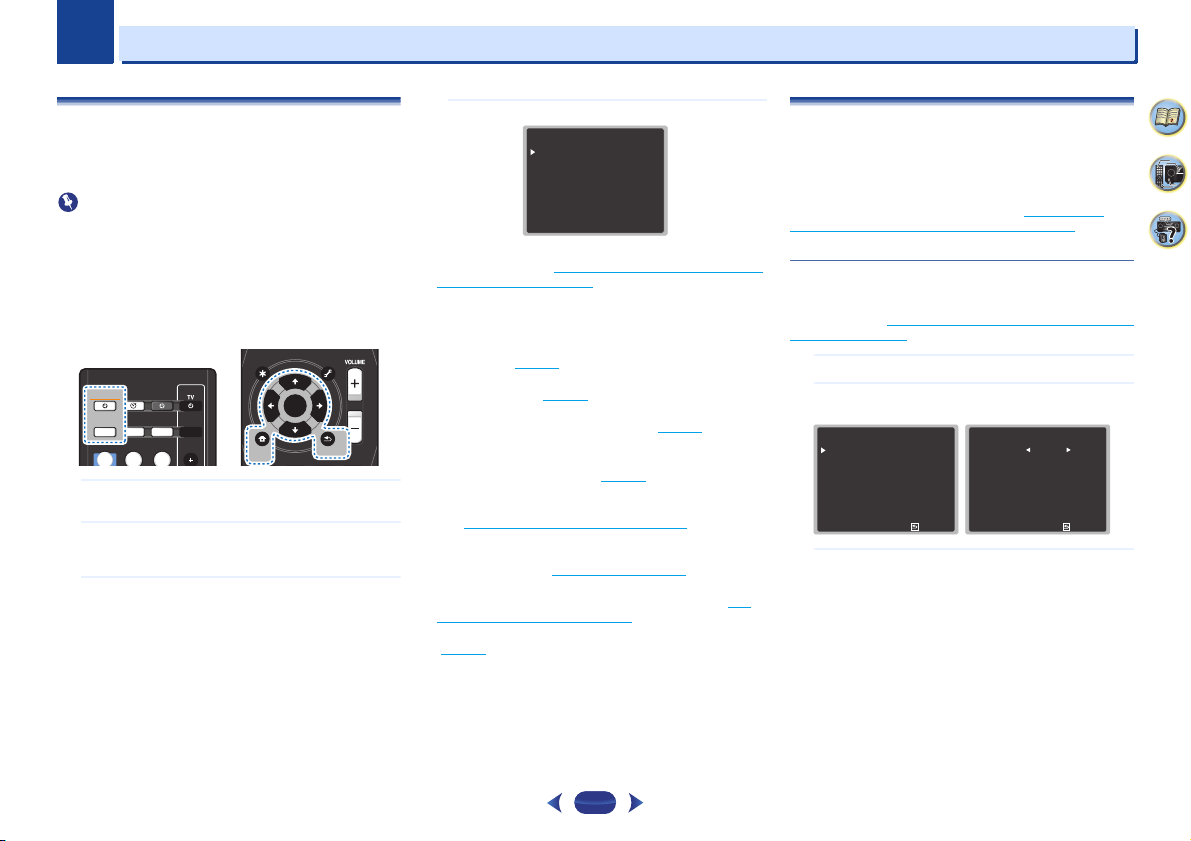
7
Chapter
7
52
4
58
9
Home Menu
Using the Home Menu
The following section shows you how to make detailed
settings to specify how you’re using the receiver, and also
explains how to fine-tune individual speaker system settings
to your liking.
Important
•
The OSD will not appear if you have connected using the
composite output to your TV. Use HDMI connection for
Home Menu.
•
If headphones are connected to the receiver, disconnect
them.
•
You can’t use the Home Menu when the NETRADIO,
M.SERVER, FAVORITE, iPod/USB or ADAPTER input is
selected.
1
Switch on the receiver and your TV.
Press
STANDBY/ON
to switch on.
2
Switch the TV input to the input that connects this
receiver to the TV through the corresponding HDMI
cable.
3
Press
RECEIVER
, then press
HOME MENU
.
The Home Menu appears on your TV. Use
///
and
ENTER
on the remote control to navigate through the
screens and select menu items. Press
RETURN
to exit
the current menu.
•
Press
HOME MENU
at any time to exit the Home
Menu.
4
Select the setting you want to adjust.
•
Auto MCACC – This is a quick and effective automatic
surround setup (see
Automatically setting up for surround
sound (MCACC) on page 24).
•
Manual SP Setup
-
Speaker Setting – Specify the size and number of
speakers you’ve connected (see below).
-
X.Over – Specify which frequencies will be sent to the
subwoofer (
page 53
).
-
Channel Level – Adjust the overall balance of your
speaker system (
page 53
).
-
Speaker Distance – Specify the distance of your
speakers from the listening position (
page 54
).
•
Input Assign
-
Analog Input – Specify what you’ve connected to the
ANALOG IN1 audio input (
page 54
).
•
Auto Power Down – Sets to automatically turn off the
power when the receiver has not operated for several hours
(see
The Auto Power Down menu
on page 54).
•
HDMI Setup – Set the audio return channel function or set
the HDMI input signal to Standby Through output or not
during standby (see
HDMI Setup
on page 56).
•
Network Standby – Allows the AirPlay function to be used
even when the receiver is in the standby mode (see
The
Network Standby menu on page 55).
•
MHL Setup – Changes the settings related to MHL
(
page 55
).
•
OSD Setup – Sets the overlay function ON/OFF.
Manual speaker setup
This receiver allows you to make detailed settings to optimize
the surround sound performance. You only need to make
these settings once (unless you change the placement of your
current speaker system or add new speakers).
These settings are designed to fine-tune your system, but if
you’re satisfied with the settings made in
Automatically
setting up for surround sound (MCACC) on page 24, it isn’t
necessary to make all of these settings.
Speaker Setting
Use this setting to specify your speaker configuration (size,
number of speakers). It is a good idea to make sure that the
settings made in
Automatically setting up for surround sound
(MCACC) on page 24 are correct.
1
Select ‘Manual SP Setup’ from the Home Menu.
2
Select ‘Speaker Setting’ from the Manual SP Setup
menu.
3
Choose the set of speakers that you want to set then
select a speaker size.
Use
/
to select the size (and number) of each of the
following speakers:
•
Front – Select LARGE if your front speakers reproduce bass
frequencies effectively, or if you didn’t connect a
subwoofer. Select SMALL to send the bass frequencies to
the subwoofer.
•
Center – Select LARGE if your center speaker reproduces
bass frequencies effectively, or select SMALL to send bass
frequencies to the other speakers or subwoofer. If you
didn’t connect a center speaker, choose NO (the center
channel is sent to the other speakers).
SLEEP
INPUTCTRL
BD GAME HDMI
S.SEL ECO
STANDBY/ON
RECEIVER SIGNAL SEL
SOURCE
STANDBY/ON
RECEIVER
CTRL
ENTER
RETURN
AUDIO P.
TOP
MENU
HOME
MENU
TOOLS
MENU
BAND PTY
ENTER
RETURN
HOME
MENU
Home Menu
1
. Auto MCACC
2
. Manual SP Setup
3
. Input Assign
4. Auto Power Down
5. HDMI Setup
6. Network Standby
7. MHL Setup
8. OSD Setup
2
. Manual SP Setup
Return
a
. Speaker Setting
b
. X.Over
c
. Channel Level
d
. Speaker Distance
2a
. Speaker Setting
Front
Center
Surr
Subwoofer:
Return
[ SMALL ]
[ SMALL ]
YES
SMALL
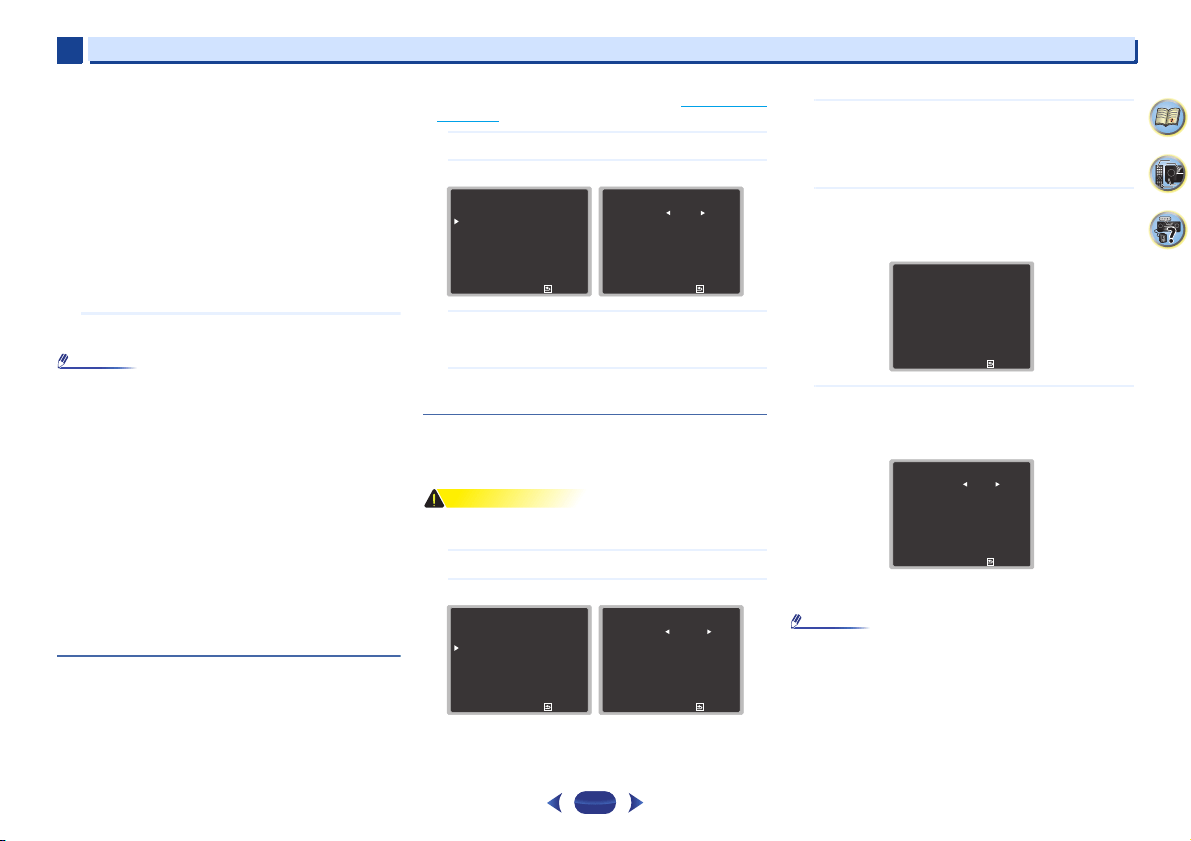
Home Menu
7
7
53
4
58
9
•
Surr – Select LARGE if your surround speakers reproduce
bass frequencies effectively. Select SMALL to send bass
frequencies to the other speakers or subwoofer. If you
didn’t connect surround speakers choose NO (the sound of
the surround channels is sent to the other speakers).
•
Subwoofer – LFE signals and bass frequencies of
channels set to SMALL are output from the subwoofer
when YES is selected (see notes below). Choose the PLUS
setting if you want the subwoofer to output bass sound
continuously or you want deeper bass (the bass
frequencies that would normally come out the front and
center speakers are also routed to the subwoofer). If you did
not connect a subwoofer choose NO (the bass frequencies
are output from other speakers).
4
When you’re finished, press
RETURN
.
You return to the Manual SP Setup menu.
Note
•
If you select SMALL for the front speakers, the subwoofer
will automatically be fixed to YES. Also, the center and
surround can’t be set to LARGE if the front speakers are set
to SMALL. In this case, all bass frequencies are sent to the
subwoofer.
•
If you have a subwoofer and like lots of bass, it may seem
logical to select LARGE for your front speakers and PLUS
for the subwoofer. This may not, however, yield the best
bass results. Depending on the speaker placement of your
room you may actually experience a decrease in the
amount of bass due to low frequency cancellations. In this
case, try changing the position or direction of speakers. If
you can’t get good results, listen to the bass response with
it set to PLUS and YES or the front speakers set to LARGE
and SMALL alternatively and let your ears judge which
sounds best. If you’re having problems, the easiest option
is to route all the bass sounds to the subwoofer by selecting
SMALL for the front speakers.
X.Over
•
Default setting: 100Hz
This setting decides the cutoff between bass sounds playing
back from the speakers selected as LARGE, or the subwoofer,
and bass sounds playing back from those selected as SMALL.
It also decides where the cutoff will be for bass sounds in the
LFE channel.
•
For more on selecting the speaker sizes, see Speaker Setting
on page 52.
1
Select ‘Manual SP Setup’ from the Home Menu.
2
Select ‘X.Over’ from the Manual SP Setup menu.
3
Choose the frequency cutoff point.
Frequencies below the cutoff point will be sent to the
subwoofer (or LARGE speakers).
4
When you’re finished, press
RETURN
.
You return to the Manual SP Setup menu.
Channel Level
Using the channel level settings, you can adjust the overall
balance of your speaker system, an important factor when
setting up a home theater system.
CAUTION
•
The test tones used in the Channel Level settings are output
at high volume.
1
Select ‘Manual SP Setup’ from the Home Menu.
2
Select ‘Channel Level’ from the Manual SP Setup menu.
3
Select a setup option.
•
Manual – Move the test tone manually from speaker to
speaker and adjust individual channel levels.
•
Auto – Adjust channel levels as the test tone moves
from speaker to speaker automatically.
4
Confirm your selected setup option.
The test tones will start after you press
ENTER
. After the
volume increases to the reference level, test tones will be
output.
5
Adjust the level of each channel using
/
.
If you selected Manual, use
/
to switch speakers. The
Auto setup will output test tones in the order shown on-
screen:
Adjust the level of each speaker as the test tone is
emitted.
Note
•
If you are using a Sound Pressure Level (SPL) meter, take
the readings from your main listening position and adjust
the level of each speaker to 75 dB SPL (C-weighting/slow
reading).
•
The subwoofer test tone is output at low volumes. You may
need to adjust the level after testing with an actual
soundtrack.
2
. Manual SP Setup
Return
a
. Speaker Setting
b
. X.Over
c
. Channel Level
d
. Speaker Distance
2b
. X.Over
Return
Frequency 100Hz
2
. Manual SP Setup
Return
a
. Speaker Setting
b
. X.Over
c
. Channel Level
d
. Speaker Distance
2c
. Channel Level
ENTER:Next
Return
Test Tone Manual
2c
. Channel Level
Please Wait . . .20
Caution
Loud test tones
will be output.
Return
Test Tone [ Manual ]
2c
. Channel Level
Front L
Center
Front R
Surround R
Surround L
Subwoofer
Return
[ 0dB ]
[ 0dB ]
[ 0dB ]
[ 0dB ]
[ 0dB ]
0dB
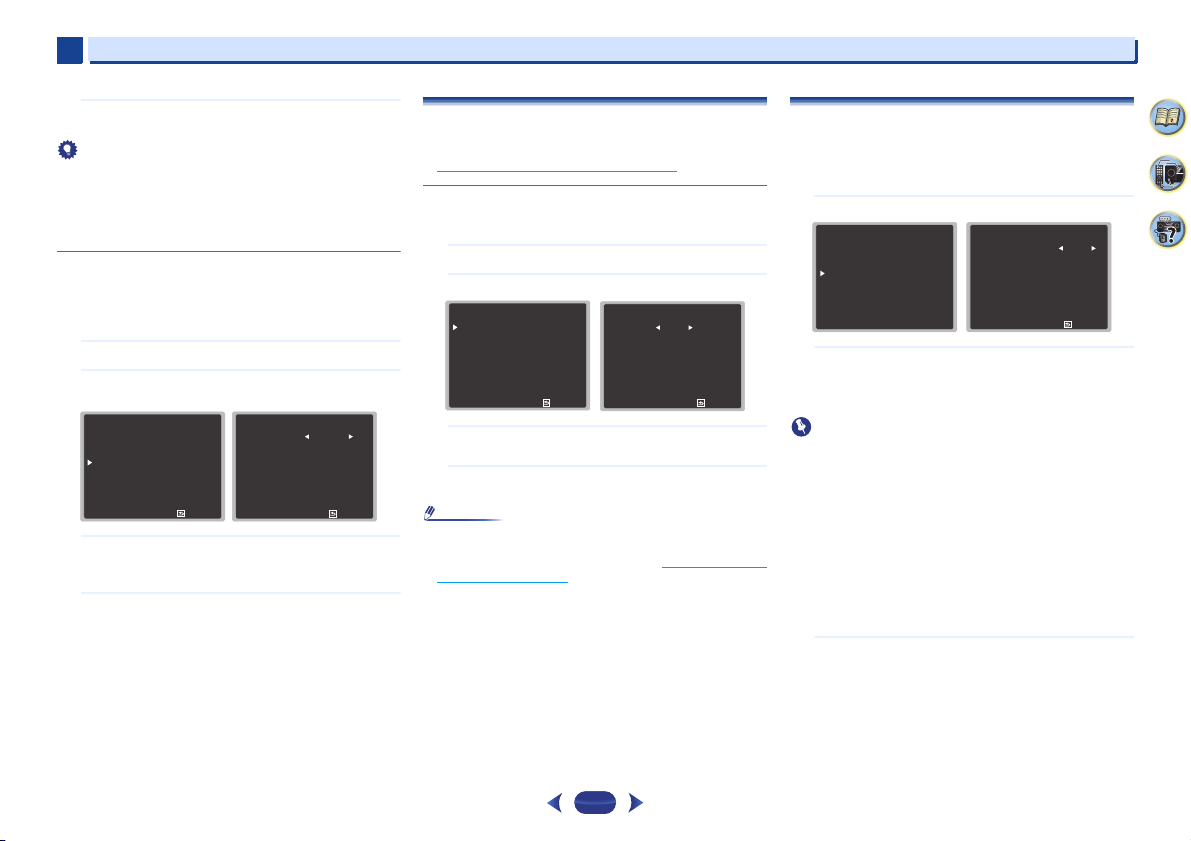
Home Menu
7
7
54
4
58
9
6
When you’re finished, press
RETURN
.
You return to the Manual SP Setup menu.
Tip
•
You can change the channel levels at any time by press
CH
SEL
and
CH LEVEL +/–
on the remote control. You can also
press
RECEIVER
, then press
CH SEL
and use
/
to select
the channel, and then use
/
to adjust the channel
levels.
Speaker Distance
For good sound depth and separation from your system, you
need to specify the distance of your speakers from the
listening position. The receiver can then add the proper delay
needed for effective surround sound.
1
Select ‘Manual SP Setup’ from the Home Menu.
2
Select ‘Speaker Distance’ from the Manual SP Setup
menu.
3
Adjust the distance of each speaker using
/
.
You can adjust the distance of each speaker in 0.03 m
increments.
4
When you’re finished, press
RETURN
.
You return to the Manual SP Setup menu.
The Input Assign menu
Assigns input function for analog audio input terminal.
•
For the assignment of the digital signal inputs, see
Selecting the audio input signal
on page 26.
Analog Input
ANALOG IN1 audio input terminal is assigned to CD under
factory settings, but this can be changed to TV input.
1
Select ‘Input Assign’ from the Home Menu.
2
Select ‘Analog Input’ from the Input Assign menu.
3
Select the desired input option for the ANALOG IN1
audio input terminal.
4
When you’re finished, press
RETURN
.
You return to the Input Assign menu.
Note
•
When playing analog input audio, switch to the CD or TV
input menu, press
RECEIVER
and press
SIGNAL SEL
several times to choose A (Analog). (see
Selecting the audio
input signal on page 26)
The Auto Power Down menu
Set to automatically turn off the receiver after a specified time
has passed (when the power has been on with no operation
and no audio signal).
•
Default setting: 15M
1
Select ‘Auto Power Down’ from the Home Menu.
2
Specify the amount of time to allow before the power
is turned off (when there has been no operation).
•
Select 15 minutes (default setting) or 30 minutes, 60
minutes or OFF.
Important
•
Auto power down will occur if the HDMI AUDIO
PARAMETER is set to THRU and there is no operation.
•
Even if images are being output, if the input volume level is
exceptionally low, it will automatically turn OFF.
•
Depending on the connected device, the static caused by
the device may prevent the auto power down function from
activating.
•
If the input volume level is exceptionally low, in some cases
the auto power down function may be activated.
•
During photo viewer playback, continuing playback without
performing any control operations will activate auto power
down.
3
When you’re finished, press
RETURN
.
You return to the Home Menu.
2
. Manual SP Setup
Return
a
. Speaker Setting
b
. X.Over
c
. Channel Level
d
. Speaker Distance
2d
. Speaker Distance
Front L
Center
Front R
Surround R
Surround L
Subwoofer
Return
[ 3 m ]
[ 3 m ]
[ 3 m ]
[ 3 m ]
[ 3 m ]
3 m
3
. Input Assign
Return
a
. Analog Input
3a
. Analog Input
Return
Analog CD
Home Menu
1
. Auto MCACC
2
. Manual SP Setup
3
. Input Assign
4. Auto Power Down
5. HDMI Setup
6. Network Standby
7. MHL Setup
8. OSD Setup
4
. Auto Power Down
Return
Auto Power Down
15M
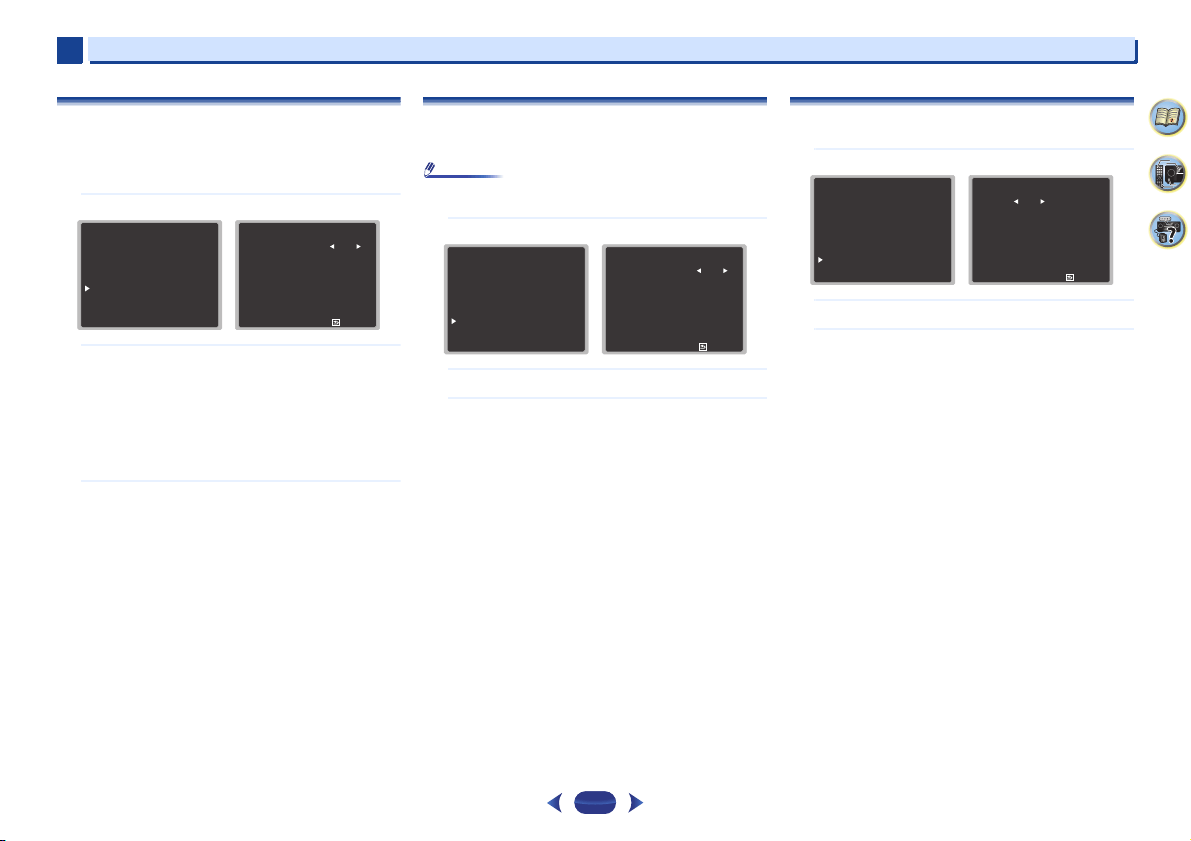
Home Menu
7
7
55
4
58
9
The Network Standby menu
This setting allows the AirPlay function for operating the
receiver from a computer connected on the same LAN as the
receiver to be used even when the receiver is in the standby
mode.
1
Select ‘Network Standby’ from the Home Menu.
2
Choose ON or OFF for the Network Standby.
•
ON – The AirPlay function can be used even when the
receiver is in the standby mode.
•
OFF – The AirPlay function cannot be used when the
receiver is in the standby mode (This lets you reduce
power consumption in the standby mode).
-
If the Network Standby setting is set to ON, the
power consumption during standby will increase.
3
When you’re finished, press
RETURN
.
You return to the Home Menu.
The MHL Setup menu
Select whether or not to switch the input automatically to the
MHL input when an MHL-compatible device is connected.
Note
•
This is only valid for MHL-compatible devices supporting
this function.
1
Select ‘MHL Setup’ from the Home Menu.
2
Choose ON or OFF for the MHL Setup.
3
When you’re finished, press
RETURN
.
You return to the Home Menu.
The OSD Setup menu
Sets the overlay function ON/OFF.
1
Select ‘OSD Setup’ from the Home Menu.
2
Choose ON or OFF for the OSD Setup.
3
When you’re finished, press
RETURN
.
You return to the Home Menu.
6
. Network Standby
Return
Network Standby
OFF
Home Menu
1
. Auto MCACC
2
. Manual SP Setup
3
. Input Assign
4. Auto Power Down
5. HDMI Setup
6. Network Standby
7. MHL Setup
8. OSD Setup
7
. MHL Setup
Return
Auto Switching
ON
Home Menu
1
. Auto MCACC
2
. Manual SP Setup
3
. Input Assign
4. Auto Power Down
5. HDMI Setup
6. Network Standby
7. MHL Setup
8. OSD Setup
8
. OSD Setup
Return
OSD
ON
Home Menu
1
. Auto MCACC
2
. Manual SP Setup
3
. Input Assign
4. Auto Power Down
5. HDMI Setup
6. Network Standby
7. MHL Setup
8. OSD Setup
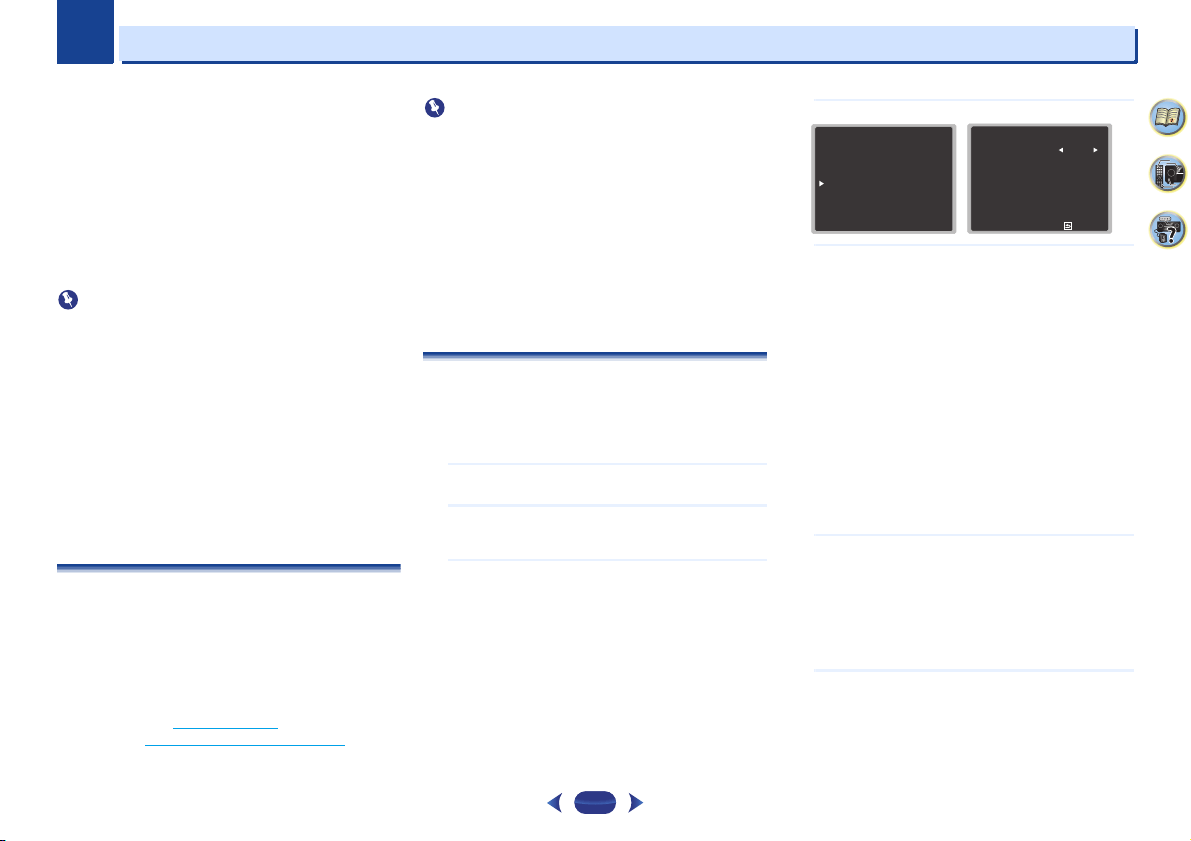
8
Chapter
8
56
4
58
9
Control with HDMI function
Synchronized operations below with a Control with HDMI-
compatible Pioneer TV or Blu-ray Disc player are possible
when the component is connected to the receiver using an
HDMI cable.
•
Synchronized amp mode
The receiver’s volume can be set and the sound can be
muted using the TV’s remote control.
•
Power synchronization with TV
•
Automatic switching of inputs
The receiver’s input switches over automatically when the
TV’s input is changed or a Control with HDMI-compatible
component is played.
Important
•
With Pioneer devices, the Control with HDMI functions are
referred to as “KURO LINK”.
•
You cannot use this function with components that do not
support Control with HDMI.
•
We only guarantee this receiver will work with Pioneer
made Control with HDMI-compatible components.
However, we do not guarantee that all synchronized
operations will work with components that support the
Control with HDMI function.
•
Use a High Speed HDMI
®/
™ Cable when you want to use
the Control with HDMI function. The Control with HDMI
function may not work properly if a different type of HDMI
cable is used.
•
For details about concrete operations, settings, etc., refer to
also the operating instructions for each component.
Making Control with HDMI connections
You can use synchronized operation for a connected TV and
other components.
•
Be sure to connect the TV’s audio cable to the audio input
of this unit. When the TV and receiver are connected by
HDMI connections, if the TV supports the HDMI Audio
Return Channel function, the sound of the TV is input to the
receiver via the HDMI terminal, so there is no need to
connect an audio cable. In this case, set ARC at HDMI
Setup to ON (see
HDMI Setup
below).
For details, see
Connecting using HDMI
on page 18.
Important
•
When connecting this system or changing connections, be
sure to switch the power off and disconnect the power cord
from the wall socket.
After completing all connections, connect the power cords
to the wall socket.
•
After this receiver is connected to an AC outlet, a 2 second
to 10 second HDMI initialization process begins. You
cannot carry out any operations during initialization. The
HDMI indicator on the display unit blinks during
initialization, and you can turn this receiver on once it has
stopped blinking.
•
To get the most out of this function, we recommend that
you connect your HDMI component not to a TV but rather
directly to the HDMI terminal on this receiver.
HDMI Setup
You must adjust the settings of this receiver as well as the
connected Control with HDMI-compatible components in
order to make use of the Control with HDMI function. For
more information see the operating instructions for each
component.
1
Switch on the receiver and your TV.
Press
STANDBY/ON
to switch on.
2
Switch the TV input to the input that connects this
receiver to the TV through the corresponding HDMI
cable.
3
Press
RECEIVER
, then press
HOME MENU
.
The Home Menu appears on your TV. Use
///
and
ENTER
on the remote control to navigate through the
screens and select menu items. Press
RETURN
to exit
the current menu.
•
Press
HOME MENU
at any time to exit the Home
Menu.
4
Select ‘HDMI Setup’ from the Home Menu.
5
Select the ‘Control’ setting you want.
Choose whether to set this unit’s Control with HDMI
function ON or OFF. You will need to set it to ON to use
the Control with HDMI function.
When using a component that does not support the
Control with HDMI function, set this to OFF.
•
ON – Enables the Control with HDMI function. When
this unit’s power is turned off and you have a
supported source begin playback while using the
Control with HDMI function, the audio and video
outputs from the HDMI connection are output from the
TV.
•
OFF – The Control with HDMI is disabled.
Synchronized operations cannot be used. When this
unit’s power is turned off, audio and video of sources
connected via HDMI are not output.
-
If the Control setting is not set to OFF, the power
consumption during standby will increase.
6
Select the ‘ARC’ setting you want.
When a TV supporting the HDMI Audio Return Channel
function is connected to the receiver, the sound of the TV
can be input via the HDMI terminal.
•
ON – The TV’s sound is input via the HDMI terminal.
This can only be selected when Control is set to ON.
•
OFF – The TV’s sound is input from the audio input
terminals other than HDMI inputs.
7
Choose the ‘Standby Through’ setting you want.
When the receiver is in standby, the HDMI input signal
selected here will be output to the TV by HDMI.
•
LAST – The HDMI input signal selected previously will
be output.
Home Menu
1
. Auto MCACC
2
. Manual SP Setup
3
. Input Assign
4. Auto Power Down
5. HDMI Setup
6. Network Standby
7. MHL Setup
8. OSD Setup
5
. HDMI Setup
Return
Control
OFF
ARC
[
OFF
]
Standby Through
[
OFF
]
Control with HDMI function
8
8
57
4
58
9
•
BD, DVD, SAT/CBL, MHL, HDMI, GAME – The HDMI
input signal selected here will be output.
•
OFF – Signal will not be output during standby.
(However, when Control is set to ON, the HDMI signal
is transferred through by the Control with HDMI
function even when in the standby mode.)
-
If the Standby Through setting is not set to OFF, the
power consumption during standby will increase.
-
This setting can be used even with devices that are
not compatible with the Control with HDMI
function.
-
The Standby Through function cannot be used with
MHL-compatible devices.
8
When you’re finished, press
RETURN
.
You return to the Home Menu.
Before using synchronization
Once you have finished all connections and settings, you
must:
1
Put all components into standby mode.
2
Turn the power on for all components, with the power
for the TV being turned on last.
3
Choose the HDMI input to which the TV is connected to
this receiver, and see if video output from connected
components displays properly on the screen or not.
4
Check whether the components connected to all HDMI
inputs are properly displayed.
About synchronized operations
The Control with HDMI-compatible component connected to
the receiver operates in sync as described below.
•
Synchronized amp mode
-
From the menu screen of the Control with HDMI-
compatible TV, set audio to be played through this
receiver, and the receiver will switch to the synchronized
amp mode.
-
When in the synchronized amp mode, the synchronized
amp mode is canceled when the receiver’s power is
turned off. To turn the synchronized amp mode back on,
set audio to be played through the receiver from the TV’s
menu screen, etc. This receiver will power up and switch
to the synchronized amp mode.
-
When in the synchronized amp mode, the synchronized
amp mode is canceled if an operation that produces
sound from the TV is performed from the TV’s menu
screen, etc.
-
When the synchronized amp mode is canceled, the
receiver’s power turns off if you were viewing an HDMI
input or a TV program on the TV.
•
Power synchronization with TV
-
When the TV’s power is set to standby, the receiver’s
power is also set to standby. (Only when the input for a
component connected to the receiver by HDMI
connection is selected or when watching the TV.)
•
Automatic switching of inputs
-
The receiver’s input switches automatically when the
Control with HDMI-compatible component is played.
-
The receiver’s input switches automatically when the
TV’s input is switched.
-
The synchronized amp mode remains in effect even if the
receiver’s input is switched to a component other than
one connected by HDMI.
Cautions on the Control with HDMI function
•
Connect the TV and components (Blu-ray Disc player, etc.)
directly to this receiver. Interrupting a direct connection
with other amps or an AV converter (such as an HDMI
switch) can cause operational errors.
•
When the receiver’s Control is turned ON, even if the
receiver’s power is in the standby mode, it is possible to
output the audio and video signals from a player via HDMI
to the TV without producing sound from the receiver, but
only when a Control with HDMI-compatible component
(Blu-ray Disc player, etc.) and compatible TV are
connected. In this case, the receiver’s power turns on and
the power and HDMI indicators light.

9
Chapter
9
58
4
58
9
Additional information
Troubleshooting
Incorrect operations are often mistaken for trouble and
malfunctions. If you think that there is something wrong with
this component, check the points below. Take a look at the
other components and electrical appliances being used,
because sometimes the problem may lie there. If the trouble
isn’t sorted out even after going through the checks below,
ask your nearest Pioneer authorized independent service
company to carry out repair work.
•
If the unit does not operate normally due to external effects
such as static electricity disconnect the power plug from
the outlet and insert again to return to normal operating
conditions.
General
The power does not turn on.
Disconnect the power plug from the outlet, and insert again.
Make sure there are no loose strands of speaker wire touching
the rear panel. This could cause the receiver to shut off
automatically.
The receiver suddenly switches off.
When the Auto Power Down function is working, the power will
automatically turn off if the receiver has not operated for
several hours. Check the setting for the Auto Power Down
function (see The Auto Power Down menu on page 54).
After about a minute (you won’t be able to switch the unit on
during this time), switch the receiver back on. If the message
persists, call a Pioneer authorized independent service
company.
If there is very little low frequency information in the source
material, change your speaker settings to Front: SMALL /
Subwoofer: YES, or Front: LARGE / Subwoofer: PLUS (
page 52).
The HDMI indicator blinks and the power does not turn
on.
The receiver may have a serious problem. Do not try switching
the receiver on. Unplug the receiver from the wall and call a
Pioneer authorized independent service company.
The power suddenly turns on or off, or the input suddenly
changes (When the Control with HDMI is ON).
This happens because of the synchronized operation due to
the Control with HDMI function. If synchronized operations
are not needed, set the Control with HDMI to OFF (see
HDMI
Setup on page 56).
OVERHEAT shows in the display and the power turns off.
The temperature within the unit has exceeded the allowable
value. Try moving the unit for better ventilation (
page 2).
Lower the volume level.
TEMP shows in the display and the volume level drops.
The temperature within the unit has exceeded the allowable
value. Try moving the unit for better ventilation (
page 2).
Lower the volume level.
No sound is output when an input function is selected.
Use
VOLUME +/–
to turn up the volume.
Press
MUTE
on the remote control to turn muting off.
Set the
SIGNAL SEL
to H (HDMI), C1/O1 (digital) or A (analog)
according to the type of connections made (
page 26).
Make sure the component is connected correctly (refer to
Connecting your equipment on page 14).
Check the audio output settings of the source component.
Refer to the instruction manual supplied with the source
component.
No image is output when an input function is selected.
Make sure the component is connected correctly (refer to
Connecting your equipment on page 14).
Use the same type of video cables for the source component
and TV to connect to this receiver (see
About video outputs
connection on page 17).
The video input selected on the TV monitor is incorrect. Refer
to the instruction manual supplied with the TV.
No sound from subwoofer.
Make sure the subwoofer is switched on.
If the subwoofer has a volume knob, make sure it’s turned up.
The Dolby Digital or DTS source you are listening to may not
have an LFE channel.
Switch the subwoofer setting in Speaker Setting on page 52 to
YES or PLUS.
Switch the LFE ATT (LFE Attenuate) on page 39 to LFEATT 0 or
LFEATT 5.
No sound from surround or center speakers.
Connect the speakers properly (page 15).
Refer to Speaker Setting on page 52 to check the speaker
settings.
Refer to Channel Level on page 53 to check the speaker levels.
The OSD screen (Home Menu, etc.) isn’t displayed.
The OSD will not appear if you have connected using the
composite output to your TV. Use HDMI connection when
setting up the system.
The Phase Control feature doesn’t seem to have an
audible effect.
If applicable, check that the lowpass filter switch on your
subwoofer is off, or the lowpass cutoff is set to the highest
frequency setting. If there is a PHASE setting on your
subwoofer, set it to 0º (or depending on the subwoofer, the
setting where you think it has the best overall effect on the
sound).
Make sure the speaker distance setting is correct for all
speakers (see
Speaker Distance on page 54).
Considerable noise in radio broadcasts.
Connect the antenna (page 21) and adjust the position for best
reception.
Route any loose cables away from the antenna terminals and
wires.
Fully extend the FM wire antenna, position for best reception,
and secure to a wall (or connect an outdoor FM antenna).
Connect an additional internal or external AM antenna
(
page 21).
Turn off equipment causing interference or move it away from
the receiver (or move antennas farther away from equipment
causing noise).
Broadcast stations cannot be selected automatically.
Connect an outdoor antenna (page 21).
Noise during playback of a cassette deck.
Move the cassette deck away from your receiver, until the noise
disappears.
No sound is output or a noise is output when software
with DTS is played back.
Make sure the player’s settings are correct and/or the DTS
signal out is on. Refer to the instruction manual supplied with
the DVD player.
There seems to be a time lag between the speakers and
the output of the subwoofer.
See Automatically setting up for surround sound (MCACC) on
page 24 to set up your system again using MCACC (this will
automatically compensate for a delay in the subwoofer output).
After using the Auto MCACC setup, the speaker size
setting (LARGE or SMALL) is incorrect.
Low-frequency noise could have been caused by an air
conditioner or motor. Switch off all appliances in the room and
rerun the Auto MCACC setup.
Can’t operate the remote control.
Replace the batteries (page 12).
Operate within 7 m, 30º of the remote sensor (page 13).
Remove the obstacle or operate from another position.

Additional information
59
4
58
9
9
9
Avoid exposing the remote sensor on the front panel to direct
light.
Press the remote control’s
RECEIVER
button and switch to
receiver control mode.
The display is dark.
Press
DIMMER
on the remote control repeatedly to return to
the default.
During ECO mode, the brightness switches between 2 levels. If
the dimmest level is selected, DIMMER will be shown on the
display. (Mode other than ECO: 4 levels, ECO mode: 2 levels)
The receiver doesn’t recognize iPod touch/iPhone.
Try the following.
1. Simultaneously keep pressing the sleep button and home
button on the iPod touch or iPhone for over 10 seconds to
restart.
2. Turn on the receiver.
3. Connect the iPod touch/iPhone to the receiver.
The Bluetooth wireless technology device cannot be
connected or operated. Sound from the Bluetooth
wireless technology device is not emitted or the sound is
interrupted.
Check that no object that emits electromagnetic waves in the
2.4 GHz band (microwave oven, wireless LAN device or
Bluetooth wireless technology apparatus) is near the unit. If
such an object is near the unit, set the unit far from it. Or, stop
using the object emitting the electromagnetic waves.
Check that the Bluetooth wireless technology device is not too
far from the unit and that obstructions are not set between the
Bluetooth wireless technology device and the unit. Set the
Bluetooth wireless technology device and the unit so that the
distance between them is less than about 10 m and no
obstructions exist between them.
Check that the Bluetooth ADAPTER and the ADAPTER PORT
terminal of the unit are correctly connected. (VSX-529 only)
The Bluetooth wireless technology device may not be set to the
communication mode supporting the Bluetooth wireless
technology. Check the setting of the Bluetooth wireless
technology device.
Check that pairing is correct. The pairing setting was deleted
from this unit or the Bluetooth wireless technology device.
Reset the pairing.
Check that the profile is correct. Use a Bluetooth wireless
technology device that supports A2DP profile and AVRCP
profile.
Display flashes and cannot be operated.
Depending on the input signal or listening mode, there may be
functions that cannot be selected.
NETWORK feature
Cannot access the network.
The LAN cable is not firmly connected. Firmly connect the LAN
cable (
page 20).
The router is not switched on. Switch on the router.
Internet security software is currently installed in the
connected component. There are cases where a component
with Internet security software installed cannot be accessed.
The audio component on the network which has been
switched off is switched on. Switch on the audio component
on the network before switching on this receiver.
Playback does not start while ‘Connecting Wired...’
continues to be displayed.
The component is currently disconnected from this receiver or
the power supply. Check whether the component is properly
connected to this receiver or the power supply.
The PC or Internet radio is not properly operated.
The corresponding IP address is not properly set. Switch on the
built-in DHCP server function of your router, or set up the
network manually according to your network environment
(page 55).
The IP address is being automatically configured. The
automatic configuration process takes time. Please wait.
The audio files stored on components on the network,
such as a PC, cannot be played back.
Windows Media Player 11 or Windows Media Player 12 is not
currently installed on your PC. Install Windows Media Player
11 or Windows Media Player 12 on your PC.
Audio files recorded in MPEG-4 AAC or FLAC are being played
back on Windows Media Player 11 or Windows Media Player
12. Audio files recorded in MPEG-4 AAC or FLAC cannot be
played back on Windows Media Player 11 or Windows Media
Player 12. Try using another server. Refer to the operation
manual supplied with your server.
The component connected to the network is not properly
operated.
-
Check whether the component is affected by special
circumstances or is in the sleep mode.
-
Try rebooting the component if necessary.
The component connected to the network does not permit file
sharing. Try changing the settings for the component
connected to the network.
The folder stored on the component connected to the network
has been deleted or damaged. Check the folder stored on the
component connected to the network.
Network connections could be restricted due to the
computer’s network settings, security settings, etc. Check the
computer’s network settings, security settings, etc.
The audio files are copyrighted. DRM-protected audio files
cannot be played back on this receiver.
Cannot access the component connected to the network.
The component connected to the network is not properly set. If
the client is automatically authorized, you need to enter the
corresponding information again. Check whether the
connection status is set to “Do not authorize”.
There are no playable audio files on the component connected
to the network. Check the audio files stored on the component
connected to the network.
Audio playback is undesirably stopped or disturbed.
The audio file currently being played back was not recorded in
a format playable on this receiver.
-
Check whether the audio file was recorded in a format
supported by this receiver.
-
Check whether the folder has been damaged or corrupted.
-
Note that there are cases where even the audio files listed as
playable on this receiver cannot be played back or displayed
(
page 50).
The LAN cable is currently disconnected. Connect the LAN
cable properly (
page 20).
There is heavy traffic on the network with the Internet being
accessed on the same network. Use 100BASE-TX to access the
components on the network.
When in the DMR mode, depending on the external controller
being used, playback may be interrupted when a volume
operation is performed from the controller. In this case, adjust
the volume from the receiver or remote control.
There is a connection routed through a wireless LAN on
the same network.
There may be a shortage of bandwidth on the 2.4 GHz band
used by the wireless LAN. Make wired LAN connections not
routed through a wireless LAN.
Install away from any devices emitting electromagnetic waves
on the 2.4 GHz band (microwave ovens, game consoles, etc.). If
this does not solve the problem, stop using other devices that
emit electromagnetic waves.

Additional information
60
4
58
9
9
9
Cannot access Windows Media Player 11 or Windows
Media Player 12.
In case of Windows Media Player 11: You are currently logged
onto the domain through your PC with Windows XP or
Windows Vista installed. Instead of logging onto the domain,
log onto the local machine (page 42).
In case of Windows Media Player 12: You are currently logged
onto the domain through your PC with Windows 7 or 8
installed. Instead of logging onto the domain, log onto the local
machine (page 42).
Cannot listen to Internet radio stations.
The firewall settings for components on the network are
currently in operation. Check the firewall settings for
components on the network.
You are currently disconnected from the Internet. Check the
connection settings for components on the network, and
consult with your network service provider if necessary
(page 44).
The broadcasts from an Internet radio station are stopped or
interrupted. There are cases where you cannot listen to some
Internet radio stations even when they are listed in the list of
Internet radio stations on this receiver (page 43).
The NETWORK function cannot be operated with the
buttons on the remote control.
The remote control is not currently set to the NETWORK mode.
Press
NET
to set the remote control to the NETWORK mode
(
page 48).
This unit cannot be selected from the Spotify application.
An Internet connection is required for both the mobile digital
device and this unit.
Connect the mobile digital device by Wi-Fi to the wireless LAN
router of the same network as the one to which this unit is
connected.
A Spotify Premium account (for a charge) must be registered
on the Spotify application.
When this unit is in standby, it cannot be selected from the
Spotify application.
The sound of the Spotify audio stream is not produced.
Check whether this unit is selected on the Spotify application.
Check that contents are playing on the Spotify application.
If the above does not solve the problem, turn this unit’s power
off then back on.
This unit’s volume does not increase when the volume
slider in the Spotify application is raised.
On some models, there is an upper limit to the volume to
prevent the volume from being too high accidentally. To raise
the volume higher in this case, do so by operating the remote
control. When using an application such as iControlAV, the
volume can also be increased from the application.
Playback continues on this unit when the Spotify
application is quit.
The Spotify audio stream continues from this unit, even when
the Spotify application is quit. To operate again, relaunch the
Spotify application.
Troubleshooting of wireless LAN
WLAN ERR shows in the display.
There might be an irregularity with the WLAN adaptor
connected to the DC OUTPUT for WIRELESS LAN on the rear
panel.
If WLAN ERR shows in the display when Network Standby is
ON, please pull out the AC power cord. When the AC power
cord is reconnected after 10 seconds, the WLAN ERR will be
canceled.
Network cannot be accessed via wireless LAN.
Wireless LAN converter’s power is not on (Wireless LAN
converter’s “Power”, “WPS” and “Wireless” indicators are not
all lit). Check that the USB cable connecting the wireless LAN
converter to the receiver’s DC OUTPUT for WIRELESS LAN
terminal is properly connected.
The LAN cable is not firmly connected. Firmly connect the LAN
cable (
page 20).
Wireless LAN converter and base unit (wireless LAN router,
etc.) are too far apart or there is an obstacle between them.
Improve the wireless LAN environment by moving the wireless
LAN converter and base unit closer together, etc.
There is a microwave oven or other device generating
electromagnetic waves near the wireless LAN environment.
-
Use the system in a place away from microwave ovens or
others device generating electromagnetic waves.
-
Avoid using devices generating electromagnetic waves as
much as possible when using the system with the wireless
LAN.
Wireless LAN connections cannot be established between the
wireless LAN converter and base unit (wireless LAN router,
etc.).
-
With the wireless LAN converter connected to the receiver,
turn the receiver’s power off, unplug the power cord from the
power outlet, then plug the power cord back in and turn the
receiver’s power on.
-
The wireless LAN converter must be set in order to establish
wireless LAN connections. For details, refer to the operating
instructions of the wireless LAN converter.
The wireless LAN converter is properly connected to the
receiver and the wireless LAN converter’s indicators are lit, but
the wireless LAN converter cannot be set from the receiver (the
settings screen cannot be displayed).
If Network Modes in the receiver’s Network Settings is set
to STATIC and the IP address has been set manually, the IP
address set in the wireless LAN converter may not match. In
the receivers Network Settings, set Network Modes to
DHCP. After the setting is completed, turn the receiver’s power
off. Next, turn the receiver’s power back on and check whether
the wireless LAN converter’s settings can be displayed with the
receiver.
If the settings can be displayed, change the IP address settings
of the receiver and wireless LAN converter as necessary.
The IP address settings of the receiver and wireless LAN
converter do not match the settings of the wireless LAN router,
etc.
Check the IP address settings of the receiver and wireless LAN
converter (including the Network Modes).
If the receiver’s Network Modes is DHCP, turn the receiver’s
power off, then turn the power back on.
Check that the IP addresses of the receiver and wireless LAN
converter match the settings of the wireless LAN router, etc. If
the receiver’s Network Modes is STATIC, set an IP address
matching the network of the base unit (wireless LAN router,
etc.).
For example, if the wireless LAN router’s IP address is
“192.168.1.1”, set the receiver’s IP address to “192.168.1.XXX”
(*1), the subnet mask to “255.255.255.0”, the gateway and DNS
to “192.168.1.1”.
Next, set the wireless LAN converter’s IP address to
“192.168.1.249” (*2).
(*1) Set the “XXX” in “192.168.1.XXX” to a number between 2
and 248 that is not assigned to other devices.
(*2) Set the “249” in “192.168.1.249” to a number between 2
and 249 that is not assigned to other devices.
Try making the wireless LAN converter’s advanced settings.
The wireless LAN converter can be connected to a computer to
make the advanced wireless LAN settings. For details, see the
CD-ROM included for the wireless LAN converter. Check the
settings of the wireless LAN router, etc., then change the
settings of the wireless LAN converter.
Note, however, that making the advanced wireless LAN
settings will not necessarily improve the wireless LAN
environment. Be careful when changing the settings.
The access point is set to conceal the SSID. In this case, the
SSID may not be displayed on the access point list screen. If
Additional information
61
4
58
9
9
9
not, set the SSID, etc., by making the wireless LAN converter
settings on the receiver manually.
The access point’s security settings use WEP 152-bit length
code key or shared key authentication. The receiver does not
support WEP 152-bit length code key or shared key
authentication.
Network connections cannot be established even when the
above measures are taken. Reset the wireless LAN converter.
After this, redo the wireless LAN converter’s settings.
-
About resetting
-
1. Check that the wireless LAN converter’s power is on.
-
2. Press the wireless LAN converter’s reset button for at least
3 seconds.
-
3. Release the reset button.
When the wireless LAN converter is restarted, the resetting
procedure is completed.
HDMI
No picture or sound.
If the problem still persists when connecting your HDMI
component directly to your monitor, please consult the
component or monitor manual or contact the manufacturer for
support.
No picture.
Video signals that are input from the analog video terminal will
not output from the HDMI terminal. Signals that are input from
the HDMI terminal will not output from the analog video
terminal. Be consistent with the type of cable between input
and output.
Depending in the output settings of the source component, it
may be outputting a video format that can’t be displayed.
Change the output settings of the source, or connect using the
composite video jacks.
This receiver is HDCP-compatible. Check that the components
you are connecting are also HDCP-compatible. If they are not,
please connect them using the composite video jacks.
Depending on the connected source component, it’s possible
that it will not work with this receiver (even if it is HDCP-
compatible). In this case, connect using the composite video
jacks between source and receiver.
If video images do not appear on your TV, try adjusting the
resolution, Deep Color or other setting for your component.
To output signals in Deep Color, use an HDMI cable (High
Speed HDMI
®/
™ Cable) to connect this receiver to a
component or TV with the Deep Color feature.
No sound, or sound suddenly ceases.
Check that the HDMI setting is set to AMP (page 39).
If the component is a DVI device, use a separate connection for
the audio.
HDMI format digital audio transmissions require a longer time
to be recognized. Due to this, interruption in the audio may
occur when switching between audio formats or beginning
playback.
Turning on/off the device connected to this unit’s HDMI OUT
terminal during playback, or disconnecting/connecting the
HDMI cable during playback, may cause noise or interrupted
audio.
Synchronized operation not possible using Control with
HDMI function.
Check the HDMI connections.
The cable may be damaged.
Select ON for the Control with HDMI setting (see HDMI Setup
on page 56).
Turn the TV’s power on before turning on this receiver’s power.
Set the TV side Control with HDMI setting to on (see TV’s
operating instructions).
Important information regarding the HDMI
connection
There are cases where you may not be able to route HDMI
signals through this receiver (this depends on the HDMI
equipped component you are connecting-check with the
manufacturer for HDMI compatibility information).
If you aren’t receiving HDMI signals properly through this
receiver (from your component), please try the following
configuration when connecting up.
Configuration
Connect your HDMI-equipped component directly to the
display using an HDMI cable. Then use the most convenient
connection (digital is recommended) for sending audio to the
receiver. See the operating instructions for more on audio
connections. Set the display volume to minimum when using
this configuration.
Note
•
Depending on the component, audio output may be limited
to the number of channels available from the connected
display unit (for example audio output is reduced to 2
channels for a monitor with stereo audio limitations).
•
If you want to switch the input source, you’ll have to switch
functions on both the receiver and your display unit.
•
Since the sound is muted on the display when using the
HDMI connection, you must adjust the volume on the
display every time you switch input sources.
Windows 8
This product is Windows 8.1 Compatible and Windows 8
Compatible.
Windows® and the Windows logo are trademarks of the
Microsoft group of companies.
Additional information
62
4
58
9
9
9
MHL
MHL, the MHL Logo, and Mobile High-Definition Link are
trademarks or registered trademarks of MHL, LLC in the United
States and other countries.
This receiver incorporates MHL 2.
HTC Connect
HTC, HTC Connect and the HTC Connect logo are trademarks
of HTC Corporation.
About iPod/iPhone
AirPlay works with iPhone, iPad, and iPod touch with iOS
4.3.3 or later, Mac with OS X Mountain Lion, and Mac and PC
with iTunes 10.2.2 or later.
USB works with iPhone 5s, iPhone 5c, iPhone 5, iPhone 4s,
iPhone 4, iPhone 3GS, iPhone 3G, iPhone, iPod touch (1st
through 5th generation) and iPod nano (3rd through 7th
generation).
“Made for iPod” and “Made for iPhone” mean that an
electronic accessory has been designed to connect
specifically to iPod or iPhone, respectively, and has been
certified by the developer to meet Apple performance
standards. Apple is not responsible for the operation of this
device or its compliance with safety and regulatory standards.
Please note that the use of this accessory with iPod or iPhone
may affect wireless performance.
Apple, AirPlay, iPad, iPhone, iPod, iPod nano, iPod touch,
iTunes, Safari, Bonjour and Mac are trademarks of Apple Inc.,
registered in the U.S. and other countries. The AirPlay logo is a
trademark of Apple Inc.
App Store is a service mark of Apple Inc.
About aptX (VSX-824 only)
© 2013 CSR plc and its group companies. The aptX
®
mark and
the aptX logo are trade marks of CSR plc or one of its group
companies and may be registered in one or more jurisdictions.
About
Bluetooth
wireless technology
The Bluetooth
®
word mark and logos are registered
trademarks owned by Bluetooth SIG, Inc. and any use of such
marks by PIONEER CORPORATION is under license. Other
trademarks and trade names are those of their respective
owners.
Apple Lossless Audio Codec
Copyright © 2011 Apple Inc. All rights reserved.
Licensed under the Apache License, Version 2.0. You may
obtain a copy of the License at http://www.apache.org/
licenses/LICENSE-2.0.
About FLAC
FLAC Decoder
Copyright © 2000, 2001, 2002, 2003, 2004, 2005, 2006, 2007,
2008, 2009 Josh Coalson
Redistribution and use in source and binary forms, with or
without modification, are permitted provided that the
following conditions are met:
•
Redistributions of source code must retain the above
copyright notice, this list of conditions and the following
disclaimer.
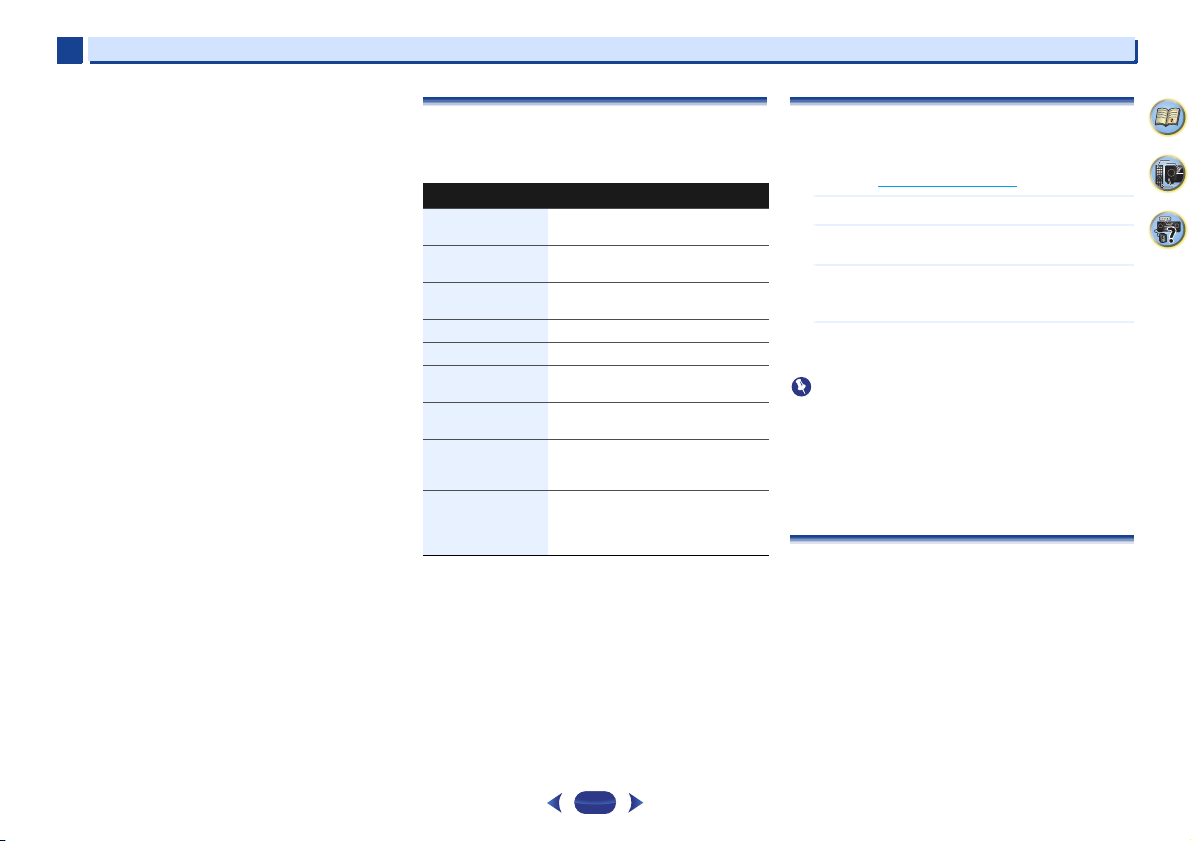
Additional information
63
4
58
9
9
9
•
Redistributions in binary form must reproduce the above
copyright notice, this list of conditions and the following
disclaimer in the documentation and/or other materials
provided with the distribution.
•
Neither the name of the Xiph.org Foundation nor the
names of its contributors may be used to endorse or
promote products derived from this software without
specific prior written permission.
THIS SOFTWARE IS PROVIDED BY THE COPYRIGHT HOLDERS
AND CONTRIBUTORS “AS IS” AND ANY EXPRESS OR IMPLIED
WARRANTIES, INCLUDING, BUT NOT LIMITED TO, THE
IMPLIED WARRANTIES OF MERCHANTABILITY AND FITNESS
FOR A PARTICULAR PURPOSE ARE DISCLAIMED. IN NO
EVENT SHALL THE FOUNDATION OR CONTRIBUTORS BE
LIABLE FOR ANY DIRECT, INDIRECT, INCIDENTAL, SPECIAL,
EXEMPLARY, OR CONSEQUENTIAL DAMAGES (INCLUDING,
BUT NOT LIMITED TO, PROCUREMENT OF SUBSTITUTE
GOODS OR SERVICES; LOSS OF USE, DATA, OR PROFITS; OR
BUSINESS INTERRUPTION) HOWEVER CAUSED AND ON ANY
THEORY OF LIABILITY, WHETHER IN CONTRACT, STRICT
LIABILITY, OR TORT (INCLUDING NEGLIGENCE OR
OTHERWISE) ARISING IN ANY WAY OUT OF THE USE OF THIS
SOFTWARE, EVEN IF ADVISED OF THE POSSIBILITY OF SUCH
DAMAGE.
About messages displayed when using
network functions
Refer to the following information when you come up with a
status message while operating the Network functions.
Resetting the main unit
Use this procedure to reset all the receiver’s settings to the
factory default. Use the front panel controls to do this.
•
For instructions on resetting the network connection
settings, see
Factory Reset
on page 48.
1
Switch the receiver into standby.
2
While holding down
BAND
, press and hold
STANDBY/ON
for about two seconds.
3
When you see RESET? appear in the display, press
AUTO SURROUND/STREAM DIRECT
.
OK? shows in the display.
4
Press
ALC/STANDARD SURR
to confirm.
OK appears in the display to indicate that the receiver
has been reset to the factory default settings.
Important
•
If the Control with HDMI function is set to ON, the HDMI
function’s Standby Through is set to anything other than
OFF, or the Network Standby is set to ON, you may not be
able to reset the unit. In this case, reset either by turning
OFF the Control with HDMI function, or by putting the unit
into standby mode by turning off the power of all the
connected devices, and resetting after the HDMI indicator
on the front panel turns off.
Cleaning the unit
•
Use a polishing cloth or dry cloth to wipe off dust and dirt.
•
When the surface is dirty, wipe with a soft cloth dipped in
some neutral cleanser diluted five or six times with water,
and wrung out well, and then wipe again with a dry cloth.
Do not use furniture wax or cleansers.
•
Never use thinners, benzine, insecticide sprays or other
chemicals on or near this unit, since these will corrode the
surface.
Status messages Descriptions
Connection Down The selected category or Internet radio
station cannot be accessed.
File Format Error Cannot be played back for some
reasons.
Track Not Found The selected song has not been found
anywhere on the network.
Server Error The selected server cannot be accessed.
Server Disconnected The server has been disconnected.
Empty There are no files stored in the selected
folder.
License Error The license for the contents to be played
back is invalid.
Item Already Exists This is displayed when the file you have
attempted to register in the Favorites
folder has already been registered.
Favorite List Full This is displayed when you have
attempted to register a file in the
Favorites folder but the Favorites folder is
already full.
Additional information
64
4
58
9
9
9
Specifications
Audio Section
Rated power output
(Front, Center, Surround)
. . . . . . . . . . . . . . . . . . . 130 W per channel (1 kHz, 6
, 1 %)
100 W per channel (20 Hz to 20 kHz, 8
, 0.09 %)
Total Harmonic Distortion
. . . . . . . . . . . . . . . . . 0.06 % (20 Hz to 20 kHz, 8
, 50 W/ch)
Frequency response (LINE Pure Direct mode)
. . . . . . . . . . . . . . . . . . . . . . . . . . . . . . . 5 Hz to 100 kHz dB
Guaranteed speaker impedance . . . . . . . . . . . . . . . 6
to 16
Input (Sensitivity/Impedance)
LINE. . . . . . . . . . . . . . . . . . . . . . . . . . . . . . . . . .200 mV/47 k
Signal-to-Noise Ratio (IHF, short circuited, A network)
LINE. . . . . . . . . . . . . . . . . . . . . . . . . . . . . . . . . . . . . . . . .98 dB
Video Section
Signal level
Composite. . . . . . . . . . . . . . . . . . . . . . . . . . . . . 1 Vp-p (75 )
Tuner Section
Frequency Range (FM) . . . . . . . . . . . . . . 87.5 MHz to 108 MHz
Antenna Input (FM) . . . . . . . . . . . . . . . . . . . . 75 unbalanced
Frequency Range (AM) . . . . . . . . . . . . . . 531 kHz to 1 602 kHz
Antenna (AM). . . . . . . . . . . . . . . . . . . . . . . . . . . . Loop antenna
Bluetooth
Section (VSX-824)
Version . . . . . . . . . . . . . . . . . . Bluetooth Specification Ver. 3.0
Output . . . . . . . . . . . . . . . . . . Bluetooth Specification Class 2
Estimated line-of-sight transmission distance*
. . . . . . . . . . . . . . . . . . . . . . . . . . . . . . . . . . . . . . . . . . About 10 m
Frequency range . . . . . . . . . . . . . . . . . . . . . . . . . . . . . . 2.4 GHz
Modulation
. . . . . . . . . . . . .FH-SS (Frequency Hopping Spread Spectrum)
Supported Bluetooth profiles . . . . . . . . . . . . . . .A2DP, AVRCP
Supported Codec . . . . . . . SBC (Subband Codec), AAC, aptX
Supported contents protection . . . . . . . . . . . . . . . . . . SCMS-T
* The line-of-sight transmission distance is an estimate.
Actual transmission distances supported may differ
depending on surrounding conditions.
Bluetooth
Section (VSX-529)
Version . . . . . . . . . . . . Bluetooth Specification Ver. 2.1 + EDR
Output . . . . . . . . . . . . . . . . . . Bluetooth Specification Class 2
Estimated line-of-sight transmission distance*
. . . . . . . . . . . . . . . . . . . . . . . . . . . . . . . . . . . . . . . . . . About 10 m
Frequency range . . . . . . . . . . . . . . . . . . . . . . . . . . . . . . 2.4 GHz
Modulation
. . . . . . . . . . . . .FH-SS (Frequency Hopping Spread Spectrum)
Supported Bluetooth profiles . . . . . . . . . . . . . . .A2DP, AVRCP
Supported Codec . . . . . . . . . . . . . . . . .SBC (Subband Codec)
Supported contents protection . . . . . . . . . . . . . . . . . . SCMS-T
* The line-of-sight transmission distance is an estimate.
Actual transmission distances supported may differ
depending on surrounding conditions.
Digital In/Out Section
HDMI terminal . . . . . . . . . . . . . . . . . . . . . . . . . . Type A (19-pin)
HDMI output type . . . . . . . . . . . . . . . . . . . . . . . . . . 5 V, 100 mA
HDMI input/MHL terminal . . . . . . . . . . . . . . . . . . . 5 V, 900 mA
USB terminal . . . . . . . . .USB2.0 High Speed (Type A) 5 V, 1 A
iPod terminal . . . . . . . . . . . . . . . . . . . . . . . . . . . . . . . . . . . . USB
ADAPTER PORT terminal . . . . . . . . . . . . . . . . . . . . 5 V, 100 mA
Network Section
LAN terminal . . . . . . . . . . . . . . . . . . . . 10 BASE-T/100 BASE-TX
Miscellaneous
Power Requirements . . . . . . . AC 220 V to 230 V, 50 Hz/60 Hz
Power Consumption. . . . . . . . . . . . . . . . . . . . . . . . . . . . . 450 W
In standby . . . . . . . . . . . . . . . . . . . . . . . . . . . . . . . . . . . 0.1 W
In standby (HDMI Control on) . . . . . . . . . . . . . . . . . . . 0.3 W
In standby (Network Standby on) . . . . . . . . . . . . . . . . 3.0 W
In standby
(HDMI Control on, Network Standby on) . . . . . . . . . . 3.0 W
Auto Power Down. . . . . . 15 min (default), 30 min, 60 min, off
Dimensions . . . . . .435 mm (W) x 168 mm (H) x 331.5 mm (D)
Weight (without package) . . . . . . . . . . . . . . . . . . . . . . . . 8.6 kg
Furnished Parts
Microphone (for Auto MCACC setup). . . . . . . . . . . . . . . . . . . 1
Remote control . . . . . . . . . . . . . . . . . . . . . . . . . . . . . . . . . . . . 1
Dry cell batteries (AAA size IEC R03) . . . . . . . . . . . . . . . . . . . 2
AM loop antenna . . . . . . . . . . . . . . . . . . . . . . . . . . . . . . . . . . . 1
FM wire antenna. . . . . . . . . . . . . . . . . . . . . . . . . . . . . . . . . . . . 1
Warranty card . . . . . . . . . . . . . . . . . . . . . . . . . . . . . . . . . . . . . . 1
Quick start guide . . . . . . . . . . . . . . . . . . . . . . . . . . . . . . . . . . . 1
Safety Brochure . . . . . . . . . . . . . . . . . . . . . . . . . . . . . . . . . . . . 1
SPEAKER CAUTION Sheet (English only) . . . . . . . . . . . . . . . 1
Power cord
These operating instructions (CD-ROM)
Note
•
The specifications are applicable when the power supply is
230 V.
•
Specifications and the design are subject to possible
modifications without notice, due to improvements.
•
This product includes FontAvenue
®
fonts licensed by NEC
Corporation. FontAvenue is a registered trademark of NEC
Corporation.
•
Microsoft, Windows, Windows Media and Windows Vista are
either registered trademarks or trademarks of Microsoft
Corporation in the United States and/or other countries.
•
Android and Google Play are trademarks of Google Inc.
Manufactured under license from Dolby Laboratories. Dolby,
Pro Logic, and the double-D symbol are trademarks of Dolby
Laboratories.
For DTS patents, see http://patents.dts.com. Manufactured
under license from DTS Licensing Limited. DTS, DTS-HD, the
Symbol, & DTS and the Symbol together are registered
trademarks of DTS, Inc. © DTS, Inc. All Rights Reserved.
Português:
Čeština:
Eesti:
Magyar:
Latviešu valoda:
Lietuvių kalba:
Malti:
Slovenčina:
Slovenščina:
Română:
български:
Polski:
Norsk:
Íslenska:
Declaration of Conformity with regard to the R&TTE Directive 1999/5/EC
Manufacturer:
PIONEER HOME ELECTRONICS
CORPORATION
1-1, Shin-ogura, Saiwai-ku,
Kawasaki-shi, Kanagawa
212-0031, Japan
EU Representative’s:
Pioneer Europe NV
Haven 1087, Keetberglaan 1,
9120 Melsele, Belgium
http://www.pioneer.eu
English:
Suomi:
Nederlands:
Français:
Svenska:
Dansk:
Deutsch:
Ελληνικά:
Italiano:
Español:
Hereby, Pioneer, declares that this [*] is
in compliance with the essential
requirements and other relevant
provisions of Directive 1999/5/EC.
Pioneer vakuuttaa täten että [*]
tyyppinen laite on direktiivin 1999/5/EY
oleellisten vaatimusten ja sitä
koskevien direktiivin muiden ehtojen
mukainen.
Hierbij verklaart Pioneer dat het toestel
[*] in overeenstemming is met de
essentiële eisen en de andere
relevante bepalingen van richtlijn
1999/5/EG
Par la présente Pioneer déclare que
l’appareil [*] est conforme aux
exigences essentielles et aux autres
dispositions pertinentes de la directive
1999/5/CE
Härmed intygar Pioneer att denna [*]
står I överensstämmelse med de
väsentliga egenskapskrav och övriga
relevanta bestämmelser som framgår
av direktiv 1999/5/EG.
Undertegnede Pioneer erklærer
herved, at følgende udstyr [*]
overholder de væsentlige krav og
øvrige relevante krav i direktiv 1999/5/EF
Hiermit erklärt Pioneer, dass sich
dieses [*] in Übereinstimmung mit den
grundlegenden Anforderungen und den
anderen relevanten Vorschriften der
Richtlinie 1999/5/EG befindet". (BMWi)
ΜΕ ΤΗΝ ΠΑΡΟΥΣΑ Pioneer ΔΗΛΩΝΕΙ
ΟΤΙ
[*] ΣΥΜΜΟΡΦΩΝΕΤΑΙ ΠΡΟΣ ΤΙΣ
ΟΥΣΙΩΔΕΙΣ ΑΠΑΙΤΗΣΕΙΣ ΚΑΙ ΤΙΣ
ΛΟΙΠΕΣ ΣΧΕΤΙΚΕΣ ΔΙΑΤΑΞΕΙΣ ΤΗΣ
ΟΔΗΓΙΑΣ 1999/5/ΕΚ
Con la presente Pioneer dichiara che
questo [*] è conforme ai requisiti
essenziali ed alle altre disposizioni
pertinenti stabilite dalla direttiva
1999/5/CE.
Por medio de la presente Pioneer
declara que el [*] cumple con los
requisitos esenciales y cualesquiera
otras disposiciones aplicables o
exigibles de la Directiva 1999/5/CE
Pioneer declara que este [*] está
conforme com os requisitos essenciais
e outras disposições da Directiva
1999/5/CE.
Pioneer tímto prohlašuje, že tento [*] je
ve shodě se základními požadavky a
dalšími příslušnými ustanoveními
směrnice 1999/5/ES
Käesolevaga kinnitab Pioneer seadme
[*] vastavust direktiivi 1999/5/EÜ
põhinõuetele ja nimetatud direktiivist
tulenevatele teistele asjakohastele
sätetele.
Alulírott, Pioneer nyilatkozom, hogy a
[*] megfelel a vonatkozó alapvetõ
követelményeknek és az 1999/5/EC
irányelv egyéb elõírásainak.
Ar šo Pioneer deklarē, ka [*] atbilst
Direktīvas 1999/5/EK būtiskajām
prasībām un citiem ar to saistītajiem
noteikumiem.
Šiuo Pioneer deklaruoja, kad šis [*]
atitinka esminius reikalavimus ir kitas
1999/5/EB Direktyvos nuostatas.
Hawnhekk, Pioneer jiddikjara li dan [*]
jikkonforma mal-ħtiġijiet essenzjali u ma
provvedimenti oħrajn
relevanti li hemm
fid-Dirrettiva 1999/5/EC
Pioneer týmto vyhlasuje, že [*] spĺňa
základné požiadavky a všetky príslušné
ustanovenia Smernice
1999/5/ES.
Pioneer izjavlja, da je ta [*] v skladu z
bistvenimi zahtevami in ostalimi
relevantnimi določili direktive
1999/5/ES.
Prin prezenta, Pioneer declara ca acest
[*] este in conformitate cu cerintele
esentiale si alte prevederi ale Directivei
1999/5/EU.
С настоящето, Pioneer декларира, че
този [*] отговаря на основните
изисквания и други съответни
постановления на Директива
1999/5/EC.
Niniejszym Pioneer oświadcza, że
[*] jest zgodny z zasadniczymi wymo-
gami oraz pozostałymi stosownymi
postanowieniami
Dyrektywy 1999/5/EC
Pioneer erklærer herved at utstyret [*]
er i samsvar med de grunnleggende
krav og øvrige relevante krav i direktiv
1999/5/EF.
Hér með lýsir Pioneer yfir því að
[*] er í samræmi við
grunnkröfur og aðrar kröfur, sem gerðar
eru í tilskipun 1999/5/EC
Hrvatski:
Ovime tvrtka Pioneer izjavljuje da je
ovaj [*] u skladu osnovnim zahtjevima i
ostalim odredbama Direktive
1999/5/EC.
R-TTE-24L_C1_En
[*] VSX-824-K, VSX-529-K, VSX-529-S

<ARB7548-A>
© 2014 PIONEER HOME ELECTRONICS CORPORATION.
All rights reserved.
http://www.pioneer.co.uk
http://www.pioneer.eu
PIONEER HOME ELECTRONICS CORPORATION
1-1, Shin-ogura, Saiwai-ku, Kawasaki-shi, Kanagawa 212-0031, Japan
PIONEER ELECTRONICS (USA) INC.
P.O. BOX 1540, Long Beach, California 90801-1540, U.S.A. TEL: (800) 421-1404
PIONEER ELECTRONICS OF CANADA, INC.
340 Ferrier Street, Unit 2, Markham, Ontario L3R 2Z5, Canada TEL: 1-877-283-5901, 905-479-4411
PIONEER EUROPE NV
Haven 1087, Keetberglaan 1, B-9120 Melsele, Belgium TEL: 03/570.05.11
PIONEER ELECTRONICS ASIACENTRE PTE. LTD.
253 Alexandra Road, #04-01, Singapore 159936 TEL: 65-6472-7555
PIONEER ELECTRONICS AUSTRALIA PTY. LTD.
5 Arco Lane, Heatherton, Victoria, 3202, Australia, TEL: (03) 9586-6300
PIONEER ELECTRONICS DE MEXICO S.A. DE C.V.
Blvd.Manuel Avila Camacho 138 10 piso Col.Lomas de Chapultepec, Mexico, D.F. 11000 TEL: 55-9178-4270
K002_B3_En