WARNING
To reduce the risk of fire
or electric shock, do not
expose this product to rain
or moisture.
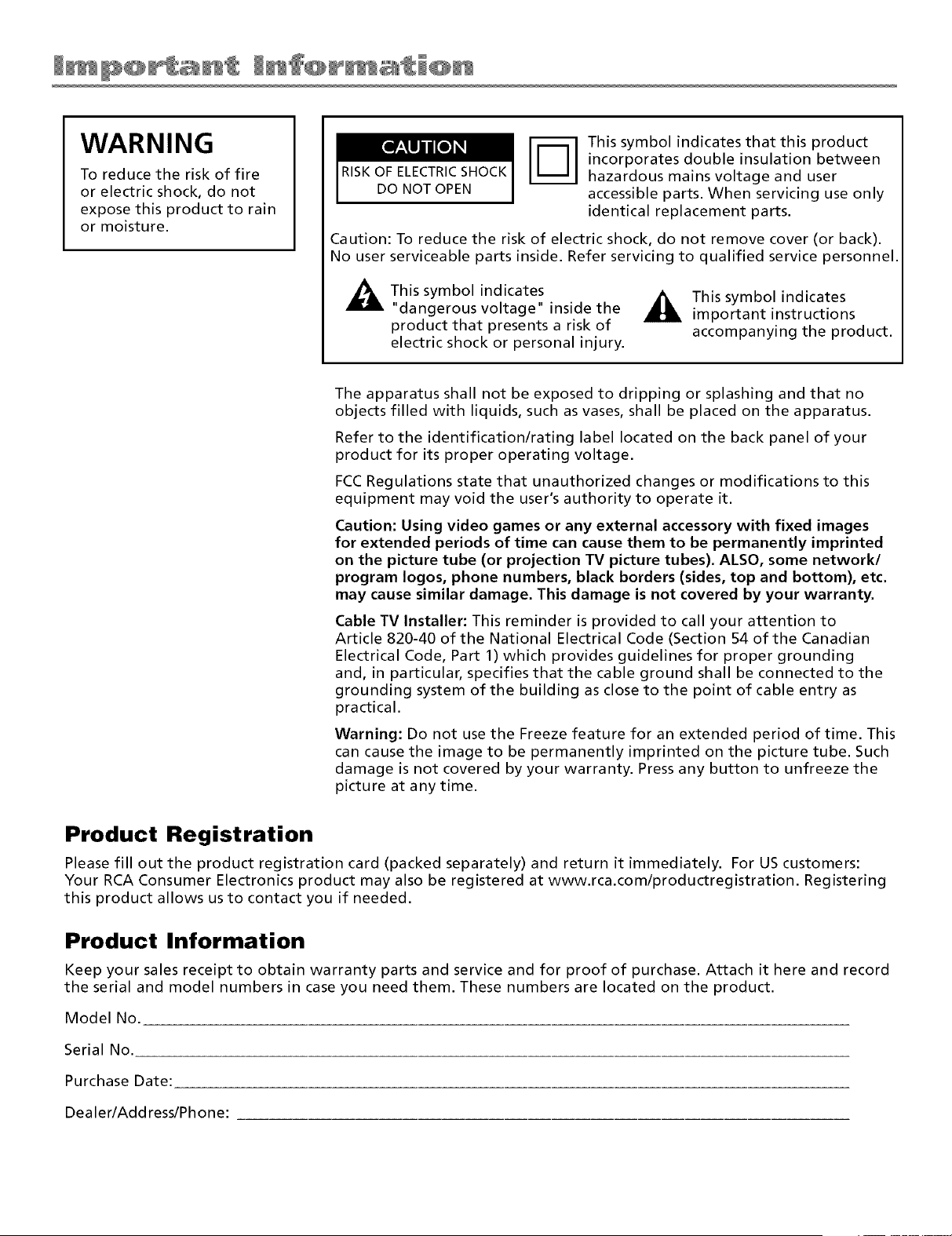
RISK OF ELECTRICSHOCK
DO NOT OPEN
F_] his symbol indicates that this product
incorporates double insulation between
hazardous mains voltage and user
accessible parts. When servicing use only
identical replacement parts.
Caution: To reduce the risk of electric shock, do not remove cover (or back).
No user serviceable parts inside. Refer servicing to qualified service personnel.
This symbol indicates
"dangerous voltage" inside the
product that presents a risk of
electric shock or personal injury.
_ his symbol indicates
important instructions
accompanying the product.
The apparatus shall not be exposed to dripping or splashing and that no
objects filled with liquids, such as vases, shall be placed on the apparatus.
Refer to the identification/rating label located on the back panel of your
product for its proper operating voltage.
FCC Regulations state that unauthorized changes or modifications to this
equipment may void the user's authority to operate it.
Caution: Using video games or any external accessory with fixed images
for extended periods of time can cause them to be permanently imprinted
on the picture tube (or projection TV picture tubes). ALSO, some network/
program Iogos, phone numbers, black borders (sides, top and bottom), etc.
may cause similar damage. This damage is not covered by your warranty.
Cable TV Installer: This reminder is provided to call your attention to
Article 820-40 of the National Electrical Code (Section 54 of the Canadian
Electrical Code, Part 1) which provides guidelines for proper grounding
and, in particular, specifies that the cable ground shall be connected to the
grounding system of the building as close to the point of cable entry as
practical.
Warning: Do not use the Freeze feature for an extended period of time. This
can cause the image to be permanently imprinted on the picture tube. Such
damage is not covered by your warranty. Press any button to unfreeze the
picture at any time.
Product Registration
Please fill out the product registration card (packed separately) and return it immediately. For US customers:
Your RCA Consumer Electronics product may also be registered at www.rca.com/productregistration. Registering
this product allows us to contact you if needed.
Product Information
Keep your sales receipt to obtain warranty parts and service and for proof of purchase. Attach it here and record
the serial and model numbers in case you need them. These numbers are located on the product.
Model No.
Serial No.
Purchase Date:
Dealer/Address/Phone:
IMPORTANT SAFETY INSTRUCTIONS
1. Read these instructions.
2. Kee l) these instructions.
3. Heed all warnings.
4. Follow all insm_ctions.
5. Do not use this apparatus near water.
6. Clean only with dry cloth.
7. Do not block ally ventilation openings. Install ill accordance with the mamffacturer's instructions.
8. 1)o not install near any heat sources such as radiators, heat registers, stoves, or other apparatus (including amplifiers) that produce
heat.
9. Do not defeat the safety purpose of the polarized or grounding type plug. A polarized plug has tx_o blades with one wider than the
other. A grounding Wpe plug has two blades and a third grounding prong. The wide blade or the third prong is provided for your
safety. [f the provided plug does not fit into your outlet, consult an electrician for replacement of the obsolete outlet.
10. Protect the power cord fl'om being walked on or pinched particularly at plugs, convenience receptacles, and the point where they
exit fl'om the apparatus.
11. ()nl) use attachments accessories specified b) the manufacturer.
12. [Ise onl) uith the cart stand, tripod, bracket, or table specified by the mamlf:lcturer, or soM with the appa['atus. XXhen a ]_
cart is used, vise caution x_ [vet/ ll]oving the cart apparatus COl]]l)ii?atiot] to avoid injur} frolYi tip-over.
13. [Inphlg this apparatus dining lightning storms or when unused for king periods of time. Even if the pox_er b/dicator is off,
the apparatus is still not fully disconnected fl'om the power source. To disconnect the apparatus completely fl'om the pox_er source,
take its power plug out of the x_all outlet or power strip. The power plug must be easily accessible.
14. Refer all servicing to qualified service persomlel. Servicing is required xxhen the apparatus has been damaged in any way, such as
poxx er-supply cord or plug is damaged, liquid has been spilled or objects have fidlen into the apparatus, the apparatus has been
exposed to rain or moisture, does not operate normally, or has been dropped.
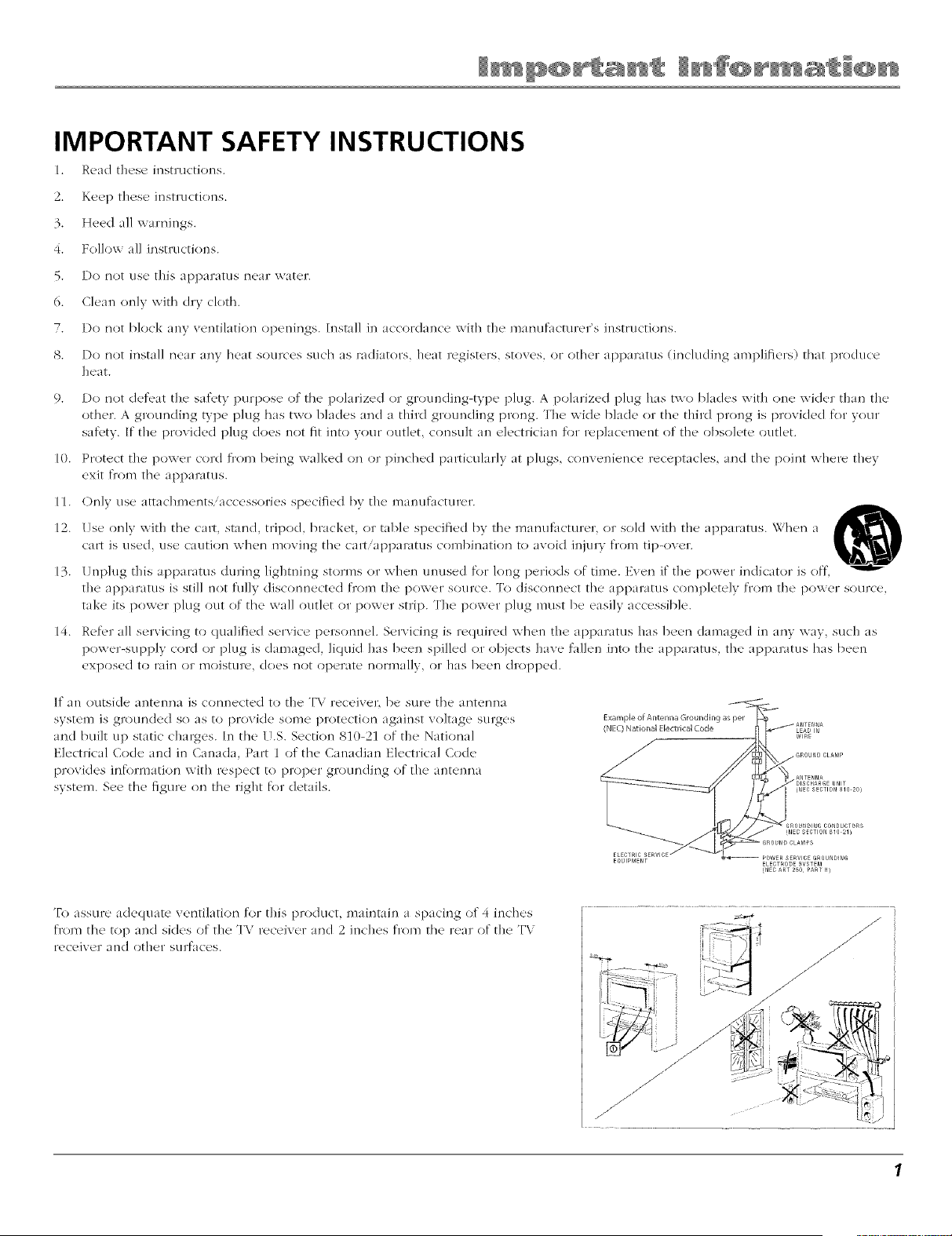
If an outside antenna is connected to the TV receiver, be sure the antem/a
system is grounded so as to provide some protection against voltage su/ges
and built up static charges. [n the U.S. Section 810-21 of the National
Electrical Code and ill Canada, Part 1 of the Canadian Electrical Code
pt+ovides information with respect to proper grounding of the antenna
system. See the figul+e on the right for details.
Example of Antenna Grounding as pel
(NEC)National Electrical Code
To assure adequate ventilation for this product, maintain a spacing of 4 inches
from the top and sides of the TV receixer and 2 inches from five rear of the T\
ix2ceJver alld other surfaces.
Thank you for choosing RCA
Congratulations on purchasing this RCA High Definition T{qevision (HI)T\/).
Your purchase decision represents an investment in a new generation of
technology--HI)T\/. Even though this is a technologically advanced H1)TV, it
is the most user-friendly of its kind--with on-screen instructions that guide you
through all of the TV's f{,atures.
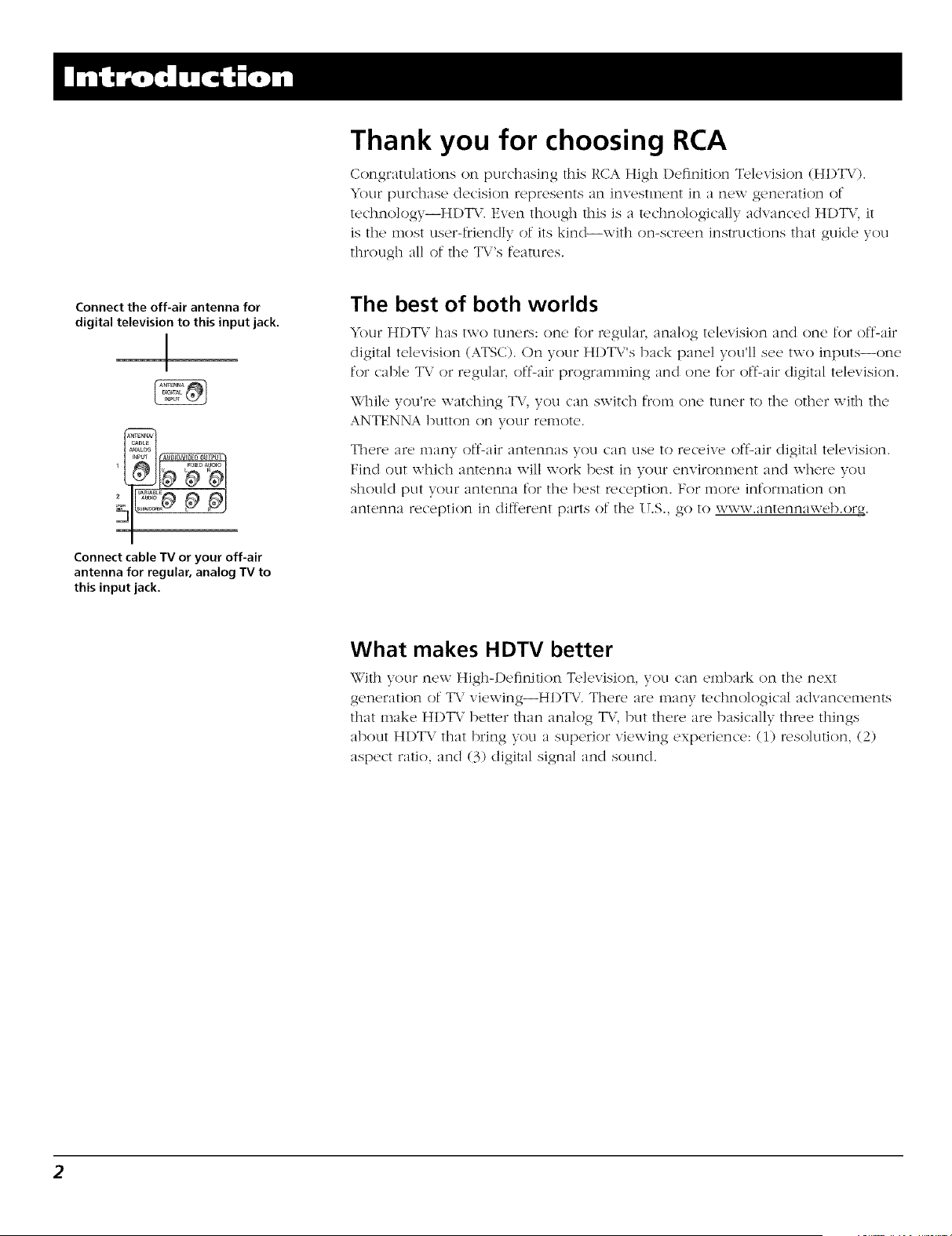
Connect the off-air antenna for
digital television to this input jack.
|
I
2 9
Connect cable TV or your off-air
antenna for regular, analog TV to
this input jack.
The best of both worlds
)u* HI)T\: has two tuners: one for regular, analog television and one for off-air
digital television (ATSC). (-)n your HI)TX,"s back panel you'll see two inputs--one
for cable TV {}rregular, off-air programming and one for off-air digital television.
While you're watching T\,",you can switch fr()m one tuner to the other with the
ANTENNA butt{m on your remote.
There :ire many off-air antennas you can use to receive off-air digital television.
Find out which antenna will work best in your environment and where you
should put your antenna for the best c_,ception. For more information on
antenna reception in diff{.rent parts of the l LS., go to www.antennaweb.org.
What makes HDTV better
With your new High-l)eflnition T{,levision, you can embarl( on the next
generation of TV viewing--HI)T\..'. There :ire many technological advancen]ents
that make H1)T\, better than analog TV, but there are basically tlm,e things
about HI)TV that bring you a superior viewing experience: (1) c{'solution, (2)
aspect ratio, and (3) digital signal and sound.
2
Resolution (it's math...that works for you)
The crisp, lifelik{' picture that people rave about when {'xpericncing true HI)T\/
iS due tO the resolution this technology provides. The resolution is m{':tsured by
calculating the nmnber of active lines of pixels. A [)ix{'l (which stands for picture
{'h'm{'nt) is a small clot. Tile pictur{, you s{'{' on your T\ / is compos{'d of tiles{'
clots.
A regular, analog television only has a resolution of about 200,000 pixels (480
vertical pixels x 440 horizontal pixels = 211,200 pixels). Tile HDT\/ format is
c:/pable of more than 2 million pixels (i,920 x 1,080 = 2,073,600).
More pixels equal more detail. In summary, HI)T\/ is capable of resolution that
is up to 10 times tile resolution of tile picture on a regular, an:dog T\/!
Feature Analog (NTSC) HD Digital (ATSC)
Total Scan Lines 525 1125
Effective Sc:m Lines 480 1080
Aspect Ratio 4:3 16:9 (Widescreen)
Max Resolution 720 x 480 1920 x 1080
Sound 2-oh Stere() 5.1 ch Surround
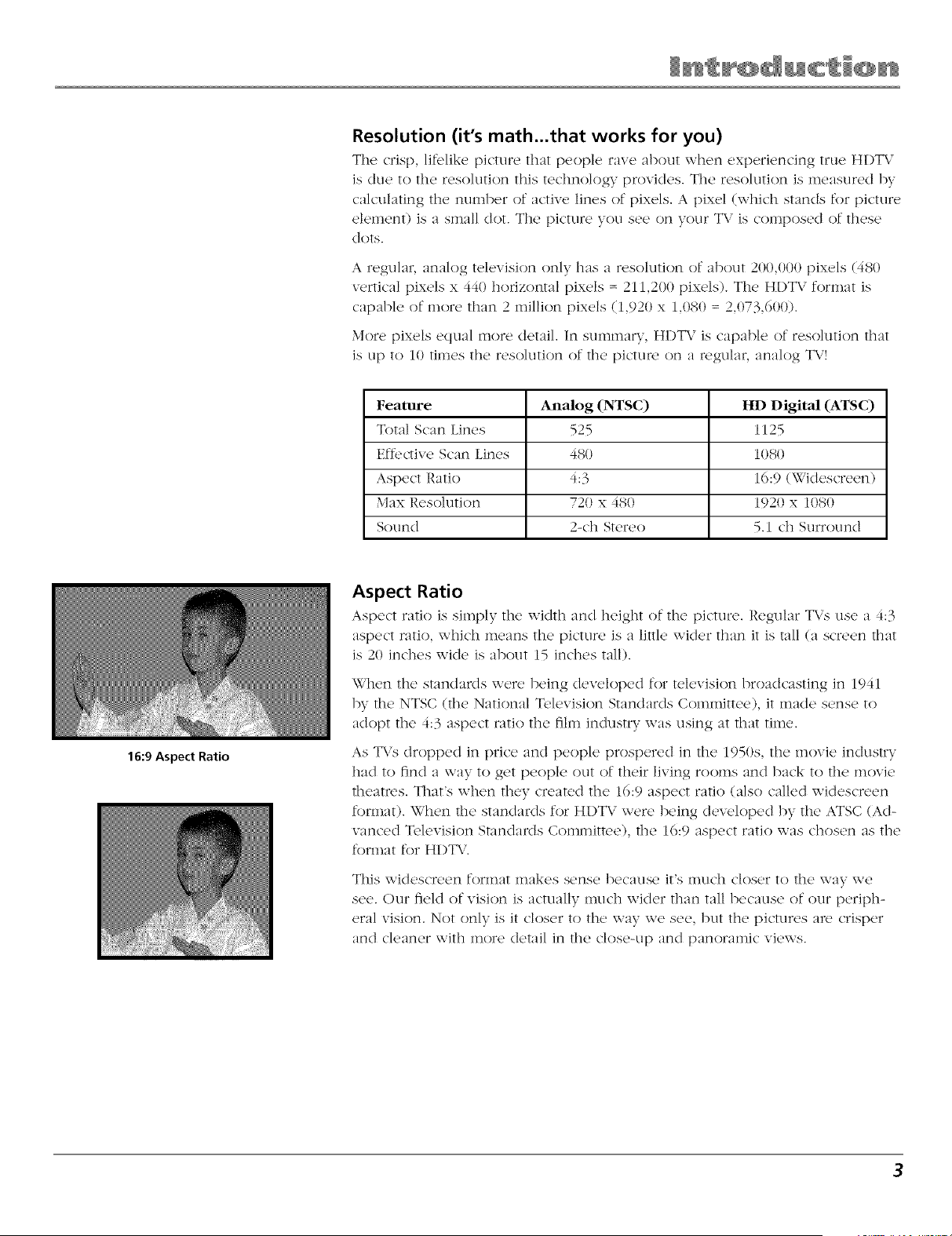
16:9 Aspect Ratio
Aspect Ratio
Aspect ratio is simply the width :rod height of th{' picture. Regular TX/s use a 4:3
aspect ratio, which me:ms the picture is a little wider than it is tall (:/screen that
is 20 inches wide is about 15 inches tall).
When tile standards were being developed for television bro:tdc:tsting in 1941
by the NTSC (tile National Television St:mdards Committee), it made sense to
adopt tile 4:3 aspect ratio tile film ind_lstry was using at that time.
As TVs dropped in [)rice :rod people prospered in the 1950s, tile movie industry
had to find a way to get people out of their living rooms and back to the movie
theatres. That's when they created the 16:9 aspect ratio (also called widescreen
fonnat). When tile standards for HI)T\, were being developed by tile ATSC (Ad-
v:mced Television Standards Committee), tile i6:9 aspect ratio was chosen as tile
format for HI)T\/.
This widescreen forinat inak_,s sense bec;/tlSC, it's inl.lch closer to the way we
see. Our field of vision is actually much wider than tall because of our periph-
eral vision. Not only is it closer to the way we see, but tile pictures are crisper
and cleaner with more detail in tile close-up and panoramic views.
3
Digital Signal and Sound
Th{' analog t{,levision broadcast system that has be_'n us{'d in the' United Statc,s
for the past 50 years transmits signals as electronic waves. These waves can
suff_T degradation as the signal travels to your home. Additionally, the analog
waves are susceptible to interf{'rence from planes passing overhead, weather,
and household appliances.
l)igital signals, in contrast to analog signals, can be reproduced precisely be-
cause the images a,'e transmitted and received using the computer language of
ls and 0s. Such precision yields a signal that is capable of displaying studio-
quality picture and 1)olby Digital 5.i channel sound.
Other Key Features of owning an RCA HDTV
Th{'r{' ar{' oth{'r HI)T\/s on th{' mark(,t. But your R(:A HI)T\,' has b{,{,n d{,sign(,d
with f{'atur{'s that will {,nhanc{, your TV viewing {'xlo{'ri{'nc(' , and _.'atlJr(Ps
that provide flexibility to build on the digital revolution that is taking place. A
summary of your T\,'s most unique f{,atures follows. Go to Chapter 3 for more
details on these and additional f{mtures.
TruScan Digital Reality TM Feature
With th(' f_i/l_ MoclP option turned on, th(' intellig{,nt signal proc'{'ssing o["
the TruScan I)igital Reality f_,ature recognizes incoming video signals and
progressively converts them to achieve optimum digital picture performance.
It also recognizes when original film sources have been modified and can
automatically convert the analog frame rate back to its original format to bring
out the detail--a process commonly ref{,rred to as reverse 3:2 pulldown.
DVI-HDTV Input
L{'ts you conn{'ct a c'omponent with a DVI (l)igital Visual Int{,rfac{,) output. 1)VI
providos an uncompr{,ss{,d, digital vid{'o int{,rtac{, d{,v{,lop{'d for high-bandwidth
digital connection. It supports the overlay of high-resolution graphics needed
by some electronic program guide navigation and other interactive services.
I)VI, when combined with H1)CP (High bandwidth Digital Content P,otection)
technology, c_{'ates a protected digital connection. The 1)VI-HI)T\/ connection
is designed to display either prog,{,ssive scan (480p or 720p) or HI)T\/ (1080i)
signals at a bandwidth of up to 1.78 Gigabits per second.
4
Important Safety Instructions .......................................................................................... 1
Introduction ....................................................................................................................... 2
The best of both worlds ............................................................................................. 2
What makes HDTV better .......................................................................................... 2
Other Key Features of owning an RCA HDTV ........................................................... 4
Chapter 1: Connections & Setup .............................................................. 7
Things to Consider Before You Connect ......................................................................... 8
Choose Your Connection .................................................................................................. 9
Explanation of Jacks ....................................................................................................... 10
TV + DVD + VCR .............................................................................................................. 13
TV + Satellite Receiver + VCR......................................................................................... 15
TV + DVl Component ...................................................................................................... 16
TV+ A/V Receiver ............................................................................................................ 16
The Front of Your TV ....................................................................................................... 17
Front Input Jacks ....................................................................................................... 17
Front Panel Buttons .................................................................................................. 17
Plug in the TV .................................................................................................................. 18
Put batteries in the remote ............................................................................................ 18
How to Use the Remote Control to Complete the Initial Setup .................................. 18
Turn on the TV................................................................................................................. 18
Complete the Initial Setup ............................................................................................. 19
Set the Menu Language .......................................................................................... 19
Welcome Screen and Connection Confirmation ..................................................... 19
Complete the Auto Channel Search ........................................................................ 19
Changing Lists and Labels ........................................................................................ 20
Automatic Convergence ........................................................................................... 20
Chapter 2: Using the Remote Control ................................................... 21
The Buttons on the Remote Control .............................................................................. 22
Programming the Remote to Operate Other Components ......................................... 24
Find Out If You Need to Program the Remote ...................................................... 24
Programming the Remote ....................................................................................... 24
How to Use the Remote After You've Programmed It ................................................. 26
Using the INPUT Button .................................................................................................. 26
Remote Code List ............................................................................................................ 27
5
Chapter 3: Using the TV's Features ........................................................ 29
Channel Banner ............................................................................................................... 30
Digital and Analog Tuners .............................................................................................. 31
Digital Channels ........................................................................................................ 31
Direct Tuning to a Channel on the Digital Tuner ................................................... 31
Autotunin( ...................................................................................................................... 32
Why You Should Use the Autotuning Feature ....................................................... 32
How to Set Up the Autotuning Feature .................................................................. 32
Parental Controls and V-Chip ......................................................................................... 34
How V-Chip Works for USA and Canada ................................................................. 34
The V-Chip Rating Screen .................................................................................. 35
Age-Based Rating ............................................................................................... 35
USA Description and Content Themes for Age-Based Ratings ........................ 35
BlockingNiewing Age-Based Ratings ............................................................... 36
BlockingNiewing Specific Content Themes ..................................................... 36
Canada V-Chip Ratings ............................................................................................. 37
Canadian English V-Chip Rating System ........................................................... 37
Canadian French V-Chip Rating System ............................................................ 38
Blocking Canadian V-Chip Ratings .................................................................... 38
V-Chip Movie Rating Limit ....................................................................................... 39
Blocking Movie Ratings ..................................................................................... 39
Blocking UnratedlExempt Programs .................................................................... 39
LocklUnlock Parental Controls ............................................................................... 40
Front Panel Block ...................................................................................................... 40
Chapter 4: Using the TV's Menu System ............................................... 41
Sound Menu .................................................................................................................... 42
Picture Menu ................................................................................................................... 44
Channel Guide Menu ...................................................................................................... 46
Time Menu ....................................................................................................................... 47
Parental Control Menu ................................................................................................... 47
Setup Menu ..................................................................................................................... 48
Chapter 5: Other Information ................................................................ 53
Troubleshooting .............................................................................................................. 54
Care and Cleaning ........................................................................................................... 57
FCC Information .............................................................................................................. 57
Limited Warranty ............................................................................................................ 58
Accessory Information .................................................................................................... 60
Index ................................................................................................................................ 61
Connections & Setup
Chapter Overview:
• Things to Consider Before You Connect
• Choose Your Connection
• Explanation of Jacks
• Connection Instructions
• Front Panel Buttons and Jacks
• Plug in the TV
• Put Batteries in the Remote
• How to Use the Remote Control to Complete
the Initial Setup
• Turn on the TV
• Complete the Initial Setup
ging Entertainment.
Things to Consider Before You Connect
Protect Against Power Surges
° Connect all components before you plug any of their power coixls into the wall outlet.
° Turn off the TV and/or component before you connect or disconnect any cables.
° Make sure all antennas and cables aix, properly grounded. Refer to the Important Safety
Instructions on page 1.
Protect Components from Overheating
• Don't block ventilation hok's on any of the components. Arrange the components so that air
can circulate freely.
• Don't stack components.
° If you place components in a stand, make sure you allow adequate ventilation.
• If you connect an audio receiver or amplifier, place it on the top shelf so the heated air from it
won't flow around other components.
Position Cables Properly to Avoid Audio Interference
• Insert each cable firmly into the designated jack.
• If you place components above the T\,', route :ill cables down the side of the back of the T\.'
instead of straight down the re\Idle of the T\/.
• If your antenn:_ uses 300-ohm twin lead cables, do not coil the cables. Also, keep the twin
lead cables away from audio'video cables.
Important Stand and Base Safety Information
Choose th{' location for your TV carefully. Plat{' the TV on a starK] or base that is of adequate size
:rod strength to prev{'nt the T\/from being :tccider_tally tipped over, pushed oft', or pulled off. This
could cause personal injury :rod/or damage the T\.'. Refer to the Important Safety Instructions on
page 1.
Use Indirect Light
l)on't place the T\/;x h{'re sunlight or room lighting will Ix' directed toward the screen. 1 Ts{, soft or
indirect lighting.
Cables Needed to Connect Components to Your TV
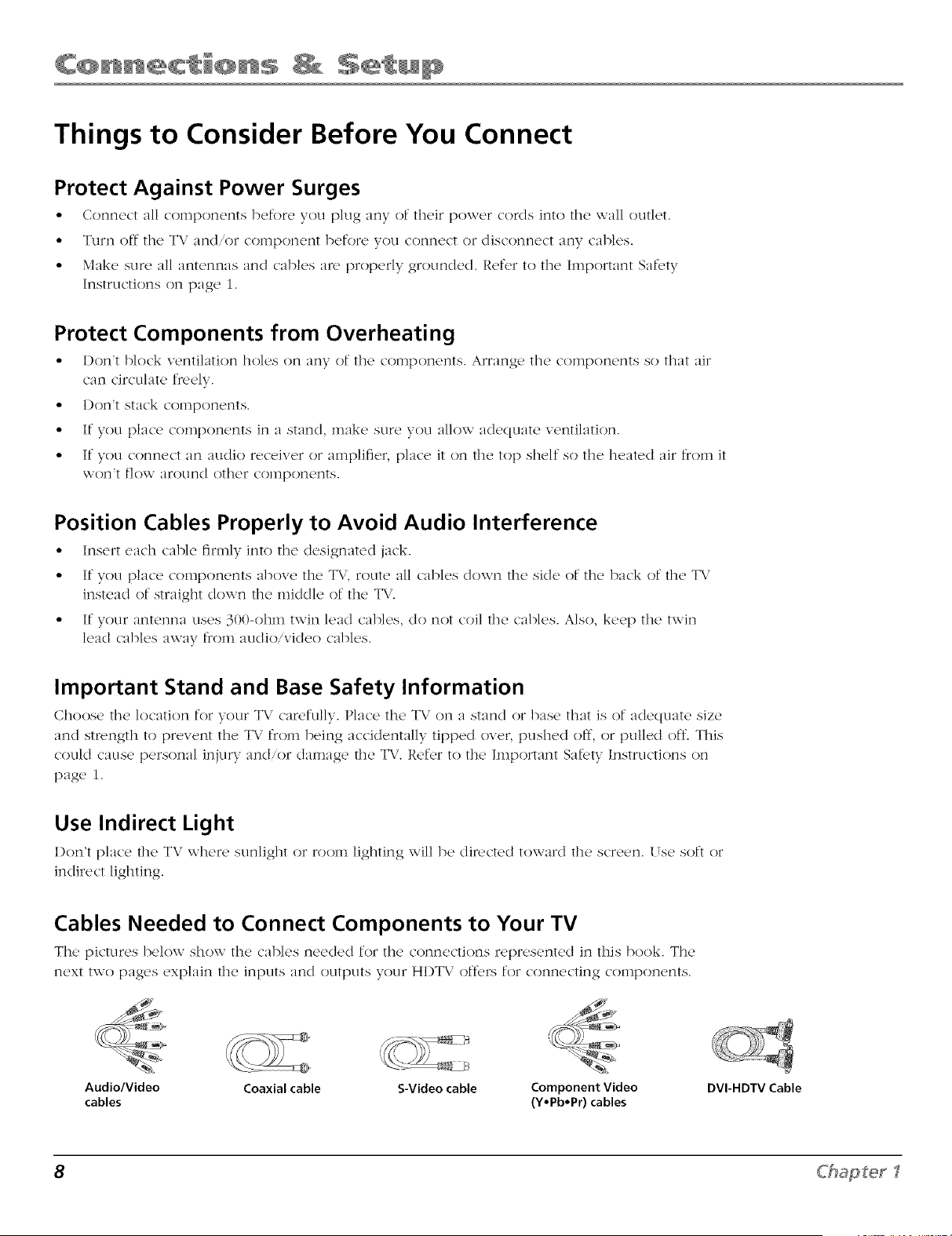
The pictures below show the cables needed for the conn(,cti{}ns repr{,s{,r]ted in this book. The
next two pages ex[)l:/ir_ the inputs :rod outputs your HI)T\, or'furs for connecting components.
Audio/Video Coaxial cable S-Video cable Component Video
cables (Y,Pb,Pr) cables
DVI-HDTV Cable
8 Chapter I
Choose Your Connection
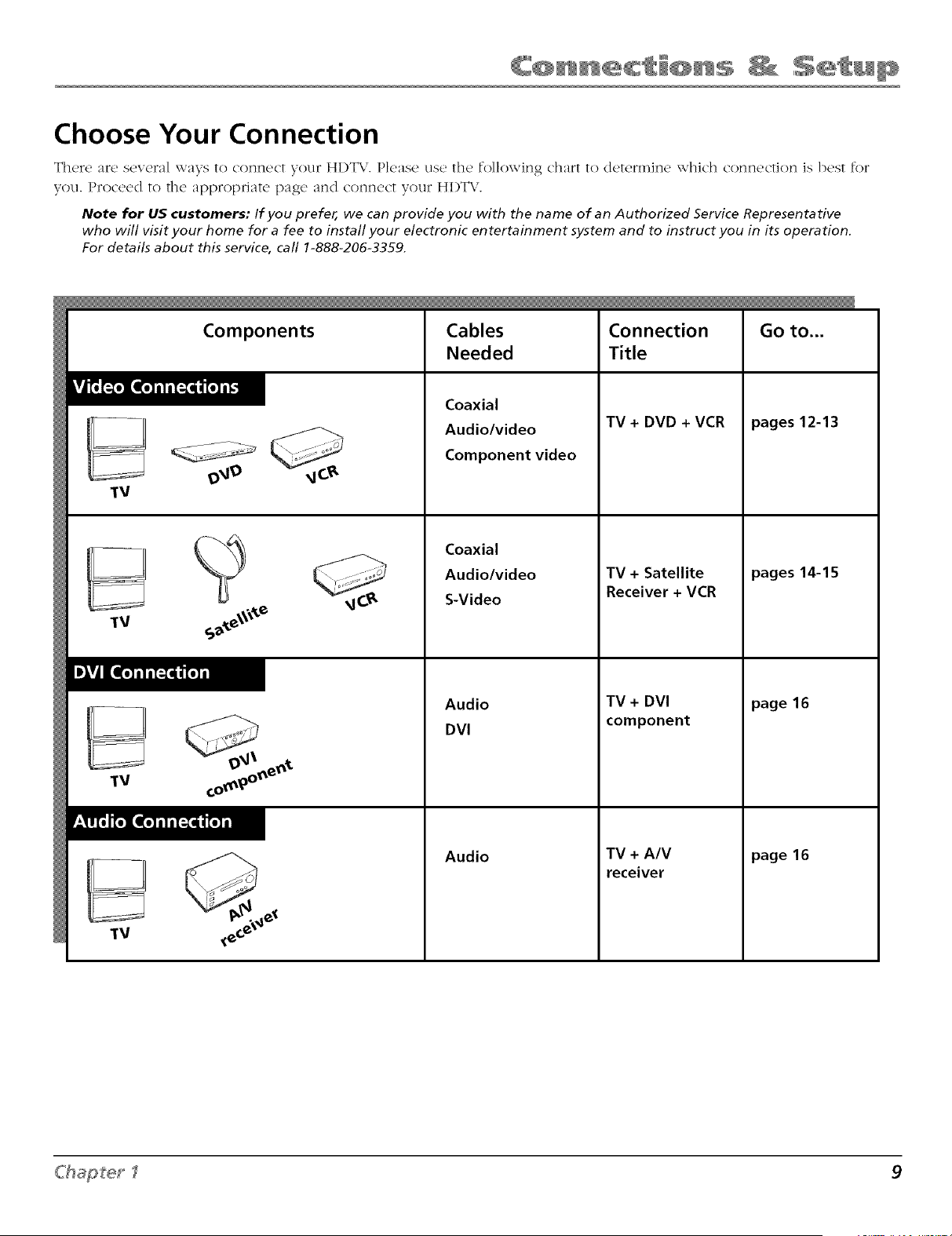
There are several ways to connect your HI)TV. Please use the following chart to deterna]ne which connection is best for
you. Proceed to the appropriate page and connect your HI)TV.
Note for US customers: If you prefer, we can provide you with the name of an Authorized Service Representative
who will visit your home for a fee to install your electronic entertainment system and to instruct you in its operation.
For details about this service, call 1-888-206-3359.
"_V
"_V
)l?l I
"_V
"_V
Components Cables
Needed
Coaxial
Audio/video
Component video
Coaxial
Audio/video
S-Video
Audio
DVI
Audio
Connection
Title
TV + DVD + VCR
TV + Satellite
Receiver + VCR
TV + DVI
component
TV + A/V
receiver
Go to...
pages12-13
pages 14-15
page16
page16
Chapter f 9
Explanation of Jacks
This s(,ctJor't d('scI'Jb('s thc, j;tcks VoLI c;tr'_ Lis(, for cor_f_c, ctJons. Th(,r(' ;tr(, S('V(T;/1 w;/VS to conft(,ct colHpon(,fffs to }7Ollr T\,".
Back Panel Jacks (in alphabetical order)
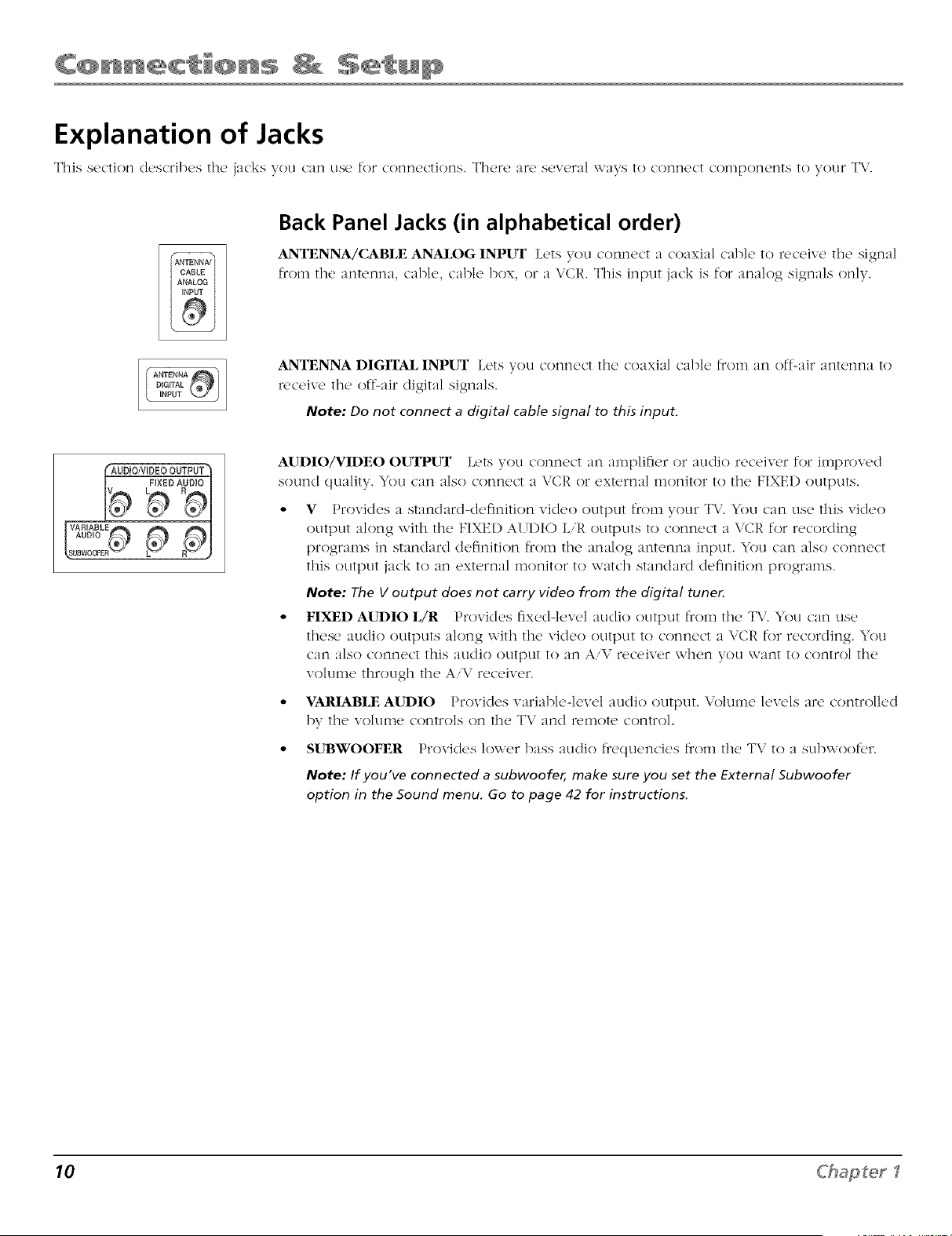
ANTENNA/CABLE ANALOG INPUT Lets you conm'ct a coaxk_l c'ablc to ruc'(,ivc th(' signal
from tlle antenna, cable, cable box, or a VCP,. This input jack is for analog signals only.
ANTENNA DIGITAL INPUT L_'ts you connect tile coaxial cable from an off-air antenna to
receive tile off-air clJgJtal signals.
Note: Do not connect a digital cable signal to this input.
AUDIO/_DEO OIJTPUT Lets you connect an amplifier or audio receiver for improved
sound quality. You can also connect a VCR or external monitor to tile FIXED outputs.
• V Provides a standard-definition video output fr()m your TV. You can use this video
output along with tile FIXED AI T1)IO LiR outputs to connect a VCR for recording
programs in standard cteflnition from tile analog antenna input. You can also connect
this output jack to an external monitor to watch stanclalxl definition programs.
Note: The V output does not carry video from the digital tuner.
° FIXED AUDIO L/R Provides flxud-l('v('l audio output from thu T\/. You can use
these audio outputs along with the video outptlt to connect a VCR for recording. You
can also connect this audio output to an AiV receiver when }ou want to control tile
volume through tile AiV receiver.
° VARIABLE AUDIO Provides varJable-levd audio output. Volume levels are controlled
1)}7 tile voltliile controls on tile T\, and reii]ote control.
° SIJBWOOFER Provides lo_xer bass audio frequencies from tile TV to a subwoof(,r.
Note: If you've connected a subwoofer, make sure you set the External 5ubwoofer
option in the 5ound menu. Go to page 42 for instructions.
10 Chapter I
LNPUT
CMP!
y_
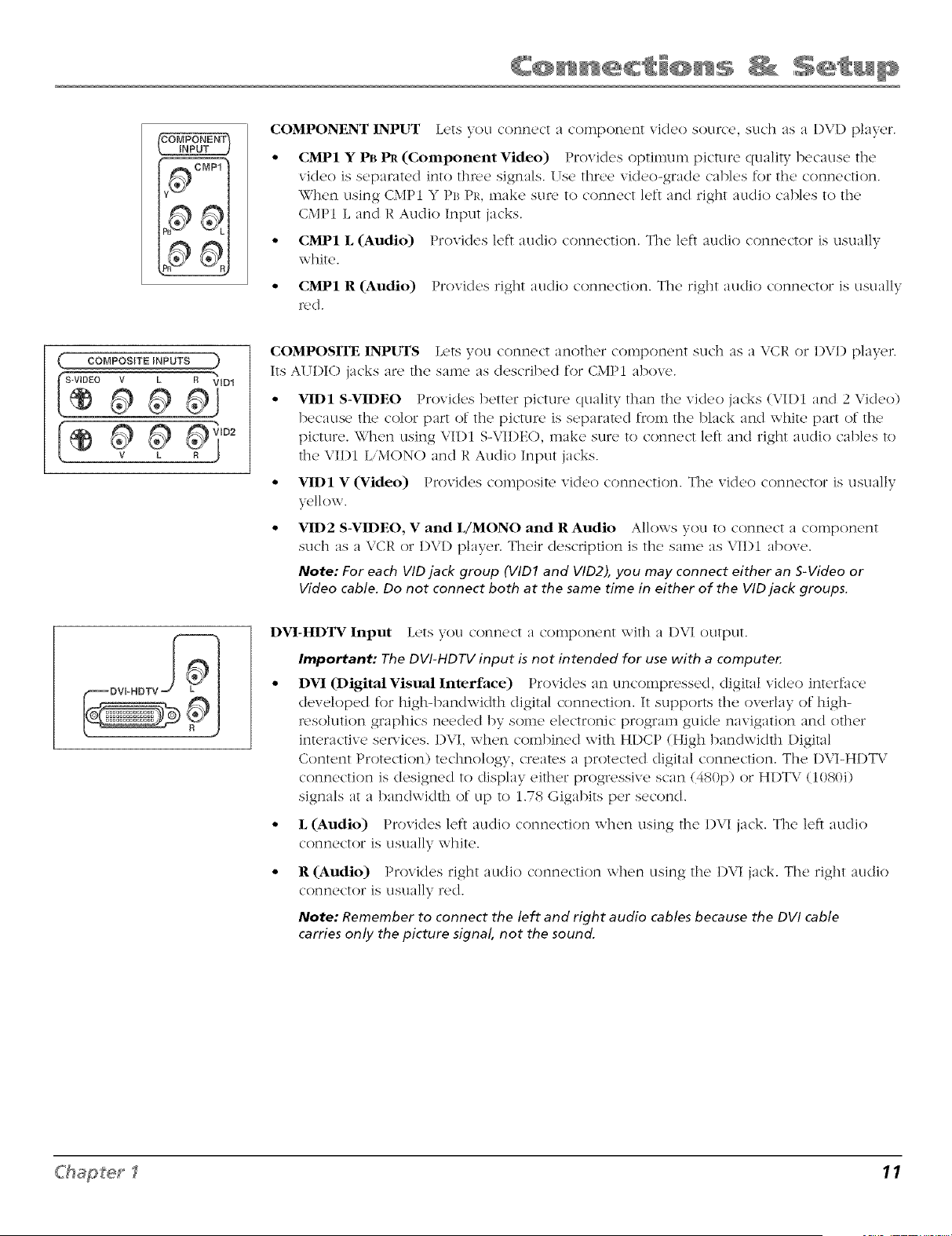
COMPONENT INPUT Lets you connect a component video source, such as a I)VI) [)layer.
• CMP1 Y PB 1_ (Component Video) Provides optimum picture quality because the
video is separated into thxx, e signals. Use three video-grade cables for the connection.
When using CMP1 Y PB PR, make stm' to connect left and right audio cables to the
CMP1 L and R Audio Input jacks.
• CMP1 L (Audio) Provides left audio connection. The left audio connector is usually
white.
o CMP1 R (Audio) Provides right audio connection. The right audio connector is usually
red.
COMPOSITE }NPUT$ )
COMPOSITE INPUTS Lets you connect another component such :is a VCR or 1)VI) player.
Its AI H)IO jacks are the same :is described for CMP1 above.
• VID1 S-VIDEO Provides better picture quality than the video jacks (VID1 and 2 Video)
because the color part of the picture is separated from the black and white part of the
picture. When using VI1)I S-VIDEO, make sure to connect left and right audio cables to
the VII)I LiMONO and R Audio Input jacks.
° VID1 V (Video) Provides composite video connection. The video connector is usually
yellow.
° VID2 S-VIDEO, V and L/MONO and R Audio Allows you to connect a component
such as a VCR or DVD player. Their description is the same as VI1)I above.
Note: For each VID jack group (VID1 and VID2), you may connect either an S-Video or
Video cable. Do not connect both at the same time in either of the VID jack groups.
DVI-HDTV Input Lets you connect a component with a DVI output.
Important: The DgI-HDrg input is not intended for use with a computer.
• DVI (Digital Visual Interface) Provides an uncompressed, digital video interface
developed for high-bandwidIh digital connection. It supports the overlay of high-
resolution graphics needed by some electronic program guide navigation and other
interactive se,-_ices. 1)VI, when combined with HI)CP (High bandwidth Digital
Content Protection) technology, creates a protected digital connection. The I)VI-HI)T\,'
connection is designed to display either progressive scan (480p) or H1)TV (1080i)
signals at a bandwidth of up to 1.78 Gigabits per second.
• L (Audio) Provides left audio connection when using the 1)VI jack. The left audio
connector is usually white.
R (Audio) Provides right audio connection when using the 1)VI jack. The right audio
connector is usually red.
Note: Remember to connect the left and right audio cables because the DVI cable
carries only the picture signal, not the sound.
Chapter I 11
OMO
TV
y PB PR
OFF-AIRANTENNA
12 Chapter I
TV + DVD + VCR
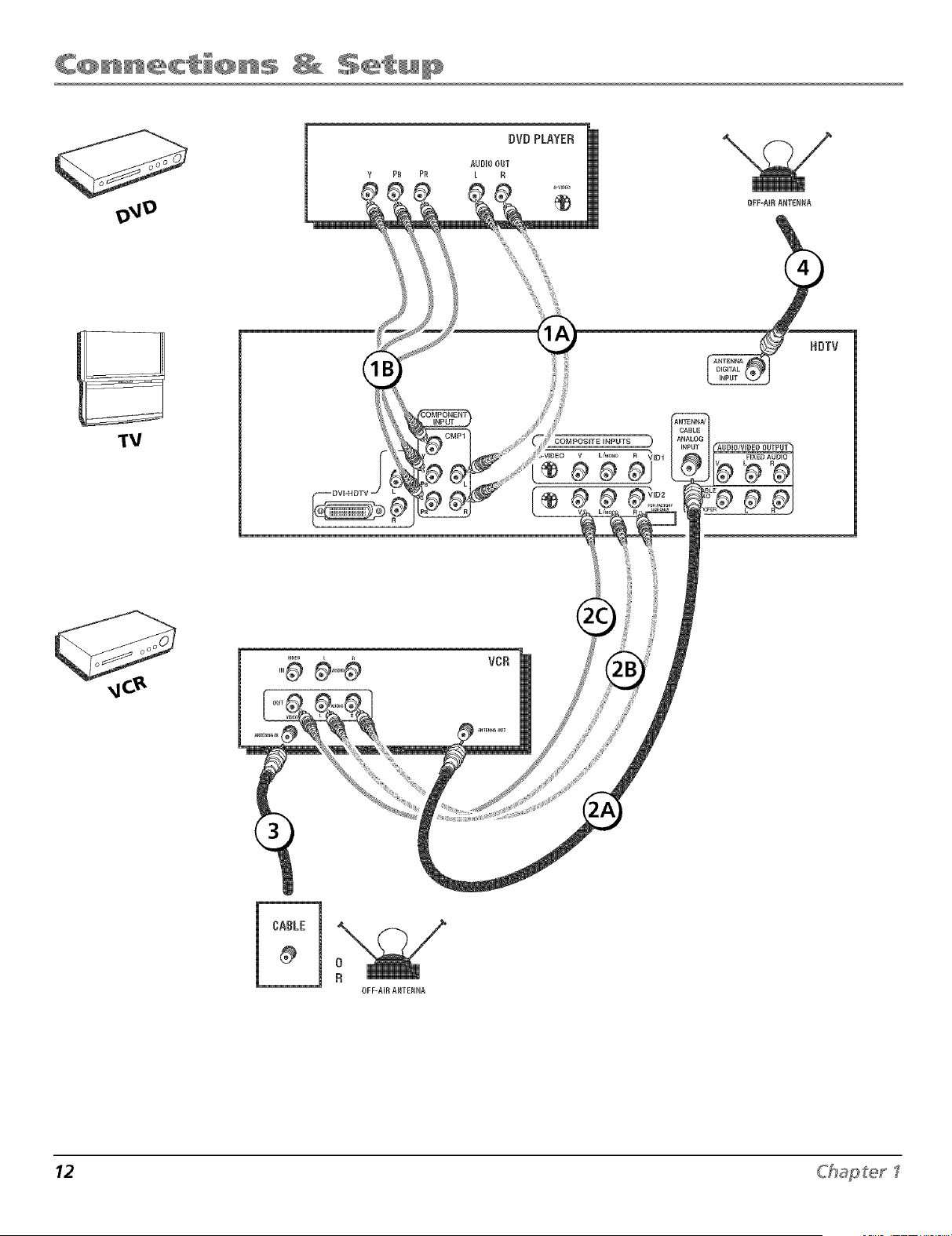
1. Connect your DVD Player to your TV.
A. Connect the audio (white and red) cables to the CMPI L and R audio input jacks on the back of the TV and to the
audio output jacks on the I)VI) player.
g. Connect three video grade cables to the CMP1 Y PB PR jacks on the back of the T\.' and to the Y PB PR jacks on the
I)VI) player.
Notes:
If your DVD player does not have Y P8 PRjacks, but does have an S-Video jack, connect the player to the V/DI S-V/DEO
jack on the TV using an S-Video cable.
If your DVD player does not have an S-Video jack, connect the player to the VID1 V (Video)jack on the back of the TV
using a video cable.
Important: If you use the VID1 S-VIDEO or V (Video)jack to connect your TV to the DVD player, you must connect the
audio cables to the VID1 L/MONO and R jacks on the T_.
2. Connect your VCR to your TV.
A. Connect a coaxial cable to the VCR's antenna output jack and to the ANTENNA'CABLE ANALO(; INPlqT jack on the TV.
B. Connect the audio (white and red) cables to the VID2 LiMONO and R audio input jacks on the back of the TV and
to the audio output iacks on the VCR.
C. Connect the video cable to the VID2 V (Video) iack on the back of the TV and to the video output jack on the VCR.
3. Make sure cable or antenna is connected to your VCR.
Connect the coaxial cable from your cable outlet or antenna to the antenna input jack on the VCR.
4. Connect the coaxial cable from an off-air antenna m the ANTENNA DI61TAL INPUT jack.
Note: Do not connect a digital cable signal to this input.
Go to page 18
C'hap_er _ 13
SATELLITE
RECEIVER
OFF-AIRANTENNA
HDTV
TV
OFF-AIRANTENNA
14 Chapter I
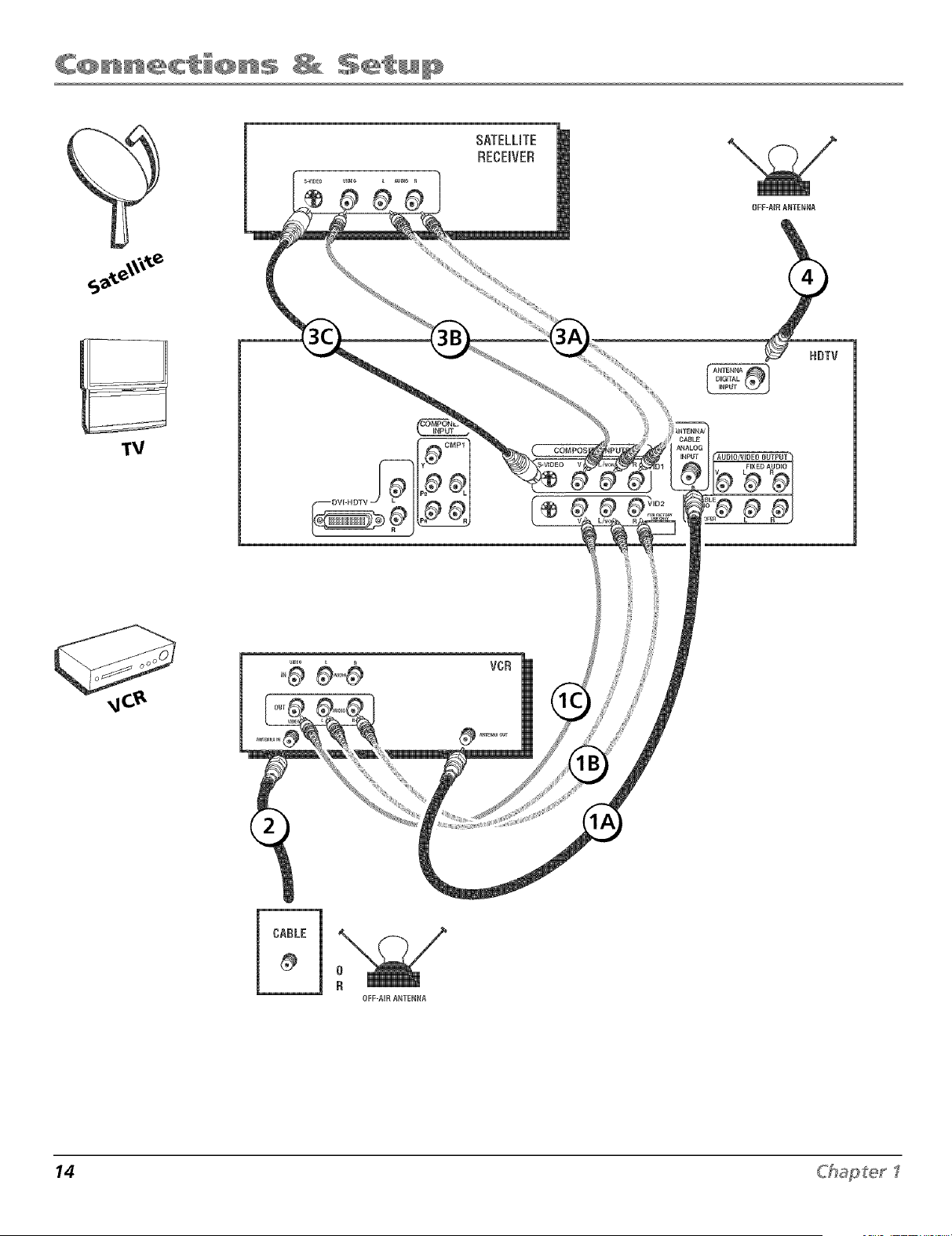
TV + Satellite Receiver + VCR
1. Connect your VCR to your TV.
A. Conn,'or a coaxial c'abl_' to the' VCR's ant_,nna output jack and to the, ANTFNNAiCAP, LF
ANALOG INP( !T jack on the T\,'.
B. Connect the audio (white and R'd) cables to the VID2 L'MONO and R audio jacks on the
back of the TV and to the Audio Output jacks on the VCR.
C. Connect the video cable to the VID2 V (Vkleo) jack on the back of the TV and to the video
output jack on the VCR.
2. MaRe sure cable or antenna is connected to your VCR.
Connect the coaxial cable from your cable outlet or antenna to the antenna input jack on the VCR.
3. Connect your Satellite Receiver to your TV.
Note: Use the best connection offered by your satellite receiver--if your satellite receiver has
component video jacks, connect those.
A. Conn,'or the' audio (white and I'_'cl) cabl_'s to the' \,"II)l L,'MONO and R audio jacks on the'
back of the TV and to the audio output jacks on the satellite i_,ceiver.
B. Connect the video cable to the VIDI V (Video) jack on the back of the TV and to the video
output jack on the satellite receiver.
C. If your satellite receiver has an S-Video jack, connect an S-Video cable (instead of the video
cable in step B) to the S-VIDEO jack on the TV and to the S-VIDEO output jack on the
satellite receiver.
4. Connect the comxial cable from an off-air antenna to the ANTENNA DI61TAL INPUT jack.
Note: Do not connect a digital cable signal to this input.
Go to page 18
C'hap_er _ 15
DVICOMPONENT
TV + DVI Component
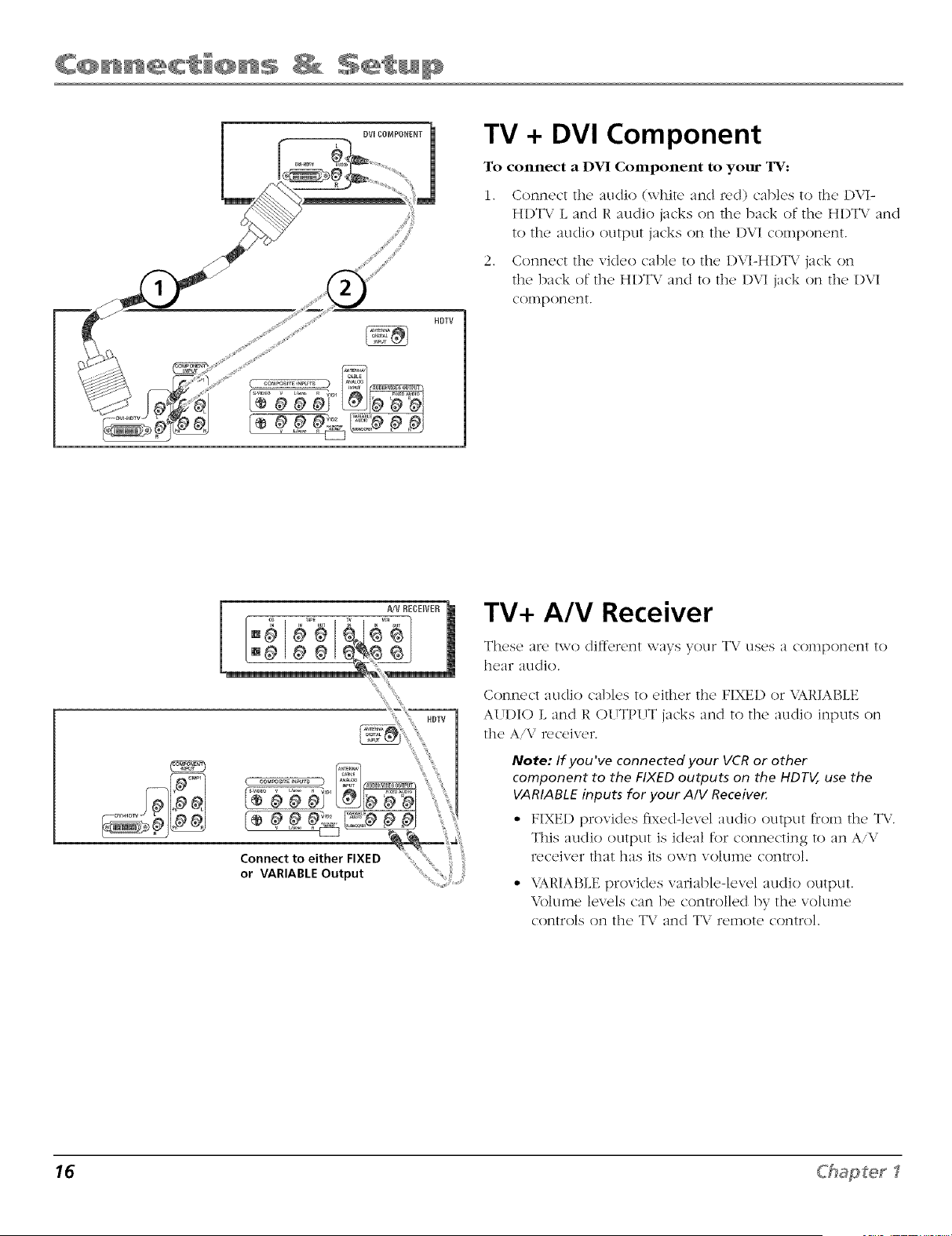
To connect a DVI Component to your TV:
1. Connect the audio (whiTe and red) cables to the DVI-
HI)T\,' L and R audio jacks on the back of The HI)T\/ and
ToThe audio ouTpuT jacks on The 1)VI component.
2. Connect the video cable to the I)VI-HI)TV jack on
The back of The H1)TV :rod ToThe 1)VI jack on The I)VI
coinponent.
HDTV
TV+ A/V Receiver
These :ire two different ways your T\, uses a conlponent to
hear audio.
Connect audio cables to either the FIXED or \,ARIABLE
AUDIO L and R OUTPUT jacks and To The audio inputs on
the A'\, receiver.
Note: If you've connected your VCR or other
component to the FIXED outputs on the HDTV, use the
VARIABLE inputs for your A/V Receiver.
* FIXED provides fixed-level audio output from the T\/.
This audio output is ideal for connecting to an AiV
l'eceJver That has its own volulne control.
* \,ARIABLE provides variable-level audio outpuT.
Volume levels can be controlled by the volume
controls on the T\," and T\," remote c{}ntrol.
16 Chapter I
The Front of Your TV
Front Input Jacks
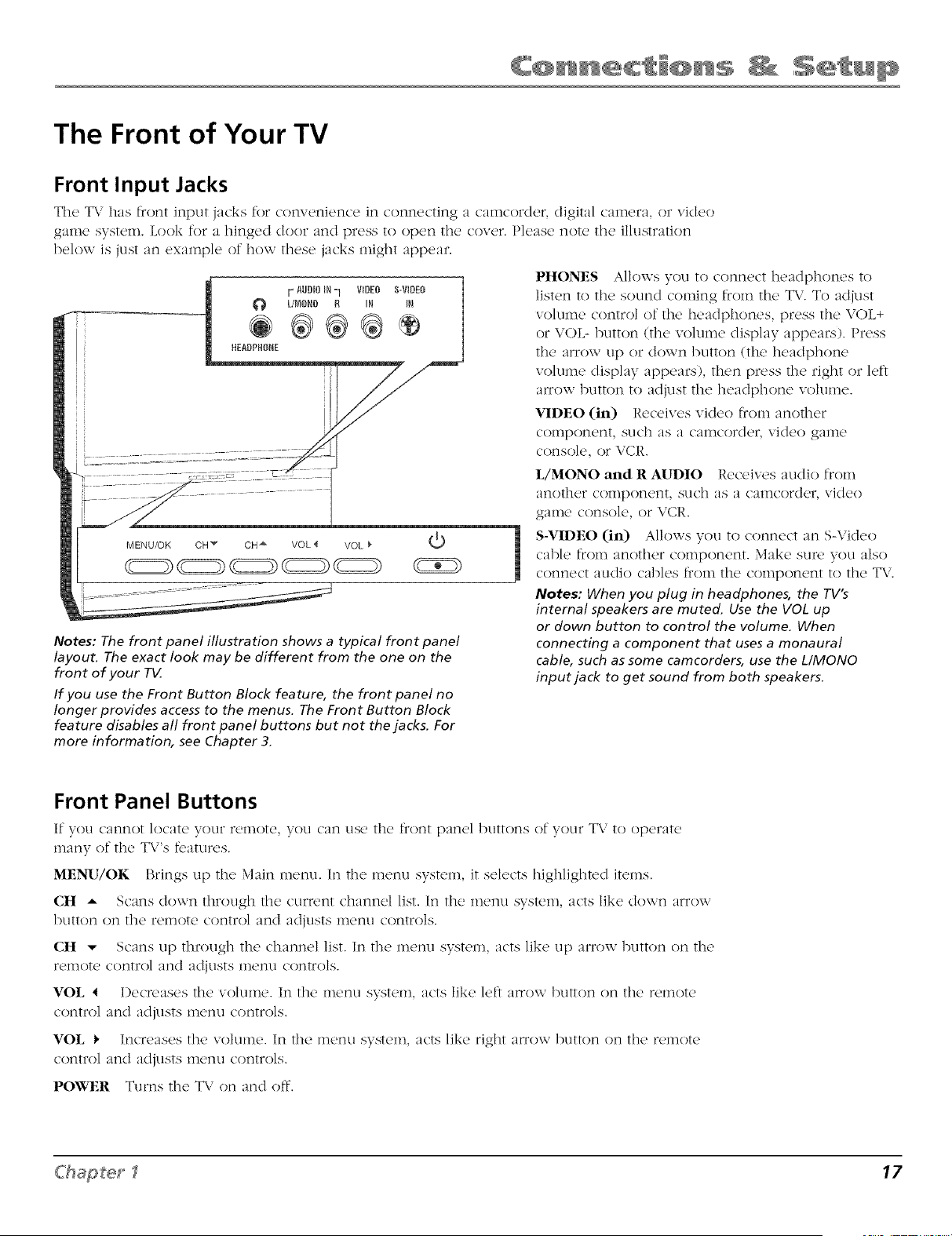
The TV has front input jacks for convenience in connecting a camcorder, digital camera, oi video
game system. Look for a hinged door and press to open the cover. Please note the illustration
below is just an example of how these jacks might appear.
F AUDID IN-I VIDEO S-VIDEO ]
PHONES Allows you to connect headphones to
listen to the sound coming from the TV. To adjust
volume control of the headphones, press the VOL+
or VOL- button (the volume display appears). Press
the arrow up or down button (the headphone
volume display appears), then press the right or left
arrow button to adjust the headphone vohlme.
VIDEO (in) Receives video from another
component, such as a camcorder, video game
console, or VCR.
MENU/OK OH "_ OH _ VOL '_ VOL _"
©
Notes: The front panel illustration shows a typical front panel
layout. The exact look may be different from the one on the
front of your TV
If you use the Front Button Block feature, the front panel no
longer provides access to the menus. The Front Button Block
feature disables all front panel buttons but not the jacks. For
more information, see Chapter 3.
L/MONO and R AUDIO Receives audio from
another component, such as a calncorder, video
game console, or VCR.
S-VIDEO (in) Allows you to connect an S-Video
cable from another component. Make suru you also
connect audio cables from the component to the TV.
Notes: When you plug in headphones, the YV's
internal speakers are muted. Use the VOL up
or down button to control the volume. When
connecting a component that uses a monaural
cable, such as some camcorders, use the L/MONO
input jack to get sound from both speakers.
Front Panel Buttons
If you cannot locate yoclr remotE, you can use the front panel buttons of your TV to opEratE
many of the T\,"s features.
MENU/OK Brings up the Main menu. In the menu system, it selects highlighted items.
OH = Scans down through the cur,vnt channel list. In the mem_ system, acts like down arrow
button on the remote control and adiusts menu controls.
OH v Scans tip through the channel list. In the menu system, acts like up arrow button on the
remote control and adiusts menu controls.
%rOE 4 I)ecroases the volume. In the menu system, acts like left arrow button on the remote
control and adiusts menu controls.
%rOE t. Increases the volume. In the menu system, acts like right arrow button on the remote
control and adiusts menu controls.
POWER Turns the TV on and oft.
C'hapter _ 17
Plug in the TV
Plug the flat end of the cable into the power jack on the back of the T\,. Then plug
the other end of the power cord into an appropriate wall outlet. Be sure to insert
the plug completely, l)o not plug the T\, into ;in outlet controlled by a light switch.
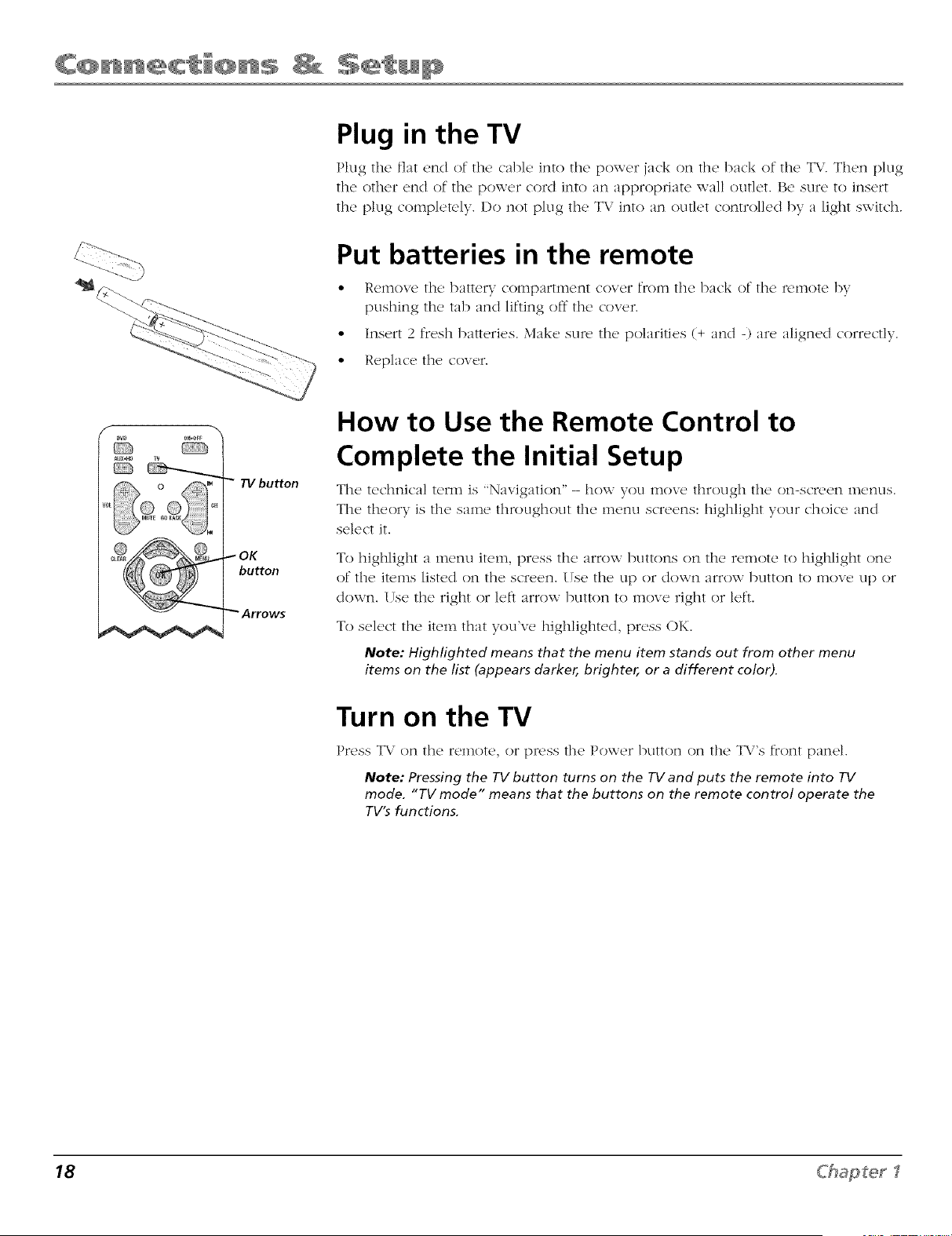
Put batteries in the remote
• Rumovc thu battery compartment cover from the back of the r_,mote by
pushing the tab and lifting off the cover.
,, Insert 2 fresh batteries. Make stm' the polarities (+ and -) arc align('d correctly.
• Replace the cover.
f
_*0rr
_x4tD
TV button
button
How to Use the Remote Control to
Complete the Initial Setup
The R,chrlJcal RTm Js "NavJgatJoll" - how you move, throtlgh the, oi1-scr_,_,rl II]{'I3LIS.
The theory is the same throughout the menu screens: highlight your choice and
select it.
To highlight a metal item, press the arrow buttons on the remote to highlight one
of the items listed on the screen. I Tse the tip or down arrow button to move up or
cloan. (Tse the right or left arrow button to move right or left.
To select the item that you've highlighted, press OK.
Note: Highlighted means that the menu item stands out from other menu
items on the list (appears darker, brighter, or a different color).
Turn on the TV
Press TV on the remote, or pr_,ss the Power button on the T\/'s front panel.
Note: Pressing the TV button turns on the TV and puts the remote into TV
mode. "TV mode" means that the buttons on the remote control operate the
TV's functions.
18 Chapter I
Tip
To access the setup menus manually, press
MENU and choose SETUP
Complete the Initial Setup
The menu system in your T\. allows the T\.'s features to work properly. The
first time you turn on your T\.", the setup screens appear.
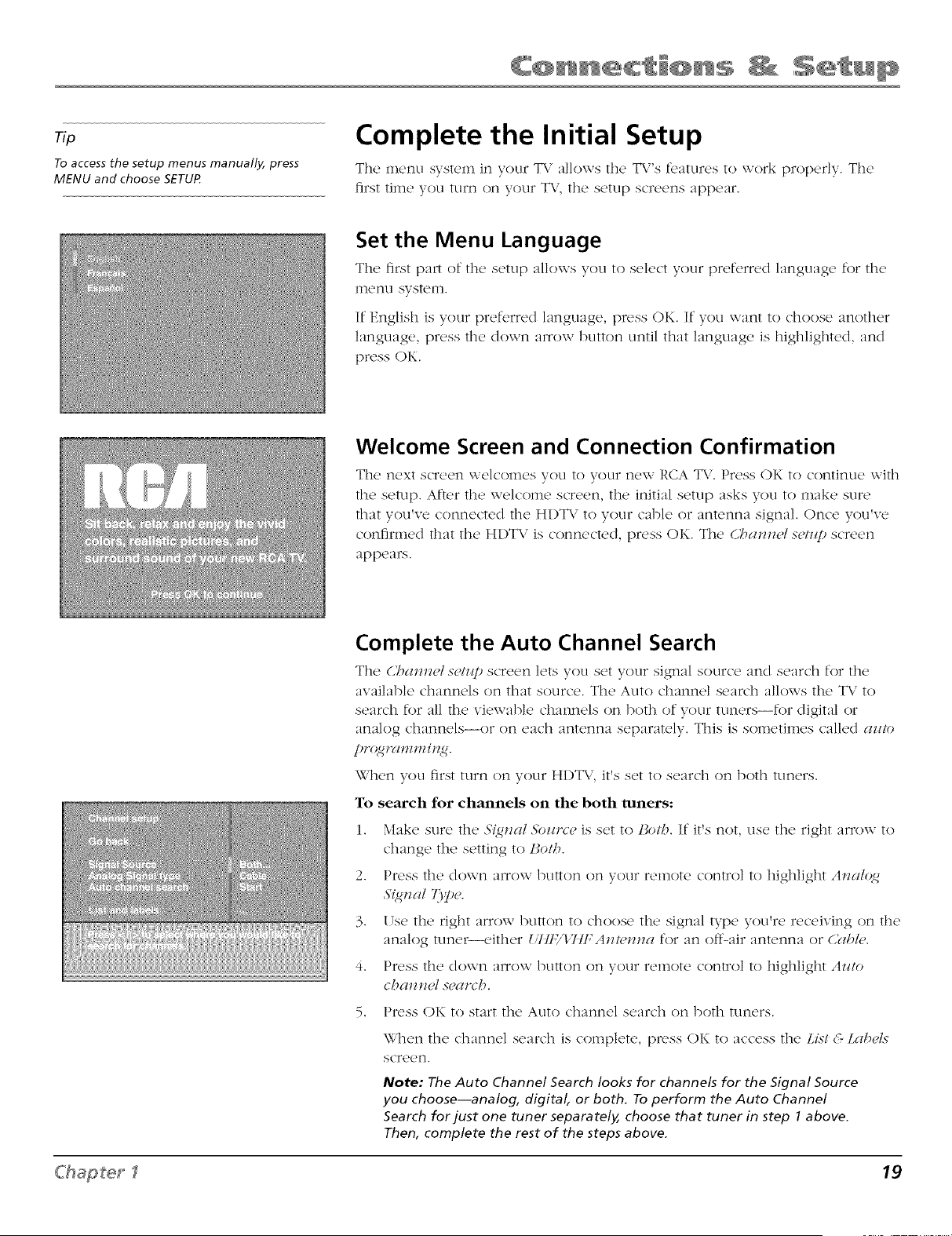
Set the Menu Language
The first part of the setup allows you to select your preferred language for the
menu system.
If English is your preferred language, px_'ss OK. If you want to choose another
language, press the down a;row button until that language is highlighted, and
press OK.
Welcome Screen and Connection Confirmation
The next screen welcomes you to your new RCA T\.". Press OK to continue with
the setup. After the welcome screen, the initial setup asks you to make sure
that you've connected the HI)T\,' to your cable or antenna signal. Once you've
confirmed that the H1)TV is connected, press OK. The C>a_zel setzq_ screen
appears.
Complete the Auto Channel Search
The (i/.'>cl_z_,ls<'/ztpscreen lets you set your signal source and search for the
awdlable channels on that source. The Auto channel search allows the TV to
search for all the viewable channels on both of your tuners--for digital or
analog channels--or on each antenna separately. This is sometimes called az!to
prq_,ulmmi,z_.
When you first turn on your HDTV, it's set to search on both tuners.
To search for channels on the both tuners:
1. Make sure the 3'{q,_zal3bzzrce is set to Boil>. If it's not, use the right arrow to
change the setting to lJoth.
2. Press the down am)w button on your remote control to highlight A_za/qg
3"{_*_a/73'pc.
3. Use the right arrow button to choose the signal type yoci're receiving on the
analog tune_either Utlf¢/t'llf _A_lmz_a for an off-air antenna or C_bD,.
4. Press the down arrow button on your remote control to highlight AzHo
cha*z*zel.'_<'a*z'/'>.
5. Press OK to start the Auto channel search on both tuners.
When the channel search is complete, press OK to access the LLs!<<LalJH_s
scr_'_'n.
Note: The Auto Channel Search looks for channels for the Signal Source
you choose--analog, digital, or both. To perform the Auto Channel
Search for just one tuner separately, choose that tuner in step 1 above.
Then, complete the rest of the steps above.
C'hg_pter I 19
Note:
If you're using an HD source (such as a separate
HDTV tuner or HDTV sateflite receiver) on
the CMP or DVI input, you should run Auto
convergence separately for that input as welL
Tune to the input you're using for the HD
source, then go to page 51 for information on
Auto convergence.
Changing Lists and Labels
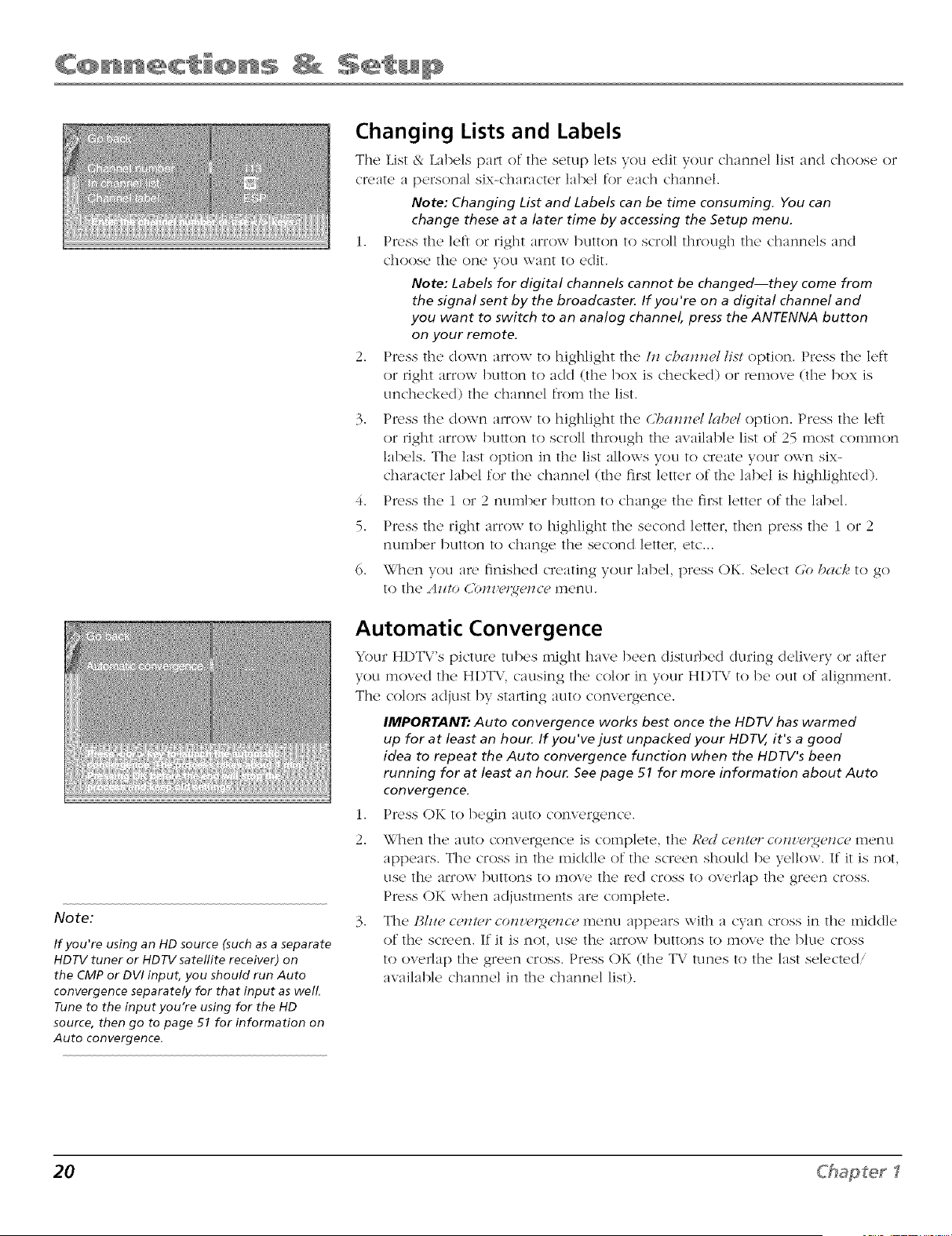
The List & Labels part of the setup lets you edit your channel list and choose or
cn,ate a personal six-character label for each channel.
Note: Changing List and Labels can be time consuming. You can
change these at a later time by accessing the Setup menu.
1. Press the left or right arrow button to scroll thlx)ugh the channels and
choose the one you want to edit.
Note: Labels for digital channels cannot be changed--they come from
the signal sent by the broadcaster. If you're on a digital channel and
you want to switch to an analog channel, press the ANTENNA button
on your remote.
2. Press the down arrow to highlight the hz c'ba_m_l list option. Press the left
or right arrow button to add (the box is checked) or remove (the box is
unchecked) the channel f_x>mthe list.
3. Press the down arrow to highlight the Cba_me/lab_d option. Press the left
or right arrow button to scroll through the available list of 25 most common
labels. The last option in the list allows you to create your own six-
character label for the channel (the first letter of the label is highlighted).
4. Press the 1 or 2 number button to change the fi_:stletter of the label.
5. Press the right arrow to highlight the second letter, then press the 1 or 2
number button to change the second letter, etc...
6. When you are finished creating your label, press OK. Select (;o bach to go
to the Az!!o Cb_z'g,,gg,_zcg,menu.
Automatic Convergence
Your HI)T\"'s pk'ture tubes might have b{x'n disturbed dm'ing delivery or after
you moved the H1)TX.",causing the color in your H1)TX.'to be out of alignment.
The colors adjust by starting auto convergence.
IMPORTANT." Auto convergence works best once the HDTV has warmed
up for at least an hour. If you've just unpacked your HDTV, it's a good
idea to repeat the Auto convergence function when the HDTV's been
running for at least an hour. See page 51 for more information about Auto
convergence.
i. Press O1<.to begin auto convergence.
2. When the auto conveEqence is complete, the R_,d ce_z/c,rco_zz'_,l_e_zcemenu
appears. The cross in the middle of the screen should be yellow. If it is not,
use the arrow buttons to move the red cross to overlap the green cross.
Press OK when adjustments are complete.
3. The l_h_e ce, z!_,rco,zz'm_e_zce metal appears with a cyan cross in the middle
of the screen. If it is not, use the arrow buttons to move the blue cross
to overlap the green cross. Press OK (the TV tunes to the last selected/
available channel in the channel list).
20 Chapter I
pte_ 2
Using the Remote Control
Chapter Overview:
• The Buttons on the Remote Control
• Programming the Remote to Operate Other Components
• How To Use the Remote After You've Programmed It
• Using the INPUT Button
• Remote Control Codes
ging Entertainment.
Indica tor
f
DVO
AUX.HD
ON*OFF
8KUP
OO UNFO
GUIDE
l 2
REVERSE PLAY FORWARD
RECORD STOP PAUSE
FREEZE SLEEP FORMAT
................................................J
The Buttons on the Remote Control
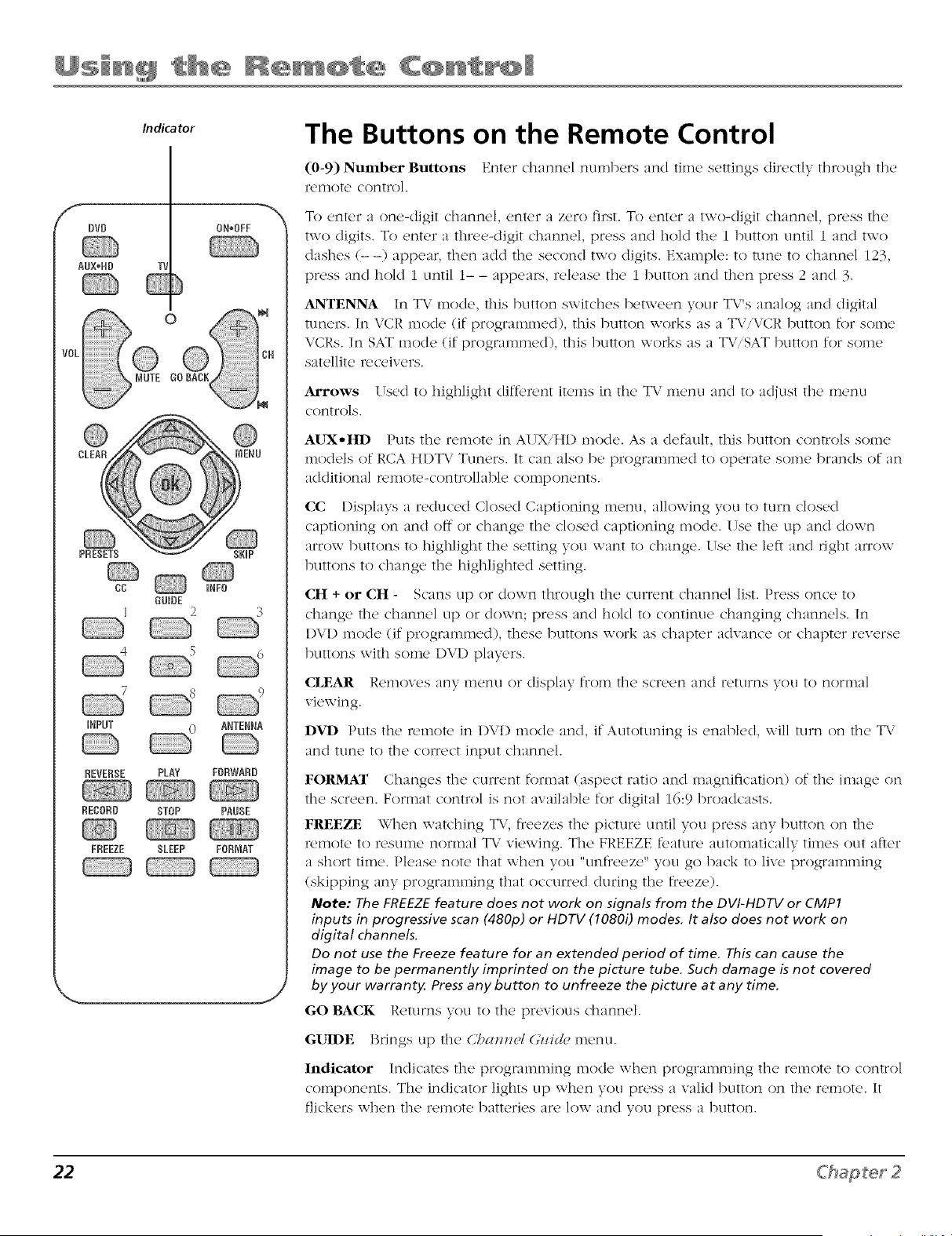
(0-9) Number Buttons Enter channel numbers and time settings directly through the
r('Inot(' control.
To enter a one-digit channel, enter a zero fii:st. To enter a two-digit channel, press the
two digits. To enter a three<ligit channel, press and hold the 1 button until i and two
dashes (- -) appear, then add the second two digits. Example: to tune to channel 125,
press and hold 1 until 1- - appears, release the 1 button and then press 2 and 3.
ANTENNA In TV mode, this button switches between your T\Vs analog and digital
tuners. In VCR mode (if programmed), this button works as a TViVCR button for some
VCRs. In SAT mode (if programmed), this button works as a T\/iSAT button for some
satellite receivers.
Arrows Used to highlight different items in the T\, menu and to adjust the menu
controls.
AIJX-HD Puts the remote n AUX,HD moce As a default, this button controls some
models of RCA HI)T\ Tuners. It can also be programmed to operate some brands of an
additional remote-controllable components.
CC Displays a reduced Closed Captioning menu, allowing you to turn closed
captioning on and oft or change the closed captioning mode. Use the up and down
arrow buttons to highlight the setting you want to change, l Tse the left and right am)w
buttons to change the highlighted setting.
CH + or CH - Scans up or down through the current channel list. Press once to
change the channel up or down; press and hold to continue changing channels. In
I)VI) mode (if programmed), these buttons work as chapter advance or chapter reverse
buttons with some 1)VI) players.
CLEAR Removes ;tny IHenu or dJspl_ty froln the screen ;/nd returns you t{) norlnal
viewing.
DVD Puts the remote in l)\,l) mode and, if Autotuning is enabled, will turn on the T\,
and tune to the correct input channel.
FORMAT Changes the cunent format (aspect ratio and magnification) of the image on
the screen. Format control is not available for digital 16:9 broadcasts.
FREEZE When watching TV, fieezes the picture until you press any button on the
remote to resume normal T\; viewing. The FREEZE feature aLltoinatically times out after
a short time. Please note that when you "unfreeze" you go back to live programming
(skipping any programming that occurred during the freeze).
Note: The FREEZEfeature does not work on signals from the DVI-HDTV or CMP1
inputs in progressive scan (480p) or HDTV (1080i) modes. It also does not work on
digital channels.
Do not use the Freeze feature for an extended period of time. This can cause the
image to be permanently imprinted on the picture tube. Such damage is not covered
by your warranty. Press any button to unfreeze the picture at any time.
GO BACK Returns you to the pr(wious channel.
GUIDE Brings up the CT:_azzzzel(;ztich, metal.
Indicator Indicates the programn_ing mode when progranm_ing the remote to control
components. The indicator lights up xxhen you press a valid button on the remote. It
flickers when the remote batteries are low and you press a button.
22 C'hap_er 2
The indicator flashes when the remote
batteries are low and you press a button on
the remote.
A warning banner may also appear on the
screen when you press a remote button and
your batteries are low.
Tip
To turn off all the RCA components connected
to the 7%, press ON*OFF twice within two
seconds.
This feature works with most RCA products.
Note:
The DVD and AUX, HD buttons also turn on
most RCA products.
INFO Brings up channel banner; press again to clear tile screen.
INPUT Press to toggle through tile available input sources (VI1)I, VII)2, FRNT,
CMPI and DVI--press tile CH+ or CH- button to resume TV viewing).
MENU Brings up tile Main metal.
Note: If you've just turned on the TV, the digital tuner takes some time to get
ready (usually about 25 seconds). While the digital tuner is getting ready, you
won't see the items for functions corresponding to that tuner in the menus.
These items will show up once the digital tuner is ready.
MUTE Reduces tile, TV's vohune to its minimum level. Press again to restore tile,
vohlme.
OK When in tile menu system, selects highlighted items. When watching TV,
freezes tile picture until you press any button on the remote to resume normal TV
viewing. Please note that when you "unfreeze" you go back to live programming
(skipping any programming that occurred during tile fleeze).
ON-OFF When in T\.' mode, turns tile T\, on and off. If in another component
mode (DVI) or AUX-HI)) and programmed, will mm the component on and off.
When pressed twice within two seconds, tile ON-OFF button turns off most RCA
c()inponerlts.
PRESETS Displays the Picture and Sound preset settings. Use the tip and down
_/rro'_vbuttons to highlight either Picture or Sound settings. [!se tile left and right
arrow buttons to change to a different Picture or Sound preset.
REVERSE, PLAY, FORWARD, RECORD, STOP, PAUSE If programmed, provides
transport control for some remote-controllable VCRs and DV1) players.
SLEEP Displays tile Sleep Timer. Each press adds an additional 15 minutes.
SKIP Press once before changing channels and tile TV will wait 30 seconds
before returning you to tile original channel. Press repeatedly to add more time.
"IV Turns on tile TV and puts tile remote in T\," mode. Also displays current
status.
VOL- or VOE + Decreases or increases tile T\,"'s volume.
23
Indicator
f
O_*OF_
.. J
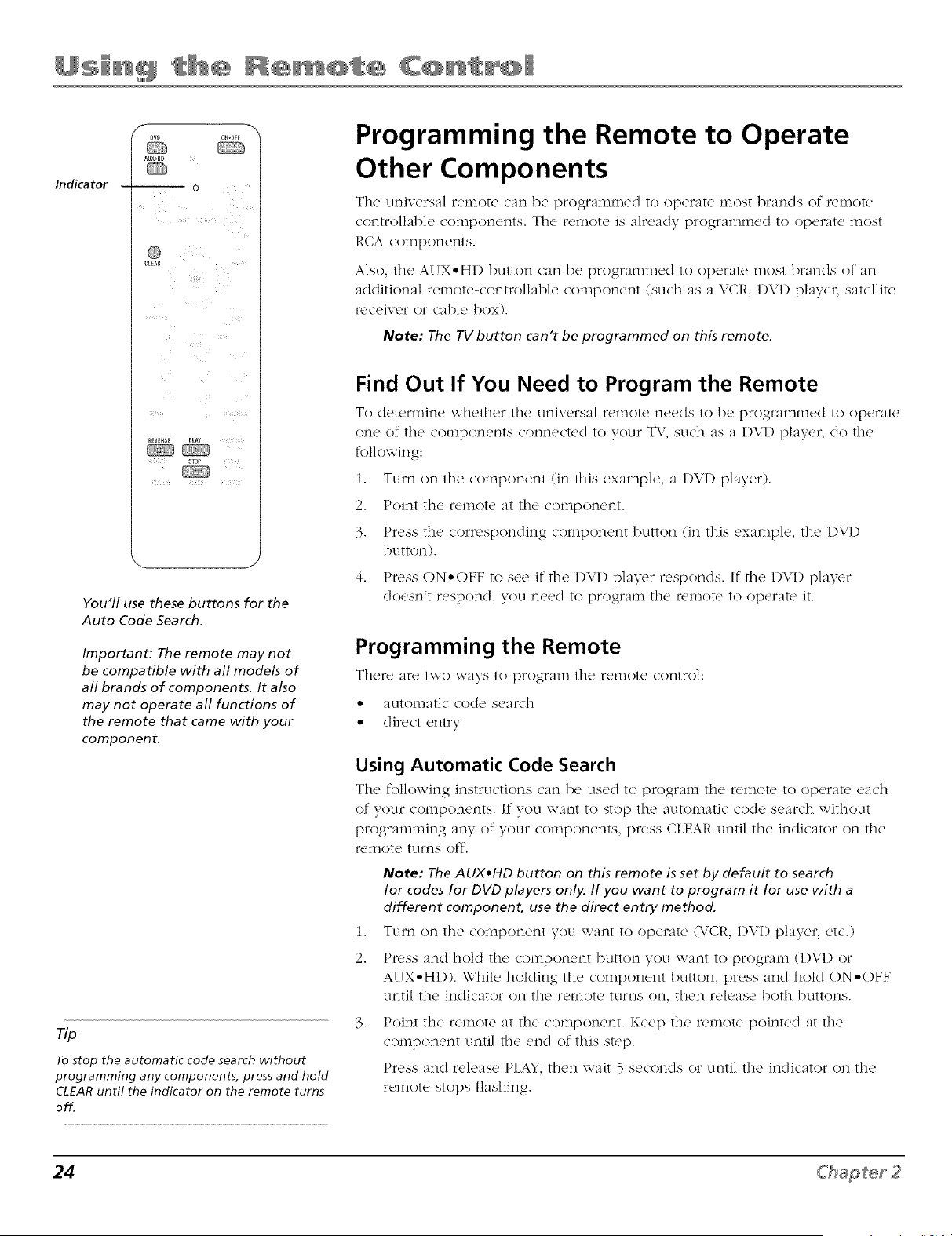
You'll use these buttons for the
Auto Code Search.
Important: The remote may not
be compatible with all models of
all brands of components. It also
may not operate all functions of
the remote that came with your
component.
To stop the automatic code search without
programming any components, press and hold
CLEAR until the indicator on the remote turns
off.
Programming the Remote to Operate
Other Components
The [l[llV(,rsa] r('II]Ot(' call l)(' prograII]II]('d to op(Tat(' n]ost brands ()f r('II]ot('
controllable, components. The r_,motc is alr_'ady programm(,d to op(TaR' most
RCA components.
Also, the A(TXoHI) button can be programmed to operate most brands of an
additional remote-controllable component (such as a VCR, D\q) player, satellite
receiver or cable box).
Note: The TV button can't be programmed on this remote.
Find Out If You Need to Program the Remote
To d_,t_,rmJnc wh_,th_,r the, unJv_,rsal re,noR, needs to b_' programm_,d to opt,rate
one of the components connected to your TV, such as a I)VI) player, clo the
following:
i. Turn on the component (in this example, a DVI) player).
2. Point the remote at the component.
3. Pt_'ss the com,sponding component button (in this example, the 1)VI)
button).
4. Pr_,ss ON-OFF to see if the DVD player responds. If the 1)VI) player
doesn't respond, you need to program the r_'mote to operate it.
Programming the Remote
Th('r(' al'(' two ways to t)rogl-an] [h(' F('II_Ot(' control:
• autolI_atJc code search
• direct entry
Using Automatic Code Search
The' following instructions can b_' used to program the, ,_,motc to op_,raR, _,ach
of your components. If you want to stop the automatic code search without
programming any of your components, press CLEAR until the indicator on the
r_,mote turns oft'.
1,
2,
Note: The AUX°HD button on this remote is set by default to search
for codes for DVD players only. If you want to program it for use with a
different component, use the direct entry method.
Turn on the component you want to opt,rate (VCR, I)VI) play,'r, _'tc.)
Pr_'ss and hold the component button you want to program (1)VD or
AUX-HD). While holding the component button, press and hold ON-OFF
until the indicator on the remote turns on, then release both buttons.
Point the remote at the component. Keep the r_,mote pointed at the
component until the end of this step.
Pr_,ss and release PLAY, then wait 5 seconds or until the indicator on the
remote stops flashing.
24 Chapter 2
Important
You must continue pressing the component
button while you enter the code.
Let's say you have a Zenith DVD player. To
program the universal remote to operate the
DVD player, you would:
Press and hold the DVD button while you en-
ter the first code listed for Zenith in the DVD
Codes column.
Release the DVD button. Press ON,OFF to see
if the DVD player responds. If it doesn't, fol-
low the same steps, but enter the second code
for Zenith DVD players instead of the first.
At this point the remote is searching for the correct code to program. If,
after 5 seconds, the component you want to operate does not turn off,
press PLAY again to tell the remote to search the next set of codes.
Continue pressing PL4Y until the component turns off or the indicator light
on the remote turns oft. If the indicator light turns off, then all codes for that
particular component have been tested once. If the component does not turn
off, then the r_,mote can't be programmed to operate that component.
If the component you want to control do(,_ turn off:
1. Pcess and release REVERSE, then wait 2 seconds. Repeat this step until the
device turns back ON.
2. To finish, press and hold STOP until the indicator on the c_uuote turns off.
A code that controls your component has been saved to that remote button.
Using Direct Entry
1. Turn on the' compon_,nt to b_' progrmum_'d.
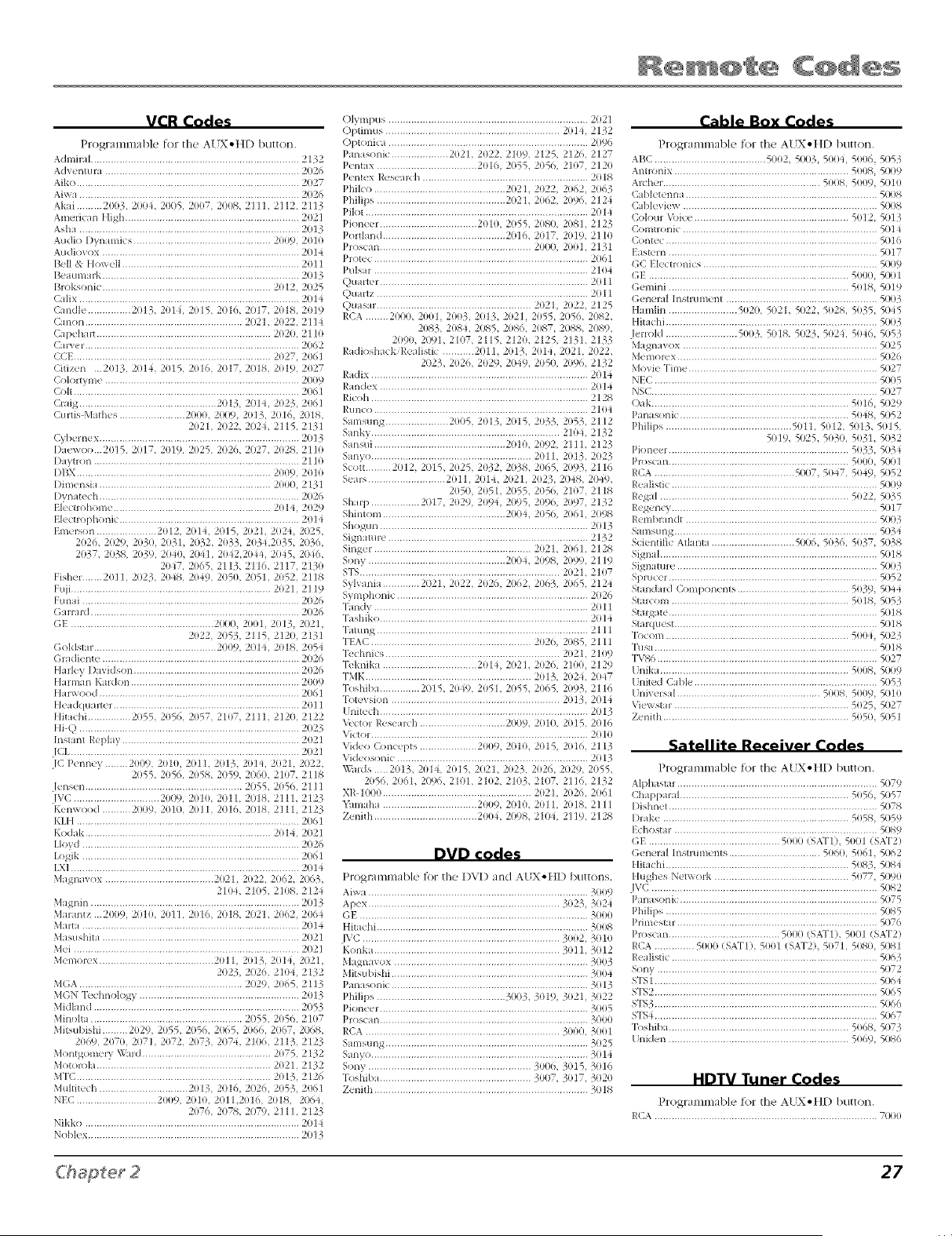
2. Look up the brand and code number(s) for the component on the code list
in this section.
3. Pc_,ss and hold the component button you want to program on the remote.
4. Enter the code from the remote control code list on the following pages. If
the indicator flashes, you have either entered an invalid code or the button
isn't programmable.
5. Release the component button. Point the remote at the component. Keep
the remote pointed at the component until the end of this step.
Pcess ON°OFF to see if the component responds to the command. If it
doesn't, try pressing the component button and then ON°OFF again.
° If you get no response, repeat these steps using the next code listed for
your brand, until the component responds to the remote commands.
° If you try all the codes for your component brand and none work, try the
automatic code search method. If automatic code search doesn't find the
code, the remote is not compatible with your component.
25
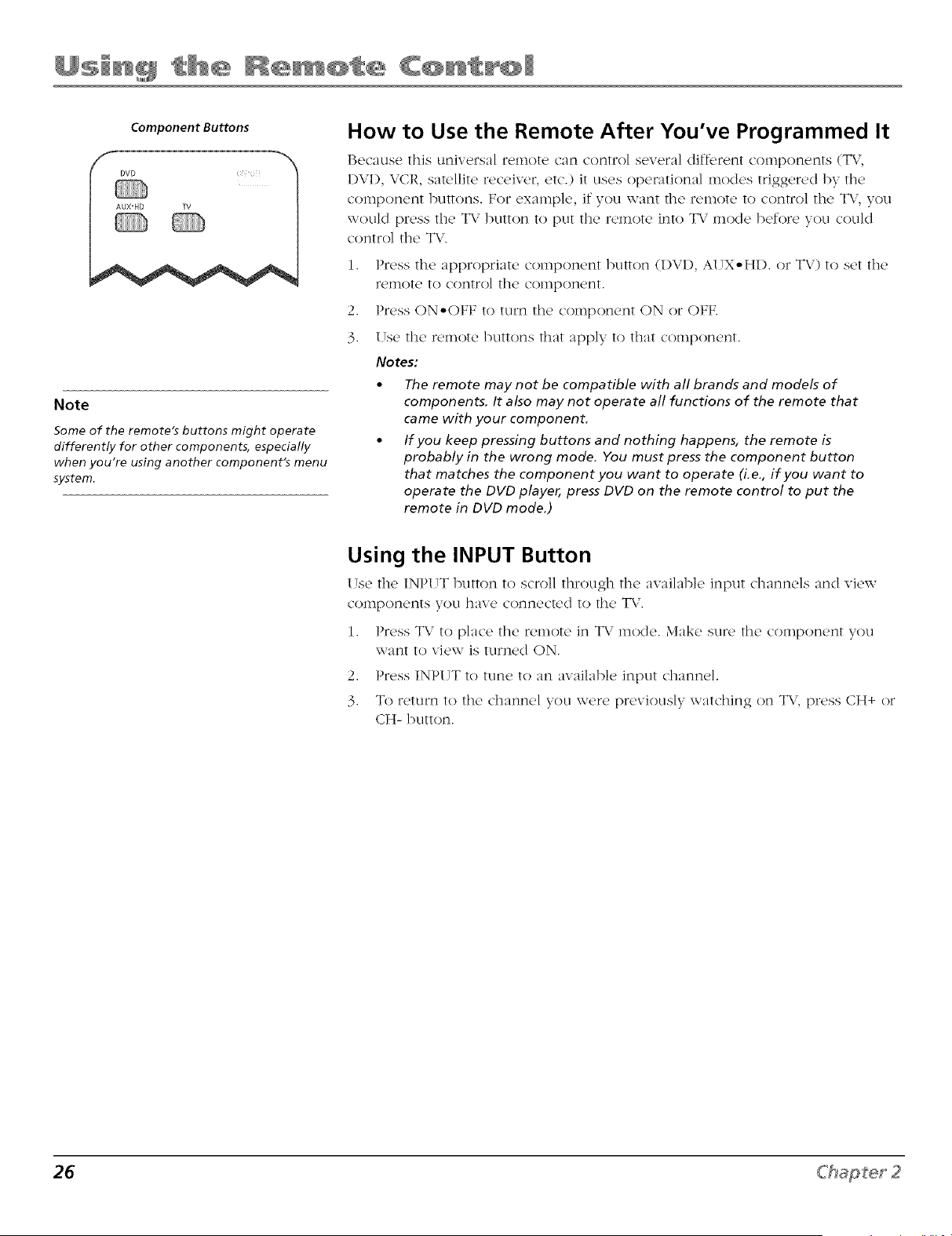
Component Buttons
DVO
AUX'HD TV
Note
Some of the remote's buttons might operate
differently for other components, especially
when you're using another component's menu
system.
How to Use the Remote After You've Programmed It
lR'caus_' this uniw,rsa] r_,moR, can control s_,w,ra] diffcr_,nt compon_,nts (TV,
I)VI), VCR, satellite receiver, etc.) it uses operational modes triggered by the
component buttons. For example, if you want the remote to control the T\,', you
would press the TV button to put the remote into TV mode before you could
control the T\".
1.
2,
3.
Press the appropriate component button (I)VI), A[ !X-HI). or TV) to set the
remote to control the component.
Press ON-OFF to turn the component ON or OFF.
I !se the remote buttons that apply to that component.
Notes:
• The remote may not be compatible with all brands and models of
components, It also may not operate all functions of the remote that
came with your component,
• If you keep pressing buttons and nothing happens, the remote is
probably in the wrong mode. You must press the component button
that matches the component you want to operate (i.e., if you want to
operate the DVD player, press DVD on the remote control to put the
remote in DVD mode.)
Using the INPUT Button
I!s_' the' INPI !T button to scroll through the availabl_, input channels and vk'w
components you have connected to the TV.
1. Press TV to place the remote in TV mode. Make sure the component you
want to view is turned ON.
2. Press INPUT to tune to an available input channel.
3. To return to the channel you were previously watching on T\,, press CH+ or
CH- button.
26 Chapter 2
Re @ee Ce es
VCR Codes
Progranm/ab]e tot file A[ X-HD button.
Adminll ......................................................................... 2132
Adventura .................................................................... 2026
Aiko .............................................................................. 2027
Aixxi ............................................................................. 2026
Akai ......... 2003, 21ili4, 2005, 2007, 2008. 2] ] ]. 2112, 2113
American High ............................................................. 2021
Asha ............................................................................. 2013
Audio Dynamics ................................................ 2009, 2010
Audiovox ..................................................................... 2011
Bell & Itox_ ell .............................................................. 2011
Beaumark ..................................................................... 2013
Broksonic ........................................................... 2012, 2025
Calix ............................................................................. 2014
Candle ............... 2013, 201L 2015, 2016. 2017. 2018, 2019
Canon ....................................................... 21i21. 2022, 2114
Capehan ............................................................. 2020, 211t)
C:uxer ........................................................................... 2062
CCI ..................................................................... 2027, 2061
Citizen 2013, 201< 2015, 2016, 2017. 2018. 2019, 2027
C(flortyme .................................................................... 2009
Colt ............................................................................... 2061
Craig ................................................ 2013, 2014, 2023, 2061
Curtis Mathes ....................... 2000. 2009, 2013, 2016. 2018.
2021, 2022. 202£ 2115, 2131
Cyl)< m< x ...................................................................... 2013
l)ae_xoo 2015, 2017, 2019, 2025, 21i26. 21i27. 2028, 2110
l)aytron ........................................................................ 211t)
I)BX .................................................................... 2009, 2010
l)imensia ............................................................ 2000, 21.51
l)ynatech ...................................................................... 2026
I h cnohome ....................................................... 2014, 2029
I h ctlophonic ............................................................... 2014
I merson ..................... 21}12. 2014. 2015, 21}21. 202£ 2025,
2O26. 2O29, 203O, 2031, 2O32, 2033, 2034,2O35, 2O36,
2(137, 21i38, 2039, 2040. 2041. 20 J2,2044, 2045, 20_6,
20J7, 2065, 2113, 211o, 2117, 2130
Fisher 2011, 2023, 20J8, 2049, 2050, 2051, 21152, 2118
Fuji ...................................................................... 2021, 2119
Funai ............................................................................ 2026
Garlald ......................................................................... 2026
GI .................................................. 2000. 2001, 2013, 2021,
2022, 2053, 2115, 2120, 2131
Goldsmr ........................................... 2009. 201< 2018, 2054
Gmdiente ..................................................................... 2026
Harley Davidson .......................................................... 2026
Hannan Kmdon ........................................................... 2009
Ham ood ...................................................................... 2061
H<adquaner ................................................................ 2011
Hitachi ............... 2055, 2050, 2057, 2107. 2111. 2120, 2122
}ti Q ............................................................................. 2O23
Instant P,eplay ....................................................................
JCI................................................................................. 2021
JC p< nney ........ 2009, 2010, 2011, 2013, 201< 2021. 2022.
21i55, 205% 2058, 2o59. 20o0. 2107. 2118
.h nsen ....................................................... 21i55, 2050, 2111
IVC .............................. 2009, 2010. 2011. 2018. 2111. 2123
Kemx ood .......... 21ili9, 2010, 2011, 21i16. 2018. 2111, 2123
KLI] .............................................................................. 2061
Kodak ................................................................. 201L 2021
[Joyd ............................................................................ 2026
[x>gik ............................................................................ 2061
LXI ................................................................................ 2014
Magnavox ...................................... 202L 2022, 2062. 21i63,
2104. 2105. 2108, 2124
Magnin ......................................................................... 2013
Mamntz 2009, 2010, 2011, 2016, 2018, 2021, 2062, 2064
Maltl ............................................................................ 2014
Masushita ..................................................................... 21i21
Mci ............................................................................... 2021
Memolex ........................................ 2011, 2013, 20It 21i21.
2023, 202o, 2104, 2132
MGA.......................................................... 2029, 2065, 2113
MGN "lk_(hnology ........................................................ 2013
Midland ........................................................................ 2053
Minolt i ..................................................... 2055, 20511, 2107
Mitsubishi ......... 2029, 2055, 2056, 20o5, 206o, 2067, 20o8.
2069, 2070, 2071. 2072, 2073, 21i74. 2106. 2113, 2123
Montgomel y \\hid ............................................. 2075, 2132
MotoK_la ............................................................. 2021, 2132
MTC .................................................................... 2013, 2126
Multitech ............................... 2013, 2016. 2020. 2053, 2061
NIC ............................ 2009, 2010, 20]],201o, 2018, 20o4,
2076, 207S. 21i79, 2111, 2 125
Nikko ........................................................................... 201i
Noblex .......................................................................... 21i13
Olympus ...................................................................... 2021
Optimus ............................................................. 2014, 2132
Optonk:a ...................................................................... 2(¸)96
Panasonic .................... 21}21. 2022, 2109. 2125, 2120, 2127
Pentax ................................... 21}16, 2()55, 2056, 2107, 2120
Pentex Resem_:h .......................................................... 21¸)18
Philco .............................................. 21)21. 2022, 2(}62, 2(¸)63
Philips ............................................. 21)21. 2062, 2090, 2124
Pik_t .............................................................................. 20¸14
Pioneer .................................. 2010, 2()55. 2080, 2081, 2123
P<)rthmd ........................................... 2016. 2017, 21}19, 2111}
Proscan ..................................................... 2(}()(), 21}(}1, 2131
Protec ........................................................................... 21¸)6¸1
Pulsar¸ .......................................................................... 2104
Quarter ......................................................................... 21¸)11
(.)uartz .......................................................................... 2011
Quasar¸ ..................................................... 2021, 2(}22. 2125
P,CA ........ 21ilili. 2001, 2003, 21)13, 21}21, 2055, 2()56, 2()82,
2(}83, 2(}84, 21i85, 2(}86, 2(}87, 21)_. 21i89.
2090, 21)91, 211)7, 2115, 2121}, 2125, 2131, 2133
Radioshacl_.l',ealistic ........... 2011.21}13, 21}14, 2021.2()22.
2()23, 2020, 2(}29, 2()49, 2(}50, 2(}9O, 2132
Radix ............................................................................ 201_
Randex ......................................................................... 21¸)¸14
Pdcoh ............................................................................ 2128
Runco ........................................................................... 211}4
Samsung ...................... 21}1i5, 2013, 21)15, 2(}33, 2053, 2112
Sanky .................................................................. 2104, 2132
Sansui .............................................. 2010. 2092, 2111, 2123
Sanyo ........................................................ 2011, 21113, 2(¸)23
Scott ......... 21i12. 21i15, 2(}25, 2032, 2()38, 2065, 2(}93, 2116
Sea_> ........................... 21}11, 21i14. 21}21, 2(}23, 2()48, 2049,
2050, 21}51, 2()55. 205O, 2107, 2118
Sl_:_ll) ................. 2017. 2(}29, 2(}94, 2()95, 2090, 2(}97, 2132
Shintom ........................................... 201)_. 2056, 2061, 21)_
Shogun ......................................................................... 21¸)¸13
Signature ...................................................................... 2132
Singer ....................................................... 21}21, 2061, 2128
Sony ................................................ 21)()_. 2(}98, 2099, 2119
STS ...................................................................... 21}21, 2107
Sylvania ............. 202]. 2(}22, 2(}26, 21i02. 2003, 2(}65, 2124
Symphonic ................................................................... 2(¸)26
Tand y ........................................................................... 2() 11
Tashiko ......................................................................... 21¸)¸14
Tatung .......................................................................... 2111
TEAC ........................................................ 21}20. 2085, 2111
Technics ............................................................. 21}21, 211}9
Teknika ................................. 201_, 21)21. 2(}2O, 211}(}, 2129
TMK .......................................................... 21}13, 2024, 2(¸)47
"R_shiba .............. 21115, 2049, 21}51, 21i55, 20O5, 2(}93, 2116
Totevsion ........................................................... 2013, 201i
Unitech ......................................................................... 21i¸13
_ctor I',esearch .............................. 2009, 21)11), 2015, 2016
Vk:tor ........................................................................... 21¸)¸1(}
Video Concepts .................... 2(}(}9, 2010, 2015, 21}10, 2113
Vkleos<)nic ................................................................... 21¸)¸13
\\_nds 21)13, 2014, 21}15, 21)21, 2(}23, 2(}26, 2()29, 2055,
2050, 21i61, 209O, 2101, 211}2, 211)3. 211)7. 2110, 2132
XR 1000 .................................................... 202], 2026, 21¸)6¸1
_unaha ................................. 21}(19. 21)11}. 20] 1, 21}18. 2111
Zenith .................................... 2@}4. 21i98, 2104, 2119, 2128
DVD codes
Progmmnmble _r the I)VI) and AI__,.HD buttons.
Aixxa ............................................................................. 3009
Apex ................................................................... 3023, 3024
13I ................................................................................ 3000
Hit _chi .......................................................................... 3008
JVC ..................................................................... 3002, 3010
Konka ................................................................. 3011, 3012
Magnavox ....................................................................30113
Mitsubishi ..................................................................... 3004
Pan tsonic ..................................................................... 3013
Philips ............................................. 3003, 3019, 3021, 3022
Pioneer ........................................................................3005
lh'oscan ......................................................................... 301111
RCA .................................................................... 3000, 3o01
Samsung ....................................................................... 3025
Sanyo ............................................................................ 3014
Sony ......................................................... 301){_,3015, 3016
"l'osf_ib _..................................................... 3007, 3017, 3020
Zenith ........................................................................... 31i18
Cable Box Codes
Programmable tot the A[ X,.HD button.
AIIC ....................................... 5002, 5003, 500£ 5006, 5053
Antlonix ............................................................. 5008, 5009
Archer ...................................................... 5008, 5009,5010
C d)letenna ................................................................... 51ili8
Cal)levi_ xx .................................................................... 5008
Cok)ul \bi<:e ...................................................... 5012, 5013
Comnonic .................................................................... 5014
Contec .......................................................................... 5016
I astern ......................................................................... 5017
GC I lectronics ............................................................. 51ili9
(;I ...................................................................... 5000, 5001
(;emini ............................................................... 5018, 5019
(;eneral Instrument ..................................................... 5003
Hamlin ........................ 5020, 5021, 5022, 5028, 5035, 5045
Hit t<:hi.......................................................................... 5003
.lenold ......................... 5003, 5018 5023, 502_, 5046, 51i53
M ign ivox .................................................................... 5025
Memolex ...................................................................... 5026
Movie Time .................................................................. 5027
NIC .............................................................................. 5005
NSC ............................................................................... 5(127
C)aJ...................................................................... 5016, 5029
Panasonk: ........................................................... 5048, 5052
Philips ............................................ 5011, 5012, 5013, 5015,
51i19, 51i25, 5030, 5031, 51/32
Pioneel .............................................................. 5033, 503_
lh'osca n ............................................................... 5000, 5001
RCA ................................................. 5007, 51)_7, 5049, 5052
P,e:distic ........................................................................ 5009
Regal .................................................................. 5022, 5035
Ih gency ........................................................................ 51117
R<mbrandt ................................................................... 5003
Samsung ....................................................................... 5034
S<ientific Atl mt t ............................. 5000, 5030, 5037, 5038
Signd ............................................................................ 51i18
Sign rune ...................................................................... 5003
Sprucel ........................................................................ 5052
Standmd Components ....................................... 5039, 5044
Stmcom .............................................................. 5018, 51i53
Stmgat< ......................................................................... 51i18
Smrquest ....................................................................... 5018
"R)com ................................................................ 500< 51i23
Tusa .............................................................................. 5018
TVS0 ............................................................................. 5027
[nika .................................................................. 5008, 5009
[ nited Cable ................................................................ 5055
Univ<lsal .................................................. 5008, 5009, 5010
Viewstar ............................................................ 5025, 5027
Zenith ................................................................. 5050, 51i51
Satellite Receiver Codes
Programmable tbr the A[ X,.HI) button.
Alphasuu ..................................................................... 5079
Chappalal ........................................................... 5056, 5057
l)ishnet ......................................................................... 5078
l)mke ................................................................. 5058, 5059
I chostal ...................................................................... 5089
13I .............................................. 5000 (S,_I'I), 5001 /SAT2)
(h ner d Instruments ................................ 5000, 5061, 50o2
Hit ichi ................................................................ 5083, 5084
Hughc_s Netxxolk ............................................... 5077 5090
.!VC ............................................................................... 51/82
Panasonic ..................................................................... 51i75
Philips .......................................................................... 5085
Primestar ...................................................................... 5076
Proscan ....................................... 5000/S_T1), 5001 (S<1"2)
RCA .............. 5000 (S,\T1), 5001 (S,\T2), 5071, 5080, 5081
Ih alistic ........................................................................ 5003
Sony ............................................................................. 5072
STSI .............................................................................. 51/o4
STS2 .............................................................................. 5o05
STS3 .............................................................................. 5066
STS4 .............................................................................. 50o7
"R)shiba ............................................................... 5068, 5073
[ nklen ............................................................... 5069, 51i86
HDTV Tuner Codes
Progran]mable _)r the AI]X,.HD button.
RCA .............................................................................. 7000
27

This page left blank intentionally.
pte_ 3
Using the TV's Features
Chapter Overview:
• Channel Banner
• Digital and Analog Tuners
• Autotuning
• Parental Controls and V-Chip
ging Entertainment.
Channel Banner
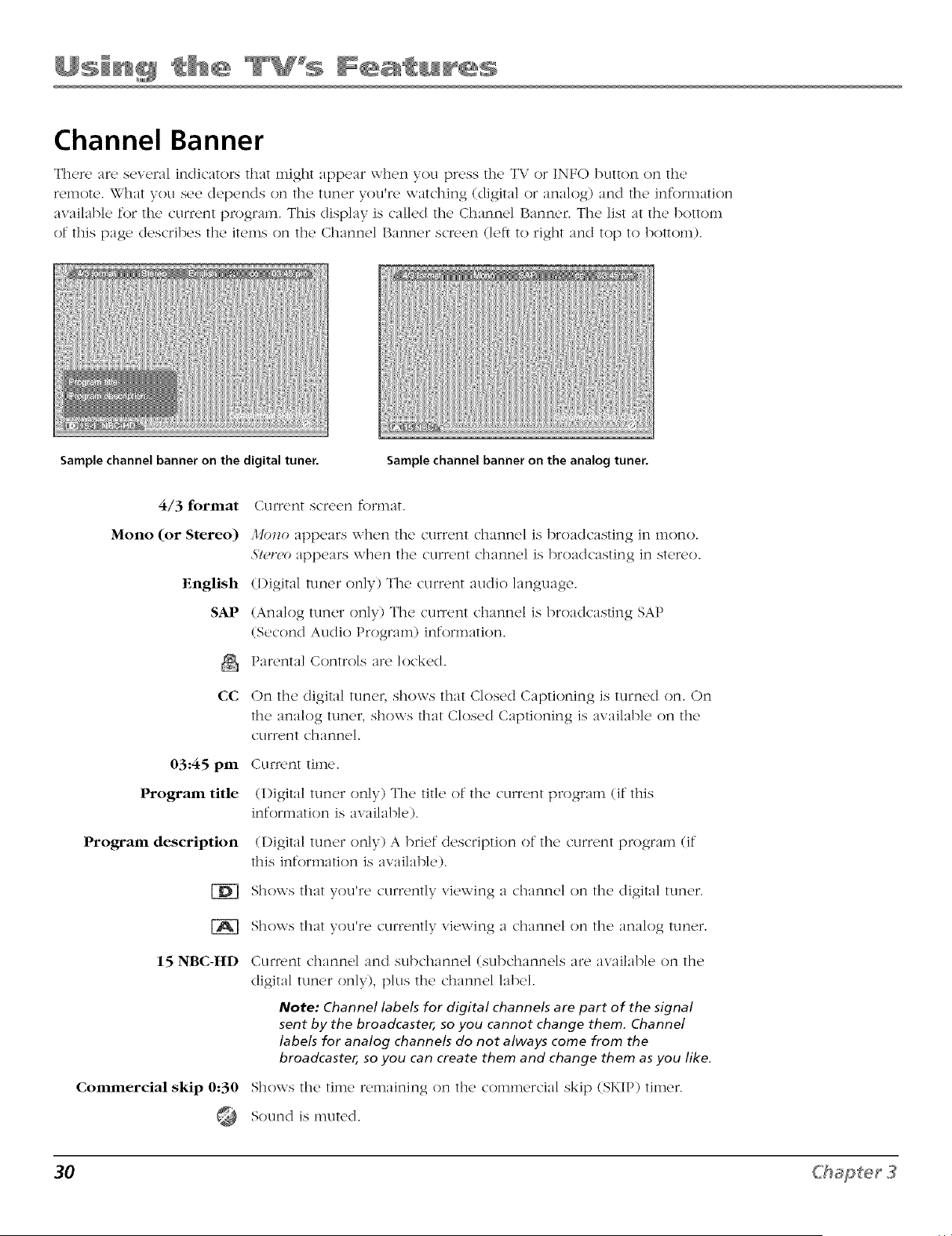
There are several indicators that might appear when you press the TV or INFO button on the
remote. What you see depends oil the tuner you're watching (digital or analog) and the information
available for the current ptx/gram. This display is called tile Channel Banner. The list at the bottom
of this page describes tile items on tile Channel Banner screen (left to right and top to bottom).
Sample channel banner on the digital tuner. Sample channel banner on the analog tuner.
4/3 format
Mono (or Stereo)
EngHsh
SAP
&
cc
03:45 pm
Program title
Program description
15 NBC-HD
Commercial skip 0:30
@
CLIIT('I_lt scr('(ffl fornl[/t.
,Umzo appears when the current channel is broadcasting in mono.
5'!_,,v,oappears when tile current channel is broadcasting in stereo.
(Digital tuner only) Tile current audio language.
(Analog tuner only) Tile current channel is broadcasting SAP
(Second Audio Program) information.
Parental Controls are locked.
On tile digital tuner, shox\s that Closed Captioning is turned on. (_)n
the analog tuner, shoxx s that Closed Captioning is :_v:dlable {}ntile
current ch:mnel.
Current time.
(Digital tuner only) The title of tile current program (if this
information is available).
(Digital tuner only) A brief description of tile current program (if
this information is available).
Shows that you're currently viewing a channel on tile digital tuner.
Shows that you're currently viewing a challrlel oi3 tile analog tuner.
Current channel and subch:mnel (subchannels are available on tile
digital tuner only), plus tile channel label.
Note: Channel labels for digital channels are part of the signal
sent by the broadcaster, so you cannot change them. Channel
labels for analog channels do not always come from the
broadcaster, so you can create them and change them as you like.
Shows tile time remaining on tile commercial skip (SKIP) timer.
Sotlnd is nRited.
30 C'hg@_er 3
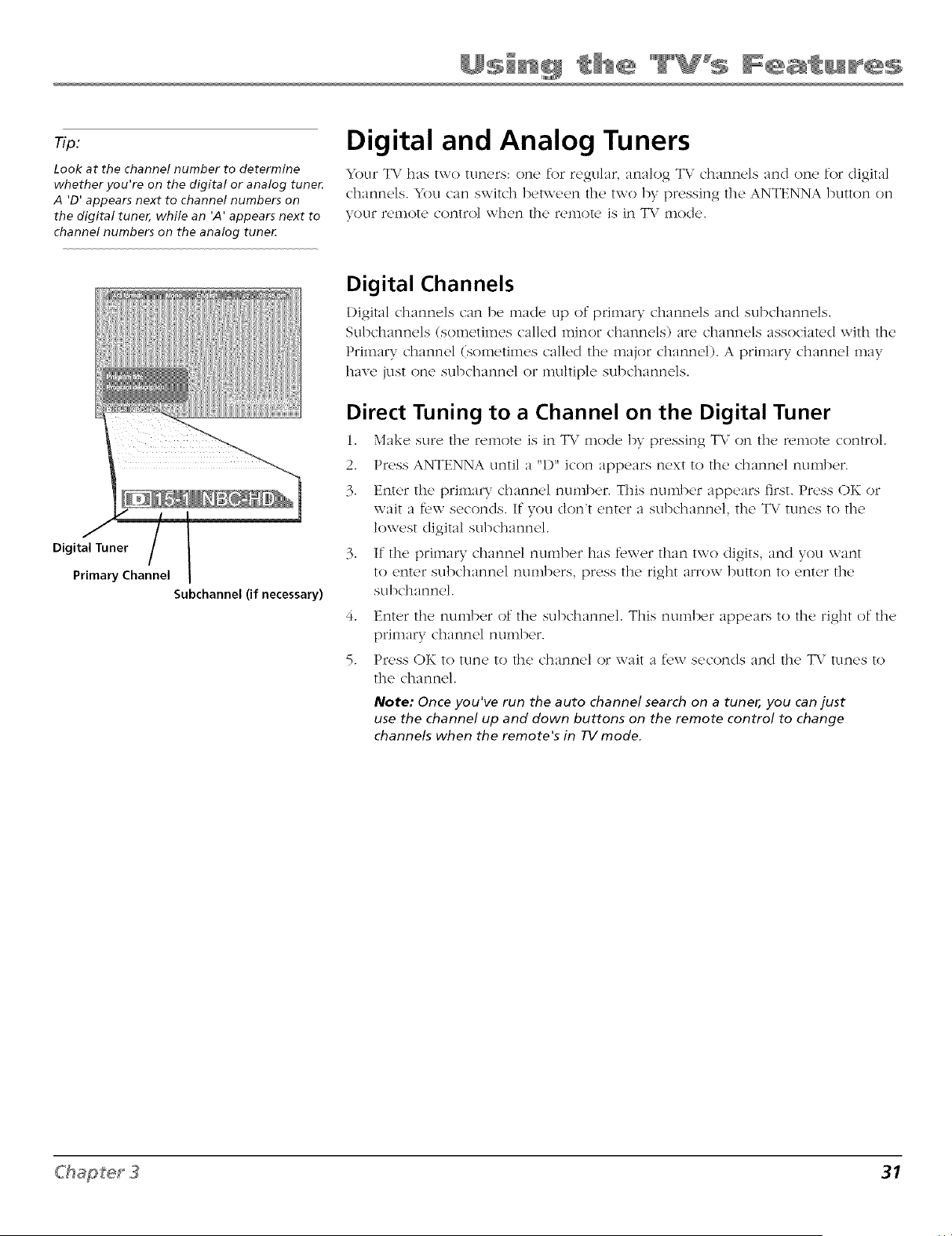
Tip;
Look at the channel number to determine
whether you're on the digital or analog tune_
A 'D' appears next to channel numbers on
the digital tuner, while an 'A' appears next to
channel numbers on the analog tune_
Digital and Analog Tuners
:(_11"T\ has two tuners: one for regular, analog TV channels and one for digital
channels. You can switch between the two by pressing the ANTENNA button on
your relnote control when tile relnote is in T\," mode.
Subchannel (if necessary)
Digital Channels
Digital channels can be made up of primary channels and subchann_,ls.
Subchannels (sometimes called minor channels) are channels associated with the
Primary channel (sometimes called the major channel). A prhnary channel may
have just one subchannel or multiple subchannels.
Direct Tuning to a Channel on the Digital Tuner
1. M:)ke sure thc, r_'moR' is Jr_ TV mode by pr_'ssing T\" on the' n, mote control.
2. Press ANTENNA until a "1)" icon appears next to the channel number.
3. Enter the primary channel number. This number appears first. Press OK or
wait a f_,w seconds. If you don_t enter a subchannel, the TV tunes to the
lowest digital subchannel.
3. If the primary channel number has f_,wer than two digits, and you want
to enter subchannel numbers, press the right arrow button to enter the
subchannel.
5.
Enter the number of the subchannel. This number appeai:s to the right of the
primary channel number.
Press OK to tune to the channel or wait a f_,w seconds and the TV tunes to
the channel.
Note: Once you've run the auto channel search on a tuner, you can just
use the channel up and clown buttons on the remote control to change
channels when the remote's in TV mode.
31
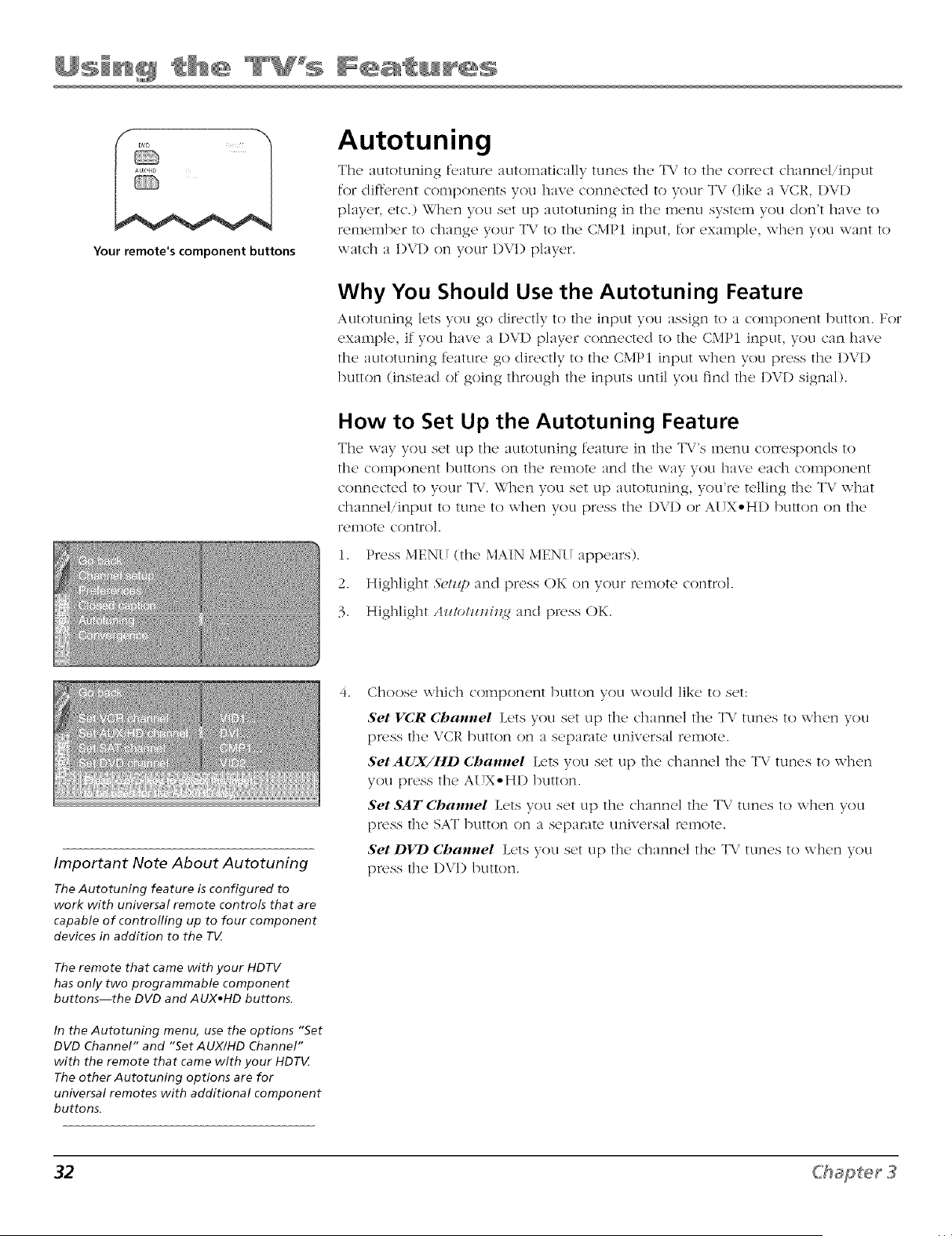
Your remote's component buttons
Autotuning
The autotuning feature automatically tunes the T\ / to tile correct channel/input
for different components you have connected to your TV (like a VCR, I)VI)
player, etc.) When you set up autotuning in tile menu system you don't have to
remember to change your TV to tile CMP1 input, for example, when you want to
watch a DVI) on your 1)V1) player.
Why You Should Use the Autotuning Feature
Autotuning lets you go directly to the input you assign to a component button. For
example, if you have a I)VI) player connected to the CMPI input, you can have
the autotuning feature go directly to tile CMPI input when you press the 1)VI)
button (instead of going through tile inputs until you find tile DVD signal).
How to Set Up the Autotuning Feature
The way you set up the autotuning feature ill the Tk/'s menu corresponds to
tile component buttons on tile remote and the way you have each component
connected to your TV. When you set up autotuning, you're telling tile TV what
channel/input to tune to when you press tile DVI) or AUX-H1) button on tile
remote control.
1. Press MENU (tile MAIN MENU appears).
2. Highlight &,lHp and press OK on your remote control.
3. Highlight AmolmHlz,g and press OK.
Important Note About Autotuning
The Autotuning feature is configured to
work with universal remote controls that are
capable of controfling up to four component
devices in addition to the TV.
The remote that came with your HDTV
has only two programmable component
buttons--the DVD and AUX,HD buttons.
In the Autotuning menu, use the options "Set
DVD Channel" and "Set AUX/HD Channel"
with the remote that came with your HDTV
The other Autotuning options are for
universal remotes with additional component
buttons.
4,
Choose which component button you would like to set:
Set VCR Channel Lets you set up the channel the TV tunes to when you
press tile VCR button on a separate universal remote.
SetAUX/HD Channel Lets you set up tile channel tile TV tunes to when
you press tile AUX-H1) button.
Set SAT Channel Lets you set tip the channel the TV tunes to when you
press tile SAT button on a separate universal remote.
Set DVD Channel Lets you set tip tile channel tile TV tunes to when you
press the I)VI) button.
32 C'hapter3
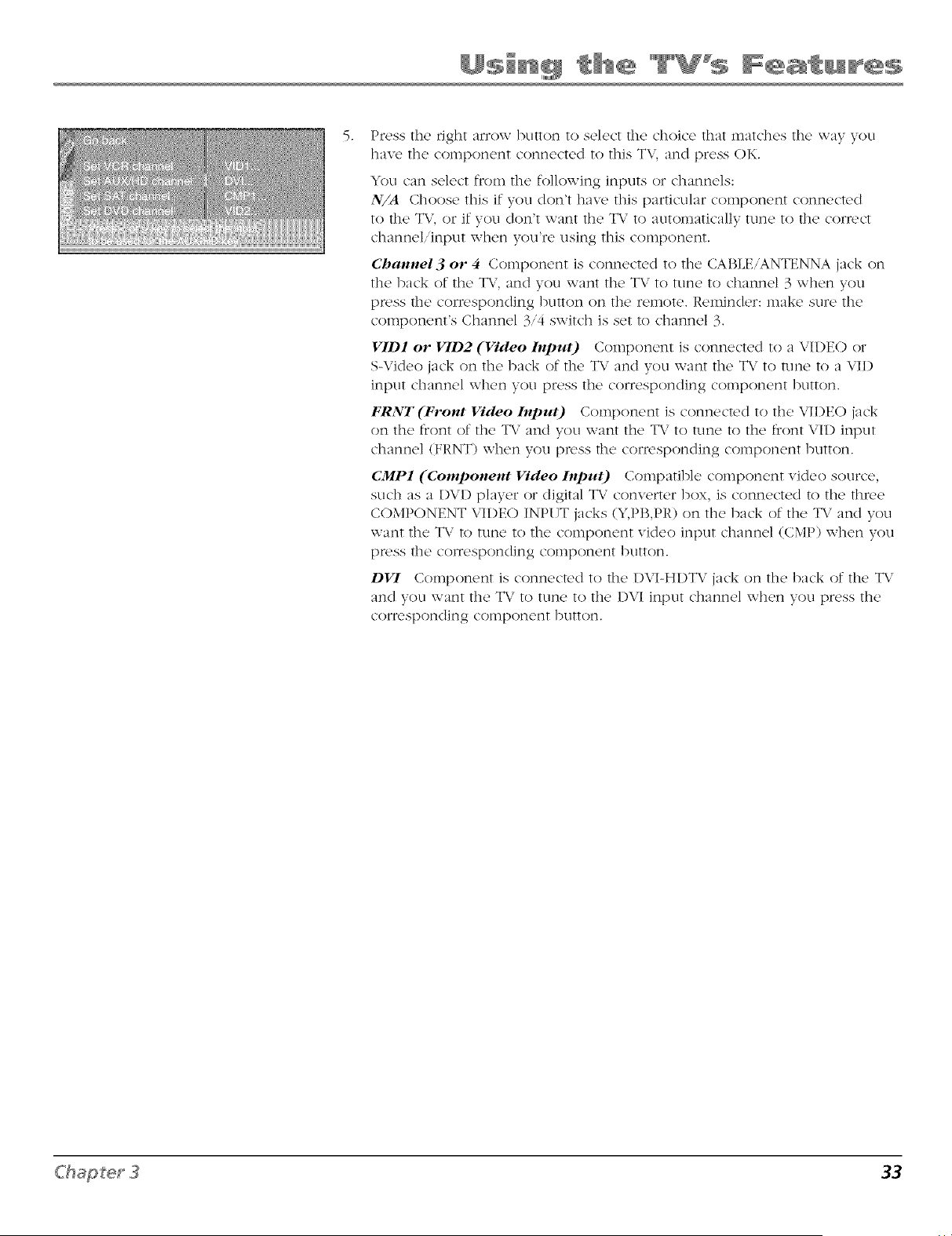
,
Press the right arrow button to select the choice that matches the way you
have the component connected to this TV, and press OK.
You can select from the following inputs or channels:
N/A Choose this if you don't have This particular component connected
to the TV, or if you don't want the T\' to automatically tune to the conrct
channel/input when you're using this component.
(2hatsnel3 or 4 Component is connected to the CABLE/ANTENNA jack on
The back of The TV, and you want The TV To Tune To channel 3 when you
pn, ss The corn, sponding button on The remote. Reminder: make sure The
component's Channel 3/4 switch is set To channel 3.
VID1 or VID2 (Video InpuO Component is connected To a VI1)EO or
S-Video jack on The back of The T\" and you want The T\.' To Tune To a VII)
input channel when you press The corresponding component button.
FRNT (Front Video Inpu 0 Component is connected To The VIDEO jack
on the front of The T\,' and you want The TV To Tune To The front VII) input
channel (FRNT) when you pn, ss The conrsponding component buTTon.
(;MP1 (Component Video Inpu 0 Compatible component video source,
stlch :is a I)VI) player or digital TV converter box, is connected To the three
COMPONENT VII)EO INPUT jacks (;qPB,PR) on The back of The TV and you
want The T\" To Tune to The component video input channel (CMP) when you
pn'ss the coi-responding component button.
DVI Component is connected To the 1)VI-HI)TV jack on The back of The TV
and you want the TV to tune To The I)VI input channel when you press the
corlrsponding component button.
33
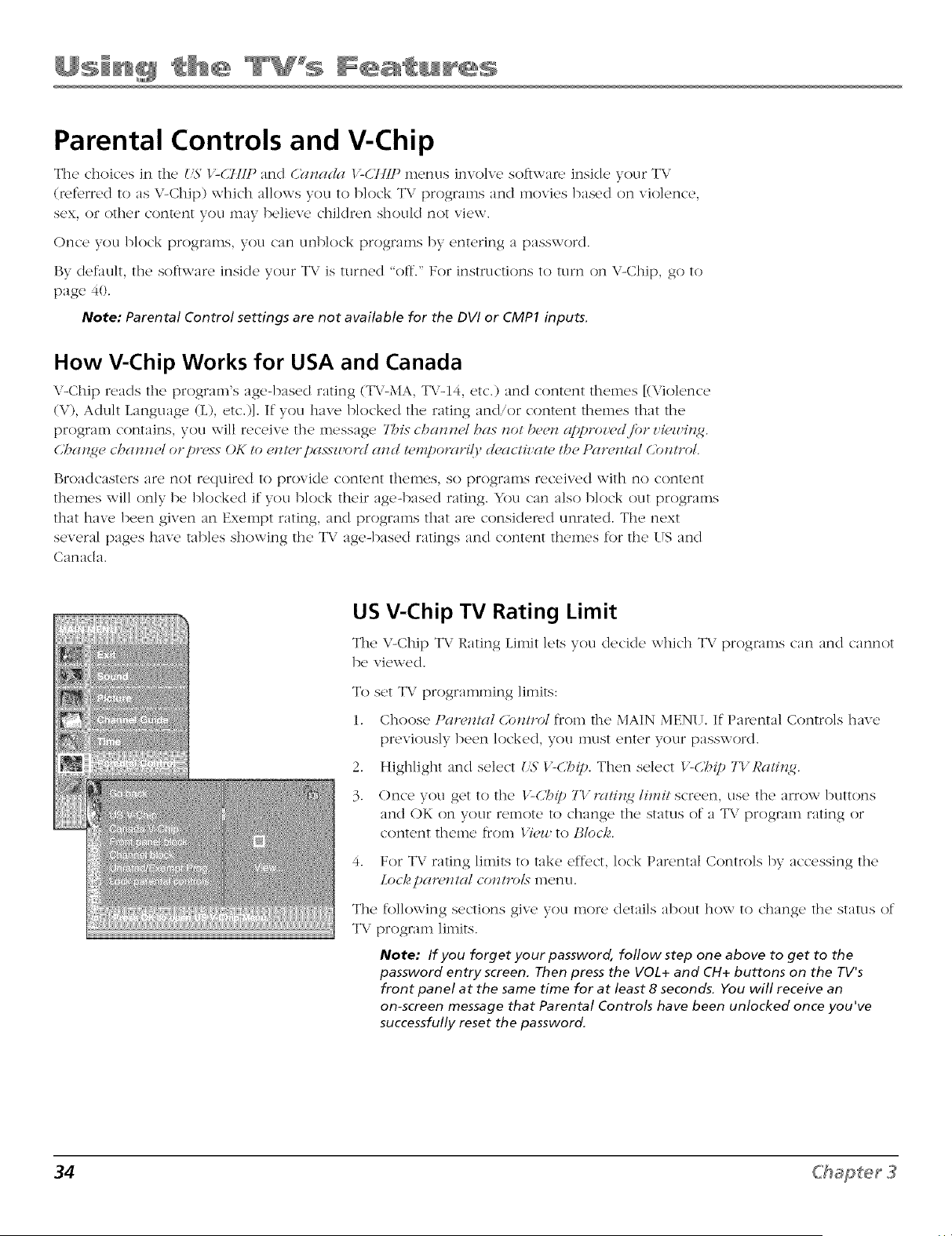
Parental Controls and V-Chip
The choices in the _'S Y-(,ttlP and (2_lzada I'-CIHP menus involve software inskle your TV
(referred to as V-Chip) whkh allows you to block TV programs and movies based on violence,
sex, or other content you may believe children should not view.
Once you block programs, you can unblock programs by entering a passe\ ord.
By default, the software inside your TV is turned "off." For instructions to turn on \/-Chip, go to
page 40.
Note: Parental Control settings are not available for the DVI or CMP1 inputs.
How V-Chip Works for USA and Canada
\,'-Chip reads the program's age-b;_sed rating (T\,'-MA, TV-14, etc.) and content themes [(\folence
(\'% Adult Lar'tguage (L), etc.)]. If"you have blocked the ratk'tg and'or coment themes that the
program contains, you will receive the message 7his cba_z_zel has _zo/bee_z approz,(,d./br z'i_,zz,i_z<_.
(/l_a_z_e cba_zllel or pl_,xs OK to elzt(,r pas-_z#ol_/ a_zd pmpolwri!F d_actiz'ap /be l)armlt_ll (/o_ztrol.
Broadcasters are not required to provide content themes, so programs received with no content
themes will only be blocked if you block their age-based rating. You can also block out programs
that have been given an Exempt rating, and programs that are considered unrated. The next
several pages have tables showing the TV age-based ratings and content themes for the US and
Canada.
US V-Chip TV Rating Limit
The V-Chip T\/Rating limit lets you decide which T\/ programs can and cannot
be viea ed.
To set TV programming limits:
1. Choose t)anqzt_d 6b_lro/from the MAIN MENIL If Parental Controls have
previously been locked, you must enter your password.
2. Highlight and select _5' t'-cbip. Then select t'-cbip Tt'Ra#_z_.
3. Once you get to the luC/_ip TV iw#_z<_ limit screen, else the arrow buttons
and OK on your remote to change the stares of a TV program rating or
content theme from t PH to BIocl,<
4. For T\ rating limits to take effect, lock Parent:fl C{mtrols by accessing the
Locl,_pan_zzlal cozzlrols menu.
The following sections give you more details about how to change the status of
TV program limits.
Note: If you forget your password, follow step one above to get to the
password entry screen. Then press the VOL+ and CH+ buttons on the TV's
front panel at the same time for at least 8 seconds. You will receive an
on-screen message that Parental Controls have been unlocked once you've
successfully reset the password.
34 Chapter3
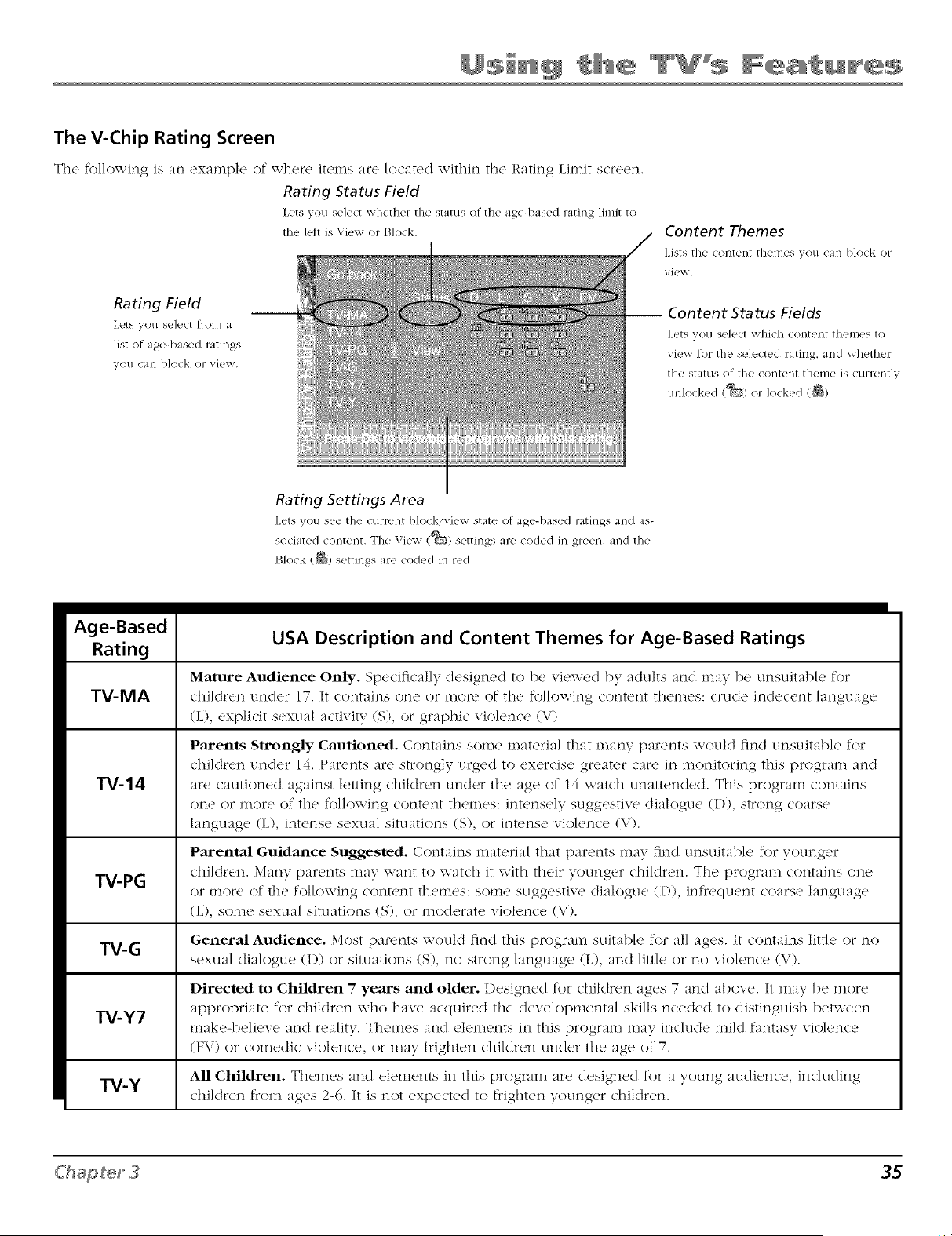
The V-Chip Rating Screen
The following is an example of where items are located _ ithin the Rating Limit screen.
Rating Status Field
Lets _ou select whether the status of the age-based rating limit to
the lett is Viexx or Block.
Rating Field
Lets you sele_.t fi:om a
list of age-based l)3tJl]gS
you can bkxk or view.
Content Themes
Lists the (ol/tt'llt tht.!l/](>s ,x,O!l Call I)lo(k 01"
view,
-- Content Status Fields
Lets you select whkh content themes to
view for the sulected rating, and whether
the stares of thu content thume is currently
re'docked (_) or locked (_).
Rating Settings Area
sociated content. The \qexv (_) settings are <oded in green, and the
Block (_) settir'_gs aw <oded in red,
Age-Based
Rating
TV-MA
TV-14
USA Description and Content Themes for Age-Based Ratings
Mature Audience Only. Specifically designed to be viexx ed by adults and may be unsuitable for
children under 17. It contains one or more of the following content themes: crude indecent language
(L), explicit sexual activity (S), or graphic violence (V).
Parents Strongly Cautioned. Contains some material that many parents would find unsuitable for
children under 14. Parents :ire strongly urged to exercise greater care in monitoring this program and
:ire cautioned against letting children under the age of 14 watch unattended. This program contains
one or more of the following content themes: intensely suggestive dialogue (I)), strong coarse
language (L), intense sexual situations (S), or intense violence (V).
Parental Guidance Suggested. Contains material that parents may find unsuitable for younger
children. Many parents may want to watch it with their younger children. The program contains one
W-PG
or more of the following content themes: some suggestive dialogue (l)), infrequent coarse language
(L), some sexual situations (S), or moderate violence (V).
General Audience. Most pawnts would find this program suitable for :ill ages. It contains little or no
W-G
sexual di:_logue (I)) or situations (S), no strong language (L), and little or no violence (V).
Directed to Chiklren "7 years and older. Designed for children ages 7 and above. It may be more
T_-Y7 appropriate for children who have acquired the developmental skills needed t() distinguish beP,veen
make-believe and reality. Themes and elements in this program may include mild fantasy violence
(FV) or comedic violence, or m:ff frighten children under the :_ge of 7.
All Chiklren. Themes and elements in this program :fie designed for a young audience, including
TV-Y
children from ages 2-6. It is not expected to frighten younger children.
35
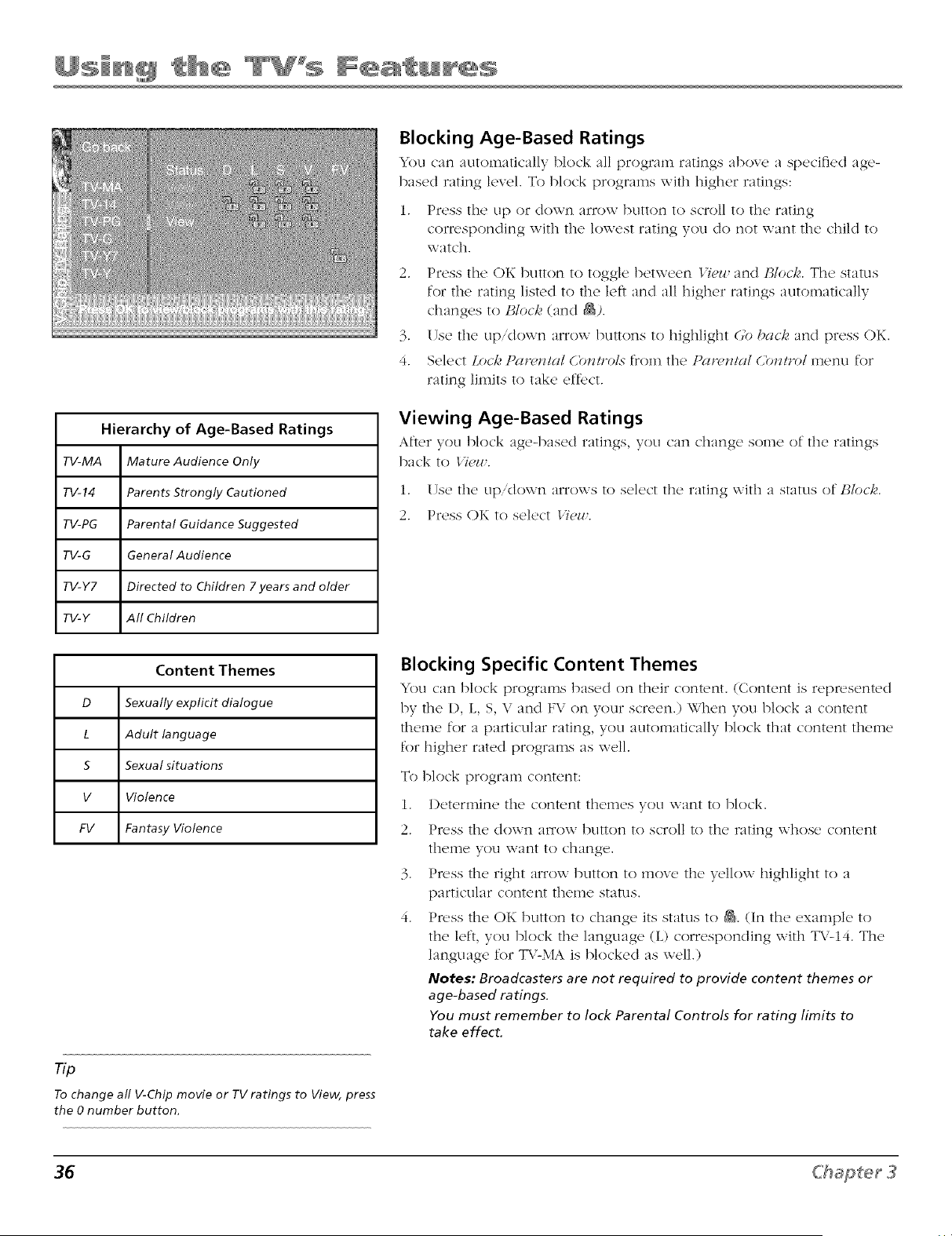
Hierarchy of Age-Based Ratings
TV-MA Mature Audience Only
TV-14 Parents Strongly Cautioned
TV-PG Parental Guidance Suggested
TV-G General Audience
TV-Y7 Directed to Children 7 years and older
TV-Y All Children
Content Themes
D Sexually explicit dialogue
L Adult language
5 Sexual situations
V Violence
FV Fantasy Violence
Blocking Age-Based Ratings
q)u can autolnaticallv, block all prograna ratings above a spccilq_,d age-
based rating level. To block prograins _xith higher ratings:
1. Press the up or dox_n arrow button to scroll to the rating
corresponding _xith the lowest rating you do not want the child to
_\atch.
2. Press the OK button to toggle between <i_,/, and lrt/och. The status
for the rating listed to the left and all higher ratings automatically
changes to l;loch (and &).
3. Use the up/down arrow buttons to highlight 6o &lc/,_ and press OK.
4. Select Loci,_,P{ll_,;ll{ll (,blzlvol. _,from the P{ll_,;l!{ll 6bllll_;l menu for
rating limits to take eff_'ct.
Viewing Age-Based Ratings
Aft('r you block age-based ratings, you can change some of th(' ratings
back to Yi_r.
1. Use the up,down arrows to select the rating with a status of IAlocl,<
2. Press OK to select b%,_r.
Tip
To change all V-Chip movie or TV ratings to View, press
the 0 number button.
Blocking Specific Content Themes
You can block programs based on th('ir cont('nt. (Cont('nt is rqx'_,scntcd
by the 1), L, S, V and FV on your screen.) When you block a content
theme for a particular rating, you automatically block that content theme
for higher rated programs as well.
To block program content:
1. Determine the content themes you want to block.
2. P,>ss the down arrow button to scroll to the rating whose content
theme you want to change.
3. Press the right arrow button to move the yellow highlight to a
particular content theme status.
4. P,ess the OK button to change its status to _. (In the example to
the left, you block the language (L) corresponding with TV-14. The
language for TV-MA is blocked as well.)
Notes: Broadcasters are not required to provide content themes or
age-based ratings.
You must remember to lock Parental Controls for rating limits to
take effect.
36 Chapter3
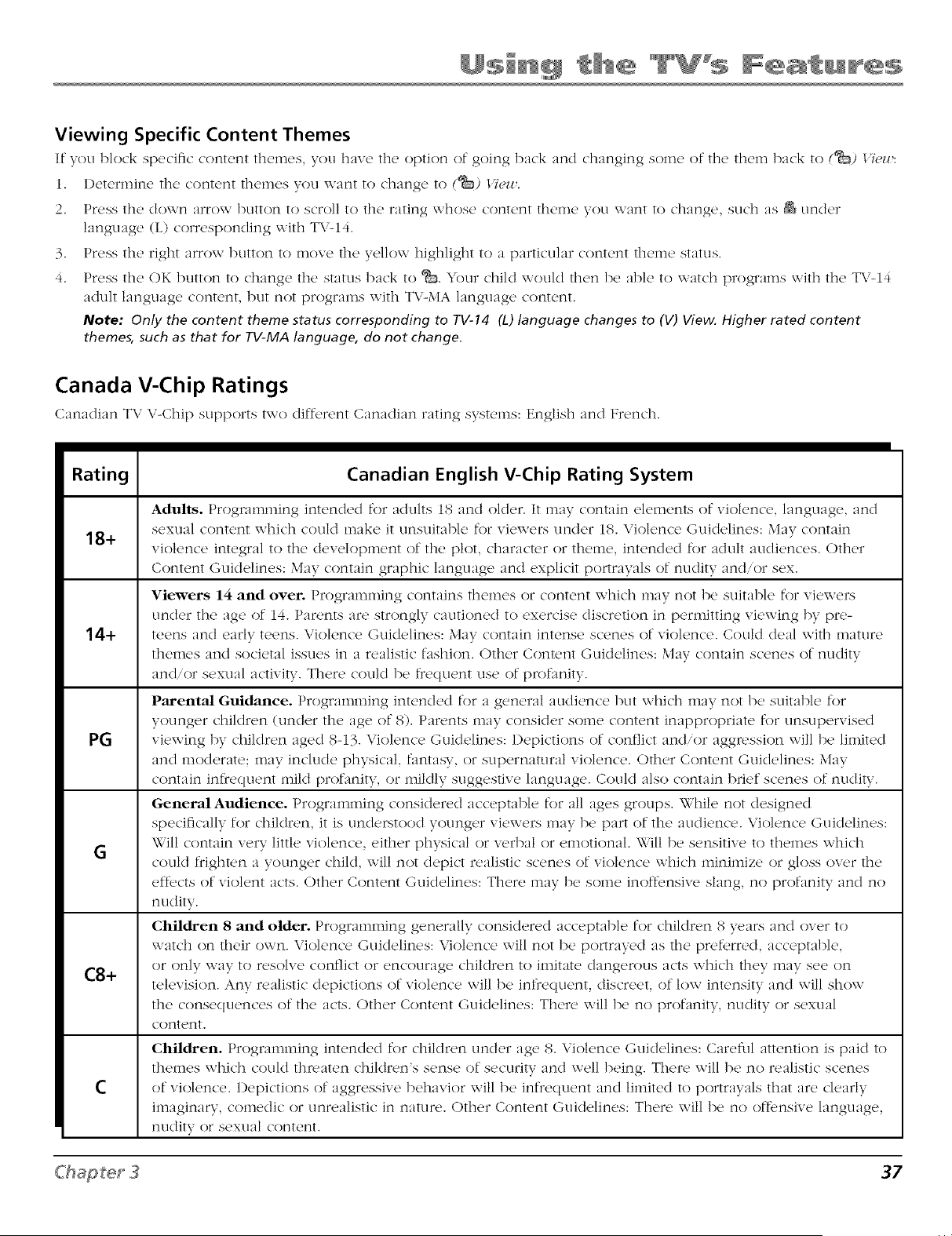
Viewing Specific Content Themes
If you block sp_'dfic content theme, s, you haw, the option of going back and changing some of th<, them back to (_) 1ih,l/,:
i. l)etermine the content themes you want to change to (_) 17e14_.
2. Press the down arrow button to scroll to the rating whose content theme you want to change, such as & under
language (L) corresponding with TV-14.
3. Press the right arrow button to move the yellow highlight to a particular content theme status.
4. Press the OK button to change the status back to '%_5.Your child would then be able to watch pix)grams with the TV-14
adzflt language content, but not programs with TX,'-MAlanguage content.
Note: Only the content theme status corresponding to YV-14 (L) language changes to (V) View. Higher rated content
themes, such as that for TV-MA language, do not change.
Canada V-Chip Ratings
Canadian TV \,"-Chip supports two diff,,rent Canadian rating systems: English and Fwnch.
Rating
18+
14+
PG
G
C8+
C
Canadian English V-Chip Rating System
Adults. Programming intended for adults IS and older. It may contain elements of violence, language, and
sexual content which could make it unsuitable for viewei:s under 18. Violence Guidelines: May contain
violence integral to the development of the plot, character or theme, intended for adult audiences. Other
Content Guidelines: May contain graphic language and explicit portrayals of nudity and/or sex.
Viewers 14 and over. Programming contains themes or content which may not be suitable for viewei:s
under the age of 14. Parents are strongly cautioned to exercise discretion in permitting viewing by pre-
teens and early teens. Violence Guidelines: May contain intense scenes of violence. Could deal with mature
themes and societal issues in a realistic fashion. Other Content Guidelines: May contain scenes of nudity
and/or sexual activity. There could be frequent use of plx)fimity.
Parental Guidance. Programming intended for a general audience but which may not be suitable for
younger children (under tl_e age of 8). Parents may consider some content inappropriate for unsupervised
viewing by children aged 8-13. Violence Guidelines: 1)epictions of conflict and/or aggi'ession will be limited
and moderate; may include physical, fimtasy, or supernatural violence. Other Content Guidelines: May
contain infrequent mild profanity, or mildly suggestive language. Could also contain brief scenes of nudity.
GeneralAudience. Programming considered acceptable for all ages groups. While not designed
specifically for children, it is undeistood younger vieweis may be part of the audience. Violence Guidelines:
Will contain very little violence, either physical or verbal or emotional. Will be sensitive to themes which
could frighten a younger child, will not depict realistic scenes of violence which minimize or gloss over the
effects of violent acts. Other Content Guidelines: There may be some inoffensive slang, no profanity and no
nudity.
Children 8 and older. Programming generally considered acceptable for children 8 years and over to
watch on their own. Violence Guidelines: \folence will not be portrayed as the pref_,rred, acceptable,
or only way to resolve conflict or encourage children to imitate dangerous acts which they may see on
television. Any realistic depictions of violence will be infrequent, discreet, of low intensity and will show
the consequences of the acts. Other Content Guidelines: There will be no profanity, nudity or sexual
content.
Children. PK_gmmming intended for children under age 8. Violence Guidelines: Careful attention is paid to
themes which could tlm'aten children's sense of security and well being. There will be no realistic scenes
of violence, l)epictions of aggressive behavior will be inKequent and limited to portrayals that are clearly
imaginary, comedic or unrealistic in nature. Other Content Guidelines: There will be no oftbnsive language,
nudity or sexual content.
37
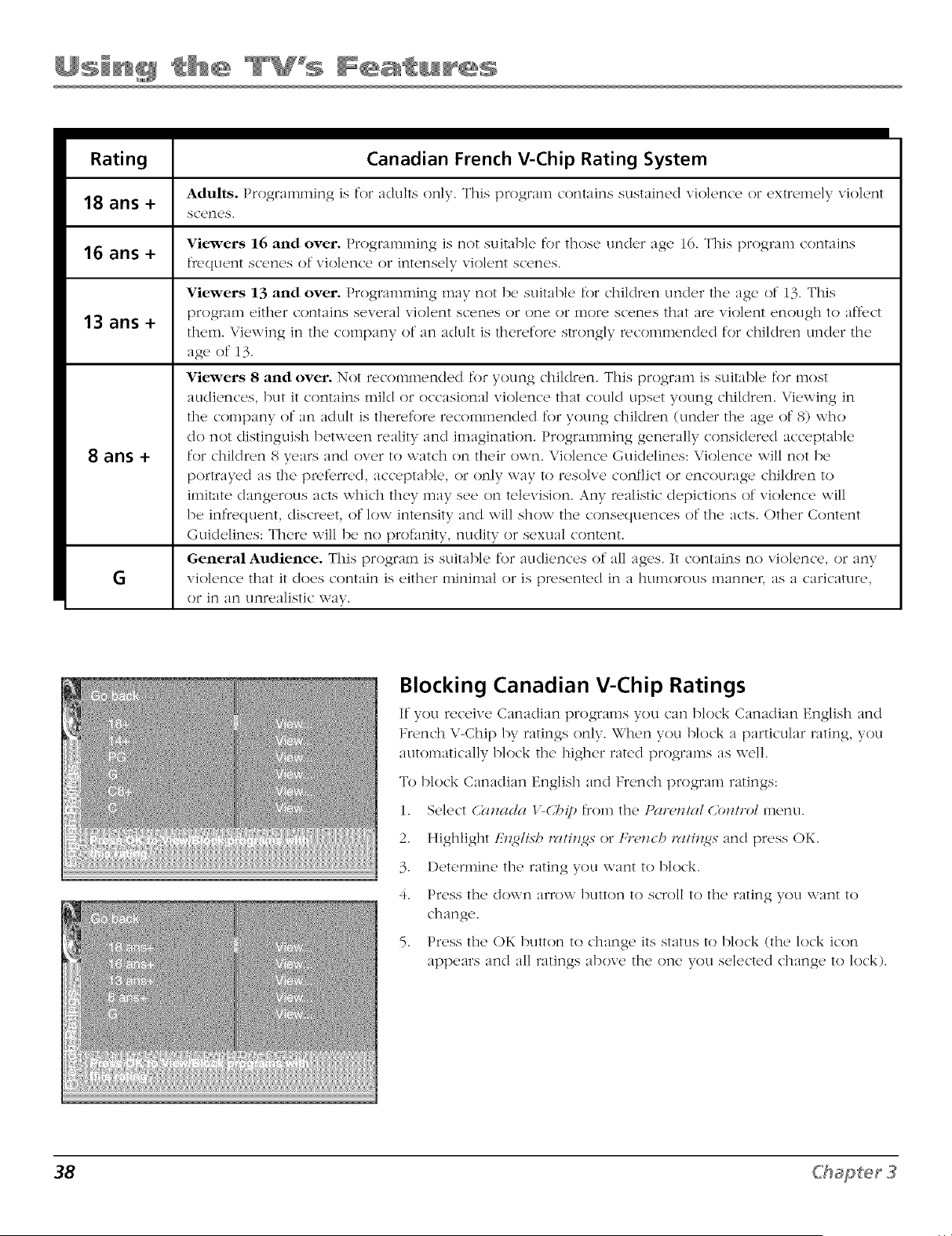
Rating Canadian French V-Chip Rating System
Adults. Progralnlnirtg is for adults only. This plx)grain contains sustained vk)lencc or extrclnely vk)k,nt
18 ans +
sc('n('s.
Viewers 16 and over. Progranm_Jng is not suitabk, for those under age 16. This prograln contains
16 ans +
f_'equent scenes of violence or intensely violent scenes.
13 ans +
8 ans +
G
Viewers 13 and over. Programming may not be suitable for children cinder the age of 13. This
program either contains several vk)lent scenes or one or more scenes that :/re violent enough to affect
them. Viewing in the company of an adult is therefore strongly recommended for children under the
age of 13.
Viewers 8 and over. Not recommended for young children. This program is suitable for most
audiences, but it contains mikl or occasional violence that could upset young children. Viewing in
the company of an aclult is theR,fore recommended for young children (uncler the age of 8) who
do not distinguish between reality and imagination. Programming generally considered acceptable
for children 8 years and over to watch on their own. Violence Guidelines: Violence will not be
portrayed as the pwferred, acceptable, or only way to resolve conflict or encourage chiMren to
imitate dangerous acts which they may see on television. Any walistic depictions of violence will
be infrequent, discreet, of low intensity and will show the consequences of the acts. Other Content
Guidelines: There will be no [xxffanity, nudity or sexual content.
General Audience. This wogram is suitable for audiences of all ages. It contains no violence, or any
violence that it does contain is either minimal or is pwsented in a humorous mannei, as a caricature,
or in an unrealistic way.
Blocking Canadian V-Chip Ratings
If"you receive Canadian programs you can block Canadian English and
French V-Chip by ratings only. When you block a particular rating, you
automatically block the higher rated programs as well.
To block Canadian English and French program ratings:
1. Select 6?lmlda 1"-6'/_ipfrom the Pal_,_zt_d 6b_trol menu.
2. Highlight ElzglL_b rc_tflzgs or Frm_cb ratfll,_.s"and press OK.
3. Determine the rating you want to block.
4. Press the down arrow button to scroll to the rating you want to
change.
5. Press the OK button to change its status to block (the lock icon
appears and all ratings above the one you selected change to lock).
38 C'hapter3
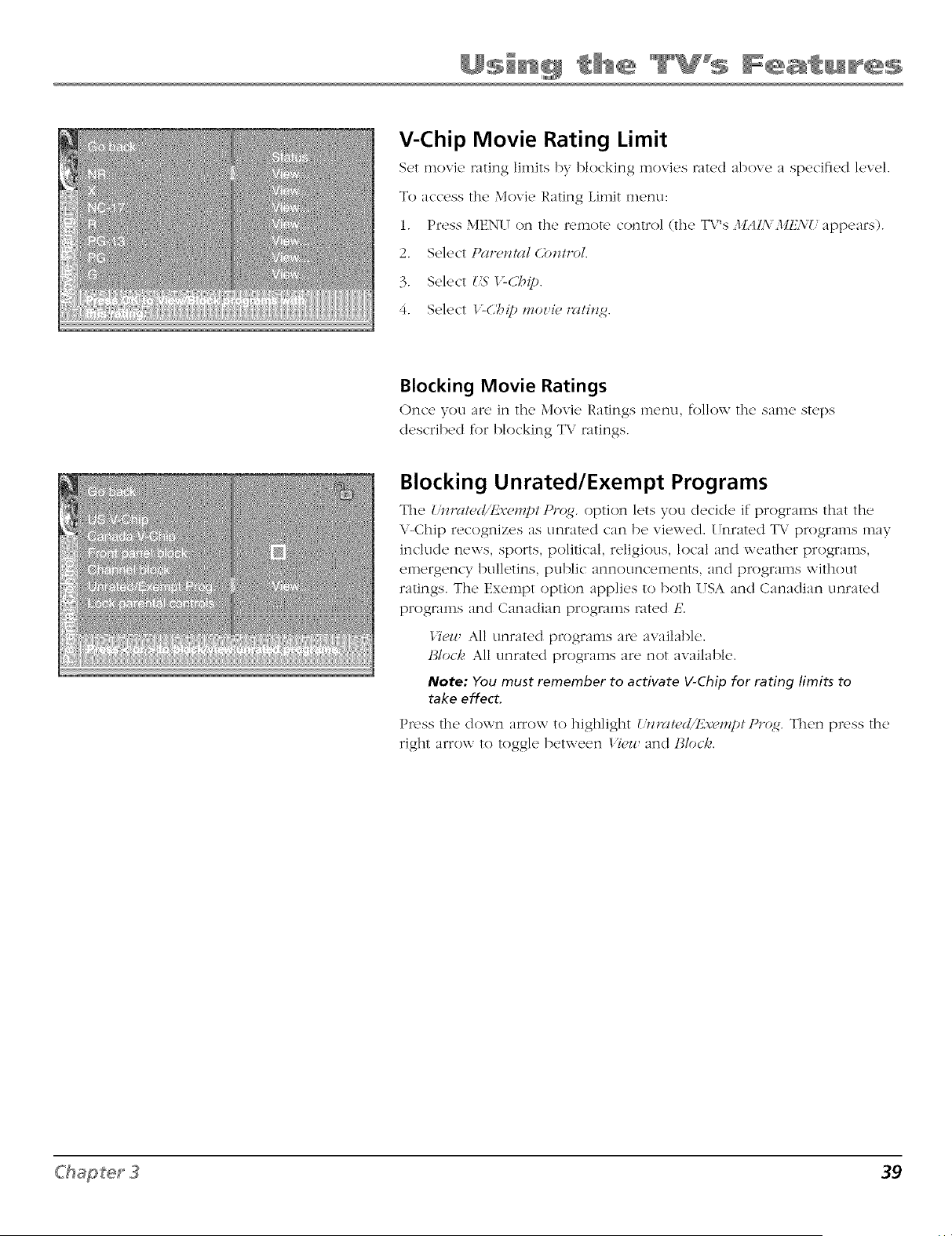
V-Chip Movie Rating Limit
S_'t movk, rating limits by blocking movies raR'd above, a spedfi_,d l_,v_'l.
To access the Movie Rating Limit menu:
1. Press MENIT on the 1"emote control (the TV's MAL\ MI£\U appears).
2. Select Pa,w_Hal Cb_ztl"ol.
3. Select {_S'I'-Cbp.
4. Select I'-Cbip ,_oz'h, iwti_zg.
Blocking Movie Ratings
Onc'(' you ar(' in the Movi(, Ratings m('nu, follow th(' sam(' stq)s
described for blocking TV ratings.
Blocking Unrated/Exempt Programs
The' U_zlwt_,d/l_w',q;t PJ_q_. option l_'ts you d_'c'id_' it"programs that the,
V-Chip recognizes as unrated can be viewed. Unrated T\" p,x)grams may
indude news, sports, political, religious, local and weather programs,
emergency bulletins, public announcements, and pzx_grams without
ratings. The Exempt option applies to both USA and Canadian unrated
programs and Canadian programs rated E.
I)eu, All unrated programs are available.
lJloc/,_ All unrated programs are not available.
Note: You must remember to activate V-Chip for rating limits to
take effect.
Press the cloxxn arrow to highlight 1' - , /" "_ bo,.lz,_z!_d, J._.x_,p! [ * _,. Then press the
right arrow to toggle between _'i_z_,ancl Blocl,<
39
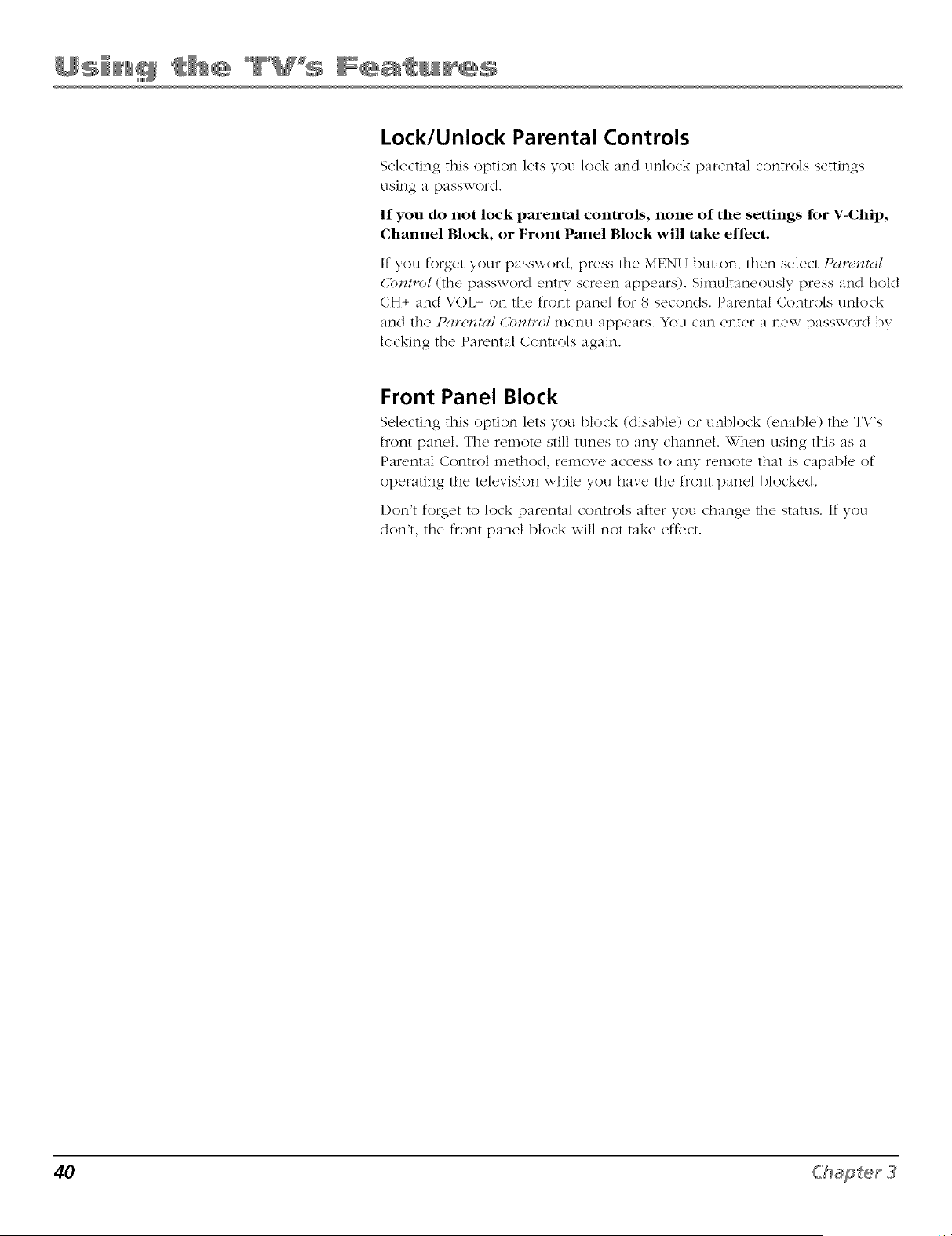
Lock/Unlock Parental Controls
Selecting this option lets you lock and unlock parental controls settings
using a password.
if you do not lock parental controls, none of tile settings for V-Chip,
Channel Block, or Front Panel Block will take effect.
If you forget your password, press the MENI Tbutton, then select Panqz/_l/
Cb_m_)l (the password entry screen appears). Simultaneously press and hold
CH+ and VOL+ on the front panel for 8 seconds. Parental Controls unlock
and the 1)(11_,171(11(/OlI/FO[inenu appears. You can enter a new password by
locMng the Parental Controls again.
Front Panel Block
Selecting this option lets you block (disable) or unblock (enable) the TV's
fnmt panel. The remote still tunes to any channel. When using this as a
Parental Conm)l method, remove access to any remote that is capable of
operating the television while you have the front panel blocked.
Don't forget to lock parental controls after you change the status. If you
don't, the front panel block will not take effect.
40 Chapter 3
Using the TV's Menu System
Chapter Overview:
• Sound Menu
• Picture Menu
• Channel Guide Menu
• Time Menu
• Parental Control Menu
• Setup Menu
ging Entertainment.
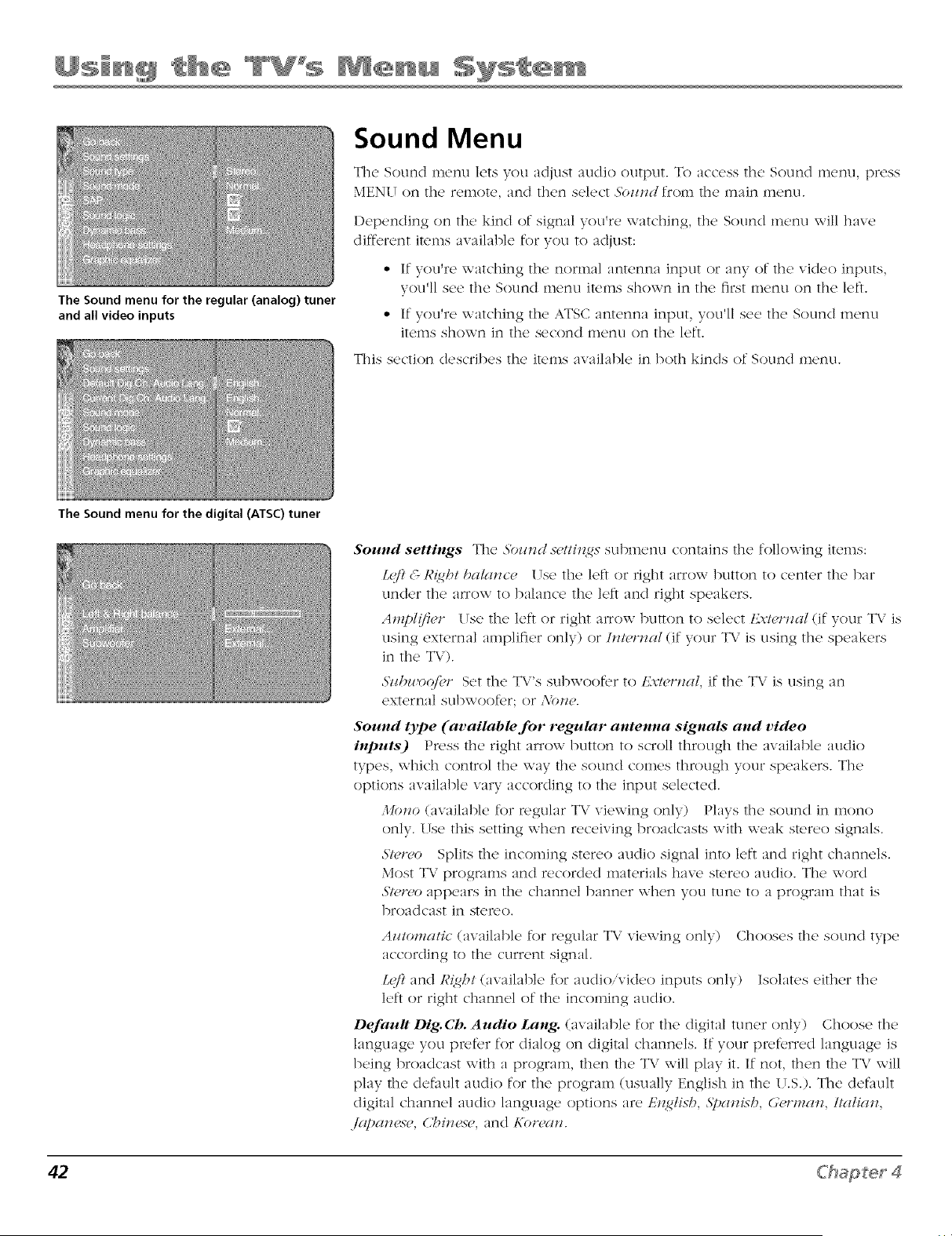
The Sound menu for the regular (analog) tuner
and all video inputs
The Sound menu for the digital (ATSC) tuner
Sound Menu
The Sounct menu lets you acijust audio output. To access tl_e Sound menu, press
MEN( T on the remote, and then select Sozmd fron_ the main menu.
Depending on the kind of signal you're watching, the Sound menu will have
different items available for you to adjust:
• If you're watching the normal antenna input or any of the video inputs,
you'll see the Sound menu items shown in the first menu on the left.
• If you're watching the ATSC antenna input, you'll see the Sound menu
items shown in the second menu on the left.
This section describes the items available in both kinds of Sound menu.
Sound settings The _Sbz¢_zdsct/i_12x submenu contains the follov,-ing items:
L(J? & R_@t bala_zc(, ITse the left or right arrow button to center the bar
under the arrow to balance the left and right speakers.
Amp/(fi(,r Use the left or right arrow button to select tLx_/(,rJ_a/(if your T\: is
using external amplifier only) or hm,rmd (if your T\: is using the speakers
in the TV).
SHbwo@r Set the TV's subv,-oofer to Ex_h,mm/, if the TV is using an
external subwoofer; or .Mm(,.
Sound type (available for regular antenna signals and video
inputs) Press the right arrow button to scroll through the available audio
types, which control the way the sound comes thn)ugh your speakers. The
options available vary according to the input selected.
M(mo (available for regular TV viewing only) Plays the sound in mono
only. Use this setting when receiving broadcasts with weak stere() signals.
Sh,,v,o Splits the incoming stereo audio signal into left and right channels.
Most TV programs and recorded materials have stereo audio. The word
Slm_,o appears in the channel banner when you tune to a pn)gram that is
broadcast in stereo.
Az!tomatic (awdlable for regular T\" viewing only) Chooses the sound type
according to the current signal.
Lq/! and RiNl>t(available for audio'video inputs only) Isolates either the
left or right channel of the incoming audio.
Default Dig.Ch. Audio Lang. (available for the digital tuner only) Choose the
language you prefer for dialog on digital channels. If your preferred language is
being broadcast with a program, then the TV will play it. If not, then the TV will
play the default audio for the program (usually English in the U.S.). The default
digital channel audio language options are En_lixb, S[)a_Hsb, (,'¢rma_z, Ilalgl_z,
.lrq)(mcx¢, Cl'>i*zcx¢,and Ko*_'(m.
42 Chapter 4
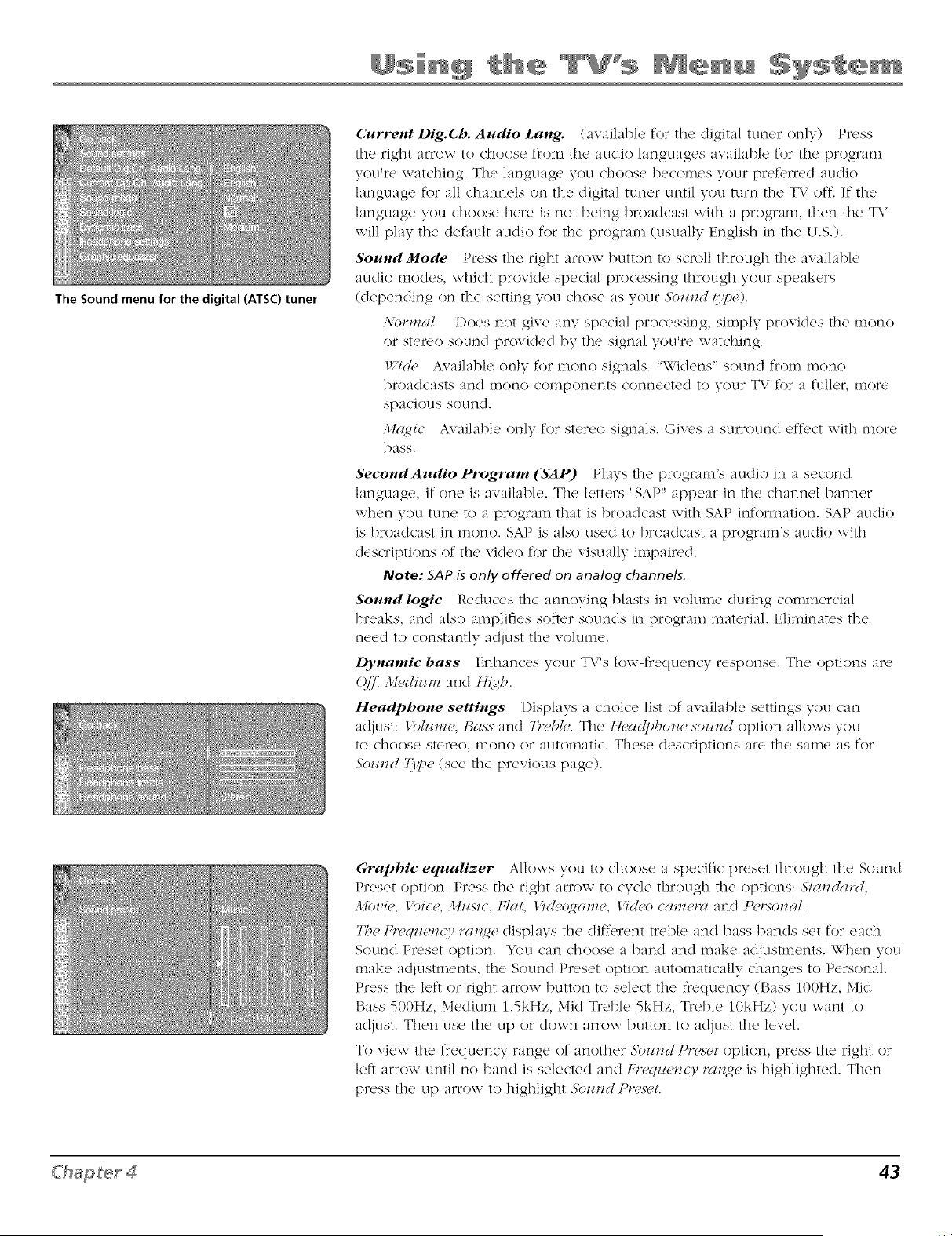
The Sound menu for the digital (ATSC) tuner
CulT'ent Dig.Ch. Audio Lang. (available for the digital tuner only) Press
the right arrow to choose from the audio languages available for the program
you're watching. The language you choose becomes your preferred audio
language for all channels on the digital tuner until you turn the T\," oft. If the
language you choose here is not being broadcast with a program, then the TV
will play the default audio for the program (usually English in the l LS.).
SoundMode Press the right arrow button to scroll through the available
audio modes, which provide special processing through your speakers
(depending on the setting you chose as your 3>zmd/37_).
,\ormal Does not give any special processing, simply provides the mono
or ste,_,o sound provided by the signal you're watching.
_qc/_, Available only for mono signals. "Widens" sound from mono
broadcasts and mono components connected to your T\," for a fuller, more
spacious sound.
,1](4gic Available only for stereo signals. Gives a surround effect with more
bass.
Second Audio Program (SAP) Plays the program's audio in a second
language, if one is available. The letters "SAP" appear in the channel banner
when you tune to a program that is broadcast with SAP information. SAP audio
is broadcast in mono. SAP is also used to broadcast a plx>gram's audio with
clescriptions of the video for the visually impaired.
Note: SAPis only offered on analog channels.
Sound logic Reduces the annoying blasts in volume during commercial
breaks, and also amplifies softer sounds in program material. Eliminates the
need to constantly adjust the volume.
Dynamic bass Enhances your TV's low-frequency response. The options are
Q[£ M_'dizzm and tl{gh.
Headphone settings Displays a choice list of available settings you can
adjust: tbhm_e, l_as,s and 7)vbk,. The tl,(,lpho_w sozmd option allows you
to choose stein, o, mono or automatic. These descriptions are the same as for
£>zmd 7)pc (see the previous page).
Graphic equalizer Allows you to choose a specific pi_,set through the Sound
Preset option. Press the right arrow to cycle through the options: Smmla,u!,
Moz'h,, t'oice, Mz/sic, fTat; t'i(!_,(_ame, tk'd_,o cam(,r(_ and Pm:_omll.
H'_eFreqz_e_zc3'/7_z_ ctisplays the dift'erent tr('l)le and bass bands set for each
Sound Px_'set option. You can choose a band and make adjustments. When you
make adjustments, the Sound P,_,set option automatically changes to Personal.
Press the left or right arrow button to select the fiequency (Bass 100Hz, Mid
Bass 500Hz, Medium 1.5kHz, Mid Treble 5kHz, Treble 10kHz) you want to
adjust. Then use the up or down arrow button to adjust the level.
To view the frequency range of another _S>z!lTdPr_,s_,/option, press the right or
left arrow until no band is selected and f_,_'qzw_z<y,_l_zge is highlighted. Then
press the tip arrow to highlight 3bz_m/Pr,s_,L
43
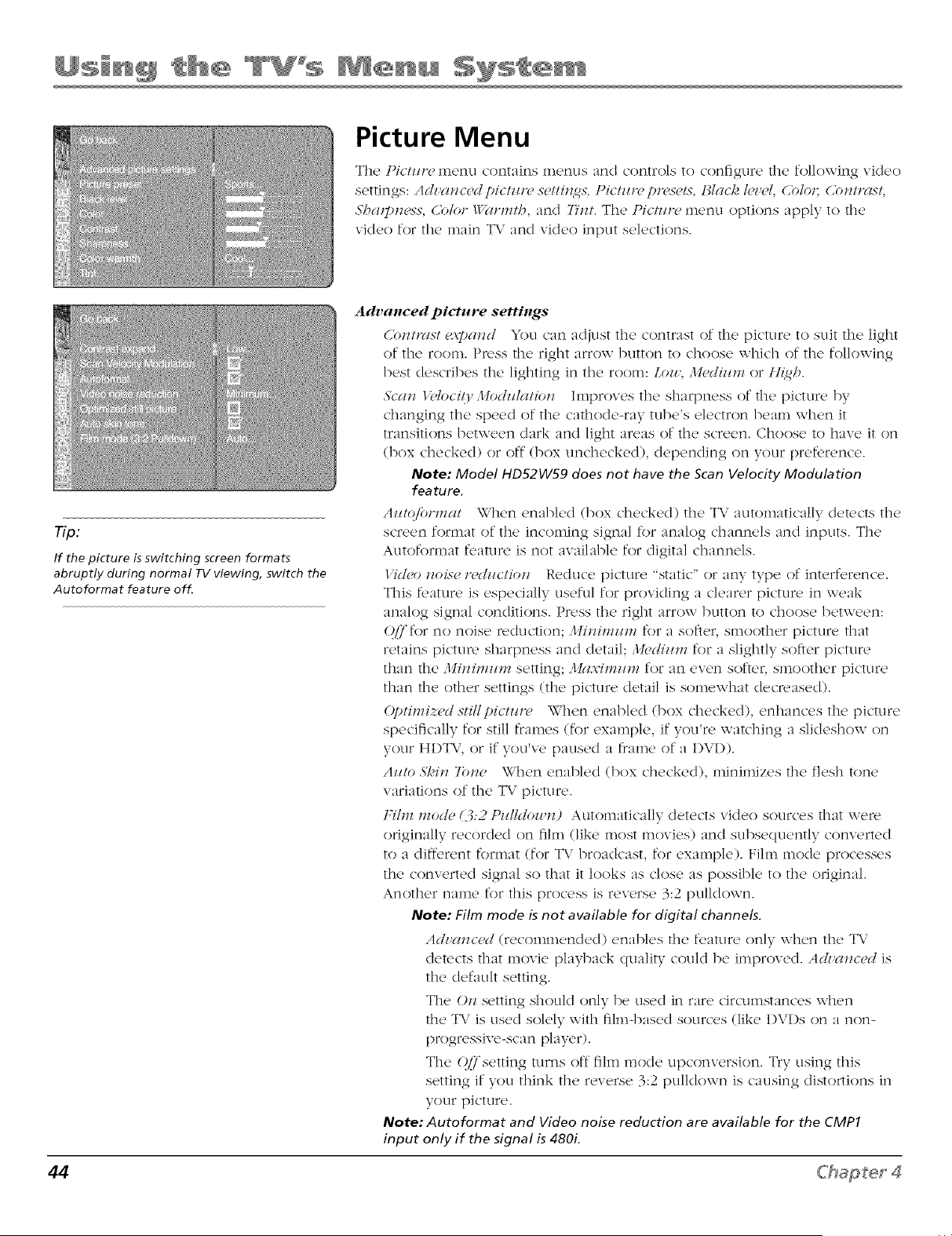
Picture Menu
The Picture, menu contains m(,nus and controls to conflgur(, thc, following vid(,o
settings: Ach;cmc_,_l pictz/n, sctti_z_s. Pictz/n, pn_s¢ls. ]:_lach I¢v¢I, (,blot. (,b_Hrast;
5'balp_zcss, (.blot War.ztb, and 7bzt. The Pictz/r¢ menu options apply to the
video for the main TV and video input selections.
T/p:
If the picture is switching screen formats
abruptly during normal TV viewing, switch the
Autoformat feature off.
Advanced picture settings
Cb_mwst ¢.:vDa_zd You can adjust the contrast of the, picture to suit the' light
of the K)om. PI'_'ss the right arrow button to choose which of the following
best describes the lighting in the room: Lou,, Mcdiz¢m or tl{gh.
Sca_z IHoci/y Modzdatio_z Improves the sharpness of the picture by
changing the speed of the cathode-ray tube's electron beam when it
transitions between dark and light areas of the screen. Choose to have it on
(box checked) or off (box unchecked), depending on your pref_,rence.
Note: Model HD52W59 does not have the Scan Velocity Modulation
feature.
Azmj'ormat \_(,"h_'n_,nabled (box c'h_'ck_'d) the' T\." automatically ck,t_,cts the
screen format of the incoming signal for an:flog channels and inputs. The
Autoformat f_,ature is not available for digital channels.
17d¢o _zois(,n,rh/ctio_z Reduce picture "static" or any type of interference.
This f_,amre is especially useful for providing a clearer picture in weak
analog signal conditions. Press the right arrow button to choose between:
Q/7for no noise ,'co\lotion; Mi_Hmzm_ for a softer, smoother picture that
retains pkttue sharpness and detail; :l,h,dizm_ for a slightly softer picture
than the Mi_Hmzm_ setting; Mrl._vimzml for an even softer, smoother picture
than the other settings (the picture detail is somewhat decreased).
(ptimi_¢d stillpicmn, When enabled (box checked), enhances the picture
specifically for still frames (for example, if you're watching a slideshow on
your HDT\.', or if you've paused a frame of a DVD).
Az/to 5"l,_i_z7/b_ze When enabled (box checked), minimizes the/qesh tone
variations of the TV picture.
Film too!le (];:2 P_dhh)u,_D Automatically detects video sources that we,'e
originally recorded on film (like most movies) and subsequently convertecl
to a diff,'rent format (for T\' broadcast, for example). Fihn mode processes
the converted signal so that it looks as close as possible to the origin:ft.
Another name for this process is reverse 3:2 pulldown.
Note: Film mode is not available for digital channels.
Adz'a_zc('d (r_,comm_,nd_,d) _'nables the' fcatu*> only wh_'n the' Tk."
detects that movie playback quality could be improved. Adz'a_zc(,d is
the default setting.
The O_zsetting should only be used in rare circumstances when
the TV is used solely with film-based sources (like 1)V1)s on a non-
p,x)gressive-scan player).
The Q[7setting turns oft film mode upconversion. Try using this
setting if you think the reverse 3:2 pulldown is causing distortions in
your picture.
Note: Autoformat and Video noise reduction are available for the CMP1
input only if the signal is 480L
44 Chapter 4
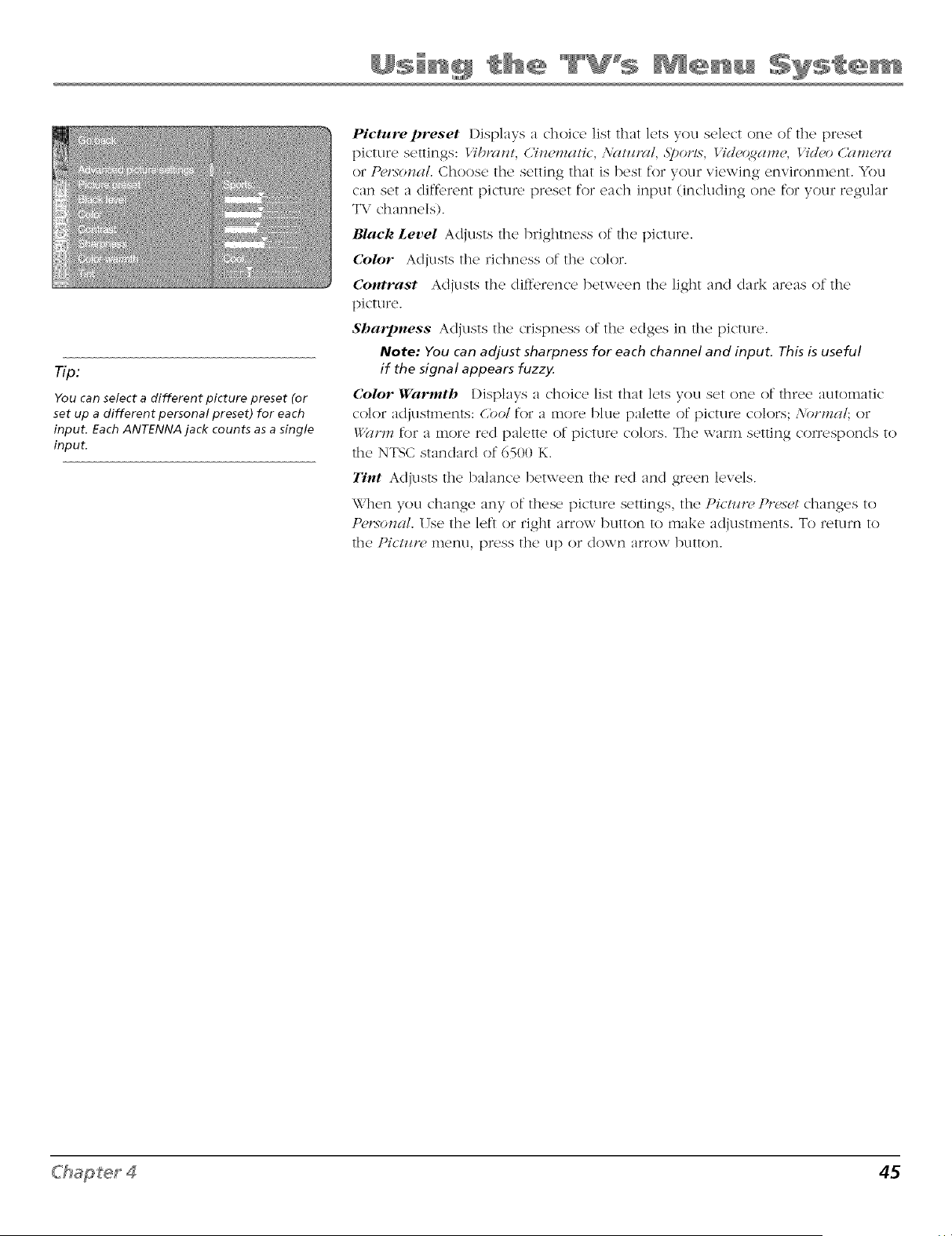
1[/3:
You can select a different picture preset (or
set up a different personal preset) for each
input. Each ANTENNA jack counts as a single
input.
Picture preset l)isplays a choice list that lets you select one of the preset
picture settings: t }brc_m, C'im,matic, ,\iltz/rcd, 5_orls, t T(/_,q_am(,, t Td_,oC'cim(,rcl
or Pro'sorrel. Choose the setting that is best for your viewing environment. You
can set a diff,,rent picture preset for each input (including one for your regular
T\,' channels).
Black Level Adjusts the brightness of the picture.
Color Adjusts the richness of the color.
Contrast Adjusts the diff,'fence between the light and dark areas of the
picture.
Sharpness Adjusts the crispness of the edges in the picture.
Note: You can adjust sharpness for each channel and input. This is useful
if the signal appears fuzzy.
Color Warmth Displays a choir(, list that l(,ts you s(,t on(, of thr(w automatic
color adjustments: Cbol for a more blue palette of picture colors; Aormal; or
Warm for a more red palette of picture colors. The warm setting corresponds to
the NTSC standard of 6500 K.
Tint Adjusts the balance between the red and green levels.
When you change any of these picture settings, the Pictzin, Pr_<s#tchanges to
P_,,t_omd. ITse the left or right arrow button to make adjustments. To return to
the Pictz*lX, inenLi, press the up or down _;trro-_vbutton.
45
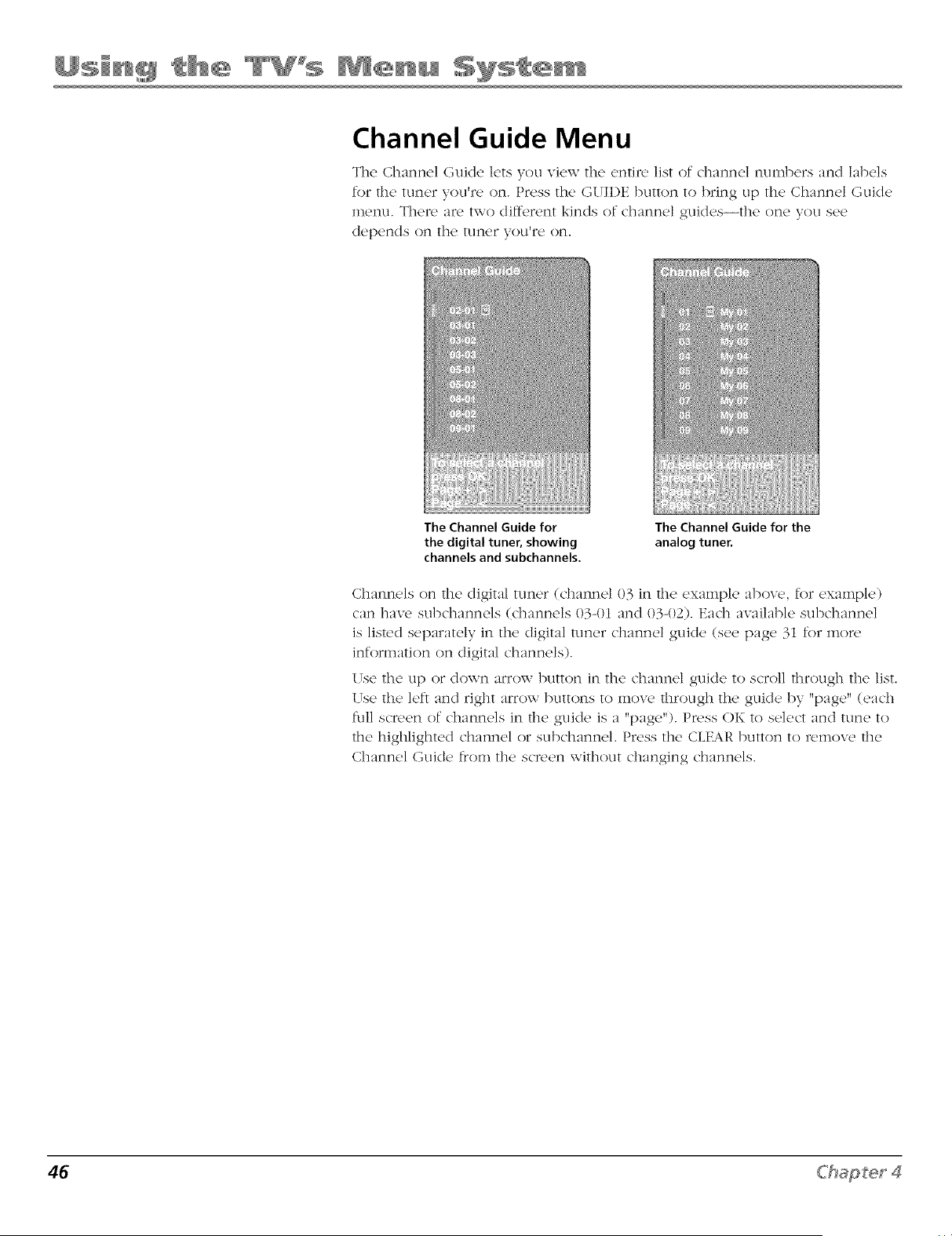
Channel Guide Menu
The Channel Gukle lets you view the entire list of channel numbers and labels
for the tuner you're on. Press the GUI1)E button to bring up the Channel Guide
menu. There are two different kinds of channel guides--the one you see
depends on the tuner you're on.
The Channel Guide for
the digital tuner, showing
channels and subchannels.
The Channel Guide for the
analog tuner.
Channels on the digital tuner (channel 03 in the example above, ff)r example)
can have subchannels (channels 034)1 and 034)2). Each available subchannel
is listed separately in the digital tuner channel guide (see page 31 for more
information on digital channels).
l Tse the up or down arrow button in the channel guide to scroll through the list.
l Tse the left and right arrow buttons to move through the guide by "page" (each
full screen of channels in the guide is a "page"). Press OK to select and tune to
the highlighted channel or subchannel. Press the CLEAR button to remove the
Channel Guide from the screen without changing channels.
46 C'hap_er 4
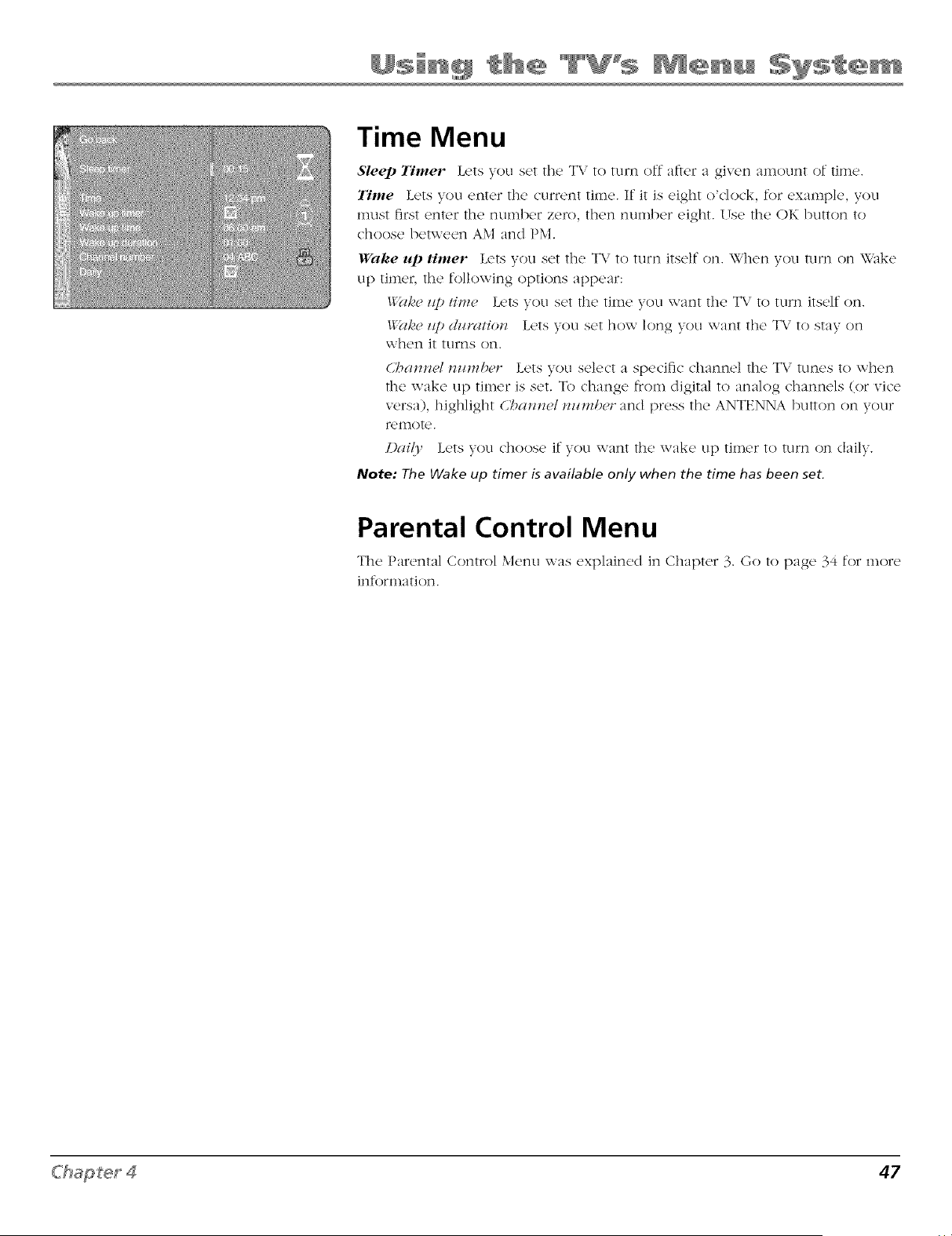
Time Menu
Sleep Timer Lets you set the T\." to turn off after a given amount of time.
Time Lets you enter the current time. It it is eight ()'clock, for example, you
must first enter the number zero, then number eight. (Ise the OK button to
choose between AM and PM.
Wahe u I) timer Lets you set the TV to turn itself on. When you turn on Wake
up timer, the following options appear:
Wak(, z@ tim(" Lets you set the time you want the T\.' to turn itself on.
Wake z@ dHIwtio_z Lets you set how long you want the TV to stay on
when it turns on.
C'ba_m,/_z/mb('r Lets you select a specific channel the TV tunes to when
the wake up timer is set. To change from digital to analog channels (or vice
versa), highlight U'_a_z_d _zzzml)_r and press the ANTENNA button on your
foinote.
[)ai(1' Lets you choose if you want the wake up timer to turn on daily.
Note: The Wake up timer is available only when the time has been set.
Parental Control Menu
•, "(
The Parental Control Menu was explained in Chapter 3. Go to page 9_ t )r more
]nforlll_tt]orl.
47
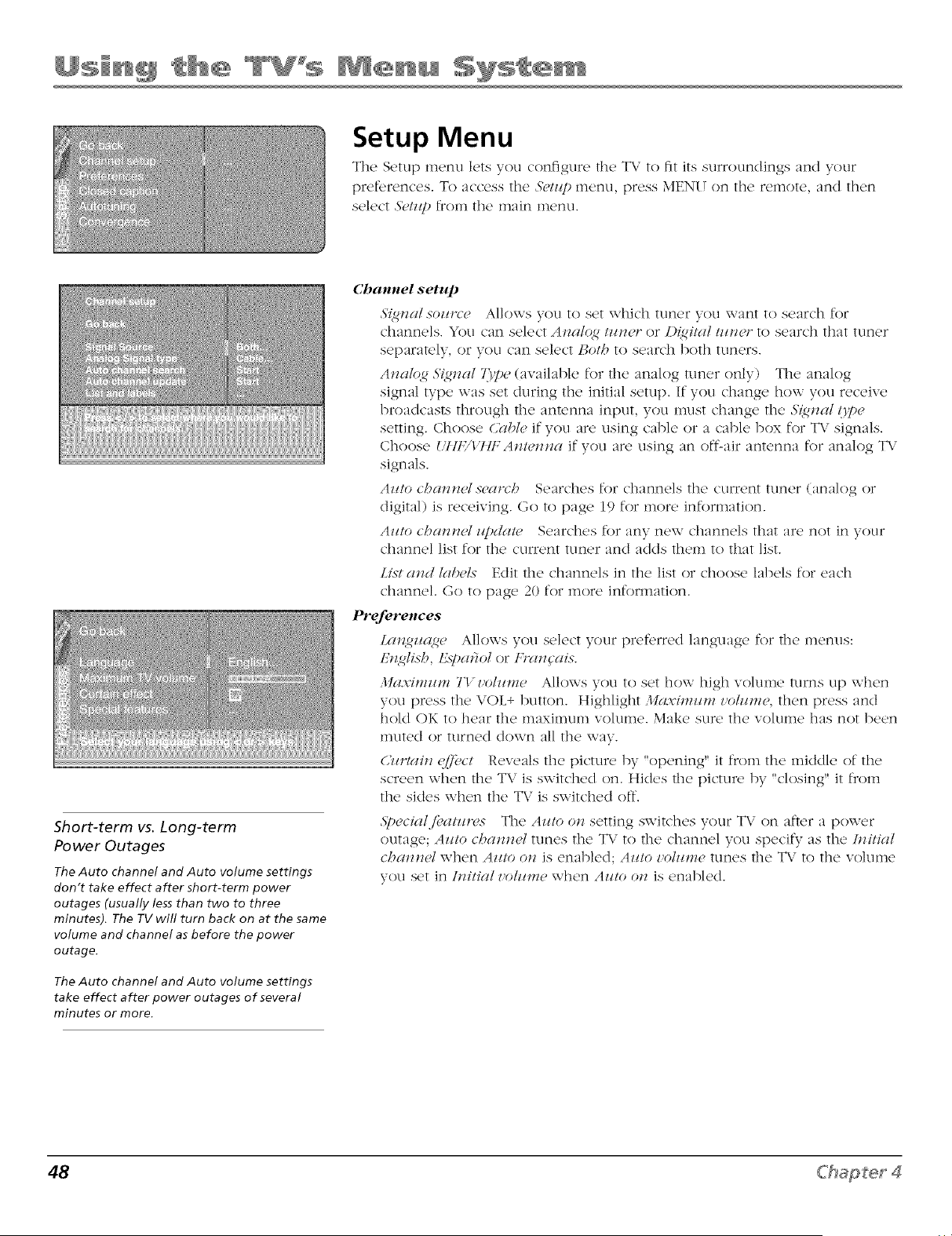
Setup Menu
The Setup menu lets you configure the TV to fit its surroundings and your
preferences. To access the S('lz@ menu, press MENU on the remote, and then
select 3>/z@ from the main menu.
Short-term vs. Long-term
Power Outages
The Auto channel and Auto volume settings
don't take effect after short-term power
outages (usually less than two to three
minutes). The TV will turn back on at the same
volume and channel as before the power
outage.
The Auto channel and Auto volume settings
take effect after power outages of several
minutes or more.
Channel setup
3'l_gmdsoz¢rc¢ Allows you to set which tuner you want to search for
channels. You can select Amdq_ tzm¢r or D{_iml tzm¢r to search that tuner
separately, or you can select l_oth to search both tuners.
d,mlo_ 5'i,qnml 7]17)e(available for the analog tuner only) The analog
signal type was set during the initial setup. If you change how you receive
broadcasts through the antenna input, you must change the 3'{gm_/t_'[)_
setting. Choose C)lbl_ if you are using cable or a cable box for TV signals.
Choose UtlE/t 7IF Am¢_zml if you are using an off-air antenna for analog TV
signals.
Az/to cha_mel sca*z'h Searches for channels the current tuner (analog or
digital) is receiving. Go to page i9 for more information.
Az¢!o cha_m¢l z@&l!¢ Searches for any new channels that are not in your
channel list for the current tuner and adds them to that list.
List a_zd labels Edit the channels in the list or choose labels for each
channel. Go to page 20 for more information.
Preferences
La_zgz!(_g¢ Allows you select your preferred language for the In('nus:
tgmglish, 12spm)ol or l_ra_gais.
,lta.x'imzcm TVz'olz/me Allows you to set how high volume turns up when
you press the VOL+ button. Highlight Ma.x'imzcm z'ohcm¢, then press and
hold OK to hear the maximum volume. Make sure the volume has not been
muted or turned down all the way.
(,'m'lai_z Cff',ct Reveals the picture by "opening" it from the middle of the
screen when the TV is switched on. Hides the picture by "closing" it from
the sides when the T\' is switched off.
_S'p(,cial./;,atzm,s The Az¢!o o_zsetting switches your TV on after a power
outage; Az¢lo chamzel tunes the TV to the channel you specify as the hHtial
chamwl when Az¢lo oll is enabled; Az¢lo z'olz¢l_l(,tunes the TV to the volume
you set in hHtial z'olzm_e when Azcto o_ is enabled.
48 Chapter 4
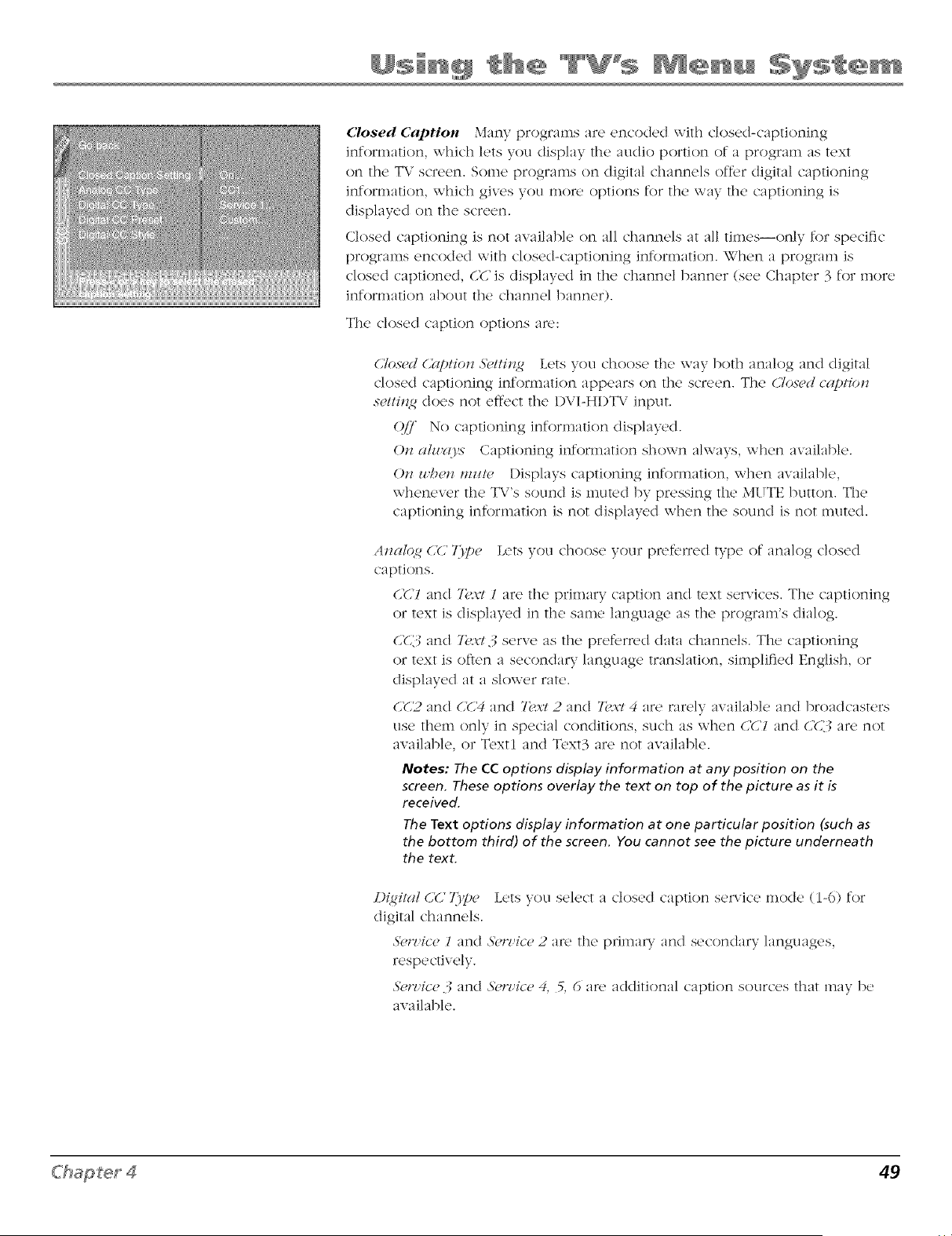
(_losed Caption Many programs are encoded with dosed-captioning
information, whJci_ lets you display the audio portion of a program as text
on the TV screen. Some programs on digital channels off_,r digital captioning
in%rmation, vchich gives you mor_. options for the v,-ay the captioning is
displayed on the screen.
Closed captioning is not available on all channels at all times--only for specific
programs encoded with dosed-captioning information. When a program is
closed captioned, CC is displayed in the channel banner (see Chapter 3 for more
information about the channel banner).
The dosed caption options ar_':
(,7o,w,d6_@tio_ 5>tti_ztg Lets you choose the way both analog and digital
closed captioning information appears on the screen. The 61os_,d captio_
s#tti_zg does not eff_'ct the DVI-HI)T\/ input.
Q£7 No captioning information displayed.
O_z a/u'rO's Captioning information shown ahvays, when available.
O_z _,he_z l_z_t_, Displays captioning information, when available,
whenever the T\/'s sound is muted by pressing the MI TTEbutton. The
captioning information is not displayed when the sound is not muted.
A_zal_4g (,_,' 7/]lpe Lets you choose your pref_uTed type of analog dosed
captions.
6'(,'l and 7/Ex'! l are the primary caption and text services. The captioning
or text is displayed in the same language as the program's dialog.
(,_,',_ and 7k:w 3 serve as the pref_,m,d data channels. The captioning
or text is often a secondary language translation, simplified English, or
displayed at a slower rote.
6_,2 and 6_,'4 and 7hx:l 2 and ?kx:l 4 are rarely available and broadcasters
use them only in special conditions, such as when 6'(,'l and C(S are not
available, or T_'xtl and T_'xt3 are not awdlable.
Notes: The CC options display information at any position on the
screen. These options overlay the text on top of the picture as it is
received.
The Text options display information at one particular position (such as
the bottom third) of the screen. You cannot see the picture underneath
the text.
Di,@t<d(27 7/])_e Lets you select a dosed caption service mode (1-6) for
digital channels.
3>,v'ice l and 3>,v'ice 2 al_' the prima W and secondary languages,
respectively.
3>,v'ice3 and 3>,v'ice 4, 5, 6 al_' additional caption sources that may be
available.
49
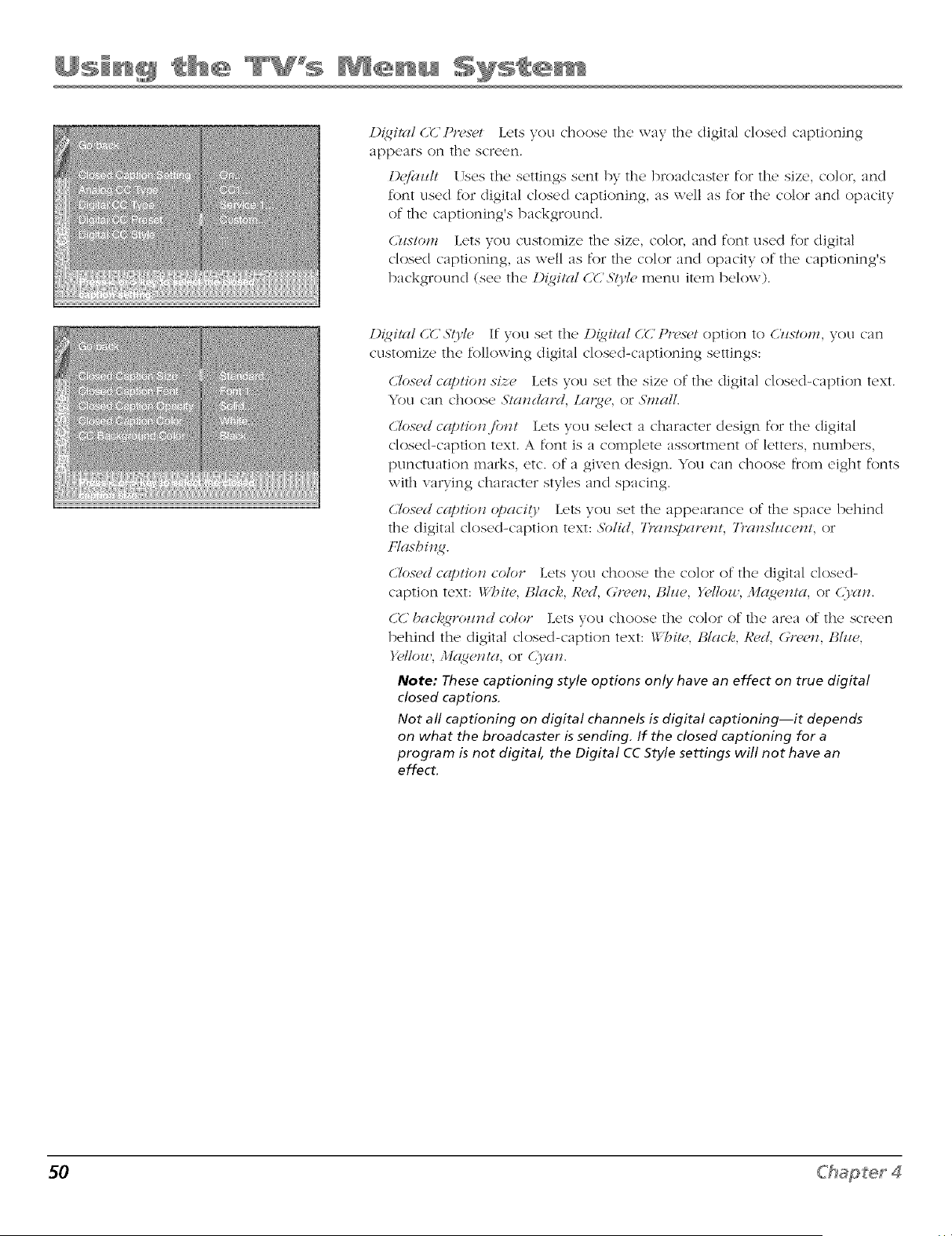
D_qilal CD'Pn,s_,t Lets you choose the way the ciigital closed captioning
appears on the screen.
[)_jcizUt lTses the settings sent by the broacicaster for the size, color, and
font used for digital closed captioning, as well as for the color and opacity
of the captioning's background.
(5¢stom Lets you customize the size, color, and font used for digital
closed captioning, as well as for the color and opacity of the captioning's
background (see the D(q,ital C_','SOd<' menu item below).
Di_ilal C(] 5"O,D, If you set the I){gitcU OU Pn,s_t option to CT_s!ol_L you can
customize the following digital closed-captioning settings:
Clos_,d captimz size, Lets you set the size of the digital closed-caption text.
You can choose 5'!_l_zdard, La,i_e, or 5'mall.
CTo.vod captimLfo_H Lets you select a character design for the digital
closed-caption text. A font is a complete assortment of letters, numbers,
punctuation marks, etc. of a given design. You can choose from eight fonts
with varying character styles and spacing.
Clos_,d captio_z opacily Lets you set the appearance of the space behind
the digital closed-caption text: 5blid, 77"rl_.s];a#w& 77>l_sh/ce_t, or
l:lrishi_z<g.
C/o.q_>dCCll)tiol7 color Lets you choose the color of the digital closed-
caption text: Wbih,, 14/glC/,_,R_'d, Gn'e_z, IUzle, }_'llou, :l'lglg_,llt_l, or QFgllI.
CC bac/,{groz_zd color Lets you choose the color of the area of the screen
behind the digital closed-caption text: _"/_it_,, 14lac/< R_,d, C;r_,_,,_,IUz_e,
}>llou,, ,ltg{ge_!_, or (,3w_z.
Note: These captioning style options only have an effect on true digital
closed captions.
Not all captioning on digital channels is digital captioning--it depends
on what the broadcaster is sending. If the dosed captioning for a
program is not digital, the Digital CC Style settings will not have an
effect.
50 Chapter 4
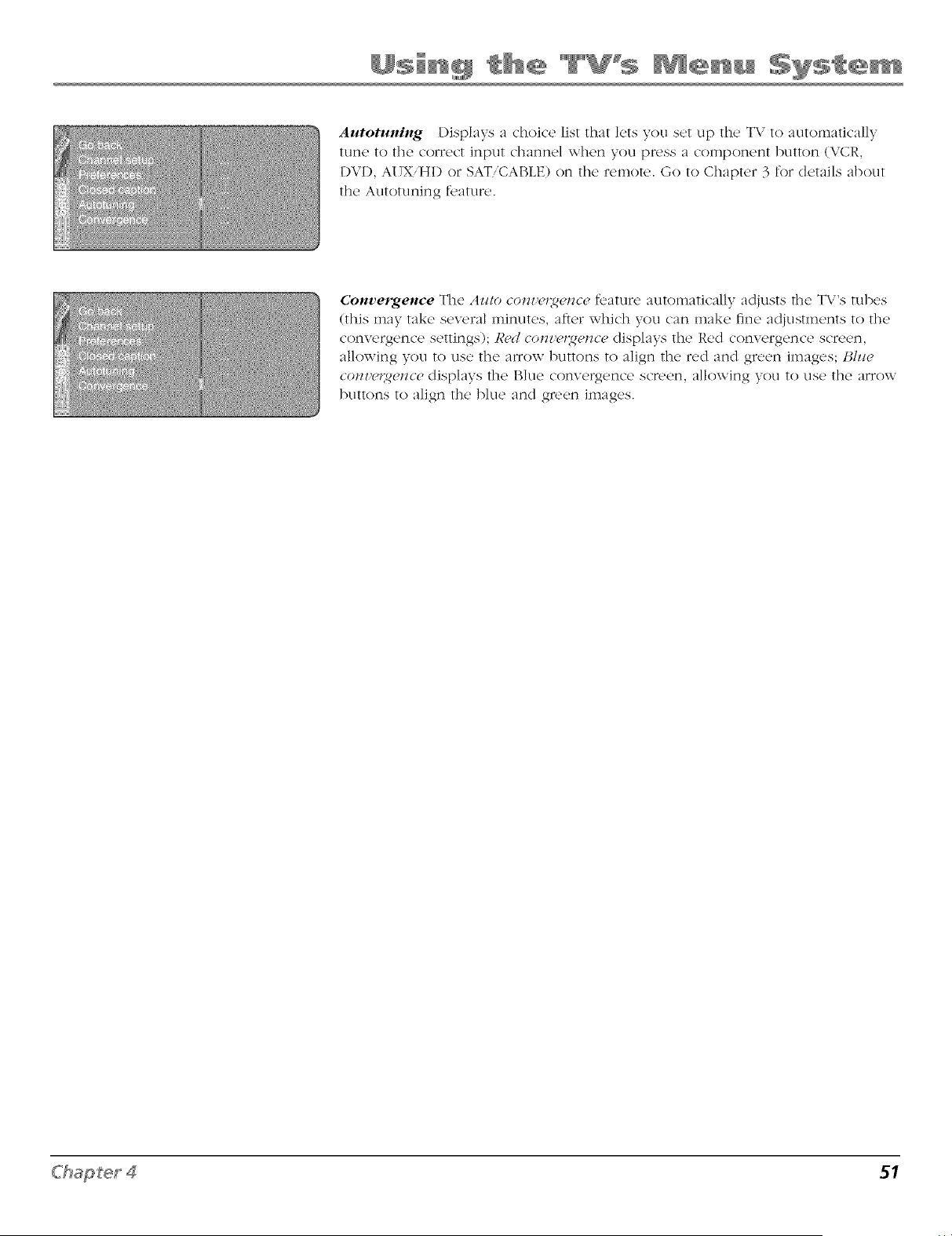
Autotuning l)isplays a choice list that lets you set up the TV to automatically
tune to the correct input channel when you press a component button (VCR,
DVI), AI TXiH1) or SAT,CABLE) on the remote. Go to Chapter 3 for details about
the Autotuning feature.
Convergence The Az/to co_zz'eUge_zcefeature automatically adjusts the TX,'s tubes
(this may take several minutes, after which you can make fine adiustments to the
convergence settings); IPd co_mer,ge_zce displays the Red convergence screen,
allowing you to use the arrow buttons to align the red and green images; l_h/e
co_zz'_,,_g_ce displays the Blue convergence screen, allowing you to use the arrow
buttons to align the blue and green images.
$1

This page left blank intentionally.
Other Information
Chapter Overview:
• Troubleshooting
• Care and Cleaning
• FCC Information
• Limited Warranty
• Accessory Information
ging Entertainment.
Troubleshooting
Most problems you encounter with your T\.' can be corrected by consulting tl_e following troubleshooting list.
Note for U.S. customers: _/i'yozt i)rt.j}'_ u'<"(:a?z proz itk _ yoz/ u,ith the t_am¢ qi'at_ AztthoK_vd Scn i( ¢ R.pr.scmatiz ¢ who will z isit
yoz_r hom¢ /i)r aft<" to i_st_// poz_r el<.ctro_Hc e_tcrtaim1_e_t .,9_tcm a_zd to i_zstm_ct ),oz_ i_z its opcratio_.
TV Problems
TV won't turn on
" Press the TV button.
* Make sure the TV is plugged in.
* Check the wall receptacle (or extension cord) to make sure it is "live" by plugging in something else.
- Something might be wrong with your remote control. Press the POWER button on the fl'ont of the TV. If the TV turns on, check the
remote control solutions on the next page.
* The fl'ont panel controls may be locked (disabled). Use the remote control to unk)ck the fl'ont panel controls by selecting the From
l_l,_el Block in the Pare_md dbmrol menu and press OK to uncheck the box.
- The T\ might be performing a periodic diagnostic check. \\ait fl)r a few minutes for the TV to turn on.
Buttons don't work
• [f"you're using the i'd'mote _ontrol. press the T\ button first to make' sure the remote is in TV mode.
• The fl'ont panel controls may be locked (disabled). Use the remote control to unk)ck the fl'ont panel controls by selecting the From
l_¢m'l l_;lock in the l_¢remal Cbmrol menu and press ()K to uncheck the box.
• [Jnplug the qY for ten minutes and then plug it back in. Turn the TV on and try again.
TV turns off unexpectedly
• Sleep timer may have' been activated. Go to page' 47 for instructions.
• Electronic protection circuit may have been activated because of a pov,-er stone. \Vait 30 seconds and then mrn on again. /f this
happens fl'equent/y, the voltage in your house may be abnomlally high or lox_.
• [!nplug the TV. Wait ten minutes. Then, plug the TV in again.
TV turns on unexpectedly
• Wake up timer might have' been activated. (3o to page' 47 for instructions.
• Auto on might have been activated. Go to page 47 for instructions.
• _ou might have pressed CH+, CH- or /NP[JT on the remote accidentally.
Blank screen
• [f"you're trying to x_at(h TV, (hange (halmels or press the ANTENNA button to switch tuners.
• /f you're trying to x_atch something that's playing on a component connected to the TV (like a DVD or a VCR tape), press the TV
button on the remote, then press INPUT until you get to the correct video input channel.
• If you're trying to watch a component (like your DVD player or VCP,). make sure the component cormected to the TV is turned on.
• If you're trying to watch a component (]ike your 1)VD player or VCR), make sure the component is connected correctly.
No sound, picture okay
• Maybe the sound is muted. Try pressing the volume up button to restore sound.
• [f using S Video or Y PB PR, remember to also ccmnect the component's left and right audio output jacks to the TV's L and P, Audio
Input jacks.
• The sound settings may not be set correctly. Go to page 42 for more infomlation.
54 Chapter 5
Sound okay, picture poor
• Check antenna corm<'<tions. \,lake sure :ill of th<' cables :ix'<'firmly _onnected to th<' jacks.
" Try adjusting sharpness function to improve weak signals. Go to page 45 k)r more instructions.
Can't select certain channel
" \,lake suw the wmote control is in TV rood('. PR'SS th<' TV button and enter th<' <hannel numl)_'r using the number buttons.
• Channel may I)e blocked or not appr'oved in the l_n'P_zt_d Co_z/rol.v menu.
• [f using a VCR, check to make sure the T\, VCR button on the VCR is in the correct mode (press the TV/VCR button on your VCR).
Noisy stereo reception
• \,]aV I){' a \T{2ak station. [Js{2 .S'o_l_/1/1{'1_]11 to {ho{}s{' H]OI]O sound.
No picture, no sound but TV is on
• \,laybe the cal)l{'iair function is s{'t to the wrong position. Go to pag{' 48 fol" d{'tailed instm{tions.
• Th(' chann{_!l migl]t b{' blank -- change ch:mn{qs.
• If you're watching your VCR and it's connected with coaxial cable to the CABLE/ANTENNA jack, tune the TV to channel 3 or 4
(whichever charmel is selected on the 3/4 switch on the back of your VCR). Also check to make sure the T\, VCR button on the VCR
is in the correct mode (press the TV:\,CR button on your VCR).
Volume buttons not adjusting volume louder
• Ch{-!ckto mak(' su/'{_!volum{' isn't limited by th{' maximum volum{' ft'amre. Go to page 48 for mot{_!instructions.
Picture not moving
• l{}u hay{' a{tivat{'d the Fweze feature by p[vssing FP,EEZE or OK on the remot{'. Pwss any button to "unfr{'{'z{'"th{' pictuw.
Black box appears on the screen
• (2los_'d-captioning might 1){'on. Ch{'{k C/o,_(,d(/_#)Ho_ in the 5_'tW)metal Go to page 49 for more instructions.
Freeze not working
• Th{' fr{'eze feature' is not available for Component vide{} (C\lPl {}rC\lP2) or DVI inputs.
Low battery warning appears on screen
• [)]_lC{__ n_2V,- 1)attel'i{'s ill l'{'l]]Ot{'.
TV picture keeps switching between screen formats abruptly
• Switch th{' A_tofinvt_at fc:ltuw t{}()ff_ S_'epage 44 for more information.
Channel search finds few channels
• Th{' cabl{' eonn{'ct{'d to the ANTENNAiCABL]:] ANALOG INPUT and/or ANTENNA F)IGITAL INPUT jack might 1){' loose.
° lour off-air al/t{'llDa might b{' g{'tting a weak signal. \,love it higher or g{'t a bigger anterma.
° If you ]]ave cable TV, make sure that signal is connected to the ANTENNA/CABLE ANAL()G [NPUT--<lo not connect it to the
ANTENNA DIGITAL INPUT.
° [f you ]]ave a cable box, you can't connect it to the ANTENNA [)I(-;[qAL INPUT jack. Connect it to the ANTENNAi(2ABLE ANAL()(]
INPUF or a Video Input jack.
• Select the I_oth option in the Channel Search lllellU, and retry the chain]el search.
Chapter 5 55
The Remote Control Doesn't Work
" Something might 1)c between the' remote' and the r_'mote sensor on the _ompom'nt. \lake' stm' the, re is a d_'ar path.
° Maybe the remote isn't aimed directly at the component (TV or VCR) that you're trying to operate.
° Maybe remote is not in TV Mode. Press the T\ button so remote will control TV.
° Maybe batteries in remote are weak, dead, or installed incorrectly. Put new batteries in the remote. (Note, if you remove the
batteries, you may have to reprogram the remote to operate other coral)orients.)
* lou might need to dlTail/ the remote's microprocessor: remove batteries and press the number 1 button for at least 60 seconds.
P,elease the 1 button, replace the batteries, and (if necessary) program the remote again.
Problems with V-Chip/Parental Controls
The rating limits don't work
° _ou must lock the' settings. Go to the' (press MEN[! on )our remote), select t_n_ct_tal Co_trol, select Lot/,,,t_lrcJ_tal
Co J_tro/s.
I don't remember my password and I want to unlock the TV
• If you forget your password, press MENU, then sck'_t IJarr,tztal Co*ztrol (the' password cntt T s_recn appears). Simultaneously press
and hold CH+ and VOL+ on the TV's front panel for 8 seconds. The Parental control menu appears on the screen, and you can re
enter a password via Loc/,_Puruz_tal Co*_tro!s.
The V-Chip won't let me watch a program even though it's not rated as violent.
° Maybe the movk' was given an Nil (Not Rated) status. After you block movk' ratings, you must set _\iI_'to Vicu, s_'paratcly in order to
view movies with an NR rating.
56 C'hap_er 5
Care and Cleaning
CAUTION: Turn OFF your T\,' bd'or_' cl_,aning.
You can clean the TV as required, using a soft lint-flee cloth. Be sure to occasionally dust the ventilation slots in the cabinet
to help assure adequate ventilation.
The TV's screen may be cleaned with a soft, lint-free cloth as well. Take care not to scratch or mar the screen. If
necessary, you may use a cloth dampened with warm water. Never use strong cleaning agents, such as ammonia-
based cleaners, or abrasive powder. These types of cleaners will damage the TV.
While cleaning do not spray liquid clic_,ctlyon the screen, or allow liquid to run down the scc_'en and inside the T\,".Also, never
place clrinks or vases with water on top of the T\,. This could incl_'ase the risk of fir_, or shock hazacd or clamage to the T\..'.
Caution: I Tsing video games or any external accessory with fixed images for extended periods of time can cause them to
be permanently imprinted on the picture tube (or projection TV pictu,e tubes). ALSO, some netwockiprogram logos, phone
numbers, etc. inay cause sJinilar damage. This damage is not covered by your warranty.
FCC Information
This _'quipm_'nt has b_'_'n testc, d and found to comply with the limits for a Class I_ digital cl_,vice, pursuant to Part 15 of
the FCC Rules. These limits ace designed to pcovide reasonable protection against harmful interf_w_.nce in a residential
installation. This equipment generates, uses, and can radiate radio fiequency energy and, if not installed and used in
accordance with the instructions, may cause harmful interf_'rence to radio communications. HoweveL there is no guarantee
that interf_,c_,nce will not occur in a particular installation. If this equipment does cause harmful interf_'rence to radio or
television reception, which can be determined by turning the equipment oft and on, the user is encouraged to try to correct
the interf_.rence by one or more of the following measures:
• Reorient or relocate the receiving antenna.
• Incc_,ase the separation beiween the equipment and receiver.
° Connect the equipment into an outlet on a circuit cliff,Tent from that to which the receiver is connected.
° Consult the clealer or an expecienced radio/T\/ technician for help.
This Class B digital apparatus complies with Canadian ICES-003.
C'hap_er 5 57
RCA High-Definition Television (HDTV)
Limited Warranty
What your warranty covers:
• Defects in materials or worMnanship.
For how long after your purchase:
° One year from date of purchase for labor.
• One year from date of purchase for parts.
• Two years from date of purchase for the picture tubes.
The wammty period for rental units begins with the fil:st rental or 4-3 clays from elate of shipment to the rental firm,
whichever comes first.
What we will do:
Pay an Authorized Service Center the labor charges to repair your unit.
Pay an Authorized Service Center for the new, or at our option, refurbished replacement parts and picture tubes required to
repair your unit.
How you get service:
° Call 1-877-RCA-HI)TV and have your unit's date of purchase and model/serial mnnber ready.
• A representative will troubleshoot your problem over the phone.
° If the representative determines that you should receive service, they will provide you with the name(s) of the
Authorized Service Center in your area.
° Contact the Service Center and arrange for home or pick up, repair, and return service, provided that your unit is
located within the geographic territory covered by an Authorized Service Center. If not, you must take your unit to the
Sela'ice Center location at your own expense, or pay for the cost the Service Center may charge to transport your unit to
and flx)m your home.
• Proof of purchase in the form of a bill of sale or receipted invoice which is evidence that the product is within the
warranty period must be presented to obtain warranty service. For rental finns, p,x)of of first rental is also required.
What your warranty does not cover:
° Customer instruction. (Your Owner's Manual describes how to install, adjust, and operate your unit. Any additional
information shouM be obtained from your dealer.)
° Installation and related adjustments.
• Damage resulting from non-approved installation methods.
• Signal reception problems not caused by your unit.
° l)amage from misuse or neglect.
° Batteries.
° Images burnt onto the screen.
° A television that has been modified or incorporated into other products, or is used for institutional or other commercial
purposes.
° A unit purchased or serviced outside the U.S.A.
° Acts of nature, such as but nor limited to lightning damage.
Product Registration:
° Please complete the online Product Registration on www.rca.com or complete and mail the Product Registration Calxl
packed with your unit. It will make it easier to contact you should it ever be necessary. The return of the card is not
required for warranty coverage.
58 Chapter 5
Limitation of Warranty:
* THE WARRANTY STATED ABOVE IS THE ONIX WARRANTY APPLICABLE TO THIS PRODUCT. ALL OTHER
WARRANTIES, EXPRESS OR IMPLIED (INCLUDING ALL IMPLIED WARRANTIES OF MERCHANTABILITY OR
FITNESS FOR A PARTICUI_d{ PURPOSE) ARE HEREBY DISCLAIMED. NO VERBAL OR WRITTEN INFORMATION
GIVEN BY TTE TECHNOLOGY INC., ITS AGENTS OR EMPLOYEES SHALL CREATE A GUARANTY OR IN ANY WAY
INCREASE THE SCOPE OF THIS WARRANTY.
- REPAIR OR REPLACEMENT AS PROVIDED IENDER THIS WARRANTY IS THE EXCLUSIVE REMEDY OF THE
CONSUMER. TTE TECHNOLOGY INC. SHAII_ NOT BE IJABLE FOR INCIDENTAL OR CONSEQUENTIAL DAMAGES
RESULTING FROM THE USE OF THIS PRODUCT OR ARISING OUT OF ANY BREACH OF ANY EXPRESS OR
IMPLIED WARRANTY ON THIS PRODUCT. THIS DISCLAIMER OF WARRANTIES AND LIMITED WARRANTY ARE
GOVERNED BY THE lAWS OF THE STATE OF INDIANA. EXCEPT TO THE EXTENT PROHIBITED BY APPLICABLE
lAW, ANY IMPLIED WARRANTY OF MERCHANTABILITY OR FITNESS FOR A PARTICULAR PURPOSE ON THIS
PRODUCT IS LIMITED TO THE APPLICABLE WARRANTY PERIOD SET FORTH ABOVE.
How State Law relates to warranty:
o Some states do not allow the exclusion nor limitation of incidental or consequential damages, or limitations on how
long :in implied warranty lasts, so the above limitations or exclusions may not apply to you.
° This warranty gives you specific legal rights, and you also may have other rights that vm T from state to state.
if you purchased your unit outside the United States:
- This warranty does not apply. Contact your dealer for warranty inforznatJon.
Service calls which do not involve defective materials or workmanship are not covered by this warranty. Costs
of such service calls are the sole responsibility of the purchaser.
Chapter 5 59
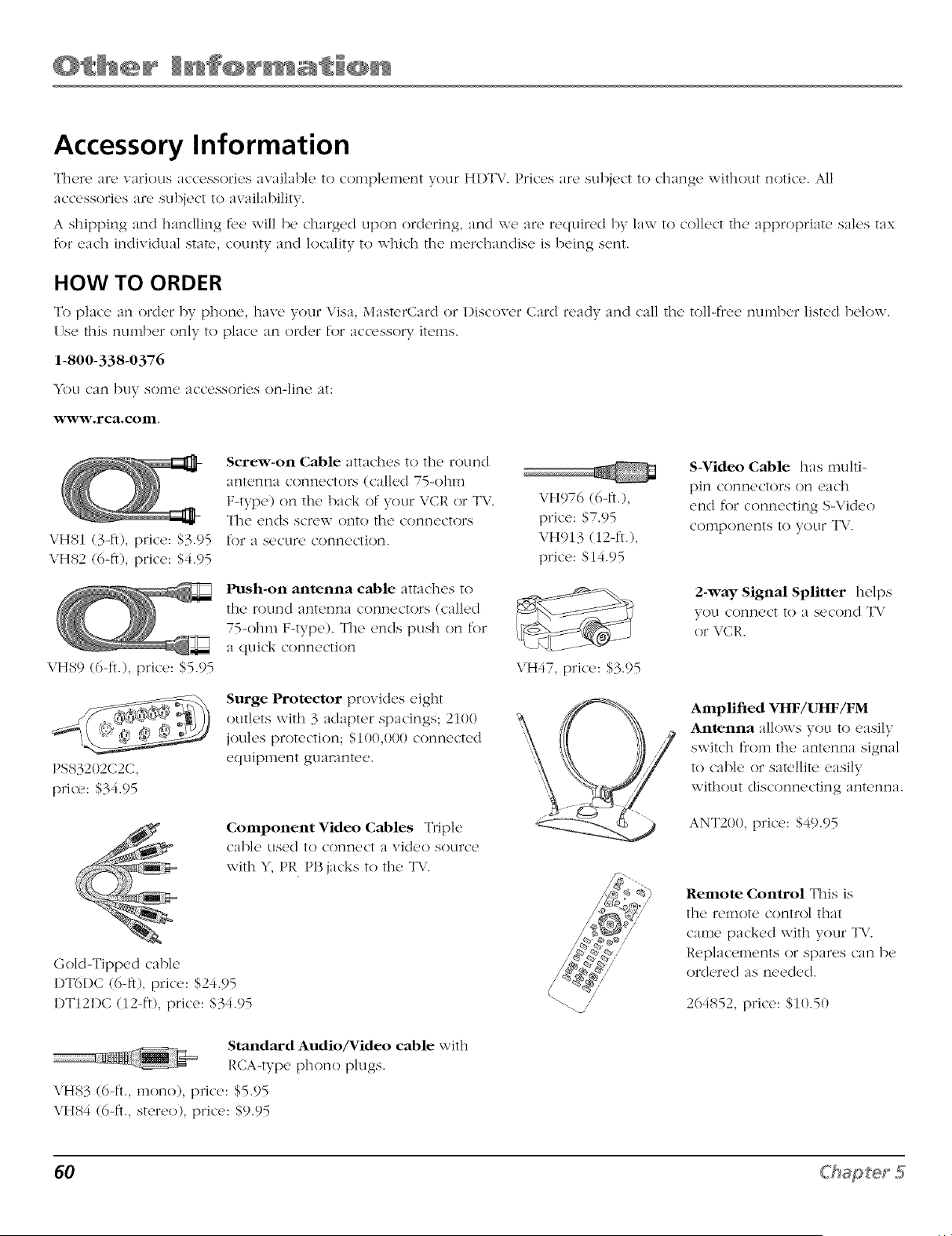
Accessory Information
There are various accessories available to complement your HI)T\/. Prices are subject to change without notice. All
accessories are subject to awdlability.
A shipping and handling f_,e will be charged upon ordering, and we are required bv law to collect the appropriate sales tax
for each individual state, county and locality to which the merchandise is being sent.
HOW TO ORDER
To place' an ord_'r by phon_', hav_' your Visa, Mast_,rCard or I)iscov_'r Card r_'ady and call the' toll-fr_'_' numb_,r list_,d b_qow.
17se this mnnber only to place an order for accessory items.
1-800-338-0376
You can buy some accessories on-line at:
www.rca.com.
VH81 (3-ft), price: $3.95
VH82 (6-ft), price: $4.95
VH89 (6-ft.), price: $5.95
PS83202C2C,
price: $34.95
Screw-on Cable attaches to the round
antenna connectors (called 75-ohm
F4ype) on the back of your VCR or TV.
The encls screw onto the connectors
for a secure connection.
Push-on antenna cable attaches to
the round antenna connectors (called
75-ohm F4ype). The ends push on for
a quick connection
Surge Protector provides eight
outlets with 3 adapter spacings; 2100
joules protection; $100,000 connected
equipment guarantee.
Component Video Cables Triple
cable used to connect a video source
with Y, PR PB jacks to the TV.
Gold-Tipped cable
DT6I)C (6-ft), [)rice: $24.95
DT12I)C (12-ft), price: $34.95
Standard Audio/Video cable with
RCA4ype phono plugs.
VH83 (6-ft., mono), price: $5.95
VH84 (6-ft., stereo), price: $9.95
VH976 (6-ft.),
price: $7.95
VH913 (12-ft.),
[)rice: $14.95
VH47, price: $3.95
S-Video Cable has multi-
pin connectors on each
end for connecting S-Video
components to your TV.
2-way Signal Splitter helps
you connect to a second TV
or VCR.
Amplified VHF/UHF/FM
Antenna allows you to easily
switch from the antenna signal
to cable or satellite easily
without disconnecting antenna.
ANT200, price: $49.95
Remote Control This is
the remote control that
came packed with your TV.
Replacements or spares can be
orclered :is needed.
264852, price: $10.50
60 C'hap_er 5
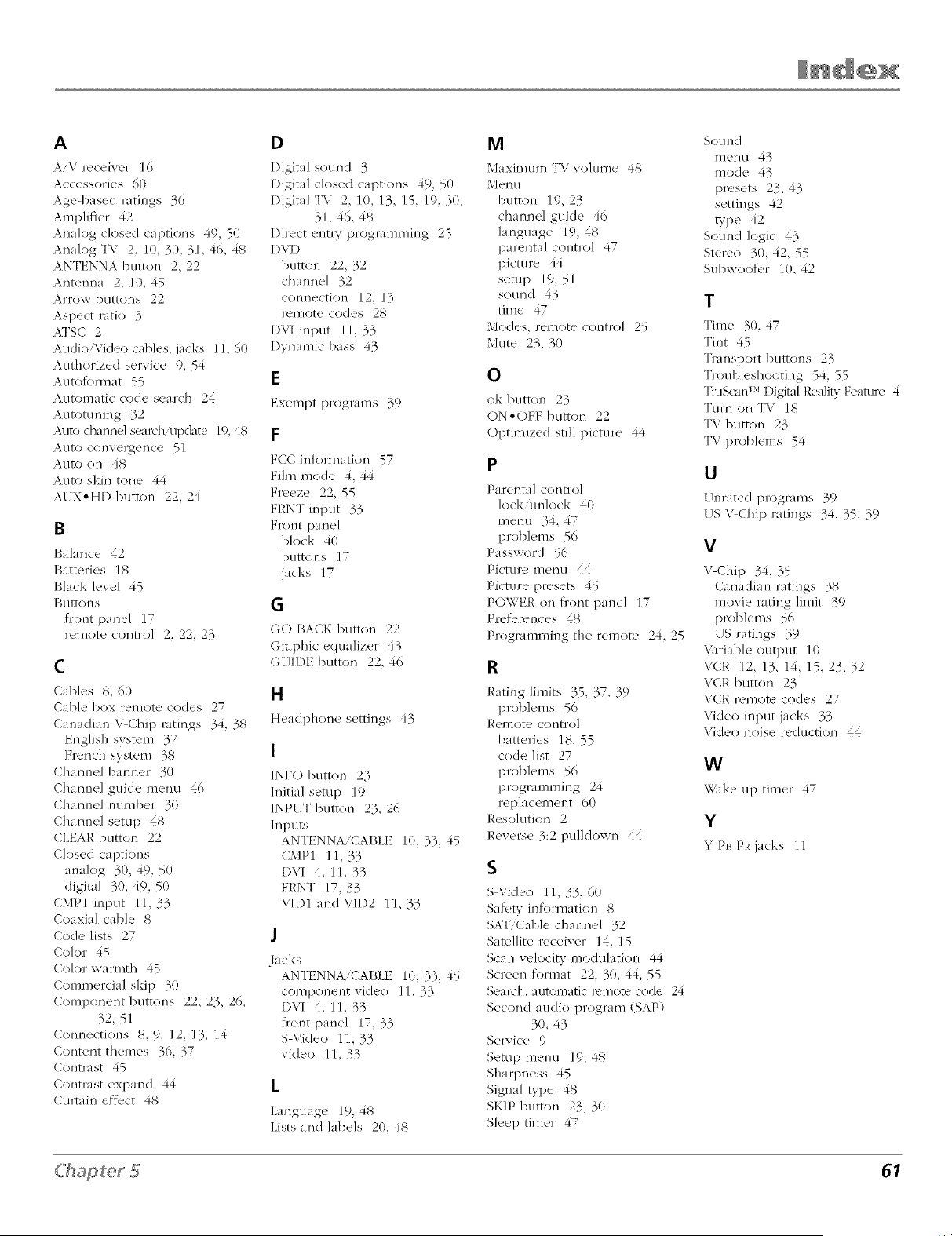
A
A/V receiver 16
Accessories 60
Age-based ratings 36
Amplifier 42
Analog closed captions 49, 50
Analog TV 2, 10, 30, 31, 46, 48
ANTENNA button 2, 22
Antenna 2, 10, 45
Arrow buttons 22
Aspect ratio 3
NI'SC 2
Audio Yideo cables, jacks 11, 60
Authorized service 9, 54
Autofomlat 55
Automatic code search 24
Automning 32
Auto channd s{_,uchAlpdate 19, 48
Auto conve*gence 51
Auto on 48
Auto skin tone 44
AUX'HD button 22, 24
B
Balance 42
Batteries 18
Black level 45
[_uttoI1s
fl'ont panel 17
remote control 2, 22, 23
C
Cables 8, 60
Cable box remote codes 27
Canadian V Chip ratings 34, 38
English system 37
French system 38
Channel I)anner 30
Channel guide menu 46
Channel numl)er 30
Channel setup 48
CLEAR button 22
Closed captions
analog 30, 49, 50
digital 30, 49, 50
CMPI input 11,33
Coaxial cable 8
Code lists 27
Color 45
Color warmth 45
Commercial skip 30
Component buttons 22, 23, 26,
32, 51
Cotmections 8, 9, 12, 13, 14
Content themes 36, 37
Contrast 45
Contrast expand 44
Curtain effect 48
D
Digital sound 3
Digital closed captions 49, 50
Digital TV 2, 10, 13, 15, 19, 30,
31, 46, 48
Direct entry programming 25
DVD
button 22, 32
channel 32
connecti<m 12, 13
remote codes 28
DVI input 11, 33
Dynamic bass 43
E
Exempt programs 39
F
FCC infomlati(m 57
Film mode 4, 44
Freeze 22, 55
FRNT input 33
Front panel
block 40
buttons 17
jacks 17
6
GO BACK button 22
Graphic equalizer 43
GUIDE button 22, 46
H
Headph(me settings 43
I
INFO 1)utton 23
Initial semp 19
INPUT button 23, 26
Inputs
ANTENNA/CABLE 10, 33, 45
CMPl 11, 33
l)VI 4, 11, 33
FRNT 17, 33
VIDI and VII)2 11, 33
J
.lacks
ANTENNAiCABI.E 10, 33, 45
component video 11, 33
DVI 4, 11, 33
fl'ont panel 17, 33
SVideo 11, 33
video 11, 33
L
Language 19, 48
Lists and labels 20, 48
M
Maximum TV volume 48
Menu
button 19, 23
channel guide 46
language 19, 48
parental control 47
picture 44
setup 19, 51
sound 43
time 47
Modes, remote control 25
Mute 23, 3(1
O
ok button 23
()N-()FF button 22
()ptimized still picture 44
P
Pa t+ental control
lock/unlock 40
menu 34, 47
pI+oblems 56
Password 56
Picture menu 44
Picture presets 45
POWEF{ on fl'ont panel 17
Preferences 48
Programming the remote 24, 25
R
Rating limits 35, 37, 39
problems 56
Remote control
batteries 18, 55
code list 27
problems 56
programming 24
replacement 60
P.esolution 2
Reverse 3:2 pulldown 44
S
SVideo 11,33,60
Safety information 8
S,gF'Cal-,k' channel 32
Satellite receiver 14, 15
Scan velocity modulati<m 44
Screen format 22, 30, 44, 55
Sea*vh, automatic remote code 24
Second audio program (SAP)
30, 43
Se[aice 9
Setup menu 19, 48
Sharpness 45
Signal type 48
SKIP button 23, 30
Sleep timer 47
Sound
mode 43
presets 23, 43
settings 42
type 42
Sound logic 43
Stereo 30, 42, 55
Subwoofcr 10, 42
T
Time 30, 47
Tint 45
Transport 1)uttons 23
Troubleshooting 54, 55
TruScan:r_ Digital Reality Feature 4
Turn on T\ 18
TV button 23
TV problenls 54
U
[Jnrated programs 39
US V Chip ratings 34, 35, 39
V
V Chip 34, 35
Canadian ratings 38
movie rating limit 39
problems 56
[S ratings 39
Varial)le output 10
VCR 12, 13, 14, 15, 23, 32
VCR button 23
VCR remote codes 27
Video input jacks 33
Video noise reduction 44
W
Wake up timer 47
Y
Y PB PR jacks 11
ffhapter ,5 61

Visit the RCA website at www.rca.com
Please do not send any products to the Indianapolis address listed in this manual or on the carton. This will only
add delays in service for your product.
TTE Technology, Inc.
10330 North Meridian Street
Indianapolis, IN 46290
@2005 TTE Technology, Inc.
RCA and associated marks are trademarks of THOMSON S.A. used
under license to TTE Corporation.
Printed in USA
TOCOM 16499240