FCC ID: 2AMXX-AW-01
USER MANUAL
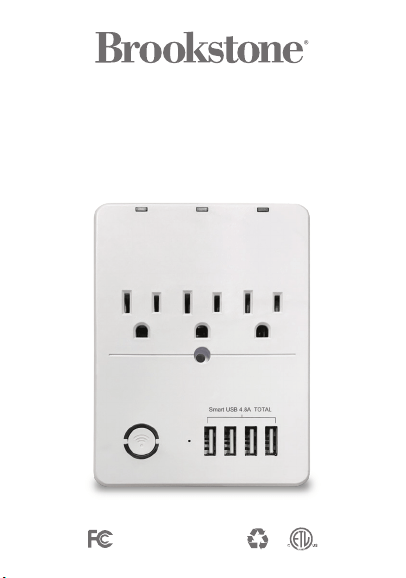
WiFi Smart Hub
with 3 Outlets & 4 USB Ports

One Year Limited Warranty.
Customer Service: 732-994-2301; email: [email protected]
©Smartpoint LLC,
250 Liberty Street, Suite 1A
Metuchen, NJ 08840
The BROOKSTONE trademark. names and logos are owned by
BKST Brand Holdings LLC ©2020. All rights reserved
Manufactured, marketed and distributed by Smartpoint LLC, under license
Alexa
®
is a registered trademark of Amazon, Inc
Google, Android and Google Play are trademarks of Google LLC.
App Store
®
is a registered trademark of Apple, Inc
All trademarks and Registered trademarks are property of their respective owners
Made in China
WARRANTY INFORMATION

SPECIFICATIONS
Model: BKSPHUB-WM
Main Material: PC V0 Fire Retardant
Input Voltage: AC 100-240V 50/60Hz
Max Load: 15A
Max Power: 1875W (125VAC)
USB: 4 ports 4.8A combined
Working temperature: 24° - 104°
Size:3.74”x1.24”x4.95”
Wi-Fi Standard: 2.4GHz 802.11b/g/n
System Support: Android™/iOS
FEATURES
• Wi-Fi remote controlled
• 3 outlets • Each outlet can be
independently controlled
• 4 Smart USB ports with 4.8A charging output
• Programmable with Schedule
• App and Voice Control
• Works with Hey Google or Amazon Alexa
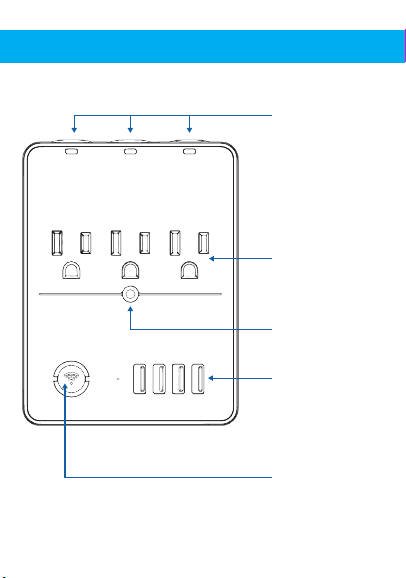
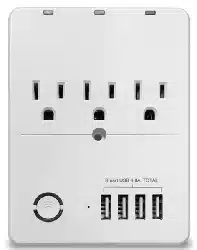
PRODUCT CONFIGURATION
On/Off Button
(reset)
USB ports
Screw for securing
Hub onto outlet
Outlets
Individual
power buttons
DOWNLOAD APP
Brookstone Smart
1. Android: download “Brookstone Smart” app
on Google Play.
2. iPhone: download “Brookstone Smart” app
from the App Store.

REGISTRATION AND LOGIN
1. Run the “Brookstone Smart” app from your
smart phone.
2. Register and login.
1. Plug in Smart Hub into electrical socket and
hold down on/off button until the light
blinks rapidly.
2. Make sure phone is connected to your Wi-Fi
network and that it is a 2.4GHz network.
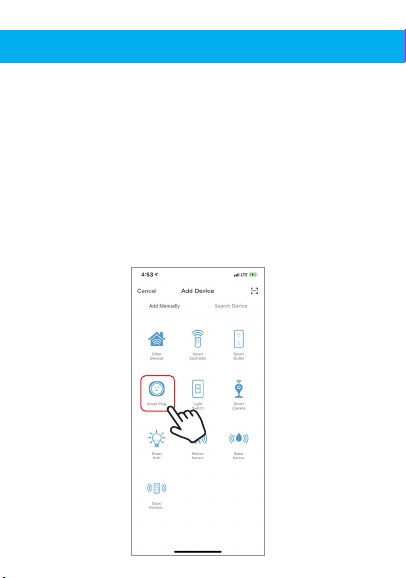
3. Press the (+) symbol in the top right corner of
the app and select the “Socket” from the
the list of devices to add.
ADD DEVICE

1. Plug in Smart Hub into electrical socket and
hold down on/off button until the light
blinks rapidly.
2. Make sure phone is connected to your Wi-Fi
network and that it is a 2.4GHz network.
3. Press the (+) symbol in the top right corner of
the app and select the “Socket” from the
the list of devices to add.
4. Confirm indicator light is blinking and press
the “confirm indicator rapidly blinks” button
to connect in Smart WiFi Mode.
5. Make sure phone is connected to the Wi-Fi
network that the device will be connected to
and that the network is a 2.4GHz network.
Enter your password for the Wi-Fi network.
4. Confirm indicator light is blinking and press
the “confirm indicator rapidly blinks” button
to connect in Smart WiFi Mode.
5. Make sure phone is connected to the Wi-Fi
network that the device will be connected to
and that the network is a 2.4GHz network.
Enter your password for the Wi-Fi network.
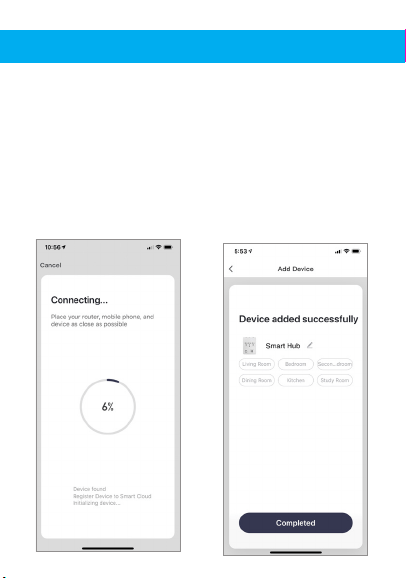
6. Connecting process will begin. Do not turn off
Smart Hub or phone while connecting. Wait for
connection process to complete.
7. Once device has been successfully added, name
the device what you would like it to be called in
the app. The Smart Hub is ready for use. (If it will
not connect in Smart WiFi Mode, try to connect
using AP Mode which are steps 8-11)
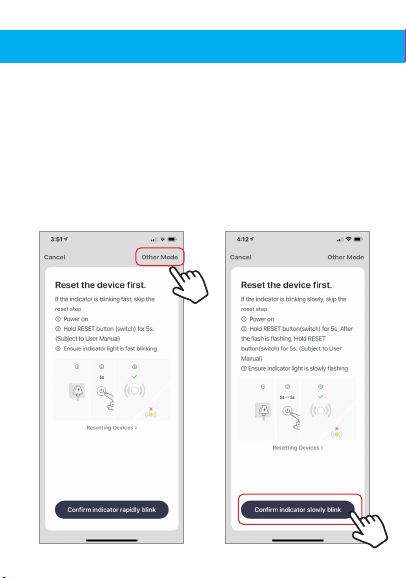
8. Notice: Only follow steps 8-11 if connecting
in AP Mode. From the smart wifi connect page
click on “Other Mode” in the top right corner and
select “AP Mode”.
9. When light is blinking rapidly hold reset button
for 6 seconds and the light should now blink
slowly. Click on the “
confirm indicator slowly
blinks” button.

10.
Make sure phone is connected to the Wi-Fi
network that the device will be connected to
and that the network is a 2.4GHz network.
Enter your password for the Wi-Fi network.
11. Follow the on screen instructions. Connecting
process will begin. Do not turn off Smart Hub or
phone while connecting. Wait for connection
process to complete.
CONTROLLING DUAL HUB
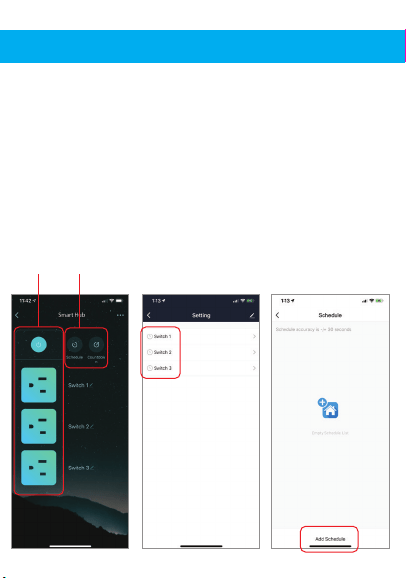
1. From the home screen of your app click on Smart Hub.
On the next screen you can independently control all
outlets of the hub or the whole hub all together.
2. You can also create separate schedules for each outlet
of the plug. Click on the schedule button near the top
and then you will see that you can click on each
individual outlet of the plug. After that click on “add
schedule” at the bottom. you can also create
countdown timers for each outlet.
power
control
set schedule or
countdown timer
PUSH NOTIFICATIONS
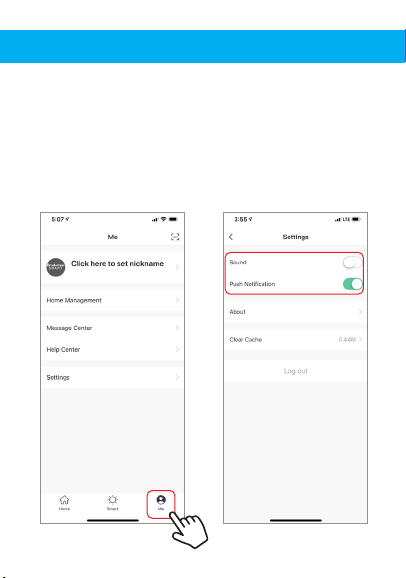
1. You can turn on/off notifications for all devices
connected to app by clicking on the “Me” button at the
bottom right of the screen.
2. Then click on ”Settings” button. From there you can turn
on/off all notifications.

REMOVE A DEVICE
1. From the home screen, click on the device you would like
to remove.
2. Then click on the edit symbol on the top right of the
screen.
3. From there you would then click the “Remove Device”
button at the bottom of the screen.

How to control the Smart Hub with Amazon Alexa
Please make sure that your Alexa app is
connected to your Amazon Echo and both
work together successfully on your Wi-Fi
home network.
Step A. Log into your Alexa app, tap top left
corner, and tap “Skills”.

How to control the Smart Hub with Amazon Alexa
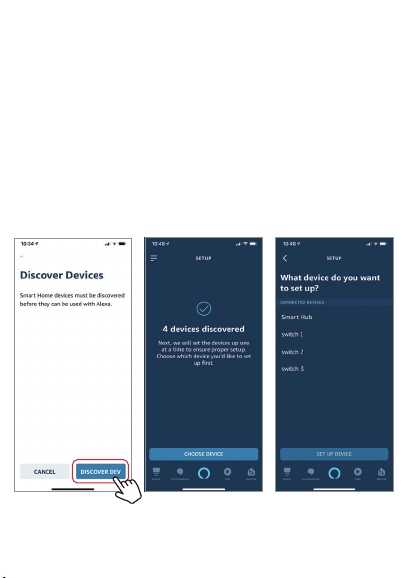
Step D. Once your Brookstone Smart account is successfully
linked to Alexa, the next page will pop up. Tap ”Done” on the
top left corner, then tap “Discover Devices” on the next page.
Step B. Type “Brookstone Smart”, find “Brookstone Smart”
app in the search results and tap “enable” button.
Step C. Enter your account info for the “Brookstone
Smart” app, tap “Link Now”, then tap “Authorize” on the
next page to link Brookstone Smart account to Alexa.
Step E. Wait a few seconds for Alexa to detect the Smart Hub
from the Brookstone Smart app and you will find the device
named “Smart Hub” has been paired to Alexa app from the
“Brookstone Smart” app.
Since the Smart Hub has three outlets, the device will show as
four devices. One for the Smart Hub as a whole and one for each
of the outlets. This way they can be named four different names
and be controlled separately.
When you click on a device you can then name them what you
choose.
Step E. Wait a few seconds for Alexa to detect the Smart Hub
from the Brookstone Smart app and you will find the device
named “Smart Hub” has been paired to Alexa app from the
“Brookstone Smart” app.
Since the Smart Hub has three outlets, the device will show as
four devices. One for the Smart Hub as a whole and one for each
of the outlets. This way they can be named four different names
and be controlled separately.
When you click on a device you can then name them what you
choose.

After Step E is done, you can now control the Smart Hub with
Alexa app from the devices page.
Step F. Now you are able to control the Smart Hub via
Amazon Alexa. Any device plugged into the plug will
turn on and off with Alexa.
Try these commands and see what happens by
asking Alexa:
• Alexa, turn on “device name”
• Alexa, turn off “device name”
Note: The device name is the one you give to the
Smart Hub on “Brookstone Smart” app.
(You can also name each individual outlet and
tell Alexa to turn on/off each one.)
Let’s name it “Living Room”.
For example, now you can say:
• “Alexa, turn on Living Room”,
• “Alexa, turn off Living Room”, etc.
If you also want to control the Smart Hub with Google
Home, you can continue to read next page.
Step E. Wait a few seconds for Alexa to detect the Smart Hub
from the Brookstone Smart app and you will find the device
named “Smart Hub” has been paired to Alexa app from the
“Brookstone Smart” app.
Since the Smart Hub has three outlets, the device will show as
four devices. One for the Smart Hub as a whole and one for each
of the outlets. This way they can be named four different names
and be controlled separately.
When you click on a device you can then name them what you
choose.

How to control the Smart Plug with Google Assistant
1. Pair Smart Plug with Brookstone Smart
App and name it with an easily
recognizable name.
2. Download the Google Home App and
register and log in with your Google
Account info.
Step A. Once you are logged into your Google Home App, you
should see buttons at the top to connect your Brookstone
Smart account to the Google Home App.
Step B. Tap the Brookstone Smart button to link your
account with Google Assistant.

How to control the Smart Plug with Google Assistant
1. Pair Smart Plug with Brookstone Smart
App and name it with an easily
recognizable name.
2. Download the Google Home App and
register and log in with your Google
Account info.
Step C. Enter your account info for the “Brookstone Smart”
app, tap “Link now”, then tap “Authorize” on the next
page to link your Brookstone Smart Account with Google
Assistant.

Step D. You will find that Google Assistant has found
the device named ”Smart Plug” on this page.
Scroll down on the home page to see the devices linked to
you. You can now control the device through the Google
Home App.

Step E. Now you can control your Smart Hub by turning it
on or off with Google.
Just start with “Hey Google”.
“Turn on device name”
“Turn o device name”
Note: The device name is the one you give to the
switch on “Brookstone Smart” App.
Let’s name it “Living
Room”.
(You can also name each individual outlet and tell
Google to turn on/off each one.)
For example:
“Turn on Living Room”
“Turn o Living Room”
For more products please visit www.brookstone.com

FCC Statement:
1. This device complies with Part 15 of the FCC Rules. Operation is
subject to the following two conditions: (1) this device may not cause
harmful interference, and (2) this device must accept any
interference received, including interference that may cause
undesired operation.
Caution: The user is cautioned that changes or modifications not
expressly approved by the party responsible for compliance could
void the user's authority to operate the equipment.
Note: This equipment has been tested and found to comply with the
limits for a Class B digital device, pursuant to part 15 of the FCC
Rules. These limits are designed to provide reasonable protection
against harmful interference in a residential installation. This
equipment generates uses and can radiate radio frequency energy
and, if not installed and used in accordance with the instructions,
may cause harmful interference to radio communications. However,
there is no guarantee that interference will not occur in a particular
installation. If this equipment does cause harmful interference to
radio or television reception, which can be determined by turning
the equipment off and on, the user is encouraged to try to correct
the interference by one or more of the following measures:
— Reorient or relocate the receiving antenna.
— Increase the separation between the equipment and receiver.
— Connect the equipment into an outlet on a circuit different from
that to which the receiver is connected.
— Consult the dealer or an experienced radio/TV technician for help.
2. This equipment complies with FCC radiation exposure limits set
forth for an uncontrolled environment. This equipment should be
installed and operated with a minimum distance of 20cm between
the radiator and any part of your body.
For more products please visit www.brookstone.com