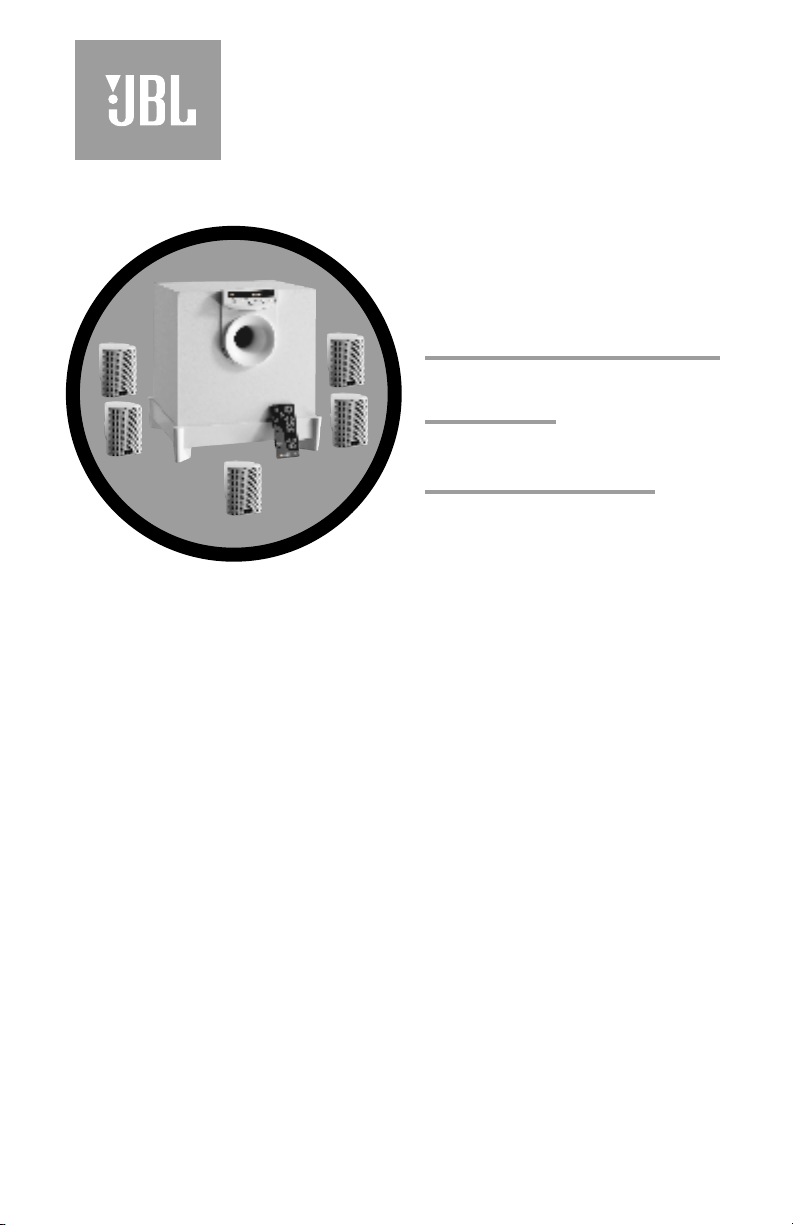
Media 3000
Simple
setup guide
thank you for choosing JBL. For more than 50 years,
JBL has been involved in every aspect of music and film recording
and reproduction, from live performances to the recordings you play
in your home, car or office.
We’re confident that the JBL system you have chosen will
provide every note of enjoyment that you expected – and that
when you think about purchasing additional audio equipment for
your home, car or office, you will once again choose JBL.
JBL Consumer Products
-2-
Declaration of Conformity
We,
declare in own responsibility, that the products described
in this owner's manual are in compliance with technical
standards:
EN 55 013/6.1990
EN 55 020/6.1988
EN 55 022/6.1993
EN 60 065/1994
EN 60 555-2-3/1987/88
Steen Michaelsen
Harman Consumer International
2, route de Tours
72500 Château-du-Loir
FRANCE
Harman Kardon Europe 11/99

-3-
The Media 3000 offers two
unique user-convenience
features: Automatic Turn-
On/Shut-Down and Automatic
Digital-Input Selection.
The Automatic Turn-On feature
will turn the Media 3000 on as
soon as a source connected to
its digital inputs (such as DVD,
or any other device featuring a
coaxial or optical digital output)
is switched on, or as soon as the
unit connected to its last-used
analog input starts outputting
sound.
When using digital inputs, the
Automatic Turn-On can be
activated by turning on either
one of the connected digital
sources such as a DVD player or
a CD player with digital output.
When using analog inputs (TV or
AUX), Automatic Turn-On is
available only for the device
that was last listened to before
the Media 3000 shut down. In
order to listen to the other
device, the Media 3000 input
needs to be manually selected
by using the Input button on
the product and on the remote,
which, in turn, disables the
Automatic Digital-Input Selector
until the Media 3000 is shut
down.
The Automatic Turn-Off shuts
the unit down five minutes after
all sources connected to its
digital inputs are powered down
and the device connected to its
selected analog input stops
playing.
The Automatic Digital-Input
Selector automatically selects
the source connected to its
digital inputs when that source
is powered on. Upon power
down of this digital unit, if no
other source is on, the Media
3000 will switch itself off after
five minutes.
If the analog source that was
selected prior to the digital
source turning on is still
playing, the Media 3000 will
switch back to that other
source. Once a digital source is
powered on and selected as an
input, turning on a device
connected to the other digital
input will not switch the input
until the selected digital device
is first powered off.
These two features can only be
used if the customer does not
manually turn the Media 3000
on or off, and does not manually
select an input source. Once
either of these selections is
made manually, the automatic
features are disabled as follows:
1. If the Media 3000 is turned
off manually, it will not turn
back on automatically until five
minutes after the source
connected to the Media 3000 is
shut down. During these five
minutes, it can be turned on
either from the front panel or
via the remote control.
2. Once an input source is
selected manually, the
Automatic Source-Selection
feature will remain disabled
until the Media 3000 shuts
down.
3. Once any one of the two
devices connected to the Media
3000 digital inputs is powered
on and its input is selected by
the Media 3000, the device
connected to the other digital
input of the Media 3000 cannot
be automatically selected until
the already selected digital
device is powered down.
Important Note
Automatic On/Off and Automatic Digital-Input Selection

-4-
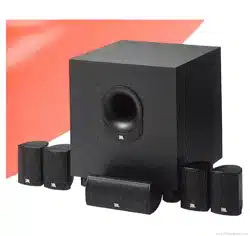
• Complete, self-powered
Dolby* Digital home-cinema
sound system with five
satellite speakers, subwoofer,
remote control, and all
amplification built in.
• Dolby Digital (AC-3* 5.1
channel), Dolby Pro Logic*,
including Phantom and
3-Stereo, and Stereo listening
modes.
• Automatic Turn-On and Turn-
Off.
• Automatic Source Switching
for the digital inputs.
• Two digital (one optical and
one coaxial) inputs and two
analog inputs.
• 2-Way video-shielded micro-
satellites with titanium-
laminate tweeters and
common voicing for all five
channels, and an 8-inch,
long-throw, floor-firing
subwoofer.
• Late Night compression for
nighttime listening without
unexpected and objectionably
loud passages.
• All amplification and controls
are mounted in the
subwoofer, eliminating the
need for a separate control
unit.
• Remote controllable via
outboard remote eye that can
be mounted with the center
channel or separately, so that
the subwoofer can be hidden
away.
Features
Five satellites for left, right,
center and surrounds.
“Smart” powered
subwoofer/controller.
included
JBL
”
error free“ speaker cables.
Extension cable XC300 available
in 10-foot lengths in either
white or black.
Foot for horizontal placement of
center speaker. Versatile remote
sensor and double-sided tape
provided.
Remote control.
Bass
Treble
Delay Level
0 dB Test
Adjustment
Late Night
Power
Mute
Surround
Mode
Input
–
+
–
+
–
+
Volume
Digital coax input cable and
analog RCA input cable.

-5-
About Dolby Digital
The Media 3000 features Dolby
Digital (also unofficially known
as AC-3) multichannel signal
processing, a system developed
by Dolby Laboratories.
Dolby Digital, unlike “matrixed”
systems (such as Dolby Pro
Logic) that derive and decode
multichannel sound from two
channels of sound, is capable of
delivering information for one
subwoofer and five full-range
channels as discrete and
individual channels in digital
AC-3 data format from sources
such as a DVD player. The result
is clear and accurate digital
sound to each speaker, along
with availability of stereo-
surround effects (Dolby Pro
Logic features mono surrounds).
Dolby Digital is capable of
delivering several different
formats of surround sound, the
most robust one being the 5.1-
channel mode, which provides
separate signals for five
satellite speakers as well as for
a subwoofer. The Media 3000
features a “5.1-Ch” indicator
that illuminates when a Dolby
Digital 5.1-channel encoded
signal is present. Dolby Digital
can also provide other AC-3
digital multichannel signals, as
well as 2-channel signals, which
can be decoded via Dolby Pro
Logic processing into
multichannel surround sound.
In the latter case, both the
Dolby Pro Logic and Dolby
Digital indicators will illuminate
in the Media 3000 display.
• Wall-mount brackets and floor
stands available separately
for the satellites.
• Credit-card-type, full-
function remote control.
• JBL “error free” speaker
cables simplify connection
and eliminate possibility of
out-of-phase wiring.
• Center foot for horizontal
placement of the center
channel.
• Rotatable JBL logos to allow
for vertical or horizontal
placement of the satellites.

-6-
On shelves. On the wall. Optional bracket,
WB300 or WB300WHT (white).
Mounting Options
On optional stands, FS300
or FS300WHT (white).
Subwoofer
Surround Speakers
5
– 6 ft.
1.5 – 2 m
Satellites and Surrounds
one. Speaker Placement
Satellites
Mounting Remote Sensor to Center Speaker.
Place remote sensor at bottom
of center speaker.
Insert support leg through
remote sensor and into
speaker.
Center speaker.
The remote sensor may be placed anywhere using the supplied double-sided tape.

-7-
two. Speaker, Source, and Remote-Sensor Connectors
(rear panel of subwoofer)
Speaker and Amplifier Connection
Dashed lines indicate that
wire is not included
Extension cables, XC300, available in
10-foot lengths from your JBL dealer.
Left Front
TV
Audio Output
OPTICAL
Right Left
Center
Right Front
Remote Sensor
COAXIAL
TV
AUX
COAXIAL
OPTICAL
Right Surround
Left Surround
FRONT
SPEAKERS
SURROUND
SPEAKERS
RIGHT
CENTER
LEFT
RIGHT
LEFT
AC POWER
ON / STANDBY
OFF
REMOTE SENSOR
INPUT
RIGHT
AUX
(Additional Audio Source)
Audio Output
Right Left
ANALOG
INPUTS
DIGITAL
INPUTS
Digital Source A
computer/DVD
Digital Source B
computer/DVD
LEFT
Media 3000

-8-
three. Operation
Master On/Off Switch
To operate unit, place this switch
in the On/Standby position. The
system will go into standby when
no signal has been received and
when no unit connected to any of
its two digital inputs has been on
for approximately five minutes.
Rear-Panel Control
Remote-Control-Battery Installation.
+
+
+
Push small tab towards
battery slot and pull battery
drawer out.
Remove old battery. Insert new battery with “+”
side up, and slide battery
drawer back into remote.
-9-
Bass
Treble
Delay Level
0 dB Test
Adjustment
Late Night
Power
Mute
Surround
Mode
Input
–
+
–
+
–
+
Volume
8
10
11
12
13
5
4
9
7
3
2
1
6
Media 3000
Volume
Surround Mode
Input
Mute
STANDBY
ON
SUB
LVL
DLY
RSRFCLFLS
AUX
PCM
3 - St
Late NightPhantom
Digital5.1 Ch ProLogic
Surround
DIG. OPT
DIG. COAX
TV
31
32
33
2
6
5
4
18
16
15
14
22
23
24 25
19
21
26
17
27
28
29
30
20
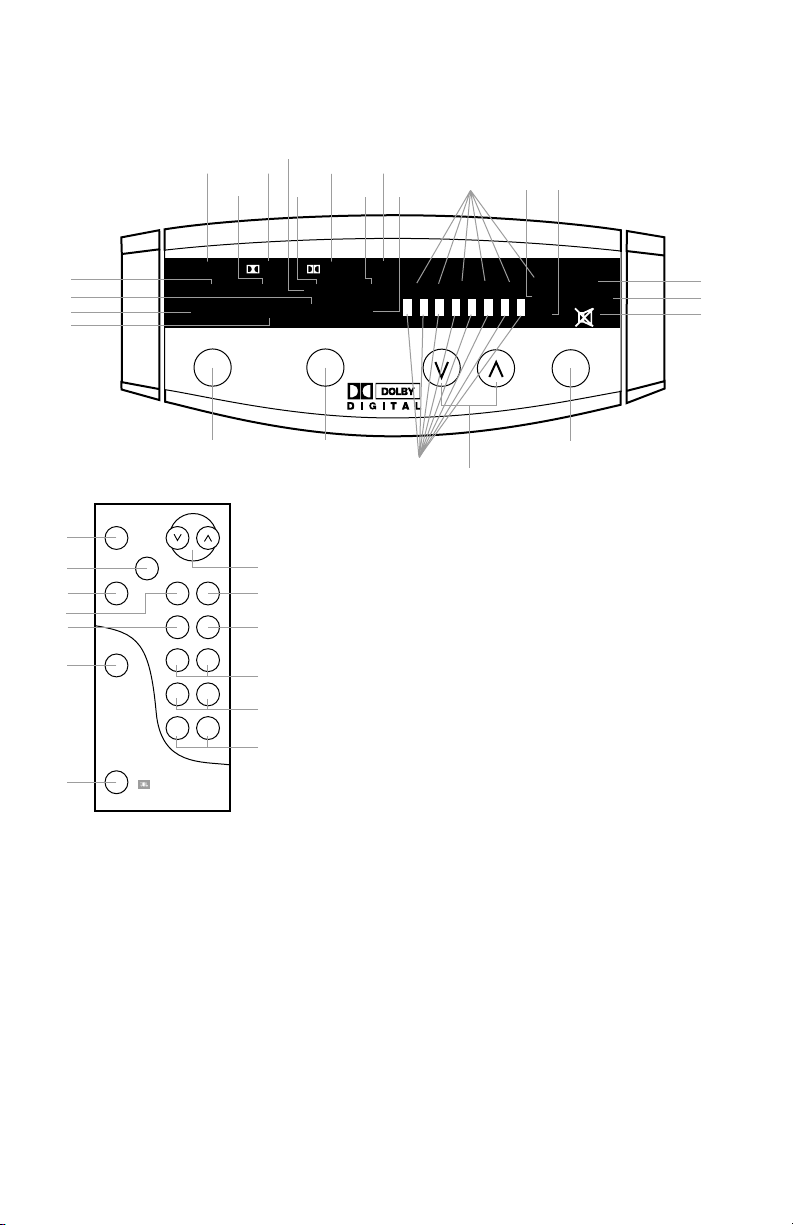
Remote and Front-Panel Controls and Indicators
Front Panel
Remote Control
1. Power
This button, located only on the
remote control, allows the user to
manually turn on or off the Media
3000. Please note that the Media
3000 features Automatic Turn-
On/Off, and the power switch is
not normally used unless it is
necessary to override this
automatic feature, or in case the
analog input to be used is not the
last one that was used and so
Automatic Turn-On is not
available for that input. Please
read the details regarding
Automatic Turn-On/Off on page 3
of this manual, and keep in mind
that if the Media 3000 is shut
down using this power button, its
automatic turn on feature will
remain disabled for five minutes
after the source connected to the
Media 3000 is shut down also.
This is to prevent the Media 3000
from repeatedly turning itself
back on despite the user’s wishes.
The Media 3000 can also be
powered on by using the Input
button (4) on the front panel of
the subwoofer or on the remote
control. Please note that if input
selection is done by pressing the
Input button, the Automatic
Digital Input Selection of the
Media 3000 will be disabled until
the Media 3000 shuts down.
When the Media 3000 is plugged
into a working electrical outlet
and its master switch on the back
panel is set to On/Standby, the
Standby (32) indicator will
illuminate. The ON (31) indicator
will light as soon as the Media
3000 is turned on either
automatically or via the pressing
of the Power or Input buttons.
2. Mute
From either the front panel or the
remote control, press (Mute) to
lower the volume completely. The
mute symbol indicator (33) will
illuminate. When you press either
of the mute buttons again, the
volume will return to its previous
setting.
Note: The mute function can also
be turned off by pressing either of
the volume buttons on the front
panel or the remote control.
3. Late Night
This feature is available for Dolby
Digital only. It compresses the
inherently dynamic digital sound
so that the quiet and loud
passages are not quite as
different in sound levels as they
ordinarily are. This feature allows
the user to watch movies and
listen to dialogue at toned-down
levels so as not to disturb others
with the loud sound effects that
may be present. The Late Night
indicator (26) illuminates when
this feature is active.

-10-
4. Input
This control is available on both
the front panel and the remote
control. It allows manual selec-
tion when the user repeatedly
presses and releases the button
for any of the Media 3000’s four
inputs. The Media 3000 features
an Automatic Digital Input
Selection feature that
automatically switches the
Media 3000 to the source
connected to one of its two
digital inputs as soon as that
device is powered on. Please
read the section on page 3 to
thoroughly familiarize yourself
with the conveniences and
conditions of using the
Automatic Digital Input
Selection feature. The Input
switch is also used when the
source connected to the Media
3000’s analog input is not the
analog source that was listened
to the last time the Media 3000
was on (and hence the
Automatic Turn-On feature is
not available). The Input switch
also turns on the Media 3000
when pressed (see item 1 earlier
in this section). Whenever a
specific input is selected either
manually or automatically, its
indicator (14, 15, 16 or 17) on
the Media 3000’s front panel
will be illuminated.
5. Surround Mode
Pressing and releasing this
button allows the selection of
different listening modes.
Surround (18), Phantom (19)
and 3-Stereo (20) are available
listening options for Dolby
Digital and Dolby Pro Logic.
Stereo (21) bypasses the
surround processing and out-
puts sound through the right-
and left-front speakers only. In
Surround mode, all five
satellites and the subwoofer will
play. In Phantom mode, all
speakers except the center
channel will play. In 3-Stereo,
all speakers except for the two
surround speakers will be active.
6. Volume
Press (∧) on the remote control
or the front panel to raise the
system’s volume. Press (∨) on
the remote control or the front
panel to lower the system’s
volume. The volume setting is
indicated on the status-bar
indicator (27).
7. 0 dB
Press this button to reset the
Center, Surround, Balance,
Treble and Bass controls to their
default positions.
8. Test
Press this button to activate the
Test Tone mode (see Test Tone
section).
9. Delay
The relative timing of sounds
coming from the center and/or
surround speakers compared to
the front-left and front-right
speakers can be adjusted. The
first press of this button allows
adjustment of the center
channel, all the way from the
default setting of 0 ms (milli-
seconds), which means no delay
(all status bars off), to a
maximum of 5 ms (5 status bars
on). The indicators C (28) and
DLY (30) will be on. The second
press of the Delay button allows
adjustments of the surround
speakers; indicators LS (28) and
RS (28) and DLY (30) will be on.
The delay can be adjusted from
zero (all status bars off) to
15 ms (all status bars on) in
5.1 Channel Dolby Digital and
from 15 ms (all status bars off)
to 30 ms (all status bars on) in
Dolby Pro Logic (there is an
inherent and fixed 15 ms of
delay added in the “matrixed”
Dolby Pro Logic to re-create the
proper surround effect). The
center and surround delay
adjustments can be done from
either Dolby Digital or Dolby Pro
Logic “matrixed” modes. There
are no separate delay
adjustments for the individual
modes of operation. During
adjustments, the audio mutes
momentarily every time the
Adjustment +/– button (11) is
pressed. Please note that the
status-bar indicator (27) will not
display unless Adjustment +/–
buttons are pressed. Also, while
the status-bar indicator (27) is
on, channel indicators (28) and
DLY (30) will not be displayed.
And, if adjustments are done in
a mode where a certain channel
is not available, the adjustment
step for that channel is skipped.
For example, in Phantom mode,
the center- channel delay
cannot be adjusted since
Phantom does not have a center
channel. In Stereo, neither the
center nor the surround delay
can be adjusted since Stereo
does not feature surround
speakers or a center speaker. A
third press of the Delay button
will exit the Media 3000 from its
delay-adjustment mode.
10. Level
The relative level of sounds
coming from each of the Media
3000’s speakers can be adjusted
while listening to program
material on the Media 3000.
Repeated pressing and releasing
of the Level button allows access
to each channel. The display will
indicate LVL (29), and the
channel indicators (28) LF (Left
Front), C (Center), RF (Right
Front), LS (Left Surround), RS
(Right Surround) and SUB
(subwoofer) will illuminate to
indicate the active speaker. The
level for the selected channel
can then be changed using the
Adjustment +/– buttons (11).

-11-
Levels set in one mode will stay
valid for all other modes and are
not independent. Please note
that the status-bar indicator
(27) will not display unless
Adjustment +/– buttons are
pressed. And, while the status-
bar indicator (27) is on, channel
indicators (28) and LVL (29) will
not be displayed. Also, if
adjustments are done in a mode
where a certain channel is not
available, the adjustment step
for that channel is skipped. For
example, in Phantom mode the
center-channel level cannot be
adjusted since Phantom does not
have a center channel. In stereo,
neither the center nor the
surround levels can be adjusted
since Stereo does not feature
surround speakers or a center
speaker. A seventh press of the
Level button will exit the Media
3000 from its level-adjustment
mode.
11. Adjustment
These buttons are used in
conjunction with Test (8), Delay
(9), and Level (10) to increase
or decrease a setting.
12. Bass
Press (+) to increase the level of
low-frequency information.
Press (–) to decrease the level
of low-frequency information.
13. Treble
Press (+) to increase the level of
high-frequency information.
Press (–) to decrease the level
of high-frequency information.
14–17. Input
One of these four indicators will
illuminate, depending on which
input is selected.
18–21. Surround
One of these will illuminate,
depending on which surround
mode is chosen.
22. Dolby Digital
Indicates the presence of a
Dolby Digital-encoded AC-3
digital signal.
23. 5.1-Ch
Works in conjunction with the
Dolby Digital indicator (22).
This indicator illuminates when
the Dolby Digital signal
contains 6 discrete channels of
information (one subwoofer and
five satellite channels).
24. Dolby Pro Logic
Illuminates when Dolby Pro
Logic decoding of a 2-channel
signal is taking place. This
indicator may be on by itself
(when analog inputs are used),
in conjunction with Dolby
Digital (when using a digital
input where the AC-3 format
signal contains two channels
and needs to be decoded into
multichannel) or together with
PCM (when using a digital input
where 2-channel PCM-format
data is being decoded into
multichannel).
25. PCM
Illuminates when the signal
supplied through the selected
digital input is in PCM format.
26. Late Night
Illuminates when the Late Night
compression is selected.
27. Status-Bar Indicator
These LEDS show the relative
setting of volume, bass, treble,
speaker level and speaker delay.
28. Speaker Indicator
Identifies the speaker that’s
being adjusted. LS is Left
Surround, LF is Left Front, C is
Center, RF is Right Front, RS is
Right Surround, and SUB is
Subwoofer.
29. Level
Illuminates when the Media
3000 is in speaker-level
adjustment mode.
30. Delay
Illuminates when the Media
3000 is in speaker-delay
adjustment mode.
31. On
Indicates that the Media 3000 is
fully powered up.
32. Standby
Indicates that the Media 3000 is
plugged into an active wall
outlet and the master switch on
the back panel is in On/Standby
position, but the unit is not
powered on.
33. Mute
Illuminates when the mute
function is activated (the Media
3000 will be on but will not
produce any sound).

-12-
LED Bar Indicators illuminate in
response to adjustments in
volume, delay, level, bass and
treble controls.
Status-Bar Indicators
Increase Decrease
Volume, Level, Delay
0dB
0dB
Increase Decrease
Bass, Treble

-13-
Surround
Use this mode for movie or
music recorded using Dolby
Digital or Dolby Pro Logic
Surround.
Phantom
This mode creates surround
sound from stereo recordings.
The center channel is not used
and the surround channels have
a 20-ms delay.
3-Stereo Mode
Use this mode to play back Pro
Logic-encoded films when you
do not want the surround
channels to play.
Stereo
This mode plays a recording in
traditional two-channel stereo.
Surround Modes
The Test Tone is used to
calibrate the volume settings of
each of the speakers in the
Media 3000. It is dependent on
the room where the system is
set up and the relative
distances and positions of each
speaker to the listening
position. In Dolby Digital mode,
a static-like noise will be heard
cycling, in order: left front,
center, right front, right
surround, left surround,
subwoofer. In modes other than
Dolby Digital, the sound from
the two surrounds will be
coming at the same time, since
the surrounds in all available
modes, except in Dolby Digital,
are in mono. When the Test
Tone is heard coming from a
specific channel, pressing the
Adjustment +/– (11) buttons
will increase or decrease the
level of sound coming from that
channel. The display status-bar
indicator (27) provides visual
indication of the adjustment as
the adjustment is being made.
The default adjustment level of
0 dB is indicated by five status-
bar indicators illuminated.
If adjustments are done in a
mode where a certain channel is
not available, the adjustment
step for that channel is skipped.
For example, in Phantom mode,
the center-channel level cannot
be adjusted since Phantom does
not have a center channel. In
stereo, neither the center nor
the surround levels can be
adjusted since Stereo does not
feature surround speakers or a
center speaker.
Using the remote control,
adjust each channel’s levels
until the volume of all the
speakers is the same during the
test. To make sure all channels
are properly adjusted, do the
test twice, once in Dolby Digital
(Dolby Digital is automatically
selected when the Media 3000
is connected to a DVD player’s
digital output, that specific
digital input is selected, and
the DVD player is playing Dolby
Digital-encoded material) and
once again in Dolby Pro Logic.
Note: The Test Tone is used to
calibrate the system to
reproduce all program materials
at the correct relative levels, as
was determined by the
recording engineers. When
listening to actual surround-
encoded program material, the
volume level of the surround
channels is generally lower than
that of the front channels. In
fact, virtually all of the dialogue
and a substantial number of the
effects in a movie are
reproduced through the center
channel.
Test Tone

-14-
If there is no sound from any
of the speakers:
• Make sure the subwoofer is
plugged into an active AC
wall outlet.
• Make sure the Master Power
Switch, located on the rear of
the subwoofer, is in the
On/Standby position.
• Make sure there is a source –
for example, a DVD Player, or
DVD equipped computer –
hooked up to one of the four
input jacks.
• Make sure that the program
material is playing.
• Recheck the hookup
connections, referring to the
Speaker Connections section.
If there is no sound from the
surround speakers or
sound is very low:
• Check all connections
between processor/amplifier
and each of the speakers.
• Raise the surround volume
from the remote control (see
Operation section).
• Make sure the movie you are
watching or the software you
are using are recorded in
Dolby Digital or Pro Logic
Surround. If it is not, try the
Phantom or Simulated
Surround mode.
• Increase the surround-
speakers’ level, using the
level-adjustment instructions
found earlier in this manual.
If there is no sound from the
center speaker:
• Make sure that the processor
is in the Surround or
3-Stereo mode. If it is in
Phantom or Stereo mode, the
center speaker will not play.
• Increase the level of the
center channel, using the
level-adjustment instructions
earlier in this manual.
• Check the connections
between the subwoofer and
the center speaker.
If you have low bass output:
• Experiment with placement
of the subwoofer. Remember,
place the subwoofer in a
corner to get maximum bass
output from the system.
• Increase the subwoofer level,
using the level-adjustment
instructions found earlier in
this manual.
• Increase the level of bass,
using the remote control.
Troubleshooting

-15-
Specifications
Media 3000 System
Power Output
Satellites:
35 Watts x 5 @ 0.1% THD
Subwoofer:
65 Watts x 1 @ 0.1% THD
Signal-to-Noise Ratio
90 dBA
Input Impedance
(analog inputs)
20k ohms
Input Sensitivity
(analog inputs)
400mV
Auto Turn-On Sensitivity
(analog inputs)
2mV
Frequency Response (–6 dB)
35Hz – 20kHz
Dimensions (H x W x D)
Satellites (each):
4-3/8 x 3-3/16 x 3-3/4 inches
111 x 81 x 95mm
Subwoofer:
15-1/8 x 13 x 14-1/2 inches
384 x 330 x 368mm
Occasional refinements may
be made to existing products
without notice, but will always
meet or exceed original
specifications unless otherwise
stated.
JBL Consumer Products
250 Crossways Park Drive, Woodbury, NY 11797
8500 Balboa Boulevard, Northridge, CA 91329
1-800-336-4JBL (4525) (USA only)
Harman Consumer International: 2, route de Tours, 72500 Château-du-Loir, FRANCE
www.jbl.com
©
1999 JBL, Incorporated.
JBL are registered trademarks of JBL, Incorporated.
*Trademarks of Dolby Laboratories.
Part No. Media 3000OM
CAUTION:
TO REDUCE THE RISK OF ELECTRIC SHOCK, DO NOT REMOVE
COVER (OR BACK). NO USER-SERVICEABLE PARTS INSIDE. REFER
SERVICING TO QUALIFIED SERVICE PERSONNEL.
WARNING:
TO REDUCE THE RISK OF FIRE OR ELECTRIC SHOCK,
DO NOT EXPOSE THIS APPLIANCE TO RAIN OR MOISTURE.
Handle the Power Cord Gently
• To disconnect the plug from the AC outlet, pull on the plug itself,
not on the cord. Pulling the cord may break the wire.
• Disconnect the plug from the AC outlet whenever the unit is to be
left unused for an extended period of time.
• Do not place furniture or other heavy objects on the cord, and
avoid dropping heavy objects on it. Also, do not make a knot
in the cord; this can damage it and cause a fire hazard.
The lightning flash with arrowhead
symbol, within an equalateral triangle,
is intended to alert the user to the
presence of uninsulated “dangerous voltage”
within the product’s enclosure that may be of
sufficient magnitude to constitute a risk of
electric shock to persons.
The exclamation point within an
equilateral triangle is intended to
alert the user to the presence of
important operating and maintenance
(servicing) instructions in the literature
accompanying the appliance.
CAUTION
RISK OF ELECTRIC SHOCK
DO NOT OPEN