

PAGE 2
All Rights Reserved. Used under license by Easy Heat Inc.
1. Contents
2. Menu Overview . . . . . . . . . . . . . .3
3. Introduction . . . . . . . . . . . . . . . . 4
4. General Operation . . . . . . . . . . . .5
4.1.Navigation Buttons . . . . . . . . . . 6
5. Ground Fault Circuit Interrupter
(GFCI) 1/2
. . . . . . . . . . . . . . . . . .7
5. Ground Fault Circuit Interrupter
(GFCI) 2/2
. . . . . . . . . . . . . . . . . .8
6. Icons 1/2. . . . . . . . . . . . . . . . . . . 9
6. Icons 2/2. . . . . . . . . . . . . . . . . . 10
7. Startup Wizard . . . . . . . . . . . . . . 11
7.1 Set the language . . . . . . . . . . . 12
7.2 System Test . . . . . . . . . . . . . . 13
7.3 GFCI Test. . . . . . . . . . . . . . . . 14
7.4 Set the preferred temperature unit 15
7.5 Set the floor load . . . . . . . . . . . 16
7.6 Set the sensor type. . . . . . . . . . 17
7.7 Set the date . . . . . . . . . . . . . . 18
7.8 Set the time . . . . . . . . . . . . . . 19
7.9 Set floor protection . . . . . . . . . 20
7.10 Thermostat activation . . . . . . . 21
8. Programed Heating Schedule . . . . 22
9. Operating Choices . . . . . . . . . . . 23
9.1 Scheduled Operation . . . . . . . . 24
9.2 Manual Operation. . . . . . . . . . . 25
9.2.1 Manual Operation Adjust . . . . . 26
9.2.1.1 Adjust... for a few hours. . . . . 27
9.2.1.2 Adjust... for a few days . . . . . 28
9.2.1.3 Adjust... permanently . . . . . . 29
10. Thermostat Setup Menu . . . . . . 30
10.1 Heating Schedule 1/2 . . . . . . . 31
10.1 Heating Schedule 2/2 . . . . . . . 32
10.2 Energy Use . . . . . . . . . . . . . 33
10.3. User Settings . . . . . . . . . . . . 34
10.3.1 Child Lock 1/2 . . . . . . . . . 35
10.3.1 Child Lock 2/2 . . . . . . . . . 36
10.3.2 Display Brightness . . . . . . . 37
10.3.3 Screen Saver . . . . . . . . . . 38
10.3.4 Energy Tari . . . . . . . . . . . 39
10.3.5 Date . . . . . . . . . . . . . . . 40
10.3.6 Time . . . . . . . . . . . . . . . 41
10.3.7 Daylight Saving Time . . . . . 42
10.3.8 Unit . . . . . . . . . . . . . . . . 43
10.3.9 Language . . . . . . . . . . . . 44
10.3.10 Information . . . . . . . . . . 45
10.3.11 Support . . . . . . . . . . . . 46
10.3.12 User Reset . . . . . . . . . . . 47
10.4 Installer Settings . . . . . . . . . . 48
10.4.1 Adaptive Function . . . . . . . 49
10.4.2 Open Window . . . . . . . . . 50
10.4.3 Sensor Application 1/2 . . . . 51
10.4.3 Sensor Application 2/2 . . . . 52
10.4.4 Sensor Type 1/2 . . . . . . . . 53
10.4.4 Sensor Type 2/2 . . . . . . . . 54
10.4.5 Floor Sensor Calibration . . . 55
10.4.6 Room Sensor Calibration . . . 56
10.4.7 Floor Protection 1/2 . . . . . . 57
10.4.7 Floor Protection 2/2 . . . . . . 58
10.4.8 Factory Reset . . . . . . . . . . 59
11. Factory Settings . . . . . . . . . . . . 60
12. Troubleshooting . . . . . . . . . . . . 61
13. Contact data . . . . . . . . . . . . . . 62
>
<
Contents
PAGE 3
All Rights Reserved. Used under license by Easy Heat Inc.
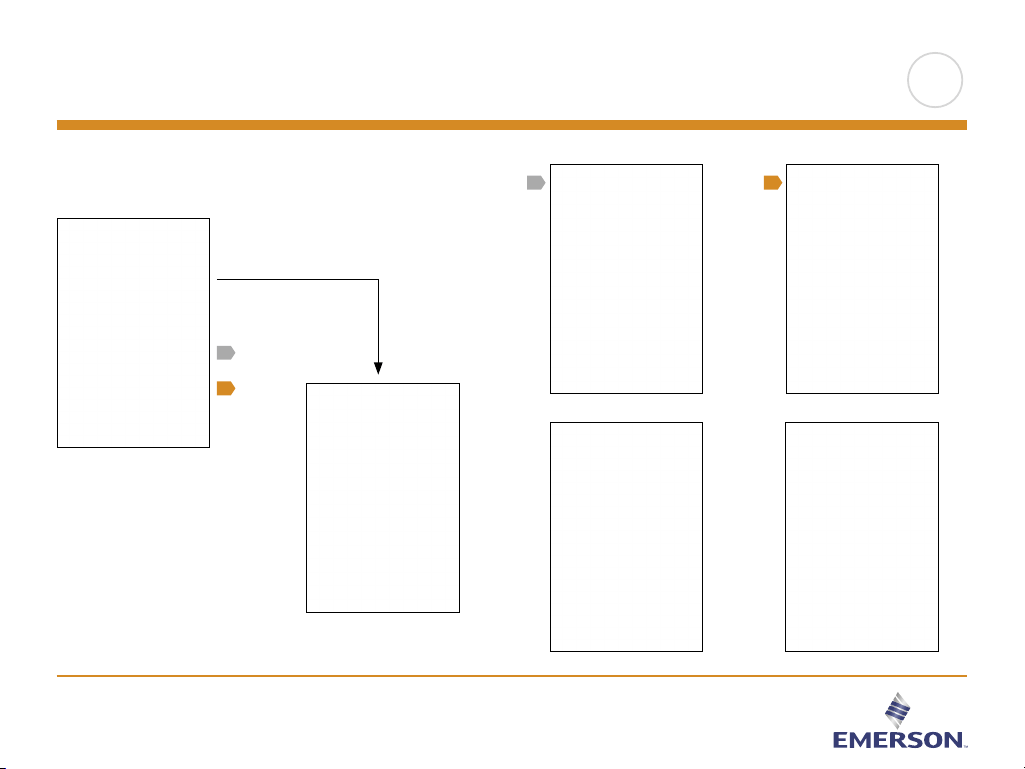
2. Menu Overview
Menu Structure
Clickable Images Hover
mouse over images, click
and it will link you to the
appropriate information.
>
<
Contents

PAGE 4
All Rights Reserved. Used under license by Easy Heat Inc.
3. Introduction
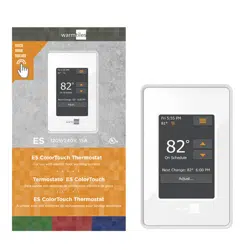
Congratulations on the purchase of your new touch
thermostat. We hope that you will enjoy the ease of use
oered by the touchscreen and the intuitively designed
user interface. You can program the thermostat in any
way you would like with the options provided under
Heating Schedule and User Settings.
The thermostat will switch your underfloor heating
system on at predetermined times each day of the
week. You can set individual temperatures for up to six
separate events for each day of the week. Lowering the
temperature when your home is unoccupied will reduce
your energy costs without reducing comfort.
The thermostat comes with a preset heating schedule
that is suitable for most homes. Unless you change the
settings, the thermostat will operate according to this
preset heating schedule.
The thermostat features an adaptive function that
automatically changes the heating start times to ensure
that the required temperature has been reached at the
beginning of any specific event. After a few days, the
adaptive function will have learned how much earlier the
heating must be switched on.
The resistive touchscreen only requires a soft tap with
your fingertip to register the touch.
In this manual, the touch areas on the screen will be
referred to as buttons.
>
<
Contents

PAGE 5
All Rights Reserved. Used under license by Easy Heat Inc.
The thermostat has two physical buttons. A ground fault circuit interrupter (GFCI)
test button is located on top of the thermostat, and a power/reset button is located
on the right side of the thermostat.
The GFCI should be tested monthly (all settings, including time and date, will be
remembered).
The thermostat is an intuitively operated touch thermostat in which the touchscreen
is used to navigate through the menus and to change the settings.
The function of the buttons and icons on the home screen can be seen below.
4. General Operation
t
q
>
<
Contents
PAGE 6
All Rights Reserved. Used under license by Easy Heat Inc.
4.1.Navigation Buttons
Accept/Back/Cancel/Arrow Up/Arrow Down/Arrow Left/Arrow Right
Whenever you change a parameter setting, you must tap the “Accept” button for the
thermostat to acknowledge the change.
“Accept” is shown on the screen as “√”.
“Back” is shown on the screen as a button marked with a hollow arrow pointing to
the left.
In the various menus and submenus, you will find the “Back” button in the upper
left corner of the touchscreen.
Tap the “Back” button to return to the previous menu.
“Cancel” is shown on the screen as a button marked “X”.
Although “Cancel” has the same eect as “Back”, it also results in all the unsaved
settings being discarded.
As soon as you leave a home screen and enter one of the menus, either a “Back”
button or a “Cancel” button will be shown.
To return to the home screen, tap Back/Cancel once or multiple times depending
on where you are in the menu structure.
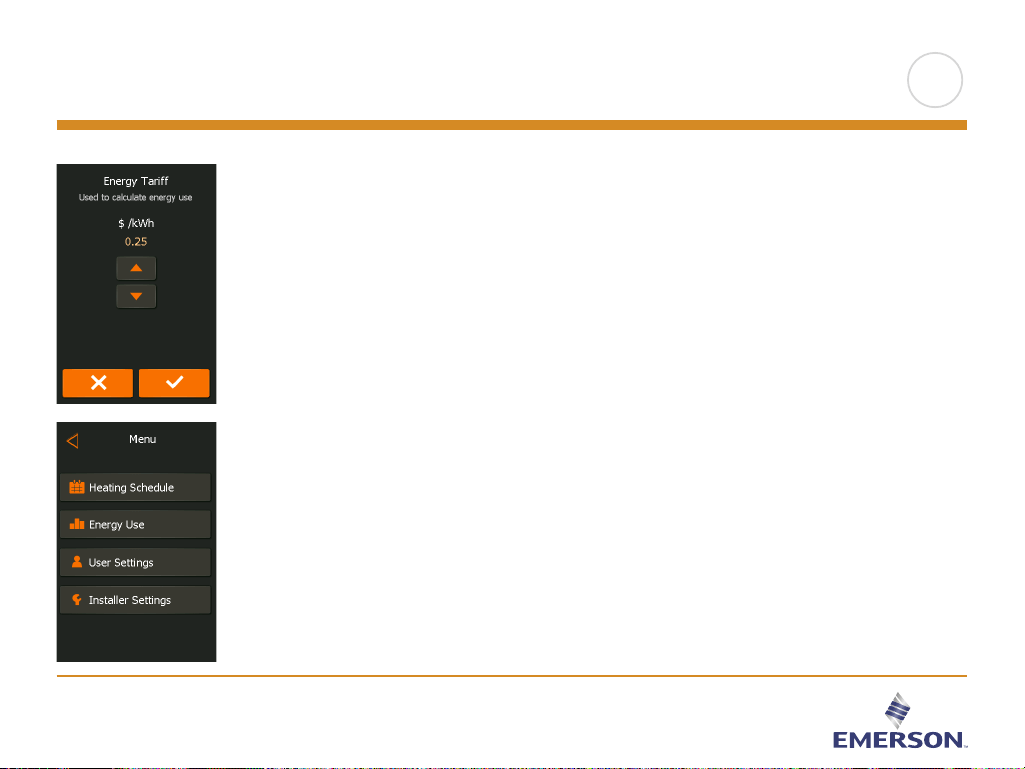
“Arrow Up”, “Arrow Down”, “Arrow Left”, and “Arrow Right” are used to toggle
settings and values and to navigate through the menus. The “Arrow Up” and “Arrow
Down” buttons are accelerated buttons. Holding either of them will make the value
change continuously.
>
<
Contents
PAGE 7
All Rights Reserved. Used under license by Easy Heat Inc.
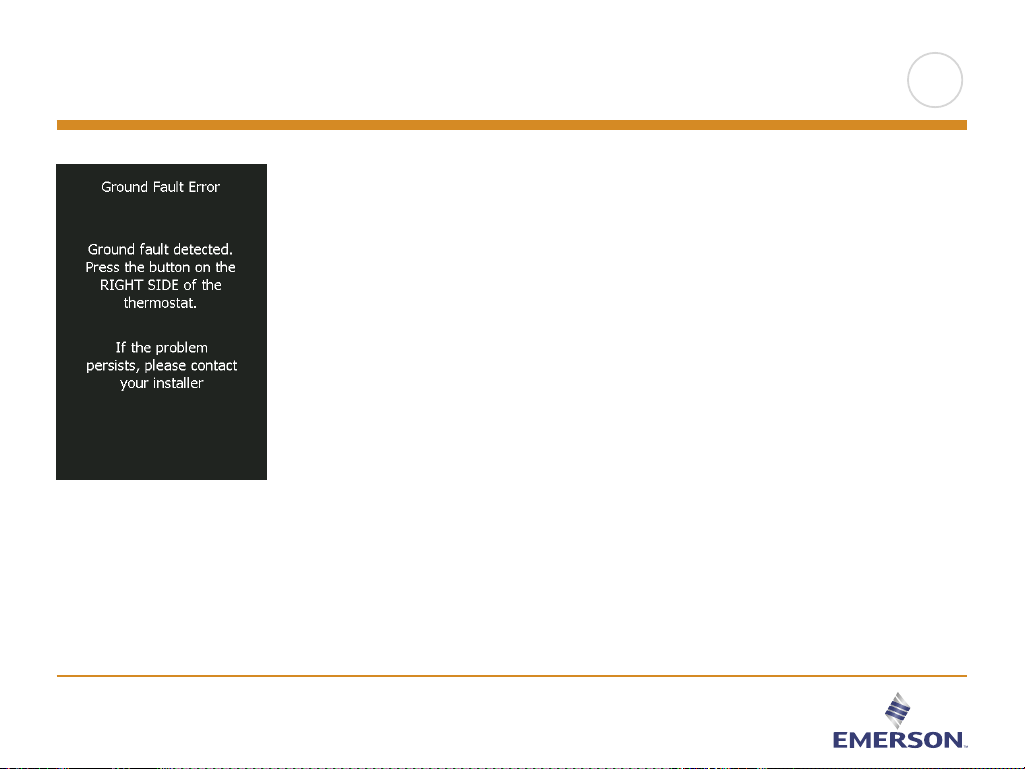
The thermostat has a built-in GFCI that ensures personal safety in case of ground
faults.
It is important that the GFCI is tested monthly. Installation and use must be
according to the national and local regulations.
Testing the GFCI:
Press the “TEST” button.
The test is successful if the red LED on the right of the thermostat flashes once
every two seconds and “GROUND FAULT” appears on the display. If this does not
occur, check the installation.
Press the “Standby/Reset” button to reset the GFCI.
The red LED will stop flashing and the display returns to normal appearance.
If the test fails, repeat the test. If it continues to fail, ask an electrician to check the
installation.
If, during normal operation, the GFCI trips without the “TEST” button being pressed,
there could be a ground fault! To check whether it is a ground fault or nuisance
tripping, press “Standby/Reset”. If this causes the red LED to stop flashing and
stay o, it was nuisance tripping and the system is operating correctly. If this does
not occur, there is a ground fault! In case of a ground fault, it is important to have
the installation checked by a qualified electrician according to local and national
regulations.
5. Ground Fault Circuit Interrupter (GFCI) 1/2
>
<
Contents

PAGE 8
All Rights Reserved. Used under license by Easy Heat Inc.
The red LED on the right of the thermostat can indicate four dierent GFCI states:
1. LED o – NORMAL state.
2. LED flashing slowly (once every two seconds) – TRIGGERED state. Try pressing
the “Standby/Reset” button to reset the GFCI.
3. LED flashing quickly (five flashes per second) – ERROR state. Try switching the
power o and then back on again. If the thermostat re-enters ERROR state, ei-
ther the wiring is wrong (a ground-neutral short exists) or the unit is defective and
must be replaced.
4. LED lit constantly – Internal microprocessor malfunction or abnormal hardware
fault! Try switching the thermostat o and then back on again. If the LED still
lights constantly, the GFCI is defective and the thermostat must be replaced.
Note: The LED lights up briefly without flashing during every power-up.
5. Ground Fault Circuit Interrupter (GFCI) 2/2
>
<
Contents
PAGE 9
All Rights Reserved. Used under license by Easy Heat Inc.
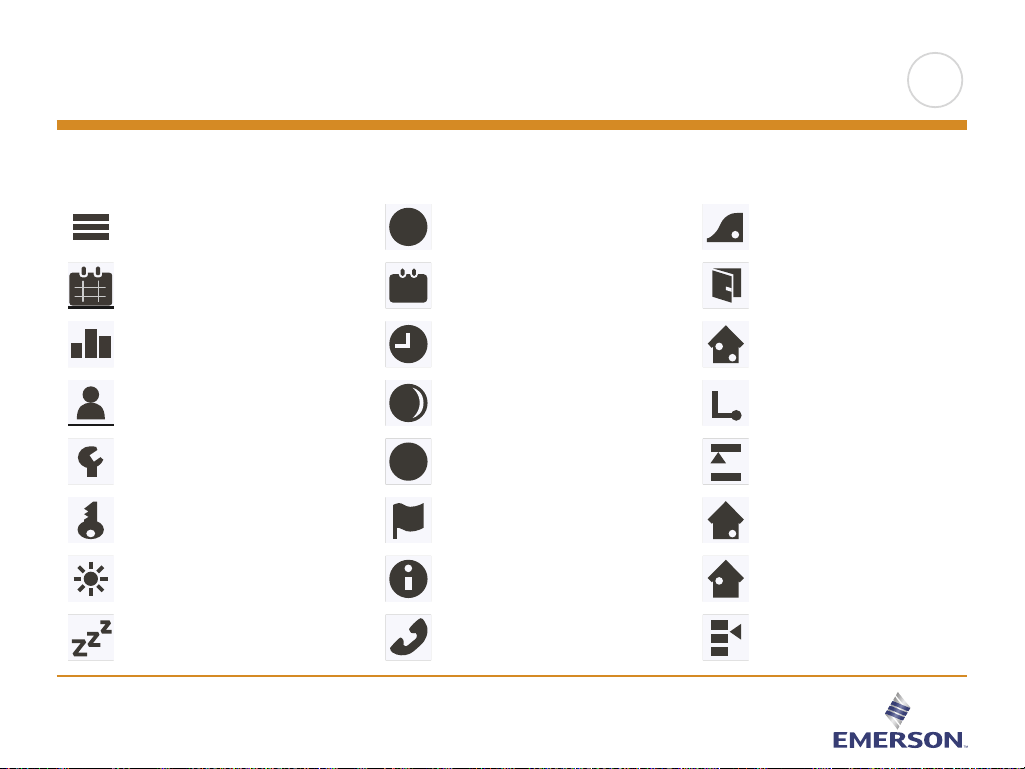
6. Icons 1/2
Menu
Heating Schedule
Energy Use
User Settings
Installer Settings
Child Lock
Display Brightness
Screen Saver
screen saver
+
Icon
Meaning
Energy Tari
Date
Time
Daylight Saving Time
Unit
Language
Information
Support
$
7
5
°
Icon
Meaning
Adaptive Function
Open Window
Sensor Application
Sensor Type
Floor Protection
Floor Sensor
Calibration
Room Sensor
Calibration
Temperature Scale
Icon
Meaning
>
<
Contents
PAGE 10
All Rights Reserved. Used under license by Easy Heat Inc.
6. Icons 2/2
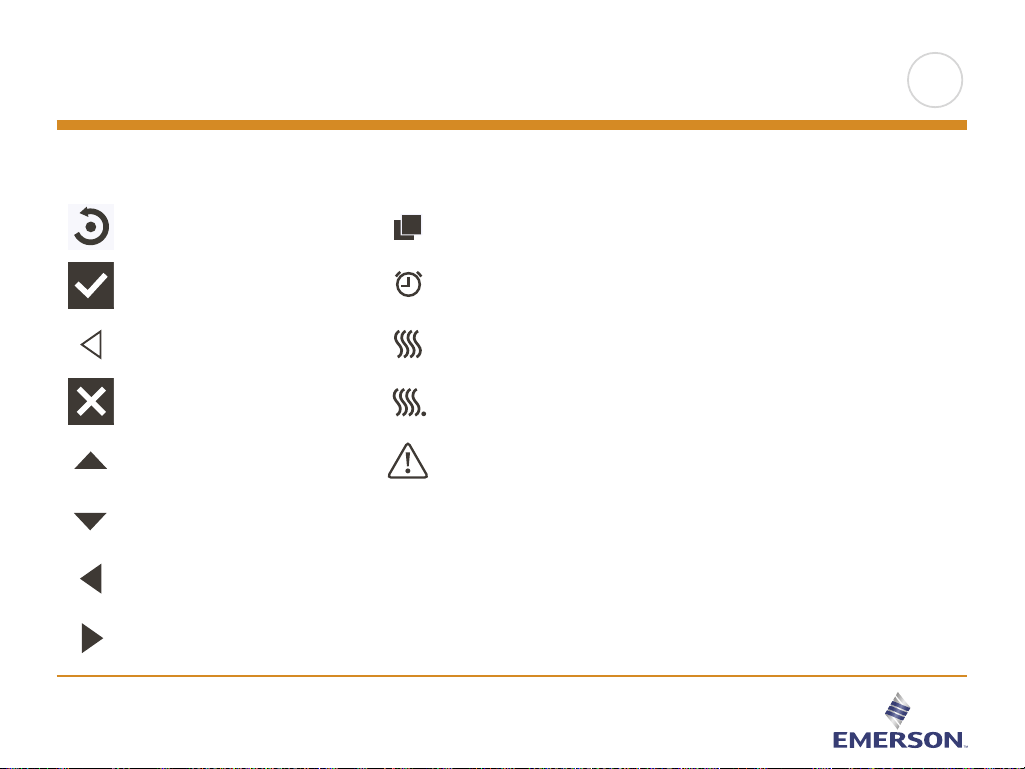
Factory Reset
Accept
Back
Cancel
Arrow Up
Arrow Down
Arrow Left
Arrow Right
screen saver
+
screen saver
+
screen saver
+
screen saver
+
screen saver
+
screen saver
+
screen saver
+
Icon
Meaning
Copy to
“Adjust… for a few days” in the future is activated
Heating is activated
Heating is activated with adaptive mode
Note
screen saver
+
screen saver
+
screen saver
+
screen saver
+
screen saver
+
Icon
Meaning
>
<
Contents

PAGE 11
All Rights Reserved. Used under license by Easy Heat Inc.
7. Startup Wizard
When the system has been installed and turned on for the first time, or after you
have performed a factory reset, the system will run a Startup Wizard.
The Wizard will take you through tests, which ensure that the thermostat is fully
functional. After the tests, the Wizard leads you through a basic setup routine to
ensure that you have the right settings. The following pages will show a guide on
the Wizard.
>
<
Contents
PAGE 12
All Rights Reserved. Used under license by Easy Heat Inc.
7.1 Set the language
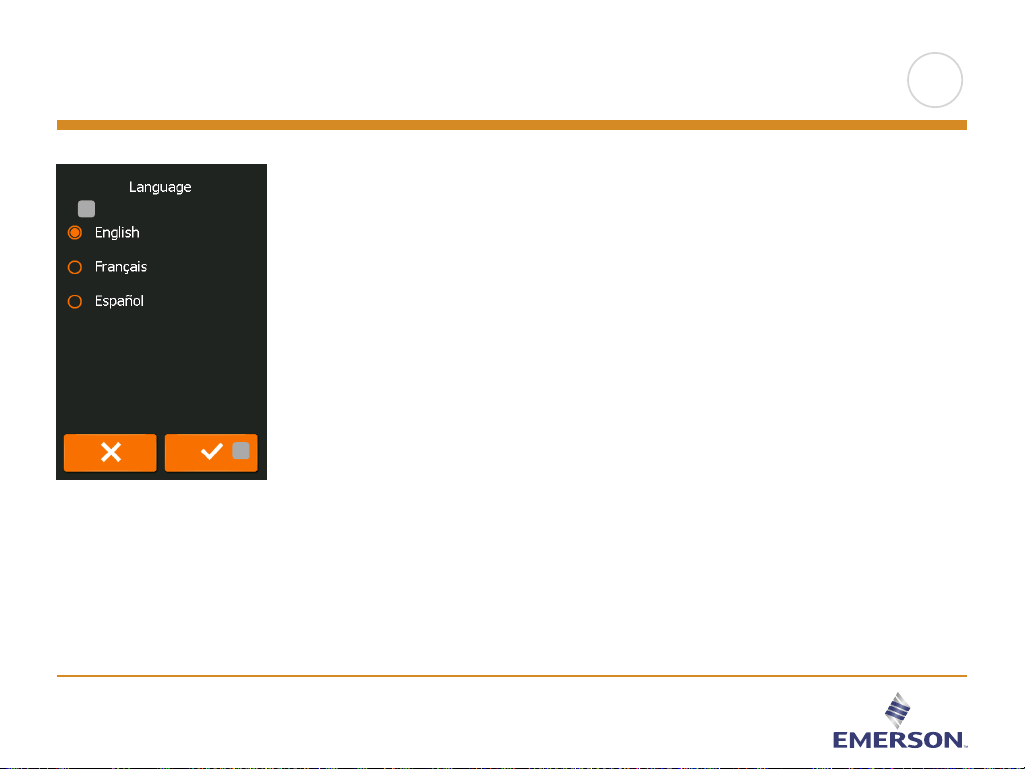
First you must set the language. The chosen language will become the default
language for the thermostat. The language can be changed under Menu/User
Settings/Language.
1. Tap the language you prefer.
2. Tap the “Arrow Right” button to continue.
1
2
>
<
Contents
PAGE 13
All Rights Reserved. Used under license by Easy Heat Inc.
7.2 System Test
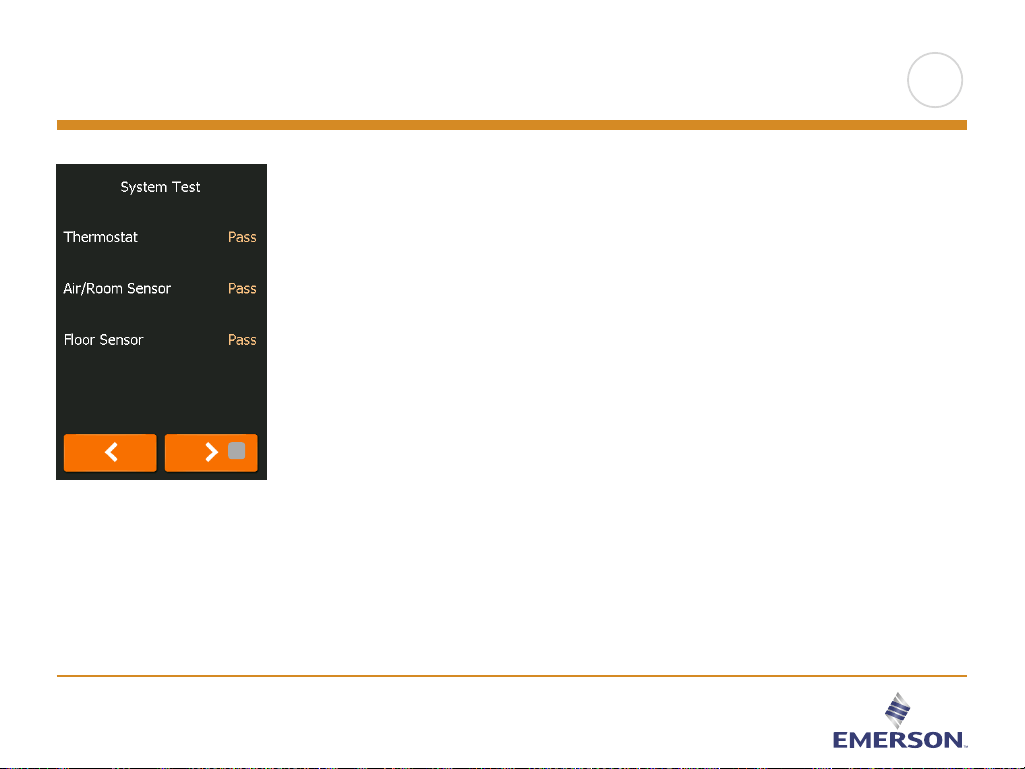
System Test is an automatic test of the thermostat and sensors.
If a test results in ‘Fail,’ please contact your installer.
Note: if the thermostat is to operate with an air/room sensor only, the floor sensor
test will result in ‘Fail’ being shown.
1. Tap the “Arrow Right” button to continue.
1
>
<
Contents

PAGE 14
All Rights Reserved. Used under license by Easy Heat Inc.
7.3 GFCI Test
1. Press the test button on the top of the thermostat.
The test is successful if the red light in the test button lights up and a GFCI error
text is shown on the display.
2. Press the power/reset button on the lower right side of the thermostat to reset the
GFCI.
3. Tap the “Arrow Right” button to continue.
3
>
<
Contents
PAGE 16
All Rights Reserved. Used under license by Easy Heat Inc.
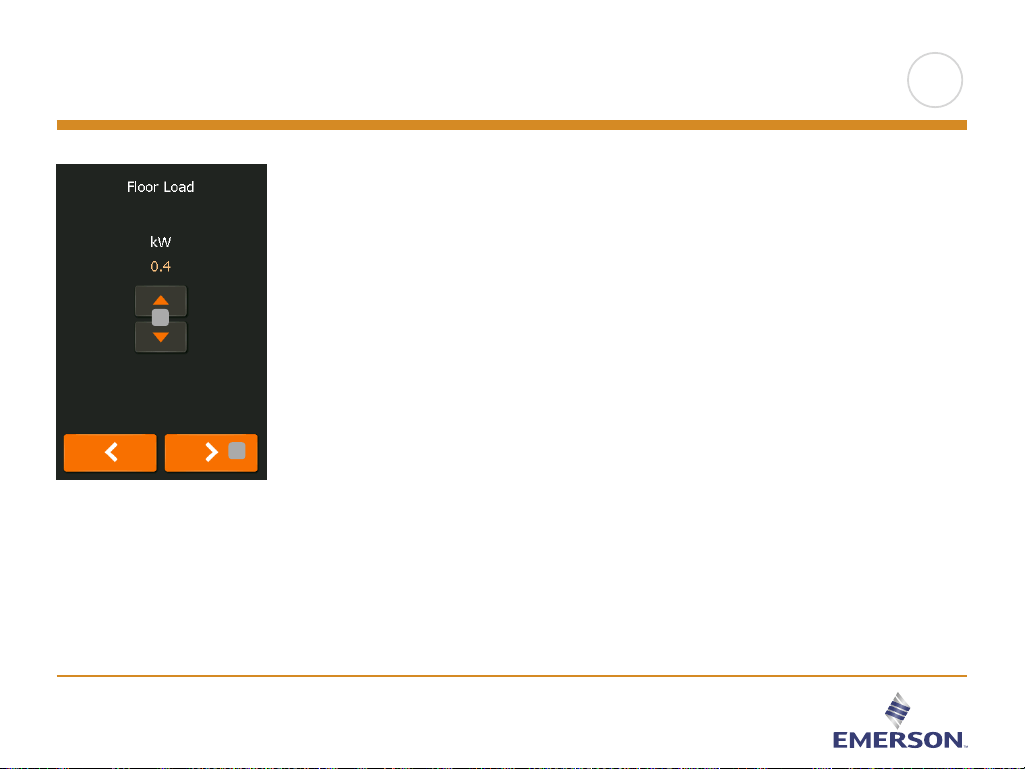
7.5 Set the floor load
1. Set the load of the underfloor heating system to be controlled by the thermostat.
• Floor load in kW is equal to the total wattage of cable or cables connected to
the thermostat divided by 1000. The cable wattage value can be found on the
tag at the end of the cable behind the thermostat.
Example: Thermostat with two cables connected
DHEHK 120 16 with a wattage value of 203 Watts
DHEHK 120 32 with a wattage value of 405 Watts
Cable #1 (W) + Cable #2 (W) / 1000 = Floor load (kW)
(203 + 405) / 1000 = 0.6 kW
2. Tap the “Arrow Right” button to continue.
This setting can be changed later if a factory reset is performed.
1
2
>
<
Contents
PAGE 17
All Rights Reserved. Used under license by Easy Heat Inc.
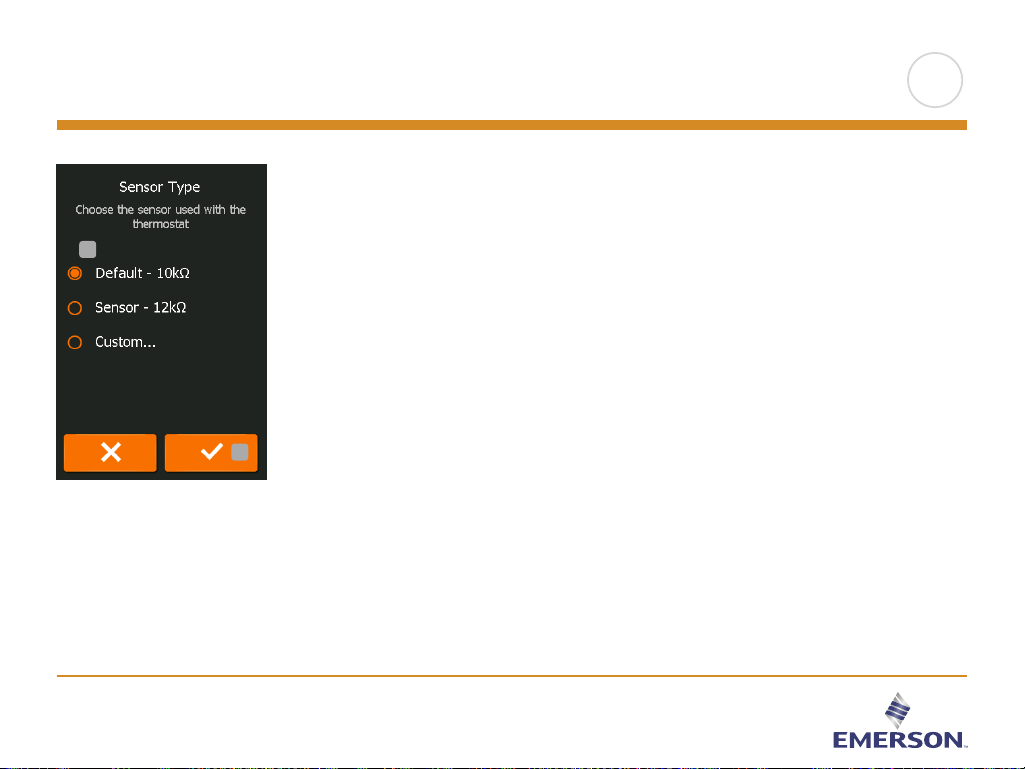
Choose which floor sensor type is used with the thermostat.
1. Tap the sensor type installed in the floor.
2. Tap the “Arrow Right” button to continue.
If you want to use the thermostat with the room sensor only, you must complete
the Setup Wizard using “Default” as the floor sensor type before going to: Menu/
Installer Settings/Sensor Application and choosing “Room”.
7.6 Set the sensor type
1
2
>
<
Contents
PAGE 20
All Rights Reserved. Used under license by Easy Heat Inc.
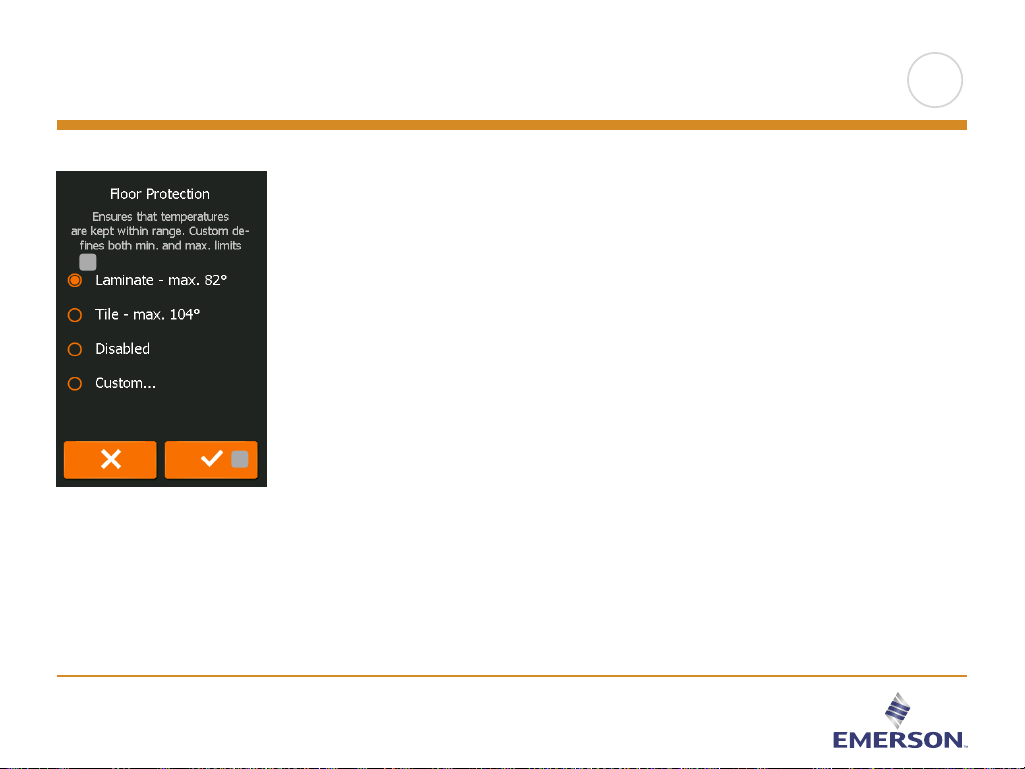
7.9 Set floor protection
Set the floor protection according to the floor type.
1. Tap the preferred limits that are used to protect the floor.
2. Tap “√” to continue
Floor protection settings can be changed under Menu/Installer Settings/Floor
Protection.
1
2
>
<
Contents
PAGE 21
All Rights Reserved. Used under license by Easy Heat Inc.
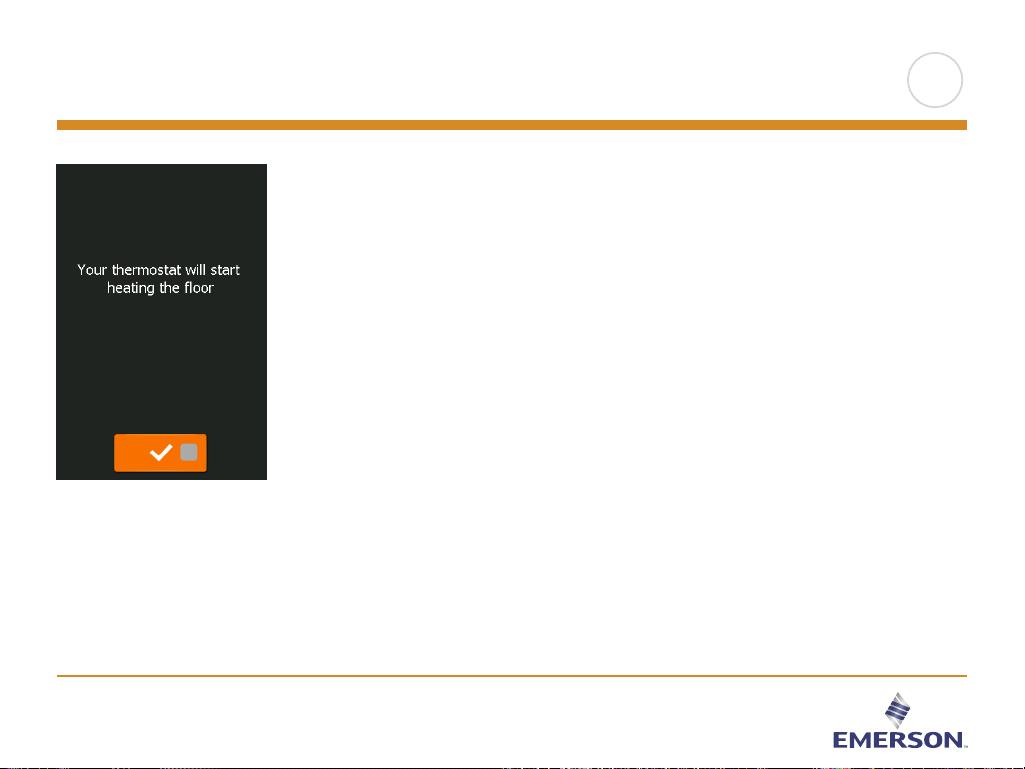
7.10 Thermostat activation
1. Tap the “√” button to activate the thermostat.
1
>
<
Contents

PAGE 22
All Rights Reserved. Used under license by Easy Heat Inc.
The thermostat allows you to control the temperature automatically according to
a weekly schedule of your choice. The thermostat comes with a preprogramed
schedule for easy and economic heating control of most homes, see 11. Factory
Settings: Preset Schedule.
The schedule can be changed under Menu/Heating Schedule
8. Programed Heating Schedule
>
<
Contents

PAGE 24
All Rights Reserved. Used under license by Easy Heat Inc.
9.1 Scheduled Operation
The system will operate in Scheduled Operation unless you choose to override the
scheduled events with Manual Operation or the thermostat application is set to
Regulator mode.
During Scheduled Operation, the temperature is controlled automatically according
to the programed heating schedule – see “Heating Schedule”.
The function of the buttons and symbols shown on the home screen varies
according to the chosen operating mode.
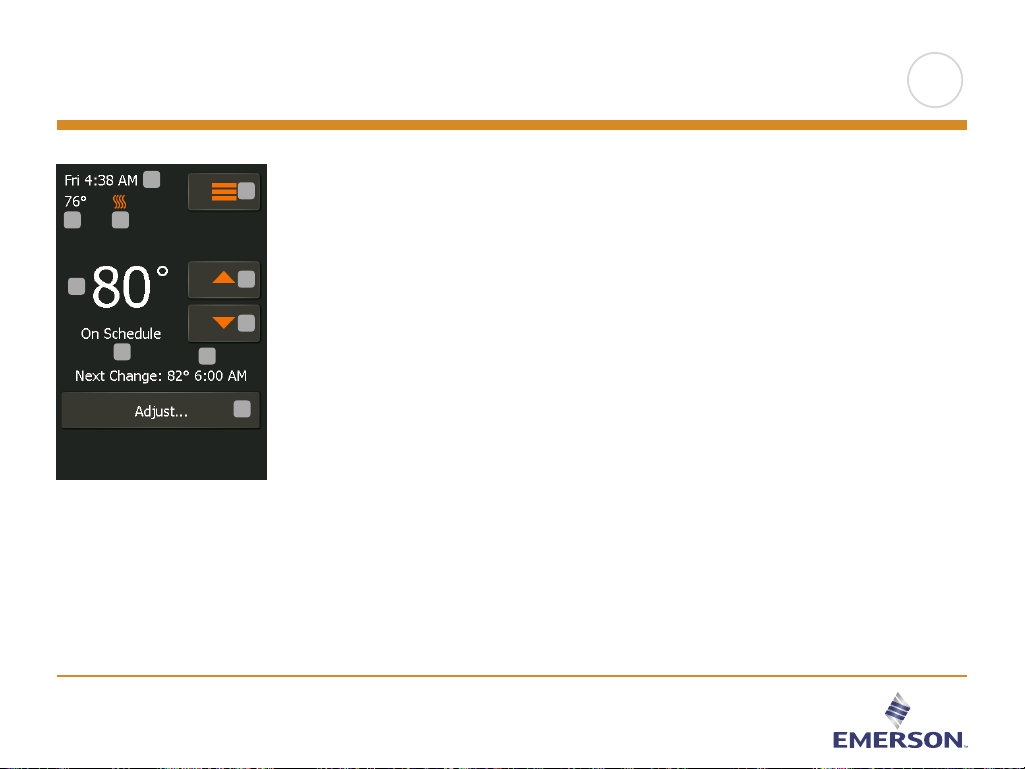
Scheduled Operation home screen:
1. Day and time.
2. Measured temperature.
3. Heating indicator. If visible, the underfloor heating system is currently active.
4. Tap here to access the menu.
5. Current target temperature/setpoint.
6. Tap here to increase the temperature.
7. Tap here to decrease the temperature.
8. Current thermostat operating mode.
9. Information on the next thermostat behavior change.
10. Tap here to adjust the length of time the displayed target temperature/setpoint is
to remain valid.
1
2 3
4
5
6
7
8
9
10
>
<
Contents
PAGE 25
All Rights Reserved. Used under license by Easy Heat Inc.
9.2 Manual Operation
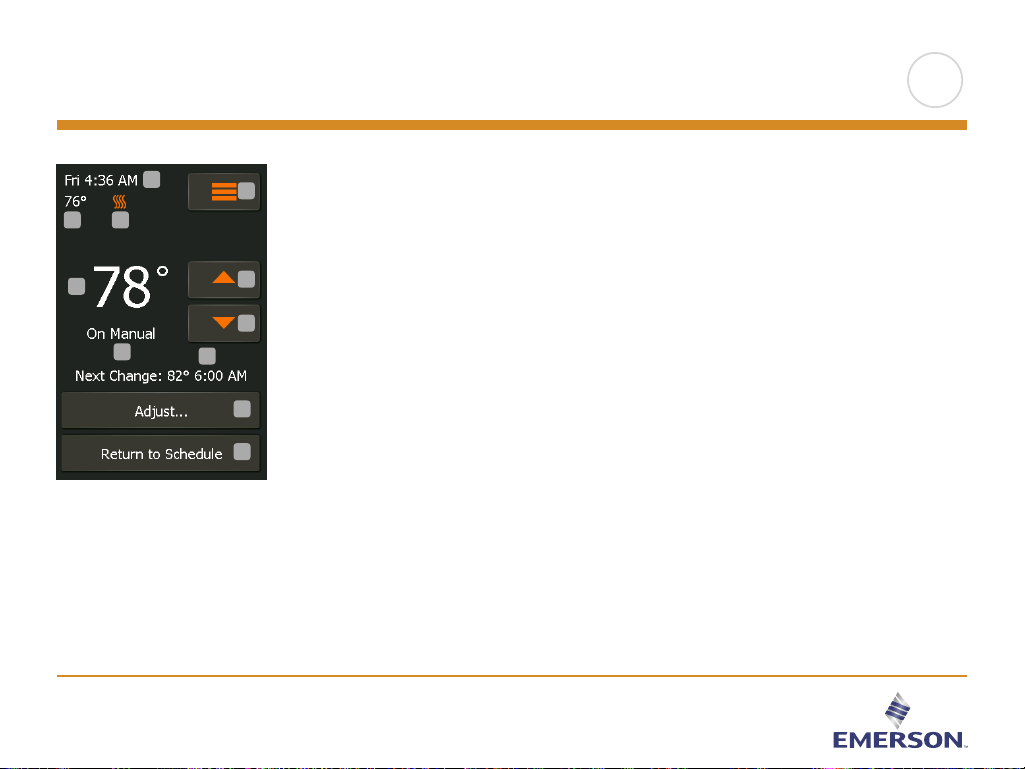
During Scheduled Operation, you can use the arrow buttons on the home screen to
override the programed target temperature/setpoint for Scheduled Operation and to
set the required temperature manually.
Use the “Arrow Up” or “Arrow Down” button to select the required temperature.
The “Return to Schedule” button will then appear on the home screen – you
should tap this button if you want to end Manual Operation and return to Scheduled
Operation.
You can also choose “Adjust…”.
1. Day and time.
2. Measured temperature.
3. Heating indicator. If visible, the underfloor heating system is currently active.
4. Tap here to access the menu.
5. Current target temperature/setpoint.
6. Tap here to increase the temperature.
7. Tap here to decrease the temperature.
8. Current thermostat operating mode.
9. Information on the next thermostat behavior change.
10. Tap here to adjust the length of time the displayed target temperature/setpoint is
to remain valid.
11. Tap here to return to Scheduled Operation. Available only when the thermostat is
operated manually.
Note: The temperature set
manually on the home screen
is a temporary setting. The
manual override setting will be
automatically canceled at the
beginning of the next event in
the Scheduled Operation.
11
1
2 3
4
5
6
7
8
9
10
>
<
Contents
PAGE 26
All Rights Reserved. Used under license by Easy Heat Inc.
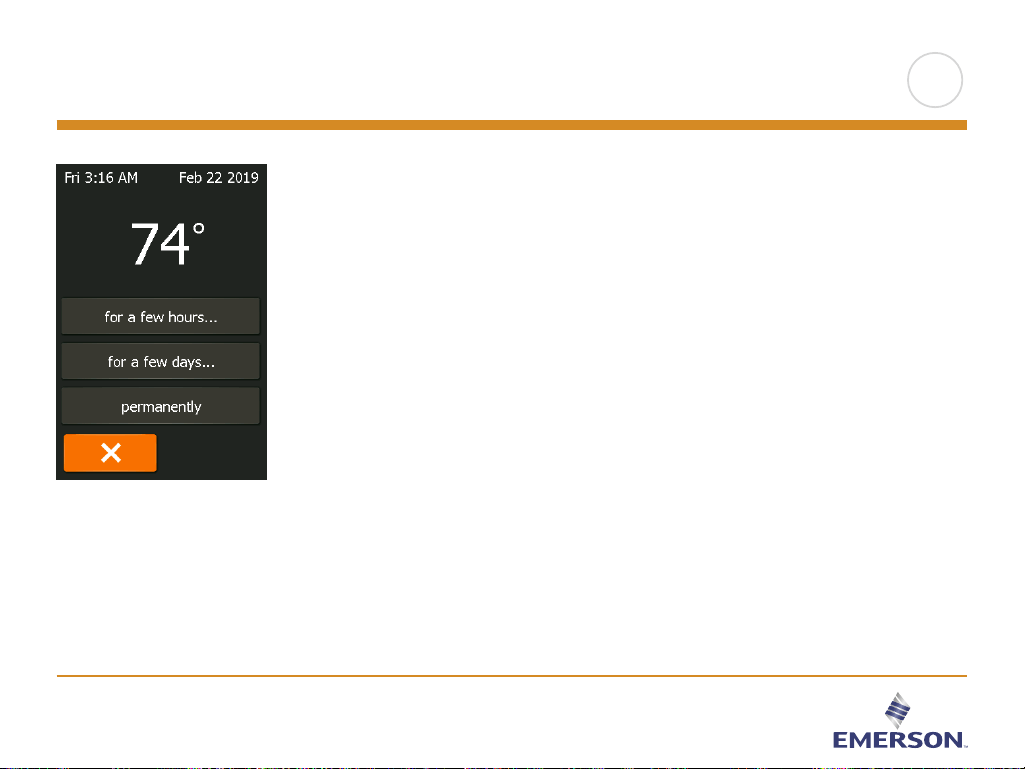
Allows you to maintain the displayed target temperature/setpoint or a Manual
Override for longer than just to the next event change or for a specific time period.
You can use the “Adjust…” options to specify the length of time the displayed
target temperature/setpoint should last. When the set time period has elapsed, the
thermostat will automatically revert to Scheduled Operation.
• Adjust… for a few hours
• Adjust… for a few days
• Adjust… permanently
9.2.1 Manual Operation Adjust
>
<
Contents

PAGE 27
All Rights Reserved. Used under license by Easy Heat Inc.
The “for a few hours...” option lets you determine the length of time the displayed
target temperature/setpoint should remain valid. The time set defines when
the thermostat will revert to Scheduled Operation. The period of time until the
thermostat reverts to Scheduled Operation can be set from 15 minutes and up to 24
hours.
You can set the:
• Hour
• Minutes (in 15-minute intervals: 00, 15, 30, or 45)
• AM or PM (if 24-hour time format is selected, this is not applicable)
1. On the home screen, adjust the temperature to the preferred level using the
“Arrow Up” and “Arrow Down” buttons.
2. Tap the “Adjust…” button.
3. Then tap the “for a few hours...” button.
4. Tap the “Arrow” buttons for the parameter that you want to change.
5. Confirm your choice with “√” or discard it with “X”. The thermostat will
automatically return to the home screen.
9.2.1.1 Adjust... for a few hours
1
2
3
1
2
5
4
5
>
<
Contents

PAGE 28
All Rights Reserved. Used under license by Easy Heat Inc.
The “for a few days...” option lets you determine the length of time the displayed
target temperature/setpoint should remain valid. The settings define the thermostat
is to start using the chosen target temperature/setpoint and is to revert to Scheduled
Operation. The period of time starts at midnight and includes the start date. The
period of time ends at midnight and the end date is NOT included the manual
override period.
1. On the home screen, adjust the temperature to the preferred level using the
“Arrow Up” and “Arrow Down” buttons.
2. Tap the “Adjust…” button.
3. Then tap the “for a few days...” button.
4. Tap the “Arrow” buttons for any parameter that you want to change for the start
date.
5. Confirm your choice with “Arrow Right” or discard it with “X”.
6. If confirmed, the end date must be set by tapping the “Arrow” buttons for any
parameter that you want to change.
7. Confirm your choice with “√” or discard it with “Arrow Left”.
The thermostat will automatically return to the home screen.
8. If “for a few days...” is enabled for a period of time in the future, a clock is
displayed on the home screen. The “for a few days...” option can be disabled by
or rescheduled by repeating steps 1 to 7.
9. Tap the ON/OFF button to activate/deactivate the function.
10. Confirm your choice with “√” or discard it with “X”.
9.2.1.2 Adjust... for a few days
2
1
3
4
5
6
7
8
1
2
9
10
>
<
Contents

PAGE 29
All Rights Reserved. Used under license by Easy Heat Inc.
The “permanently” option allows you to maintain the displayed target temperature/
setpoint indefinitely, until you manually change the settings.
1. On the home screen, adjust the temperature to the preferred level using the
“Arrow Up” and “Arrow Down” buttons.
2. Tap the “Adjust…” button.
3. Then tap the “permanently” button.
The thermostat will automatically return to the home screen.
9.2.1.3 Adjust... permanently
1
2
2
1
2
1
3
>
<
Contents
PAGE 31
All Rights Reserved. Used under license by Easy Heat Inc.
10.1 Heating Schedule 1/2
The heating schedule allows you to control the temperature automatically accord-
ing to a programed schedule of your choice. The thermostat comes with a prepro-
gramed heating schedule for easy and economic heating control, see 11. Factory
Settings: Preset Schedule.
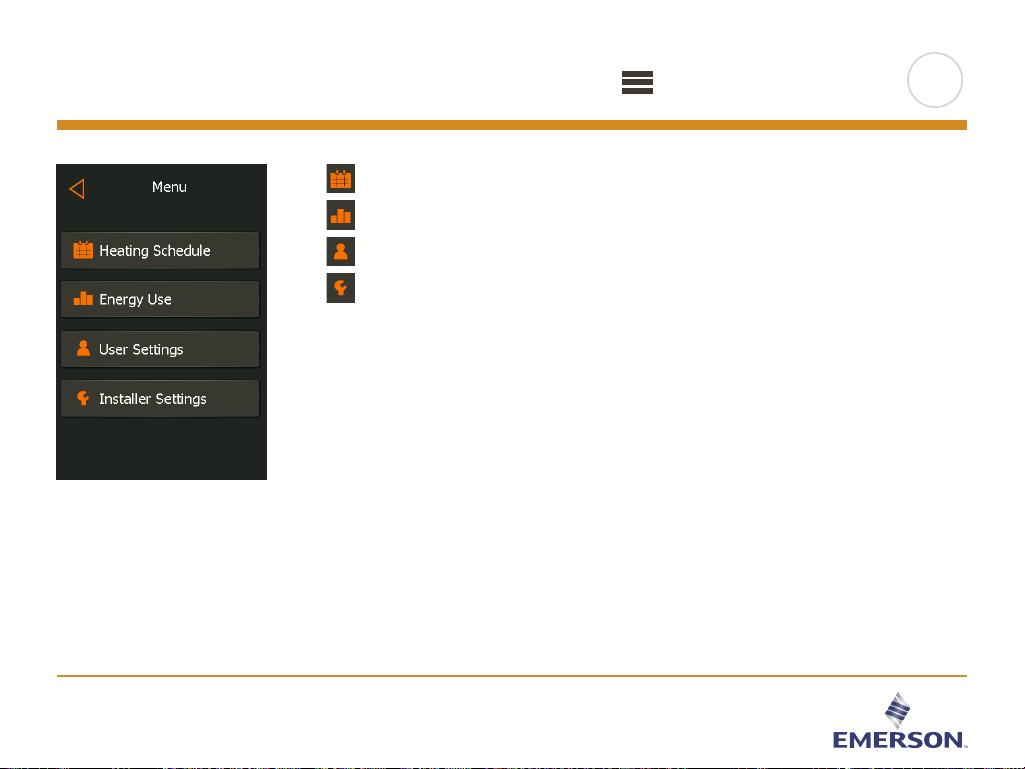
1. Tap the “Menu” button on the home screen.
2. Then tap the “Heating Schedule” button to access the various schedule options.
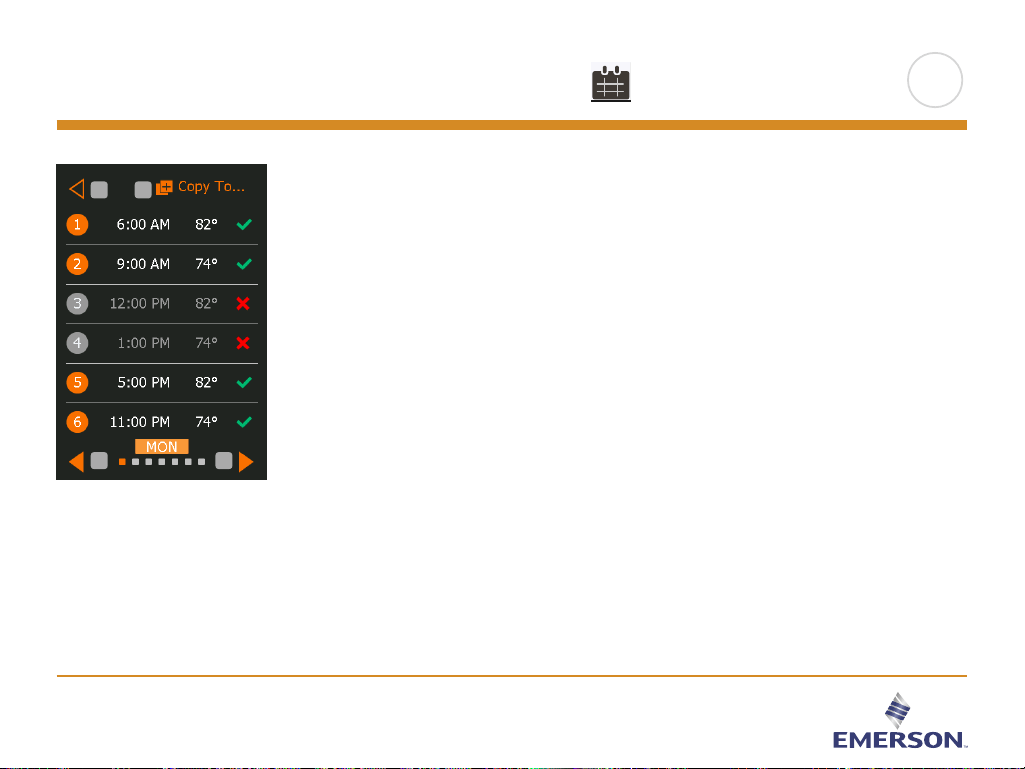
This screen consists of a list of six events and four buttons. Each event is num-
bered, and the start time, target temperature/setpoint, and activity status are dis-
played. “Back”, “ Copy to…”, “ Arrow Left”, and “Arrow Right” buttons are located
in the corners of the screen. The day for which the event applies is displayed at the
bottom of the screen.
Grayed out events marked with a red “X” are not currently in use.
3. To change the start time, temperature, and activity status for a specific event, tap
on the event to the right of the number.
4. To change the start time for the event, tap the “Arrow Up” and “Arrow Down”
buttons.
5. To change the temperature for the event, tap the “Arrow Up” and “Arrow Down”
buttons.
6. To toggle between the event being active or inactive, tap the “The event is ac-
tive” or “The event is inactive” button. The text shown on the button reflects the
current activity status of the event. Note! Event 1 is always active.
7. Confirm your choice with “√” or discard it with “X”.
1
2
3
3
4 5
6
7
1
>
<
Contents
PAGE 32
All Rights Reserved. Used under license by Easy Heat Inc.
10.1 Heating Schedule 2/2
The thermostat will automatically return to “Heating Schedule”.
8. Once the event settings for this day are as wanted, you can, if you wish, use the
same settings for other days by tapping the “Copy to” button in the top right
corner of the screen. This will allow you to copy the event settings to other days
specified by you.
9. If you want to set other days dierently, tap the “Arrow Left” or “Arrow Right”
button to toggle between weekdays.
You can then set the schedule for the other days by repeating steps 3 through 8.
10. Once you have finished setting the schedules, tap the “Back” button to return to
the Thermostat Setup Menu.
8
9
10
9
>
<
Contents
PAGE 33
All Rights Reserved. Used under license by Easy Heat Inc.
10.2 Energy Use
The “Energy Use” button allows you to read out energy usage data for your
underfloor heating system.
1. Tap the “Menu” button on the home screen.
2. Then tap the “Energy Use” button to access the readouts.
You can choose between four dierent readouts:
• Last 24 hours: A graph of usage during each hour of the past day will be
displayed. The graph shows minutes per hour.
• Last 7 days: A graph of usage during each day of the past seven days will
be displayed. The graph shows hours per day.
• Last 12 months: A graph of usage during each month of the past year will be
displayed.
The graph shows hours per month.
• Energy Use Data An overview of the electricity consumption (kWh) and heating
costs for the time periods specified above. (Note: price per
kWh must be set under Menu/User Settings/Energy Tari).
3. You can toggle between the readouts using the “Arrow Right” or “Arrow Left”
button.
4. Tap the “Back Arrow” button to return to the menu.
5. Tap on “Edit Energy Tari…” to change the energy tari, see 11.3.4 Energy Tari.
1
1
2
4
3
4
3
4
3
4
5
>
<
Contents
PAGE 34
All Rights Reserved. Used under license by Easy Heat Inc.
10.3. User Settings
Under User Settings, you can change the settings of the following items.
Note: if an item is grayed out, it is not available due to other settings.
Child Lock
Display Brightness
Screen Saver
Energy Tari
Date
Time
Daylight Saving Time
Unit
Language
Information
Support
$
7
5
°
>
<
Contents
PAGE 35
All Rights Reserved. Used under license by Easy Heat Inc.
10.3.1 Child Lock 1/2
The child lock prevents children and others from tampering with the thermostat and
changing any of its settings.
1. Tap the “Menu” button on the home screen.
2. Then tap the “User Settings” button to access the various user settings.
3. Tap the “Child Lock” button.
4. Tap the “OFF/ON” button to the setting that you prefer.
5. Confirm your choice with “√” or discard it with “X”.
The thermostat will automatically return to “User Settings”.
The child lock is activated together with the screen saver if the thermostat has not
been operated for a few minutes – it takes 15 seconds to dim the display and a
further two minutes before the screen saver starts.
Before you can operate the thermostat again, you must unlock the child lock in the
following way.
From the idle home screen:
a) Tap the screen to activate it. Three circles containing dots will be displayed on
the screen.
b) Draw an “L” on the screen in a single stroke without lifting your finger from
the screen. Start by touching the dot in the circle in the upper left corner, then
slide your finger downwards to the dot in the circle in the lower left corner, and
continue sliding your finger to the dot in the circle in the lower right corner,
forming an “L”. If done correctly, the home screen will appear.
1
2
3
4
5
1
>
<
Contents
PAGE 36
All Rights Reserved. Used under license by Easy Heat Inc.
10.3.1 Child Lock 2/2
Please note that the child lock will be reactivated when the thermostat returns to
screen saver mode – unless it is deactivated under
Menu/User Settings/Child Lock.
>
<
Contents
PAGE 37
All Rights Reserved. Used under license by Easy Heat Inc.
10.3.2 Display Brightness
This option allows you to change the brightness of the display.
1. Tap the “Menu” button on the home screen.
2. Then tap the “User Settings” button to access the various user settings.
3. Tap the “Display Brightness” button.
4. Select one of the five levels of brightness using the “Arrow Up” or “Arrow
Down” button.
5. Confirm your choice with “√” or discard it with “X”.
The thermostat will automatically return to “User Settings”.
1
1
2
3
4
5
>
<
Contents
PAGE 38
All Rights Reserved. Used under license by Easy Heat Inc.
10.3.3 Screen Saver
This option allows you to select the information to be shown on the screen when it
is idle.
• Large: temperature. Small: date and time.
• Large: time. Small: temperature and date.
• Screen O. This setting minimizes energy consumption.
1. Tap the “Menu” button on the home screen.
2. Then tap the “User Settings” button to access the various user settings.
3. Tap the “Screen Saver” button.
4. Tap the information that you want to be shown in screen saver mode.
• Temperature shown in large format. Time and date shown in small format. (See
example)
• Time shown in large format. Temperature and date shown in small format. (See
example)
• Screen O.
5. Confirm your choice with “√” or discard it with “X”.
The thermostat will automatically return to “User Settings”.
1
1
2
3
4
5
>
<
Contents
PAGE 39
All Rights Reserved. Used under license by Easy Heat Inc.
10.3.4 Energy Tari
$
This option allows you to enter the various data used to calculate energy use.
The “Energy Use” function uses this information to calculate electricity consumption
and the cost of heating for a given period of time.
1. Tap the “Menu” button on the home screen.
2. Then, tap the “User Settings” button to access the various user settings.
3. Tap the “Energy Tari” button.
4. Tap the “Arrow Up” or “Arrow Down” button to set the price that you pay per
kWh.
5. Confirm your choice with “√” or discard it with “X”.
The thermostat will automatically return to “User Settings”.
1
1
2
3
4
5
>
<
Contents
PAGE 40
All Rights Reserved. Used under license by Easy Heat Inc.
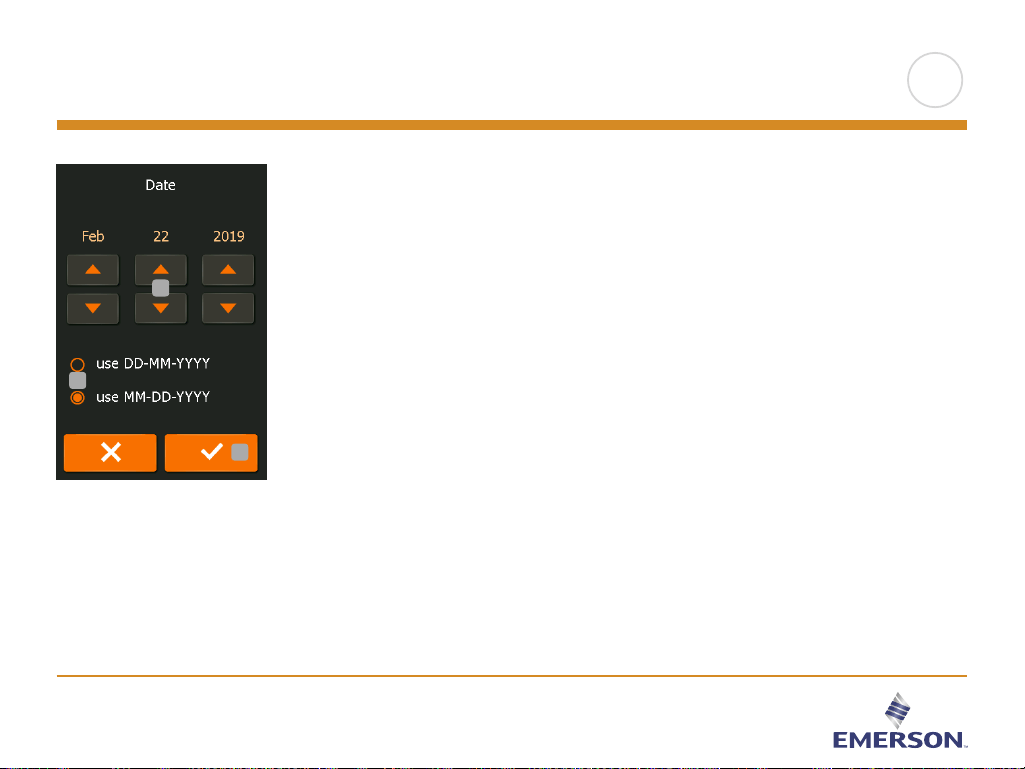
This option allows you to change the date, which is shown in some screen savers
and is used for functions such as “Daylight Saving Time”.
1. Tap the “Menu” button on the home screen.
2. Then tap the “User Settings” button to access the various user settings.
3. Tap the “Date” button.
4. Tap the “Arrow Up” or “Arrow Down” button to set the date, month, and year.
5. Tap the date format that you prefer.
• Use DD-MM-YYYY
• Use MM-DD-YYYY
6. Confirm your settings with “√” or discard them with “X”.
The thermostat will automatically return to “User Settings”.
10.3.5 Date
7
1
1
2
3
4
6
5
>
<
Contents
PAGE 41
All Rights Reserved. Used under license by Easy Heat Inc.
10.3.6 Time
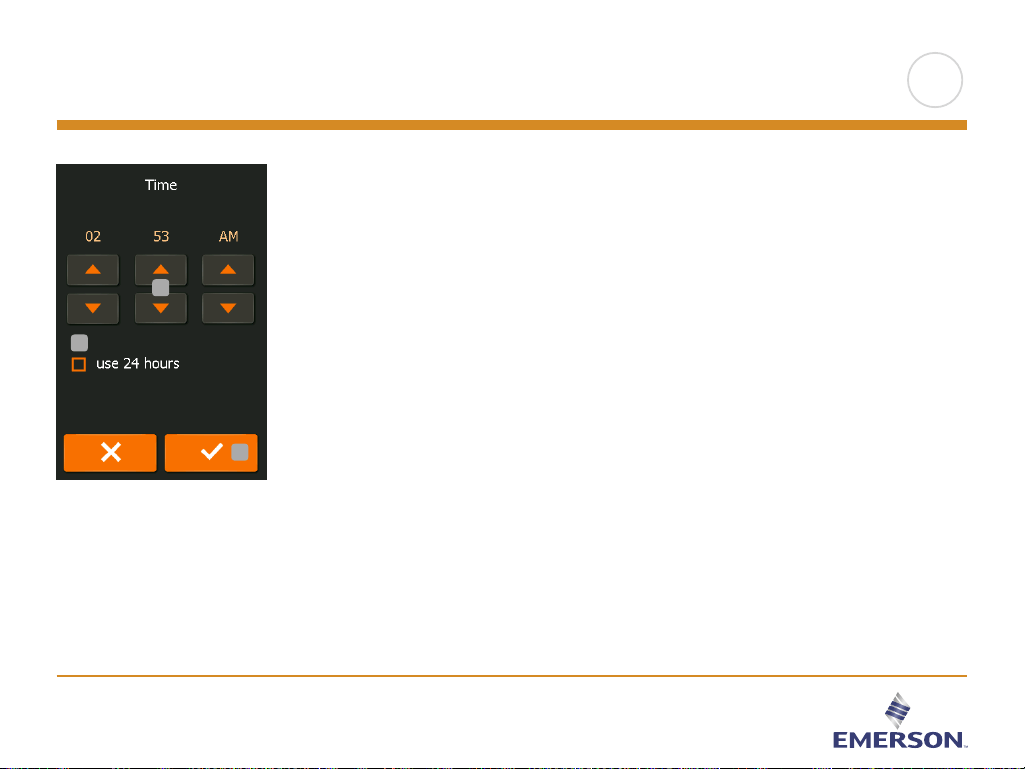
This option allows you to change the time, which is used by the clock to control
heating schedule events during Scheduled Operation.
1. Tap the “Menu” button on the home screen.
2. Then tap the “User Settings” button to access the various user settings.
3. Tap the “Time” button.
4. Tap the “Arrow Up” or “Arrow Down” button to set the hours, minutes, and AM/
PM.
5. Tap the time format that you prefer.
• Use 24 hours
• Use 12 hours (AM/PM)
6. Confirm your settings with “√” or discard them with “X”.
The thermostat will automatically return to “User Settings”.
1
1
2
3
4
6
5
>
<
Contents
PAGE 42
All Rights Reserved. Used under license by Easy Heat Inc.
10.3.7 Daylight Saving Time
When enabled, the “Daylight Saving Time” function will automatically adjust the
thermostat clock to daylight saving time.
1. Tap the “Menu” button on the home screen.
2. Then tap the “User Settings” button to access the various user settings.
3. Tap the “Arrow Right” button to access the second page of User Settings.
4. Tap the “Daylight Saving Time” button.
5. Tap the “OFF/ON” button to the setting that you prefer.
6. Confirm the setting with “√” or discard it with “X”.
The thermostat will automatically return to “User Settings”.
1
1
2
3
4
6
5
>
<
Contents
PAGE 43
All Rights Reserved. Used under license by Easy Heat Inc.
10.3.8 Unit
5
°
1. Tap the “Menu” button on the home screen.
2. Tap the “Arrow Right” button to access the second page of User Settings.
3. Tap the “Unit” button.
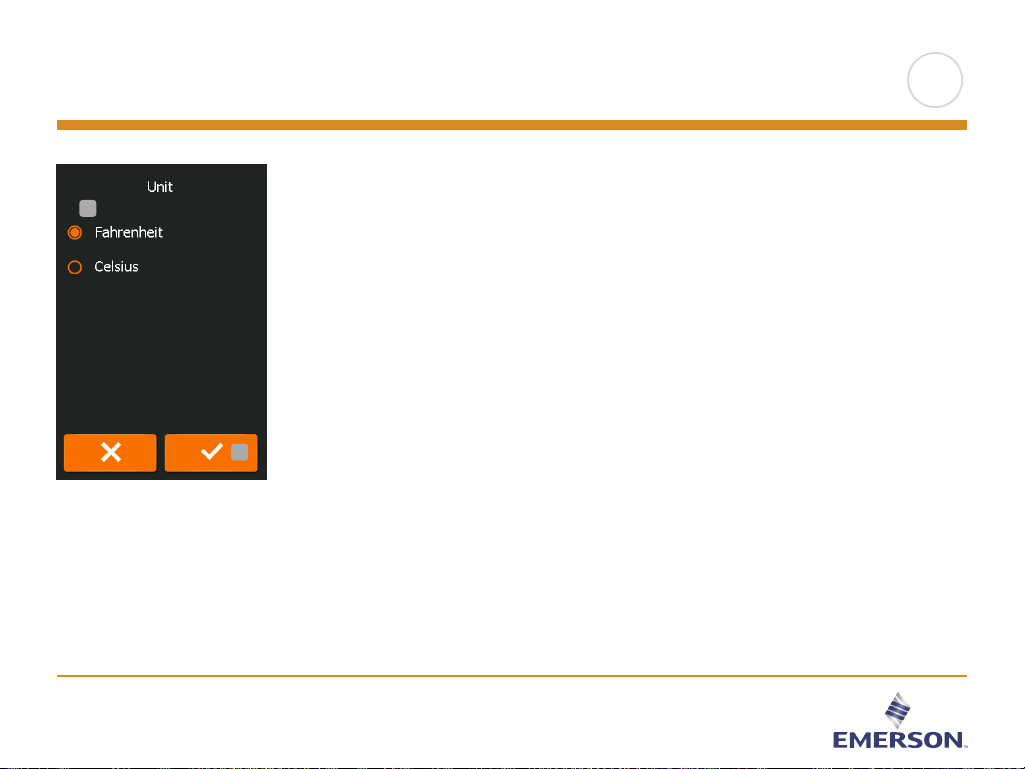
4. Tap the unit that you prefer:
• Celsius
• Fahrenheit
5. Confirm your choice with “√” or discard it with “X”.
The thermostat will automatically return to “User Settings”.
1
2
3
4
6
5
1
>
<
Contents
PAGE 44
All Rights Reserved. Used under license by Easy Heat Inc.
10.3.9 Language
This option allows you to change the language used on the screen.
1. Tap the “Menu” button on the home screen.
2. Then tap the “User Settings” button to access the various user settings.
3. Tap the “Arrow Right” button to access the second page of User Settings.
4. Tap the “Language” button.
5. Tap the language that you prefer:
• English
• French
• Spanish
6. Confirm your choice with “√” or discard it with “X”.
The thermostat will automatically return to “User Settings”.
1
2
3
4
6
5
1
>
<
Contents
PAGE 45
All Rights Reserved. Used under license by Easy Heat Inc.
10.3.10 Information
This option provides a readout containing service information:
1. Tap the “Menu” button on the home screen.
2. Then tap the “User Settings” button to access the various user settings.
3. Tap the “Arrow Right” button to access the second page of User Settings.
4. Tap the “Information” button.
5. To obtain detailed information, you can scan the QR Code with a suitable device
with Internet access. Software supporting QR Code scanning (e.g. an app) is
required. Scanning the QR Code provides data which is valid at the precise time
of scanning.
6. If “View as text” is selected, the data relevant for support personnel and others
is displayed.
7. Tap the “Back” button, several times if necessary, to return to “User Settings”.
QR Code is a registered trademark of DENSO WAVE INCORPORATED.
1
2
3
4
6
5
7
7
1
>
<
Contents
PAGE 46
All Rights Reserved. Used under license by Easy Heat Inc.
10.3.11 Support
This option provides information on obtaining support for the thermostat.
Please consult the “Troubleshooting” section of this manual before calling for
support. If troubleshooting does not help, you should contact your installer.
1. Tap the “Menu” button on the home screen.
2. Then tap the “User Settings” button to access the various user settings.
3. Tap the “Arrow Right” button to access the second page of User Settings.
4. Tap the “Support” button.
5. Tap the “Back” button to return to “User Settings”.
1
2
3
4
5
1
>
<
Contents
PAGE 47
All Rights Reserved. Used under license by Easy Heat Inc.
10.3.12 User Reset
“User Reset” is intended for use in case of change of ownership.
All your personal settings will be erased, but technical data such as “Floor Load”,
“Sensor Type” and “Floor Protection” will be stored in the thermostat for the next
owner.
1. Tap the “Menu” button on the home screen.
2. Then tap the “User Settings” button to access the various user settings.
3. Tap the “Arrow Right” button to access the second page of User Settings.
4. Tap the “User Reset” button.
5. Tap the “Back” button to return to “User Settings”.
6. Tap “Reset Thermostat” to reset all user settings to factory default.
A confirmation screen is displayed briefly before the thermostat reverts to “User
Settings”.
All user and WiFi settings are now reset.
1
2
3
4
5
6
1
>
<
Contents
PAGE 48
All Rights Reserved. Used under license by Easy Heat Inc.
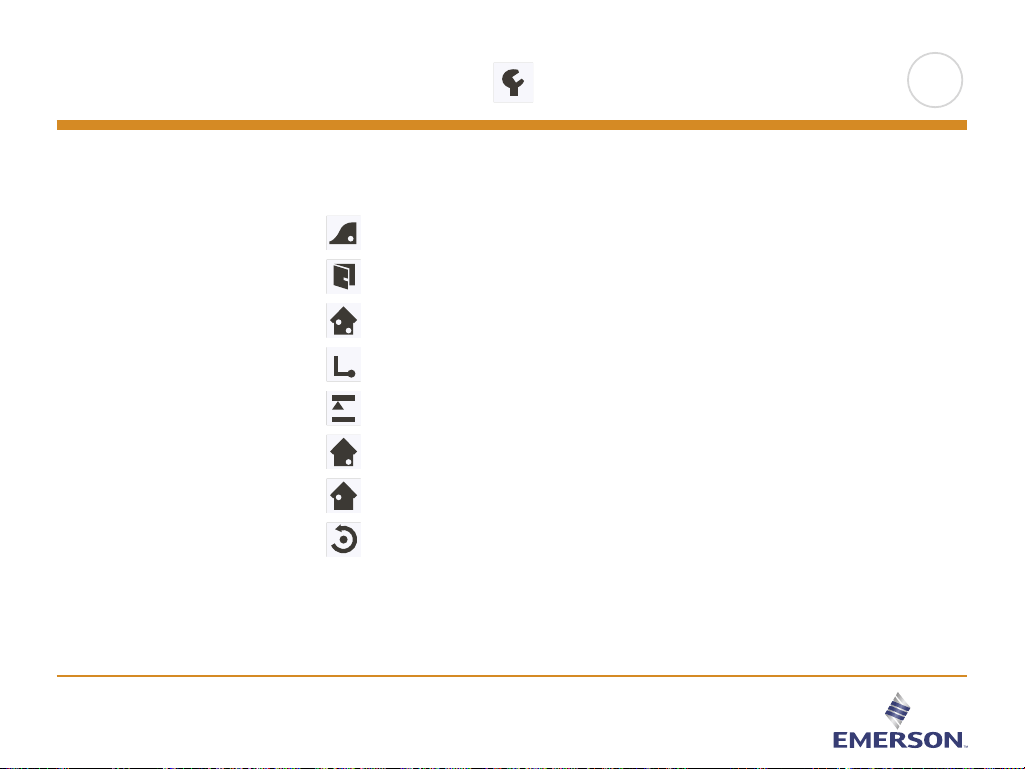
10.4 Installer Settings
Under Installer Settings, you can change the settings of the following items.
Note: if an item is grayed out, it is not available due to other settings.
Adaptive Function
Open Window
Sensor Application
Sensor Type
Floor Sensor Calibration
Room Sensor Calibration
Floor Protection
Factory Reset
>
<
Contents
PAGE 49
All Rights Reserved. Used under license by Easy Heat Inc.
10.4.1 Adaptive Function
With this feature enabled, the room will already have reached the target/setpoint
temperature at the beginning of a scheduled event.
After just a few days, the adaptive function will have automatically calculated how
much earlier the heating must be turned on to achieve this.
Select “OFF” if you simply want the heating to start at the beginning of an event.
1. Tap the “Menu” button on the home screen.
2. Then tap the “Installer Settings” button to access the various installer settings.
3. Tap the “Adaptive Function” button.
4. Tap the “OFF/ON” button to the setting that you prefer.
5. Confirm your choice with “√” or discard it with “X”.
The thermostat will automatically return to “Installer Settings”.
1
2
3
4
5
1
>
<
Contents
PAGE 50
All Rights Reserved. Used under license by Easy Heat Inc.
10.4.2 Open Window
This option allows you to enable the “Open Window” function.
The thermostat can detect an open window by registering a rapid drop in
temperature.
With the function enabled, the thermostat shuts o the heating for 30 minutes if an
open window is detected.
1. Tap the “Menu” button on the home screen.
2. Then tap the “Installer Settings” button to access the various installer settings.
3. Tap the “Open Window” button.
4. Tap the “OFF/ON” button to the setting that you prefer.
5. Confirm your choice with “√” or discard it with “X”.
The thermostat will automatically return to “Installer Settings”.
6. If an open window is detected by the thermostat, the “Open Window” screen
will appear, the function can be canceled by tapping “Cancel”.
1
2
3
4
5
6
1
>
<
Contents
PAGE 51
All Rights Reserved. Used under license by Easy Heat Inc.
10.4.3 Sensor Application 1/2
This option allows you to choose which sensor is used to control the heating
system.
• Floor: With this setting, the floor sensor controls the heating system.
• Room/Floor Protection: With this setting, the room sensor controls the heating
system while the floor sensor limits heating according to the
temperature limits set under Menu/Installer Settings/Floor Protection.
• Room: With this setting, the room sensor built into the thermostat controls
the heating system.
Note! Floor Protection is not active while using the Sensor Application
“Room”.
Note that certain menu options will be grayed out and inaccessible as
they are only applicable with the floor sensor.
Floor limit temperatures are set under Menu/Installer Settings/Floor Protection.
Note that changes made under “Sensor Application” do not influence the “Floor
Protection” settings.
>
<
Contents
PAGE 52
All Rights Reserved. Used under license by Easy Heat Inc.
Maximum temperature depends on the floor type and temperature unit.
1. Tap the “Menu” button on the home screen.
2. Then tap the “Installer Settings” button to access the various installer settings.
3. Tap the “Sensor Application” button.
4. Tap the application that you want to use.
• Floor
• Room/Floor Protection
• Room
5. Confirm your choice with “√” or discard it with “X”.
The thermostat will automatically return to “Installer Settings”.
Note that, when changing Sensor Application, certain menu options may be grayed
out and inaccessible as they are not applicable with the current settings.
10.4.3 Sensor Application 2/2
1
2
3
4
5
1
>
<
Contents
PAGE 53
All Rights Reserved. Used under license by Easy Heat Inc.
10.4.4 Sensor Type 1/2
This option allows you to choose the type of floor sensor used with the thermostat.
You can thus choose to use an existing sensor with the thermostat, e.g. in
renovation projects.
Choose the sensor actually used from the list.
• Default 10 kΩ (this is the sensor supplied with the thermostat)
• Sensor 12 kΩ
• Custom
1. Tap the “Menu” button on the home screen.
2. Then tap the “Installer Settings” button to access the various installer settings.
3. Tap the “Sensor Type” button.
4. Tap the type of floor sensor actually used.
• Default 10 kΩ (this is the sensor supplied with the thermostat)
• Sensor 12 kΩ
• Custom
5. Confirm your choice with “√” or discard it with “X”.
6. If “Custom” is chosen, you must provide resistance values for the sensor
concerned at four given temperatures. Ask the supplier of your sensor for these
values.
Tap the “Arrow Up” or “Arrow Down” to set the resistance for the various
temperatures.
1
2
3
4
5
6
1
>
<
Contents
PAGE 54
All Rights Reserved. Used under license by Easy Heat Inc.
10.4.4 Sensor Type 2/2
7. Use the “Arrow Right” or “Arrow Left” button to toggle through the
temperatures for which resistance must be set.
Then, repeat steps 6-7 until all four resistance values have been set.
8. When all four values are set, tap the “Arrow Right” button.
9. A warning screen will be displayed. Tap “√” to confirm the use of an alternative
sensor.
The thermostat will automatically return to “Installer Settings”.
7
7
7
8
9
>
<
Contents
PAGE 55
All Rights Reserved. Used under license by Easy Heat Inc.
10.4.5 Floor Sensor Calibration
This option allows you to calibrate the floor sensor.
You can calibrate the sensor if the temperature reading diers from the actual floor
temperature.
Note that changes to floor sensor characteristics may damage certain floors.
You can calibrate the sensor with ±17°F or ±10°C in steps of 1°F or 0.5°C in the
following way:
1. Tap the “Menu” button on the home screen.
2. Then tap the “Installer Settings” button to access the various installer settings.
3. Tap the “Floor Sensor Calibration” button.
4. Use the “Arrow Up” or “Arrow Down” button to set the floor temperature
actually measured.
5. Confirm that you want to calibrate the sensor with “√” or cancel with “X”. If the
temperature is confirmed with “√”, a confirmation screen will be displayed briefly.
The thermostat will automatically return to “Installer Settings”.
1
2
3
4
5
1
>
<
Contents
PAGE 56
All Rights Reserved. Used under license by Easy Heat Inc.
10.4.6 Room Sensor Calibration
This option allows you to calibrate the room sensor.
You can calibrate the sensor if the temperature reading diers from the actual room
temperature.
Note that changes in room sensor characteristics may damage certain floors.
You can calibrate the sensor with ±17°F or ±10°C in steps of 1°F or 0.5°C in the
following way:
1. Tap the “Menu” button on the home screen.
2. Then tap the “Installer Settings” button to access the various installer settings.
3. Tap the “Room Sensor Calibration” button.
4. Use the “Arrow Up” or “Arrow Down” button to set the room temperature
actually measured.
5. Confirm that you want to calibrate the sensor with “√” or cancel with “X”.
If the temperature is confirmed with “√”, a confirmation screen will be displayed
briefly.
The thermostat will automatically return to “Installer Settings”.
1
1
2
3
4
5
>
<
Contents
PAGE 57
All Rights Reserved. Used under license by Easy Heat Inc.
10.4.7 Floor Protection 1/2
This option ensures that the floor temperatures are kept within range.
There are four dierent settings:
• Tile – the maximum floor temperature is set to 104°F/40°C
• Laminate – the maximum floor temperature it set to 82°F/28°C
Note that floor temperature can rise by no more than 1.67°F/0.93°C per
10 minutes when Laminate is chosen.
If you want your floor to heat faster, Custom should be used.
• Disabled – the floor is not protected against excessive heating
• Custom – you can define the minimum and maximum temperatures that the floor
is permitted to reach.
The maximum temperature limit protects wooden floors from excessive heat.
The minimum temperature limit prevents the floor from becoming uncomfortably
cold when heating is not needed, e.g. in a bathroom with tiles.
The minimum temperature limit can also be used as frost protection.
Note that the minimum temperature function will increase energy consumption.
Although it is still possible to set the target temperature/setpoint to a value higher
than the floor protection limit, the floor temperature will be prevented from reaching
a temperature higher than that defined here if the system has been installed
according to the Quick Guide.
>
<
Contents
PAGE 58
All Rights Reserved. Used under license by Easy Heat Inc.
10.4.7 Floor Protection 2/2
1. Tap the “Menu” button on the home screen.
2. Then tap the “Installer Settings” button to access the various installer settings.
3. Tap the “Arrow Right” button to access the second page of Installer Settings.
4. Tap the “Floor Protection” button.
5. Choose the floor protection which is relevant for your floor.
If Tile, Laminate, or Disabled is selected, proceed to step 8.
6. If Custom is chosen, you must define minimum and maximum temperatures for
the floor.
7. Use the “Arrow Up” or “Arrow Down” buttons to set the minimum and
maximum temperatures.
8. Confirm your choice with “√” or discard it with “X”.
The thermostat will automatically return to “Installer Settings”.
NOTE: If the maximum floor temperature is set too high, temperature sensitive floor
types may be permanently damaged.
For precise information, please ask your flooring supplier.
5
6
7
8
1
1
2
3
4
>
<
Contents
PAGE 59
All Rights Reserved. Used under license by Easy Heat Inc.
10.4.8 Factory Reset
This option allows you to restore the thermostat to factory settings.
Note! This action cannot be undone, and all of your personal settings will be lost.
1. Tap the “Menu” button on the home screen.
2. Then tap the “Installer Settings” button to access the various installer settings.
3. Tap the “Arrow Right” button to access the second page of Installer Settings.
4. Tap the “Factory Reset” button.
5. Tap “Back” if you want to maintain your settings and return to “Installer Settings”.
6. Tap “Reset Thermostat” if you want to restore the factory settings.
A confirmation screen will be displayed.
The thermostat will then be reset and the “Startup Wizard” will appear on the
screen.
Note! All personal settings will be lost.
1
1
2
3
4
6
5
>
<
Contents
PAGE 60
All Rights Reserved. Used under license by Easy Heat Inc.
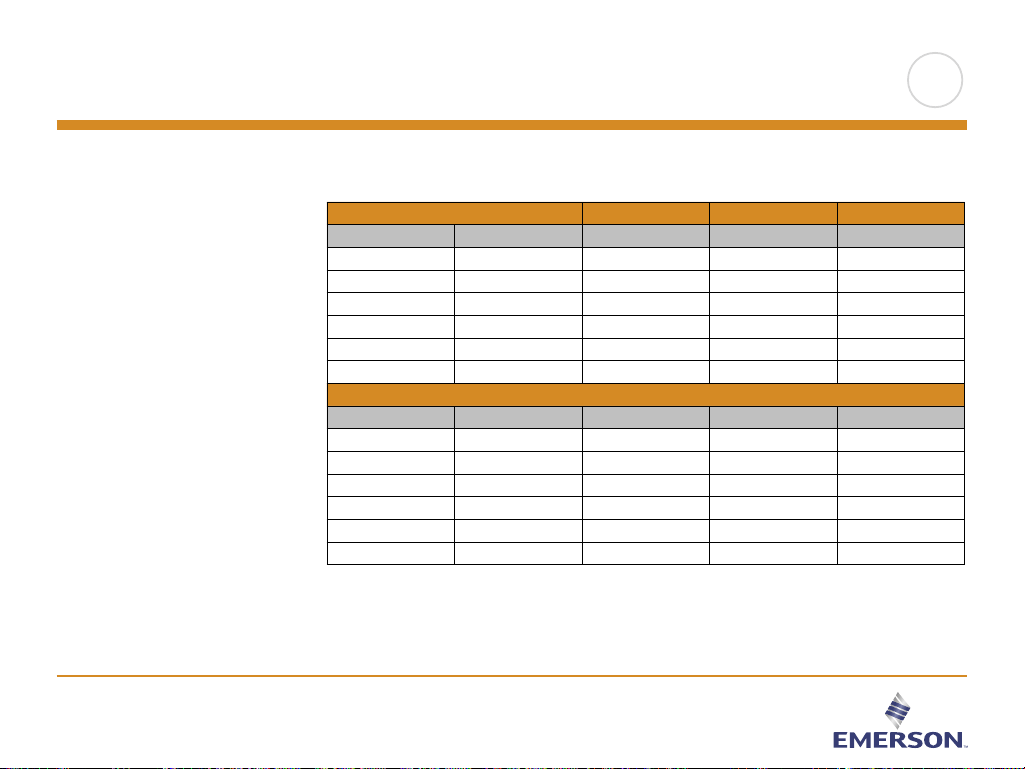
11. Factory Settings
Monday-Friday
Event Start time Laminate floor Tile floor Activated
1 06:00 AM 82°F / 28°C 88°F / 31°C √
2 09:00 AM 74°F / 23.5°C 74°F / 23.5°C √
3 12:00 PM 82°F / 28°C 88°F / 31°C X
4 01:00 PM 74°F / 23.5°C 74°F / 23.5°C X
5 05:00 PM 82°F / 28°C 88°F / 31°C √
6 11:00 PM 74°F / 23.5°C 74°F / 23.5°C √
Saturday-Sunday
Event Start time Laminate floor Tile floor Activated
1 08.00 AM 82°F / 28°C 88°F / 31°C √
2 09.00 PM 74°F / 23,5°C 74°F / 23,5°C X
3 12.00 PM 82°F / 28°C 88°F / 31°C X
4 01.00 PM 74°F / 23,5°C 74°F / 23,5°C X
5 05.00 PM 82°F / 28°C 88°F / 31°C X
6 11.00 PM 74°F / 23,5°C 74°F / 23,5°C √
Preset schedule
>
<
Contents

PAGE 61
All Rights Reserved. Used under license by Easy Heat Inc.
12. Troubleshooting
Error messages
If a fault or error occurs, the thermostat will display one of the following error
messages:
• E0: Internal failure. The thermostat is defective. Contact your installer.
The thermostat must be replaced.
• E1: Internal sensor defective or short-circuited. Contact your installer.
The thermostat must be replaced.
• E2: External wired floor sensor disconnected, defective, or short-circuited.
Contact your installer for reconnection or replacement.
• E5: Internal overheating. Contact your installer in order to have the installation
inspected.
Note! If any of the above mentioned errors occur, the heating is shut o.
• Three circles containing dots are shown on the screen; the thermostat cannot be
operated.
The thermostat is in “Child Lock” mode. See the section titled “Child Lock” in this
manual for instructions on how to unlock it.
>
<
Contents

13. Contact data
All Rights Reserved. Used under license by Easy Heat Inc.
WWW.WARMTILES.COM
For service in the U.S.:
EasyHeat
2 Connecticut South Drive
East Granby, CT 06026
For service in Canada:
EasyHeat
99 Union Street
Elmira ON. N3B 3L
Headquarters
EasyHeat c/o Emerson
9377 W. Higgins
Rosemont, IL 60018
EasyHeat, Inc.
9377 W. Higgins Road
Chicago, IL 60018
>
<
Contents