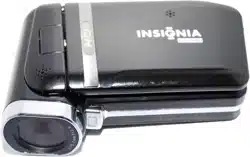

5 MP High Definition Digital Camcorder with 3.0" LCD Monitor
NS-DCC5HB09
User Guide


1
www.insigniaproducts.com
Insignia NS-DCC5HB09
5 MP High Definition Digital Camcorder with
3.0" LCD Monitor
Contents
Introduction . . . . . . . . . . . . . . . . . . . . . . . . . . . . . . . . . . . . . . . . . . . . . . . . . . . . . . . . . . . . . . . . . 2
Safety information . . . . . . . . . . . . . . . . . . . . . . . . . . . . . . . . . . . . . . . . . . . . . . . . . . . . . . . . . . . . 3
Features. . . . . . . . . . . . . . . . . . . . . . . . . . . . . . . . . . . . . . . . . . . . . . . . . . . . . . . . . . . . . . . . . . . . 3
Package contents . . . . . . . . . . . . . . . . . . . . . . . . . . . . . . . . . . . . . . . . . . . . . . . . . . . . . . . . . . . . . . . . . . .3
Front . . . . . . . . . . . . . . . . . . . . . . . . . . . . . . . . . . . . . . . . . . . . . . . . . . . . . . . . . . . . . . . . . . . . . . . . . . . . .3
Back . . . . . . . . . . . . . . . . . . . . . . . . . . . . . . . . . . . . . . . . . . . . . . . . . . . . . . . . . . . . . . . . . . . . . . . . . . . . .4
Side . . . . . . . . . . . . . . . . . . . . . . . . . . . . . . . . . . . . . . . . . . . . . . . . . . . . . . . . . . . . . . . . . . . . . . . . . . . . .4
Using the LCD . . . . . . . . . . . . . . . . . . . . . . . . . . . . . . . . . . . . . . . . . . . . . . . . . . . . . . . . . . . . . . . . . . . . .4
Setting up your camcorder . . . . . . . . . . . . . . . . . . . . . . . . . . . . . . . . . . . . . . . . . . . . . . . . . . . . . . 5
Installing the battery . . . . . . . . . . . . . . . . . . . . . . . . . . . . . . . . . . . . . . . . . . . . . . . . . . . . . . . . . . . . . . . . .5
Inserting or removing a memory card . . . . . . . . . . . . . . . . . . . . . . . . . . . . . . . . . . . . . . . . . . . . . . . . . . .5
Getting started . . . . . . . . . . . . . . . . . . . . . . . . . . . . . . . . . . . . . . . . . . . . . . . . . . . . . . . . . . . . . . . 6
Turning on your camcorder. . . . . . . . . . . . . . . . . . . . . . . . . . . . . . . . . . . . . . . . . . . . . . . . . . . . . . . . . . . .6
Taking a picture . . . . . . . . . . . . . . . . . . . . . . . . . . . . . . . . . . . . . . . . . . . . . . . . . . . . . . . . . . . . . . . . . . . .6
Recording a movie . . . . . . . . . . . . . . . . . . . . . . . . . . . . . . . . . . . . . . . . . . . . . . . . . . . . . . . . . . . . . . . . . .6
Recording sound . . . . . . . . . . . . . . . . . . . . . . . . . . . . . . . . . . . . . . . . . . . . . . . . . . . . . . . . . . . . . . . . . . .7
Working with movies . . . . . . . . . . . . . . . . . . . . . . . . . . . . . . . . . . . . . . . . . . . . . . . . . . . . . . . . . . 7
Selecting the resolution for movies. . . . . . . . . . . . . . . . . . . . . . . . . . . . . . . . . . . . . . . . . . . . . . . . . . . . . .7
Using digital zoom . . . . . . . . . . . . . . . . . . . . . . . . . . . . . . . . . . . . . . . . . . . . . . . . . . . . . . . . . . . . . . . . . .7
Selecting the exposure for movies . . . . . . . . . . . . . . . . . . . . . . . . . . . . . . . . . . . . . . . . . . . . . . . . . . . . . .7
Using the built-in light . . . . . . . . . . . . . . . . . . . . . . . . . . . . . . . . . . . . . . . . . . . . . . . . . . . . . . . . . . . . . . . .7
Using Night Mode for low-light movies . . . . . . . . . . . . . . . . . . . . . . . . . . . . . . . . . . . . . . . . . . . . . . . . . . .8
Adjusting the sharpness for movies . . . . . . . . . . . . . . . . . . . . . . . . . . . . . . . . . . . . . . . . . . . . . . . . . . . . .8
Adjusting the white balance for movies . . . . . . . . . . . . . . . . . . . . . . . . . . . . . . . . . . . . . . . . . . . . . . . . . .9
Using motion stabilization for movies . . . . . . . . . . . . . . . . . . . . . . . . . . . . . . . . . . . . . . . . . . . . . . . . . . . .9
Using motion detection to record movies . . . . . . . . . . . . . . . . . . . . . . . . . . . . . . . . . . . . . . . . . . . . . . . . .9
Selecting an effect for movies. . . . . . . . . . . . . . . . . . . . . . . . . . . . . . . . . . . . . . . . . . . . . . . . . . . . . . . . .10
Watching a movie . . . . . . . . . . . . . . . . . . . . . . . . . . . . . . . . . . . . . . . . . . . . . . . . . . . . . . . . . . . . . . . . . .10
Deleting movies . . . . . . . . . . . . . . . . . . . . . . . . . . . . . . . . . . . . . . . . . . . . . . . . . . . . . . . . . . . . . . . . . . .10
Using movie thumbnails . . . . . . . . . . . . . . . . . . . . . . . . . . . . . . . . . . . . . . . . . . . . . . . . . . . . . . . . . . . . .11
Repeating movies. . . . . . . . . . . . . . . . . . . . . . . . . . . . . . . . . . . . . . . . . . . . . . . . . . . . . . . . . . . . . . . . . .12
Locking or unlocking movies . . . . . . . . . . . . . . . . . . . . . . . . . . . . . . . . . . . . . . . . . . . . . . . . . . . . . . . . .12
Watching movies on a PC . . . . . . . . . . . . . . . . . . . . . . . . . . . . . . . . . . . . . . . . . . . . . . . . . . . . . . . . . . .13
Viewing pictures and movies on an HDTV . . . . . . . . . . . . . . . . . . . . . . . . . . . . . . . . . . . . . . . . . . . . . . .13
Viewing pictures or movies on a non-HDTV. . . . . . . . . . . . . . . . . . . . . . . . . . . . . . . . . . . . . . . . . . . . . . 13
Working with pictures. . . . . . . . . . . . . . . . . . . . . . . . . . . . . . . . . . . . . . . . . . . . . . . . . . . . . . . . . 13
Taking close up pictures . . . . . . . . . . . . . . . . . . . . . . . . . . . . . . . . . . . . . . . . . . . . . . . . . . . . . . . . . . . . .13
Using digital zoom . . . . . . . . . . . . . . . . . . . . . . . . . . . . . . . . . . . . . . . . . . . . . . . . . . . . . . . . . . . . . . . . .14
Selecting the resolution for pictures . . . . . . . . . . . . . . . . . . . . . . . . . . . . . . . . . . . . . . . . . . . . . . . . . . . .14
Selecting the exposure for pictures . . . . . . . . . . . . . . . . . . . . . . . . . . . . . . . . . . . . . . . . . . . . . . . . . . . .14
Using Night Mode for low-light pictures . . . . . . . . . . . . . . . . . . . . . . . . . . . . . . . . . . . . . . . . . . . . . . . . .14
Adjusting the sharpness for pictures . . . . . . . . . . . . . . . . . . . . . . . . . . . . . . . . . . . . . . . . . . . . . . . . . . .15
Adjusting the white balance for pictures . . . . . . . . . . . . . . . . . . . . . . . . . . . . . . . . . . . . . . . . . . . . . . . . .15
Combining two pictures into one . . . . . . . . . . . . . . . . . . . . . . . . . . . . . . . . . . . . . . . . . . . . . . . . . . . . . .16
Adding photo frames to pictures. . . . . . . . . . . . . . . . . . . . . . . . . . . . . . . . . . . . . . . . . . . . . . . . . . . . . . .16
Selecting the flash setting for pictures . . . . . . . . . . . . . . . . . . . . . . . . . . . . . . . . . . . . . . . . . . . . . . . . . .17
Using the self-timer for pictures . . . . . . . . . . . . . . . . . . . . . . . . . . . . . . . . . . . . . . . . . . . . . . . . . . . . . . .17
Taking a sequence of pictures . . . . . . . . . . . . . . . . . . . . . . . . . . . . . . . . . . . . . . . . . . . . . . . . . . . . . . . .17
Taking pictures with bright backgrounds. . . . . . . . . . . . . . . . . . . . . . . . . . . . . . . . . . . . . . . . . . . . . . . . .18
Adding the date to pictures. . . . . . . . . . . . . . . . . . . . . . . . . . . . . . . . . . . . . . . . . . . . . . . . . . . . . . . . . . .18
Selecting an effect for pictures . . . . . . . . . . . . . . . . . . . . . . . . . . . . . . . . . . . . . . . . . . . . . . . . . . . . . . . .18
Viewing pictures . . . . . . . . . . . . . . . . . . . . . . . . . . . . . . . . . . . . . . . . . . . . . . . . . . . . . . . . . . . . . . . . . . .19
Deleting pictures. . . . . . . . . . . . . . . . . . . . . . . . . . . . . . . . . . . . . . . . . . . . . . . . . . . . . . . . . . . . . . . . . . .19
Using picture thumbnails . . . . . . . . . . . . . . . . . . . . . . . . . . . . . . . . . . . . . . . . . . . . . . . . . . . . . . . . . . . .20
Locking or unlocking pictures . . . . . . . . . . . . . . . . . . . . . . . . . . . . . . . . . . . . . . . . . . . . . . . . . . . . . . . . .20
Viewing pictures in a slideshow . . . . . . . . . . . . . . . . . . . . . . . . . . . . . . . . . . . . . . . . . . . . . . . . . . . . . . .21
Working with voice recordings . . . . . . . . . . . . . . . . . . . . . . . . . . . . . . . . . . . . . . . . . . . . . . . . . . 21
Playing voice recordings. . . . . . . . . . . . . . . . . . . . . . . . . . . . . . . . . . . . . . . . . . . . . . . . . . . . . . . . . . . . .21
Deleting voice recordings . . . . . . . . . . . . . . . . . . . . . . . . . . . . . . . . . . . . . . . . . . . . . . . . . . . . . . . . . . . .22
Repeating voice recordings . . . . . . . . . . . . . . . . . . . . . . . . . . . . . . . . . . . . . . . . . . . . . . . . . . . . . . . . . .22
Transferring MP3s to your camcorder . . . . . . . . . . . . . . . . . . . . . . . . . . . . . . . . . . . . . . . . . . . . . . . . . .23
Listening to MP3s. . . . . . . . . . . . . . . . . . . . . . . . . . . . . . . . . . . . . . . . . . . . . . . . . . . . . . . . . . . . . . . . . .23
Repeating MP3s. . . . . . . . . . . . . . . . . . . . . . . . . . . . . . . . . . . . . . . . . . . . . . . . . . . . . . . . . . . . . . . . . . .23
Using an earphone . . . . . . . . . . . . . . . . . . . . . . . . . . . . . . . . . . . . . . . . . . . . . . . . . . . . . . . . . . . . . . . . .24
Configuring your camcorder. . . . . . . . . . . . . . . . . . . . . . . . . . . . . . . . . . . . . . . . . . . . . . . . . . . . 24
Default camcorder settings. . . . . . . . . . . . . . . . . . . . . . . . . . . . . . . . . . . . . . . . . . . . . . . . . . . . . . . . . . .24

2
Insignia NS-DCC5HB09 5 MP High Definition Digital Camcorder with 3.0" LCD Monitor
www.insigniaproducts.com
Setting the time . . . . . . . . . . . . . . . . . . . . . . . . . . . . . . . . . . . . . . . . . . . . . . . . . . . . . . . . . . . . . . . . . . .24
Displaying or hiding camcorder status information. . . . . . . . . . . . . . . . . . . . . . . . . . . . . . . . . . . . . . . . .25
Turning sound effects on or off . . . . . . . . . . . . . . . . . . . . . . . . . . . . . . . . . . . . . . . . . . . . . . . . . . . . . . . .25
Formatting the built-in memory or a memory card . . . . . . . . . . . . . . . . . . . . . . . . . . . . . . . . . . . . . . . . .25
Selecting the TV system type. . . . . . . . . . . . . . . . . . . . . . . . . . . . . . . . . . . . . . . . . . . . . . . . . . . . . . . . .26
Selecting the on-screen menu language . . . . . . . . . . . . . . . . . . . . . . . . . . . . . . . . . . . . . . . . . . . . . . . .27
Restoring default settings . . . . . . . . . . . . . . . . . . . . . . . . . . . . . . . . . . . . . . . . . . . . . . . . . . . . . . . . . . . .27
Transferring files to a PC . . . . . . . . . . . . . . . . . . . . . . . . . . . . . . . . . . . . . . . . . . . . . . . . . . . . . . . . . . . .27
Maintaining. . . . . . . . . . . . . . . . . . . . . . . . . . . . . . . . . . . . . . . . . . . . . . . . . . . . . . . . . . . . . . . . . 27
Troubleshooting . . . . . . . . . . . . . . . . . . . . . . . . . . . . . . . . . . . . . . . . . . . . . . . . . . . . . . . . . . . . . 28
Specifications. . . . . . . . . . . . . . . . . . . . . . . . . . . . . . . . . . . . . . . . . . . . . . . . . . . . . . . . . . . . . . . 28
Installing the device driver software . . . . . . . . . . . . . . . . . . . . . . . . . . . . . . . . . . . . . . . . . . . . . . 28
Accessing the User Guide . . . . . . . . . . . . . . . . . . . . . . . . . . . . . . . . . . . . . . . . . . . . . . . . . . . . . 28
One-Year Limited Warranty . . . . . . . . . . . . . . . . . . . . . . . . . . . . . . . . . . . . . . . . . . . . . . . . . . . . 31
Introduction
Congratulations on your purchase of a high-quality Insignia product. Your NS-DCC5HB09 represents the
state of the art in digital camcorder design and is designed for reliable and trouble-free performance.
3
Insignia NS-DCC5HB09 5 MP High Definition Digital Camcorder with 3.0" LCD Monitor
www.insigniaproducts.com
Safety information
• Do not drop, puncture, or disassemble your
camcorder. This voids your warranty.
• Avoid contact with water, and make sure that
your hands are dry before using your
camcorder.
• Do not expose your camcorder to high
temperature or leave it in direct sunlight. High
temperature or the heat from direct sunlight
may damage your camcorder.
• For your protection, do not use your
camcorder during a storm or when lightning
is present.
• Do not use your camcorder while driving or
riding a vehicle (such as a bicycle). An
accident may occur.
• Do not use the flash close to eyes. Damage
to vision may result.
• Keep your camcorder out the reach of small
children or infants.
• Do not use the battery if it shows signs of
leakage or distortion.
• Make sure that you replace the battery with
one of the same type. Using a different type
battery can lead to an explosion.
• Dispose of used batteries according to local
hazardous waste regulations.
Features
• 5 mega-pixel sensor
• H.264 technology that compresses video to
let you store more movies than traditional
camcorders
• Up to 11 mega-pixel quality pictures
• Movie recording at an HD resolution of
1280 × 720
• HDMI port for connecting an HDTV
• AV OUT port for connecting a non-HDTV or
earphone
• High-speed mini-USB 2.0 port for connecting
a PC
• Automatic and manual exposure and color
balance controls
• 8× digital zoom for enlarging pictures and
movies
• Built-in memory that lets you store pictures
and movies without using an SD memory
card
• SD memory card slot that lets you increase
storage capacity
Package contents
• Digital camcorder
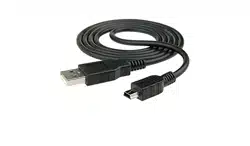
•USB cable
•AV cable
• HDMI cable
• Adapter
• Lithium-ion rechargeable battery
• Quick Start Guide
• CD with device driver and User Guide
•Wrist strap
•Pouch
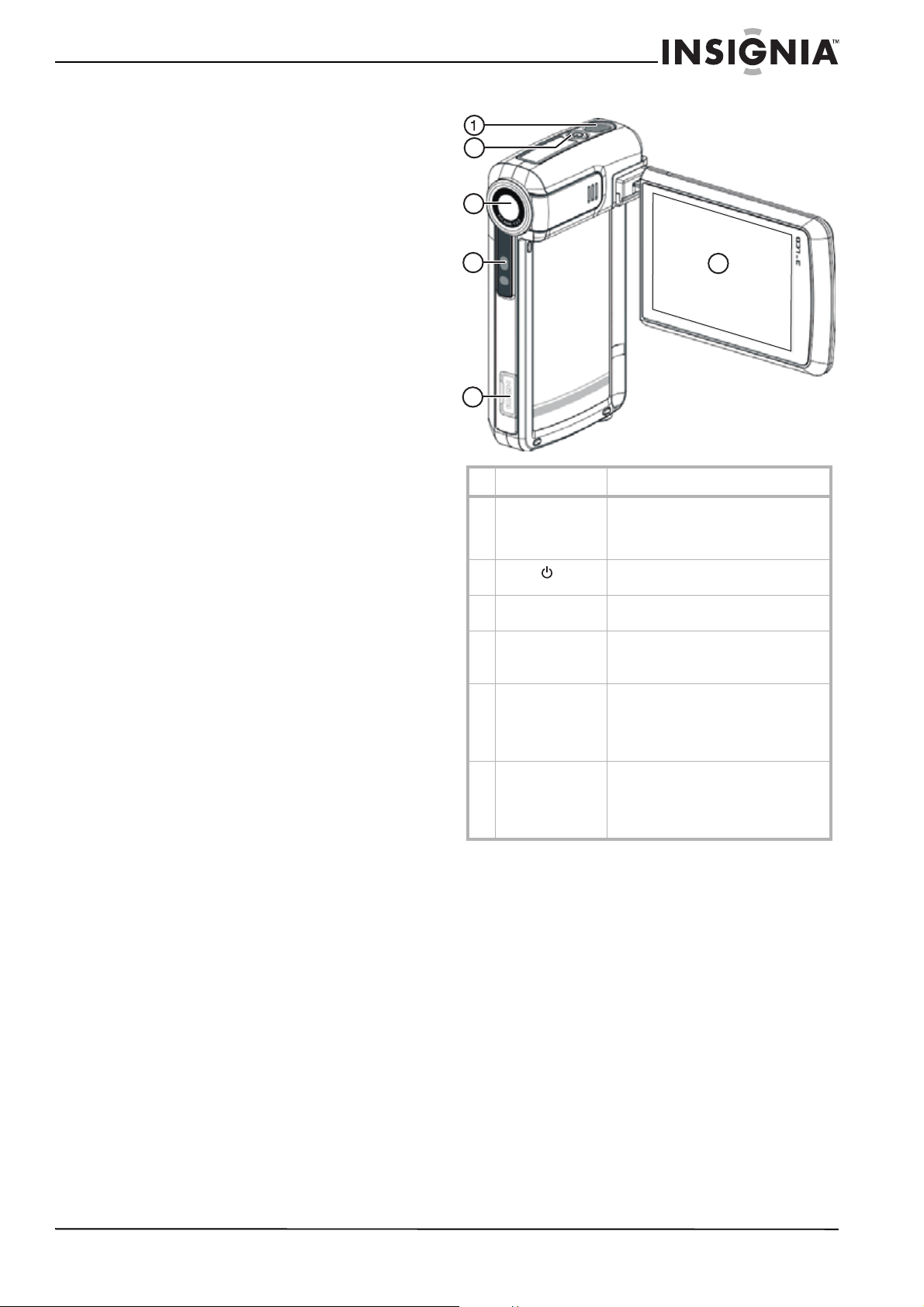
Front
# Component Description
1 Microphone Records sound as you record movies
or records voice. For more
information, see “Recording sound” on
page 7.
2
Power button
Press down for one second to turn
your camcorder on or off.
3 Lens Focuses the image when taking
pictures or movies.
4 LED Lights red when connected to a PC in
mass storage mode.
Blinks during self-timer mode.
5 HDMI port Connect an HDTV to this port so you
can view your pictures and movies on
the HDTV. For more information, see
“Viewing pictures and movies on an
HDTV” on page 13.
6 LCD panel Lets you view pictures and movies
while you are capturing them. Lets you
view stored pictures and movies.
Displays camcorder status
information.
2
3
4
5
6
4
Insignia NS-DCC5HB09 5 MP High Definition Digital Camcorder with 3.0" LCD Monitor
www.insigniaproducts.com
Back Side
Using the LCD
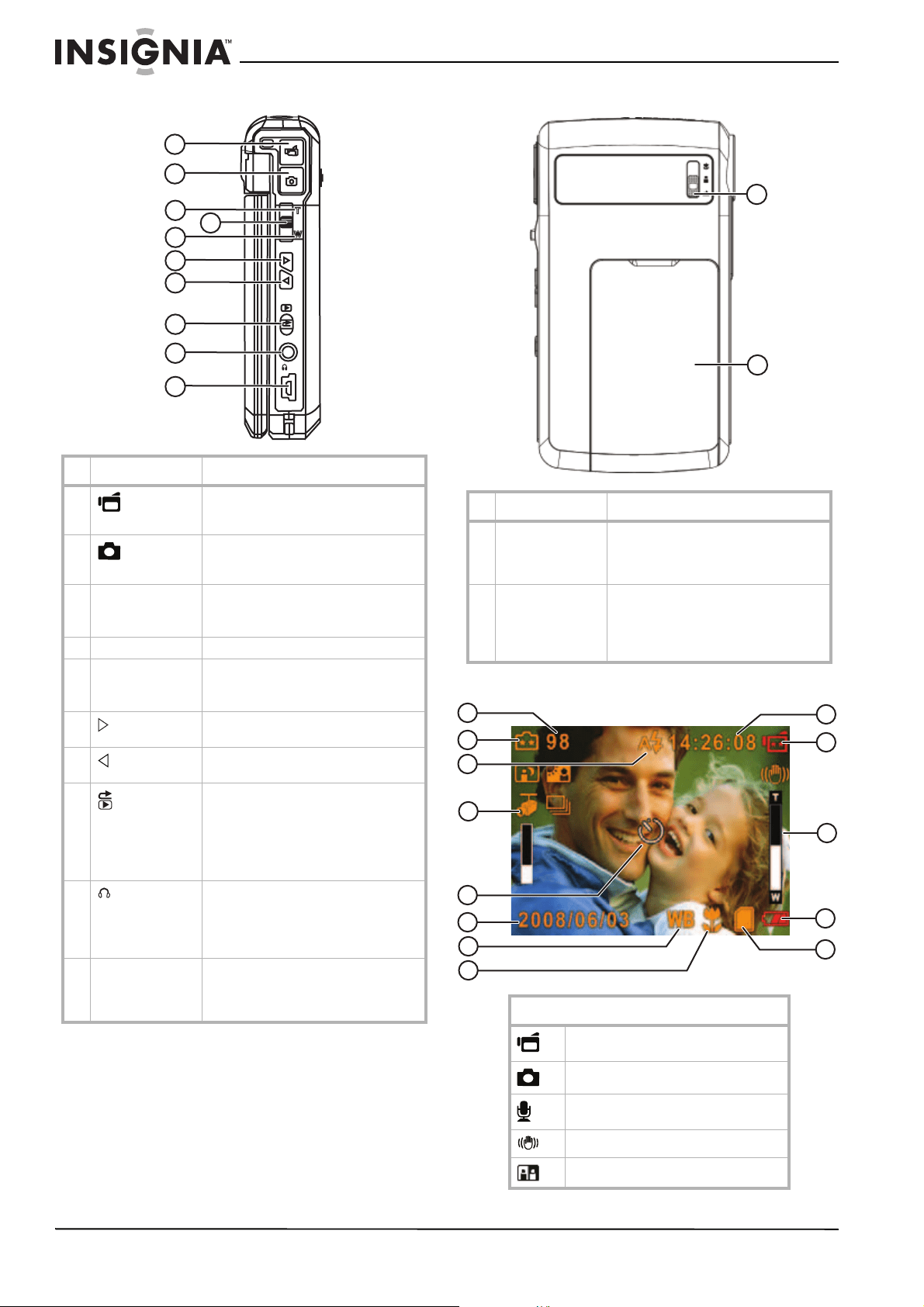
# Component Description
1
Movie
shutter button
Press to record a movie. For more
information, see “Recording a movie”
on page 6.
2
Picture
shutter button
Press to take a picture. For more
information, see “Taking a picture” on
page 6.
3 T (up) button In record mode, press to zoom in.
In menu mode, press to move up or to
make selections.
4 OK button Press to open the Record menu.
5 W (down) button In record mode, press to zoom out.
In menu mode, press to move down or
to make selections.
6
(right) button
Press to move right in menus or to
make selections.
7
(left) button
Press to move left in menus or to make
selections.
8
Record/Play
button
Press to toggle between Record mode
and Playback mode.
When a menu is open, press to close
the menu and return to Record mode.
In Playback mode, press to return to
the previous page.
9
/TV port
Connect the earphone or a non-HDTV
to this port. For more information, see
“Viewing pictures or movies on a
non-HDTV” on page 13 or “Using an
earphone” on page 24.
10 Mini-USB 2.0 port Connect the USB cable to this port and
a USB port on a PC. For more
information, see “Watching movies on
a PC” on page 13.
TV
TV
OK
OK
1
2
3
4
5
6
7
8
9
10
# Component Description
1 Macro switch In record mode, press to select Macro
mode, Portrait mode, or Normal mode.
For more information, see “Taking
close up pictures” on page 13.
2 Battery cover Remove this cover to insert the battery
or a memory card. For more
information, see “Installing the
battery” on page 5 or “Inserting or
removing a memory card” on page 5.
Record mode icons
Movie Record mode
Picture Record mode
Voice Record mode
Motion Stabilization mode
Two-in-One mode
1
2
1
2
4
5
3
6
7
8
9
10
11
12
13
5
Insignia NS-DCC5HB09 5 MP High Definition Digital Camcorder with 3.0" LCD Monitor
www.insigniaproducts.com
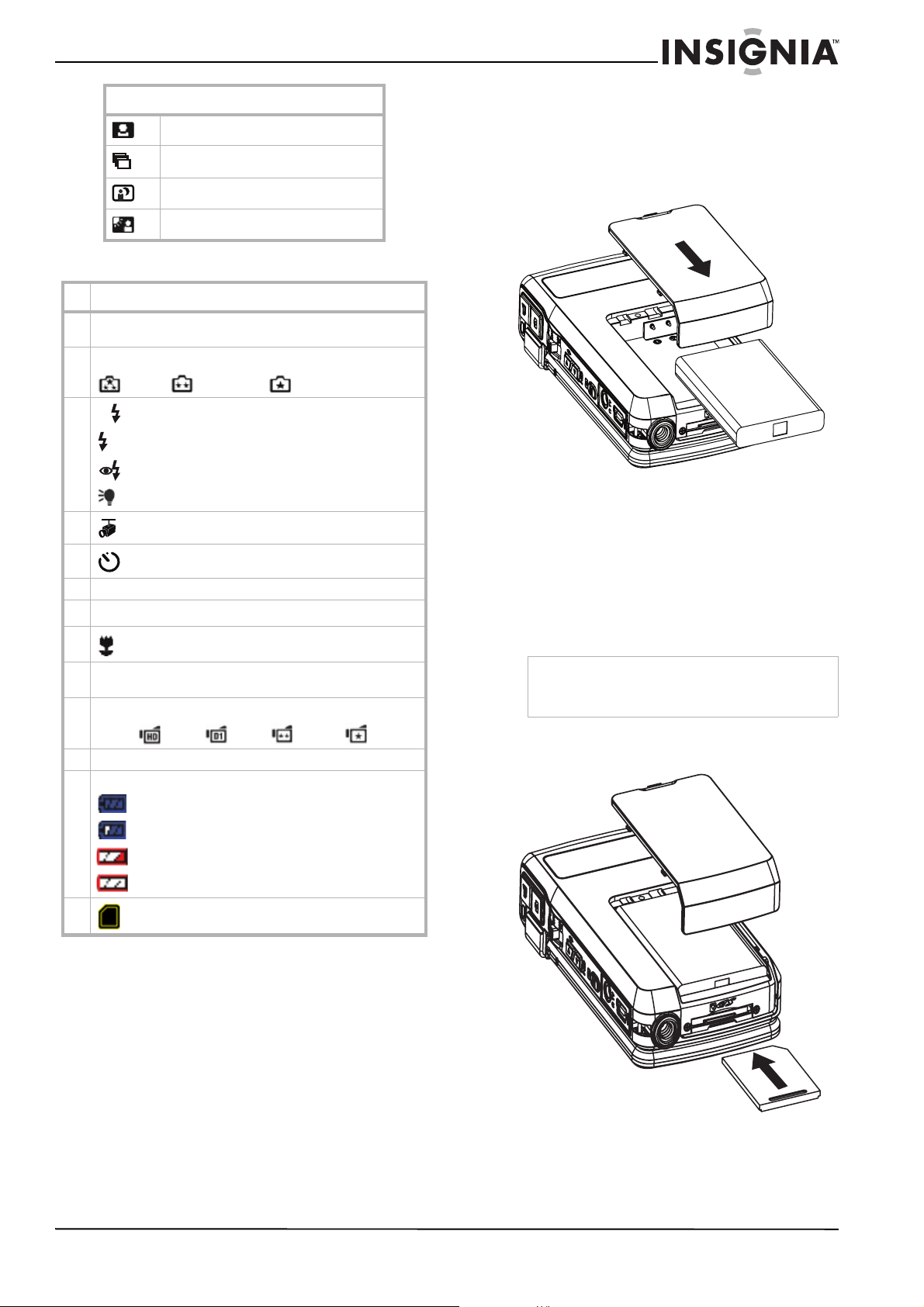
LCD icons
Setting up your camcorder
Installing the battery
To install the battery:
1 Slide the battery cover off your camcorder.
2 Insert the battery into the battery
compartment. Make sure that the + and –
symbols on the battery match the + and –
symbols in the battery compartment.
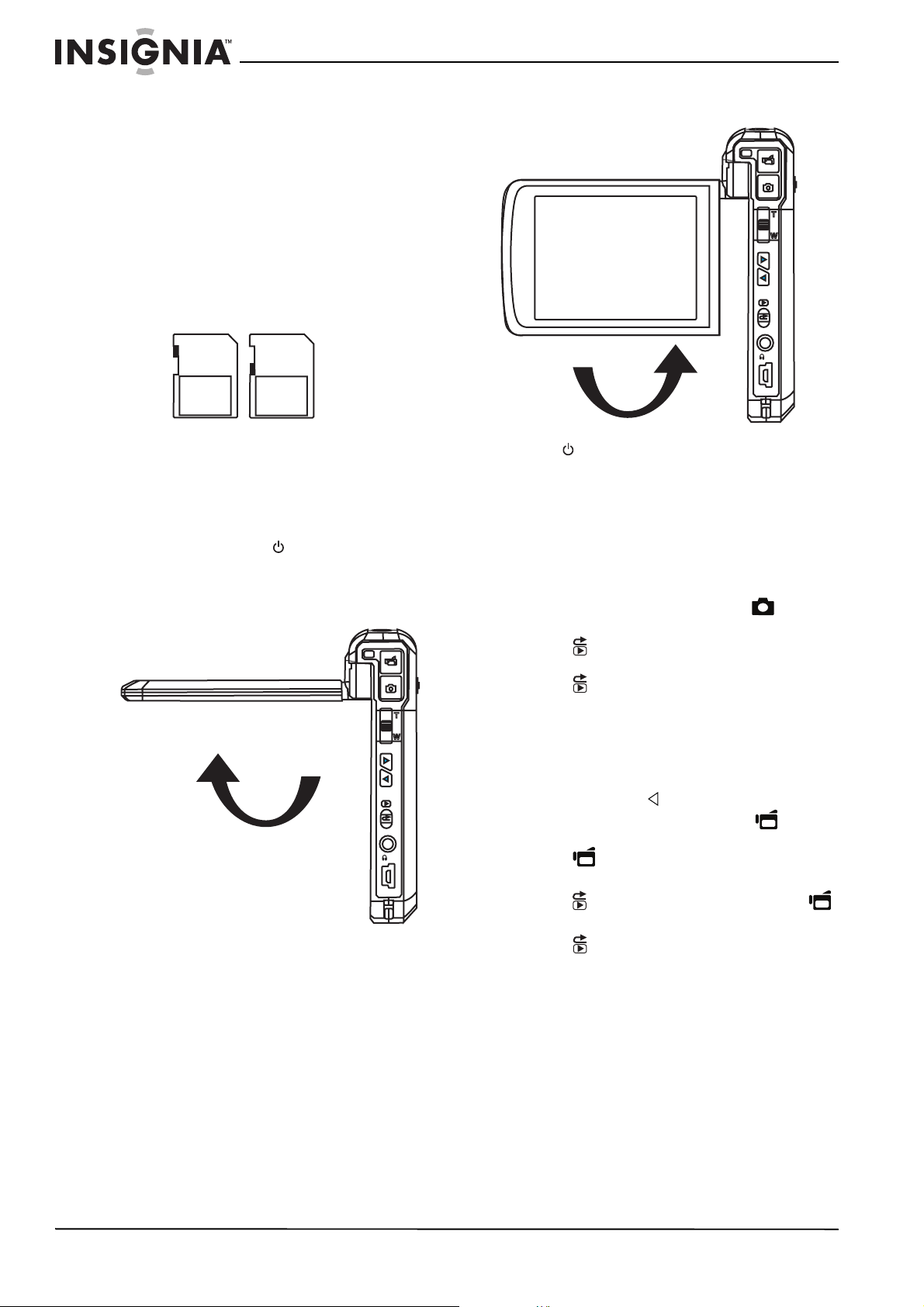
3 Replace the battery cover.
Inserting or removing a memory card
Your camcorder has built-in memory for storing
pictures and movies. You can increase the
memory storage by using an SD memory card.
To insert or remove a memory card:
1 Slide the battery cover off of your camcorder.
2 Insert an SD memory card into the memory
card slot.
3 Replace the battery cover.
Photo Frame mode
Multi-Snap mode
Night mode
Backlight mode
#Icon
1 Number of images that can still be taken at the current
resolution.
2 Picture resolution:
(high) / (standard) / (low)
3
A (auto flash on)
(flash on)
(red-eye reduction on)
(light on)
4
(motion detection on)
5
(self-timer on)
6 Date and Time in YYYY/MM/DD HH:MM format
7
WB (white balance on)
8
(macro mode on)
9 Recording time that can still be taken at the current
resolution.
10 Movie resolution:
Movie: (HD) / (D1) / (VGA) / (QVGA)
11 8× digital zoom
12 Battery indicator:
(battery charge full)
(medium charge)
(battery charge low)
(battery charge depleted)
13
(memory card inserted)
Record mode icons
Note
When a memory card is inserted, your camcorder
stores pictures and movies on the memory card
instead of storing them in the built-in memory.
6
Insignia NS-DCC5HB09 5 MP High Definition Digital Camcorder with 3.0" LCD Monitor
www.insigniaproducts.com
To remove a memory card:
1 Slide the battery cover off of your camcorder.
2 Push in on the memory card. The card pops
out slightly.
3 Pull the card out of the slot.
4 Replace the battery cover.
Protecting an SD memory card
You can “protect” an SD memory card to prevent
the recording or deletion of pictures or movies.
To protect an SD memory card:
• Slide the protection tab into the protected
position.
Getting started
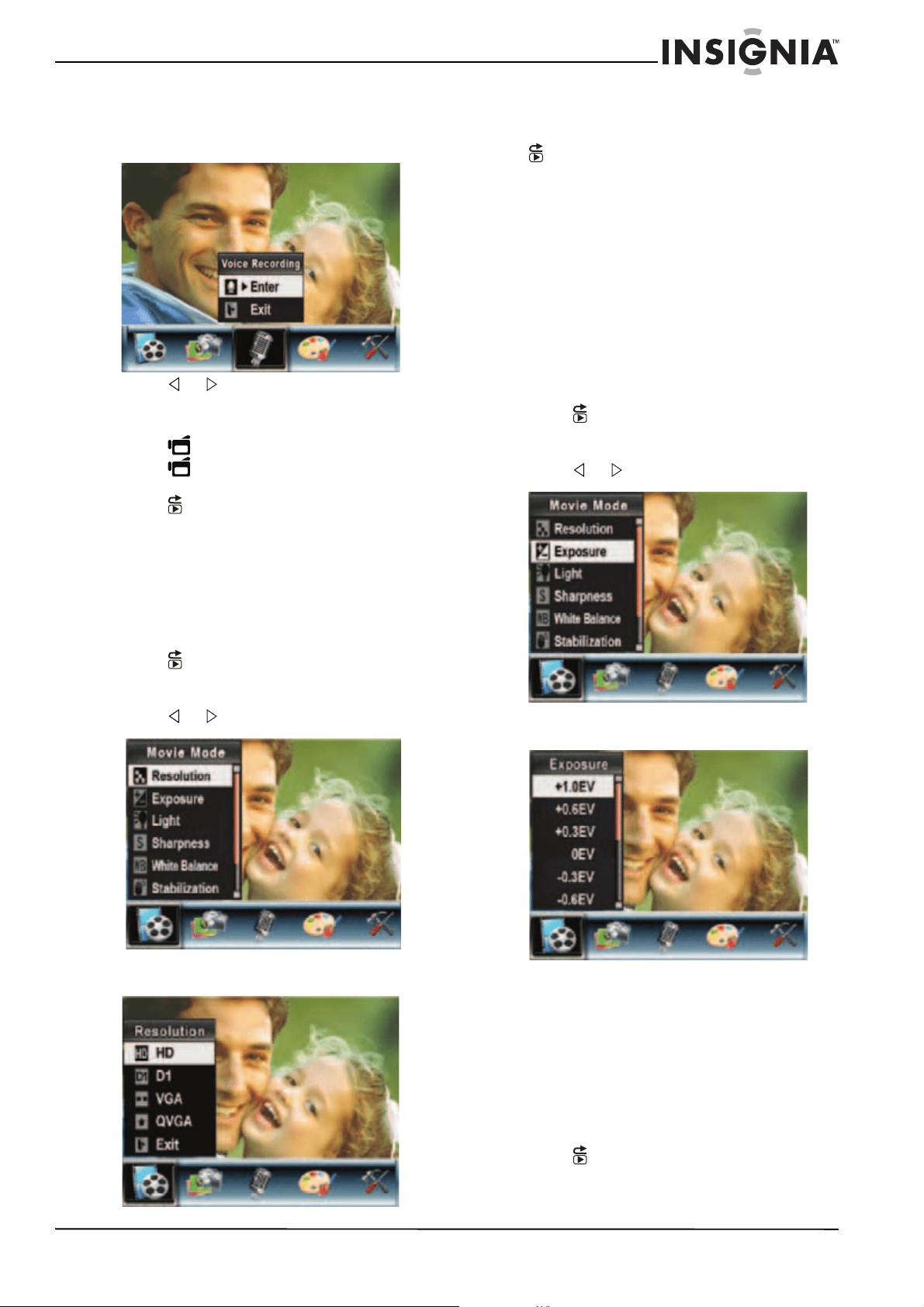
Turning on your camcorder
To turn on your camcorder:
1 Press down and hold (Power) for one
second.
Or
Open the LCD panel 90°.
2 Rotate the LCD panel 90° counter-clockwise
so you can view pictures and movies.
3 To turn off your camcorder, press down and
hold (Power) for one second.
Or
Return the LCD to its original (closed)
position.
Taking a picture
To take a picture:
1 Turn on your camcorder.
2 Aim the camera lens, then press (Picture
Shutter).
3 Press (Record/Play) once to view the
picture.
4 Press twice to return to record mode.
Recording a movie
To record a movie:
1 Turn on your camcorder.
2 If you want to record the movie in HD
resolution, press to switch to HD mode.
3 Aim the camera lens, then press (Movie
Shutter).
4 Press (Movie Shutter) once to stop
recording.
5 Press (Record/Play) once, then press
(Movie Shutter) to view the moive.
6 Press (Record/Play) twice to return to
record mode.
Protected Unprotected
TV
TV
OK
OK
90°
TV
TV
OK
OK
90°
7
Insignia NS-DCC5HB09 5 MP High Definition Digital Camcorder with 3.0" LCD Monitor
www.insigniaproducts.com
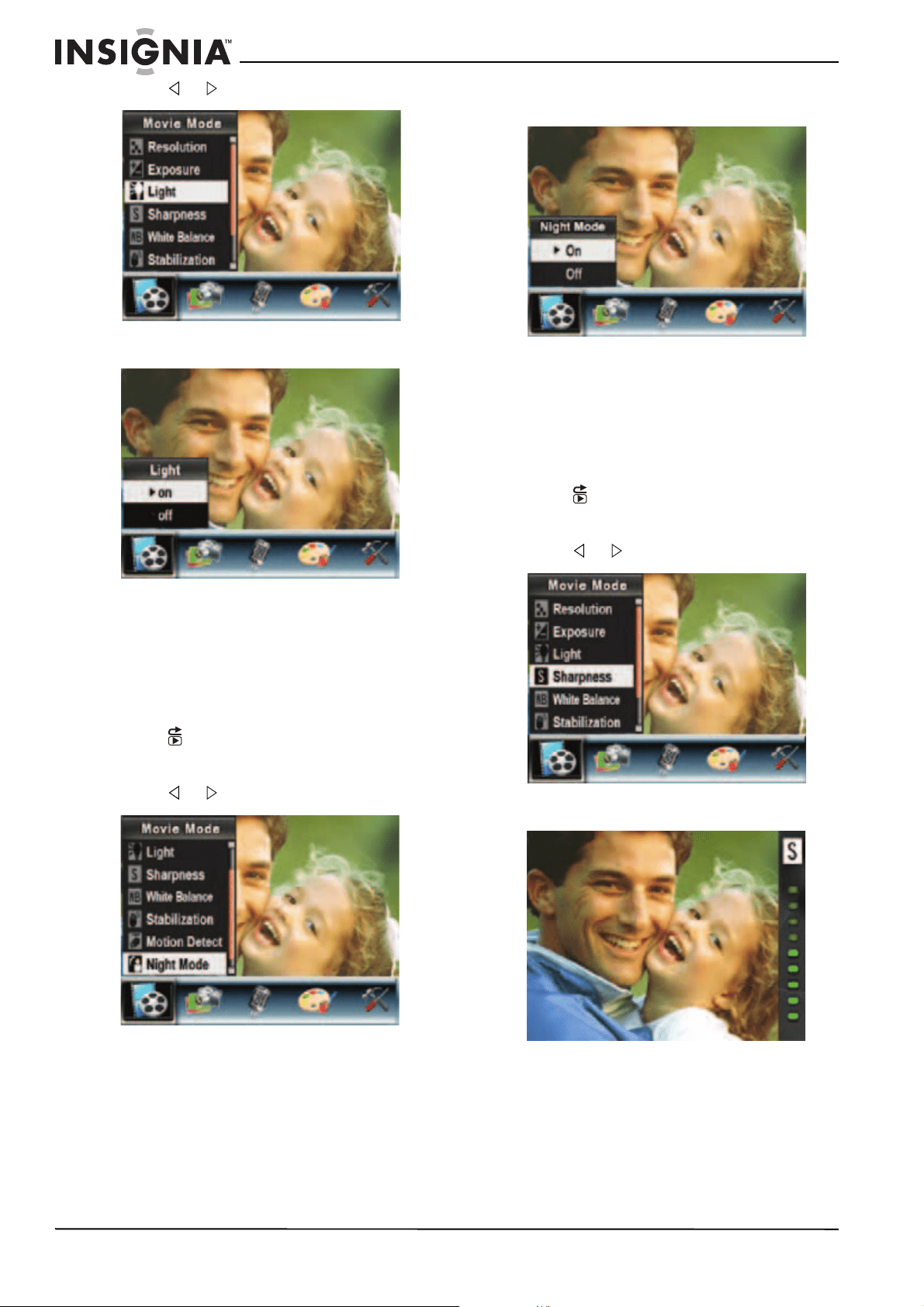
Recording sound
To record sound:
1 Press OK to open the record menu.
2 Press or to select Voice Recording.
3 Press T (up) or W (down) to select OK, then
press OK.
4 Press (Movie Shutter) to start recording.
5 Press (Movie Shutter) again to stop
recording.
6 Press (Record/Play) to playback the
recording.
Working with movies
Selecting the resolution for movies
You can record movies in any of four resolutions.
To select the resolution for movies:
1 Press (Record/Play) to switch to record
mode.
2 Press OK. The record menu opens.
3 Press or to select Movie Mode.
4 Press T (up) or W (down) to select
Resolution, then press OK.
5 Press T (up) or W (down) to select HD, D1,
VGA, or QVGA, then press OK to save your
selection and close the menu. To exit without
changing the resolution, select Exit or press
(Record/Play).
Using digital zoom
You can zoom on scenes to get close up when
recording movies movies.The zoom selection
are from 1× to 8×.
To use digital zoom:
• Press T to zoom in or press W to zoom out.
Selecting the exposure for movies
Your camcorder adjusts the image exposure
automatically. You can manually adjust the
exposure for special pictures.
To select the exposure for movies:
1 Press (Record/Play) to switch to record
mode.
2 Press OK. The record menu opens.
3 Press or to select Movie Mode.
4 Press T (up) or W (down) to select
Exposure, then press OK.
5 Press T (up) or W (down) to select an
exposure setting. The new exposure setting
is previewed.
6 Press OK to save your selection and close
the menu.
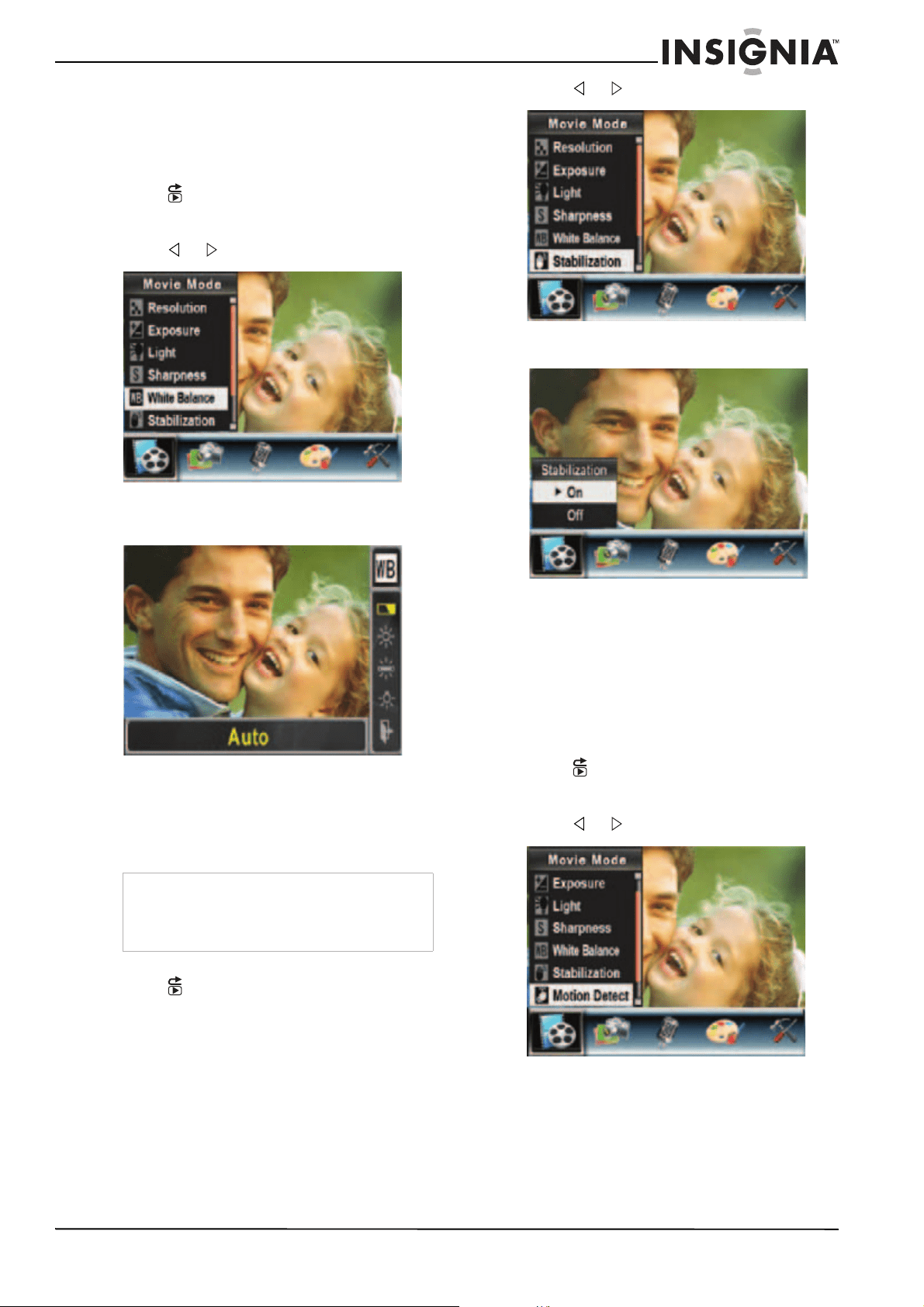
Using the built-in light
Your camcorder has a built-in light you can use
to increase the light level in low-light settings.
To use the built-in light:
1 Press (Record/Play) to switch to record
mode.
2 Press OK. The record menu opens.
8
Insignia NS-DCC5HB09 5 MP High Definition Digital Camcorder with 3.0" LCD Monitor
www.insigniaproducts.com
3 Press or to select Movie Mode.
4 Press T (up) or W (down) to select Light,
then press OK.
5 Press T (up) or W (down) to select on or off,
then press OK to save your selection and
close the menu.
Using Night Mode for low-light movies
The Night Mode option uses a longer exposure
to capture more detail of the movie background.
To use Night Mode for low-light movies:
1 Press (Record/Play) to switch to record
mode.
2 Press OK. The record menu opens.
3 Press or to select Movie Mode.
4 Press T (up) or W (down) to select Night
Mode, then press OK.
5 Press T (up) or W (down) to select On or Off,
then press OK to save your selection and
close the menu.
Adjusting the sharpness for movies
You can use the sharpness to soften or sharpen
images to achieve different effects.
To adjust the sharpness for movies:
1 Press (Record/Play) to switch to record
mode.
2 Press OK. The record menu opens.
3 Press or to select Movie Mode.
4 Press T (up) or W (down) to select
Sharpness, then press OK.
5 Press T (up) or W (down) to select a
sharpness level. The new sharpness setting
is previewed.
6 Press OK to save your selection and close
the menu.
9
Insignia NS-DCC5HB09 5 MP High Definition Digital Camcorder with 3.0" LCD Monitor
www.insigniaproducts.com
Adjusting the white balance for movies
You camcorder adjusts the color balance
automatically. You can manually adjust the color
balance for special movie effects.
To adjust the white balance for movies:
1 Press (Record/Play) to switch to record
mode.
2 Press OK. The record menu opens.
3 Press or to select Movie Mode.
4 Press T (up) or W (down) to select Auto,
Daylight, Fluorescent, or Tungsten. The
new white balance setting is previewed.
5 Press OK to save your selection and close
the menu.
Using motion stabilization for movies
Motion stabilization increases stablilty and helps
avoid blurry movies.
To use motion stabilization for movies:
1 Press (Record/Play) to switch to record
mode.
2 Press OK. The record menu opens.
3 Press or to select Movie Mode.
4 Press T (up) or W (down) to select
Stabilization, then press OK.
5 Press T (up) or W (down) to select On or Off,
then press OK to save your selection and
close the menu.
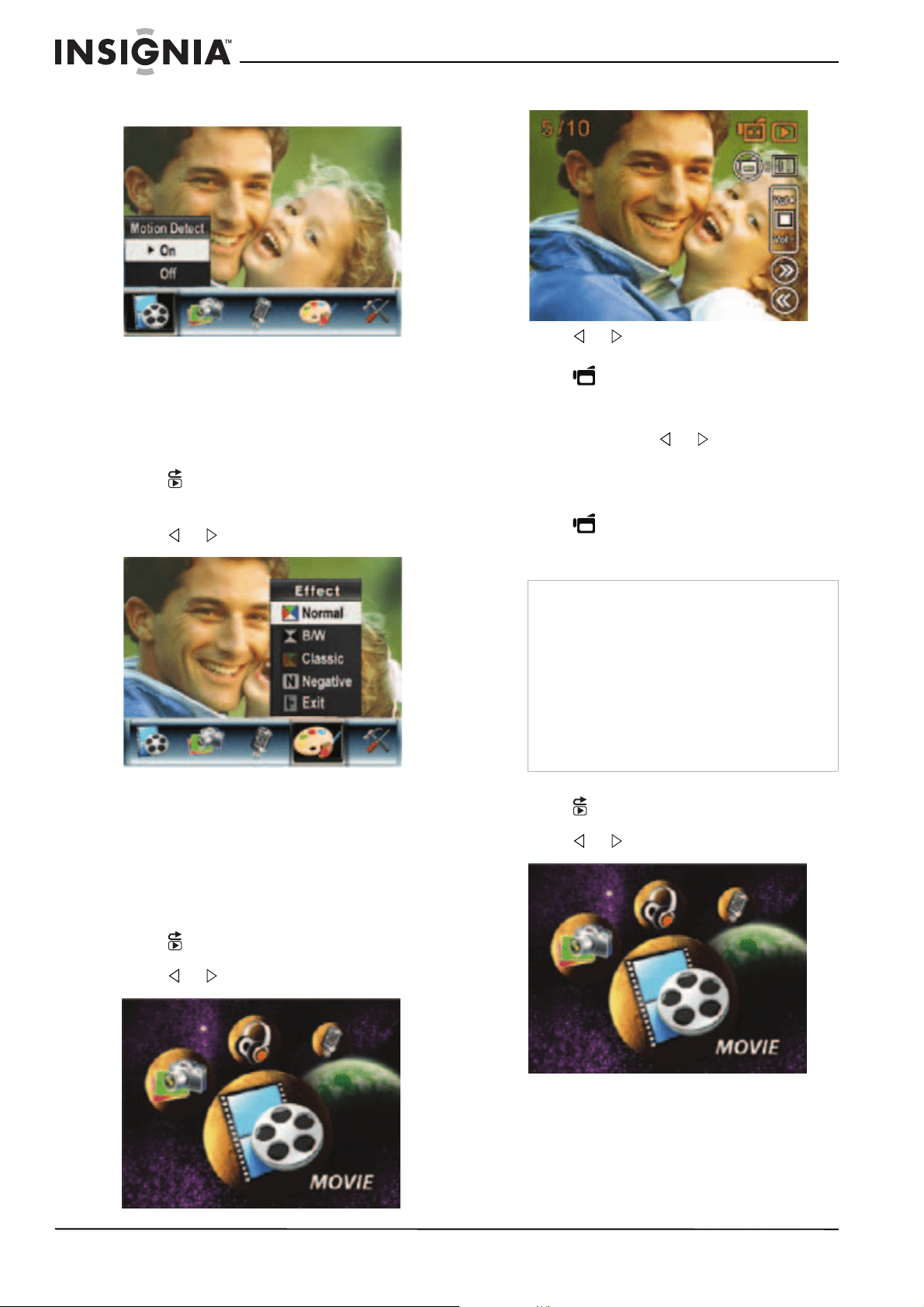
Using motion detection to record movies
When the Motion Detect option is turned on,
your camcorder starts recording after it detects
three seconds of motion (movement). It stops
recording after three seconds of no motion.
To use motion detection to record movies:
1 Press (Record/Play) to switch to record
mode.
2 Press OK. The record menu opens.
3 Press or to select Movie Mode.
Notes
• The captured screen will be smaller when
motion stabilization is turned on.
• Digital Zoom is disabled when motion
stabilization is turned on.
10
Insignia NS-DCC5HB09 5 MP High Definition Digital Camcorder with 3.0" LCD Monitor
www.insigniaproducts.com
4 Press T (up) or W (down) to select Motion
Detect, then press OK.
5 Press T (up) or W (down) to select On or Off,
then press OK to save your selection and
close the menu.
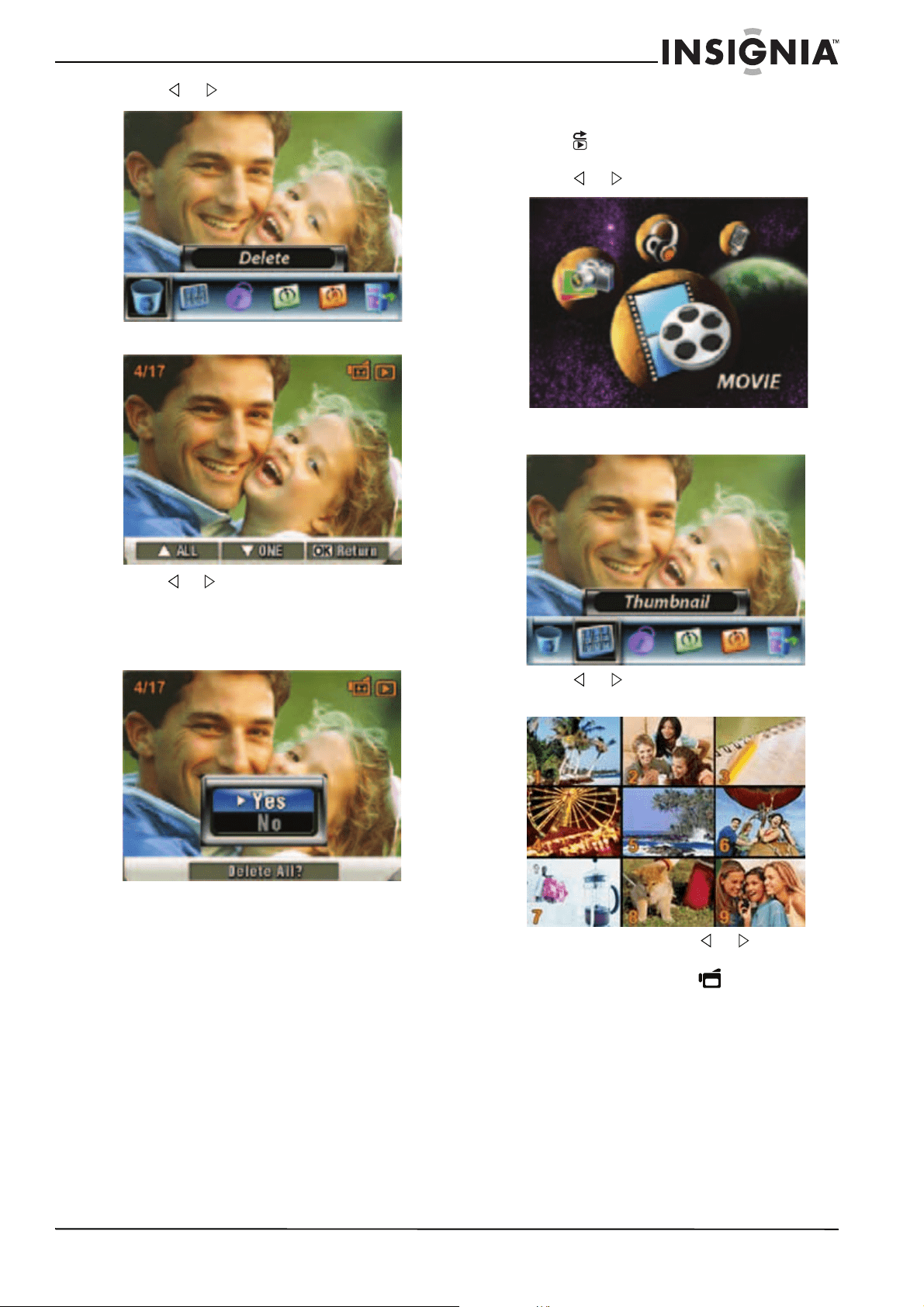
Selecting an effect for movies
You can select a visual effect for movies.
To select an effect for movies:
1 Press (Record/Play) to switch to record
mode.
2 Press OK. The record menu opens.
3 Press or to select Effect.
4 Press T (up) or W (down) to select Normal,
B/W (black and white), Classic, or Negative.
The new effect setting is previewed. To exit
without selecting an effect, select Exit.
5 Press OK to save your selection and close
the menu.
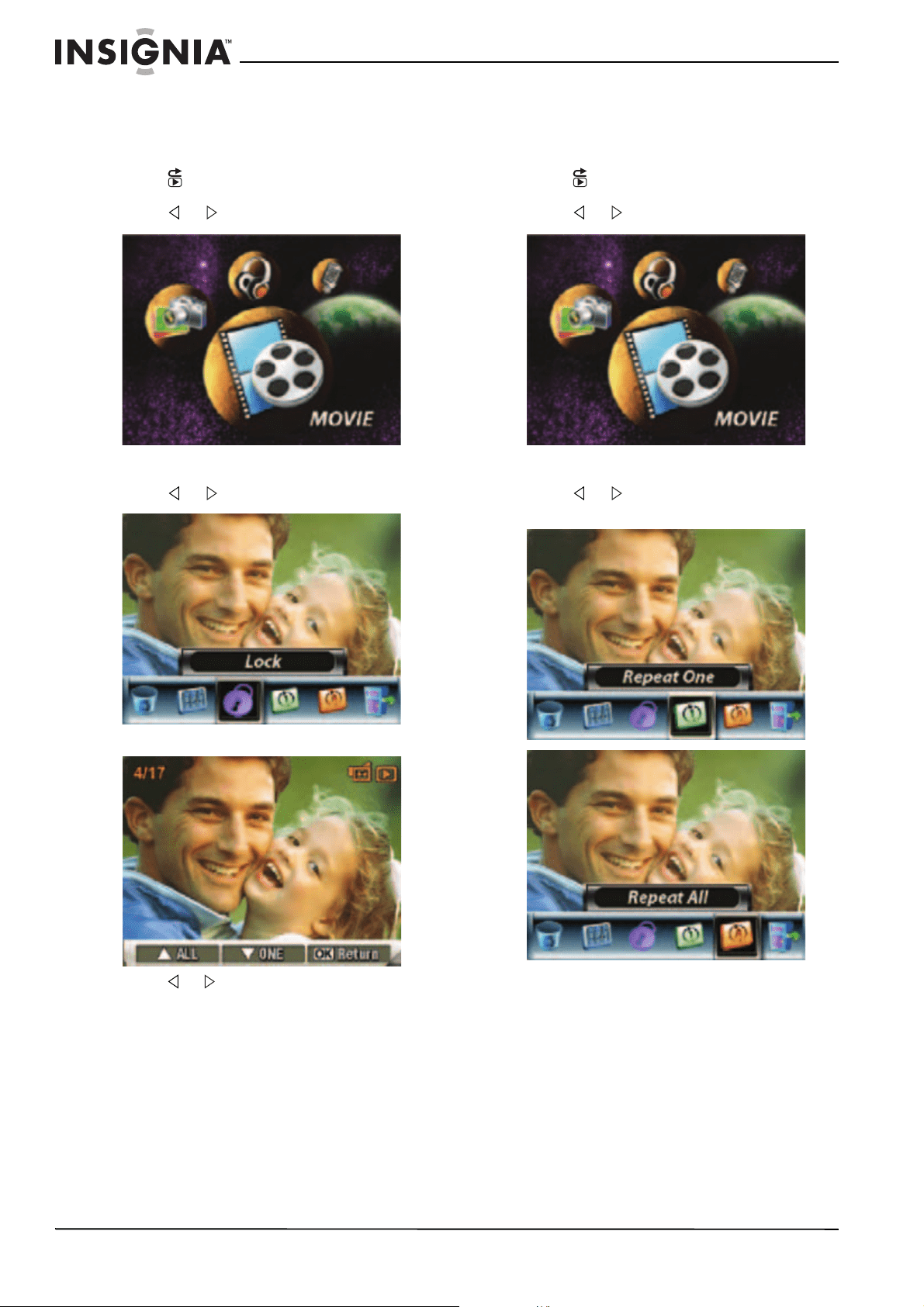
Watching a movie
To watch a movie:
1 Press (Record/Play) to switch to playback
mode.
2 Press or to select Movie.
3 Press OK.
4 Press or to select the previous or next
movie.
5 Press (Movie Shutter) to start playback.
Press this button again to pause playback.
6 To control move playback:
• Press and hold or to fast-reverse or
fast-forward. Release the button to
resume normal playback.
• Press T (up) or W (down) to increase or
decrease the volume.
7 Press (Movie Shutter) to stop playback.
Deleting movies
To delete a movie:
1 Press (Record/Play) to switch to playback
mode.
2 Press or to select Movie.
3 Press OK twice to open the movie option
menu.
Note
If a memory card is in your camcorder, you can
only delete movies on the card. To delete movies
stored in built-in memory, remove the card. For
instructions for removing a card, see “Inserting or
removing a memory card” on page 5.
If a memory card is protected, you cannot delete
movies from the card. For instructions for
unprotecting a card, see “Protecting an SD
memory card” on page 6.
You cannot delete a locked (protected) movie. You
must unlock the movie. For instructions for
unlocking a movie, see “Locking or unlocking
movies” on page 12.
11
Insignia NS-DCC5HB09 5 MP High Definition Digital Camcorder with 3.0" LCD Monitor
www.insigniaproducts.com
4 Press or to select Delete.
5 Press OK to open the delete menu.
6 Press or to select the movie you want to
delete.
7 Press W (down) to delete the movie. If you
want to delete all movies, press T (up). A
confirmation message appears.
8 Press T (up) or W (down) to select Yes. If
you want to cancel the deletion, select No.
9 Press OK to comfirm your selection and
close the menu.
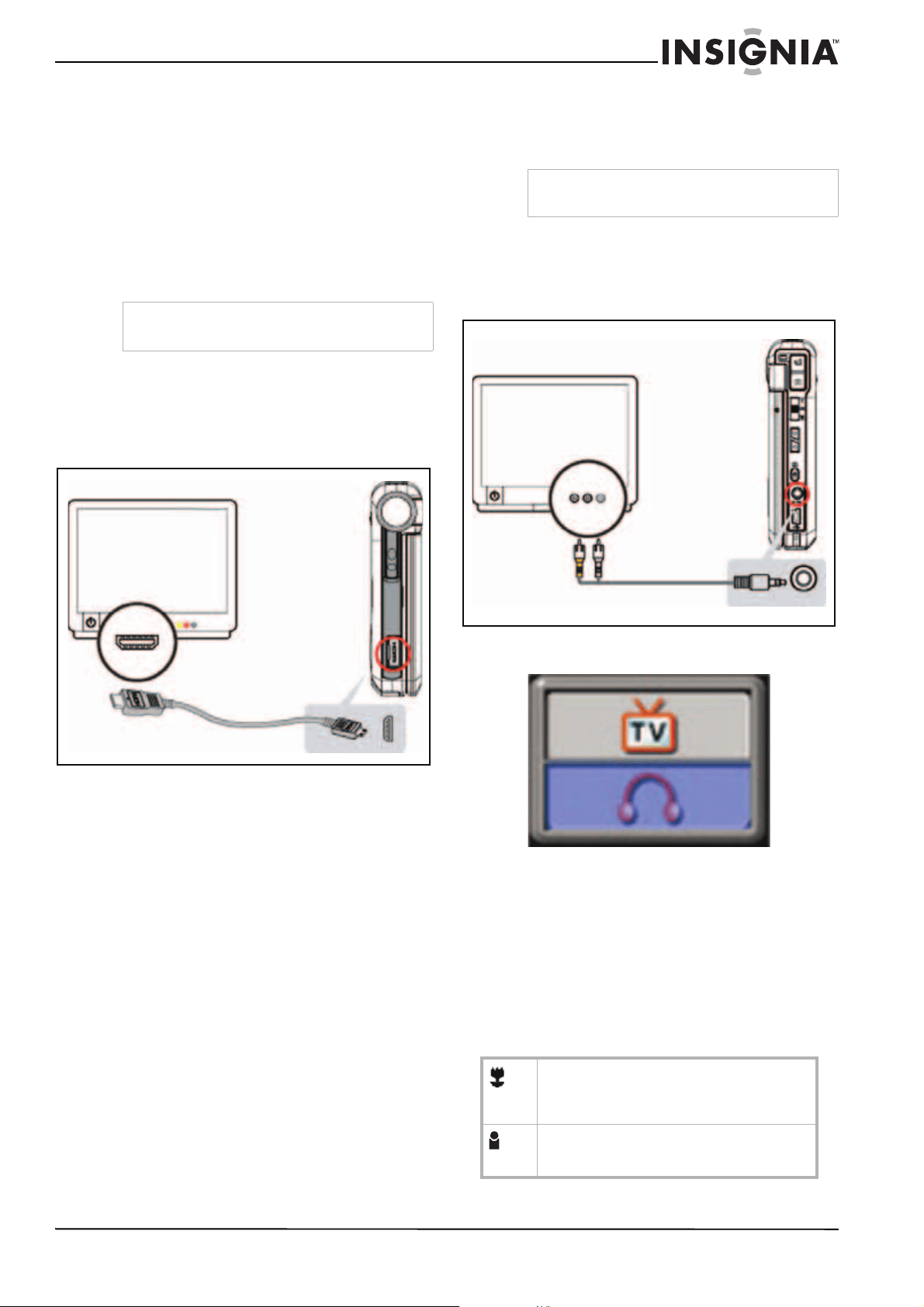
Using movie thumbnails
To use movie thumbnails:
1 Press (Record/Play) to switch to playback
mode.
2 Press or to select Movie.
3 Press OK twice to open the movie option
menu.
4 Press or to select Thumbnail, then
press OK to view the thumbnails.
5 To locate a movie, press or to select a
thumbnail, then press OK.
6 To play the movie, press (Movie Shutter).
12
Insignia NS-DCC5HB09 5 MP High Definition Digital Camcorder with 3.0" LCD Monitor
www.insigniaproducts.com
Locking or unlocking movies
You can lock movies to prevent them from being
deleted.
To lock or unlock movies:
1 Press (Record/Play) to switch to playback
mode.
2 Press or to select Movie.
3 Press OK twice to open the movie option
menu.
4 Press or to select Lock.
5 Press OK to open the lock menu.
6 Press or to select the movie you want to
lock or unlock.
7 Press W (down) to lock or unlock the movie.
If you want to lock or unlock all movies, press
T (up). A confirmation message appears.
8 Press T (up) or W (down) to select Yes. If you
want to cancel your selection, select No.
9 Press OK to confirm your selection and
close the menu.
Repeating movies
You can play a single movie or all movies
repeatedly.
To repeat movies:
1 Press (Record/Play) to switch to playback
mode.
2 Press or to select Movie.
3 Press OK twice to open the movie option
menu.
4 Press or to select Repeat One or
Repeat All.
5 Press OK to start repeat playback.
13
Insignia NS-DCC5HB09 5 MP High Definition Digital Camcorder with 3.0" LCD Monitor
www.insigniaproducts.com
Watching movies on a PC
To watch movies on a PC:
1 Connect the mini-USB cable to the USB port
on your camcorder, then connect the other
end to a USB port on a PC.
2 Start the computer’s video player, such as
Windows Media Player.
3 Use the Windows Media Player controls to
locate and play movies. Movies on a memory
card are located at My Computer\Removable
Disk\DCIM\200MOVIE.
Viewing pictures and movies on an HDTV
To view pictures and movies on an HDTV:
1 Connect the HDMI cable to the HDMI port on
your camcorder, then connect the other end
of the cable to an HDMI port on a TV.
2 Set the video input on the TV to HDMI.
3 Follow the steps for playing movies or
viewing pictures in “Watching a movie” on
page 10 or “Viewing pictures” on page 19.
Viewing pictures or movies on a non-HDTV
You can view pictures or movies on a non-HDTV
with a standard 4:3 aspect ratio or wide 16:9
aspect ratio.
To view pictures or movies on a non-HDTV:
1 Connect one end of the AV cable to the
AV OUT port on your camcorder, then
connect the other end to the AV IN ports on
the TV.
2 When the earphone/TV screen opens, press
T (up) or W (down) to select TV.
3 Set the video input on the TV to the correct
input mode.
4 Follow the steps for playing movies or
viewing pictures in “Watching a movie” on
page 10 or Viewing pictures” on page 19.
Working with pictures
Taking close up pictures
Your camcorder has two close-up picture modes
for taking pictures at close range:
Note
Your camcorder does not function when it is
connected to a PC.
Note
The LCD panel does not work when your
camcorder is connected to a TV.
Macro mode
Use this mode for objects located about 7.8
inches (20 cm) away. When Macro mode is
active, the icon appears on the LCD.
Portrait mode
Use this mode for objects located about 35.4 to
78.7 inches (90 to 200 cm) away.
14
Insignia NS-DCC5HB09 5 MP High Definition Digital Camcorder with 3.0" LCD Monitor
www.insigniaproducts.com
To take close up pictures:
1 Slide the Macro switch to the Macro or
Portrait position.
2 Press (Picture Shutter) to take the
picture.
Using digital zoom
You can zoom on objects to get close up
pictures.The zoom selections are from 1× to 8×.
To use digital zoom:
• Press T to zoom in or press W to zoom out.
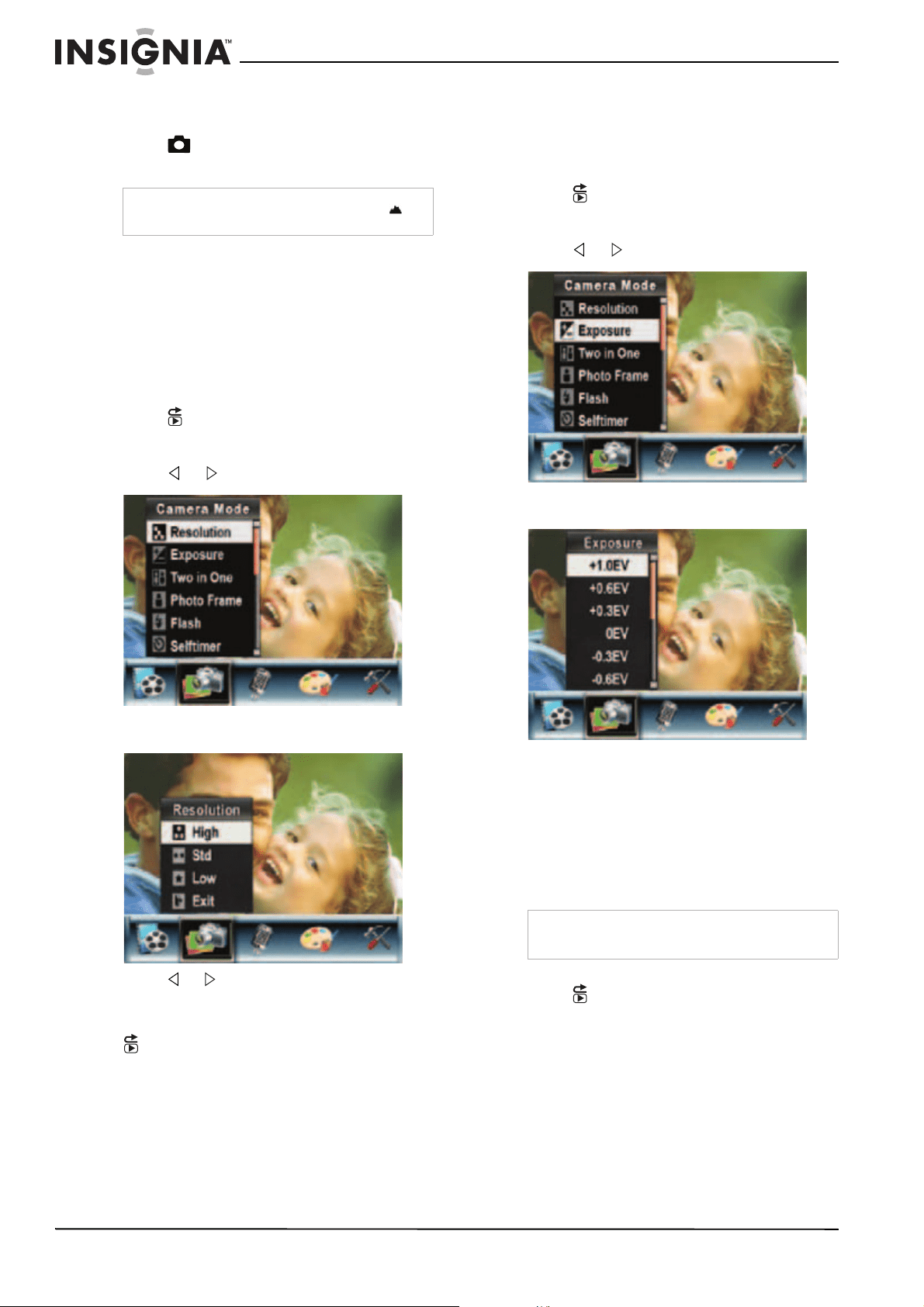
Selecting the resolution for pictures
To select the resolution for pictures:
1 Press (Record/Play) to switch to record
mode.
2 Press OK. The record menu opens.
3 Press or to select Camera Mode.
4 Press T (up) or W (down) to select
Resolution, then press OK.
5 Press or to select High, Std (standard),
or Low, then press OK to save your selection
and close the menu. To exit without changing
the resolution, select Exit or press
(Record/Play).
Selecting the exposure for pictures
Your camcorder adjusts the image exposure
automatically. You can manually adjust the
exposure for special pictures.
To select the exposure for pictures:
1 Press (Record/Play) to switch to record
mode.
2 Press OK. The record menu opens.
3 Press or to select Camera Mode.
4 Press T (up) or W (down) to select
Exposure, then press OK.
5 Press T (up) or W (down) to select an
exposure setting. The new exposure setting
is previewed.
6 Press OK to save your selection and close
the menu.
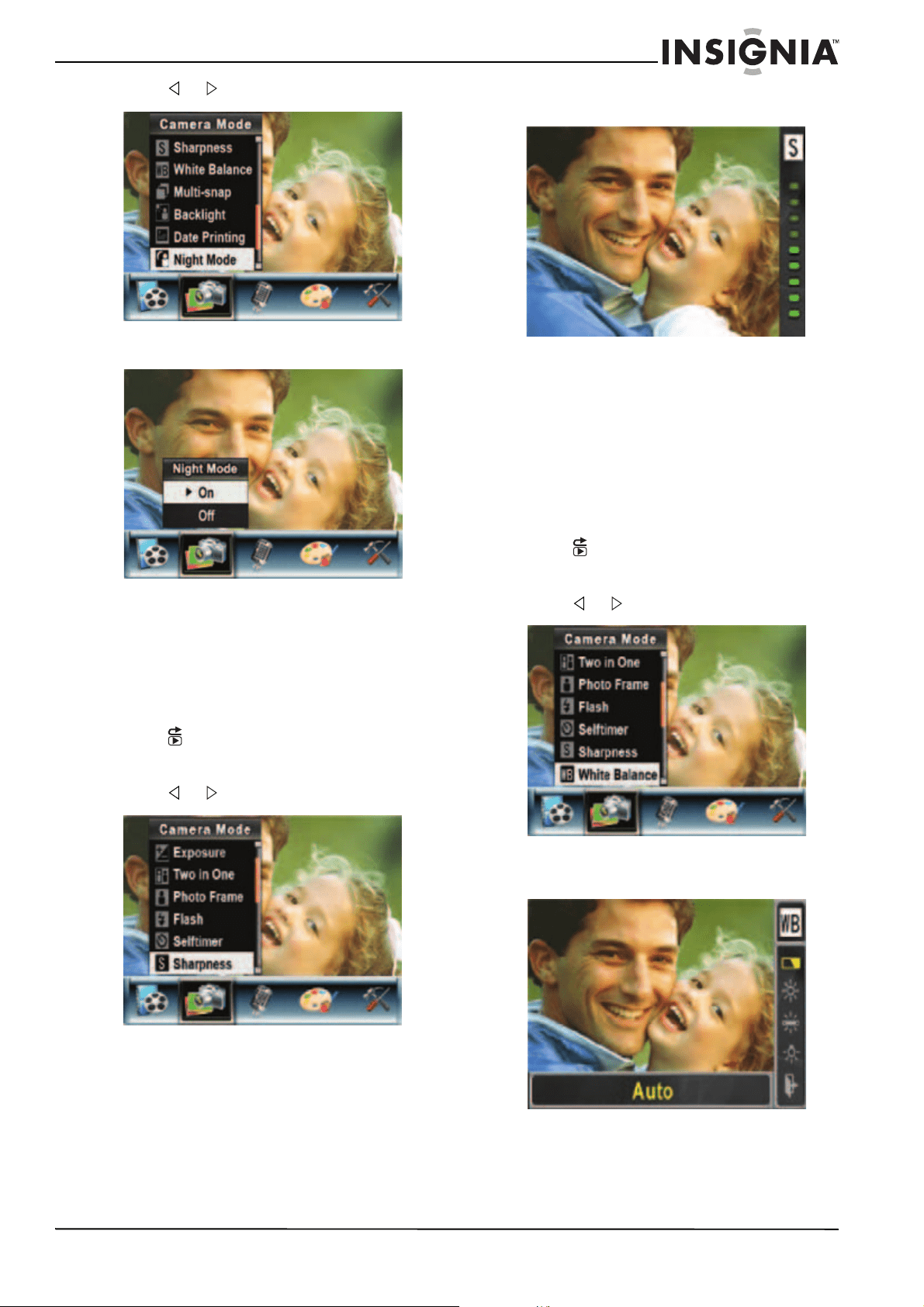
Using Night Mode for low-light pictures
The Night Mode option uses a longer exposure
to capture more detail of the picture background.
To use Night Mode for low-light pictures:
1 Press (Record/Play) to switch to record
mode.
2 Press OK. The record menu opens.
Note
Make sure that you set the Macro switch to
(Normal) when you finish taking close-up pictures.
Note
To avoid blurry pictures, place the camera on a
flat, steady surface or use a tripod.
15
Insignia NS-DCC5HB09 5 MP High Definition Digital Camcorder with 3.0" LCD Monitor
www.insigniaproducts.com
3 Press or to select Camera Mode.
4 Press T (up) or W (down) to select Night
Mode, then press OK.
5 Press T (up) or W (down) to select On or Off,
then press OK to save your selection and
close the menu.
Adjusting the sharpness for pictures
You can adjust the sharpness to soften or
sharpen images to achieve different effects.
To adjust the sharpness for pictures:
1 Press (Record/Play) to switch to record
mode.
2 Press OK. The record menu opens.
3 Press or to select Camera Mode.
4 Press T (up) or W (down) to select
Sharpness, then press OK.
5 Press T (up) or W (down) to select a
sharpness level. The new sharpness setting
is previewed.
6 Press OK to save your selection and close
the menu.
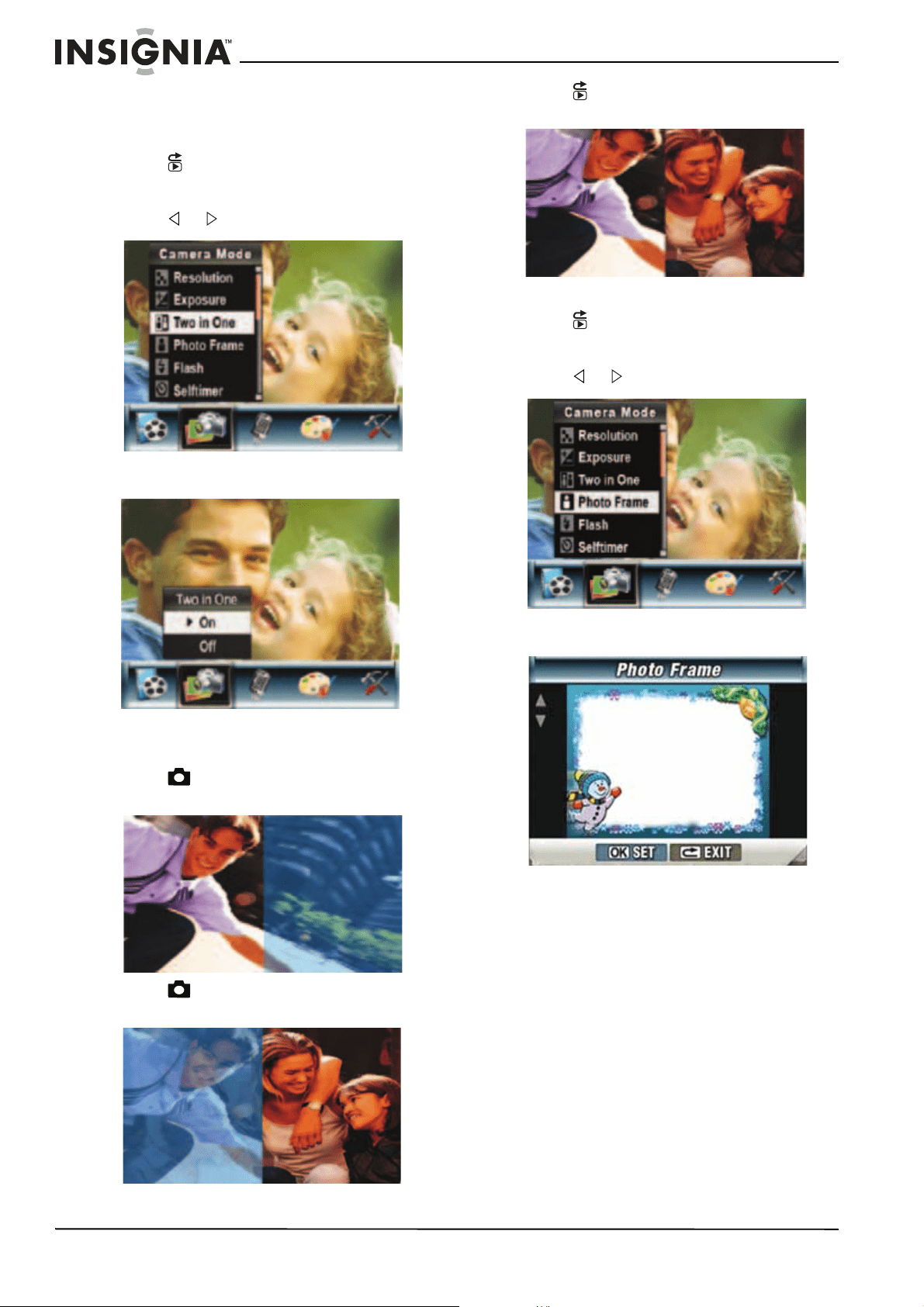
Adjusting the white balance for pictures
You camcorder adjusts the color balance
automatically. You can manually adjust the color
balance for special picture effects.
To adjust the white balance for pictures:
1 Press (Record/Play) to switch to record
mode.
2 Press OK. The record menu opens.
3 Press or to select Camera Mode.
4 Press T (up) or W (down) to select Auto,
Daylight, Fluorescent, or Tungsten. The
new white balance setting is previewed.
5 Press OK to save your selection and close
the menu.
16
Insignia NS-DCC5HB09 5 MP High Definition Digital Camcorder with 3.0" LCD Monitor
www.insigniaproducts.com
Combining two pictures into one
You can combine two pictures into one picture.
To combine two pictures into one:
1 Press (Record/Play) to switch to record
mode.
2 Press OK. The record menu opens.
3 Press or to select Camera Mode.
4 Press T (up) or W (down) to select Two in
One, then press OK.
5 Press T (up) or W (down) to select On, then
press OK to save your selection and close
the menu.
6 Press (Picture Shutter) to take the first
picture.
7 Press (Picture Shutter) to take the
second picture.
8 Press (Record/Play) to view the
two-in-one picture.
Adding photo frames to pictures
1 Press (Record/Play) to switch to record
mode.
2 Press OK. The record menu opens.
3 Press or to select Camera Mode.
4 Press T (up) or W (down) to select Photo
Frame, then press OK.
5 Press T (up) or W (down) to select a photo
frame, then press OK to select SET.
6 Press OK to save your selection and close
the menu.
17
Insignia NS-DCC5HB09 5 MP High Definition Digital Camcorder with 3.0" LCD Monitor
www.insigniaproducts.com
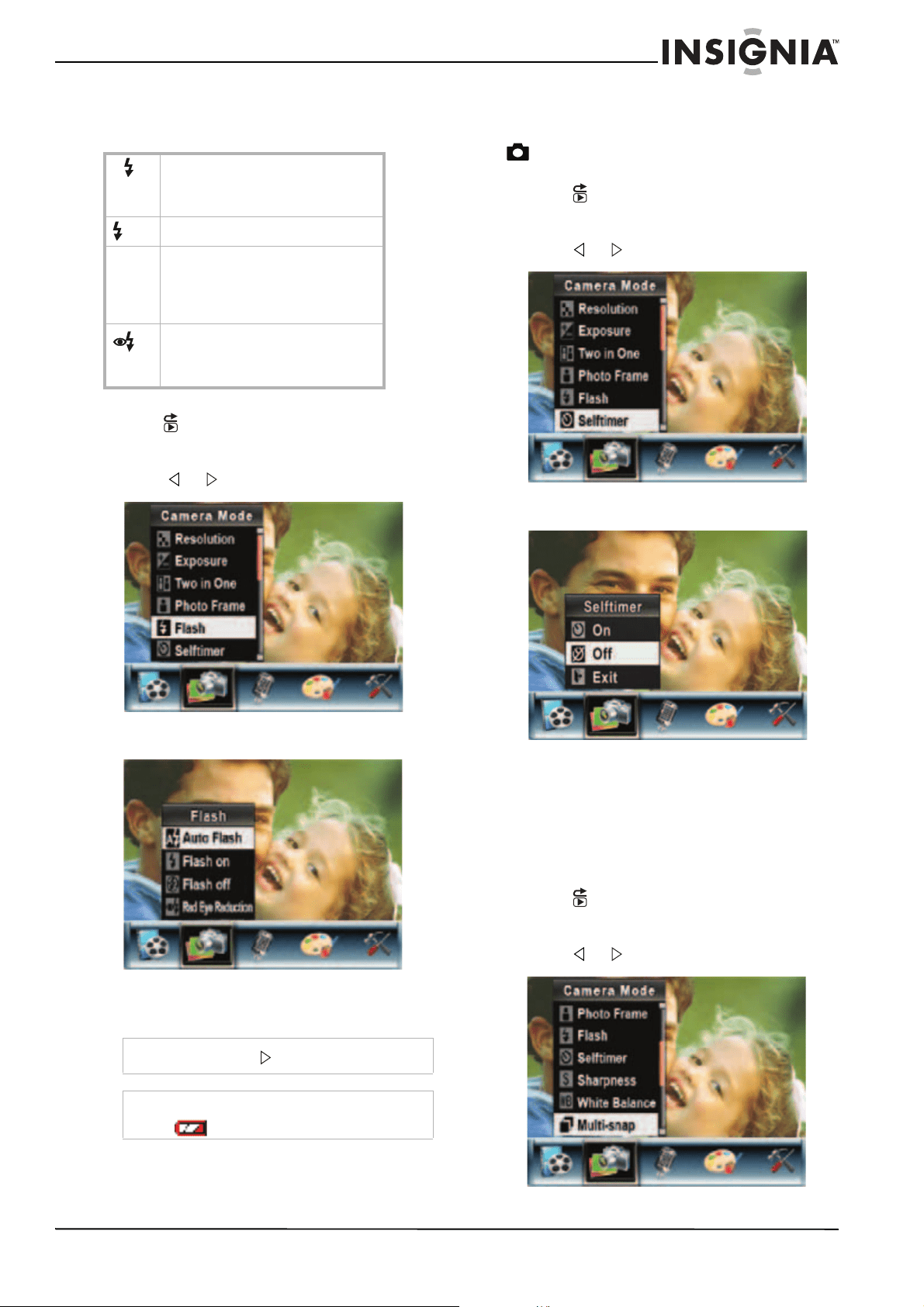
Selecting the flash setting for pictures
Your camcorder has four flash settings. The flash
setting icon appears on the LCD.
To select the flash setting for pictures:
1 Press (Record/Play) to switch to record
mode.
2 Press OK. The record menu opens.
3 Press or to select Camera Mode.
4 Press T (up) or W (down) to select Flash,
then press OK.
5 Press T (up) or W (down) to select a flash
option, then press OK to save your selection
and close the menu.
Using the self-timer for pictures
When the self-timer is turned on, your
camcorder waits 10 seconds after you press
(Picture Shutter) before it takes the picture.
To use the self-timer for pictures:
1 Press (Record/Play) to switch to record
mode.
2 Press OK. The record menu opens.
3 Press or to select Camera Mode.
4 Press T (up) or W (down) to select Selftimer,
then press OK.
5 Press T (up) or W (down) to select On or Off,
then press OK to save your selection and
close the menu.
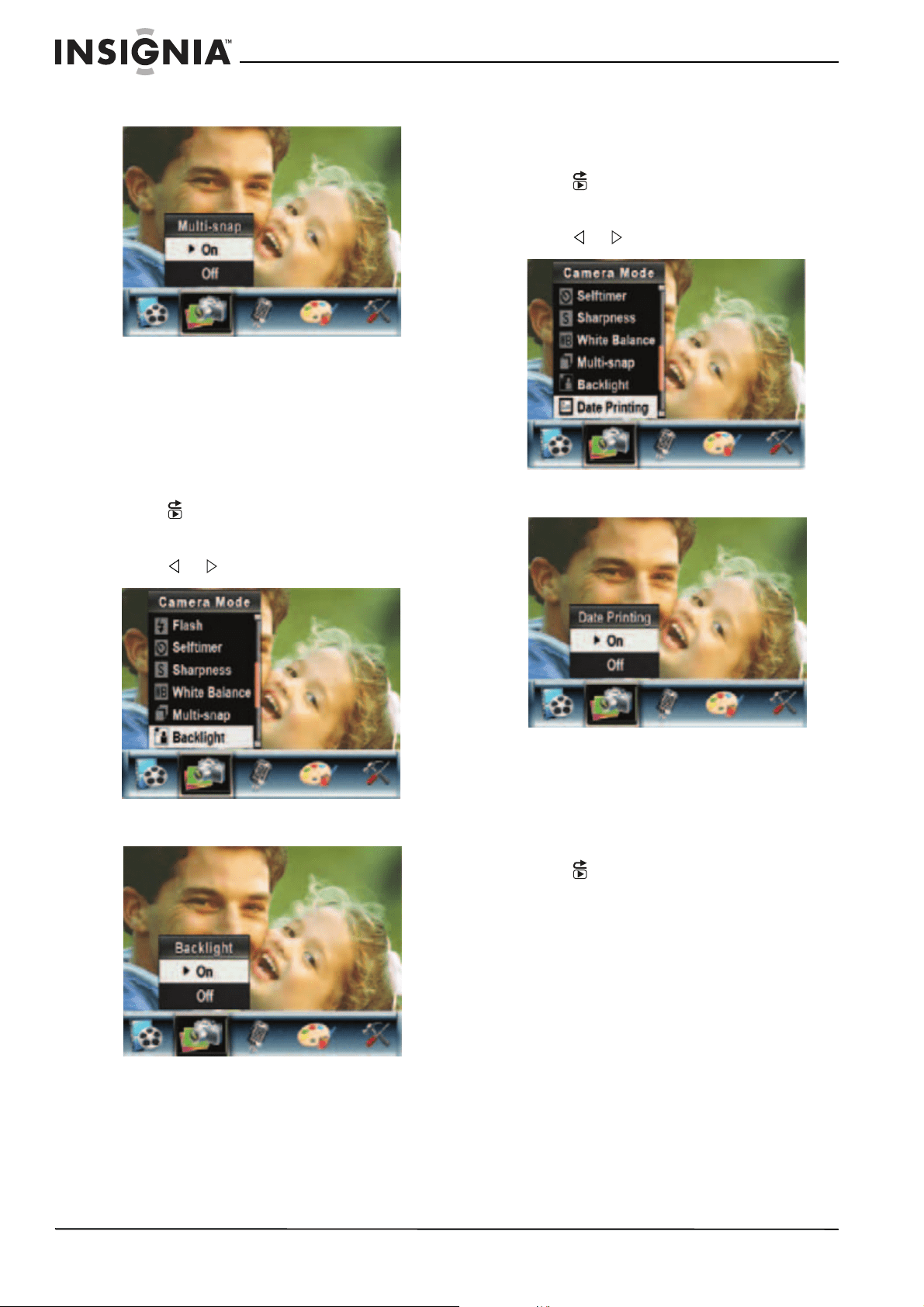
Taking a sequence of pictures
When the Multi-snap option is turned on, your
camcorder takes five pictures in rapid sequence.
To take a sequence of pictures:
1 Press (Record/Play) to switch to record
mode.
2 Press OK. The record menu opens.
3 Press or to select Camera Mode.
A
Auto-flash—The flash fires
automatically depending on the light
conditions. Use this mode for general
photography.
On—The flash fires for every picture.
Off—Use this mode when flash
photography is prohibited or when the
subject is beyond the range of the
flash. When you turn off the flash, no
flash icon appears on the LCD.
Red-eye reduction—The flash fires
twice right before you take the picture.
Use this mode to help eliminate red
reflection in eyes.
Note
You can also press to change the flash setting.
Note
The flash is disabled when the battery power is
low .
18
Insignia NS-DCC5HB09 5 MP High Definition Digital Camcorder with 3.0" LCD Monitor
www.insigniaproducts.com
4 Press T (up) or W (down) to select
Multi-snap, then press OK.
5 Press T (up) or W (down) to select On or Off,
then press OK to save your selection and
close the menu.
Taking pictures with bright backgrounds
When the Backlight option is turned on, you
improve the foreground clarity of pictures when
the background is bright.
To take pictures with bright backgrounds:
1 Press (Record/Play) to switch to record
mode.
2 Press OK. The record menu opens.
3 Press or to select Camera Mode.
4 Press T (up) or W (down) to select
Backlight, then press OK.
5 Press T (up) or W (down) to select On or Off,
then press OK to save your selection and
close the menu.
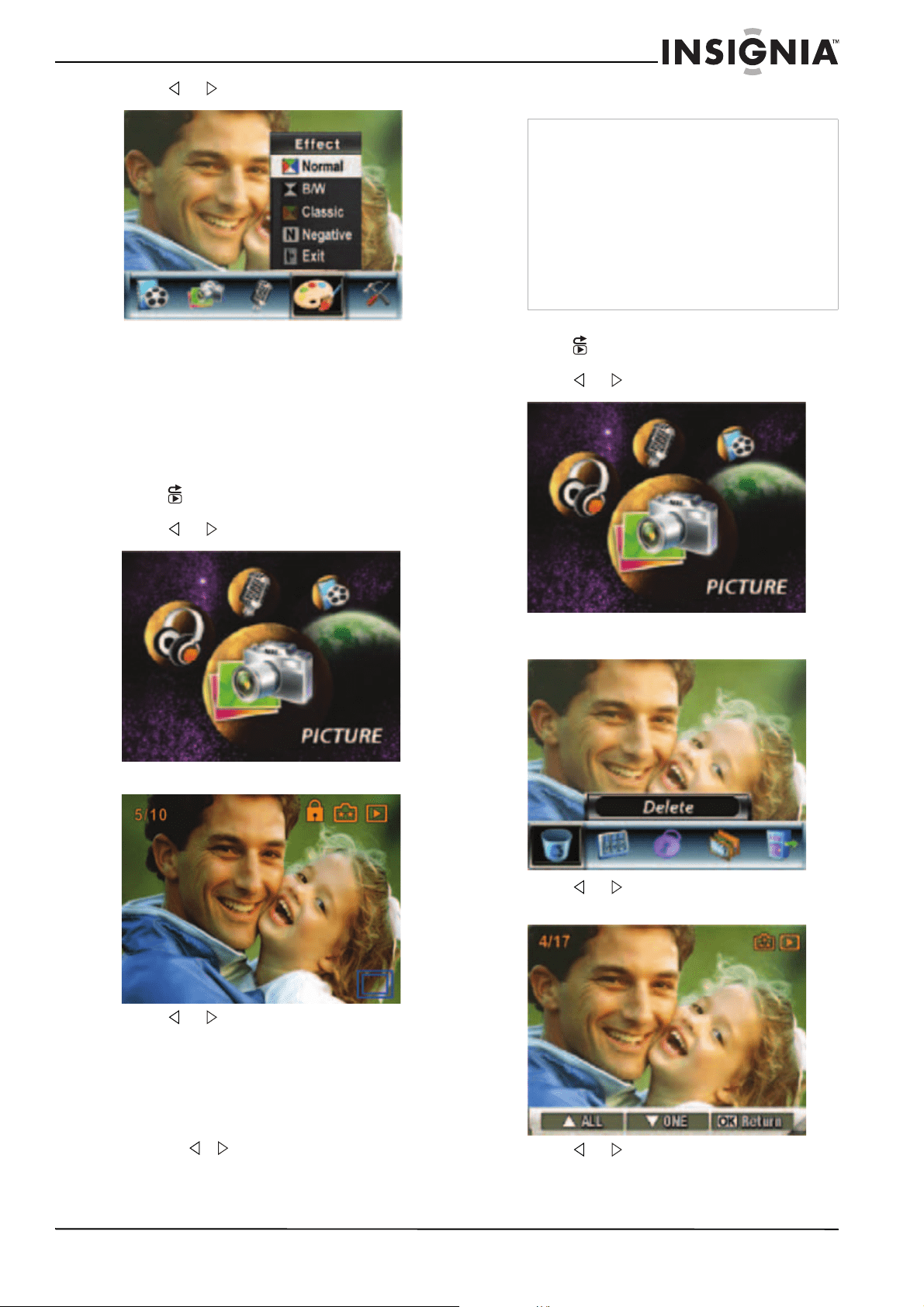
Adding the date to pictures
When the Date Printing option is turned on, your
camcorder adds the date to each picture you
take. The date appears on pictures when you
print them.
1 Press (Record/Play) to switch to record
mode.
2 Press OK. The record menu opens.
3 Press or to select Camera Mode.
4 Press T (up) or W (down) to select Date
Printing, then press OK.
5 Press T (up) or W (down) to select On or Off,
then press OK to save your selection and
close the menu.
Selecting an effect for pictures
You can select a visual effect for pictures.
To select an effect for pictures:
1 Press (Record/Play) to switch to
movie/picture record mode.
2 Press OK. The record menu opens.
19
Insignia NS-DCC5HB09 5 MP High Definition Digital Camcorder with 3.0" LCD Monitor
www.insigniaproducts.com
3 Press or to select Effect.
4 Press T (up) or W (down) to select Normal,
B/W (black and white), Classic, or Negative.
The new effect setting is previewed. To exit
without selecting an effect, select Exit.
5 Press OK to save your selection and close
the menu.
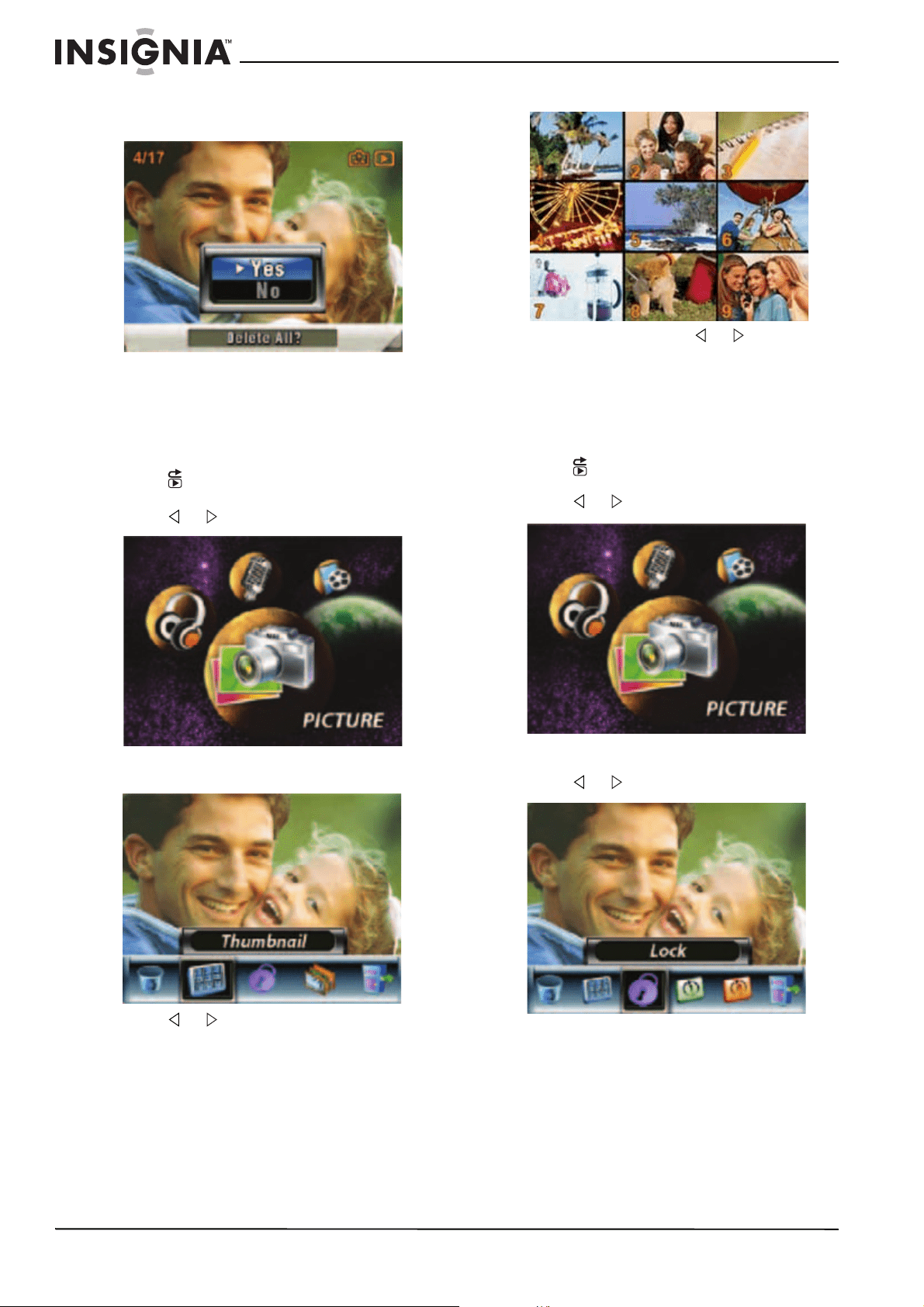
Viewing pictures
To view pictures:
1 Press (Record/Play) to switch to playback
mode.
2 Press or to select Picture.
3 Press OK.
4 Press or to select the previous or next
picture.
5 To control picture playback:
• Press T (up) or W (down) to enlarge the
picture.
• To navigate around the enlarged picture,
press OK to enter navigation mode, then
press , ,T (up), or W (down). To exit
navigation mode, press OK again.
Deleting pictures
To delete pictures:
1 Press (Record/Play) to switch to playback
mode.
2 Press or to select Picture.
3 Press OK twice to open the picture option
menu.
4 Press or to select Delete, then press
OK.
5 Press or to select the picture you want
to delete.
Note
If a memory card is in your camcorder, you can
only delete pictures on the card. To delete pictures
stored in built-in memory, remove the card. For
instructions for removing a card, see “Inserting or
removing a memory card” on page 5.
If a memory card is protected, you cannot delete
pictures from the card. For instructions for
unprotecting a card, see “Protecting an SD
memory card” on page 6.
You cannot delete a locked (protected) picture.
You must unlock the picture. For instructions for
unlocking a picture, see “Locking or unlocking
pictures” on page 20.
20
Insignia NS-DCC5HB09 5 MP High Definition Digital Camcorder with 3.0" LCD Monitor
www.insigniaproducts.com
6 Press W (down) to delete the picture. If you
want to delete all pictures, press T (up). A
confirmation message appears.
7 Press T (up) or W (down) to select Yes. If you
want to cancel the deletion, select No.
8 Press OK to complete the deletion.
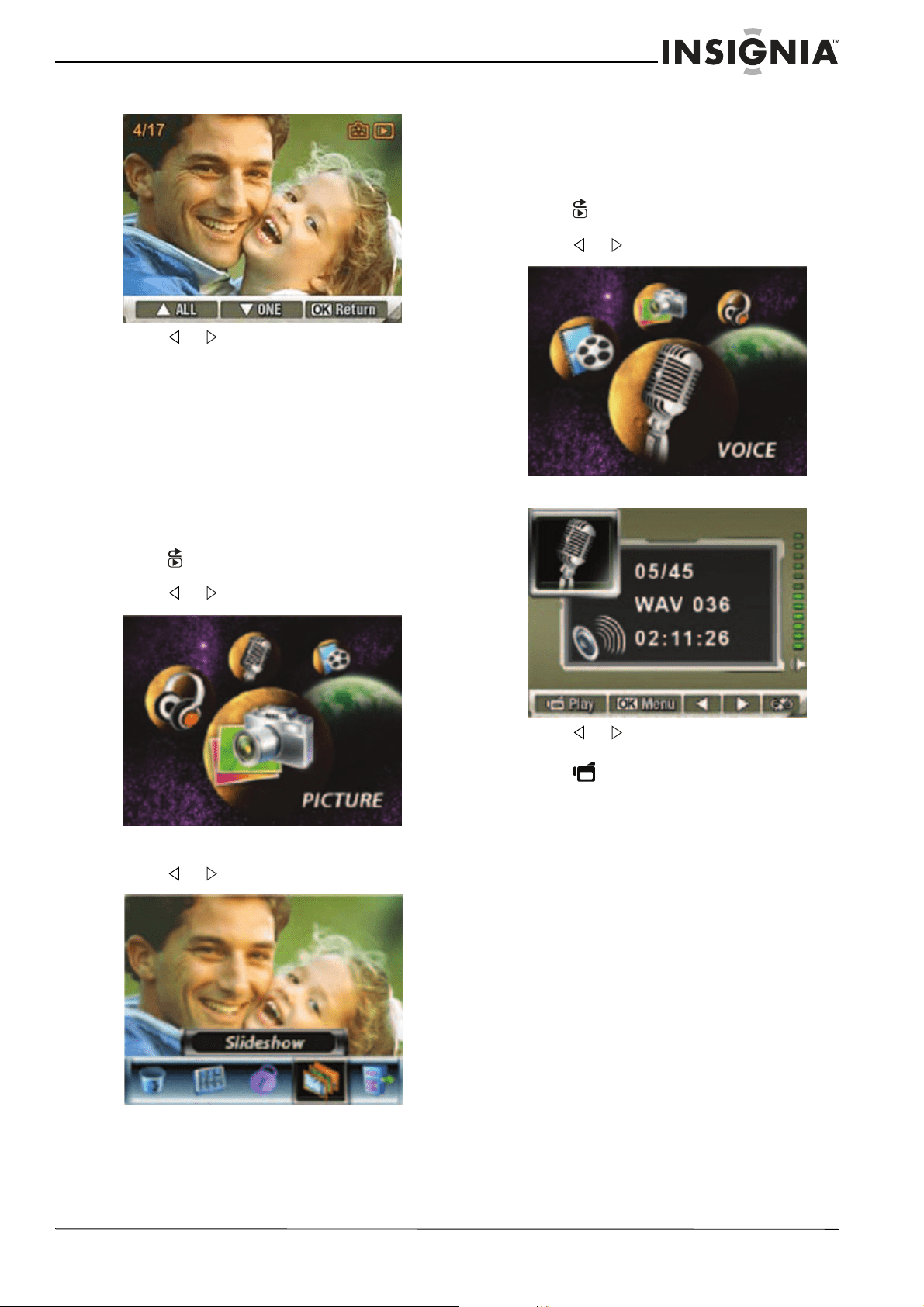
Using picture thumbnails
To use movie thumbnails:
1 Press (Record/Play) to switch to playback
mode.
2 Press or to select Picture.
3 Press OK twice to open the picture option
menu.
4 Press or to select Thumbnail.
5 Press OK to view the thumbnails.
6 To view a picture, press or to select its
thumbnail, then press OK.
Locking or unlocking pictures
You can lock movies to prevent them from being
deleted.
To lock or unlock pictures:
1 Press (Record/Play) to switch to playback
mode.
2 Press or to select Picture.
3 Press OK twice to open the picture option
menu.
4 Press or to select Lock.
21
Insignia NS-DCC5HB09 5 MP High Definition Digital Camcorder with 3.0" LCD Monitor
www.insigniaproducts.com
5 Press OK to open the lock menu.
6 Press or to select the picture you want
to lock or unlock.
7 Press W (down) to lock or unlock the picture.
If you want to lock or unlock all movies, press
T (up). A confirmation message appears.
8 Press T (up) or W (down) to select Yes. If you
want to cancel your selection, select No.
9 Press OK to confirm your selection and close
the menu.
Viewing pictures in a slideshow
To view pictures in a slideshow:
1 Press (Record/Play) to switch to playback
mode.
2 Press or to select Picture.
3 Press OK twice to open the picture option
menu.
4 Press or to select Slideshow.
5 Press OK to start the slideshow. Press OK
again to stop the slideshow.
Working with voice
recordings
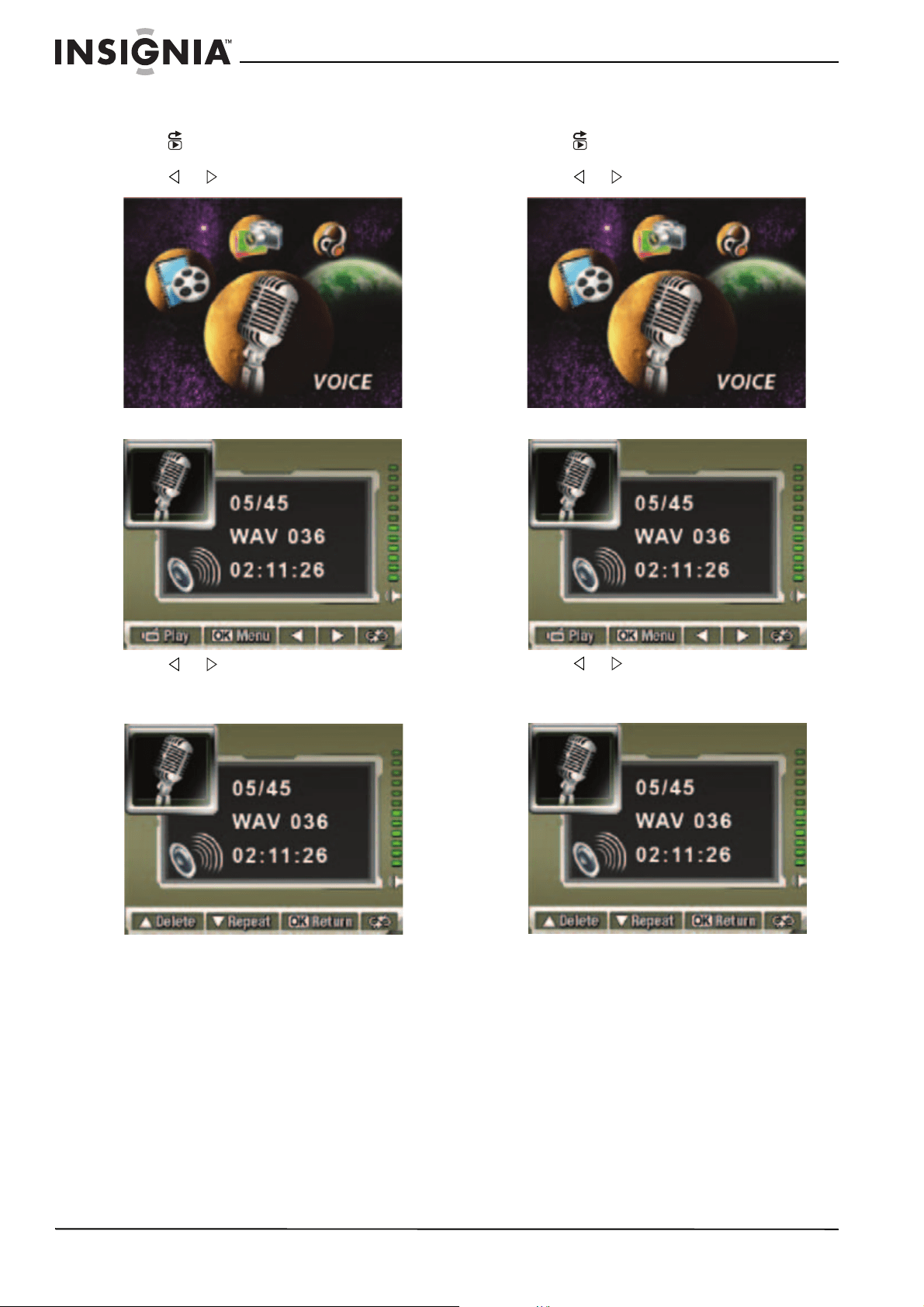
Playing voice recordings
To play voice recordings:
1 Press (Record/Play) to switch to playback
mode.
2 Press or to select Voice.
3 Press OK to go to voice playback mode.
4 Press or to go to the previous or next
voice recording.
5 Press (Movie Shutter) to play the
recording. Press this button again to stop
playback.
6 Press T (up) or W (down) to adjust the
volume.
22
Insignia NS-DCC5HB09 5 MP High Definition Digital Camcorder with 3.0" LCD Monitor
www.insigniaproducts.com
Deleting voice recordings
To delete voice recordings:
1 Press (Record/Play) to switch to playback
mode.
2 Press or to select Voice.
3 Press OK to go to voice playback mode.
4 Press or to select the recording you
want to delete.
5 Press OK to open the voice option menu.
6 Press T (up) to select the delete option.
7 Press W (down) to delete the recording you
selected or press T (up) to delete all
recordings. A confirmation message
appears.
8 Press T (up) or W (down) to select Yes. If you
want to cancel the deletion, select No.
9 Press OK to close the menu.
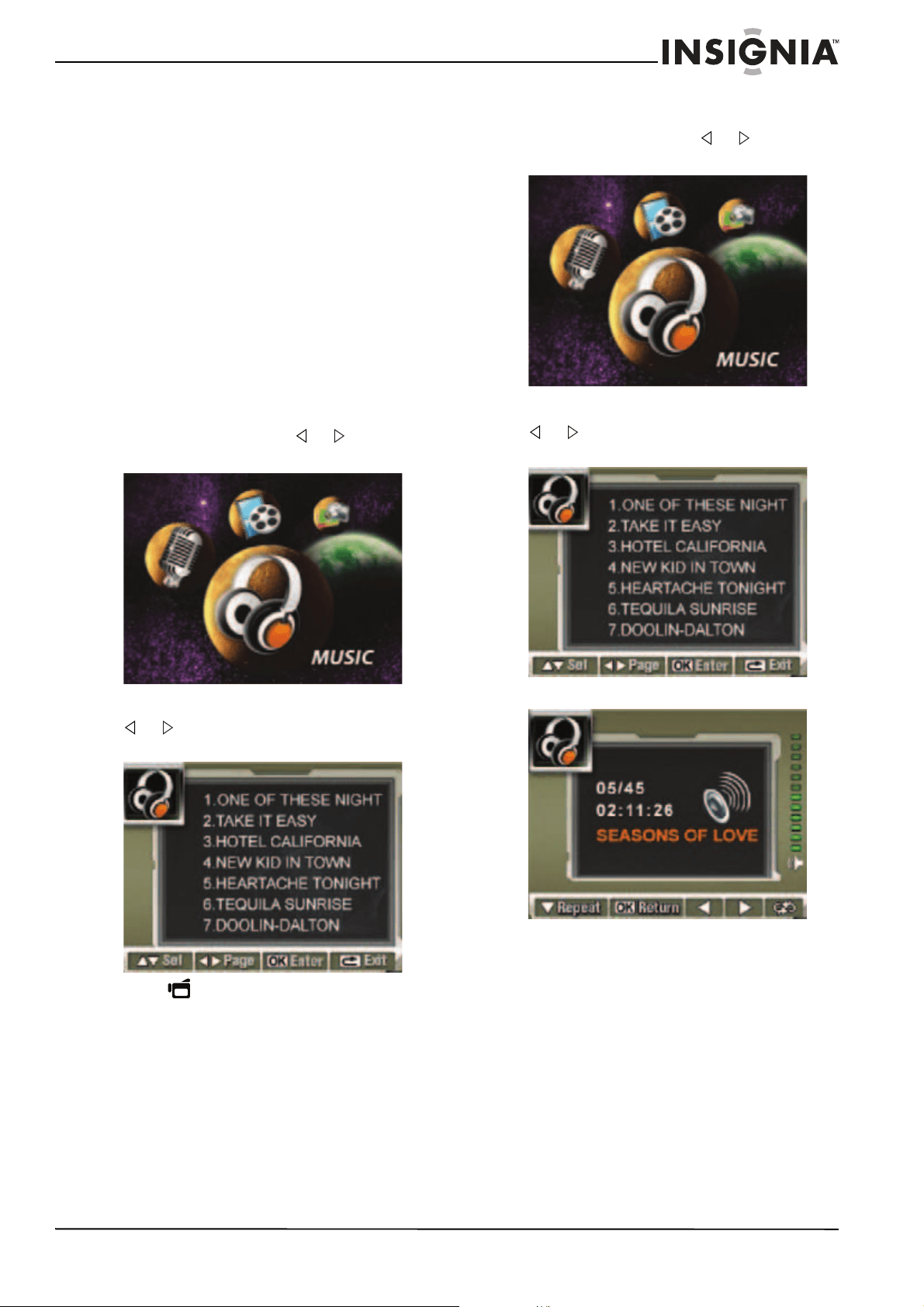
Repeating voice recordings
To repeat voice recordings:
1 Press (Record/Play) to switch to playback
mode.
2 Press or to select Voice.
3 Press OK to go to voice playback mode.
4 Press or to select the recording you
want to repeat.
5 Press OK to to open the voice option menu.
6 Press W (down) once to repeat the recording
you selected or press W (down) twice to
repeat all recordings.
7 To cancel repeat play, press W (down) again.
8 Press OK to save your selection and go back
to the playback menu.
23
Insignia NS-DCC5HB09 5 MP High Definition Digital Camcorder with 3.0" LCD Monitor
www.insigniaproducts.com
Transferring MP3s to your camcorder
To transfer MP3s to your camcorder:
1 Connect the mini-USB cable to the USB port
on your camcorder, then connect the other
end to a USB port on a PC. The red LED
lights when your camcorder is connected to
the PC, and your camcorder is in Mass
Storage mode.
2 Make sure that you have a memory card with
enough memory inserted into your
camcorder.
3 Open My Computer, click and drag the
MP3s you want to transfer to the Removable
Disk\DCIM drive icon.
4 After you transfer all MP3s, disconnect the
USB cable from the PC.
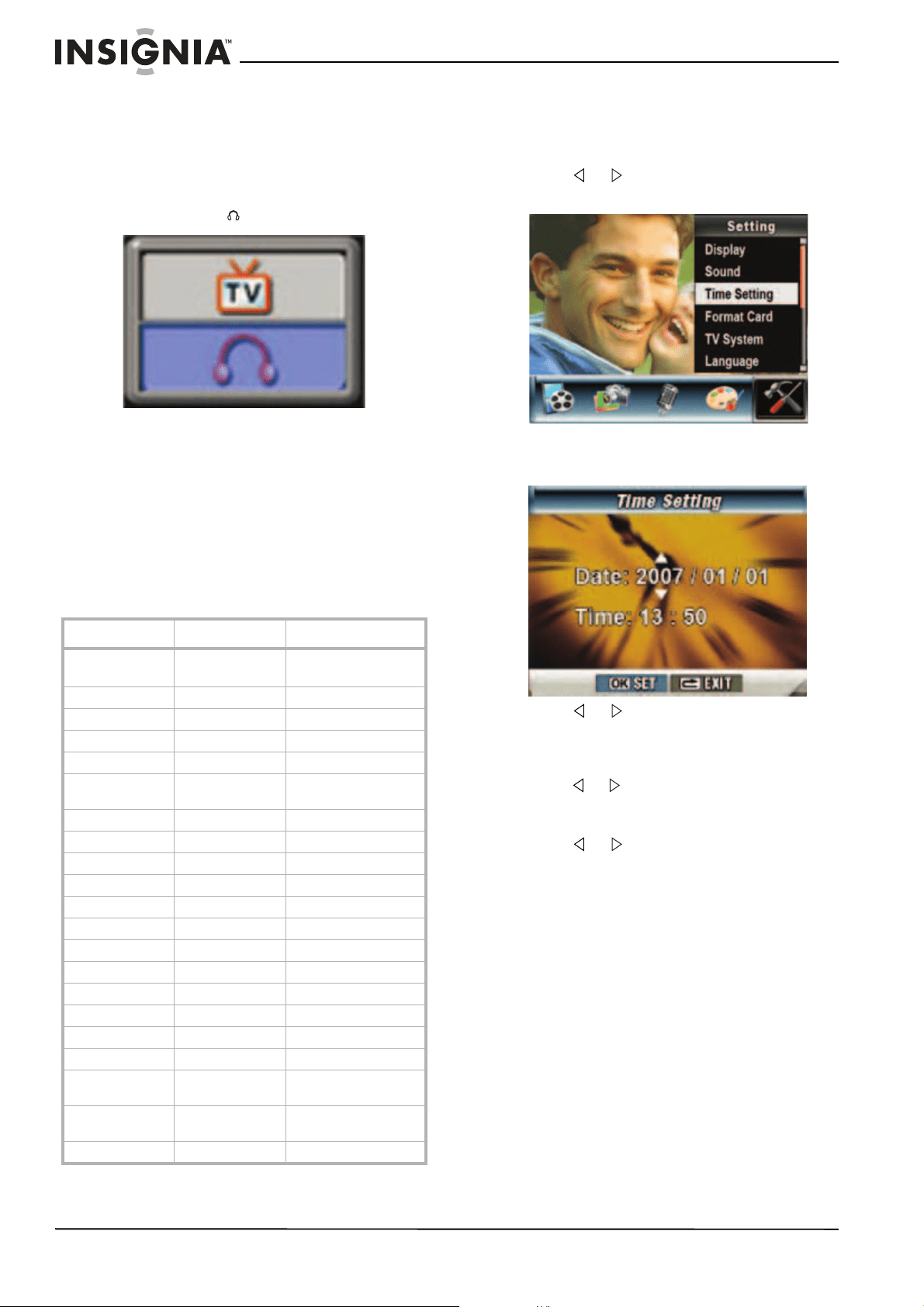
Listening to MP3s
To listen to MP3s:
1 In playback mode, press or to select
Music.
2 Press OK, then press T (up) or W (down)to
select the MP3 you want to listen to or press
or to go to the previous or next page in
the list of MP3s.
3 Press (Movie Shutter) or OK to start
playback. Press this button again to stop
playback.
4 Press T (up) or W (down) to adjust the
volume.
Repeating MP3s
To repeat MP3s:
1 In playback mode, press or to select
Music.
2 Press OK, then press T (up) or W (down)to
select the MP3 you want to listen to or press
or to go to the previous or next page in
the list of MP3s.
3 Press OK twice to go to the repeat menu.
4 Press W (down) once to repeat the selected
MP3. Press W (down) again to repeat all
MP3s.
5 To cancel repeat play, press W (down) again.
6 Press OK to save your selection.
24
Insignia NS-DCC5HB09 5 MP High Definition Digital Camcorder with 3.0" LCD Monitor
www.insigniaproducts.com
Using an earphone
You can use an earphone to listen to MP3s.
To use an earphone:
1 Plug an earphone into the earphone jack on
your camcorder. A menu pops up.
2 When the earphone/TV menu opens, press T
or W to select .
3 Press OK to close the menu.
Configuring your camcorder
Default camcorder settings
The following table list the default settings for
your camcorder.
Always means the setting is always valid (on).
One Time means the setting is only valid (on) for
one picture or movie or until you turn off your
camcorder.
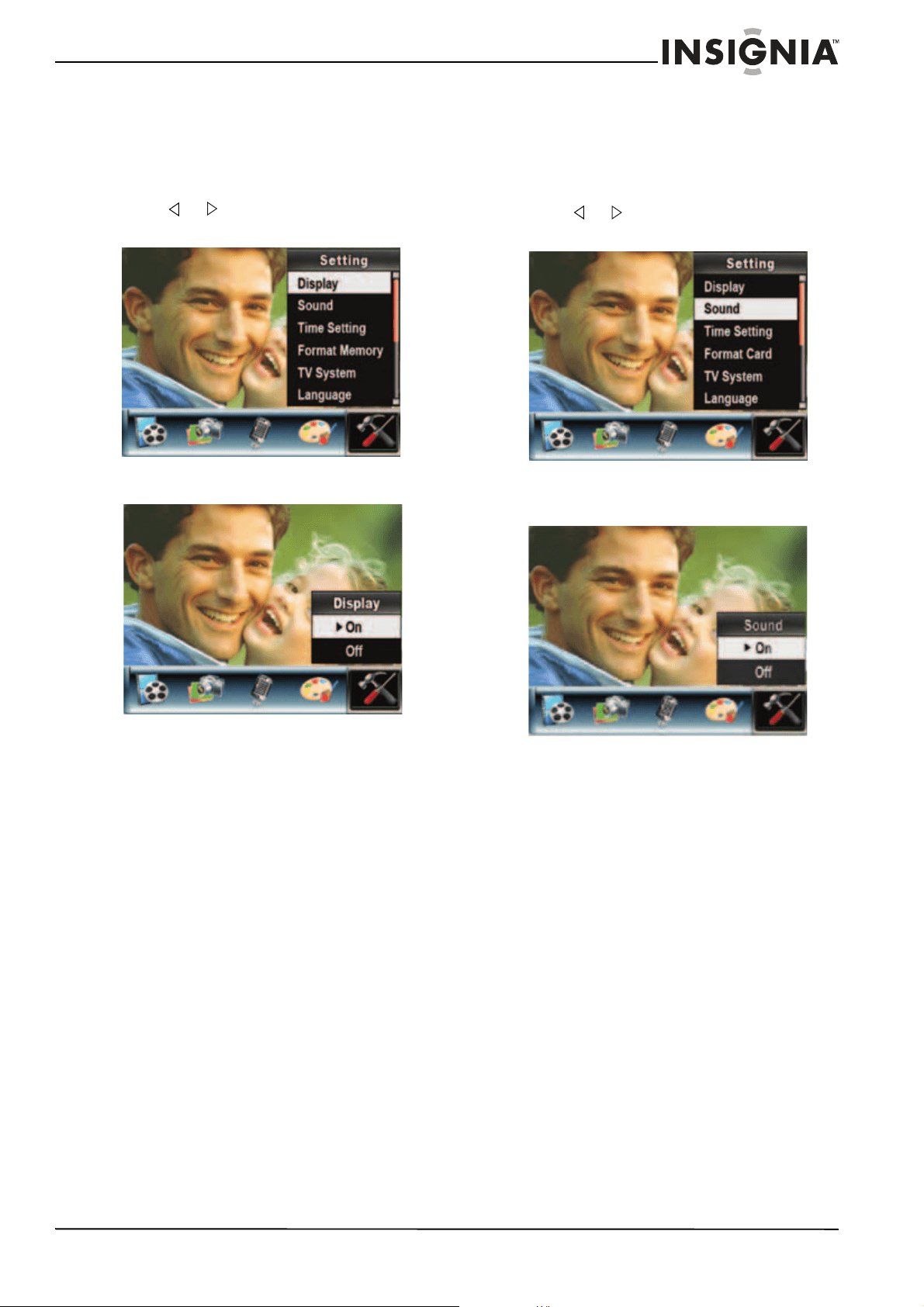
Setting the time
To set the time:
1 In record mode, press OK to open the record
menu.
2 Press or to select Setting. The
Setting
menu opens.
3 Press T (up) or W (down) to select Time
Setting, then press OK. The
Time Setting
screen opens.
4 Press or to move between Date and
Time.
5 Press T (up) or W (down) to change the Date
or Time.
6 Press or to select Set, then press OK to
save your setting and close the menu.
Or
Press or to select Exit, then press OK
to close the menu without saving your setting.
Setting Valid Default Setting
Resolution Always VGA for movies
Standard for pictures.
Exposure One Time 0EV
Light One Time Off
Sharpness One Time Level 5
White Balance One Time Auto
Motion
Stabilization
Always Off
Motion Detect One Time Off
Two in One One Time Off
Photo Frame One Time Off
Flash Always Off
Self-Timer One Time Off
Multi-Snap One Time Off
Backlight Mode One Time Off
Date Printing Always Off
Nite Mode Always Off
Effect One Time Normal
Sound Always On
Format Card One Time Off
TV System Always Depends on the
shipping area
Language Always Depends on the
shipping area
Volume Always Level 8
25
Insignia NS-DCC5HB09 5 MP High Definition Digital Camcorder with 3.0" LCD Monitor
www.insigniaproducts.com
Displaying or hiding camcorder status
information
To display or hide camcorder status
information:
1 In record mode, press OK to open the record
menu.
2 Press or to select Setting. The
Setting
menu opens.
3 Press T (up) or W (down) to select Display,
then press OK. The Display menu opens.
4 Press T (up) or W (down) to select On if you
want the indicators to appear on the LCD or
No if you do not want the indicators to appear
on the LCD.
5 Press OK to save your setting and close the
menu.
Turning sound effects on or off
Your camcorder plays a tone when you press a
button. You can turn sound effects on or off.
To turn sound effects on or off:
1 In record mode, press OK to open the record
menu.
2 Press or to select Setting. The
Setting
menu opens.
3 Press T (up) or W (down) to select Sound,
then press OK. The sound setting menu
opens.
4 Press T or W to select On or Off, then press
OK to save your selection and close the
menu.
Formatting the built-in memory or a
memory card
When a memory card is inserted, you can format
the card. When a memory card is not inserted,
you can format the built-in memory.
To format a memory card:
To format the built-in memory or a memory
card:
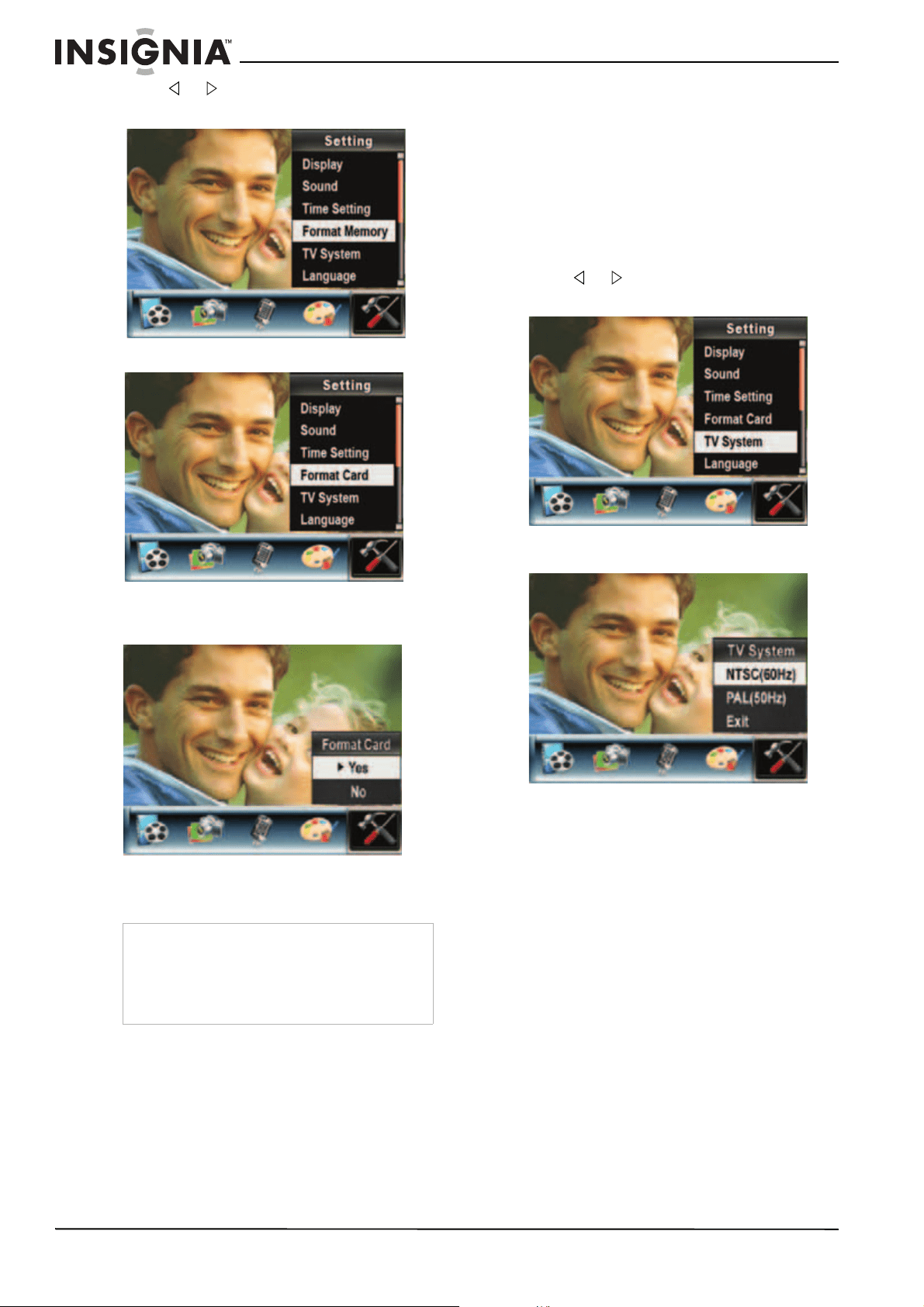
1 If you want to format the built-in memory,
make sure that a memory card is not inserted
in your camcorder.
Or
If you want to format a memory card, insert
the memory card into your camcorder.
2 In record mode, press OK to open the record
menu.
26
Insignia NS-DCC5HB09 5 MP High Definition Digital Camcorder with 3.0" LCD Monitor
www.insigniaproducts.com
3 Press or to select Setting. The
Setting
menu opens.
Or
4 Press T (up) or W (down) to select Format
Memory or Format Card. The format
memory or format card menu opens.
5 Press T (up) or W (down) to select On or Off,
then press OK to save your selection and
close the menu.
Selecting the TV system type
When you connect a TV, make sure that the
correct TV system type is selected. If you select
the wrong TV system type, the image may
flicker.
NTSC is the system type for U.S.A., Canada,
and Mexico.
To select the TV system type:
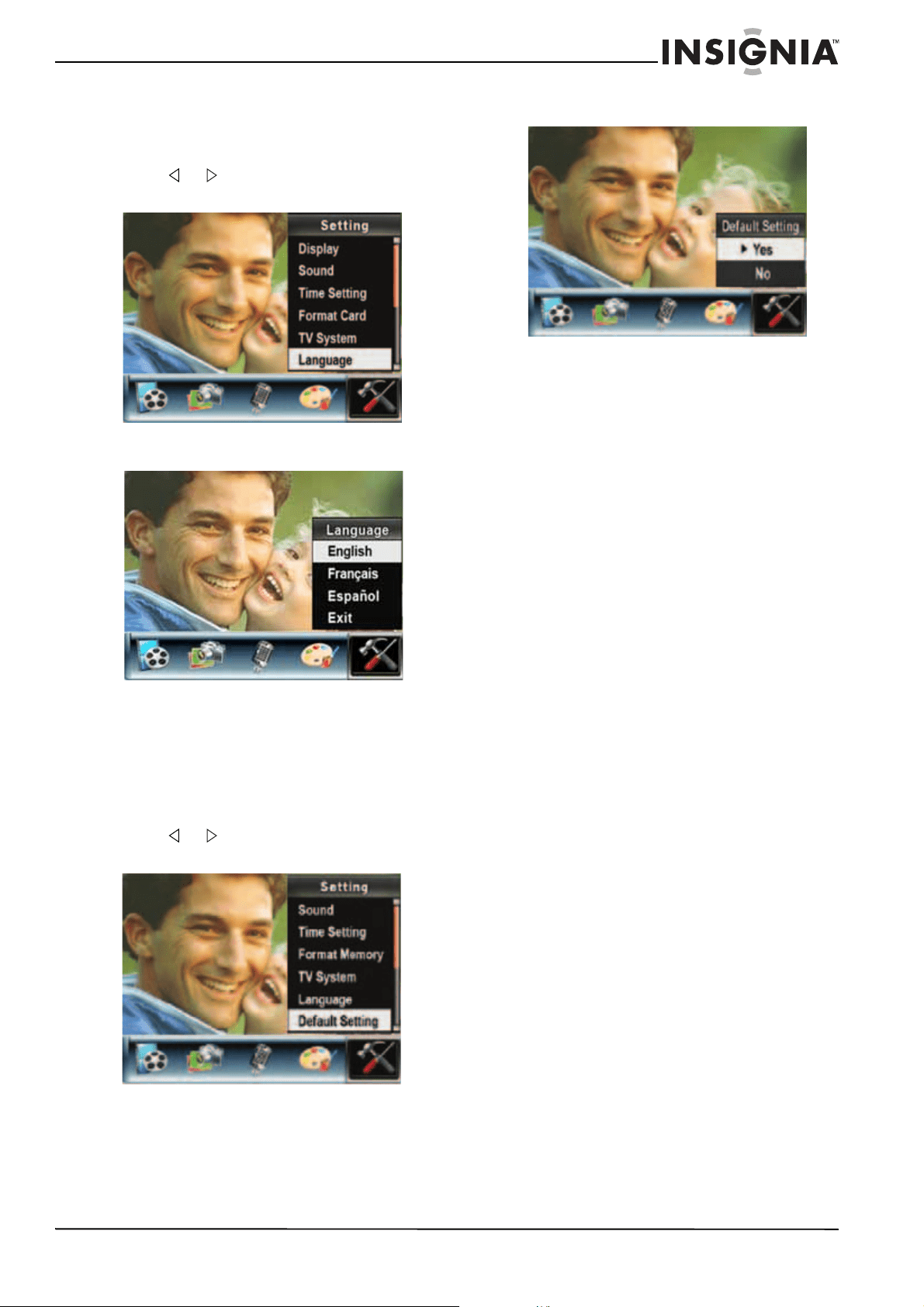
1 In record mode, press OK to open the record
menu.
2 Press or to select Setting. The
Setting
menu opens.
3 Press T (up) or W (down) to select TV
System. The
TV System
menu opens.
4 Press T (up) or W (down) to select your TV
system type, then press OK to save your
setting and close the menu.
5 Press T (up) or W (down) to select Exit, then
press OK to close the menu.
Caution
Formatting a memory card will permanently delete
all files from the card. Make sure that you copy
any files you want to save to a computer before
you format the card.
Do not remove the memory card while it is
formatting.
27
Insignia NS-DCC5HB09 5 MP High Definition Digital Camcorder with 3.0" LCD Monitor
www.insigniaproducts.com
Selecting the on-screen menu language
To select the on-screen menu language:
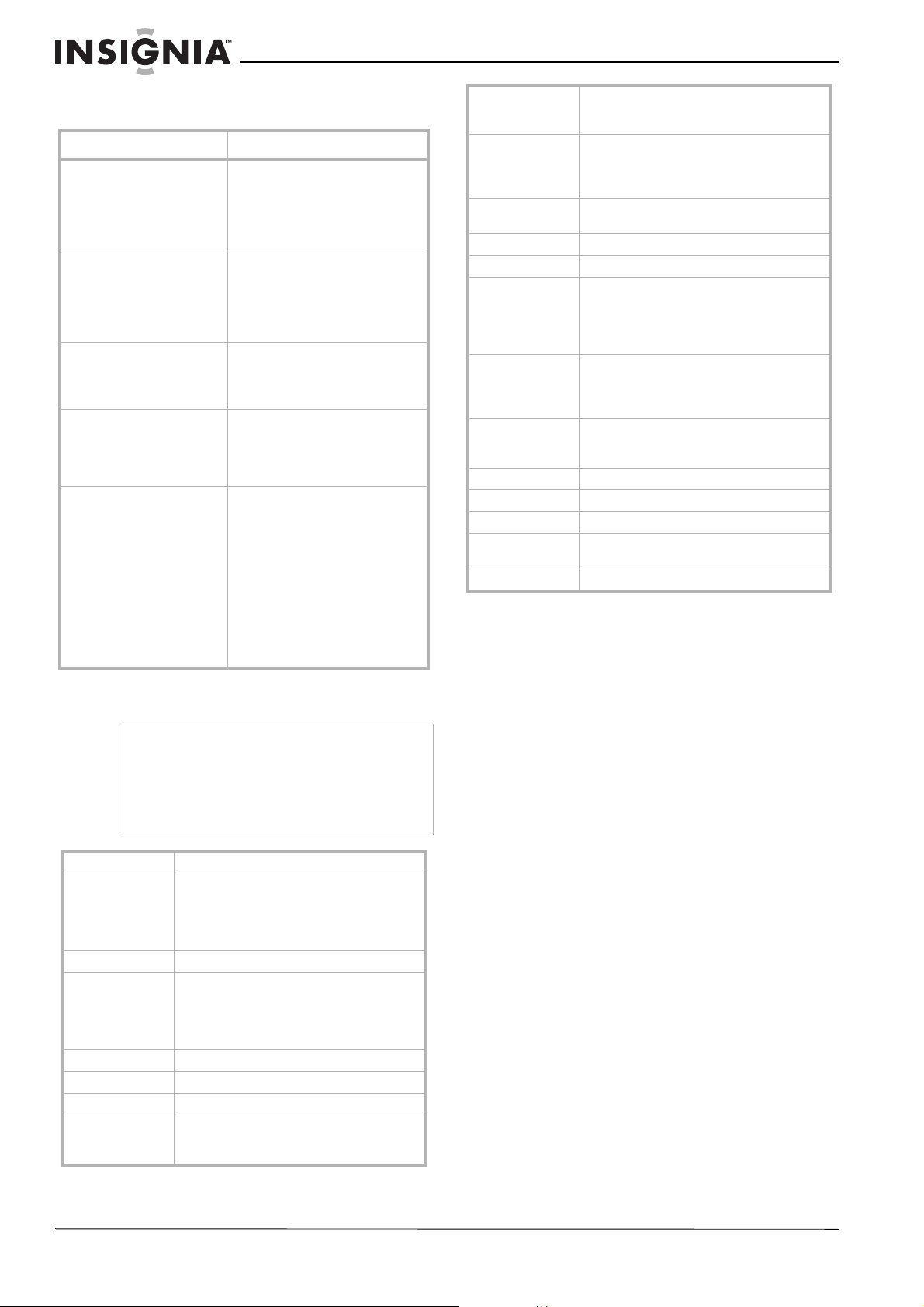
1 In record mode, press OK to open the record
menu.
2 Press or to select Setting. The
Setting
menu opens.
3 Press T (up) or W (down) to select
Language. The
Language
menu opens.
4 Press T (up) or W (down) to select a
language, then press OK to save your
selection and close the menu.
Restoring default settings
To restore default settings:
1 In record mode, press OK to open the record
menu.
2 Press or to select Setting. The
Setting
menu opens.
3 Press T (up) or W (down) to select Default
Setting. The
Default Setting
menu opens.
4 Press T (up) or W (down) to select Yes. If
you want to cancel the restoration, select No.
5 Press OK to restore settings and close the
menu.
Transferring files to a PC
The PC you connect your camcorder to must
meet the following requirements:
•Windows Vista
®
, Windows
®
XP, Windows
®
2000, Windows
®
Me, or Windows
®
98SE
operating system
•Pentium
®
III processor with 800 MHz or
above
• 256 MB of memory
• CD drive
• 1 GB free hard drive space
• Available USB 2.0 port
To transfer files to a PC:
1 Connect the mini-USB cable to the USB port
on your camcorder, then connect the other
end to a USB port on a PC. The red LED
lights when your camcorder is connected to
the PC, and your camcorder is in Mass
Storage mode.
2 Open My Computer, then double-click
Removable Disk\DCIM. The files on your
camcorder are displayed. From My
Computer, you can read, delete, move, and
copy any movies, pictures, or voice
recordings on your camcorder.
Maintaining
• Avoid pressing hard on the camcorder body.
• Do not subject the LCD to impact because
the glass may break and fluid may leak from
your camcorder.
• When you store your camcorder for an
extended period or you are not going to use it
soon, remove the batteries. Leakage may
occur that will damage your camcorder.
28
Insignia NS-DCC5HB09 5 MP High Definition Digital Camcorder with 3.0" LCD Monitor
www.insigniaproducts.com
Troubleshooting
Specifications
Installing the device driver software
To install the device driver software:
1 Insert the supplied mini CD into the CD drive
on your computer. The
Autorun
window
opens.
2 Click Install Device Driver, then follow the
on-screen instructions to install the driver.
Accessing the User Guide
To access the User Guide:
• Insert the supplied mini CD into your
computer and open the User Guide file.
Or
Visit the Insignia Web site at
www.insigniaproducts.com and click on the
Digital Camcorder link under Products.
Problem Solution
The image on the LCD is not
clear.
Try switching between Macro
mode, Portrait mode, or Normal
mode to adjust the focus. Use
Macro mode for objects within 7.8
inches. Use Normal for objects
over 7.8 inches away.
Picture not recording
correctly.
To record, adjust the focus, then
press the shutter button. A
“funnel” icon appears in the center
of the LCD. Hold your camcorder
steady until the “funnel”
disappears.
The flash is not working. Make sure that your camcorder is
not in Macro mode.
Make sure that the batteries are
not low.
When recording, zoom does
not work.
Make sure that the stablization
feature is turned off. For more
information, see “Using motion
stabilization for movies” on
page 9.
Files on a memory card do
not display correctly when
“!” or the “funnel” icon
appear on the LCD.
The “!” indicates that the file
format is not supported by your
camcorder. The “funnel” icon
indicates that the file cannot be
displayed correctly.
Delete the files with incorrect file
formats.
We recommend that you format
the memory card before you use it,
and avoid placing files with
different formats in the same
folder.
Note
The LCD screen is manufactured using extremely
high-precision technology. This ensures that
99.99% of the pixels work correctly. Some pixels
(tiny dots of black, white, red, blue, or green) may
appear on the LCD screen. These dots are a
normal result of the manufacturing process and do
not affect the recording.
Image Sensor 5 mega pixel
Operation Modes • Movie Record
• Picture Record
•Voice Record
• MP3 Player
• Mass Storage Device
Lens F3.2 (f = 7.2mm)
Focus Range • Normal mode: 59 in. (150 cm) ~
infinite
• Portrait mode: 35.4 in. ~ 78.7 in.
(90cm ~ 200cm)
• Macro mode: Center: 7.9 in. (20 cm)
Digital Zoom 8×
Shutter Electronic
LCD monitor 3" TFT LCD
Storage Media • Built-in 64 MB memory (part of
memory is used for Firmware code)
• SD/MMC card slot support
Image Resolution • 3744 × 2808 (11M pixels)
• 2592 × 1944 (5M pixels)
• 1600 × 1200 (2M pixels)
Movie Resolution • HD: 1280 × 720 pixels 30 fps
• D1: 720 × 480 pixels 30 fps
• VGA: 640 × 480 pixels 30 fps
• QVGA: 320 × 240 pixels 30 fps
White Balance Auto and Manual (Daylight, Fluorescent, and
Tungsten)
Exposure Auto and Manual
Self-Timer 10 second delay
Flash • Auto
•On
•Off
• Red Eye Reduction
• Light: On or Off
File Format • Picture: JEPG
• Movie: AVI (Xvid)
•Voice: WAV
•Music: MP3
Image play • Single Image
• Thumbnails
• Slideshow
PC Interface Mini USB 2.0 Port
TV out NTSC and PAL selectable
Battery Lithium-ion rechargeable battery
Dimension
H×W×D
4.25 × 2.4 × 0.98 in. (108 × 61 × 25 mm)
Weight 4.94 oz. (140 g) (without battery)

29
Insignia NS-DCC5HB09 5 MP High Definition Digital Camcorder with 3.0" LCD Monitor
www.insigniaproducts.com
Legal notices
FCC Part 15
This device complies with Part 15 of the FCC Rules.
Operation of this product is subject to the following two
conditions: (1) this device may not cause harmful
interference, and (2) this device must accept any interference
received, including interference that may cause undesired
operation.
This equipment has been tested and found to comply within
the limits for a class B digital device, pursuant to Part 15 of
the FCC Rules. These limits are designed to provide
reasonable protection against harmful interference in a
residential installation. This equipment generates, uses, and
can radiate radio frequency energy and, if not installed and
used in accordance with the instructions, may cause harmful
interference to radio communications. However, there is no
guarantee that interference will not occur in a particular
installation. If this equipment does cause harmful
interference to radio or television reception, which can be
determined by turning the equipment off and on, the user is
encouraged to try to correct the interference by one or more
of the following measures:
• Reorient or relocate the receiving antenna.
• Increase the separation between the equipment and
receiver.
• Connect the equipment into an outlet on a circuit
different from that to which the receiver is connected.
• Consult the dealer or an experienced technician for
help.
FCC warning
Changes or modifications not expressly approved by the
party responsible for compliance with the FCC Rules could
void the user’s authority to operate this equipment.
Canada ICES-003 statement
This Class B digital apparatus complies with Canadian
ICES-003.

30
Insignia NS-DCC5HB09 5 MP High Definition Digital Camcorder with 3.0" LCD Monitor
www.insigniaproducts.com

31
Insignia NS-DCC5HB09 5 MP High Definition Digital Camcorder with 3.0" LCD Monitor
www.insigniaproducts.com
One-Year Limited Warranty
Insignia Products (“Insignia”) warrants to you, the original
purchaser of this new NS-DCC5HB09 (“Product”), that the
Product shall be free of defects in the original manufacture of
the material or workmanship for a period of one (1) year from
the date of your purchase of the Product (“Warranty Period”).
This Product must be purchased from an authorized dealer
of Insignia brand products and packaged with this warranty
statement. This warranty does not cover refurbished
Product. If you notify Insignia during the Warranty Period of a
defect covered by this warranty that requires service, terms
of this warranty apply.
How long does the coverage last?
The Warranty Period lasts for 1 year (365 days) from the date
you purchased the Product. The purchase date is printed on
the receipt you received with the Product.
What does this warranty cover?
During the Warranty Period, if the original manufacture of the
material or workmanship of the Product is determined to be
defective by an authorized Insignia repair center or store
personnel, Insignia will (at its sole option): (1) repair the
Product with new or rebuilt parts; or (2) replace the Product
at no charge with new or rebuilt comparable products or
parts. Products and parts replaced under this warranty
become the property of Insignia and are not returned to you.
If service of Products or parts are required after the Warranty
Period expires, you must pay all labor and parts charges.
This warranty lasts as long as you own your Insignia Product
during the Warranty Period. Warranty coverage terminates if
you sell or otherwise transfer the Product.
How to obtain warranty service?
If you purchased the Product at a retail store location, take
your original receipt and the Product to the store you
purchased it from. Make sure that you place the Product in
its original packaging or packaging that provides the same
amount of protection as the original packaging. If you
purchased the Product from an online web site, mail your
original receipt and the Product to the address listed on the
web site. Make sure that you put the Product in its original
packaging or packaging that provides the same amount of
protection as the original packaging.
To obtain in-home warranty service for a television with a
screen 25 inches or larger, call 1-888-BESTBUY. Call agents
will diagnose and correct the issue over the phone or will
have an Insignia-approved repair person dispatched to your
home.
Where is the warranty valid?
This warranty is valid only to the original purchaser of the
product in the United States, Canada, and Mexico.
What does the warranty not cover?
This warranty does not cover:
• Customer instruction
• Installation
• Set up adjustments
• Cosmetic damage
• Damage due to acts of God, such as lightning strikes
• Accident
•Misuse
•Abuse
• Negligence
• Commercial use
• Modification of any part of the Product, including the
antenna
This warranty also does not cover:
• Damage due to incorrect operation or maintenance
• Connection to an incorrect voltage supply
• Attempted repair by anyone other than a facility
authorized by Insignia to service the Product
• Products sold as is or with all faults
• Consumables, such as fuses or batteries
• Products where the factory applied serial number has
been altered or removed
REPAIR REPLACEMENT AS PROVIDED UNDER THIS
WARRANTY IS YOUR EXCLUSIVE REMEDY. INSIGNIA
SHALL NOT BE LIABLE FOR ANY INCIDENTAL OR
CONSEQUENTIAL DAMAGES FOR THE BREACH OF ANY
EXPRESS OR IMPLIED WARRANTY ON THIS PRODUCT,
INCLUDING, BUT NOT LIMITED TO, LOST DATA, LOSS OF
USE OF YOUR PRODUCT, LOST BUSINESS OR LOST
PROFITS. INSIGNIA PRODUCTS MAKES NO OTHER
EXPRESS WARRANTIES WITH RESPECT TO THE
PRODUCT, ALL EXPRESS AND IMPLIED WARRANTIES
FOR THE PRODUCT, INCLUDING, BUT NOT LIMITED TO,
ANY IMPLIED WARRANTIES OF AND CONDITIONS OF
MERCHANTABILITY AND FITNESS FOR A PARTICULAR
PURPOSE, ARE LIMITED IN DURATION TO THE
WARRANTY PERIOD SET FORTH ABOVE AND NO
WARRANTIES, WHETHER EXPRESS OR IMPLIED, WILL
APPLY AFTER THE WARRANTY PERIOD. SOME STATES,
PROVINCES AND JURISDICTIONS DO NOT ALLOW
LIMITATIONS ON HOW LONG AN IMPLIED WARRANTY
LASTS, SO THE ABOVE LIMITATION MAY NOT APPLY TO
YOU. THIS WARRANTY GIVES YOU SPECIFIC LEGAL
RIGHTS, AND YOU MAY ALSO HAVE OTHER RIGHTS,
WHICH VARY FROM STATE TO STATE OR PROVINCE TO
PROVINCE.
Contact Insignia:
For customer service please call 1-877-467-4289
www.insigniaproducts.com
Distributed by Best Buy Purchasing, LLC
7601 Penn Avenue South, Richfield, Minnesota, U.S.A.
55423-3645
© 2010 BBY Solutions, Inc.
All rights reserved. INSIGNIA is a trademark of BBY
Solutions, Inc. Registered in some countries. All other
products and brand names are trademarks of their
respective owners.

TM
ENGLISH
10-0862
www.insigniaproducts.com (877) 467-4289
Distributed by Best Buy Purchasing, LLC
7601 Penn Avenue South, Richfield, MN USA 55423-3645
© 2010 BBY Solutions, Inc.
All rights reserved. INSIGNIA is a trademark of BBY Solutions, Inc. Registered in some countries.
All other products and brand names are trademarks of their respective owners.