
2
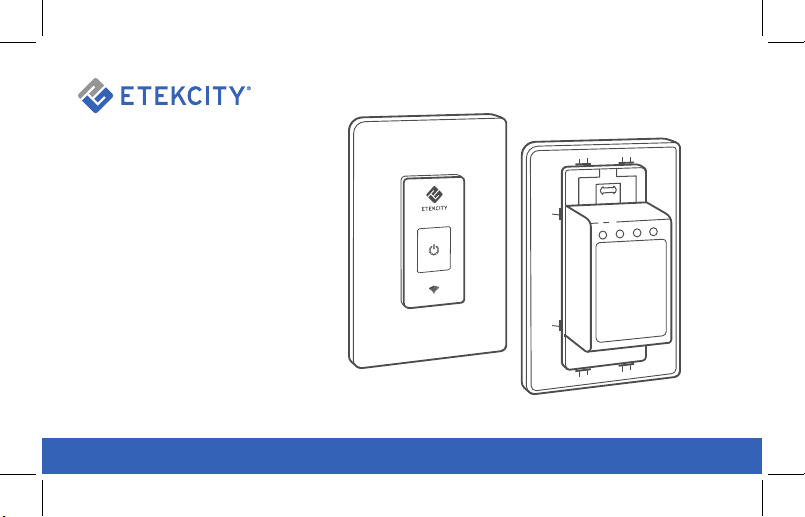
Thank you for purchasing the
Smart WiFi Light Switch by
Etekcity.
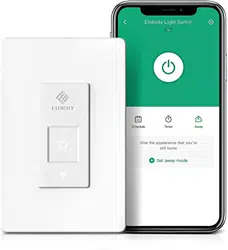
The smart light switch is a standard single-pole
wall light switch that can be controlled with
your iOS or Android devices. With the Etekcity
VeSync app, you can follow intuitive wiring
instructions to replace your standard in-wall
switch, connect the smart switch to your home
network, then control your lights and create
custom lighting automations from anywhere, at
anytime, with an Internet connection.
If you have any questions or concerns, please
reach out to our helpful Customer Support
Team at [email protected]. We hope you
enjoy your new smart light switch!
BECOME AN ETEKCITIZEN
Exclusive deals, giveaways, and product
registration. Better products for better living.
Find us at etekcity.com

3
1 x Smart WiFi Light Switch (Wall Plate Included)
4 x Terminal Caps
1 x Quick Start Guide
Package Contents
Specications
Safety Information
Product Requirements
Function Diagram
Installation
Setup
Conguration
• Smart Conguration Mode
• APN Conguration Mode
App Operation
• Turning Light Off and On
• Schedules
• Sunrise / Sunset Schedules
• Timers
• Away Mode
• Device Settings
• Share Device
• Delete a Device
• Log Out
Package Contents
Table of Contents
• Connecting with Alexa
• Connecting with Google Home
Maintaining Your Smart Switch
• Firmware Updates
• Resetting
Troubleshooting
Warranty Information
Customer Support
3
4
5
7
8
10
11
12
12
17
21
21
23
24
29
31
34
35
37
38
39
40
41
41
42
43
46
48
44
Specications
Dimensions (HxWxD) 4.13 x 1.75 x 1.75 in (10.5 x 4.40 x 4.40 cm)
Communication Mode IEEE802.11b/g/n (WiFi)
Communication Frequency 2400–2483.5 MHz
Wireless Distance (Switch to Router) 164 ft / 50m (max visible range)
Maximum Switch Current 15A
Power 120V ~ 60Hz
Maximum Loads 1800W incandescent
Operating Temperature 32º-104ºF (0º-40ºC)

55
Safety Information
To reduce the risk of injury and/or damage to this device, please read and follow all instructions
and safety guidelines in this manual.
Installation
• WARNING: RISK OF ELECTRIC SHOCK
OR FIRE.
• Before installing and wiring, TURN OFF
POWER by locking the appropriate circuit
breaker in the OFF position or removing the
appropriate fuse. Use a non-contact voltage
tester to ensure all electrical power is off.
Installing and wiring with active electrical
power may result in serious injury or death.
• Only install the smart switch if you are
comfortable with electrical work. If not,
contact a qualied electrician. Improper
installation signicantly increases risk of re,
electric shock, and other injuries.
• The smart switch must be installed and used
in accordance with the National Electric Code
(NEC) or your local electrical code.
• The smart switch is an indoor single-pole
switch that requires a neutral connection.
• Do not install the smart switch with wet
hands or when standing on wet or damp
surfaces.
Note: Etekcity cannot guarantee the quality of
installation, and cannot cover associated costs.

6
Note: This smart switch complies with Part
15 of the FCC Rules. Operation is subject to
the following 2 conditions: (1) this device may
not cause harmful interference, and (2) this
device must accept any interference received,
including interference that may cause undesired
operation.
Safety Information (cont.)
General Safety
• Only use your smart switch to control
incandescent, LED, halogen, and compact
uorescent light bulbs. Using your smart
switch for other purposes may result in
serious injury, property damage, or death.
• Only use indoors, in a dry location with
ambient temperature controls (avoiding
extreme heat and freezing temperatures).
• Do not modify the smart switch hardware or
software. This may cause injury or property
damage, and will void the warranty.
SAVE THESE
INSTRUCTIONS

7
Product Requirements
• In-wall installation with hardwired connections
Note: The smart switch is not suitable for a
single-wire switch box.
• Neutral wire required
• Single-pole light switch. The electrical box
should be more than 2 inches deep.
Note: Do not use 2 or more smart switches
to control 1 light xture. The smart switch is
designed for single-pole (1 location) wiring only.
• A smartphone or tablet running iOS 8.0 or
higher, or running Android 4.3 or higher
• A 2.4GHz WiFi connection (supports
802.11b/g/n standard)
• The smart switch is compatible with
incandescent, LED, halogen, and compact
uorescent light bulbs.
8
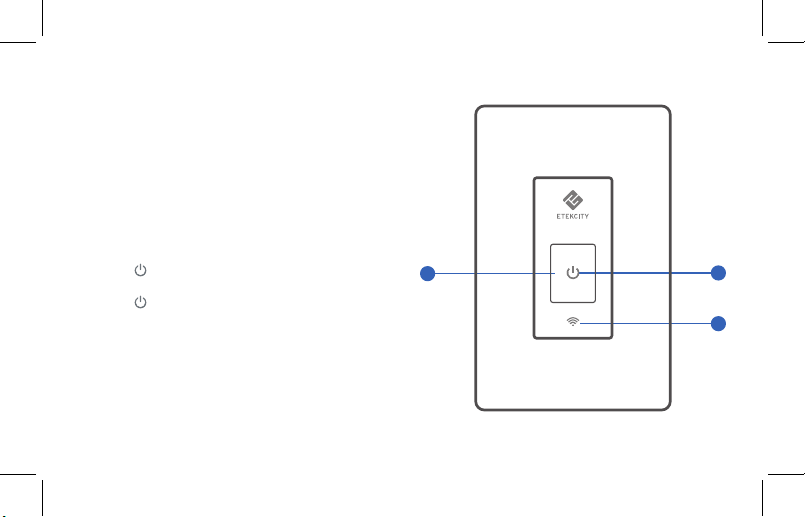
Function Diagram
1. Power Button
2. WiFi Indicator
3. Power Indicator
Power Indicator
• After installation, the switch is OFF and the
power indicator is OFF.
• Press . The power indicator and light
switch will turn on.
• Press again. The power indicator and light
switch will turn off.
2
3
1
9
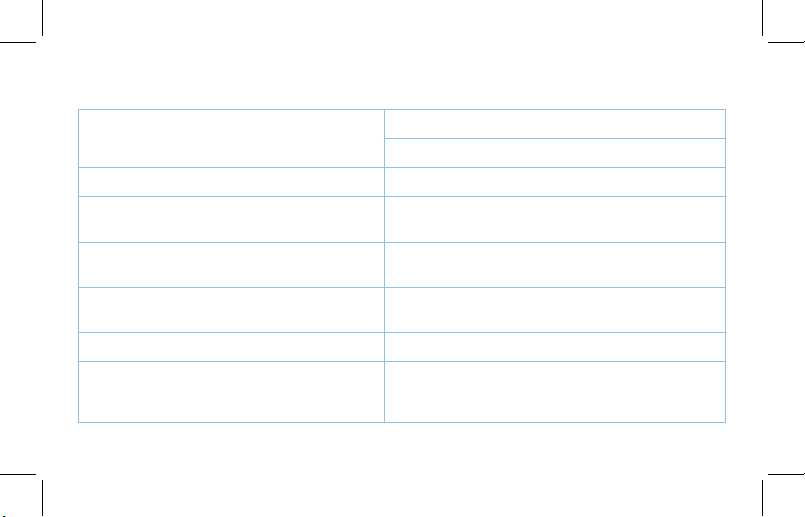
WiFi Indicator Status
Indicator is off
Smart switch is not congured
Indicator is turned off in VeSync app
Indicator solid white Smart switch is congured
Indicator blinks 1 time per second
Smart switch is in Smart Conguration Mode (see
page 12)
Indicator blinks 2 times per second
Smart switch is in APN Conguration Mode (see
page 18)
Indicator blinks 4 times per second
(total 10 times)
Smart switch has been factory reset (see page 43)
Indicator blinks 2 times per 5 seconds The smart switch does not connect with router
Indicator blinks 1 time per 5 seconds
The smart switch has connected with router
successfully, but the router is not connected to the
internet

10
Installation
Remove the faceplate from the smart switch
[Figure 1.1], then install the smart switch into a
switch box in the wall [See Figure 1.2 and
Figure 1.3].
Note: A neutral wire is required to install the
smart switch.
Figure 1.1
Figure 1.2 Figure 1.3
Ground
Line
120V – Input
N
Load
Line
Neutral
Green
Lamp
Black
Black
White
11
Setup
1. Connect your mobile device to a 2.4GHz
WiFi network.
Note: The smart switch will only work on a 2.4GHz
network.
2. Scan the QR code, or download the VeSync
app from the App Store or Google Play
Store.
3. Open the VeSync app. Tap Sign Up to
create a new account.
4. After you’ve signed up, enter your email
and password, then tap Log In.
Note: You must create your own VeSync account to
use third-party services and products, such as the
Amazon Echo and Google Home. The Guest account
will not work for this. With a VeSync account, you
can also allow your family or friends to control your
smart switch.
12
Conguration
Smart Conguration Mode
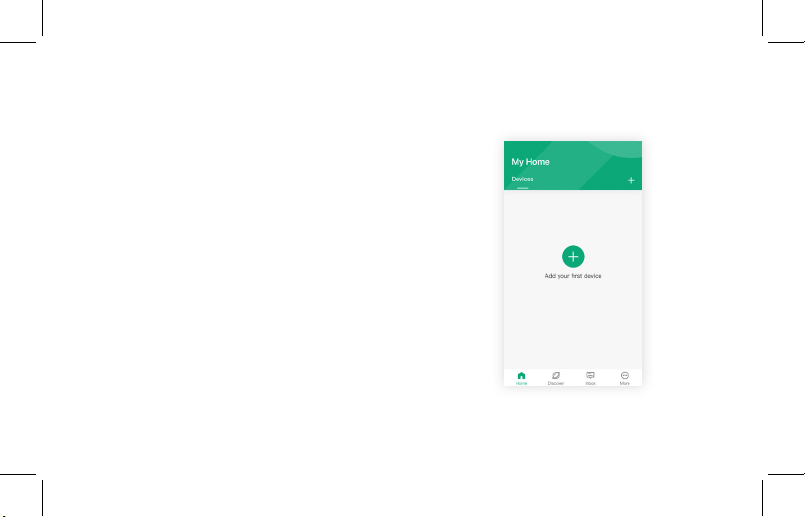
1. Tap the + button on the screen to add your
device.
13
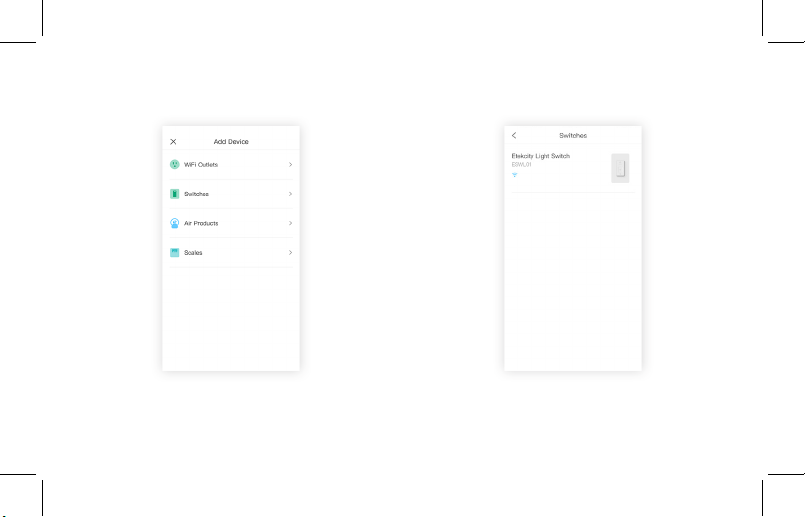
2. Tap Switches. 3. Tap Etekcity Light Switch.
14
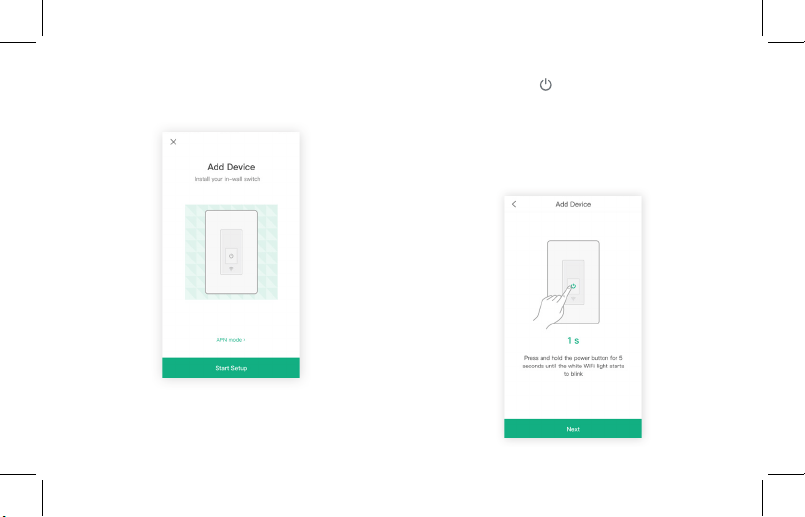
4. Tap Start Setup.
5. Press and hold for 5 seconds, until the WiFi
indicator slowly blinks white (1 time per second).
Then tap Next.
Note: Smart Conguration Mode will turn off
after 5 minutes.
15
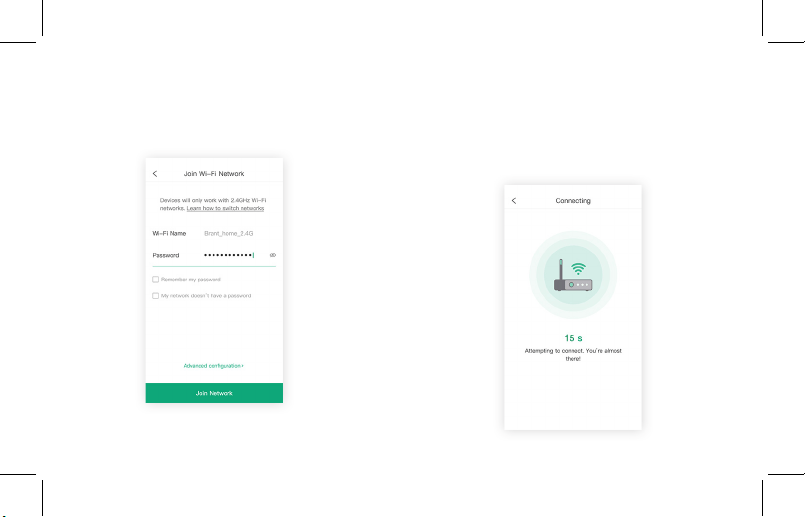
6. Type in the name of your home WiFi
network and password, then tap Join
Network.
7. Wait for the smart switch to connect to your
WiFi network. This may take up to 60 seconds.
If connection fails, continue to APN
Conguration Mode (page 17).
16
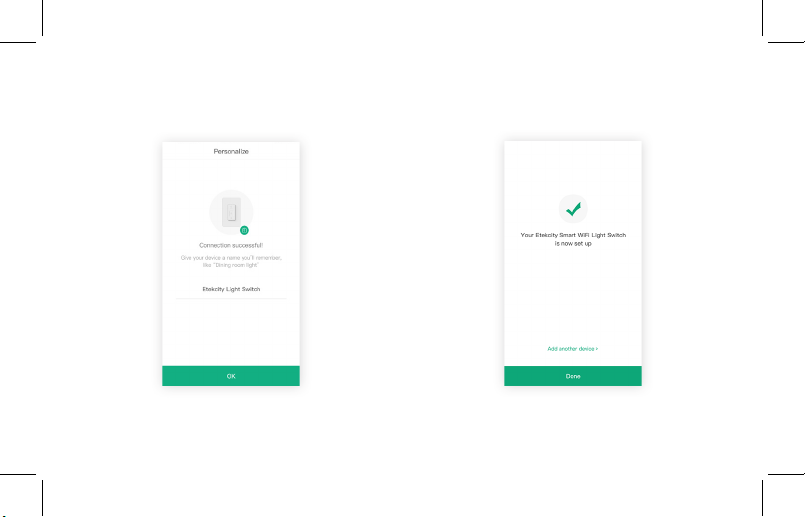
8. Give your smart switch a unique name, or
simply use the default name. Tap OK.
9. You’ve successfully completed setup. Tap
Done to nish.
17
Conguration (cont.)
APN Conguration Mode
If Smart Conguration Mode fails to connect
your smart switch to your WiFi, you can use
APN (Access Point Name) Mode. You can also
choose this mode at the beginning of setup
instead of Smart Conguration Mode.
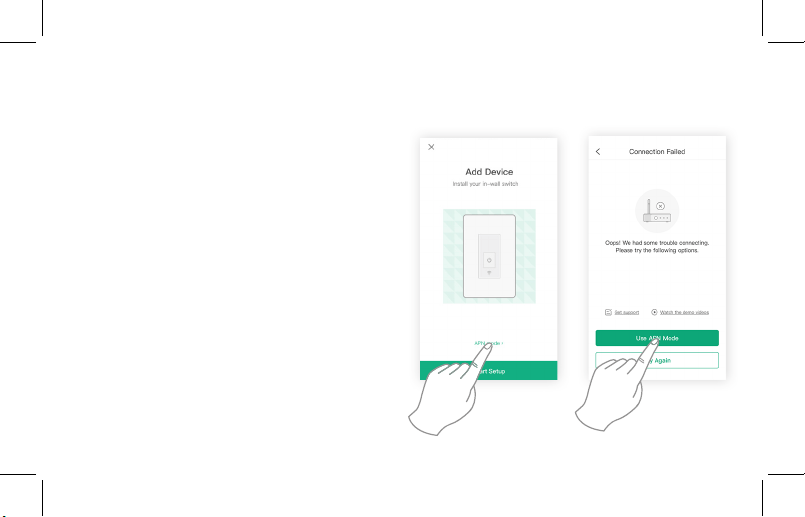
1. If you’re starting from the initial “Add
Device” screen, tap APN Mode.
If you’re starting from the “Connection
Failed” screen after Smart Conguration
Mode has failed, tap Use APN Mode.
18
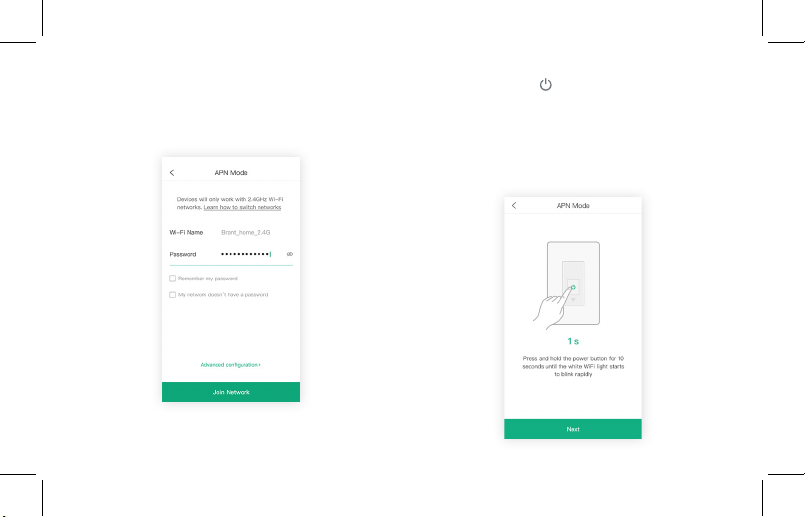
2. Type in the name of your home WiFi
network and password, then tap Join
Network.
3. Press and hold for 10 seconds, until the
WiFi indicator quickly blinks white (2 times per
second). Then tap Next.
Note: APN Conguration Mode will turn off
after 5 minutes.
19
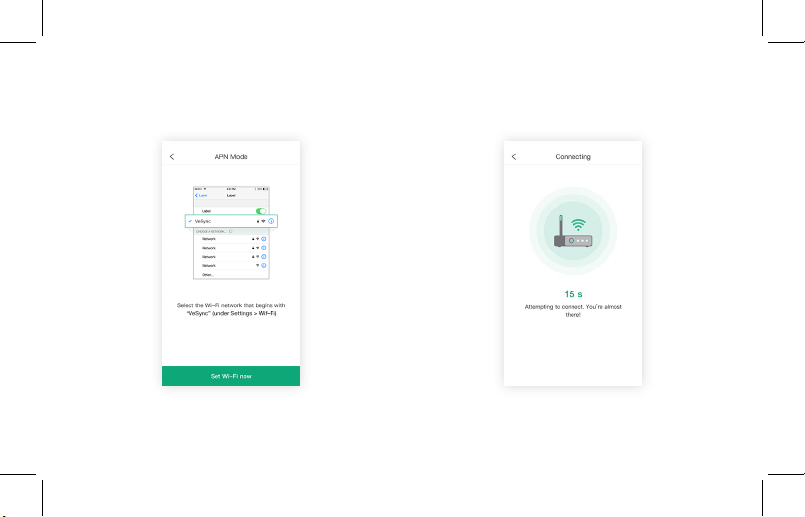
4. Go to “Settings” on your mobile device,
and select the WiFi network that starts with
“VeSync”.
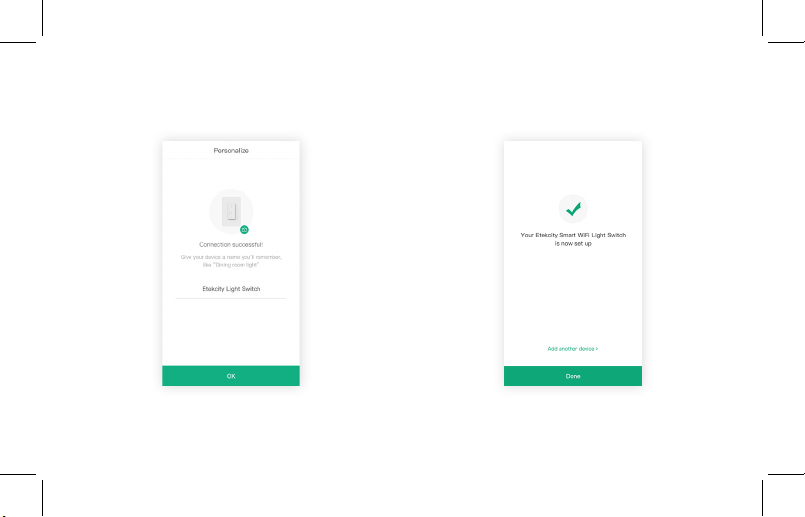
5. Wait for the connection to nish. This may
take up to 60 seconds.
20
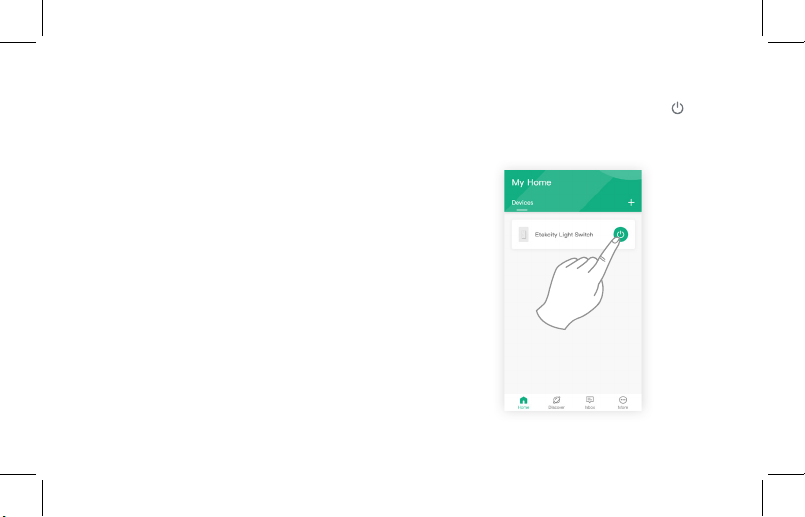
6. Give your smart switch a unique name, or
simply use the default name. Tap OK.
7. You’ve successfully completed setup. Tap
Done to nish.
21
App Operation
Turning Light Off and On
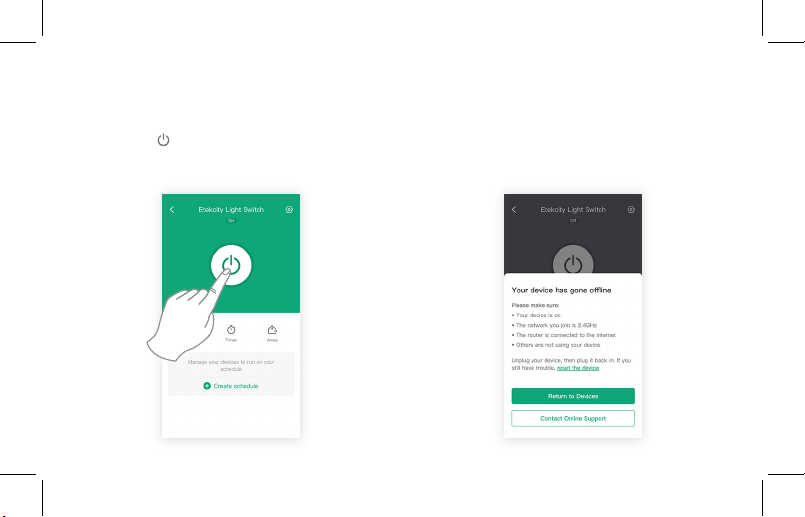
Method 1:
On the “My Home” screen, you can tap to
turn the light on/off.
22
Method 2:
Tap on the smart switch’s name on the “My
Home” screen to view device options and
details. Tap to turn the light on/off.
Note: If the smart switch is ofine, please follow
the instructions on the app to x the problem.
23
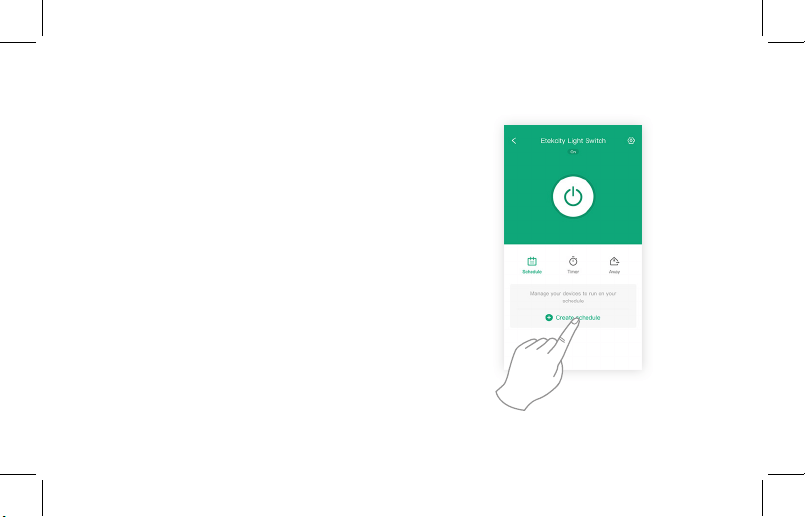
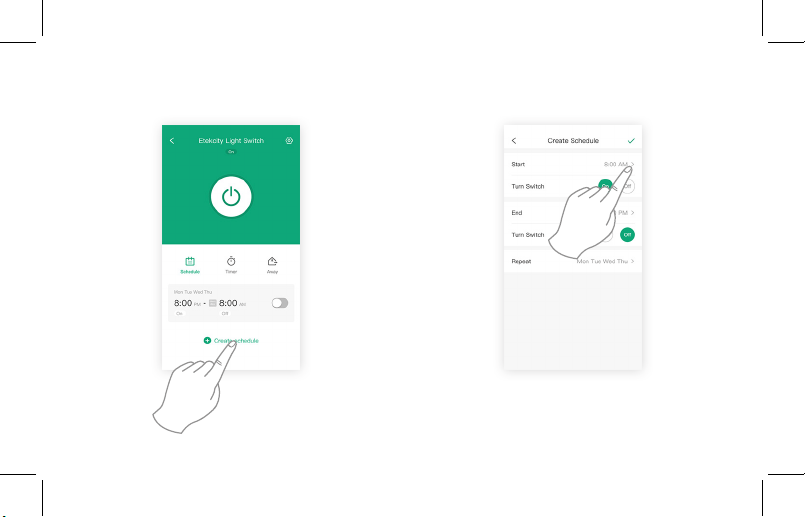
Schedules
You can schedule your smart switch to turn on
and off based on a schedule.
Note: The smart switch supports up to 26
schedules, timers, or away modes (in any
combination).
1. Tap Create Schedule.
24
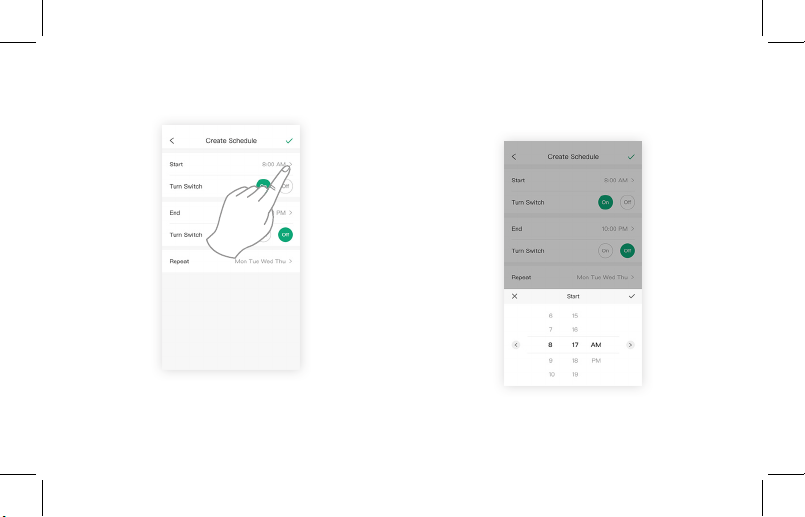
2. Tap the > icon on the right of “Start”. 3. Set a time for the smart switch to turn on/
off. Tap √ when you are done.
25
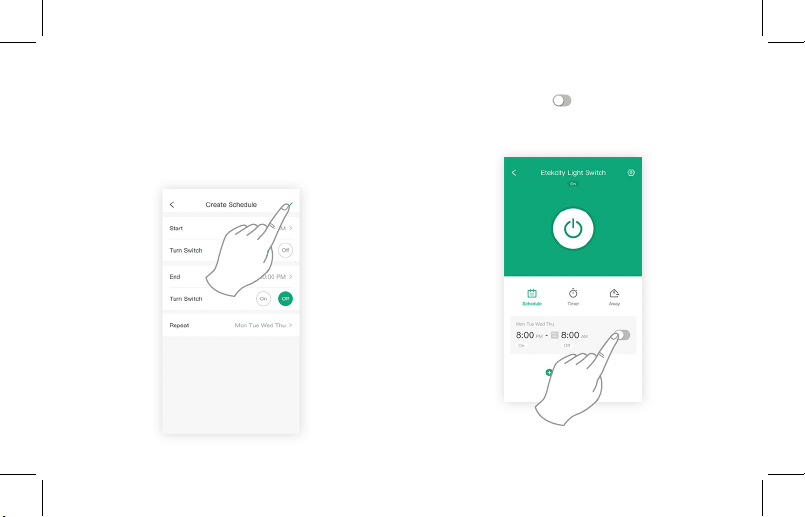
4. You can also set a time under “End”, or
leave it blank.
Tap √ on the top right of the screen when
you are done creating the schedule.
5. You can turn the schedule on/off at any
time by tapping to the right of the
schedule.
26
Sunrise / Sunset Schedules
You can schedule your smart switch to turn on/
off at sunrise or sunset.
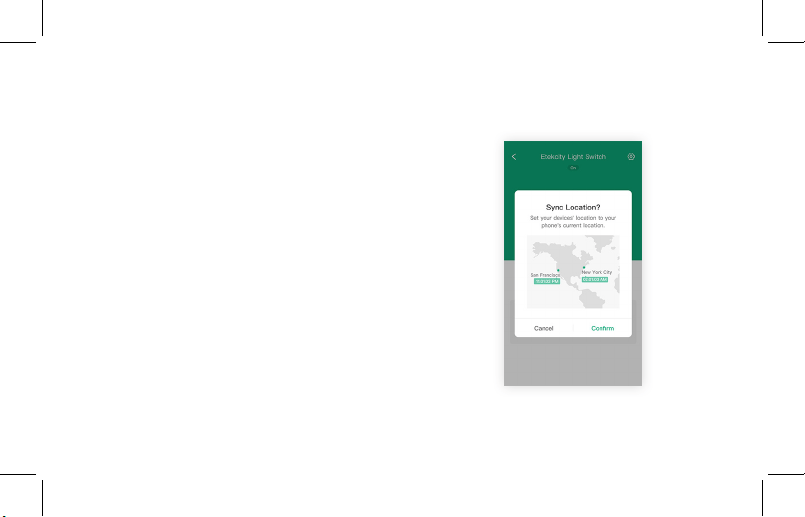
1. Make sure Location Services is turned on
for VeSync.
27
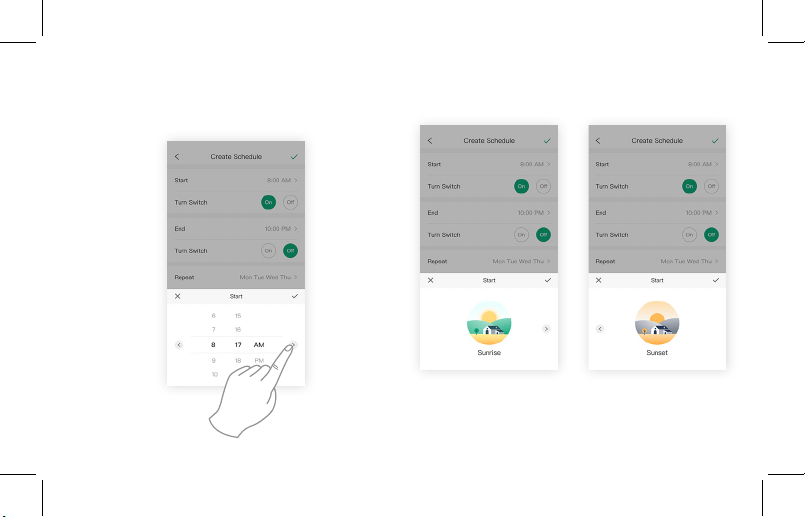
2. Tap Create Schedule. 3. Tap the > icon on the right of “Start”.
28
4. To switch to Sunrise or Sunset options, tap
on the left or right arrows.
5. To conrm your choice, tap √.
29
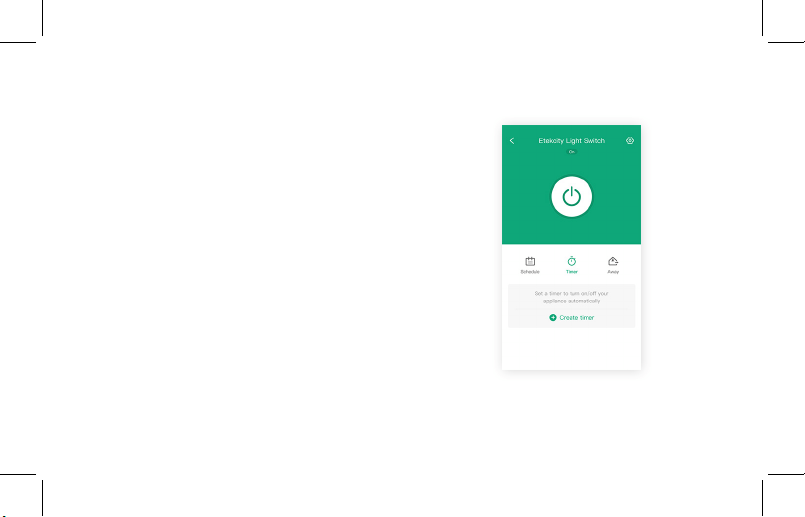
Timers
You can create a timer to turn on and off your
smart switch.
1. Tap Timer, then Create Timer.
30
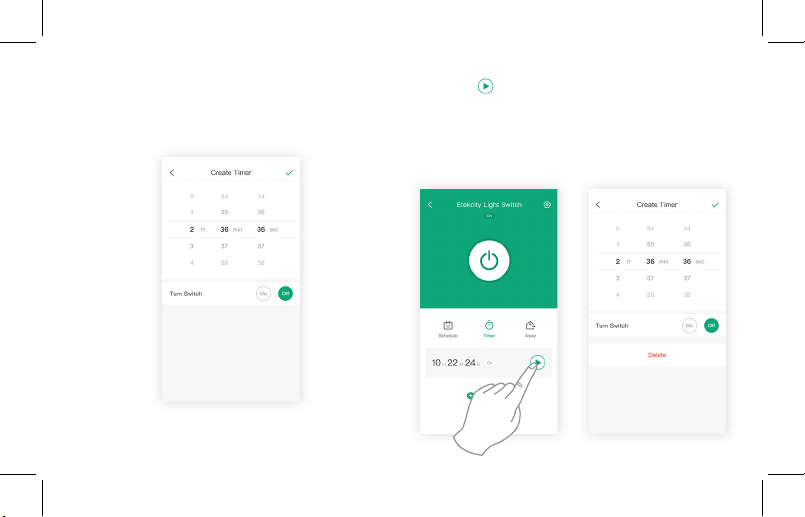
2. Set your timer, and choose whether you
want the light to turn on/off. Tap √ when
you are done.
3. Tap to start the timer. When the timer
ends, it will turn the light on/off.
Note: To delete the timer, tap on the timer
entry, then tap Delete.
31
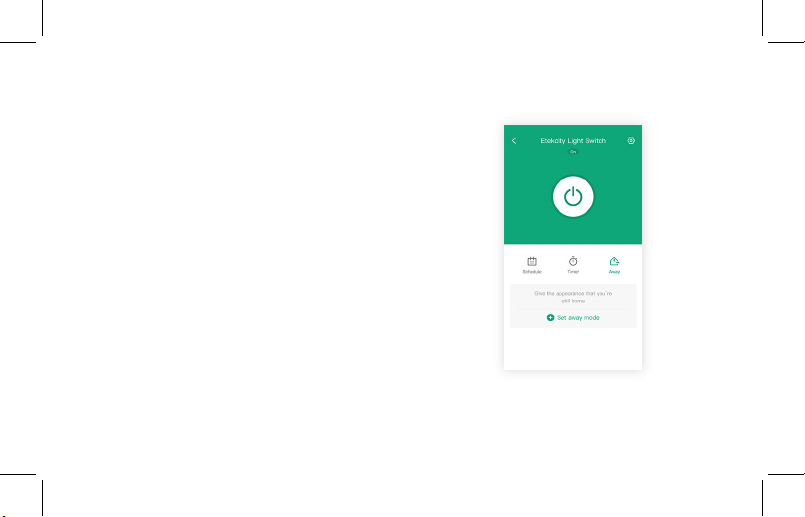
Away Mode
You can create an Away Mode timer for your
smart switch, which will turn your smart switch
on and off to give the appearance that someone
is home.
1. Tap Away, then Set Away Mode.
32
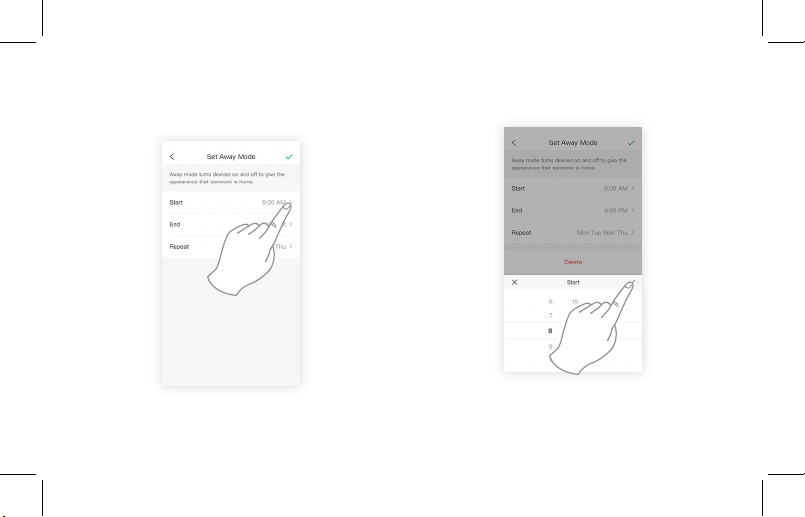
2. Tap the arrows to the right of “Start” and
“End” to set the times.
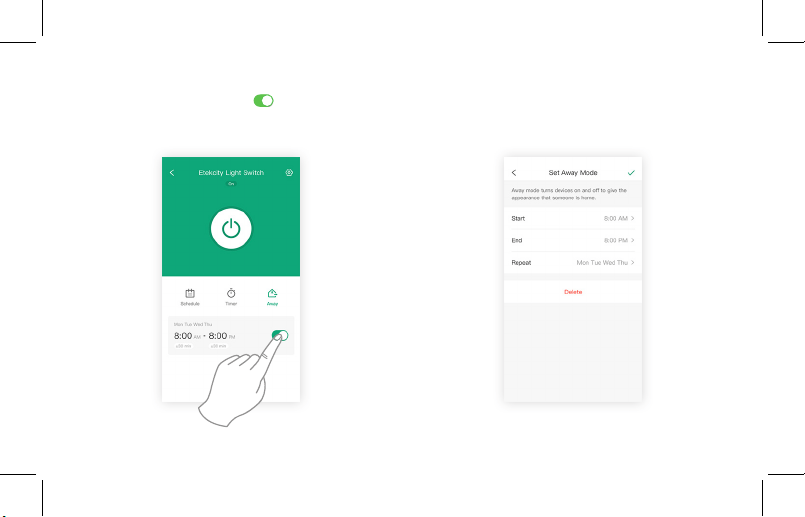
3. To conrm the Away Mode timer, tap √.
33
4. You can turn the Away Mode timer on/off
at any time by tapping to the right of
the schedule.
Note: To delete the Away Mode timer, tap on
the timer entry on the “Away” screen, then tap
Delete.
34
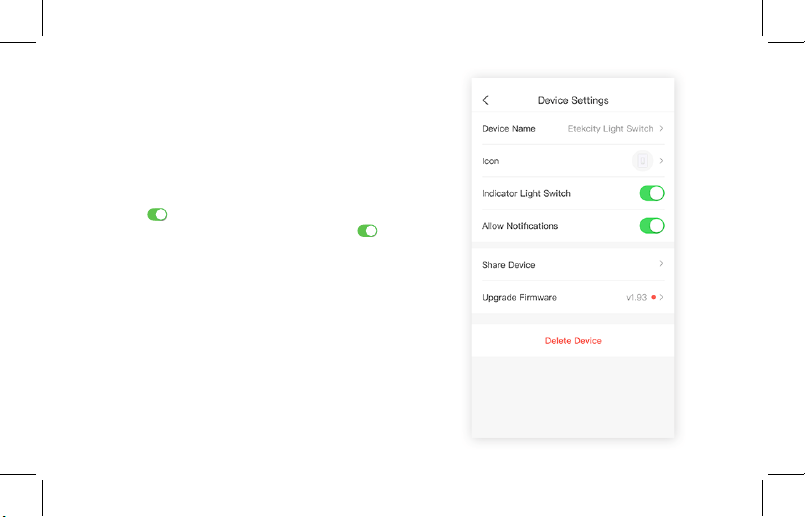
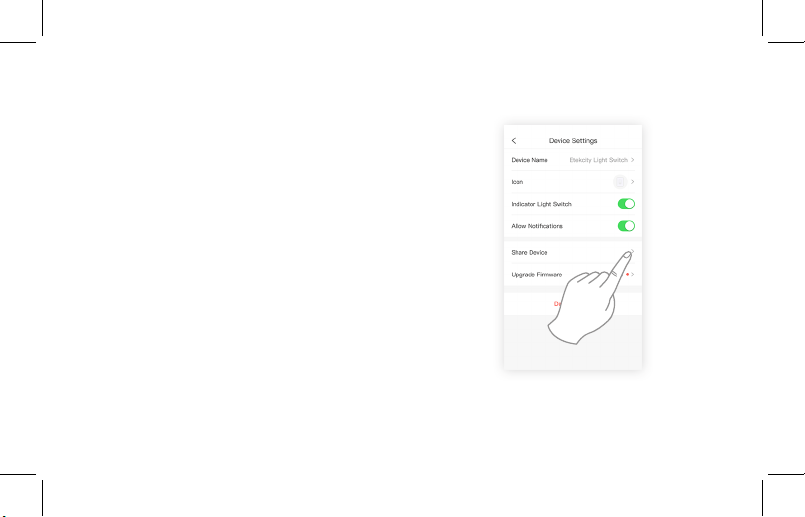
Device Settings
The Device Settings menu allows you to:
• Edit your smart switch name by tapping on
the current name next to “Device”
• Edit your smart switch picture by tapping on
the current image next to “Icon”
• Turn smart switch notications on/off by
tapping
• Turn the WiFi indicator on/off by tapping
• Share your smart switch (see page 35)
• Delete your smart switch (see page 37)
35
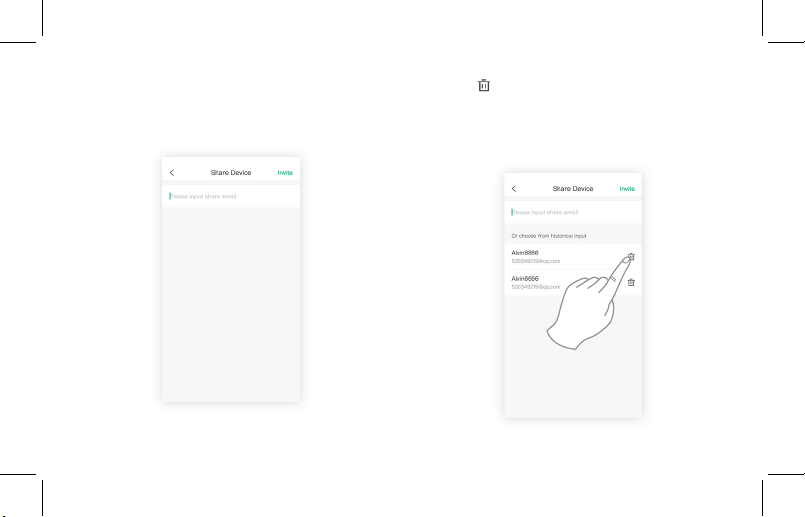
Share Device
You can use Share Device to allow someone else
to control your smart switch (such as family,
friends, roommates, or anyone you choose).
Note: People who you share your smart switch
with cannot edit or delete any of your device
settings.
1. Tap Share Device.
36
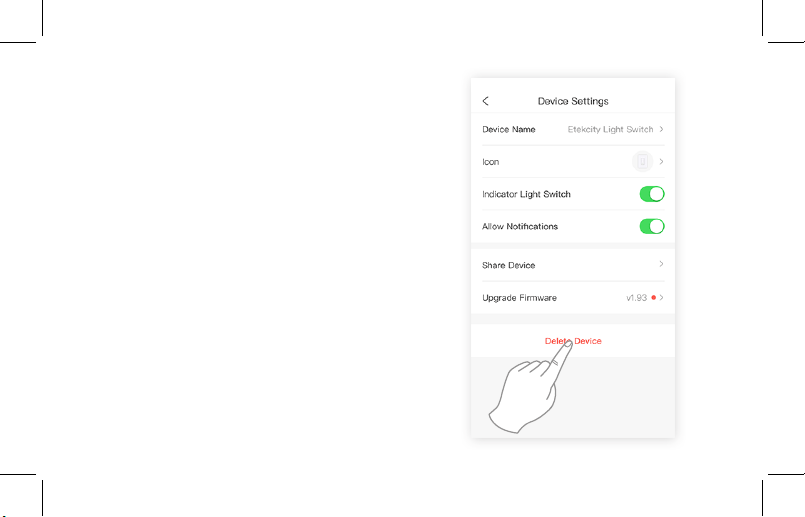
3. Tap to remove people who you have
shared your device with. These people will
no longer be able to control your smart
switch.
2. Type in the email belonging to the person
you want to share your smart switch with.
Tap Invite in the upper right corner.
37
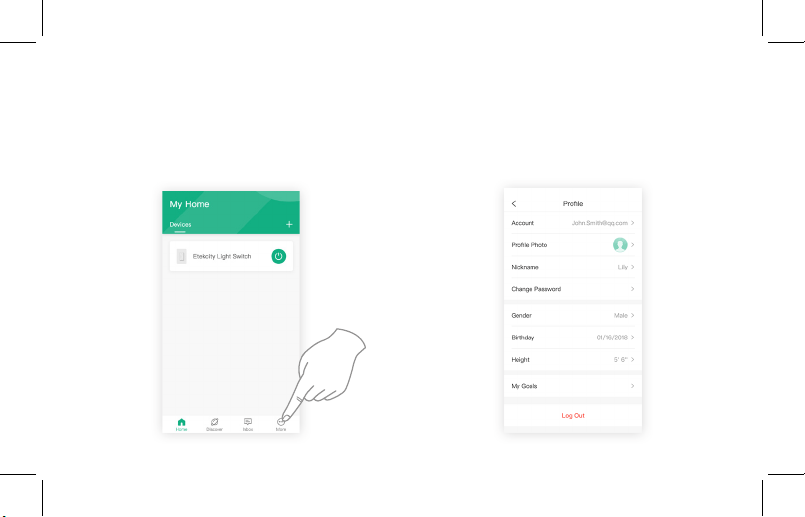
Delete a Device
You can delete your smart switch from the
VeSync app from the “Device Settings” screen.
This option is located at the bottom of the
screen.
You can also delete your smart switch from the
“My Home” screen in the VeSync app.
• iOS: Swipe left on the smart switch’s name
to delete.
• Android: Press and hold for 2 seconds on the
smart switch’s name to delete.
38
Log Out
Note: You do not need to log out if you are not using a VeSync account.
1. On the “My Home” screen, tap More. 2. Tap your prole, then tap Log out.
39
Connecting with Alexa
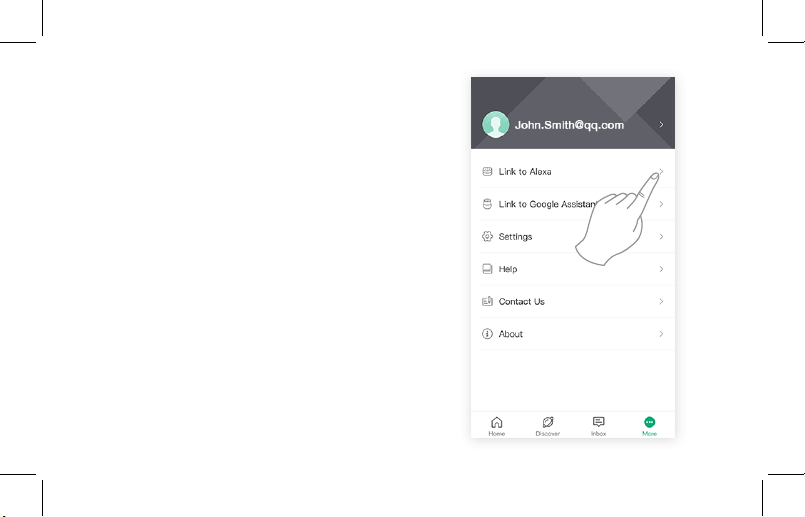
To view instructions on the VeSync app, tap
More, then tap Link to Alexa.
Note: You must create your own VeSync
account to connect with Alexa.
40
Connecting with Google Home
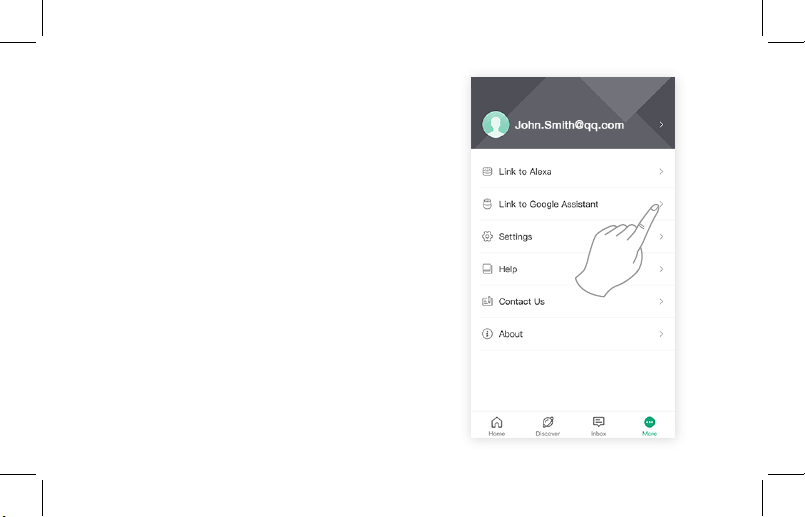
To view instructions on the VeSync app, tap
More, then tap Link to Google Assistant.
Note: You must create your own VeSync
account to connect with Google Home.
41
Maintaining Your
Smart Switch
Firmware Updates
To keep the smart switch up to date with the
latest improvements and xes, you should
always update the rmware when updates are
available.
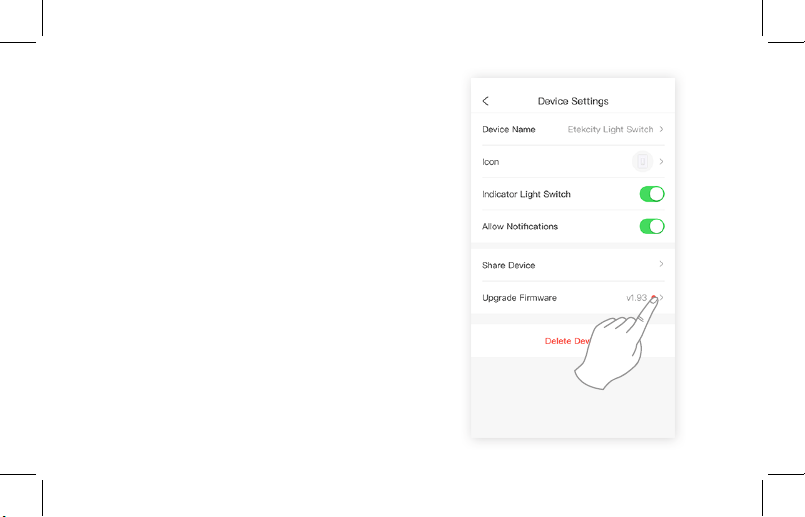
On the Device Settings screen, tap Upgrade
Firmware.
42
Resetting
Resetting the smart switch can help you
troubleshoot any issues you may have. Please
keep in mind that factory resetting a device will
erase all of your custom settings and restore
the factory default settings.
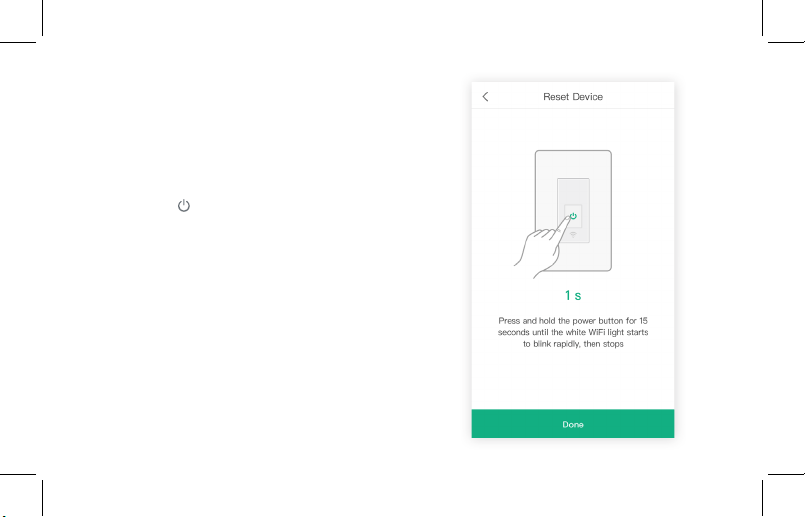
Press and hold for about 15 seconds until the
WiFi indicator light blinks white rapidly (4 times
a second). The WiFi indicator light will blink
rapidly 10 times, and the smart switch will turn
off. This will reset the smart switch to factory
default settings.

43
Troubleshooting
:Q Why can’t I connect my smart switch to my WiFi
network during Setup?
• Make sure your phone is connected to a 2.4GHz
WiFi network. If you need to change your
network, refer to “How do I change my WiFi
network to a 2.4GHz WiFi network?”
Note: Smart switches currently only support 2.4GHz
WiFi networks, but you can use any available network—
even cellular data networks—to control the smart switch
from your phone once you’ve nished conguration.
• Make sure your wireless network router is close
enough to your smart switch. The smart switch
must be within a 164 ft (50m) visible range from
the router.
• Check your WiFi network to make sure MAC
address ltering is turned off.
• Make sure you don’t have too many devices
connected to your router (10 or fewer is best).
• Close and reopen the VeSync app.
• Clear your VeSync app cache.
• Factory reset your smart switch (see Resetting,
page 42). If resetting does not x the problem,
contact Customer Support (page 48).
:Q How do I change my WiFi network to a 2.4GHz
WiFi network?
1. Make sure your router is a dual band router
(most dual band routers support both 5GHz and
2.4GHz networks).
2. On your phone settings, set your WiFi network to
2.4GHz. Most 5GHz WiFi are sufxed by “_5G.”
Select the network that does NOT have “5G” in
its name.
3. Some routers hide the 2.4GHz WiFi network.
If you have trouble nding or setting up your
2.4GHz network, please contact your router
manufacturer to get support.
4. Open your VeSync app, and it should
automatically sync with your network.
`

44
:Q Why won’t the VeSync app let me add my smart
switch?
• If someone else already set up the smart switch,
ask them to share the smart switch with you (see
Share Device, page 35) so that you can control it
with your VeSync account.
• Check to make sure that your WiFi password was
entered correctly.
• Try using APN Conguration Mode (page 17).
• Make sure your smart switch rmware is up to
date (see Firmware Updates, page 41).
• Factory reset your smart switch (see Resetting,
page 42). If resetting does not x the problem,
contact Customer Support (page 48).
:Q After adding my smart switch to VeSync, why
won’t the smart switch icon appear on the “My
Home” screen of the VeSync app?
• After adding your smart switch to the VeSync
app (see Setup, page 11), refresh the main menu
screen (by switching between screens, or closing
and reopening the app), and the smart switch
should appear on the “My Home” screen.
:Q Why won’t my smart switch respond to my app
commands?
• Make sure your WiFi network is working properly.
• Make sure your smart switch is properly installed.
• Make sure your wireless network router is close
enough to your smart switch. The smart switch
must be within a 164 ft (50m) visible range from
the router.
• Do not use a metal faceplate with your smart
switch. This may cause WiFi signal interference.
• Factory reset your smart switch (see Resetting,
page 42). If resetting does not x the problem,
contact Customer Support (page 48).

45
:Q Alexa/Google Home can’t nd my app or can’t
discover my smart switch.
• Make sure your wireless network router is close
enough to your smart switch. The smart switch
must be within a 164 ft (50m) visible range from
the router.
• Check that your Alexa/Google Home is working
properly.
• Make sure your smart switch name is simple
to speak. Different accents or unusual
pronunciations can make it difcult for Alexa and
Google Home to recognize device names.
• Try reconnecting your Alexa/Google Home.
• Factory reset your smart switch (see Resetting,
page 42). If resetting does not x the problem,
contact Customer Support (page 48).
:Q Why isn’t my smart switch turning on/off as
scheduled?
• Check to make sure that the schedule is still turned
on (the toggle button should be green, not gray).
• Check to make sure that your phone’s Location
Services are turned on.
• Make sure the smart switch is connected to a
working network and is not ofine.
:Q I’m unable to control my smart switch, and the
WiFi indicator light on the smart switch is blinking
continuously.
• Check to make sure that your WiFi network is
online.
• Make sure your wireless network router is close
enough to your smart switch. The smart switch
must be within a 164 ft (50m) visible range from
the router.
• Factory reset your smart switch (see Resetting,
page 42). If resetting does not x the problem,
contact Customer Support (page 48).
:Q I believe my smart switch is defective. What
should I do?
• Contact Customer Support (page 48).
46
Warranty Information
Product Smart WiFi Light Switch
Default Warranty Period
1 year
For your own reference, we strongly recommend that you record
your order number and date of purchase.
Order Number
Date of Purchase
TERMS & POLICY
Etekcity warrants all products to be of the highest quality in
material, craftsmanship, and service, effective from the date
of purchase to the end of the warranty period.
Etekcity will replace any product found to be defective due
to manufacturer aws based on eligibility. Refunds are
available within the rst 30 days of purchase. Refunds are
only available to the original purchaser of the product. This
warranty extends only to personal use and does not extend
to any product that has been used for commercial, rental, or
any other use in which the product is not intended for. There
are no warranties other than the warranties expressly set
forth with each product.
This warranty is non-transferrable. Etekcity is not responsible
in any way for any damages, losses, or inconveniences
caused by equipment failure by user negligence, abuse, or
use noncompliant with the user manual or any additional
safety, use, or warnings included in the product packaging
and manual.
This warranty does not apply to the following:
• Damage due to abuse, accident, alteration, misuse,
tampering, or vandalism.
• Improper or inadequate maintenance.
• Damage in return transit.
• Unsupervised use by children under 18 years of age.
Etekcity and its subsidiaries assume no liability for damage
caused by the use of the product other than for its intended
use or as instructed in the user manual. Some states
do not allow this exclusion or limitation of incidental or
consequential losses so the foregoing disclaimer may not
apply to you. This warranty gives you specic legal rights
and you may also have other rights which may vary from
state to state.

47
ALL EXPRESSED AND IMPLIED WARRANTIES, INCLUDING
THE WARRANTY OF MERCHANTABILITY, ARE LIMITED TO
THE PERIOD OF THE LIMITED WARRANTY.
Additional 1-Year Warranty
You can extend your 1-year warranty by an additional year.
Log onto www.etekcity.com/warranty and enter your order
number (for example, from Amazon or Houzz) to register
your new product for the extended warranty.
If you are unable to provide the order number for your
product, please type a short note in the order number eld
along with the date you received your product.
Defective Products & Returns
If your product proves defective within the specied warranty
period, please contact Customer Support via support@
etekcity.com with your order number. DO NOT dispose of
your product before contacting us. Once Customer Support
has approved your request, please return the unit with a copy
of the invoice or your order number.

48
Customer Support
If you encounter any issues or have any questions regarding your new product, feel free to contact
our helpful Customer Support Team. Your satisfaction is our goal!
Customer Support
Etekcity Corporation
1202 N. Miller St., Suite A
Anaheim, CA 92806
Toll-Free: (855) 686-3835
Fax: (657) 202-1693
Local: (657) 500-1872
Email: [email protected]
Support Hours
Monday - Friday
9:00 am - 5:00 pm PT
*Please have your order conrmation number
ready before contacting customer support.
48
49
Connect with us @Etekcity
50
Scan here to join the community!
Visit us at WWW.ETEKCITY.COM
BUILDING ON BETTER LIVING.