
2
LICENSES
LICENSES
Supported licenses may differ by model. For more information about
licenses, visit www.lg.com.
Manufactured under license from Dolby
Laboratories. Dolby and the double-D symbol
are trademarks of Dolby Laboratories.
This DivX Certied
®
device has passed
rigorous testing to ensure it plays DivX
®
video.
To play purchased DivX movies, rst register
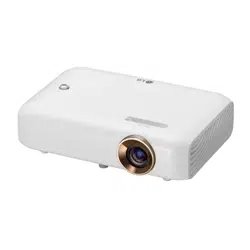
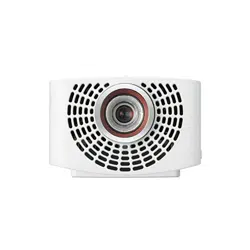
your device at vod.divx.com. Find your
registration code in the DivX VOD section of
your device setup menu.
DivX Certied
®
to play DivX
®
video up to HD
1080p, including premium content.
DivX
®
, DivX Certied
®
and associated logos
are trademarks of DivX, LLC and are used
under license.
Covered by one or more of the following U.S.
patents:
7,295,673; 7,460,668; 7,515,710; 7,519,274.
The terms HDMI and HDMI High-Denition
Multimedia Interface, and the HDMI logo
are trademarks or registered trademarks of
HDMI Licensing LLC in the United States
and other countries.
• Image shown may differ from your projector.
• Your projector’s OSD (On Screen Display) may differ slightly from
that shown in this manual.
NOTE
3
SAFETYPRECAUTIONS
SAFETYPRECAUTIONS
Please take note of the safety instructions to prevent any potential accident
or misuse of the projector.
• Safety precautions are given in two forms, i.e., WARNING and CAUTION
as detailed below.
WARNING Failure to follow the instructions may cause serious
injury and even death.
CAUTION Failure to follow the instructions may cause personal
injury or product damage.
• Read the owner's manual carefully and keep it on hand.
WARNING/CAUTION
RISK OF ELECTRIC SHOCK
DO NOT OPEN
The lightning ash with
arrowhead symbol, within
an equilateral triangle, is
intended to alert the user to the
presence of uninsulated dangerous
voltage within the product’s
enclosure that may be of sufcient
magnitude to constitute a risk of
electric shock to persons.
The exclamation point
within an equilateral
triangle is intended to alert
the user to the presence of
important operating and
maintenance (servicing)
instructions in the literature
accompanying the appliance.
WARNING/CAUTION
- TO REDUCE THE RISK
OF FIRE AND ELECTRIC
SHOCK, DO NOT EXPOSE
THIS PRODUCT TO RAIN OR
MOISTURE.
Readtheseinstructions.
Keeptheseinstructions.
Heedallwarnings.
Followallinstructions.
IndoorInstallation
WARNING
• Do not use the projector outside
and do not expose the product
to any humidity or water.
- Since the product is not
waterproof, this may result in
a re or electric shock.
• Do not place the projector in
direct sunlight or near heat
sources such as radiators, res,
stoves, etc.
- This may result in re.
• Do not place flammable
materials such as aerosols near
the projector.
- This may result in re.
• Do not allow children to cling to
or climb up to the projector.
- This may cause the projector
to fall, causing injury or death.
4
SAFETYPRECAUTIONS
• Do not install the product in a
place with no ventilation (e.g.,
on a bookshelf or in a closet) or
on a carpet or cushion.
- This may result in re due
to the increase in internal
temperature.
• Do not place the product close
to sources of steam, oil, or oil
mist, such as humidiers and
kitchen counters.
- Failure to do so may result
in re, electric shock, or
corrosion.
• Do not install the product onto
a wall or ceiling that is close to
sources of oil or oil mist.
- The product may be
damaged and fall, resulting in
serious injury.
• Do not place the projector where
it might be exposed to dust.
- This may result in re.
• Do not use the projector in a
damp place such as a bathroom
where it is likely to get wet.
- This may result in re or
electric shock.
• Do not allow a tablecloth or
curtain to block the air vent.
- This may result in re due to
the increase in the internal
temperature.
• Ensure good ventilation around
the projector. The distance
between the projector and the
wall should be at least 30 cm.
- This will prevent re due to
the increase in the internal
temperature.
CAUTION
• When placing the projector on a
table or shelf, be careful not to
put it near the edge.
- The projector could fall due
to balance problems, which
may cause personal injury or
damage to the product. Make
sure to use the projector
cabinet or stand that ts the
projector.
• When moving the projector,
make sure to switch it off and
remove the power plug and
cords.
- The power cord may be
damaged, resulting in re or
electric shock.
• Do not place the projector on
an unstable or vibrating surface
such as a wobbly shelf or a
slope.
- It may fall and cause injury.
• Be careful not to tip the projector
over when connecting external
devices to the projector.
- This may cause personal
injury or damage to the
projector.
Power
WARNING
• The appliance coupler is used
as the disconnect device.
- Please make sure the device
is installed near the wall
outlet to which it is connected
and that the outlet is easily
accessible.

5
SAFETYPRECAUTIONS
• The grounding wire should be
connected.
- Ensure that you connect the
grounding cable to avoid
electric shock. If it is not
possible to ground the unit,
have a qualified electrician
install a separate circuit
breaker.
Do not try to ground the
projector by connecting it to
telephone wires, lightning
rods, or gas pipes.
• The power plug should be
inserted fully into the power
outlet.
- An unstable connection may
cause a fire.
• Do not place heavy objects on
the power cord.
- This may result in re or
electric shock.
• Never touch the power plug with
wet hands.
- This may result in electric
shock.
• Do not plug too many devices
into one multi-power outlet.
- This may result in re due to
the power outlet overheating.
• Prevent dust from collecting on
the power plug pins or outlet.
- This may result in re.
• To turn off the main power,
remove the power plug, which
should be positioned so it is
easy to access for operation.
CAUTION
• Hold the plug firmly when
unplugging.
- A damaged wire may create
a re hazard.
• Ensure the power cord and plug
are not damaged, modied,
severely bent, twisted, pulled,
sandwiched, or hot. Do not use
the product if the power outlet
is loose.
- This may result in re or
electric shock.
• Keep the power cord away from
heating devices.
- The wire's sheath may melt,
which may result in re or
electric shock.
• Place the projector where
people will not trip over or step
on the power cord to protect the
power cord and plug from any
damage.
- This may result in re or
electric shock.
• Do not turn the projector on or
off by plugging in the power plug
or unplugging it from the power
outlet. (Do not use the power
plug as a switch.)
- This may result in electric
shock or damage to the
product.

6
SAFETYPRECAUTIONS
• Do not insert a conductor
into the other side of the wall
outlet while the power plug is
inserted into the wall outlet.
In addition, do not touch the
power plug immediately after it
is disconnected from the wall
outlet.
- This may result in electric
shock.
• Only use the official power cord
provided by LG Electronics. Do
not use other power cords.
- This may result in re or
electric shock.
WheninUse
WARNING
• Do not place anything containing
liquid on top of the projector
such as a vase, ower pot,
cup, cosmetics, or medicine; or
ornaments, candles, etc.
- This may result in re or
electric shock, or cause injury
due to falling.
• In the event that there is a
heavy impact or the cabinet is
damaged, switch it off, unplug
it from the power outlet and
contact an authorized service
center.
- This may result in electric
shock.
• Do not insert pieces of metal
such as coins, hairpins, or metal
debris, nor ammable materials
such as paper or matches into
the projector.
- This is to prevent electric
shock or re.
• In the event that liquid or a
foreign object falls into the
projector, switch it off and
unplug it from the power outlet
and contact our service center.
- This may result in re or
electric shock.
• Make sure that a child does
not swallow the batteries when
you replace the old remote
control batteries with new ones.
Keep batteries out of reach of
children.
- If a child swallows a battery,
consult a doctor immediately.
• Never open any cover on the
projector.
- There is a high risk of electric
shock.
• Do not look directly into the lens
when the projector is in use.
- The bright light may damage
your eyes.
• When the lamp is on or has just
been turned off, avoid touching
the air vent or lamp, because
these will be very hot.
• If there is a gas leak in the
room with the projector, do not
touch the projector or power
outlet. Open the windows for
ventilation.
- Sparks may cause re or
burns.

7
SAFETYPRECAUTIONS
• Unplug the power cord from the
outlet during a lightning storm.
- This will prevent shock or
damage to the projector.
• Do not use the projector near
electronic devices that generate
a strong magnetic eld.
• Do not put the plastic package
used to pack the projector
around your head.
- This may cause suffocation.
• Do not keep your hand on the
projector for a long time when it
is running.
• When you play a game by
connecting a game console to
a projector, it is recommended
that you maintain a distance
of more than four times the
diagonal length of the screen.
- Make sure that the
connecting cable is long
enough. Otherwise, the
product may fall causing
personal injury or damage to
the product.
• Do not place the projector or its
remote control with battery in
an extremely high temperature
environment.
- This may result in re.
• Do not use 3D glasses if you do
not watch 3D.
CAUTION
• Do not place heavy objects on
the projector.
- It may fall down and cause
personal injury.
• Be careful not to allow any
impact to the lens during
transport.
• Do not touch the lens of the
projector.
- The lens may be damaged.
• Do not use any sharp tools on
the projector such as a knife
or hammer, because this may
damage the casing.
• In the event that no image
appears on the screen or no
sound is heard, stop using
the projector. Switch off the
projector, unplug it from the
power outlet and contact our
service center.
- This may result in re or
electric shock.
• Do not drop anything onto the
projector or allow anything to
bang into the projector.
- This may cause damage
to the projector or personal
injury.
• It is recommended that you
maintain a distance of at least
5-7 times the diagonal length of
the screen.
- If you watch the screen at
a close distance for a long
time, you may suffer from
eyestrain.

8
SAFETYPRECAUTIONS
• Do not block the light beam
emitted from the projector using
a book or other object.
- Lengthy exposure to the
projector beam may result in
re. In addition, the lens may
be overheated and damaged
by the reected heat. Disable
the AV function to stop
projection temporarily or turn
off the power.
• Do not start the projector with
the volume turned up high.
- High volume may damage
hearing.
• Do not use high voltage
electrical equipment near the
projector, (e.g., a bug zapper).
This may result in product
malfunction.
Cleaning
WARNING
• Do not spray the projector with
water when cleaning. Make sure
water does not flow into the
projector.
- This may result in re or
electric shock.
• When there is smoke or a
strange smell coming out from
the projector or a foreign object
falls into the projector, please
switch it off and unplug it from
the power outlet and contact our
service center.
- Otherwise, this may result in
re or electric shock.
• Use air spray, a soft cloth, or
a cotton swab moistened with
a lens cleaning chemical or
alcohol to remove dust or stains
on the front projection lens.
CAUTION
• Contact your seller or our
service
center once a year to
clean the internal parts of the
projector.
- If you do not clean the
projector for a long period of
time, dust will accumulate,
which may result in re or
damage to the projector.
• When cleaning plastic parts
such as
the projector case,
unplug the power rst and wipe
with a soft cloth. Do not spray
with water or wipe with a wet
cloth. Never use glass cleaner,
automobile or industrial polish,
abrasives, wax, benzene, or
alcohol as these can damage the
projector.
- This can result in re, electric
shock or cause damage to
the product (deformation and
corrosion).
• Do not wipe the optical system
(lens, mirror) right after the
product has been turned off
or while the product is being
operated. When cleaning each
part of the product, remove the
power cord and wipe gently
with a soft cloth. Do not spray
with water or wipe with a wet
cloth. Do not use detergents,

9
SAFETYPRECAUTIONS
automobile or industrial polish,
abrasive substances, wax,
benzene, alcohol, water, etc. on
the product's main unit or optical
system (lens, mirror) as this may
damage the product.
- This can result in re, electric
shock or cause damage to
the product (deformation and
corrosion).
• Remove the plug from the outlet
before cleaning the product.
- Otherwise, this may result in
electric shock.
Others
WARNING
• When you go out, place the
projector out of reach of
animals, and remove the power
plug from the wall outlet.
- Using a damaged power cord
may result in short circuit
or re.
• Do not use the projector near
high precision electronic devices
or those that transmit weak
radio signals.
- This may affect the operation
of the product, causing an
accident.
• Only a qualified technician
can disassemble or modify
the projector. For diagnosis,
adjustment, or repair, contact
your seller or our service center.
- This may result in re or
electric shock.
• Do not stare directly into lens
when in operation, eye damage
can occur.
• No user serviceable parts
inside unit. High voltage parts
can cause shock and even
electrocution.
• Proper ventilation required, do
not block airow around unit.
Doing so can cause injury and
internal overheating.
• Do not touch the lens; doing so
can result in burns or damage
to lens. Lens and unit may be
HOT during and immediately
after use. Use caution when
handling unit, allowing for proper
cool down.
• Only use a grounded electrical
outlet.
• Do not insert anything into or
cover up the exhaust vents.
- This may result in re or
electric shock.
• Follow all maintenance
guidelines for optimal use;
service only at an authorized
service center.

10
SAFETYPRECAUTIONS
CAUTION
• Do not mix new batteries with
old
ones.
- Burst or leaking batteries may
result in damage or injury.
• Be sure to unplug if the projector
is not
to be used for a long
period.
- Accumulated dust may result
in re or electric shock due to
overheating, ignition, or poor
insulation.
• Only use the specified type of
battery.
- Burst or leaking batteries may
result in damage or injury.
• Dispose of used batteries
properly.
- This may result in explosion
or re. The correct method of
disposal may vary depending
on your country or region.
Dispose of the battery pack
as instructed.
• Do not throw or disassemble the
battery.
- This may result in re or
explosion due to damage to
the battery.
• Store batteries away from
metallic objects,
such as keys
and paper clips.
- Excess current may cause a
rapid increase in temperature,
resulting in re or burns.
• Do not store the batteries near
any
heat source, such as a
heater.
- This may result in re or
damage to the product.
• Do not store batteries at
temperatures
higher than 60 °C
or in high humidity.
- This may result in explosion
or re.
• Keep the batteries and remote
out of
reach of children.
- This will prevent personal
injury or damage to the
product.
• Make sure that the battery is
installed
correctly.
- This may prevent explosion
or re.
• Make sure you use the same
type of
batteries for replacement.
• Incorrect battery replacement
may
cause re.
RiskGroup2
CAUTION Possibly hazardous
optical radiation emitted from this
product. Do not stare at operating
lamp. May be harmful to the eye.

11
CONTENTS
CONTENTS
LICENSES 2
SAFETYPRECAUTIONS 3
PREPARATION 13
Accessories 13
OptionalExtras 14
PartsandComponents 15
- Main Unit 15
- Side 16
- Back 17
UsingtheJoystickButton 18
- Basic Functions 18
- Adjusting the Menu 19
ProjectorStatusIndicators 19
Installation 20
- Installation Precautions 20
- Projection Distance per
Screen Size 21
- How to Install the Projector
On a Tripod 23
- Kensington Security System
24
REMOTECONTROL 25
USINGTHEPROJECTOR28
WatchingProjector 28
- Turning on the Projector 28
- Focus and Position of the
Screen Image 29
- Watching With the Projector
30
AdditionalOptions 31
- Adjusting Aspect Ratio 31
- Using the Edge Adj (4 Corner
Keystone) Function 32
- Changing Input Device 33
- Blank Function 34
UsingtheQuickMenu 35
ENTERTAINMENT 36
UsingSCREENSHARE 36
SettingUpBluetoothonthe
Projector 37
- Searching for Bluetooth
Devices and Connecting 38
- Connecting, Disconnecting,
or Deleting Bluetooth
Devices in the List of
Registered Devices 39
- Adjusting AV Sync. Adjust 40

12
CONTENTS
MYMEDIA 41
BeforeUsing 41
- Connecting a USB Device 41
- Removing a USB Device 41
ToUseMyMedia 43
- Watching the Videos 46
- Viewing the Photos 52
- Listening to Music 55
- Viewing Files 58
3DFUNCTION 62
WhileWatching3D 62
RequirementsforWatching3D
Images 65
- Using the DLP-LINK (DLP-
Ready) Type Glasses 66
Toview3Dimages 66
- Supported 3D Mode 67
CUSTOMIZINGSETTINGS
68
SETTINGS 68
PICTURESettings 69
AUDIOSettings 75
TIMESettings 79
WIRELESSSettings 80
OPTION1Settings 81
OPTION2Settings 82
CONNECTINGDEVICES 84
ConnectingtoHDReceiver,
DVD,orVCRPlayer,External
Devices 85
- HDMI Connection 85
- HDMI to DVI Connection 85
- AV Connection 86
- Component Connection 87
ConnectingaPC 88
- HDMI Connection 88
- HDMI to DVI Connection 88
- RGB Connection 90
ConnectingaLaptop 91
- HDMI Connection 91
ConnectingHeadphones 92
ConnectingaDigitalAmp 92
UsingtheMirroringFunction
ofaMobilePhone 94
- MHL Connection 94
MAINTENANCE 95
Cleaning 95
- Cleaning the Lens 95
- Cleaning the Projector Case
95
SPECIFICATIONS 96
SYMBOLS 100
13
PREPARATION
PREPARATION
The pictures may differ slightly from the actual product.
Accessories
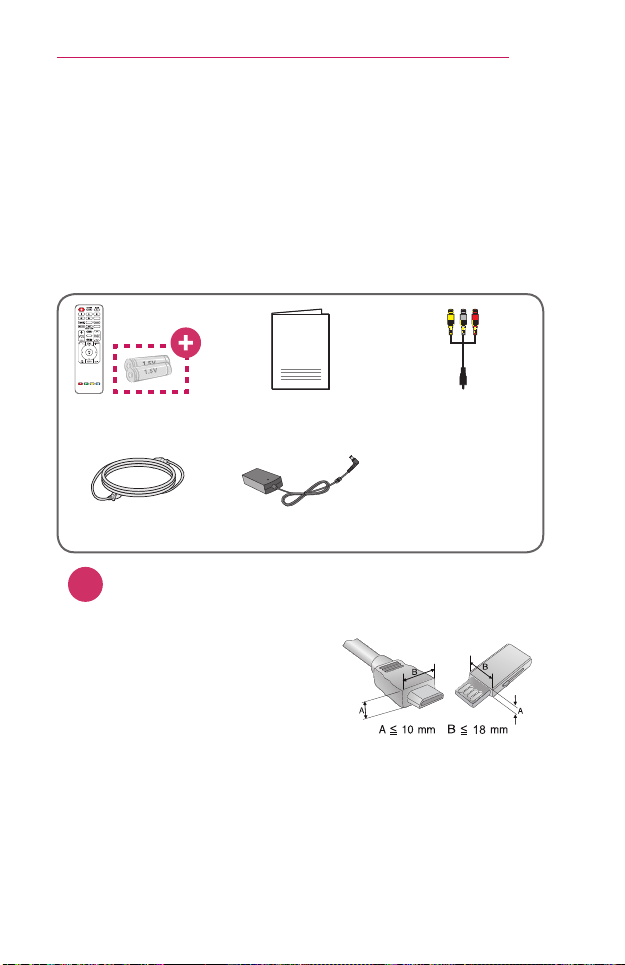
Accessories included with the projector are show below.
Accessories are subject to change without prior notice.
New accessories may be added or old ones removed.
BLANK
SOUND
L/R
3D
Remote Control
Two AAA Batteries
Owner's Manual Composite Gender
Power cord AC-DC Adaptor
+
Due to the environment government regulations about import
and batteries destruction in Colombia, projectors will not bring
the batteries of remote control included.
• When connecting an HDMI or USB
cable, or connecting a USB flash drive
to the HDMI or USB port, use a product
that has a width of 18 mm or less and
a height of 10 mm or less. If the USB
cable or USB flash drive does not fit
the USB ports of the projector, use an
extension cable that supports USB 2.0.
• Use a certified cable with the HDMI logo attached.
• If you do not use a certified HDMI cable, the screen may not display or a
connection error may occur. (Recommended HDMI cable types)
- High-Speed HDMI
®
/™ Cable
- High-Speed HDMI
®
/™ Cable with Ethernet

14
PREPARATION
OptionalExtras
To purchase optional accessories, visit an electronics store or online
shopping site or contact the retail store where you purchased the product.
Optional accessories are subject to change without prior notice.
Projection Screen Tripod HDMI Cable
Video Cable Audio Cable Computer Cable
Optical Cable MHL Cable
3D glasses
(DLP-LINK or DLP
Ready Type)
LG Audio Device Component Gender
15
PREPARATION
PartsandComponents
This projector is manufactured using high-precision technology. You may,
however, see tiny black dots and/or bright colored dots (red, blue, or
green) that continuously appear on the projector screen. This is a normal
result of the manufacturing process and does not indicate a malfunction.
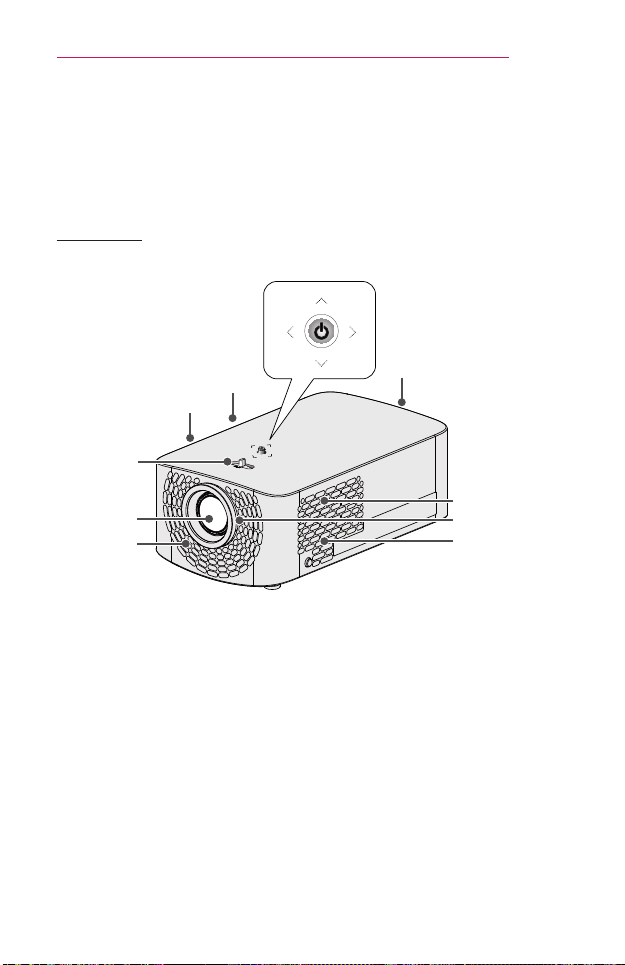
MainUnit
Lens
2)
Zoom ring
Vent
1)
Vent
1)
Speaker
Joystick Button
Speaker
Vent
1)
Focus Ring
Vent
1)
1) Due to the high temperature of vent area, do not get close to the vent area.
2) Do not touch the lens when using the projector. The lens may be damaged.
16
PREPARATION
Side
1
2 3 4 5 6 7 8
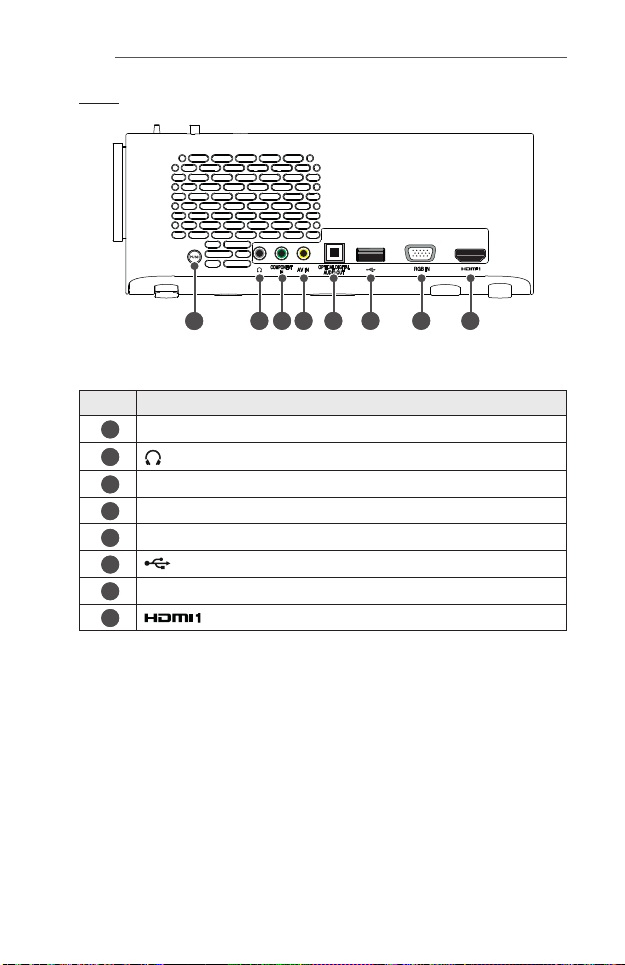
No. Description
1
PUSH button
2
(Headphone Port)
3
COMPONENT IN Port
4
AV IN Port
5
OPTICAL DIGITAL AUDIO OUT Port
6
(USB port)
7
RGB IN Port
8
Port
17
PREPARATION
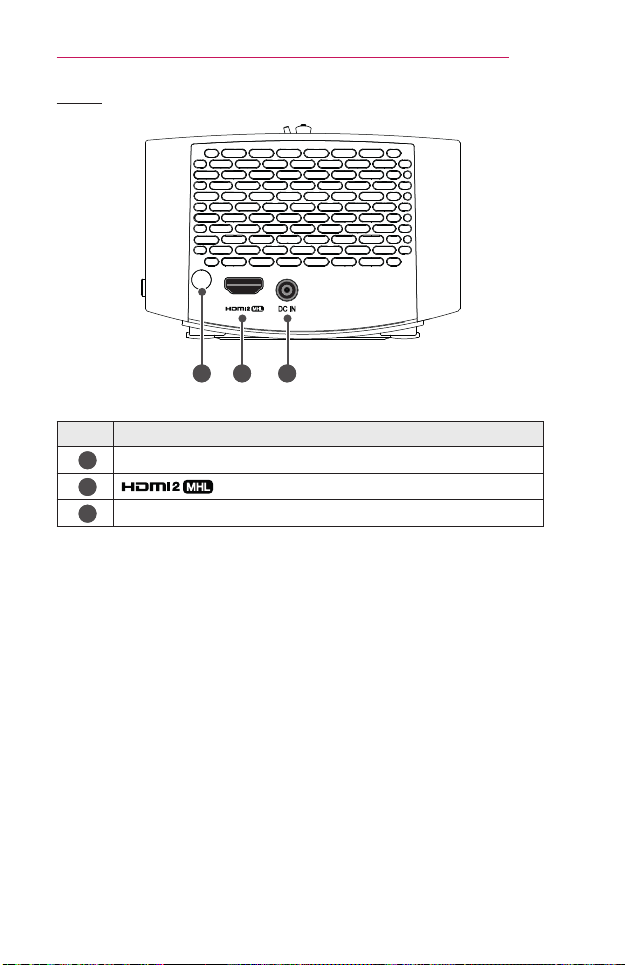
Back
21 3
No. Description
1
IR Reciver
2
Port
3
DC IN Port
18
PREPARATION
UsingtheJoystickButton
You can operate the projector by pressing the button or moving the joystick
left, right, up, or down.
BasicFunctions
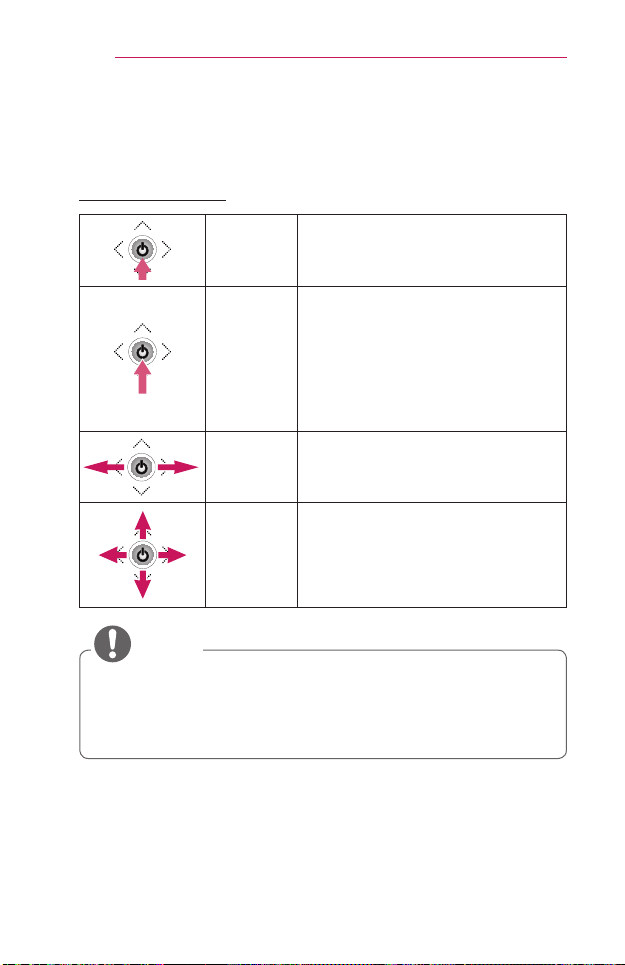
PowerOn When the projector is turned off, place
your nger on the joystick button,
press it once, and release it.
PowerOff When the projector is turned on, place
your nger on the joystick button,
press it once for a few seconds, and
release it. (However, if the menu
button is on the screen, pressing and
holding the joystick button will let you
exit the menu.)
Volume
Control
Place your nger over the joystick
button and move it left or right. You
can adjust the volume level.
Up/Down/
Left/Right
If you move the joystick up, down, left,
or right, you can move the cursor to
select the menu items.
• Move the joystick button up, down, left, or right. Be careful not to
press the joystick button. If you press the button while moving the
joystick, the volume control may not work, and the cursor may not
move.
NOTE
19
PREPARATION
AdjustingtheMenu
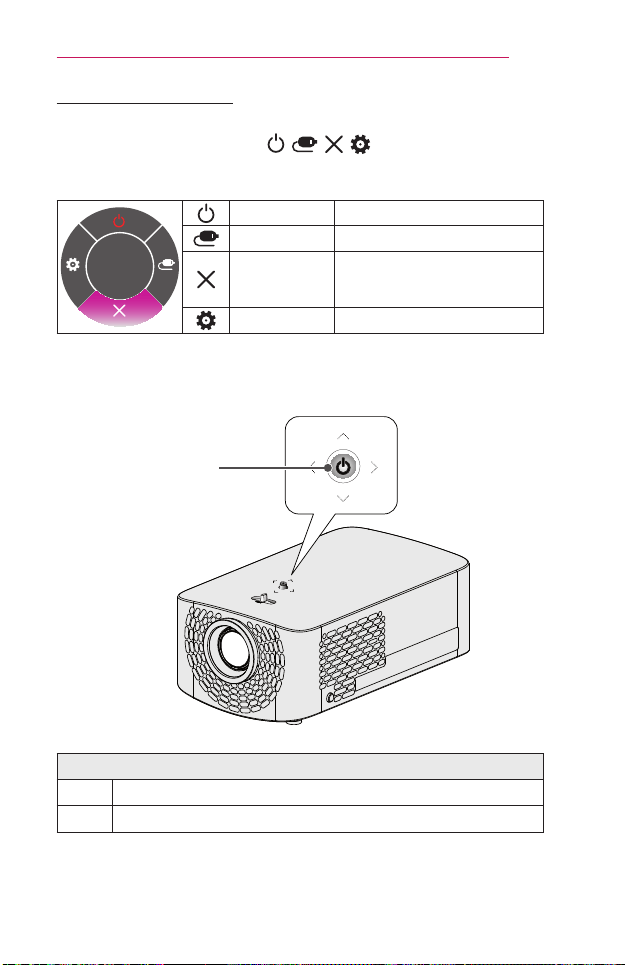
When the projector is turned on, press the joystick button one time.
You can adjust the menu items ( , , , ) moving the joystick
button left, right, up, or down. Move to the desired menu item, and then
press the joystick button once to select it.
Close
Projectoroff
Turns the power off.
InputList Changes the input source.
Close
Clears on-screen displays and
returns to projector viewing.
Settings Displays the Settings menu.
ProjectorStatusIndicators
LED Power
Indicator
LEDPowerIndicator
Red
Power standby state
Off
The projector is operating with the power on.
20
PREPARATION
Installation
InstallationPrecautions
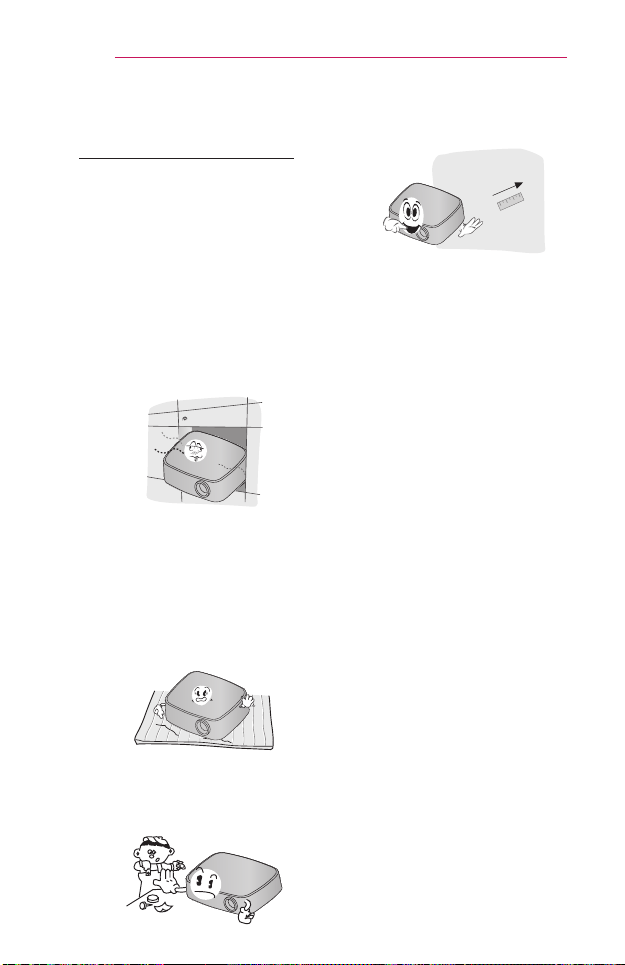
• Place the projector in a well-
ventilated environment.
- To prevent internal
overheating, install the
projector in a well-ventilated
place. Do not place anything
near the projector that may
block its air vents. If the
air vents are blocked, the
internal temperature of the
projector will increase.
- Do not place the projector
on a carpet or rug. If the
projector's inlet vent is on
the bottom, be careful not to
block the vent and always
use the projector on a solid,
level surface.
- Be sure to prevent foreign
objects such as paper debris
from entering the projector.
- Leave an adequate open
area (30 cm or more) around
the projector.
• Do not place the projector in a
hot, cool, or humid environment.
• Do not place the projector in a
place where it will easily attract
dust.
- This may result in re.
• Never open any cover on the
projector. There is a high risk of
electric shock.
• The projector is manufactured
using high-precision technology.
You may, however, see
tiny black dots and/or bright
colored dots (red, blue or
green) that continuously
appear on the projector screen.
This is a normal result of the
manufacturing process and
does not indicate a malfunction.
• The remote control may not
work in an environment where
a lamp equipped with electronic
ballasts or a three-wavelength
fluorescent lamp is installed.
Replace the lamp with an
international standard lamp
for the remote control to work
normally.
• To install to the ceiling, attach
the ceiling-type bracket to
the projector with M4 x 8 mm
screws.
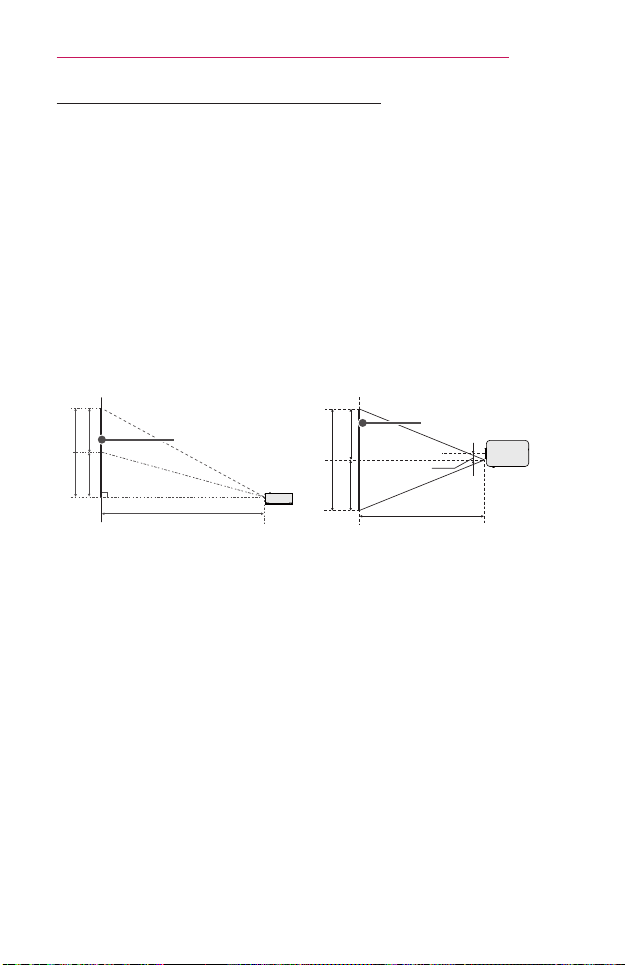
21
PREPARATION
ProjectionDistanceperScreenSize
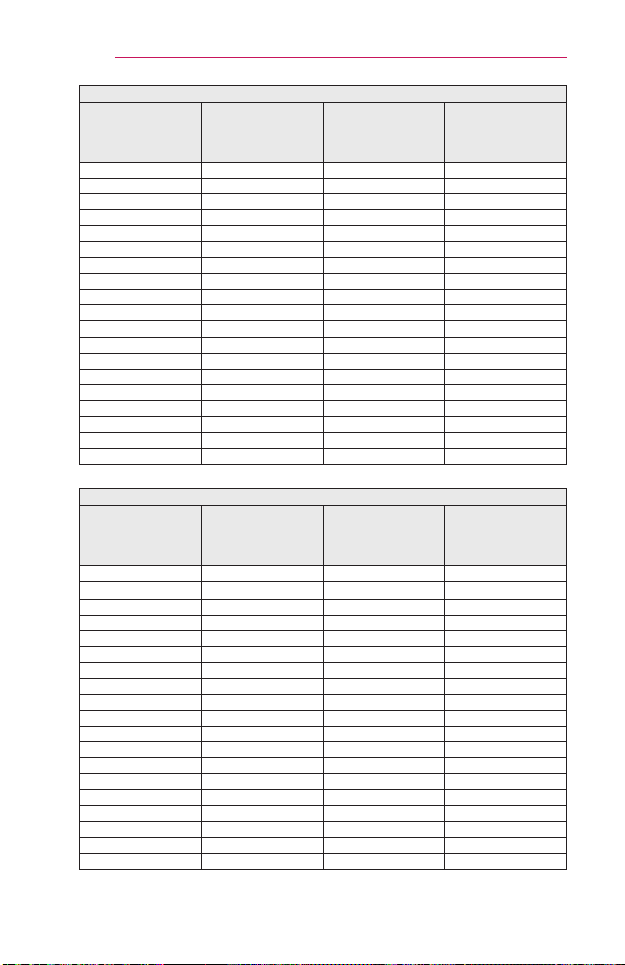
1 Place the projector on a sturdy, level surface, together with the PC or
audio/video source.
2 Place the projector an appropriate distance away from the screen. The
distance between the projector and the screen determines the actual
size of the image.
3 Position the projector so that the lens is at a right angle to the screen.
If the projector is not at a right angle, the projected image will look
distorted. To correct the distortion, use the keystone function.
(See page 32.)
4 Connect the power cord of the projector and the connected device to
the wall outlet.
X/2 X/2
Y/2 Y/2
66.0 mm
Ratioofupwardprojection:100%
Projection Distance (D)
Projection Distance (D)
Screen Height (X)
Screen Width (Y)
Screen
Screen
22
PREPARATION
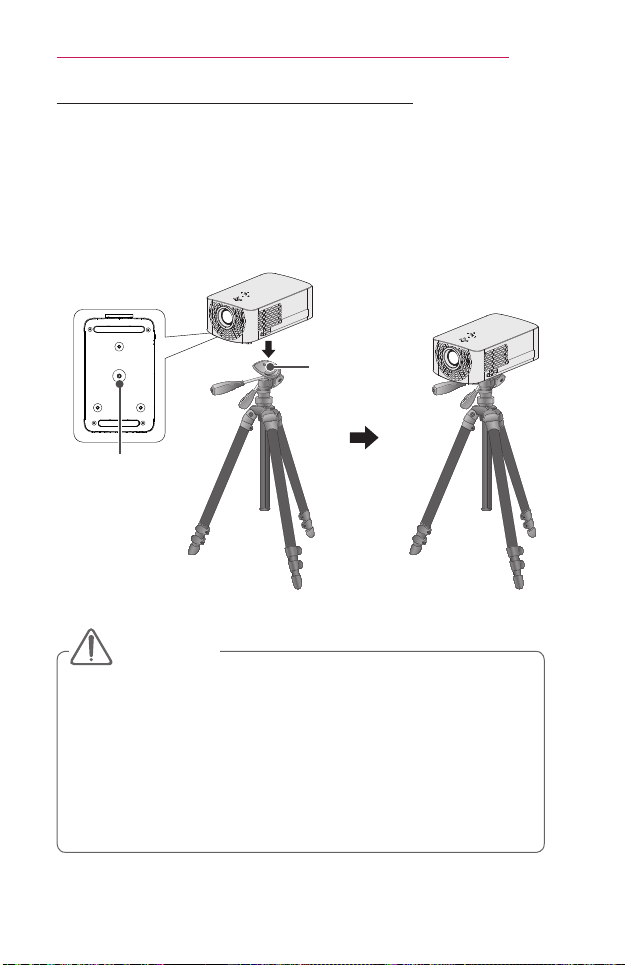
16:9AspectRatio(Wide)
ScreenSize
(mm)
ScreenWidth
(Y)(mm)
ScreenHeight
(X)(mm)
Projection
Distance
(D)(mm)
762 664 374 905
889 775 436 1061
1016 886 498 1230
1143 996 560 1371
1270 1107 623 1526
1397 1218 685 1682
1524 1328 747 1837
1651 1439 809 1992
1778 1550 872 2147
1905 1660 934 2302
2032 1771 996 2458
2159 1882 1058 2613
2286 1992 1121 2768
2413 2103 1183 2923
2540 2214 1245 3078
2667 2324 1308 3234
2794 2435 1370 3388
2921 2546 1432 3544
3048 2657 1494 3698
16:9AspectRatio(Tele)
ScreenSize
(mm)
ScreenWidth
(Y)(mm)
ScreenHeight
(X)(mm)
Projection
Distance
(D)(mm)
693 604 340 905
808 704 396 1061
924 805 453 1230
1039 906 509 1371
1155 1006 566 1526
1270 1107 623 1682
1385 1208 679 1837
1501 1308 736 1992
1616 1409 792 2147
1732 1509 849 2302
1847 1610 906 2458
1963 1711 962 2613
2078 1811 1019 2768
2194 1912 1075 2923
2309 2013 1132 3078
2425 2113 1189 3234
2540 2214 1245 3388
2655 2314 1302 3544
2771 2415 1358 3698
23
PREPARATION
HowtoInstalltheProjectorOnaTripod
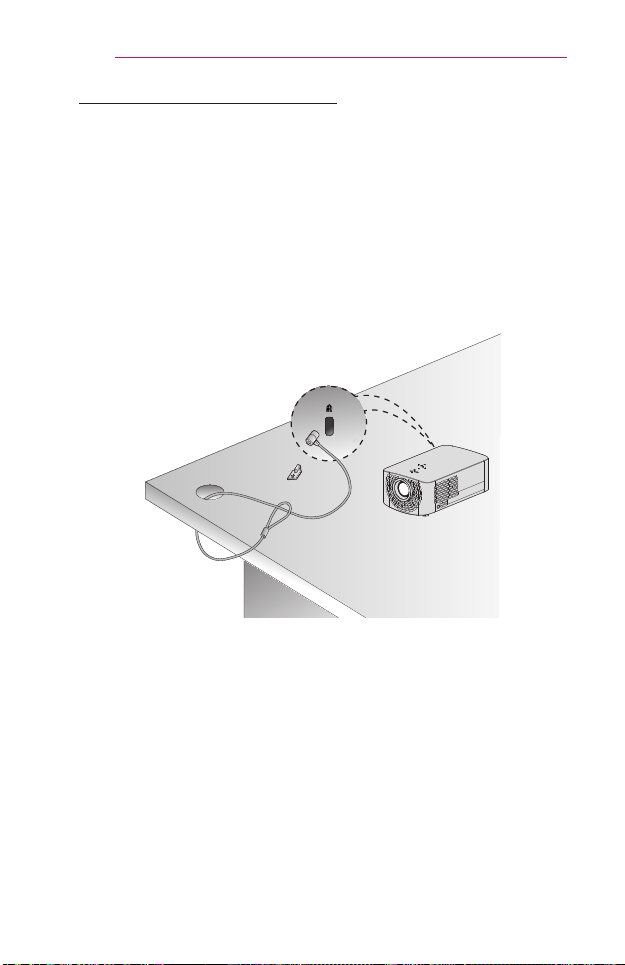
• You can install the projector using a camera tripod.
• As shown below, you can mount the projector instead of a camera on
the tripod.
• When stabilizing the tripod, we recommend using a locking bolt of
standard size 4.5 mm or less. The maximum size allowed for the locking
bolt is 5.5 mm. (If it is longer than the maximum allowed size, it may
damage the projector.)
Bottom of the
Projector
The projector
is connected to
this part.
Tripod
Bolt used to
attach the
projector to
the tripod
• If you are using a tripod, be careful not to apply external force to the
tripod. Doing so may damage the projector.
• Do not place the tripod on an unstable surface.
• Be sure to use a tripod with a maximum load capacity of 3 kg or
more.
• To use the projector safely, position the tripod legs so that they are
as wide and stable as possible and be sure to securely attach the
projector to the tripod.
CAUTION
24
PREPARATION
KensingtonSecuritySystem
• This projector has a Kensington Security Standard connector as an
anti-theft mechanism. Connect a Kensington Security System cable as
shown below.
• For more information on installation and use of the Kensington Security
System, refer to the user’s guide provided with the Kensington Security
System.
• The Kensington Security System is an optional accessory.
• What is Kensington?
Kensington is a company that provides safety systems for laptops and
other electronic devices. Website: http://www.kensington.com

25
REMOTECONTROL
REMOTECONTROL
Open the battery cover on the back of the
remote control and insert the batteries which
are specied in the battery room with
poles pointing in the correct direction. The
new and same type of batteries (1.5 V AAA)
must be used.
• Do not mix new batteries with old ones.
CAUTION
BLANK
SOUND
L/R
3D
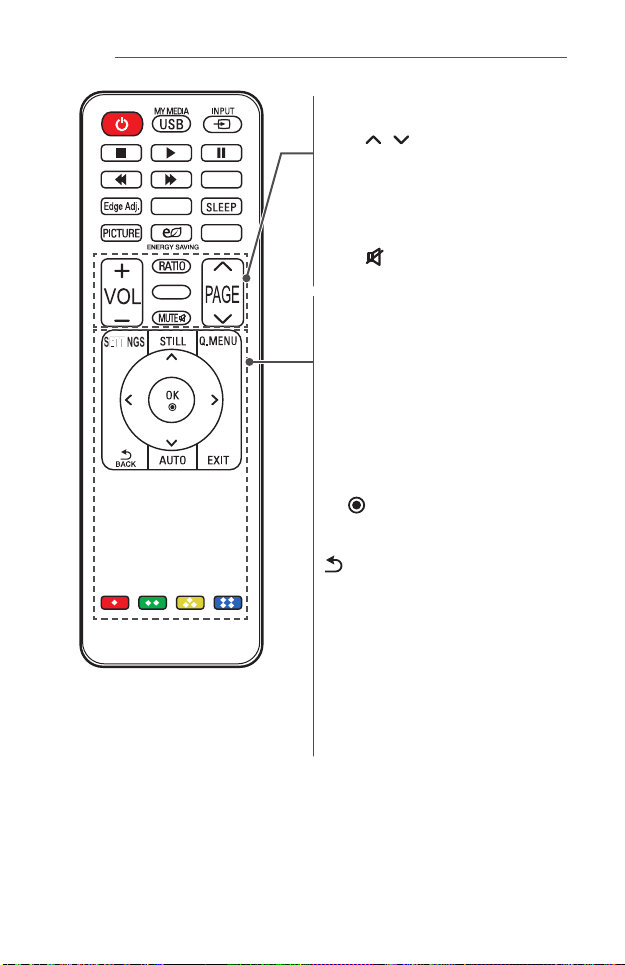
(POWER)
Turns the projector on or off.
USB/MYMEDIA
Accesses USB mode.
INPUT
Changes the input source.
PlaybackControlButtons
Controls playback of MYMEDIA.
L/R
Switches left and right in 3D mode.
EdgeAdj.
Adjusts the Edge Adj settings.
SOUND
Changes the Sound Mode.
SLEEP
Sets the sleep timer.
PICTURE
Changes the picture mode.
ENERGYSAVING
Reduces power consumption by
adjusting peak screen brightness.
BLANK
Displays a blank screen.
26
REMOTECONTROL
BLANK
SOUND
L/R
3D
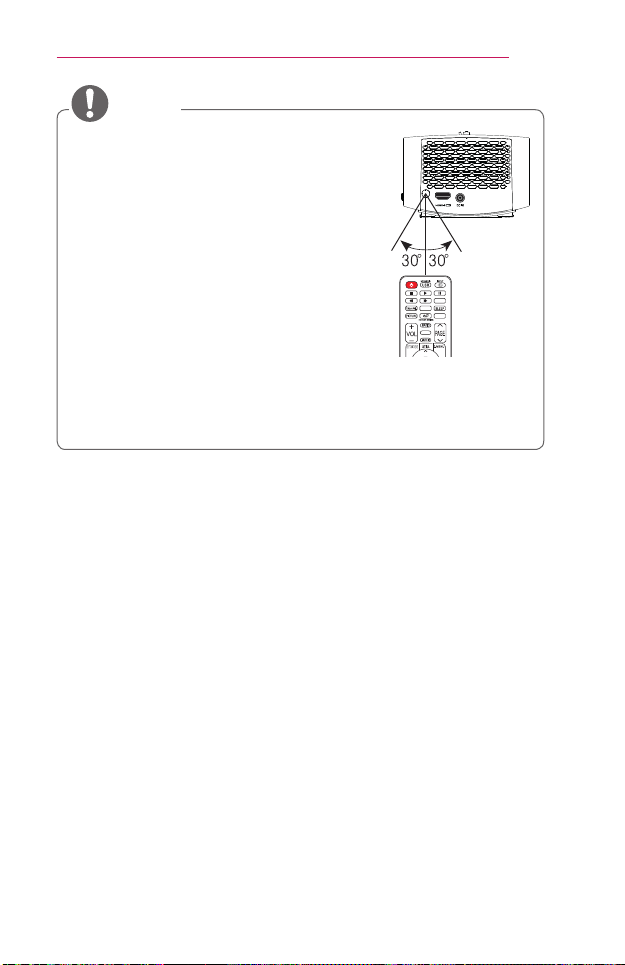
VOL+,-
Adjusts the volume level.
PAGE
,
Moves to the previous/next page.
RATIO
Resizes an image.
3D
Shows 3D images.
MUTE
Mutes the sound of the projector.
SETTINGS
Displays or closes the Settings menu.
STILL
Freezes the moving image.
(Available in any mode other than USB
mode.)
Q.MENU
Enters the quick menu.
Up/Down/Left/Rightbuttons
Sets the function or moves the cursor.
OK
Shows the current mode and saves
changes to the settings.
BACK
Returns to the previous screen.
AUTO
Optimizes the screen automatically in
RGB-PC input mode.
EXIT
Exits the menu.
Colorbuttons
Sets detailed settings or gesture for each
menu.
27
REMOTECONTROL
• When using the remote control, the optimal
operation range is 6 meters or less (left/right)
and within a 30 degree arc of the remote
control IR receiver.
• If a cable is connected to the back port, the
optimal operating range is 3 meters or less
(left/right) and within a 30 degree arc of the
remote control IR receiver.
• For seamless operation, do not block the IR
receiver.
• When you carry the remote control in the
portable bag, make sure that the buttons
on the remote control are not pressed by the projector, cables,
documents, or any other accessories in the bag. Otherwise, it may
significantly reduce the battery life.
BLANK
SOUND
L/R
3D
NOTE

28
USINGTHEPROJECTOR
USINGTHEPROJECTOR
WatchingProjector
TurningontheProjector
The menu screen display in this owner's manual is an example to help
users understand how to operate the product and may look different from
the actual screen.
1 Connect the power cord correctly.
2 After waiting for a moment, press the POWER button on the remote
control or the joystick button.
3 In the Language Selection screen, select a language.
4 In the ModeSetting screen, select the setting mode you want.
Mode Setting
Selecting the environment.
Choose the setting mode you want.
Select [Standard] to use this Projector at home. To use this
Projector at store, select [Store Demo].
Conrm
Previous
Standard
Store Demo
Demo Mode
Off
* StoreDemo is used when displaying the product in-store. The picture
mode is automatically reset after a certain period of time. You can select
Standard to use the product at home.
5 Select an input signal by using the INPUT button on the remote control.
29
USINGTHEPROJECTOR
FocusandPositionoftheScreenImage
When an image appears on the screen, check if it is in focus and ts the
screen properly.
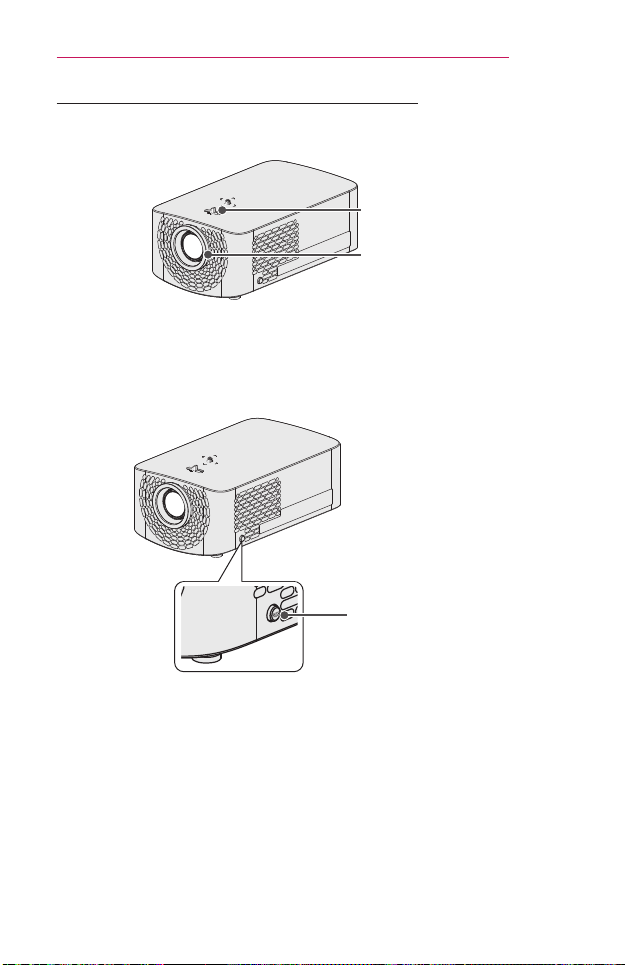
Focus Ring
Zoom Ring
• To adjust the focus of the image, rotate the focus ring.
• To adjust the size of the image, rotate the zoom ring. To move the
screen image upward/downward, adjust the height of the foot at the
bottom of the projector.
PUSH: Front foot
adjustment button
• While pressing the PUSH button, adjust the projector upward/downward
until the screen image is in the desired position.
• When you release the PUSH button, the front foot becomes fixed at the
current position.

30
USINGTHEPROJECTOR
WatchingWiththeProjector
1 When in standby mode, press the POWER button to turn the projector
on.
2 Press the INPUT button and select the input signal you want.
3 Control the projector using the following buttons while watching
projector.
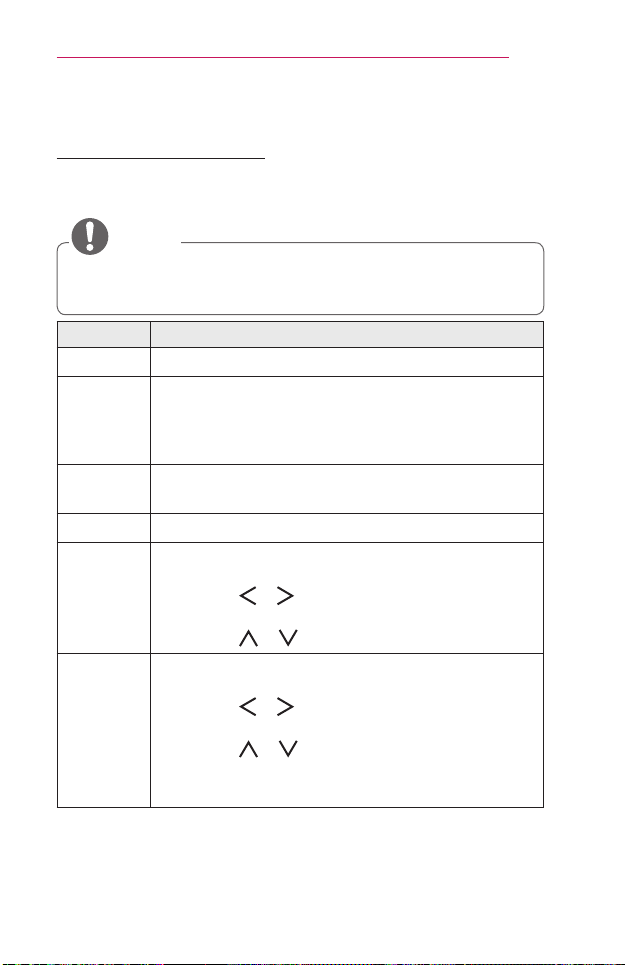
Button Description
VOL+,- Adjusts the volume level.
MUTE
Mutes all sounds.
Q.MENU Accesses the quick menu.
RATIO Resizes an image.
EdgeAdj. Adjusts the Edge Adj settings.
4 To turn the projector off, press the POWER button.
31
USINGTHEPROJECTOR
AdditionalOptions
AdjustingAspectRatio
Resize an image to view at its optimal size by pressing RATIO while you
are using the projector.
• Available picture size may differ depending on the input signal.
• You can also use the Q.MENU or SETTINGS button.
NOTE
Menu Description
16:9 Resizes images to the 16:9 ratio.
JustScan
Displays video images in the original size without
removing parts of the edge of the image.
• If you select JustScan, you may see image noise at
the edge or edges of the screen.
SetBy
Program
Displays images in the same aspect ratio as the original
image.
4:3 Resizes images to the previous standard 4:3.
Zoom
Resizes the image to t the screen width. The top and
bottom parts of the image may be cut off.
• Press the or button to zoom in or out of the
image.
• Press the or button to move the image.
Cinema
Zoom1
Formats an image to the cinemascope ratio, 2.35:1.
It ranges from 1 to 16.
• Press the or button to zoom in or out of the
image.
• Press the or button to move the image.
• If you enlarge or reduce an image, the image may be
distorted.
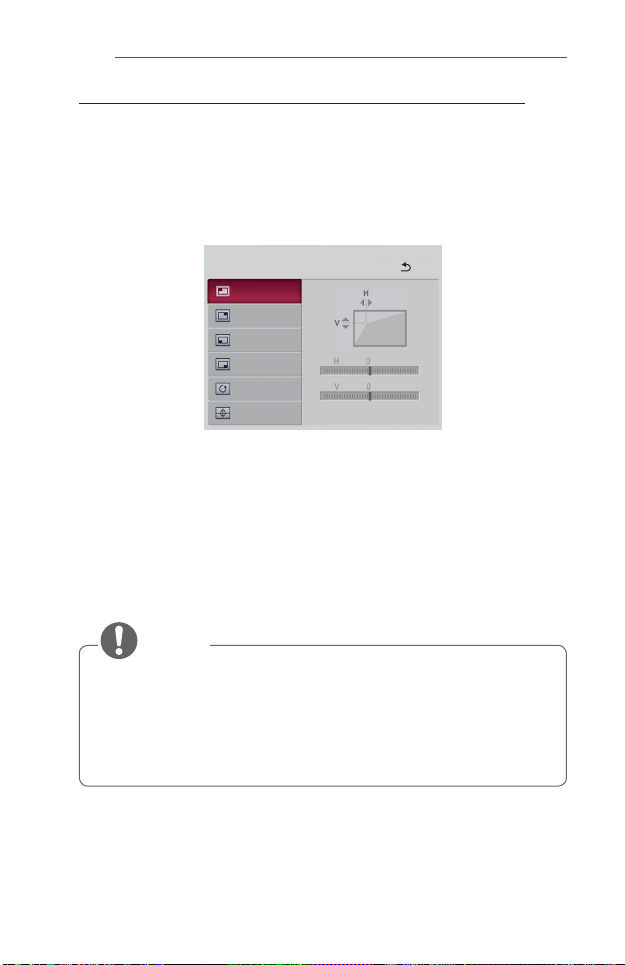
32
USINGTHEPROJECTOR
UsingtheEdgeAdj(4CornerKeystone)Function
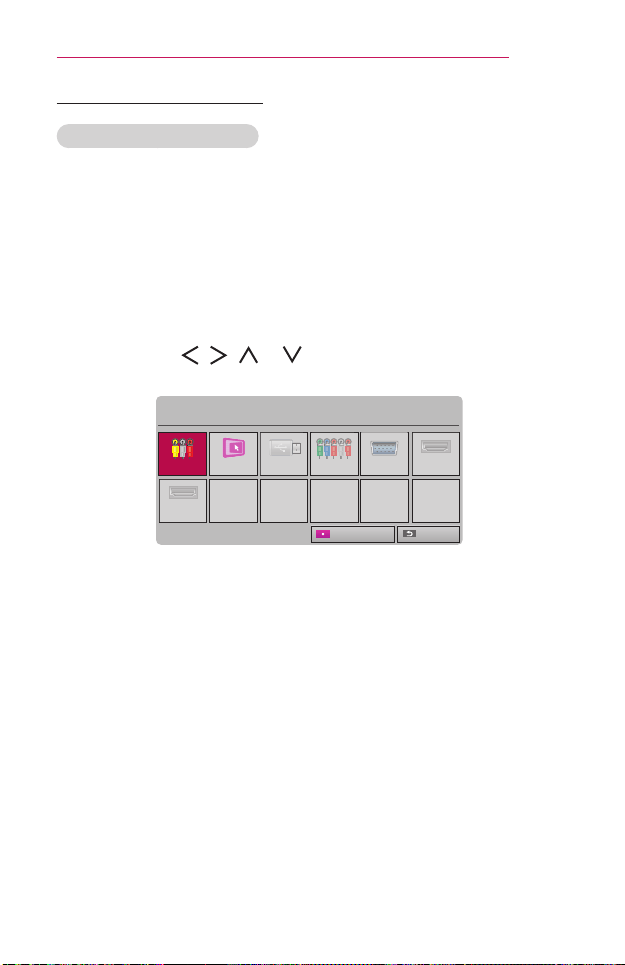
EdgeAdj (4 Corner Keystone) adjusts the horizontal and vertical sides of
the projected image if the projector is at an angle and not perpendicular to
the screen. This feature ensures the shape of the projected image is not
distorted.
Use this feature only when the projector cannot be set up at the optimal
angle. EdgeAdj may result in a loss of image quality.
ꔂ Move Prev.
Edge Adj
Top Right
Bottom Left
Bottom Right
Reset
Test Pattern
Top Left
1 Go to SETTINGS → OPTION2 → EdgeAdj.
2 The value range of EdgeAdj is as follows.
- Top Left (H: 0 to 100, V: 0 to 100)
- Top Right (H: -100 to 0, V: 0 to 100)
- Bottom Left (H: 0 to 100, V: -100 to 0)
- Bottom Right (H: -100 to 0, V:-100 to 0)
•When using AutoKeystone(Vertical), the current value set for
EdgeAdj is changed to the value that has been set with Auto
Keystone(Vertical).
•When the input is set to SCREENSHARE, EdgeAdj feature is
disabled and cannot be used.
NOTE
33
USINGTHEPROJECTOR
ChangingInputDevice
Toselectanexternalinput
Selects external input.
The illustration of the menu may differ from the actual screen on the
product.
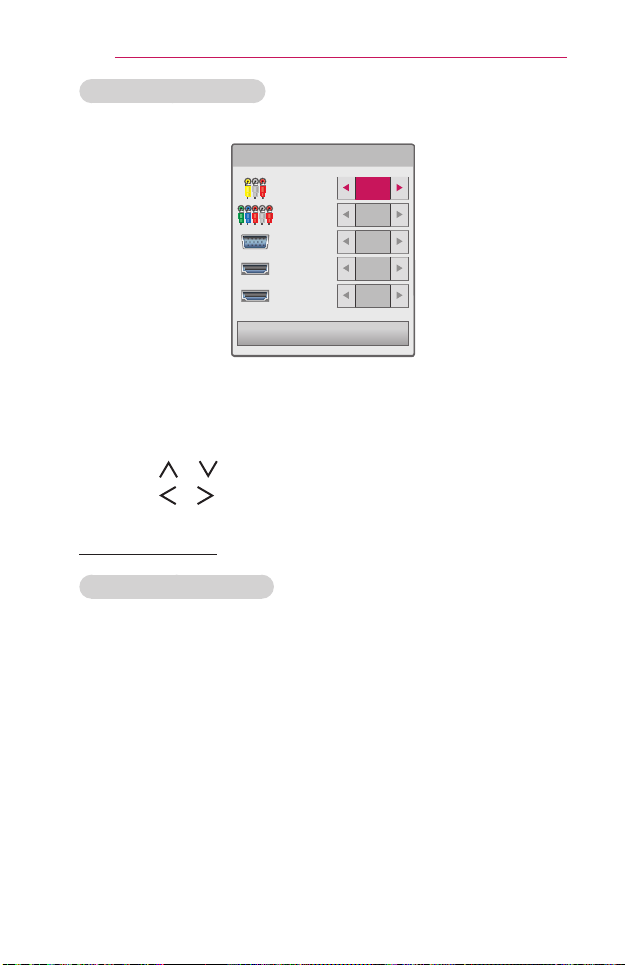
• Press the INPUT button on the remote control to display the input
selection screen.
- Connected inputs are displayed rst. However, SCREENSHARE
and AV input is always activated.
• Select an input signal using the remote control's INPUT button to
connect the projector to the desired input.
You can use the , , , or button to switch between all the
input modes.
Input List
AV SCREEN SHARE
USB Component RGB-PC HDMI1
HDMI2
ꔂ Move ꔉ OK
Exit
Input Label
34
USINGTHEPROJECTOR
SelectinganInputLabel
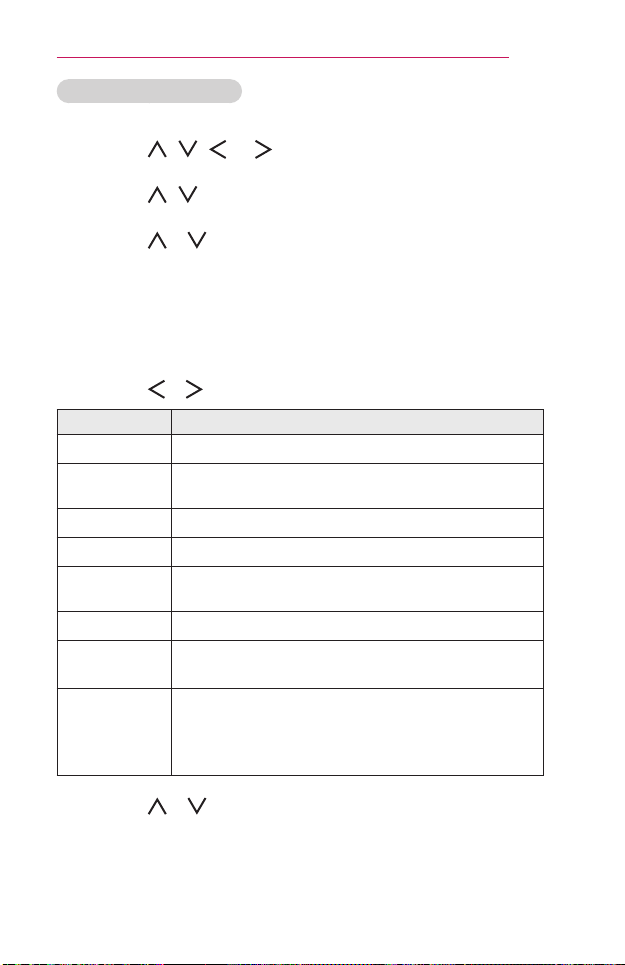
Displays which devices are connected to which input ports.
Input Label
AV
Component
RGB-PC
HDMI1
HDMI2
Close
1 Press the INPUT button on the remote control to display the input
selection screen.
2 Press the Red button.
3 Use the or button to scroll to one of the input sources.
4 Use the or button to select one of the input labels.
BlankFunction
UsingtheBlankFunction
This function may be effective when you need to draw attention during a
meeting or training.
1 Press the BLANK button, and the screen is covered by the
background color. You can change the background color by referring
to Selecting a Blank Image.
2 Press any button to clear the blank function. To cover the screen
temporarily, press the BLANK button on the remote control. Do not
block the lens with any object while the projector is running. It may
become overheated and deformed or even cause a re.
35
USINGTHEPROJECTOR
SelectingaBlankImage
1 Press the SETTINGS button.
2 Press the , , , or buttons to select OPTION2 and press
the OK button.
3 Press the , buttons to select BlankImage and press the OK
button.
4 Press the or button to move to the setting or option you want
and press the OK button.
UsingtheQuickMenu
You can easily customize your frequently used menus.
1 Press the Q.MENU button.
2 Press the or button to select a menu and press OK button.
Menu Description
AspectRatio Resizes the picture.
PJTMode
Turns the projected image upside down or ips it
horizontally.
PictureMode Changes the picture mode.
SoundMode Sets the sound mode.
SleepTimer
Sets the projector to be turned off at the specied
time.
ClearVoiceII Makes the voice from the projector crisp and clear.
Energy
Saving
Reduces power consumption by adjusting peak
screen brightness.
USBDevice
Allows you to remove a connected USB device in a
safe manner.
(The menu is displayed only when the USB device is
connected.)
3 Press the or button to scroll through the following menus.

36
ENTERTAINMENT
ENTERTAINMENT
UsingSCREENSHARE
1 Set the external input of the projector to SCREENSHARE.
2 Enable related SCREEN SHARE function on the device you wish to
connect.
3 Connect the projector from the search list on the device you wish to
connect. (When you connect the projector to your laptop, input the PIN
code shown on your display. The request for a PIN will be shown only
at the initial connection.)
4 If the desired device accepts the request, SCREEN SHARE will be
started.
• Windows 7 / 8 / 8.1 are compatible with SCREEN SHARE. However,
other versions of Windows, and some other operating systems, may
not be compatible with SCREEN SHARE.
• Ice Cream Sandwich, Jellybean, and KitKat versions of LG’s Android
devices are guaranteed to be compatible.
• When connecting via SCREEN SHARE, place the device close to
the projector.
• The response rate and image quality may vary depending upon the
user’s environment.
• For more information on the device you want to connect to, refer to
its owner’s manual.
• Certain Windows 8.1 laptops may have difficulty in reconnecting
when initializing the device information during a wireless connection.
In this case, it is recommended that you remove the registered
device and reconnect.
• When the input is set to SCREENSHARE, these features are
disabled and cannot be used: EdgeAdj, PJTMode, and Auto
Keystone(Vertical).
CAUTION
37
ENTERTAINMENT
SettingUpBluetoothontheProjector
This option is used to output sound from the projector through Bluetooth
audio devices.
•The devices that can be connected are as follows: LG BTS1, LG
HBS-700 , LG HBS- 730 , LG HBS-800 (Models available for
purchase may vary by region.)
•Products from other manufacturers may not be compatible.
•You can use the remote control to adjust the volume of the
connected device.
•When connecting devices wirelessly,if the device connection fails,
check that the device is connected to a power supply and also check
that the Bluetooth audio device is operating properly.
•If Bluetooth is turned on, the projector will automatically connect
to the last connected Bluetooth device when the projector powers
on. (Be sure to check that the last connected Bluetooth device is
powered on as well.)
•This projector does not support the LG TV Sound Sync feature. To
use products that support the LG TV Sound Sync feature, use the
general Bluetooth mode instead of the LG TV mode.
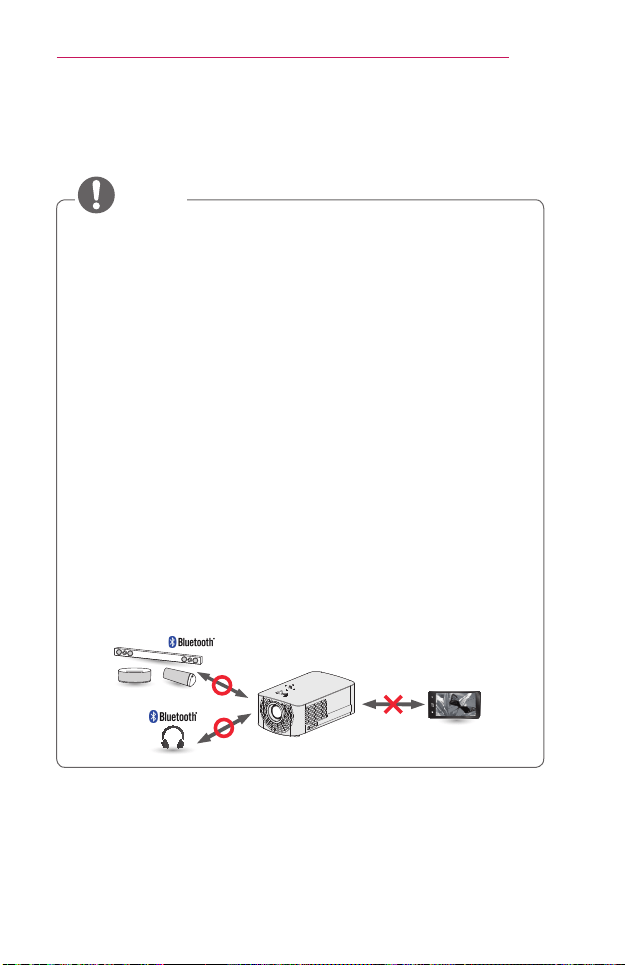
•The Bluetooth function is to connect the product to Bluetooth
speakers or Bluetooth headset. You cannot connect the product to a
mobile phone through the Bluetooth function.
NOTE

38
ENTERTAINMENT
SearchingforBluetoothDevicesandConnecting
Go to SETTINGS → AUDIO → SoundOut → Bluetooth → Search
Device to search for nearby Bluetooth audio devices and then connect
any detected devices to the projector. (If the device name is longer than 20
characters, only the rst 20 will be displayed.)
1 Set the Bluetooth device to pairing mode and then select Search
Device.
• Select Stopsearching to view the devices detected so far.
• If the device has not been detected, check that the device is powered on
and in pairing mode.
• The time it takes to search for devices may vary according to the signal
strength and the number of devices.
AUDIO
• Sound Mode : Standard
• Sound Effect
• Auto Volume : Off
• Sound Out : Bluetooth
• AV Sync. Adjust : Off
• Sound Out :Bluetooth
ꔂ Move ꔉ OK
2 When the search is complete, you can select a Bluetooth device and
connect to it.
• You can stop the connection process immediately by selecting Stop
searching.
• The time it takes to connect to a device may vary according to the signal
strength and the number of devices.
Search Device
Stop searching Close
List
Please wait.
Searching...
Search Device
List
Press OK(ꔉ) to connect the device.
HBS-700
Search complete
Re-search Close

39
ENTERTAINMENT
3 When a Bluetooth device is connected, you will hear sound from the
projector through the connected device.
• The connected Bluetooth device will be added automatically to the List
ofregistereddevices. Once registered, Bluetooth devices can be
connected simply by selecting them from the Listofregistereddevices
without having to search for them.
• Connected devices can only be disconnected from SETTINGS →
AUDIO → SoundOut → Bluetooth → Listofregistereddevices.
Connecting,Disconnecting,orDeletingBluetooth
DevicesintheListofRegisteredDevices
In SETTINGS → AUDIO → SoundOut → Bluetooth → Listof
registereddevices, Bluetooth devices are shown in the order that they
were connected, and the same devices can be reconnected simply by
selecting them without having to search for them again.
List of registered devices
List
HBS-700
Delete All Close
Press OK(ꔉ) to connect the device.
Delete
Connecting
Select a Bluetooth device from the Listofregistereddevices to connect
to it.
• The registered Bluetooth device will attempt to connect automatically
depending on the characteristics of the device. (Refer to the manual for
the Bluetooth device.)
• You can stop the connection process immediately by selecting Stop.
• The time it takes to connect to a device may vary according to the signal
strength and the number of devices.
40
ENTERTAINMENT
Disconnecting
Select Disconnect to disconnect the device.
• You can only disconnect a device from the Listofregistereddevices.
Deleting
Select DeleteMarked or DeleteAll to delete any registered devices.
• DeleteMarked: Press the red button in Listofregistereddevices to
delete the selected device.
• DeleteAll: Select DeleteAll in Listofregistereddevices to delete all
of the registered devices.
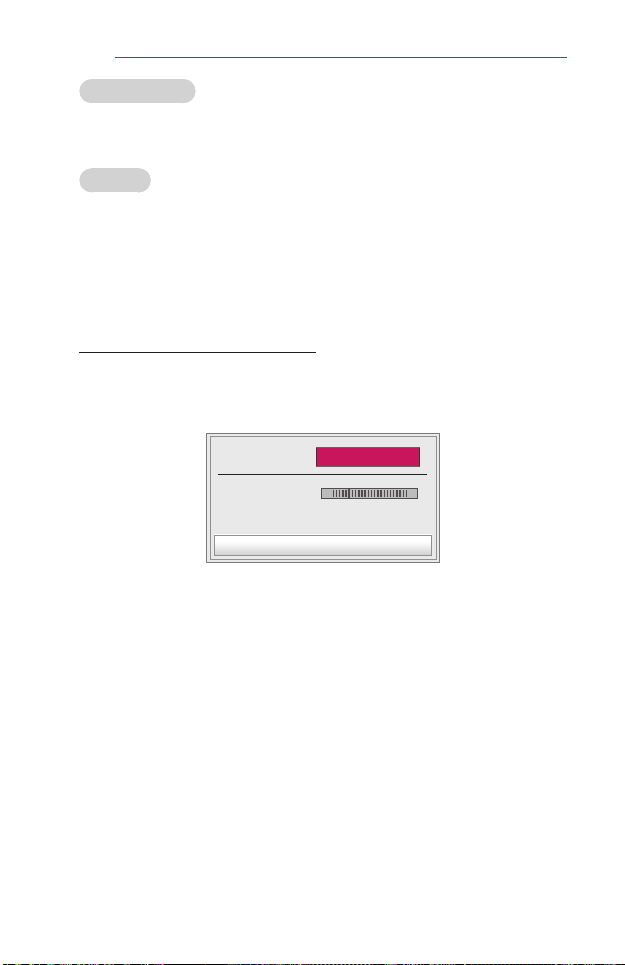
AdjustingAVSync.Adjust
When a Bluetooth device is connected, go to SETTINGS → AUDIO →
AVSync.Adjust to adjust the synchronization between the video and the
Bluetooth headset sound.
• AV Sync.Adjust
◀
On
▶
Close
• Bluetooth 0
- +
• This feature is only available when a Bluetooth device is connected.
• Audio sync may vary by manufacturer.
• When playing video from a connected USB drive, AVSync.Adjust can
also be adjusted using the SetAudio. menu.

41
MYMEDIA
MYMEDIA
BeforeUsing
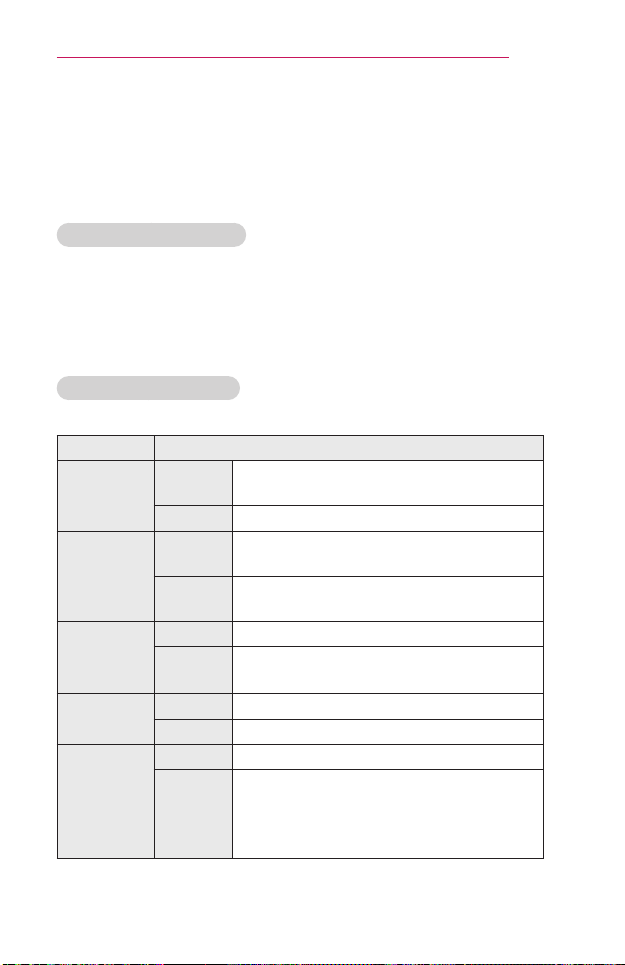
ConnectingaUSBDevice
Connect a USB device (external
HDD, USB memory) to the USB port
of projector to enjoy the content les
stored in the USB device with your
projector. You cannot write or delete
data in the USB device. Connect a
USB ash drive as shown below.
USB ash
Drive
RemovingaUSBDevice
1 Click the Q.MENU button.
2 Use the or button to move to USBDevice and press the
OK button.
3 Select a USB to remove. Wait for conrmation that the USB device has
stopped before removing the USB.
• If detached early, an error may occur on the projector or the USB
storage device.
• Once a USB device has been selected for removal, it can no longer
be read. Remove the USB storage device and then re-connect it.
NOTE

42
MYMEDIA
TipsforusingaUSBdevice
• If the USB storage device has a built-in auto recognition program or uses
its own driver, it may not work.
• Some USB storage devices may not work or may work incorrectly.
• If you use a USB extension cable, the USB device may not be
recognized or may not work properly.
• Use only USB storage devices formatted with the Windows FAT32 or
NTFS file system.
• For external USB HDDs, it is recommended that you use devices with a
rated voltage of less than 5 V and a rated current of less than 500 mA.
• It is recommended to use a Hard Disk Drive with its own power supply.
(If the power being supplied is not sufficient, the USB storage device
may not be detected correctly.) Note, a USB Hub is not supported.
• It is recommended that you use USB flash drives of 32 GB or less and
USB HDDs of 2 TB or less.
• If a USB HDD with power-saving function does not work properly, turn
the power off and on. For more information, refer to the user manual of
the USB HDD.
• Data in USB storage device can be damaged so be sure to back
up important files to other devices. Data maintenance is the user's
responsibility and the manufacturer is not responsible for data loss.
43
MYMEDIA
ToUseMyMedia
1 Press the SETTINGS button on the remote control.
2 Select MYMEDIA.
Select desired le from the list. Watch the chosen le.
Sets play related settings by checking option during disk playback.
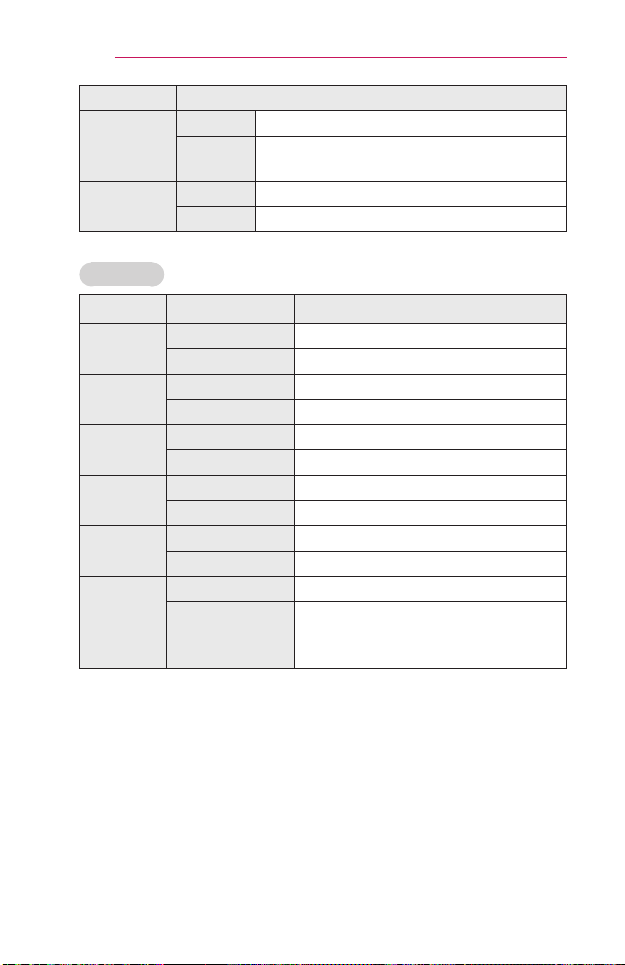
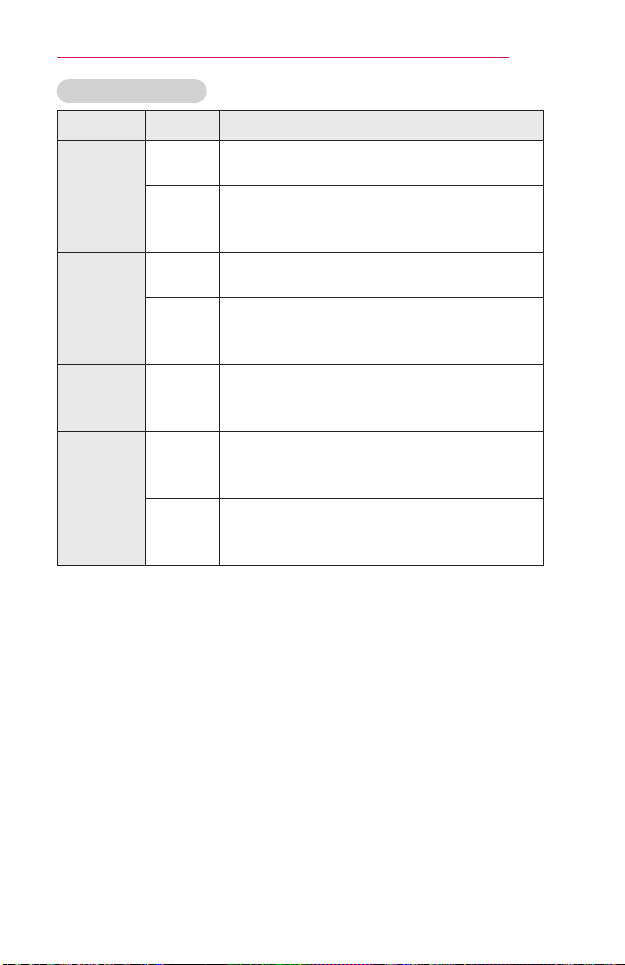
MyMediasupportingfile
• Maximum data transmission rate: 20 Mbps (Mega bit per second)
• External supported subtitle formats: *.smi, *.srt, *.sub (MicroDVD,
SubViewer 1.0/2.0), *.ass, *.ssa, *.txt (TMPlayer), *.psb (PowerDivX)
• Internal supported subtitle formats: SRT/ASS/SSA (Supports internal
subtitles generated from DivX6)
VideoSupportedCodec
Maximum: 1920 x 1080 @ 30p (only Motion JPEG 640 x 480 @ 30p)
Extension Codec
.asf
.wmv
Video
VC-1 Advanced Prole, VC-1 Simple and
Main Proles
Audio WMA Standard, WMA 9 Professional
.divx
.avi
Video
DivX3.11, DivX4, DivX5, DivX6, XVID,
H.264/AVC
Audio
MPEG-1 Layer I, II, MPEG-1 Layer III (MP3),
Dolby Digital
.mp4
.m4v
.mov
Video H.264 / AVC, MPEG-4 Part 2
Audio AAC
.mkv
Video H.264 / AVC
Audio HE-AAC, Dolby Digital
.ts
.trp
.tp
.mts
.m2ts
Video H.264 / AVC, MPEG-2, VC-1
Audio
MPEG-1 Layer I, II, MPEG-1 Layer III (MP3),
Dolby Digital, Dolby Digital Plus, AAC
44
MYMEDIA
Extension Codec
.vob
Video MPEG-1, MPEG-2
Audio
Dolby Digital, MPEG-1 Layer I, II,
DVD-LPCM
.mpg
.mpeg
Video MPEG-1
Audio MPEG-1 Layer I, II
AudioFile
Filetype Item Info
mp3
Bitrate 32 Kbps to 320 Kbps
Samplingrate 32 kHz to 48 kHz
AC3
Bitrate 32 kbps to 640 kbps
Samplingrate 32 kHz, 44.1 kHz, 48 kHz
MPEG
Bitrate 32 kbps to 448 kbps
Samplingrate 32 kHz to 48 kHz
AAC,
HEAAC
Bitrate 24 kbps to 3844 kbps
Samplingrate 8 kHz to 96 kHz
CDDA
Bitrate 1.44 kbps
Samplingrate 44.1 kHz
LPCM
Bitrate 1.41 Mbps to 9.6 Mbps
Samplingrate
Multi-channel : 44.1 kHz, 88.2 kHz /
48 kHz, 96 kHz
Stereo : 176.4 kHz, 192 kHz
45
MYMEDIA
Availablephotofile
Filetype Item Info
2D(jpeg,
jpg,jpe),
3D(jps)
Support
File type
SOF0: Baseline, SOF1: Extend Sequential,
SOF2: Progressive
Picture
Size
Minimum: 64 x 64
Maximum: Normal Type: 15360 (W) x 8640 (H)
Progressive Type: 1920 (W) x 1440 (H)
3D(mpo)
Support
File type
MPO
Picture
Size
4:3 size : 3648 x 2736, 2592 x 1944,
2048 x 1536
3:2 size : 3648 x 2432
BMP
Picture
Size
Minimum: 64 x 64
Maximum: 9600 (W) x 6400 (H)
PNG
Support
File type
Interlace, Non-Interlace
Picture
Size
Minimum: 64 x 64
Maximum:
Interlace
: 1200 (W) x 800 (H)
Non-Interlace
: 9600 (W) x 6400 (H)
* BMP and PNG format les may be slower to display than JPEG.

46
MYMEDIA
WatchingtheVideos
In the MovieList, you can watch movies stored on the connected USB
device.
Controls playback and sets options while viewing videos.
TipsforPlayingVideoFiles
• Some subtitles created by users may not work properly.
• The video and subtitle files should be placed in the same folder. For
subtitles to display correctly, the video and subtitle files must have the
same name.
• We do not support any stream that contains GMC (Global Motion
Compensation) or Qpel (Quarterpel Motion Estimation).
• Only H.264 / AVC profile level 4.1 and lower is supported.
• Video files that exceed 50 GB (gigabyte) are not supported for playback.
The file size limit is dependent on the encoding environment.
• DTS audio codec is not supported.
BrowsingMovieList
Play a video le stored from a connected device.
1 Connect a USB storage device.
2 Press the USB button.
3 Use the , or button to select MovieList and press the OK
button.

47
MYMEDIA
4 Use the , , , or button to select the le you want and press
the OK button.
USB STORAGE DEVICE
Page 1/1
Page 1/1
Drive1 Drive5Drive3 Drive4
Drive2
PAGE
Page Change
Movie List
Butterfly_...
01:34:33
Go to root folder
Go to upper folder
Exit
1
2
4 5
6 7 8
3
No. Description
1
Thumbnails
Abnormal le
File not supported
2
File List
3
Moves to the upper level folder.
4
Current page/Total no. of folder pages
5
Current page/Total no. of le pages
6
Moves to the top level folder.
7
Moves to the upper level folder.
8
Exit Movie List.

48
MYMEDIA
5 Control playback by using the following buttons.
나가기
Q.MENU
Option
Hide
Exit
Item Description
Shows the current playing position. Use or buttons to
move forward or backward.
Stops playing and returns to Movie List.
Returns to normal playback.
Pauses the media player.
If no button is pressed on the remote control for 10 minutes
after pausing, the playback is restarted.
Displays in slow motion.
Whenever this button is pressed, the playback speed is
changed.: x2, x4, x8, x16, x32
Reduces power consumption by adjusting peak screen
brightness.
Switches to the 3D screen.
Option A pop-up window will appear.
Hide
Hides the playback bar. Press the OK button to make it appear.
Exit Returns to the Movie List screen.

49
MYMEDIA
OptionsforMovieList
1 Press the Q.MENU button.
2 Use the or button to move to a desired option and press the OK
button.
3 Use the , , , or button to set up each item.
SetVideoPlay.
Item Description
Picture
Size
Selects the size of a playback screen.
• Full: Files are played in full screen mode according to
the aspect ratio of video.
• Original: Displays the video in the original size.
Audio
Language
Allows you to select the language you want for the le with
multiple audio tracks. This option is not available if the le
has only one audio track.
Subtitle
Language
The subtitle can be turned on or off.
• Language: One of any of the available languages can
be selected.
• CodePage: A character set used for a subtitle can be
selected.
- Sync: If a subtitle is not synchronized with its video,
you can adjust its speed at 0.5 seconds unit.
- Position: Moves the location of a subtitle.
- Size: Changes the subtitle font size.
Repeat
Turns the repeat function On or Off.
When it is set to off, the next le can be played
sequentially if the le name is similar.
SetVideo.
You can change video settings. (Refer to PICTURE Settings on page 69.)
SetAudio.
You can change audio settings. (Refer to AUDIO Settings on page 75.)
Set3DVideo
You can set 3D video or 2D video.
3Dsetting
You can set 3D settings. (Refer to OPTION 1 Settings on page 81.)
50
MYMEDIA
RegisteringtheDivXcode
Checks DivX Reg. Code for replaying DivX protected videos. Register at
http://vod.divx.com.
Use Reg. Code to rent or purchase movies at www.divx.com/vod.
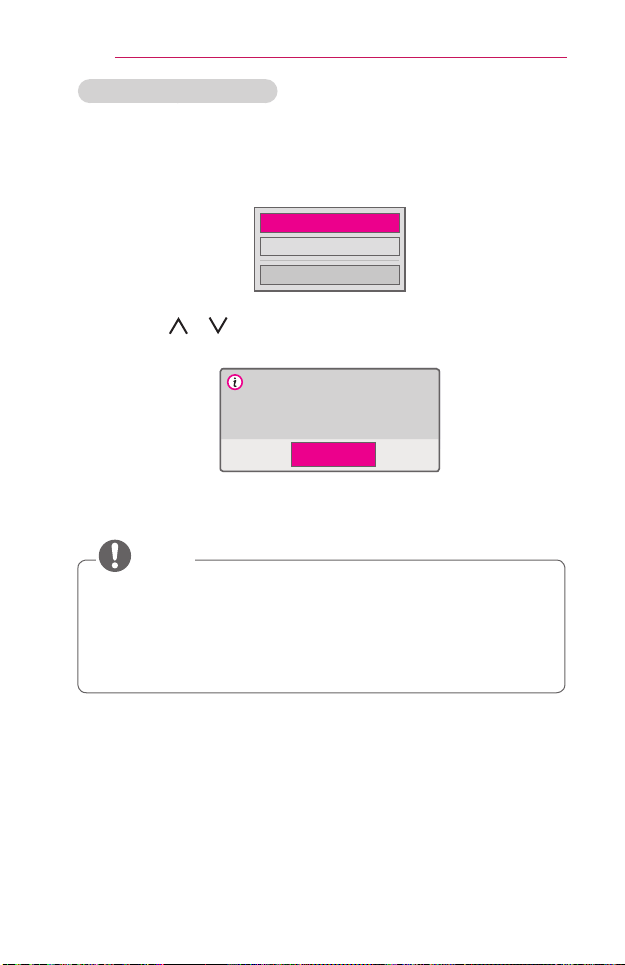
1 In the Settings menu, move to OPTION1 and press DivX(R)VOD.
Registration
Deregistration
Close
2 Press the or button to move to Registration and press the OK
button.
You must register your device to
play DivX(R) protected videos.
Registration Code: XXXXXXXXXX
Register at http://vod.divx.com
OK
3 Check the DivX RegistrationCode.
• Rented/purchased DivX files cannot be played if the DivX
Registration Code of a different device is used. Use only the DivX
Registration Code granted to this specific device.
• Converted files not conforming to the DivX Codec Standard may not
play or may produce abnormal sound.
NOTE

51
MYMEDIA
ToderegistertheDivXcode
Use the DivX deregistration code to deactivate the DivX DRM function.
1 In the Settings menu, move to OPTION1 and press DivX(R)VOD.
2 Use the or button to go to Deregistration and press the OK
button.
3 Select Yes.
No
No
Yes
Yes
Your device is already registered.
Are you sure you wish to deregister?
Deregistration code : ********
Deregister at http://vod.divx.com
Continue with registration?
• What is DRM [Digital Rights Management]?
DRM technologies and services protect the interests and rights of
copyright holders by preventing illegal use of digital content. Files
can be played after the license is verified through an online method,
etc.
NOTE
52
MYMEDIA
ViewingthePhotos
You can view photos stored on a connected device.
SupportedPhotoFiles
PHOTO (*.JPEG)
Baseline: 64-pixel (width) x 64-pixel (height) - 15360-pixel (width) x
8640-pixel (height)
Progressive: 64-pixel (width) x 64-pixel (height) - 1920-pixel (width) x
1440-pixel (height)
• Only JPEG files are supported.
• Non-supported files are displayed in the form of an icon.
• An error message is displayed for corrupted files or file formats that
cannot be played.
• Corrupted files may not be displayed properly.
• It may take some time to view high-resolution images in full screen.
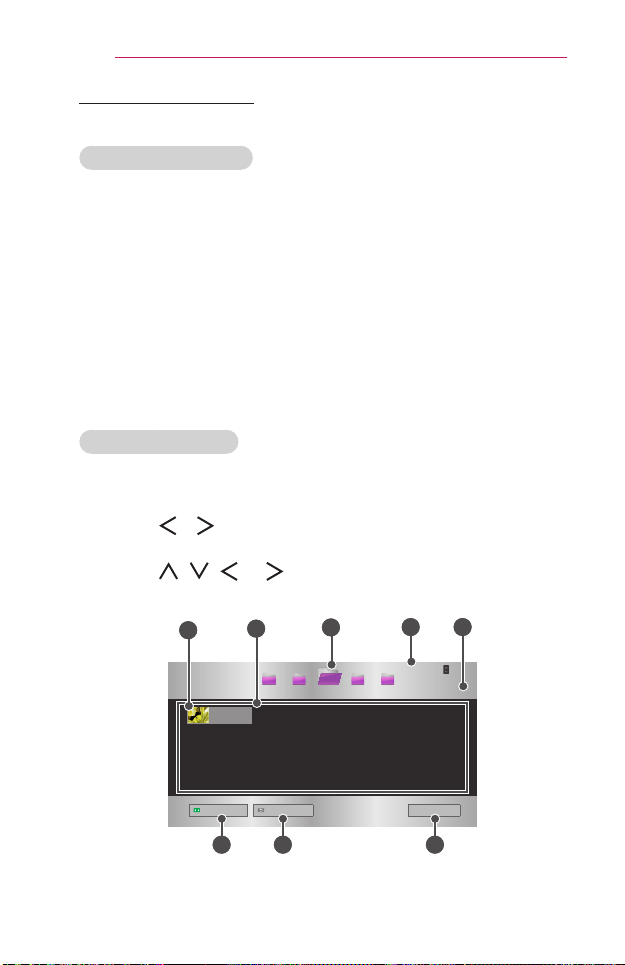
BrowsingPhotoList
1 Connect a USB storage device.
2 Press the USB button.
3 Use the or buttons to select PhotoList and press the OK
button.
4 Use the , , , or button to select the le you want and press
the OK button.
USB STORAGE DEVICE
Page 1/1
Page 1/1
Drive1 Drive5Drive3 Drive4
Drive2
PAGE
Page Change
Photo List
Butterfly_...
06/09/2014
Go to root folder
Go to upper folder
Exit
1
2
4
6 7 8
3
5
53
MYMEDIA
No. Description
1
Thumbnails
Abnormal le
File not supported
2
File List
3
Moves to the upper level folder.
4
Current page/Total no. of folder pages
5
Current page/Total no. of le pages
6
Moves to the top level folder.
7
Moves to the upper level folder.
8
Exits Photo List.
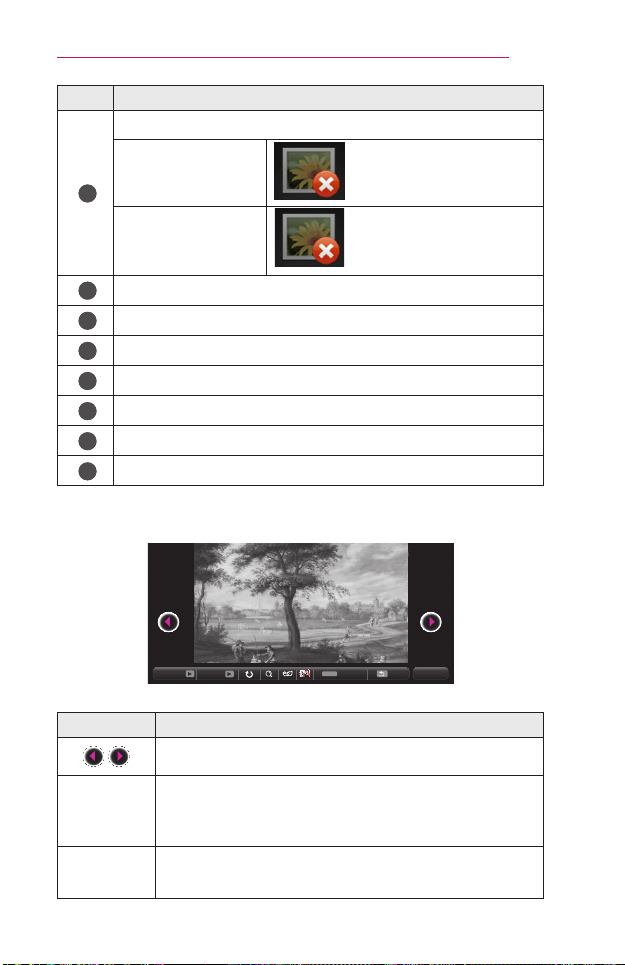
5 Control playback by using the following buttons.
01_a.jpg
2008/12/10
1920 x 1080
479 KB
[1/4]
Q.MENU
Slideshow
BGM
Option
Hide Exit
Item Description
Selects the previous or next photo.
Slideshow
All photos are displayed during slide show.
• Set SlideSpeed in the Option → SetPhotoView.
menu.
BGM
You can listen to music while viewing photos in full size.
• Set the BGM in Option → SetPhotoView.menu.
54
MYMEDIA
Item Description
Rotates photos.
• Rotates a photo 90°, 180°, 270°, 360° clockwise.
• Photos cannot be rotated if their width is greater than
the height of the max. supported resolution.
Views the photo in full mode or original mode.
Press the blue button to enlarge the image.
Reduces power consumption by adjusting peak screen
brightness.
Switches to the 3D screen.
Option
A pop-up window will appear.
Hide
Hides the menu on the full size screen.
• To see the menu, press the OK button on the remote
control.
Exit
Exit from full screen photo view.
OptionsforPhotoList
1 Press the Q.MENU button.
2 Use the or button to move to a desired option and press the OK
button.
3 Use the , , , or button to set up each item.
SetPhotoView.
Item Description
Slidespeed
Selects a slideshow speed.
BGM
Selects a music folder for the background music.
• You cannot change the music folder while the
background music is playing.
• For background music, only the folder from the same
device can be selected.
- Repeat: Selects repeat play.
- Random: Selects random play.
55
MYMEDIA
SetVideo.
You can change video settings. (Refer to PICTURE Settings on page 69.)
SetAudio.
You can change audio settings. (Refer to AUDIO Settings on page 75.)
Set3DVideo
You can set 3D image or 2D image.
3Dsetting
You can set 3D settings. You can set 3D settings. (Refer to OPTION 1
Settings on page 81.)
ListeningtoMusic
You can play audio les stored on the connected device.
SupportedMusicFiles
*.MP3
Bit rate range 32 Kbps to 320 Kbps
• Sampling rate MPEG1 Layer3: 32 kHz, 44.1 kHz, 48 kHz
• Sampling rate MPEG2 Layer3: 16 kHz, 22.05 kHz, 24 kHz
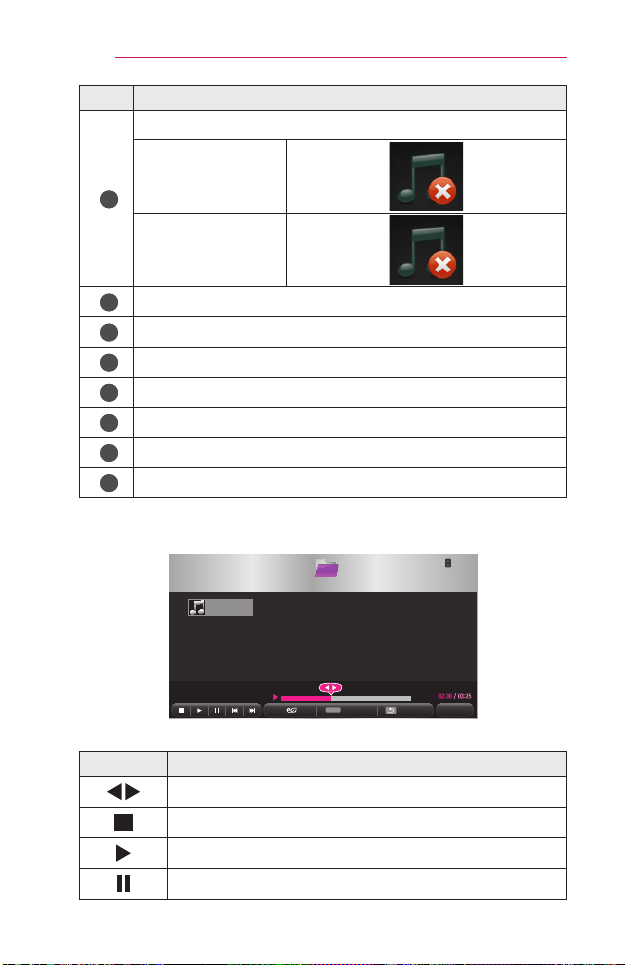
BrowsingMusicList
1 Connect a USB storage device.
2 Press the USB button.
3 Use the or button to select MusicListand press the OK button.
4 Use the , , , or button to select the le you want and press
the OK button.
USB STORAGE DEVICE
Page 1/1
Page 1/1
Drive1 Drive5Drive3 Drive4
Drive2
PAGE
Page Change
Music List
Butterfly_...
01:34:33
Go to root folder
Go to upper folder
Exit
1
2
4
6 7 8
3
5
56
MYMEDIA
No. Description
1
Thumbnails
Abnormal le
File not supported
2
File List
3
Moves to the upper level folder.
4
Current page/Total no. of folder pages
5
Current page/Total no. of le pages
6
Moves to the top level folder.
7
Moves to the upper level folder.
8
Exits Music List.
5 Control playback by using the following buttons.
USB STORAGE DEVICE
Page 1/1
Drive1
Q.MENU
Page 1/1
PAGE
Page Change
002. - B02.mp3
Option Hide
Exit
Butterfly_...
01:34:33
Music List
Item Description
Changes the playing position.
Stops playing.
Returns to normal playback.
Pauses the media player.

57
MYMEDIA
Item Description
Plays the previous/next le.
Reduces power consumption by adjusting peak screen
brightness.
Option
Sets up the options of Music List.
Hide
Hides the playback bar.
• Press the OK button to make the playback bar appear.
Exit
Returns to the Music List screen.
OptionsforMusicList
1 Press the Q.MENU button.
2 Use the or button to move to a desired option and press the OK
button.
3 Use the , , , or button to set up each item.
SetAudioPlay.
Item Description
Repeat
Selects repeat play.
Random
Selects random play.
SetAudio.
You can change audio settings. (Refer to AUDIO Settings on page 75.)

58
MYMEDIA
ViewingFiles
You can see document les stored on a connected device.
SupportedFileFormats
XLS, XLSX, DOC, DOCX, PPT, PPTX, TXT, PDF, HWP
Microsoft Ofce: 97/2000/2002/2003/2007 Version
Adobe PDF: 1.0/1.1/1.2/1.3/ 1.4 Version
Hangul: 97/2000/2002/2005/2007 Version
• File Viewer realigns a document, so it may look different from what is
displayed on a PC.
• For documents that include images, the resolution may look lower during
the realigning process.
• If the document is large or has many pages, it may take longer to load.
• Unsupported fonts may be replaced by other fonts.
• The file viewer may not open for Office documents that contain many
high resolution images. In that case, reduce the image file size, save it
on a USB storage device and run the file viewer again or connect your
PC to the projector and open the file on your PC.

59
MYMEDIA
BrowsingFileList
1 Connect a USB storage device.
2 Press the USB button.
3 Use the or button to select FileList and press the OK button.
4 Use the , , , or button to select the le you want and press
the OK button.
USB STORAGE DEVICE
Page 1/1
Page 1/1
Drive1 Drive5Drive3 Drive4
Drive2
PAGE
Page Change
File List
DOC
Butterfly_...
06/09/2014
Go to root folder
Go to upper folder
Exit
1
3
5 6 7
2
4
No. Description
1
File List
2
Moves to the upper level folder.
3
Current page/Total no. of folder pages
4
Current page/Total no. of le pages
5
Moves to the top level folder.
6
Moves to the upper level folder.
7
Exits File List.

60
MYMEDIA
5 Control playback by using the following buttons.
• Click GoPage, then the pop-up window for selecting the number of
page appears. Input the page to move to the page you want.
• Press the VOL+,- button to zoom in or zoom out.
Press the OK button and then use the Up/Down/Left/Right buttons to
move to GoPage or Zoom.
ꔦ
Q.MENU
Go Page Zoom Option Hide Exit
Item Description
GoPage
Moves to the page you want.
Use the Up/Down/Left/Right buttons to select a page
and press the OK button.
Zoom
Enlarges or reduces the document.
Option
Sets up the options of File Viewer.
Hide
Hides the menu.
• Press the OK button to make it appear.
Exit
Returns to the File Viewer screen.

61
MYMEDIA
OptionsforFileList
1 Press the Q.MENU button.
2 Use the , , , or button to set up each item.
SetFileViewerOption
Item Description
SinglePage
Loading
On Loads and displays pages one by one. The
initial loading time is short but a content-heavy
page may be displayed slowly.
Off Loads all pages of a le to memory before it
starts to display them. The initial loading time is
long but you can navigate pages quickly after
loading is complete.
If a le is too large, it may fail to load all the
pages.
ImageQuality
You can set the quality of the image included in the
document. The following three options are available
for the image quality: High, Medium, Low. Higher the
image quality, lower the display time.
Document
Align
Selects initial document align method.
File Viewer settings are default, so close the currently opened document to
apply changes to the new document, if any.

62
3DFUNCTION
3DFUNCTION
3D technology uses different video frames for each eye to add depth to the
video.
WhileWatching3D
WARNING
• If you view 3D video or images too closely for a long period of time, you
may experience eyestrain.
• If you watch the projector or game screen for a long time with 3D
glasses on, you may experience dizziness or eye fatigue.
• People with chronic diseases (epilepsy, cardiovascular disease, blood
pressure-related diseases, etc.), pregnant women, and people with
serious motion sickness should avoid watching 3D video.
• People with stereo blindness, or with stereopsis problems, should also
avoid watching 3D video content. It may cause double vision or visual
discomfort.
• People with strabismus, amblyopia, or astigmatism may have difficulty
perceiving video depth and may be fatigued easily due to double vision
or other ailments. It is recommended to rest more frequently than other
viewers.
• Because 3D can be perceived as real, some viewers may be surprised
or overexcited.
• Do not watch 3D images near fragile objects or any objects that can be
knocked over easily.
• Take care not to injure yourself as you may subconsciously try to move
away from the life-like 3D images.
63
3DFUNCTION
• Warningaboutphotosensitivityseizures
- Some users may experience a seizure or other abnormal symptoms
when they are exposed to a ashing light or particular patterns from
a video game. If anyone in your family has a history of epilepsy or
has ever experienced any kind of seizure, please consult your doctor
before viewing 3D images.
If you experience one of the following symptoms while watching a 3D
video, stop watching the 3D video immediately and take a rest.
- Dizziness, switched eyesight, twitching of the eye or facial muscles,
involuntary movements, cramp, loss of consciousness, confusion,
loss of sense of direction, or nausea. If the symptom does not
disappear, please consult your doctor.
• You can reduce the risk of photosensitive seizures by taking the
following preventive measures.
- Take a rest of 5 to 15 mins. for every 1 hour of viewing.
- If vision varies between each eye, correct the variation before
beginning to watch a 3D video.
- Ensure that the 3D video is directly in front of you, at eye level.
- You should stop watching if you experience a headache, fatigue, or
dizziness.
- Do not view 3D images for a long period of time when you are tired
or ill.
CAUTION
• Extra special care is required for children watching a 3D video.
WhenWatching3DVideo
• Prevent children of 5 years or younger from watching a 3D video. It may
impair the development of their eyes.
• Children 10 years old or younger are still developing their eyesight and
may have an excessive tendency to touch or jump at the screen. Adult
guidance and supervision is recommended.
• Since the distance between the eyes is narrower for children than in
adults, children tend to notice a greater difference in the images seen by
each eye. Therefore, even while watching the same 3D video, children
may have a greater depth perception than adults.
• Children under 19 years old or younger may respond with sensitivity to
the light stimuli of 3D content. Excessive viewing when fatigued is not
recommended.

64
3DFUNCTION
• Elderly viewers may have a reduced depth perception than younger
viewers. Avoid watching video nearer than the recommended distance.
• Watch 3D images within the optimum viewing angle and distance.
• If you are outside the viewing angle or distance, you may not be able to
see 3D images. You cannot view 3D images when you are lying down.
• You may see left and right images overlapped during projector
initialization after it is powered on. It may take some time for
optimization.
• It may take some time for the 3D image to look normal after you turn
your eyes away from the screen and look back at the 3D image.
• It may flicker slightly while watching 3D images under a 3 wavelength
lamp fluorescent light (50 Hz to 60 Hz) or near windows. If so, it is
recommended to block the sun light with a curtain and to dim the lights.
• The 3D glasses must be DLP-LINK (DLP Ready) type.
• You may not be able to watch 3D properly if there is an obstacle
between the projector and 3D glasses.
• Install the 3D projector as far as possible from other devices.
• If a future 3D broadcasting format that is not supported by this projector
becomes the standard, an additional device such as a set-top box may
be required.
Pleasecheckthefollowingwhenusing3Dglasses.
• Do not use 3D glasses as ordinary glasses, sunglasses, or protective
goggles.
- If you do so, this may cause injury.
• Do not store 3D glasses in very hot or very cold conditions. If you do,
this may cause them to become distorted. Do not use distorted glasses.
• Do not drop 3D glasses or allow them to come into contact with other
objects.
- This may cause product malfunction.
• The lenses of 3D glasses are easily scratched. Use a soft clean cloth
when cleaning them.
• Foreign particles on the cloth may cause scratches.
• Do not scratch the surface of the 3D glasses' lenses with sharp objects
or wipe them with chemicals. If the lenses get scratched, images may
not look normal when viewing 3D.
65
3DFUNCTION
RequirementsforWatching3DImages
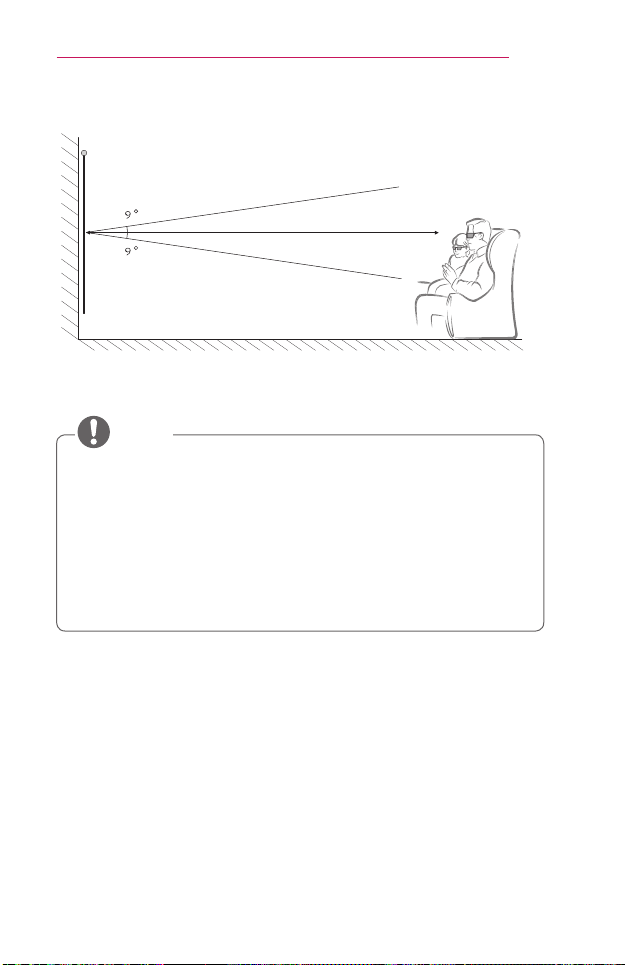
* Optimum viewing angle: Top/Bottom/Left/Right 9°
Recommended viewing distance: 3 m to 5 m
Recommended screen size: 101 cm
* Watching 3D videos should be done in dark room environments only.
• The pairing with the DLP-LINK glasses is affected by the intensity of
light reflected from the screen. Therefore, the pairing with DLP-LINK
glasses may not work properly if the light reflected from the screen is
not bright enough, such as when the surrounding area is bright, the
screen is big, or the maximum energy saving mode is enabled.
• Some menus may not work while playing a 3D video.
• You can only watch a 3D video properly when the 3D video format
option has been selected on the projector.
NOTE

66
3DFUNCTION
UsingtheDLP-LINK(DLP-Ready)TypeGlasses
1 While watching 3D images from the projector, press buttons on the
glasses.
2 When you press the button, the glasses icker while synchronizing with
the 3D images. (The ickering is a unique operation method of DLP-
LINK type glasses. It may be different depending on the glasses type.)
3 If the glasses icker or problems occur while watching 3D, rst turn
the lights off to make the room darker. Contact your projector seller for
queries about the glasses.
Toview3Dimages
3D imaging is a technology that utilizes the slight difference in left/
right eyes to make the images on the projector appear just like real-life
3-dimensional space.
1 Play a 3D-image title or tune to a 3D channel.
2 Press the 3D button to activate 3D.
3 Turn on the 3D glasses and put them on.
4 While viewing 3D images, press the 3D button on the remote control to
end 3D image viewing.
5 Press the L/R button to switch the playing direction of an image. Select
a screen with better 3D display quality.
- If you press the 3D button during viewing, it returns to 2D.
* Depending on the input signal, the available 3D type may differ.
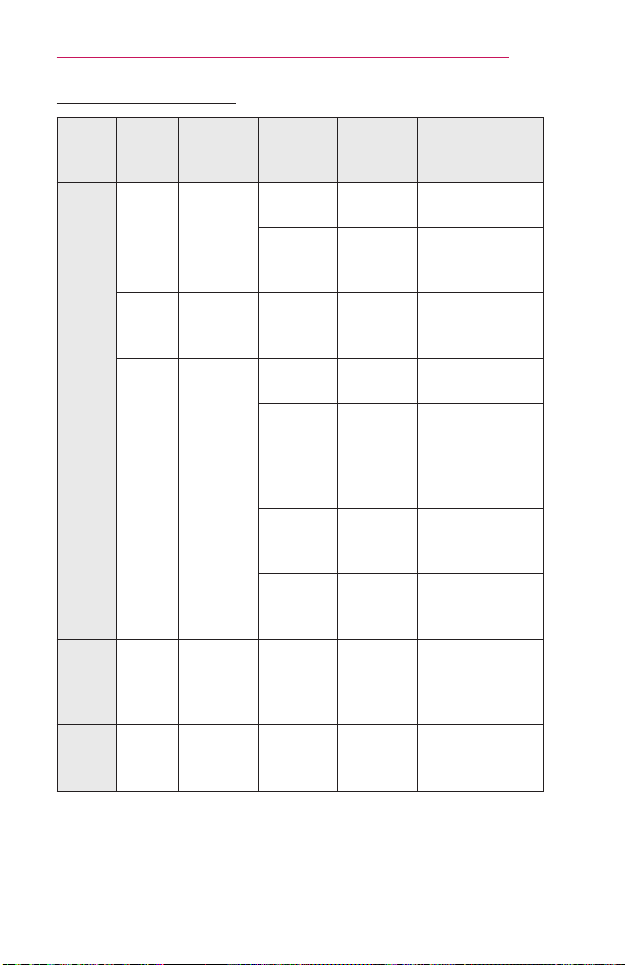
67
3DFUNCTION
Supported3DMode
Signal
Resolution
Horizontal
Frequency
(kHz)
Vertical
Frequency
(Hz)
Supported3D
Formats
HDMI
720p
1280 x
720
89.9 /
90
59.94 /
60
Frame Packing
45 60
Side by side
(half), Top and
Bottom
1080i
1920 x
1080
33.7 60
Side by side
(half), Top and
Bottom
1080p
1920 x
1080
53.95 /
54
23.98 /
24
Frame Packing
67.5 60
Side by side
(half), Top
and Bottom,
Single Frame
Sequential
27 24
Side by side
(half), Top and
Bottom
33.7 30
Side by side
(half), Top and
Bottom
USB 1080p
1920 x
1080
33.75 30
Side by side,
Top and Bottom,
MPO, JPS
(Photo)
RGB 1080p
1920 x
1080
67.5 60
Side by
side(half),
Top and Bottom
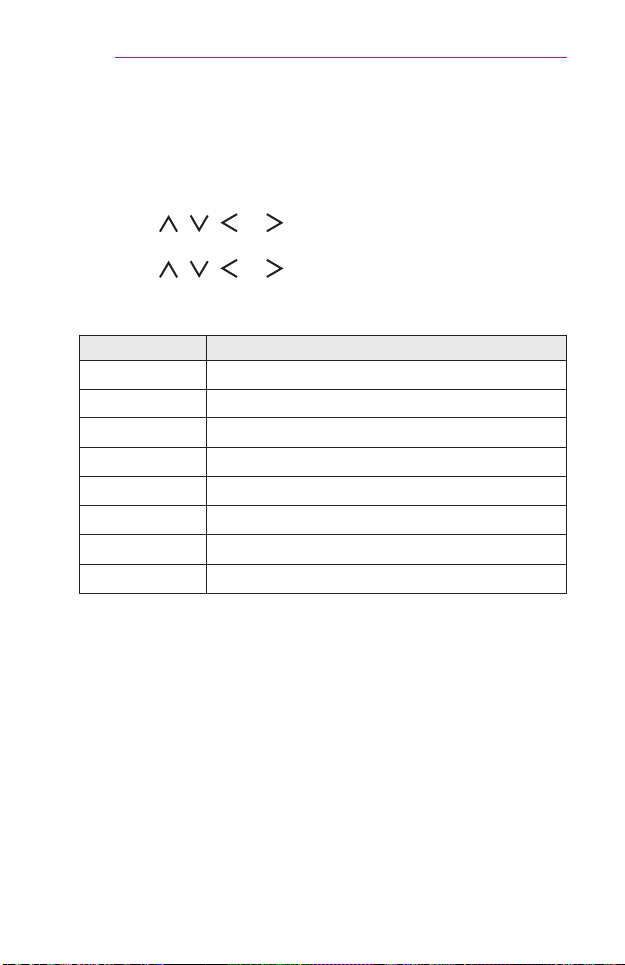
68
CUSTOMIZINGSETTINGS
CUSTOMIZINGSETTINGS
SETTINGS
1 Press the SETTINGS button.
2 Use the , , , or button to select the desired item and press
the OK button.
3 Use the , , , or button to set up the desired item and press
the OK button.
4 Press the EXIT button when completed.
Menu Description
PICTURE Adjusts the image quality for optimal viewing.
AUDIO Adjusts the sound quality and volume level.
TIME Sets time-related settings.
WIRELESS Wireless-related features.
OPTION1 Customizes the general settings.
OPTION2 Customizes the settings related the projector.
INPUT Selects the desired input source.
MYMEDIA Accesses photo, music, movie, and document les.
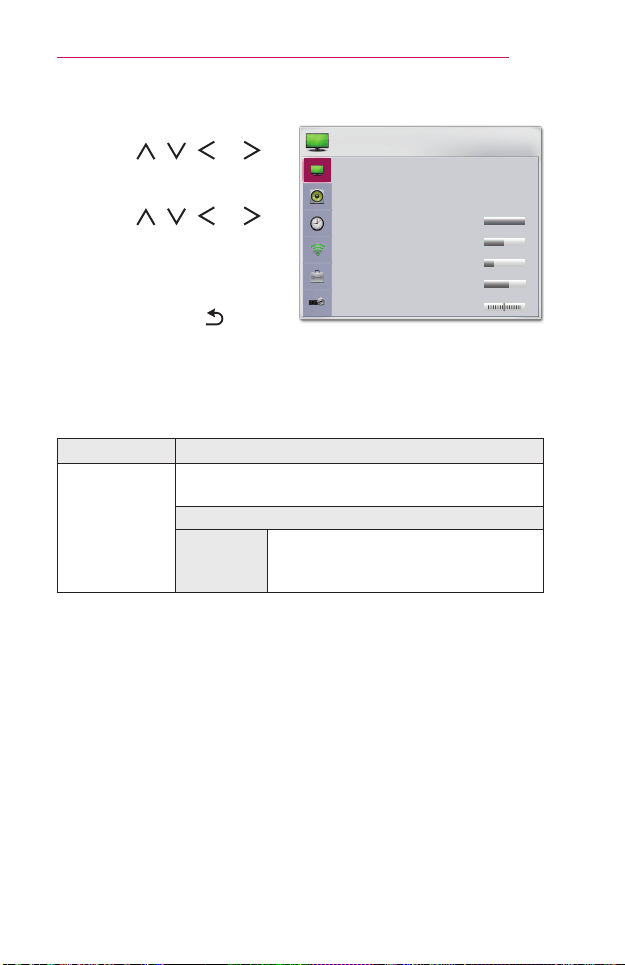
69
CUSTOMIZINGSETTINGS
PICTURESettings
1 Press the SETTINGS button.
2 Use the , , , or
buttons to select PICTURE
and press the OK button.
3 Use the , , , or
button to set up the desired
item and press the OK
button.
- To return to the previous
menu, press the BACK
button.
4 Press the EXITbutton when
completed.
• ꕊ Energy Saving : Minimum
• Picture Mode : Standard
• Contrast 100
• Brightness 50
• Sharpness 20
• Color 55
• Tint 0
R
G
PICTURE
ꔂ Move ꔉ OK
The available picture settings are described as follows.
Menu Description
Energy
Saving
Reduces power consumption by adjusting peak
screen brightness.
Mode
Minimum/
Medium/
Maximum
Applies the pre-set EnergySaving
mode.
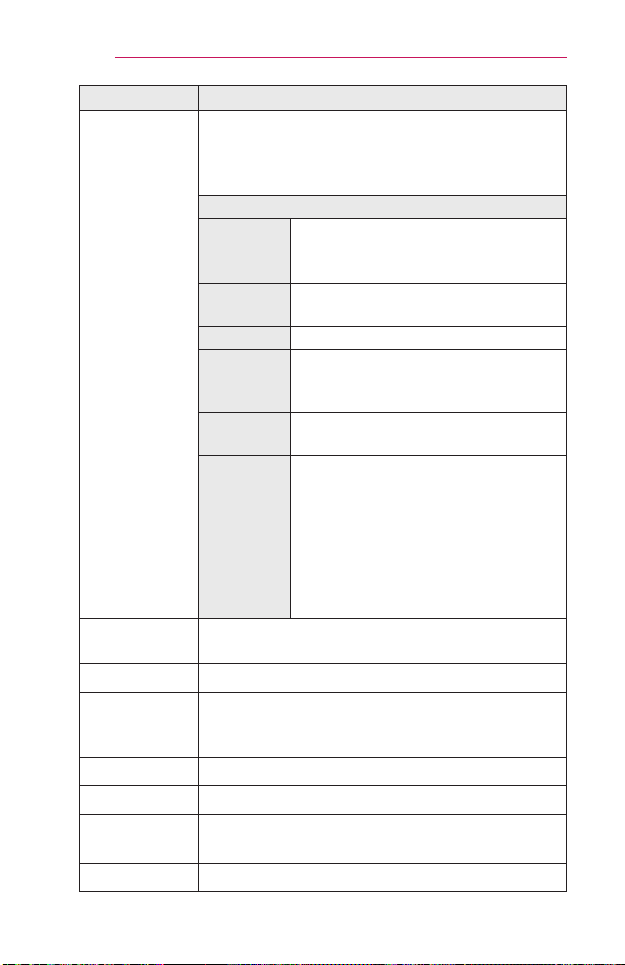
70
CUSTOMIZINGSETTINGS
Menu Description
PictureMode
Selects the picture mode optimized for the viewing
environment or the program.
You can also customize advanced options for each
mode.
Mode
Vivid
Maximizes the visual effect of video.
Heightens contrast, brightness, and
sharpness to display vivid images.
Standard
Displays images in standard levels of
contrast, brightness, and sharpness.
Cinema Optimizes the image for a movie.
Sport
Optimizes the image for sports by
emphasizing primary colors and
dynamic actions.
Game
Optimizes the image for playing games
on fast-moving screens.
Expert1/
Expert2
Menu for adjusting picture quality that
allows experts and amateurs to enjoy
the best projector viewing.
- Expert mode is for picture tuning
professionals to control and ne-tune
using a specic image. For normal
images, the effects may not be
dramatic.
Contrast
Adjusts the difference between bright and dark
regions of the screen.
Brightness Adjusts the overall screen brightness.
Sharpness
Adjusts the sharpness of the borders between bright
and dark. Horizontal and Vertical Sharpness are
available only in Expert1/Expert2.
Color Adjusts the intensity of all colors.
Tint Adjusts the balance between red and green levels.
Advanced
Control
Customizes the advanced settings.
PictureOption Sets optional settings.

71
CUSTOMIZINGSETTINGS
Menu Description
PictureReset
Resets values customized by the user.
Each picture mode is reset. Select the picture mode
you wish to reset.
AspectRatio
Resizes the picture.
Screen
(RGB-PC)
Adjusts the picture quality of RGB-PC input.
Option
Resolution
Available resolutions are 768
resolution (1024 x 768/ 1280 x 768/
1360 x 768, 60 Hz).
Auto
Config.
Provides optimized picture quality by
automatically calibrating the mismatch
of horizontal width and picture shake
caused by clashes between the
internal settings of the projector and
various PC graphic signals.
• You can also use the AUTO button
on the remote control.
Position Moves the image up/down/left/right.
Size Changes the screen size.
Phase
Makes the picture look clear by
removing horizontal noise.
Reset
Restores all the settings to the factory
default.

72
CUSTOMIZINGSETTINGS
AdvancedControl
Menu Description
Dynamic
Contrast
Adjusts contrast and color to the optimal level according
to the screen’s brightness.
Dynamic
Color
Adjusts colors for more natural-looking colors.
Color
Gamut
Selects the range of colors that can be expressed.
• Standard: Displays the original colors of an input
signal regardless of the display features.
• Wide: Makes use of the display's rich colors.
SkinColor
Skin color spectrum can be separately set to implement
the skin color as dened by the user.
SkyColor Sky color is set separately.
GrassColor
Natural color spectrum (meadows, hills, etc.) can be
separately set.
Gamma
Sets the gradation curve according to the output of the
picture signal in relation to the input signal.
* Depending on input signal or other picture settings, the range of detailed
items for adjustment may differ.
ExpertControl
Menu Description
Dynamic
Contrast
Adjusts contrast and color to the optimal level
according to the screen’s brightness.
ColorGamut
Selects the range of colors that can be expressed.
• Standard: Displays the original colors of an input
signal regardless of the display features.
• Wide: Makes use of the display's rich colors.
EdgeEnhancer
Shows clearer and distinctive yet natural edges of
the video.
ColorFilter
Filters a specic color spectrum in RGB colors to
ne-tune color saturation and hue accurately.
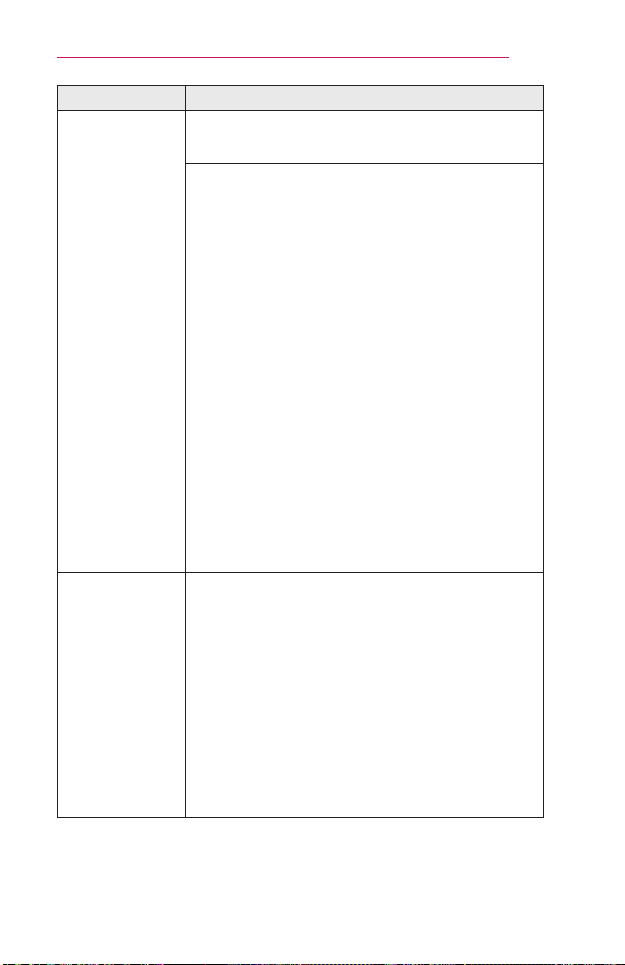
73
CUSTOMIZINGSETTINGS
Menu Description
Color
Temperature
In Expert mode, you can customize the options of
each mode.
Gamma: Select 1.9, 2.2,or 2.4.
a. Method:2Points
- Pattern:Inner,Outer
- Points:Low,High
- Red/Green/Blue: The adjustment range for
each color is from -50 to +50.
- Applytoallinputs: The values of the Color
Temperature is applied to all the input modes.
b.Method:20PointIRE
- Pattern:Inner,Outer
- IRE (Institute of Radio Engineers) is the unit
indicating the size of a video signal and can
be set to 5,10,15, ... 100.You can ne-tune for
each setting as shown below.
- Luminance: The adjustment range is 50 to
500.
- Red/Green/Blue: The adjustment range is -50
to +50.
- Applytoallinputs: The values of the Color
Temperature is applied to all the input modes.
Color
Management
System
Adjusts Red/Green/Blue/Cyan/Magenta/Yellow
colors. Allows an expert to adjust the tint using a test
pattern. Six colors (Red/Green/Blue/Cyan/Magenta/
Yellow) can be selectively adjusted without affecting
other colors. You may not see colors change on a
normal picture even after adjustment.
- SaturationRed/Green/Blue/Cyan/Magenta/
Yellow,
TintRed/Green/Blue/Cyan/Magenta/Yellow,
LuminanceRed/Green/Blue/Cyan/Magenta/
Yellow:
The adjustment range is -30 to +30 each.
* Depending on input signal or other picture settings, the range of detailed
items for adjustment may differ.
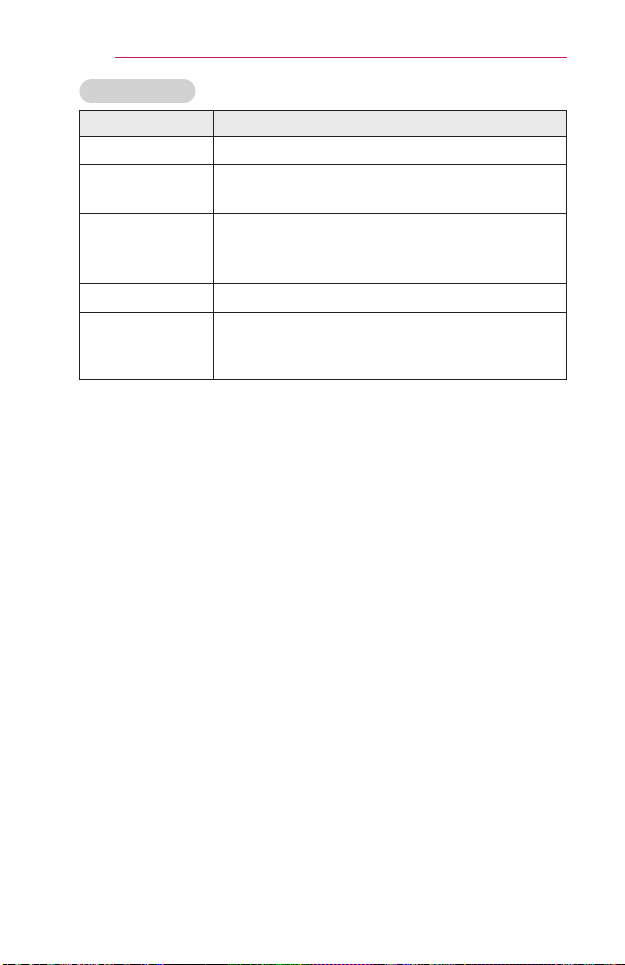
74
CUSTOMIZINGSETTINGS
PictureOption
Menu Description
NoiseReduction Reduces screen noise in the video.
MPEGNoise
Reduction
Eliminates noise generated while creating digital
picture signals.
BlackLevel
Adjusts the brightness or darkness of the screen
to suit the black level of the picture input using the
degree of darkness (black level) of the screen.
RealCinema Optimizes the screen for movie viewing.
Color
Temperature
Adjusts the overall color of the screen to suit your
preference.
Select Warm, Natural, Cool, or Medium.
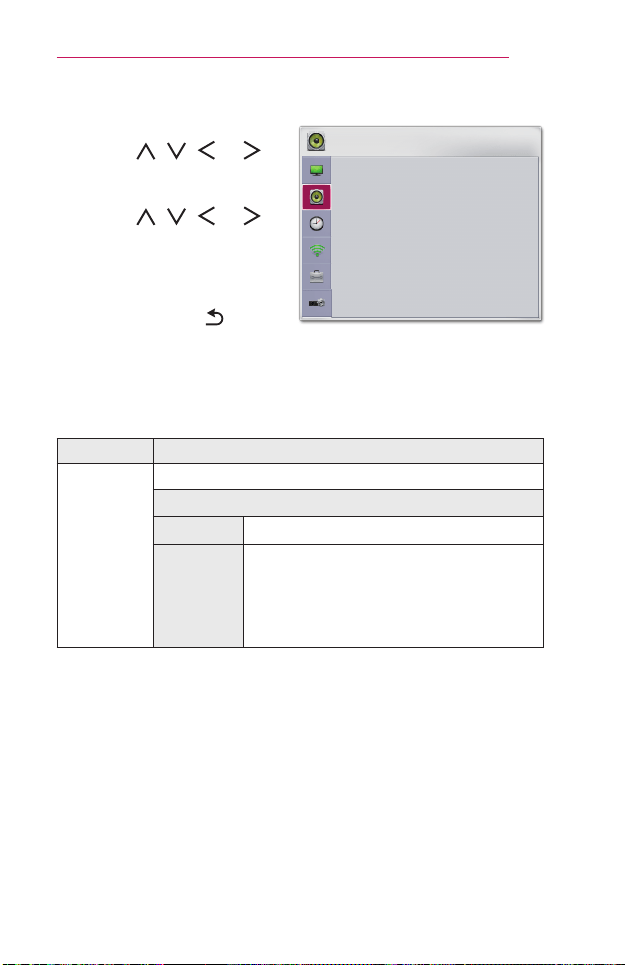
75
CUSTOMIZINGSETTINGS
AUDIOSettings
1 Press the SETTINGS button.
2 Use the , , , or
button to select AUDIO and
press the OK button.
3 Use the , , , or
button to set up the desired
item and press the OK
button.
- To return to the previous
menu, press the BACK
button.
4 Press the EXITbutton when
completed.
AUDIO
• Sound Mode : Standard
• Sound Effect
• Auto Volume : Off
• Sound Out : Projector Speaker
• AV Sync. Adjust : Off
ꔂ Move ꔉ OK
The available audio settings are described as follows.
Menu Description
Sound
Mode
Sets the sound mode.
Mode
Standard Suitable for all types of video.
News/
Music/
Cinema/
Sport/
Game
Sets audio optimized for a specic genre.
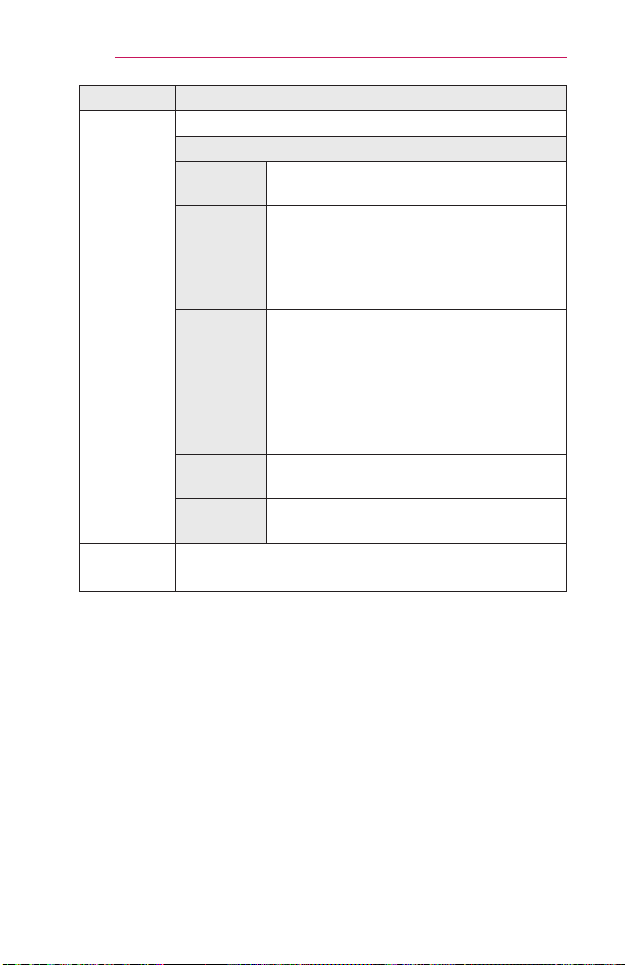
76
CUSTOMIZINGSETTINGS
Menu Description
Sound
Effect
The user can select various sound effects.
Mode
Clear
VoiceII
Makes the voice from the projector crisp
and clear.
Virtual
Surround
LG’s proprietary audio processing
technology allows 5.1 channel-like
surround sound from two speakers.
• When ClearVoiceII is set to on, Virtual
Surround cannot be selected.
Equalizer
Adjusts the volume to a level of your choice
using the Equalizer.
• Audio-band (100Hz/300Hz/1kHz/
3kHz/10kHz) can be adjusted from -10
to 10.
• Reset: Resets voice options that the
user has changed.
Balance
Adjusts the balance of the left and right
speakers.
Reset
Initialize the applied effect under the
SoundEffect menu.
Auto
Volume
Automatically adjusts the volume level.

77
CUSTOMIZINGSETTINGS
Menu Description
SoundOut
Sets the audio output of the projector.
Mode
Projector
Speaker
Sound is output through the projector
speaker.
External
Speaker
(Optical)
Sound is output through the speaker
connected to the optical port.
• DigitalSoundOut: Sets up Digital
Sound Output.
Bluetooth
Sound is output through the Bluetooth
headset.
First, set Bluetooth to on.
Item
Search
Device
Search for the device to
connect to.
Listof
registered
devices
Connected devices are
saved in the Listof
registereddevices. The
saved list of registered
devices can be displayed.
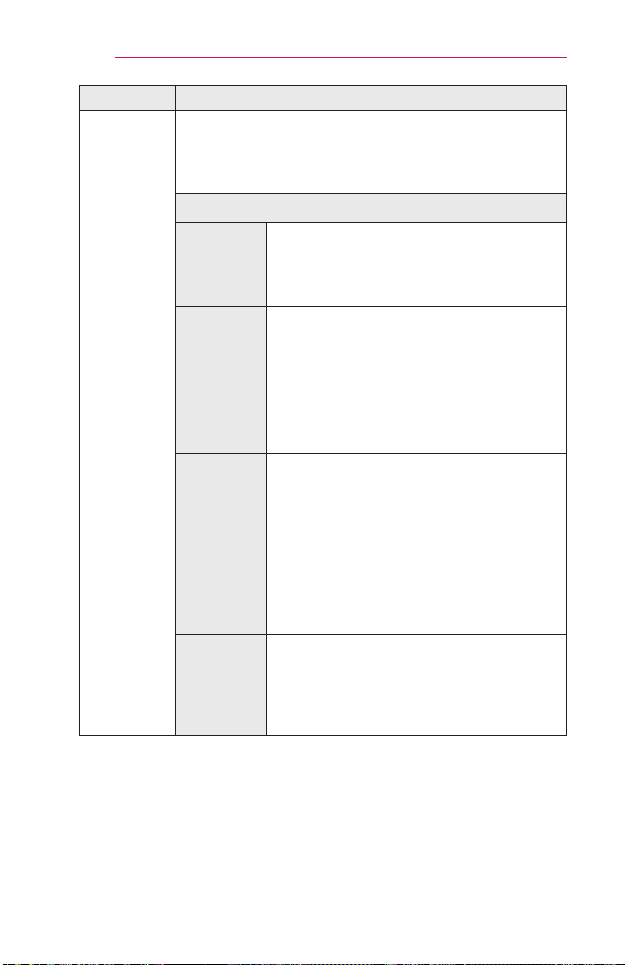
78
CUSTOMIZINGSETTINGS
Menu Description
AVSync.
Adjust
Synchronizes video and audio directly when they do not
match. If you set AVSync.Adjust to On, you can adjust
the sound output (projector speakers or SPDIF) to the
screen image.
Mode
Projector
Speaker
Adjusts the synchronization of the sound
from the projector's internal speakers.
The + and - buttons allow the viewer to
synchronize the audio with the video.
External
Speaker
Adjusts how the sound is synced to
external speakers, such as an external
speaker connected to the digital audio
output port, LG audio device, projector
speaker, SPDIF, and headphone.
The + and - buttons allow the viewer to
synchronize the audio with the video.
Bluetooth
Adjusts the synchronization between the
video and the Bluetooth device sound.
- This feature is only available when a
Bluetooth device is connected.
- Audio sync may vary by manufacturer.
- When playing video and music from a
connected USB drive, AVSync.Adjust
can also be adjusted using the Set
Audio. menu.
Bypass
Outputs broadcasting signals or the audio
of an external device without audio delay.
Audio may be output before video as it
takes time to process video input into the
projector.

79
CUSTOMIZINGSETTINGS
TIMESettings
1 Press the SETTINGS button.
2 Use the , , , or
button to select TIME and
press the OK button.
3 Use the , , , or
button to set up the desired
item and press the OK
button.
- To return to the previous
menu, press the BACK
button.
4 Press the EXITbutton when
completed.
TIME
• Sleep Timer : Off
• Auto Off : 60 min.
• Automatic Standby : 4 hours
ꔂ Move ꔉ OK
The available time settings are described as follows.
Menu Description
Sleep
Timer
Turns off the projector after a preset number of minutes.
To cancel the SleepTimer, select Off.
AutoOff
If there is no input signal or button press, the projector
automatically turns off after the preset time has elapsed.
Automatic
Standby
Turns off the projector automatically after a set period of
time if there is no button input on the projector.
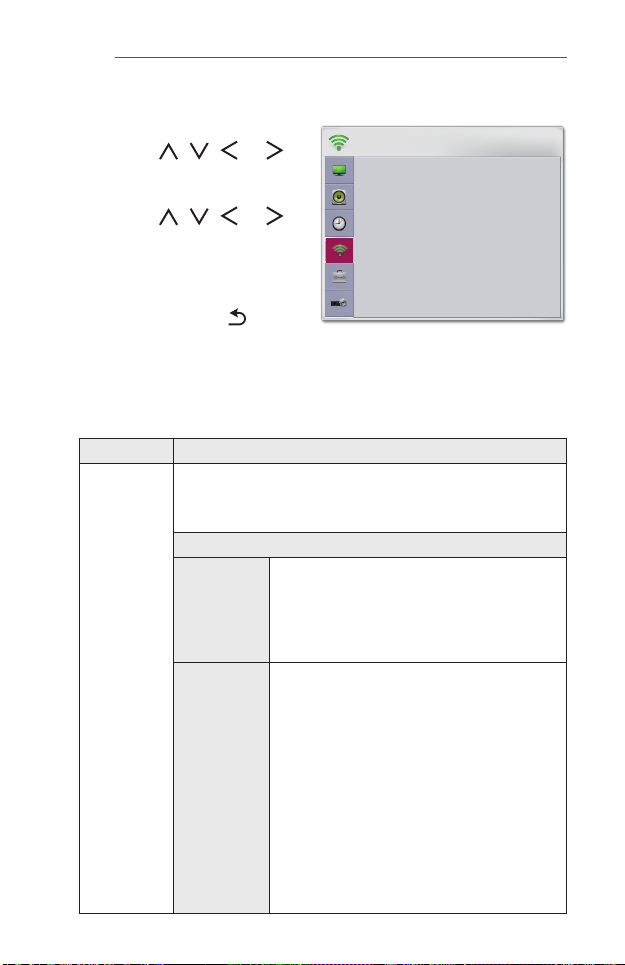
80
CUSTOMIZINGSETTINGS
WIRELESSSettings
1 Press the SETTINGS button.
2 Use the , , , or
button to select WIRELESS
and press the OK button.
3 Use the , , , or
button to set up the desired
item and press the OK
button.
- To return to the previous
menu, press the BACK
button.
4 Press the EXITbutton when
completed.
WIRELESS
• SCREEN SHARE : [PJTR][LG]PF1500[0000]
• Group
• Channel
ꔂ Move ꔉ OK
The available wireless settings are described as follows.
Menu Description
SCREEN
SHARE
The SCREEN SHARE displays the screen of the
connected device.
• You can check the SCREEN SHARE's ID.
Mode
Group
This is the group setting for each device
supporting the SCREEN SHARE feature.
When the wireless connection is weak
or unstable, adjust the group setting to
correct the problem.
Channel
You can change the channel used for
wireless connections.
• SearchChannels: Select channel
searching methods.
- Auto: The projector searches for
available channels and automatically
selects the least used channel.
- Manual: You can select a channel
manually.
• Channel: This is shown when Search
Channels is set to Manual. It allows you
to specify a channel number to use.

81
CUSTOMIZINGSETTINGS
OPTION1Settings
1 Press the SETTINGS button.
2 Use the , , , or
button to select OPTION1
and press the OK button.
3 Use the , , , or
button to set up the desired
item and press the OK
button.
- To return to the previous
menu, press the BACK
button.
4 Press the EXITbutton when
completed.
OPTION 1
• Language
• 3D Mode
• Auto Input Search : Off
• DivX(R) VOD
• Initial Setting
• Mode Setting : Standard
ꔂ Move ꔉ OK
The available option 1 settings are described as follows.
Menu Description
Language Selects a desired Menu Language.
3DMode
Adjusts various aspects of 3D imaging.
Mode
3DPicture
Correction
Switches left/right images of 3D video.
AutoInput
Search
Automatically searches for and displays the input
signal type when it is received. It is available only with
external inputs (RGB-PC, HDMI1, HDMI2, AV, and
Component).
DivX(R)VOD Sets DivX related settings.
InitialSetting
Resets all the projector settings to the factory default.
Do not turn off the power during initialization.
ModeSetting
Selects Standard or StoreDemo.
When in use in home, please select Standard.
StoreDemo mode is for store display.
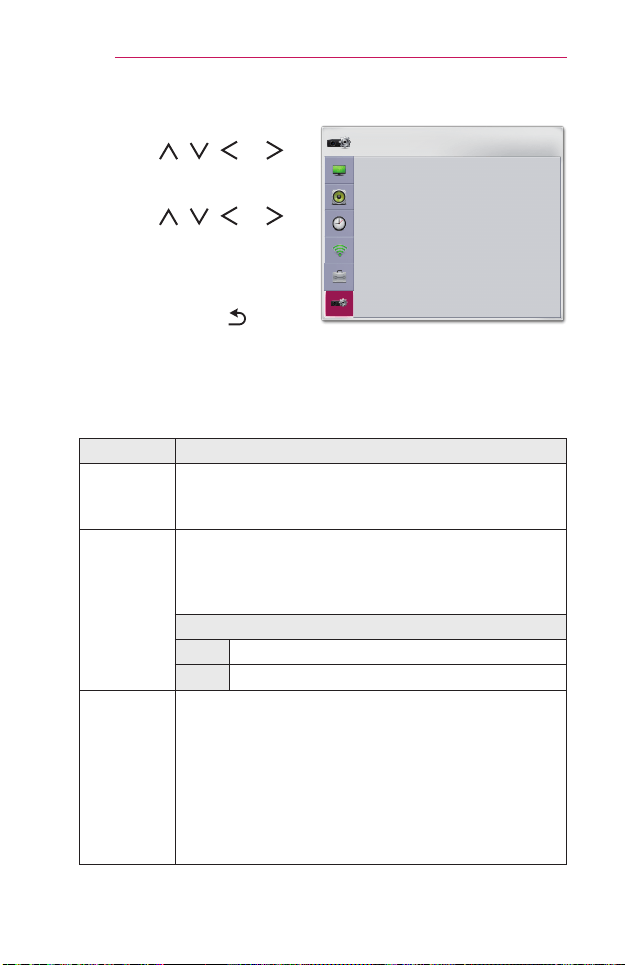
82
CUSTOMIZINGSETTINGS
OPTION2Settings
1 Press the SETTINGS button.
2 Use the , , , or
button to select OPTION2
and press the OK button.
3 Use the , , , or
button to set up the desired
item and press the OK
button.
- To return to the previous
menu, press the BACK
button.
4 Press the EXITbutton when
completed.
OPTION 2
• Edge Adj
• Auto Keystone(Vertical) : Off
• PJT Mode : Front
• High Altitude : Off
• Blank Image : Blue
• Auto Power : Off
• Self Diagnosis
ꔂ Move ꔉ OK
The settings for OPTION 2 are described as follows.
Menu Description
EdgeAdj
EdgeAdj adjusts the right, left, top, and bottom width of
the projected image if the projected image and screen
are not perpendicular to each other due to a tilted screen.
Auto
Keystone
(Vertical)
AutoKeystone(Vertical) provides a rectangular screen
image by automatically adjusting the Keystone number
when there is a trapezoidal screen image caused by
tilting of the projector.
Item
On Automatically adjusts the Keystone number.
Off Manually adjusts the Keystone number.
PJTMode
This function turns the projected image upside down or
ips horizontal.
• Select Rear when projecting from the back of the
transparent screen purchased separately.
• Select FrontCeiling when installing the product on the
ceiling.
• When the PJTMode is RearCeiling/FrontCeiling,
the left/right of the speaker changes automatically.
83
CUSTOMIZINGSETTINGS
Menu Description
High
Altitude
If the projector is used at an altitude higher than 1200
meters, turn this on.
Otherwise, the projector may overheat or its protection
function may be activated. If this happens, turn the
projector off and then on again after waiting for several
minutes.
Blank
Image
Selects a background for blank image.
Auto
Power
Makes the projector turn on automatically when the
adaptor plug is inserted.
Item
On
When the AC/DC plug is connected to the
projector, it turns on automatically.
Off
When the AC/DC plug is connected to the
projector, it goes into standby mode.
Self
Diagnosis
Troubleshoots functional problems that can arise while
using the product.
* When the input is set to SCREENSHARE, these features are
disabled and cannot be used: EdgeAdj, PJTMode, and Auto
Keystone(Vertical).
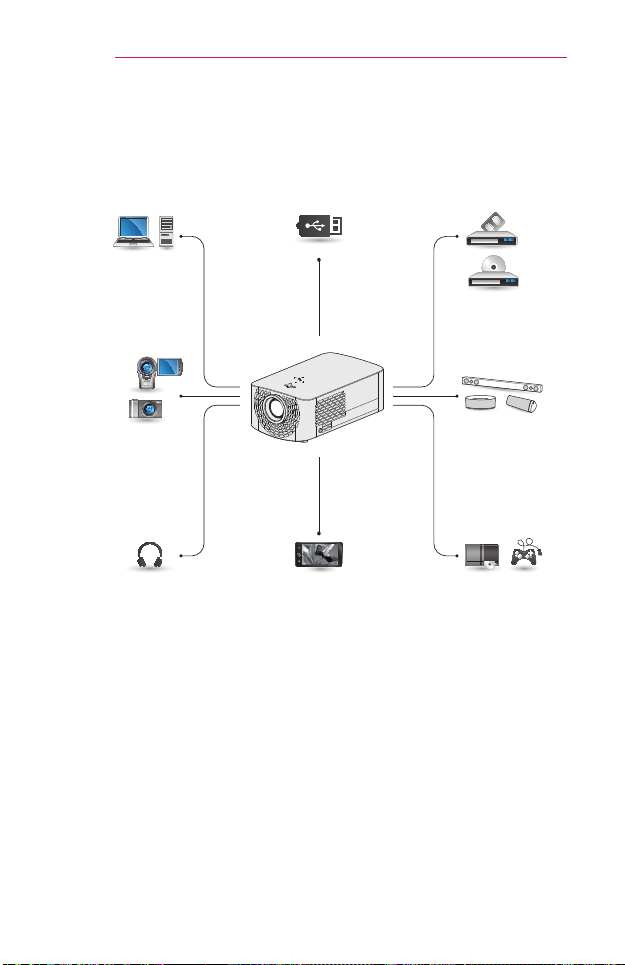
84
CONNECTINGDEVICES
CONNECTINGDEVICES
You can connect various external devices to the projector.
Computer/Notebook
DigitalDevice
Headphone
USB
MobilePhone
Video/DVD
LGAudioDevice
Games
Console
HDMI - Page 85
Composite (AV) - Page 86
Component - Page 87
RGB - Page 90
USB Device - Page 41
Headphone - Page 92
Digital Amp - Page 92
Mobile Phone (MHL) - Page 94

85
CONNECTINGDEVICES
ConnectingtoHD
Receiver,DVD,or
VCRPlayer,External
Devices
Connect an HD receiver, DVD,
VCR player, or external devices
to the projector and select an
appropriate input mode.
HDMIConnection
With an HDMI cable, you can enjoy
high quality picture and sound.
Using a HDMI cable, connect the
port of the projector to
the HDMI output port of the device
to connect. Both video and audio
are output at the same time. You
can also use the .
Press the INPUT button on the
remote control to select HDMI.
You can connect with any HDMI
input port.
Optional Extras
HDMItoDVIConnection
Using an HDMI to DVI cable,
connect the projector's
port to the DVI OUT port.
To output audio, use an audio
cable for connection.
You can also
use the .
Press the
INPUT
button on the
remote control to select HDMI.
You can connect with any HDMI
input port.
DVI OUTAUDIO OUT
Optional
Extras
Not
provided
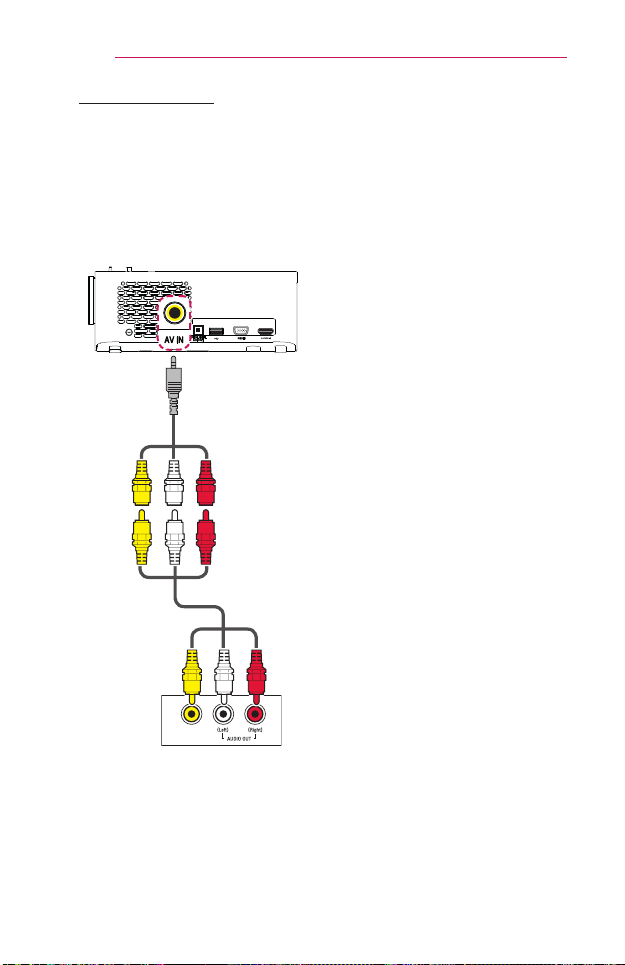
86
CONNECTINGDEVICES
AVConnection
Connect the output ports of an
external device and the AVIN
ports of the projector using an AV
cable. Press the
INPUT
button on
the remote control to select AV.
Check whether cables of the same
color are connected properly.
VIDEO OUT
Accessories
Not
provided
Red Red
Red
White White
White
Yellow Yellow
Yellow
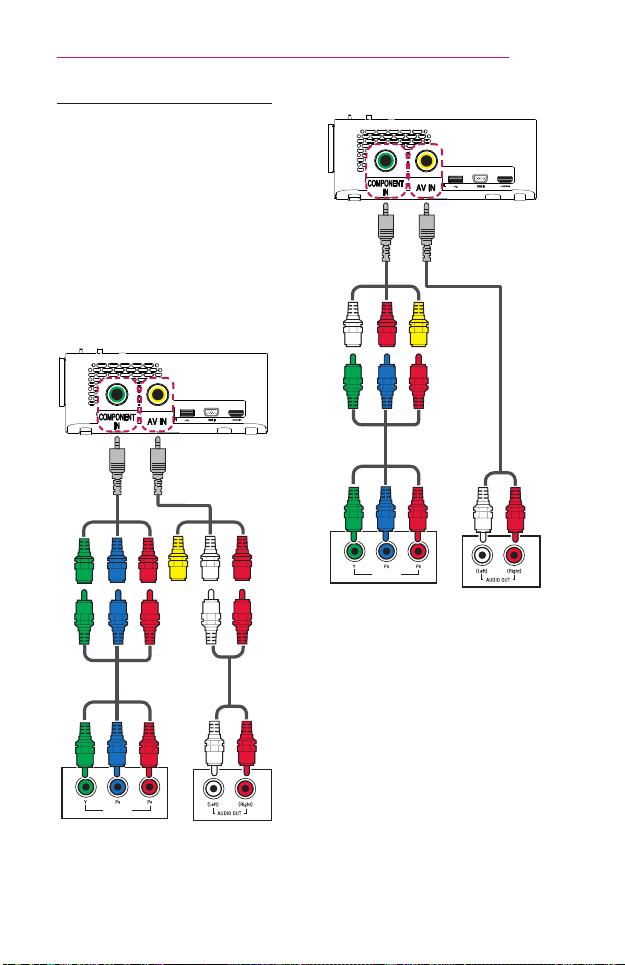
87
CONNECTINGDEVICES
ComponentConnection
You can enjoy a video by
connecting the component port
of an external device to the
COMPONENTIN port of the
projector. Press the
INPUT
button
on the remote control to select
Component. Check whether
cables of the same color are
connected properly.
A)
VIDEO OUT
Optional
Extras
Accessories
Not
provided
Not
provided
Red
Red
Red
Red
Red
Red
Blue
Blue
Blue
Green
Green
Green
White
Yellow
White
White
B)
VIDEO OUT
Accessories
Not
provided
Not
provided
Red
Yellow
Red
Red
Red
Blue
Blue
White
Green
Green
White

88
CONNECTINGDEVICES
ConnectingaPC
The projector supports Plug &
Play. Your PC will automatically
detect the projector and requires
no driver installation.
HDMIConnection
Using an HDMI cable, connect the
port of the projector to the
HDMI output port of your PC. Both
video and audio are output at the
same time.
You can also use the
.
Press the INPUT button on the
remote control to select HDMI.
You can connect with any HDMI
input port.
Optional Extras
HDMItoDVIConnection
Using an HDMI to DVI cable,
connect the projector's
port to the DVI OUT port.
To output audio, use an audio
cable for connection.
You can also
use the .
Press the
INPUT
button on the
remote control to select HDMI. You
can connect with any HDMI input
port.
DVI OUTAUDIO OUT
Optional
Extras
Not
provided

89
CONNECTINGDEVICES
• It is recommended to use
an HDMI connection for the
best image quality.
• Depending on the graphics
card, DOS mode video may
not work if a HDMI to DVI
Cable is in use.
• In PC mode, there may be
noise associated with the
resolution, vertical pattern,
contrast, or brightness. If
noise is present, change
the PC output to another
resolution, change the
refresh rate to another rate,
or adjust the brightness and
contrast on the PICTURE
menu until the picture is
clear.
• The synchronization input
form for Horizontal and
Vertical frequencies is
separate.
• Depending on the graphics
card, some resolution
settings may not allow the
image to be positioned on
the screen properly.
• If you are using DVI out from
a PC, you have to connect
analog audio separately.
• When using the HDMI/DVI
cable, Single link only is
supported.
NOTE
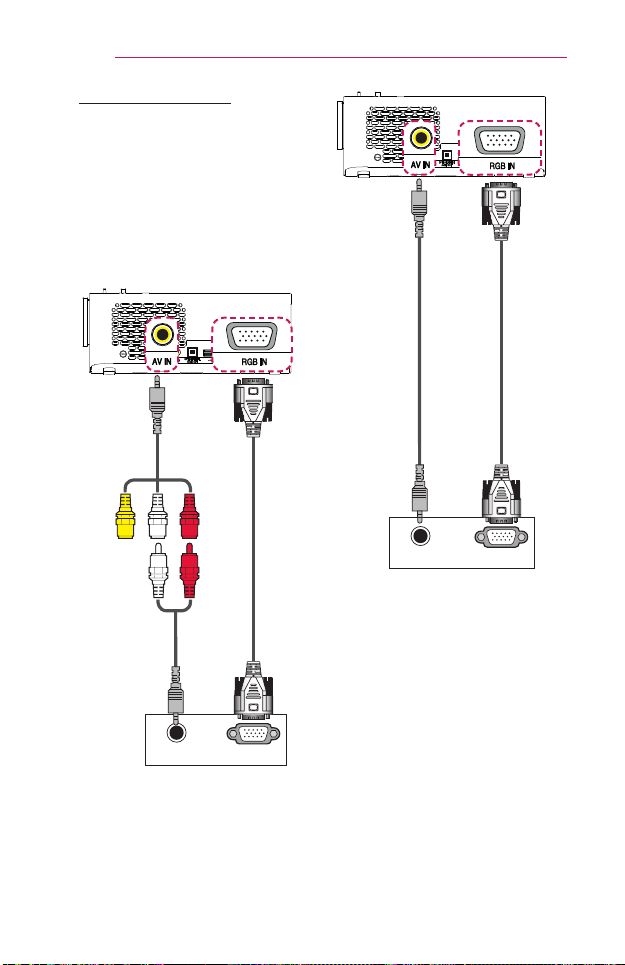
90
CONNECTINGDEVICES
RGBConnection
Connect the PC output and the
PC video input port of the projector
with the RGB cable.
For audio signal, connect the PC
and the projector with an optional
audio cable.
Press the
INPUT
button on the
remote control to select RGB-PC.
AUDIO OUT
RGB OUT (PC)
Accessories
Not
provided
Optional
Extras
Red
Red
White
White
Yellow
AUDIO OUT
RGB OUT (PC)
Optional
Extras
Optional
Extras
You can connect the audio cable
without using a gender as shown in
the illustration above
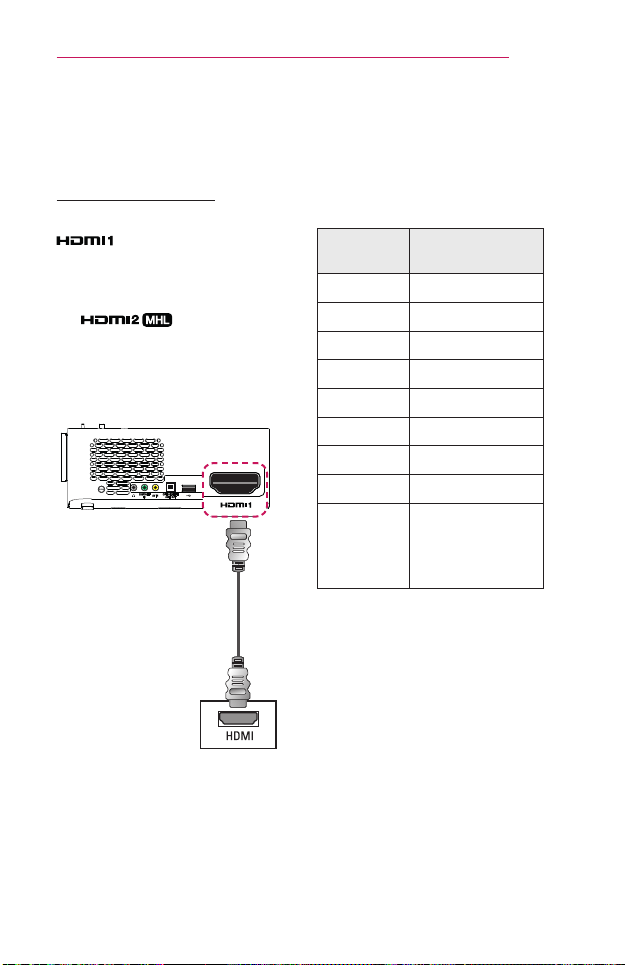
91
CONNECTINGDEVICES
ConnectingaLaptop
You can connect the projector to a
laptop to use various functions.
HDMIConnection
Using an HDMI cable, connect the
port of the projector to the
HDMI output port of your laptop.
Both video and audio are output at
the same time.
You can also use
the .
Press the INPUT button on the
remote control to select HDMI.
You can connect with any HDMI
input port.
Optional Extras
The table below shows examples
of switching the output. For
more information, refer to the
ExternalOutput, Connectingto
anExternalMonitor, or similar
sections of the owner's manual of
your computer.
Brand
Switching
Output
NEC [Fn]+[F3]
Panasonic [Fn]+[F3]
Toshiba [Fn]+[F5]
IBM
[Fn]+[F7]
Sony [Fn]+[F7]
Fujitsu
[Fn]+[F10]
LG [Fn]+[F7]
Samsung [Fn]+[F4]
Macintosh
Adjust the control
panel to enable
mirroring after
start-up.
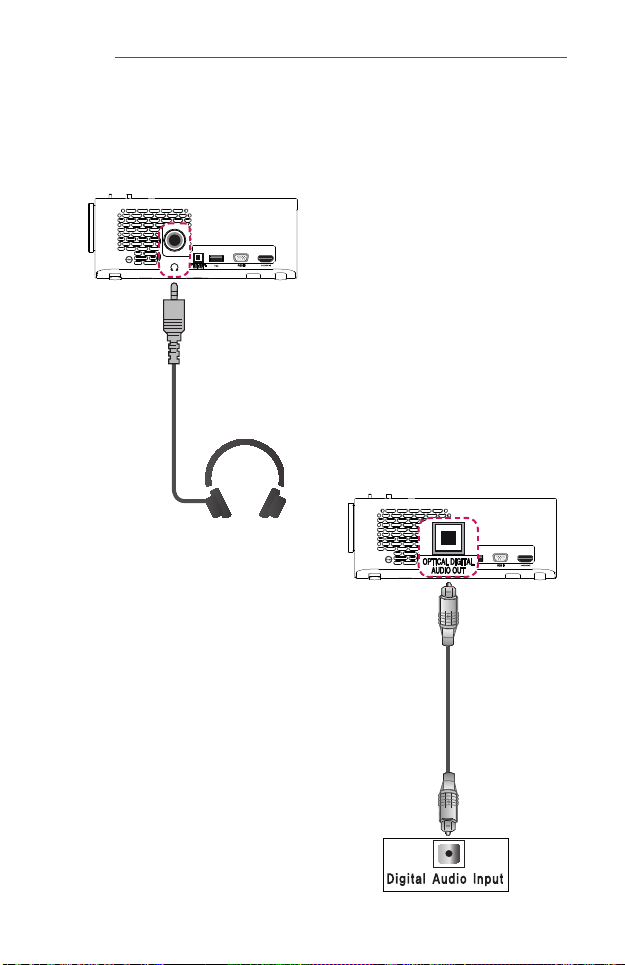
92
CONNECTINGDEVICES
Connecting
Headphones
You can listen to the audio through
a headphone.
Not provided
ConnectingaDigital
Amp
Using an optical cable, connect
the digital audio input port of
a digital amp to the OPTICAL
DIGITALAUDIOOUT port of the
projector. The output of an amp
with a digital converter must be set
to the desired audio format. When
using a HDMI cable to connect a
home theater or when connecting
an optical output to an external
audio device, set SoundOut to
ExternalSpeaker(Optical) as
shown below. If a projector, home
theater, or the speaker of an
external audio device is operating
at the same time, there will be an
echo.
Optional Extras
93
CONNECTINGDEVICES
• Refer to the user manual of
the audio device to connect.
• When connecting this
product to other devices,
make sure to turn off and
unplug all the devices.
• The audio output of this
product has wide-ranging
audio bandwidth, so the
receiver volume must
be adjusted properly.
Speakers can be damaged
by unexpected high
frequencies.
• Connecting the OPTICAL
DIGITALAUDIOOUT port
of the projector to the digital
audio input port of a digital
amp and the audio input port
of the projector to the analog
audio output port of the
digital amp can cause sound
oscillation due to the closed
loop. Remove one of the two
connections to prevent this.
(This also applies to home
theater devices.)
NOTE

94
CONNECTINGDEVICES
UsingtheMirroringFunctionofaMobile
Phone
MHLConnection
The Mobile High-denition Link (MHL) is an interface that can connect a
mobile phone to the projector and play video and audio from the mobile
phone through the projector.
This only applies to products with a HDMI input that supports MHL.
(To nd out whether your device is MHL-certied, please contact your
device manufacturer.)
For MHL support, check the port.
Use a dedicated cable for MHL.
Optional Extras
• When you connect a mobile phone to the port, you
can see the mobile phone screen through a projector.
- This only applies to mobile phones that support MHL.
- You can use the remote control for some applications.
• Disconnect the MHL cable from the projector when:
- The MHL function is disabled.
- Your mobile device is fully charged in standby mode.
NOTE

95
MAINTENANCE
MAINTENANCE
Clean your projector to keep it in optimal condition.
Cleaning
CleaningtheLens
If there is any dust or staining on the lens surface, you must clean the lens.
Use an air spray or a cleaning cloth to clean the lens.
To remove dust or stains, use an air spray or apply a small amount of
cleaning agent onto a swab or soft cloth to lightly rub the lens.
Please be aware that liquid may ow into the lens if the product is sprayed
directly onto the lens.
CleaningtheProjectorCase
To clean the projector case, rst unplug the power cord.
To remove dust or stains, use only a dry, lint-free, nonabrasive cloth to
polish the lens.
Do not use alcohol, benzene, thinners, or other chemicals, which may
damage the case.

96
SPECIFICATIONS
SPECIFICATIONS
Model PF1500G(PF1500G-GL)
Resolution(Pixel) 1920 (Horizontal) × 1080 (Vertical)
AspectRatio
16:9 (Horizontal:Vertical)
Panelsize(mm) 11.896
Projection
Distance
(Videosize)
Wide : 0.91 m to 3.70 m (76.2 cm to 304.8 cm)
Tele : 0.91 m to 3.70 m (69.3 cm to 277.1 cm)
RatioofUpward
Projection
100 %
Workingrangeof
theremotecontrol
6 m
Power AC 100 - 240 V, 50 Hz/ 60 Hz
Power
consumption
100 W
AC-DCAdaptor
Manufacturer :
HONOR
Model:
ADS-110CL-19-3
190110G
19 V 5.79 A
Manufacturer :
CHICONY
Model: A16-140P1A
19 V 7.37 A
(only India)
(Adaptor Input 100 - 240 V @ 50/60 Hz)
AudioOutput 3 W + 3 W
VideoInput
NTSC M / PAL-B, D, G, H, I / PAL M / PAL N /
PAL 60 / SECAM
Height(mm) 84 (without foot) / 87 (with foot)
Width(mm) 132
Depth(mm) 213 (without lens) / 220 (with lens)
Weight(g) 1500
USBDevice 5 V, 0.5 A (Max.)
97
SPECIFICATIONS
Operation
environment
Temperature
Operation 0 °C to 40 °C
Storage -20 °C to 60 °C
Relativehumidity
Operation 0 % to 80 %
Storage 0 % to 85 %
* Contents in this manual may be changed without prior notice due to
upgrade of product functions.
SupportedRGB-PC/HDMI(PC)Mode
Resolution
Horizontal
Frequency(kHz)
VerticalFrequency
(Hz)
640 x 350 31.468 70.09
720 x 400
31.469 70.08
640 x 480 31.469 59.94
800 x 600 37.879 60.31
1024 x 768 48.363 60.00
1152 x 864 54.348 60.053
1360 x 768 47.712 60.015
1280 x 1024 63.981 60.02
1920 x 1080 67.5 60
• If an invalid signal is input into the projector, it will not be displayed
properly on the screen or a message such as NoSignal or Invalid
Format will be displayed.
• The projector supports the DDC1/2B type as the Plug & Play function
(Auto-recognition of PC monitor).
• PC synchronization signal types supported: Separate type
synchronization.
• In PC mode, 1920 x 1080 (1080p) is recommended for the best picture
quality.
98
SPECIFICATIONS
SupportedHDMI/DVI-DTVMode
Resolution
Horizontal
Frequency(kHz)
VerticalFrequency
(Hz)
480p
31.47 60
31.47 59.94
31.50 60
576p 31.25 50
720p
45.00 60.00
44.96 59.94
37.5 50
1080i
33.75 60.00
33.72 59.94
28.125 50
1080p
67.500 60
67.432 59.939
27.000 24.000
26.97 23.976
33.75 30.000
33.71 29.97
56.25 50
• To provide the best picture quality, a 1920 x 1080 (1080p) resolution is
recommended.
ComponentPortConnectingInformation
Signal Component
480i / 576i O
480p / 576p O
720p / 1080i O
1080p
O
(50 Hz / 60 Hz only)

99
SPECIFICATIONS
OpenSourceSoftwareNoticeInformation
To obtain the source code under GPL, LGPL, MPL, and other open source
licenses, that is contained in this product,
please visit http://opensource.lge.com.
In addition to the source code, all referred license terms, warranty
disclaimers and copyright notices are available for download.
LG Electronics will also provide open source code to you on CD-ROM for a
charge covering the cost of performing such distribution (such as the cost
of media, shipping, and handling) upon email request to
[email protected]. This offer is valid for three (3) years from the date
on which you purchased the product.

100
SYMBOLS
SYMBOLS
Refers to alternating current(AC).
Refers to direct current(DC).
Refers to class II equipment.
Refers to stand-by.
Refers to “ON” (power).
Refers to dangerous voltage.

The model and serial numbers of the projector are
located on the back or on the side of the projector.
Record them below should you ever need service.
MODEL
SERIAL