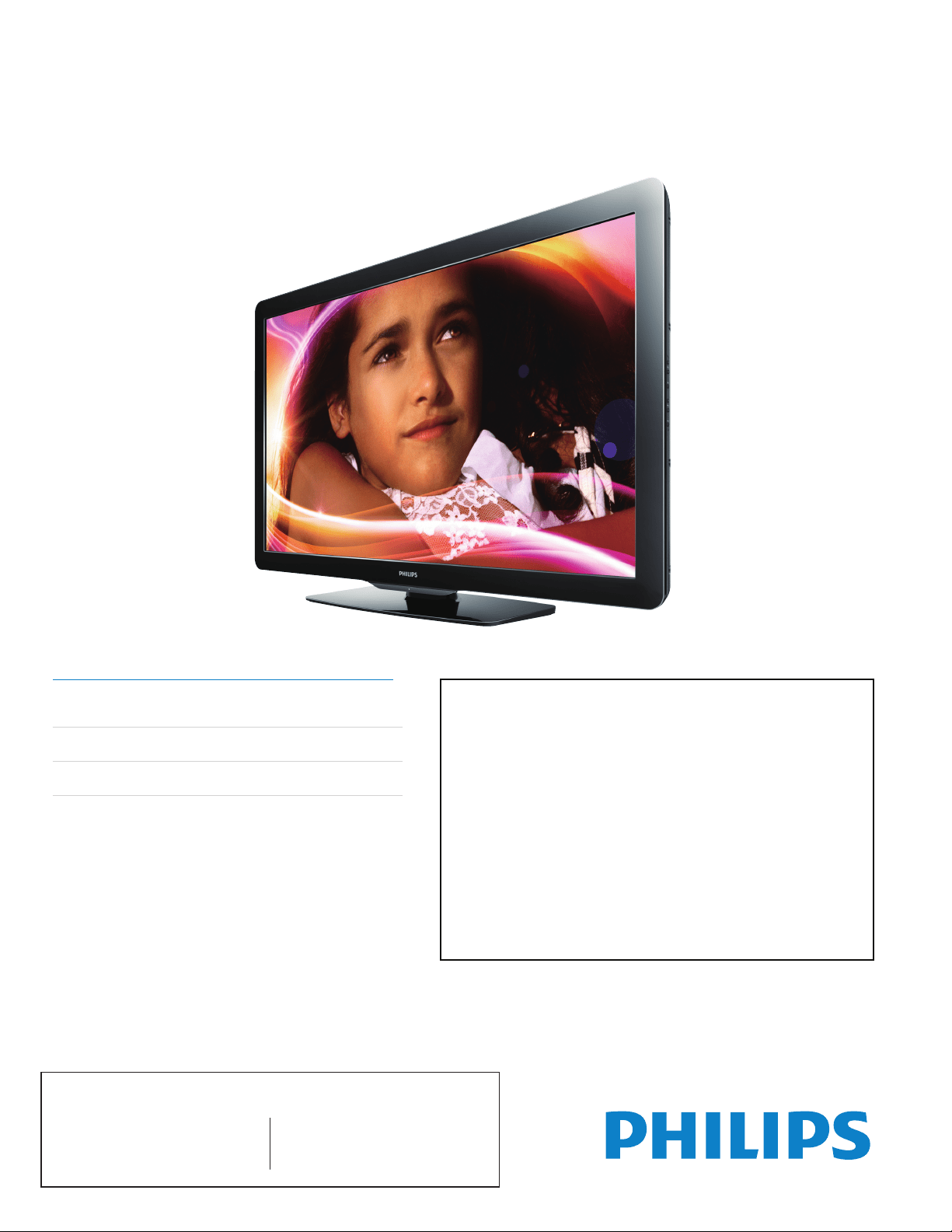
Register your product and get support at
www.philips.com/support
46PFL3706
40PFL3706
MODEL NUMBER SERIAL NUMBER
EN User Manual
FR Manuel d’Utilisation
ES Manual del Usuario
EN: Forfurtherassistance,callthecustomersupportserviceinyourcountry.
• ToobtainassistanceintheU.S.A.,Canada,PuertoRico,ortheU.S.VirginIslands,contactPhilips
CustomerCareCenterat1-866-309-0841
• ToobtainassistanceinMexico,contactPhilipsCustomerCareCenterat01 800 504 62 00
EnterbelowthemodelandserialnumberslocatedonthebackandrightsideoftheTVcabinet.
FR:Pourobtenirdel’aidesupplémentaire,communiquezaveclecentredeserviceàlaclientèlede
votrepays.
• Pourobtenirdel’aideauxÉtats-Unis,auCanada,àPuertoRicoouauxÎlesViergesaméricaines,
communiquezaveclecentredeserviceàlaclientèlePhilipsau:1-866-309-0841
• Pourobtenirl’aideauMexique,entrezencontactaveclecentredesoindeclientdePhilipsà
01 800 504 62 00
Entrercidessouslemodèleetlenumérodesériesituésdérrièreàdroitesurledosdutéléviseur.
ES:Paraobtenermásinformación,llamealserviciodesoportealclientedesupaís.
• ParaobtenerasistenciaenlosEstadosUnidos,enCanadá,PuertoRicooenlasIslas
VírgenesdelosEstadosUnidos,comuníqueseconCentrodeatenciónalclientedePhilipsal
1-866-309-0841
• SoloparaMexicoCENTRODEATENCIÓNACLIENTESLADA.01 800 504 62 00Solo
ParaMéxico.
Escribaacontinuaciónelmodeloynúmerodeseriequeestanlocalizadosenladoderechoyparte
posteriordeelgabinetedeeltelevisor.
Lea esta manual antes de usar el producto

1
English
EN
Contents
1 Notice 4
2 Important 5
Product information 5
Screen care 5
Environmental care 5
Regulatory notices 5
3 YourTV 6
Side controls and indicators 6
Remote control 6
4 Getstarted 8
Supplied accessories 8
Mounting stand onto TV 8
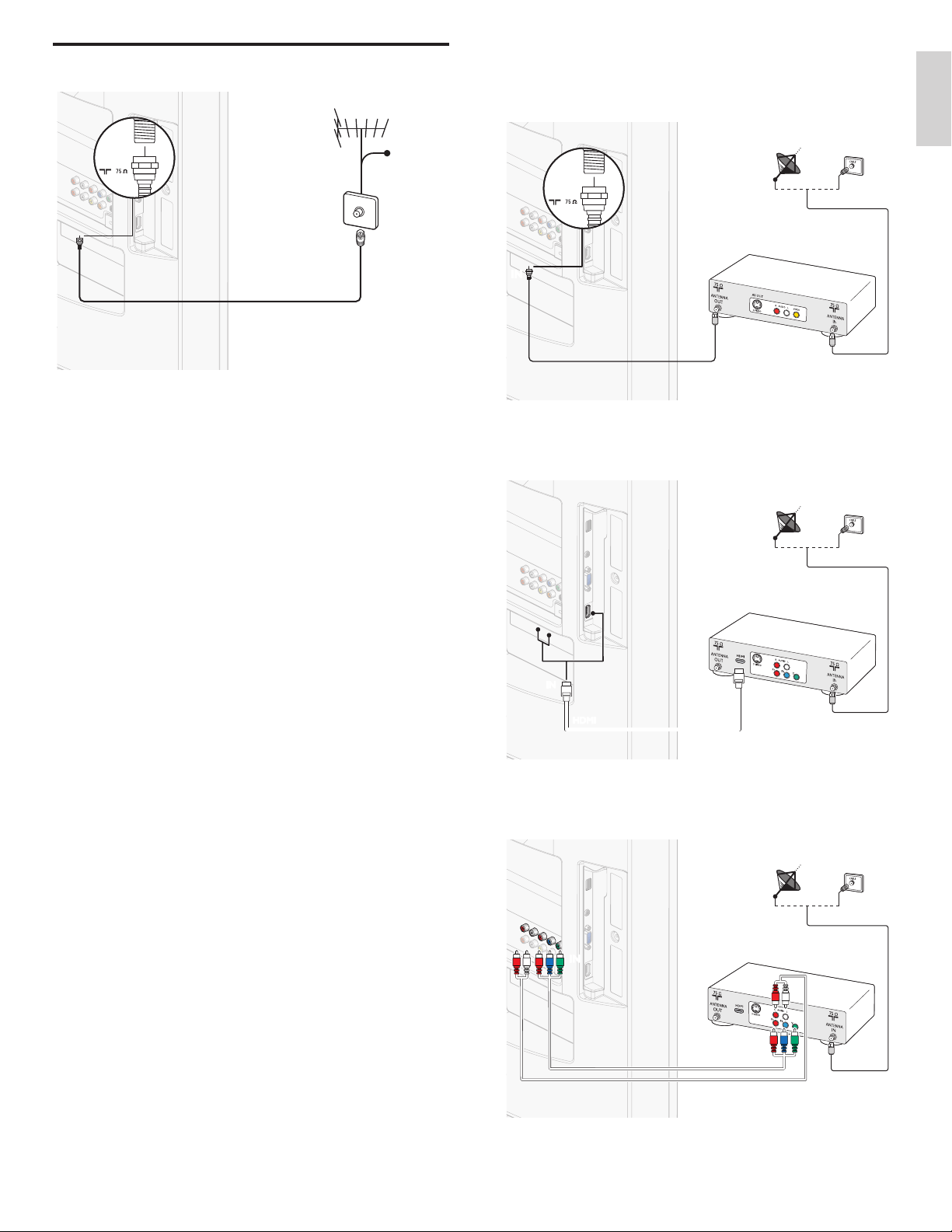
Positioning the TV 8
Installing the remote control batteries 8
Connecting the antenna or cable 9
Managing cables 10
Plugging in the AC power cord 10
Switching on and initial setup 11
5 UseyourTV 12
Switching on your TV and putting it in standby mode 12
Switching channels 12
Adjusting volume 13
Still mode 13
Watching channels from a set-top box 13
Watching connected devices 13
Watching a Blu-ray disc 14
Switching audio mode 14
6 UsemoreofyourTV 15
Changing picture and sound settings 15
Sleeptimer 18
Child and rating locks 18
Closed caption 20
EasyLink 21
ECO 21
Set your location to home 21
Viewing photos and watching videos
on a USB storage device 22
7 Installchannels 24
Selecting your menu language 24
Autoprogram 24
Channel list 25
Add channels 25
Optimizing the signal quality from your antenna 25
8 UpgradeyourTVsoftware 26
Checking your current software version 26
Preparing for the software upgrade 26
Upgrading software 26
9 Connectdevices 27
Connection overview 27
Selecting your connection quality 28
Connecting your devices 29
10 Troubleshooting 31
Downloading an electronic copy 31
Contact us 31
11 NotesfortheuseofUSBdevices 32
12 Specications 32
13 Warranty 33
14 Index 34
2 EN
Registering your model with Philips makes you eligible for all of the valuable benefits listed below, so don't miss out. Complete
and return your Product Registration Card at once, or register online at www.philips.com/support to ensure:
Visit our World Wide Web Site at http://www.philips.com/support
Know these
safetysymbols
CAUTION
This “bolt of lightning” indicates uninsulated material
within your unit may cause an electrical shock. For the
safety of everyone in your household, please do not
remove product covering.
The “exclamation point” calls attention to features for
which you should read the enclosed literature closely to
prevent operating and maintenance problems.
WARNING: To reduce the risk of fire or electric shock, this apparatus should not be exposed to rain or moisture and objects filled
with liquids, such as vases, should not be placed on this apparatus.
CAUTION: To prevent electric shock, match wide blade of plug to wide slot, fully insert.
ATTENTION: Pour éviter les choc électriques, introduire la lame la plus large de la fiche dans la borne correspondante de la prise et
pousser jusqu’au fond.
CAUTION: TO REDUCE THE RISK OF ELECTRIC SHOCK, DO NOT
REMOVE COVER (OR BACK). NO USER-SERVICEABLE PARTS
INSIDE. REFER SERVICING TO QUALIFIED SERVICE PERSONNEL.
RISK OF ELECTRIC SHOCK
DO NOT OPEN
*Product Safety Notification *Additional Benefits
By registering your product, you'll receive notification
- directly from the manufacturer - in the rare case of
a product recall or safety defect.
Registering your product guarantees that you'll
receive all of the privileges to which you're
entitled, including special money-saving offers.
Return your Product Registration Card or register online at
www.philips.com/support today to get the very most from your purchase.
3EN
English
IMPORTANT SAFETY INSTRUCTIONS
Read before operating equipment
1. Read these instructions.
2. Keep these instructions.
3. Heed all warnings.
4. Follow all instructions.
5. Do not use this apparatus near water.
6. Clean only with a dry cloth.
7. Do not block any of the ventilation openings. Install in accordance with
the manufacturer’s instructions.
8. Do not install near any heat sources such as radiators, heat registers,
stoves, or other apparatus (including amplifiers) that produce heat.
9. Do not defeat the safety purpose of the polarized or grounding-type plug.
A polarized plug has two blades with one wider than the other. A
grounding type plug has two blades and third grounding prong. The wide
blade or third prong are provided for your safety. When the provided
plug does not fit into your outlet, consult an electrician for replacement
of the obsolete outlet.
10. Protect the power cord from being walked on or pinched particularly at
plugs, convenience receptacles, and the point where they exit from the
apparatus.
11. Only use attachments/accessories specified by the manufacturer.
12. Use only with a cart, stand, tripod, bracket, or table specified by
the manufacturer, or sold with the apparatus. When a cart is
used, use caution when moving the cart/apparatus combination
to avoid injury from tip-over.
13. Unplug this apparatus during lightning storms or when unused for long
periods of time.
14. Refer all servicing to qualified service personnel. Servicing is required
when the apparatus has been damaged in any way, such as power-supply
cord or plug is damaged, liquid has been spilled or objects have fallen
into apparatus, the apparatus has been exposed to rain or moisture,
does not operate normally, or has been dropped.
15. This product may contain lead or mercury. Disposal of these materials
may be regulated due to environmental considerations. For disposal or
recycling information, please contact your local authorities or the
Electronic Industries Alliance: www.eiae.org.
16. Damage Requiring Service - The appliance should be serviced by
qualified service personnel when:
A. The power supply cord or the plug has been damaged; or
B. Objects have fallen, or liquid has been spilled into the appliance; or
C. The appliance has been exposed to rain; or
D. The appliance does not appear to operate normally or exhibits a
marked change in performance; or
E. The appliance has been dropped, or the enclosure damaged.
17. Tilt/Stability - All televisions must comply with recommended
international global safety standards for tilt and stability properties of its
cabinets design.
• Do not compromise these design standards by applying excessive pull
force to the front, or top, of the cabinet which could ultimately
overturn the product.
• Also, do not endanger yourself, or children, by placing electronic
equipment/toys on the top of the cabinet. Such items could
unsuspectingly fall from the top of the set and cause product damage
and/or personal injury.
18. Wall or Ceiling Mounting - The appliance should be mounted to a
wall or ceiling only as recommended by the manufacturer.
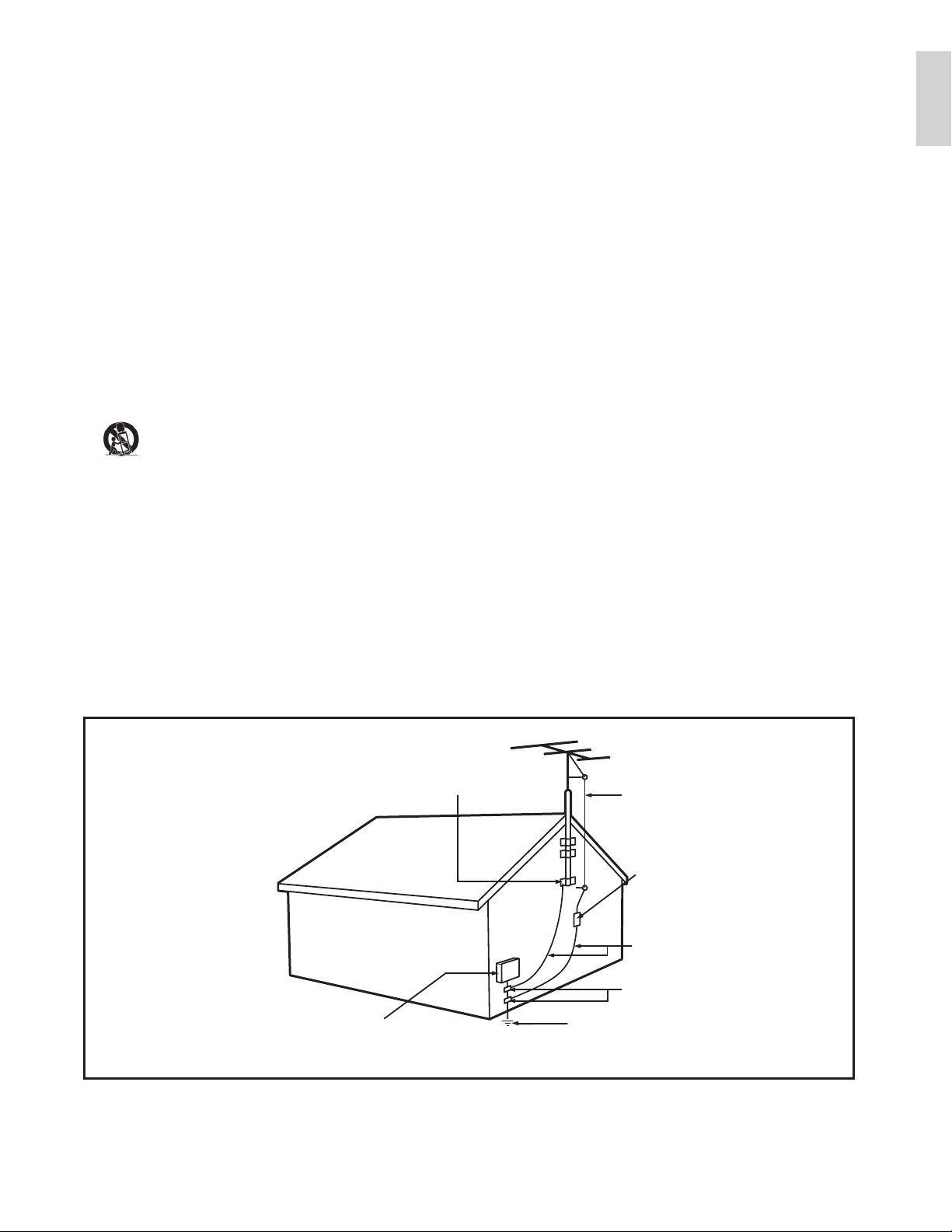
19. Power Lines - An outdoor antenna should be located away from
power lines.
20. Outdoor Antenna Grounding - If an outside antenna is connected to
the receiver, be sure the antenna system is grounded so as to provide
some protection against voltage surges and built up static charges.
Section 810 of the National Electric Code, ANSI/NFPA No. 70-1984,
provides information with respect to proper grounding of the mats and
supporting structure grounding of the lead-in wire to an antenna-
discharge unit, size of grounding connectors, location of antenna-
discharge unit, connection to grounding electrodes and requirements for
the grounding electrode. See Figure below.
21. Objects and Liquid Entry - Care should be taken so that objects do
not fall and liquids are not spilled into the enclosure through openings.
a) Warning: To reduce the risk of fire or electric shock, this apparatus
should not be exposed to rain or moisture and objects filled with
liquids, such as vases should not be placed on this apparatus.
22. Battery Usage CAUTION - To prevent battery leakage that may
result in bodily injury, property damage, or damage to the unit:
• Install all batteries correctly, with + and - alignment as marked on the
unit.
• Do not mix batteries (old and new or carbon and alkaline, etc.)
• Remove batteries when the unit is not used for a long time.
this reminder is provided to call the CATV system installer’s attention to Article 820-40 of
the NEC that provides guidelines for proper grounding and, in particular, specifies that the cable ground shall be connected to the
grounding system of the building, as close to the point of cable entry as practical.
EXAMPLE OF ANTENNA GROUNDING AS PER
NATIONAL ELECTRICAL CODE (NEC)
Note to the CATV system installer:
GROUND CLAMP
ANTENNA LEAD IN WIRE
ANTENNA DISCHARGE UNIT
NEC SECTION 810-20)(
GROUNDING CONDUCTORS
(
NEC SECTION 810-21)
GROUND CLAMPS
POWER SERVICE GROUNDING
ELECTRODE SYSTEM
(
NEC ART 250, PART H)
ELECTRIC SERVICE EQUIPMENT
4 EN
Modications
The FCC requires the user to be notied that any changes or modications
made to this device that are not expressly approved by Philips Consumer
Electronics may void the user’s authority to operate the equipment.
Cables
Connections to this device must be made with shielded cables with
metallic RFI / EMI connector hoods to maintain compliance with FCC
Rules and Regulations.
Canadiannotice
Standard Television Receiving Apparatus, Canada BETS-7 / NTMR-7.
This Class B digital apparatus meets all requirements of the Canadian
Interference-Causing Equipment Regulations.
Copyright
All other registered and unregistered trademarks are the property of
their respective owners.
The terms HDMI and HDMI High-Denition
Multimedia Interface, and the HDMI Logo are
trademarks or registered trademarks of HDMI
Licensing LLC in the United States and other
countries.
Manufactured under license from Dolby
Laboratories. Dolby and the double-D symbol
are trademarks of Dolby Laboratories.
® Kensington and Micro Saver are registered
US trademarks of ACCO World corporation
with issued registrations and pending
applications in other countries throughout the
world.
Portions of this software are copyright © The FreeType Project
(www.freetype.org).
The American Academy of Pediatrics discourages television viewing for
children younger than two years of age.
1 Notice
Specications are subject to change without notice. Trademarks are
the property of Koninklijke Philips Electronics N.V. or their respective
owners. P&F USA reserves the right to change products at any time
without being obliged to adjust earlier supplies accordingly.
The material in this manual is believed adequate for the intended use
of the system. If the product, or its individual modules or procedures,
are used for purposes other than those specied herein, conrmation
of their validity and suitability must be obtained. P&F USA warrants
that the material itself does not infringe any United States patents. No
further warranty is expressed or implied.
P&F USA cannot be held responsible neither for any errors in the
content of this document nor for any problems as a result of the
content in this document. Errors reported to P&F USA will be adapted
and published on the P&F USA support website as soon as possible.
Pixelcharacteristics
This LCD product has a high number of color pixels. Although it has
effective pixels of 99.999% or more, black dots or bright points of light
(red, green or blue) may appear constantly on the screen. This is a
structural property of the display (within common industry standards)
and is not a malfunction.
Warranty
No components are user serviceable. Do not open or remove covers
to the inside of the product. Repairs may only be done by Service
Centers and ofcial repair shops. Failure to do so shall void any
warranty, stated or implied.
Any operation expressly prohibited in this manual, any adjustments, or
assembly procedures not recommended or authorized in this manual
shall void the warranty.
FederalCommunicationsCommissionNotice
This equipment has been tested and found to comply with the limits
for a Class B digital device, pursuant to part 15 of the FCC Rules. These
limits are designed to provide reasonable protection against harmful
interference in a residential installation. This equipment generates, uses,
and can radiate radio frequency energy and, if not installed and used
in accordance with the instructions, may cause harmful interference
to radio communications. However, there is no guarantee that
interference will not occur in a particular installation. If this equipment
does cause harmful interference to radio or television reception, which
can be determined by turning the equipment off and on, the user is
encouraged to try to correct the interference by one or more of the
following measures:
• Reorient or relocate the receiving antenna.
• Increase the separation between the equipment and the receiver.
• Connect the equipment into an outlet on a circuit different from
that to which the receiver is connected.
• Consult the dealer or an experienced radio or television technician
for help.
DeclarationofConformity
TradeName: PHILIPS
ResponsibleParty: P&F USA, Inc.
Model:
46PFL3706, 40PFL3706
Address: PO Box 430 Daleville, IN 47334-0430 U.S.A.
TelephoneNumber: 1-866-309-0841
5EN
English
Environmentalcare
The packaging of this product is intended to be recycled. Contact your
local authorities for information about how to recycle the packaging.
For product recycling information, please visit - www.recycle.philips.com
Endoflifedirectives
This LCD TV contains a lamp with Mercury, please dispose of according
to all local, state and federal laws.
Philips pays a lot of attention to produce environment-friendly products
in green focal areas. Your new TV contains materials which can be
recycled and reused. At the end of its life, specialized companies can
dismantle the discarded TV to concentrate the reusable materials and to
minimize the amount of materials to be disposed of. Please ensure you
dispose of your old TV according to local regulations.
Disposalofusedbatteries
The batteries supplied do not contain the heavy metals mercury and
cadmium. Nevertheless, in many areas batteries may not be disposed
of with your household waste. Please ensure you dispose of batteries
according to local regulations.
Regulatorynotices
Warning
To reduce the risk of re or electric shock, this apparatus should not be exposed to rain or
moisture. Objects lled with liquids, such as vases, should not be placed on this apparatus.
Caution
To prevent electric shock, match the wide blade of the plug to the wide slot, fully inserted.
Do not place the unit on the furniture that is capable of being tilted by a
child and an adult leaning, pulling, standing or climbing on it.
A falling unit can cause serious injury or even death.
This apparatus should not be placed in a built-in installation such as a
bookcase or rack unless proper ventilation is provided.
Make sure to leave a space of 4 inches (10cm) or more around this
apparatus.
2 Important
Registering your model with Philips makes you eligible for all of the
valuable benets listed below, so don’t miss out.
Complete and return your Product Registration Card at once, or
register online at www.philips.com/support to ensure :
• Product Safety Notication
By registering your product you receive notication - directly from
the manufacturer - in the rare case of a product recall or safety
defect.
• Additional Benets of Product Ownership
Registering your product guarantees that you receive all of the
privileges to which you’re entitled, including special money-saving
offers.
Forfurtherassistance
For further assistance, call the customer support service in your country.
• To obtain assistance in the U.S.A., Canada, Puerto Rico, or the U.S.
Virgin Islands, contact Philips Customer Care Center at
1-866-309-0841
Productinformation
This TV consumes minimal energy in standby mode to minimize
environmental impact. The active power consumption is given on the
type plate at the back of the TV. The model and serial numbers of your
TV can be found on the back and right side of the TV as well as on the
packaging.
Screencare
• Avoid stationary images as much as possible. Stationary images
are images that remain on-screen for extended periods of time.
Examples include : on-screen menus, black bars and time displays.
If you must use stationary images, reduce screen contrast and
brightness to avoid screen damage.
• Unplug the TV before cleaning.
• Clean the TV screen and frame with a soft cloth. Never use
substances such as alcohol, chemicals or household cleaners on the
TV screen.
• Risk of damage to the TV screen! Never touch, push, rub or strike
the screen with any object.
• To avoid deformations and color fading, wipe off water drops as
soon as possible.
6 EN
3 YourTV
Congratulations on your purchase, and welcome to Philips! To fully
benet from the support that Philips offers, register your product at
www.philips.com/support
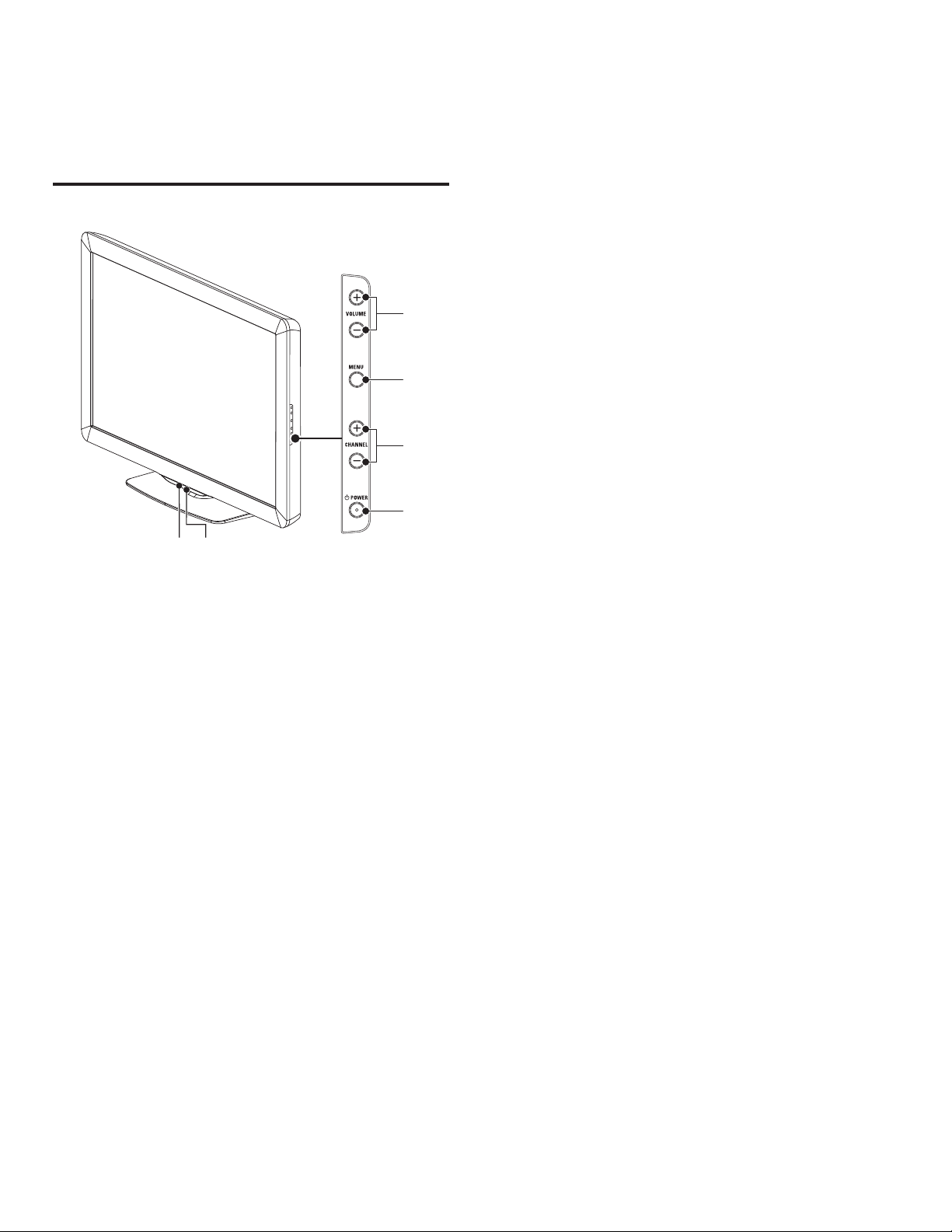
Sidecontrolsandindicators
f
e
d
c
a
b
a Ambientlightsensor
When in
[
Home
]
mode, this TV will automatically adjust the
brightness based on the ambient light. If there is a sudden change
in TV brightness, it may be due to changes in the room lighting
conditions (sunshine / lamps), or an object blocking the light sensor
on the front of the TV. Please ensure the room lighting is stable and
the light sensor is not blocked.
b Standbyindicator/remotecontrolsensor
c
.
POWER
Switches the TV on or puts it in standby mode. The TV is not
powered off completely unless it is physically unplugged.
d CHANNEL+/−
Switches to the next or previous channel.
e MENU
Toggles the main menu on or off.
f VOLUME+/−
Increases or decreases volume.
7EN
English
Remotecontrol
*
b
c
a
d
e
ho
p
r
q
s
i
j
k
lm
n
g
f
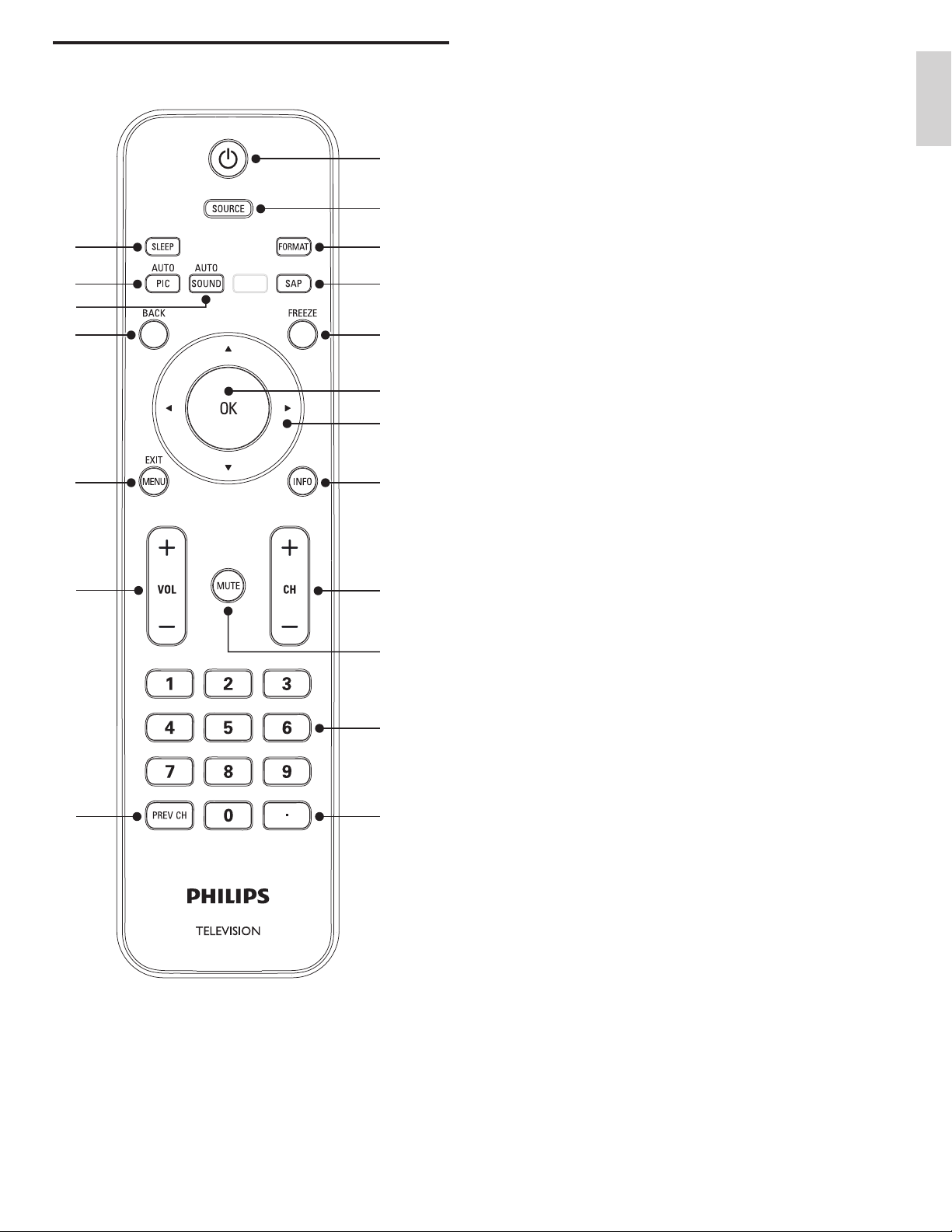
*This button does not function on this unit.
a
.
(Standby-On)
Switches the TV on or puts it in standby mode. The TV is not
powered off completely unless it is physically unplugged.
b SOURCE
Selects connected devices.
c FORMAT
Selects a picture format (see ‘Changing picture format’ on page 16).
d SAP
DigitalMode(DTV)
• Press to select the audio language.
AnalogMode(TV)
• Press to select the audio mode.
e FREEZE
Press to pause screen image.
f OK
Activates a selection or accesses the menu.
g
Î ï Í Æ
(Navigationbuttons)
Navigates through the menus.
h INFO
Displays information about the TV channel or accessory device.
The quality and accuracy of the information depends on the
broadcaster. You might see a difference in broadcast time if the
broadcast is from a different time zone.
i CH+/−
Switches to the next or previous channel.
j MUTE
Mutes or unmutes audio.
k Numberbuttons
Select a channel, page or setting.
l
•
(
Dot
)
Press the dot (
•
) for digital channels.
m PREVCH
Returns to the previously viewed channel.
n VOL+/−
Increases or decreases volume.
o MENU/EXIT
Turns the menu on or off.
p BACK
Returns to a previous screen.
q AUTOSOUND
Cycles through preset sound settings
(see ‘Changing auto sound mode’ on page 17).
r AUTOPIC
Cycles through preset picture settings
(see ‘Changing auto picture mode’ on page 15).
s SLEEP
Sets a delay after which the TV switches to standby.
8 EN
PositioningtheTV
Warning
•
Do not insert the AC power cord into the power socket outlet before all the
connections are made.
• Large screen TVs are heavy. 2 people are required to carry and handle a large screen TV.
• Before you move the TV, disconnect attached cables to prevent damage to connectors.
In addition to reading and understanding safety instructions, consider
the following before positioning your TV :
• Ensure that you always have easy access to the AC power cord or
plug to disconnect the TV from the power.
• If the TV is mounted on a swivel base, ensure that no strain is
placed on the AC power cord when the TV is swiveled. Strain on
the AC power cord can loosen connections.
• The ideal viewing distance for watching TV is three times its screen size.
• Position the TV where light does not fall on the screen.
• Connect your devices before you position the TV.
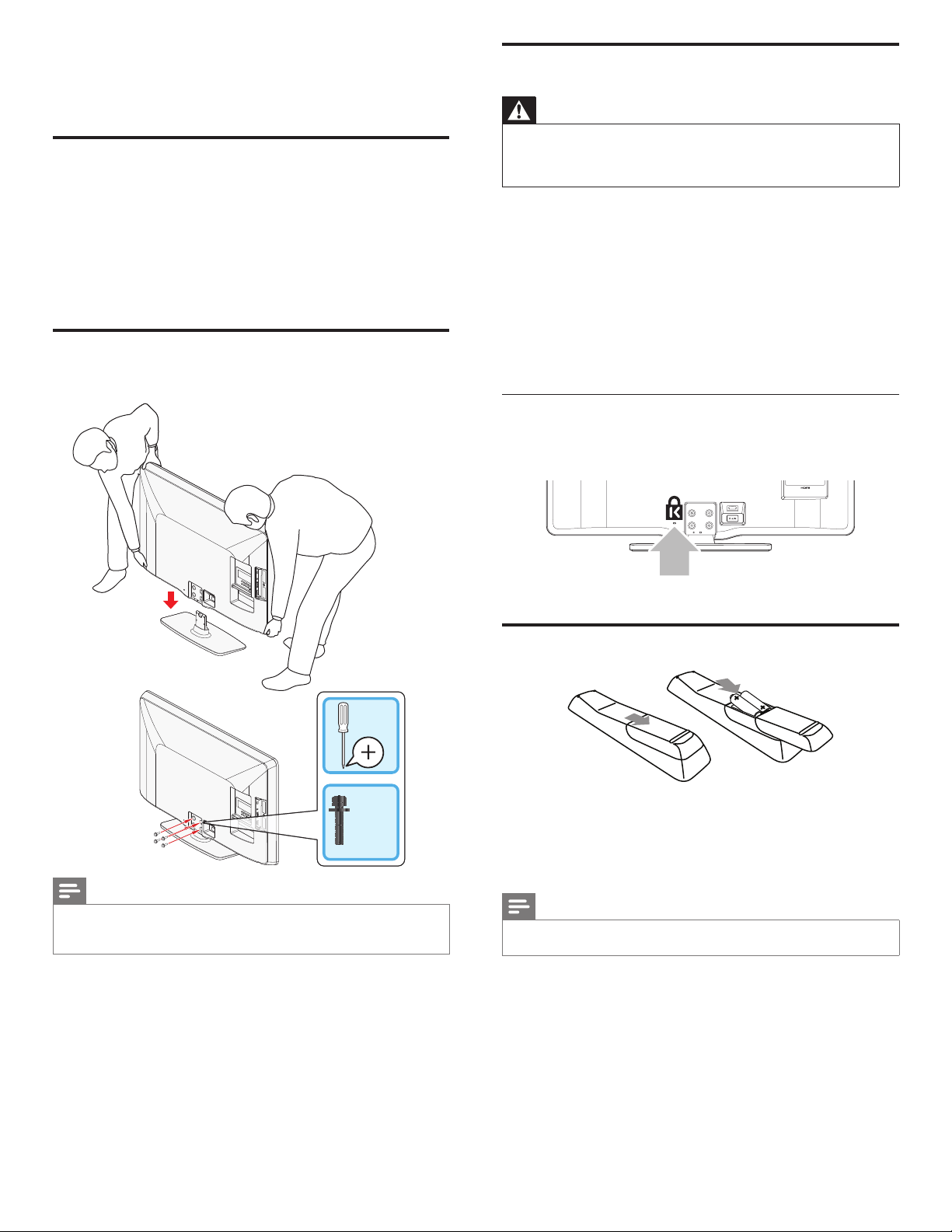
UsingaKensingtonlock
There is a Kensington security slot on the back of the TV. Prevent theft
by looping a Kensington lock between the slot and a permanent object,
such as a heavy table.
Installingtheremotecontrolbatteries
1 Slide the battery cover off the back of the remote control.
2 Insert the 2 supplied batteries (AAA, 1.5V). Be sure the + and −
ends of the batteries line up with the markings inside the case.
3 Slide the cover back into position.
Note
•
Remove the batteries if not using the remote control for an extended period of time.
4 Getstarted
Suppliedaccessories
• Remote Control
• 2 x AAA, 1.5V Batteries
• M5 x 20 double sems screw x 4
• AC Power cord
• Cable management tie
• User Manual
• Quick Start Guide
MountingstandontoTV
Applicable to TVs without mounted stands.
1
2
x 4
Note
•
To wall mount the TV, refer to the Quick Start Guide.
• If you lose the stand mounting screws, please purchase 4 Phillips head screws
(M5 × 20 ) at your local store.
9EN
English
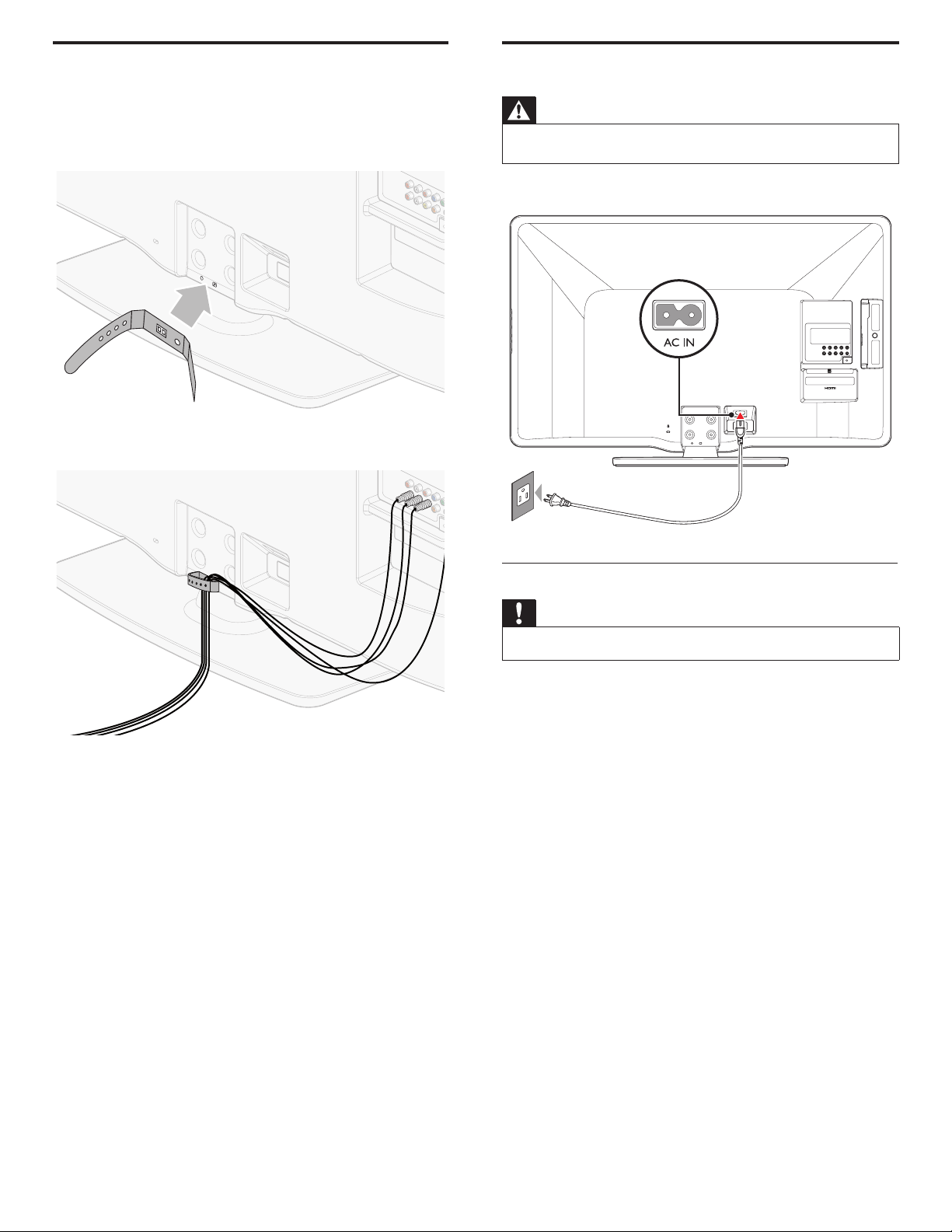
Ifyouconnectaset-topboxthroughRFIN/OUT
If the TV is connected to a cable box or satellite set-top box via a
coaxial connection, set the TV to channel 3 or 4, or to the channel
specied by the service provider.
OUT
IN
IN
IN
set-topbox
RFcable
antenna
Ifyouconnectaset-topboxthroughHDMI
If the TV is connected to a cable box or satellite set-top box via HDMI,
make sure you select the correct HDMI source by using SOURCE on
this unit’s remote control.
OUT
IN
IN
IN
HDMI
HDMI
OUT
set-topbox
RFcable
Ifyouconnectaset-topboxthroughcomponentvideoinput
If the TV is connected to a cable box or satellite set-top box via
component video input, make sure you select the correct component
video source by using SOURCE on this unit’s remote control.
IN
IN
OUT
OUT
YPbPr
OUT
IN
set-topbox
RFcable
audioL/R
YPbPr
Connectingtheantennaorcable
IN
RFcable
cable
antenna
Ifyouconnecttoanantenna
Any DTV programs that are broadcast in your area can be received for
free through an antenna connection.
Contact your local content provider or your local electronics retailer if
you are unsure about what HDTV programs are available in your area.
Broadcasters are transitioning from analog to digital TV. This means that
a given broadcaster can have channels available either in analog or in
digital, or both analog and digital at the same time.
The TV produces stereo sound only if a stereo signal is broadcast.
Ifyouconnecttoacable
When your TV is connected to the cable socket, you might receive free
digital and high denition programs (depending on your cable provider).
The channel number for digital and high denition channels includes a
dot “
•
”. For example, 11.1, 46.30, 108.201. Contact your cable provider
for more information.
IfyouconnecttoaDBS
(
DirectBroadcastSatellite
)
There are two main DBS systems : DirecTV and DishNetwork. These
systems require a separate, proprietary set-top box to decode signals
and send them to the TV. The set-top box contains a digital TV tuner for
receiving off-air digital broadcasts.
Contact your local DBS provider for more information about the
connections and the TV channels.
Ifyouconnecttoaset-topbox
A cable box or satellite set-top box can be connected to the TV
through the following connections :
• ANT
• A/V (Composite Video and Audio)
• YPbPr (Component Video Input)
• HDMI
For information about how to connect a set-top box, see the Quick
Start Guide provided.
10 EN
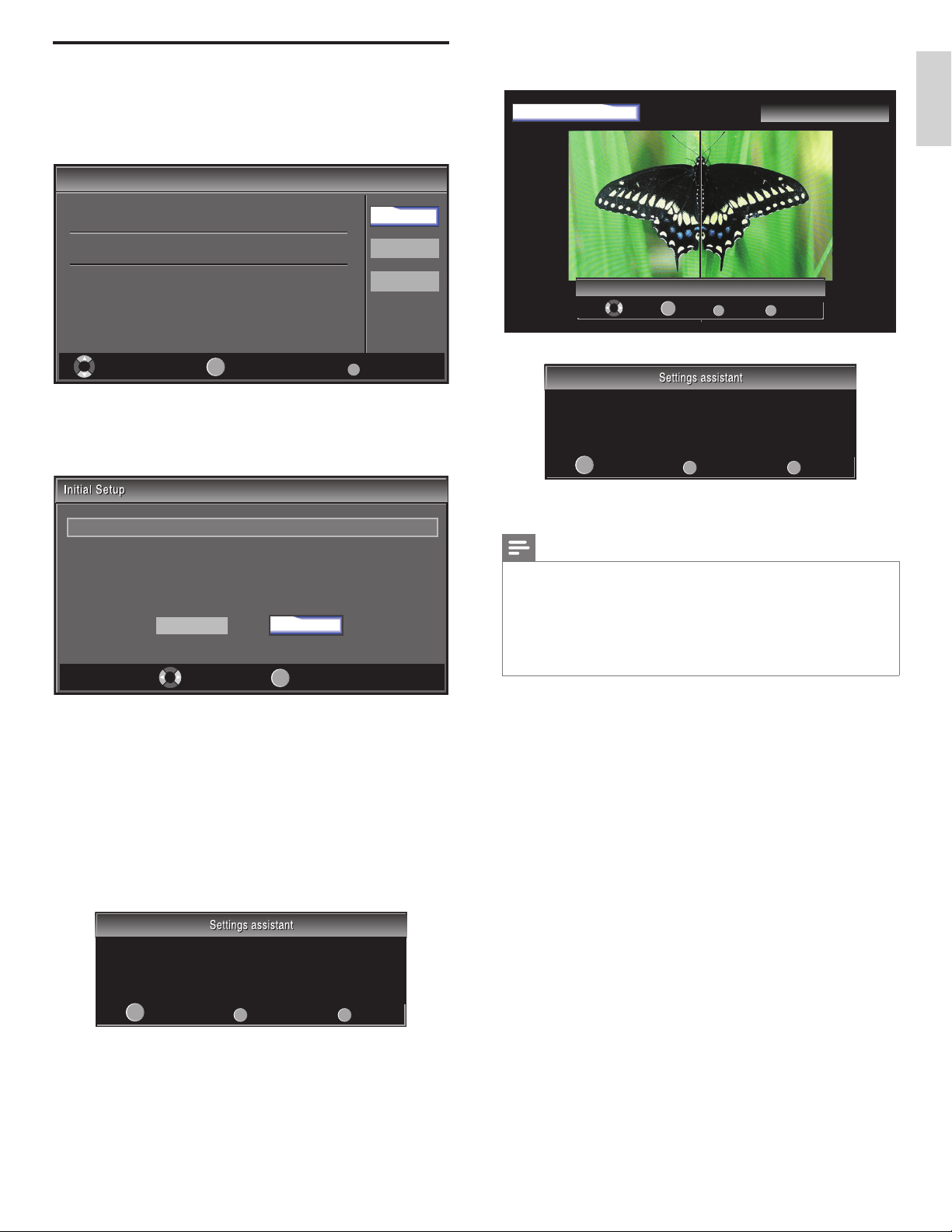
PluggingintheACpowercord
Warning
•
Verify that your power voltage corresponds with the voltage printed at the back of the
TV. Do not insert the AC power cord if the voltage is different.
Connect the AC power cord plug to the power outlet. Ensure that the
cord is tightly secured.
DisconnecttheTVfromthepoweroutlet
Caution
•
Pull the AC power cord by the plug; do not pull on the AC power cord.
1 Unplug the AC power cord from the power outlet.
2 Unplug the AC power cord from the power connector at the back
of the TV.
Managingcables
Route your antenna cable and all other cables through the cable
management tie at the back of the TV. The holder helps keep your
cables tidy and easily manageable.
1 Attach the cable management tie as illustrated below.
2 Pass cables through the cable management tie to avoid tangles.
11EN
English
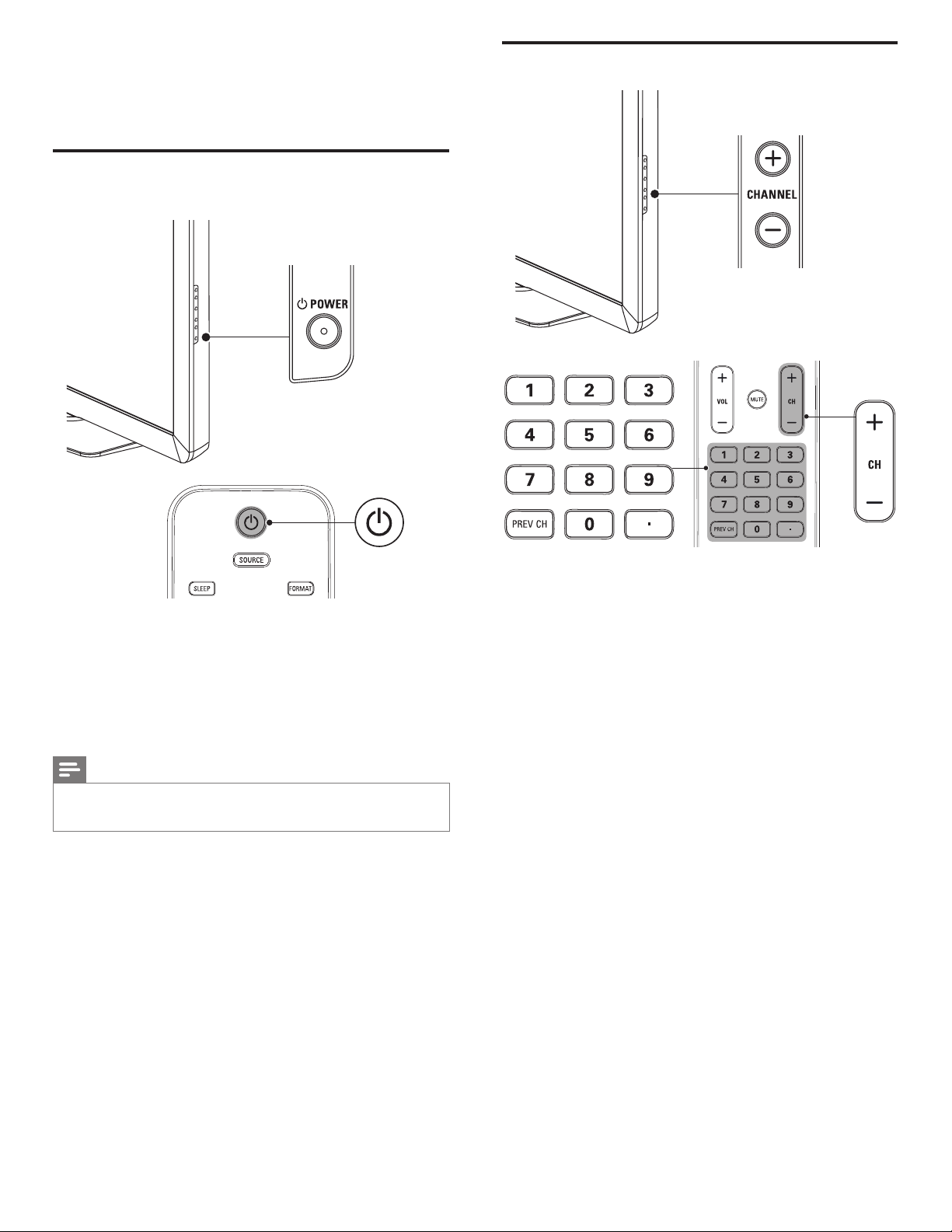
Switchingonandinitialsetup
Before you switch on the TV, check that the AC power cord is properly
connected. Press
.
POWER at the right side of the TV, or press
.
on
the remote control. The TV normally takes 25-30 seconds to start up
and the following screen appears the rst time you turn on the TV.
Initial Setup
Initial Setup
Select your menu language.
Seleccione el idioma para el menú.
Sélectionnez la langue du menu.
Français
Español
Select Skip
MENU
OK
OK
English
Follow the on-screen instructions to select your language and complete
your TV setup. Installation takes approximately 10 minutes.
Press
Í
or
Æ
to select the desired mode for energy saving, then press
OK.
Select “Retail” or “Home” for your location.
Retail
Select OK
Home
Select
[
Retail
]
if you want backlight to be brighter.
Select
[
Home
]
to reduce power consumption.
You must set
[
Home
]
. Otherwise, personalized picture and sound
settings will not be memorized after the unit goes to standby mode.
• Select
[
Retail
]
, the unit will be set up with predened setting for
retail displays.
• Select
[
Home
]
, the unit will be set to maximize energy efciency.
Picture and sound settings can be adjusted and saved as per your
personal preferences.
Press OK to begin
[
Settingsassistant
]
.
BACK
OK
MENU
Settings assistant helps you customize picture settings. You will
see a series of test pictures where the right side and left side
differ. Select the side that is most pleasing to you with the Left/
Right keys.
Next Back Exit
Press
Í
or
Æ
5 times to select the side of the pictures that is the most
pleasing to you. then press OK.
BACK
OK
MENU
Left side Right side
1/5 Select the picture setting that you prefer.
Select Next Back Exit
Press OK to nish
[
Settingsassistant
]
.
BACK
OK
MENU
You have set up your viewing preferences.
Store Back Exit
Finish the Setup.
Note
•
If you are not receiving a signal from your cable service, contact the CATV provider.
• If you press
.
or MENU during autoprogram, this setting will be canceled.
• The initial autoprogram function can be executed for either
[
Antenna
]
or
[
Cable
]
only once. When you change the connection (Antenna / Cable), set autoprogram again.
(Refer to page 24.)
• If there is no signal input from the antenna terminal and no operation for several
seconds after you turn on the TV,
[
HelpfulHints
]
appears. Follow the instructions
listed on the TV screen.
12 EN
Switchingchannels
Press CHANNEL+/− on the side of the TV. For digital channels, press
a number (1 to 135) followed by a dot “
•
” and then the corresponding
sub channel number (1 to 135). e.g. 108.30.
• Press CH+/− or enter a number on the remote control.
• Press PREVCH to return to the previously viewed channel.
5 UseyourTV
This section helps you perform basic TV operations.
SwitchingonyourTVandputtingit
instandbymode
Toswitchon
• Press
.
POWER at the side of the TV or press
.
(Standby-On)
on the remote control.
Toswitchtostandby
• Press
.
POWER at the side of the TV or press
.
(Standby-On)
on the remote control again.
Note
•
Energy consumption contributes to air and water pollution. When the AC power
cord is plugged in, your TV consumes energy. Your TV has very low standby power
consumption.
13EN
English
Stillmode
You can pause the image shown on the TV screen.
Press FREEZE to pause the image shown on the TV screen.
Freeze
• The sound output will not be paused.
• If no signal is detected or protected signal is received during still
mode, the image remains paused and the sound output will be
muted.
• The still function will be released after 5 minutes.
To cancel still mode, press any button except
.
(standby-On).
Watchingchannelsfromaset-topbox
Towatchchannelsfromaset-topbox
1 Switch on the set-top box.
» The picture from your set-top box might appear automatically
on the TV screen.
2
Use the remote control of your set-top box to select channels.
Ifthepicturedoesnotappear
1 Press SOURCE repeatedly to select the set-top box and wait a
few seconds for the picture to appear.
2 Use the remote control of your set-top box to select channels.
Watchingconnecteddevices
Towatchconnecteddevices
1 Switch on the connected device.
» The picture from your connected device might appear
automatically on the TV screen.
2 Use the remote control of the device to select channels.
Ifthepicturedoesnotappear
1 Press SOURCE repeatedly to select the connected device and wait
a few seconds for the picture to appear.
2 Use the remote control of the device to select channels.
AutomaticPowerShutOff
If there is no input signal and no operation for 15 minutes, the unit will
turn off automatically.
Adjustingvolume
Toincreaseordecreasevolume
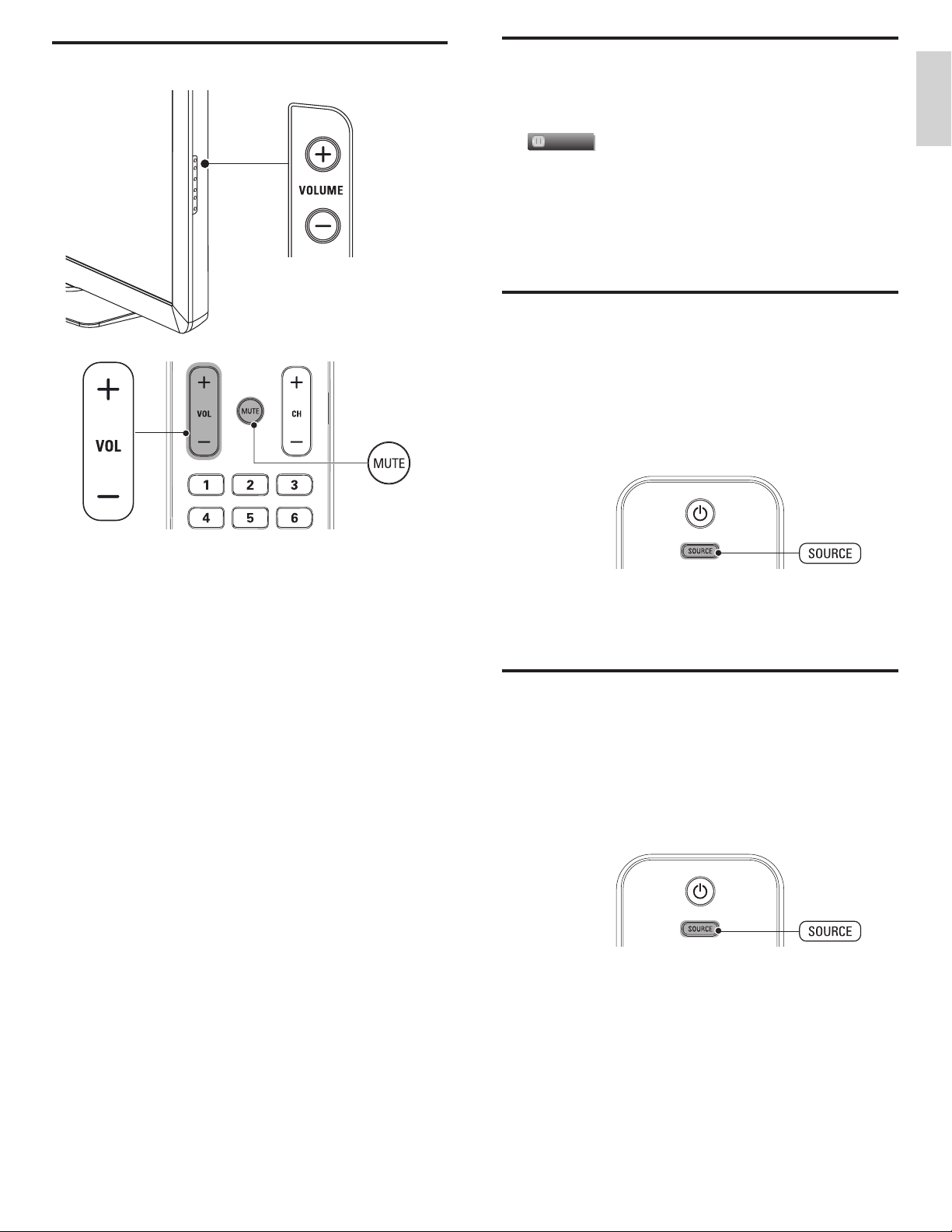
• Press VOL+/− on the remote control or press VOLUME+/− on
the side of the TV.
Tomuteorunmutesound
• Press MUTE on the remote control to mute the sound.
• Press MUTE again or VOL+/− to recover the original sound.
14 EN
WatchingaBlu-raydisc
TowatchaBlu-rayDisc
1 Insert a Blu-ray Disc into your player.
2 Press
►
(play) on the remote control of the Blu-ray Disc player.
» The Blu-ray Disc might automatically play on the TV.
Ifthepicturedoesnotappear
1 Press SOURCE repeatedly to select the Blu-ray Disc player and
wait a few seconds for the picture to appear.
2 Use the remote control of the Blu-ray Disc player to play the disc.
Switchingaudiomode
This section describes how to switch audio language in digital mode and
how to switch audio in analog mode.
DTV
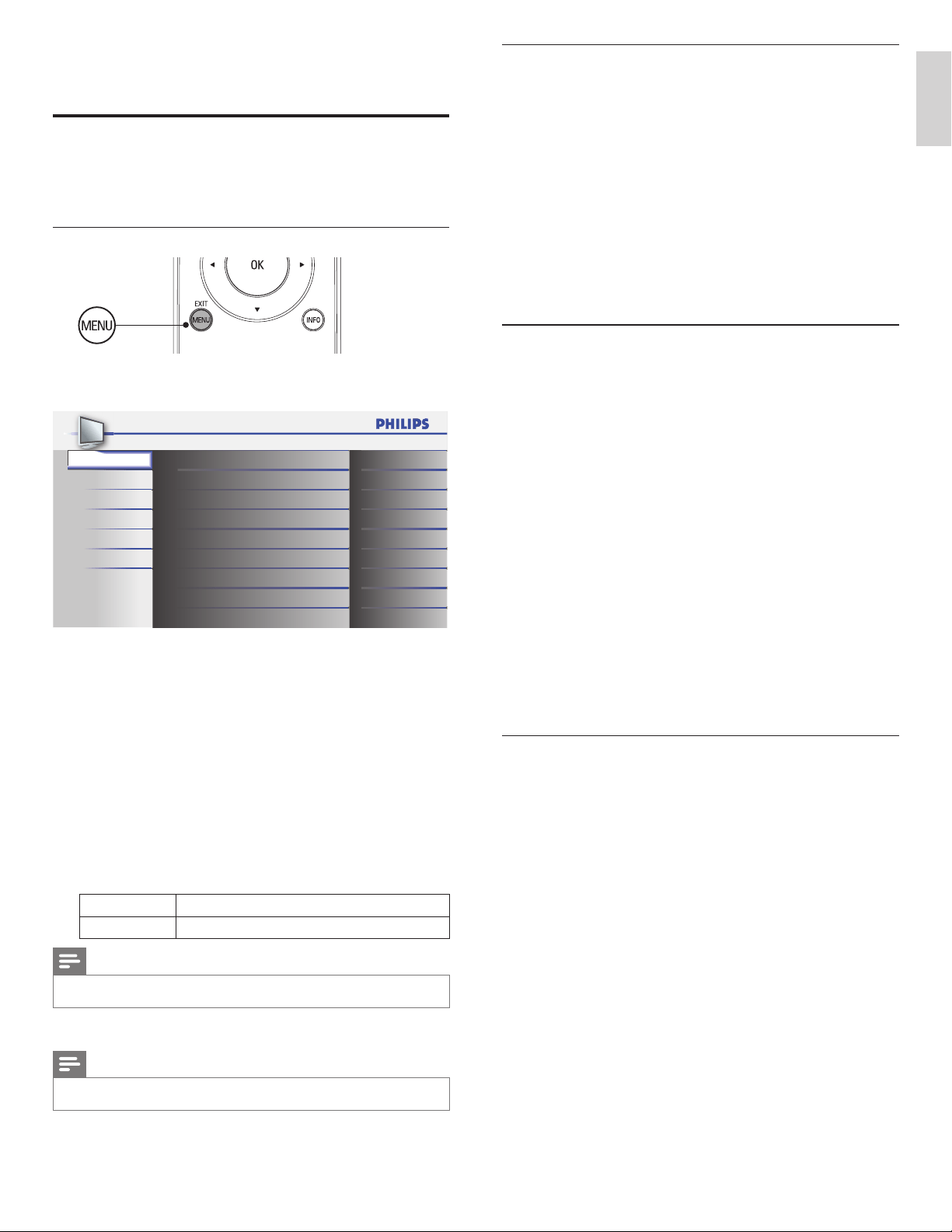
1 Press SAP to display the currently selected language and the
number of available languages.
11.1
English 1/3
11.1
English 1/3
2 Press SAP repeatedly to cycle through the available audio
languages.
• Available languages differ depending on the broadcast.
[
Other
]
is displayed when the audio language cannot be acquired, or the
acquired languages are other than English, Spanish or French.
Note
•
SAP does not control external audio devices.
• The information display will automatically disappear in a few seconds.
TV
Press SAP to display the currently selected audio mode. While
receiving an MTS broadcast, press repeatedly to cycle through the
available audio channel.
11.1
English 1/3
11
SAP / STEREO
When all audio are available
SAP / STEREO SAP / MONO
SAP / STEREO
SAP / STEREO
SAP / STEREO
SAP / MONO
When stereo and monaural audio are available
MONO / STEREO MONO /
STEREO
MONO / STEREO MONO / STEREO
When SAP and monaural audio are available
MONO / STEREO MONO /
STEREO
SAP / MONO SAP / MONO
When only monaural audio is available
MONO
(Cannot be switched)
STEREO : Outputs stereo-audio
SAP : Outputs second audio program
MONO : Outputs mono-audio
15EN
English
PCsettings
This function lets you adjust the PC screen position, clock and phase
during PC input.
1 Press MENU on the remote control and select
[
Features
]
>
[
PC
Settings
]
.
2 Adjust the setting.
[
AutoAdjustment
]
Press
Î
or
ï
to select
[
Adjust
]
, then press OK.
• The horizontal/vertical position, clock and phase of the PC
screen are automatically adjusted.
[
HorizontalPosition
]
,
[
VerticalPosition
]
,
[
Clock
]
,
[
Phase
]
Press
Í
or
Æ
to adjust.
Summaryofpicturesettings
The following picture settings can be congured. Depending on the
format of the picture source, some picture settings are not available.
•
[
AutoPicture
]
: Sets all picture settings to the factory default.
•
[
Brightness
]
: Adjusts the intensity and details of dark areas.
When in
[
Home
]
mode, this TV will automatically adjust the
brightness based on the ambient light. If there is a sudden change
in TV brightness, it may be due to changes in the room lighting
conditions (sunshine / lamps), or an object blocking the light sensor
on the front of the TV. Please ensure the room lighting is stable and
the light sensor is not blocked.
•
[
Contrast
]
: Adjusts the intensity of bright areas, keeping dark areas
unchanged.
•
[
Color
]
: Adjusts color saturation.
•
[
Tint
]
: Adjusts the color balance in an image.
•
[
Sharpness
]
: Adjusts the level of sharpness in image details.
•
[
ColorTemperature
]
: To set the color temperature to
[
Normal
]
,
[
Warm
]
or
[
Cool
]
.
•
[
HorizontalPosition
]
,
[
VerticalPosition
]
: Adjusts the horizontal
and vertical position of the picture for PC screen.
•
[
Clock
]
: Setting to stabilize the PC screen.
•
[
Phase
]
: Setting to improve the clarity of the PC screen.
Changingautopicturemode
1 Press AUTOPIC to set your TV to a predened picture setting.
2 Press
Î
or
ï
to select one of the following settings:
•
[
Personal
]
: The customized settings you dened by using the
[
Picture
]
menu.
•
[
Standard
]
: For normal TV viewing.
•
[
Sports
]
: Vivid picture settings for high action.
•
[
Movie
]
: Brilliant picture settings for a cinematic experience.
•
[
Game
]
: Optimized for PCs, games consoles and playstations.
6 UsemoreofyourTV
Changingpictureandsoundsettings
You must set
[
Home
]
in
[
Location
]
(refer to page 21).
Otherwise, personalized picture and sound settings will not be
memorized after the unit goes to standby mode.
Changingpicturesettings
1 Press MENU on the remote control.
2 Press OK to enter the
[
Picture
]
.
Picture
Sound
Setup
Features
Language
USB
Settings assistant
Personal
30
60
36
0
0
Normal
On
Auto Picture
Brightness
Contrast
Color
Tint
Sharpness
Color Temperature
Noise Reduction
3 Press
Î
or
ï
to select one of the picture settings, and press OK
to enter the setting.
4 Adjust the picture quality.
[
AutoPicture
]
Press
Î
or
ï
to select the desired setting, then press OK.
(
[
Personal
]
,
[
Standard
]
,
[
Sports
]
,
[
Movie
]
and
[
Game
]
)
[
Brightness
]
,
[
Contrast
]
,
[
Color
]
,
[
Tint
]
,
[
Sharpness
]
,
[
ColorTemperature
]
Press
Î
or
ï
to select the desired setting, then Press
Í
or
Æ
to
adjust.
[
NoiseReduction
]
Reduces the noise of the picture.
Press
Î
or
ï
to select the desired option, then press OK.
On Reduces noise in an image.
Off Sets noise reduction to off.
Note
•
This function is disabled when PC input is selected. (Setting will be in gray.)
5
Press MENU to exit.
Note
•
To cancel picture adjustment, press MENU.

16 EN
For4:3videosignal
[
Normal
]
[
16:9
]
[
Wide
]
[
MovieExpand
]
[
Zoom
]
Normal
Display a 4:3 picture at its original size. Sidebars appear on both
edges of the screen.
16:9
Display a 4:3 picture at a 16:9 size; the picture is stretched
horizontally to ll the screen.
MovieExpand
Display a 4:3 picture at a 16:9 size; the picture is stretched more
vertically at the top of the screen. This crops out the top of the
picture.
Zoom
Display a 4:3 picture at a 16:9 size; at its maximum size that is more
vertically stretched to ll the screen. This crops out the top and
bottom of the picture.
Wide
Display the picture with its center at the original size and the edges
stretched horizontally to ll the screen.
ForPCinputsignal
[
Normal
] [
Full
]
[
Unscaled
]
Normal
Display a proportionately stretched picture. Sidebars appear on
both edges of the screen.
Full
Display a picture that is stretched out of proportion to ll the
screen.
Unscaled
Display a picture in its original size.
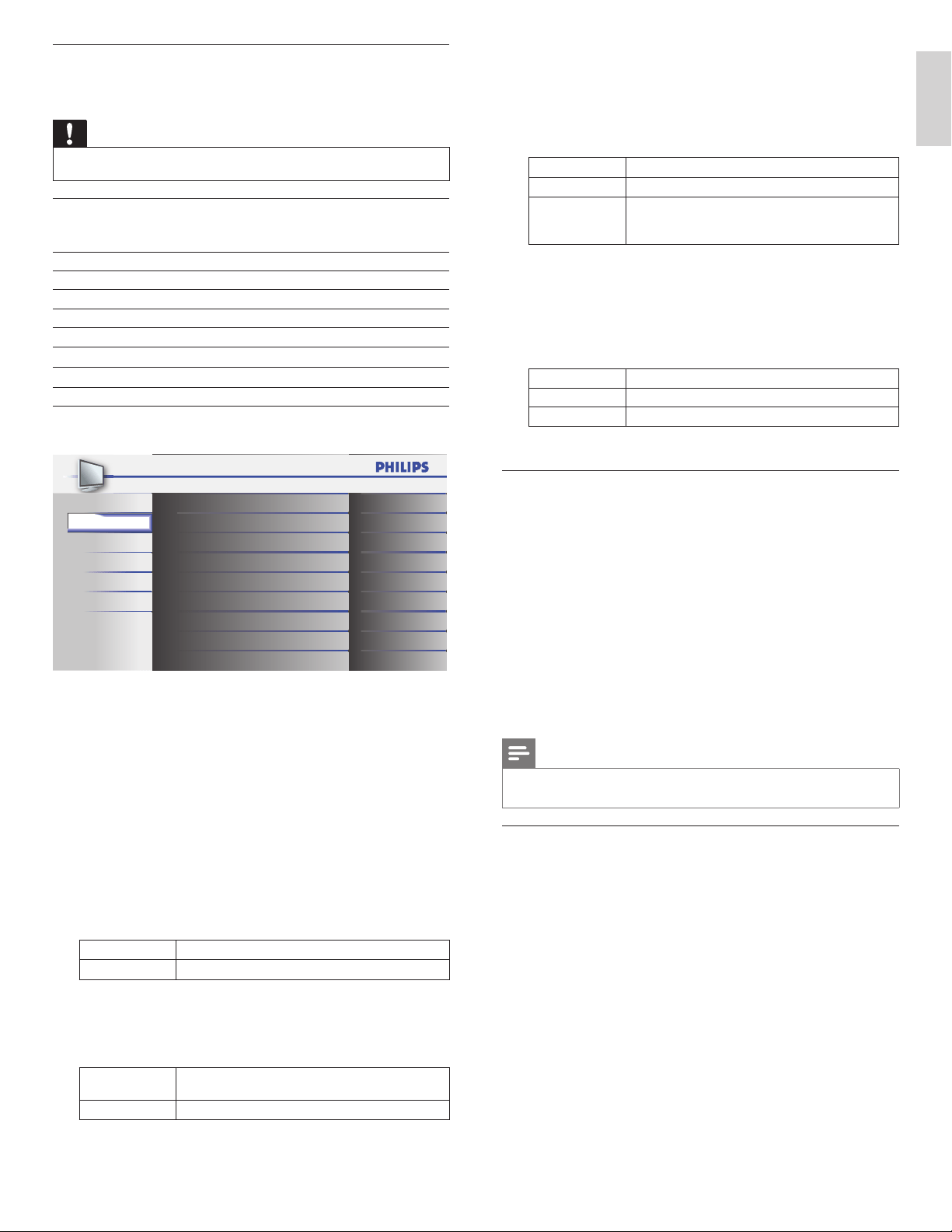
Changingpictureformat
1
Press FORMAT on the remote control.
2 Press
Î
or
ï
to select a picture format and press OK to conrm
your choice.
Summaryofpictureformats
Display modes can be selected when the broadcasting station is sending
16:9 or 4:3 video signal. And 3 types of display modes can be selected
for PC input signal.
For16:9videosignal
[
Normal
] [
4:3
]
[
Wide
]
[
MovieExpand
]
[
Zoom
]
[Unscaled]
Normal
Display a 16:9 picture at its original size.
4:3
Display a 16:9 picture at a 4:3 size; the picture is shortened
horizontally. Sidebars appear on both edges of the screen.
MovieExpand
Display a 16:9 picture that is vertically stretched to ll the screen.
This only crops out the top of the picture.
Zoom
Display a 16:9 picture at its maximum size without changing its
horizontal and vertical ratio.
Wide
Display a horizontally stretched picture. This crops out the left and
right sides of the picture.
Unscaled
Display a picture in its original size.
Note
•
[
Unscaled
]
will be displayed only when the HDMI video signal is 1080i or 1080p.
17EN
English
UsingyourTVasaPCmonitor
Use an HDMI-DVI cable or an HDMI-DVI adaptor to connect a PC to
your TV. For sound, add an audio cable with a stereo mini jack.
Caution
•
Before you connect your PC, set the PC monitor refresh rate to 60Hz.
Supportedscreenresolutions
The following screen resolutions are supported in PC mode:
Resolution Refresh rate
640 x 480 60Hz
800 x 600 60Hz
1024 x 768 60Hz
1280 x 768 60Hz
1360 x 768 60Hz
1920 x 1080 60Hz
Changingsoundsettings
1 Press MENU on the remote control and select
[
Sound
]
.
Picture
Sound
Setup
Features
Language
USB
Auto Sound Standard
On
Off
Speakers EasyLink
Stereo
Equalizer
Virtual Surround Sound
Auto Volume Leveling
TV Speakers
Audio Setting
2 Press
Î
or
ï
to highlight a sound setting and press OK to select
the setting.
3 Adjust the following items.
[
AutoSound
]
Press
Î
or
ï
to select the desired setting, then press OK.
(
[
Personal
]
,
[
Standard
]
,
[
Movie
]
,
[
Music
]
and
[
News
]
)
[
Equalizer
]
Adjust tone quality for each frequency.
Press
Í
or
Æ
to select the specic frequency, then press
Î
or
ï
to
adjust the level.
[
VirtualSurroundSound
]
Sound mode for more spatial or surround sound reproduction.
Press
Î
or
ï
to select the desired option, then press OK.
On The Virtual Surround Sound will be effective.
Off The original sound will be output.
[
AutoVolumeLeveling
]
Reduces sudden changes in volume, for example, during
commercials or when switching channels.
Press
Î
or
ï
to select the desired option, then press OK.
On
Select if you want to reduce volume differences
between the TV commercials and the programs.
Off Select if you want to turn off the Auto Volume Leveling.
[
TVSpeakers
]
This option will allow you to select the audio output from the
unit’s speakers. If you connect this TV to an external amplier
which is compatible with HDMI CEC, you can use volume controls
on this TV to control volume on the external amplier.
Press
Î
or
ï
to select the desired option, then press
OK
.
On The sound will be output from the unit’s speakers.
Off The sound will not be output from the unit’s speakers.
Speakers
EasyLink
You can control audio output from your connected
EasyLink Compliant Devices with VOL+/−by using
this unit's remote control.
[
AudioSetting
]
You can set the output mode as a default for the sound mode
(NTSC only).
This setting is not interlocked when you change the output mode
by pressing SAP. (see ‘Switching audio mode’ on page 14).
Press
Î
or
ï
to select the desired option, then press OK.
Stereo Outputs stereo-audio
Mono Outputs mono-audio
SAP Outputs second audio program
4 Press MENU to exit.
Summaryofsoundsettings
The following sound settings can be congured. Depending on the
sound source, some sound settings are not available.
•
[
AutoSound
]
: Sets all sound settings to the factory default.
•
[
Equalizer
]
: Adjusts individual sound frequencies.
•
[
VirtualSurroundSound
]
: Sound mode for more spatial or
surround sound reproduction.
•
[
AutoVolumeLeveling
]
: Reduces sudden changes in volume, for
example, during commercials or when switching channels. Select
[On]
or
[Off]
.
•
[
TVSpeakers
]
: Select
[On]
or
[Off]
, or output sound to an
EasyLink compliant device. When
[
SpeakersEasyLink
]
is selected,
the TV speakers are disabled and TV sound outputs to the speakers
of the compatible EasyLink compliant device. Adjust the volume
using the unit’s remote control.
Note
•
If the TV is connected to a non-EasyLink compliant device and
[
SpeakersEasyLink
]
is
selected, the TV speakers will not be disabled and continue to output sound.
Changingautosoundmode
1 Press AUTOSOUND to set your TV to a predened sound setting.
2 Press
Î
or
ï
to select one of the following settings:
•
[
Personal
]
: The customized settings you dened by using the
[
Sound
]
menu.
•
[
Standard
]
: For normal TV viewing.
•
[
Movie
]
: Realistic sound settings for a cinematic experience.
•
[
Music
]
: Emphasize high and low freq. for instrument sound.
•
[
News
]
: Clear sound settings for human voice.
18 EN
Back
BACK
View/B lockSelec t
OK
Picture
Sound
Setup
Features
Language
USB
Video
Component
HDMI 1
HDMI 2
HDMI 3
40.1 DTV
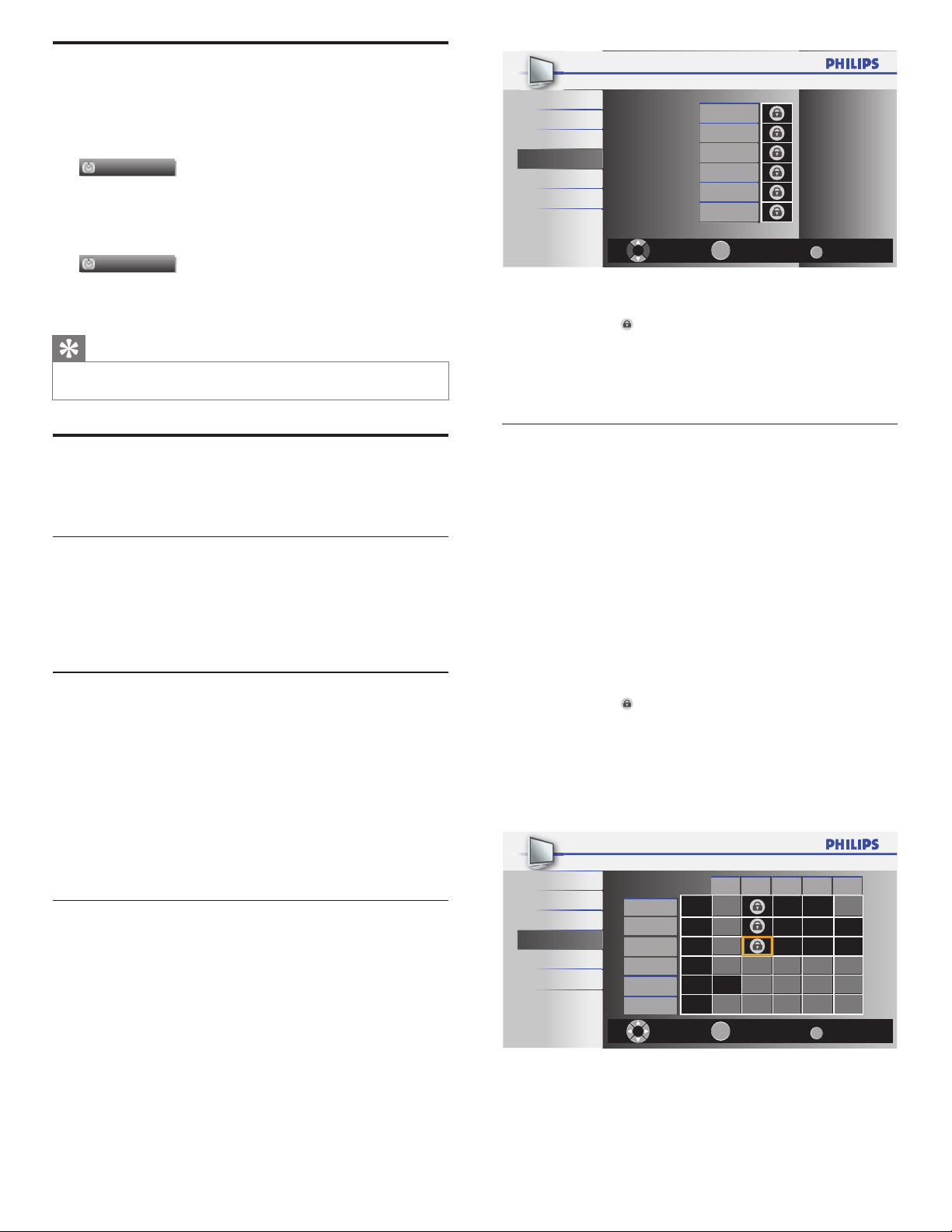
3 Press
Î
or
ï
and then press OK repeatedly to switch between
blocked and not blocked.
• A box with
indicates that the channel or input source is
blocked.
• An empty box indicates that the channel or input source is
not blocked.
4 Press MENU to exit.
UsingtheTVratingslock
Your TV is equipped with a V-chip that allows you to control access to
individual programs based on their age rating and content rating. The
program content advisory data are sent by the broadcaster or by the
program provider.
If you receive channels through a set-top box or cable box connected
by HDMI, you cannot use the TV ratings lock. Your set-top box or cable
box must be connected through RF or AV connectors.
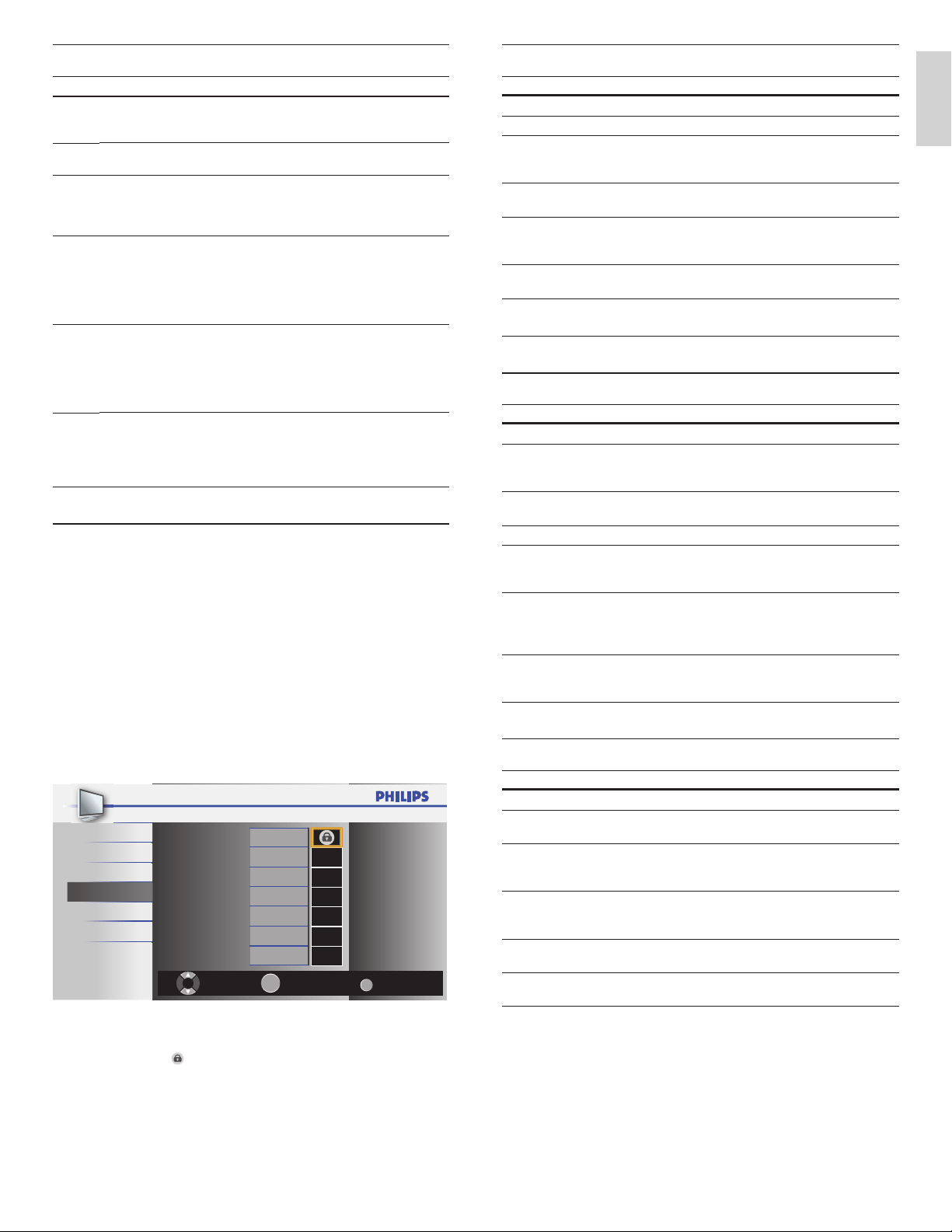
1 Press MENU on the remote control and select
[
Features
]
>
[
ChildLock
]
>
[
USTVratingslock
]
.
2 Press
Î
or
ï
or
Í
or
Æ
and then press OK repeatedly to switch
between blocked and not blocked.
Each rating has a box-graphic in front of it to indicate whether
programs carrying that rating are locked:
• A box with
indicates that all items in the content ratings list
are blocked.
• An empty box indicates that no items in the content ratings
list are blocked.
• An empty box indicates that some content ratings are
deselected. For example, for rating TV-14, you can deselect
one or more of the following content ratings:
[
D
]
(Dialog),
[
L
]
(Language),
[
S
]
(Sex), or
[
V
]
(Violence).
Back
BACK
View/B lockSelec t
OK
FV V S L D
TV-M A
TV-1 4
TV-P G
TV-G
TV-Y 7
TV-Y
Picture
Sound
Setup
Features
Language
USB
• When you block a rating, all ratings in the younger age
categories are automatically blocked.
3 Press MENU to exit.
Sleeptimer
You can always put your TV in standby mode earlier or reset the
sleeptimer during the countdown.
Press SLEEP to set the sleep timer.
Sleep Off
Sleep timer display appears on the TV screen.
Press SLEEP repeatedly to change the amount of time (in increments of
30 minutes up to 120 minutes).
Sleep 120min
• Each press of SLEEP will increase the time by 30 minutes.
• After setup, the sleep timer display can be called up for checking by
pressing SLEEP.
Tip
ToCanceltheSleepTimer
• Press SLEEP repeatedly until “Sleep Off” is displayed on the TV screen.
Childandratinglocks
You can prevent your children from watching certain programs or
certain channels by locking the TV controls and by using ratings.
SettingyourPIN
1 Press MENU on the remote control and select
[
Features
]
>
[
ChildLock
]
.
2 Enter a 4-digit PIN on theNumberbuttons, of the remote control.
• If you have not set up your PIN, enter 0000.
ChangingyourPIN
1 Press MENU on the remote control and select
[
Features
]
>
[
ChildLock
]
>
[
ChangePIN
]
.
2 Enter a 4-digit PIN on theNumberbuttons of the remote control.
• If you have a PIN, enter your current PIN.
• If you do not have a PIN, enter 0000.
• If you have forgotten your PIN, unplug the AC power cord for
10 seconds to restore the PIN to 0000.
3 Enter your PIN again to conrm.
4 Press MENU to exit.
Lockingachannelorinputsource
This section describes how to lock input sources or specied channels.
The channels can be selected but the screen is blanked out and the
audio is muted.
1 Press MENU on the remote control and select
[
Features
]
>
[
ChildLock
]
>
[
ChannelLock
]
.
2 Enter your PIN (see ‘Setting your PIN’ on page 18).
19EN
English
SummaryofUSmovieratings
Rating Description
NR Not rated.
G Movies with a mild content, suitable for all ages.
PG Movies for which parental guidance is recommended.
They may contain a few racy or violent scenes or
maybe some bad language.
PG-13 Movies for which parental guidance may be
recommended if under age 13.
R Restricted. The movies usually contain offensive sex or
bad language and may be unsuitable for children under
the age of 17. Parental guidance or permission needed.
NC-17 Even with parental permission, forbidden under age 17.
More offensive sex, violence or bad language.
X Movies which generally focus on sex, violence and / or
bad language. Also known as pornography.
SummaryofCanadianEnglishrating
Rating Description
E Exempt program.
C Programming suitable for children under the age of
8 years. No profanity or sexual content of any level
allowed. Minimal comedic violence.
C8+ Suitable for children ages 8 and over. Low intensity
violence and fantasy horror allowed.
G Movies with a mild content, suitable for all ages.
PG Movies for which parental guidance is recommended.
They may contain a few racy or violent scenes or
maybe some bad language.
14+ Programming intended for children ages 14 and over.
May contain intense scenes of violence, strong profanity,
and depictions of sexual activity within the context of
a story.
18+ Programming intended for viewers ages 18 and over.
May contain strong violence, language, and sexual
activity.
SummaryofCanadianFrenchrating
Rating Description
E Exempt program.
G Appropriate for all ages with little or no violence and
little to no sexual content.
8ans+ Appropriate for children 8 and up which may contain
little violence, some foul language and / or little to no
sexual content.
13ans+ Appropriate for children 13 and up, with moderate
violence, language, and some sexual situations. Persons
under 13 should be accompanied by an adult.
16ans+ Appropriate for children 16 and up, with strong
violence, strong language, and strong sexual content.
18ans+ Only to be viewed by adults and contains extreme
violence and graphic sexual content / pornography.
SummaryofTVratings
Agerating Contentrating
TV-Y :
Appropriate for children of all ages with
themes and elements suitable for children
aged 2-6.
None
TV-Y7 :
Programs designed for children age 7 and
older.
[
FV
]
(FantasyViolence)
TV-G :
Programs suitable for all ages. These programs
contain little or no violence, no strong
language and little or no sexual dialog or
situations.
None
TV-PG:
Programs contain elements that some parents
may nd unsuitable for younger children
and which may need parental guidance. The
program may contain moderate violence,
sexual dialog and / or situations and some
strong language.
[
D
]
(Dialog)
[
L
]
(Language)
[
S
]
(Sex)
[
V
]
(Violence)
TV-14 :
Programs contain elements that may not
be suitable for children under 14 years of
age. These programs include one or more
of the following: intense violence, intense
sexual situations, suggestive dialog and strong
language.
[
D
]
(Dialog)
[
L
]
(Language)
[
S
]
(Sex)
[
V
]
(Violence)
TV-MA:
Programs are designed to be viewed by adults
and may be unsuitable for children under
the age of 17. These programs may contain
graphical violence, explicit sexual activity
and / or crude or indecent language.
[
L
]
(Language)
[
S
]
(Sex)
[
V
]
(Violence)
Usingthemovieratingslock
You can control viewing of movies based on their MPAA (Motion
Picture Association of America) rating.
1 Press MENU on the remote control and select
[
Features
]
>
[
ChildLock
]
.
2 Select one of the menus for movie ratings lock.
• In the USA, select
[
USMovieratingslock
]
.
• In Canada, select
[
CanadianEnglishRating
]
or
[
CanadianFrenchRating
]
.
3 Enter your PIN (see ‘Setting your PIN’ on page 18).
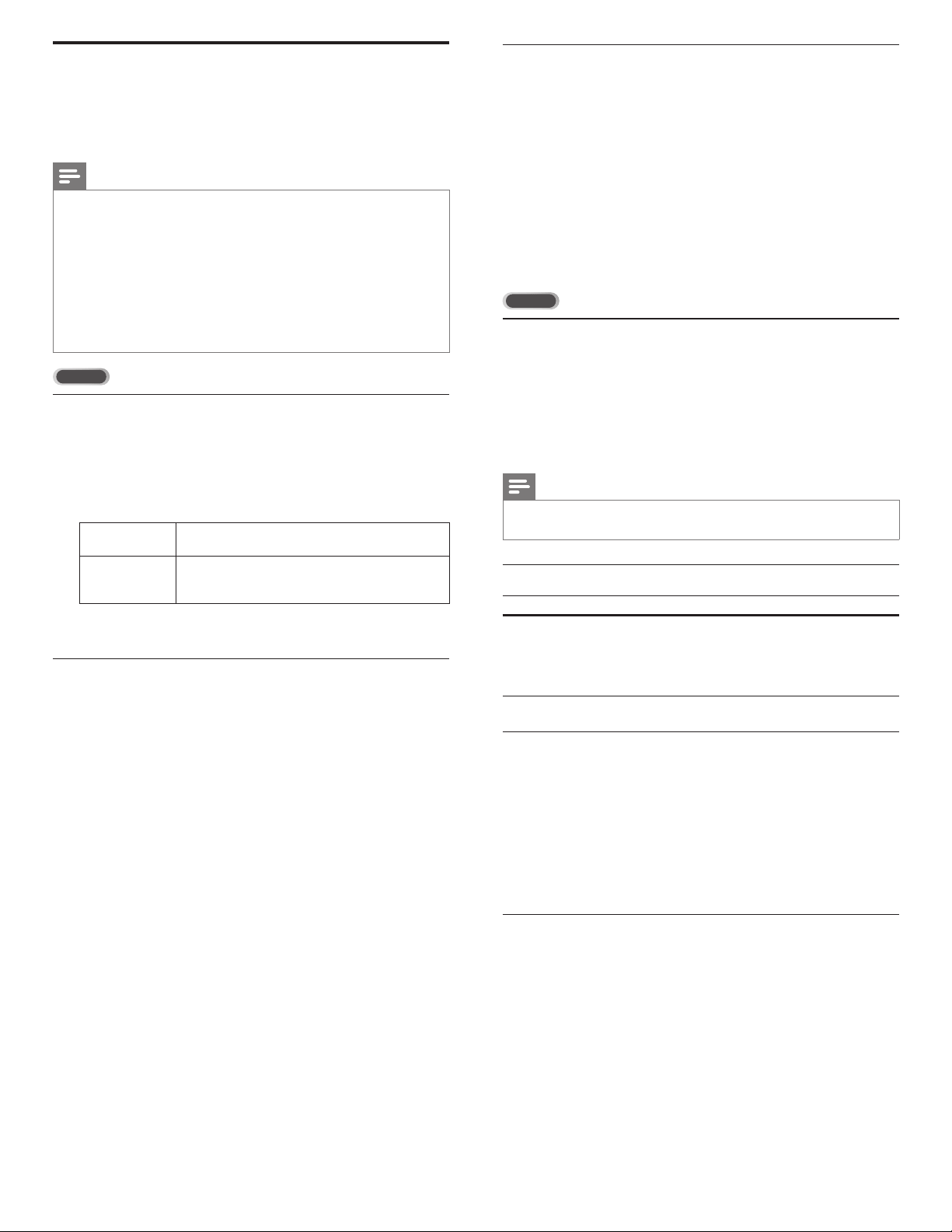
» The following screen shows the ratings in
[
USMovieratingslock
]
.
Back
BACK
View / BlockSelec t
OK
X
NC-17
R
PG-13
PG
G
NR
Picture
Sound
Setup
Features
Language
USB
4 Press
Î
or
ï
and then press OK repeatedly to switch between
blocked and not blocked.
• A box with
indicates that all items in the rating are blocked.
• An empty box indicates that no items in the rating are not
blocked.
5 Press MENU to exit.
20 EN
DifcultiesviewingclosedcaptionsonDTVprogramming
If you have difculties viewing closed captions on DTV programming,
including HDTV, received from your subscription television provider, you
should:
• consult any consumer information and manuals / guides on closed
captions for DTV programming provided by your subscription
television provider;
• ensure that the captioning function on your set-top box, if
applicable, is turned on; and,
• ensure that the captioning function on your DTV is turned on.
If you are still unable to view closed captions on DTV programming, you
should contact your subscription television provider for assistance.
TV
Selectingcaptionservices
1 Select a caption service for analog channels:
• Press MENU on the remote control and select
[
Features
]
>
[
ClosedCaption
]
>
[
CaptionService
]
.
• Press
Î
or
ï
to select one of the listed caption services, and
press OK to conrm your choice.
2
Press MENU to exit.
Note
•
Not all caption services are used by a TV channel during the transmission of a closed
caption program.
Summaryofcaptionservices
Service Description
CC-1 and T-1; are the primary caption and text services.
The captioning or text is displayed in the same language
as the program’s dialogue
(up to 4 lines of script on the TV screen, where it does
not obstruct relevant parts of the picture).
CC-3 and T-3; serve as the preferred data channels.
The captioning or text is often a secondary language.
CC-2, CC-4, T-2
and T-4;
are rarely available and broadcasters use them only in
special conditions, such as when
[
CC-1
]
and
[
CC-3
]
or
[
T-1
]
and
[
T-3
]
are not available.
• There are 3 display modes according to programs:
Paint-onmode:
Displays input characters on the TV screen immediately.
Pop-onmode:
Once characters are stored in memory, they are
displayed all at once.
Roll-upmode:
Displays the characters continuously by scrolling (max.
4 lines).
Closedcaption
Closed captioning is an assistive technology that allows persons with
hearing disabilities to access television programming. Closed captioning
displays the audio portion of programming as text superimposed over
the video.
Note
•
Closed captioning service may not be controlled by this unit’s menu options if you are
watching television through an external cable or satellite set top box. In which case
you will need to use the menu options on the external set top box to control Closed
Captioning.
• The captions do not always use correct spelling and grammar.
Not all TV programs and product commercials include closed caption information.
Refer to your area TV program listings for the TV channels and times of closed caption
shows. The captioned programs are usually noted in the TV listings with service marks
such as
[
CC
]
.
• The EUT setting that satises § 79.102 (e) is as follows:
Font: Mono-font
Character size: Large
DTV
SelectingDTVcaptionservices
1 Select a caption service for digital channels:
• Press MENU on the remote control and select
[
Features
]
>
[
ClosedCaption
]
>
[
DigitalCaptionService
]
.
• Press
Î
or
ï
to select one of the listed caption services, and
press OK to conrm your choice.
Off
Select if you do not want Digital Caption Service. This
is the default.
CS-1 to CS-6
Select one of these before changing any other item
in
[
ClosedCaption
]
menu. Choose
[
CS-1
]
under
normal circumstances.
2 Press MENU to exit.
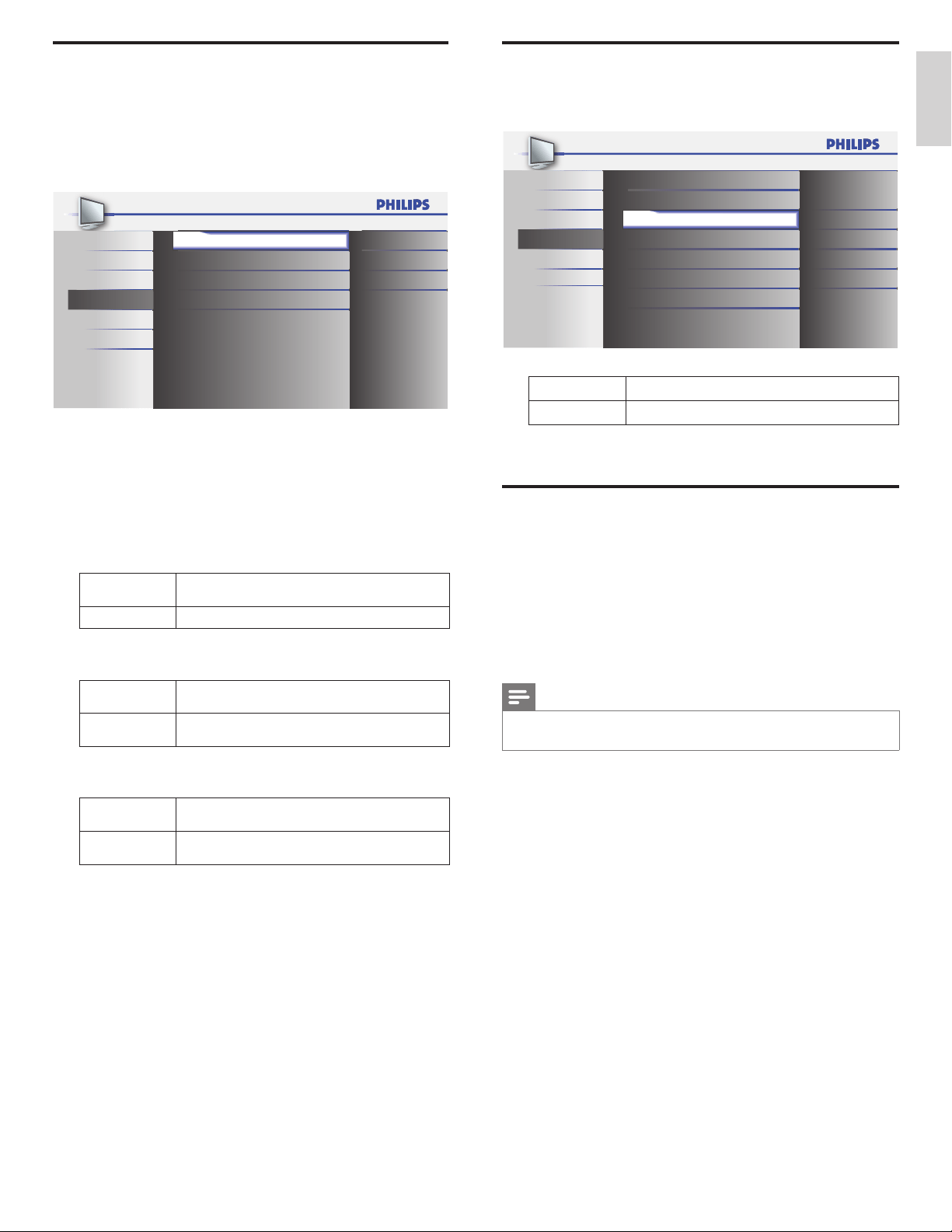
Selectinghowcaptionsaredisplayed
You can choose the size, font, color, background and other
characteristics of the caption text.
1 Press MENU on the remote control and select
[
Features
]
>
[
ClosedCaption
]
>
[
CaptionStyle
]
>
[
UserSetting
]
.
Press
Î
or
ï
to select
[
On
]
, then press OK.
2 Press
Î
or
ï
to highlight an option for digital captions, and press
OK to select the option.
3 Press
Î
or
ï
to highlight a setting for the option, and press OK to
conrm your choice.
4
Press MENU to exit.
21EN
English
ECO
You can set whether the power consumption is saved or not.
1 Press MENU on the remote control and select
[
Features
]
>
[ECO]
.
Picture Closed Caption
Sound Child Lock
Setup ECO
On
Features
PC Settings
EasyLink
Location
Current Software Info
Home
Language
USB
2 Press
Î
or
ï
to select the desired mode, then press OK.
On
Select if you want to reduce power consumption.
Off Sets the backlight brighter.
3 Press MENU to exit.
Setyourlocationtohome
You can set the location of your TV to
[
Home
]
or
[
Retail
]
.
Choosing
[
Home
]
gives you full exibility to change predened settings
for picture and sound.
1 Press MENU on the remote control and select
[
Features
]
>
[
Location
]
.
2 Select
[
Home
]
and press OK to conrm your choice.
3 Press MENU to exit.
Note
•
You must set
[
Home
]
. Otherwise, personalized picture and sound settings will not be
memorized after the unit goes to standby mode.
EasyLink
This function allows you to operate the linked functions between our
brand devices with EasyLink capabilities and this unit connected via a
HDMI cable.
1 Press MENU on the remote control and select
[
Features
]
>
[
EasyLink
]
.
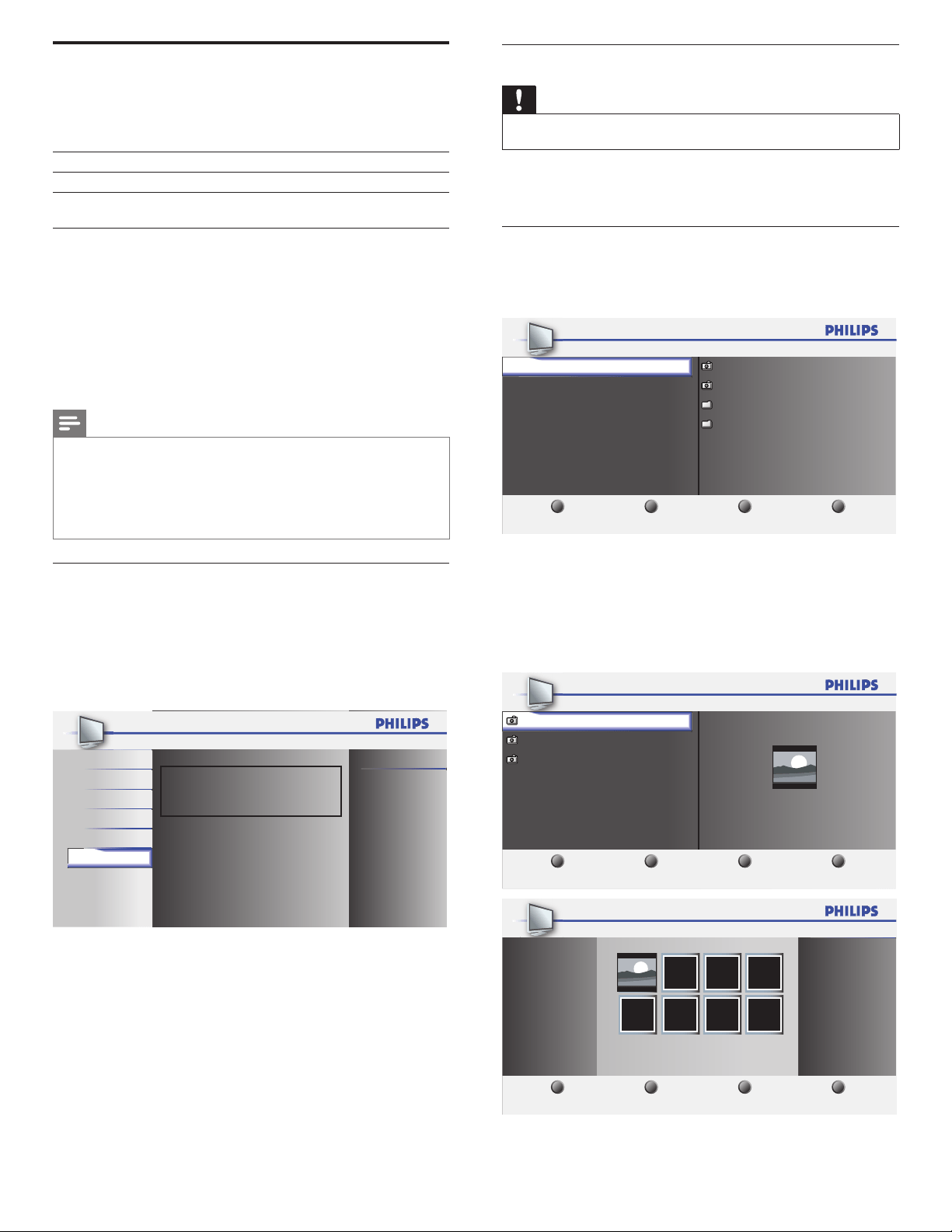
Picture Master EasyLink On
On
On
Sound Auto Device Off
Setup Auto TV On
Features Device List
Language
USB
2 Press
Î
or
ï
to highlight the desired setting and press OK to
select the setting.
3 Adjust the following items.
[
MasterEasyLink
]
Set the EasyLink
[
On
]
or
[
Off
]
.
The following additional settings will be grayed out when you set
to
[
Off
]
.
Press
Î
or
ï
to select the desired option, then press OK.
On
Select if you have connected an external device that
is compatible with the EasyLink function.
Off Disable all EasyLink function.
[
AutoDeviceOff
]
Press
Î
or
ï
to select the desired option, then press OK.
On
Your connected EasyLink device goes into standby mode
automatically when you put this unit into standby mode.
Off
Your connected EasyLink device stays on even if unit
goes into standby mode.
[
AutoTVOn
]
Press
Î
or
ï
to select the desired option, then press OK.
On
This unit turns on automatically when you turn on your
connected EasyLink device.
Off
This unit remains in standby mode even if you turn on
your connected EasyLink device.
[
DeviceList
]
This function lets you see the product name of connected devices.
4 Press MENU to exit.
22 EN
Viewingphotosandwatchingvideosona
USBstoragedevice
Your TV is tted with a USB connection that enables you to view
photos or watch Motion JPEG les stored on a USB storage device.
Supported formats Not-supported formats
JPEG Progressive JPEG les
FAT / DOS-formatted memory
devices
File names containing a dot character
Itisrecommendedthatlestobeplayedbackinthisunitare
recordedunderthefollowingspecications:
<JPEG>
• Upper limit : 24Mpixel
<MotionJPEG>
• Size : 320 x 240 (QVGA)
• Frame rate : 30fps
• Audio type : LPCM - Sampling frequency
- (32 kHz, 44.1 kHz or 48 kHz)
- Quantization bit rate (16 bit)
Note
•
Philips can not be held responsible if your USB storage device is not supported, nor
will Philips accept any liability for damage or loss of stored data.
• The USB storage device is not supplied with the TV.
• Motion JPEG le with an extension of “.avi” can only be recognized. An extension of
“.mov” is not supported.
• This unit doesn’t support “pause”, “forward” or “reverse” during video (Motion JPEG)
playback.
ConnectaUSBstoragedevice
1 Turn on the TV.
2 Connect the USB storage device to the USB port on the side of
your TV.
» The main menu appears automatically.
3 Press
Î
or
ï
select
[
USB
]
.
USB
USB0
Picture
This menu allows you to enjoy
your pictures and videos via
your USB device.
Sound
Setup
Features
Language
DisconnectaUSBstoragedevice
Caution
•
To avoid damaging the USB storage device always exit the on-screen menu and wait
ve seconds before you remove the USB storage device.
1 Press MENU to exit the on-screen menu.
2 Wait ve seconds then remove the USB storage device.
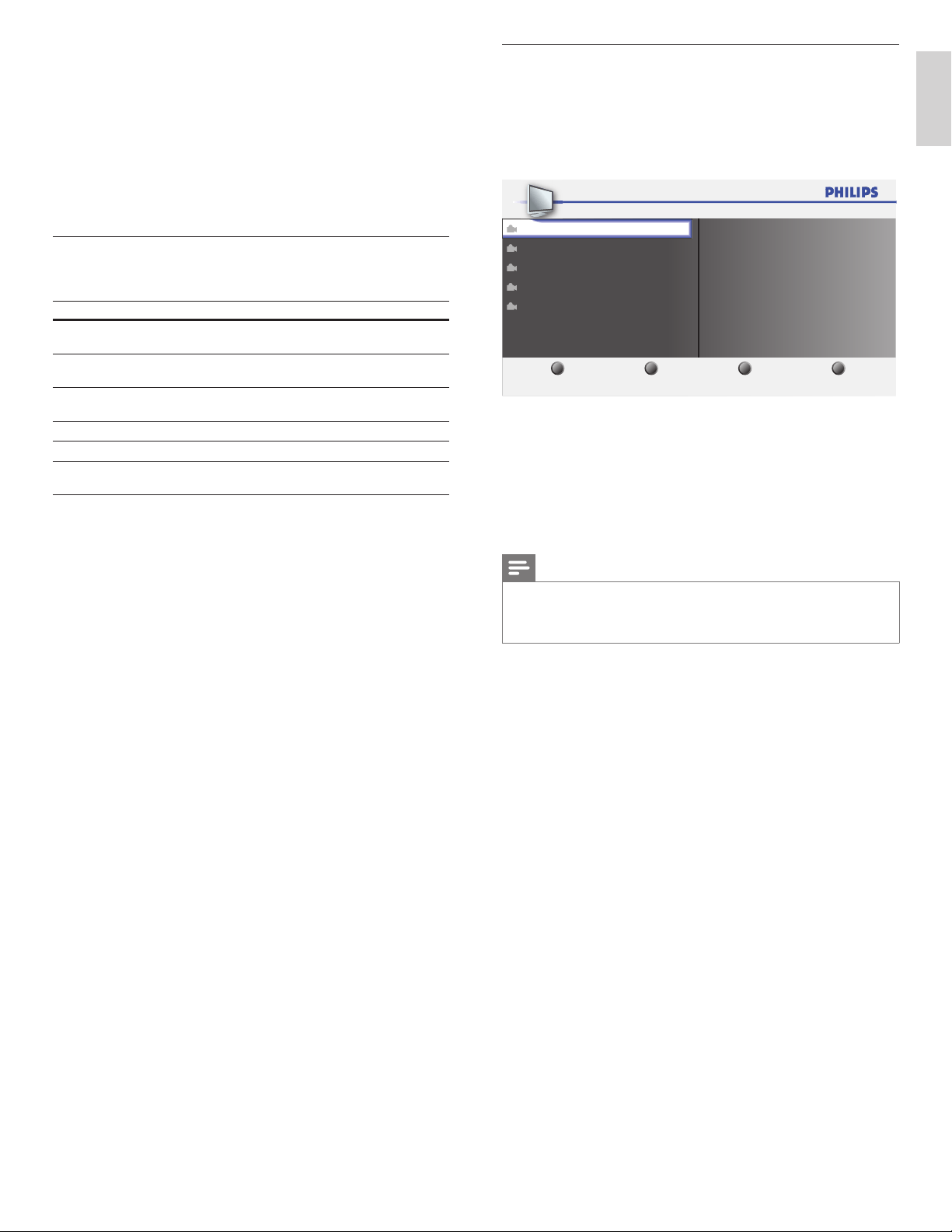
ViewyourpicturesonaUSBstoragedevice
1 After connecting your USB storage device to the TV, press OK to
enter the
[
USB
]
menu.
»
[
Picture
]
is highlighted.
1 2 3 4
Image 1.J PG
Image 2.J PG
Fold er 1
Fold er 2
USB 0
Picture
Video
Picture
Thumbnails
Press “OK” key to play/pause.
2 Press OK to enter the
[
Picture
]
folder.
3 Press
Î
or
ï
to select a picture or an album on the USB storage
device.
» The pictures appear in a list or as thumbnails.
4 Press a number 2
(
Numberbuttons
)
to toggle between
[
List
]
and
[
Thumbnails
]
.
1 2 3 4
USB 0
Image 1.J PG
Image 2.J PG
Image 3.J PG
Ima ge1.JP G
Image1. J P G
Thumbnails
Press “OK” key to play/pause.
Picture
1 2 3 4
Imag e1.JPG
USB 0
Ima ge1.JP G
List
Press “OK” key to play/pause.
Picture
23EN
English
5 Press OK to view the picture or to start a slideshow of pictures in
the album.
• Press the Numberbuttons on the remote control to perform
the function shown at the bottom of the screen.
• If the function bar at the bottom disappears, press any
Numberbuttons to make it reappear.
During slideshow, you can skip forward or backward picture by
pressing CH+/−.
6 Press
Í
and select another picture or another album.
Congurehowtheslideshowisplayed
You can congure the following features of your slideshow.
Feature Description
[
Moredetails
]
Displays the picture name, date, size and next
picture in the slide show.
[
Transitions
]
Displays a list of available transition styles of
the pictures.
[
Slidetime
]
Sets the amount of time that a picture is
shown.
[
Rotate
]
Rotates a picture.
[
Zoom
]
Displays a list of available magnications.
[
Startshow
]
/
[
Stopshow
]
Starts or stops a slide show.
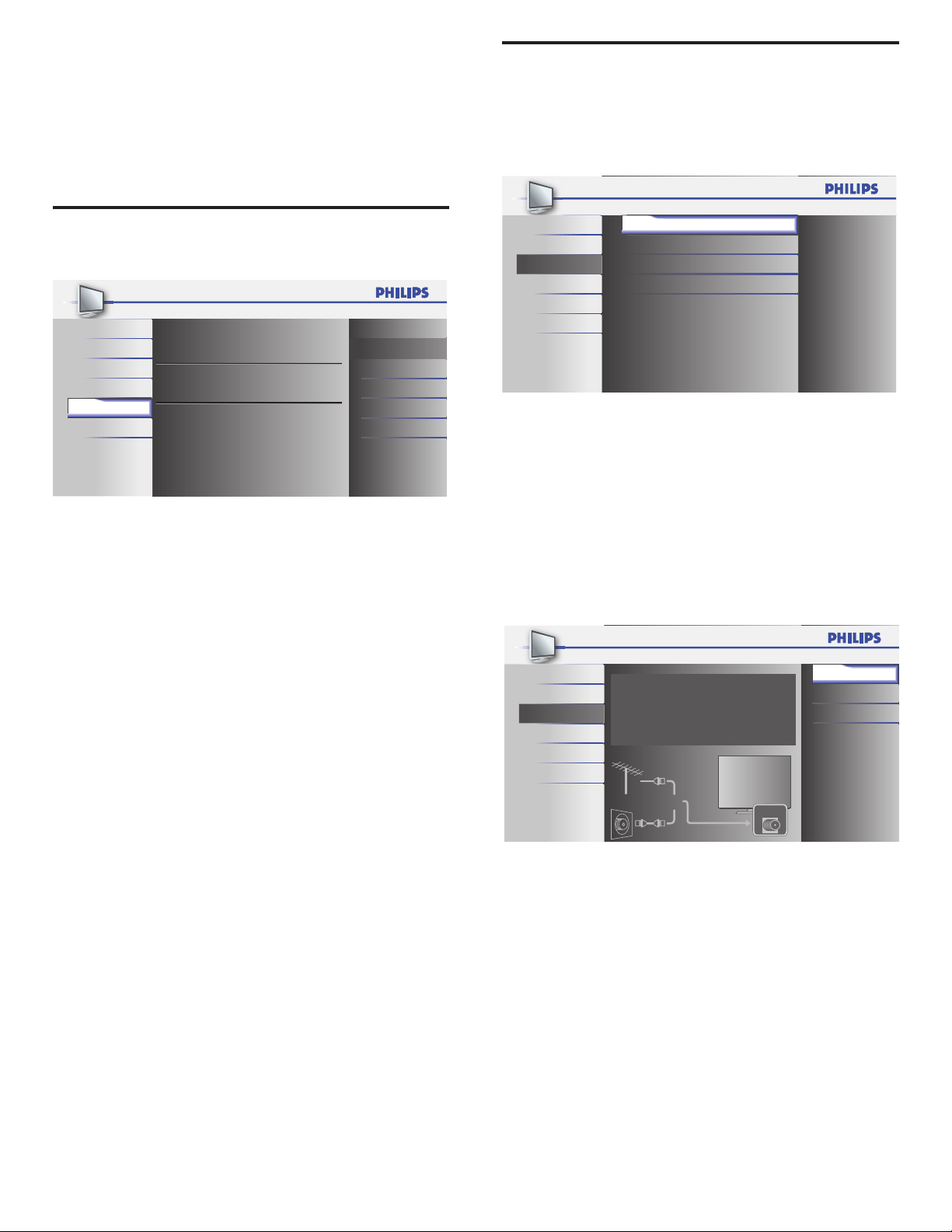
WatchyourVideoonaUSBstoragedevice
1 Connect your USB storage device to the TV.
2 Press OK to enter the
[
USB
]
menu.
3 Select
[
Video
]
.
4 Press OK to enter the video folder.
1 2 3 4
USB0
Video
Title: MOVIE1.avi
Director:
Date: 2009/04/02
Duration: 00:06:37
MOVIE1.avi
MOVIE2.avi
MOVIE3.avi
MOVIE4.avi
MOVIE5.avi
MOVIE1.avi
Supported format: motion jpeg, 320 x 240, 30FPS
5 Press
Î
or
ï
to select a video.
• To stop playback and return to the le list, press BACK, OK
or CH+.
• Press CH− to play back from the beginning.
• Press 1 to display le details below.
[
Title
]
,
[
Director
]
,
[
Date
]
and
[
Duration
]
.
Press 1 again to remove le details.
6 Press
Í
to select another video.
Note
•
Motion JPEG le with an extension of “.avi” can only be recognized. An extension of
“.mov” is not supported.
• This unit doesn’t support “pause”, “forward” or “reverse” during video (Motion JPEG)
playback.
24
7 Installchannels
The rst time you set up your TV, you are prompted to select a menu
language and to install TV and digital radio channels (if available). This
chapter provides instructions on how to reinstall and ne-tune channels.
Selectingyourmenulanguage
1
Press MENU on the remote control and select
[
Language
]
.
Selec t your menu lan guage.
Seleccio ne el idioma p ara el menú .
Sélec tionnez la langu e du men u.
Engli sh
Españ ol
Franç ais
Picture
Sound
English
Setup
Features
Language
USB
2 Select a language and press OK to conrm your choice.
3 Press MENU to exit.
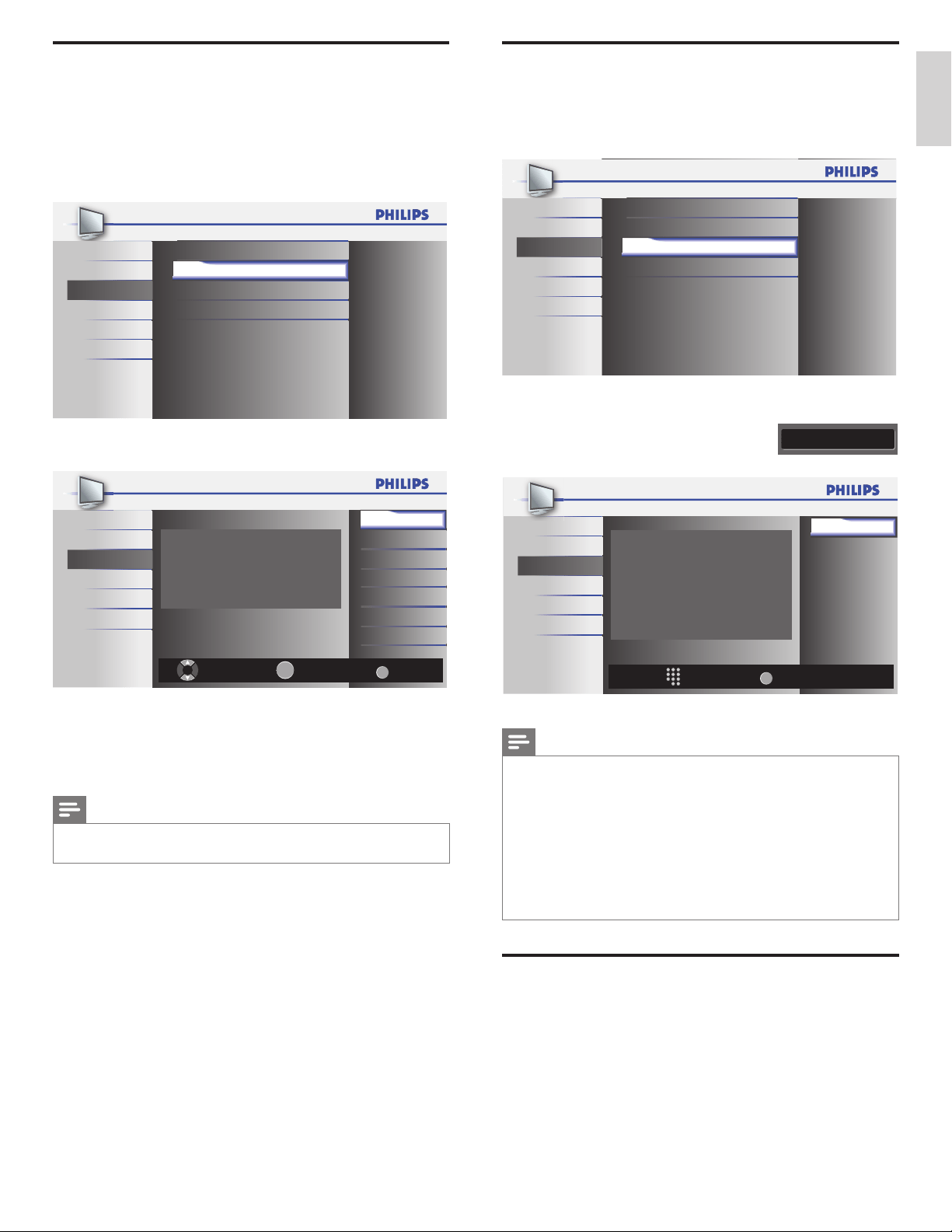
Autoprogram
Before you install channels, ensure that you are registered with your
cable TV provider and that your equipment is correctly connected.
1 Press MENU on the remote control and select
[
Setup
]
>
[
Autoprogram
]
.
Picture
Sound
Setup
Features
Language
USB
Autoprogram
Channel List
Add Channels
Antenna
2 Press OK to start the installation.
If you run
[
Autoprogram
]
when you have locked channels, a
message appears asking to enter your PIN . Enter your PIN in order
to complete the installation.
IfyouhaveforgottenyourPIN,resetitasdescribedin‘Changing
yourPIN’onpage18.
3 Select
[
Antenna
]
or
[
Cable
]
and press OK.
• When
[
Antenna
]
is selected, the TV detects antenna signals. It
searches for NTSC and ATSC channels available in your area.
• When
[
Cable
]
is selected, the TV detects signals supplied
by cable. It searches for NTSC, ATSC, and Cable channels
available in your area.
Anten na
Cable
Back
Autoprogram will rescan all channels.
Auto programming may take more than 20
minutes to complete.
Select your signal source.
Antenna
Cable
Or
ANT.IN
Picture
Sound
Setup
Features
Language
USB
• When autoprogramming is complete, the lowest memorized
channel will be displayed.
4 Follow the on-screen instructions to complete the installation.
EN
25
English
Channellist
The channels selected here can be skipped when selecting the channels
using CH+/−.
Those channels can still be selected with theNumberbuttons.
1 Press MENU on the remote control and select
[
Setup
]
>
[
ChannelList
]
.
Picture Autoprogram
Sound Channel List
Setup
Add Channels
Features Antenna
Language
USB
2 Press
Î
or
ï
to select the channel you want to remove, then
press OK.
Ch Select Watch/Skip
Back
BACK
OK
40.2
40.3
DTV
DTV
DTV 40.1
Picture
Highlight channels for Ch Up/Down key
selection.
Sound
Setup
Features
Language
USB
• The channel display for the removed channel darkens. You will not
be able to select the channel again using CH +/−.
• To reactivate a removed channel, press
Î
or
ï
and press OK. The
registered channels are highlighted.
• When you remove a major channel, its minor channels are
removed as well.
Note
•
The channel with the
[
DTV
]
indicated on the display is ATSC. Otherwise the channel
is NTSC.
3 Press MENU to exit.
Addchannels
This function lets you add the channels that were not added by the
autoprogram due to the receptible condition at the initial setup.
1 Press MENU on the remote control and
[
Setup
]
>
[
AddChannels
]
.
Picture Autoprogram
Sound Channel List
Setup
Add Channels
Features Antenna
Language
USB
2 Press a number (1 to 135) to enter the number of the channel you
want to add, then press OK.
11
Ch Change
Back
BACK
Picture
For analog channels,
select a channel to be
added using number keys.
For digital channels,
you must perform
Autoprogram function.
Add channels
Sound
Setup
Features
Language
USB
3 Press MENU to exit.
Note
•
If setup completes successfully,
[
Addedtothechannellist
]
is displayed.
• If external input is used, it is not possible to register the channel and
[
Unavailable
]
will
be displayed on the TV screen.
• By pressing
Î
or
ï
you can select the memorized channels only.
• In most cases, digital channels are not broadcast on the RF channel on which they
appear on your TV. To add digital channels you need to know the RF channel on which
the digital channel is being broadcast. E.g. If there is a digital channel 9.1 which is being
broadcast on RF channel 25, you need to enter 25 while performing a weak channel
installation. To nd out the RF channel on which a particular digital channel is being
broadcast, please contact your local service provider.
Installing digital channels using
[
Addchannels
]
might not work for direct cable
connections and if the digital signal is too weak for the TV to process.
Optimizingthesignalqualityfromyourantenna
You can optimize your signal quality by tuning in ATSC channels with
weak signals, and adjusting the antenna.
1 Press MENU on the remote control and select
[
Setup
]
>
[
Antenna
]
.
2 Press OK to conrm your choice.
3 Press a number (1 to 135) or press CH+ or CH− to select the
channel for which you want to check the digital signal strength.
4 Press MENU to exit.
EN
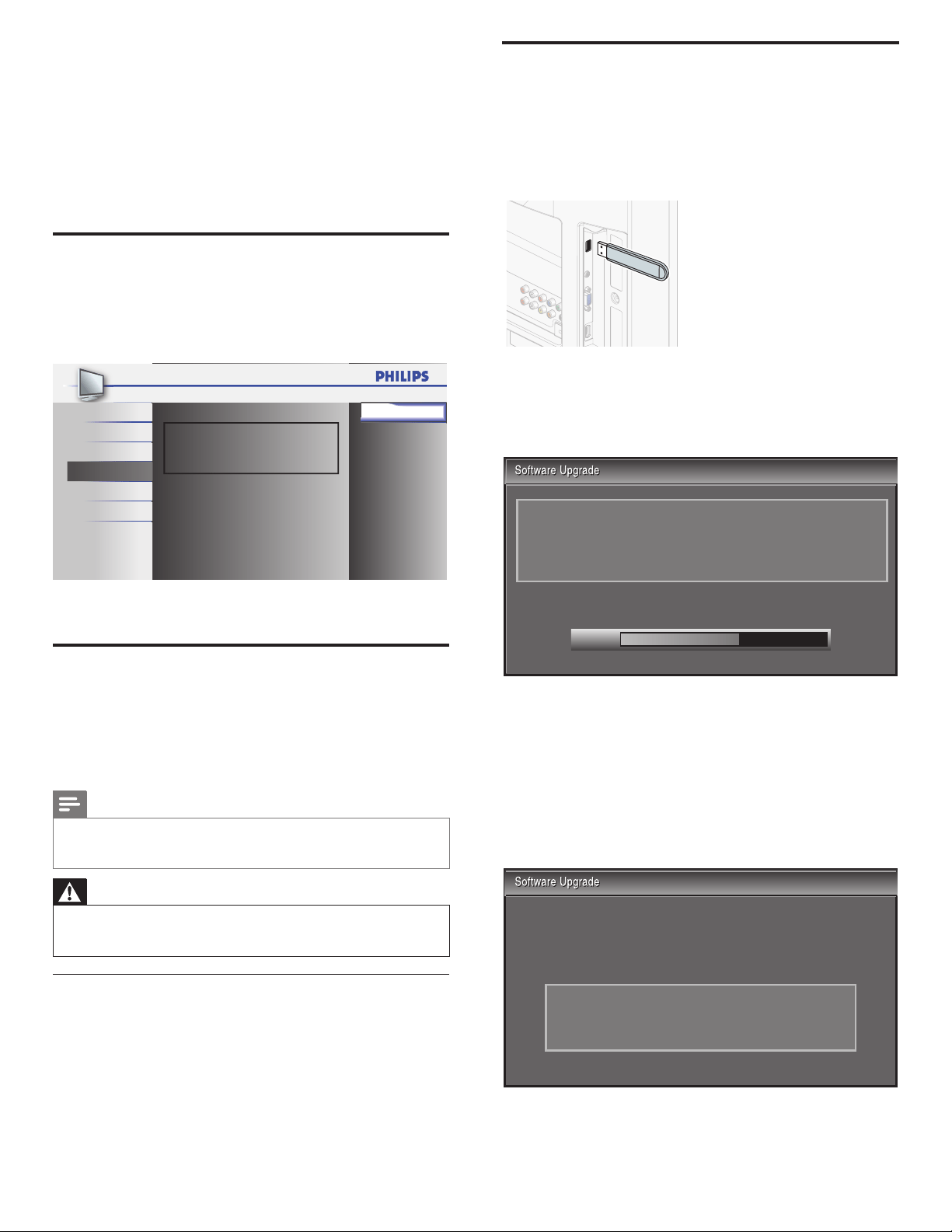
26
8 UpgradeyourTVsoftware
Philips continuously tries to improve its products and we strongly
recommend that you upgrade the TV software when upgrades are available.
New software can be downloaded from our website at
www.philips.com/support using the model number of your TV (e.g.
46PFL3706) to nd information.
Checkingyourcurrentsoftwareversion
1
Press MENU on the remote control and select
[
Features
]
>
[
CurrentSoftwareInfo
]
.
» The version and a description of the current software is
displayed, then press OK.
Relea se Versio n:
XXXXX XX_XXX_X _XXXX
Picture Back
Sound
Setup
Features
Language
USB
2 Press MENU to exit.
Preparingforthesoftwareupgrade
You require the following equipment:
• A PC with web browsing capability.
• An archive utility that supports the ZIP-format (e.g. WinZip for
Windows or StuffIt for Mac OS).
• An empty clean formatted USB stick.
Note
•
Only FAT/DOS-formatted portable memory is supported.
• New software can be downloaded from www.philips.com/support
• Use only software upgrades that can be found on the Philips web site.
Warning
•
When the software upgrade is running, don’t press any buttons.
• Do not remove the USB storage device during the software upgrade.
• If an error occurs during the upgrade, retry the procedure or contact your dealer.
Downloadingthesoftware
1 On your PC, open a web browser and go to
www.philips.com/support
2 Find information and software related to your TV and download
the latest software upgrade le to your PC.
3 Decompress the ZIP-le.
4 Copy the upgrade le to the root directory of the USB storage
device.
Upgradingsoftware
1
Prepare the software upgrade (see ‘Preparing for the software
upgrade’ on page 26).
2 If the TV is on, press
.
POWER at the side of the TV.
3 Connect your USB storage device with the update le to the USB
port on the side of your TV.
4 Switch on the TV.
» The TV scans the USB storage device for the upgraded
software and automatically enters upgrade mode.
5 Read the on-screen instructions and conrm that you want to
continue with the installation.
60%
Software upgrade in progress. Please wait.
Do not remove the USB storage device or turn the TV off
while upgrade is in progress.
Downloading...
6 When the software upgrade is complete, remove the USB storage
device.
7 Press
.
POWER at the side of the TV to make sure the unit goes
to standby mode.
8 Switch on the TV.
» The TV starts up with the new software.
• The following messages are displayed without starting
software upgrade when it doesn’t fulll the upgrade
conditions.
The version of this update file is the same or older
than the current version.
Please check the file and try again.
EN
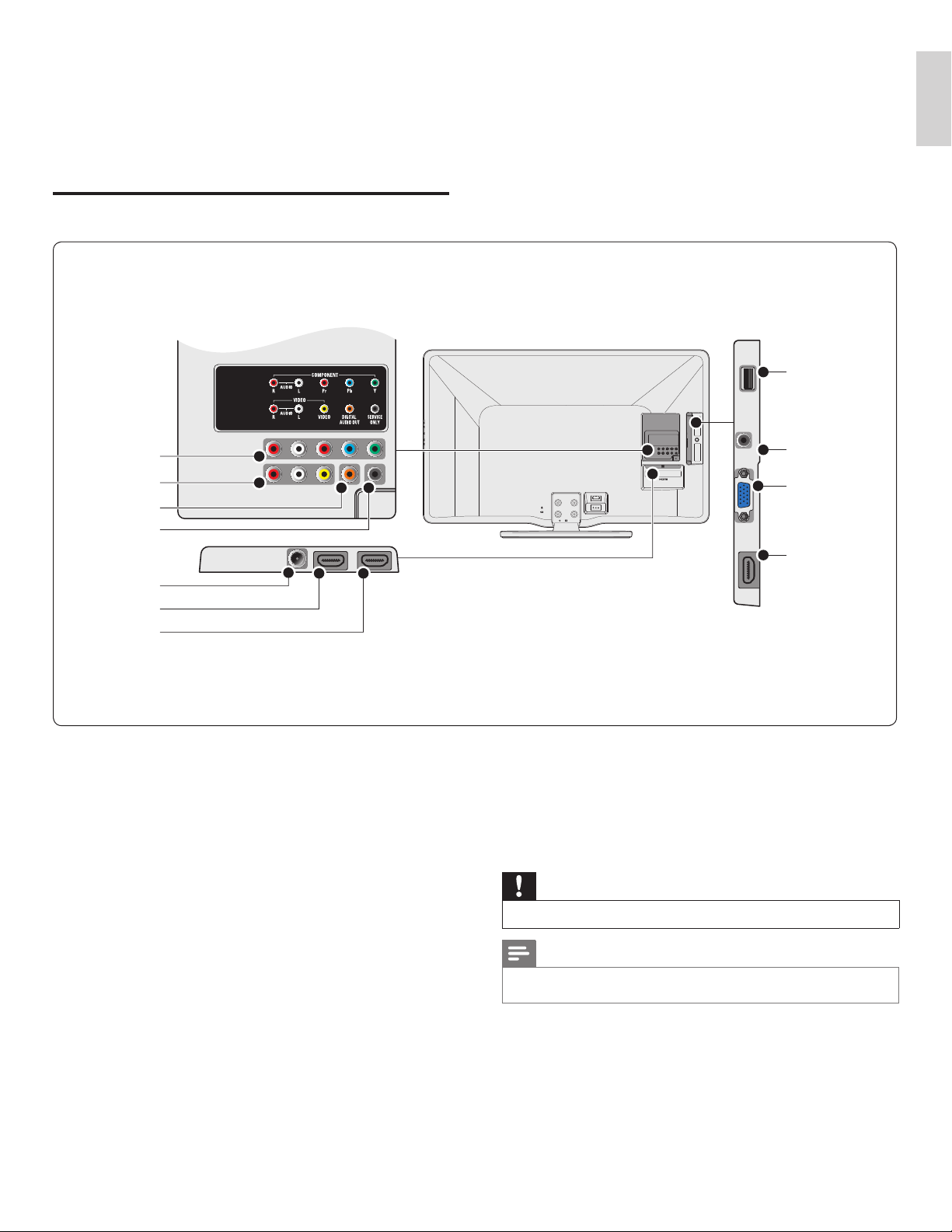
27
English
9 Connectdevices
This section describes how to connect various devices with different
connectors and supplements examples provided in the Quick Start
Guide.
Connectionoverview
i
j
d
e
f
h
g
a
b
c
**
a Componentvideoandaudioinputjack
Video input from analog devices such as DVD, receiver, game
console, etc. This connector is used with audio input.
b Compositevideoandaudioinputjack
Video input for analog devices such as DVD, camcorder, game
console, etc. To be used with audio input.
c Digitalaudiooutputjack
Digital audio output to home theaters and other digital audio
systems.
d Antennainputjack
Signal input from an antenna, cable or satellite.
e HDMI1inputjack
First HDMI in connector.
Digital audio and video input from high de nition digital devices
such as Blu-ray players.
f HDMI2inputjack
Second HDMI in connector.
g USBterminal
Data input from USB storage devices only. Do not connect any
device to this terminal such as; digital camera, keyboard, mouse, etc.
h AudioinputjackforHDMI3andPC
i PCinputjack
VGA cable connection for PC.
j HDMI3inputjack
Third HDMI in connector.
**serviceonly
For use by service personnel only.
Caution
•
Disconnect the AC power cord before connecting devices.
Note
•
Different types of connectors may be used to connect a device to your TV, depending
on availability and your needs.
EN
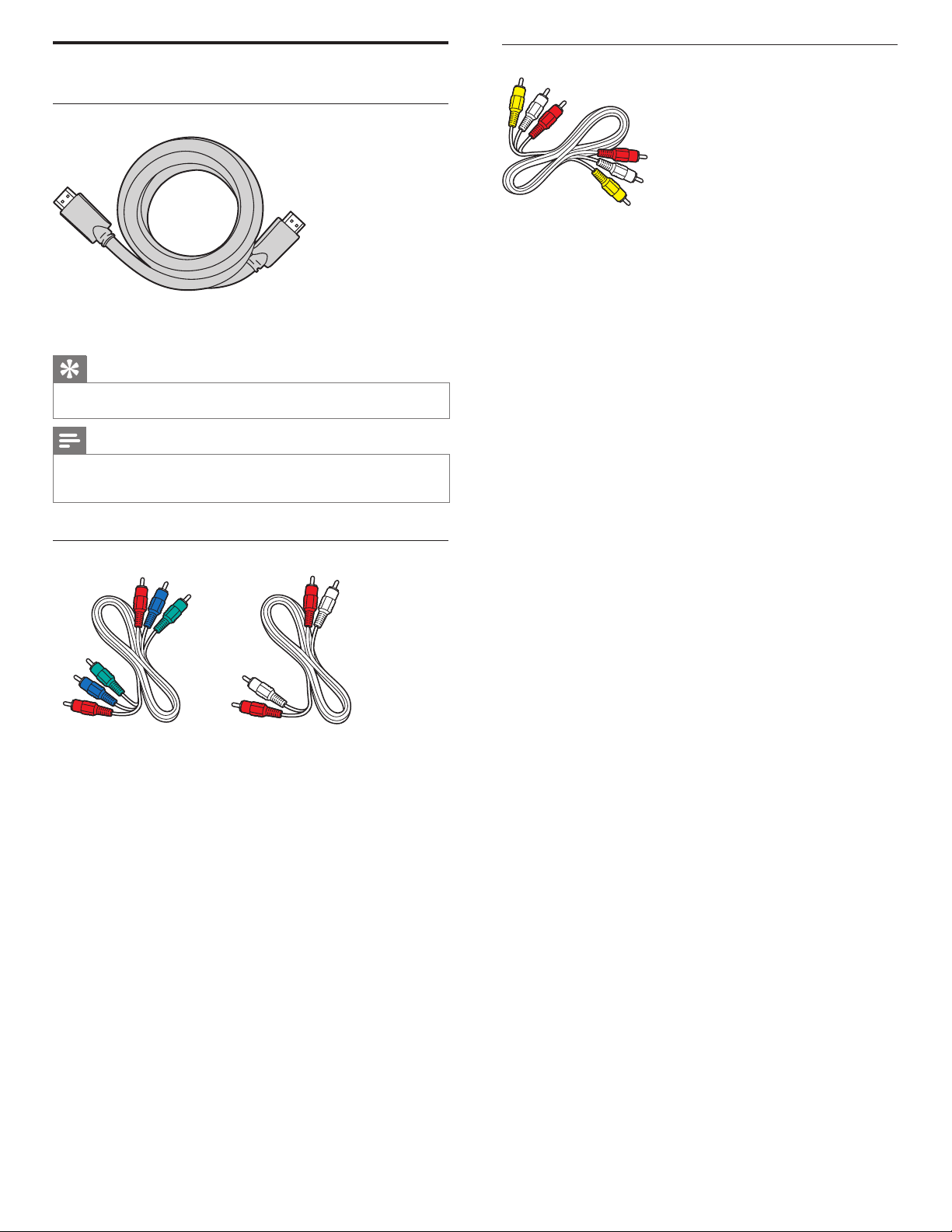
28
Selectingyourconnectionquality
HDMI-Highestquality
Supports high-denition signals and gives highest picture and sound
quality. Video and audio signals are combined in one cable. You must use
HDMI for full high-denition video and to enable Philips EasyLink.
Tip
•
To connect to a PC without an HDMI connector, use a HDMI-DVI adaptor and a
separate audio cable.
Note
•
Philips HDMI supports HDCP (High-bandwidth Digital Contents Protection). HDCP
is a form of Digital Rights Management that protects high denition content in DVD
or Blu-ray Discs.
Component(YPbPr)-Highquality
Component video cable (red / green / blue) and audio L/R cable (red / white).
Supports high-denition signals but gives lower picture quality than
HDMI. Component cables combine a red / green / blue video cable with
a red / white audio L/R cable. Match the cable colors when you connect
to the TV.
Composite-Basicquality
Composite video / audio cable (yellow / red / white)
For analog connections. Composite cables usually combine a yellow
video cable with a red / white audio L/R cable. Match the audio cable
colors when you connect to the TV.
EN
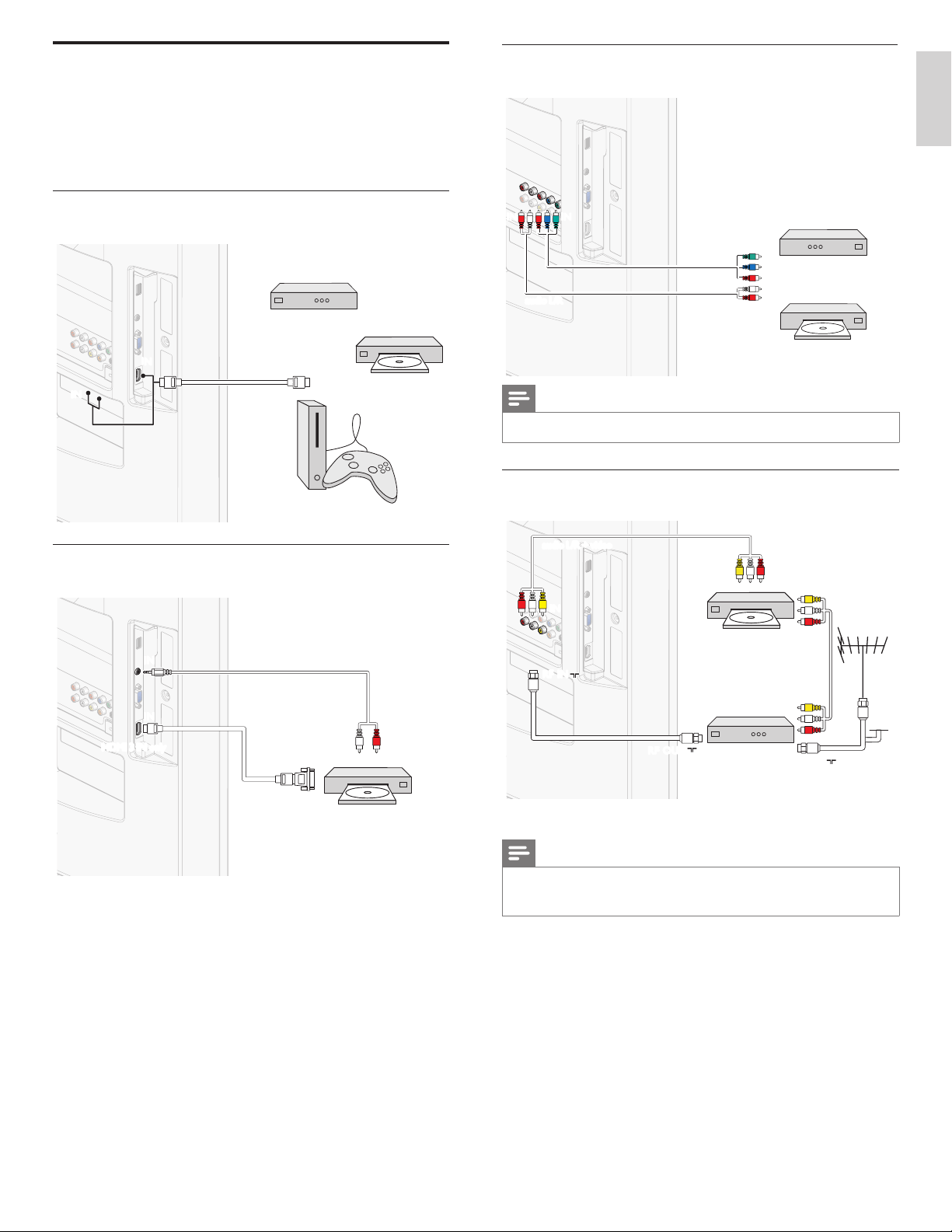
29
English
Connectingaset-topbox,DVDplayer/recordervia
componentvideoconnectors(YPbPr)andanalogaudio
IN
OUT
YPbPr
IN IN
IN
OUT
OUT
DVDplayer/recorder
set-topbox
or
audioL/R
Note
•
When you connect cables, match the cable colors to the connectors on the TV.
Connectingaset-topbox,DVDrecorderviacomposite
connectorsandanalogaudio
RF IN
IN
OUT
OUT
RF INRF IN
RF OUT
RF OUT
ININ
DVDrecorder
audioL/R+video
set-topbox
cable
Do not place your recorder too close to the screen because some
recorders can be susceptible to signals.
Note
•
Only the left loudspeaker reproduces sound for mono equipment. Use a mono to
stereo adapter (not supplied) for sound reproduction via all internal loudspeakers.
• When you connect cables, match the cable colors to the connectors on the TV.
Connectingyourdevices
This section describes how to connect a selection of devices with
different connectors. Different types of connectors can be used to
connect a device to your TV. The following sections describe examples
only, other congurations are possible.
Connectingaset-topbox,Blu-rayDiscplayerand
HDgameconsoleviaHDMI
IN
IN
IN
IN
OUT
HDMI
HDMI
set-topbox
Blu-rayDiscplayer
HDgameconsole
ConnectingaDVDplayer/recorderviaHDMI-DVIand
analogaudio
OUT
IN
IN
DVI OUT
IN
IN
HDMI3INonly
DVDplayer/recorder
audioL/R
EN
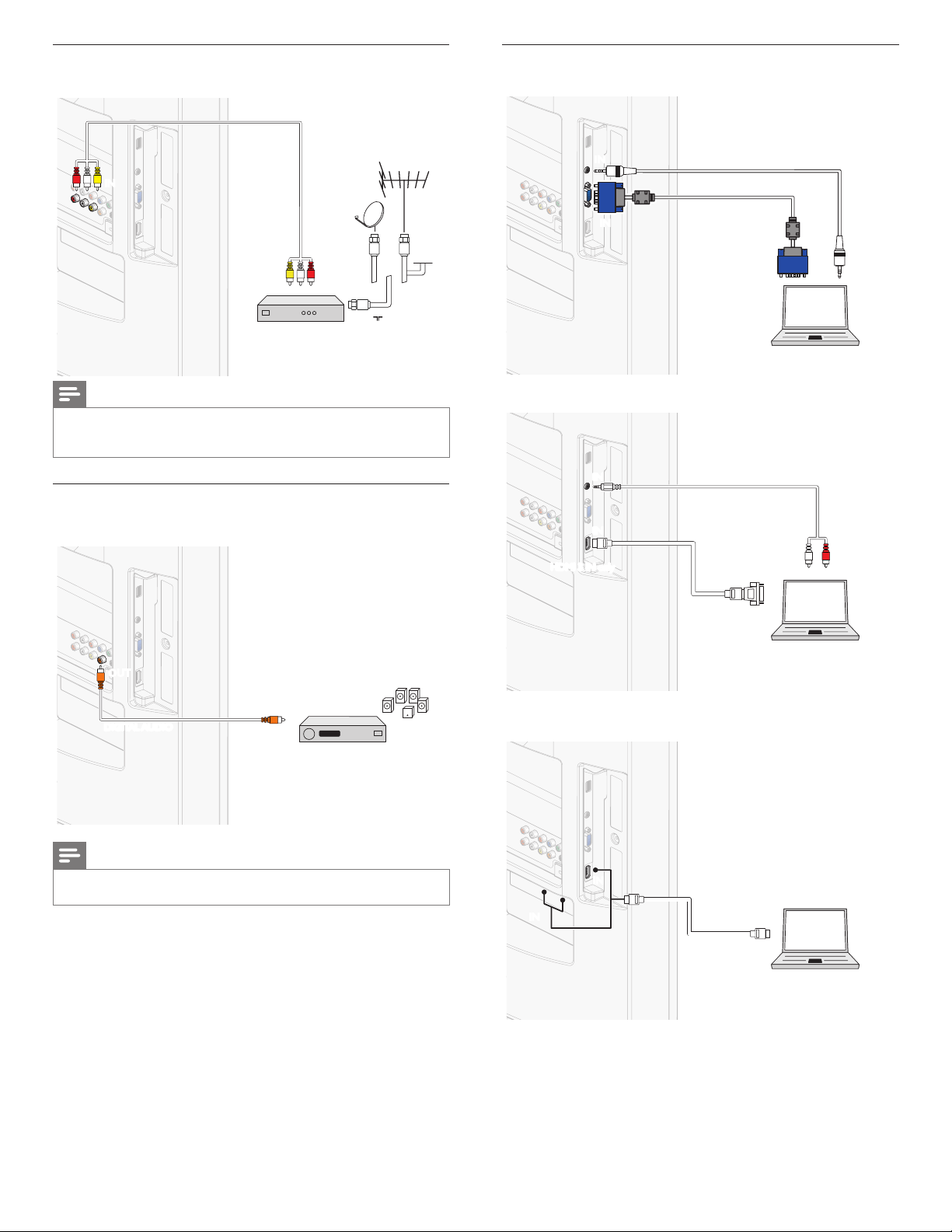
30
ConnectingaPC
If you connect a PC with a VGA connector at the back.
ININ
OUT
PC
ININ
VGA
VGA
STEREOMINI-PLUGAUDIO
If you connect a PC with a HDMI-DVI connector.
OUT
IN
ININ
PC
DVI OUT
INININ
HDMI3INonly
If you connect a PC with an HDMI or Display Port (HDMI-Display Port
conversion cable) connector.
PC
ININ
IN
IN
OUT
HDMI
HDMI
Connectingaset-topboxviaacompositeconnectorand
analogaudio
OUT
ININ
RF IN
audioL
set-topbox
cable
Note
•
Only the left loudspeaker reproduces sound for mono equipment. Use a mono to
stereo adapter (not supplied) for sound reproduction via all internal loudspeakers.
• When you connect cables, match the cable colors to the connectors on the TV.
Connectingadigitalhometheateramplierusinga
digitalaudiocoaxialcable
IN
OUT
OUT
digitalhometheateramplier
DIGITALAUDIO
Note
•
Due to Copyright restrictions, the broadcaster may choose to mute PCM audio over
Digital Audio Output for certain channels, shows or segments during the broadcast.
EN
31
English
No sound on the
TV loudspeaker.
Volume level is set to zero - increase the volume.
Sound is muted - press MUTE on the remote
control.
Audio cable is not connected - for AV connection,
ensure that the Audio L/R cable is connected
as described in Connecting your devices (see
‘Connecting your devices’ on page 29). If you use
a component cable, ensure that you have not
crossed the red audio cable with the red video
cable.
Audio output setting for the accessory device is
incorrect. For HDMI connections, some accessory
devices have an HDMI audio output setting
that must be turned on for HDMI to HDMI
connections.
Check if
[
Sound
]
>
[
TVSpeakers
]
>
[
Off
]
is set
to
[
On
]
. No sound will be output when
[
TVSpeakers
]
is set to
[
Off
]
.
Bad picture quality
with a coaxial
connection.
Standard denition channels are not as clear as
high denition channels - connect the devices via
component or HDMI cables.
Cannot control
your TV and
connected devices
with one remote
control.
Conrm that the connected devices are EasyLink
compliant and are connected to your TV via
an HDMI cable. Not all brands of devices such
as Blu-ray Disc players use the same system as
Philips EasyLink. Other brands might not work
with Philips EasyLink.
The brightness of
the TV uctuates
automatically.
When in
[
Home
]
mode, this TV will automatically
adjust the brightness based on the ambient light.
If there is a sudden change in TV brightness, it may
be due to changes in the room lighting conditions
(sunshine / lamps), or an object blocking the light
sensor on the front of the TV. Please ensure the
room lighting is stable and the light sensor is not
blocked.
Downloadinganelectroniccopy
To obtain an electronic copy of this manual :
1 Point your browser to www.philips.com/support
2 Choose your country of location.
3 Enter the model number or a keyword in the “ Find your product ”
eld. Alternatively, you can browse the catalog.
4 Click the description or model.
5 Under Product support, click “ User manuals ”.
Contactus
If you cannot resolve your problem, refer to the FAQ for this TV at
www.philips.com/support
If the problem remains unresolved, contact the Customer Support
Center in your country.
Warning
•
Do not attempt to repair the TV yourself. This may cause severe injury, irreparable
damage to your TV or void your warranty.
Note
•
Please have available your TV model and serial number before contacting us. These
numbers are available on the back and side of your TV, as well as on the packaging.
10Troubleshooting
Problem Possible cause and solution
No power or
indicator light.
The TV is not connected to the power.
Press
.
POWER at the side of the TV or on the
remote control.
Ensure that the AC power cord is connected
tightly to the TV power connector and to the
power socket outlet.
Remove the AC power cord from the power
socket outlet, wait 60 seconds and reconnect the
AC power cord.
Connect the TV to a different power socket
outlet.
Error message on
the screen with
HDMI connection.
HDCP authentication fail.
Ensure that your HDMI cable is certied.
Press SOURCE on the remote control to switch
to another source and then switch back to the
HDMI source.
Reset the accessory device and the TV.
Turn on the TV.
Select the HDMI channel.
Turn on the accessory device.
While the TV and the accessory device are
powered on, unplug either end of the HDMI cable
and then reinsert the cable.
No picture or
sound is detected
from the PC.
An incorrect HDMI input jack is connected or an
audio cable is not connected.
Connect a HDMI-DVI cable to the HDMI 1 input
jack on the TV.
Connect an audio cable to the HDMI 1-IN on
the TV.
Press SOURCE on the remote control, and select
the HDMI 1 source.
TV does not
respond to the
remote control.
Batteries are installed incorrectly, or low battery
power.
Ensure the indicator light on the TV blinks when
you press the remote control buttons.
Ensure that you are using the TV remote control.
Ensure that the batteries are inserted correctly
and do not need to be replaced.
Remove the AC power cord from the power
socket outlet, wait 60 seconds and reconnect the
AC power cord.
The picture is
distorted, stretched
out, or has black
bars on the side
or top.
Broadcast video format.
Press FORMAT on the remote control to select
the best picture format.
For some accessory devices, the picture format
must be set in the accessory device.
The picture is
mostly red and
green, or the
picture misses red
when connected to
an accessory device
via component
cables.
Insecure / incorrect connection.
Ensure all the connections are made according to
the color code.
Push the component cables all the way into the
YPbPr sockets on the TV.
No picture or
sound.
No picture or sound - ensure you have selected
the correct channel.
Incomplete channel installation.
If the TV receives channels via an AV connection,
set the TV to the correct source input.
If the TV is connected directly to the wall via a
coaxial connection, perform the auto-installation
again.
EN

32 EN
12Specifications
Note
•
Specications are subject to change without prior notice.
Pictureenhancement
Type: Full HD (1920 x 1080 pixels 60Hz)
Aspect ratio: 16:9
Viewing angles: 176° (V) by 176° (H)
Built-in digital tuner: ATSC
Soundenhancement
Mono / Stereo: Mono, Stereo, Virtual Surround Sound
Power output
(RMS watts):
20 W
Equalizer: 5 band
Easeofuse
Video modes: For 16:9 video signal / Normal, 4:3,
Movie Expand, Zoom, Wide, Unscaled
For 4:3 video signal / Normal, 16:9,
Movie Expand, Zoom, Wide
For PC input signal / Normal, Full, Unscaled
PC input: via VGA, HDMI
Photo slide show: Yes (jpeg les only)
Video playback: Yes (Motion JPEG 320 x 240, 30fps only)
Connections
Component video
input with audio L/R:
1, supporting video signals / 480i/p, 720p, 1080i,
1080p 60Hz
Composite video
input with audio L/R :
1
HDMI: 3
HDMI supporting video signals / 480i/p, 720p,
1080i, 1080p 24Hz-60Hz
For HDMI 3 / PC-input signal up to Full HD
3.5mm stereo
miniplug shared use
for HDMI 3 and PC
input :
1
PC input : 1
up to 1920 x 1080 60Hz
Digital audio output : 1, supporting Dolby Digital
USB: 1 (on the side of TV)
Power
Power requirements: 120V~ AC +/− 10%, 60Hz +/− 0.5%
11NotesfortheuseofUSB
devices
Digital Content Issues
• Only FAT (DOS) formatted (initialized) portable memory is
supported. Errors in this formatting can result in unreadable
content. If such problems appear try to re-format the card. Be
aware that formatting the card will also delete all the content on it
(pictures, videos, …).
• Only linear JPEG picture formats are supported. Progressive JPEG
and JPEG2000 encodings are not supported.
• The length of a lename or directory name is limited to the length
specied by the FAT16/32 le systems.
• Max. levels of nested directories is 19.
• Never use the supported le type extensions (.jpg, .jpeg) as
extensions for directories as these directories will be treated as
corrupted les.
• The access and response time of the content on a device can differ
depending on the type or brand of the device.
• The access and response time of the content on a device will
increase the more unsupported or corrupted les are on the
device.
Digital Camera Issues
• If a USB connection between your digital camera and the TV isn’t
working, you can try the solutions below to resolve your problem.
• Make sure your digital camera is switched on and verify if the
conguration of your digital camera is correct (see the manual of
your digital camera for more information).
• Some digital cameras allow you to switch off the USB interface.
Make sure that the USB interface is switched on before connecting
to the TV.
• If you have a digital camera with only internal memory (no
removable memory) you can try to copy the content manually to
a USB memory device (e.g. Philips KEY product) using a personal
computer.
• Some digital cameras allow you to switch between PTP (Picture
Transfer Protocol) or “PC Link” and USB Mass Storage or “PC
Drive”. Make sure that you select USB Mass Storage or “PC Drive”
on your digital camera.
• If your camera supports different interface settings be sure to try
them one by one or contact the reseller of your camera to nd
out the correct setting.
USB Memory Device Issues
• Devices connected to the USB port of your TV must be “Mass
Storage Class” compliant. If your device (digital camera, portable
hard disk, …) is not “Mass Storage Class” compliant it will not be
detected by the content browser of the TV.
• The following subsets of the Mass Storage Class specication are
supported.
• The implementation of the TV is based on the “Universal Serial
Bus Mass Storage Class Specication Overview” (v1.2, June 23,
2003) including all documents referenced by the document. The
document can be found on the USB standardization website
(www.usb.org).
• Full support of the USB Mass Storage Class Bulk-Only Transport
(bInterfaceProtocol = 50h).
• Full support of SubClass Code = 05h; SFF-8070i spec.
• Full support of SubClass Code = 06h; SCSI transparent command
set.
• For large USB memory devices, when you are in the Content
Browser, it may take a long time before you can access your les.
• When using a USB portable hard disk, and due to the high power
consumption of the hard disk, it is advised to use the external
power supply of the portable hard disk to guarantee proper
working under all conditions.
EN

33EN
English
13Warranty
P&F USA, Inc. PO Box 430 Daleville, IN 47334-0430
LIMITED WARRANTY
ONE
(
1
)
YEAR
WARRANTY COVERAGE:
This warranty obligation is limited to the terms as set forth
below.
WHO IS COVERED:
This product warranty is issued to the original purchaser or the
person receiving the product as a gift against defects in materials
and workmanship as based on the date of original purchase
(“Warranty Period”) from an Authorized Dealer. The original
sales receipt showing the product name and the purchase date
from an authorized retailer is considered such proof.
WHAT IS COVERED:
This warranty covers new products if a defect in material or
workmanship occurs and a valid claim is received within the
Warranty Period. At its option, the company will either (1)
repair the product at no charge, using new or refurbished
replacement parts, or (2) exchange the product with a product
that is new or which has been manufactured from new, or ser-
viceable used parts and is at least functionally equivalent or most
comparable to the original product in current inventory, or (3)
refund the original purchase price of the product.
Replacement products or parts provided under this warranty are
covered against defects in materials and workmanship from the
date of the replacement or repair for ninety (90) days or for the
remaining portion of the original product’s warranty, whichever
provides longer coverage for you. When a product or part is
exchanged, any replacement item becomes your property and the
replaced item becomes company property. When a refund is
given, your product becomes company property.
Note: Any product sold and identified as refurbished or
renewed carries a ninety (90) day limited warranty.
Replacement product can only be sent if all warranty
requirements are met. Failure to follow all requirements
can result in delay.
WHAT IS NOT COVERED - EXCLUSIONS AND LIMI-
TATIONS:
This Limited Warranty applies only to new company manufac-
tured products that can be identified by the trademark, trade
name, or logo affixed to it. This Limited Warranty does not apply
to any hardware product or any software, even if packaged or
sold with the product, as manufacturers, suppliers, or publishers
may provide a separate warranty for their own products pack-
aged with the bundled product.
The company is not liable for any damage to or loss of any pro-
grams, data, or other information stored on any media
contained
within the product, or other additional product or part not cov-
ered by this warranty. Recovery or reinstallation of programs,
data or other information is not covered under this Limited
Warranty.
This warranty does not apply (a) to damage caused by accident,
abuse, misuse, neglect, misapplication, or non-supplied product,
(b) to damage caused by service performed by anyone other than
company approved Authorized Service Location, (c) to a product
or a part that has been modified without written company per-
mission, or (d) if any serial number has been removed or defaced,
or (e) product, accessories or consumables sold “AS IS” without
warranty of any kind by including refurbished product sold “AS
IS” by some retailers.
This Limited Warranty does not cover:
• Shipping charges to return defective product.
• Labor charges for installation or setup of the product, adjust-
ment of customer controls on the product, and installation or
repair of antenna/signal source systems outside of the product.
• Product repair and/or part replacement because of improper
installation or maintenance, connections to improper voltage
supply, power line surge, lightning damage, retained images or
screen markings resulting from viewing fixed stationary con-
tent for extended periods, product cosmetic appearance items
due to normal wear and tear, unauthorized repair or other
cause not within the control of the company.
• Damage or claims for products not being available for use, or
for lost data or lost software.
• Damage from mishandled shipments or transit accidents when
returning product.
• A product that requires modification or adaptation to enable
it to operate in any country other than the country for which
it was designed, manufactured, approved and/or authorized, or
repair of products damaged by these modifications.
• A product used for commercial or institutional purposes
(including but not limited to rental purposes).
• Product lost in shipment and no signature verification receipt
can be provided.
• Failure to operate per Owner’s Manual.
TO OBTAIN ASSISTANCE…
Contact the Customer Care Center at:
1-866-309-0841
REPAIR OR REPLACEMENT AS PROVIDED UNDER THIS
WARRANTY IS THE EXCLUSIVE REMEDY FOR THE CON-
SUMER, WITH THE ISSUING COMPANY NOT LIABLE FOR
ANY INCIDENTAL OR CONSEQUENTIAL DAMAGES FOR
BREACH OF ANY EXPRESS OR IMPLIED WARRANTY ON
THIS PRODUCT. EXCEPT TO THE EXTENT PROHIBITED BY
APPLICABLE LAW, ANY IMPLIED WARRANTY OF MER-
CHANTABILITY OR FITNESS FOR A PARTICULAR PURPOSE
ON THIS PRODUCT IS LIMITED IN DURATION TO THE
DURATION OF THIS WARRANTY.
Some states do not allow the exclusions or limitation of inciden-
tal or consequential damages, or allow limitations on how long an
implied warranty lasts, so the above limitations or exclusions may
not apply to you.
This warranty gives you specific legal rights. You may have other rights which vary from state/province to state/province.
061708
EN

34 EN
14Index
A
Antenna,connect 9
Audio 17
Audiosetting 17
Autodeviceoff 21
Autopicturemode 15
Autosoundmode 17
AutoTVon 21
Autovolumeleveling 17
C
Cables
component 28
composite 28
connection quality 28
HDMI 28
manage cables 10
YPbPr 28
Channels
install 24
list 25
lock 18
Childlock
channel lock 18
PIN 18
ratings lock 18, 19
Closedcaption 20
Connections 9, 27, 29
Controls 6
Customersupportservice 5
D
DeviceList 21
E
EasyLink 21
Eco 21
Environmentalcare 5
Equalizer 17
H
Homemode 11, 21
I
Initialsetup 11
L
Location
(
retailorhome
)
11, 21
M
MasterEasyLink 21
MountingstandontoTV 8
P
PC 30
Pictureformat 16, 17
Picturesettings 15
R
Ratings 18, 19
Remotecontrol
insert batteries 8
overview 7
Retailmode 11, 21
S
Settingsassistant 11
Signalquality 28
Sleeptimer 18
Software
update 26
version 26
Soundsettings 17
SpeakersEasyLink 17
Specications 32
Standby 6, 12
Subtitles 20
T
Troubleshooting 31
TV
as PC monitor 16, 17, 30
connections 9, 27, 29
controls 6
menu 15
position 8
remote control 7, 8
screen care 5
software 26
switch channels 12
switch on 11, 12
TV Speakers 17
U
USB 22, 32
V
Volume
adjust 13
auto volume leveling 17
mute 13
W
Warranty 33
Y
YPbPr 28
TELEVISOR A COLOR DE CRISTAL LIQUIDO (LCD)
MODELO LCD IMAGENVISIBLE ENERGIA
46PFL3706/F7 46”(116,84cm) 116,81cm 120V~60Hz217W
40PFL3706/F7 40”(101,60cm) 101,60cm 120V~60Hz200W
Comercializado por : P&F MEXICANA, S.A. DE C.V.
IMPORTADOR: P&F MEXICANA, S.A. DE C.V.
Av.LaPalmaNo.6,Col.SanFernandoLaHerradura.Huixquilucan,
Edo.deMéxico.C.P.52787Tel.525552699000
EXPORTADOR : FUNAI ELECTRIC CO., LTD.
ENSAMBLADO EN : MÉXICO
GARANTIA INCLUIDA EN EL INSTRUCTIVO DE USO
LEA CUIDADOSAMENTE ESTE INSTRUCTIVO
ANTES DE USAR SU APARATO.
TELEVISOR A COLOR DE CRISTAL LIQUIDO (LCD)
MODELO LCD IMAGENVISIBLE ENERGIA
46PFL3706/F7 46”(116,84cm) 116,81cm 120V~60Hz217W
40PFL3706/F7 40”(101,60cm) 101,60cm 120V~60Hz200W
Comercializado por : P&F MEXICANA, S.A. DE C.V.
IMPORTADOR: P&F MEXICANA, S.A. DE C.V.
Av.LaPalmaNo.6,Col.SanFernandoLaHerradura.Huixquilucan,
Edo.deMéxico.C.P.52787Tel.525552699000
PAIS DE ORIGEN : CHINA
GARANTIA INCLUIDA EN EL INSTRUCTIVO DE USO
LEA CUIDADOSAMENTE ESTE INSTRUCTIVO
ANTES DE USAR SU APARATO.
A17Q7UD / A17P6UH
Philips and Philips Shield are used under license of
Koninklijke Philips Electronics N.V.
P&F USA, Inc.
PO Box 430 Daleville, IN 47334-0430
P&F Mexicana, S.A. de C.V.
Av. La Palma No. 6, Col. San Fernando La Herradura.
Huixquilucan, Edo. de México. C.P. 52787