3135 035 21381
Rear-projection
Rear-projection
HDTV Monitor
HDTV Monitor
51PW9363
55PW9363
60PW9363
Product Highlights
• High-definition display—1080i/480p
• HD DVI and Component Inputs
• Active Control
™
• Eye Fidelity
•APAC
™
(Automatic Phosphor Aging
Compensation)
Features
• Multipoint digital convergence
• Protective screen filter
• Virtual Dolby
®
Surround
• Three-line digital comb filter
• Two-tuner picture-in-picture
• Slim, upscale styling
• Home-cinema universal remote
with backlighting
2
Once your PHILIPS purchase is registered, you’re eligible to receive all the privileges of owning a
PHILIPS product. So complete and return the Warranty Registration Card enclosed with your pur-
chase at once. And take advantage of these important benefits.
Return your Warranty Registration card today to ensure you
receive all the benefits you’re entitled to.
Congratulations
on your
purchase,
and welcome to the
“family!”
Dear PHILIPS product owner:
Thank you for your confidence in PHILIPS. You’ve selected one of the best-built, best-backed prod-
ucts available today. And we’ll do everything in our power to keep you happy with your purchase
for many years to come.
As a member of the PHILIPS “family,” you’re entitled to protection by one of the most comprehensive
warranties and outstanding service networks in the industry.
What’s more, your purchase guarantees you’ll receive all the information and special offers for which
you qualify, plus easy access to accessories from our convenient home shopping network.
And most importantly you can count on our uncompromising commitment to your total satisfaction.
All of this is our way of saying welcome–and thanks for investing in a PHILIPS product.
Sincerely,
Lawrence J. Blanford
President and Chief Executive Officer
Know these
safetysymbols
t This “bolt of lightning” indicates uninsulated material within your unit may cause an electri-
cal shock. For the safety of everyone in your household, please do not remove product covering.
s The “exclamation point” calls attention to features for which you should read the enclosed
literature closely to prevent operating and maintenance problems.
WARNING: TO PREVENT FIRE OR SHOCK HAZARD, DO NOT EXPOSE THIS EQUIPMENT
TO RAIN OR MOISTURE.
CAUTION: To prevent electric shock, match wide blade of plug to wide slot, and fully insert.
ATTENTION: Pour éviter les chocs électriques, introduire la lame la plus large de la fiche dans la
borne correspondante de la prise et pousser jusqu’au fond.
CAUTION
RISK OF ELECTRIC SHOCK
DO NOT OPEN
CAUTION: TO REDUCE THE RISK OF ELECTRIC SHOCK, DO NOT
REMOVE COVER (OR BACK). NO USER-SERVICEABLE PARTS
INSIDE. REFER SERVICING TO QUALIFIED SERVICE PERSONNEL.
Warranty
Verification
Registering your product within
10 days confirms your right to
maximum protection under the
terms and conditions of your
PHILIPS warranty.
Owner
Confirmation
Your completed Warranty
Registration Card serves as
verification of ownership in the
event of product theft or loss.
Model
Registration
Returning your Warranty
Registration Card right away guar-
antees you’ll receive all the infor-
mation and special offers which
you qualify for as the owner of your
model.
P.S. Remember, to get the most from your PHILIPS
product, you must return your
Warranty Registration Card within 10 days. So
please mail it to us right now!
R
E
G
I
S
T
R
A
T
I
O
N
N
E
E
D
E
D
W
I
T
H
I
N
1
0
D
A
Y
S
Hurry!
Visit our World Wide Web Site at http://www.philips.com
3
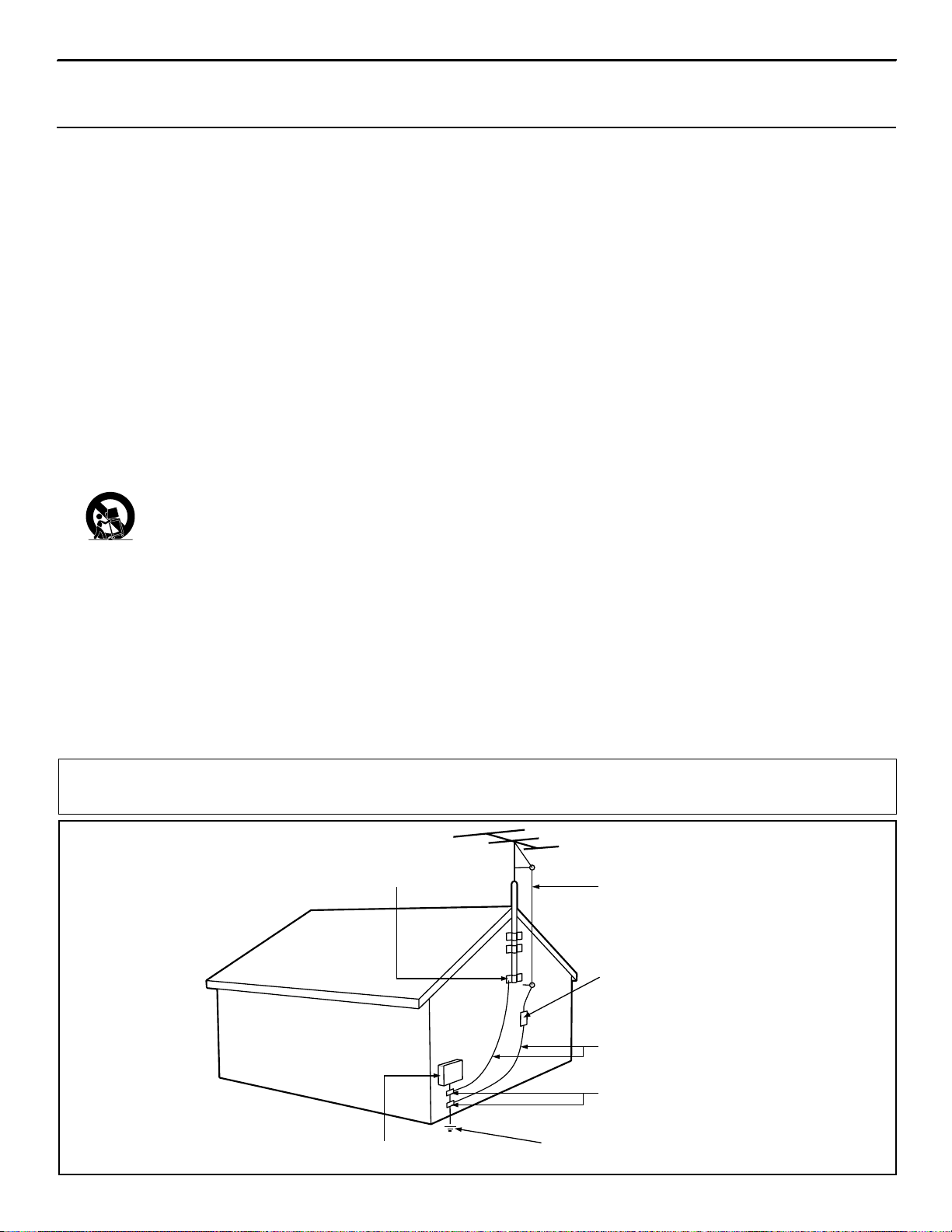
ANTENNA LEAD IN WIRE
ANTENNA DISCHARGE UNIT
(NEC SECTION 810-20)
GROUNDING CONDUCTORS (NEC SECTION 810-21)
GROUND CLAMPS
POWER SERVICE GROUNDING ELECTRODE SYSTEM (NEC ART 250, PART H)
GROUND CLAMP
ELECTRIC SERVICE EQUIPMENT
Example of Antenna Grounding
as per NEC - National Electric Code
Note to the CATV system installer: This reminder is provided to call the CATV system installer's attention to Article 820-40 of the NEC that provides
guidelines for proper grounding and, in particular, specifies that the cable ground shall be connected to the grounding system of the building, as close
to the point of cable entry as practical.
Rev. 8/13/01
IMPORTANT SAFETY INSTRUCTIONS
Read before operating equipment
1. Read these instructions.
2. Keep these instructions.
3. Heed all warnings.
4. Follow all instructions.
5. Do not use this apparatus near water.
6. Clean only with a dry cloth.
7. Do not block any of the ventilation openings. Install in
accordance with the manufacturers instructions.
8. Do not install near any heat sources such as radiators, heat
registers, stoves, or other apparatus (including amplifiers)
that produce heat.
9. Do not defeat the safety purpose of the polarized or ground-
ing-type plug. A polarized plug has two blades with one
wider than the other. A grounding type plug has two blades
and third grounding prong. The wide blade or third prong
are provided for your safety. When the provided plug does
not fit into your outlet, consult an electrician for replacement
of the obsolete outlet.
10. Protect the power cord from being walked on or pinched
particularly at plugs, convenience receptacles, and the point
where they exit from the apparatus.
11. Only use attachments/accessories specified by the manu-
facturer.
12. Use only with a cart, stand, tripod, bracket, or table
specified by the manufacturer, or sold with the ap-
p- paratus. When a cart is used, use caution when
moving the cart/apparatus combination to avoid injury from
tip-over.
13. Unplug this apparatus during lightning storms or when
unused for long periods of time.
14. Refer all servicing to qualified service personnel. Servicing
is required when the apparatus has been damaged in any
way, such as power-supply cord or plug is damaged, liquid
has been spilled or objects have fallen into apparatus, the
apparatus has been exposed to rain or moisture, does not
operate normally, or has been dropped.
15. This product may contain lead and mercury. Disposal of
these materials may be regulated due to environmental con-
siderations. For disposal or recycling information, please
contact your local authorities or the Electronic Industries
Alliance: www.eiae.org
16. Damage Requiring Service - The appliance should be
serviced by qualified service personnel when:
A. The power supply cord or the plug has been damaged;
or
B. Objects have fallen, or liquid has been spilled into the
appliance; or
C. The appliance has been exposed to rain; or
D. The appliance does not appear to operate normally or
exhibits a marked change in performance; or
E. The appliance has been dropped, or the enclosure
damaged.
17. Tilt/Stability - All televisions must comply with recommend-
ed international global safety standards for tilt and stability
properties of its cabinet design.
• Do not compromise these design standards by applying
excessive pull force to the front, or top, of the cabinet which
could ultimately overturn the product.
• Also, do not endanger yourself, or children, by placing
electronic equipment/toys on the top of the cabinet. Such
items could unsuspectingly fall from the top of the set and
cause product damage and/or personal injury.
18. Wall or Ceiling Mounting - The appliance should be
mounted to a wall or ceiling only as recommended by the
manufacturer.
19. Power Lines - An outdoor antenna should be located away
from power lines.
20. Outdoor Antenna Grounding - If an outside antenna is
connected to the receiver, be sure the antenna system is
grounded so as to provide some protection against voltage
surges and built up static charges.
Section 810 of the National Electric Code, ANSI/NFPA No.
70-1984, provides information with respect to proper
grounding of the mast and supporting structure, grounding
of the lead-in wire to an antenna discharge unit, size of
grounding connectors, location of antenna-discharge unit,
connection to grounding electrodes, and requirements for
the grounding electrode. See Figure below.
21. Object and Liquid Entry - Care should be taken so that
objects do not fall and liquids are not spilled into the enclo-
sure through openings.
4
CONTENTS
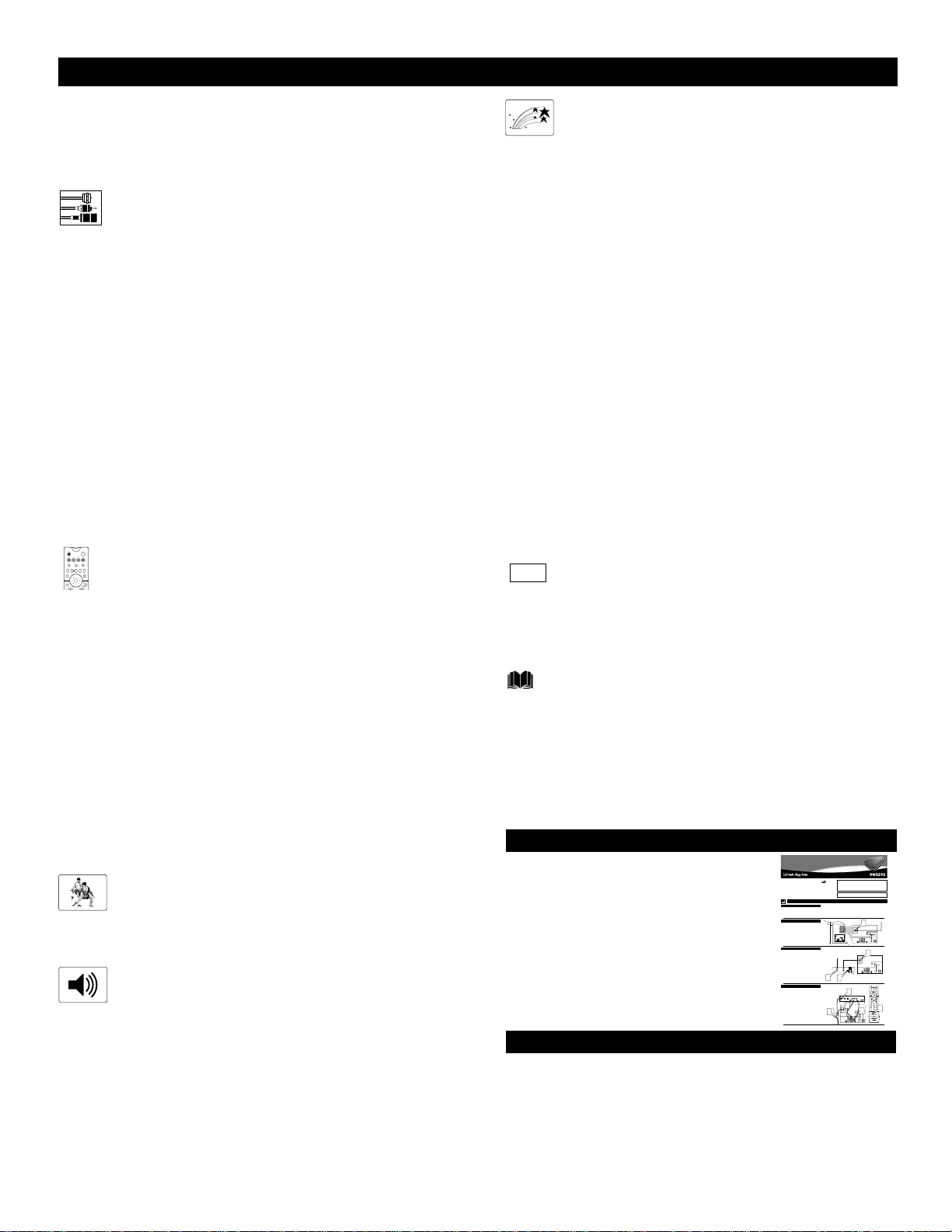
Items Included with This TV
As you unpack your TV, please note that this Directions for Use
manual contains safety-tip information and Factory Service
Center locations, as well as a Warranty Registration Card,
remote control, and batteries for use with the remote control.
Please take a few minutes to complete your registration card. The
serial number for the TV is on the back of the set.
Refer to the back of this manual for instructions in the cleaning
and care of the TV.
INTRODUCTION
Welcome/Registration of Your TV . . . . . . . . . . . . . . . . . . . .2
Safety/Precautions . . . . . . . . . . . . . . . . . . . . . . . . . . . . . .2–3
Features . . . . . . . . . . . . . . . . . . . . . . . . . . . . . . . . . . . . . . . .5
CONNECTING ACCESSORY DEVICES
TO
YOUR TV
Jacks, Cables, and Connectors . . . . . . . . . . . . . . . . .6
Panel Overviews: Standard Inputs and Outputs . . . . . . . . . .7
Panel Overviews: High-definition Inputs . . . . . . . . . . . . . . .8
Connecting a VCR . . . . . . . . . . . . . . . . . . . . . . . . . . . . . . . .9
Connecting a VCR and Cable Box . . . . . . . . . . . . . . . . . . .10
Connecting and Using an Audio Hi-fi System
with Your TV . . . . . . . . . . . . . . . . . . . . . . . . . . . . . . . . .11
Connecting a Standard DVD Player . . . . . . . . . . . . . . . . . .12
Connecting a DVD Player with Progressive-scan
Capability . . . . . . . . . . . . . . . . . . . . . . . . . . . . . . . . . . . .13
Connecting an S-Video Device . . . . . . . . . . . . . . . . . . . . .14
Connecting an HD Receiver to the
HD INPUT-AV 4 Jacks . . . . . . . . . . . . . . . . . . . . . . . . . .15
Connecting a Camcorder . . . . . . . . . . . . . . . . . . . . . . . . . .16
Connecting and Using Headphones
with Your TV . . . . . . . . . . . . . . . . . . . . . . . . . . . . . . . . .17
USING THE REMOTE CONTROL
Programming the TV Remote to Work
with Accessory Devices . . . . . . . . . . . . . . . . . . . . .18
Using the Code-entry Method to Program Your
TV Remote . . . . . . . . . . . . . . . . . . . . . . . . . . . . . . . . . . .19
Using the Search Method to Program Your
TV Remote . . . . . . . . . . . . . . . . . . . . . . . . . . . . . . . . . . .20
Direct-entry Codes for A/V Accessory Devices . . . . . .21–22
Using the TV Remote with Accessory Devices . . . . . . . . .23
Using the AV and Source Select Buttons . . . . . . . . . . . . . .24
Using AutoSound™ . . . . . . . . . . . . . . . . . . . . . . . . . . . . . .25
Using AutoPicture™ . . . . . . . . . . . . . . . . . . . . . . . . . . . . .26
Using AutoSurf™ . . . . . . . . . . . . . . . . . . . . . . . . . . . . . . .27
Using Program List and Alternate Channel (A/CH) . . . . . .28
Using the Sleep Timer Control . . . . . . . . . . . . . . . . . . . . . .29
USING THE ON-SCREEN SUBMENUS
PICTURE
Adjusting the Picture Controls . . . . . . . . . . . . . . .30
Setting the Eye Fidelity Control . . . . . . . . . . . . . . . . . . . . .31
Setting the Dynamic Contrast Control . . . . . . . . . . . . . . . .32
SOUND
Adjusting the Treble, Bass, and
Balance Controls . . . . . . . . . . . . . . . . . . . . . . . .33
Using the AVL (Audio Volume Leveler) Control . . . . . . . .34
Selecting the Surround-sound Modes . . . . . . . . . . . . . . . . .35
Selecting the Stereo/Mono Sound Mode . . . . . . . . . . . . . .36
Selecting the SAP (Second Audio Program) Feature . . . . .37
Using the Bass Boost Control . . . . . . . . . . . . . . . . . . . . . .38
FEATURES
The Timer
Setting the Clock . . . . . . . . . . . . . . . . . . . . . . . . . . . . . . . .39
Displaying the Time . . . . . . . . . . . . . . . . . . . . . . . . . . . . . .40
Setting the Timer’s Start Time and Stop Time . . . . . . . . .41
Selecting the Timer’s Channel . . . . . . . . . . . . . . . . . . . . .42
Setting the Timer’s Activate Control . . . . . . . . . . . . . . . .43
AutoLock™
Understanding AutoLock™ . . . . . . . . . . . . . . . . . . . . . . .44
Setting up the AutoLock™ Access Code . . . . . . . . . . . . .45
Using AutoLock™ to Block Channels . . . . . . . . . . . . . . .46
Using AutoLock™ to Block by Movie Rating . . . . . . . . .47
Using AutoLock™ to Block by TV Rating . . . . . . . . . . .48
Turning the AutoLock™ Blocking Control
on or off . . . . . . . . . . . . . . . . . . . . . . . . . . . . . . . . . . . .49
Using AutoLock™ to Block Unrated Broadcasts . . . . . . .50
Using AutoLock™ to Block Broadcasts That
Have No Rating . . . . . . . . . . . . . . . . . . . . . . . . . . . . . . .51
Reviewing Your Currrent AutoLock™ Settings . . . . . . . .52
Using the Closed Captioning Control . . . . . . . . . . . . . . . . .53
Using the Picture-format Control . . . . . . . . . . . . . . . . .54–55
Using Active Control™ . . . . . . . . . . . . . . . . . . . . . . . . . . .56
APPENDIXES
Appendix A: Compatibility Information
for the TV’s High-definition Inputs . . . . . . . . .57
Appendix B: Model Specifications . . . . . . . . . . . . . . . . . . .58
Appendix C: Setting Color Space for the HD Inputs . . . . . . .59
GENERAL INFORMATION
Care and Cleaning . . . . . . . . . . . . . . . . . . . . . . . . . . . . . . .60
Troubleshooting . . . . . . . . . . . . . . . . . . . . . . . . . . . . . .61–62
Glossary of Television Terms . . . . . . . . . . . . . . . . . . . . . . .63
Index . . . . . . . . . . . . . . . . . . . . . . . . . . . . . . . . . . . . . . . . .64
Factory Service Locations . . . . . . . . . . . . . . . . . . . . . .65–66
Limited Warranty . . . . . . . . . . . . . . . . . . . . . . . . . . . . . . . .72
TV
SWAP PIP CH
DN
UP
FREEZE
SOUND
POWER
PICTURE
STATUS/
EXIT
VCR
ACC
MENU/
SELECT
ACTIVE
CONTROL
A
BC
ppendixes
Refer to the simple Quick Use and Setup
Guide (supplied with your TV) for details
on the following:
• Basic TV connections
• Television and remote-control operation
• On-screen menu controls
• How to use the installation features.
QUICK USE AND SETUP GUIDE
VIDEO
S-VIDEO
L
Pb
Pr
VIDEO
S-VIDEO
L
AUDIO
L
R
AUDIO
L
R
G/Y
R/Pr
B/Pb
V
H
SYNC
L
R
AUDIO
L
R
AUDIO
HD INPUT-AV 4
HD INPUT-AV 5
INPUT-AV 2OUTPUTINPUT-AV 1
Y
ANTENNA IN 75Ω
DVI
2
TO TV
CABLE
IN
OUTPUT
CH
3 4
1
3
Back of TV
Back of Cable Box
(example only)
Cable TV
Signal
3135 035 21371
Rear-projection
HDTV Monitor
Rear-projection
HDTV Monitor
Quick Use and Setup Guide
Quick Use and Setup Guide
HOOKING UP THE TV
CONTENTS
Important Notice/Warning............................................................1
Hooking up the TV..................................................................1–2
Operating the Television and Remote Control........................2–4
Using the Installation Features ................................................4–6
Using the Picture-in-Picture (PIP) Feature..................................7
Adjusting the Manual Converge Controls....................................8
IMPORTANT
This owner's manual is used with several different television models.
Not all features (and drawings) discussed in this manual will neces-
sarily match those found with your television set. This is normal and
does not require that you contact yourdealer or request service.
BEST VIEWING
T
he major benefit of this projection television is its large view-
ing screen. To see this large screen at its best, test various
locations in the room to find the optimal spot for viewing.
NOTE:Be sure to allow a free flow of air to and from the per-
forated back cover of the set.
To avoid cabinet warping, cabinet color changes,
and increased chance of set failure, do not place
the TVwhere temperatures can become excessively
hot—for example, in direct sunlight or near a
heating appliance.
Magnetic fields, such as those of external speak-
ers, may cause the picture to distort if the speak-
ers are placed too close to the television. Move
the magnetic field source away from the TVuntil
there is no picture distortion.
As an Energy Star®
Partner, Philips Consumer
Electronics has determined
this product meets the Energy
Star®guidelines for energy
efficiency. Energy Star®is a
U.S. registered mark. Using
products with the Energy
Star®label can save energy.
Saving energy reduces air pol-
lution and lowers utility bills.
WARNING: TO PREVENTFIRE OR SHOCK HAZARD DO NOT
EXPOSE THIS UNITTO RAIN OR EXCESSIVE MOISTURE.
VIDEO
S-VIDEO
L
Pb
Pr
VIDEO
S-VIDEO
L
AUDIO
L
R
AUDIO
L
R
G/Y
R/Pr
B/Pb
V
H
SYNC
L
R
AUDIO
L
R
AUDIO
HD INPUT-AV 4
HD INPUT-AV 5
INPUT-AV 2OUTPUT
INPUT-AV 1
Y
ANTENNA IN 75Ω
DVI
1
VIDEO
S-VIDEO
L
Pb
Pr
VIDEO
S-VIDEO
L
AUDIO
L
R
AUDIO
L
R
G/Y
R/Pr
B/Pb
V
H
SYNC
L
R
AUDIO
L
R
AUDIO
HD INPUT-AV 4
HD INPUT-AV 5
INPUT-AV 2OUTPUT
INPUT-AV 1
Y
ANTENNA IN 75Ω
DVI
CABLE TV
CABLE BOX WITH RF IN/OUT
CABLE BOX WITH A/V OUTPUTS
Cable TV
Signal
Back of TV
VIDEO
S-VIDEO
L
Pb
Pr
VIDEO
S-VIDEO
L
AUDIO
L
R
AUDIO
L
R
G/Y
R/Pr
B/Pb
V
H
SYNC
L
R
AUDIO
L
R
AUDIO
HD INPUT-AV 4
HD INPUT-AV 5
INPUT-AV 2OUTPUTINPUT-AV 1
Y
ANTENNA IN 75Ω
DVI
CABLE
IN
TO
TV
VIDEO
OUT
LR
AUDIO
OUT
3 4
OUTPUT
CH
4
3
PIP ON/OFF
213
546
879
0
TV
SWAP PIP CH
DN
UP
ACTIVE
CONTROL
FREEZE
SOUND
MUTE
SURF
A/CH
PICTURE
STATUS/
EXIT
SURF
ITR/
RECORD
HOME
VIDEO
HOME
MOVIES
PERSONAL
SLEEP
REC •
PIPPOSITION
VCR
ACC
MENU/
SELECT
VOL
CH
TV/VCR
FORMAT
SAP
PROG.LISTDOLBY VAV
5
1
2
Cable TV Signal
T
his connection WILLsupply Stereo sound to the TV.
1
Connect the cable TVsignal to the ANTENNA IN 75Ω
jack on the back of the TV.
NOTE: Refer to the sections on TUNER MODE and AUTO
PROGRAM on pages 4 and 5 of this guide. Set TUNER
MODE to the CABLE option. Run AUTO PROGRAM to
store all available cable channels in the TV’s memory.
T
his is for example purposes only. The back of your cable box
may be labeled somewhat differently.
This connection WILLNOT supply stereo sound to the TV.
1
Connect the cable TVsignal to the CABLE IN jack on
the back of the cable box.
2
Connect a coaxial cable (not supplied) to the TO TV
jack on the back of the cable box and to the ANTENNA
IN 75Ω jack on the back of the TV.
3
Be sure to set the Output Channel switch on the back of
the cable box to CH 3 or4, then tune the cable box on
the TVto the corresponding channel. Once tuned,
change channels at the cable box, not the TV.
NOTE: Refer to the sections on TUNER MODE and AUTO
PROGRAM on pages 4 and 5 of this guide. Set TUNER
MODE to the CABLE option. Run AUTO PROGRAM to
store all available cable channels in the TV’s memory.
Back of TV
Back of Cable Box
(example only)
T
his is for example purposes only. The back of your cable box
may be labeled somewhat differently.
This connection MIGHTsupply stereo sound to the TV. Check
with your cable TVcompany.
1
Connect the incoming cable TVsignal to a signal splitter.
2
Connect a coaxial cable to a connectoron the signal split-
ter and to the ANTENNAIN 75Ω jack on the back of the
TV.
3
Connect a coaxial cable to a connectoron the signal split-
ter and to the CABLEIN jack on the back of the cable box.
4
Connect A/Vcables to the VIDEO and AUDIO L and R
outputs on the back of the cable box and to the AV2 VIDEO
and corresponding AUDIO Land R jacks on the back of the
TV.
5
To view programs from yourcable box, plug in the TV,
turn it on, and then press the AVbutton on the remote con-
trol as many times as necessary to select the A
V2 input
source.
Signal
Splitter

5
FEATURES
Your new projection television and its packaging contain materials
that can be recycled and reused. Specialized companies can recy-
cle your product to increase the amount of reusable materials and
minimize the amounts that need to be properly disposed. The bat-
teries used by your product should not be thrown away when
depleted but should be handed in and disposed of as small chemi-
cal waste. Please find out about the local regulations concerning
how to dispose of your old television, batteries, and packaging
materials whenever it is time to replace them.
End-of-life Disposal
Active Control™ continuously measures and corrects all incoming
signals to provide the best picture settings. This feature provides a
sharp and virtually noise-free picture any time, from any NTSC
source. NTSC is the
National Television Standards Committee for-
mat devised in the 1940s for TV broadcast analog video signals
(525 lines: 30 Hz).
Alternate Channel (A/CH) button allows you to switch back and
forth between the currently viewed channel and the previously
viewed channel.
Automatic Phosphor Aging Compensation (APAC) works with
the set’s Automatic Format feature to prevent screen burn left by
nonmoving images. Periodically, APAC automatically shifts your
television picture in very small increments, but in increments large
enough to blur image retention. APAC is like a screen saver for
your TV.
Audio/video jacks allow direct connections with VCRs and other
accessories for quality TV picture and sound playback. Component
video input jacks are provided for high-fidelity color and picture
resolution when using digital video source material, such as a
DVD.
Audio Volume Leveler (AVL) control keeps the TV’s sound at an
even level. Peaks and valleys that occur during program changes
or commercial breaks are reduced, making for a more consistent,
comfortable sound.
AutoChron™ automatically sets the right time of day and main-
tains it with digital precision through brownouts, power failures,
and even Daylight Savings Time adjustments.
AutoLock™ protects young children from objectionable program-
ming with V-chip technology.
Automatic Format automatically detects the incoming signal’s
format and adjusts it to fill the screen. Also, your remote control
has a Format button that allows you to select the picture format
you want to see.
AutoPicture™ allows you to push a button and adapt your TV’s
picture to various types of programs, such as sports, movies, and
multimedia (games).
AutoSound™ allows you to select from three factory-set controls
and a personal control that you set according to your own prefer-
ences through the on-screen Sound submenu. The three factory-set
controls—Voice, Music, and Theatre—enable you to tailor the TV
sound to enhance the particular programming you are watching.
AutoSurf™ allows you to easily switch among only the channels
that are of interest to you. You can program up to 10 channels into
the TV’s AutoSurf™ memory through the on-screen display.
Closed Captioning allows you to read TV program dialog or
voice conversations as on-screen text.
Virtual Dolby* Surround (referred to as “Dolby Virtual” in the
on-screen submenu) uses two speakers to simulate the surround
effect produced by a multichannel system.
Dynamic Contrast helps you sharpen the picture quality by mak-
ing the contrast between the dark and bright picture areas more
noticeable as the image on screen changes.
Eye Fidelity gives you a choice between two different picture-
scanning techniques—progressive and interlaced. Progressive scan
doubles the number of visible picture lines per field by displaying
all picture frame lines at once, eliminating line flicker. The inter-
laced mode provides for a double vertical display (interlaced) of
progressive scan, which reduces annoying motion artifacts. The
interlaced mode also helps smooth out jagged lines sometimes
seen on curved and angled surfaces.
HD DVI and Component Inputs—DVI supports High-definition
Copy Protected digital video input for connection to compliant set-
top boxes. The component connection (Y Pb Pr or RGB +HV)
offers color purity, crisp color detail, and reduced color noise.
Hi-fi stereo system, including a built-in audio amplifier and a twin
speaker system. The system enables you to hear stereo sound or
Second Audio Program (SAP) bilingual broadcasts when they are
available.
Home-cinema universal remote control operates your TV set and
other devices that work by infrared remote control, such as VCRs,
cable converter boxes, satellite receivers, and others. Note: You
may need to program the remote to work with devices other than
the TV. See pages 18–23.
Incredible Surround™ enhances stereo programs by making the
sound broader and fuller.
Multipoint Digital Convergence (35 point) brings the accuracy of
digital technology for flawless convergence of red, green, and blue
tubes. This allows the viewer to adjust as preferred to create a
superb picture with minimized colored haloes.
On-screen menu shows the TV controls and allows you adjust or
set those controls (can be viewed in American English, French, or
Spanish).
Program List displays a list of your favorite channels at the press
of a button. You can scroll through the list, highlight a favorite
channel, and tune to the channel.
Protective screen filter helps prevent accidental damage to the del-
icate front lenticular screen. This protective filter has been formulat-
ed for HD displays to give the best picture and still protect your
investment.
Sleep Timer automatically turns the TV off after a set amount of
time of your choice.
Standard broadcast (VHF/UHF) or cable TV (CATV) channel
capability, as well as advanced capability for high-definition video.
Three-line digital comb filter provides improved chroma/lumi-
nance separation to the picture. Offering vertical-edge enhancement
and virtually no “dot crawl,” this filter easily supports the demands
of DVD players and other advanced high-resolution video sources.
Two-tuner Picture-in-picture (PIP) allows you to tune to a pro-
gram in the main window and scan other channels in the PIP win-
dow. From a single antenna or cable input, signals are separated
into two signals within the television, so no external splitter is
required for PIP. The AV1, AV2, and AV3 inputs are also available
as PIP sources.
As an Energy Star® Partner, Philips Consumer Electronics has
determined this product meets the Energy Star® guidelines for
energy efficiency. Energy Star® is a U.S. registered mark. Using
products with the Energy Star® label can save energy. Saving
energy reduces air pollution and lowers utility bills.
Active Control, APAC, AutoPicture, AutoSound, AutoSurf, and Incredible
Surround are trademarks of Philips Consumer Electronics North America.
Copyright © 2003 Philips Consumer Electronics.
*Manufactured under license from Dolby Laboratories. “Dolby” and the
double-D symbol are trademarks of Dolby Laboratories.

DVI Jack
Cable used: DVI
Allows encrypted transmissions of uncom-
pressed HD content.
Component Video Input Jacks
Cables used: component video or A/V
with RCA-type phono plugs
Allow you to connect accessory devices such
as DVD players. Separating the video into
three signals, these inputs provide excellent
quality. Be sure to connect the left and right
audio cables, because the Y, Pb, Pr jacks
receive only the picture signal.
S-Video Jacks
Cable used: S-Video
Provide a higher quality picture than the Video
(composite) jacks because the color part of the
picture is separated from the black and white
portion. Be sure to connect the left and right
audio cables, because the S-Video jacks receive
only the picture signal.
Video (called composite) Jacks
Cable used:A/V with RCA-type phono
plug
Provide better picture performance than the
antenna RF input. Be sure to connect the audio
cables, because the video jacks receive only the
picture signal.
Audio Jacks
Cables used:A/V with RCA-type
phono plug
Provide sound for the video inputs. If your
accessory device has only one output for audio,
connect it to the left (color coded white) audio
jack on the TV.
Antenna RF Jack
Cables used: RF coaxial cable (75Ω)
Allows you to connect an antenna, cable TV, or
components having only RF outputs to the
antenna input on the TV. RF coaxial cables are
available in push-on or screw-on type.
Signal Splitter
Allows you to route an antenna or cable TV
signal to two inputs.
300- to 75-ohm Twin-lead Adapter
Accepts twin-lead wires from an antenna and
allows connection to the antenna input on the
TV. If your antenna is already equipped with
an RF coaxial cable, you will not need this
adapter.
Connecting Accessory Devices to Your TV
VIDEO
S-VIDEO
L
JACKS,CABLES, AND CONNECTORS
T
his page contains descriptions and illus-
trations of jacks, cables, and connectors
you might use in making connections. The
cables and connectors are not supplied with
your TV, but you can purchase them at
stores that sell electronics. Or you can
order them by calling our Customer Care
Center at 1-800-531-0039.
6
Antenna RF Jack
Cable Used: RF Coaxial (75Ω)
Push-on Type
Screw-on Type
Signal Splitter
Cables Used: RF Coaxial (75Ω)
Video (Composite) Jack
Cable Used:A/V with RCA-type
Phono Plug
Or
S-VIDEO Jack
Cable Used: S-Video
AUDIO
L
R
AUDIO
L
R
Audio Jacks (Stereo Connection)
Cables Used:A/V with RCA-type
Phono Plug
Pb
Pr
Y
Component Video Jacks
Cables Used: Component Video or
A/V with RCA-type Phono Plugs
DVI
DVI Jack
Audio Jacks (Monaural Connection)
Cable Used:A/V with RCA-type
Phono Plug
300- to 75-ohm Twin-lead Adapter
7
VIDEO
S-VIDEO
L
Pb
Pr
VIDEO
S-VIDEO
L
AUDIO
L
R
AUDIO
L
R
G/Y
R/Pr
B/Pb
V
H
SYNC
L
R
AUDIO
L
R
AUDIO
HD INPUT-AV 4
HD INPUT-AV 5
INPUT-AV 2OUTPUT
INPUT-AV 1
Y
ANTENNA IN 75Ω
DVI
3
4
4
3
5
5
2
6
1
Y
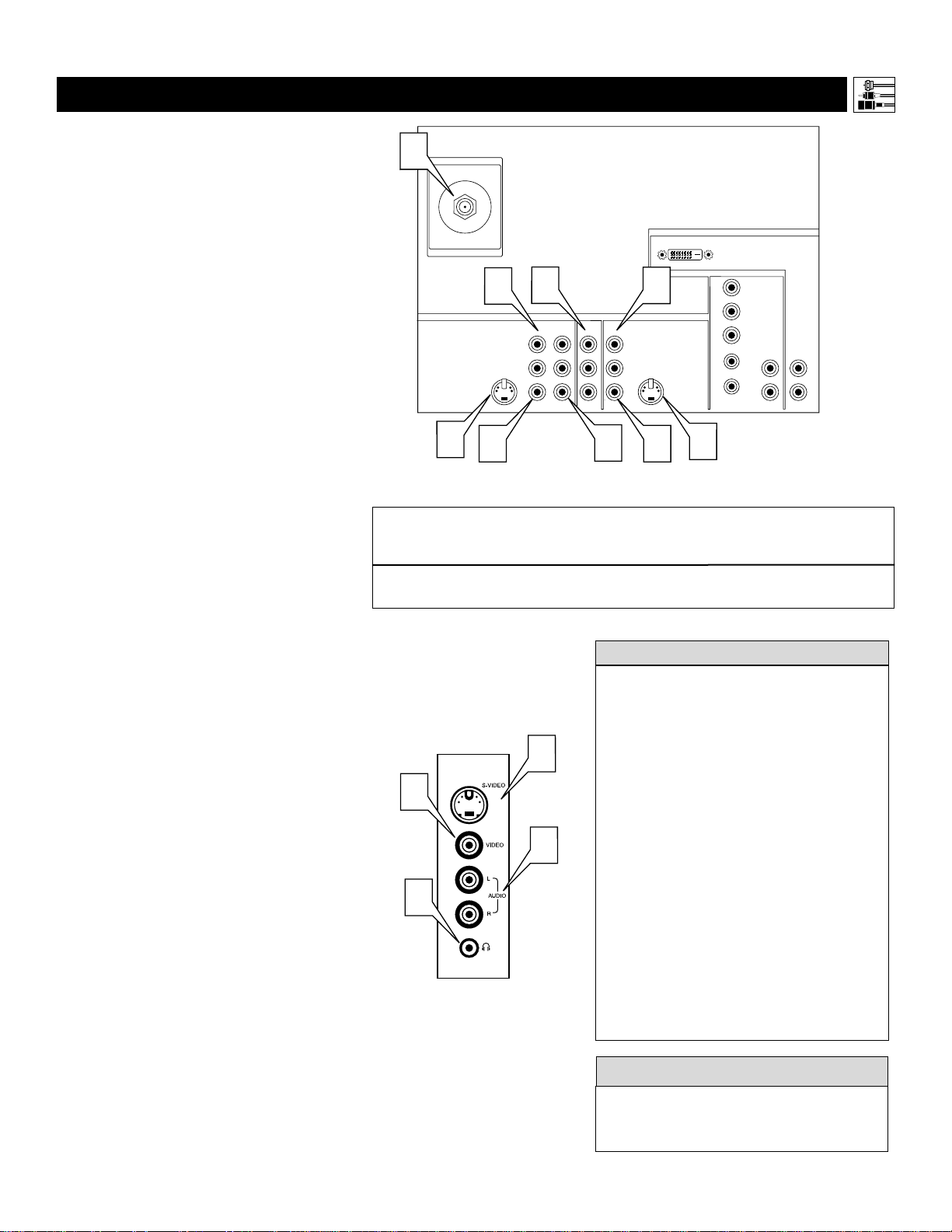
ou can connect a wide range of video and
audio components to your TV, in various
ways. This page and the next one provide an
overview of signal compatibilities and the types
of components you can connect to the jacks.
Connection examples follow on subsequent
pages. See pages 1 and 2 of the Quick Use and
Setup Guide that came with your set for exam-
ples of basic connections. You may also want to
refer to the user instructions that came with
each particular device for information on con-
nections.
What You Can Connect to the
Standard Panel Jacks
1
ANTENNA IN 75Ω jack—use to con-
nect radio-frequency (RF) signals from
VHF/UHF antennas or a cable system.
These are 480i signals.
2
YPbPr (component video input [CVI]
jacks)—compatible with 480i signals
only. Use to connect accessories having
component video outputs, such as DVD
players, laser-disc players, video-game
players, satellite receivers, or other
devices. Use the INPUT-AV 1 L(eft) and
R(ight) AUDIO jacks for sound connec-
tions. CVI cannot be displayed in the PIP
window.
3
S-VIDEO (super video) jacks—com-
patible with 480i signals only. Use to
connect accessories having Super VHS
(S-VHS) outputs, such as VCRs, DVD
players, laser-disc players, video-game
players, satellite receivers, or other
devices.
4
VIDEO (composite) jacks (INPUT-AV
1,
INPUT-AV 2, and TV’s side jack panel
[AV3])—compatible with 480i signals
only. Use to connect accessories having
composite video outputs, such as VCRs,
video-game players, or other devices.
5
AUDIO inputs (INPUT-AV 1,
INPUT-AV 2, and TV’s side jack panel
[AV3])—use to connect from the audio
output jacks on VCRs, DVDs, or other
accessories.
6
OUTPUT (VIDEO/AUDIO)—video is
compatible with 480i signals only. Use to
connect to a VCR to record programs
from the TV. Or use the AUDIO outputs
to connect to an audio hi-fi system.
7
n Headphone jack—use to connect
headphones for personal listening.
Side Jack Panel
G
4
7
5
3
NOTE: The
TV recognizes
the side jack
panel as AV3.
PANEL OVERVIEWS
:STANDARD INPUTS AND OUTPUTS
Summary of signal compatibilities
Input jacks on TV
Compatible output signal
from an external source
or accessory device
ANTENNA IN 75Ω, INPUT AV-1,
INPUT AV-2, and side jack panel (AV3)
480i (480 lines, interlaced)
• Signals connected to the HD INPUT-AV 4
or HD INPUT-AV 5 inputs will provide
you with the best picture. Examples of
sources for such signals are a progressive-
scan DVD player (480p) or an HD receiver
(1080i or 480p) with YPbPr or RGB out-
puts. The 1080i signals will provide you
with the best picture possible. Devices with
RGB outputs may or may not have H and
V sync outputs to connect to the HD
INPUT-AV 4 H and V SYNC inputs (see
page 57). Instructions for selecting the
HD INPUT-AV 4 and AV 5 color space
(YPbPr or RGB) are on page 59.
• Among the 480i-compatible inputs
(ANTENNA IN 75Ω, INPUTAV-1,
INPUT AV-2, and the side jack panel), you
will get the best picture from the compo-
nent video inputs (labeled YPbPr). The
S-Video inputs will provide the next-best
level of picture quality.
HELPFUL HINTS
The side jack-panel inputs (recognized by the
TV as AV3) are convenient for connecting a
camcorder. See page 16.
cc
C
HECK IT OUT
Connecting Accessory Devices to Your TV
8
Connecting Accessory Devices to Your TV
PANEL OVERVIEWS
:HIGH-DEFINITION INPUTS
VIDEO
S-VIDEO
L
Pb
Pr
VIDEO
S-VIDEO
L
AUDIO
L
R
AUDIO
L
R
G/Y
R/Pr
B/Pb
V
H
SYNC
L
R
AUDIO
L
R
AUDIO
HD INPUT-AV 4
HD INPUT-AV 5
INPUT-AV 2OUTPUT
INPUT-AV 1
Y
ANTENNA IN 75Ω
DVI
2
1
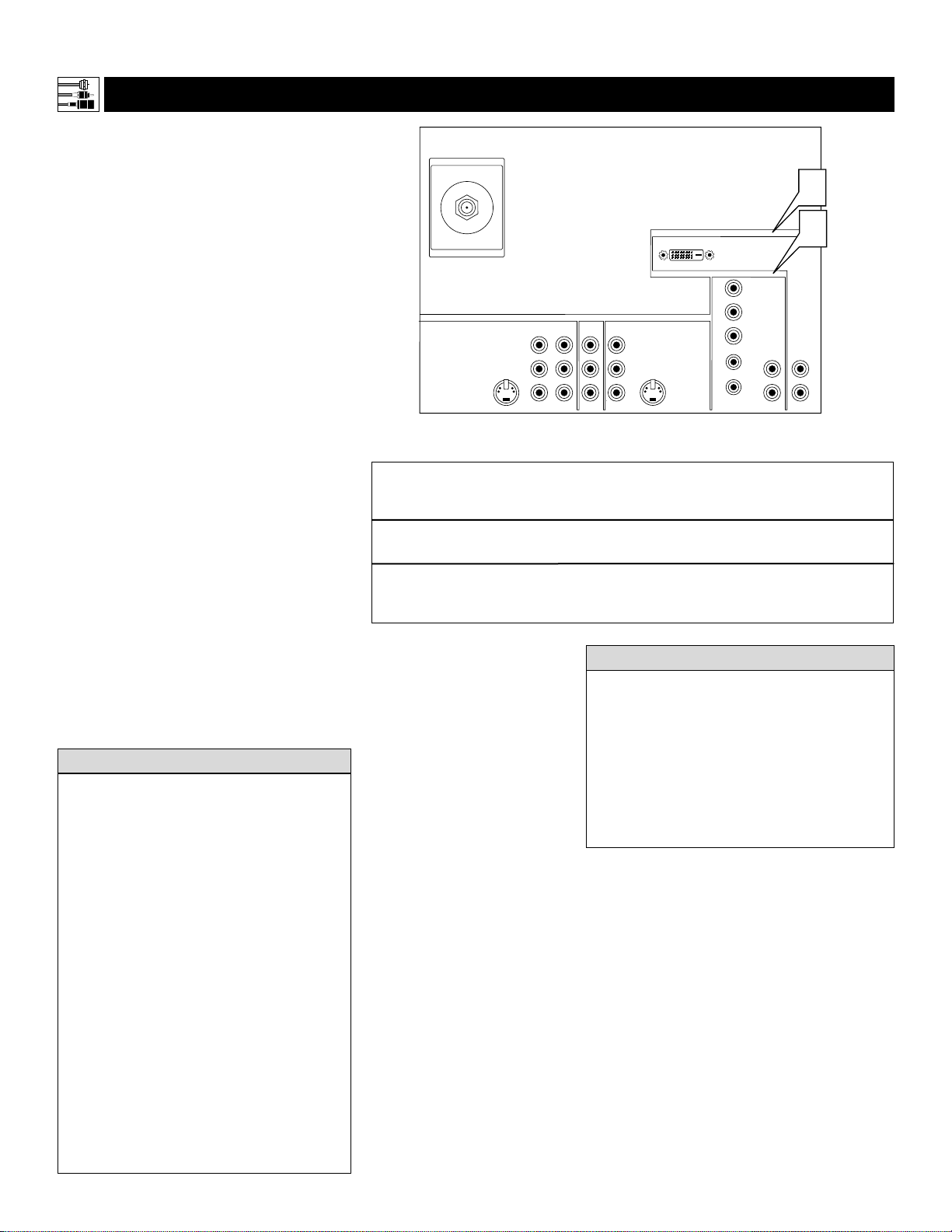
What You Can Connect to the
High-definition Input Jacks
1
HD INPUT-AV 4—use to connect dig-
ital equipment with a 1080i or a 480p
signal output, such as HD receivers
(1080i or 480p) or DVD players with
progressive-scan capability (480p). You
can connect equipment with YPbPr
component video or RGB outputs to
the HD INPUT-AV 4 jacks. H and V
sync connections may or may not be
required for RGB connections. (See
page 59.) Dedicated audio input jacks
are located with the HD INPUT-AV 4
video jacks.
NOTE: The Picture-in-Picture (PIP)
feature is not available for use with AV 4.
2
HD INPUT-AV 5—use to connect digi-
tal equipment with DVI (digital video
interface) 1080i or 480p output. DVI is
a specific digital input allowing
encrypted transmission of uncom-
pressed HD content. DVI includes
HDCP (high-bandwidth digital content
protection), which is supported by the
motion picture industry, satellite
providers, and most of the consumer
electronics industry. DVI is gaining
momentum and quickly becoming an
industry standard for the consumer to
view high-definition material while
keeping content protected.
NOTE: The Picture-in-Picture (PIP)
feature is not available for use with AV5.
• The TV’s default color-space setting for HD
INPUT-AV 4 is YPbPr. If the picture looks
grossly incorrect, try changing the color-space
setting on either the digital equipment or the
TV. For more information on setting the color
space on the digital equipment, see the equip-
ment’s directions-for-use manual. To set the
TV’s color space, see page 59 in this manual.
• This television is designed to be compatible
with high-definition signal standards 1080i
and 480p as specified by the Electronic
Industries Association standard EIA770.3.
Because output standards may vary by manu-
facturer, you may encounter some digital
equipment that will not properly display pic-
tures on the TV.
• The PIP (Picture-in-picture) feature
allows
you to tune to a program in the main window
and scan other channels in the PIP window.
From a single antenna or cable input, signals
are separated into two signals within the tele-
vision. The AV1, AV2, and AV3 inputs are
also available as PIP sources.
HELPFUL
HINTS
Summary of signal compatibilities
TV Input
Compatible output signal
from an external source
or device
HD INPUT-AV 4
1080i (1080 lines, interlaced) or
480p (480 lines, progressive scan)
HD INPUT-AV 5
Digital video interface (DVI) with
1080i (1080 lines, interlaced) or
480p (480 lines, progressive scan)
Because DVI is such new technology, the
electronics industry is still working toward a
decision on one standard. Philips testing has
determined that compatibility issues exist with
respect to a limited number of high-definition
receivers when they are connected to the DVI
input on this television. If you should experi-
ence difficulties, please contact our Customer
Care Center at 1-800-531-0039.
HELPFUL HINT
9
PIP ON/OFF
213
546
879
0
TV
SWAP PIP CH
DN
UP
ACTIVE
CONTROL
FREEZE
SOUND
MUTE
SURF
A/CH
POWER
PICTURE
STATUS/
EXIT
SURF
ITR/ HOME HOME PERSONAL
SLEEP
REC •
VCR
ACC
MENU/
SELECT
VOL
CH
TV/VCR
FORMAT
SAP
PROG.LISTDOLBY VAV
5
AV2
VIDEO
S-VIDEO
L
Pb
Pr
VIDEO
S-VIDEO
L
AUDIO
L
R
AUDIO
L
R
G/Y
R/Pr
B/Pb
V
H
SYNC
L
R
AUDIO
L
R
AUDIO
HD INPUT-AV 4
HD INPUT-AV 5
INPUT-AV 2OUTPUT
INPUT-AV 1
Y
ANTENNA IN 75Ω
DVI
AUDIO
ANT
IN
OUT
VIDEO
L
R
OUT
IN
CH3 CH4
IN
OUT
2
3
4
1
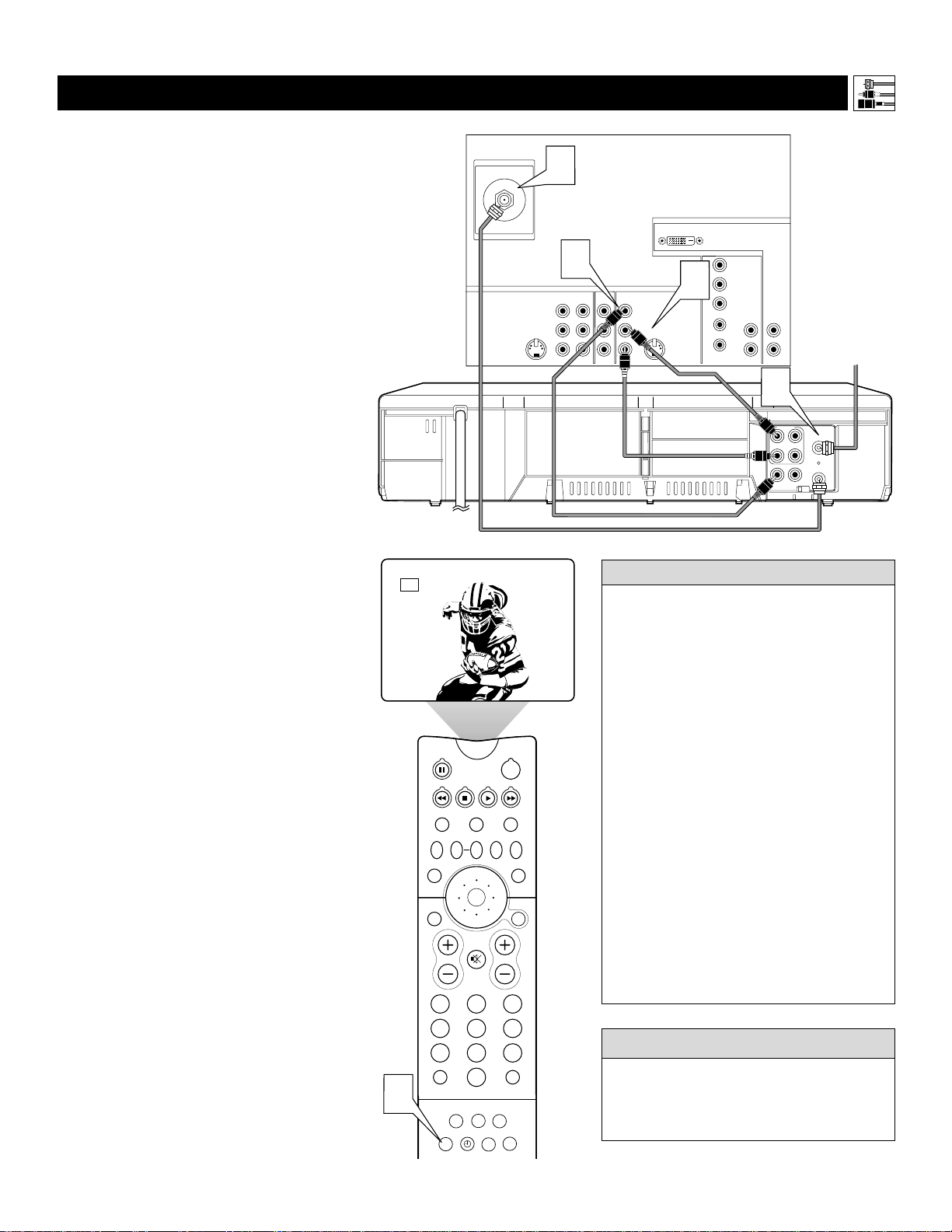
T
he TV’s audio/video (AV) input jacks provide
for direct picture and sound connections
between the TV and accessory devices such as
VCRs, DVD players, and others that have AV out-
put jacks.
This example, which uses the INPUT-AV 1 jacks,
shows you one way you can connect a VCR to
your TV.
Refer to the directions-for-use manual for your
VCR for further information on connections.
To make the connections shown in this example,
you will need:
• one coaxial cable (75Ω)
• one cable for a video connection (standard
RCA -type phono plug)
• two cables for audio connections (standard
RCA-type phono plugs) (only one cable is
needed for a nonstereo VCR).
NOTE: The cables are not supplied with your TV.
You should be able to buy them at most stores
that sell electronics. Or you can call our
Customer Care Center at 1-800-531-0039
1
Connect a cable TV or antenna signal
to the ANT IN jack on the back of the
VCR.
2
Connect from the OUT jack on the
back of the VCR to the
ANTENNA IN
75Ω
jack on the back of the TV.
3
Connect the VIDEO OUT jack on the
back of the VCR to the INPUT-AV 2
VIDEO jack on the back of the TV.
4
Connect the audio output R(ight) and
L(eft) jacks on the back of the VCR to
the INPUT-AV 2 AUDIO jacks on the
back of the TV.
NOTE: If the VCR is a mono (nonstereo)
unit, connect only the left audio cable,
which usually has a white-coded plug.
5
Press the AV button on the remote con-
trol as many times as necessary to select
the AV2 source for viewing of materials
from the VCR.
Connecting Accessory Devices to Your TV
CONNECTING A VCR
• Stereo sound will pass from the ANT
OUT jack on the VCR to the ANTENNA
IN 75Ω jack on the TV only when the
VCR is in TV mode. This is the mode
that allows the TV to use its channel
selector.
• To simplify making connections, audio
and video cables often have color-coded
plugs. The jacks on your TV are likewise
color coded to match the plugs. The cod-
ing is as follows:
—Yellow for video (composite)
—Red for the right audio channel
—White for the left audio channel
NOTE: If your VCR is mono (non-
stereo), you will connect only one audio
cable. You must ensure that the TV is set
to MONO for the signal source to which
you’ve connected the VCR (
INPUT-AV
2,
INPUT-AV 1, or the side panel inputs
[AV3]). Otherwise, you will receive
sound from only one of the TV’s speakers.
See page 36.
HELPFUL
HINT
You can display the AV1, AV2, or AV3 signal
sources in the PIP window. See page 7 of the
Quick Use and Setup Guide for information on
using the Picture-in-Picture (PIP) feature.
cc
C
HECK IT OUT
Cable TV
Signal
Back of TV
Back of VCR
(example only)
10
CONNECTING A VCR
AND CABLE BOX
TO TV
CABLE
IN
OUTPUT
CH
3 4
VIDEO
S-VIDEO
L
Pb
Pr
VIDEO
S-VIDEO
L
AUDIO
L
R
AUDIO
L
R
G/Y
R/Pr
B/Pb
V
H
SYNC
L
R
AUDIO
L
R
AUDIO
HD INPUT-AV 4
HD INPUT-AV 5
INPUT-AV 2OUTPUT
INPUT-AV 1
Y
ANTENNA IN 75Ω
DVI
AUDIO
ANT
IN
OUT
VIDEO
L
R
OUT
IN
CH3 CH4
IN
OUT
3
5
6
4
2
1
P
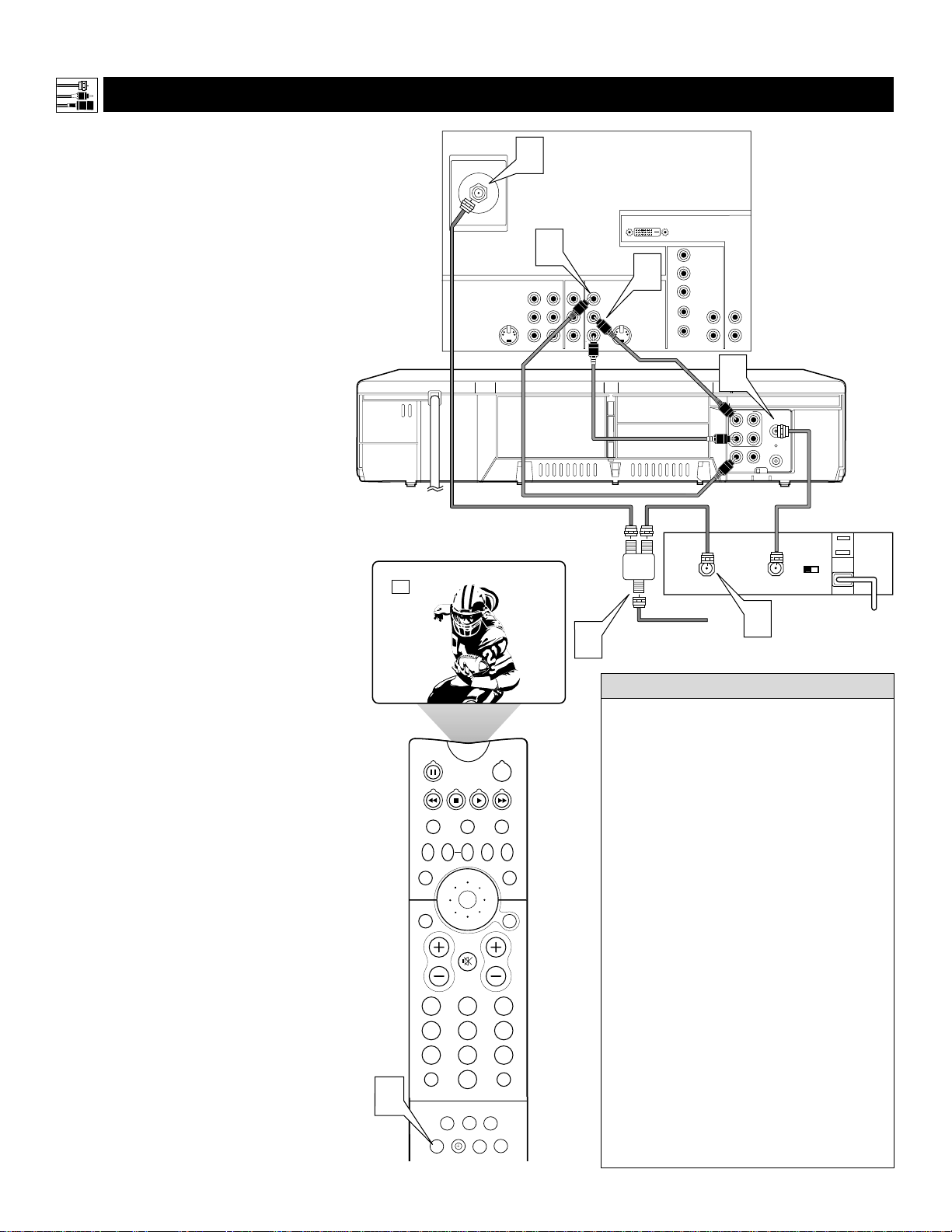
resented here is a connection example
involving a VCR and cable box.
Refer to the VCR’s directions-for-use manual
for further information on connections.
To make the connections in this example, you
will need:
• one, two-way signal splitter
• two coaxial cables (75Ω)
• one cable for a video connection (standard
RCA-type phono plug)
• two cables for audio connections (standard
RCA-type phono plugs) (only one cable is
needed for connection to a nonstereo
VCR).
NOTE: The cables are not supplied with your
TV. You should be able to buy them at most
stores that sell electronics. Or you can call
our Customer Care Center at
1-800-531-0039.
1
Connect a cable TV signal to a two-
way signal splitter.
2
Connect one of the two-way signal
splitter outputs to the CABLE IN
jack on the cable box.
3
Connect the other two-way signal
splitter output to the ANTENNA IN
75Ω on the back of the TV.
4
Connect from the cable box TO TV
jack to the ANT IN jack on the back
of the VCR.
5
Connect the VIDEO OUT jack on
the VCR to the INPUT-AV 2 VIDEO
jack on the back of the TV.
6
Connect the AUDIO OUT R(ight)
and L(eft) jacks on the VCR to
INPUT-AV 2 AUDIO jacks on the
back of the TV.
NOTE: If the VCR is a nonstereo unit,
connect only the left audio cable,
which usually has a white-coded plug.
7
Press the AV button on the remote
control as many times as necessary
to select the AV2 source for viewing
of materials from the cable box or
VCR.
PIP ON/OFF
213
546
879
0
TV
SWAP PIP CH
DN
UP
ACTIVE
CONTROL
FREEZE
SOUND
MUTE
SURF
A/CH
POWER
PICTURE
STATUS/
EXIT
SURF
ITR/ HOME HOME PERSONAL
SLEEP
REC •
VCR
ACC
MENU/
SELECT
VOL
CH
TV/VCR
FORMAT
SAP
PROG.LISTDOLBY VAV
7
AV2
Connecting Accessory Devices to Your TV
Back of TV
Back of VCR
(example only)
Back of
Cable Box
(example
only)
Cable TV
Signal
Signal
Splitter
• The RF output on a cable box, usually
labeled “OUTPUT,” “OUT,” or “TO TV,”
will not pass a stereo sound signal to the
ANTENNA IN 75Ωjack on the TV. If, how-
ever, your cable box has separate
Audio/Video outputs, using A/V cables to
connect to those outputs and to the A/V
inputs on the TV might pass a stereo sound
signal to the TV. Contact your cable TV
company for more information.
• To simplify making connections, the plugs
on audio and video cables are often color
coded. The jacks on your TV are likewise
color coded to match the plugs.
The coding is as follows:
—Yellow for video (composite)
—Red for the right audio channel
—White for the left audio channel
NOTE: If your VCR is mono (nonstereo),
you will connect only one audio cable. You
must ensure that the TV is set to MONO for
the signal source to which you’ve connected
the VCR (INPUT-AV 2, INPUT-AV 1, or the
side panel inputs [AV3]). Otherwise, you will
receive sound from only one of the TV’s
speakers. See page 36.
HELPFUL HINT
11
CONNECTING AND U
SING AN AUDIO HI-FI SYSTEM WITH YOUR TV
Y
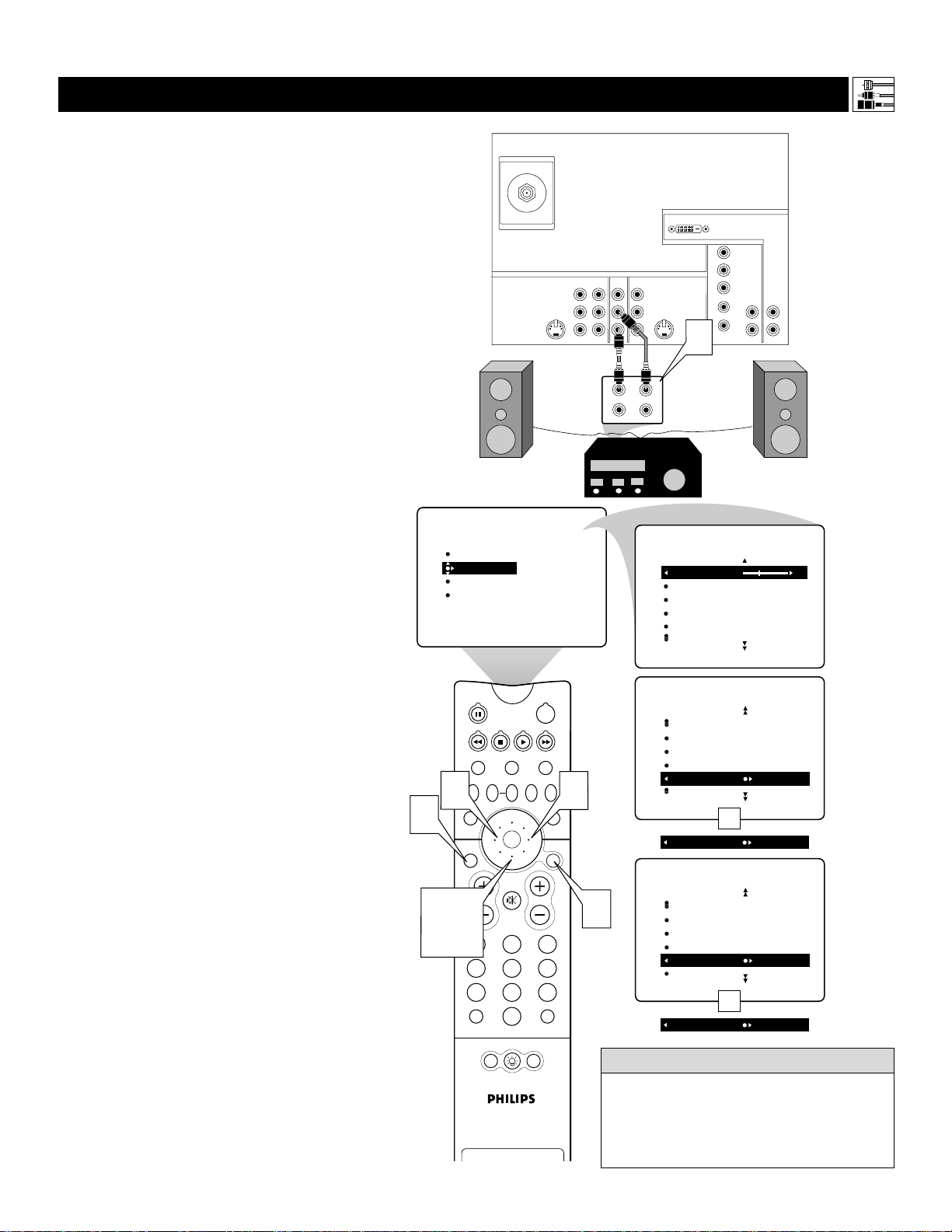
ou can use your TV’s AUDIO OUTPUT jacks
to connect to an external audio hi-fi system.
Follow the simple steps below.
To make these connections, you will need two
cables for audio connections (standard RCA).
NOTE: The cables are not supplied with your TV.
You should be able to buy them at most stores
that sell electronics. Or you can call our
Customer Care Center at 1-800-531-0039.
1
Connect from the L(eft) and R(ight)
AUDIO OUTPUT jacks on the back of
the TV to the L(eft) and R(ight) AUX/TV
INPUT jacks on the back of the hi-fi sys-
tem.
2
See the section below on using the
AUDIO OUT control.
A
fter connecting the TV’s AUDIO OUTPUT
jacks to the AUDIO INPUT jacks on an
external hi-fi system, set the AUDIO OUT
control in the SOUND submenu to either
VARIABLE or FIXED to determine whether
you adjust the volume at the TV or at the
external hi-fi system. To change the volume at
the TV using the TV’s remote control, you must
select VARIABLE. To adjust the volume at the
stereo using the hi-fi’s controls, you must select
FIXED. You can also use the SPEAKERS
control in the SOUND submenu to turn the
TV’s speakers off.
1
Press the MENU/SELECT button
on the remote control to show the
on-screen menu.
2
Press the CURSOR RING DOWN
once to highlight SOUND.
3
Press the CURSOR RING RIGHT
to enter the SOUND submenu.
4
Press the CURSOR RING DOWN
repeatedly until AUDIO OUT is
highlighted.
5
Press the CURSOR RING LEFT or
RIGHT to set the AUDIO OUT to
either VARIABLE or FIXED.
6
If you want to turn the TV’s internal
speakers off, press the CURSOR
RING DOWN repeatedly until
SPEAKERS is highlighted. Then
press the CURSOR RING LEFT or
RIGHT to turn the speakers off.
7
Press the STATUS/EXIT button to
exit the menu.
VIDEO
S-VIDEO
L
Pb
Pr
VIDEO
S-VIDEO
L
AUDIO
L
R
AUDIO
L
R
G/Y
R/Pr
B/Pb
V
H
SYNC
L
R
AUDIO
L
R
AUDIO
HD INPUT-AV 4
HD INPUT-AV 5
INPUT-AV 2OUTPUT
INPUT-AV 1
Y
ANTENNA IN 75Ω
DVI
PHONO INPUT
R
L
AUX/TV INPUT
1
PIP
213
546
879
0
TV
SWAP PIP CH
DN
UP
FREEZE
SOUND
MUTE
SURF
A/CH
POWER
PICTURE
STATUS/
EXIT
POSITION
VCR
ACC
MENU/
SELECT
VOL
CH
TV/VCR
ACTIVE
CONTROL
5
PICTURE
SOUND
FEATURES
INSTALL
TREBLE
BASS
BALANCE
AVL
INCR
.
SURROUND
TREBLE 30
BASS
BALANCE
AVL
INCR
.
SURROUND
SOUND
SOUND
INCR
.
SURROUND
HEADPHONE
STEREO
SAP
AUDIO OUT FIXED
AUDIO OUT VARIABLE
3
1
7
OR
SOUND
HEADPHONE
STEREO
SAP
AUDIO OUT
SPEAKERS OFF
SPEAKERS ON
OR
2,4,
6
The sound outputs from the TV to an exter-
nal hi-fi system are not affected or tailored
by the TREBLE, BASS, BALANCE, AVL,
INCR. SURROUND, and BASS BOOST
controls in the TV’s SOUND submenu.
HELPFUL HINT
Connecting Accessory Devices to Your TV
Back of
Hi-fi
(example
only)
Back of TV
12
CONNECTING A STANDARD DVD PLAYER
VIDEO
S-VIDEO
L
Pb
Pr
VIDEO
S-VIDEO
L
AUDIO
L
R
AUDIO
L
R
G/Y
R/Pr
B/Pb
V
H
SYNC
L
R
AUDIO
L
R
AUDIO
HD INPUT-AV 4
HD INPUT-AV 5
INPUT-AV 2OUTPUT
INPUT-AV 1
Y
ANTENNA IN 75Ω
DVI
COAXIAL
DIGITAL AUDIO OUT
PCM-MPEG2-Dolby Digital-DTS
L
R
(CVBS)
VIDEO OUT
AUDIO OUT
S-VIDEO OUT
(Y/C)
SUB WF OUT
OPT OUT
1
2
1
2
Y
P
B
/C
B
P
R
/C
R
VIDEO OUT
2
1
C
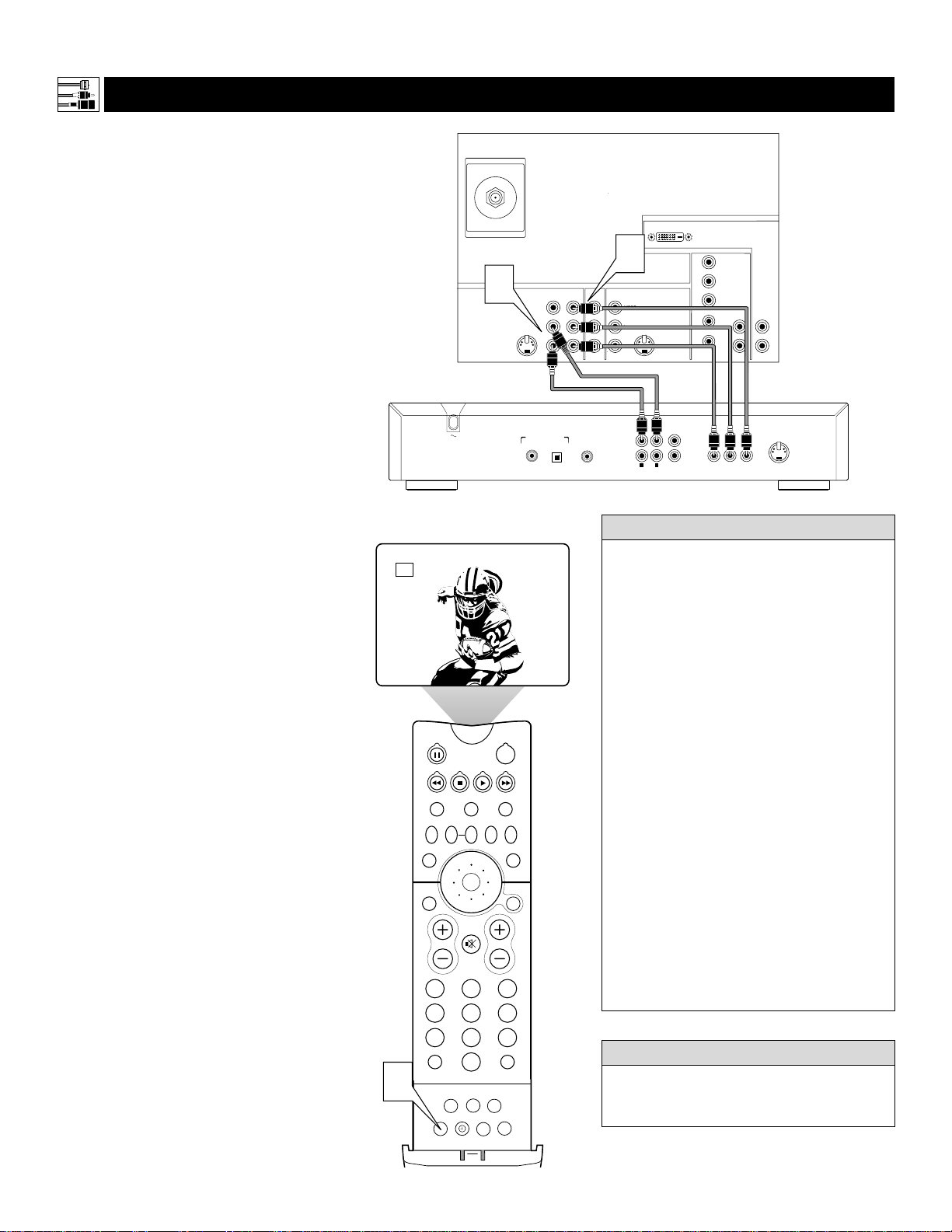
omponent video inputs allow the highest pos-
sible color and picture resolution in the play-
back of digital signals, such as those of DVD
players. The color difference signals (Pb, Pr) and
the luminance (Y) signal are connected and
received separately. The result is better color
bandwidth information than is possible with com-
posite video (labeled VIDEO on your TV’s jack
panel) or S-Video connections.
To make the connections shown in this example,
you will need:
• three cables for video connections (standard
RCA-type phono plugs)
• two cables for audio connections (standard
RCA-type phono plugs).
NOTE: The cables are not supplied with your TV.
You should be able to buy them at most stores
that sell electronics. Or you can call our
Customer Care Center at 1-800-531-0039.
1
Connect the YPbPr (component)
VIDEO OUT jacks from the DVD play-
er to the INPUT-AV 1 YPbPr (compo-
nent video) jacks on the back of the TV.
NOTE: The INPUT-AV 1 YPbPr jacks
will accept 480i (interlaced) output sig-
nals only. The connection example on this
page assumes the use of a DVD player
with interlaced output. Some DVD play-
ers, however, have YPbPr outputs that can
be switched between interlaced and pro-
gressive scan. If you are attempting to use
a DVD player with progressive-scan
(480p output) capability to make the con-
nection shown in this example, you must
be sure to switch the DVD player to inter-
laced. If necessary, refer to the DVD play-
er’s directions-for-use manual for help. If
you want to use the DVD player in pro-
gressive-scan mode, you must use the
HD INPUT-AV 4 jacks (see page 13).
2
Connect the AUDIO OUT L(eft) and
R(ight) jacks from the DVD player to
the INPUT-AV 1 AUDIO jacks on the
back of the TV.
3
Press the AV button on the remote con-
trol as many times as necessary to select
the CVI (component video input)
source on the TV.
4
Turn the DVD player on and press
PLAY to view the DVD program on
the TV.
PIP ON/OFF
213
546
879
0
TV
SWAP PIP CH
DN
UP
ACTIVE
CONTROL
FREEZE
SOUND
MUTE
SURF
A/CH
POWER
PICTURE
STATUS/
EXIT
SURF
ITR/
RECORD
HOME
VIDEO
HOME
MOVIES
PERSONAL
SLEEP
REC •
VCR
ACC
MENU/
SELECT
VOL
CH
TV/VCR
FORMAT
SAP
PROG.LISTDOLBY VAV
3
CVI
• To simplify making connections, the plugs on
audio and video cables are often color coded.
The jacks on your TV are likewise color
coded to match the plugs.
• The names for the component video jacks
may differ depending on the DVD player or
accessory digital source equipment used. For
example, besides YPbPr, you may see
R-Y/B-Y/Y; or CrCbY. Although abbrevia-
tions and terms may vary, the letters B and R
stand for the blue and red color component
signals, respectively, and Y indicates the lumi-
nance signal. If necessary, refer to the direc-
tions-for-use manual for your DVD or digital
accessory for more information.
• You can also connect a satellite receiver to the
TV in a manner similar to the example shown
on this page. If you connect a satellite receiver
to the TV, you will need to use the receiver’s
channel-memorization system to store chan-
nels in the receiver’s memory.
• If you experience difficulties receiving sound
with a DVD disc, check the sound settings
through the DVD disc’s menu.
• The CVI source cannot be displayed in the
PIP window. See page 7 in the Quick Use and
Setup Guide for more on the PIP feature.
HELPFUL HINTS
To prevent uneven picture-tube aging, do not
leave nonmoving images or picture borders on
the screen for an extended period. See page 60.
WARNING
Connecting Accessory Devices to Your TV
Back of DVD
(example only)
Back of TV

13
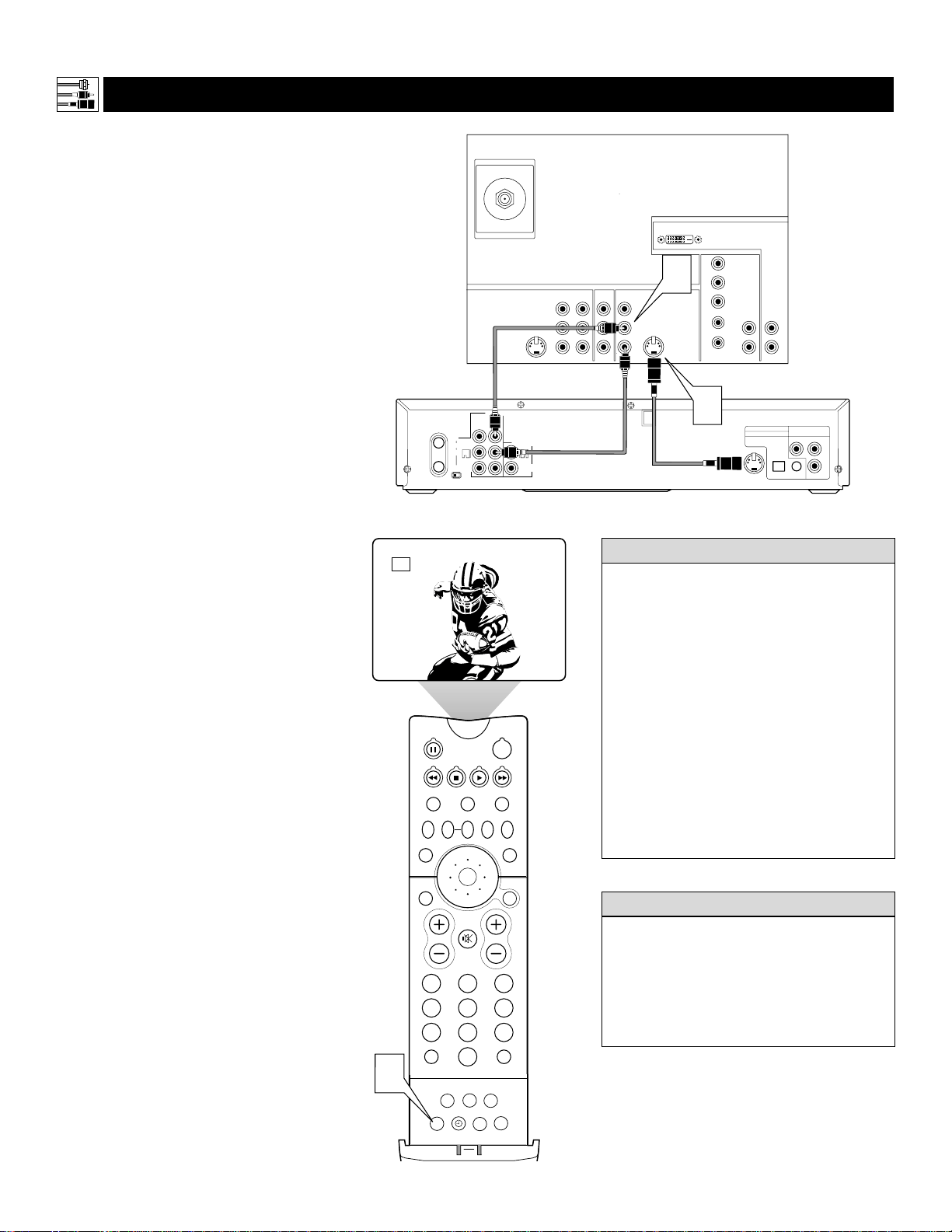
T
he following instructions explain how to
connect a DVD player with progressive-scan
capability to the HD INPUT-AV 4 jacks on
your TV.
To make the connections, you will need:
• three cables for video connections (standard
RCA-type phono plugs)
• two cables for audio connections (standard
RCA-type phono plugs).
NOTE: The cables are not supplied with your TV.
You should be able to buy them at most stores
that sell electronics. Or you can call our
Customer Care Center at 1-800-531-0039.
1
Connect from the YPrPb jacks on
the
back of the DVD player to the
HD INPUT-
AV 4 G/Y, R/Pr, B/Pb
jacks on the back of the TV.
2
Connect from the L(eft) and R(ight)
AUDIO OUT jacks on the back of the
DVD player to the HD INPUT-AV 4
AUDIO L(eft) and R(ight) jacks on the
back of the TV
.
3
Make sure the DVD player is in pro-
gressive-scan mode. You will not get a
viewable picture through the HD
INPUT-AV 4 jacks if the DVD player is
in interlaced mode.
For more information on placing your
DVD player in progressive-scan mode,
see the DVD player’s directions-for-use
manual. Also, see the Helpful Hints to
the right. The way in which progres-
sive-scan mode is selected varies among
DVD players.
4
Press the AV button on your TV remote
control as many times as necessary to
select the
AV4 signal source.
5
Turn the DVD on, insert a disc, and
press play to view a DVD on the TV.
If you experience difficulties receiving
sound with a DVD disc, check the sound
settings through the DVD disc’s menu.
HELPFUL HINT
To prevent uneven picture-tube aging, do not
leave non-moving images or picture borders on
the screen for an extended period. See page 60.
W
ARNING
CONNECTING A DVD P
LAYER WITH PROGRESSIVE-SCAN CAPABILITY
VIDEO
S-VIDEO
L
Pb
Pr
VIDEO
S-VIDEO
L
AUDIO
L
R
AUDIO
L
R
G/Y
R/Pr
B/Pb
V
H
SYNC
L
R
AUDIO
L
R
AUDIO
HD INPUT-AV 4
HD INPUT-AV 5
INPUT-AV 2OUTPUT
INPUT-AV 1
Y
ANTENNA IN 75Ω
DVI
OPTICAL
COAXIAL
DIGITAL
BITSTREAM
/PCM
AUDIO OUT
2CH
L
R
AC IN ~
VIDEO OUT
SELECT
I
P
Y
P
B
PR
VIDEO
S
3
1
2
PIP ON/OFF
213
546
879
0
TV
SWAP PIP CH
DN
UP
ACTIVE
CONTROL
FREEZE
SOUND
MUTE
SURF
A/CH
POWER
PICTURE
STATUS/
EXIT
SURF
ITR/
RECORD
HOME
VIDEO
HOME
MOVIES
PERSONAL
SLEEP
REC •
VCR
ACC
MENU/
SELECT
VOL
CH
TV/VCR
FORMAT
SAP
PROG.LISTDOLBY VAV
4
AV4
• If after connecting your DVD player your
display is filled with wavy lines, it may be
that your DVD player is not set to progres-
sive-scan mode. Some DVD players have an
I/P (interlaced/progressive scan) switch
located on the back or front of the players for
changing from interlaced to progressive-scan
mode. Other DVD players may allow the
mode to be changed by pressing a button on
the DVD player’s remote control or by using
the DVD player’s on-screen menu. If the
interlaced/progressive-scan selection
option is provided only through the DVD
on-screen menu, you will need to connect
the DVD player to anotherAV input
source in addition to HD INPUT-AV 4 to
see the DVD menu. Select this additional
AV source on screen to see the DVD menu
and choose progressive-scan mode. You
will then be able to see the DVD picture
through the AV4 source.
• Some DVD players have dedicated progres-
sive-scan output jacks that are labeled as
such and require no switching to provide a
picture through the HD INPUT-AV 4 jacks.
See your DVD player’s directions-for-use
manual for information.
• The default color-space setting for the
HD INPUT-AV 4 jacks is YPbPr. RGB is
also an option. If the picture’s color looks
grossly incorrect, try changing either the
DVD player’s or TV’s color-space setting.
See the DVD player’s directions-for-use
manual for information on setting its color
space. Or see page 59 in this manual to set
the TV’s color space.
• The Picture-in-Picture (PIP) feature does
not function with AV4 or AV5.
HELPFUL HINTS
Connecting Accessory Devices to Your TV
Back of DVD
(example only)
Back of TV
14
PIP ON/OFF
213
546
879
0
TV
SWAP PIP CH
DN
UP
ACTIVE
CONTROL
FREEZE
SOUND
MUTE
SURF
A/CH
POWER
PICTURE
STATUS/
EXIT
SURF
ITR/
RECORD
HOME
VIDEO
HOME
MOVIES
PERSONAL
SLEEP
REC •
VCR
ACC
MENU/
SELECT
VOL
CH
TV/VCR
FORMAT
SAP
PROG.LISTDOLBY VAV
3
AV2
VIDEO
S-VIDEO
L
Pb
Pr
VIDEO
S-VIDEO
L
AUDIO
L
R
AUDIO
L
R
G/Y
R/Pr
B/Pb
V
H
SYNC
L
R
AUDIO
L
R
AUDIO
HD INPUT-AV 4
HD INPUT-AV 5
INPUT-AV 2OUTPUT
INPUT-AV 1
Y
ANTENNA IN 75Ω
DVI
DVD/VCR
AUDIO OUT
DVD/VCR
OUT
IN
COAXIAL
Y
Cr
Cb
OPTICAL
S-VIDEO
OUT
COMPONENT
VIDEO OUT
VIDEO
ANT-IN
ANT-OUT
AUDIO
R
L
R
CH3 CH4
L
DIGITAL AUDIO OUT
PCM / BITSTREAM
1
2
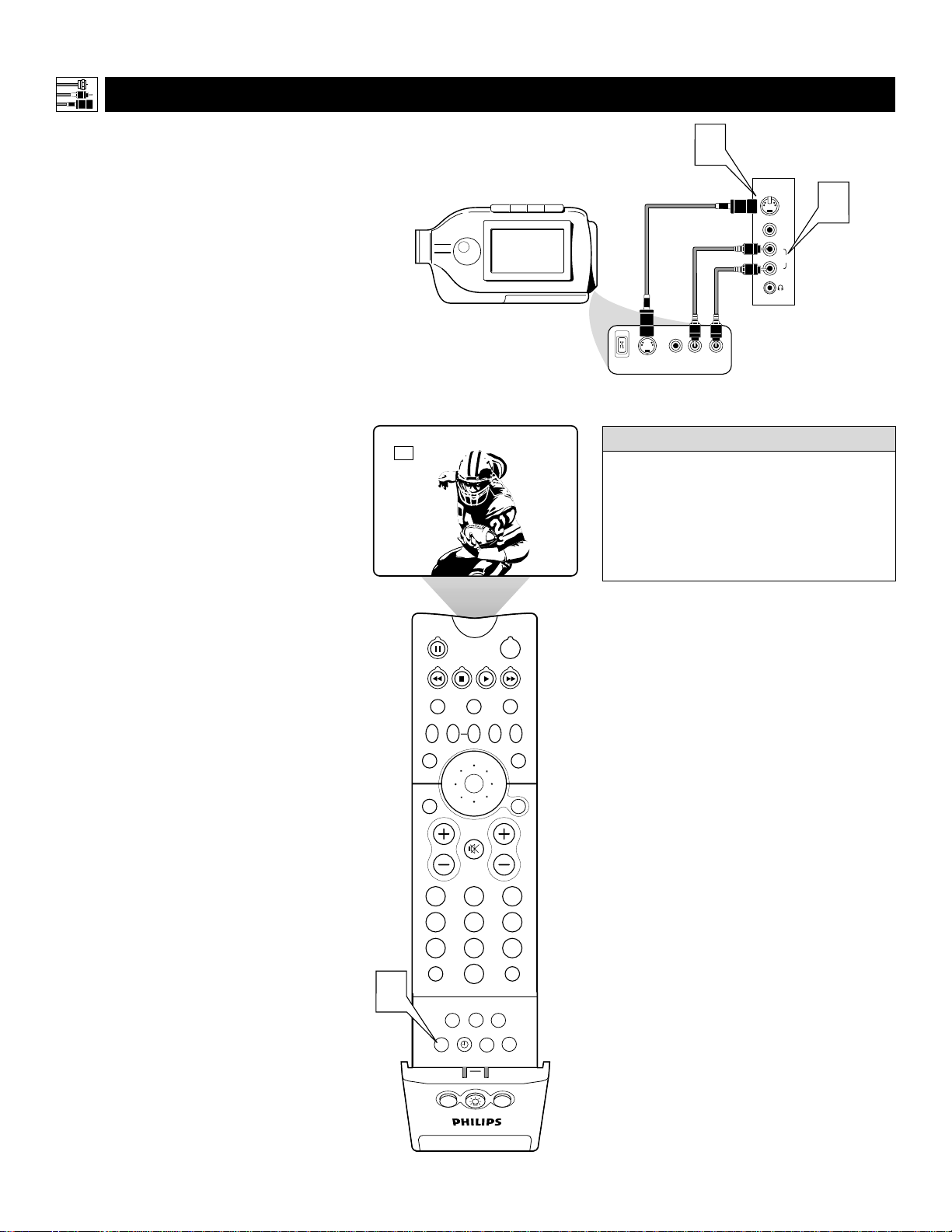
T
he S(uper)-Video connection on the back
(and side panel) of the TV can give you better
picture detail and clarity for the playback of S-
VHS VCR tapes or DVDs than the normal anten-
na (RF signal) or Video (composite) picture con-
nections. The example given connects a
DVD/VCR Combi unit to the INPUT-AV 2 jacks
on the back of the TV.
NOTE: The accessory device must have an
S-VIDEO output jack to make the connection
explained on this page.
To make the connections, you will need:
• one S-Video cable
• two cables for audio connections (standard
RCA-type phono plugs).
NOTE: The cables are not supplied with your TV.
You should be able to buy them at most stores
that sell electronics. Or you can call our
Customer Care Center at 1-800-531-0039.
1
Connect the S-VIDEO OUT jack on the
back of the accessory device with
S-VIDEO output to the INPUT-AV 2
S-VIDEO jack on the back of the TV.
2
Connect the DVD/VCR AUDIO OUT
jacks on the back of the accessory
device to the INPUT-AV 2 AUDIO input
jacks on the back of the TV.
3
Press the AV button on the remote con-
trol as many times as necessary to select
the AV2 source on the TV.
4
Turn the accessory device on and press
play to view the video source material
(DVD or videotape, for example) on
the TV.
CONNECTING AN S-V
IDEO DEVICE
• To simplify making connections, audio
cables are often color coded: red for the
right channel, and white for the left chan-
nel. The jacks on your TV are likewise
color coded to match the plugs. To make
S-Video connections, you must use an
S-Video cable.
• You can also connect a satellite receiver,
laser-disc player, video-game player, or
other accessory device with S-Video
capability to the TV in a manner similar
to the example shown on this page.
• If you connect a satellite receiver to the
TV, you will need to use the receiver’s
channel-memorization system to store
channels in the receiver’s memory.
HELPFUL HINTS
Video sources that show a constant non-mov-
ing pattern on the TV screen can cause pic-
ture-tube damage. When you are not using
your video accessory devices, turn them off.
Also, regularly alternate the use of accessory
video sources with normal TV viewing. See
page 60.
WARNING
Connecting Accessory Devices to Your TV
Back of TV
Back of Device with S-Video Output (example only)

VIDEO
S-VIDEO
L
Pb
Pr
VIDEO
S-VIDEO
L
AUDIO
L
R
AUDIO
L
R
G/Y
R/Pr
B/Pb
V
H
SYNC
L
R
AUDIO
L
R
AUDIO
HD INPUT-AV 4
HD INPUT-AV 5
INPUT-AV 2OUTPUT
INPUT-AV 1
Y
ANTENNA IN 75Ω
DVI
IN FROM ANT SATELLITE IN
OUT TO TV
CH 3
CH 4
DIGITAL
AUDIO OUT
VCR
CONTROL
S-VIDEO
VIDEOVIDEO
RR
PB
PR
Y
L
L
AUDIO
AUDIO
RF
REMOTEPHONE JACK
2
3
3
2
1
3
1
Back of TV
Signal
from
Satellite
Dish
Cable TV or
Antenna Signal
Back of HD Receiver
(example only)
15
CONNECTING AN HD R
ECEIVER TO THE HD INPUT-AV 4 JACKS
• HD receivers will supply stereo sound to the TV only through the audio
left and right cables, not through the coaxial cable.
• Making a standard connection along with the HD connection as shown
in the example (S-VIDEO) on this page will allow you to see the receiv-
er’s on-screen menu and a picture (valid signal) from the receiver should
it be switched to SD mode.
• The HD INPUT-AV 4 jacks are for standard RCA-type phono plugs.
Your HD receiver may use RCA or BNC output jacks. If your HD
receiver comes with BNC jacks, you will need to purchase BNC-to-
RCA adapters to connect the receiver to the TV. You should be able to
purchase these adapters at most stores that sell electronics. Or you can
call our Customer Care Center at 1-800-531-0039.
• The HD INPUT-AV 4 jacks are compatible with some digital equipment
having RGB outputs with “sync on green” or RGB with “separate H and V
sync.” Output standards for digital equipment, however, may vary by manu-
facturer. No industry standards have been established for HD television RGB
signal systems, timing, synchronization, and signal strengths. If the digital
equipment you want to connect to your TV offers both component video and
RGB outputs, component video is the suggested connection to use.
• The default color-space setting for the HD INPUT-AV 4 jacks is YPbPr.
RGB is also an option. If the picture color looks grossly incorrect, try
changing either the receiver’s or TV’s color space. See the receiver’s
directions-for-use manual for information on setting its color space. Or
see page 59 in this manual for setting the TV’s AV4 color space.
• AV4 and AV5 do not function with the PIP feature. They cannot be dis-
played in the PIP window, nor can the PIP window be displayed when
those signal sources are being viewed on the main screen.
HELPFUL HINTS
BNC-to-
RCA
Adapter
BNC
Connector
Adapter
Fitted to
Connection
OR
RCA
Connector
D
igital equipment with a 1080i or 480p output
is compatible with the HD INPUT-AV 4
video jacks.
NOTE: This television is designed to be compati-
ble with high-definition signal standards 1080i
and 480p as specified by the Electronic Industries
Association standard EIA770.3. Because output
standards may vary by manufacturer, you may
encounter some digital equipment that will not
properly display pictures on the TV.
To make the connections shown in this example,
you will need:
• one S-Video cable
• three cables for video connections (standard
RCA-type phono plugs)
• four cables for audio connections (standard
RCA-type phono plugs)
• one coaxial cable (75Ω).
NOTE: The cables are not supplied with your TV.
You should be able to buy them at most stores
that sell electronics. Or you can call our
Customer Care Center at 1-800-531-0039.
1
Connect S-VIDEO and audio cables.
NOTE: This example uses
INPUT-AV 1. You can use INPUT-AV 2 or
the side input jacks if you want.
• Connect an S-VIDEO cable from the HD
receiver’s S-VIDEO jack to the TV’s
INPUT-AV 1 S-VIDEO jack.
• Connect from the HD receiver’s AUDIO
L(eft) and R(ight) jacks to the TV’s
INPUT-AV 1 L(eft) and R(ight) AUDIO
jacks.
2
Connect component video and audio
cables to the TV’s HD inputs.
• Connect from the YPRPB jacks on
the HD receiver to the TV’s HD
INPUT-AV 4 G/Y, R/Pr, B/Pb jacks.
• Connect from the HD receiver’s AUDIO
L(eft) and R(ight) jacks to the TV’s HD
INPUT-AV 4 L(eft) and R(ight) AUDIO
jacks.
3
Connect coaxial cables.
• Connect the coaxial cable lead-in from
your cable outlet, cable converter box, or
VHF/UHF antenna to the IN FROM
ANT jack on the HD receiver.
• Connect a coaxial cable from the OUT
TO TV jack to the ANTENNA IN 75Ω
jack on the TV.
• Connect the coaxial cable lead-in from a
satellite dish antenna to the SATELLITE
IN jack on the HD receiver.
4
Refer to the directions-for-use manual
that came with the HD receiver for setup
instructions.
Connecting Accessory Devices to Your TV
16
CONNECTING A C
AMCORDER
G
VIDEO
S-VIDEO
AUDIO
L
R
Side Jack Panel
Typical
Camcorder
1
S-VIDEO
VIDEO AUDIO
LEFT RIGHT
DV
2
T
he side panel jacks provide a convenient way
for you to connect a camcorder to your TV.
The side panel jacks are recognized by your TV
as AV3.
You can obtain S-VIDEO quality with an S-VHS,
Hi-8, or digital camcorder by connecting to the
S-VIDEO input instead of the VIDEO (composite)
input.
To make the connections shown in this example,
you will need:
• an S-VIDEO cable
• two cables for audio connections (standard
RCA-type phono plugs).
NOTE: The cables are not supplied with your TV.
You should be able to buy them at most stores
that sell electronics. Or you can call our
Customer Care Center at 1-800-531-0039.
1
Connect from the S-VIDEO output on
the camcorder to the S-VIDEO input in
the TV’s side panel.
2
Connect from the AUDIO outputs on
the camcorder to the side panel AUDIO
L(eft) and R(ight) inputs.
3
Press the AV button on the remote con-
trol as many times as necessary to select
the AV3 source on the TV for the view-
ing of materials from your camcorder.
PIP ON/OFF
213
546
879
0
TV
SWAP PIP CH
DN
UP
ACTIVE
CONTROL
FREEZE
SOUND
MUTE
SURF
A/CH
POWER
PICTURE
STATUS/
EXIT
SURF
ITR/
RECORD
HOME
VIDEO
HOME
MOVIES
PERSONAL
SLEEP
REC •
PIPPOSITION
VCR
ACC
MENU/
SELECT
VOL
CH
TV/VCR
FORMAT
SAP
PROG.LISTDOLBY VAV
3
AV3
To simplify making connections, the plugs
on audio cables are often color coded: red
for the right channel, and white for the left
channel. The jacks on your TV are likewise
color coded to match the plugs. To make
S-Video connections, you must use an
S-Video cable.
HELPFUL HINT
Connecting Accessory Devices to Your TV

17
CONNECTING AND U
SING HEADPHONES WITH YOUR TV
G
Side Jack Panel
1
T
he HEADPHONE controls allow you to
adjust the volume and balance of the
sound going to the headphones.
1
Press the MENU/SELECT button
on the remote control to show the
on-screen menu.
2
Press the CURSOR RING DOWN
once to highlight SOUND.
3
Press the CURSOR RING RIGHT
to enter the SOUND submenu.
4
Press the CURSOR RING DOWN
repeatedly until HEADPHONE is
highlighted. Then press the CURSOR
RING RIGHT to enter the
HEADPHONE submenu.
5
Press the CURSOR RING DOWN
or UP to highlight VOLUME or
BALANCE. Then press the CURSOR
RING LEFT or RIGHT to adjust the
control.
6
Press the STATUS/EXIT button to
exit the menu.
T
he TV’s side panel has a headphone jack for
personal listening.
1
Insert the headphone plug into the
headphone jack ; in the TV’s side
panel.
2
Turn down the TV’s volume or press
the Mute button
cc
on the remote con-
trol to turn off the TV’s internal speak-
ers. See the section below for information
on adjusting headphone volume and bal-
ance.
NOTE: The headphone impedance must
be between 8 and 4,000 ohms. The head-
phone jack is stereo and 3.5 mm in size.
PIP
213
546
879
0
TV
SWAP PIP CH
DN
UP
FREEZE
SOUND
MUTE
SURF
A/CH
POWER
PICTURE
STATUS/
EXIT
POSITION
VCR
ACC
MENU/
SELECT
VOL
CH
TV/VCR
ACTIVE
CONTROL
3
1
2,4,
5
6
SOUND
TREBLE
BASS
BALANCE
INCR
.
SURROUND
HEADPHONE
VOLUME
BALANCE
PICTURE
SOUND
FEATURES
INSTALL
TREBLE
BASS
BALANCE
AVL
INCR
.
SURROUND
TREBLE 30
BASS
BALANCE
AVL
INCR
.
SURROUND
SOUND
SOUND
HEADPHONE
VOLUME 30
BALANCE
SOUND
HEADPHONE
VOLUME
BALANCE 0
SOUND
MUTE
PICTURE
STATUS/
EXIT
MENU/
SELECT
VOL
CH
2
2
The AVL, INCR. SURROUND, and BASS
BOOST controls do not function with the
headphones.
HELPFUL HINT
Connecting Accessory Devices to Your TV

18
PIP
213
546
879
0
TV
SWAP PIP CH
DN
UP
FREEZE
SOUND
MUTE
SURF
A/CH
POWER
PICTURE
STATUS/
EXIT
POSITION
VCR
ACC
MENU/
SELECT
VOL
CH
TV/VCR
ACTIVE
CONTROL
1
1
Cable Converter Box
Satellite Receiver
VCR
DVD Player
2
PROGRAMMING THE
TV REMOTE TO WORK ACCESSORY DEVICES
Y
our TV remote is capable of working not
only your TV but also other infrared
remote (IR) controlled accessory devices
such as VCRs, cable TV converter boxes,
satellite receivers, DVD players, and laser-
disc players.
If you want to use your TV remote to oper-
ate a VCR or other accessory devices, you
will need to perform the initial check
explained in this section. You may also need
to go to the sections on the “Code-entry
Method” and the “Search Method” in the
pages that follow.
1
Press the VCR or ACC(essory)
mode button on the TV remote for
the desired product category.
NOTE: Pressing the VCR mode button
allows access to product codes for
VCRs. Pressing the ACC(essory) mode
button allows access to the product
codes for cable TV converters, satellite
receivers, DVD players, and laser-disc
players.
2
Point the TV remote toward the
desired accessory device and press
the POWER button.
Does the remote turn the accessory
device on?
If yes, stop and try other function but-
tons on the TV remote. With a VCR,
for example, try the Play, Stop, and
Rewind buttons, for example. (See
page 23 for information on how the
remote buttons correspond with acces-
sory device functions.) If they also
work the accessory device, then the
remote is ready and no further steps
are needed.
If not, do the following:
Look up a four-digit remote code
number on pages 21 or 22 for your
brand of accessory device. Then go
through the simple steps for entering a
four-digit code as explained on
page 19.
Using the Remote Control
TV
SWAP PIP CH
DN
UP
FREEZE
SOUND
POWER
PICTURE
VCR
ACC
ACTIVE
CONTROL
If more than one four-digit code number is
listed, you may have to try more than the
first number given to locate your compo-
nent’s correct code.
HELPFUL HINT

19
PIP
213
546
879
0
TV
SWAP PIP CH
DN
UP
FREEZE
SOUND
MUTE
SURF
A/CH
POWER
PICTURE
STATUS/
EXIT
POSITION
VCR
ACC
MENU/
SELECT
VOL
CH
TV/VCR
ACTIVE
CONTROL
1
1
Cable Converter Box
Satellite Receiver
VCR
DVD Player
3
2
USING THE CODE-ENTRY METHOD TO PROGRAM YOUR TV REMOTE
N
ow that you have looked up the four-
digit remote-control Direct-entry Code
for your brand of accessory device, you are
ready to follow the simple steps shown below
to program your TV remote.
Please read through all the steps before
beginning.
1
First, press and hold down the VCR
or ACC (for an accessory device
other than a VCR) mode button on
the TV remote. Then press and hold
down the MENU/SELECT button at
the same time for a brief moment.
Release the buttons. The TV remote
back light will switch on.
NOTE: For correct operation, you
must first press and hold the mode
button and then press and hold the
MENU/SELECT button simultaneously.
2
Within 30 seconds of pressing the
VCR (or ACC) button and
MENU/SELECT button, enter a
four-digit code for the accessory
device (see pages 21 and 22).
If you make a mistake while attempt-
ing to enter the four-digit code and
want to start again, press any button
other than one with a number. Then
return to step 1 to begin again.
3
Point the remote at the accessory
device. Then press the POWER button
on the remote to turn the device on.
Using the Remote Control
• If you do not enter a complete code within
30 seconds, you will need to perform step
1 of the Code-entry Method again.
• If you enter more than four digits, the unit
will retain the first four digits entered.
• If the procedure explained above does not
work the first time, repeat the steps using
the same remote code number.
• If after a second try the remote does not
operate your accessory device, and more
code numbers are listed for your brand,
use the next listed code number.
• If after repeated attempts the Entry-code
Method does not allow you to work your
accessory device with your TV remote, try
the Search Method explained on the next
page.
HELPFUL HINTS
TV
SWAP PIP CH
DN
UP
FREEZE
SOUND
POWER
PICTURE
VCR
ACC
ACTIVE
CONTROL
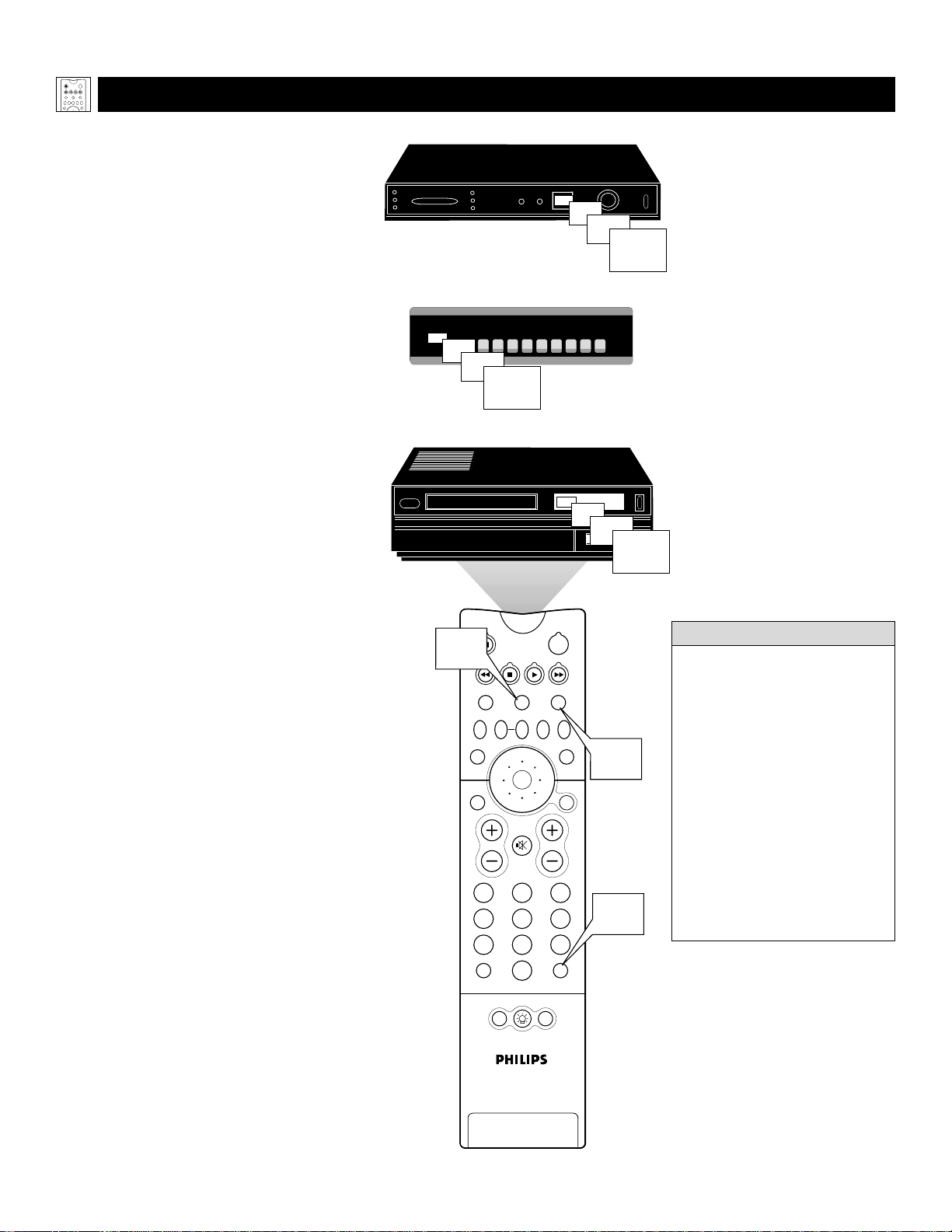
20
PIP
213
546
879
0
TV
SWAP PIP CH
DN
UP
FREEZE
SOUND
MUTE
SURF
A/CH
POWER
PICTURE
STATUS/
EXIT
POSITION
VCR
ACC
MENU/
SELECT
VOL
CH
TV/VCR
ACTIVE
CONTROL
1,3
Cable Converter Box
Satellite Receiver
VCR
1,3
1,3
06
07
08
09
06
07
08
09
06
07
08
09
USING THE S
EARCH METHOD TO PROGRAM YOUR TV REMOTE
Y
our TV remote can be set to work various
accessory devices (VCRs, cable convert-
ers, and satellite receivers, for example) by
what is called the Search Method.
NOTE: The Search Method works only with
devices equipped with channel-display indi-
cators on the devices themselves or the abili-
ty to show channel numbers on the TV
screen. If the Code-entry Method (shown in
the previous section) did not enable your TV
remote to work your accessory device, then
follow the easy steps listed below. Please
read the steps once before performing them.
1
Turn on the desired device. Press
and hold down the VCR orACC
(for an accessory device other than
a VCR) mode button on the TV
remote. Then press and hold down
the SURF button as you hold down
the desired mode (VCR or ACC) but-
ton.
NOTE: For correct operation, you
must press and hold down the desired
mode (VCR or ACC) button first and
then press and hold down the SURF
button second.
While holding down the SURF and
the desired mode (VCR orACC)
buttons simultaneously, point the
remote toward the accessory device
and continue holding the buttons
down.
2
Watch the Channel Indicator on
your accessory device. Channel num-
bers will scan up when the TV remote
has identified the correct code for
your accessory device. This may take
several minutes.
3
Release the mode (VCR or ACC)
and SURF buttons as soon as chan-
nel numbers start to scan up. The
scanning means that your TV remote
has found the code for your accessory
device.
NOTE:
If no channel change happens
after several minutes, repeat steps 1 and
2. Then if a channel change still does not
occur, the remote will not work with the
desired accessory device.
Using the Remote Control
• The remote’s back light will blink
as the remote moves through its
product code list. After the remote
identifies the product code for
your accessory device and you
release the remote buttons, the
back light will blink twice.
• Your TV remote may locate the
accessory device’s code quickly or
within several minutes.
• Don’t let the accessory device
scan up more than five channels
when the correct code is found—
the remote may pass up the right
code and have to repeat the search
cycle.
HELPFUL HINTS
TV
SWAP PIP CH
DN
UP
FREEZE
SOUND
POWER
PICTURE
VCR
ACC
ACTIVE
CONTROL

21
DIRECT-ENTRY
CODES FOR A/V ACCESSORY DEVICES
S
EE THE NEXT PAGE FOR MORE CODES.
Using the Remote Control
TV
SWAP PIP CH
DN
UP
FREEZE
SOUND
POWER
PICTURE
VCR
ACC
ACTIVE
CONTROL
VCR
CODE NUMBER
DENON . . . . . . . . . . . . . . . .0859
GE . . . . . . . . . . . . . . . . . . .0862
H
ARMAN/KARDON . . . . . . . .0871
H
ITACHI . . . . . . . . . . . . . . . .0870
JVC . . . . . . . . . . . . . . . . . .0868
KENWOOD . . . . . . . . . . . . .0865
MAGNAVOX . . . . . . . . . . . . .0860
MARANTZ . . . . . . . . . . . . . .0866
MITSUBISHI . . . . . . . . . . . . . .0861
ONKYO . . . . . . . . . . . . . . . .0860
O
PTIMUS . . . . . . . . . . . . . . .0869
P
ANASONIC . . . . . . . . . . . . .0859
PHILIPS . . . . . . . . . . . . . . . . .0866, 0860
PIONEER . . . . . . . . . . . . . . .0869, 0863
PROSCAN . . . . . . . . . . . . . . .0862
RCA . . . . . . . . . . . . . . . . . .0862, 0869
SAMSUNG . . . . . . . . . . . . . . .0870
SONY . . . . . . . . . . . . . . . . .0864
T
ECHNICS . . . . . . . . . . . . . .0859
T
HETA DIGITAL . . . . . . . . . . .0869
TOSHIBA . . . . . . . . . . . . . . .0860
YAMAHA . . . . . . . . . . . . . . .0859, 0867
ZENITH . . . . . . . . . . . . . . . .0872, 0860
DVD PLAYER
CODE NUMBER
ADMIRAL . . . . . . . . . . . . . . .0075, 0236
ADVENTURA . . . . . . . . . . . . .0027
AIKO . . . . . . . . . . . . . . . . . .0305
AIWA . . . . . . . . . . . . . . . . .0334, 0495, 0027, 0064
AKAI . . . . . . . . . . . . . . . . . .0133, 0080, 0068, 0076,
. . . . . . . . . . . . . . . . . . . . .0088, 0183, 0269
AMERICA A
CTION . . . . . . . . .0305
A
MERICAN HIGH . . . . . . . . . .0062
ASHA . . . . . . . . . . . . . . . . .0267
AUDIOVOX
. . . . . . . . . . . . . .0064
B
EAUMARK . . . . . . . . . . . . . .0267
BELL & HOWELL . . . . . . . . . .0131
BROKSONIC . . . . . . . . . . . . .0148, 0211, 0029, 0236,
. . . . . . . . . . . . . . . . . . . . .0238, 0322, 0388, 0506
CCE . . . . . . . . . . . . . . . . . .0099, 0305
CALIX . . . . . . . . . . . . . . . . .0064
CANON . . . . . . . . . . . . . . . .0194, 0062, 0129
CAPEHART . . . . . . . . . . . . . .0047
CARVER . . . . . . . . . . . . . . . .0108
CINERAL . . . . . . . . . . . . . . .0305
CITIZEN . . . . . . . . . . . . . . . .0305, 0064
COLT . . . . . . . . . . . . . . . . .0099
CRAIG . . . . . . . . . . . . . . . . .0064, 0099, 0074, 0267,
. . . . . . . . . . . . . . . . . . . . .0298
CURTIS MATHES . . . . . . . . . .0062, 0068, 0087, 0189
CYBERNEX . . . . . . . . . . . . . .0078, 0267
DAEWOO . . . . . . . . . . . . . . .0305, 0588, 0047, 0072
DAYTRON . . . . . . . . . . . . . .0047
DENON . . . . . . . . . . . . . . . .0069
DYNATECH . . . . . . . . . . . . . .0027
ELECTROHOME . . . . . . . . . . .0064
ELECTROPHONIC . . . . . . . . . .0064
EMEREX . . . . . . . . . . . . . . . .0059
EMERSON . . . . . . . . . . . . . . .0211, 0029, 0236, 0305,
. . . . . . . . . . . . . . . . . . . . .0063, 0148, 0238, 0588,
. . . . . . . . . . . . . . . . . . . . .0235, 0321, 0506, 0088,
. . . . . . . . . . . . . . . . . . . . .0115, 0239, 0027, 0064,
. . . . . . . . . . . . . . . . . . . . .0070, 0095, 0322, 0388,
. . . . . . . . . . . . . . . . . . . . .0537
FISHER . . . . . . . . . . . . . . . . .0074, 0131, 0081, 0093
FUJI . . . . . . . . . . . . . . . . . . .0060, 0062
FUNAI . . . . . . . . . . . . . . . . .0027
GE . . . . . . . . . . . . . . . . . . .0062, 0087, 0075, 0092,
. . . . . . . . . . . . . . . . . . . . .0229, 0267
GARRARD . . . . . . . . . . . . . .0027
GO VIDEO . . . . . . . . . . . . . .0306, 0459, 0553, 0259
GOLDSTAR . . . . . . . . . . . . . .0064, 0045, 0065, 0498,
. . . . . . . . . . . . . . . . . . . . .0507
GRADIENTE . . . . . . . . . . . . .0035, 0027, 0435
GRUNDIG . . . . . . . . . . . . . . .0222
HI-Q . . . . . . . . . . . . . . . . .0074
H
ARLEY DAVIDSON . . . . . . . .0027
H
ARMAN/KARDON . . . . . . . .0065, 0102, 0108
H
ARWOOD . . . . . . . . . . . . .0095, 0099
HEADQUARTER . . . . . . . . . . .0073
H
ITACHI . . . . . . . . . . . . . . . .0069, 0193, 0132, 0092,
. . . . . . . . . . . . . . . . . . . . .0027, 0068, 0109
H
UGHES NETWORK SYSTEMS .0069
JVC . . . . . . . . . . . . . . . . . .0094, 0035, 0233, 0234,
. . . . . . . . . . . . . . . . . . . . .0068, 0411
JENSEN . . . . . . . . . . . . . . . . .0068
KEC . . . . . . . . . . . . . . . . . .0064, 0305
KLH . . . . . . . . . . . . . . . . . .0099
KENWOOD . . . . . . . . . . . . .0068, 0094, 0411, 0065
KODAK . . . . . . . . . . . . . . . .0062, 0064
LXI . . . . . . . . . . . . . . . . . . .0064
LLOYD'S . . . . . . . . . . . . . . . .0027, 0235
LOGIK . . . . . . . . . . . . . . . . .0099
MEI . . . . . . . . . . . . . . . . . .0062
MGA . . . . . . . . . . . . . . . . .0070, 0088, 0267
MGN TECHNOLOGY . . . . . . .0267
MTC . . . . . . . . . . . . . . . . .0027, 0267
MAGNASONIC . . . . . . . . . . . .0305
MAGNAVOX
. . . . . . . . . . . . .0062, 0108, 0137, 0130,
. . . . . . . . . . . . . . . . . . . . .0027, 0066, 0176
M
AGNIN . . . . . . . . . . . . . . .0267
MARANTZ . . . . . . . . . . . . . .0108, 0062
MARTA . . . . . . . . . . . . . . . . .0064
MATSUSHITA . . . . . . . . . . . . .0062, 0189, 0481
MEMOREX . . . . . . . . . . . . . .0131, 0074, 0506, 0027,
. . . . . . . . . . . . . . . . . . . . .0064, 0075, 0062, 0073,
. . . . . . . . . . . . . . . . . . . . .0267, 0334, 0066, 0189,
. . . . . . . . . . . . . . . . . . . . .0236, 0481, 0828, 0829
MINOLTA
. . . . . . . . . . . . . . .0132, 0069
M
ITSUBISHI . . . . . . . . . . . . . .0200, 0088, 0102, 0241,
. . . . . . . . . . . . . . . . . . . . .0269, 0070, 0075, 0094,
. . . . . . . . . . . . . . . . . . . . .0470
MOTOROLA . . . . . . . . . . . . .0062, 0075
MULTITECH . . . . . . . . . . . . .0027, 0099
NAD . . . . . . . . . . . . . . . . .0085
NEC . . . . . . . . . . . . . . . . . .0065, 0067, 0068, 0077,
. . . . . . . . . . . . . . . . . . . . .0094, 0109, 0131
NIKKO . . . . . . . . . . . . . . . . .0064
NIKON . . . . . . . . . . . . . . . .0061, 0280
NOBLEX . . . . . . . . . . . . . . .0267
OLYMPUS . . . . . . . . . . . . . . .0062, 0253
OPTIMUS . . . . . . . . . . . . . . .0189, 0481, 0827, 0828,
. . . . . . . . . . . . . . . . . . . . .0075, 0085, 0829, 0064,
. . . . . . . . . . . . . . . . . . . . .0131, 0459
OPTONICA . . . . . . . . . . . . . .0089
ORION . . . . . . . . . . . . . . . .0506, 0029, 0211, 0236,
. . . . . . . . . . . . . . . . . . . . .0322
PANASONIC . . . . . . . . . . . . .0062, 0189, 0828, 0481,
. . . . . . . . . . . . . . . . . . . . .0253, 0104, 0405, 0829,
. . . . . . . . . . . . . . . . . . . . .0129, 0252, 0254, 0273,
. . . . . . . . . . . . . . . . . . . . .0827
PENNEY . . . . . . . . . . . . . . . .0062, 0267, 0064, 0069,
. . . . . . . . . . . . . . . . . . . . .0065, 0067, 0081
PENTAX . . . . . . . . . . . . . . . .0069, 0092, 0132
PHILCO . . . . . . . . . . . . . . . .0062, 0236, 0506
PHILIPS . . . . . . . . . . . . . . . . .0108, 0062, 0089, 0137,
. . . . . . . . . . . . . . . . . . . . .0830, 0831
P
ILOT . . . . . . . . . . . . . . . . .0064
P
IONEER . . . . . . . . . . . . . . .0085, 0195, 0094
P
OLK AUDIO . . . . . . . . . . . .0108
PORTLAND . . . . . . . . . . . . . .0047
P
ROFITRONIC . . . . . . . . . . . .0267
P
ROSCAN . . . . . . . . . . . . . . .0087, 0229
PROTEC . . . . . . . . . . . . . . . .0099
P
ULSAR . . . . . . . . . . . . . . . .0066, 0078
Q
UARTER . . . . . . . . . . . . . . .0073
QUARTZ . . . . . . . . . . . . . . .0073
QUASAR . . . . . . . . . . . . . . .0062, 0189, 0104, 0481,
. . . . . . . . . . . . . . . . . . . . .0828
RCA . . . . . . . . . . . . . . . . . .0087, 0176, 0229, 0069,
. . . . . . . . . . . . . . . . . . . . .0132, 0085, 0062, 0075,
. . . . . . . . . . . . . . . . . . . . .0092, 0104, 0133, 0267,
. . . . . . . . . . . . . . . . . . . . .0304
RADIO SHACK
. . . . . . . . . . .0027
R
ADIX . . . . . . . . . . . . . . . . .0064
RANDEX . . . . . . . . . . . . . . .0064
REALISTIC . . . . . . . . . . . . . . .0027, 0131, 0074, 0075,
. . . . . . . . . . . . . . . . . . . . .0064, 0062, 0089, 0073,
. . . . . . . . . . . . . . . . . . . . .0093
RICOH . . . . . . . . . . . . . . . . .0061, 0280
RUNCO . . . . . . . . . . . . . . . .0066
STS . . . . . . . . . . . . . . . . . .0069
SALORA . . . . . . . . . . . . . . . .0102
SAMSUNG . . . . . . . . . . . . . . .0072, 0078, 0080, 0267
SANKY . . . . . . . . . . . . . . . . .0066, 0075
SANSUI . . . . . . . . . . . . . . . .0068, 0506, 0027, 0094,
. . . . . . . . . . . . . . . . . . . . .0109, 0236, 0298
SANYO . . . . . . . . . . . . . . . . .0074, 0073, 0131, 0267
SCOTT . . . . . . . . . . . . . . . . .0211, 0238, 0148, 0070,
. . . . . . . . . . . . . . . . . . . . .0072, 0237, 0239
SEARS . . . . . . . . . . . . . . . . .0081, 0132, 0064, 0069,
. . . . . . . . . . . . . . . . . . . . .0027, 0062, 0073, 0074,
. . . . . . . . . . . . . . . . . . . . .0093, 0131
SEMP . . . . . . . . . . . . . . . . . .0072
SHARP . . . . . . . . . . . . . . . . .0075, 0089
SHINTOM . . . . . . . . . . . . . . .0099
SHOGUN . . . . . . . . . . . . . . .0078, 0267
SINGER . . . . . . . . . . . . . . . .0099
SONY . . . . . . . . . . . . . . . . .0060, 0061, 0059, 0280,
. . . . . . . . . . . . . . . . . . . . .0027, 0038, 0062
SUNPAK . . . . . . . . . . . . . . . .0280
SYLVANIA . . . . . . . . . . . . . . .0062, 0108, 0027, 0070,
. . . . . . . . . . . . . . . . . . . . .0130, 0137
SYMPHONIC . . . . . . . . . . . . .0027
TMK . . . . . . . . . . . . . . . . .0063, 0235, 0267
TATUNG . . . . . . . . . . . . . . . .0068
TEAC . . . . . . . . . . . . . . . . . .0027, 0068
TECHNICS . . . . . . . . . . . . . .0062, 0189, 0273
TEKNIKA . . . . . . . . . . . . . . .0027, 0062, 0064, 0079
THOMAS . . . . . . . . . . . . . . .0027
TOSHIBA . . . . . . . . . . . . . . .0072, 0237, 0239, 0070,
. . . . . . . . . . . . . . . . . . . . .0093, 0393
TOTEVISION . . . . . . . . . . . . .0064, 0267
UNITECH . . . . . . . . . . . . . . .0267
VECTOR . . . . . . . . . . . . . . . .0072
VECTOR RESEARCH . . . . . . . .0065, 0067
VIDEO CONCEPTS . . . . . . . . .0067, 0072, 0088, 0248
VIDEOSONIC . . . . . . . . . . . . .0267
W
ARDS . . . . . . . . . . . . . . . .0062, 0087, 0089, 0027,
. . . . . . . . . . . . . . . . . . . . .0074, 0239, 0267, 0069,
. . . . . . . . . . . . . . . . . . . . .0075, 0099, 0108, 0176
W
HITE WESTINGHOUSE . . . . .0099, 0305, 0236
XR-1000 . . . . . . . . . . . . . .0099, 0027, 0062
YAMAHA . . . . . . . . . . . . . . .0065
ZENITH . . . . . . . . . . . . . . . .0066, 0027, 0060, 0061,
. . . . . . . . . . . . . . . . . . . . .0236, 0506

LASER-DISC PLAYER
22
DIRECT-ENTRY
CODES FOR A/V ACCESSORY DEVICES
Using the Remote Control
TV
SWAP PIP CH
DN
UP
FREEZE
SOUND
POWER
PICTURE
VCR
ACC
ACTIVE
CONTROL
CABLE CONVERTER BOX
SATELLITE RECEIVER/DIGITAL SATELLITE SYSTEM
CODE NUMBER
ABC . . . . . . . . . . . . . . . . . .0030, 0028, 0034, 0035,
. . . . . . . . . . . . . . . . . . . . .0038, 0040, 0041, 0044,
. . . . . . . . . . . . . . . . . . . . .0060
ALLEGRO . . . . . . . . . . . . . . .0180, 0342
ANTRONIX . . . . . . . . . . . . . .0049, 0234
APACHE . . . . . . . . . . . . . . . .0797
ARCHER . . . . . . . . . . . . . . . .0049, 0066, 0180, 0234,
. . . . . . . . . . . . . . . . . . . . .0824
BBT . . . . . . . . . . . . . . . . . .0294
BELCOR . . . . . . . . . . . . . . . .0083
BELL & HOWELL . . . . . . . . . .0041
CABLE STA R . . . . . . . . . . . . .0083
CABLETENNA . . . . . . . . . . . .0049
CABLEVIEW . . . . . . . . . . . . .0049
CENTURY
. . . . . . . . . . . . . . .0180
C
ITIZEN . . . . . . . . . . . . . . . .0180, 0342
COLOUR VOICE . . . . . . . . . .0052, 0058
COMBAND
. . . . . . . . . . . . . .0259
C
OMTRONICS . . . . . . . . . . . .0067, 0087
CONTEC . . . . . . . . . . . . . . .0046
DIGI
. . . . . . . . . . . . . . . . . .0664
E
ASTERN . . . . . . . . . . . . . . .0029
EMERSON . . . . . . . . . . . . . . .0824
EVERQUEST . . . . . . . . . . . . . .0042, 0067
FOCUS . . . . . . . . . . . . . . . . .0427
GC ELECTRONICS . . . . . . . . .0083, 0234
GE . . . . . . . . . . . . . . . . . . .0259
GARRARD . . . . . . . . . . . . . .0180
GEMINI . . . . . . . . . . . . . . . .0042, 0097, 0269, 0824
GENERAL INSTRUMENT . . . . . .0303, 0038, 0503, 0837
GOLDSTAR . . . . . . . . . . . . . .0067, 0171
GOODMIND . . . . . . . . . . . . .0797, 0824
HAMLIN . . . . . . . . . . . . . . . .0047, 0036, 0286, 0061,
. . . . . . . . . . . . . . . . . . . . .0300
HITACHI
. . . . . . . . . . . . . . . .0038
H
YTEX . . . . . . . . . . . . . . . . .0034
JASCO . . . . . . . . . . . . . . . . .0042, 0180, 0342
JERROLD . . . . . . . . . . . . . . . .0030, 0039, 0303, 0041,
. . . . . . . . . . . . . . . . . . . . .0503, 0038, 0051, 0042,
. . . . . . . . . . . . . . . . . . . . .0837
LINSAY . . . . . . . . . . . . . . . . .0467
MACOM . . . . . . . . . . . . . . . .0060
MAGNAVOX . . . . . . . . . . . . .0054
MEMOREX . . . . . . . . . . . . . .0027
MOVIE TIME . . . . . . . . . . . . .0090, 0183
NSC . . . . . . . . . . . . . . . . . .0183, 0090, 0097
NEXUS . . . . . . . . . . . . . . . .0797
NOVAPLEX
. . . . . . . . . . . . . .0645
O
AK . . . . . . . . . . . . . . . . . .0046, 0034
OPTIMUS . . . . . . . . . . . . . . .0048
PANASONIC
. . . . . . . . . . . . .0048, 0134, 0027
P
ANTHER . . . . . . . . . . . . . . .0664
PARAGON . . . . . . . . . . . . . .0027
PHILIPS
. . . . . . . . . . . . . . . . .0052, 0058, 0269, 0317,
. . . . . . . . . . . . . . . . . . . . .0054, 0180
P
IONEER . . . . . . . . . . . . . . .0171, 0050, 0560
POPULAR MECHANICS . . . . . .0427
PRELUDE . . . . . . . . . . . . . . .0797
PULSAR . . . . . . . . . . . . . . . .0027
QUASAR . . . . . . . . . . . . . . .0027
RCA . . . . . . . . . . . . . . . . . .0048
RADIO SHACK . . . . . . . . . . .0042, 0847, 0342, 0824
REALISTIC . . . . . . . . . . . . . . .0234
RECOTON . . . . . . . . . . . . . .0427
REGAL . . . . . . . . . . . . . . . . .0300, 0047, 0286
REGENCY . . . . . . . . . . . . . . .0029
REMBRANDT . . . . . . . . . . . . .0038, 0097
RUNCO . . . . . . . . . . . . . . . .0027
SL MARX . . . . . . . . . . . . . . .0067
SAMSUNG . . . . . . . . . . . . . . .0067, 0171
SCIENTIFIC ATLANTA
. . . . . . .0035, 0044, 0033, 0504
S
EAM . . . . . . . . . . . . . . . . . .0537
SIGNAL . . . . . . . . . . . . . . . .0042, 0067
SIGNATURE . . . . . . . . . . . . . .0038
SPRUCER . . . . . . . . . . . . . . .0048
STARSIGHT . . . . . . . . . . . . . .0569, 0449
STARCOM . . . . . . . . . . . . . . .0030, 0042
STARGATE . . . . . . . . . . . . . . .0067, 0042, 0797, 0824
STARQUEST . . . . . . . . . . . . . .0042
SYLVANIA . . . . . . . . . . . . . . .0028
TFC . . . . . . . . . . . . . . . . . .0337
TV86 . . . . . . . . . . . . . . . . .0090
TANDY . . . . . . . . . . . . . . . . .0285
TELE
CAPTION . . . . . . . . . . . .0248
T
ELEVIEW . . . . . . . . . . . . . . .0067
TEXSCAN . . . . . . . . . . . . . . .0028
TIMELESS
. . . . . . . . . . . . . . .0445
T
OCOM . . . . . . . . . . . . . . . .0039, 0040
TOSHIBA . . . . . . . . . . . . . . .0027
TUSA . . . . . . . . . . . . . . . . . .0042
UNIKA . . . . . . . . . . . . . . . . .0180, 0234, 0049
UNITED ARTISTS . . . . . . . . . .0034
UNIVERSAL . . . . . . . . . . . . . .0234, 0049, 0066, 0083,
. . . . . . . . . . . . . . . . . . . . .0180, 0218
VIEWMASTER . . . . . . . . . . . . .0847
VIEWSTAR . . . . . . . . . . . . . .0285, 0054, 0087, 0090
ZENITH . . . . . . . . . . . . . . . .0027, 0552, 0081
ZENTEK . . . . . . . . . . . . . . . .0427
CODE NUMBER
ADS . . . . . . . . . . . . . . . . . .0880
AIWA . . . . . . . . . . . . . . . . .0855
CARVER . . . . . . . . . . . . . . . .0853, 0850, 0858
DENON . . . . . . . . . . . . . . . .0851, 0849, 0875
DISCO VISION . . . . . . . . . . . .0848
FUNAI . . . . . . . . . . . . . . . . .0855
HARMAN/KARDON . . . . . . . .0853
HITACHI . . . . . . . . . . . . . . . .0848
KENWOOD . . . . . . . . . . . . .0877
MAGNAVOX
. . . . . . . . . . . . .0853, 0857, 0875
M
ARANTZ . . . . . . . . . . . . . .0853, 0850
MITSUBISHI . . . . . . . . . . . . . .0849
NAD . . . . . . . . . . . . . . . . .0849
NEC . . . . . . . . . . . . . . . . . .0879
NIKKODO . . . . . . . . . . . . . .0884
OPTIMUS . . . . . . . . . . . . . . .0849
PANASONIC . . . . . . . . . . . . .0856
PHILIPS . . . . . . . . . . . . . . . . .0853, 0850
PIONEER . . . . . . . . . . . . . . .0849, 0848
POLK AUDIO . . . . . . . . . . . .0853
QUASAR . . . . . . . . . . . . . . .0856
RCA . . . . . . . . . . . . . . . . . .0881, 0874
REALISTIC . . . . . . . . . . . . . . .0855
SAMSUNG . . . . . . . . . . . . . . .0858
SEGA . . . . . . . . . . . . . . . . . .0848
SHARP . . . . . . . . . . . . . . . . .0873
SONY . . . . . . . . . . . . . . . . .0854, 0852, 0878
TECHNICS . . . . . . . . . . . . . .0856
THETA DIGITAL
. . . . . . . . . . .0853
V
ICTOR . . . . . . . . . . . . . . . .0876
YAMAHA . . . . . . . . . . . . . . .0857
CODE NUMBER
ALPHASTAR . . . . . . . . . . . . .0799
A
MPLICA . . . . . . . . . . . . . . .0099
A
MWAY . . . . . . . . . . . . . . . .0070, 0102
A
RUNTA . . . . . . . . . . . . . . .0548
ASTRO INDUSTRIES . . . . . . . .0122
BMC . . . . . . . . . . . . . . . . .0114
BSR . . . . . . . . . . . . . . . . . .0122
CABLE INNOVATIONS . . . . . . .0581
C
APETRONIC . . . . . . . . . . . .0122
C
ENTURY . . . . . . . . . . . . . . .0565
CHANNEL MASTER . . . . . . . .0045, 0239
C
HAPARRAL . . . . . . . . . . . . .0080, 0236, 0243
C
ITOH . . . . . . . . . . . . . . . . .0191
CONIFER . . . . . . . . . . . . . . .0031
C
URTIS MATHES . . . . . . . . . .0088, 0099
DX A
NTENNA . . . . . . . . . . .0068
DRAKE . . . . . . . . . . . . . . . .0091, 0272, 0045, 0176
E
CHOSTAR . . . . . . . . . . . . . .0307, 0802, 0175, 0186,
. . . . . . . . . . . . . . . . . . . . .0296
E
XPRESSVU . . . . . . . . . . . . . .0802
GE . . . . . . . . . . . . . . . . . . .0593
G
ENERAL INSTRUMENT . . . . . .0388, 0896, 0574, 0581,
. . . . . . . . . . . . . . . . . . . . .0654
G
OULD . . . . . . . . . . . . . . . .0082
HNS . . . . . . . . . . . . . . . . . .0644
HTS . . . . . . . . . . . . . . . . . .0802
HITACHI . . . . . . . . . . . . . . . .0846
H
OMECABLE . . . . . . . . . . . . .0265
HUGHES NETWORK SYSTEMS .0776
H
YTEK . . . . . . . . . . . . . . . . .0122
IQ . . . . . . . . . . . . . . . . . . .0237
IQ P
RISM . . . . . . . . . . . . . . .0237
I
NTERSAT . . . . . . . . . . . . . . .0070
JVC . . . . . . . . . . . . . . . . . .0802
J
ANEIL . . . . . . . . . . . . . . . . .0179
J
ERROLD . . . . . . . . . . . . . . . .0388, 0654
L
EGEND . . . . . . . . . . . . . . . .0296
MACOM . . . . . . . . . . . . . . . .0088, 0045
M
AGNAVOX . . . . . . . . . . . . .0749, 0751
M
EMOREX . . . . . . . . . . . . . .0296, 0751
NEXT LEVEL . . . . . . . . . . . . .0896
NORSAT . . . . . . . . . . . . . . . .0031
P
ANASONIC . . . . . . . . . . . . .0179, 0728
P
HILIPS . . . . . . . . . . . . . . . . .0227, 0749, 0751
P
ICO . . . . . . . . . . . . . . . . . .0102
P
RIMESTAR . . . . . . . . . . . . . .0654, 0388
RCA . . . . . . . . . . . . . . . . . .0593, 0170, 0882
R
ADIO SHACK . . . . . . . . . . .0581, 0896
R
AMSEY . . . . . . . . . . . . . . . .0102
REALISTIC . . . . . . . . . . . . . . .0079, 0078
STS . . . . . . . . . . . . . . . . . .0237, 0068
SONY . . . . . . . . . . . . . . . . .0666
STAR CHOICE . . . . . . . . . . . .0896
S
TAR TRAK . . . . . . . . . . . . . .0207, 0448, 0574
S
TRONG . . . . . . . . . . . . . . . .0448
TOSHIBA . . . . . . . . . . . . . . .0109, 0776, 0817, 0088
T
OWN & COUNTRY . . . . . . .0574
U
NIDEN . . . . . . . . . . . . . . . .0265, 0079, 0101, 0397,
. . . . . . . . . . . . . . . . . . . . .0581, 0751, 0103, 0323,
. . . . . . . . . . . . . . . . . . . . .0749
ZENITH . . . . . . . . . . . . . . . .0091, 0883, 0088
TELEVISION
CODE NUMBER
MAGNAVOX . . . . . . . . . . . . .0583
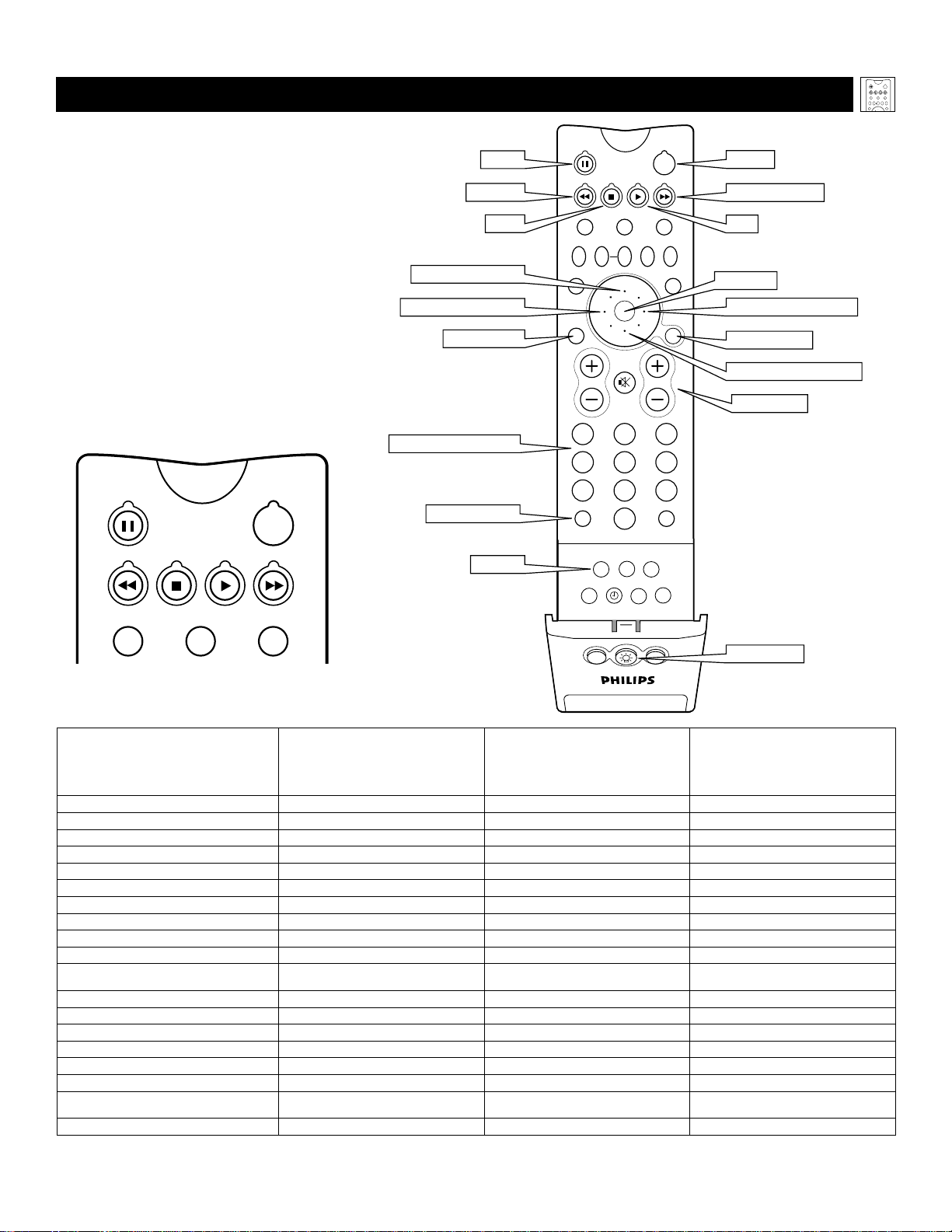
23
USING THE TV R
EMOTE WITH ACCESSORY DEVICES
Using the Remote Control
TV
SWAP PIP CH
DN
UP
FREEZE
SOUND
POWER
PICTURE
VCR
ACC
ACTIVE
CONTROL
T
he Chart below provides you with com-
mon accessory-device functions associat-
ed with the buttons on your Philips TV remote
control. (See pages 18–20 for information on
programming your TV remote to operate
accessory devices.)
NOTES:
• Functions can vary according to the manu-
facturer’s specifications for each accessory
device.
• First press the VCR mode button to use the
TV remote to operate a VCR.
• First press the ACC mode button to use the
TV remote to operate a DVD player, laser-
disc player, cable converter box, or satel-
lite receiver/digital satellite system.
*A/CH (Alternate Channel) allows you to switch between the currently viewed channel and the previously viewed channel.
**Press the BACK LIGHT button to light the white buttons on the remote.
PIP ON/OFF
213
546
879
0
TV
SWAP PIP CH
DN
UP
ACTIVE
CONTROL
FREEZE
SOUND
MUTE
SURF
A/CH
POWER
PICTURE
STATUS/
EXIT
SURF
ITR/
RECORD
HOME
VIDEO
HOME
MOVIES
PERSONAL
SLEEP
REC •
PIPPOSITION
VCR
ACC
MENU/
SELECT
VOL
CH
TV/VCR
FORMAT
SAP
PROG.LISTDOLBY VAV
POWER
PAUSE
REWIND
STOP
FAST FORWARD
PLAY
MENU/SELECT
CURSOR RING DOWN
CURSOR RING RIGHT
CH + & CH -
CURSOR RING UP
CURSOR RING LEFT
STATUS/EXIT
OK Button
A/CH & TV/VCR
REC, SAP
BACK LIGHT
NUMBER Buttons (0-9)
TV
ACTIVE
POWER
VCR
ACC
TV Remote VCR
and Accessory Mode Buttons
etomeRVTnonottuBnoitcnuFRCVnommoC
reyalPDL/DVDnommoC
noitcnuF
retrevnoCelbaCnommoC
etilletaSroxoB
etilletaSlatigiD/revieceR
noitcnuF)SSD(metsyS
REWOPREWOPREWOPREWOP
ESUAPESUAPESUAP—
DNIWERDNIWERESREVERHCRAES—
POTSPOTSPOTS—
YALPYALPYALP—
DRAWROFTSAFDRAWROFTSAFDRAWROFHCRAES—
PUGNIRROSRUCPUROSRUCPUROSRUCPUROSRUC
NWODGNIRROSRUCNWODROSRUCNWODROSRUCNWODROSRUC
THGIRGNIRROSRUCTHGIRROSRUCTHGIRROSRUCTHGIRROSRUC
TFELGNIRROSRUCTFELROSRUCTFELROSRUCTFELROSRUC
nottuBKOUNEM;MARGORPUNEM
UNEM
)SSD/srevieceretilletasrofEDIUG,osla(
TIXE/SUTATSTIXETIXETIXE
TCELES/UNEMTCELESTCELESTCELES
+HCPULENNAHCTXENPULENNAHC
–HCNWODLENNAHCSUOIVERPNWODLENNAHC
)9–0(snottuBREBMUN)9–0(NOITCELESREBMUN)9–0(NOITCELESREBMUN)9–0(NOITCELESREBMUN
RCV/VTdna*HC/A*HC/A,RCV/VT——
PAS,CER
DROCER
)nottuBYALPhtiwsserP(——
**THGILKCAB**THGILKCAB**THGILKCAB**THGILKCAB
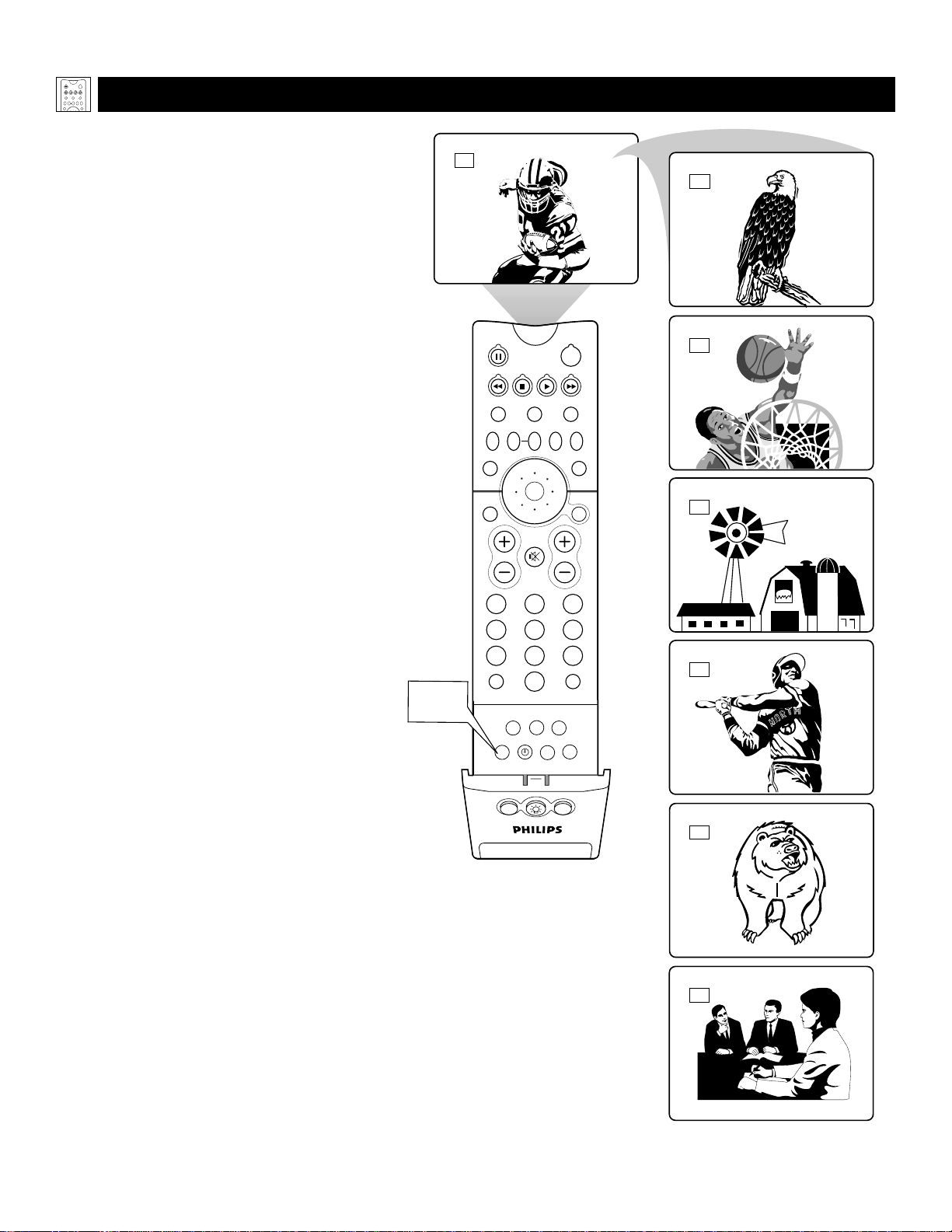
24
USING THE AV
AND SOURCE SELECT BUTTONS
PIP ON/OFF
213
546
879
0
TV
SWAP PIP CH
DN
UP
ACTIVE
CONTROL
FREEZE
SOUND
MUTE
SURF
A/CH
POWER
PICTURE
STATUS/
EXIT
SURF
ITR/
RECORD
HOME
VIDEO
HOME
MOVIES
PERSONAL
SLEEP
REC •
PIPPOSITION
VCR
ACC
MENU/
SELECT
VOL
CH
TV/VCR
FORMAT
SAP
PROG.LISTDOLBY VAV
10
AV1
CVI
AV2
AV3
AV4
AV
Button
AV5
T
he AV button on the remote control and
SOURCE SELECT button on the TV
allow you to access the TV’s signal-source
inputs. With each press of the AV button, you
can access a different signal input source.
The input jacks are located on the back and
side panels of your TV. (See pages 7 and 8.)
Using the Remote Control
TV
SWAP PIP CH
DN
UP
FREEZE
SOUND
POWER
PICTURE
VCR
ACC
ACTIVE
CONTROL
Selecting an Input Source
Using the AV Button
on the Remote Control
Press the AV button on the remote control as
many times as necessary to select the input
source you want to watch.
Selecting an Input Source
Using the Source Select
Button on the TV
Press the SOURCE SELECT button on the TV
as many times as necessary to select the input
source you want to watch.
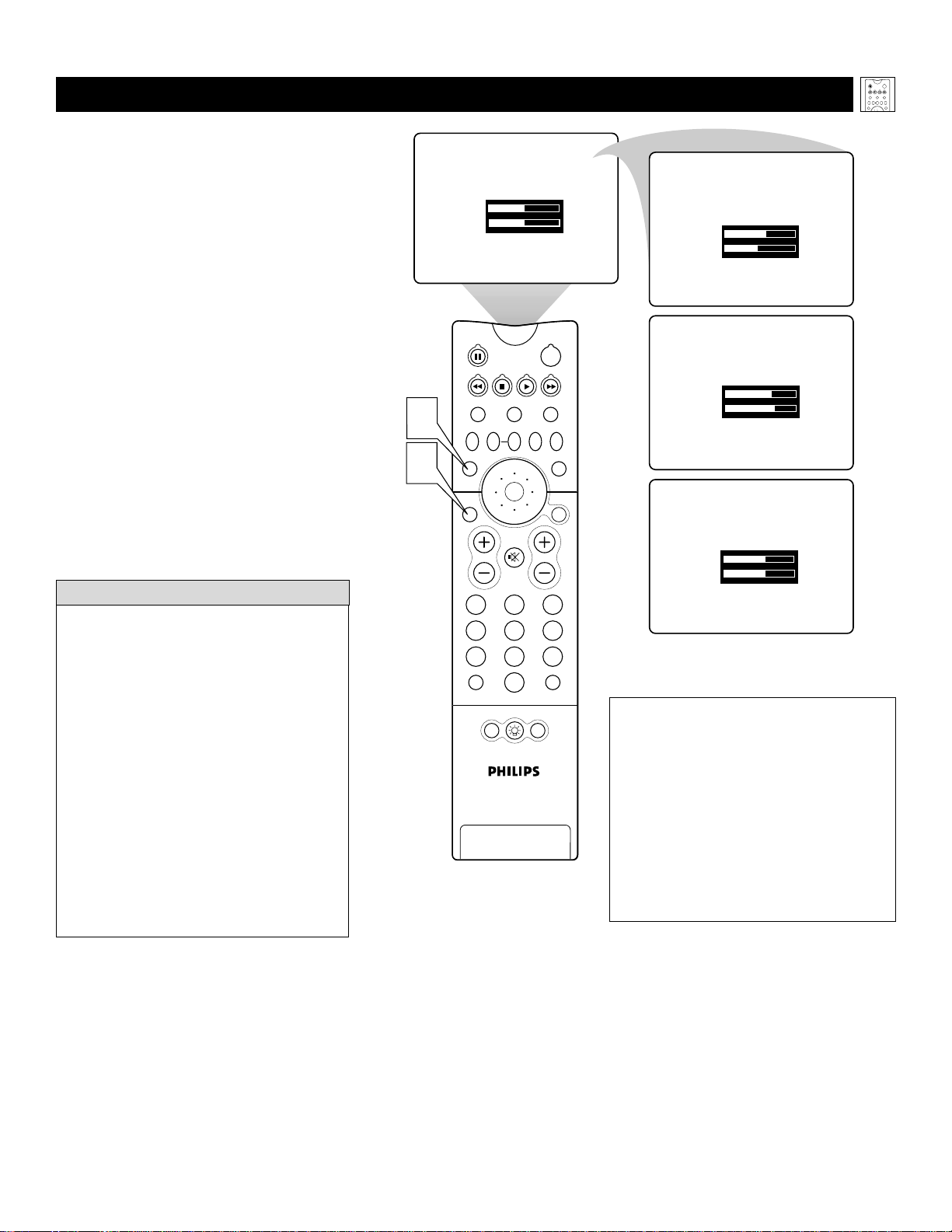
25
PERSONAL
TREBLE 49
BASS 49
VOICE
TREBLE 56
BASS 47
MUSIC
TREBLE 63
BASS 69
THEATRE
TREBLE 59
BASS 59
PIP
213
546
879
0
TV
SWAP PIP CH
DN
UP
FREEZE
SOUND
MUTE
SURF
A/CH
POWER
PICTURE
STATUS/
EXIT
POSITION
VCR
ACC
MENU/
SELECT
VOL
CH
TV/VCR
ACTIVE
CONTROL
1
2
USING AUTO
SOUND™
Y
ou can use the AutoSound™ options to
automatically tailor the TV’s sound for
the type of program you are watching. The
factory has set the VOICE, MUSIC, and
THEATRE options. The settings for the PER-
SONAL option are the ones you select
through the on-screen SOUND submenu. See
descriptions of the options below, right.
1
Press the SOUND button on the
remote control. The current
AutoSound™ setting will appear on
screen. Press the SOUND button
repeatedly to cycle through the four
options: PERSONAL, VOICE,
MUSIC, or THEATRE.
2
When you see the option you want
on the screen, press the
STATUS/EXIT button to exit the
menu. The AutoSound™ option you
selected is then active.
Using the Remote Control
TV
SWAP PIP CH
DN
UP
FREEZE
SOUND
POWER
PICTURE
VCR
ACC
ACTIVE
CONTROL
HELPFUL H
INTS
AutoSound™ Options
PERSONAL presents the TV’s sound
according to the TREBLE and BASS set-
tings you make within the SOUND sub-
menu.
VOICE brings voices to the forefront and
emphasizes them. Moves music to the
background.
MUSIC emphasizes music over voices.
THEATRE provides a balance between
voices and music.
• AutoSound™ works only with the pro-
grams coming through the ANTENNA
IN 75Ω jack on the back of the TV.
AutoSound™ will not control the sound
levels of the other jacks on the back or
side of the TV.
• If you select an AutoSound™ option
other than PERSONAL, then the TRE-
BLE and BASS settings specific to that
option will also be written to the
SOUND submenu items. At that point,
the PERSONAL AutoSound™ option
settings will not be changed. Only when
you go into the
SOUND submenu and
change the TREBLE
and BASS settings
will those settings be reflected in the
PERSONAL AutoSound™ option.

26
PIP
213
546
879
0
TV
SWAP PIP CH
DN
UP
FREEZE
SOUND
MUTE
SURF
A/CH
POWER
PICTURE
STATUS/
EXIT
POSITION
VCR
ACC
MENU/
SELECT
VOL
CH
TV/VCR
ACTIVE
CONTROL
1
PERSONAL
BRIGHTNESS 48
COLOR 41
PICTURE 81
SHARPNESS 46
MOVIES
BRIGHTNESS 50
COLOR 50
PICTURE 50
SHARPNESS 84
SPORTS
BRIGHTNESS 50
COLOR 55
PICTURE 60
SHARPNESS 70
WEAK SIGNAL
BRIGHTNESS 50
COLOR 40
PICTURE 40
SHARPNESS 28
MULTIMEDIA
BRIGHTNESS 50
COLOR 40
PICTURE 40
SHARPNESS 70
2
USING AUTOPICTURE™
Using the Remote Control
TV
SWAP PIP CH
DN
UP
FREEZE
SOUND
POWER
PICTURE
VCR
ACC
ACTIVE
CONTROL
If you select an AutoPicture™ setting
option other than PERSONAL, then the
BRIGHTNESS, COLOR, PICTURE, and
SHARPNESS settings specific to that
option will also be written to the PICTURE
submenu items. At that point, the PERSON-
AL AutoPicture™ option settings will not
be changed. Only when you go into the
PICTURE submenu and change the settings
will those settings be reflected in the PER-
SONAL AutoPicture™ option.
HELPFUL HINT
Y
ou can use an AutoPicture™ option to
automatically tailor the TV’s picture for
certain types of input signals. The factory
has set the MOVIES, SPORTS, WEAK SIG-
NAL, and MULTIMEDIA options. The set-
tings for the PERSONAL option are the ones
you select through the on-screen PICTURE
submenu.
1
Press the PICTURE button on the
remote control. The current
AutoPicture™ setting will appear on
screen. Then Press the PICTURE but-
ton repeatedly to cycle through the
options: PERSONAL, MOVIES,
SPORTS, WEAK SIGNAL, and
MULTIMEDIA picture settings.
2
When you see the option you want
on screen, press the STATUS/EXIT
button to turn off the on-screen dis-
play. The AutoPicture™ option you
selected is then active.
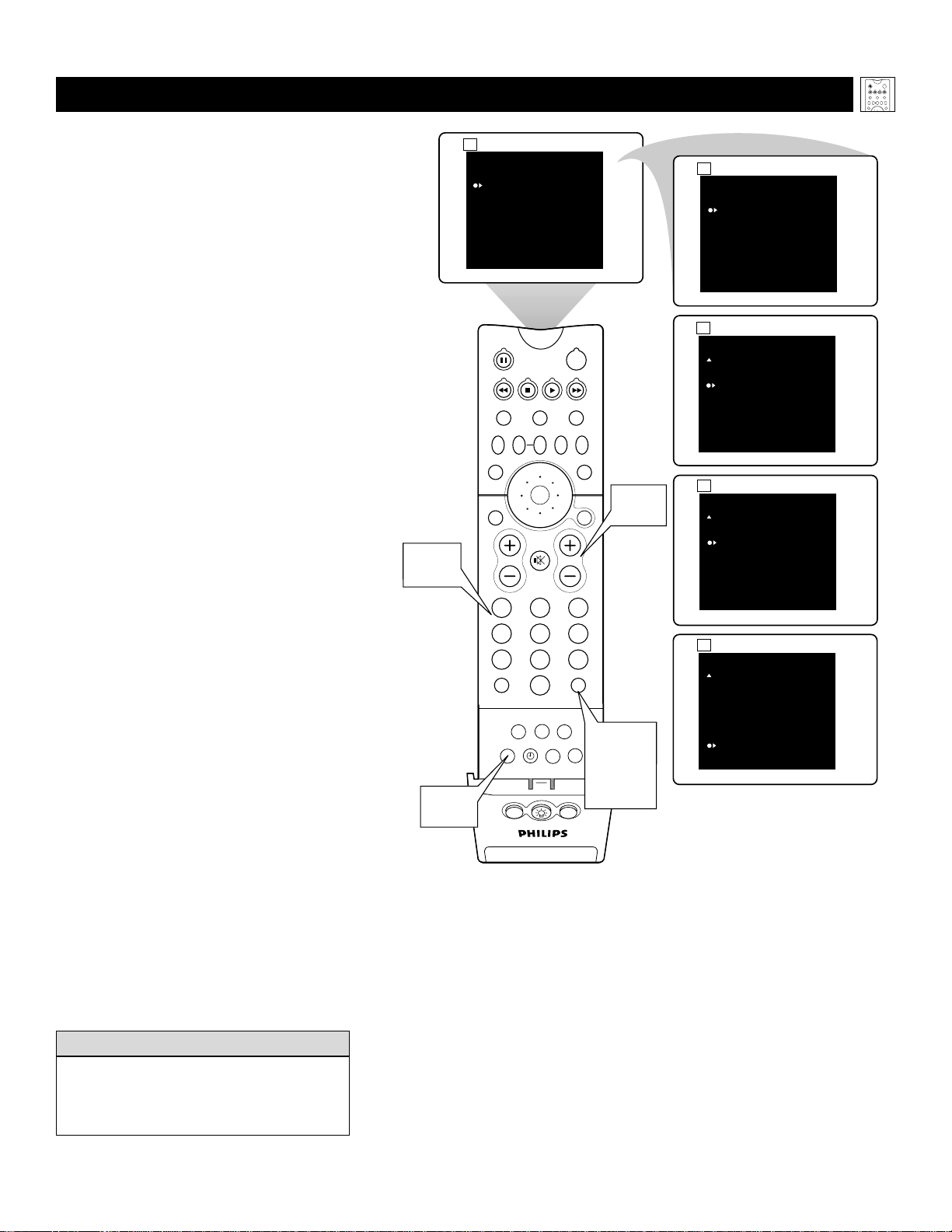
27
A
fter you set up a list of your favorite sig-
nal sources in the SURF list, you can
press the SURF button to see the list and
quickly tune to a favorite signal source.
Place up to 10 signal sources in the SURF
LIST.
1
Press the NUMBER buttons,
CH(annel) +/– buttons, or the AV
button to select a signal source to
add to the Surf list.
2
Press the SURF button. The Surf list
box appears. The number of the cur-
rent signal source is shown with
ADD? to the right. (If you have not
added any channels to the list, “SURF
LIST EMPTY” appears on screen.)
Press the CURSOR RING RIGHT to
add the signal source to the Surf list.
3
Press the NUMBER buttons,
CH(annel) +/– buttons, or the AV
button to select another signal
source to add to the Surf list. Press
the SURF button and then the CUR-
SOR RING RIGHT to add the signal
source to the list.
Repeat this step, filling the list with
up to 10 favorite signal sources.
NOTE: If you exceed 10 signal
sources, the first signal source on the
list will be deleted from the list.
4
To tune to a favorite signal source
from the list, press the SURF but-
ton. The Surf list box appears. Press
the SURF button or the CURSOR
RING DOWN or UP as many times as
necessary to tune to the signal source.
5
To delete a signal source from the
list, press the SURF button. The
Surf list box appears. Press the SURF
button or the CURSOR RING DOWN
or UP as many times as necessary to
select the signal source to be deleted.
Then press the CURSOR RING
RIGHT to delete the signal source.
Five signal sources can be shown in the
Surf list box at one time. Press the CUR-
SOR RING UP or DOWN to show any
other signal sources that are in the list.
HELPFUL HINT
8
11
15
4
7 DELETE?
SURF
7
SURF
12 ADD?
SURF LIST EMPTY
SURF
12 DELETE?
SURF
12
24 ADD?
12
24 DELETE?
SURF
12
12
24
24
PIP ON/OFF
213
546
879
0
TV
SWAP PIP CH
DN
UP
ACTIVE
CONTROL
FREEZE
SOUND
MUTE
SURF
A/CH
POWER
PICTURE
STATUS/
EXIT
SURF
ITR/
RECORD
HOME
VIDEO
HOME
MOVIES
PERSONAL
SLEEP
REC •
PIPPOSITION
VCR
ACC
MENU/
SELECT
VOL
CH
TV/VCR
FORMAT
SAP
PROG.LISTDOLBY VAV
2,4,
5
1,3
1, 3
1,3
USING AUTO
SURF™
Using the Remote Control
TV
SWAP PIP CH
DN
UP
FREEZE
SOUND
POWER
PICTURE
VCR
ACC
ACTIVE
CONTROL
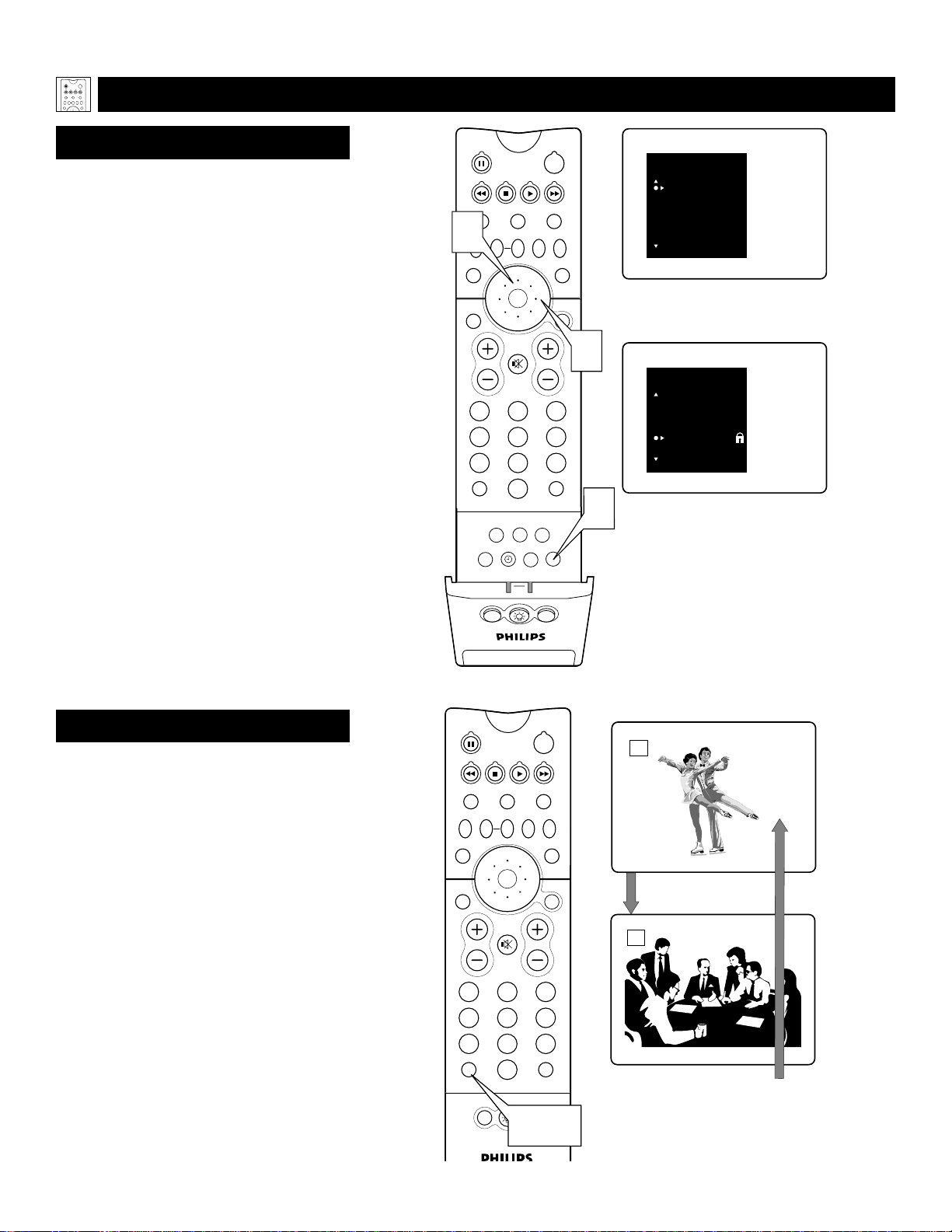
28
ALTERNATE CHANNEL (A/CH)
You can press the A/CH button on your
remote control to go back and forth between
the current channel and one previously
watched channel.
1
Press the Program List button on
the remote control to display a list
of channel numbers and their
names. (See the “Tuner Mode” “Auto
Program,” “Channel Edit,” and
“Name” sections on pages 4–6 in the
Quick Use and Setup Guide that came
with your TV for proper setup.)
You can also access the Program List
by pressing the button in the center of
the Cursor Ring. Each channel will
appear as a selectable item. The cur-
rent channel will be highlighted by
default. Only five channels will be
shown in the list at one time.
2
Press the CURSOR RING UP or
DOWN to go through the list and
highlight a channel.
3
Press the CURSOR RING RIGHT
to tune to the highlighted channel.
Channels marked “Skipped” in the
“Channel Edit” control will not
appear in the list. Any channel that is
being blocked by AutoLock™ will
appear with a padlock icon to indicate
that the channel is not viewable.
PROGRAM LIST
USING PROGRAM
LIST AND ALTERNATE CHANNEL
Using the Remote Control
TV
SWAP PIP CH
DN
UP
FREEZE
SOUND
POWER
PICTURE
VCR
ACC
ACTIVE
CONTROL
PIP ON/OFF
213
546
879
0
TV
SWAP PIP CH
DN
UP
ACTIVE
CONTROL
FREEZE
SOUND
MUTE
SURF
A/CH
POWER
PICTURE
STATUS/
EXIT
SURF
ITR/
RECORD
HOME
VIDEO
HOME
MOVIES
PERSONAL
SLEEP
REC •
PIPPOSITION
VCR
ACC
MENU/
SELECT
VOL
CH
TV/VCR
FORMAT
SAP
PROG.LISTDOLBY VAV
1
PROGRAM LIST
71 - - - - -
72 - - - - -
98 - - - - -
AV 1 - - - - -
CVI - - - - -
2
3
PROGRAM LIST
7 - - - - -
8 - - - - -
9 - - - - -
10 - - - - -
11 - - - - -
A padlock image will appear to the
right of a channel or signal source
that is being blocked by AutoLock™.
PIP
213
546
879
0
TV
SWAP PIP CH
DN
UP
FREEZE
SOUND
MUTE
SURF
A/CH
POWER
PICTURE
STATUS/
EXIT
POSITION
VCR
ACC
MENU/
SELECT
VOL
CH
TV/VCR
ACTIVE
CONTROL
5
10
Watch channel
Change channel
Watch new channel
Press A/CH button
to return to previously
watched channel
A/CH
Button
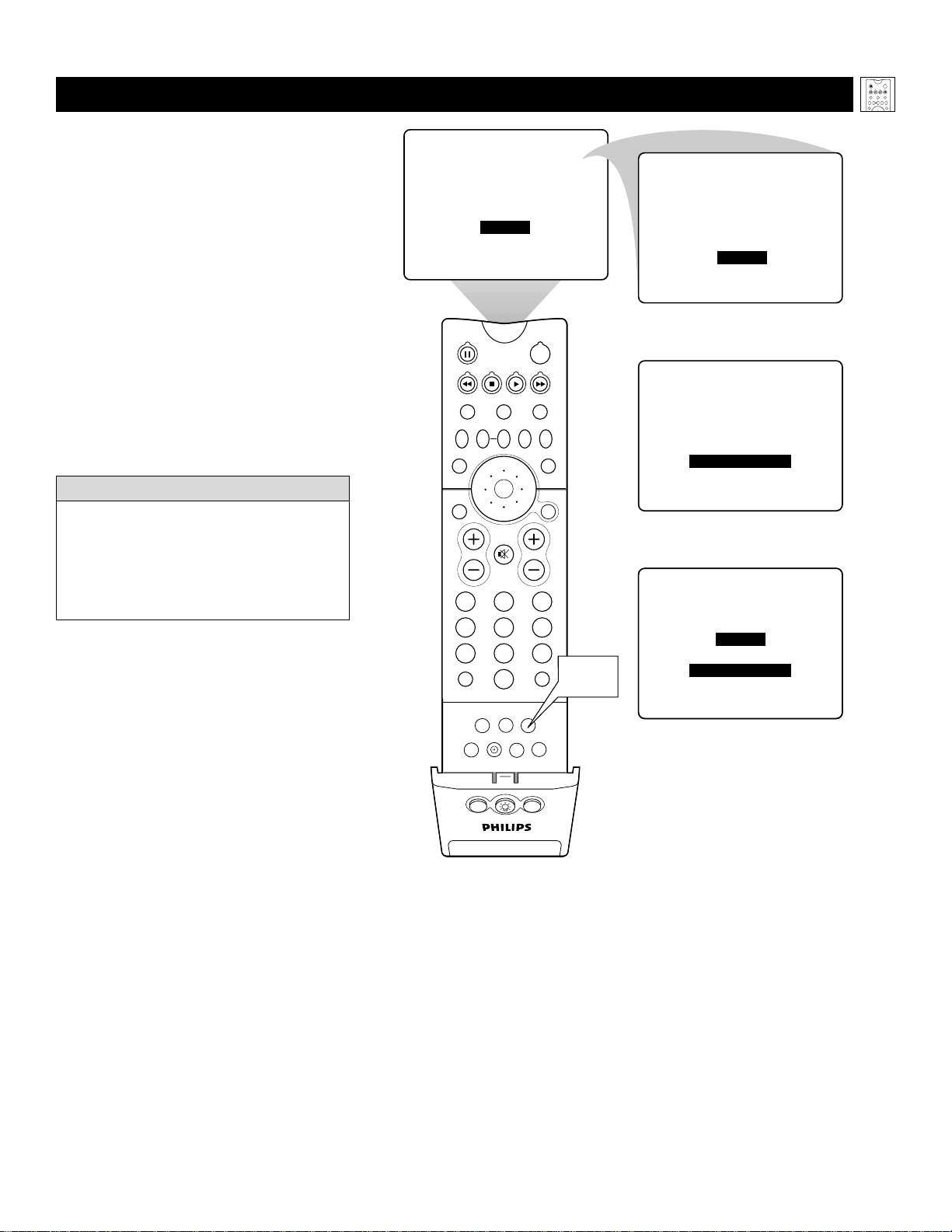
29
USING THE S
LEEP TIMER CONTROL
H
ave you ever fallen asleep in front of the
TV? You can program your TV to turn
off while you sleep. The Sleep Timer feature
allows you to set your TV to turn off within a
certain amount of time: 15, 30, 45, 60, 90,
120, 180, or 240 minutes.
Press the SLEEP button on the remote
control. The SLEEP Timer on-screen dis-
play will appear on screen. Then within
five seconds, press the SLEEP button
again as many times as necessary to select
the amount of time you want to pass
before the TV will turn itself off.
An on-screen countdown will appear during
the last minute before the TV turns off. Ten
seconds before the Sleep Timer turns the TV
off, the on-screen display will show “Good
Bye.”
Using the Remote Control
TV
SWAP PIP CH
DN
UP
FREEZE
SOUND
POWER
PICTURE
VCR
ACC
ACTIVE
CONTROL
PIP ON/OFF
213
546
879
0
TV
SWAP PIP CH
DN
UP
ACTIVE
CONTROL
FREEZE
SOUND
MUTE
SURF
A/CH
POWER
PICTURE
STATUS/
EXIT
SURF
ITR/
RECORD
HOME
VIDEO
HOME
MOVIES
PERSONAL
SLEEP
REC •
PIPPOSITION
VCR
ACC
MENU/
SELECT
VOL
CH
TV/VCR
FORMAT
SAP
PROG.LISTDOLBY VAV
SLEEP OFFSLEEP OFF
SLEEP 15
The Sleep Timer options are 15, 30, 45,
60, 90, 120, 180, or 240 minutes.
TV SWITCHING OFF 59
During the last minute of a Sleep Timer
setting, an on-screen countdown will be
displayed.
During the last 10 seconds of a Sleep
Timer setting, "GOOD BYE" will be
displayed on screen.
TV SWITCHING OFF 9
GOOD BYE
SLEEP
Button
• To see how many minutes remain before
the TV shuts itself off, press the
STATUS/EXIT button.
• Changing the channel or volume during
the last minute of a Sleep Timer will
cancel Sleep.
HELPFUL HINTS
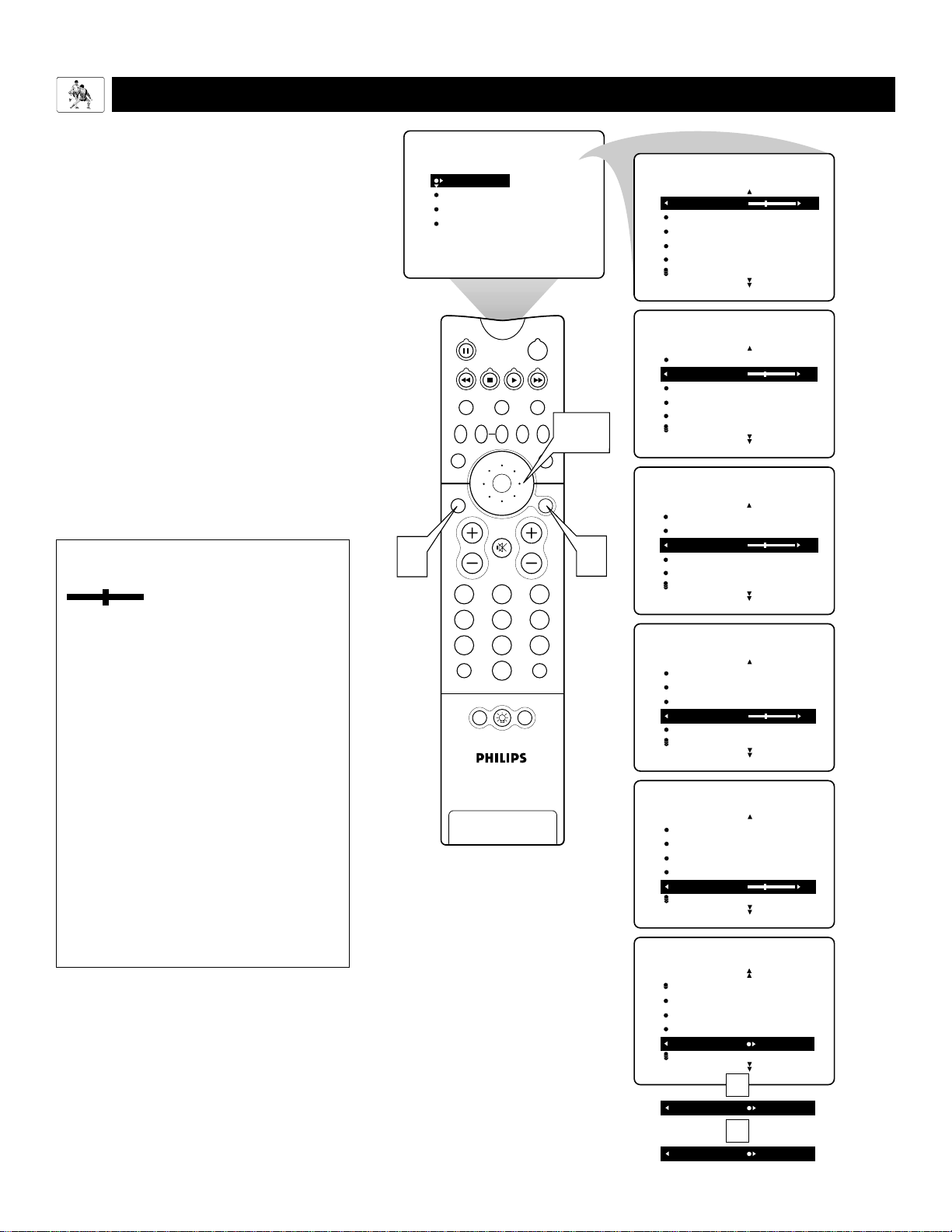
30
Picture-adjustment Options
Remember, when the bar scale is centered
, the control settings are at nor-
mal, mid-range levels. Picture adjustments
are described as follows:
BRIGHTNESS adds or subtracts light from
the darkest part of the picture.
COLOR adds or eliminates color.
PICTURE improves the detail of the lightest
parts of the picture.
SHARPNESS improves the detail in the
picture.
TINT adjusts the picture to obtain natural
skin tones.
COLOR TEMP offers NORMAL, COOL,
or WARM picture preferences.
NORMAL keeps whites, white.
WARM makes whites, reddish.
COOL makes whites, bluish.
PIP
213
546
879
0
TV
SWAP PIP CH
DN
UP
FREEZE
SOUND
MUTE
SURF
A/CH
POWER
PICTURE
STATUS/
EXIT
POSITION
VCR
ACC
MENU/
SELECT
VOL
CH
TV/VCR
ACTIVE
CONTROL
2,3
1
4
PICTURE
SOUND
FEATURES
INSTALL
BRIGHTNESS
COLOR
PICTURE
SHARPNESS
TINT
BRIGHTNESS 30
COLOR
PICTURE
SHARPNESS
TINT
PICTURE
BRIGHTNESS
COLOR 30
PICTURE
SHARPNESS
TINT
PICTURE
BRIGHTNESS
COLOR
PICTURE 30
SHARPNESS
TINT
PICTURE
BRIGHTNESS
COLOR
PICTURE
SHARPNESS 30
TINT
PICTURE
BRIGHTNESS
COLOR
PICTURE
SHARPNESS
TINT 0
PICTURE
COLOR
PICTURE
SHARPNESS
TINT
COLOR TEMP NORMAL
PICTURE
COLOR TEMP COOL
COLOR TEMP WARM
OR
OR
T
o adjust your TV picture controls, select a
channel and follow these steps. See descrip-
tions of the picture-adjustment options below.
1
Press the MENU/SELECT button on
the remote control to show the on-
screen menu.
2
Press the CURSOR RING RIGHT.
BRIGHTNESS will be highlighted and an
adjustment bar will be shown to the right.
3
Press the CURSOR RING RIGHT or
LEFT to adjust the BRIGHTNESS
level of the picture. Or press the CUR-
SOR RING DOWN to select another pic-
ture control to adjust.
4
Press the STATUS/EXIT button to exit
the menu.
Using the On-screen Submenus: Picture
ADJUSTING THE P
ICTURE CONTROLS
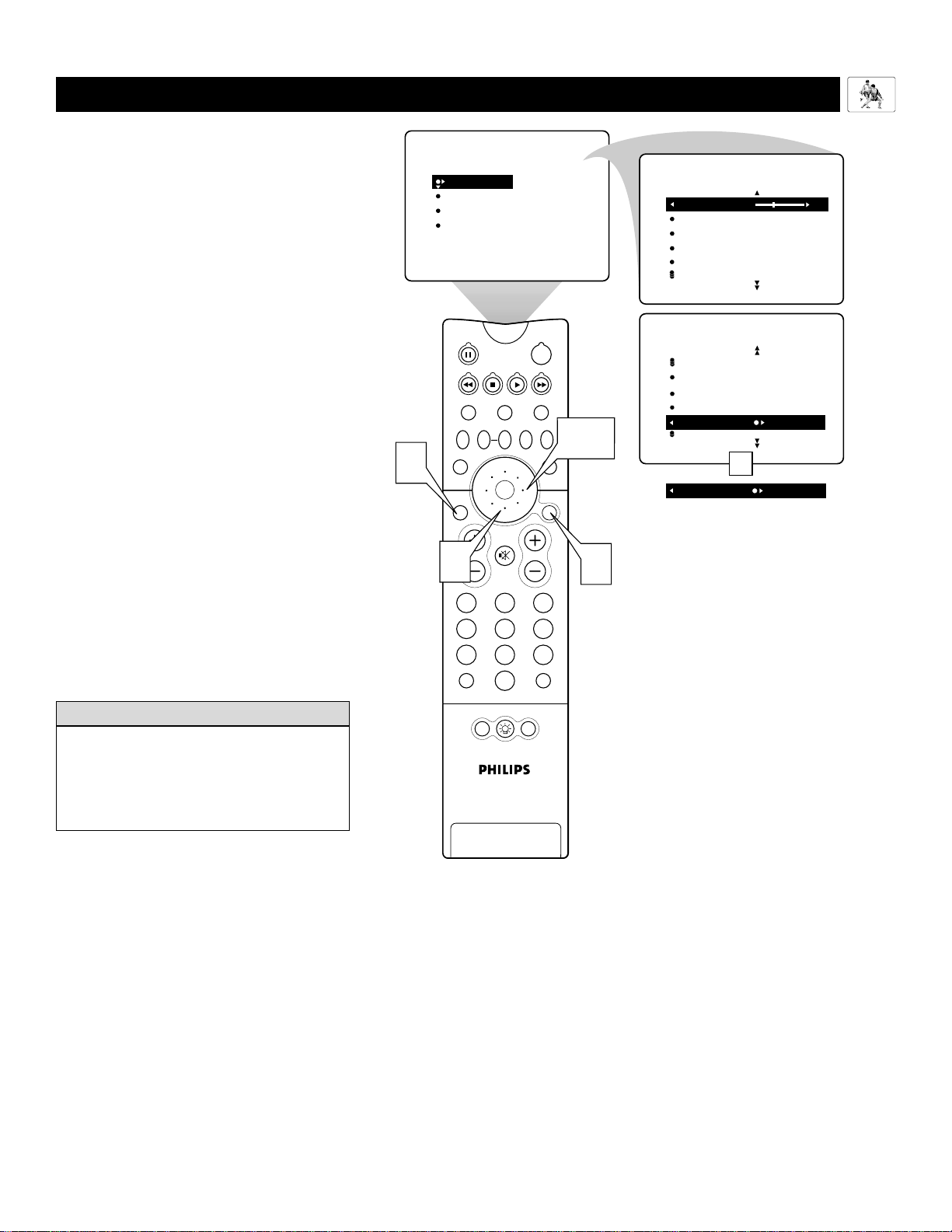
31
PIP
213
546
879
0
TV
SWAP PIP CH
DN
UP
FREEZE
SOUND
MUTE
SURF
A/CH
POWER
PICTURE
STATUS/
EXIT
POSITION
VCR
ACC
MENU/
SELECT
VOL
CH
TV/VCR
ACTIVE
CONTROL
2,4
1
PICTURE
SOUND
FEATURES
INSTALL
BRIGHTNESS
COLOR
PICTURE
SHARPNESS
TINT
BRIGHTNESS 30
COLOR
PICTURE
SHARPNESS
TINT
PICTURE
PICTURE
PICTURE
SHARPNESS
TINT
COLOR TEMP
EYE FIDELITY
PROGRESSIVE
EYE FIDELITY INTERLACED
5
3
OR
SETTING THE E
YE FIDELITY CONTROL
E
ye Fidelity gives you a choice between
two different scanning techniques—pro-
gressive or interlaced.
Progressive scan doubles the number of pic-
ture lines, eliminating line flicker and pro-
viding a jitter-free picture.
Interlaced improves the appearance of on-
screen motion. It also helps smooth out
jagged lines that are sometimes seen on
curved and angled surfaces in the picture.
1
Press the MENU/SELECT button
on the remote to show the on-screen
menu.
2
Press the CURSOR RING RIGHT
to enter the PICTURE submenu.
3
Press the CURSOR RING DOWN
repeatedly until the EYE FIDELI-
TY control is highlighted.
4
Press the CURSOR RING RIGHT
or LEFT until you select the option
you want, either PROGRESSIVE
or INTERLACED.
5
Press the STATUS/EXIT button to
turn the menu off.
Using the On-screen Submenus: Picture
• The Eye Fidelity control is not available
for use with AV4 and AV5.
• You may want to use the interlaced
option to enhance programs containing a
lot of motion.
HELPFUL HINT
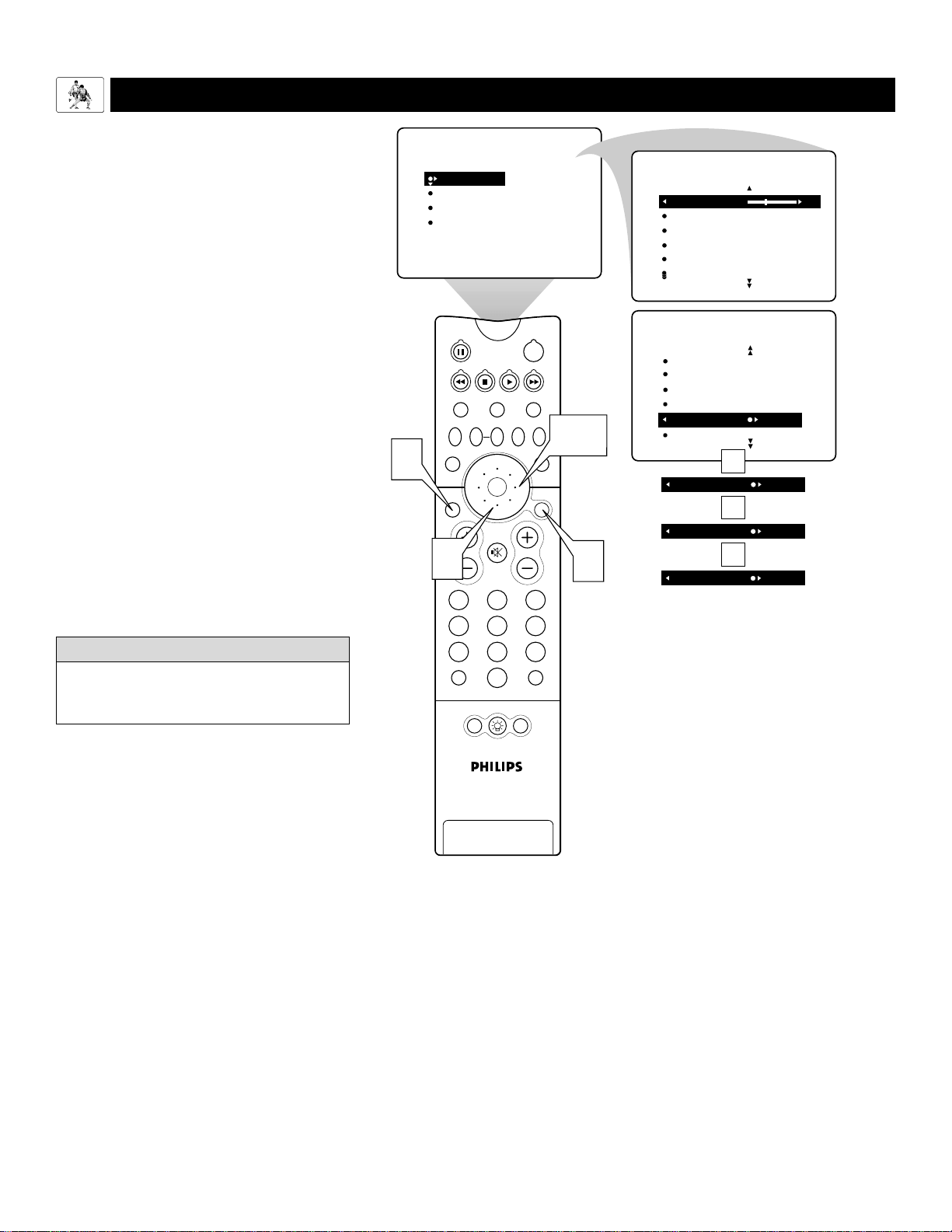
32
PIP
213
546
879
0
TV
SWAP PIP CH
DN
UP
FREEZE
SOUND
MUTE
SURF
A/CH
POWER
PICTURE
STATUS/
EXIT
POSITION
VCR
ACC
MENU/
SELECT
VOL
CH
TV/VCR
ACTIVE
CONTROL
2,4
1
PICTURE
SOUND
FEATURES
INSTALL
BRIGHTNESS
COLOR
PICTURE
SHARPNESS
TINT
BRIGHTNESS 30
COLOR
PICTURE
SHARPNESS
TINT
PICTURE
5
3
PICTURE
SHARPNESS
TINT
COLOR TEMP
EYE FIDELITY
DYN. CONTRAST MIN
ON
DYN. CONTRAST MED
DYN. CONTRAST MAX
OR
OR
DYN. CONTRAST OFF
OR
SETTING THE DYNAMIC CONTRAST CONTROL
T
he Dynamic Contrast control allows you
to sharpen the picture quality by making
dark portions of the picture darker and light
portions of the picture more noticeable.
Normally, you will probably want to select
MED. In certain circumstances, however,
you may prefer MIN or MAX.
1
Press the MENU/SELECT button
on the remote control to show the
on-screen menu.
2
Press the CURSOR RING RIGHT
to enter the PICTURE submenu.
3
Press the CURSOR RING DOWN
repeatedly until the DYN. CON-
TRAST control is highlighted.
4
Press the CURSOR RING RIGHT
or LEFT until you select the option
you want: MIN, MED, or MAX.
5
Press the STATUS/EXIT button to
exit the menu.
Using the On-screen Submenus: Picture
The Dynamic Contrast control is not avail-
able for use with the AV4 and AV5 signal
sources.
HELPFUL HINT
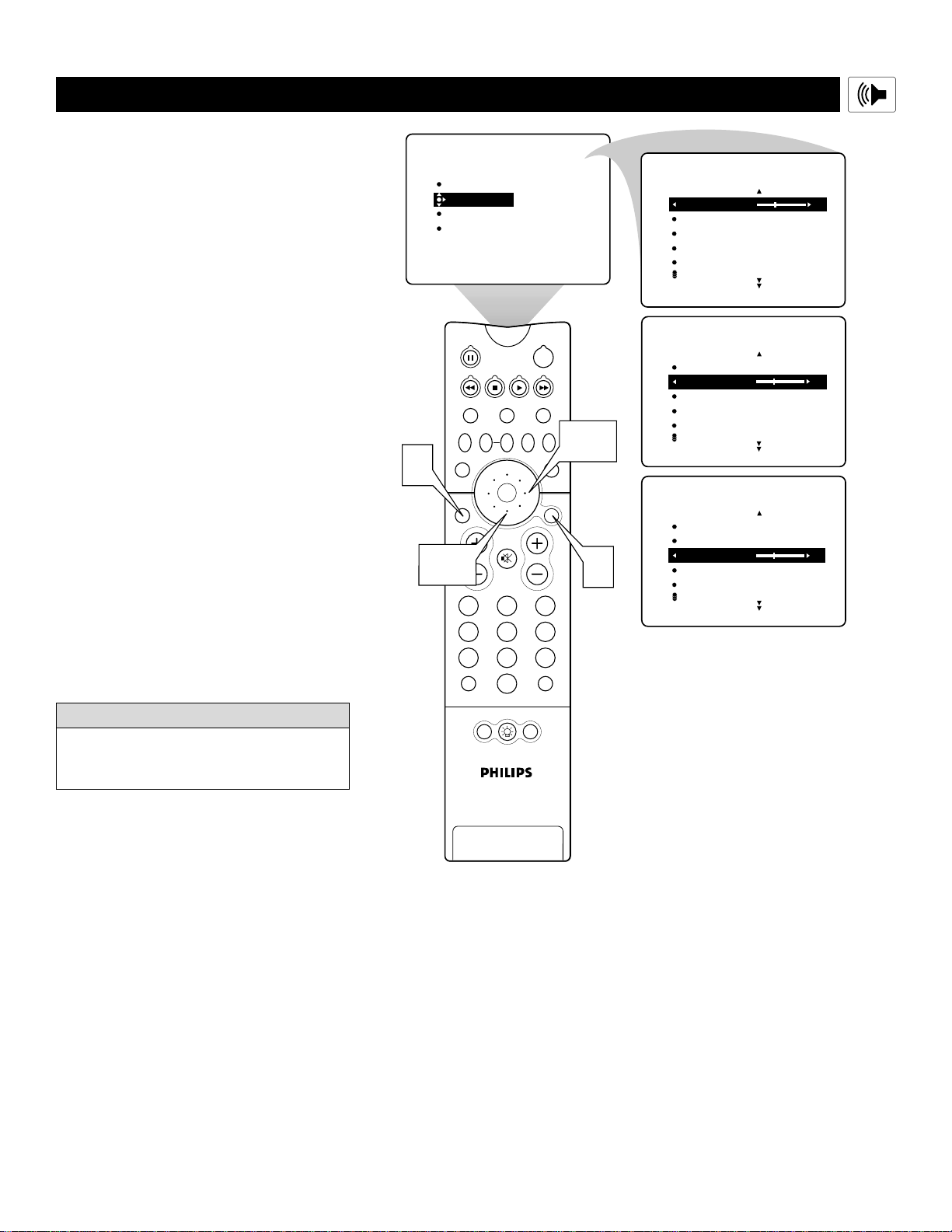
33
ADJUSTING THE T
REBLE,BASS, AND BALANCE CONTROLS
PIP
213
546
879
0
TV
SWAP PIP CH
DN
UP
FREEZE
SOUND
MUTE
SURF
A/CH
POWER
PICTURE
STATUS/
EXIT
POSITION
VCR
ACC
MENU/
SELECT
VOL
CH
TV/VCR
ACTIVE
CONTROL
3,4
1
5
TREBLE
BASS 30
BALANCE
AVL
INCR
.
SURROUND
SOUND
TREBLE
BASS
BALANCE 0
AVL
INCR
.
SURROUND
SOUND
PICTURE
SOUND
FEATURES
INSTALL
TREBLE
BASS
BALANCE
AVL
INCR
.
SURROUND
TREBLE 30
BASS
BALANCE
AVL
INCR
.
SURROUND
SOUND
2,4
B
esides the normal volume level control,
your TV also has individual sound-
adjustment controls. You can use TREBLE
(high frequency), BASS (low frequency), and
Speaker BALANCE to further adjust the
sound playback of TV programs.
1
Press the MENU/SELECT button
on the remote control to show the
on-screen menu.
2
Press the CURSOR RING DOWN
once to highlight SOUND.
3
Press the CURSOR RING RIGHT
to enter the SOUND submenu.
4
To adjust the TREBLE level of the
television’s sound, press the
CURSOR RING RIGHT or LEFT.
T
o adjust another sound control, press
the CURSOR RING DOWN until the
control (BASS or BALANCE) is high-
lighted. Then press the CURSOR
RING RIGHT or LEFT to adjust the
selected control.
5
Press the STATUS/EXIT button to
exit the menu.
Using the On-screen Submenus: Sound
When the bar scale is centered, speaker sound
BALANCE is centered between the TV’s left
and right side speakers.
HELPFUL HINT

34
USING THE AVL (AUDIO VOLUME LEVELER) CONTROL
Y
ou may have noticed the peaks and val-
leys of sound that occur between pro-
gram changes or at commercial breaks. The
volume levels often vary considerably. By
turning on the AVL (Audio Volume Leveler)
control, you can make your TV produce a
more consistent volume level. Follow these
steps to turn the AVL control on.
1
Press the MENU/SELECT button
on the remote control to show the
on-screen menu.
2
Press the CURSOR RING DOWN
once to highlight SOUND.
3
Press the CURSOR RING RIGHT
to enter the SOUND submenu.
4
Press the CURSOR RING DOWN
repeatedly until AVL is highlighted.
Then press the CURSOR RING
RIGHT or LEFT to turn AVL ON or
OFF.
5
Press the STATUS/EXIT button to
exit the menu.
Using the On-screen Submenus: Sound
PIP
213
546
879
0
TV
SWAP PIP CH
DN
UP
FREEZE
SOUND
MUTE
SURF
A/CH
POWER
PICTURE
STATUS/
EXIT
POSITION
VCR
ACC
MENU/
SELECT
VOL
CH
TV/VCR
ACTIVE
CONTROL
1
5
2,4
SOUND
TREBLE
BASS
BALANCE
AVL OFF
INCR
.
SURROUND
AVL ON
3
PICTURE
SOUND
FEATURES
INSTALL
TREBLE
BASS
BALANCE
AVL
INCR
.
SURROUND
TREBLE 30
BASS
BALANCE
AVL
INCR
.
SURROUND
SOUND
OR
The AVL control does not function with the
Dolby* Virtual feature, so the option disap-
pears from the SOUND submenu when you
select DOLBY VIRTUAL.
HELPFUL
HINT
*Manufactured under license from Dolby Laboratories.
“Dolby” and the double-D symbol are trademarks of
Dolby Laboratories.
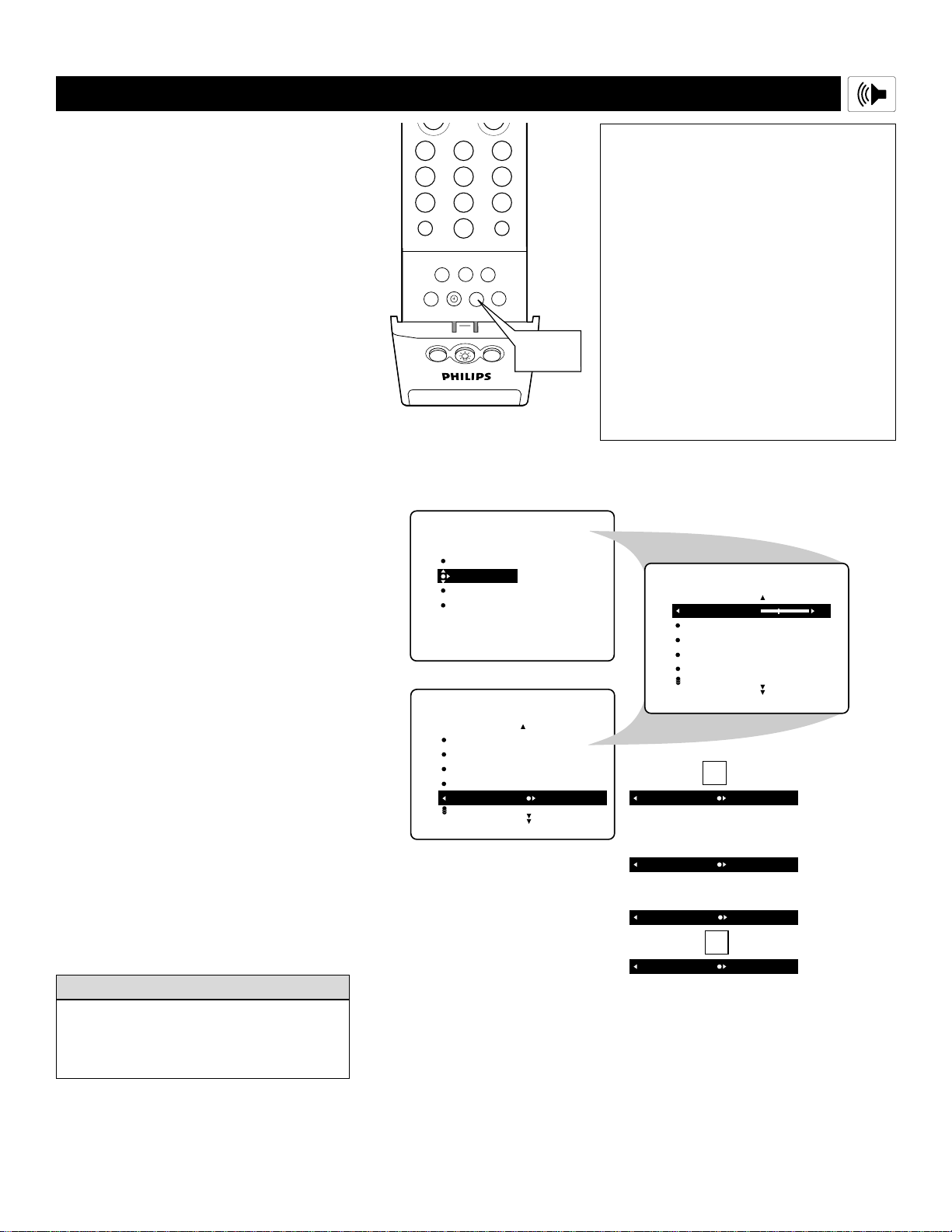
35
FORMAT EXPAND 4:3
When signals are being broad-
cast in mono (nonstereo):
INCR
.
SURROUND MONO
INCR
.
SURROUND SPATIAL
OR
PICTURE
SOUND
FEATURES
INSTALL
TREBLE
BASS
BALANCE
AVL
INCR
.
SURROUND
TREBLE 30
BASS
BALANCE
AVL
INCR
.
SURROUND
SOUND
SOUND
TREBLE
BASS
BALANCE
AVL OFF
INCR
.
SURROUND STEREO
Or, when signals are being
broadcast in Virtual Dolby
Surround:
INCR
.
SURROUND DOLBY VIRTUAL
OR
INCR
.
SURROUND INCR
.
SURROUND
SELECTING THE SURROUND-SOUND MODES
B
ased on the signal being received, you can
select various surround-sound modes:
MONO, SPATIAL, STEREO, INCR. SUR-
ROUND, or DOLBY* VIRTUAL (Virtual
Dolby Surround). (See descriptions of the
options to the right.)
*Manufactured under license from Dolby Laboratories.
“Dolby”, “Pro Logic”, and the double-D symbol are
trademarks of Dolby Laboratories.
Using the On-screen Submenus: Sound
The AVL (Audio Volume Leveler) control does
not function with the Dolby Virtual feature, so
the option disappears from the SOUND sub-
menu when you select DOLBY VIRTUAL.
H
ELPFUL HINT
Selecting a Surround-sound
Option Using the TV Buttons
Should your remote control become lost or other-
wise unavailable for use, follow the steps below to
use the buttons on the front of the TV to access the
on-screen menu and select a surround-sound
mode.
1
Press the Volume + and – buttons
simultaneously. The on-screen menu
appears.
2
Press the Channel Down button to
highlight SOUND. Then press the
Volume + button to enter the SOUND
submenu.
3
Press the Channel Down button
repeatedly until INCR. SURROUND
is highlighted. Then press the Volume +
or – button until you select the sur-
round-sound mode you want.
4
Press the Volume + and – buttons
simultaneously and repeatedly until
you back out of the menu screens.
Selecting a Surround-sound
Option Using the
Remote Control
While watching TV, you can select a surround-
sound listening mode immediately by pressing the
DOLBY V button. Each press of the DOLBY V
button selects a different mode based on the TV
signal being received.
Surround-sound Modes
In stereo: select STEREO, INCR.
SURROUND, or DOLBY VIRTUAL.
INCR. (Incredible) SURROUND
enhances stereo programs by making the
sound broader and fuller.
DOLBY VIRTUAL (with Virtual Dolby
Surround signals) creates a virtualized sur-
round-sound experience from two speakers
using Dolby Pro Logic.* It retains all the
original multichannel audio information and
provides the listener with the sensation of
being surrounded by additional speakers.
In mono: select MONO or SPATIAL.
SPATIAL enables you to add a surround
effect to mono programs.
PIP ON/OFF
213
546
879
0
SURF
A/CH
SURF
ITR/
RECORD
HOME
VIDEO
HOME
MOVIES
PERSONAL
SLEEP
REC •
PIPPOSITION
TV/VCR
FORMAT
SAP
PROG.LISTDOLBY VAV
Dolby V
Button

36
PIP
213
546
879
0
TV
SWAP PIP CH
DN
UP
FREEZE
SOUND
MUTE
SURF
A/CH
POWER
PICTURE
STATUS/
EXIT
POSITION
VCR
ACC
MENU/
SELECT
VOL
CH
TV/VCR
ACTIVE
CONTROL
1
6
2,4
3,5
SOUND
BALANCE
AVL
INCR
.
SURROUND
HEADPHONE
STEREO MONO
STEREO STEREO
PICTURE
SOUND
FEATURES
INSTALL
TREBLE
BASS
BALANCE
AVL
INCR
.
SURROUND
TREBLE 30
BASS
BALANCE
AVL
INCR
.
SURROUND
SOUND
OR
SELECTING THE S
TEREO/MONO SOUND MODE
Y
ou can enjoy stereo programs on your
TV. It has both an amplifier and twin
speakers through which stereo sound can be
heard. Follow these steps to select the
STEREO mode.
1
Press the MENU/SELECT button
on the remote control to show the
on-screen menu.
2
Press the CURSOR RING DOWN
once to highlight SOUND.
3
Press the CURSOR RING RIGHT
to enter the SOUND submenu.
4
Press the CURSOR RING DOWN
repeatedly until the STEREO con-
trol is highlighted.
5
Press the CURSOR RING RIGHT
or LEFT to select STEREO or
MONO. When STEREO has been
selected, the television will reproduce
any stereo signal it receives.
6
Press the STATUS/EXIT button to
exit the menu.
Using the On-screen Submenus: Sound
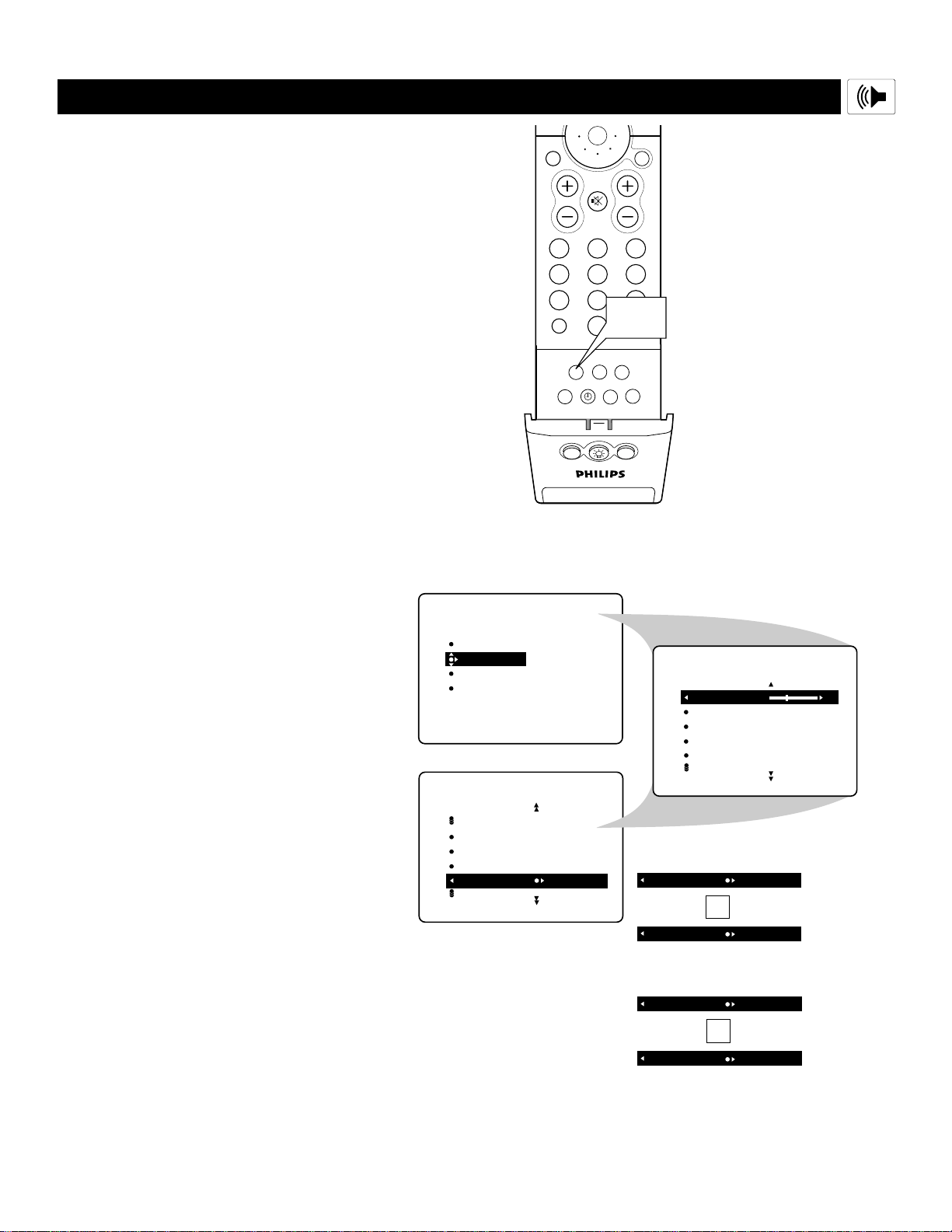
37
SELECTING THE SAP (SECOND AUDIO PROGRAM) FEATURE
Using the On-screen Submenus: Sound
S
AP, or Second Audio Program, is an addi-
tional part of the stereo broadcast system.
Sent as a third audio channel, a SAP can be
heard apart from the current TV program sound.
TV stations are free to use SAP for any number
of purposes, such as the broadcast of a second
language or other audio information.
If a SAP signal is not present with a selected
program, the SAP option cannot be selected.
PICTURE
SOUND
FEATURES
INSTALL
TREBLE
BASS
BALANCE
AVL
INCR
.
SURROUND
TREBLE 30
BASS
BALANCE
AVL
INCR
.
SURROUND
SOUND
SOUND
AVL
INCR
.
SURROUND
HEADPHONE
STEREO
SAP OFF
IF A SECOND AUDIO PROGRAM
IS NOT BEING BROADCAST:
SAP NOT AVAILABLE
SAP OFF
IF A SECOND AUDIO PROGRAM
IS BEING BROADCAST:
SAP ON
SAP OFF
OR
OR
PIP ON/OFF
213
546
879
0
MUTE
SURF
A/CH
STATUS/
EXIT
SURF
ITR/
RECORD
HOME
VIDEO
HOME
MOVIES
PERSONAL
SLEEP
REC •
PIPPOSITION
MENU/
SELECT
VOL
CH
TV/VCR
FORMAT
SAP
PROG.LISTDOLBY VAV
SAP
Button
Selecting SAP Using
the TV Buttons
Should your remote control become lost or other-
wise unavailable for use, follow the steps below to
use the buttons on the front of the TV to access the
on-screen menu and select SAP.
NOTE: SAP must be broadcast with the program
you are watching for you to be able to select the
feature.
1
Press the Volume + and – buttons
simultaneously. The on-screen menu
appears.
2
Press the Channel Down button to
highlight SOUND. Then press the
Volume + button to enter the SOUND
submenu.
3
Press the Channel Down button
repeatedly until SAP is highlighted.
Then press the Volume + or – button to
turn SAP on or off.
4
Press the Volume + and – buttons
simultaneously and repeatedly until
you back out of the menu screens.
Selecting SAP Using
the Remote Control
Select SAP immediately by pressing the SAP but-
ton on the remote control if the feature is being
made available with the program you are watch-
ing.
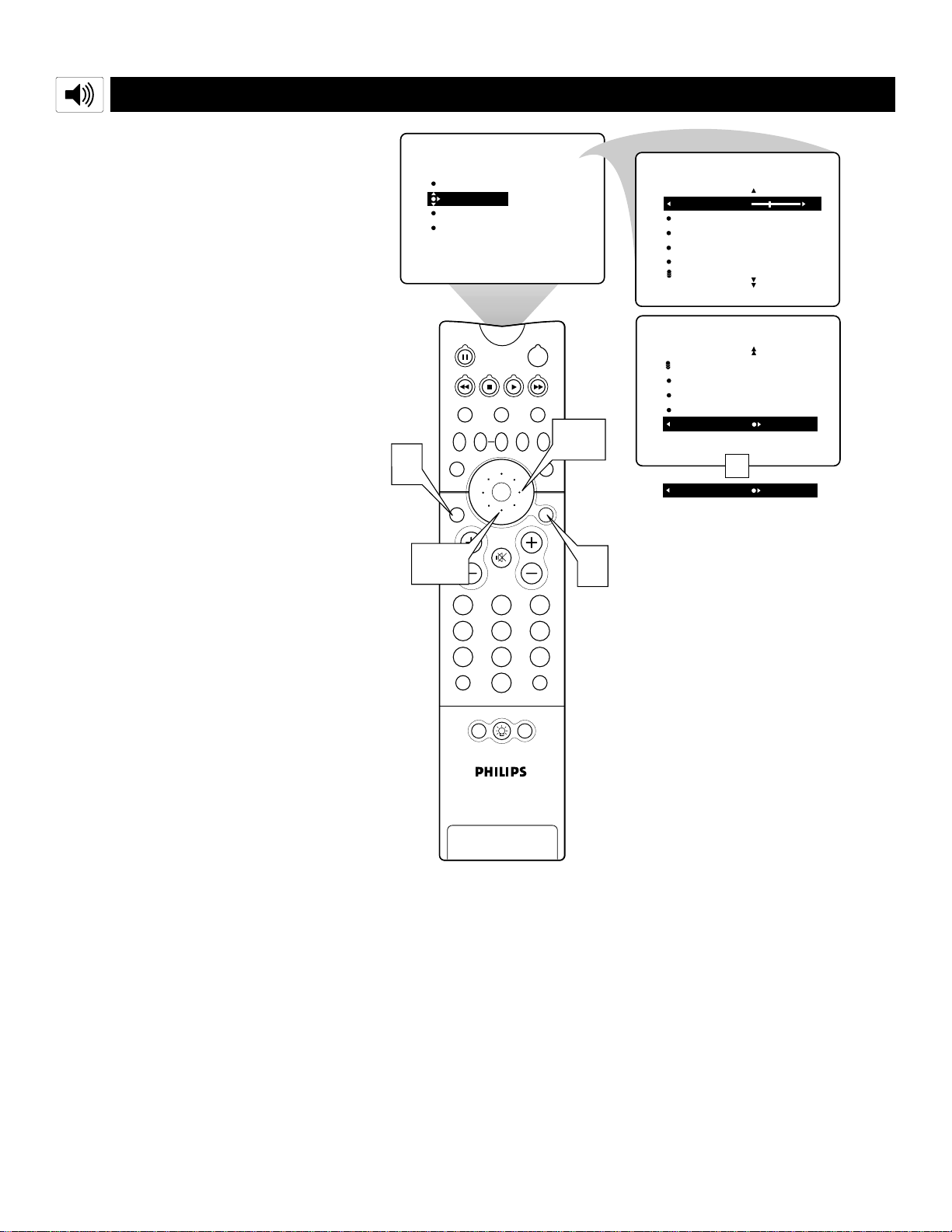
38
USING THE B
ASS BOOST CONTROL
PIP
213
546
879
0
TV
SWAP PIP CH
DN
UP
FREEZE
SOUND
MUTE
SURF
A/CH
POWER
PICTURE
STATUS/
EXIT
POSITION
VCR
ACC
MENU/
SELECT
VOL
CH
TV/VCR
ACTIVE
CONTROL
1
6
2,4
3,5
SOUND
STEREO
SAP
AUDIO OUT
SPEAKERS
BASS BOOST ON
BASS BOOST OFF
PICTURE
SOUND
FEATURES
INSTALL
TREBLE
BASS
BALANCE
AVL
INCR
.
SURROUND
TREBLE 30
BASS
BALANCE
AVL
INCR
.
SURROUND
SOUND
OR
T
he BASS BOOST control allows you to
increase the low-frequency range of the
TV’s sound. This creates a deeper, fuller
sound. Follow these steps to turn BASS
BOOST ON.
1
Press MENU/SELECT button on
the remote control to show the on-
screen menu.
2
Press the CURSOR RING DOWN
once to highlight SOUND.
3
Press the CURSOR RING RIGHT
to enter the SOUND submenu.
4
Press the CURSOR RING DOWN
repeatedly until BASS BOOST is
highlighted.
5
Press the CURSOR RING RIGHT
or LEFT to turn BASS BOOST ON
or OFF.
6
Press the STATUS/EXIT button to
exit the menu.
Using the On-screen Submenus: Sound
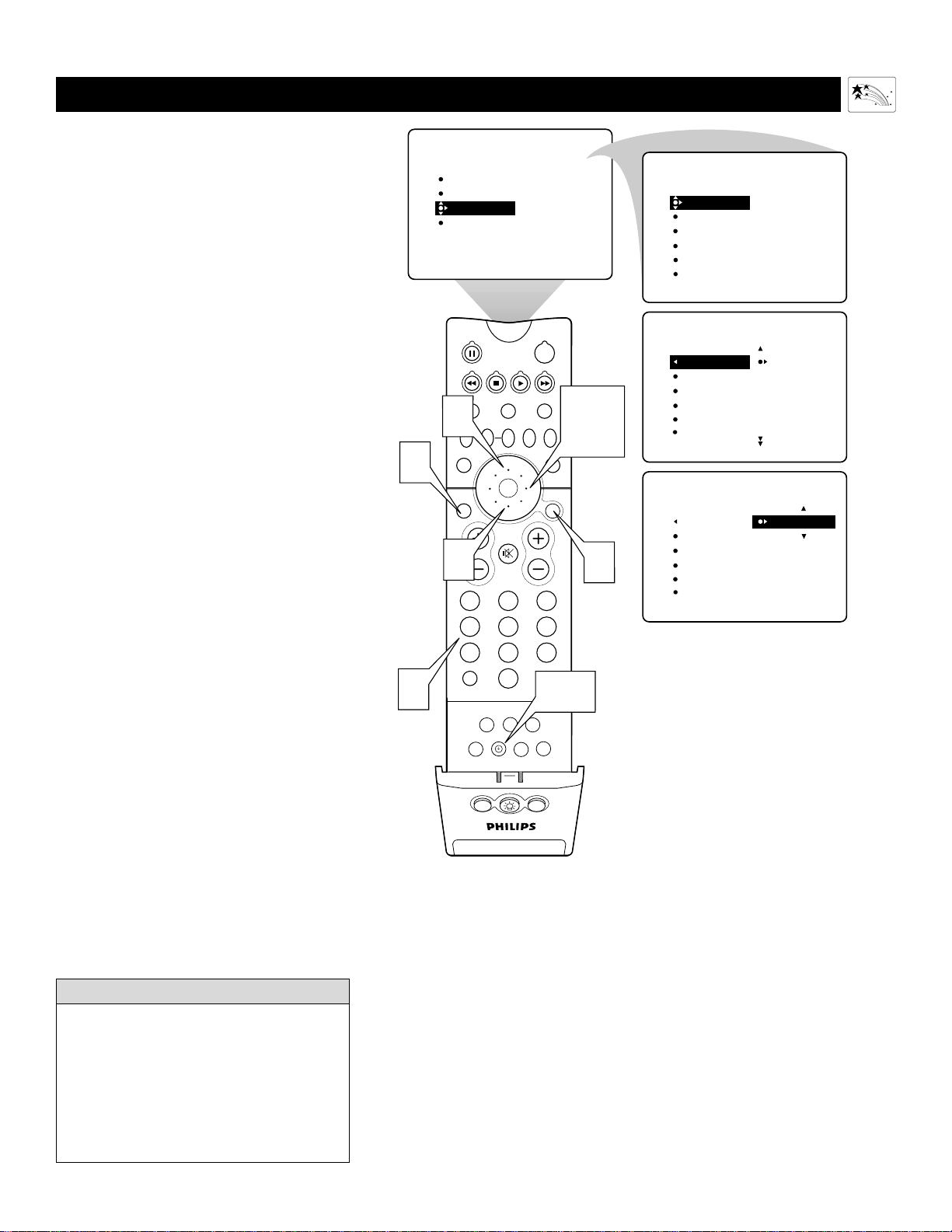
39
PIP ON/OFF
213
546
879
0
TV
SWAP PIP CH
DN
UP
ACTIVE
CONTROL
FREEZE
SOUND
MUTE
SURF
A/CH
POWER
PICTURE
STATUS/
EXIT
SURF
ITR/
RECORD
HOME
VIDEO
HOME
MOVIES
PERSONAL
SLEEP
REC •
PIPPOSITION
VCR
ACC
MENU/
SELECT
VOL
CH
TV/VCR
FORMAT
SAP
PROG.LISTDOLBY VAV
3,4,
5
1
2
PICTURE
SOUND
FEATURES
INSTALL
TIMER
AutoLock
PIP
CLOSED CAP
FORMAT
TIMER
AutoLock
PIP
CLOSED CAP
FORMAT
TIME
START TIME
STOP TIME
CHANNEL
ACTIVATE
FEATURES
FEATURES
TIME _ _:_ _
START TIME
STOP TIME
CHANNEL
ACTIVATE
TIMER
TIME 8:00 PM
START TIME
STOP TIME
CHANNEL
ACTIVATE
TIMER
FEATURES
8
7
6
Clock
Button
Access the TIME (Clock) feature
directly by pressing the Clock
button on the remote control.
After doing so, follow steps 5–8
on this page to set the clock.
SETTING THE CLOCK
Y
our TV comes with an on-screen clock. You
will need to set the clock before you can use
the Timer feature. During normal operation, the
time appears on the screen when you press the
STATUS/EXIT button. You can show the time on
screen constantly by turning the TIMER DIS-
PLAY control on (see page 40).
For instructions on setting the Timer’s START
and STOP times, see page 41. Then go to pages
42 and 43 to learn how to select the Timer’s
channel and activate the Timer.
NOTE: You can access the TIME (clock) feature
directly by pressing the Clock button on the
remote control.
1
Press the MENU/SELECT button on
the remote control to show the on-
screen menu.
2
Press the CURSOR RING DOWN
twice to highlight FEATURES.
3
Press the CURSOR RING RIGHT to
enter the FEATURES submenu.
4
Press the CURSOR RING RIGHT
again to shift the display left and high-
light the TIME control.
5
Press the CURSOR RING RIGHT
again to highlight the time indicator
area.
6
Press the NUMBER buttons to enter
the correct time. If you make a mistake
entering the time, press the CURSOR
RING LEFT or RIGHT to move among
the input slots to make corrections.
NOTE: You can also press the CURSOR
RING UP or DOWN to cycle through
digits to input the time.
7
Press the CURSOR RING UP or
DOWN to select AM or PM.
8
Press the STATUS/EXIT button to exit
the menu.
Using the On-screen Submenus: Features
• For single-digit entries, be sure to press 0
first and then the hour number.
• If you’d like, set the clock automatically
using the AutoChron™ feature (on page 5
in the Quick Use and Setup Guide).
• Clock settings may be lost when the TV is
unplugged or when AC power to the set is
interrupted.
HELPFUL HINTS

40
PIP
213
546
879
0
TV
SWAP PIP CH
DN
UP
FREEZE
SOUND
MUTE
SURF
A/CH
POWER
PICTURE
STATUS/
EXIT
POSITION
VCR
ACC
MENU/
SELECT
VOL
CH
TV/VCR
ACTIVE
CONTROL
3,4,
5
1
2
PICTURE
SOUND
FEATURES
INSTALL
TIMER
AutoLock
PIP
CLOSED CAP
FORMAT
TIMER
AutoLock
PIP
CLOSED CAP
FORMAT
TIME
START TIME
STOP TIME
CHANNEL
ACTIVATE
FEATURES
TIMER
FEATURES
TIME 8:06 PM
START TIME
STOP TIME
CHANNEL
ACTIVATE
TIMER
FEATURES
START TIME
STOP TIME
CHANNEL
ACTIVATE
DISPLAY ON
DISPLAY OFF
6
OR
DISPLAYING THE
TIME
A
fter you have set the TV’s clock, you can
use your TV to keep up with the time on
screen. You can also set the timer to switch
to another channel, and, if you want, turn
the TV off. The Timer’s DISPLAY control
allows you to show the time constantly in the
upper right corner of the screen.
1
Press the MENU/SELECT button
on the remote control to show the
on-screen menu.
2
Press the CURSOR RING DOWN
twice to highlight FEATURES.
3
Press the CURSOR RING RIGHT
to enter the FEATURES submenu.
4
Press the CURSOR RING RIGHT
again. Then press the CURSOR
RING DOWN repeatedly until the
DISPLAY control is highlighted.
5
Press the CURSOR RING RIGHT
or LEFT to turn the TIMER DIS-
PLAY ON or OFF.
6
Press the STATUS/EXIT button to
exit the menu.
Using the On-screen Submenus: Features

41
PIP
213
546
879
0
TV
SWAP PIP CH
DN
UP
FREEZE
SOUND
MUTE
SURF
A/CH
POWER
PICTURE
STATUS/
EXIT
POSITION
VCR
ACC
MENU/
SELECT
VOL
CH
TV/VCR
ACTIVE
CONTROL
3,4,
5
1
2
PICTURE
SOUND
FEATURES
INSTALL
TIMER
AutoLock
PIP
CLOSED CAP
FORMAT
TIMER
AutoLock
PIP
CLOSED CAP
FORMAT
TIME
START TIME
STOP TIME
CHANNEL
ACTIVATE
FEATURES
TIMER
FEATURES
TIME 8:06 PM
START TIME
STOP TIME
CHANNEL
ACTIVATE
8
TIMER
FEATURES
TIME
START TIME _ _:_ _
STOP TIME
CHANNEL
ACTIVATE
TIMER
FEATURES
TIME
START TIME
STOP TIME _ _:_ _
CHANNEL
ACTIVATE
TIMER
FEATURES
TIME
START TIME 8:00 AM
STOP TIME
CHANNEL
ACTIVATE
7
6
9
2
TIMER
FEATURES
TIME
START TIME
STOP TIME 9:30 AM
CHANNEL
ACTIVATE
SETTING THE TIMER’S STA RT TIME AND STOP TIME
Y
ou can set the Timer to switch to a selected
channel at a specific time while you are
watching another channel, or when the TV is in
standby mode. (Standby mode is when the TV is
plugged into the wall outlet but turned off.) If
you want, you can also set the TV to turn off at
some time after the TV switches channels.
Follow the steps below to set the Timer’s
START TIME and STOP TIME.
1
Press the MENU/SELECT button
on the remote control to show the
on-screen menu.
2
Press the CURSOR RING DOWN
twice to highlight FEATURES.
3
Press the CURSOR RING RIGHT
to enter the FEATURES submenu.
4
Press the CURSOR RING RIGHT
again. Then press the CURSOR
RING DOWN once to highlight the
START TIME control.
5
Press the CURSOR RING RIGHT
to highlight the time indicator area.
6
Press the NUMBER buttons to
enter the correct time. If you make a
mistake entering the time, use the
CURSOR RING LEFT or RIGHT to
move among the time input slots to
make corrections.
NOTE: You can also use the CUR-
SOR RING UP or DOWN to cycle
through digits to input the time.
7
Press the CURSOR RING UP or
DOWN to select AM or PM.
8
Press the CURSOR RING LEFT
repeatedly until START TIME is high-
lighted. Then press the CURSOR RING
DOWN to highlight STOP TIME. If you
want the TV to switch off at some time
after the changing of channels, follow
steps 5–7 above to set the STOP TIME.
9
Press the STATUS/EXIT button to exit
the menu.
See pages 42 and 43 for instructions on selecting
the Timer’s channel and activating the timer.
Using the On-screen Submenus: Features
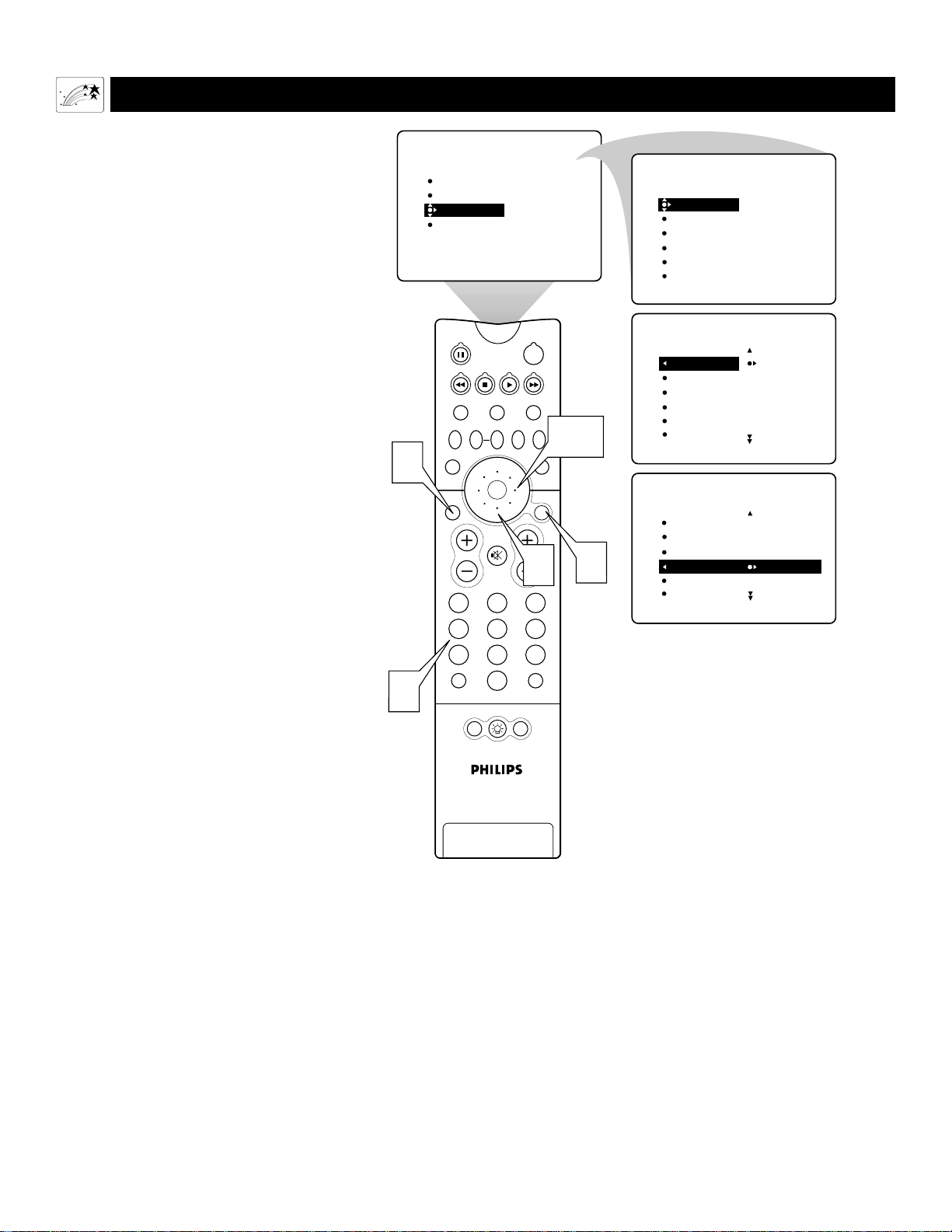
42
PIP
213
546
879
0
TV
SWAP PIP CH
DN
UP
FREEZE
SOUND
MUTE
SURF
A/CH
POWER
PICTURE
STATUS/
EXIT
POSITION
VCR
ACC
MENU/
SELECT
VOL
CH
TV/VCR
ACTIVE
CONTROL
1
2
PICTURE
SOUND
FEATURES
INSTALL
TIMER
AutoLock
PIP
CLOSED CAP
FORMAT
TIMER
AutoLock
PIP
CLOSED CAP
FORMAT
TIME
START TIME
STOP TIME
CHANNEL
ACTIVATE
FEATURES
TIMER
FEATURES
TIME 8:06 PM
START TIME
STOP TIME
CHANNEL
ACTIVATE
5
6
2
TIMER
FEATURES
TIME
START TIME
STOP TIME
CHANNEL 5
ACTIVATE
3,4
SELECTING THE T
IMER’S CHANNEL
F
ollow these steps to select the channel to
which the Timer will switch the TV.
1
Press the MENU/SELECT button
on the remote control to show the
on-screen menu.
2
Press the CURSOR RING DOWN
twice to highlight FEATURES.
3
Press the CURSOR RING RIGHT
to enter the FEATURES submenu.
4
Press the CURSOR RING RIGHT.
Then press the CURSOR RING
DOWN repeatedly until the CHANNEL
control is highlighted.
5
Press the NUMBER buttons to enter
the desired start-up channel. Or press
the CURSOR RING RIGHT repeatedly
to enter the start-up channel you want.
6
Press the STATUS/EXIT button to
exit the menu.
NOTE: Before the Timer will work, you
must activate it. See page 43.
Using the On-screen Submenus: Features

43
PIP
213
546
879
0
TV
SWAP PIP CH
DN
UP
FREEZE
SOUND
MUTE
SURF
A/CH
POWER
PICTURE
STATUS/
EXIT
POSITION
VCR
ACC
MENU/
SELECT
VOL
CH
TV/VCR
ACTIVE
CONTROL
3,4,
5
1
2
PICTURE
SOUND
FEATURES
INSTALL
TIMER
AutoLock
PIP
CLOSED CAP
FORMAT
TIMER
AutoLock
PIP
CLOSED CAP
FORMAT
TIME
START TIME
STOP TIME
CHANNEL
ACTIVATE
FEATURES
TIMER
FEATURES
TIME 8:06 PM
START TIME
STOP TIME
CHANNEL
ACTIVATE
6
2
TIMER
FEATURES
TIME
START TIME
STOP TIME
CHANNEL
ACTIVATE ONCE
ACTIVATE DAILY
ACTIVATE OFF
OR
OR
SETTING THE T
IMER’S ACTIVATE CONTROL
A
fter you have set the TIME, START
TIME, STOP TIME, and CHANNEL,
you must activate the Timer for it to operate.
Your options are to set the Timer to work
ONCE or DAILY. Set ACTIVATE to OFF if
you don’t want to use the Timer.
1
Press the MENU/SELECT button
on the remote control to show the
on-screen menu.
2
Press the CURSOR RING DOWN
twice to highlight FEATURES.
3
Press the CURSOR RING RIGHT
to enter the FEATURES submenu.
4
Press the CURSOR RING RIGHT
again. Then press the CURSOR
RING DOWN repeatedly until the
ACTIVATE control is highlighted.
5
Press the CURSOR RING RIGHT
to cycle through the options and
make your selection. The options are
ONCE, DAILY, or OFF.
6
Press the STATUS/EXIT button to
exit the menu.
Using the On-screen Submenus: Features
• Changing the channel or adjusting the
volume during the last minute of a Timer
setting will cancel the shutting off of the
TV.
• Thirty seconds before the set changes to
the channel you set (see page 42), an
announcement appears on screen.
HELPFUL HINT
CHANGING TO
CHANNEL 5
IN 29 SEC
44
UNDERSTANDING A
UTOLOCK™
MOVIE RATING
AutoLock
ON
G
PG
PG-13
R
NC-17
TV RATING
AutoLock
ON
TV-Y
TV-Y7
TV-G
TV-PG
TV-14
TV-Y (All Children)—designed to
be appropriate for all children,
especially ones ages 2–6. Programs
rated TV-Y are not expected to frighten
younger children.
TV-Y7 (Directed to Older
Children)—designed for children
ages 7 and older. Programs rated
TV-Y7 may be more appropriate for chil-
dren who have acquired the development
skills needed to distinguish between
make-believe and reality. Such programs
may include mild fantasy and comic vio-
lence (FV).
TV-G (General Audience)—most
parents will consider programs that
are rated TV-G to be suitable for
children of all ages. Such programs have
little or no violence, no strong language,
and little or no sexual dialogue or sexual
situations.
TV-PG (Parental Guidance
Suggested)—contains material that
parents may find unsuitable for
younger children. This type of program-
ming has one or more of the following:
moderate violence (V), some sexual situ-
ations (S), infrequent coarse language
(L), or some suggestive dialogue (D).
TV-14 (Parents Strongly
Cautioned—contains material that
many parents will find unsuitable
for children under 14 years of age. Such
programs have one or more of the follow-
ing: intense violence (V); intense sexual
situations (S); strong, coarse language
(L); or intensely suggestive dialogue (D).
TV-MA (Mature Audience Only)—
specifically designed to be viewed by
adults and therefore may be unsuit-
able for children under 17. Such programs
have one or more of the following: graphic
violence (V); explicit sexual situations (S);
or crude, indecent language (L).
TV PARENTAL GUIDELINES
(TV BROADCASTERS)
TV
G
TV
PG
TV
Y
TV
Y7
TV
14
TV
MA
G (General Audience)—all ages
admitted. Most parents will find pro-
grams that are rated G to be suitable
for children of all ages. Such programs
have little or no violence, no strong
language, and little or no sexual dialog
or sexual situations.
PG (Parental Guidance
Suggested)—
contains material that par-
ents may find unsuitable for younger
children. Programs that are rated PG
have one or more of the following:
moderate violence, some sexual situa-
tions, infrequent coarse language, or
some suggestive dialog.
PG-13 (Parents Strongly
Cautioned)—contains material that par-
ents may find unsuitable for children
under the age of 13. Programs that are
rated PG-13 have one or more of the
following: violence, sexual situations,
coarse language, or suggestive dialog.
R (Restricted)—specifically designed
for adults. Anyone under the age of 17
should view programs that are rated R
only with an accompanying parent or
adult guardian. Such programs have one
or more of the following: intense vio-
lence; intense sexual situations; strong,
coarse language; or intensely suggestive
dialogue.
NC-17 (No one under the age of 17
will be admitted)—should be viewed
by adults only. Programs that are rated
NC-17 have graphic violence; explicit
sex; or crude, indecent language.
X (Adults Only)—contains one or more
of the following: very graphic violence,
very graphic and explicit or indecent
sexual acts, or very coarse and intensely
suggestive language.
MOVIE RATINGS
(M
OTION
P
ICTURE
A
SSOCIATION OF
A
MERICA
)
T
he AutoLock™ feature can help par-
ents control what their children watch
on TV. AutoLock™ does this by using the
content advisories sent by broadcasters
or other program providers. After you
program AutoLock™, it can respond to
the content advisories and block pro-
grams that contain content that you may
consider objectionable—offensive lan-
guage, violence, or sexual situations. You
can also use AutoLock™ to block chan-
nels that you don’t want your children to
watch.
In this section, you’ll learn how to block
channels and programming that is not
rated, is unrated, or has no rating. You
will also find out how to turn these block-
ing features on or off. Following on this
page are brief explanations of
AutoLock™ terms and program ratings.
Terms
BLOCKING control—can be thought
of as the “master switch” for
AutoLock™. This control affects the set-
tings you have chosen for blocking pro-
grams according to movie ratings or TV
ratings, or for blocking programs that
have no rating or are unrated. When the
BLOCKING control is OFF, the blocking
or censoring of programs is disabled.
When the BLOCKING control is ON,
blocking will occur according to the set-
tings you have chosen.
BLOCK UNRATED control—if set to
ON, blocks all unrated programs.
Unrated programming consists of the
kind of shows that the MPAA (Motion
Picture Association of America) or the
TV broadcasters have chosen not to rate.
NO RATING control—if set to ON,
blocks all programming with no content
advisory data.
Programming that has No Rating is not
encoded with any rating information
from the MPAA or the Parental
Guidelines. Any programming could fall
into this category.
BLOCK CHANNEL control—enables
you to block individual channels that you
don’t want children to see.
Using the On-screen Submenus: Features
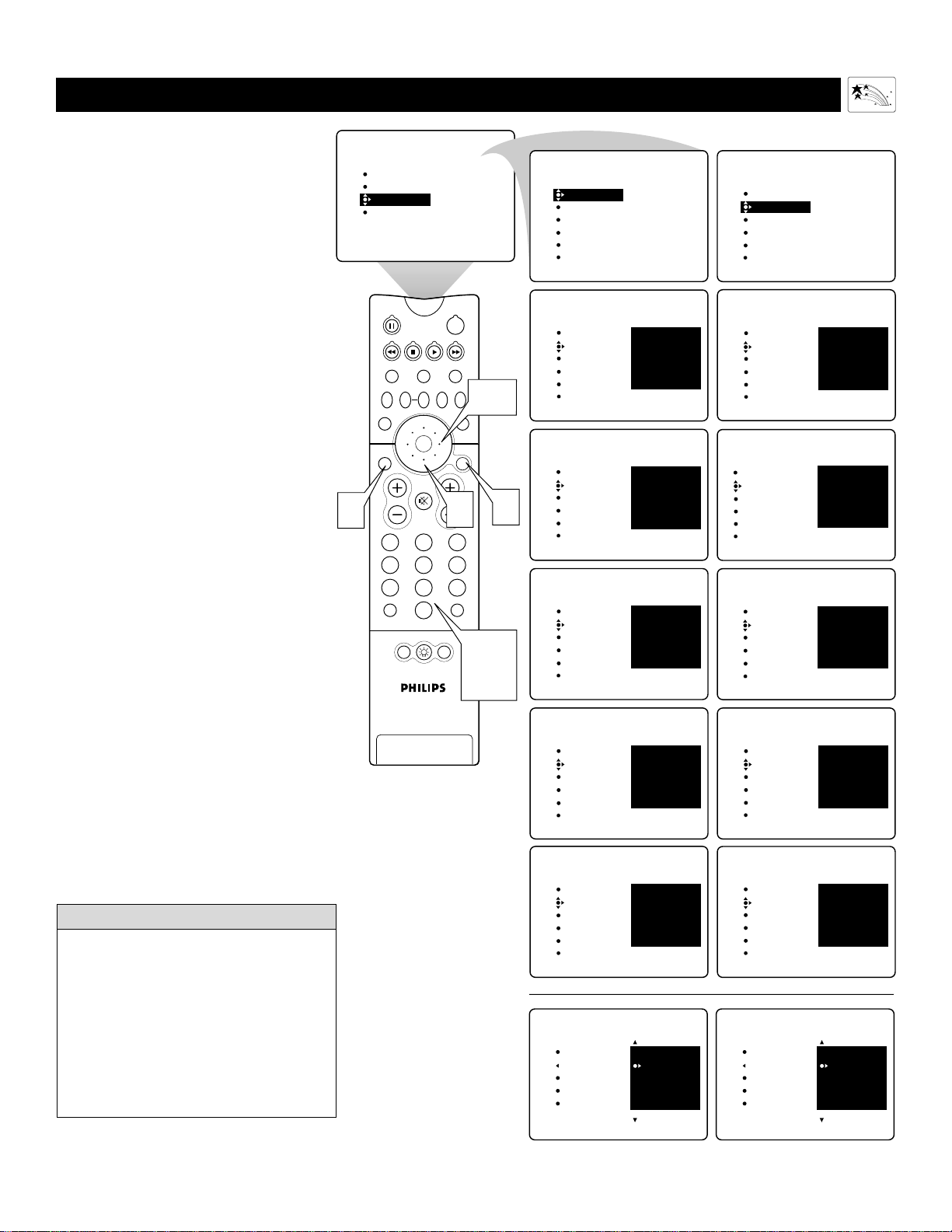
45
PIP
213
546
879
0
TV
SWAP PIP CH
DN
UP
FREEZE
SOUND
MUTE
SURF
A/CH
POWER
PICTURE
STATUS/
EXIT
POSITION
VCR
ACC
MENU/
SELECT
VOL
CH
TV/VCR
ACTIVE
CONTROL
1
2
PICTURE
SOUND
FEATURES
INSTALL
TIMER
AutoLock
PIP
CLOSED CAP
FORMAT
TIMER
AutoLock
PIP
CLOSED CAP
FORMAT
TIME
START TIME
STOP TIME
CHANNEL
ACTIVATE
FEATURES
2
3,4
TIMER
AutoLock
PIP
CLOSED CAP
FORMAT
FEATURES
CONFIRM
CODE
X X X X
CORRECT
TIMER
AutoLock
PIP
CLOSED CAP
FORMAT
FEATURES
ACCESS CODE
- - - -
TIMER
AutoLock
PIP
CLOSED CAP
FORMAT
FEATURES
ACCESS CODE
- - - -
TIMER
AutoLock
PIP
CLOSED CAP
FORMAT
FEATURES
ACCESS CODE
X X X X
TIMER
AutoLock
PIP
CLOSED CAP
FORMAT
FEATURES
ACCESS CODE
X X X X
INCORRECT
TIMER
AutoLock
PIP
CLOSED CAP
FORMAT
FEATURES
ACCESS CODE
- - - -
TIMER
AutoLock
PIP
CLOSED CAP
FORMAT
FEATURES
ACCESS CODE
X X X X
TIMER
AutoLock
PIP
CLOSED CAP
FORMAT
FEATURES
ENTER
NEW CODE
- - - -
TIMER
AutoLock
PIP
CLOSED CAP
FORMAT
FEATURES
ENTER
NEW CODE
X X X X
TIMER
AutoLock
PIP
CLOSED CAP
FORMAT
FEATURES
CONFIRM
CODE
- - - -
TIMER
AutoLock
PIP
CLOSED CAP
FORMAT
FEATURES
CONFIRM
CODE
X X X X
5,6,
7,8
9
BLOCK CHANNEL
SETUP CODE
MOVIE RATING
TV RATING
BLOCK OPTIONS
FEATURES
ENTER
NEW CODE
X X X X
AutoLock
BLOCK CHANNEL
SETUP CODE
MOVIE RATING
TV RATING
BLOCK OPTIONS
FEATURES
CONFIRM
CODE
X X X X
CORRECT
AutoLock
You can also set up a new
access code from the main
AutoLock™ Submenu using
the SETUP CODE option.
Simply enter and confirm
the new Code to activate it.
SETTING UP THE AUTOLOCK™ ACCESS CODE
Y
our AutoLock™ access code allows
you to enter the AutoLock™ submenus
to set up or turn off blocking. Your access
code is also the “key” that unlocks pro-
grams or channels that are being blocked
by AutoLock™.
1
Press the MENU/SELECT button
on the remote control to show the
on-screen menu.
2
Press the CURSOR RING
DOWN twice to highlight
FEATURES.
3
Press the CURSOR RING
RIGHT. Then press the CURSOR
RING DOWN once to highlight the
AutoLock control.
4
Press the CURSOR RING
RIGHT to highlight ACCESS
CODE.
5
Press 0,7,1,1 on the remote con-
trol. INCORRECT will appear on
the screen.
6
Press 0,7,1,1 on the remote con-
trol again. ENTER NEW CODE
will appear on the screen.
7
Enter a new four-digit code using
the number buttons. CONFIRM
CODE will appear on the screen.
8
Enter your new four-digit code
again. CORRECT will flash on the
screen briefly.
9
Press the STATUS/EXIT button
exit the menu.
Using the On-screen Submenus: Features
• An X appears on screen to confirm the
receipt of each digit by the TV as you
input your AutoLock™ access code.
• Parents, it isn’t possible for your child
to unblock a channel without knowing
your access code or changing it to a
new one. If you discover that your
access code has been changed, you can
assume that blocked channels may
have been viewed.
HELPFUL HINTS

PIP
213
546
879
0
TV
SWAP PIP CH
DN
UP
FREEZE
SOUND
MUTE
SURF
A/CH
POWER
PICTURE
STATUS/
EXIT
POSITION
VCR
ACC
MENU/
SELECT
VOL
CH
TV/VCR
ACTIVE
CONTROL
2
PICTURE
SOUND
FEATURES
INSTALL
TIMER
AutoLock
PIP
CLOSED CAP
FORMAT
TIMER
AutoLock
PIP
CLOSED CAP
FORMAT
TIME
START TIME
STOP TIME
CHANNEL
ACTIVATE
FEATURES
TIMER
AutoLock
PIP
CLOSED CAP
FORMAT
FEATURES
ACCESS CODE
- - - -
TIMER
AutoLock
PIP
CLOSED CAP
FORMAT
FEATURES
ACCESS CODE
- - - -
TIMER
AutoLock
PIP
CLOSED CAP
FORMAT
FEATURES
ACCESS CODE
X X X X
AutoLock
FEATURES
BLOCK CHANNEL
SETUP CODE
MOVIE RATING
TV RATING
BLOCK OPTIONS
2
3
4
5
6
AutoLock
1
2
3
4
5
FEATURES
BLOCK CHANNEL
SETUP CODE
MOVIE RATING
TV RATING
BLOCK OPTIONS
AutoLock
FEATURES
BLOCK CHANNEL
SETUP CODE
MOVIE RATING
TV RATING
BLOCK OPTIONS
1
2
3
4
5
AutoLock
FEATURES
BLOCK CHANNEL
SETUP CODE
MOVIE RATING
TV RATING
BLOCK OPTIONS
1
2
3
4
5
AutoLock
FEATURES
BLOCK CHANNEL
SETUP CODE
MOVIE RATING
TV RATING
BLOCK OPTIONS
2
3
4
5
6
1
2
3,4,
6,8
9
5
7
AutoLock
FEATURES
BLOCK CHANNEL
SETUP CODE
MOVIE RATING
TV RATING
BLOCK OPTIONS
ALL
1
2
3
4
AutoLock
FEATURES
BLOCK CHANNEL
SETUP CODE
MOVIE RATING
TV RATING
BLOCK OPTIONS
ALL
1
2
3
4
To block all channels at once, highlight ALL in the channel list. Then press
the CURSOR RING RIGHT to block. Remove the blocks the same way.
USING AUTOLOCK™ TO BLOCK CHANNELS
A
fter you have set up your personal
access code (see page 45), you are
ready to select the channels or program
sources you want to block.
1
Press the MENU/SELECT button
on the remote control to show the
on-screen menu.
2
Press the CURSOR RING
DOWN twice to highlight
FEATURES.
3
Press the CURSOR RING
RIGHT. Then press the CURSOR
RING DOWN once to highlight the
AutoLock control.
4
Press the CURSOR RING
RIGHT again to highlight
ACCESS CODE.
5
Enter your four-digit ACCESS
CODE. CORRECT will flash very
briefly and the submenu will move
to the left with BLOCK CHANNEL
highlighted.
6
Press the CURSOR RING
RIGHT to highlight the TV’s
available channels.
7
Press the CURSOR RING UP or
DOWN to highlight the channel
you want to block.
8
Press the CURSOR RING
RIGHT to block the channel. A
padlock image will appear to the
right of the channel number. If you
decide you don’t want to block the
channel, press the CURSOR RING
RIGHT again to remove the block.
(The padlock image goes away.)
Repeat steps 7 and 8 for any channels you
want to block from viewing.
NOTE: You can highlight the ALL option,
then press the CURSOR RING RIGHT to
block all channels at once. Or press the
CURSOR RING RIGHT to unlock all
channels.
9
Press the STATUS/EXIT button
to exit the menu.
You can use the BLOCK CHANNEL con-
trol to prevent the viewing of programs
coming from a VCR, DVD, or other acces-
sory device connected to any of the
audio/video (AV) inputs on the TV.
HELPFUL HINT
46
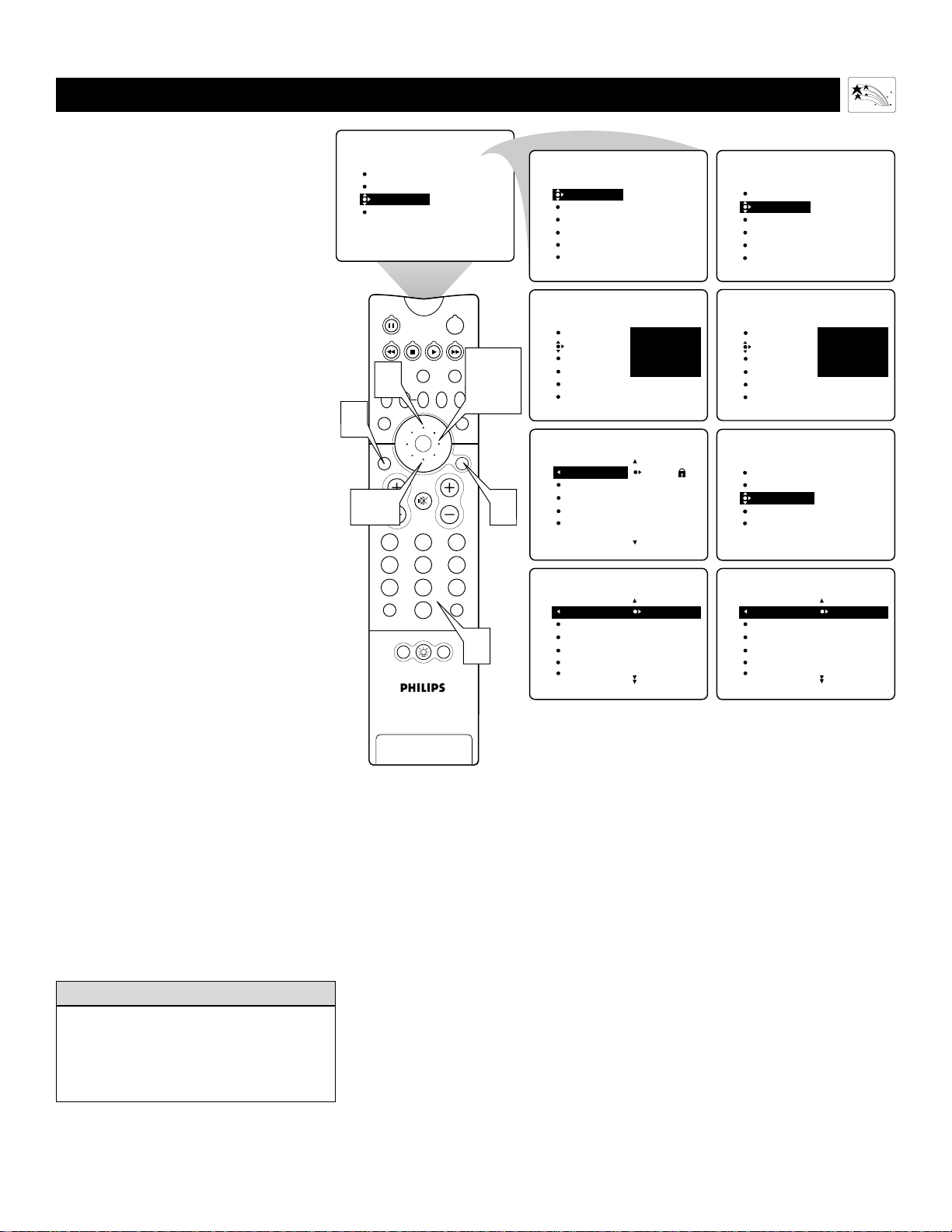
PIP
213
546
879
0
TV
SWAP PIP CH
DN
UP
FREEZE
SOUND
MUTE
SURF
A/CH
POWER
PICTURE
STATUS/
EXIT
POSITION
VCR
ACC
MENU/
SELECT
VOL
CH
TV/VCR
ACTIVE
CONTROL
PICTURE
SOUND
FEATURES
INSTALL
TIMER
AUTOLOCK
PIP
CLOSED CAP
FORMAT
TIMER
AutoLock
PIP
CLOSED CAP
FORMAT
TIME
START TIME
STOP TIME
CHANNEL
ACTIVATE
FEATURES
TIMER
AutoLock
PIP
CLOSED CAP
FORMAT
FEATURES
ACCESS CODE
- - - -
FEATURES
ACCESS CODE
- - - -
TIMER
AutoLock
PIP
CLOSED CAP
FORMAT
FEATURES
ACCESS CODE
X X X X
1
2,6
3,4,
7
9
5
8
AutoLock
G
PG
PG-13
R
NC-17
FEATURES
BLOCK CHANNEL
SETUP CODE
MOVIE RATING
TV RATING
BLOCK OPTIONS
MOVIE RATING
AutoLock
OFF
AV3
ALL
1
2
G
PG
PG-13
R
NC-17
MOVIE RATING
AutoLock
ON
AV3
ALL
1
2
G
PG
PG-13
R
NC-17
AutoLock
2
3
4
5
6
FEATURES
BLOCK CHANNEL
SETUP CODE
MOVIE RATING
TV RATING
BLOCK OPTIONS
TIMER
AutoLock
PIP
CLOSED CAP
FORMAT
USING AUTOLOCK™ TO BLOCK BY MOVIE RATING
A
fter you have set your personal access
code (see page 45), you can block
programs by specific movie ratings.
1
Press the MENU/SELECT
button on the remote control to
show the on-screen menu.
2
Press the CURSOR RING
DOWN twice to highlight
FEATURES.
3
Press the CURSOR RING
RIGHT. Then press the CURSOR
RING DOWN once to highlight the
AutoLock control.
4
Press the CURSOR RING
RIGHT again to highlight
ACCESS CODE.
5
Enter your four-digit ACCESS
CODE. CORRECT will flash very
briefly in red and the submenu will
move to the left with BLOCK
CHANNEL highlighted.
6
Press the CURSOR RING
DOWN repeatedly until MOVIE
RATING is highlighted.
7
Press the CURSOR RING
RIGHT and the Rating submenu
will shift to the left with G high-
lighted.
8
Press the CURSOR RING UP or
DOWN to highlight each rating
you want. Then press the CURSOR
RING RIGHT to turn the rating ON
or OFF. Turning the rating ON will
block such programs from being
seen.
9
Press the STATUS/EXIT button
to exit the menu.
Using the On-screen Submenus: Features
When a rating is set to be turned on
(blocked), all higher ratings will also be
blocked automatically. For example, if the
R rating is turned on, the NC-17 and X
ratings also will be turned on.
H
ELPFUL HINT
47
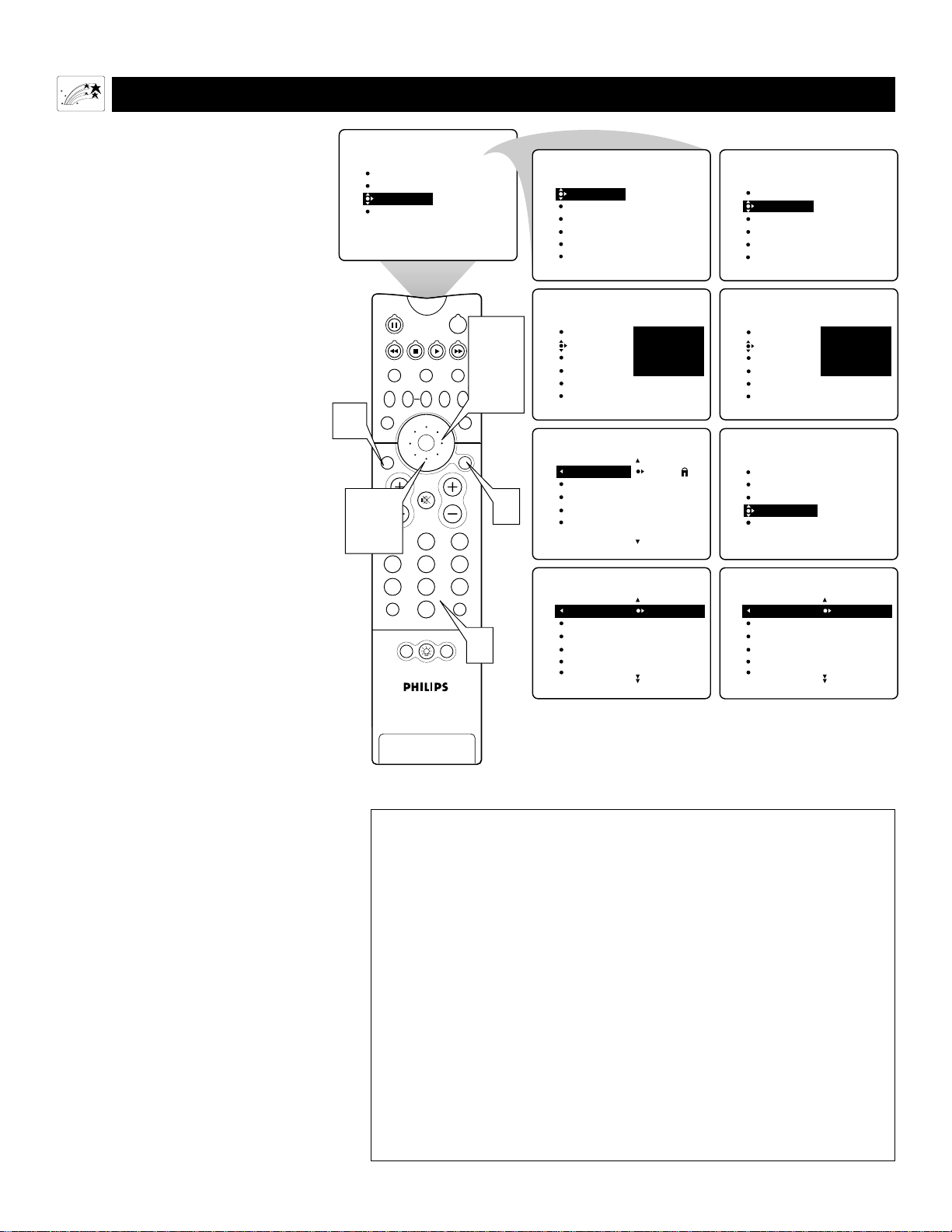
48
USING AUTO
LOCK™ TO BLOCK BY TV RATING
Y
ou also can block programs by specific
TV ratings. Follow these simple steps.
1
Press the MENU/SELECT
button on the remote control to
show the on-screen menu.
2
Press the CURSOR RING
DOWN twice to highlight
FEATURES.
3
Press the CURSOR RING
RIGHT. Then press the CURSOR
RING DOWN once to highlight
the AutoLock control.
4
Press the CURSOR RING
RIGHT again to highlight
ACCESS CODE.
5
Enter your four-digit ACCESS
CODE.
6
Press the CURSOR RING
DOWN repeatedly until TV
RATING is highlighted.
7
Press the CURSOR RING
RIGHT to enter the TV RAT-
ING submenu.
8
Press the CURSOR RING
DOWN or UP to select a rating.
9
Press the CURSOR RING
RIGHT or LEFT to turn the
block on the rating ON or OFF.
NOTE: More-specific subratings
(for violence, sexual content, dia-
logue, or fantasy violence) are
available for TV-Y7, TV-PG, TV-
14, and TV-MA.
10
To access these subratings, press
the CURSOR RING RIGHT.
Press the CURSOR RING UP or
DOWN to select the subrating that
you want to block or unblock.
Then press the CURSOR RING
RIGHT or LEFT button to turn the
block on the subrating ON or OFF.
11
Press the STATUS/EXIT button
to exit the menu.
TV-Y (All Children)—designed to be appropriate for all children, especially ones ages 2–6.
Programs rated TV-Y are not expected to frighten younger children.
TV-Y7 (Directed to Older Children)—designed for children ages 7 and older. Programs rated
TV-Y7 may be more appropriate for children who have acquired the development skills needed to
distinguish between make-believe and reality. Such programs may include mild fantasy and comic
violence (FV).
TV-G (General Audience)—likely to be considered suitable for children of all ages. Such
programs have little or no violence, no strong language, and little or no sexual dialogue or sexual
situations.
TV-PG (Parental Guidance Suggested)—contains material that parents may find unsuitable for
younger children. This type of programming has one or more of the following: moderate violence
(V), some sexual situations (S), infrequent coarse language (L), or some suggestive dialogue (D).
TV-14 (Parents Strongly Cautioned)—contains material that many parents will find unsuitable
for children under 14 years of age. Such programs have one or more of the following: intense vio-
lence (V); intense sexual situations (S); strong, coarse language (L); or intensely suggestive
dialogue (D).
TV-MA (Mature Audience Only)—specifically designed to be viewed by adults and therefore
may be unsuitable for children under 17. Such programs have one or more of the following:
graphic violence (V); explicit sexual situations (S); or crude, indecent language (L).
Using the On-screen Submenus: Features
PIP
213
546
879
0
TV
SWAP PIP CH
DN
UP
FREEZE
SOUND
MUTE
SURF
A/CH
POWER
PICTURE
STATUS/
EXIT
POSITION
VCR
ACC
MENU/
SELECT
VOL
CH
TV/VCR
ACTIVE
CONTROL
PICTURE
SOUND
FEATURES
INSTALL
TIMER
AutoLock
PIP
CLOSED CAP
FORMAT
TIMER
AutoLock
PIP
CLOSED CAP
FORMAT
TIME
START TIME
STOP TIME
CHANNEL
ACTIVATE
FEATURES
TIMER
AutoLock
PIP
CLOSED CAP
FORMAT
FEATURES
ACCESS CODE
- - - -
TIMER
AutoLock
PIP
CLOSED CAP
FORMAT
FEATURES
ACCESS CODE
- - - -
TIMER
AutoLock
PIP
CLOSED CAP
FORMAT
FEATURES
ACCESS CODE
X X X X
AutoLock
2
3
4
5
6
FEATURES
BLOCK CHANNEL
SETUP CODE
MOVIE RATING
TV RATING
BLOCK OPTIONS
1
2,6,
8
3,4,
7,9,
10
11
5
AutoLock
TV-Y
TV-Y7
TV-G
TV-PG
TV-14
FEATURES
BLOCK CHANNEL
SETUP CODE
MOVIE RATING
TV RATING
BLOCK OPTIONS
TV RATING
AutoLock
OFF
AV3
ALL
1
2
TV-Y
TV-Y7
TV-G
TV-PG
TV-14
TV RATING
AutoLock
ON
AV3
ALL
1
2
TV-Y
TV-Y7
TV-G
TV-PG
TV-14

49
TURNING THE A
UTOLOCK™ BLOCKING CONTROL ON OR OFF
T
he BLOCKING control can be thought
of as the “master switch” for
AutoLock™. Use it to turn ON or OFF all
of the settings (based on ratings). This
control does not affect channel blocks (see
page 46).
1
Press the MENU/SELECT button
on the remote control to show the
on-screen menu.
2
Press the CURSOR RING
DOWN twice to highlight
FEATURES.
3
Press the CURSOR RING
RIGHT. Then press the CURSOR
RING DOWN once to highlight the
AutoLock control.
4
Press the CURSOR RING
RIGHT again to highlight
ACCESS CODE.
5
Enter your four-digit ACCESS
CODE.
6
Press the CURSOR RING
DOWN repeatedly until BLOCK
OPTIONS is highlighted.
7
Press the CURSOR RING
RIGHT to enter the BLOCK
OPTIONS submenu. BLOCKING
will be highlighted.
8
Press the CURSOR RING
RIGHT or LEFT to turn
BLOCKING ON or OFF.
9
Press the STATUS/EXIT button
to exit the menu.
Using the On-screen Submenus: Features
PIP
213
546
879
0
TV
SWAP PIP CH
DN
UP
FREEZE
SOUND
MUTE
SURF
A/CH
POWER
PICTURE
STATUS/
EXIT
POSITION
VCR
ACC
MENU/
SELECT
VOL
CH
TV/VCR
ACTIVE
CONTROL
PICTURE
SOUND
FEATURES
INSTALL
TIMER
AutoLock
PIP
CLOSED CAP
FORMAT
TIMER
AutoLock
PIP
CLOSED CAP
FORMAT
TIME
START TIME
STOP TIME
CHANNEL
ACTIVATE
FEATURES
TIMER
AutoLock
PIP
CLOSED CAP
FORMAT
FEATURES
ACCESS CODE
- - - -
FEATURES
ACCESS CODE
- - - -
TIMER
AutoLock
PIP
CLOSED CAP
FORMAT
FEATURES
ACCESS CODE
X X X X
1
2,6
3,4,
7,8
9
5
AutoLock
BLOCKING
BLOCK UNRATED
NO RATING
FEATURES
BLOCK CHANNEL
SETUP CODE
MOVIE RATING
TV RATING
BLOCK OPTIONS
BLOCK OPTIONS
AutoLock
OFF
AV3
ALL
1
2
BLOCKING
BLOCK UNRATED
NO RATING
BLOCK OPTIONS
AutoLock
ON
AV3
ALL
1
2
BLOCKING
BLOCK UNRATED
NO RATING
AutoLock
2
3
4
5
6
FEATURES
BLOCK CHANNEL
SETUP CODE
MOVIE RATING
TV RATING
BLOCK OPTIONS
TIMER
AutoLock
PIP
CLOSED CAP
FORMAT

50
USING AUTO
LOCK™ TO BLOCK UNRATED BROADCASTS
Using the On-screen Submenus: Features
I
n addition to blocking rated programs
or channels, you may also choose to
block all programming that is unrated.
Unrated programming consists of shows
that the MPAA (Motion Picture
Association of America) or the TV broad-
casters have chosen not to rate.
1
Press the MENU/SELECT but-
ton on the remote control to
show the on-screen menu.
2
Press the CURSOR RING
DOWN twice to highlight
FEATURES.
3
Press the CURSOR RING
RIGHT. Then press the
CURSOR RING DOWN once
to highlight the AutoLock control.
4
Press the CURSOR RING
RIGHT again to highlight
ACCESS CODE.
5
Enter your four-digit ACCESS
CODE.
6
Press the CURSOR RING
DOWN repeatedly until
BLOCK OPTIONS is highlight-
ed.
7
Press the CURSOR RING
RIGHT to enter the BLOCK
OPTIONS submenu.
8
Press the CURSOR RING
DOWN once to select BLOCK
UNRATED.
9
Press the CURSOR RING
RIGHT or LEFT to turn
BLOCK UNRATED ON or
OFF.
10
Press the STATUS/EXIT button
to exit the menu.
When the BLOCK UNRATED control is
turned ON, attempts to view unrated pro-
grams will bring to the screen a message
like the one shown to the right. To watch
the program, enter your access code or go
into the BLOCK OPTIONS submenu and
turn the BLOCK UNRATED control OFF.
HELPFUL HINT
PIP
213
546
879
0
TV
SWAP PIP CH
DN
UP
FREEZE
SOUND
MUTE
SURF
A/CH
POWER
PICTURE
STATUS/
EXIT
POSITION
VCR
ACC
MENU/
SELECT
VOL
CH
TV/VCR
ACTIVE
CONTROL
PICTURE
SOUND
FEATURES
INSTALL
TIMER
AutoLock
PIP
CLOSED CAP
FORMAT
TIMER
AutoLock
PIP
CLOSED CAP
FORMAT
TIME
START TIME
STOP TIME
CHANNEL
ACTIVATE
FEATURES
TIMER
AutoLock
PIP
CLOSED CAP
FORMAT
FEATURES
ACCESS CODE
- - - -
FEATURES
ACCESS CODE
- - - -
TIMER
AutoLock
PIP
CLOSED CAP
FORMAT
FEATURES
ACCESS CODE
X X X X
1
2,6,
8
3,4,
7,9
10
5
BLOCK OPTIONS
AutoLock
OFF
OFF
BLOCKING
BLOCK UNRATED
NO RATING
BLOCK OPTIONS
AutoLock
ON
ON
BLOCKING
BLOCK UNRATED
NO RATING
AutoLock
BLOCKING
BLOCK UNRATED
NO RATING
FEATURES
BLOCK CHANNEL
SETUP CODE
MOVIE RATING
TV RATING
BLOCK OPTIONS
AutoLock
2
3
4
5
6
FEATURES
BLOCK CHANNEL
SETUP CODE
MOVIE RATING
TV RATING
BLOCK OPTIONS
TIMER
AutoLock
PIP
CLOSED CAP
FORMAT
Channel 12
Blocked by AutoLock
Unrated
Access Code
- - - -
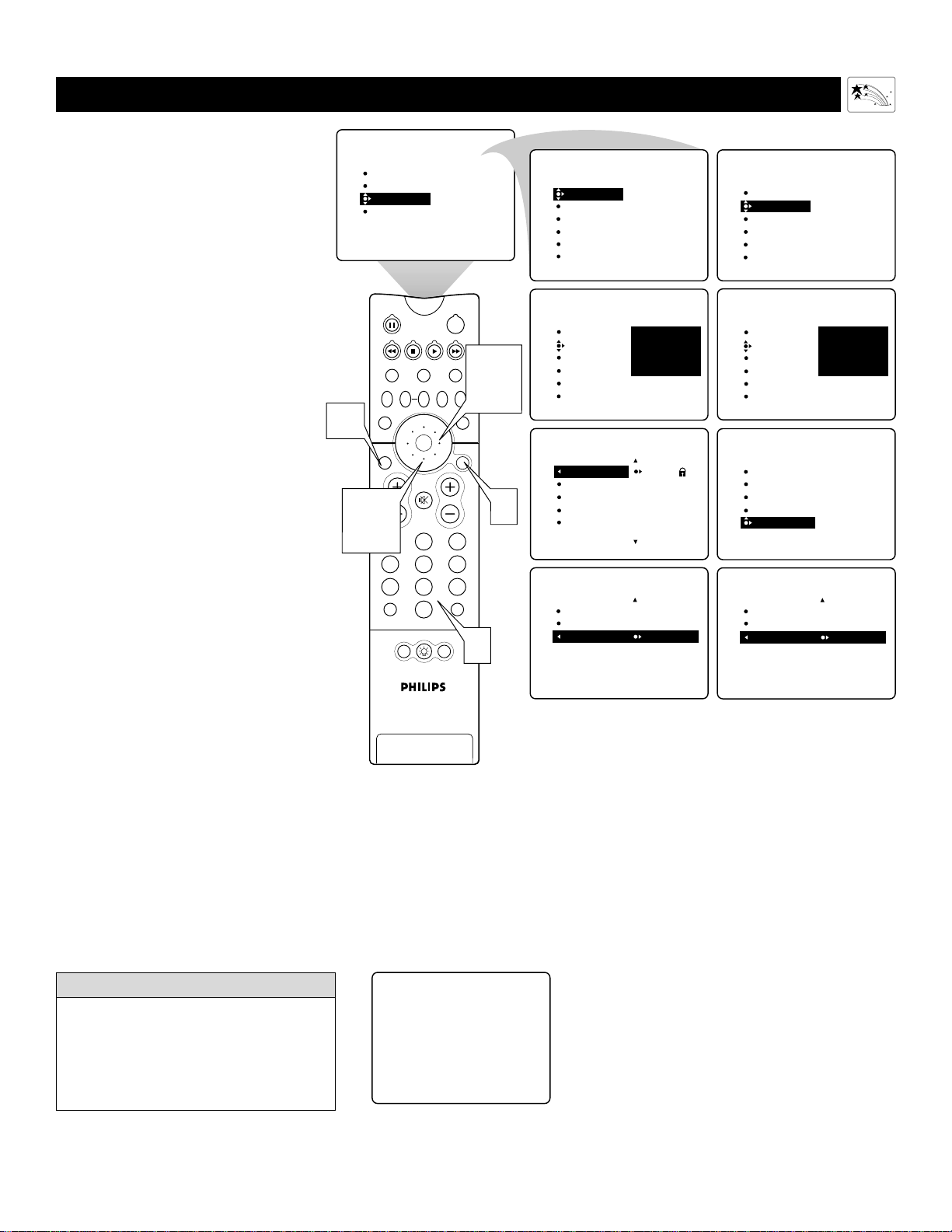
51
USING AUTO
LOCK™ TO BLOCK BROADCASTS THAT HAVE NO RAT I N G
S
ome programs contain no content advi-
sories from the Motion Picture
Association of America or the television
broadcasters (see page 44). To block pro-
grams with no rating, follow these steps.
1
Press the MENU/SELECT
button on the remote control to
show the on-screen menu.
2
Press the CURSOR RING
DOWN twice to highlight FEA-
TURES.
3
Press the CURSOR RING
RIGHT. Then press the CUR-
SOR RING DOWN once
to highlight the AutoLock
control.
4
Press the CURSOR RING
RIGHT again to highlight the
ACCESS CODE input area.
5
Enter your four-digit ACCESS
CODE.
6
Press the CURSOR RING
DOWN repeatedly until
BLOCK OPTIONS is highlight-
ed.
7
Press the CURSOR RING
RIGHT to enter the BLOCK
OPTIONS submenu.
8
Press the CURSOR RING
DOWN twice to highlight NO
RATING.
9
Press the CURSOR RING
RIGHT or LEFT to turn NO
RATING ON or OFF.
10
Press the STATUS/EXIT button
to exit the menu.
Using the On-screen Submenus: Features
PIP
213
546
879
0
TV
SWAP PIP CH
DN
UP
FREEZE
SOUND
MUTE
SURF
A/CH
POWER
PICTURE
STATUS/
EXIT
POSITION
VCR
ACC
MENU/
SELECT
VOL
CH
TV/VCR
ACTIVE
CONTROL
PICTURE
SOUND
FEATURES
INSTALL
TIMER
AutoLock
PIP
CLOSED CAP
FORMAT
TIMER
AutoLock
PIP
CLOSED CAP
FORMAT
TIME
START TIME
STOP TIME
CHANNEL
ACTIVATE
FEATURES
TIMER
AutoLock
PIP
CLOSED CAP
FORMAT
FEATURES
ACCESS CODE
- - - -
TIMER
AutoLock
PIP
CLOSED CAP
FORMAT
FEATURES
ACCESS CODE
- - - -
TIMER
AutoLock
PIP
CLOSED CAP
FORMAT
FEATURES
ACCESS CODE
X X X X
1
2,6,
8
3,4,
7,9
10
5
BLOCK OPTIONS
AutoLock
OFF
OFF
OFF
BLOCKING
BLOCK UNRATED
NO RATING
BLOCK OPTIONS
AutoLock
ON
ON
ON
BLOCKING
BLOCK UNRATED
NO RATING
AutoLock
BLOCKING
BLOCK UNRATED
NO RATING
FEATURES
BLOCK CHANNEL
SETUP CODE
MOVIE RATING
TV RATING
BLOCK OPTIONS
AutoLock
2
3
4
5
6
FEATURES
BLOCK CHANNEL
SETUP CODE
MOVIE RATING
TV RATING
BLOCK OPTIONS
Channel 12
Blocked by AutoLock
No rating
Access Code
- - - -
If the NO RATING control is turned on,
all programs having no content advisory
information will activate a screen like the
one shown to the right. To watch the
channel, enter your access code or turn
the NO RATING option OFF.
HELPFUL HINT
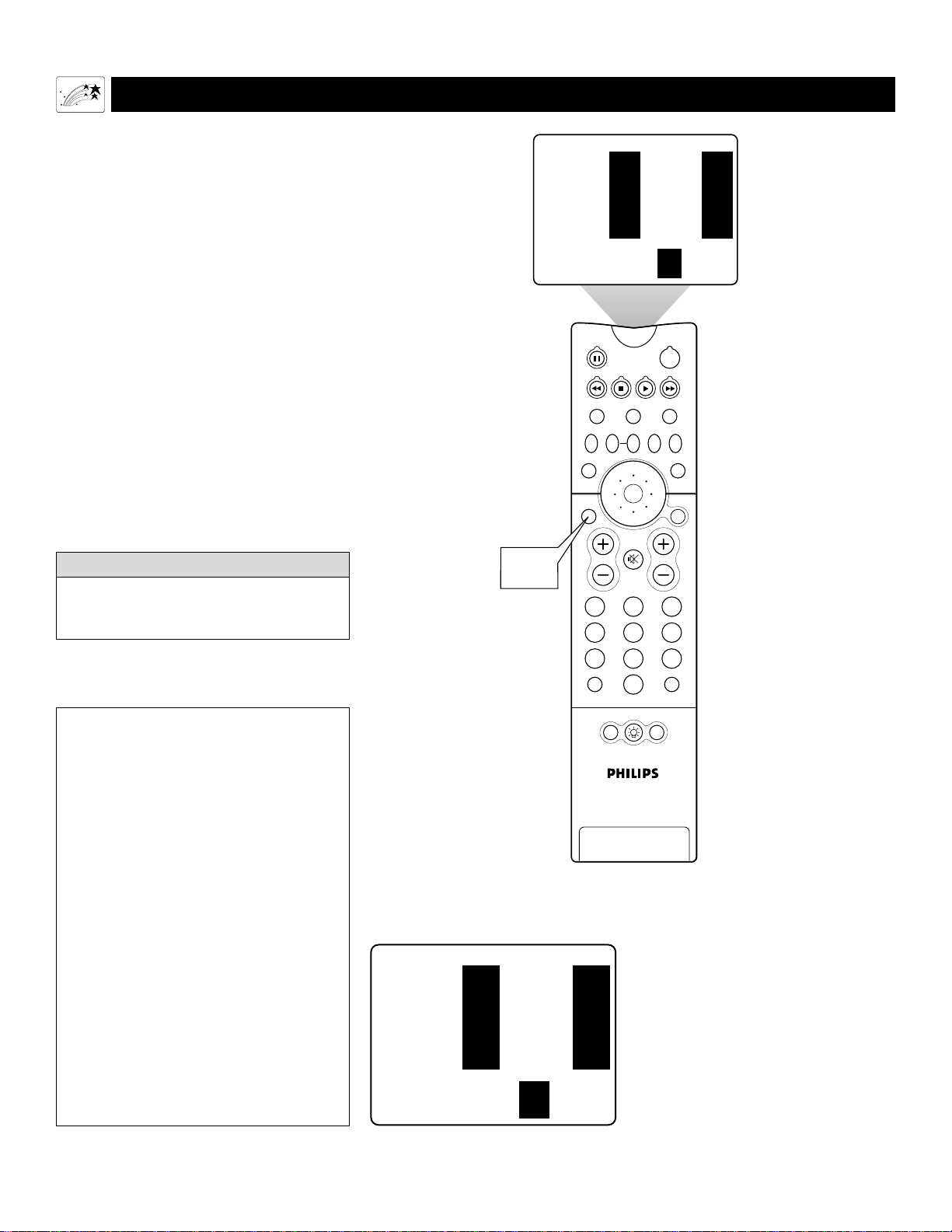
52
REVIEWING YOUR
CURRENT AUTOLOCK™ SETTINGS
PIP
213
546
879
0
TV
SWAP PIP CH
DN
UP
FREEZE
SOUND
MUTE
SURF
A/CH
POWER
PICTURE
STATUS/
EXIT
POSITION
VCR
ACC
MENU/
SELECT
VOL
CH
TV/VCR
ACTIVE
CONTROL
MOVIE RATING -
-
-
R
NC17
X
BLOCK UNRATED
NO RATING
TV RATING -
Y7
-
PG
14
MA
ON
OFF
1, 2
MOVIE RATING -
-
-
R
NC17
X
BLOCK UNRATED
NO RATING
TV RATING -
Y7
-
PG
14
MA
ON
OFF
MOVIE RATING—shows all the movie ratings
that you have chosen to block within the MOVIE
RATING control. NOTE: If a lower rating is
blocked, higher ratings will also be blocked auto-
matically. For example, if you block R-rated pro-
grams, those that are rated X will also be blocked.
TV RATING—shows all the TV ratings that you
have chosen to block within the TV RATING con-
trol. NOTE: If a lower rating is blocked, higher
ratings will also be blocked automatically. For
example, if you block TV-PG-rated programs,
those rated TV-14 and TV-MA will also be
blocked. The TV rating controls also have subrat-
ings for Violence (V), Fantasy Violence (FV),
Sexual Situations (S), Coarse Language (L), and
Suggestive Language (D). If you turn off a main
rating but turn on a subrating of that main rating
control, programs having the subrating will be
blocked; however, the main rating will not appear
within the AutoLock review submenu because you
did not turn it ON.
BLOCK UNRATED—shows whether you have
turned this control ON or OFF.
BLOCK NO RATING—shows whether you
have turned this control ON or OFF.
Using the On-screen Submenus: Features
The AutoLock™ review screen will appear
only if you have turned ON the BLOCK-
ING control (see page 49).
HELPFUL HINT
A
utoLock™ provides a screen that shows
the settings you have selected. Here’s
how to access the screen.
1
Press the STATUS/EXIT button on
the remote control twice. Your
AutoLock™ settings will appear on
the screen.
NOTE: If you have blocked specific
subratings, such as V for Violence in the
TV-PG category, these blocked subrat-
ings will not appear in the review.
Nonetheless, the subratings are still
blocked according to your selections.
2
After a few seconds, the settings will
leave the screen automatically, or
you can press the STATUS/EXIT
button to exit the menu.

53
PIP
213
546
879
0
TV
SWAP PIP CH
DN
UP
FREEZE
SOUND
MUTE
SURF
A/CH
POWER
PICTURE
STATUS/
EXIT
POSITION
VCR
ACC
MENU/
SELECT
VOL
CH
TV/VCR
ACTIVE
CONTROL
1
PICTURE
SOUND
FEATURES
INSTALL
TIMER
AutoLock
PIP
CLOSED CAP
FORMAT
TIMER
AutoLock
PIP
CLOSED CAP
FORMAT
TIME
START TIME
STOP TIME
CHANNEL
ACTIVATE
FEATURES
2,4
7
FEATURES
TIMER
AutoLock
PIP
CLOSED CAP
FORMAT
CAPTION MODE
CC DISPLAY
CLOSED CAP
CAPTION MODE
CC DISPLAY
FEATURES
CC1
CC2
CC3
CC4
CC MUTE
CC MUTE
TXT1
TXT3
TXT3
TXT4
6
3,5,
8
9
MUTE
Button
CLOSED CAP
FEATURES
ON
Selecting the CC MUTE option
allows you to display Closed
Captioning by pressing the MUTE
button on the remote control.
Note, however, that the program
you are watching must be providing
Closed Captioning. You must also
be sure CC DISPLAY is turned ON.
CAPTION MODE
CC DISPLAY
CC DISPLAY
OR
OFF
USING THE CLOSED CAPTIONING CONTROL
JOHN: Why did they move the
meeting up to this week?
MARSHA: I don't know, but they
are pushing to close the deal.
CLOSE CAPTION PROGRAMS ON WXYZ
ALL ITEMS ARE EASTERN STANDARD TIME (EST)
CHECK LOCAL LISTINGS
FOR TIMES IN YOUR AREA
6:00 TOP OF THE MORNING
12:00 NOONDAY NEWS
6:00 WORLD NEWS FOR TODAY
10:00 THE BEST LITTLE CALL-IN SHOW EVER
9:00 PLAYHOUSE MOVIE OF THE WEEK
1:30 AS YOUR LIFE TURNS MY WORLD AROUND
CAPTION Mode
Example Display
TEXT Mode
Example Display
The TV program is blocked
by the Text screen.
C
losed Captioning (CC) allows you to read
the voice content of television programs
on the TV screen. Designed to help the hear-
ing impaired, this feature uses on-screen text
boxes to show dialogue and conversations
while the TV program is in progress.
1
Press the MENU/SELECT button
on the remote control to show the
on-screen menu.
2
Press the CURSOR RING DOWN
twice to highlight FEATURES.
3
Press the CURSOR RING RIGHT
to enter the FEATURES submenu.
4
Press the CURSOR RING DOWN
repeatedly until the CLOSED CAP
control is highlighted.
5
Press the CURSOR RING RIGHT.
The submenu will shift to the left and
CAPTION MODE will be highlighted.
Then press the CURSOR RING
RIGHT again to highlight the
CAPTION MODE’s area.
6
Press the CURSOR RING UP or
DOWN to select a CAPTION
MODE.
NOTES:
• CC1 mode is the usual setting. CC2,
CC3, and CC4 may not be supported
by broadcast stations.
• The CC MUTE option turns the
Closed Captioning mode on whenever
the MUTE button on the remote
control is pushed. Select CC MUTE
in the on-screen submenu to turn this
feature on.
7
Press the CURSOR RING LEFT to
return to the CLOSED CAP sub-
menu. Then press the CURSOR
RING DOWN to highlight CC DIS-
PLAY.
8
Press the CURSOR RING RIGHT
to turn the on-screen display of
Closed Captioning on or off. Closed
Captioning will be shown only if the
TV station broadcasting on the channel
has the feature available.
9
Press the STATUS/EXIT button to
exit the menu.
Using the On-screen Submenus: Features
• Refer to your area’s
TV program listings
for the stations and
times of shows
being broadcast
with Closed
Captioning.
• Broadcasters deter-
mine the content of
captions. Any
occurrences of mis-
spellings, incorrect
grammar, or strange
characters are not
the result of TV
malfunction.
HELPFUL HINTS
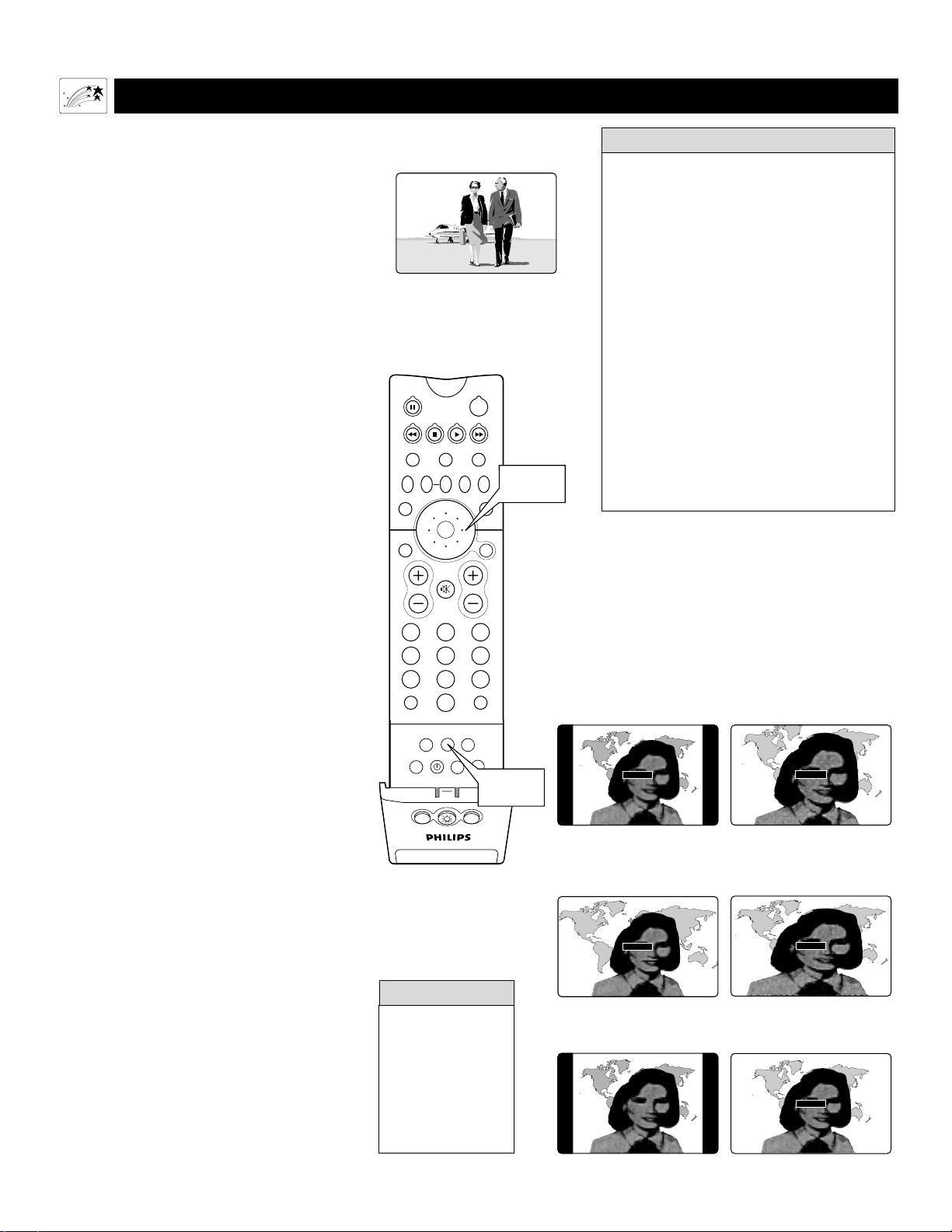
EVENING WORLD NEWS
TONIGHT'S HEADLINES
TONIGHT'S HEADLINES
4:3
EVENING WORLD NEWS
EVENING WORLD NEWS
TONIGHT'S HEADLINES
PANORAMA
4:3
Shows the conventional picture
in its original format. Border bars
are displayed on the sides. See the
Warning on this page (below, left).
PANORAMA
Stretches the outer parts of the
picture horizontally and causes
some vertical expansion.
EVENING WORLD NEWS
TONIGHT'S HEADLINES
TONIGHT'S HEADLINES
EXPAND 4:3
EVENING WORLD NEWS
EVENING WORLD NEWS
TONIGHT'S HEADLINES
WIDE SCREEN
EXPAND 4:3
Zooms the picture
vertically and horizontally.
WIDE SCREEN
Expands the picture
horizontally. No vertical
expansion occurs.
AUTO
Senses the presence of picture borders and zooms the
picture to reduce or eliminate the borders.
EVENING WORLD NEWS
TONIGHT'S HEADLINES
AUTO
EVENING WORLD NEWS
TONIGHT'S HEADLINES
TONIGHT'S HEADLINES
The picture-format modes are available for use only with video
sources connected to the ANTENNA, AV1, CVI, AV2, and AV3
(Side Panel) inputs on the TV. Control the picture formats of
video sources connected to the HD inputs through the set-top
box (for HD programming) or progressive-scan-capable DVD
player (for DVD programs)
PIP ON/OFF
213
546
879
0
TV
SWAP PIP CH
DN
UP
ACTIVE
CONTROL
FREEZE
SOUND
MUTE
SURF
A/CH
POWER
PICTURE
STATUS/
EXIT
SURF
ITR/
RECORD
HOME
VIDEO
HOME
MOVIES
PERSONAL
SLEEP
REC •
PIPPOSITION
VCR
ACC
MENU/
SELECT
VOL
CH
TV/VCR
FORMAT
SAP
PROG.LISTDOLBY VAV
FORMAT
Button
CURSOR
RING
USING THE PICTURE-FORMAT CONTROL
Using the On-screen Submenus: Features
Picture-format Modes
4:3 shows the conventional (4:3 aspect ratio)
picture in its original format. Border bars are
displayed on the sides.
EXPAND 4:3 expands, or zooms, the picture
both vertically and horizontally, eliminating or
reducing the size of border bars. Picture infor-
mation is lost around the edges.
PANORAMA stretches the outer portions of
the picture horizontally and causes some verti-
cal expansion.
WIDE SCREEN expands the picture horizon-
tally. No vertical expansion occurs.
AUTO senses the presence of border bars and
zooms the picture to reduce or eliminate the
bars. The amount of zoom varies based on the
original picture, but this option can provide
more expansion than EXPAND 4:3.
AUTO works best with video programs that
were originally “letterboxed.” Formatted to pre-
serve the original theatrical aspect ratio, these
programs are presented with border bars at top
and bottom.
Selecting a Picture Format
Using the Remote Control
Use your TV’s picture-format modes with video
sources you connect to the ANTENNA, AV1,
CVI, AV2, or AV3 (side panel) inputs on the
TV. While watching a video source—with no
on-screen menu or display present—press the
CURSOR RING RIGHT or LEFT as many
times as necessary to select the picture format
you desire. Or press the FORMAT button to
perform the same function.
54
• The term aspect ratio refers to the rela-
tionship between the width and height of
a TV screen. Historically, TV screen
width has been 33 percent greater than its
height, amounting to a 4:3 aspect ratio.
The width of your widescreen TV, how-
ever, is nearly 80 percent greater than its
height, which means its aspect ratio is
16:9. This screen corresponds well with
the tendency of the eyes to feel more
comfortable with fields of view and
action planes that are horizontally orient-
ed. The wide screen is also proportionally
truer to the formats in which movies are
filmed and presented in theaters.
• Although the term widescreen can have
various meanings, it is most commonly
used to refer to a picture format or screen
that has a greater aspect ratio than the
conventional 4:3.
HELPFUL
HINTS
To prevent uneven
picture tube aging,
do not leave border
bars or other sta-
tionary images on
screen for extended
periods of time. See
page 60.
WARNING
Pictures appear more lifelike,
dramatic, and theatrical on your
TV's wide screen.
Y
our TV’s wide screen (16:9 aspect ratio)
delivers a home-cinema experience not pos-
sible with a conventional (4:3 aspect ratio) set.
High-definition (HD) programs originating in
16:9 format and other widescreen-format video
sources appear more lifelike, dramatic, and the-
atrical. Border bars are diminished or eliminat-
ed. Most anamorphic-DVD programs will fill
the wide screen without border bars.
Use your HD set-top box or progressive-scan-
capable DVD player to control the picture for-
mats of video sources connected to the TV’s HD
inputs.
For flexibility with video sources connected to
your TV’s standard inputs—ANTENNA, AV1,
CVI, AV2, or AV3 (side panel)—access your TV’s
picture-format modes. View a video source in
standard (4:3) format or enlarge it to fill the
screen in various ways using EXPAND 4:3,
PANORAMA, WIDE SCREEN, or AUTO.
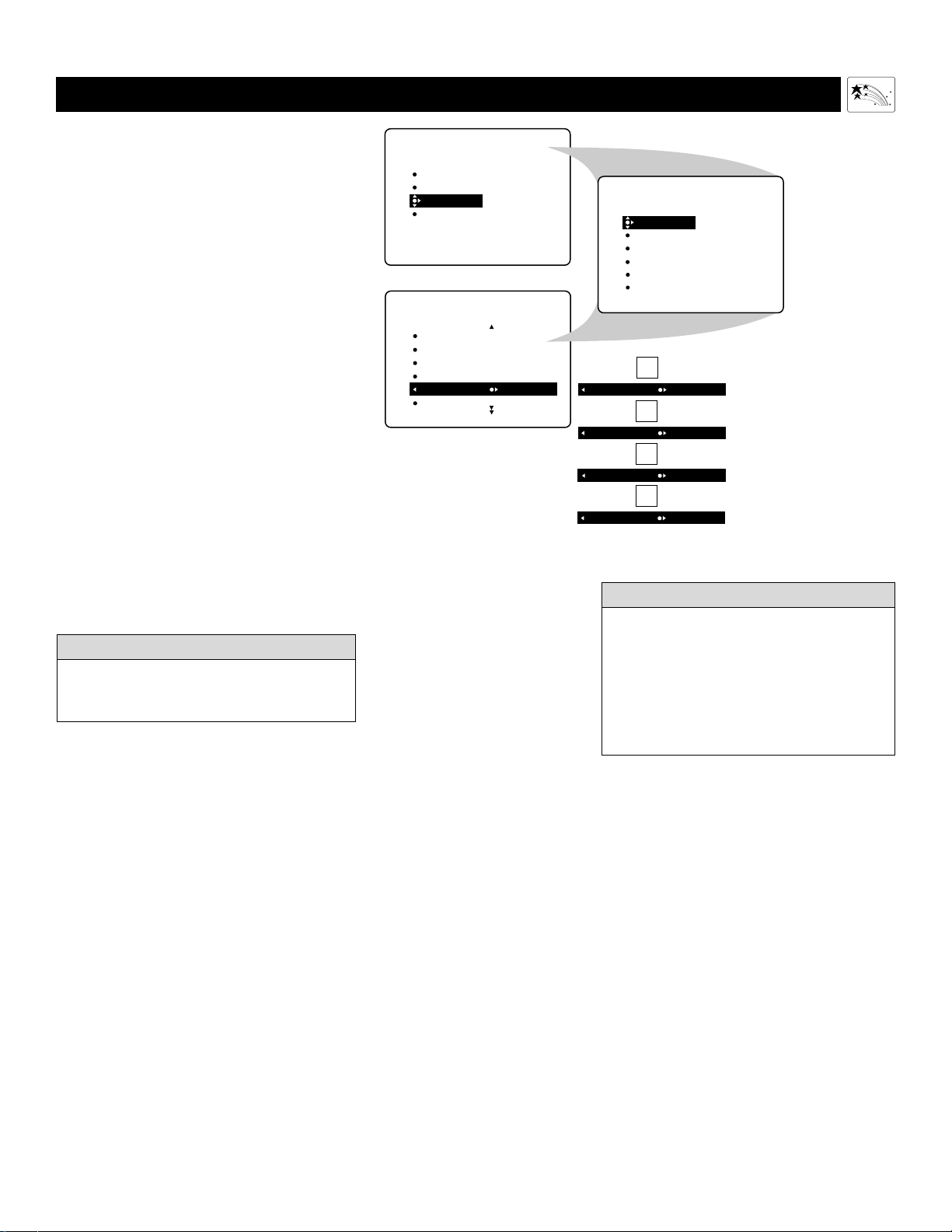
55
USING THE P
ICTURE-FORMAT CONTROL
Using the On-screen Submenus: Features
Selecting a Picture Format
Using the TV Buttons
Should your remote control become lost or other-
wise unavailable for use, follow the steps below
to use the buttons on the front of the TV to access
the on-screen menu and select a picture-format
control.
1
Press the Volume + and – buttons
simultaneously. The on-screen menu
appears.
2
Press the Channel Down button
repeatedly until FEATURES is high-
lighted. Then press the Volume + but-
ton to enter the FEATURES submenu.
3
Press the Channel Down button
repeatedly until FORMAT is high-
lighted. Then press the Volume + or –
button until you select the picture format
you want.
4
Press the Volume + and – buttons
simultaneously and repeatedly until
you back out of the menu screens.
PICTURE
SOUND
FEATURES
INSTALL
TIMER
AutoLock
PIP
CLOSED CAP
FORMAT
FEATURES
TIMER
AutoLock
PIP
CLOSED CAP
FORMAT 4:3
OR
FORMAT EXPAND 4:3
OR
FORMAT PANORAMA
TIMER
AutoLock
PIP
CLOSED CAP
FORMAT
TIME
START TIME
STOP TIME
CHANNEL
ACTIVATE
FEATURES
OR
FORMAT WIDE SCREEN
OR
FORMAT AUTO
To prevent uneven picture tube aging, do not
leave nonmoving images or black borders on
the screen for an extended period. See page 60.
WARNING
The TV’s Picture-format options are avail-
able only with video sources connected to
the ANTENNA, AV1, CVI, AV2, AV3 (side
panel) inputs on the TV. The picture formats
of video sources connected to the HD inputs
are controlled through the HD set-top box
or progressive-scan-capable DVD player
providing the video source.
HELPFUL HINT
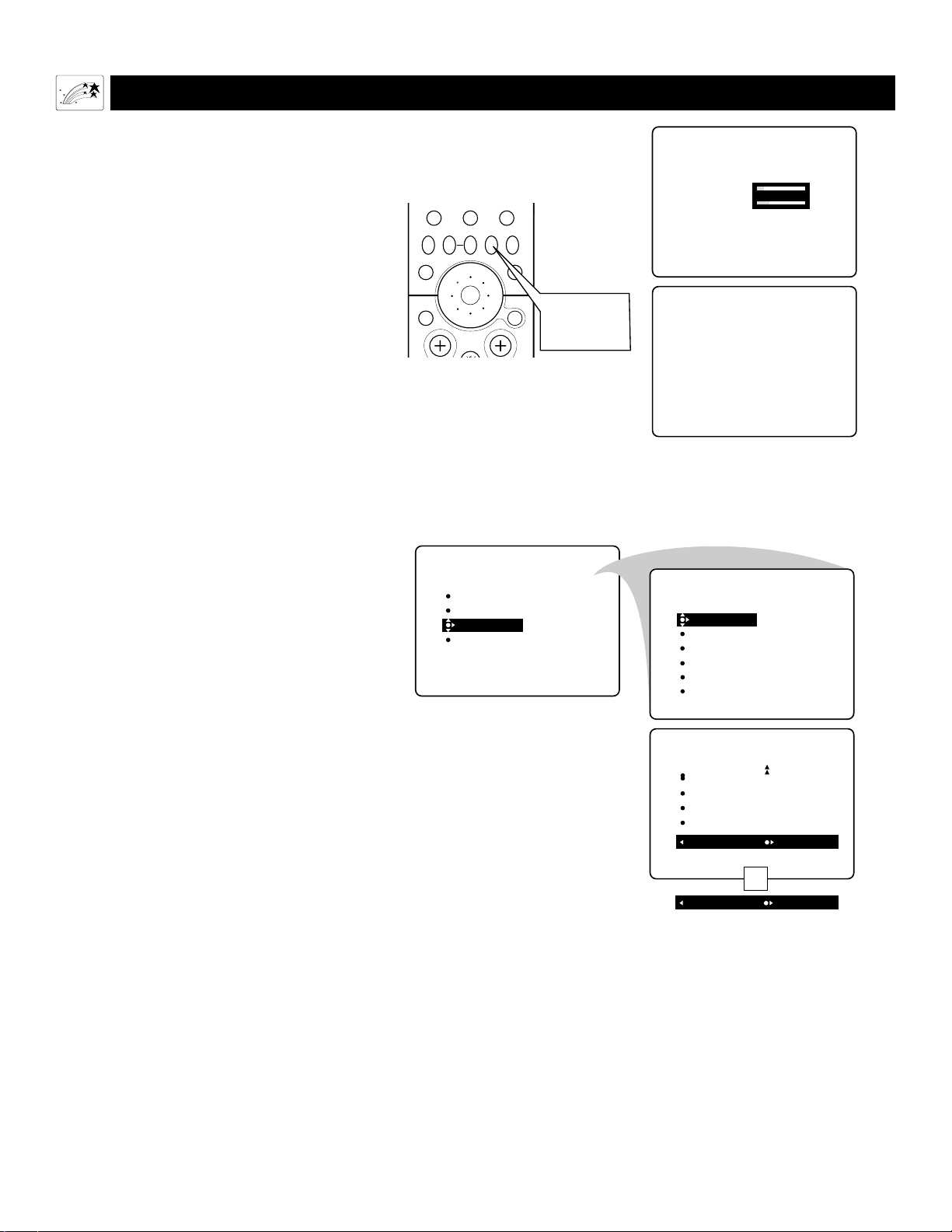
56
USING ACTIVE CONTROL™
Using the On-screen Submenus: Features
ACTIVE CONTROL ON
SHARPNESS 8
NOISE REDUCTION 20
ACTIVE CONTROL OFF
PIP
213
546
879
0
TV
SWAP PIP CH
DN
UP
FREEZE
SOUND
MUTE
SURF
A/CH
POWER
PICTURE
STATUS/
EXIT
POSITION
VCR
ACC
MENU/
SELECT
VOL
CH
TV/VCR
ACTIVE
CONTROL
ACTIVE
CONTROL
Button
PICTURE
SOUND
FEATURES
INSTALL
TIMER
AutoLock
PIP
CLOSED CAP
FORMAT
TIMER
AutoLock
PIP
CLOSED CAP
FORMAT
TIME
START TIME
STOP TIME
CHANNEL
ACTIVATE
FEATURES
FEATURES
AutoLock
PIP
CLOSED CAP
FORMAT
ACTIVE CTRL ON
OR
ACTIVE CTRL OFF
Turning Active Control™ on or
off Using the TV Buttons
Should your remote control become lost or oth-
erwise unavailable for use, follow the steps
below to use the buttons on the front of the TV
to access the on-screen menu and turn Active
Control™ on or off.
1
Press the Volume + and – buttons
simultaneously. The on-screen menu
appears.
2
Press the Channel Down button
repeatedly until FEATURES is
highlighted. Then press the Volume +
button to enter the FEATURES sub-
menu.
3
Press the Channel Down button
repeatedly until ACTIVE CTRL is
highlighted. Then press the Volume +
or – button to turn Active Control™
on or off.
4
Press the Volume + and – buttons
simultaneously and repeatedly until
you back out of the menu screens.
Turning Active Control™ on or
off Using the Remote Control
While watching TV, press the ACTIVE
CONTROL button on the remote control to
turn the feature on or off. When you turn
Active Control™ on, the on-screen display
shows the up-to-the-moment picture Sharpness
and Noise Reduction settings.
A
ctive Control™ Measures and corrects
all incoming signals to provide the best
picture-quality settings.
When you choose to turn Active Control™
on, picture sharpness and noise reduction
are controlled automatically. Active
Control™ adapts picture settings continu-
ously and automatically.
NOTE: Active Control™ is not available for
signals connected to HD INPUT-AV 4
HD INPUT-AV5.

57
Appendix A
A
Appendix
COMPATIBILITY INFORMATION FOR THE TV’S HIGH-DEFINITION INPUTS
Y
our set’s HD inputs (HD INPUT-AV 4 and
HD INPUT-AV 5) are designed to accept
high-definition signal standards 480p and 1080i
as specified by the Electronic Industries
Association. Output standards may vary by man-
ufacturer. Refer to the directions-for-use manual
for the digital equipment before connecting.
Your TV’s HD input jacks are compatible with
some digital equipment having RGB outputs with
“sync on green” or RGB with “separate H and V
sync.” As with HD component video signals, out-
put standards may vary by manufacturer. Refer to
the directions-for-use manual for the receiver
before connecting.
HD INPUT-AV 4
When the Inputs Are Used with Component Video Signals
Y INPUT: 1.0 Vp-p (includes sync), 75 ohms
Pr INPUT: 700m Vp-p, 75 ohms
Pb INPUT: 700m Vp-p, 75 ohms
NOTES:
The Pb INPUT jack can also receive signals from outputs labeled Cb or B-Y.
The Pr INPUT jack can also receive signals from outputs labeled Cr or R-Y.
When the Inputs Are Used with RGB Video Signals
G/Y: 1.0 Vp-p, 75 ohms (compatible with sync on green)
R/Pr: 700 mVp-p, 75 ohms
B/Pb: 700 mVp-p, 75 ohms
H: 3 Vp-p ± 1.0 V, 1 kohm (when using separate H and V sync)
V: 3 Vp-p ± 1.0 V, 1 kohm (when using separate H and V sync).
HD INPUT-AV 5
This input accepts a digital video interface (DVI) plug, which uses digital data in
the format data standard called transition minimized differential signaling
(TMDS).
• No industry standards have been estab-
lished for HD television RGB signal sys-
tems, timing, synchronization, and signal
strengths. The HD INPUT-AV 4 RGB
inputs on your Philips TV will not be
compatible with all digital equipment that
offers RGB outputs. If the digital equip-
ment you want to connect offers both
component video and RGB, component
video is the suggested type of connection
to use.
• Your TV’s on-screen INSTALL submenu
provides the option of switching the AV4
signal source between YPbPr and RGB
color-space settings. The option is avail-
able only when you have selected the
AV4 signal source (using the AV button
on the remote or the Source Select button
on the TV). The default setting for AV4 is
YPbPr. See page 59.
HELPFUL HINTS

58
MODEL SPECIFICATIONS
Appendix B
B
A
ppendix
Product Type
Rear-projection HDTV Monitor
Television System
NTSC standard
Channel Coverage
VHF: 2–13
UHF: 14–69
Cable TV: Midband
Superband
Hyperband
Ultraband
Ambient Operating Temperature
+41 to 113ºF (+5 to +45ºC)
Mains Voltage
AC 110 ±10%
Power Consumption
180W (average)
Standby Power
<1W
Audio
Frequency response: 20Hz–15kHz, +1/–3dB (ampl.)
Stereo output with 2 x 10W RMS
Two, 4 x 6” speakers
Video/Audio Terminals
INPUT-AV 1
VIDEO (composite): 1 Vp-p, 75 ohms
AUDIO: 500 mVrms, 30 kohm
COMPONENT VIDEO INPUTS (YPbPr)
Y INPUT: 1.0Vp-p (includes sync), 75 ohms
Pb INPUT: 700mVp-p, 75 ohms
Pr INPUT: 700mVp-p, 75 ohms
(The Pb INPUT jack can also receive signals from outputs
labeled Cb or B-Y. The Pr INPUT jack can also receive sig-
nals from outputs labeled Cr or R-Y.)
S-VIDEO INPUT (INPUT-AV 1, INPUT-AV2, side panel)
Y-INPUT: 1 Vp-p (includes sync), 75 ohms
C-INPUT: 300 mVp-p, 75 ohms
INPUT-AV 2
VIDEO (composite): 1 Vp-p, 75 ohms
AUDIO: 500 mVrms, 30 kohm
HD INPUT-AV 4
Component Video YPrPb/RGB (See page 57)
AUDIO: 500 mVrms, 30 kohm
HD INPUT-AV 5
Digital Video Interface (DVI) (See page 57)
AUDIO: 500 mVrms, 30 kohm
VIDEO/AUDIO OUTPUT
VIDEO: 1 Vpp, 75 ohms
AUDIO: Fixed: 500 mVrms into ˙10 kohm
Variable: 0–2 Vrms into ˙10 kohm
Side Panel (AV3)
VIDEO (composite): 1 Vp-p, 75 ohms
AUDIO: 500 mVrms, 30 kohm
HEADPHONE: 1.5 Vrms, 16 ohm
Picture Visible Area
51PW9363: 51”
55PW9363: 55”
60PW9363: 60”
Product Dimensions (W” x H” x D”)
51PW9363: 49 x 55.1 x 24.3
55PW9363: 52.6 x 57 x 25.6
60PW9363: 56.7 x 59.4 x 27
Product Weight (lbs)
51PW9363: 184
55PW9363: 190
60PW9363: 210
Supplied Accessories
Remote control with two size “AA” batteries.
Design and specifications are subject to change without notice.
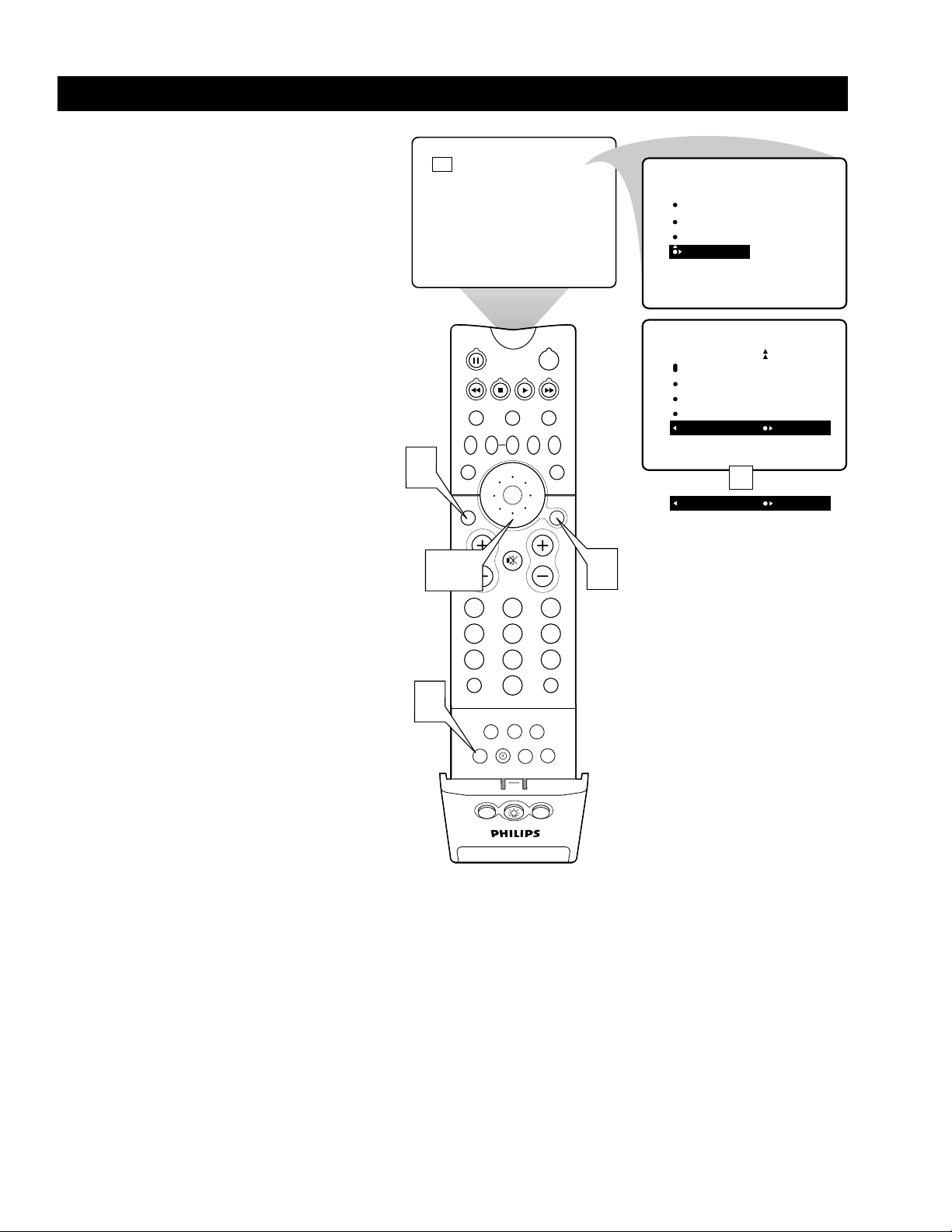
59
Appendix C
C
A
ppendix
C
olor space refers to how colors are
defined and appear on your TV. Your
TV’s default color-space setting for HD
INPUT-AV 4 is YPbPr. RGB is also an
option. If the picture’s color looks grossly
incorrect, try changing the color-space set-
ting on either the digital equipment or the
TV. For more information on setting the
color space on the digital equipment, see its
directions-for-use manual. To set the TV’s
color space, follow the steps below.
1
Press the AV button on the remote
control as many times as necessary
to select AV4.
2
Press the MENU/SELECT button.
The on-screen menu appears.
3
Press the CURSOR RING DOWN
until INSTALL is highlighted. Then
press the CURSOR RING LEFT or
RIGHT to enter the INSTALL sub-
menu.
4
Press the CURSOR RING DOWN
repeatedly until AV4 is highlighted.
The current color space is shown
(either YPbPr or RGB).
If you want to change the setting, press
the CURSOR RING LEFT or RIGHT.
5
Press the STATUS/EXIT button to
exit the menu.
SETTING COLOR SPACE FOR HD INPUT-AV 4
PIP ON/OFF
213
546
879
0
TV
SWAP PIP CH
DN
UP
ACTIVE
CONTROL
FREEZE
SOUND
MUTE
SURF
A/CH
POWER
PICTURE
STATUS/
EXIT
SURF
ITR/
RECORD
HOME
VIDEO
HOME
MOVIES
PERSONAL
SLEEP
REC •
PIPPOSITION
VCR
ACC
MENU/
SELECT
VOL
CH
TV/VCR
FORMAT
SAP
PROG.LISTDOLBY VAV
1
INSTALL
AUTO PROGRAM
CHANNEL EDIT
AutoChron
NAME
AV4 YPbPr
AV4 RGB
OR
AV4
PICTURE
SOUND
FEATURES
INSTALL
LANGUAGE
TUNER MODE
AUTO PROGRAM
CHANNEL EDIT
AutoChron
2
5
3,4

60
CARE AND C
LEANING
General Information: Care and Cleaning
WARNING Concerning Stationary Images on the TV Screen:
Do not leave picture border bars or stationary images on screen for extended periods of time.
This can cause uneven picture tube aging.
Normal use of the TV should involve the showing of pictures that contain constantly moving and changing images that fill the
screen. Be careful not to leave non-moving images on screen for extended periods of time, or to display the same images on screen
too frequently, because subtle ghost images can be left on the picture tubes. Avoid showing pictures with border bars or the same
stationary images more than 15 percent of your total viewing in any one week. Sources of stationary images may be broadcast
channels, cable channels, satellite channels, digital television boxes, DVD discs, laser discs, video games, CD-i discs, videotapes,
and others. Here are some examples of stationary images (this is not an all-inclusive list; you may encounter others in your
viewing):
• Border bars—solid bars shown when viewing a standard (4:3) picture and some widescreen movies on your widescreen (16:9)
TV
• DVD menus—listings of DVD disc content
• Video-game images and scoreboards
• Television station logos—present a problem if they are bright and stationary; moving or low-contrast graphics are less likely to
cause uneven aging of the picture tube
• Stock-market tickers—presented at the bottom of the TV screen
• Shopping channel logos and pricing displays—bright and shown constantly or repeatedly in the same location on the TV
screen.
All picture tubes age with use, with their light output diminishing over time. But by maintaining normal use—mixing television
picture types—you will create conditions for the tubes to age at an even rate. The result will be a TV picture that is evenly bright
over the entire screen.
PLACEMENT OF THE TV
• To avoid cabinet warping, cabinet color changes, and increased chance of set failure, do not place the TV where temperatures can
become excessively hot; for example, in direct sunlight or near a heating appliance.
• Be sure to allow a free flow of air to and from the perforated back cover of the set.
CLEANING
• To avoid possible shock hazard, be sure the TV is unplugged from the electrical outlet before cleaning.
• Regularly dust the TV with a dry, nonscratching duster to keep the TV clean.
• When cleaning the TV, take care not to scratch or damage the screen surface. Avoid wearing jewelry or using anything abrasive.
Do not use household cleaners. Wipe the front screen with a clean cloth dampened with water. Use even, easy, vertical strokes
when cleaning.
Specially designed screen-cleaning kits are also available. These kits contain anti-static cleaners and cloths designed to get into the
ridges of the TV screen. Purchase the kits at stores that sell electronics. Or call our Customer Care Center at 1-800-531-0039.
• Gently wipe the cabinet surfaces with a clean cloth or sponge dampened in a solution of cool, clear water and a mild soap or
detergent. Use a clean, dry cloth to dry the wiped surfaces.
• Occasionally vacuum the ventilation holes or slots in the back cover of the set.
• Never use thinners, insecticide sprays, or other chemicals on or near the cabinet, as they might cause permanent marring of the
cabinet finish.

61
TROUBLESHOOTING
Check This List of Symptoms and Possible Solutions Before Requesting Service
You may be able to solve the problem yourself. Charges for TV installation and adjustment of customer controls are not cov-
ered under your warranty.
If you need to call a customer service representative, please know the model number and serial number of your product before you
call. This information is displayed on the back of the product. Also, please take a moment to identify the problem you are having,
and be prepared to explain this to the representative. If you believe the representative will need to help you with operations, please
stay near the product. Our representative will be happy to assist you. To reach our Customer Care Center, call 1-800-531-0039.
General Information:Troubleshooting
Difficulties and Possible Solutions (*Q refers to the Quick Use and Setup Guide that came with your TV.)
The TV remote control does not work
• Check that the batteries are installed correctly. See page Q-2*.
• If the batteries are dead, replace them with two “AA” size heavy duty (zinc chloride) or alkaline batteries. See page *Q-2.
• Be no farther than 30 feet from the TV when using the remote control and point the remote toward the remote-sensor window on
the TV. See page *Q-2 for the location of the remote sensor window.
• Clean the remote control and the remote sensor window on the TV. See page *Q-2 for the location of the remote sensor window.
• Check the TV power cord. Unplug the TV, wait 10 seconds, then reinsert the plug into the outlet and push the remote power or
TV power/standby button again. To locate the TV power/standby button, see page *Q-2.
• If you have your TV plugged into an AC power strip, ensure that the fuse on the power strip is not blown.
• Check to see if the TV is on a wall switch.
The TV has no power
• Check the TV’s power cord. Unplug the TV, wait 10 seconds, then reinsert the plug into the outlet and push the remote-control
power or TV power/standby button again. The location of the TV power/standby button is illustrated on page *Q-2.
• Check that the outlet is not on a wall switch.
• If you are using an AC power strip, be sure the fuse on the power strip is not blown.
You cannot get a picture
• Be sure that you have made signal connections correctly and securely. See pages *Q-1, *Q-2, 7–10, and 12–16.
• Check the Tuner Mode control for the correct tuner setting. See page *Q-4.
• Try running the Auto Program feature. See page *Q-5.
• Ensure that you have selected the correct picture signal source using the AV (remote) or Source Select (TV) buttons. See page 24.
• If you are attempting to view a picture from a progressive-scan-capable DVD player connected to the HD inputs, ensure that you
have switched the DVD player to progressive-scan mode. See page 13, as well as the DVD player’s directions-for-use manual.
• If you are using an HD receiver, ensure that its output is set correctly (HD or SD) based on the connection to the TV you have
made. See page 15. Also, refer to the directions-for-use manual that came with the HD receiver.
Picture is fuzzy or out of focus
Check the set’s convergence and adjust if necessary. See page *Q-8.
You cannot see a picture when you play a VCR tape
Press the AV button on the remote control or the Source Select button on the TV until you have selected the source to which you
connected the VCR. See page 24 (AV button) or page *Q-2 (Source Select button).
You cannot tune to a particular channel
• Use the number buttons on the remote instead of the CH + or – buttons. See page *Q-3 (remote-control buttons).
• If necessary, select the Tuner Mode and run Auto Program to store channels in the set’s memory. See pages *Q-4 and *Q-5.
You see scrolling images
Check to ensure that you have made connections correctly. See pages *Q-1, *Q-2, 7–10, and 12–16.
The list of difficulties and possible solutions continues on the next page.

62
TROUBLESHOOTING
General Information:Troubleshooting
Difficulties and Possible Solutions (*Q refers to the Quick Use and Setup Guide that came with your TV.)
The picture has no color or colors are not correct
• Check to ensure that you have made connections correctly. See pages *Q-1, *Q-2, 7–10, and 12–16.
• If you have connected digital equipment to the HD inputs, check/change the color-space setting on the equipment or TV. See page 59.
• If the picture has red or blue fringes, you may need to adjust the convergence. See page *Q-8.
You are not able to get sound
• Check the Volume buttons on the remote control or on the TV. See pages *Q-2 (TV buttons) and *Q-3 (remote control buttons).
• Check the Mute button on the remote. See page *Q-3 for the location of the Mute button.
• Check the Audio Out and Speaker controls. See page 11.
• If you have connected auxiliary sound equipment, check to ensure that you have made the audio connections correctly. See
pages 7–16. (If you have connected an external audio hi-fi system, see page 10 to ensure that you have made the connections and
set the AUDIO OUT control correctly.)
TV displays wrong channel or no channels above 13
• Try selecting the channel again.
• Add the desired channel numbers into the TV using the Channel Edit control. See page *Q-5.
• Check to ensure that the Tuner Mode is properly set and run Auto Program. See pages *Q-4 and *Q-5.

63
GLOSSARY OF
TELEVISION TERMS
General Information: Glossary of Television Terms
Active Control™ • Proactive video-control system for NTSC
sources. Active Control™ continuously measures and corrects the
incoming signals to provide the best picture possible.
Alternate Channel • The feature that allows you to toggle
between the last two channels viewed by pressing the A/CH button
on the remote control.
Audio/Video Inputs • Jacks (standard RCA), located on the rear of
the TV, used for the input of audio and video signals. These jacks
are designed for use with VCRs (or other accessories) to receive
higher picture resolution and offer sound-connection options.
Auto Program • The feature that, when activated, scans for all
available channels from regular antenna or cable signals and stores
only active broadcast stations in the TV’s memory.
Channel Edit • The feature that allows you to add or delete chan-
nels from the list of channels stored in the TV’s memory. Channel
Edit makes it easy to limit or expand the number of channels that
are available to you when you press the CH +/– buttons on your
remote control.
Closed Captioning • The broadcast standard feature that allows
you to read the voice content of television programs on the TV
screen. Designed to help the hearing impaired, Closed Captioning
uses on-screen text boxes to show dialogue and conversations
while a TV program is in progress.
Coaxial Cable • A single solid wire normally matched with a
metal end plug (F-type) that screws (or pushes) directly onto a 75-
ohm input found on the television or VCR.
Comb Filter • TV filter that removes distortion, resulting in a
sharper and purer color display. The comb filter addresses the
annoying cross-color distortion that may occur in TV broadcasts
when, for example, the presenter wears a striped or checked jacket.
Component Video Inputs • Inputs that allow the separate recep-
tion of blue, red, and luminance signals. These inputs provide the
highest possible color and picture resolution in the playback of dig-
ital signal-source material, such as the kind available from DVD
players. Component video inputs allow for improved bandwidth
information not possible through composite video or S-Video con-
nections.
Composite Video Input • An input in which all the components
required for displaying the on-screen image are combined in one
signal.
Convergence • The technique used in color TV for bringing the
red, green, and blue color beams together so that they hit the same
part of the picture tube screen at the same time. This avoids color
fringes around images in the picture.
High-definition Television (HDTV) • High-resolution digital tele-
vision. It has lifelike pictures, and with it films retain their original
width, enhancing the home theater experience.
Incredible Surround™ • False acoustic management of the audio
signal that produces a dramatic expansion of the wall of sound that
surrounds the listener and heightens overall viewing pleasure.
Interlaced • A picture-scanning technique that improves the appear-
ance of on-screen motion. It also helps smooth jagged lines that are
sometimes seen on curved and angled surfaces in the picture.
Menu • An on-screen list of feature controls available for you to
adjust or set.
NTSC • National Television Standards Committee format
devised in the 1940s for TV broadcast analog video signals
(525 lines: 30 Hz).
On-screen Displays (OSD) • The wording or messages generated
by the television (or VCR) to help you with specific feature con-
trols (color adjustment or programming, for example).
Picture-in-Picture • The showing of two pictures on the TV
screen at the same time (one main screen picture and one small
picture, or PIP).
Progressive Scan • A picture-scanning technique that doubles the
number of picture lines, eliminating the flicker and providing a
jitter-free picture.
PTV • Projection Television. (Rear- and/or front-projection design
systems are available.)
Remote-control Sensor Window • The window or opening found
on the television control panel through which infrared remote-con-
trol command signals are received.
RGB • Red, green, and blue signal. These are the primary colors of
light that are used to produce a picture in television. By mixing
levels or R, G, and B, all colors (chrominance and luminance) are
reproduced.
RF • Radio Frequency or modulated signal design used as the car-
rier for television broadcasts.
Second Audio Program (SAP) • An additional audio channel pro-
vided for in the Multichannel Television Sound (MTS) broadcast
standard. A monaural soundtrack included within the recorded or
video signal (usually containing a second language translation for
the displayed programming).
Status/Exit Button • Remote-control button that, when pressed,
shows the current channel number, name (if set), time (if set),
Sleep Timer setting, and sound setting (stereo, mono, SAP, or
mute). Pressing the button twice shows the current AutoLock™
settings. Pressing the button once when an on-screen display is
showing removes the on-screen display. You can use Status/Exit
rather than having to wait for the displays to “time out,” or auto-
matically disappear from the screen.
S-Video Input • Signal input that allows direct connection of high-
resolution video sources, such as a satellite receiver, DVD player,
S (Super)-VHS videocassette recorder, or video games. Provides
improved picture resolution, sharpness, and clarity.
480p • Digital picture format with 704 x 480 pixels, sent at 60
complete frames per second. This is the output format of progres-
sive-scan DVD players.
1080i • Digital high-definition picture format with 1920 x 1080
pixels, sent at 60 interlaced frames per second (30 complete frames
per second).
Tint • TV function that allows you to change the general color bal-
ance between cool and warm. Adjust tint according to your person-
al preference.
Twin–lead Wire • The more commonly used name for the two-
strand, 300-ohm antenna wire used with many indoor and outdoor
antenna systems. In many cases, this type of antenna wire requires
an additional adapter (or balun) in order to connect to the 75-ohm
input terminals designed into the more recent TVs and VCRs.

64
INDEX
*Q refers to the Quick Use and Setup Guide that came with your TV.
General Information: Index
A
Active Control™, 56, 63
Alternate Channel (A/CH), 28, 63
APAC™, 5
Audio Out Control, 10
Audio/Video Inputs (Definition), 63
AutoChron™ Control, *Q-5, *Q-6
AutoLock™ Control
Access code, 45
Blocking channels, 46
Movie ratings, 47
No rating broadcasts, 51
On/off control, 49
Settings review, 52
Setup Code, 45
TV ratings, 48
Understanding AutoLock™, 44
Unrated broadcasts, 50
AutoPicture™, 26
Auto Program, *Q-5, 63
AutoSound™, 25
AutoSurf™, 27
AV Button, 24
AVL Control, 34
B
Balance Control, 33
Bass Boost Control, 38
Bass Control, 33
Brightness Control, 30
Buttons (TV), *Q-2
Buttons (Remote), *Q-3
C
Cables, 6
Channel Edit Control, *Q-5, 63
Cleaning (TV/Screen), 60
Clock (See Timer Control)
Closed Captioning Control, 53, 63
Coaxial Cable (Definition), 63
Color Control, 30
Color-space Control, 59
Color Temp Control, 30
Component Video Inputs (Definition), 63
Composite Video Input (Definition), 63
Connections
Antenna, *Q-2
Cable box, *Q-1
Camcorder, 16
Compatibility, 7, 8, 57
DVD player, 12–13
HD receiver, 15
Headphone, 17
Hi-fi system, 11
Satellite receiver (standard), 7, 12, 14
S-Video device, 14
VCR, 9
VCR and cable box, 10
Connectors, 6
Convergence Controls
Red/blue, *Q-8
Restore factory, *Q-8
Multipoint red/blue, *Q-8
Save multipoint settings, *Q-8
Undo multipoint, *Q-8
D
Dolby
®
Virtual Control, 35
Dynamic Contrast Control, 32
E
Eye Fidelity Control, 31
F
Factory Service Locations, 65–66
G
Glossary, 63
H
Headphone Control, 17
High-definition Television (Definition),
63
I
Incredible Surround™ Control, 35, 63
Inputs (See Panel Jacks)
L
Language Control
(See Menu Language Control)
M
Menu, *Q-3, 63
Menu Language Control, *Q-4
Movie Ratings, 44, 47
MPAA, 44, 63
Mute Button, *Q-3, 17, 53
N
Name Control, *Q-6
NTSC (Definition), 63
O
On-screen Displays (Definition), 63
P
Panel Jacks (Overviews), 6–8
Picture Button (see AutoPicture™)
Picture Control, 30
Picture-format Control, 54–55
PIP (Picture-in-Picture)
Definition, 63
Remote-control buttons, *Q-3, *Q-7
Tint control, *Q-7
Tuning channels, *Q-7
Program List, *Q-3, 28
R
Registration/Welcome, 2
Remote Control
Battery installation/caution, *Q-2
Button descriptions, *Q-3
Programming, 18–23
Sensor Window, *Q-2, 63
Usage, *Q-2, *Q-3
RF (Definition), 63
RGB Color Space Setting (See Color
Space Control)
S
Safety/Precautions, *Q-2, 2, 3
SAP, 37, 63
Sharpness Control, 30
Sleep Timer Control, 29
Source Select Button, *Q-2, 24
Specifications, 58
Stationary Images/Warning, 60
Status/Exit Button, *Q-3, 63
Stereo/Mono Control, 36
Surf Button (See AutoSurf™)
Surround-sound Modes, 35
S-Video, *Q-1, 7, 14
T
Timer Control,
Activate, 43
Channel, 42
Clock, 39
Start time, 41
Stop time, 41
Time display, 40
Tint Control, 30, 63
Treble Control, 33
Troubleshooting, 61–62
Tuner Mode, *Q-4
TV Ratings, 48
Twin-lead Wire (Definition), 63
V
Volume Control, *Q-2, *Q-3
W
Warranty, 72
Y
YPbPr Color Space Setting (See Color
Space Control)
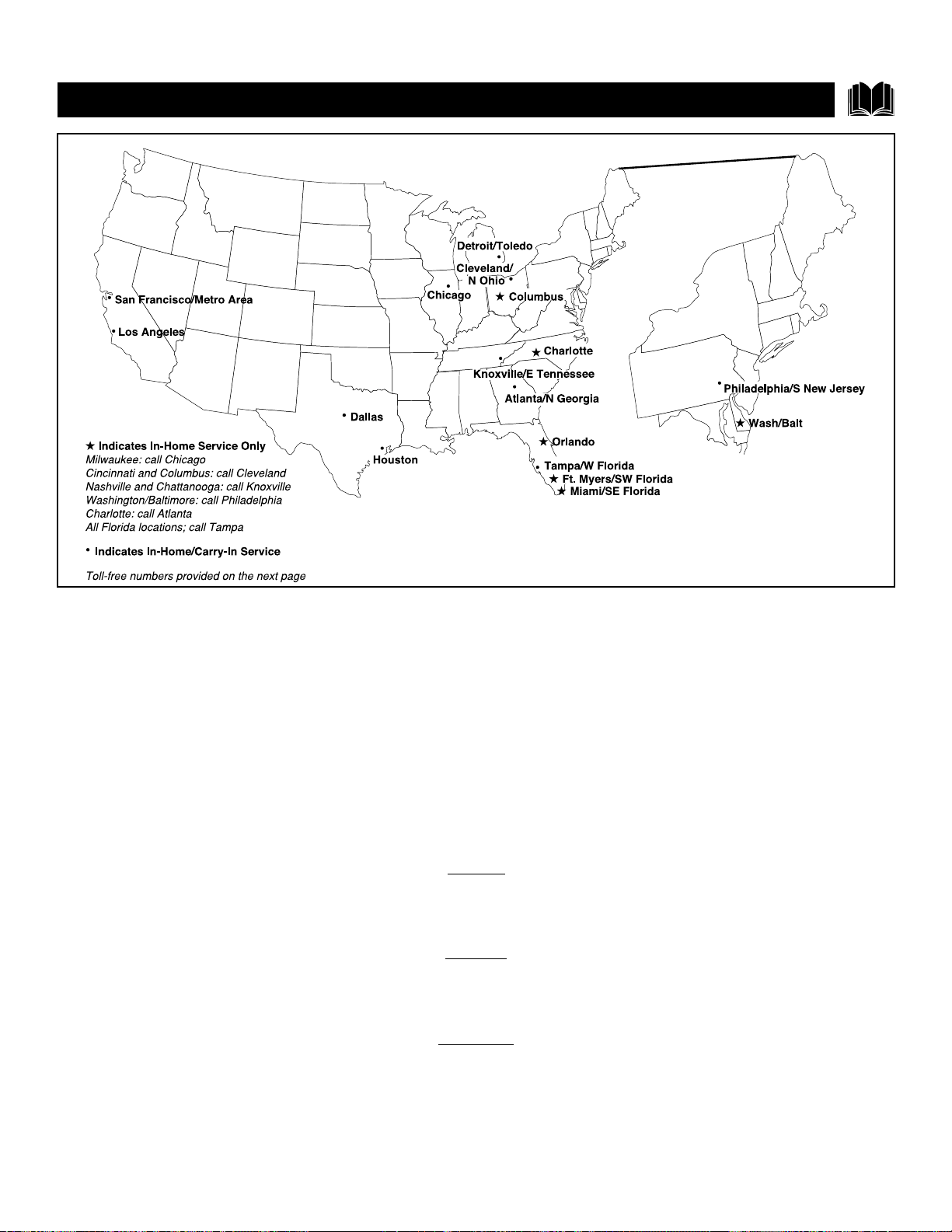
65
Philips Factory Service Locations
FACTORY
SERVICE LOCATIONS
3135 015 07541
Rev. GG - 11/20/2002
NOTE: If you reside in one of our Philips Factory Service Branch areas (see directory on back), you can contact the nearest Service Branch to obtain
efficient and expedient repair for your product. If your product is In-Warranty, you should have proof-of-purchase to ensure No Charge Service. For
Out-of-Warranty service, call the location nearest you.
NOTA: Si vous résidez dans une des régions desservies par une succursale de service après vente du fabricant Philips (voir liste ci-dessous), vous
pourrez contacter la branche de service après vente la plus près de chez vous pour obtenir un service après vente rapide et efficace. Si le produit est
sous garantie, il suffira de présenter une preuve d`achat pour bénéficier d'un service sans frais. Pour les produits non couverts par la garantie, con-
tactez le centre le plus près de chez vous.
NOTA: Si Ud. reside en una de nuestras zonas para sucursales Philips de servicio al de fábrica (ver directorio más abajo), Ud. puede comunicarse con
la sucursal de servicio más cercana para obtener una reparación oportuna y eficaz de su producto. Si su producto está todavía bajo garantía, Ud.
debe presentar comprobante de compra para no ocasionar ningunos cargos por servicio. Para servicio después del vencimiento de la garantía, llame
al lugar más cercano de los abajo indicados.
In Canada
How you can obtain efficient and expedient carry-in, mail-in, or in-home service for your product
Please contact Philips at 1-800-661-6162 (French speaking)
1-800-531-0039 (English or Spanish speaking)
Au Canada
Comment obtenir le service après-vente pour les produits apportés ou envoyés par la poste à notre centre de service ou le service à domicile
Veuillez contacter philips á: 1-800-661-6162 (Francophone)
1-800-531-0039 (Anglais ou Espagnol)
En el Canadá
Cómo recibir servicio efficiente para su producto, en persona, por correo o a domicillo
Favor de comunicarse con Philips al: 1-800-661-6162 (francófono)
1-800-531-0039 (Inglés o Español))

66
Philips Factory Service Locations
FACTORY SERVICE LOCATIONS
QUALITY SERVICE IS AS CLOSE AS YOUR TELEPHONE! SIMPLY LOOK OVER THE LIST BELOW FOR THE NUMBER OF A FACTORY SERVICE CENTER
NEAR YOU
. YOUR PRODUCT WILL RECEIVE EFFICIENT AND EXPEDIENT CARRY-IN, MAIL-IN, OR IN-HOME SERVICE, AND YOU WILL RECEIVE PEACE OF MIND,
KNOWING YOUR PRODUCT IS BEING GIVEN THE EXPERT ATTENTION OF PHILIPS’ FACTORY SERVICE.
COMMENT OBTENIR NOTRE SERVICE APRÈS VENTE RAPIDE ET EFFICACE SOIT PAR COURRIER, À DOMICILE, OU EN SE PRÉSENTANT À UN CENTRE DE SERVICE PHILIPS. PLUS DE 600 CENTRES DE
RÉCEPTION DE PRODUITS À RÉPARER À TRAVERS LE PAYS: CONTACTER LE CENTRE DE SERVICE AUX CONSOMMATEURS LE PLUS PROCHE POUR SAVOIR L’EMPLACEMENT DE CES DÉPÔTS DANS
UN RAYON DE 50 À 75 MILES (80 KM À 120 KM) DU CENTRE DE SERVICE LOCAL.
CÓMO OBTENER UN SERVICIO OPORTUNO Y EFICIENTE POR CORREO, EN CASA O EN PERSONA PARA SU PRODUCTO A TRAVÉS DE UN CENTRO PHILIPS DE SERVICIO. MAS DE 600 SITIOS POR
TODO EL PAIS PARA LA RECEPCION DE PRODUCTOS NECESITADOS DE REPARACIONES: COMUNICARSE CON EL CENTRO DE SERVICIO DE FABRICA MAS CERCANO PARA ESTOS LUGARES DENTRO
DE UN RADIO DE 80 A 120 KM (50 A 75 MILLAS) DEL CENTRO DE SERVICIO LOCAL.
ATLANTA
Philips Factory Service
550 Franklin Road., Suite F
Marietta, GA 30067
800-273-1501
TAMPA
Philips Factory Service
1911 US Highway 301 North, Suite 100
Tampa, FL 33619
800-442-2027
SAN FRANCISCO
Philips Factory Service
681 East Brokaw Rd.
San Jose, CA 95112
800-300-9013
HOUSTON
Philips Factory Service
1110 N. Post Oak Rd., Suite 100
Houston, TX 77055
800-952-3254
CLEVELAND
Philips Factory Service
950 Keynote Circle
Brooklyn Heights, OH 44131
800-331-7037
DETROIT
Philips Factory Service
25173 Dequindre
Madison Heights, MI 48071
800-438-1398
DALLAS
Philips Factory Service
415 N. Main Street, #107
Euless, TX 76040
800-952-3254
LOS ANGELES
Philips Factory Service
20930 Bonita, Ste. V
Carson, CA 90746
800-300-9013
CHICAGO
Philips Factory Service
1279 W. Hamilton Pkwy.
Itasca, IL 60143
800-531-2922
KNOXVILLE
Philips Factory Service
One Philips Drive
Knoxville, TN 37914
800-821-1767
PHILADELPHIA
Philips Factory Service
352 Dunks Ferry Rd.
Bensalem, PA 19020
800-847-9320

This page is intentionally left blank.

This page is intentionally left blank.

This page is intentionally left blank.

This page is intentionally left blank.

71
This page is intentionally left blank.

72
PROJECTION TELEVISION
One Year Free Labor
One Year Free Service on Parts
Two Years Free Service on Cathode Ray Tube Parts / 30 days Free Service on Projection TV Screen
This product can be repaired in-home.
This warranty gives you specific legal rights. You may have other rights which vary from state/province to state/province.
Philips Consumer Electronics, P.O. Box 520890, Miami, FL 33152, (402) 536-4171
LIMITED WARRANTY
Limited Warranty
WHO IS COVERED?
You must have proof of purchase to receive warranty service. A sales
receipt or other document showing that you purchased the product is
considered proof of purchase.
WHAT IS COVERED?
Warranty coverage begins the day you buy your product. For one year
thereafter (30 days for the projection TV screen), all parts will be
repaired or replaced, and labor and transportation are free. From one to
two years from the day of purchase, you pay for the replacement or
repair of all parts except the cathode ray tube and the “Clear-Vu” lens,
and for all labor and transportation charges. After two years from the
day of purchase, you pay for the replacement or repair of all parts except
the “Clear-Vu” lens (which is guaranteed against manufacturer’s defects
for the life of the product), and for all labor and transportation charges.
All parts, including repaired and replaced parts, are covered only for
the original warranty period. When the warranty on the product
expires, the warranty on all replaced and repaired parts also expires.
WHAT IS EXCLUDED?
Your warranty does not cover:
• labor charges for installation or setup of the product, adjustment of
customer controls on the product, and installation or repair of
antenna systems outside of the product.
• product repair and/or part replacement because of misuse, acci-
dent, unauthorized repair or other cause not within the control of
Philips Consumer Electronics Company.
• reception problems caused by signal conditions or cable or antenna
systems outside the unit.
• a product that requires modification or adaptation to enable it to
operate in any country other than the country for which it was
designed, manufactured, approved and/or authorized, or repair of
products damaged by these modifications.
• incidental or consequential damages resulting from the product.
(Some states do not allow the exclusion of incidental or consequen-
tial damages, so the above exclusion may not apply to you. This
includes, but is not limited to, prerecorded material, whether copy-
righted or not copyrighted.)
• a product used for commercial or institutional purposes.
WHERE IS SERVICE AVAILABLE?
Warranty service is available in all countries where the product is offi-
cially distributed by Philips Consumer Electronics Company. In coun-
tries where Philips Consumer Electronics Company does not distribute
the product, the local Philips service organization will attempt to pro-
vide service (although there may be a delay if the appropriate spare
parts and technical manual(s) are not readily available).
MAKE SURE YOU KEEP...
Please keep your sales receipt or other document showing proof of
purchase. Attach it to this owner’s manual and keep both nearby.
Also keep the original box and packing material in case you need to
return your product.
BEFORE REQUESTING SERVICE...
Please check your owner’s manual before requesting service.
Adjustments of the controls discussed there may save you a service
call.
TO GET WARRANTY SERVICE...
Repair must be performed by an authorized service center or a factory
service center. If you do not live near a factory service center, contact
your dealer. If your dealer is an authorized service center, he will
arrange repair. If your dealer is not an authorized service center, he
will direct you to the authorized service center engaged by him to
service the products he sells.
(In U.S.A., Puerto Rico and U.S. Virgin Islands, all implied warranties,
including implied warranties of merchantability and fitness for a partic-
ular purpose, are limited in duration to the duration of this express
warranty. But, because some states do not allow limitations on how
long an implied warranty may last, this limitation may not apply to
you.)
(In Canada, this warranty is given in lieu of all other warranties. No
other warranties are expressed or implied, including any implied war-
ranties of merchantability or fitness for a particular purpose. Philips is
not liable under any circumstances for any direct, indirect, special, inci-
dental or consequential damages, howsoever incurred, even if notified
of the possibility of such damages.)
IF YOU HAVE QUESTIONS...
Please contact Philips at:
1-800-531-0039, if calling from the USA (English or Spanish Speaking)
1-800-661-6162, if calling from Canada (French Speaking)
1-800-531-0039, if calling from Canada (English or Spanish Speaking).
REMEMBER...
Please record below the model and serial numbers found on the prod-
uct. Also, please fill out and mail your warranty registration card
promptly. It will be easier for us to notify you if necessary.
MODEL # ________________________________________________
SERIAL # ________________________________________________
EL4945E005 / 2-02