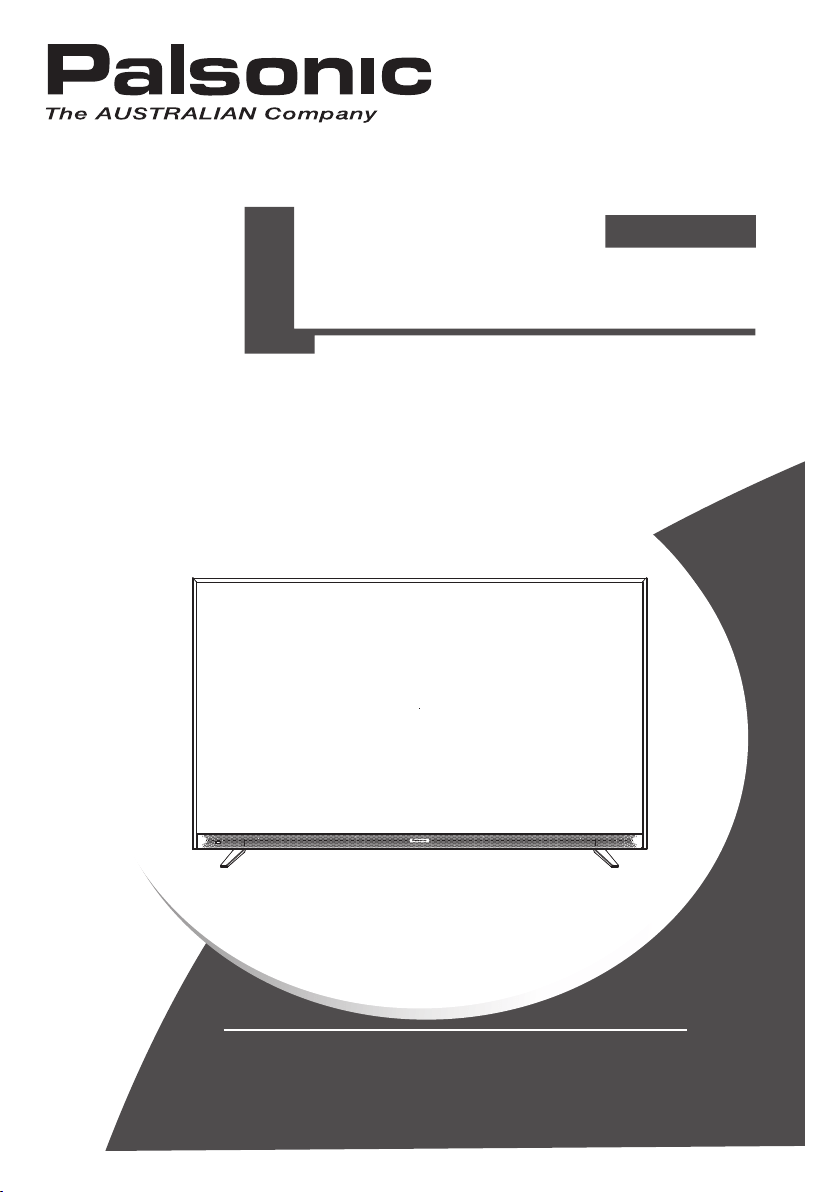
OWNER'S MANUAL
LED TV
Please read this manual carefully before TV operation.
Retain it for future reference.
Dolby, Dolby Audio and the double-D symbol are trademarks
of Dolby Laboratories.
PT6525SU
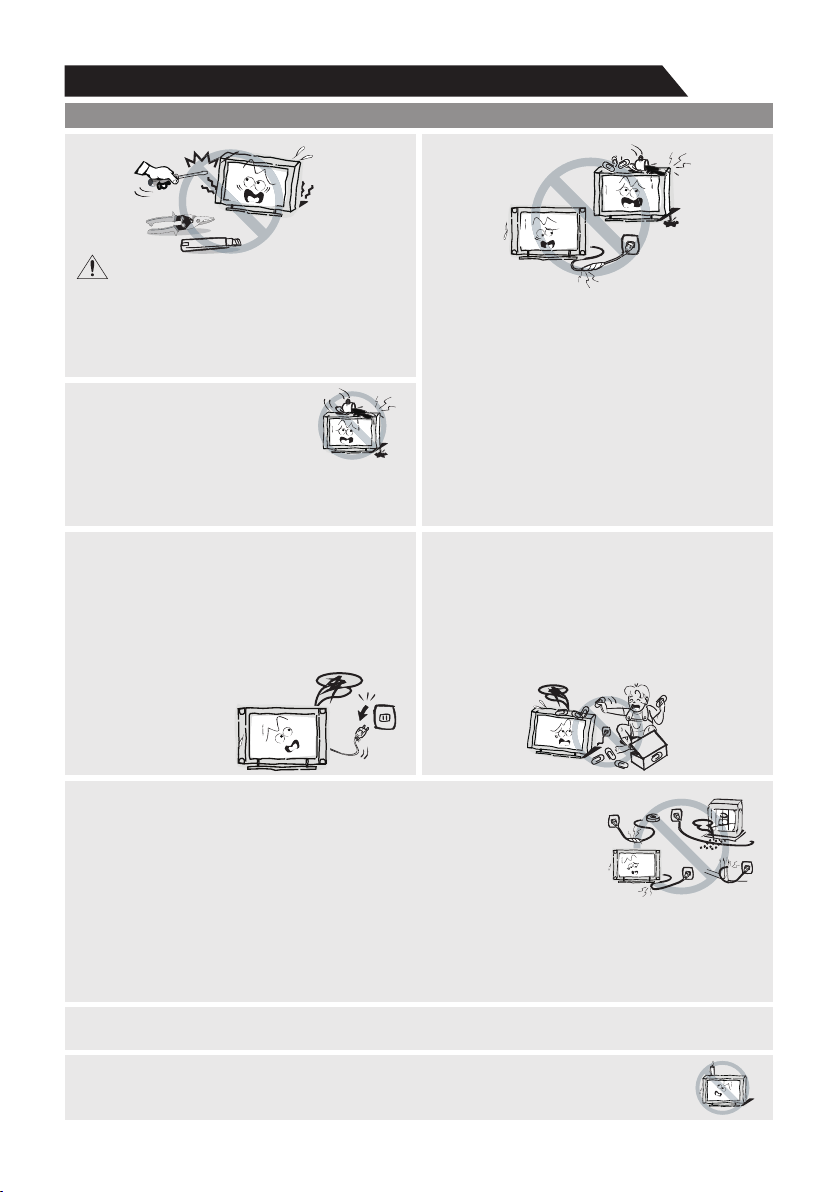
High Voltage
Do not open
Risk of electronic shock, do not open.Do not
attempt to service this product yourself as
opening or removing covers may expose you
to dangerous voltage or other hazards. Refer
all servicing to qualified service personnel.
CAUTION
Important Safety Instructions and Maintenance
Important Safety Instructions
If the following problems occur:
Turn off the TV set and unplug the AC power
cord immediately if any of the following
problems occur. Ask your dealer or service
centre to have it checked by qualified service
personnel.
When:
- AC power cord is damaged.
- Poor fitting of AC power outlet.
- TV set is damaged by being dropped, hit or
having something thrown at it.
- Any liquid or solid object falls through
openings in the cabinet.
The screen and cabinet get warm when the
TV is in use. This is not a malfunction.In case
of smoke, strange noise or strange smell
from the unit:
· Turn off the power switch immediately;
· Disconnect the power plug from the power
outlet;
· Contact your dealer or service
centre. Never attempt to make
repairs yourself
because this could
be dangerous.
Do not overload wall outlets, extension cords or adaptors beyond their capacity,
this can result in fire or electrical shock.Power-supply cords should be
routed so that they are not likely to be walked on or pinched by items
placed upon or against them, paying particular attention to cords at plug
end, adaptors and the point where they exit from the appliance. The mains
plug is used as the disconnect device. It shall remain readily accessible and
should not be obstructed during intended use. Make sure to plug the power
cord in until it is firmly inserted. When removing the power cord, make sure to hold the power
plug when pulling the plug from the outlet, do not pull the plug out by the wire. NEVER touch the
plug or power cord with wet hands. To disconnect the apparatus from the mains power, the plug
must be pulled out from the mains socket, therefore make sure the mains plug is always easily
accessible.
To reduce the risk of fire or
electric shock, do not expose
this product to rain or moisture.
The apparatus shall not be
exposed to dripping or splashing and
no objects filled with liquids, such as vases,
shall be placed on the apparatus.
Never push objects of any kind into the set
through the cabinet slots as they may touch
dangerous voltage points or short-circuit
parts that could result in a fire or electric
shock. Never spill liquid of any kind on the
set. Use special caution in households where
children are present. The apparatus is not
suitable for children under 3-year to operate.
1
To avoid the fire, no naked flame source, such as lighted candles, should be placed
on the apparatus.
Do not push or scratch the front filter, or place any objects on top of the TV set. The image may
be uneven or the screen may be damaged.
Important Safety Instructions and Maintenance
Important Safety Instructions
2
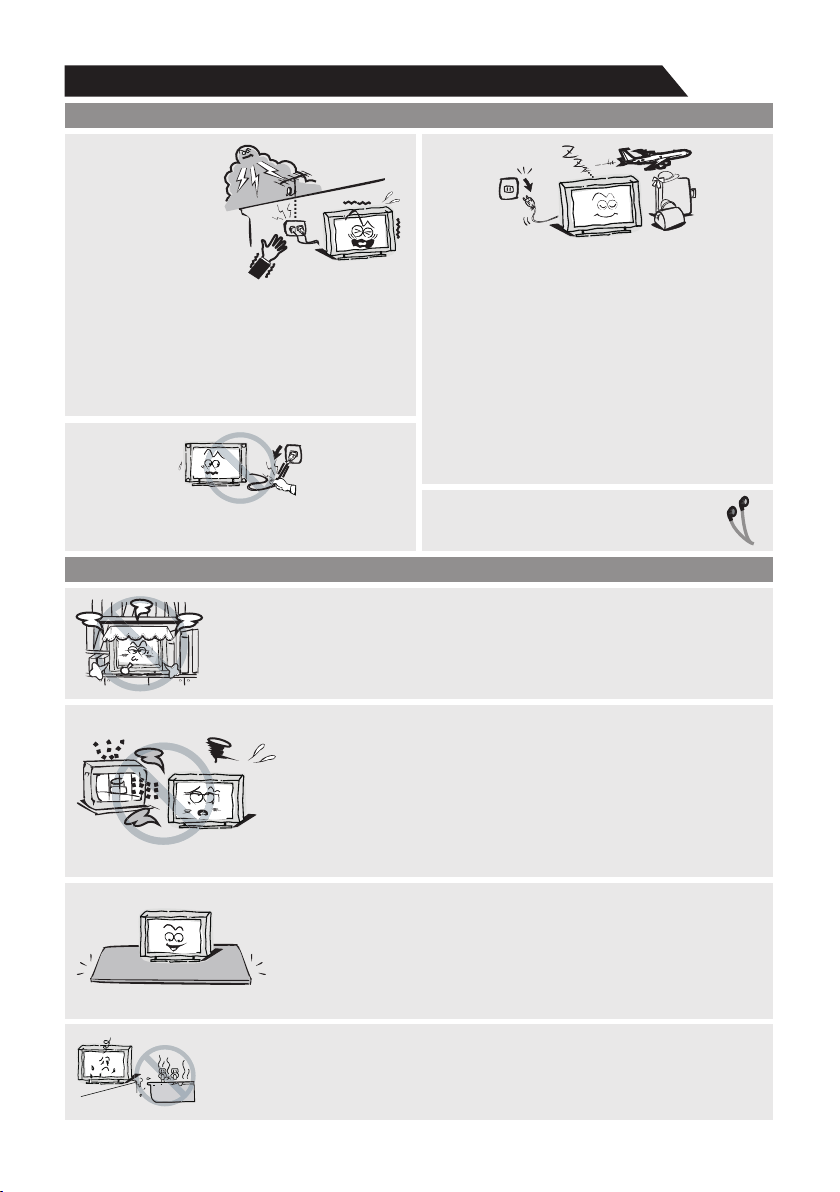
An outside antenna
system should not
be located in the
vicinity of overhead
power lines or other
electric light or power
circuits, or where it can
fall into such power
lines or circuits. When installing an outside
antenna system, extreme care should be
taken to keep from touching such power
lines or circuits as contact with them might
be fatal.Ensuring the television is not
overhanging the edge of the supporting
furniture.
When not in use
If you will not be using the TV set for several
days, the TV set should be disconnected from
the AC mains for environmental and safety
reasons. As the TV set is not disconnected from
the AC power when the TV is turned off at the
standby switch, pull the plug from the AC power
outlet to disconnect the TV completely. However,
some TV sets may have features that require the
TV set to be left in standby to function correctly.
In the case of lightning, unplug the TV set from
the outlet immediately. Never touch the antenna
wire during lightning.
Do not pull the plug out by the wire; Never
touch the plug with wet hands.
Excessive from earphones and volume
headphones can cause hearing loss.
Installation
The ventilation should not be impeded by covering the ventilation
opening with items, such as newspapers, tablecloths, curtains, etc.
At least 10 cm space should be left around the apparatus for sufficient
ventilation.
The product should be situated away from heat sources such as
radiators, heat registers, stoves, or other products
(including amplifiers) that produce heat. Place the apparatus in
such a position that the screen
is not exposed to direct sunlight. It is best to have soft indirect
lighting while watching and avoid completely dark environments
and reflection from the screen as these may cause eye fatigue.
Keep the TV set away from any equipment emitting
electromagnetic radiation.
Do not place the set on an unstable cart, stand, table or shelf. The
set may fall, causing serious personal injury as well as damage to
the product. Use only with the cart, stand, tripod, bracket, or table
specified by the manufacturer, or sold with the apparatus. An
appliance and cart combination should be moved with care. Quick
stops, excessive force, and uneven surfaces may cause the
appliance and cart combination to overturn.
Do not place this apparatus near water, for example, near a bath
tub, wash bowl, kitchen sink, or laundry tub; in a wet basement; or
a swimming pool; and the like;
solvent
thinner
solvent
thinner
Important Safety Instructions and Maintenance
3
Installation
Move
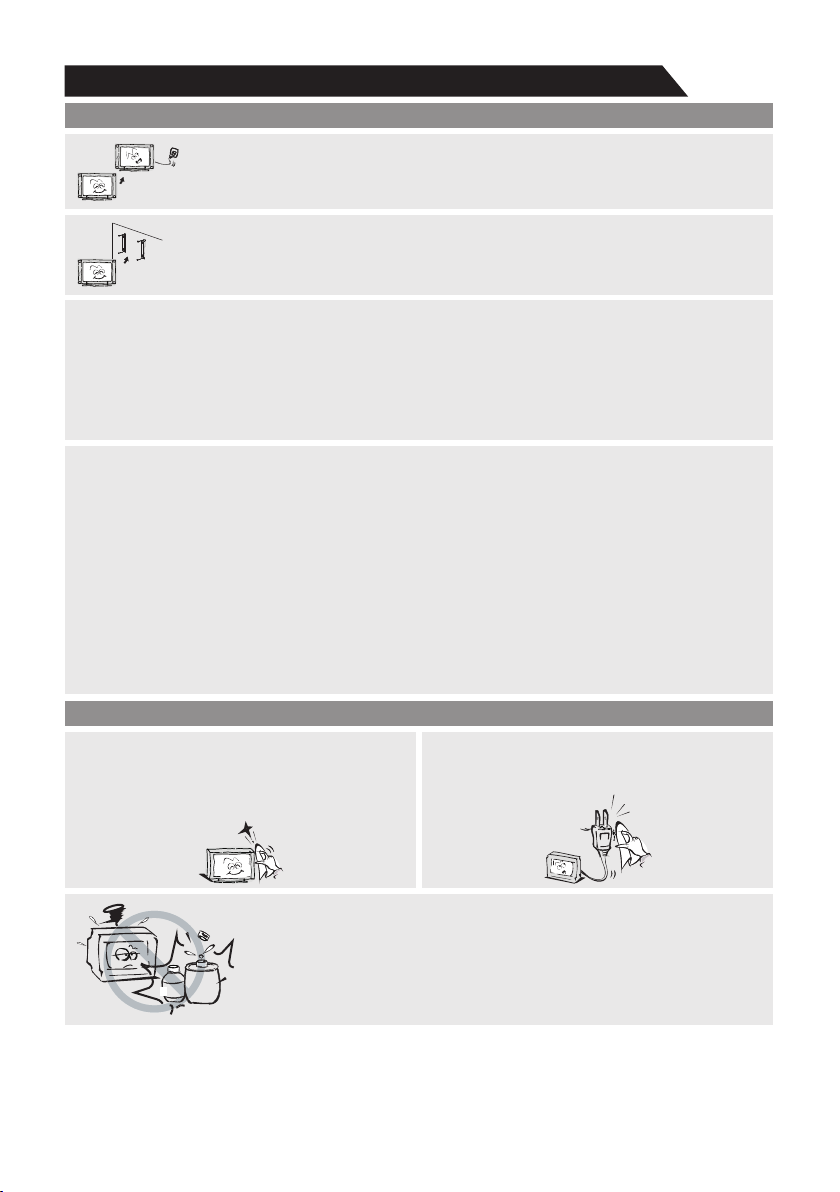
When the TV being moved in from cold place, it needs some right time for dew
inside unit evaporating fully before turn on the unit;
To prevent injury, this apparatus must be securely attached to the floor/wall in
accordance with the installation instructions.
LED Screen
Although the LED screen is made with high precision technology and 99.99% or more of the
pixels are effective, black dots may appear or bright points of light (red, blue or green) may
appear constantly on the LED screen. This is a structural property of the LED screen and is not
a malfunction.If the surface of the LED panel cracks, do not touch it until you have unplugged
the AC power cord. Otherwise electric shock may result. Do not throw anything at the TV set.
The LED panel may break from the impact and cause serious injury.
Precautions When Displaying a Still Image
A still image may cause permanent damage to the TV screen.
Do not display still images and partially still images on the LED panel for more than 2 hours as it
can cause screen image retention. This image retention is also known as "screen burn". To
avoid such image retention, reduce the degree of brightness and contrast of the screen when
displaying a still image.
Watching the LED TV in 4:3 format for a long period of time may leave traces of borders
displayed on the left, right and centre of the screen caused by the difference of light emission on
the screen. Playing a DVD or a game console may cause a similar effect to the screen.
Damages caused by the above effect are not covered by the Warranty.
Displaying still images from Video games and PC for longer than a certain period of time may
produce partial after-images. To prevent this effect, reduce the 'brightness' and 'contrast' when
displaying still images.
Cleaning
Cleaning and handling the screen surface
and cabinet. Disconnect the unit from the AC
outlet before cleaning. To remove dust, wipe
gently with a soft, lint free cloth. If required
use a slightly damp cloth.
MAINS PLUG
Wipe the mains plug with a dry cloth at
regular intervals. Moisture and dust may lead
to fire or electrical shock.
Use care not to subject the TV's surfaces to detergent. (A liquid inside
the TV could lead to product failure, fire or electrical shock.)
Use care not to subject surfaces to bug repellent, solvent, thinner, or
other volatile substances as this may deteriorate the surface and finish
of the cabinet.

Important Information
4
Table of Contents
If a television is not positioned in a sufficiently stable location, it can be potentially hazardous
due to falling. Many injuries, particularly to children, can be avoided by taking simple precautions
such as:
• Using cabinets or stands recommended by the manufacturer os the television.
• Only using furniture that can safely support the television.
• Ensuring the television is not overhanging the edge os the supporting furniture.
• Not placing the television on tall furniture (for example, cupboards or bookcases) without
anchoring both the furniture and the television to a suitable support.
• Not standing the televisions on cloth or other materials placed between the television and
supporting furniture.
• Educating children about the dangers of climbing on furniture to reach the television or its
controls.
• Keep small accessories out of reach of children so they are not mistakenly swallowed.
Accessories--------------------------------------------------------------------------------------------------------------
Introduction--------------------------------------------------------------------------------------------------------------
Features--------------------------------------------------------------------------------------------------------------------
Specifications-------------------------------------------------------------------------------------------------------------
Stand instructions-----------------------------------------------------------------------------------------------------
--------------------------------------------------------------------------------------------------General Description
Overview of back panel------------------------------------------------------------------------------------------------
Overview of front panel-------------------------------------------------------------------------------------------------
Overview of remote control--------------------------------------------------------------------------------------------
Installing Batteries in the Remote Control-------------------------------------------------------------------------
External Connection--------------------------------------------------------------------------------------------------
Antenna connection-----------------------------------------------------------------------------------------------------
Connecting VCR---------------------------------------------------------------------------------------------------------
Connecting a Camcorder----------------------------------------------------------------------------------------------
Connecting DVD Player/Set-Top Box via HDMI-----------------------------------------------------------------
Connecting Digital Audio System------------------------------------------------------------------------------------
Connecting PC-----------------------------------------------------------------------------------------------------------
Supporting signals----------------------------------------------------------------------------------------------------
Basic operation---------------------------------------------------------------------------------------------------------
Turning the TV on and off---------------------------------------------------------------------------------------------
Setup Wizard-------------------------------------------------------------------------------------------------------------
--------------------------------------------------------------------------------------------Menu system instruction
Setting----------------------------------------------------------------------------------------------------------------------
Image-----------------------------------------------------------------------------------------------------------------------
Sound----------------------------------------------------------------------------------------------------------------------
Channel-------------------------------------------------------------------------------------------------------------------
Program-------------------------------------------------------------------------------------------------------------------
Function-------------------------------------------------------------------------------------------------------------------
Time------------------------------------------------------------------------------------------------------------------------
PVR ------------------------------------------------------------------------------------------------------------------------
DTV ------------------------------------------------------------------------------------------------------------------------
Troubleshooting--------------------------------------------------------------------------------------------------------
5
6
6
7
8
9
9
10
11
13
13
13
14
15
16
17
18
18
19
19
20
25
25
25
26
28
31
33
38
39
41
42
Accessories
5
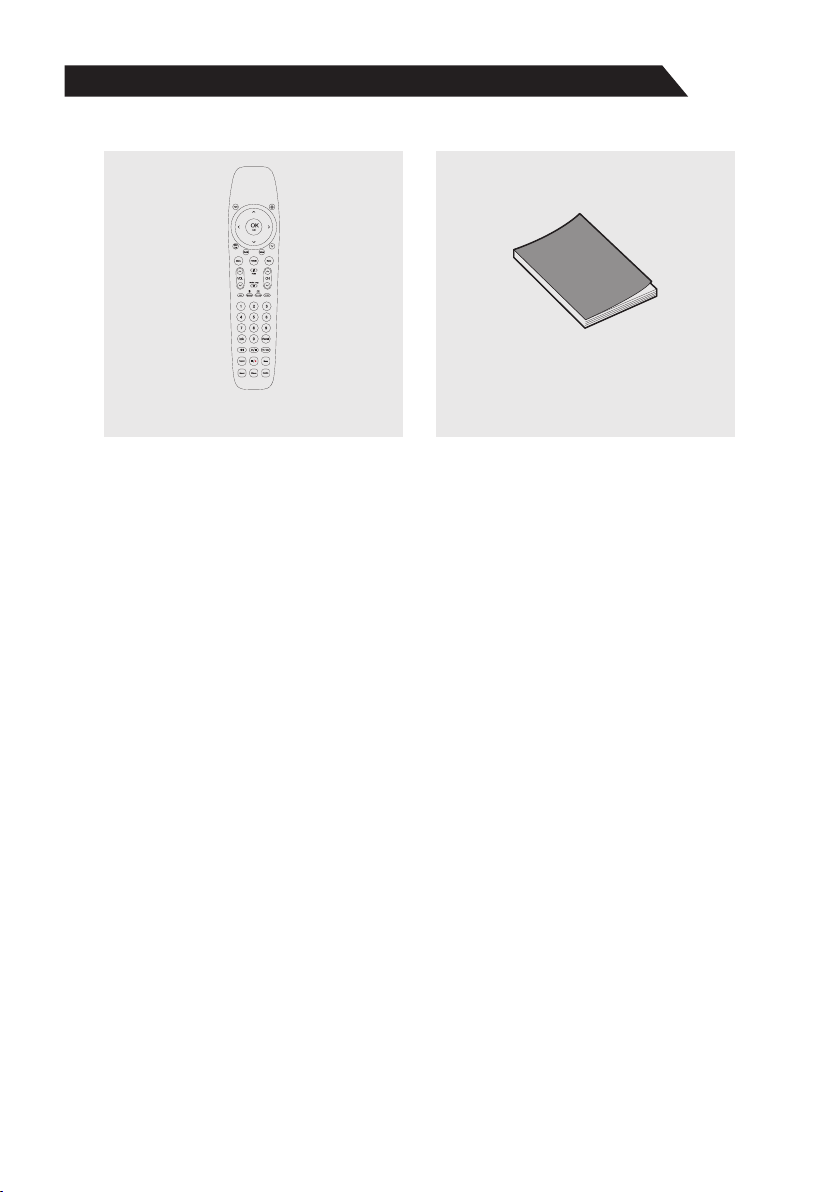
Please make sure the following items are included with your LED TV. If any items are missing,
contact your dealer.
Remote Control
Owner’s
Instructions

Introduction
Features
6
l TV adopts 65" TFT LED display screen
l Zero X radiation complies to green environment protection requirement
l Connect to computer directly to realize TV/monitor combo.
l Android 6.0
l USB 2.0
l 16:9 wide screen
l Auto tuning and fine tuning
l HDMI input
l Component Compatible (480i; 480P; 576i; 576P; 720P; 1080i; 1080P)
l Programmable sleep timer
l Wide range voltage input
l No-signal automatic power off
Input terminals used for external equipment connection
1 x Antenna jack
1 x AV inpu t
1 x COMPONENT input
1 x Optical output
1 x RJ-45 NET Input
1 x TF card input
1 x Headphone output
2 x USB inputs
2 x HDMI inputs
7
Introduction
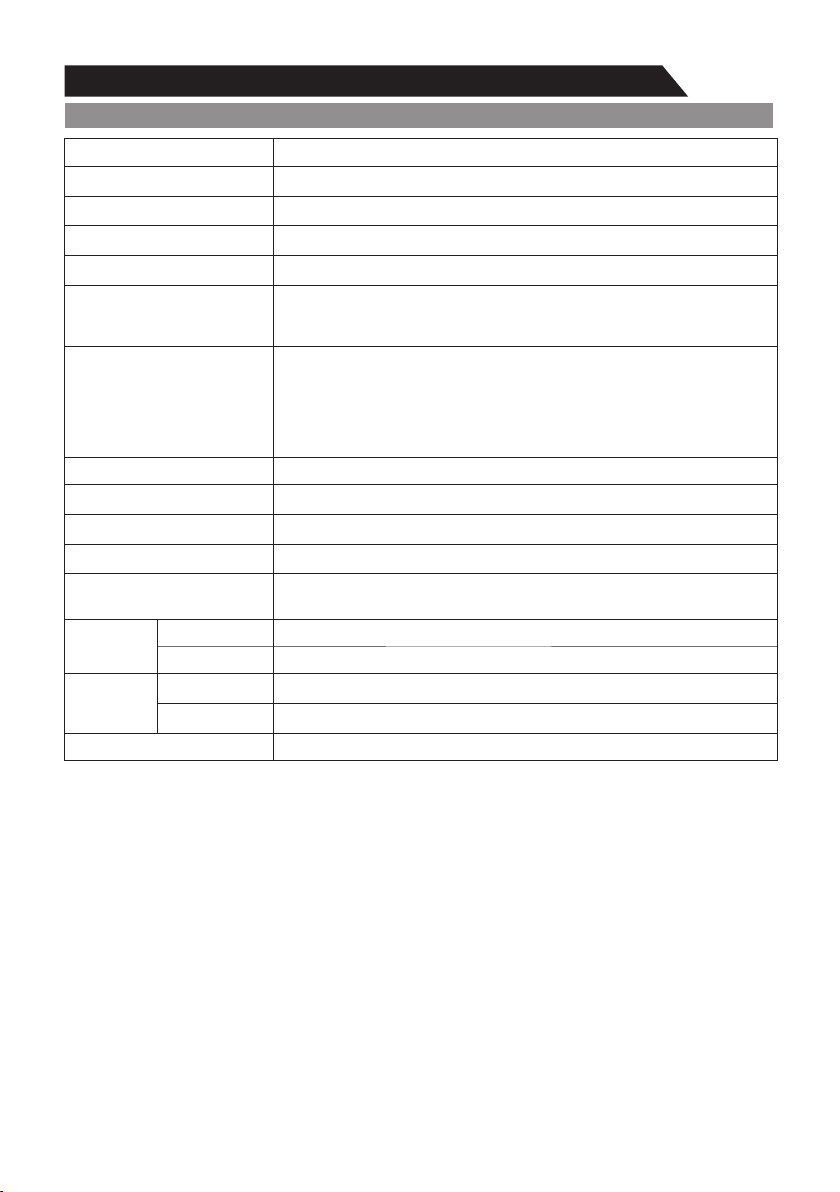
Specifications
NOTES:
• Design and specifications are subject to change without notice.
• Weight and Dimension shown are approximate.
3840X2160
Digital: DVB-T/T2, DVB-C
Analog: PAL: BG, I, DK,
SECAM: BG, D/K
TV receive system
Analog: Antenna:
46.25MHz-855.25MHz
Digital:
DVB-T/T2:5-12,21-69
DVB-C:113MHz~898MHz
TV with stand
TV without stand
TV with stand
TV without stand
≤ 0.5W
Standby comsumption
Weight
(Net weight)
Dimensions
(LxWxH)
Model
LED panel resolution
≥ 5 X2W
Speaker output power
160-240V~, 50/60Hz
Power supply
Frequency range
PAL/NTSC/SECAM
Video in
Power consumption
DC 3V
(Two AAA size batteries)
Controller power
o o
0 C-40 C
Work temperature
Display size
Antenna input
75 ohms, unbalanced
210W
22.5Kg
22.25Kg
1452x287x930.3mm
1452x72.2x865.8mm
65" Diagonal (max.)
PT6525SU
88
Stand and wall-mounting instructions (optional)
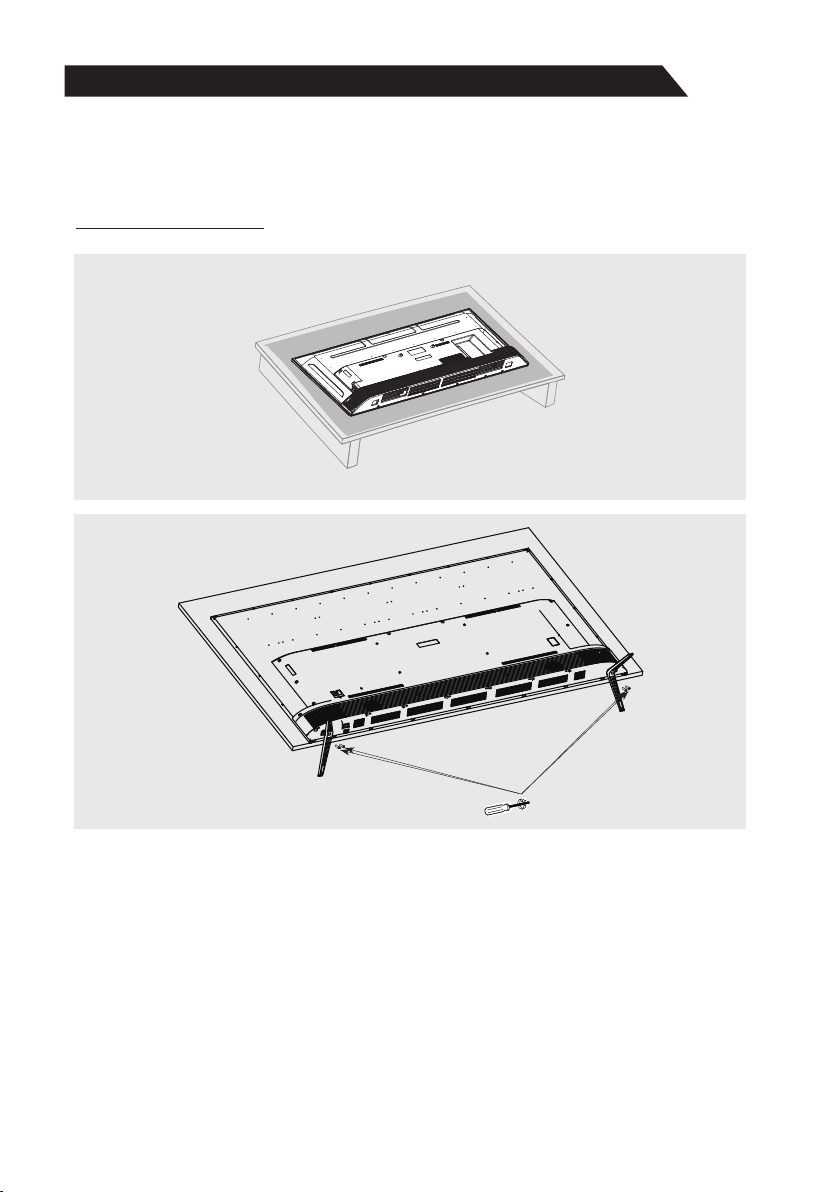
How to assemble the stand
If you need to remove or assemble the stand please read the following instructions.
- Before attaching/detaching the stand, make sure to turn off the TV.
- Before performing work, spread cushioning over the base area to lay the LED TV on. This will
prevent it from being damaged.
Assembling instruction:
Put the television on the table, fix the stands with screws given in the carton.
Step1
Step2
9
General Description
Overview of back panel
General Description
Overview of back panel
General Description
Overview of back panel
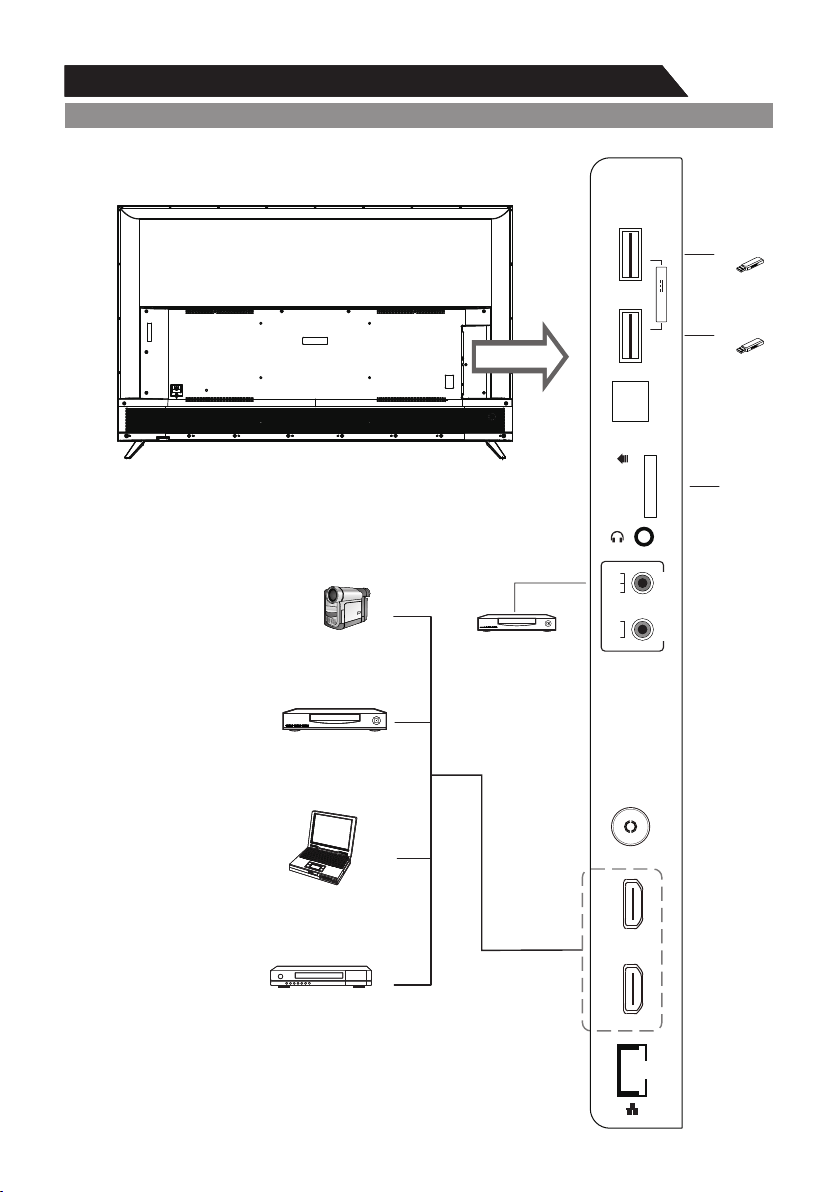
You can connect the TV with video devices such as DVD/VCD player, VCR and video camera to
enjoy the high quality picture.
Blu-ray disc player
PC (HDMI-output)
DVD player
Camcorder
TF card
USB
USB
DVD player
TF
RF
HDMI 1
(ARC)
HDMI 2
USB 1
OPTICAL
Y/V
Pb
Pr
L
R
COMPONENT/AV IN
USB 2
5V 500mA
10
General Description
Overview of front panel
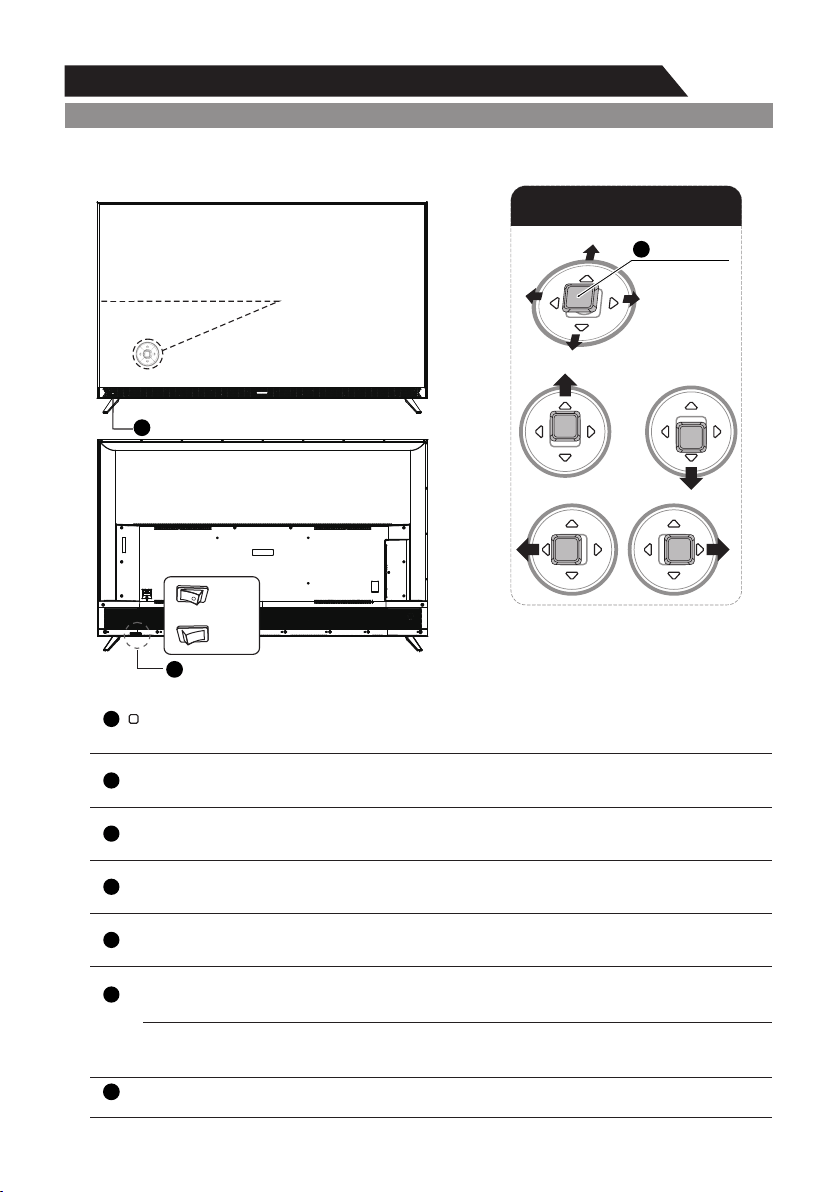
The buttons on the lower-left panel control your TV’s basic features, including the on-screen menu.
To use the more advanced features, you must use the remote control.
Joystick
2
3
1
Directly in front the TV operation
schematic diagram:
4 5
6
7
The control panel on the back shell
ON
OFF
REMOTE CONTROL
SENSOR
Aim the remote control towards this spot on the TV.
6
Down
Push one time: Use to select the next menu item if menu on TV. Use to go to last
channel when watching TV. Push and hold this button to return to the previous menu.
3
↓
Right
Push one time: Use to select the right menu item if menu on TV. Use to increase
volume when watching TV.
5
→
Left
Push one time: Use to select the left menu item if menu on TV. Use to decrease
volume when watching TV.
4
←
Up
Push one time: Use to select menu item if menu on TV. Use to go to next channel
when watching TV.
2
↑
Centre
Press this button on the control panel one time as CONFIRM at any menu.
Press and hold this button to display FUNCTION menu at any menu.
Push one time this button to turn on TV when it is in standby mode.
1
ON: In standby mode
OFF: In power on mode
POWER INDICATOR
8
POWER SWITCH
Press this button to turn TV on or off.
7
11
General Description
Overview of Remote Control
General Description
Overview of Remote Control
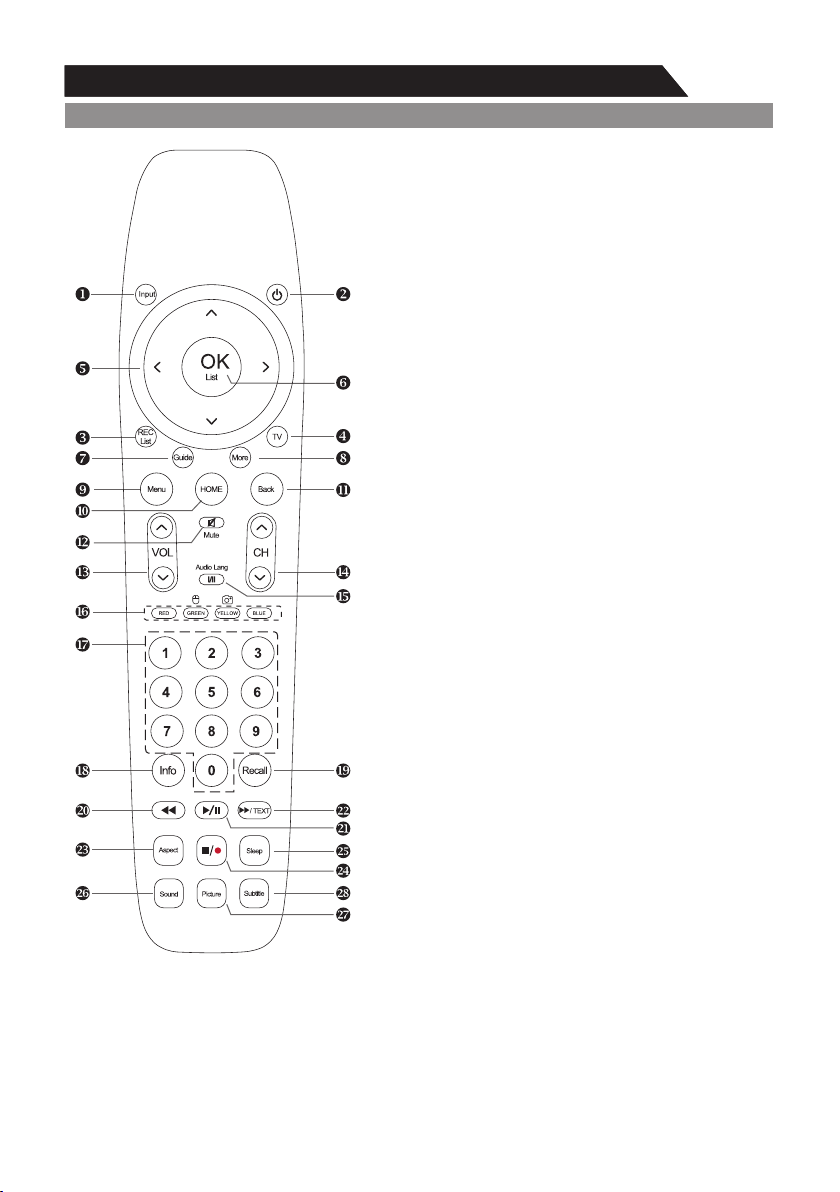
1. INPUT: This button is used to switch among different
sources.
Select a source and press OK button to confirm.
2. POWER: Press this button to switch to standby
mode, and press it again to turn TV on.
3. REC LIST: Press this button to display a list of recorded
programs in DTV.
4. TV: Press this button to enter TV source.
5. Arrow buttons: Press these buttons to move cursor
up / down / left / right for menu.
6. OK LIST: Press this button to display a channel list,
or confirm your selection.
7. GUIDE: In DTV source, this button is used to start the
EPG application.
8. MORE: Press this button to display "MORE" menu.
You can use virtual buttons in "more" menu to control
TV functions as remote.
9. MENU: Press this button to display quick menu or exit
the menu.
10. HOME: Press this button to enter the main interface
directly.
11. BACK: Return to previous page.
12. MUTE: Press this button to shut off sound of the TV,
press again to restore TV sound.
13. VOL+ and VOL-: Press these buttons to adjust
TV volume.
14. CHr and CHs: Press these buttons to change
channel upward or downward. In the teletext,
these buttons are used to display the next page
and previous page.
15. I/II button/AUDIO LANG: In ATV source, the button
is used to set NICAM sound system. In DTV source,
the button is used to set the audio language.
16. Red/Green/Yellow/Blue Command: These four
buttons are used to request linked buttons with
the current menu/page. Press the Green button
can make the TV RC(TV remote controller ) as
mouse, and long press the YELLOW button can
capture screen image. Press Red button can switch
AD(Audio Discription) Function On/Off.When in
Home/Smart UI, Press Red button to open Google
search.
12
General Description
Overview of Remote Control
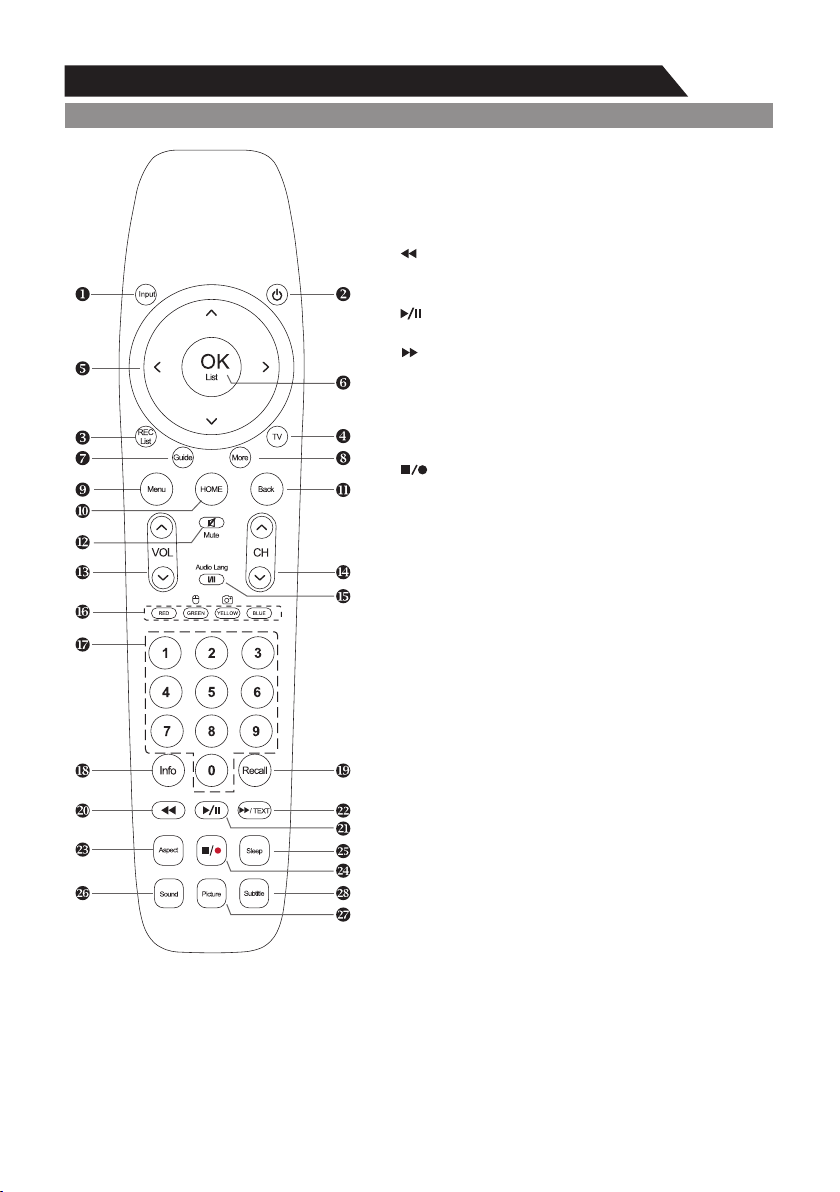
17. Digital buttons(0~9): To select channel with digital
buttons.
18.INFO: This button is used to display source information
or current program information.
19. RECALL: Switch to the previous program.
20. : Use as backward function in USB Video/Audio
playing Mode. Use as reveal function in ATV Text
Mode.
21. : Use as Play/Pause function in USB Video/Audio
playing Mode. Use as TimeShift function in DTV.
22. /TEXT: Use as forward function in USB Video
/Audio playing Mode. In ATV Mode, press this button
to Enter Text Mode. Use as cancel function in ATV
Text Mode.
23. ASPECT: Press this button to switch the screen
mode.
24. : Use as Stop function in USB Video/Audio
playing Mode. Use as Recording function in DTV.
25. SLEEP: TV will be switched off automatically at
preset sleep time if you have set sleep timer.
Use your remote control to set the sleep timer.
Press SLEEP button on the remote control, then
press this button again to set sleep time: off, 10,
20, 30, 60, 90, 120, 180, 240 min.
Notes: The sleep timer you have set will be
cancelled when the TV turns off or if a power
failure occurs.
26. SOUND: This button is used to select the sound
mode.
27. PICTURE: This button is used to adjust the picture
mode.
28. SUBTITLE: Turning the subtitles on or off in DTV
or ATV Teletext mode.
13
General Description
Installing Batteries in the Remote Control
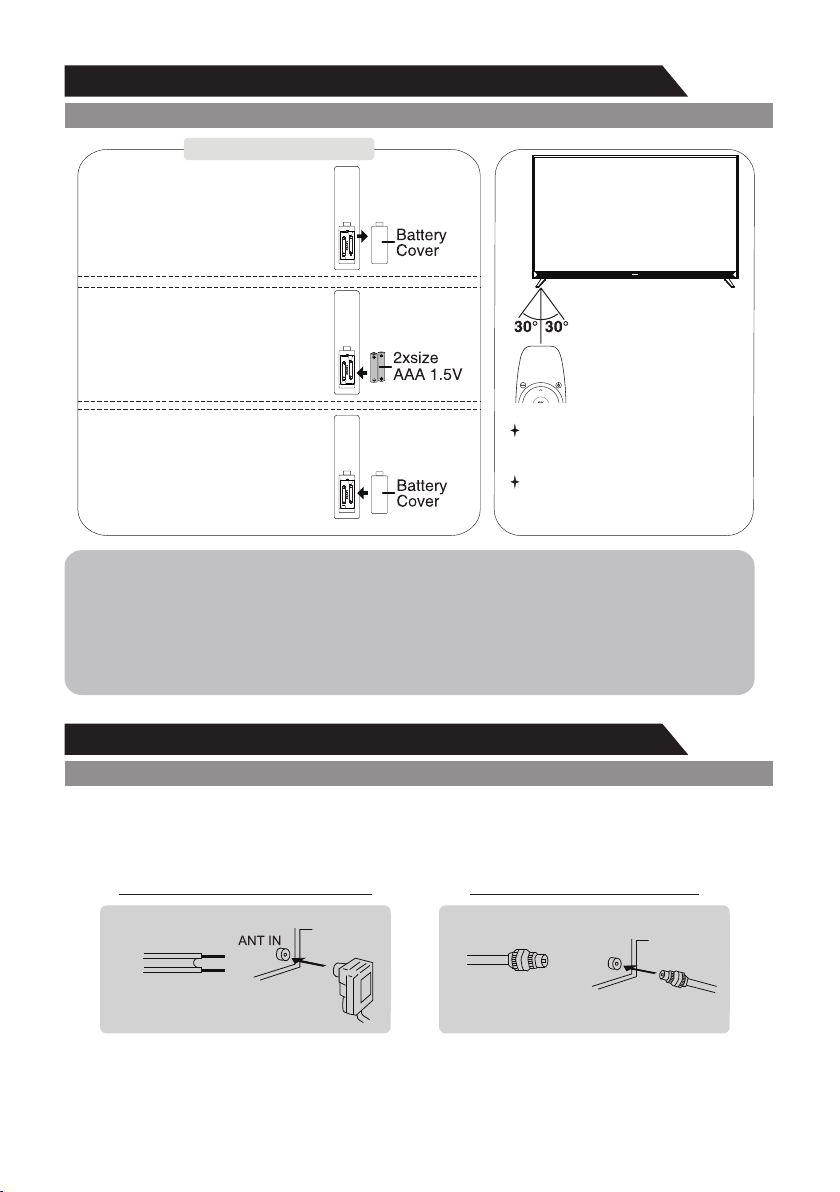
Installing Batteries
NOTES:
• One loading of batteries will last for 1 year under normal use.
• If you do not intend to use the remote controller for a long period of time, remove them
to avoid damage due to leskage.
• Do not use old and new batteries together.
• The batteries (battery pack or batteries installed) shall not exposed to excessive heat
such as sunshine, fire or the like.
External Connection
Antenna connection
Antenna input impedance of this unit is 75ohm. VHF/UHF 75ohm coaxial cable can be connected
to the antenna jack directly, if the antenna cable is 300ohm parallel flat feeder cable, you need to
use the 300ohm/75ohm converter to connect the antenna cable to the antenna jack. For details
Please refer to the following drawing.
75ohm coaxial cable
Antenna cable
Antennas with 300 W flat twins Leads
Antennas with 75 W Round Leads
Use a 75ohm - 300ohm converter
300ohm coaxial cable
Antenna feeder
1
Open the battery compartment
cover on the back side.
2
Insert two 1.5V AAA size batteries
in correct polarity. Don´t mix old or
used batteries with new ones.
3
Closed the cover.
Point the remote towards the remote control
sensor of the TV and use it
within 8 meters.
Put the used batteries into the recycling bin
since they can negatively affect the
environment.
14
External Connection
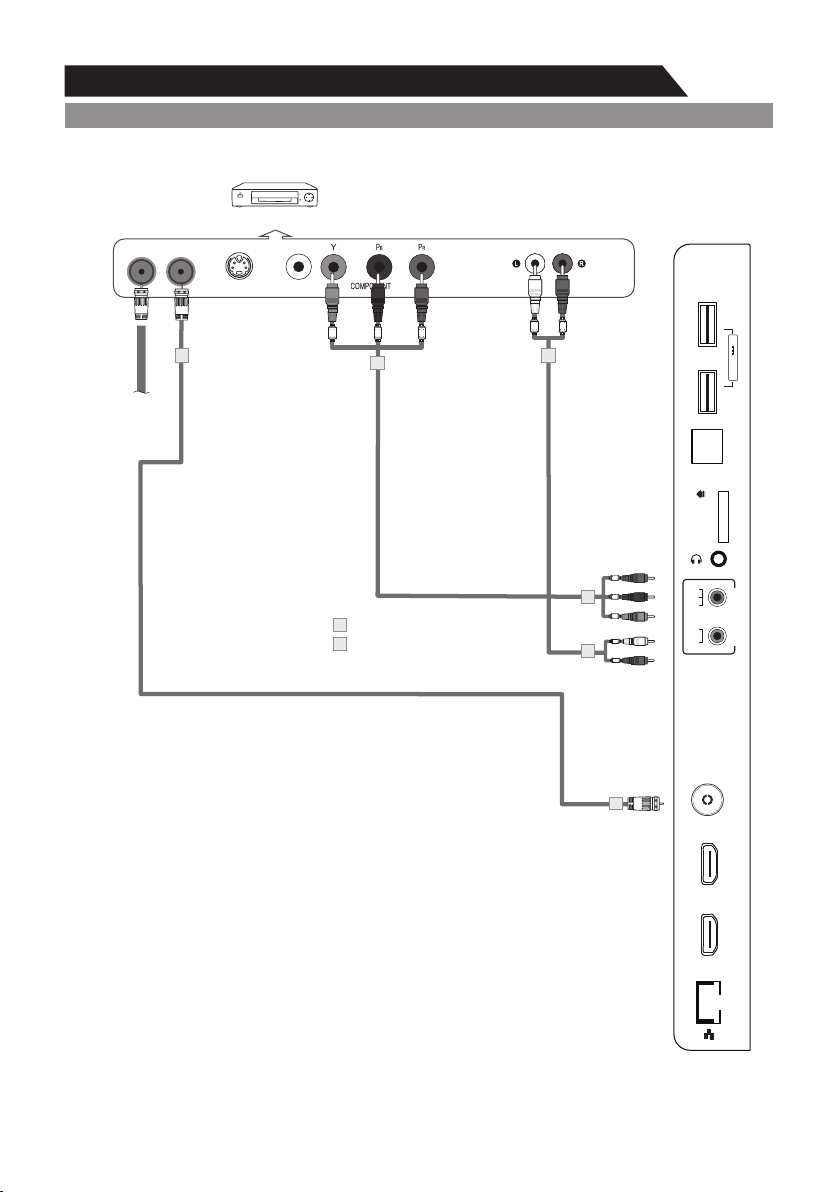
Connecting VCR
These instructions assume that you have already connected your TV to an antenna or a cable
TV system. Skip step 1 if you have not yet connected to an antenna or a cable system.
VCR Rear Panel
TV Rear Panel
White
Red
ANT
ANT OUT S-VIDEO
AUDIO OUT
Red
Blue
Green
VIDEO OUT
2
3
Red
Blue
Green
Red
White
2
3
1
1
2
1
Audio Cable (Not supplied)
YPbPr cable(Not supplied)
RF Cable (Not supplied)
Follow the instructions in Viewing a VCR or Camcorder Tape to
view your VCR tape.
Each VCR has a different back panel configuration.
When connecting a VCR, match the color of the connection
terminal to the cable.
1. Unplug the cable or antenna from the back of the TV.
2. Connect the cable or antenna to the ANT IN terminal on the
back of the VCR.
3. Connect an RF Cable between the ANT OUT terminal on the
VCR and the ANT IN terminal on the TV.
4. Connect a Component Cable between the COMPONENT
[Y, Pb, Pr] jacks on the DVD player and YPbPr jack on the TV.
5. Connect Audio Cables between the AUDIO OUT jacks on the
VCR and the AUDIO L and AUDIO R jacks on the TV.
Note:
1. Whenever you connect an external device to your TV, make
sure that power on the unit is turned off.
2. When connecting an external device, match the color of the
connection terminal to the cable.
TF
RF
HDMI 1
(ARC)
HDMI 2
USB 1
OPTICAL
Y/V
Pb
Pr
L
R
COMPONENT/AV IN
USB 2
5V 500mA
15
External Connection
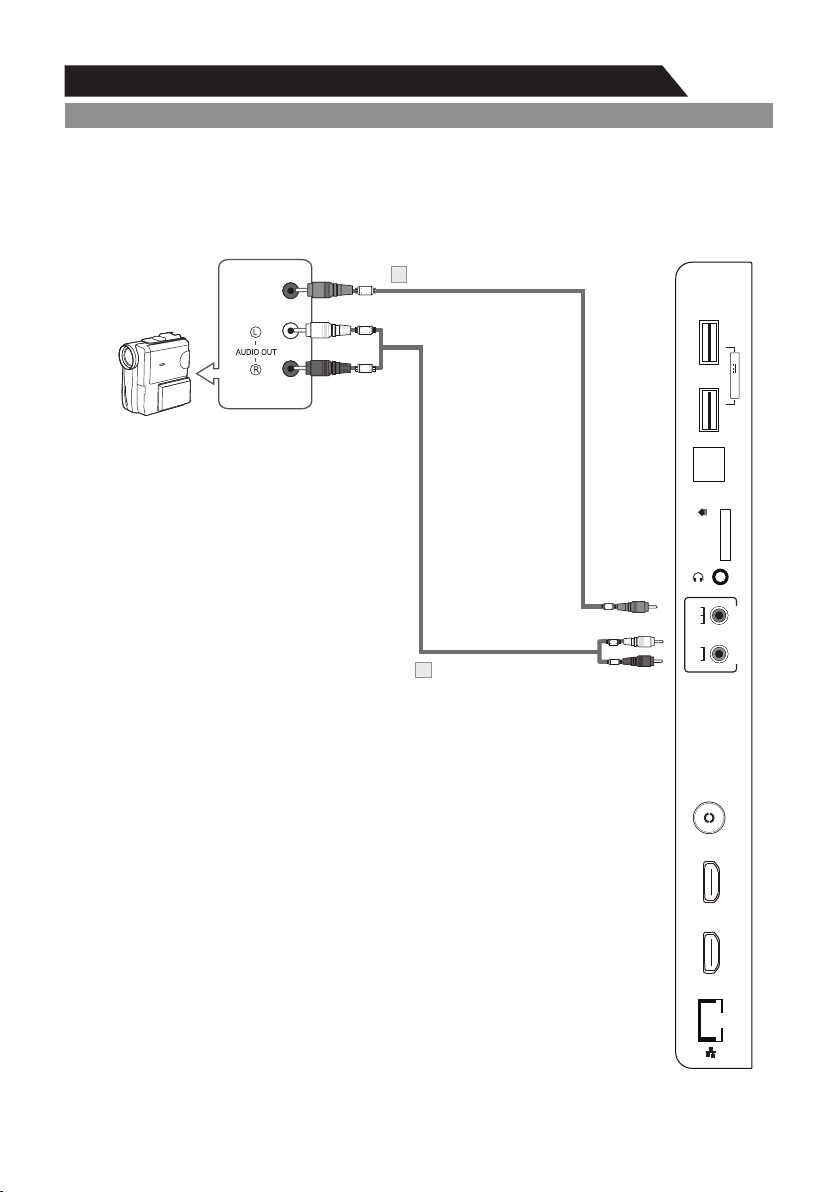
Connecting a Camcorder
The rear panel jacks on your TV make it easy to connect a camcorder to your TV. They allow you
to view the camcorder tapes without using a VCR.
Each Camcorder has a different back panel configuration.
When connecting a Camcorder or DVD, match the color of the connection terminal to the cable.
Video
Green
Green
Red
White
1. Connect a Video Cable between the AV VIDEO in jacks on the TV and
the VIDEO OUT jack on the camcorder.
2. Connect Audio Cables between the AUDIO L and AUDIO R jacks on the
TV and the AUDIO OUT jacks on the camcorder.
3. Connect a Video Cable between the AV VIDEO IN jacks on the TV and
the VIDEO OUT jack on the DVD.
4. Connect Audio Cables between the component IN AUDIO L and R jacks
on the TV and the AUDIO OUT jack on the DVD.
Notes:
1. Whenever you connect an external device to your TV, make sure
that power on the unit is turned off.
2. When connecting an external device, match the color of the
connection terminal to the cable.
White
Red
Camcorder
Video Cable (Not supplied)
1
Audio Cable (Not supplied)
2
TV Rear Panel
TF
RF
HDMI 1
(ARC)
HDMI 2
USB 1
OPTICAL
Y/V
Pb
Pr
L
R
COMPONENT/AV IN
USB 2
5V 500mA
16
External Connection
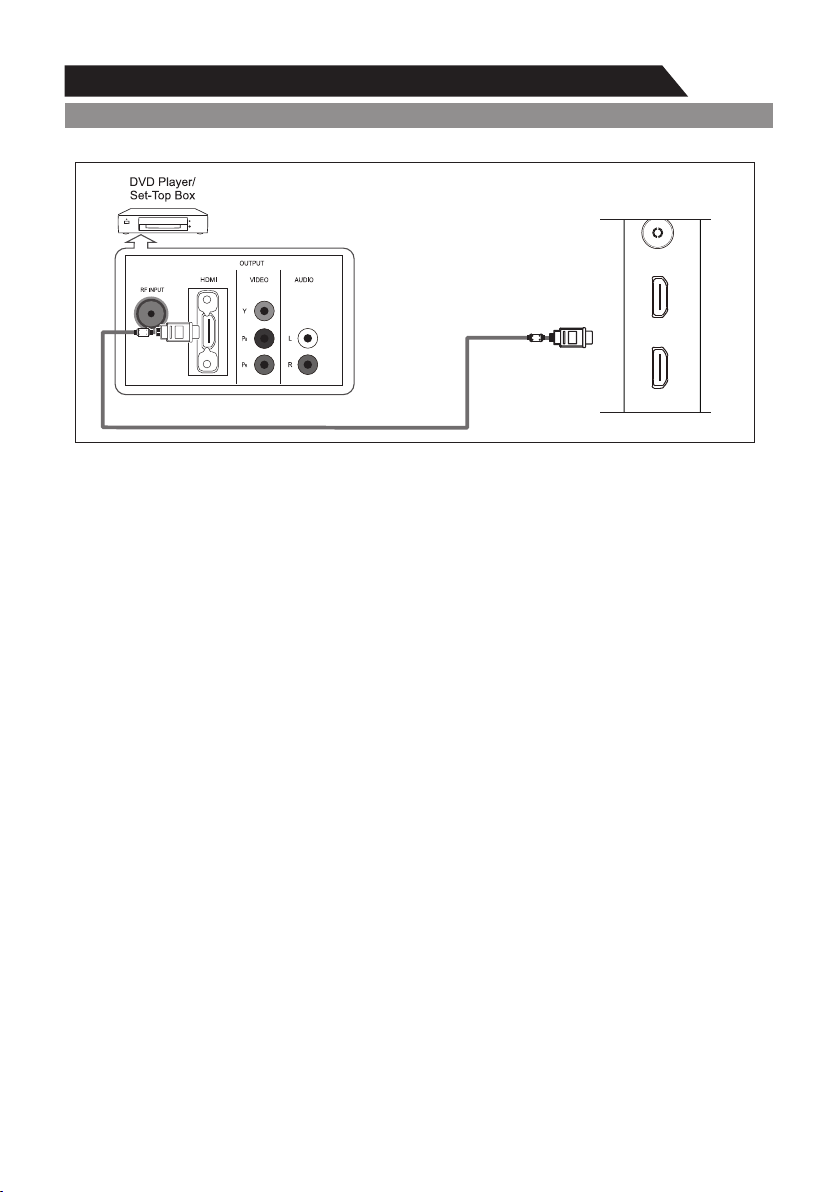
Connecting DVD Player/Set-Top Box via HDMI
This connection can only be made if there is a HDMI Output connector on the external device.
What is HDMI?
HDMI, or high-definition multimedia interface, is a next-generation interface that enables the
transmission of digital audio and video signals using a single cable without compression.
Multimedia interface is a more accurate name for it especially because it allows multiple channels
of digital audio (5.1 channels).
The difference between HDMI and DVI is that the HDMI device is smaller in size, has the HDCP
(High Bandwidth Digital Copy Protection) coding feature installed, and supports multi-channel
digital audio.
Each DVD player/STB has a different back panel configuration.
Connect an HDMI Cable between the HDMI1, HDMI2 connector on the TV and the HDMI
connector on the DVD player/Set-Top Box.
Notes:
1.Whenever you connect an external device to your TV, make sure that power on the unit
is turned off.
2.When connecting an external device, match the color of the connection terminal to the
cable.
HDMI Cable (Not supplied)
RF
HDMI 1
(ARC)
HDMI 2
TV Rear Panel
17
External Connection
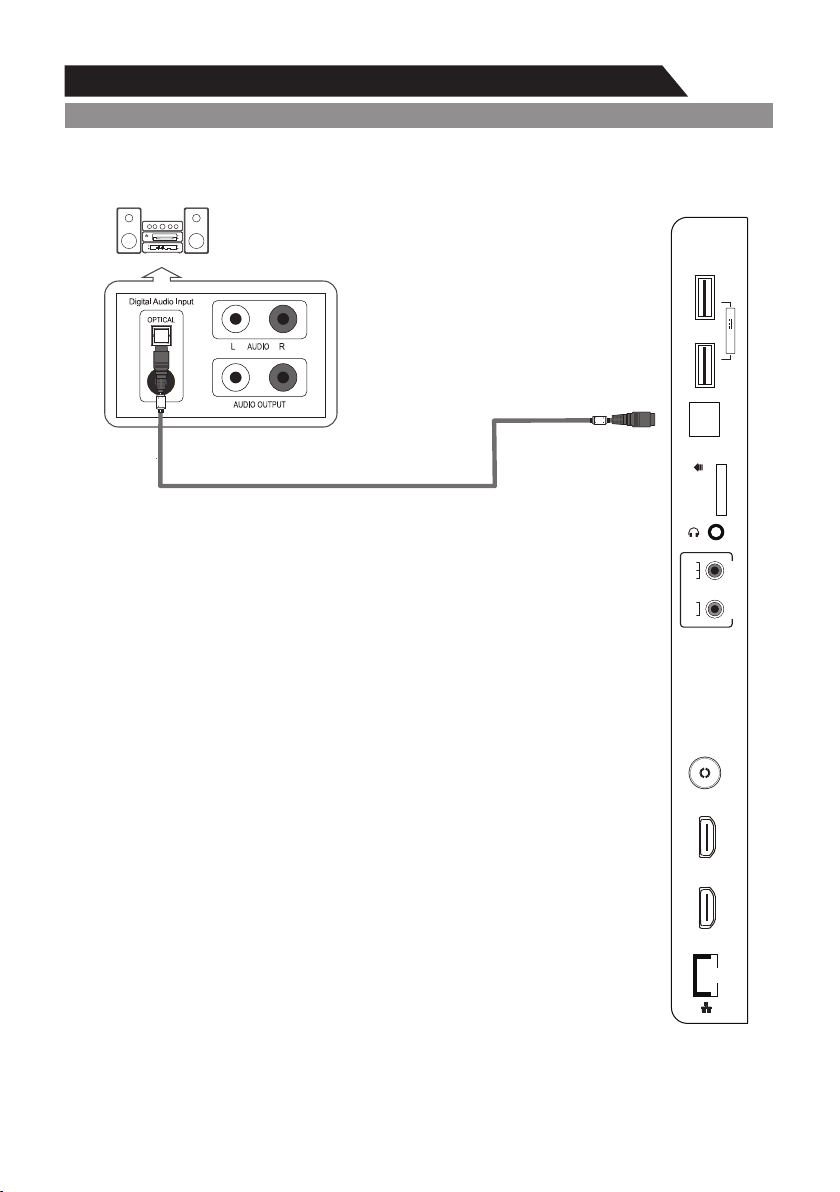
Connecting Digital Audio System
The rear panel jacks on your TV make it easy to connect a Digital Audio System to your TV.
5.1 CH audio is possible when the TV is connected to an external
device supporting 5.1 CH.
Connect an Coaxial Cable between the Coaxial jacks on the TV and the
Digital Audio Input jacks on the Digital Audio System. When a Digital Audio
System is connected to the Coaxial terminal:
Decrease the gain (volume) of the TV, and adjust the volume level with the
Digital Audio System's volume control.
Digital Audio System
(Black)
TV Rear Panel
Optical Cable (Not supplied)
SPDIF
TF
RF
HDMI 1
(ARC)
HDMI 2
USB 1
OPTICAL
Y/V
Pb
Pr
L
R
COMPONENT/AV IN
USB 2
5V 500mA
18
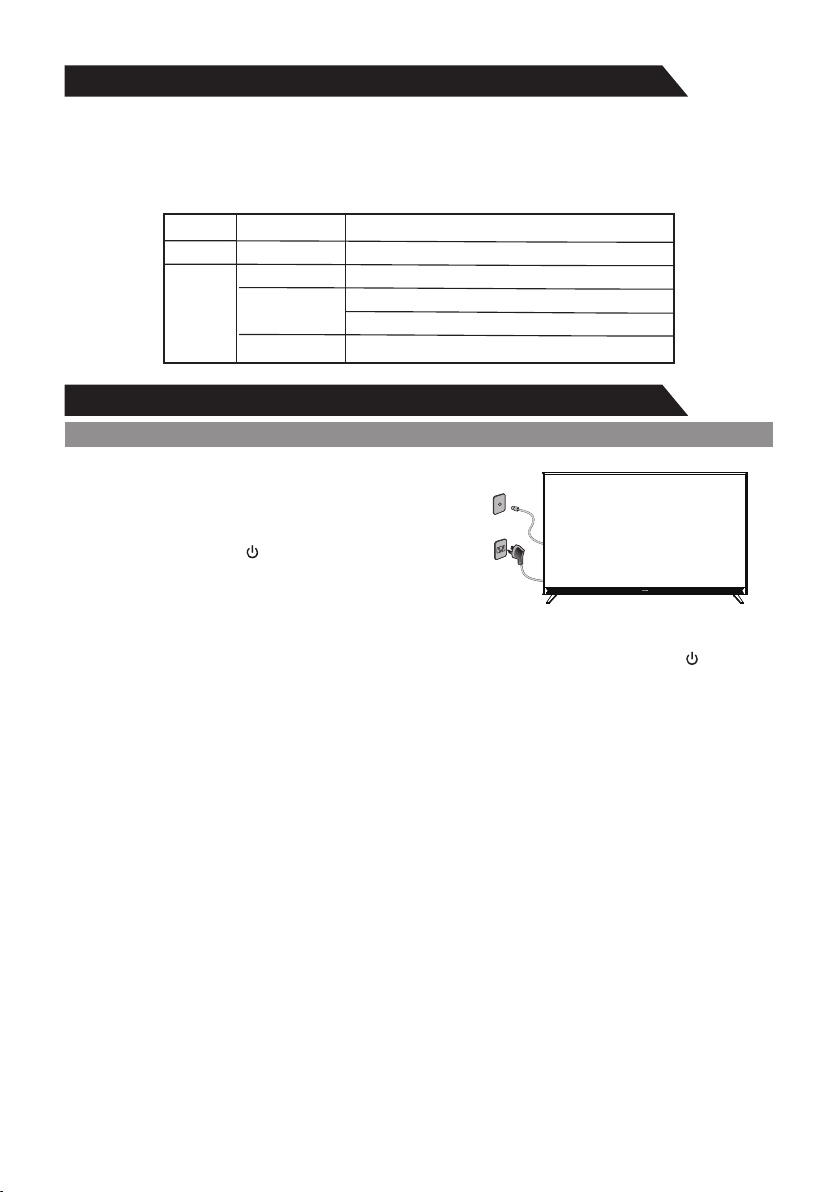
Supporing Signals
Input
Mode
DTV
Digital: DVB-T/T2, DVB-C
CVBS
SECAM BG DK
Resolution
Input
Component
480i
480p
720p
1080i
HDMI
480p
720p
1080i
1080p
1080p
576i
576p
576p
3840x2160
60Hz
60Hz
50Hz/60Hz
50Hz/60Hz
50Hz/60Hz
50Hz/60Hz
60Hz
Vertical
Frequency
50Hz/60Hz
50Hz/60Hz
50Hz
50Hz
50Hz
24Hz/25Hz/30Hz/60Hz
19
Basic Operation
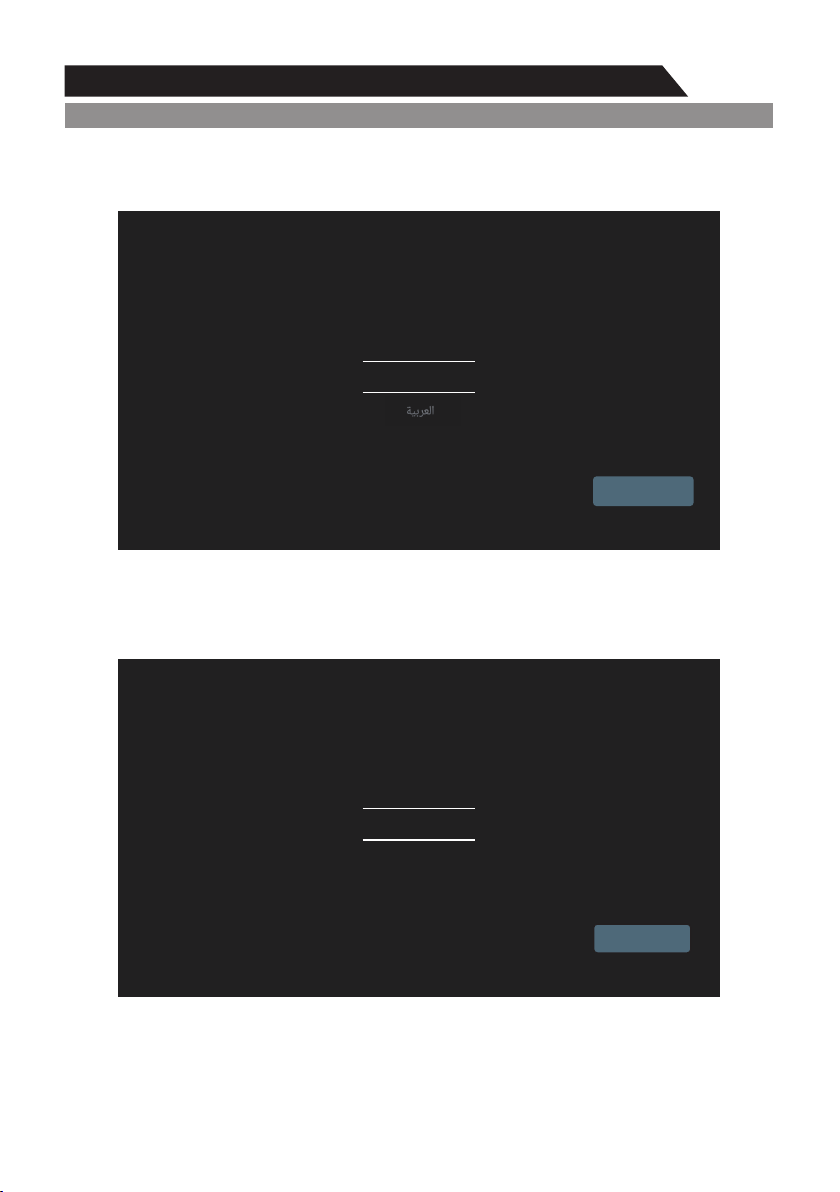
Turning the TV On and Off
How to turn the TV on or off
1. Insert the power cord plug into a polarized AC outlet.
2. If TV is in standby mode, press POWER button on
the remote control or button on the bottom panel of
LED TV.
3. Normal picture will be displayed on the screen after 15
seconds. If no signal input, "No Signal" will be displayed on the screen.
4. If temporary POWER off is required, press POWER button on the remote control or button
on the bottom panel.
5. If you want to completely switch off the power for this unit, unplug the power cord plug for this
unit.
6. After switching off the unit, you should wait at least 5 seconds before switching on again.
Status indication lamp
Red light on: In standby mode.
Green light on: In power on mode.
Auto power-off
1. If there is no signal, the TV will automatically enter standby mode after 10 minutes.
2. In VGA mode, if no any operation 15 seconds later, TV will enter standby mode.
Memory before turning TV off
The picture and sound settings and preset channels will be memorized at the point when the TV is
turned off. When the TV is started up again it will work accordingly with these settings.
Supporing Signals
This TV is embedded with one digital media player. It can find devices that support USB1.1/2.0,
including flash disk, USB hard disk and digital camera. It supports functions as: Display picture,
Play music files, Play video files.
Note: Please do not remove the cable during the data transfer. It may cause problems for
the system.
HD/FHD: MPEG-(1/2/4), MVC, H.264, H.265
Picture
Music
Video
Codec
Audio Codec
JPEG, PNG, BMP
MP-(1/2/3), AAC, AC3
MPG, MPEG, MP4, MKV, 3GPP, AVI, FLV
MP-(1/2/3), AAC, AC3
Container
Video Codec
Audio Codec
UHD: H.264, H.265
20
Basic Operation
Setup Wizard
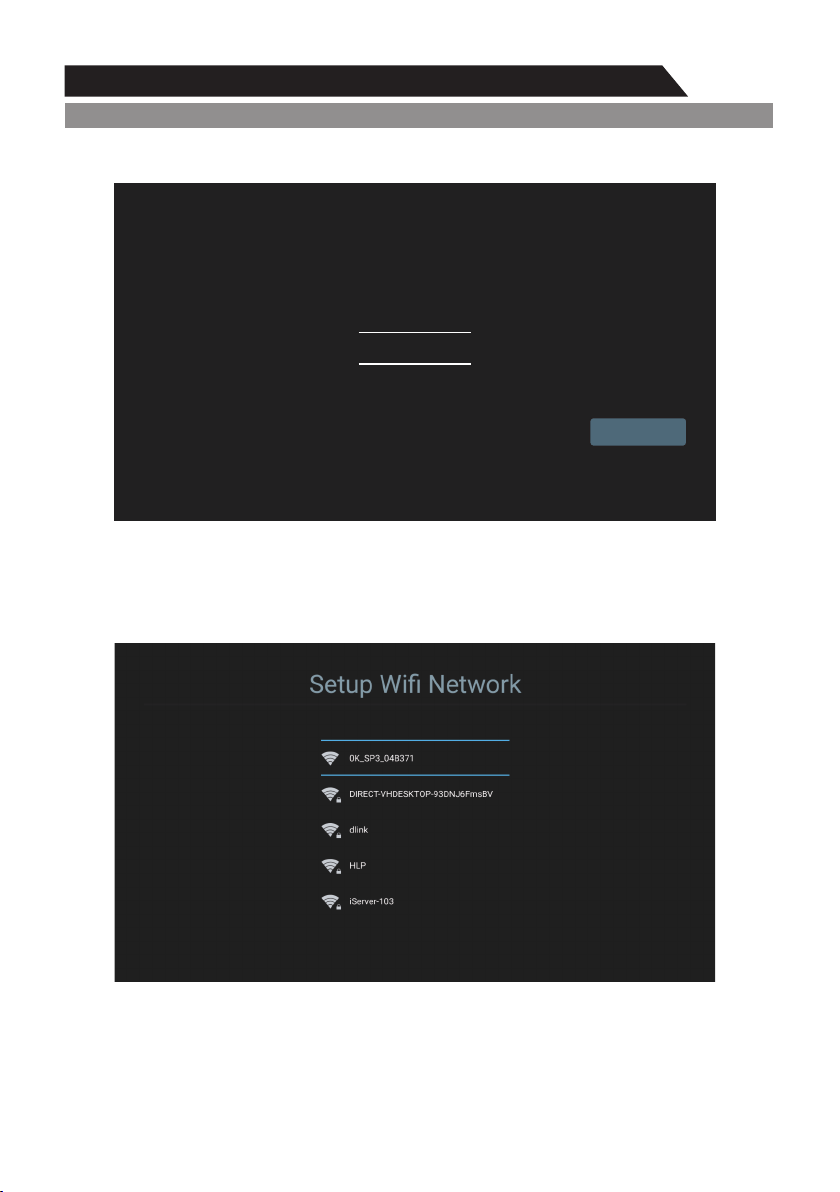
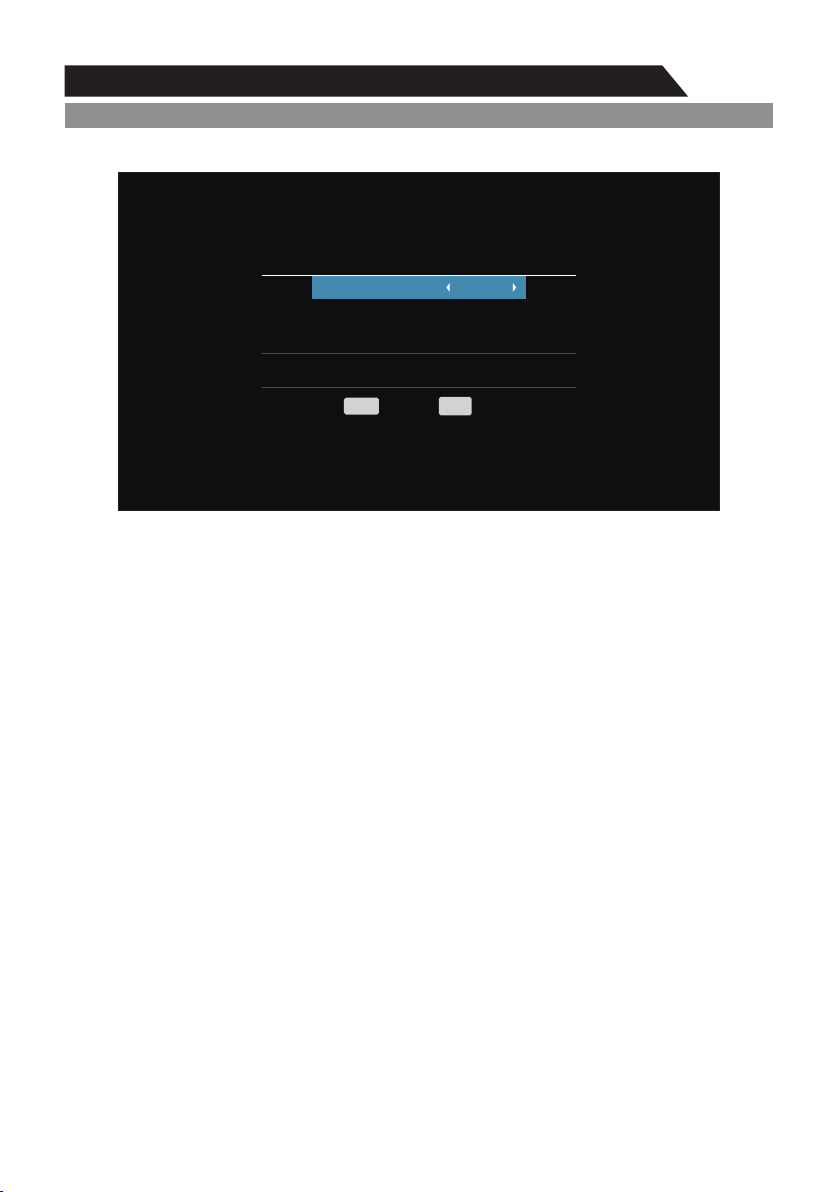
When first boot the TV, you will enter the TV guide system.
OSD Language Setting
Setup your country
Algeria
Austria
NEXT STEP
1. Press ▲/▼ key to select the type of your country (Algeria/Australia/Austria).
2. Press ► key then press “NEXT STEP” button to enter the next step.
1. Press ▲/▼ key to select the language.
2. Press ► key then press “START” button to enter the SMART page.
Country Setting
Australia
START
English
Welcome
Basic Operation
Setup Wizard
21
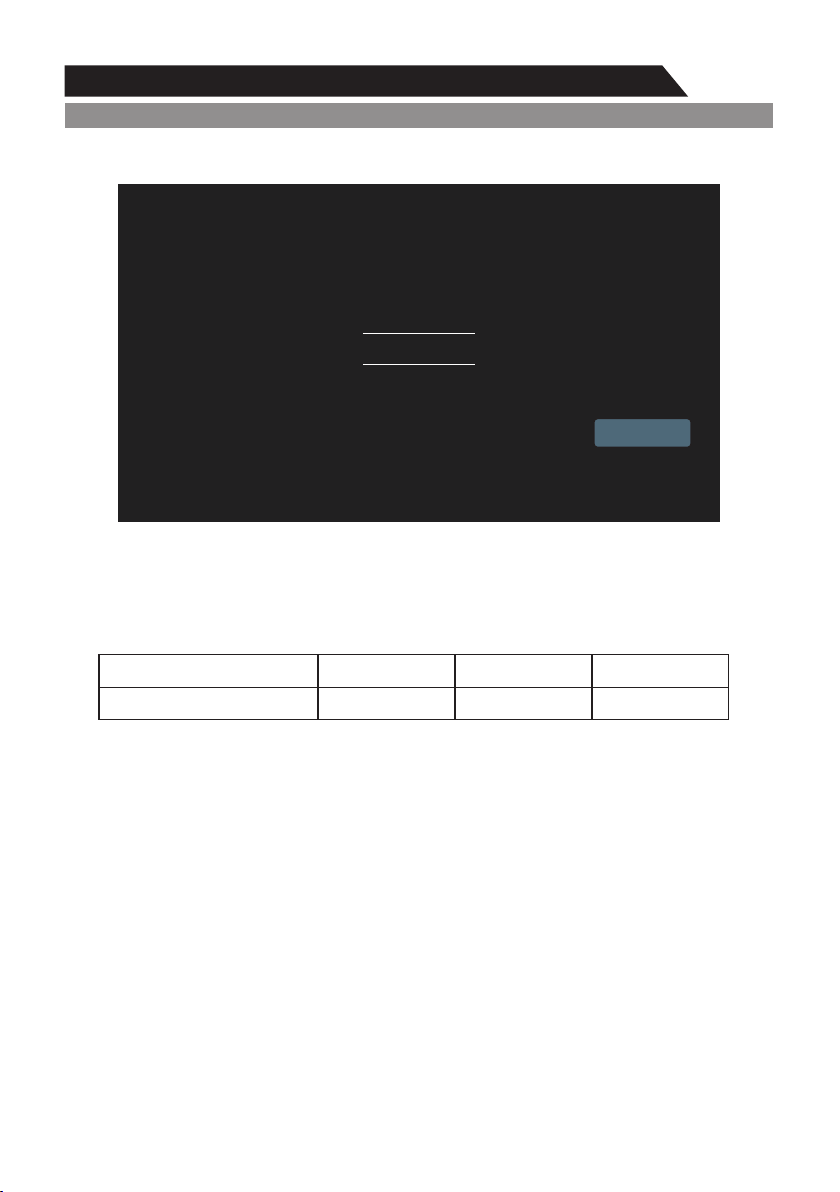
Network Settings
1. Press ▲/▼ key to select the type of your network(Skip/wired/wireless).
2. Press ► key then press “NEXT STEP” button to enter the next step.
Setup Wifi
1. You should wait about 5-8s to display the wifi list.
2. Press ▲/▼ key to select the type of your wifi.
Setup your network
Wireless
Wired
NEXT STEP
Skip
22
Basic Operation
Setup Wizard
Setup Wired network
1. Press ▲/▼ key to select the type of your set up the way(DHCP/STATIC).
2. Press ► key then press “NEXT STEP” button to enter the next step.
Setup wired network
DHCP
STATIC
NEXT STEP
To make sure online video (such as videos in Youtube) be played fluently, below Network
Bandwidth is required:
Online Video Definition
Minimum Network Bandwidth
SD
3 Mbps
HD UHD/4K
5 Mbps
35 Mbps
23
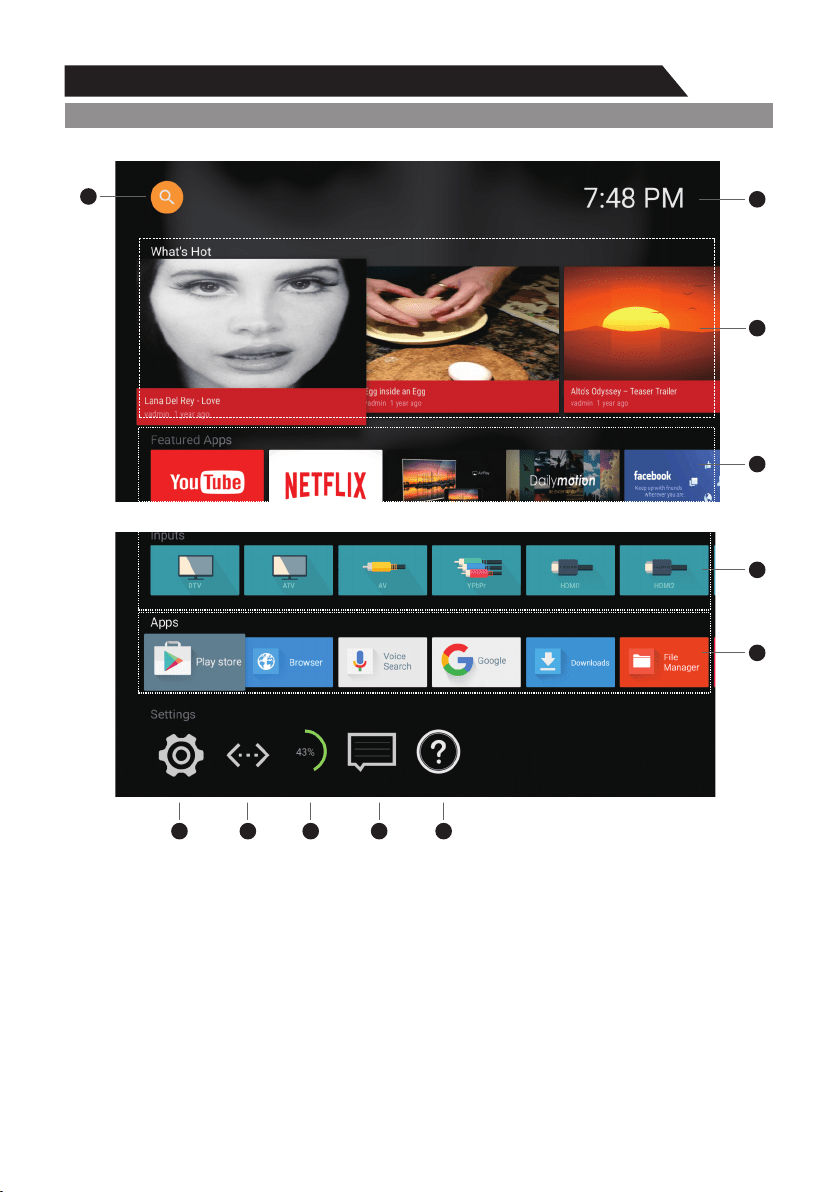
Arrow buttons: Select an item on the menu.
OK button: Enter the options which you've selected.
1. Google Search
2. Current Time
3. What's hot: Hot Video on Internet.
4. Featured app: featured apps on Internet for TV.
5. Inputs: Input sources on TV(DTV, ATV, AV, YPbPr, HDMI1, HDMI2, USB1, USB2).
6. Apps: All applications installed on TV.
7. Settings: All Setting Options on TV.
8. Net Status: Display your network status. Enter this option to set your network.
9.RAM: Memory have been used.
10.Message Center.
11.Help.
Basic Operation
Setup Wizard
MENU OPERATION
11
9 107 8
6
5
4
3
2
1
24
Basic Operation
Setup Wizard
Menu system instruction
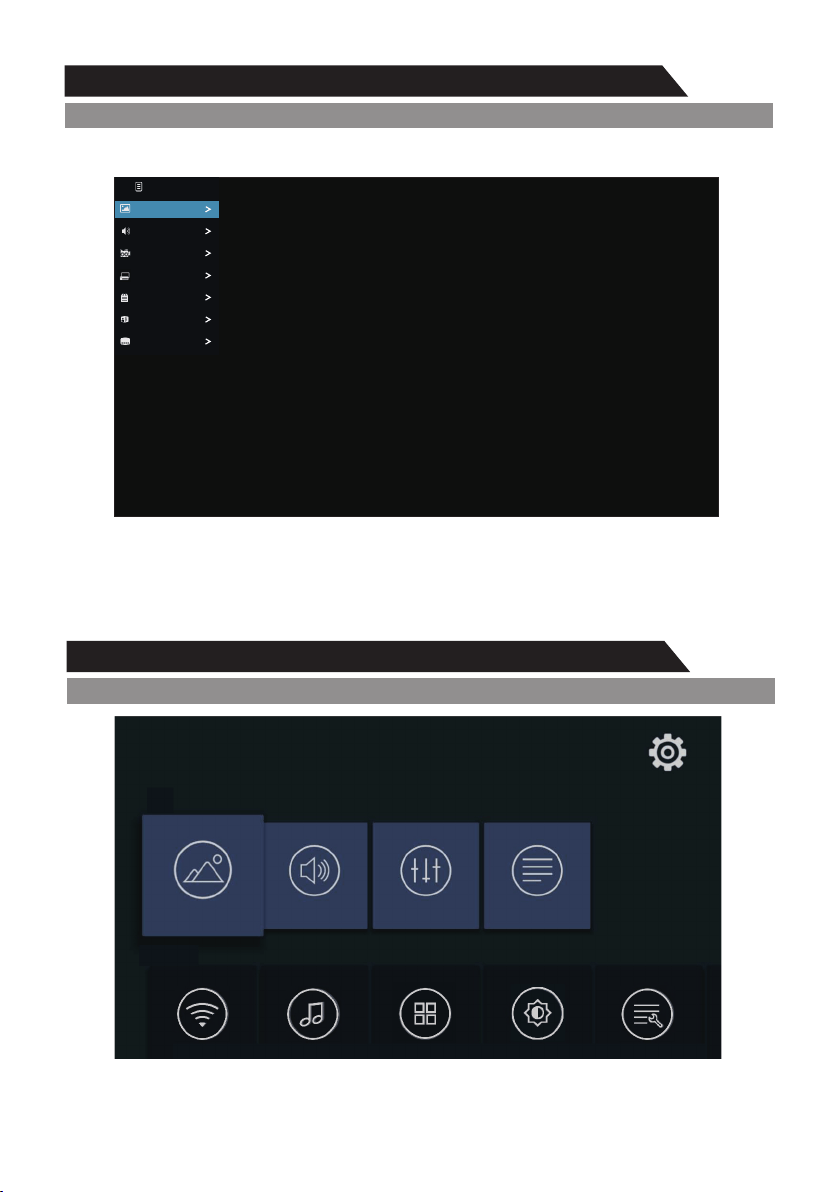
Setting
Quick Menu
In TV source, there is a Quick Menu for some Options you may want to use.
MENU button: Open the Quick menu or Exit the menu.
BACK button: Exit the menu.
Arrow buttons: Select an option which you want.
OK button: Enter the option you have selected.
User may explorer all functions there.
TV
Device
Network
System sounds
Manage apps
Display
Storage & reset
Image
Sound Channel
Function
CEC
Program Edit
Audio Language
Subtitle Language
Quick Menu
Image
Sound
PVR Option
25
Menu system instruction
Setting
Image
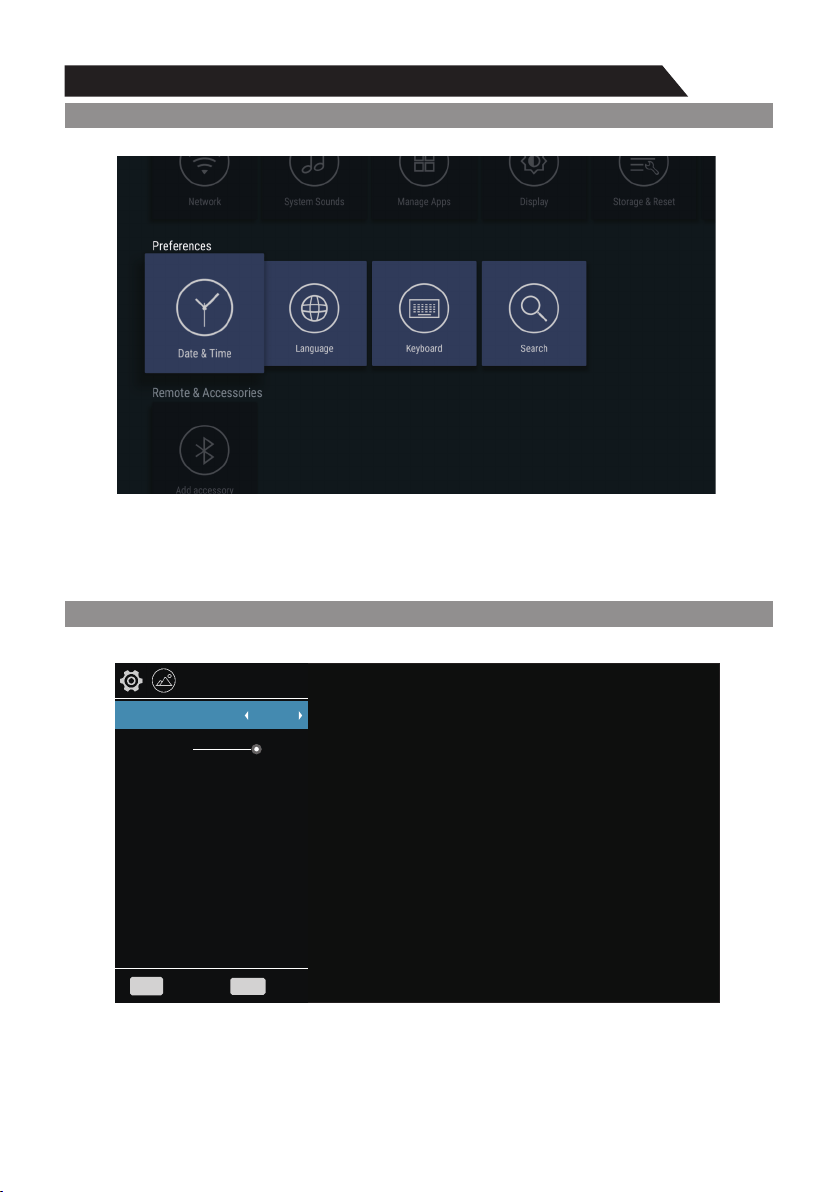
Date & time: You can make the adjustment of the date and time;
Language: You can change the language that you need;
Keyboard: Configure of the keyboard;
Search: Google search.
Preferences
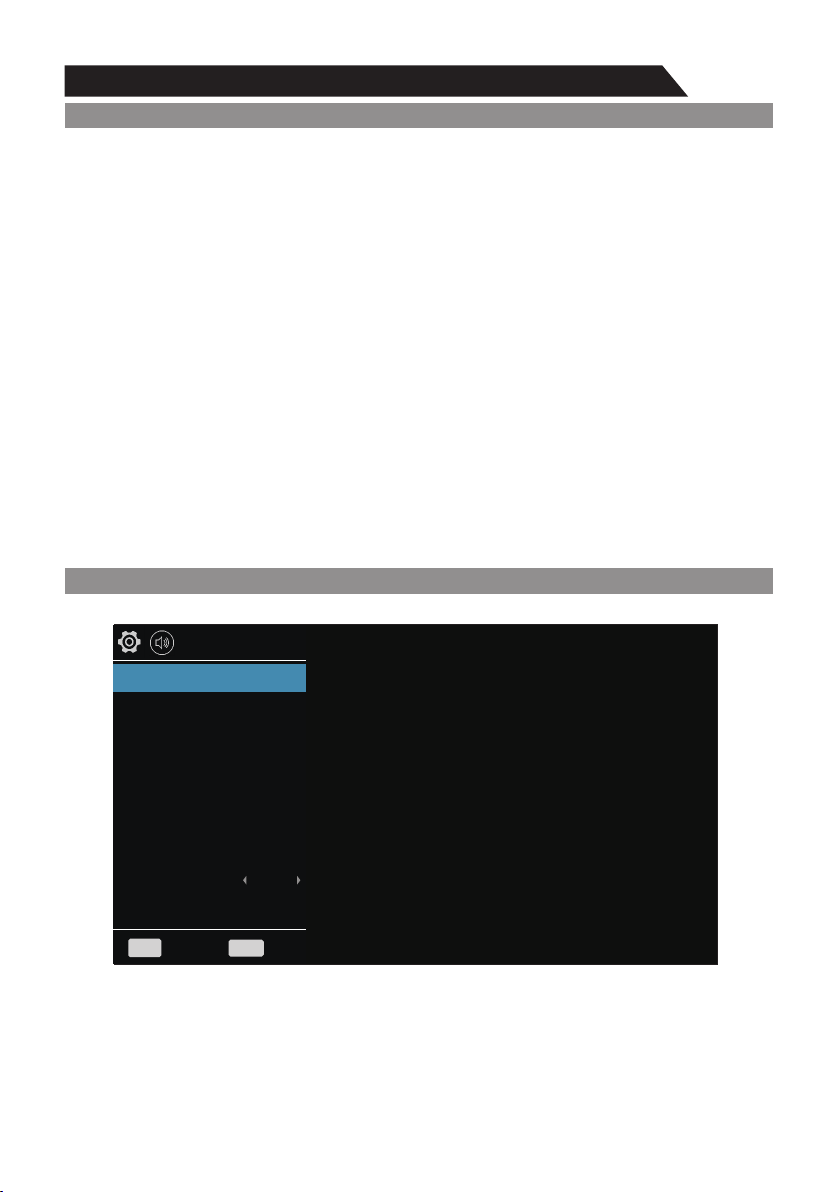
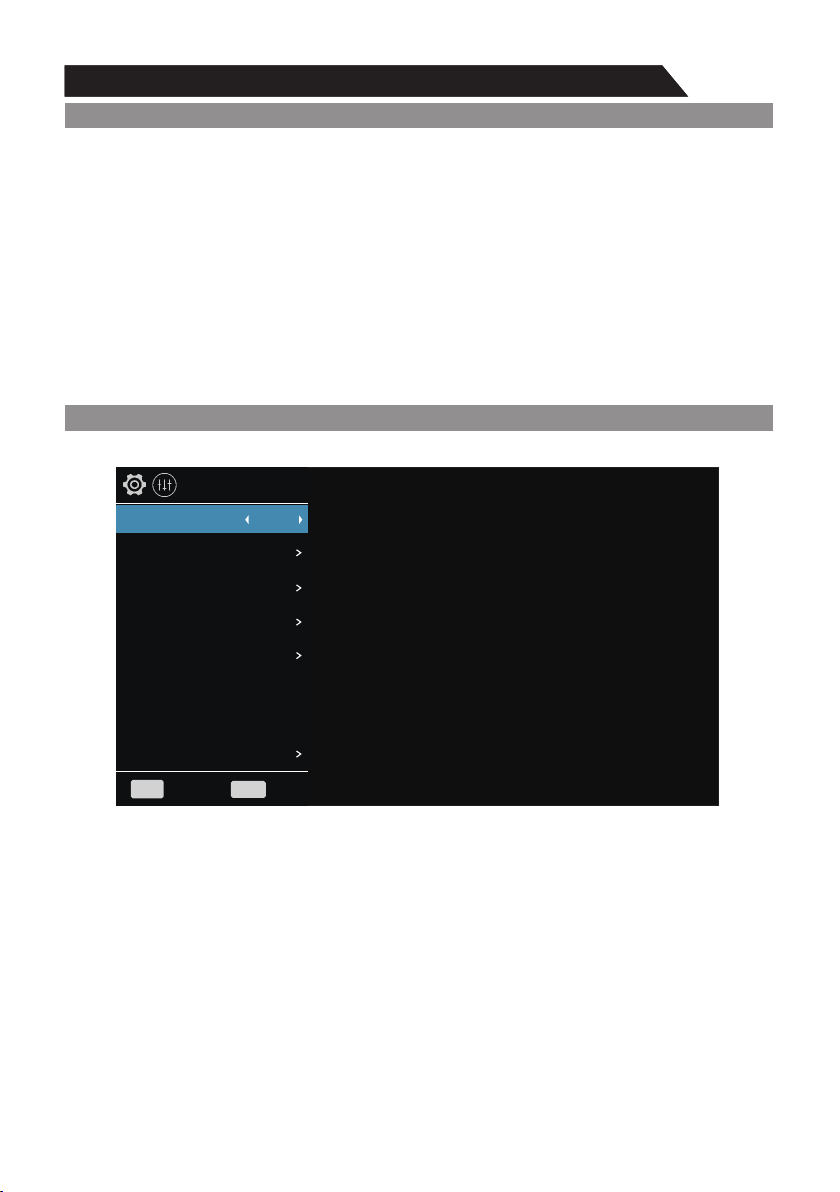
Your TV has these picture settings (Soft, Vivid, User, Dynamic, Standard) that are preset at the
factory. Only “User” mode can be set to your preference by adjusting particular items such as
Contrast, Brightness, Color, Sharpness, Tint.
1. Press ▲/▼ key to select “Picture Mode” option.
2. Press ◄/► key to select one picture mode.
BACK
BackLight
Aspect Ratio
Noise Reduction
Picture Mode
MENU
Back
Exit
Standard
100
16:9
Low
PICTURE MODE
Colour Temp
Cool
26
Menu system instruction
Sound
Image
Backlight
Adjust Backlight.
1. Press ▲/▼ key to select “Backlight” option.
2. Press ◄/► key to adjust Backlight value.
Aspect Ratio
You can select the picture size which best corresponds to your viewing requirement.
1. Press ▲/▼ key to select “Aspect Ratio” option.
2. Press ◄/► key to set the scale mode. You can also press “Aspect” key on the remote
control to select one of the scale modes. Each source has different scale modes.
Noise Reduction
1. Press ▲/▼ key to select “Noise Reduction” option.
2. Press ◄/► key to adjust noise reduction mode.
Color Temp
You can change the color of the entire screen according to your preference.
1. Press▲/▼key to select “Color Temp” option.
2. Press ◄/►key to select one color temp.
Standard: Keeps whites white.
Warm: Makes whites reddish.
Cool: Makes whites bluish.
You can select the type of special sound settings to be used when watching a given broadcast.
Your TV has five sound settings ("Standard", "Music", "Movie", "Sports", "User")
Standard: Selects the normal sound mode.
Music: Select the sound mode for music.
Movie: Provides live and full sound for movies.
Sports: Emphasizes bass over other sounds.
User: Selects your custom sound settings (See "User settings for Sound").
Sound Mode
BACK
Equalizer
Balance
Auto Volume
Surround
Sound Mode
MENU
Back
Exit
Standard
0
Off
Off
SPDIF Mode
HDMI Sound
PCM
HDMI
AD
On
27
Menu system instruction
Menu system instruction
Sound
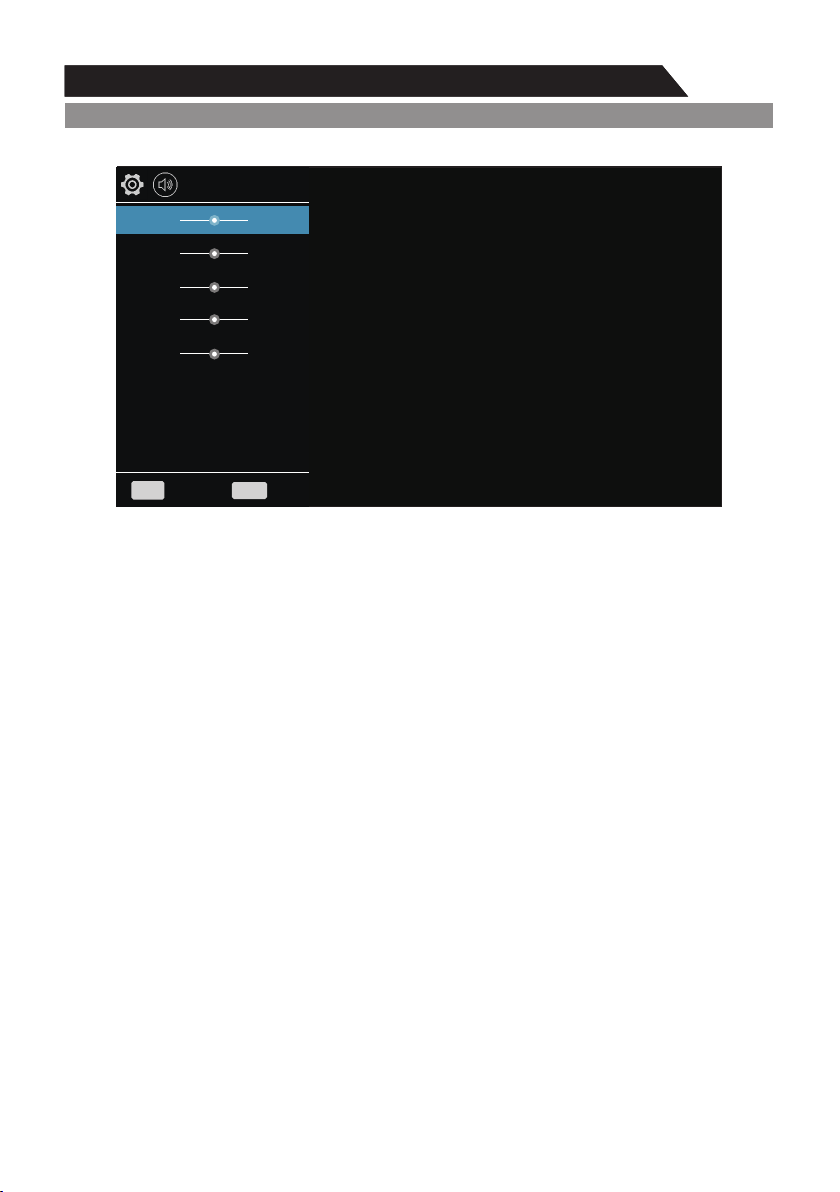
1. Press ▲/▼ key to select an equalizer item.
2. Press OK key to enter the equalizer submenu.
The sound settings can be adjusted to suit your user preferences.
1. Press ▲/▼ key to select a particular item.
2. Press◄/►key to decrease or increase the value of a particular item.
Note: The adjusted values are stored according to the selected particular item.
Balance
If the volumes of the left speaker and the right speaker are not the same, you can adjust the
"Balance" to suit your personal preference.
1. Press ▲/▼ key to select "Balance" option.
2. Press ◄/► key to decrease or increase the value of the item.
Auto Volume
Each broadcasting station has its own signal conditions, and it is inconvenient to adjust the volume
every time the channel is changed. "Auto Volume" automatically adjusts the volume of the desired
channel by lowering the sound output when the modulation signal is high or by raising the sound
output when the modulation signal is low.
1. Press ▲/▼ key to select "Auto Volume" option.
2. Press ◄/► key to select "On" or "Off".
Surround Sound
This is used to turn on surround sound to gain better sound effect.
1. Press ▲/▼ key to select "Surround" option.
2. Press ◄/► key to select "On" or "Off".
SPDIF Mode
This is used to select "SPDIF Mode". This option is only used in HDMI/DTV mode.
1. Press ▲/▼ key to select "SPDIF Mode" option.
2. Press◄/► key to select "RAW", "PCM" or "OFF".
Equalizer
BACK
500HZ
1.5KHZ
5KHZ
10KHZ
120HZ
MENU
Back
Exit
50
50
50
50
50
28
Menu system instruction
Menu system instruction
Sound
HDMI Sound
This option is only used in HDMI mode.
1. Press ▲/▼ key to select "HDMI Sound" option.
2. Press ◄/► key to select HDMI Sound mode.
Note: HDMI Sound is just enabled in source HDMI.
AD
This option is only used in DTV mode.
1.Press ▲/▼ key to select “AD” option.
2.Press ◄/► key to select “On” or “Off”.
AD Volume
1.Press ▲/▼ key to select “AD Volume” option.
2.Press ◄/► key to decrease or increase the value of the item.
Channel
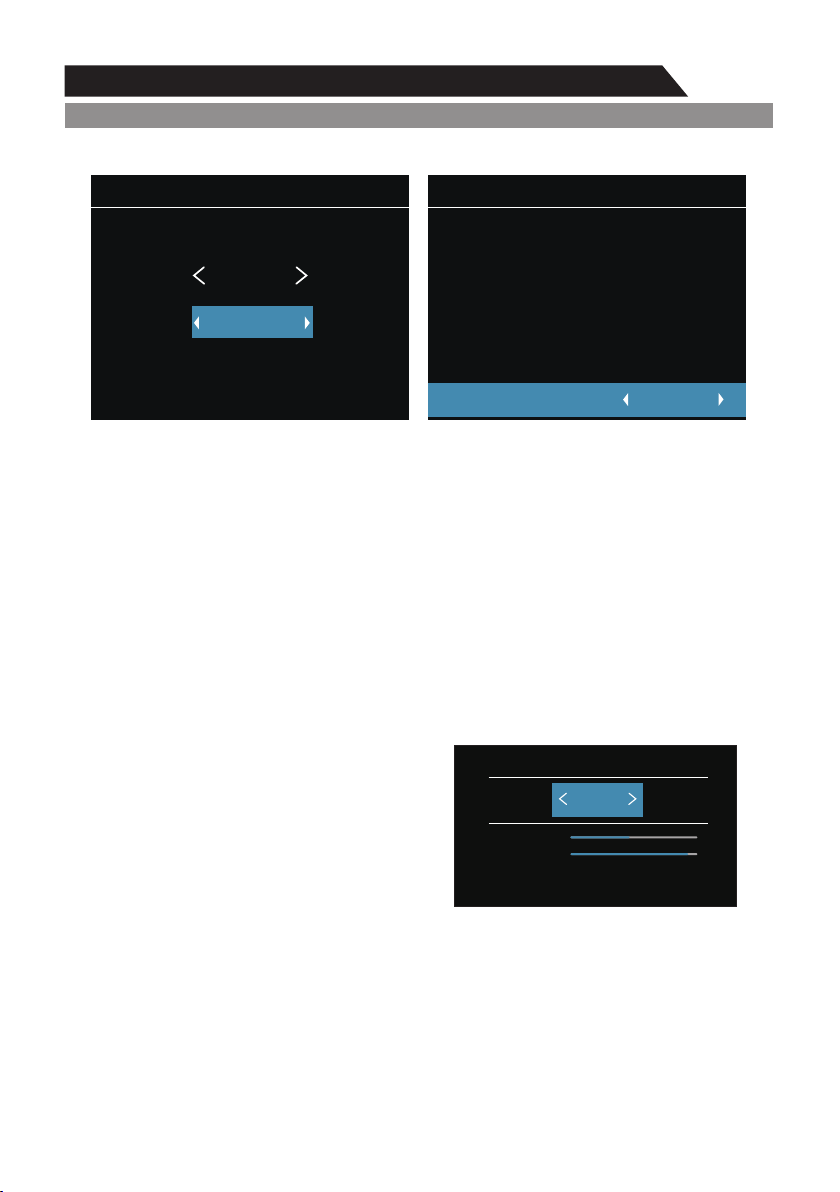
1. Press ▲/▼ key to select "Antenna Type" option.
2. Press ◄/► key to select the type of antenna: DVB-C, DVB-T/T2.
Antenna Type
Auto Tuning
ATV Manual Tuning
DTV Manual Tuning
Program Edit
Antenna Type
MENU
Back
Exit
DVB-T/T2
OAD
OAD Scan
Off
BACK
Signal Information
29
Menu system instruction
Channel
Auto Tuning
Press ▲/▼ key to select "Auto Tuning" option. You can select country in the list view and set
"Search Type" option. The number of searched channels will be shown on the screen.
If you set "Tune Type" to "DTV+ATV", when the searching of DTV channels is over, TV will start
to search ATV channels. When the whole searching is finished, all the channels will be stored in
memory.
Note: If you want to exit the whole searching, you can press BACK button.
Auto Tuning
Belgium France Italy Spain Turkey Algeria Egypt
CH:
ATV: DTV:
RADIO:
DATA:
0 0 0 0
Service Type
DTV+ATV
MENU
Exit
Skip
BACK
30
Menu system instruction
ATV Manual Tuning
In the ATV/DTV source, you can choose "ATV Manual Tuning" to enter "ATV Manual uning" menu.
Current CH: You can see the current channel number and you can press ◄/►button to choose
the channel you want to modify.
Color System: Select the "Color System" option, press ◄/► on the remote control or TV.
The color system will be changed repeatedly in the order: PAL, SECAM, NTSC, or AUTO.
Sound System: Select the "Sound System" option, press ◄/► on the remote control or TV.
The sound system will be changed repeatedly in the below order: BG, DK, I , L or M.
Search: You can use ►button to search channels from low frequency to high frequency and
use◄button to search channels from high frequency to low frequency. When you have searched
a channel, the searching will be paused and you can press it again for other channels after you
store the channel.
Fine Tune: In case of unfavorable image or sound of TV program, you can use "Fine Tune".
Skip: Select "Skip" option, "be changed" on the remote control or TV to switch, select "ON" to skip
current program, select "OFF" to add the program into the program list.
Frequency: You can see the frequency of the searched channels.
1
ATV Manual Tuning
62.25MHZ
Start Search
Fine Tune
ATV Manual Tuning
62.25MHZ
Fine Tune
Color System
Sound System
Skip
O
f
f
BG
PAL
Channel
DTV Manual Tuning
In the ATV/DTV source, you can choose "DTV
Manual Tuning" to enter "DTV Manual Tuning"
menu.
If the Antenna Type is DVB-C, you can use ◄/►
button to choose the Frequency. If the Antenna
Type is DVB-T, you can use ◄/► button or input
number to choose the channel. Then press OK
button to search, the TV will store the DTV channel
if there is a DTV signal present.
DTV Manual Tuning
DTV:
RADIO:
DATA:
0
Signal Strengh:
Signal Quality:
0
0
43
31
Menu system instruction
Program
Menu system instruction
1 ATV
2 ATV
3 ATV
4 ATV
5 ATV
6 ATV
7 ATV
8 ATV
9 ATV
10 ATV
OK
Delete Skip Fav Lock Move
Program Edit
Program Edit
Program
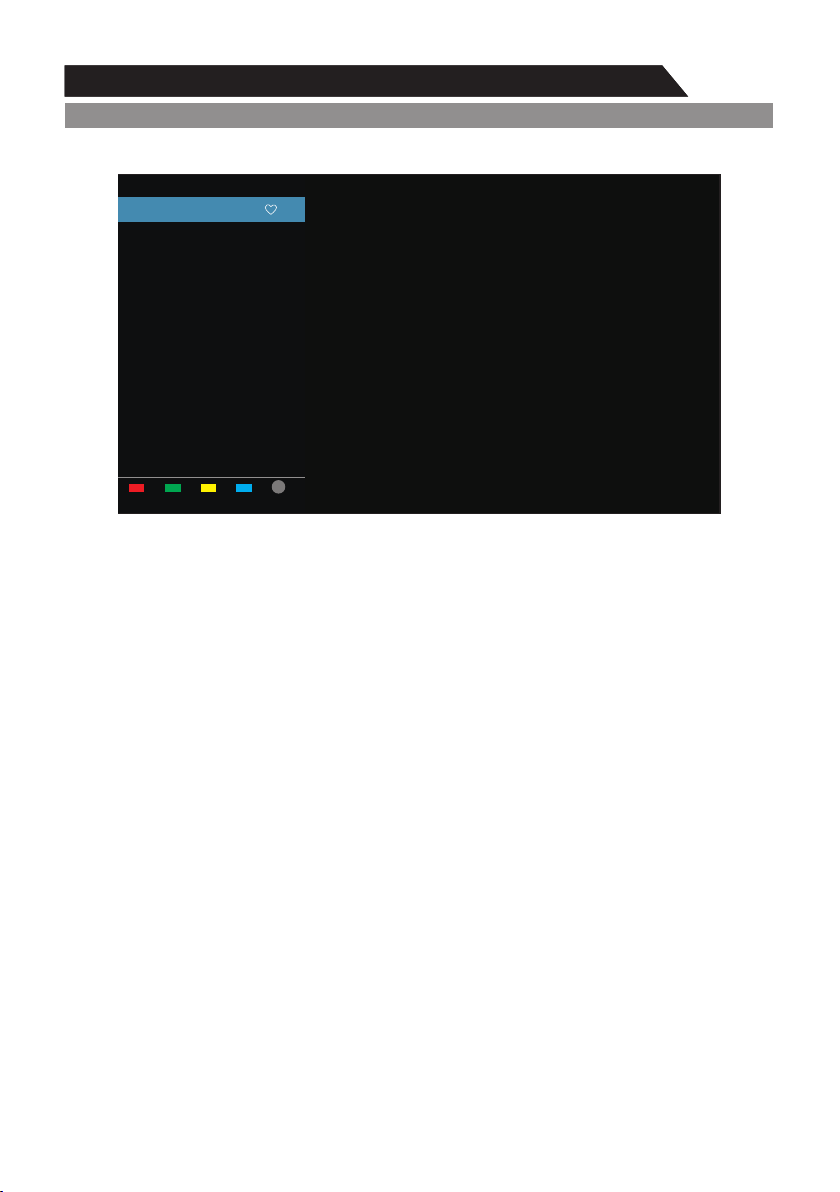
You can use ▲/▼ button to choose "Program Edit" and enter the menu, press the color button on
the remote control to skip, delete and lock programs, or add programs to your favorite list.
Delete: You can press RED button to delete the selected channel, then choose the channel you
want to delete and press RED button again to delete.
Skip: You can press Green button to skip the channel. The channel will be skip when you change
channels. Also, the channel will be skip in channel list.
Fav: You can press "Yellow" button in the menu to add channels to your favorite list. Then you can
press ◄/► button on the remote control to switch between channel list and favorite list in list menu.
Lock: If you don’t want your children or your guest user to watch the channel without your permission,
you can press Blue button to lock the channel. Once the channel is locked and Lock System is on,
password is needed to enter it.
Move: You can use the OK button to adjust the sequence of the programs.
32
Menu system instruction
Program
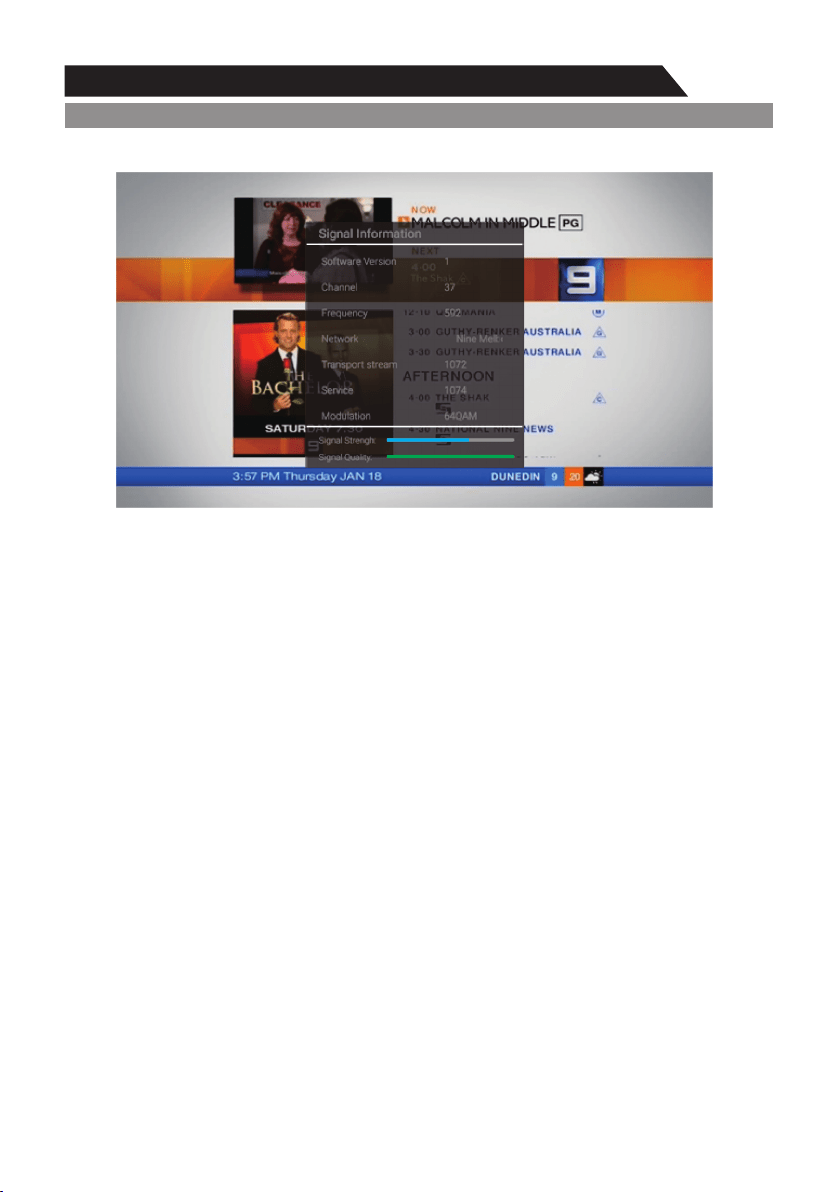
Signal Information (Used only in DTV)
1. Press ▲/▼ key to select "Signal Information" option.
2. Press "OK" or ► key, you can see the information of the DTV channel.
Note:
Signal Quality/Signal Strength (DTV Only):
Unlike analogue channels, which can vary in reception quality, digital channels must have
perfect reception quality or you will not receive them at all. So, unlike analogue channels,
you are not able fine tune a digital channel. If the signal strength indicates that the signal
is weak, a possible solution is to adjust your antenna to increase the signal strength.
Continue to adjust the antenna until you find the best position with the strongest signal.
OAD (On Air Download)
This option is used to enable or disable system software update from DTV broadcast.
1. Press ▲/▼ button to select “OAD” option.
2. Press ◄/► button to select “On” or “Off”.
Note: This option is only used in DTV mode.
OAD Scan
This option only used in DTV mode.
1. Press ▲/▼ button to select “OAD Scan” option.
2. Press OK button to search system software update file from DTV broadcast.
Signal Information
Sof tware Version
Channel
Frequency
Network
Transp ort st ream
Service
Modulation
Signal Strengh:
Signal Quality:
1
37
592
Nine Melb
1072
64QAM
1074
33
Menu system instruction
Function
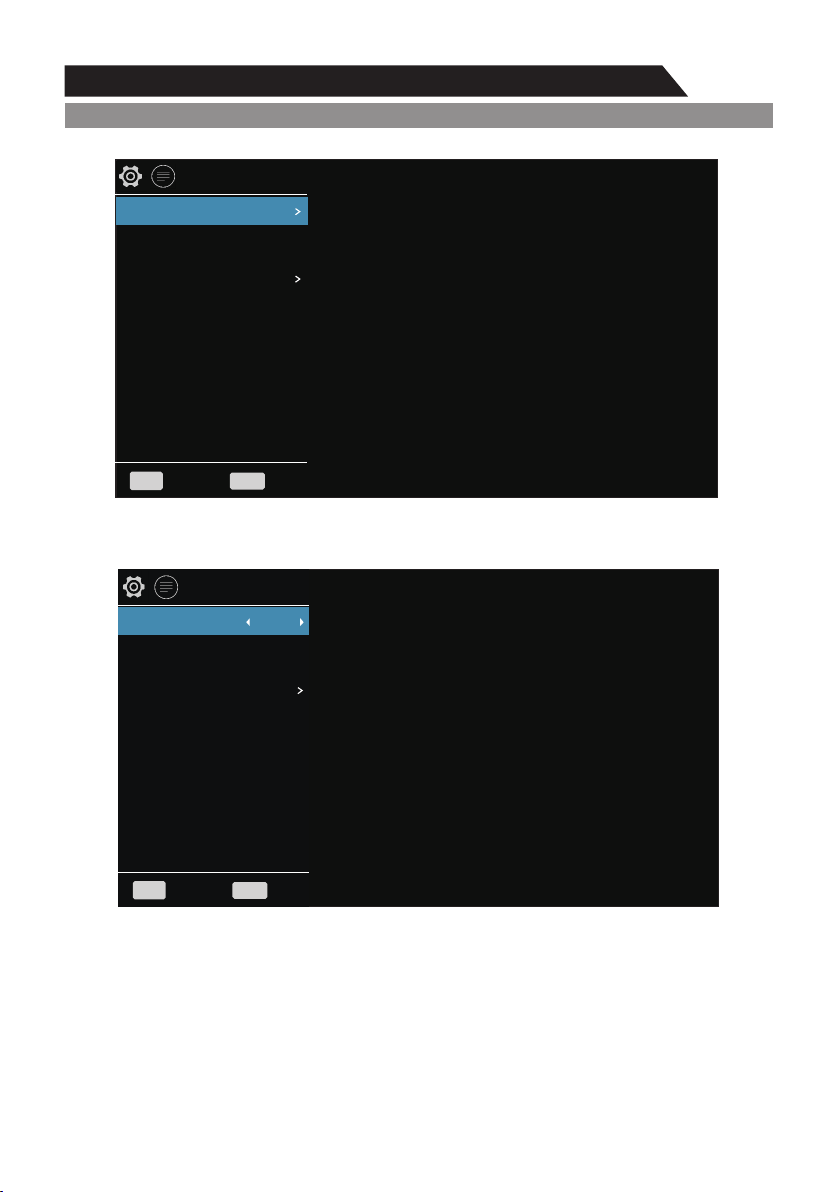
Lock (Optional)
1. Press “Enter” key to select "System Lock" submenu.
2. Press ◄/► key to select "On" or "Off".
BACK
CEC
OSD Time 15 Seconds
Lock System
MENU
Back
Exit
BACK
Parental Control Off
Set Password
Lock System On
MENU
Back
Exit
OSD Time: Set the preferred amount of time for the OSD to be displayed on the screen.
Screen Saver Off
No signal standby On
PVR Option
34
Menu system instruction
BACK
Parental Control Off
Lock System On
MENU
Back
Exit
Set Password
Input Password:
Old Password
New Password
Comfirm Password
Function
Set Password
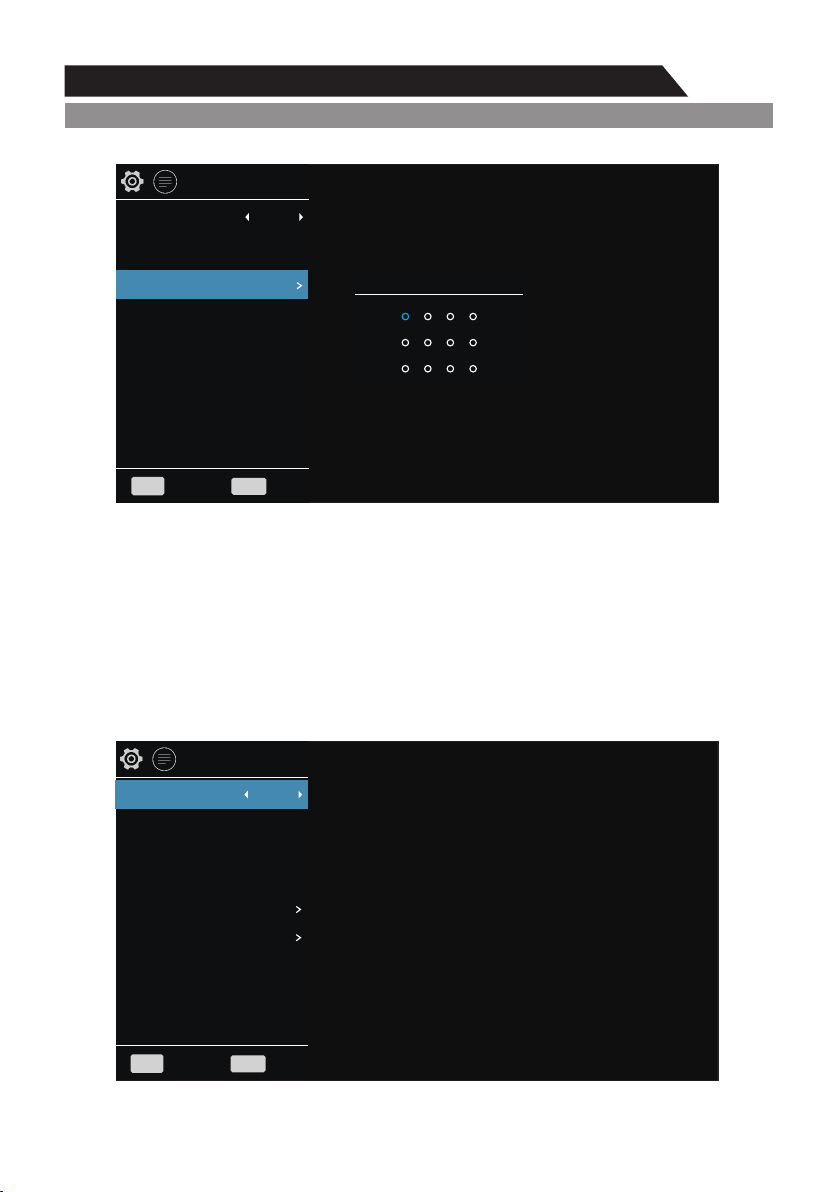
1. Press “OK” key to select "Set Password" option.
2. Enter your 4-digit password to set the old password. Choose any 4-digits for your new password
and enter them. As soon as the 4 digits are entered, the cursor ill skip to “Confirm password”
item, re-enter the same 4 digits, and your new password has been memorized.( The defalt and
universal password is 0000, the almighty password is 1980).
Parental Control
This option only used in DTV mode.
1. Press ▲/▼ button to select “Parental Control” option.
2. Press ◄/► button to select the lock level of the Parental Control.
CEC
BACK
Auto Standby Off
CEC On
MENU
Back
Exit
Auto Power on On
ARC On
CEC Control
Device List

35
Menu system instruction
Function
Consumer Electronics Control (CEC) is an HDMI feature designed to allow the user to command
and control up-to 15 CEC - enabled devices ,that are connected through HDMI, by using only one
of their remote controls (for example by controlling a television set, set-top box, and DVD player
using only the remote control of the TV).
1. Press ▲/▼ button to select “CEC” option.
2. Press OK button to enter “CEC” setting submenu.
This option is used to enable or disable CEC.
1. Press ▲/▼ button to select “CEC” option.
2. Press◄/►button to select “On” or “Off”.
Auto Standby
This option is used when CEC function is enabled, and it judges whether the TV handles the standby
command send from the device linked to it.
1. Press ▲/▼ button to select “Auto Standby” option.
2. Press◄/►button to select “On” or “Off”.
Auto Power on
This option is used when CEC function is enabled, and it judges whether the TV handles the
“Power on” command send from the device linked to it.
1. Press ▲/▼ button to select “Auto Power on” option.
2. Press ◄/► button to select “On” or “Off”.
ARC
This option is used when CEC function is enabled, it enables the TV send audio to the device linked
to itself in HDMI mode.
1. Press ▲/▼ button to select “ARC” option.
2. Press ◄/► button to select “On” or “Off”.
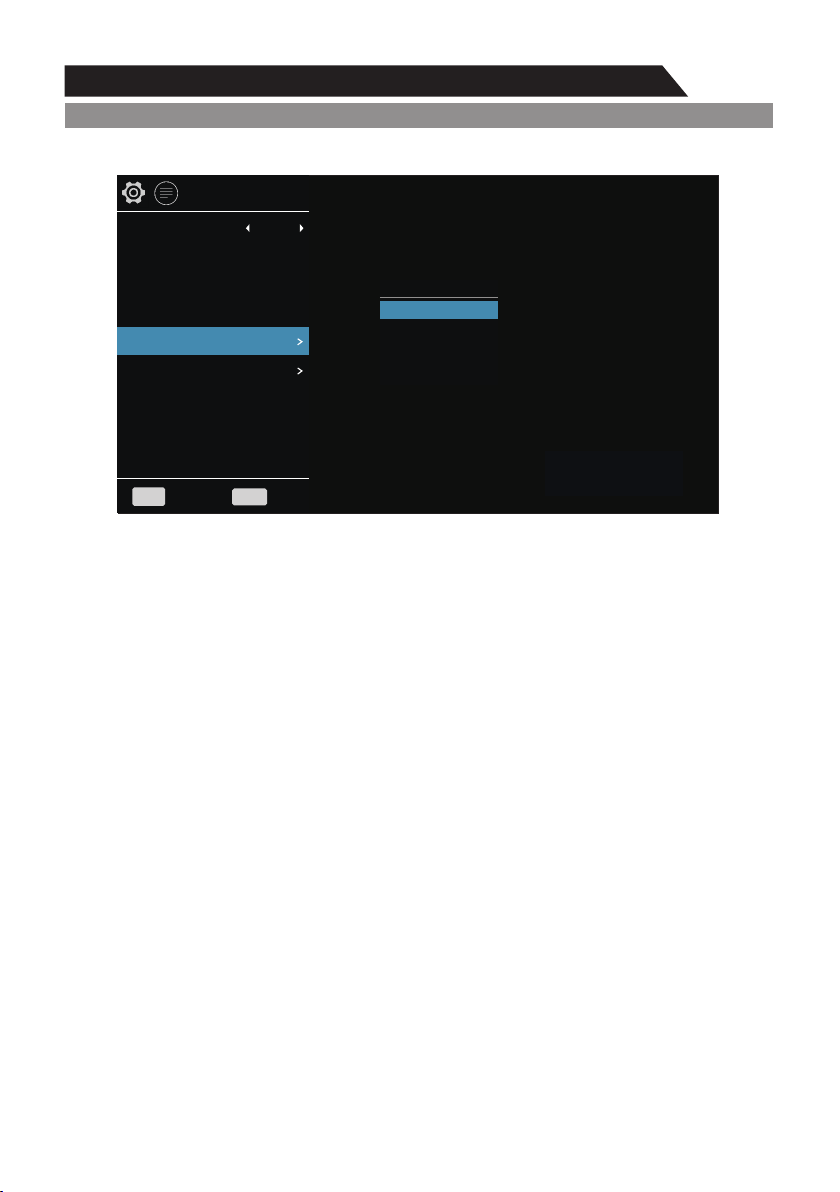
Device List
This option is used when CEC function is enabled, it lists the devices linked to the TV.
1. Press ▲/▼ button to select “Device List” option.
2. Press OK button to show the devices linked to the TV.
36
Menu system instruction
Function
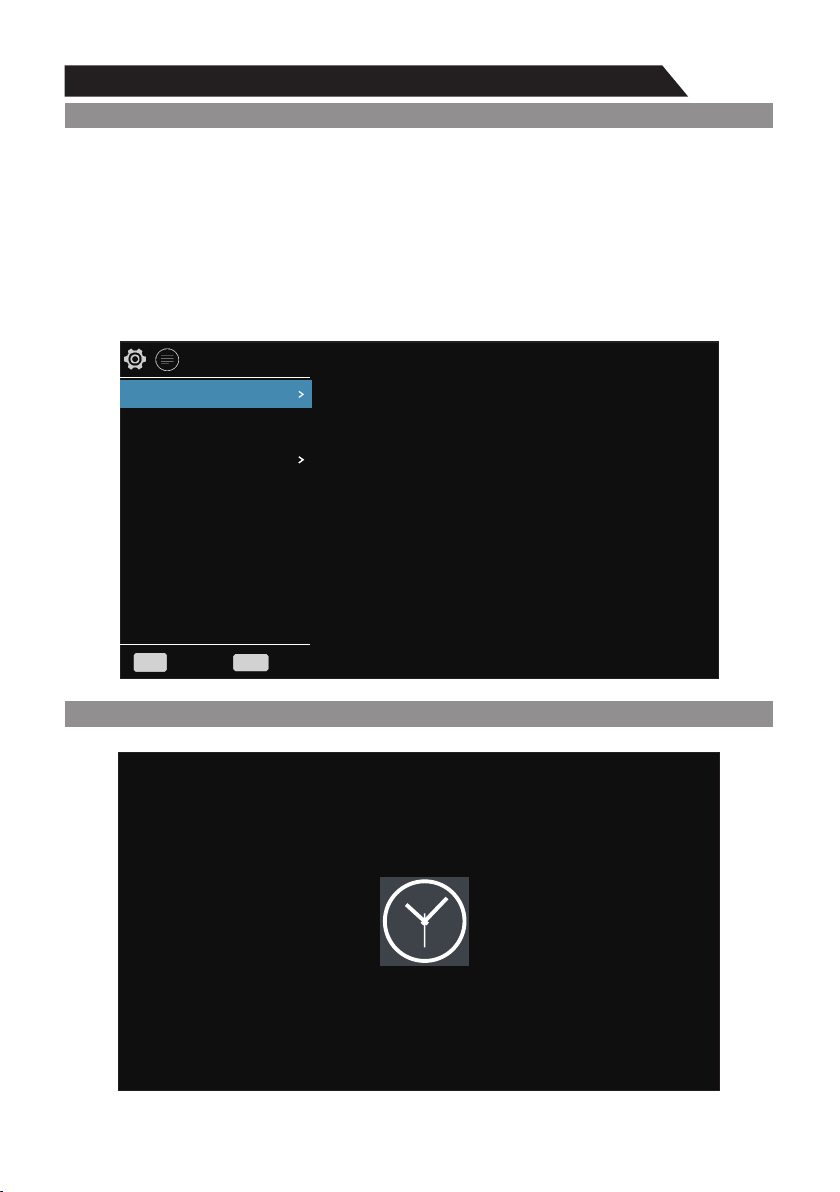
This option enables the TV to control the device linked to it.
1. Press ▲/▼ button to select “CEC Control” option.
2. Press OK button to enter the “CEC Control” submenu.
Power
1. Press ▲/▼ button to select “Power” option.
2. Press OK button to power off the device linked to the TV.
Root Menu
1. Press ▲/▼ button to select “Root Menu” option.
2. Press OK button to enter the root menu of the device linked to the TV.
Setup Menu
1. Press ▲/▼ button to select “Setup Menu” option.
2. Press OK button to enter the setup menu of the device linked to the TV.
Menu
1. Press ▲/▼ button to select “Menu” option.
2. Press OK button to enter menu of the device linked to the TV.
PVR Option
1. Press ▲/▼ button to select “PVR Option” option.
2. Press OK button to enter “PVR Option” submenu, for detailed operation refer to “PVR”.
Screen Saver
This option is only used in ATV mode.
1. Press ▲/▼ button to select “Screen Saver” option.
2. Press ◄/► button to select “On” or “Off”.
BACK
Auto Standby Off
CEC On
MENU
Back
Exit
Auto Power on On
ARC On
CEC Control
Device List
CEC Control
Power
Root Menu
Setup Menu
Menu
CEC Control
37
Menu system instruction
Time
Timers
Device
On timer
Off timer
Sleep timer
off
Function
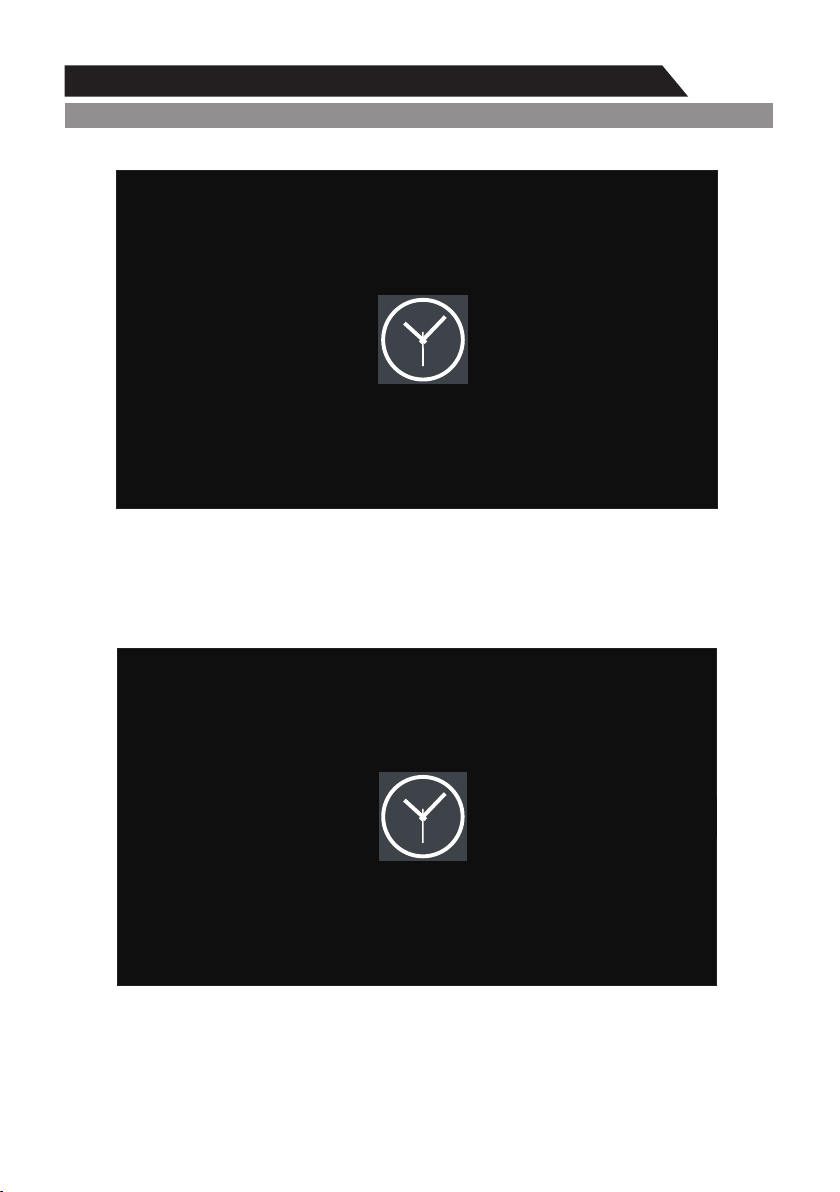
No Signal StandBy
1. Press ▲/▼ button to select “No Signal StandBy” option.
2. Press ◄/► button to choose “On” or “Off”. If set “On”, TV will auto standby after 10 minutes
in “No Signal” states.
HDMI Edid Mode (Optional)
This option is only used in HDMI mode.
1.Press ▲/▼ button to select “HDMI Edid Mode” option.
2.Press ◄/► button to switch HDMI Edid Version.
BACK
OSD Time 15 Seconds
Lock System
MENU
Back
Exit
RGB Range 0~255
No signal standby Off
PVR Option
BACK
Lock System
MENU
Back
Exit
CEC
HDMI Auto Edid Off
HDMI Edid Mode EDID_2_0
38
Menu system instruction
Time
Time
Off timer
Timers
Off timer
Time
Off
12:30 AM
On Timer
In "On Timer” item, press OK button to enter the submenu, set the time to turn on the TV set,
when the TV set is in the standby mode. You can set a desired source to be displayed
automatically when you start TV in "Source" menu.
Off Timer
In "Off Timer" item, press OK button to enter the submenu, set the time to turn off the TV set.
On timer
Timers
On timer
Timer
Inputs
DTV
Off
12:30 PM

39
Menu system instruction
PVR
WARNING:
1. Before connecting your USB device to the TV, please back up your files to prevent them from
damage or loss of data.
2. A USB disk must be formatted when first used for PVR. Any existing data on the disk will be
lost during the formatting process. Please back up your disk if you do not want to lose this data.
You are recommended to use a dedicated disk for PVR use only. Do not disconnect disk or
power during formatting.
3. Do not modify PVR files on a PC.
Note: Make sure your USB device is compatible with the TV and able to support PVR
recording.
Time
Time
Sleep Timer
1. Press ▲/▼key to select "Sleep Timer" option.
2. Press ◄/► key repeatedly until the desired time appears (Off, 10min, 20min, 30min, 60min,
90min, 120min, 180min, 240min).
Notes:
1. The sleep timer you have set will be cancelled when the TV turns off or if a power failure
occurs
2. When the time is up, remind information will be displayed on screen.
Press any key button to cancel timer function.
Audio Language
1. Press ▲/▼ button to select "Audio Language" option.
2. Press◄/►button to set Primary Audio Language.
Note: This option only used in DTV mode.
Subtitle Language
1. Press ▲/▼ button to select "Subtitle Language" option.
2. Press◄/►button to set Primary Subtitle Language.
Note: This option only used in DTV mode.
Sleep timer
Timers
Off
10 minutes
20 minutes
30 minutes
60 minutes
40
Menu system instruction
PVR
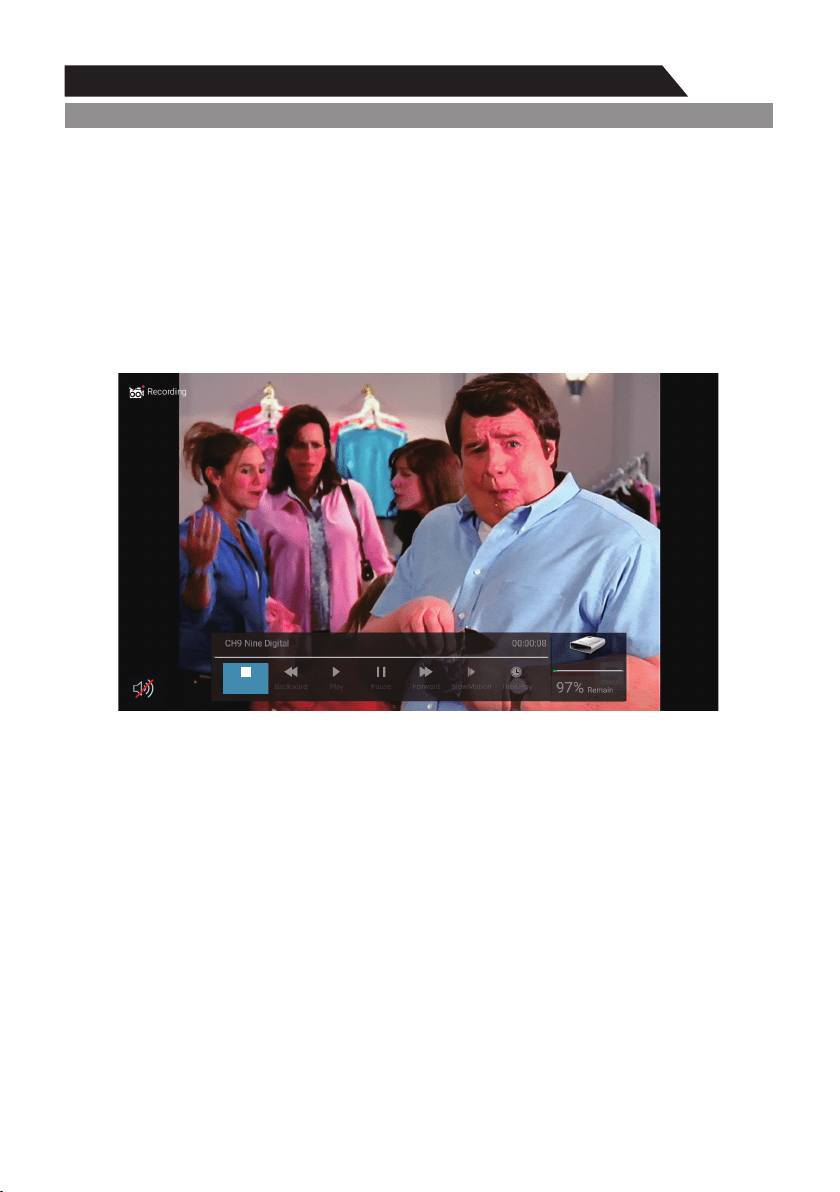
Instant recording
1. Select the desired channel then press the ●button on the remote control to start recording the
current broadcast, a progress bar will be displayed at the bottom of the screen.
2. Recording stops when you press the BACK button and the recorded file is stored in the external
USB device automatically.
Note: You can only watch channels on the same frequency as the program being recorded.
If you try to change to another channel or come to the main interface a message will
appear prompting you to continue or not “STOP RECORDING”. System will stop record if
user want to channel up/down, Confirm or Cancel.
Recording in standby mode
This unit is able to record while in standby mode.
Note: Start a recording then press the power button. A message will be displayed
prompting you to standby, stop or cancel.
Select Disk: Press "OK" button to enter submenu and press "◄/►" to choose the disk for PVR.
Time Shift Size: Press ◄/► to choose the size.
Format Disk: Press "OK" button to enter format submenu. The disk must be formatted when first
used for PVR. Do not disconnect disk or turn power off during formatting. When formatting your
disk, a progress bar will appear on the display.
Note: The larger your device the longer it will take to format. The device may take many
minutes to format, this is not a malfunction, please wait for the formatting to finish.
Speed Check: Test your disk speed.
PVR Guide
If the disk for PVR is ready, the programs can be recorded in DTV mode.
PVR
Time shift
In DTV mode, press ►/ button to pause the DTV program, press it again to continue play.
The length of time a program can be paused depends upon the setting in the PVR File System.
Press "BACK" to stop the time shift.
Press the PLAY button to continue playing the program from the point where it was paused.
Note: Time Shift will stop if you change channels, change inputs or go into standby mode
while in Time Shift mode.
Stop
Backward
Play
Pause
Forward
SlowMotion
TimePlay
CH9 Nine Digital
00:00:08
97%
Remain
41
Menu system instruction
DTV
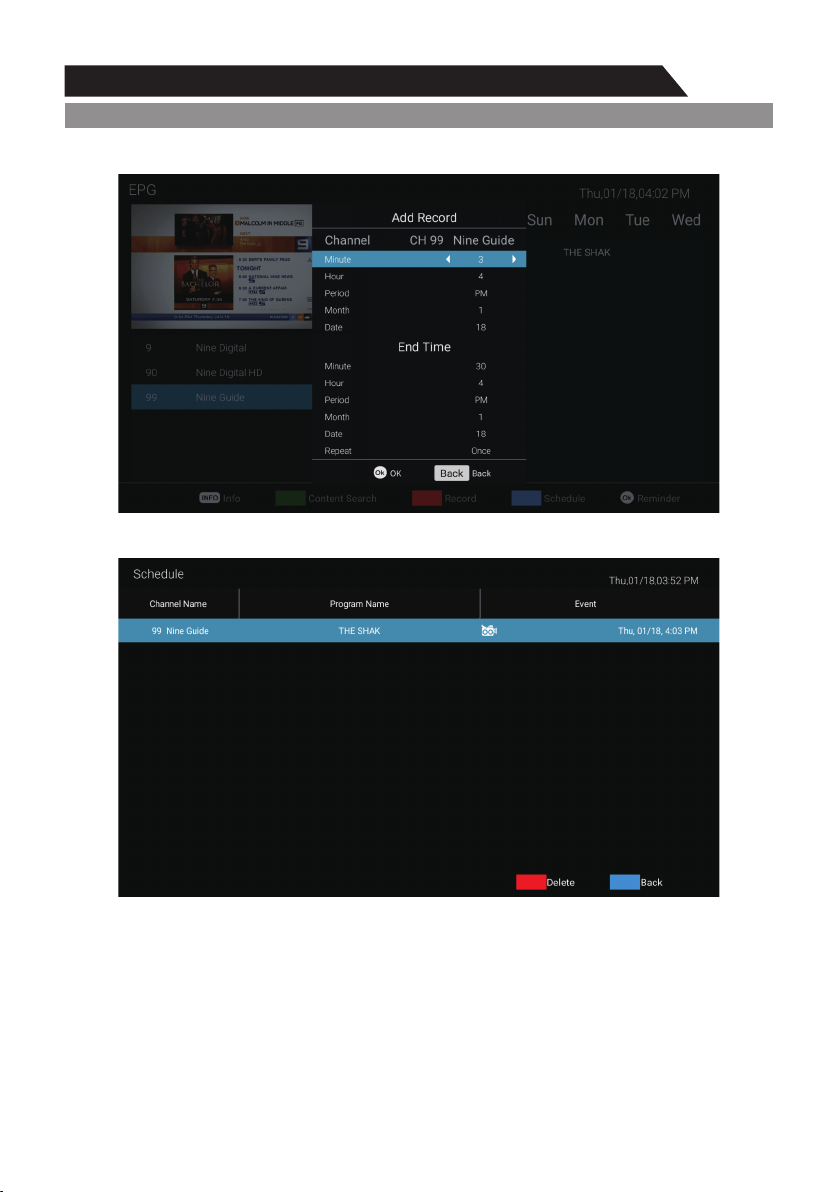
At Guide menu, press "OK" button to "Reminder Settings". Note: Press ◄/►button to adjust the
scheduled time, press "OK" button to save the setting.
Screen Shot
You can capture current picture by pressing Yellow button more than 1 second, and picture
preview will automatically pop up if the capture succeeded. You can take the following picture as
a reference.
Share to
When preview the captured picture, you can press OK button or choose by mouse to share it via
Email, bluetooth to your friend, facebook, twitter etc. see the picture.
Note: This mode does not support bluetooth.
DTV EPG (Electronic Program Guide)
In DTV mode, press "GUIDE" button to enter the Electronic Program Guide. At Guide menu,
press "RED" button to "Record" Setting.

42
Troubleshooting
If you have any problem, check the couter measures for each symptom listed below. The following
symptoms may have been. caused by inappropriate adjustment rather than actual malfunction of
the unit. If the trouble persists, contact the Customer Care Centre, see back page for contact details.
Symptoms
Possible solutions
No power
Please check the power cord plugged in and that the power
outlet works.
Unplug the power cord and plug it in after 60 seconds and
restart the TV.
No picture
Please check antenna connection.
Station may be experiencing problems, please tune to
another station.
Please adjust the settings of contrast and brightness.
Good picture but no
sound
Please increase the volume.
Please check TV is under mute mode, press MUTE button
on the remote control.
Please check sound settings
If external devices are being used, check their volumes are
not set too low or turned off.
If using AVI or Component inputs, please make sure cables
are connected properly and not loose.
If using DVI to HDMI cable, a separate audio cable is required.
Make sure a headphone jack is not connected.
No response to remote
control
Batteries of remote control may have exhausted, if
necessary, please change the batteries.
Clean the remote control lens. The distance between
LED TV and remote control should be within 8m, within
recommended operating angle and path is free of obstructions.
Full screen flickering
under VGA
V-HEIGHT value may be set too big, restart computer and
enter safe mode, then set monitor parameters to correct
value according to adjustment description.
Horizontal stripes
under VGA
Sample phase may be deflected, adjust phase according to
picture position.
Colored dots may be
present on the screen
Although the LED screen is made with high-precision
technology and 99.99% or more of the pixels are
effective, black dots may appear or bright points of light
(red, blue, or green) may appear constantly on the LED
screen. This is a structural property of the LED screen
and not a malfunction.
Good sound but abnormal
color or no picture
Please check antenna connection and antenna condition.
If using Component input, please check Component
connections, incorrect or loose connections may cause
colour problems or cause the screen to be blank.
Keep the TV away from noisy electrical sources such as cars,
hair dryers, welders, and all optional equipment.
Electrical atmospheric interference such as local or distant
lightning storms may cause picture to break up.
When installing optional equipment, leave some space
between the optional equipment and the TV.
Check the antenna and connection.
Keep the antenna away from any power or input/output cables.
Picture is breaking up
43
TroubleshootingTroubleshooting
Check your area is covered by Digital Video Broadcasts.
Try re-tuning or manually tuning missing channels.
Check that you are using the correct antenna type.
After Auto Tuning only
some channels are
available
Check if the channel has been blocked in the main menu
settings.
Channel cannot be
selected
Please check connecting USB cable and power supply is connected.
Hard drive has not been formatted. Please make sure USB disk is
compatible and the multimedia data formats are supported.
USB not playing
Compression of video contents may cause distortion especially on
fast moving pictures such as sports and action movies.
Picture is distorted,
macroblock, small block,
dots, pixelization, etc
Noise from speaker
Check cable connections, make sure a video cable is not connected
to an audio input.
Low signal level may cause sound distortion.
TV turns off automatically
Check if the Off Timer is set to On in the Setup menu.
Sleep Timer may have been enabled.
If there is no signal for about 10 minutes from an input, the TV will
turn off.
If connected to your PC, check your PC power settings.
Make sure the AC power cord is plugged in securely to the wall
outlet and the TV.
TV turns on
automatically
Check if the On Timer is set to On in the Setup menu.
Black bars on each side will be shown on HD channels when
displaying SD (4:3) contents.
Black bars on Top & Bottom will be shown on movies that have
aspect ratios different from your TV.
Adjust picture size option on your external device or TV to full screen.
Picture is not shown in
full screen
Never place a television set in an unstable location. A television set may fall, causing serious
personal injury or death. Many injuries, particularly to children, can be avoided by taking simple
precautions such as:
- Using cabinets or stands recommended by the manufacturer of the television set.
- Only using furniture that can safety support the television set.
- Ensuring the television set is not overhanging the edge of the supporting furniture.
- Not placing the television set on tall furniture (for example, cupboards or
bookcases) without anchoring both the furniture and the television set to a suitable support.
- Not placing the television set on cloth or other materials that may be located
between the television set and supporting furniture.
- Educating children about the dangers of climbing on furniture to reach the television set or its
controls
If your existing television set is being retained and relocated, the same considerations as above
should be applied.
The plug or appliance coupler is used as the disconnect device, the disconnect device shall
remain readily operable.
WARNING