DVQX1409ZA
M0118KZ0
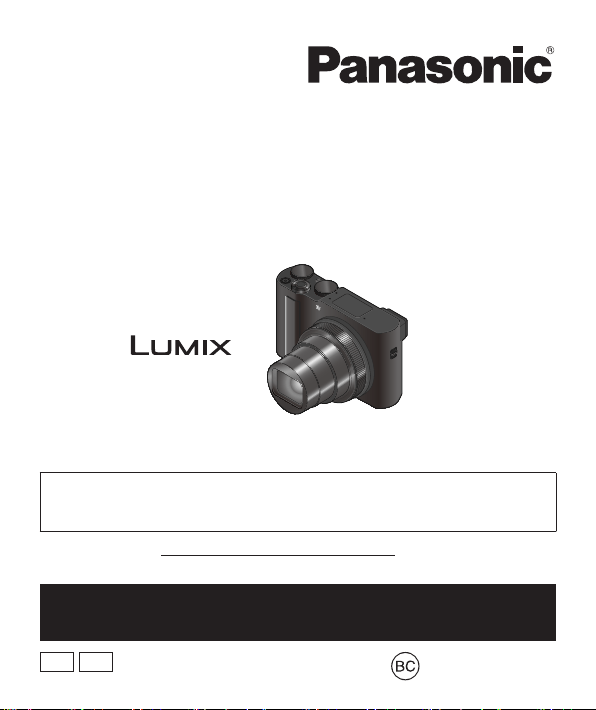
Basic Owner’s Manual
Digital Camera
Model No.
DC-ZS200
Please read these instructions carefully before using this product, and
save this manual for future use.
More detailed owner’s manual is available in “Owner’s Manual for
advanced features (PDF format)”. To read it, download it from the
website. (→68)
Register online at http://shop.panasonic.com/support (U.S. customers only)
P
If you have any questions, visit:
USA : http://shop.panasonic.com/support
Canada : www.panasonic.ca/english/support
PP
2
DVQX1409 (ENG)
Dear Customer,
Thank you for choosing Panasonic!
You have purchased one of the most sophisticated and reliable products on the
market today. Used properly, we’re sure it will bring you and your family years of
enjoyment. Please take time to fill in the information below. The serial number is on
the tag located on the underside of your camera. Be sure to retain this manual as
your convenient camera information source.
Date of Purchase Dealer Phone No.
Dealer Purchased From Model No.
Dealer Address Serial No.
Please note that the actual controls and components, menu items, etc. of your
Digital Camera may look somewhat different from those shown in the illustrations in
this Owner’s Manual.
Carefully observe copyright laws.
• Recording of pre-recorded tapes or discs or other published or broadcast
material for purposes other than your own private use may infringe copyright
laws. Even for the purpose of private use, recording of certain material may be
restricted.
For the U.S.A. and Canada only
A lithium ion battery that is recyclable powers the product
you have purchased. Please call 1-800-8-BATTERY for
information on how to recycle this battery.

3
DVQX1409 (ENG)
Information for Your Safety
WARNING:
To reduce the risk of fire, electric shock or product damage,
• Do not expose this unit to rain, moisture, dripping or splashing.
• Use the recommended accessories.
• Do not remove covers.
• Do not repair this unit by yourself. Refer servicing to qualified service
personnel.
The socket outlet shall be installed near the equipment and shall be easily
accessible.
■
Product identification marking
Product Location
Digital camera Bottom
4
DVQX1409 (ENG)
THE FOLLOWING APPLIES ONLY IN THE U.S.A.
Certification and Compliance
See Camera for the certification and compliance mark specific to that device.
1 Select [Wi-Fi] in the [Setup] menu
2 Select [Wi-Fi Setup] in the [Wi-Fi]
3
Press
to select [Approved Regulations], and press [MENU/SET]
Contains FCC ID : VPYLB1JS955
This transmitter must not be co-located or operated in conjunction with any other
antenna or transmitter.
This equipment complies with FCC radiation exposure limits set forth for an
uncontrolled environment and meets the FCC radio frequency (RF) Exposure
Guidelines. This equipment has very low levels of RF energy that is deemed to
comply without testing of specific absorption rate(SAR).
DC-ZS200

5
DVQX1409 (ENG)
THE FOLLOWING APPLIES ONLY IN THE U.S.A.
FCC Note:
This equipment has been tested and found to comply with the limits for a Class
B digital device, pursuant to Part 15 of the FCC Rules. These limits are designed
to provide reasonable protection against harmful interference in a residential
installation. This equipment generates, uses, and can radiate radio frequency
energy and, if not installed and used in accordance with the instructions, may
cause harmful interference to radio communications. However, there is no
guarantee that interference will not occur in a particular installation. If this
equipment does cause harmful interference to radio or television reception, which
can be determined by turning the equipment off and on, the user is encouraged
to try to correct the interference by one or more of the following measures:
• Reorient or relocate the receiving antenna.
• Increase the separation between the equipment and receiver.
• Connect the equipment into an outlet on a circuit different from that to which
the receiver is connected.
• Consult the dealer or an experienced radio/TV technician for help.
FCC Caution: To assure continued compliance, follow the attached installation
instructions and use only shielded interface cables with ferrite core when
connecting to computer or peripheral devices.
Any changes or modifications not expressly approved by the party responsible for
compliance could void the user’s authority to operate this equipment.
This device complies with Part 15 of the FCC Rules. Operation is subject to the
following two conditions: (1) This device may not cause harmful interference, and
(2) this device must accept any interference received, including interference that
may cause undesired operation.
Declaration of Conformity
Trade Name: Panasonic
Model No.: DC-ZS200
Responsible Party: Panasonic Corporation of North America
Two Riverfront Plaza, Newark, NJ 07102-5490
Support Contact: http://shop.panasonic.com/support
6
DVQX1409 (ENG)
THE FOLLOWING APPLIES ONLY IN CANADA.
Certification and Compliance
See Camera for the certification and compliance mark specific to that device.
1 Select [Wi-Fi] in the [Setup] menu
2 Select [Wi-Fi Setup] in the [Wi-Fi]
3
Press
to select [Approved Regulations], and press [MENU/SET]
CAN ICES-3(B)/NMB-3(B)
Contains IC : 772C-LB1JS955 HMN: DC2801
This device complies with Industry Canada’s licence-exempt RSSs. Operation is
subject to the following two conditions:
(1) this device may not cause interference, and
(2) this device must accept any interference, including interference that may
cause undesired operation of the device.
The available scientific evidence does not show that any health problems are
associated with using low power wireless devices. There is no proof, however,
that these low power wireless devices are absolutely safe. Low power Wireless
devices emit low levels of radio frequency energy (RF) in the microwave range
while being used. Whereas high levels of RF can produce health effects (by
heating tissue), exposure of low-level RF that does not produce heating effects
causes no known adverse health effects. Many studies of low-level RF exposures
have not found any biological effects. Some studies have suggested that some
biological effects might occur, but such findings have not been confirmed by
additional research. DC-ZS200 has been tested and found to comply with IC
radiation exposure limits set forth for an uncontrolled environment and meets
RSS-102 of the IC radio frequency (RF) Exposure rules.

7
DVQX1409 (ENG)
■
About the battery pack
CAUTION
Battery pack (Lithium ion battery pack)
• Use the specified unit to recharge the battery pack.
• Do not use the battery pack with equipment other than the specified unit.
• Do not get dirt, sand, liquids, or other foreign matter on the terminals.
• Do not touch the plug terminals (+ and −) with metal objects.
• Do not disassemble, remodel, heat or throw into fire.
If any electrolyte should come into contact with your hands or clothes, wash it off
thoroughly with water.
If any electrolyte should come into contact with your eyes, never rub the eyes.
Rinse eyes thoroughly with water, and then consult a doctor.
CAUTION
• Danger of explosion if battery is incorrectly replaced. Replace only with the
type recommended by the manufacturer.
• When disposing of the batteries, please contact your local authorities or dealer
and ask for the correct method of disposal.
• Do not heat or expose to flame.
• Do not leave the battery(ies) in a car exposed to direct sunlight for a long period
of time with doors and windows closed.
Warning
Risk of fire, explosion and burns. Do not disassemble, heat above 60 °C (140 °F)
or incinerate.

8
DVQX1409 (ENG)
■
About the AC adaptor (supplied)
CAUTION!
To reduce the risk of fire, electric shock or product damage,
• Do not install or place this unit in a bookcase, built-in cabinet or in
another confined space. Ensure this unit is well ventilated.
AC adaptor
This AC adaptor operates on AC between 110V and 240V.
But
• In the U.S.A. and Canada, the AC adaptor must be connected to a 120V AC
power supply only.
• When connecting to an AC supply outside of the U.S.A. or Canada, use a plug
adaptor to suit the AC outlet configuration.
■
Cautions for Use
• Do not use any other USB connection cables except the supplied one.
• Use a “High Speed HDMI micro cable” with the HDMI logo.
Cables that do not comply with the HDMI standards will not work.
“High Speed HDMI micro cable” (Type D - Type A plug, up to 2 m (6.6 feet) long)
Keep this unit as far away as possible from electromagnetic equipment (such
as microwave ovens, TVs, video games etc.).
• If you use this unit on top of or near a TV, the pictures and/or sound on this unit
may be disrupted by electromagnetic wave radiation.
• Do not use this unit near cell phones because doing so may result in noise
adversely affecting the pictures and/or sound.
• Recorded data may be damaged, or pictures may be distorted, by strong
magnetic fields created by speakers or large motors.
• Electromagnetic wave radiation may adversely affect this unit, disturbing the
pictures and/or sound.
• If this unit is adversely affected by electromagnetic equipment and stops
functioning properly, turn this unit off and remove the battery or disconnect AC
adaptor. Then reinsert the battery or reconnect AC adaptor and turn this unit on.
Do not use this unit near radio transmitters or high-voltage lines.
• If you record near radio transmitters or high-voltage lines, the recorded pictures
and/or sound may be adversely affected.

9
DVQX1409 (ENG)
• To clean your camera, remove the battery, the DC coupler (DMW-DCC11:
optional) or a card, or disconnect the power plug from the outlet, and wipe
with a soft, dry cloth.
• Do not press the monitor with excessive force.
• Do not press the lens with excessive force.
• Do not allow camera to come into contact with pesticides or volatile
substances (can cause surface damage or coating to peel).
• Do not keep rubber or plastic products in contact with the camera for a
long period of time.
• Do not use solvents such as benzine, thinner, alcohol, kitchen detergents,
etc., to clean the camera, since it may deteriorate the external case or the
coating may peel off.
• Do not leave the camera with the lens facing the sun, as rays of light from
the sun may cause it to malfunction.
• Always use the supplied cords and cables.
• Do not extend the supplied cord or cable.
• While the camera is accessing the card (for an operation such as picture
writing, reading, deletion, or formatting), do not turn off the camera or
remove the battery, card, AC adaptor (DMW-AC10PP: optional) or DC
coupler (DMW-DCC11: optional).
Furthermore, do not subject the camera to vibration, impact or static
electricity.
• The data on the card may be damaged or lost due to electromagnetic waves,
static electricity or breakdown of the camera or the card. We recommend storing
important data on a PC etc.
• Do not format the card on your PC or other equipment. Format it on the camera
only to ensure proper operation.
10
DVQX1409 (ENG)
• The battery is not charged when the camera is shipped. Charge the battery
before use.
• The battery is a rechargeable lithium ion battery. If the temperature is too
high or too low, the operating time of the battery will become shorter.
• The battery becomes warm after using and during and after charging. The
camera also becomes warm during use. This is not a malfunction.
• Do not leave any metal items (such as clips) near the contact areas of the
power plug or near the batteries.
• Store the battery in a cool and dry place with a relatively stable temperature.
(Recommended temperature: 15 °C to 25 °C (59 °F to 77 °F), Recommended
humidity: 40%RH to 60%RH)
• Do not store the battery for a long time while fully charged. When storing the
battery for a long period of time, we recommend charging it once a year. Remove
the battery from the camera and store it again after it has completely discharged.
How to use this manual
■
About the symbols in the text
Indicates that the menu can be set by pressing [MENU/SET] button.
Steps for setting a menu item are described as follows:
→ [Rec] → [Quality] → [ ]
• This Owner’s Manual expresses the up, down, left, and right of the cursor button
as
.
Recording mode:
• In Recording modes that show icons in black, you can select and execute
indicated menus and functions.
(Custom Mode) has different functions depending on the recording mode that
is registered.

11
DVQX1409 (ENG)
Contents
■
Information for Your Safety ...................... 3
Preparations/Basics
■
Before use................................................ 12
■
Standard accessories ............................. 13
■
Names and Functions of Main Parts ..... 14
■
Quick Start Guide .................................... 16
Inserting the battery and/or
SD memory card (optional) ....................... 16
Charging the battery.................................. 17
Setting the clock ........................................ 19
Formatting the card (initialization) ............. 20
[LVF] button
(Recording pictures using the viewfinder)
... 20
Mode dial (Select the recording mode) ..... 21
Holding the camera ................................... 22
Shutter button (Taking pictures) ................ 22
■
Basic operations ..................................... 23
■
Setting the menu ..................................... 27
Recording
■
Taking pictures with automatic settings
(Intelligent Auto Mode) ........................... 28
■
Recording with the 4K Photo
function .................................................... 29
■
Adjusting the focus after recording
([Post Focus] / [Focus Stacking]) .......... 33
■
Recording Motion Picture/
4K Motion Picture .................................... 36
Playback
■
Viewing your pictures ............................. 40
Menu
■
Menu list ................................................... 44
Wi-Fi/Bluetooth
■
What you can do with the
Wi-Fi
®
/Bluetooth
®
function .................... 48
■
Operating the camera by connecting
it to a smartphone ................................... 50
Others
■
Downloading software ............................ 57
■
List of monitor/viewfinder displays ....... 58
■
Q&A
Troubleshooting ...................................... 61
■
Specifications .......................................... 63
■
Digital Camera Accessory System ........ 67
■
Reading the Owner’s Manual
(PDF format) ............................................ 68
■
Limited Warranty (ONLY FOR U.S.A.) .... 69
■
Limited Warranty
(ONLY FOR CANADA) ............................. 73

12
DVQX1409 (ENG)
Preparations/Basics
Before use
■
Camera handling
Keep the camera away from excessive vibration, force, or pressure.
●
Avoid using the camera under the following conditions, which may damage the
lens, monitor, viewfinder, or camera body. This may also cause the camera to
malfunction or prevent recording.
• Dropping or hitting the camera against a hard surface
• Sitting down with the camera in your pants pocket or forcing it into a full bag
• Adding accessories to the camera strap
• Pushing with excessive force on the lens or monitor
The camera is not dust resistant, splash resistant, or waterproof.
Avoid using the camera in places with excessive dust or sand, or where
water can come into contact with the camera.
■
Condensation (When the lens, the monitor, or viewfinder, is
fogged up)
●
Condensation may occur when the camera is exposed to sudden changes of
temperature or humidity. Avoid these conditions, which may make the lens,
monitor, or viewfinder dirty, cause mold, or damage the camera.
●
If condensation does occur, turn off the camera and wait about two hours before
using it. Once the camera adjusts to the surrounding temperature, the fogging
will clear naturally.
■
When in use
●
Do not keep objects that may be influenced magnetically close to the speaker.
• Magnetized objects such as bank cards, commuter passes, watches, may be
adversely affected by the magnetic influence of the speaker.
13
DVQX1409 (ENG)
Preparations/Basics
Standard accessories
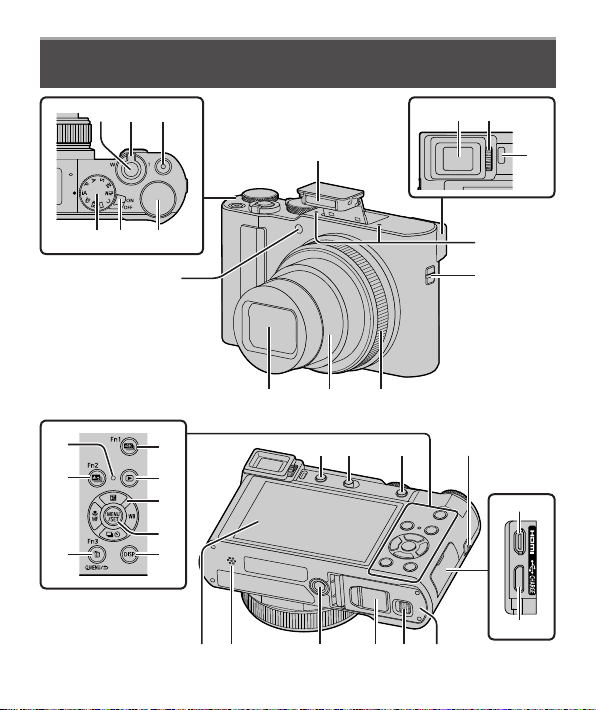
Check that all the accessories are supplied before using the camera. Part numbers
are as of February 2018. These may be subject to change.
Battery pack
DMW-BLG10PP
• Charge the battery before
use.
• Battery pack is indicated as battery
pack or battery in the text.
AC adaptor
SAE0012A
USB connection cable
K1HY04YY0106
Hand strap
VFC4297
• Cards are optional. (SD Memory Card, SDHC Memory Card and SDXC
Memory Card are indicated as card in the text.)
– This unit is compatible with UHS-
UHS Speed Class 3 standard SDHC/SDXC
memory cards.
– The following SD standard-based cards can be used.
SD Memory Card (512 MB to 2 GB)/SDHC Memory Card (4 GB to 32 GB)/
SDXC Memory Card (48 GB to 128 GB)
– Depending on recording conditions, the required card differs.
Latest information:
http://panasonic.jp/support/global/cs/dsc/
(This site is available in English only.)
(For U.S.A. only)
•
If accessories are lost, customers can visit us at http://shop.panasonic.com/support
for further information about obtaining replacement parts.
(For Canada only)
• If any accessories are lost, customers in Canada should visit our support page at
www.panasonic.ca/english/support for further information about obtaining
replacement parts.
• Please dispose of all packaging appropriately.
• The illustrations and screens in this manual may differ from the actual product.
14
Preparations/Basics
DVQX1409 (ENG)
Names and Functions of Main Parts
20
21
22
23
24
25
26
27
28
29
17 12
33 32 31 30 35
18 19
34
1 2 3
4 6
8 9
12
13 14 15
16
7
5
10
11
15
DVQX1409 (ENG)
Preparations/Basics
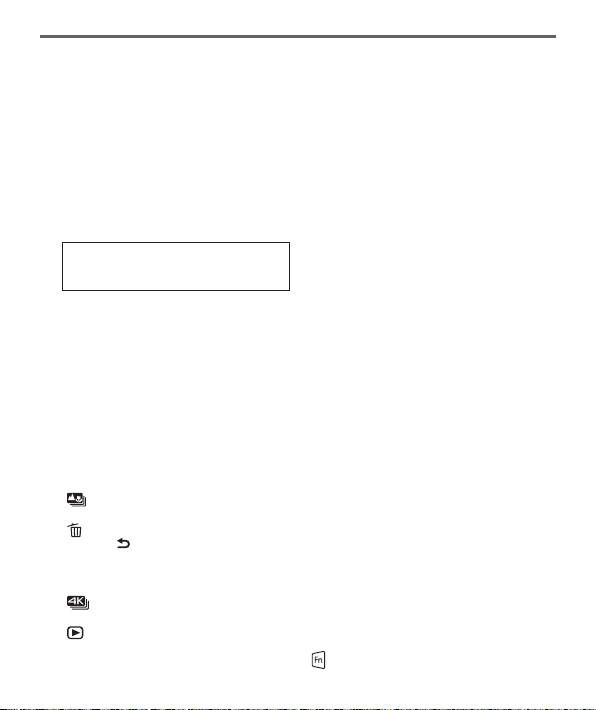
1 Shutter button (→22)
2
Zoom lever (→23)
3
Motion picture button (→36)
4
Rear dial (→25)
5
Camera [ON/OFF] switch (→19)
6
Mode dial (→21)
7
Flash (→22)
8
Viewfinder (→20)
9
Diopter adjustment dial (→20)
10
Eye sensor (→20)
11
Stereo microphone
12
Strap eyelet
• To prevent dropping, be sure to
attach the supplied strap and fit it to
your wrist.
13
Control ring (→25)
14
Lens barrel
15
Lens
16
Self-timer indicator / AF Assist Lamp
17
[LVF] button (→20) / [Fn4] button (→26)
18
Flash open lever
• The flash opens, and recording with the
flash becomes possible.
19
[AF/AE LOCK] button
• You can take pictures by locking the
focus and/or exposure.
20
Charging lamp (→17, 18) /
WIRELESS connection lamp (→49)
21
[
] ([Post Focus]) button (→33) /
[Fn2] button (→26)
22
[
] (Delete) button (→40) /
[Q.MENU/
] (Cancel) button /
[Fn3] button (→26)
• You can easily call some of the menu
items and set them during recording.
23
[
] (4K photo mode) button (→29) /
[Fn1] button (→26)
24
[
] (Playback) button (→40)
25
Cursor button (→24)
26
[MENU/SET] button
• Confirmation of setting contents, etc.,
is performed.
27
[DISP.] button
• Use this to change display.
28
[HDMI] socket
• You can view pictures on a TV screen
by connecting your camera to your TV
with the HDMI micro cable.
29
[USB/CHARGE] socket (→17)
30
Card/Battery door (→16)
31
Release lever (→16)
32
DC coupler cover (→67)
33
Tripod mount
• Do not attach this unit to tripods that
have screws with a length of 5.5 mm
(0.22 inch) or more. Doing so may
damage this unit or the unit may not be
secured properly on the tripod.
34
Speaker
35
Touch screen (→26) / monitor (→58)
●
Always use a genuine Panasonic AC
adaptor (DMW-AC10PP: optional).
(→67)
When using an AC adaptor, ensure
that the Panasonic DC coupler
(DMW-DCC11: optional) and AC
adaptor (DMW-AC10PP: optional)
are used.
Function buttons [Fn5] to [Fn9] are
touch icons.
They can be displayed by touching the
[
] tab on the recording screen.
16
Preparations/Basics
DVQX1409 (ENG)
Quick Start Guide
Inserting the battery and/or SD memory card (optional)
Make sure that the camera is turned off.
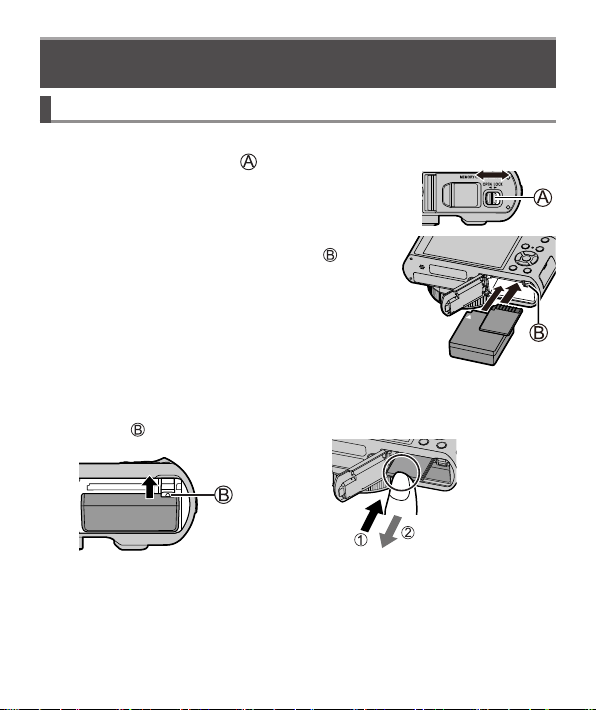
1
Slide the release lever ( ) to the [OPEN]
position and open the card/battery door
[OPEN] [LOCK]
2
Insert the battery and card, making sure
that their orientation is correct
• Battery: Insert the battery all the way firmly and
check that it is locked by lever (
).
• Card: Insert the card all the way firmly until it
clicks. Do not touch the terminal.
3
Close the door
Slide the release lever to the [LOCK] position.
■
To remove
• To remove battery
Move lever (
) in direction of
arrow.
• To remove card
Press the center of the card.
Press
Pull out
●
Always use genuine Panasonic batteries (DMW-BLG10PP).
●
If you use other batteries, we cannot guarantee the quality of this product.
●
Keep the memory card out of reach of children to prevent swallowing.
17
DVQX1409 (ENG)
Preparations/Basics
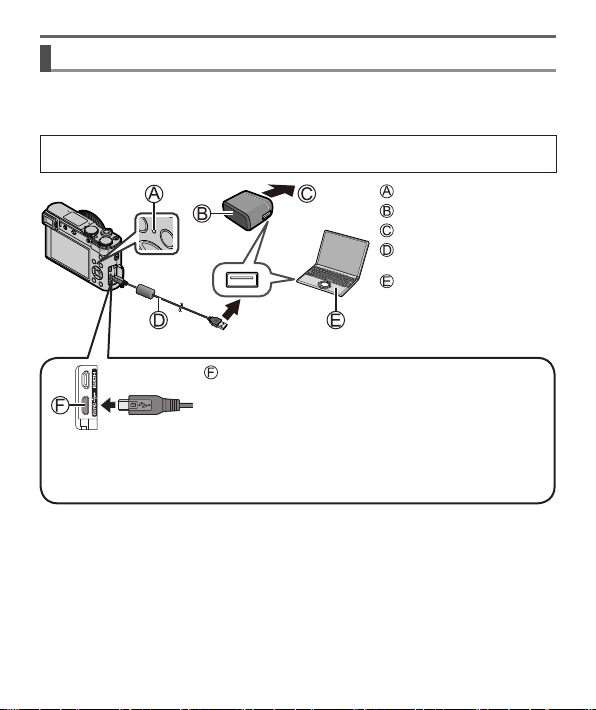
Charging the battery
• The battery that can be used with this unit is DMW-BLG10PP.
• We recommend charging in a location where the ambient temperature is
between 10 °C and 30 °C (50 °F to 86 °F).
Insert the battery into the camera.
Make sure that the camera is turned off.
[USB/CHARGE] socket
• This terminal is located at the bottom when the
camera is in an upright position.
• Always check the direction of the socket, and hold the plug straight to insert
or remove it. (If the cable is inserted in the wrong direction, the socket could
become deformed and cause faulty operation.) Also, do not insert into the
wrong socket. Doing so may cause damage to this unit.
Charging lamp (Red)
AC adaptor (supplied)
To the electrical outlet
USB connection cable
(supplied)
Computer
Getting ready:
Turn on the computer.

18
Preparations/Basics
DVQX1409 (ENG)
Charging from the power outlet
Connect the AC adaptor (supplied) and this camera with the USB connection cable
(supplied), and insert the AC adaptor (supplied) into the power outlet.
Charging from a computer
Connect the computer and this camera with the USB connection cable (supplied).
■
Charging lamp indications (Red)
On: Charging in progress
Off: Charging complete (After charging stops, disconnect the camera from the
electrical outlet or your computer.)
Flashing: Charging error (→61)
■
Charging time
When using the AC adaptor (supplied) Approx. 190 min.
• The charging time indicated above is the time required for charging in case
when the battery is completely used up. The time required for charging
differs depending on conditions of battery usage. Charging takes longer in
cases when temperatures are either high or low and when the battery has
not been used for a long period of time.
• The time required for charging through the computer varies depending on the
power supply capacity of the computer.
●
Do not use any other USB connection cables except the supplied one.
●
Do not use any other AC adaptors except the supplied one.
19
DVQX1409 (ENG)
Preparations/Basics
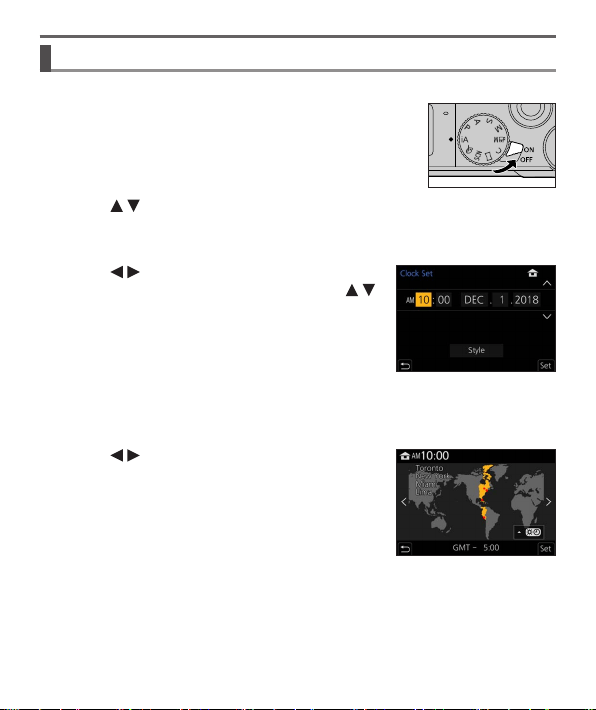
Setting the clock
The clock is not set when the camera is shipped.
1
Turn the camera on
2
Press [MENU/SET]
3
Press to select the language and press [MENU/SET]
• The [Please set the clock] message appears.
4
Press [MENU/SET]
5
Press to select the items (year,
month, day, hour, minute), and press
to set
6
Press [MENU/SET]
7
When [The clock setting has been
completed.] is displayed, press
[MENU/SET]
8
When [Please set the home area] is displayed, press
[MENU/SET]
9
Press to set your home area and
press [MENU/SET]
20
Preparations/Basics
DVQX1409 (ENG)
Formatting the card (initialization)
Format the card before recording a picture with this unit.
Since data cannot be recovered after formatting, make sure to back up
necessary data in advance.
→ [Setup] → [Format]
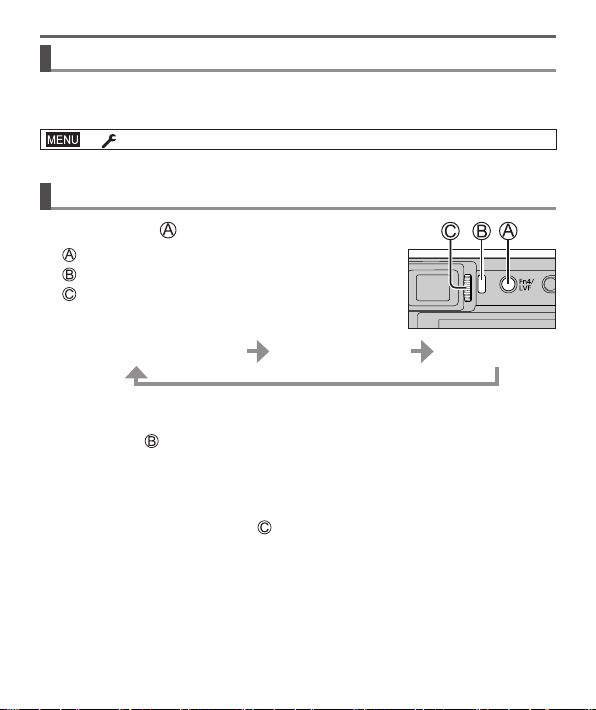
[LVF] button (Recording pictures using the viewfinder)
1
Press [LVF] ( ) button
[LVF] button
Eye Sensor
Diopter adjustment dial
Automatic switching between
viewfinder and monitor
Viewfinder display
Monitor display
■
Automatic switching between viewfinder and monitor
The eye sensor ( ) automatically switches the display to viewfinder when your eye
or an object moves close to the viewfinder. When the eye or object moves away
from the viewfinder, the camera returns to monitor display.
■
About diopter adjustment
Rotate the diopter adjustment dial ( ) to adjust until you are able to clearly see the
characters displayed in the viewfinder.
●
If [LVF Display Speed] is set to [ECO 30fps] when the viewfinder is used,
the camera can be operated for a longer period since battery drainage is
reduced.
21
DVQX1409 (ENG)
Preparations/Basics
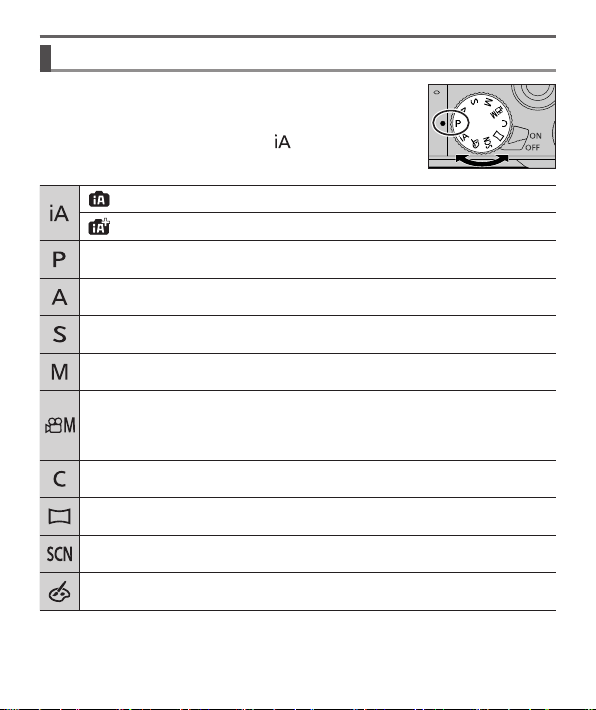
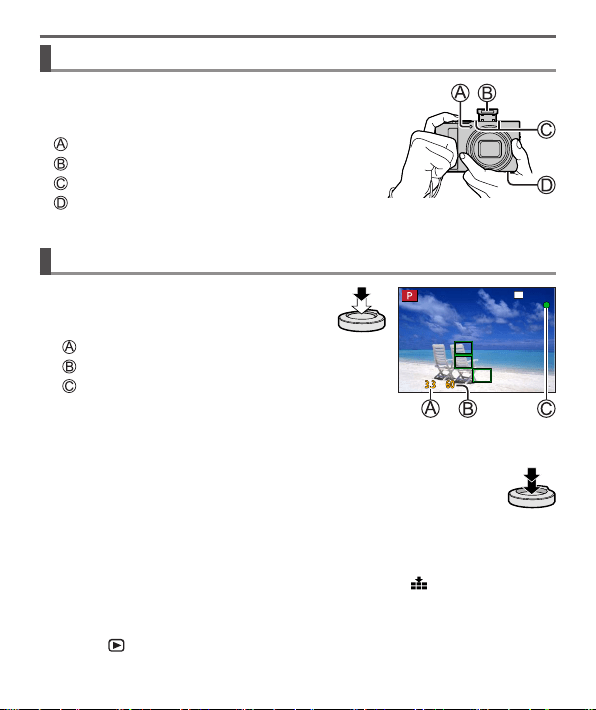
Mode dial (Select the recording mode)
1
Set to the desired recording mode
• Rotate the mode dial slowly to select the desired
mode.
• When you set the mode dial to [
], the camera
automatically optimizes the main settings.
Intelligent Auto Mode (→28)
Intelligent Auto Plus Mode (→28)
Program AE Mode
Take pictures with automatic shutter speed and aperture value settings.
Aperture-Priority AE Mode
Determine aperture, then take pictures.
Shutter-Priority AE Mode
Determine shutter speed, then take pictures.
Manual Exposure Mode
Determine aperture and shutter speed, then take pictures.
Creative Video Mode
Determine aperture, shutter speed and ISO sensitivity, then record motion
pictures.
• You cannot take still pictures.
Custom Mode
Take pictures using pre-registered settings.
Panorama Shot Mode
Take panorama pictures.
Scene Guide Mode
Take pictures that match the scene being recorded.
Creative Control Mode
Take pictures by selecting your preferred picture effect.
22
Preparations/Basics
DVQX1409 (ENG)
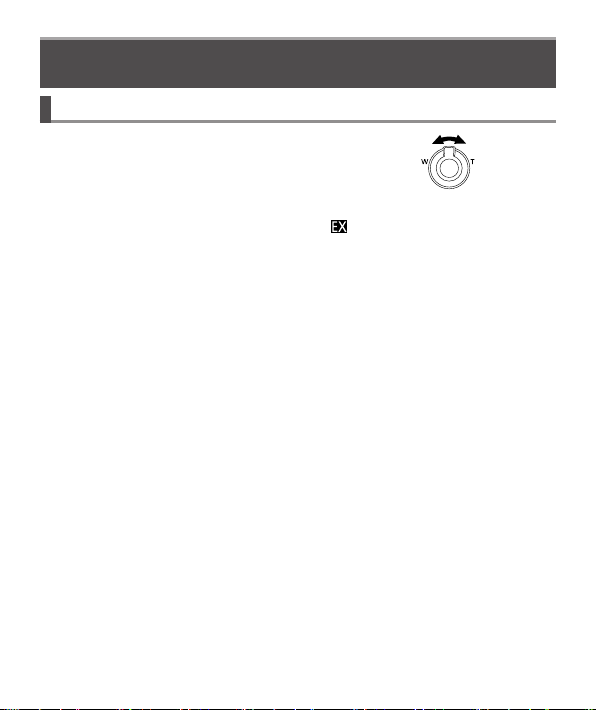
Holding the camera
• Do not block the flash, AF Assist Lamp,
microphone, or speaker with your fingers or other
objects.
AF Assist Lamp
Flash
Microphone
Speaker
Shutter button (Taking pictures)
1
Press the shutter button halfway
(press lightly) to focus on the
subject
Aperture value
Shutter speed
Focus display (Green)
( When focus is aligned: illuminated
When focus is not aligned: flashing)
• If the aperture value and shutter speed are shown in red and flashing, you do
not have the appropriate exposure, unless you are using the flash.
2
Press the shutter button fully (push the button all the
way), and take the picture
●
Pictures can be taken only when the image is correctly focused as long as
the [Focus/Release Priority] is set to [FOCUS].
■
Estimated number of recordable pictures
1450: When [Aspect Ratio] is set to [3:2], [Quality] is set to [ ], [Picture Size] is
set to [L] (20M), and using a card of 16 GB
■
Check the picture you have taken
Press the [ ] (Playback) button. (→40)
23
DVQX1409 (ENG)
Preparations/Basics
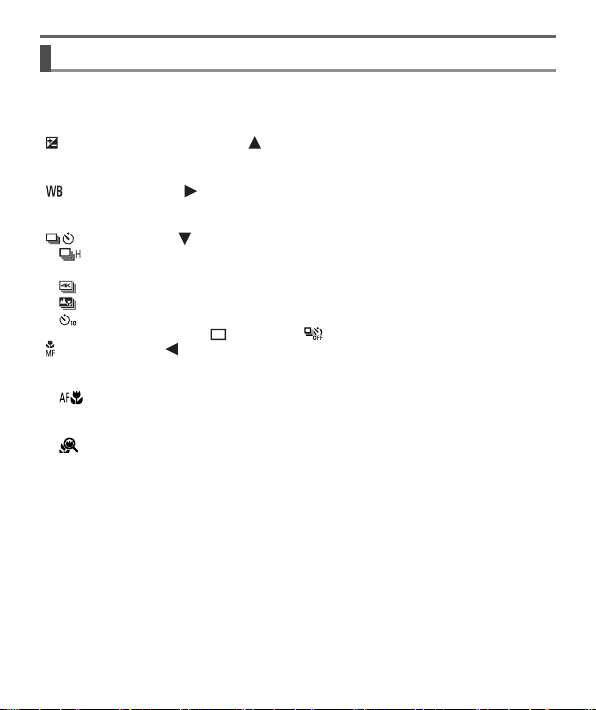
Zoom lever (Use zoom)
Optical Zoom:
You can zoom in without degrading the
picture quality.
Maximum magnification: 15x
Capture a
wider area
(wide-angle)
Enlarge the
subject
(telephoto)
Extended optical zoom:
This function works when picture sizes with [
] have been selected in [Picture
Size]. Extended optical zoom allows you to zoom in using a higher zoom ratio
than optical zoom, without degrading the picture quality.
Maximum magnification: 30x
1
1
Including the optical zoom ratio. The maximum zoom ratio varies depending on the picture
size.
[i.Zoom]:
Set the [i.Zoom] in the [Rec] menu to [ON].
You can use the camera’s intelligent resolution technology to increase the zoom
ratio up to 2x
2
higher than the original zoom ratio with limited deterioration of
picture quality.
2
Up to 1.5x the original zoom ratio when [Picture Size] is set to [S]
[Digital Zoom]:
Set the [Digital Zoom] in the [Rec] menu to [ON].
Zoom 4x further than Optical/Extended optical zoom. When [Digital Zoom] is
used simultaneously with [i.Zoom], you can increase the combined zoom ratio
up to 4x.
Note that, with Digital Zoom, enlarging will decrease picture quality.
• When [Monitor Display Speed] is set to [ECO 30fps], Digital Zoom is not
available (setting at the time of purchase).
• When [LVF Display Speed] is set to [ECO 30fps], Digital Zoom is not available.
Basic operations
24
Preparations/Basics
DVQX1409 (ENG)
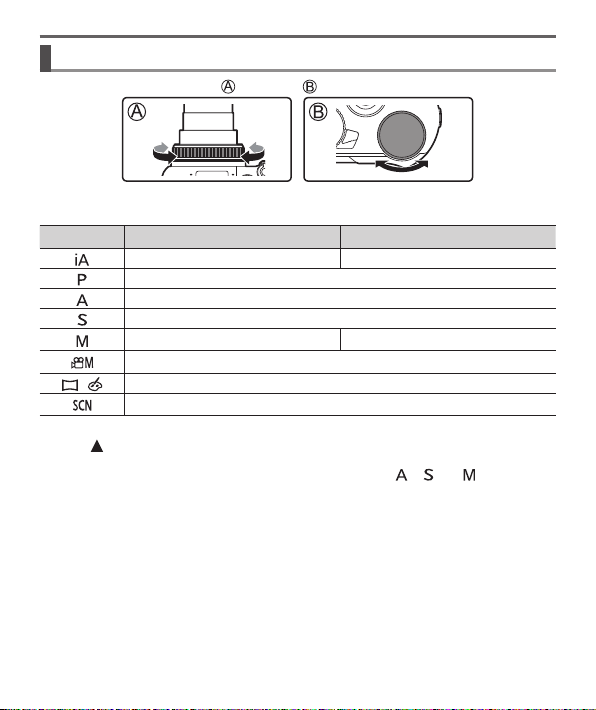
Cursor button
Selection of items or setting of values etc., is performed.
You can perform the following operations while recording. (Some items or settings
cannot be selected depending on the mode or display style the camera is in.)
[
] (Exposure compensation) ( )
• Corrects the exposure when there is a backlight or when the subject is too dark
or too bright.
[
] (White balance) ( )
• Adjusts to the color of white which is closest to what is seen by the eye in
accordance with the light source.
[
] (Drive mode) ( )
• [
] ([Burst])
– Records in succession while the shutter button is pressed.
• [
] ([4K PHOTO])
(→29)
• [
] ([Post Focus])
(→33)
• [
] ([Self Timer])
To cancel drive mode, select [ ] ([Single]) or [ ] .
[ ] (Focus mode) ( )
• [AF]
– Focus is set automatically when the shutter button is pressed halfway.
• [
] ([AF Macro])
– You can take pictures of a subject as close as 3 cm (0.098 feet) from the lens
by rotating the zoom lever upmost to Wide.
• [
] ([Macro Zoom])
– Use this setting to get close to the subject and then further enlarge when
taking the picture. You can take a picture with the Digital Zoom up to 3x while
maintaining the distance to the subject for the extreme Wide position (3 cm
(0.098 feet)).
• [MF]
– Manual focus is convenient when you want to lock the focus to take pictures or
when it is difficult to adjust focus using auto focus.
25
DVQX1409 (ENG)
Preparations/Basics
Control ring/Rear dial
You can use the control ring ( )/rear dial ( ) to change the settings for recording.
Following are the pre-assigned settings.
Mode dial
Control ring
1
Rear dial
Step Zoom —
Program Shift
Aperture adjustment
Shutter speed adjustment
Aperture adjustment
2
Shutter speed adjustment
2
Aperture adjustment
3
/ Shutter speed adjustment
3
/
Picture effects change
Aperture adjustment
4
/ Shutter speed adjustment
5
1
When Manual Focus is set, the control ring is assigned to focus adjustment.
2
Press to switch between shutter speed adjustment and aperture adjustment.
3
When [Exposure Mode] is set to [A], [S], or [M], you can change the aperture value and
shutter speed in the same way as when the mode dial is set to [
], [ ], or [ ] .
4
The operation is possible only when the Scene Guide Mode is set to [Appetizing Food].
5
The operation is possible only when the Scene Guide Mode is set to [Artistic Nightscape].
●
You can change to your preferred settings using [Ring/Dial Set] (→46) from the
[Custom] ([Operation]) menu.
26
Preparations/Basics
DVQX1409 (ENG)
Function buttons
• [Fn1] to [Fn4] are buttons on the camera.
• Function buttons [Fn5] to [Fn9] are touch icons. They can be displayed by
touching the [
] tab on the recording screen.
• You can assign frequently-used functions to particular buttons or icons with [Fn
Button Set] (→46) in [Custom] ([Operation]) menu.
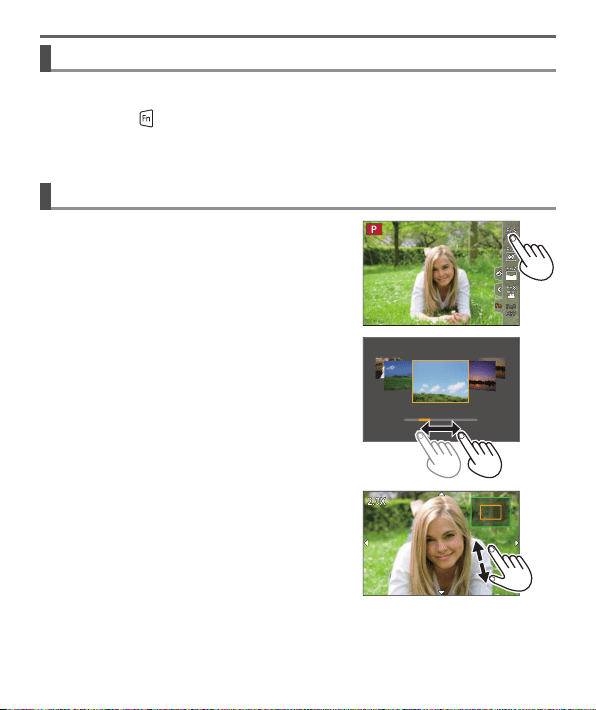
Touch screen (Touch operations)
Touch
To touch and release the touch screen.
Drag
To touch and slide your finger across the touch
screen.
Pinch (spread/pinch)
On the touch screen, spread (pinch out) your
2 fingers to zoom in, and pinch (pinch in) your
2 fingers to zoom out.
27
DVQX1409 (ENG)
Preparations/Basics
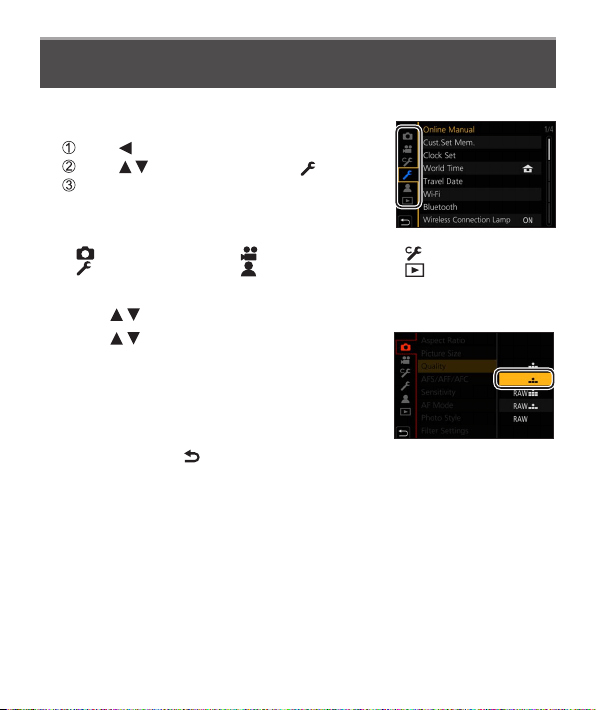
Setting the menu
1
Press [MENU/SET] to bring up the menu
2
Switch the menu type
Press
Press to select a tab such as [ ]
Press [MENU/SET]
■
Menu types (→44)
• [Rec]
•
[Setup]
•
[Motion Picture]
•
[My Menu]
•
[Custom]
•
[Playback]
• Menus to be displayed in each recording mode
3
Press to select the menu item and press [MENU/SET]
4
Press to select the setting and press
[MENU/SET]
• The setting methods vary depending on the menu
item.
5
Press [Q.MENU/ ] button repeatedly until the recording or
playback screen reappears
• During recording, the menu screen can also be exited by pressing the shutter
button halfway.
●
The menu items that cannot be set are grayed out. In some setting conditions,
the reason the setting is disabled is displayed when you press [MENU/SET] if
you select a grayed-out menu item.
28
DVQX1409 (ENG)
Recording
Taking pictures with automatic settings
(Intelligent Auto Mode)
This mode is recommended for those who want to point and shoot as the camera
optimizes settings to match the subject and recording environment.
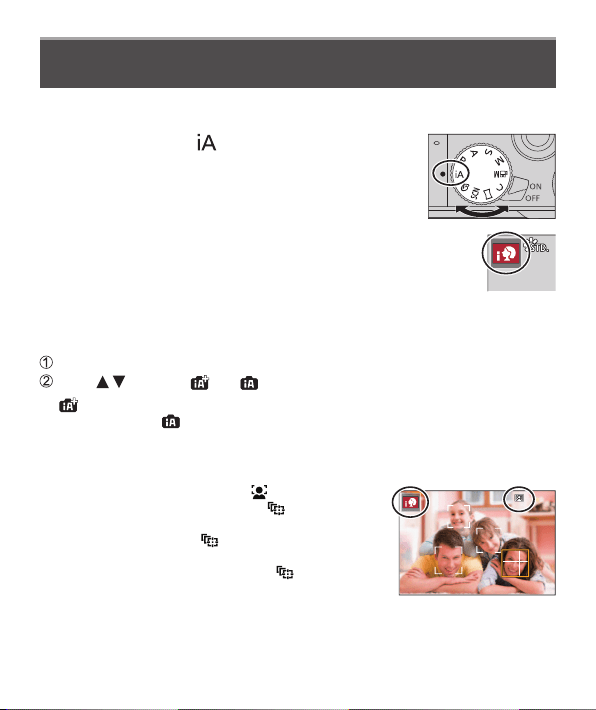
1
Set mode dial to [ ]
• At the time of purchase, the mode is set to Intelligent
Auto Plus Mode.
2
Point the camera at the subject
• When the camera identifies the optimal scene, the icon for
each scene turns blue for 2 seconds and then changes to the
normal red indication. (Automatic Scene Detection)
■
Switching between Intelligent Auto Plus Mode and Intelligent Auto
Mode
Select [Intelligent Auto Mode] in [Intelligent Auto] menu
Press to select [ ] or [ ] and press [MENU/SET]
• [
] allows you to adjust some settings such as the brightness and color tone
while also using [
] for other settings so that you can record pictures more
suited to your preferences.
■
Auto Focus (Face/Eye Detection)
[AF Mode] is automatically set to [ ]. If you touch
the subject, the camera switches to [
] and the AF
tracking function starts operating.
• You can also switch to [
] by pressing
[MENU/SET], going to the [Rec] menu, then going to
the [AF Mode] menu and selecting [
] (tracking).
Align the AF tracking area with the subject and press
the shutter button halfway to operate the AF tracking
function.
29
DVQX1409 (ENG)
Recording
Recording with the 4K Photo function
Recording mode:
You can take burst pictures of approximately 8 million pixels with a burst rate of
30 fps. You can select and save a frame from the burst file.
• To record pictures, use a UHS Speed Class 3 card.
1
Press [ ] button
2
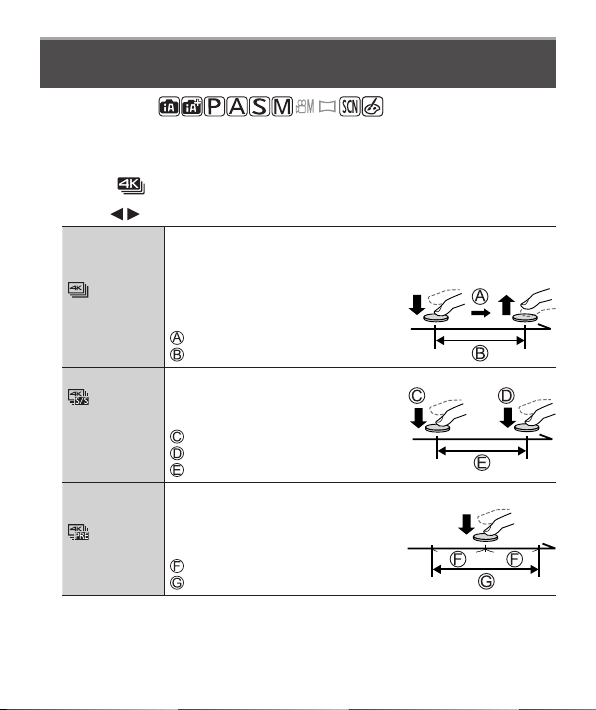
Press to select the recording method and press [MENU/SET]
[4K Burst]
For capturing the best shot of a fast-moving subject
Burst recording is performed while the
shutter button is pressed and held.
• Recording will start approximately
0.5 seconds after you press the shutter
button fully. Therefore, press the button
fully slightly in advance.
Press and hold
Recording is performed
[4K Burst(S/S)]
“S/S” is an
abbreviation of
“Start/Stop”.
For capturing unpredictable photo opportunities
Burst recording starts when the shutter
button is pressed and stops when pressed
again.
Start (First)
Stop (Second)
Recording is performed
[4K Pre-Burst]
For recording as needed whenever a photo opportunity arises
Burst recording is performed for
approximately 1 second before and after
the moment that the shutter button is
pressed.
Approximately 1 second
Recording is performed
30
Recording
DVQX1409 (ENG)
3
Press the shutter button to perform recording
• When you press the [Fn1] button while recording, you can add a marker. (Up
to 40 markers for each recording.) When selecting and saving pictures from
a 4K burst file, you can skip to the positions where you added markers. ([4K
Burst(S/S)] only)
• Burst pictures are saved as a single 4K burst file in the MP4 format.
• When [Auto Review] is enabled, the picture selection screen will be displayed
automatically.
■
To cancel the 4K Photo functions
In step
2
, select [ ] .
●
If the surrounding temperature is high or 4K photos are recorded continuously,
[
] may be displayed and recording may be stopped halfway through. Wait
until the camera cools down.
●
When [ ] ([4K Pre-Burst]) is set, the battery drains faster and the camera
temperature rises. (to protect itself, the camera may switch to [
] ([4K
Burst]))
Select [
] ([4K Pre-Burst]) only when recording.
●
Recording stops when the continuous recording time exceeds 15 minutes.
When using an SDHC memory card, files are split into smaller picture files for
recording and playback if the file size exceeds 4 GB. (You can continue to record
pictures without interruption.)
If using an SDXC memory card, you can record pictures in a single file even if
the size is greater than 4 GB.
●
When recording, the angle of view becomes narrower.
●
When you perform [Light Composition] or [Sequence Composition], we
recommend using a tripod and taking pictures remotely by connecting the
camera to a smartphone to prevent camera shake. (→55)
31
DVQX1409 (ENG)
Recording
Selecting pictures from 4K burst file and saving
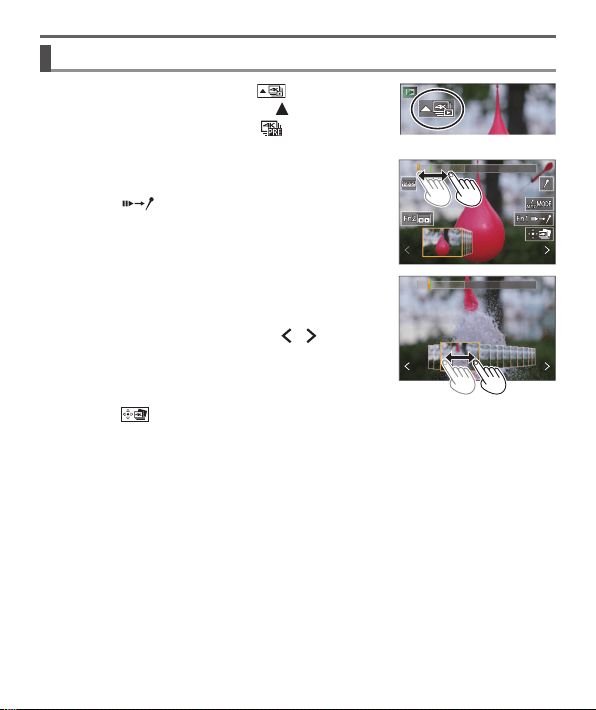
1
Select a picture with the [ ] on the
playback screen, and press
• In the case of recording with [ ] ([4K Pre-
Burst]), proceed to the step
3
.
2
Drag the slide bar to perform rough scene
selection
• When [ ] is touched, the marker operation
screen appears. (→32)
3
Drag to select the frame you want to save
as a picture
• To continuously rewind/forward the scene or
frame-by-frame, touch and hold [
]/[ ] .
4
Touch [ ] to save the picture
• The selected picture will be saved as a new picture in the JPEG format
separate from the 4K burst file.
●
If you use [4K PHOTO Bulk Saving] (→47) in the [Playback] menu, you can bulk
save 5 seconds’ worth of 4K recording.
32
Recording
DVQX1409 (ENG)
■
Marker
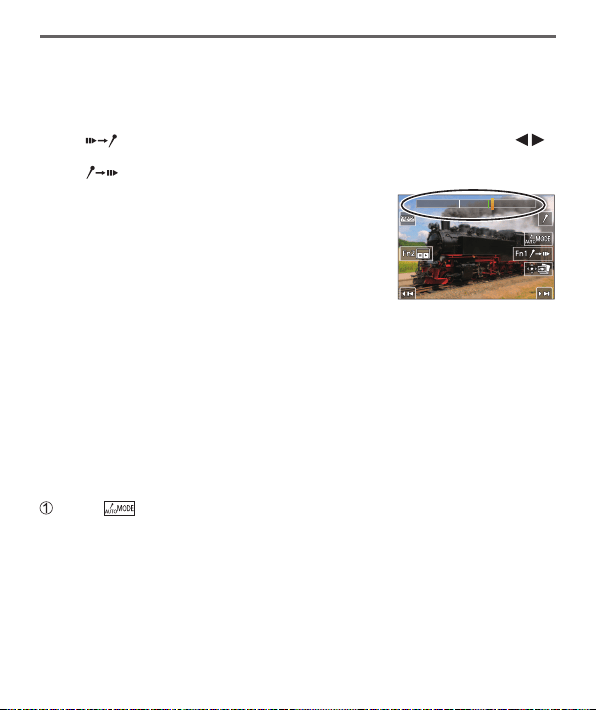
When selecting and saving pictures from a 4K burst file, you can select pictures
easily by skipping between marked positions.
■
Skips to the marked positions
When [ ] is touched, the marker operation screen appears. You can use
to skip to a marked position to select a picture.
Touch [
] to return to the original operation.
White marker: This is manually set during recording or
playback.
Green marker: This is automatically set by the camera
during recording.
(Auto Marking function
1
)
Marker operation screen
1
The camera automatically sets markers on scenes in which a face or the movement of a
subject is detected. (Up to 10 markers are displayed for each file.)
(Example: At the scene when a vehicle passes by, a balloon bursts, or a person turns around)
• In the following cases, markers may not be set by the Auto Marking function
depending on the recording conditions and the status of subjects.
– The camera is moving because of panning or jitter
– The movement of a subject is slow/small, or the subject is small
– A face is not facing front
■
Switches a marker to be displayed
Touch [ ]
• [Auto]
• [Face Priority]
• [Motion Priority]
• [Off]
2
2
Displays manually set markers only
33
DVQX1409 (ENG)
Recording
Adjusting the focus after recording
([Post Focus] / [Focus Stacking])
Recording mode:
You can record 4K burst pictures while changing the focus point and then select a
focus point after recording. This function is best for non-moving subjects.
• To record pictures, use a UHS Speed Class 3 card.
• We recommend using a tripod to perform [Focus Stacking].
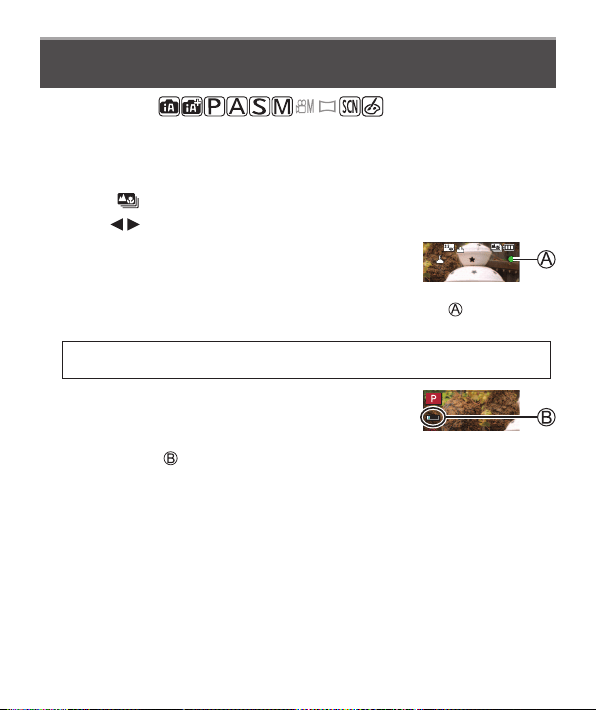
1
Press [ ] button
2
Press to select [ON] and press [MENU/SET]
3
Determine the composition and press the
shutter button halfway
• Auto Focus activates and automatically detects the focus point on the screen.
• If there is no focus point on the screen, the Focus indicator (
) blinks and
you cannot record.
From halfway pressing the shutter button to completion of recording
• Do not change the distance to subject or the composition.
4
Press the shutter button fully to start
recording
• The focus point changes automatically while recording. When the recording
progress bar (
) disappears, recording automatically ends.
• The data will be saved as a single file in the MP4 format.
• If [Auto Review] is set, a screen will automatically appear that lets you select
the focus point. (→34)
■
Canceling [Post Focus]
Select [OFF] in step
2
.
34
Recording
DVQX1409 (ENG)
●
If the surrounding temperature is high or [Post Focus] recording is performed
continuously, [
] may be displayed and recording may be stopped halfway
through. Wait until the camera cools down.
●
During recording, the angle of view will be narrower.
Select the focus point and save the picture
([Post Focus])
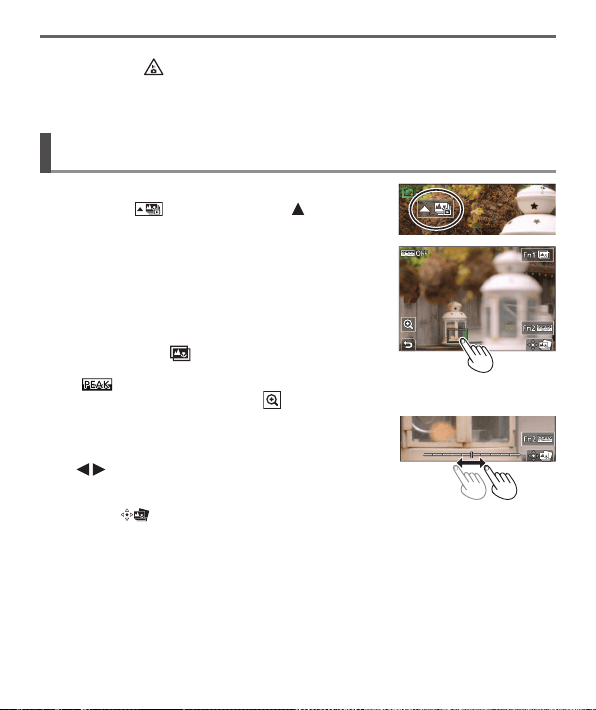
1
On the playback screen, select the image
with the [ ] icon and press
2
Touch the focus point
• If there are no pictures with the focus on the
selected point, a red frame will be displayed, and
pictures cannot be saved.
• The edge of the screen cannot be selected.
• To switch to the [Focus Stacking] operations
screen, touch [
]. (→35)
• To highlight in-focus portion with color, touch
[
] .
• To enlarge the display, touch [
] .
• You can make fine adjustments to the focus by
dragging the slide bar during enlarged display.
(The same operation can be performed using
.)
3
Touch [ ] to save the picture
• The selected picture will be saved as a new separate file in the JPEG format.
35
DVQX1409 (ENG)
Recording
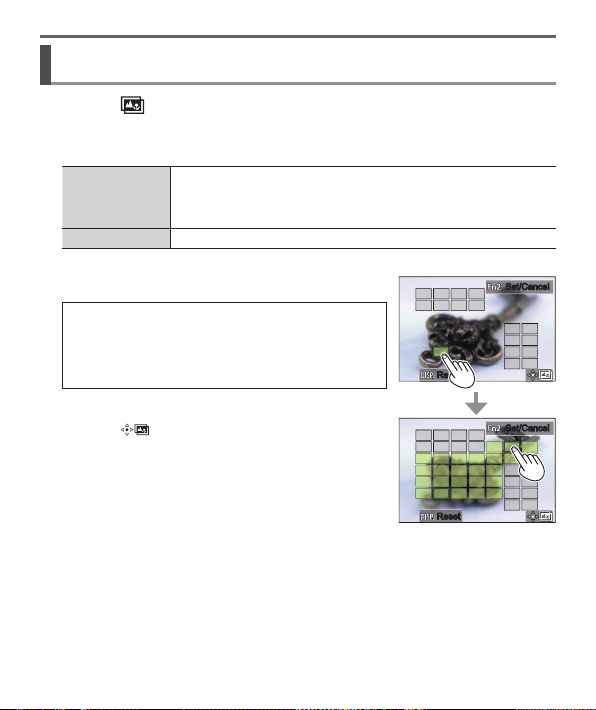
Select the focus range to combine and create a single
picture ([Focus Stacking])
1
Touch [ ] on screen in step
2
of “Select the focus point and
save the picture ([Post Focus])” (→34)
2
Choose a stacking method and touch it
[Auto Merging]
Automatically select photos suitable for stacking and combine them
into one picture.
• Choose by giving preference to near-focus pictures.
• Perform the focus stacking and save the picture.
[Range Merging] Combine the pictures with the selected focus position into one picture.
(When selecting [Range Merging])
3
Touch the focus point
• Select positions at two or more points.
• Focus points between the selected two
positions will be selected.
• Positions that cannot be selected, or that would
produce an unnatural result will be grayed out.
• Touch a position again to deselect it.
Set/CancelSet/Cancel
ResetReset
Set/CancelSet/Cancel
ResetReset
4
Touch [ ] to combine and save the
picture
• The picture will be saved in JPEG format.
●
Only pictures taken using [Post Focus] on this camera are eligible for [Focus
Stacking].
36
Recording
DVQX1409 (ENG)
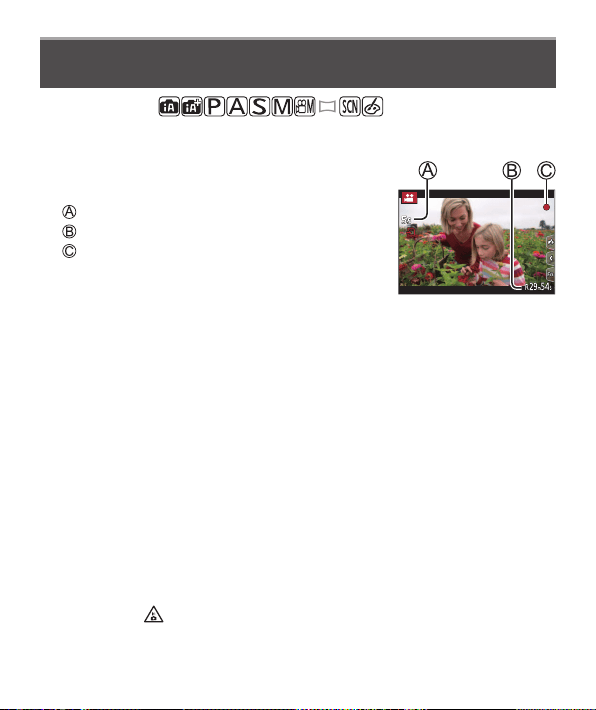
Recording Motion Picture/4K Motion Picture
Recording mode:
You can record full high-definition quality images that comply with the AVCHD
standard, as well as motion pictures or 4K motion pictures recorded in MP4.
1
Press the motion picture button to start
recording
Elapsed recording time
Remaining recording time
Recording (flashes red)
• Recording of motion picture appropriate for each motion picture mode is
possible.
• Immediately release the motion picture button after pressing it.
• If you press the shutter button down fully, you can take still pictures while
recording motion pictures. (Except for in Creative Video Mode)
2
Press the motion picture button again to end recording
●
To record 4K motion pictures, use a UHS Speed Class 3 card.
●
When you record 4K motion pictures, the angle of view will be narrower than
motion pictures of other sizes.
●
To ensure highly accurate focus, 4K motion pictures are recorded at reduced
Auto Focus speeds. It may be difficult to focus on the subject with Auto Focus,
but this is not a malfunction.
●
With recording in a quiet environment, the sound of aperture, focus
and other actions may be recorded in motion pictures. This is not a
malfunction.
The focus operation during recording of motion pictures can be set to [OFF] in
[Continuous AF].
●
If the surrounding temperature is high, or a motion picture is recorded
continuously, [
] is displayed and recording may be stopped halfway through.
Wait until the camera cools down.
37
DVQX1409 (ENG)
Recording
■
Setting the format, picture size and recording frame rate
→ [Motion Picture] → [Rec Format]
Settings: [AVCHD] / [MP4]
→ [Motion Picture] → [Rec Quality]
When [AVCHD] is selected:
[FHD/28M/60p]
1
/ [FHD/17M/60i] / [FHD/24M/30p] / [FHD/24M/24p]
●
[AVCHD] motion pictures:
Files are split into smaller motion picture files for recording when the file size
exceeds 4 GB.
●
Motion pictures with [Rec Quality] setting of [FHD/28M/60p]/[FHD/17M/60i] in
[AVCHD]:
Recording stops when the continuous recording time exceeds 29 minutes and
59 seconds.
When [MP4] is selected:
[4K/100M/30p]
2
/ [4K/100M/24p]
2
/ [FHD/28M/60p] / [FHD/20M/30p] /
[HD/10M/30p]
●
MP4 motion pictures with a [Rec Quality] size of [FHD] or [HD]:
Files are split into smaller motion picture files for recording and playback when
the file size exceeds 4 GB. (You can continue to record motion pictures without
interruption.)
●
Motion pictures with [Rec Quality] setting of [FHD/28M/60p] in [MP4]:
Recording stops when the continuous recording time exceeds 29 minutes and
59 seconds.
●
MP4 motion pictures with a [Rec Quality] size of [4K]:
Recording stops when the continuous recording time exceeds 15 minutes.
When using an SDHC memory card, files are split into smaller motion picture
files for recording and playback if the file size exceeds 4 GB. (You can continue
to record motion pictures without interruption.)
If using an SDXC memory card, you can record a motion picture in a single file
even if the size is greater than 4 GB.
1
AVCHD Progressive
2
4K motion pictures
38
Recording
DVQX1409 (ENG)
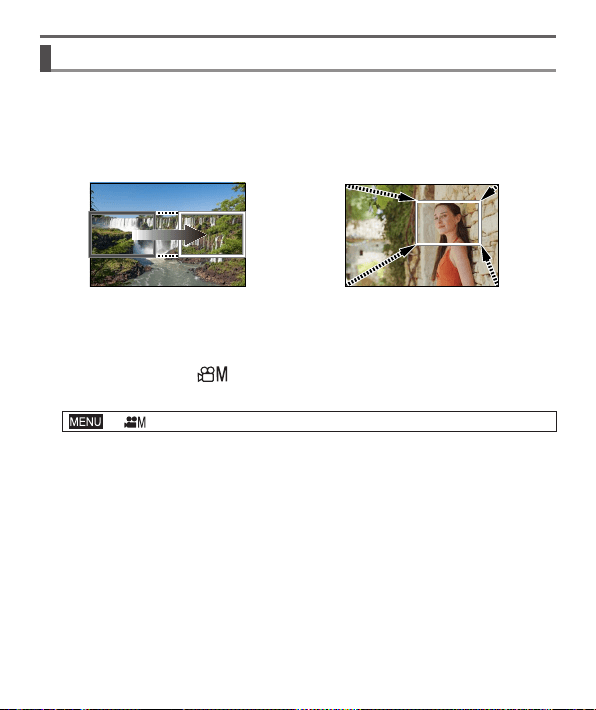
[4K Live Cropping]
By cropping your motion picture down from the 4K angle of view to Full High
Definition, you can record a motion picture that pans and zooms in/out while
leaving the camera in a fixed position.
• Hold the camera firmly in place while recording.
• A motion picture will be recorded at [FHD/20M/30p] under [MP4].
Pan Zoom in
• When you want to zoom in/out, set different angles of view for the cropping start
and end frames. For example, to zoom in, set a larger angle of view for the start
frame and a smaller angle of view for the end frame.
1
Set mode dial to [ ]
2
Set the menu
→ [Creative Video] → [4K Live Cropping]
Settings: [40SEC] / [20SEC] / [OFF]

39
DVQX1409 (ENG)
Recording
3
Set the crop start frame and press
[MENU/SET] to set
• Set the crop end frame as well.
• When making settings for the first time, a crop
start frame of size 1920×1080 is displayed.
• Move the frame by touching it or using the cursor
button. You can adjust the frame size by pinching
out/pinching in or rotating the rear dial.
SizeSize
StartStart
Reset
Reset
SetSet
4
Press the motion picture button (or the
shutter button) to start recording
Elapsed recording time
Set operating time
• Immediately release the motion picture button (or the shutter button) after
pressing it.
• When the set operating time has elapsed, recording automatically ends. To
end recording midway, press the motion picture button (or the shutter button)
again.
■
Changing the position and size of a crop frame
Press [Fn3] button while the recording screen is displayed, and perform step
3
.
■
To cancel [4K Live Cropping] recording
Set [OFF] in step
2
.
●
The angle of view narrows.
●
Focus is adjusted and fixed in the crop start frame.
●
[Continuous AF] is set to [OFF].
●
[Metering Mode] will be [ ] (Multi Metering).
●
You cannot zoom in/out during [4K Live Cropping] recording.
40
DVQX1409 (ENG)
Playback
Viewing your pictures
1
Press [ ] (Playback) button
2
Press to select a picture to be displayed
• When you press and hold , the pictures are displayed one after another.
■
Ending Playback
Press [ ] (Playback) button again or press the shutter button halfway.
●
The playback screen appears if the camera is turned on while pressing [ ]
(Playback) button.
●
When [Lens Retraction] is set to [ON], the lens barrel is retracted after approx.
15 seconds as the camera is switched to the playback screen from the recording
screen.
■
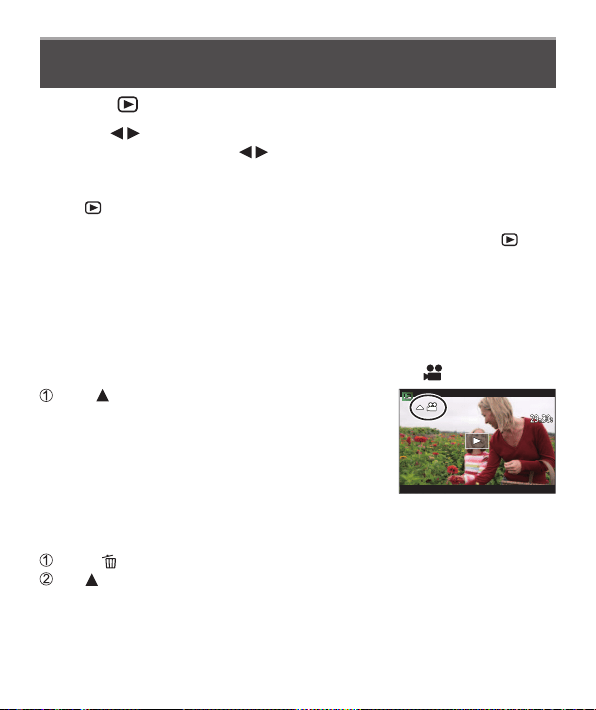
Viewing motion pictures
This unit was designed to play motion pictures using the AVCHD and MP4 formats.
• Motion pictures are displayed with the motion picture icon ([
]).
Press to start playback
• If you press [MENU/SET] during a pause, you can
create a picture from a motion picture.
■
Deleting pictures
Deleted pictures cannot be recovered.
Press [ ] button to delete displayed picture
Use to select [Delete Single] and press [MENU/SET]
41
DVQX1409 (ENG)
Playback
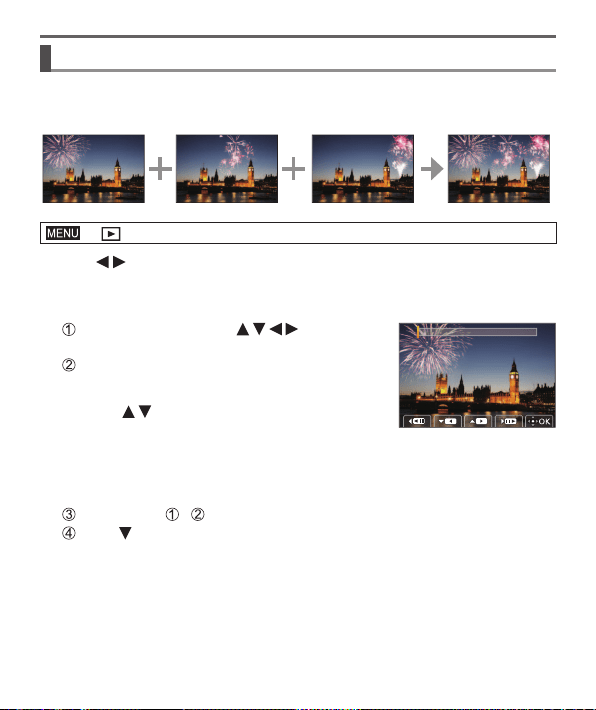
[Light Composition]
Select multiple frames from 4K burst files that you wish to combine. Parts of the
image that are brighter than the preceding frame will be superimposed on the
preceding frame to combine the frames into one picture.
→ [Playback] → [Light Composition]
1
Use to select the 4K burst files and press [MENU/SET]
2
Choose the combining method and press [MENU/SET]
■
[Composite Merging]: Selecting frames to combine
Drag the slide bar or use to select the
frames to combine
Press [MENU/SET]
• The selected frames are remembered, and the
display goes to the preview screen.
• Use
to select items and press
[MENU/SET] to perform the following
operations.
– [Next]: Lets you select more frames for combining.
– [Reselect]: Discards the frame selected immediately before and lets you
select a different image.
Repeat steps - to select more frames to combine (up to 40 frames)
Press to select [Save] and press [MENU/SET]
42
Playback
DVQX1409 (ENG)
■
[Range Merging]: Selecting a range to combine
Select the frame of the first picture and then press [MENU/SET]
• The selection method is the same as in step
of [Composite Merging]
setting.
Select the frame of the last picture and then press [MENU/SET]
3
Select [Yes] at the confirmation screen and press [MENU/SET]
• The picture will be saved in JPEG format.
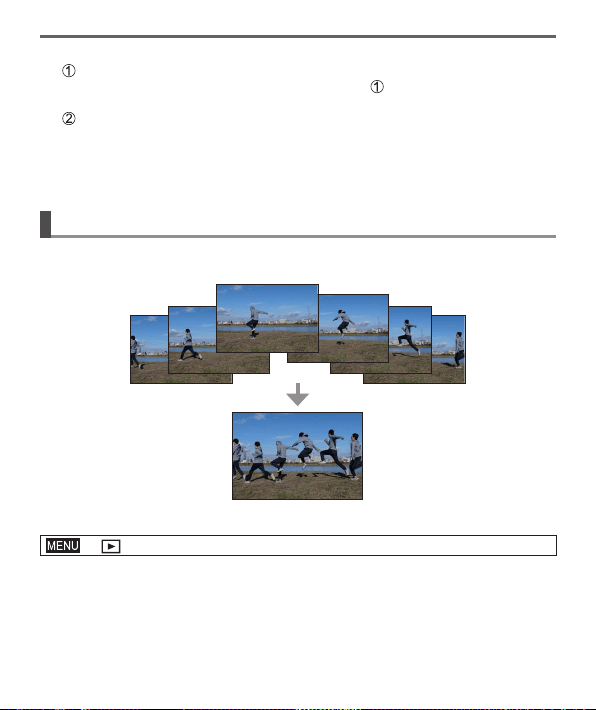
[Sequence Composition]
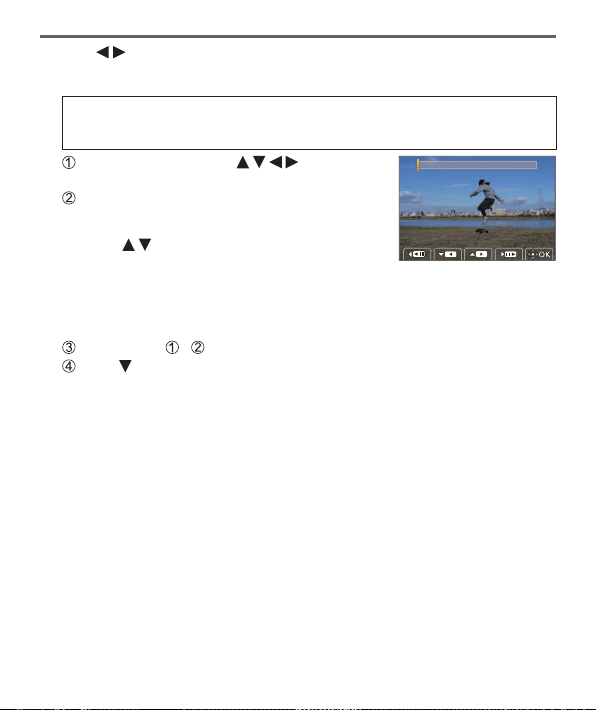
Select multiple frames from a 4K burst file to create a sequence composition of a
moving subject into one picture.
• We recommend using a tripod to take pictures for Sequence Composition.
→ [Playback] → [Sequence Composition]
43
DVQX1409 (ENG)
Playback
1
Use to select the 4K burst files and press [MENU/SET]
2
Select frames to combine
Select the frames so that the moving subject will not overlap on the preceding
or subsequent frames. (The sequence composition may not be created
properly if the subject overlaps.)
Drag the slide bar or use to select the
frames to combine
Press [MENU/SET]
• The selected frames are remembered, and the
display goes to the preview screen.
• Use
to select items and press
[MENU/SET] to perform the following
operations.
– [Next]: Lets you select more frames for combining.
– [Reselect]: Discards the frame selected immediately before and lets you
select a different image.
Repeat steps - to select more frames to combine (from 3 to 40 frames)
Press to select [Save] and press [MENU/SET]
3
Select [Yes] at the confirmation screen and press [MENU/SET]
• The picture will be saved in JPEG format.
44
DVQX1409 (ENG)
Menu
Menu list
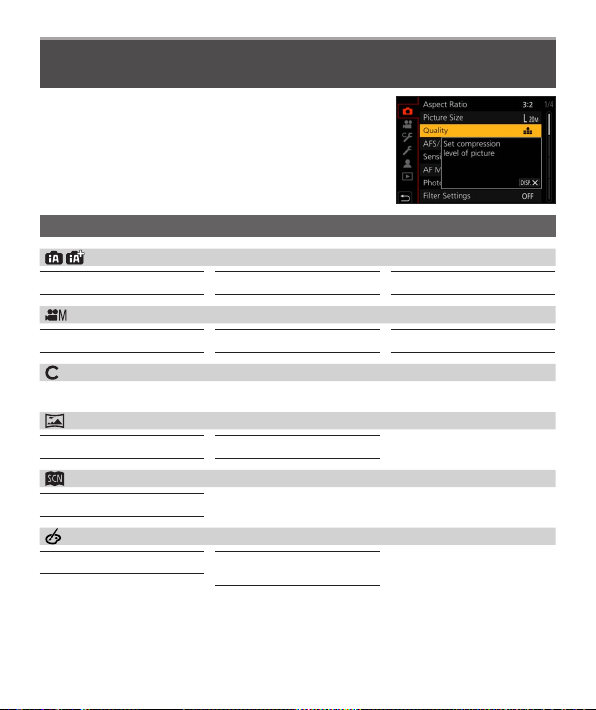
• You can display an explanation on the menu by
pressing the [DISP.] button while you select a menu
item or setting. (→27)
Menus to be displayed in each recording mode
[Intelligent Auto]
[Intelligent Auto Mode] [iHandheld Night Shot] [iHDR]
[Creative Video]
[Exposure Mode] [High Speed Video] [4K Live Cropping]
[Custom Mode]
You can select your preferred custom setting from [Set1], [Set2], and [Set3].
[Panorama Shot]
[Direction] [Picture Size]
[Scene Guide]
[Scene Switch]
[Creative Control]
[Filter Effect]
[Simultaneous Record w/o
Filter]
45
DVQX1409 (ENG)
Menu
[Rec Format]
[Rec Quality]
[Snap Movie]
[Continuous AF]
[ISO Auto Upper Limit
(Video)]
[Flkr Decrease]
[Level Shot]
[Wind Noise Canceller]
[Zoom Mic]
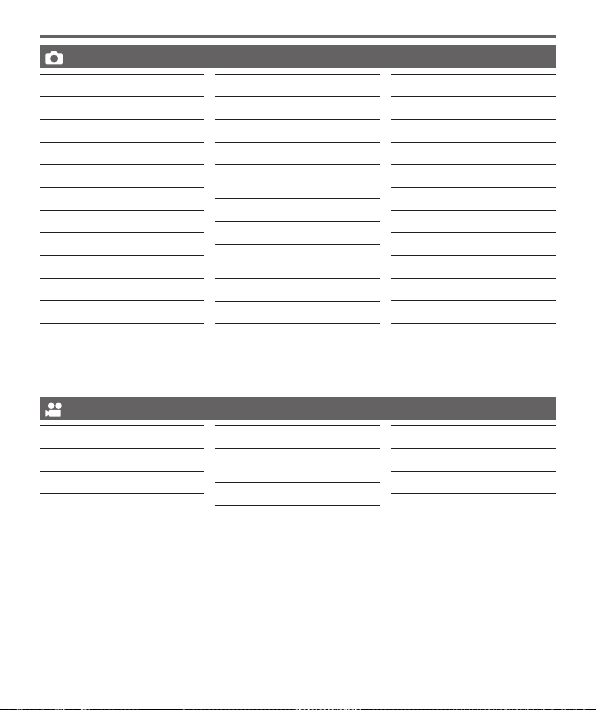
The menu items are common for both [Rec] and [Motion Picture] menus. (Common menu
items are indicated in the [Rec] menu list only)
[Aspect Ratio]
[Picture Size]
[Quality]
[AFS/AFF/AFC]
[Sensitivity]
[AF Mode]
[Photo Style]
[Filter Settings]
[Color Space]
[Metering Mode]
[Highlight Shadow]
[i.Dynamic]
[i.Resolution]
[Flash]
[Red-Eye Removal]
[ISO Auto Upper Limit
(Photo)]
[Min. Shtr Speed]
[Long Shtr NR]
[Diffraction
Compensation]
[Stabilizer]
[i.Zoom]
[Digital Zoom]
[Burst Rate]
[4K PHOTO]
[Self Timer]
[Time Lapse Shot]
[Stop Motion Animation]
[Silent Mode]
[Shutter Type]
[Bracket]
[HDR]
[Multi Exp.]
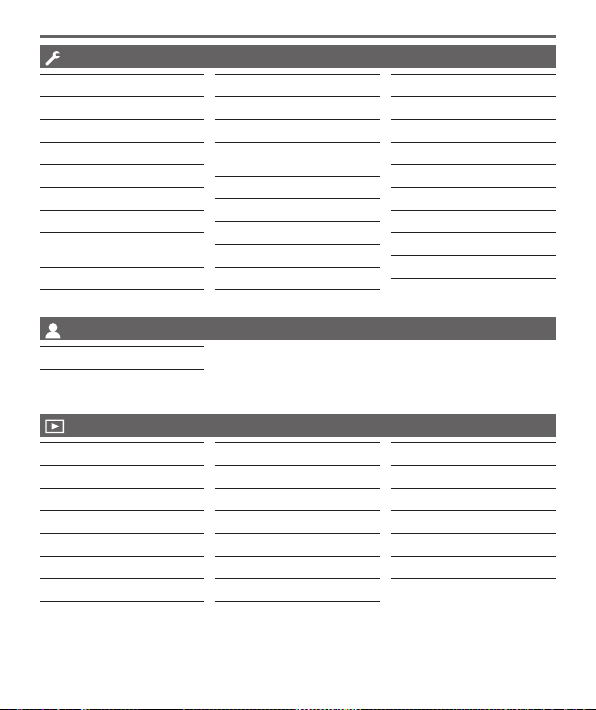
[Rec]
[Motion Picture]
46
Menu
DVQX1409 (ENG)
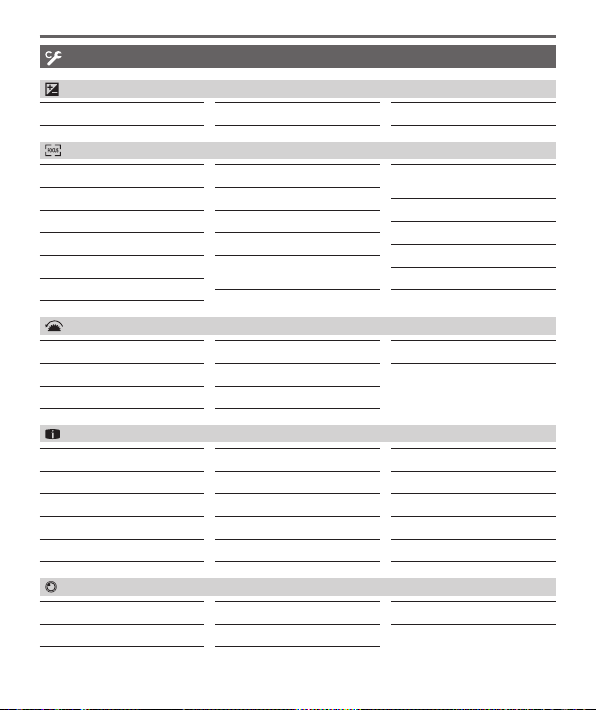
[ISO Increments] [Extended ISO] [Exposure Comp. Reset]
[Custom]
[Exposure]
[Focus / Release Shutter]
[AF/AE Lock]
[AF/AE Lock Hold]
[Shutter AF]
[Half Press Release]
[Quick AF]
[Eye Sensor AF]
[Pinpoint AF Setting]
[AF Assist Lamp]
[Direct Focus Area]
[Focus/Release Priority]
[Focus Switching for Vert
/ Hor]
[Loop Movement Focus
Frame]
[AF Area Display]
[AF+MF]
[MF Assist]
[MF Assist Display]
[Operation]
[Fn Button Set]
[Q.MENU]
[Ring/Dial Set]
[Operation Lock Setting]
[Touch Settings]
[Dial Guide]
[Zoom lever]
[Monitor / Display]
[Auto Review]
[Monochrome Live View]
[Constant Preview]
[Peaking]
[Histogram]
[Guide Line]
[Center Marker]
[Highlight]
[Zebra Pattern]
[Expo.Meter]
[MF Guide]
[LVF/Monitor Disp. Set]
[Rec Area]
[Remaining Disp.]
[Menu Guide]
[Lens / Others]
[Lens Position Resume]
[Lens Retraction]
[Self Timer Auto Off]
[Face Recog.]
[Profile Setup]
47
DVQX1409 (ENG)
Menu
[Online Manual]
[Cust.Set Mem.]
[Clock Set]
[World Time]
[Travel Date]
[Wi-Fi]
[Bluetooth]
[Wireless Connection
Lamp]
[Beep]
[Economy]
[Monitor Display Speed]
[LVF Display Speed]
[Monitor Display]/
[Viewfinder]
[Monitor Luminance]
[m/ft]
[Eye Sensor]
[USB Mode]
[TV Connection]
[Language]
[Version Disp.]
[Folder / File Settings]
[No.Reset]
[Reset]
[Reset Network Settings]
[Level Gauge Adjust.]
[Demo Mode]
[Format]
[Setup]
[My Menu Setting]
[My Menu]
You can register frequently used menus.
[Slide Show]
[Playback Mode]
[Protect]
[Rating]
[Title Edit]
[Face Rec Edit]
[RAW Processing]
[4K PHOTO Bulk Saving]
[Light Composition]
[Sequence Composition]
[Clear Retouch]
[Text Stamp]
[Resize]
[Cropping]
[Rotate]
[Video Divide]
[Time Lapse Video]
[Stop Motion Video]
[Rotate Disp.]
[Picture Sort]
[Playback]

48
DVQX1409 (ENG)
Wi-Fi/Bluetooth
What you can do with the Wi-Fi
®
/Bluetooth
®
function
Operating the camera by connecting it to a smartphone
• Operating the shutter button of the camera using a smartphone (remote
recording) (→55)
• Playing back or saving images stored on the camera, or uploading them on
social media sites (→56)
• Combining motion pictures recorded with Snap Movie according to your
preference on a smartphone
Expanding the scope of applications by connecting the camera to a
smartphone compatible with Bluetooth Low Energy
• Pairing (connection setup) (→51)
• Turning on/off the camera with a smartphone (→54)
• [B] (Bulb) recording
• Transferring recorded images to a smartphone automatically
• Writing location information of a smartphone on a recorded image
• Synchronizing the camera’s clock with a smartphone
Displaying still pictures on a TV
Wireless printing
Sending pictures to AV device
Sending pictures to a PC
Using WEB services
●
This manual uses the term “smartphone” for both smartphones and tablets
unless it is necessary to distinguish between them.
●
For details, refer to “Owner’s manual for advanced features (PDF format)”.
49
DVQX1409 (ENG)
Wi-Fi/Bluetooth
■
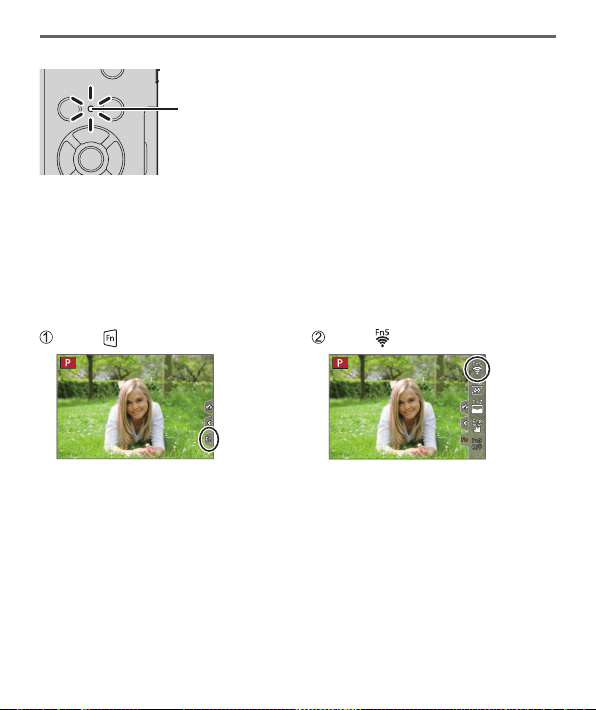
Lighting of the WIRELESS connection lamp (Blue)
Lit: When the Wi-Fi/Bluetooth function is ON or connected
Blinking: When sending picture data
• In [Wireless Connection Lamp] in the [Setup] menu, you
can set the lamp so that it will not light/flash.
■
[Wi-Fi] button
In this Owner’s manual, a function button to which [Wi-Fi] is assigned is referred
to as the [Wi-Fi] button. (At the time of purchase, [Wi-Fi] is assigned to [Fn5] in
recording mode, and [Fn1] in playback mode.)
• For details on the function button, refer to (→26)
To start up the Wi-Fi function (When in recording mode):
Touch [ ]
Touch [ ]
●
The camera cannot be used to connect to a public wireless LAN connection.
50
Wi-Fi/Bluetooth
DVQX1409 (ENG)
Operating the camera by connecting it to a
smartphone
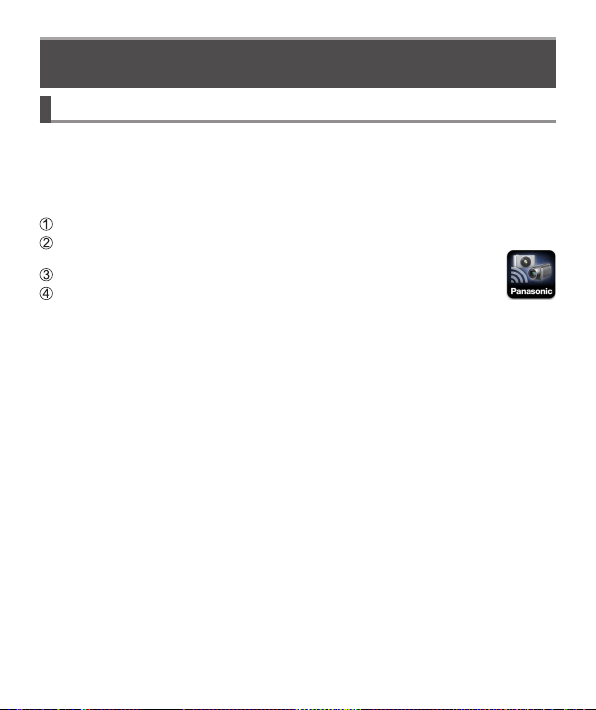
Installing the smartphone app “Panasonic Image App”
• Supported OS
Android™: Android 4.2 or later
(Android 5.0 or higher is required to use the Bluetooth function)
iOS: iOS 9.0 or later
(The Bluetooth function cannot be used with the iPad 2)
Connect your device to a network
(Android) Select “Google Play™ Store”
(iOS) Select “App Store”
Enter “Panasonic Image App” or “LUMIX” into the search box
Select “Panasonic Image App” and install it
• Use the latest version.
• Supported OS versions as of February 2018. Supported OS versions may be
changed without prior notice.
• The service may not be able to be used properly depending on the type of
smartphone being used.
For the latest information on the “Image App”, refer to the support site below.
http://panasonic.jp/support/global/cs/dsc/
(This site is available in English only.)
• When downloading the app on a mobile phone network, high packet
communication fees may be incurred depending on the details of your contract.
• For details about the operating procedure, etc., refer to [Help] in the “Image App”
menu.
• When you operate the “Image App” on the smartphone that is connected to the
camera via Wi-Fi, [Help] in the “Image App” may not be displayed depending on
the smartphone. In this case, after terminating the connection to the camera,
reconnect the smartphone to a mobile phone network or to a Wi-Fi router, and
then display [Help] in the “Image App”.
• Some of the screens and information provided in this document may be different
depending on the supported operating system and “Image App” version.
51
DVQX1409 (ENG)
Wi-Fi/Bluetooth
Connecting the camera to a smartphone compatible
with Bluetooth Low Energy
You can connect the camera to a smartphone via a Bluetooth connection.
• Supported smartphones
Android: Android 5.0 or higher equipped with Bluetooth 4.0 or higher
(excluding those that do not support Bluetooth low energy)
iOS: iOS 9.0 or higher (excluding the iPad 2)
First-time connection
You need to set up pairing (connection) for the first time only. When pairing is set
up, a Wi-Fi connection is made automatically.
(On the camera)
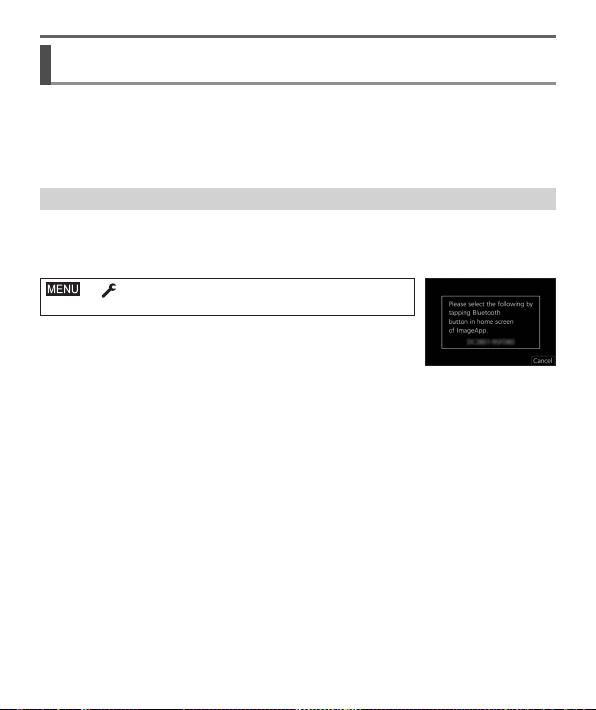
→ [Setup] → [Bluetooth] → [Bluetooth]
→ [SET] → [Pairing]
• The camera enters pairing standby mode and displays its
device name.
(On your smartphone)
1
Start “Image App”
• If a message is displayed indicating that the smartphone is searching for
cameras, close the message.
2
Select [Bluetooth]
3
Turn on the Bluetooth
4
Select the device name displayed on the camera’s screen from
the [Camera enable to be registered] list
• Bluetooth connection between the camera and the smartphone will be made.
(For Android devices) A Wi-Fi connection will be made by selecting
[Connection].

52
Wi-Fi/Bluetooth
DVQX1409 (ENG)
If you are using an Android device, follow the steps up to here to complete
the setup.
Proceed to the steps below only if you are using an iOS device.
• If [Wi-Fi Password] (→53) is set to [OFF] on the camera, select [Wi-Fi Setup].
(At the time of purchase, [Wi-Fi Password] is set to [OFF])
• If [Wi-Fi Password] is set to [ON] on the camera, you need to install the
profile.
Install the profile
• If the smartphone is locked with a passcode, enter the passcode to
unlock the smartphone.
Exit the browser
5
Turn on the Wi-Fi function in the setting menu
6
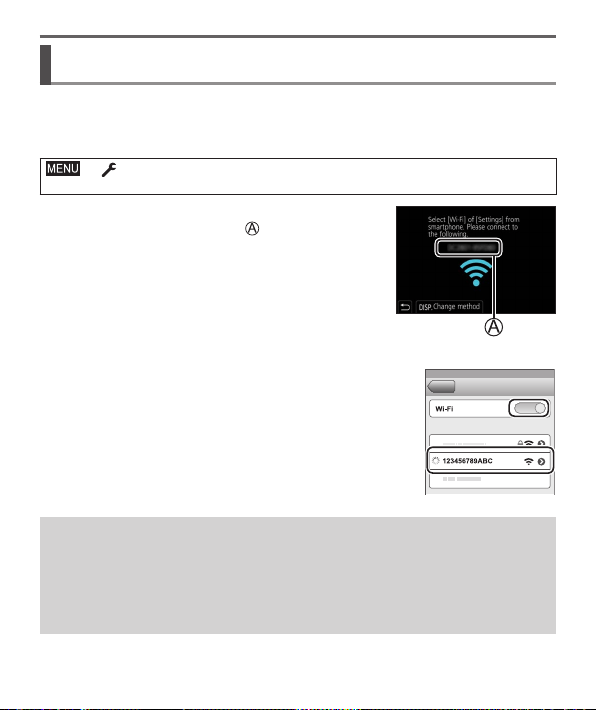
On the Wi-Fi setting screen, select the SSID
displayed on the camera (The device name
selected in step
4
)
• If the SSID is not displayed, it may be displayed after
the Wi-Fi function is turned off and on.
• When you need to change the connected device,
follow the on-screen message to change the setting.
7
Start “Image App”
• The paired smartphone will be registered as a paired device after connected
via Wi-Fi.
●
To make a connection with the paired smartphone for the second and
subsequent times, enable the Bluetooth function of the camera and set the
Bluetooth for “Image App” on your smartphone to ON. Then, select a camera
(device name) to be connected from the [Camera registered] list.
●
[ ] is displayed on the recording screen when a Bluetooth device is connected.
If the Bluetooth function is enabled, but the smartphone is not connected, the
displayed [
] is semi-transparent.
●
When it takes time to set up pairing between a smartphone and a camera, delete
the pairing information of both devices and register them again. This may enable
the devices to be recognised properly.
53
DVQX1409 (ENG)
Wi-Fi/Bluetooth
Connecting the camera to a smartphone that does not
support for Bluetooth Low Energy
You can easily establish a Wi-Fi connection on this unit without entering a
password on your smartphone.
(On the camera)
→ [Setup] → [Wi-Fi] → [Wi-Fi Function] → [New Connection]
→ [Remote Shooting & View]
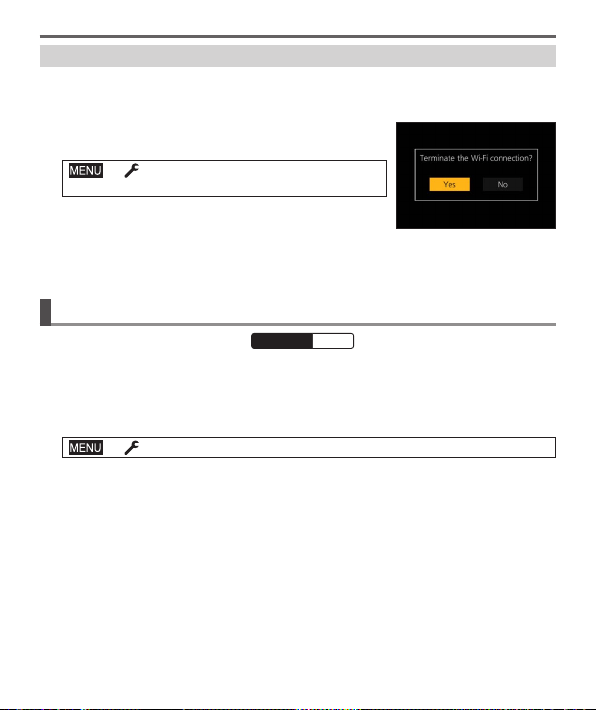
• The information required for directly connecting your
smartphone to this unit (SSID (
)) is displayed.
• You can also display the information by pressing the
function button that [Wi-Fi] function is assigned.
(On your smartphone)
1
Turn on the Wi-Fi function in the setting menu
2
Select the SSID displayed on the screen of
the camera
3
Start “Image App”
• When the connection confirmation screen appears
on the camera, select [Yes] and press [MENU/SET].
(Only when making a connection for the first time.)
[Wi-Fi Password] is set to [OFF] at the time of purchase. When you start a
Wi-Fi connection, be sure to verify that the device displayed on the camera’s
connection confirmation screen is really the device you want to connect to. Even
if the wrong device is displayed, you will still be connected to it if you select “Yes”.
If there seem to be other Wi-Fi enabled devices in the vicinity, we recommend
that you set [Wi-Fi Password] to [ON]. For details, refer to “Owner’s manual for
advanced features (PDF format)”.
54
Wi-Fi/Bluetooth
DVQX1409 (ENG)
Closing the Wi-Fi connection
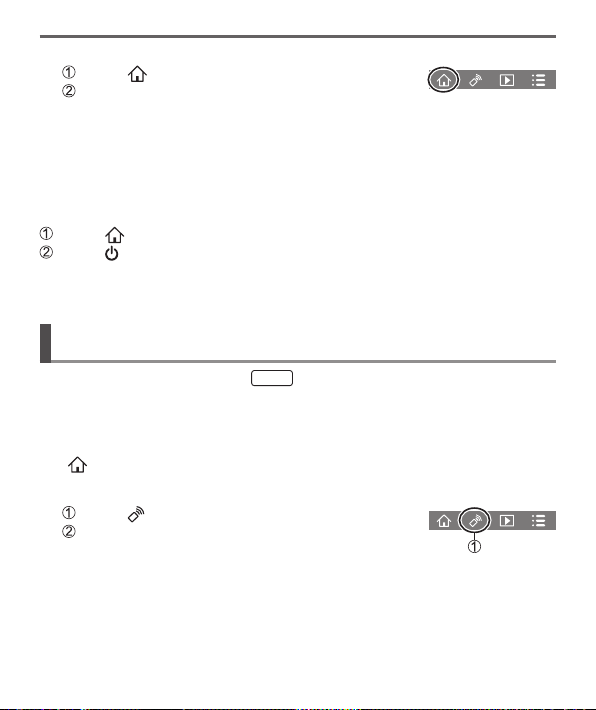
1
Set the camera to Recording Mode
• Press the shutter button halfway to return to recording mode.
2
Select the camera’s menu items to
terminate the Wi-Fi connection
→ [Setup] → [Wi-Fi]
→ [Wi-Fi Function] → [Yes]
3
On the smartphone, close “Image App”
Turning on/off the camera with a smartphone
Wireless connectivity required:
Bluetooth Wi-Fi
This function allows you to turn on the camera from a distant location and take
pictures or view images on the camera even when it is in your bag.
1
Make a Bluetooth connection to the smartphone (→51)
2
Select the camera’s menu
→ [Setup] → [Bluetooth] → [Remote Wakeup] → [ON]
3
Set the Camera [ON/OFF] switch to [OFF]
4
On the smartphone, start up the “Image App”, and set the
Bluetooth function to a state in which a connection can be made
(standby state)
55
DVQX1409 (ENG)
Wi-Fi/Bluetooth
5
Operate the smartphone
Select [ ]
Select [Remote operation]
• The camera automatically turns on, allowing it to make a Wi-Fi connection
automatically.
(iOS devices) Depending on the connection status of the smartphone,
you may need to change the connected device on the Wi-Fi setup screen.
Follow the on-screen message on the smartphone to change the setting.
■
Turning off the camera with the smartphone
Select [ ]
Select [ OFF]
●
When [Remote Wakeup] is set to [ON], the Bluetooth function continues to
operate even after the camera is turned off, thus causing the battery to drain.
Operating the shutter button of the camera using a
smartphone (remote recording)
Wireless connectivity required:
Wi-Fi
1
Connect to a smartphone (→50)
2
Operate the smartphone
If the camera is already connected to the smartphone via Bluetooth, select
[
] → [Remote operation].
(iOS devices) When you need to change the connected device on the Wi-Fi
setup screen, follow the on-screen message to change the setting.
Select [ ]
Take pictures
• The recorded images are saved in the camera.
• Some settings are not available.
56
Wi-Fi/Bluetooth
DVQX1409 (ENG)
Using the smartphone to operate the shutter button via a
Bluetooth connection only
Wireless connectivity required:
Bluetooth
1
Make a Bluetooth connection to the smartphone (→51)
2
Operate the smartphone
Select [ ]
Select [Shutter Remote Control]
Take pictures
• [Shutter Remote Control] is available only when the Camera [ON/OFF]
switch is set to [ON].
Playing back or saving images stored on the camera, or
uploading them on social media sites
Wireless connectivity required:
Wi-Fi
1
Connect to a smartphone (→50)
2
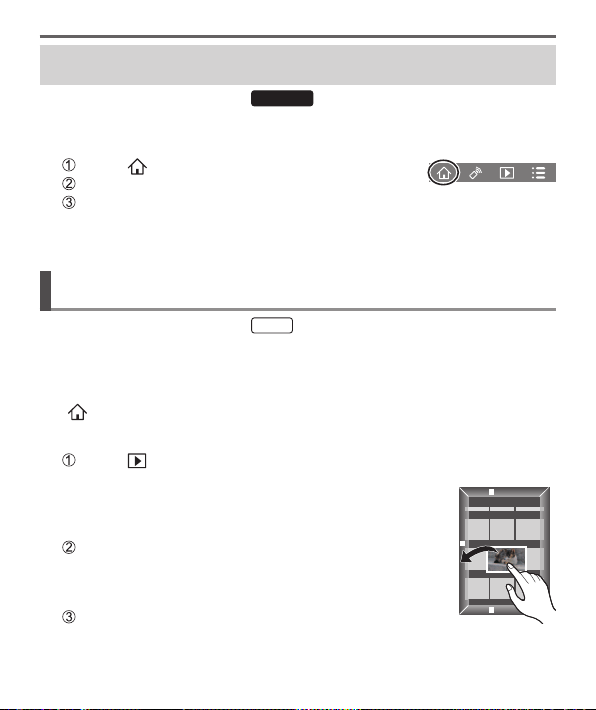
Operate the smartphone
If the camera is already connected to the smartphone via Bluetooth, select
[
] → [Remote operation].
(iOS devices) When you need to change the connected device on the Wi-Fi
setup screen, follow the on-screen message to change the setting.
Select [ ]
• You can switch a device of pictures to be displayed
using the icon at the top left on the screen. Select
[LUMIX] to display a picture saved in the camera.
(Playing back a picture)
When the picture is touched, it is played back at a larger
size
(Saving and sending pictures to web services such as
SNS)
Press and hold the picture and drag it

57
DVQX1409 (ENG)
Others
Downloading software
Download and install software to edit and play back images with a PC.
●
To download the software, your PC must be connected to the Internet.
●
It may take time to download the software in some communication environments.
PHOTOfunSTUDIO 10.0 AE (Windows
®
10 / 8.1 / 7)
You can capture still pictures or motion pictures to your PC, or organize captured
pictures by categorizing by recording date, model name of the digital camera used
to record, etc. You can also correct still pictures, edit motion pictures, or write to
DVD.
The software is available for download until the end of March 2023.
http://panasonic.jp/support/global/cs/soft/download/d_pfs10ae.html
• For details about information such as the operating environment or operating
method, refer to the “Owner’s manual for advanced features (PDF format)” or the
operating instructions of “PHOTOfunSTUDIO” (PDF format).
SILKYPIX Developer Studio SE (Windows
®
10 / 8.1 / 8 / 7,
Mac OS X v10.6 - v10.11, macOS 10.12, macOS 10.13)
This software develops and edits RAW file pictures. Edited pictures can be saved
in a file format such as JPEG or TIFF that can be displayed on a PC, etc.
http://www.isl.co.jp/SILKYPIX/english/p/
• For details on the operating environment and how to use the SILKYPIX
Developer Studio, refer to the “Help” or the Ichikawa Soft Laboratory’s support
website.
LoiLoScope 30 day full trial version (Windows
®
10 / 8.1 / 8 / 7)
Motion pictures can be edited easily.
http://loilo.tv/product/20
• For more information on how to use LoiLoScope and its operating environment,
read the LoiLoScope manual available for download at the website.
58
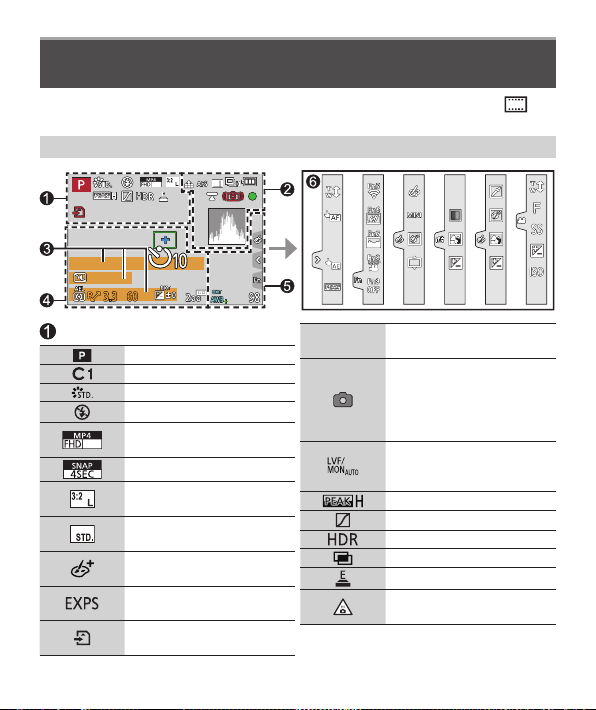
Others
DVQX1409 (ENG)
List of monitor/viewfinder displays
Recording mode (→21)
Custom Set
[Photo Style]
Flash setting
60p
[Rec Format]/
[Rec Quality]
[Snap Movie]
[Aspect Ratio]/
[Picture Size]
Image size (Panorama
Shot Mode)
Picture effect (Filter)
adjustment display
Types of picture effects
(Filter)
Card (displayed only
during recording)
XXhXXmXXs
Elapsed recording
time
1
Simultaneous recording
indicator (When taking
still pictures while
recording a motion
picture)
Automatic switching
between viewfinder and
monitor (→20)
[Peaking]
[Highlight Shadow]
[HDR]/[iHDR]
[Multi Exp.]
Electronic shutter
Overheat indicator
(→30, 34, 36)
• The following images are examples of when the display screen is set to [ ]
(monitor style) in the monitor.
In recording
60
p
59
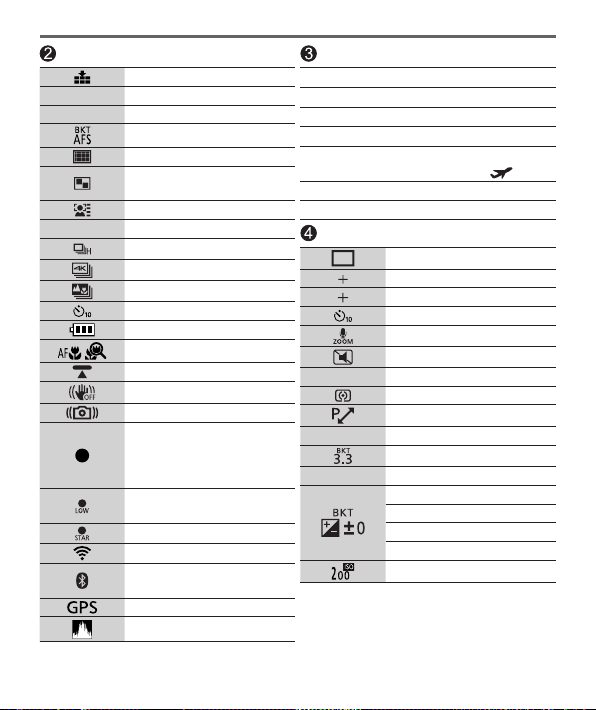
DVQX1409 (ENG)
Others
[Quality]
120fps [High Speed Video]
AFS [AFS/AFF/AFC]/MF
Focus Bracket
[AF Mode]
[Pull Focus]
([Snap Movie])
[Face Recog.]
AFL AF Lock
Burst
[4K PHOTO] (→29)
[Post Focus] (→33)
[Self Timer]
Battery indicator
Macro recording (→24)
[Level Shot]
[Stabilizer]
Jitter alert
Focus (Lights green.)
(→22)/
Recording state
(Flashes red.) (→36)
Focus (Under low
illumination)
Focus (Starlight AF)
Wi-Fi connection status
Bluetooth connection
status (→52)
Location Logging
Histogram
Name
2
Travel elapsed days
3
Age in years/months
2
Location
3
Current date/time
3
Travel destination setting
3
:
Exposure meter
Zoom (→23)
AF area
Spot metering target
[Center Marker]
[Self Timer]
[Zoom Mic]
[Silent Mode]
AEL AE Lock
[Metering Mode]
Program Shift
3.3 Aperture value
Aperture Bracket
60 Shutter speed
Exposure compensation
Exposure Bracket
Brightness (exposure)
Manual Exposure Assist
ISO sensitivity
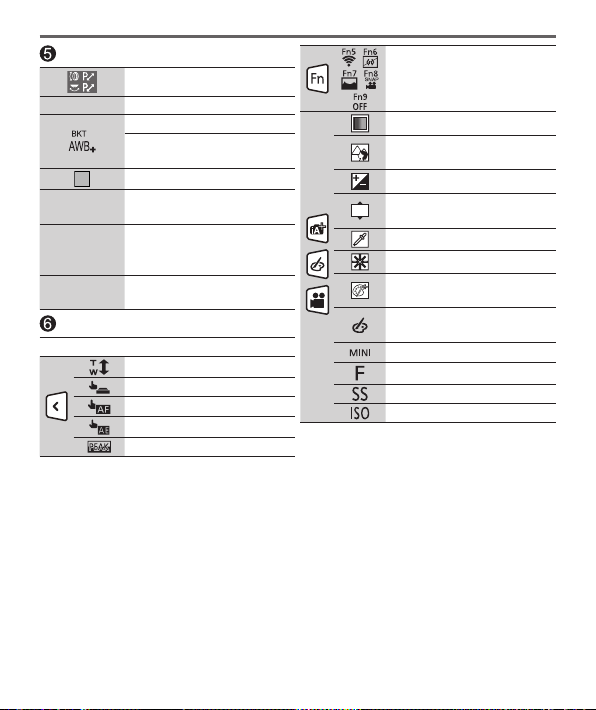
60
Others
DVQX1409 (ENG)
[Dial Guide]
AWBc White Balance
White Balance Bracket
White Balance Fine
Adjustment
Coloring
98
Number of recordable
pictures
r20
Maximum number of
pictures that can be
taken continuously
RXXmXXs
Available recording
time
1
Touch tab
Touch zoom
Touch Shutter
Touch AF
[Touch AE]
[Peaking]
Function buttons (→26)
Coloring
Defocus control
function
Brightness (exposure)
Type of defocus
([Miniature Effect])
[One Point Color]
[Sunshine]
Picture effect (Filter)
adjustment display
Picture effects ON or
OFF
Picture effects (Filter)
Aperture value
Shutter speed
ISO sensitivity
1
[h], [m] and [s] indicate “hour”, “minute” and “second”.
2
This is displayed for about 5 seconds when the camera is turned on if the [Profile Setup]
setting is set.
3
This is displayed for about 5 seconds when the camera is turned on, after setting the clock
and after switching from Playback Mode to Recording mode.
• The information displayed, such as histograms, magnifications, and numeric
values, are only for the purpose of reference.

61
DVQX1409 (ENG)
Others
Q&A
Troubleshooting
• Performing [Reset] in the [Setup] menu may resolve the issue.
• Further information is provided in the “Owner’s manual for advanced features
(PDF format)”. Check it together with the information in this section.
The charging lamp blinks.
• Charging is being performed in a place with extremely high or low temperature.
→ Reconnect the USB connection cable (supplied) and retry charging in a place where
ambient temperature is 10 °C to 30 °C (50 °F to 86 °F) (temperature conditions also
apply to the battery itself).
• Charging is not possible if the power supply capacity of the computer is low.
Focus not aligned correctly.
• Subject outside of focus range.
• [Focus/Release Priority] is set to [RELEASE]. (→46)
• [Shutter AF] is set to [OFF]. (→46)
• AF Lock is set inappropriately.
• If there are fingerprints or dirt on the lens, the focus may be set to the lens and not the
subject.
Subject appears skewed in pictures.
• If you take a picture of a moving subject in the electronic shutter mode, motion picture
recording mode, or 4K photo recording mode, the subject in the picture may be skewed
in some cases. This is characteristic of MOS sensors which serve as the camera’s pickup
sensors. This is not a malfunction.
No flash emitted.
• The flash becomes unavailable in the following cases.
– The flash is closed.
– Flash set to [
] (Forced Flash Off).
• Set [Shutter Type] to [AUTO] or [MSHTR]. (→45)
• Set [Silent Mode] to [OFF]. (→45)

62
Others
DVQX1409 (ENG)
Striping or flicker may appear under lighting such as fluorescent lighting
and LED lighting fixture.
• This is characteristic of MOS sensors which serve as the camera’s pickup sensors. This is
not a malfunction.
• If you are taking still pictures using the electronic shutter, the striping may be reduced by
setting a slower shutter speed.
• When noticeable flicker or striping is seen under lighting such as a fluorescent or LED lighting
fixture in the motion picture recording mode, you can reduce the flicker or striping by setting
up [Flkr Decrease] (→45) and fixing the shutter speed. It is possible to select a shutter speed
from [1/50], [1/60], [1/100], or [1/120]. You can set the shutter speed manually in the Creative
Video Mode. (→21)
A Wi-Fi connection cannot be established. Radio waves get disconnected.
• Use within the communication range of the wireless LAN network.
• If any device, such as microwave oven, cordless phone, etc., that uses 2.4 GHz frequency
are used nearby this unit simultaneously, radio waves may get interrupted.
→ Use them sufficiently away from the device.
• When the battery indicator is flashing red, the connection with other equipment may not
start or the connection may be disrupted. (A message such as [Communication error] is
displayed.)
• When this unit is placed on a metal table or shelf, the connection may not be established
easily because the camera is affected by radio waves. Use the camera away from metal
surfaces.
The lens makes a clicking noise.
• When the camera is turned on or off, the lens is moved, or an aperture operation is
performed, such a noise may be heard. This is not a malfunction.
• When the brightness changes after a zooming operation or moving the camera, the lens may
make a noise while adjusting the aperture. This is not a malfunction.
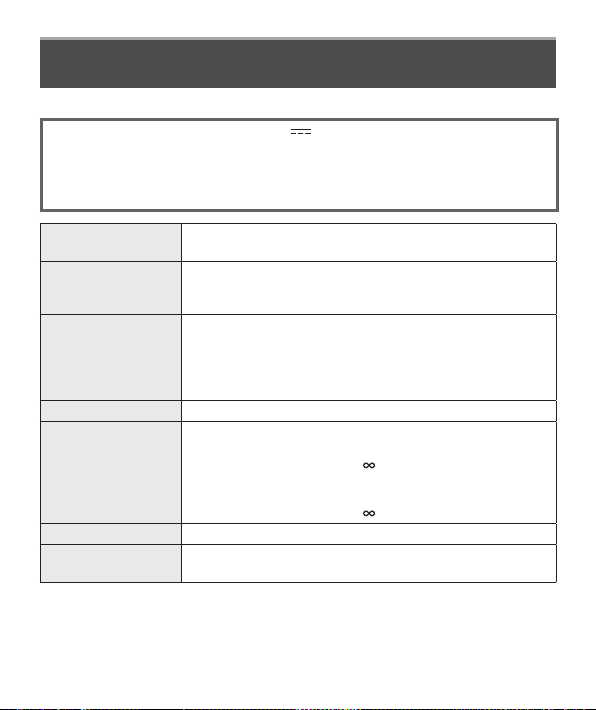
63
DVQX1409 (ENG)
Others
Specifications
Digital Camera: Information for your safety
Power Source DC 8.4 V (8.4 V )
Power
Consumption
1.8 W (When recording with monitor)
2.8 W (When recording with viewfinder)
1.6 W (When playing back with monitor)
1.6 W (When playing back with viewfinder)
Camera effective
pixels
20,100,000 pixels
Image sensor 1″ MOS sensor,
total pixel number 20,900,000 pixels
Primary color filter
Lens Optical 15x zoom
f=8.8 mm to 132 mm
(35 mm film camera equivalent: 24 mm to 360 mm)
Max. Wide: F3.3 to F8.0
Max. Tele: F6.4 to F8.0
Image Stabilizer Optical method
Focus range AF:
50 cm (1.6 feet) (Max. Wide)/
1 m (3.3 feet) (Max. Tele) to
AF Macro/MF/Intelligent Auto/Motion picture:
3 cm (0.098 feet) (Max. Wide)/
1 m (3.3 feet) (Max. Tele) to
Shutter system Electronic shutter + Mechanical shutter
Minimum
Illumination
Approx. 10 lx (when i-Low light is used, the shutter speed
is 1/30th of a second)

64
DVQX1409 (ENG)
Others
Shutter speed Still picture:
[T] (Time) (Max. approx. 120 seconds)
, 60 seconds to
1/2000th of a second
(When the mechanical shutter is used),
1 second to 1/16000th of a second
(When the electronic shutter is used)
[B] (Bulb) recording is available when using [Shutter Remote
Control] (via Bluetooth connection).
Motion picture:
1/25th of a second to 1/16000th of a second
(When [FHD/24M/24p] is set in [AVCHD], or
[4K/100M/24p] is set in [MP4]),
1/2 second to 1/16000th of a second
(When [Exposure Mode] is set to [M] in Creative Video
Mode and [MF] is selected),
1/30th of a second to 1/16000th of a second
(Other than the above)
Exposure (AE) Program AE (P)/Aperture-priority AE (A)/
Shutter-priority AE (S)/Manual exposure (M)
Exposure Compensation (1/3 EV steps, -5 EV to +5 EV)
Metering Mode Multiple/Center weighted/Spot
Monitor 3.0″ TFT LCD (3:2) (Approx. 1,240,000 dots)
(field of view ratio about 100%)
Touch screen
Viewfinder 0.21″ Color LCD Live Viewfinder (3:2)
(Approx. 2,330,000 dots equivalent)
(field of view ratio about 100%)
[Magnification approx. 1.45x, 0.53x (35 mm film camera
equivalent), with 50 mm lens at infinity; -1.0 m
-1
]
(with diopter adjustment -4.0 to +3.0 diopter)
Flash Built-in pop up flash
AUTO, AUTO/Red-Eye Reduction, Forced ON,
Forced ON/Red-Eye Reduction, Slow Sync.,
Slow Sync./Red-Eye Reduction, Forced OFF

65
DVQX1409 (ENG)
Others
Microphones Stereo
Speaker Monaural
Recording media
SD Memory Card/SDHC Memory Card
/
SDXC Memory Card
UHS- UHS Speed Class 3
Recording file
format
Still picture RAW/JPEG (based on Design rule for Camera File
system, based on Exif 2.31 standard)
4K Photo MP4 (H.264/MPEG-4 AVC, AAC (2ch))
Motion picture AVCHD Progressive/AVCHD/MP4
Audio compression
format
AVCHD: Dolby Audio™ (2 ch)
MP4: AAC (2 ch)
Interface
[HDMI] Micro HDMI Type D
[USB/CHARGE] USB 2.0 (High Speed)/USB 2.0 Micro-B
Dimensions Approx. 111.2 mm (W) × 66.4 mm (H) × 45.2 mm (D)
[4.38″ (W) × 2.61″ (H) × 1.78″ (D)]
(excluding the projection part)
Mass (weight) With card and battery: Approx. 340
(0.75 lb)
Excluding card and battery: Approx. 298
(0.66 lb)
Operating
temperature
0 °C to 40 °C (32 °F to 104 °F)
Operating humidity 10%RH to 80%RH
Language select [ENGLISH] / [DEUTSCH] / [FRANÇAIS] / [ESPAÑOL] /
[PORTUGUÊS] / [ITALIANO] / [繁體中文] / [日本語]
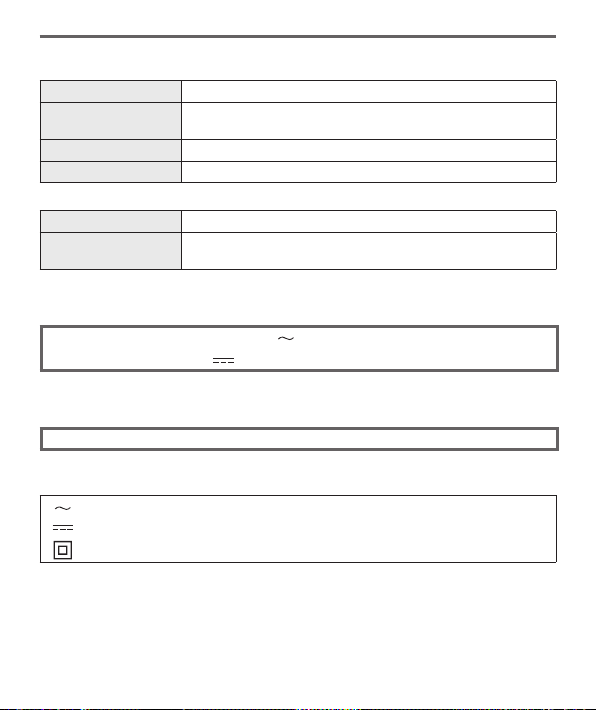
66
DVQX1409 (ENG)
Others
■
Wireless transmitter
Wireless LAN
Compliance standard
IEEE 802.11b/g/n (standard wireless LAN protocol)
Frequency range used
(central frequency)
2412 MHz to 2462 MHz (1 to 11 ch)
Encryption method Wi-Fi compliant WPA™/WPA2™
Access method Infrastructure mode
Bluetooth function
Compliance standard
Bluetooth Ver. 4.2 (Bluetooth low energy (BLE))
Frequency range used
(central frequency)
2402 MHz to 2480 MHz
■
AC adaptor
(Panasonic SAE0012A): Information for your safety
Input: 110 V – 240 V 50/60 Hz 0.2 A
Output: 5 V
1.0 A
■
Battery pack (lithium-ion)
(Panasonic DMW-BLG10PP): Information for your safety
Voltage/capacity: 7.2 V/1025 mAh
The symbols on this product (including the accessories) represent the following:
AC
DC
Class II equipment (The construction of the product is double-insulated.)
Specifications are subject to change without notice.

67
DVQX1409 (ENG)
Others
Digital Camera Accessory System
Description Accessory#
Battery pack DMW-BLG10
Battery charger DMW-BTC12
AC adaptor
DMW-AC10
DC coupler
DMW-DCC11
The AC adaptor (optional) can only be used with the designated Panasonic DC coupler
(optional). The AC adaptor (optional) cannot be used by itself. When using an AC adaptor
(optional), use the AC cable supplied with the AC adaptor.
●
Part numbers are as of February 2018. These may be subject to change.
●
Some optional accessories may not be available in some countries.
●
(For U.S.A. only)
To order optional accessories please visit http://shop.panasonic.com or your
local Photo Specialty Dealer.
This product incorporates the following software:
(1) the software developed independently by or for Panasonic Corporation,
(2) the software owned by third party and licensed to Panasonic Corporation,
(3) the software licensed under the GNU General Public License, Version 2.0 (GPL V2.0),
(4) the software licensed under the GNU LESSER General Public License, Version 2.1 (LGPL
V2.1), and/or
(5) open source software other than the software licensed under the GPL V2.0 and/or LGPL
V2.1.
The software categorized as (3) - (5) are distributed in the hope that it will be useful, but
WITHOUT ANY WARRANTY, without even the implied warranty of MERCHANTABILITY or
FITNESS FOR A PARTICULAR PURPOSE. Please refer to the detailed terms and conditions
thereof displayed by selecting [MENU/SET] → [Setup] → [Version Disp.] → [Software info].
At least three (3) years from delivery of this product, Panasonic will give to any third party who
contacts us at the contact information provided below, for a charge no more than our cost
of physically performing source code distribution, a complete machine-readable copy of the
corresponding source code covered under GPL V2.0 or LGPL V2.1, as well as the respective
copyright notice thereof.
Contact Information: [email protected]
The source code and the copyright notice are also available for free in our website below.
https://panasonic.net/cns/oss/index.html

68
DVQX1409 (ENG)
Others
Reading the Owner’s Manual
(PDF format)
More detailed operating instructions are available in “Owner’s Manual for advanced
features (PDF format)”. To read it, download it from the website.
http://panasonic.jp/support/dsc/oi/index.html?model=DC-ZS200&dest=P
• Click the desired language.
■
Confirming URLs and QR codes with the camera
→ [Setup] → [Online Manual]
Settings: [URL display] / [QR Code display]
• The URL or QR code will be displayed on the camera monitor.
●
You will need Adobe Reader to browse or print the Owner’s Manual (PDF
format). You can download and install a version of Adobe Reader that you can
use with your OS from the following website. (As of February 2018)
http://www.adobe.com/products/acrobat/readstep2.html

69
DVQX1409 (ENG)
Others
Limited Warranty (ONLY FOR U.S.A.)
Panasonic Products Limited Warranty
Limited Warranty Coverage (For USA Only)
If your product does not work properly because of a defect in materials or
workmanship, Panasonic Corporation of North America (referred to as “the
warrantor”) will, for the length of the period indicated on the chart below, which
starts with the date of original purchase (“warranty period”), at its option either
(a) repair your product with new or refurbished parts, (b) replace it with a new or
a refurbished equivalent value product, or (c) refund your purchase price. The
decision to repair, replace or refund will be made by the warrantor.
Product or Part Name Parts Labor
Digital Camera 1 Year 1 Year
All included Accessories
(Except Non-Rechargeable Batteries)
90 Days Not Applicable
Only Non-Rechargeable Batteries 10 Days Not Applicable
During the “Labor” warranty period there will be no charge for labor. During the
“Parts” warranty period, there will be no charge for parts. This Limited Warranty
excludes both parts and labor for non-rechargeable batteries, antennas, and
cosmetic parts (cabinet). This warranty only applies to products purchased and
serviced in the United States. This warranty is extended only to the original
purchaser of a new product which was not sold “as is”.

70
DVQX1409 (ENG)
Others
Mail-In Service--Online Repair Request
Online Repair Request
To submit a new repair request and for quick repair status visit our Web Site at
http://shop.panasonic.com/support.
When shipping the unit, carefully pack, include all supplied accessories listed in
the Owner’s Manual, and send it prepaid, adequately insured and packed well in a
carton box. When shipping Lithium Ion batteries please visit our Web Site at
http://shop.panasonic.com/support as Panasonic is committed to providing the
most up to date information. Include a letter detailing the complaint, a return
address and provide a daytime phone number where you can be reached. A valid
registered receipt is required under the Limited Warranty.
IF REPAIR IS NEEDED DURING THE WARRANTY PERIOD, THE PURCHASER
WILL BE REQUIRED TO FURNISH A SALES RECEIPT/PROOF OF PURCHASE
INDICATING DATE OF PURCHASE, AMOUNT PAID AND PLACE OF
PURCHASE. CUSTOMER WILL BE CHARGED FOR THE REPAIR OF ANY UNIT
RECEIVED WITHOUT SUCH PROOF OF PURCHASE.
Limited Warranty Limits and Exclusions
This warranty ONLY COVERS failures due to defects in materials or workmanship,
and DOES NOT COVER normal wear and tear or cosmetic damage. The warranty
ALSO DOES NOT COVER damages which occurred in shipment, or failures which
are caused by products not supplied by the warrantor, or failures which result from
accidents, misuse, abuse, neglect, mishandling, misapplication, alteration, faulty
installation, set-up adjustments, misadjustment of consumer controls, improper
maintenance, power line surge, lightning damage, modification, introduction of
sand, humidity or liquids, commercial use such as hotel, office, restaurant, or other
business or rental use of the product, or service by anyone other than a Factory
Service Center or other Authorized Servicer, or damage that is attributable to acts
of God.

71
DVQX1409 (ENG)
Others
THERE ARE NO EXPRESS WARRANTIES EXCEPT AS LISTED UNDER
“LIMITED WARRANTY COVERAGE”.
THE WARRANTOR IS NOT LIABLE FOR INCIDENTAL OR CONSEQUENTIAL
DAMAGES RESULTING FROM THE USE OF THIS PRODUCT, OR ARISING
OUT OF ANY BREACH OF THIS WARRANTY.
(As examples, this excludes damages for lost time, travel to and from the servicer,
loss of or damage to media or images, data or other memory or recorded content.
The items listed are not exclusive, but for illustration only.)
ALL EXPRESS AND IMPLIED WARRANTIES, INCLUDING THE WARRANTY
OF MERCHANTABILITY, ARE LIMITED TO THE PERIOD OF THE LIMITED
WARRANTY.
Some states do not allow the exclusion or limitation of incidental or consequential
damages, or limitations on how long an implied warranty lasts, so the exclusions
may not apply to you.
This warranty gives you specific legal rights and you may also have other rights
which vary from state to state. If a problem with this product develops during or
after the warranty period, you may contact your dealer or Service Center. If the
problem is not handled to your satisfaction, then write to:
Consumer Affairs Department
Panasonic Corporation of North America
661 Independence Pkwy
Chesapeake, VA 23320
PARTS AND SERVICE, WHICH ARE NOT COVERED BY THIS LIMITED
WARRANTY, ARE YOUR RESPONSIBILITY.
72
DVQX1409 (ENG)
Others
for all your Panasonic gear
Go to
http://shop.panasonic.com/support
Get everything you need to get the most out of your Panasonic products
Accessories & Parts for your Camera, Phone, A/V products, TV,
Computers & Networking, Personal Care, Home Appliances, Headphones,
Batteries, Backup Chargers & more…
Customer Services Directory
For Product Information, Operating Assistance, Parts, Owner’s Manuals,
Dealer and Service info go to http://shop.panasonic.com/support
For the hearing or speech impaired TTY: 1- 877-833-8855
As of July 2015

73
DVQX1409 (ENG)
Others
Limited Warranty (ONLY FOR CANADA)
Panasonic Canada Inc.
5770 Ambler Drive, Mississauga, Ontario L4W 2T3
PANASONIC PRODUCT – LIMITED WARRANTY
Panasonic Canada Inc. warrants this product to be free from defects in material
and workmanship under normal use and for a period as stated below from the date
of original purchase agrees to, at its option either (a) repair your product with new
or refurbished parts, (b) replace it with a new or a refurbished equivalent value
product, or (c) refund your purchase price. The decision to repair, replace or refund
will be made by Panasonic Canada Inc.
Digital Camera One (1) year, parts and labour
Digital Camera Peripherals One (1) year, parts and labour
Digital Camera Accessories Ninety (90) days, parts and labour
This warranty is given only to the original purchaser, or the person for whom it
was purchased as a gift, of a Panasonic brand product mentioned above sold by
an authorized Panasonic dealer in Canada and purchased and used in Canada,
which product was not sold “as is”, and which product was delivered to you in new
condition in the original packaging.
IN ORDER TO BE ELIGIBLE TO RECEIVE WARRANTY SERVICE
HEREUNDER, A PURCHASE RECEIPT OR OTHER PROOF OF DATE
OF ORIGINAL PURCHASE, SHOWING AMOUNT PAID AND PLACE OF
PURCHASE IS REQUIRED

74
DVQX1409 (ENG)
Others
LIMITATIONS AND EXCLUSIONS
This warranty ONLY COVERS failures due to defects in materials or workmanship,
and DOES NOT COVER normal wear and tear or cosmetic damage. The warranty
ALSO DOES NOT COVER damages which occurred in shipment, or failures
which are caused by products not supplied by Panasonic Canada Inc., or failures
which result from accidents, misuse, abuse, neglect, mishandling, misapplication,
alteration, faulty installation, set-up adjustments, misadjustment of consumer
controls, improper maintenance, improper batteries, power line surge, lightning
damage, modification, introduction of sand, humidity or liquids, commercial use
such as hotel, office, restaurant, or other business or rental use of the product, or
service by anyone other than a Authorized Servicer, or damage that is attributable
to acts of God.
Dry cell batteries, printer ink cartridge and paper are also excluded from coverage
under this warranty.
Rechargeable batteries are warranted for ninety (90) days from date of original
purchase.
THIS EXPRESS, LIMITED WARRANTY IS IN LIEU OF ALL OTHER
WARRANTIES, EXPRESS OR IMPLIED, INCLUDING ANY IMPLIED
WARRANTIES OF MERCHANTABILITY AND FITNESS FOR A PARTICULAR
PURPOSE. IN NO EVENT WILL PANASONIC CANADA INC. BE LIABLE FOR
ANY SPECIAL, INDIRECT OR CONSEQUENTIAL DAMAGES RESULTING
FROM THE USE OF THIS PRODUCT OR ARISING OUT OF ANY BREACH OF
ANY EXPRESS OR IMPLIED WARRANTY. (As examples, this warranty excludes
damages for lost time, travel to and from the Authorized Servicer, loss of or
damage to media or images, data or other memory or recorded content. This list of
items is not exhaustive, but for illustration only.)
In certain instances, some jurisdictions do not allow the exclusion or limitation of
incidental or consequential damages, or the exclusion of implied warranties, so the
above limitations and exclusions may not be applicable. This warranty gives you
specific legal rights and you may have other rights which vary depending on your
province or territory.
WARRANTY SERVICE
For product operation, repairs and information assistance, please visit our Support
page :
www.panasonic.ca/english/support

75
DVQX1409 (ENG)
●
SDXC Logo is a trademark of SD-3C, LLC.
●
The terms HDMI and HDMI High-Definition Multimedia Interface, and the
HDMI Logo are trademarks or registered trademarks of HDMI Licensing
Administrator, Inc. in the United States and other countries.
●
HDAVI Control™ is a trademark of Panasonic Corporation.
●
“AVCHD”, “AVCHD Progressive” and the “AVCHD Progressive” logo are
trademarks of Panasonic Corporation and Sony Corporation.
●
Dolby, Dolby Audio, and the double-D symbol are trademarks of Dolby
Laboratories.
●
Adobe is a trademark or registered trademark of Adobe Systems Incorporated
in the United States and/or other countries.
●
Pentium is a trademark of Intel Corporation in the U.S. and/or other countries.
●
Windows is either registered trademark or trademark of Microsoft Corporation
in the United States and/or other countries.
●
iMovie, Mac, OS X and macOS are trademarks of Apple Inc., registered in the
U.S. and other countries.
●
iPad, iPhone, iPod, and iPod touch are trademarks of Apple Inc., registered in
the U.S. and other countries.
●
App Store is a service mark of Apple Inc.
●
Android and Google Play are trademarks or registered trademarks of Google
Inc.
●
The Bluetooth
®
word mark and logos are registered trademarks owned by the
Bluetooth SIG, Inc. and any use of such marks by Panasonic Corporation is
under license. Other trademarks and trade names are those of their respective
owners.
●
The Wi-Fi CERTIFIED™ Logo is a certification mark of Wi-Fi Alliance
®
.
●
The Wi-Fi Protected Setup™ Logo is a certification mark of Wi-Fi Alliance
®
.
●
“Wi-Fi
®
” is a registered trademark of Wi-Fi Alliance
®
.
●
“Wi-Fi Protected Setup™”, “WPA™”, and “WPA2™” are trademarks of Wi-Fi
Alliance
®
.
●
QR Code is a registered trademark of DENSO WAVE INCORPORATED.
●
This product uses “DynaFont” from DynaComware Corporation. DynaFont is a
registered trademark of DynaComware Taiwan Inc.
●
Other names, company names, and product names mentioned in these
instructions are trademarks or registered trademarks of the companies
concerned.
Panasonic Corporation of North America
Two Riverfront Plaza, Newark, NJ 07102-5490
http://shop.panasonic.com
Panasonic Canada Inc.
5770 Ambler Drive
Mississauga, Ontario
L4W 2T3
www.panasonic.com
© Panasonic Corporation 2018
Printed in China