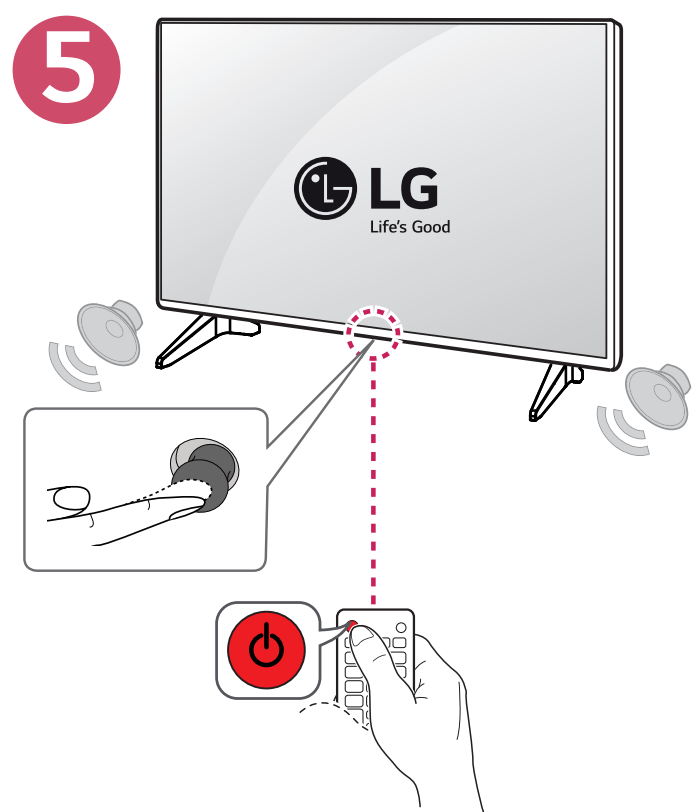
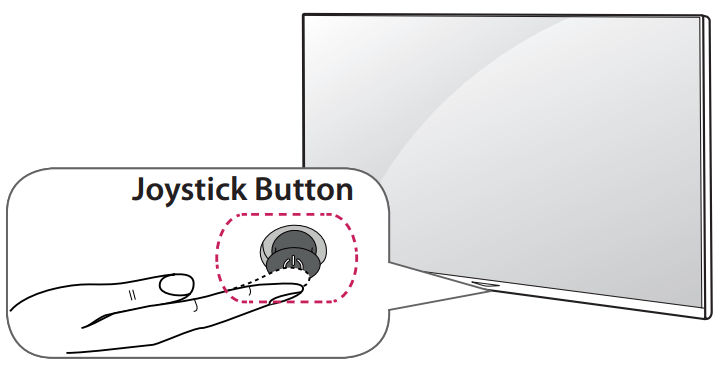
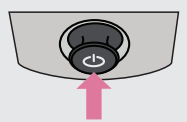
You can operate the TV by pressing the button or moving the joystick left, right, up, or down.
NOTE
Basic Functions
Power On
When the TV is turned off, place your finger on the joystick button, press it once, and release it.
Power Off
When the TV is turned on, place your finger on the joystick button, press it once for a few seconds, and release it. All running apps will close.
Volume Control
If you place your finger over the joystick button and move it left or right, you can adjust the volume level.
Channels Control
If you place your finger over the joystick button and move it up or down, you can scroll through the saved channels.
NOTE
With your finger over the joystick button, move it up, down, left, or right. Be careful not to press the joystick button. If you press the joystick button first, you may not be able to adjust the volume level and/or scroll through saved channels
Adjusting the Menu
When the TV is turned on, press the joystick button one time. You can adjust the menu items moving the joystick button up, down, left, or right.
REMOTE CONTROL
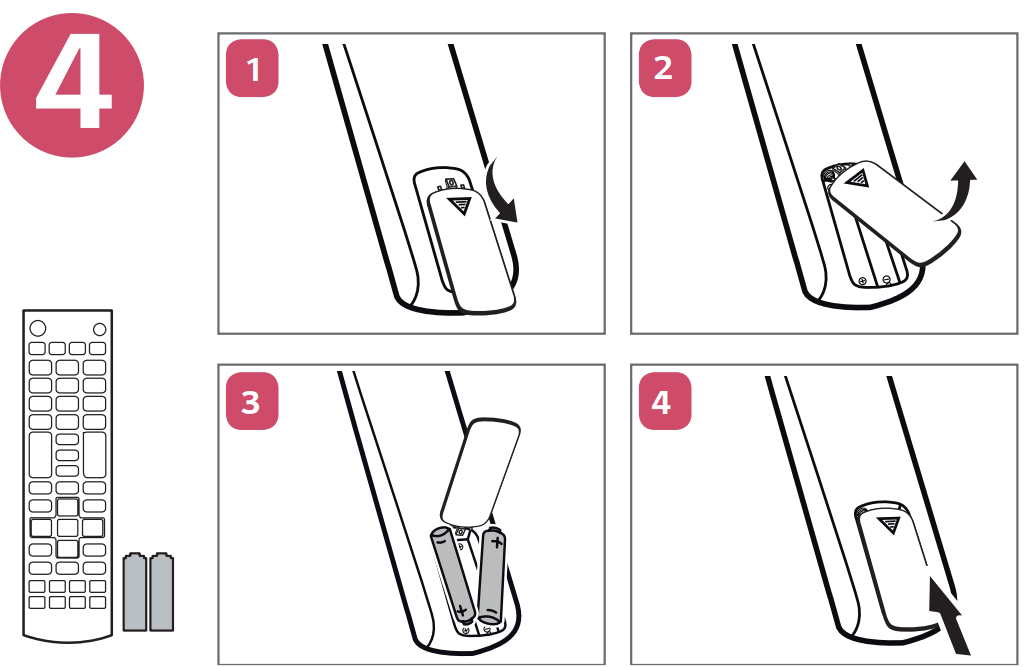
The descriptions in this manual are based on the buttons on the remote control. Please read this manual carefully and use the TV correctly. To install batteries, open the battery cover, replace batteries (1.5 V AAA) matching the and ends to the label inside the compartment, and close the battery cover. Failure to match the correct polarities of the battery may cause the battery to burst or leak, resulting in fire, personal injury, or ambient pollution. To remove the batteries, perform the installation actions in reverse.
This remote uses infrared light. When in use, it should be pointed in the direction of the TV’s remote sensor.
CAUTION • Do not mix old and new batteries, as this may damage the remote control.
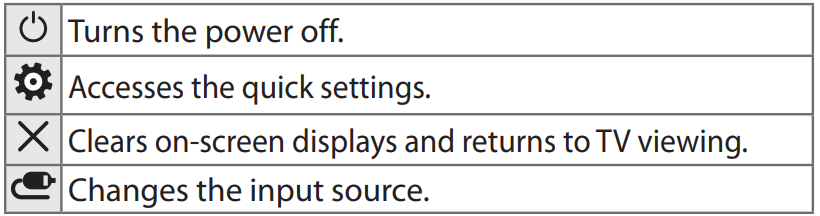
(POWER) Turns the TV on or off.
INPUT Changes the input source.
CAPTION Activates or deactivates the subtitles.
(User Guide) Sees user-guide.
RATIO Resizes an image.
TV Returns to the last TV channel.
Number button Enters numbers.
- (Dash) Inserts a dash between numbers such as and 2-2.
LIST Accesses the saved channel list.
FLASHBK Alternates between the two last channels selected (pressing repeatedly).
+ VOL - Adjusts the volume level.
FAV Accesses your favorite channel list.
INFO Shows information on the current program.
MUTE Mutes all sounds.
Scrolls through the saved channels.
Moves to the previous or next screen
RECENT Shows the previous history.
(Home) Accesses the Home menu.
MY APPS Shows the list of Apps.
Accesses the quick menu.
LIVE MENU Shows the list of Channels.
Navigation buttons (up/down/left/right) Scrolls through menus or options.
OK Selects menus or options and confirms your input.
BACK Returns to the previous screen.
EXIT Clears all on-screen displays and returns to TV viewing.
SLEEP Sets the length of time until the TV to turns off.
SAP/ Enables VD function. SAP (Secondary Audio Program) Feature can also be enabled by pressing the key.
Control buttons () Controls the SIMPLINK compatible devices (USB, SIMPLINK).
Color Buttons These access special functions in some menus.
INSTALLATION
Lifting and Moving the TV
When moving or lifting the TV, read the following to prevent the TV from being scratched or damaged and for safe transportation regardless of its type and size.
It is recommended to move the TV in the box or packing material that the TV originally came in.
Before moving or lifting the TV, disconnect the power cord and all cables.
When holding the TV, the screen should face away from you to avoid damage.
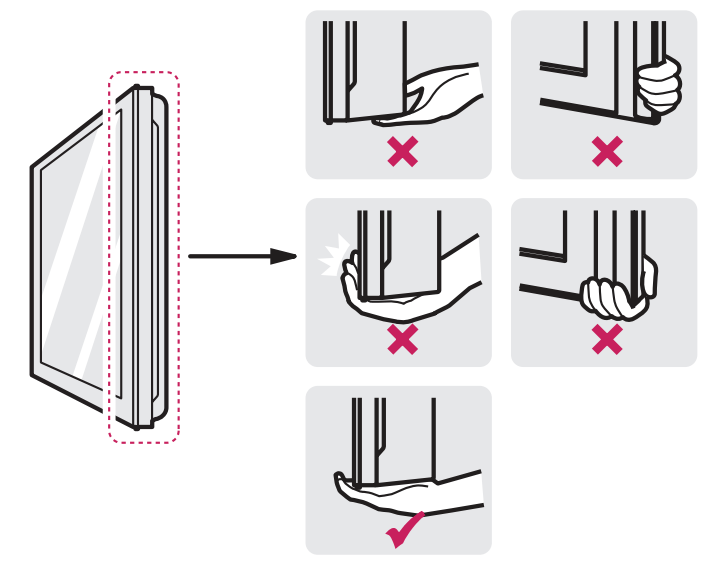
Hold the top and bottom of the TV frame firmly.
Make sure not to hold the transparent part, speaker, or speaker grille area.
Use at least two people to move a large TV.
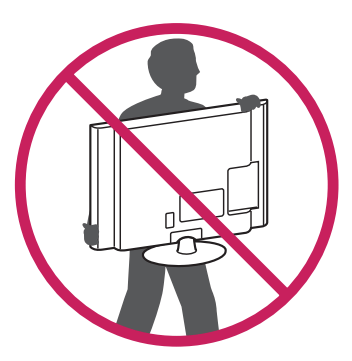
When transporting the TV by hand, hold the TV as shown in the following illustration.
When transporting the TV, do not expose the TV to jolts or excessive vibration.
When transporting the TV, keep the TV upright; never turn the TV on its side or tilt towards the left or right.
CAUTION
Avoid touching the screen at all times, as this may result in damage to the screen.
Do not place the product on the floor with its front facing down without padding. Failure to do so may result in damage to the screen.
Do not move the TV by holding the cable holders, as the cable holders may break, and injuries and damage to the TV may occur.
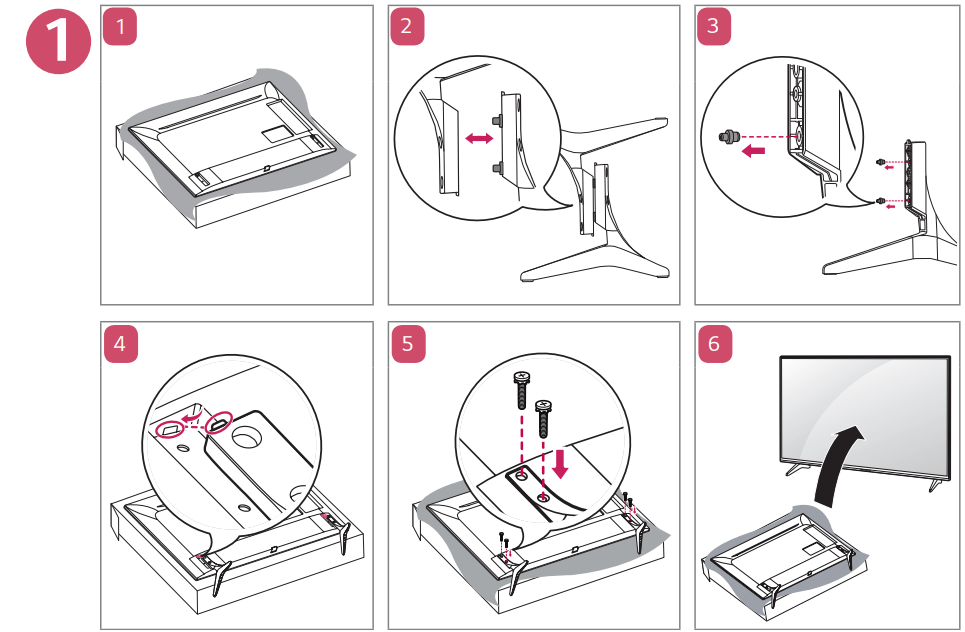
Mounting on a Table
Image shown may differ from your TV.)
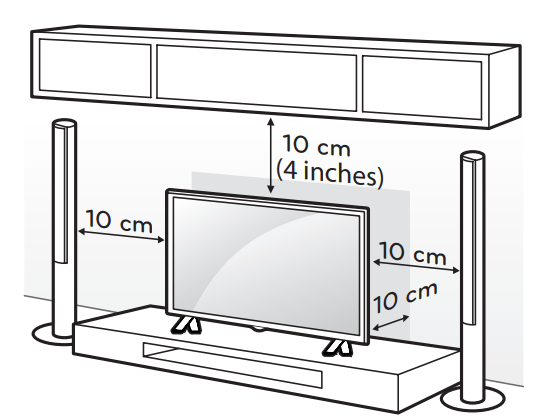
1. Lift and tilt the TV into its upright position on a table.
Leave a 10 cm (4 inches) (minimum) space from the wall for proper ventilation. inches)
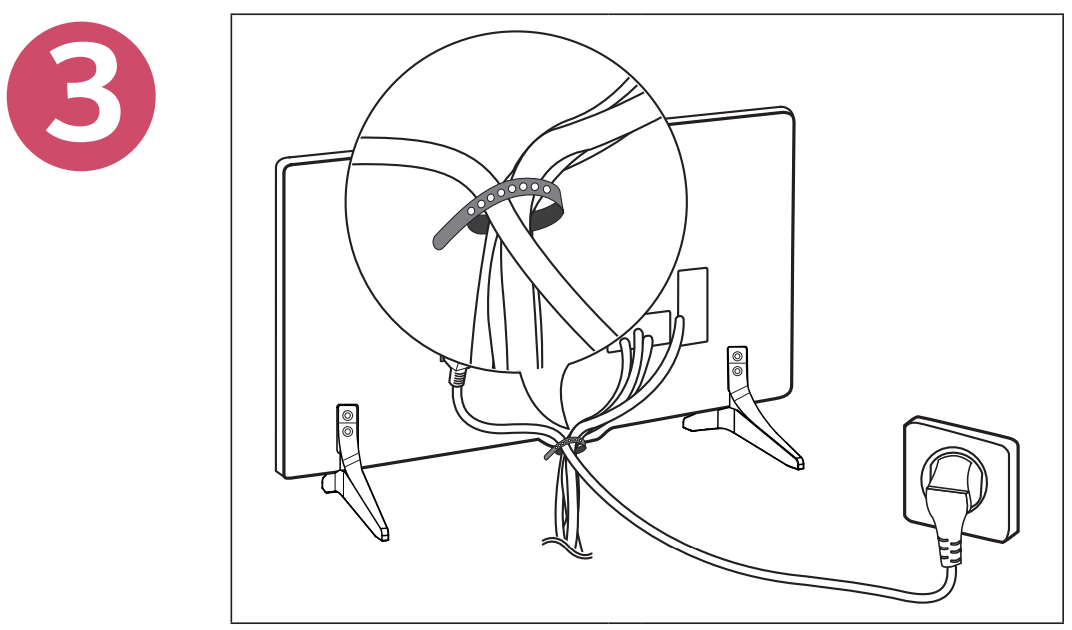
2. Connect the power cord to a wall outlet.
CAUTION Do not place the TV near or on sources of heat, as this may result in fire or other damage.
Securing the TV to a Wall optional)
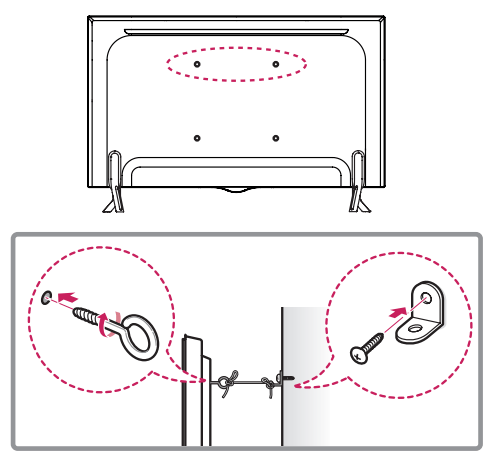
1. Insert and tighten the eye-bolts, or TV brackets and bolts on the back of the TV.
If there are bolts inserted at the eye-bolts position, remove the bolts first.
2. Mount the wall brackets with the bolts to the wall. Match the location of the wall bracket and the eye-bolts on the rear of the TV.
3. Connect the eye-bolts and wall brackets tightly with a sturdy rope or cable. Make sure to keep the rope parallel to the flat surface.
CAUTION Make sure that children do not climb on or hang on the TV.
NOTE
Use a platform or cabinet that is strong and large enough to support the TV securely.
Brackets, bolts, and ropes are optional. You can obtain additional accessories from your local dealer.
Mounting on a Wall
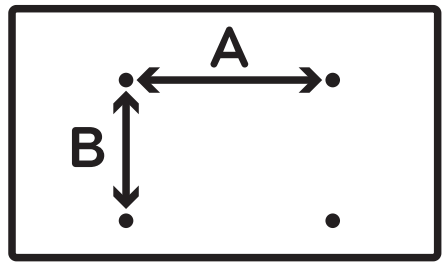
An optional wall mount can be used with your LG Television. Consult with your local dealer for a wall mount that supports the VESA standard used by your TV model. Carefully attach the wall mount bracket at the rear of the TV. Install the wall mount bracket on a solid wall perpendicular to the floor. If you are attaching the TV to other building materials, please contact qualified personnel to install the wall mount. Detailed instructions will be included with the wall mount. We recommend that you use an LG brand wall mount. The LG wall mount is easy to adjust or to connect the cables.
When you do not use LG’s wall mount bracket, use a wall mount bracket where the device is adequately secured to the wall with enough space to allow connectivity to external devices. If you are using a non-adjustable mount, attach the mount to the wall. Attach the cables to the TV first, then attach the TV to the mount. inches)
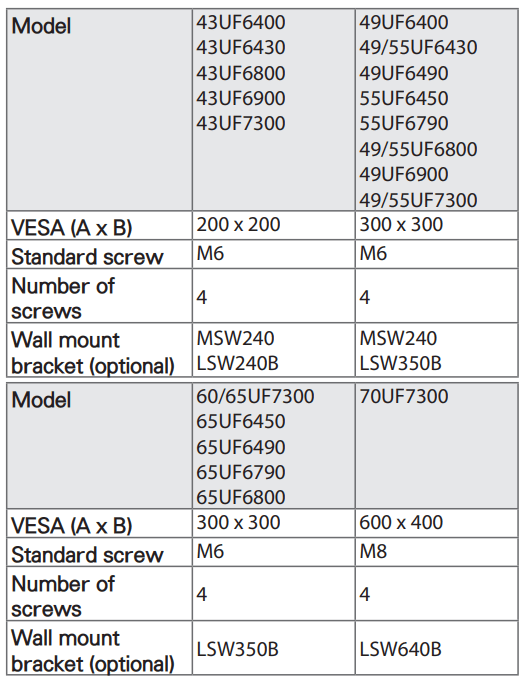
Make sure to use screws and wall mounts that meet the VESA standard. Standard dimensions for the wall mount kits are described in the following table.
CAUTION
Disconnect the power before moving or installing the TV. Otherwise electric shock may occur.
Remove the stand before installing the TV on a wall mount by performing the stand attachment in reverse.
If you install the TV on a ceiling or slanted wall, it may fall and result in severe injury. Use an authorized LG wall mount and contact the local dealer or qualified personnel. When using a third-party wall mount, it is not covered by the warranty.
Do not overtighten the screws as this may cause damage to the TV and void your warranty.
Use the screws and wall mounts that meet the
VESA standard. Any damages or injuries by misuse or using an improper accessory are not covered by the warranty.
NOTE
Use the screws that are listed in the VESA standard screw specifications.
The wall mount kit includes an installation manual and necessary parts.
The wall mount bracket is optional. You can obtain additional accessories from your local dealer.
The length of screws may differ depending upon the wall mount. Make sure to use the proper length.
For more information, refer to the manual supplied with the wall mount.
CONNECTIONS (NOTIFICATIONS)
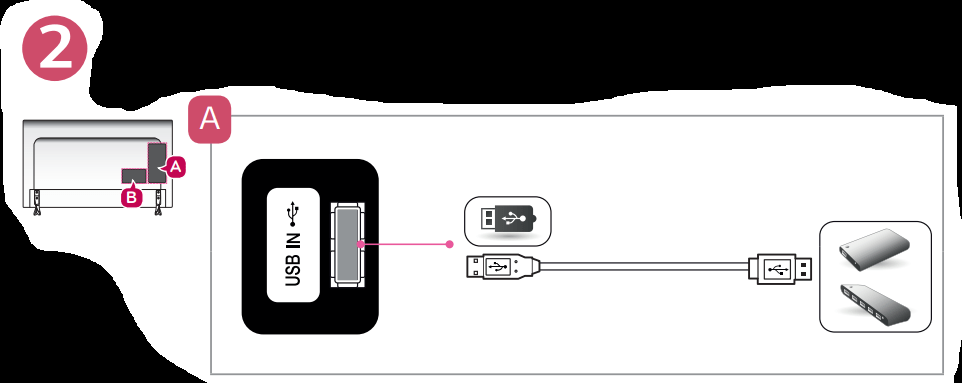
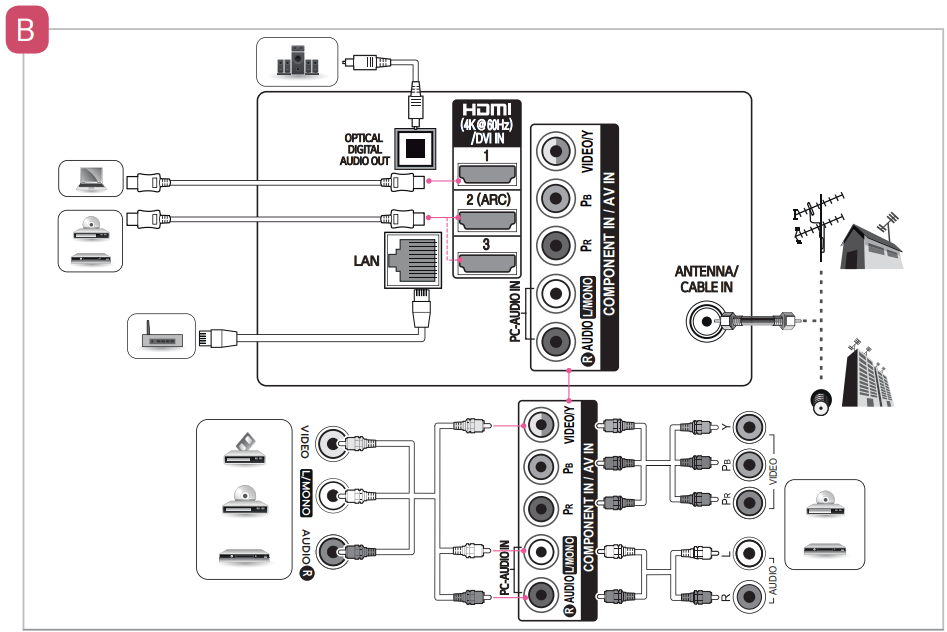
You can connect various external devices to the TV. Supported external devices are: HD receivers, DVD players, VCRs, audio systems, USB storage devices, PC, gaming devices, and other external devices.
NOTE
If you record a TV program on a DVD recorder or VCR, make sure to connect the TV signal input cable to the TV through a DVD recorder or VCR. For more information about recording, refer to the manual provided with the connected device.
The external device connections shown may differ slightly from illustrations in a manual.
Connect external devices to the TV regardless of the order of the TV port.
If you connect a gaming device to the TV, use the cable supplied with the gaming device.
Refer to the external equipment’s manual for operating instructions.
In PC mode, there may be noise associated with the resolution, vertical pattern, contrast or brightness. If noise is present, change the PC output to another resolution, change the refresh rate to another rate, or adjust the brightness and contrast on the PICTURE menu until the picture is clear.
Depending upon the graphics card, some resolution settings may not allow the image to be positioned on the screen properly.
Some USB Hubs may not work. If a USB device connected through a USB Hub is not detected, connect it directly to the USB port on the TV.
Smart TV Only) The TV may be capable of operating without a set-top from a multichannel video programming distributor (MVPD).
Connecting to an Antenna or Cable
Connect an antenna, cable, or cable box to watch TV. The RF cable may not be supplied, depending upon the model.
CAUTION
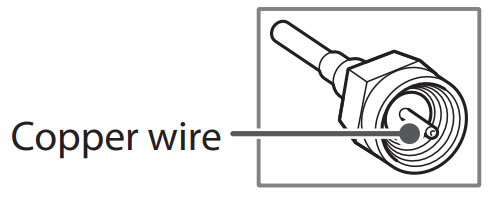
Make sure not to bend the copper wire of the RF cable.
Complete all connections between devices, and then connect the power cord to the power outlet to prevent damage to your TV.
NOTE
Use a signal splitter to use 2 TVs or more.
DTV Audio Supported Codec: MPEG, Dolby Digital.
Direct ULTRA HD broadcast is unavailable in areas without an ULTRA HD signal.
This TV cannot receive ULTRA HD (3840 x 2160 pixels) broadcasts directly because the related standards have not been confirmed. (Depending upon model)
Other Connections
Connect your TV to external devices. For the best picture and audio quality, connect the external device and the TV with the HDMI cable. Depending upon the model, a cable may not be provided.
NOTE
HDMI ULTRA HD Deep Color:
On: Support 4K @ 60 Hz (4:4:4, 4:2:2, 4:2:0)
Off: Support 4K @ 60 Hz (4:2:0)
If the device connected to Input Port also supports ULTRA HD Deep Color, your picture may be clearer. However, if the device doesn’t support it, it may not work properly. In that case, connect the device to a different HDMI port or change the TV’s HDMI ULTRA HD Deep Color setting to Off.
This feature is available only on certain models which support HDMI ULTRA HD Deep Color.
• LGTV supports PL2303 chip-based (Vendor ID : 0x0557, Product ID : 0x2008) USB to serial converter which is not made nor provided by LG.
• It can be purchased from computer stores that carry accessories for IT support professionals.
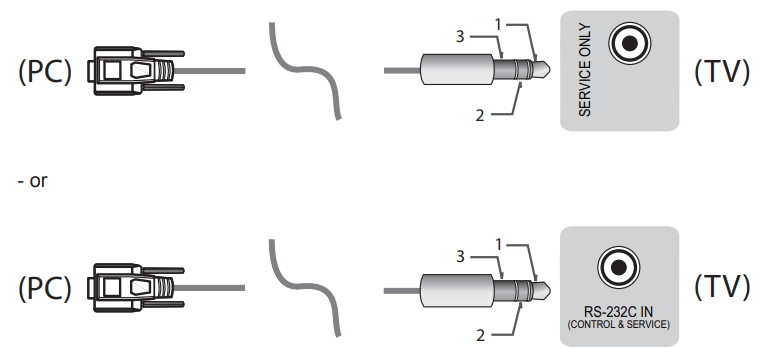
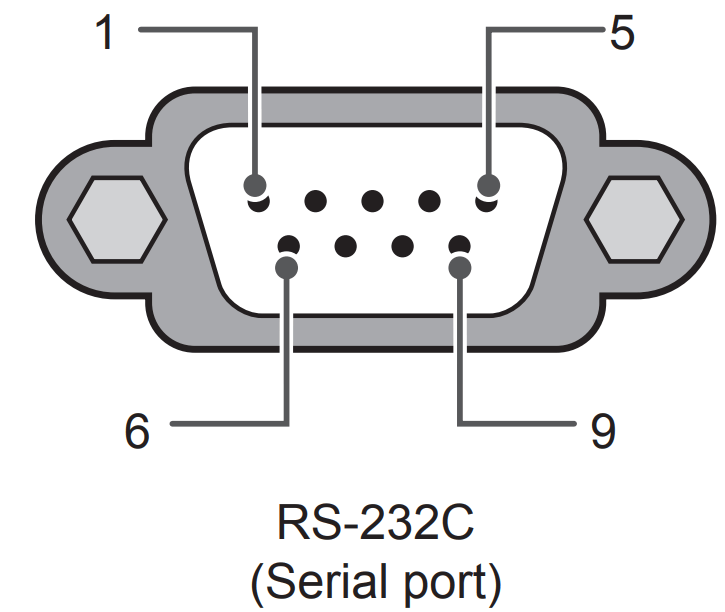
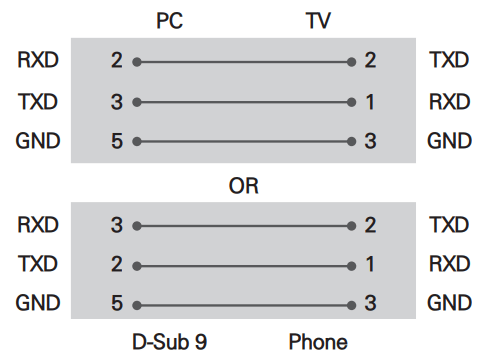
RS-232C With RS232C Cable
DE9 (D-Sub 9pin) Type
• You need to purchase the RS-232C (DE9, D-Sub 9pin female-to-female type) to RS-232C cable required for the connection between the PC and the TV, which is specified in the manual.
Phone jack Type
• You need to purchase the phone-jack to RS-232 cable required for the connection between the PC and the TV, which is specified in the manual.
* For other models, connect to the USB port.
* The connection interface may differ from your TV.
Customer Computer
Set ID
1. Press SETTINGS to access the main menus. 2. Press the Navigation buttons to scroll to (*General → About this TV or OPTION) and press OK. 3. Press the Navigation buttons to scroll to SET ID and press OK. 4. Scroll left or right to select a set ID number and select CLOSE. The adjustment range is 1-99. 5. When you are finished, press EXIT. RS-232C configurations
3-Wire Configurations(Not standard)
MAINTENANCE
Cleaning Your TV
Clean your TV regularly to keep it at peak performance and to extend the product’s lifespan.
CAUTION
Before cleaning, turn the power off and disconnect the power cord and all other cables.
When the TV is left unattended or unused for a long time, disconnect the power cord from the wall outlet to prevent possible damage from lightning or power surges.
Screen, Frame, Cabinet, and Stand
To remove dust or light dirt, wipe the surface with a dry, clean, and soft cloth.
To remove major dirt, wipe the surface with a soft cloth dampened in clean water or a diluted mild detergent. Then wipe immediately with a dry cloth.
CAUTION
Do not push, rub, or hit the surface with your fingernail or a sharp object, as this may result in scratches on the screen and image distortions.
Do not use any chemicals, such as waxes, benzene, alcohol, thinners, insecticides, air fresheners, or lubricants, as these may damage the screen’s finish and cause discoloration.
Do not spray liquid onto the surface. If water enters the TV, it may result in fire, electric shock, or malfunction.
Power Cord
Remove the accumulated dust or dirt on the power cord regularly
TROUBLESHOOTING
Cannot control the TV with the remote control.
Check if anything such as tape has been placed over the receiver.
Check if there is any obstacle between the product and the remote control.
Replace the batteries with new ones.
No image display and no sound is produced.
Check if the product is turned on.
Check if the power cord is connected to a wall outlet.
Check if there is a problem in the wall outlet by connecting other products.
The TV turns off suddenly.
Check the power control settings. The power supply may be interrupted.
Check if the Sleep Timer / Timer Power Off feature is activated in the TIMERS settings.
If there is no signal while the TV is on, the TV will turn off automatically after 15 minutes of inactivity


 and
and  ends to the label inside the compartment, and close the battery cover. Failure to match the correct polarities of the battery may cause the battery to burst or leak, resulting in fire, personal injury, or ambient pollution. To remove the batteries, perform the installation actions in reverse.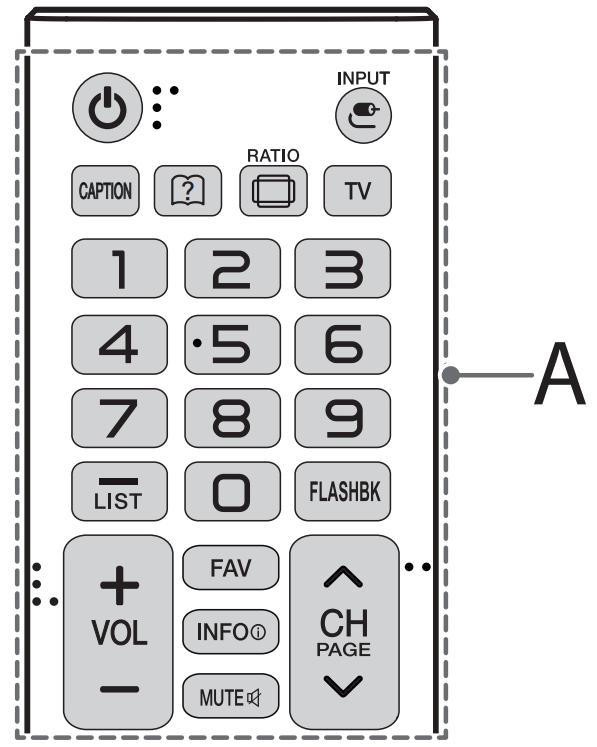
 (POWER) Turns the TV on or off.
 INPUT Changes the input source.
 (User Guide) Sees user-guide.
 RATIO Resizes an image.
 Mutes all sounds.
 Scrolls through the saved channels.
 Moves to the previous or next screen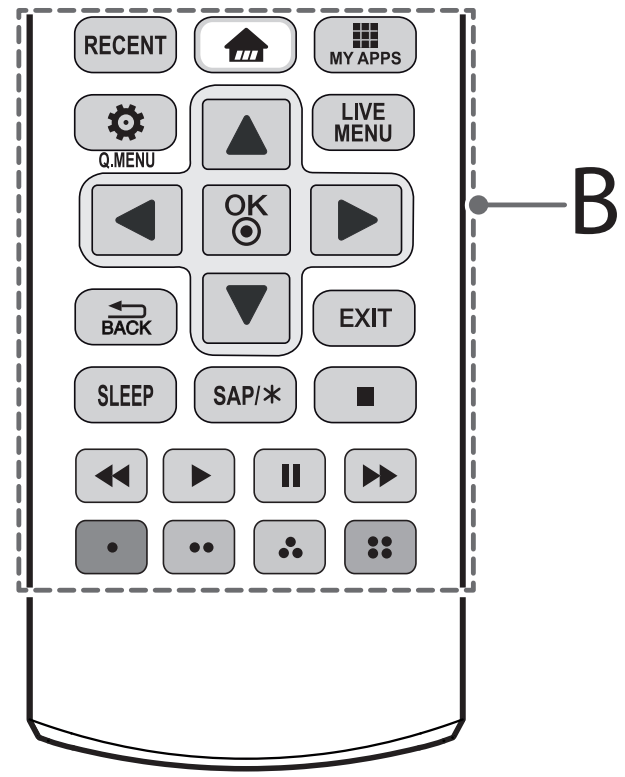
 (Home) Accesses the Home menu.
 MY APPS Shows the list of Apps.
 Accesses the quick menu.
 BACK Returns to the previous screen.
 Enables VD function. SAP (Secondary Audio Program) Feature can also be enabled by pressing the key.
 ) Controls the SIMPLINK compatible devices (USB, SIMPLINK).

 HDMI ULTRA HD Deep Color: