User Guide
MFL68220701 (1.0) www.lg.com
Guía del Usuario
Printed in China www.lg.com
ENGLISH
ESPAÑOL
LG L31L
LG L31L

User Guide
ENGLISH
•
Screen displays and illustrations may differ
from those you see on actual phone.
•
Some of the contents of this guide may not
apply to your phone, depending on the software
and your service provider. All information in this
document is subject to change without notice.
•
Due to the touch screen keyboard, this handset
is not suitable for people who have a visual
impairment.
•
Copyright ©2014 LG Electronics, Inc. All rights
reserved. LG and the LG logo are registered
trademarks of LG Group and its related entities.
All other trademarks are the property of their
respective owners.
•
Google™, Google Maps™, Gmail™,
YouTube™, Hangouts™ and Google Play™
are trademarks of Google, Inc.

Table of contents
2
Important notice ................................... 5
Getting to know your phone ............... 10
Phone overview ................................. 10
Installing the battery .......................... 12
Charging the phone ........................... 14
Using the memory card...................... 15
Locking and unlocking the screen ...... 15
Your Home screen ............................... 17
Touch screen tips .............................. 17
Home screen ..................................... 18
Customizing the Home screen .......... 19
Unlocking the Screen ......................... 20
Knock Code ....................................... 20
KnockON ........................................... 20
Customizing application icons on the
Home screen ..................................... 21
Creating Folders on the Home screen 22
Customizing the Apps screen ............. 23
Quick access ..................................... 24
Notifications ...................................... 24
Accessing notifications ..................... 25
Quick Settings ................................. 25
QSlide apps ..................................... 26
Notification icons on the Status Bar ... 27
On-screen keyboard .......................... 29
Entering special characters .............. 29
Earphone Plug & Pop ....................... 30
Google account setup ......................... 31
Connecting to Networks and Devices 33
Wi-Fi ................................................. 33
Connecting to Wi-Fi networks ........... 33
Turning Wi-Fi on and connecting to a
Wi-Fi network .................................. 33
Bluetooth ........................................... 34
Connecting to Virtual Private Networks 36
PC connections with a USB cable ....... 36
Calls .................................................... 38
Making a call ..................................... 38
Calling your contacts ......................... 38
Answering and rejecting a call ........... 38
Adjusting the in-call volume ............... 39
Making a second call ......................... 39
Viewing your call logs ........................ 40
Call settings ....................................... 40
Contacts .............................................. 41
Searching for a contact ...................... 41
Adding a new contact ........................ 41
Favorite contacts ............................... 41

3
Creating a group ................................ 42
Messaging ........................................... 43
Sending a message ........................... 43
Using smilies ................................... 44
Changing the conversation theme ..... 44
View mode ....................................... 45
Changing your message settings ....... 45
E-mail .................................................. 46
Managing an email account ............... 46
Working with account folders ............. 47
Composing and sending email ........... 47
Camera ................................................ 48
Getting to know the viewfinder .......... 48
Using the advanced settings .............. 49
Taking a quick photo ......................... 51
Once you've taken a photo................. 51
Viewing your saved photos ................ 52
Video camera ...................................... 53
Getting to know the viewfinder .......... 53
Using the advanced settings .............. 54
Recording a quick video ..................... 55
After recording a video....................... 55
Watching your saved videos .............. 56
Adjusting the volume when viewing a
video ................................................. 56
LG Unique Features ............................. 57
QuickMemo ....................................... 57
Using the QuickMemo options .......... 58
Viewing the saved QuickMemo ........ 59
QSlide ................................................ 59
QuickRemote ..................................... 60
Multimedia .......................................... 62
Gallery ............................................... 62
Viewing pictures .............................. 62
Playing videos ................................. 63
Editing photos/videos ....................... 63
Deleting images ............................... 63
Setting a photo as the wallpaper ....... 63
Videos ............................................... 64
Playing a video ................................ 64
Music ................................................ 64
How to save music/video files to the
phone ............................................. 64
Playing a song ................................. 65
To add a song to a playlist ................ 67
To remove a song from a playlist ....... 67
To create a playlist ........................... 67
To rename a playlist ......................... 67

Table of contents
4
To delete a playlist ........................... 67
Utilities ................................................ 68
Setting your alarm ............................. 68
Using your calculator ......................... 68
Adding an event to your calendar ....... 69
Task Manager .................................... 69
Tasks ................................................. 69
Voice Recorder .................................. 70
Recording a sound or voice .............. 70
ThinkFree Viewer ............................... 71
Google+ ............................................ 71
Voice Search...................................... 72
Downloads ........................................ 72
The Web .............................................. 73
Browser ............................................. 73
Using the Browser toolbar ................ 73
Viewing webpages ........................... 73
Opening a page ............................... 74
Searching the web by voice .............. 74
Bookmarks ...................................... 74
History ............................................ 74
Chrome ............................................. 74
Viewing webpages ........................... 75
Opening a page ............................... 75
Searching the web by voice .............. 75
Syncing with other devices ............... 75
Access bookmarks ........................... 75
Settings ............................................... 76
Access the Settings menu ................. 76
WIRELESS & NETWORKS ................... 76
DEVICE .............................................. 78
PERSONAL ......................................... 84
SYSTEM ............................................. 88
Phone software update ...................... 93
About this user guide ......................... 95
Trademarks ....................................... 96
DivX Mobile ....................................... 96
FAQ ...................................................... 98
For your safety .................................. 103

5
Important notice
Please read this before you start using your phone!
Please check to see whether any problems you encountered with your phone are
described in this section before taking the phone in for service or calling a service
representative.
1. Phone memory
When there is less than 10MB of space available in your phone memory, your phone
cannot receive new messages. You need to check your phone memory and delete
some data, such as applications or messages, to make more memory available.
To uninstall applications:
1 From the Home screen, tap > Apps tab (if necessary) > Settings >
Apps.
2 Once all applications appear, scroll to and select the application you want to
uninstall.
3 Tap Uninstall, then tap OK to confirm.
2. Optimizing battery life
Extend your battery's life between charges by turning off features that you don't need
to have running constantly in the background. You can monitor how applications and
system resources consume battery power.
Extending your phone's battery life:
•
Turn off radio communications that you're not using. If you are not using Wi-Fi,
Bluetooth or GPS, turn them off.

6
Important notice
•
Reduce screen brightness and set a shorter screen timeout.
•
Turn off automatic syncing for Gmail, Calendar, Contacts and other applications.
•
Some applications you have downloaded may reduce battery power.
To check the battery power level:
•
From the Home screen, tap > Apps tab (if necessary) > Settings >
About phone > Battery.
The battery status (charging or discharging) and battery level (percentage charged) is
displayed at the top of the screen.
To monitor and control how battery power is being used:
•
From the Home screen, tap > Apps tab (if necessary) > Settings >
About phone > Battery > Battery use.
Battery usage time is displayed on the screen. It tells you how long it has been since
you last connected your phone to a power source or, if currently connected, how long
the phone was last running on battery power. The screen shows the applications or
services using battery power, listed in order from the greatest to smallest amount
used.
7
3. Before installing an open source application and
operating system (OS)
WARNING
If you install and use an OS other than the one provided by the
manufacturer it may cause your phone to malfunction. In addition, your
phone will no longer be covered by the warranty.
WARNING
To protect your phone and personal data, only download applications
from trusted sources, such as Play Store. If there are improperly installed
applications on your phone, the phone may not work normally or a serious
error may occur. You must uninstall those applications and all associated
data and settings from the phone.
4. Using a screen lock
Set a screen lock to secure your phone and prevent unauthorized use. From the
Home screen, tap > Apps tab (if necessary) > Settings > Lock screen >
Select screen lock > Knock Code, Face Unlock, Pattern, PIN, or Password. You
might be prompted to create a Backup PIN as a safety measure in case you forget
your screen lock.
Caution: Create a Google account before setting a screen lock and remember
the Backup PIN you created when creating your screen lock.
8
Important notice
WARNING
Precautions to take when using a pattern lock.
It is very important to remember the screen lock you set. You will not be
able to access your phone if you use an incorrect screen lock 5 times. If
you have used all 5 opportunities, you can try again after 30 seconds.
5. Opening and switching applications
Multi-tasking is easy with Android because you can keep more than one application
running at the same time. There is no need to quit an application before opening
another one. Use and switch between several open applications. Android manages
each application, stopping and starting them as needed to ensure that idle
applications don't consume resources unnecessarily.
To stop applications:
1 From the Home screen, tap > Apps tab (if necessary) > Settings >
Apps > RUNNING.
2 Tap the desired application and tap Stop to stop it.

9
6. Transferring music, photos and videos using Media
sync (MTP)
1 Connect the phone to your PC using the USB cable provided with your phone.
2 A USB connection type list will appear on your phone screen. Tap the Media sync
(MTP) option.
3 Select the Open device to view files option on your PC. You can then view media
contents on your PC and transfer the files.
4 Copy the files from your PC to the drive folder or vice versa.
5 Drag the Status Bar down and tap USB connected > Charge phone.
6 Disconnect the USB cable from your phone.
7. Hold your phone upright
Hold your cell phone vertically, as you would a regular phone. Your phone has an
internal antenna. Be careful not to scratch or damage the back of the phone, as this
may affect performance.
When making/receiving calls or sending/receiving data, avoid holding the lower part
of the phone where the antenna is located. Doing so may affect call quality.
8. When the screen freezes
If the screen freezes or the phone does not respond when you try to operate it:
Press and hold the Power/Lock Key for 10 seconds to reset your phone.
If it still does not work, please contact the service center.
10
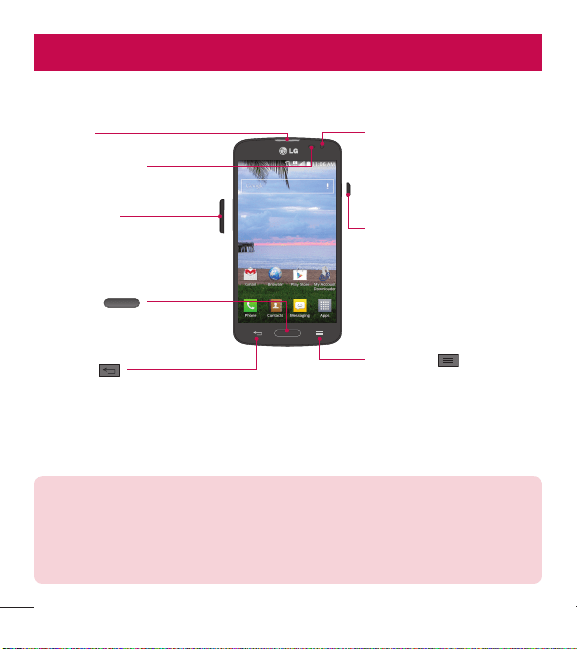
Phone overview
Proximity Sensor
Earpiece Front Camera Lens
Use to take a picture of
yourself or to video chat on
supported applications.
Home Key
Return to the Home screen
from any screen.
Volume Keys
Allow you to adjust the ringer,
media volume, or the volume
during a call.
Back Key
Return to the previous screen.
Menu Key
Display the available options.
Power/Lock Key
Turn your phone on/off,
restart, lock/unlock the
screen, turn airplane mode
on or off, and change the
ringer type.
NOTE: Proximity sensor
When receiving and making calls, the proximity sensor automatically turns
the backlight off and locks the touch screen by sensing when the phone is
near your ear. This extends battery life and prevents you from unintentionally
activating the touch screen during calls.
Getting to know your phone
11
WARNING
Placing a heavy object on the phone or sitting on it can damage the LCD
and touch screen functions. Do not cover the LCD proximity sensor with
protective film. This could cause the sensor to malfunction.
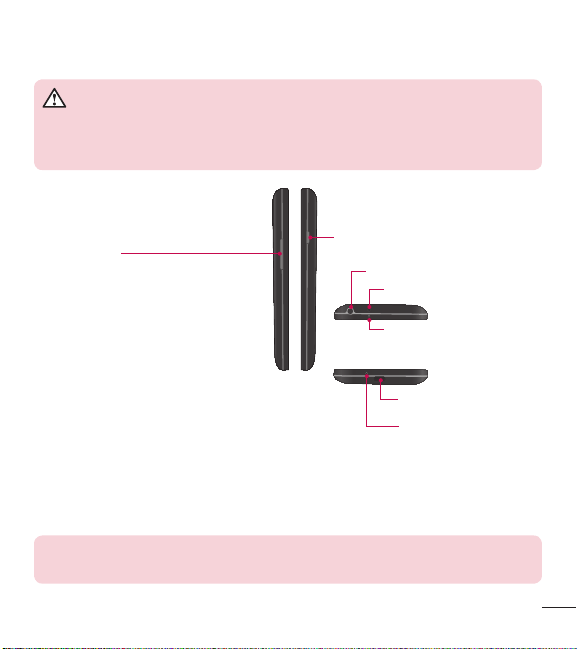
Charger/USB Port
3.5mm Headset Jack
IR (Infrared) LED
Main Microphone:
Call, Recording
Sub Microphone:
Speakerphone
Power/Lock Key
Volume Keys
•
On the Home screen: Control
ringer volume.
•
During a call: Control your
earpiece volume.
•
When playing audio/video:
Control volume continuously.
NOTE: Please be careful not to block the main microphone with your hand
when you call.
12
Getting to know your phone
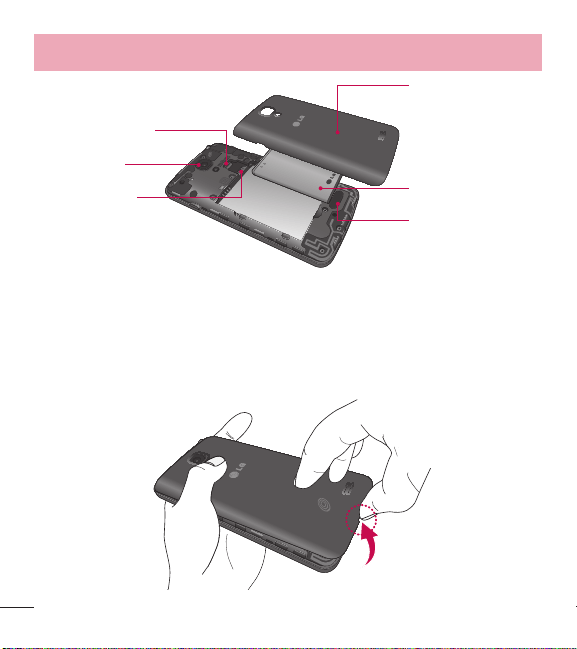
Back cover
Battery
microSD Card slot
micro SIM Card
slot
Camera Lens
Speaker
Installing the battery
Before you can start exploring your new phone, you'll need to set it up.
1 To remove the back cover, hold the phone firmly in one hand. With your other
hand, lift off the back cover with your thumbnail as shown in figure below.
13
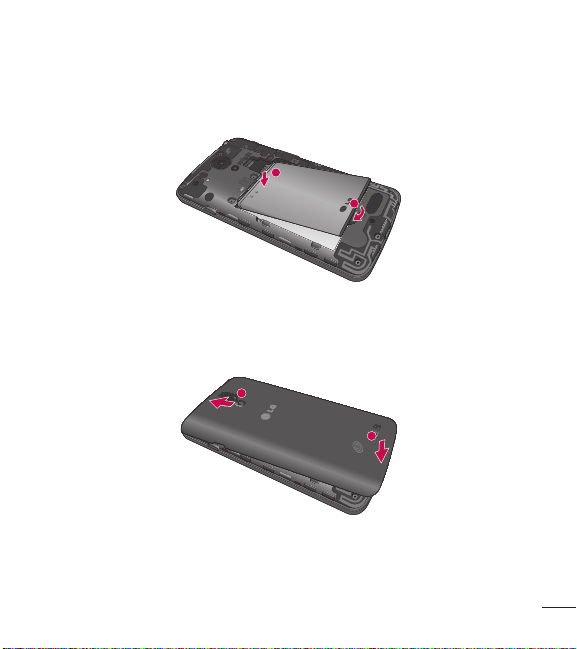
2 Insert the battery into place by aligning the gold contacts on the phone and the
battery (1) and pressing it down until it clicks into place (2).
1
2
3 Align the back cover over the battery compartment (1) and press it down until it
clicks into place (2).
1
2
14
Getting to know your phone
Charging the phone
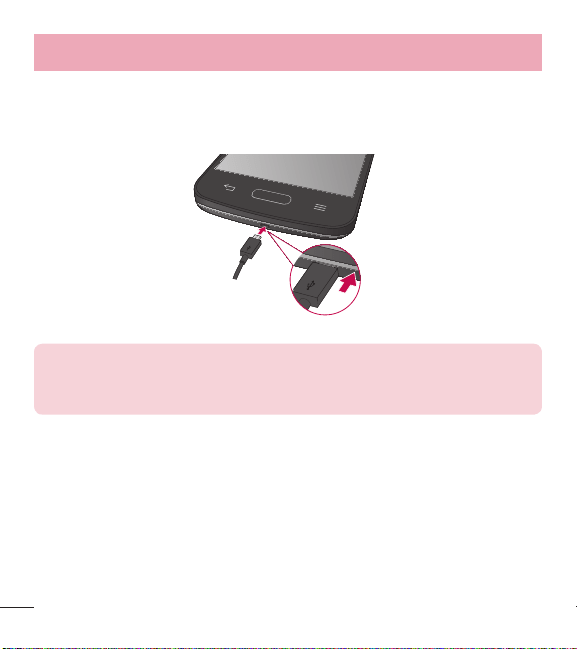
The Charger/USB Port is at the bottom of the phone. Insert one end of the USB cable
into the phone and plug the other end into an electrical outlet.
NOTE:
•
The battery must be fully charged initially to improve battery lifetime.
•
Do not open the back cover while your phone is charging.
15
Using the memory card
Make sure to unmount the SD card in the Storage menu before removing it.
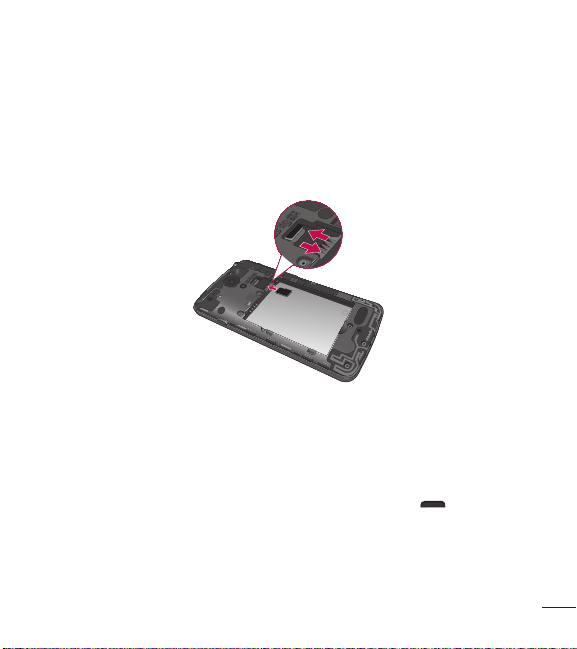
1 Remove the back cover.
2 Insert the memory card into the upper slot (the lower slot is for the SIM card).
Make sure the gold contact area is facing downwards.
Locking and unlocking the screen
If you do not use the phone for a while, the screen will be automatically turned off
and locked. This helps to prevent accidental taps and saves battery power.
When you are not using your phone, press the Power/Lock Key to lock your
phone.
And you can also lock the phone by double-tapping the Status Bar or an empty area
on the Home or Lock screen.

16
Getting to know your phone
If there are any programs running when you lock your screen, they may be still
running in Lock mode. It is recommended that you exit all programs before entering
Lock mode to avoid unnecessary charges (e.g. phone calls, web access and data
communications).
To wake up your phone, press the Power/Lock Key , Home Key or
double-tap the center of the screen. The Lock screen will appear. Touch and slide the
Lock screen in any direction to unlock the screen. The last screen you viewed will
open.

17
Important noticeYour Home screenYour Home screen
Touch screen tips
Here are some tips on how to navigate on your phone.
Touch or tap – A single finger tap selects items, links, shortcuts and letters on the
on-screen keyboard.
Touch and hold – Touch and hold an item on the screen by touching it and not lifting
your finger until an action occurs. For example, to open a contact's available options,
touch and hold the contact in the Contacts list until the context menu opens.
Drag – Touch and hold an item for a moment and then, without lifting your finger,
move your finger on the screen until you reach the target position. You can drag
items on the Home screen to reposition them.
Swipe or slide – To swipe or slide, quickly move your finger across the surface
of the screen, without pausing when you first touch it (so you don't drag an item
instead). For example, you can slide the screen up or down to scroll through a list
or browse through the different Home screens by swiping from left to right (and vice
versa).
Double-tap – Double-tap to zoom on a webpage or a map. For example, quickly
double-tap a section of a webpage to adjust that section to fit the width of the
screen. You can also double-tap to zoom in and out when viewing a picture and when
using Maps. And you can turn on/off the screen by double-tapping.
Pinch-to-Zoom – Use your index finger and thumb in a pinching or spreading
motion to zoom in or out when using the browser, Maps or when viewing pictures.
Rotate the screen – From many applications and menus, the orientation of the
screen adjusts to the device's physical orientation.

18
Your Home screen
NOTE:
•
To select an item, tap the center of the icon.
•
Do not press too hard; the touch screen is sensitive enough to pick up a
light, yet firm tap.
•
Use the tip of your finger to tap the option you want. Be careful not to tap
any other keys.
Home screen
Simply swipe your finger to the left or right to view the Home screen panels. You
can customize each panel with pre-loaded and downloaded apps, widgets, and
wallpapers.
The Quick Keys are available at the bottom of the Home screen. Quick Keys provide
easy and one-tap access to the functions you use the most.
NOTE: To add an icon, drag it to the Quick Keys bar and release it. To
remove an icon, drag it out of the Quick Keys bar.

19
Customizing the Home screen
You can customize your Home screen by adding apps, downloads, widgets or
wallpapers. For more convenience using your phone, add your favorite apps and
widgets to the Home screen.
To add items on your Home screen:
1 Touch and hold the empty part of the Home screen.
2 Tap the desired tab. Choose from Apps or Widget.
3 Drag the desired app icon to the preferred location and lift your finger.
To remove an item from the Home screen:
•
Touch and hold the icon you want to remove, then drag it to and release it.
TIP! To add an application icon to the Home screen from the Apps screen,
touch and hold the application you want to add and drag it to the desired
location.
TIP! Using folders
You can combine several app icons in a folder to help keep you organized.
Drop one app icon over another one on a Home screen and a folder will be
created with both icons in it.

20
Your Home screen
Unlocking the Screen
1 Press the Power/Lock Key to turn on your screen. Your Lock Screen will
appear.
2 From the center of the screen, swipe in any direction to unlock it.
•
To use a shortcut, swipe the shortcut icon at the bottom of the screen in any
direction. The screen will unlock and the application will open.
Knock Code
You can unlock the screen when it is off by tapping the correct area and sequence.
To activate the Knock Code feature
1 From the Home screen, tap > Apps tab > Settings > Lock screen > Select
screen lock > Knock Code.
2 This opens a screen that will guide you through how to select the unlock
sequence. You have to create a Backup PIN as a safety measure in case you
forget your unlock sequence.
TIP! The KnockON feature is not available when Knock Code is in use.
KnockON
This feature allows you to turn the screen on and off by double-tapping it.
To activate the KnockON feature
1 From the Home screen, tap > Apps tab > Settings > Gestures.
2 Place a checkmark on Screen on/off.

21
Using KnockON
Double-tap the center of the screen quickly while it's off to turn it on. To turn the
screen off, double-tap the Status Bar in any screen (except on the camera viewfinder)
or an empty area on the Home screen.
Customizing application icons on the Home screen
You can customize each application icon with images from your Gallery.
1 Touch and hold an application icon until it’s unlocked from its current position.
Then drop it on the screen. The editing icon will appear in the upper right
corner of the application.
NOTE: If an icon you placed can be resized, you will see a blue box around
the icon after you touch, hold and release it. Drag the edges of the box to
resize it.
2 Tap the application icon.
3 Tap the icon design you want from the available Theme icon choices and change
the size (if desired), then tap OK.
OR
Tap Photo icon, then tap Add new. Set the size for the icon, then tap OK. Select
the image want to use for the application. Crop the image if necessary, then tap
OK.
22
Your Home screen
NOTE:
•
Your customized application icon(s) are only applied to icons on your
Home screen. The Applications screen is not affected.
•
Your custom photo icons are saved so you can easily select them for any
of your icon images.
Creating Folders on the Home screen
You can create application folders to hold similar applications if you wish.
On the Home screen
1 Touch and hold an icon to unlock it from its positions. Then drag it over another
icon and release it.
2 A folder will be created.
On the Apps screen
1 From the Home screen, tap to open the Apps screen.
2 Touch the Apps tab > , then touch and hold the desired icon to release it from
its position.
3 Drag the icon over another icon and release it to create a folder.

23
Customizing the Apps screen
1 From the Home screen, tap .
2 Tap the Apps tab at the top of the screen to go to the Apps screen, if it is not
already selected.
3 Touch the Menu Key to access the following options:
•
View apps by: Tap to sort your applications either in alphabetical order, by
downloaded date, or user customized.
•
Show small/large icons: Tap to change the application icons to either small or
large, then tap Yes to set your choice.
•
Apps wallpaper: Tap to change the wallpaper background. Scroll horizontally to
view all of your choices, tap the one you want, then tap Apply.
•
Hide/Show apps: Tap to set which application icons will be displayed in your
Applications screen. Checkmark the icons you want to hide, then tap OK.
24
Your Home screen
Quick access
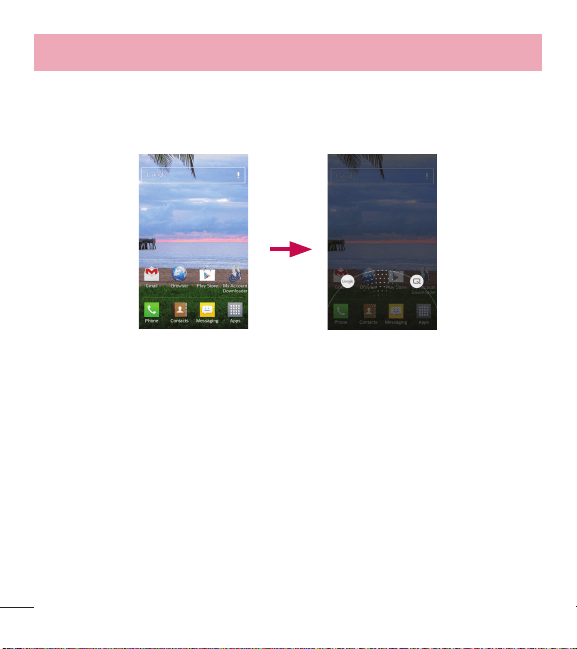
To view the quick access items, touch anywhere in the front key area and drag up.
The following options are available: Google Now and QuickMemo.
Notifications
Notifications alert you to the arrival of new messages, calendar events, and alarms,
as well as to ongoing events, such as video downloads.
From the Notifications Panel, you can view your phone's current status and pending
notifications.
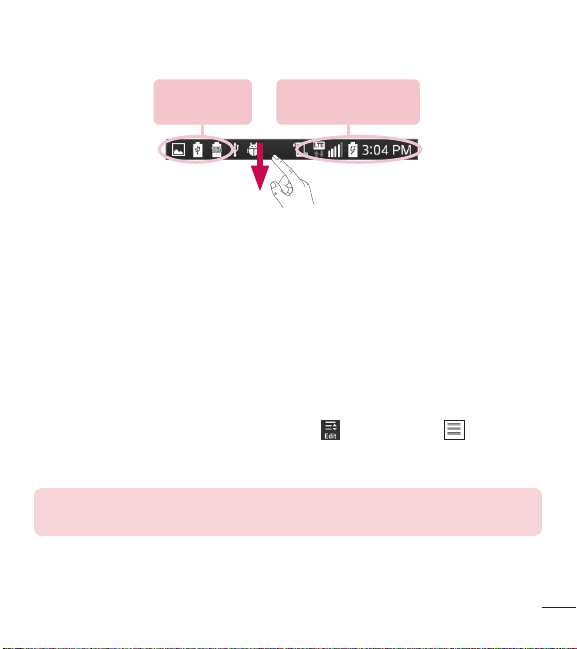
When a notification arrives, its icon appears at the top of the screen. Icons for
pending notifications appear on the left and system icons, such as Wi-Fi or bat tery
strength, on the right.
25
Pending
notifications
System notifications
Accessing notifications
Swipe the Status Bar downwards to open the Notifications Panel. To close the
Notifications Panel, swipe the bar that is at the bottom of the screen upwards.
Quick Settings
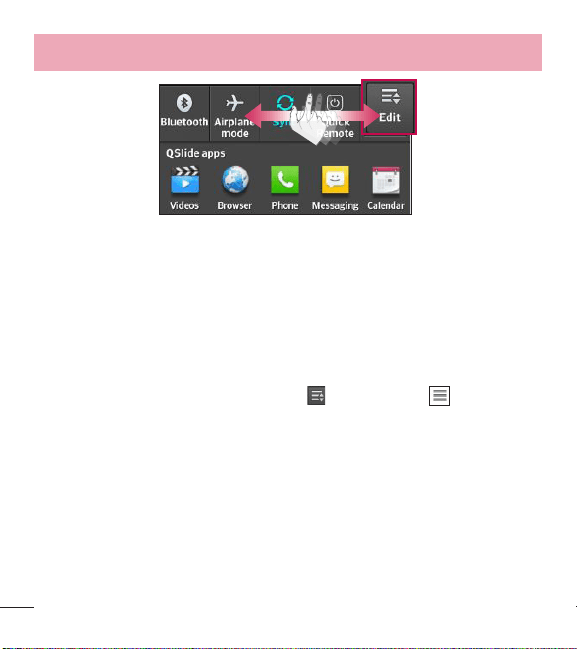
Use the Quick Settings to easily toggle function settings like Wi-Fi, manage display
brightness and more. To access the Quick Set tings, open the Notifications Panel. The
Quick Settings bar is located at the top of the Notifications Panel.
To rearrange Quick Setting items on the Notification Panel
Swipe the Quick Settings bar to the left and tap . Touch and hold next to the
items you want to move and drag it to the desired location. Tap the checkbox next to
each item to add or remove them from the Quick Settings bar.
NOTE: Touch and hold an icon on the Quick Settings bar to directly access
its settings menu.
26
Your Home screen
QSlide apps
To access the QSlide apps, open the Notifications Panel. The QSlide apps bar is
located at the top of the Notifications Panel.
The following items are available on the QSlide apps bar: Videos, Browser, Phone,
Messaging, Calendar, Email, Memo, File Manager, and Calculator.
To rearrange QSlide apps items on the Notification Panel
Swipe the QSlide apps bar to the left and tap . Touch and hold next to the
items you want to move and drag it to the desired location. Tap the checkbox next to
each item to add or remove them from the QSlide apps bar.
27
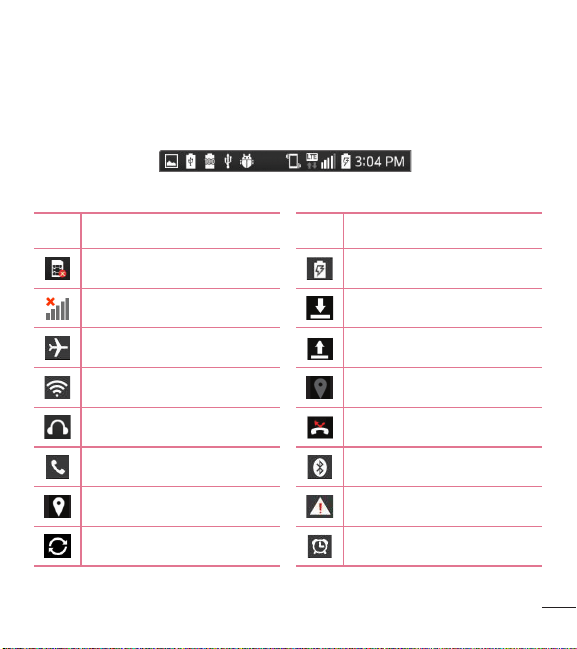
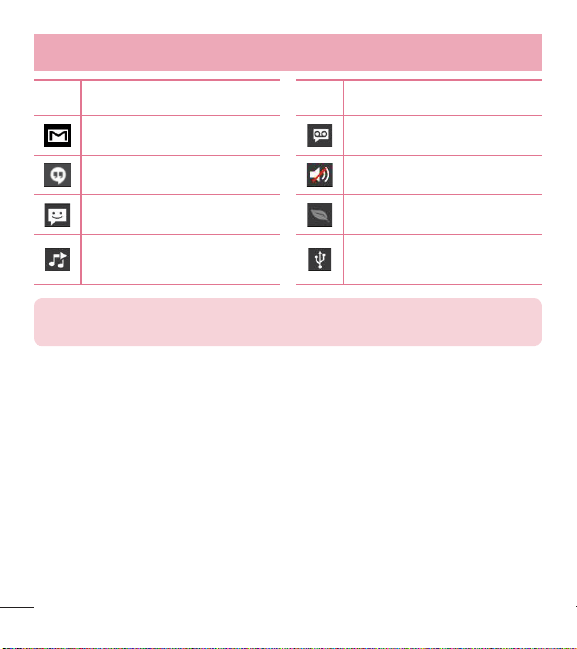
Notification icons on the Status Bar
Notification icons appear on the Status Bar at the top of the screen to report missed
calls, new messages, calendar events, device status and more.
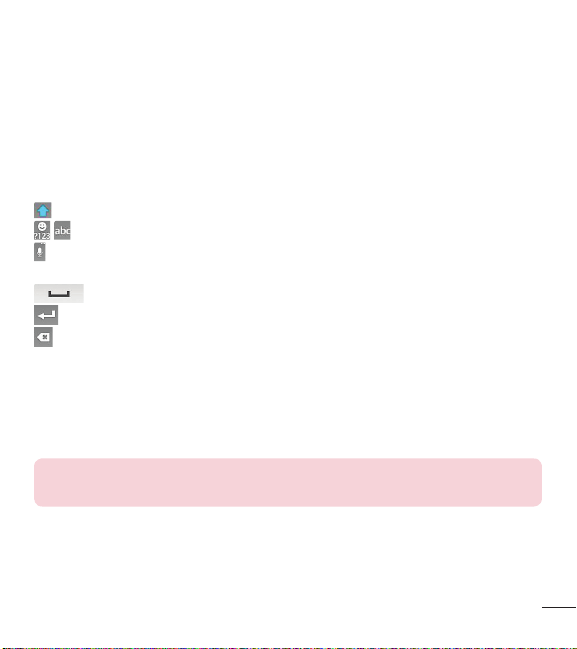
The icons listed in the table below are some of the most common ones.
Icon Description Icon Description
No Micro SIM card inserted Battery is charging
No signal Downloading data
Airplane mode Uploading data
Connected to a Wi-Fi network Acquiring GPS
Wired headset Missed call
Call in progress Bluetooth is on
Receiving location data from GPS System warning
Data is syncing An alarm is set
28
Your Home screen
Icon Description Icon Description
New Gmail message New voicemail
New Hangouts message Ringer is silenced
New text or multimedia message Battery saver is on
Song is playing
Phone is connected to PC via
USB cable
NOTE: The icon locations in the Status Bar may differ depending on the
functions, features, and apps being used.
29
On-screen keyboard
You can enter text using the on-screen keyboard. The on-screen keyboard appears
automatically on the screen when you need to enter text. To manually display the
keyboard, simply tap a text field where you want to enter text.
Using the keypad & entering text
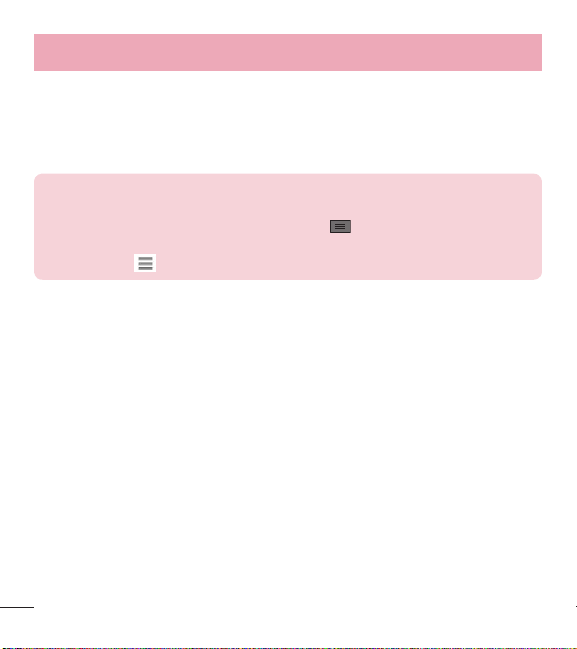
Tap once to capitalize the next letter you type. Double-tap for all caps.
Tap to switch to the numbers and symbols keyboard.
Tap to input text by voice. Touch and hold to access the keyboard settings and
Clip Tray. This key changes depending on the last option you choose.
Tap to enter a space.
Tap to create a new line in the message field.
Tap to delete the previous character.
Entering special characters
The LG Keyboard allows you to enter special characters (e.g. “á”) when entering text.
For example, to enter “á”, touch and hold the “a” key until the additional characters
are displayed. Then select the special character you want to enter.
NOTE: A symbol at the top right corner of a key indicates that additional
characters are available for that key.
30
Your Home screen
Earphone Plug & Pop
Plug & Pop allows you to quickly choose apps to use when plugging in an earphone
1 Plug in an earphone.
2 The applications panel will display and you can select an app to run.
NOTE: You can edit the applications to display on the panel and set not to
show the applications panel.
From the Home screen, tap the Menu Key
> System settings >
Accessory > Earphone Plug & Pop. Select the items you want to add/
remove. Drag to rearrange the items in the desired order.
31
Important noticeGoogle account setupGoogle account setup
The first time you open a Google application on your phone, you will be required to
sign in with your existing Google account. If you do not have a Google account, you
will be prompted to create one.
Creating your Google account
1 From the Home screen, tap to open the applications screen.
2 Tap Settings > Accounts & sync > Add account > Google > New to start
the Gmail set up wizard.
3 Tap a text field to open the keyboard and enter your name and username for your
Google account. When entering text, you can move to the next text field by tapping
Next on the keyboard.
4 When you have finished entering your name and username, tap . Your phone
then communicates with Google servers and checks for username availability.
5 Enter and re-enter your password. Then follow the instructions and enter the
required and optional information about the account. Wait while the server creates
your account.

32
Google account setup
Signing in to your Google account
1 On the Google Account setup screen, tap Existing, enter your e-mail address and
password, then tap .
2 After signing in, you can use Gmail and take advantage of Google services.
3 Once you have set up your Google account on your phone, it will be automatically
synchronized with your Google account on the web (depending on your
synchronization settings).
After signing in, you can use Gmail, and Play Store; back up your settings to Google
servers; and take advantage of other Google services on your phone.
33
Connecting to Networks and Devices
Wi-Fi
With Wi-Fi, you can use high-speed Internet access within the coverage of the
wireless access point (AP). Enjoy wireless Internet using Wi-Fi, without extra charges.
Connecting to Wi-Fi networks
To use Wi-Fi on your phone, you need to access a wireless access point or 'hotspot'.
Some access points are open and you can simply connect to them. Others are
hidden or use security features, you must configure your phone to be able to connect
to them.
Turn off Wi-Fi when you're not using it to extend the life of your battery.
NOTE: If you are out of the Wi-Fi zone or have set Wi-Fi to off, additional
charges may be applied by your mobile service provider for mobile data
use.
Turning Wi-Fi on and connecting to a Wi-Fi network
1 From the Home screen, tap > Apps tab (if necessary) > Settings >
Wi-Fi.
2 Tap the switch to turn Wi-Fi on and start scanning for available Wi-Fi
networks.
•
Secured networks are indicated by a lock icon.
3 Tap a network to connect to it.
•
If the network is secured, you are prompted to enter a password or other
credentials. (Ask your network provider for details)
4 The Status Bar displays icons that indicate your Wi-Fi status.
34
Connecting to Networks and Devices
Bluetooth
Bluetooth allows you to share data with other Bluetooth-enabled devices and connect
to Bluetooth headsets.
NOTE:
•
LG is not responsible for the loss, interception or misuse of data sent or
received via the Bluetooth wireless feature.
•
Always ensure that you share and receive data with devices that are
trusted and properly secured. If there are obstacles between the devices,
the operating distance may be reduced.
•
Some devices, especially those that are not tested or approved by
Bluetooth SIG, may be incompatible with your device.
Turning on Bluetooth and pairing up your phone with a Bluetooth device
You must pair your phone with another device before you connect to it.
1 From the Home screen, tap > Apps tab (if necessary) > Settings >
Bluetooth.
2 Tap the switch to turn Bluetooth on.
3 Tap the check box next to your phone's name to make your phone visible to other
Bluetooth devices.
NOTE: To select the length of time that your device will be visible, tap the
Menu Key > Visibility timeout.
4 A list of available devices will be displayed. Choose the device you want to pair
with from the list.

35
5 Depending on the type of device, you may have to enter matching codes, confirm
matching codes, or the devices will automatically pair.
Once the paring is successful, your device will connect to the other device.
NOTE: Some devices, especially headsets or hands-free car kits, may have
a fixed Bluetooth PIN, such as 0000. If the other device has a PIN, you will
be asked to enter it.
Send data using the Bluetooth feature
1 Select a file or item, such as a contact, calendar event or media file, from an
appropriate application or from the Downloads app.
2 Select the option for sending data via Bluetooth.
NOTE: The method for selecting an option may vary by data type.
3 Search for and pair with a Bluetooth-enabled device.
Receive data using the Bluetooth feature
1 Refer to the Bluetooth device's user guide to send a file to your phone. Both
devices must be paired and Bluetooth must be on.
2 Tap Accept to confirm that you are willing to receive data from the device.

36
Connecting to Networks and Devices
Connecting to Virtual Private Networks
Virtual private networks (VPNs) allows you to connect to resources inside a secure
local network, from outside that network.
To add a VPN
1 From the Home screen, tap the Menu Key > System settings > More... >
VPN.
NOTE: You must configure a screen lock to use VPN.
2 Tap Add Basic VPN network.
3 Tap the type of VPN you want to add.
4 In the screen that opens, follow the instructions from your network provider to
configure each component of the VPN settings.
5 Tap Save. The VPN will be added to the list on the VPN settings screen.
PC connections with a USB cable
Learn to connect your device to a PC with a USB cable using the different USB
connection modes.
Transferring music, photos and videos using Media sync (MTP)
1 Connect your phone to a PC using the USB cable provided with your phone.
2 A USB connection type list will appear on your phone screen. You can also go to
System settings > PC connection > Select USB connection method > Media
sync (MTP).
3 You can now view media contents on your PC and transfer the files.

37
Synchronize with Windows Media Player
Ensure that Windows Media Player is installed on your PC.
1 Use the USB cable to connect the phone to a PC on which Windows Media Player
has been installed.
2 Select the Media sync (MTP) option. When connected, a pop-up window will
appear on the PC.
3 Open Windows Media Player to synchronize music files.
4 Edit or enter your device's name in the pop-up window (if necessary).
5 Select and drag the music files you want to the sync list.
6 Start synchronization.
•
The following requirements must be satisfied to synchronize with Windows Media
Player.
Items Requirement
OS Microsoft Windows XP SP2, Vista or higher
Window Media Player version Windows Media Player 10 or higher
•
If the Windows Media Player version is lower than 10, install version 10 or higher.
38
Calls
Making a call
1 From the Home screen, tap to open the dial pad.
2 Enter the number using the dial pad. To delete a digit, tap .
3 Tap to make a call.
4 To end a call, tap .
TIP! To enter “+” to make international calls, touch and hold .
Calling your contacts
1 From the Home screen, tap to open your contact list.
2 Scroll through the contact list or tap the Search contacts box and enter the
contacts name. You can also scroll the alphabet bar along the right side of the
screen.
3 In the list, tap next to the desired contact to make the call.
Answering and rejecting a call
•
Swipe in any direction to answer the incoming call.
•
Swipe in any direction to decline an incoming call.
NOTE: If you are using an app while you receive a call, the incoming call
pop-up will be displayed. To enable or disable this feature, go to System
settings > Call and tap the Incoming voice call pop-up checkbox.
39
TIP! Decline with message
You can send a message quickly using this function. This is useful if you
need to reject a call with message during a meeting.
Adjusting the in-call volume
To adjust the in-call volume during a call, use the Volume Up and Volume Down Keys
on the left-hand side of the phone.
Making a second call
1 During your first call, tap Menu Key , touch Add call and dial the number. You
can also go to the recently dialed numbers list by tapping or search contacts
by tapping and selecting the contact you want to call.
2 Tap to make the call.
3 Your initial call is placed on hold.
4 Tap if you want to start a conference call.
5 To end active calls, tap .
NOTE: You may be charged for each call you make.
TIP! Tap Manage members to end or remove individual calls from the
conference call.
40
Calls
Viewing your call logs
From the Home screen, tap and choose the Call logs tab . A complete list of
all dialed, received and missed calls is displayed.
TIP!
•
Tap any call log entry to view the date, time and duration of the call.
•
Tap the Menu Key , then tap Delete all to delete all the recorded
items or tap Delete to delete individual items.
Call settings
You can configure phone call settings such as call forwarding, as well as other
special features offered by your carrier.
1 From the Home screen, tap .
2 Tap the Menu Key .
3 Tap Call settings and choose the options that you wish to adjust.
41
Contacts
Add contacts to your phone and synchronize them with the contacts in your Google
account or other accounts that support contact syncing.
Searching for a contact
1 From the Home screen, tap to open your contact list.
2 Tap the Search contacts box and enter the contacts name. You can also scroll
the alphabet bar along the right side of the screen.
Adding a new contact
1 From the Home screen, tap and enter the new contact's number.
2 Tap the Menu Key > Add to Contacts > New contact.
3 If you want to add a picture to the new contact, tap . Choose from Take photo
or Select from Gallery.
4 Tap at the top of the screen and select the account you want to save the
contact to.
5 Tap a category of contact information and enter the details about your contact.
6 Tap Save.
Favorite contacts
You can classify frequently called contacts as favorites.
Adding a contact to your favorites
1 From the Home screen, tap to open your contact list.
2 Tap a contact to view its details.
42
Contacts
3 Tap the star to the right of the contact's name. The star will turn yellow color.
Removing a contact from your favorites list
1 From the Home screen, tap to open your contact list.
2 Tap the tab and choose a contact to view its details.
3 Tap the yellow color star to the right of the contact's name. The star turns grey
color and the contact is removed from your favorites.
Creating a group
1 From the Home screen, tap to open your contact list.
2 Tap the Groups tab, then tap the Menu Key > New group.
3 Enter a name for the new group. You can also set a ringtone and the account you
want to save the newly created group to.
4 Tap Save to save the group.
NOTE: If you delete a group, the contacts assigned to that group will not be
lost. They will remain in your contacts.
43
Messaging
Your phone combines text and multimedia messages into one intuitive, easy-to-use
menu.
Sending a message
1 Tap on the Home screen and tap to compose a new message.
2 Enter a contact name or contact number in the To field. As you enter the contact
name, matching contacts will appear. You can tap a suggested recipient. You can
add more than one contact.
NOTE: You may be charged for a text message for every person you send
the message to.
3 Tap the text field and begin composing your message.
4 Tap the Menu Key to access the messaging options.
TIP! You can tap the icon to attach a file you want to share.
NOTE: All functions of the Messaging app will be limited if the LG
Messaging app is not set as the default SMS app. To set the default SMS
app, from the Home screen, tap the Menu Key > System settings >
More > Default SMS app and choose Messaging.
5 Tap Send (or Send MMS) to send your message.
NOTE: Additional charges may apply when multimedia messages are
downloaded while roaming.
44
Messaging
WARNING
•
The 160-character limit may vary from country to country, depending on
the language and how the text message is coded.
•
If an image, video or audio file is added to a text message, it is
automatically converted into a multimedia message and you may be
charged accordingly.
Using smilies
Liven up your messages using smilies and emojis.
When writing a new message, tap the Menu Key > Insert smiley. To access
emojis, tap on the LG keyboard and choose an emoji category to view the
available emojis.
Changing the conversation theme
Sets how your conversations are displayed.
1 Open the Messaging app and tap the Menu Key > Settings > Conversation
theme.
2 Tap the Wallpaper tab to choose the conversation background. Choose from the 6
options provided, a photo from your Gallery, or take a picture to use.
3 Tap the Bubble tab to choose the conversation style. Choose from the 6 options
provided.

45
View mode
Unread messages are located at the top. Other messages exchanged with another
party are displayed in threads and in chronological order so that you can conveniently
see an overview of your conversation.
Changing your message settings
Your phone message settings are pre-defined, so you can send messages
immediately. You can change the settings according to your preferences.
•
Open the Messaging app and tap the Menu Key > Settings.

46
E-mailE-mail
You can use the Email application to read emails from services other than Gmail (also
supported). The Email application supports the following account types: POP3, IMAP
and Exchange.
Your service provider or system administrator can provide you with the account
settings you need.
Managing an email account
The first time you open the Email application, a set-up wizard opens to help you to
set up an email account.
After the initial set-up, the Email application displays the contents of your inbox. If you
have added more than one account, you can switch among accounts.
To add another email account:
•
Open the Email application and tap the Menu Key > Settings > Add
account.
To change an email account's settings:
•
Open the Email application and tap the Menu Key > Settings. Then tap
General settings to configure settings for all accounts or tap an individual account
to configure settings only for that particular account.
To delete an email account:
•
Open the Email application and tap the Menu Key > Settings > Menu Key
> Remove account > tap an account > Remove > Yes.
47
Working with account folders
Open the Email application and tap the Menu Key > Folders.
Each account has an Inbox, Outbox, Sent and Drafts folder. Depending on the
features supported by your account's service provider, you may have additional
folders.
Composing and sending email
To compose and send a message
1 While in the Email application, tap .
2 Enter an address for the message's intended recipient. As you enter text, matching
addresses will be proposed from your Contacts. Separate multiple addresses using
semicolons.
3 Tap the Cc/Bcc field to copy recipients. Tap to attach files, if needed.
4 Tap the message field and enter your message.
5 Tap to send the email.
If you aren't connected to a network, for example, if you're working in airplane
mode, the messages that you send will be stored in your Outbox folder until you
connect to a network again. If it contains any pending messages, the Outbox will
be displayed on the Accounts screen.
TIP! When a new email arrives in your Inbox, you will be notified by a sound
or vibration (depending on your sound and vibration settings).
48
CameraCamera
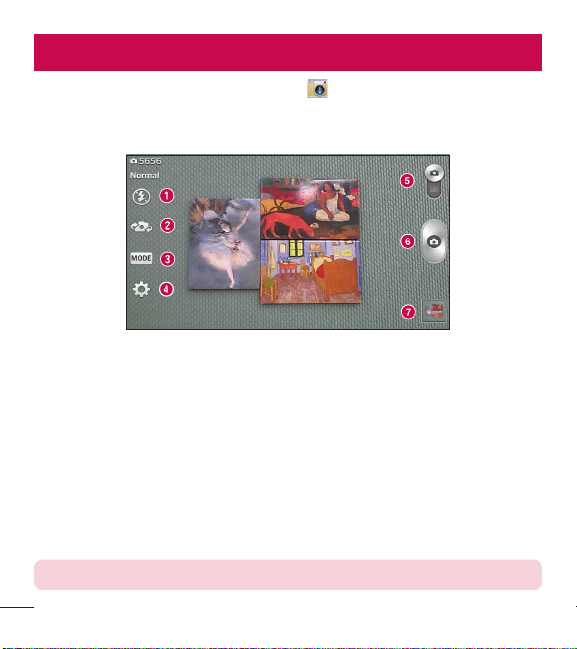
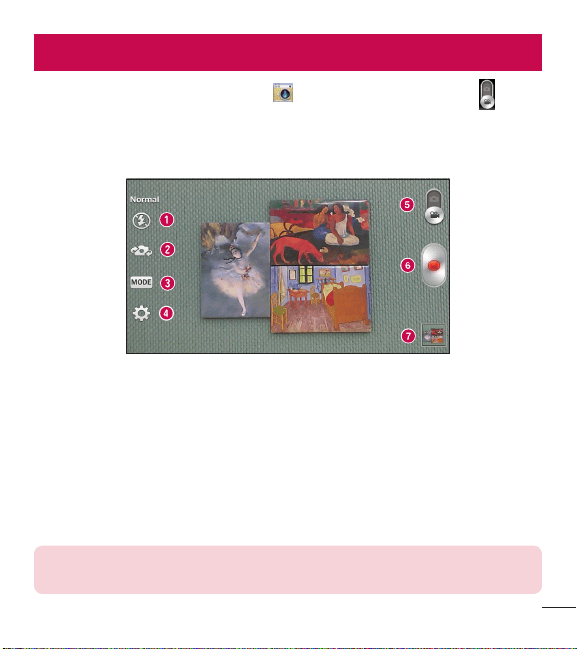
To open the Camera application, tap Camera on the Home screen.
Getting to know the viewfinder
a Flash – Tap to turn the flash On, Off or set it to Auto.
b Swap camera – Switch between the rear-facing camera lens and the front-
facing camera lens.
c Shot mode – Allows you select the shot mode from Normal, Dynamic
tone(HDR), Panorama, Continuous shot, Time catch shot and Sports.
d Settings – Touch this icon to open the settings menu. See Using the advanced
settings on the following page.
e Video mode – Touch and slide down this icon to switch to video mode.
f Capture – Touch to capture a picture.
g Gallery – Touch to view the last photo you captured. This enables you to access
your Gallery and view saved photos while in camera mode.
NOTE: Please ensure the camera lens is clean before taking pictures.
49
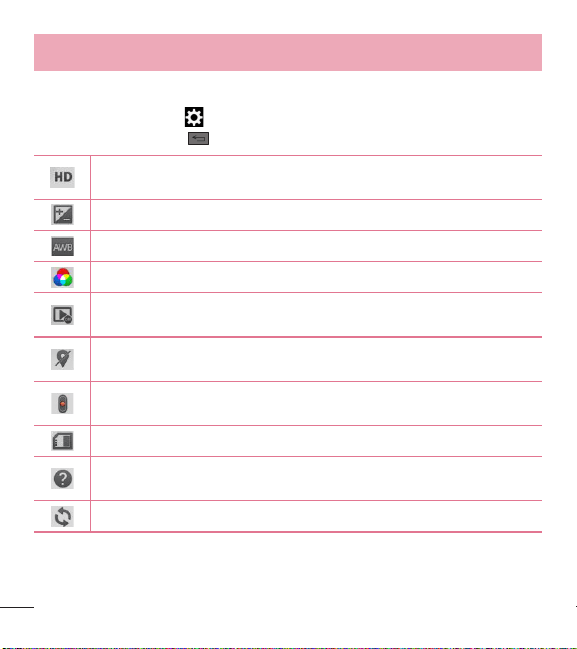
Using the advanced settings
In the viewfinder, tap to open the advanced options. You can change the camera
settings by scrolling through the list. After selecting the option, tap the Back Key .
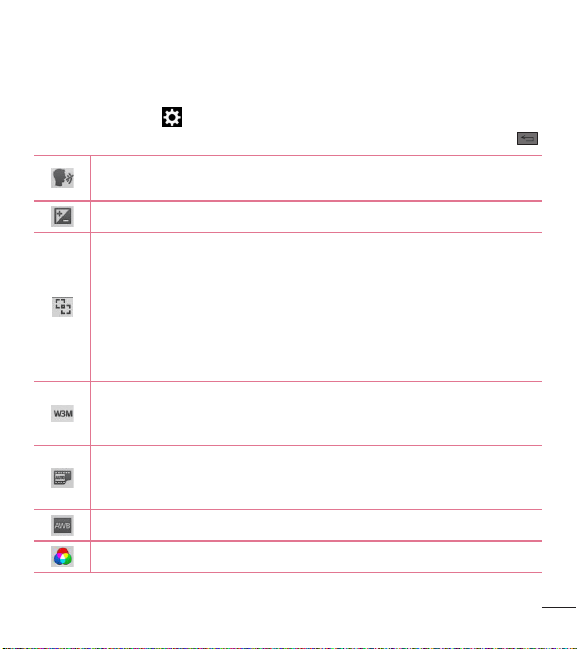
This enables you to take a picture by saying a voice command.
Say Cheese, Smile, Whiskey, Kimchi or LG to take a photo.
This defines and controls the amount of sunlight entering the image.
Tap to select the focus mode.
Auto: Allows the camera to focus automatically. (The camera continuously
focuses on the objects in the photo).
Manual: Allows you to set the focus mode manually before taking a
photo.
Face tracking: The camera detects and focuses on human faces
automatically.
Tap to set the size (in pixels) of the picture you take. Select a pixel value
from the following options: 5M 2560x1920 (4:3), W3M 2240x1344 (5:3)
and 1M 1280x960 (4:3).
The ISO rating determines the sensitivity of the camera's light sensor. The
higher the ISO, the more sensitive the camera. This is useful in darker
conditions when you cannot use the flash.
Improves white balance in various lighting conditions.
Applies color effects to your pictures.
50
Camera
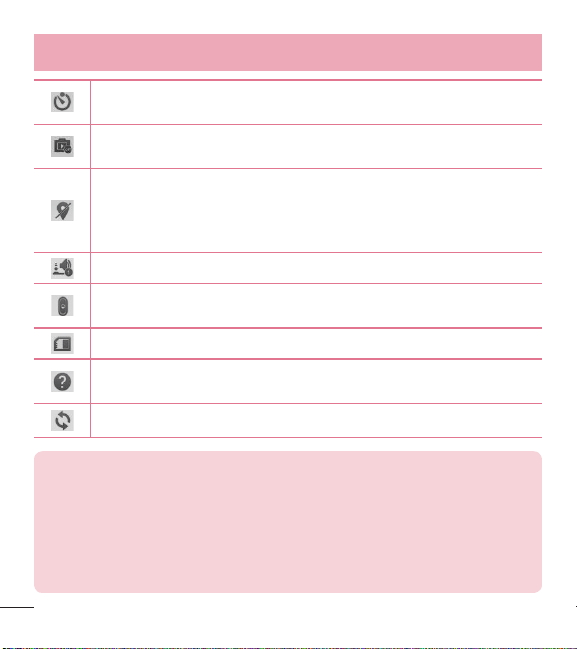
Sets a delay after the Capture button is pressed. This is ideal if you want
to be in the photo.
Set the time to automatically show a picture just taken. You can select
from Off, On, 2 sec and 5 sec.
Activate this to use your phone's location-based services. Take pictures
wherever you are and tag them with the location. If you upload tagged
pictures to a blog that supports geo-tagging, you can see the pictures
displayed on a map.
Selects a shutter sound.
Set how to use the Volume Keys while using the Camera. Choose from
Capture or Zoom.
Select the location where you want to save your images.
Tap this whenever you want to know how a function works. This icon will
provide you with a quick help guide.
Restore all camera settings back to default.
TIP!
•
When you exit the camera, some settings return to their defaults, such as
white balance, color effect, timer and scene mode. Check these before
you take your next photo.
•
The setting menu is superimposed over the viewfinder, so when you
change photo color or quality elements, you will see a preview of the
changed image behind the Settings menu.
51
Taking a quick photo
1 Open the Camera application.
2 Holding the phone horizontally, point the lens towards the subject you want to
photograph.
3 Tap to capture the photo.
Once you've taken a photo
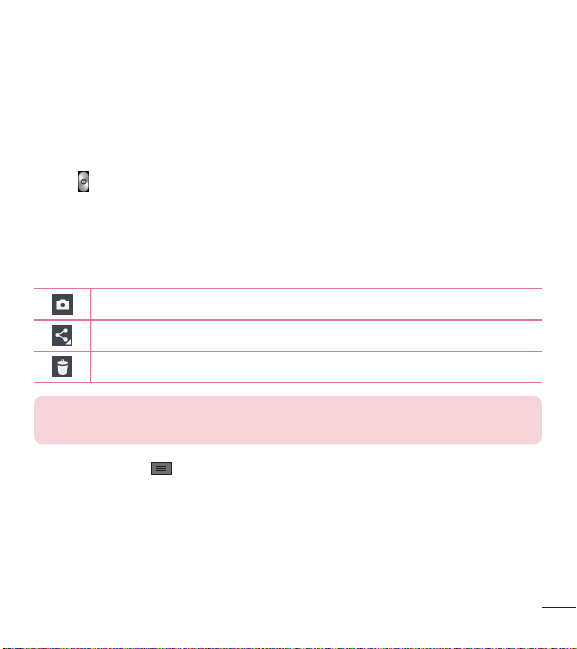
Tap the image preview at the bottom of the screen to view the last photo you
captured. Choose to view the photo with the Gallery.
Tap to take another photo immediately.
Tap to send your photo to others.
Tap to delete the photo.
TIP! If you have an social networking account set up on your phone, you
can share your photo with your social networking community.
Tap the Menu Key to open the following advanced options.
Set image as – Tap to use the photo as a Contact photo, Home screen
wallpaper, Lock screen wallpaper, or Wallpaper.
Move – Tap to move the photo to another album.
Copy – Tap to copy the selected photo and save it to another album.
Copy to Clip Tray – Tap to copy the selected photo and save it to Clip Tray.
52
Camera
Rename – Tap to edit the name of the selected photo.
Rotate left/right – Tap to rotate the picture to the left or right.
Crop – Tap to crop your photo.
Edit – Tap to edit the photo.
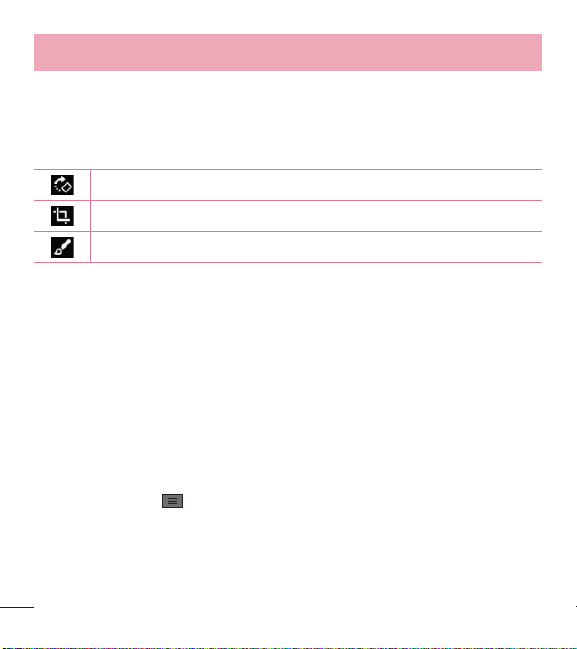
Rotates the image clockwise each time you tap it.
Crops the photo using the freeform, original, or square cropping box.
Applies a filter or a frame to your photo.
Slideshow – Displays a slideshow using all of your photos.
Add location – Add location information to your photo.
Details – Displays information about the photo.
Viewing your saved photos
You can access your saved photos when in camera mode. Just tap the image
preview at the bottom of the screen and your Gallery will be displayed.
•
To view more photos, scroll left or right.
•
To zoom in or out, double-tap the screen or place two fingers and spread them
apart (move your fingers closer together to zoom out).
•
Tap the Menu Key to access additional options.
53
Video cameraVideo camera
To open the video camera, tap Camera on the Home screen, then tap to
switch to video mode.
Getting to know the viewfinder
a Flash – Tap to turn the flash On, Off or set it to Auto.
b Swap camera – Allows you to swap between the rear camera lens and the front camera lens.
c Recording mode – Allows you to change the recording mode to Normal and Live effect.
d Settings – Touch this icon to open the settings menu. See Using the advanced settings on
the following page.
e Camera mode – Touch and slide up this icon to switch to camera mode.
f Record – Touch to start recording a video.
g Gallery – Touch to view the last video you recorded. This enables you to access your Gallery
and view your saved videos while in video mode.
NOTE: While recording a video, place two fingers on the screen and pinch
to use the Zoom function.
54
Video camera
Using the advanced settings
Using the viewfinder, tap to open the advanced options. After selecting the
option, tap the Back Key .
Allows you to change the video resolution to FHD 1920x1080(30fps), HD
1280x720, QVGA 320x240 and QCIF 176x144(MMS).
This defines and controls the amount of sunlight entering the video.
Improves white balance in various lighting conditions.
Choose a color effect to use for your video.
This enables to show the video you recorded automatically. You can select
from Off, On, 2 sec and 5 sec.
Activate this to use your phone's location-based services for geo-tagging
purposes.
Select what action to take when pressing the Volume Keys while using the
Camera. Choose from Record or Zoom.
Select the location where you want to save your videos.
Tap this whenever you want to know how a function works. This icon will
provide you with a quick help guide.
Restore all video camera settings back to default.
55
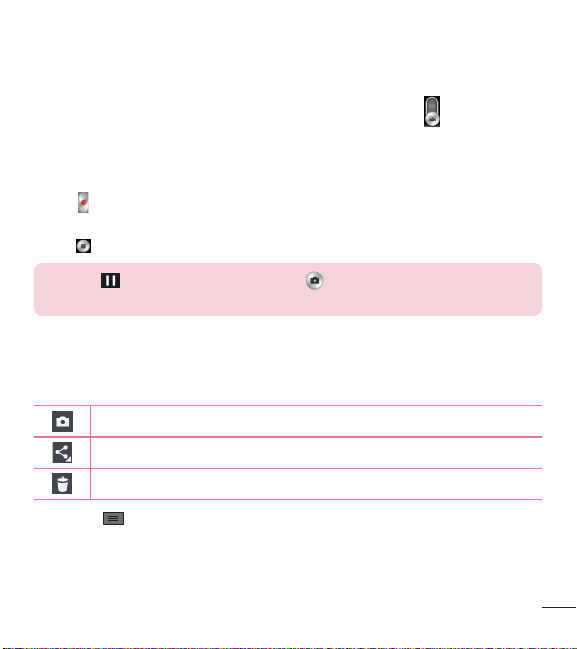
Recording a quick video
1 Open the Camera application and tap the Video mode button .
2 The video camera viewfinder appears on the screen.
3 Hold your phone, point the lens towards the subject you wish to capture in your
video.
4 Tap once to start recording.
5 A timer showing the length of the video is displayed.
6 Tap to stop recording.
TIP! Tap to pause the recording. Tap to capture a screen shot while
recording a video.
After recording a video
Tap the image preview at the bottom to view the last video you recorded.
Tap to record another video immediately.
Tap to send your video to others or share it via social network services.
Tap to delete the video.
Menu Key - Tap to access Move, Copy, Trim, Rename and Details.
56
Video camera
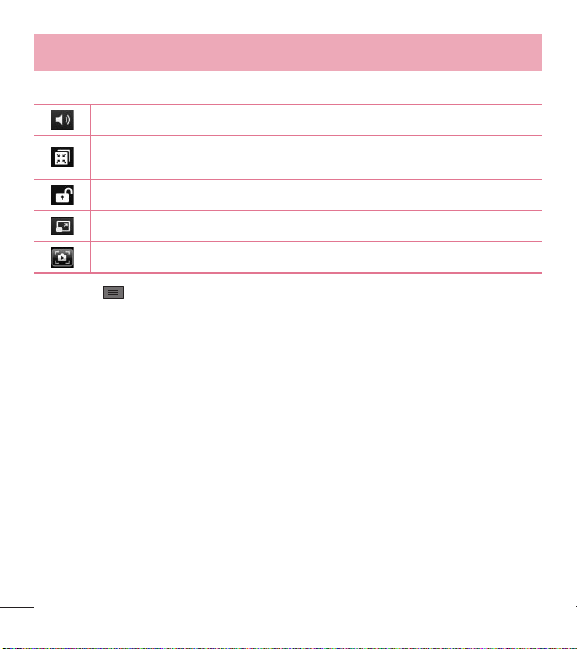
While playing a video, the following options are available.
Increases the volume in the selected area during video playback.
Access QSlide and enable an overlay on your phone's display for easy
multi-tasking.
Locks the touch keys to prevent unintentional touches.
Allows you to adjust the screen ratio.
Captures a screen shot while playing a video.
Menu Key - Tap to access Subtitle, Share, Trim, Delete, Settings, Details and
Help.
Watching your saved videos
1 In the viewfinder, tap the image preview at the bottom of the screen.
2 Your Gallery will appear on the screen.
3 Tap a video to play it automatically.
Adjusting the volume when viewing a video
To adjust the volume of a video while it is playing, use the Volume Keys on the left
side of the phone.
57
LG Unique FunctionLG Unique Features
QuickMemo
The QuickMemo feature allows you to create memos and capture screen shots.
You can use QuickMemo to easily and efficiently create memos during a call, with a
saved picture or on the current phone screen.
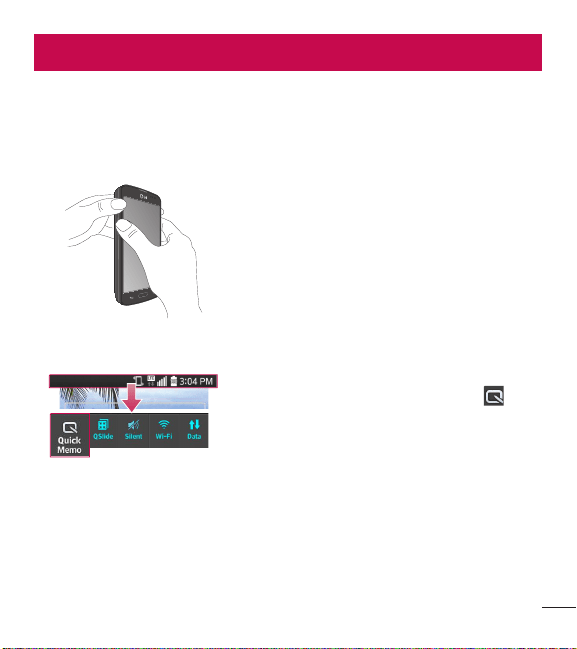
1 Access the QuickMemo feature by pressing
both Volume Keys for one second on the screen
you want to capture.
OR OR
Drag the Status Bar down and and tap on
the Quick Settings Bar.
58
LG Unique Features
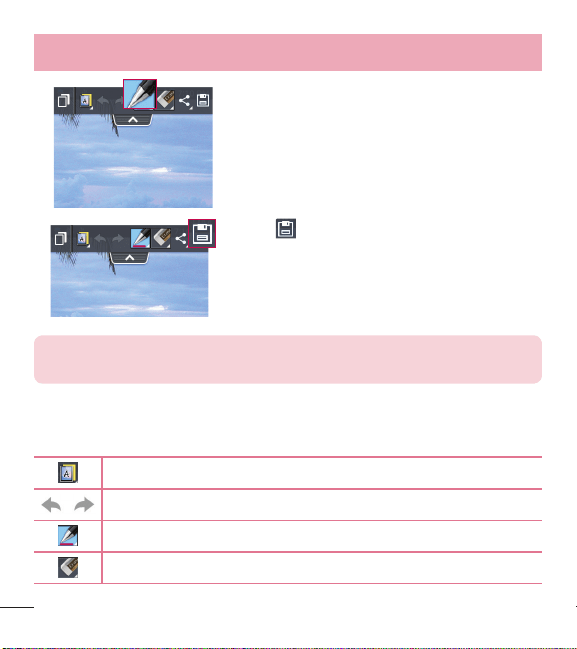
2 Create a memo using the toolbar options.
3 Tap in the toolbar to save the memo to the
QuickMemo album in your Gallery.
NOTE: Please use a fingertip while using the QuickMemo function. Do not
use your fingernail.
Using the QuickMemo options
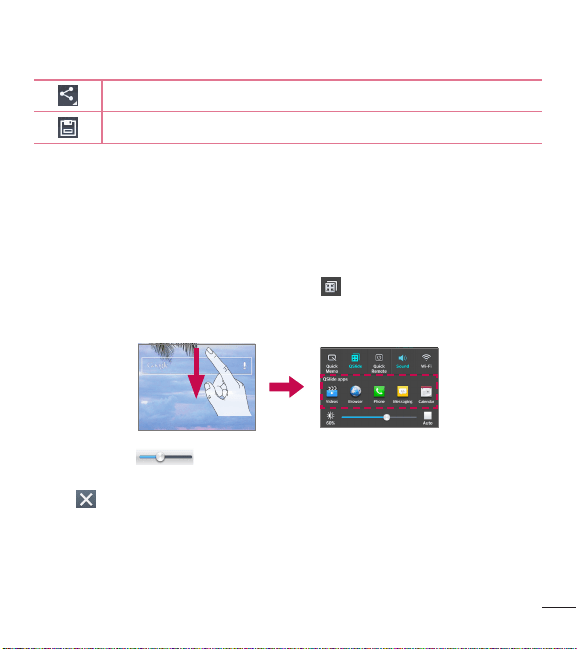
The following options are available when using QuickMemo.
Allows you to choose a background.
Undo or redo previous actions.
Selects the pen type, pen color, and cropping tool.
Erases the memo that you created.
59
Tap to send your memo to others or share it via social network services.
Saves the memo in the Gallery.
Viewing the saved QuickMemo
Open the Gallery and select the QuickMemo album.
QSlide
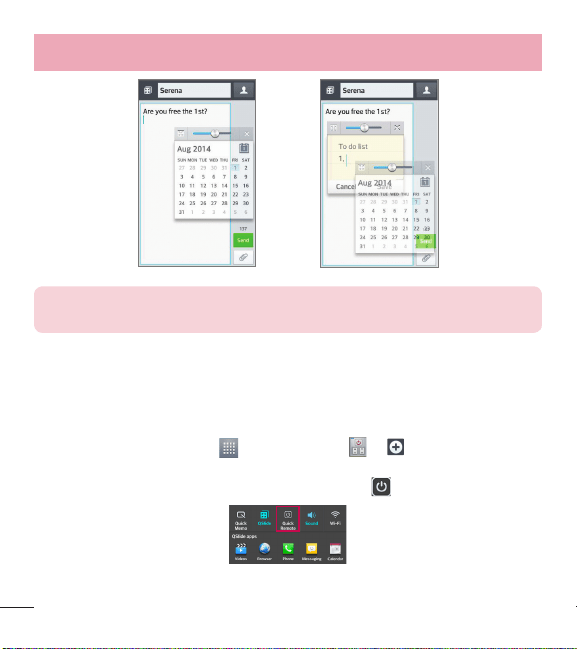
The QSlide function enables an overlay on your phone's display for easy multitasking.
1 While using an app that supports QSlide, tap to access QSlide.
OR
Open the Notifications Panel and touch an app from the QSlide apps section.
2 Use the slider to adjust the transparency of the overlay.
3 You can make a call, or choose other phone options.
4 Tap to exit the QSlide function.
- Drag the bottom right corner to increase or to decrease the window size.
- Drag the title bar to move the window on screen.
60
LG Unique Features
NOTE: The QSlide function can support up to two windows at the same
time.
QuickRemote
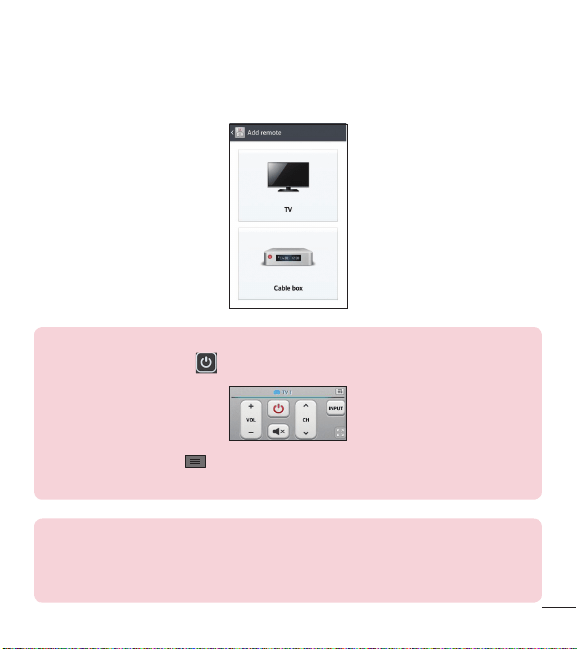
QuickRemote turns your phone into a Universal Remote for your home tv and cable
box.
1 From the Home screen, tap > QuickRemote
92
Discard QuickMemos:
• Tap the Back Key .
View the Saved Memo
From the Home screen tap the Apps Key
> Gallery or Notebook
and
select the QuickMemo album.
QuickRemote
QuickRemote turns your phone into a Universal Remote for your home TV,
cable box, audio system, DVD/Blu-ray players, air conditioner and projector.
1 From the Home screen, tap the Apps Key
> QuickRemote
> .
OR
Touch and slide the Status Bar downwards and touch
> ADD REMOTE.
2 Select the type of device and its manufacturer, then follow the on-screen
instructions to confi gure the device(s).
Utilities
>
92
Discard QuickMemos:
• Tap the Back Key .
View the Saved Memo
From the Home screen tap the Apps Key
> Gallery or Notebook
and
select the QuickMemo album.
QuickRemote
QuickRemote turns your phone into a Universal Remote for your home TV,
cable box, audio system, DVD/Blu-ray players, air conditioner and projector.
1 From the Home screen, tap the Apps Key
> QuickRemote
> .
OR
Touch and slide the Status Bar downwards and touch
> ADD REMOTE.
2 Select the type of device and its manufacturer, then follow the on-screen
instructions to confi gure the device(s).
Utilities
.
OR
Touch and slide the Status Bar downwards and touch
92
Discard QuickMemos:
• Tap the Back Key .
View the Saved Memo
From the Home screen tap the Apps Key
> Gallery or Notebook
and
select the QuickMemo album.
QuickRemote
QuickRemote turns your phone into a Universal Remote for your home TV,
cable box, audio system, DVD/Blu-ray players, air conditioner and projector.
1 From the Home screen, tap the Apps Key
> QuickRemote
> .
OR
Touch and slide the Status Bar downwards and touch
> ADD REMOTE.
2 Select the type of device and its manufacturer, then follow the on-screen
instructions to confi gure the device(s).
Utilities
> ADD REMOTE.
61
2 Select the type of device and its manufacturer, then follow the on-screen
instructions to configure the device(s).
TIP! To quickly use the QuickRemote feature, touch and slide the Status
Bar downward and tap on the Quick Settings bar to activate it.
Touch the Menu Key to select Magic Remote setting, Edit remote
name, Move remote, Delete remote, Edit room, Settings, and Help.
NOTE: QuickRemote uses infrared (IR) signals to operate the same way as
an ordinary remote control. Therefore, be careful not to cover the infrared
sensor when you use QuickRemote. This function may not be supported
depending on the model, the manufacturer or service provider.
62
MultimediaMultimedia
Gallery
You can store multimedia files in the internal and external memory for easy access
to all your multimedia files. Use this application to view multimedia files like pictures
and videos.
•
From the Home screen, tap > Apps tab (if necessary) > Gallery .
NOTE:
•
Some file formats are not supported, depending on the software installed
on the device.
•
Some files may not play properly, depending on how they are encoded.
Viewing pictures
Open the Gallery to display your available albums. When another application, such
as Email, saves a picture, the download folder is automatically created to contain
the picture. Likewise, capturing a screenshot automatically creates the Screenshots
folder. Select a folder to open it.
Pictures are displayed by creation date in a folder. Select a picture to view it full
screen. Scroll left or right to view the next or previous image.
Zooming in and out
Use one of the following methods to zoom in on an image:
•
Double-tap anywhere to zoom in.
•
Spread two fingers apart on any place to zoom in. Pinch to zoom out, or double-tap
to return.
63
Playing videos
Video files show the icon in the preview. Select a video to watch it and tap .
NOTE: If the file size exceeds the available memory, an error can occur
when you open files.
Editing photos/videos
When viewing an photo/video, tap the Menu Key and use the advanced editing
options.
Deleting images
Use one of the following methods:
•
In an album, tap and select photos/videos by tapping them, then tap Delete.
•
When viewing a photo/video, tap .
Setting a photo as the wallpaper
When viewing a photo, tap the Menu Key and select Set image as to set the
image as the Home screen or Lock screen wallpaper.
64
Multimedia
Videos
Your phone has a video player that lets you play all of your favorite videos.
Playing a video
1 From the Home screen, tap > Apps tab (if necessary) > Videos .
2 Select the video you want to play.
NOTE: While watching a video, slide the left side of the screen up and
down to adjust the brightness. Slide the right side of the screen up and
down to adjust the volume.
Music
Your phone has a music player that lets you play all your favorite tracks. To access
the music player, from the Home screen, tap > Apps tab (if necessary) > Music
.
How to save music/video files to the phone
Connect your phone to the PC using the USB cable.
You'll receive a notification that the USB is connected and the USB connection type
prompt is displayed. Tap Media sync (MTP) or Send images (PTP) and open the
folder you wish to view from your computer.
Save music or video files from the PC to the phone.
- You may copy or move files from the PC to the phone's removable storage using a
card reader.
65
- If there is a video file with a subtitle file (.smi file with the same name as the video
file), place them in the same folder to display the subtitle automatically when
playing the video file.
- When downloading music or video files, copyright must be secured. Please note
that a corrupted file or file with a wrong extension may cause damage to the phone.
Playing a song
1 From the Home screen, tap > Apps tab (if necessary) > Music .
2 Tap the Songs tab.
3 Select the song you want to play.
Tap to find the the song on YouTube.
Tap to add the song to your Favorites playlist.
Tap to set shuffle mode.
Tap to set repeat mode.
Tap to adjust the music volume.
Tap to pause playback.
Tap to resume playback.
Tap to skip to the next track on the album or in the playlist. Touch and
hold to fast-forward in 3 second increments.
66
Multimedia
Tap to go back to the beginning of the song. Tap twice to return to the
previous song. Touch and hold to rewind in 3 second increments.
Tap to see the current playlist.
Tap to change the audio effects (a headset or earphones must be
connected).
To change the volume while listening to music, press the Volume Keys on the left side
of the phone.
Touch and hold any song in the list to access Play, Add to playlist, Share, Set as
ringtone, Delete, Details and Search.
NOTE:
•
Some file formats are not supported, depending on the device software.
•
If the file size exceeds the available memory, an error can occur when you
open files.
•
Music file copyrights may be protected by international treaties and
national copyright laws. Therefore, it may be necessary to obtain
permission or a licence to reproduce or copy music.
In some countries, national laws prohibit private copying of copyrighted
material. Before downloading or copying the file, check the national laws
of the relevant country concerning the use of such material.

67
To add a song to a playlist
Touch and hold a song and tap Add to playlist. Then choose the name of the
playlist. You can also add the song that is playing in the Playback screen by tapping
the Menu Key then tapping Add to playlist and selecting the desired playlist.
To remove a song from a playlist
1 Open a playlist.
2 Touch and hold the song you want to remove, then tap Remove from playlist.
To create a playlist
1 Open the the Playlists library.
2 Tap the Menu Key > New playlist.
3 Enter the name for the playlist and tap OK.
4 Select the songs you want to add to the playlist and tap Add.
To rename a playlist
1 Open the Playlists library.
2 Touch and hold the playlist to display the options menu, then tap Rename.
3 Enter the desired name and tap OK.
To delete a playlist
1 Open the Playlists library.
2 Touch and hold the playlist to display the options menu, then tap Delete.
3 Tap Yes to confirm.
68
Utilities
Setting your alarm
1 From the Home screen, tap > Apps tab (if necessary) > Alarm/Clock >
.
2 Set the time and select AM or PM.
3 Set Repeat, Snooze duration, Vibration, Alarm sound, Alarm volume, Auto
app starter, Puzzle lock and Memo.
4 Tap Save to save the alarm.
NOTE: To change alarm settings, tap the Menu Key on the Alarms
screen and select Settings.
Using your calculator
1 From the Home screen, tap > Apps tab (if necessary) > Calculator .
2 Tap the number keys to enter numbers.
3 For simple calculations, tap the function you want to perform ( , , or )
followed by .
NOTE: For more complex calculations, tap the Menu Key , select
Scientific calculator, then choose the desired functions.
NOTE: To check your previous calculation history, tap the Menu Key ,
select Calculation history.
69
Adding an event to your calendar
1 From the Home screen, tap > Apps tab (if necessary) > Calendar .
2 Tap and choose from Day, Week, Month, Year, or Agenda to change the
month view.
3 Tap the date for which you wish to add an event and touch .
4 Tap the Event name field and enter the event name.
5 Tap the Location field and enter the location. Check the date and enter the time
you wish your event to start and finish.
6 If you wish to add a note to your event, tap the Description field and enter the
details.
7 If you wish to repeat the alarm, set REPEAT and set REMINDERS, if necessary.
8 Tap Save to save the event in the calendar.
Task Manager
You can manage your applications using Task Manager. You can easily check the
number of applications that are currently running and shut down certain applications.
1 From the Home screen, press and hold the Home Key . Then tap the Task
Manager option.
Tasks
This app can be synchronized with MS Exchange account. You can create task, revise
it and delete it in MS Outlook or MS Office Outlook Web Access.
70
Utilities
To Synchronize MS Exchange
1 From the Home screen, tap > Settings > Accounts & sync > Add
account.
2 Tap Microsoft Exchange to add your MS Exchange account.
3 Make sure you checkmark Sync Tasks.
Voice Recorder
Use the voice recorder to record voice memos or other audio files.
Recording a sound or voice
1 From the Home screen, tap > Apps tab (if necessary) > Voice Recorder .
2 Tap to begin recording.
3 Tap to end the recording.
4 Tap to listen to the recording.
NOTE: Tap to access the list of recordings. You can listen to the saved
recording. The available recording time may differ from actual recording
time.
71
ThinkFree Viewer
ThinkFree Viewer is a professional mobile office solution that lets users conveniently
view various types of office documents, including Word, Excel and PowerPoint files,
anywhere or anytime, using their mobile devices.
•
From the Home screen, tap > Apps tab > ThinkFree Viewer.
Viewing files
Mobile users can now easily view a wide variety of file types, including Microsoft
Office documents and Adobe PDF, right on their mobile devices. When viewing
documents using ThinkFree Viewer, the objects and layout remain the same as in the
original documents.
Google+
Use this application to stay connected with people via Google’s social network
service.
•
From the Home screen, tap > Apps tab (if necessary) > Google+ .
NOTE: This application may not be available depending on the region or
service provider.
72
Utilities
Voice Search
Use this application to search webpages using voice.
1 From the Home screen, tap > Apps tab (if necessary) > Voice Search .
2 Say a keyword or phrase when Speak now appears on the screen. Select one of
the suggested keywords that appear.
NOTE: This application may not be available depending on the region or
service provider.
Downloads
Use this application to see what files have been downloaded through the applications.
•
From the Home screen, tap > Apps tab (if necessary) > Downloads .
73
The WebThe Web
Browser
Use this application to browse the Internet. The Browser gives you a fast, full-color
world of games, music, news, sports, entertainment and much more, right on your
mobile phone wherever you are and whatever you enjoy.
NOTE: Additional charges may apply when connecting to these services
and downloading content. Check data charges with your network provider.
From the Home screen, tap > Apps tab (if necessary) > Browser .
Using the Browser toolbar
Tap to go back one page.
Tap to go forward one page, to the page you connected to after the
current one. This is the opposite of what happens when you tap the Back
Key , which takes you to the previous page.
Tap to go to the Home page.
Tap to add a new window.
Tap to access bookmarks.
Viewing webpages
Tap the address field, enter the web address and tap on the keyboard.
74
The Web
Opening a page
To open a new page, tap > .
To go to an open page, tap , scroll up or down, and tap the page to select it.
Searching the web by voice
Tap the address field, tap , speak a keyword, and then select one of the suggested
keywords that appear.
NOTE: This feature may not be available depending on the region or service
provider.
Bookmarks
To bookmark the current webpage, tap the Menu Key > Add to bookmarks >
edit the info as desired > OK.
To open a bookmarked webpage, tap and select the desired bookmark.
History
To open a web page from the list of recently visited web pages, tap > History
tab. To clear the history, tap the Menu Key > Settings > Privacy and security
> Clear history.
Chrome
Use Chrome to search for information and browse webpages.
From the Home screen, tap > Apps tab (if necessary) > Chrome .
75
Viewing webpages
Tap the address field, enter a web address or search criteria, and tap on the
keyboard.
Opening a page
To open a new page, tab > + New tab.
To go to an open page, tap , scroll up or down and tap the page to select it.
Searching the web by voice
Tap the address field, tap , speak a keyword and select one of the suggested
keywords that appear.
NOTE: This feature may not be available depending on the region or service
provider.
Syncing with other devices
Sync open tabs and bookmarks to use with Chrome from other devices when you are
logged in with the same Google account.
To view open tabs on other devices, tap the Menu Key > Other devices. Select
a webpage to open.
Access bookmarks
To view bookmarks, tap the Menu Key > Bookmarks.
76
SettingsSettings
Access the Settings menu
1 From the Home screen, tap > Apps tab (if necessary) > Settings .
OR
From the Home screen, tap the Menu Key > System settings.
2 Select a setting category and configure the desired settings.
WIRELESS & NETWORKS
< Airplane mode >
Airplane mode – Activating airplane mode disables all wireless connections.
< Wi-Fi >
Wi-Fi – Turns on Wi-Fi to connect to available Wi-Fi networks.
TIP! How to obtain the MAC address
To set up a connection in some wireless networks with MAC filters, you may
need to enter the MAC address of your phone in the router.
You can find the MAC address in the following user interface: Access the
Wi-Fi settings and tap the Menu Key
> Advanced Wi-Fi >
MAC address.
< Bluetooth >
Turn the Bluetooth wireless feature on or off.
< Mobile data >
Displays the data usage and allows you to set a mobile data usage limit.

77
< Call >
Voicemail – Allows you to select your carrier’s voicemail service.
OUTGOING CALL
Fixed dialing numbers – Turn on and compile a list of numbers that can be called
from your phone. You’ll need your PIN2, which is available from your operator. Only
numbers within the fixed dial list can be called from your phone.
Caller ID – Use default operator settings to display your number in outgoing calls.
INCOMING CALL
Incoming voice call pop-up – If you select this function, the Incoming voice call
pop-up will be displayed when an app is in use.
Decline with message – When you want to reject a call, you can send a quick
message using this function. This is useful if you need to reject a call during a
meeting.
Privacy keeper – Hides the caller name and number for an incoming call.
Home button answers call – Allows you to press the Home button to answer an
incoming call.
Auto answer – Allows you to enable or disable Auto answer with handsfree.
ONGOING CALL
Connection vibration – Vibrates your phone when the other party answers the call.
TTY mode – Sets the TTY mode to communicate with other TTY devices.
Hearing aids – Checkmark to turn on hearing aid compatibility.

78
Settings
END CALL
Power button ends call – Checkmark to allow you to end voice calls by pressing
the Power/Lock Key.
OTHERS
Call duration – Allows you to view the call duration for the last call, outgoing calls,
incoming calls, and all calls.
Sound settings – Set the sound settings.
Additional settings – Set call forwarding and call waiting.
< More ... >
Mobile networks – Allows you to enable/disable data and set APNs.
Default SMS app – Allows you to choose the default messaging app.
VPN – Displays the list of Virtual Private Networks (VPNs) that you've previously
configured. Allows you to add different types of VPNs.
NOTE: You must set a pattern, PIN or password before you can use
credential storage.
DEVICE
< Sound >
SOUND PROFILE
Sound profile – Set the sound profile to Sound, Vibrate only, or Silent.
Volumes – Manage the volume for Ringtone, Notifications, Touch feedback &
system, and Music, video, games & other media.

79
Quiet mode – Allows you to set a schedule to configure the sound profile to silent.
This mutes all sounds except alarms and media and allows repeat calls or calls from
certain contacts to ring.
RINGTONES & VIBRATIONS
Phone ringtone – Allows you to set your incoming call ringtone.
Ringtone with vibration – Vibration feedback for calls.
Incoming call vibration – Allows you to set your incoming call vibration.
SYSTEM
Voice notifications – Read out incoming call and message event automatically.
Notification sound – Allows you to set your notification sound.
Touch feedback & system – Set the touch feedback & system for Dial pad touch
tones, Touch sounds, Screen lock sound, and Vibrate on touch.
< Display >
SCREEN
Brightness – Adjust the screen brightness. Checkmark Night brightness to set
brightness at 0% automatically between 12:00 AM ~ 06:00 AM.
Screen timeout – Set the amount of time before the screen times out.
Screen-off effect – Set the screen off effect used when the screen turns off.
Auto-rotate screen – Set to switch orientation automatically when you rotate the
phone.
Daydream – Select the screensaver to display when the phone is sleeping while
docked and/or charging.

80
Settings
FONT
Font type – Change the type display font.
Font size – Change the size of the display font.
SMART ON
Smart screen – Checkmark this to keep screen on when the phone detects your
face looking at the screen.
Smart video – Checkmark this to pause videos while playing automatically when
the phone detects you are not looking at the screen.
< Home screen >
SCREEN
Theme – Sets the screen theme for your device.
Wallpaper – Sets the wallpaper to use on your Home screen. Select it from Gallery,
Live Wallpapers, Photos, or Wallpaper gallery.
Screen swipe effect – Sets the effect when you swipe to change screens. Choose
from Basic, Breeze, Accordion, Panorama, Carousel, Layer, and Domino.
Allow Home screen looping – Checkmark to set the Home screen panels to scroll
continuously, eliminating the need to scroll back in the opposite direction when you
reach either end.
Portrait view only – Checkmark to set the Home screen is always displayed in
portrait view.
DATA
Home backup & restore – Backup and restore the app, widget, and theme
configurations.

81
TIPS
Help – Displays some useful tips for the Home screen.
< Lock screen >
SCREEN SECURITY
Select screen lock – Set a screen lock type to secure your phone. Set None,
Swipe, Knock Code, Face Unlock Pattern, PIN or Password.
Screen swipe effect – Select the screen effect you want to use when unlocking
the screen. Set Dewdrop or White hole.
Wallpaper – Select the wallpaper for your lock screen from Gallery or Wallpaper
gallery.
Shortcuts – Customize the shortcuts on the lock screen.
Contact info for lost phone – Show owner info on the lock screen in case your
phone is lost.
LOCK TIME
Lock timer – Set the lock time after the screen times out.
Power button instantly locks – Set the screen lock when the Power/Lock Key is
pressed.
< Gestures >
KNOCKON
Screen on/off – Checkmark to enable KnockON to turn the screen on and off.
Quickly double-tap center screen to turn it on. Double-tap the Status Bar, an empty
area on the Home screen, or the Lock screen to turn the screen off. For the best
results, do not move the phone while using the KnockON feature.

82
Settings
NOTE: Tap on the center area. If you tap on the bottom or the top area, the
recognition rate may not be decreased. This feature is also available using
the QuickWindow case.
ANSWER ME
Silence incoming calls – Flip the device to silence incoming calls.
OTHERS
Snooze or stop alarm – Flip the device to snooze or stop the alarm.
Pause video – Flip the device to pause the video.
Help – Touch to get information on using the Gesture functions of your device.
SENSOR
Motion sensor calibration – Improve the accuracy of the tilt and speed of the
sensor.
< Storage >
INTERNAL STORAGE – View the internal storage usage.
SD CARD – Check total available SD card space. Tap Unmount SD card for safe
removal. If no SD card is mounted, tap Mount SD card. Tap Erase SD card if you
want to delete all data from the SD card.

83
< Battery >
BATTERY INFORMATION
The Battery charge information is displayed on a battery graphic along with the
percentage of the remaining charge and its status. Tap the Battery charge icon to
display the Battery use screen to see battery usage level and battery use details. It
displays which components and applications are using the most battery power. Tap
one of the entries to see more detailed information.
Battery percentage on status bar – Checkmark to display the battery level
percentage on the Status Bar next to the battery icon.
Battery saver
Tap the switch to toggle between On and Off.
TURN BATTERY SAVER ON
Turn Battery saver on – Choose to turn battery saver on when the battery charge
gets to a certain battery level. Choose from Immediately, 10% battery, 20%
battery, 30% battery and 50% battery.
BATTERY SAVING ITEMS
Auto-sync – Turns off Auto-sync.
Wi-Fi – Turns off Wi-Fi if data is not in use.
Bluetooth – Turns off Bluetooth if it's not connected to a device.
Vibrate on touch – Turns off touch feedback.
Brightness – Adjusts the brightness.
Screen timeout – Adjusts the screen timeout.
Help - You can get more information about battery saving items.

84
Settings
< Apps >
Use the Apps menu to view details about the applications installed on your phone,
manage their data, and force them to stop.
Swipe left and right to select one of the three tabs across the top of the screen to
view detailed information for DOWNLOADED, RUNNING, and ALL applications.
Tap an entry to view more information, tap Stop (or Force stop), then OK to stop it
from running.
PERSONAL
< Accounts & sync >
Permits applications to synchronize data in the background, whether or not you are
actively working in them. Deselecting the Auto-sync data setting can save battery
power and lower (but not eliminate) data usage.
< Guest mode >
Use Guest mode when you let someone else use your phone. They will only be
able to use the applications that you’ve selected. Once you set it up, you can easily
put your phone in Guest mode by drawing the guest pattern on the Lock screen
that you set, which is different from your normal unlock pattern. Tap Help for more
information.
NOTE: To use Guest mode, set the Lock screen to pattern lock. Guest can
also use apps not pre-selected but linked to pre-selected apps.

85
< Location >
MODE
High accuracy – Use GPS, Wi-Fi and mobile networks to estimate location.
Battery saving – Use Wi-Fi and mobile networks to estimate location.
Device sensors only – Use GPS to pinpoint your location.
RECENT LOCATION REQUESTS
Displays apps that have recently requested location information.
LOCATION SERVICES
Allows you to view your Google location settings.
< Security >
ENCRYPTION
Encrypt phone – Allows you to encrypt the phone to keep it secure. After
encryption, a PIN or password needs to be entered each time you power the phone
on.
Encrypt SD card storage – Allows you to encrypt the SD card data to keep it
secure. After encryption, you will not be able to use it in other devices. Any data that
is created or updated after disabling encryption will not be encrypted but the data
that has been previously encrypted will remain encrypted.
SIM CARD LOCK
Set up SIM card lock – Allows you to set if you want to require a PIN to use or, if
set, allows you to change the PIN.
PASSWORDS
Password typing visible – Show the last character of the hidden password as you
type.

86
Settings
PHONE ADMINISTRATION
Phone administrators – View or deactivate phone administrators.
Unknown sources – Default setting to install non-Play Store applications.
Verify apps – Disallow or warn before installation of apps that may cause harm.
CREDENTIAL STORAGE
Trusted credentials – Display trusted CA certificates.
Install from storage – Choose to install encrypted certificates.
Clear credentials – Remove all certificates.
< Language & input >
Language – Sets the language to use on your device.
Personal dictionary – Displays a list of the personal words that you’ve added that
are not in the standard dictionaries.
KEYBOARD & INPUT METHODS
Default – Sets the default on-screen keyboard to use when entering text.
LG Keyboard – Checkmark to select the LG Keyboard to enter data. Tap to
change the following settings:
Input language and type – Sets the keyboard language and type of keyboard.
Word suggestion – Sets word prediction and auto word correction.
Auto capitalization – Checkmark to automatically capitalize the first letter of each
sentence.
Auto punctuation – Checkmark to insert a period when the space key is double-
tapped.
Voice input – Select to display the voice typing key on the keyboard.

87
Hide keyboard – Checkmark to allow the on-screen keyboard to be hidden by
swiping it downward.
Additional settings – Set the following options: Keyboard Theme, Vibrate on
keypress, Sound on keypress and Preview on keypress.
Help – Displays helpful information about the LG Keyboard.
Google voice typing – Checkmark to select the Google voice typing to enter data.
Tap to change the following settings.
Choose input languages – Allows you to choose the input language. If you
uncheck the 'Automatic', you can choose the input methods.
Block offensive words – Checkmark to hide recognized offensive text.
Offline speech recognition – Manage downloaded languages.
SPEECH
Voice Search – Sets the following options: Language, Speech output, Block
offensive words, Hotword detection and Bluetooth headset.
Text-to-speech output – Sets the preferred speech engine and speech rate (slow
vs. fast). Also plays a short demonstration of speech synthesis.
MOUSE/TRACKPAD
Pointer speed – Sets the pointer speed using a slide bar to select it.
< Backup & reset >
BACKUP & RESTORE
Back up my data – Backup your app data, Wi-Fi passwords, and other settings to
Google servers.
Backup account – Allows you to set the account to which you want to backup data
to.

88
Settings
Automatic restore – When reinstalling an app, restore backed up settings and data.
PERSONAL DATA
Factory data reset – Reset your settings to the factory default values and delete all
your data.
SYSTEM
< Date & time >
Automatic date & time – Checkmark to use network-provided time.
Automatic time zone – Checkmark to use network-provided time zone.
Set date – If you do not activate Automatic date & time, then set the date.
Set time – If you do not activate Automatic date & time, then set the time.
Select time zone – If you do not activate Automatic time zone, then set the time
zone.
Use 24-hour format – Checkmark to display the time using the 24-hour time format
(for example, 13:00 instead of 1:00 pm).
Select date format – Sets the format for displaying dates.
< Accessibility >
Use the Accessibility settings to configure accessibility plug-ins you have installed
on your phone.

89
VISION
TalkBack – Allows you to set up the TalkBack function which assists people with
impaired vision by providing verbal feedback. Tap the switch at the top right
corner of the screen to turn it on. Tap Settings at the bottom of the screen to adjust
the TalkBack settings.
Large text – Checkmark to increase the size of the text.
Invert color – Sets the color contrast for better screen viewing. Tap the switch
at the top right corner of the screen to turn it on. Then tap the screen and drag
across the screen in any direction until you see the color contrast you want to use.
Color adjustment – Set the adjustment screen and content colors.
Touch zoom – Set the zoom in and out by triple-tapping the screen.
Screen shades – Activate to dim the screen's backlight.
Text-to-speech output – Sets the customize text-to-speech(TTS) settings.
HEARING
Audio type – Checkmark to allow headset sound to be routed to both the right and
left channel. To manually set the audio route, move the slider on the mono audio
slide bar.
Sound balance – Set the balance of the volume of right and left.
Captions – Allows you to customize the caption settings for those with hearing
impairments. Adjust the Language, Text size and Caption style.
PHYSICAL AND MOTOR
Touch feedback time – Sets the touch and feedback time. Choose from Short,
Medium, or Long.

90
Settings
Universal touch – Tap the switch to toggle it on or off. On allows you to
replace the hardware keys with a Universal touch board . Tap the Universal
touch icon to access the Power, Home, Volume down, Volume up, and Pinch
buttons. Draw a "C" on the board to automatically display the Dial tab.
Draw an "M" on the board to automatically display the Messaging application.
Draw a "W" on the board to automatically launch the browser application.
SYSTEM
Auto-rotate screen – Checkmark to allow the device to rotate the screen
depending on the device orientation (portrait or landscape).
Read passwords – Checkmark to allow you device to read out characters when
inputting passwords.
Power key ends call – Checkmark so that you can end voice calls by pressing the
Power/Lock Key.
Accessibility settings shortcut – Turning this feature on allows you to activate an
accessibility feature by pressing the Home Key 3 times. Choose from Off, Show all,
TalkBack, Invert colors, Universal touch and Accessibility settings.
NOTE: Requires additional plug-ins to become selectable.

91
< PC connection >
Select USB connection method – Set the default mode used when connecting the
phone to a PC via a USB cable. Choose from Charge phone, Media sync (MTP),
and Send image (PTP).
Ask upon connecting – Checkmark to confirm the USB connection type when you
connect to a PC.
Help – Displays connection settings information.
< Accessory >
QuickWindow case – Activate the QuickWindow case to use functions available on
the small view window. You can select which apps to make available.
Earphone Plug & Pop – Sets the Plug & Pop feature for earphones. Choose which
apps you want to make available and rearrange the order.
< Printing >
PRINT SERVICES
Cloud Print – This menu allows you to access your cloud print services.
< About phone >
This menu allows you to manage your software updates and view various information
relating to your device.
Phone name – Allows you to change your phone name. This will be your phone
name for Bluetooth, Wi-Fi Direct, etc.
Update Center – Check updates for apps and software provided by LG Electronics.
Network – Allow you to view your network, network type and strength, service state,
roaming status, mobile network state, and IP address.

92
Settings
Status – Allow you to view your phone number, MIN, PRL version, ESN, MEID HEX,
MEID DEC.
Battery – Allows you to view the battery status, battery level, and battery use
information.
Hardware information – Allows you to view the model number, up time, warranty
date code, Wi-Fi MAC address and Bluetooth address.
Software information – Allows you to view the Android version, baseband version,
kernel version, build number, and software version.
Legal information – Allows you to view LG apps rights agreement, open source licenses
and Google legal information.
Patent information – Display LG patent information.

93
Phone software update
Update your smart phone without a PC (FOTA)
This feature allows you to conveniently update your phone's software to a newer
version via Firmware Over-the-Air (FOTA), without connecting with to a USB cable.
1 From the Home screen, tap the Menu Key > System settings > About
phone > Update Center > Software Update.
2 Select the desired option.
Update now – You can check the new software update and conduct the update.
Check current version – You can check the current software version.
Last update – Displays the date of the last software update.
NOTE
- After download, you can install the software immediately or select a later
time for the installation.
- Each software version is updated sequentially. Even after the update is
completed, check if there is any newer version available.
- LG reserves the right to make firmware updates available only for selected
models at its own discretion and does not guarantee the availability of the
newer version of the firmware for all phone models.
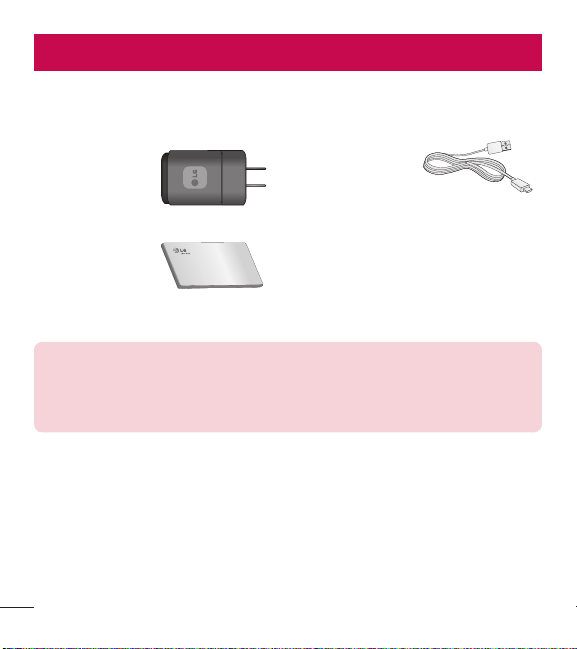
94
Accessories
These accessories are available for use with your phone. (Items described below
may be optional and sold separately.)
Charger adapter USB cable
Connect your phone
and PC.
User Guide
Learn more about
your phone.
NOTE:
•
Always use genuine LG accessories. Failure to do this may void your
warranty.
•
Accessories may vary in different regions.

95
Accessories
•
Before using your device, please carefully read this manual. This will ensure that
you use your phone safely and correctly.
•
Some of the images and screenshots provided in this guide may appear differently
on your phone.
•
Your content may differ from the final product, or from software supplied by service
providers. This content may be subject to change without prior notice. For the latest
version of this manual, please visit the LG website at www.lg.com.
•
Your phone's applications and their functions may vary by country, region, or
hardware specifications. LG cannot be held liable for any performance issues
resulting from the use of applications developed by providers other than LG.
•
LG cannot be held liable for performance or incompatibility issues resulting
from registry settings being edited or operating system software being modified.
Any attempt to customize your operating system may cause the device or its
applications to not work as they should.
•
Software, audio, wallpaper, images, and other media supplied with your device are
licensed for limited use. If you extract and use these materials for commercial or
other purposes you may be infringing copyright laws. As a user, you are fully and
entirely responsible for the illegal use of media.
•
Additional charges may be applied for data services, such as messaging, uploading
and downloading, auto-syncing, or using location services. To avoid additional
charges, select a data plan that is suitable for your needs. Contact your service
provider to obtain additional details.
About this user guide

96
AccessoriesAbout this user guide
Trademarks
•
Copyright 2014 LG Electronics, Inc. All rights reserved. LG and the LG logo are
registered trademarks of LG Group and its related entities.
•
Bluetooth
®
is a registered trademark of the Bluetooth SIG, Inc. worldwide.
•
Wi-Fi
®
, the Wi-Fi CERTIFIED logo, and the Wi-Fi logo are registered trademarks of
the Wi-Fi Alliance.
•
All other trademarks and copyrights are the property of their respective owners.
DivX Mobile
ABOUT DIVX VIDEO: DivX
®
is a digital video format created by DivX, LLC, a
subsidiary of Rovi Corporation. This is an official DivX Certified
®
device that has
passed rigorous testing to verify that it plays DivX video. Visit www.divx.com for
more information and software tools to convert your files into DivX videos.
ABOUT DIVX VIDEO-ON-DEMAND: This DivX Certified
®
device must be registered
in order to play purchased DivX Video-on-Demand (VOD) movies. To obtain your
registration code, locate the DivX VOD section in your device setup menu. Go to vod.
divx.com for more information on how to complete your registration.
DivX Certified
®
to play DivX
®
video up to HD 720p, including premium
content. DivX
®
, DivX Certified
®
and associated logos are trademarks of Rovi
Corporation or its subsidiaries and are used under license.

97
NOTICE: Open Source Software
To obtain the corresponding source code under GPL, LGPL, MPL and other
open source licences, please visit http://opensource.lge.com. All referred
licence terms, disclaimers and notices are available for download with the
source code.
•
Wi-Fi
®
and Wi-Fi Protected Access
®
are registered trademarks of the Wi-Fi
Alliance.
98
FAQ
Please check to see if any problems you have encountered with your phone are
described in this section before taking the phone in for service or calling a service
representative.
Category
Sub-Category
Question Answer
Bluetooth
Bluetooth
Devices
What are the functions
available via Bluetooth?
You can connect Bluetooth audio device such as Stereo/
Mono headset, Car Kit and share pictures, videos,
contacts, etc via Gallery/Contacts menu. Also when FTP
server is connected to a compatible device, you can
share contents stored in the microSD card.
Data
Contacts
Backup
How can I back up
Contacts?
The Contacts data can be synchronized between your
phone and Gmail
TM
.
Data
Synchronization
Is it possible to set up
one-way sync with Gmail?
Only two-way synchronization is available.
Data
Synchronization
Is it possible to
synchronize all the Email
folders?
The Inbox is automatically synchronized. You can view
other folders by taping the Menu Key and tap
Folders to choose a folder.
Google
TM
Service
Gmail Log-In
Should I have to log into
Gmail whenever I want to
access Gmail?
Once you log into Gmail, you don’t need to log in Gmail
again.
Google Service
Google Account
Is it possible to filter
emails?
No, email filtering is not supported via the phone.
Phone Function
YouTube
TM
Is it possible to play
YouTube videos?
Yes, YouTube videos are supported but may have to be
viewed through the YouTube application (and not the
browser).
99
Category
Sub-Category
Question Answer
Phone Function
Email
What happens when
I execute another
application while writing
an email?
Your email will automatically be saved as a draft.
Phone Function
Ringtone
Is there a file size
limitation for when I want
to use a MP3 file as a
ringtone?
There is no file size limitation.
Phone Function
Message Time
My phone does not display
the time of receipt for
messages older than 24
hrs. How can I change this?
1. Open the message thread that contains the message
you want to check.
2. Touch and hold the message. In the context menu, tap
View message details.
Phone Function
microSD Card
What is the maximum
supported size for a
memory card?
32 GB memory cards are compatible.
Phone Function
Navigation
Is it possible to install
another navigation
application on my phone?
Any application that is available on Play Store and is
compatible with the hardware can be installed and used.
Phone Function
Synchronization
Is it possible to
synchronize my contacts
from all my email
accounts?
Only Gmail and MS Exchange server(Company Email
Server) contacts can be synchronized.
Phone Function
Wait and Pause
Is it possible to save a
contact with Wait and
Pause in the numbers?
If you transferred a contact with the wait and pause
functions saved into the number, you will not be able
to use those features. You will need to re-save each
number.
How to save with Wait and Pause:
1. From the Home screen, tap the Phone Key .
2. Enter the number, then tap the Menu Key .
3. Tap Add 2-sec pause or Add wait.
100
FAQ
Category
Sub-Category
Question Answer
Phone Function
Security
What are the phone’s
security functions?
You are able to set the phone to require the entry of a
screen lock (Knock Code, Face Unlock, Pattern, PIN,
Password) before the phone can be accessed or used.
Phone Function
Unlock
Pattern
What should I do if I
forget my Unlock Pattern?
After attempting the Unlock Pattern 5 times, you can tap
the Forget Pattern? option and use your Google account
information or backup PIN to unlock your phone.
Phone Function
Unlock
Pattern
How do I create the
Unlock Pattern?
1. From the Home screen, tap the Menu Key .
2. Tap System settings > Lock screen.
3. Tap Select screen lock > Pattern. The first time
you do this, a short tutorial about creating an Pattern
appears.
4. Set up by drawing your pattern once, then again for
confirmation.
Phone Function
Memory
Will I know when the
memory is full?
Yes, you will receive a notification.
Phone Function
Language Support
Is it possible to change
the language?
The phone has bilingual capabilities.
To change the language:
1. From the Home screen, tap the Menu Key and
tap System settings.
2. Tap Language & input > Language.
3. Tap the desired language.
Phone Function
VPN
How do I set up a VPN?
VPN access configuration is different according to each
company. To configure VPN access from your phone, you
must obtain the details from your company’s network
administrator.
101
Category
Sub-Category
Question Answer
Phone Function
Screen time out
My screen turns off after
only 15 seconds. How
can I change the amount
of time for the backlight
to turn off?
1. From the Home screen, tap the Menu Key .
2. Tap System settings > Display.
3. Tap Screen timeout.
4. Tap the preferred screen backlight timeout time.
Phone Function
Audible tap tones
When I dial a number, the
phone plays tones. How
do I turn this off?
1. From the Home screen, tap the Menu Key .
2. Tap System settings > Sound > Touch feedback
& system.
3. Tap Dial pad touch tones to remove the checkmark
and disable the function.
Phone Function
Wi-Fi & 3G
When Wi-Fi and 3G are
both available, which
service will my phone
use?
When using data, your phone may default to the Wi-Fi
connection (if Wi-Fi connectivity on your phone is set
to On). However, there will be no notification when your
phone switches from one to the other.
To know which data connection is being used, view the
3G or Wi-Fi icon at the top of your screen.
Phone Function
Home screen
Is it possible to remove
an application from the
Home screen?
Yes. Just touch and hold the icon until the trash can icon
appears at the top of the screen. Then, without lifting
your finger, drag the icon to the trash can.
Phone Function
Application
I downloaded an
application and it causes
a lot of errors. How do I
remove it?
1. From the Home screen, tap the Menu Key .
2. Tap System settings > Apps.
3. Tap a tab at the top of the screen and the application.
4. Then tap Uninstall and OK to confirm.
Phone Function
Charger
Is it possible to charge
my phone by USB cable
without installing the
necessary USB driver?
Yes, the phone will get charged by the USB cable
irrespective of whether the necessary drivers are
installed or not.

102
FAQ
Category
Sub-Category
Question Answer
Phone Function
Ringtones
Can I use music files for
my ringtone?
Yes. After saving a music file you can use it for your
ringtone.
•
Touch and hold a song in a library list. In the menu
that opens, tap Set as ringtone.
Phone Function
Alarm
Will my alarm be audible
or will it go off if the
phone is turned off?
No, this is not supported.
Phone Function
Alarm
If my Ringer Volume is
set to Off or Vibrate, will I
hear my Alarm?
Your Alarm is programmed to be audible even in these
scenarios.
Phone Spec
Band
Which wireless bands are
supported by the phone?
Your phone is able to operate on the
GSM(850/900/1800/1900MHz), WCDMA(Band 1, 2, 5)
and LTE(Band 4, 17).
Recovery Solution
Factory Reset
How do I perform a
factory reset?
1. From the Home screen, tap the Menu Key .
2. Tap System settings > Backup & reset > Factory
data reset.
3. Read the warning and tap Reset phone.
4. Tap Erase everything and OK to confirm.
Attention:
If a factory reset is performed, all installed
application and user data will be erased. Please
remember to back up any important data before
performing a factory reset.

103
For your safety
The highest SAR value for this model phone when tested for use at the ear is
0.50 W/kg and when worn on the body, as described in this user guide, is
0.77 W/kg (body-worn measurements differ among phone models, depending upon
available accessories and FCC requirements).
While there may be differences between SAR levels of various phones and at various
positions, they all meet the government requirement for safe exposure.
The FCC has granted an Equipment Authorization for this model phone with all
reported SAR levels evaluated as in compliance with the FCC RF emission guidelines.
SAR information on this model phone is on file with the FCC and can be found under
the Display Grant section of http://www. fcc.gov/oet/ea/fccid/ after searching on FCC
ID ZNFL31L.
•
To reduce risk of fire or burns, do not expose to temperature above 45°C / 113 °F,
or dispose of in fire.
•
To reduce risk of fire or burns, do not dispose of in fire or water.
•
Do not disassemble or open crush, bend or deform, puncture or shred.
•
There is a danger of explosion if battery is incorrectly replaced. To reduce risk of
fire or burns, do not disassemble, crush, puncture, short external contacts, expose
to temperature above 45°C / 113 °F, or dispose of in fire or water. Keep this
product away from excessive moisture and extreme temperatures. Keep the battery
or device dry and away from water or any liquid as it may cause a short circuit.
•
Avoid using your phone near strong electromagnetic sources, such as microwave
ovens, sound speakers, TV and radio.

104
For your safety
•
Use only original manufacturer-approved accessories, or accessories that do not
contain any metal. Please only use an approved charging accessory to charge your
LG phone. Improper handling of the Accessory/Charger Port, as well as the use of
an incompatible charger, may cause damage to your phone and void the warranty.
•
Only use the approved battery charger. Otherwise, you may cause serious damage
to your phone.