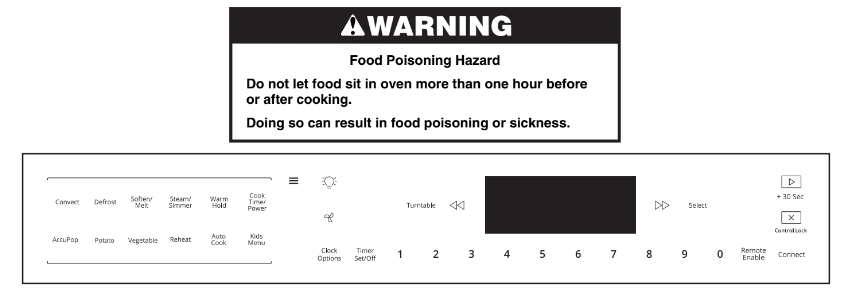
To set the clock, for example, to 2:25 PM, touch the Menu keypad.
Touch CLOCK/OPTIONS.
Use the number keypads to enter “2:25.”
Touch SELECT.
Touch “2” to display PM.
CLOCK/OPTIONS
Reach Options Menu
Touch CLOCK/OPTIONS.
Use the arrow keypads to scroll through options.
Touch SELECT to select desired option and follow the prompts.
MENU
Turn On Backlit Buttons
Press the Menu keypad to light up the back-lit buttons.
LIGHT
Turn On Light
Press the Light keypad to turn the light beneath the hood on or off.
FAN
Turn On Fan
Press the Fan keypad to turn the Fan on or off. Press the fan keypad repeatedly to change from low to high.
TIMER (SET/OFF)
Kitchen Timer
Touch TIMER SET/OFF.
Touch the number keypads to set the length of time.
For example, to set 12 minutes length time, touch TIME SET/OFF.
Use the number keypads to enter “12:00.”
Touch START.
If the Cancel keypad is touched, the microwave oven will turn off; however, the Timer can only be turned off using the Timer Set/Off keypad.
Start/Add 30 Sec
Touching the Start/Add 30 Sec keypad when the microwave oven is off will start 30 seconds of cook time at 100% power. If cooking is interrupted by opening the door, touching Start/Add 30 Sec after the door is closed again will resume the preset cycle.
CANCEL
Microwave Oven Cancel
The Cancel keypad stops any microwave oven function except for the Clock, Timer, and Control Lock.
The microwave oven will also turn off when the door is opened. When the door is opened, the element(s) and fan will turn off, but the microwave oven light will remain on. Close the door and touch the Start keypad to resume the preset cycle.
The microwave oven cooling fan may continue to operate even after a microwave oven function has been canceled or completed, depending on the microwave oven temperature.
Left Arrow
Navigate Menu
Press the Left Arrow keypad to move through the menu.
Right Arrow
Navigate Menu
Press the Right Arrow keypad to move through the menu.
SELECT
Select Options
Touch SELECT to select options.
COOK TIME/POWER
Manual Cooking
Touch COOK TIME/POWER and then number keypads to set a length of time to cook. For example, to set the time to 2:30, touch COOK TIME/POWER, then use the number keypads to enter “2:30.”
Touch COOK TIME/POWER and enter cook power (e.g., press 8 for 80%).
Press START.
CONVECT
Auto Convect Cooking
Position convection rack on turntable in microwave oven,close the door.
Touch Convect keypad, use arrow keypad to enter CONVECTION COOK RECIPES, then press Select keypad.
Use arrow keypad to select food item, Press Select keypad again, touch START to begin preheat. After preheat, place baking dish with food on convection rack, then touch START to begin cycle.
For example, to select the Beef Roast setting, touch CONVECT once, press Select keypad to enter convection cook recipes, then use arrow keypad to select Beef Roast.
NOTE: Microwave oven cavity, inside of the door, convection rack, and baking dish will be hot. Use oven mitts to remove the dish and to handle the hot convection rack.
CONVECT
Manual Convection Bake
Use for foods such as cookies, pies, cakes, and breads. Use same time as recipe. Allow microwave oven to preheat.
Place the convection rack on the turntable. Default temperature is 325°F (163°C). Touch
CONVECT twice to select the MANUAL CONVECTION BAKE, Use number keypads to enter a different temperature, 250°F (121°C) to 450°F (232°C).
Touch COOK TIME/POWER, and enter time in hours and minutes, up to 4 hours. Default time is 4 hours.
Touch START to begin preheat. Preheat may be skipped by touching Start again.
After preheat, place baking dish with food on the convection rack, then touch START to begin baking.
NOTE: Microwave oven cavity, inside of the door, convection rack and baking dish will be hot. Use oven mitts to remove the dish and to handle the hot convection rack.
CONVECT
Manual Convection Roast
Use for foods such as beef and pork roasts, whole chicken and meat loaf. Decrease time by 10%-20%. Use 30% microwave power for large meats and casseroles. Use microwave power for thin cuts of meat.
Place the convection rack on the turntable. Default temperature is 325°F (163°C). Touch CONVECT three times to select the MANUAL CONVECTION ROAST, Use number keypads to enter a different temperature, 250°F (121°C) to 450°F (232°C).
Touch COOK TIME/POWER, and enter time in hours and minutes, up to 4hours. Default time is 4 hours.
Touch COOK TIME/POWER, and enter power level, from 10% to 30%. Default power is 4 hourhours
Touch START to begin preheat. Preheat may be skipped by touching Start again.
After preheat, place baking dish with rack and food on the turntable, then touch START to begin roasting.
NOTE: Microwave oven cavity, inside of the door, convection rack and baking dish will be hot. Use oven mitts to remove the dish and to handle the hot convection rack.
DEFROST
Automatic Defrost
Touch DEFROST.
Touch DEFROST repeatedly to scroll through foods, or use the arrow keypads to select food from the Defrost Chart. For example, to select the Poultry setting, DEFROST must be touched twice.
Touch number keypads to enter the weight. For example, to enter 1.5 lbs, use the number keypads to enter “1.5.”
Touch the Start keypad.
The display will count down the defrost time. For better results, a preset standing time is included in the defrosting time. This may make the defrosting time seem longer than expected. When the stop time is reached, the microwave oven will shut off automatically. If enabled, end-of-cycle tones will sound, and then reminder tones will sound every minute.
Touch the Cancel keypad or open the door to clear the display and/or stop reminder tones.
SOFTEN/MELT
Soften
Touch SOFTEN/MELT.
Touch SOFTEN/MELT repeatedly to scroll through foods, or use the arrow keypads to select food type from the Soften Chart. Touch SELECT to select the desired setting.
Touch number keypads to enter quantity (weight or sticks).
Touch the Start keypad. The display will count down the soften time. When the stop time is reached, the microwave oven will shut off automatically and END will appear in the display. If enabled, end-of-cycle tones will sound, and then reminder tones will sound every minute.
Touch the Cancel keypad or open the door to clear the display and/or stop reminder tones.
SOFTEN/MELT
Melt
Touch SOFTEN/MELT.
Touch SOFTEN/MELT repeatedly to scroll through foods, or use the arrow keypads to select food type from the Melt Chart. Touch SELECT to select the desired setting.
Touch number keypads to enter quantity.
Touch the Start keypad. The display will count down the melt time. When the stop time is reached, the microwave oven will shut off automatically and END will appear in the display. If enabled, end-of-cycle tones will sound, and then reminder tones will sound every minute.
Touch the Cancel keypad or open the door to clear the display and/or stop reminder tones.
STEAM/ SIMMER
Auto Steam Cook
Touch STEAM/SIMMER.
Use the arrow keypads to scroll to Steam Recipes. Touch SELECT to select the desired setting.
Use the arrow keypads to scan and select food type, then follow the prompts.
Touch the Start keypad. The display will count down the steam time once the sensor identifies the cooking duration. When the steam time has ended, the microwave oven will shut off automatically. If enabled, end-of-cycle tones will sound, and then reminder tones will sound every minute.
Touch the Cancel keypad or open the door to clear the display and/or stop reminder tones.
STEAM/ SIMMER
Manual Steam Cook
Touch STEAM/SIMMER.
Touch STEAM/SIMMER repeatedly to scan and select the Manual Steam setting, or use the arrow keypads. Touch SELECT to select the desired setting.
Touch the number keypads to set a length of time to steam. Time can be set up to 99 minutes and seconds.
Touch START. Once the boiling point is reached, the display will start to count down the steam time. When the stop time is reached, the microwave oven will shut off automatically. If enabled, end-of-cycle tones will sound, and then reminder tones will sound every minute.
Touch the Cancel keypad or open the door to clear the display and/or stop reminder tones.
STEAM/ SIMMER
Auto Simmer Cook
Touch STEAM/SIMMER.
Use the arrow keypads to scroll to Simmer Recipes.
Use the arrow keypads to scan and select food type, then follow the prompts.
Touch the Start keypad. The display will count down the simmer time once the sensor identifies the cooking duration. When the simmer time has ended, the microwave oven will shut off automatically. If enabled, end-of-cycle tones will sound, and then reminder tones will sound every minute.
Touch the Cancel keypad or open the door to clear the display and/or stop reminder tones
STEAM/ SIMMER
Manual Simmer Cook
Touch STEAM/SIMMER.
Touch STEAM/SIMMER repeatedly to scan and select the Manual Simmer setting, or use the arrow keypads.
Touch the number keypads to set a length of time to simmer. Time can be set up to 99 minutes and 95 seconds.
Touch START. Once the boiling point is reached, the microwave oven display will start to count down the simmer time. When the stop time is reached, the microwave oven will shut off automatically. If enabled, end-of-cycle tones will sound, and then reminder tones will sound every minute.
Touch the Cancel keypad or open the door to clear the display and/or stop reminder tones.
WARM HOLD
Keep Food Warm
Touch WARM HOLD and then number keypads to set a length of time to warm.
Touch START. The display will count down the warming time. When the stop time is reached, the microwave oven will shut off automatically and END will appear in the display. If enabled, end-of-cycle tones will sound, and then reminder tones will sound every minute.
Touch the Cancel keypad or open the door to clear the display and/or stop the reminder tones.
ACCUPOP
Popcorn (Sensor)
Touch ACCUPOP.
Touch START. When the stop time is reached, the microwave oven will shut off automatically. If enabled, end-of-cycle tones will sound, and then reminder tones will sound every minute.
Touch the Cancel keypad or open the door to clear the display and/or stop reminder tones.
POTATO
Potato (Sensor)
Touch POTATO.
Touch START. When the stop time is reached, the microwave oven will shut off automatically. If enabled, end-of-cycle tones will sound, and then reminder tones will sound every minute.
Touch the Cancel keypad or open the door to clear the display and/or stop reminder tones.
VEGETABLE
Vegetable
Touch VEGETABLE.
Touch VEGETABLE repeatedly to scroll through foods, or use the arrow keypads to select food type from the Vegetable Chart. To select a setting, touch SELECT.
Touch number keypads to enter quantity.
Touch START. When the stop time is reached, the microwave oven will shut off automatically. If enabled, end-of-cycle tones will sound, and then reminder tones will sound every minute.
Touch the Cancel keypad or open the door to clear the display and/or stop reminder tones.
REHEAT
Automatic Reheat
Touch REHEAT.
Touch REHEAT repeatedly to scroll through foods, or use the arrow keypads to select food type from the Reheat Chart. For example, to select the Casserole setting, REHEAT must be touched twice.
Touch number keypads to enter quantity.
Touch START. When the stop time is reached, the microwave oven will shut off automatically. If enabled, end-of-cycle tones will sound, and then reminder tones will sound every minute.
Touch the Cancel keypad or open the door to clear the display and/or stop reminder tones.
AUTO COOK
Auto Cook
Touch AUTO COOK.
Touch AUTO COOK repeatedly to scroll through foods, or use the arrow keypads to select food type from the Auto Cook Chart. To select a setting, touch SELECT.
Touch number keypads to enter quantity.
Touch START. When the stop time is reached, the microwave oven will shut off automatically and END will appear on the microwave oven display. If enabled, end-of-cycle tones will sound, and then reminder tones will sound every minute.
Touch the Cancel keypad or open the door to clear the display and/or stop reminder tones.
KIDS MENU
Kids Menu
Touch KIDS MENU.
Touch KIDS MENU repeatedly to scroll through foods, or use the arrow keypads to select food type from the Kids Menu Chart. To select a setting, touch SELECT.
Touch number keypads to enter quantity.
Touch START. When the stop time is reached, the microwave oven will shut off automatically. If enabled, end-of-cycle tones will sound, and then reminder tones will sound every minute.
Touch the Cancel keypad or open the door to clear the display and/or stop reminder tones.
TURNTABLE
Turntable On/Off
By touching the Turntable On/Off keypad, it is possible to switch the turntable on and off during some microwave cycles. The turntable can be turned on or off only during Manual cooking cycles.
REMOTE ENABLE
Enable Remote App Control
Remote Enable allows you to start Convection Bake cooking cycle using your mobile phone when you are away from home. Press REMOTE ENABLE to enable the ability to utilize the Whirlpool® app.
CONNECT
Connect to Wi-Fi
Press and hold CONNECT while your router’s WPS indicator light is blinking to connect your range to your Wi-Fi network. See the “Connectivity Features” section for more detailed instructions.
CANCEL
Activate Control Lock
Activate to avoid unintended start. Touch and hold the Cancel keypad for about seconds until two tones sound and the Padlock icon appears in the display. Repeat to unlock control.
CANCEL
Cancel
Touch the Cancel keypad to cancel cooking function.
Vent Fan
Various speeds, ranging from High, Med-High, Med, Low and Off.
30 - Minute Fan Timer: Set vent fan to run for exactly 30 minutes or to run for only 30 minutes more (off after 30 minutes). The vent fan may be turned off at any time using the Vent Fan control.
Auto Vent Fan (on some models): To keep the microwave oven from overheating, the auto vent fan will automatically turn on at high speed if the temperature from the range or cooktop below the microwave oven gets too hot. When this occurs, the vent fan cannot be turned off. “FAN ON for heat circulation” appears in the display.
Standby Mode
When no functions are working (12-hour clock is displayed or if the clock has not been set), microwave oven will switch to Standby Power mode and dim the LCD brightness after 5 minutes. Touch any keypad or open/close the door, and the display will return to the normal brightness.
Additional Features
CleanRelease® Cavity Coating (on some models)
The durable, nonstick coating resists soil buildup by making cleaning easier. See the “Microwave Oven Care” section.
6th SenseTM System
A sensor in the microwave oven detects moisture released from food as it heats and adjusts the cooking time accordingly.
Convection Element and Fan
The convection element and fan are embedded in the wall of the microwave oven cavity, behind the metal screen.
Back-Lighting
Some of the keypads will be darkened after about 30 seconds of inactivity. Press the Menu keypad to light up the back-lit buttons. Opening the door will light up the back lighting.
Options
Clock/Options allows access to the microwave settings.
To Use:
Touch CLOCK/OPTIONS. The microwave oven display will scroll through the various options. You can also touch CLOCK/OPTIONS repeatedly to manually scroll through the list of options.
Touch the number keypad for the specific option to toggle the function setup.
Tones
Tones are audible signals, indicating the following:
One beep
Valid keypad touch
Function has been entered
Three chimes
Preheat cycle has been completed
Three beeps
Invalid keypad touch
Four chimes
End of a cooking cycle
Four beeps
When timer reaches zero Includes using the Timer for functions other than cooking.
Clock
The clock is a 12-hour (12:00-11:59) or 24-hour (0:00-23:59) clock. Touch CLOCK/OPTIONS to reach Clock submenu and follow the prompts to set the clock. Clock format (12 hours with AM and PM, 12 hours without AM and PM, or 24 hours) may also be set in the Clock submenu.
Light Timer
Set the cooktop light to turn on and off at certain times. Touch CLOCK/OPTIONS to reach the Light Timer submenu, and follow the prompts to set the light on time and light off time in hours and minutes or to cancel Light Timer.
NOTE: Light Timer uses 12-hour clock only.
Filter Alert
Reset the filter status after replacing and/or cleaning the filters. Touch CLOCK/OPTIONS to reach the Filter Alert submenu, and activate reset.
Sound (Tones)
Programming tones may be turned off or all tones (including end- of-function signals) may be turned off. Touch CLOCK/OPTIONS to reach the Sound submenu, and then follow the prompts to turn off or on the programming tones or all tones.
NOTE: The Timer is not affected by reminder tones.
Scroll Speed
Scroll speed of the text may be adjusted. Touch CLOCK/OPTIONS to reach the Scroll Speed submenu and follow the prompts to set speed.
Demo Mode
Activate to practice using the control without actually turning on the magnetron. Touch CLOCK/OPTIONS to reach the Demo mode submenu, then follow the prompts to activate. The Demo icon will light up in the display. Repeat to deactivate.
Energy Save
To conserve energy, the Clock will automatically turn off when the microwave oven goes into Standby mode. Touch CLOCK/ OPTIONS to reach the Clock and Energy Save submenu, and follow the prompts to turn on Clock.
Language (Canada models)
Language of the display text may be changed. Touch CLOCK/ OPTIONS to reach the Language submenu and follow the prompts to set language to English or French.
Temp Calibration
The actual convection cooking temperature may be calibrated higher or lower than the displayed temperature. For example, if you want the microwave oven to be a bit hotter, you may try setting the calibration to +10°. Touch CLOCK/OPTIONS to reach the Calibration submenu. The current setting will appear in the display with a checkmark next to it. Use number keypads to select temperature variations in degrees Fahrenheit: 1 = ±0° (reset to default), 2 = +5° (+2.8°C), 3 = +10° (+5.6°C), 4 = +15° (+8.3°C), 5 = +20° (+11.1°C), 6 = -5° (-2.8°C), 7 = -10° (-5.6°C), -8 = -15° (-8.3°C), and 9 = -20° (-11.1°C).
NOTE: The microwave oven will remember the setting after a power failure.
Factory Reset
User may set microwave oven back to default state.
Remote Enable
Remote Enable allows you to start Convection Bake cooking cycle using your mobile phone when you are away from home.
Connect
This button connects your appliance to home router. See details in later section.
Kosher Consumer-Friendly (KCF) Mode
The KCF mode for this microwave oven is similar to the Sabbath Mode available on other appliances such as ovens, but with several important differences. KCF mode can be considered as a less-featured version of Sabbath mode. For example, in KCF mode, if the microwave oven is in cooking mode, then you should not open the microwave oven door as this will turn off the heating source.
Using KCF mode is a two-step process. First, you need to
Enable” KCF mode. Second, you need to “Activate” KCF mode.
Enabling KCF mode means that the microwave oven is ready to go into KCF mode in the future. Activating KCF mode means that the microwave oven is currently in KCF mode.
When the KCF mode is activated, opening the microwave oven door will not turn on the microwave oven cavity light. All keypad presses will be ignored (except the Cancel keypad) and the display will remain static. When the microwave oven door is opened or closed, the microwave oven light will not turn on or off, but the heating elements will turn off immediately. You should wait until the cooking cycle is finished in KCF mode to open the door.
To Enable KCF Mode Capability (One Time Only):
Press Clock/Options keypad.
Press Right Arrow keypad 9 times until “KCF mode” is displayed on the screen.
Press the Select keypad. The scrolling display will say “Press 1-OFF; Press 2-ON.” A checkmark symbol will appear beside OFF indicating the current state of OFF (i.e., disabled).
Press “2” to enable KCF mode.
Press Select keypad to select the choice made above.
The microwave oven is now KCF Enabled (i.e., it is ready for you to activate KCF mode later).
To Disable KCF Mode Capability:
To disable the KCF mode, repeat above steps (except choose for off). Once disabled, you will not be able to activate KCF mode.
To Activate KCF Mode (Sabbath or Holidays):
(Optional) Press the Light keypad once for High setting (or twice for Low setting) of cooktop light. NOTE: Choose this step only if you want cooktop light to be on during KCF mode.
(Optional) Press the Fan keypad once for High speed setting. You may press this keypad repeatedly and choose a different speed. There are four available speeds (High, Med-High, Med, and Low). Choose the speed you want. NOTE: Choose this step only if you want ventilation fan to be on. Ventilation fan will automatically turn off after 4 hours.
Open the microwave oven door and place food in microwave oven. Close the microwave oven door. You will see a set of menu buttons at the left side. NOTE: You can also press the Menu keypad to have the back-lit buttons light up. Press the Convect keypad, press the Right Arrow keypad two times until you see Manual Convect Bake, then press the Select keypad. Default temperature setting is 325 F. Enter a different temperature if desired. Press COOK TIME/POWER and enter cook time (e.g., 1:30 if you want 1 hour and 30 minutes).
Press the Start keypad. Press the Start keypad again to start cook time count-down immediately without preheat. NOTE: If you press the Start keypad once, then the microwave oven will start countdown after it reaches preheat temperature.
The microwave oven is now cooking with cooktop light and ventilation fan in chosen setting.
Press and hold CLOCK/OPTIONS for 3 seconds. The microwave oven is now in active KCF mode and the display will show “KCF mode”.
While the microwave oven is cooking in KCF mode, do not open the microwave oven door, as this will shut off heat source immediately. When cooking cycle ends, there will be no beeps and the oven light will stay off when you open the door to remove the food.
NOTES:
Do not open the microwave oven door while the microwave oven is cooking as this will cancel the cooking cycle.
Do not use Kitchen Timer in KCF mode.
If a power failure happens while KCF mode is running, the microwave oven will show that KCF mode is on, but the cooking cycle will not be on.
While in KCF mode, neither time nor temperature can be adjusted.
To Deactivate KCF Mode:
Press and hold the Clock/Options keypad for 3 seconds until you see “KCF mode” disappear from the display.
NOTES:
If you press the Cancel keypad, this will cancel any cooking cycle. If you press the Cancel keypad again, this will de-activate KCF mode.
After KCF mode is deactivated, you must activate KCF mode by completing steps 1 through 6 under the “To Activate KCF mode” section.
NOTE: Use mobile app to enable or disable KCF mode only.
NOTE: If smart-phone is on, then notification will be displayed on your mobile device (if you opted in).
Turntable
NOTE: By touching the Turntable keypad, it is possible to switch the turntable on and off during manual cooking cycles. This is helpful when cooking with plates that are bigger than the turntable or when cooking with plates side by side.
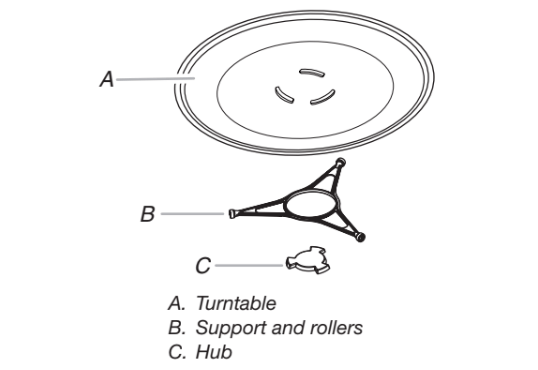
The turntable rotates in both directions to help cook food more evenly. Do not operate the microwave oven without having the turntable in place. See the “Accessories” section to reorder any of the parts.
The raised, curved lines in the center of the turntable bottom fit between the three spokes of the hub. The hub turns the turntable during microwave oven use. The rollers on the support should fit inside the turntable bottom ridge.
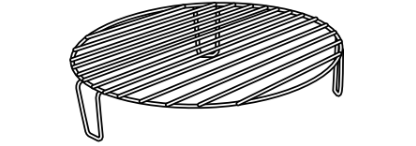
Round Convection Rack
The round convection rack provides optimal heat circulation for convection cooking.
The rack will become hot. Always use oven mitts or pot holders when handling.
To avoid damage to the microwave oven, do not allow the rack to touch the inside cavity walls, ceiling, or floor.
Always use the turntable.
To avoid damage to the microwave oven, do not store the rack in the microwave oven.
Two-level cooking is not recommended.
For best results, do not place popcorn bags on the rack.
The rack is designed specifically for this microwave oven. For best cooking results, do not attempt to use any other rack in this microwave oven.
See the “Accessories” section to reorder.
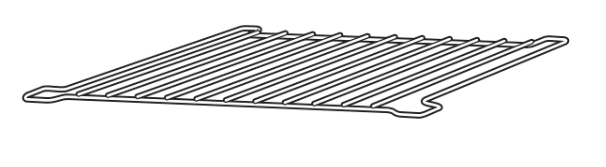
Rectangular Cooking Rack
The rectangular cooking rack is ideal for two-level cooking. Insert the rack securely into the rack supports on the side walls of the oven.
The cooking rack will become hot. Always use oven mitts or pot holders when handling.
Do not allow the rack to touch the inside cavity walls, ceiling, or floor.
To avoid damage to the microwave oven, do not store rack in microwave oven.
The rack is designed specifically for this microwave oven. For best cooking results, do not attempt to use any other rack in this microwave oven.
Remove rack before using Popcorn function.
See the “Accessories” section to reorder.
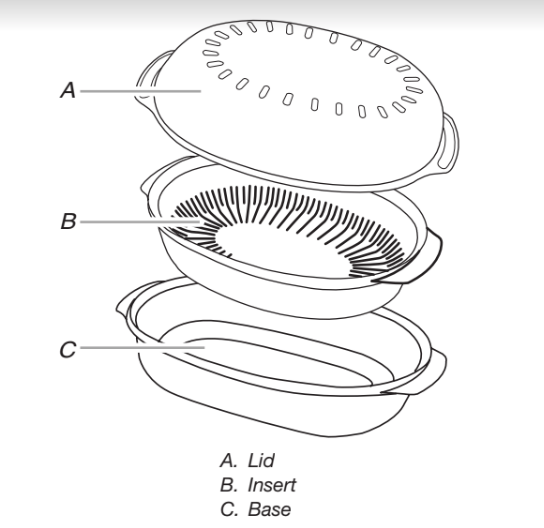
Steamer Vessel
Use the Steamer Vessel with the Steam Cook feature to steam foods.
The steamer vessel will become hot. Always use oven mitts or pot holders when handling.
The steamer vessel is designed to be used only in the microwave oven. To avoid damaging steamer vessel, do not use in a convectional- or combination-type oven, with any other Convection or Crisp function, or on electric or gas burners.
Do not use plastic wrap or aluminum foil when covering the food.
Always place the steamer vessel on the glass turntable.
Check that the turntable turns freely before starting the microwave oven.
Do not remove lid while the base is inside the microwave oven, as the rush of steam will disrupt the sensor settings.
To avoid scratching, use plastic utensils.
Do not overfill with water. See the steam chart in the "Auto Steam Cooking” section for the amount of water recommended.
Lid: Always use the lid when steaming. Place directly over the insert and base or just the base.
Insert: Use when steam cooking to keep foods, such as fish and vegetables, out of the water. Place insert with food directly over the base. Do not use when simmering.
Base: For steam cooking, place water in base. For simmering foods, such as rice, potatoes, pasta and vegetables, place food and water/liquid in base.
See the “Accessories” section to order replacements. See the “General Cleaning” section for instructions on cleaning.
Control Lock
The Control Lock shuts down the control panel keypads to avoid unintended use of the microwave oven. The Control Lock will remain set after a power failure, if set before the power failure occurs.
When the control is locked, only the fan and light will function.
The Control Lock is preset unlocked, but can be locked.
To Lock Control: Touch CANCEL for approximately 3 seconds, until two tones sound and a lock icon appears in the display.
To Unlock Control: Repeat to unlock. Two tones will sound and the lock icon will be removed.
Connectivity Features
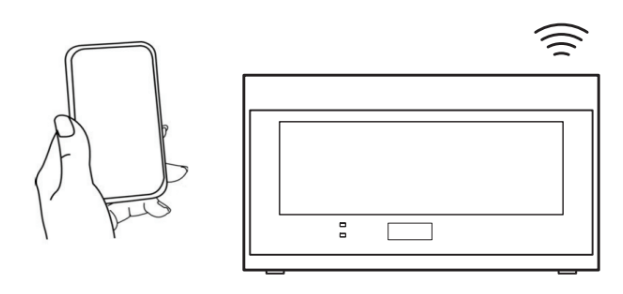
Wi-Fi connectivity allows your Smart appliance to connect to the Internet and interact with the Whirlpool® app from your smartphone or mobile device. This connection opens up several Smart options to you: options intended to save you valuable time and energy.
Smart Features
Smart Features help make your every day more efficient by letting you remotely monitor, manage, and maintain your appliance.
How to Use Remote Enable
This feature allows you to turn on the appliance (in Convection Bake mode) when you are away from home using your mobile device. The following steps provide a possible scenario on how to use this feature:
Open the microwave oven door and place food in the microwave oven (if desired).
Close the microwave oven door.
Press REMOTE ENABLE. You should see an icon ( ) light up in the display to let you know that the appliance can be turned on using your mobile device.
Use your mobile device to turn on a cooking cycle (e.g., Convection Bake 350 F).
NOTES:
a. Only Convection Bake cycle can be remotely activated i.e., no features using microwave or convection roast may be remotely activated).
b. While the microwave oven is set up and waiting for remote activation, the microwave oven door must not be opened. If the microwave oven door is opened while it is in “waiting mode”, then Remote Enable will be canceled and the remote enable icon will be turned off.
Cycle Progress
What it does: Gives you an up-to-the-minute look at your cooking cycle progress.
What it does for you: Lets you know the remaining cook time from anywhere.
Cook Notification (Opt-In)
What it does: Your appliance will send you a push notification when its current cooking cycle is complete.
What it does for you: Alerts you precisely when the cooking cycle is done, so you can move on to other things.
Get Started
Refer to the “Get the App and Get Connected” section in this User Guide and follow the instructions to get connected.
Check the Whirlpool® app frequently for additional information and features.
MICROWAVE OVEN USE
A magnetron in the microwave oven produces microwaves which reflect off the metal floor, walls, and ceiling and pass through the turntable and appropriate cookware to the food. Microwaves are attracted to and absorbed by fat, sugar, and water molecules in the food, causing them to move, producing friction and heat which cooks the food.
To avoid damage to the microwave oven, do not lean on or allow children to swing on the microwave oven door.
To avoid damage to the microwave oven, do not operate microwave oven when it is empty.
The turntable must be in place and correct side up when microwave oven is in use. Do not use if turntable is chipped or broken. See the “Accessories” section to reorder.
Baby bottles and baby food jars should not be heated in microwave oven.
Clothes, flowers, fruit, herbs, wood, gourds, and paper, including brown paper bags and newspaper, should not be dried in microwave oven.
Paraffin wax will not melt in the microwave oven because it does not absorb microwaves.
Use oven mitts or pot holders when removing containers from microwave oven.
Do not overcook potatoes. At the end of the recommended cook time, potatoes should be slightly firm. Let potatoes stand for 5 minutes. They will finish cooking while standing.
Do not cook or reheat whole eggs inside the shell. Steam buildup in whole eggs may cause them to burst. Cover poached eggs and allow a standing time.
Food Characteristics
When microwave cooking, the amount, size and shape, starting temperature, composition, and density of the food affect cooking results.
Amount of Food
The more food heated at once, the longer the cook time needed. Check for doneness and add small increments of time if necessary.
Size and Shape
Smaller pieces of food will cook more quickly than larger pieces, and uniformly shaped foods cook more evenly than irregularly shaped food.
Starting Temperature
Room temperature foods will heat faster than refrigerated foods, and refrigerated foods will heat faster than frozen foods.
Composition and Density
Foods high in fat and sugar will reach a higher temperature and will heat faster than other foods. Heavy, dense foods, such as meat and potatoes, require a longer cook time than the same size of a light, porous food, such as cake.
Cooking Guidelines
Covering
Covering food helps retain moisture, shorten cook time, and reduce spattering. Use the lid supplied with cookware. If a lid is not available, wax paper, paper towels, or plastic wrap approved for microwave ovens may be used. Plastic wrap should be turned back at one corner to provide an opening to vent steam. Condensation on the door and cavity surfaces is normal during heavy cooking.
Stirring and Turning
Stirring and turning redistributes heat evenly to avoid overcooking the outer edges of food. Stir from outside to center. If possible, turn food over from bottom to top.
Arranging
If heating irregularly shaped or different-sized foods, arrange the thinner parts and smaller-sized items toward the center. If cooking several items of the same size and shape, place them in a ring pattern, leaving the center of the ring empty.
Piercing
Before heating, use a fork or small knife to pierce or prick foods that have a skin or membrane, such as potatoes, egg yolks, chicken livers, hot dogs, and sausage. Prick in several places to allow steam to vent.
Shielding
Use small, flat pieces of aluminum foil to shield the thin pieces of irregularly shaped foods, bones, and foods such as chicken wings, leg tips, and fish tails. See the “Aluminum Foil and Metal” section first.
Standing Time
Food will continue to cook by the natural conduction of heat, even after the microwave cooking cycle ends. The length of standing time depends on the volume and density of the food.
Cookware and Dinnerware
Cookware and dinnerware must fit on the turntable. Always use oven mitts or pot holders when handling because any dish may become hot from heat transferred from the food. Do not use cookware and dinnerware with gold or silver trim. Use the following chart as a guide, then test before using.
To Test Cookware or Dinnerware for Microwave Use:
Place cookware or dinnerware in microwave oven with 1 cup (250 mL) of water beside it.
Cook at 100% cooking power for 1 minute.
Do not use cookware or dinnerware if it becomes hot and the water stays cool.
Aluminum Foil and Metal
Always use oven mitts or pot holders when removing dishes from the microwave oven.
Aluminum foil and some metal can be used in the microwave oven. If not used properly, arcing (a blue flash of light) can occur and cause damage to the microwave oven.
OK for Use
Racks and bakeware supplied with the microwave oven (on some models), aluminum foil for shielding, and approved meat thermometers may be used with the following guidelines:
To avoid damage to the microwave oven, do not allow aluminum foil or metal to touch the inside cavity walls, ceiling, or floor.
Always use the turntable.
To avoid damage to the microwave oven, do not allow contact with another metal object during microwave cooking.
Do Not Use
Metal cookware and bakeware, gold, silver, pewter, non-approved meat thermometers, skewers, twist ties, foil liners, such as sandwich wrappers, staples, and objects with gold or silver trim or a metallic glaze, should not be used in the microwave oven.
Metal bakeware may be used only during convection (bake) cycles. Use ovenproof, microwave-safe cookware for all other convection and combination.
Microwave Cooking Power
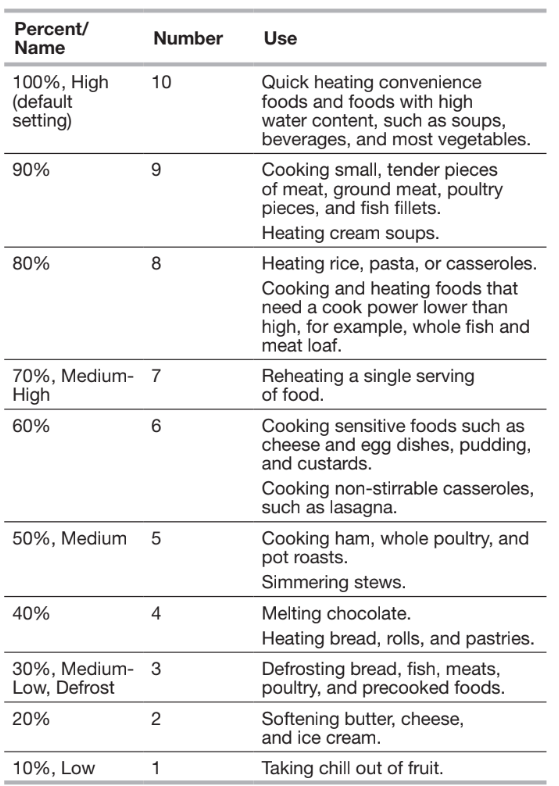
Many recipes for microwave cooking specify which cooking power to use by percent, name, or number. For example, Medium-High=7.
Use the following chart as a general guide for the suggested cooking power of specific foods.
MICROWAVE COOKING POWER CHART
Doneness
Doneness is a function used for adjusting the cook time. This feature can be used on automatic functions. Doneness cannot be adjusted for Defrost functions.
Doneness can be changed within the first 20 seconds of starting the cook cycle.
To Change Doneness Setting:
After starting the cooking cycle, press the Menu keypad. Touch 'COOK TIME/POWER repeatedly to scroll through MORE, LESS, or NORMAL.
Sensor Cook
A sensor in the microwave oven detects moisture released from food as it heats and adjusts the cooking time accordingly.
Use microwave-safe dish with loose-fitting lid or cover microwave- safe dish with plastic wrap and vent.
For best cooking performance:
Before using a Sensor Cook function, make sure power has been supplied to the microwave oven for at least 2 minutes, the room temperature is not above 95°F (35°C), and the outside of the cooking container and the microwave oven cavity are dry. For optimal performance, wait at least 30 minutes after convection cooking before sensor cooking.
Manual Cooking/Stage Cooking
Touch COOK TIME/POWER and touch the number keypads to enter time. If using a cooking power other than 100%, touch COOK TIME/POWER again, then enter desired cooking power. Touch START.
If programming additional stages (up to three), touch CLOCK/ OPTIONS to enter programming for the next stage. Enter the cook time and cook power of each, then touch START.
Defrost
For optimal results, food should be 0°F (-18°C) or colder when defrosting.
Unwrap foods and remove lids (from fruit juice) before defrosting.
Shallow packages will defrost more quickly than deep blocks.
Separate food pieces as soon as possible during or at the end of the cycle for more even defrosting.
Foods left outside the freezer for more than 20 minutes or frozen ready-made food should not be defrosted using the
Defrost feature but should be defrosted manually.
Use small pieces of aluminum foil to shield parts of food such as chicken wings, leg tips, and fish tails. See the “Aluminum Foil and Metal” section first.
Times and cooking powers have been preset for defrosting a number of food types.
Simmer Cooking
Simmer Cook is a sensor cooking function that uses microwaves to simmer food. Always use the steamer vessel. Use Simmer Cook for foods such as rice, pasta, potatoes, soups, and other liquid foods. Add water to steamer base, cover with lid, place in microwave oven, and start the cycle. When the water begins to boil, the microwave oven will stop and prompt for the pasta to be added. Using oven mitts, gently remove steamer vessel from microwave oven, add pasta, re-cover, return steamer vessel to microwave oven, and resume the cycle.
SIMMER RECIPES CHART
Follow recommended water and food amounts that appear on the display.
For best cooking, do not use plastic wrap as a cover.
Do not remove the lid while the dish is still in the microwave oven as the rush of steam will disrupt the sensor readings.
Steam Clean
The Steam Clean cycle will loosen soils in the microwave oven cavity. Place 1 cup water in a microwave-safe container on the turntable. Keep door closed until cycle ends, then wipe cavity with sponge or paper towel.
AccuPop
Senses 2.7- 3.5 oz bags.
Do not use regular paper bags or glassware.
Pop only one package of popcorn at a time.
Follow manufacturer’s instructions when using a microwave popcorn popper.
Listen for popping to slow to one pop every 1 or 2 seconds, and then stop the cycle. Do not repop unpopped kernels.
For best results, use fresh bags of popcorn.
Cooking results may vary by brand and fat content.
NOTE: Follow the instructions provided by the microwave popcorn manufacturer.
Warm Hold
Hot cooked food can be kept warm in the microwave oven.
Cover plates of food.
Cover foods that were covered while being cooked.
Do not cover baked goods such as pastries, pies, turnovers, etc.
To Use:
Touch WARM HOLD.
Touch number keypads to set a length of time to warm.
Convect
Convection cooking uses the convection element and the fan. Hot air is circulated throughout the microwave oven cavity by the fan.
The constantly moving air surrounds the food to heat the outer portion quickly.
The convect function may be used to cook small amounts of food on a single rack.
Always use the convection rack placed on turntable.
Always use the turntable On option when convection cooking with the convection rack (default setting).
Do not cover turntable or convection rack or baking tray with aluminum foil.
Do not use light plastic containers, plastic wrap, or paper products.
Use convection cooking for items such as souffles, breads, cookies, angel food cakes, pizza, and most meats and fish.
Metal bakeware may be used only during convection (bake) cycles. Use ovenproof, microwave-safe cookware for all other convection and combination cycles.
MICROWAVE OVEN CARE
General Cleaning
IMPORTANT: Before cleaning, make sure all controls are off and the microwave oven is cool. Always follow label instructions on cleaning products.
Soap, water, and a soft cloth or sponge are suggested first, unless otherwise noted.
STAINLESS STEEL (on some models)
NOTE: To avoid damage to stainless steel surfaces, do not use soap-filled scouring pads, abrasive cleaners, cooktop polishing creme, steel-wool pads, gritty washcloths, or abrasive paper towels. Damage may occur to stainless steel surfaces, even with one-time or limited use.
Rub in direction of grain to avoid damaging.
Cleaning Method:
affresh® Stainless Steel Cleaner Part Number W10355016 not included): See the “Accessories” section to order.
Vinegar for hard water spots
MICROWAVE OVEN DOOR EXTERIOR
Cleaning Method:
Glass cleaner and a soft cloth or sponge:
Apply glass cleaner to soft cloth or sponge, not directly on panel. affresh® Kitchen Appliance Cleaner Part Number W10355010 not included): See the “Accessories” section to order.
MICROWAVE OVEN CAVITY
To avoid damage to microwave oven cavity, do not use soap- filled scouring pads, abrasive cleaners, steel-wool pads, gritty washcloths, or some paper towels.
On stainless steel models, rub in direction of grain to avoid damaging.
The area where the microwave oven door and frame touch when closed should be kept clean.
Cleaning Method:
Average soil
Mild, nonabrasive soaps and detergents: Rinse with clean water and dry with soft, lint-free cloth.
Heavy soil
Mild, nonabrasive soaps and detergents: Heat 1 cup (250 mL) of water for 2 to 5 minutes in microwave oven. Steam will soften soil. Rinse with clean water and dry with soft, lint-free cloth.
Odors
Lemon juice or vinegar: Heat 1 cup (250 mL) of water with 1 tbs (15 mL) of either lemon juice or vinegar for 2 to 5 minutes in microwave oven.
TURNTABLE
Replace turntable immediately after cleaning. Do not operate the microwave oven without the turntable in place.
Cleaning Method:
Mild soap and water
Dishwasher
RACK
Mild soap, water, and washcloth
Dishwasher cleaning is not recommended
GREASE FILTERS
Mild soap, water, and dishwasher
COOKING RACK
Mild soap, water, and washcloth
Dishwasher cleaning is not recommended
STEAMER VESSEL
Dishwasher
TURNTABLE SUPPORT AND ROLLERS, HUB
Mild soap and water or dishwasher
NONSTICK CAVITY COATING (on some models)
To avoid damage to the microwave oven cavity, do not use metal or sharp utensils or scrapers or any type of abrasive cleanser or scrubbers.
CAVITY: STEAM CLEAN FUNCTION (on some models)
See Steam Clean section.
INSTALLING/REPLACING FILTERS AND LIGHT BULBS
NOTE: A Filter Status indicator (on some models) appears in the display when it is time to replace the charcoal filter and clean or replace the grease filters. See the “Settings” section to reset filter status.
Grease filters: Grease filters are on the underside of microwave oven. Clean monthly or as prompted by Filter Status indicator. Slide the filter away from the tab area and drop out the filter. To reinstall, place end of the filter into the opening opposite the tab area, swing up the other end, and slide it toward the tab area.
Charcoal filter: The charcoal filter is behind the vent grille at the top front of the microwave oven. The charcoal filter cannot be cleaned and should be replaced about every 6 months or as prompted by Filter Status indicator. Remove two screws on the vent grille, tilt the grille forward, lift it out, and remove filter. To reinstall, place the filter into its slotted area—wire mesh-side up— replace vent grille, and secure with screws.
Cooktop light: The cooktop light is located on the underside of the microwave oven and is replaceable. Remove bulb cover screw, and open the bulb cover. Replace bulb, close bulb cover, and secure with screw.
Cavity light: The cavity light bulb is located behind the vent grille at the top front of the microwave oven, under the bulb cover, and is replaceable. Open door. Remove two screws on the vent grille, tilt the grille forward, and lift it out. Remove right side charcoal filter. Open bulb cover and replace bulb. Close bulb cover, replace charcoal filter, replace vent grille, and secure with screws.
TROUBLESHOOTING
If you experience
Recommended Solutions
Microwave oven will not operate
Check the following:
Household fuse or circuit breaker: If a household fuse has blown or a circuit breaker has tripped, replace the fuse or reset the circuit breaker. If the problem continues, call an electrician.
Magnetron: Try to heat 1 cup (250 mL) of cold water for 2 minutes at 100% cooking power. If water does not heat, try the steps in the bullets below. If microwave oven still does not operate, call for service.
Door: Firmly close door. On some models, if a packaging spacer is attached to inside of the door, remove it, then firmly close door. If a message about the door appears in the display, the door has been closed for 5 minutes or more without the microwave oven being started. This occurs to avoid unintended starting of the microwave oven. Open and close the door, then start the cycle.
Control: Make sure control is set properly. Make sure Control Lock is off. Make sure Demo mode (on some models) is off.
Arcing in the microwave oven
Check the following:
Soil buildup: Soil buildup on cavity walls, microwave inlet cover, cooking rack supports, and area where the door touches the frame can cause arcing. See “General Cleaning” in the “Microwave Oven Care” section.
Turntable alternates rotation directions
This is normal and depends on motor rotation at the beginning of the cycle.
Display shows messages
Enter clock” with flashing digits means there has been a power failure. Reset the clock.
A letter followed by a number is an error indicator. Call for assistance.
Fan running during cooktop usage
This is normal. The microwave oven’s cooling fan, which is separate from the vent fan, automatically comes on during microwave oven operation to cool the microwave oven. It may also automatically come on and cycle on and off to cool the microwave oven’s controls while the cooktop below is being used.
Radio, TV, or cordless phone interference
Check the following:
Proximity: Move the receiver away from the microwave oven, or adjust the radio or TV antenna.
Soil: Make sure the microwave oven door and sealing surfaces are clean.
Frequency: Some 2.4 GHz-based cordless phones and home wireless networks may experience static or noise while microwave oven is on. Use a corded phone, a different frequency cordless phone, or avoid using these items during microwave oven operation.
Cannot connect to router
New router installed: Erase the old router information by pressing and holding Connect for approximately 15 seconds. Repeat the steps from the “Get the App and Get Connected” section for the new router.
Wi-Fi signal strength low: Reposition router closer to the appliance. Call the connected customer service center to confirm signal strength. See the “Warranty” section for contact information.
Appliance not connected
Loss of power to router: Restore power to router.
Remote app isn’t working and/or is not receiving push notifications
Router not working: Ensure router is connected to the internet and the Wi-Fi indicator is on.
Push notifications are disabled: Ensure that push notifications are enabled on your remote app.
User account not set up: Set up a user account and register the appliance on the remote app.


 Left Arrow
 Right Arrow
 ) light up in the display to let you know that the appliance can be turned on using your mobile device.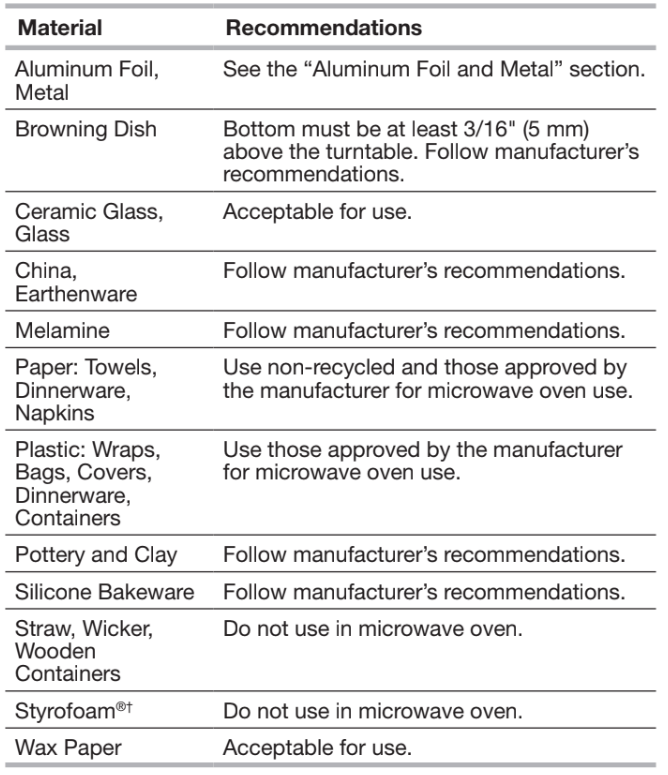
 Doneness