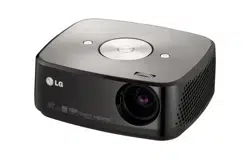

OWNER’S MANUAL
DLP PROJECTOR
HX350T
Please read this manual carefully before operating
your set and retain it for future reference.
www.lg.com
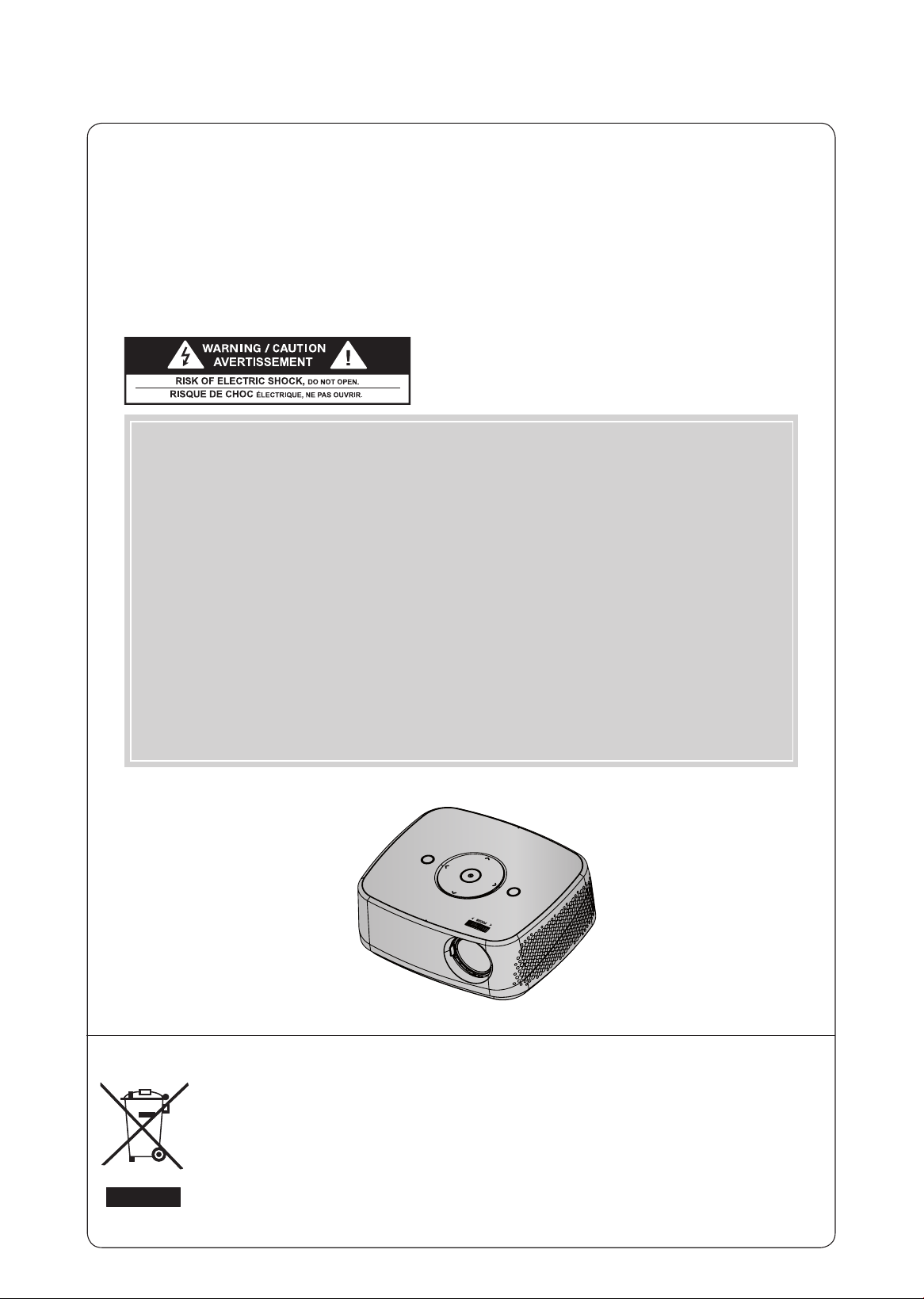
DLP PROJECTOR
DLP PROJECTOR
Disposal of your old appliance
1. When this crossed-out wheeled bin symbol is attached to a product it means the product is cov-
ered by the European Directive 2002/96/EC.
2. All electrical and electronic products should be disposed of separately from the municipal waste
stream through designated collection facilities appointed by your government or your local authori-
ties.
3. The correct disposal of your old appliance will help prevent potential negative consequences for the
environment and human health.
4. For more detailed information about disposal of your old appliance, please contact your city office,
waste disposal service or the shop where you purchased the product.
5. The fluorescent lamp used in this product contains a small amount of mercury. Do not dispose of
this product with general household waste. Disposal of this product must be carried out in accor-
dance to the regulations of your local authority.
Warning - Class B
(b) For a Class B Digital device or peripheral, the instructions furnished the user shall include the fol-
lowing or similar statement, placed in a prominent location in the text of the manual:
NOTE: This equipment has been tested and found to comply with the limits for a Class B digital device,
pursuant to part 15 of the FCC Rules. These limits are designed to provide reasonable protec-
tion against harmful interference in a residential installation. This equipment generates, uses
and can radiate radio frequency energy and, if not installed and used in accordance with the
instructions, may cause harmful interference to radio communications. However, there is no
guarantee that interference will not occur in a particular installation. If this equipment does
cause harmful interference to radio or television reception, which can be determined by turning
the equipment off and on, the user is encouraged to try to correct the interference by one or
more of the following measures:
- Reorient or relocate the receiving antenna.
- Increase the separation between the equipment and receiver.
- Connect the equipment into an outlet on a circuit different from that to which the receiver is
connected.
- Consult the dealer or an experienced radio/TV technician for help.

3
Contents
3
Contents
Safety Instructions
Projector Description
Main Body ..........................................................................................7
Control Panel .....................................................................................7
Connections ...................................................................................... 8
Remote Control .............................................................................. 9
Installing Batteries ........................................................................... 9
Accessories ......................................................................................10
Optional Extras ..............................................................................10
Installation
Installation Precautions ..................................................................11
Basic Operation of the Projector ...............................................12
How to install the projector using a tripod .............................13
Kensington Security System .......................................................13
Turning on the Projector ..............................................................14
Turning off the Projector ..............................................................14
Focus and Position of the Screen Image ................................14
Selecting input mode ...................................................................14
Connections
Connecting to a Speaker or Headphone ................................15
Connecting to an Antenna or Cable ........................................15
Connecting to a Computer .........................................................15
Connecting to a Video Source ...................................................16
Connecting to a DVD Player .......................................................16
Connecting to a DTV Settop Box ..............................................16
Operating the Projector
CHANNEL Menu Options
Channel Setup - Auto Scan ....................................................... 17
Channel Selection .......................................................................... 17
Add/Delete Channel ..................................................................... 17
Channel Editing ..............................................................................18
Favorite Channel Setup ................................................................18
Favorite Channel List .....................................................................18
Brief Information .............................................................................19
PICTURE Menu Options
Picture Mode ...................................................................................19
Adjusting Picture Mode ................................................................19
Advanced Control Function ........................................................20
Picture Reset Function ..................................................................21
SCREEN Menu Options
To Change PJT Mode ..................................................................22
Using Aspect Ratio Function .....................................................22
Using Keystone Function ............................................................22
Auto Configure Function .............................................................23
RGB Config. Function ..................................................................23
Using the Still Function ...............................................................23
AUDIO Menu Options
Adjusting Volume ..........................................................................24
Stereo/SAP Broadcast Setup ....................................................24
Adjusting Speaker Balance ........................................................25
Adjusting Treble .............................................................................25
Using Volume Booster .................................................................25
TIME Menu Options
Clock Setting ..................................................................................26
On/Off Time Setting ....................................................................26
Sleep time Function ..................................................................... 27
Auto Off Function ......................................................................... 27
OPTION Menu Options
Selecting Menu Language .........................................................28
Selecting Audio Language .........................................................28
Setting Caption ..............................................................................29
Using Blank Function ...................................................................30
Selecting Blank image .................................................................30
Screen Capture Function .............................................................31
To adjust the brightness of the screen ....................................31
To make the power of the projector turn on automatically
when power is applied .................................................................32
Demo Mode Function ..................................................................32
Initial Setting Function .................................................................33
INFORMATION Menu Options
To See The Projector Information .............................................33
PARENTAL CONTROL/RATINGS
Set Password & Lock System
Setting up Your Password ...........................................................34
Set Password ..................................................................................35
Lock System ...................................................................................35
Channel Blocking ..........................................................................36
MOVIE & TV RATING
Movie Rating (MPAA) - For USA ..............................................36
TV Rating Children - For USA ................................................... 37
TV Rating General - For USA .................................................... 37
TV Rating English - For CANADA ............................................38
TV Rating French - For CANADA .............................................38
Downloadable Rating ...................................................................39
External Input Blocking ................................................................39
USB
To use the USB device
Connecting the USB device .......................................................40
Eject USB ........................................................................................40
USB notes ........................................................................................41
PHOTO LIST
Screen Components ....................................................................42
Photo Selection and Popup Menu ...........................................42
Full Screen Menu ..........................................................................43
MUSIC LIST
Screen Components ....................................................................44
Music Selection and Popup Menu ...........................................44
MOVIE LIST
Supported Movie Formats ..........................................................45
Precautions When Playing Video Files ....................................46
Screen Components .................................................................... 47
Movie Selection and Popup Menu ........................................... 47
Playing the Movie ..........................................................................48
Option Menu Selection................................................................48
To See The DivX Registration Code.........................................49
Deactivation Function ...................................................................49
FILE VIEWER
Screen Components ....................................................................50
View File ...........................................................................................50
Information
Supported Monitor Display ..........................................................51
Maintenance ....................................................................................51
Specifications .................................................................................52
Open Source Software Notice ...................................................53
4
Safety Instructions
Safety Instructions
Please take note of the safety instructions to prevent any potential accident or misuse of the projector.
ꔈ Safety Instructions are given in two forms as detailed below.
WARNING : The violation of this instruction may cause serious injuries or even death.
NOTES : The violation of this instruction may cause injuries or damage to the projector.
ꔈ
After reading this manual, keep it in the place that you can access easily.
Indoor Installation WARNING
Do not place the Projector in direct
sunlight or near heat sources such
as radiators, fires, stove etc.
This may cause a fire hazard.
Do not place flammable materi-
als in, on or near the projector.
This may cause a fire hazard.
Do not hang on the installed
projector.
It may cause the projector to fall,
causing injury or death.
Power WARNING
Indoor Installation NOTES
Earth wire should be connected.
Ensure that you connect the earth ground
wire to prevent possible electric shock (That
is a Projector with a three-prong grounded
AC plug must be connected to a three-
prong grounded AC outlet).
If grounding methods are not possible, have
a qualified electrician install a separate circuit
breaker.
Do not try to ground the unit by connecting
it to telephone wires, lightening rods, or gas
pipes.
The power cord should be inserted
fully into the power outlet to avoid
a fire hazard!
This may cause a fire hazard or damage
the unit.
Do not place heavy objects on
the power cord.
This may cause a fire or an electric
shock hazard.
Do not place the projector close
to sources of steam or oil such
as a humidifier.
This may create a fire hazard or an
electric shock hazard.
Do not place the projector where
it might be exposed to exces-
sive dust.
This may cause a fire hazard or
damage to the unit.
Do not block the vents of the pro-
jector or restrict air-flow in any way.
This would cause the internal tempera-
ture to increase and could cause a fire
hazard or damage to the unit.
Ensure good ventilation around the
projector. The distance between
the projector and the wall should
be more than 30 cm.
An excessive increase in its internal
temperature may cause a fire hazard or
damage to the unit.
Do not use the projector in a
damp place such as a bathroom
where it is likely to get wet.
This may cause a fire or an electric
shock hazard.
Do not place the projector direct-
ly on a carpet, rug or place where
ventilation is restricted.
This would cause its internal tempera-
ture to increase and might create a
fire hazard or damage the unit.
When installing the projector on
a table, be careful not to place it
near the edge.
The projector could fall causing injury
and damage to the projector.
Only use a suitable stand.
Only use the projector on a level
and stable surface.
It may fall and cause injury and/or
damage to the unit.
Disconnect from the power sup-
ply and remove all connections
before moving, or cleaning.
5
Safety Instructions
Using WARNING
If water is spilt into the projector unplug it from the power supply
immediately and consult your Service Agent.
This may cause an electric shock hazard or damage to the unit!
Dispose of used batteries
carefully and safely.
In the case of a battery being
swallowed by a child please consult
a doctor immediately.
CAUTION concerning the Power Cord
It is recommend that most appliances be placed on a dedicated circuit; that is, a single outlet circuit
which powers only that appliance and has no additional outlets or branch circuits.Check the specification
page of this owner's manual to be certain.
Do not overload wall outlets. Overloaded wall outlets, loose or damaged wall outlets, extension cords,
frayed power cords, or damaged or cracked wire insulation are dangerous.Any of these conditions could
result in electric shock or fire. Periodically examine the cord of your appliance, and if its appearance
indicates damage or deterioration, unplug it, discontinue use of the appliance, and have the cord
replaced with an exact replacement part by authorized service personnel.
Protect the power cord from physical or mechanical abuse, such as being twisted, kinked, pinched,
closed in a door, or walked upon. Pay particular attention to plugs, wall outlets, and the point where the
cord exits the appliance.
Do not remove any covers. High
risk of Electric Shock!
Don’t look directly into the lens
when the projector is in use. Eye
damage may occur!
Do not touch metal parts during
or soon after operation since the
vents will remain very hot!
Power WARNING
Power NOTES
Do not plug-in too many items
into one power outlet.
It may result in overheating of the out-
let and create a fire hazard!
Never touch the power plug with
a wet hand.
This may cause an electric shock
hazard!
Prevent dust from collecting on
the power plug pins or outlet.
This may cause a fire hazard!
Hold the plug firmly when
unplugging. If you pull the cord,
it may be damaged.
This may cause a fire hazard!
Do not use if the power cord or
the plug is damaged or any part
of the power outlet is loose.
This may cause a fire or an electric
shock hazard or damage to the unit!
Ensure the power cord does not
come into contact with sharp or
hot objects.
This may cause a fire or an electric
shock hazard or damage to the unit!
Place the projector where people
will not trip or tread on the power
cord.
This may cause a fire or an electric
shock hazard or damage to the unit!
Do not turn the projector On/Off by plugging-in or unplugging the
power plug to the wall outlet.
(Allow the unit to cool before removing power.)
It may cause mechanical failure or could cause an electric shock.
Do not place anything containing
liquid on top of the projector
such as flowerpot, cup, cosmet-
ics or candle.
This may cause a fire hazard or
damage to the unit!
In case of impact shock or damage
to the projector switch it off and
unplug it from the power outlet and
contact an authorized service center.
This may cause a fire or an electric shock
hazard or damage to the unit!
Do not allow any objects to fall
into the projector.
This may cause an electric shock haz-
ard or damage to the unit!
6
Safety Instructions
Using NOTES
Do not place heavy objects on
top of projector.
This may cause mechanical failure or
personal injury!
Take care not to impact the lens
particularly when moving the
projector.
Do not touch the lens of the pro-
jector. It is delicate and easily
damaged.
Others NOTES
Cleaning NOTES
Contact the Service
Center once a year to
clean the internal
parts of the projector.
Accumulated dust can
cause mechanical failure.
When cleaning the plastic parts such as projector case, unplug the power and
wipe it with a soft cloth. Do not use cleanser, spray water or wipe with a wet
cloth. Especially, never use cleanser (glass cleaner), automobile or industrial
shiner, abrasive or wax, benzene, alcohol etc., which can damage the product.
Use an air spray or soft cloth that is moist with a neutral detergent and water
for removing dust or stains on the projection lens.
It can cause fire, electric shock or product damage (deformation, corrosion and damage).
Cleaning WARNING
Do not use water while cleaning
the projector.
This may cause damage to the pro-
jector or an electric shock hazard.
In the unlikely event of smoke or
a strange smell from the projec-
tor, switch it off, unplug it from
the wall outlet and contact your
dealer or service center.
This may cause a fire or an electric
shock hazard or damage to the unit!
Use an air spray or soft cloth that
is moist with a neutral detergent
and water for removing dust or
stains on the projection lens.
Others WARNING
Do not attempt to service the projector yourself. Contact your dealer or service center.
This may cause damage to the projector and could give an electric Shock as well as invalidating the warranty!
Using WARNING
If the projector is in a room that experiences a gas leak, do not touch
the projector.
It can cause a fire or a burn by a spark.
Always open the lens door or
remove the lens cap when the
projector lamp is on.
Do not use any sharp tools on
the projector as this will damage
the casing.
In the event that an image does
not appear on the screen please
switch it off and unplug it from the
power outlet and contact your
Service Agent.
This may cause a fire or an electric
shock hazard or damage to the unit!
Do not drop the projector or
allow impact shock.
This may cause mechanical failure or
personal injury!
Be sure to unplug if the projector is
not to be used for a long period.
Accumulated dust may cause a fire haz-
ard or damage to the unit!
Only use the specified type
of battery.
This could cause damage to the
remote control.
Do not mix new batteries with old
batteries.
This may cause the batteries to over-
heat and leak.
7
Projector Description
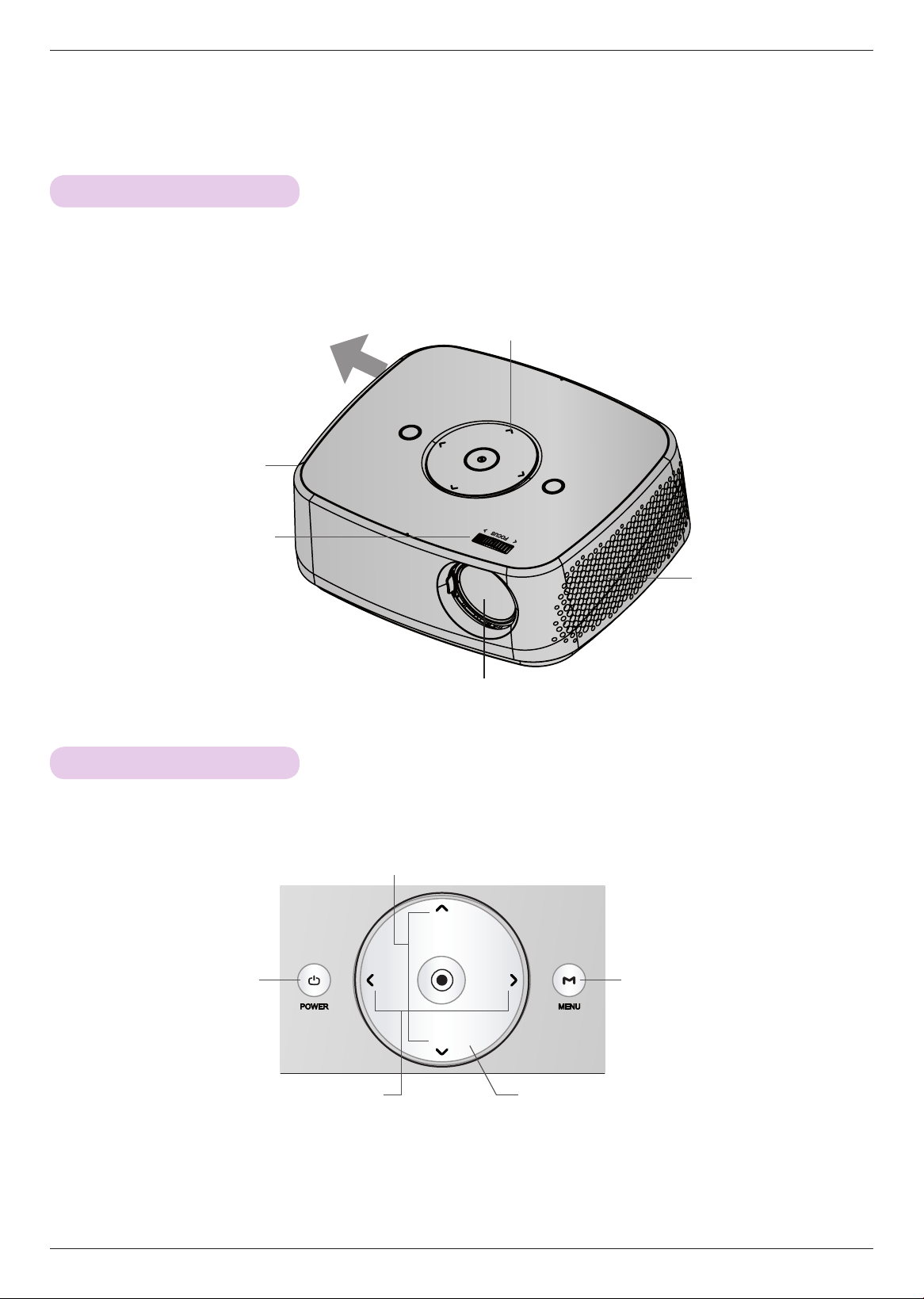
Speaker
Projector Description
Main Body
* The projector is manufactured using high-precision technology. You may, however, see on the Projector screen tiny black
points and/or bright points (red, blue, or green). This can be a normal result of the manufacturing process and does not
always indicate a malfunction.
Control panel
Exhaustion Direction
High heat, keep the area near
the exhaust clear.
Focus ring
Speaker
Control Panel
CH
CH
-VOL VOL+
MENU Button
Displays or closes menus.
POWER Button
Turns the projector ON/OFF.
∧/∨/</> Button
Adjusts functions of menus.
◉OK Button
Checks present mode and saves the change of functions.
* Do not touch the lens when using the projector or opening the lens door.
VOL -/+ (Volume) Button
Adjusts volume.
CH∧/∨ (Channel) Button
Select a channel number.
8
Projector Description
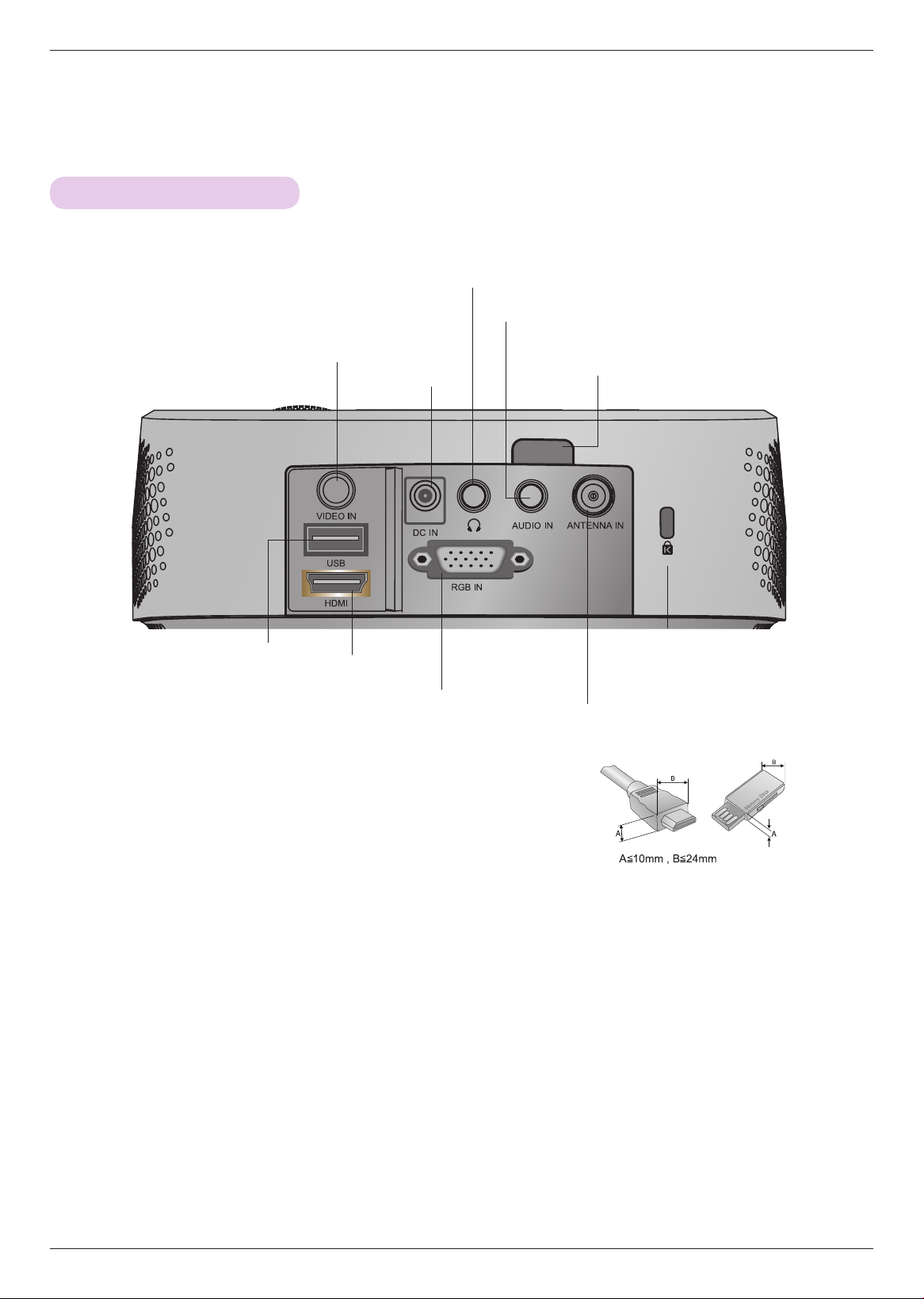
Connections
VIDEO IN
Audio Out port
IR (Remote control sensor)
*
Do not block the IR port for normal operation
of remote control.
* Note that clearance is limited between the USB and HDMI inputs.
Using devices of a non-standard size may block other ports.
RGB IN
AUDIO IN
ANTENNA IN
Kensington Security
System Connector
(Refer to page 13)
DC Power IN
HDMI
USB
9
Projector Description
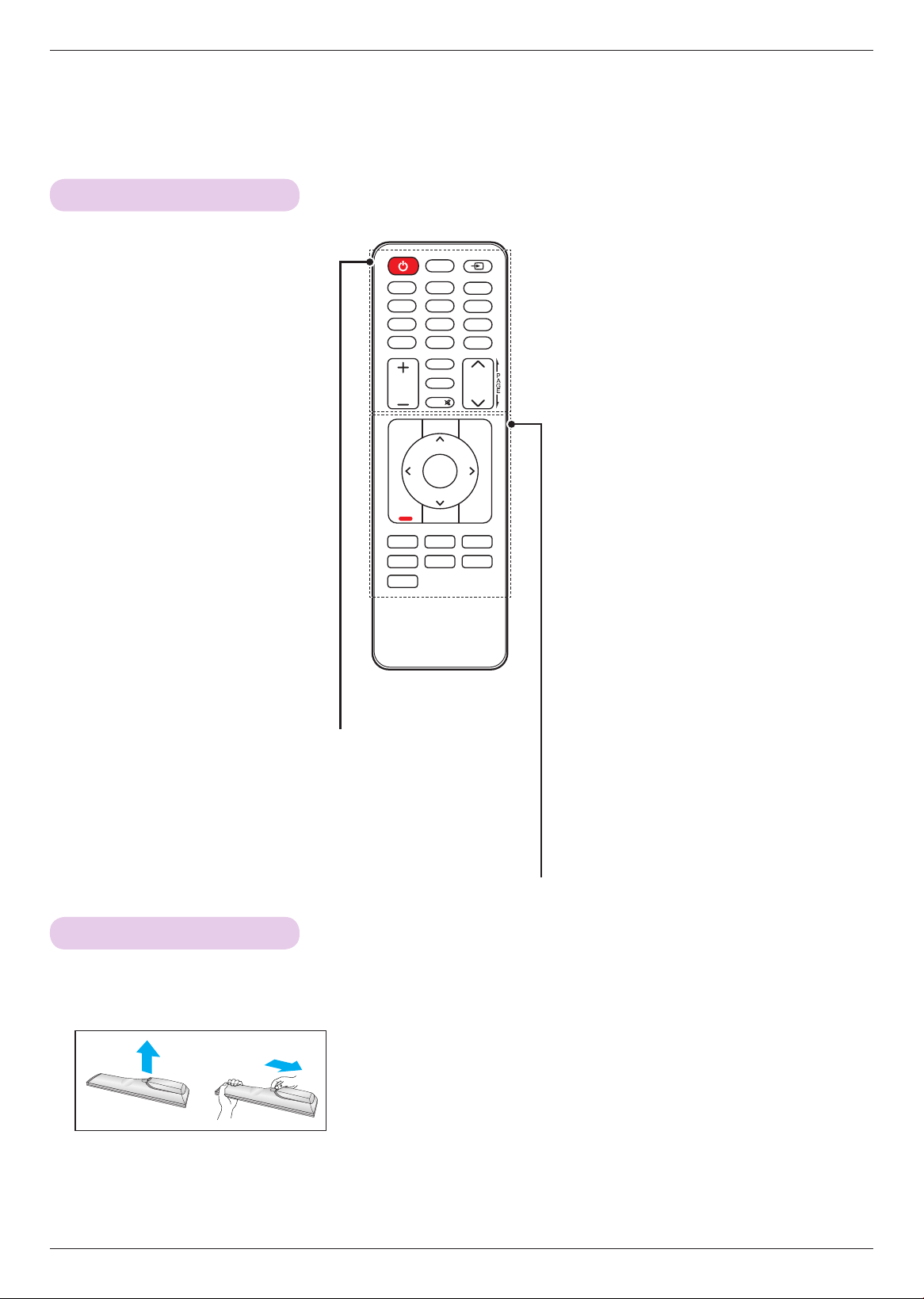
Remote Control
Installing Batteries
CAUTION
RISK OF EXPLOSION IF BATTERY IS REPLACED WITH AN INCORRECT TYPE.
DISPOSE OF USED BATTERIES AT A RECYCLING DROP-OFF LOCATION.
• Open the battery compartment cover on the back of the remote control.
• Insert the specified type of batteries with correct polarity, match “+” with “+”,
and match “-” with “-”.
• Install two 1.5V AAA batteries. Don’t mix used batteries with new batteries.
USB
ꕗ
ꕖꕘ
ꕙ|
ꕚ|
ꕖꕘ
ꕙ|
ꕚ|
BLANK
INFOⓘ
STILL
Key’sꔍKey’sꔌ
VOL CH
1
4
7
-
2
5
8
0
3
6
9
1
4
7
2
5
8
0
3
6
9
FLASHBK
FAV
MARK
RATIO
MENU Q.MENU
ꕉ
BACK
AUTO
OK
ꔉ
MUTE
INPUT
USB
화면가림
방송안내
정보표시
화면정지
키스톤ꔍ키스톤ꔌ
음량 채널
-
이전채널
선호채널/
선택
화면크기
메뉴 간편설정
ꕉ
이전
자동조정
확인
ꔉ
조용히
외부입력
페
이
지
ꕗ
POWER
Turns the projector on or off.
USB
Access USB.
INPUT
Changes the input source.
Alphanumeric buttons
Enters letters and numbers.
- (Dash)
Inserts a dash between numbers such as
2-1 and 2-2.
FLASHBK
Tunes to the last channel viewed.
VOL
Adjusts the volume level.
AUTO
Automatically adjusting of the PC input
image.
RATIO
Resizes an image.
MUTE
Mutes all sounds
CH
Scrolls through the saved channels.
PAGE
Moves to the previous or next screen.
MENU
Accesses the menu.
INFO
Views the information of the current program and
screen.
Q.MENU
Accesses the quick menu.
Navigation buttons (up/down/left/right)
Scrolls through menus or options.
OK
Selects menus or options and confirms your input.
FAV
Accesses your favorite channel list.
MARK
Selects a menu or option.
STILL
Freeze the moving image.
Functions as the STILL button in any mode other
than DivX.
BACK
Returns to the previous level.
Control buttons
Controls the USB.
Key's
Adjusts Keystone.
BLANK
Turns the projector screen on or off.
10
Projector Description
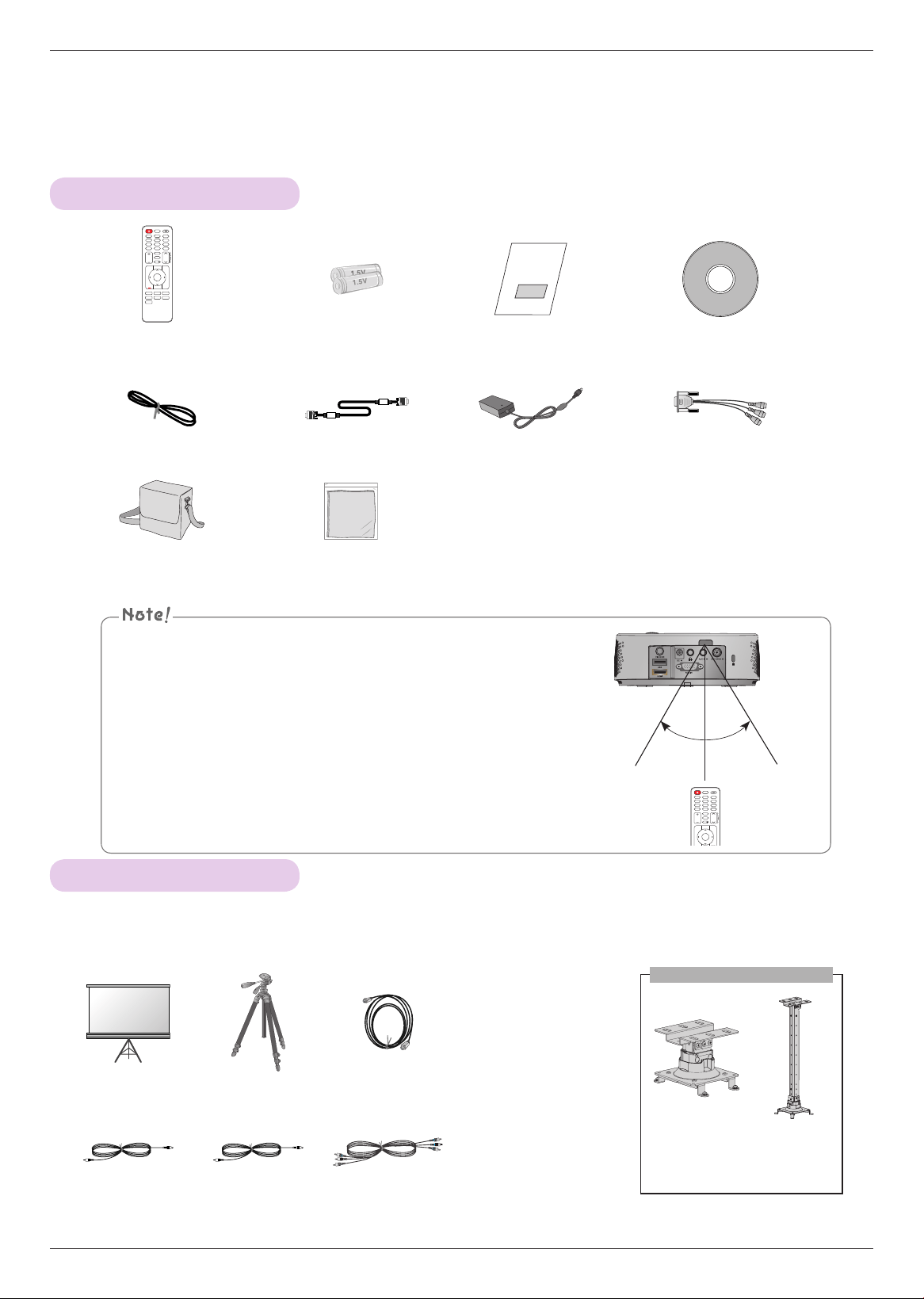
Accessories
Optional Extras
* Below are some optional accessories you may need to operate the projector. These are not made or sold by LG.
* Contact your dealer to purchase these items.
* Optional parts can be changed without notice to improve the quality of the product, and new optional parts can be added.
▪ Optimal remote range is less than 6 meters and within a 60 degree
arc of the IR receiver.
▪ The remote range may be less when cables are connected to the pro-
jector.
▪ When you carry the remote control in the portable bag, make sure that
the buttons on the remote control are not pressed by the projector,
cables, documents or any other accessories in the bag. Otherwise, it
may reduce the battery life significantly.
USB
ꕗ
ꕖꕘ
ꕙ|
ꕚ|
ꕖꕘ
ꕙ|
ꕚ|
BLANK
INFOⓘ
STILL
Key’sꔍKey’sꔌ
VOL CH
1
4
7
-
2
5
8
0
3
6
9
1
4
7
2
5
8
0
3
6
9
FLASHBK
FAV
MARK
RATIO
MENU Q.MENU
ꕉ
BACK
AUTO
OK
ꔉ
MUTE
INPUT
USB
화면가림
방송안내
정보표시
화면정지
키스톤ꔍ키스톤ꔌ
음량 채널
-
이전채널
선호채널/
선택
화면크기
메뉴 간편설정
ꕉ
이전
자동조정
확인
ꔉ
조용히
외부입력
페
이
지
ꕗ
Remote Control AAA Batteries Owner’s manual CD Owner’s manual
Power Cord Computer Cable AC-DC Adapter RGB to Component Cable
Portable bag Polishing Cloth
Projection Screen Tripod HDMI Cable
Video Cable Audio Cable Component Cable
Ceiling mount for projector
AJ-CB2
AJ-CB2
+AJ-CS60
* Use screw size: M4x6-M4x8
USB
ꕗ
ꕖꕘ
ꕙ|
ꕚ|
ꕖꕘ
ꕙ|
ꕚ|
BLANK
INFOⓘ
STILL
Key’sꔍKey’sꔌ
VOL CH
1
4
7
-
2
5
8
0
3
6
9
1
4
7
2
5
8
0
3
6
9
FLASHBK
FAV
MARK
RATIO
MENU Q.MENU
ꕉ
BACK
AUTO
OK
ꔉ
MUTE
INPUT
USB
화면가림
방송안내
정보표시
화면정지
키스톤ꔍ키스톤ꔌ
음량 채널
-
이전채널
선호채널/
선택
화면크기
메뉴 간편설정
ꕉ
이전
자동조정
확인
ꔉ
조용히
외부입력
페
이
지
ꕗ
30° 30°
11
Installation
Installation
Provide proper ventilation for this projector.
Place this projector in adequate temperature and humidity conditions.
• Install this projector only in a location where adequate temperature and humidity is available. (refer page 52)
Don’t place the projector where it can be covered with excessive dust.
• This may cause overheating of the projector.
This projector is manufactured using high-precision technology. You may, however, see tiny black points and/or bright
points (red, blue or green) that continuously appear on the projector Screen. This is a normal result of the manufacturing
process and does not indicate a malfunction.
Installation Precautions
The remote control may not work when a lamp equipped with electronic ballast or a three-wavelength lamp is installed.
Replace those lamps with international standard products to use the remote control normally.
Do not obstruct the slots and openings of the projector. This may cause overheating and cause a fire hazard.
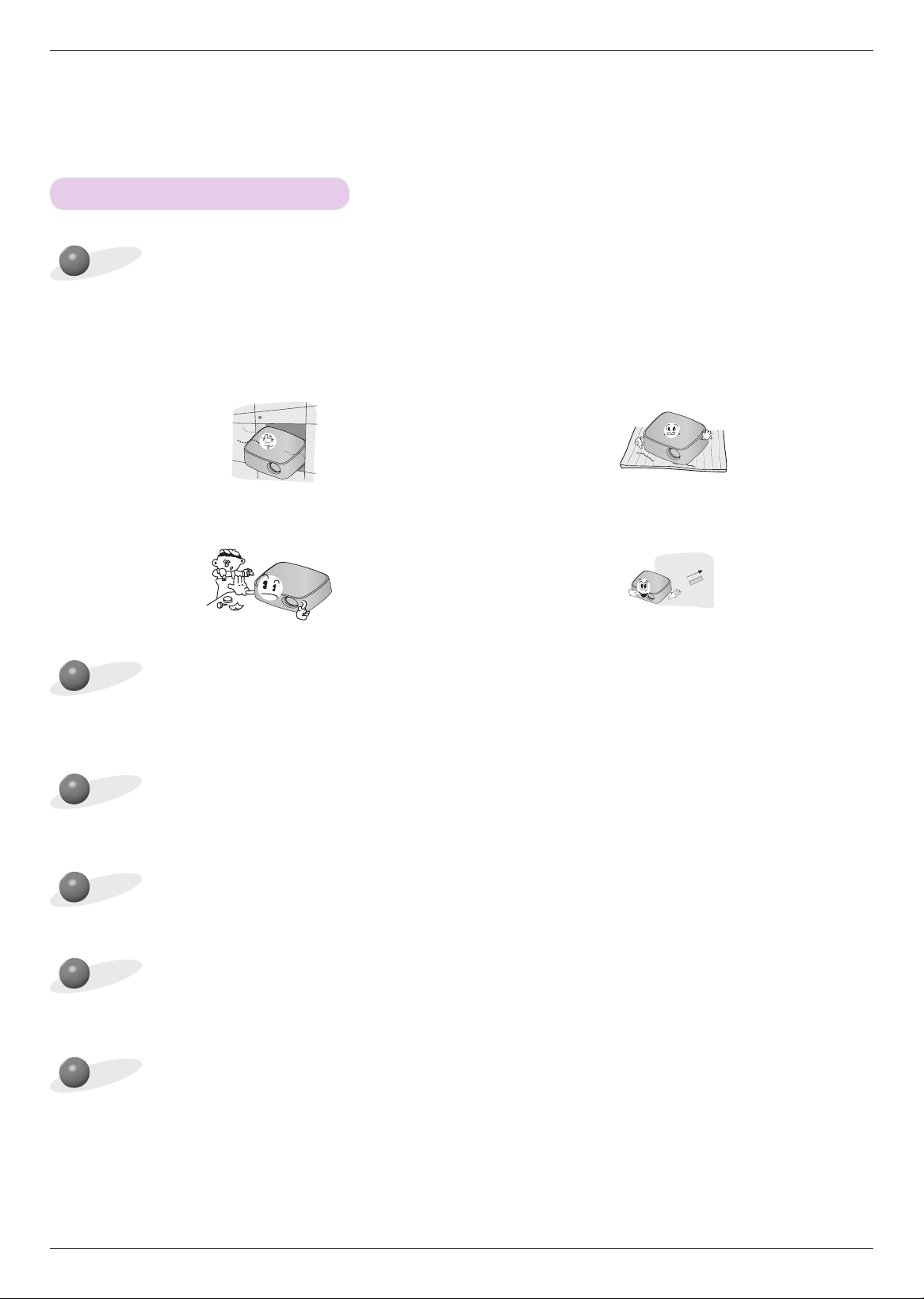
• The projector is equipped with ventilation holes(intake) on
the bottom and ventilation holes(exhaust) on the front. Do
not block or place anything near these holes. Internal heat
build-up may occur, causing picture degradation or dam-
age to the projector.
• Do not place the projector on a carpet, rug or other similar
surface. It may prevent a adequate ventilation of the pro-
jector bottom. This projector should be placed in the plain
floor or mounted to the ceiling.
• Never push the projector or spill any kind of liquid into the
projector.
• Leave an adequate distance (30 cm or more) around the
projector.
12
Installation
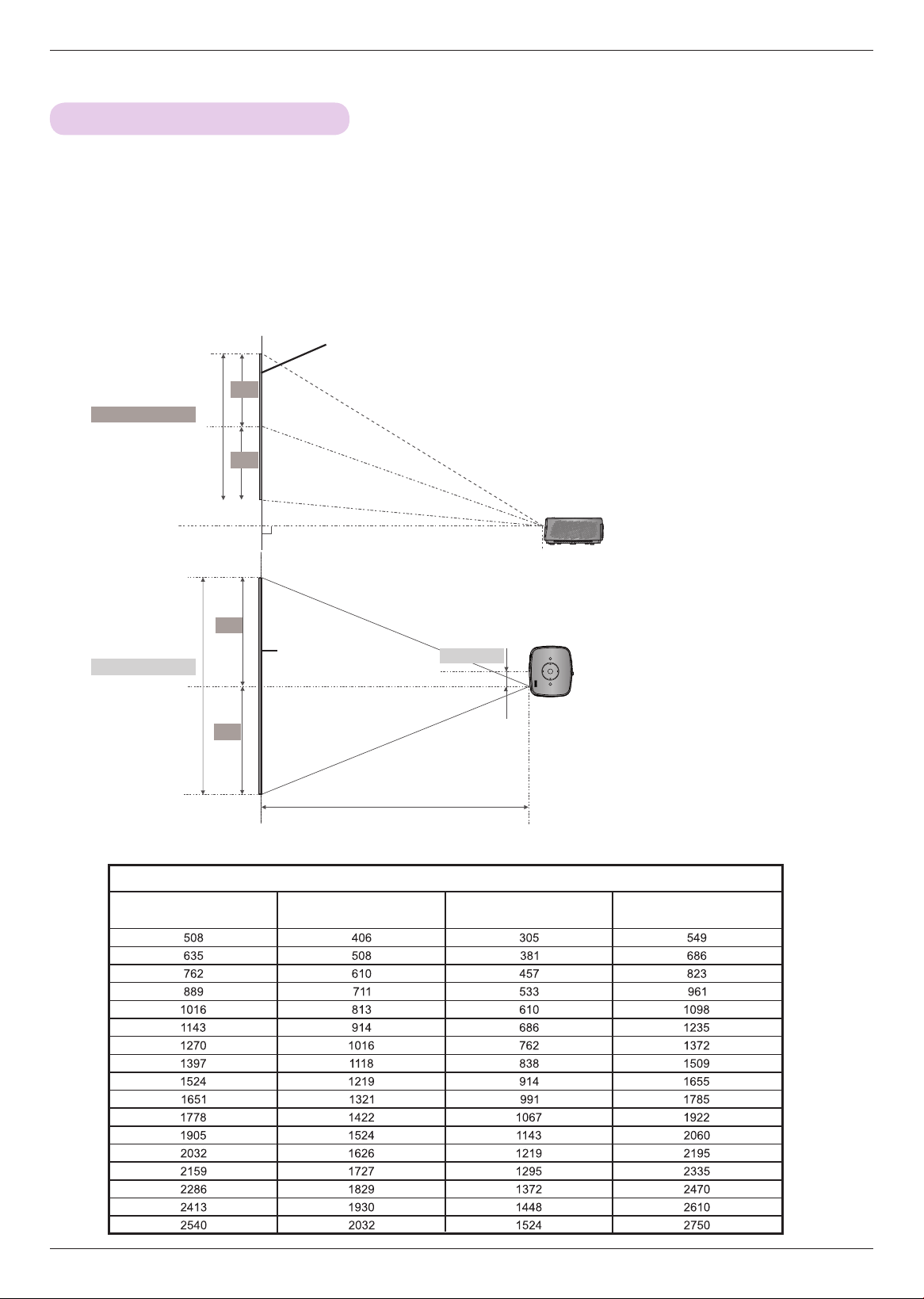
1 . Place the projector on a sturdy and horizontal surface.
2 . Place the projector with the desired distance from the screen. The distance between the projector and the
screen determines the actual size of the image.
3 . Position the projector so that the lens is set at a right angle to the screen. If the projector is not set at a
right angle, the screen image will be crooked. Although, slight angles can be counteracted using the
Keystone adjustement. (Refer to page 22.)
4 . After placing the projector in its desired location, connect the video input(s). Then connect the power
cable to the projector and the wall outlet.
projection distance based on the picture format
Projection distance (D)
Projection offset ratio: 110%
38.6 mm
Projection distance (D)
Basic Operation of the Projector
Screen
Screen height (X)
X/2
X/2
Y/2
Y/2
Screen
Screen Width (Y)
4 : 3 Scale
Diagonal Size (mm) Screen Width (Y) (mm) Screen height (X) (mm)
Projection Distance (D)
(mm)
13
Installation
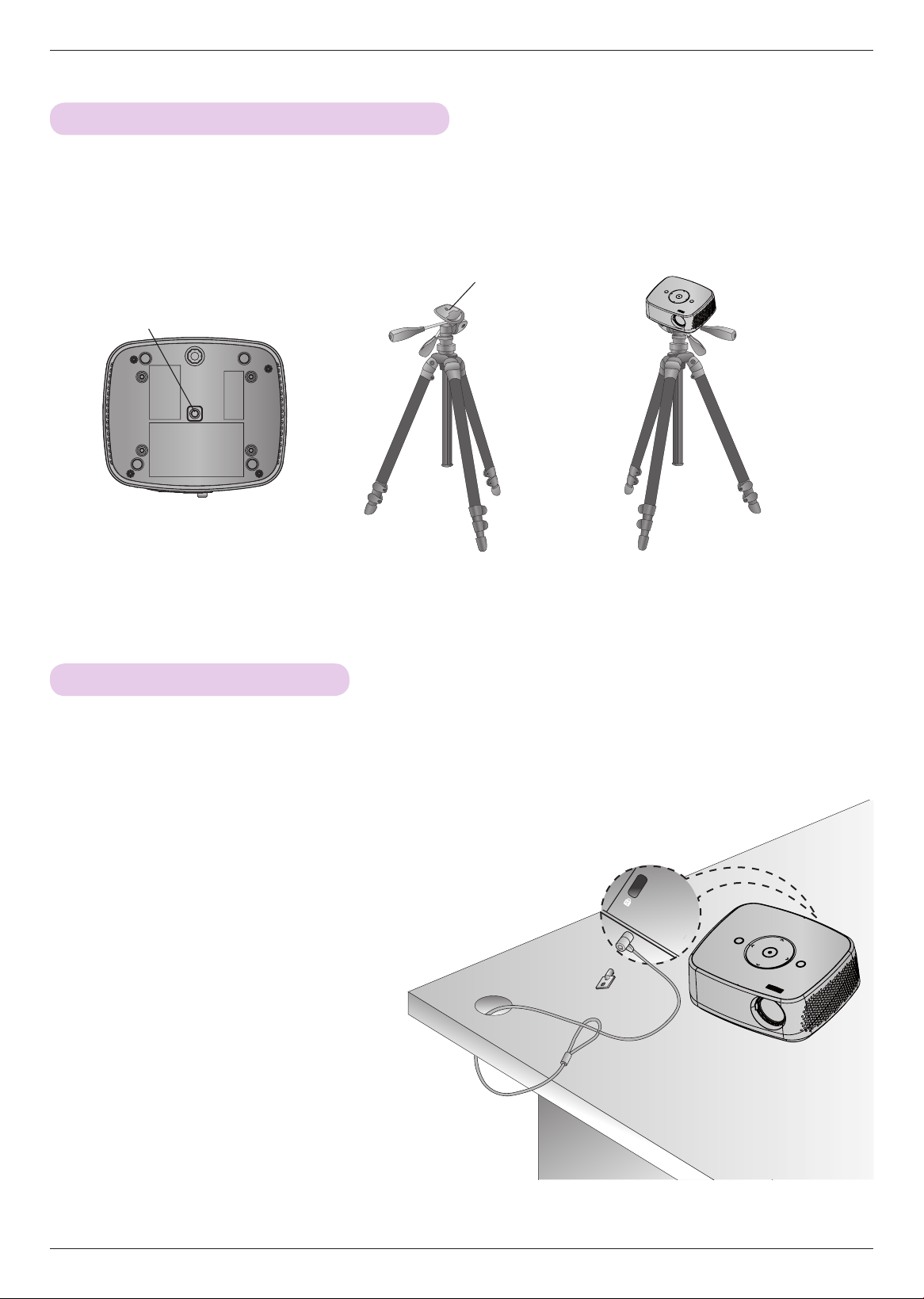
• This projector has a Kensington Security System Connector on the connect panel. Connect a Kensington Security
System cable as below.
• For detailed installation and use of the Kensington Security System, refer to the user’s guide included with the
Kensington Security System set. And for further information, contact http://www.kensington.com, the internet homepage
of the Kensington company that deals with expensive electronic equipment such as notebook PCs or projectors.
• The Kensington Security System is an optional item.
Kensington Security System
* You can install this projector using a camera tripod.
* When stabilizing the tripod, we recommend using the locking bolt of standard size 4.5 mm or less.The maximum size
allowed for the locking bolt is 6.5 mm.(If it is longer than the maximum allowed size, it may damage the projector.)
How to install the projector using a tripod
+ =
Camera Tripod
Part connected to the tripod
Projector is install on the tripod
Part connected to the projector
Bottom side of Projector
14
Installation
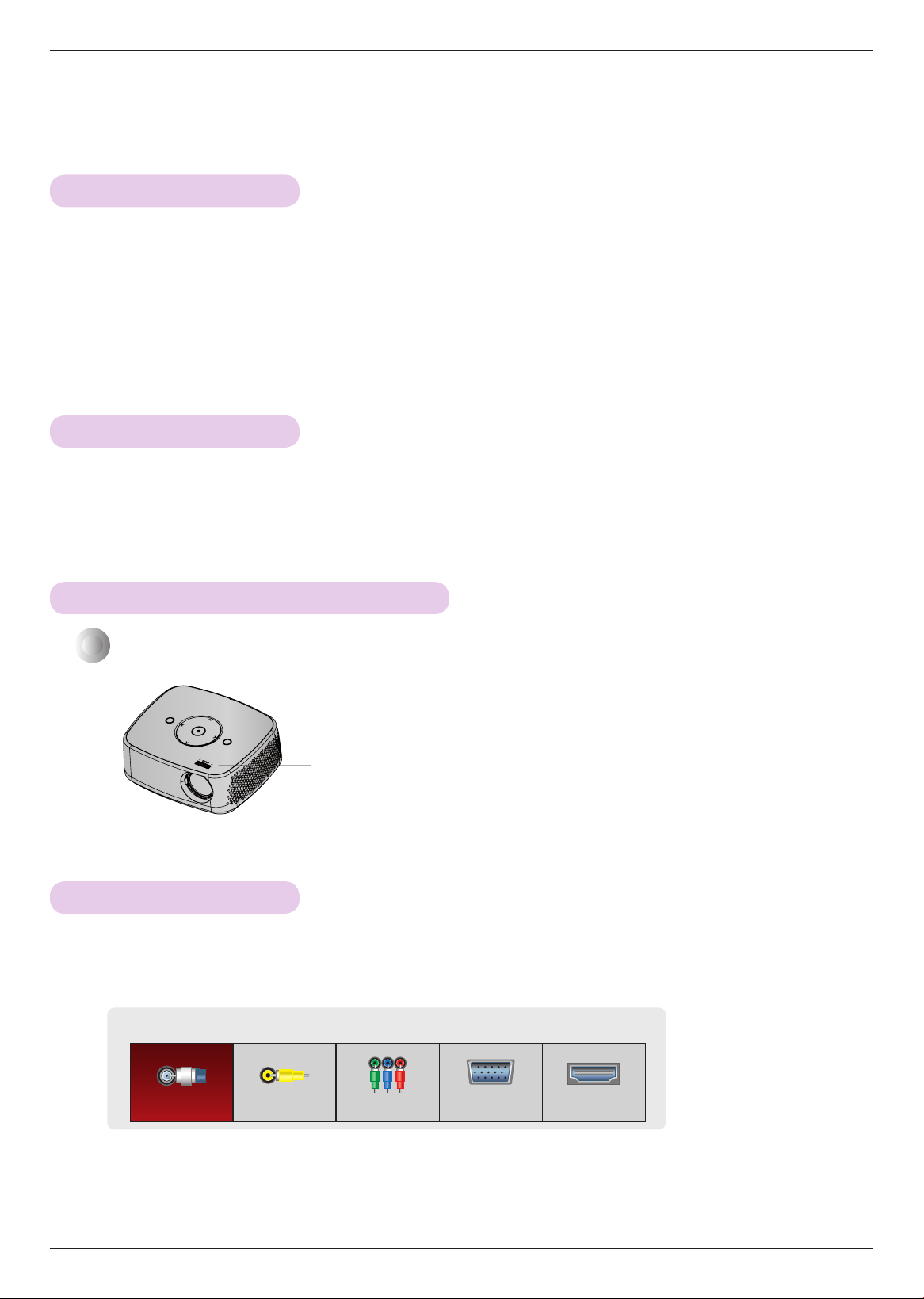
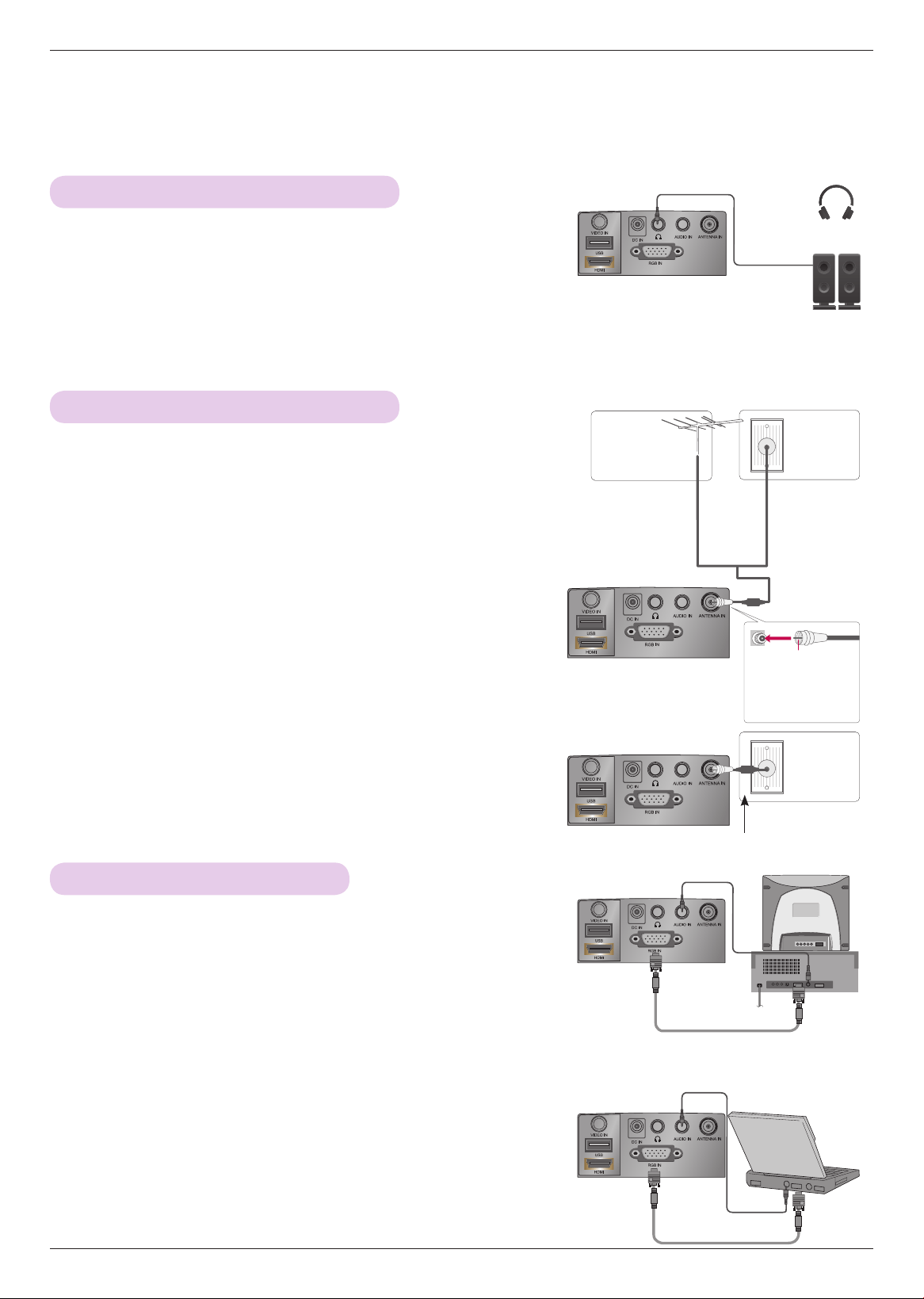
Selecting input mode
1 . Press the INPUT button on the remote control.
2 . Selecting an input signal with the INPUT button will only change the projector only to connected inputs. You
can change it to any inputs with the <, > button.
• The component input is always active.
• You can also use this function through the MENU button.
Input
TV Video Component RGB-PC HDMI
Turning on the Projector
1 . Make sure the power cord is connected correctly.
2 . After wait for a moment, press the POWER button on the top cover or the POWER button on the remote
control. (The light on the control panel will be turned on.)
• Press the INPUT button on the remote control to select the input signal you want.
• When you press the POWER button on the remote control or the POWER button on the control panel when you
turn on the projector, the lights for POWER and MENU buttons on the control panel will be turned on.
• Check if the lens door is open before turning on the power.
Turning off the Projector
Press the POWER button on the top cover or the POWER button on the remote control.
When an image appears on the screen, check if it is in focus and fits the screen properly.
• To adjust the focus of the image, rotate the focus ring.
Focus ring
Focus and Position of the Screen Image
15
Connections
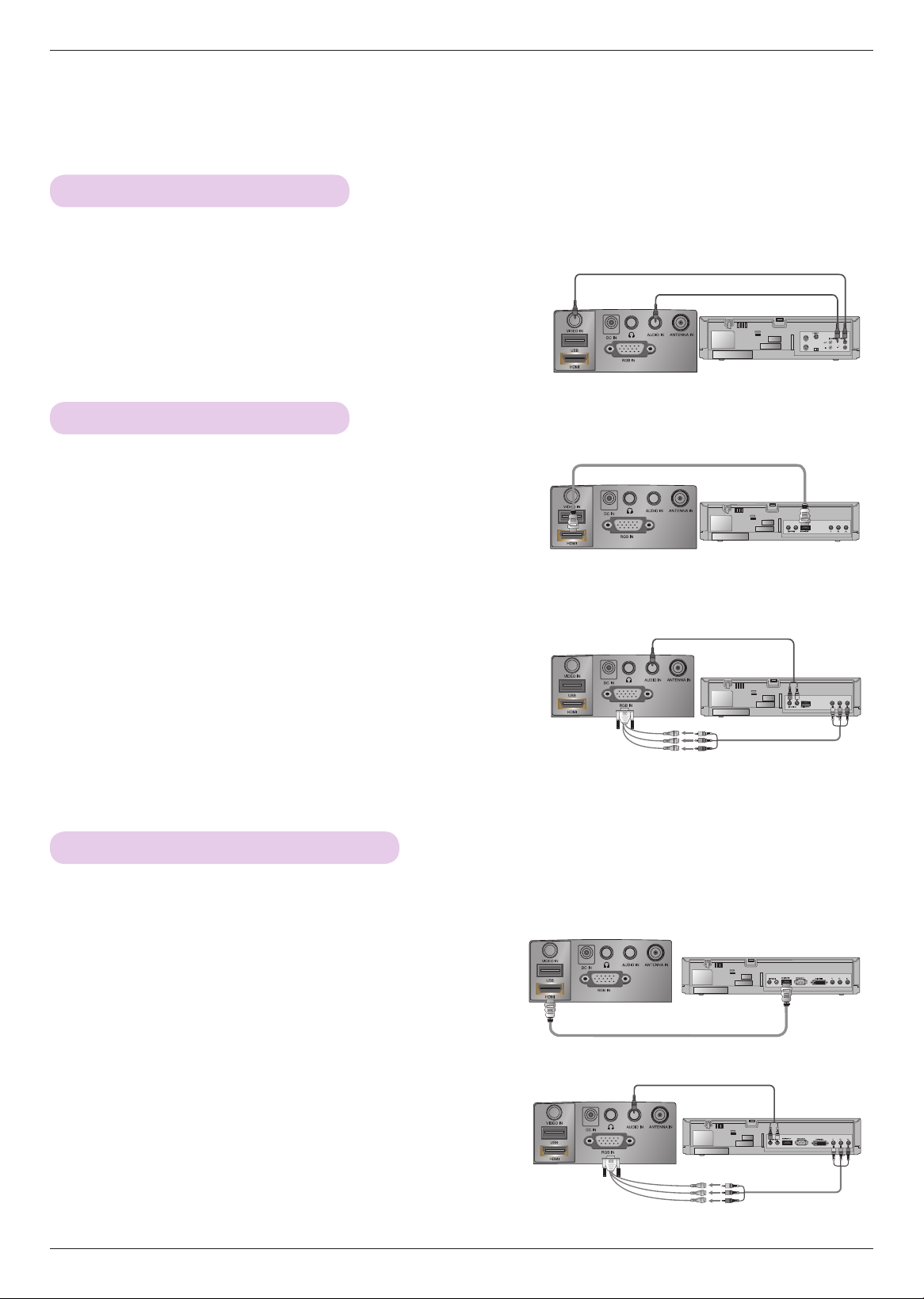
Connections
Connecting to a Computer
Connecting to an Antenna or Cable
Connecting to a Speaker or Headphone
* You can connect the projector to a computer with VGA, SVGA, XGA, SXGA
output.
* Refer to page 51 for resolutions the projector supports.
* To prevent damage do not connect to the power outlet until all connections
are made between the devices.
< How to connect >
1 . Connect the RGB IN of the projector and the computer output
port with a computer cable.
2 . Connect the AUDIO IN of the projector and the computer audio
output port with an audio cable.
* You may have to change the resolution that your PC exports to one
supported by the projector. (Refer to page 51.) This projector may not
support output from laptops when the laptop screen is on.
< How to connect >
Connect a RF Coaxial wire to the Wall Antenna Socket or Outdoor
Antenna. For Optimum picture quality, adjust the antenna direction
if outdoor antenna is used.
* If the antenna needs to be split for two Projector’s, install a 2-Way
Signal Splitter.
* For much more information about antennas visit our Knowledgebase
at http://lgknowledgebase.com. Search for antenna.
Connect the Audio Out port of the projector to headphones or
powered speakers.
Audio Cable
Audio Cable
Computer Cable
Computer Cable
Antenna (Analog or Digital)
Wall Antenna
Socket
Outdoor Antenna
(VHF, UHF)
Multi-family
Dwellings/
Apartments
(Connect to wall
antenna socket)
Single-family
Dwellings /Houses
(Connect to wall jack
for outdoor antenna)
Be careful not to
bend the copper
wire when connect-
ing the antenna.
Copper Wire
RF Coaxial Wire
(75 Ω)
RF Coaxial Wire (75 Ω)
Cable TV
Wall Jack
Cable
or
16
Connections
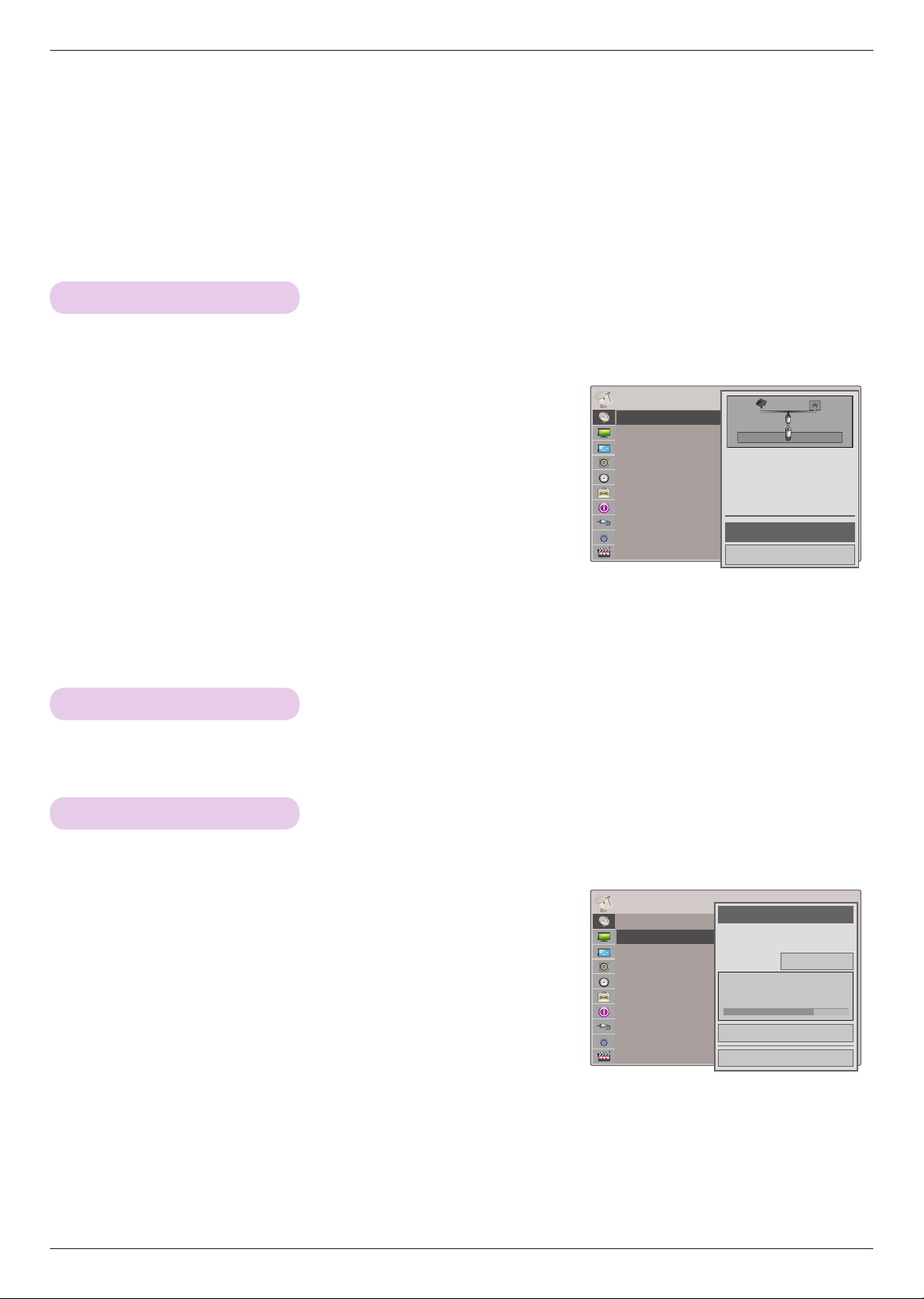
Connecting to a DVD Player
< How to connect a Component source >
* Depending on the equipment, the component output jacks (Y, PB, PR) of the DVD
Player may be labeled as Y, Pb, Pr/Y, B-Y, R-Y/Y, Cb, Cr.
1 . After connecting the Component cable of DVD Player to the
RGB to Component cable, connect it to the RGB IN terminal
of the projector.
* When connecting the component cable, match the jack colors
with the component cable.(Y=green, PB=blue, PR =red)
2 . Connect the AUDIO IN of the projector to the output jacks of
the audio source with an audio cable.
< How to connect a HDMI source >
1 . Connect the HDMI of the projector and the HDMI output port
of the DVD Player with an HDMI cable.
2 . Set the DVD Player's resolution to one of the following:
480p/720p/1080i/1080p mode.
<DVD Player>
Component cable
Connecting to a DTV Settop Box
< How to connect a HDMI source >
1 . Connect the HDMI of the projector and the HDMI output
port of the DTV settop box with an HDMI cable.
2 . Set the DTV receiver's resolution to one of the following:
480p/720p/1080i/1080p mode.
* Please refer to the owner's manual of the DTV settop box for the connection between the projector and DTV set-
top box.
< How to connect a Component source >
1 . Connect the DTV settop box Component cable with
RGB to Component cable and than connect it to RGB
IN of the projector.
* When connecting the component cable, match the jack
colors with the component cable.(Y=green, PB=blue, PR
=red)
2 . Connect the AUDIO IN of the projector to the output
jacks of the audio source with an audio cable.
<DTV Settop Box>
<DTV Settop Box>
RGB to Component
Cable
<DVD Player>
HDMI Cable
HDMI Cable
Audio Cable
Audio Cable
Component cable
RGB to Component
Cable
Connecting to a Video Source
< How to connect >
1 . Connect the VIDEO IN of the projector to the output jack of
the video source with a video cable.
2 . Connect the AUDIO IN of the projector to the output jack of
the audio source with an audio cable.
* You can connect a VCR, a camcorder or any other compatible video image source to the projector.
<VCR>
Audio Cable
Video Cable
17
Operating the Projector
CHANNEL Menu Options
Operating the Projector
* The On-Screen Display (OSD) in this manual may be slightly different from your projector.
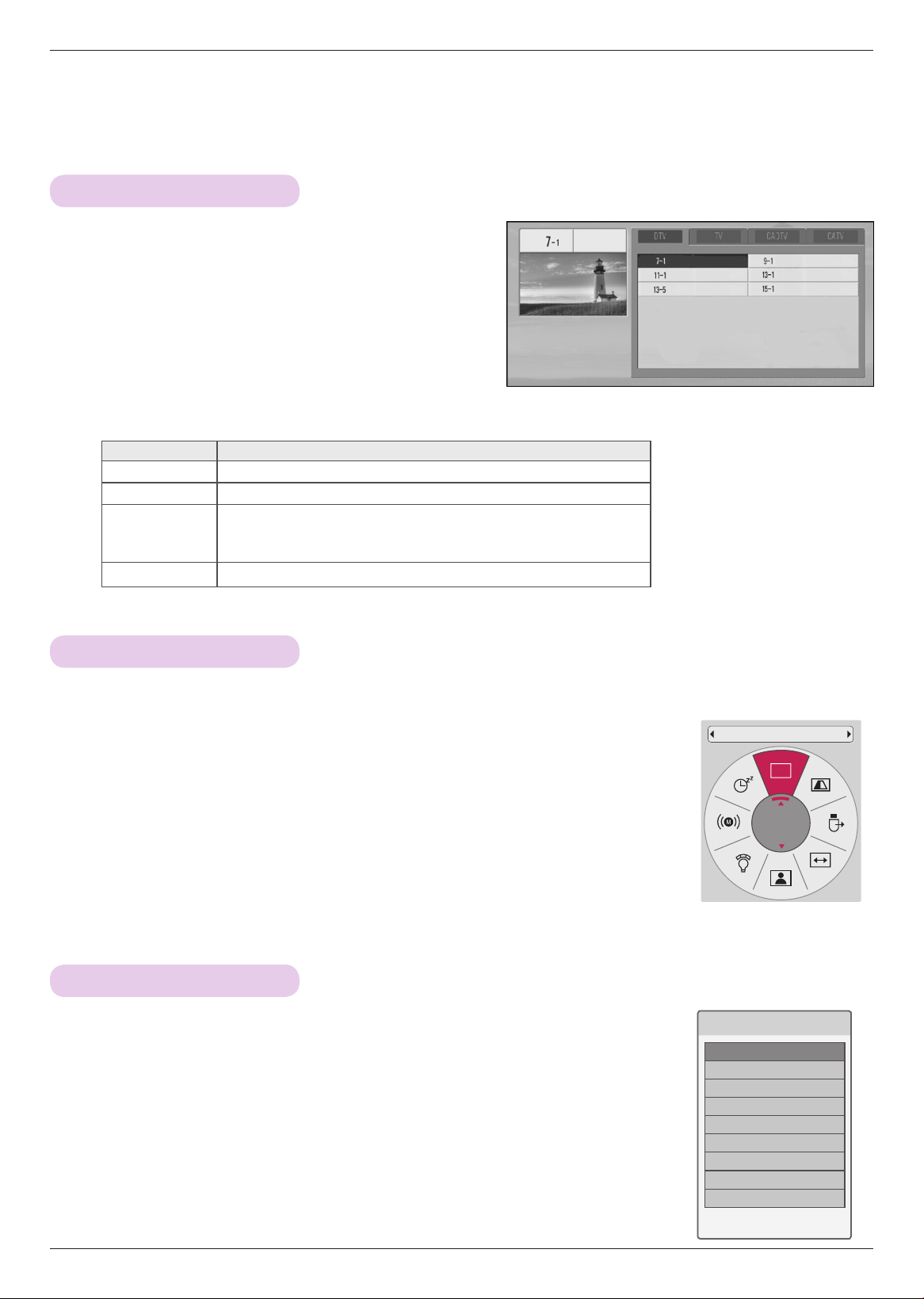
Channel Setup - Auto Scan
Add/Delete Channel
* When selecting DTV or CADTV input signal in the Manual Tuning menu, you can view the on-screen signal strength monitor
to see the quality of the signal being received.
* Automatically finds all channels available through antenna or cable inputs, and stores them in memory on the channel list.
Run this function if you change your residence or move the projector. Also, make sure to run this function with the antenna
connected during projector broadcasting hours. Auto Tuning memorizes only the channels available at the time.
ꔂMove ꔉOKCHANNEL
Auto Turning
Manual Turning
Channel Edit
ꔂMove ꔉOKCHANNEL
Auto Turning
Manual Turning
Channel Edit
1 . Press the MENU button. Then, move to CHANNEL with the ∧, ∨,
<, > buttons and press the ◉OK button.
2 . Press the ∧, ∨ buttons to move Auto Turning and press the ◉OK
button.
3 . Press the ∧, ∨ buttons to move Yes and press the ◉OK button.
• When setting the Auto Tuning or Manual Tuning, the number of maxi-
mum channels you can store is 1000. It is subject to change depending
on the broadcasting signal environment.
• Memorizes all the available channels in the order of DTV, TV, CADTV and CATV.
• Press the BACK button to exit the menu screen.
1 . Press the MENU button. Then, move to CHANNEL with the ∧, ∨,
<, > buttons and press the ◉OK button.
2 . Press the ∧, ∨ buttons to move Manual Turning and press the
◉OK button.
3 . Press the <, > buttons to move DTV, TV, CADTV, or CATV and
press the ∨ button.
4 . Press the <, > buttons to move channel you want to add or delete.
5 . Press the ∨ buttons to move Add or Delete and press the ◉OK button.
• Press the BACK button to exit the menu screen.
Check your antenna connection.
The previous channel information
will be updated during Auto Tuning.
Start
Close
Channel
Select channel type and
RF-channel
number.
◀
DTV
▶
2
Close
Delete
DTV 2-1
Bad Normal Good
Press the CH ∧, ∨ or Number 0 - 9 buttons to select a channel number.
Channel Selection
18
Operating the Projector
Channel Editing
Favorite Channel Setup
Favorite Channel List
1 . Press the MENU button. Then, move to CHANNEL with
the ∧, ∨, <, > buttons and press the ◉OK button.
2 . Press the ∧, ∨ buttons to move Channel Edit and press
the ◉OK button.
3 . Press the ∧, ∨, <, > buttons to move channel you
want.
4 . Edit channels using the following buttons.
Button Description
∧
,
∨
,
<
,
>
Scrolls through channel types or channels.
◉
OK
Selects the highlighted channel to view.
CH
∧
,
∨
Moves to the previous or next page.
ꕗ
(Stop)
Adds or deletes a channel. The deleted channel displays in blue.
• Press the BACK button to exit the menu screen.
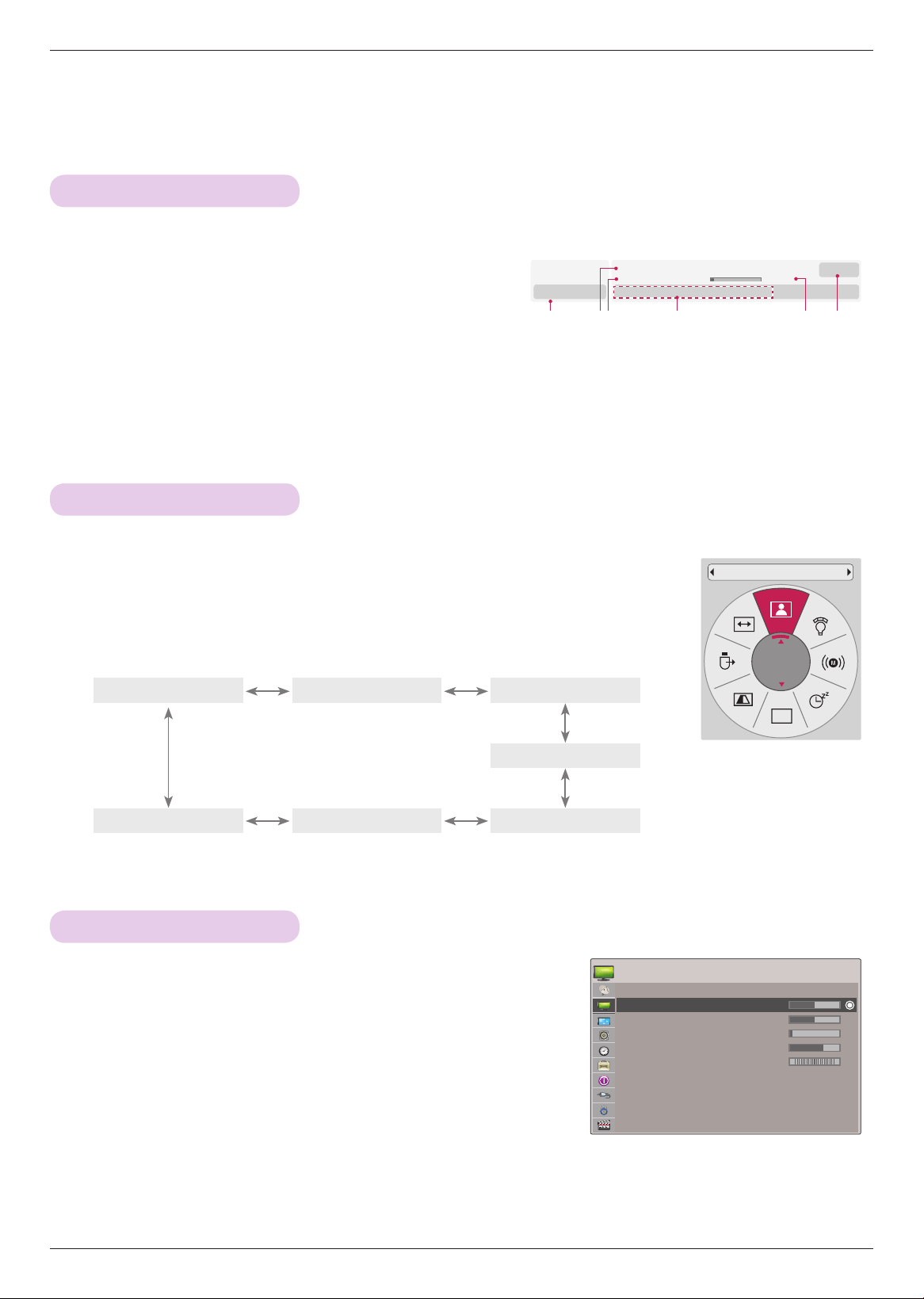
1 . Press the FAV. button on the remote control.
2 . Press the ∧,∨ button to select a channel and then press the ◉OK button.
- Press the CH ∧, ∨ button to turn the pages.
• Press the BACK button to exit the menu screen.
* Favorite Channels are a convenient feature that lets you quickly select channels of your choice without waiting for the pro-
jector to select all the in-between channels. To tune to a favorite channel, press the FAV (Favorite) button repeatedly.
1 . Press the CH ∧, ∨ or Number buttons to select your desired channel.
2 . Press the Q.MENU button on the remote control.
3 . Press the <, > buttons to move Del/Add/Fav. .
4 . Press the ∧, ∨ button to select Favorite.
• Press the BACK button to exit the menu screen.
CH
Del/Add/Fav
Favorite
❤ Favorite List
ꔖ 2-1 ꔉ
ꔖ 3-1
ꔖ 4-1
ꕉ Exit
ꔉ Ch. Change ꔂ Navigation ꘃ Page Change ꕉ Provious
ꔛ Add/Delete
19
Operating the Projector
Brief Information
PICTURE Menu Options
1 . Press the MENU button. Then, move to PICTURE with the
∧, ∨, <, > buttons and press the ◉OK button.
2 . Press the ∧, ∨ buttons to move a desired function and
press the ◉OK button.
3 . Press the <, > buttons to make a desired adjustment and
then press the ◉OK button.
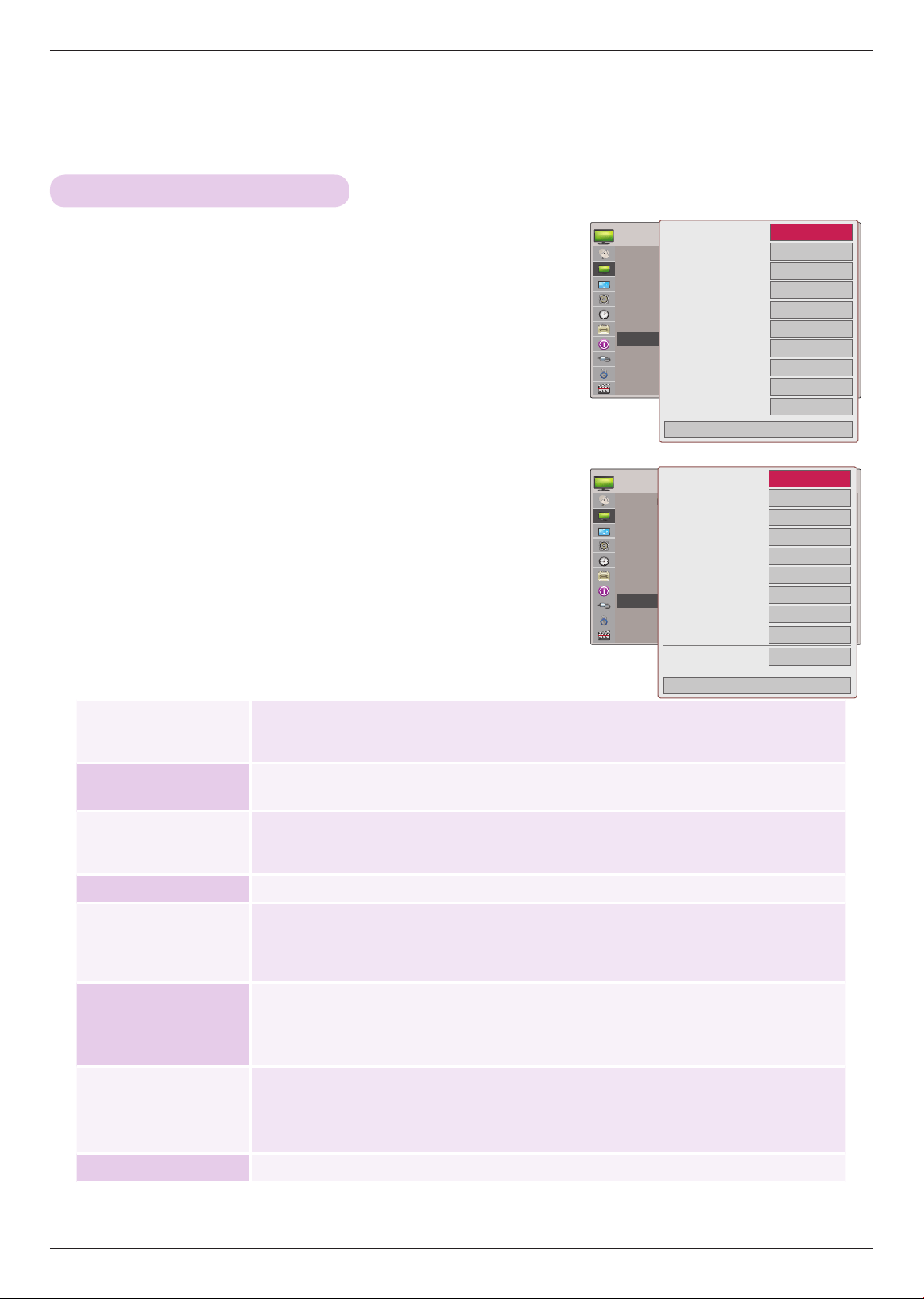
Press the INFO
ⓘ
button on the remote control and then show the brief info on the screen.
• Press the BACK button to exit the menu screen.
• You can set image values differently for each input and Picture Mode.
• Saving after making adjustments will display (User) in adjusted Picture Mode. (except Expert 1/2)
• Execute Picture Reset for Picture Mode to restore back to default factory settings.
• Press the BACK button to exit the menu screen.
Adjusting Picture Mode
1 . Press the Q.MENU button on the remote control.
2 . Press the <, > buttons to move Picture Mode.
3 . Press the ∧, ∨ button to toggle through the preset picture settings.
Picture Mode
* Set the projector picture settings to your preference in the Picture Mode menu.
• You can also use this function through the MENU button.
• Press the BACK button to exit the menu screen.
CH
Picture Mode
Standard
ꔂMove ꔉOKPICTURE
Picture Mode : Standard
• Contrast 50
• Brightness 50
• Sharpness 5
• Color 70
• Tint 0
• Advanced Control
• Picture Reset
R G
Vivid
CinemaStandard
Sport
Expert2 GameExpert1
ꔥ Multilingual ꔨ ꔯ Caption ꔷ 1080i
6:35 PM
Brief Info Title Test..
Sat, Jul 2, 2011 6:30 PM 7:45 PM
DTV
ꘋ ꔫ
ABC
11-1
1 23 4 5 6
1 Banner information
2 Program title
3 Day, Month, Year
4 Program audio, video information
5 Program start/finish time, progress bar
6 Present time
20
Operating the Projector
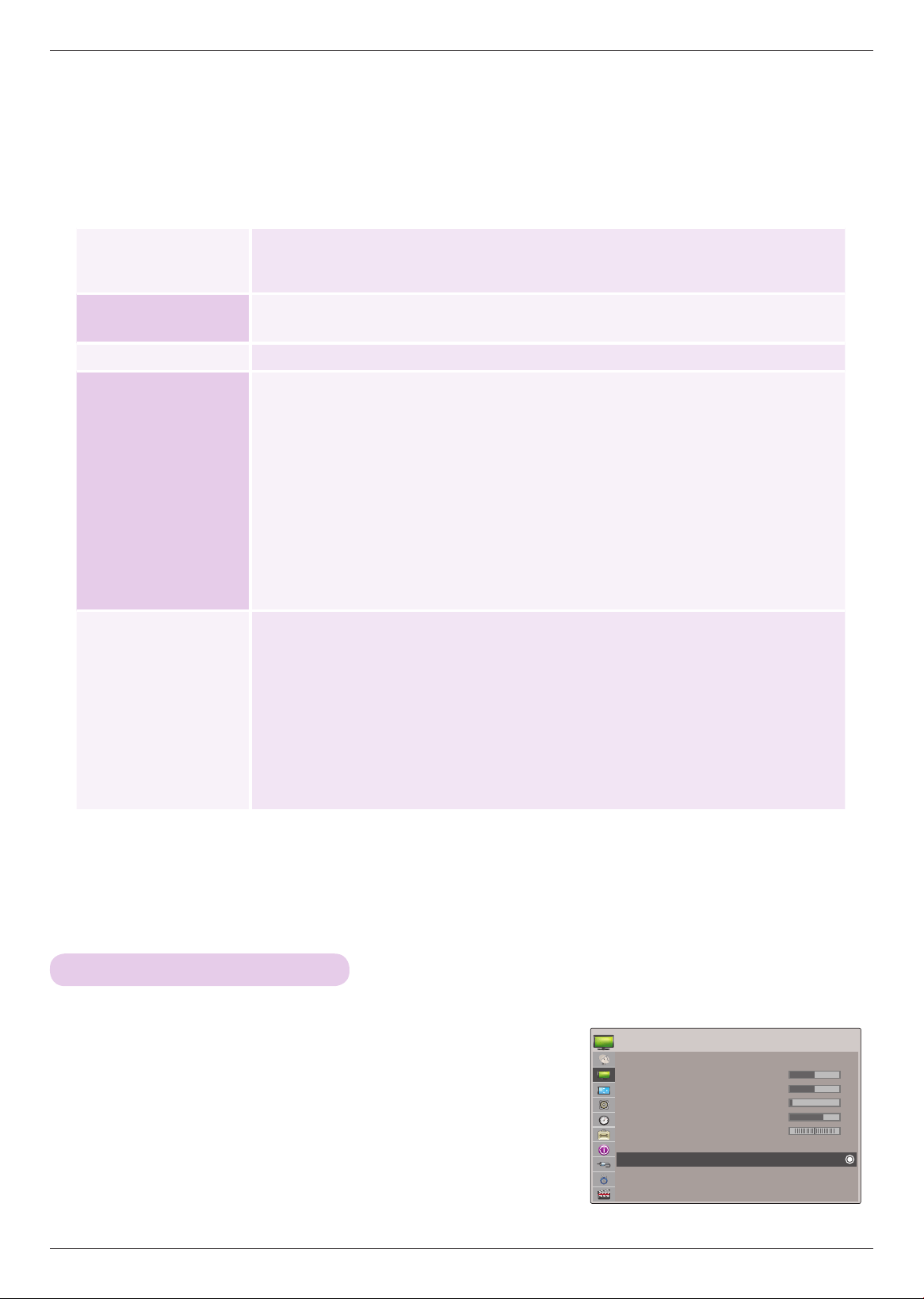
1 . Press the MENU button. Then, move to PICTURE with the ∧, ∨,
<, > buttons and press the ◉OK button.
2 . Press the ∧, ∨ buttons to move Advanced Control and press the
◉OK button.
3 . Move to a desired item with the ∧, ∨ buttons.
4 . Press the <, > buttons to make a desired adjustment and then
press the ◉OK button.
• You can set image values differently for each input and Picture Mode.
• Execute Picture Reset for Picture Mode to restore back to default fac-
tory settings.
• Press the BACK button to exit the menu screen.
Advanced Control Function
< When Picture Mode is Vivid/Standard/
Cinema/Sport/Game >
< When Picture Mode is Expert 1/2 >
Color Temperature
- This function enables Vivid/Standard/Cinema/Sport/Game.
ꔈSet to warm to enhance hotter colors such as red, or set to cool to enhance cooler colors
such as blue..
Dynamic Contrast
ꔈAdjusts the contrast to keep it at the best level according to the brightness of the screen.
The picture is improved by making bright parts brighter and dark parts darker.
Dynamic Color
- This function enables Vivid/Standard/Cinema/Sport/Game.
ꔈAdjusts screen colors so that they look livelier, richer and clearer. This feature enhances
hue, saturation and luminance so that red, blue, green and white look more vivid.
Noise Reduction
ꔈReduces screen noise without compromising video quality.
Gamma
Low : Make dark and middle gray level area of the picture brighter.
Medium: Express original picture levels.
High: Make dark and middle gray level area of the picture darker.
ꔈYou can adjust brightness of dark area and middle gray level area of the picture.
Black Level
Low: The reflection of the screen gets darker.
High: The reflection of the screen gets brighter.
ꔈSet black level of the screen to proper level.
ꔈThis option is disabled in RGB-PC mode.
White Peaking
ꔈThe default value may change depending on input mode.
ꔈWhite peaking can be adjusted from 0 to 10.
ꔈAdjust to higher setting to achieve brighter picture. Adjust to lower setting for darker pic-
ture.
Film Mode
ꔈMakes video clips recorded in film look more natural by eliminating judger effect.
ꔂMove ꔉOKPICTURE
Picture Mode : Standard
• Contrast 50
• Brightness 50
• Sharpness 5
• Color 70
• Tint 0
• Advanced Control
• Picture Reset
ꔂMove ꔉOK
PICTURE
Picture Mode : Standard
• Contrast 50
• Brightness 50
• Sharpness 5
• Color 70
• Tint 0
• Advanced Control
• Picture Reset
ꔗ
Medium
ꔃ
High
High
Medium
Medium
Auto
High
10
On
Wide
Close
Color Temperature
Dynamic Contrast
Dynamic Color
Noise Reduction
Gamma
Black Level
White Peaking
Film Mode
Color Gamut
Edge Enhancer
ꔗ
High
ꔃ
High
High
Auto
On
10
SD
Standard
High
Warm
Close
Dynamic Contrast
Noise Reduction
Gamma
Black Level
Film Mode
White Peaking
Color Standard
Color Gamut
Edge Enhancer
White Balance
ꔍ
21
Operating the Projector
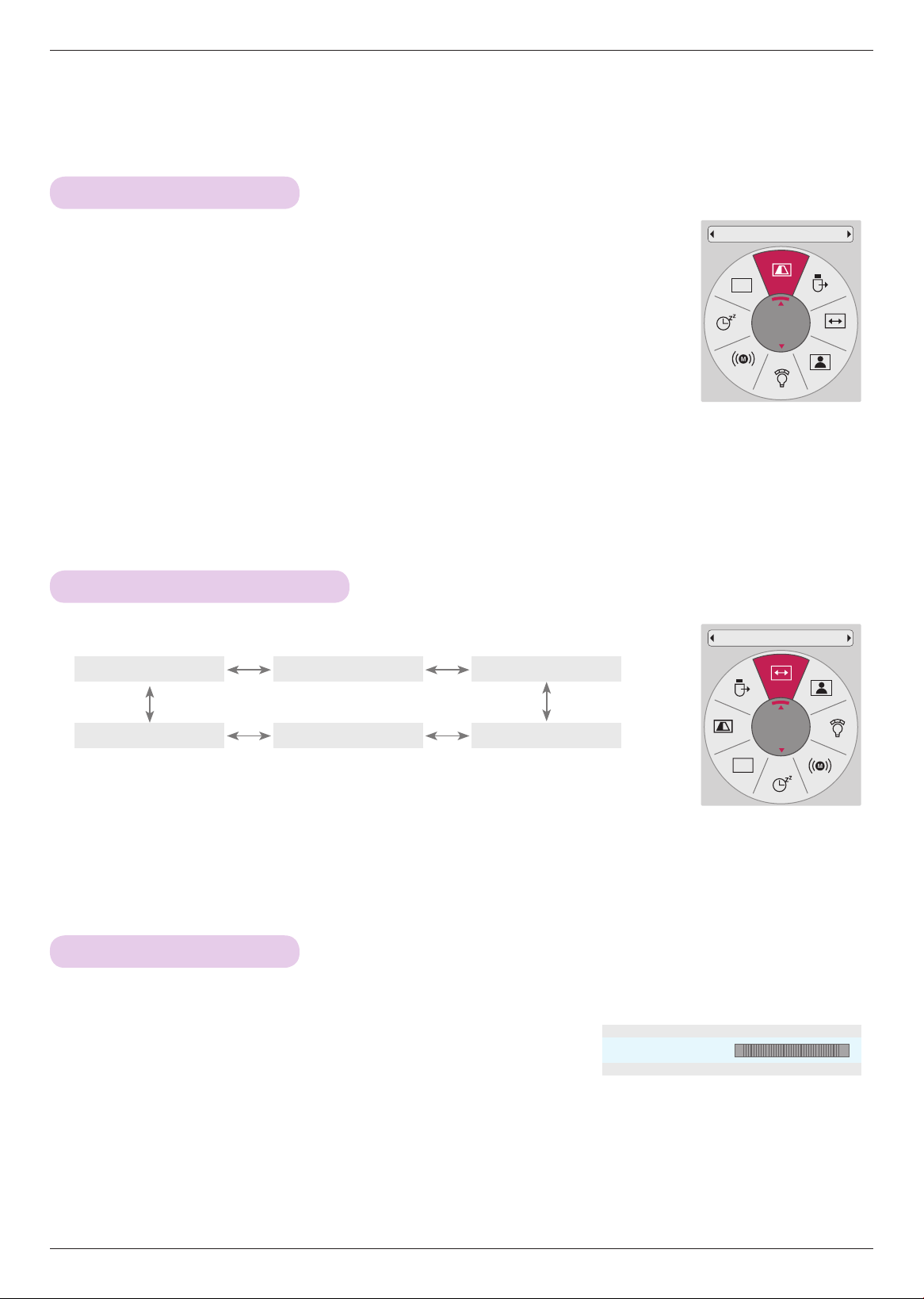
1 . Press the MENU button. Then, move to PICTURE with the ∧, ∨,
<, > buttons and press the ◉OK button.
2 . Press the ∧, ∨ buttons to move Picture Reset and press the ◉OK
button.
3 . Press the <, > buttons to move Yes and press the ◉OK button.
• Press the BACK button to exit the menu screen.
Picture Reset Function
* Settings of the selected PICTURE function for each input and Picture Mode return to the default factory settings.
Color Gamut
Standard: Displays standard color area.
Wide: Mode to use and set the rich color area of the display.
ꔈMaximize the utilization of color to increase color quality.
Edge Enhancer
- This function enables Cinema/Expert 1/2.
ꔈShow clearer and distinctive yet natural corners of the video.
Color Standard
ꔈChange the color standard used.
White Balance
- This function enables Expert 1/2.
ꔈThis is the function to adjust the overall color of the screen to the feeling you want.
a. Method : 2 Points
- Pattern: Inner, Outer
- Red/Green/Blue Contrast, Red/Green/Blue Brightness: The adjustment range is -50 -
+50.
b. Method : 20 Points IRE
- Pattern: Inner, Outer
- IRE (Institute of Radio Engineers) is the unit to display the size of the video signal and
can be set among 5, 10, 15 - 95, 100. You can adjust Red, Green or Blue according to
each setting.
- Red/Green/Blue: The adjustment range is -50 - +50.
Color Management
System
- This function enables Expert 1/2.
ꔈAs the tool used by the experts to make adjustments by using the test patterns, this does
not affect other colors but can be used to selectively adjust the 6 color areas (Red/Green/
Blue/Cyan/Mgt/Yellow).
Color difference may not be distinctive even when you make the adjustments for the gen-
eral video.
Adjusts Red/Green/Blue/Yellow/Cyan, Magenta.
- Red/Green/Blue/Yellow/Cyan, Magenta Color: The adjustment range is -30 - +30.
- Red/Green/Blue/Yellow/Cyan, Magenta Tint: The adjustment range is -30 - +30.
- This feature is disable in PC mode.
ꔂMove ꔉOK
PICTURE
Picture Mode : Standard
• Contrast 50
• Brightness 50
• Sharpness 5
• Color 70
• Tint 0
• Advanced Control
• Picture Reset
R G
22
Operating the Projector
SCREEN Menu Options
To Change PJT Mode
* This function turns the projected image upside down or flips horizontal.
Press the RATIO button to select a desired screen size.
Using Aspect Ratio Function
• Some options may not be available depending on input signals.
• You can also use this function through the MENU button.
• Press the BACK button to exit the menu screen.
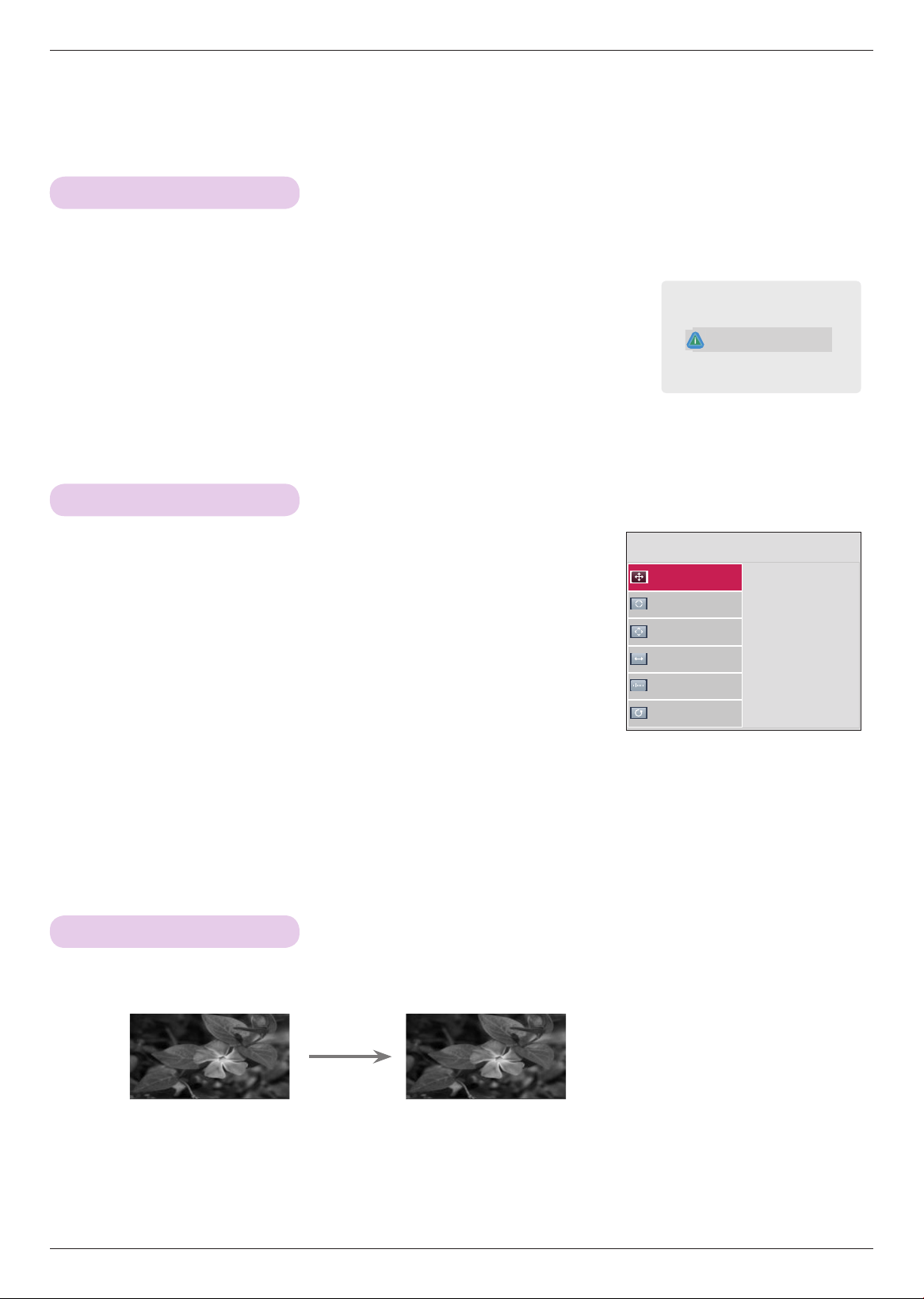
1 . Press the KEY.Sꔌ, KEY.Sꔍ button of remote control.
2 . Press the KEY.Sꔌ, KEY.Sꔍ button to adjust the screen condition as
you want.
• Keystone can be adjusted from -40 to 40.
• You can also use this function through the MENU button.
• Press the BACK button to exit the menu screen.
Using Keystone Function
* Use this function when the screen is not at a right angle to the projector and the image is a trapezoid shape.
* Only use the Keystone function when you can’t get the best angle by moving the projector.
•Keystone 0
ꔗ
ꔃ
ꔉOK
- +
CH
PJT Mode
Front
CH
Aspect Ratio
16:9
1 . Press the Q.MENU button on the remote control.
2 . Press the <, > buttons to move PJT Mode.
3 . Press the ∧, ∨ button to select a desired item.
• Select Rear when projecting from the back of the transparent screen purchased separately.
• Select Ceiling when installing the product on the ceiling.
• When PJT Mode is Rear/Front Ceiling, the left/right of the speaker changes automatically.
• You can also use this function through the MENU button.
• Press the BACK button to exit the menu screen.
4:3
Set By ProgramJust Scan
Cinema Zoom1 16:9Zoom
23
Operating the Projector
RGB Config. Function
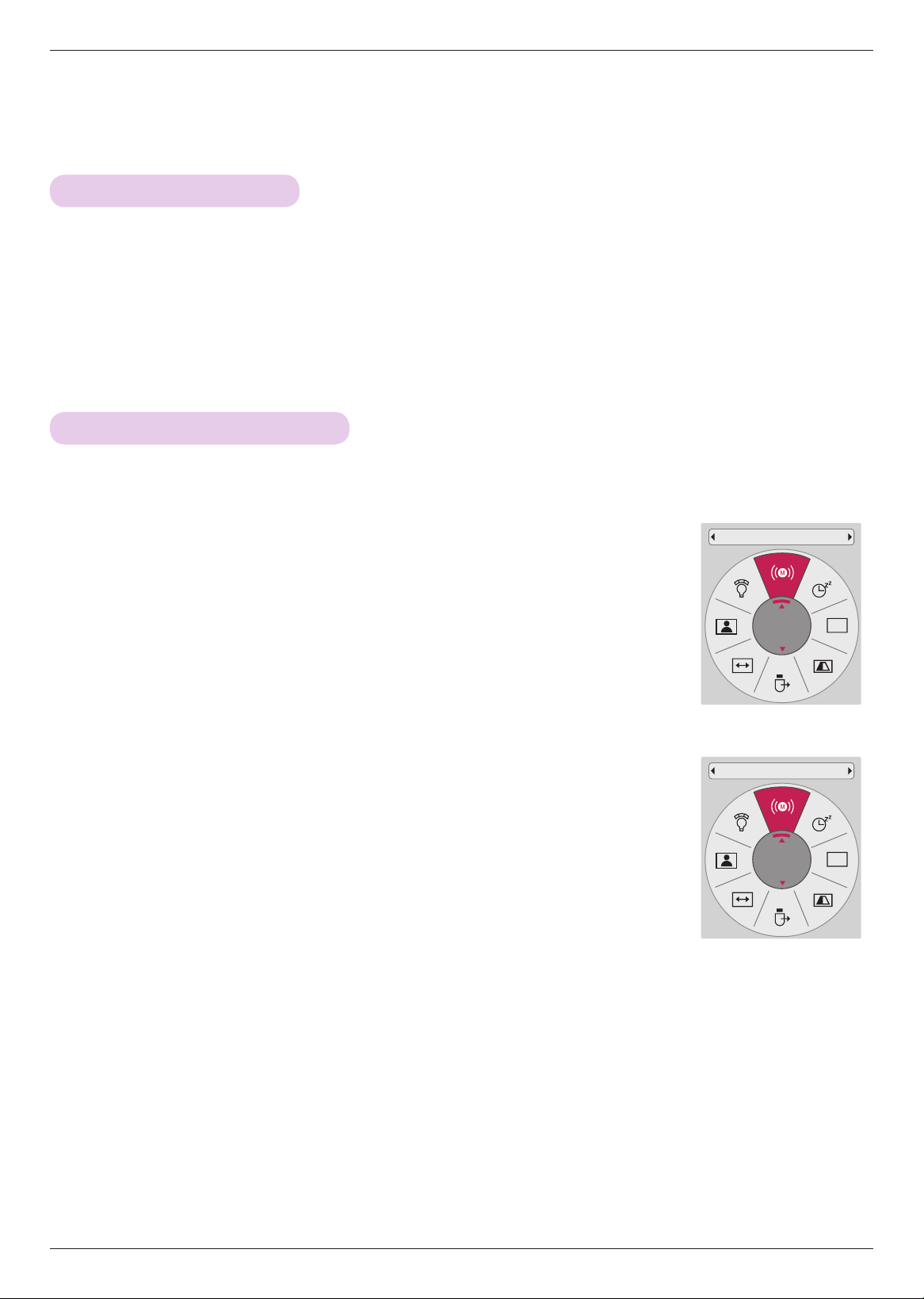
1 . Press the STILL button on the remote control.
* You can freeze the moving image.
2. To exit Still, press any button.
* The STILL function will release automatically after approximately 10 minutes.
Using the Still Function
< Moving Image >
< Still Image >
RGB Config.
Auto Config.
Position
Resolution ꔃ
Size
Phase
Reset
ꔐ 1024 x 768
1280 x 768
1360 x 768
ꔂMove ꕉPrev.
Press the AUTO button of the remote control.
• If you execute screen adjustment for a video from PC graphic signal, optimal state
may not be found. Execute the Auto Config. function for a still image.
• You can also use this function through the MENU button.
Auto Configure Function
* This function assures you of getting the best video quality by automatically adjusting the horizontal size and
synchronization of the image.
* Auto Tracking function works in RGB PC input only.
Auto config.
1 . Press the MENU button. Then, move to SCREEN with the ∧, ∨, <, >
buttons and press the ◉OK button.
2 . Press the ∧, ∨ buttons to move RGB Config. and press the ◉OK but-
ton.
3 . Move to a desired item with the ∧, ∨ buttons and then press the >
button.
4 . Press the ∧, ∨, <, > button to adjust the screen condition as you
want and then press the ◉OK button.
• Resolution can be chosen between 768 resolution (1024x768/1280x768/1360x768, 60Hz).
• Press the BACK button to exit the menu screen.
24
Operating the Projector
Adjusting Volume
Stereo/SAP Broadcast Setup
Press the VOL +, - button to adjust the volume.
• If you want to switch the sound off, press the MUTE button.
You can cancel the mute function by pressing the MUTE, VOL +, - button.
• You can also use this function through the MENU button.
< Analog TV >
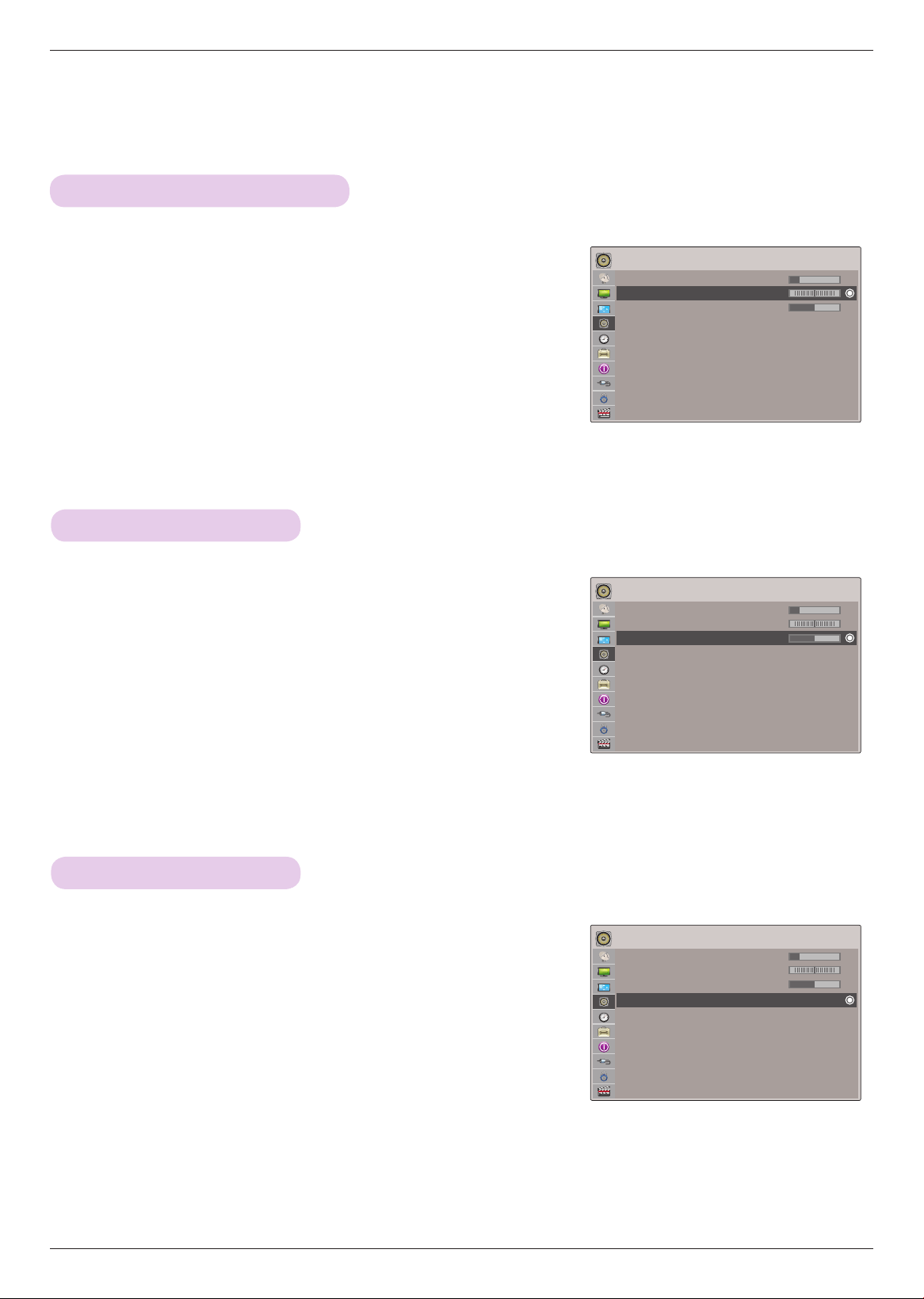
1 . Press the Q.MENU button on the remote control.
2 . Press the <, > buttons to move SAP.
3 . Press the ∧, ∨ button to select a desired item.
• Press the BACK button to exit the menu screen.
< Digital TV >
1 . Press the Q.MENU button on the remote control.
2 . Press the <, > buttons to move Multi Audio.
3 . Press the ∧, ∨ button to select a desired item.
• Press the BACK button to exit the menu screen.
* On analog signals, this projector can receive MTS stereo programs and any SAP (Secondary Audio Program) that accompa-
nies the stereo program if the station transmits an additional sound signal. Mono sound is automatically used if the broad-
cast is only in Mono.
CH
SAP
Stereo
CH
Multi Audio
English
AUDIO Menu Options
25
Operating the Projector
Adjusting Speaker Balance
Adjusting Treble
Using Volume Booster
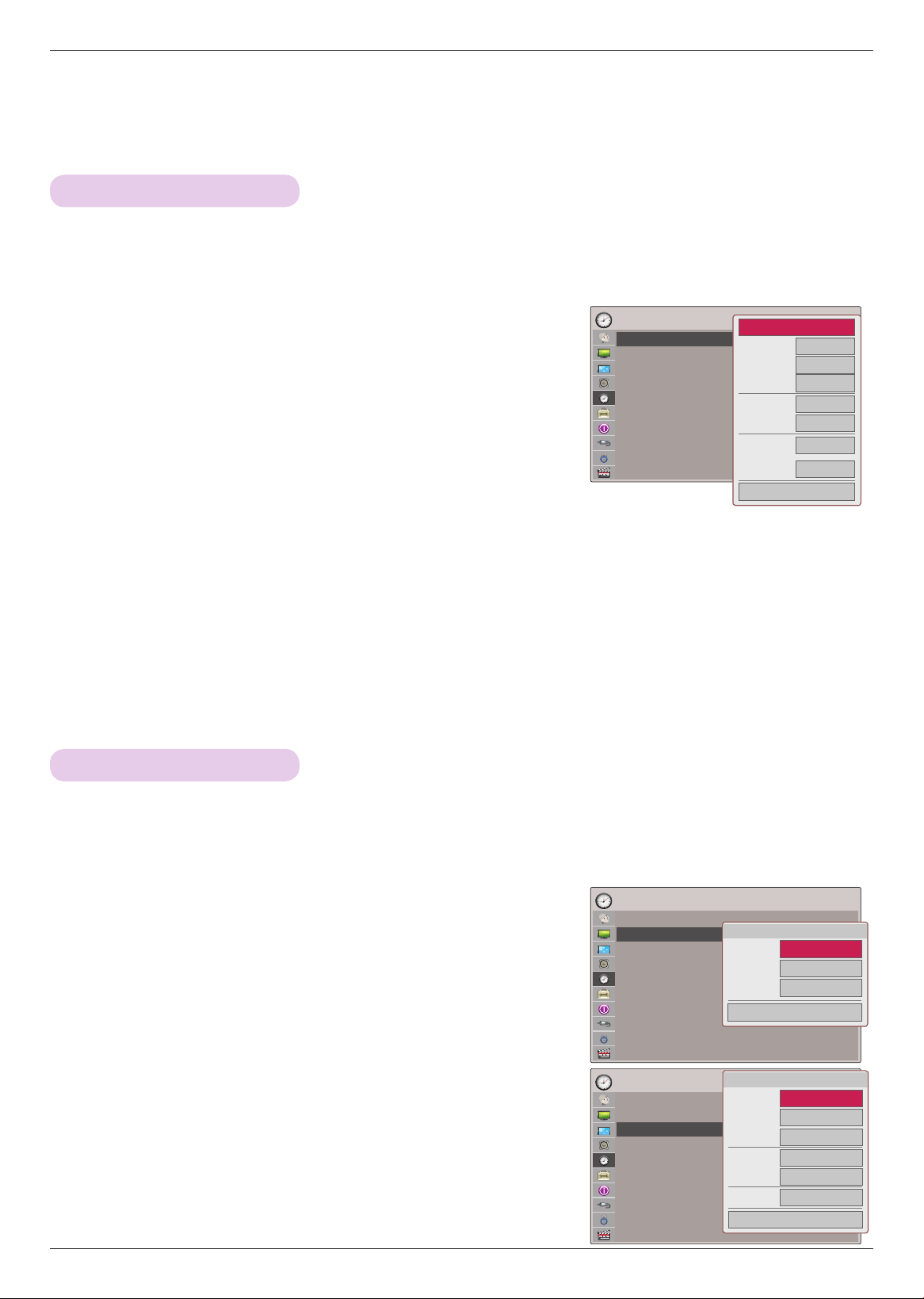
1 . Press the MENU button. Then, move to AUDIO with the ∧, ∨, <,
> buttons and press the ◉OK button.
2 . Press the ∧, ∨ buttons to move Treble and press the ◉OK but-
ton.
3 . Press the <, > buttons to adjusting audio treble and press the
◉OK button.
• Press the BACK button to exit the menu screen.
1 . Press the MENU button. Then, move to AUDIO with the ∧, ∨, <,
> buttons and press the ◉OK button.
2 . Press the ∧, ∨ buttons to move Volume Booster (DTV) and press
the ◉OK button.
3 . Press the ∧, ∨ buttons to move On and press the ◉OK button.
• You can adjust this function in the DTV and Cable DTV.
• Press the BACK button to exit the menu screen.
1 . Press the MENU button. Then, move to AUDIO with the
∧, ∨, <, > buttons and press the ◉OK button.
2 . Press the ∧, ∨ buttons to move Balance and press the
◉OK button.
3 . Press the <, > buttons to adjusting audio balance and
press the ◉OK button.
• Press the BACK button to exit the menu screen.
* Adjust the treble your taste and room situations.
* Amplify the Volume Level.
* Adjust the left/right sound of speaker to suit your taste and room situations.
ꔂMove ꔉOK
AUDIO
Volume 20
Balance 0
Treble 50
Volume Booster (DTV) : Off
L R
ꔂMove ꔉOKAUDIO
Volume 20
Balance 0
Treble 50
Volume Booster (DTV) : Off
L R
ꔂMove ꔉOKAUDIO
Volume 20
Balance 0
Treble 50
Volume Booster (DTV) : Off
L R
26
Operating the Projector
TIME Menu Options
Clock Setting
On/Off Time Setting
1 . Press the MENU button. Then, move to TIME with the ∧, ∨, <, >
buttons and press the ◉OK button.
2 . Press the ∧, ∨ buttons to move Clock and press the ◉OK button.
< Auto Clock Setup >
3 . Press the ∧, ∨, <, > buttons to select Auto.
4 . Press the ∧, ∨, <, > buttons to select your viewing area time
zone.
• Eastern, Central, Mountain,
Pacific, Alaska, or Hawaii.
5 . Press the ∧, ∨, <, > buttons to select Auto, Off, or On (depending on whether or not your viewing area
observes Daylight Saving time).
< Manual Clock Setup >
3. Press the ∧, ∨, <, > buttons to select Manual.
4. Press the ∧, ∨, <, > buttons to set the Year, Month, Date, Hour, or Minutes option.
• Press the BACK button to exit the menu screen.
1 . Press the MENU button. Then, move to TIME with the ∧, ∨, <, >
buttons and press the ◉OK button.
2 . Press the ∧, ∨ buttons to move Off time or On time and press
the ◉OK button.
3 . Press the ∧, ∨, <, > buttons to select Repeat.
4 . Set a desired item with the ∧, ∨, <, > buttons and then press the
◉OK button.
• Press the BACK button to exit the menu screen.
* The time is set automatically from a digital channel signal.
The digital channel signal includes information for the current time provided by the broadcasting station.
Set the clock manually if the current time is set incorrectly by the auto clock function.
* This function operates only if the current time has been set.
The Of f Time function overrides the On Time function if they are both set to the same time.
The projector must be in standby mode for the On Time to work.
If you do not press any button within 2 hours after the projector turns on with the On Time function, the projector will
automatically revert to standby mode.
ꔂMove ꔉOKTIME
Clock
Off Time : Off
On Time : Off
Sleep Timer : Off
Auto Off : 60 Min.
ꔂMove ꔉOKTIME
Clock
Off Time : Off
On Time : Off
Sleep Timer : Off
Auto Off : 60 Min.
ꔂMove ꔉOKTIME
Clock
Off Time : Off
On Time : Off
Sleep Timer : Off
Auto Off : 60 Min.
ꔗ
Auto
ꔃ
7
2010
4
10 AM
30
Eastern
Auto
Close
Month
Date
Year
Hour
Minute
Time Zone
Daylight
Saving
ꔗ
Off
ꔃ
6 AM
30
Close
Repeat
Hour
Minute
ꔎ Oct. 10. 2002 3:35 AM
ꔗ
Off
ꔃ
6 AM
30
TV
TV 2-0
10
Close
Repeat
Hour
Minute
Input
Channel
Volume
ꔎ Oct. 10. 2002 3:35 AM
27
Operating the Projector
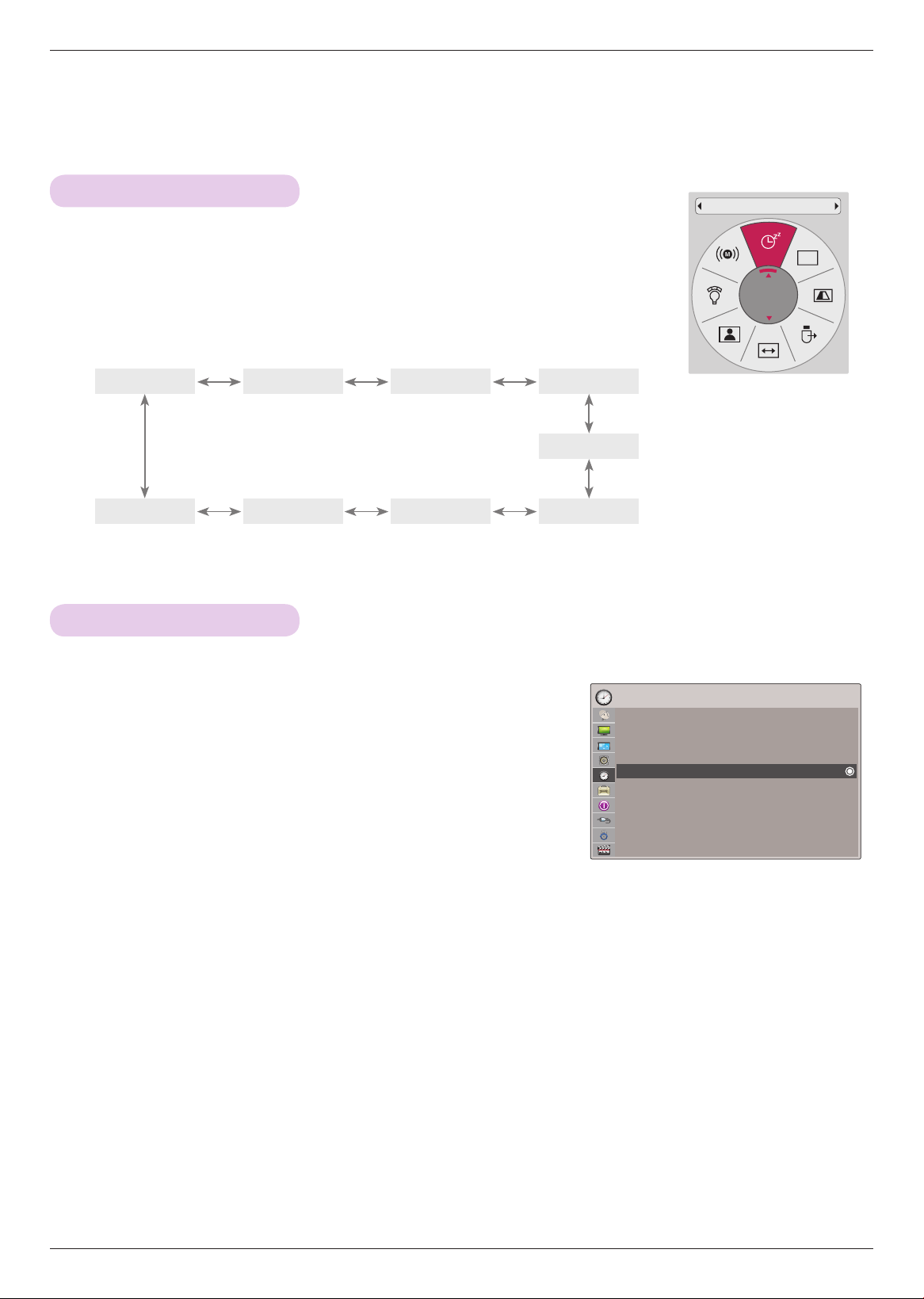
* The sleep timer turns the projector off at the preset time.
1 . Press the Q.MENU button on the remote control.
2 . Press the <, > buttons to move Sleep Timer.
3 . Press the ∧, ∨ buttons to select a desired preset time.
• You can also use this function through the MENU button.
• Press the BACK button to exit the menu screen.
Sleep time Function
Auto Off Function
1 . Press the MENU button. Then, move to TIME with the ∧, ∨, <, >
buttons and press the ◉OK button.
2 . Press the ∧, ∨ buttons to move Auto Off and press the ◉OK but-
ton.
3 . Move to a desired item with the ∧, ∨ buttons and then press the
◉OK button.
• Press the BACK button to exit the menu screen.
* This function turns the projector off automatically after the preset time is passed when there is no signal.
CH
Sleep Timer
Off
ꔂMove ꔉOKTIME
Clock
Off Time : Off
On Time : Off
Sleep Timer : Off
Auto Off : 60 Min.
Off
30
Min.
10
Min.
20
Min.
60
Min.
240
Min.
90
Min.
180
Min.
120
Min.
28
Operating the Projector
* Other languages may be available if a digital signal is provided by the broadcasting station.
This feature operates only in DTV/CADTV mode.
OPTION Menu Options
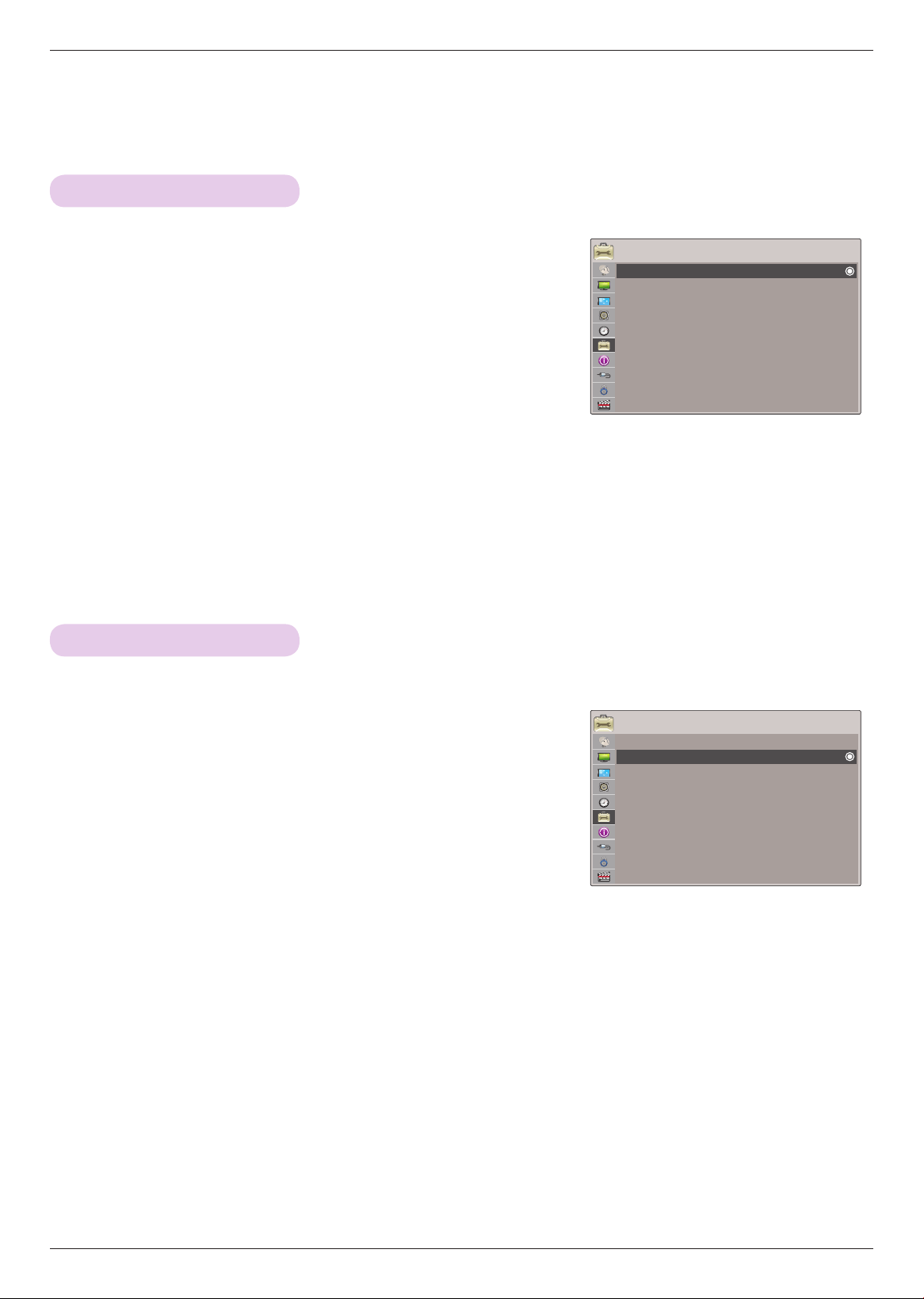
1 . Press the MENU button. Then, move to OPTION with the ∧, ∨, <,
> buttons and press the ◉OK button.
2 . Press the ∧, ∨ buttons to move Menu Language and press the
◉OK button.
3 . Move to a desired item with the ∧, ∨ buttons and then press the
◉OK button.
• On-Screen-Display (OSD) is displayed in the selected language.
• Press the BACK button to exit the menu screen.
1 . Press the MENU button. Then, move to OPTION with the ∧, ∨, <,
> buttons and press the ◉OK button.
2 . Press the ∧, ∨ buttons to move Audio Language and press the
◉OK button.
3 . Press the ∧, ∨ buttons to select English, Spanish or French and
press the ◉OK button.
• Press the BACK button to exit the menu screen.
Selecting Menu Language
Selecting Audio Language
ꔂMove ꔉOKOPTION
Menu Language :English
Audio Language :English
Caption :Service1
Blank Image :Blue
Screen Capture
LED Mode :Normal
Auto Power :Off
Demo Mode :Off
Initial Setting :Home Use
ꔂMove ꔉOKOPTION
Menu Language :English
Audio Language :English
Caption :Service1
Blank Image :Blue
Screen Capture
LED Mode :Normal
Auto Power :Off
Demo Mode :Off
Initial Setting :Home Use
29
Operating the Projector
Setting Caption
ꔂMove ꔉOK
OPTION
Menu Language :English
Audio Language :English
Caption :Service1
Blank Image :Blue
Screen Capture
LED Mode :Normal
Auto Power :Off
Demo Mode :Off
Initial Setting :Home Use
1 . Press the MENU button. Then, move to OPTION with the ∧, ∨, <,
> buttons and press the ◉OK button.
2 . Press the ∧, ∨ buttons to move Caption and press the ◉OK but-
ton.
3 . Press the <, > buttons to select On.
< Analog Broadcasting System Captions >
* Caption must be provided to help people with hearing loss watch program.
Select a caption mode for displaying captioning information if provided on a pro-
gram. Analog caption displays information at any position on the screen and is usually the program's dialog. Caption/Text,
if provided by the broadcaster, would be available for both digital and analog channels on the Antenna/Cable. This projector
is programmed to memorize the caption/text mode which was last set when you turned the power off. This function is only
available when Caption is set On.
4 . Press the <, > buttons to select CC1-4 or Text1-4.
• When selecting Off, Sub-menus for Analog, DTV, and Digital Option become disabled.
• CAPTION: The term for the words that scroll across the bottom of the screen; usually the audio portion of the pro-
gram provided for the hearing impaired.
TEXT: The term for the words that appear in a large black frame and almost cover the entire screen; usually messages
provided by the broadcaster.
< Digital Broadcasting System Captions >
* Choose the language you want the DTV/CADTV Captions to appear in.
Other Languages can be chosen for digital sources only if they are included on the program.
This function in only available when Caption is set On.
4. Press the <, > buttons to select CC1-4, Text1-4 or Service1 - 6.
5. Press the ∧, ∨ buttons to move Digital Option and press the ◉OK button.
6. Press the <, > buttons to select Custom.
7. Press the ∧, ∨, <, > buttons to customize the Style, Font, etc., to your preference. A preview icon is provid-
ed at the bottom of the screen, use it to see the caption language.
• Size: Set the word size.
Font: Select a typeface for the text.
Text Color: Choose a color for the text.
Text Opacity: Specify the opacity for the text color.
Bg (Background) Color: Select a background color.
Bg (Background) Opacity: Select the opacity for the background color.
Edge Type: Select an edge type.
Edge Color: Select a color for the edges.
• Press the BACK button to exit the menu screen.
ꔗ
On
ꔃ
Service1
Close
Digital Option
Mode
30
Operating the Projector
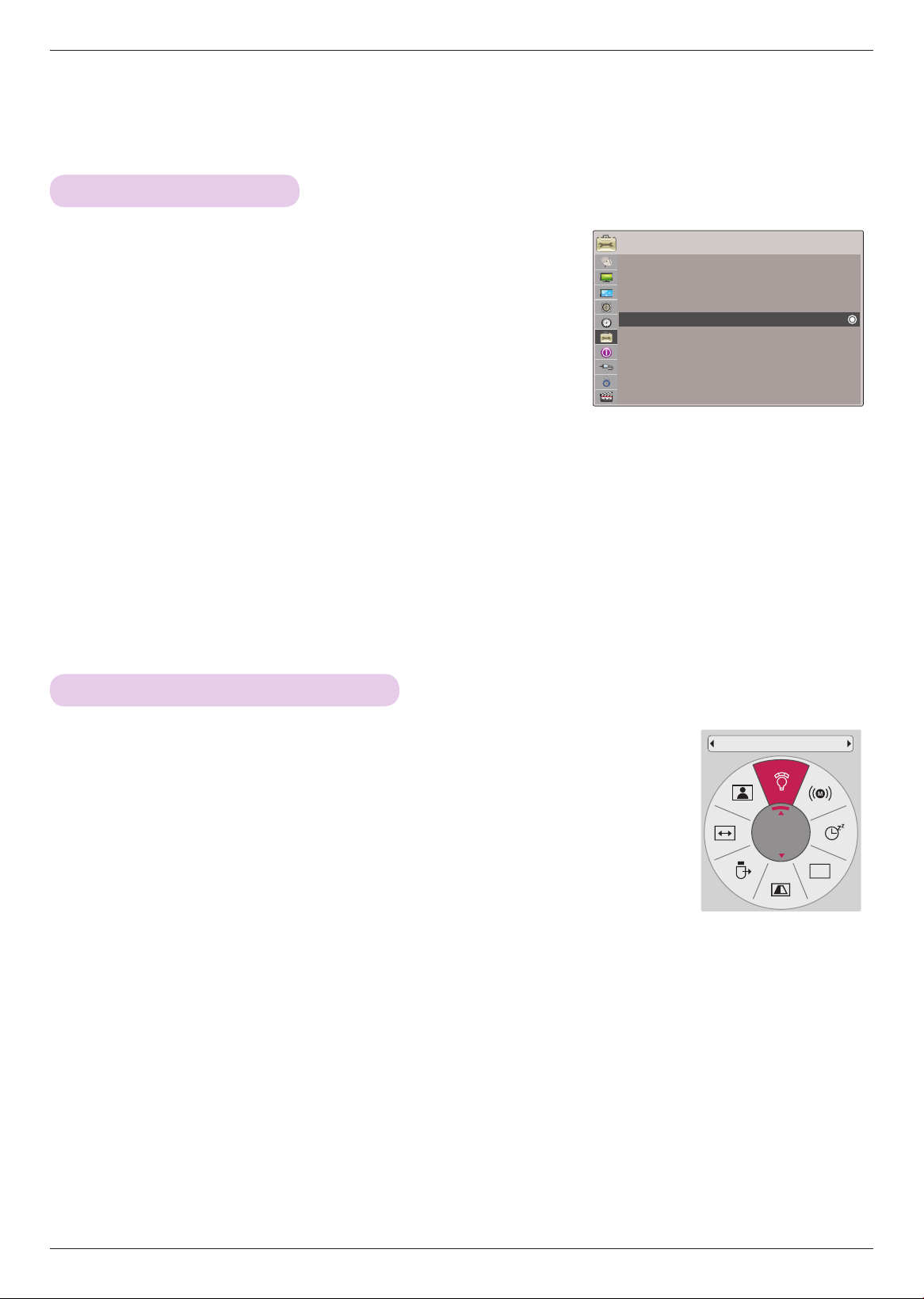
1 . Press the MENU button. Then, move to OPTION with the ∧, ∨, <,
> buttons and press the ◉OK button.
2 . Press the ∧, ∨ buttons to move Blank Image and press the ◉OK
button.
3 . Move to a desired item with the ∧, ∨ buttons and then press the
◉OK button.
• Background image will be altered to the selected Blank function image.
• If there is no Screen Captured, selecting Captured Image will display the Logo.
• Press the BACK button to exit the menu screen.
Selecting Blank image
ꔂMove ꔉOK
OPTION
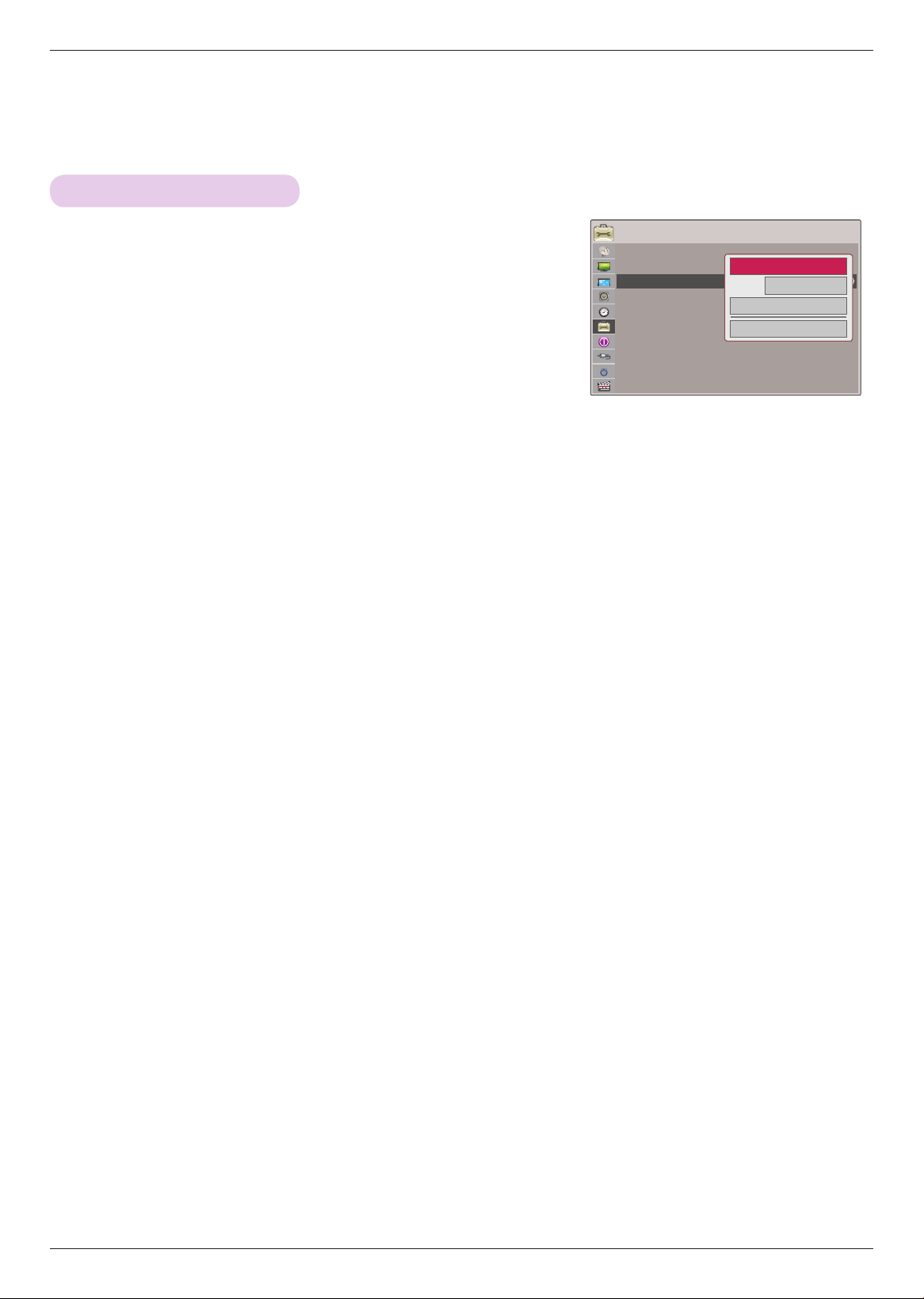
Menu Language :English
Audio Language :English
Caption :Service1
Blank Image :Blue
Screen Capture
LED Mode :Normal
Auto Power :Off
Demo Mode :Off
Initial Setting :Home Use
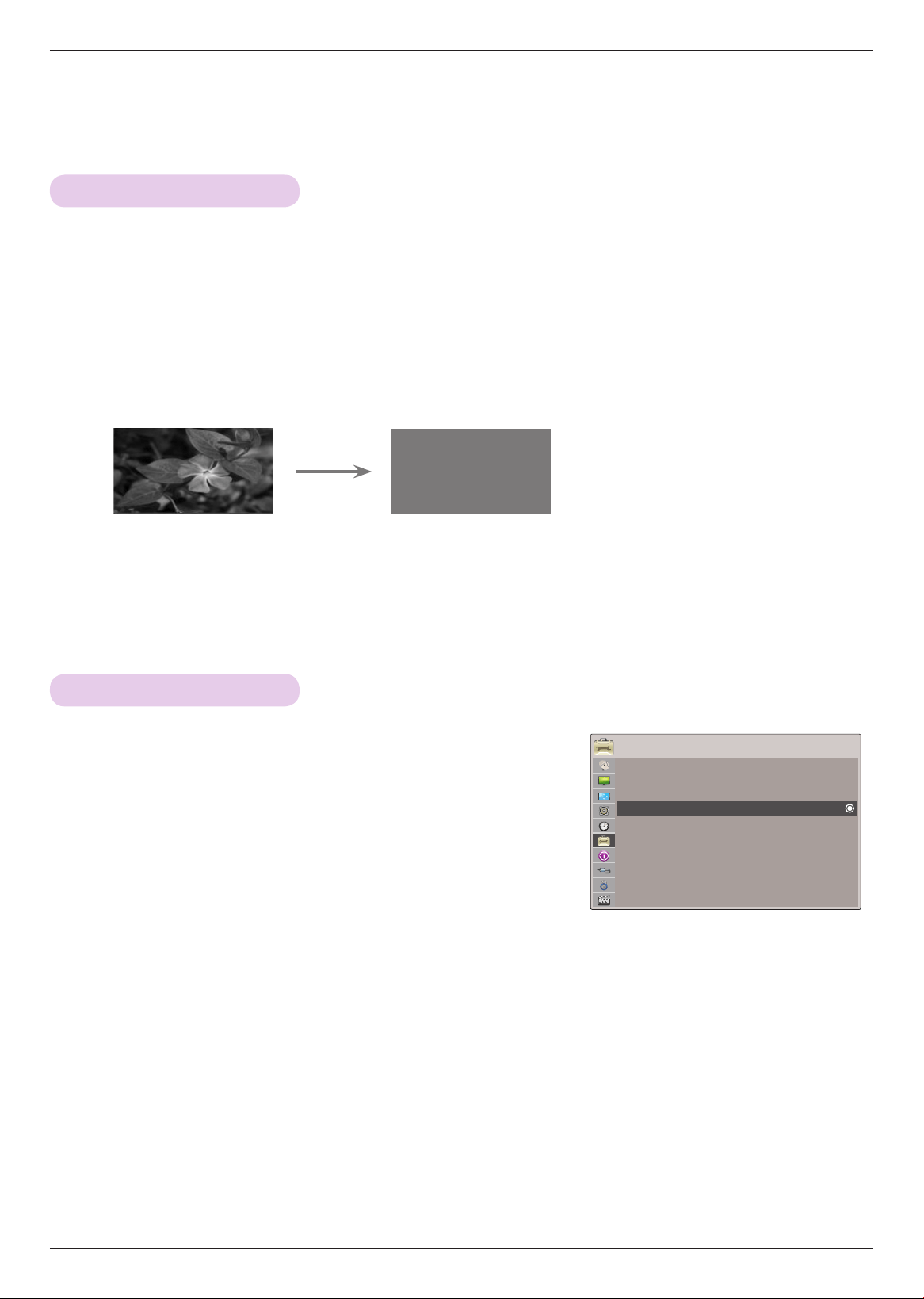
1 . Press the BLANK button on the remote control.
• The screen turns off to a background color.
• You can choose the background color.
(Refer to ‘Selecting Blank image’)
2 . Press any button to cancel the blank function.
• To temporarily turn off the lamp, press BLANK on the remote control. Do not block the projection lens with any
objects when the projector is under operation as this could cause the objects to become heated and deformed or
even cause a fire.
Using Blank Function
* This function may be effective if you need to get the attention of the audience during presentations, meetings or briefings.
31
Operating the Projector
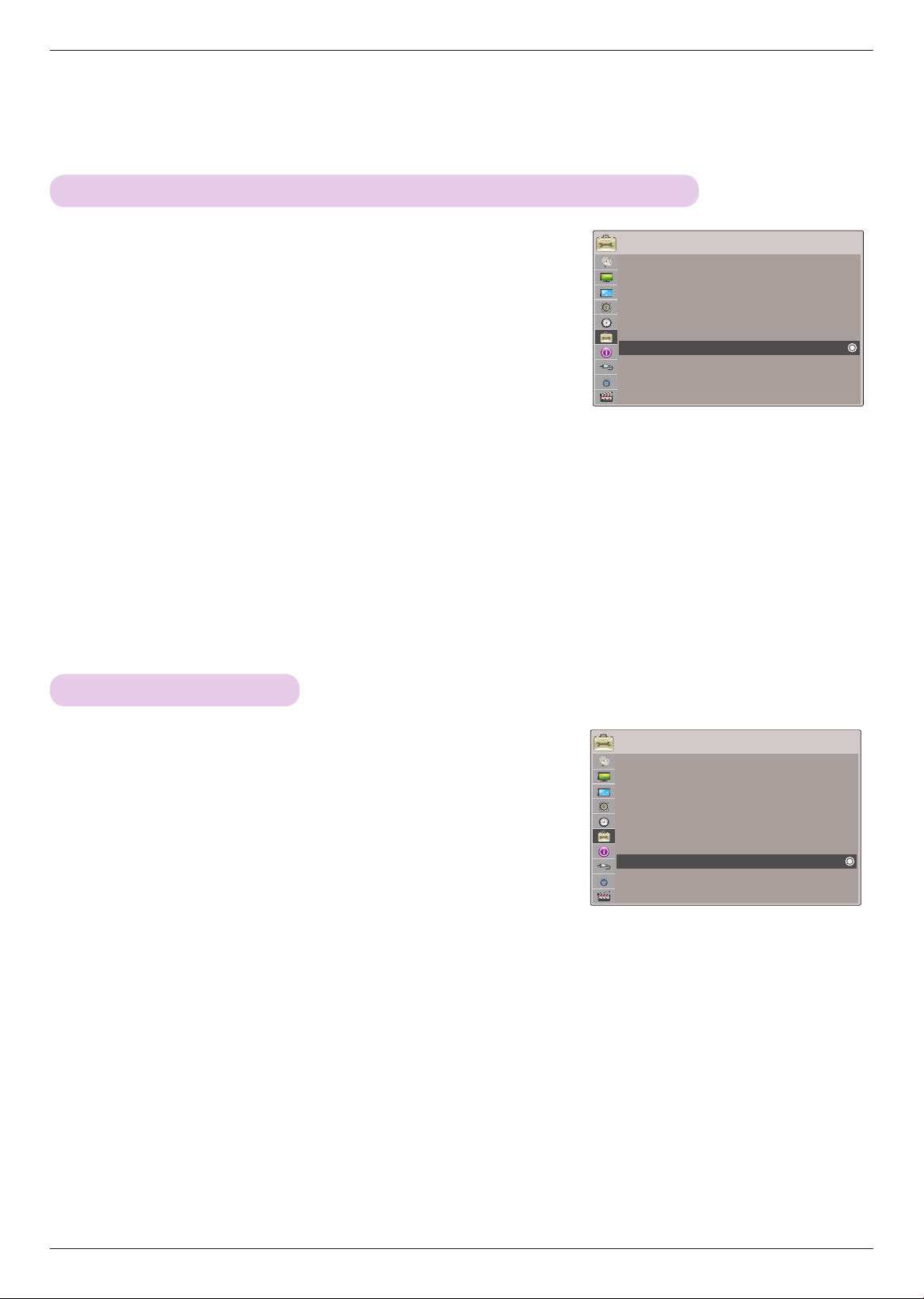
1 . Press the Q.MENU button on the remote control.
2 . Press the <, > buttons to move LED Mode.
3 . Move to a desired item with the ∧, ∨ buttons.
• LED Mode changes into Dimming mode automatically at specific temperatures
(37°C or higher).
• LED Mode changes into Dimming mode automatically if use a portable battery.
• You can also use this function through the MENU button.
• Press the BACK button to exit the menu screen.
To adjust the brightness of the screen
CH
LED Mode
Normal
1 . Press the MENU button. Then, move to OPTION with the ∧, ∨, <,
> buttons and press the ◉OK button.
2 . Press the ∧, ∨ buttons to move Screen Capture and press the
◉OK button.
• It can only be selected when there is an input signal.
• It may take up to 2 minutes to save the screen capture.
• Press the BACK button to exit the menu screen.
Screen Capture Function
ꔂMove ꔉOKOPTION
Menu Language :English
Audio Language :English
Caption :Service1
Blank Image :Blue
Screen Capture
LED Mode :Normal
Auto Power :Off
Demo Mode :Off
Initial Setting :Home Use
32
Operating the Projector
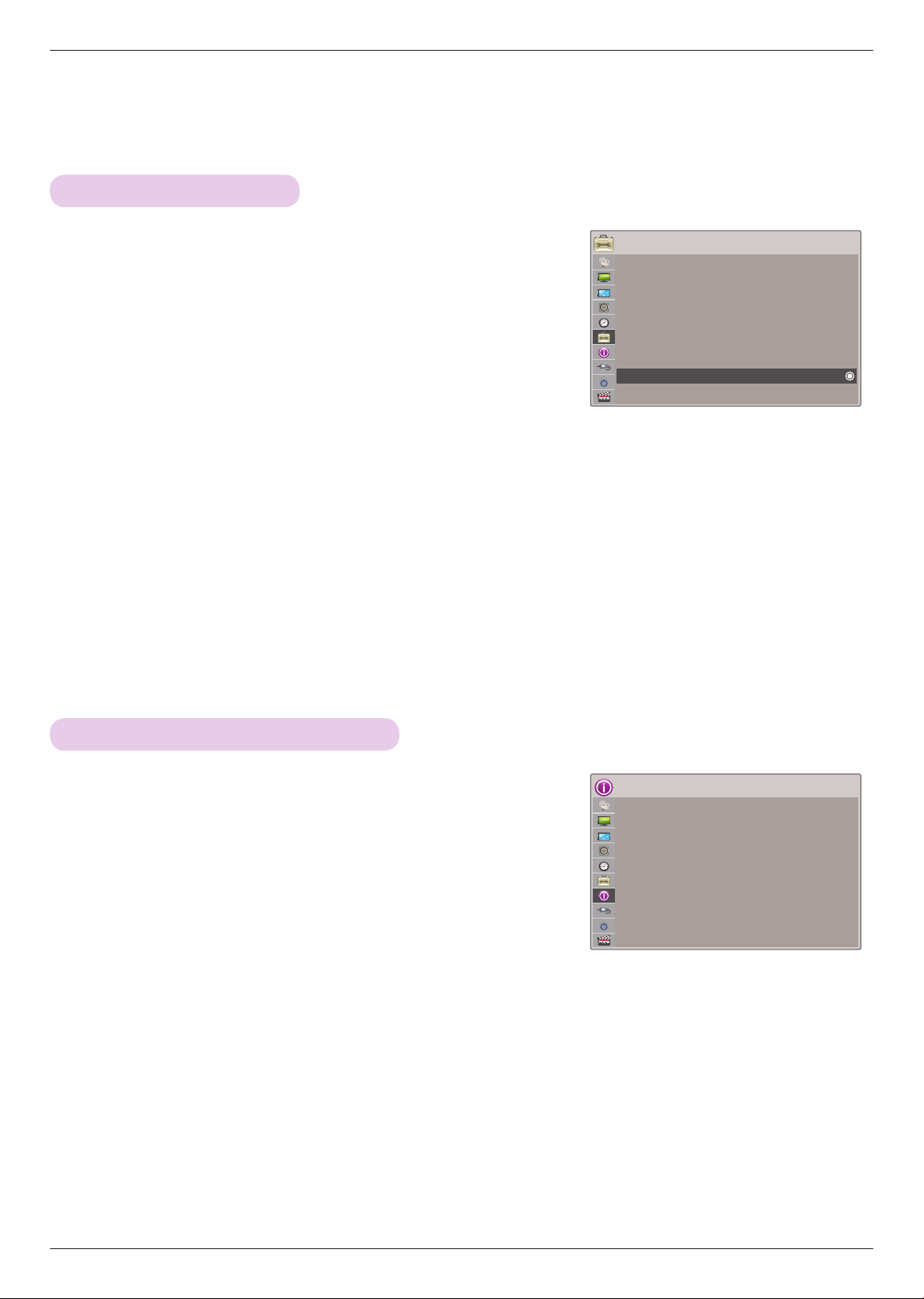
1 . Press the MENU button. Then, move to OPTION with the ∧, ∨, <,
> buttons and press the ◉OK button.
2 . Press the ∧, ∨ buttons to move Auto Power and press the ◉OK
button.
3 . Press the ∧, ∨ buttons to move On and press the ◉OK button.
• On: Connecting DC cable to the projector turns on the projector.
• Off: Connecting DC cable to the projector makes the projector in standby state.
• Press the BACK button to exit the menu screen.
To make the power of the projector turn on automatically when power is applied
1 . Press the MENU button. Then, move to OPTION with the ∧, ∨, <,
> buttons and press the ◉OK button.
2 . Press the ∧, ∨ buttons to move Demo Mode and press the ◉OK
button.
3 . Press the ∧, ∨ buttons to move On and press the ◉OK button.
• It can be selected when Initial Setting is set as Store Demo.
• Press the BACK button to exit the menu screen.
Demo Mode Function
ꔂMove ꔉOKOPTION
Menu Language :English
Audio Language :English
Caption :Service1
Blank Image :Blue
Screen Capture
LED Mode :Normal
Auto Power :Off
Demo Mode :Off
Initial Setting :Store Demo
ꔂMove ꔉOK
OPTION
Menu Language :English
Audio Language :English
Caption :Service1
Blank Image :Blue
Screen Capture
LED Mode :Normal
Auto Power :Off
Demo Mode :Off
Initial Setting :Home Use
33
Operating the Projector
INFORMATION Menu Options
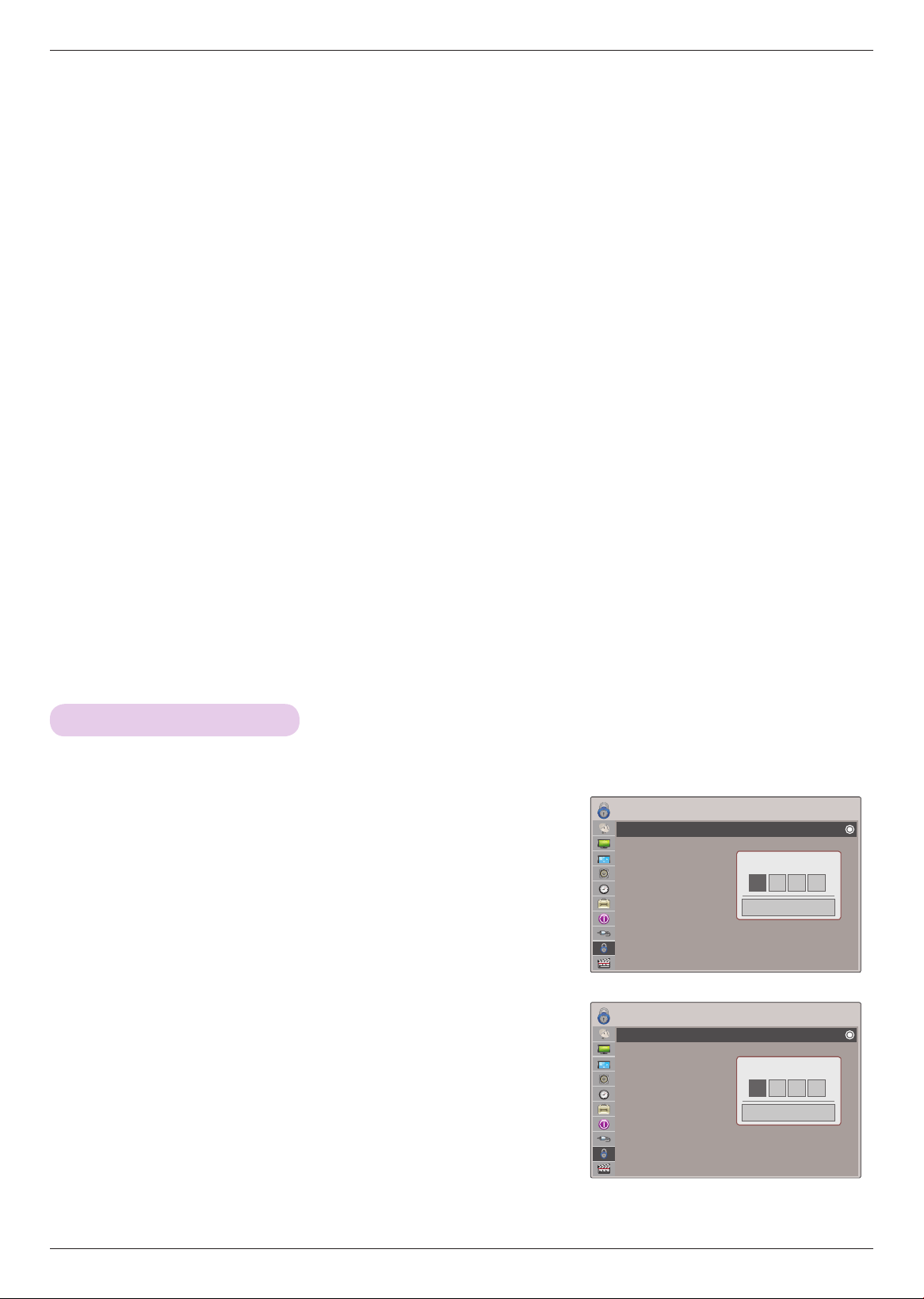
1 . Press the MENU button. Then, move to INFORMATION with
the ∧, ∨, <, > buttons and press the ◉OK button.
2 . You can see the current information of the projector.
• Resolution details does not appear when input mode is TV
• Press the BACK button to exit the menu screen.
To See The Projector Information
1 . Press the MENU button. Then, move to OPTION with the ∧, ∨, <,
> buttons and press the ◉OK button.
2 . Press the ∧, ∨ buttons to move Initial Setting and press the ◉OK
button.
3 . Move to a desired item with the ∧, ∨ buttons and then press the
◉OK button.
• Set as Home Use when used in homes.
• Press the BACK button to exit the menu screen.
Initial Setting Function
ꔂMove ꔉOK
OPTION
Menu Language :English
Audio Language :English
Caption :Service1
Blank Image :Blue
Screen Capture
LED Mode :Normal
Auto Power :Off
Demo Mode :Off
Initial Setting :Home Use
ꔂMove ꔉOKINFORMATION
Model Name : HX350T
Input : TV
Resolution :
Fh/Fv : 0 Khz/0 Hz
34
PARENTAL CONTROL/RATINGS
ꔂMove ꔉOKLOCK
Lock System :Off
Set Password
Block Channel
Movie rating
TV Rating-Children
TV Rating-General
Downloadable Rating
Input Block
ꔂMove ꔉOKLOCK
Lock System :Off
Set Password
Block Channel
TV Rating-English
TV Rating-French
Downloadable Rating
Input Block
PARENTAL CONTROL/RATINGS
Set Password & Lock System
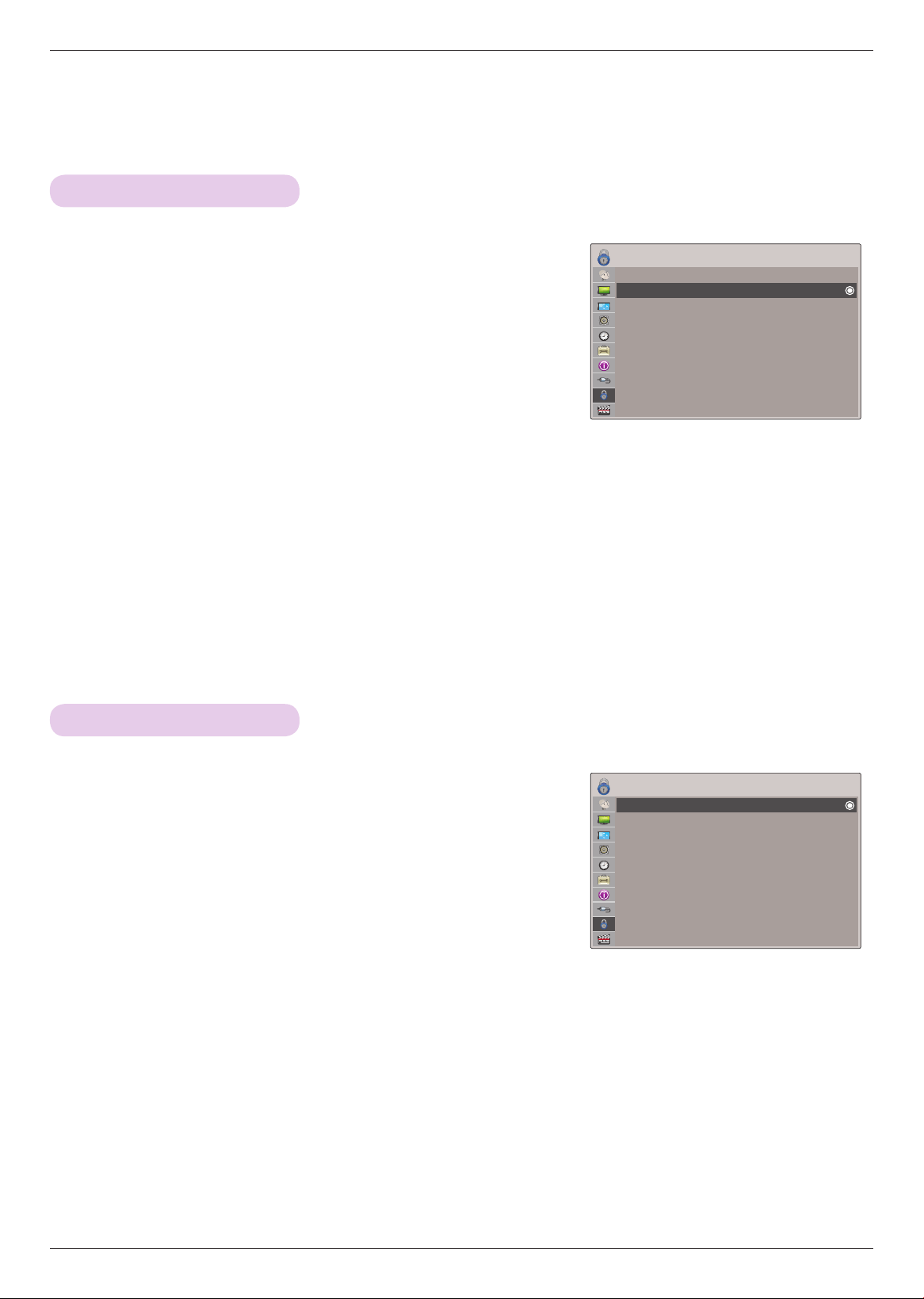
1 . Press the MENU button. Then, move to LOCK with the ∧, ∨, <, >
buttons and press the ◉OK button.
2 . Press the number 0 - 9 to input the password.
• Enter the password as requested.
• The Projector is set up with the initial password “0-0-0-0”.
• If you forget your password, press “0-3-2-5” on the remote control.
• Press the BACK button to exit the menu screen.
Setting up Your Password
* Set up blocking schemes to block specific channels, ratings, and external viewing sources.
A password is required to gain access to this menu.
* Parental Control can be used to block specific channels, ratings and other viewing sources.
The Parental Control Function (V-Chip) is used to block program viewing based on the ratings sent by the broad-
casting station. The default setting is to allow all programs to be viewed. Viewing can be blocked by choosing the
type of the program and the categories. It is also possible to block all program viewing for a time period. To use
this function, the following must be done :
1. Set ratings and categories to be blocked.
2. Specify a password
3. Enable the lock
V-Chip rating and categories
Rating guidelines are provided by broadcasting stations. Most television programs and television movies
can be blocked by TV Rating and/or Individual Categories. Movies that have been shown at the theaters or direct-
to-video movies use the Movie Rating System (MPAA) only.
Ratings for Television programs including made-for-TV movies:
• TV-G (General audience)
• TV-PG (Parental guidance suggested)
• TV-14 (Parents strongly cautioned)
• TV-MA (Mature audience only)
• TV-Y (All children)
• TV-Y7 (Children 7 years older)
* ** *
Close
Enter Password
* ** *
Close
Enter Password
< For USA >
< For Canada >
35
PARENTAL CONTROL/RATINGS
ꔂMove ꔉOKLOCK
Lock System :On
Set Password
Block Channel
Movie rating
TV Rating-Children
TV Rating-General
Downloadable Rating
Input Block
ꔂMove ꔉOKLOCK
Lock System :Off
Set Password
Block Channel
Movie rating
TV Rating-Children
TV Rating-General
Downloadable Rating
Input Block
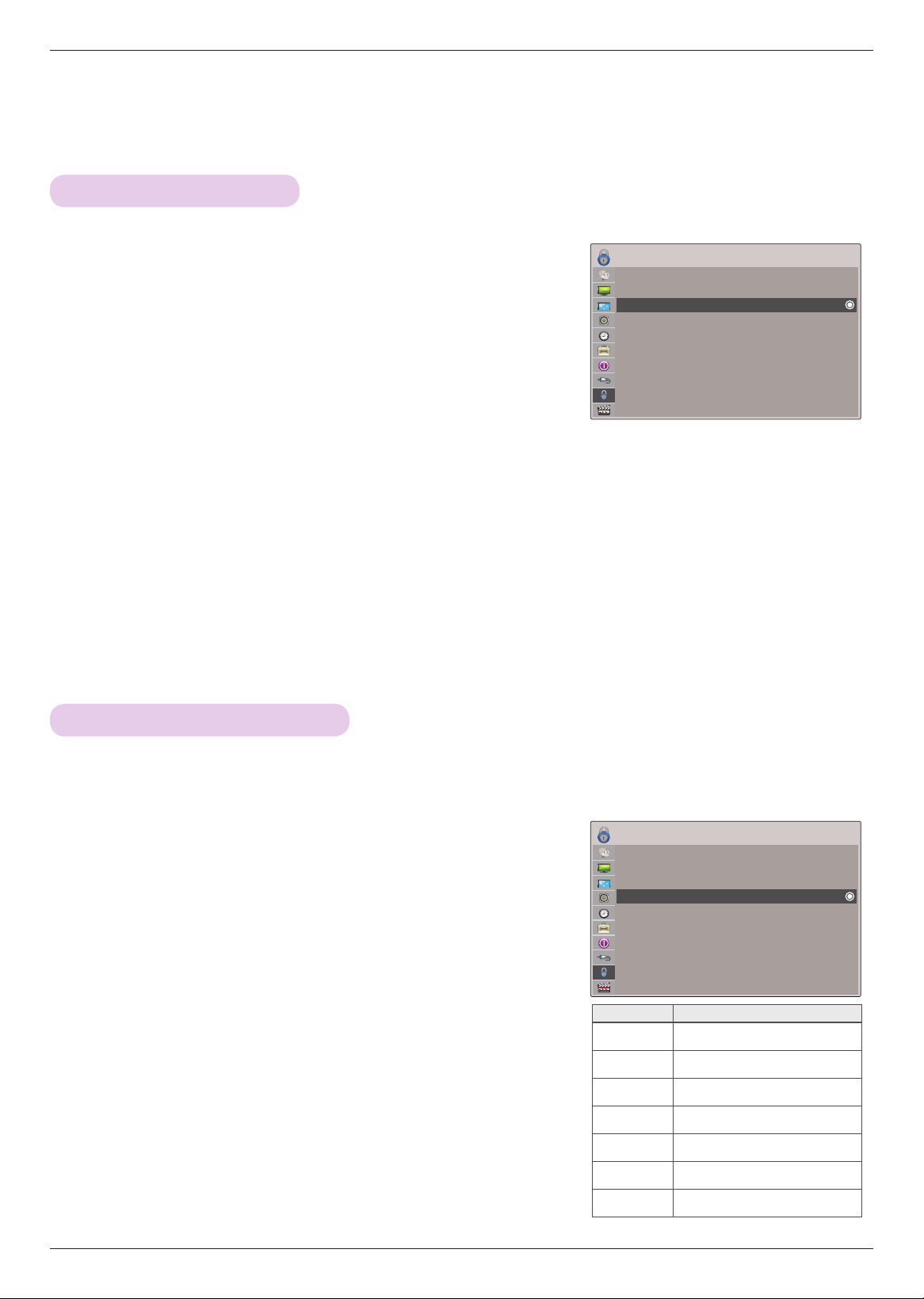
1 . Press the MENU button. Then, move to LOCK with the ∧, ∨, <, >
buttons and press the ◉OK button.
2 . Press the number 0 - 9 to input the password.
3 . Press the ∧, ∨ buttons to move Lock System and press the ◉OK
button.
4 . Press the ∧, ∨ buttons to move On and press the ◉OK button.
• When you select On, the Lock System is enable.
• Press the BACK button to exit the menu screen.
1 . Press the MENU button. Then, move to LOCK with the ∧, ∨, <, >
buttons and press the ◉OK button.
2 . Press the number 0 - 9 to input the password.
3 . Press the ∧, ∨ buttons to move Set Password and press the ◉OK
button.
4 . Press the number 0 - 9 to choose any 4 digits for your new pass-
word. As soon as the 4 digits are entered, re-enter the same 4 dig-
its on the Confirm.
• Press the BACK button to exit the menu screen.
Lock System
Set Password
* Activates or deactivates the lock system.
* Change the password by inputting a new password twice.
36
PARENTAL CONTROL/RATINGS
MOVIE & TV RATING
ꔂMove ꔉOKLOCK
Lock System :On
Set Password
Block Channel
Movie rating
TV Rating-Children
TV Rating-General
Downloadable Rating
Input Block
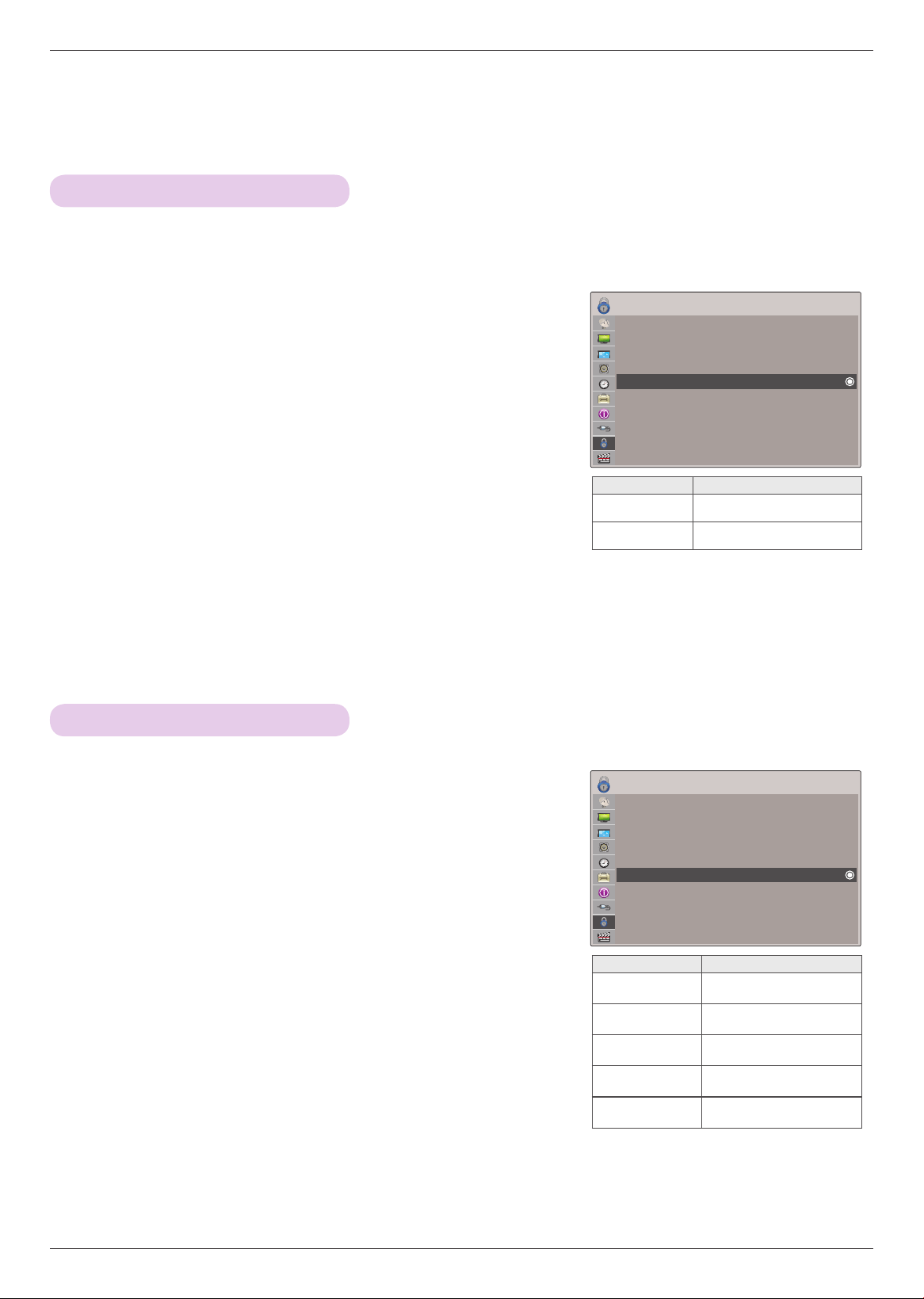
1 . Press the MENU button. Then, move to LOCK with the ∧, ∨, <,
> buttons and press the ◉OK button.
2 . Press the number 0 - 9 to input the password.
3 . Press the ∧, ∨ buttons to move Movie rating and press the ◉OK
button.
4 . Move to a desired item with the ∧, ∨ buttons and then press the
◉OK button.
• If Movie Rating, TV Rating-Children or TV Rating-General is locked,
enter the password to unlock it temporarily.
• If you set PG-13: G and PG movies will be available, PG-13, R, NC-17
and X will be blocked.
• Press the BACK button to exit the menu screen.
Movie Rating (MPAA) - For USA
* Blocks movies according to the movie ratings limits specified, so children cannot view certain movies. You can set the rat-
ings limit by blocking out all the movies with the ratings above a specified level. Keep in mind that the movie ratings limit
only applies to movies shown on projector, not TV programs, such as soap operas.
Menu Description
G General audience
PG Parental guidance suggested
PG-13 Parents strongly cautioned)
R Restricted
NC-17 No one 17 and under admitted
X Adult only
Blocking Off Permits all programs
ꔂMove ꔉOKLOCK
Lock System :On
Set Password
Block Channel
Movie rating
TV Rating-Children
TV Rating-General
Downloadable Rating
Input Block
1 . Press the MENU button. Then, move to LOCK with the ∧, ∨, <, >
buttons and press the ◉OK button.
2 . Press the number 0 - 9 to input the password.
3 . Press the ∧, ∨ buttons to move Block Channel and press the
◉OK button.
4 . Move to a desired channel with the ∧, ∨, <, > buttons and then
press the q (Stop) button. Block or unblock a channel.
• If a channel is locked, enter the password to unlock it temporarily.
• Press the BACK button to exit the menu screen.
Channel Blocking
* Blocks any channels that you do not want to watch or that you do not want your children to watch.
37
PARENTAL CONTROL/RATINGS
ꔂMove ꔉOKLOCK
Lock System :On
Set Password
Block Channel
Movie rating
TV Rating-Children
TV Rating-General
Downloadable Rating
Input Block
ꔂMove ꔉOKLOCK
Lock System :On
Set Password
Block Channel
Movie rating
TV Rating-Children
TV Rating-General
Downloadable Rating
Input Block
1 . Press the MENU button. Then, move to LOCK with the ∧, ∨, <,
> buttons and press the ◉OK button.
2 . Press the number 0 - 9 to input the password.
3 . Press the ∧, ∨ buttons to move TV Rating-Children and press
the ◉OK button.
4 . Move to a desired item with the ∧, ∨ buttons and then press the
◉OK button.
• Press the BACK button to exit the menu screen.
1 . Press the MENU button. Then, move to LOCK with the ∧, ∨, <,
> buttons and press the ◉OK button.
2 . Press the number 0 - 9 to input the password.
3 . Press the ∧, ∨ buttons to move TV Rating-General and press the
◉OK button.
4 . Move to a desired item with the ∧, ∨ buttons and then press the
◉OK button.
• Press the BACK button to exit the menu screen.
TV Rating Children - For USA
TV Rating General - For USA
* Prevents children from watching certain children's TV programs, according to the ratings limit set. The children rating does
not apply to other TV programs. Unless you block certain TV programs intended for mature audiences in the TV Rating -
sub menu, your children can view those programs.
* Based on the ratings, blocks certain TV programs that you and your family do not want to view.
Menu Description
Age applies to TV-Y, TV-Y7
Fantasy Violence applies to TV-Y7
Menu Description
Age
applies to TV-G, TV-PG,
TV-14, TV-MA
Dialogue-sexual
dialogue
applies to TV-PG, TV-14
Language-adult
language
applies to TV-PG, TV-14,
TV-MA
Sex-sexual situa-
tions
applies to TV-PG, TV-14,
TV-MA
Violence
applies to TV-PG, TV-14,
TV-MA
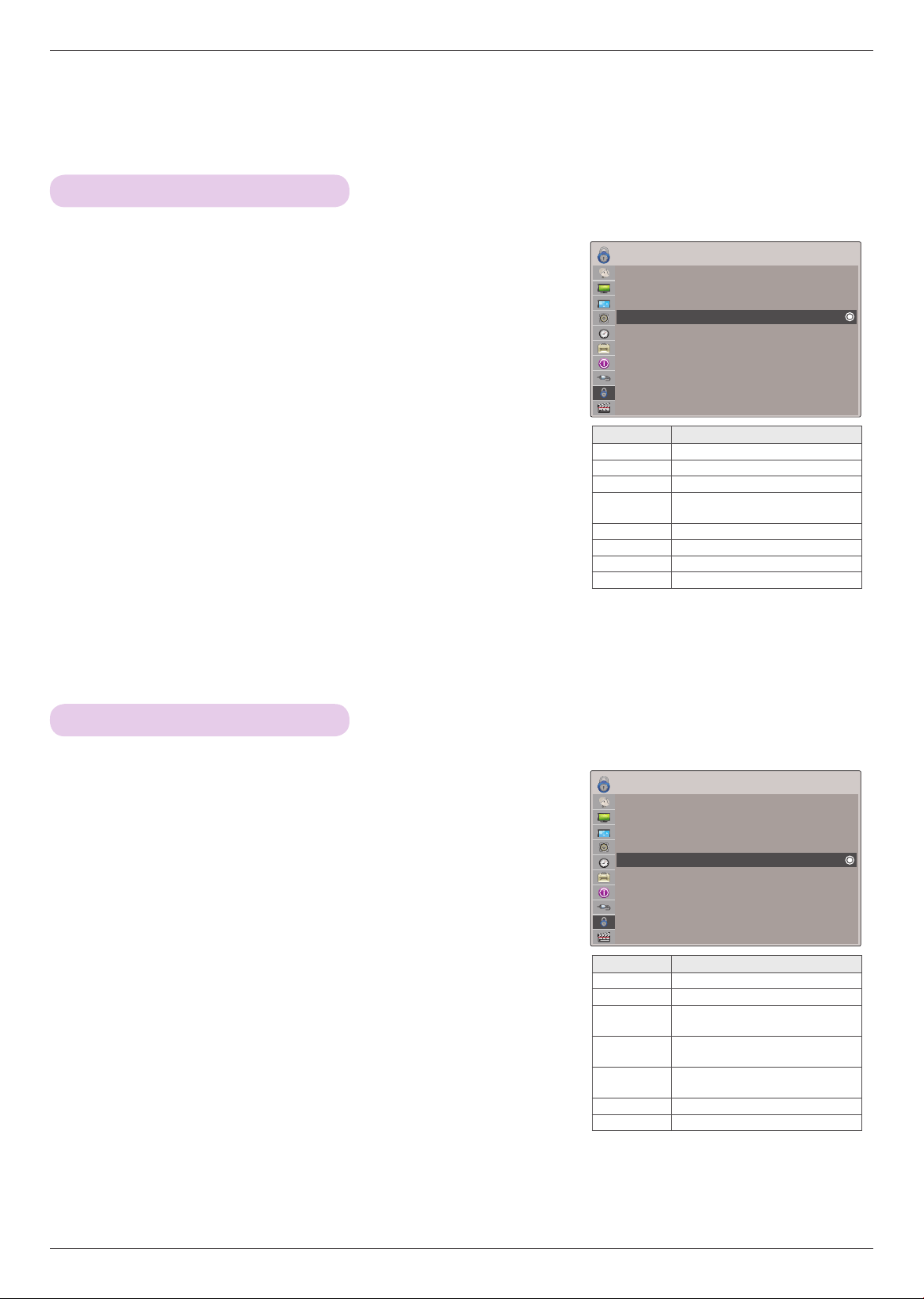
38
PARENTAL CONTROL/RATINGS
ꔂMove ꔉOKLOCK
Lock System :On
Set Password
Block Channel
TV Rating-English
TV Rating-French
Downloadable Rating
Input Block
1 . Press the MENU button. Then, move to LOCK with the ∧, ∨, <,
> buttons and press the ◉OK button.
2 . Press the number 0 - 9 to input the password.
3 . Press the ∧, ∨ buttons to move TV Rating-French and press the
◉OK button.
4 . Move to a desired item with the ∧, ∨ buttons and then press the
◉OK button.
• Press the BACK button to exit the menu screen.
TV Rating French - For CANADA
* Selecting Canadian French rating system.
Menu Description
E Exempt
G General
8ans+
General-Not convenient for little
children
13ans+
Not convenient for children of 13
years and younger
16ans+
Not convenient for children of 16
years and younger
18ans+ This programs is only for adults
Blocking Off Permits all programs
ꔂMove ꔉOKLOCK
Lock System :On
Set Password
Block Channel
TV Rating-English
TV Rating-French
Downloadable Rating
Input Block
1 . Press the MENU button. Then, move to LOCK with the ∧, ∨, <,
> buttons and press the ◉OK button.
2 . Press the number 0 - 9 to input the password.
3 . Press the ∧, ∨ buttons to move TV Rating-English and press the
◉OK button.
4 . Move to a desired item with the ∧, ∨ buttons and then press the
◉OK button.
• If TV Rating-English or TV Rating-French is locked, enter the password
to unlocked it temporarily.
• Press the BACK button to exit the menu screen.
TV Rating English - For CANADA
* Selecting Canadian English rating system.
Menu Description
E Exempt
C Children
C8+ Children eight years and older
G
General programming, suitable
for all audiences
PG Parental Guidance
14+ Viewers 14 years and older
18+ Adult programming
Blocking Off Permits all programs
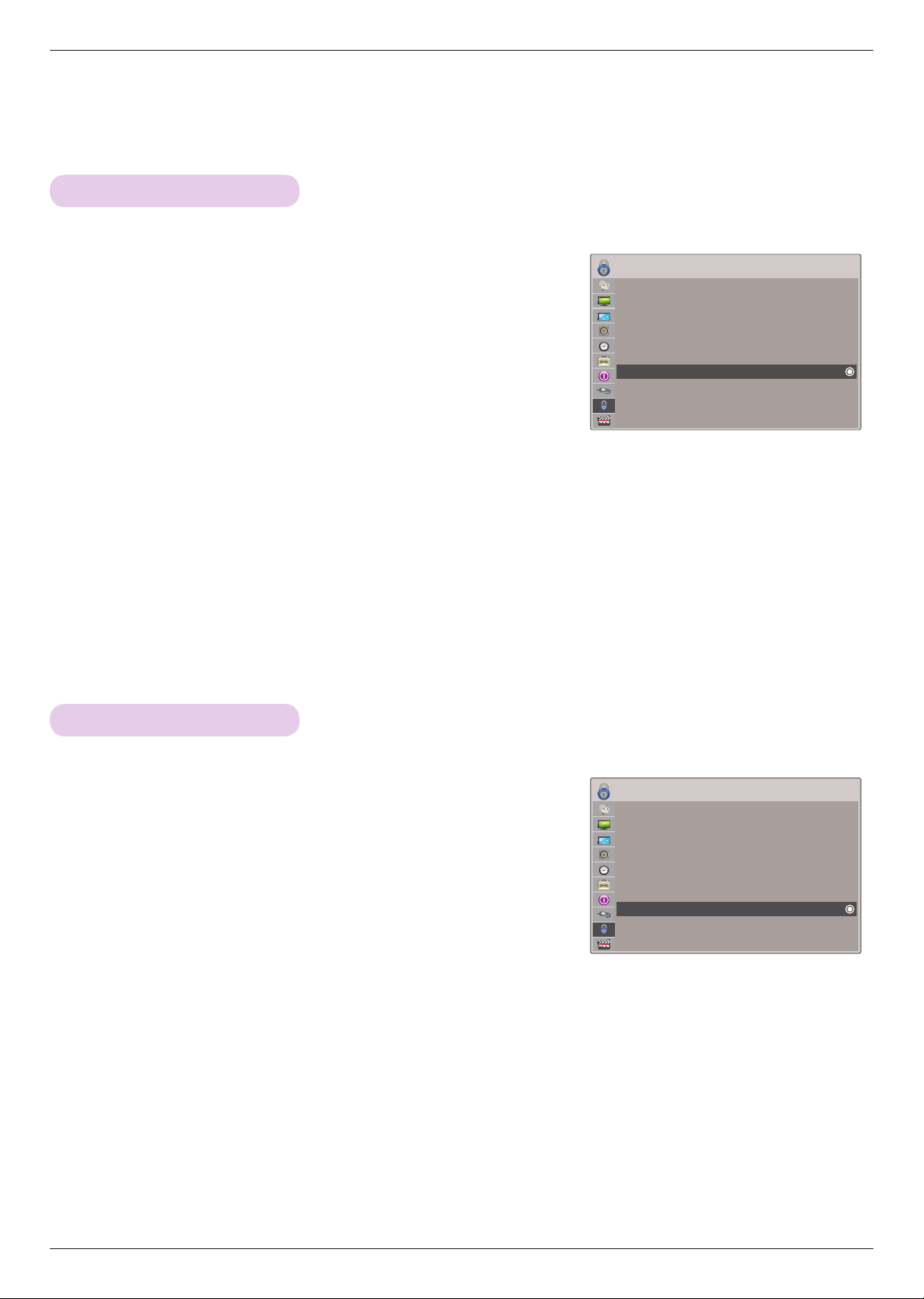
39
PARENTAL CONTROL/RATINGS
ꔂMove ꔉOKLOCK
Lock System :Off
Set Password
Block Channel
Movie rating
TV Rating-Children
TV Rating-General
Downloadable Rating
Input Block
External Input Blocking
* Enables you to block an input.
1 . Press the MENU button. Then, move to LOCK with the ∧, ∨, <, >
buttons and press the ◉OK button.
2 . Press the number 0 - 9 to input the password.
3 . Press the ∧, ∨ buttons to move Input Block and press the ◉OK
button.
4 . Move to a desired external input with the ∧, ∨ buttons
5 . Press the <, > buttons to move On.
6 . Press the ∧, ∨ buttons to move Close and press the ◉OK button.
• Press the BACK button to exit the menu screen.
ꔂMove ꔉOKLOCK
Lock System :On
Set Password
Block Channel
Movie rating
TV Rating-Children
TV Rating-General
Downloadable Rating
Input Block
1 . Press the MENU button. Then, move to LOCK with the ∧, ∨, <,
> buttons and press the ◉OK button.
2 . Press the number 0 - 9 to input the password.
3 . Press the ∧, ∨ buttons to move Downloadable Rating and press
the ◉OK button.
4 . Move to a desired item with the ∧, ∨ buttons and then press the
◉OK button.
• If a Downloadable rating is locked, enter the password to unlock it temporarily.
• Press the BACK button to exit the menu screen.
Downloadable Rating
* This function is available only for digital channels. This function operates only when projector has received Region5 Rating
data.
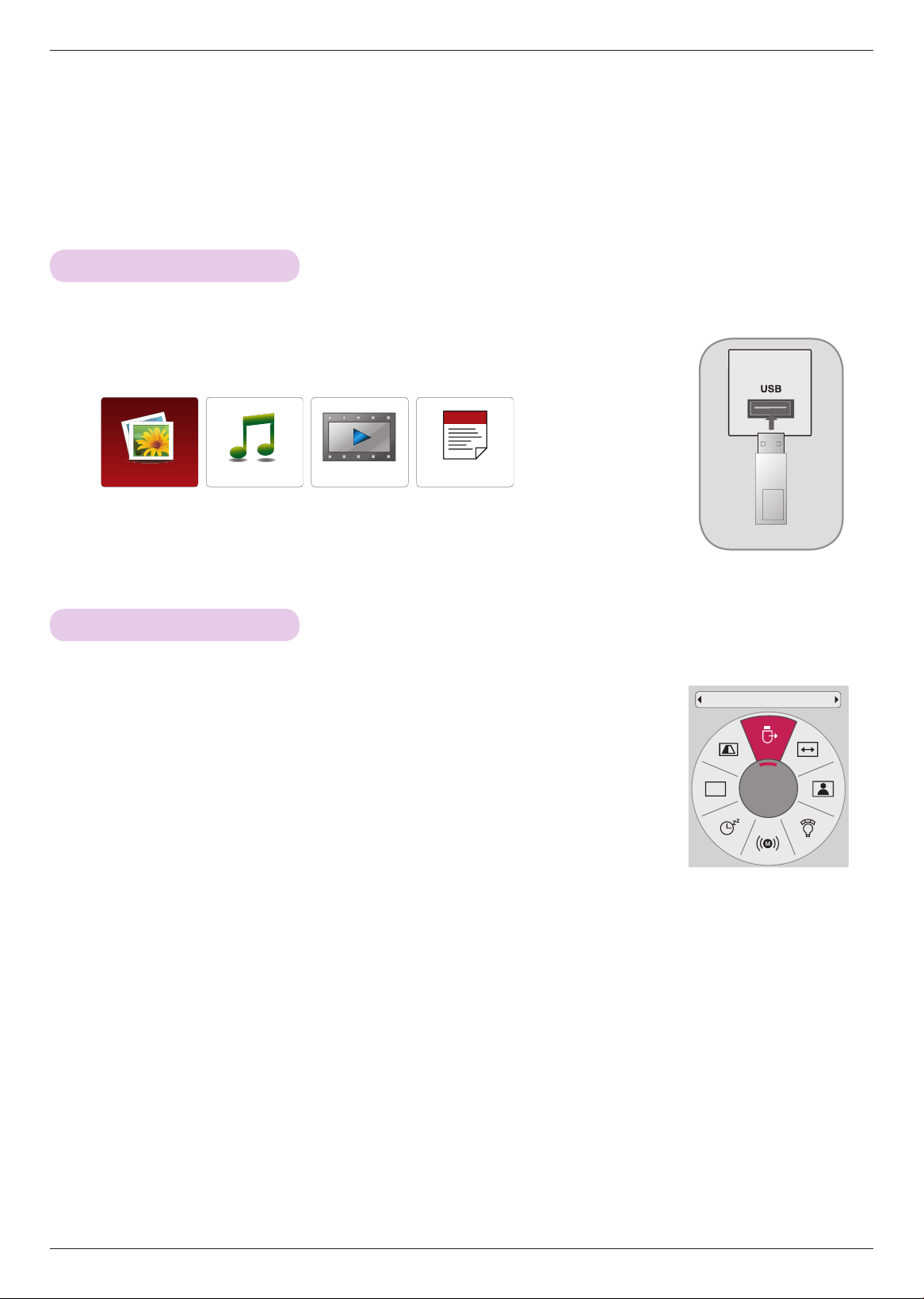
40
USB
USB
To use the USB device
* Image shown may differ from your projector.
Connecting the USB device
1 . Connect the USB device to the USB jack on the back of the projector.
2 . The USB media menu will open automatically.
* Select “Eject” in order to eject a USB device.
Eject USB
USB memory stick
PHOTO LIST
MUSIC LIST
MOVIE LIST FILE VIEWER
1 . Press the Q.MENU button on the remote control.
2 . Press the <, > buttons to move USB Device.
3 . Press the ◉OK button on the remote control.
• After Eject USB, USB memory cannot be read. Remove USB memory, and connect
again.
• Press the BACK button to exit the menu screen.
CH
USB Device
Eject ꔉ

41
USB
USB notes
► Only a USB storage device is recognizable.
► USB hubs are not supported.
► A USB storage device which uses its own driver may not be recognized.
► The recognition speed of a USB storage device will depend on each device.
► Please do not turn off the projector or unplug the USB device when the connected USB storage device is operating.
When such a device is suddenly separated or unplugged, the stored files or the USB storage device may be damaged.
► Please do not connect the USB storage device which was artificially maneuvered on the PC. The device may cause the
product to malfunction or fail to be played. Never forget to use only a USB storage device which has normal music files,
image files, movie files or text files.
► Please use only a USB storage device which was formatted as a FAT16, FAT32 and NTFS file system provided with the
Windows operating system. In case of a storage device formatted as a different utility programmed which is not support-
ed by Windows, it may not be recognized.
► Please connect power to a USB storage device which requires an external power supply. If not, the device may not be rec-
ognized.
► Please connect a USB storage device with cable is offered by USB maker. If connected with cable is not offered by USB
maker or an excessively long cable, the device may not be recognized.
► Some USB storage devices may not be supported or operate smoothly.
► If the name of a folder or file is too long, it will not be displayed or recognized.
► File alignment method of USB storage device is similar to Window XP and filename can recognize up to 100 English
characters.
► Please backup important files because a data of USB device may be damaged. Data management is consumer's respon-
sibility and in consequence the manufactures does not cover data damage.
► The recommended capacity is 1TB or less for a USB external hard disk and 32GB or less for USB memory. Any device
with more than the recommended capacity may not work properly.
► Only the FAT32 file system supports the delete function.
► If the USB memory device does not work properly, disconnect and reconnect it.
► If a USB external hard disk with a “Energy Saving” function does not work, turn the hard disk off and on again to make it
work properly.
► USB storage devices below USB 2.0 are supported as well. But they may not work properly in the movie list.
► If your USB memory device has multiple partitions, or if you use a USB multi-card reader, you can use up to 4 partitions
or USB memory devices.
► How fast a USB memory device is detected differs from device to device.
► If the USB is connected in Standby Mode, specific hard disk will automatically be loaded when the projector is turned on.
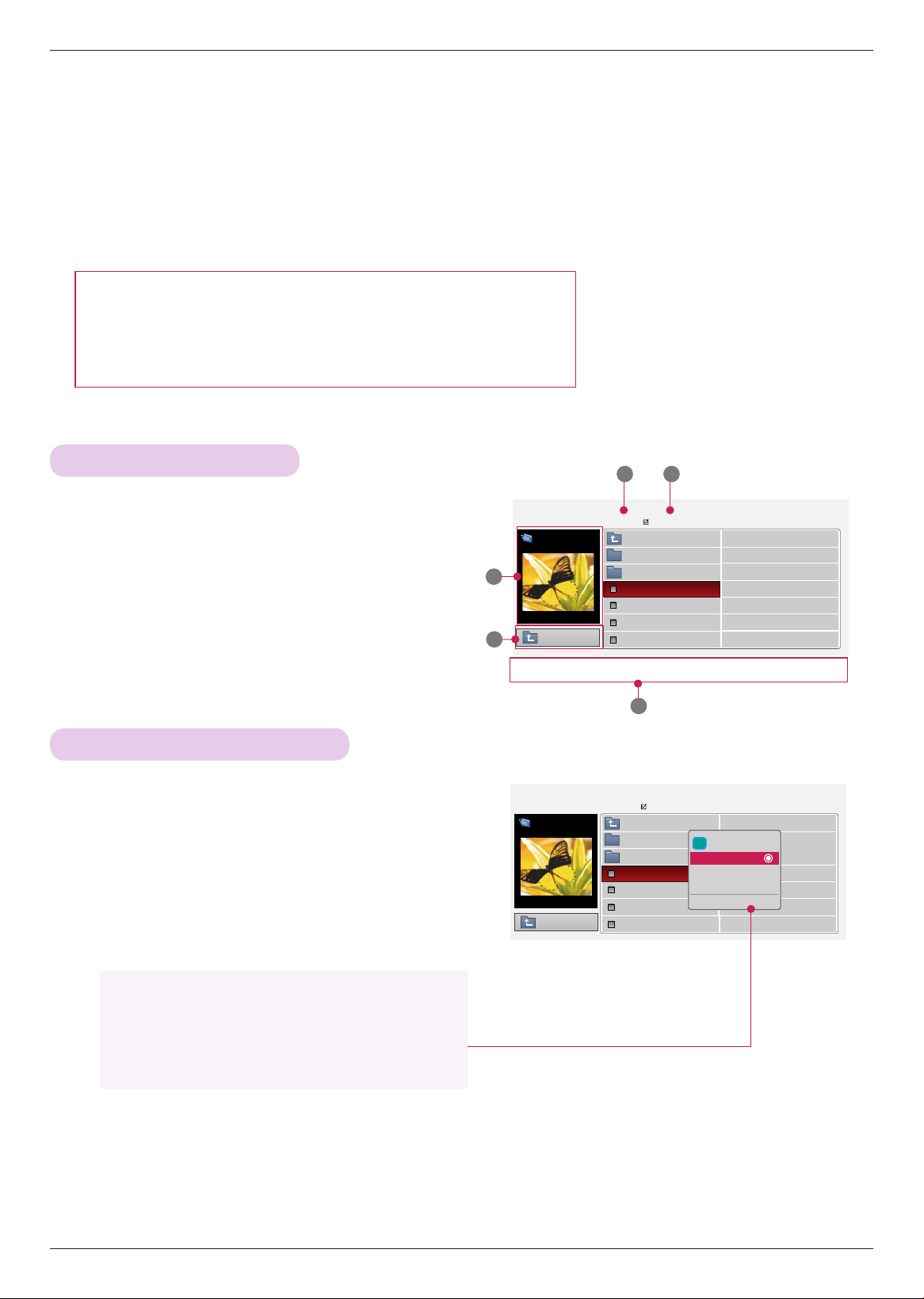
42
USB
ꔂ
Navigation
ꔉ
PopUp Menu ꘃ Page Change
ꘁ
Mark
ꕉ
Exit
PHOTO LIST
* The projector can display JPEG files.
The On Screen Display may be different from your set. Images are an example to assist with the projector operation.
PHOTO(*.JPEG) supporting file
Baseline : 64 x 64 - 15360 x 8640
Progressive : 64 x 64 - 1920 x 1440
• You can play JPEG files only.
• Non-supported files are displayed in the form of predefined icon.
Screen Components
Photo Selection and Popup Menu
1 . Moves to upper level file
2 . Preview: Display the thumbnail/folder name of the photo
in the selected folder
3 . Current page/Total pages
4 . Total number of marked photos
5 . Corresponding buttons on the remote control
1 . Press the USB button. Then, move to PHOTO LIST with
the <, > buttons and press the ◉OK button.
2 . Press the ∧, ∨, <, > buttons to move a desired photo
file and press the ◉OK button.
3 . Move to a desired item with the ∧, ∨ buttons and then
press the ◉OK button.
• If the picture file is damaged, it may not be displayed properly.
• High resolution pictures may take longer time to display on the entire screen.
Page 1/1
No Marked
PHOTO LIST
1366
x
768 125KB
ꔂ
Navigation
ꔉ
PopUp Menu ꘃ Page Change
ꘁ
Mark
ꕉ
Exit
Butterfly
Up Folder
Photo
X.Box
DSC0001
DSC0002
DSC0003
DSC0004
2
1
3 4
5
Page 1/1
No Marked
PHOTO LIST
Up Folder
1366
x
768 125KB
[090704]
Butterfly
Up Folder
Photo
X.Box
DSC0001
DSC0002
DSC0003
DSC0004
i 1366x768, 125KB
View
Mark All
Delete
Close
• View: Display the selected item.
• Mark All: Mark all photos on the screen.
• Delete: Delete the selected photo item.
• Close: Close the pop-up menu.
[090704]
Up Folder
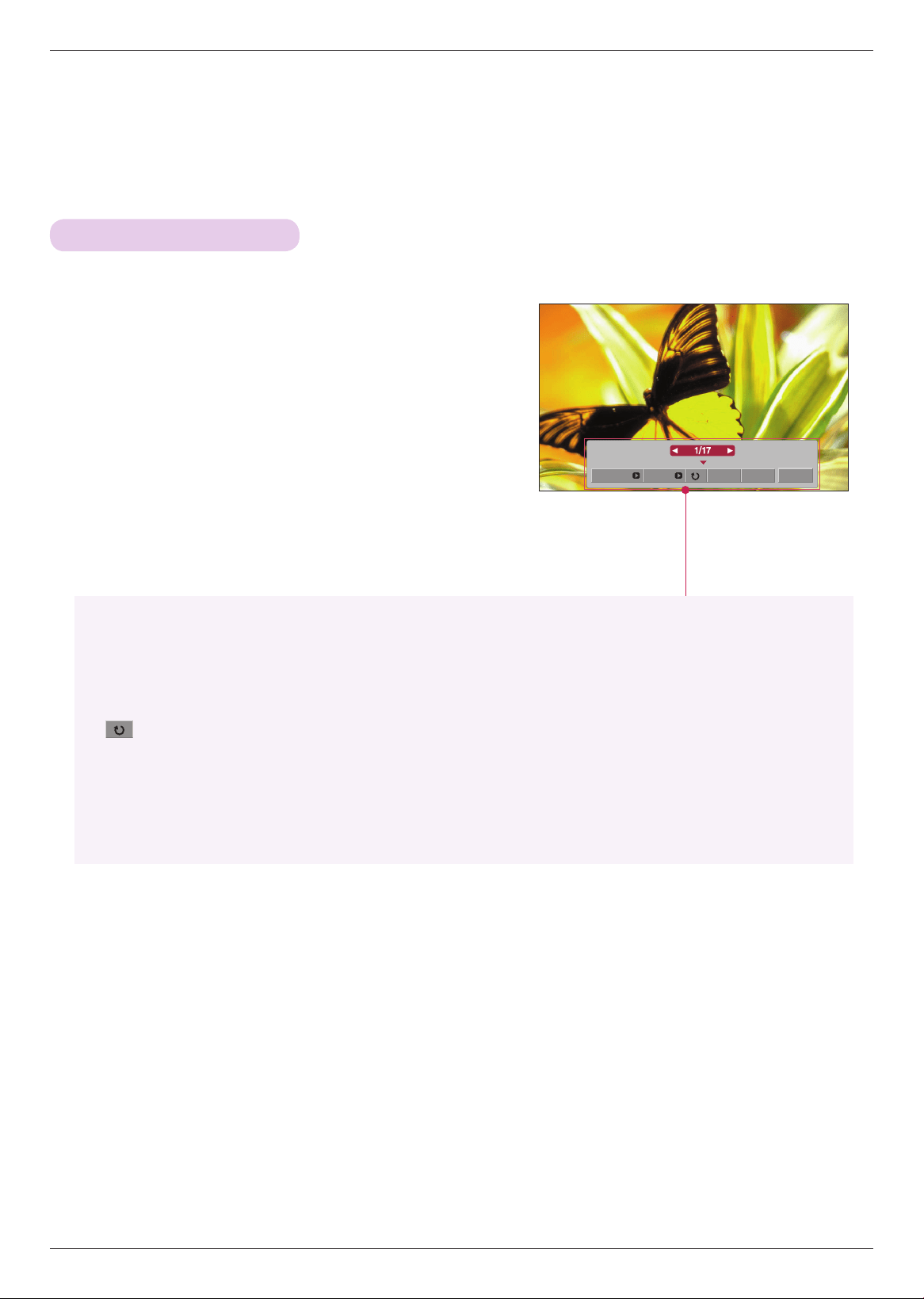
43
USB
Full Screen Menu
1 . Press the USB button. Then, move to PHOTO LIST with the
<, > buttons and press the ◉OK button.
2 . Press the ∧, ∨, <, > buttons to move desired photo and
press the ◉OK button.
3 . Press the ∧, ∨ buttons to move View and press the ◉OK
button.
4 . The selected photo is displayed in full size and show up the
menu.
5 . Use ∧, ∨, <, > button to select and control the menu on
the full-sized screen.
Slideshow BGM Delete Option Hide
• Use
<, >
button to select the previous or next photo.
• Slideshow: Selected photos are displayed during the slide show. If no photo is selected, all photos in
the current folder are displayed during slide show.
- Set the time interval of the slide show in Option.
• BGM: Listen to music while viewing photos in full size.
- Set the BGM device and album in Option.
• (Rotate): Rotate photos.
• Delete: Delete photos.
• Option: Set values for Slide Speed and Music Folder.
- You cannot change Music Folder while BGM is playing.
• Hide: Hide the menu on the full-sized screen.
- To see the menu again on the full-sized screen, press ◉OK button to display.
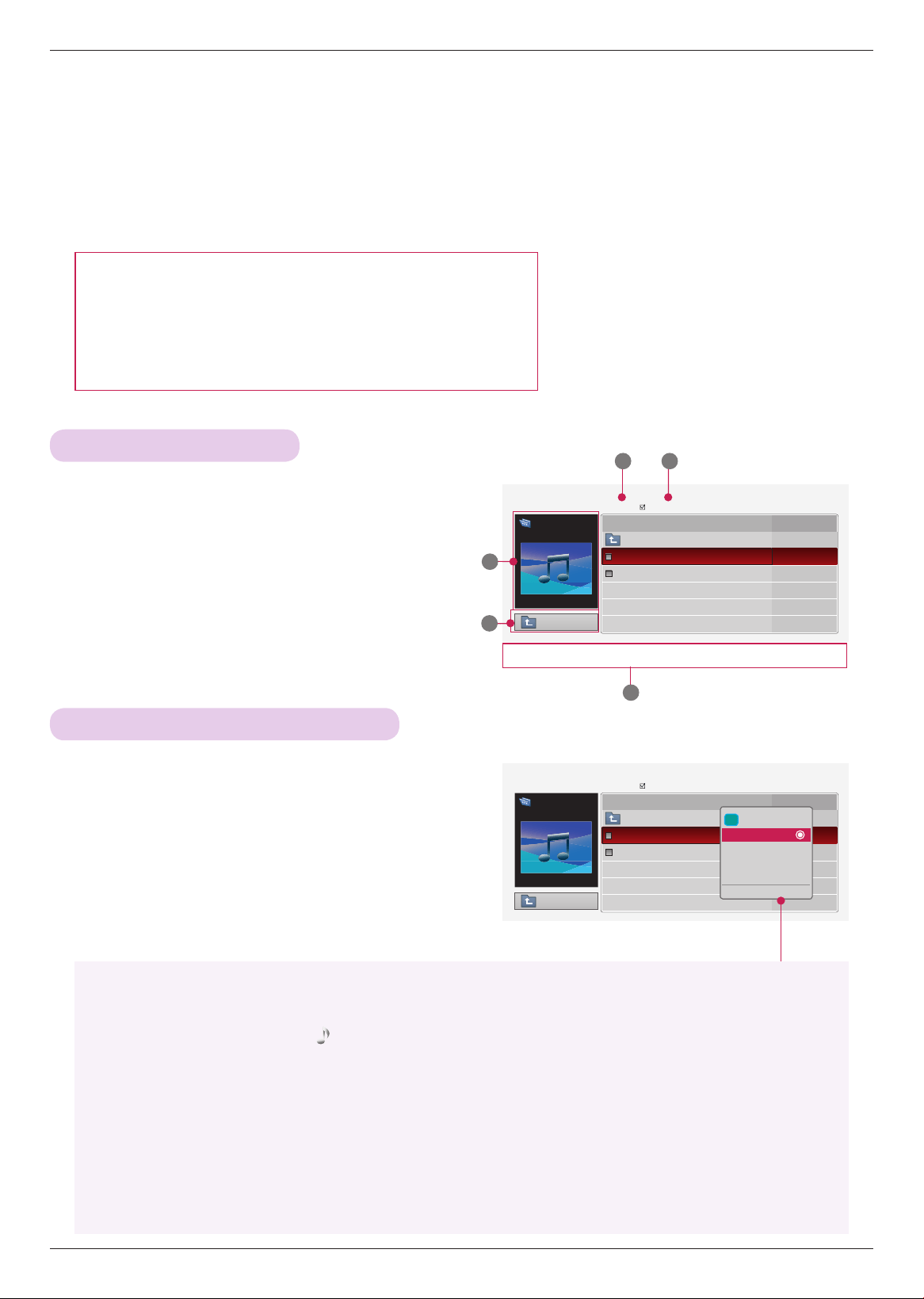
44
USB
ꔂ
Navigation
ꔉ
PopUp Menu ꘃ Page Change
ꘁ
Mark
ꕉ
Exit
MUSIC LIST
* You can use the Music List menu to play MP3 files from a USB storage device.
The On Screen Display on your model may be slightly different.
1 . Moves to upper level file
2 . Preview: Display the title/folder name of the music in
the selected folder
3 . Current page/Total pages
4 . Total number of marked music
5 . Corresponding buttons on the remote control
Page 1/1
No Marked
MUSIC LIST
ꔛ 00:00 / 05:42
Drive 1
Flower
Up Folder
Oblivious
Flower
05:24
05:42
2
1
3 4
MUSIC (*.MP3) supporting file
Bit rate range 32 Kbps - 320 Kbps
• Sampling rate MPEG1 Layer3 : 32kHz, 44.1kHz, 48kHz
• Sampling rate MPEG2 Layer3 : 16kHz, 22.05kHz, 24kHz
• Sampling rate MPEG2.5 Layer3 : 8kHz, 11.025kHz, 12kHz
5
Up Folder
Music Selection and Popup Menu
1 . Press the USB button. Then, move to MUSIC LIST with
the <, > buttons and press the ◉OK button.
2 . Press the ∧, ∨, <, > buttons to move a desired music
file and press the ◉OK button.
3 . Move to a desired item with the ∧, ∨ buttons and then
press the ◉OK button.
Page 1/1
No Marked
MUSIC LIST
Up Folder
ꔛ 00:00 / 05:42
Drive 1
Arirang
Up Folder
Good Bye
Arirang
05:30
04:12
i
3945 KB,128 Kbps
Play
Play with Photo
Mark All
Delete
Close
• Play: Once a song finishes playing, the next selected one will be played. When there are no selected
files to play, the next one in the current folder will be played. If you go to a different folder and
press the ◉OK button, the current music in playback will stop.
When music is playing, is displayed in front of the music play time.
After certain time elapsed,the full music list screen disappears and the playback information
screen runs as a screen saver. Press ◉OK, ▇ , or BACK button to stop the screen saver.
A damaged or corrupted music file that does not play displays 00:00 as the play time.
Music files with copy-protection will not play.
• Play with Photo: Start playing the selected song and then move to the PHOTO LIST.
• Mark All: Mark all music in the folder.
• Delete: Delete the selected file.
• Close: Close the pop-up menu.
ꔂ
Navigation
ꔉ
PopUp Menu ꘃ Page Change
ꘁ
Mark
ꕉ
Exit
Title Duration
Title Duration
Screen Components
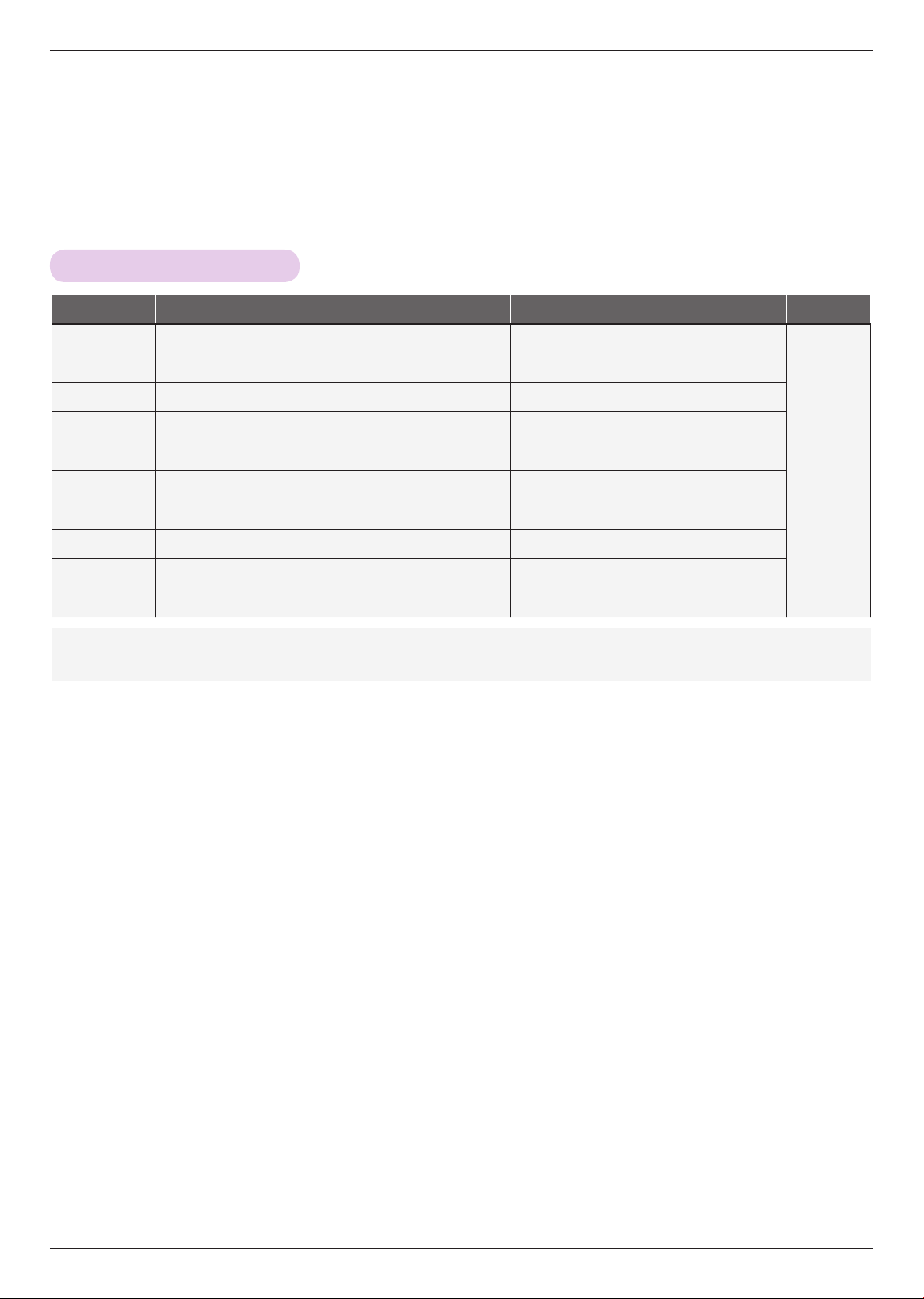
45
USB
MOVIE LIST
* The movie list is activated once USB is detected. It is used when playing movie files on projector.
Supported Movie Formats
Extension name Video Codec Audio Codec
Max Resolution
mpg, mpeg, vob MPEG1, MPEG2 Dolby Digital,MPEG,MP3,LPCM
1920x1080
@30p
dat MPEG1 Dolby Digital,MPEG,MP3,LPCM
ts,trp,tp MPEG2, H.264/AVC Dolby Digital,AAC,MPEG
mp4
MPEG4 SP, MPEG4 ASP, DivX 3.11, DivX 4.12, DivX 5.x
DivX 6, Xvid 1.00, Xvid 1.01, Xvid 1.02, Xvid 1.03
Xvid 1.10–beta 1, Xvid 1.10-beta 2, H.264/AVC
Dolby Digital,HEAAC,
AAC,MPEG,MP3,LPCM
avi
MPEG 2, MPEG 4 SP, MPEG4 ASP, DivX 3.11, DivX 4
DivX 5, DivX 6, Xvid 1.00, Xvid 1.01, Xvid 1.02, Xvid 1.03
Xvid 1.10–beta 1, Xvid 1.10–beta 2, H.264/AVC
Dolby Digital,HEAAC,AAC,MPEG,
MP3,LPCM
mkv H.264/AVC, MPEG 1, MPEG 2, MPEG 4 SP, MPEG4 ASP Dolby Digital,HEAAC,AAC,MPEG,MP3,LPCM
divx
MPEG 2, MPEG 4 SP, MPEG4 ASP, DivX 3.11, DivX 4
DivX 5, DivX 6, Xvid 1.00, Xvid 1.01, Xvid 1.02, Xvid 1.03
Xvid 1.10–beta 1, Xvid 1.10–beta 2, H.264/AVC
Dolby Digital,HEAAC,AAC,MPEG,
MP3,LPCM
Bit rate range : within 32 kbps - 320 kbps (MP3)
Subtitle format : *.smi/*.srt/*.sub(MicroDVD, SubViewer1.0/2.0)/*.ass/*.ssa/*.txt(TMPlayer)/*.psb(PowerDivX)
46
USB
Precautions When Playing Video Files
► A DivX movie file and its subtitle file must be located in the same folder.
► At this time, a movie file name and its subtitle file name must be identical for it to be displayed.
► Specific subtitles created by the user may not operate normally.
► Some special characters are not supported in subtitles.
► HTML tags are not supported in subtitles.
► Subtitles in languages other than the supported languages are not available.
► Time information in an external subtitle file should be arranged in ascending order to be played.
► Damaged movie files may not be played, and certain functions could be limited during the playback.
► Certain video files created with an encoder may not be played.
► If the video and audio structure of recorded file is not interleaved, either video or audio is outputted.
► Video with resolution higher than maximum resolution supported for each frame, cannot be guaranteed for smooth
playback.
► DTS Audio codec is not supported.
► Playback for movie files exceeding 30 GB (Giga Byte) is not supported.
► Playing a video through a USB connection that doesn’t support high speed may not work properly.
► When watching a video using MOVIE LIST, the function to ajdust screen does not work.
► The screen may suffer temporary interruptions (image stoppage, faster playback, etc.) when the audio language is
changed.
► Movie files other than the specified types and formats may not work properly.
► Max bitrate of playable movie file is 20Mbps.
► Files encoded with GMC(Global Motion Compensation) may not be played.
► When you are watching the movie by Movie List function, user setup for each image mode does not operate.
► Only the files saved in ASCII CODE is supported for the external subtitles of the movie.
► Only 500 letters and 500 numbers are supported for each line of the subtitle.
► Only 10000 of sync blocks can be supported within the subtitle file.
Manufactured under license from Dolby Laboratories. “Dolby “and the double-D symbol are trademarks of
Dolby Laboratories.
ꔈ ABOUT DIVX VIDEO: DivX® is a digital video format created by DivX,Inc. This is an official DivX Certified device that
plays DivX video. Visit www.divx.com for more information and software tools to convert your files into DivX video.
ꔈABOUT DIVX VIDEO-ON-DEMAND: This DivX Certified® device must be registered in order to play DivX Video-on-
Demand (VOD) content. To generate the registration code, locate the DivX VOD section in the device setup menu. Go
to vod.divx.com with this code to complete the registration process and learn more about DivX VOD.
ꔈ"DivX Certified® to play DivX® video up to HD 1080p, including premium content."
ꔈ"DivX®, DivX Certified® and associated logos are trademarks of DivX, Inc. and are used under license."
"Pat. 7,295,673; 7,460,668; 7,515,710; 7,519,274"
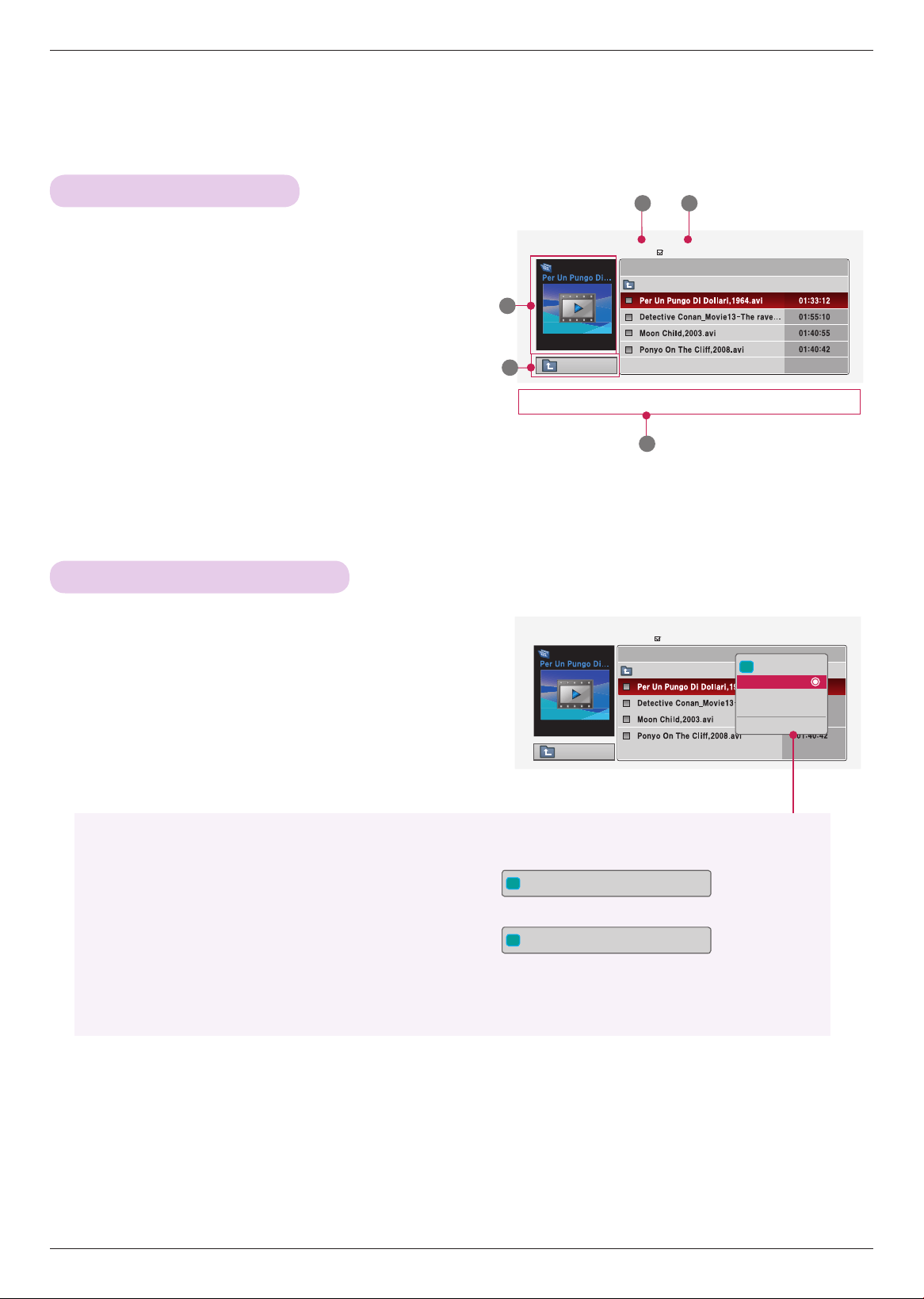
47
USB
1 . Moves to upper level folder
2 . Preview: Display the title/folder name of the movie in the
selected folder
3 . Current page/Total pages
4 . Total number of marked movies
5 . Corresponding buttons on the remote control
Up Folder
Page 1/1
No Marked
MUSIC LIST
704 x 396 668 MB
Movie
Up Folder
Up Folder
Page 1/1
No Marked
MUSIC LIST
704 x 396 668 MB
Movie
Up Folder
Movie Selection and Popup Menu
Screen Components
2
3 4
5
1
i
704 x 396 668 MB
Play
Mark All
Delete
Close
1 . Press the USB button. Then, move to MOVIE LIST with
the <, > buttons and press the ◉OK button.
2 . Press the ∧, ∨, <, > move to a desired movie file and
press the ◉OK button.
3 . Move to a desired item with the ∧, ∨ buttons and then
press the ◉OK button.
• Play: Play the selected movie titles.
- In the case of files not supported, a message regarding non-supported file is displayed.
- The screen is played, but when the audio file is not supported, the following message shows.
• Mark All: Mark all movies in the folder.
• Delete: Delete the selected movie.
• Close: Close the pop-up menu.
i
This file is invalid.
i
Unsupported Audio.
ꔂ
Navigation
ꔉ
PopUp Menu ꘃ Page Change
ꘁ
Mark
ꕉ
Exit
ꔂ
Navigation
ꔉ
PopUp Menu ꘃ Page Change
ꘁ
Mark
ꕉ
Exit
Title Duration
Title Duration
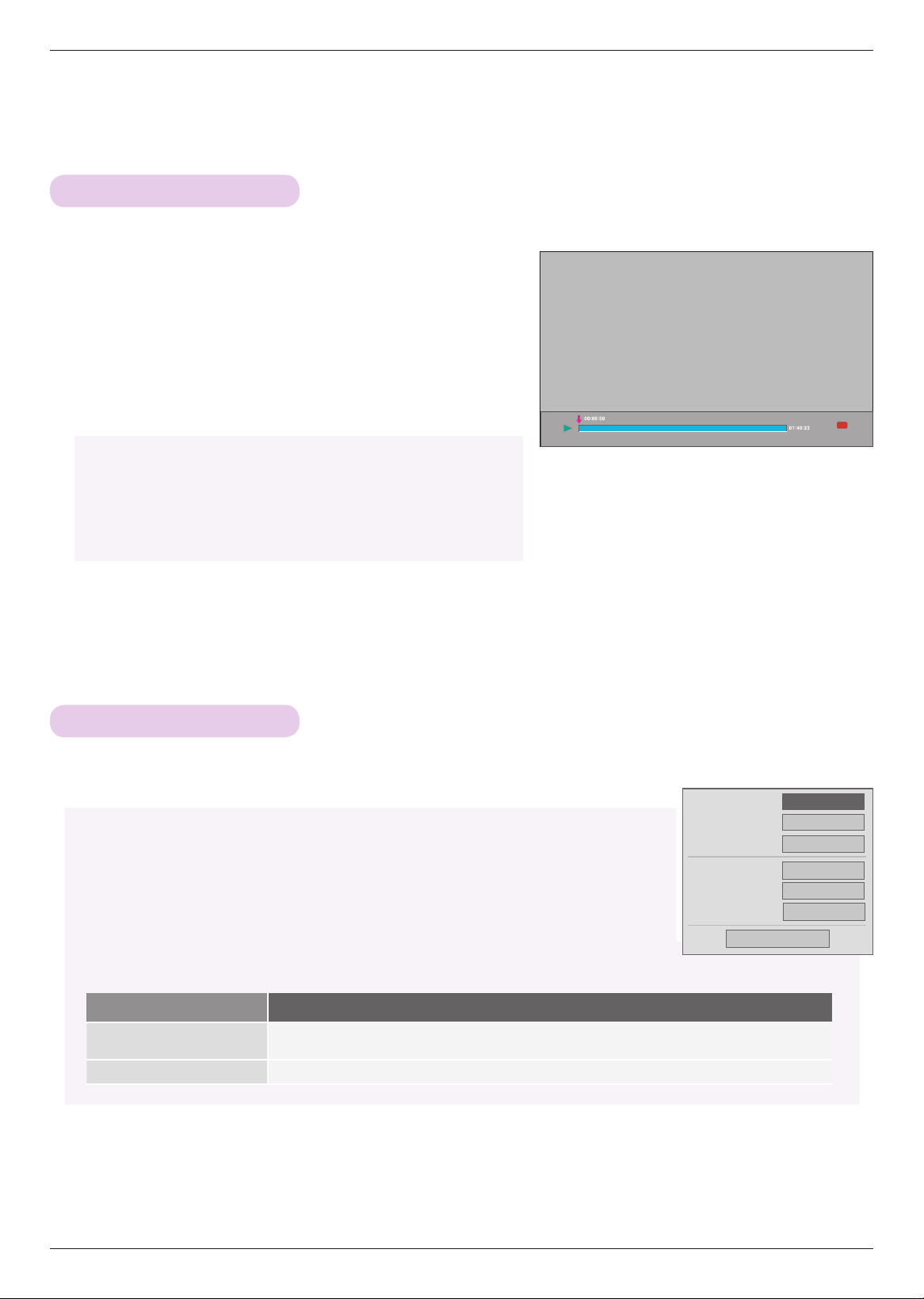
48
USB
Option Menu Selection
Playing the Movie
1 . Press the USB button. Then, move to MOVIE LIST with
the <, > buttons and press the ◉OK button.
2 . Press the ∧, ∨, <, > move to a desired movie file and
press the ◉OK button.
3 . Press the ∧, ∨ buttons to move Play and press the
◉OK button.
On MOVIE LIST play mode.
Press the ꔅ (Red) button on the remote control.
* You can adjust various method during the movie play.
◆ Use of remote control
ꔈ
Press the ▶II (Play/Pause) button to play/pause the screen.
ꔈ Press the ▇ (Stop) button to stop.
ꔈ Press the I◀◀ (REW) button to rewind.
ꔈ Press the ▶▶I (FF) button to forward fast.
ꔈPicture Size: Select the Full, Original or 16:9 screen size.
ꔈPicture Mode: Select the Vivid, Standard, Cinema, Sport or Game.
ꔈ Audio Language: Select Language Group of the audio during movie play.
ꔈ Subtitle Language: Select Language Group of the subtitle during movie play. Subtitle
language option can be differ according to choice of the language
for menu.
- Sync: When the video is not synchronized with the caption, it can be adjusted by the
unit of 0.5 second.
- Position: Move the location of the subtitle.
Picture Size
Picture Mode
Audio Language
Subtitle Language
Sync
Position
ꔗ
Full
ꔃ
Standard
Latin1
0
0
Close
Full
Option
Subtitle Language Group Supported Language
Latin1
French, Spanish, Catalan Basque, Portuguese, Italian, Albanian, Rhaeto-Romanic, Dutch, German,
Danish, Swedish, Norwegian, Finnish, Faeroese, Icelandic, Irish, Scottish, English
Korean
English, Korean
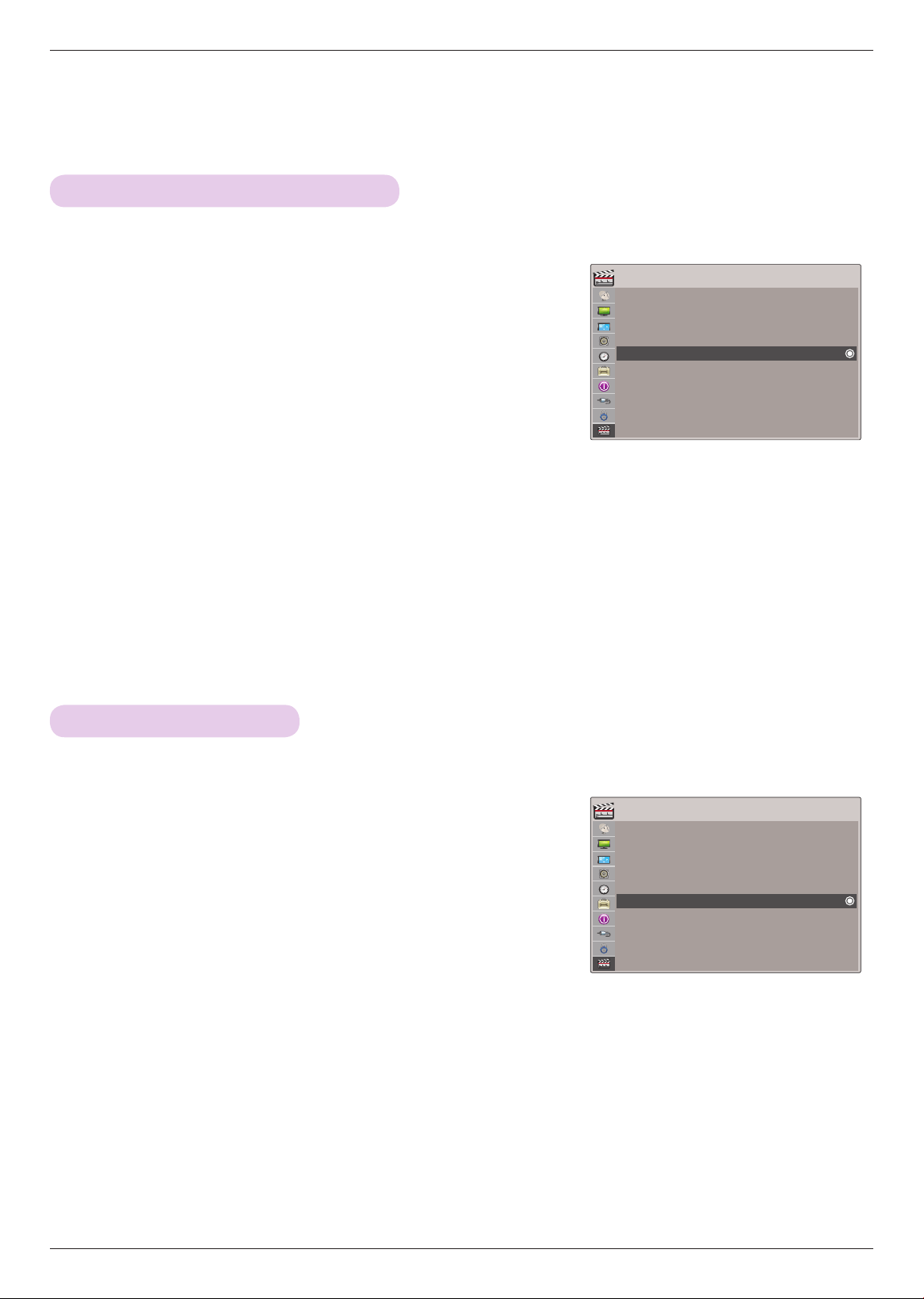
49
USB
To See The DivX Registration Code
1 . Press the MENU button. Then, move to USB with the ∧, ∨, <, >
buttons and press the ◉OK button.
2 . Press the ∧, ∨ buttons to move DivX Reg. Code and press the
◉OK button.
3 . You can see the DivX registration code of the projector.
• With a DivX registration code from other projector, playback of rented
or purchased DivX file is not allowed. (Only DivX files matched with the
registration code of the purchased projector are playable.)
• The video or audio of a file converted based on a standard other than the DivX codec standard may be corrupted
or unable to be played.
• Press the BACK button to exit the menu screen.
* Confirm the DivX registration code number of the projector.
Using the registration number, movies can be rented or purchased at www.divx.com/vod.
Deactivation Function
1 . Press the MENU button. Then, move to USB with the ∧, ∨, <, >
buttons and press the ◉OK button.
2 . Press the ∧, ∨ buttons to move Deactivation and press the
◉OK button.
3 . Move to a desired item with the <, > buttons and then press the
◉OK button.
• DRM (Digital Rights Management) function:
These are the technology and the service that prevents the illegal use of digital contents to protect the copyrights
owners’ benefits and rights. File can be played after the license is cleared through the methods of online, etc.
• Press the BACK button to exit the menu screen.
* Delete the existing authentication information to receive a new DivX user authentication for projector. Once this function is
executed, a DivX user authentication is required again to see DivX DRM files.
ꔂMove ꔉOK
USB
Photo List
Musci List
Movie List
File Viewer
DivX Reg. Code
Deactivation
ꔂMove ꔉOKUSB
Photo List
Musci List
Movie List
File Viewer
DivX Reg. Code
Deactivation
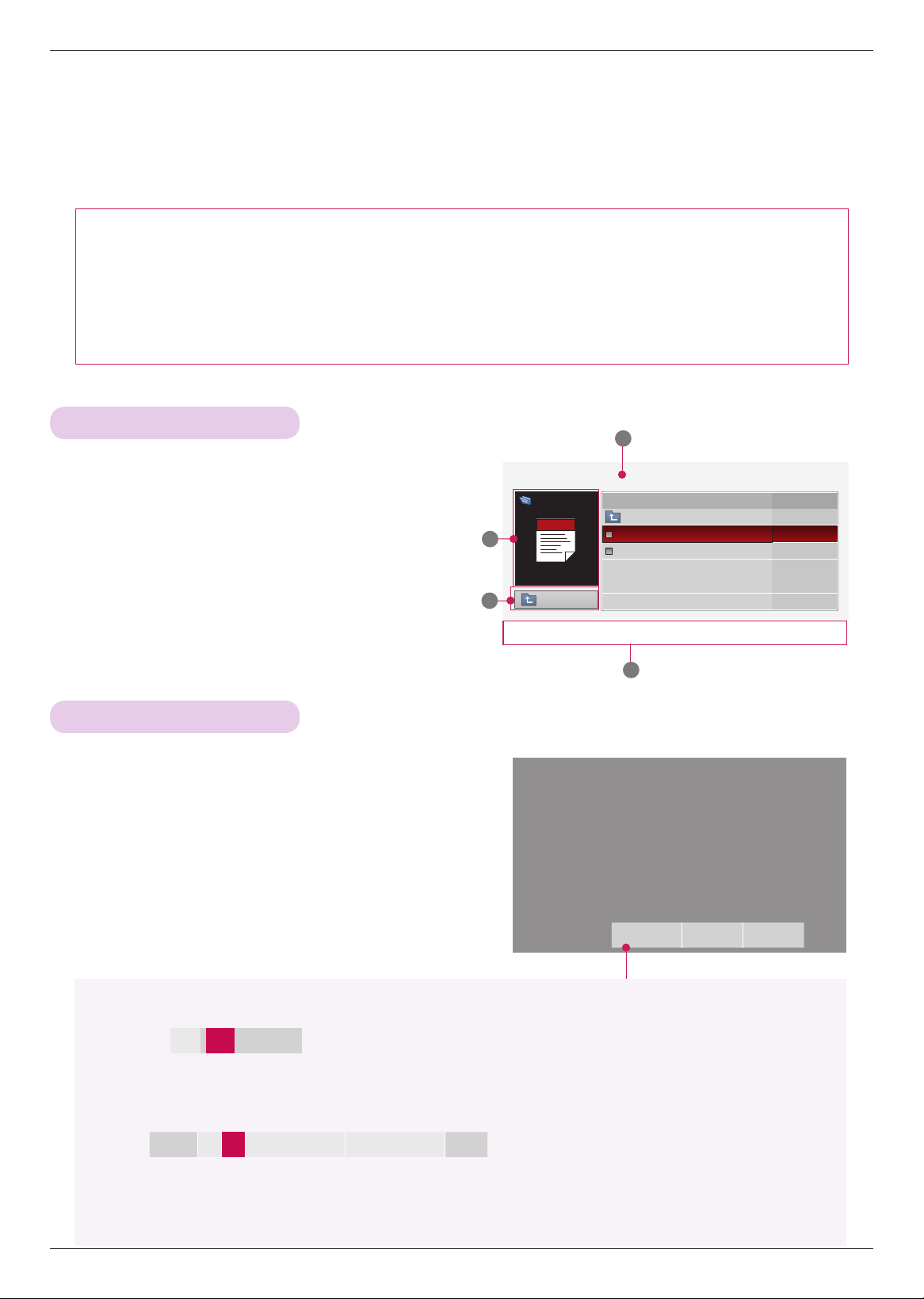
50
USB
FILE VIEWER
Screen Components
1 . Moves to upper level file
2 . Preview: Display the title/folder name of the file in
the selected folder
3 . Current page/Total pages
4 . Corresponding buttons on the remote control
Page 1/1
FILE VIEWER
Drive 1
Requiem 2 story.txt
Title Date
Up Folder
information.ppt
Requiem 2 story.txt
2
1
3
4
Up Folder
ꔂ
Navigation
ꔉ
PopUp Menu
ꘃ
Page Change
ꕉ
Exit
Supported File : XLS, DOC, PPT, TXT, XLSX, PPTX, DOCX, PDF
• Microsoft Office Version 97 / 2000 / 2002 / 2003 / 2007
• Adobe PDF Version 1.0 / 1.1 / 1.2 / 1.3 / 1.4
- File Viewer realigns the document, so it may look different than when viewed on a PC.
- For the documents that include images, the resolution may look lower during the realigning process.
- If the document volume is big or it has many pages, loading may take long time.
- Unsupported fonts may be replaced with other fonts.
View File
1 . Press the USB button. Then, move to FILE VIEWER
with the <, > buttons and press the ◉OK button.
2 . Press the
∧, ∨,
<, > move to a desired file and
press the ◉OK button.
Menu Go Page Zoom Hide
• Use Page CH ∧, ∨ button to move the previous or next page.
• Go Page: Move to a desired page.
1. Press the USB button. Move to Go Page with
<, >
buttons and press
∧
button.
2. Press the
∧, ∨, <, >
buttons select a desired page and press the ◉OK button.
• Zoom: Zoom in or zoom out.
1. Press the USB button. Move to Zoom with <
, >
buttons and press
∧
button.
2. Press the <
, >
buttons select a desired page and press the ◉OK button.
• Hide: Close the menu.
- To see the menu again on the full-sized screen, press MENU button to display.
0 3 /14 page
100 % - + horizontal array vertical array
◉OK
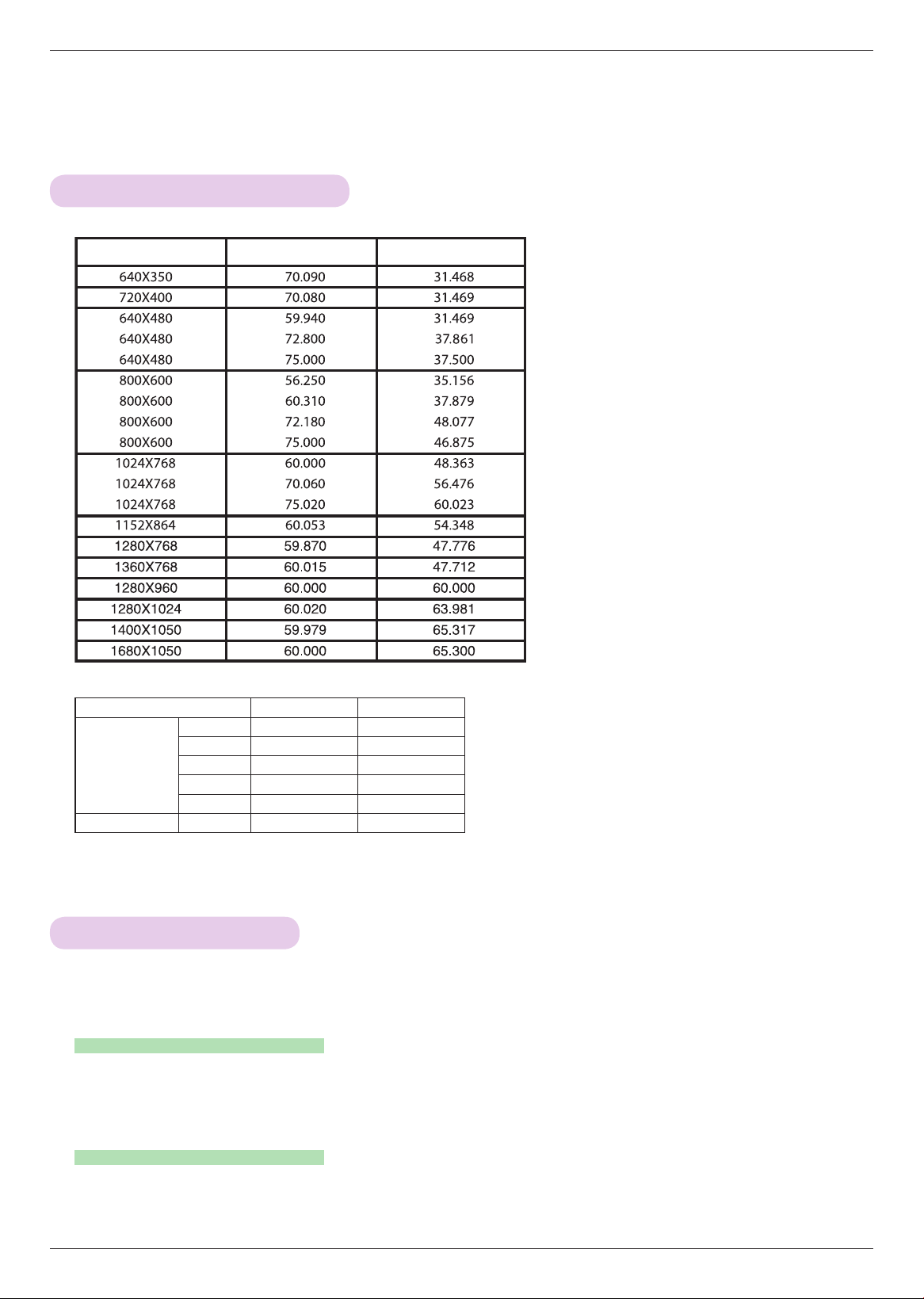
51
Information
Supported Monitor Display
* The following table lists the display formats supported by the projector.
* If the projector does not support the input signal,
“Invalid Format” message appears on the screen.
* The projector supports DDC1/2B type as Plug &
Play. (Auto recognition of PC monitor)
* PC synchronization signal types supported
:Separate type synchronization.
* To get the the best picture quality, adjust the PC
graphics card to 1024x768.
Format Vertical Freq.(Hz) Horizontal Freq.(kHz)
* Cable type
1- RGB to Component Cable
2- HDMI Cable
< DVD/DTV Input >
Information
Signal Component-*1 HDMI-*2
NTSC (60 Hz)
480i O X
480p O O
720p O O
1080i O O
1080p O O
24 / 30 Hz 1080p
O O
Cleaning the lens
Use an air spray or cleaning cloth for product exterior, provided with the product, to lightly clean the product. Please use a
recommended air spray or lens cleaning product.To clean lens, small amount of cleaning agent on a swab or a soft cloth
and rub on the lens. Please be aware that liquid may flow pass through the lens if the product is sprayed on lens directly.
Cleaning the Projector Case
To clean the projector case, first unplug the power cable. To remove dirt or dust, wipe the casing with polish cloth provid-
ed. When you want to remove the dust or stain on the lens, use the cloth for product exterior, provided with the product.
Do not use alcohol, benzene, thinners or other chemical detergents as these can cause the casing to be warped or discol-
ored.
* The projector needs little maintenance. You should keep the lens clean because any dirt or stains may appear on the
screen. If any parts need to be replaced, contact your dealer. When cleaning any part of the projector, always turn the
power off and unplug the projector.
Maintenance
52
Information
MODEL
HX350T (HX350T-JE)
Resolution 1024 (Horizontal) x 768 (Vertical) pixel
Horizontal / Vertical Ratio 4:3 (horizontal:vertical)
Panel size (mm) 13.97
Projection distance
(Screen size)
0.55 m - 2.75 m (50.8 cm - 254.0 cm)
Projection Offset 110 %
Remote control distance 6 m
Video compatibility NTSC
AC-DC Adapter LG, SD-B191A, 19.5 V , 5.64 A
Audio Output 1 W + 1 W
Television System NTSC-M, ATSC, 64 & 256 QAM
Program Coverage VHF 2 - 13, UHF 14 - 69, CATV 1 - 135, DTV 2 - 69, CADTV 1 - 135
External Antenna Impedance 75 Ω
Height (mm) 57.5 (without foot), 61.0 (with foot)
Width (mm) 160
Length (mm) 134.5
Weight (g) 790
USB Device 5 V, 0.5 A (max)
Operating Condition
Temperature
In operation : 0°C - 40°C (presentation mode: 0°C - 37°C)
In storage and transit : -20°C - 60°C
Humidity
In operation : 0 % - 80% relative humidity
Not in operation : 0 % - 85% relative humidity
Specifications

53
Information
Open Source Software Notice
The following GPL executables and LGPL, MPL libraries used in this product are subject to the
GPL2.0/LGPL2.1/MPL1.1 License Agreements:
GPL EXECUTABLES:
Linux kernel 2.6, busybox, lzo, u-boot
LGPL LIBRARIES:
uClibc
MPL LIBRARIES:
nanox
LG Electronics offers to provide source code to you on CD-ROM for a charge covering the cost of
performing such distribution, such as the cost of media, shipping and handling upon e-mail request
to LG Electronics at: [email protected]
This offer is valid for a period of three (3) years from the date of the distribution of this product by
LG Electronics.
You can obtain a copy of the GPL, LGPL and MPL licenses on the CD-ROM provided with this
product.
Also you can obtain the translation of GPL, LGPL licenses from
http://www.gnu.org/licenses/old-licenses/gpl-2.0-translations.html,
http://www.gnu.org/licenses/old-licenses/lgpl-2.1-translations.html.
This product includes
► cmap: copyright © 1990-1998 Adobe Systems Incorporated.
► GIF LZW Decoder: copyright © 1987, by Steven A. Bennett
► md5: copyright © 1991-2, RSA Data Security, Inc
► jpeg: Independent JPEG Group, copyright © 1991 – 1998, Thomas G. Lane.
► libpng: copyright © 2004 Glenn Randers-Pehrson
► OSSP str - String Handling:
- copyright © 1999-2005 Ralf S. Engelschall <rs[email protected]om>
- copyright © 1999-2005 The OSSP Project http://www.ossp.org/
► random number generator : copyright © 1990, 1993 The Regents of the University of California.
► Standard C functions
- copyright © 1998 Softweyr LLC.
- copyright © 1988, 1993 The Regents of the University of California.
► tinyxml: copyright © 2000-2006 Lee Thomason
► zlib: copyright © 1995-2002 Jean-loup Gailly and Mark Adler.
All rights reserved.
Permission is hereby granted, free of charge, to any person obtaining a copy of this software and
associated documentation files (the "Software"), to deal in the Software without restriction, including
without limitation the rights to use, copy, modify, merge, publish, distribute, sublicense, and/or sell
copies of the Software, and to permit persons to whom the Software is furnished to do so, subject
to the following conditions:
THE SOFTWARE IS PROVIDED "AS IS", WITHOUT WARRANTY OF ANY KIND, EXPRESS OR
IMPLIED, INCLUDING BUT NOT LIMITED TO THE WARRANTIES OF MERCHANTABILITY, FITNESS
FOR A PARTICULAR PURPOSE AND NONINFRINGEMENT. IN NO EVENT SHALL THE AUTHORS
OR COPYRIGHT HOLDERS BE LIABLE FOR ANY CLAIM, DAMAGES OR OTHER LIABILITY,
WHETHER IN AN ACTION OF CONTRACT, TORT OR OTHERWISE, ARISING FROM, OUT OF OR
IN CONNECTION WITH THE SOFTWARE OR THE USE OR OTHER DEALINGS IN THE SOFTWARE.

The model and serial number of the projector is
located on the back or one side of the projector.
Record it below should you ever need service.
MODEL
SERIAL
LG Customer Information Center
1-800-243-
0000
1-888-865-3026
1-888-542-2623
USA, Consumer User
USA, Commercial User
CANADA