
Safety and Troubleshooting Information
Safety Precautions and Maintenance • Troubleshooting • Regulatory Information
Safety precautions and maintenance
Read and follow these instructions when connecting and using your computer monitor:
l
Disconnect the monitor from the power supply if the monitor is not to be used for an
extended period of time.
l
Do not attempt to remove the back cover, as you will be exposed to a shock hazard. The
back cover should only be removed by qualified service personnel.
l
Do not place objects on top of the monitor cabinet, objects could fall into vents or cover
them and prevent proper cooling of the monitor's electronic devices.
l
To avoid the risk of shock or permanent damage to the set, do not expose the monitor to
rain or excessive moisture.
l Do not use alcohol or ammonia-based liquid to clean the monitor. If necessary, clean with
a slightly damp cloth. Disconnect the monitor from the power supply before cleaning.
l When positioning the monitor, make sure the power plug and outlet are easily accessible.
Consult a service technician if the monitor does not operate normally when operating instructions
of this manual are followed.
RETURN TO TOP OF THE PAGE
WARNING: Use of controls, adjustments, or procedures other
than those specified in this documentation may result in
exposure to shock, electrical hazards, and/or mechanical
hazards.

About This Electronic User's Manual
About This Guide • Other Documents You May Need • Notational Descriptions
About This Guide
This electronic user's guide is intended for anyone who uses the Philips Color Monitor. It
describes the monitor's features, setup, operation and all other information, which is the same
exact information described in our printed version.
The sections are as follows:
l
Safety and Troubleshooting Information provides tips and solutions for common problems,
and other related information you may need.
l About This Electronic User's Manual gives overview of what information are included as
well as notation icon descriptions and other documentation you can refer to.
l Product Information gives an overview of the monitor's features and as well as the
technical specifications for this monitor.
l
Installing Your Monitor describes the initial setup process and gives an overview of how to
use the monitor.
l
On Screen Display provides information on adjusting the settings on your monitor.
l Customer Care and Warranty is a list of worldwide Philips consumer information centers
along with the help desk phone numbers and information on the applicable warranty of
your product..
l
Glossary provides more information for technical terms.
l
Download allows users to install the entire manual on their hard drive.
l Frequently Asked Questions provides answers to commonly asked questions.
RETURN TO TOP OF THE PAGE
Other Documents You May Need
In addition to this
Electronic User's Guide
, you may need to refer to the following documentation:
l
Philips Color Monitor Quick Start Guide
which summarizes the steps for setting up the
monitor. This is included with this product.
RETURN TO TOP OF THE PAGE
Notational Descriptions

The following subsections describe notational conventions used in this document.
Notes, Cautions, and Warnings
Throughout this guide, blocks of text may be accompanied by an icon and printed in bold type or
in italic type. These blocks are notes, cautions, and warnings, and they are used as follows:
Some warnings may appear in alternate formats and may be unaccompanied by an icon. In such
cases, the specific presentation of the warning is mandated by regulatory authority.
RETURN TO TOP OF THE PAGE
©2004 Koninklijke Philips Electronics N.V.
All rights reserved. Reproduction, copying, usage, modifying, hiring, renting, public performance, transmission and/or
broadcasting in whole or in part is prohibited without written consent of Philips Electronics N.V.
NOTE: This icon indicates important information and tips that help you make
better use of your computer system.
CAUTION: This icon indicates information that tells you how to avoid either
potential damage to hardware or loss of data.
WARNING: This icon indicates the potential for bodily harm and tells you
how to avoid the problem.
SMART HELP: This icon indicates helpful information when adjusting the On
Screen Display of your monitor.

Product Information
Product Features • Technical Specifications • Automatic Power Saving •
Physical Specification • Pin Assignment • Product Views
Product Features
Model Regulation Color
105S61 MPRII Grey
105S68 TUV-Bauart Grey
105S69 TUV-Bauart Grey
105S6
z 15" -inch (14.0" VIS) color monitor with excellent front of screen performance
z Autoscan covers horizontal frequencies up to 54kHz offering a maximum resolution of
1024 x 768
z Flat square high contrast CRT with high-resolution 0.28 mm dot pitch
z FCC, CE (in selected countries only) and ISO9241, ISO14001 certified
RETURN TO TOP OF THE PAGE
Technical Specifications*
CRT
• Size and deflection 15 inch / 38 cm ; 90° deflection angle
• Dot pitch 0.28 mm
• Tube type 29mm neck. non-glare screen
• Phosphor P22
SCANNING
• Horizontal scanning 30 - 54KHz
• Vertical scanning 50 - 120 Hz
VIDEO
• Video dot rate 72 MHz
• Input impedance
- Video 75 ohm
- Sync 4.7 kOhm
• Input signal levels 0.7 Vpp
Automatic Power Saving
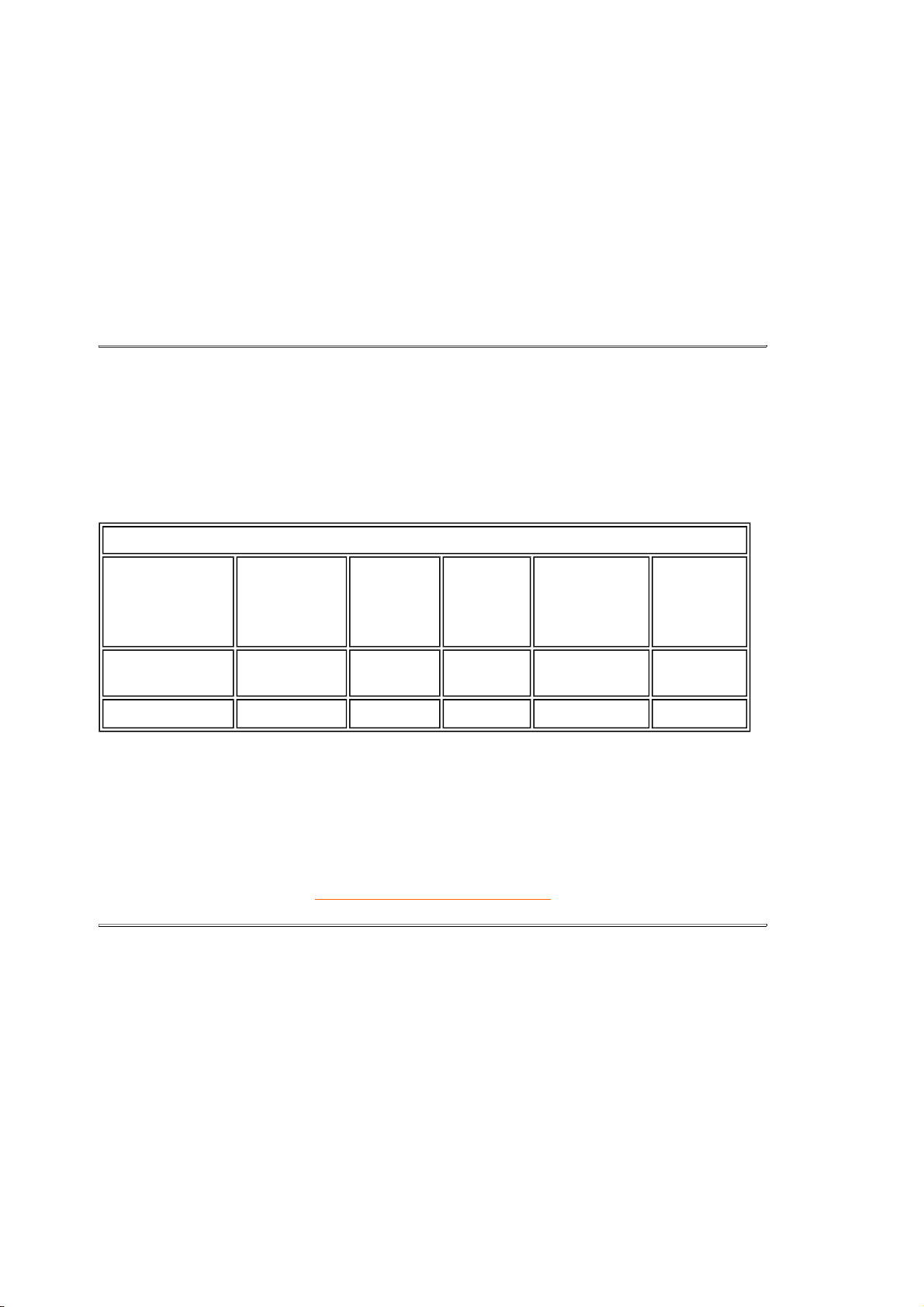
If you have VESA's DPMS compliance display card or software installed in your PC, the monitor
can automatically reduce its power consumption when not in use. And if an input from a
keyboard, mouse or other input device is detected, the monitor will automatically "wake up". The
following table shows the power consumption and signaling of this automatic power saving
features:
RETURN TO TOP OF THE PAGE
Physical Specifications
• Sync input signal Separate sync
• Sync polarities Positive and negative
WHITE COLOR TEMPERATURE
Chromaticity CIE coordinates:
• at 9300 degrees K x = 0.283 / y = 0.297
• at 6500 degrees K x = 0.313 / y = 0.329
Power Management Definition
VESA's
Mode
Video H-sync V-sync
Power
Used
LED
color
ON Active Yes Yes
Typical
≤
62W
Green
OFF Blanked No No
≤
5W
orange
This monitor is
ENERGY STAR
®
compliant. As an ENERGY STAR
®
Partner, PHILIPS
has determined that this product meets the
ENERGY STAR
®
guidelines for energy
efficiency.
• Dimensions
14.2" x 14.3" x 15.3" / 360 x 362 x 387 mm (including base)
14.2" x 12.7" x 15.3" / 360 x 321 x 387 mm (excluding
base)
• Weight 11.5 kg
• Power supply 90 - 264 VAC, 50/60Hz
* These information are subject to change without notice.
RETURN TO TOP OF THE PAGE
Pin Assignment
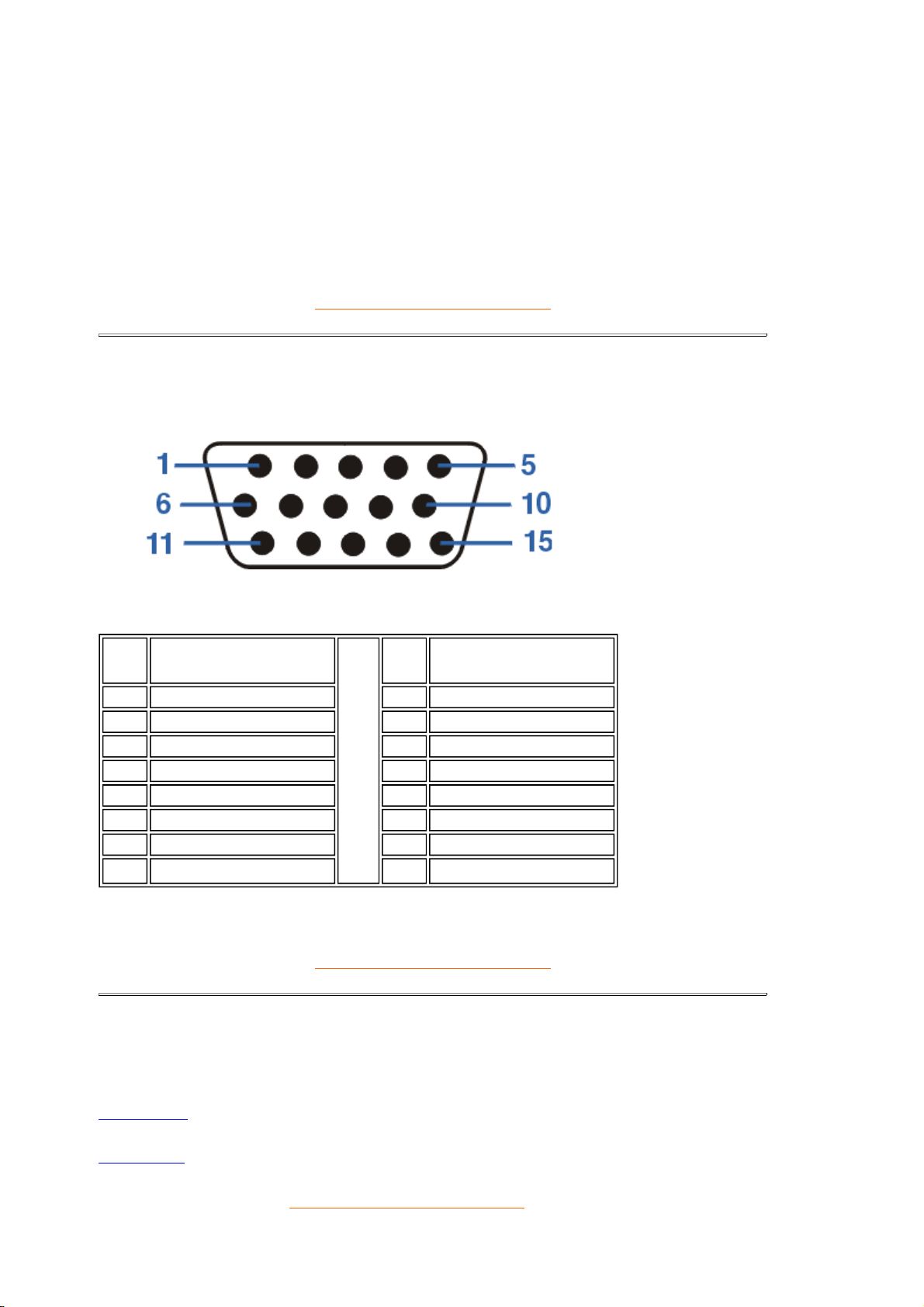
The 15-pin D-sub connector (male) of the signal cable (IBM systems):
RETURN TO TOP OF THE PAGE
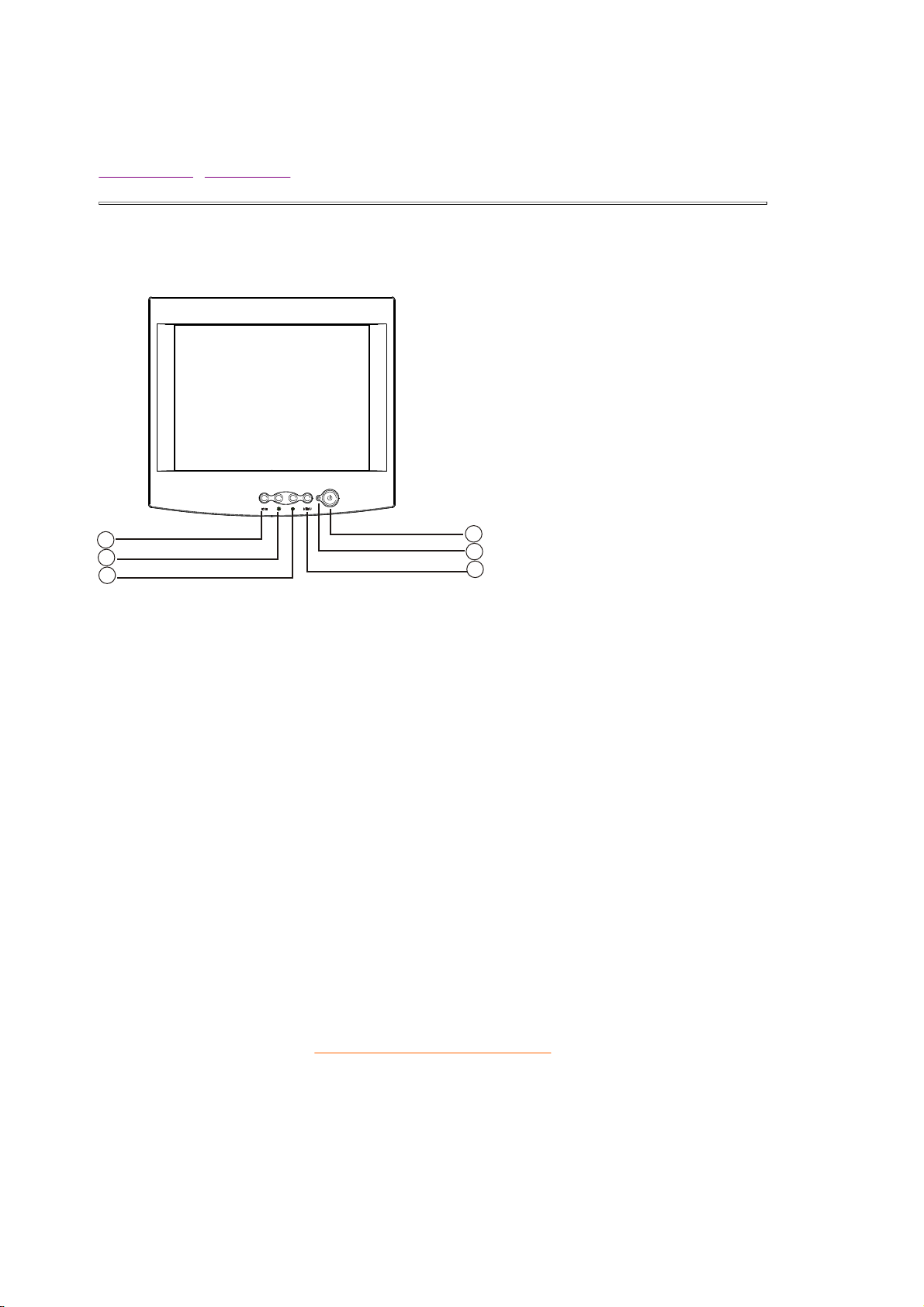
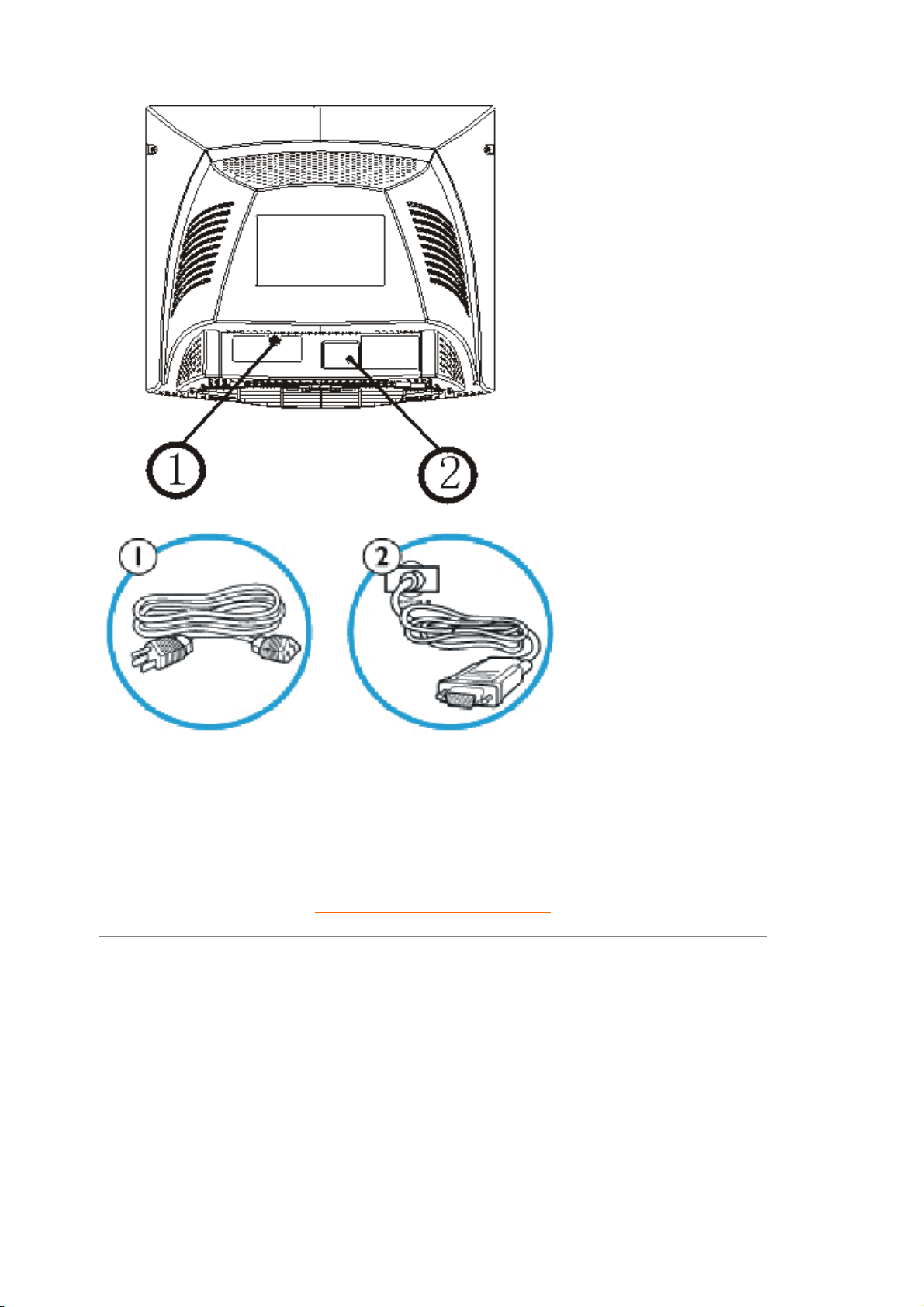
Views
Follow the links to see various views of the monitor and its components.
Front View
Rear View
• Temperature (operating) 0° to 40°C / 32° to 104°F
• Temperature (storage) -25° to +65°C / -13° to +149°F
• Relative humidity (storage) 5% to 95%
Pin
No.
Assignment
Pin
No.
Assignment
1 Red 9 NC
2 Green 10 Ground
3 Blue 11 Monitor Ground
4 Ground 12 DDC-Serial Data
5 Ground 13 H. Sync
6 R-Ground 14 V- Sync / * VCLK
7 G-Ground 15 DDC-Serial clock
8 B-Ground *
For DDC
RETURN TO TOP OF THE PAGE
On-Screen Display
Description of the On-Screen Display • The OSD Tree • The OSD Controls
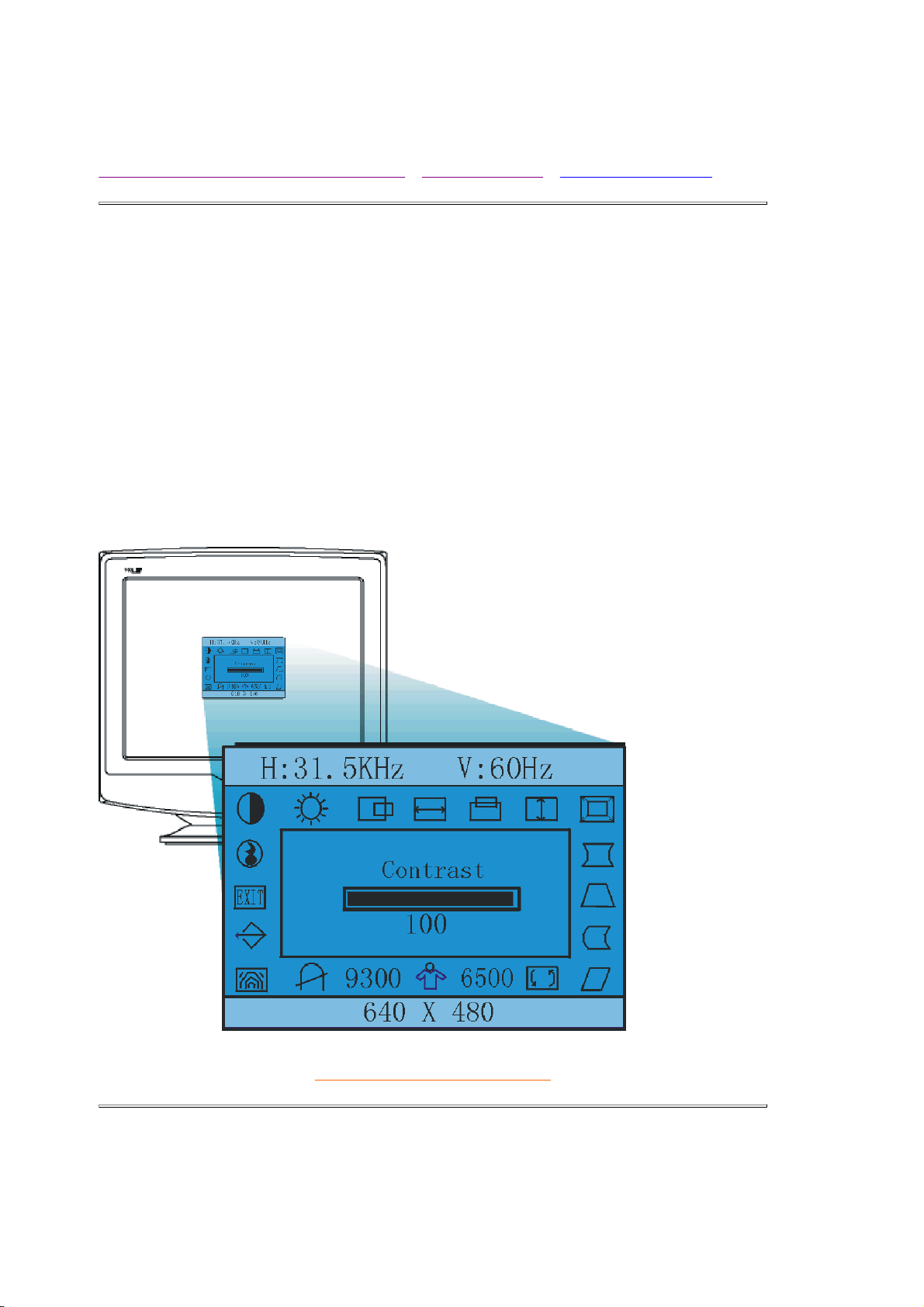
Description of the On Screen Display
What is the On-Screen Display?
This is a feature in all Philips monitors which allows an end-user to adjust screen performance of
monitors directly through an on-screen instruction window. The user interface provides user-
friendliness and ease-of-use when operating the monitor.
Basic and simple instruction on the control keys.
On the front controls of your monitor, once you press the MENU
button, the On Screen Display
(OSD) Main Controls window will pop up and you can now start making adjustments to your
monitor's various features. Use the Left or Right to make your adjustments within.
RETURN TO TOP OF THE PAGE
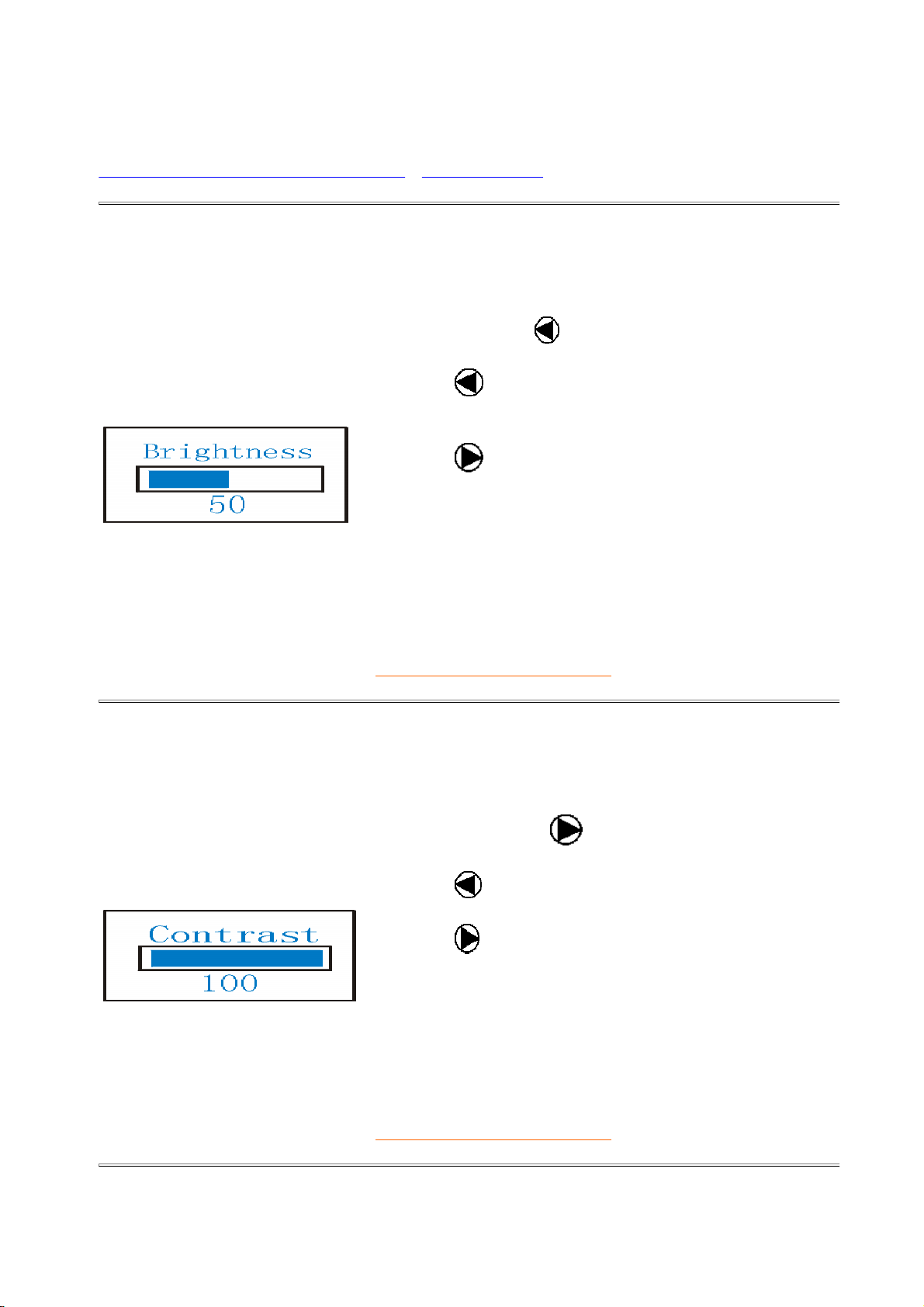
The OSD Tree
Below is an overall view of the structure of the On-Screen Display. You can use this as reference
when you want to later on work your way around the different adjustments.

The OSD Controls
Description of the On-Screen Display • The OSD Tree
Brightness:
Brightness is the overall intensity of the light coming from the screen. A 50% brightness is
recommended. To adjust your screen's brightness, follow the steps below.
RETURN TO TOP OF THE PAGE
Contrast:
Contrast is the difference between the light and dark areas on the screen. A 100% contrast is
recommended. To adjust your screen's contrast, follow the steps below.
RETURN TO TOP OF THE PAGE
How to Adjust a Setting
With the menu off, press , then press
to decrease
brightness
to increase brightness
When the brightness is adjusted to the level desired,
press the Exit Key.
The BRIGHTNESS menu will disappear with the
new adjustment saved.
With the menu off, press then press
to decrease contrast
to increase contrast
When the contrast is adjusted to the level desired, press the Exit
Key.
The CONTRAST window will disappear with the new adjustm
e
saved.
1. Press the Menu Key to make the OSD window appear.
2. Press the Up or Down Key to select the desired function.
3. Press the Menu Key again to select the function that you want to adjust.
4. Press the Up or Down Key to change the settings of the current function.
5. When the OSD window is active, it shows the input signal timing. The "H" stands for the horizo
n
frequency and "V" for the vertical frequency.
6. To exit and save, either press the Exit Key, or leave the monitor alone for 10 seconds. If you wa
n
adjust any other function, repeat steps 2-4.
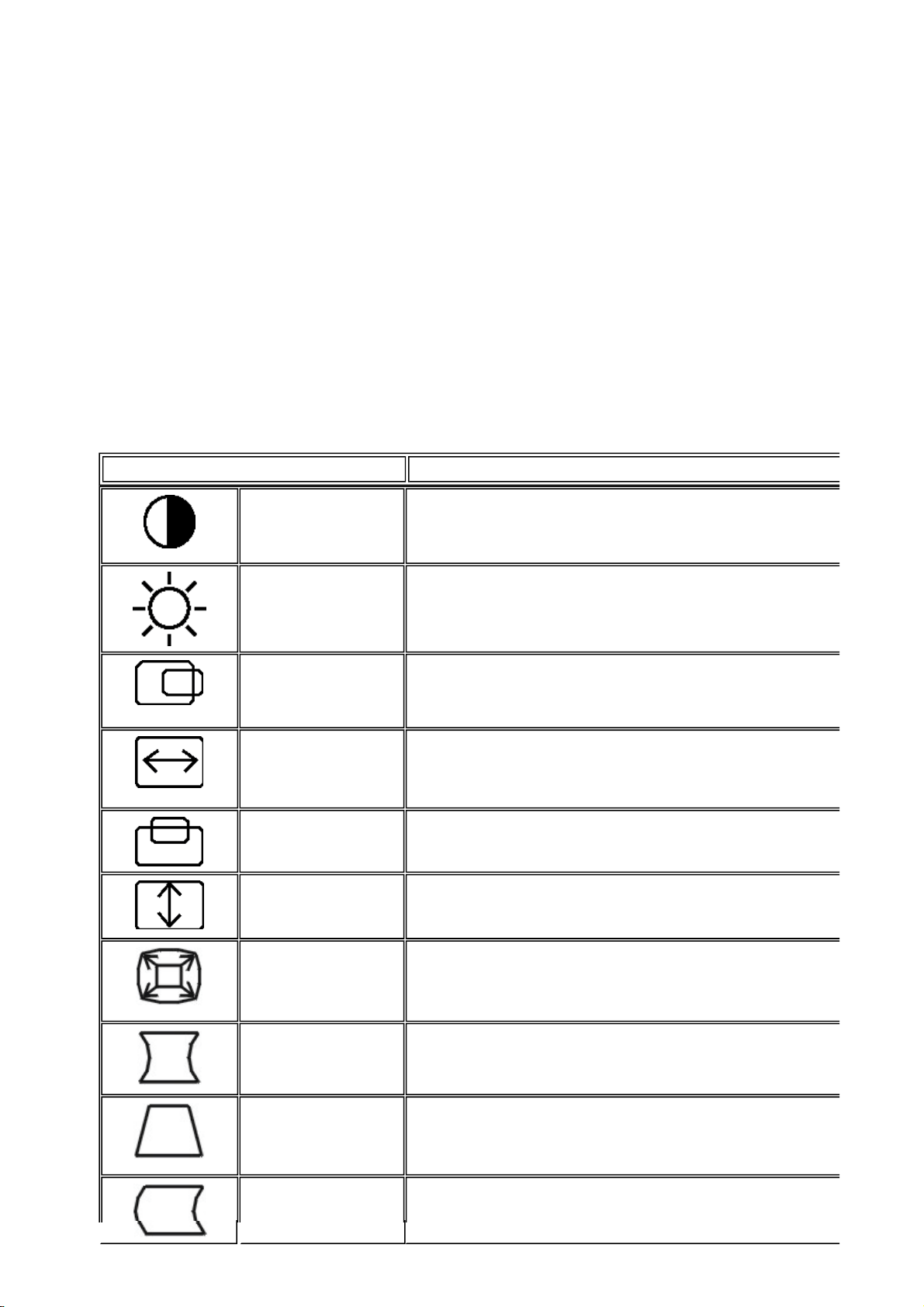
Adjusting the Picture
Icon Adjustment
Contrast Adjusts the contrast between the foreground and
background of the screen image.
Brightness Adjusts the background brightness of the screen
image.
Horizontal
position
Moves the screen image to the right or left.
Horizontal size Adjusts screen width.
Vertical position Moves screen image up or down.
Vertical size Adjusts screen height.
ZOOM Adjust the picture's horizontal and vertical size
simultaneously.
Pincushion Straightens the left and right vertical edges of the
display.
Trapezoid Adjusts the width of the top and bottom of the
screen.
Pin-Balance Adjust to compensate the pincushion unbalance.
RETURN TO TOP OF THE PAGE
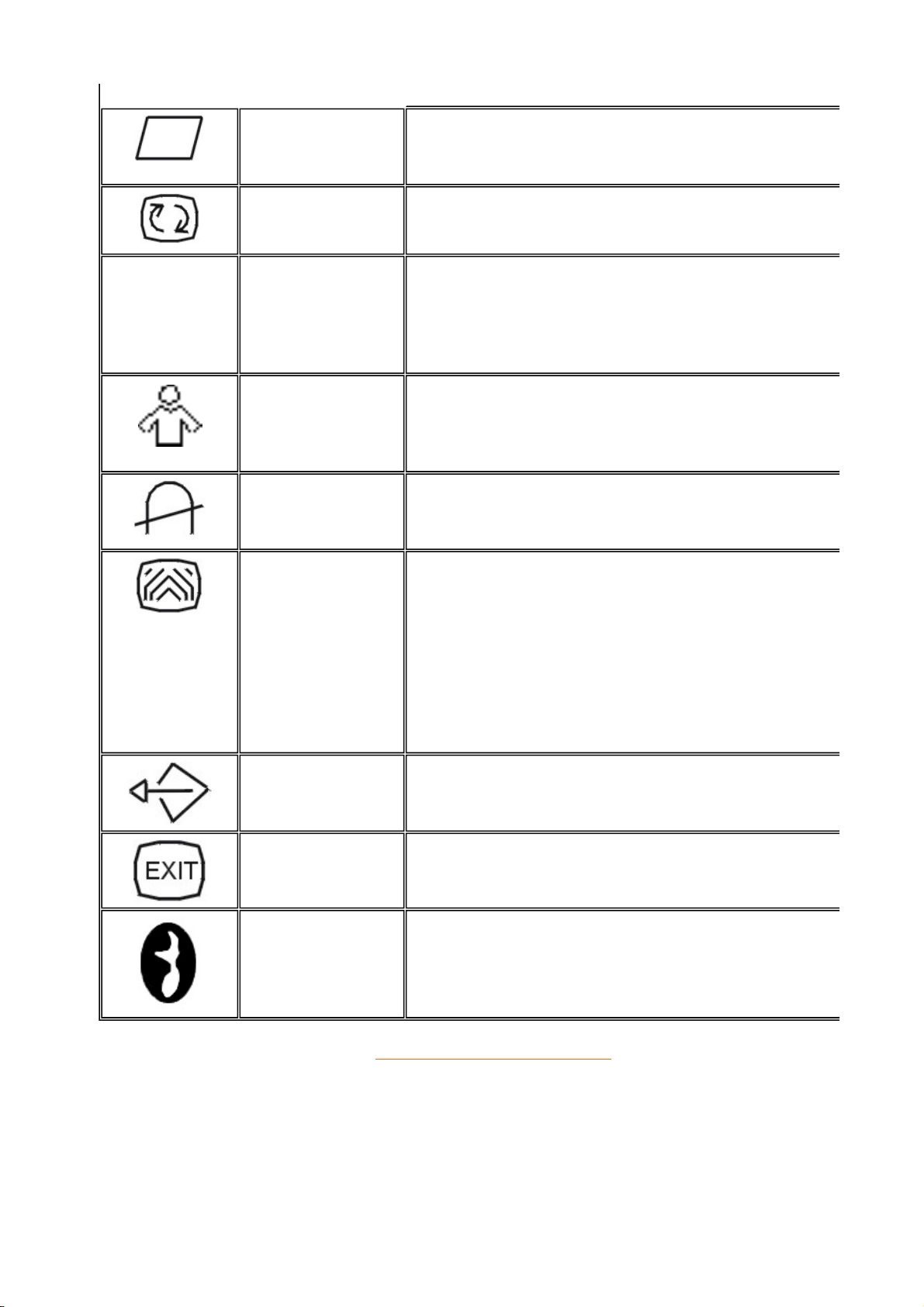
Parallelogram Adjusts the viewing area when it is tilted left or
right.
Rotation Adjust the picture tilt to horizontal position.
6500°K/9300°K
(Color
Temperature)
The color temperature for 6500°K is x=0.313,
y=0.329 and 9300°K is x=0.283, y=0.297. It
presents two different color sets on the screen.
You can select 9300°K or 6500°K by pressing the
Shuttle Knob .
User Color
(Red/Blue)
If the 9300°K normal white or 6500°K warmer
white do not satisfy your desire, properly adjust
R.B GAIN controls to obtain your optimum
whiteness level.
Degauss If color impurity occurs when moving or swiveling
the monitor, press the Shuttle Knob and degauss
to fix the picture condition.
Moiré Reduce Moiré is the result of interference between the
phosphor layout and the video signal. In some
cases, you may find the moiré very noticeable.
Press the Shuttle Knob to enter in the moiré
reduce setting. Please adjust the level to the
optimum condition.
Note: Too high of a setting will cause the picture to
shake.
Recall Press RECALL to restore the monitor to factory
settings.
Exit Close OSD window.
SELECT
LANGUAGE
Select the language you like.

Customer Care & Warranty
PLEASE SELECT YOUR COUNTRY/AREA TO READ THE WARRANTY
COVERED:
WESTERN EUROPE: Austria • Belgium • Cyprus • Denmark • France •
Germany • Greece • Finland • Ireland • Italy • Luxembourg • the Netherlands •
Norway • Portugal • Sweden • Switzerland • Spain • United Kingdom
EASTERN EUROPE: Czech Republic • Hungary • Poland • Russia • Turkey •
Bulgaria
LATIN AMERICA: Antilles • Argentina • Brazil • Chile • Colombia • Mexico •
Paraguay • Peru • Uruguay • Venezuela
PACIFIC: Australia • New Zealand
ASIA: Bangladesh • China • Hong Kong • India • Indonesia • Japan • Korea •
Malaysia • Pakistan • Philippines • Singapore • Taiwan • Thailand
AFRICA: Morocco • South Africa
MIDDLE EAST: Dubai • Egypt
NORTH AMERICA: USA & Canada

Frequently Asked Questions
1. What does the "Designed for Windows" logo signify?
The "Designed for Windows" logo means your Philips monitor fulfills the requirements and
recommendations of the PC9x (97, 98, or 99) System Design Guide and passes stringent WHQL
tests.
2
.
What is USB?
Think of USB as a smart plug for PC peripherals. USB automatically determines resources (like
driver software and bus bandwidth) required by peripherals. USB makes necessary resources
available without user intervention. Its three main benefits are:
l
USB eliminates "Case angst," the fear of removing the computer case to install circuit
board cards - that often require adjustment of complicated IRQ settings -- for add-on
peripherals.
l USB does away with "port gridlock." Without USB, PCs are normally limited to one printer,
two Com port devices (usually a mouse and modem), one Enhanced Parallel Port add-on
(scanner or video camera, for example) and a joystick. More and more peripherals for
multimedia computers come on the market every day. With USB, up to 127 devices can run
simultaneously on a computer.
l USB permits "hot plug-in." No need to shut down, plug in, reboot and run set up to install
peripherals. No need to go through the reverse process to unplug a device. Bottom line:
USB transforms today's "Plug-and-Pray" into true Plug-and-Play!
3. What is a USB hub?
Think of USB hub as a extension of USB ports. Normally, the PC provides only one or two USB
ports. To connect additional USB devices, you need a USB hub.
4. What is TCO?
TCO is a Swedish abbreviation for the Swedish Confederation of Professional Employees.
5. What is MPR?
MPR is a Swedish abbreviation for the Swedish National Board of Measurement and Testing.
6. What are the differences between MPRII, TCO92, TCO95, TCO99 and TCO'03?
In the general hierarchy of standards, TCO'03/TCO99 is the highest level of certification. Next is
TCO95, which is "better" than TCO92, which, in turn, is better than MPRII. Below, we compare the

standards in each category.
-TCO 92 Phase out: June 30, 2000
-TCO 95 Will be end December 31, 2003
Emissions:
MPRII: Set low emission rules for visual displays.
TCO92: Imposed more stringent standards than MPRII.
TCO95: Further toughened TCO92 rules.
TCO99: Delineated even more severe standards and test procedures than TCO95.
TCO'03: Same as TCO99 standard + Testing uncertainty.
Safety:
MPRII: No requirement.
TCO92/95/99/03: All set requirements.
Energy Saving:
MPRII: No requirement.
TCO92: Standby mode < 30W, Off mode < 8W
TCO95: Standby mode < 30W, Off mode < 8W
TCO99: Standby mode < 15W, Off mode < 5W
TCO'03:Standby mode < 15W, Off mode < 5W
Visual Ergonomics:
MPRII: No requirement.
TCO92: No requirement.
TCO95: Set ergonomic rules including minimum contrast level, flicker and jitter.
TCO99: Tightened TCO95 rules.
TCO'03: Tighten TCO99 rule for CRT and new requirement of screen color for TFT LCD Monitors.
Ecology:
MPRII: No requirement.
TCO92: No requirement.
TCO95: Set general ecological standards including recycling preparation, environmental policy
and environmental certification.
TCO99: Further tightened TCO95 norms.
TCO'03:Require the recycling information to users.
7. How do I enable the energy saving function?
Go to 'My Computer' and select 'Control Panel' followed by 'Monitor Control.' Select "All default
selection' and choose your Philips monitor model from the default driver list. Plug and Play will
automatically enable the EPA tick box for you. In DOS or Windows 3.1, you must first make sure
your PC supports power saving.

8. What is refresh rate?
"Refresh rate" describes the number of times an entire screen is vertically scanned each second.
In other words: If a monitor's refresh rate is 85 Hz, its screen is refreshed - or vertically scanned -
85 times per second. A higher the refresh rate means better image stability and less flicker. A high
refresh rate helps users who work long hours in front of a monitor avoid eye fatigue and stress. To
change the refresh rate, go into "Start/Settings / Control Pannel / Display / Properties /
Setting/Advance/Adaptor" Windows settings of the computer, the monitor will automatically adjust
itself to the video card.
9. Why does the picture on the screen appear to flicker?
A low refresh rate or electrical interference typically causes flickering in the picture. Possible
solutions include the following:
l
Verify that the proper drivers are installed for your video card
l
Make sure that all electrical devices (such as mobile phones) are at least 1m from the
monitor
l Place the monitor in another physical location away from electrical interference
l Adjust the refresh rate to 75hz or higher.
10. How do I adjust my monitor's resolution?
Available resolutions are determined by the capabilities of your video card and graphic driver.
Under Windows '95, you may select the desired available resolution through the 'Display
properties/Settings' menu.
11. How can I adjust the size, position and rotation of my screen?
Depending on the model you own, you can use your CustoMax Software, On Screen Display
(OSD) or control knobs located on the monitor.
12. What if I get lost when making monitor adjustments?

Simply press MENU button then select "Recall" to restore all settings.
1 3. My screen shows NO SIGNAL INPUT , how can I get rid of this?
Check the following for possible solutions:
l
Bent pins on the video cable
l Make sure the computer is turned on
l
Ensure the VGA Cable is properly connected
l
Ensure the BNC/D-Sub connector on the rear of the monitor is in the correct position,
newer models have this option in the On Screen Display under Input Signal Selection.
l
Video card may be not a VESA standard (try the monitor with another computer)
14. Why does my monitor display "Out of Range"?
The video card installed in your computer may be too high for the monitor 's specifications. Please
contact your computer manufacturer for details on how to lower resolution for your operating
system.
15. What is Moire? Why does my monitor have this wavy phenomenon?
Moire is a natural effect or phenomenon of CRT that has the appearance of a wavy pattern, which
is repetitive and superimposed on the screen as ripple images. These are a few suggestions to
help reduce or minimize the effects:
l Some monitors have a Moire cancellation feature, activate it to the on position or adjust the
Moire cancellation function via the OSD on the monitor.
l Change resolution to the recommended standard for the specific monitor size.
l
Change Window viewing pattern/scheme to a pattern where the Moire is less visible.
l Change horizontal and vertical size to optimize the reduction of the Moire effect.
16. My monitor appears to be missing one or more colors. How do I correct
this?
l
If the OSD menu is also missing a color, please contact service for details
l Set color temperature to 9300 color coordination
l Check the video cable for any bent pins
l Video card could be defective (try the monitor with another computer).
17. When I degauss my monitor, it makes a loud noise. Is this normal?

Yes, when degaussing your monitor via the OSD, it is normal for the monitor to make a relatively
loud noise. Please be aware that many models will not degauss more than once within any given
time period (up to 10 minutes). This is due to the unit having a temperature sensitive resistor.
While the unit is degaussing, the resistor increases in value with heat and once it reaches a
certain temperature, the resistance will rise and prevent voltage from reaching the degaussing
coil. This is what stops the degausser, and this device's resistance will decrease as it cools back
off, enabling the degauss function to operate again. This is an intentional design and is an
industry standard, not just for Philips monitors. Please be aware that not all models in the Philips
range has this manual degauss function. Some models are built with an auto degauss feature
which automatically degausses the monitor when it is switched on.
18. How do I adjust the picture on the screen?
Please perform the following to correct the picture image:
l Reset your monitor via the OSD menu
l Adjust the Horz (width) and/or Vert size (height) in the OSD
l
Change monitor timing to work at the recommended resolution
19. The edge of the picture on the screen appears to be distorted. How can I correct this?
Please perform the following to correct the picture image:
l A magnetic or electrical interference typically causes poor geometry in the picture. Place
the monitor in a different physical location
l Reset the monitor to the factory preset via the OSD menu
l
Access the Geometry Menu in the OSD of the Monitor and perform the necessary
adjustments
l
Change the monitor timing to the recommended resolution
20. The picture appears too dim. How can I correct this?
Adjust Brightness and/or Contrast via the monitor 's OSD. Some models have a Video Input
Select
under Advanced Controls in the monitor 's OSD. Most computers require it to be set at 0.7V.

Please review the following for possible solutions:
l
If the OSD menu is also dim, please contact service for repair
l Reset the monitor via the OSD menu
l
Change the color temperature settings to 9300 color coordination via the OSD menu
l
Set the Contrast to maximum level (100) and Brightness to middle level (50)
Video card could be defective (try the monitor with another computer)
21. How can I increase the color display of my monitor?
The amount of video memory your video card holds determines the amount of colors that can be
displayed on your computer screen. To get the most out of your video card, you will need to either
install the latest drivers onto your computer or upgrade the video cards memory. Please check
with your computer or video card manufacturer for further details.
22. Why is there no picture on my monitor?
l Check the wall socket for power. Verify that there is power by connecting another product.
l
Ensure the power cable is correctly attached to both the wall socket and the monitor.
l
Check that the power button is switched on.
l
Unplug the monitor for approx. 1 minute and plug it in again. Switch the monitor back on.
23. Why is there no picture on my monitor even though the power LED is yellow/amber or
flashing green?
l Reboot your computer while holding the Ctrl key on your computer. If you see any picture
during the boot procedure, please verify the settings of your video card (for Windows go to
Control Panel and select Display).
l
Check that the video cable is not damaged, bent or that any of the pins in the connector are
damaged (please be aware that some VGA connectors have one missing pin). If damaged,
replace with a new cable.
l
Check that the cable is attached correctly to the computer.
l
Press any key on the keyboard to wake-up the computer from power saving mode.
24. Why is there no picture on my monitor even though the power LED is green?
l
Verify the Contrast and Brightness setting of the monitor.
25. Why does the picture disappear after I press the on/off button quickly?
This is a unique Philips feature designed to preserve the life of your monitor. Please allow 5
seconds between powering off and on your monitor, your picture will then be restored.
Glossary
A B C D E F G H I J K L M N O P Q R S T V W X Y Z
A
Autoscan
A microprocessor-based feature of Philips Brilliance monitors is able to detect automatically
horizontal and vertical frequencies of input signals with those of the installed video card. An
autoscan monitor can thus operate with a wide range of video cards. MultiSync, a registered
trademark of NEC, provides a similar function.
RETURN TO TOP OF THE PAGE
B
Balanced pincushion
See Geometric distortion
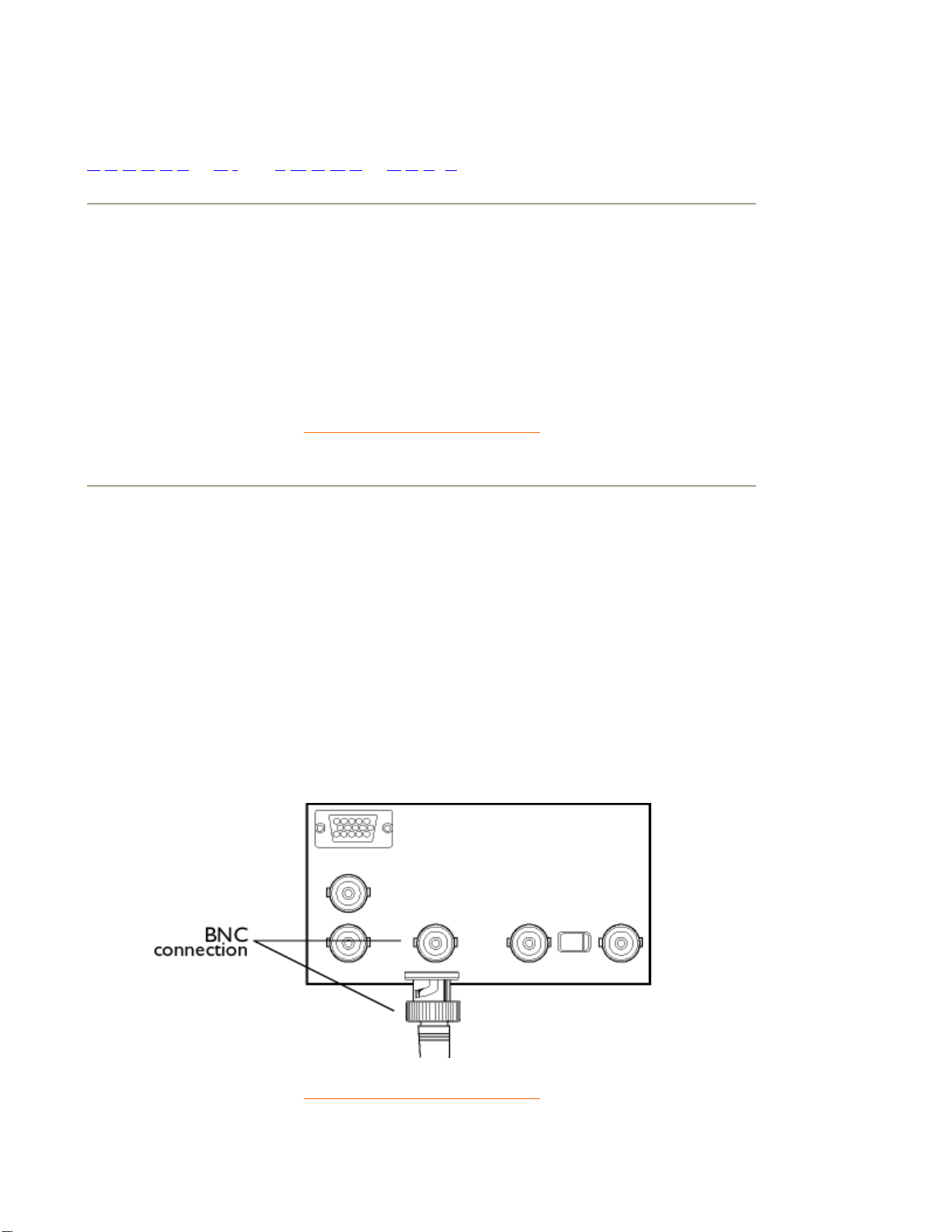
BNC connection
A special construction of connector used in some monitors with higher horizontal scanning
frequency. The BNC connection can provide the optimum shielding and matching characteristic
impedance of video signal path to ensure the best video performance.
RETURN TO TOP OF THE PAGE
C
CE Mark
CE mark is displayed on products per EMC and LV ( low Voltage Device ) directives in
compliance with European Community safety, EMI and EMS requirements and is compulsory on
products for sale in the European Community.
Color temperature
A way of describing the color of a radiating source in terms of the temperature (in degrees Kelvin)
of a black body radiating with the same dominant frequency as the source.
Most Philips monitors offer the possibility of setting the color temperature to any desired value.
Contrast
The ratio between the brightness of the brightest and darkest parts of a picture. The darkest part
of a picture is set by the brightness of the unexcited phosphor, which is governed by the degree
with which ambient light is reflected. Contrast is therefore reduced in conditions of high ambient
light levels. Black Matrix tubes reflect less ambient light so exhibit higher contrast than other
tubes.
Convergence error
Bean misalignment causing one or more of the three beams passing through the wrong aperture
in the shadow mask and striking a phosphor dot in the wrong triad.
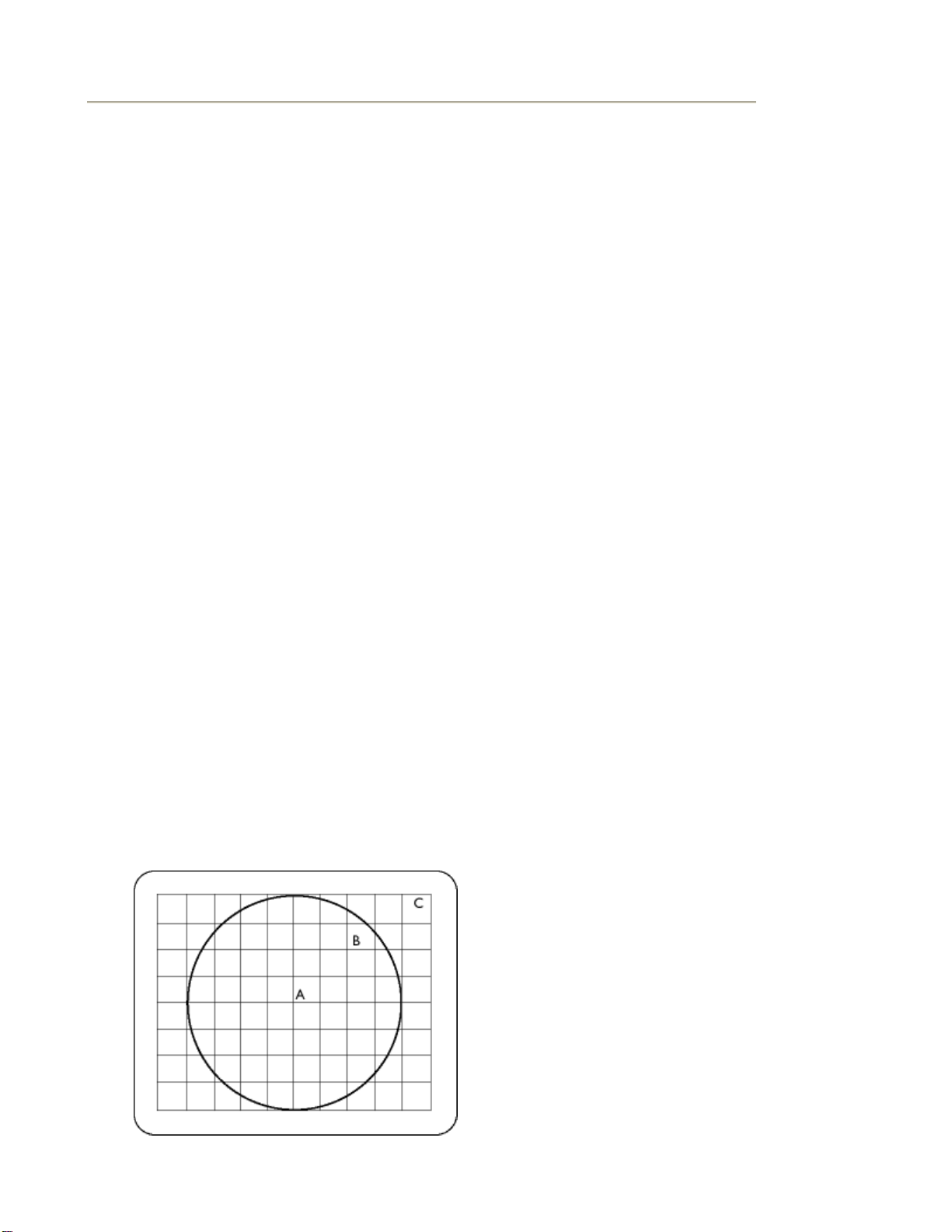
Convergence error is expressed in mm often at three well-defined points on the screen,
designated A, B and C (see figure ). Also known as misconvergence.
Points where convergence error is specified
.
Convergence-error correction
A method of correcting for convergence error to insure that all three beams land simultaneously
in the same triad. This is usually accomplished by means of special convergence-
error correction
coils in the deflection yoke.
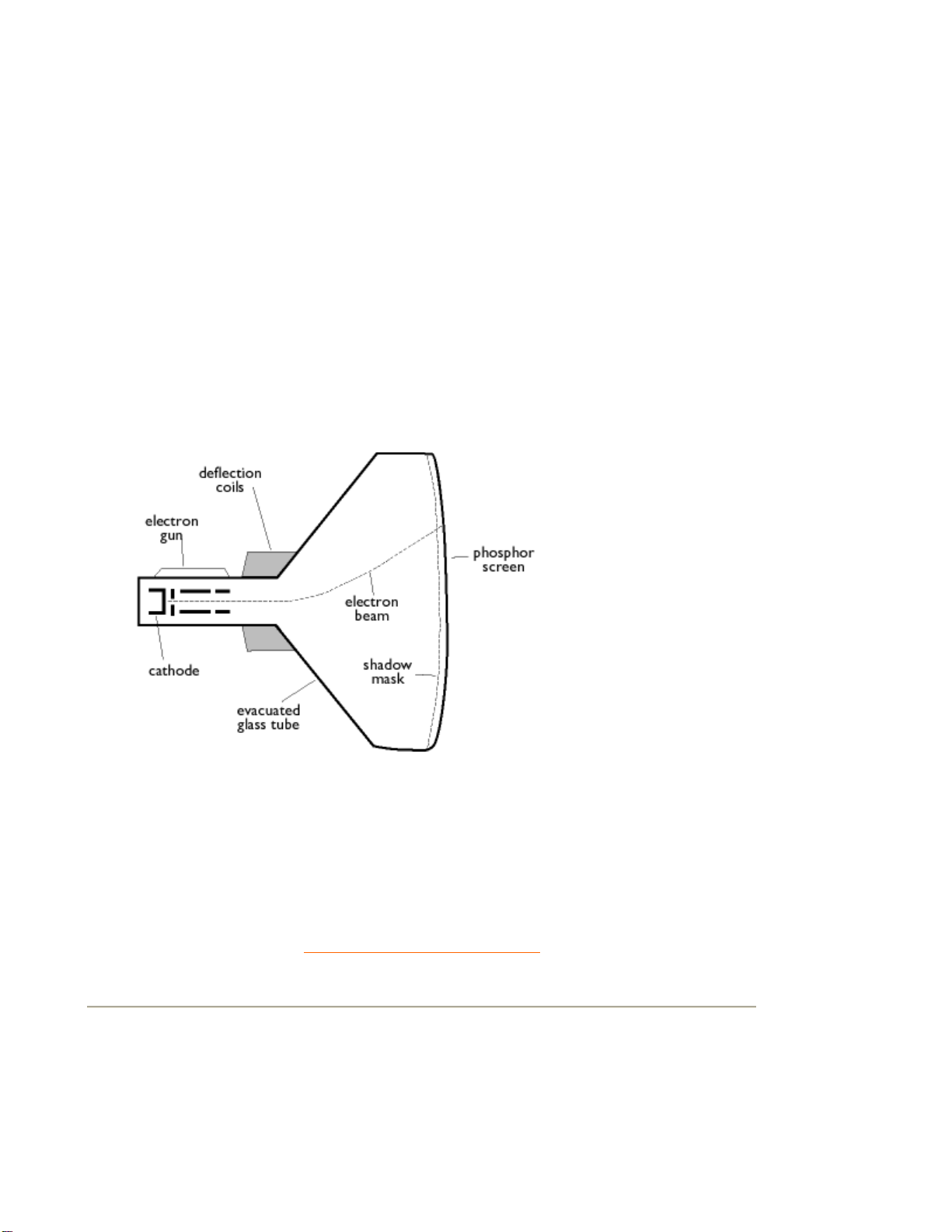
CRT
Cathode-ray tube -
the general term for all tubes in which one or more electron beams emitted by
a cathode are periodically scanned across a phosphor screen by means of deflection circuitry. A
special form of the cathode-ray tube is the TV and monitor picture tube.
CustoMax
Philips proprietary monitor control software that allows users to control parameters (e.g., Size,
Color, Geometry) using software running in Windows. CustoMax is compatible with existing VGA
cards. See CrystalClear FAQ and USB Bay FAQ.
RETURN TO TOP OF THE PAGE
D
DDC (Display Data Channel)
DDC is a communication channel for displays and computers. The DDC feature allows the

monitor controller to be automatically configured to make optimal use of the display without
manual user interaction. DDC is implemented as part of the new Plug & Play approach
introduced into the PC market to increase user friendliness.
The three levels developed for Plug & play are: (1) DDC1, monitor send data to the PC; (2)
DDC2B, PC can request information from monitor; and (3) DDC2Bi which is a two-way
communication - monitor can be addressed and PC or graphics board can give commands to
monitor.
DDC 1/2B
See DDC.
DDC 2Bi
See DDC.
Degaussing
The procedure of demagnetizing the shadow mask and associated metal parts of a picture tube
at switch-on to minimize picture distortion. This is usually accomplished by means of a special
degaussing coil through which a decaying alternating current is passed to generate an alternating
magnetic field that gradually decays to demagnetize the tube. Some monitors offer a manual
degaussing facility that can be activated at any time.
Digital control
Microprocessor-based digital control of picture parameters and video modes for complete control
of picture settings and modes and instant recall of all settings at the push of a button. This is a
very advanced feature that allows the user to switch to any required mode at any instant without
having to spend time readjusting the picture. It is currently available in most Philips monitors.
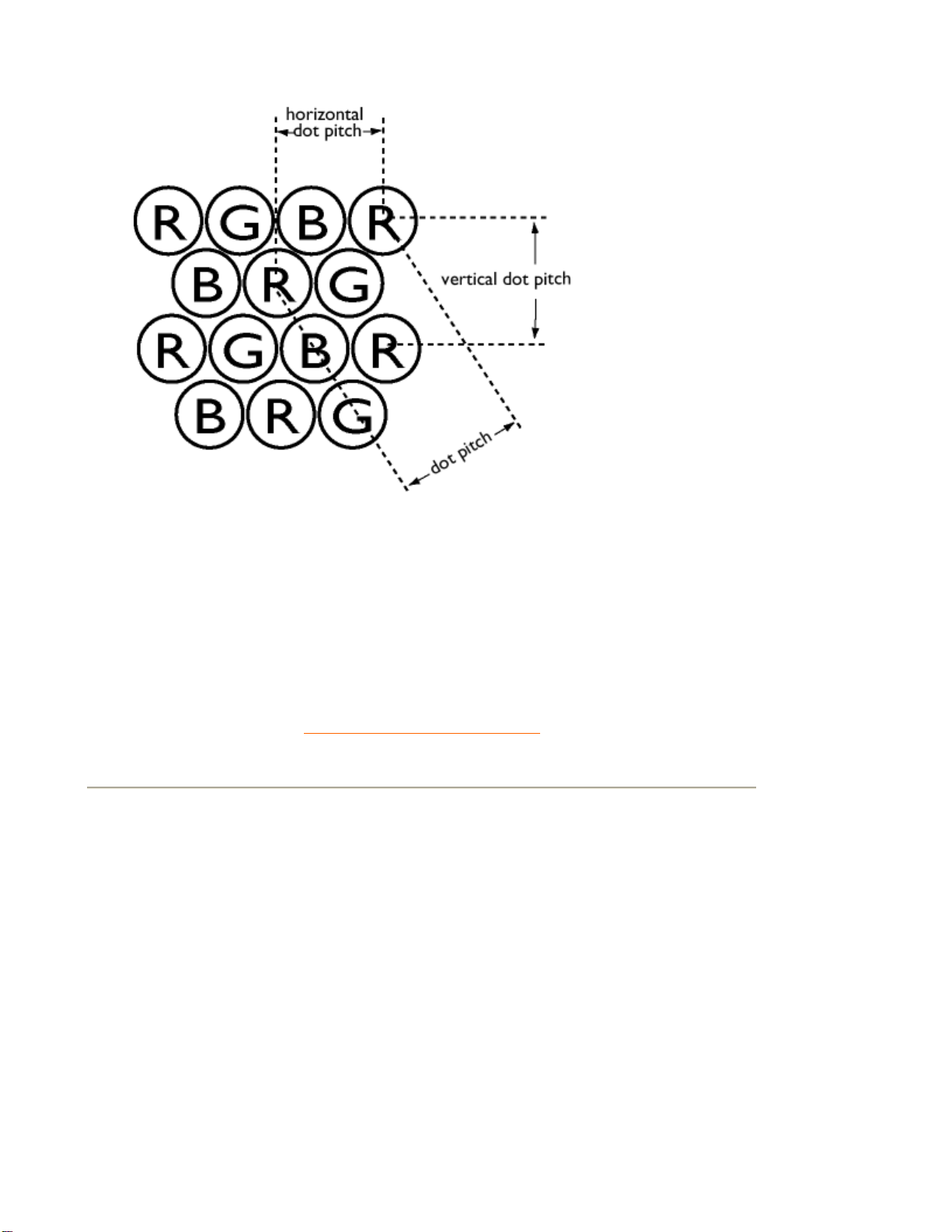
Dot pitch
The shortest distance between two phosphor dots of the same color on the screen. The smaller
the dot pitch, the better the resolution of the monitor.
Dot rate
Frequency in MHz of the dot clock. It is a measure of the speed with which data is transferred
between the video card and subsequent processing circuitry.
Also known as video dot rate.
RETURN TO TOP OF THE PAGE
E
Electromagnetic radiation standards
International standards set to limit electromagnetic emissions from monitors. There are currently
two important standards both derived from regulations originally laid down by Swedish
authorities.
MPR-II
The standard originally proposed by the Swedish National Board of Measurement and Testing. It
set maximum levels of electromagnetic radiation emitted by monitors, and has now been adopted
as a world standard. MPR-II defines maximum permitted electrostatic, magnetic and electric field
levels measured at a distance of 50 cm from the center of the monitor (see table).
TCO

In 1991, the Swedish Tjänstemannens Central Organization (TCO, Swedish confederation of
Professional Employees ) set a standard even more severe than MPR-II, especially for
alternating electric fields (AEF). The TCO standard is more severe since not only are the
permitted field levels reduced compared with MPR-II, but the measuring distance is also reduced
(see table).
Electromagnetic radiation standards
EMI (Electrical Magnetic Interference)
The electrical and/or magnetic radiation coming from the working electrical or electronic
equipment.
EMS (Electrical Magnetic Sustainment)
The ability of electrical or electronic equipment to function properly in the environment with
electrical and/or magnetic interference.
RETURN TO TOP OF THE PAGE
F
Flicker
Very rapid variations in picture intensity caused by the finite time required for the electron beam
to scan a picture onto the screen. Two kinds of flicker occur: line flicker caused by the electron
beam scanning-in each line of the picture; and frame flicker (or field flicker if the picture is
interlaced) caused by the frame repetition rate of 50 frames/second. Frame flicker is noticeable
with GUI and DTP software (which have a light background), and can be very disturbing,
especially for those who work regularly with displays - contributing to eye strain, headaches,
visual blurring, stress, etc. The problem can, however, be eliminated by increasing the refresh
rate (number of frames/second) of the monitor to a value above around 70 Hz. Sensitivity to
flicker appears to diminish with increasing age.
RETURN TO TOP OF THE PAGE
H
Hertz
The unit of frequency named after the physicist Heinrich Hertz (1857-1894). 1 hertz (Hz) is equal
to 1 cycle/second.
Horizontal dot pitch

See Dot pitch.
Horizontal scanning frequency
Also called line frequency and expressed in kHz, it is the number of video lines written on the
screen every second (from left to right). The higher the horizontal scanning frequency, the better
the resolution (i.e., the higher the resolution and/or the higher the refresh rate).
RETURN TO TOP OF THE PAGE
I
INF File
INF file (Information File)
Information (INF) files store information in a specific format. The set-up functions retrieve
information from the INF file to use when performing installation operations. Examples of the type
of information stored in an INF file include INI and registry changes, file names, and locations of
the source files on source media.
Interlaced/non-interlaced
Interlaced.
The method of writing a picture on the screen by initially writing all even lines and subsequently
writing all odd lines of the picture. Result: The complete picture is composed of two interlaced
half pictures (or fields). With interlacing, a vertical (or field) frequency of 50 Hz means a picture
(or frame) frequency of 25 Hz.
Non-interlaced.
The method of writing a picture on the screen by successive video lines of the picture so that a
full frame is written onto the screen in one vertical sweep of the beams. With a non-interlaced
display, a vertical frequency of 50 Hz means a picture (or frame) frequency of 50 Hz. At any
given resolution, non-interlaced modes are preferable to interlaced modes; however, generation
of non-interlaced modes is more expensive.


See Electromagnetic radiation standards.
Low-frequency electric and magnetic fields
Alternating fields generated by the deflection yoke. These are subject to increasing attention,
notably by governing authorities, the trade and the press. Although there is no scientific evidence
that monitor emissions are harmful, much effort has gone into reducing emissions on the
principle of better safe than sorry. Currently, there are two areas of interest: very-low frequency
(VLF) electric and magnetic fields extending from 2 kHz to 400 kHz, and extreme low frequency
(ELF) fields extending from 5 Hz to 2 kHz.
See also
Electromagnetic radiation standards
.
RETURN TO TOP OF THE PAGE
M
Moiré effect
A fringe pattern arising from the interference between two superimposed line patterns.
In a monitor it comes from the interference between the shadow mask pattern and the video
information (video moiré), and between the shadow mask pattern and the horizontal line pattern
(scan moiré). It shows itself as wavy patterns on the screen and becomes more noticeable as
monitor resolution increases. Since the video signal varies continuously, little can be done about
video moiré. Scan moiré depends on the horizontal scanning frequency and can be alleviated by
appropriate choice of frequency. Autoscan (MultiSync) monitors, which operate over a range of
scanning frequencies, may sometimes exhibit moiré in certain video modes.
MPR
See Electromagnetic radiation standards.
MultiSync monitor
See Autoscan monitor.
RETURN TO TOP OF THE PAGE
N

Non-interlaced
See Interlaced/non-interlaced.
RETURN TO TOP OF THE PAGE
O
OSD (On Screen Display)
The feature that allows an end user to adjust screen performance and parameters of monitors
directly through an on-screen instruction window. See CustoMax in CrystalClear section.
Overscan
The practice in which areas without useful video information are scanned outside the visible
screen area in order to make maximum use of the screen for display of active video information.
This practice is occasionally necessary because some video cards generate a video pattern that
is smaller than the visible screen area, resulting in an image that is smaller (and less legible) than
it needs to be.
RETURN TO TOP OF THE PAGE
P
Parallelogram Distortion
See Geometric distortion.
Phosphor
Generic name for the class of substances that exhibit luminescence. To produce a picture on
screen, phosphors are deposited on the inner surface of the picture-tube screen and excited into
luminescence by the electron beam. Typical examples of phosphors are P22 medium short-
persistence phosphor and EBU high-color-saturation phosphor.
Pin-cushion Distortion
See Geometric distortion.

Pixel
Abbreviation for picture element, the smallest element of the picture that can be displayed on the
screen. The smaller the pixel size, the better the resolution of the monitor. Pixel size is
determined by the size of the electron spot on the screen and not necessarily by the phosphor
dot pitch (the size of the triad). Thus, a monitor with a large electron spot covering several triads
can exhibit poor resolution even though its dot pitch is small.
Pixel frequency
The number of pixels that can be written in a video line per second.
Pixel rate
See pixel frequency
Plug-and-Play
See DDC. See USB section.
RETURN TO TOP OF THE PAGE
R
Raster
The area on screen that electron beam can reach.
Refresh rate
See Vertical scanning frequency.
Resolution
The number of pixels that can be displayed on the screen. The resolution is specified as the
number of pixels in a line multiplied by the number of horizontal lines.
See also video graphic adapter.
Rotation function
The feature that allows users to adjust the whole screen rotating to be horizontal.
Because of the magnetic field of earth, the screen of monitor will be tilt when the screen faces
toward the different direction.
RETURN TO TOP OF THE PAGE
S
Screen coatings
Anti-Static coatings
Due to bombardment by beam electrons, monitor screens become electrically charged when in
use. Electrically charged screens surfaces can attract dust particles. An Anti-Static coating is a
conductive coating deposited on the screen (or on a glass panel immediately in front of the
screen) that conducts away the charge and prevents screen dust build-up.
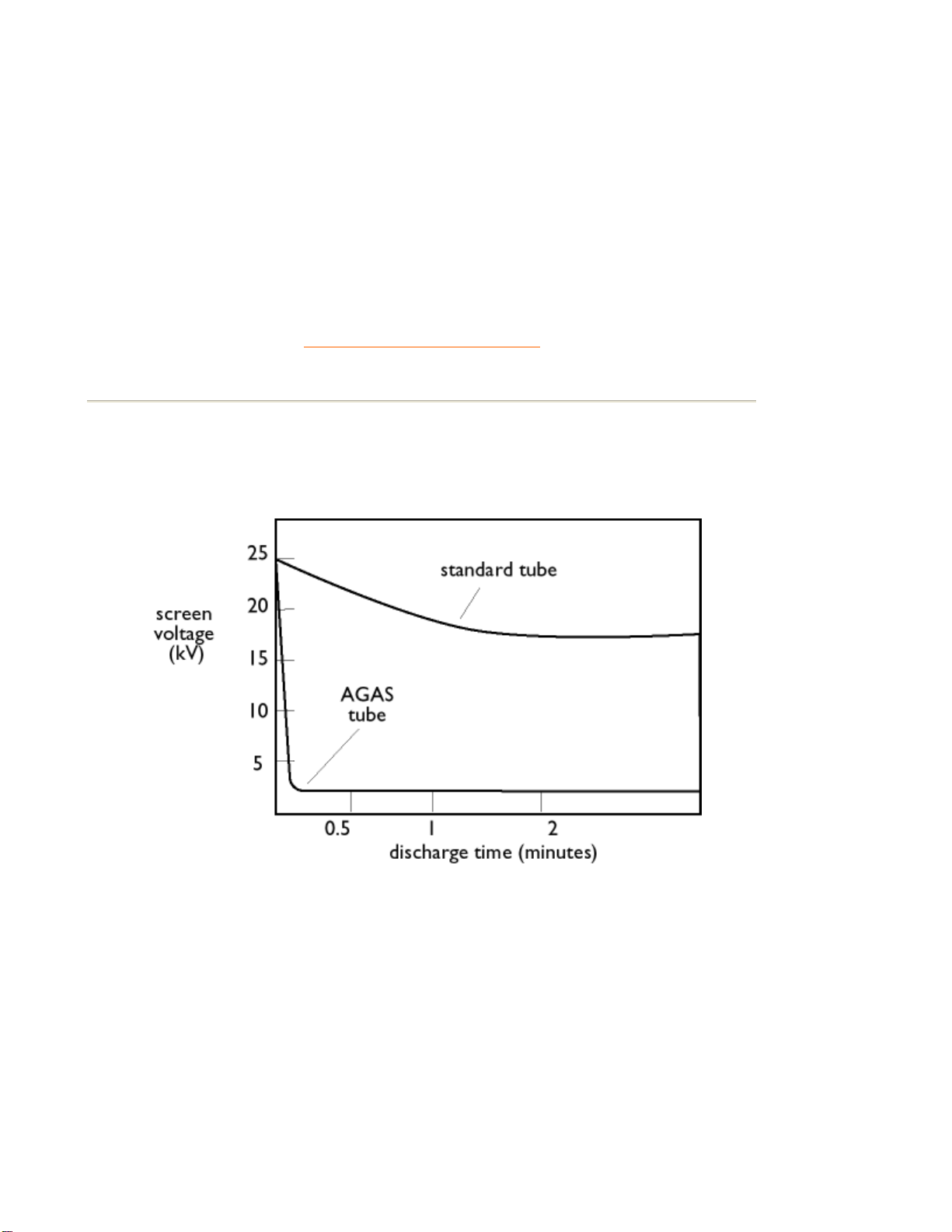
AGAS (Anti-Glare, Anti-Static) coating
AGAS is a silica coating applied to the surface of the screen by a spinning and spraying process.
It operates by diffusing reflected light to blur images of light sources on the screen. To provide
anti-static properties, the coating is impregnated with small conductive particles.
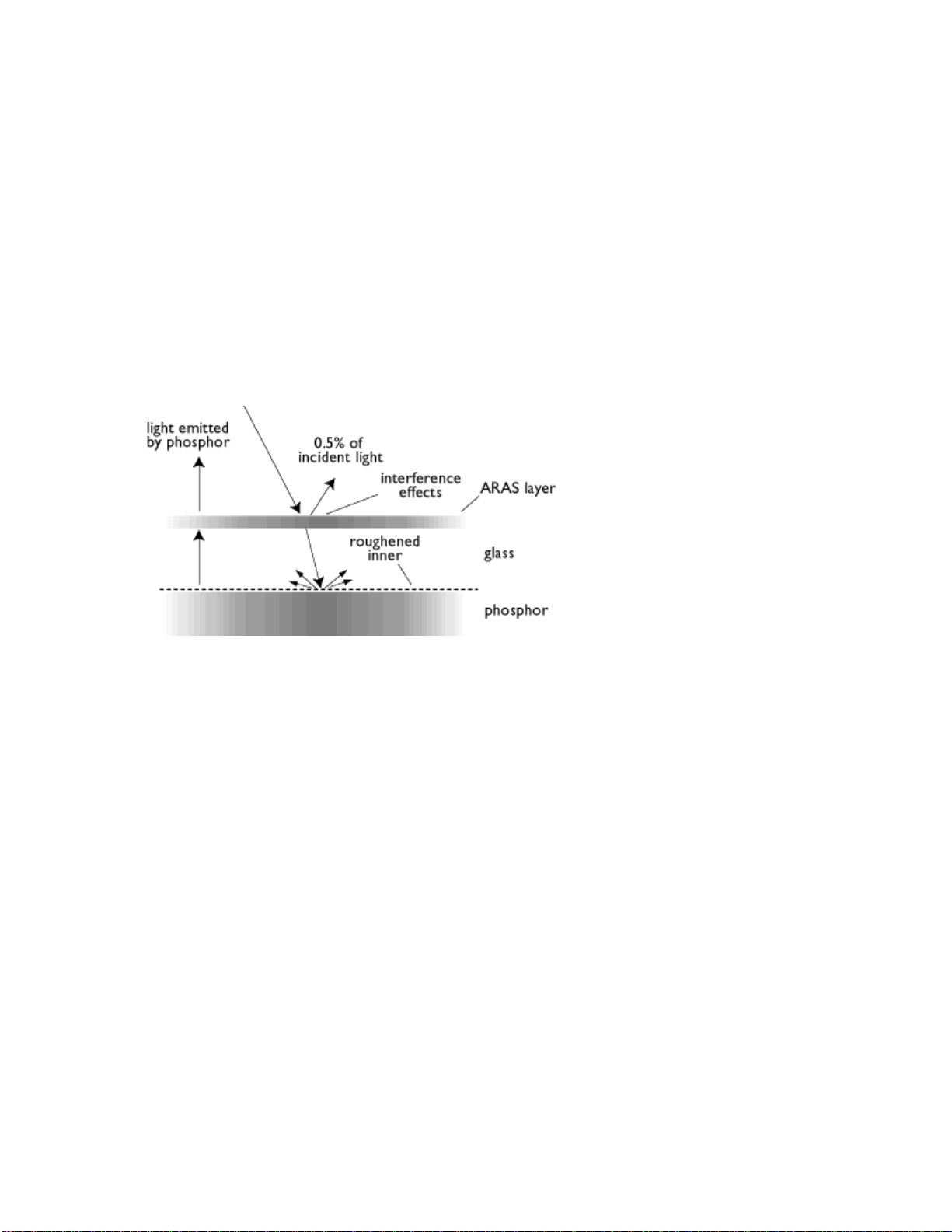
ARAS (Anti-Reflection, Anti-Static) coating
ARAS is one of the most effective anti-reflection/anti-static screen treatments currently available.
It is composed of a multi-layer structure of transparent dielectric material that suppresses
specular reflections by broadband interference effects at the screen surface. Anti-static
properties are provided by a single conductive layer within the multi-layer structure.
With ARAS, the intensity of reflected light is reduced from around 4.5% of the incident light (the
reflectivity of uncoated screens) to less than 0.5%. ARAS also has a major advantage over other
screen treatments: It doesn't diffuse or scatter reflected light, so picture contrast and sharpness
remain completely unimpaired. It's also easy to clean and tough enough to withstand
commercially available cleaning agents.
The ARAS coating reflects only about 0.5% of the incident light.
AGRAS (Anti-Glare anti-Reflection Anti-Static) coating
.
A combined anti-reflection, anti-glare, anti-static coating.
Self-test function
A monitor equipped with hardware or software to automatically detect cable connection status.
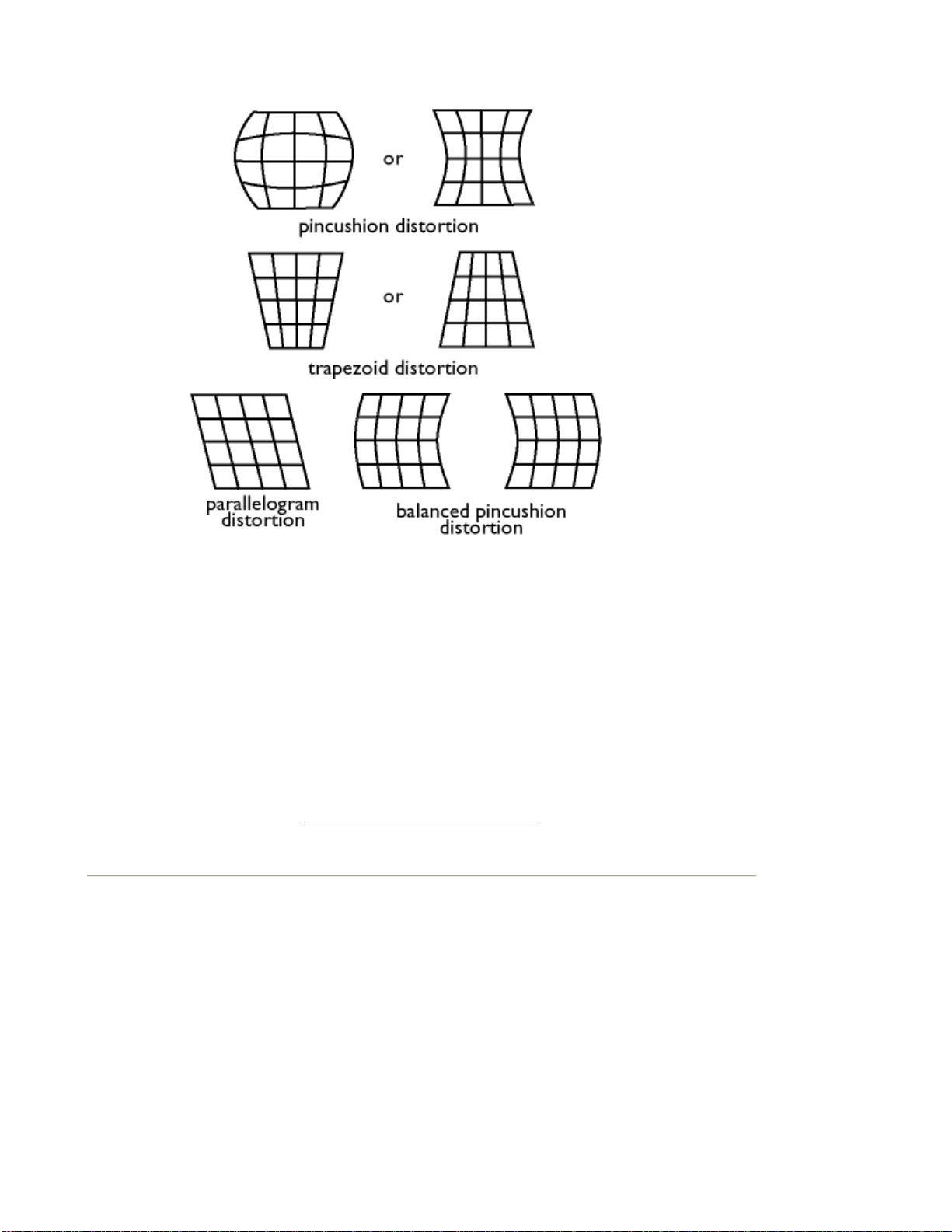
Shape
Deviation of a reproduced picture from its intended shape. The following types of distortion are
most common:
SOG (Synchronization On Green)
A properly functioning color monitor requires five kinds of signals: horizontal sync pulse, vertical
sync pulse, red color signal, green color signal and blue color signal. Signals from a PC are
transmitted to a monitor using one of three methods:
1. Separate sync: Horizontal and Vertical sync signals transmitted separately
2. Composite sync: Horizontal and vertical sync pulses mixed into a single signal train.
3. SOG: Horizontal and vertical sync pulses mixed, then combined with the green color signal.
RETURN TO TOP OF THE PAGE
T
TCO
See Electromagnetic radiation standards.
Tilt function
See rotation function.

Trapezoid distortion
See Geometrical distortion.
TTL signal
A TTL (Transistor-transistor-logic) signal is a digital signal level for controlling the screen colors.
With TTL driving, the red, green and blue signals can only be switched on or off or provided with
an intensity signal. A TTL-driven monitor can thus display a maximum of 64 colors. Video
standards such as MDA, CGA and EGA are based on TTL level.
RETURN TO TOP OF THE PAGE
V
Vertical dot pitch
See Dot pitch.
Vertical scanning frequency
Expressed in Hz, this is the number of fields written to the screen every second in interlaced
mode. In non-interlaced mode vertical scanning frequency is the number of frames (complete
pictures) written to the screen every second (also known as refresh rate).
Vertical sync pulses
A train of square shaped waveforms that define the start of a new frame.
VESA
Video Electronic Standards Association, a consortium of manufacturers formed to establish and
maintain industry-wide standards for video cards and monitors. VESA was instrumental in the
introduction of the Super VGA and Extended VGA video graphics standards (see Video graphics
adapters) with a refresh rate of 70 Hz, minimizing flicker and helping to reduce operator eyes
fatigue and stress.

Video dot rate
See Dot rate.
Video graphics adapters
A card equipped with a character or graphic generator and video memory, which maps to the
screen. A microprocessor scans video memory and translates bit information from the computer
into displayable video signals for the monitor. These cards comply with various standards that
determine the nature and quality of the display.
VGA (Video Graphics Array), introduced in 1987, was the first analog card. It offered still higher
resolution than EGA: 640 X 480 pixels for graphics and 720 x 400 pixels for text, and a color
palette of 256 colors. VGA could also emulate EGA and CGA.
Super VGA, devised by VESA in 1989, offers a resolution of 800 x 600 pixels.
Extended VGA, introduced by VESA in 1991, offers a top resolution of 1024 x 768 pixels (non-
interlaced) and a refresh rate slightly higher than IBM's XGA 8514A.
High-end, graphics adapters, introduced over the last three years for professional workstations,
offer top resolutions from 1280 x 1024 to 1600 x 1280, horizontal line frequencies up to 90 kHz
and bandwidths up to 200 MHz.
VIS (Viewable Image Size)
The real screen dimensions that users can see measured diagonally. The VIS of a monitor is
always less than the so called screen size of a monitor. For example, the VIS of a 17-inch
monitor is only about 16 inches. It depends on the useful screen size of CRT and the opening of
a monitor's front cabinet.
RETURN TO TOP OF THE PAGE

Download and Print
This page provides an option to read the manual in .pdf format. PDF files can be downloaded into
your hard disk, then viewed and printed with Acrobat Reader or through your browser.
If you do not have Adobe® Acrobat Reader installed, click on the link to install the application.
Adobe® Acrobat Reader for PC
Download instructions:
To download the file:
1. Click-and-hold your mouse over the icon below. (Win95/98 users right-click)
2. From the menu that appears, choose 'Save Link As...', 'Save Target As...' or 'Download Link to
Disk'.
3. Choose where you would like to save the image; click 'Save' (if prompted to save as either
'text' or 'source', choose 'source').
Printing instructions:
To print the manual:
1. With the manual file open, follow your printer's instructions and print the pages you need.
105S6.pdf English language manual

Troubleshooting
Safety Precautions and Maintenance • Troubleshooting • Regulatory Information
Common Problems
Having trouble? Something not working? Before calling for help, try these suggestions.
Having this
problem?
Check these items
No Picture
(Power LED not lit)
z Make sure the Power cable is plugged into the power
outlet and back of the monitor.
z Power button in the front of your monitor should be in the
ON position.
z Disconnect the monitor from the power outlet for about
one minute.
No Picture
(Power LED is orange)
z Make sure the computer is turned on.
z Make sure the monitor cable is properly connected to your
computer.
z Check to see if the monitor cable has bent pins.
z The Energy Saving feature may be activated
No Picture
(Power LED is green)
z Make sure the Brightness and Contrast controls are set
correctly.
z Make sure the monitor cable is properly connected to your
computer.
z Check to see if the monitor cable has bent pins.
z Make sure the computer Power button is on.
Screen doesn't show
when you turn on the
monitor
z Make sure the monitor cable is properly connected to your
computer. (Also refer to the Quick Start Guide).
z Check to see if the monitor cable has bent pins.
z Make sure the computer is turned on.
No color or intermittent
color
z If you are using a non-VESA-DDC standard video card,
turn the DDC1 / 2B feature Off.
Color appears blotchy
z The picture may need degaussing.
z Remove any nearby magnetic objects.
z Face the monitor toward the East for the best picture
quality.
Missing one or more
colors
z Check the Color Temperature.
z Make sure the monitor cable is properly connected to your
computer.
z Check to see if the monitor cable has bent
p
ins.

For further assistance, refer to the Consumer Information Centers list to contact your local Philips
distributor.
RETURN TO TOP OF THE PAGE
p
Dim Picture
z Adjust the Brightness and Contrast controls.
z Check your video card and it's owner's manual
instructions for it may be a non-VESA-DDC Standard
card.
Picture is too large or
too small.
z Adjust the Horizontal and/or Vertical Size.
z Adjust the Zoom.
Edges of the picture
are not square.
z Adjust the geometry.
Picture has a double
image.
z Eliminate the use of a video extension cable and/or video
switch box.
z Face the monitor toward the East for the best picture
quality.
Picture is not sharp.
z Check to make sure Moiré is switched off.
z Adjust Sync Input.
Unstable Picture
z Increase your refresh rate.
Problem with On
Screen Display
z Refer to the instructions and troubleshooting information
in that chapter.

Regulatory Information
CE Declaration of Conformity • Energy Star Declaration •
Federal Communications Commission (FCC) Notice (U.S. Only) . Commission Federale
de la Communication (FCC Declaration) • EN 55022 Compliance (Czech
Republic Only) • Polish Center for Testing and Certification Notice • North
Europe Information (Sweden Country) • BSMI Notice (Taiwan Only) • Ergonomie
Hinweis (nur Deutschland) • Philips End-of-Life Disposal
Safety Precautions and Maintenance • Troubleshooting
CE Declaration of Conformity
z Philips Consumer Electronics declare under our responsibility that the product is in
conformity with the following standards
- EN60950:2000 (Safety requirement of Information Technology Equipment)
- EN55022:1998 (Radio Disturbance requirement of Information Technology Equipment)
- EN55024:1998 (Immunity requirement of Information Technology Equipment)
- EN61000-3-2:1995 (Limits for Harmonic Current Emission)
- EN61000-3-3:1995 (Limitation of Voltage Fluctuation and Flicker)
following provisions of directives applicable
- 73/23/EEC (Low Voltage Directive)
- 89/336/EEC (EMC Directive)
- 93/68/EEC (Amendment of EMC and Low Voltage Directive)
and is produced by a manufacturing organization on ISO9000 level.
z The product also comply with the following standards
- ISO9241-3, ISO9241-7, ISO9241-8 (Ergonomic requirement for Visual Display)
- GS EK1-2000 (GS specification)
- prEN50279:1998 (Low Frequency Electric and Magnetic fields for Visual Display)
- MPR-II (MPR:1990:8/1990:10 Low Frequency Electric and Magnetic fields)
RETURN TO TOP OF THE PAGE
Energy Star Declaration
RETURN TO TOP OF THE PAGE
Federal Communications Commission (FCC) Notice (U.S. Only)
As an ENERGY STAR
®
Partner, PHILIPS has determined that this
product meets the
ENERGY STAR
®
guidelines for energy efficiency.
We recommend you switch off the monitor when it is not in use for quite a long
time.
z Reorient or relocate the receiving antenna.
z Increase the separation between the equipment and receiver.
z Connect the equipment into an outlet on a circuit different from that to which the receiver
is connected.
z Consult the dealer or an experienced radio/TV technician for help.
Use only RF shielded cable that was supplied with the monitor when connecting this monitor to a
computer device.
To prevent damage which may result in fire or shock hazard, do not expose this appliance to rain
or excessive moisture.
THIS CLASS B DIGITAL APPARATUS MEETS ALL REQUIREMENTS OF THE CANADIAN
INTERFERENCE-CAUSING EQUIPMENT REGULATIONS.
RETURN TO TOP OF THE PAGE
Commission Federale de la Communication (FCC Declaration)
z Réorienter ou déplacer l'antenne de réception.
z Augmenter la distance entre l'équipement et le récepteur.
z Brancher l'équipement sur un autre circuit que celui utilisé par le récepteur.
z Demander l'aide du marchand ou d'un technicien chevronné en radio/télévision.
This equipment has been tested and found to comply with the limits for a Class B
digital device, pursuant to Part 15 of the FCC Rules. These limits are designed to
provide reasonable protection against harmful interference in a residential
installation. This equipment generates, uses and can radiate radio frequency
energy and, if not installed and used in accordance with the instructions, may
cause harmful interference to radio communications. However, there is no
guarantee that interference will not occur in a particular installation. If this
equipment does cause harmful interference to radio or television reception, which
can be determined by turning the equipment off and on, the user is encouraged to
try to correct the interference by one or more of the following measures:
Changes or modifications not expressly approved by the party responsible for
compliance could void the user's authority to operate the equipment.
Cet équipement a été testé et déclaré conforme auxlimites des appareils
numériques de class B,aux termes de l'article 15 Des règles de la FCC. Ces
limites sont conçues de façon à fourir une protection raisonnable contre les
interférences nuisibles dans le cadre d'une installation résidentielle. CET appareil
produit, utilise et peut émettre des hyperfréquences qui, si l'appareil n'est pas
installé et utilisé selon les consignes données, peuvent causer des interférences
nuisibles aux communications radio. Cependant, rien ne peut garantir l'absence
d'interférences dans le cadre d'une installation particulière. Si cet appareil est la
cause d'interférences nuisibles pour la réception des signaux de radio ou de
télévision, ce qui peut être décelé en fermant l'équipement, puis en le remettant
en fonction, l'utilisateur pourrait essayer de corriger la situation en prenant les
mesures suivantes:
N'utiliser que des câbles RF armés pour les connections avec des ordinateurs ou périphériques.
CET APPAREIL NUMERIQUE DE LA CLASSE B RESPECTE TOUTES LES EXIGENCES DU
REGLEMENT SUR LE MATERIEL BROUILLEUR DU CANADA.
RETURN TO TOP OF THE PAGE
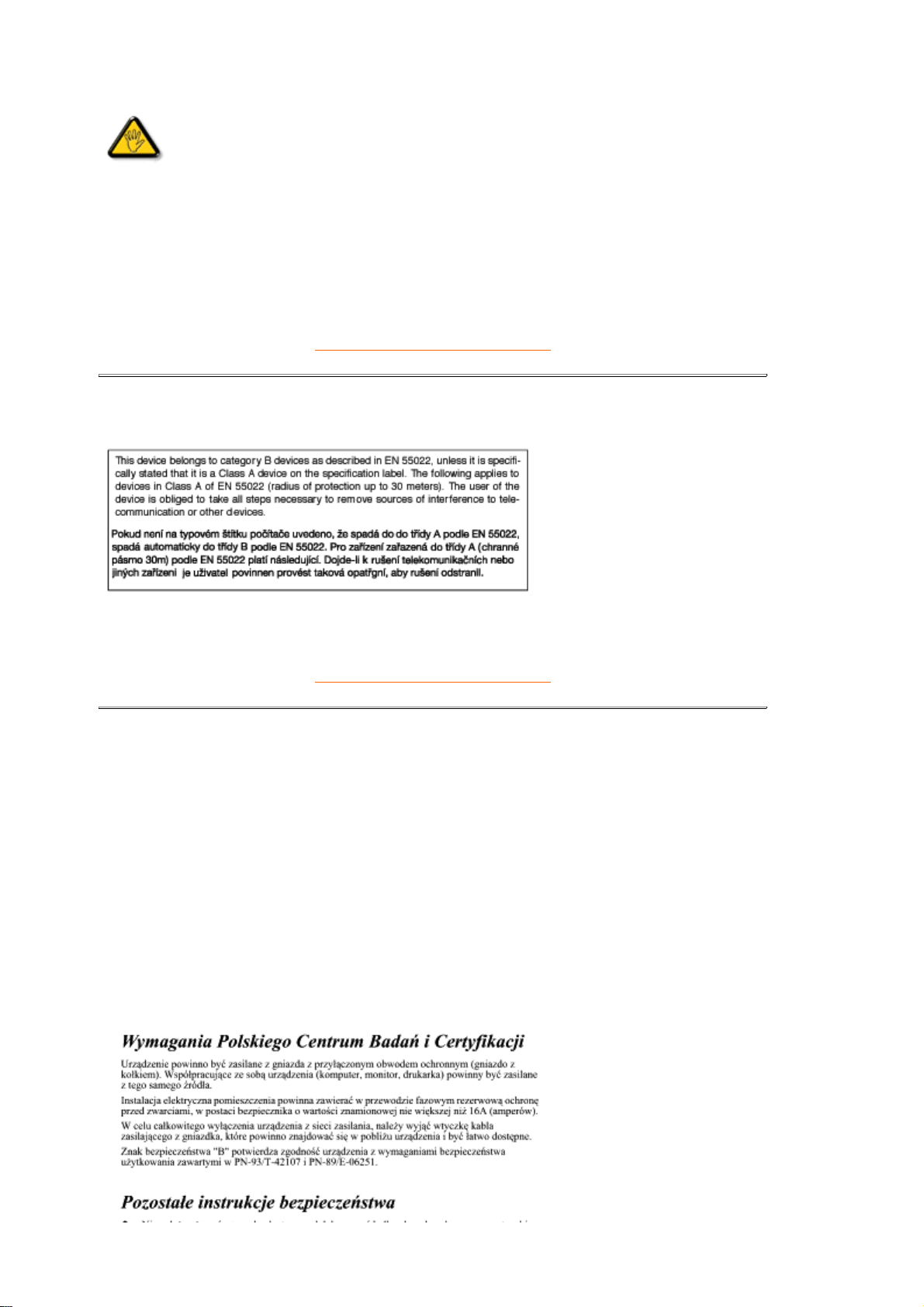
EN 55022 Compliance (Czech Republic Only)
RETURN TO TOP OF THE PAGE
Polish Center for Testing and Certification Notice
The equipment should draw power from a socket with an attached protection circuit (a three-
prong socket). All equipment that works together (computer, monitor, printer, and so on) should
have the same power supply source.
The phasing conductor of the room's electrical installation should have a reserve short-circuit
protection device in the form of a fuse with a nominal value no larger than 16 amperes (A).
To completely switch off the equipment, the power supply cable must be removed from the
power supply socket, which should be located near the equipment and easily accessible.
A protection mark "B" confirms that the equipment is in compliance with the protection usage
requirements of standards PN-93/T-42107 and PN-89/E-06251.
Toutes modifications n'ayant pas reçu l'approbation des services compétents en
matière de conformité est susceptible d'interdire à l'utilisateur l'usage du présent
équipement.

RETURN TO TOP OF THE PAGE
North Europe Information (Sweden Country)
RETURN TO TOP OF THE PAGE
Placering/Ventilation
VARNING:
FÖRSÄKRA DIG OM ATT HUVUDBRYTARE OCH UTTAG ÄR
LÄTÅTKOMLIGA, NÄR DU STÄLLER DIN UTRUSTNING PÅPLATS.
Placering/Ventilation
ADVARSEL:
SØRG VED PLACERINGEN FOR, AT NETLEDNINGENS STIK OG
STIKKONTAKT ER NEMT TILGÆNGELIGE.
Paikka/Ilmankierto
VAROITUS:
SIJOITA LAITE SITEN, ETTÄ VERKKOJOHTO VOIDAAN TARVITTAESSA
HELPOSTI IRROTTAA PISTORASIASTA.
Plassering/Ventilasjon
ADVARSEL:
NÅR DETTE UTSTYRET PLASSERES, MÅ DU PASSE PÅ
A
T
KONTAKTENE FOR STØMTILFØRSEL ER LETTE Å NÅ.

BSMI Notice (Taiwan Only)
RETURN TO TOP OF THE PAGE
Ergonomie Hinweis (nur Deutschland)
Der von uns gelieferte Farbmonitor entspricht den in der "Verordnung über den Schutz vor
Schäden durch Röntgenstrahlen" festgelegten Vorschriften.
Auf der Rückwand des Gerätes befindet sich ein Aufkleber, der auf die Unbedenklichkeit der
Inbetriebnahme hinweist, da die Vorschriften über die Bauart von Störstrahlern nach Anlage III ¤
5 Abs. 4 der Röntgenverordnung erfüllt sind.
Damit Ihr Monitor immer den in der Zulassung geforderten Werten entspricht, ist darauf zu
achten, daß
1. Reparaturen nur durch Fachpersonal durchgeführt werden.
2. nur original-Ersatzteile verwendet werden.
3. bei Ersatz der Bildröhre nur eine bauartgleiche eingebaut wird.
RETURN TO TOP OF THE PAGE
End-of-Life Disposal
Your new monitor contains materials that can be recycled and reused. Specialized companies
can recycle your product to increase the amount of reusable materials and to minimize the
amount to be disposed of.
Please find out about the local regulations on how to dispose of your old monitor from your local
Philips dealer.
(For customers in Canada and U.S.A.)
This product may contain lead and/or mercury. Dispose of in accordance to local-state and
Aus ergonomischen Gründen wird empfohlen, die Grundfarben Blau und Rot nicht auf
dunklem Untergrund zu verwenden (schlechte Lesbarkeit und erhöhte Augenbelastung bei
zu geringem Zeichenkontrast wären die Folge).
Der arbeitsplatzbezogene Schalldruckpegel nach DIN 45 635 beträgt 70dB (A) oder
weniger.
ACHTUNG: BEIM AUFSTELLEN DIESES GERÄTES DARAUF ACHTEN, DAß
NETZSTECKER UND NETZKABELANSCHLUß LEICHT ZUGÄNGLICH SIND.


Your Philips F1rst Choice Warranty
Thank you for purchasing this Philips monitor.
What is covered?
The Philips F1rst Choice Warranty applies within Andorra, Austria, Belgium, Cyprus, Denmark,
France, Germany, Greece, Finland, Ireland, Italy, Liechtenstein, Luxembourg, Monaco, the
Netherlands, Norway, Portugal, Sweden, Switzerland, Spain and the United Kingdom and only
for monitors originally designed, manufactured, approved and/or authorized for usage within
these countries.
Warranty coverage begins as from the day you buy your monitor. For three years thereafter, your
monitor will be swapped by at least an equivalent monitor in case of defects provided for under
the warranty coverage.
The swap monitor remains yours and Philips keeps the defective/original monitor. For the swap
monitor the warranty period remains equal to that of your original monitor, being 36 months as
from the purchase date of your original monitor.
What is excluded?
The Philips F1rst Choice Warranty applies provided the product is handled properly for its
intended use, in accordance with its operating instructions and upon presentation of the original
invoice or cash receipt, indicating the date of purchase, dealer's name and model and production
number of the product.
The Philips F1rst Choice Warranty may not apply if:
z The documents have been altered in any way or made illegible;
z The model or production number on the product has been altered, deleted, removed or
made illegible;
z Repairs or product modifications and alterations have been executed by unauthorized
service organizations or persons;
z Damage is caused by accidents including but not limited to lightning, water or fire, misuse
or neglect;
z Reception problems caused by signal conditions or cable or antenna systems outside the
unit;
z Defects caused by abuse or misuse of the monitor;
z Product requires modification or adaptation to enable it to comply with local or national
technical standards, which apply in countries for which the product was not originally
designed, manufactured, approved and/or authorized. Therefore always check whether a
product can be used in a specific country.
z Note that products that are not originally designed, manufactured, approved and/or
authorized for usage within the Philips F1rst Choice countries, do not apply to the Philips
F1rst Choice Warranty. In these cases the Philips global warranty terms are valid.
Just a phone call away
All Philips monitors are designed and manufactured to high standards and
deliver high-quality performance, ease of use and ease of installation. Should
you encounter any difficulties while installing or using this product, please
contact the Philips helpdesk directly to benefit from your Philips F1rst Choice
Warranty. This three-year service warranty entitles you to a swap model on-site
if your monitor turns out to be faulty or defective.Philips aims at a swap within 48
hours of your call being received.

In order to avoid unnecessary inconvenience, we advise you to read the operating instructions
carefully before contacting the Philips helpdesk.
To solve your problem quickly, please prepare the following details before contacting the Philips
helpdes
z Philips type number
z Philips serial number
z Purchase date (copy of purchase may be required)
z PC environment Processor:
o 286/386/486/Pentium Pro/Internal memory
o Operating system (Windows, DOS, OS/2, MAC)
o Fax/Modem/Internet program?
z Other cards installed
Having the following information available will also help speed up the process:
z Your proof of purchase indicating: date of purchase, dealer name, model and product
serial number.
z The full address to which the faulty monitor has to be collected and the swap model
should be delivered.
Philips' customer help desks are located worldwide. You can contact Philips Monday - Friday
from 08.00 - 20.00 hrs Central European Time (CET) and on Saturdays and Sundays from 10.00
to 18.00 hrs CET by using one of the helpdesk telephone numbers. Click here to access the
F1rst Choice Contact Information
. Or you can reach us via:
Website:http://www.philips.com

Your International Guarantee
Dear Customer,
Thank you for purchasing this Philips product which has been designed and manufactured to the
highest quality standards.
If, unfortunately, something should go wrong with this product Philips guarantees free of charge
labor and replacement parts irrespective of the country where it is repaired during a period of 12
months from date of purchase. This international Philips guarantee complements the existing
national guarantee obligations to you of dealers and Philips in the country of purchase and does
not affect your statutory rights as a customer.
The Philips guarantee applies provided the product is handled properly for its intended use, in
accordance with its operating instructions and upon presentation of the original invoice or cash
receipt, indicating the date of purchase, dealer's name and model and production number of the
product.
The Philips guarantee may not apply if:
z the documents have been altered in any way or made illegible;
z the model or production number on the product has been altered, deleted, removed or
made illegible;
z repairs or product modifications and alterations have been executed by unauthorized
service organizations or persons;
z damage is caused by accidents including but not limited to lightning, water or fire, misuse
or neglect.
Please note that the product is not defective under this guarantee in the case where
modifications become necessary in order for the product to comply with local or national
technical standards which apply in countries for which the product was not originally designed
and/or manufactured. Therefore always check whether a product can be used in a specific
country.
In case your Philips product is not working correctly or is defective, please contact your Philips
dealer. In the event you require service whilst in another country a dealer address can be given
to you by the Philips Consumer Help Desk in that country, the telephone and fax number of
which can be found in the relevant part of this booklet.
In order to avoid unnecessary inconvenience, we advise you to read the operating instructions
carefully before contacting your dealer. If you have questions which your dealer cannot answer
or any related question please contact the Philips Consumer Information Centers
or via:
Website:
http://www.philips.com

LIMITED WARRANTY(Computer Monitor)
Click here to access the Warranty Registration Card
One Year Exchange*
*Product will be exchanged with a new or renewed to original specifications unit within two
business days for the first year.
WHO IS COVERED?
You must have proof of purchase to receive warranty service. A sales receipt or other document
showing that you purchased the product as new is considered proof of purchase.
WHAT IS COVERED?
Warranty coverage begins the day you buy your product.
For one year thereafter,
all parts will
be repaired or replaced, and labor is free. All parts, including repaired and replaced parts, are
covered only for the original warranty period. When the warranty on the original product expires,
the warranty on all replaced and repaired products and parts also expires.
WHAT IS EXCLUDED?
Your warranty does not cover:
l labor charges for installation or setup of the product, adjustment of customer controls on
the product, and installation or repair of systems outside of the product.
l
product repair and/or part replacement because of misuse, accident, unauthorized repair
or other cause not within the control of Philips Consumer Electronics.
l a product that requires modification or adaptation to enable it to operate in any country
other than the country for which it was designed, manufactured, approved and/or
authorized, or repair of products damaged by these modifications.
l incidental or consequential damages resulting from the product. (Some states do not
allow the exclusion of incidental or consequential damages, so the above exclusion may
not apply to you. This includes, but is not limited to, prerecorded material, whether
copyrighted or not copyrighted.)
l
a product used for commercial or institutional purposes.
l A product that has been modified from the original design.
Where IS SERVICE AVAILABLE?
Warranty service is available in all countries where the product is officially distributed by Philips
Consumer Electronics. In countries where Philips Consumer Electronics does not distribute the
product, the local Philips service organization will attempt to provide service (although there may
be a delay if the appropriate spare parts and technical manual(s) are not readily available).
Where CAN I GET MORE INFORMATION and HOW CAN I OBTAIN SERVICE?
For more information, contact the Philips Customer Care Center by calling (877) 835-1838
(U.S.A. customers only) or (402) 536-4171.
Before Requesting Service...

Please check your owner's manual before requesting service. Adjustments of the controls
discussed there may save you a service call.
TO GET WARRANTY SERVICE IN U.S.A., PUERTO RICO OR U.S. VIRGIN ISLANDS...
Contact the Philips Customer Care Center phone number listed below for product assistance
and procedures for servicing:
Philips Customer Care Center
(877) 835-1838 or (402) 536-4171
(In U.S.A., Puerto Rico and U.S. Virgin Islands, all implied warranties, including implied
warranties of merchantability and fitness for a particular purpose, are limited in duration to the
duration of this express warranty. But, because some states do not allow limitations on how long
an implied warranty may last, this limitation may not apply to you.)
TO GET WARRANTY SERVICE IN CANADA...
Please contact Philips at:
(800) 479-6696
One year free parts and one year free labor will be provided at Philips Canada depot or any one
of its authorized service centers.
REMEMBER...
Please record the model and serial numbers found on the product below.
MODEL # ________________________________________________
SERIAL # ________________________________________________
This warranty gives you specific legal rights. You may have other rights which vary from
state/province to state/province.
Philips Customer Care Center, P. O. Box 2976, Longview, TX 75601

Consumer Information Centers
Antilles • Argentina • Australia • Bangladesh • Brasil • Canada • Chile • China • Colombia •
Czech Republic • Dubai • Egypt • Hong Kong • Hungary • India • Indonesia • Japan • Korea •
Malaysia • Mexico • Morocco • New Zealand • Pakistan • Paraguay • Peru • Philippines •
Poland • Russia • Singapore • South Africa • Taiwan • Thailand • Turkey • Uruguay •
Venezuela
Eastern Europe
CZECH REPUBLIC
Philips Service
V Mezihorí 2180 00 Prague
Phone: (02)-6831581
Fax : (02)-66310852
HUNGARY
Philips Markaszerviz.
Kinizsi U 30-36Budapest 1092
Phone: (01)-2164428
Fax : (01)-2187885
POLAND
Philips Polska CE
UL.Marszalkowska 45/49
00-648 Warszawa
Phone: (02)-6286070
Fax : (02)-6288228
RUSSIA
Philips Representation Office
Ul. Usacheva 35a
119048 Moscow
Phone: 095-937 9300
TURKEY
Türk Philips Ticaret A.S.
Talatpasa Caddesi No 5.
80640-Gültepe/Istanbul
Phone: (0800)-211 40 36
Fax : (0212)-281 1809
Latin America

ANTILLES
Philips Antillana N.V.Kaminda A.J.E. Kusters 4
Zeelandia, P.O. box 3523-3051
Willemstad, Curacao
Phone: (09)-4612799
Fax : (09)-4612772
ARGENTINA
Vedia 3892 Capital Federal
CP:1430 Buenos Aires
Phone: (011)-4544 2047
Fax: (011)-4544 2928
BRASIL
Philips da Amazonia Ind. Elet.Ltda.
Av.Luis Carlos Berrini,
1400-Sao Paulo-SP
Phone: 0800-7010-203
CHILE
Philips Chilena S.A.
Avenida Santa Maria 0760
P.O. box 2687Santiago de Chile
Phone: (02)-730 2000
Fax : (02)-777 6730
COLOMBIA
Industrias Philips de Colombia
S.A.-Division de Servicio
CARRERA 15 Nr. 104-33
Bogota, Colombia
Phone: (01)-8000-111001 (toll free)
Fax : (01)-619-4300/619-4104
MEXICO
Consumer Information Centre
Norte 45 No.669
Col. Industrial Vallejo
C.P.02300, -Mexico, D.F.
Phone: (05)-3687788 / 9180050462
Fax : (05)-7284272

PARAGUAY
Philips del Paraguay S.A.
Avenida Artigas 1513
Casilla de Correos 605
Asuncion
Phone: (021)-211666
Fax : (021)-213007
PERU
Philips Peruana S.A.
Customer Desk
Comandante Espinar 719
Casilla 1841
Limab18
Phone: (01)-2136200
Fax : (01)-2136276
URUGUAY
Ind.Philips del Uruguay S.A.
Lius Alberto de Herrera 1248-P:10
Customer Help Desk 11300 Montevideo
Phone: (02)-6281111
Fax : (02)-6287777
VENEZUELA
Industrias Venezolanas Philips S.A.
Apartado Postal 1167
Caracas 1010-A
Phone: (02) 2377575
Fax : (02) 2376420
Canada
CANADA
Philips Electronics Ltd.
281 Hillmount Road Markham Ontario,
L6C 2S3
Phone: 800- 479-6696
Fax:905-887-3974
Pacific
AUSTRALIA
Philips Consumer Service.
Customer Information Centre.
3 Figtree Drive
Homebush Bay NSW 2140
Phone: CIC:1300 363 391, PCE Service:1 300-361 392
Fax:+61 2 9947 0063

NEW ZEALAND
Philips New Zealand Ltd.
Consumer Help Desk
2 Wagener Place, Mt.Albert
P.O. box 1041
Auckland
Phone: 0800 477 999 (Toll Free)
Fax:0800 288 588
Asia
BANGLADESH
Philips Service Centre
100 Kazi Nazrul Islam
Avenue Kawran Bazar C/A
Dhaka-1215
Phone: (02)-812909
Fax : (02)-813062
CHINA
SHANHAI
No. 1102 wuding road, jing an district,
200040 Shanghai,
P.R. China
Phone: 800 820 5128 (Toll Free)
Fax:21-65610647
NANJING
No. 12-2 dong da ying bei, zhu jiang road,
210018 Nanjing,
P.R. China
Phone: 800 820 5128 (Toll Free)
Fax:21-65610647
HANGZHOU
No. 20 jiao gong road,
310012 Hangzhou,
P.R. China
Phone: 800 820 5128 (Toll Free)
Fax:21-65610647
BEIJING
No. 171-3 hai dian road, hai dian district,
100086 Beijing,
P.R. China
Phone: 800 820 5128 (Toll Free)
Fax:21-65610647
SHENYANG
No. 84-1 san hao street,

110003 Shenyang
P.R. China
Phone: 800 820 5128 (Toll Free)
Fax:21-65610647
XIAN
No. 6-9 yan ta road south part,
710061 Xian,
P.R. China
Phone: 800 820 5128 (Toll Free)
Fax:21-65610647
GUANGZHOU
No. 15-17 long kou dong road, tian he district,
510070 Guangzhou,
P.R. China
Phone: 800 820 5128 (Toll Free)
Fax:21-65610647
SHENZHEN
Room 603, electronic BLD, No. 30 Shen nan zhong road,
518031 Shenzhen,
P.R. China
Phone: 800 820 5128 (Toll Free)
Fax:21-65610647
CHANGSHA
Room 18, He yi computer city, chao yang road,
Changsha,
P.R. China
Phone: 800 820 5128 (Toll Free)
Fax:21-65610647
WUHAN
No. 60-66 gui yuan road, hong shan district,
430070 Wuhan,
P.R. China
Phone: 800 820 5128 (Toll Free)
Fax:21-65610647
CHENGDU
Chengdu Sience-technolege university service BLD, No. 24 nan yi duan of
Yi huan road,
410061 Chengdu,
P.R. China
Phone: 800 820 5128 (Toll Free)
Fax:21-65610647

HONG KONG
Philips Hong Kong Limited
Consumer Information Centre
16/F Hopewell Centre
17 Kennedy Road, WANCHAI
Phone: 2619-9663
Fax: 2481 5847
INDIA
BOMBAY
Philips India
Customer Relation Centre
Bandbox House
254-D Dr. A Besant Road, Worli
Bombay 400 025
Phone: (020)-712 2048 ext 2765
Fax:(020)-712 1558
CALCUTTA
Customer Relation Centre
7 justice Chandra Madhab Road
Calcutta 700 020
Phone: (020)-712 2048 ext 2765
Fax:(020)-712 1558
MADRAS
Customer Relation Centre
3, Haddows Road
Madras 600 006
Phone: (020)-712 2048 ext 2765
Fax:(020)-712 1558
NEW DELHI
Customer Relation Centre
68, Shivaji Marg
New Dehli 110 015
Phone: (020)-712 2048 ext 2765
Fax:(020)-712 1558
INDONESIA
Philips Group of Companies in Indonesia
Consumer Information Centre
Jl.Buncit Raya Kav. 99-100
12510 Jakarta
Phone: (021)-7940040
/7984255 Ext 1612
Fax : (021)-7947511 / 7947539

JAPAN
Philips Consumer Electronics
1-11-9,Ebisuminami
Shibuya-Ku
Tokyo 150
Phone: (03)-3719-2235
Fax : (03)-3715-9992
KOREA
Philips Korea Ltd.
Philips House
C.P.O. box 3680
260-199, Itaewon-Dong.
Yongsan-Ku, Seoul 140-202
Phone: 080 600 6600 (Toll Free)
Fax:(02)709 1245
MALAYSIA
Philips Malaysia Sdn. Berhad
Service Dept.
No.51,sect.13 Jalan University.
46200 Petaling Jaya, Selagor.
P.O.box 12163
50768 Kuala Lumpur.
Phone: (03)-7950 5501/02
Fax:(03)-7954 8504
PAKISTAN
KARACHI
Philips Electrical Ind. of Pakistan
Consumer Information Centre
F-54, S.I.T.E, P.O.Box 7101
75730 KARACHI
Phone: (021)-773 1927
Fax:(021)-772 1167
Philips Consumer Service Centre
168-F, Adamjee Road
Rawalpindi Cantt
Phone: (021)-773 1927
Fax:(021)-772 1167
PHILIPPINES
Philips Electronics and Lighting Inc.
106 Valero St., Salcedo Village
Makati, Metro Manilla.
Phone: (02)-888 0572 , Domestic Toll Free:1-800-10-PHILIPS or 1-800-10-744 5477
Fax:(02)-888 0571

SINGAPORE
Philips Singapore Private Ltd.
Consumer Service Dept.
Lorong 1,Toa Payoh., P.O. box 340
Singapore 1231
Phone:6882 3999
Fax:6250 8037
TAIWAN
Philips Taiwan Ltd.
Consumer Information Centre
26F, 66, Chung-Hsiao W. Road, Sec. 1
Taipei, Taiwan
Phone: (02)-2382-4567 ,0800-231-099
Fax:(02)2382-3027
THAILAND
Philips Electronics (Thailand) Ltd.
Philips Service Centre
209/2 Sanpavut Road,
Bangna, Bangkok 10260
Phone : (02)-652 8652
Fax:(02)-614 3531
Africa
MOROCCO
Philips Electronique Maroc
304,BD Mohamed V
Casablanca
Phone: (02)-302992
Fax : (02)-303446
SOUTH AFRICA
South African Philips.
S.V. Div. 195 Main R.D.
Martindale., Johannesburg
P.O.box 58088
Newville 2114
Phone: (011)-4715000
Fax : (011)-4715020
Middle East

DUBAI
Philips Middle East B.V.
Consumer Information Centre
P.O.Box 7785
DUBAI
Phone: (04)-3353666
Fax : (04)-3353999
EGYPT
Philips Egypt
Consumer Information Centre
10, Abdel Rahman El Rafei
Mohandessin - Cairo, P.O.Box 242
DOKKI
Phone: (02)-3313993
Fax : (02)-3492142
It Takes Only A Moment To
PROTECT YOUR INVESTMENT.
Congratulations on investing in a Philips product. It’s an important and intelligent decision that’s sure to reward you
for many years to come. To ensure you’ll get all of the privileges and protection that come with your purchase,
please complete your Warranty Registration Card within the next ten days.
SIMPLY MAIL THE CARD BELOW TO RECEIVE ALL
OF THESE BENEFITS TO WHICH YOU’RE ENTITLED.
WARRANTY VERIFICATION
Your prompt registration verifies your right to protection
under the terms and conditions of your warranty.
OWNER CONFIRMATION
Your completed Warranty Registration Card serves as confirmation
of ownership in the event of product loss or theft.
MODEL REGISTRATION
Returning the attached card right away guarantees you’ll receive
all information and special offers for which your purchase makes you eligible. So please act today!
www.philipsusa.com
DETACH AND MAIL PORTION BELOW.
3135 015 07803 rev. 7/02
Mail This Card Today To Get The Most From Your Purchase!
❏
No, I do not want to receive personalized offers about Philips products or other information from Philips in the future.
Registering your product is an essential step to ensure that you receive all of the benefits you are entitled to as a
Philips customer. So complete the information below in ink, and drop this card in the nearest mailbox.
WARRANTY
REGISTRATION CARD
IMPORTANT - RETURN WITHIN TEN DAYS
Month
Day Year
PHILIPS Warranty Card 8/16/02 12:38 PM Page 1
RETURN THE ATTACHED CARD WITHIN
TEN DAYS TO ENSURE YOUR:
✓ Warranty Verification
✓ Owner Confirmation
✓ Model Registration
See Inside For
Valuable
Benefits!
Warranty
Registration Card
PO BOX 1533
DEPOSIT NY 13754-1533
PLEASE
APPLY FIRST
CLASS
STAMP
TIME-DATED
MATERIAL
Please Open
Promptly!
a
!1375415338!
IMPORTANT
PHILIPS Warranty Card 8/16/02 12:38 PM Page 2