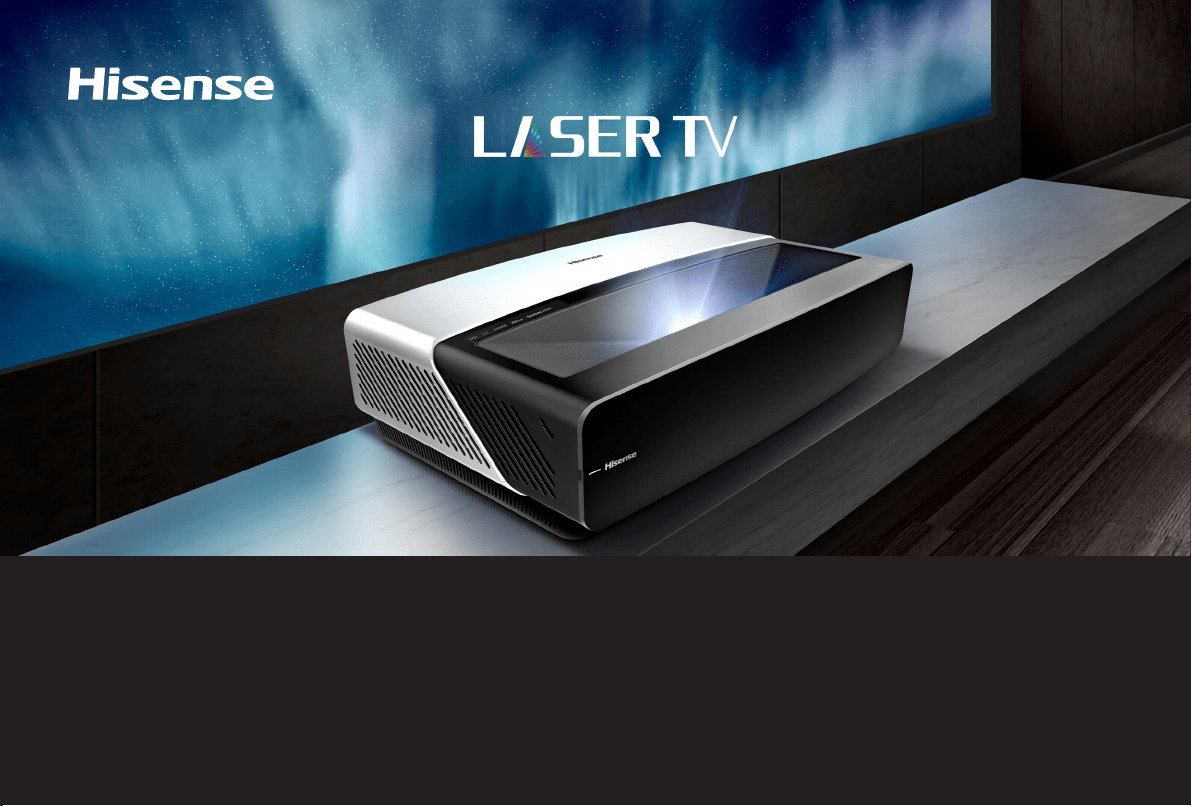
Quick Start Guide
Model 100L5F
Before using the TV, please read this guide carefully and keep it for future reference.
Disclaimer: This Quick Start Guide is intended as a general guideline to help you set up your TV. Images throughout this document are for illustrative purposes only and may
differ from the actual product.

© 2020 Hisense Company Ltd. All Rights Reserved.
All material in this Quick Start Guide is the property of Hisense Company Ltd. and its subsidiaries, and is protected under US,
CANADA, MEXICO and International copyright and/or other intellectual property laws. Reproduction or transmission of the materials,
in whole or in part, in any manner, electronic, print, or otherwise, without the prior written consent of Hisense Company Ltd. is a
violation of Hisense Company Ltd. rights under the aforementioned laws.
No part of this publication may be stored, reproduced, transmitted or distributed, in whole or in part, in any manner, electronic or
otherwise, whether or not for a charge or other or no consideration, without the prior written permission of Hisense Company Ltd.
Requests for permission to store, reproduce, transmit or distribute materials may be made to one of the following addresses:
U.S.A. Hisense USA Corporation
7310 McGinnis Ferry Road
Suwanee, GA 30024
MEXICO
IMPORTER:
Hisense Mexico S. de R.L. de C.V.
Blvd. Miguel de Cervantes Saavedra No 301
Torre Norte Piso 2, Col. Ampliación Granada
Miguel Hidalgo, Ciudad de México, C.P. 11520
RFC: HME110512IY3
TEL: (52) (55) 5531-3515
CANADA Hisense Canada Co., Ltd
2283 Argentia Road, Unit 16
Mississauga, ON, Canada
L5N 5Z2
Hisense, and any and all other Hisense product names, logo’s, slogans or marks are registered trademarks of Hisense Company Ltd.
and its subsidiaries. All other trademarks are the property of their respective holders.

1
Table of Contents
Register Your TV! 2
Important Safety Information 3
Packaged Contents 5
Laser TV Diagram 6
STEP 1. Mount the Screen 7
STEP 2. Set up the Laser TV 7
STEP 3. Adjust the Display Image and the Screen 10
STEP 4. Use Your Remote 14
STEP 5 Proceed through the Screen Setup Menu 16
Begin to Enjoy Your TV 17
Maintenance & Quick Problem-Solving Tips 18
Product Specifications 21
Certification and Compliance 23
Congratulations on the purchase of your new TV! This Quick Start Guide will walk you through a few easy
steps to set up your TV.
For detailed instructions, refer to the User Manual included in this package.
2
Register Your TV!
Because we value your business, we want to keep you in the know of 'all things Hisense'. Using your mobile phone, scan the
Registration page QR code to register your TV. Depending on the make and model of your phone, you may need to download a QR
code scanning app.
http://www.hisense-usa.com/support/
register
https://hisense.com.mx/product-
registration/
http://www.hisense- canada.com/
support/productReg.asp
U.S. Mexico Canada

3
Important Safety Information
SAFETY WARNINGS
Do not look directly at the lens when this device is on because the laser light may damage your eyes!
• This product comes with a laser module. Do not tear or modify this device in any manner; otherwise, it
may result in personal injury.
LASER RADIATION
DO NOT STARE INTO BEAM
CLASS 2 LASER PRODUCT
MAXIMUM OUTPUT < 66.7mW
λ = 450~460nm
IEC 60825-1:2014
Peak Power < 66.7mW
Wavelength 450~460nm
Angle of Divergence 49°
Class 2 Laser Product IEC 60825-1: 2007
Caution—use of controls or adjustments or performance of procedures other than those specified herein may result in hazardous
radiation exposure.
This Device Complies with DHHS Radiation Rules, 21CFR Chapter 1, Subchapter J.
• If this device requires a repair, please wear laser eye protection with an optical density OD that is 4 or
higher and has a wave length of 450-460 nm.
• Do not place any water-containing vessel on this device, such as cosmetics or liquid medicine.
• If any object or water enters this device, please unplug this device and contact the service staff of Hisense.
• Do not place any exposed fire source (e.g. burning candle) on this device. Keep away from high temperature and heat.

4
• Do not expose the battery to direct sunlight or candle light.
• Keep air vents on both sides clear from any objects to prevent the device from overheating inside.
• To avoid a short circuit, product damage or electric shock, do not use any sharp object or metal to touch the ports or other
openings on the TV.
• If this device has been in a warm environment, allow any built-up condensation to evaporate first BEFORE you switch the device
on.
• Do not allow a child to stand on or climb up this device.
• Do NOT place any object above or in front of the lens because the laser light could cause the object to become flammable.
• Clean the lens periodically with a clean cloth and make sure the TV is turned off before you start.

5
ADDITIONAL ITEMS THAT COME WITH THE TV IN A SEPARATE PACKAGE
• A Display Screen (optional equipment)*
• A set of Wall Mount Brackets
(optional equipment)*
*
Additional items you receive will be based upon your order.
• Laser TV
• 1 Remote control
• 2 AAA batteries
• 2 pairs of gloves for handling the Laser TV
• 1 Power Cord
• 1 Wrench to adjust the bottom of the TV
• 1 USB extension cable
• Hisense 4K Laser TV Quick Start Guide
• Hisense 4K Laser TV User Manual
• Important Safety Information & Warranty Card
• Cleaning kit for the lens
Packaged Contents
6
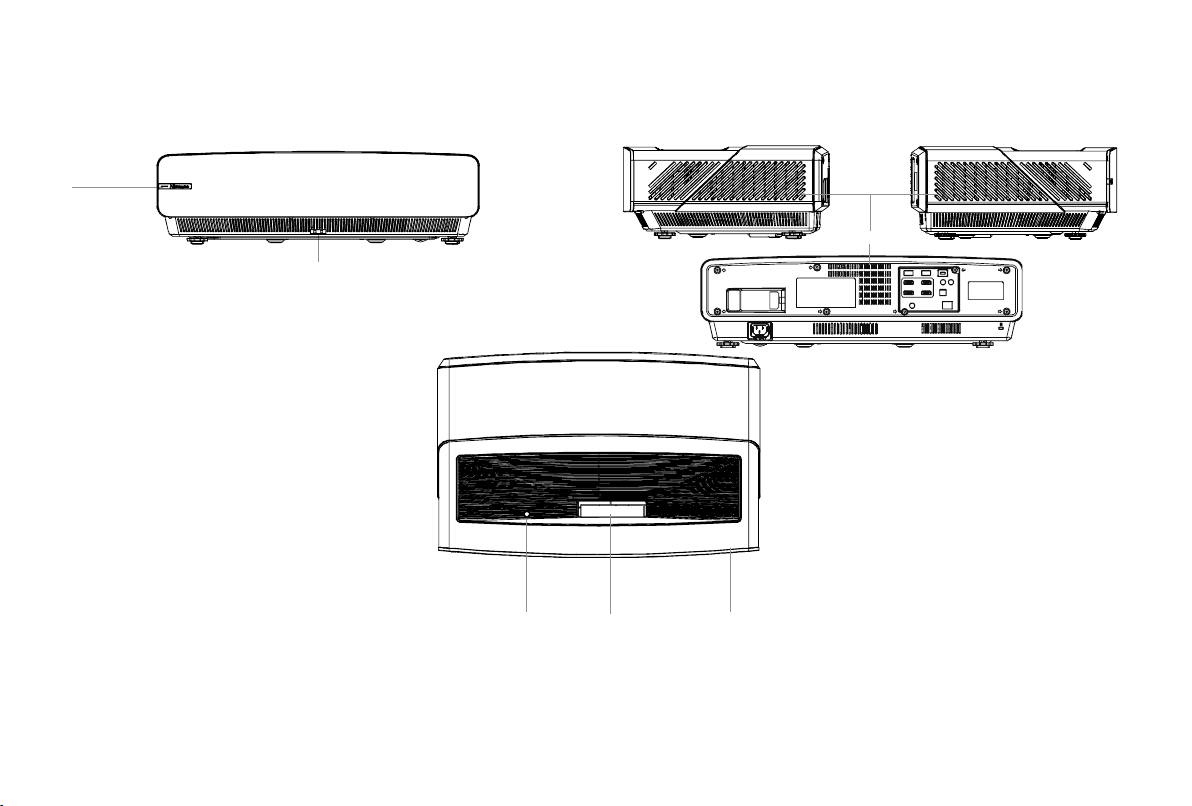
Power
Indicator
Remote control receiver
Air vents
Eye
protection
sensor
Power buttonLens with laser
We strongly recommend that two people handle this device when moving it from one place to another. Be
sure to protect the lens when you handle this device.
Laser TV Diagram
7
STEP 2 Set up the Laser TV
To begin setting up the Laser TV, we strongly recommend that TWO people move it from one place to
another because of the weight. Be sure to protect the lens when you handle this device.
STEP 1 Mount the Screen
If you purchased a screen from Hisense to include with your Laser TV, then refer to the Screen Installation
Guide that’s included in the package.
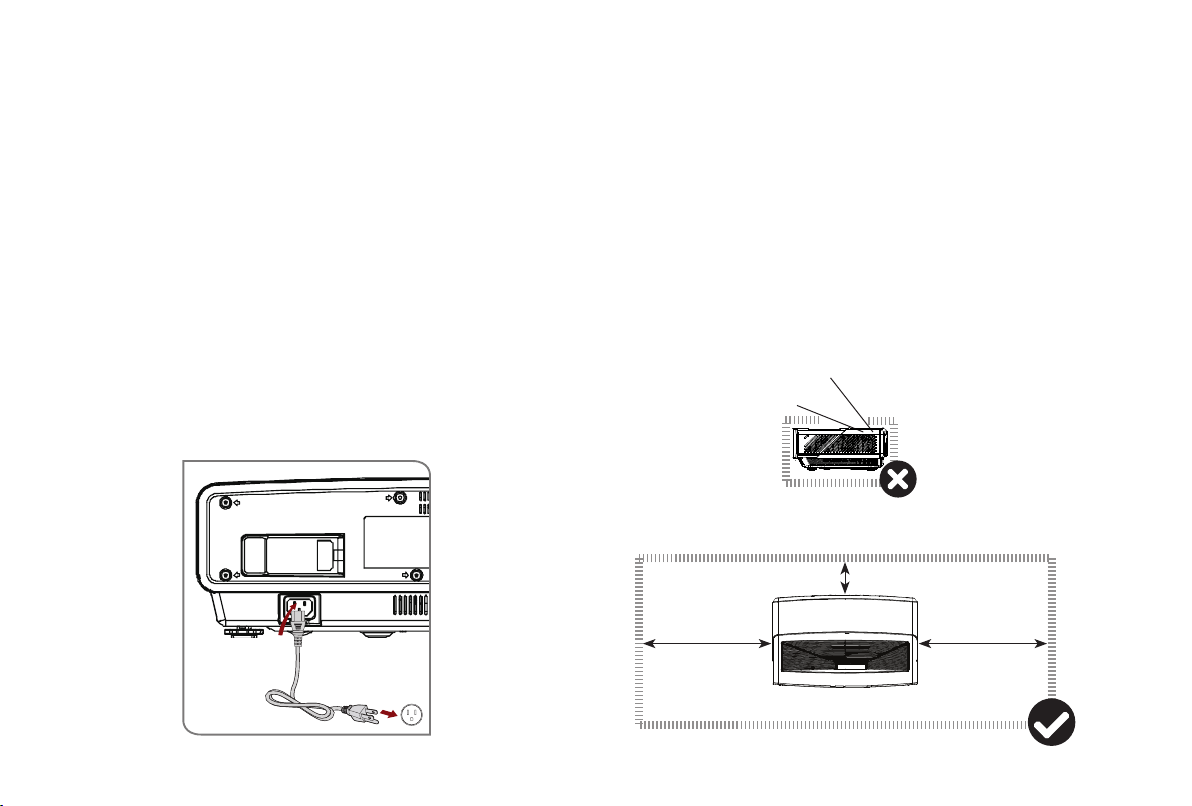
1. Now, to get started, we recommend that you connect all cables to
the ports on the back of the Laser TV before you position it. (Audio,
video, Ethernet cables and external devices are not included.)
2. Position the Laser TV so it is parallel with the screen surface.
We recommend the distance from the back panel of the
Laser TV to the wall to be 8 1/8 inches.
3. Plug the power cord into a wall outlet.
4. Press the POWER button to turn on the Laser TV.
Power Cord
Wall Outlet
Laser beam
8 in8 in
2 in
WARNING: Insufficient ventilation space will cause this
device to overheat or become damaged.
• Do not block the air vents or place any object on this device.
• Do not place this device in any narrow, enclosed or poorly
ventilated space.
At a minimum, leave the amount of space shown in the diagram
below for this device to have proper ventilation.
8
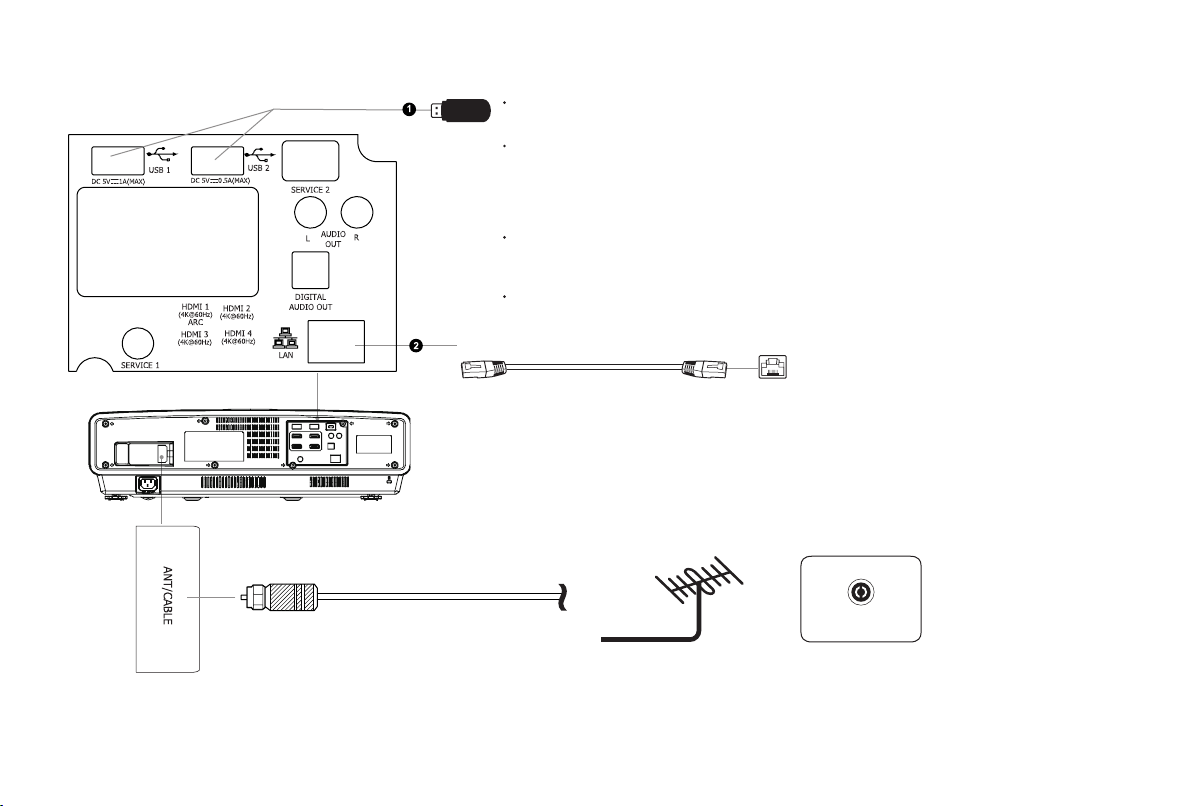
Check to ensure that you have selected the right cables for the ports and that they are connected securely. Loose connections can
affect the quality of the picture image and color.
Ethernet (you will need a router for Internet connectivity)
VHF/UHF Antenna
Cable
ANT OUT
Coaxial
Outdoor VHF/UHF antenna
Ports to connect certain cables to
NOTE:
Use the USB extension cable (included) for easier connection and
disconnection.
When connecting a hard disk or a USB hub, always connect the mains
adapter of the connected device to the power supply. Exceeding a total
current consumption may result in damage. The USB2.0 device maximum
current consumption is 500mA. The USB3.0 device maximum current
consumption is 1A.
If the impulse current for an individual non-standard high-capacity mobile
hard disk is greater than or equal to 1A, it may cause the TV to reboot or
lock.
The USB port supports a voltage of 5V.
9
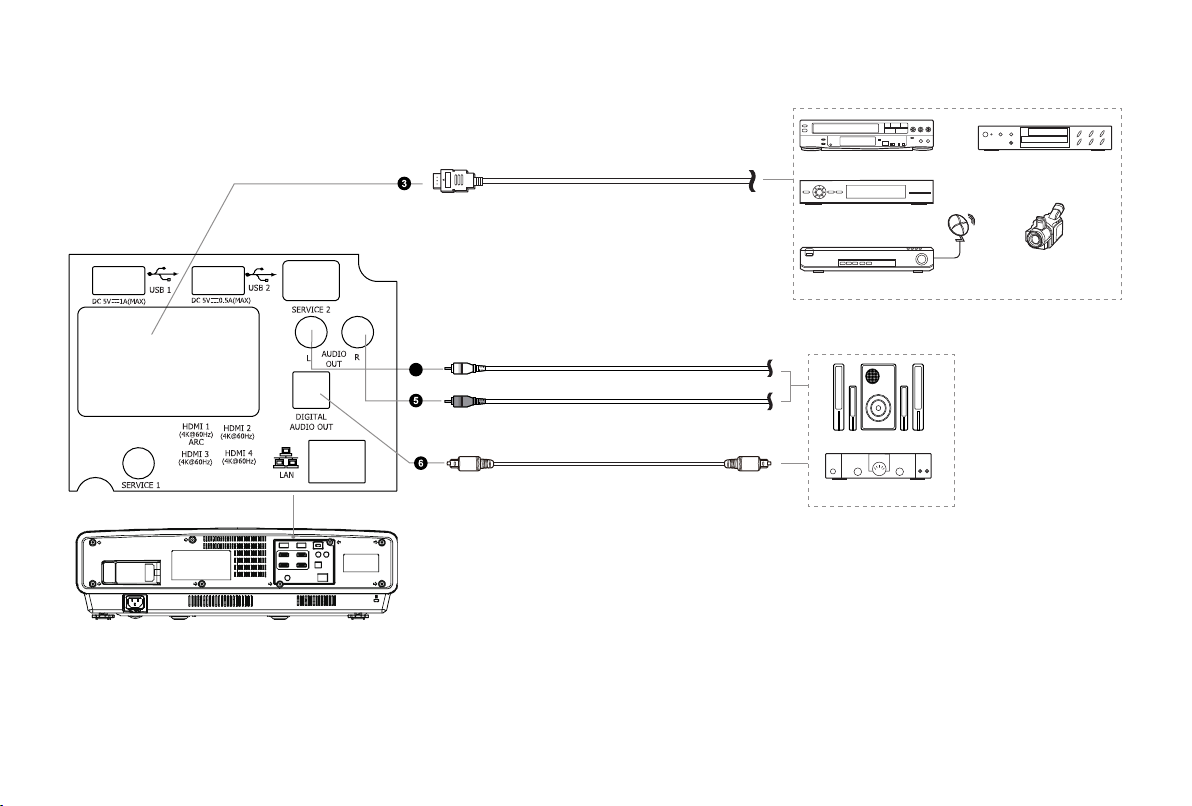
External audio devices
Audio Amplier
Speakers
Left-right audio adapter
Digital audio adapter
Red
White
USB devices for browsing photos, music and
movies. This unit only recognizes USB Memory
Sticks.
Video Camera
DVD Player
External AV devices
VCR
Set-top Box
Satellite Receiver
HDMI
4
10
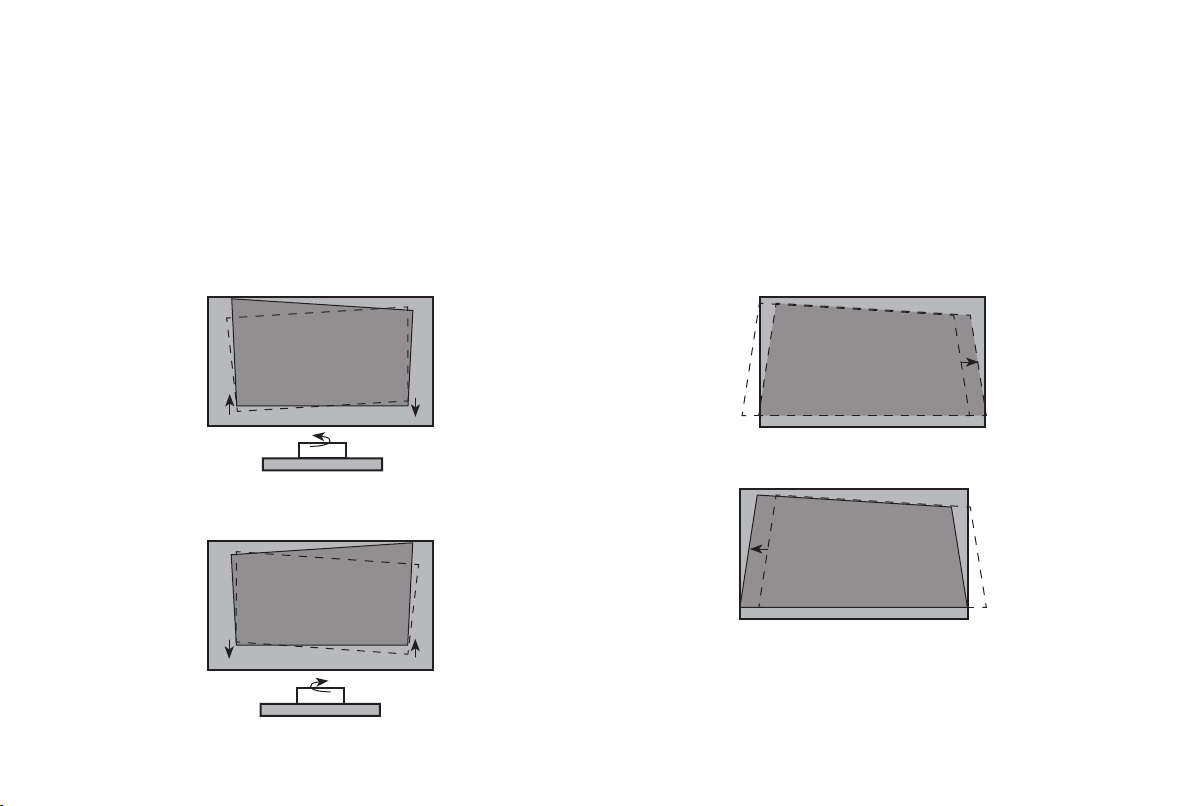
FIT THE BOTTOM OF THE IMAGE TO THE SCREEN
• If the image shifts to the left side, then move the Laser TV to
the right.
If the image shifts to the right side, then move the Laser TV
to the left.
STEP 3 Adjust the Display Image and the Screen
Follow the steps in the order shown below, only if they apply to your situation.
Note: Before adjusting, fold the wall-mount bracket wands so that screen is vertically level. Rotate feet from an overlooking view, but
do not look directly at the lens when this device is on because the laser light may damage your eyes.
PARALLEL THE BOTTOM OF THE IMAGE WITH THE SCREEN
If the bottom of the image is lower on the left and higher on the
right, rotate the device counterclockwise.
If the bottom of the image is lower on the right and higher on
the left, rotate the device clockwise.
11
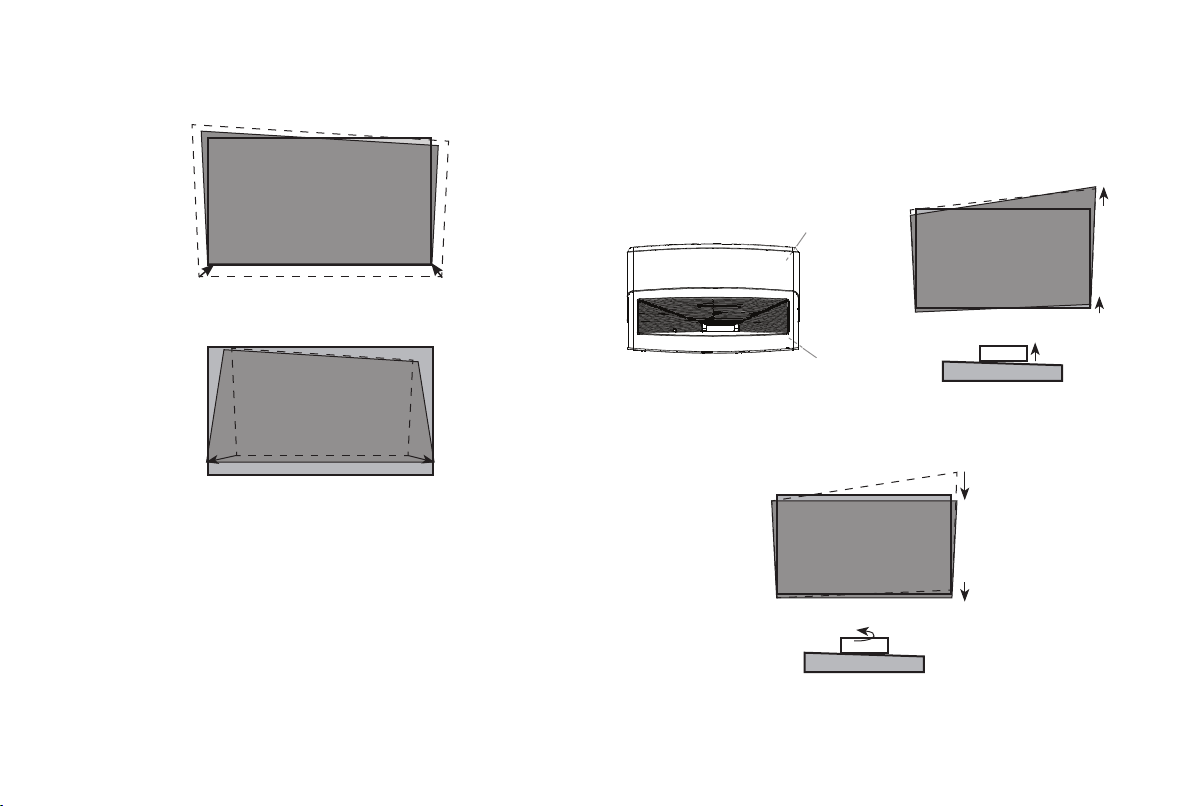
ADJUST THE UPPER-RIGHT CORNER OF THE IMAGE
1. If the top of the image is lower on the left and higher on the
right, then use the wrench to rotate the front-right foot and
the back-right foot clockwise to the same height.
2. Now, rotate the TV counterclockwise so that the bottom of
the image is parallel with the screen.
3. Repeat the steps above until the top of the image is parallel
with the screen.
back-right foot
front-right foot
• If the bottom of the image is wider than the screen, then
move the Laser TV closer to the screen.
If the bottom of the image is narrower than the screen, then
move the Laser TV farther from the screen.
NOTE: Make sure the bottom of the image always stays
parallel with the screen. If not, rotate the TV following previous
instructions.
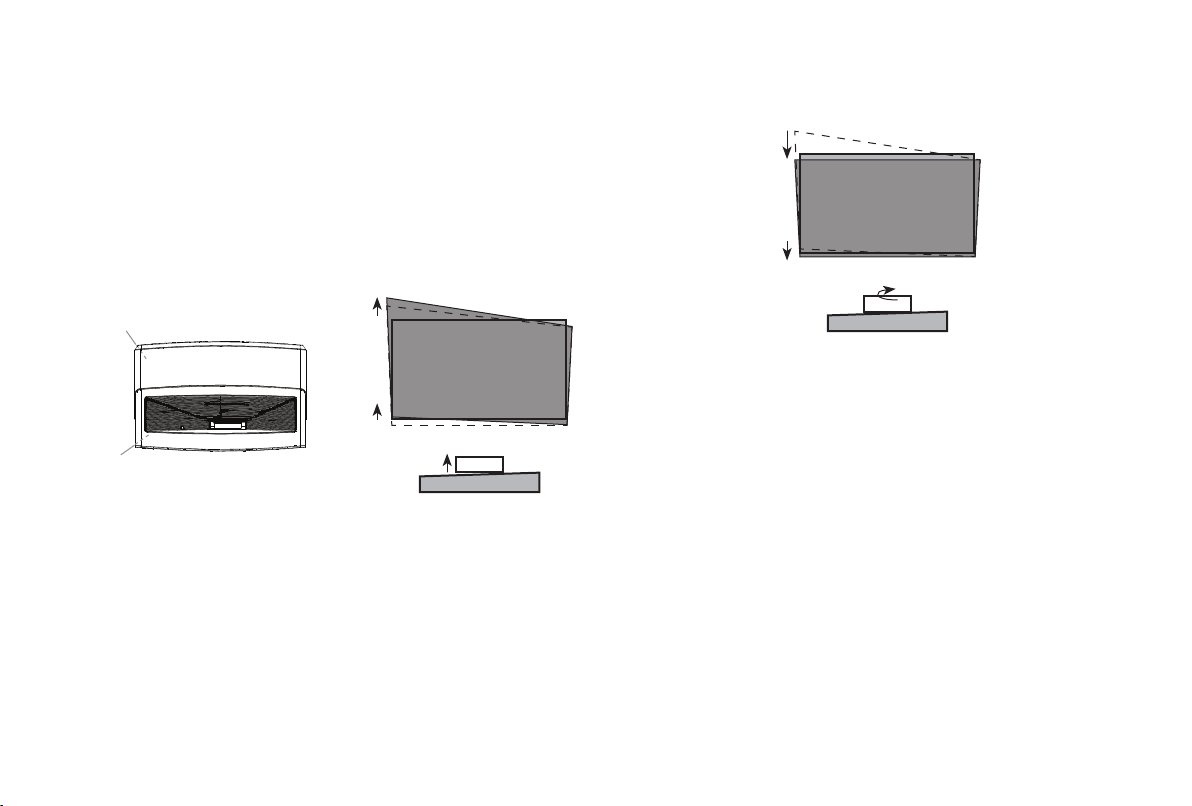
12
2. Now, rotate the TV clockwise so that the bottom of the image
is parallel with the screen.
3. Repeat the steps above until the top of the image is parallel
with the screen.
4. If the upper-left corner is inside the screen after adjusting,
use the wrench to rotate the front-left foot and the back-
left foot counterclockwise to the same height, and rotate the
TV counterclockwise, to make the image is parallel with the
screen.
4. If the upper-right corner is inside the screen after adjusting,
use the wrench to rotate the front-right foot and the back-
right foot counterclockwise to the same height, and rotate
the TV clockwise, to make the image parallel with the screen.
ADJUST THE UPPER-LEFT CORNER OF THE IMAGE
1. If the top of the image is higher on the left and lower on the
right, then use the wrench to rotate the front-left foot and
the back-left foot of the TV clockwise to the same height.
back-left foot
front-left foot
13
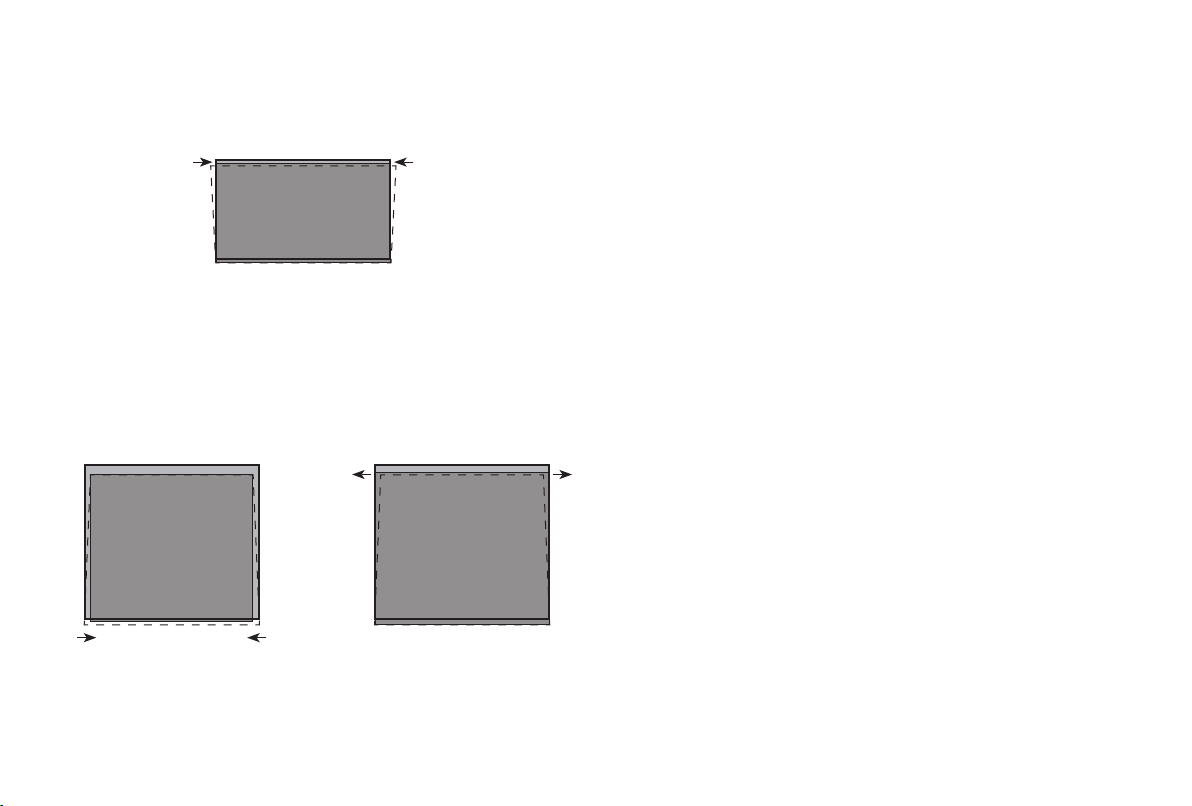
FILL THE TOP OF THE IMAGE TO THE SCREEN
If the top of the imge is wider than the screen, then use the
wrench to rotate the left- and right-front feet of the Laser TV
clockwise.
If the top of the image is narrower than the screen, then use
the wrench to rotate the left- and right-back feet of the Laser
TV clockwise, until the left and right borders of the image are
parallel with the screen borders.
Next, move the projector further from the screen to fill the image
to screen width.
If the back feet are already at their maximum height, rotate the
left- and right-front feet of the Laser TV counterclockwise.
Rotate the back feet clockwise Rotate the front feet
counterclockwise
Do not look directly at the lens when this device is on because the laser light may damage your eyes!
14
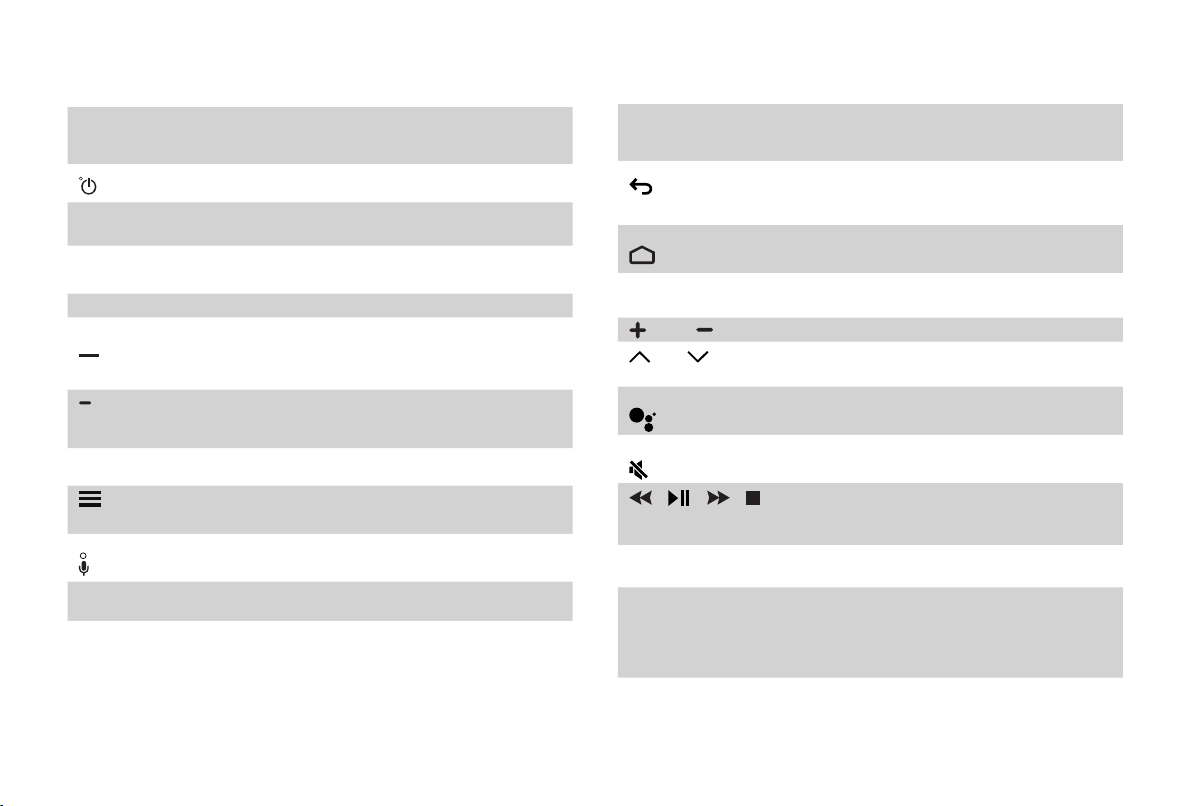
STEP 4 Use Your Remote
BUTTON DESCRIPTION
Power on / off
INPUT Change TV input source
Number Enter Channels / input numbers
CC Change CC source
Dash button / Select a digital sub-
channel
(Red / Green /
Yellow / Blue)
Special function buttons
TV Return to the previous source
The button for the Quick setup
menu
Power Indicator and Microphone
OK Confirmation button
˄ / ˅ / ˂ / ˃ D-pad (up/down/left/right
navigation buttons)
BUTTON DESCRIPTION
Return to the previous place in the
menu or app
Display the Home screen
APPS All Apps
VOL Volume (up/down)
CH
Channel (up/down)
Google Assistant of TV
Mute and restore sound
/
/
/
Media content control function
buttons
NRT Quick access to Accessibility menu
MTS
Choose the audio language in DTV
mode and set MTS for Mono, Stereo
or SAP in ATV mode
NOTE: The button descriptions are only provided as a
reference. The actual appearance of your remote may
differ from the buttons that are listed.

15
1. Press and slide the back cover to open the battery
compartment of the remote control.
2. Insert two AAA size batteries. Make sure to match the
(+) and (-) ends of the batteries with the (+) and (-) ends
indicated in the battery compartment.
3. Restore the battery compartment.
IMPORTANT INFORMATION ABOUT THE REMOTE AND
BATTERIES
• Discard batteries in a designated disposal area. Do not throw
them into a fire.
• Remove old batteries immediately to prevent them from
leaking into the battery compartment.
• If you do not intend to use the remote control for a long time,
then remove the batteries.
• Battery chemicals can cause a rash. If the batteries leak,
clean the battery compartment with a cloth. If chemicals
touch your skin then wash it immediately.
• Do not mix old and new batteries.
• Do not mix alkaline, standard (carbon-zinc) or rechargeable
(NiCd, NiMH, etc.) batteries.
• Do not continue using the remote if it gets warm or hot.
• Call our Support Center immediately on the support website.
REMOTE CONTROL RANGE INFORMATION
• The remote control can work at a distance of up to 26 feet in
front of the TV set.
• It can work at a 30 degree horizontal or 15 degree vertical
angle.( This angle is used by infrared means in an unpaired
state.)
PAIRING THE REMOTE CONTROL
1. Pair the remote to the TV after you power it on. Keep the remote
control within 10 feet from the TV. Press and hold the [ ]
button at least 3 seconds to start pairing.
2. If the remote paired successfully then a confirmation will
display on the screen. If it did not pair successfully then an
unsuccessful message will display. Repeat step 1.
NOTE:
• If an unknown error occurred with the remote then it could
have been caused by interference. Try to remove what's
causing the interference and pair it again.
• If an unknown error occurred in the remote control while the
battery power is normal, you can take out the batteries and
press any key for 1~2 seconds, then the remote control can
work normally.
• The remote cannot be paired to the TV while the TV is in
standby mode.
16
STEP 5 Proceed through the Screen
Setup Menu
PROJECTION MODE
If you need to flip the image over top-to-bottom and/or left-
to-right, select the Projection Mode and press the LEFT/RIGHT
buttons.
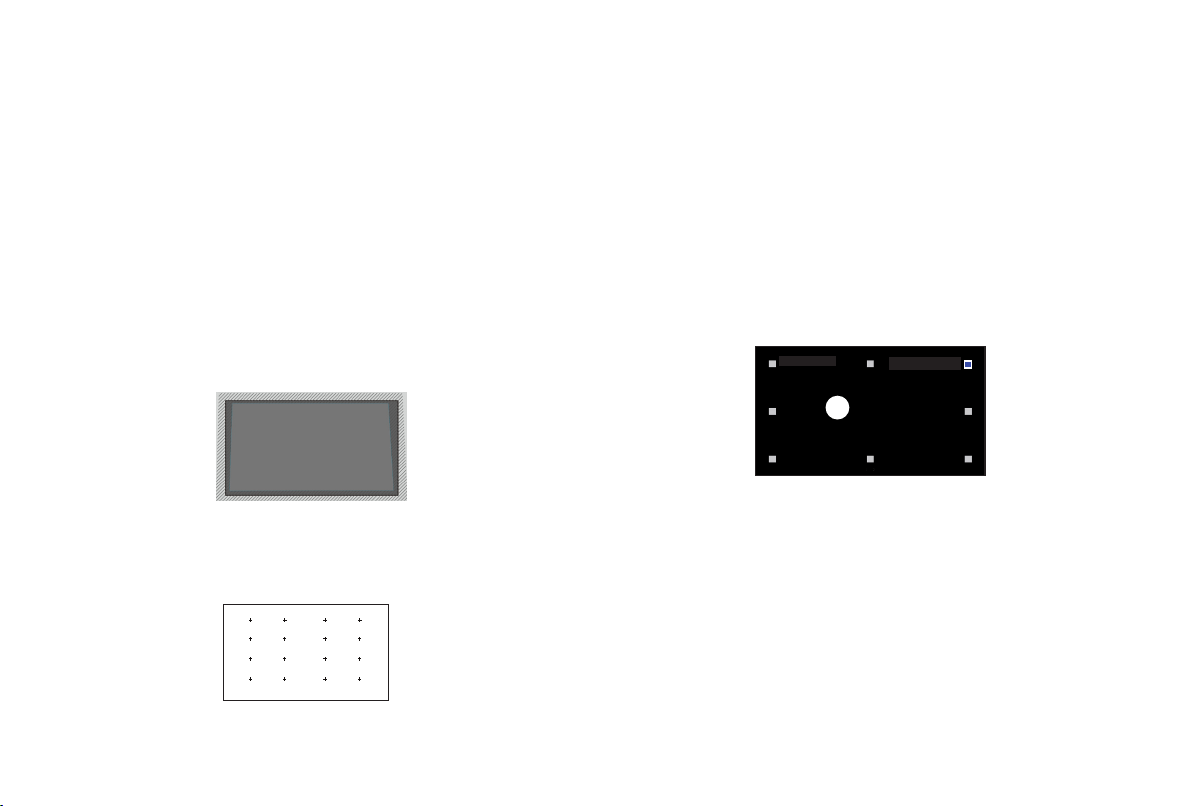
AUTO GEOMETRIC CORRECTION
Before you use Auto Geometric Correction function, ensure that
the Laser TV and your mobile device are connected to the same
Wi-Fi network.
1. Position the Laser TV and use the leveling feet as needed to
fit the entire display border within the screen area.
2. Click Next to continue.
3. Scan the QR Code with your mobile device to begin
automatic geometric correction. When the app loads, the
Laser TV will display an alignment grid.
Alignment grid
GEOMETRIC CORRECTION
1. Select a point for adjustment using the UP/DOWN/LEFT/
RIGHT buttons. Adjust eight main points at the corners and
midpoints first, then adjust the six smaller points on the top
border.
2. Adjust the position of the point by pressing the UP/DOWN/
LEFT/RIGHT buttons, then press the Back button to view and
select other points. Your changes will apply automatically.
NOTE: To return the picture position to the factory default,
select the Reset button on the screen.
EYE PROTECTION
In order to protect your eyes, do not look into the lens.
This
projector is shutting down in 5 seconds, the Laser TV screen is
closed immediately.
Press
OK
to adjust the selected
point
4. Click "+" on your mobile device to take a photo of the entire
screen and image. For best results, stand about 10 feet away
from the screen and use landscape mode.
5. Click "upload" on your mobile device to complete the
automatic geometric correction.
17
Begin to Enjoy Your TV
Your Smart TV is easy to use and brag-worthy!
After you've completed setting up the language, time and
network connection, the Home screen will be your starting point
for navigating the TV. Gone are the days where your TV only
provides one way for you to be entertained. This showpiece
provides you the convenience of watching a program on a live
channel, accessing Video on Demand to watch a movie and
many other entertainment options.
Using your remote, press the Home button to begin enjoying
your TV.
Disclaimer: Subscriptions or other payments may be required to access content through some applications. Some or all of the included or downloaded application services in
this Hisense device may not function depending on the Internet connection, local limitations of included applications or other reasons outside of Hisense’s control. HISENSE
EXPRESSLY DISCLAIMS RESPONSIBILITY FOR ANY APPLICATION SERVICE FROM FUNCTIONING AT ANY TIME, FOR CONTENT IN ANY APPLICATION SERVICE, FOR
DISRUPTIONS OF SERVICE, LOCAL OR REGIONAL LIMITATIONS, WARRANTIES OF TITLE, NO INFRINGEMENT, AND FOR IMPLIED WARRANTIES OF MERCHANTABILITY OR
FITNESS FOR A PARTICULAR PURPOSE. By purchasing this device, you accept such Disclaimer without any claim on Hisense at any time.
Text-to-Speech(TTS) and Video Description
functionalities on TV
Text-to-Speech (TTS) and Video Description can help you to
navigate the menus on the screen and hear an audio description
of relevant programs.
Text-to-Speech can convert written text into voice text to help
visually impaired people listen to the information they are unable
to read. In addition, the Video Description has an audio narration
added to certain programs that will describe the main visual
elements which visually impaired users may not be able to see.
Follow the steps below to enable the functions:
1. Press the [ ] button to access the Menu.
2. Next, select Settings to enter the Settings Menu.
3. Select Accessibility > Menu Audio or Video Description to
turn the Menu Audio or Video Description 'On' or 'O'.
When Menu Audio is turned On, then the contents of each menu
displayed can be broadcasted out.
When Video Description is turned On, then you can hear the
introduction of relevant programs.
https://www.hisense-usa.com/text-to-speech-and-video-
description-functionalities-on-tv
Note: The Menu Audio feature is not available in some regions and
countries outside of the United States.

18
Quick Problem-Solving Tips
When you experience an issue with your TV, turn it off and on again. If this does not resolve the problem, then refer to the tips below.
When I turn on my TV, there is a delay for a few seconds before the picture appears. Is this normal?
Yes, this is normal. The TV is initializing and searching for previous setting information.
No sound or picture
1. Check if the power cord is plugged into a powered AC outlet.
2. Press the Power button on the remote control to activate the unit from 'Standby' mode.
3. Check to see if the LED light is on or not. If it is, then the TV is receiving power.
Maintenance
• Do not touch this device when it is running or just turned off because it may be hot.
• Do not wipe this device with oil because it may deteriorate the exterior or damage the paint. Contact with rubber or ethylene
products for a long time may cause stains on this device.
• If the outside of the TV is dirty, turn off the TV and wipe with a damped soft cloth.
• Do not touch the lens with your hands.
• Do not touch or wipe the lens with ordinary cleaning cloth. Use a dust blower to remove the dust on the lens. Grease, dirt and
fingerprints should be cleaned carefully by the professional by using optical cleaning cloth, lens wiping paper or professional
cleaning solutions to avoid destroying the optical filming and affecting the image quality.
• To turn off this device, press the Power button on the remote control. Do not cut off the power directly when the device is working.

19
I have connected an external source to my TV and I get no picture and/or sound.
1. Check for the correct output connection on the external source and for the correct input connection on the TV.
2. Make sure you have made the correct selection for the input mode for the incoming signal.
The picture is normal but there is no sound
1. Check the volume settings.
2. Check if 'Mute' mode is set to On.
Sound but no picture or black and white picture
1. If the picture is black and white, unplug the TV from the AC outlet and replug it after 60 seconds.
2. Check that the Color is set to 50 or higher.
3. Try dierent TV channels.
The sound and/or picture is distorted or appears wavy
1. An electric appliance may be aecting the TV. Turn o any appliances that are nearby and move it farther away from the TV.
2. Insert the power plug of the TV set into another power outlet.
The sound and picture is blurry or cuts out
1. If using an external antenna, check the direction, position and connection of the antenna.
2. Adjust the direction of your antenna or reset or fine tune the channel.
The plastic cabinet makes a "clicking" type of sound
The 'click' sound can occur when the temperature of the television changes. This change causes the television cabinet to expand or
contract, which makes the sound. This is normal and the TV is OK.

20
The remote control does not work
1. Confirm that TV still has power and is operational.
2. Change the batteries in the remote control.
3. Check if the batteries are correctly installed.
NEED MORE HELP?
Additional help is available online at support links. You will find answers to frequently asked questions, downloadable firmware and
more. If the problem is still not resolved, then contact us at one of the phone numbers below.
U.S.A.
http://www.hisense-usa.com/support/
Phone: 1-888-935-8880
Monday - Friday 9 AM to 9 PM EST
Saturday - Sunday 9 AM to 6 PM EST
Email: Service@hisense-usa.com
MEXICO
https://hisense.com.mx/support/
Phone: 1-800-008-8880
Monday - Friday 9:00-18:00
Email: [email protected]om.mx
CANADA
http://www.hisense-canada.com/
support/
Phone: 1-855-344-7367
Monday - Friday 8 AM to 8 PM EST
Email: [email protected]om

21
Product Specifications
MODEL NAME 100L5F
DIMENSION (W × H × D) 21.5 × 6.2 × 13.6 inches
(547 × 158 × 346 mm)
WEIGHT 24.3 lbs (11 kg)
ACTIVE SCREEN SIZE (DIAGONAL) 100 inches
SCREEN RESOLUTION 3840 × 2160
AUDIO POWER 2 × 15 W
POWER CONSUMPTION 348W
POWER SUPPLY 120 V ~60 Hz
CONNECTIVITY Built-in Wireless feature (2x2 dual band)
PORTS 4 HDMI ports, 2 USB ports, 1 LAN port for Ethernet, 1 Digital Audio Output, 1 RF Input,
1 left/right Audio Output
ENVIRONMENTAL CONDITIONS Temperature: 41°F to 95°F (5°C to 35°C)
Humidity: 20% to 80% RH
Atmospheric pressure: 86 kPa to 106 kPa
STORAGE TEMPERATURE 5°F to 113°F (-15°C to 45°C)
STORAGE HUMIDITY 10% to 70%, non-condensing

22
Disclaimer: All products, product specifications, and data are subject to change without notice to improve reliability, function, design or otherwise.
RECEIVING CHANNELS VHF: 2 - 13, UHF: 14 - 69, CATV: 1 - 125
Digital Terrestrial Broadcast (8VSB): 2 - 69
Digital cable (64/256 QAM): 1 - 135
TUNER TYPE Frequency synthesized
RECEIVING SYSTEM Analog: NTSC
Digital: ATSC/QAM
23
FCC Notice
This device has been tested and found to comply with the limits
for a Class B digital device pursuant to Part 15 of the FCC Rules.
These limits are designed to provide reasonable protection
against harmful interference in a residential installation. This
device generates, uses, and can radiate radio frequency energy
and, if not installed and used in accordance with the instructions,
may cause harmful interference to radio communications.
However, there is no guarantee that interference will not occur
in a particular installation. If this device does cause harmful
interference to radio or television reception, which can be
determined by turning the device off and on, the user is
encouraged to try to correct the interference by one or more of
the following measures:
• Reorient or relocate the receiving antenna.
• Increase the separation between the device and receiver.
• Connect the device into an outlet on a circuit different from
that to which the receiver is connected.
• Consult the dealer or an experienced radio/TV technician for
help.
NOTE: THE MANUFACTURER IS NOT RESPONSIBLE FOR ANY RADIO
OR TV INTERFERENCE CAUSED BY UNAUTHORIZED MODIFICATIONS
TO THIS EQUIPMENT. SUCH MODIFICATIONS COULD VOID THE USER’S
AUTHORITY TO OPERATE THE EQUIPMENT.
Declaration of Conformity
Trade Name: Hisense
Model: 100L5F
Responsible Party: Hisense USA Corporation
Address: 7310 McGinnis Ferry Road, Suwanee, GA 30024
Telephone Number: 678-318-9060
This device complies with Part 15 of the FCC Rules. Operation is subject
to the following two conditions: (1) this device may not cause harmful
interference, and (2) this device must accept any interference received,
including interference that may cause undesired operation.
Manufactured under license from THAT Corporation. THAT
Corporation, dbx-tv, Total Sonics, Total Surround and Total
Volume are registered trademarks of THAT Corporation.
Total Technology is a trademark of THAT Corporation.
©2019. All rights reserved. Hisense and the Hisense
logo are registered trademarks of Hisense. Other brand
and product names are registered trademarks of their
respective owners.
Certification and Compliance
The terms HDMI and HDMI High-Definition Multimedia Interface,
and the HDMI Logo are trademarks or registered trademarks
of HDMI Licensing LLC in the United States and other countries.
Manufactured under license from Dolby Laboratories. Dolby, Dolby
Audio, and
the double-D symbol are trademarks of Dolby Laboratories.
©2016. All rights reserved. Hisense and the Hisense logo are registered
trademarks of Hisense. Other brand and product names are registered
trademarks of their respective owners.
The Wi-Fi Module complies with FCC radiation exposure limits set forth for
an uncontrolled environment. This device should be installed and operated
with a minimum distance of 20 centimeters between the radiator and your
body.

ES-A2008X1-1