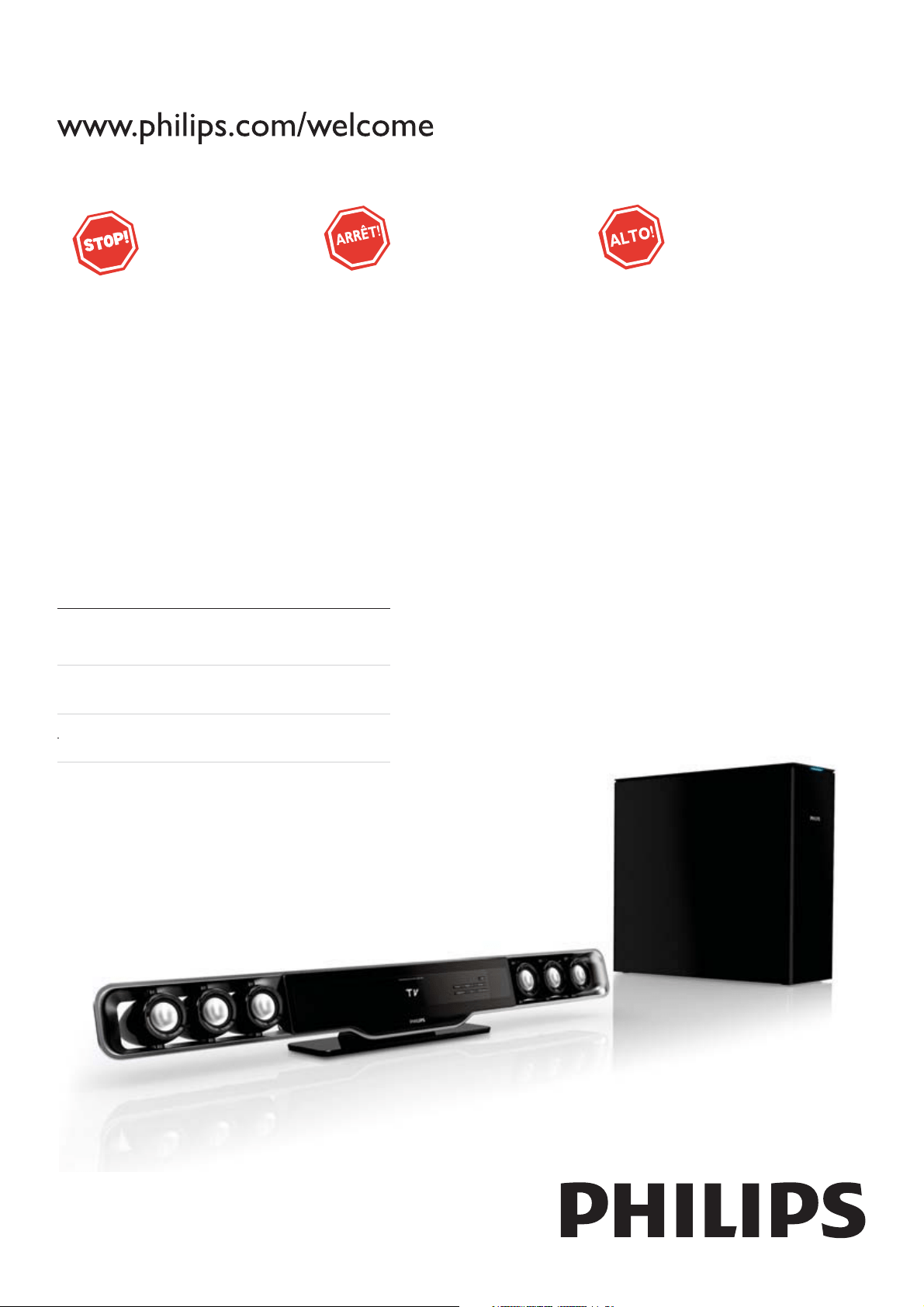
Register your product and get support at
Thank you for choosing Philips.
Need help fast?
Philips vous remercie de
votre confiance.
Besoin d'une aide
rapide?
Gracias por escoger Philips
Necesita ayuda
inmediata?
Read your Quick Use Guide and/or
Owner's Manual first for quick tips
that make using your Philips product
more enjoyable.
If you have read your instructions
and still need assistance,
you may access our online help at
www.philips.com/welcome
or call
1-888-PHILIPS (744-5477)
while with your product.
(and Model / Serial number)
Les Guide d'utilisation rapide et Manuel de
l'utilisateur regorgent d'astuces destinées à
simplifier l'utilisation de votre produit Philips.
Toutefois, si vous ne parvenez pas à résoudre
votre probléme, vous pouvez accéder à
notre aide en ligne à l'adresse
www.philips.com/welcome
ou formez le
1-800-661-6162 (Francophone)
1-888-PHILIPS (744-5477) (English speaking)
Veillez à avoir votre produit à
portée de main.
(et model / serial nombre)
Lea primero la Guía de uso rápido o el
Manual del usuario, en donde encontrará
consejos que le ayudarán a disfrutar
plenamente de su producto Philips.
Si después de leerlo aún necesita ayuda,
consulte nuestro servicio de
asistencia en línea en
www.philips.com/welcome
o llame al teléfono
1-888-PHILIPS (744-5477)
y tenga a mano el producto.
(y número de model / serial)
EN User manual 3
ES Manual del usuario 31
FR Mode d’emploi 63
HSB3280

3
English
EN
Return your Product Registration Card or register online at
www.philips.com/welcome today to get the very most from your purchase.
Registering your model with PHILIPS makes you eligible for all of the valuable benefits listed below, so
don't miss out. Complete and return your Product Registration Card at once, or register online at
www.philips.com/welcome to ensure:
Visit our World Wide Web Site at http://www.philips.com/welcome
Congratulations on your purchase,
and welcome to the “family!”
Dear PHILIPS product owner:
Thank you for your confidence in PHILIPS.
You’ve selected one of the best-built, best-
backed products available today.We’ll do
everything in our power to keep you happy
with your purchase for many years to come.
As a member of the PHILIPS “family,” you’re
entitled to protection by one of the most
comprehensive warranties and outstanding
service networks in the industry.What’s
more, your purchase guarantees you’ll
receive all the information and special offers
for which you qualify, plus easy access to
accessories from our convenient home
shopping network.
Most importantly, you can count on our
uncompromising commitment to your total
satisfaction.
All of this is our way of saying welcome -
and thanks for investing in a PHILIPS prod-
uct.
P.S. To get the most from your PHILIPS
purchase, be sure to complete and
return your Product Registration Card
at once, or register online at:
www.philips.com/welcome
*Proof of Purchase
Returning the enclosed card
guarantees that your date of
purchase will be on file, so no
additional paperwork will be
required from you to obtain
warrranty service.
*Product Safety
Notification
By registering your product,
you'll receive notification -
directly from the manufacturer
- in the rare case of a product
recall or safety defect.
*Additional Benefits
Registering your product guar-
antees that you'll receive all of
the privileges to which you're
entitled, including special
money-saving offers.
For Customer Use
Enter below the Serial No. which is located
on the rear of the cabinet. Retain this
information for future reference.
Model No. __________________________
Serial No. __________________________
Know these
safetysymbols
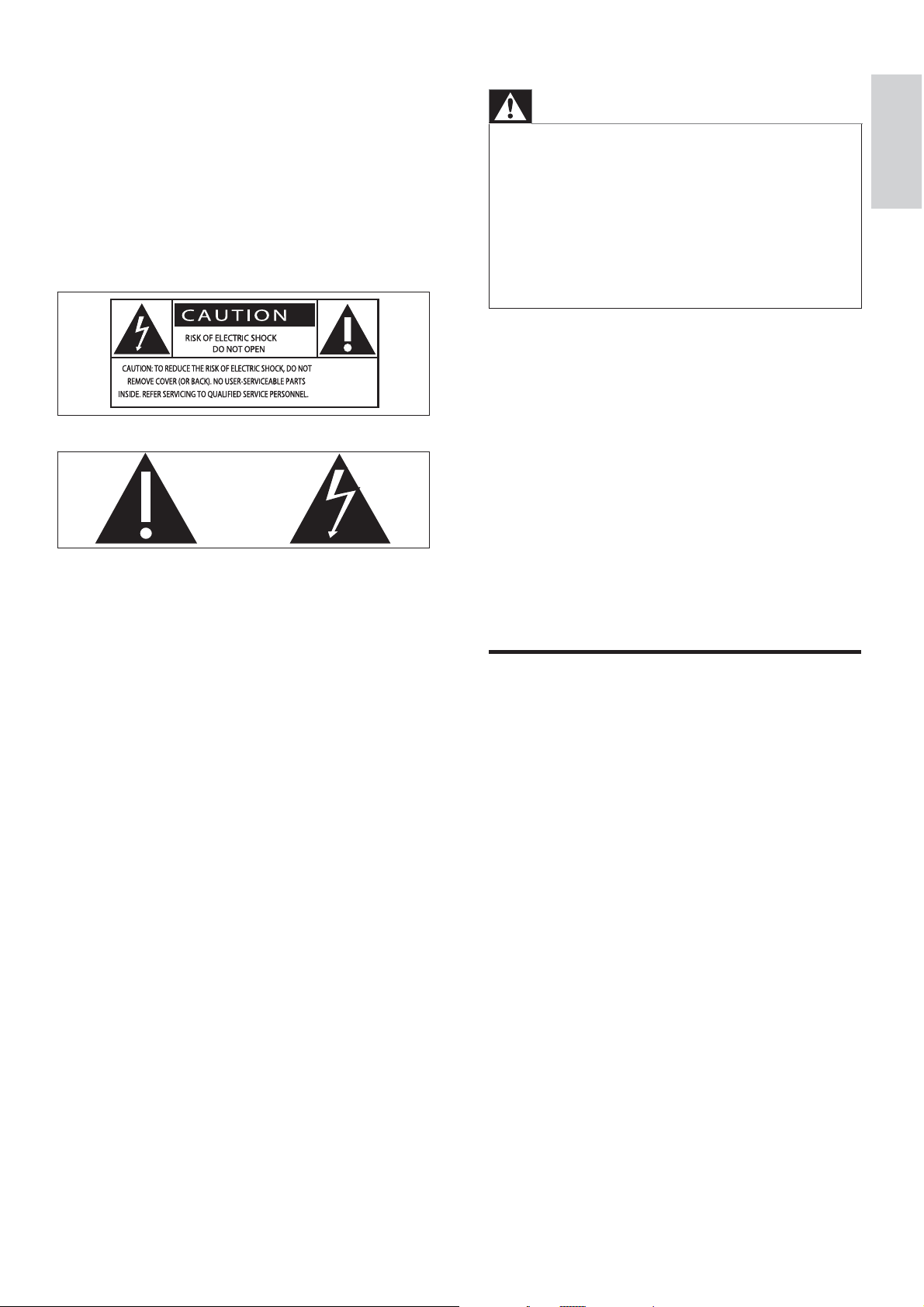
This “bolt of lightning” indicates unin-
sulated material within your unit may
cause an electrical shock. For the safety of
everyone in your household, please do not
remove product covering.
The “exclamation point” calls attention
to features for which you should read
the enclosed literature closely to prevent
operating and maintenance problems.
WARNING: To reduce the risk of fire or
electric shock, this apparatus should not be
exposed to rain or moisture and objects
filled with liquids, such as vases, should not
be placed on this apparatus.
CAUTION: To prevent electric shock, match
wide blade of plug to wide slot, fully insert.
ATTENTION: Pour éviter les choc élec-
triques, introduire la lame la plus large de la
fiche dans la borne correspondante de la
prise et pousser jusqu’au fond.
CAUTION
RISK OF ELECTRIC SHOCK
DO NOT OPEN
CAUTION: TO REDUCE THE RISK OF ELECTRIC SHOCK, DO NOT
REMOVE COVER (OR BACK). NO USER-SERVICEABLE PARTS
INSIDE. REFER SERVICING TO QUALIFIED SERVICE PERSONNEL.

4 EN
Philips, P.O. Box 671539, Marietta, GA. 30006-0026
PHILIPS LIMITED WARRANTY
ONE (1) YEAR
WARRANTY COVERAGE:
PHILIPS warranty obligation is limited to the terms set forth
below.
WHO IS COVERED:
Philips warrants the product to the original purchaser or the per-
son receiving the product as a gift against defects in materials and
workmanship as based on the date of original purchase
(“Warranty Period”) from an Authorized Dealer. The original
sales receipt showing the product name and the purchase date
from an authorized retailer is considered such proof.
WHAT IS COVERED:
The Philips warranty covers new products if a defect in material
or workmanship occurs and a valid claim is received by Philips
within the Warranty Period. At its option, Philips will either (1)
repair the product at no charge, using new or refurbished
replacement parts, or (2) exchange the product with a product
that is new or which has been manufactured from new, or ser-
viceable used parts and is at least functionally equivalent or most
comparable to the original product in Philips current inventory,
or (3) refund the original purchase price of the product.
Philips warrants replacement products or parts provided under
this warranty against defects in materials and workmanship from
the date of the replacement or repair for ninety (90) days or for
the remaining portion of the original product’s warranty,
whichever provides longer coverage for you. When a product or
part is exchanged, any replacement item becomes your property
and the replaced item becomes Philips’ property. When a refund
is given, your product becomes Philips’ property.
Note: Any product sold and identified as refurbished or
renewed carries a ninety (90) day limited warranty.
Replacement product can only be sent if all warranty
requirements are met. Failure to follow all requirements
can result in delay.
WHAT IS NOT COVERED - EXCLUSIONS AND LIMI-
TATIONS:
This Limited Warranty applies only to the new products manu-
factured by or for Philips that can be identified by the trademark,
trade name, or logo affixed to it. This Limited Warranty does not
apply to any non-Philips hardware product or any software, even
if packaged or sold with the product. Non-Philips manufacturers,
suppliers, or publishers may provide a separate warranty for their
own products packaged with the bundled product.
Philips is not liable for any damage to or loss of any programs,
data, or other information stored on any media contained within
the product, or any non-Philips product or part not covered by
this warranty. Recovery or reinstallation of programs, data or
other information is not covered under this Limited Warranty.
This warranty does not apply (a) to damage caused by accident,
abuse, misuse, neglect, misapplication, or non-Philips product, (b)
to damage caused by service performed by anyone other than
Philips or Philips Authorized Service Location, (c) to a product or
a part that has been modified without the written permission of
Philips, or (d) if any Philips serial number has been removed or
defaced, or (e) product, accessories or consumables sold “AS IS”
without warranty of any kind by including refurbished Philips
product sold “AS IS” by some retailers.
This Limited Warranty does not cover:
• Shipping charges to return defective product to Philips.
• Labor charges for installation or setup of the product, adjust-
ment of customer controls on the product, and installation or
repair of antenna/signal source systems outside of the product.
• Product repair and/or part replacement because of improper
installation or maintenance, connections to improper voltage
supply, power line surge, lightning damage, retained images or
screen markings resulting from viewing fixed stationary con-
tent for extended periods, product cosmetic appearance items
due to normal wear and tear, unauthorized repair or other
cause not within the control of Philips.
• Damage or claims for products not being available for use, or
for lost data or lost software.
• Damage from mishandled shipments or transit accidents when
returning product to Philips.
• A product that requires modification or adaptation to enable
it to operate in any country other than the country for which
it was designed, manufactured, approved and/or authorized, or
repair of products damaged by these modifications.
• A product used for commercial or institutional purposes
(including but not limited to rental purposes).
• Product lost in shipment and no signature verification receipt
can be provided.
• Failure to operate per Owner’s Manual.
TO OBTAIN ASSISTANCE IN THE U.S.A., PUERTO
RICO, OR U.S. VIRGIN ISLANDS…
Contact Philips Customer Care Center at:
1-888-PHILIPS (1-888-744-5477)
TO OBTAIN ASSISTANCE IN CANADA…
1-800-661-6162 (French Speaking)
1-888-PHILIPS (1-888-744-5477) - (English or Spanish
Speaking)
REPAIR OR REPLACEMENT AS PROVIDED UNDER THIS
WARRANTY IS THE EXCLUSIVE REMEDY FOR THE CON-
SUMER. PHILIPS SHALL NOT BE LIABLE FOR ANY INCIDEN-
TAL OR CONSEQUENTIAL DAMAGES FOR BREACH OF
ANY EXPRESS OR IMPLIED WARRANTY ON THIS PROD-
UCT. EXCEPT TO THE EXTENT PROHIBITED BY APPLICABLE
LAW, ANY IMPLIED WARRANTY OF MERCHANTABILITY OR
FITNESS FOR A PARTICULAR PURPOSE ON THIS PRODUCT
IS LIMITED IN DURATION TO THE DURATION OF THIS
WARRANTY.
Some states do not allow the exclusions or limitation of inciden-
tal or consequential damages, or allow limitations on how long an
implied warranty lasts, so the above limitations or exclusions may
not apply to you.
This warranty gives you specific legal rights. You may have other rights which vary from state/province to state/province.
3121 233 48802

5
6 Adjust volume level and sound effect
22
Adjust volume level 22
Adjust subwoofer volume 22
Select a sound effect 22
Select a game sound effect 22
Select a movie sound effect 22
Select a music mode (for USB only) 22
Mute sound 22
7 Tune to FM radio stations 23
Program radio stations automatically 23
Program radio stations manually 23
Tune to a preset radio station 23
8 Use more of your soundbar 24
Program remote control 24
Rename an AV source 24
Enable/disable automatic on/standby 25
Set the alarm timer 25
Set the sleep timer 25
9 Product information 26
Product information 26
Specifi cations 26
Amplifi er 26
Tuner (FM) 26
L/R speakers 26
Subwoofer 26
General information 26
USB playability information 27
10 Troubleshooting 28
11 Appendix 29
Mount to a wall 29
What’s in the supplied mounting kit 29
What else you’ll need 29
Mount the main unit and speakers 29
Contents
1 Important 6
Important safety instructions 6
Important Safety Instructions 6
Notice 7
Recycling 8
2 Your Soundbar System 9
Introduction 9
What’s in the box 9
Overview of the main unit 10
Overview of the remote control 11
3 Get started 13
Attach speakers to the main unit 13
Attach the stand 13
Connect AV devices 14
Option 1: Connect this soundbar to
devices through the TV 14
Option 2: Connect devices through this
soundbar to the TV (basic) 15
Option 3: Connect devices through this
soundbar to the TV (advanced) 16
Connect FM antenna 17
Connect power 17
Install remote control batteries 18
Set clock 18
Turn on 19
Switch to standby mode 19
Set up wireless connection manually 19
4 Play 20
Play an AV source through this soundbar 20
Play from USB 20
5 Control USB play 21
Skip to a track 21
Pause/resume play 21
Search within a track 21
Repeat play 21
Random play 21
Program tracks 21
English
EN

6
k Only use attachments/accessories
specifi ed by the manufacturer.
l Use only with the cart, stand, tripod,
bracket, or table specifi ed by the
manufacturer or sold with the apparatus.
When a cart is used, use caution when
moving the cart/apparatus combination to
avoid injury from tip-over.
m Unplug this apparatus during lightning
storms or when unused for long periods
of time.
n Refer all servicing to qualifi ed service
personnel. Servicing is required when
the apparatus has been damaged in any
way, such as power-supply cord or plug
is damaged, liquid has been spilled or
objects have fallen into the apparatus, the
apparatus has been exposed to rain or
moisture, does not operate normally, or
has been dropped.
o Battery usage CAUTION – To prevent
battery leakage which may result in bodily
injury, property damage, or damage to the
unit:
Install all batteries correctly, + and - as
marked on the unit.
Do not mix batteries (old and new or
carbon and alkaline, etc.).
Remove batteries when the unit is not
used for a long time.
p Apparatus shall not be exposed to
dripping or splashing.
q Do not place any sources of danger on
the apparatus (e.g. liquid fi lled objects,
lighted candles).
•
•
•
1 Important
Important safety instructions
Important Safety Instructions
a Read these instructions.
b Keep these instructions.
c Heed all warnings.
d Follow all instructions.
e Do not use this apparatus near water.
f Clean only with dry cloth.
g Do not block any ventilation openings.
Install in accordance with the
manufacturer’s instructions.
h Do not install near any heat sources such
as radiators, heat registers, stoves, or
other apparatus (including amplifi ers) that
produce heat.
i Do not defeat the safety purpose of
the polarized or grounding-type plug.
A polarized plug has two blades with
one wider than the other. A grounding
type plug has two blades and a third
grounding prong. The wide blade or the
third prong are provided for your safety.
If the provided plug does not fi t into
your outlet, consult an electrician for
replacement of the obsolete outlet.
j Protect the power cord from being
walked on or pinched, particularly at
plugs, convenience receptacles, and the
point where they exit from the apparatus.
EN
7
Warning
Never remove the casing of this soundbar.
Never lubricate any part of this soundbar.
Never place this soundbar on other electrical
equipment.
Keep this soundbar away from direct sunlight, naked
fl ames or heat.
Ensure that you always have easy access to the power
cord, plug or adaptor to disconnect the soundbar from
the power.
•
•
•
•
•
a Wall or Ceiling Mounting - The
appliance should be mounted to a wall
or ceiling only as recommended by the
manufacturer.
Wall mounting of the soundbar should only be
performed by qualifi ed personnel. The soundbar
must only be mounted on an appropriate wall
bracket and on a wall that can safely hold the
weight of the soundbar. Improper wall mounting
can result in severe injury or damage. Do not
attempt to wall mount the soundbar yourself.
Notice
Notice of compliance
For USA:
This equipment has been tested and found
to comply with the limits for a Class B digital
device, pursuant to Part 15 of the FCC Rules.
These limits are designed to provide reasonable
protection against harmful interference in a
residential installation. This equipment generates,
uses and can radiate radio frequency energy
and, if not installed and used in accordance with
the instructions, may cause harmful interference
to radio communications. However, there is
no guarantee that interference will not occur
in a particular installation. If this equipment
does cause harmful interference to radio or
television reception, which can be determined
by turning the equipment off and on, the user is
encouraged to try to correct the interference
by one or more of the following measures:
r This product may contain lead and
mercury. Disposal of these materials
may be regulated due to environmental
considerations. For disposal or recycling
information, please contact your local
authorities or the Electronic Industries
Alliance: www.eiae.org.
Know these safety symbols
This ‘bolt of lightning’ indicates uninsulated
material within your unit may cause an electrical
shock. For the safety of everyone in your
household, please do not remove product
covering.
The ‘exclamation point’ calls attention to
features for which you should read the enclosed
literature closely to prevent operating and
maintenance problems.
WARNING: To reduce the risk of fi re or electric
shock, this apparatus should not be exposed to
rain or moisture and objects fi lled with liquids,
such as vases, should not be placed on this
apparatus.
CAUTION: To prevent electric shock, match
wide blade of plug to wide slot, fully insert.
English
EN
8
Never dispose of your product with other
household waste. Please inform yourself about
the local rules on the separate collection of
electrical and electronic products. The correct
disposal of your old product helps prevent
potentially negative consequences on the
environment and human health.
Your product contains batteries covered by the
European Directive 2006/66/EC, which cannot
be disposed of with normal household waste.
When you see the crossed-out wheel bin
symbol with the chemical symbol ‘Pb’, it means
that the batteries comply with the requirement
set by the directive for lead:
Please inform yourself about the local rules on
separate collection of batteries. The correct
disposal of batteries helps prevent potentially
negative consequences on the environment and
human health.
Manufactured under license from Dolby
Laboratories. ‘Dolby’, ‘Pro Logic’ and the
double D symbol
are trademarks of Dolby
Laboratories.
PbPb
Reorient or relocate the receiving antenna.
Increase the separation between the
equipment and receiver.
Connect the equipment into an outlet on
a circuit different from that to which the
receiver is connected.
Consult the dealer or an experienced
radio/TV technician for help.
For Canada:
This digital apparatus does not exceed the Class
B limits for radio noise emissions from digital
apparatus as set out in the Radio Interference
Regulations of the Canadian Department of
Communications. This Class B digital apparatus
complies with Canadian ICES-003.
The set complies with the FCC-Rules, Part
15. Operation is subject to the following two
conditions:
1.This device may not cause harmful
interference, and
2.This device must accept any interference
received, including interference that may cause
undesired operation.
FCC Declaration of conformity
Model number: PHILIPS HSB3280/37
Trade Name: Philips
Responsible Party:
Philips Consumer Lifestyle
P. O. Box 671539
Marietta, GA 30006-0026
1-800-PHILIPS (744-5477)
Any changes or modifi cations made to this
device that are not expressly approved by
Philips Consumer Lifestyle may void the user’s
authority to operate the equipment.
Recycling
Your product is designed and manufactured
with high quality materials and components,
which can be recycled and reused.
When you see the crossed-out wheel bin
symbol attached to a product, it means the
product is covered by the European Directive
2002/96/EC:
•
•
•
•
EN

9
2 Your Soundbar
System
Congratulations on your purchase, and
welcome to Philips! To fully benefi t from the
support that Philips offers, register your product
at www.Philips.com/welcome.
Introduction
Your soundbar provides superb sound
performance when you watch TV, DVDs, listen
to music, or play games.
You can control all connected audio/video
devices easily with the programmable smart
remote control.
The wireless subwoofer makes setup simple,
too - there are no messy cables to connect.
What’s in the box
Check and identify the contents of your
package:
Main unit
Speakers (x 2)
Digital wireless subwoofer
Smart remote control (with battery)
AC power adaptor for main unit
Studs (x2) used to attach speakers to main
unit
Table stand
Wall mount bracket and screws (x4)
FM antenna
AV cable
Coaxial cable
Composite cable
•
•
•
•
•
•
•
•
•
•
•
•
English
EN
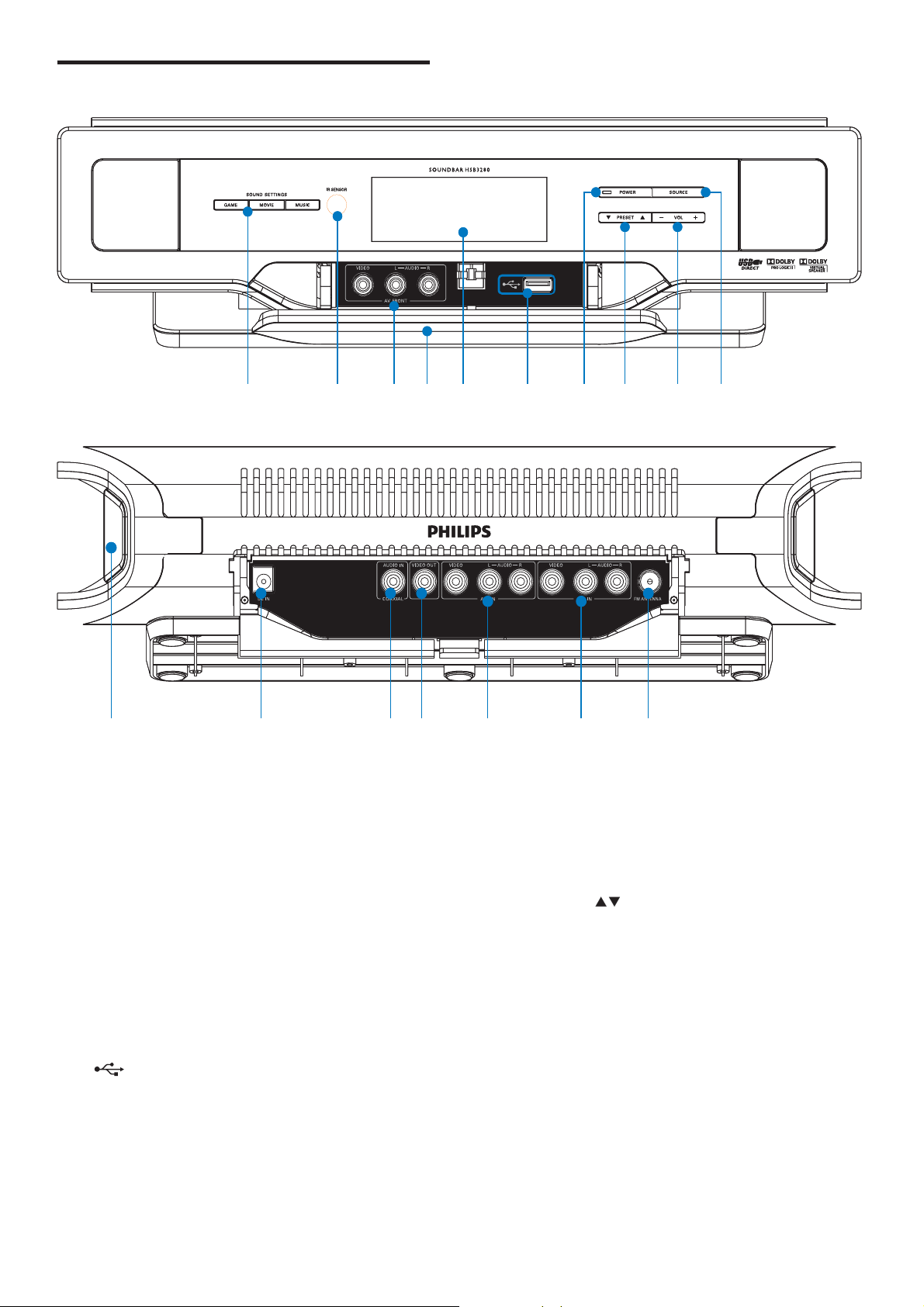
10
g POWER
Turn on the soundbar, switch to
standby mode, or switch to Eco
Power Standby.
h PRESET/
Select a preset FM radio station.
Select an album/folder in a connected
USB device.
i - VOL +
Adjust volume.
Adjust time.
j SOURCE
Select a source for play: TUNER, USB,
AV1, AV2, AV FRONT or COAX.
Enable/disable automatic on/standby.
•
•
•
•
•
•
•
Overview of the main unit
a SOUND SETTINGS (GAMES, MOVIE,
MUSIC)
Select a sound effect.
b IR sensor
c AV FRONT (VIDEO L-AUDIO-R)
AV input sockets on the front panel.
d Flip cover
e Display panel
Show current status.
f
Socket for a USB mass storage device.
•
•
•
•
a
b
e
d
i
g
j
c
f
h
a
b
e
d
i
g
j
c
f
h
k l
qnm
o p
k l
qnm
o p
EN
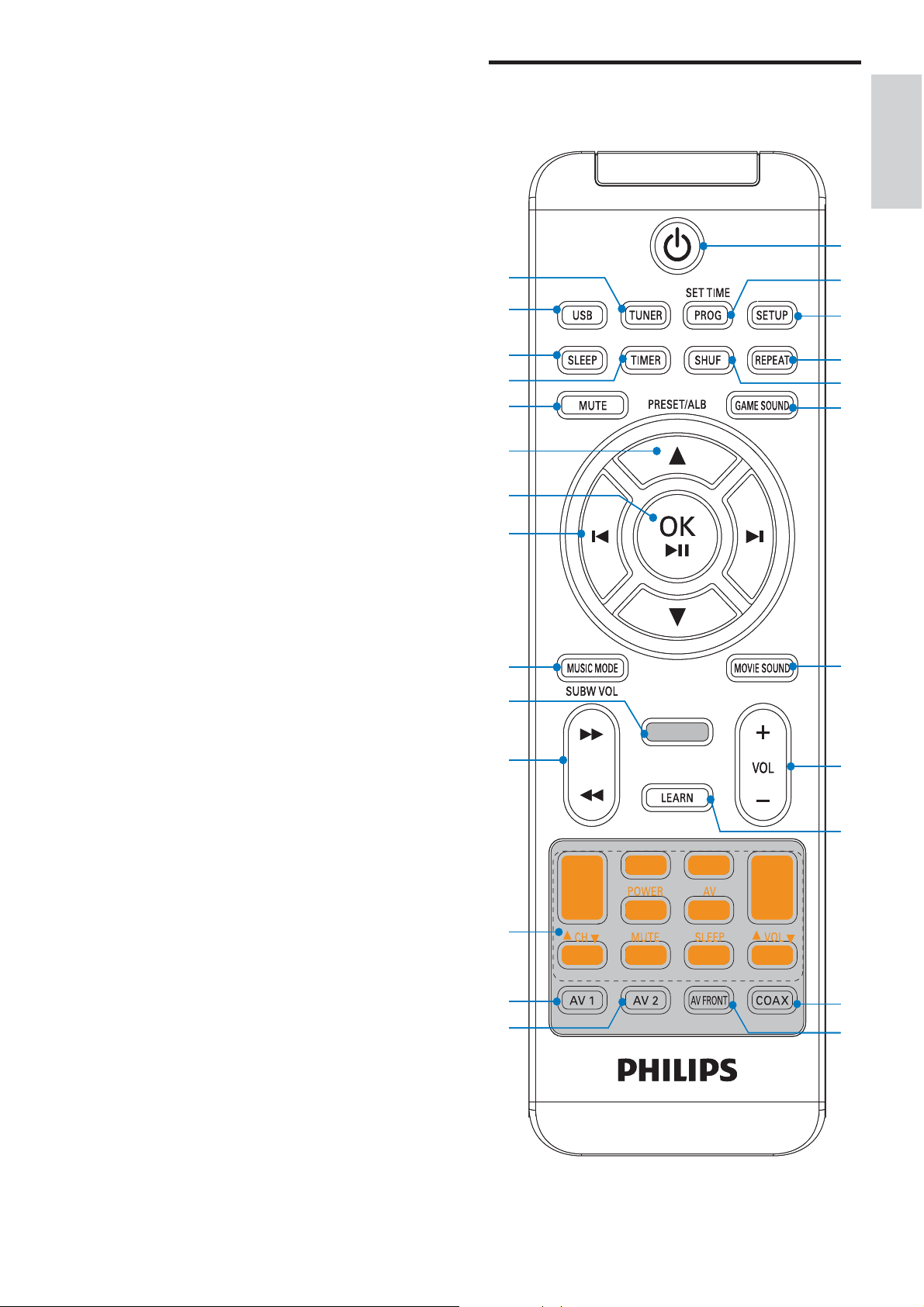
11
Overview of the remote
control
w
x
y
u
q
o
m
l
p
t
s
r
v
d
c
b
a
f
g
h
j
k
i
e
n
w
x
y
u
q
o
m
l
p
t
s
r
v
d
c
b
a
f
g
h
j
k
i
e
n
k PRESS
Detach speakers from the main unit.
l DC IN
Connect the AC adaptor.
m AUDIO IN - COAXIAL
Coaxial audio output socket.
n VIDEO OUT
Socket for composite video output.
o AV2 IN (VIDEO L - AUDIO - R)
AV input sockets.
p AV1 IN (VIDEO L - AUDIO - R)
AV input sockets.
q FM ANTENNA
Connect the FM antenna.
•
•
•
•
•
•
•
English
EN

12
n Programing buttons
Are reserved for remote control
programing.
o
/
Fast reverse or fast forward within a
track in the USB device.
Tune to a radio station.
p Indicator for remote control programing
q MUSIC MODE/SUBW VOL
In USB mode, select a music sound
setting.
In AV1, AV2, AV FRONT or
COAXIAL mode, adjust subwoofer
volume.
r
/
Skip to the previous/next track in the
USB device.
s OK /
Start or pause USB play.
Confi rm renaming of an AV source.
t PRESET/ALB/
Skip to the previous/next album
(folder) in the USB device.
Select a preset radio station.
u MUTE
Mutes volume.
v TIMER
Set the alarm timer.
w SLEEP
Set the sleep timer.
x USB
Select the USB source.
y TUNER
Select the tuner (FM) source.
•
•
•
•
•
•
•
•
•
•
•
•
•
•
•
a
Turn on the soundbar, switch to
standby mode, or switch to Eco
Power Standby.
b SET TIME/PROG
Set the clock.
Program tracks in a USB device.
Program radio stations.
c SETUP
Rename AV resource.
d REPEAT
Select a repeat play mode for the
connected USB device.
e SHUF
Play tracks in the USB device
randomly.
f GAME SOUND
Select a game sound setting.
g MOVIE SOUND
Select a movie sound setting.
h VOL +/-
Adjust volume.
Adjust time.
i LEARN
Program remote control.
j COAX
Select the AV input source from the
AUDIO IN - COAXIAL socket.
k AV FRONT
Select the AV source input from the
AV FRONT (VIDEO L-AUDIO-R)
sockets.
l AV2
Select the AV source input from the
AV2 IN (VIDEO L - AUDIO - R)
sockets.
m AV1
Select the AV source input from the
AV1 IN (VIDEO L - AUDIO - R)
sockets.
•
•
•
•
•
•
•
•
•
•
•
•
•
•
•
•
EN
13
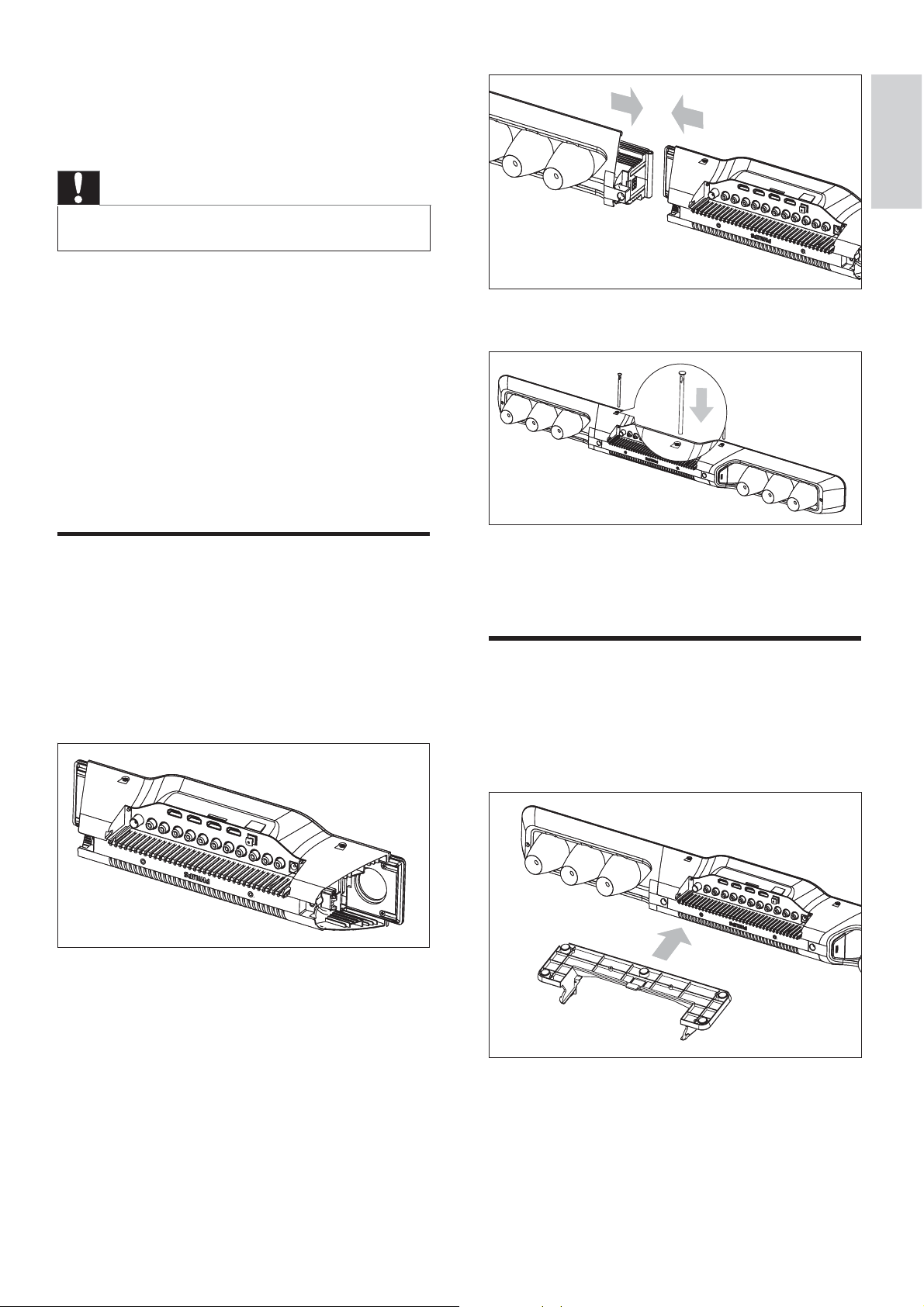
3 Insert a supplied stud into the hole.
4 Repeat steps 2 and 3 to attach the right
speaker.
Attach the stand
1
Slide the supplied table stand onto the
bottom of the main unit until you hear a
click.
3 Get started
Caution
Use the controls only as stated in this user manual.•
Always follow the instructions in this chapter in
sequence.
If you contact Philips, you will be asked for the
model and serial number of your soundbar. The
model number and serial number are on the
bottom of your soundbar. Write the numbers
here:
Model No. __________________________
Serial No. ___________________________
Attach speakers to the main
unit
1
Place the main unit on a soft and fl at
surface.
Ensure that the bottom side faces
upwards.
2 Attach the left speaker to the left side of
the main unit.
•
English
EN

14
You can also connect the red/white
audio connectors of the supplied AV
cable from the TV to a set of audio
input sockets.
Note
It is unnecessary to connect the yellow video
connectors.
•
•
TV
AUDIO OUT
(DIGITAL)
TV
AUDIO OUT
(DIGITAL)
TV
LR
AUDIO OUT
Not used
TV
LR
AUDIO OUT
Not used
Tip
You can also mount the soundbar on a wall (see
‘Appendix’ on page 29).
•
Connect AV devices
Note
There are various ways to connect the soundbar to
other AV devices. You only need to select the best
option that fi ts your existing AV device setup.
For AV connection to the soundbar, there are multiple
sets of AV sockets available on the main unit. You can
choose either set for an AV connection.
When you connect cables, ensure that the color of the
plug matches the color of the socket.
To use sockets on the front panel, fl ip open the cover.
The types of AV devices and connections in the
following instructions are for reference only.
•
•
•
•
•
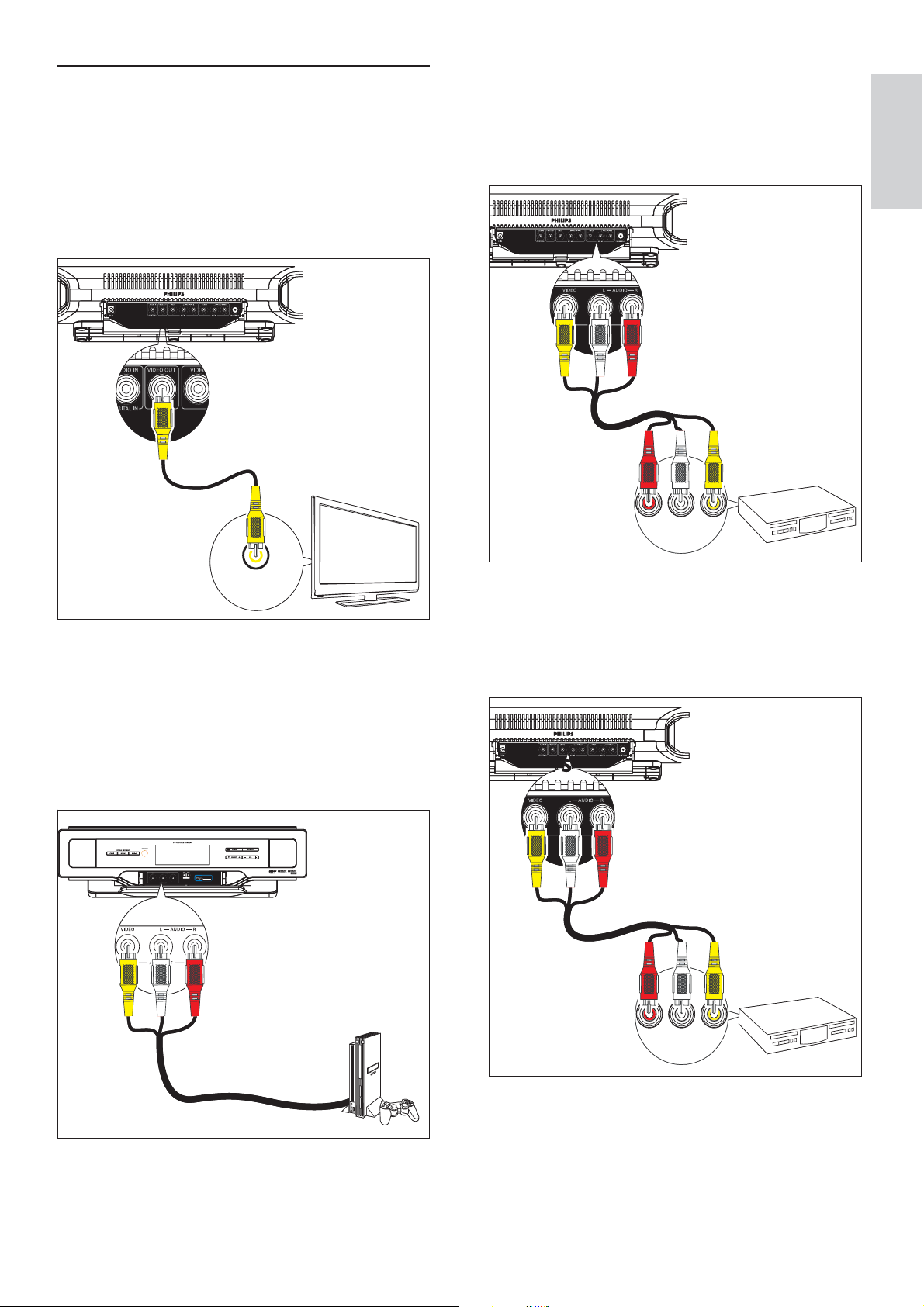
Option 1: Connect this soundbar to
devices through the TV
If all the devices for use are connected to the
TV and the TV has an available audio output
socket, follow these instructions.
1 If the TV has a digital output socket,
connect the supplied coaxial cable
(orange) from the TV to the AUDIO IN
- COAXIAL socket.
EN
15
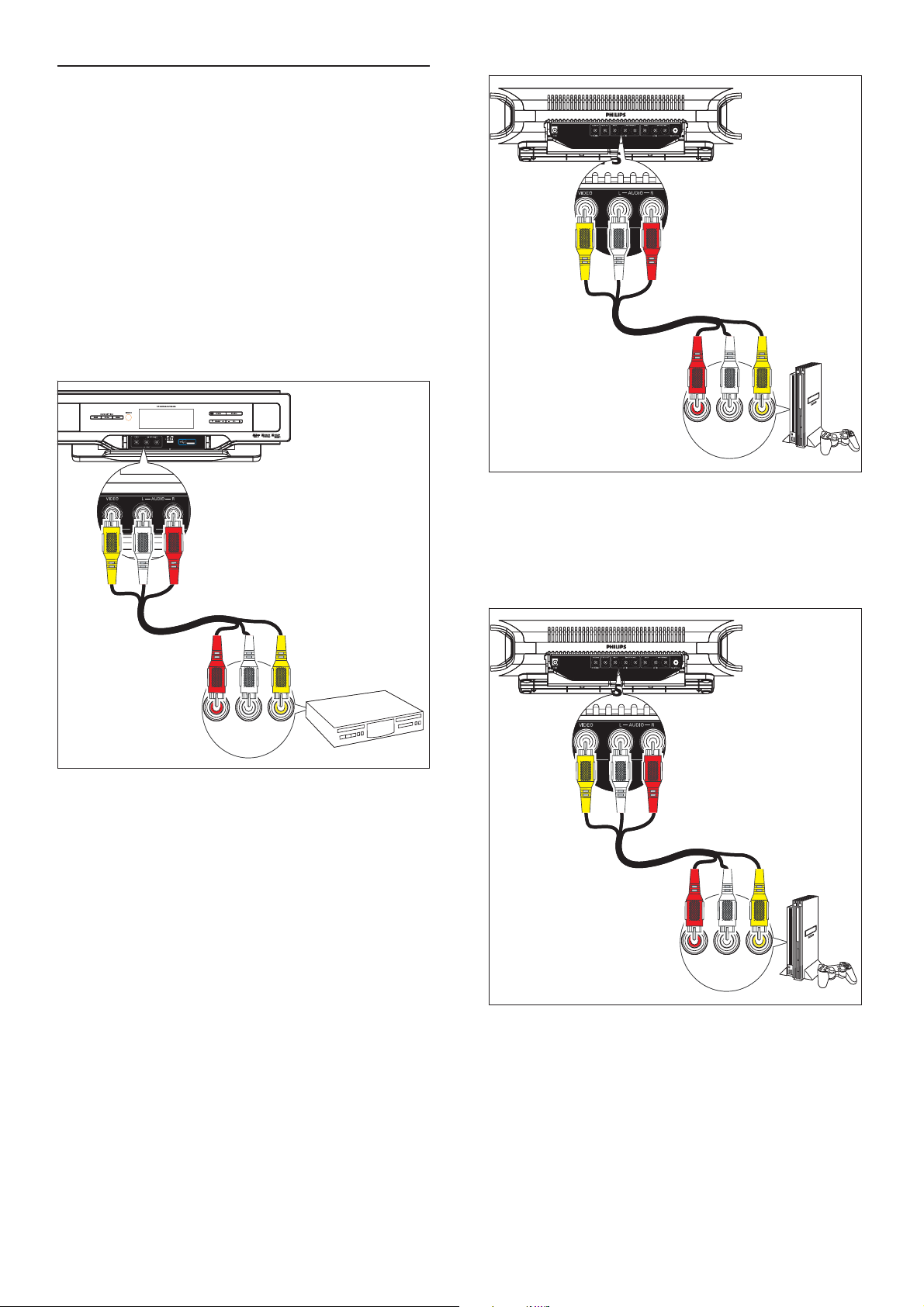
B Set top box
Connect the AV output sockets the
set top box to the AV1 IN (VIDEO L
- AUDIO - R) sockets.
C DVD player
Connect the AV output sockets on the DVD
player to the AV2 IN (VIDEO L - AUDIO - R)
sockets.
AUDIO VIDEO
AUDIO OUT
L
R
AUDIO VIDEO
AUDIO OUT
L
R
AUDIO VIDEO
AUDIO OUT
L
R
AUDIO VIDEO
AUDIO OUT
L
R
Option 2: Connect devices through
this soundbar to the TV (basic)
If the TV does not have an available audio
output socket, follow these instructions.
1 Connect the video input socket on the TV
to the VIDEO OUT socket.
2 Connect the AV devices directly to the
soundbar:
A Game console:
Connect the AV output sockets on
the game console to the AV FRONT
(VIDEO L-AUDIO-R) sockets.
TV
VIDEO IN
TV
VIDEO IN
English
EN
16
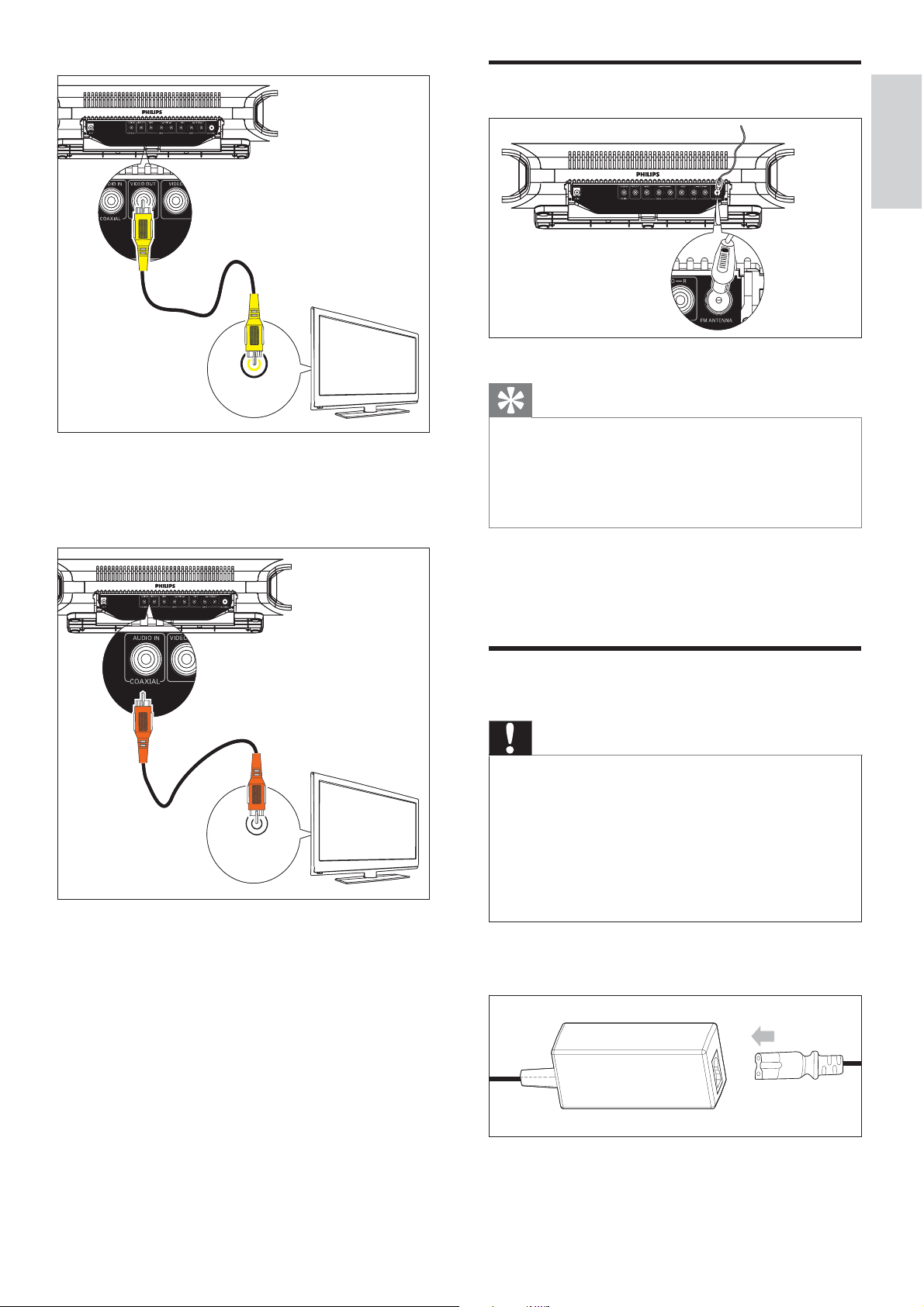
C Game console 2:
Connect the AV output sockets on
the other game console to the AV2
IN (VIDEO L - AUDIO - R) sockets.
2 Connect the video input socket on the
TV to the VIDEO OUT socket with the
supplied yellow composite cable.
AUDIO VIDEO
AUDIO OUT
L
R
AUDIO VIDEO
AUDIO OUT
L
R
AUDIO VIDEO
AUDIO OUT
L
R
AUDIO VIDEO
AUDIO OUT
L
R
Option 3: Connect devices through
this soundbar to the TV (advanced)
If you want to connect all the devices for use to
this soundbar and the TV has an available digital
output socket, follow these instructions.
1 Connect the AV devices directly to the
soundbar:
A DVD player:
Connect the AV output sockets on
the DVD player to the AV FRONT
(VIDEO L-AUDIO-R) sockets.
B Game console 1:
Connect the AV output sockets on a
game console to the AV1 IN (VIDEO
L - AUDIO - R) sockets.
AUDIO VIDEO
AUDIO OUT
L
R
AUDIO VIDEO
AUDIO OUT
L
R
EN
17
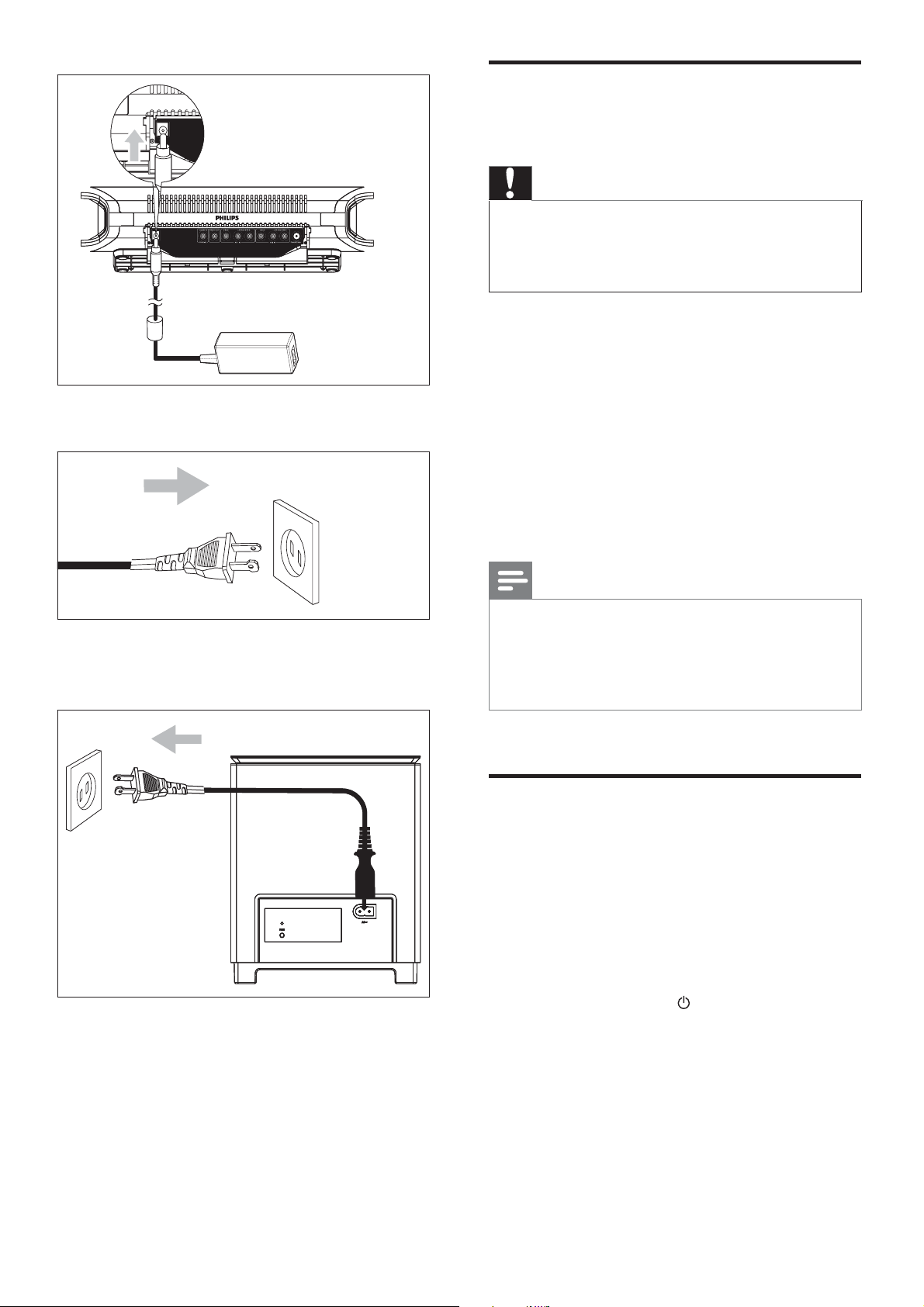
Connect FM antenna
Tip
For optimal reception, fully extend and adjust the
position of the antenna.
For better FM stereo reception, connect an outdoor
FM antenna to the FM ANTENNA socket.
The soundbar does not support AM radio reception.
•
•
•
1 Connect the supplied FM antenna to the
FM ANTENNA socket.
Connect power
Caution
Risk of product damage! Ensure that the power supply
voltage corresponds to the voltage printed on the back
or the underside of the soundbar.
Risk of electric shock! When you unplug the AC
adaptor, always pull the plug from the socket. Never
pull the cord.
Before connecting the AC adaptor, ensure you have
completed all other connections.
•
•
•
1 Prepare the AC adaptor.
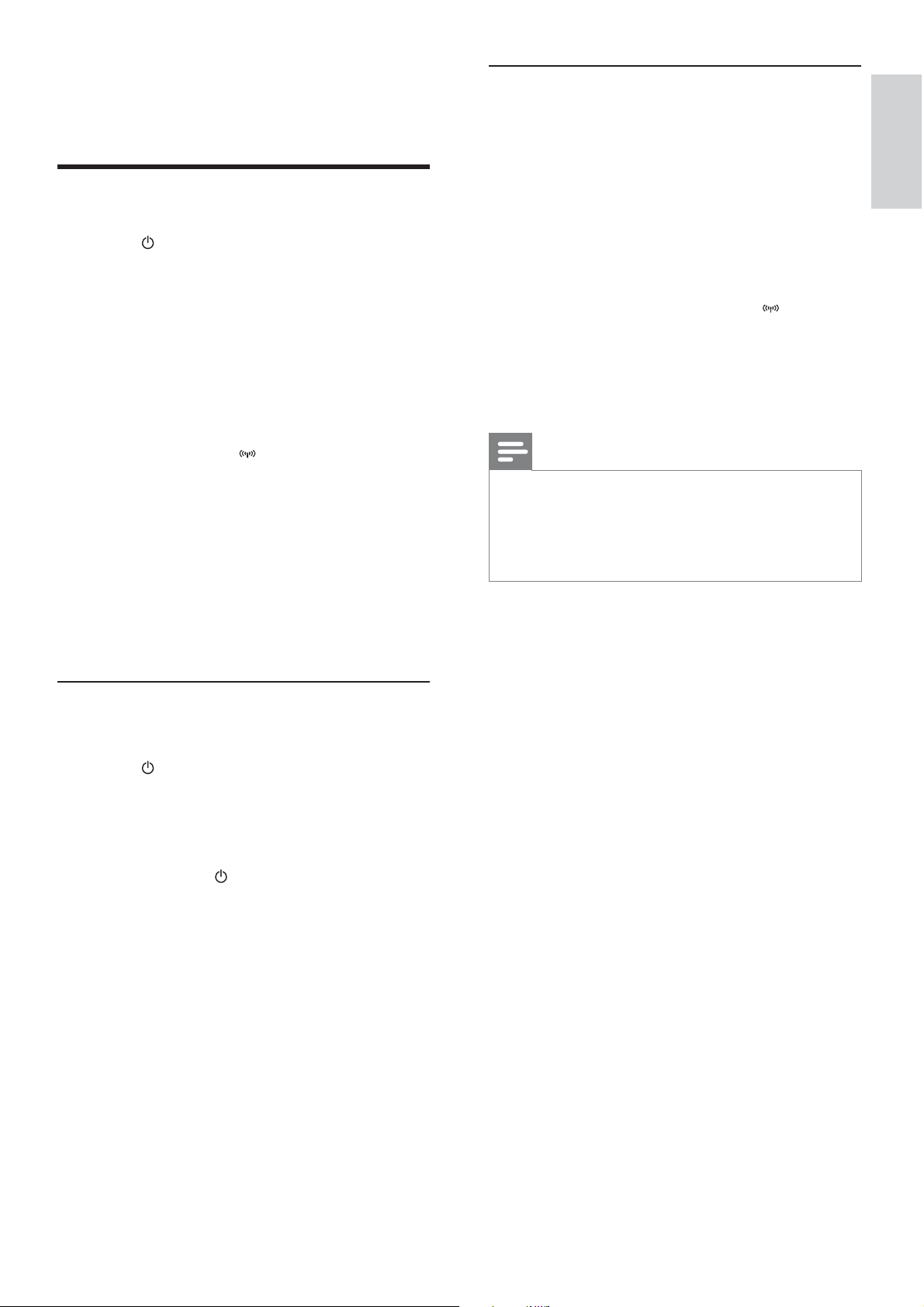
2 Connect one end to the DC IN socket on
the main unit.
3 Connect the digital output socket on the
TV to the AUDIO IN - COAXIAL socket
with the supplied orange coaxial cable.
TV
VIDEO IN
TV
VIDEO IN
TV
AUDIO OUT
(DIGITAL)
TV
AUDIO OUT
(DIGITAL)
English
EN
18
Install remote control
batteries
Caution
Risk of explosion! Keep batteries away from heat,
sunshine or fi re. Never discard batteries in fi re.
Perchlorate Material - special handling may apply. See
www.dtsc.ca.gov/hazardouswaste/perchlorate.
•
•
For fi rst-time use:
1 Remove the protective tab to activate the
remote control battery.
To replace the remote control battery:
1 Open the battery compartment.
2 Insert one lithium CR2025 battery with
correct polarity (+/-) as indicated.
3 Close the battery compartment.
Note
Before pressing any function button on the remote
control, fi rst select the correct source with the remote
control instead of the main unit.
If you are not going to use the remote control for a
long time, remove the battery.
•
•
Set clock
1
In the standby mode, press and hold SET
TIME/PROG to enter the clock setting
mode.
The hour digits are displayed and begin
to blink.
If the hour digits are not displayed,
press and hold
for more than 2
seconds to switch to standby mode,
then repeat step 1.
2 Press + VOL - to set the hour.
The minute digits are displayed and
begin to blink.
3 Press + VOL - to set the minute.
»
»
»
3 Connect the other end to the wall outlet.
4 Connect the power plug of the digital
wireless subwoofer to the wall outlet.
EN
19
Set up wireless connection manually
1 In standby mode, press and hold SOURCE
on the main unit for 3 seconds.
The blue and green indicators on the
subwoofer fl ash alternately.
[PAIRING] (pairing) fl ashes.
2 Press and hold PAIR on the subwoofer for
3 seconds.
[PAIR OK] (pair OK) and
are
displayed and the blue indicators on
the subwoofer lights up.
3 Turn on the main unit again.
Note
If the wireless connection fails again, check whether
there is any confl ict or strong interference (for example,
interference from other electronic devices) around
your location. After removal of the confl ict or strong
interference, repeat the above procedures.
•
»
»
»
4 Press SET TIME/PROG to confi rm the
clock setting.
Turn on
1
Press .
The soundbar switches to the last
selected source.
2 Wait for automatic setup of wireless
connection between the main unit and
subwoofer.
[PAIRING] (pairing) fl ashes.
If the connection succeeds, [PAIR OK]
(pair OK) and
are displayed and
the blue indicator on the subwoofer
lights up.
If the connection fails, [PAIR FAIL]
(pair fail) is displayed and the green
indicator on the subwoofer lights up.
If the wireless connection fails, set up
the connection manually.
Switch to standby mode
To switch the soundbar to standby mode:
1 Press .
The clock (if set) is displayed.
To switch the soundbar to Eco Power Standby
mode:
1 Press and hold to switch the soundbar
to Eco Power Standby mode.
The backlight on the display panel
turns off.
The blue Eco Power indicator lights up.
»
»
»
»
»
»
»
»
English
EN
20
6 Press OK / to start play.
4 Play
Play an AV source through
this soundbar
Note
Ensure that you have made the necessary AV
connections (see ‘Connect AV devices’ on page 14).
•
1 Press AV 1, AV 2, AV FRONT or COAX
to select an AV source.
Play from USB
Note
Ensure that the USB device contains playable music
(see ‘USB playability information’ on page 27).
•
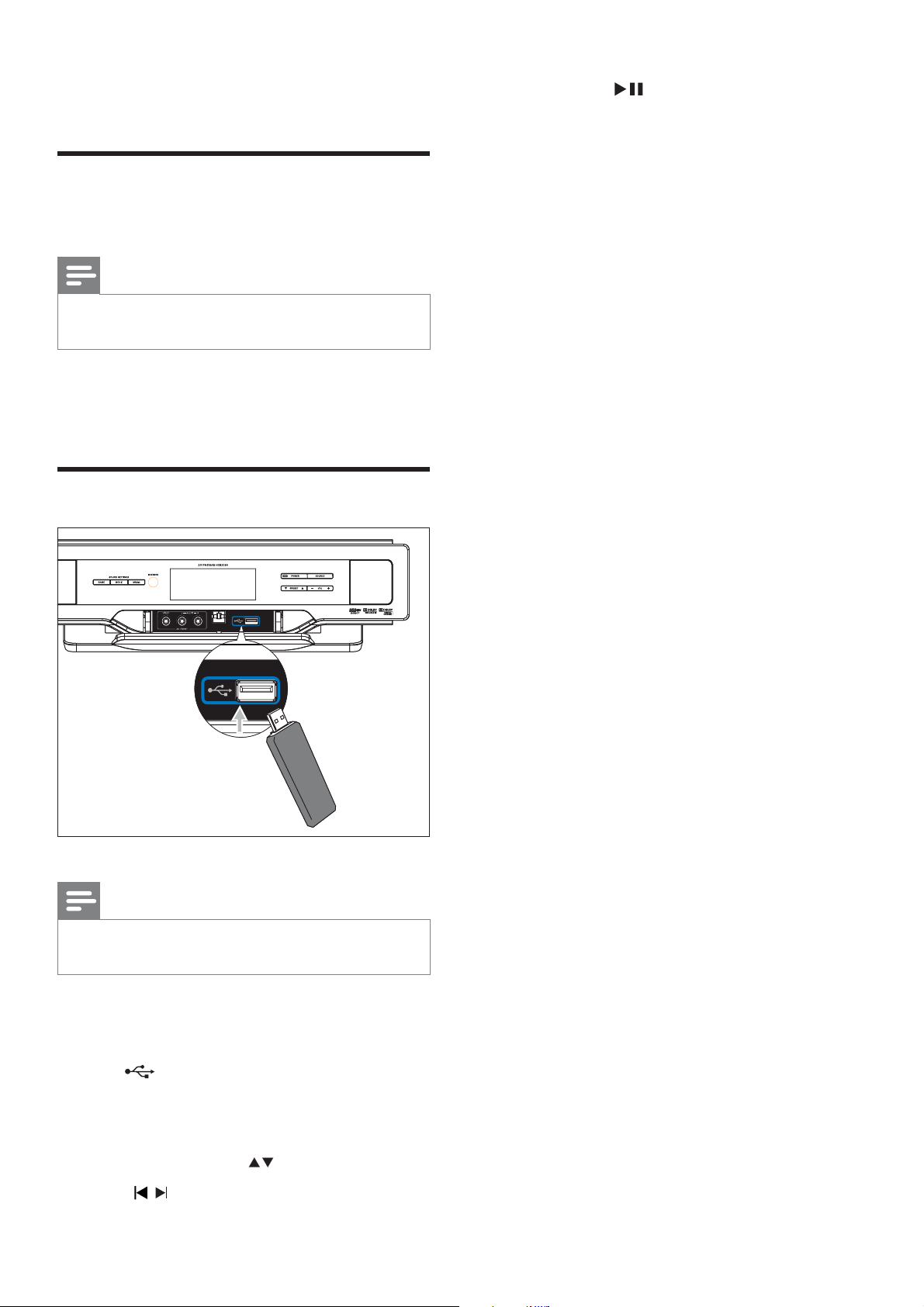
1 Flip open the cover on the front panel.
2 Insert the USB plug of a USB device into
the
socket.
3 Press USB to select the USB source.
The total number of tracks is displayed.
4 Press PRESET/ALB/ to select a folder.
5 Press / to select a fi le.
»
EN
21
Random play
1
Press SHUF.
All tracks are played randomly.
2 To return to normal play, press SHUF again.
Tip
The repeat and shuffl e functions cannot be activated at
the same time.
•
Program tracks
You can program a maximum of 20 tracks.
1 Press SET TIME/PROG to activate the
programming mode.
A track number fl ashes.
2 Press PRESET/ALB/ to select the album
where the track is located.
3 Press / to select a track number to
program, then press SET TIME/PROG to
confi rm.
[P-X] is displayed, where “X” is the
next position in the program.
4 Repeat steps 2 to 3 to select and store all
tracks to program.
5 Press SET TIME/PROG to complete.
[PROG] (program) is displayed.
6 Press OK / to play the programmed
tracks.
To erase the program, press SET
TIME/PROG.
»
»
»
»
•
5 Control USB
play
Skip to a track
1
Press PRESET/ALB/ to select an album
(folder).
2 Press / to select a track (fi le).
Pause/resume play
1
During play, press OK / to pause/
resume play.
Search within a track
1
During play, press and hold / .
2 Release to resume normal play.
Repeat play
1
During play, press REPEAT repeatedly to
select:
[REPEAT] (repeat): play the current
track repeatedly.
[REPEAT ALL] (repeat all): play all
tracks repeatedly.
[REPEAT] (repeat) and [ALB] (album):
play the current album repeatedly.
2 To return to normal play, press REPEAT
until the selected function is no longer
displayed.
»
»
»
English
EN
22
Select a movie sound effect
1 During play, press MOVIE SOUND
repeatedly to select:
[DRAMA] (drama)
[SCIENCE FICTION] (science
fi ction)
[ACTION] (action)
[CONCERT] (concert)
[NORMAL] (normal)
Select a music mode (for USB only)
1 During USB play, press MUSIC MODE/
SUBW VOL repeatedly to select:
[POP] (pop)
[JAZZ] (jazz)
[ROCK] (rock)
[CLASSIC] (classic)
[NORMAL] (normal)
Mute sound
1
During play, press MUTE to mute/unmute
sound.
•
•
•
•
•
•
•
•
•
•
6 Adjust volume
level and sound
effect
Adjust volume level
1
During play, press VOL +/- to increase/
decrease the volume level.
Adjust subwoofer volume
1 In AV1, AV2, AV FRONT or COAXIAL
mode, press MUSIC MODE/SUBW VOL
to adjust the subwoofer volume.
Select a sound effect
Note
You cannot use different sound effects at the same
time.
•
Select a game sound effect
1 During play, press GAME SOUND
repeatedly to select:
[SHOOTING] (sporting)
[SPORT] (sport)
[RACING] (racing)
[ARCADE] (arcade)
[NORMAL] (normal)
•
•
•
•
•
EN
23
Program radio stations
manually
Note
You can program a maximum of 20 preset radio
stations.
•
1 Tune to a radio station.
2 Press SET TIME/PROG to activate
programming.
3 Press PRESET/ALB/ to allocate a
number from 1 to 20 to this radio station,
then press SET TIME/PROG to confi rm.
The preset number and the frequency
of the preset station are displayed.
4 Repeat the above steps to program other
stations.
Note
To overwrite a programmed station, store another
station in its place.
•
Tune to a preset radio station
1
Press PRESET/ALB/ to select a preset
number that you want.
»
7 Tune to FM
radio stations
1 Ensure that you have connected and fully
extended the supplied FM antenna.
2 Press TUNER.
3 Press and hold / .
4 When [SEARCH] (search) is displayed,
release the button.
The FM tuner tunes to a station with
strong reception automatically.
5 Repeat steps 3 and 4 to fi nd more stations.
To tune to a weak station:
1 Press / repeatedly until you fi nd
optimal reception.
Program radio stations
automatically
Note
You can program a maximum of 20 preset radio
stations.
•
1 Press PRESET/ALB/ to select a preset
number to start programing.
2 Press and hold SET TIME/PROG
for 2 seconds to activate automatic
programming.
[AUTO] (auto) is displayed.
All available stations are programmed
in the order of waveband reception
strength.
The last programed radio station is
played automatically.
»
»
»
»
English
EN
24
If the code is stored successfully, the
indicator fl ashes green for 2 seconds,
then turns blue again.
5 Repeat steps 3 and 4 to program more
buttons on the smart remote control (A).
6 Press LEARN to exit the learning mode.
Note
During the learning process, the normal remote control
functions are disabled.
•
Rename an AV source
1
Press AV 1, AV 2, AV FRONT or COAX
to select an AV source you want to
rename.
The default name of the selected
sound source is displayed.
2 Press SETUP to activate the renaming
mode.
The default name of the selected
sound source fl ashes for 4 seconds.
3 Within 2 seconds, press PRESET/ALB/
to select a name that matches the AV
device connected with the current socket
from:
[TV]
[DVD]
[GAME] (game)
[SET TOP BOX] (set top box)
[CABLE] (cable)
[SATELLITE] (satellite)
»
»
»
•
•
•
•
•
•
8 Use more of
your soundbar
Program remote control
You can store a total of 12 most frequently
used functions of other AV devices in the smart
remote control. This feature allows you to use
only one remote control to operate all of your
AV devices.
By default, the remote control codes of a Philips
TV are stored in the smart remote control. The
available preset buttons are POWER, AV,
CH
, VOL , MUTE and SLEEP.
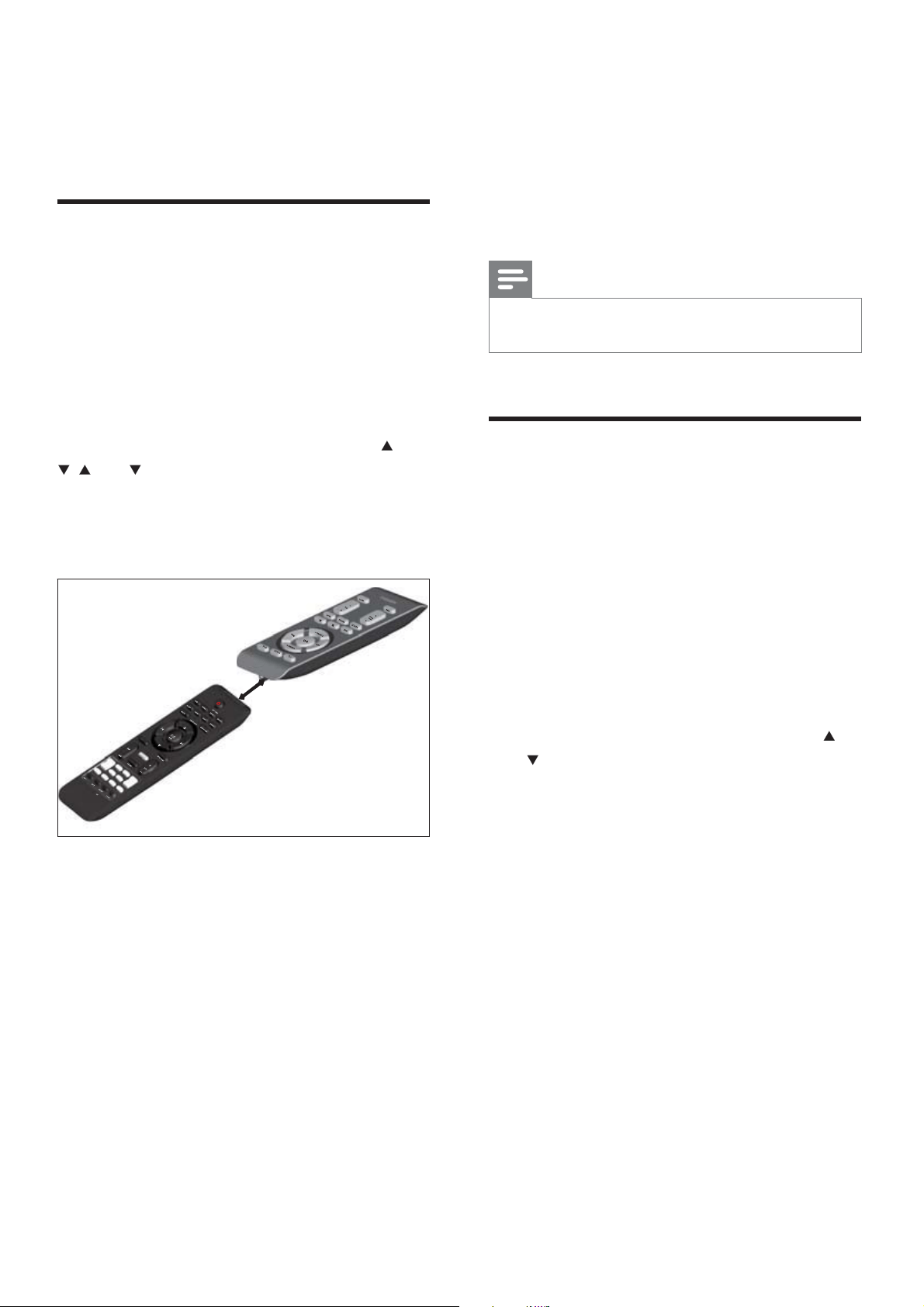
1 Place the smart remote control (A) within
1mm-10mm distance from the other
remote control (B).
2 Press LEARN for 2 seconds to activate the
learning mode.
A blue indicator on the smart remote
control (A) lights up.
3 Press the button on the other remote
control (B) that is to be stored on the
smart remote control (A).
If the code is received successfully, the
blue indicator fl ashes.
4 Press one of the white learning buttons on
the smart remote control (A) to store the
code of this button.
»
»
A (HSB3280)
1-10m
m
B
A (HSB3280)
1-10m
m
B
EN

25
Set the sleep timer
1
When the soundbar is turned on, press
SLEEP repeatedly to select a set period of
time (in minutes).
The soundbar turns off automaticaly
after the set period of time.
»
Enable/disable automatic on/
standby
This feature only applies to AV devices or
TV with audio connection to the soundbar.
The soundbar can detect the state of AV
devices that are connected through the audio
connectors.
When automatic on/standby is enabled:
If an AV device turns on, the soundbar
turns on automatically.
To enable
When the soundbar is turned on,
press and hold SOURCE on the front
panel for more than 2 seconds.
To disable
1 When the soundbar is turned on, press
and hold SOURCE on the front panel for
more than 2 seconds again.
Set the alarm timer
1
Ensure that you have set the clock
correctly.
2 In standby mode, press and hold TIMER.
The hour digits are displayed and begin
to blink.
3 Press + VOL - to set the hour.
The minute digits are displayed and
begin to blink.
4 Press + VOL - to set the minute.
5 Press TIMER to confi rm.
6 To activate the wake-up timer, press + VOL
- to select [ON] (on).
A clock icon appears on the display.
The soundbar turns on automatically
at the set time and switches to the last
selected source.
To deactivate the alarm timer, select [OFF]
(off) at step 6.
•
»
»
»
»
•
English
EN
26
L/R speakers
Speaker
Impedance
3ohm (woofer) + 3ohm(
tweeter)
Speaker Driver 1.5” woofer+1.5” tweeter
Sensitivity >82dB/m/W
Subwoofer
Speaker Impedance 3ohm*subwoofer
Speaker Driver 6.5” subwoofer
Sensitivity >78dB/m/W
General information
AC power 120V, 60Hz
Operation Power
Consumption
35W
Standby Power
Consumption
<10W
Eco Standby Power
Consumption
<1W
USB Direct Full Speed Ver1.1
Dimensions (W x H x D)
Main unit and speakers
Subwoofer
800 x 90 x
89.7mm
328 x 302 x
180mm
Weight
With Packing
Main unit and speakers
Subwoofer
9 kg
1.75 Kg
5 kg
9 Product
information
Note
Product information is subject to change without prior
notice.
•
Product information
Specifi cations
Amplifi er
Rated Output Power 180W + 110W
(wireless subwoofer)
RMS
Frequency Response 40 - 16000 Hz, -3dB
Signal to Noise Ratio >65dB
AV1, 2 Input 1.0V RMS 20kohm
Front AV Input 1.0V RMS 20kohm
Coaxial Input 0.5V RMS 75ohm
Total Harmonic
Distortion
<1%
Tuner (FM)
Tuning Range 87.5 - 108MHz
Tuning grid 50KHz
Sensitivity
- Mono, 26dB S/N Ratio
<22 dBf
Search Selectivity >28dBf
Total Harmonic Distortion <1%
Signal to Noise Ratio >55dB
EN

27
USB playability information
Compatible USB devices:
USB fl ash memory (USB 2.0 or
USB1.1)
USB fl ash players (USB 2.0 or USB1.1)
memory cards (requires an additional
card reader to work with this
soundbar)
Supported formats:
USB or memory fi le format FAT12,
FAT16, FAT32 (sector size: 512 bytes)
MP3 bit rate (data rate): 32-320 Kbps
and variable bit rate
WMA v9 or earlier
Directory nesting up to a maximum
of 8 levels
Number of albums/ folders: maximum
99
Number of tracks/titles: maximum 999
File name in Unicode UTF8
(maximum length: 128 bytes)
Unsupported formats:
Empty albums: an empty album is an
album that does not contain MP3/
WMA fi les, and is not be shown in the
display.
Unsupported fi le formats are skipped.
For example, Word documents (.doc)
or MP3 fi les with extension .dlf are
ignored and not played.
AAC, WAV, PCM audio fi les
DRM protected WMA fi les (.wav,
.m4a, .m4p, .mp4, .aac)
WMA fi les in Lossless format
•
•
•
•
•
•
•
•
•
•
•
•
•
•
•
English
EN

28
Set up wireless connection manually (see
‘Set up wireless connection manually’ on
page 19).
Poor radio reception
Increase the distance between the
soundbar and your TV or VCR.
Fully extend the FM antenna.
Connect an outdoor FM antenna instead.
Cannot display some fi les in USB device
The number of folders or fi les in the USB
device has exceeded a certain limit. This
phenomenon is not a malfunction.
The formats of these fi les are not
supported.
USB device not supported
The USB device is incompatible with the
soundbar. Try another one.
Timer does not work
Set the clock correctly.
Switch on the timer.
Clock/timer setting erased
Power has been interrupted or the power
cord has been disconnected.
Reset the clock/timer.
•
•
•
•
•
•
•
•
•
•
•
10 Troubleshooting
Caution
Never remove the casing of this soundbar. •
To keep the warranty valid, never try to repair
the system yourself.
If you encounter problems when using this
soundbar, check the following points before
requesting service. If the problem remains
unsolved, go to the Philips web site (www.
Philips.com/support). When you contact Philips,
ensure that your soundbar is nearby and the
model number and serial number are available
(see ‘Get started’ on page 13).
No power
Ensure that the AC adaptor of the main
unit is connected properly.
Ensure that there is power at the AC
outlet.
No sound
Adjust the volume.
Check that the speakers are connected
correctly.
If there is no sound in the USB mode,
ensure that you have connected a USB
device that contains playable music.
If there is no sound in the AV mode,
ensure that you have connected AV
devices to the soundbar correctly.
Remote control does not work
Before you press any function button, fi rst
select the source with the remote control.
Reduce the distance between the remote
control and the soundbar.
Insert the batteries with its polarities
(+/– signs) aligned as indicated.
Replace the battery.
Aim the remote control directly at the
sensor on the front of the soundbar.
Wireless connection fails.
•
•
•
•
•
•
•
•
•
•
•
EN
29
Mount the main unit and speakers
Caution
To fi nd a suitable mounting location, make the
necessary physical and wireless connections.
Mount the main unit and speakers to a solid concrete
wall or plaster board wall only!
•
•
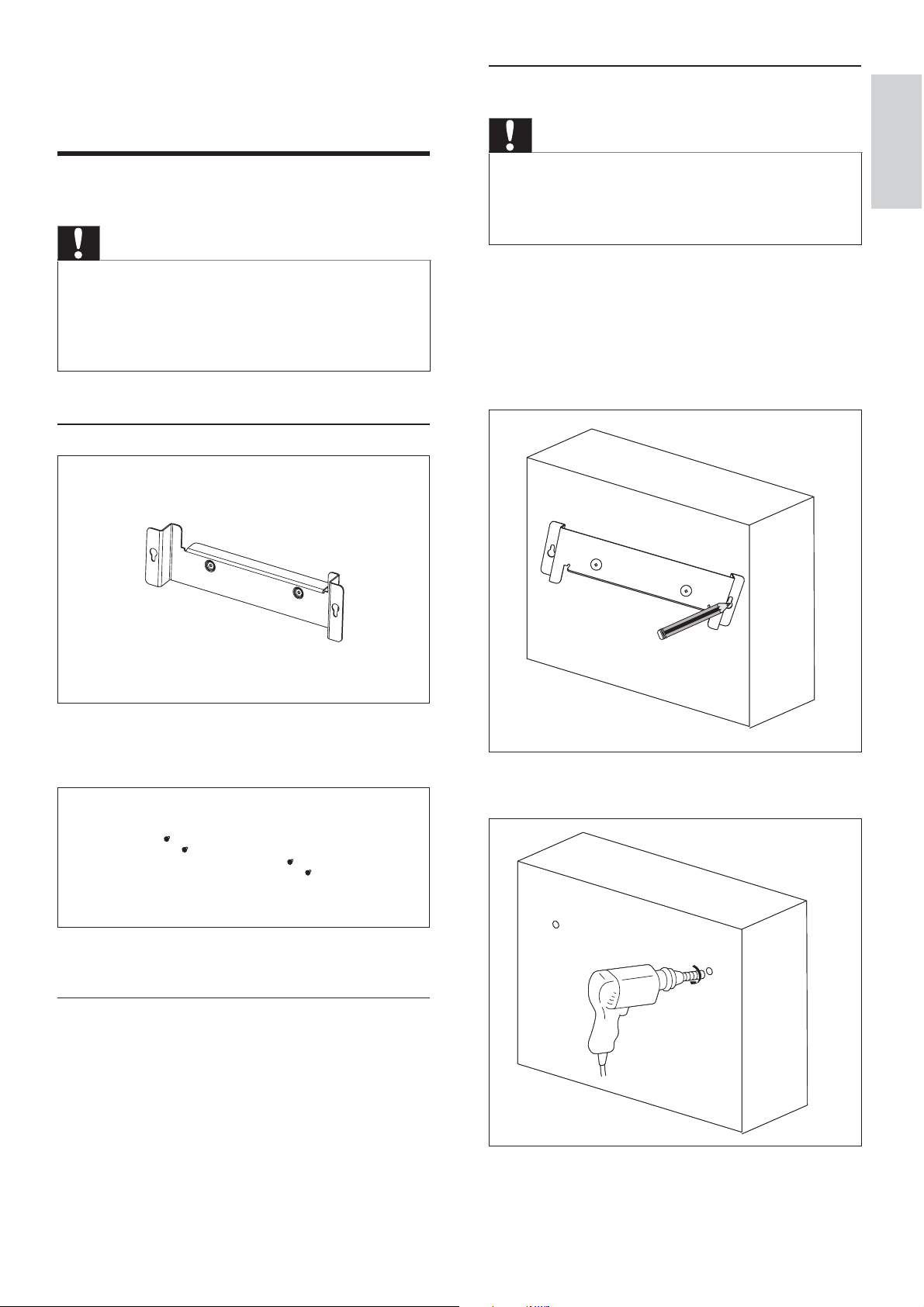
You can use the supplied bracket to mount the
main unit and speakers to the wall.
1 Align the bracket in the chosen location
on a wall. Use a pencil to mark the drilling
positions.
2 Drill holes as marked.
11 Appendix
Mount to a wall
Caution
Risk of product damage! Always consult professional
personnel to safely mount the product to a wall.
Risk of injury! Ensure that no supply ducts such as gas,
water or electricity are harmed when you drill the
holes.
•
•
What’s in the supplied mounting kit
1 x wall mount bracket for the main unit and
speakers
4 x screws
What else you’ll need
Electric drill
Screwdriver
Pencil
•
•
•
English
EN
30 ES
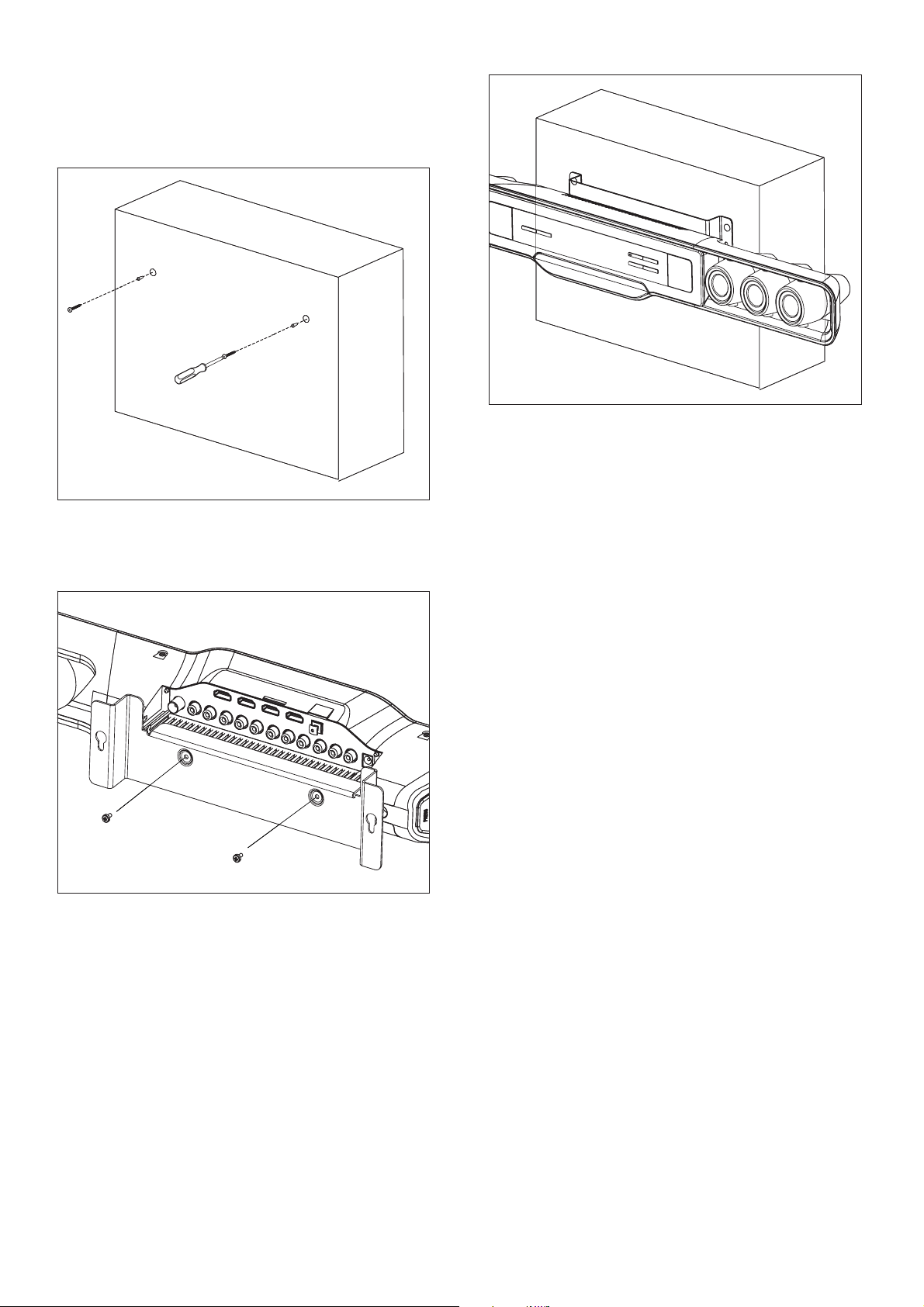
3 Secure 2 supplied screws in the holes, but
leave 5mm between the screw head and
the wall.
4 Secure the wall mount bracket onto the
main unit with 2 supplied screws.
5 Hook the main unit and speakers in place.

© 2008 Koninklijke Philips Consumer Lifestyle N.V.
All rights reserved.