OWNER’S MANUAL
Please read this manual carefully before operating
your set and retain it for future reference.
MODEL
WK9
Copyright © 2018 LG Electronics Inc. All Rights Reserved
www.lg.com
MFL70441305
Smart Display with the Google Assistant
1811_Rev03
1 Getting Started
Getting Started2
Getting Started
1
Safety Information
CAUTION
RISK OF ELECTRIC SHOCK
DO NOT OPEN
CAUTION: TO REDUCE THE RISK OF ELECTRIC
SHOCK DO NOT REMOVE COVER (OR BACK)
NO USER-SERVICEABLE PARTS INSIDE REFER
SERVICING TO QUALIFIED SERVICE PERSONNEL.
This lightning ash with arrowhead
symbol within an equilateral triangle
is intended to alert the user to the
presence of uninsulated dangerous
voltage within the product’s
enclosure that may be of sufcient
magnitude to constitute a risk of
electric shock to persons.
The exclamation point within an
equilateral triangle is intended
to alert the user to the presence
of important operating and
maintenance (servicing) instructions
in the literature accompanying the
product.
WARNING: TO PREVENT FIRE OR ELECTRIC SHOCK
HAZARD, DO NOT EXPOSE THIS PRODUCT TO RAIN
OR MOISTURE.
CAUTION: The apparatus should not be exposed to
water (dripping or splashing) and no objects lled
with liquids, such as vases, should be placed on the
apparatus.
WARNING: Do not install this equipment in a
conned space such as a book case or similar unit.
CAUTION: Do not use high voltage products around
this product. (ex. Electrical swatter) This product may
malfunction due to electrical shock.
CAUTION: No naked ame sources, such as lighted
candles, should be placed on the apparatus.
CAUTION: Do not block any ventilation openings.
Install in accordance with the manufacturer’s
instructions.
Slots and openings in the cabinet are provided
for ventilation and to ensure reliable operation of
the product and to protect it from over heating.
The openings shall never be blocked by placing
the product on a bed, sofa, rug or other similar
surface. This product shall not be placed in a built-
in installation such as a bookcase or rack unless
proper ventilation is provided or the manufacturer’s
instruction has been adhered to.

Getting Started 3
Getting Started
1
CAUTION concerning the Power Cord
The Power Plug is the disconnecting device. In case
of an emergency, the Power Plug must remain readily
accessible.
Check the specication page of this owner’s manual
to be certain of the current requirements.
Do not overload wall outlets. Overloaded wall outlets,
loose or damaged wall outlets, extension cords, frayed
power cords, or damaged or cracked wire insulation
are dangerous. Any of these conditions could result
in electric shock or re. Periodically examine the
cord of your device, and if its appearance indicates
damage or deterioration, unplug it, discontinue use of
the device, and have the cord replaced with an exact
replacement part by an authorized service center.
Protect the power cord from physical or mechanical
abuse, such as being twisted, kinked, pinched, closed
in a door, or walked upon. Pay particular attention to
plugs, wall outlets, and the point where the cord exits
the device.
NOTICE: For safety marking information including
product identication and supply ratings, please refer
to the main label on the bottom or the other surface
of the product.
CAUTION when using this product in environments
of low humidity
y
It may cause static electricity in environments of
low humidity.
y
It is recommended to use this product after
touching any metal object which conducts
electricity.
For models using an adapter
Only use the AC adapter supplied with this device.
Do not use a power supply from another device or
another manufacturer. Using any other power cable
or power supply may cause damage to the device and
void your warranty.
Getting Started4
Getting Started
1
Symbols
~
Refers to alternating current (AC).
0
Refers to direct current (DC).
Refers to class II equipment.
1
Refers to stand-by.
!
Refers to “ON” (power).
Refers to dangerous voltage.
Table of Contents 5
1
2
3
4
5
1 Getting Started
2 Safety Information
6 Unique features
6 Introduction
7 Front
8 Rear / Bottom
2 Connecting
9 Setting up the Smart Display
9 – Connecting the AC Adapter
9 – Network connection
10 – Installing “Google Home” App
10 – Connecting to Wi-Fi
3 Operating
12 Basic Operations
12 – Simple Operation Guide
13 How to use
the Google Assistant
13 – Talk to the Google Assistant
13 – Smart Home Control
14 – Voice command
15 Using BLUETOOTH® technology
15 – Listening to music stored on the
BLUETOOTH devices
17 Other Operations
17 – Turn off the microphone temporarily
17 – Edit Smart Display name
17 – Make video calls
17 – Resetting
18 – Turn off the camera temporarily
18 – Getting Google Assistant help
19 Connecting Google Chromecast and
Chromecast Audio
4 Troubleshooting
20 Troubleshooting
20 – General
21 – Network
21 – Application
5 Appendix
22 Trademarks and Licenses
22 Handling the Unit
23 OPEN SOURCE
24 Specifications
Table of Contents

Getting Started6
Getting Started
1
Unique features
The Google Assistant
You can use a variety of voice commands to control
the Smart Display with the Google Assistant.
BLUETOOTH®
Listen to music stored on your Bluetooth device.
Control smart home devices
Your Google Assistant on your LG ThinQ View allows
you to control smart home devices that work with
the Google Assistant with just your voice.
Open the Google Home app to connect your devices.
Introduction
Symbol used in this manual
,
Note
Indicates special notes and operating features.
>
Caution
Indicates cautions for preventing possible damages
from abuse.
Getting Started 7
Getting Started
1
Front
a
c
b
d
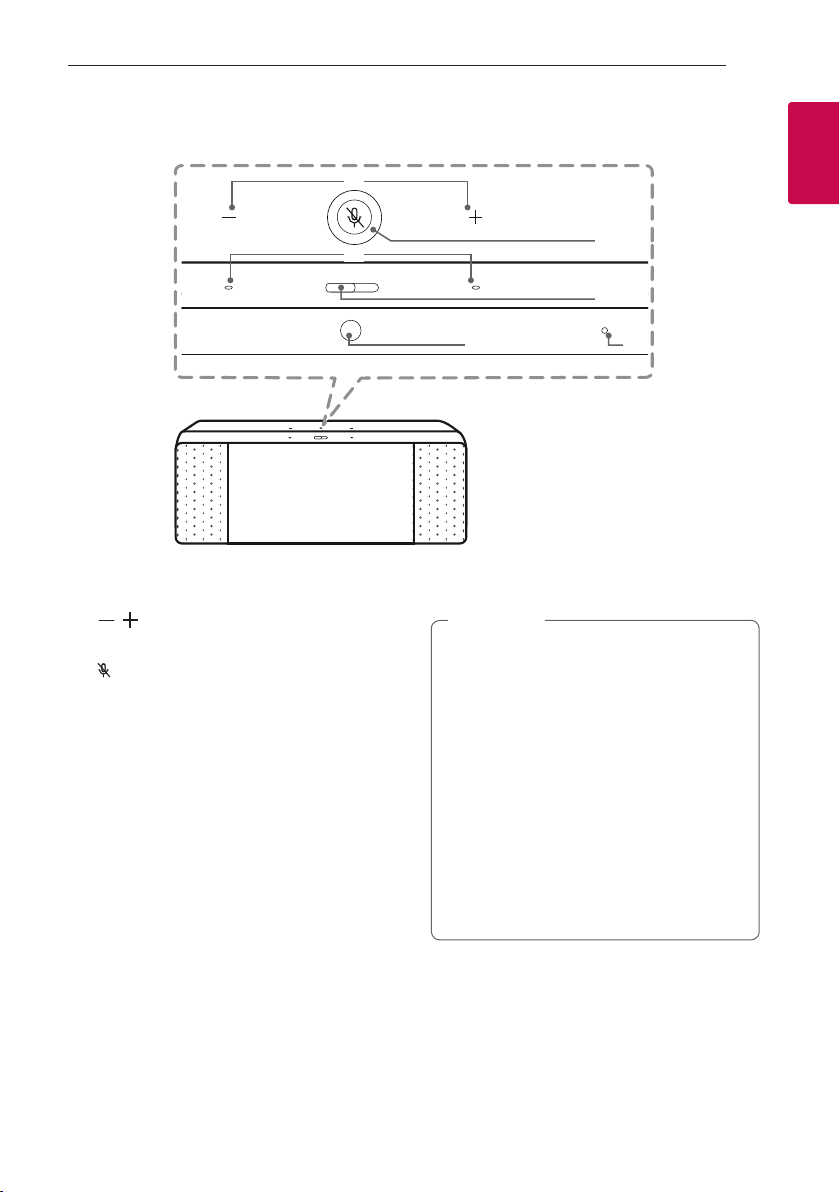
e f
a
,
Adjusts the volume.
b
(Microphone off) button
Enables or disables voice recognition (Page 17)
c
Built-in microphones
d
Camera Switch
Enables or disables camera (Page 18)
e
Camera
f
Proximity/Ambient light sensor
Precautions in using the touch buttons
y Use the touch buttons with clean and dry
hands.
- In a humid environment, wipe out any
moisture on the touch buttons before using.
y Do not press the touch buttons hard to make
it work.
- If you apply too much strength, it can be
damaged the sensor of the touch buttons.
y Touch the button that you want to work in
order to operate the function correctly.
y Be careful not to have any conductive
material such as metallic object on the touch
buttons. It can cause malfunctions.
,
Note
Getting Started8
Getting Started
1
Rear / Bottom
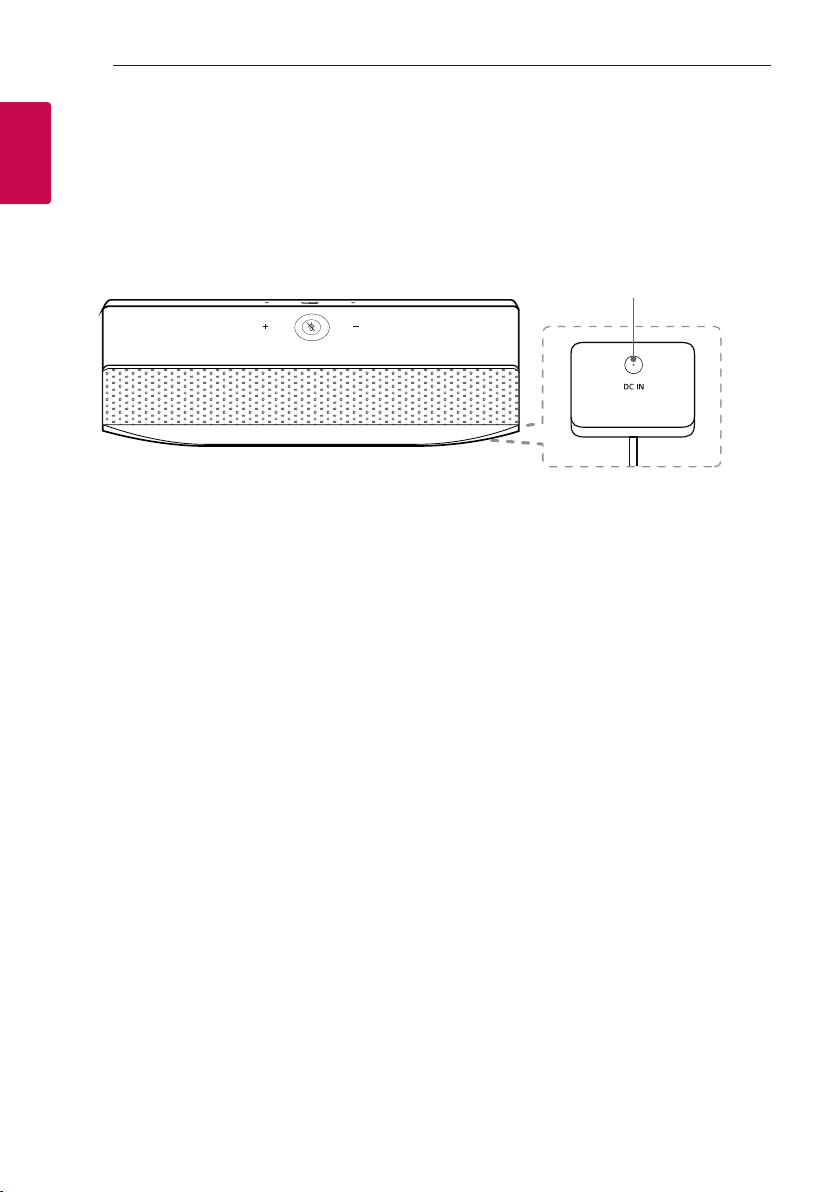
a
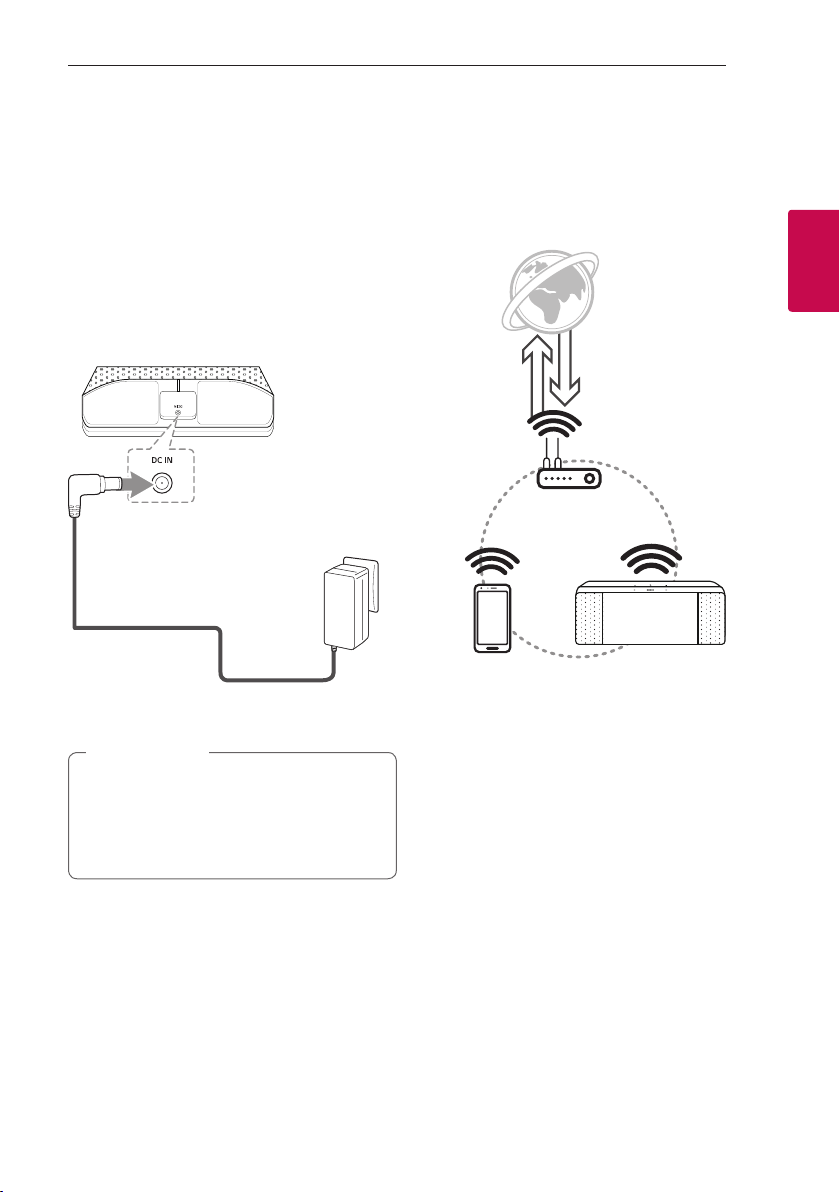
DC IN (AC adapter input)
a
2 Connecting
Connecting 9
Connecting
2
Setting up the Smart
Display
Connecting the AC Adapter
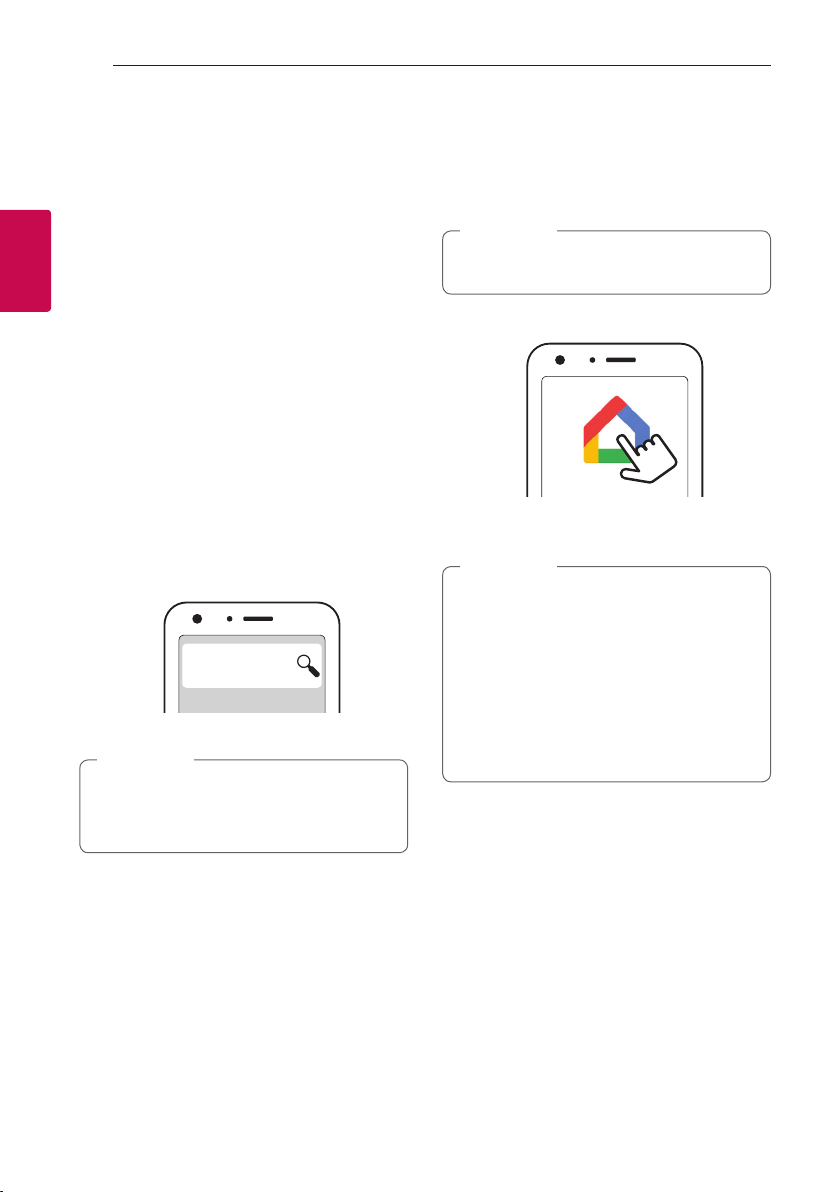
Connect the Smart Display to the power supply with
the supplied AC adapter.
1. Connect the supplied AC power cord to DC IN
Adapter input.
2. Plug the AC power cord into an AC outlet.
3. Screen turns on when the Smart Display has
completed booting.
Only use the AC adapter supplied with this
device. Do not use a power supply from another
device or manufacturer. Using any other power
cable or power supply may cause damage to the
device and void your warranty.
>
Caution
Network connection
You can enjoy various functions of this Smart Display
by connecting to network and your device with
"Google Home" app.
Choose the connection method considering your
network environment.
The "Google Home" app is required to connect the
Smart Display wirelessly to the network.
Connecting10
Connecting
2
Installing “Google Home” App
The "Google Home" app allows you to manage
various functions of this Smart Display through your
device: Use the Google Home app on your device to
set up your Smart Display.”
Requirements before set up
y
A wireless router must be connected to the
internet. A device such as Android or iOS devices
must be connected to the wireless router via Wi-
Fi connection.
y
A Google account is required to use this app.
During connect Wi-Fi, this app may request to
create Google account.
Through "Google Play or “App Store”
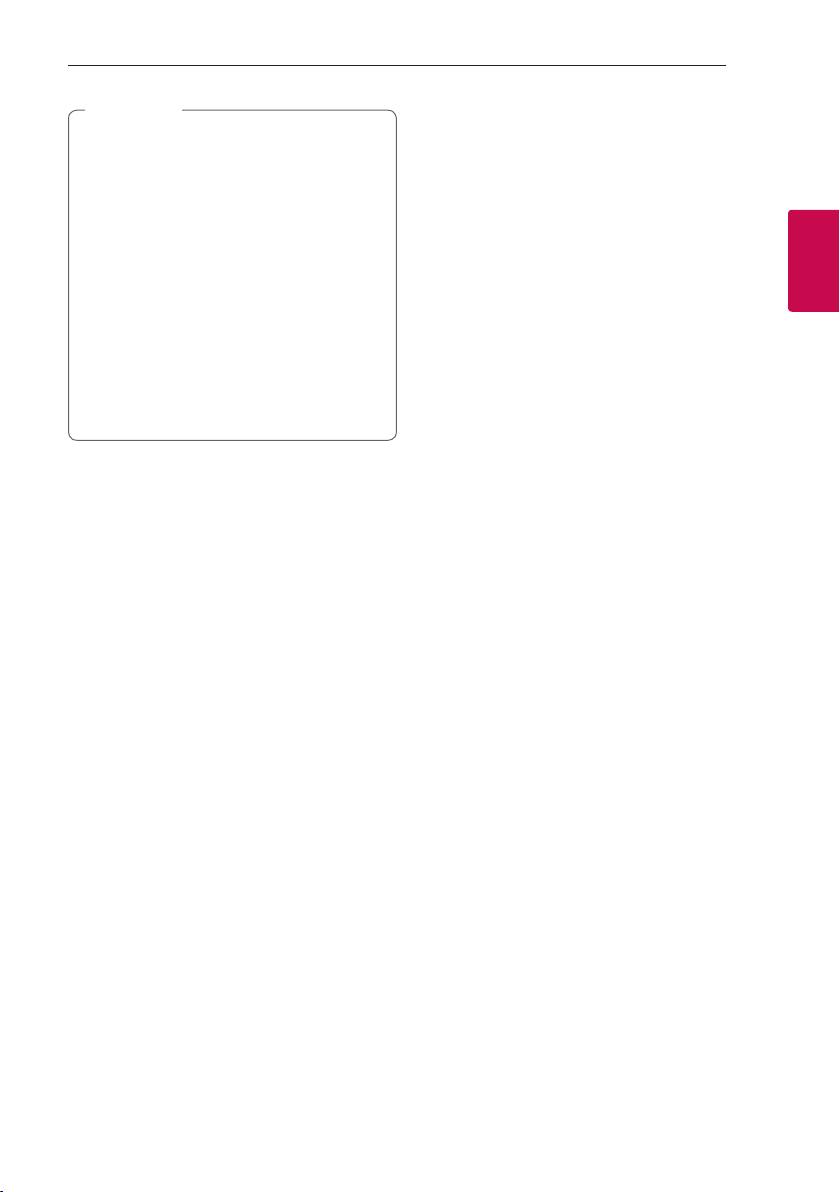
1. Tap the“Google Play Store” icon or “App Store”
icon on your device.
2. Type in “Google Home” in the search bar and tap
“Search” on “Google Play” or “App Store”
3. Select “Google Home” in the search result list to
download.
Google Home
y
Ensure you have the latest version of the
Google Home app.
y
For more information, refer to page 18.
,
Note
Connecting to Wi-Fi
Make sure your device Wi-Fi feature is turned on.
Once a connecting operation is performed, it does
not need to be performed again.
If you have an iOS phone, turn on Bluetooth to
set up your Smart Display.
,
Note
1. Tap the "Google Home" icon to launch the app.
2. Tap “SET UP” and follow the instructions in the
app to set up your Smart Display.
y
Use the same Wi-Fi connection to set the
Smart Display and your device.
y
If the Bluetooth setting turned on your
device, it will be easy to connect Wi-Fi.
y
During installation, you should create a Smart
Display name. It is needed when pairing the
Bluetooth device. You can check and edit the
Smart Display name. Follow the “Edit Smart
Display name”. (Page 17)
,
Note
3. When the Smart Display is properly connected to
Wi-Fi, main screen will appear.
Connecting 11
Connecting
2
y
If the app is already installed, this Smart
Display is display in main screen of the app.
y
Depending on wireless router status, it might
not work well Wi-Fi connection.
y
Performance may degrade based on
connectivity and number of devices grouped.
y
For more information (Set up, Usage, Help
etc.), refer to page 18.
y
“Google Home” app is provided by Google. It
might be revised by a change of Google Policy.
y
The Smart Display is not compatible with
”Smart ThinQ" app. Therefore it is not
available in set up and cannot be controlled
by using "Smart ThinQ" app.
,
Note
3 Operating
Operating12
Operating
3
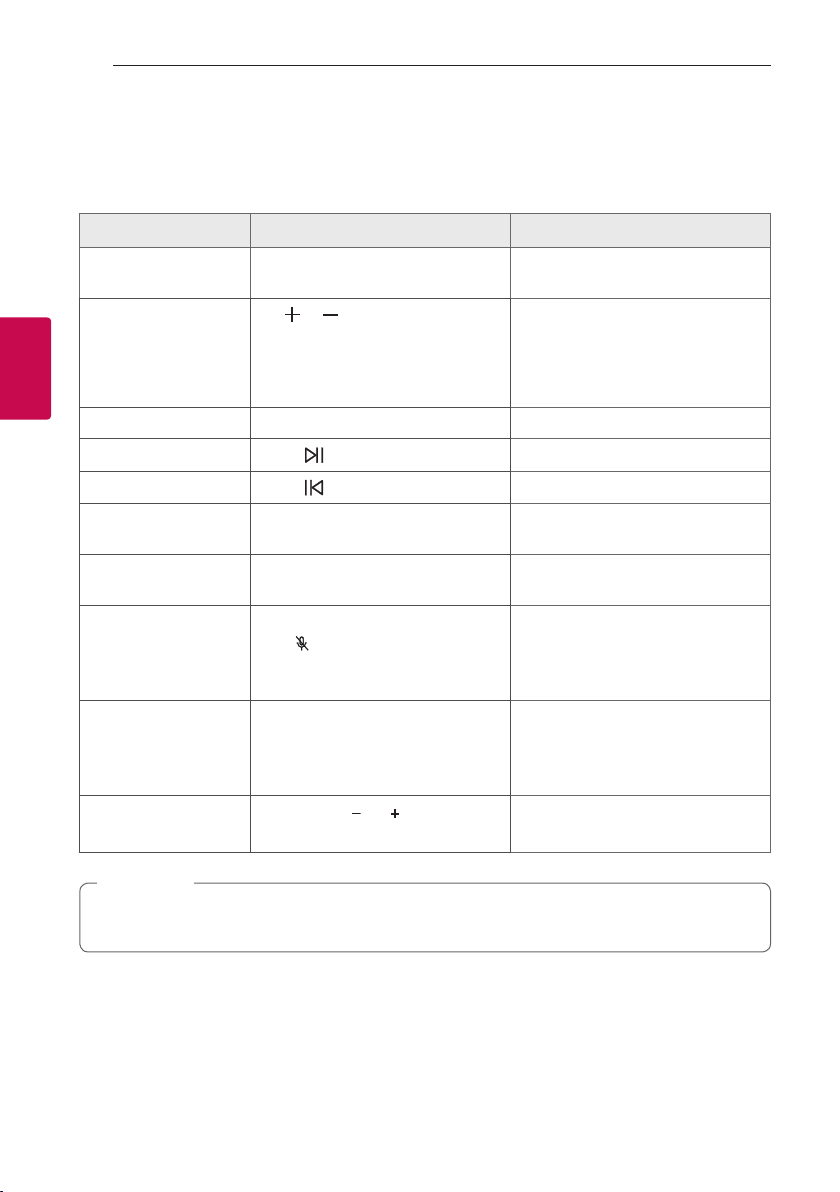
Basic Operations
Simple Operation Guide
Function How to Status
Bluetooth pairing
Say "Hey Google, turn on Bluetooth”
When you paired device before, it will
automatically paired.
Volume control
Tap or (0~10 level).
Or
Scroll up on the screen to activate
volume settings and then adjust volume
by draging or touching the screen.
When you adjust volume, volume is
displayed on the screen.
Play / Pause Touch
z
on the screen. Plays or pause a media..
Forward skip
Touch on the screen.
Plays next media..
Backward skip
Touch on the screen.
Plays previous media..
Playback Bar Drag to the part you want to play.
Google Assistant Say "Hey Google" Activates the Google Assistant.
Enable/ Disable
Voice recognition
Press (Microphone off) on top of
Smart Display.
- When microphone is off, "The MIC is
muted" sound is heard.
- When microphone is on, " The MIC is
back on" sound is heard.
Enable/ Disable
Camera
Slide the Camera Switch on top of
Smart Display.
- When Camera is off, "Camera off" is
appears on the screen.
- When Camera is on, "Camera on" is
appears on the screen.
Reset
Press and hold and button for 10
seconds at the same. (Page 17)
y
The Smart Display might not synchronize volume with some TVs.
y
Play, pause, skip may not be supported depending on the Media.
,
Note
Operating 13
Operating
3
How to use
the Google Assistant
Talk to the Google Assistant
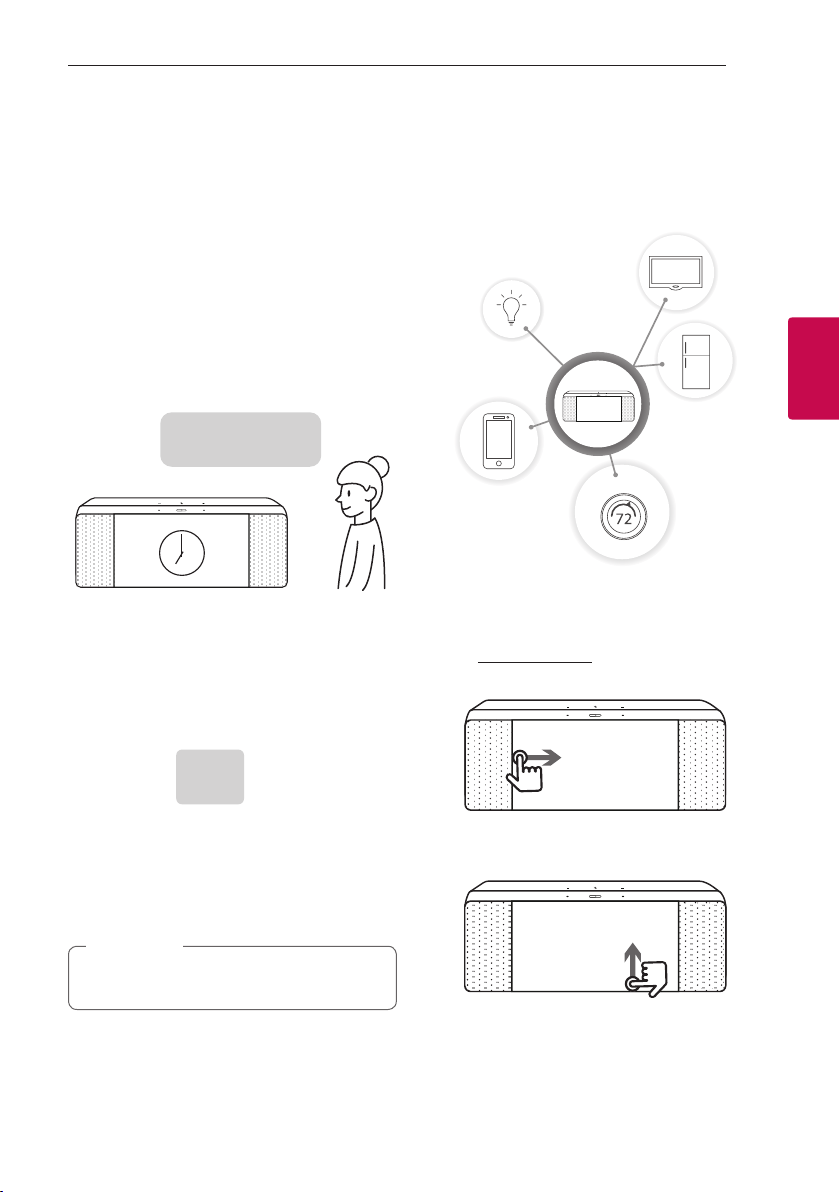
You can use a variety of voice commands to control
your Smart Display with the Google Assistant. Just
start with “Hey Google” to quickly manage daily
tasks, view glanceable answers, stay connected with
loved ones, enjoy your entertainment, and control
your smart home -- all hands-free.
Hey Google,
set my alarm for 7am
1. Turn on the Smart Display and connect Wi-Fi.
Follow the "Setting up the Smart Display".
(Page 9-12)
2. Say "Hey Google".
Then the Smart Display is activated and ready to
receive your voice commands.
Hey
Google
3. Just say the thing you want to do. Then the
Smart Display recognizes and performs your voice
command.
4. After a few seconds, the Google Assistant will
respond.
Each time you use voice recognition, say "Hey
Google".
,
Note
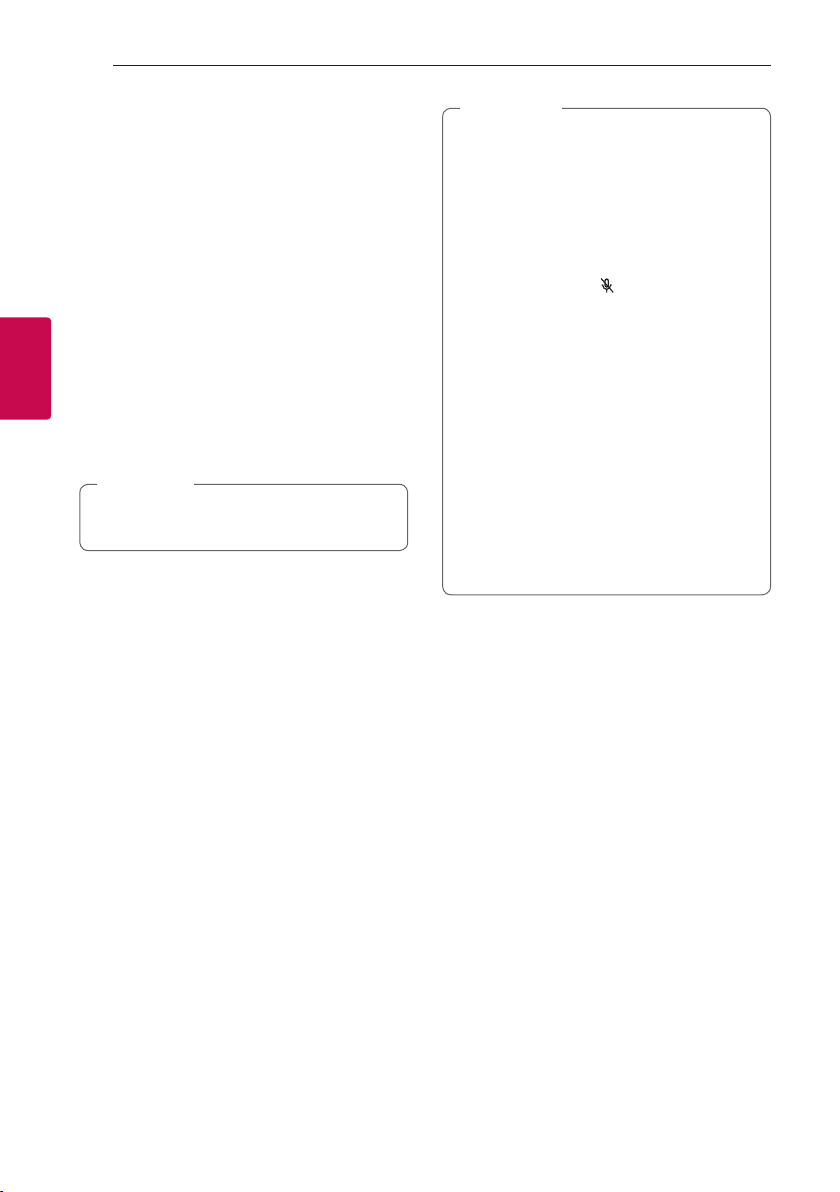
Smart Home Control
You can control smart home devices that work with
the Google Assistant, such as TVs, lights, switches,
plugs, thermostats, and more using just your voice.
For more information, refer to page 18.
For more information, visit the below web site.
y
Set up, usage and more: Refer to page 18.
y
Compatible LG appliance models:
Visit http://www.lg.com and then search the
information
y
Swipe right from left edge to go back to your
home screen.
y
Swipe up from bottom edge to access to your
quick settings.
Operating14
Operating
3
Voice command
1. Timers and alarms
“Set a timer for 15 minutes”
“Wake me up tomorrow at 6am”
2. Weather and traffic
“What’s the weather this weekend”
“How’s the traffic to work today?”
3. Calendar and reminders
“What’s on my agenda?”
“Add doctor’s appointment to my calendar”
4. Media
“Show me football highlights on YouTube”
“Show me my playlists”
“Play the news”
5. Photos
“Show my photos of Mom”
“Show my photos from Yosemite”
For more information on the voice commands,
refer to the “Google Home” app screen.
,
Note
y
After connecting to Wi-Fi, this function is
available to use. If the Smart Display is not
connected to Wi-Fi, follow the “Installing
“Google Home” App” and try again. (Page
10-12)
y
If the microphone is off, the "Google
assistant" is not available to receive your
comment. Press the
(microphone off)
button on top of the Smart Display.
y
If the "Google Assistant" fails to understand
your commands, it will say answers such
as "Sorry, I can't help with that yet","My
apologies. I don't understand."
y
When the voice recognition time limit
is exceeded on devices, this function
automatically cancels.
y
Speaking with correct pronunciation will
increase the voice recognition rate.
y
The "Google Assistant" may be slow to
recognize or act depending on the Wi-Fi
connection status or Google server status..
,
Note
Operating 15
Operating
3
Using BLUETOOTH®
technology
About BLUETOOTH
Bluetooth is wireless communication technology for
short range connection.
The sound may be interrupted if the connection has
interference by some other electronic waves or you
connect the Bluetooth in some other room.
Connecting individual devices under Bluetooth
wireless technology does not incur any charges.
A mobile phone with Bluetooth wireless technology
can be operated via the Cascade if the connection
was made via Bluetooth wireless technology.
y
Available Devices: Smart phone, Notebook, etc.
y
Version: 4.2
y
Codec: SBC
BLUETOOTH Profiles
In order to use Bluetooth wireless technology,
devices must be able to interpret certain proles.
This unit is compatible with following prole.
A2DP (Advanced Audio Distribution Prole)
Listening to music stored on the
BLUETOOTH devices
Pairing your unit and BLUETOOTH
device
Before you start the pairing procedure, make sure the
Bluetooth feature is turned on in to your Bluetooth
device. Refer to your Bluetooth device’s user guide.
Once a pairing operation is performed, it does not
need to be performed again.
1. Turn on the Smart Display and connect Wi-Fi.
Follow the "Setting up the Smart Display". (Page
9-12)
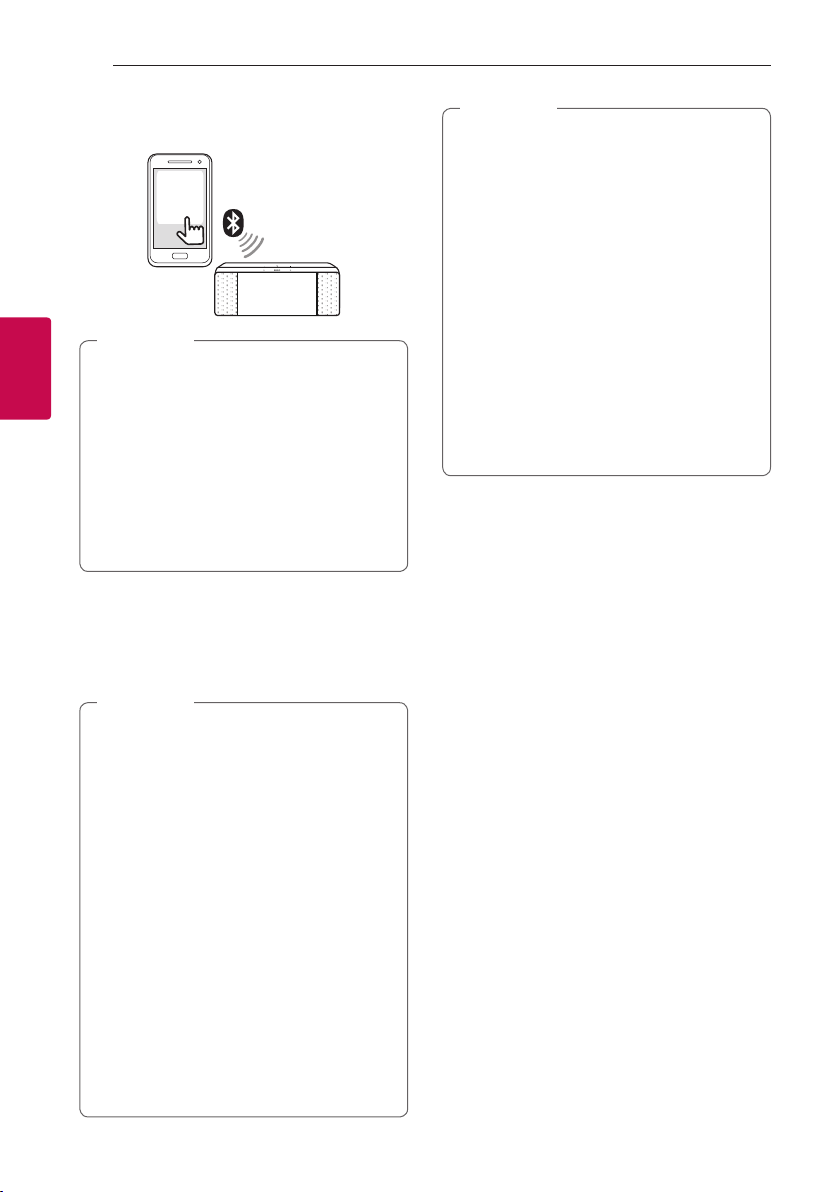
2. Set to be able to pair with a Bluetooth device on
“Google Home” app.
“Google Home” app, follow these instructions.
[ ]
[
[ ]
[
[Settings]
[
[Paired Bluetooth
devices]
Paired Bluetooth
devices
3. Operate the Bluetooth device and perform the
pairing operation. When searching for this unit
with the Bluetooth device, a list of the devices
found may appear in the Bluetooth device display
depending on the type of Bluetooth device.
Your unit appears as "Smart Display name (App
set up)".
Operating16
Operating
3
4. Select "Smart Display name (App set up)" on
setting of your device.
Smart
Display
name
y
App set up means that you set the name in
the "Google Home" app. For example, if the
Smart Display name is set to Smart Display in
the "Google Home" app, you will see “ Smart
Display” on your Bluetooth device.
y
You may check and edit the Smart Display
name on "Google Home" app (Page 17)
y
Depending on the Bluetooth device type,
some device have a different pairing way.
Enter the PIN code (0000) as needed.
,
Note
5. When this unit is successfully connected with
your Bluetooth device, the sound is heard.
6. Listen to music.
To play a music stored on your Bluetooth device,
refer to your Bluetooth device’s user guide.
y
When using Bluetooth technology, you
should be as close and possible when you are
attempting to make a connection between
the unit and a Bluetooth device. You should
also keep the distance close.
However you may experience issues in the
cases below:
- There is an obstacle between the unit and
the Bluetooth device.
- There is a device using same frequency
with Bluetooth technology such as a
medical equipment, a microwave or a
wireless LAN device.
y
If Bluetooth connection does not work
well, go to step 1 of “Pairing your unit and
BLUETOOTH device” and try again.
y
The sound may be interrupted when the
connection has interference from some other
electronic waves.
,
Note
y
Pairing is limited to one per unit and multi-
pairing is not supported
y
Depending on the type of the device, you may
not be able to use the Bluetooth function.
y
You can enjoy Bluetooth function using
Smart phone, Notebook, etc..
y
The more distance between the unit and the
Bluetooth device, the lower the sound quality
becomes.
y
Bluetooth connection will be disconnected
when the unit is turned off or the Bluetooth
device gets too far from the unit.
y
When you connect Bluetooth device (iOS
device etc.) to this unit or operate the device,
the volume level can be synchronized with
each other.
,
Note
Using Voice command to connect
Bluetooth
If the speaker has paired to a Bluetooth device
before, you can use "Google Assistant" to pair
Bluetooth. Say "Connect", "Connect to Bluetooth" or
"Hey Bluetooth".
To disconnect it, say "Cancel", "Unpair devices" or
"Clear all devices".

Operating 17
Operating
3
Other Operations
Turn off the microphone
temporarily
You can turn off the microphone to temporarily
disable the detect voice recognition by pressing
(Microphone off) button. is displayed on the screen
and "The mic is muted" is heard.
To cancel it, press (Microphone off) again. is
disappeared on the screen and "The mic is back on"
is heard.
Edit Smart Display name
You can check and edit the Smart Display name on
the "Google Home" app, follow these instructions.
[ ]
[
[ ]
[
[Settings]
[
[Device info]
[
[Name]
Make video calls
You can use Google Duo to make video calls to your
family and friends.
With Google Duo, you can enjoy video calls between
this unit and any smartphone or tablet that has the
Google Duo app installed.
If you need more information about Google Duo,
please contact Google or visit the Google Duo
Help Center.
,
Note
Resetting
To initialize information of existing connection, follow
these instructions.
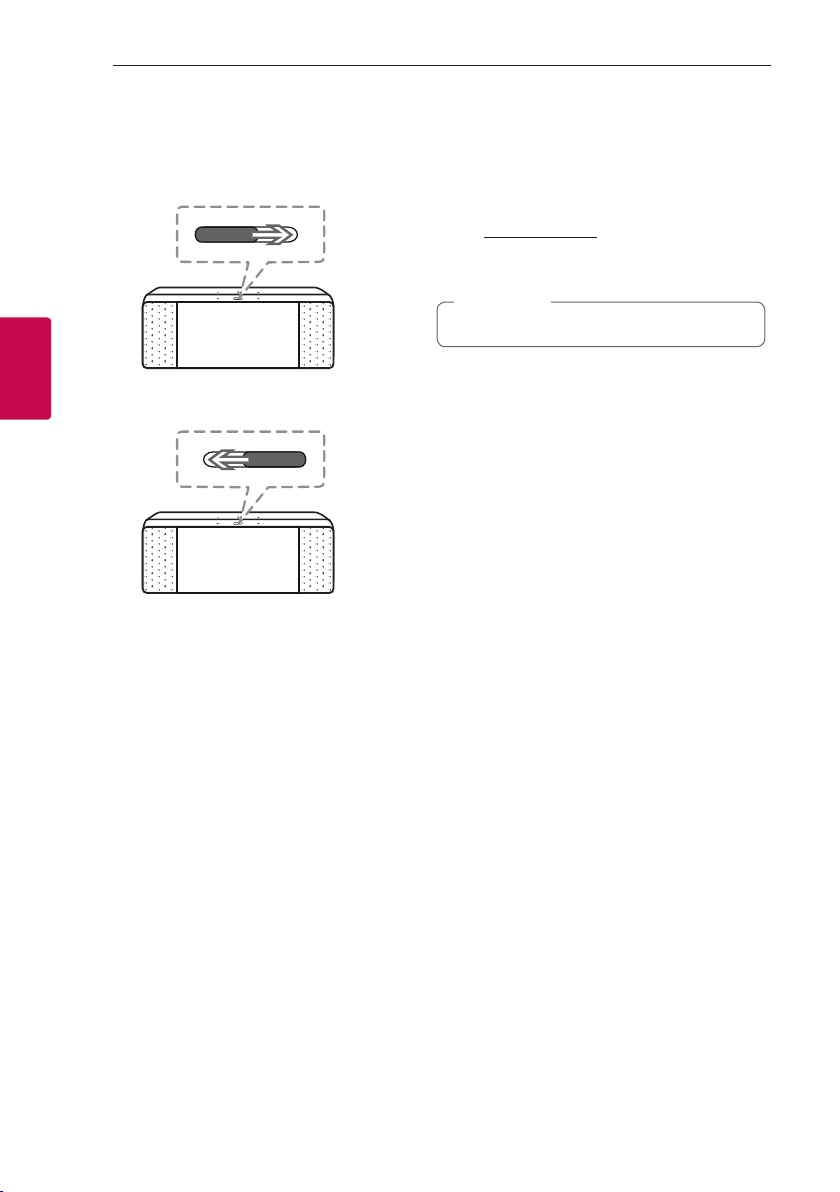
1. Press and hold and buttons at the same time
for 10 seconds.
2. Before Smart Display enters reset mode, pop-
up window is displayed on the screen of Smart
Display.
3. When you select [Yes, do it!], the Smart Display is
reset.
When you reset this Smart Display, it needs to
reconnect Wi-Fi, Bluetooth.
,
Note
Operating18
Operating
3
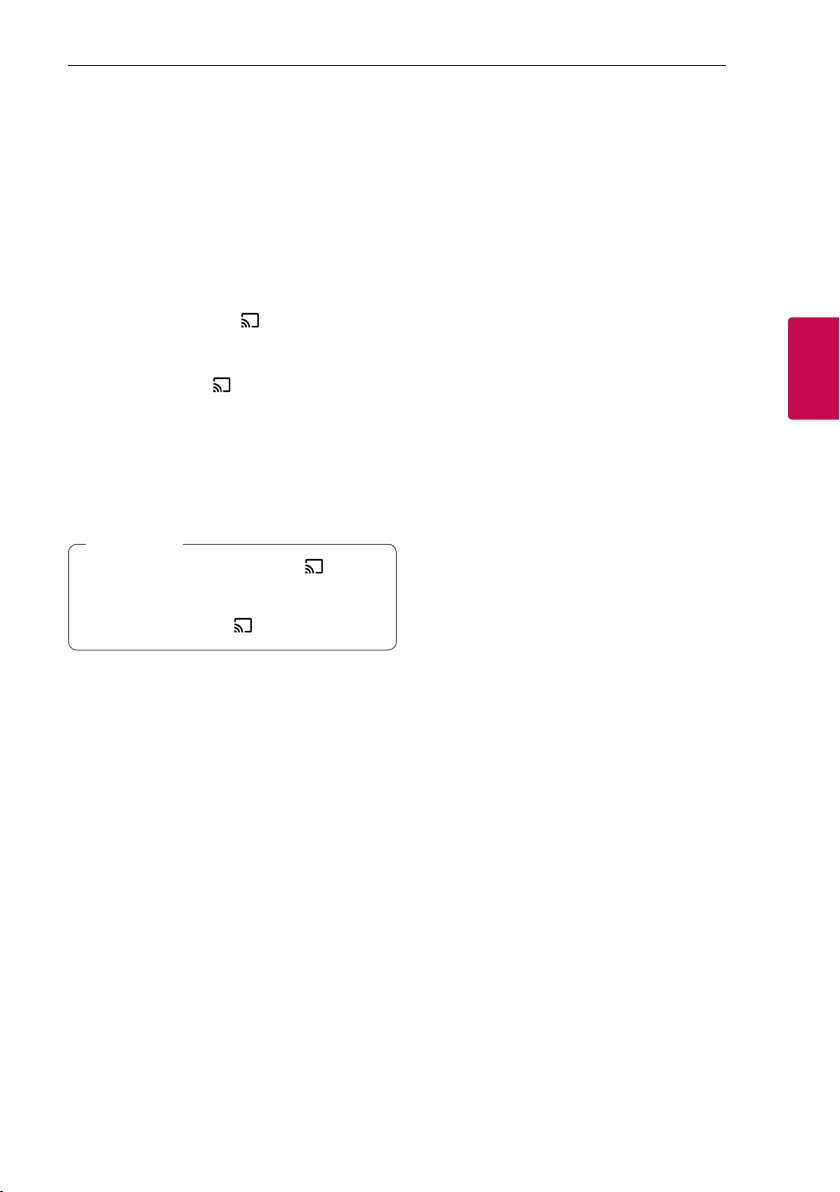
Turn off the camera temporarily
You can turn off the camera to temporarily by Sliding
the camera switch. "Camera off" is appears on the
screen.
To cancel it, Slide the camera switch again. "Camera
on" is appears on the screen.
Getting Google Assistant help
For more information and inquiries, please refer to
the below guide.
y
Visit the Google Assistant Help Center or Google
Product Forums on the web site.
y
Visit http://www.lg.com and then search “WK9”.
Then follow these instructions.
[Support]
[
[Help Library]
Site address is subject to change.
,
Note
Operating 19
Operating
3
Connecting Google
Chromecast and
Chromecast Audio
Google Chromecast is a technology that lets you
instantly transfer entertainment content and apps
from your device, tablet, or laptop to your TV or
Smart Displays.
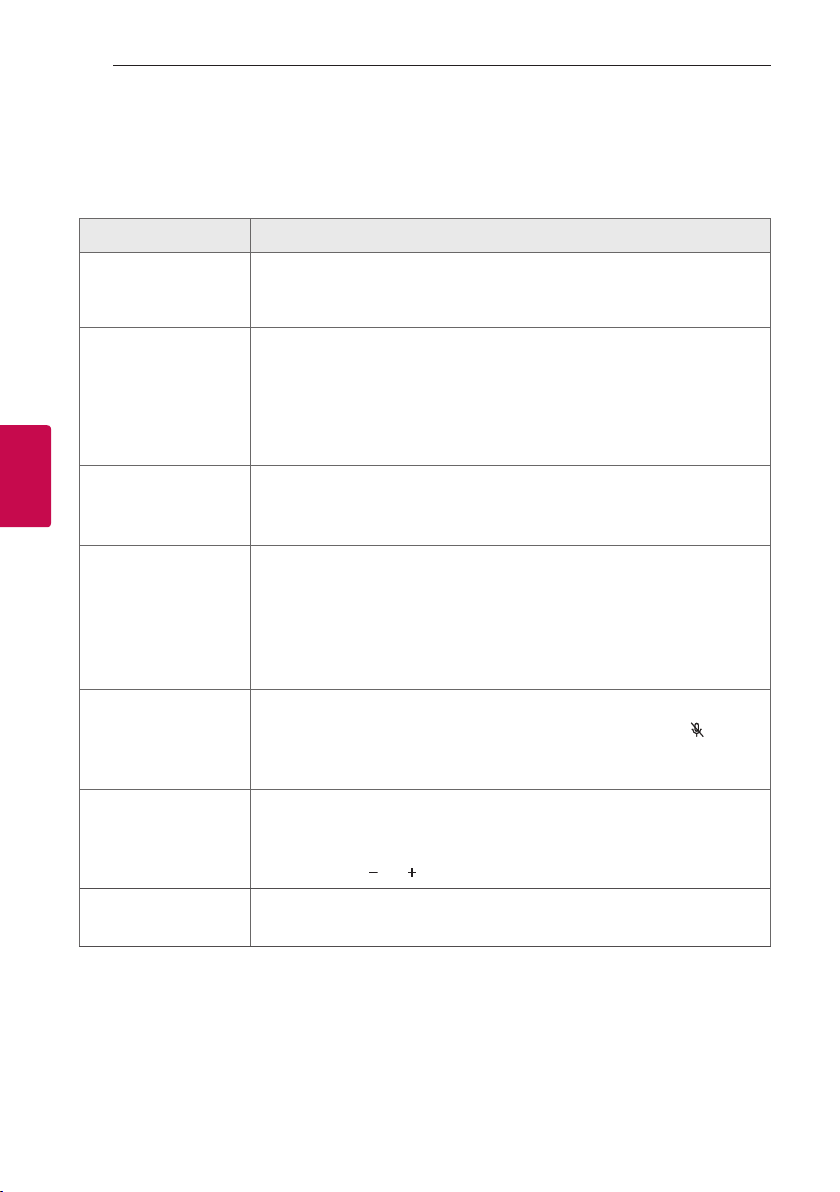
1. Make sure you have the icon in the upper
right corner of the application that supports
Chromecast.
2. When you click the icon displays a list of
available devices.
3. When you select Smart Displays among them,
the inside color is changed, and it is changed to
Chromecast connection.
4. Watch the contents of application on the Smart
Display.
If you want to disconnect, press the icon.
"Stop casting" is displayed together with the
playback status. If you touch the "Stop casting",
it will be changed to the
icon."
,
Note
4 Troubleshooting
Troubleshooting20
Troubleshooting
4
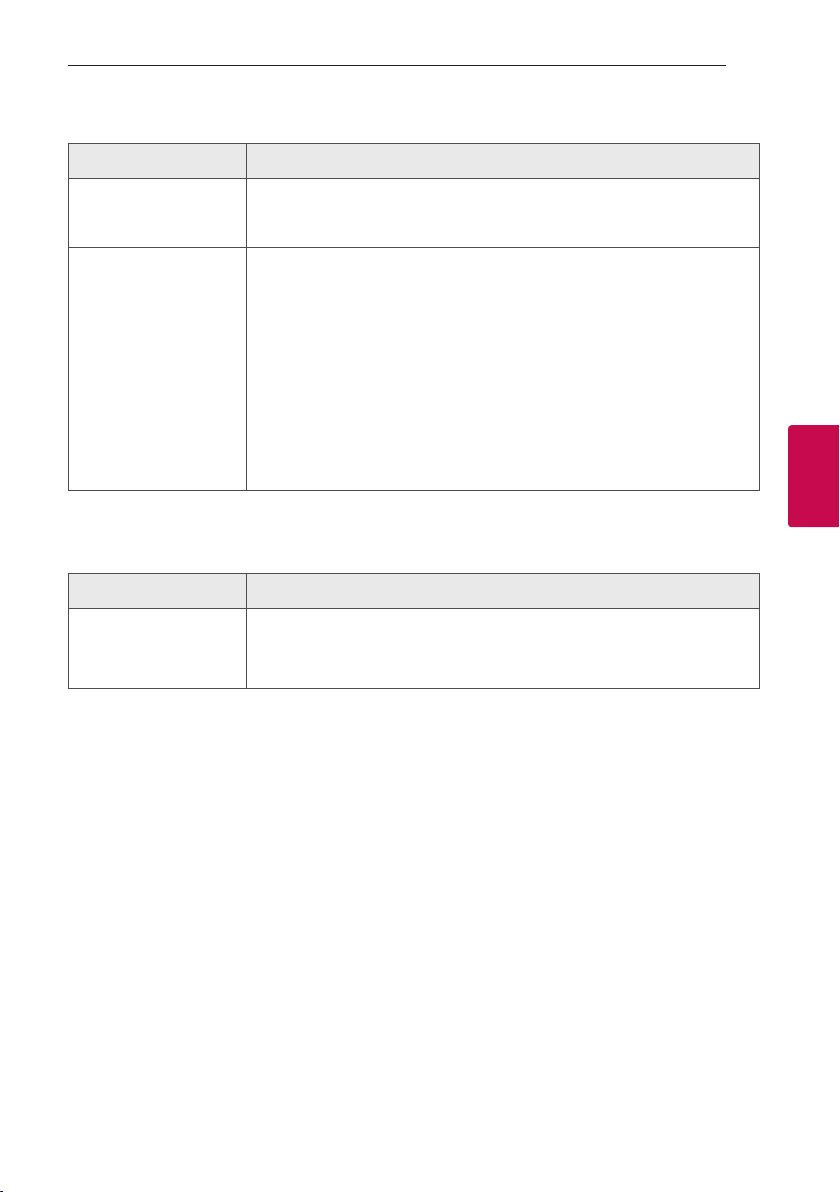
Troubleshooting
General
Problem Cause & Correction
No Power
y
The power cord is unplugged. Plug in the power cord.
y
Check whether electricity failed.
Check the condition by operating other electronic devices.
No sound or sound
distortion.
y
The Smart Display or your device’s volume is set to minimum. Check and adjust
the volume of the Smart Display or your device’s volume.
y
When you use an external device at high volume, the sound quality may be
deteriorated. Lower the volume of the devices.
y
If you use the unit for purposes other than listening to music, the sound quality
may be lowered or the unit may not work properly.
Wi-Fi connection does
not work well.
y
Check your router. Try turning it off and back on.
y
Check that the Wi-Fi feature is turned on in your device.
y
Check that the Smart Display and your device are connected to same Wi-Fi.
Bluetooth pairing does
not work well.
y
Switch Bluetooth off and on again on your Bluetooth device, then try pairing
again.
y
Be sure your Bluetooth device is on.
y
Remove the obstacle in the path of the Bluetooth device and the unit.
y
Depending on the type of the Bluetooth device or surrounding environment,
your device may not be paired with the unit.
Voice recognition does
not work well.
y
The Smart Display may not be recognized because of the surrounding noise.
y
Check and make sure the microphone is not turned "off". Press the button.
y
Swipe up from the bottom edge of the screen to pull up quick settings.
Check that the microphone is not muted.
The unit does not
operate normally.
y
In case of malfunction, please use the unit in proper place where the
temperature or humidity is not so high or low.
y
Unplug the power cord from the electrical outlet and plug it again.
y
Press and hold and buttons at the same time for 10 seconds. (Page 17)
Changed device name
does not appear.
y
If you change device name of the device, The name changed will be displayed
after power off and on.
Troubleshooting 21
Troubleshooting
4
Network
Symptoms Cause & Solution
Cannot connect the
Smart Display to your
home network.
The wireless communication may be interrupted from household devices that are
using radio frequencies. Move the Smart Display away from them.
The application doesn’t
work properly.
Is the application plugged in?
y
Plug in the application.
Is the LAN cable connected to the wireless router and the application properly?
y
Connect the LAN cable to the LAN port on the back of the application and to
your wireless router.
If you restart the router?
y
You need to turn the speaker’s power off and on again.
If you install new router.
y
You need to perform a factory set and set up the network connection for
speaker.
Application
Symptoms Cause & Solution
The application doesn’t
work properly.
Does an error occur when accessing the app?
y
Make sure that your device is compatible with the app.
y
Make sure that the application is the latest version.
5 Appendix
Appendix22
Appendix
5
Trademarks and
Licenses
The Bluetooth® word mark and logos are
registered trademarks owned by the Bluetooth
SIG, Inc. and any use of such marks by LG
Electronics is under license.
Other trademarks and trade names are those of
their respective owners.
Google, Google Home, Google Play, Google Duo,
Google Chromecast and other related marks are
trademarks of Google LLC.
Handling the Unit
When shipping the unit
Please save the original shipping carton and packing
materials. If you need to ship the unit, for maximum
protection, re-pack the unit as it was originally
packed at the factory.
Keeping the exterior surfaces clean
y
Do not use volatile liquids such as insecticide spray
near the unit.
y
Wiping with strong pressure may damage the
surface.
y
Do not leave rubber or plastic products in contact
with the unit for a long period of time.
Cleaning the unit
To clean the player, use a soft, dry cloth. If the
surfaces are extremely dirty, use a soft cloth lightly
moistened with a mild detergent solution. Do not use
strong solvents such as alcohol, benzine, or thinner,
as these might damage the surface of the unit.

Appendix 23
Appendix
5
OPEN SOURCE
You can nd “Open Source Software Notice” at the
"Google Home" app
Android Things OPEN SOURCE
1. Launch "Google Home" app on your device.
2. Follow these instructions in order.
[ ]
[
[ ]
[
[Settings]
[
[ ]
3. Tap [Open source licenses] on [ of Device
settings] Shows Android Things Open Source
Software Notice.
OPEN SOURCE SOFTWARE NOTICE
INFORMATION
To obtain the source code under GPL, LGPL, MPL, and
other open source licenses, that is contained in this
product, please visit
http://opensource.lge.com.
In addition to the source code, all referred license
terms, warranty disclaimers and copyright notices are
available for download. LG Electronics will also provide
open source code to you on CDROM for a charge
covering the cost of performing such distribution
(such as the cost of media, shipping and handling)
upon email request to opensour[email protected]. This
offer is valid for a period of three years after our last
shipment of this product. This offer is valid to anyone
in receipt of this information.
For more information about Google's open source,
visit device settings of Google home app.
Appendix24
Appendix
5
Specifications
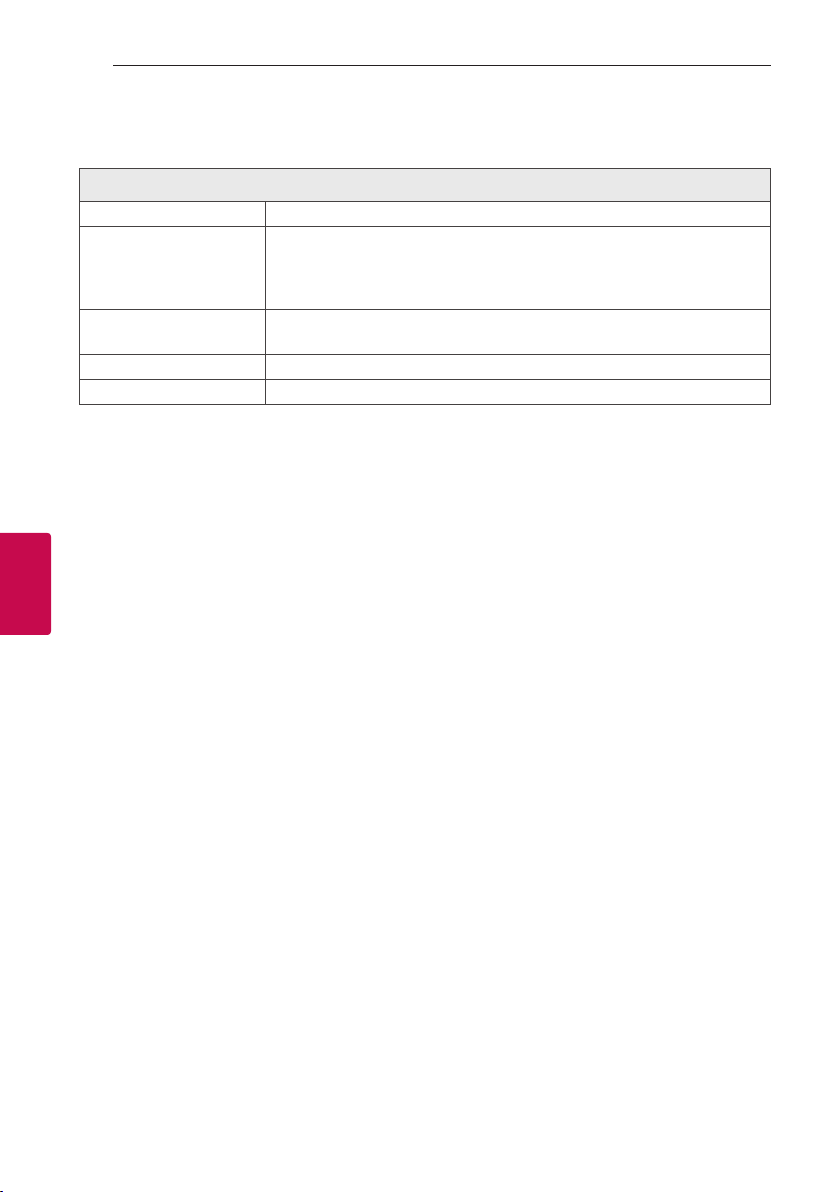
Smart Display
Power consumption Refer to main label.
AC adapter
y
Model: LCAP16B-A
y
Manufacturer: Lien Chang Electronic Enterprise Co., Ltd.
y
Input: 100-240 V~ 50-60 Hz 1.1 A
y
Output: 19 V
0
2.1 A
Dimensions (W x H x D)
Approx. 321 mm X 136 mm X 133 mm
(12.64 inch x 5.35 inch x 5.24 inch)
Operating temperature O °C to 40 °C (32 °F to 104 °F)
Operating humidity less than 80%
y
Design and specications are subject to change without notice.