VIEWER’S GUIDE
®
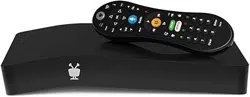
BOLT | BOLT+

ii
This Viewer’s Guide describes features of the TiVo
®
service running on
the TiVo BOLT
®
or TiVo BOLT+ unified entertainment system.
©2017 TiVo Inc. All rights reserved. Your use of this product is subject to
the TiVo User Agreement (available at ww.tivo.com/legal/terms) and the
TiVo Privacy Policy (available at www.tivo.com/legal/privacy).
Patented. U.S. patent numbers at www.tivo.com/patents.
TiVo, TiVo BOLT, the TiVo logo, the TiVo silhouette logo, TiVo Central,
Mavrik, OnePass, Season Pass, TiVoToGo, TrickPlay, WishList, the Jump
logo, the Instant Replay logo, the Thumbs Up icons , the
Thumbs Down icons , Overtime Scheduler, Overlap
Protection, Swivel, the TiVo Circle logo, and the sounds used by the TiVo
service are trademarks or registered trademarks of TiVo Inc. or its
subsidiaries worldwide, 2160 Gold Street, San Jose, CA 95002-2160.
Manufactured under license from Dolby Laboratories. “Dolby”
and the Double-D symbol are trademarks of Dolby Laboratories.
HDMI, the HDMI logo, and High-Definition
Multimedia Interface are trademarks or registered
trademarks of HDMI Licensing LLC in the United States and other
countries.
Amazon, Amazon.com, and the Amazon.com logo are registered
trademarks of Amazon.com, Inc. or its affiliates.
Android is a registered trademark of Google Inc.
CableCARD is a trademark of Cable Television Laboratories, Inc.
HBO is a registered trademark of Home Box Office, Inc.
Hulu is a registered trademarks of Hulu, LLC.
iOS is a registered trademarks of Apple Inc., registered in the U.S. and
other countries. App Store is a service mark of Apple Inc.
MoCA is a registered trademark of Multimedia over Coax Alliance.
Netflix is a registered trademark of Netflix, Inc.
Vudu is a registered trademark of Vudu, Inc.
YouTube is a registered trademark of Google Inc.
All other trademarks are the properties of their respective owners.
TiVo BOLT VG V4 (August 2017)
®

WELCOME

iii
Table of contents
Using this guide . . . . . . . . . . . . . . . . . . . . . . . . . . . . . . . . iv
CHAPTER 1: QUICK TOURS . . . . . . . . . . . . . . . . . .1
Quick tour - the TiVo Central
®
screen . . . . . . . . . . . . . . .2
Quick tour - My Shows . . . . . . . . . . . . . . . . . . . . . . . . . . . .4
Quick tour - OnePass™ searches . . . . . . . . . . . . . . . . . . .8
Quick tour - SkipMode™ . . . . . . . . . . . . . . . . . . . . . . . . .10
Quick tour - QuickMode™ . . . . . . . . . . . . . . . . . . . . . . .11
Quick tour - Streaming videos . . . . . . . . . . . . . . . . . . . .12
Quick tour - Watching live TV . . . . . . . . . . . . . . . . . . . . .13
Quick tour - the TiVo app . . . . . . . . . . . . . . . . . . . . . . . .16
Quick tour - Accessibility Features . . . . . . . . . . . . . . . . .17
CHAPTER 2: FINDING & MANAGING SHOWS . .18
Using the guide and mini-guide to find shows . . . . . . .19
Searching, browsing, and more . . . . . . . . . . . . . . . . . . .21
Recording by time or channel . . . . . . . . . . . . . . . . . . . . .25
Creating WishList
®
searches . . . . . . . . . . . . . . . . . . . . .27
Managing recordings & OnePass searches . . . . . . . . . .30
Setting OnePass & recording options . . . . . . . . . . . . . .32
CHAPTER 3: WATCHING SHOWS . . . . . . . . . . . . .34
Moving around with the status bar . . . . . . . . . . . . . . . . .35
Getting information with the info banner . . . . . . . . . . .37
Watching shows on other TiVo boxes . . . . . . . . . . . . . .38
CHAPTER 4: APPS . . . . . . . . . . . . . . . . . . . . . . . . 40
Video apps . . . . . . . . . . . . . . . . . . . . . . . . . . . . . . . . . . . .41
Music apps & more . . . . . . . . . . . . . . . . . . . . . . . . . . . . .44
CHAPTER 5: HELP, SETTINGS, & MESSAGES . 45
Help . . . . . . . . . . . . . . . . . . . . . . . . . . . . . . . . . . . . . . . . . .46
Parental Controls . . . . . . . . . . . . . . . . . . . . . . . . . . . . . . .48
User preferences . . . . . . . . . . . . . . . . . . . . . . . . . . . . . . .50
Channel settings . . . . . . . . . . . . . . . . . . . . . . . . . . . . . . . .51
Audio & video settings . . . . . . . . . . . . . . . . . . . . . . . . . .53
Network settings . . . . . . . . . . . . . . . . . . . . . . . . . . . . . . .56
Remote, CableCARD, & device settings . . . . . . . . . . . .59
Messages . . . . . . . . . . . . . . . . . . . . . . . . . . . . . . . . . . . . .63
Standby . . . . . . . . . . . . . . . . . . . . . . . . . . . . . . . . . . . . . . .64
CHAPTER 6: TROUBLESHOOTING . . . . . . . . . . . 65
APPENDIX A . . . . . . . . . . . . . . . . . . . . . . . . . . . . . 77
Safety instructions . . . . . . . . . . . . . . . . . . . . . . . . . . . . . .78
FCC statement to the user . . . . . . . . . . . . . . . . . . . . . . .81
Back panel . . . . . . . . . . . . . . . . . . . . . . . . . . . . . . . . . . . . .82
Specifications . . . . . . . . . . . . . . . . . . . . . . . . . . . . . . . . . .83

IV
USING THIS GUIDE
Thank you for choosing a high-definition TiVo BOLT
®
or BOLT+
unified entertainment system. Throughout this guide, we’ll use the
term “TiVo BOLT” to refer to both models. Any differences
between the TiVo BOLT and TiVo BOLT+ will be identified as
necessary.
GETTING STARTED
1. Activate the TiVo
®
service. The TiVo service is what makes
your TiVo BOLT smart. It includes everything from your show
listings to SkipMode
™
and OnePass
™
searches. If you haven’t
yet activated your TiVo service, visit tivo.com/activate or call
1-877-367-8486.
TiVo service is required. No functionality is represented or
should be expected without a paid subscription to the TiVo
service.
2. Connect your TiVo box. Use the Setup & Features guide to
connect the TiVo BOLT to your TV programming source, your
home network, and your television.
3. Complete Guided Setup. After connecting your TiVo BOLT,
follow the steps in on-screen Guided Setup. This configures the
TiVo BOLT for your home, and ensures you have the latest
product updates.
4. Take a tour! Once you’re done with Guided Setup, the Quick
tours in Chapter 1 of this guide will introduce you to the great
things you can do with your TiVo box.
5. Visit tivo.com/howto. For the latest information on how to use
the features of your TiVo BOLT (including new features as they
become available), visit tivo.com/howto.
6. Learn about accessibility features. Your TiVo BOLT is equipped
with assistive technologies for the vision- and hearing-impaired.
Learn more in Quick tour - Accessibility Features, or by visiting
tivo.com/accessibility.
BASIC TERMS
When we talk about the TiVo service, here are some terms you
should know:
Live TV. If you’re watching a show as it’s being broadcast,
you’re watching live TV. You can pause live TV for up to 30
minutes. When you resume watching, you’re “behind” live TV.
(You can always get to live TV by pressing the LIVE TV
button on your remote).
Streaming. With the TiVo BOLT, you can stream shows from
sources like Amazon, Netflix, and your cable company’s video
on demand service (if available). You can also stream
recordings to your mobile device, or to/from another TiVo DVR
in your network.
Host. When your TiVo BOLT streams shows to another TiVo
BOLT, your BOLT is a “host.”

V
Client. The TiVo box receiving streaming shows is the “client.”
Your TiVo BOLT can be a client, too! When you stream shows
from another TiVo box to your BOLT, your BOLT is a client.
Network Connection. Your TiVo BOLT can connect to your
home network through either a wireless or wired connection
(using either Ethernet or MoCA).
To get the most out of your TiVo experience, especially if you
want to stream shows, you must use a wired connection --
either Ethernet or MoCA. For more on MoCA (Multimedia over
Coax), see below. For more details on connecting your BOLT to
your home network, see the “Get set up” section on tivo.com/
howto.
MoCA
®
. A MoCA (pronounced “Mocha,” like the chocolate-
flavored coffee drink!) connection is a great option if you want
a wired connection to your TiVo box but you don’t have easy
access to a wired Ethernet cable. MoCA delivers the same
high-speed network connection you get through an Ethernet
cable, but delivers it through your existing coax wire (the wire
you use to receive cable TV). When you set up MoCA in your
home, your TiVo box will receive cable TV and connect to your
home network through that one cable! Just follow the
instructions you’ll find at tivo.com/moca, and you’ll be ready to
go in no time.
TiVo service. If the TiVo BOLT is the body, the TiVo service is
the brains! The TiVo BOLT uses the program information
provided by the TiVo service to power the program guide,
allow you to search for shows, and more.
Tuners. A tuner is a device found inside DVRs, TVs, cable boxes
— anything designed to receive TV signals, including the TiVo
BOLT. A tuner picks one channel to display; it “tunes” to that
channel. The TiVo BOLT has four tuners inside and can record
up to four shows at once. The TiVo BOLT+ has six tuners inside
and can watch and record up to six shows at once. Pressing the
LIVE TV button while watching live TV will cycle through
your tuners.
OTA. OTA refers to “over-the-air” programming, or a television
signal that you receive using an HD antenna. The TiVo BOLT
can receive its television signal this way.
CableCARD
™
decoder. The TiVo BOLT can use a CableCARD
decoder to receive programming. If using a CableCARD, the
TiVo BOLT requires a multi-stream CableCARD (M-CARD),
which will allow you to watch and record multiple shows at
once. The CableCARD will replace your existing cable box. You
can order a CableCARD from your cable provider.


2
QUICK TOURS
1
QUICK TOUR - THE TIVO CENTRAL
®
SCREEN
YOUR STARTING POINT - THE TIVO CENTRAL SCREEN
The TiVo Central screen is the starting point for just about everything you do with your TiVo
BOLT. From the TiVo Central screen, you can see a list of all your recorded shows and
streaming videos, find new shows to watch, explore great video on demand choices, and
more.
To get to the TiVo Central screen from live TV or any TiVo screen, just press the TiVo
button on your remote control.
THE VIDEO WINDOW
The Video Window is located in the upper right corner of the TiVo Central screen and most
other TiVo menu screens, unless you choose to turn it off or temporarily hide it. The Video
Window continues playing the show you were watching when you entered the TiVo Central
screen.
Press PAUSE on your TiVo remote to pause the Video Window, and press PAUSE again to
resume playing.
To temporarily hide the Video Window, press SLOW on your TiVo remote. Press SLOW
again to restore the Video Window.
If you’d rather permanently turn off the Video Window, from the TiVo Central screen select
‘Settings & Messages,’ then ‘User Preferences,’ then ‘Video Window.’

3
QUICK TOURS
1
DISCOVERY BAR
The Discovery Bar is the bar of thumbnail images across the top of most TiVo menu screens.
What you’ll see in the Discovery Bar depends on you! Often, the Discovery Bar displays ideas
for show you might like based on what shows you record and mark as your favorites. For
example, if you record the show “The Voice,” the Discovery Bar might display thumbnails for
other reality show competitions, like “So You Think You Can Dance.” It all depends on what
you’re interested in and what’s available to you.
The Discovery Bar also displays lots of other great viewing options: popular shows or sports
events that are playing on live TV, items from your My Shows list, TiVo Suggestions, new video
on demand shows, and more!
Press the UP arrow to move up to the Discovery Bar, then the LEFT and RIGHT arrows to move
around. Press SELECT on an image that interests you to open an information screen about that
item.
. . . AND MORE!
From the TiVo Central screen, you can find shows, manage upcoming recordings and OnePass
selections, and explore a variety of apps available on your TiVo box. You’ll learn more about
these options later in this guide, but remember — it all starts from TiVo Central.

4
QUICK TOURS
1
QUICK TOUR - MY SHOWS
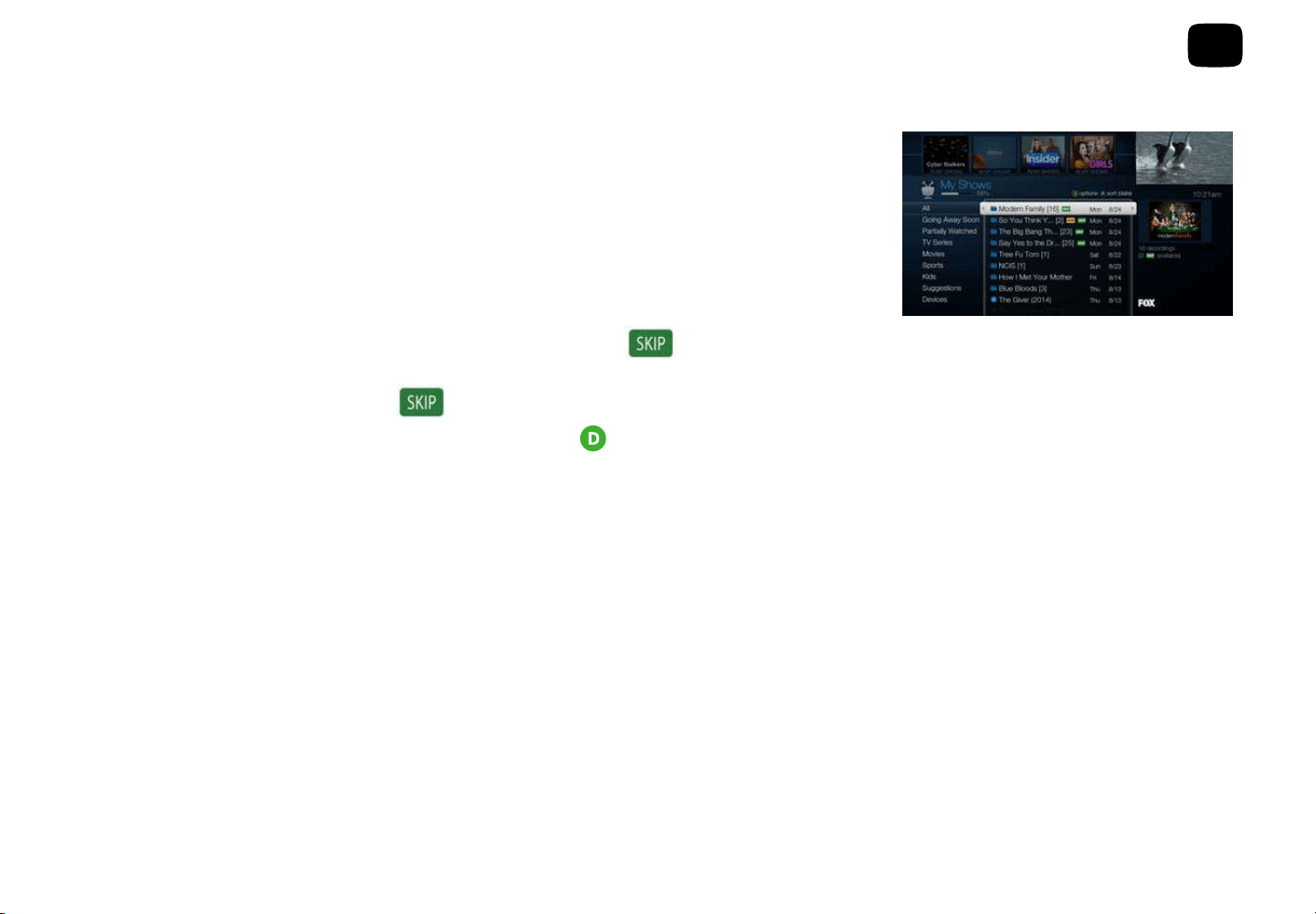
All of your recordings, streaming videos, and downloaded/transferred shows appear in the My
Shows list. To get to the My Shows list from any menu screen or from live TV, just press the
TiVo button twice. (Press it only once if you’re already on the TiVo Central screen.)
Highlight any title in My Shows (even a show that’s currently recording) and press PLAY to
play the show from the beginning, or to resume playing from where you left off.
Highlight a title and press the SELECT button to open an information screen, where you’ll be
able to play, delete, or get more information about the show. See Program details screen to
learn more.
To delete an individual show or a folder, highlight it and press the CLEAR button . If you
are deleting a OnePass folder that contains recordings, you will have the option to convert the
recordings to streaming videos. This option can be useful if you are trying to conserve disk
space. See Quick tour - OnePass™ searches to learn more.
AVAILABLE SPACE
A small bar underneath the words “My Shows” on the My Shows screen lets you know how
much space you have available for new recordings on your TiVo BOLT. If you don’t want to see
the amount of space used, hide the bar by pressing the button on your TiVo remote while
viewing the My Shows screen.
USING MY SHOWS CATEGORIES
The left column of the My Shows list contains categories that help you quickly locate shows in
the list. Highlight a category in the left column to view shows only in that category; for
example, highlight “Kids” to view only kids’ shows, or “Movies” to view only movies.
Personalize your My Shows list by hiding certain categories or changing the category order.
1. Press the button and select ‘Left column.’
2. Highlight a category you want to hide, and press SELECT to remove the check mark.
When viewing the My
Shows list, use the CH UP/
DOWN button to jump an
entire page at a time.
Ch

5
QUICK TOURS
1
3. To change the order of the categories, highlight the one you want to move, press the
RIGHT arrow, and then use the UP and DOWN arrows to place the category where you
want it.
4. When you're happy with your list, press twice to return to the My Shows list.
Note: When the “Kids” category is turned on, shows and movies for kids will appear only in
that category. (For example, you’ll find kids movies under “Kids,” not under “Movies.”)
MY SHOWS FOLDERS
Shows are organized into folders, and a number in parentheses to the right of each folder
shows how many recordings it contains. In addition to folders for each OnePass search you’ve
created, you’ll also see the following folders:
• Streaming Movies Contains links to movies that are available to stream. See Quick tour -
Streaming videos to learn more.
• TiVo Suggestions If you have auto-recording of Suggestions turned on, any recorded
Suggestions appear here.
• WishList® searches If your WishList searches are set to auto-record, any matches will be
added to a WishList folder.
• Currently Unavailable Contains links to streaming videos you’ve chosen that are not
currently available from any of your video providers. When items become available, they
will be moved to the appropriate My Shows category.
• Recently Deleted Recordings Contains recently deleted recordings that are available for
recovery.
A show’s title may appear in more than one group. When you delete a show in one folder, the
title also disappears from any other group.
When you highlight the group
name and press the PLAY
button , all of the shows in the
group play in sequence,
beginning with the oldest.

6
QUICK TOURS
1
SEASON SELECTOR
If a OnePass group contains more than one season and more than 30 episodes, a season
selector will be displayed at the top of the list. Use it to easily jump between seasons.
PROGRESS BAR
When you watch a OnePass recording, a progress bar will appear next to its title in the
OnePass folder. This can help you keep track of which recordings you’ve watched, and which
you haven’t. Note that the progress bar does not appear for streaming videos.
SORTING AND FILTERING SHOWS
You can view My Shows either alphabetically by title (from A to Z) or by date added. Press the
button to change how the list is sorted. Press it again to switch back.
When viewing a OnePass folder, press the button to sort by season, date, or newest to
oldest. Press the button to filter your OnePass views:
• My episodes Displays only episodes that match your OnePass options. For example, if you
set up your OnePass to start at Season 3 and exclude episodes that require purchase to
view, only free episodes from Season 3 onward will be displayed. You can watch or delete
shows from this view.
• All episodes Displays all episodes, regardless of your OnePass options. For example, even
if your OnePass starts at Season 3 and excludes episodes that require purchase to view,
this view will display all episodes in the series. You can watch episodes from this list, but
you can’t delete them.
• Recordings Displays only recordings included in your OnePass. This view can be helpful if
you are trying to manage disk space.
In My Shows, available
streaming videos are marked
with a blue streaming icon:
Unavailable streaming vidoes are
marked witha grey icon: .

7
QUICK TOURS
1
PROGRAM DETAILS SCREEN
You can highlight any show in My Shows and press SELECT to see the program details screen,
which offers these options:
• Play (or Resume playing if you’re returning to a partially watched show).
• Delete (or Stop recording if recording is in progress).
• Related videos Watch YouTube™ videos related to the show and more.
• Explore this show Find details about the show, including information about upcoming
episodes and cast members.
• More options Choose how long to keep a recording (by default, recordings are saved until
space is needed for new ones), view upcoming episodes or broadcasts of a show or movie,
or get/modify a OnePass search.

8
QUICK TOURS
1
QUICK TOUR - ONEPASS™ SEARCHES
OnePass search, which replaces Season Pass
®
recordings, gathers every episode of a series
available anywhere and adds them right to your My Shows list to watch instantly. If an episode
isn’t available on TV or on demand, OnePass fills in the gaps with episodes from streaming
video providers like Netflix, Amazon Prime, and more. Forget about knowing when a show will
be airing or wondering which streaming video service has it available: the TiVo Service does it
for you, so you can start watching right away!
And here’s even better news: streaming videos don’t take up any disk space! So when your
OnePass includes streaming videos, you get more choices without having to worry about
saving space for other recordings.
To create a OnePass, find a series you want to watch, then choose ‘Create a OnePass.
’ A
OnePass folder for the series will be instantly created in My Shows and all available episodes
will be added.
To learn more about sorting and filtering OnePass folders in My Shows, see My Shows folders
and Sorting and filtering shows. For common questions about OnePass, see the
Troubleshooting chapter.
Note: OnePass works best when your video provider list is up to date, with as many providers
as possible selected. For more information, see My video providers.
ONEPASS OPTIONS
When you create a OnePass, you can choose options that will give you exactly the results you
want. Just highlight ‘Create a OnePass,’ then press the RIGHT arrow and select ‘Options.
’ You
can also change the options of any existing OnePass by going to the OnePass Manager. See
Using the OnePass Manager for more information. Options include:
Include Choose to include recordings, streaming videos (from sources like Amazon Prime,
Hulu, and Netflix), or both in your OnePass results. Including streaming videos in your OnePass
will give you the best results, and streaming videos don’t take up any disk space!

9
QUICK TOURS
1
Start from Want to watch from the beginning? Choose Season 1. Just need to catch up?
Choose a different season. Only want new episodes? Choose ‘New episodes only.’
Rent or buy: Decide whether to include episodes that need to be purchased before viewing.
(The TiVo Service will not purchase the items for you; you will have the option to purchase
them at the time of viewing.)
If your OnePass includes recordings, the following options are also available:
Record Skip reruns or watch them all? Choose ‘New only’ to avoid reruns, or ‘New & repeats’
to get every episode.
Channel Choose the channel on which to record the show, when more than one channel is
available.
Get in HD When you set the ‘Channel
’ setting (above) to ‘All,’ you can choose how often to
get the HD version of a show: always, never, or if possible. Note that if you choose ‘always
’ and
a show is not available in HD, it won’t be recorded. Likewise, if you choose ‘never
’ and a show
is only available in HD, it won’t be recorded.
Keep At Most Set the maximum number of recordings to be saved.
Keep Until Choose how long to keep a recording (or each episode of a repeating recording).
‘Space needed’ is the default setting, or choose ‘Until I delete’ and your TiVo box won’t delete
this episode to record something new.
Start Recording Start recording up to ten minutes before a show is scheduled to begin. (This
option is available only before recording starts.)
Stop Recording Set a recording to continue — for a few minutes or up to three hours — after
it’s scheduled to end. You can change this setting when you set up the recording, or while the
recording is in progress.
You can cancel the recording of any episode in a OnePass search by highlighting the title in
the To Do List and pressing the CLEAR button . You can delete the entire OnePass
search or change its options using the OnePass Manager (see Using the OnePass Manager for
more info).
10
QUICK TOURS
1
QUICK TOUR - SKIPMODE™
With the touch of a button, skip to the end of a commercial break and resume watching
instantly.
The SkipMode feature is available only on certain recorded shows; we hope to make it
available for the most popular shows on the most popular channels watched by TiVo
subscribers. That means you’ll find SkipMode availability on many shows that you record
between 4:30 p.m. and midnight (or 12:30 a.m. on major networks) on the most widely-
watched channels.
A few minutes after the show has finished recording, you’ll see a icon next to the title in
My Shows. That means it’s ready for skipping!
1. Choose a recorded show with the icon visible.
2. When you get to the end of a show segment, press the button or CHANNEL UP on
your remote.
3. Voilà! You’re at the beginning of the next segment.
4. At any time during the show, CHANNEL UP takes you to the next show segment. For
instance, want to skip the judging on your favorite reality show competition (like The Voice
or Dancing with the Stars)? Just press CHANNEL UP when the judging starts. You’ll skip
past the judging and through the next commercial break. Your show will start playing at the
beginning of the next segment.
5. To skip back to the beginning of a previous show segment, press CHANNEL DOWN.
Want to know more about how the SkipMode feature works? See How does it work? in the
Troubleshooting chapter.
Happy skipping!

11
QUICK TOURS
1
QUICK TOUR - QUICKMODE™
It’s not fast-forward, it’s QuickMode! QuickMode lets you watch a show 30% faster, while also
letting you hear what everyone is saying.
QuickMode is available while you’re watching a recorded show, or if you’re “behind” live TV
(for instance, if you have rewound a show that’s airing live). Here’s how to use it:
1. While watching a recorded show, press the PLAY button on your remote to bring up the
status bar.
2. Press SELECT to start Quick Mode.
3. When you’re finished watching in QuickMode, press SELECT again to resume watching at
normal speed.
With QuickMode, you get the speed of fast-forward, without missing any of the details.

12
QUICK TOURS
1
QUICK TOUR - STREAMING VIDEOS
When you look for movies or individual episodes of series using the TiVo menus, your options
include videos available to stream from all of your streaming video providers -- no need to
switch to a different app! Streaming providers are shown in the right column off the search
screen. When you find a streaming video, choose ‘Watch now
’ to watch it instantly.
Don’t have time to watch it now? Rather than search for it again later, add a link to the video
directly to My Shows, so it’ll be there waiting when you’re ready. Just choose ‘Add this
bookmark to My Shows.
’
Currently available streaming movies are added to My Shows in the ‘Movies
’ category or to the
‘Streaming Movies
’ folder in the ‘All’ category. Available TV shows are added to the ‘TV Series’
category.
If a streaming video is currently unavailable from any of your video providers, it’s added to the
‘Currently Unavailable
’ group at the bottom of My Shows. When the video becomes available,
it will automatically be added to the appropriate My Shows category or folder.
Want to add a specific episode
from a series? From the series
information page, choose
‘Episode Guide’ and then select the
episode you want to watch. Choose
‘Add this streaming video’ to add it to
your My Shows list.

13
QUICK TOURS
1
QUICK TOUR - WATCHING LIVE TV
When you’re watching a show as it’s broadcast, you’re watching live TV. Press the LIVE TV
button to go to live TV from any TiVo screen.
USING TRICKPLAY™
1. First, press the PAUSE button. You can pause live TV for up to 30 minutes.
When you pause live TV, you see a status
bar showing a one-hour period. The green
segment shows the portion of the hour that
has been saved by your TiVo BOLT. The thick white line marks your current point in time.
When the white line is back in the green segment, you’re “behind” live TV.
2. Press PLAY to continue watching the show. Next, press REWIND and the show
rewinds. Press REWIND a second time to rewind faster, and a third time to go at triple
speed. Press PLAY at any time to return to normal speed.
3. Press PAUSE again, and, with the show paused, press FAST FORWARD to move a small
step forward. Press REWIND to move a small step back. Press PLAY to resume watching at
normal speed.
4. Press the REPLAY
®
button. The show jumps back 8 seconds — useful for when you miss
a great sports play or a bit of dialog, or for when you fast forward too far.
5. Press REPLAY again, then immediately press SLOW to see your own slow-motion
replay.
6. Press the ADVANCE
®
button. You’ll instantly move forward 30 seconds.
7. Press and hold the ADVANCE button and presto! You’re caught up to live TV.
8. Press and hold the REPLAY button to skip back to the beginning of the saved portion.
Before you begin, take a few
moments to make sure the TiVo
BOLT’s video settings are
optimized for your TV. From the TiVo
Central screen, select ‘Settings &
Messages’, then ‘Audio & Video
Settings.’ See Audio & video settings
for more details.
You can customize the
ADVANCE button on the
remote. See Remote control
settings for information.

14
QUICK TOURS
1
CHANGING CHANNELS
To move one channel at a time, press CH UP/DOWN on the TiVo remote.
To go to a specific channel, use the numbers on your remote control, then press ENTER. (If
you don’t press ENTER, the channel changes automatically after a few seconds.) To jump back
to the previous channel on the same tuner, press ENTER again.
Tired of channel surfing? Press GUIDE to display the program guide. Highlight any show and
press SELECT. If the show is currently on, the channel changes. If the show is on later, you’ll
see options to record it. Learn more in Using the guide and mini-guide to find shows.
WATCHING MULTIPLE SHOWS AT ONCE
Your TiVo BOLT can watch and record up to four shows —and the TiVo BOLT+ can watch and
record up to six shows — at the same time. Go ahead, try it:
1. First, press PAUSE to pause the live TV show you’re watching. Let’s call the tuner
you’re watching “Tuner 1.”
2. Press LIVE TV to switch to the next tuner, “Tuner 2.” Whenever you press LIVE TV,
you’ll switch to the next tuner in line.
Note: You may see the same channel on more than one tuner.
3. Change the channel if you like, watch the new show for a few moments, then press LIVE TV
again to switch to Tuner 3.
4. Change the channel, watch for a few moments, then press PAUSE.
5. Press LIVE TV again to switch to Tuner 4. Again, change the channel, watch for a few
moments, then press PAUSE.
6. Press LIVE TV once more (if you’re using a BOLT) or three more times (if you’re using a
BOLT+) to switch back to Tuner 1. Notice that the first show you were watching is still
paused. Press PLAY (or PAUSE again) to continue watching the show.
Ch

15
QUICK TOURS
1
7. Press LIVE TV to switch to Tuner 2. Because you didn’t pause this show, it’s still playing.
Press REWIND to watch the part of the show you missed. Press PLAY to start playing.
8. Continue pressing LIVE TV to cycle through the rest of the tuners, and back to Tuner 1.
Shows you paused are still paused; shows you were watching are still playing. You can
rewind them to catch what you missed!
RECORDING THE SHOW YOU’RE WATCHING
You can always record the show you’re watching by pressing RECORD , and then selecting
‘Record this showing.’ Select ‘OnePass & other options’ or ‘Explore this show’ for more
choices.
RECORDING THE SAVED PORTION
Up to 30 minutes of the current channel’s broadcast is always being saved, even when you’re
not recording. When you change channels, the TiVo BOLT clears the saved portion on the
tuner you’re watching and starts saving again on the new channel. So, if the saved portion is
important to you, either record the program or don’t change the channel.
To record the saved portion in addition to the rest of the program, choose ‘Record this
showing.’
STOPPING A RECORDING
You can stop any recording in either of two ways: press the RECORD button while watching
live TV, then choose ‘Stop the current recording.’ Or, from the My Shows list, chose a title
that’s currently recording, then choose ‘Modify recording,’ then ‘Stop recording.’
16
QUICK TOURS
1
QUICK TOUR - THE TIVO APP
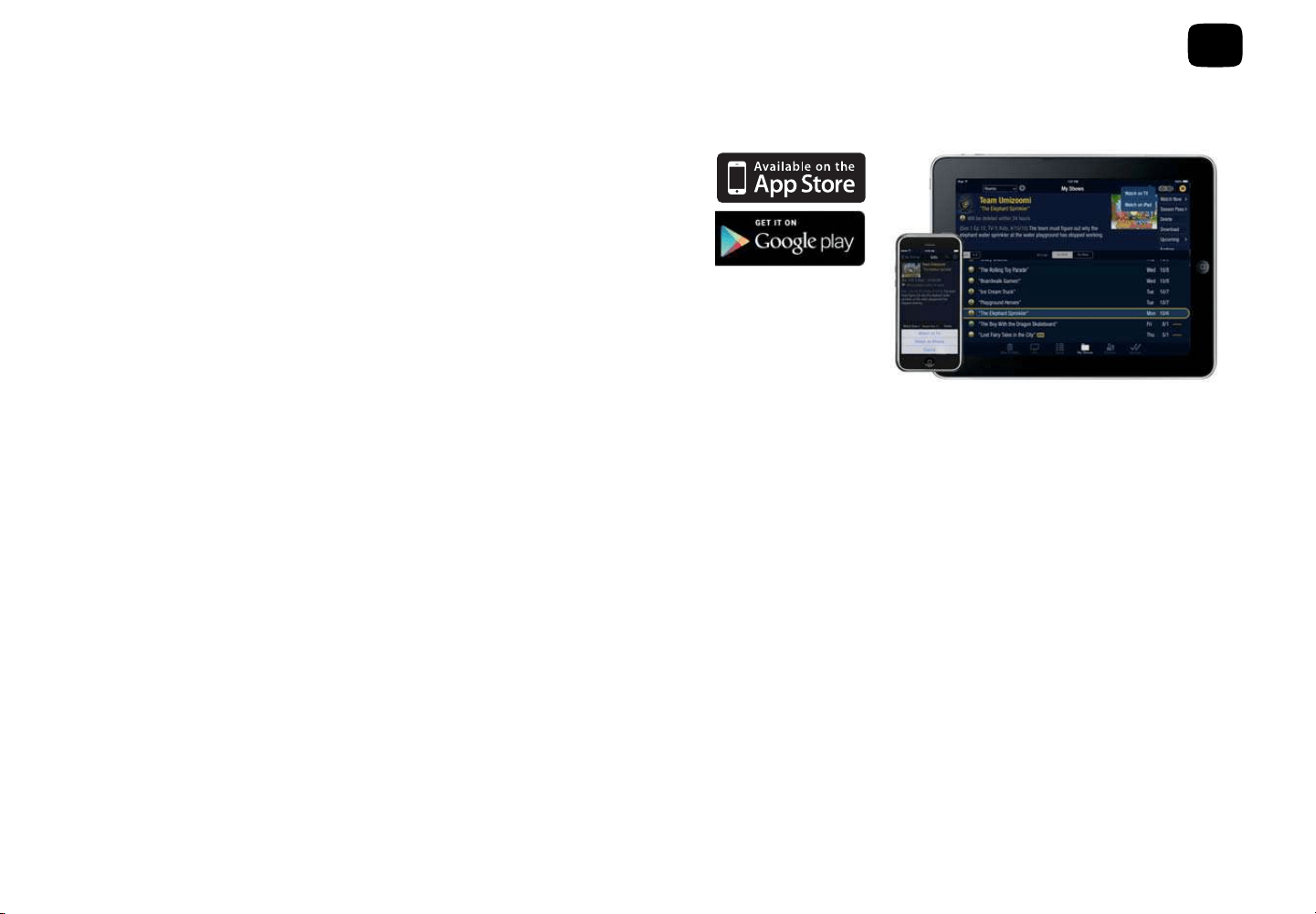
Easily stream or download recordings to your mobile device using the
TiVo app! (Bonus: The TiVo app also lets you schedule recordings, control
live TV, search for shows, and more!) Download the free TiVo app from
the App Store or Google Play.
For step-by-step instructions, go to tivo.com/howto and explore the “Use
mobile, TV, and web apps” section.

17
QUICK TOURS
1
QUICK TOUR - ACCESSIBILITY FEATURES
Your TiVo box is ready to help vision- and hearing-impaired users get the most out of the TiVo
experience.
VISION
Find and enjoy your favorite shows with a few clicks of your remote control.
• Turn the screen reader on or off by pressing the A button on your TiVo remote control for
two seconds.
• Turn on Audio Description, when available, by pressing the C button on your remote
control for two seconds.
HEARING
Enjoy your favorite shows with easy-to-access Closed Captioning.
• Turn Closed Captioning on or off by pressing the B button on your remote control for two
seconds.
• Turn Closed Captioning on or off from the Info Banner. Just press the INFO button on your
remote control and select the Closed Caption icon
MORE INFORMATION
For more on TiVo’s accessibility features, including a version of this guide geared specifically
to the visually impaired, visit tivo.com/accessibility.

19
FINDING & MANAGING SHOWS
2
USING THE GUIDE AND MINI-GUIDE TO
FIND SHOWS
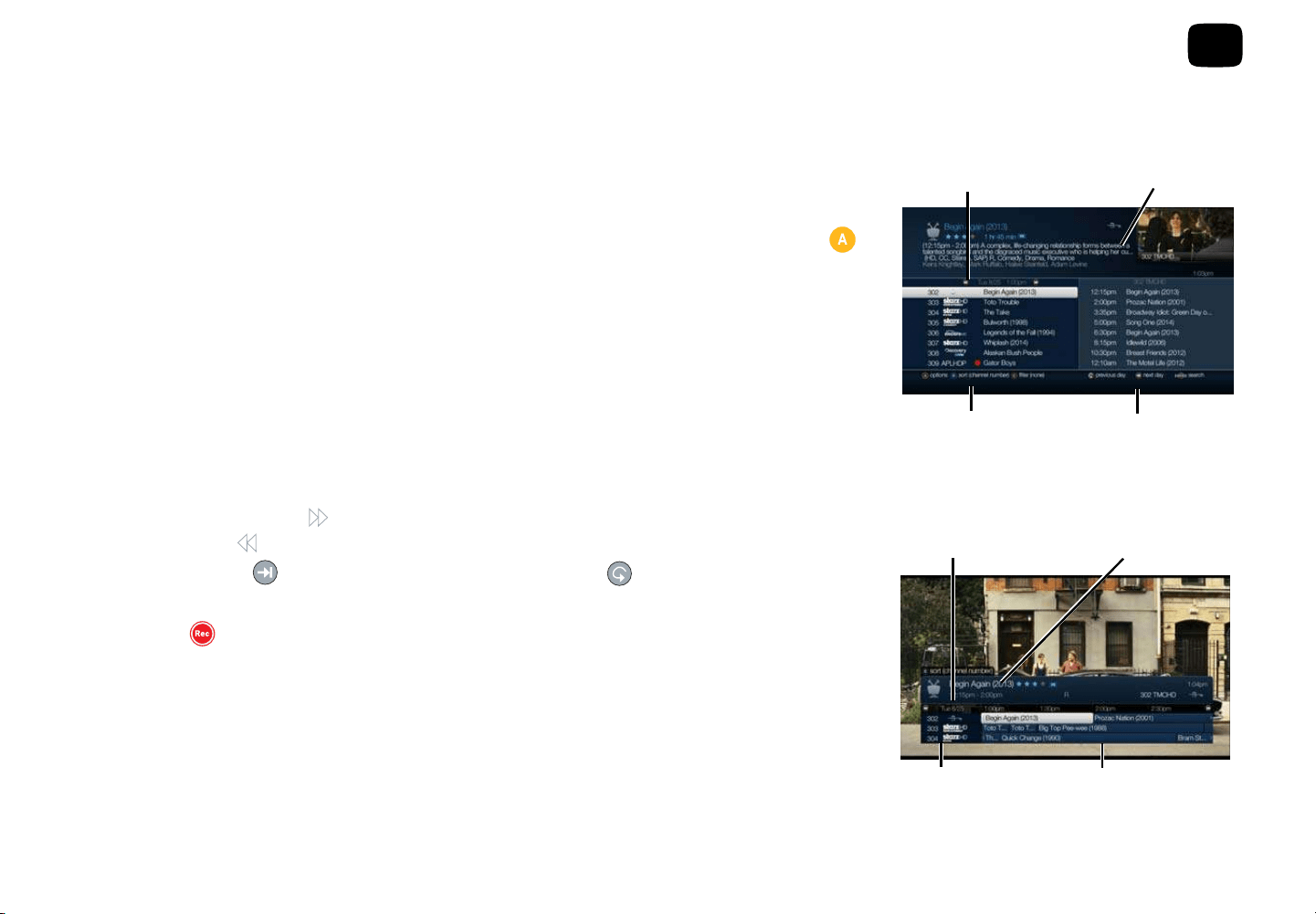
The on-screen program guide displays up to two weeks of TV programming at the touch of a
button — the GUIDE button on your TiVo remote. You can choose to display the guide as a
grid, or use the TiVo Live Guide (shown here). When you’re viewing the guide, press the
button to display Guide Options and choose the view you want.
The mini-guide is a smaller version of the program guide. It shows you what’s coming up on
the channel you’re watching and the next two channels. Press SELECT while watching live TV
to bring up the mini-guide.
In the grid guide, TiVo Live Guide, and mini-guide, new shows are marked with a NEW icon.
Shows that are currently recording have a red circle icon next to the title, while shows that are
scheduled to record are marked with a check mark (for individual shows) or double check mark
(for OnePass recordings.)
To move around in the guides (TiVo Live Guide, grid guide, or mini-guide):
• Press FAST FORWARD to move the displayed time ahead one half-hour at a time, or
press REWIND to move it backward.
• Press ADVANCE
®
to jump 24 hours ahead, or REPLAY
®
to jump 24 hours back.
• Press SELECT on a show in progress, and the channel changes to that show. Press
RECORD to record it.
• Press SELECT on an upcoming show, and you’ll see a screen with recording options. Set up
your recording or press LEFT to go back to the guide.
• Don’t see what you’re looking for? Press ENTER while viewing the full program guide to
jump directly to the Search screen.
Channels & shows
currently airing
Upcoming shows on the
selected channel
Date & time Show description
TiVo Live Guide
Mini-Guide
Current channel &
next two channels
Upcoming shows
Show title
Date & time

20
FINDING & MANAGING SHOWS
2
CHOOSING CHANNELS FOR THE GUIDE
You can use the Guide Options screen to choose which channels to display in the guide.
All Display all channels available from your service provider, even channels you don’t receive.
My Channels Display only the channels that are checked in the Channel List (recommended).
Favorites Display only the channels you rated as your favorites in the Channel List. See
channel list for more information on the Channels List.
GETTING MORE OPTIONS
If you want to learn more about a show, create a OnePass, view upcoming episodes or more,
select and upcoming show in the program guide and choose ‘OnePass & other options.’

21
FINDING & MANAGING SHOWS
2
SEARCHING, BROWSING, AND MORE
Find shows to watch or record by searching, browsing, or asking for recommendations!
SEARCHING FOR SHOWS (AND MORE!)
Search by show title, episode title, show description, or person name (actor, director, etc.).
The TiVo service searches upcoming TV shows and movies, streaming videos (from sources
like Hulu, Netflix, and Amazon), and video on demand from your cable provider (if available)
all at the same time. You can even search for a particular channel by its network name or call
sign (e.g., NBC or ESPN).
1. From the TiVo Central
®
screen, select ‘Search & OnePass,’ then choose ‘Search.’
2. Use the letter grid to spell out the title, person, or word you’re looking for. Press the
arrow buttons to move around, then press SELECT on each letter you want. As you
select letters, a list of possible matches sorted by popularity appears on the right. For
example, if you enter the letters HOW, you might see matches for the TV show “How I
Met Your Mother,” the video on demand movie “How To Lose A Guy In Ten Days,” and
the director Ron Howard. Results are sorted by popularity, with better matches higher in
the list.
3. Keep selecting letters until you see what you’re searching for. If you make a mistake, you
can press CLEAR to erase everything, or REWIND to erase one letter at a time. Insert
a space by pressing FAST FORWARD .
4. Use the RIGHT arrow to highlight the show or person name, and press SELECT to view
the information screen.
5. For a show, select ‘Get this show’ to record the next showing or to set up a OnePass.
From the information screen, you can also view upcoming episodes or an episode
guide, learn more about cast members, and access bonus features!
Press the button on your
remote to filter the type of
shows displayed in your results:
choose from 'All,' 'Available,'
and 'Free.'

22
FINDING & MANAGING SHOWS
2
BROWSING TV & MOVIES
Browse specific categories of TV shows and movies, including what to watch right now!
From the TiVo Central screen, select ‘Search & OnePass,’ then choose ‘Browse TV & Movies.’
You’ll be able to browse for shows using any of the following:
New & Notable Browse a rotating selection of shows and movies that are timely, trendy,
or just plain fun.
Box Sets See all of the movies in your favorite franchises together in one place.
Collections Browse shows that are grouped by related subject matter, like holiday movies
or trendy topics.
Movies Browse movies that are available either on channels you receive or from video on
demand.
TV Browse upcoming TV shows that are available either on channels you receive or from
video on demand.
Sports Browse upcoming sporting events that are available either on channels you receive
or from video on demand.
Kids & Family Get ready for movie night with these family-friendly selections, grouped by
age and category.
Press the button on your
remote to filter the type of
shows displayed in your results:
choose from 'All,' 'Available,'
and 'Free.'

23
FINDING & MANAGING SHOWS
2
RECOMMENDED SHOWS
With all the programming available to your TiVo
®
BOLT, sometimes you might want some
recommendations. The TiVo service is here to help: the Discovery Bar and TiVo Suggestions
put a variety of recommendations at your fingertips.
THE DISCOVERY BAR
The Discovery Bar appears at the top of most TiVo screens. What you’ll see in the Discovery
Bar depends on you! Often, the Discovery Bar displays ideas for show you might like based on
what shows you record and mark as your favorites. For example, if you record the show “The
Voice,” the Discovery Bar might display thumbnails for other reality show competitions, like
“So You Think You Can Dance.” It all depends on what you’re interested in and what’s
available to you.
The Discovery Bar is also displays lots of other great viewing options: popular shows or sports
events that are playing on live TV, items from your My Shows list, TiVo Suggestions, new video
on demand shows, and more!
You can customize what appears in the Discovery Bar by going to ‘Settings & Messages,’ then
‘User Preferences,’ then ‘Customize Discovery Bar.’
TIVO SUGGESTIONS
You can rate any show — whether it’s live, recorded, or listed in the program guide — by
pressing the THUMBS UP or THUMBS DOWN button on your remote. You can give a
show up to three Thumbs Up (great!) or three Thumbs Down (terrible!).
TiVo Suggestions uses these ratings to create a list of shows you might like. The more shows
you rate over time, the better TiVo Suggestions will get at finding interesting shows for you.
Auto-recording TiVo Suggestions
When your TiVo box has available space, it automatically records TiVo Suggestions. But you
don’t ever need to worry about recorded Suggestions taking up space — here’s why:
You can also use the THUMBS
UP button to mark any video
provider (like Amazon),
category (like sports or cooking), or
collection (like award-winning movies
or holiday shows) as a favorite.

24
FINDING & MANAGING SHOWS
2
• TiVo Suggestions never replace shows you record, or prevent your shows from being
recorded.
• TiVo Suggestions are always the first shows deleted to make room for your recordings.
If you’d prefer not to record TiVo Suggestions automatically, you can turn them off. From the
TiVo Central screen choose ‘Settings & Messages,’ then ‘User Preferences,’ then ‘TiVo
Suggestions.’
On the TiVo Suggestions screen, choose ‘No, don’t record TiVo Suggestions.’ You can still see
the TiVo Suggestions list and choose to record individual shows.
Watching TiVo Suggestions
Want to see what TiVo Suggestions are ready to watch? Here’s how to find them:
• TiVo Suggestions appears as a category in the left column of the categorized My Shows
list. Highlight it to see all of your recorded Suggestions.
• Alternatively, when you select a category in My Shows, you'll find a Suggestions folder for
that category. For example, in the TV Series category, you'll find a TiVo Suggestions folder
that contains only suggestions for TV series.

25
FINDING & MANAGING SHOWS
2
RECORDING BY TIME OR CHANNEL
It’s easy to find shows by browsing by time or channel. From the TiVo Central screen, choose
‘Search & OnePass.’ From there, you can set up a manual recording for a specific date/time,
look for something to watch a particular time, or browse the shows on a particular channel.
MANUALLY RECORD TIME/CHANNEL
Schedule a recording on a specific channel at a specific time.
1. From the TiVo Central screen, choose ‘Search & OnePass.’
2. Select ‘Set Up a Manual Recording.’
3. Choose the frequency of the recording, using the UP/DOWN arrows to select ‘Once’ or
‘Repeat,’ then press the RIGHT arrow.
4. Choose the day(s) for the recording, using the UP/DOWN arrows to change the current
selection. If you chose ‘Repeat,’ you can choose to repeat the recording on a specified day
of the week (‘Every Tuesday’) or several times a week (‘Every M – F’ or ‘Every Day’).
5. Press the RIGHT arrow and choose a channel using the UP/DOWN arrows (or by entering a
number with the remote, then pressing ENTER).
6. Press the RIGHT arrow and set the hour, minute, and am/pm for the start and stop time,
using the UP/DOWN arrows to change the current selection. The right column shows a
‘best guess’ show title based on guide listings for that time and channel.
7. Press SELECT to schedule your the recording.

26
FINDING & MANAGING SHOWS
2
FIND BY TIME
Browse shows on a specified day and time. You can filter the list to see only shows in a
particular category. For example, you can browse all movies airing on Saturday night.
1. From the TiVo Central screen, choose ‘Search & OnePass.’Choose ‘Find by Time.’
2. Press the UP/DOWN arrows to select the date you want to see, then press the RIGHT arrow
to move to the time column, and press the UP/DOWN arrows to select a time.
3. Press SELECT to see the list of shows without leaving the time selector, or press the RIGHT
arrow to see the list of shows and move to the list.
4. Highlight the show you want to record and press SELECT to schedule your recording.
FIND BY CHANNEL
Browse through shows airing on a particular channel. You can start with all channels, or just
your favorites.
1. From the TiVo Central screen, choose ‘Search & OnePass.’
2. Choose ‘Browse by Channel.’
3. Press the UP/DOWN arrows to select the date you want to see, then press RIGHT arrow to
move to the channel column.
4. Press the UP/DOWN arrows to select a channel. (You can also use the numbers on the
remote to enter a channel, then press ENTER.)
5. Press SELECT to see the list of shows without leaving the channel selector, or press the
RIGHT arrow to see the list of shows and move to the list.
6. Highlight the show you want to record and press SELECT to schedule your recording.

27
FINDING & MANAGING SHOWS
2
CREATING WISHLIST
®
SEARCHES
A WishList search finds shows that match your search criteria on any channel you receive —and
it keeps on searching for as long as you keep the WishList search.
You can search for something specific by creating a WishList search with multiple criteria: for
instance, you might create a WishList search for actor George Clooney, category Movies, and
sub-category Action. This WishList search would find action movies starring George Clooney.
You can even use WishList searches to find something very specific. For example, the Keyword
GIANTS with category Football would find Giants football games, but not Giants baseball
games.
If you choose to auto-record matches to your WishList search, you’ll find any recorded
matches in your My Shows list.
CREATING A WISHLIST SEARCH
Creating a WishList search is simple:
1. From the TiVo Central screen, choose ‘Search & OnePass,’ then ‘WishList Searches.’
2. Select ‘My WishLists,’ then ‘Create a new WishList Search.’
3. Next, start choosing criteria for your WishList search. You can choose any or all of the
following:
Keyword Search for shows with specific words in the show or episode title, description,
actor, director, year, or category.
Title Keyword Search for shows with specific words in the show or episode title.
Actor Search for shows with your favorite actor.
Director Search for shows by a specific director.
Not all actor or director names
may be listed. To search for a
name that is not on the list, enter
the name in the format: LAST NAME,
FIRST NAME. (You must match the
spelling of the name exactly, and you
must use a comma).

28
FINDING & MANAGING SHOWS
2
Category Search for specific categories and sub-categories of shows (for example, action
movies or nature documentaries).
4. After entering your initial search criteria, you’ll return to the Create WishList Search screen.
Continue adding as many search criteria to your WishList search as you like. For instance,
you could create a WishList search like this:
• Keyword: Pirate
• Actor: Johnny Depp
• Category: Movies
Your results would include only pirate movies starring Johnny Depp.
5. When you’re finished entering search criteria, select ‘Done creating this WishList Search.’
After you’ve created the WishList search, your TiVo box will automatically record any shows
matching your search, unless you decide to turn the auto-recording feature off. Each auto-
recording WishList Search and its upcoming recordings are marked with in To Do List
and the OnePass Manager.
MANAGING YOUR WISHLIST SEARCHES
To view or edit a WishList, included turning off auto-recording, select the WishList. Then
choose ‘WishList Info,’ ‘Upcoming,’ or ‘Conflicts.’
WISHLIST INFO
• WishList options Modify or delete the WishList search.
• Name this WishList Change the name of the WishList search.
• Modify recording options Change auto-record settings, choose the whether to record
repeats and how many shows to keep, and more.

29
FINDING & MANAGING SHOWS
2
• Don’t auto-record shows/Auto-record shows Choose whether your TiVo DVR will
automatically record any shows matching your WishList search criteria until you modify
or delete the WishList search.
UPCOMING
See a list of upcoming episodes that match your search criteria.
CONFLICTS
See a list of shows that can’t be recorded because they conflict with other shows scheduled to
be recorded at the same time. If you want to be sure that all matching shows are recorded,
give the auto-recording WishList search a high priority in the OnePass Manager. See Using the
OnePass Manager for details.

30
FINDING & MANAGING SHOWS
2
MANAGING RECORDINGS & ONEPASS
SEARCHES
The To Do List shows all your scheduled recordings and lets you change recording options or
cancel recordings. The OnePass Manager prioritizes all your repeating recordings and lets you
manage conflicts and set options.
USING THE TO DO LIST
To view the To Do List, choose ‘Search & OnePass’ from the TiVo Central screen, then choose
‘To Do List.’
You’ll see a list of all shows scheduled to record in the next two weeks, including shows that
have conflicts with other recordings. To view the list without conflicts, or with conflicts only,
press the button to cycle through views. Press SELECT on any show to see available
options.
CANCELING A RECORDING
To cancel a recording, just highlight the show title on the To Do List and press CLEAR.
VIEWING HISTORY
From ‘Search & OnePass,’ choose ‘History’ to see why a particular show was not recorded, why
it’s not scheduled to record, or when a recording was deleted from your My Shows list. The
History is organized by date; use the UP/DOWN arrows to browse the shows in the list. Select
the show’s title for more information about it.
Note: A show will not be recorded if it appeared in your My Shows list or To Do List in the
previous 28 days.
In the To Do List, individual
recordings are marked with a
single check mark:
OnePass
®
recordings and manual
repeating recordings are marked with
a double check mark:
Auto-recording WishList
®
searches
are marked with a star:

31
FINDING & MANAGING SHOWS
2
USING THE ONEPASS MANAGER
OnePasses and auto-recording WishList searches are prioritized by the order in which you set
them up: the first has highest priority, and so on.
To view the OnePass Manager, choose ‘Search & OnePass’ from the TiVo Central screen, then
choose ‘OnePass Manager.’
Prioritizing your OnePasses and WishList searches is important in case of recording conflicts
(when too many shows are scheduled to record at the same time). Because your TiVo
®
BOLT
has multiple tuners, and because OnePass works best when you include streaming videos,
recording conflicts should be minimized. However, when more than four shows are scheduled
to record at the same time, the four with the highest priorities are recorded.
Use the UP/DOWN arrows to highlight a repeating recording, and press RIGHT to highlight
the arrows to the right of the title, then use the UP/DOWN arrows to move the selected title up
or down in the list.
EDITING A REPEATING RECORDING
You can also use the OnePass Manager to view and change OnePass options, modify
recording options (if available), view upcoming episodes, or cancel a OnePass or auto-
recording WishList search. Highlight the show title and press SELECT to view available
options.

32
FINDING & MANAGING SHOWS
2
SETTING ONEPASS & RECORDING OPTIONS
SETTING DEFAULT OPTIONS
Default OnePass and recording options apply to all OnePasses you set up, and all shows you
record that are not part of OnePasses. You can change the default values at any time. Here’s
how:
1. From the TiVo Central screen, select ‘Settings & Messages,’ and then ‘User Preferences.’
2. Choose ‘OnePass & Recording Options.’
Options include:
Include: Choose to include recordings, streaming videos (from sources like Amazon and
Netflix), or both in your OnePass results. Remember, streaming videos don’t take up any disk
space. (OnePass only.)
Rent or buy: Decide whether to include episodes that need to be purchased before viewing.
Note that the TiVo Service will not purchase the items for you; you will have the option to
purchase them at the time of viewing. (OnePass only.)
Record: Skip reruns or watch them all? Choose ‘New only’ to avoid reruns, or ‘re-runs’ to get
every episode. (Recordings only.)
Channel: Choose the channel on which to record the show, when more than one channel is
available. (Recordings only.)
Get in HD: When you set the ‘Channel
’ setting (above) to ‘All,’ you can choose how often to
get the HD version of a show: always, never, or if possible. Note that if you choose ‘always
’ and
a show is not available in HD, it won’t be recorded. Likewise, if you choose ‘never
’ and a show
is only available in HD, it won’t be recorded. (Recordings only.)
Keep At Most Set the maximum number of recordings to be saved. (Recordings only.)

33
FINDING & MANAGING SHOWS
2
Start Recording Start recording up to ten minutes before a show is scheduled to begin.
(Recordings only; available only before recording starts.)
Stop Recording Set a recording to continue — for a few minutes or up to three hours — after
it’s scheduled to end. You can change this setting when you set up the recording, or while the
recording is in progress. (Recordings only.)
SETTING PER-RECORDING OR PER-ONEPASS OPTIONS
Default recording and OnePass options apply to all OnePasses and individual recordings;
however, you can also further customize each recording or OnePass, so you always get the
results you want. You can set per-OnePass or per-recording options when you first schedule a
OnePass or individual recording, or by selecting a show from the To Do List or the OnePass
manager. To view or change recording options:
1. On the show’s information screen, select ‘Get this show’ and then highlight either ‘Create
a OnePass’ or ‘Record next episode.’ Then press the RIGHT arrow to highlight ‘Options’
and press SELECT.
2. On the options screen, use the UP/DOWN arrows to highlight an option, then the RIGHT
and LEFT arrows to change the setting.
3. When you’re finished, press SELECT or highlight ‘Use these options.’
You’ll find the same options mentioned above, with the addition of:
Start from Want to watch from the beginning? Choose Season 1. Just need to catch up?
Choose a different season. Only want new episodes? Choose ‘New episodes only.’ (OnePass
only.)
Keep Until Choose how long to keep a recording (or each episode of a repeating recording).
‘Space needed’ is the default setting, or choose ‘Until I delete’ and your TiVo box won’t delete
this episode to record something new. (Single recording or OnePass with recordings.)

35
WATCHING SHOWS
3
MOVING AROUND WITH THE STATUS BAR
In general, watching shows works the same whether you’re watching live TV, recordings,
streaming shows, or video on demand. You can always press PLAY , PAUSE , FAST
FORWARD , and REWIND to display a status bar and move around in the show.
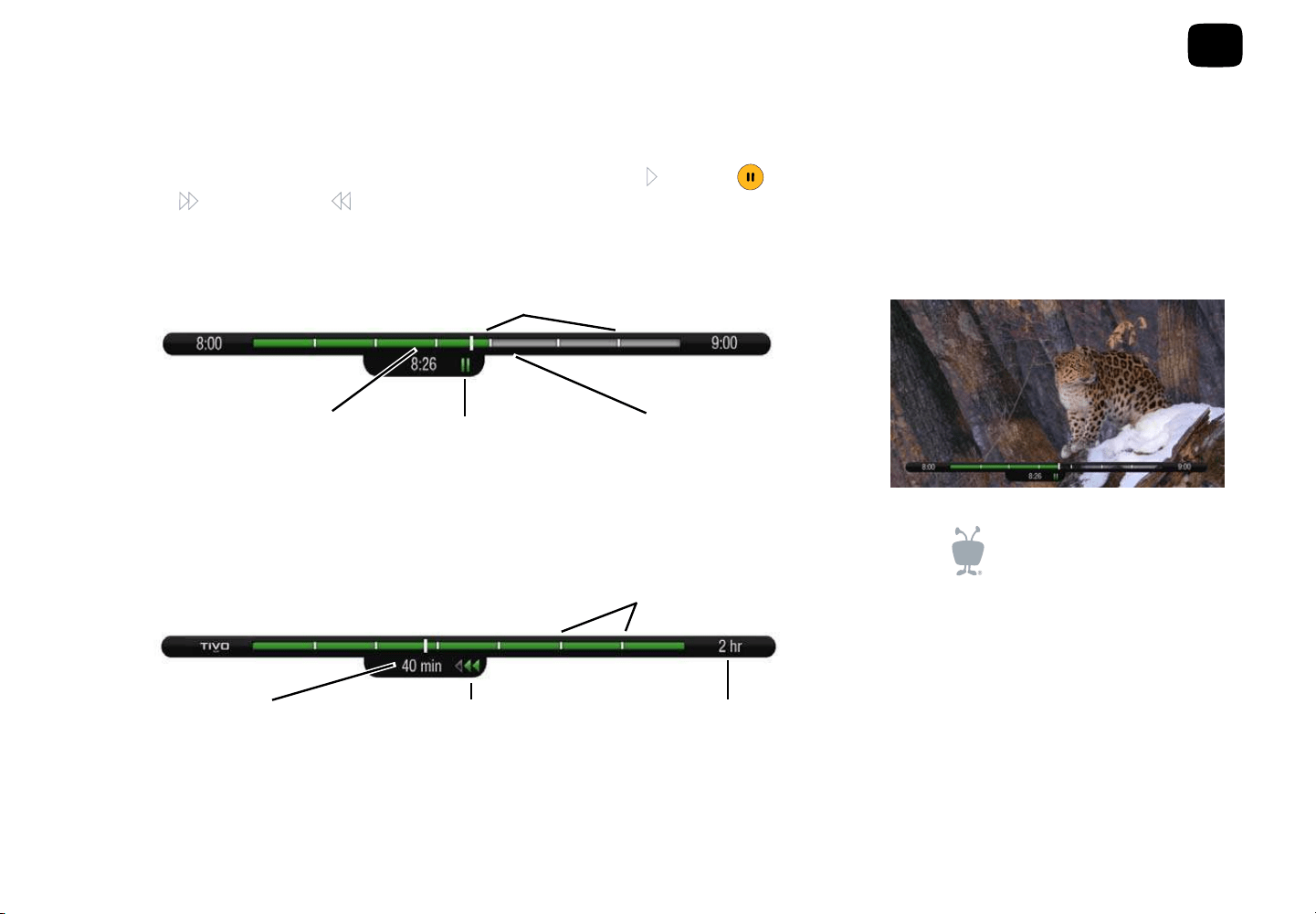
• In live TV, the status bar represents one hour and the white tick marks are 15 minutes apart.
• In recorded shows, streaming videos, and video on demand, the bar shows the program’s
length. The tick marks are 15 minutes apart (further apart for a longer show).
This end is where you
catch up with live TV.
Tick marks are 15
minutes apart.
Live TV is paused.
Status bar for live TV
The white line and time indicate
where you are now.
The status bar may function
differently for certain video
providers.
Tick marks are 15 minutes apart.
The show is two hours long.The REWIND button has
been pressed twice.
Status bar for a two-hour recording
You have watched 40
minutes of the show.

36
WATCHING SHOWS
3
AUTOMATICALLY SAVING LIVE TV
In live TV, the green segment of the status bar represents the part of the show automatically
saved by your TiVo
®
BOLT. The TiVo BOLT automatically saves up to 30 minutes of live TV, so
you can rewind live TV for up to 30 minutes. Press RECORD to record the saved portion as
well as the rest of the show.
Whenever you change channels, the saved portion of the old show is cleared, and the TiVo
BOLT starts saving the show on the new channel. If you’re behind live TV and watching
something you still want to see, you should avoid changing the channel. But you can watch
another tuner by pressing the LIVE TV button without losing what’s been saved.
Press the CLEAR button to hide
the status bar, the program
guide, the info banner, and
anything else that is not part of the
show.
37
WATCHING SHOWS
3
GETTING INFORMATION WITH THE INFO
BANNER
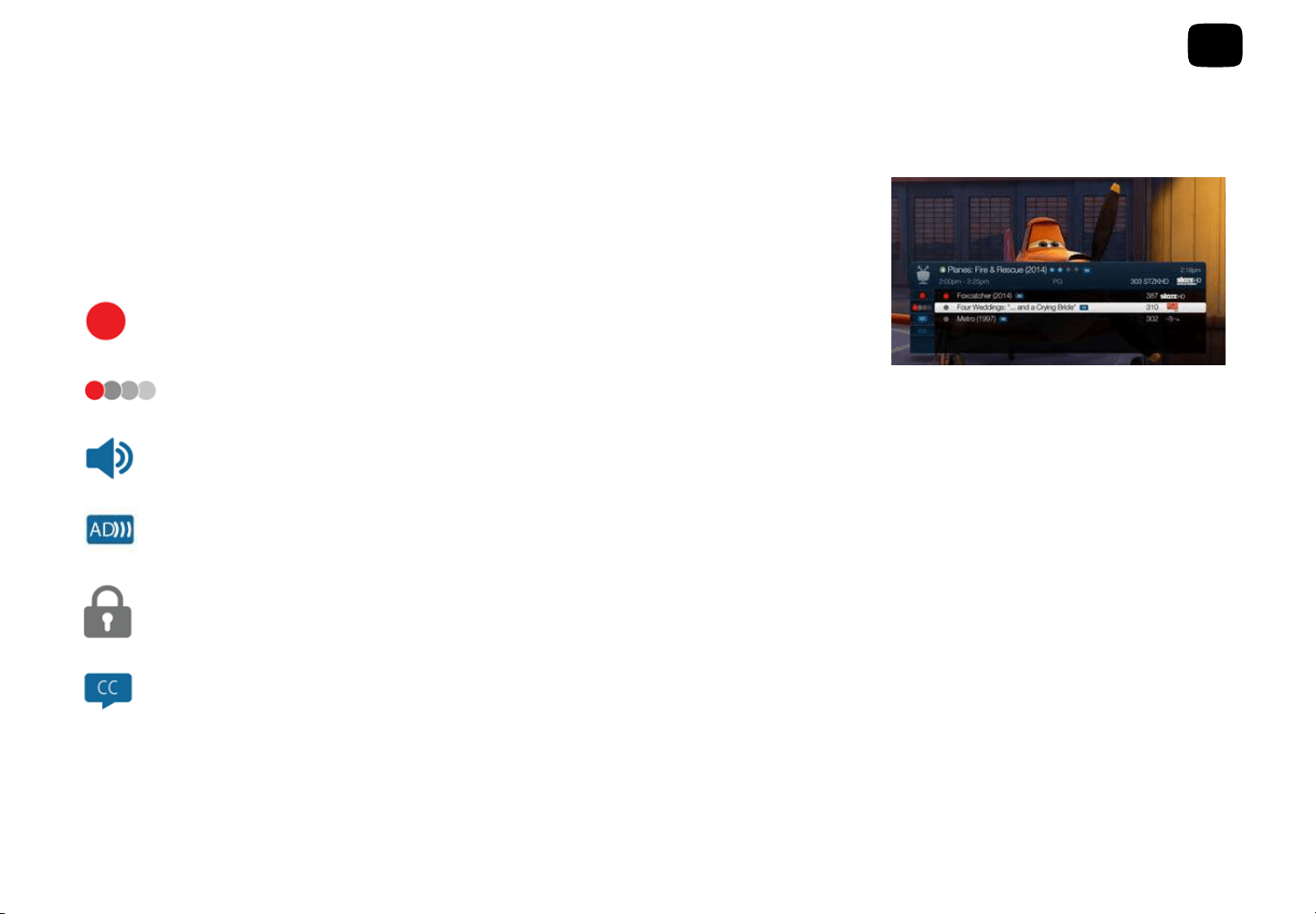
The info banner displays the show’s title, description, ratings, and other information. It appears
whenever you change the channel. To view the info banner while watching a show, press
INFO. Icons in the info banner are shortcuts to corresponding features. Use the UP/DOWN
arrows highlight an icon, then press SELECT.
Record The show is currently recording. Select this icon to stop the recording.
Tuner Swap Select this icon to see what’s playing on the other tuners. When no
recordings are in progress, the icon will be gray.
Audio Select this icon for alternate audio tracks, if available. See Audio & video
settings for more.
Audio Description Select this icon for audio description track, if available.
Parental Controls. If Parental Controls are on, the icon appears locked. If they
are off, the icon appears unlocked.
Closed Caption Turn closed captioning on or off.

38
WATCHING SHOWS
3
WATCHING SHOWS ON OTHER TIVO BOXES
When other TiVo boxes are connected to the same network as your TiVo BOLT, you can share
recorded shows between them! You can watch shows recorded on another TiVo DVR by
streaming or transferring them to your BOLT. Or, you can stream or transfer recordings to
those other TiVo DVRs from your TiVo BOLT! (Streaming means watching a video directly from
another device; there’s no need to transfer or download it first.)
You can also extend your TiVo experience into other rooms in your home with the TiVo Mini.
The TiVo Mini lets you watch live TV and stream shows from any other TiVo DVR on your
network. See tivo.com/mini to learn more.
Note: For best streaming results, make sure that your TiVo BOLT uses a wired network
connection (Ethernet or MoCA). See Network settings to learn more.
Streaming or transferring shows is easy:
1. Go to the TiVo DVR that you want to stream or transfer shows to. For this example, let’s
call it the Bedroom BOLT.
2. From the TiVo Central screen, select ‘My Shows.’
3. At the bottom of the My Shows list, highlight the TiVo DVR you want to stream or transfer
shows from. Let’s call this the Living Room BOLT.
4. Press SELECT to see the Living Room BOLT’s My Shows list.
Note: Some recordings cannot be streamed or transferred due to the copy protection
assigned them by the program provider. These recordings are usually marked with a red
circle-slash icon .
5. Find the recording you want to stream or transfer from the other TiVo DVR. Highlight it and
press SELECT.
HD shows cannot be transferred
to standard-definition DVRs.
Shows that cannot be
transferred because of this or due to
copy protection are marked with the
red circle-slash icon .*
*Not all programming may be transferred
using the Mulit-Room Viewing or
TiVoToGo™ features due to the use of
copy protection mechanisms permitted
under the FCC’s encoding rules. Some
shows cannot be transferred due to the
copy protection assigned to them by the
program provider. These shows usually are
marked with a red circle-slash icon (47
C.F.R. 76.1904).

39
WATCHING SHOWS
3
If you are streaming the recording, you can start to watch it immediately. If you are
transferring the recording, you can choose to watch it as it transfers, or continue browsing
and choosing shows to transfer. If the show is paused on the Living Room DVR, you’ll have
the option to watch or transfer it from the paused location, or to watch or transfer it from
the beginning. As you watch, you can pause, fast-forward, or rewind the show.


41
APPS
4
VIDEO APPS
Your TiVo BOLT has access to a huge array of on-demand movies, TV shows, and videos.
Shows and movies from video providers appear in your results when you browse or search the
TiVo menus.
To customize which video providers appear in your results, go to ‘Settings & Messages,’ then
‘User Preferences,’ then ‘Add & Manage Video Apps.’
Note: OnePass works best when your video provider list is up to date, with as many providers
as possible selected.
Below are some of the most popular video providers, but be sure to check tivo.com to see
what great new videos might be available for rent or purchase.
AMAZON
®
VIDEO
TiVo BOLT users can stream thousands of movies and TV shows from Amazon Video, many of
them in HD! And for Amazon Prime users, the news keeps getting better: titles available from
Amazon Prime are free!
When you search for shows on your TiVo box, your results will include shows available from
Amazon Video. Just look for the Amazon logo in the right pane of your search results.
You can also search or browse for shows and movies available on Amazon Video from the
Amazon Video app available on the ‘Apps’ menu.
For more instructions on using Amazon Video, visit tivo.com/howto and select the “Get Video
on Demand” option.
NETFLIX
®
With Netflix on the TiVo service, you can instantly watch thousands movies and TV episodes
streamed from Netflix to your TiVo BOLT. You just need to link your Netflix account to your
TiVo BOLT, and then start watching.

42
APPS
4
When you search for shows on your TiVo box, your results will include shows available from
Netflix. Just look for the Netflix logo in the right pane of your search results.
You can also search or browse for shows and movies available on Netflix from the Netflix app
available from the ‘Apps’ menu.
For more instructions on using Netflix, visit tivo.com/howto and select the “Get Video on
Demand” option.
HBO GO
®
With HBO GO, you have unlimited access to your HBO shows, movies, sports, specials, and
more, right on your TiVo box. It's free with your HBO subscription through participating
television providers. What’s more, when you search for a show with your TiVo box, your search
results will include streaming videos available from HBO!
When you search for shows on your TiVo box, your results will include shows available from
HBO GO. Just look for the HBO GO logo in the right pane of your search results.
You can also search or browse for shows and movies available HBO shows from the HBO GO
app available on the ‘Apps’ menu.
For more instructions on using HBO GO, visit tivo.com/howto and select the “Get Video on
Demand” option.
VUDU
®
TiVo BOLT users have access to the vast library of shows and movies on Vudu! Log in or sign
up for Vudu right on your TiVo box to start streaming!
When you search for shows on your TiVo box, your results will include shows available from
Vudu. Just look for the Vudu logo in the right pane of your search results.
You can also search or browse for shows and movies available on Vudu from the Vudu app
available on the ‘Apps’ menu.

43
APPS
4
BONUS for Ultraviolet users: If your Ultraviolet account is linked to your Vudu account, you can
watch your Ultraviolet movies right on your TiVo box! Just choose to “My Vudu” from the top
Vudu menu.
HULU
®
With Hulu on the TiVo service, you can stream TV episodes and movies right to your TiVo
BOLT, with many titles in HD!
Search or browse for shows and movies available on Hulu from the ‘Apps’ menu, or go to the
main Hulu screen accessed above. When you search or browse using the TiVo menus, shows
available from Hulu display a Hulu logo on the right side of the screen.
For more instructions on using Hulu, including how to control playback of the video you’re
watching, visit tivo.com/howto and select the “Get Video on Demand” option.
YOUTUBE
®
VIDEOS
Browsing YouTube videos with your TiVo BOLT is just as easy as browsing YouTube videos on
the Internet.
For more instructions on using YouTube, including how to control playback of the video you’re
watching, visit tivo.com/howto and select the “Get Video on Demand” option.
MORE OPTIONS
New video providers are being added all the time. You’ll see them on the ‘Apps’ screen
automatically. For instructions on using them, visit tivo.com/howto.

44
APPS
4
MUSIC APPS & MORE
Your TiVo BOLT is really an entire digital home entertainment center, with access to your
photos, music, and more!
From the TiVo Central screen, select ‘Apps’ Music apps include:
Plex: Plex organizes your video, music, and photo collections and streams them right to
your TiVo box.
Pandora
®
Internet Radio: Pandora is a free service that lets you create custom Internet
radio stations personalized just for you, playing only the music you love! Just tell Pandora
one of your favorite songs, artists, or composers, and it will create a radio station that
explores that kind of music. You can even create stations based on genre (rock, pop,
dance, show tunes, classical). Pandora plays all your current and old favorites and
introduces you to new songs you’ll love.
iHeartRadio: Listen to thousands of free stations, or create personalized custom stations
from millions of songs.
MORE APPS
Want to buy movie tickets on line? Watch music videos? Burn a few minutes with a quick
game? Just go to TiVo Central and select ‘Apps’ New apps and games for your TiVo BOLT are
available frequently, so keep checking the ‘Apps’ menu for updates.


46
HELP, SETTINGS, & MESSAGES
5
HELP
ACCOUNT & SYSTEM INFORMATION
The Account & System Information screen provides information about your TiVo
®
BOLT and
your TiVo account. From the TiVo Central
®
screen, select ‘Settings & Messages,’ then ‘Help,’
then ‘Account & System Information.’
System Information You’ll need some of the information provided here if you contact TiVo
Customer Support. This screen contains your TiVo service number, TiVo BOLT manufacturer,
model number, software version, storage capacity, and information about recent connections
to the TiVo service. Use the CH UP/DOWN button to see the rest of the screen.
Media Access Key Your Media Access Key keeps your TiVo recordings secure and prevents
them from being played or transferred outside your home network. Do not share this key with
anyone outside your household.
Video Provider Accounts Here you’ll find account information about your video provider
accounts (e.g. Netflix or Amazon).
Copyright & Trademarks This screen contains copyright, trademark, and other information
related to the TiVo service.
Tuning Adapter This screen displays information about your tuning adapter, if one is
connected. Please contact your cable provider if you are not sure whether you need a tuning
adapter.
Diagnostics This screen contains information about tuners and other TiVo BOLT functions.
You may be asked to provide some of this information if you contact TiVo Customer Support.
CableCARD Decoder This screen contains information about the installed CableCARD
decoder, if used.

47
HELP, SETTINGS, & MESSAGES
5
TROUBLESHOOTING
This screen is the place to start if you are having trouble with your TiVo box. Find helpful
troubleshooting advice for common issues.
RESTART BOX
Use this screen to shuts down the TiVo BOLT and start it up again. This will not affect
recorded shows, OnePass
®
recordings, WishList
®
searches, or TiVo Suggestions. You may
need to restart your TiVo BOLT as a routine troubleshooting step.
RESET TO DEFAULTS
Options on this screen include:
Repeat Guided Setup You must repeat Guided Setup if you move or if you change your
cable provider. Repeating Guided Setup will reset your channel lists. This will not affect
recorded shows, OnePass recordings, WishList Searches, or TiVo Suggestions.
Clear Thumb Ratings and Suggestions Removes all Thumbs Up and Thumbs Down ratings
and deletes the list of upcoming TiVo Suggestions. This does not delete TiVo Suggestions
that have already been recorded.
Clear program information & To Do List Clears all program information, cancels all
OnePass recordings and everything in the To Do List, and removes all Thumbs Up and
Thumbs Down ratings. This does not delete shows in the My Shows list. The TiVo BOLT
acquires new program information during the next connection to the TiVo service.
Completing this process may take over an hour.
Clear & delete everything This option restores the TiVo BOLT’s original factory settings. It
clears all OnePass recordings, WishList Searches, Thumbs Up and Thumbs Down ratings,
TiVo Suggestions, My Shows list recordings, program information, To Do List and setup
information, including channel lists and Parental Controls. Completing this process may
take over an hour.
Operations like Clear & Delete
Everything may take over an
hour. During this time, it is
recommended that you turn off your
TV to avoid “burn-in” of static images
on sensitive video displays.

48
HELP, SETTINGS, & MESSAGES
5
PARENTAL CONTROLS
Parental Controls help you make sure your family has access to only those shows you want
them to watch. From the TiVo Central screen, choose ‘Settings & Messages,’ then ‘Parental
Controls.’ (Or, select the padlock icon from the info banner.)
The padlock icon in the info banner shows the current state of Parental Controls.
Off No password or controls are set. The icon is dim and unlocked.
On Password and controls are set. The icon is locked.
Once Parental Controls are on, you must enter your Parental Controls password to change any
Parental Controls settings.
TURN ON/OFF PARENTAL CONTROLS
To turn Parental Controls on, use the number buttons on the remote control to enter a four-
digit password, then enter the same password again for confirmation. When you turn off
Parental Controls, the password is deleted and anyone can view any shows or watch any
channels.
HIDE ADULT CHANNELS
When this setting is on, adult shows do not appear in search results, and titles/descriptions of
adult shows are hidden in the program guide and My Shows. You will need to enter the
Parental Controls PIN to watch any adult content.
SET RATING LIMITS
Movies originally meant for release to theaters have a different rating system from shows
made for TV. Use rating limits to set rules for both rating systems.
Highlight the rating option, and then use the left/right arrows to change the rating limit.

49
HELP, SETTINGS, & MESSAGES
5
LOCK CHANNELS
When a channel is locked, the Parental Controls PIN must be entered to view the channel. You
can lock specific channels, or all channels.
CHANGE PIN
Enter a new PIN, then re-enter the new PIN to confirm.

50
HELP, SETTINGS, & MESSAGES
5
USER PREFERENCES
From the TiVo Central screen, choose ‘Settings & Messages,’ then ‘User Preferences’ to
customize the display of closed captioning, turn the video window on/off, and much more.
ADD & MANAGE VIDEO APPS
Use the this screen to select the video providers (like Netflix or Amazon) that you would like
included in your results when searching for TV shows and movies.
Note: OnePass works best when this list is up to date, with as many video providers as
possible selected.
ONEPASS & RECORDING OPTIONS
Use this screen to set OnePass and recording options that will apply to all OnePasses you set
up, and all shows you record that are not part of OnePasses. You can change the default
values at any time. For more information, see Setting OnePass & recording options
CLOSED CAPTIONING
Change the way the TiVo BOLT displays closed captioning text.
To turn closed captioning on or off while watching a show, press INFO to view the info banner,
and select the closed captioning icon: .
VIDEO WINDOW
Turn the Video Window on or off permanently.
CLIP OVERLAPPING SHOWS
Choose whether to clip or cancel a recording if a conflict occurs.

51
HELP, SETTINGS, & MESSAGES
5
TIVO SUGGESTIONS
Choose whether to record TiVo Suggestions automatically when space is available.
CUSTOMIZE DISCOVERY BAR
Personalize the contents of the Discovery Bar based on your own preferences.
SCREEN READER
Turn the screen reader on or off by default.

52
HELP, SETTINGS, & MESSAGES
5
CHANNEL SETTINGS
From the TiVo Central screen, select ‘Settings & Messages,’ then ‘Channel Settings.’
CHANNEL LIST
The channel list is the list of channels provided by your TV programming source. The TiVo
BOLT uses this list to determine which channels to display in the guide and which channels are
available for searching and recording shows.
If your channel list is incorrect, you can change your channel lineup. From the Channel List,
press ENTER to repeat Guided Setup.
CUSTOMIZING YOUR CHANNEL LIST
The Channel List screen displays the complete list of channels available in your channel lineup.
A check mark appears next to each channel that will appear in the program guide and in
search results. (You may see the group of checked channels referred to as “My Channels” in
the TiVo menus.) Press SELECT to remove the check mark next to channels you want to hide.
For example, you may uncheck the channels to which you don’t subscribe.
Favorite Channels Select channels that you watch frequently. Include only a few channels in
this list, so that you can quickly see what’s coming up on them using the “Favorite Channels”
filter in the guide. To indicate your favorite channels, highlight each and press THUMBS UP.
Press THUMBS DOWN to remove a channel from your favorites.
SIGNAL STRENGTH
Use the Signal Strength screen to test the incoming signal on specific channels.
The signal strength meter can help diagnose signal issues. For example, adding multiple RF
splitters to your RF cable source (the cable coming from the wall) can result in reduced signal
strength on some channels. Use the meter to check signal strength with and without splitters.
If there is a change to your
cable subscription package or
channel lineup, a TiVo message
will inform you. Use Channel Settings
to ensure that your Channel List
reflects the change to your lineup.

53
HELP, SETTINGS, & MESSAGES
5
AUDIO & VIDEO SETTINGS
From the TiVo Central screen, choose ‘Settings & Messages,’ then ‘Audio & Video Settings’ to
customize audio settings.
LANGUAGE & AUDIO DESCRIPTION
Some shows are broadcast with an audio description track or more than one language track.
Use this setting to choose the default language for shows with multiple tracks available, or
choose SAP to turn on spoken description when available.
DOLBY AUDIO
™
If you have an A/V receiver or home theater system that supports Dolby audio, use this setting
to choose how the TiVo BOLT will record and output digital audio. Check your A/V receiver or
home theater system manual for its capabilities.
If a show is broadcast with a Dolby audio track, you’ll see a Dolby icon in the info banner.
SOUND EFFECTS VOLUME
Change the volume of the TiVo BOLT’s sound effects (the tones played when you press
buttons on the remote control). The default is Medium.
ASPECT CORRECTION MODE
Aspect correction is applied when the aspect ratio of the show you’re watching doesn’t match
the aspect ratio of your TV. (For example, if you are watching a standard resolution show on
your wide-screen TV.) Use the Aspect Correction Mode settings screen to choose from the
following options:
When selecting ‘PCM only’
setting, the audio signal will be
downmixed from Dolby Digital
5.1 to 2-channel PCM.

54
HELP, SETTINGS, & MESSAGES
5
LETTERBOX & SIDEBOX COLOR
Letterbox is used to fit a 16 x 9 show on a 4 x 3 screen, and sidebox is used to fit a 4 x 3 show
on a 16 x 9 screen. Choose which color the TiVo BOLT should use when it adds letterbox or
side bars to the picture: gray or black.
VIDEO RESOLUTION
TV shows are broadcast in a variety of resolutions, and TV equipment receives and displays
video in a variety of resolutions. For any given show, the format in which a show is broadcast
may or may not match a format that your TV is capable of displaying.
In FULL mode, the picture is stretched to fill the TV screen, which
may result in some distortion. In the picture shown here, notice
that black bars appear at the top and bottom of the screen, and
the image look a bit squished. Since the Aspect Correction is
Full, you know that the letterbox bars are included in the
broadcast.
In PANEL mode, side bars are added to the picture to fill the
screen, preserving the broadcast aspect ratio. This is useful if
you’re watching a show broadcast in 4:3 on a 16:9 TV, or vice-
versa. In the picture shown here, notice that the image no longer
look squished, but the picture size is dramatically decreased.
In ZOOM mode, the picture is stretched without distortion. The
edges of the picture are cropped to fit the TV screen. This mode
is useful if you’re watching a show broadcast with letterbox bars
or side bars. Zoom mode crops the letterbox bars out of the
picture. The picture shown here looks best in Zoom mode.

55
HELP, SETTINGS, & MESSAGES
5
The TiVo BOLT receives all video signals, including UltraHD/4K (2160p), 1080i, 720p, 480p and
480i.
If you are using an HDMI
®
cable to connect your TiVo BOLT to your television, the TiVo BOLT
will automatically set the optimal resolution for your TV.
The Video Resolution screen also allows you to test and set the video resolution manually.
Select ‘Test Formats’ and then follow the on-screen prompts to test which video resolutions
your television can display. Those that are supported will be automatically selected in the list
of available resolutions. You can also set the output format automatically by selecting ‘Auto
Detect’ from the Video Output Formats screen.
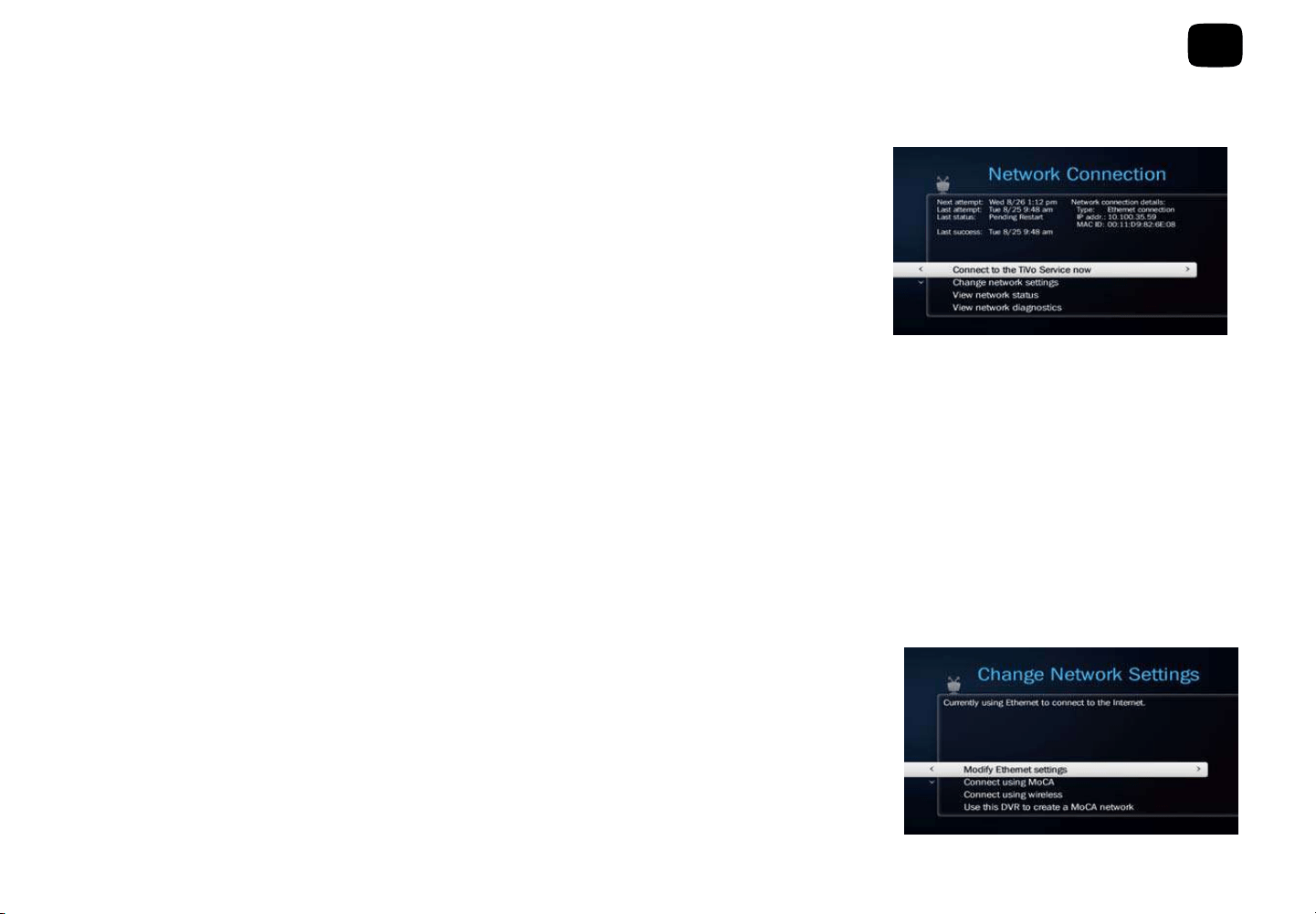
56
HELP, SETTINGS, & MESSAGES
5
NETWORK SETTINGS
TiVo boxes make regular connections to the TiVo service to receive updated show listings,
service updates, and other information. You can connect to the TiVo service through a wired or
wireless connection. When choosing your connection type, note that wireless connection
speeds are typically not fast enough to stream shows reliably. If you want to use the BOLT to
stream shows to/from other TiVo boxes or to your mobile devices, a wired Ethernet or MoCA
connection is recommended.
The Network screen includes details about the last successful connection to the TiVo service
and allows you to change your connection settings.
From the TiVo Central screen, select ‘Settings & Messages,’ then ‘Network Settings.’ The
information displayed on the screen depends on how your DVR connects to the TiVo service.
TiVo Service connection Normally, you don’t need to select this option — the TiVo BOLT
connects to the TiVo service automatically every few hours. However, you may need to
connect to the TiVo service as a routine troubleshooting step. Select this option to connect to
the service. After you start the connection, the status of the connection is displayed. You can
watch live TV, set up recordings, and search for shows while the connection is in progress.
Change network settings See Changing network settings.
Network troubleshooting Select to review information about your network connection, test
your connection to the TiVo service, see a history of your video downloads and transfers, and
run other diagnostic tests related to your network connection.
CHANGING NETWORK SETTINGS
The network settings options will vary depending on whether you’re using a wired (Ethernet or
MoCA) or wireless connection.
Note: If you want to use the TiVo BOLT to stream shows to/from other TiVo boxes or to your
mobile devices, a wired Ethernet or MoCA connection is required. Wireless connection speeds
are typically not fast enough to stream shows reliably.

57
HELP, SETTINGS, & MESSAGES
5
WIRED ETHERNET SETTINGS
Most of the time, you will not need to configure these settings, as they are usually configured
automatically when you first set up your TiVo BOLT. However, if necessary, you can use this
page to configure how the TiVo BOLT receives an IP address, or you can assign a static IP
address and other network information manually. Follow the on-screen instructions to
configure your wired network.
MOCA SETTINGS
A MoCA (pronounced “Mocha,” like the chocolate-flavored coffee drink!) connection is a
great option if you want a wired connection to your TiVo box but you don’t have easy access to
a wired Ethernet cable. MoCA delivers the same high-speed network connection you get
through an Ethernet cable, but delivers it through your existing coax wire (the wire you use to
receive cable TV). When you set up MoCA in your home, your TiVo box will receive cable TV
and connect to your home network through that one cable!
IMPORTANT: If you are using a TiVo BOLT with MoCA and you have an antenna connected to
your home’s coax network, you MUST also install a 70 dB POE filter.
Joining an existing MoCA network
Simply connect a coax cable to your TiVo BOLT.
IMPORTANT: If you are using a TiVo BOLT with MoCA and you have an antenna connected to
your home’s coax network, you MUST also install a 70 dB POE filter.
1. Go to ‘Settings & Messages’ > ‘Network Settings’ > ‘Change Network Settings.’
2. Select ‘Connect using MoCA.’
3. Choose ‘Yes, turn on MoCA.’
4. Confirm the default MoCA settings. Note: Use the default settings unless a professional
installer instructs you to change them.

58
HELP, SETTINGS, & MESSAGES
5
5. Congratulations! You’ve joined an existing MoCA network!
To learn more about installing and using MoCA, including how to secure your MoCA
network, visit tivo.com/moca.
WIRELESS SETTINGS
Note: If you want to use the BOLT to stream shows to/from other TiVo boxes or to your
mobile devices, a wired Ethernet or MoCA connection is required. Wireless connection
speeds are typically not fast enough to stream shows reliably.
To connect to your wireless network, you may need the name (SSID) of your wireless
network and its password/key (if any).
Enter Wireless Network Name This screen lists the names of nearby wireless networks
that your TiVo BOLT has been able to identify.
• If your network’s name is listed, select it. (You may be able to see more network names
by pressing CH DOWN to scroll down the screen.)
• If your network’s name is not listed, select ‘Enter network name’ to enter the name
manually, then select ‘Finished entering text.’
Enter Network Password If your network has a password, enter it and then select ‘Finished
entering network password.’ If your network does not have a password, select ‘My network
doesn’t have a password.’
Y
ou must use cap
i
ta
l
an
d
lowercase letters appropriately
when entering a network name.
To find a network named “My
Network” you must capitalize the “M”
and “N;” entering “my network”
won’t work. Use THUMBS UP and
THUMBS DOWN to change to
uppercase or lowercase.

59
HELP, SETTINGS, & MESSAGES
5
REMOTE, CABLECARD, & DEVICE SETTINGS
From the TiVo Central screen, select ‘Settings & Messages,’ then ‘Remote, CableCARD, &
Devices.’
REMOTE CONTROL SETTINGS
PROGRAMMABLE BUTTONS
Some buttons on the TiVo remote are programmable. You have options to control power,
volume, and mute on your TV; volume and mute on your A/V receiver (stereo system); and
input selection on your TV — all from your TiVo remote!
To program your remote, from the TiVo Central screen, select ‘Settings & Messages,’ then
‘Remote, CableCARD, & Devices,’ then ‘Remote Control Setup.’ Follow the on-screen
instructions.
To reset all the programmable buttons:
1. Press and hold the TV PWR and TiVo buttons simultaneously until the light on the remote
lights, and remains lit when you release the buttons.
2. Press THUMBS DOWN three times, then press ENTER.
REMOTE CONTROL PAIRING
The TiVo BOLT remote control is an RF remote. This means that the remote can control your
TiVo box even if the box is not in direct line of sight with the remote (for instance, if it is behind
a cabinet door).
Your remote control should be ready to use in RF mode after you complete Guided Setup.
However, if you have trouble using the remote in RF mode, or if you purchase additional
remotes, you may need to “pair” the remote to your DVR before using it.

60
HELP, SETTINGS, & MESSAGES
5
Pairing your remote
To use the remote in RF mode, you must first pair the remote with your TiVo box:
1. Hold down the BACK button and the TiVo button at the same time.
2. Wait until the amber activity light on the remote flashes five times.
Your remote is paired! Once a remote is paired with a TiVo box, it will only work in RF mode
with that box. It will continue to work with other boxes in IR mode (in which the box must be in
line-of-sight to communicate with the remote).
Note: Not sure if your remote is paired? When a remote is paired with a TiVo box, the
remote’s activity light flashes amber when you press a remote button. When a remote is not
paired, the activity light flashes red.
Unpairing your remote (to use it with a different TiVo box)
To pair the remote with a different box, you must first unpair it with the current box, then pair it
with the new one. Note that this process will reset the remote completely, so you will need to
repeat setup of the remote’s programmable buttons (TV power, volume, mute). To unpair the
remote:
1. Hold down the POWER and TiVo buttons at the same time until the activity light flashes.
2. Press THUMBS DOWN three times.
3. Press ENTER.
CABLECARD
™
DECODER
This screen is typically used only during CableCARD installation.
A CableCARD decoder receives encrypted digital cable programming and decodes it for
display on your TV without the need for a cable box. The CableCARD decoder plugs into a
compartment on the underside of the DVR.
Activity light

61
HELP, SETTINGS, & MESSAGES
5
A CableCARD decoder is available only from your cable company and additional fees may
apply from your cable company. It replaces your digital cable box, and allows you to receive
the same programming channels in your subscription. To watch and record digital cable
programming, you must install one Multi-Stream CableCARD decoder (M-CARD). This one
card will let you watch and record multiple shows at once.
EXTERNAL STORAGE
Use this screen when you want to add or remove a TiVo-verified external storage device. Visit
tivo.com/expand for more information on external storage solutions.
TIVO BOX NAME
Set or change the name of your TiVo BOLT. You can choose from a list of suggested names or
create your own.
NETWORK REMOTE CONTROL
You can integrate your TiVo BOLT, home automation, and entertainment control devices on
your network. These devices include touch panel remotes and other devices that are
configured to work with TiVo’s network-based remote control protocol. This setting will be
enabled by your home entertainment or automation installer.
TUNING ADAPTER
If your cable provider uses a technology called switched digital video (SDV), you will need a
tuning adapter in order for your TiVo BOLT to receive all channels in your subscription
package. Please contact your cable provider if you are not sure whether you need a tuning
adapter.
For more information on tuning adapters and switched digital video, please visit tivo.com/
switched.

62
HELP, SETTINGS, & MESSAGES
5
LIGHTS
The lights on the TiVo BOLT’s front panel indicate when the TiVo BOLT is receiving power,
recording, receiving a transferred show, or downloading shows over the network connection.
You can choose to turn the lights on or off. Even if you choose to turn off the front panel lights,
one of the lights on the front panel will flash briefly when a button on the remote is pressed.
This indicates that the TiVo BOLT is receiving a signal from the remote.
POWER SAVING SETTINGS
When you’re not using your TiVo box, you can save power by letting the box go into Standby
mode. Selecting a higher power saving setting means that the box will enter Standby sooner
and that TiVo Suggestions may not record while the box is in standby. Scheduled recordings,
transfers, and downloads will not be affected, regardless of your power savings setting.
Manual The TiVo box will never enter Standby automatically. To put your box into Standby, go
to ‘Settings & Messages’ > ‘Standby.’
Low The TiVo box will enter Standby after four hours. TiVo Suggestions will be recorded while
the box is in Standby.
Medium The TiVo box will enter Standby after four hours. TiVo Suggestions will not be
recorded while the box is in Standby.
High The TiVo box will enter Standby after two hours. TiVo Suggestions will not be recorded
while the box is in Standby.
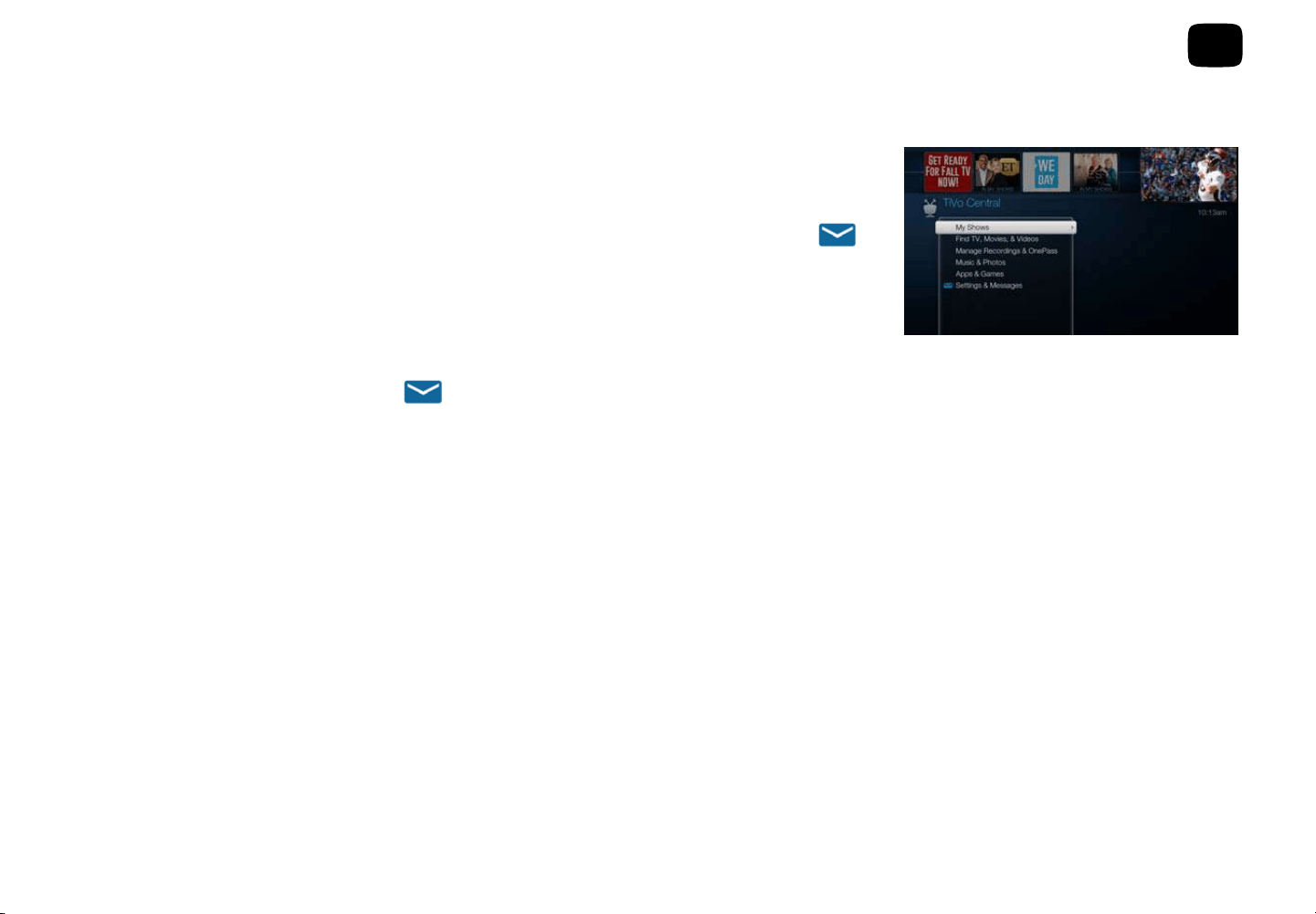
63
HELP, SETTINGS, & MESSAGES
5
MESSAGES
From time to time, you may receive messages from the TiVo service. Messages may alert you
to information about your account, new TiVo service features, important TV schedule changes,
channel lineup changes, or other information.
When you receive a new message, the TiVo Central screen will display an envelop icon
next to the ‘Settings & Messages’ menu item.
To access your messages:
1. From the TiVo Central screen, select ‘Settings & Messages.’
2. Select ‘Messages.’ A list of all of your messages appears. Messages you have not yet read
are marked with an envelope icon:
.
3. Use the UP/DOWN arrows to highlight a message, then press SELECT to read it. Use
CH UP/DOWN to page through a message if it doesn’t fit on the screen.

64
HELP, SETTINGS, & MESSAGES
5
STANDBY
To conserve power, you can put your TiVo DVR into Standby mode. From the TiVo Central
screen, select ‘Settings & Messages,’ then ‘Standby.’ To return to normal mode from Standby,
press the TiVo button or the LIVE TV button on the remote.
You can choose from several levels of power saving when your device enters Standby. See
Power saving settings to learn more.
When the TiVo BOLT is in Standby:
• Your TV shows a black screen and the lights on the front of the TiVo BOLT go out.
• Shows that are being recorded or are scheduled to record will still be recorded.
• The TiVo BOLT will still connect to the TiVo service.
• If you temporarily turned off Parental Controls, Standby mode re-enables them.
• If live TV is paused when Standby is selected, the TiVo BOLT will remain paused for up to
30 minutes.
• TiVo Suggestions may be recorded, depending on your power saving setting. See Power
saving settings for details.

6
TROUBLESHOOTING

66
TROUBLESHOOTING
66
GETTING MORE INFO
TiVo is dedicated to providing you with quality information and
customer service. Got a question? Here’s how you’ll always be
able to find answers:
1. Use this chapter. This chapter contains answers to some of
the most common questions about the TiVo
®
service.
2. Use the help screens on your TiVo BOLT. For general
troubleshooting, go to the TiVo Central
®
screen and select
‘Settings & Messages,’ then ‘Help,’ then ‘Troubleshooting.’
3. Get how-to information online. You’ll always find the latest
information about what you can do with your TiVoBOLT
online at tivo.com.
4. Use online support. Visit TiVo Customer Support online at
tivo.com/support. If you have issues with missing channels,
incorrect channels, or other channel lineup issues,
visit tivo.com/lineup.
5. Call Customer Support. If you still have questions, contact a
TiVo Customer Support agent by calling 1-877-367-8486 (1-
877-FOR-TIVO).
CONNECTING YOUR TIVO BOLT
I DON’T SEE THE WELCOME SCREEN WHEN I PLUG
IN MY TIVO BOLT FOR THE FIRST TIME.
• Make sure cables are connected from the OUT jack of one
device to the IN jack of the next. Never connect OUT to OUT
or IN to IN.
• Make sure your TV is displaying the appropriate video source.
Use the Input, Source, or TV/Video button on your TV’s
remote to change video sources. If you are having trouble
changing the video source, refer to your TV owner’s manual.
• If your TiVo BOLT is connected to an A/V receiver, and you
are having trouble finding the correct input, try connecting
the TiVo BOLT directly to the TV instead.
• The cables you are using to connect your TiVo BOLT to your
TV or other equipment may be damaged or defective. Try
using cables that you know are working properly.
COMPLETING GUIDED SETUP
DO I NEED A NETWORK CONNECTION FOR GUIDED
SETUP?
• Yes. To complete Guided Setup, the TiVo BOLT needs to
connect to the TiVo service. To do this, the you can use a
wired (Ethernet or MoCA) or wireless network connection. As
you choose your connection type, remember that a wired

67
TROUBLESHOOTING
66
connection is recommended if you want to stream or transfer
shows to other TiVo boxes and mobile devices. See the Setup
& Features Guide that came with your product for more help
connecting your TiVo BOLT.
HOW DO I CHOOSE THE CORRECT CABLE LINEUP?
• Make sure you have an accurate list of channels you subscribe
to from your cable provider. This list may be in the form of a
channel lineup card or a recent bill from your cable provider.
If you’re not sure which channels you subscribe to, contact
your cable provider.
CAN I TURN ON THE SCREEN READER DURING
GUIDED SETUP?
• Yes. At any time during Guided Setup, simply press and hold
the A button on your remote control for two seconds.
TIVO SERVICE
WHAT IS THE TIVO SERVICE?
• Think of TiVo service as the brains behind your TiVo BOLT.
The TiVo BOLT uses the program information provided by
the TiVo service to power the program guide, allow you to
search for shows and schedule recordings, and more.
WILL MY TIVO BOLT WORK WITHOUT THE TIVO
SERVICE?
• The TiVo BOLT is designed to be used exclusively with the
TiVo service. The TiVo service is required for proper
operation of the TiVo BOLT. No functionality is represented,
warranted, or should be expected without a subscription to
the TiVo service.
DOES THE TIVO SERVICE COLLECT INFORMATION
ABOUT MY VIEWING HABITS?
• TiVo has designed its system and instituted policies to ensure
that TiVo is unable to access any of your personally
identifiable viewing information without your prior consent.
For details, see tivo.com/policies.
WHAT HAPPENS IF MY TIVO DVR TEMPORARILY
LOSES POWER?
• In the event of a power outage, any programs scheduled to
record during the power outage will not be recorded. If a
recording is in progress during a power outage, the
recording will resume once power is restored and the DVR
restarts. The recording will show up in two parts if the power
is restored during the time the recording was made.
Your OnePass
®
requests, WishList
®
Searches, and all the
existing recordings in the My Shows list will not be affected.
Shows in your To Do List will record as scheduled once the
power is restored.

68
TROUBLESHOOTING
66
ACCESSIBILITY
ARE ACCESSIBILITY FEATURES AVAILABLE ON MY
TIVO BOX?
• Yes! Your TiVo box is ready to help visually- and hearing-
impaired users get the most out of the TiVo experience. To
turn on the screen reader, press and hold the A button on
your remote control for two seconds. To turn on Audio
Description, press and hold C. To turn on closed captioning,
press and hold B. Visit tivo.com/accessibility for more
instructions and a version of this guide geared specifically to
visually-impaired users.
ONEPASS™ SEARCHES
WHAT IS A ONEPASS SEARCH?
• A OnePass search, which replaces Season Pass
®
recordings,
gathers every episode of a series available anywhere and
adds them right to your My Shows list. If it’s not available on
TV or on demand, a OnePass search fills in the gaps with
episodes from other streaming video providers like Netflix,
Amazon Prime, and more.
WON’T THAT TAKE UP ALL MY DISK SPACE?
• No! By default, a OnePass search contains both recordings
and streaming videos, and most OnePass searches provide
the majority of episodes as streaming videos. Streaming
videos are not stored on your TiVo box, so they don’t take up
any disk space. That means you’ll have a lot of shows ready to
watch at any time, but you’ll still have ample disk space for
recordings when you need it.
WHAT HAPPENED TO MY SEASON PASS
REQUESTS?
• If you’ve had a TiVo box for a while, you’ve probably set up
Season Pass requests for your favorite series. With the
introduction of OnePass search, each existing Season Pass
has been turned into a OnePass, with the OnePass options
set to include recordings only. In essence, that means these
OnePass searches will work just as your Season Passes always
have.
HOW CAN I CHANGE MY ONEPASS OPTIONS?
• When you first set up a OnePass search, highlight ‘Create a
OnePass.’ Rather than pressing SELECT to create the
OnePass, press the RIGHT arrow and select ‘Options./ To
modify an existing OnePass search, go to ‘Search &
OnePass,’ then ‘OnePass Manager.” Choose the title you
want to modify.
I AM NOT GETTING MANY RESULTS WHEN I SET
UP MY ONEPASS SEARCH.
• To get the most out of your OnePass searches, be sure to
include both recordings and streaming videos. Also make
sure that your video provider list is up to date, with all of your

69
TROUBLESHOOTING
66
provider options selected. To check the video provider list,
go to ‘Settings & Messages,’ then ‘User Preferences,’ then
‘Add & Manage Video Apps.’
SKIPMODE™ FEATURE
WHAT IS THE SKIPMODE FEATURE?
• The SkipMode feature lets you skip ahead to the end of a
commercial break and resume watching instantly, all with the
press of button.
MY SHOW DOESN’T HAVE THE SKIPMODE
FEATURE AVAILABLE. WHY NOT?
• This feature is available only on select shows, and only after
they are finished recording. We hope to make the feature
available for the most popular shows on the most popular
channels watched by TiVo subscribers. That means you’ll find
SkipMode on many shows that you record between 4:30 p.m.
and midnight (or 12:30 a.m. on major networks) on the most
widely-watched channels.
HOW DOES IT WORK?
• A dedicated team of TV-watchers, who are watching each
show live as it airs, note where programming resumes after
commercial breaks in popular programs. This information is
communicated by the TiVo Service to TiVo subscribers who
have recorded these programs.
CAN I STILL WATCH WHAT I SKIP?
• Yes! The actual recorded show is never altered, and the
commercials remain in the recording -- you can rewind and
watch them at your convenience.
CHANNELS
I CAN’T GO TO ONE OF MY CHANNELS.
• Review your channel list to make sure all the channels you
subscribe to are marked with a check. Compare the channel
list to the list of channels in your cable plan. See channel list
for more information about your channel list.
• The TiVo BOLT requires a CableCARD
™
decoder to receive
any cable programming. Contact your cable company to
order a CableCARD decoder or to make sure that all of the
channels in your cable subscription have been activated. See
CableCARD
™
decoder for more information.
• If you are using an HD antenna, you may need to reorient the
antenna for better reception. Or, the channel you’re trying to
find may not be available over the air.

70
TROUBLESHOOTING
66
THE TIVO REMOTE CONTROL
MY TIVO REMOTE CONTROL DOESN'T WORK WITH
MY TIVO BOLT.
• Be sure you are using the TiVo BOLT’s remote control, and
that you hold it so that the TiVo button points toward the
TiVo BOLT.
• If you are trying to use the remote control in RF mode (so that
it can control a TiVo BOLT that is not within line-of-sight),
make sure the remote is paired with the DVR. See RF Remote
Setup (Remote Pairing) for instructions.
• Press any button on the remote. Does the light on the remote
flash?
• If the light does not flash, make sure the batteries are
positioned correctly in the remote. If they are correctly
positioned, try a new set of batteries.
• If the light on the remote does flash, watch the lights on
the front of the TiVo BOLT. If lights on the front of the
TiVo BOLT do not respond to the remote, restart your
TiVo BOLT. See Restarting the TiVo box for instructions.
• You may not have the correct input selected on your TV. Use
the Input, Source, or TV/Video button on your TV’s remote to
change the input.
WHERE CAN I FIND A DESCRIPTION OF THE
REMOTE CONTROL FOR VISUALLY IMPAIRED
USERS?
• Visit tivo.com/accessibility for a detailed description of the
remote control for visually impaired users.
MY SHOWS
MY ONEPASS FOLDER FOR A SHOW IS EMPTY.
• You might be looking in the ‘Recordings’ view for a OnePass
that has no recordings. Double check that you are using the
correct view by going to the OnePass folder and pressing the
button. For more information, see Sorting and filtering
shows.
I HAVE A LOT OF STREAMING VIDEOS IN MY
SHOWS. DO THEY TAKE UP DISK SPACE?
• No. Streaming videos are not stored on the TiVo DVR, so they
do not take up any disk space.
I KNOW I ADDED A NEW SHOW, BUT I CAN’T FIND
IT IN THE MY SHOWS LIST.
• Make sure you’re looking in the correct My Shows category.
For instance, if you are looking for a kids’ show, make sure
that Kids or All is selected in the left-hand column.
• Try switching views by pressing the button. You might be
looking in the ‘Recordings
’ view for a OnePass that has no
recordings, or you might be in a folder where the default view
is ‘Season
’ and new episodes are at the bottom of the list.

71
TROUBLESHOOTING
66
HOW CAN I FIT MORE SHOWS IN MY SHOWS?
• Make sure your OnePass searches include streaming videos;
streaming videos do not take up any disk space.
• Set up OnePass searches with the Recording Option ‘First-run
only’ or ‘New only’ to record only new episodes.
• To make space, delete some shows. To delete a show,
highlight the title and press CLEAR.
• Reduce the number of recordings that are marked ‘Keep Until
I Delete.’
WATCHING LIVE TV
CAN I WATCH A SHOW WHILE IT’S BEING
RECORDED?
• Yes, you can watch a show as it is being recorded; you can
also watch any show from the My Shows list while other shows
are being recorded.
I CAN’T FIND MY SHOW IN THE GUIDE, EVEN
THOUGH I KNOW IT’S ON.
• Occasionally the program information provided by the
networks includes errors. We would like to hear of any
inaccuracies you discover so that we can work with our
providers to correct them. Contact TiVo Customer Support at
1-877-367-8486 (1-877-FOR-TIVO).
RECORDING SHOWS
CAN I RECORD MORE THAN ONE SHOW AT THE
SAME TIME, OR WATCH ONE CHANNEL AND
RECORD ANOTHER?
The TiVo BOLT is capable of recording up to four shows on
different channels at the same time.
WHY CAN’T I ADJUST THE RECORDING QUALITY OF
SOME SHOWS?
• There’s no option to change the recording quality of HD or
digital broadcast shows. The TiVo BOLT records the pure
digital signal it receives.
HOW CAN I RECORD A SHOW (OR SHOWS) WHEN
THERE IS A CONFLICT?
• The TiVo BOLT gives each repeating recording a priority. You
can resolve some conflicts using the OnePass Manager to
change priorities. See Using the OnePass Manager. (OnePass
shows and auto-recording WishList shows are repeating
recordings.)
• Set up OnePass searches to include streaming videos. Since
streaming videos are available any time, no recording is
necessary. You’ll be less likely to encounter conflicts and less
likely to run out of space in the My Shows list.
• If you encounter a conflict for a single episode, you can see if
the episode you want will air at a different time. Select the

72
TROUBLESHOOTING
66
show from the To Do List, then select ‘View Upcoming
Episodes.’
• You can sometimes resolve recording conflicts by changing
the ‘Stop Time’ or ‘Start Time’ Recording Options. See
Setting Per-recording or Per-OnePass options for more
details.
• If a single episode of a repeating recording conflicts with
another show, you can select that episode in the To Do List
and change it independently of the rest of the repeating
recording.
I CAN’T FIND MY SHOW IN A SEARCH EVEN
THOUGH I KNOW IT’S ON.
• The TiVo BOLT uses your Channel List and Video Provider list
to search for shows. Verify that the channel is selected in your
Channel List. Does the channel have a check mark next to it?
To give it one, highlight the channel and press SELECT. For
more, see channel list. Also make sure that all video providers
are selected in your video provider list. To learn more, see My
video providers.
• Look on the Network screen (from the TiVo Central screen,
select ‘Settings & Messages,’ then ‘Network Settings’ for the
time of the last successful connection to the TiVo service. If it
was more than 36 hours ago, your TiVo BOLT may be having
trouble connecting to the TiVo service. Select ‘Connect To
The TiVo service Now.’ If your connection is successful, new
program information will be downloaded and organized, and
will become available to search in about one to five hours.
• Is your TiVo service account up to date? Check your account
status on the System Information screen (from the TiVo
Central screen, select ‘Settings & Messages,’ then ‘Help,’
then ‘Account & System Info’). If your account is suspended
or closed and you wish to re-activate it, go to tivo.com/
manage, or refer to Getting more info for TiVo Customer
Support contact information and give us a call.
I CAN’T SEARCH FOR SHOWS. THE TIVO BOLT SAYS
IT IS ORGANIZING PROGRAM INFORMATION.
• Your TiVo BOLT may not have all its program information yet.
The first time you go through Guided Setup, the TiVo BOLT
downloads some program information from the TiVo service.
More program information becomes available after the next
time the TiVo BOLT connects to the TiVo service. After 24
hours, full information (up to 2 weeks) is available.
• If the TiVo BOLT loses power while it is organizing program
information, the organizing process will stop until the TiVo
BOLT makes a successful connection to the TiVo service, and
then will start again. If your TiVo BOLT lost power while it was
organizing program information, you can get it to start
organizing again by starting a connection to the TiVo service.
See Connecting to the TiVo service.
WHAT HAPPENS IF A LIVE EVENT I HAVE
SCHEDULED TO RECORD GOES INTO OVERTIME?
• If the TiVo service detects that a recording you’re setting up is
of a live show (like a sporting event or an awards show) you’ll

73
TROUBLESHOOTING
66
see a message asking whether you’d like to add more time at
the end of the recording, just in case it goes into overtime.
WHY WASN’T MY SHOW RECORDED?
• Make sure the TiVoBOLT is connecting to the TiVo service.
See Connecting to the TiVo service.
• View your History for an explanation of why the show did not
record. From the TiVo Central screen, go to ‘Manager
Recordings & OnePass,’ then choose ‘History.’ Here are some
reasons why a show may not have recorded:
• When OnePass recordings and other repeating
recordings conflict, shows are recorded according to their
priority in the OnePass Manager. See Using the OnePass
Manager.
• If the show was a rerun, your OnePass recording may be
set to record First Run Only shows.
• The show may have been deleted from the My Shows list
by someone else in your household.
• The show may have been canceled by the network.
• There may have been a conflict when requesting another
show, and the proposed resolution was to delete the
missing show earlier than planned. If you accepted that
resolution, the show would have been deleted.
• There may have been a power outage that affected the
recording.
CONNECTING TO THE TIVO
SERVICE
You can make a connection with the TiVo service at any time. Go
to the TiVo Central screen and select ‘Settings & Messages,’ then
‘Network Settings,’ then ‘TiVo service connection.’
Your TiVo BOLT connects to the TiVo service using your home
network’s Internet connection.
If you’re having trouble connecting to the TiVo service, the
problem might be in the connection of your TiVo BOLT to your
home network, or it might be in the connection of your home
network to the Internet.
To figure out where the problem is, start by trying to go online
from a computer on the same network as your TiVo BOLT. If you
can’t browse the web from your computer, there is a problem
with your home network. Troubleshoot the connection from your
home network to the Internet.
If you can browse the Internet from a computer on the same
network as your TiVo BOLT, there may be a problem connecting
to your TiVo BOLT. Try the suggestions below:
• Check physical connections and cables. Ensure that all
network equipment is receiving power and that all cable
connections for routers, hubs, access points, and computers
in the network are working. Verify that the “link” light is lit on
all devices connected to the network.

74
TROUBLESHOOTING
66
• Restart network devices. If you have a router or wireless
access point, unplug it, wait a moment, and then plug it back
in.
• Check your Network Settings. Verify that your Network
Settings are correct. See Network settings.
• Update router or home gateway firmware. If your home
network uses a router, home gateway, or wireless access
point, it may need a firmware update. Firmware is a software
program that is loaded onto a hardware device. You can
usually find any updated firmware at the Customer Support
website for the manufacturer of your hardware.
• Check Static IP Address. If you assigned an IP address to your
TiVo BOLT, check that its IP address is unique on your
network. Also, confirm that the first three sets of numbers of
the TiVoBOLT’s IP address are the same as those of other
devices on the network. (For example, if your computer’s IP
address starts with 192.168.1, then your TiVo BOLT’s IP
address must also start with 192.168.1.)
• Restart the TiVo BOLT. See Restarting the TiVo box for
instructions.
WHAT IS A MOCA NETWORK?
In a MoCA (Multimedia over Coax) network, your devices
connect to each other through your cable network -- the same
coaxial cable that brings cable TV to your television set.
If you already have a MoCA network, you can add your BOLT to it
seamlessly! For instructions, see MoCA settings.
To learn more about installing and using MoCA, including how to
secure your MoCA network, visit www.tivo.com/moca.
AUDIO AND VIDEO
HOW CAN I GET THE BEST PICTURE QUALITY?
• Make sure you are using the best video resolution for your TV.
See Video Resolution to learn more.
• Do not connect the unit through a VCR. Video signals fed
through VCRs may be affected by copyright protection
systems and the picture will be distorted on the television.
HOW DO I GET RID OF THE BARS AT THE TOP &
BOTTOM OR SIDES OF THE PICTURE?
Letterbox bars (at the top & bottom) and sidebox bars may be
added to a show by the broadcaster, by the TiVo BOLT, or by
your TV. In some cases, it may be difficult to determine the
source of the bars in order to determine how to eliminate them.
• Set the TiVo BOLT’s Letterbox Color to gray. From ‘Settings
& Messages,’ select ‘Audio & Video Settings,’ then ‘Letterbox
Color.’ Since most broadcasters add black bars, making the
TiVo BOLT bars gray will help you determine the source of
the bars.
• Make sure your TV aspect correction mode is set correctly.
From ‘Settings & Messages,’ select ‘Audio & Video Settings,’
then ‘Aspect Correction Mode.’

75
TROUBLESHOOTING
66
• Check your TV’s owner’s manual for information about how it
may be adding letterbox or side bars to the picture.
THE AUDIO AND VIDEO ARE OUT OF SYNC.
• The audio and video may re-sync if you change channels.
• You may be able to re-sync audio and video by pressing the
REPLAY button on the remote control.
• Press the TiVo button to go to the TiVo Central screen, then
press the LIVE TV button to return to live TV.
• Restart your TiVo BOLT. See Restarting the TiVo box for
instructions.
MY TIVO BOLT WAS WORKING, BUT NOW THE
PICTURE IS FROZEN.
• Try changing channels several times.
• Press PAUSE, then PLAY .
• Restart your TiVo BOLT. See Restarting the TiVo box for
instructions.
I DON’T GET A PICTURE NOW, EVEN THOUGH I
HAVE BEEN ABLE TO GET ONE IN THE PAST.
• Your TV may not be set to the correct input. Most TVs have an
input button that says either “TV/Video,” “Input,” or
“Source.” It may be on the TV or on the TV remote control.
Look at your TV and TV remote and try changing the input
setting.
• Check to make sure all of the appropriate cables are firmly
connected to your TiVoBOLT, television, and other audio/
video equipment. For help with your audio/video
connections, see the Setup & Features guide that came with
your TiVo box or Appendix A of this guide.
• Someone in your household may have placed the TiVo BOLT
in Standby mode. To return to normal mode from Standby,
press either the TiVo button or the LIVE TV button on
your TiVo remote control.
MY SHOWS ARE PLAYING IN THE WRONG
LANGUAGE.
• You may have selected the wrong language in the Default
Audio Language setting. To modify this setting, select
‘Settings & Messages,’ then ‘Audio & Video,’ then ‘Default
Language & Audio Description.’
I SEE A GRAY SCREEN WITH A MESSAGE THAT
SAYS “SEARCHING FOR SIGNAL.”
Your TiVo BOLT is having trouble tuning to the channel you are
on. Follow these steps to restore the video:
• Try changing channels. If the message appears on just a few
channels, you may be tuned to a channel to which you do not
subscribe, or you may be experiencing a weak signal on a
channel to which you do subscribe.
• Your CableCARD (M-CARD) decoder may not be installed
properly (does not apply if you are using an over-the-air
antenna to receive programming).

76
TROUBLESHOOTING
66
• You may be experiencing a temporary cable outage; check
with your cable provider.
• Your video cable may have come loose. Make sure all the
cable connections on the back of your TiVo BOLT are secure.
• The cables you are using to connect your TiVo BOLT to your
TV or other equipment may be damaged or defective. Try
exchanging the cables connected to the TiVo BOLT with
other cables that you know are working properly.
PARENTAL CONTROLS
MY PARENTAL CONTROLS ARE NOT WORKING.
• For Parental Controls to work, they must be on. When you
enter your password to watch a show that violates Parental
Controls, they are temporarily turned off. You can re-enable
them on the Parental Controls screen (from the TiVo Central
screen, select ‘Settings & Messages,’ then ‘Parental
Controls’), or by putting your TiVo BOLT in Standby mode
and then taking it out of Standby. (Put your TiVo BOLT in
Standby mode by selecting ‘Settings & Messages,’ then
‘Standby.’ To return to normal mode from Standby, press
either the TiVo button or the LIVE TV button.)
RESTARTING THE TIVO BOX
HOW DO I RESTART THE TIVO DVR?
You may need to restart your TiVo DVR as a troubleshooting
step.
Note: The restarting process can take 10 - 15 minutes.
To restart the DVR, go to TiVo Central screen and select ‘Settings
& Messages,’ then ‘Help,’ and choose ‘Restart TiVo box.’ As a
safety measure, enter press THUMBS DOWN three times, then
press ENTER.
Note: If you cannot access the TiVo menus, you can restart the
TiVo box by unplugging the power cord, waiting 15 seconds, and
plugging the power back in.


78
APPENDIX A
A
SAFETY INSTRUCTIONS
Relevant safety and compliance information can be found at
tivo.com/safety-compliance.
SAVE THESE SAFETY INSTRUCTIONS.
BEFORE YOU BEGIN
Make sure all your equipment is turned off and the TiVo box is
unplugged.
Your TiVo BOLT was not designed to support A/V components
placed on top of it. Please do not place common A/V
components such as VCRs, DVD players or A/V receivers on top
of this product.
Also, avoid stacking your TiVo box on top of other electronic
components—such as DVD players, A/V receivers—or the vents
of your TV.
SAFETY INFORMATION
This product was designed and manufactured to meet strict
quality and safety standards. There are, however, some
installation and operation precautions of which you should be
particularly aware. Please read these instructions before
operating the equipment and save them for future reference.
1. Read Instructions — All the safety and operating
instructions should be read and understood before the
appliance is operated.
2. Retain Instructions — The safety and operating instructions
should be retained for future reference.
3. Heed Warnings — All warnings on the appliance and in the
operating instructions should be followed.
4. Follow Instructions — All operating and use instructions
should be followed.
5. Water and Moisture — The appliance should not be used
near water - for example, near a bathtub, washbowl, kitchen
sink, laundry tub, in a wet basement, near a swimming pool,
etc.
6. An appliance and cart combination should be moved with
care. Quick stops, excessive force, and uneven surfaces may
cause the appliance and cart combination to overturn.
7. Tilt/Stability — All televisions must comply with
recommended international global safety standards for tilt
and stability properties of their cabinet design. Do not
compromise these design standards by applying excessive
pull force to the front, or top, of the cabinet, which could
ultimately overturn the product. Also, do not endanger
yourself, or children, by placing electronic equipment/toys on
top of the cabinet. Such items could unexpectedly fall from
the top of the set and cause product damage and/or
personal injury.

79
APPENDIX A
AA
8. Ventilation — The appliance should be situated so that its
location or position does not interfere with its proper
ventilation. For example, the appliance should not be
situated on a bed, sofa, rug, or similar surface that may block
the ventilation openings; or, placed in a built-in installation,
such as a bookcase or cabinet that may impede the flow of air
through the ventilation openings. Do not block ventilation
holes by placing items such as magazines, clothing, etc., on
top of the unit.
9. Heat — The appliance should be situated away from heat
sources such as radiators, heat registers, stoves, or other
appliances (including amplifiers) that produce heat.
10. Power Cord Protection — Power supply cords should be
routed so that they are not likely to be walked on or pinched
by items placed upon or against them, paying particular
attention to cords and plugs, convenience receptacles, and
the point where they exit from the appliance.
11. Object and Liquid Entry — Never push objects of any kind
into this product through cabinet slots, as they may touch
dangerous voltage points or short the parts, resulting in the
risk of fire or electric shock. Never spill liquid of any kind on
this product.
12. Damage Requiring Service — The appliance should be
serviced by qualified service personnel when:
A. the power supply cord or plug is damaged or frayed;
B. liquid has spilled into the product;
C. the product has been exposed to rain or water;
D. the product does not operate normally when you follow
the operating instructions (adjust only those controls that
are discussed in this guide, as improper adjustment of
other controls may result in damage, often requiring
extensive work by a qualified technician to restore the
product to normal performance);
E. the product has been dropped or the cabinet damaged;
F. the product exhibits a distinct change in performance.
13. Servicing — The user should not attempt service to the
appliance beyond that described in the Troubleshooting
section of this guide. All other servicing should be referred to
qualified service personnel.
14. Cleaning — Unplug this product from the wall outlet before
cleaning. Do not use liquid cleaners or aerosol cleaners; use a
damp cloth for cleaning. If the product comes in contact with
any liquid, unplug the power cord and let the unit dry
thoroughly before plugging it back in.
15. Power Source — This product should be operated only from
the type of power source indicated on the marking label or in
this guide. If you are not sure of the type of power supply to
your home, consult your dealer or local power company.
16. Overloaded Power Outlets — do not overload wall outlets
and extension cords, as this can result in the risk of fire or
electric shock.
17. Coaxial Cable Grounding — For this product, the coaxial
cable shield/screen shall be grounded as close as practical to

80
APPENDIX A
A
the point of entry of the cable into the building. This
recommendation is pursuant to Article 800-93 and Article
800-100 of the NEC, which provides guidelines for proper
grounding of the coaxial cable shield.
18. Electric Shock — To reduce the risk of electric shock, do not
disassemble this product. Take it to a qualified service person
when service or repair work is required. Opening or removing
covers may expose you to dangerous voltage or other risks.
Incorrect reassembly can cause electric shock when this
product is subsequently used.
19. Moving — Avoid moving the unit while it is plugged in to
avoid accumulative shock.
20. CAUTION — Danger of explosion if battery is incorrectly
replaced. Replace only with the same or equivalent type
recommended by the manufacturer. Dispose of used
batteries according to the manufacturer’s instructions.

81
APPENDIX A
AA
FCC STATEMENT TO THE USER
Relevant safety and compliance information can be found at
tivo.com/safety-compliance.
This equipment has been tested and found to comply with the
limits for a Class B digital device, pursuant to Part 15 of the FCC
Rules. These limits are designed to provide reasonable
protection against harmful interference in a residential
installation. This equipment generates, uses and can radiate
radio frequency energy and, if not installed and used in
accordance with the instructions, may cause harmful interference
to radio communications. However, there is no guarantee that
interference will not occur in a particular installation. If this
equipment does cause harmful interference to radio or television
reception, which can be determined by turning the equipment
off and on, the user is encouraged to try to correct the
interference by one of the following measures:
• Reorient or relocate the receiving antenna.
• Increase the separation between the equipment and receiver.
• Connect the equipment into an outlet on a circuit different
from that to which the receiver is connected.
• Consult the dealer or an experienced radio/TV technician for
help.
FCC Caution: Any changes or modifications not expressly
approved by the party responsible for compliance could void the
user’s authority to operate this equipment.
This device complies with Part 15 of the FCC Rules. Operation is
subject to the following two conditions: (1) This device may not
cause harmful interference, and (2) this device must accept any
interference received, including interference that may cause
undesired operation.
FCC RADIATION EXPOSURE STATEMENT
This equipment complies with FCC radiation exposure limits set
forth for an uncontrolled environment. End users must follow the
specific operating instructions for satisfying RF exposure
compliance. To maintain compliance with FCC RF exposure
compliance requirements, please follow operation instructions as
documented in this manual.
This transmitter must not be co-located or operating in
conjunction with any other antenna or transmitter. This
equipment should be installed and operated with a minimum
distance of 20 cm between the radiator and your body.
The availability of some specific channels and/or operational
frequency bands are country dependent and are firmware
programmed at the factory to match the intended destination.
The firmware setting is not accessible by the end user.
COMPLIANCE INFORMATION
Model numbers: TCD849500 (500GB), TCD849000 (1TB),
RC30A00, RC30B00 (Remote)
FCC IDs: TGN-TCD8495 (TiVo BOLT), TGN-RC30 (Remote),
RAXWN8722BTAAC (Wi-Fi board)
TiVo Inc. 2160 Gold Street, San Jose, CA 95002
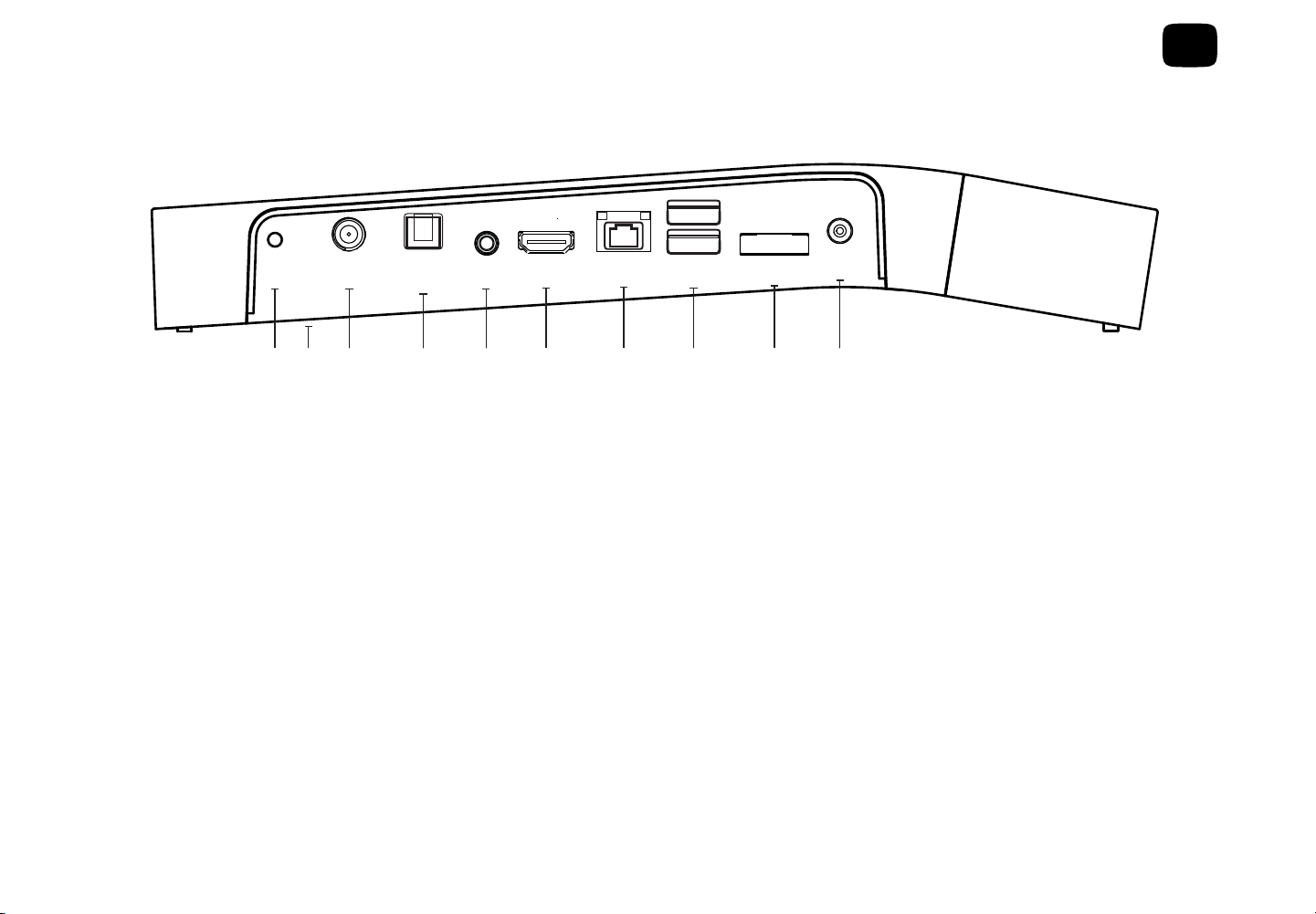
82
APPENDIX A
A
BACK PANEL
Remote Finder. Press this button to make your remote control
emit a sound. To turn off the remote finder, press this button
again, or press any button on the remote.
CableCARD™ Compartment. (Underside of the TiVo BOLT)
Compartment for one multi-stream CableCARD decoder.
Once your CableCARD decoder is installed, you should not
remove it for any reason.
Cable/Ant. Connects to your cable TV source or a TV
antenna. Connect a Coaxial RF cable from your wall/cable
source or antenna to this jack.
Digital Audio (Optical). Use an optical digital audio cable
(sold separately) to connect the TiVo BOLT to your home
theater system for digital sound.
Audio L/R. Use a breakout A/V cable (sold seperately) for
analog stereo sound.
HDMI
®
. Connects to a TV, A/V receiver or home theater
system. The HDMI port provides a pure digital connection for
high-definition video and digital audio all in one cable.
Ethernet. Connects the TiVo BOLT to your home network
using an Ethernet cable.
USB.
External Storage. For TiVo-verified external hard drive.
쐅Power. Connects to power outlet. The TiVo BOLT does not
have a power switch; plugging it into the wall socket turns it on
.
CAUTION: TO PREVENT ELECTRICAL SHOCK, MATCH WIDE
BLADE OF PLUG TO WIDE SLOT, AND FULLY INSERT. See
Safety instructions for details.
REMOTE
FINDER
CABLE / ANT AUDIO
L/R
HDMI
ETHERNET
USB
POWER
EXTERNAL STORAGE
(E-SATA)
DIGITAL
AUDIO
(OPTICAL)
176543289
10

83
APPENDIX A
AA
SPECIFICATIONS
VIDEO OUT
HDMI (v2.0) (1) (combined audio/video)
AUDIO OUT
HDMI (v2.0) (1) (combined audio/video)
Digital Audio (Optical) (1)
Stereo L/R RCA (1 pair)
RF IN
Cable/MoCA/Antenna (1)
EXPANSION PORT
USB 2.0 (2)
Gigabit Ethernet (1)
E-SATA (1) *for TiVo-verified external hard drive
POWER
100V-240V, 50/60Hz, 1.0A
AMBIENT (EXTERNAL) OPERATING TEMPERATURE
15 °C to 35 °C
OPERATING HUMIDITY
5% to 80%
DIMENSIONS
11.4” W x 7.3” D x 1.8” H
STORAGE
SATA Hard Drive. NOTE: Actual recording capacity depends
on the type of recording.
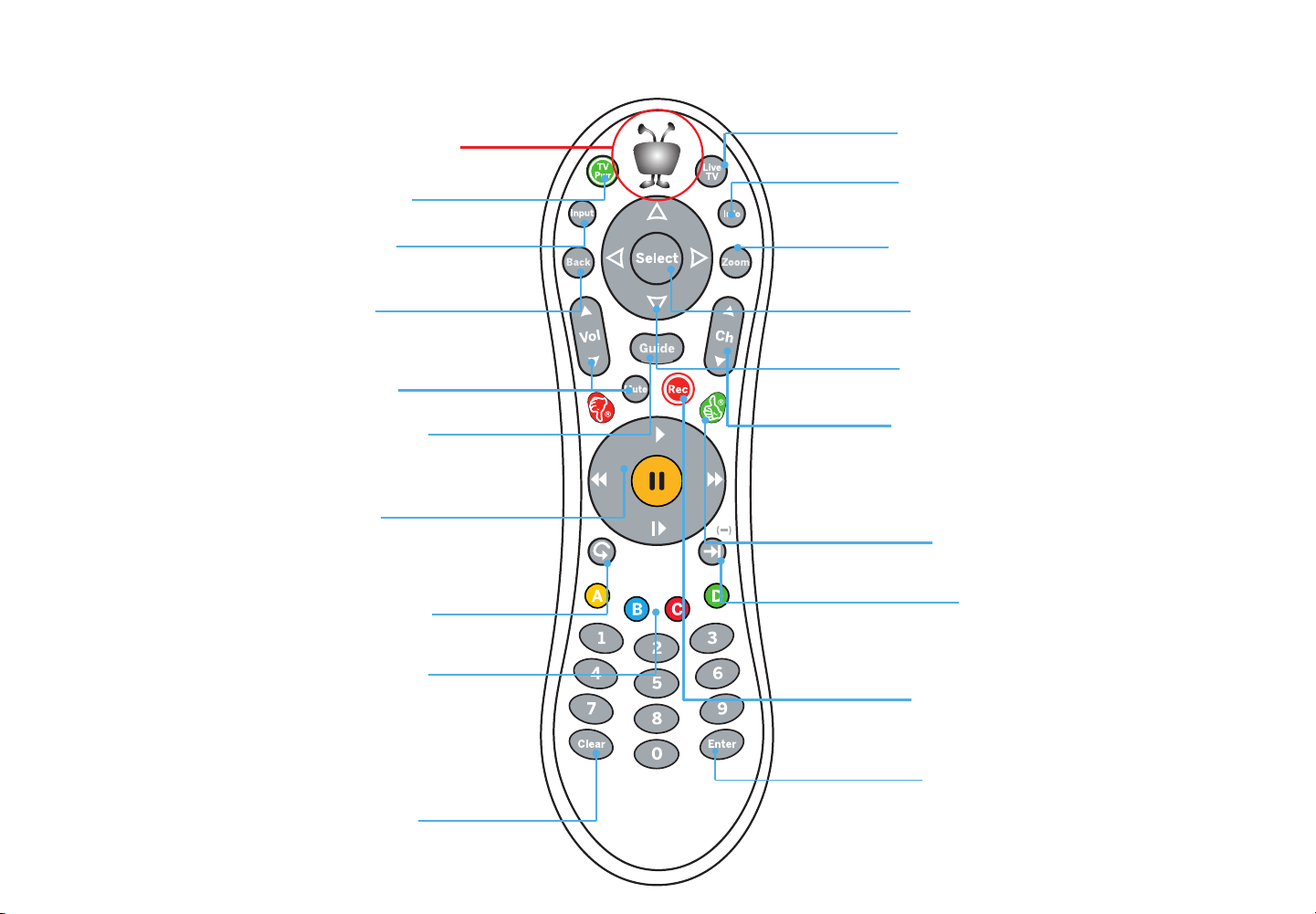
TIVO BOLT REMOTE
L
a
s
t
L
a
s
t
Use the THUMBS UP and THUMBS DOWN
buttons to rate shows for TiVo Suggestions.
ADVANCE
moves forward in 30-second
increments; press and hold to jump to the end of
the show. Or, press Advance to jump to the next
tick mark when fast-forwarding or rewinding.
ENTER/LAST returns you to the last channel
tuned to in live TV.
LIVE TV takes you to live TV. If you’re watching
live TV, use it to cycle through the tuners.
Use the CHANNEL UP/DOWN buttons to change
the channel and to page up or down while in the
program guide or TiVo menus. CHANNEL UP
also initiates SkipMode™ while watching a
recording where SkipMode is available.
Use the ARROW BUTTONS to navigate the TiVo
menus and the program guide.
Use ZOOM to change the aspect ratio of a show
or return to full-screen from the Video Window.
INFO shows the info banner while watching live
TV; press it again to make it disappear.
Press SELECT to choose menu items or, when
watching live TV, to bring up the mini-guide.
The TIVO BUTTON takes you to the TiVo Central
®
screen, the starting point for TiVo features and settings.
Use INPUT to select the input (such as a DVR,
DVD player, game system) your TV displays.
If programmed, VOLUME and MUTE control the
volume on your TV or AV receiver.
PLAY, PAUSE, REWIND, FAST-FORWARD or
play shows in SLOW MOTION. Press Rewind
and Fast-Forward up to three times for three
speeds.
REPLAY repeats the last 8 seconds of the show.
Press and hold to jump to the beginning of a show.
The A, B, C buttons set options and sort and lter
views. Press and hold A to turn on the screen
reader. Press and hold B to turn on closed
captioning. Press and hold C to turn on audio
description. The D button initiates SkipMode when
available.
CLEAR removes the display of the info banner or
program guide, and deletes titles from the My
Shows or To Do list.
If programmed, TV PWR turns your TV on or off.
BACK goes back to the previous screen (in
certain apps).
Press RECORD to record the show you’re
watching, or to set up a recording for a show
selected in the guide.
GUIDE takes you to the program guide, where you
can nd shows to watch or record.
REMOTE CONTROL QUICK REFERENCE
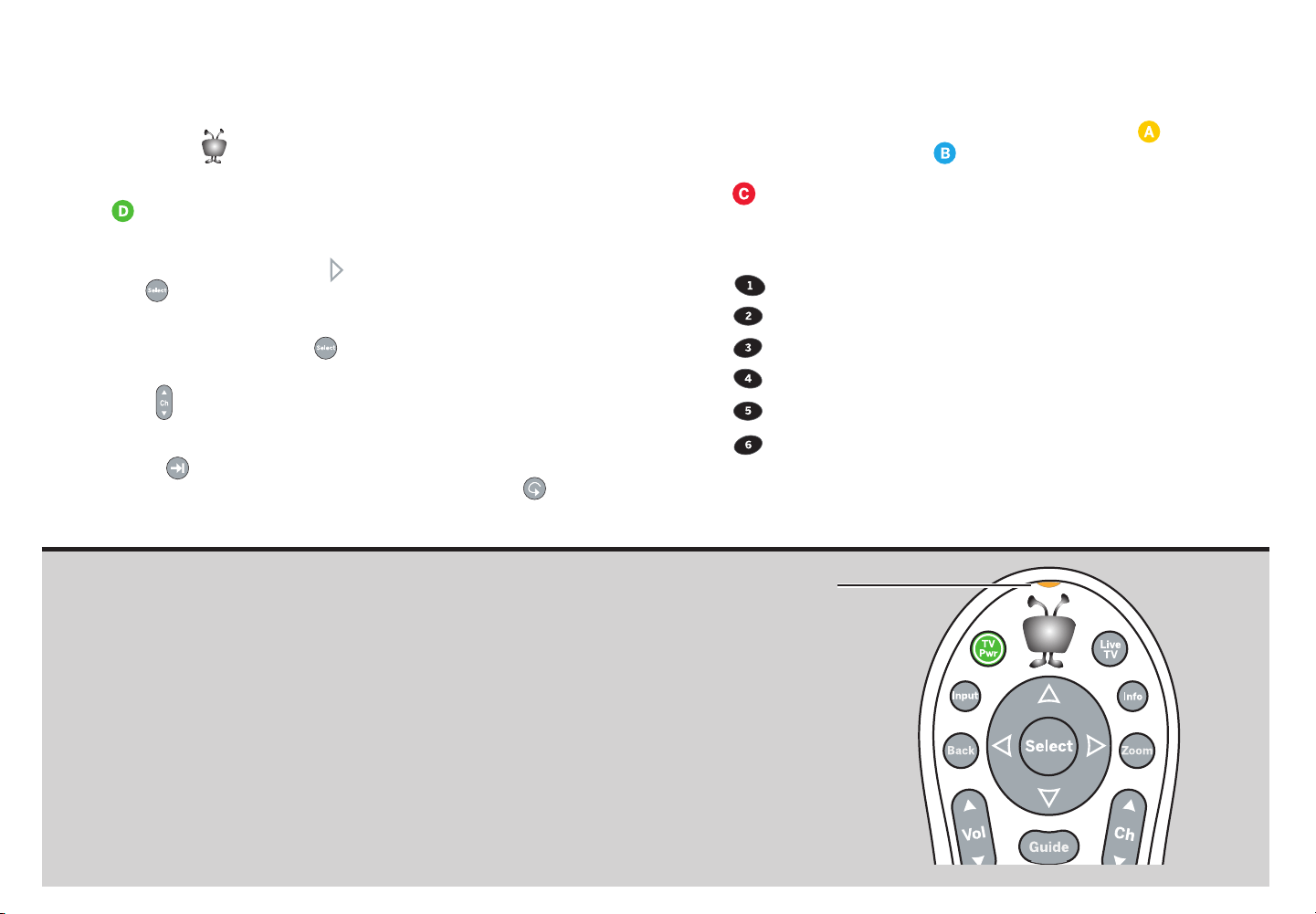
REMOTE CONTROL TIPS & SHORTCUTS
Press the TiVo button once to go to the TiVo Central
®
screen, or twice to
go to the My Shows list—your list of recorded shows.
Press the button to skip commercial breaks and resume playing
automatically.
While watching a recording, press PLAY to bring up the status bar, and then
press SELECT to enter QuickMode™ -- that’s speeding up a show without
missing any dialogue! Press SELECT again to play at normal speed.
While watching live TV, press SELECT to see the mini-guide: a snapshot of
what’s coming up on the next three channels.
CH UP/DOWN does more than change the channel—it also pages up or
down through lists of shows or menu items.
Press ADVANCE to move forward 30 seconds. Press and hold to catch
up to live TV or jump to the end of a recorded show. Press REPLAY to
jump back 8 seconds. Press and hold to jump to the beginning of a show.
Turn on accessibility features with the remote: press and hold to turn on
the screen reader. Press and hold
to turn on closed captioning. Press and
hold
to to turn on audio description.
Get where you want to go quickly! From the TiVo Central
®
screen, press the
following number buttons for these shortcuts:
OnePass Manager
To Do List
WishList Search screen
Search
Browse
History
Note: Not all shortcuts are available on all devices.
REMOTE CONTROL TROUBLESHOOTING
Press any button on the remote. Does the activity light above the TiVo
button on the remote ash?
If the activity light does not ash, make sure the batteries are
positioned correctly in the remote. If they are correctly positioned, try
a new set of batteries.
If the activity light on the remote does ash, but the lights on the front
of the device do not respond to the remote, restart your device by
unplugging it, waiting 15 seconds, then plugging it back in.
See the Troubleshooting chapter for more help with your remote control.
Activity light
REMOTE CONTROL QUICK REFERENCE
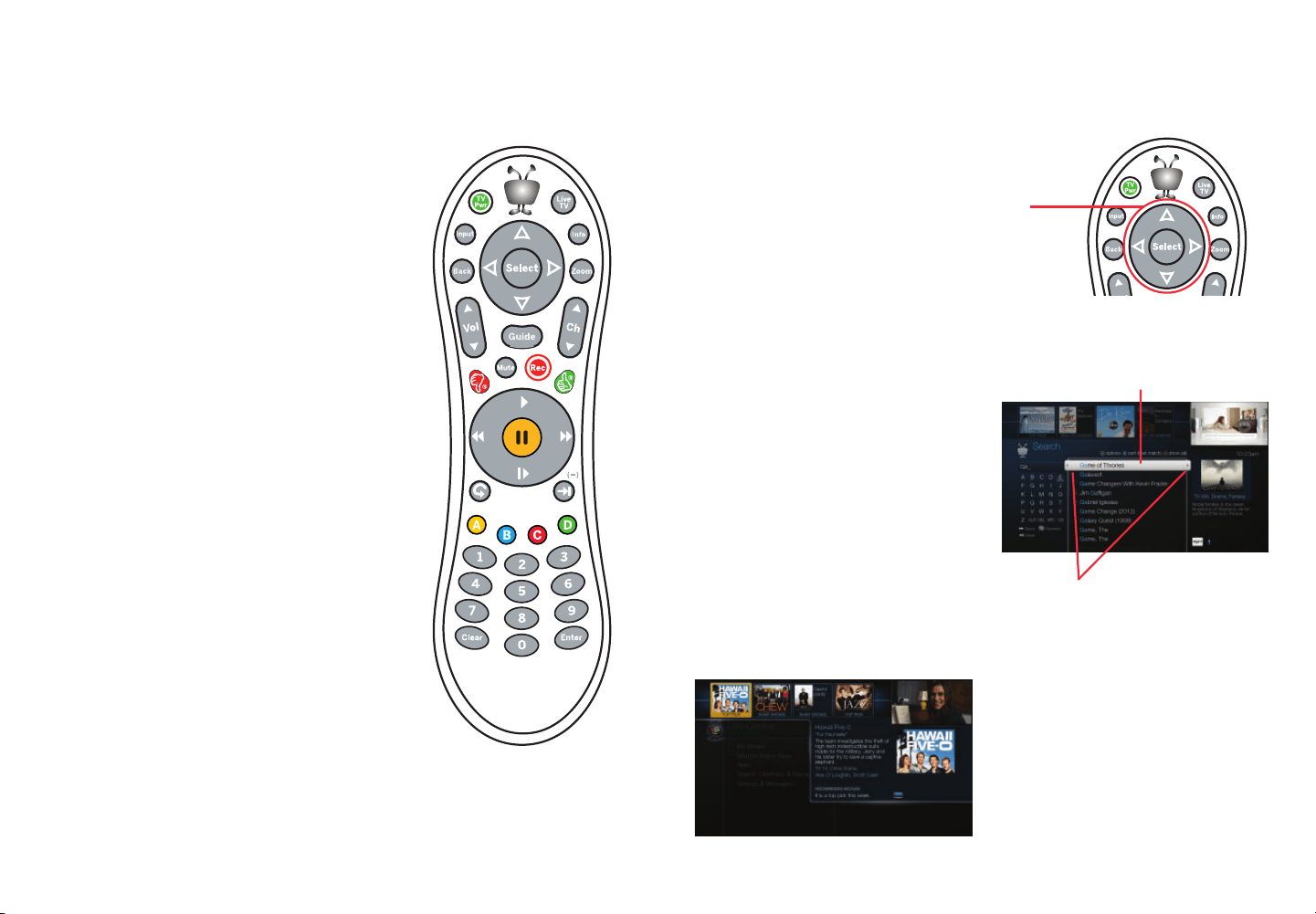
To navigate the on-screen menus, use the
remote control’s arrow buttons to move to the
option you want, then press SELECT.
The LEFT arrow button takes you to the previous
screen.
ON-SCREEN ARROWS
USING THE ON-SCREEN MENUS
The arrows that appear on the
highlight bar show the directions you
can move. For example, on this
screen, you could press the RIGHT
arrow to view details about the
highlighted title, or the LEFT arrow to
go back to the previous screen.
L
a
s
t
L
a
s
t
Highlight Bar
DISCOVERY BAR
The Discovery Bar is the bar of images
across the top of the TiVo Central
screen and other menu screens. Press
the UP arrow to move up to the
Discovery Bar, then the LEFT and
RIGHT arrows to move around. Select
an image that interests you to learn
more about that item.
Arrows on the
Highlight Bar
When programmed, the POWER, INPUT,
VOLUME, and MUTE buttons on the TiVo
remote can control your TV or AV receiver.
Even better, the TiVo BOLT remote control
is an RF remote. This means that the
remote can control your TiVo box even if
the box is not in direct line of sight with
the remote (for instance, if it is behind a
cabinet door).
Your remote control should be ready to
use in RF mode after you complete
Guided Setup. However, if you have
trouble using the remote in RF mode, or if
you purchase additional remotes, you may
need to “pair” the remote to your DVR
before using it.
To program or pair your TiVo remote,
press the TiVo button to go to the TiVo
Central
screen and select ‘Settings &
Messages,’ then ‘Remote, CableCARD, &
Devices,’ then ‘Remote Control Setup.’
Follow the on-screen instructions.
CUSTOMIZING YOUR TIVO
®
REMOTE
L
a
s
t
L
a
s
t
REMOTE CONTROL QUICK REFERENCE
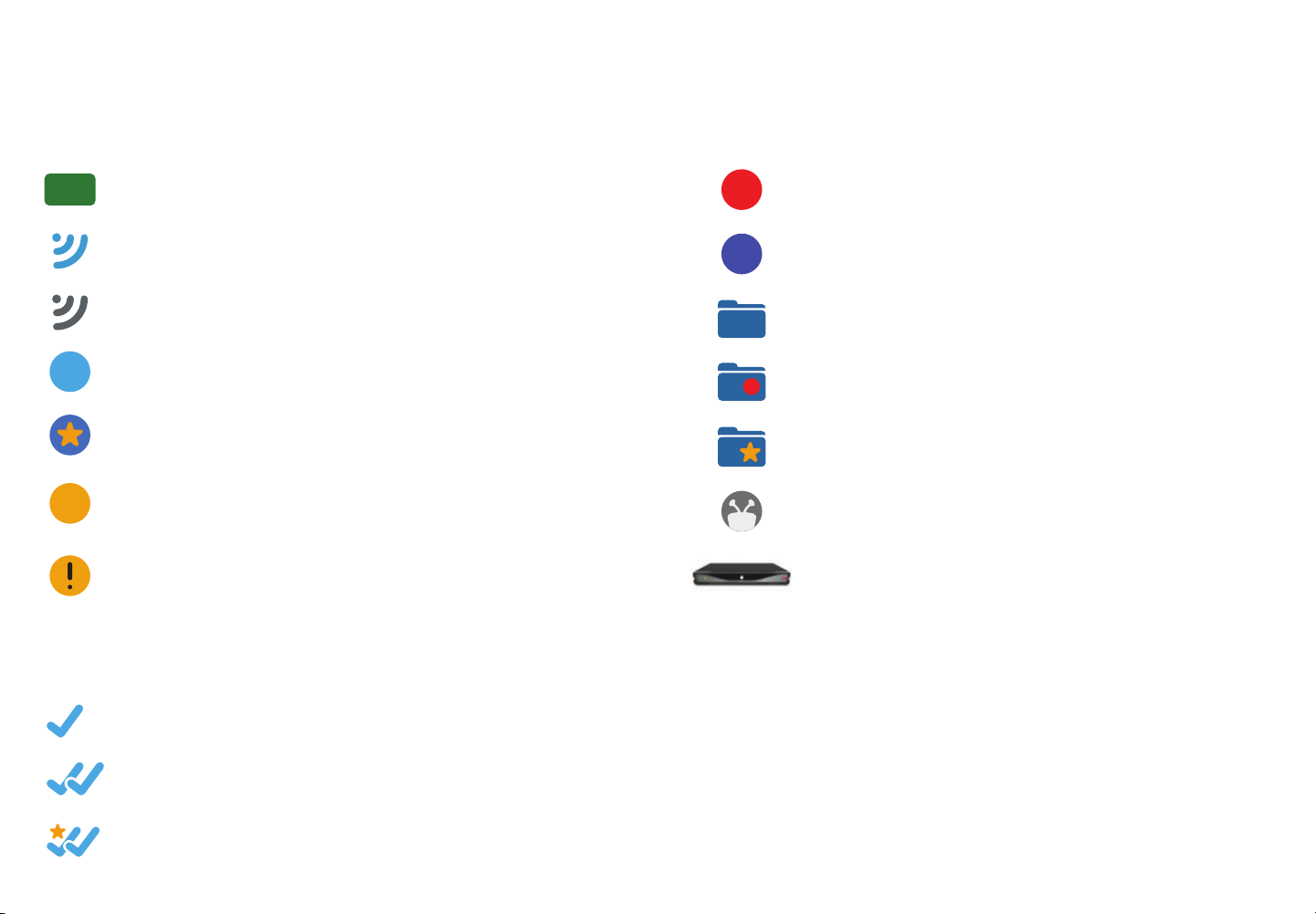
GLOSSARY OF ON-SCREEN ICONS
MY SHOWS
TO DO LIST & UPCOMING EPISODES
(These icons appear beside shows scheduled to be recorded or downloaded.)
Show will be recorded or downloaded as an individual recording (not part of a OnePass
™
or WishList search).
Show will be recorded or downloaded as part of a OnePass search.
Show will be recorded as part of a WishList search.
Other TiVo boxes on your home network.
Currently downloading or streaming from another TiVo box.
Currently being recorded.
TiVo
®
Suggestion. TiVo Suggestions are recorded only if space is
available, and are the rst to be deleted when space is needed.
Recording may be deleted in less than 3 days to make room for other
recordings you have requested, but only if space is needed.
Recording may be deleted in less than one day to make room for other
recordings you have requested, but only if space is needed.
Recording will be kept until space is needed.
Recording is part of a WishList
®
search.
Streaming video available to watch now.
Streaming video that is currently unavailable.
SkipMode
™
is available on this recording.
SKIP
Folder with red or blue circle – contains a show that is currently
recording (red) or downloading/transferring (blue).
Plain folder – contains more than one episode of the same
series.
Folder with star – contains one or more shows recorded by a
WishList search.
GLOSSARY OF ON-SCREEN ICONS