

Symbols ........................................................ 5
At a glance .................................................... 6
Cockpit ........................................................... 6
Warning and indicator lamps ........................ 10
Warning and indicator lamps ........................ 12
Overhead control panel ................................ 14
Door control panel and seat adjustment ....... 16
Emergencies and breakdowns ...................... 18
Digital Operator's Manual ......................... 20
Calling up the Digital Operator's Manual ...... 20
General notes ............................................. 22
Protecting the environment .......................... 22
Genuine Mercedes-Benz parts ................. ..... 22
Operator's Manual ........................................ 23
Service and vehicle operation ....................... 24
Operating safety ........................................... 25
Declaration of conformity for wireless
vehicle components ..................................... 26
Diagnostics connection ................................ 26
Qualified specialist workshop ....................... 27
Correct use of the vehicle ............................. 27
Problems with your vehicle ........................... 28
Reporting safety defects ............................... 28
Limited Warranty .......................................... 28
QR code for rescue card ............................... 29
Data storage ................................................. 29
Copyright ...................................................... 32
Occupant safety ......................................... 34
Restraint system ........................................... 34
Seat belts ..................................................... 36
Airbags ......................................................... 40
PRE-SAFE
®
system ....................................... 48
Safely transporting children in the vehi‐
cle ................................................................ 49
Notes on pets in the vehicle ......................... 64
Opening and closing .................................. 65
SmartKey ...................................................... 65
Doors ............................................................ 70
Trunk ............................................................. 74
Side windows ............................................... 77
Sliding sunroof .............................................. 81
Anti-theft protection ..................................... 85
Seats and stowing ...................................... 87
Notes on the correct driver's seat posi‐
tion ............................................................... 87
Seats ............................................................ 88
Steering wheel .............................................. 95
Easy entry and exit feature ........................... 96
Operating the memory function .................... 97
Stowage areas .............................................. 99
Cup holder .................................................. 106
Sockets ....................................................... 107
Wireless charging of the mobile phone
and connection with the exterior antenna .. 109
Installing/removing the floor mats .............. 111
Light and visibility .................................... 113
Exterior lighting ........................................... 113
Interior lighting ............................................ 118
Windshield wiper and windshield washer
system ........................................................ 119
Mirrors ........................................................ 121
Operating the sun visors ............................. 124
Climate control ......................................... 125
Overview of climate control systems .......... 125
2
Contents

Operating the climate control system ......... 125
Driving and parking ................................. 129
Driving ........................................................ 129
DYNAMIC SELECT switch ............................ 137
Automatic transmission .............................. 140
Function of the 4MATIC .............................. 144
Refueling .................................................... 145
Parking ....................................................... 147
Driving and driving safety systems ............. 156
Vehicle towing instructions ......................... 208
Instrument Display and on-board
computer .................................................. 210
Instrument Display overview ....................... 210
Overview of the buttons on the steering
wheel .......................................................... 211
Operating the on-board computer ............... 212
Adjusting the design of the Instrument
Display ........................................................ 213
Showing display content on the instru‐
ment cluster ................................................ 214
Overview of displays on the multifunc‐
tion display ................................................. 215
Adjusting the instrument lighting ................ 216
Menus and submenus ................................. 216
Head-up Display ......................................... 222
Voice Control System .............................. 224
Notes on operating safety ........................... 224
Operation ................................................... 224
Using the Voice Control System effec‐
tively ........................................................... 227
Essential voice commands ......................... 228
MBUX multimedia system ....................... 242
Overview and operation .............................. 242
System settings .......................................... 273
Fit & Healthy ............................................... 283
Navigation .................................................. 288
Telephone ................................................... 328
Online and Internet functions ..................... 355
Media ......................................................... 362
Radio .......................................................... 369
Sound ......................................................... 377
Maintenance and care ............................. 381
ASSYST PLUS service interval display ......... 381
Engine compartment .................................. 382
Cleaning and care ....................................... 387
Breakdown assistance ............................ 397
Emergency .................................................. 397
Flat tire ....................................................... 397
Battery (vehicle) ......................................... 404
Tow starting or towing away ....................... 409
Electrical fuses ............................................ 414
Wheels and tires ....................................... 417
Notes on noise or unusual handling char‐
acteristics ................................................... 417
Notes on regularly inspecting wheels and
tires ............................................................. 417
Notes on snow chains ................................. 418
Tire pressure ........... .................................... 419
Loading the vehicle .................................... 426
Tire labeling ................................................ 430
Definition of terms for tires and loading ..... 436
Changing a wheel ....................................... 438
Contents
3

Technical data .......................................... 448
Notes on technical data .............................. 448
Vehicle electronics ..................................... 448
Vehicle identification plate, VIN and
engine number ........................................... 450
Operating fluids .......................................... 451
Vehicle data ................................................ 458
Display messages and warning/indi‐
cator lamps .............................................. 460
Display messages ....................................... 460
Warning and indicator lamps ...................... 503
Index .......................................................... 517
4
Contents
In this Operator's Manual, you will find the fol‐
lowing symbols:
&
DANGER Danger due to not observing
the warning notices
Warning notices draw your attention to haz‐
ards that may endanger your health or life, or
the health or life of others.
#
Observe the warning notices.
+
ENVIRONMENTAL NOTE Environmental
damage due to failure to observe envi‐
ronmental notes
Environmental notes include information on
environmentally responsible behavior or envi‐
ronmentally responsible disposal.
#
Observe environmental notes.
*
NOTE Damage to property due to failure
to observe notes on material damage
Notes on material damage inform you of
risks which may lead to your vehicle being
damaged.
#
Observe notes on material damage.
%
Useful instructions or further information
that could be helpful to you.
X
Instruction
(Q page)
Further information on a topic
Display
Information on the multifunction dis‐
play/media display
+
Highest menu level, which is to be
selected in the multimedia system
*
Corresponding submenus, which are
to be selected in the multimedia sys‐
tem
* Marks a cause
Symbols
5
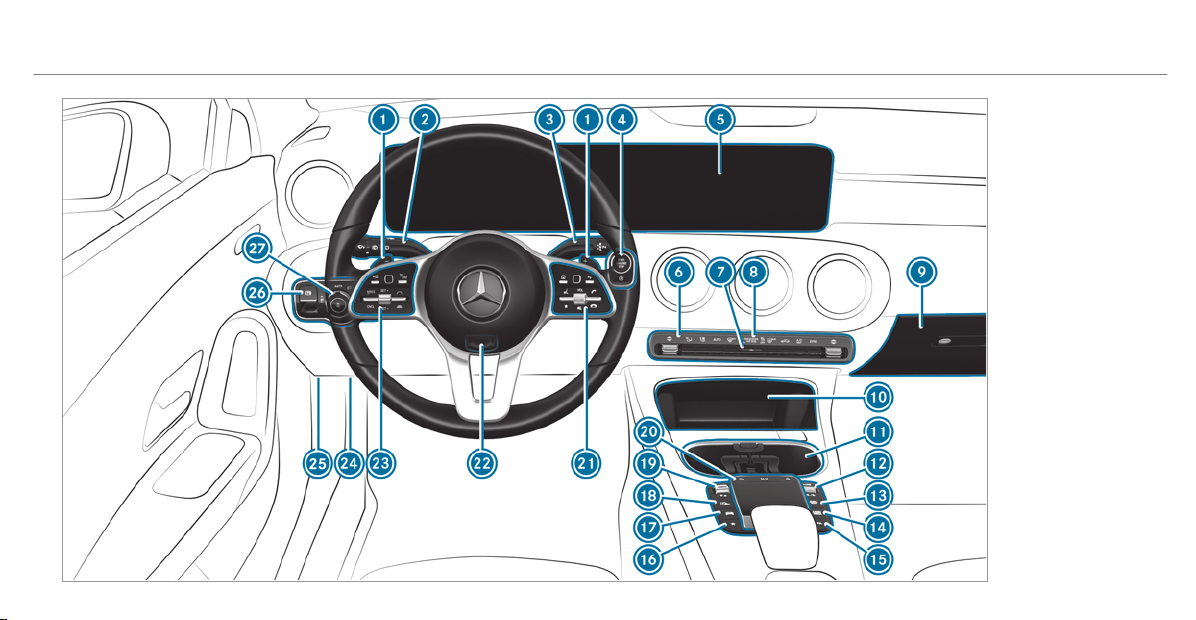
Left-hand-drive vehicles
6
At a glance – Cockpit

1
Steering wheel paddle shifters
→
142
2
Combination switch
→
114
3
DIRECT SELECT lever
→
140
4
Start/stop button
→
130
5
MBUX multimedia system display
→
246
6
Climate control systems
→
125
7
Hazard warning lamps
→
115
8
PASSENGER AIRBAG indicator lamps
→
45
9
Glove box
→
100
A
Stowage compartment
→
100
B
Cup holder
→
106
C
Control knob
Adjusts the volume and switches the sound
on/off
→
242
Switches the MBUX multimedia system
on/off
→
242
D
Calls up navigation
→
288
E
Calls up the radio
→
370
Calls up media
→
365
F
Calls up the telephone
→
330
G
Calls up favourites
→
258
H
Calls up vehicle functions
→
250
I
Active Parking Assist
→
195
J
DYNAMIC SELECT switch
→
138
K
Control elements for the MBUX multimedia
system
→
246
L
Control panel for the MBUX multimedia sys‐
tem (steering wheel)
→
211
M
Adjusts the steering wheel
→
95
N
Control panel for:
On-board computer
→
211
Operates cruise control
→
168
Operates Active Distance Assist DISTRONIC
→
171
O
Diagnostics connection
→
26
At a glance – Cockpit
7

P
Unlocks the hood
→
382
Q
Electric parking brake
→
153
R
Light switch
→
113
8
At a glance – Cockpit

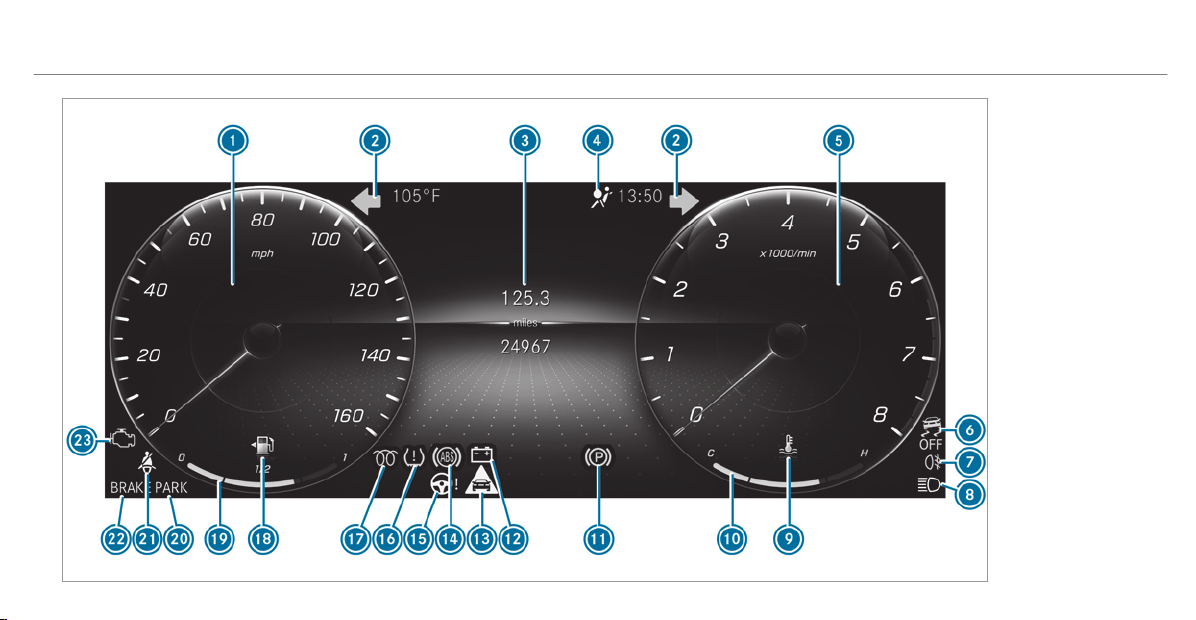
Instrument Display in the Widescreen Cockpit
10
At a glance – Warning and indicator lamps

1
Speedometer
→
210
2
#! Turn signal indicators
→
114
3
Multifunction display
→
215
4
6 Restraint system
→
35
5
Tachometer
→
210
6
å ESP
®
OFF
→
505
÷ ESP
®
→
505
7
R Rear fog light
→
114
8
K High beam
→
114
L Low beam
→
113
T Parking lights
→
113
9
? Coolant too hot/cold
→
511
A
Coolant temperature gauge
→
210
B
! Electric parking brake (yellow)
→
505
C
# Electrical malfunction
→
511
D
L Distance warning
→
511
E
! ABS malfunction
→
505
F
Ð Power-assisted steering malfunction
→
515
G
h Tire pressure monitor
→
514
H
% This indicator lamp has no function
I
æ Fuel reserve with fuel filler cap location
indicator
→
511
J
Fuel level display
K
Electric parking brake applied (red)
→
505
F USA only
! Canada only
L
ü Seat belt not fastened
→
510
M
Brakes (red)
→
505
$ USA only
J Canada only
N
; Check Engine
→
511
At a glance – Warning and indicator lamps
11
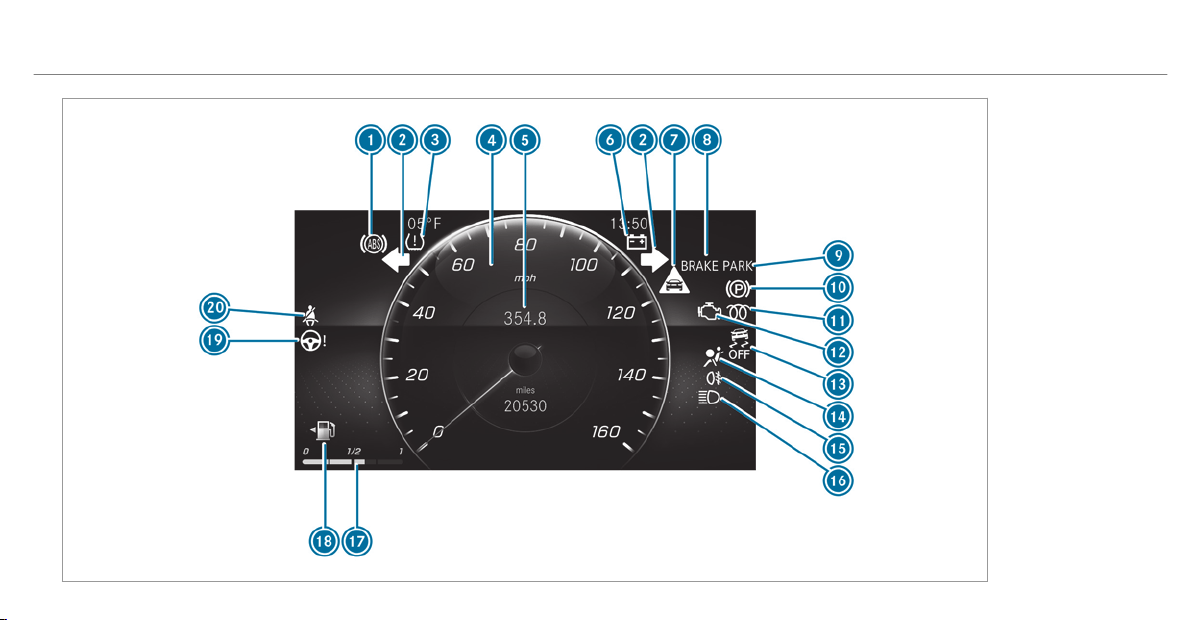
Instrument Display (standard)
12
At a glance – Warning and indicator lamps

1
! ABS malfunction
→
505
2
#! Turn signal indicators
→
114
3
h Tire pressure monitor
→
514
4
Speedometer
→
210
5
Multifunction display
→
215
6
# Electrical malfunction
→
511
7
L Distance warning
→
511
8
Brakes (red)
→
505
$ USA only
J Canada only
9
Electric parking brake applied (red)
→
505
F USA only
! Canada only
A
! Electric parking brake (yellow)
→
505
B
% This indicator lamp has no function
C
; Check Engine
→
511
D
å ESP
®
OFF
→
505
÷ ESP
®
→
505
E
6 Restraint system
→
35
F
R Rear fog light
→
114
G
K High beam
→
114
L Low beam
→
113
T Parking lights
→
113
H
Fuel level display
I
æ Fuel reserve with fuel filler cap location
indicator
→
511
J
Ð Power-assisted steering malfunction
→
515
K
ü Seat belt not fastened
→
510
At a glance – Warning and indicator lamps
13
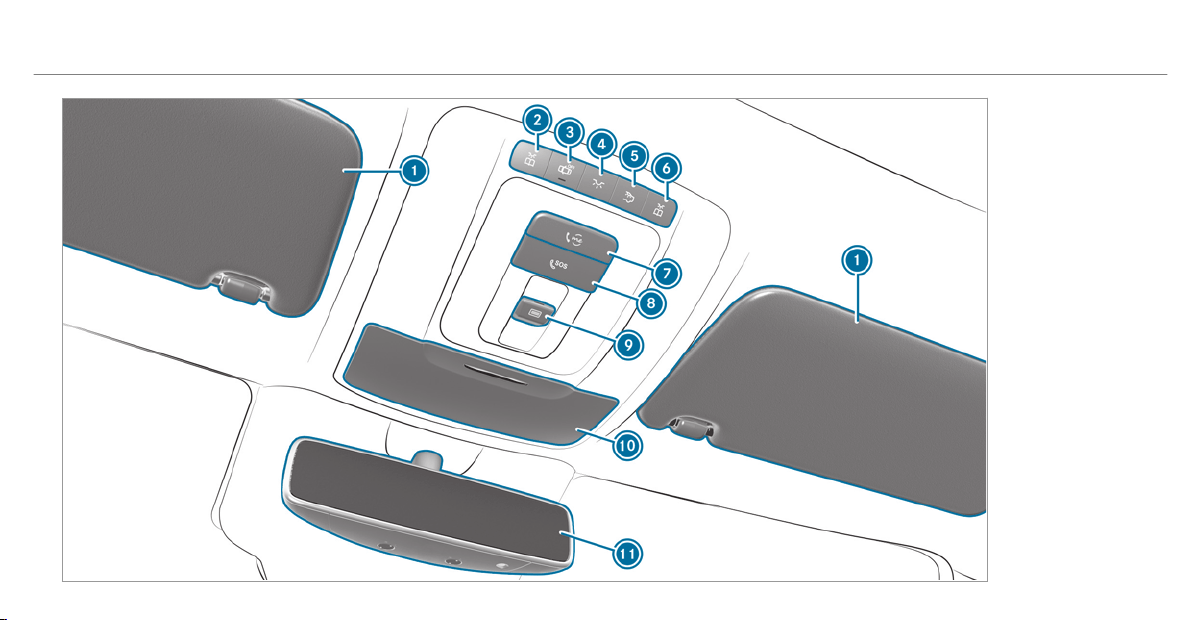
14
At a glance – Overhead control panel

1
Sun visors
→
124
2
p Switches the left-hand reading lamp
on/off
→
118
3
| Switches automatic light control on/off
→
118
4
c Switches the front interior lighting
on/off
→
118
5
u Switches the rear interior lighting
on/off
→
118
6
p Switches the right-hand reading lamp
on/off
→
118
7
Service call button (Mercedes me connect)
→
350
8
SOS emergency call system (Mercedes-Benz
emergency call system)
→
350
9
3 Opens/closes the panoramic sliding
sunroof
→
81
Opens/closes the roller sunblinds
→
81
A
Eyeglasses compartment
→
101
B
Inside rearview mirror
→
122
At a glance – Overhead control panel
15
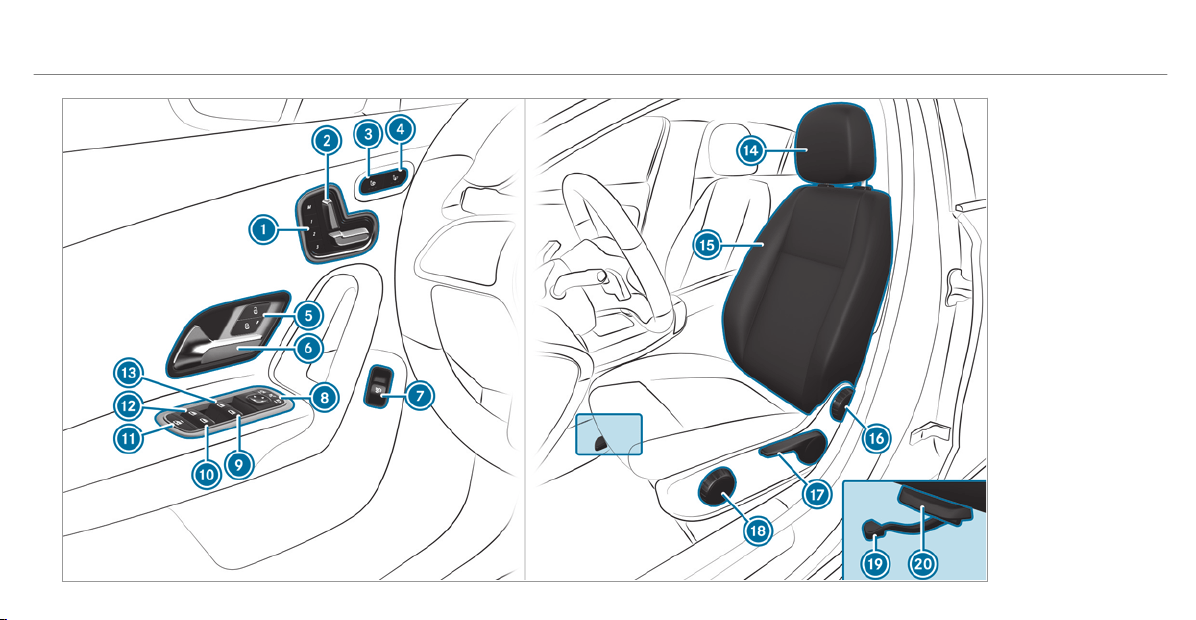
16
At a glance – Door control panel and seat adjustment

1
Operates the memory function
→
97
2
Adjusts the seats electrically
→
90
3
Switches the seat heating on/off
→
93
4
Switches the seat ventilation on/off
→
94
5
& % Locks/unlocks the vehicle
→
70
6
Opens the door
→
70
7
Opens the trunk lid
→
74
8
Operates the outside mirrors
→
121
9
W Opens/closes the right side window
→
77
A
W Opens/closes the rear right side win‐
dow
→
77
B
Child safety lock for the rear side windows
→
63
C
W Opens/closes the rear left side window
→
77
D
W Opens/closes the left side window
→
77
E
Adjusts the head restraints
→
91
F
Seat adjustment using the multimedia system
→
93
G
Adjusts the seat backrest inclination
→
90
H
Adjusts the seat height
→
90
I
Adjusts the seat cushion inclination
→
90
J
Sets the seat fore-and-aft adjustment
→
90
K
Adjusts the seat cushion length
→
90
At a glance – Door control panel and seat adjustment
17
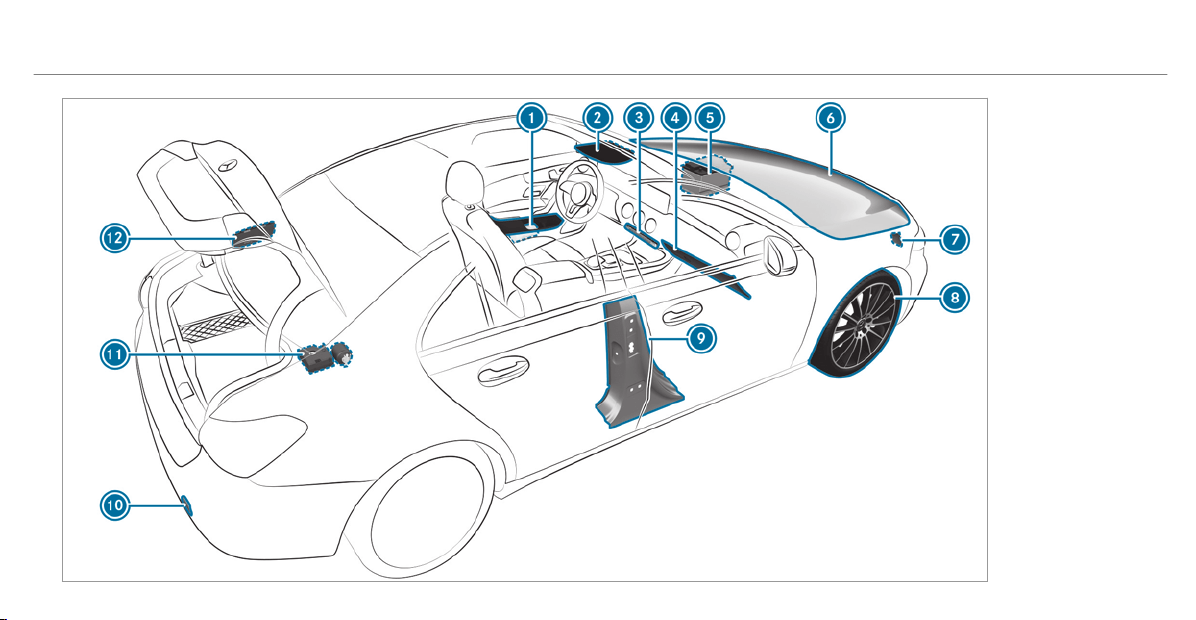
18
At a glance – Emergencies and breakdowns

1
Safety vests
→
397
2
Buttons for the SOS emergency call system
and breakdown assistance
3
Hazard warning lights
→
115
4
Glove box
→
100
5
Starting assistance
→
408
6
Checking and topping up operating fluids
→
451
7
To tow-start and tow away
→
410
8
Flat tire
→
397
9
QR code for accessing the rescue card
→
29
A
To tow-start and tow away
→
410
B
TIREFIT kit
→
399
C
Fuel filler flap with instruction labels for tire
pressure, fuel type and QR code for accessing
the rescue card
→
145
At a glance – Emergencies and breakdowns
19
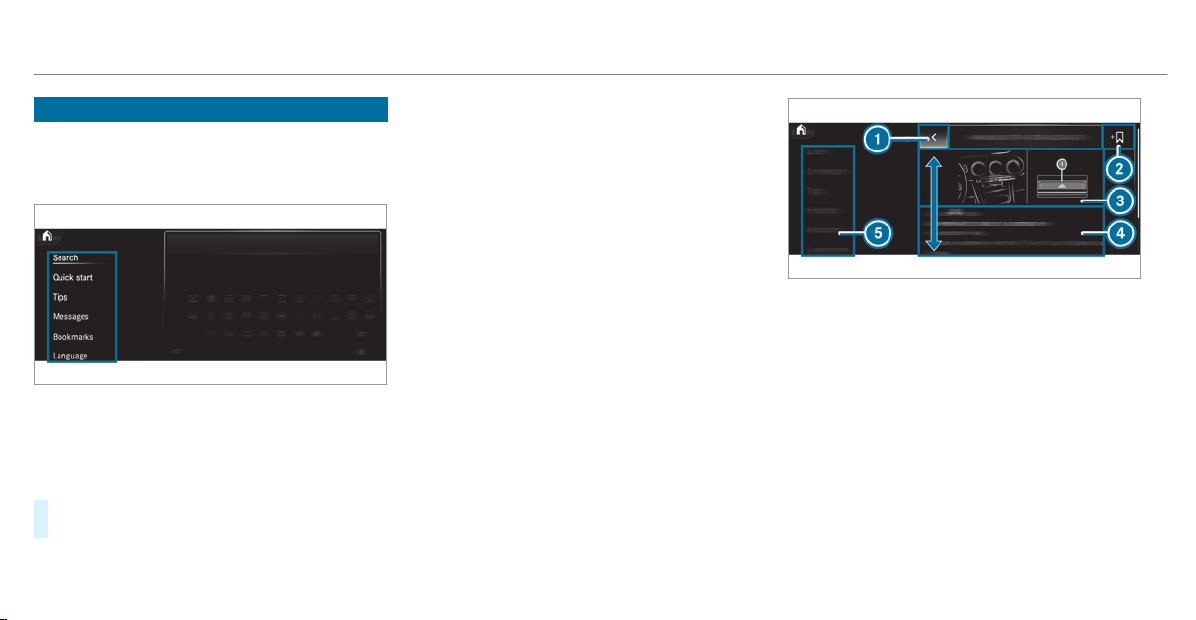
Calling up the Digital Operator's Manual
Multimedia system:
4
©
5
Info
5
Operator's Manual
5
Õ
The Digital Operator's Manual describes the
function and operation of:
R
the vehicle
R
the multimedia system
#
Select one of the following menu items in the
Digital Operator's Manual:
R
Search: search for keywords in order to find
quick answers to questions about the opera‐
tion of the vehicle.
R
Quick start: find the first steps towards set‐
ting up your vehicle.
R
Tips: find information that prepares you for
certain everyday situations with your vehicle.
R
Animations: watch animations of selected
vehicle functions.
R
Messages: receive additional information
about the messages in the instrument dis‐
play.
R
Bookmarks: gain access to your personally
saved bookmarks.
R
Language: select the language for the Digital
Operator's Manual.
1
Back
2
Adds bookmarks
3
Picture
4
Contents section
5
Menu
Some sections in the Digital Operator's Manual,
e.g. warning notes, can be opened and closed.
Additional methods of calling up the Digital
Operator's Manual:
Direct access: open the required content in the
Digital Operator's Manual by pressing and hold‐
ing an entry on the tab bar in the multimedia
system:
20
Digital Operator's Manual
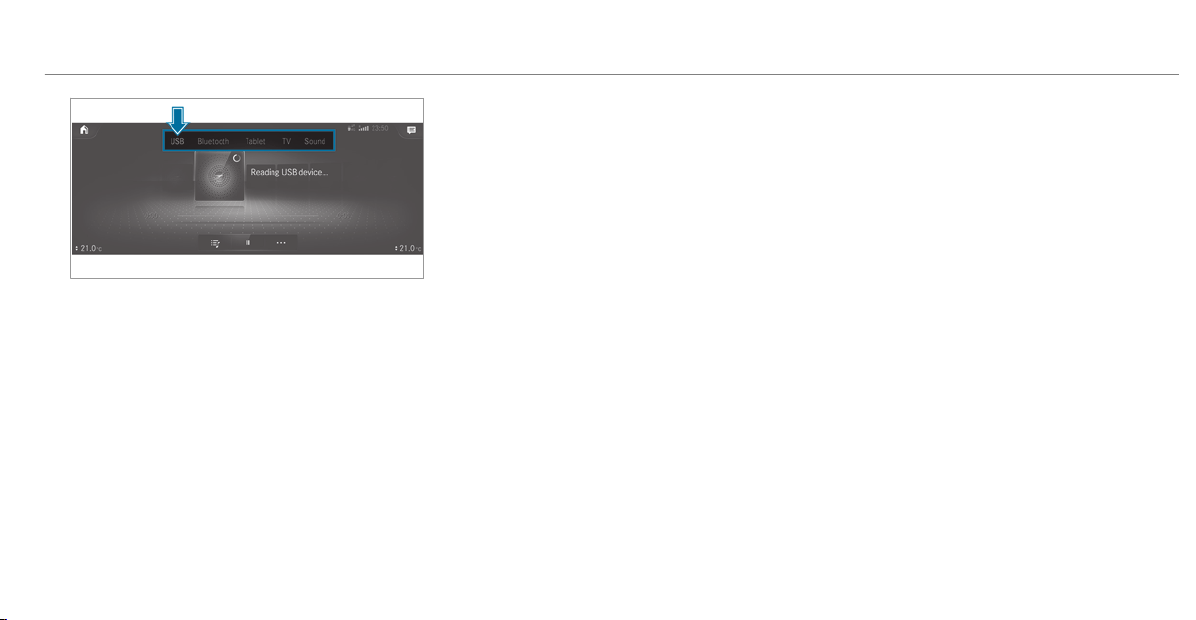
Instrument Display: call up brief information as
display messages in the instrument cluster.
Voice Control System: call up via the voice
control system
Global search: call up search results for con‐
tents of the Digital Operator's Manual in the
home screen
For safety reasons, the Digital Operator's Man‐
ual is deactivated while driving.
%
The Operator's Manual can also be found in
the Mercedes-Benz Guides app in all com‐
mon app stores.
Digital Operator's Manual
21
Protecting the environment
+
ENVIRONMENTAL NOTE Environmental
damage due to operating conditions and
personal driving style
The pollutant emission of your vehicle is
directly related to the way you operate your
vehicle.
Help to protect the environment by operating
your vehicle in an environmentally responsi‐
ble manner. Please observe the following rec‐
ommendations on operating conditions and
personal driving style.
Operating conditions:
#
Make sure that the tire pressure is cor‐
rect.
#
Do not carry any unnecessary weight
(e.g. roof luggage racks once you no
longer need them).
#
Adhere to the service intervals.
A regularly serviced vehicle will contrib‐
ute to environmental protection.
#
Always have maintenance work car ried
out at a qualified specialist workshop.
Personal driving style:
#
Do not depress the accelerator pedal
when starting the engine.
#
Do not warm up the engine while the
vehicle is stationary.
#
Drive carefully and maintain a suitable
distance from the vehicle in front.
#
Avoid frequent, sudden acceleration
and braking.
#
Change gear in good time and use each
gear only up to Ô of its maximum
engine speed.
#
Switch off the engine in stationary traf‐
fic, e.g. by using the ECO start/stop
function.
#
Drive fuel-efficiently. Observe the ECO
display for a fuel-efficient driving style.
Environmental issues and recommendations:
It is recommended that you re-use or recycle
materials instead of just disposing of them.
The relevant environmental guidelines and regu‐
lations serve to protect the environment and
must be strictly observed.
Genuine Mercedes-Benz parts
+
ENVIRONMENTAL NOTE Environmental
damage caused by not using recycled
reconditioned components
Daimler AG offers recycled reconditioned
components and parts with the same quality
as new parts. The same entitlement from the
Limited Warranty is valid as for new parts.
#
Use recycled reconditioned compo‐
nents and parts from Daimler AG.
22
General notes

*
NOTE Impairment of the operating effi‐
ciency of the restraint systems from
installing accessory parts or from repairs
or welding
Airbags and Emergency Tensioning Devices,
as well as control units and sensors for the
restraint systems, may be installed in the fol‐
lowing areas of your vehicle:
R
Doors
R
Door pillars
R
Door sills
R
Seats
R
Cockpit
R
Instrument cluster
R
Center console
R
Lateral roof frame
#
Do not install accessory parts such as
audio systems in these areas.
#
Do not carry out repairs or welding.
#
Have aftermarket installation of acces‐
sories carried out at a qualified special‐
ist workshop.
You could jeopardize the operating safety of your
vehicle if you use parts, tires and wheels as well
as accessories relevant to safety which have not
been approved by Mercedes-Benz. Safety-rele‐
vant systems, e.g. the brake system, may mal‐
function. Only use Mercedes-Benz Genuine Parts
or parts of equal quality. Only use tires, wheels
and accessories that have been specifically
approved for your vehicle model.
Mercedes-Benz Genuine Parts are subject to
strict quality control. Each part has been spe‐
cially developed, manufactured or selected for
Mercedes-Benz vehicles and fine-tuned for them.
Therefore, only Mercedes-Benz Genuine Parts
should be used.
More than 300,000 different Mercedes-Benz
Genuine Parts are available for Mercedes-Benz
models.
All authorized Mercedes-Benz Centers maintain
a supply of Mercedes-Benz Genuine Parts for
necessary service and repair work. In addition,
strategically located parts delivery centers pro‐
vide for quick and reliable parts service.
Always specify the vehicle identification number
(VIN) (
/ page 450) when ordering
Mercedes-Benz Genuine Parts.
Operator's Manual
This Operator's Manual describes all models and
all standard and optional equipment available for
your vehicle at the time of this Operator's Man‐
ual going to press. Country-specific differences
are possible. Note that your vehicle may not be
equipped with all features described. This is also
the case for systems and functions relevant to
safety. Therefore, the equipment on your vehicle
may differ from that in the descriptions and illus‐
trations.
The original purchase agreement for your vehicle
contains a list of all of the systems in your vehi‐
cle.
Should you have any questions concerning
equipment and operation, please consult an
authorized Mercedes-Benz Center.
General notes
23
The Operator's Manual and Maintenance Booklet
are important documents and should be kept in
the vehicle.
Service and vehicle operation
Vehicle operation outside the USA or Canada
When you are abroad with your vehicle, observe
the following points:
R
service points or replacement parts may not
be available immediately.
R
unleaded fuel may not be available for vehi‐
cles with a catalytic converter. Leaded fuel
may cause damage to the catalytic converter.
R
the fuel may have an extremely low octane
number. Unsuitable fuel can cause engine
damage.
Some Mercedes-Benz models are available in
Europe through our European Deliver y Program.
For more information, please consult an author‐
ized Mercedes‑Benz service center, or write to
one of the following address:
in the USA:
Mercedes-Benz USA, LLC
European Delivery Department
One Mercedes-Benz Drive
Sandy Springs, GA 30328
in Canada:
Mercedes-Benz Canada, Inc.
European Delivery Department
98 Vanderhoof Avenue
Toronto, Ontario M4G 4C9
Maintenance
Your customer advisor confirms the service in
the service report.
Roadside Assistance
The Mercedes-Benz Roadside Assistance Pro‐
gram offers technical help in the case of a
breakdown. Your calls to the toll-free Roadside
Assistance Hotline are answered by our agents
24 hours a day, 365 days a year.
1-800-FOR-MERCedes (1-800-367-6372) (USA)
1-800-387-0100 (Canada)
You can find further information in the
Mercedes-Benz Roadside Assistance Program
brochure (USA) or the "Roadside Assistance"
section in the maintenance and warranty infor‐
mation booklet (Canada). You will f ind both in
the vehicle document wallet.
Change of address or change of ownership
In the event of a change of address, please send
us the "Notification of address change" in the
Service and Guarantee booklet or simply call the
Mercedes-Benz Customer Assistance Center
(USA) on the hotline number
1-800-FOR-MERCedes (1-800-367-6372) or Cus‐
tomer Service (Canada) on 1-800-387-0100. We
can then reach you in a timely fashion, if neces‐
sary.
If you sell your Mercedes, please leave all litera‐
ture in the vehicle so that it is available to the
next owner. If you have purchased a used vehi‐
cle, please send us the "Notice of Purchase of
Used Car" in the Service and Guarantee booklet
or simply call the Mercedes-Benz Customer
24
General notes
Assistance Center (USA) at the hotline number
1-800-FOR-MERCedes (1-800-367-6372) or Cus‐
tomer Service (Canada) at 1-800-387-0100.
Operating safety
&
WARNING Risk of accident due to mal‐
functions or system failures
If you do not have the prescribed service/
maintenance work or any required repairs
carried out, this could result in malfunctions
or system failures.
#
Always have the prescr ibed service/
maintenance work as well any required
repairs carried out at a qualif ied spe‐
cialist workshop.
&
WARNING Risk of accident or injury due
to incorrect modifications on electronic
component parts
Modification of electronic components, their
software or wiring could impair their function
and/or the function of other networked com‐
ponent par ts. In particular, systems relevant
to safety could also be affected.
As a result, these may no longer function
properly and/or jeopardize the operating
safety of the vehicle.
#
Never tamper with the wiring and elec‐
tronic component parts or their soft‐
ware.
#
You should have all work on electrical
and electronic components carried out
at a qualified specialist workshop.
Observe the "On-board electronics" section in
"Technical data".
&
WARNING Risk of fire due to flammable
materials on hot parts of the exhaust
system
Flammable material such as leaves, grass or
twigs may ignite if they come into contact
with hot parts of the exhaust system.
#
When driving on unpaved roads or off-
road, regularly check the vehicle under‐
side.
#
Remove trapped plants or other flam‐
mable material.
#
If there is damage, consult a qualified
specialist workshop immediately.
*
NOTE Damage to the vehicle
In the following situations, in particular, there
is a risk of damage to the vehicle:
R
The vehicle becomes grounded, e.g. on a
high curb or an unpaved road
R
The vehicle is driven too fast over an
obstacle, e.g. a curb, speed bump or pot‐
hole
R
A heavy object strikes the underbody or
chassis components
In situations such as this, the body, the
underbody, chassis components, wheels or
tires could be damaged without the damage
being visible. Components damaged in this
General notes
25
way can unexpectedly fail or, in the case of
an accident, may not absorb the loads that
arise as intended.
If the underbody paneling is damaged, flam‐
mable materials such as leaves, grass or
twigs can collect between the underbody and
the underbody paneling. These materials may
ignite if they come into contact with hot
par ts on the exhaust system.
#
Have the vehicle checked and repaired
immediately at a qualified specialist
workshop.
or
#
If driving safety is impaired while con‐
tinuing your journey, pull over and stop
the vehicle immediately in accordance
with the traffic conditions, and contact
a qualified specialist workshop.
Declaration of conformity for wireless vehi‐
cle components
USA: "The wireless devices of this vehicle com‐
ply with Part 15 of the FCC Rules. Operation is
subject to the following two conditions: 1) These
devices may not cause harmful interference, and
2) These devices must accept any interference
received, including interference that may cause
undesired operati on. Changes or modifications
not expressly approved by the party responsible
for compliance could void the user's authority to
operate the equipment."
Canada: "The wireless devices of this vehicle
comply with Industry Canada license-exempt
RSS standard(s). Operation is subject to the fol‐
lowing two conditions: (1) These devices may
not cause interference, and (2) These devices
must accept any interference, including interfer‐
ence that may cause undesired operation of the
device."
USA: "Wireless charging system for mobile devi‐
ces (model: WMI2 Wireless Mobile Interface):
this device complies with Part 18 of the FCC
Rules."
The name and address of the responsible party
is:
peiker acustic GmbH
Max-Planck-Str. 28-32
61381 Friedrichsdorf
Germany
Diagnostics connection
The diagnostics connection is only intended for
the connection of diagnostic devices at a quali‐
fied specialist workshop.
&
WARNING Risk of accident due to con‐
necting devices to the diagnostics con‐
nection
If you connect equipment to a diagnostics
connection in the vehicle, it may affect the
operation of vehicle systems.
As a result, the operating safety of the vehi‐
cle could be affected.
#
Only connect equipment to a diagnos‐
tics connection in the vehicle which is
approved for your vehicle by Mercedes-
Benz.
26
General notes
&
WARNING Risk of accident due to
objects in the driver's footwell
Objects in the driver's footwell may impede
pedal travel or block a depressed pedal.
This jeopardizes the operating and road
safety of the vehicle.
#
Stow all objects in the vehicle securely
so that they cannot get into the driver's
footwell.
#
Always install the floor mats securely
and as prescribed in order to ensure
that there is always sufficient room for
the pedals.
#
Do not use loose floor mats and do not
place floor mats on top of one another.
*
NOTE Battery discharging from using
devices connected to the diagnostics
connection
Using devices at the diagnostics connection
drains the battery.
#
Check the charge level of the battery.
#
If the charge level is low, charge the
battery, e.g. by driving a considerable
distance.
Connecting equipment to the diagnostics con‐
nection can lead to emissions monitoring infor‐
mation being reset, for example. This may lead
to the vehicle failing to meet the requirements of
the next emissions inspection during the main
inspection.
Qualified specialist workshop
An authorized Mercedes-Benz Center is a quali‐
fied specialist workshop. It has the necessary
special skills, tools and qualifications to cor‐
rectly carr y out the work required on your vehi‐
cle. This particularly applies to safety-relevant
works.
For the following, always have your vehicle
checked at an authorized Mercedes-Benz Cen‐
ter:
R
safety-relevant works
R
service and maintenance work
R
repair work
R
modifications as well as installations and
conversions
R
work on electronic components
Mercedes‑Benz recommends a Mercedes‑Benz
service center.
Correct use of the vehicle
If you remove any warning stickers, you or others
could fail to recognize certain dangers. Leave
warning stickers in position.
Observe the following information in particular
when driving your vehicle:
R
the safety notes in this manual
R
technical data for the vehicle
R
traffic rules and regulations
R
laws and safety standards pertaining to
motor vehicles
General notes
27

Problems with your vehicle
If you should experience a problem with your
vehicle, particularly one that you believe may
affect its safe oper ation, we urge you to contact
an authorized Mercedes-Benz Center immedi‐
ately to have the problem diagnosed and recti‐
fied. If the problem is not resolved to your satis‐
faction, please discuss the problem again with
an authorized Mercedes-Benz Center or, if nec‐
essary, cont act us at one of the following
addresses:
In the USA:
Mercedes-Benz USA, LLC
Customer Assistance Center
One Mercedes-Benz Drive
Sandy Springs, GA 30328
In Canada:
Mercedes-Benz Canada, Inc.
Customer Relations Department
98 Vanderhoof Avenue
Toronto, Ontario M4G 4C9
Reporting safety defects
USA only:
The following text is published as required of
manufacturers under Title 49, Code of U.S. Fed‐
eral Regulations, Part 575 pursuant to the
"National Traffic and Motor Vehicle Safety Act of
1966".
If you believe that your vehicle has a defect
which could cause a crash or could cause injury
or death, you should immediately inform the
National Highway Traffic Safety Administration
(NHTSA) in addition to notifying Mercedes-Benz
USA, LLC.
If NHTSA receives similar complaints, it may
open an investigation, and if it finds that a safety
defect exists in a group of vehicles, it may order
a recall and remedy campaign. However, NHTSA
cannot become involved in individual problems
between you, your dealer, or Mercedes-Benz
USA, LLC.
To contact NHTSA, you may call the Vehicle
Safety Hotline toll-free at 1-888-327-4236
(TTY: 1-800-424-9153) (inside the USA); go to
http://www.safercar.gov; or write to: Adminis‐
trator, NHTSA, 400 Seventh Street, SW., Wash‐
ington, DC 20590, USA.
Further information on vehicle safety can be
found at: http://www.safercar.gov
Limited Warranty
*
NOTE Damage to the vehicle arising
from violation of these operating instruc‐
tions.
Damage to the vehicle can arise from viola‐
tion of these operating instructions.
This damage is not covered either by the
Mercedes-Benz implied warranty or by the
New‑ or Used-Vehicle Warranty.
#
Follow the instructions in these operat‐
ing instructions on proper operation of
your vehicle as well as on possible vehi‐
cle damage.
28
General notes

QR code for rescue card
The QR code is secured in the fuel filler flap and
on the opposite side on the B-pillar. In the event
of an accident, rescue services can use the QR
code to quickly find the appropriate rescue card
for your vehicle. The current rescue card con‐
tains the most important information about your
vehicle in a compact form, e.g. the routing of the
electric lines.
Further information can be obtained at http://
www.mercedes-benz.de/qr-code.
Data storage
Electronic control units
Electronic control units are installed in your vehi‐
cle. Some of these are necessary for the safe
operation of your vehicle, while some assist you
when driving (driver assistance systems). In
addition, your vehicle provides comfort and
entertainment functions, which are also made
possible by electronic control units.
Electronic control units contain data memories
which can temporarily or permanently store
technical information about the vehicle's operat‐
ing state, component loads, maintenance
requirements and technical events or malfunc‐
tions.
In general, this information documents the state
of a component part, a module, a system or the
surroundings such as:
R
operating status of system components (e.g.
fill levels, battery status, tire pressure)
R
status messages concerning the vehicle or
its individual components (e.g. number of
wheel revolutions/speed, longitudinal accel‐
eration, lateral acceleration, display of fas‐
tened seat belts)
R
malfunctions or faults in important system
components (e.g. lights, br akes)
R
information on events leading to vehicle
damage
R
system reactions in special driving situations
(e.g. airbag deployment, intervention of sta‐
bility control systems)
R
ambient conditions (e.g. temperature, rain
sensor)
In addition to providing the actual control unit
function, this data assists the manufacturer in
detecting and rectifying malfunctions and opti‐
mizing vehicle functions. The majority of this
data is temporary and is only processed in the
vehicle itself. Only a small portion of the data is
stored in the event or malfunction memory.
When your vehicle is serviced, technical data
from the vehicle can be read out by service net‐
work employees (e.g. workshops, manufactur‐
ers) or third parties (e.g. breakdown services).
Services include repair services, maintenance
processes, warranty claims and quality assur‐
ance measures, for example. The read out is per‐
formed via the legally prescribed port for the
diagnostics connection in the vehicle. The
respective service network locations or third
parties collect, process and use the data. They
document technical statuses of the vehicle,
assist in finding malfunctions and improving
quality and are transmitted to the manufacturer,
if necessary. Furthermore, the manufacturer is
subject to product liability. For this, the manu‐
facturer requires technical data from vehicles.
General notes
29

Fault memories in the vehicle can be reset by a
service outlet as part of repair or maintenance
work.
Depending on the selected equipment, you can
import dat a into the vehicle's comfort and info‐
tainment functions yourself.
This includes, for example:
R
multimedia data such as music, films or pho‐
tos for playback in an integrated multimedia
system
R
address book dat a for use in connection with
an integrated hands-free system or an inte‐
grated navigation system
R
entered navigation destinations
R
data about the use of Internet services
This data can be saved locally in the vehicle or it
is located on a device which you have connected
to the vehicle (e.g. smartphone, USB flash drive
or MP3 player). If this data is stored in the vehi‐
cle, you can delete it at any time. This data is
sent to third parties only at your request, partic‐
ularly when you use online services in accord‐
ance with the settings that you have selected.
You can store or change convenience settings/
individualization in the vehicle at any time.
Depending on the equipment, this includes, for
example:
R
settings for the seat and steering wheel posi‐
tions
R
suspension and climate control settings
R
customizations such as interior lighting
If your vehicle is accordingly equipped, you can
connect your smartphone or another mobile end
device to the vehicle. You can control this by
means of the control elements integrated in the
vehicle. Images and audio from the smartphone
can be output via the multimedia system. Cer‐
tain information is simultaneously transferred to
your smartphone.
Depending on the type of integration, this can
include:
R
general vehicle data
R
position data
This allows you to use selected apps on your
smar tphone, such as navigation or music play‐
back. There is no further interaction between the
smar tphone and the vehicle; in particular, vehi‐
cle data is not directly accessible. Which type of
fur ther data processing occurs is determined by
the provider of the specific app used. Which set‐
tings you can make, if any, depends on the spe‐
cific app and the operating system of your
smar tphone.
Online services
Wireless network connection
If your vehicle has a wireless network connec‐
tion, it enables data to be exchanged between
your vehicle and additional systems. The wire‐
less network connection is enabled via the vehi‐
cle's transmission and reception unit or via con‐
nected mobile end devices (e.g. smartphones).
Online functions can be used via the wireless
network connection. This includes online serv‐
ices and applications/apps provided by the man‐
ufacturer or other providers.
Manufacturer's services
Regarding online services of the manufacturer,
the individual functions are described by the
30
General notes

manufacturer in a suitable place (e.g. Operator's
Manual, website of the manufacturer) along with
the relevant data protection information. Per‐
sonal data may be used for the provision of
online services. Data is exchanged via a secure
connection, e.g. the manufacturer's designated
IT systems. Personal data is collected, pro‐
cessed and used via the provision of services
exclusively on the basis of legal permissions or
with prior consent.
The services and functions (sometimes subject
to a fee) can usually be activated or deactivated.
In some cases, this also applies to the entire
vehicle's data connection. This excludes, in par‐
ticular, legally prescribed functions and services.
Third party services
If it is possible to use online services from other
providers, these services are subject to the data
protection and terms of use of the responsible
provider. The manufacturer has no influence on
the content exchanged.
Please inquire, therefore, about the type, scope
and purpose of the collection and use of per‐
sonal data as part of third party services from
their respective provider.
COMAND/mbrace
If the vehicle is equipped with COMAND or
mbrace, additional data about the vehicle's oper‐
ation, the use of the vehicle in certain situations,
and the location of the vehicle may be compiled
through COMAND or the mbrace system.
For additional information please refer to the
chapter Multimedia system and/or the mbrace
Terms and Conditions.
MBUX multimedia system/Mercedes me
connect
If the vehicle is equipped with the MBUX multi‐
media system or Mercedes me connect, addi‐
tional data about the vehicle's operation, the use
of the vehicle in certain situations, and the loca‐
tion of the vehicle may be compiled by the
MBUX multimedia system or Mercedes me con‐
nect.
For additional information, please refer to the
"MBUX multimedia system" section and/or the
Mercedes me connect Terms and Conditions.
Event data recorders
USA only:
This vehicle is equipped with an event data
recorder (EDR). The main purpose of an EDR is
to record, in certain crash or near crash-like sit‐
uations, such as an airbag deployment or hitting
a road obstacle, data that will assist in under‐
standing how a vehicle's systems performed.
The EDR is designed to record data related to
vehicle dynamics and safety systems for a short
period of time, typically 30 seconds or less.
The EDR in this vehicle is designed to record
such data as:
R
How various systems in your vehicle were
operating
R
Whether or not the driver and front
passenger seat belts were buckled/fastened
R
How far (if at all) the driver was depressing
the accelerator and/or brake pedal and
General notes
31

R
How fast the vehicle was traveling
This data can help provide a better understand‐
ing of the circumstances in which accidents and
injuries occur. NOTE: EDR data is recorded by
your vehicle only if a non-trivial crash situation
occurs; no data is recorded by the EDR under
normal driving conditions and no personal data
(e.g. name, gender, age and accident location) is
recorded. However, other parties, such as law
enforcement, could combine EDR data with the
type of personally identifying data routinely
acquired during a crash investigation.
Access to the vehicle and/or the EDR is needed
to read data that is recorded by the EDR, and
special equipment is required. In addition to the
vehicle manufacturer, other parties that have the
special equipment, such as law enforcement,
can read the information by accessing the vehi‐
cle or the EDR.
EDR data may be used in civil and criminal mat‐
ters as a tool in accident reconstruction, acci‐
dent claims and vehicle safety. Since the Crash
Data Retrieval (CDR) tool that is used to extract
data from the EDR is commercially available,
Mercedes-Benz USA, LLC ("MBUSA") expressly
disclaims any and all liability arising from the
extraction of this information by unauthorized
Mercedes-Benz personnel.
MBUSA will not share EDR data with others with‐
out the consent of the vehicle owner or, if the
vehicle is leased, without the consent of the les‐
see. Exceptions to this representation include
responses to subpoenas by law enforcement; by
federal, state or local government; in connection
with or arising out of litigation involving MBUSA
or its subsidiaries and affiliates; or, as required
by law.
Warning: the EDR is a component of the
Restraint System Module. Tampering with, alter‐
ing, modifying or removing the EDR component
may result in a malfunction of the Restraint Sys‐
tem Module and other systems.
State laws or regulations regarding EDRs that
conflict with federal regulation are pre-empted.
This means that in the event of such conflict, the
federal regulation governs. As of December
2016, 17 states have enacted laws relating to
EDRs.
Copyright
Free and open source software
Information on free and open source software
licenses for your vehicle's software can be found
on the data storage medium in your vehicle
document wallet and on the Internet together
with updates:
http://www.mercedes-benz.com/opensource
Registered trademarks
R
Bluetooth
®
is a registered trademark of Blue‐
tooth SIG Inc.
R
DTS™ is a registered trademark of DTS, Inc.
R
Dolby
®
and MLP™ are registered trademarks
of DOLBY Laboratories.
R
BabySmart™, ESP
®
and PRE-SAFE
®
are reg‐
istered trademarks of Daimler AG.
R
HomeLink
®
is a registered trademark of
Johnson Controls.
R
iPod
®
and iTunes
®
are registered trademarks
of Apple Inc.
32
General notes

R
Burmester
®
is a registered trademark of
Burmester Audiosysteme GmbH.
R
Microsoft
®
and Windows Media
®
are regis‐
tered trademarks of Microsoft Corporation.
R
SIRIUS
®
is a registered trademark of Sirius
XM Radio Inc.
R
HD Radio™ is a registered trademark of iBiq‐
uity Digital Corporation.
R
Gracenote
®
is a registered trademark of
Gracenote, Inc.
R
ZAGATSurvey
®
and related brands are regis‐
tered trademarks of ZagatSurvey, LLC.
General notes
33
Restraint system
Protection by the restraint system
The restraint system includes the following com‐
ponents:
R
Seat belt system
R
Airbags
R
Child restraint system
R
Child seat securing system
The restraint system can reduce the risk of vehi‐
cle occupants coming into contact with parts of
the vehicle's interior in the event of an accident.
The restraint system can also reduce the forces
to which vehicle occupants are subjected in the
event of an accident.
Only a seat belt which is worn correctly can pro‐
vide the intended level of protection. Depending
on the detected accident situation, Emergency
Tensioning Devices and/or airbags supplement a
correctly worn seat belt. Emergency Tensioning
Devices and/or airbags are not deployed in
every accident.
For the restraint system to provide its full protec‐
tion, each occupant must observe the following:
R
Fasten the seat belt cor rectly.
R
Be in an almost upright position with their
back against the seat backrest.
R
Sit with their feet resting on the floor, if pos‐
sible.
R
Always secure persons under 5 ft (1.50 m)
tall in an additional restraint system suitable
for Mercedes-Benz vehicles.
However, no system available today can com‐
pletely eliminate injuries and fatalities in every
accident situation. In particular, the seat belt
and airbag generally do not protect against
objects penetrating the vehicle from the outside.
The risk of an injury resulting from airbag
deployment also cannot be ruled out entirely.
Limited protection from the restraint system
&
WARNING Risk of injury or death from
modifications to the restraint system
The restraint system can no longer function
correctly af ter alterations have been made.
The restraint system may then not protect
the vehicle occupants as intended by failing
in an accident or triggering unexpectedly, for
example
#
Never alter the parts of the restraint
system.
#
Never tamper with the wiring or any
electronic component parts or their
software.
If it is necessary to adjust the vehicle to accom‐
modate a person with disabilities, contact an
authorized Mercedes-Benz Center for details.
USA only: for further information contact our
Customer Assistance Center at
1-800-FOR-MERCedes (1‑800‑367‑6372).
34
Occupant safety
Restraint system functionality
When the ignition is switched on, a self-test is
performed, during which the 6 restraint sys‐
tem warning lamp lights up. It goes out no later
than a few seconds after the vehicle is started.
The components of the restraint system are then
functional.
Malfunctioning restraint system
A malfunction has occurred in the restraint sys‐
tem if:
R
the 6 restraint system warning lamp does
not light up when the ignition is switched on
R
the 6 restraint system warning lamp
lights up continuously or repeatedly during a
journey
&
WARNING Risk of injury or fatal injury
due to a malfunction in the restraint sys‐
tem
If the restraint system is malfunctioning,
restraint system components may be trig‐
gered unintentionally or might not be trig‐
gered at all in the event of an accident. This
may affect the Emergency Tensioning Device
or airbag, for example.
#
Have the restraint system checked and
repaired immediately at a qualified spe‐
cialist workshop.
Function of the restraint system in an acci‐
dent
How the restraint system works is determined by
the severity of the impact detected and the type
of accident anticipated:
R
Frontal impact
R
Rear impact
R
Side impact
R
Rollover
The activation thresholds for the components of
the restraint system are determined based on
the evaluation of the sensor values measured at
various points in the vehicle. This process is pre-
emptive in nature. The triggering/deployment of
the components of the restraint system must
take place in good time at the start of the colli‐
sion.
Factors which can only be seen and measured
after a collision has occurred do not play a deci‐
sive role in the deployment of an airbag. Nor do
they provide an indication of airbag deployment.
The vehicle may be deformed significantly with‐
out an airbag being deployed. This is the case if
only parts which are relatively easily deformed
are affected and the rate of vehicle deceleration
is not high. Conversely, an airbag may be
deployed even though the vehicle suffers only
minor deformation. If very rigid vehicle par ts
such as longitudinal members are hit, for exam‐
ple, this may result in sufficiently high levels of
vehicle deceleration.
Occupant safety
35
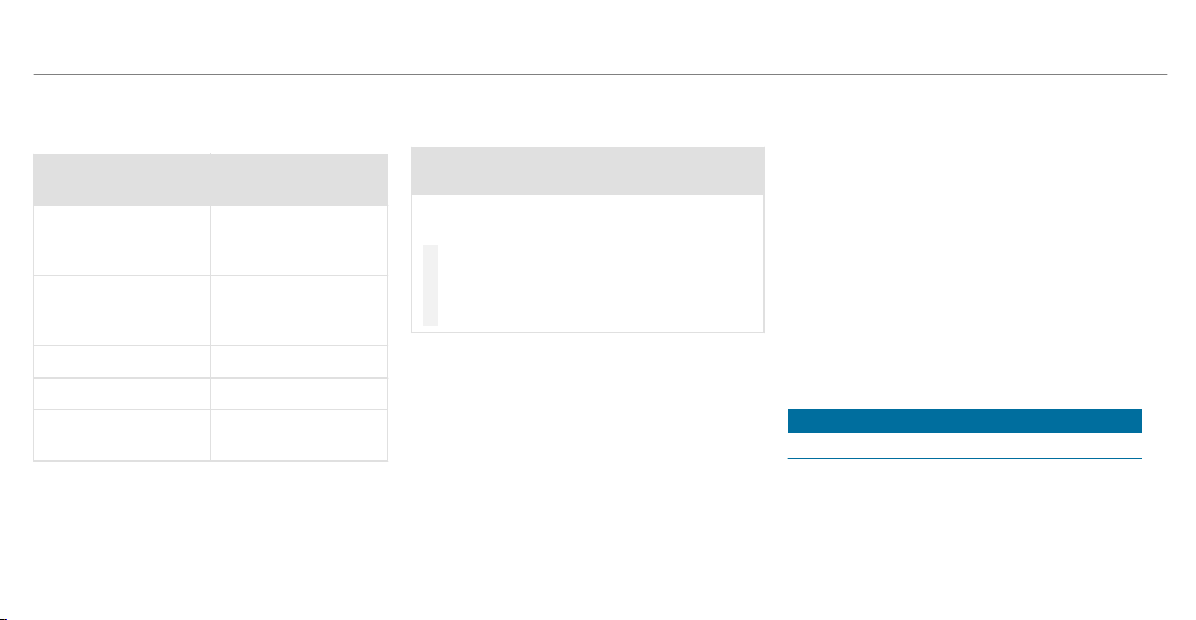
The components of the restraint system can
be activated or deployed independently of
each other:
Component Detected deploy‐
ment situation
Emergency Tension‐
ing Devices
Frontal impact, rear
impact, side impact,
rollover
Driver's airbag, front
passenger front air‐
bag
Frontal impact
Knee airbag Frontal impact
Side airbag Side impact
Window cur tain air‐
bag
Side impact, rollover,
frontal impact
The front passenger front airbag can only be
deployed in an accident if the PASSENGER AIR
BAG OFF indicator lamp is off. If the front
passenger seat is occupied, make sure, both
before and during the journey, that the status of
the front passenger front airbag is correct
(
/ page 45).
&
WARNING Risk of burns from hot air bag
components
The air bag parts are hot after an air bag has
been deployed.
#
Do not touch the air bag parts.
#
Have a deployed air bag replaced at a
qualified specialist workshop as soon
as possible.
Mercedes-Benz recommends that you have the
vehicle towed to a qualified specialist workshop
after an accident. Take this into account, partic‐
ularly if an Emergency Tensioning Device is trig‐
gered or an airbag deployed.
If the Emergency Tensioning Devices are trig‐
gered or an airbag is deployed, you will hear a
bang, and a small amount of powder may also be
released:
R
The bang will not generally affect your hear‐
ing.
R
In general, the powder released is not haz‐
ardous to health but may cause short-term
breathing difficulties to persons suffering
from asthma or other pulmonary conditions.
Provided it is safe to do so, leave the vehicle
immediately or open the window in order to
prevent breathing difficulties.
Airbags and pyrotechnic Emergency Tensioning
Devices contain perchlorate material, which may
require special handling or environmental pro‐
tection measures. National guidelines regarding
waste disposal must be observed. In California,
see http://www.dtsc.ca.gov/HazardousWaste/
Perchlorate/index.cfm.
Seat belts
Protection provided by the seat belt
Always fasten your seat belt correctly before
starting a journey. A seat belt can only provide
the best level of protection if it is worn correctly.
36
Occupant safety

&
WARNING Risk of injury or death due to
incorrectly fastened seat belt
If the seat belt is not worn correctly, it can‐
not perform its intended protective function.
In addition, an incorrectly fastened seat belt
can also cause injuries, for example, in the
event of an accident or when braking or
changing direction suddenly.
#
Always ensure that all vehicle occu‐
pants have their seat belts fastened
correctly and are sitting properly.
Always observe the instructions about the cor‐
rect driver's seat position and adjusting the seat
(/ page 87).
In order for the correctly worn seat belt to pro‐
vide the intended level of protection, each vehi‐
cle occupant must observe the following infor‐
mation:
R
The seat belt must not be twisted and must
fit tightly and snugly across the body.
R
The seat belt must be routed across the cen‐
ter of the shoulder and as low down across
the hips as possible.
R
The shoulder section of the seat belt should
not touch your neck nor be routed under
your arm or behind your back.
R
Avoid wearing bulky clothing, e.g. a winter
coat.
R
Push the lap belt down as far as possible
across your hips and pull tight with the shoul‐
der section of the belt. Never route the lap
belt across your abdomen.
R
Never route the seat belt across sharp, poin‐
ted, abrasive or fragile objects.
R
Only one person should use each seat belt at
any one time. Never allow babies and chil‐
dren to travel sitting on the lap of another
vehicle occupant.
R
Never secure objects with a seat belt if the
seat belt is also being used by one of the
vehicle's occupants. Always observe the
instructions for loading the vehicle when
securing objects, luggage or loads
(
/ page 99).
Also ensure that no objects, e.g. a cushion,
are ever placed between a person and the
seat.
The seat belts on the following seats are equip‐
ped with a special seat belt retractor:
R
front-passenger seat
R
Rear seats
Activate or deactivate the special seatbelt
retractor (/ page 55).
If children are traveling in the vehicle, be sure to
observe the instructions and safety notes on
"Children in the vehicle" (
/ page 50).
Reduced seat belt protection
&
WARNING Risk of injury or death due to
incorrect seat position
The seat belt does not offer the intended
level of protection if you have not moved the
seat backrest to an almost vertical position.
Occupant safety
37

When braking or in the event of an accident,
you could slide underneath the seat belt and
sustain abdominal or neck injuries, for exam‐
ple.
#
Adjust the seat properly before begin‐
ning your journey.
#
Always ensure that the seat backrest is
in an almost vertical position and that
the shoulder section of your seat belt is
routed across the center of your shoul‐
der.
&
WARNING Risk of injury or death when
additional restraint systems are not used
for persons with a smaller build
Persons under 5 ft (1.50 m) tall cannot wear
the seat belt cor rectly without a suitable
additional restraint system.
If the seat belt is not worn correctly, it can‐
not perform its intended protective function.
In addition, an incorrectly fastened seat belt
can also cause injuries, for example, in the
event of an accident or when braking or
changing direction suddenly.
#
Always secure persons under 5 ft
(1.50 m) tall in a suitable restraint sys‐
tem.
&
WARNING Risk of injury or death due to
damaged or modified seat belts
Seat belts cannot provide protection in the
following situations:
R
If the seat belts are damaged, modified,
extremely dirty, bleached or dyed
R
If the seat belt buckle is damaged or
extremely dirty
R
If the Emergency Tensioning Devices,
seat belt anchorages or seat belt retrac‐
tors have been modified
Seat belts may be damaged in an accident,
although the damage may not be visible, e.g.
due to splinters of glass.
Modified or damaged seat belts may tear or
fail, e.g. in an accident.
Modified Emergency Tensioning Devices can
accidentally trigger or fail to function as
intended.
#
Never modify the seat belts, Emergency
Tensioning Devices, seat belt ancho‐
rages or seat belt retractors.
#
Make sure that the seat belts are
undamaged, not worn and clean.
#
Always have the seat belts checked
immediately after an accident at a
qualified specialist workshop.
Only use seat belts which have been approved
for your vehicle by Mercedes-Benz.
&
WARNING Risk of injury or death from
deployed pyrotechnic Emergency Ten‐
sioning Devices
Pyrotechnic Emergency Tensioning Devices
that have been deployed are no longer opera‐
tional and are unable to perform their inten‐
ded protective function.
#
Therefore, have deployed pyrotechnic
Emergency Tensioning Devices immedi‐
38
Occupant safety
ately replaced at a qualif ied specialist
workshop.
Mercedes-Benz recommends that you have the
vehicle towed to a qualified specialist workshop
after an accident.
*
NOTE Damage caused by trapping the
seat belt
If an unused seat belt is not fully retracted, it
may become trapped in the door or in the
seat mechanism.
#
Always ensure that an unused seat belt
is fully retracted.
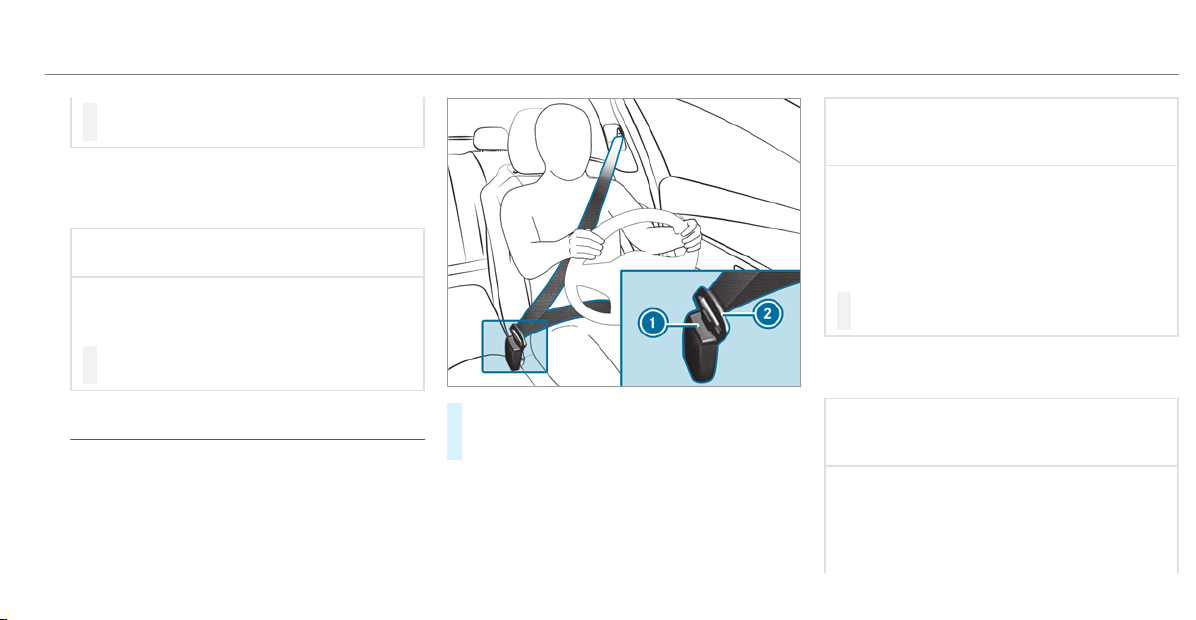
Fastening seat belts
If the seat belt is pulled quickly or sharply, the
seat belt retractor locks. The seat belt strap can‐
not be pulled out any further.
#
Always engage seat belt tongue 2 of the
seat belt into seat belt buckle 1 of the cor‐
responding seat.
Vehicles with automatic front passenger
front airbag shutoff:
*
NOTE Deployment of the Emergency
Tensioning Device and side air bag when
the front passenger seat is unoccupied
If the seat belt tongue is engaged in the seat
belt buckle of the unoccupied front
passenger seat, the Emergency Tensioning
Device and the side air bag may also deploy
in the event of an accident along with other
systems.
#
Only one person should use each seat
belt at any one time.
Vehicles without automatic front passenger
front airbag shutoff:
*
NOTE Deployment of the Emergency
Tensioning Device when the front-
passenger seat is unoccupied
If the seat belt tongue is engaged in the seat
belt buckle of the unoccupied front-
passenger seat, the Emergency Tensioning
Device may also deploy in the event of an
accident along with other systems.
Occupant safety
39
#
Only one person should use each seat
belt at any one time.
Seat belt adjustment function
Vehicles with PRE-SAFE
®
: If the front seat belt
is not pulled tight across your body, the seat belt
adjustment may automatically apply a certain
tightening force. Do not hold the seat belt tightly
while it is adjusting.
You can activate and deactivate the seat belt
adjustment function using the multimedia sys‐
tem (
/ page 40).
Releasing seat belts
#
Press the release button in the seat belt
buckle and guide the seat belt back with the
seat belt tongue.
Activating/deactivating seat belt adjustment
via the multimedia system
Multimedia system:
4
©
5
Settings
5
Vehicle
#
Activate or deactivate Belt Adjustment.
Seat belt warning function for the driver and
front passenger
The ü seat belt warning lamp in the Instru‐
ment Display is a reminder that all vehicle occu‐
pants must wear their seat belts correctly.
The ü seat belt warning lamp lights up for six
seconds every time the vehicle is started.
In addition, a warning tone may sound.
When the driver's and front passenger's doors
are closed and the driver and front passenger
have fastened their seat belts, the seat belt
warning goes out.
In the following cases, the seat belt warning
lights up during a journey if:
R
The vehicle speed exceeds 15 mph
(25 km/h) and the driver's or front
passenger seat belt is not fastened.
R
The driver or front passenger unfastens their
seat belt while the vehicle is in motion.
Airbags
Overview of airbags
1
Driver's knee bag
2
Driver's airbag
40
Occupant safety
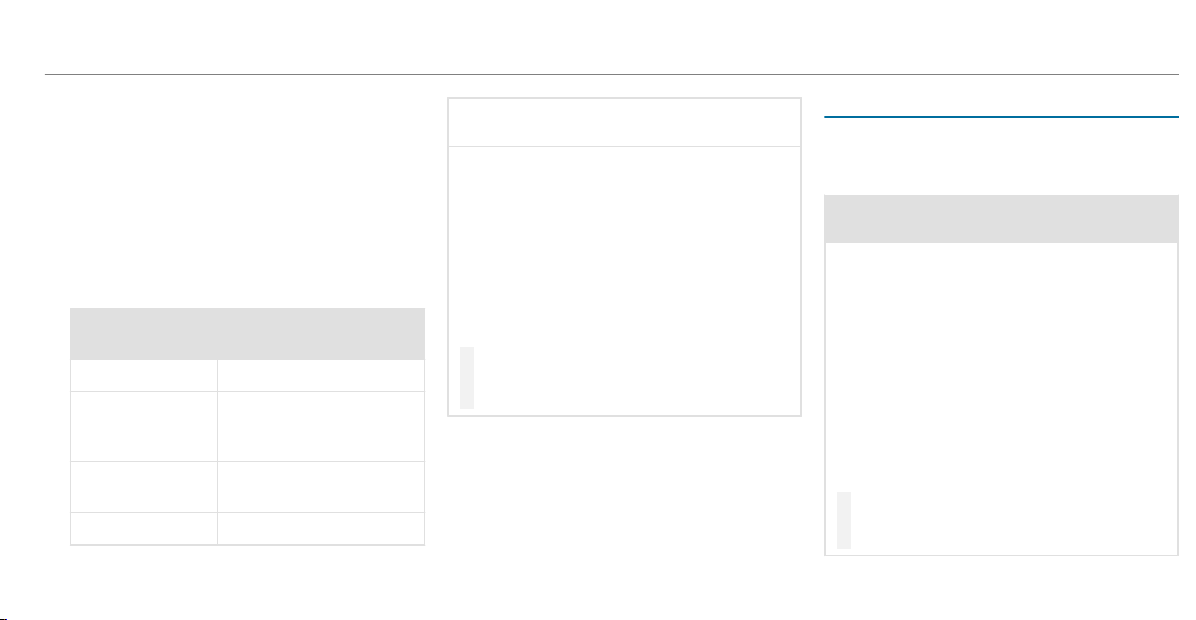
3
Front passenger front airbag
4
Front passenger knee airbag
5
Window cur tain airbag
6
Side airbag
The installation location of an airbag is identified
by the airbag symbol.
When enabled, an airbag can provide additional
protection for the respective vehicle occupant.
Potential protection from each airbag:
AIRBAG Potential protection for
…
Knee airbag Thigh, knee and lower leg
Driver's airbag,
front passenger
front airbag
Head and ribcage
Window cur tain
airbag
Head
Side airbag Ribcage and pelvis
*
NOTE Important points to remember if
the front passenger seat is unoccupied
In an accident, the components of the
restraint system may deploy unnecessarily
on the front passenger side if:
R
There are heavy objects on the front
passenger seat.
R
The seat belt tongue is engaged in the
seat belt buckle of the front passenger
seat and the front passenger seat is
unoccupied.
#
Stow objects in a suitable place.
#
Only one person should use each seat
belt at any one time.
The front passenger front airbag can only be
deployed in an accident if the PASSENGER AIR
BAG OFF indicator lamp is off. If the front
passenger seat is occupied, make sure, both
before and during the journey, that the status of
the front passenger front airbag is correct
(
/ page 45).
Protection by the airbags
Depending on the accident situation, an airbag
may supplement the protection offered by a cor‐
rectly fastened seat belt.
&
WARNING Risk of injury or death due to
incorrect seat position
If you deviate from the correct seat position,
the air bag cannot perform its intended pro‐
tective function and deployment may even
cause further injuries.
To avoid hazardous situations, always make
sure that all vehicle occupants:
R
Have their seat belt fastened correctly,
including pregnant women.
R
Are seated properly and that distance to
the air bags is as large as possible.
R
Observe the following information.
#
Always make sure that there are no
objects between the air bag and the
vehicle occupant.
Occupant safety
41

To avoid the risks resulting from the deployment
of an airbag, each vehicle occupant must
observe the following information:
R
Before starting your journey, adjust your seat
correctly; the driver's seat and front-
passenger seat should be moved as far back
as possible.
When doing so, always observe the informa‐
tion on the correct dr iver's seat position
(
/ page 87).
R
Only hold the steering wheel by the steering
wheel rim. This allows the airbag to be fully
deployed.
R
Always lean against the seat backrest when
the vehicle is in motion. Do not lean for wards
or against the door or side window. You may
otherwise be in the deployment area of the
airbags.
R
Always keep your feet on the floor. Do not
put your feet on the cockpit, for example.
Your feet may otherwise be in the deploy‐
ment area of the airbag.
R
If children are traveling in the vehicle,
observe the additional notes
(/ page 50).
R
Always stow and secure objects correctly.
Objects in the vehicle interior may prevent an
airbag from functioning correctly. Each vehicle
occupant must always make sure of the follow‐
ing:
R
There are no people, animals or objects
between the vehicle occupants and an air‐
bag.
R
There are no objects between the seat, door
and door pillar (B-pillar).
R
There are no hard objects, e.g. coat hangers,
hanging on the grab handles or coat hooks.
R
There are no accessory parts, such as PNDs
(Personal Navigation Devices), mobile
phones or cup holders attached to the vehi‐
cle within the deployment area of an airbag,
e.g. on the cockpit, on doors, side windows
or side paneling.
In addition, no connecting cable, tensioning
strap or retaining strap may be routed
through or attached in the deployment area
of an airbag. Always observe the accessory
manufacturer's installation instructions, in
particular the information on suitable places
for installation.
R
There are no heavy, sharp-edged or fragile
objects in the pockets of your clothing. Store
such objects in a suitable place.
Limited protection from airbags
&
WARNING Risk of injury due to modifi‐
cations to the airbag cover
If you modify the cover of an airbag or affix
objects such as stickers to it, the airbag may
no longer function correctly.
#
Never modify the cover of an airbag and
do not affix objects to it.
The installation location of an airbag is identified
by the AIRBAG symbol (/ page 40).
42
Occupant safety

&
WARNING Risk of injury or death due to
the use of unsuitable seat covers
Unsuitable seat covers can obstruct or pre‐
vent the deployment of air bags integrated
into the seats.
Consequently, the air bags cannot protect
vehicle occupants as they are designed to
do. In addition, operation of the automatic
front passenger air bag shutoff may be
restricted.
#
You should only use seat covers that
have been approved for the correspond‐
ing seats by Mercedes-Benz.
&
WARNING Risk of injury due to malfunc‐
tions of the sensors in the door paneling
Sensors to control the airbags are located in
the door s. Modifications or work not per‐
formed cor rectly to the doors or door panel‐
ing, as well as damaged doors, can lead to
the function of the sensors being impaired.
The airbags might therefore not function
properly any more.
Consequently, the airbags cannot protect
vehicle occupants as they are designed to
do.
#
Never modify the doors or parts of the
doors.
#
Always have work on the doors or door
paneling carried out at a qualified spe‐
cialist workshop.
&
WARNING Risk of injury due to deployed
airbag
A deployed airbag no longer has a protective
function and cannot protect as intended in
the event of an accident.
#
Have the vehicle towed to a qualified
specialist workshop in order to have the
deployed airbag replaced.
Have deployed airbags replaced immediately.
Status of the front passenger front airbag
Function of the automatic front passenger
front airbag shutoff
The automatic front passenger front airbag shut‐
off is able to detect whether the front passenger
seat is occupied by a person or a child restraint
system. The front passenger front airbag and
front passenger knee airbag are enabled or disa‐
bled accordingly.
When installing a child restraint system on the
front passenger seat, always make sure of the
following:
R
Ensure that the child restraint system is posi‐
tioned correctly (/ page 49).
R
Always observe the child restraint system
manufacturer's installation instructions.
R
Never place objects, e.g. cushions, under or
behind the child restraint system.
R
Fully retract the seat cushion length adjust‐
ment.
R
The entire base of the child restraint system
must always rest on the seat cushion of the
front passenger seat.
Occupant safety
43

R
The backrest of the forward-facing child
restraint system must lie as flat as possible
against the backrest of the front passenger
seat.
R
The child restraint system must not touch the
roof or be put under strain by the head
restraints. Adjust the seat backrest inclina‐
tion and the head restraint setting accord‐
ingly.
&
WARNING Risk of injury or death due to
objects between the sitting surface and
the child restraint system
Objects between the sitting surface and the
child restraint system could affect the func‐
tion of the automatic front passenger airbag
shutoff.
This could result in the front passenger air‐
bag not functioning as intended during an
accident.
#
Do not place any objects between the
sitting surface and the child restraint
system.
#
The entire base of the child restraint
system must always rest on the sitting
surface of the front passenger seat.
#
The backrest of the forward-facing child
restraint system must, as far as possi‐
ble, be resting on the seat backrest of
the front passenger seat.
#
Always comply with the child restraint
system manufacturer's installation
instructions.
A person on the front passenger seat must
observe the following information:
R
Fasten seat belts correctly (/ page 36).
R
Sit in an almost upright seat position with
their back against the seat backrest.
R
Sit with their feet resting on the floor, if pos‐
sible.
The front passenger front airbag may otherwise
be disabled by mistake, for example in the fol‐
lowing situations:
R
The front passenger transfers their weight by
supporting themselves on a vehicle armrest.
R
The front passenger sits in such a way that
their weight is raised from the sitting sur‐
face.
&
WARNING Risk of injury or death due to
deactivated front passenger airbag
If the PASSENGER AIR BAG OFF indicator
lamp is lit, the front passenger airbag is disa‐
bled. It will not be deployed in the event of
an accident and cannot perform its intended
protective function.
A person in the front passenger seat could
then, for example, come into contact with
the vehicle interior, especially if the person is
sitting too close to the cockpit.
If the front passenger seat is occupied,
always ensure that:
R
The classification of the person in the
front passenger seat is correct and the
front passenger airbag is enabled or disa‐
bled in accordance with the person in the
front passenger seat.
44
Occupant safety
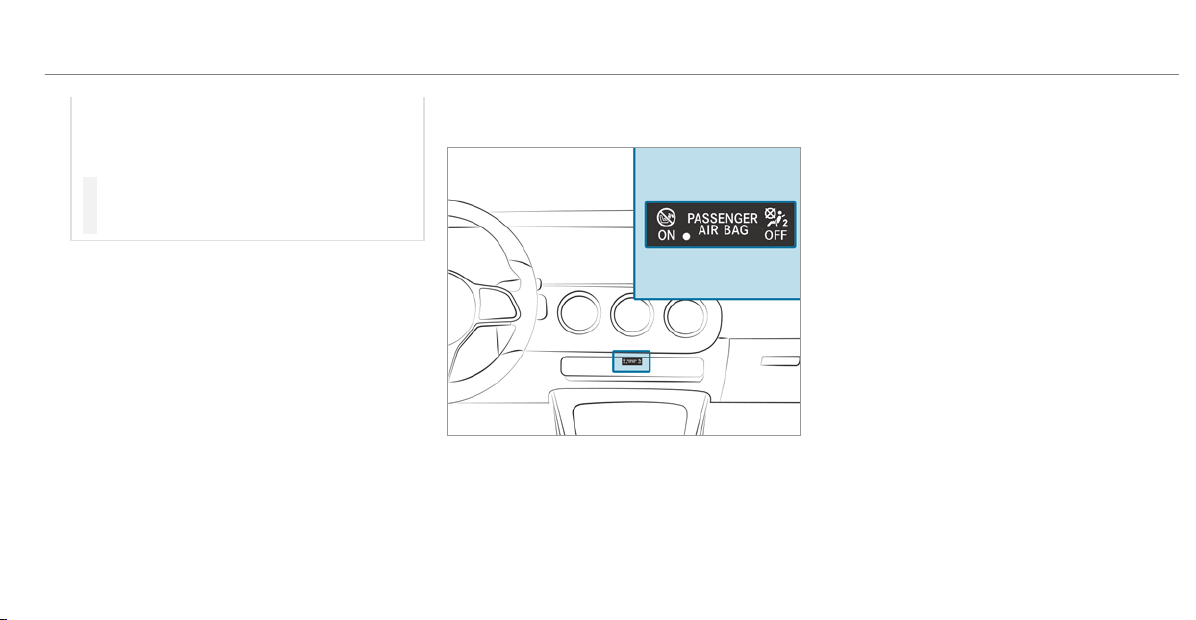
R
The front passenger seat has been moved
as far back as possible.
R
The person is seated correctly.
#
Ensure, both before and during the jour‐
ney, that the status of the front
passenger airbag is correct.
If the front passenger seat is occupied, the clas‐
sification of the person or child restraint system
on the front passenger seat ta kes place after the
front passenger front airbag shutoff self-test.
The PASSENGER AIR BAG indicator lamps dis‐
play the status of the front passenger front air‐
bag.
Always observe the notes on the function of the
PASSENGER AIR BAG indicator lamps
(
/ page 45).
Function of the PASSENGER AIR BAG indica‐
tor lamps
Self-test of automatic front passenger front
airbag shutoff
When the ignition is switched on, a self-test is
performed during which the two PASSENGER
AIR BAG ON and OFF indicator lamps light up
simultaneously.
The status of the front passenger front airbag is
displayed after the self-test:
R
PASSENGER AIR BAG ON lights up for
60 seconds, subsequently both indicator
lamps are off (PASSENGER AIR BAG ON and
OFF): the front passenger front airbag is able
to deploy in the event of an accident.
R
PASSENGER AIR BAG OFF lights up continu‐
ously: the front passenger front airbag is dis‐
abled. It will then not be deployed in the
event of an accident.
If the PASSENGER AIR BAG ON indicator lamp is
off, only the PASSENGER AIR BAG OFF indicator
lamp shows the status of the front passenger
front airbag. The PASSENGER AIR BAG OFF indi‐
cator lamp may be lit continuously or be off.
If the PASSENGER AIR BAG OFF indicator lamp
and the 6 restraint system warning lamp
light up simultaneously, the front passenger seat
may not be used. Also in this case, do not install
a child restraint system on the front passenger
seat. Have automatic front passenger front air‐
bag shutoff checked and repaired immediately at
a qualified specialist workshop.
Occupant safety
45

Status display
If the front passenger seat is occupied, ensure,
both before and during the journey, that the sta‐
tus of the front passenger front airbag is correct
for the current situation.
After installing a rearward-facing child
restraint system on the front passenger
seat: PASSENGER AIR BAG OFF must be lit con‐
tinuously.
&
WARNING Risk of injury or death from
using a rearward-facing child restraint
system when the front passenger front
airbag is enabled
If you secure a child in a rearward-facing
child restraint system on the front passenger
seat and the PASSENGER AIR BAG OFF indi‐
cator lamp is off, the front passenger airbag
can deploy in the event of an accident.
The child could be struck by the airbag.
Always ensure that the front passenger air‐
bag is deactivated. The PASSENGER AIR BAG
OFF indicator lamp must be lit.
NEVER use a rearward-facing child restraint
system on a seat protected by an ENABLED
FRONT AIRBAG in front of it, DEATH or SERI‐
OUS INJURY to the CHILD can occur.
When installing a child restraint system on the
front passenger seat, observe the vehicle-spe‐
cific information (/ page 60).
Depending on the child restraint system and the
stature of the child, the PASSENGER AIR BAG
OFF indicator lamp may be off. In this case, do
not install the rearward-facing child restraint
system on the front passenger seat.
Instead, install the rearward-facing child
restraint system on a suit able rear seat.
After installing a forward-facing child
restraint system on the front passenger
seat: depending on the child restraint system
and the stature of the child, PASSENGER AIR
BAG OFF may be lit continuously or be off.
Always observe the following information.
&
WARNING Risk of injury or death due to
incorrect positioning of the forward-
facing child restraint system
If you secure a child in a forward-facing child
restraint system on the front passenger seat
and you position the front passenger seat too
close to the dashboard, in the event of an
accident, the child could:
R
come into contact with parts of the vehi‐
cle interior if the PASSENGER AIR BAG
OFF indicator lamp is lit, for example
R
be struck by the airbag if the PASSENGER
AIR BAG OFF indicator lamp is off
#
Always move the front passenger seat
as far back as possible and fully retract
the seat cushion length adjustment.
Always make sure that the shoulder belt
strap is correctly routed from the seat
belt outlet on the vehicle to the shoul‐
der belt guide on the child restraint sys‐
tem. The shoulder belt strap must be
routed forwards and downwards from
46
Occupant safety

the seat belt outlet. If necessary, adjust
the front passenger seat accordingly.
#
Always observe the child restraint sys‐
tem manufacturer's installation instruc‐
tions.
When installing a child restraint system on the
front passenger seat, observe the vehicle-spe‐
cific information (/ page 60).
If a person is sitting on the front passenger
seat: PASSENGER AIR BAG OFF may be lit con‐
tinuously or be off, depending on the person's
stature.
A person on the front passenger seat must
always observe the following information:
R
If the front passenger seat is occupied by an
adult or a person with a stature correspond‐
ing to that of an adult, the PASSENGER AIR
BAG OFF indicator lamp must be off. This
indicates that the front passenger front air‐
bag is enabled.
If the PASSENGER AIR BAG OFF indicator
lamp is lit continuously, an adult or per son
with a build corresponding to that of an adult
should not use the front passenger seat.
Instead, they should use a rear seat.
R
If the front passenger seat is occupied by a
person of smaller stature (e.g. a teenager or
small adult), the PASSENGER AIR BAG OFF
indicator lamp either lights up continuously
or remains off, depending on the result of the
classification.
-
If the PASSENGER AIR BAG OFF indicator
lamp is off: move the front passenger
seat as far back as possible, or the per‐
son of smaller stature should use a rear
seat.
-
If the PASSENGER AIR BAG OFF indicator
lamp is lit continuously: the person of
smaller stature should not use the front
passenger seat.
&
WARNING Risk of injury or death when
the PASSENGER AIR BAG OFF indicator
lamp is lit
If the PASSENGER AIR BAG OFF indicator
lamp remains lit after the system self-test,
the front passenger air bag is deactivated. It
will not be deployed in the event of an acci‐
dent. In this case, the front passenger air bag
cannot perform its intended protective func‐
tion, e.g. when a person is seated in the front
passenger seat.
That person could, for example, come into
contact with the vehicle interior, especially if
the per son is sitting too close to the cockpit.
If the front passenger seat is occupied,
always ensure that:
R
The classification of the person in the
front passenger seat is correct and the
front passenger air bag is enabled or
deactivated in accordance with the per‐
son in the front passenger seat.
Occupant safety
47
R
The person is seated properly with a cor‐
rectly fastened seat belt.
R
The front passenger seat has been moved
as far back as possible.
Be sure to also observe the following further
related subjects:
R
Child restraint system on the front passenger
seat (/ page 60).
PRE-SAFE
®
system
PRE-SAFE
®
(anticipatory occupant protec‐
tion)
PRE-SAFE
®
is able to detect certain critical driv‐
ing situations and implement pre-emptive meas‐
ures to protect the vehicle occupants.
PRE-SAFE
®
can implement the following meas‐
ures independently of each other:
R
Tightening the seat belts on the driver's seat
and front passenger seat.
R
Closing the side windows.
R
Vehicles with sliding sunroof: Closing the
sliding sunroof.
R
Vehicles with memor y function: Moving
the front passenger seat to a more favorable
seat position.
R
Vehicles with multicontour seat: Increas‐
ing the air pressure in the seat side bolsters
of the seat backrest.
R
PRE-SAFE
®
Sound: provided that the multi‐
media system is switched on, generates a
brief noise signal to stimulate the innate pro‐
tective mechanism of a person's hearing.
*
NOTE Damage caused by objects in the
footwell or behind the seat
The automatic adjustment of the seat posi‐
tion may result in damage to the seat and/or
the object.
#
Stow objects in a suitable place.
Reversing the PRE-SAFE
®
system measures
If an accident did not occur, the pre-emptive
measures that were taken are reversed.
You will need to perform certain settings your‐
self.
#
If the seat belt pre-tensioning is not reduced,
move the seat backrest back slightly.
The locking mechanism releases.
Function of PRE-SAFE
®
PLUS (anticipatory
occupant protection plus)
PRE-SAFE
®
PLUS can detect certain impacts,
particularly an imminent rear impact, and take
pre-emptive measures to protect the vehicle
occupants. These measures cannot necessarily
prevent an imminent impact.
PRE-SAFE
®
PLUS can implement the following
measures independently of each other:
R
Tightening the seat belts on the driver's seat
and front passenger seat.
R
Increasing brake pressure when the vehicle
is stationar y. This brake application is can‐
48
Occupant safety

celed automatically when the vehicle pulls
away.
If an accident did not occur, the pre-emptive
measures that were taken are reversed.
System limitations
The system will not initiate any action in the fol‐
lowing situations:
R
when backing up
The system will not initiate any braking applica‐
tion in the following situations:
R
whilst driving
or
R
when entering or exiting a parking space
while using Active Parking Assist
Safely transporting children in the vehicle
Always observe when children are traveling
in the vehicle
%
Also strictly observe the safety notes for the
specific situation. In this way you can recog‐
nize potential risks and avoid dangers if chil‐
dren are traveling in the vehicle
(/ page 50).
Be diligent
Bear in mind that neglecting to secure a child in
the child restraint system may have serious con‐
sequences. Always be diligent in securing a child
carefully before every journey.
To improve protection for children younger than
12 years old or under 5 ft (1.50 m) in height,
Mercedes-Benz recommends you observe the
following information:
R
Always secure the child in a child restraint
system suitable for this Mercedes-Benz vehi‐
cle.
R
The child restraint system must be appropri‐
ate to the age, weight and size of the child.
R
The vehicle seat must be suitable for instal‐
ling a child restraint system.
Accident statistics show that children secured in
the rear seats are generally safer than children
secured in the front seats. For this reason,
Mercedes-Benz strongly advises that you install
a child restraint system on a rear seat.
Generic term "child restraint system"
The generic term child restraint system is used
in this Operator's Manual. A child restraint sys‐
tem is, for example:
R
a baby car seat
R
a rearward-facing child seat
R
a forward-facing child seat
R
a child booster seat with a backrest and seat
belt guide
Mercedes-Benz recommends using a child
booster seat with a backrest.
The child restraint system must be appropriate
to the age, weight and size of the child.
Observing laws and legal requirements
Always observe the legal requirements when
using a child restraint system in the vehicle.
Occupant safety
49

Observing standards for child restraint sys‐
tems
All child restraint systems must meet the follow‐
ing standards:
R
U.S. Federal Motor Vehicle Safety Standards
213 and 225
R
Canadian Motor Vehicle Safety Standards
213 and 210.2
Confirmation that the child restraint system
complies with the standards can be found on an
instruction label on the child restraint system.
This confirmation can also be found in the instal‐
lation instructions that are included with the
child restraint system.
Detecting risks, avoiding danger
Securing systems for child restraint systems
in the vehicle
Only use the following securing systems for child
restraint systems:
R
the LATCH-type (ISOFIX) mounting brackets
R
the vehicle's seat belt system
R
the Top Tether anchorages
Installing a LATCH-type (ISOFIX) child restraint
system is preferred.
Simply attaching to the securing rings on the
vehicle can reduce the risk of installing the child
restraint system incorrectly.
When securing a child with the integrated seat
belt of the LATCH-type (ISOFIX) child restraint
system, always comply with the permissible
gross weight for the child and child restraint sys‐
tem (
/ page 56).
A booster seat may be necessary to achieve
proper seat belt positioning for children over
40 lbs (18 kg) in weight or until they reach a
height where a three-point seat belt can be
installed properly without a booster seat.
Mercedes-Benz recommends a suitable child
booster seat with a backrest and seat belt guide.
Advantage of a rearward-facing child
restraint system
It is preferable to transport a baby or a small
child in a suitable rearward-facing child restraint
system. In this case, the child sits in the oppo‐
site direction to the direction of travel and faces
backwards.
Babies and small children have comparatively
weak neck muscles in relation to the size and
weight of their head. The risk of injury to the cer‐
vical spine during an accident can be reduced in
a rearward-facing child restraint system.
Always secure a child restraint system cor‐
rectly
&
WARNING Risk of injury or death caused
by incorrect installation of the child
restraint system
If the child restraint system is incorrectly
installed on a suit able seating position, it
cannot perform its intended protective func‐
tion.
The child cannot be restrained in the event of
an accident, heavy braking or a sudden
change of direction.
#
Always comply with the manufacturer's
installation instructions for the child
restraint system and its correct use.
50
Occupant safety

#
Make sure that the entire base of the
child restraint system always rests on
the sitting surface of the seat.
#
Never place objects under or behind
the child restraint system, e.g. cush‐
ions.
#
Always use child restraint systems with
the original cover designed for them.
#
Always replace damaged covers with
genuine covers.
&
WARNING Risk of injury or death from
unsecured child restraint systems in the
vehicle
If the child restraint system is not correctly
installed or secured, it could release in the
event of an accident, sudden braking or a
sudden change in direction.
The child restraint system could be flung
around and hit vehicle occupants.
#
Always install child restraint systems
correctly, even when not in use.
#
Always comply with the child restraint
system manufacturer's installation
instructions.
R
Always observe the child restraint system
manufacturer's installation and operating
instructions as well as the vehicle-specific
information:
-
Install the LATCH-type (ISOFIX) child
restraint system on the rear seat
(/ page 56).
-
Secure the child restraint system with the
seat belt on the rear seat
(/ page 59).
-
Secure the child restraint system with the
seat belt on the front passenger seat
(/ page 61). Observe the specific
instructions for the rearward-facing and
forward-facing child restraint systems
(
/ page 60).
If the front passenger seat is occupied,
ensure, both before and during the jour‐
ney, that the status of the front
passenger front airbag is correct for the
current situation (
/ page 45).
R
Observe the warning labels in the vehicle
interior and on the child restraint system.
R
Also secure Top Tether if present.
Do not modify the child restraint system
&
WARNING Risk of injury due to modifi‐
cations to the child restraint system
The child restraint system may no longer
function as it is supposed to if you make
modifications or attach objects to it, e.g. toys
or unsuitable accessories. This poses an
increased risk of injury!
Never modify the child restraint system. Only
attach accessories which the manufacturer
of the child restraint system has authorized
especially for this child restraint system.
Occupant safety
51

Only use child restraint systems which are in
proper working condition
&
WARNING Risk of injury or death caused
by the use of damaged child restraint
systems
Child restraint systems or their retaining sys‐
tems that have been subjected to a load in
an accident may then not be able to perform
their intended protective function.
The child cannot be restrained in the event of
an accident, heavy braking or a sudden
change of direction.
#
Always replace child restraint systems
immediately that have been damaged or
involved in an accident.
#
Have the securing systems for the child
restraint systems checked at a qualified
specialist workshop before installing a
child restraint system again.
Avoiding direct sunlight
&
WARNING Risk of burns when the child
seat is exposed to direct sunlight
If the child restraint system is exposed to
direct sunlight or heat, parts could heat up.
Children could suffer burns from these parts,
par ticularly on metallic parts of the child
restraint system.
#
Always make sure that the child
restraint system is not exposed to
direct sunlight.
#
Protect it with a blanket, for example.
#
If the child restraint system has been
exposed to direct sunlight, allow it to
cool before securing a child into it.
#
Never leave children unattended in the
vehicle.
Observe when stopping or parking
&
WARNING Risk of accident and injury
due to children and animals left unatten‐
ded in the vehicle
If you leave children and animals unattended
in the vehicle, they may be able to set the
vehicle in motion, for example by:
R
Releasing the parking brake.
R
Shifting the automatic transmission out
of park position j.
R
Starting the engine.
In addition, they may operate vehicle equip‐
ment and become trapped.
#
Never leave children and animals unat‐
tended in the vehicle.
#
When leaving the vehicle, always take
the SmartKey with you and lock the
vehicle.
52
Occupant safety

&
WARNING Risk of fatal injury due to
exposure to extreme heat or cold in the
vehicle
If people – par ticularly children – are
exposed to extreme temperatures over an
extended period of time, there is a risk of
serious or even fatal injury.
#
Never leave anyone – particularly chil‐
dren – unattended in the vehicle.
#
Never leave animals in the vehicle unat‐
tended.
Occupant safety
53
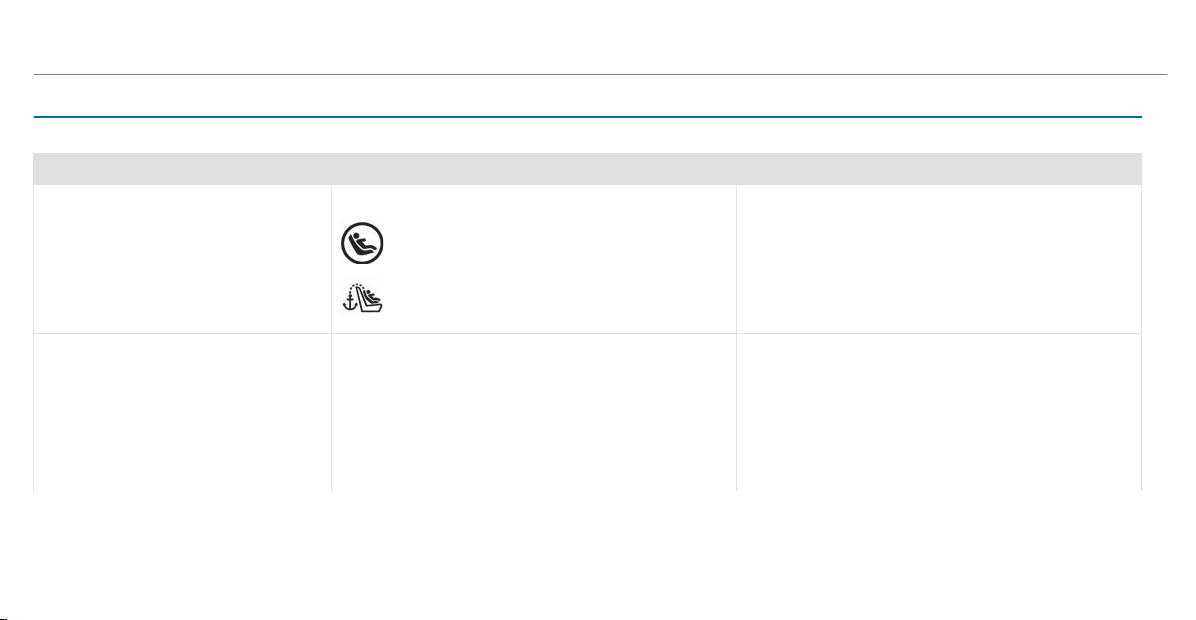
Overview of suitable seats in the vehicle for installing a child restraint system
Securing systems for child restraint systems
Vehicle seat
Left/right rear seat
Preferred securing system:
LATCH-type (ISOFIX) child seat securing sys‐
tem
Also secure Top Tether if present
(/ page 58)
Alternative securing system:
R
Vehicle seat belt
Front passenger seat
Securing system:
R
Vehicle seat belt
Be sure to observe:
R
If the front passenger seat is occupied, ensure,
both before and during the journey, that the sta‐
tus of the front passenger front airbag is correct
for the current situation (
/ page 45).
R
Notes on automatic front passenger front airbag
shutoff (/ page 43).
54
Occupant safety

Vehicle seat
Center rear seat
Securing system:
R
Vehicle seat belt
Also secure Top Tether if present
(/ page 58)
Activating/deactivating the seat belt's child
special seat belt retractor
&
WARNING Risk of injury or death if a
seat belt is unfastened while the vehicle
is in motion
If the seat belt is released while the vehicle is
in motion, the child restraint system is no
longer correctly secured. The child seat
safety feature is deactivated and the seat
belt is drawn in a bit by the inertia reel.
It is therefore not possible to engage the seat
belt again.
#
Pull over and stop the vehicle safely as
soon as possible, paying attention to
road and traffic conditions.
#
Activate the child seat safety feature
again and correctly secure the child
restraint system.
When enabled, the special seat belt retractor
ensures that the seat belts of the front
passenger seat and rear seats do not slacken
once the child restraint system is secured.
The seat belts on the following seats are equip‐
ped with a special seat belt retractor:
R
Front passenger seat
R
Rear seats
#
To install a child restraint system: when
installing a child restraint system, always
observe the manufacturer's installation and
operating instructions as well as the informa‐
tion in this Operator's Manual.
#
Pull the seat belt smoothly from the seat belt
outlet.
#
Engage the seat belt tongue in the seat belt
buckle.
#
To activate the special seat belt retrac‐
tor: pull the seat belt out fully and let the
inertia reel retract it again.
When the special seat belt retractor is activa‐
ted, you should hear a ratcheting sound.
#
Push the child restraint system down until
the seat belt sits tightly.
Occupant safety
55

#
To deactivate the special seat belt retrac‐
tor: press the release button of the seat belt
buckle.
#
Hold the seat belt tongue and guide back to
the seat belt outlet.
Installing the LATCH-type (ISOFIX) child
restraint system on the rear seat
Installing the LATCH-type (ISOFIX) child
restraint system on the rear seat
&
WARNING Risk of injury if the rear
bench seat/rear seat and seat backrest
are not engaged
If the rear bench seat/rear seat and seat
backrest are not engaged they could fold for‐
wards, e.g. when braking suddenly or in the
event of an accident.
R
If this is the case, the vehicle occupant
would be forced into the seat belt by the
rear bench seat/rear seat or by the seat
backrest. The seat belt cannot protect as
intended and could result in additional
injury.
R
Objects or loads in the trunk/cargo com‐
partment cannot be restrained by the
seat backrest.
#
Make sure that the seat backrest and
the rear bench seat/rear seat are
engaged before every trip.
If the rear seat backrest is not engaged and
locked, the red lock verification indicator will be
visible.
&
WARNING Risk of injury or death if the
permissible gross mass of the child and
child restraint system is exceeded
For LATCH-type (ISOFIX) child restraint sys‐
tems in which the child is secured using the
integrated seat belt in the child restraint sys‐
tem, the permissible gross mass of the child
and child restraint system is 73 lb (33 kg).
If the child and the child restraint system
together weigh more than 73 lb (33 kg), the
LATCH-type (ISOFIX) child restraint system
with integrated seat belt does not offer suffi‐
cient protection. An excessive load may be
placed on the LATCH-type (ISOFIX) child seat
attachments and the child may not be
restrained in the event of an accident, for
example.
#
If the child and the child restraint sys‐
tem together weigh more than 73 lb
(33 kg), use only a LATCH-type (ISOFIX)
child restraint system that secures the
child with the vehicle seat belt.
#
Also secure the child restraint system
with the Top Tether belt, if available.
Always comply with the information about the
mass of the child restraint system:
R
in the manufacturer's installation and operat‐
ing instructions for the child restraint system
used
R
on a label on the child restraint system, if
present
56
Occupant safety
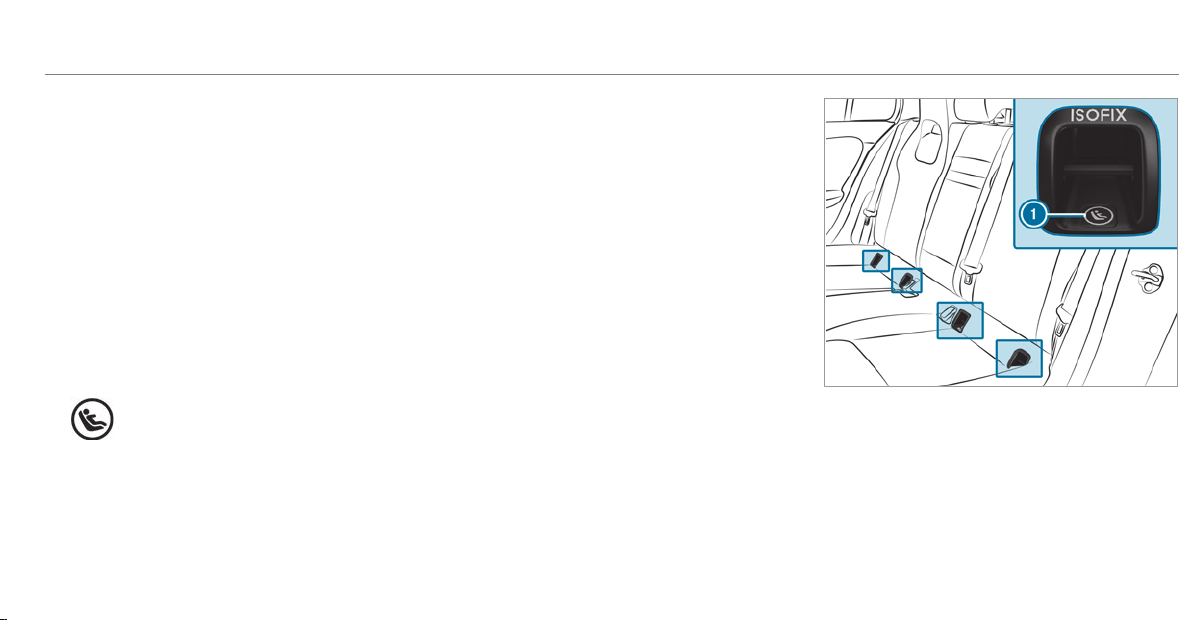
Regularly check that the permissible gross mass
of the child and child restraint system is still
complied with.
When you are installing a child restraint system,
observe the following:
O
Always observe the correct use and the suit‐
ability of the seats for attaching a child
restraint system.
O
Always comply with the manufacturer's
installation and oper ating instructions for
the child restraint system used.
O
Make sure that the child's feet do not touch
the front seat. If necessary, move the front
seat forward slightly.
When you are installing a LATCH-type
(ISOFIX) child restraint system, observe the fol‐
lowing:
O
When you are using a Group 0/0+ baby
car seat and a Group 1 rearward-facing
child restraint system on a rear seat:
adjust the front seat so that the seat does
not touch the child restraint system.
O
When you are using a Group 1 forward-
facing child restraint system: remove the
head restraint from the respective seat, if
possible. In addition, the seat backrest of
the child restraint system must, as far as
possible, lie flat against the backrest of the
vehicle seat.
After the child restraint system has been
removed, replace the head restraints again
immediately and adjust them correctly.
O
For certain child restraint systems in weight
group 2 or 3, there may be restrictions in
the maximum size setting, e.g. due to possi‐
ble contact with the roof.
O
The child restraint system must not be ten‐
sioned between the roof and the seat cush‐
ion and/or be installed facing the wrong
direction. Where possible, adjust the seat
cushion inclination accordingly.
O
The child restraint system must not be put
under strain by the head restraints. Adjust
the head restraints accordingly.
1
LATCH-type (ISOFIX) mounting bracket
Before every trip, make sure that the LATCH-type
(ISOFIX) child restraint system is engaged cor‐
rectly in both mounting brackets in the vehicle.
Occupant safety
57
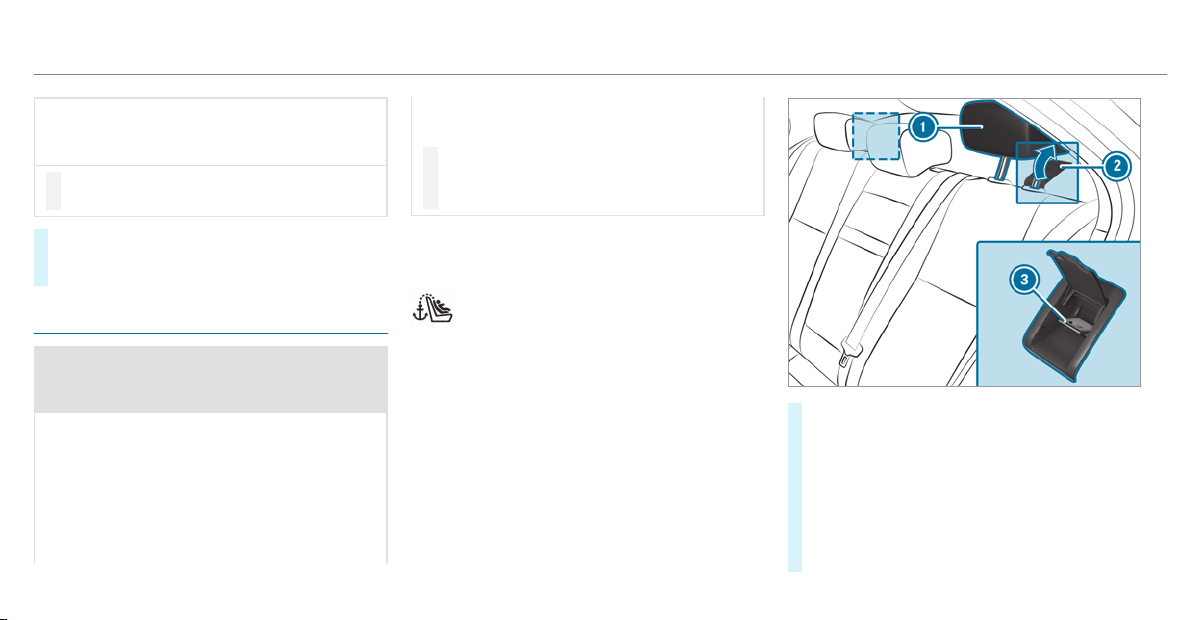
*
NOTE Be careful not to damage the seat
belt for the center seat when installing
the child restraint system
#
Make sure that the seat belt is not trap‐
ped.
#
Attach the LATCH-type (ISOFIX) child
restraint system to both mounting brackets
in the vehicle.
Securing Top Tether
&
WARNING Risk of injury or death if the
rear seat backrests are not locked after
installing Top Tether belts
If the rear seat backrests are not locked, they
could fold forwards in the event of an acci‐
dent or during braking or sudden changes of
direction.
As a result, child restraint systems cannot
perform their intended protective function.
Rear seat backrests that are not locked can
also cause additional injuries, e.g. in the
event of an accident.
#
Always lock rear seat backrests after
installing Top Tether belts.
#
Observe the lock verification indicator.
If the rear seat backrest is not engaged and
locked, the red lock verification indicator will be
visible.
If the child restraint system is equipped
with a Top Tether belt:
The risk of injury can be reduced by Top
Tether. The Top Tether belt facilitates an
additional connection between the child
restraint system att ached with LATCH-
type (ISOFIX) and the vehicle.
#
If necessary, move head restraint 1
upwards (/ page 92).
#
Fold up cover 2 of Top Tether anchorage
3.
#
Install the LATCH-type (ISOFIX) child restraint
system with Top Tether. Always comply with
the child restraint system manufacturer's
installation instructions when doing so.
58
Occupant safety
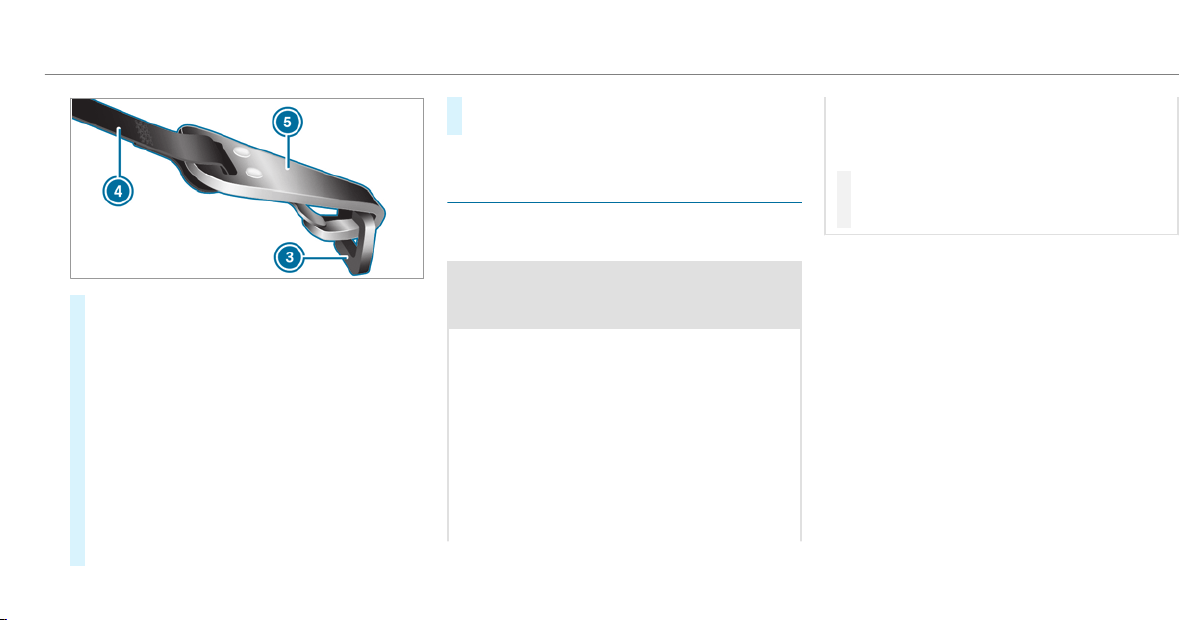
#
Guide Top Tether belt 4 under head
restraint 1 between the two head restraint
bars.
#
Hook Top Tether hook 5 of Top Tether belt
4 without twisting into Top Tether anchor‐
age 3.
#
Tension Top Tether belt 4. Always comply
with the child restraint system manufactur‐
er's installation instructions when doing so.
#
Fold down cover 2 of Top Tether anchorage
3.
#
If necessary, slide head restraint 1 down‐
wards (/ page 92). Make sure that you
do not interfere with the correct routing of
Top Tether belt 4.
Securing the child restraint system with the
seat belt
Securing the child restraint system with the
seat belt on the rear seat
&
WARNING Risk of injury if the rear
bench seat/rear seat and seat backrest
are not engaged
If the rear bench seat/rear seat and seat
backrest are not engaged they could fold for‐
wards, e.g. when braking suddenly or in the
event of an accident.
R
If this is the case, the vehicle occupant
would be forced into the seat belt by the
rear bench seat/rear seat or by the seat
backrest. The seat belt cannot protect as
intended and could result in additional
injury.
R
Objects or loads in the trunk/cargo com‐
partment cannot be restrained by the
seat backrest.
#
Make sure that the seat backrest and
the rear bench seat/rear seat are
engaged before every trip.
If the rear seat backrest is not engaged and
locked, the red lock verification indicator will be
visible.
When installing a belt-secured child restraint
system, observe the following:
O
Always comply with the manufacturer's
installation and oper ating instructions for
the child restraint system used.
O
When using a category 0/0+ baby car
seat and a category I rearward-facing
child restraint system on a rear seat:
adjust the front seat so that the seat does
not touch the child restraint system.
O
When using a category I forward-facing
child restraint system: remove the head
restraint from the respective seat, if possi‐
ble.
Occupant safety
59

After removing the child restraint system,
replace the head restraints again immedi‐
ately and adjust them correctly.
O
The backrest of the forward-facing child
restraint system must, as far as possible, be
resting on the seat backrest of the rear
seat.
O
For certain child restraint systems in weight
category II or III, there may be restrictions in
the maximum size setting, e.g. due to possi‐
ble contact with the roof.
O
The child restraint system must not be put
under strain between the roof and the seat
cushion and/or be installed facing the
wrong direction. Where possible, adjust the
seat cushion inclination accordingly.
O
The child restraint system must not be put
under strain by the head restraints. Adjust
the head restraints accordingly.
O
Make sure that the child's feet do not touch
the front seat. If necessary, move the front
seat forward slightly.
The seat belts on the following seats are equip‐
ped with a special seat belt retractor:
R
Front passenger seat
R
Rear seats
When enabled, the special seat belt retractor
ensures that the seat belts of the front
passenger seat and rear seats do not slacken
once the child restraint system is secured
(
/ page 55).
#
Install the child restraint system.
The entire base of the child restraint system
must always rest on the sitting surface of the
rear seat.
#
Always make sure that the shoulder belt
strap is correctly routed from the seat belt
outlet of the vehicle to the shoulder belt
guide on the child restraint system.
The shoulder belt strap must be routed for‐
wards and downwards from the seat belt out‐
let.
Notes on rearward-facing and forward-facing
child restraint systems on the front
passenger seat
&
WARNING Risk of injury or death from
using a rearward-facing child restraint
system when the front passenger front
airbag is enabled
If you secure a child in a rearward-facing
child restraint system on the front passenger
seat and the PASSENGER AIR BAG OFF indi‐
cator lamp is off, the front passenger airbag
can deploy in the event of an accident.
The child could be struck by the airbag.
Always ensure that the front passenger air‐
bag is deactivated. The PASSENGER AIR BAG
OFF indicator lamp must be lit.
NEVER use a rearward-facing child restraint
system on a seat protected by an ENABLED
FRONT AIRBAG in front of it, DEATH or SERI‐
OUS INJURY to the CHILD can occur.
60
Occupant safety

Observe the specific instructions for the rear‐
ward-facing and forward-facing child restraint
systems (/ page 61).
Warning notice on the front passenger sun visor
Always observe the status of the front passenger
front airbag on the PASSENGER AIR BAG OFF
indicator lamp:
R
When using a rearward-facing child restraint
system on the front passenger seat, the front
passenger front airbag must always be disa‐
bled. This is only the case if the PASSENGER
AIR BAG OFF indicator lamp is lit continu‐
ously (
/ page 45).
R
If the PASSENGER AIR BAG OFF indicator
lamp is off, the front passenger front airbag
is enabled. The front passenger front airbag
may deploy during an accident.
Securing the child restraint system with the
seat belt on the front passenger seat
When installing a belt-secured child restraint
system on the front passenger seat, always
observe the following:
O
Observe the child restraint system manufac‐
turer's installation and operating instruc‐
tions.
O
When using a forward-facing child restraint
system in Group I: remove the head
restraint from the respective seat, if possi‐
ble.
When you remove the child restraint sys‐
tem, install the head restraint again immedi‐
ately and adjust all the head restraints cor‐
rectly.
O
The backrest of the forward-facing child
restraint system must lie as f lat as possible
against the backrest of the front passenger
seat.
O
For certain child restraint systems in weight
group II or III, there may be restrictions in
the maximum size setting, e.g. due to possi‐
ble contact with the roof.
O
The child restraint system must not be put
under strain between the roof and the seat
cushion and/or be installed facing the
wrong direction. Adjust the seat backrest
inclination accordingly.
O
The child restraint system must not be put
under strain by the head restraints. Adjust
the head restraints accordingly.
O
Never place objects under or behind the
child restraint system, e.g. cushions.
The seat belt on the front passenger side is
equipped with a special seatbelt retractor.
When activated, the special seatbelt retractor
ensures that the seat belt does not slacken once
the child restraint system is secured
(
/ page 55).
#
Set the front passenger seat as far back as
possible and move the seat into the highest
position.
#
Fully retract the seat cushion length adjust‐
ment.
#
Adjust the seat cushion inclination so that
the front edge of the seat cushion is in the
Occupant safety
61
highest position and the rear edge of the
seat cushion is in the lowest position.
#
Set the seat backrest to an almost vertical
position.
#
Install the child restraint system.
The entire base of the child restraint system
must always rest on the seat cushion of the
front passenger seat.
#
Always make sure that the shoulder belt
strap is correctly routed from the seat belt
outlet of the vehicle to the shoulder belt
guide on the child restraint system.
The shoulder belt strap must be routed for‐
wards and downwards from the seat belt out‐
let.
#
If necessary, adjust the front passenger seat
accordingly.
Child safety locks
Activating/deactivating the child safety lock
for the rear doors
&
WARNING Risk of accident and injury
due to children and animals left unatten‐
ded in the vehicle
If you leave children and animals unattended
in the vehicle, they may be able to set the
vehicle in motion, for example by:
R
Releasing the parking brake.
R
Shifting the automatic transmission out
of park position j.
R
Starting the engine.
In addition, they may operate vehicle equip‐
ment and become trapped.
#
Never leave children and animals unat‐
tended in the vehicle.
#
When leaving the vehicle, always take
the SmartKey with you and lock the
vehicle.
&
WARNING Risk of fatal injury due to
exposure to extreme heat or cold in the
vehicle
If people – par ticularly children – are
exposed to extreme temperatures over an
extended period of time, there is a risk of
serious or even fatal injury.
#
Never leave anyone – particularly chil‐
dren – unattended in the vehicle.
#
Never leave animals in the vehicle unat‐
tended.
&
WARNING Risk of accident and injury
due to children left unattended in the
vehicle
When children are traveling in the vehicle,
they could:
R
open doors, thereby endangering other
people or road users
R
get out of the vehicle and be hit by traffic
R
operate vehicle equipment and become
trapped, for example
62
Occupant safety
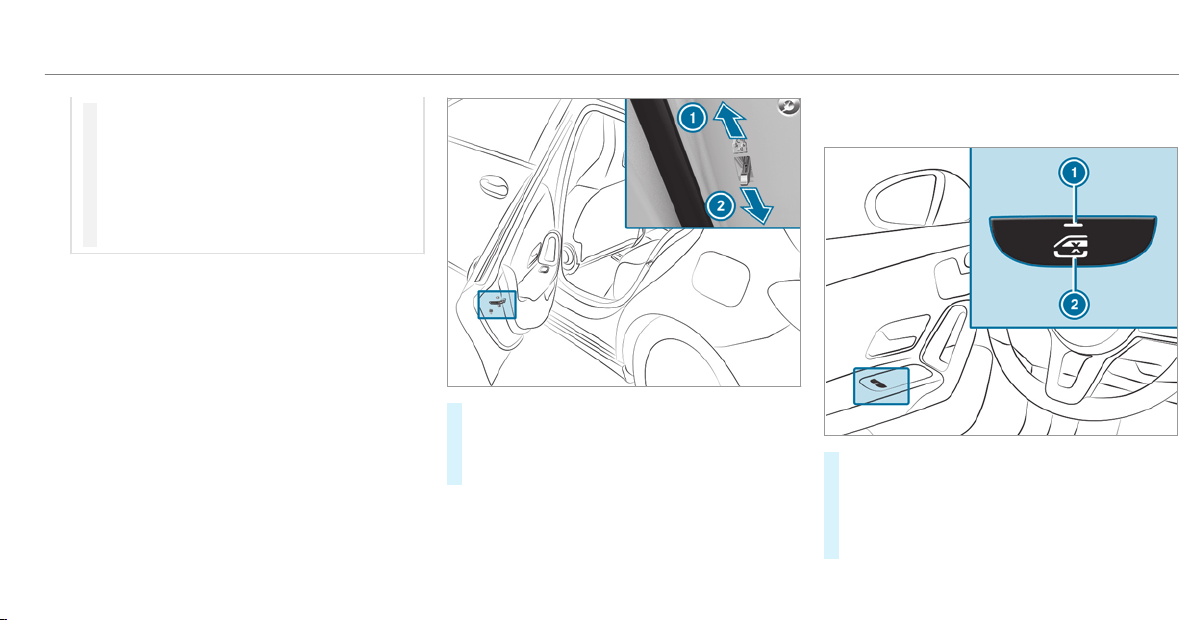
#
When children are traveling in the vehi‐
cle, always activate the available child
safety locks.
#
Never leave children unattended in the
vehicle.
#
When leaving the vehicle, always take
the key with you and lock the vehicle.
Child safety locks for the rear doors and the rear
side windows are available.
The child safety lock on the rear doors secures
each door separately. The doors can no longer
be opened from the inside.
#
Press the lever in direction 1 (activate) or
2 (deactivate).
#
Make sure that the child safety locks are
working properly.
Activating/deactivating the child safety lock
for the rear side windows
#
To activate/deactivate: press button 2.
The rear side window can be opened or
closed in the following cases:
R
with indicator lamp 1 lit: via the switch
on the driver's door
Occupant safety
63
R
with indicator lamp 1 off: via the switch
on the corresponding rear door or driv‐
er's door
Notes on pets in the vehicle
&
WARNING Risk of accident and injury
due to animals left unsecured or unat‐
tended in the vehicle
If you leave animals in the vehicle unatten‐
ded or unsecured, they could possibly press
down buttons or switches.
Thereby an animal may:
R
activate vehicle equipment and become
trapped, for example
R
switch systems on or off and endanger
other road users
Unsecured animals may be thrown around in
the vehicle in the event of an accident or
sudden steering and braking maneuver and
injure vehicle occupants in the process.
#
Never leave animals in the vehicle unat‐
tended.
#
Always correctly secure animals while
driving, for example using a suitable
animal carrier.
64
Occupant safety
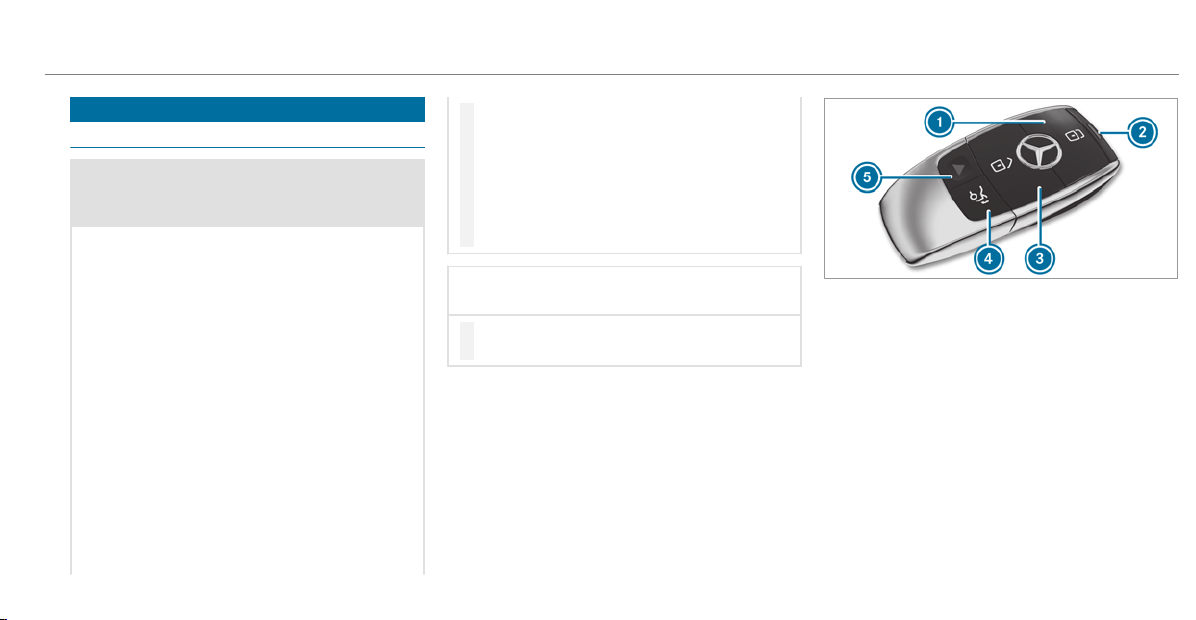
SmartKey
Overview of SmartKey functions
&
WARNING Risk of accident and injury
due to children left unattended in the
vehicle
If children are left unattended in the vehicle,
they could:
R
Open doors, thereby endangering other
persons or road users.
R
Get out of the vehicle and be hit by
oncoming traffic.
R
Operate vehicle equipment and become
trapped, for example.
In addition, children could also set the vehi‐
cle in motion, for example, by:
R
Releasing the parking brake.
R
Shifting the automatic transmission out
of park position j or shifting manual
transmission into neutral.
R
Starting the engine
#
When leaving the vehicle, always take
the SmartKey with you and lock the
vehicle.
#
Never leave children and animals unat‐
tended in the vehicle.
#
Keep the SmartKey out of reach of chil‐
dren.
*
NOTE Damage to the key caused by
magnetic fields
#
Keep the key away from strong mag‐
netic fields.
1
Locks
2
Battery check lamp
3
Unlocks
4
Opens the trunk lid
5
Panic alarm
%
The SmartKey may var y from the one shown
in the diagram, depending on the vehicle
equipment.
The SmartKey locks and unlocks the following
components:
R
the doors
R
the trunk lid
R
the fuel filler flap
Opening and closing
65
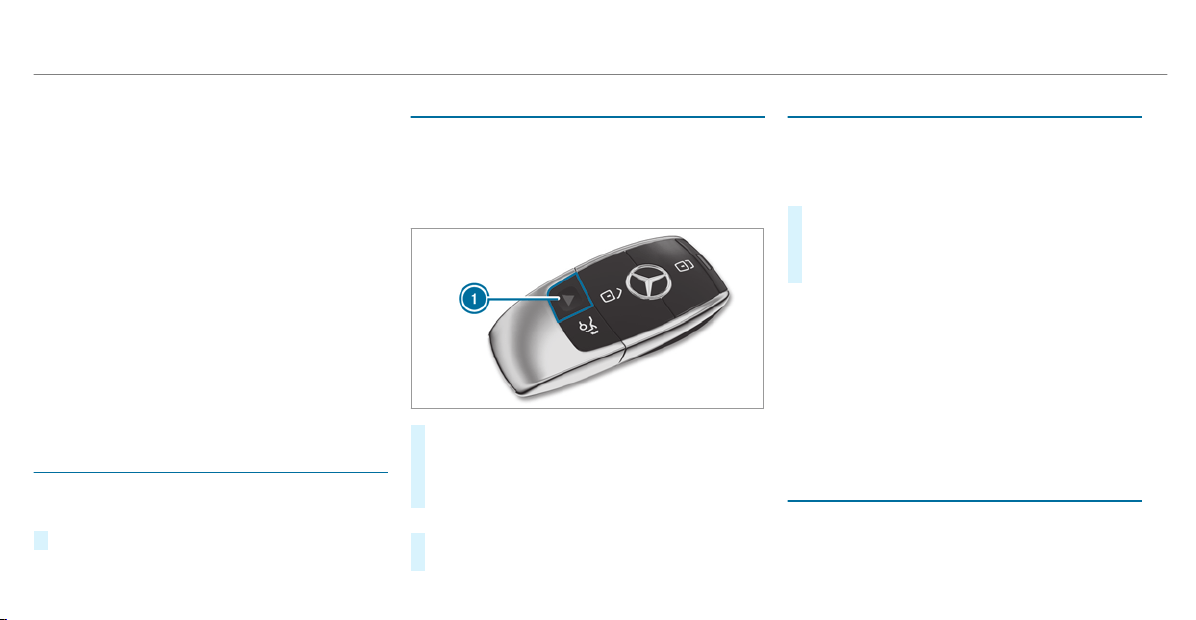
The indicator lamp in the door trim on the driv‐
er's side flashes when the vehicle is locked from
outside. The indicator lamp goes out if the vehi‐
cle is locked from inside or while the vehicle is in
motion.
If the vehicle is not opened within approximately
40 seconds after unlocking, it locks again. Anti-
theft protection is armed again.
Do not keep the SmartKey together with elec‐
tronic devices or metal objects. This can affect
the SmartKey's functionality.
%
If battery check lamp 2 does not light up
after pressing the % or & button, the
battery is discharged.
Replace the SmartKey battery (
/ page 67).
Activating/deactivating the acoustic locking
verification signal
Multimedia system:
4
©
5
Settings
5
Vehicle
#
Activate or deactivate Acoustic Lock.
Activating/deactivating the panic alarm
Requirements:
R
The ignition is switched off
%
The panic alarm function is only available in
certain countr ies.
#
To activate: press button 1 for approx‐
imately one second.
A visual and audible alarm is triggered.
#
To deactivate: briefly press button 1 again.
or
#
Press the start/stop button on the cockpit
(the SmartKey is inside the vehicle).
Changing the unlocking settings
Possible unlocking functions of the SmartKey:
R
Central unlocking
R
Unlocking the driver's door and fuel filler flap
#
To switch between settings: press the
% and & buttons simultaneously for
approximately six seconds until the battery
check lamp flashes twice.
If the unlocking function for the driver's door
and fuel filler flap has been selected:
R
Pressing the % button a second time cen‐
trally unlocks the vehicle
R
Vehicles with KEYLESS-GO: If you touch
the inner surface of the door handle on the
driver's door, only the driver's door and fuel
filler flap are unlocked.
Deactivating the SmartKey functions
If you do not use the vehicle or a SmartKey for
an extended period of time, you can reduce the
energy consumption of the respective Smart‐
66
Opening and closing
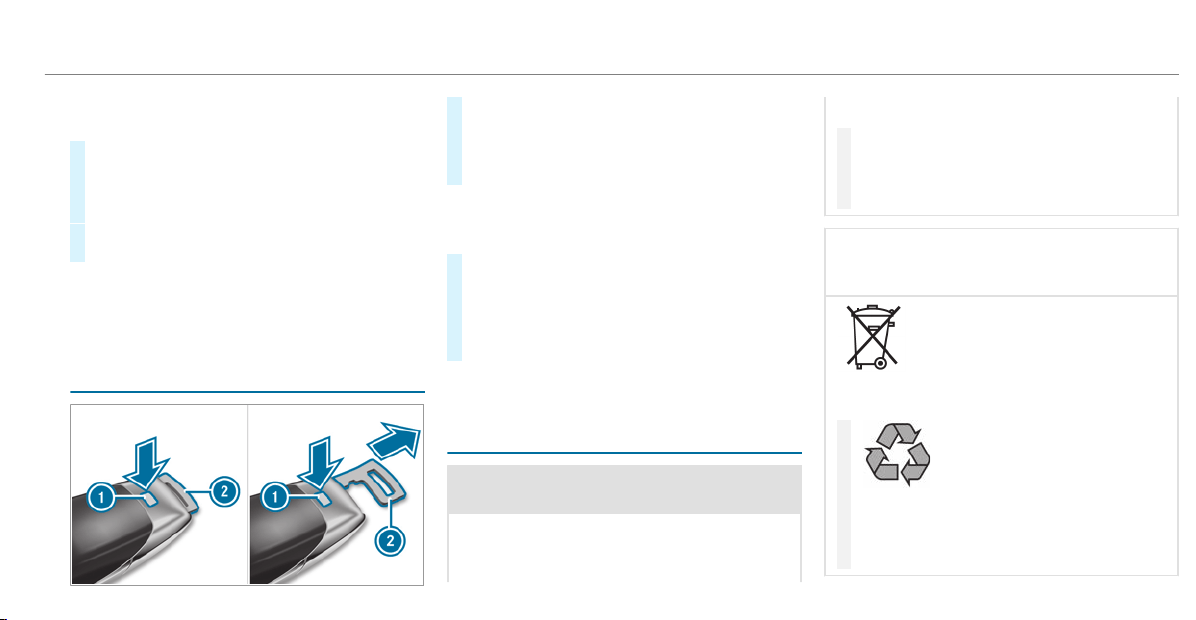
Key . To do so, deactivate the SmartKey func‐
tions.
#
To deactivate: press the & button on the
SmartKey twice in quick succession.
The battery check lamp of the Smar tKey
flashes twice briefly and lights up once.
#
To activate: press any button on the Smart‐
Key.
%
When the vehicle is started with the Smart‐
Key in the stowage compartment of the cen‐
ter console, the SmartKey functions are
automatically activated (
/ page 130).
Removing/inserting the emergency key
#
To remove: press release button 1.
Emergency key 2 is pushed out slightly.
#
Pull out emergency key 2 until it engages in
the intermediate position.
%
You can use the intermediate position of
emergency key 2 to attach the SmartKey to
a key ring.
#
Press release button 1 again and fully
remove emergency key 2.
#
To insert: press release button 1.
#
Insert emergency key 2 to the intermediate
position or fully until it engages.
%
Depending on the vehicle's equipment, the
intermediate position is not available.
Replacing the SmartKey battery
&
DANGER Serious damage to health
caused by swallowing batteries
Batteries contain toxic and corrosive sub‐
stances. Swallowing batteries may cause
serious damage to health.
There is a risk of fatal injury.
#
Keep batteries out of the reach of chil‐
dren.
#
If batteries are swallowed, seek medical
attention immediately.
+
ENVIRONMENTAL NOTE Environmental
damage caused by improper disposal of
batteries
Batteries contain pollutants. It is
illegal to dispose of them with the household
rubbish.
#
Dispose of batteries in an
environmentally responsible manner.
Take discharged batteries to a qualified
specialist workshop or to a collection
point for used batteries.
Opening and closing
67
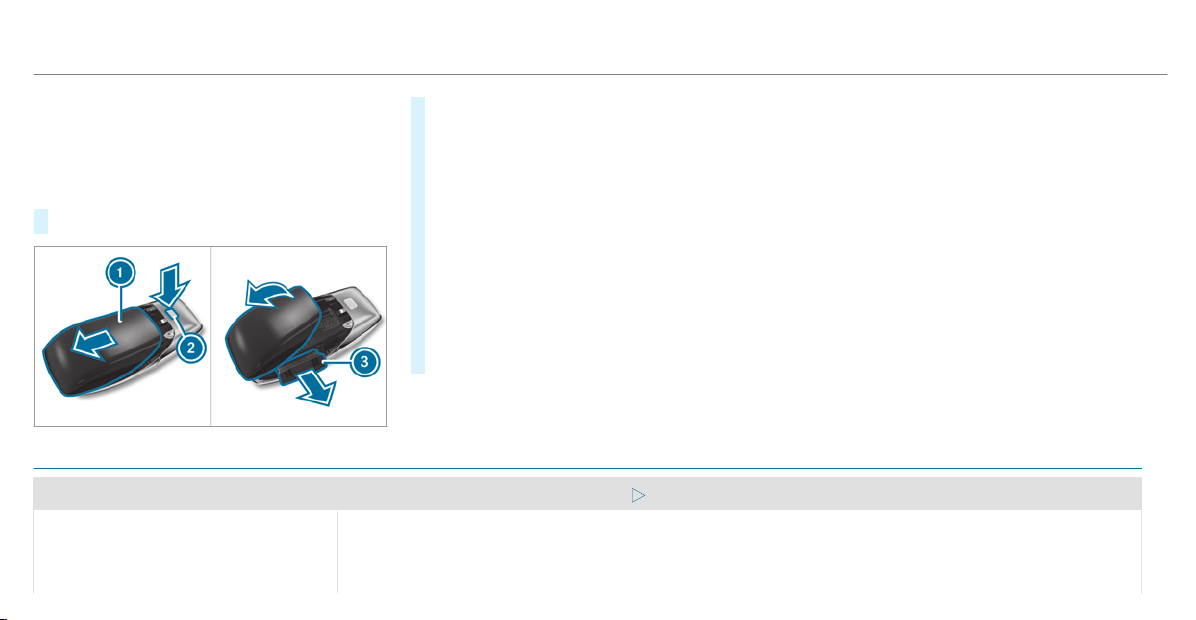
Requirements:
R
You require a CR 2032 3 V cell battery.
Mercedes-Benz recommends that you have the
battery replaced at a qualified specialist work‐
shop.
#
Remove the emergency key (/ page 67).
#
Press release button 2 down fully and slide
cover 1 in the direction of the arrow.
#
Fold out cover 1 in the direction of the
arrow and remove.
#
Remove battery compartment 3 and take
out the discharged battery.
#
Insert the new battery into battery compart‐
ment 3. Observe the positive pole marking
in the battery compartment and on the bat‐
tery when doing this.
#
Push in battery compartment 3.
#
Re-attach cover 1 and push it until it
engages.
Problems with the SmartKey
Problem
Possible causes/consequences and M Solutions
You can no longer lock or unlock the
vehicle.
Possible causes are:
R
The SmartKey battery is discharged or nearly discharged.
R
There is interference from a powerful radio signal source.
68
Opening and closing
Problem
Possible causes/consequences and M Solutions
R
The SmartKey is defective.
#
Check the battery using the battery check lamp and replace if necessary (/ page 67).
#
Use the emergency key to lock or unlock (/ page 67).
#
Have the SmartKey checked at a qualified specialist workshop.
You have lost a Smar tKey.
#
Have the SmartKey deactivated at a qualified specialist workshop.
#
If necessary, have the mechanical lock changed as well.
Opening and closing
69
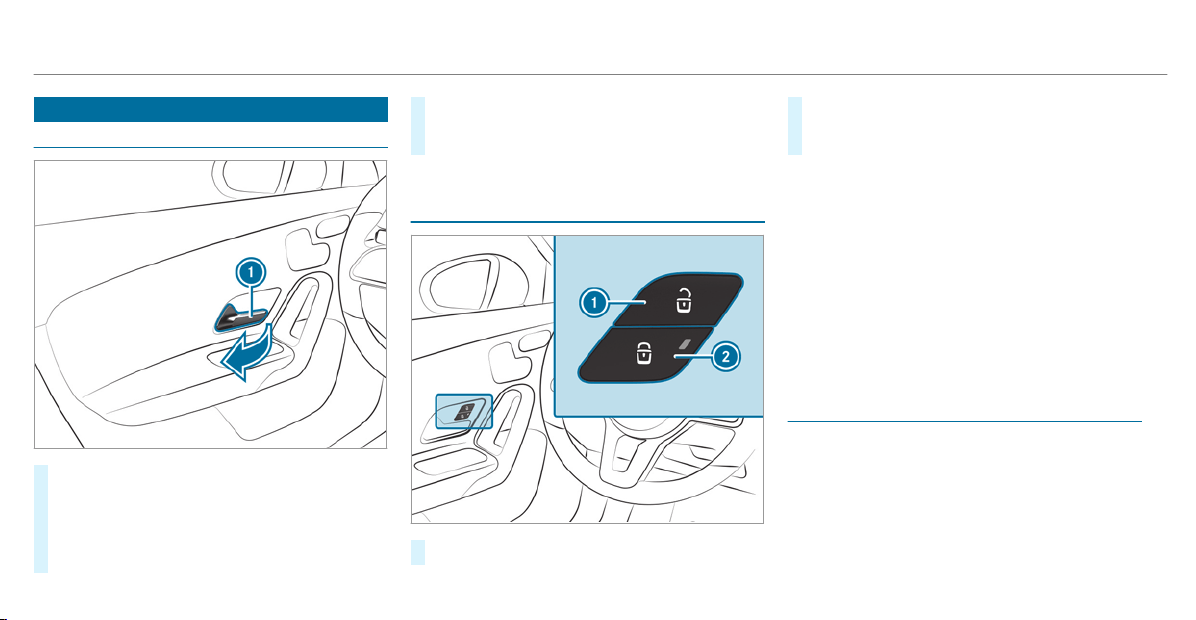
Doors
Unlocking and opening doors from the inside
#
To unlock and open a front door: pull door
handle 1.
#
To unlock a rear passenger compartment
door: pull the rear passenger compartment
door handle.
#
To open a rear passenger compartment
door: pull the rear passenger compartment
door handle again.
Centrally locking and unlocking the vehicle
from the inside
#
To unlock: press button 1.
#
To lock: press button 2.
The indicator lamp in the button on the driv‐
er's or front passenger door lights up.
%
You can also lock and unlock the vehicle
with the buttons on the front passenger door
and rear passenger compartment doors.
This does not lock or unlock the fuel filler flap.
The vehicle is not unlocked:
R
If you have locked the vehicle using the
SmartKey.
R
If you have locked the vehicle using KEY‐
LESS-GO.
Locking/unlocking the vehicle with KEY‐
LESS-GO
Requirements
R
The SmartKey is outside the vehicle.
R
The distance between the SmartKey and the
vehicle does not exceed 3 f t (1 m).
R
The driver's door and the door at which the
door handle is used are closed.
70
Opening and closing
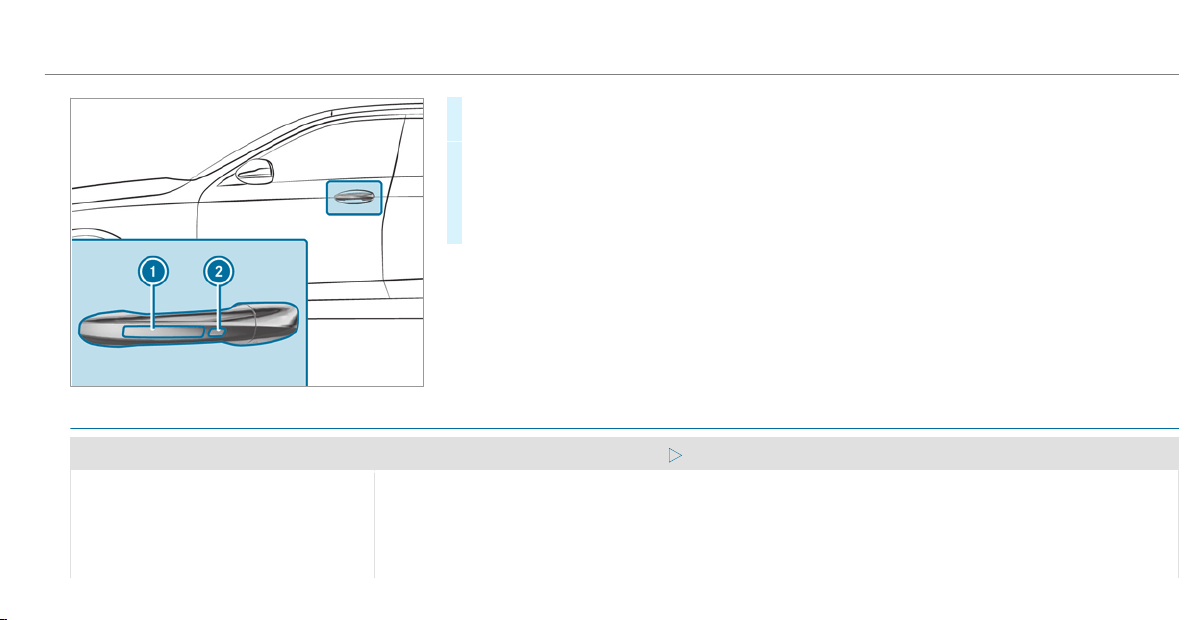
#
To unlock the vehicle: touch the inner sur‐
face of the door handle.
#
To lock the vehicle: touch sensor surface
1 or 2.
#
Convenience closing: touch recessed sen‐
sor surface 2 until the closing procedure is
complete.
%
Further information on convenience closing
(/ page 79).
If you open the trunk lid from outside it is auto‐
matically unlocked.
Problems with KEYLESS-GO
Problem
Possible causes/consequences and M Solutions
You can no longer lock or unlock the
vehicle using KEYLESS-GO.
Possible causes are:
R
The SmartKey functions have been deactivated (/ page 66).
R
The SmartKey battery is discharged or nearly discharged.
R
There is interference from a powerful radio signal source.
Opening and closing
71
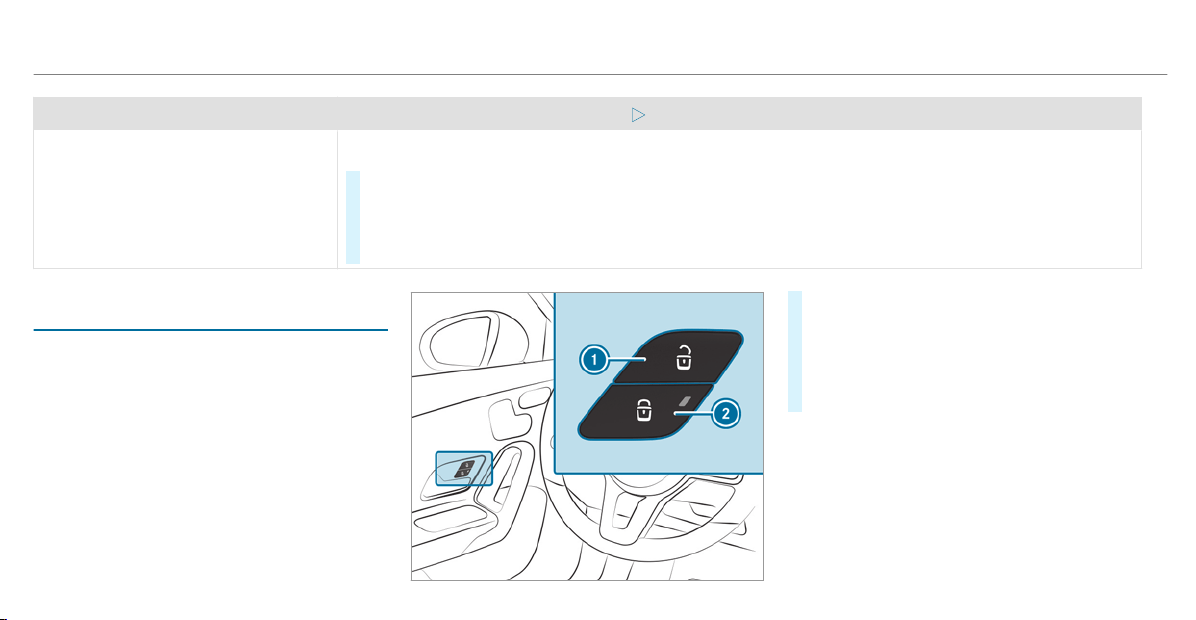
Problem
Possible causes/consequences and M Solutions
R
The SmartKey is faulty.
#
Activate the SmartKey functions (/ page 66).
#
Check the battery using the battery check lamp and replace if necessary (/ page 67).
#
Use the emergency key to unlock or lock the vehicle (/ page 67).
#
Have the vehicle and SmartKey checked at a qualified specialist workshop.
Activating/deactivating the automatic lock‐
ing feature
The vehicle is locked automatically when the
ignition is switched on and the wheels are turn‐
ing faster than walking pace.
#
To activate: press and hold button 2 for
approximately five seconds until an acoustic
signal sounds.
#
To deactivate: press and hold button 1 for
approximately five seconds until an acoustic
signal sounds.
When the vehicle is locked automatically, the
indicator lamp in button 2 lights up.
In the following situations, there is a danger of
being locked out when the function is activated:
R
While the vehicle is being tow started/
pushed.
R
The vehicle is being tested on the dynamom‐
eter.
72
Opening and closing
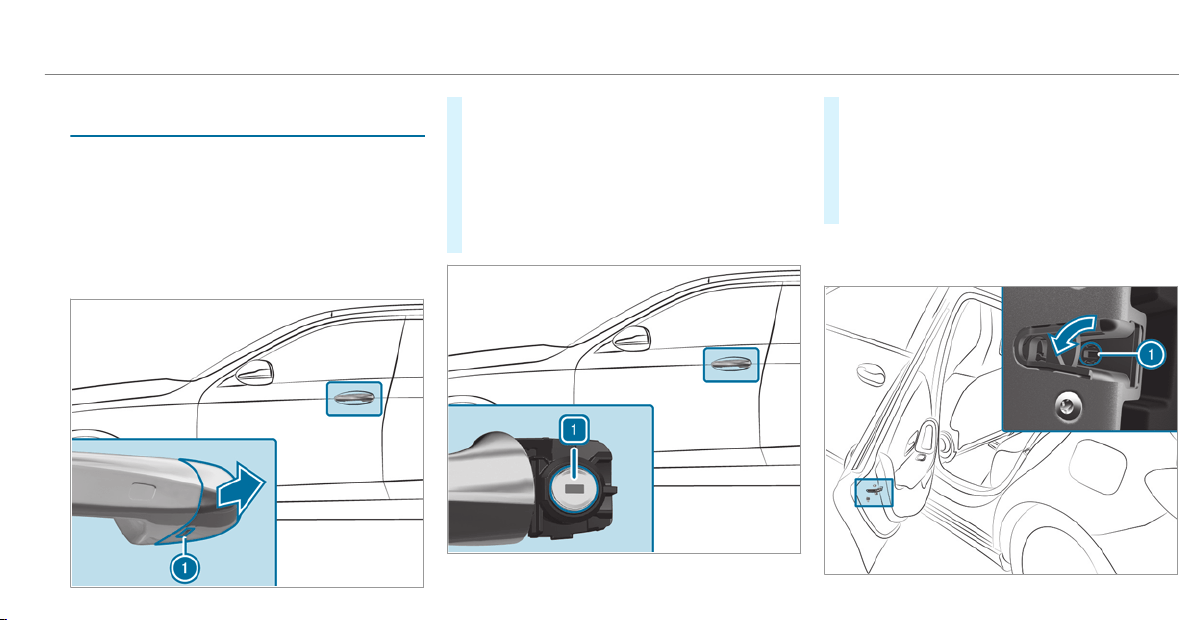
Locking/unlocking the vehicle with the
emergency key
Locking/unlocking the driver's door with the
emergency key
%
If you wish to lock the vehicle entirely using
the emergency key, first press the button for
locking from the inside while the driver's
door is open. Then proceed to lock the driv‐
er's door using the emergency key.
#
Insert the emergency key as far as it will go
into opening 1 in the cover.
#
Pull and hold the door handle.
#
Pull the cover on the emergency key as
straight as possible away from the vehicle
until it releases.
#
Release the door handle.
#
To unlock: turn the emergency key counter-
clockwise to position 1.
#
To lock: turn the emergency key clockwise to
position 1.
#
Carefully press the cover onto the lock cylin‐
der until it engages and is seated firmly.
Locking the front passenger door and rear
doors with the emergency key
Opening and closing
73
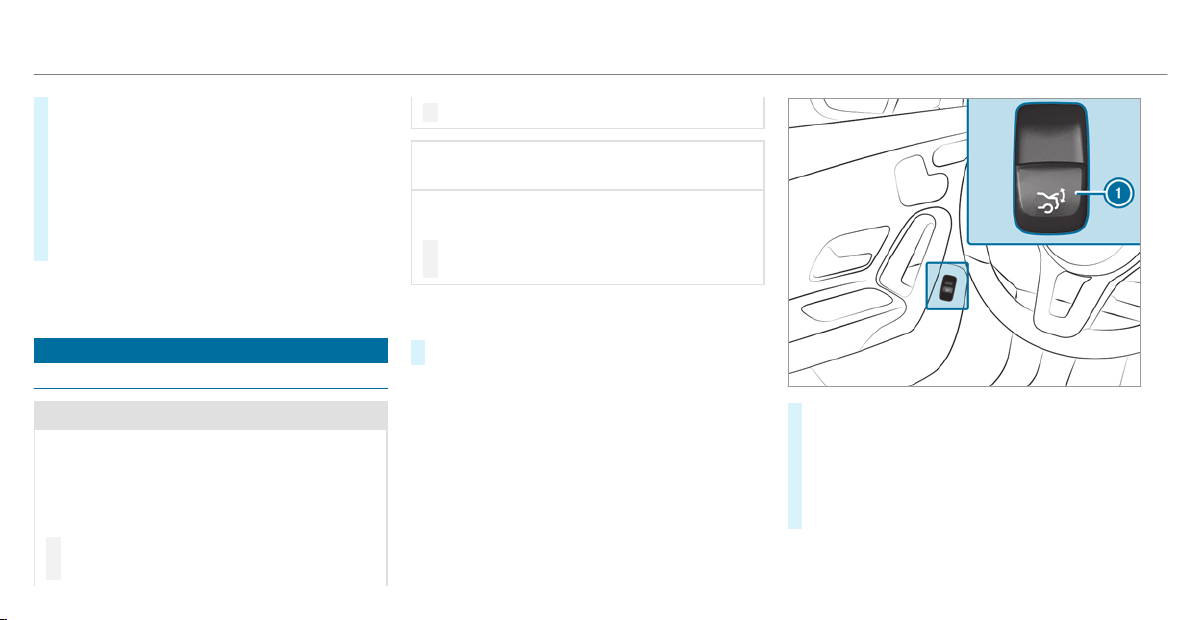
#
Insert a suitable object, e.g. the emergency
key, into opening 1 on the door lock.
#
To lock the left-hand side of the vehicle:
turn the emergency key counter-clockwise as
far as it will go.
#
To lock the right-hand side of the vehicle:
turn the emergency key clockwise as far as it
will go.
If the locked door is then closed, it can no longer
be opened from outside.
Trunk
Opening the trunk lid
&
DANGER Risk of exhaust gas poisoning
Combustion engines emit poisonous exhaust
gases such as carbon monoxide. Exhaust
gases can enter the vehicle interior if the
trunk lid is open when the engine is running,
especially if the vehicle is in motion.
#
Always switch off the engine before
opening the trunk lid.
#
Never drive with the trunk lid open.
*
NOTE Damage to the trunk lid by obsta‐
cles above the vehicle
The trunk lid swings upwards when it is
opened.
#
Therefore, make sure that there is suffi‐
cient clearance above the trunk lid.
You have the following options for opening
the trunk lid:
#
Pull the trunk lid handle.
#
Pull trunk lid remote operating switch 1.
#
Press and hold the p button on the
SmartKey.
#
Vehicles with HANDS-FREE ACCESS: Make
a kicking movement with your foot below the
bumper (/ page 75).
74
Opening and closing
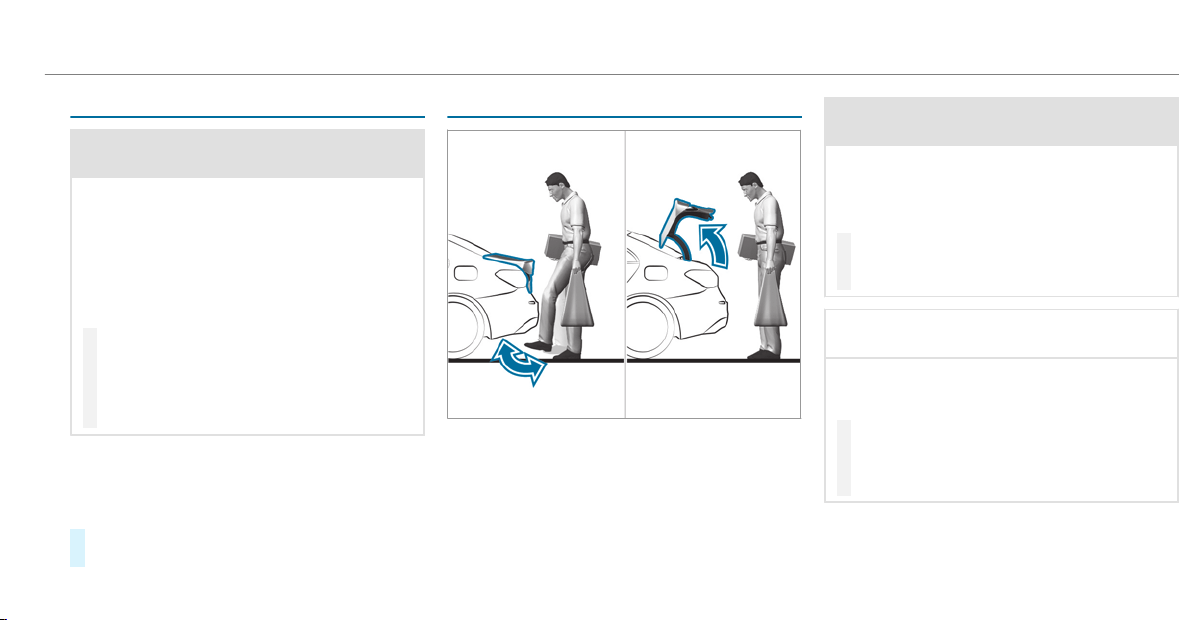
Closing the trunk lid
&
WARNING Risk of injury from unsecured
items in the vehicle
If objects, luggage or loads are not secured
or not secured sufficiently, they could slip,
tip over or be thrown around and thereby hit
vehicle occupants.
There is a risk of injury, particularly in the
event of sudden braking or a sudden change
in direction.
#
Always stow objects in such a way that
they cannot be thrown around.
#
Before the journey, secure objects, lug‐
gage or loads against slipping or tipping
over.
Comply with the loading guidelines when you are
loading the vehicle.
You have the following options for closing
the trunk lid:
#
Pull the trunk lid down using the handle
recess and push it closed.
HANDS-FREE ACCESS function
With HANDS-FREE ACCESS you can open the
trunk lid by performing a kicking movement
under the bumper.
Observe the notes when opening the trunk lid
(
/ page 74).
&
WARNING Risk of burns caused by a hot
exhaust system
The vehicle exhaust system can become very
hot. If you use HANDS-FREE ACCESS, you
could burn yourself by touching the exhaust
system.
#
Always ensure that you only make a
kicking movement within the detection
range of the sensors.
*
NOTE Damage to the vehicle caused by
unintentionally opening the trunk lid
R
When using an automatic car wash
R
When using a high pressure cleaner
#
Deactivate KEYLESS-GO or make sure
that the SmartKey located is at least
10 ft (3 m) away from the vehicle in
such situations.
When making the kicking movement, make sure
that your feet are firmly on the ground, other‐
wise you could lose your balance, e.g. on ice.
Opening and closing
75
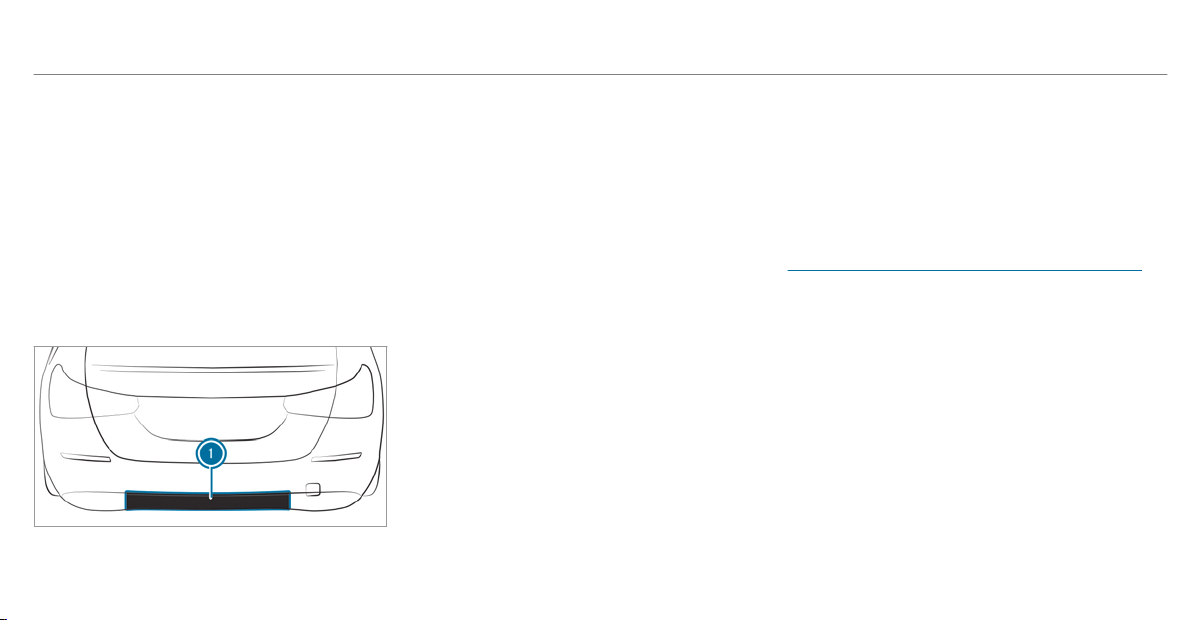
Requirements
R
The SmartKey is behind the vehicle.
R
Stand at least 12 in (30 cm) away from the
vehicle while performing the kicking move‐
ment.
R
Do not come into contact with the bumper
while making the kicking movement.
R
Do not carry out the kicking movement too
slowly.
R
The kicking movement must be towards the
vehicle and back again.
1
Detection range of the sensors
If several consecutive kicking movements are
not successful, wait ten seconds.
System limitations
The system may be impaired or may not function
if:
R
Snow or dirt, e.g. from road salt, covers the
sensor area.
R
The kicking movement is made using a pros‐
thetic leg.
The trunk lid could be opened unintentionally, in
the following situations:
R
A person's arms or legs are moving in the
sensor detection range, e.g. when polishing
the vehicle or picking up objects.
R
Objects are moved or placed behind the vehi‐
cle, e.g. tensioning straps or luggage.
R
Clamping straps, tarps or other coverings are
pulled over the bumper.
R
A protective mat with a length reaching over
the trunk sill down into the detection range
of the sensors is used.
R
The protective mat is not secured correctly.
R
Work is being undertaken on the trailer hitch,
on trailers or rear bicycle racks.
Deactivate the Smar tKey functions
(/ page 66) or do not carr y the SmartKey
about your person in such situations.
Unlocking the trunk with the emergency
release from inside
Requirements
R
The 12‑V‑vehicle battery is connected and
charged.
76
Opening and closing
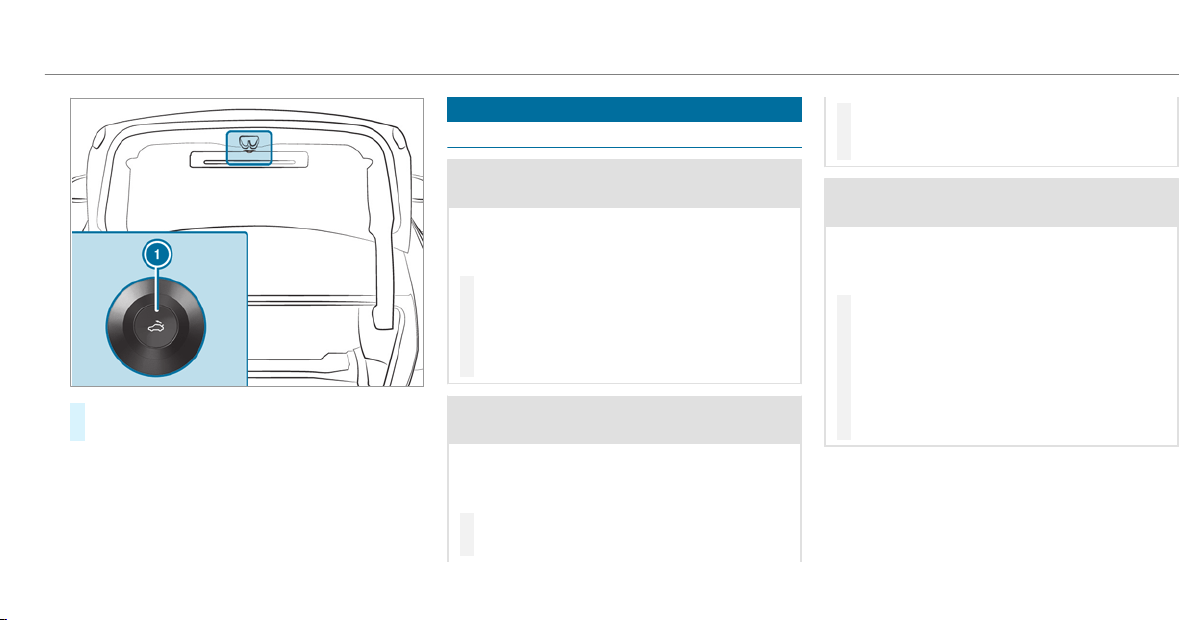
#
Press emergency release button 1 briefly.
The trunk lid unlocks and opens.
Side windows
Opening and closing the side windows
&
WARNING Risk of entrapment when
opening a side window
When opening a side window, parts of the
body could be drawn in or become trapped
between the side window and window frame.
#
When opening, make sure that nobody
is touching the side window.
#
If someone is trapped, release the but‐
ton immediately or pull it in order to
close the side window again.
&
WARNING Risk of becoming trapped
when closing a side window
When closing a side window, body parts
could be trapped in the closing area in the
process.
#
When closing, make sure that no body
parts are in the closing area.
#
If someone is trapped, release the but‐
ton immediately or press the button in
order to reopen the side window.
&
WARNING Risk of becoming trapped
when children operate the side windows
Children could become tr apped if they oper‐
ate the side windows, particularly when unat‐
tended.
#
Activate the child safety lock for the
rear side windows.
#
When leaving the vehicle, always take
the SmartKey with you and lock the
vehicle.
#
Never leave children unattended in the
vehicle.
Requirements:
R
The power supply or the ignition is switched
on.
Opening and closing
77
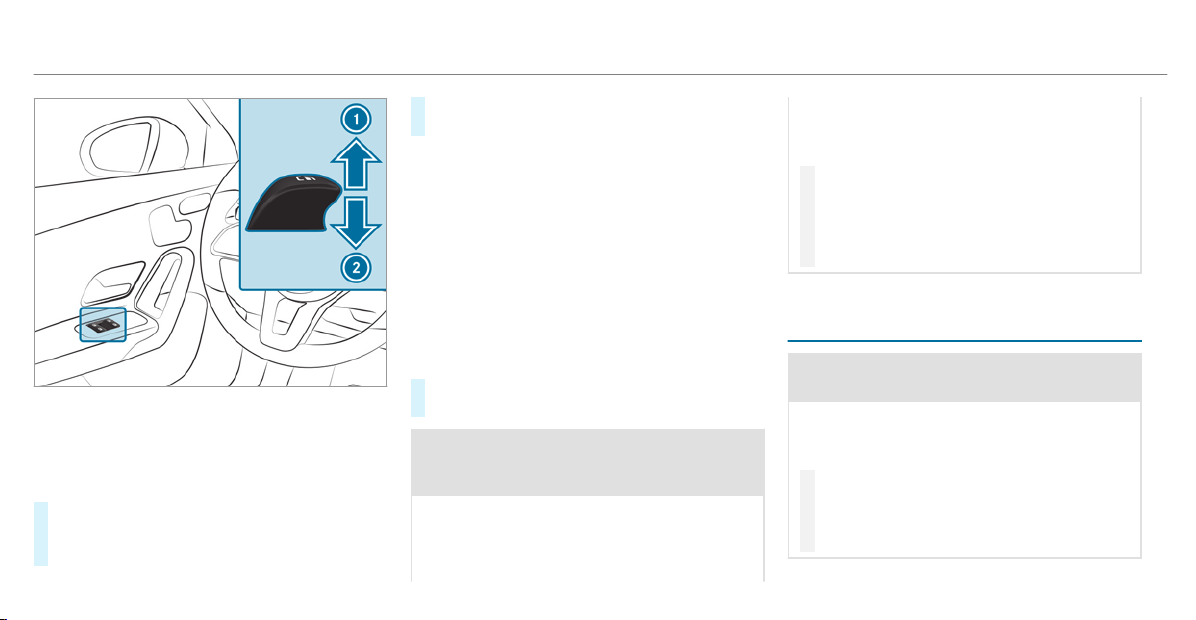
1
Closes
2
Opens
The buttons on the driver's door take prece‐
dence.
#
To start automatic operation: press the
W button beyond the point of resistance
or pull and release it.
#
To interrupt automatic operation: press or
pull the W button again.
When the vehicle is switched off, the side win‐
dows can continue being operated.
The function is available for around five minutes
or until a front door is opened.
Automatic reversing function of the side win‐
dows
If an object blocks a side window dur ing the
closing process, the side window opens again
automatically. The automatic reversing function
is only an aid and is not a substitute for your
attentiveness.
#
When closing, make sure that no body parts
are in the closing area.
&
WARNING Risk of becoming trapped
despite there being reversing protection
on the side window
The reversing function does not react:
R
To soft, light and thin objects, e.g. fingers
R
During resetting
This means that the reverse function cannot
prevent someone from becoming trapped in
these situations.
#
When closing, make sure that no body
parts are in the closing area.
#
If someone becomes trapped, press the
W button to open the side window
again.
Convenience opening (ventilating the vehicle
before starting a journey)
&
WARNING Risk of entrapment when
opening a side window
When opening a side window, parts of the
body could be drawn in or become trapped
between the side window and window frame.
#
When opening, make sure that nobody
is touching the side window.
#
Release the button immediately if
somebody becomes trapped.
78
Opening and closing
#
Press and hold the % button on the
SmartKey.
The following functions are performed:
R
The vehicle is unlocked.
R
The side windows are opened.
R
The panoramic sliding sunroof is opened.
R
The seat ventilation of the driver's seat is
switched on.
If the roller sunblinds of the panoramic sliding
sunroof are closed, the roller sunblinds are
opened first.
#
To interrupt convenience opening: release
the % button.
#
To continue convenience opening: press
and hold the % button again.
Convenience closing (closing the vehicle
from outside)
&
WARNING Risk of entrapment caused by
inadvertent convenience closing
When the convenience closing feature is
operating, parts of the body could become
trapped in the closing area of the side win‐
dow and the sliding sunroof.
#
Observe the complete closing proce‐
dure when using convenience closing.
#
When closing, make sure that no body
parts are in the closing area.
#
Press and hold the & button on the
SmartKey.
The following functions are performed:
R
The vehicle is locked.
R
The side windows are closed.
R
The panoramic sliding sunroof is closed.
#
To interrupt convenience closing: release
the & button.
#
To close the roller sunblinds: press and
hold the & button again.
%
Convenience closing can also be operated
with KEYLESS-GO (/ page 70).
Opening and closing
79
Problems with the side windows
Problem
Possible causes/consequences and M Solutions
A side window cannot be closed and
you cannot see the cause.
#
Check to see whether any objects are in the window guide.
&
WARNING Risk of becoming trapped or fatally injured if reversing protection is not activated
If you close a side window again immediately after it has been blocked or reset, the side window closes
with increased or maximum force. The reversing feature is then not active.
Parts of the body could become trapped in the closing area in the process.
#
Make sure that no parts of the body are in the closing area.
#
To stop the closing process, release the button or press the button again to reopen the side win‐
dow.
If a side window is obstructed during closing and reopens again slightly:
#
Immediately after the window is blocked, pull the corresponding switch again until the side window has
closed, and hold the switch for an additional second.
The side window will be closed with increased force.
If a side window is obstructed again during closing and reopens again slightly:
#
Repeat the previous step.
The side window is closed without the automatic reversing function.
80
Opening and closing
Problem
Possible causes/consequences and M Solutions
The side windows cannot be opened or
closed using the convenience opening
feature.
The SmartKey battery is discharged or nearly discharged.
#
Check the battery using the battery check lamp and replace if necessary (/ page 67).
Sliding sunroof
Opening and closing the sliding sunroof
%
The term "sliding sunroof" also refers to the
panoramic sliding sunroof.
&
WARNING Risk of becoming trapped
while opening and closing the sliding
sunroof
During opening and closing, parts of the
body could get caught in the sweep of the
sliding sunroof.
#
When opening or closing, make sure
that no body parts are in the sweep.
#
Release the button immediately if
somebody becomes trapped.
or
#
Press the button in any direction during
the automatic opening/closing process.
The opening/closing process is stop‐
ped.
&
WARNING Risk of becoming trapped if
the sliding sunroof is operated by chil‐
dren
Children oper ating the sliding sunroof could
get caught in the moving parts, particularly if
unattended.
#
Never leave children unattended in the
vehicle.
#
When leaving the vehicle, always take
the key with you and lock the vehicle.
&
WARNING Risk of becoming trapped
while opening and closing the roller sun
blind
When opening or closing, make sure that no
body par ts become trapped between the
roller sun blind and frame or the sliding sun‐
roof.
#
When opening or closing, make sure
that no body parts are in the sweep of
the roller sun blind.
#
Release the button immediately if
somebody becomes trapped.
or
#
Press the button in any direction during
the automatic opening/closing process.
The opening/closing process is stop‐
ped.
Opening and closing
81
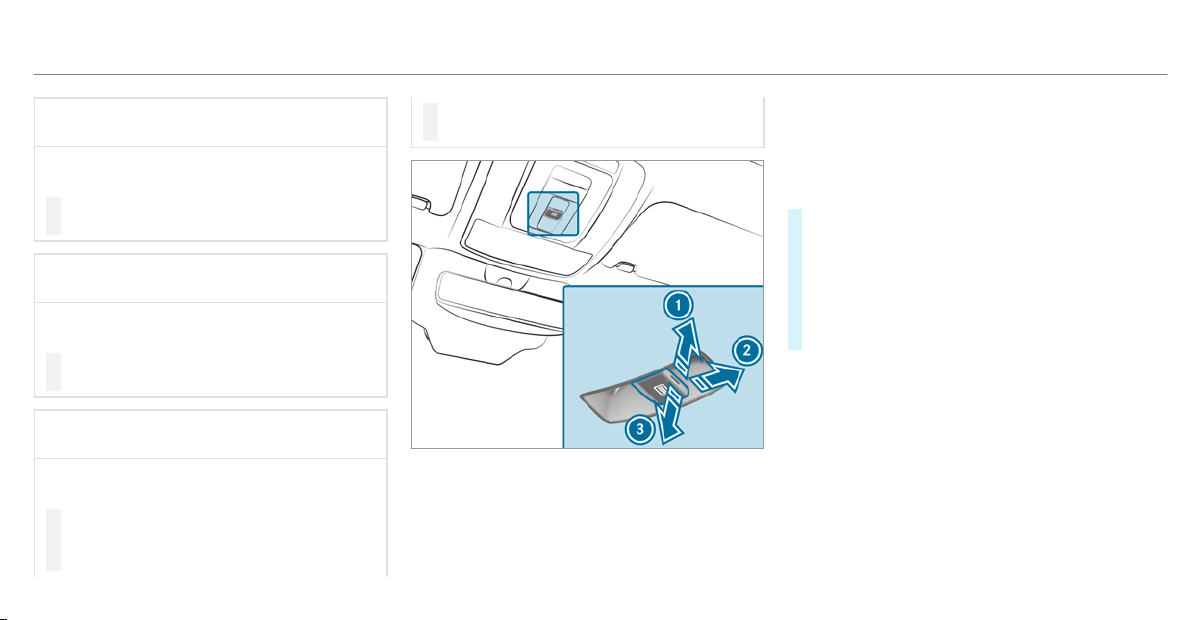
*
NOTE Malfunction caused by snow and
ice
Snow and ice may lead to a malfunction of
the sliding sunroof.
#
Only open the sliding sunroof if it is free
of snow and ice.
*
NOTE Damage caused by protruding
objects
Objects that protrude from the sliding sun‐
roof may damage the sealing strips.
#
Do not allow anything to protrude from
the sliding sunroof.
*
NOTE Important points to remember
when a roof rack is installed
When a roof rack is installed, raising or open‐
ing the sliding sunroof may be limited.
#
Check whether the sliding sunroof can
be raised or opened when a roof rack is
installed.
#
If in doubt, do not raise or open the
sliding sunroof.
1
To raise
2
To open
3
To close/lower
Use the 3 button to operate the panoramic
sliding sunroof and the roller sunblind.
R
The panoramic sliding sunroof can be oper‐
ated only when the roller sunblind is open.
R
The roller sunblind can be operated only
when the panoramic sliding sunroof is
closed.
#
To start automatic operation: press the
3 button beyond the point of resistance
or pull and release it.
#
To interrupt automatic operation: briefly
press the 3 button in any direction.
The opening/closing process will be stop‐
ped.
Vehicles with a panoramic sliding sunroof:
The automatic raising feature is available only
when the sliding sunroof is closed or raised.
Automatic reversing function of the sliding
sunroof
If there is an object obstructing the sliding sun‐
roof during the closing process, the sliding sun‐
roof will open again automatically. The automatic
reversing function is only an aid and is not a sub‐
stitute for your attentiveness.
82
Opening and closing
#
When closing, make sure that no body parts
are in the closing area.
&
WARNING Risk of entrapment even with
the reversing function active
The reversing feature does not react in par‐
ticular:
R
To soft, light and thin objects, e.g. fingers
R
Over the last ã in (4 mm) of the closing
path
R
During resetting
This means that the reverse function cannot
prevent someone from becoming trapped in
these situations.
#
When closing, make sure that no body
parts are in the closing area.
#
Release the button immediately if
somebody becomes trapped.
or
#
Briefly press the button in any direction
during automatic operation.
The closing process is stopped.
Automatic reversing function of the roller
sunblind
If there is an object obstructing the roller sun‐
blind during the closing process, the roller sun‐
blind will open again automatically. The auto‐
matic reversing function is only an aid and is not
a substitute for your attentiveness.
#
When closing the roller sunblind, make sure
that no body parts are in the range of move‐
ment.
&
WARNING Risk of becoming trapped
despite reversing feature
In par ticular, the reversing feature does not
react to soft, light and thin objects, e.g. fin‐
gers.
This means that the reversing feature cannot
prevent entrapment in these situations.
#
When closing the roller sunblind, make
sure that no body parts are in the range
of movement.
#
Release the button immediately if
somebody becomes trapped.
or
#
Press the button in any direction during
the automatic closing process.
The closing process is stopped.
Automatic functions of the sliding sunroof
%
The term "sliding sunroof" also refers to the
panoramic sliding sunroof.
By pushing or pulling the 3 button, you can
interrupt the automatic functions: "Rain closing
function when driving" and "Automatic lower‐
ing".
Rain closing function when driving
Vehicles with a panoramic sliding sunroof: If
it starts to rain, the raised sliding sunroof is
automatically lowered while the vehicle is in
motion.
Automatic lowering function
Vehicles with a panoramic sliding sunroof: If
the sliding sunroof is raised at the rear, it is
automatically lowered slightly at higher speeds.
At low speeds, it is raised again automatically.
Opening and closing
83
&
WARNING Risk of entrapment by auto‐
matic lowering of the sliding sunroof
At high speeds the raised sliding sunroof
automatically lowers slightly at the rear.
This could trap you or other persons.
#
Make sure that nobody reaches into the
sweep of the sliding sunroof whilst the
vehicle is in motion.
#
If somebody becomes trapped, briefly
push the sliding sunroof button for‐
wards or backwards.
The sliding sunroof lifts during opening.
Problems with the sliding sunroof
%
The term "sliding sunroof" also refers to the
panoramic sliding sunroof.
Problem
Possible causes/consequences and M Solutions
The sliding sunroof cannot be closed
and you cannot see the cause.
&
WARNING Risk of becoming trapped or fatal injury by closing the sliding sunroof again
If you close the sliding sunroof again immediately after it has been blocked or reset, the sliding sunroof
closes with increased force.
Parts of the body could become trapped in the closing area in the process.
#
Make sure that no parts of the body are in the closing area.
#
Release the button immediately if somebody becomes trapped.
or
#
Press the button in any direction during the automatic closing process.
The closing process is stopped.
If the sliding sunroof is obstructed during closing and reopens again slightly:
84
Opening and closing
Problem
Possible causes/consequences and M Solutions
#
Immediately after automatic reversing, pull and hold the 3 button down again to the point of resist‐
ance until the sliding sunroof is closed.
The sliding sunroof will be closed with increased force.
If the sliding sunroof is obstructed again and reopens again slightly:
#
Repeat the previous step.
The sliding sunroof will be closed again with increased force.
Vehicles with a panoramic sliding
sunroof: The sliding sunroof or the
roller sunblind does not operate
smoothly.
#
Pull and hold the 3 button little by little until the sliding sunroof is fully closed.
#
Pull and hold the 3 button little by little until the roller sunblind is fully closed.
#
Use automatic operation to fully open and then close the sliding sunroof.
Anti-theft protection
Function of the immobilizer
The immobilizer prevents your vehicle from being
started without the correct SmartKey.
The immobilizer is automatically activated when
the ignition is switched off and deactivated when
the ignition is switched on.
When leaving the vehicle, always take the Smart‐
Key with you and lock the vehicle. Anyone can
start the engine if a valid SmartKey has been left
inside the vehicle.
%
In the event the engine cannot be started
(yet the vehicle’s starter battery is charged),
the system is not operational. Contact an
authorized Mercedes-Benz Center or call
1-800-FOR-MERCedes (in the USA) or
1-800-387-0100 (in Canada).
ATA (anti-theft alarm system)
Function of the ATA system
If the ATA system is armed, a visual and audible
alarm is triggered in the following situations:
R
when a door is opened
R
when the trunk lid is opened
R
when the hood is opened
Opening and closing
85
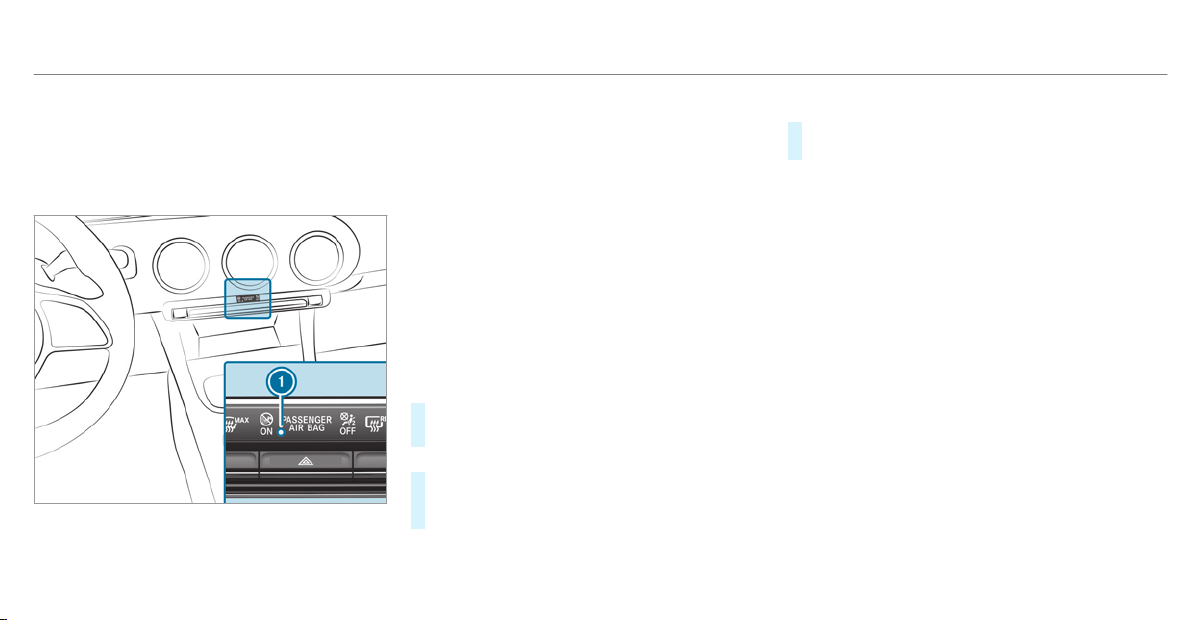
The ATA system is armed automatically after
approximately ten seconds in the following situa‐
tions:
R
after locking the vehicle with the SmartKey
R
after locking the vehicle using KEYLESS-GO
Indicator lamp 1 f lashes when the ATA system
is armed.
The ATA system is deactivated automatically in
the following situations:
R
after unlocking the vehicle with the SmartKey
R
after pressing the star t/stop button with the
SmartKey in the stowage compartment
(/ page 130)
R
after unlocking the vehicle using KEYLESS-
GO
%
When the Mercedes‑Benz emergency call
system is active and the alarm stays on for
more than 30 seconds, a message is auto‐
matically sent to the Customer Assistance
Center (
/ page 353).
Deactivating the ATA
#
Press the %, & or p button on the
SmartKey.
or
#
Press the start/stop button with the Smart‐
Key in the stowage compartment
(/ page 130)
Deactivating the alarm using KEYLESS-GO:
#
Grasp the outside door handle with the
SmartKey outside the vehicle.
86
Opening and closing
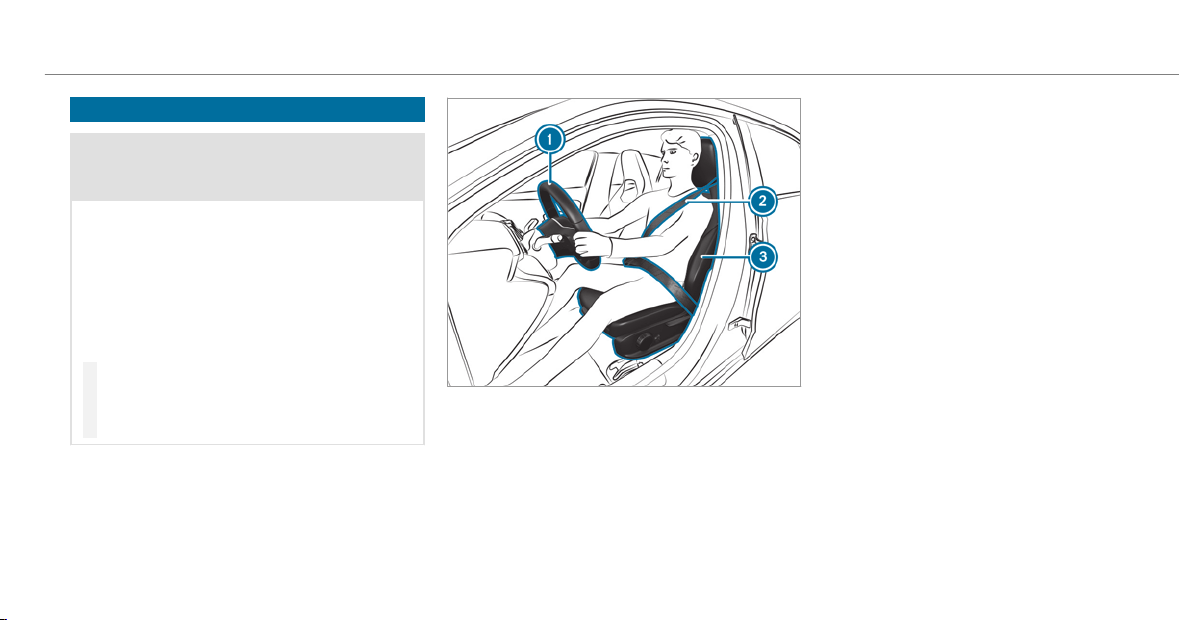
Notes on the correct driver's seat position
&
WARNING Risk of injury from adjusting
the vehicle settings while the vehicle is in
motion
You could lose control of the vehicle in the
following situations:
R
if you adjust the driver's seat, the head
restraint, the steering wheel or the mirror
while the vehicle is in motion
R
if you fasten your seat belt while the vehi‐
cle is in motion
#
Before starting the engine: adjust the
driver's seat, the head restraint, the
steering wheel or the mirror and fasten
your seat belt.
Ensure the following when adjusting the steering
wheel 1, seat belt 2 and driver's seat 3:
R
you are as far away from the driver's airbag
as possible
R
you are sitting in an upright position
R
your thighs are slightly supported by the seat
cushion
R
your legs are not fully extended and you can
depress the pedals properly
R
the back of your head is supported at eye
level by the center of the head restraint
R
you can hold the steering wheel with your
arms slightly bent
R
you can move your legs freely
R
you can see all the displays on the instru‐
ment cluster clearly
R
you have a good overview of the traffic con‐
ditions
R
your seat belt is pulled snugly against your
body and is routed across the center of your
shoulder and across your hips in the pelvic
area
Seats and stowing
87
Seats
Adjusting the front seat mechanically (with‐
out Seat Comfort Package)
&
WARNING Risk of becoming trapped if
the seats are adjusted by children
Children could become tr apped if they adjust
the seats, particularly when unattended.
#
When leaving the vehicle, always take
the SmartKey with you and lock the
vehicle.
#
Never leave children unattended in the
vehicle.
&
WARNING Risk of becoming trapped
when adjusting the seats
When you adjust a seat, you or other vehicle
occupants could become trapped, e.g. on the
seat guide rail.
#
When adjusting a seat, make sure that
no one has any body parts in the sweep
of the seat.
Observe the safety notes on "Airbags" and "Chil‐
dren in the vehicle".
&
WARNING Risk of accident due to the
driver's seat not being engaged
If the driver's seat is not engaged, it could
move unexpectedly while the vehicle is in
motion.
This could cause you to lose control of the
vehicle.
#
Always make sure that the driver's seat
is engaged before starting the vehicle.
&
WARNING Risk of injury from adjusting
the vehicle settings while the vehicle is in
motion
You could lose control of the vehicle in the
following situations:
R
if you adjust the driver's seat, the head
restraint, the steering wheel or the mirror
while the vehicle is in motion
R
if you fasten your seat belt while the vehi‐
cle is in motion
#
Before starting the engine: adjust the
driver's seat, the head restraint, the
steering wheel or the mirror and fasten
your seat belt.
&
WARNING Risk of becoming trapped if
the seat height is adjusted carelessly
If you adjust the seat height carelessly, you
or other vehicle occupants could be trapped
and thereby injured.
Children in particular could accidentally
press the electrical seat adjustment buttons
and become trapped.
#
While moving the seats, make sure that
hands or other body parts do not get
under the lever assembly of the seat
adjustment system.
88
Seats and stowing
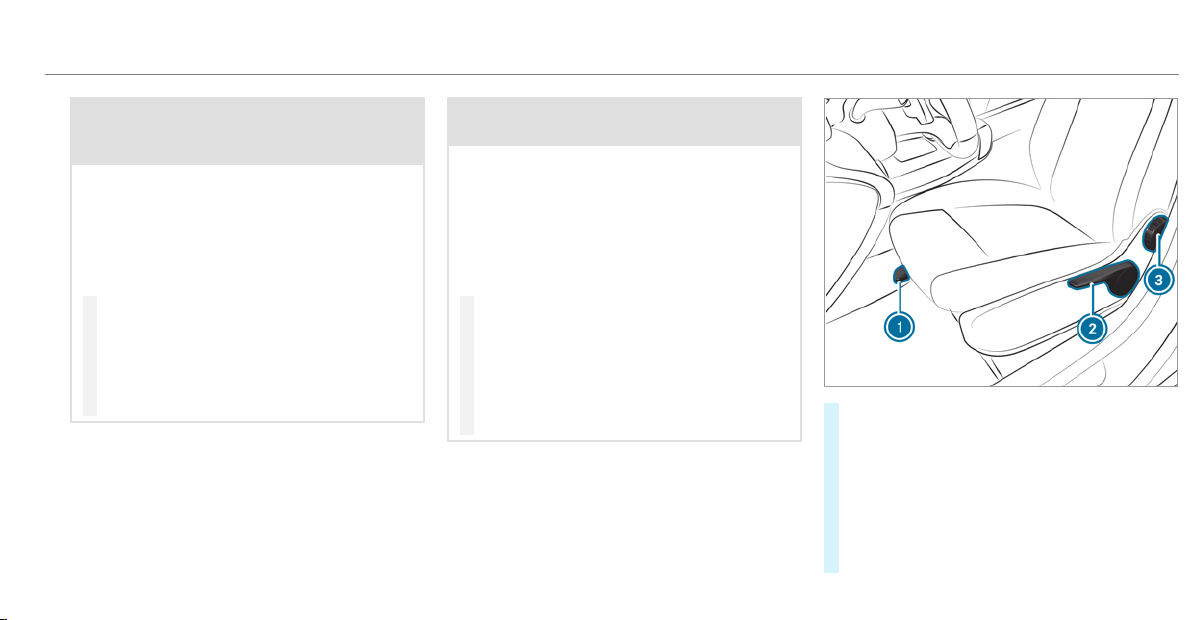
&
WARNING Risk of injury due to head
restraints which are not installed or are
adjusted incorrectly
If head restraints are not installed or are
adjusted incorrectly, the head restraints can‐
not provide protection as intended.
There is an increased risk of injury in the
head and neck area, e.g. in the event of an
accident or when braking.
#
Always drive with the head restraints
installed.
#
Before driving off, make sure for every
vehicle occupant that the center of the
head restraint supports the back of the
head at about eye level.
Do not interchange the head restraints of the
front and rear seats. Otherwise, you will not be
able to adjust the height and angle of the head
restraints correctly.
Adjust the head restraint fore-and-aft position so
that it is as close as possible to the back of your
head.
&
WARNING Risk of injury or death due to
incorrect seat position
The seat belt does not offer the intended
level of protection if you have not moved the
seat backrest to an almost vertical position.
When braking or in the event of an accident,
you could slide underneath the seat belt and
sustain abdominal or neck injuries, for exam‐
ple.
#
Adjust the seat properly before begin‐
ning your journey.
#
Always ensure that the seat backrest is
in an almost vertical position and that
the shoulder section of your seat belt is
routed across the center of your shoul‐
der.
#
To adjust the seat fore-and-aft position:
lift lever 1 and slide the seat into the
desired position.
#
Make sure that the seat is engaged in posi‐
tion.
#
To adjust the seat height: push or pull lever
2 until the desired position has been
reached.
Seats and stowing
89
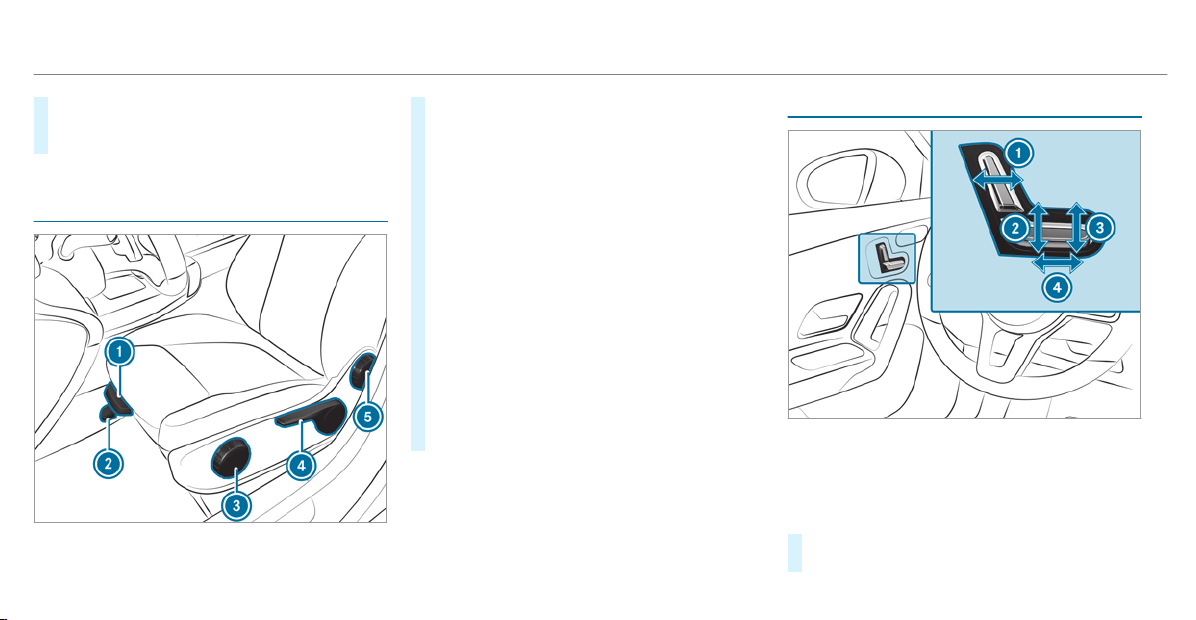
#
To adjust the seat backrest inclination:
turn handwheel 3 forwards and backwards
until the desired position has been reached.
Adjusting the front seat mechanically (with
Seat Comfort Package)
#
To adjust the seat cushion length: lift lever
1 and slide the front section of the seat
cushion forwards or backwards.
#
To adjust the seat fore-and-aft position:
lift lever 2 and slide the seat into the
desired position.
#
Make sure that the seat is engaged in posi‐
tion.
#
To adjust the seat cushion inclination:
turn handwheel 3 forwards and backwards
until the desired position has been reached.
#
To adjust the seat height: push or pull lever
4 until the desired position has been
reached.
#
To adjust the seat backrest inclination:
turn handwheel 5 forwards and backwards
until the desired position has been reached.
Adjusting the front seat electrically
1
Seat backrest inclination
2
Seat height
3
Seat cushion inclination
4
Seat fore-and-aft position
#
Save the settings with the memory function
(/ page 97).
90
Seats and stowing
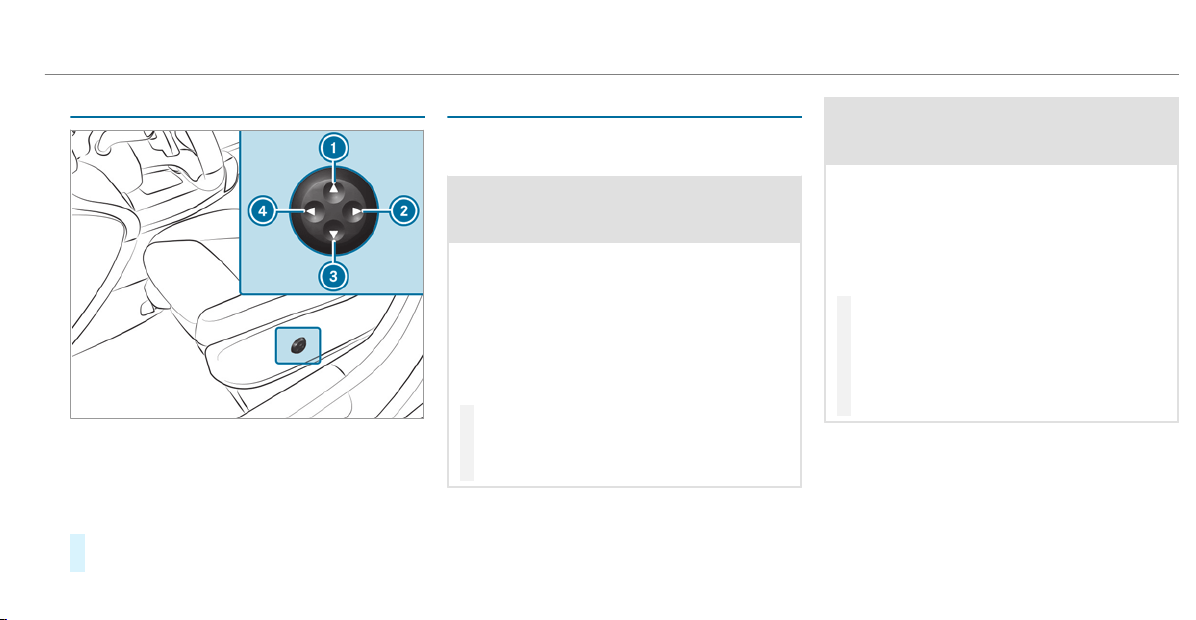
Adjusting the 4-way lumbar support
1
To raise
2
To soften
3
To lower
4
To harden
#
Using buttons 1 to 4, adjust the contour
of the backrest individually to suit your back.
Head restraints
Adjusting the front seat head restraints
mechanically
&
WARNING Risk of injury from adjusting
the vehicle settings while the vehicle is in
motion
You could lose control of the vehicle in the
following situations:
R
if you adjust the driver's seat, the head
restraint, the steering wheel or the mirror
while the vehicle is in motion
R
if you fasten your seat belt while the vehi‐
cle is in motion
#
Before starting the engine: adjust the
driver's seat, the head restraint, the
steering wheel or the mirror and fasten
your seat belt.
&
WARNING Risk of injury due to head
restraints which are not installed or are
adjusted incorrectly
If head restraints are not installed or are
adjusted incorrectly, the head restraints can‐
not provide protection as intended.
There is an increased risk of injury in the
head and neck area, e.g. in the event of an
accident or when braking.
#
Always drive with the head restraints
installed.
#
Before driving off, make sure for every
vehicle occupant that the center of the
head restraint supports the back of the
head at about eye level.
Do not interchange the head restraints of the
front and rear seats. Otherwise, you will not be
able to adjust the height and angle of the head
restraints correctly.
Adjust the head restraint fore-and-aft position so
that it is as close as possible to the back of your
head.
Seats and stowing
91
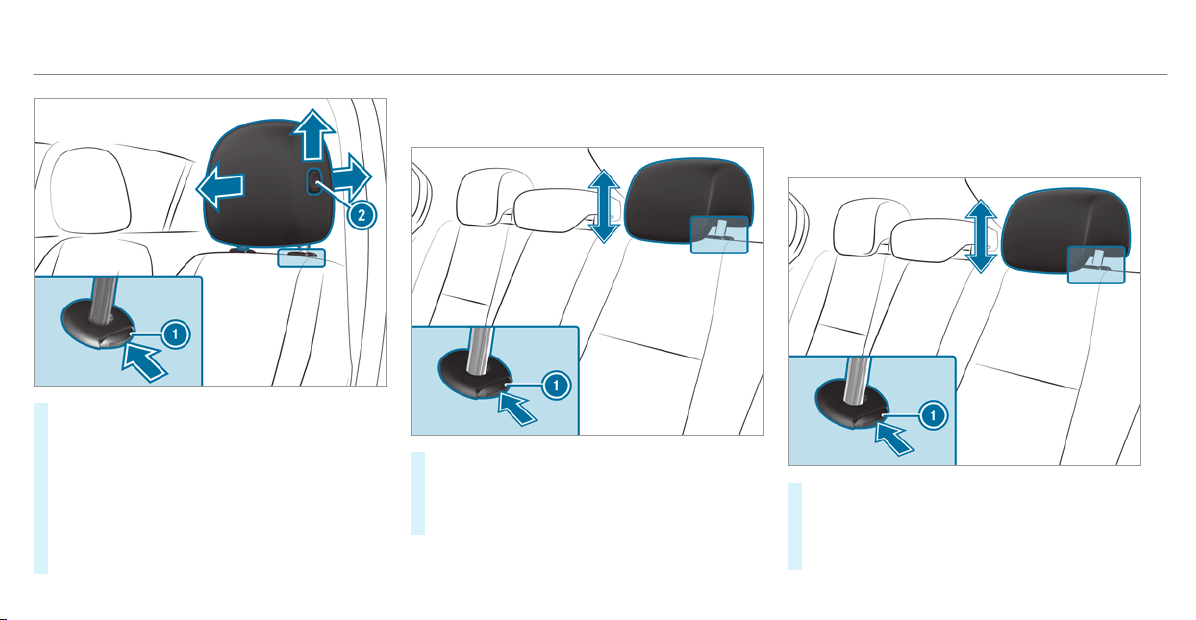
#
To raise: pull the head restraint up.
#
To lower: press release knob 1 in the direc‐
tion of the arrow and push the head restraint
down.
#
To move forwards: press release knob 2
and pull the head restraint forwards.
#
To move backwards: press release knob 2
and push the head restraint backwards.
Adjusting the head restraints of the rear
seats mechanically
#
To raise: pull the head restraint up.
#
To lower: press release knob 1 in the direc‐
tion of the arrow and push the head restraint
down.
Installing/removing the rear seat head
restraints
Removal
#
Release the rear seat backrest and fold it
slightly forwards (/ page 101).
#
Pull the head restraint upwards as far as it
will go.
92
Seats and stowing

#
Push release knob 1 in the direction of the
arrow and pull out the head restraint.
Installing
#
Insert the head restraint such that the
notches on the bar are on the left when
viewed in the direction of travel.
#
Push the head restraint down until you hear
it engage in position.
#
Fold the rear seat backrest back until it
engages.
Configuring the seat settings
Multimedia system:
4
©
5
Comfort
5
Seat Comfort
Adjusting the seat contour in the lumbar
region of the seat backrest (lumbar)
#
Select Lumbar.
#
Select the settings Z for the desired seat.
#
Adjust the air cushions.
Adjusting the backrest side bolsters
#
Select Side Bolsters.
#
Adjust the air cushion for the required seat.
Setting the seat heating balance
#
Select Seat Heating Balance.
#
Adjust the heat distribution for the required
seat.
Mercedes-AMG vehicles: observe the notes in
the Supplement. Otherwise, you may fail to rec‐
ognize dangers.
Selecting the massage program for the front
seats
Multimedia system:
4
©
5
Comfort
5
Massage
#
Select a seat.
#
Select Wave Massage or Pulsating Massage.
The selected program will start.
#
To set the massage intensity: switch High
Intensity on or off.
Resetting the seat settings
Multimedia system:
4
©
5
Comfort
5
Seat Comfort
#
Select Reset.
#
ß for the required seat.
The settings for the selected seat are reset.
Switching the seat heating on and off
&
WARNING Risk of burns due to repeat‐
edly switching on the seat heating
Repeatedly switching on the seat heating can
cause the seat cushion and seat backrest
padding to become very hot.
The health of per sons with limited tempera‐
ture sensitivity or a limited ability to react to
high temperatures may be affected or they
may even suffer burn-like injuries.
#
Do not repeatedly switch on the seat
heating.
Seats and stowing
93
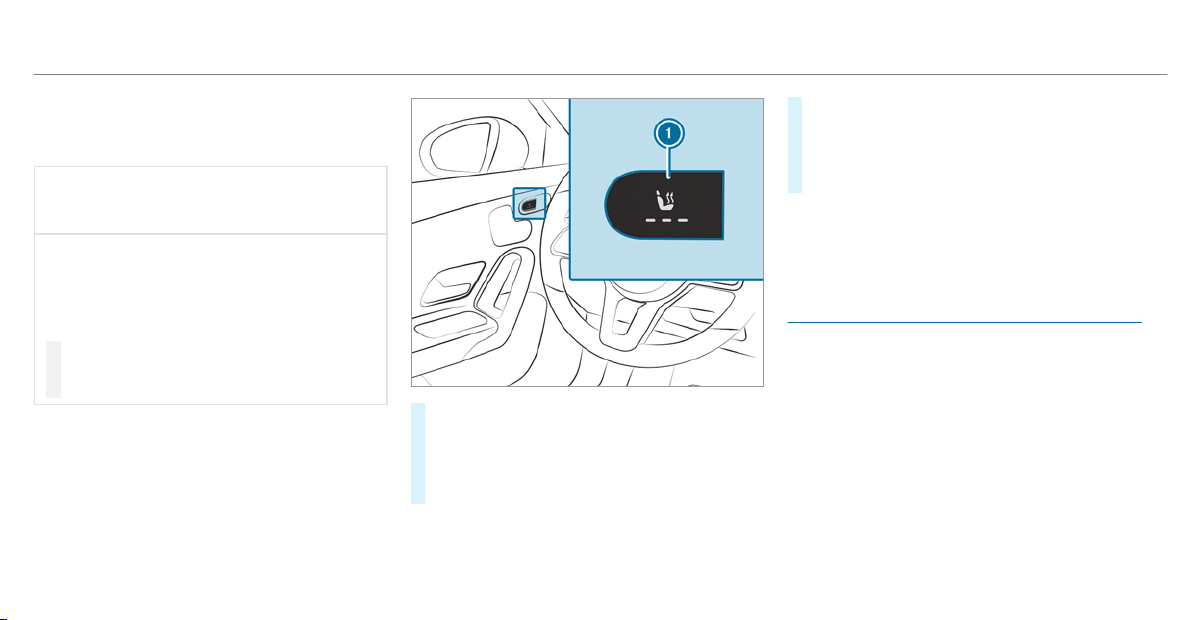
To protect against overheating, the seat heating
may be temporarily deactivated after it is
switched on repeatedly.
*
NOTE Damage to the seats caused by
objects or documents when the seat
heater is switched on
When the seat heater is switched on, over‐
heating can occur due to objects or docu‐
ments placed on the seats e.g. seat cushions
or child seats. This could cause damage to
the seat surface.
#
Make sure that no objects or docu‐
ments are on the seats when the seat
heater is switched on.
Requirements:
R
The power supply is switched on
#
To switch on/increase the level: press but‐
ton 1 repeatedly until the desired heating
level is set.
Depending on the heating level, up to three
indicator lamps will light up.
#
To switch off/reduce the level: press but‐
ton 1 repeatedly until the desired heating
level is set.
If all indicator lamps are off, the seat heating
is switched off.
%
The seat heating automatically switches
down from the three heating levels after 8,
10 and 20 minutes until the seat heating
switches off.
Switching the seat ventilation on/off
Requirements:
R
The power supply is switched on
94
Seats and stowing
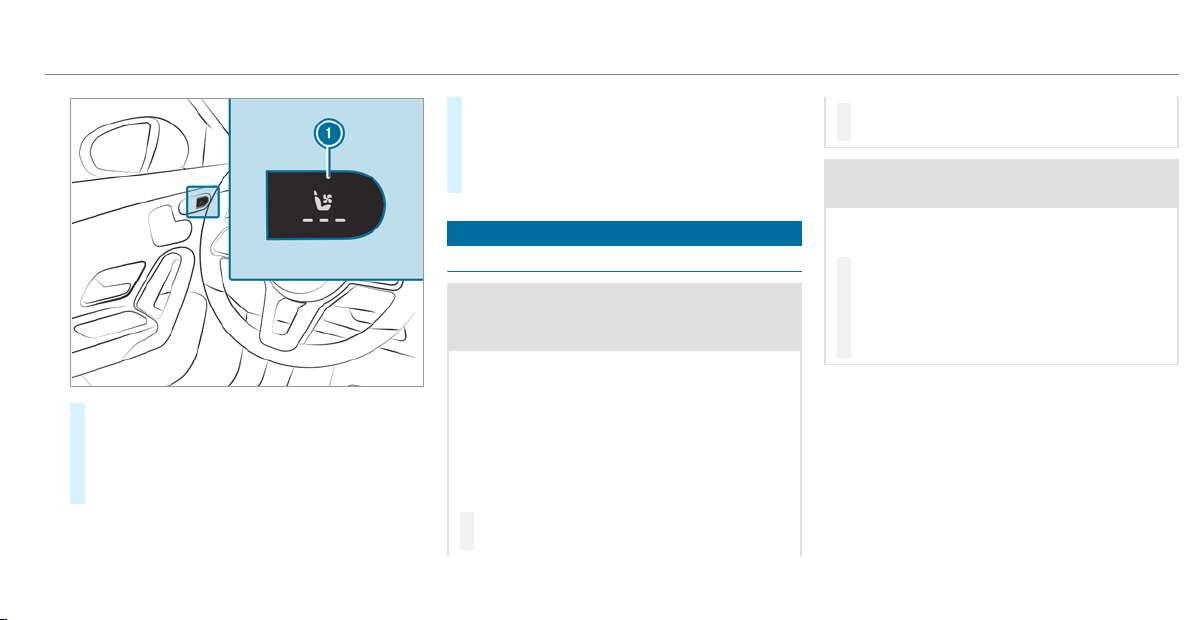
#
To switch on/increase the level: press but‐
ton 1 repeatedly until the desired ventila‐
tion level is set.
Depending on the ventilation level, up to
three indicator lamps light up.
#
To switch off/reduce the level: press but‐
ton 1 repeatedly until the desired ventila‐
tion level is set.
If all indicator lamps are off, the seat ventila‐
tion is switched off.
Steering wheel
Adjusting the steering wheel manually
&
WARNING Risk of injury from adjusting
the vehicle settings while the vehicle is in
motion
You could lose control of the vehicle in the
following situations:
R
if you adjust the driver's seat, the head
restraint, the steering wheel or the mirror
while the vehicle is in motion
R
if you fasten your seat belt while the vehi‐
cle is in motion
#
Before starting the engine: adjust the
driver's seat, the head restraint, the
steering wheel or the mirror and fasten
your seat belt.
&
WARNING Risk of entrapment for chil‐
dren when adjusting the steering wheel
Children could injure themselves if they
adjust the steering wheel.
#
Never leave children unattended in the
vehicle.
#
When leaving the vehicle, always take
the SmartKey with you and lock the
vehicle.
Seats and stowing
95
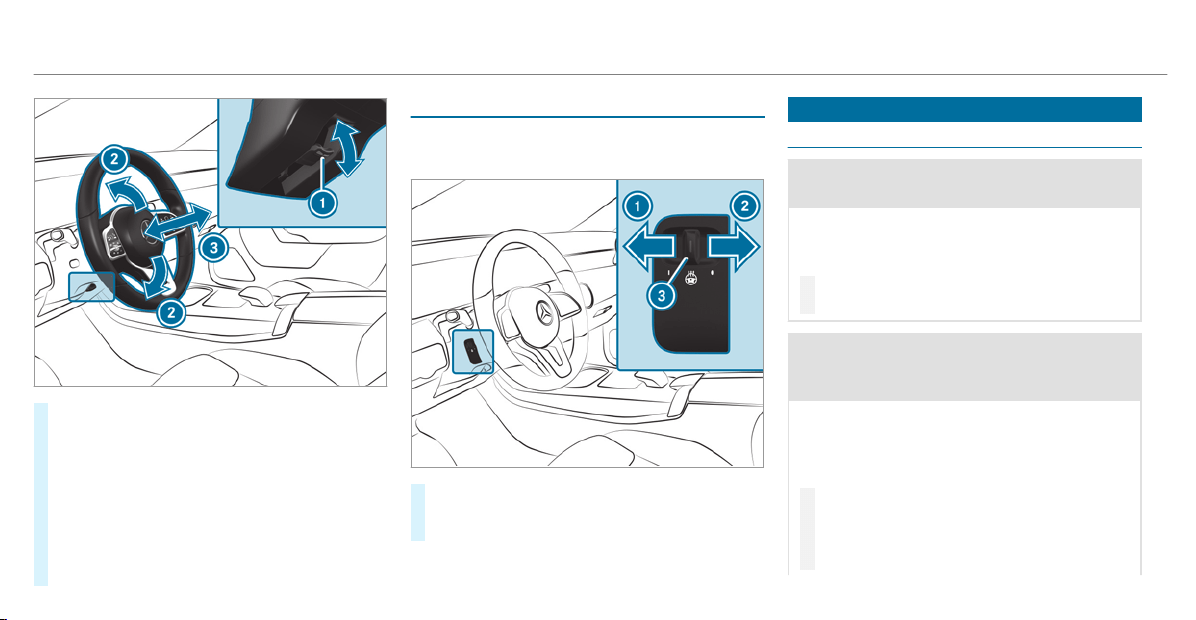
#
Push release lever 1 down as far as it will
go.
The steering column is unlocked.
#
Adjust height 2 and distance 3 to the
steering wheel.
#
Push release lever 1 up as far as it will go.
The steering column is locked.
#
Check and make sure that the steering col‐
umn is locked by moving the steering wheel.
Switching the steering wheel heater on or off
Requirements:
R
The ignition is switched on.
#
Push the switch to position 1 or 2.
If indicator lamp 3 lights up, the steering
wheel heater is switched on.
When you switch the ignition off, the steering
wheel heater switches off.
Easy entry and exit feature
Using the easy entry and exit feature
&
WARNING Risk of accident when driving
off while adjusting the easy exit feature
‑ If you drive off while the easy entry and exit
feature is making adjustments, you could
lose control of the vehicle.
#
Always wait until the adjustment proc‐
ess is complete before driving off.
&
WARNING Risk of becoming trapped
while adjusting the easy entry and exit
feature
When the easy entry and exit feature adjusts
the driver's seat, you and other vehicle occu‐
pants – par ticularly children – could become
trapped.
#
During the adjustment process of the
easy entry and exit feature, make sure
that no one has any body parts in the
sweep of the seat.
96
Seats and stowing
If there is a risk of becoming trapped by the
driver's seat:
#
Press the seat adjustment switch.
The adjustment process is stopped.
You can stop the adjustment process by press‐
ing one of the memory function position buttons.
&
WARNING Risk of becoming trapped
during activation of the easy entry and
exit feature by children
If children activate the easy entry and exit
feature, they can become trapped, particu‐
larly when unattended.
#
Never leave children unattended in the
vehicle.
#
When leaving the vehicle, always take
the SmartKey with you and lock the
vehicle.
When the easy entry and exit feature is active,
the driver's seat will move backwards and the
backrest will be moved to a steeper position
when:
R
you switch the ignition off when the driver's
door is open
R
you open the driver's door when the ignition
is switched off
%
The driver's seat will move backwards only if
it is not already in the rearmost position.
The seat backrest will move forwards only if
it is not already in the frontmost position.
The driver's seat will move back to the last drive
position when:
R
you switch the ignition on when the driver's
door is closed
R
you close the driver's door when the ignition
is switched on
The last drive position will be stored when:
R
you switch the ignition off
R
you call up the seat settings via the memory
function
R
you save the seat setting using the memory
function
Setting the easy entry and exit feature
Multimedia system:
4
©
5
Settings
5
Fahrzeug (Vehicle)
5
Easy Entry/Exit
#
Activate or deactivate the function.
Operating the memory function
&
WARNING Risk of an accident if the
memory function is used while driving
If you use the memory function on the driv‐
er's side while driving, you could lose control
of the vehicle as a result of the adjustments
being made.
#
Only use the memory function on the
driver's side when the vehicle is station‐
ary.
Seats and stowing
97
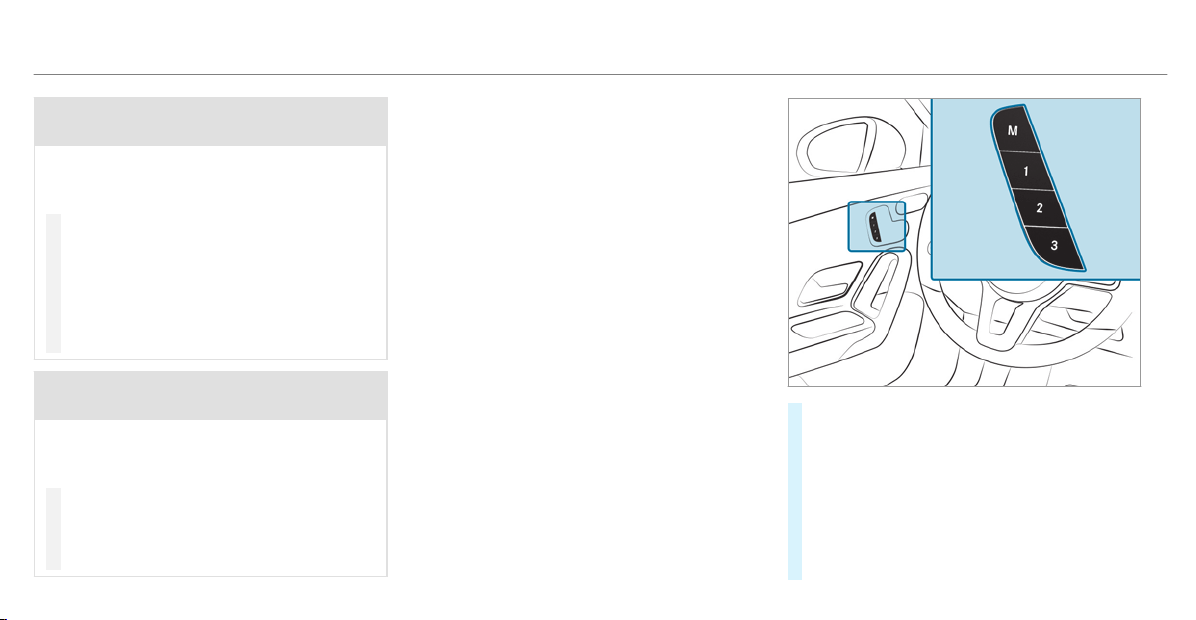
&
WARNING Risk of entrapment when set‐
ting the seat with the memory function
When the memory function adjusts the seat,
you and other vehicle occupants – particu‐
larly children – could become trapped.
#
During the adjustment process of the
memory function, make sure that no
one has any body parts in the sweep of
the seat.
#
If someone becomes trapped, press a
memory position switch or seat adjust‐
ment switch immediately.
&
WARNING Risk of entrapment if the
memory function is activated by children
Children could become tr apped if they acti‐
vate the memory function, particularly when
unattended.
#
Never leave children unattended in the
vehicle.
#
When leaving the vehicle, always take
the key with you and lock the vehicle.
The memory function can be used when the igni‐
tion is switched off.
Storing
Seat adjustments for up to three people can be
stored and called up using the memory function.
The following systems can be selected:
R
Seat
R
Seat contour
R
Outside mirrors
R
Head-up Display
#
Set the seat, the seat contour, the Head-up
Display and the outside mirrors to the
desired position.
#
Press memory button M together with one of
preset position buttons 1, 2 or 3.
#
To call up: press and briefly hold preset posi‐
tion button 1, 2 or 3.
After releasing the button, the front seat,
Head-up Display, outside mirrors and seat
98
Seats and stowing

contour are moved into the stored position
automatically.
Stowage areas
Notes on loading the vehicle
&
DANGER Risk of exhaust gas poisoning
Combustion engines emit poisonous exhaust
gases such as carbon monoxide. Exhaust
gases can enter the vehicle interior if the
trunk lid is open when the engine is running,
especially if the vehicle is in motion.
#
Always switch off the engine before
opening the trunk lid.
#
Never drive with the trunk lid open.
&
WARNING Risk of injury from unsecured
items in the vehicle
If objects, luggage or loads are not secured
or not secured sufficiently, they could slip,
tip over or be thrown around and thereby hit
vehicle occupants.
There is a risk of injury, particularly in the
event of sudden braking or a sudden change
in direction.
#
Always stow objects in such a way that
they cannot be thrown around.
#
Before the journey, secure objects, lug‐
gage or loads against slipping or tipping
over.
&
WARNING Risk of injury due to objects
being stowed incorrectly
If you do not adequately stow objects in the
vehicle interior, they could slip or be tossed
around and thereby strike vehicle occupants.
In addition, cup holders, open stowage
spaces and mobile phone brackets cannot
always restrain the objects they contain in
the event of an accident.
There is a risk of injury, particularly in the
event of sudden braking or a sudden change
in direction.
#
Always stow objects in such a way that
they cannot be tossed about in these or
similar situations.
#
Always make sure that objects do not
project from stowage spaces, parcel
nets or stowage nets.
#
Close the lockable stowage spaces
before starting a journey.
#
Always stow and secure objects that
are heavy, hard, pointed, sharp-edged,
fragile or too large in the trunk.
&
WARNING Risk of burning from the tail‐
pipe or tailpipe trim
The tailpipe and tailpipe trim can become
very hot. If you come into contact with these
car par ts, you could burn yourself.
#
Always be particularly careful when in
the vicinity of the tailpipe and tailpipe
trims and supervise children very
closely when in this area.
#
Before any conta ct, allow the car parts
to cool down.
Seats and stowing
99
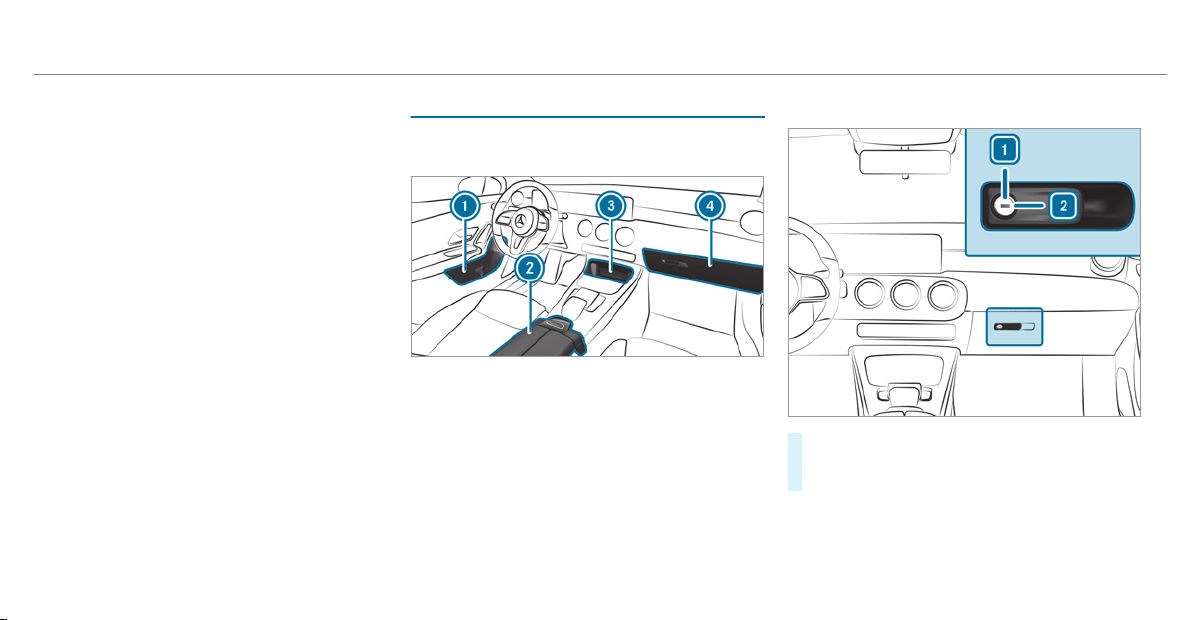
The driving characteristics of your vehicle are
dependent on the distribution of the load within
the vehicle. You should bear the following in
mind when loading the vehicle:
R
never exceed the permissible gross mass or
the gross axle weight rating for the vehicle
(including occupants). The values are speci‐
fied on the vehicle identification plate on the
vehicle's B-pillar.
R
the load must not protrude above the upper
edge of the seat backrests.
R
always place the load behind unoccupied
seats if possible.
R
secure the load using the tie-down eyes and
distribute the load evenly.
Stowage spaces in the vehicle interior
Overview of the front stowage compart‐
ments
1
Stowage compartment in the doors
2
Stowage compartment in the armrest with a
multimedia and USB connection
3
Stowage compartment in the front center
console with a USB connection
4
Glove box
Locking and unlocking the glove box
#
Turn the emergency key a quarter turn clock‐
wise 2 (to lock) or counter-clockwise 1 (to
unlock).
100
Seats and stowing
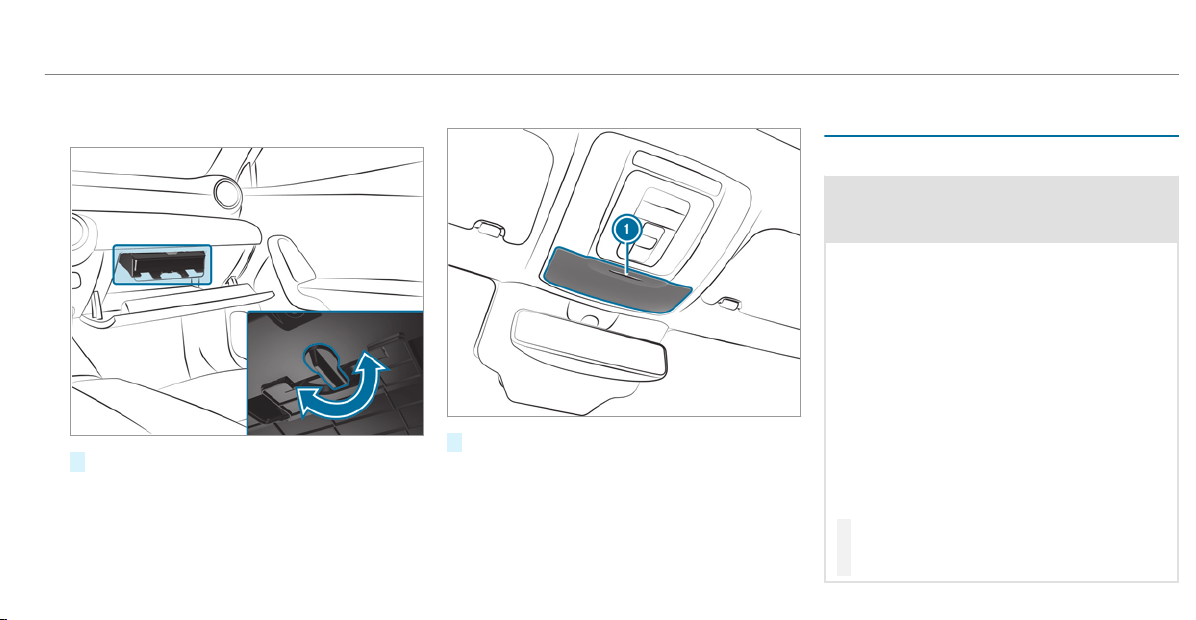
Stowage compartment for customer litera‐
ture
#
To open: turn the handle left or right.
Opening the eyeglasses compartment
#
Press button 1.
Through-loading feature in the rear bench
seat
Folding the rear seat backrest forwards
&
WARNING Risk of injury if the rear
bench seat/rear seat and seat backrest
are not engaged
If the rear bench seat/rear seat and seat
backrest are not engaged they could fold for‐
wards, e.g. when braking suddenly or in the
event of an accident.
R
If this is the case, the vehicle occupant
would be forced into the seat belt by the
rear bench seat/rear seat or by the seat
backrest. The seat belt cannot protect as
intended and could result in additional
injury.
R
Objects or loads in the trunk/cargo com‐
partment cannot be restrained by the
seat backrest.
#
Make sure that the seat backrest and
the rear bench seat/rear seat are
engaged before every trip.
Seats and stowing
101
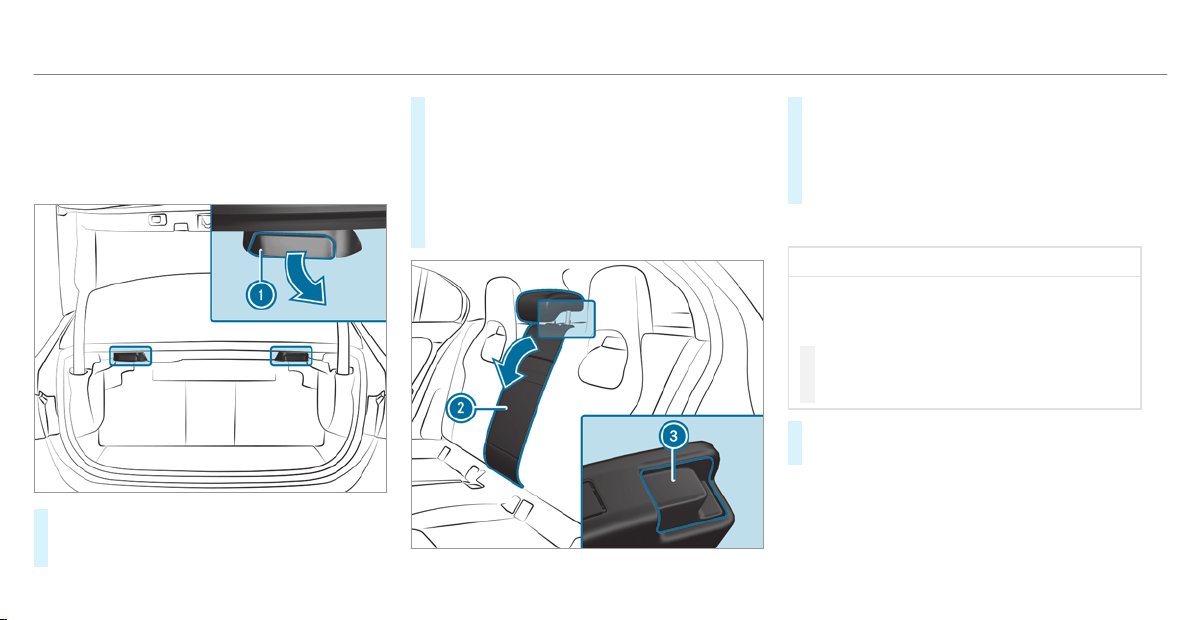
If the seat backrests are not engaged and locked
in place, the lock verification indicator will be
red.
The center and outer seat backrests can be fol‐
ded forwards separately.
#
Vehicles with a memor y function: If at
least one section of the rear seat backrest is
folded forwards, the corresponding front seat
will move forwards slightly, if necessary, to
avoid a collision.
#
If necessary, fully insert the rear seat back‐
rest head restraints.
#
Left and right seat backrests: pull the left
or right release handle 1 and fold the corre‐
sponding seat backrest forwards.
#
Center seat backrest: pull release catch 3
of seat backrest 2 forwards.
#
Fold seat backrest 2 forwards.
#
If necessary, reset the driver's or front
passenger seat.
Folding the rear seat backrest back
*
NOTE Damage to the seat belt
The seat belt could become trapped and thus
damaged when folding back the seat back‐
rest.
#
Make sure that the seat belt is not trap‐
ped when folding back the seat back‐
rest.
#
Move the driver's or front passenger seat for‐
wards, if necessary.
102
Seats and stowing
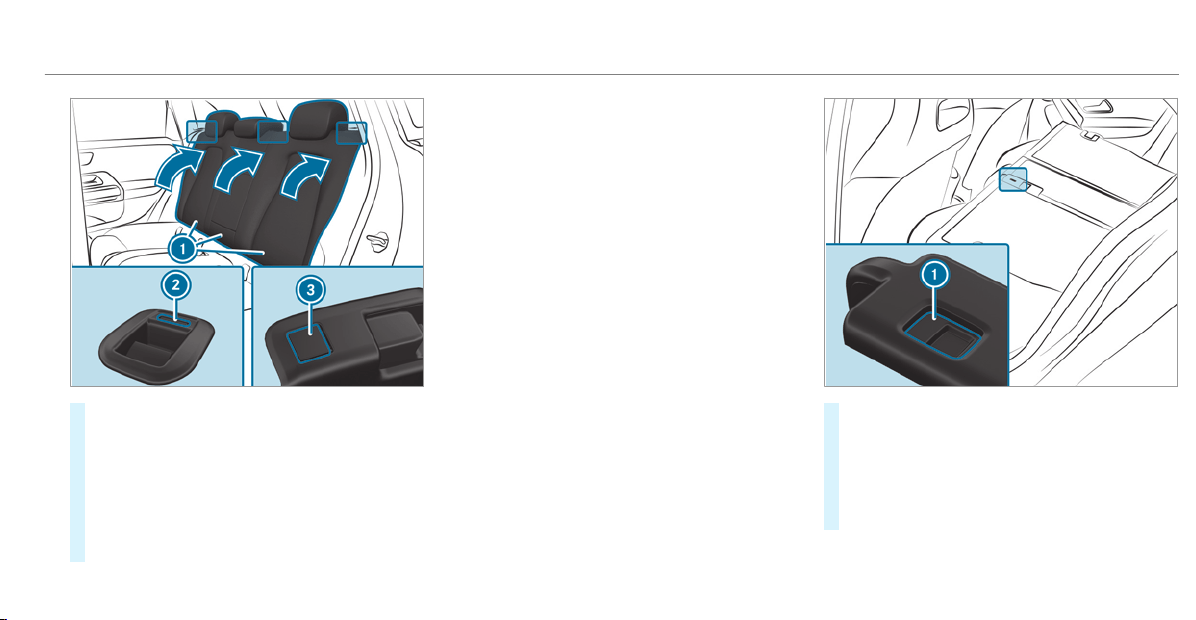
#
Fold the corresponding seat backrest 1
back until it engages.
Left and right seat backrest: if the seat
backrest is not engaged and locked, red lock
verification indicator 2 will be visible.
Center seat backrest: if the seat backrest is
not engaged and locked, red lock verif ication
indicator 3 will be visible.
Locking the release catch of the center rear
seat backrest
Requirements:
R
The left and center seat backrests are
engaged and joined together.
You can lock the center seat backrest release
catch if you want to secure the trunk against
unauthorized access. The center seat backrest
can then be folded forwards only together with
the left seat backrest.
#
Fold the center and left seat backrests for‐
wards.
#
To lock: slide catch 1 upwards.
The release catch of the center seat backrest
will be locked.
#
To unlock: slide catch 1 downwards.
Seats and stowing
103
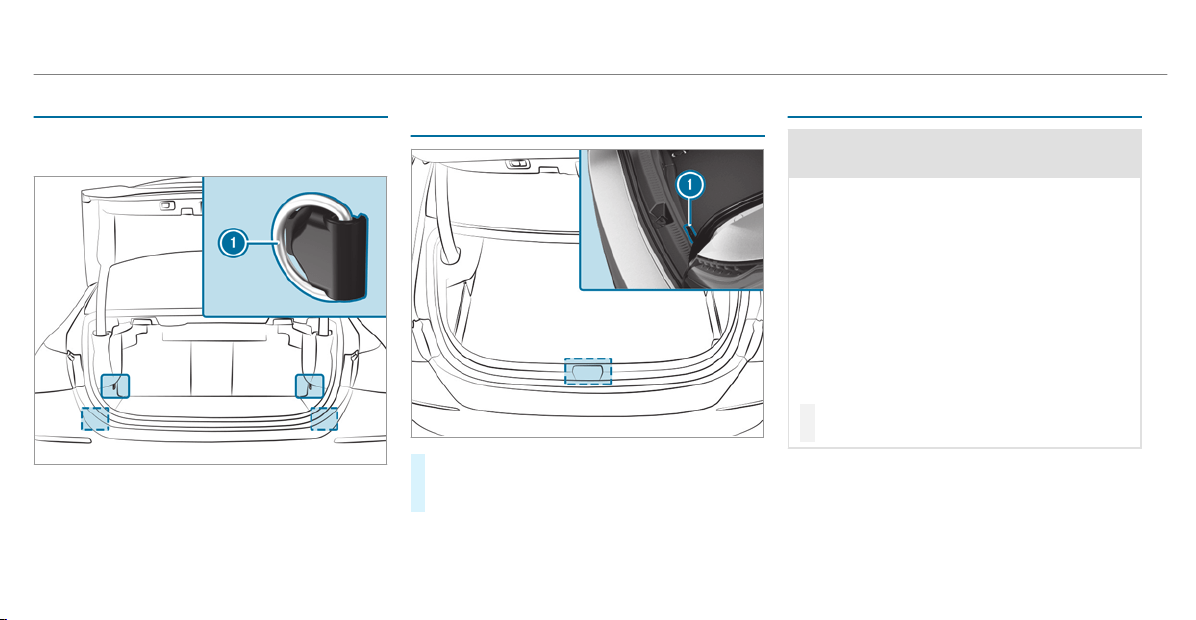
Overview of the tie-down eyes
Observe the notes on loading the vehicle
(/ page 99).
1
Tie-down eyes (vehicles with through-loading
feature in the rear bench seat)
Opening or closing the stowage space under
the trunk floor
#
To open: lift the trunk floor at contact 1
and swing it upwards.
#
To close: fold the trunk floor downwards.
Attaching the roof carrier
&
WARNING Risk of injury if the maximum
roof load is exceeded
When you load the roof, the center of gravity
of the vehicle rises and the usual driving
characteristics as well as the steering and
braking characteristics change. During cor‐
nering, the vehicle tilts more strongly and
may react more sluggishly to steering move‐
ments.
If you exceed the maximum roof load, the
driving characteristics, as well as the steer‐
ing and braking characteristics, will be
greatly impaired.
#
Always comply with the maximum roof
load and adjust your driving style.
You will find information on the maximum roof
load in the "Technical data" section.
104
Seats and stowing
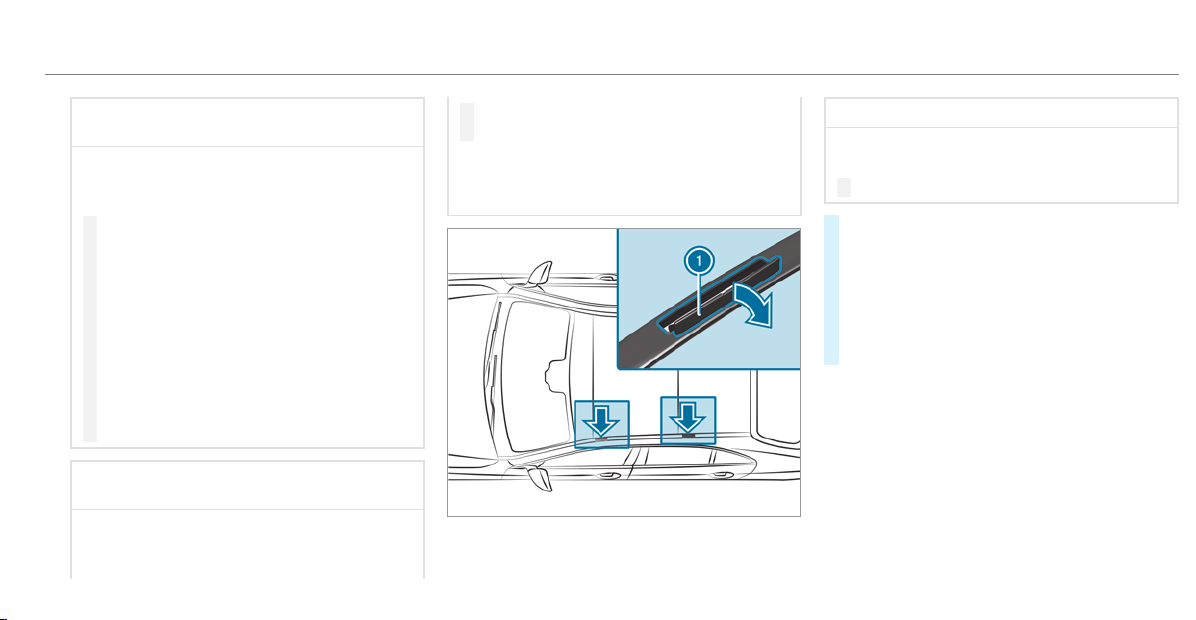
*
NOTE Vehicle damage from non-
approved roof racks
The vehicle could be damaged by roof racks
which have not been tested and approved by
Mercedes-Benz.
#
Only use roof racks tested and
approved by Mercedes-Benz.
#
Depending on the vehicle equipment,
ensure that when the roof rack is instal‐
led:
R
The sliding sunroof can be fully
raised.
R
The trunk lid can be fully opened.
#
Position the load on the roof rack in
such a way that the vehicle will not sus‐
tain damage even when it is in motion.
*
NOTE Damage to the panoramic sliding
sunroof when a roof rack is fitted
The panoramic sliding sunroof may be dam‐
aged by the roof rack if you attempt to open
it when the roof rack is fitted.
#
Do not open the panoramic sliding sun‐
roof if a roof rack is fitted.
In order to allow ventilation of the vehicle
interior, you can raise the panoramic sliding
sunroof.
*
NOTE Damage to the covers
The covers may be damaged and scratched
when being opened.
#
Do not use metallic or hard objects.
#
Carefully fold covers 1 upwards in the
direction of the arrow.
#
Secure the roof rack to the anchorage points
under covers 1.
#
Comply with the roof rack manufacturer's
installation instructions.
#
Secure the load on the roof rack.
Seats and stowing
105
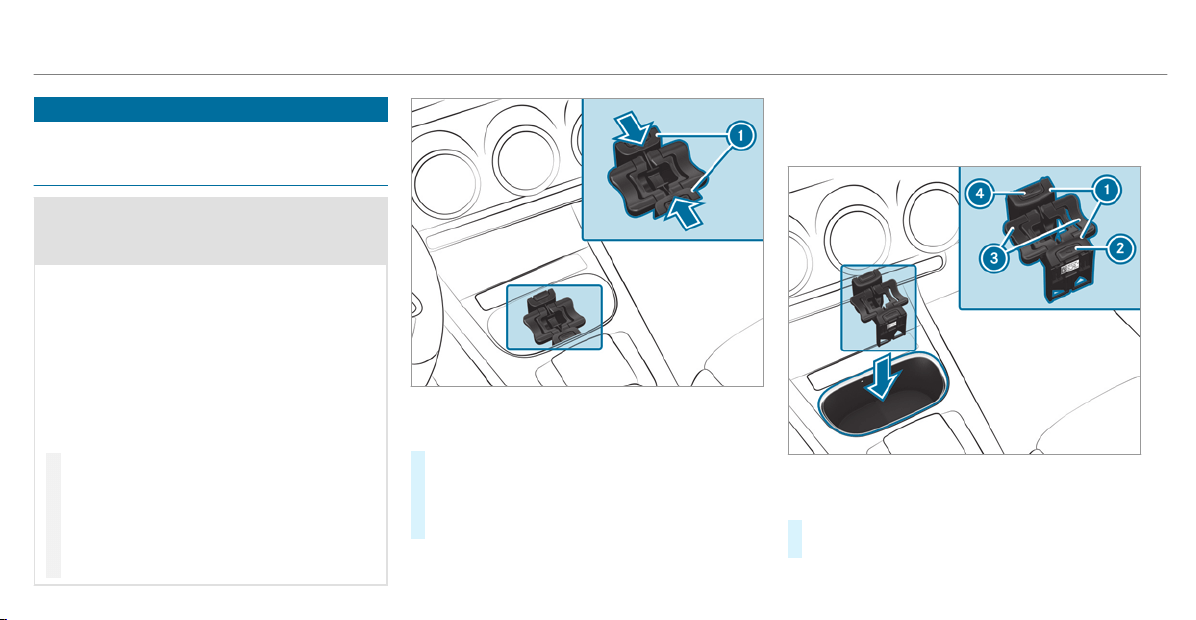
Cup holder
Installing the cup holder in or removing it
from the center console (automatic trans‐
mission)
&
WARNING ‑ Risk of accident or injury
when using the cup holder while the
vehicle is moving
The cup holder cannot secure containers
while the vehicle is moving.
If you use a cup holder while the vehicle is
moving, the container may be flung around
and liquids may be spilled. The vehicle occu‐
pants may come into contact with the liquid
and if it is hot, they could be scalded. You
could be distracted from traffic conditions
and you may lose control of the vehicle.
#
Only use the cup holder when the vehi‐
cle is stationar y.
#
Only use the cup holder for containers
of the right size.
#
Close the container, particularly if the
liquid is hot.
Cup holder in the stowage compartment without
cover
#
To remove: slide snap-in brackets 1 of the
cup holder inwards until they are unlocked.
#
Move the cup holder upwards out of the
stowage compartment.
%
The cup holder and the r ubber mat beneath
it can be removed for cleaning, e.g. with
clean, lukewarm water.
Cup holder in the stowage compartment without
cover
#
To install: if necessary, open the stowage
compartment cover and insert the cup
106
Seats and stowing
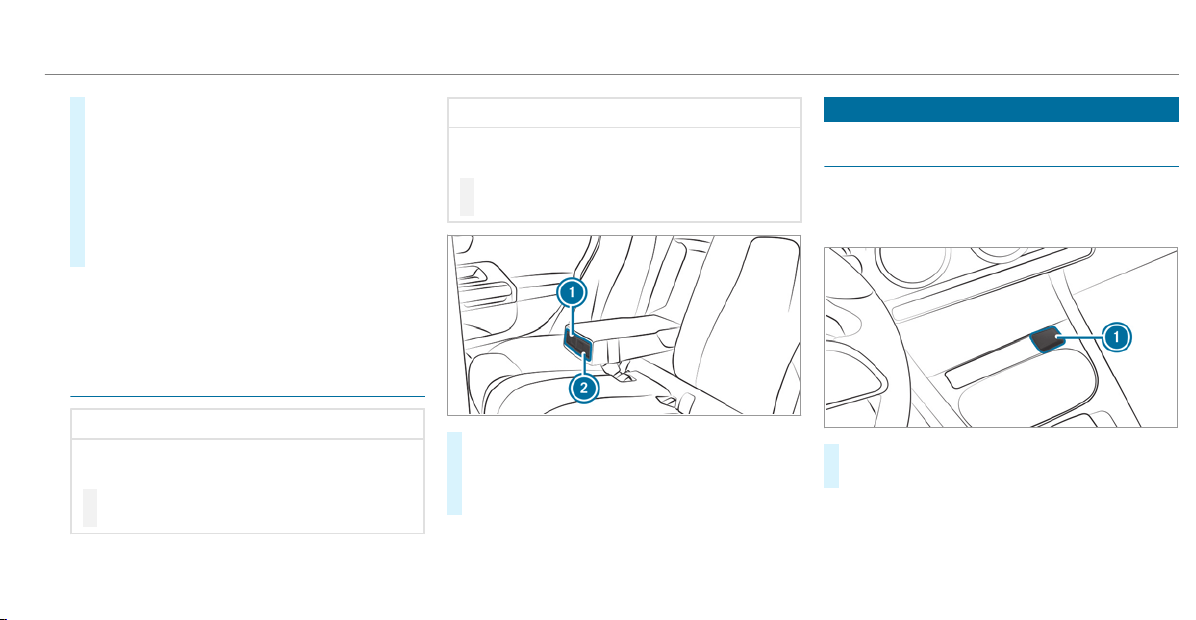
holder, as shown, into the stowage compart‐
ment with the imprint to the vehicle interior.
#
Slide the cup holder onto the bars in the
stowage compartment.
#
Slide snap-in brackets 1 outwards until they
engage.
#
Press button 2 and/or 4.
Wings 3 fold upwards.
%
The cup holder wings can be folded down‐
wards and locked. The cup holder's holding
function will then not be available.
Opening or closing the cup holder in the rear
armrest
*
NOTE Damage to the rear armrest
When folded out, the rear armrest can be
damaged by the weight of your body.
#
Do not sit or support yourself on the
rear armrest.
*
NOTE Damage to the cup holder
When the rear armrest is folded back the cup
holder could become damaged.
#
Only fold the rear armrest back when
the cup holder is closed.
#
To open: press cup holder 1 or 2.
Cup holder 1 or 2 extends automatically.
#
To close: push cup holder 1 or 2 back
until it engages.
Sockets
Using the 12 V socket in the front center
console
Requirements:
R
Only devices up to a maximum of 180 W
(15 A) are permissible.
#
Lift up socket cap 1.
#
Insert the plug of the device.
12 V socket in the stowage compartment
with cover: if you have connected a device to
the 12 V socket, leave the cover of the stowage
compartment open.
Seats and stowing
107
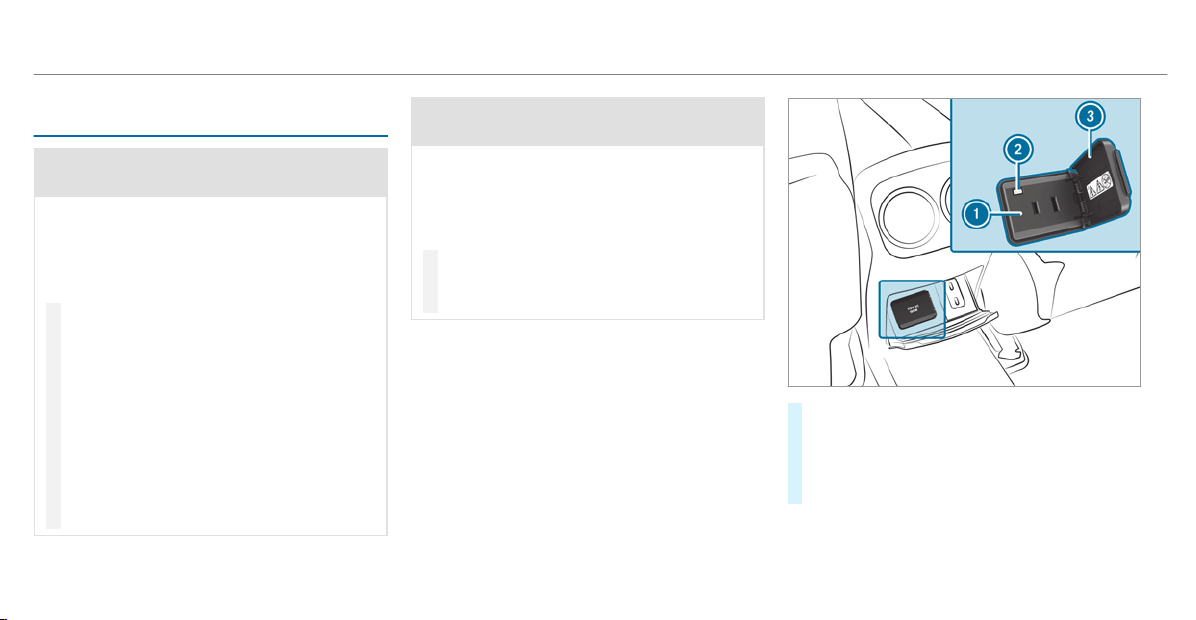
Using the 115 V socket in the rear passenger
compartment
&
DANGER Risk of fatal injury due to dam‐
aged connecting cables or sockets
If a suitable device is connected, the 115 V
socket will be carrying a high voltage. If the
connecting cable or the 115 V socket is
pulled out of the trim or is damaged or wet,
you could receive an electric shock.
#
Only use dry and damage-free connect‐
ing cables.
#
When the ignition is switched off,
ensure that the 115 V socket is dry.
#
If the 115 V socket is damaged or gets
pulled out of the paneling, immediately
have the socket checked or replaced at
a qualified specialized workshop.
#
Never plug the connecting cable into a
115 V socket that is damaged or has
been pulled out of the trim.
&
DANGER Risk of fatal injury due to incor‐
rect handling of the socket
You could receive an electric shock:
R
if you reach into the socket.
R
if you insert unsuitable devices or objects
into the socket.
#
Do not reach into the socket.
#
Only connect suitable devices to the
socket.
Requirements:
R
Devices are equipped with a suitable plug
which conforms to the standards specific to
the country you are in.
R
A device up to a maximum of 150 W is used.
R
Do not use multiple socket outlets.
#
Open flap 3.
#
Insert the plug of the device into 115 V
socket 1.
When the on-board electrical system voltage
is sufficient, indicator lamp 2 lights up.
108
Seats and stowing
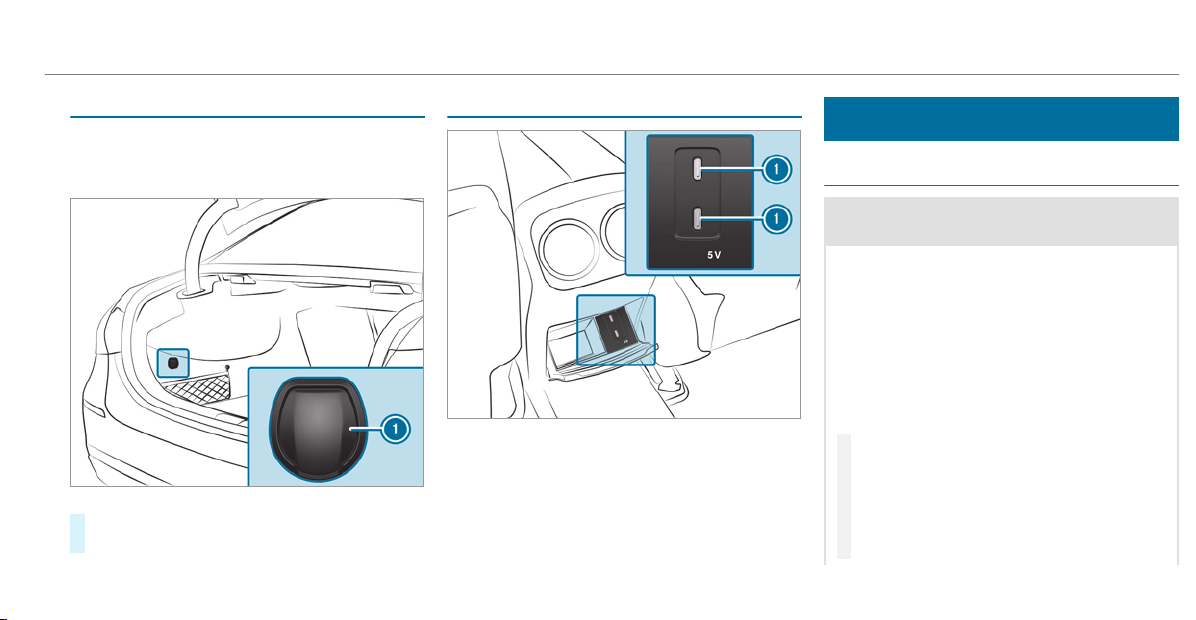
Using the 12 V socket in the trunk
Requirements:
R
Only connect devices up to a maximum of
180 W (15 A).
#
Lift up cap 1 of the socket and insert the
plug of the device.
USB port in the rear passenger compartment
If the ignition is switched on you can charge a
USB device, e.g. a mobile phone, at USB ports
1 using a suitable charging cable.
Wireless charging of the mobile phone and
connection with the exterior antenna
Notes on wirelessly charging the mobile
phone
&
WARNING Risk of injury due to objects
being stowed incorrectly
If objects in the vehicle interior are stowed
incorrectly, they can slide or be thrown
around and hit vehicle occupants. In addi‐
tion, cup holders, open stowage spaces and
mobile phone receptacles cannot always
retain all objects they contain.
There is a risk of injury, particularly in the
event of sudden braking or a sudden change
in direction.
#
Always stow objects so that they can‐
not be thrown around in such situa‐
tions.
#
Always make sure that objects do not
protrude from stowage spaces, luggage
nets or stowage nets.
Seats and stowing
109

#
Close the lockable stowage spaces
before starting a journey.
#
Always stow and secure heavy, hard,
pointed, sharp-edged, fragile or bulky
objects in the trunk/load compartment.
Observe the notes on loading the vehicle.
&
WARNING Risk of fire from placing
objects in the mobile phone stowage
compartment
If you place objects in the mobile phone
stowage compartment, they may heat up
excessively and even catch fire.
#
Do not place additional objects, espe‐
cially those mode of metal, in the
mobile phone stowage compartment.
*
NOTE Damage to objects caused by
placing them in the mobile phone stow‐
age compartment
If objects are placed in the mobile phone
stowage compartment, they may be dam‐
aged by electromagnetic fields.
#
Do not place credit cards, storage
media or other objects sensitive to
electromagnetic fields in the mobile
phone stowage compartment.
*
NOTE Damage to the mobile phone
stowage compartment caused by liquids
If liquids enter the mobile phone stowage
compartment, the compartment may be
damaged.
#
Ensure that no liquids enter the mobile
phone stowage compartment.
R
Depending on the vehicle equipment, the
mobile phone is connected to the vehicle's
exterior antenna via the charging module.
R
The charging function and wireless connec‐
tion of the mobile phone to the vehicle's
exterior antenna are only available if the igni‐
tion is switched on.
R
Small mobile phones may not be able to be
charged in every position of the mobile
phone stowage compartment.
R
Large mobile phones which do not rest flat in
the mobile phone stowage compartment may
not be able to be charged or connected with
the vehicle's exterior antenna.
R
The mobile phone may heat up during the
charging process. This may also depend on
the applications (apps) currently open.
R
To ensure more efficient charging and con‐
nection with the vehicle's exterior antenna,
remove the protective cover from the mobile
phone. Protective covers which are neces‐
sary for wireless charging are excluded.
110
Seats and stowing
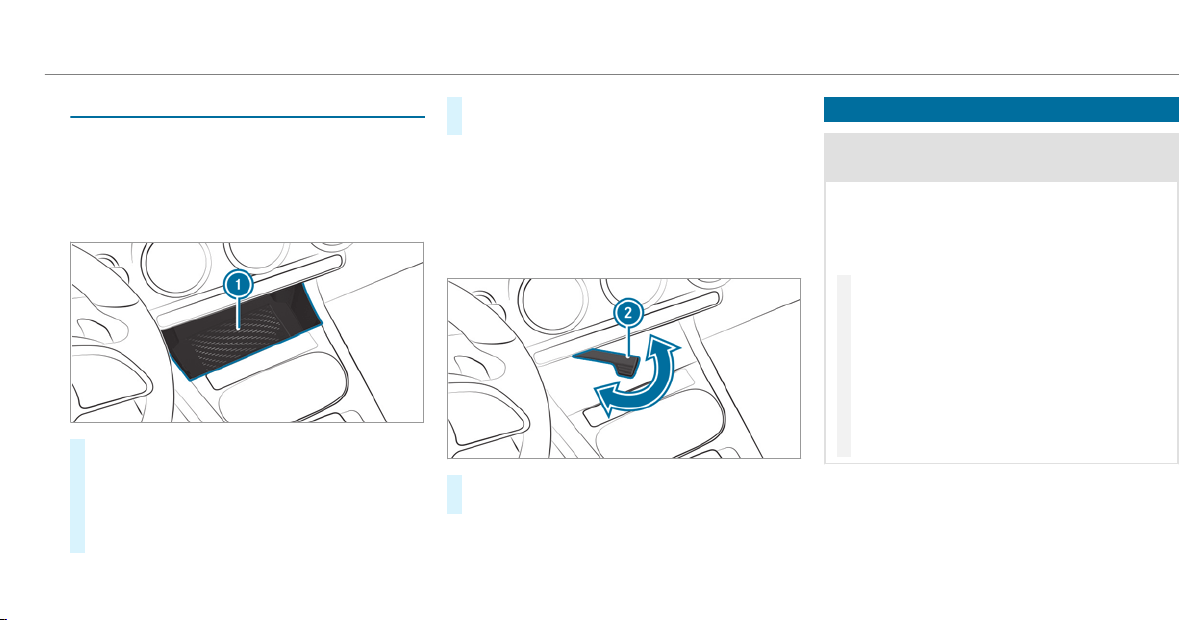
Wireless charging of the mobile phone
Requirements:
R
The mobile phone is suitable for wireless
charging. You can find a list of compatible
mobile phones at:
http://www.mercedes-benz.com/connect
#
Place the mobile phone as close to the cen‐
ter of the marked surface on mat 1 as pos‐
sible with the display facing upwards.
When the charging symbol is shown in the
multimedia system, the mobile phone is
being charged.
Malfunctions during the charging process are
shown in the multimedia system display.
%
The mat can be removed for cleaning, e.g.
using clean, lukewarm water.
Stowage compartment without cover
Make sure the mobile phone is properly stored
and secured to prevent it from falling out while
you are driving.
#
To secure the mobile phone: swing lever
2 out.
Installing/removing the floor mats
&
WARNING Risk of accident due to
objects in the driver's footwell
Objects in the driver's footwell may impede
pedal travel or block a depressed pedal.
This jeopardizes the operating and road
safety of the vehicle.
#
Stow all objects in the vehicle securely
so that they cannot get into the driver's
footwell.
#
Always install the floor mats securely
and as prescribed in order to ensure
that there is always sufficient room for
the pedals.
#
Do not use loose floor mats and do not
place floor mats on top of one another.
Seats and stowing
111
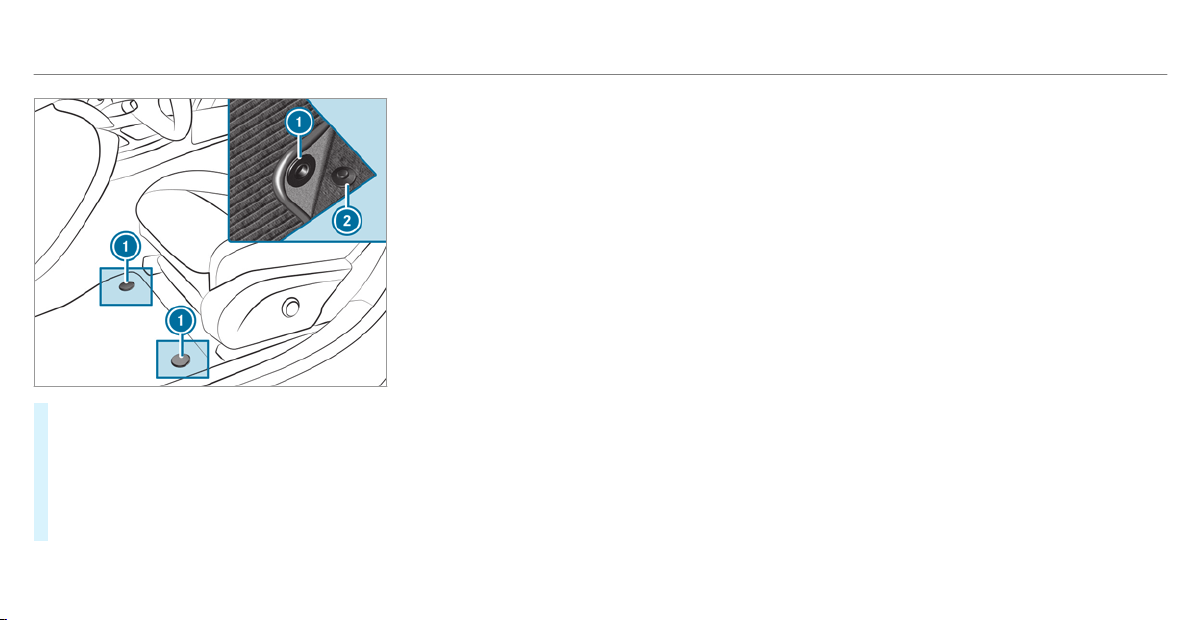
#
To install: slide the seat backwards and lay
the floor mat in the footwell.
#
Press studs 1 onto holders 2.
#
Adjust the corresponding seat.
#
To remove: pull the floor mat off holders 2.
#
Remove the floor mat.
112
Seats and stowing
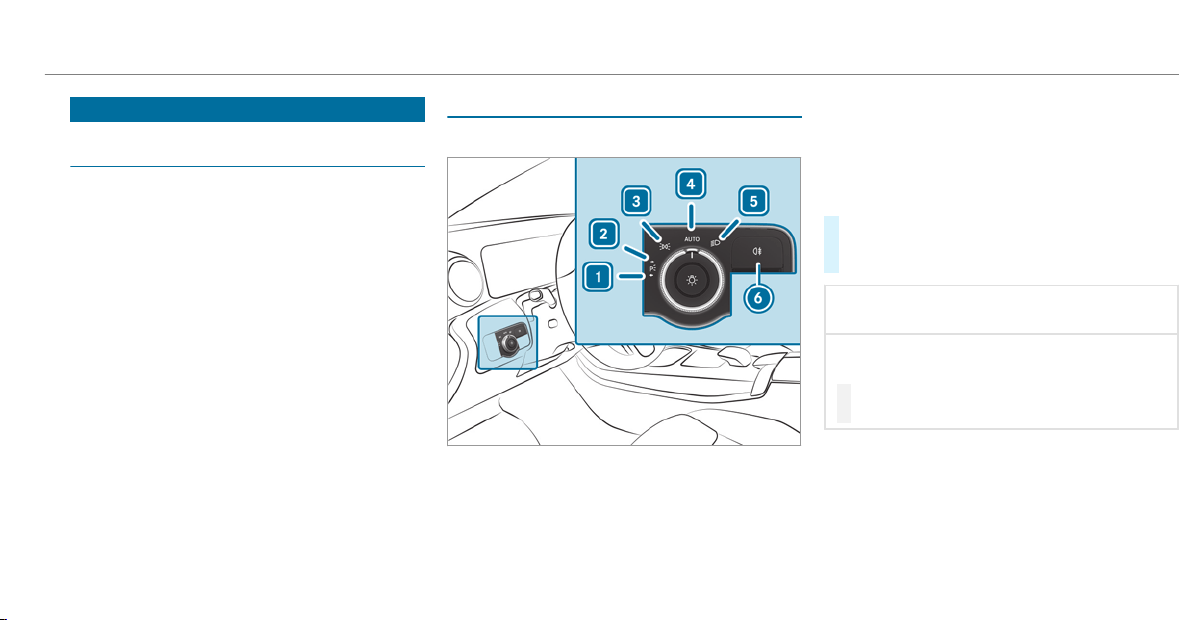
Exterior lighting
Information about lighting systems and your
responsibility
The various lighting systems of the vehicle are
only aids. The driver of the vehicle is responsible
for correct vehicle illumination in accordance
with the prevailing light and visibility conditions,
legal requirements and traffic situation.
Light switch
Operating the light switch
1
W Left standing light
2
X Right standing light
3
T Parking lights and license plate lamp
4
à Automatic driving lights (preferred light
switch position)
5
L Low beam/high beam
6
R Switches the rear fog lights on or off
When low beam is activated, the T indicator
lamp for the parking lights is deactivated and
replaced by the L low beam indicator lamp.
#
Always park your vehicle safely and in a well-
lit area, in accordance with the relevant legal
stipulations.
*
NOTE Battery discharging by operating
the standing lights
Operating the standing lights over a period of
hours puts a strain on the battery.
#
Where possible, switch on the
right X or left W par king light.
In the case of severe battery discharging, the
standing lights or par king lights are automati‐
cally switched off to facilitate the next engine
start.
The exterior lighting (except standing and park‐
ing lights) switches off automatically when the
driver's door is opened.
Light and visibility
113
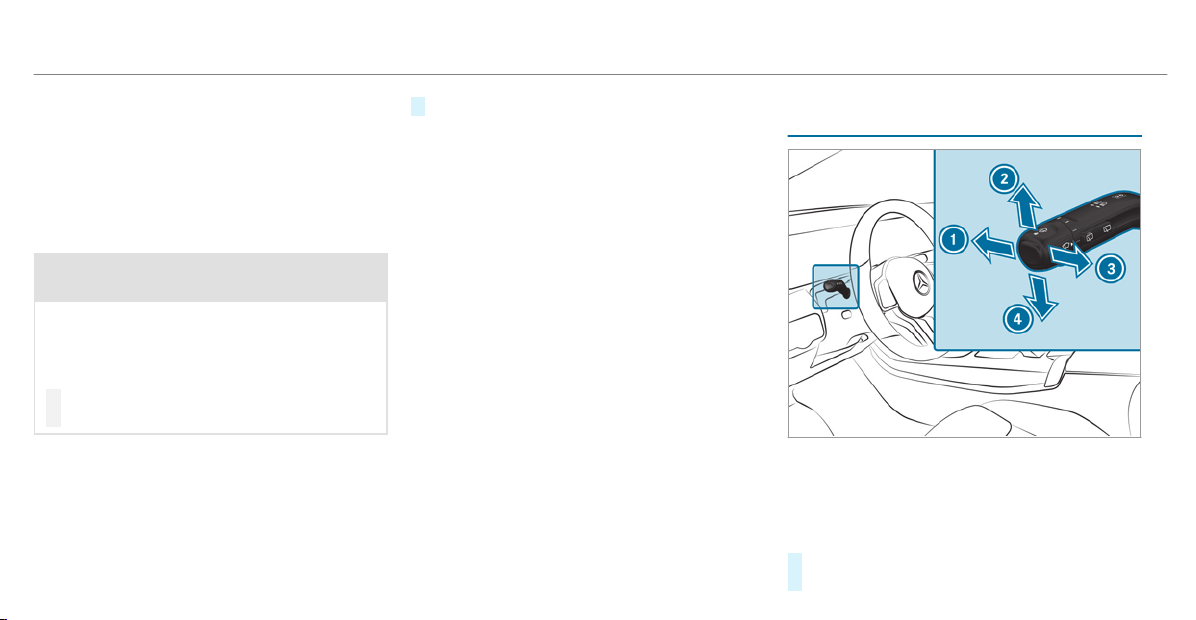
R
Observe the notes on surround lighting
(/ page 117).
Automatic driving lights function
The parking lights, low beam and daytime run‐
ning lamps are switched on automatically
depending on the ignition status and the ambi‐
ent light.
&
WARNING Risk of accident when the low
beam is switched off in poor visibility
When the light switch is set to Ã, the low
beam may not be switched on automatically
if there is fog, snow or other causes of poor
visibility such as spray.
#
In such cases, turn the light switch to
L.
The automatic driving lights are only an aid. You
are responsible for vehicle lighting.
Switching the rear fog lights on or off
Requirements:
R
The light switch is in the L or à posi‐
tion.
#
Press the R button.
Please observe the country-specific laws on the
use of rear fog lamps.
Operating the combination switch for the
lights
1
High beam
2
Turn signal indicator, right
3
High-beam flasher
4
Turn signal indicator, left
#
Use the combination switch to activate the
desired function.
114
Light and visibility
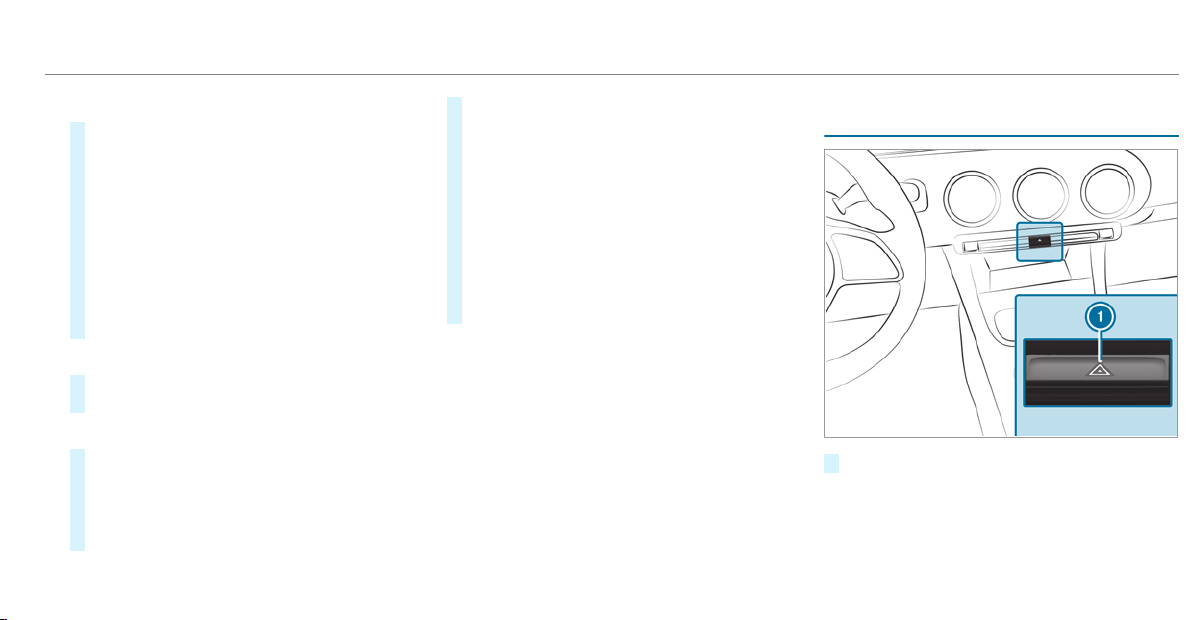
High beam
#
To switch on: tur n the light switch to the
L or à position.
#
Press the combination switch in the direction
of arrow 1.
When the high beam is activated, the L
indicator lamp for low beam will be deactiva‐
ted and replaced by the K indicator lamp
for high beam.
#
To switch off: press the combination switch
in the direction of arrow 1 or pull in the
direction of arrow 3.
High-beam flasher
#
Pull the combination switch in the direction
of arrow 3.
Turn signal lights
#
To indicate briefly: press the combination
switch briefly to the point of resistance in the
direction of arrow 2 or 4.
The corresponding turn signal indicator will
flash three times.
#
To indicate permanently: press the combi‐
nation switch beyond the point of resistance
in the direction of arrow 2 or 4.
Vehicles with Active Lane Change Assist:
R
Indicator operation activated by the driver
can extend for the duration of the lane
change.
R
If the driver indicated immediately before‐
hand but a lane change was not immedi‐
ately possible, the turn signal indicator
may activate automatically.
Activating/deactivating the hazard warning
lights
#
Press button 1 .
Light and visibility
115
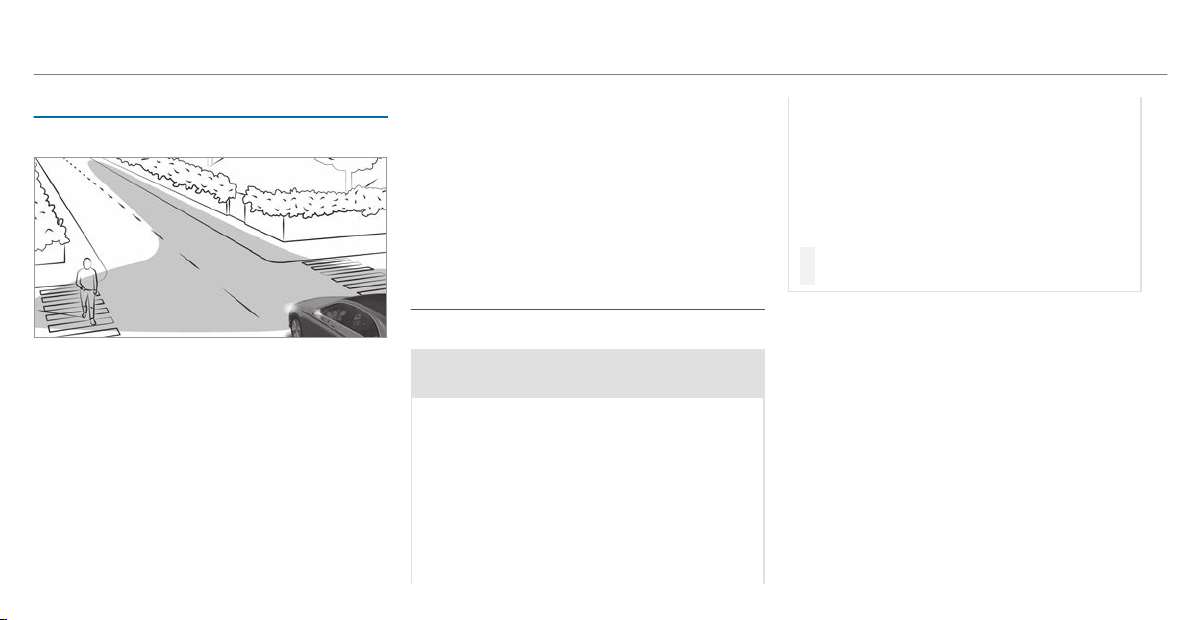
Cornering light
Cornering light function
The cornering light improves the illumination of
the roadway over a wide angle in the tur ning
direction, enabling better visibility on tight
bends, for example. It can be activated only
when the low beam is switched on.
The function is active:
R
At speeds below 25 mph (40 km/h) when
the turn signal light is switched on or the
steering wheel is turned
R
At speeds between 25 mph (40 km/h) and
45 mph (70 km/h) when the steering wheel
is turned
Traffic circle and intersection function: the
cornering light is activated on both sides through
an evaluation of the current GPS position of the
vehicle. It remains active until after the vehicle
has left the traffic circle or the intersection.
Adaptive Highbeam Assist
Adaptive Highbeam Assist function
&
WARNING Risk of accident despite
Adaptive Highbeam Assist
Adaptive Highbeam Assist does not recog‐
nize the following road users:
R
Road users without lights, e.g. pedes‐
trians
R
Road users with poor lighting, e.g.
cyclists
R
Road users whose lighting is obstructed,
e.g. by a barrier
On very rare occasions, Adaptive Highbeam
Assist may fail to recognize other road users
with their own lighting, or may recognize
them too late.
In these or similar situations, the automatic
high beam is not deactivated or is activated
despite the presence of other road users.
#
Always observe the traffic carefully and
switch off the high beam in good time.
Adaptive Highbeam Assist cannot take into
account road, weather or traffic conditions.
Detection may be restricted in the following
cases:
R
in poor visibility, e.g. fog, heavy rain or snow
R
if there is dirt on the sensors or the sensors
are obscured
Adaptive Highbeam Assist is only an aid. You are
responsible for adjusting the vehicle's lighting to
the prevailing light, visibility and traffic condi‐
tions.
116
Light and visibility
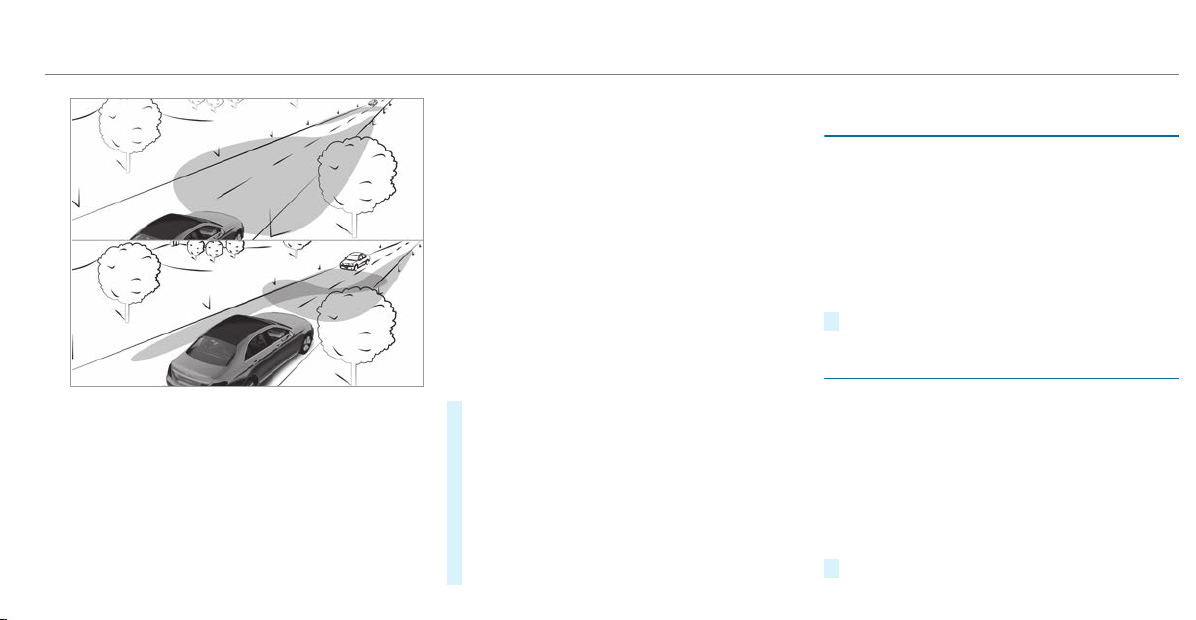
The Adaptive Highbeam Assist automatically
switches between the following types of light:
R
Low-beam headlamps
R
High beam
At speeds above 19 mph (30 km/h):
R
If no other road users are detected, the high
beam will be switched on automatically.
The high beam switches off automatically in the
following cases:
R
At speeds below 16 mph (25 km/h).
R
If other road users are detected.
R
If street lighting is sufficient.
At speeds above approximately 31 mph
(50 km/h):
R
The headlamp range of the low beam is regu‐
lated automatically based on the distance to
other road users.
The system's optical sensor is located behind
the windshield near the overhead control panel.
Switching Adaptive Highbeam Assist on/off
#
To switch on: tur n the light switch to the
à position.
#
Switch on the high beam using the combina‐
tion switch.
When the high beam is switched on automat‐
ically in the dark, the _ indicator lamp on
the multifunction display comes on.
#
To switch off: switch off the high beam
using the combination switch.
Setting the exterior lighting switch-off delay
time
Requirements:
R
The light switch is in the à position.
Multimedia system:
4
©
5
Settings
5
Light
5
Ext. Light Switch-off
The exterior lighting is activated for the config‐
ured time when the vehicle is parked.
#
Set a switch-off delay time.
Switching the surround lighting on or of f
Multimedia system:
4
©
5
Settings
5
Light
5
Locator Lighting
When Locator Lighting is active, the exterior
lighting lights up for 40 seconds after the vehicle
is unlocked. When you start the vehicle, the sur‐
round lighting is deactivated and the automatic
driving lights are activated.
#
Activate or deactivate the function.
Light and visibility
117
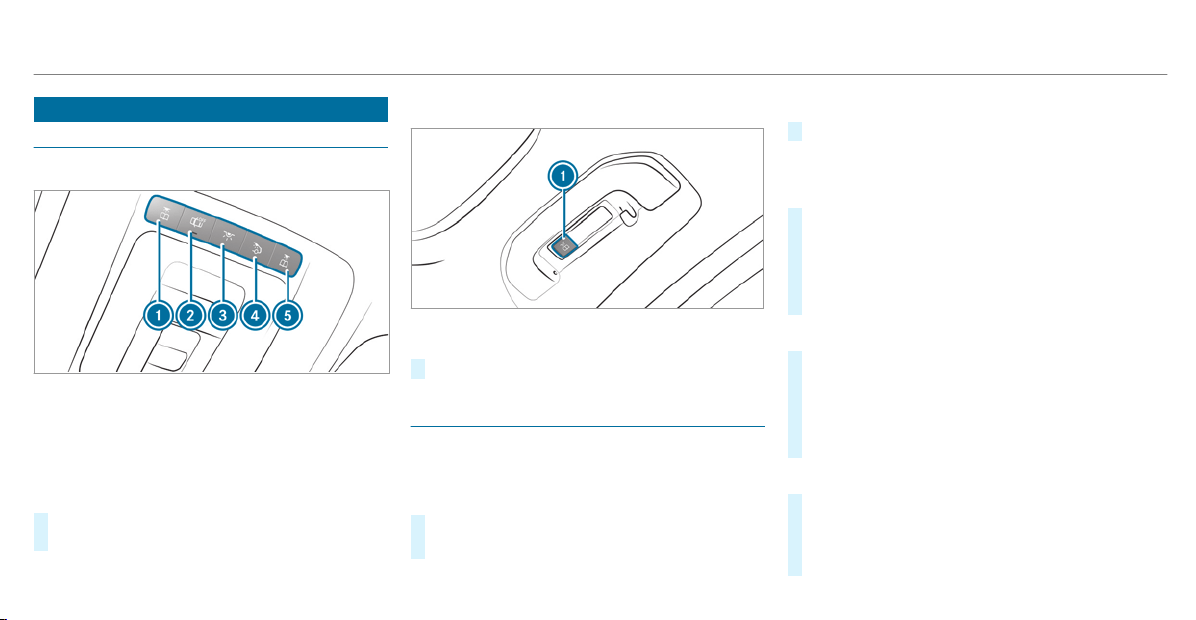
Interior lighting
Adjusting the interior lighting
Front overhead control panel
1
p Front left reading lamp
2
| Automatic interior lighting control
3
c Front interior lighting
4
u Rear interior lighting
5
p Front right reading lamp
#
To switch on or off: press button 1 – 5
accordingly.
Control panel in the grab handle
1
p Rear reading lamp
#
To switch on or off: press button 1.
Adjusting the ambient lighting
Multimedia system:
4
©
5
Comfort
5
Ambient Lighting
Setting the color
#
Select Color.
#
Set the desired color.
%
There are 64 colors available.
Adjusting the brightness
#
Select Brightness.
Adjust the brightness.
Activating the brightness for zones
#
Select Brightness.
#
Select Brightness Zones.
#
Activate or deactivate the function.
The ACCENT, AMBIANCE and VENTS zones
can be set separately.
Activating multi-color lighting
#
Select Color.
#
Select Multi-color.
There are ten preset color combinations
available.
#
Select a color combination.
Activating multi-color animation
#
Select Color.
#
Select Multi-color Animation.
The color combination set will change at pre‐
defined intervals.
118
Light and visibility
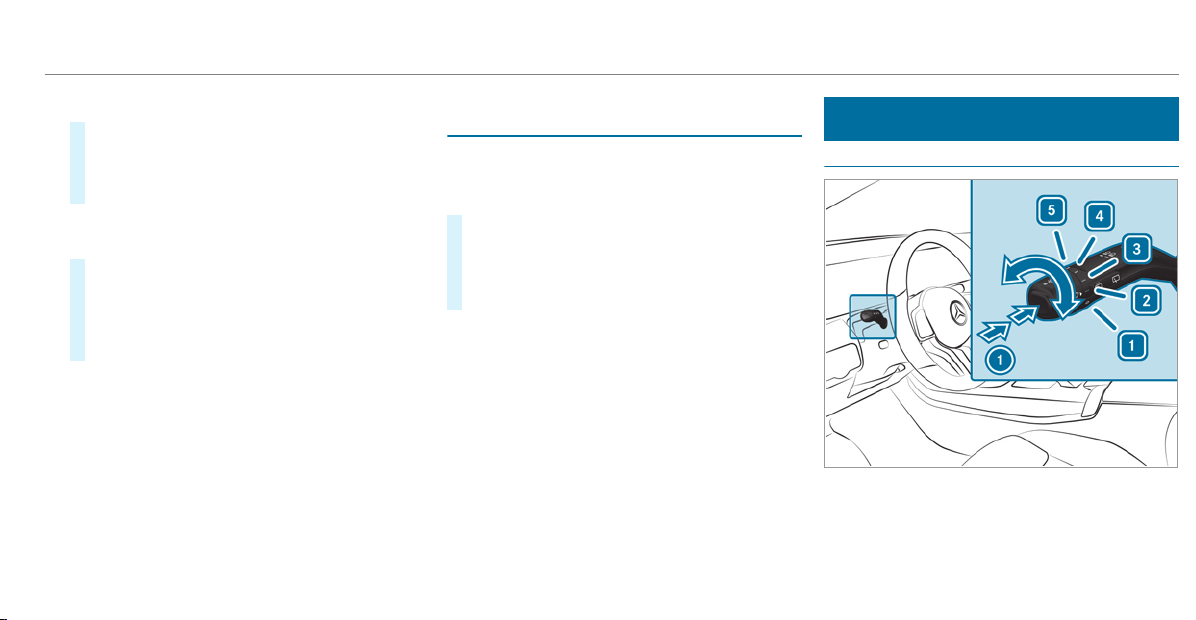
Activating welcome lighting
#
Select Color.
#
Select Welcome.
When the vehicle is unlocked, a special ambi‐
ent lighting sequence will run.
Activating dependency on air conditioning
settings
#
Select Color.
#
Select Climate.
If changes are made to the temperature set‐
ting in the vehicle, the color of the ambient
lighting will change briefly.
Switching the interior lighting switch-off
delay time on or of f
Multimedia system:
4
©
5
Settings
5
Light
5
Int. Light Switch-off
#
Switch the lighting switch-off delay time on
or off.
When this function is active, the interior light‐
ing lights up again briefly after the vehicle
has been locked.
Windshield wiper and windshield washer
system
Switching the windshield wipers on/off
1
g Windshield wipers off
2
Ä Automatic wiping, normal
3
Å Automatic wiping, frequent
Light and visibility
119
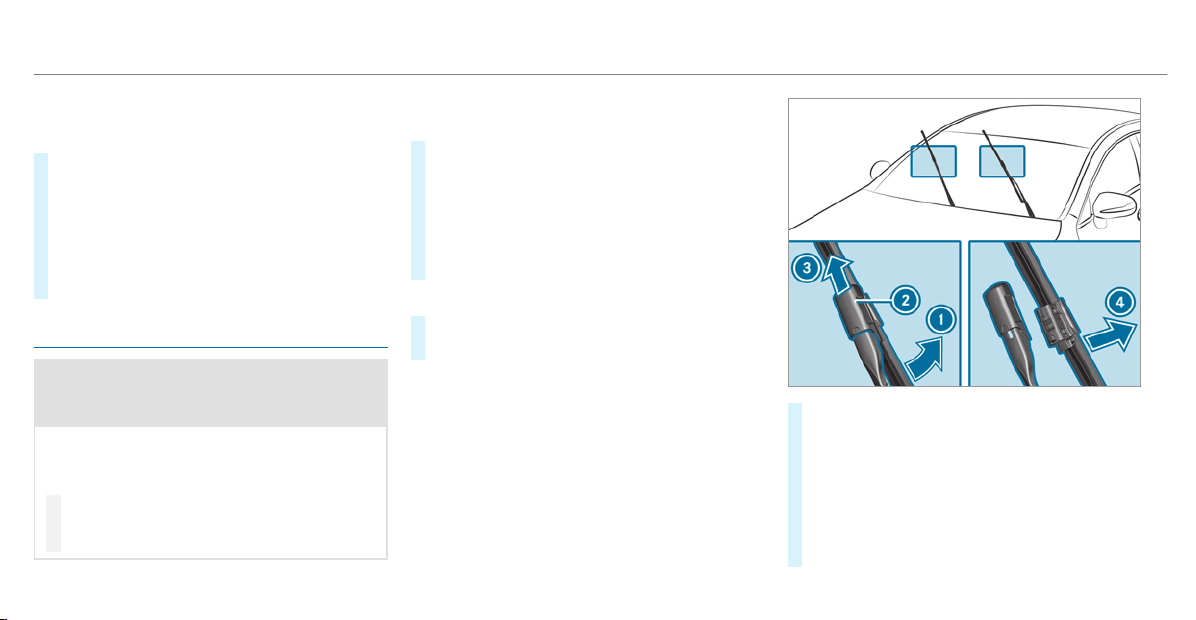
4
° Continuous wiping, slow
5
¯ Continuous wiping, fast
#
Turn the combination switch to the corre‐
sponding position 1 - 5.
#
Single wipe/washing: push the button on
the combination switch in the direction of
arrow 1.
R
í Single wipe
R
î Wipes with washer fluid
Changing the windshield wiper blades
&
WARNING Risk of becoming trapped if
the windshield wipers are switched on
while wiper blades are being replaced
If the windshield wipers begin to move while
you are changing the wiper blades, you can
be trapped by the wiper arm.
#
Always switch off the windshield wipers
and the ignition before changing the
wiper blades.
Moving the wiper arms to the change posi‐
tion
#
Switch the ignition on and switch off again
immediately.
#
Within around 15 seconds, press the î
button on the combination switch for approx‐
imately three seconds (/ page 119).
The wiper arms will move into the change
position.
Removing the wiper blades
#
Fold the wiper arms away from the wind‐
shield.
#
Hold the wiper arm with one hand. With the
other hand, turn the wiper blade in the direc‐
tion of arrow 1 away from the wiper arm as
far as it will go.
#
Slide catch 2 in the direction of arrow 3
until it engages in the removal position.
#
Remove the wiper blade from the wiper arm
in the direction of arrow 4.
120
Light and visibility
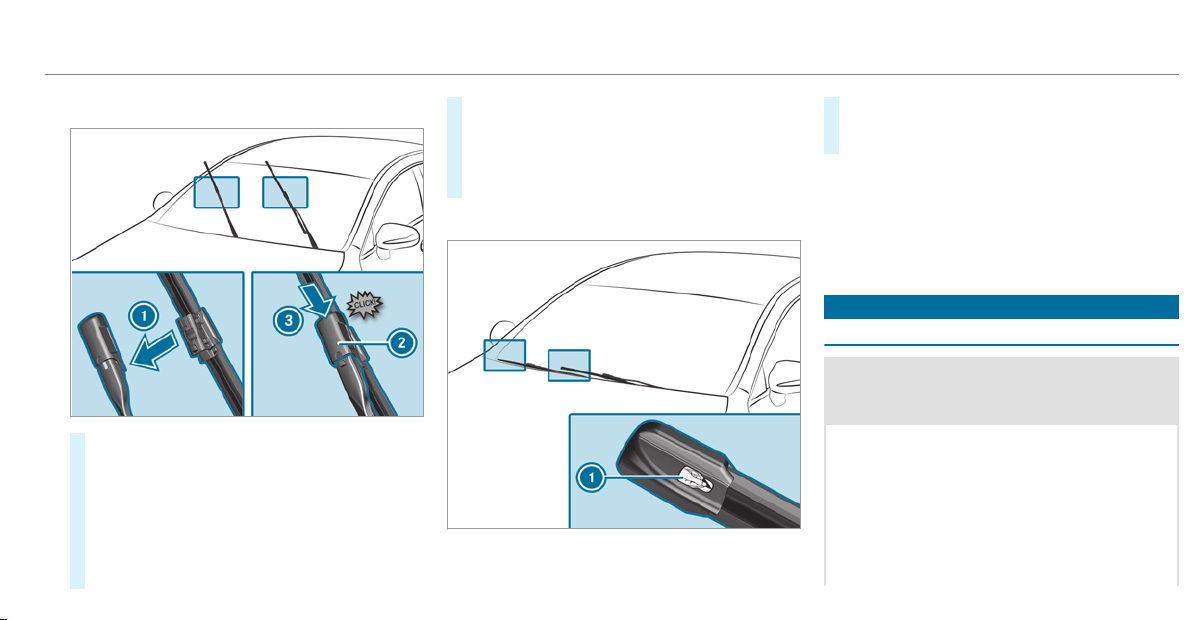
Installing the wiper blades
#
Insert the new wiper blade into the wiper
arm in the direction of arrow 1.
#
Slide catch 2 in the direction of arrow 3
until it engages in the locking position.
#
Make sure that the wiper blade sits correctly.
#
Fold the wiper arms back onto the wind‐
shield.
#
Switch the ignition on.
#
Press the î button on the combination
switch ( / page 119).
The wiper arms will move into the original
position.
Maintenance display
#
Remove protective f ilm 1 from the mainte‐
nance display on the tip of the newly instal‐
led wiper blades.
If the color of the maintenance display changes
from black to yellow, the wiper blades should be
replaced.
%
The duration until the color changes varies
depending on the usage conditions.
Mirrors
Operating the outside mirrors
&
WARNING Risk of injury from adjusting
the vehicle settings while the vehicle is in
motion
You could lose control of the vehicle in the
following situations:
R
if you adjust the driver's seat, the head
restraint, the steering wheel or the mirror
while the vehicle is in motion
R
if you fasten your seat belt while the vehi‐
cle is in motion
Light and visibility
121
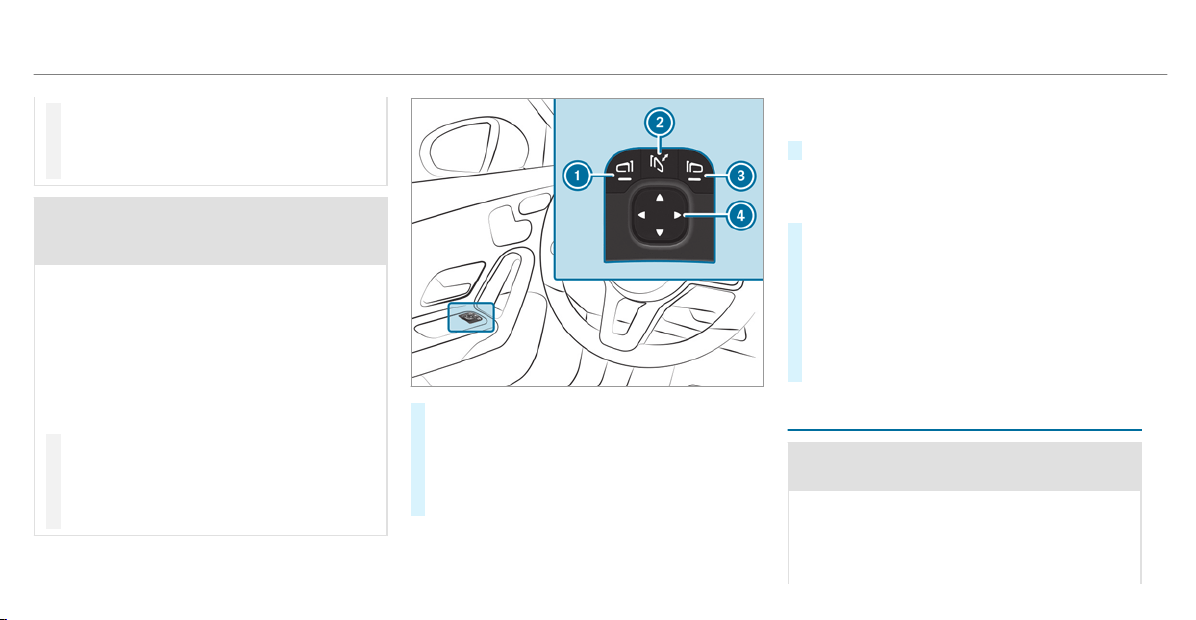
#
Before starting the engine: adjust the
driver's seat, the head restraint, the
steering wheel or the mirror and fasten
your seat belt.
&
WARNING Risk of accident due to mis‐
judgment of distances when using the
passenger mirror
The outside mirror on the front-passenger
side reflects objects on a smaller scale. The
objects in view are in fact closer than they
appear.
As a result, you may misjudge the distance
between you and the road user driving
behind you, for example, when changing
lanes.
#
Therefore, always look over your shoul‐
der in order to ensure that you are
aware of the actual distance between
you and the road users driving behind
you.
#
To fold in or out: briefly press button 2.
#
To set: press button 1 or 3 to select the
outside mirror to be adjusted.
#
Press button 4 to adjust the position of the
mirror glass.
%
If the battery has been disconnected or com‐
pletely discharged, you will have to reset the
outside mirrors. Only then will the automatic
mirror folding function work properly.
#
To adjust: briefly press button 2.
An outside mirror that has been pushed out of
position can be engaged in position again as fol‐
lows:
#
Vehicles without electrically folding out‐
side mirrors: Manually move the outside
mirror into the correct position.
#
Vehicles with electrically folding outside
mirrors: Press and hold button 2.
You will hear a click and the mirror will audi‐
bly engage in position. The outside mirror will
now be set to the correct position.
Automatic anti-glare mirrors function
&
WARNING Risk of burns and poisoning
due to the anti-glare mirror electrolyte
Electrolyte may escape if the glass in an
automatic anti-glare mirror breaks.
The electrolyte is harmful and causes irrita‐
tion. It must not come into contact with your
122
Light and visibility

skin, eyes, respiratory organs or clothing or
be swallowed.
#
If you come into contact with electro‐
lyte, observe the following:
R
Rinse the electrolyte from your skin
and seek medical attention immedi‐
ately.
R
If electrolyte comes into contact
with your eyes, rinse them thor‐
oughly with clean water and seek
medical attention immediately.
R
If the electrolyte is swallowed,
immediately rinse your mouth out
thoroughly. Do not induce vomiting.
Seek medical attention immediately.
R
Immediately change out of clothing
which has come into contact with
electrolyte.
R
If an allergic reaction occurs, seek
medical attention immediately.
The inside rearview mirror and the outside mir‐
ror on the driver's side automatically go into
anti-glare mode if light from a headlamp hits the
sensor on the inside rearview mirror.
System limitations
The system does not go into anti-glare mode in
the following situations:
R
the engine is switched off
R
reverse gear is engaged
R
the interior lighting is switched on
Function of the front-passenger outside mir‐
ror parking position
The parking position makes parking easier.
The front-passenger outside mirror tilts down‐
wards and shows the rear wheel on the front-
passenger side in the following situations:
R
the parking position is stored
(/ page 124)
R
the passenger mirror is selected
R
reverse gear is engaged
The front-passenger outside mirror moves back
to its original position in the following situations:
R
you shift the transmission to another trans‐
mission position
R
at speeds greater than 9 mph (15 km/h)
R
you press the button for the outside mirror
on the driver's side
Light and visibility
123
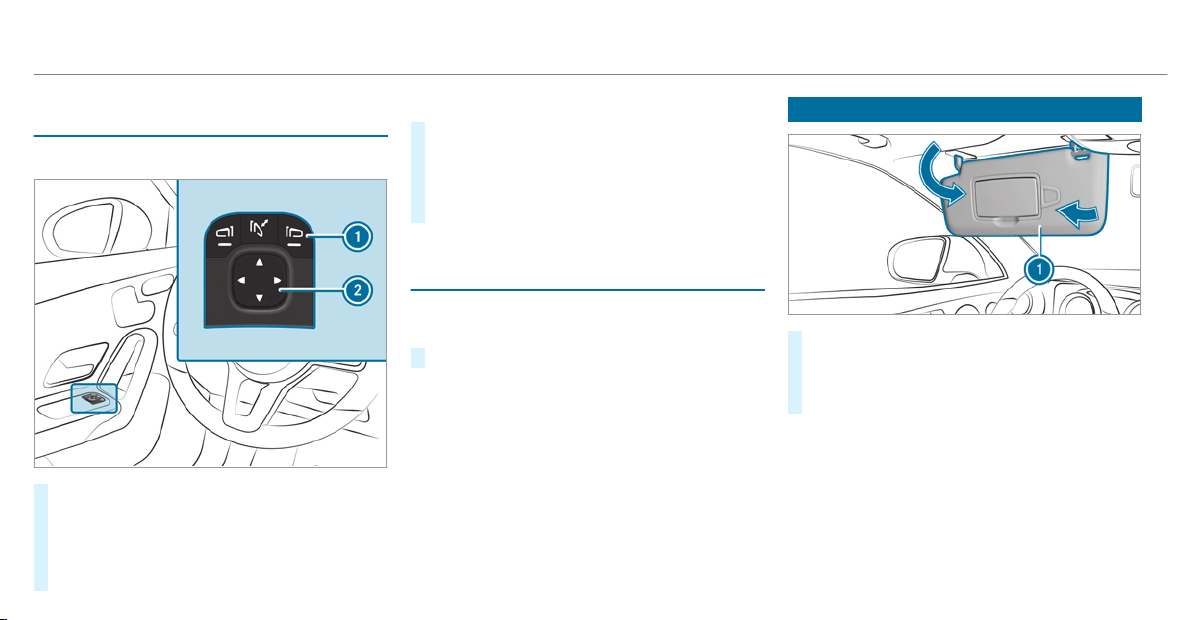
Storing the parking position of the front-
passenger outside mirror using reverse gear
Storing
#
Press button 1 to select the front-
passenger outside mirror.
#
Engage reverse gear.
#
Move the front-passenger outside mirror into
the desired parking position using button 2.
Calling up
#
Press button 1 to select the front-
passenger outside mirror.
#
Engage reverse gear.
The front-passenger outside mirror will move
to the stored parking position.
Activating/deactivating the automatic mirror
folding function
Multimedia system:
4
©
5
Settings
5
Vehicle
#
Switch Autom. Mirror Folding on or off.
Operating the sun visors
#
Glare from the front: fold sun visor 1
down.
#
Glare from the side: swing sun visor 1 to
the side.
124
Light and visibility
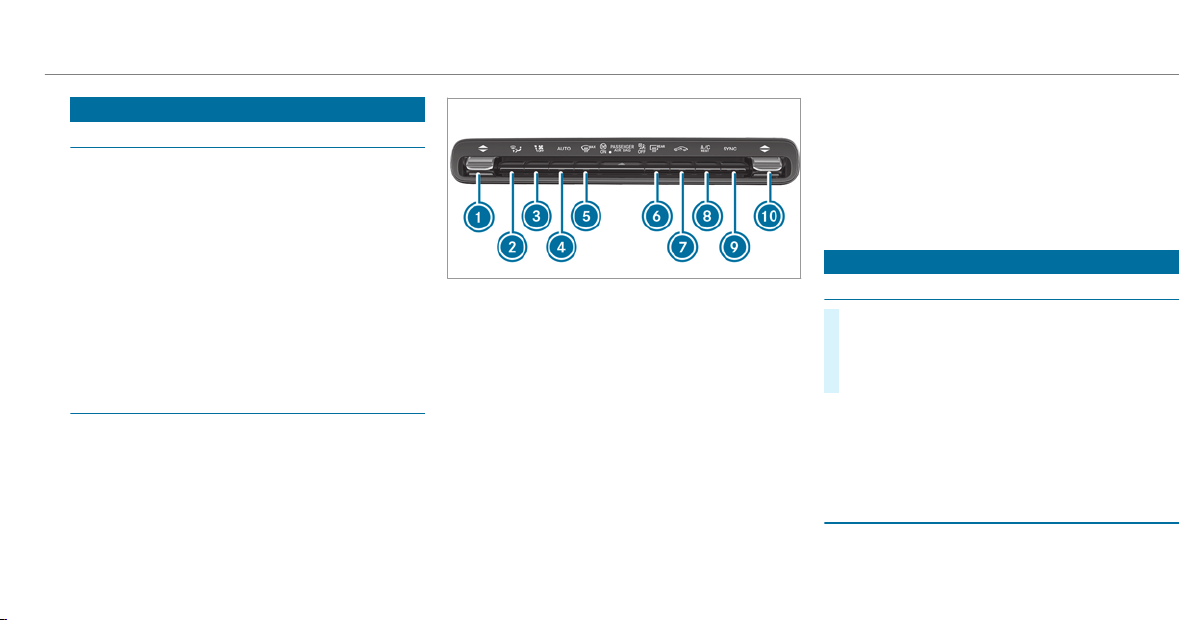
Overview of climate control systems
Notes on climate control
An interior air filter must always be used so that
the air conditioning system, pollution level moni‐
toring and the air f iltering function work cor‐
rectly. Make sure that the filter is installed cor‐
rectly and the filter housing in the engine com‐
partment is closed correctly using the cap and
always tightly sealed when in operation. Use fil‐
ters recommended and approved by Mercedes-
Benz. Always have service work carried out at a
qualified specialist workshop.
Overview of the control panel for 3-zone
automatic climate control
The indicator lamps in the Ã, ¬, ¤,
g, Á and 0 buttons indicate that the
corresponding function is activated.
1
w Sets the temperature on the driver's
side
2
_ Sets the air distribution
3
H Sets the airflow or switches off climate
control
4
à Sets climate control to automatic
mode (/ page 126)
5
¬ Defrosts the windshield
6
¤ Switches the rear window heater on or
off
7
g Switches air-recirculation mode on/
off(/ page 127)
8
Á Switches the A/C function on/
off(/ page 125)
Switches residual heat on or off
(/ page 127)
9
0 Activates or deactivates synchroniza‐
tion (/ page 127)
A
w Sets the front passenger side tempera‐
ture
Operating the climate control system
Switching climate control on/off
#
To switch on: set the airflow to level 1 or
higher using the H button.
#
To switch off: set the airflow to level 0 using
the H button.
%
If climate control is switched off, the win‐
dows may fog up more quickly. Switch off
climate control only briefly.
Switching the A/C function on or off via the
control panel
The A/C function heats, cools and dehumidifies
the vehicle's interior air.
Climate control
125

#
Press the ¿Á button.
Switch off the A/C function only briefly other‐
wise the windows may fog up more quickly.
Condensation may drip from the underside of
the vehicle when cooling mode is active. This is
not a sign that there is a malfunction.
Calling up the air conditioning menu
Calling up the air conditioning menu using
the multimedia system
#
Select the temperature display at the lower
edge of the media display.
Calling up the air conditioning menu using
the button on the control panel
#
Press the t button on the control panel.
%
The button on the control panel is not availa‐
ble on all equipment variants. In this case,
the air conditioning menu can only be called
up using the multimedia system.
Activating/deactivating the A/C function
using the multimedia system
The A/C function heats, cools and dehumidifies
the vehicle's interior air.
#
Call up the climate control menu
(/ page 126).
#
Select A/C.
Depending on the previous status, the func‐
tion is activated or deactivated.
Setting climate control to automatic mode
In automatic mode, the set temperature is con‐
trolled and maintained at a constant level by the
air supply.
#
Press the à button.
#
To switch to manual mode: press the _
or à button.
In automatic mode, you can choose between five
different air quantities using the H button.
Automatic mode is retained.
Overview of air distribution settings
The symbols on the display indicate which vents
the airf low is being directed through:
¯
Defroster and side air vents
P
Center and side air vents
O
Footwell and side air vents
S
Center, side and footwell vents
a
Defroster, footwell and side air vents
_
All vents
b
Defroster, middle and side air vents
W
Automatic air distribution
Setting the air distribution
#
Call up the air conditioning menu
(/ page 126).
#
To set the air distribution: select ¯,
P or O.
#
Set the airflow.
126
Climate control

%
Several air distribution options can be selec‐
ted at the same time, for example to set the
temperature/air conditioning for the wind‐
shield and the footwells simultaneously.
Activating/deactivating the climate control
synchronization function via the control
panel
Climate control can be set centrally using the
synchronization function. The temperature and
air distribution setting for the driver side is adop‐
ted automatically for the front passenger side.
#
Press the 0 button.
The synchronization function is deactivated if the
settings for one of the other climate zones are
changed.
Activating or deactivating the climate con‐
trol synchronization function using the multi‐
media system
The climate control can be controlled centrally
using the synchronization function. The driver's
settings for temperature, air quantity and air dis‐
tribution are adopted automatically for all cli‐
mate zones.
#
Call up the air conditioning menu
(/ page 126).
#
Select SYNC.
Depending on the previous status, the func‐
tion is activated or deactivated.
Removing condensation from the windows
Windows fogged up on the inside
#
Press the à button.
#
If the windows continue to fog up: press the
¬ button.
Windows fogged up on the outside
#
Switch on the windshield wipers.
#
Press the à button.
Switching air-recirculation mode on/off
#
Press the g button.
The interior air will be recirculated.
Air-recirculation mode automatically switches to
fresh air mode after some time.
%
If air-recirculation mode is switched on, the
windows may fog up more quickly. Switch on
air-recirculation mode only briefly.
Switching the residual heat on/off (Canada)
Requirements:
R
The vehicle is parked.
It is possible to make use of the residual heat
from the engine to continue heating or ventilat‐
ing the front compartment of the vehicle for
approximately 30 minutes, depending on the
temperature set.
#
To switch on: press the Á button.
Residual heat is switched off automatically.
Climate control
127
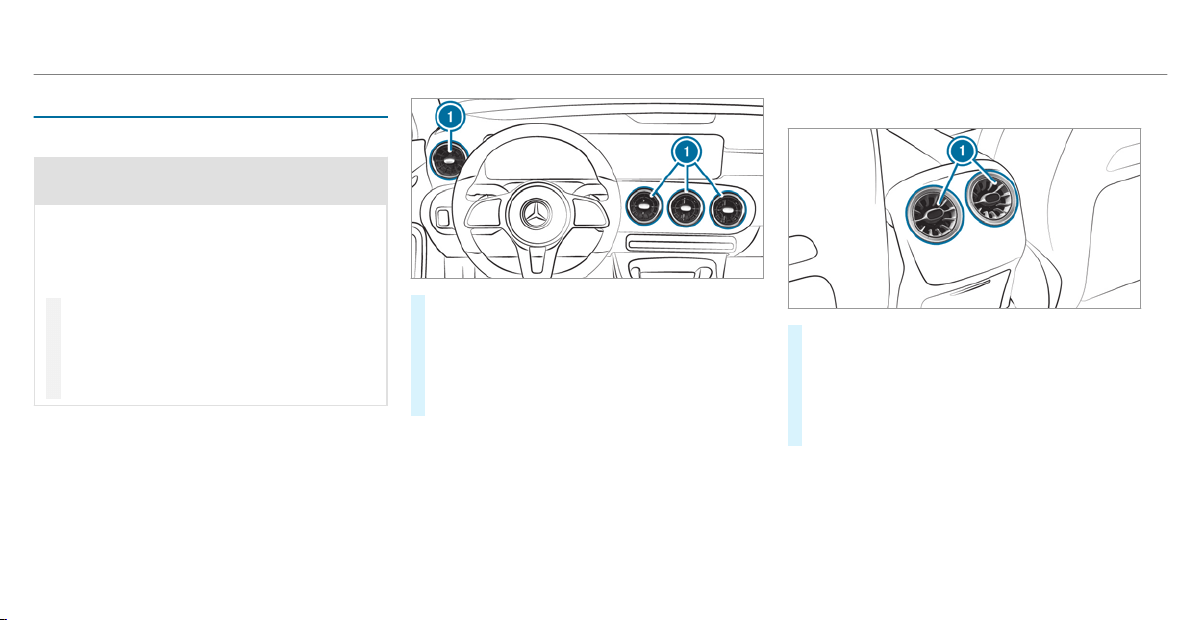
Air vents
Adjusting the front air vents
&
WARNING ‑ Danger of burns or frostbite
due to being too close to the air vents
Very hot or very cold air can flow from the air
vents.
This could result in burns or frostbite in the
immediate vicinity of the air vents.
#
Make sure that all vehicle occupants
always maintain a sufficient distance to
the air vents.
#
If necessary, direct the airflow to
another area of the vehicle interior.
To guarantee the flow of fresh air through the air
vents into the vehicle interior, comply with the
following:
R
Always keep the vents and the ventilation
grille in the vehicle interior free.
R
Keep the air inlet free of deposits
(/ page 387).
#
To open or close: hold air vent 1 in the
center and turn it to the left (open) or r ight
(closed) as far as it will go.
#
To adjust the air direction: hold air vent 1
in the center and move it up or down or to
the left or right.
Adjusting the rear air vents
#
To open or close: hold air vent 1 in the
center and turn it to the left (open) or r ight
(closed) as far as it will go.
#
To adjust the air direction: hold air vent 1
in the center and move it up or down or to
the left or right.
128
Climate control
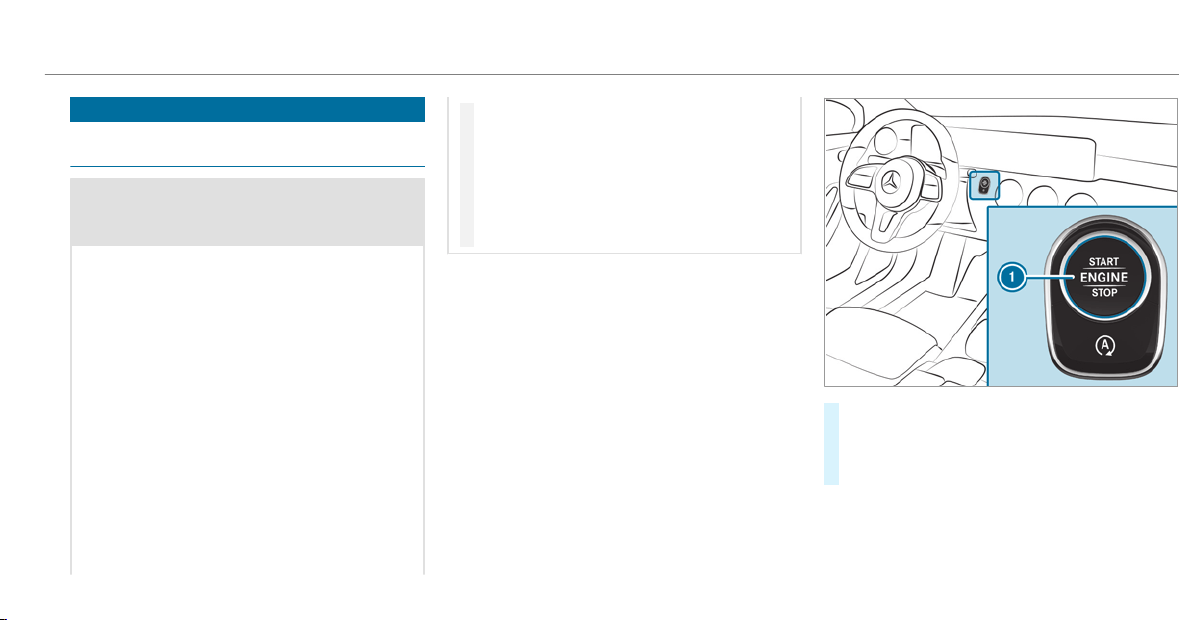
Driving
Switching the power supply or ignition on
without starting the engine
&
WARNING Risk of accident and injury
due to children left unattended in the
vehicle
If children are left unattended in the vehicle,
they could:
R
open doors, thereby endangering other
persons or road users.
R
get out of the vehicle and be hit by
oncoming traffic.
R
operate vehicle equipment and become
trapped, for example.
In addition, children could also set the vehi‐
cle in motion, for example, by:
R
releasing the parking brake.
R
shifting the automatic transmission out of
park position j.
R
starting the engine
#
Never leave children and animals unat‐
tended in the vehicle.
#
When leaving the vehicle, always take
the SmartKey with you and lock the
vehicle.
#
Keep the SmartKey out of the reach of
children.
Requirements:
R
The SmartKey is in the vehicle and is recog‐
nized.
R
The brake pedal is not depressed.
#
To switch on the power supply: press but‐
ton 1 once.
You can activate the windshield wipers, for
example.
The power supply is switched off again if the fol‐
lowing conditions are met:
R
You open the driver's door
R
You press button 1 twice.
Driving and parking
129
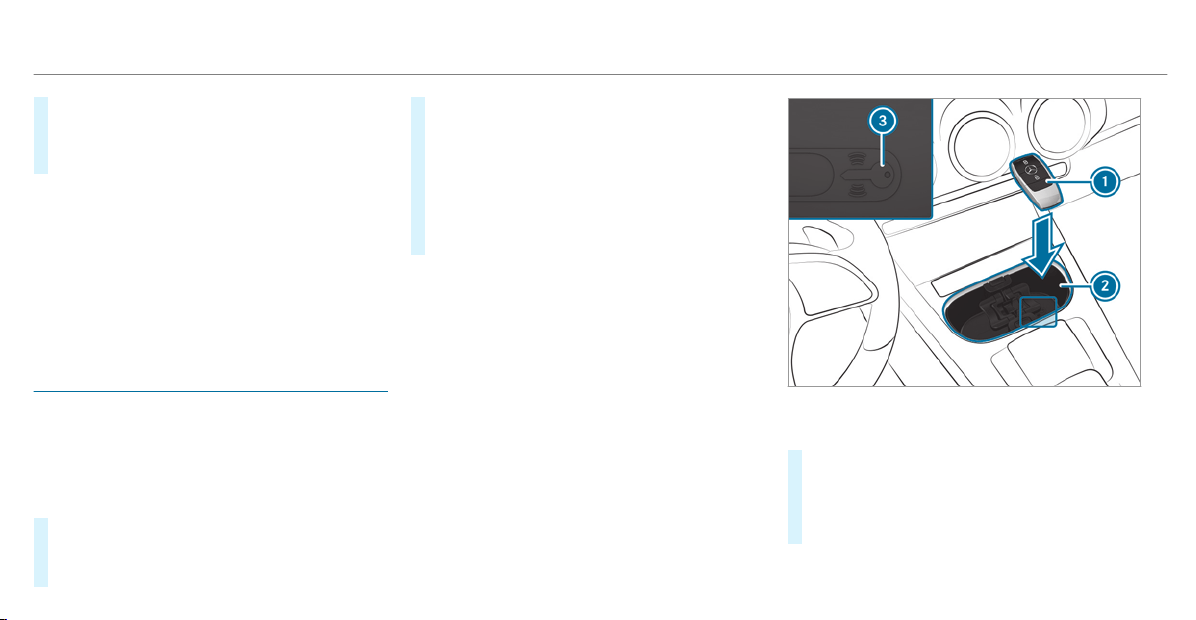
#
To switch on the ignition: press button 1
twice.
The indicator lamps in the instrument cluster
light up.
The ignition is switched off again if one of the
following conditions is met:
R
Vehicles with automatic transmission:
you do not start the vehicle within
15 minutes and the transmission is in posi‐
tion j or the electric parking brake is
applied.
R
You press button 1 once.
Starting the vehicle
Starting the vehicle with the start/stop but‐
ton
Requirements:
R
The SmartKey is in the vehicle and is recog‐
nized.
#
Shift the transmission to position j or i.
#
Depress the brake pedal and press button
1 once.
#
If the vehicle does not start: switch off non-
essential consumers and press button 1
once.
#
If the vehicle still does not start and the
Place the Key in the Marked Space See
Operator's Manual display message also
appears in the multifunction display: start
the vehicle in emergency operation mode.
You can switch off the engine while driving by
pressing button 1 for about three seconds or
by pressing button 1 three times within a sec‐
ond. Be sure to observe the safety notes under
"Driving tips".
Starting the vehicle in emergency operation
mode
If the vehicle does not start and the Place the
Key in the Marked Space See Operator's Manual
message appears in the multifunction display,
you can start the vehicle in emergency operation
mode.
Marked space (example with cup holder without
cover)
#
Open the cover of marked space 2 if neces‐
sary.
#
Make sure that marked space 2 is empty.
#
Remove SmartKey 1 from the key ring.
130
Driving and parking

#
Place SmartKey 1 in marked space 2 on
the symbol 3.
The vehicle will start after a short time.
If you remove SmartKey 1 from marked
space 2 the engine continues running. For
further engine starts however, SmartKey 1
must be located in marked space 2 on sym‐
bol 3 during the entire journey.
#
Have the SmartKey 1 checked at a qualified
specialist workshop.
If the vehicle does not start:
#
Place SmartKey 1 in marked space 2 and
leave it there.
#
Depress the brake pedal and start the vehicle
using the start/stop button.
%
You can also switch on the power supply or
the ignition with the start/stop button.
Starting the vehicle via Remote Online serv‐
ices
Cooling or heating the vehicle interior before
commencing your journey
%
This function is not available in all countries.
If you start the vehicle via your smartphone, the
previously selected air conditioning adjustment
is active.
Ensure the following before starting the engine:
R
The legal stipulations in the area where your
vehicle is parked allow engine starting via
smartphone.
R
It is safe to start and run the engine where
your vehicle is parked.
R
The fuel tank is sufficiently f illed.
R
The starter battery is sufficiently charged.
%
You can also set the temperature with your
smartphone. Information on Mercedes me
connect and other services: http://
www.mercedes.me
This function is not available for all models.
Charging the batter y before commencing
your journey
%
This function is not available in all countries.
R
If the vehicle battery is discharged, you
receive a message on your smartphone.
R
You can then start the vehicle with the
smartphone to charge the battery.
R
The vehicle is automatically switched off
after ten minutes.
Ensure the following before starting the engine:
R
The legal stipulations in the area where your
vehicle is parked allow engine starting via
smartphone.
R
It is safe to start and run the engine where
your vehicle is parked.
R
The fuel tank is sufficiently filled.
Driving and parking
131

Starting the vehicle
&
WARNING Risk of crushing or entrap‐
ment due to unintentional star ting of the
engine
Limbs could be crushed or trapped if the
engine is started unintentionally during
service or maintenance work.
#
Always secure the engine against unin‐
tentional starting before carrying out
maintenance or repair work.
Requirements:
R
Park position j is selected.
R
The anti-theft alarm system is not activated.
R
The panic alarm is not activated.
R
The hazard warning lights are switched off.
R
The hood is closed.
R
The doors are closed and locked.
R
The windows and sliding sunroof are closed.
#
Start the vehicle using the smartphone:
R
After every vehicle start, the engine runs for
ten minutes.
R
You can carry out a maximum of two consec‐
utive starting attempts. The vehicle must be
started once with the SmartKey before trying
to start the vehicle again with the smart‐
phone.
R
You can stop the vehicle again at any time.
R
Further information can be found in the
smartphone app.
Securing the engine against starting before
carrying out maintenance or repair work:
#
Switch on the hazard warning lights.
or
#
Unlock the doors.
or
#
Open a side window or the sliding sunroof.
Breaking-in notes
To preserve the engine during the first
1,000 miles (1,500 km):
R
Drive at varying road speeds and engine
speeds.
R
Drive the vehicle in drive program A
or ;.
R
Change gear before the tachometer needle is
Ô of the way to the red area of the tachome‐
ter.
R
Do not shift down a gear manually in order to
brake.
R
Avoid overstraining the vehicle, e.g. driving at
full throttle.
R
Only increase the engine speed gradually and
accelerate the vehicle to full speed after
1,000 miles (1,500 km).
This also applies when the engine or parts of the
drivetrain have been replaced.
132
Driving and parking

Please also observe the following breaking-in
notes:
R
In certain dr iving and driving safety systems,
the sensor s adjust automatically while a cer‐
tain distance is being driven after the vehicle
has been delivered or after repair s. Full sys‐
tem effectiveness is not reached until the
end of this teach-in process.
R
Brakepads, brake discs and tires that are
either new or have been replaced only ach‐
ieve optimum braking effect and grip after
several hundred kilometers of driving. Com‐
pensate for the reduced braking effect by
applying greater force to the brake pedal.
Notes on driving
&
WARNING Risk of accident due to
objects in the driver's footwell
Objects in the driver's footwell may impede
pedal travel or block a depressed pedal.
This jeopardizes the operating and road
safety of the vehicle.
#
Stow all objects in the vehicle securely
so that they cannot get into the driver's
footwell.
#
Always install the floor mats securely
and as prescribed in order to ensure
that there is always sufficient room for
the pedals.
#
Do not use loose floor mats and do not
place floor mats on top of one another.
&
WARNING Risk of accident due to
unsuitable footwear
Operation of the pedals may be restricted
due to unsuitable footwear such as:
R
Shoes with platform soles
R
Shoes with high heels
R
Slippers
#
When driving always wear suitable
shoes in order to be able to operate the
pedals safely.
&
WARNING Risk of accident when switch‐
ing off the ignition when driving
If you switch off the ignition while driving,
safety functions are restricted or no longer
available. This may affect the power steering
system and the br ake force boosting, for
example.
You will then need to use considerably more
force to steer and brake.
#
Do not switch off the ignition while dr iv‐
ing.
&
DANGER Risk of fatal injuries due to
exhaust gases
Combustion engines emit poisonous exhaust
gases such as carbon monoxide. Inhaling
these exhaust gases is hazardous to health
and can lead to poisoning.
#
Never leave the engine running in an
enclosed space without sufficient venti‐
lation.
Driving and parking
133
&
WARNING Risk of skidding and of an
accident due to shifting down on slippery
road surfaces
If you shift down on slippery road surfaces to
increase the engine braking effect, the dr ive
wheels may lose traction.
#
Do not shift down on slippery road sur‐
faces to increase the engine braking
effect.
&
DANGER Risk of fatal injury due to poi‐
sonous exhaust gases
If the tailpipe is blocked or sufficient ventila‐
tion is not possible, poisonous exhaust gases
such as carbon monoxide may enter the vehi‐
cle. This is the case if the vehicle gets stuck
in snow, for example.
#
Keep the tailpipe and the area around
the vehicle free from snow when the
engine or the stationary heater are run‐
ning.
#
Open a window on the windward side of
the vehicle to ensure an adequate sup‐
ply of fresh air.
&
WARNING Risk of accident and injury
due to being under the influence of alco‐
hol and drugs while driving
Driving when under the influence of alcohol
and/or drugs is an extremely dangerous
combination. Even small quantities of alcohol
or drugs may affect your reflexes, perception
and judgment.
The probability of a serious or even fatal acci‐
dent greatly increases if you drive when
under the influence of alcohol or drugs.
#
Do not drink alcohol or take drugs while
driving, and do not allow anyone to
drive who has been drinking alcohol or
taking drugs.
&
WARNING Risk of accident due to the
brake system overheating
If you leave your foot on the brake pedal
when driving, the br ake system may over‐
heat.
This increases the braking distance and the
brake system may even fail.
#
Never use the brake pedal as a footrest.
#
Do not depress the brake pedal and the
accelerator pedal at the same time
while driving.
*
NOTE Wearing out the brake linings by
continuously depressing the brake pedal
#
Do not depress the brake pedal contin‐
uously whilst driving.
#
To use the braking effect of the engine,
shift to a lower gear in good time.
134
Driving and parking

*
NOTE Damage to the drivetrain and
engine when pulling away
#
Do not warm up the engine while the
vehicle is stationary. Pull away immedi‐
ately.
#
Avoid high engine speeds and driving at
full throttle until the engine has reached
its operating temperature.
*
NOTE Damage to the catalytic converter
due to non-combusted fuel
The engine is not running smoothly and is
misfiring.
Non-combusted fuel may get into the cata‐
lytic converter.
#
Only depress the accelerator pedal
slightly.
#
Have the cause rectified immediately at
a qualified specialist workshop.
Limited braking effect on salt-treated roads:
R
Due to salt build-up on the brake discs and
brakepads, the braking distance can increase
considerably or result in braking only on one
side
R
Maintain a much greater safe distance to the
vehicle in front
To prevent salt build-up:
R
Brake occasionally while paying attention to
the traffic conditions
R
Carefully depress the brake pedal at the end
of the jour ney and when starting the next
journey
ECO start/stop function
Operation of the ECO start/stop function
The engine is switched off automatically in the
following situations if all vehicle conditions for
an automatic engine stop are met:
R
Vehicles with automatic transmission:
You brake the vehicle to a standstill in trans‐
mission position h or i.
Vehicles with automatic transmission:
if you switch on the HOLD function or select a
different transmission position than k, the
engine will automatically stop in the following
situations:
R
You stop behind a vehicle that is pulling
away.
R
You stop at a stop sign when there is no vehi‐
cle in front of you.
R
You turn the steering wheel hard at a low
speed.
The engine is restarted automatically if:
R
Vehicles with automatic transmission: In
transmission position h, you release the
brake pedal when the HOLD function is not
active.
R
Vehicles with automatic transmission:
You shift into transmission position h or
k.
R
You depress the accelerator pedal.
R
You change the vehicle level.
R
An automatic engine start is necessary.
Driving and parking
135
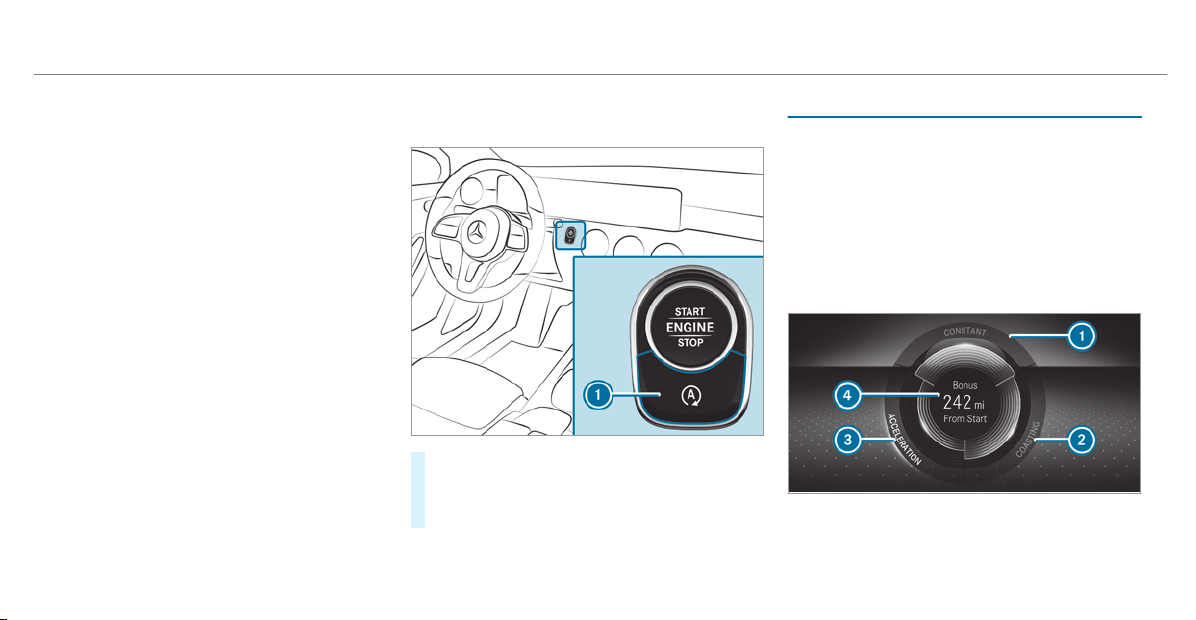
ECO start/stop function symbols in the multi‐
function display:
R
The è symbol (green) appears when the
vehicle is at a standstill: the engine was
switched off by the ECO start/stop function.
R
The è symbol (green) does not appear
when the vehicle is at a standstill: an intelli‐
gent stop inhibitor was detected, e.g. a stop
sign.
R
The èOFF symbol appears: the ECO
start/stop function is deactivated or there is
a malfunction.
%
If, in spite of an intelligent stop inhibitor, the
engine should be switched off by the ECO
start/stop function, activate the HOLD func‐
tion or engage transmission position j.
If the engine was switched off by the ECO start/
stop function and you leave the vehicle, a warn‐
ing tone sounds and the engine is not restarted.
The
Vehicle Operational Switch the Ignition Off
Before Exiting display message also appears in
the multifunction display. If you do not switch off
the ignition, the ignition is automatically
switched off after three minutes.
Deactivating or activating the ECO start/
stop function
#
Press button 1.
A display appears in the instrument cluster
when switching the ECO start/stop function
off/on.
%
A continuous display appears in the instru‐
ment cluster while the ECO start/stop func‐
tion is deactivated.
ECO display function
The ECO display summarizes your driving char‐
acteristics from the start of the jour ney to its
completion and assists you in achieving the
most economical driving style.
You can influence consumption if you:
R
drive with particular care
R
drive the vehicle in drive program ;
R
observe the gearshift recommendations
The lettering in the segment will light up brightly,
the outer edge will light up and the segment will
fill up in the following situations:
R
1 steady speed
136
Driving and parking
R
2 gentle deceleration and rolling
R
3 moderate acceleration
The lettering in the segment will be gray, the
outer edge will be dark and the segment will
empty in the following situations:
R
1 fluctuations in speed
R
2 heavy braking
R
3 sporty acceleration
You have driven economically when:
R
the three segments fill up completely at the
same time
R
the edge around all three segments lights up
The additional range achieved as a result of your
driving style in comparison with a driver with a
very sporty driving style is shown in the center
of display 4. The range displayed does not indi‐
cate a fixed reduction in consumption.
DYNAMIC SELECT switch
Function of the DYNAMIC SELECT switch
Use the DYNAMIC SELECT switch to change
between the following drive programs:
R
= (Individual): individual settings
R
C (Sport): sporty driving style
R
A (Comfort): comfortable and economi‐
cal driving style
R
; (Eco): particularly economical dr iving
style
%
The drive program selected appears in the
multifunction display of the on-board com‐
puter.
Depending on the drive program, the following
systems change their characteristics:
R
Drive
-
Engine and transmission management
-
Active Distance Assist DISTRONIC
R
ESP
®
R
Vehicles with adaptive damping adjust‐
ment: suspension
R
Electric power steering
Notes on the roof load display
Cer tain dr ive programs and ESP
®
settings are
unsuitable for transporting a roof load.
When setting or selecting these drive programs,
a crossed-through vehicle with a roof load is
shown as a warning. When this symbol is shown,
the selected drive program is not suitable for
transporting a load on the roof.
The following drive programs are affected:
R
Sport drive program
R
Individual drive program with the Sport
ESP
®
setting
%
The symbol is also shown in the following sit‐
uations:
R
Within the themes if a corresponding
drive program is saved
For more information on themes see
(
/ page 254).
Driving and parking
137
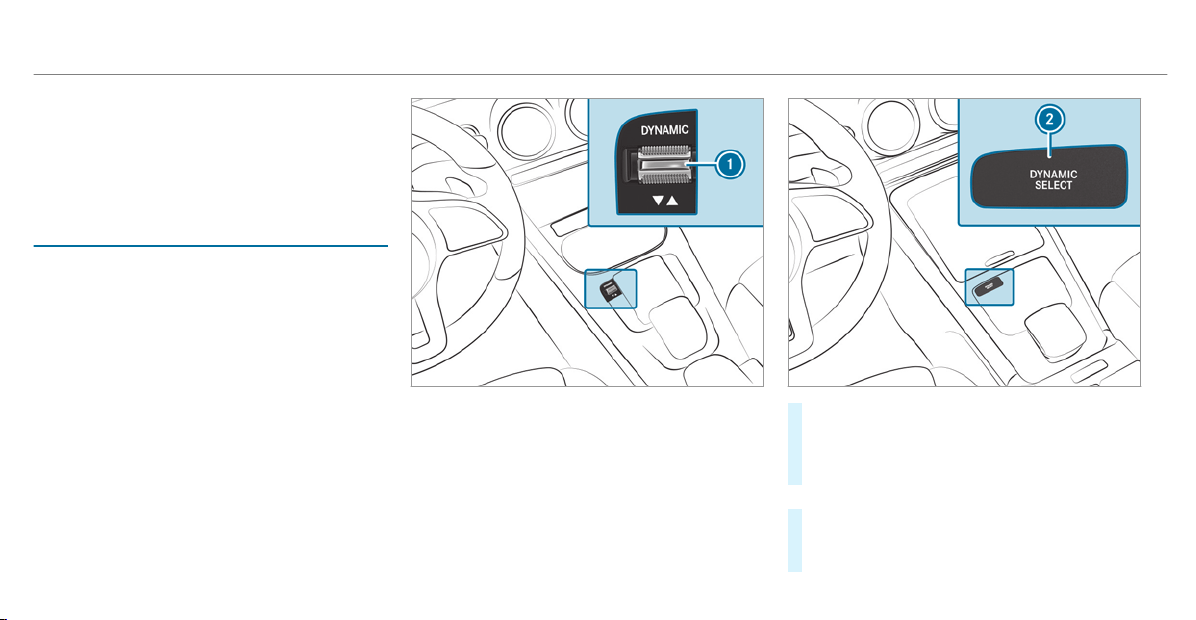
R
Within the reset display if the previously
active drive program is unsuitable for the
transport of a roof load
For further information on the reset dis‐
play, see (
/ page 139).
Selecting the drive program
%
Depending on the equipment, the vehicle is
equipped with either a switch or a button.
#
Press DYNAMIC SELECT switch 1 forwards
or backwards.
The drive program selected appears in the
multifunction display.
or
#
Press DYNAMIC SELECT button 2.
The DYNAMIC SELECT menu appears in the
multifunction display.
138
Driving and parking

#
Press DYNAMIC SELECT button 2 again.
The chosen drive program appears.
Configuring DYNAMIC SELECT (multimedia
system)
Multimedia system:
4
©
5
Settings
5
Vehicle
5
DYNAMIC SELECT
Setting drive program I
#
Select Individual Config..
#
Select and set a category.
Switching the reset display on/off
#
Switch Request at Start on or off.
Function on: the next time the vehicle is started
a prompt appears asking whether the drive pro‐
gram last active should be restored. If the ECO
start/stop function was deactivated, an addi‐
tional prompt appears asking if the function
should remain deactivated.
%
The prompt appears only if the previously
active settings deviate from the standard
settings.
Function off: the next time the vehicle is star‐
ted the Comfort drive program is set automati‐
cally. The ECO start/stop function is activated
automatically.
%
This function must be activated for each user
profile separately. Only when this function is
activated will the drive program and Eco
start/stop setting for the previous journey
be saved for the respective user profile.
Displaying vehicle data
Multimedia system:
4
©
5
Info
#
Select Vehicle.
The vehicle data is displayed.
Displaying engine data
Multimedia system:
4
©
5
Info
#
Select Engine.
The engine data is displayed.
%
The values for engine output and engine tor‐
que may deviate from the nominal values.
Items that can influence this are, for exam‐
ple:
R
Sea level
R
Fuel grade
R
Outside temperature
Calling up fuel consumption indicator
Multimedia system:
4
©
5
Info
#
Select Consumption.
The current and average fuel consumption is
displayed.
Driving and parking
139
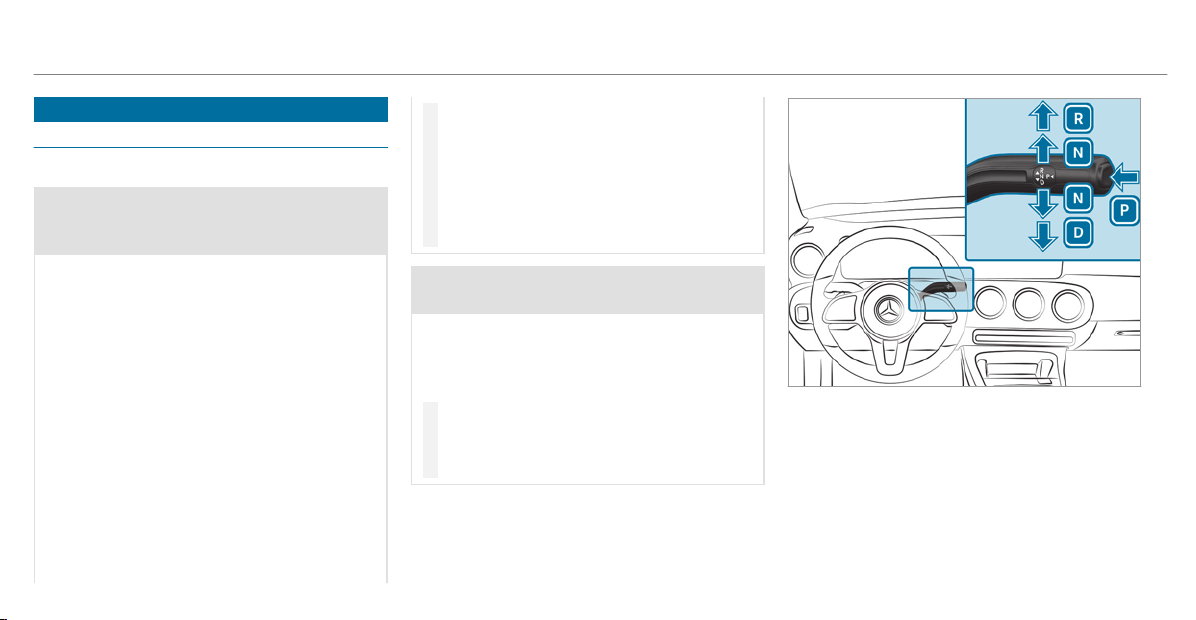
Automatic transmission
DIRECT SELECT lever
Function of the DIRECT SELECT lever
&
WARNING Risk of accident and injury
due to children left unattended in the
vehicle
If children are left unattended in the vehicle,
they could:
R
open doors, thereby endangering other
persons or road users.
R
get out of the vehicle and be hit by
oncoming traffic.
R
operate vehicle equipment and become
trapped, for example.
In addition, children could also set the vehi‐
cle in motion, for example, by:
R
releasing the parking brake.
R
shifting the automatic transmission out of
park position j.
R
starting the engine
#
Never leave children and animals unat‐
tended in the vehicle.
#
When leaving the vehicle, always take
the SmartKey with you and lock the
vehicle.
#
Keep the SmartKey out of the reach of
children.
&
WARNING Risk of accident due to incor‐
rect gearshifting
If the engine speed is higher than the idle
speed and you engage the transmission posi‐
tion h or k, the vehicle may accelerate
sharply.
#
If you engage the transmission position
h or k always depress the brake
pedal firmly and do not accelerate at
the same time.
Use the DIRECT SELECT lever to shift the trans‐
mission position. The current transmission posi‐
tion is displayed in the multifunction display.
j
Park position
k
Reverse gear
i
Neutral
h
Drive position
140
Driving and parking

Engaging reverse gear R
#
Depress the brake pedal and push the
DIRECT SELECT lever upwards past the first
point of resistance.
The transmission position display shows k
in the multifunction display.
Engaging neutral N
#
Depress the brake pedal and push the
DIRECT SELECT lever up or down to the first
point of resistance.
The transmission position display shows i
in the multifunction display.
Subsequently releasing the brake pedal will
allow you to move the vehicle freely, e.g. to push
it or tow it away.
Proceed as follows if you want the automatic
transmission to remain in neutral i
even if
the ignition is switched off:
#
Start the vehicle.
#
Depress the brake pedal and engage neutral
i.
#
Release the brake pedal.
#
Switch the ignition off.
%
If you then exit the vehicle leaving the
SmartKey in the vehicle, the automatic trans‐
mission remains in neutr al i.
Engaging park position P
#
Observe the notes on parking the vehicle
(/ page 147).
#
Depress the brake pedal until the vehicle is
stationar y.
#
When the vehicle is stationary, press button
j.
Park position is only engaged when the trans‐
mission position display j is shown in the
multifunction display. If no transmission posi‐
tion display j appears, secure the vehicle
to prevent it from rolling away.
Park position j is engaged automatically if one
of the following conditions is met:
R
you switch off the ignition when the vehicle
is stationar y and the transmission is in posi‐
tion h or k.
R
you open the driver's door when the vehicle
is stationary or when driving at a very low
speed and the transmission is in position h
or k.
%
To maneuver with an open driver's door,
open the driver's door while stationary and
engage transmission position h or k
again.
%
At very low outside temperatures from
approx. -4 °F (-20 °C) you may not be able
to shift the transmission from j to another
transmission position when the engine is
switched off. If this is the case, only change
the transmission position while the engine is
running.
Engaging drive position D
#
Depress the brake pedal and push the
DIRECT SELECT lever down past the first
point of resistance.
The transmission position display shows h
in the multifunction display.
When the automatic transmission is in transmis‐
sion position h, it shifts the gears automati‐
cally. This depends on the following factors:
R
the selected drive program
Driving and parking
141
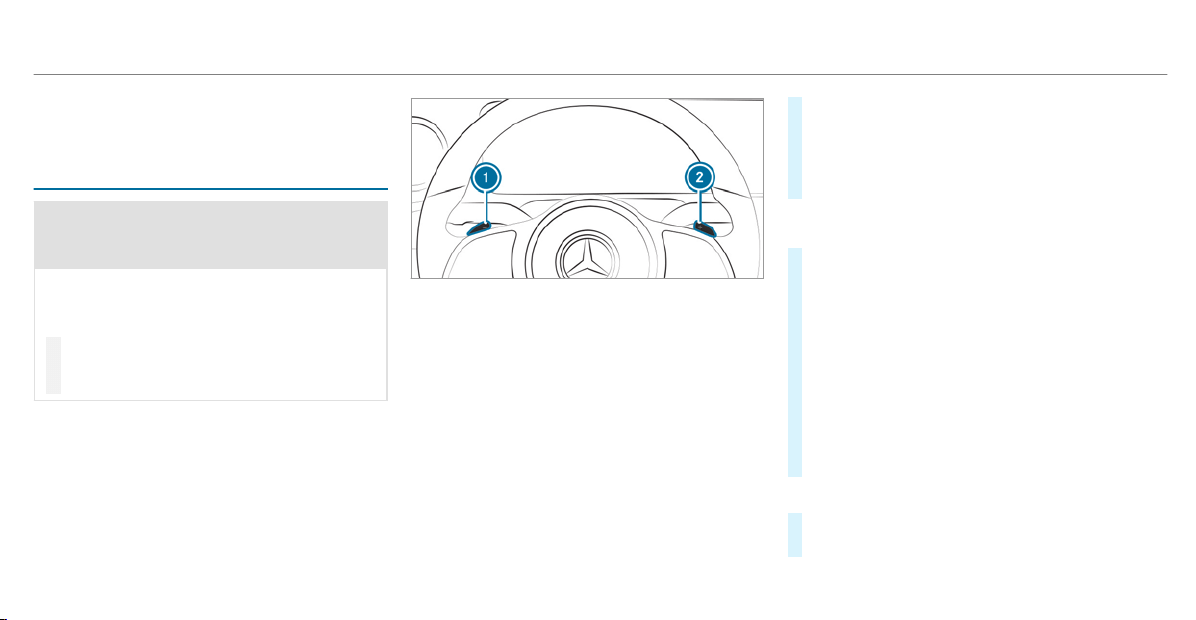
R
the position of the accelerator pedal
R
the driving speed
Manual gearshifting
&
WARNING Risk of skidding and of an
accident due to shifting down on slippery
road surfaces
If you shift down on slippery road surfaces to
increase the engine braking effect, the dr ive
wheels may lose traction.
#
Do not shift down on slippery road sur‐
faces to increase the engine braking
effect.
When the automatic transmission is shifted to
position h, you can manually shift it with the
steering wheel paddle shifter. If permitted, the
automatic transmission shifts to the next gear
up or down depending on the steering wheel
paddle shifter being pulled.
You have two options to manually shif t the auto‐
matic transmission:
R
Temporary setting
R
Permanent setting
The gears shift automatically when manual gear‐
shifting is deactivated.
Temporary setting:
#
To activate: pull steering wheel paddle
shifter 1 or 2.
Manual gearshifting is activated for a short
time. The current gear is displayed in the
multifunction display.
%
How long the manual gearshifting stays acti‐
vated is dependent on the driving style.
#
To shift up: pull steering wheel paddle
shifter 2.
#
To shift down: pull steering wheel paddle
shifter 1.
If you pull and hold steering wheel paddle
shifter 1, the transmission shifts to the low‐
est possible gear.
#
To deactivate: pull steering wheel paddle
shifter 2 and hold it in place.
The transmission position h appears in the
multifunction display.
Permanent setting:
#
Change to drive program
=(/ page 138).
142
Driving and parking
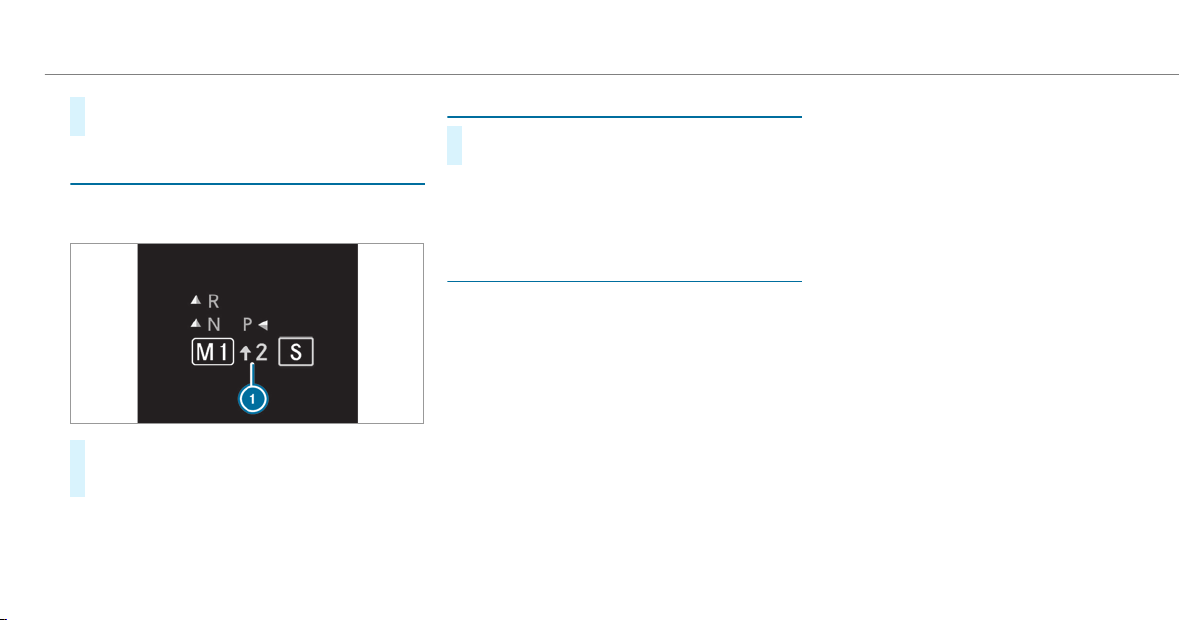
#
Select drive program Manual
(/ page 139).
Gearshift recommendation
The gearshift recommendation assists you in
adopting an economical driving style.
#
If gearshift recommendation message 1 is
shown on the multifunction display, shift to
the recommended gear.
Using kickdown
#
Maximum acceleration: depress the accel‐
erator pedal beyond the pressure point.
The automatic transmission shifts up to the next
gear when the maximum engine speed is
reached to protect the engine from overrevving.
Glide mode function
With an anticipatory driving style, glide mode
helps you to reduce fuel consumption.
Glide mode is characterized by the following:
R
the combustion engine is disconnected from
the drivetrain and the engine continues to
run in neutral.
R
the transmission position h is displayed in
green in the multifunction display.
Glide mode is activated if the following condi‐
tions are met:
R
drive program ; is selected.
R
the speed is within a suitable range.
R
the road's course is suitable, e.g. no steep
uphill or downhill inclines or tight bends.
R
you are no longer depressing the accelerator
or brake pedal.
%
Glide mode can also be activated if you have
selected the "Eco" setting for the drive in the
drive program =.
Glide mode is deactivated again if one of the
conditions is no longer met.
Vehicles with Active Distance Assist
DISTRONIC: when Active Distance Assist
DISTRONIC is active, the glide mode function is
not available.
Glide mode can also be prevented by the follow‐
ing parameters:
R
Incline
R
Downhill gradient
R
Temperature
R
Height
R
Speed
R
Operating status of the engine
R
Traffic situation
Driving and parking
143
%
Glide mode can be ended by pressing the
right-hand steering wheel paddle shifter
(/ page 142).
Problems with the transmission
Problem
Possible causes/consequences and M Solutions
The transmission has a faulty gearshift. The transmission is losing oil.
#
Have the transmission checked at a qualified specialist workshop immediately.
The acceleration characteristics are
deteriorating.
The transmission no longer shifts gear.
The transmission is in emergency operation mode.
#
Pull over and stop the vehicle safely as soon as possible, paying attention to road and traffic conditions.
#
Switch the transmission to position j.
#
Switch off the engine.
#
Wait at least ten seconds before restarting the engine.
#
Switch the transmission to position h.
#
Have the transmission checked at a qualified specialist workshop immediately.
Function of the 4MATIC
4MATIC ensures that all four wheels are driven
when needed. Together with ESP
®
and 4ETS,
4MATIC improves the traction of your vehicle
whenever a driven wheel spins due to insuffi‐
cient traction.
If you fail to adapt your driving style, 4MATIC can
neither reduce the risk of an accident nor over‐
ride the laws of physics. 4MATIC cannot take
account of road, weather and traffic conditions.
4MATIC is only an aid. You are responsible espe‐
cially for maintaining a safe distance from the
144
Driving and parking
vehicle in front, for vehicle speed, for braking in
good time and for staying in lane.
%
In wintry road conditions, the maximum
effect of 4MATIC can be achieved only if you
use winter tires (M+S tires), with snow
chains if necessary.
Refueling
Refueling the vehicle
&
WARNING Risk of fire or explosion from
fuel
Fuels are highly flammable.
#
Fire, open flames, smoking and creation
of sparks must be avoided.
#
Switch off the ignition and, if available,
the stationary heater, before and while
refueling the vehicle.
&
WARNING Risk of injury from fuels
Fuels are poisonous and hazardous to your
health.
#
Do not swallow fuel or let it come into
contact with skin, eyes or clothing.
#
Do not inhale fuel vapor.
#
Keep children away from fuel.
#
Keep doors and windows closed during
the refueling process.
If you or other people come into contact with
fuel, observe the following:
#
Immediately rinse fuel off your skin with
soap and water.
#
If fuel comes into contact with your
eyes, immediately rinse them thor‐
oughly with clean water. Seek medical
attention immediately.
#
If you swallow fuel, seek medical atten‐
tion immediately. Do not induce vomit‐
ing.
#
Change immediately out of clothing that
has come into contact with fuel.
&
WARNING Risk of fire or explosion from
electrostatic charge
Electrostatic charge can create sparks and
thereby ignite fuel vapors.
#
Before you open the fuel filler cap or
take hold of the pump nozzle, touch the
metallic vehicle body.
This discharges any electrostatic charge
that may have built up.
#
Do not get into the vehicle again during
the refueling process.
Otherwise, electrostatic charge could
build up again.
*
NOTE Damage caused by the wrong fuel
Vehicles with a gasoline engine:
Even small amounts of the wrong fuel could
result in damage to the fuel system, the
engine and the emission control system.
#
The RON requirement is located in the
fuel filler flap.
Driving and parking
145

#
Only refuel with low-sulfur unleaded
fuel.
This fuel may contain up to 10% ethanol. Your
vehicle is suitable for use with E10 fuel.
Never refuel using any of the following fuels:
R
Diesel
R
Gasoline with more than 10% ethanol by
volume, e.g. E15, E85, E100
R
Gasoline with more than 3% methanol by
volume, e.g. M15, M30, M85, M100
R
Gasoline with additives containing metal
If you accidentally refuel with the wrong fuel:
#
Do not switch the ignition on.
#
Consult a qualified specialist workshop.
*
NOTE Do not use diesel to refuel vehi‐
cles with a gasoline engine.
If you accidentally refuel with the wrong fuel:
R
Do not switch the ignition on. Otherwise
fuel can enter the engine.
Even small amounts of the wrong fuel
could result in damage to the fuel system
and the engine. The repair costs are high.
#
Consult a qualified specialist workshop.
#
Have the fuel tank and fuel lines
drained completely.
*
NOTE Damage to the fuel system caused
by overfilled fuel tanks.
#
Only fill the tank until the pump nozzle
switches off.
If you have added too much fuel because of a
defective filling pump, for instance:
#
Do not switch the ignition on.
#
Consult a qualified specialist workshop.
*
NOTE Fuel may spray out when you
remove the fuel pump nozzle.
#
Only fill the fuel tank until the pump
nozzle switches off.
Requirements:
R
The vehicle is unlocked.
%
Do not get into the vehicle again during the
refueling process. Otherwise, electrostatic
charge could build up again.
Observe the notes on operating fluids
(
/ page 451).
146
Driving and parking
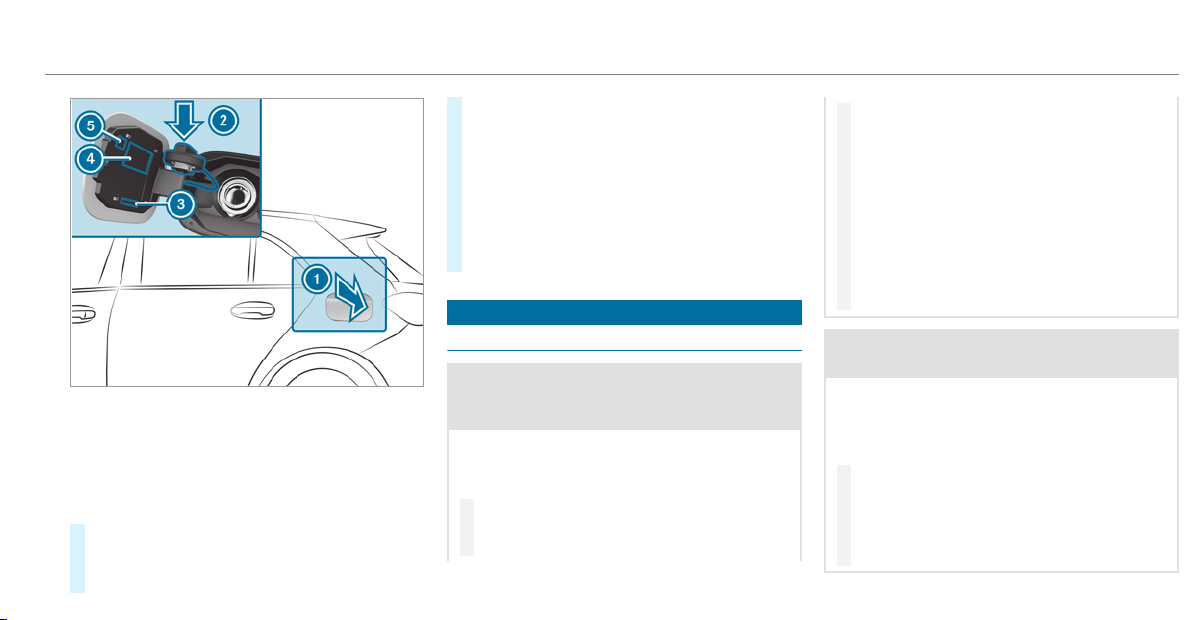
1
Fuel filler flap
2
Bracket for the fuel filler cap
3
Fuel type
4
Tire pressure table
5
QR code for rescue card
#
Press on the rear area of fuel f iller flap 1.
#
Turn the fuel filler cap counter-clockwise and
remove it.
#
Insert the fuel filler cap into bracket 2.
#
Completely inser t the pump nozzle into the
tank filler neck, hook in place and refuel.
#
Only fill the tank until the pump nozzle
switches off.
#
Replace the cap on the filler neck and turn
clockwise until it engages audibly.
#
Close the fuel filler flap.
Parking
Parking the vehicle
&
WARNING Risk of accident and injury
caused by an insufficiently secured vehi‐
cle rolling away.
If the vehicle is not securely parked suffi‐
ciently, it can roll away in an uncontrolled
way even at a slight downhill gradient.
#
Ensure that the parked vehicle is always
properly secured against rolling away as
follows:
R
On uphill or downhill gradients, turn
the front wheels so that the vehicle
rolls towards the curb if it starts
moving.
R
Apply the parking brake.
R
Vehicles with automatic transmis‐
sion: shift the transmission to posi‐
tion j.
R
Vehicles with manual transmission:
engage first 1 or reverse gear k.
&
WARNING Risk of fire caused by hot
exhaust system parts
Flammable material such as leaves, grass or
twigs may ignite if they come into contact
with hot parts of the exhaust system or
exhaust gas flow.
#
Park the vehicle so that no flammable
material can come into contact with hot
vehicle components.
#
In particular, do not par k on dry grass‐
land or harvested grain fields.
Driving and parking
147
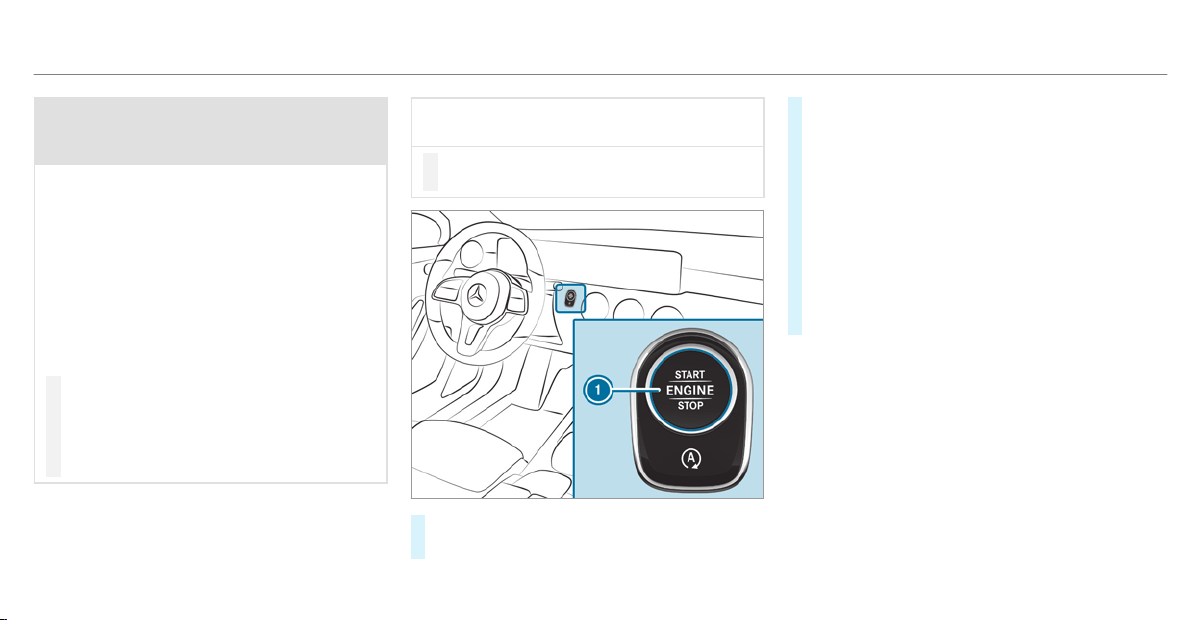
&
WARNING Risk of accident and injury
due to children and animals left unatten‐
ded in the vehicle
If you leave children and animals unattended
in the vehicle, they may be able to set the
vehicle in motion, for example by:
R
Releasing the parking brake.
R
Shifting the automatic transmission out
of park position j.
R
Starting the engine.
In addition, they may operate vehicle equip‐
ment and become trapped.
#
Never leave children and animals unat‐
tended in the vehicle.
#
When leaving the vehicle, always take
the SmartKey with you and lock the
vehicle.
*
NOTE Damage to the vehicle due to it
rolling away
#
Always secure the vehicle against roll‐
ing away.
#
Bring the vehicle to a standstill by applying
the brake pedal.
#
On uphill or downhill gradients, turn the front
wheels so that the vehicle rolls towards the
curb if it starts moving.
#
Apply the electric par king brake.
#
Engage transmission position j in a station‐
ary vehicle with the brake pedal applied
(/ page 141).
#
Switch off the engine and the ignition by
pressing button 1.
#
Release the service brake slowly.
#
Get out of the vehicle and lock it.
%
When you park the vehicle, you can still
operate the side windows and the panoramic
sliding sunroof for approximately five
minutes if the driver's door is closed.
148
Driving and parking
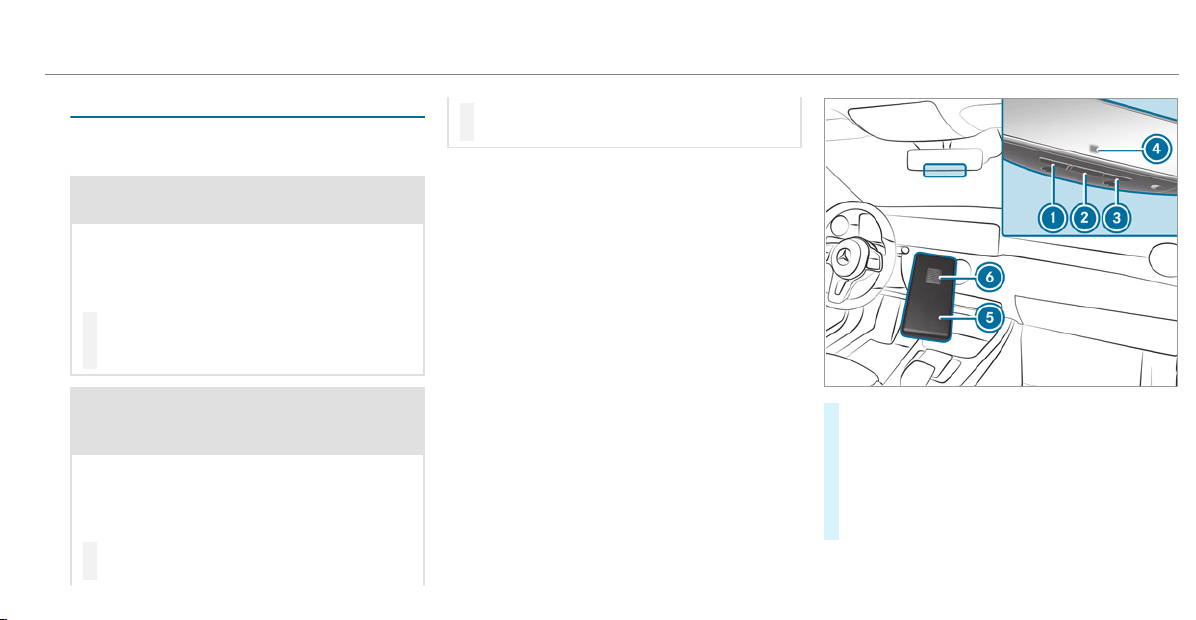
Garage door opener
Programming buttons for the garage door
opener
&
DANGER Risk of fatal injuries due to
exhaust gases
Combustion engines emit poisonous exhaust
gases such as carbon monoxide. Inhaling
these exhaust gases is hazardous to health
and can lead to poisoning.
#
Never leave the engine running in an
enclosed space without sufficient venti‐
lation.
&
WARNING Risk of injury when opening
or closing a door with the garage door
opener
When you operate or program the door with
the integrated garage door opener, people in
the range of movement of the door may
become trapped or struck by the door.
#
When using the integrated garage door
opener, always make sure that nobody
is within the range of movement of the
door.
Only operate the following doors using the
garage door opener:
R
Doors with a safety stop and reversing fea‐
ture.
R
Doors which conform to the current U.S.
safety standards.
Requirements:
R
The vehicle has been parked outside the
garage or outside the range of movement of
the door.
R
The engine is switched off.
R
The ignition is switched on.
%
The garage door opener function is always
available when the ignition is switched on.
#
Check if the transmitter frequency of the
remote control has the frequency range of
280 to 868 MHz.
Radio equipment approval number:
R
NZLMUAHL5 (USA)
R
4112A-MUAHL5 (Canada)
Driving and parking
149
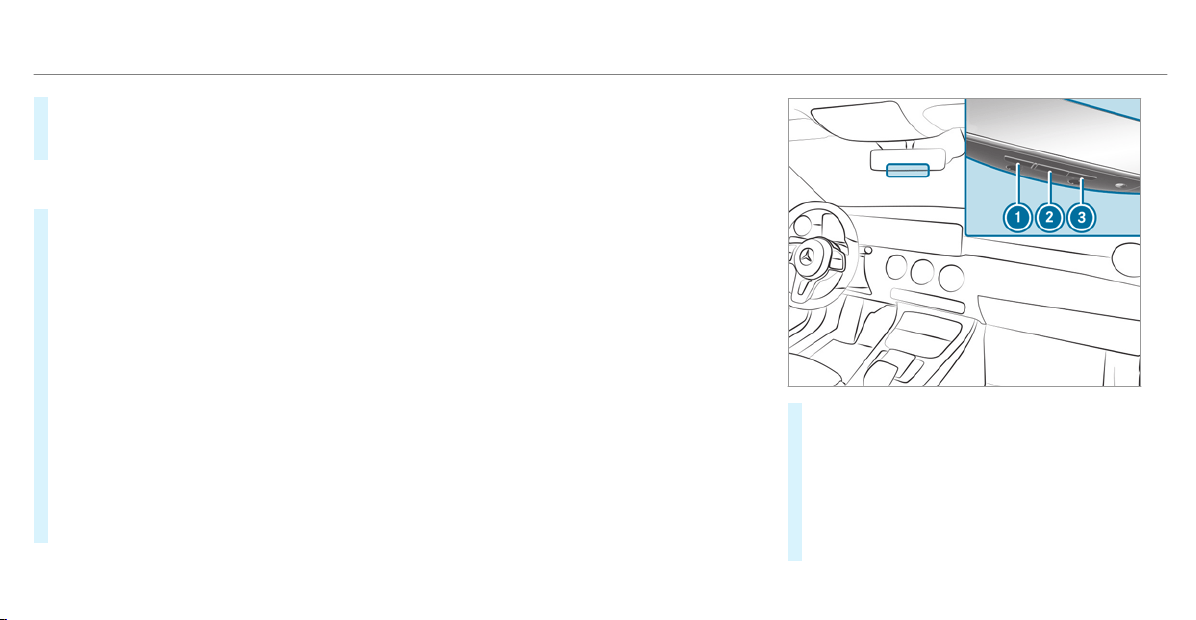
#
Press and hold button 1, 2 or 3 that you
wish to program.
Indicator lamp 4 f lashes yellow.
%
It can take up to 20 seconds before the indi‐
cator lamp flashes yellow.
#
Release the previously pressed button.
Indicator lamp 4 continues to flash yellow.
#
Point remote control 5 from a distance of
1 in (1 cm) to 3 in (8 cm) towards buttons
1, 2 or 3.
#
Press and hold button 6 of remote control
5 until one of the following signals appears:
R
Indicator lamp 4 lights up green contin‐
uously. Programming is complete.
R
Indicator lamp 4 f lashes green. Pro‐
gramming was successful. Additionally,
synchronization of the rolling code with
the door system must also be car ried out.
#
If indicator lamp 4 does not light up or flash
green: repeat the procedure.
#
Release all of the buttons.
%
The remote control for the door drive is not
included in the scope of delivery of the
garage door opener.
Synchronizing the rolling code
Requirements:
R
The door system uses a rolling code.
R
The vehicle must be within range of the
garage door or door drive.
R
The vehicle as well as persons and objects,
are located outside the range of movement
of the door.
#
Press the programming button on the door
drive unit.
Initiate the next step within approximately
30 seconds.
#
Press previously programmed button 1, 2
or 3 repeatedly until the door closes.
When the door closes, programming is com‐
pleted.
150
Driving and parking
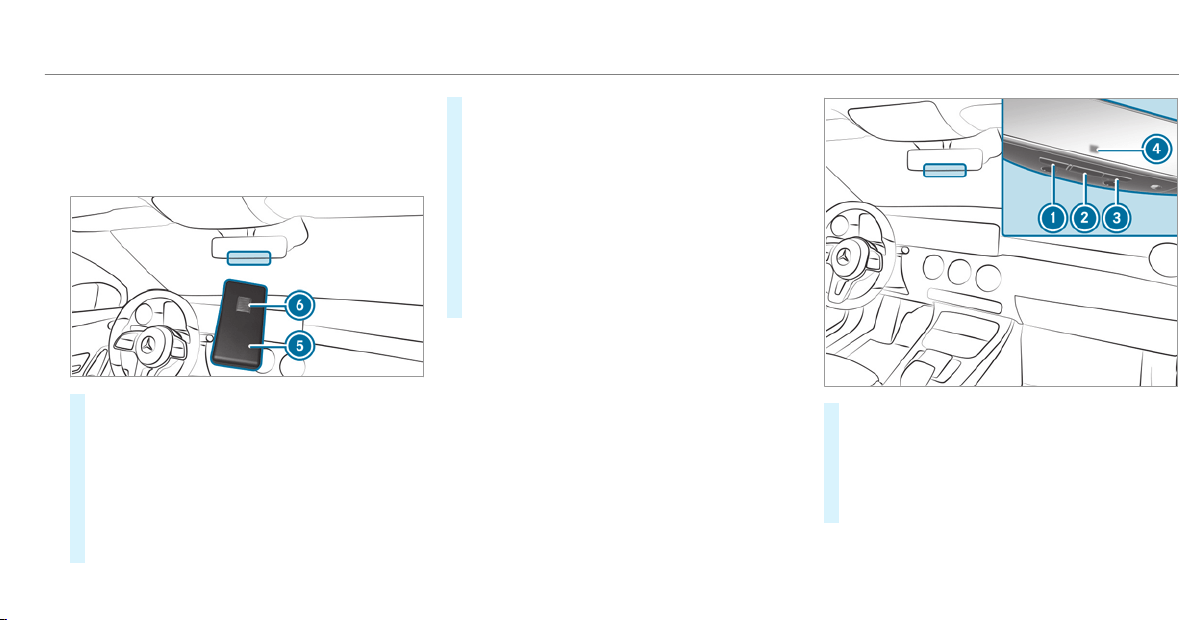
%
Please also read the operating instructions
for the door drive.
Troubleshooting when programming the
remote control
#
Check if the transmitter frequency of remote
control 5 is supported.
#
Replace the batteries in remote control 5.
#
Hold remote control 5 at various angles at
a distance between 1 in (1 cm) to 3 in (8 cm)
in front of the inside rearview mirror. You
should test every position for at least 25 sec‐
onds before trying another position.
#
Hold remote control 5 at the same angles
at various distances in front of the inside
rearview mirror. You should test every posi‐
tion for at least 25 seconds before trying
another position.
#
Note that some remote controls transmit
only for a limited period, press button 6 on
remote control 5 again before transmission
ends.
#
Align the antenna line of the door opener unit
with the remote control.
%
Support and additional information on pro‐
gramming:
R
On the toll free HomeLink
®
Hotline on
1-800-355-3515.
R
On the Internet at http://
www.homelink.com/mercedes.
Opening/closing a garage door
Requirements:
R
The corresponding button is programmed to
operate the door.
#
Press and hold buttons 1, 2 or 3 until
the door opens or closes.
#
If indicator lamp 4 flashes yellow after
approximately 20 seconds: press and hold
the previously pressed button again until the
door opens or closes.
Driving and parking
151
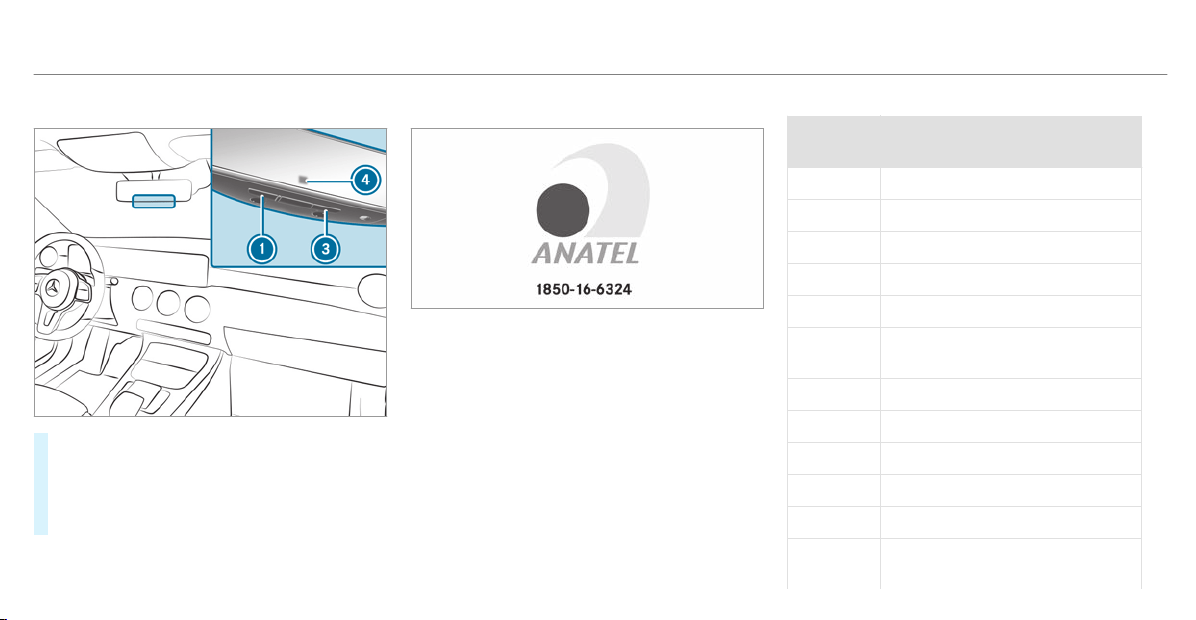
Clearing the garage door opener memory
#
Press and hold buttons 1 and 3.
Indicator lamp 4 lights up yellow.
#
If indicator lamp 4 flashes green: release
buttons 1 and 3.
The entire memory has been deleted.
Radio equipment approval numbers for the
garage door opener
Radio equipment approval numbers
Brazil
Este equipamento opera em caráter secundário,
isto é, não tem direito à proteção contra interfer‐
ência prejudicial, mesmo de estações do mesmo
tipo, e não pode causar interferência a sistemas
operando em caráter primário.
Para maiores informações acessar
www.anatel.gov.br
Radio equipment approval numbers
Country Radio equipment approval
number
Egypt TAC.2511151293.WIR
Andorra CE
Australia R-NZ
Barbados MED1578
Chile 2488/DFRS20576/F-74
European
Union
CE
Gibraltar CE
Iceland CE
Jordan TRC/LPD/2015/299
Canada IC: 4112A -MUAHL5
Kuwait CE
Liechten‐
stein
CE
152
Driving and parking
Country Radio equipment approval
number
Mexico RCPGEMU15-0448
Monaco CE
New Zea‐
land
R-NZ
Norway CE
Russian
Federa‐
tion
Not required
Saudi Ara‐
bia
TA 10525
Switzer‐
land
CE
South
Africa
TA-2015/1386
Country Radio equipment approval
number
Turkey Not required
United
Arab Emi‐
rates
ER41849/15
Dealer No: DA35176/14
United
States
FCC ID: NZLMUAHL5
Further information on the declaration of con‐
formity for wireless vehicle components
(/ page 26).
Electric parking brake
Electric parking brake function (applying
automatically)
&
WARNING Risk of accident and injury
due to children and animals left unatten‐
ded in the vehicle
If you leave children and animals unattended
in the vehicle, they may be able to set the
vehicle in motion, for example by:
R
Releasing the parking brake.
R
Shifting the automatic transmission out
of park position j.
R
Starting the engine.
In addition, they may operate vehicle equip‐
ment and become trapped.
#
Never leave children and animals unat‐
tended in the vehicle.
#
When leaving the vehicle, always take
the SmartKey with you and lock the
vehicle.
Driving and parking
153

The electric parking brake is applied if the trans‐
mission is in position j and one of the follow‐
ing conditions is fulfilled:
R
The engine is switched off.
R
The seat belt tongue is not inserted in the
seat belt buckle of the driver's seat and the
driver's door is opened.
%
To prevent application: pull the handle of the
electric parking brake.
In the following situations, the electric parking
brake is also applied:
R
Active Distance Assist DISTRONIC is bringing
the vehicle to a standstill.
R
The HOLD function is keeping the vehicle sta‐
tionary.
R
Active Parking Assist is keeping the vehicle
stationar y.
This is the case if one of the following conditions
is also fulfilled:
R
The engine is switched off.
R
The seat belt tongue is not inserted in the
seat belt buckle of the driver's seat and the
driver's door is opened.
R
There is a system malfunction.
R
The power supply is insufficient.
R
The vehicle is stationary for a lengthy period.
When the electric par king brake is applied, the
red F (USA) or ! (Canada) indicator lamp
appears in the instrument cluster.
The electric parking brake is not automatically
applied if the engine is switched off by the ECO
start/stop function.
Electric parking brake function (releasing
automatically)
The electric parking brake is released when the
following conditions are fulfilled:
R
The engine is running.
R
The seat belt tongue is inserted into the seat
belt buckle of the driver's seat.
R
The transmission is in position h or k and
you depress the accelerator pedal or you
shift from transmission position j to h or
k.
R
If the transmission is in position k, the
trunk lid must be closed.
If the seat belt tongue is not inserted into the
seat belt buckle of the driver's seat, the follow‐
ing conditions must be fulfilled:
R
The driver's door is closed.
R
You move the transmission out of transmis‐
sion position j or you have previously
driven faster than 2 mph (3 km/h).
R
If the transmission is in position k, the
trunk lid must be closed.
When the electric par king brake is released, the
red F (USA) or ! (Canada) indicator lamp
in the instrument cluster goes out.
154
Driving and parking
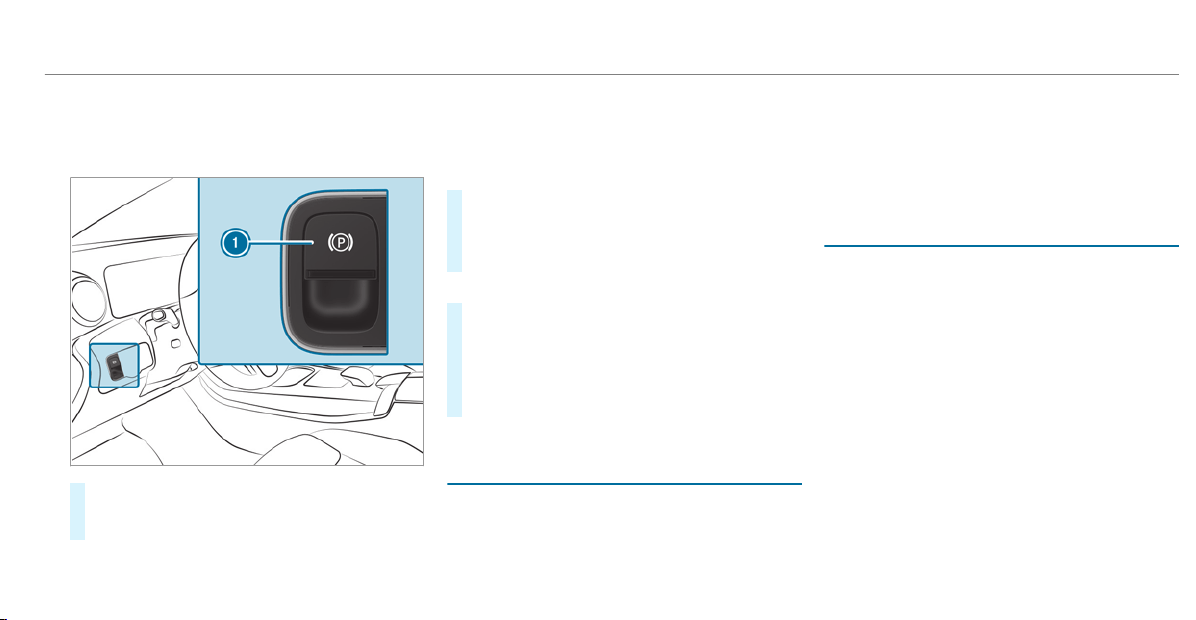
Applying/releasing the electric parking
brake manually
Applying
#
Push handle 1.
The red F (USA) or ! (Canada) indica‐
tor lamp appears in the instrument cluster.
%
The electric parking brake is only securely
applied if the indicator lamp is lit continu‐
ously.
Releasing
#
Switch on the ignition.
#
Pull handle 1.
The red F (USA) or ! (Canada) indica‐
tor lamp in the instrument cluster goes out.
Emergency braking
#
Press and hold handle 1.
When the vehicle has been braked to a
standstill, the electric parking brake is
applied. The red F (USA) or ! (Can‐
ada) indicator lamp appears in the instru‐
ment cluster.
Notes on parking the vehicle for an extended
period
If you leave the vehicle parked for longer than
four weeks, the disconnected battery may be
damaged by deep discharge.
If you leave the vehicle parked for longer than six
weeks, it may suffer disuse damage.
%
Further information can be obtained at a
qualified specialist workshop.
Standby mode (extension of the starter bat‐
tery's period out of use)
Standby mode function
%
This function is not available for all models.
If standby mode is activated, the vehicle can be
parked for an extended period of time without
losing power.
Standby mode is characterized by the following:
R
The starter battery is preserved.
R
The maximum non-operational time out of
use is displayed in the multimedia system
display.
R
The connection to online services is interrup‐
ted.
Driving and parking
155
If the following conditions are fulfilled, standby
mode can be activated or deactivated using the
multimedia system:
R
The engine is switched off.
R
The ignition is switched on.
Exceeding the vehicle's displayed non-opera‐
tional time may cause inconvenience, i.e. it can‐
not be guaranteed that the starter battery will
reliably start the engine.
The starter battery must be charged first in the
following situations:
R
The vehicle's non-operational time must be
extended.
R
The Battery Charge Insufficient for Standby
Mode message appears in the MBUX multi‐
media system display.
%
Standby mode is automatically deactivated
when the ignition is switched on.
Activating/deactivating standby mode (park‐
ing the vehicle for an extended period)
Requirements:
R
The engine is switched off.
Multimedia system:
4
©
5
Settings
5
Fahrzeug (Vehicle)
#
Switch Standby Mode on or off.
When you activate the function, a prompt
appears.
#
Select Yes.
Standby mode is activated.
Driving and driving safety systems
Driving systems and your responsibility
Your vehicle is equipped with driving systems
which assist you in driving, parking and maneu‐
vering the vehicle. The driving systems are aids
and do not relieve you of your responsibility per‐
taining to road traffic law. Pay attention to the
traffic conditions at all times and intervene
when necessary. Be aware of the limitations
regarding the safe use of these systems.
Function of the radar sensors
Some driving and driving safety systems use
radar sensors to monitor the area in front of,
behind or next to the vehicle (depending on the
vehicle's equipment).
Depending on the vehicle's equipment, the radar
sensors are integrated behind the bumpers
and/or behind the Mercedes star. Keep these
parts free of dirt, ice and slush
(
/ page 393). The sensors must not be cov‐
ered, for example by cycle racks, overhanging
loads, stickers, foil or foils to protect against
stone chipping. In the event of damage to the
bumpers or radiator grill, or following a collision
impacting the bumpers or radiator grill, have the
function of the radar sensors checked at a quali‐
fied specialist workshop. The driver assistance
system may no longer work properly.
Overview of driving systems and driving
safety systems
In this section, you will find information about
the following driving systems and driving safety
systems:
R
360° Camera (/ page 190)
R
ABS (Anti-lock Braking System)
(/ page 157)
156
Driving and parking
R
Active Distance Assist DISTRONIC
(/ page 169)
R
Active Brake Assist (/ page 161)
R
Active Lane Keeping Assist (/ page 206)
R
ATTENTION ASSIST ( / page 199)
R
BAS (Brake Assist System) ( / page 157)
R
Hill Start Assist (/ page 181)
R
Suspension with adaptive damping adjust‐
ment (/ page 183)
R
EBD (Electronic Brakeforce Distribution)
(/ page 161)
R
ESP
®
(Electronic Stability Program)
(/ page 158)
R
Active Speed Limit Assist (/ page 173)
R
HOLD function (/ page 181)
R
STEER CONTROL (/ page 161)
R
Active Steering Assist (/ page 175)
R
Active Parking Assist (/ page 193)
R
Parking Assist PARKTRONIC
(/ page 183)
R
Rear view camera (/ page 187)
R
Cruise control (/ page 167)
R
Function of Blind Spot Assist and Active Blind
Spot Assist with exit warning
(/ page 203)
R
Traffic Sign Assist (/ page 201)
Function of ABS (Anti-lock Braking System)
ABS regulates the brake pressure in cr itical driv‐
ing situations:
R
During braking, e.g. at full brake application
or insufficient tire traction, the wheels are
prevented from locking.
R
Vehicle steerability while braking is ensured.
If ABS intervenes when braking, you will feel a
pulsing in the brake pedal. The pulsating brake
pedal can be an indication of hazardous road
conditions and can serve as a reminder to take
extra care while driving.
System limitations
R
ABS is active from speeds of approx. 5 mph
(8 km/h).
R
ABS may be impaired or may not function if a
malfunction has occurred and the yel‐
low ! ABS warning lamp lights up contin‐
uously in the instrument cluster af ter the
engine is started.
Function of BAS (Brake Assist System)
&
WARNING Risk of an accident caused by
a malfunction in BAS (Brake Assist Sys‐
tem)
If BAS is malfunctioning, the braking distance
in an emergency braking situation is
increased.
#
Depress the brake pedal with full force
in emergency braking situations. ABS
prevents the wheels from locking.
BAS supports your emergency braking situation
with additional brake force.
If you depress the brake pedal quickly, BAS is
activated:
R
BAS automatically boosts the brake pres‐
sure.
Driving and parking
157
R
BAS can shorten the bra king distance.
R
ABS prevents the wheels from locking.
The brakes will function as usual once you
release the brake pedal. BAS is deactivated.
Functions of ESP
®
(Electronic Stability Pro‐
gram)
&
WARNING Risk of skidding if ESP
®
is
malfunctioning
If ESP
®
is malfunctioning, ESP
®
cannot carry
out vehicle stabilization. In addition, other
driving safety systems are switched off.
#
Drive on carefully.
#
Have ESP
®
checked at a qualified spe‐
cialist workshop.
&
WARNING Risk of skidding if ESP
®
is
deactivated
If you deactivate ESP
®
, ESP
®
cannot carry
out vehicle stabilization.
#
ESP
®
should only be deactivated in the
following situations.
ESP
®
can monitor and improve driving stability
and traction in the following situations, within
physical limits:
R
When pulling away on a wet or slippery road‐
way.
R
When braking.
R
In strong side winds when you are driving
faster than 50 mph (80 km/h).
If the vehicle deviates from the direction desired
by the driver, ESP
®
can stabilize the vehicle by
intervening in the following ways:
R
One or more wheels are braked.
R
The engine output is adapted according to
the situation.
ESP
®
is deactivated if the å ESP
®
OFF warn‐
ing lamp lights up continuously in the instrument
cluster.
Observe the following points when ESP
®
is deac‐
tivated:
R
Driving stability will no longer be improved.
R
Crosswind Assist is no longer active.
R
The drive wheels could spin.
R
ETS/4ETS traction control is still active.
%
When ESP
®
is deactivated, you are still assis‐
ted by ESP
®
when braking.
If the ÷ ESP
®
warning lamp flashes in the
instrument cluster, one or several vehicle wheels
has reached its grip limit:
R
Adapt the driving style to suit the prevailing
road and weather conditions.
R
Do not deactivate ESP
®
under any circum‐
stances.
R
Only depress the accelerator pedal as far as
is necessary.
It may be best to deactivate ESP
®
in the follow‐
ing situations:
R
When using snow chains.
R
In deep snow.
158
Driving and parking

R
On sand or gravel.
%
Spinning the wheels results in a cutting
action, which enhances traction.
If the ÷ ESP
®
warning lamp lights up continu‐
ously, ESP
®
is not available due to a malfunction.
Observe the following information:
R
Warning and indicator lamps
(/ page 503)
R
Display messages (/ page 460)
ETS/4ETS (Electronic Traction System)
ETS/4ETS traction control is part of ESP
®
and
makes it possible to pull away and accelerate on
a slippery roadway.
ETS/4ETS can improve the vehicle's traction by
intervening in the following ways:
R
The drive wheels are braked individually if
they spin.
R
More drive torque is transferred to the wheel
or wheels with traction.
Influence of drive programs on ESP
®
The drive programs enable ESP
®
to adapt to dif‐
ferent weather and road conditions as well as
the driver's preferred driving style. You can
select the drive programs using the DYNAMIC
SELECT switch (
/ page 138).
Driving and parking
159
ESP
®
characteristics per drive program
Drive program
ESP
®
mode
Characteristics
A (Comfort)
; (Economy)
ESP
®
Comfort
These drive programs provide the ideal balance
between traction and stability.
Select drive program ; or A in difficult
road conditions, such as snow or ice, or when
the road is wet from rain.
C (Sport)
ESP
®
Sport
This drive program continues to offer stability
but with a sporty setup which allows the enthu‐
siastic driver a more active driving style.
Select drive program C in good road condi‐
tions, for example on a dry roadway and clear
stretches of road.
Activating/deactivating ESP
®
(Electronic Sta‐
bility Program)
Multimedia system:
4
©
5
Settings
5
Quick Access
%
ESP
®
can only be activated/deactivated
using quick access when at least one other
function is available in quick access. ESP
®
can otherwise be found in the Assistance
menu.
#
Select ESP.
A prompt appears.
#
Select On or å Off.
ESP
®
is deactivated if the å ESP
®
OFF warn‐
ing lamp lights up continuously in the instrument
cluster.
Observe the information on warning lamps and
display messages which may be shown in the
instrument cluster.
160
Driving and parking

Function of ESP
®
Crosswind Assist
ESP
®
Crosswind Assist detects sudden gusts of
side wind and helps the driver to keep the vehi‐
cle in the lane:
R
ESP
®
Crosswind Assist is active at vehicle
speeds between 50 mph (80 km/h) and
125 mph (200 km/h) when driving straight
ahead or cornering slightly.
R
The vehicle is stabilized by means of individ‐
ual brake application on one side.
Function of EBD (electronic brake force dis‐
tribution)
EBD is characterized by the following:
R
Monitoring and regulating the brake pressure
on the rear wheels.
R
Improved driving stability when braking,
especially on bends.
Function of STEER CONTROL
STEER CONTROL helps you by transmitting a
noticeable steering force to the steering wheel in
the direction required for vehicle stabilization.
This steering recommendation is given particu‐
larly in the following situations:
R
Both right wheels or both left wheels are on
a wet or slippery road surface when you
brake
R
The vehicle starts to skid
System limitations
STEER CONTROL may be impaired or may not
function in the following situations:
R
ESP
®
is deactivated
R
ESP
®
is malfunctioning
R
The steering is malfunctioning
If ESP
®
is malfunctioning, you will be assisted
further by the electric power steering.
Function of Active Brake Assist
Active Brake Assist consists of the following
functions:
R
Distance warning function
R
Autonomous braking function
R
Situation-dependent braking assistance
R
Vehicles with Driving Assistance Pack‐
age: Evasive Steering Assist
Active Brake Assist can help you to minimize the
risk of a collision with vehicles, cyclists or
pedestrians, or reduce the effects of such a colli‐
sion.
If Active Brake Assist has detected a risk of colli‐
sion, a warning tone sounds and the L dis‐
tance warning lamp lights up in the instrument
cluster.
If you do not react to the warning, autonomous
braking can be initiated in critical situations.
In especially critical situations, Active Brake
Assist can initiate autonomous braking directly.
In this case, the warning lamp and warning tone
Driving and parking
161
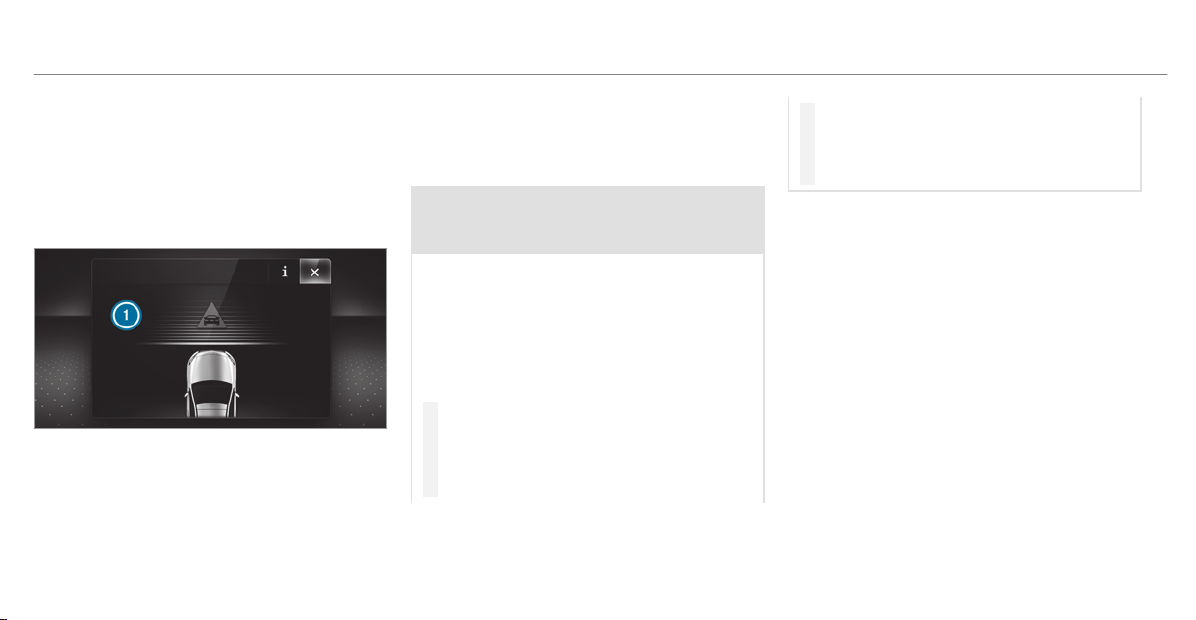
occur simultaneously with the braking applica‐
tion.
If you apply the brake yourself in a critical situa‐
tion or apply the brake during autonomous brak‐
ing, situation-dependent braking assistance
occurs. The brake pressure increases up to max‐
imum full-stop braking if necessary.
If autonomous braking or situation-dependent
braking assistance has occurred, display 1
appears in the multifunction display and then
automatically goes out after a short time.
If the autonomous braking function or the situa‐
tion-dependent braking assistance is triggered,
additional preventive measures for occupant
protection (PRE-SAFE
®
) may also be initiated.
&
WARNING Risk of an accident caused by
limited detection performance of Active
Brake Assist
Active Brake Assist cannot always clearly
identify objects and complex traffic situa‐
tions.
In such cases, Active Brake Assist might:
R
Give a warning or brake without reason
R
Not give a warning or not brake
#
Always pay careful attention to the traf‐
fic situation; do not rely on Active Brake
Assist alone. Active Brake Assist is only
an aid. The driver is responsible for
maintaining a suitable distance to the
vehicle in front, vehicle speed and for
braking in good time.
#
Be prepared to brake or swerve if nec‐
essary.
Also observe the system limitations of Active
Brake Assist.
The individual subfunctions are available in
the following speed ranges:
Distance warning function
The distance warning function issues a warning
in the following situations:
R
From approximately 4 mph (7 km/h), if your
vehicle is critically close to a vehicle or
pedestrian, you will hear an intermittent
warning tone and the L distance warning
lamp lights up in the instrument cluster.
Brake immediately or take evasive action, provi‐
ded it is safe to do so and the tr affic situation
allows this.
162
Driving and parking

The distance warning function can aid you in the following situations with an intermittent warning tone and a warning lamp:
Vehicles
traveling in
front
Stationary
vehicles
Crossing
vehicles
Moving
pedestrians
Stationary
pedestrians
Crossing
cyclists
Cyclists travel‐
ing in front
Stationary
cyclists
Vehicles
without Driv‐
ing Assis‐
tance pack‐
age
Up to approx.
155 mph
(250 km/h)
Up to approx.
50 mph
(80 km/h)
No reaction Up to approx.
50 mph
(80 km/h)
No reaction Up to approx.
37 mph
(60 km/h)
Up to approx.
50 mph
(80 km/h)
No reaction
Vehicles with
Driving Assis‐
tance pack‐
age
Up to approx.
155 mph
(250 km/h)
Up to approx.
62 mph
(100 km/h)
Up to approx.
43 mph
(70 km/h)
Up to approx.
50 mph
(80 km/h)
Up to approx.
43 mph
(70 km/h)
Up to approx.
43 mph
(70 km/h)
Up to approx.
50 mph
(80 km/h)
Up to approx.
43 mph
(70 km/h)
Driving and parking
163

Autonomous braking function
The autonomous braking function may intervene at speeds starting from approximately 4 mph (7 km/h) in the following situations:
Vehicles
traveling in
front
Stationary
vehicles
Crossing
vehicles
Moving
pedestrians
Stationary
pedestrians
Crossing
cyclists
Cyclists travel‐
ing in front
Stationary
cyclists
Vehicles
without Driv‐
ing Assis‐
tance pack‐
age
Up to approx.
124 mph
(200 km/h)
Up to approx.
31 mph
(50 km/h)
No reaction Up to approx.
37 mph
(60 km/h)
No reaction Up to approx.
37 mph
(60 km/h)
Up to approx.
50 mph
(80 km/h)
No reaction
Vehicles with
Driving Assis‐
tance pack‐
age
Up to approx.
155 mph
(250 km/h)
Up to approx.
62 mph
(100 km/h)
Up to approx.
43 mph
(70 km/h)
Up to approx.
43 mph
(70 km/h)
Up to approx.
43 mph
(70 km/h)
Up to approx.
43 mph
(70 km/h)
Up to approx.
50 mph
(80 km/h)
Up to approx.
43 mph
(70 km/h)
164
Driving and parking

Situation-dependent braking assistance
Situation-dependent braking assistance may intervene at speeds starting from approximately 4 mph (7 km/h) in the following situations:
Vehicles
traveling in
front
Stationary
vehicles
Crossing
vehicles
Moving
pedestrians
Stationary
pedestrians
Crossing
cyclists
Cyclists travel‐
ing in front
Stationary
cyclists
Vehicles
without Driv‐
ing Assis‐
tance pack‐
age
Up to approx.
155 mph
(250 km/h)
Up to approx.
50 mph
(80 km/h)
No reaction Up to approx.
37 mph
(60 km/h)
No reaction Up to approx.
37 mph
(60 km/h)
Up to approx.
50 mph
(80 km/h)
No reaction
Vehicles with
Driving Assis‐
tance pack‐
age
Up to approx.
155 mph
(250 km/h)
Up to approx.
62 mph
(100 km/h)
Up to approx.
43 mph
(70 km/h)
Up to approx.
43 mph
(70 km/h)
Up to approx.
43 mph
(70 km/h)
Up to approx.
43 mph
(70 km/h)
Up to approx.
50 mph
(80 km/h)
Up to approx.
43 mph
(70 km/h)
Canceling a brake application of Active Brake
Assist
You can cancel a brake application of Active
Brake Assist at any time by:
R
Fully depressing the accelerator pedal or
with kickdown.
R
Releasing the brake pedal.
Active Brake Assist may cancel the brake appli‐
cation when one of the following conditions is
fulfilled:
R
You maneuver to avoid the obstacle.
R
There is no longer a risk of collision.
R
An obstacle is no longer detected in front of
your vehicle.
Evasive Steering Assist (only vehicles with
Driving Assistance Package)
Evasive Steering Assist has the following charac‐
teristics:
R
The ability to detect stationary or moving
pedestrians.
Driving and parking
165

R
Assistance through power-assisted steering if
it detects a swerving maneuver.
R
Activation by an abrupt steering movement
during a swerving maneuver.
R
Assistance dur ing swerving and straightening
of the vehicle.
R
Reaction from a speed of approximately
12 mph (20 km/h) up to a speed of approx‐
imately 43 mph (70 km/h).
You can prevent the assistance at any time by
actively steering.
&
WARNING Risk of an accident despite
Evasive Steering Assist
Evasive Steering Assist cannot always clearly
identify objects and complex traffic situa‐
tions.
In addition, the steering support of Evasive
Steering Assist is generally not sufficient to
avoid a collision.
In such cases Evasive Steering Assist can:
R
give an unnecessary warning or provide
assistance
R
not give a warning or not provide assis‐
tance
#
Always pay careful attention to the traf‐
fic situation; do not rely on Evasive
Steering Assist alone.
#
Be ready to brake and take evasive
action if necessary.
#
Prevent the assistance by actively steer‐
ing in non-critical driving situations.
#
Drive at an appropriate speed if pedes‐
trians are close to the path of your vehi‐
cle.
System limitations
Full system performance is not available for a
few seconds after switching on the ignition or
after driving off.
The system may be impaired or may not function
in the following situations:
R
In snow, rain, fog, heavy spray, if there is
glare, in direct sunlight or in greatly varying
ambient light.
R
If the sensors are dirty, fogged up, damaged
or covered.
R
If the sensors are impaired due to interfer‐
ence from other radar sources, e.g. strong
radar reflections in parking garages.
R
If a loss of tire pressure or a defective tire
has been detected and displayed.
R
In complex traffic situations where objects
cannot always be clearly identified.
R
If pedestrians or vehicles move quickly into
the sensor detection range.
R
If pedestrians are hidden by other objects.
R
If the typical outline of a pedestrian cannot
be distinguished from the background.
R
If a pedestrian is not detected as such, e.g.
due to special clothing or other objects.
R
On bends with a tight radius.
166
Driving and parking
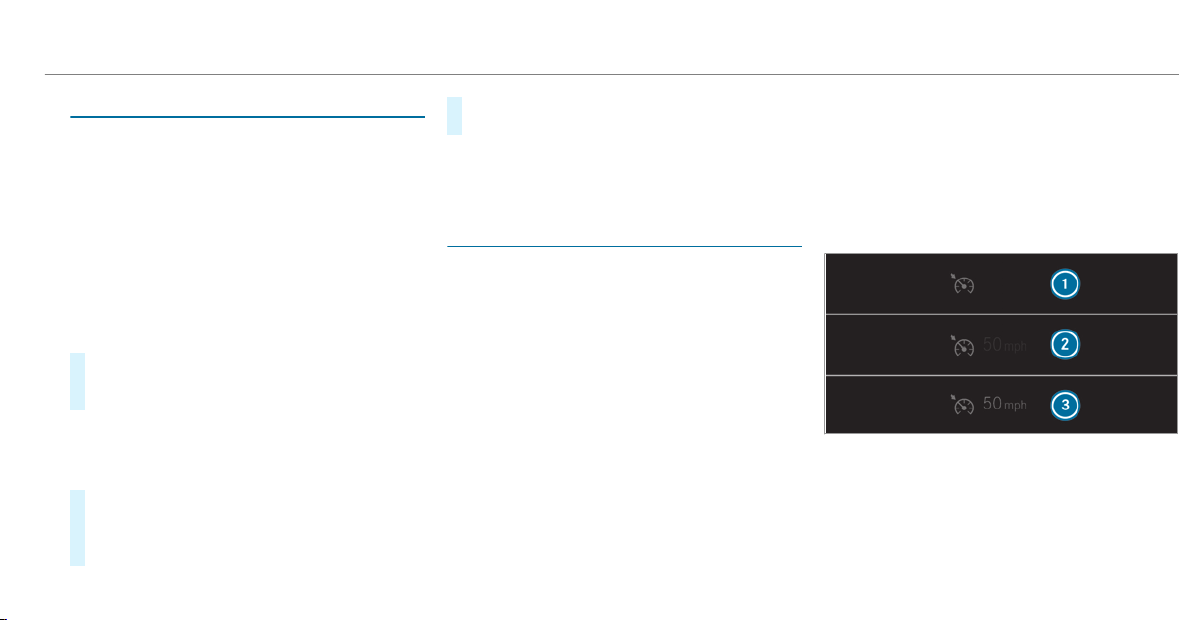
Setting Active Brake Assist
Requirements:
R
The ignition is switched on.
Multimedia system:
4
©
5
Settings
5
Assistance
5
Active Brake Assist
The following settings are available:
R
Early
R
Medium
R
Late
#
Select a setting.
The setting is retained when the engine is
next started.
Deactivating Active Brake Assist
%
It is recommended that you always leave
Active Brake Assist activated.
#
Select Off.
The distance warning function, the autono‐
mous braking function and the Evasive Steer‐
ing Assist are deactivated.
When the vehicle is next started, the middle
setting is automatically selected.
%
If Active Brake Assist is deactivated, the
æ symbol appears in the status bar of the
multifunction display.
Speed control cruise control
Function of cruise control
Cruise control regulates the speed to the value
selected by the driver.
If you accelerate to overtake, for example, the
stored speed is not deleted. If you remove your
foot from the accelerator pedal after overtaking,
cruise control will resume speed regulation back
to the stored speed.
Cruise control is operated using the correspond‐
ing steering wheel buttons. You can store any
speed above 15 mph (20 km/h) up to the maxi‐
mum speed.
If you fail to adapt your driving style, cruise con‐
trol can neither reduce the risk of an accident
nor override the laws of physics. It cannot take
into account road, weather or traffic conditions.
Cruise control is only an aid. You are responsible
for the distance to the vehicle in front, for vehi‐
cle speed, for braking in good time and for stay‐
ing in your lane.
Displays on the multifunction display
The status of cruise control and the stored
speed are shown in the multifunction display.
1
Cruise control is selected
2
Speed is saved, cruise control is deactivated
3
Speed is saved, cruise control is activated
%
The segments between the stored speed and
the end of the segment display light up in
the speedometer.
Driving and parking
167
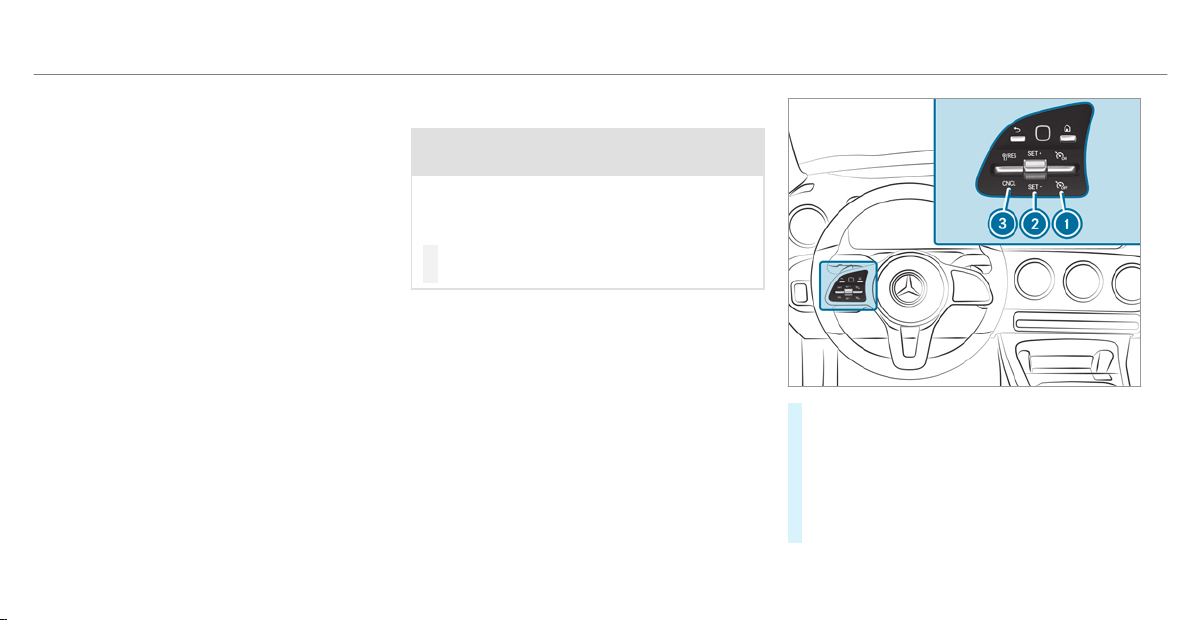
System limitations
Cruise control may be unable to maintain the
stored speed on uphill gradients. The stored
speed is resumed when the gradient evens out.
Change into a lower gear in good time on long
and steep downhill gradients. Take particular
note of this when driving a laden vehicle. By
doing so, you will make use of the engine's brak‐
ing effect. This relieves the load on the brake
system and prevents the brakes from overheat‐
ing and wearing too quickly.
Do not use cruise control in the following situa‐
tions:
R
In traffic situations which require frequent
changes of speed, e.g. in heavy traffic, on
winding roads.
R
On slippery roads. Accelerating can cause
the drive wheels to lose traction and the
vehicle could then skid.
R
If you are driving when visibility is poor.
Operating cruise control
&
WARNING Risk of accident due to stored
speed
If you call up the stored speed and this is
lower than your current speed, the vehicle
decelerates.
#
Take into account the traffic situation
before calling up the stored speed.
Requirements:
R
ESP
®
must be activated, but not intervening.
R
The driven speed is at least 15 mph
(20 km/h).
R
The transmission is in position h.
#
To activate cruise control: press rocker
switch 1 up.
#
To activate cruise control: press rocker
switch 2 up (SET+) or down (SET-).
The current speed is stored and maintained
by the vehicle when you take your foot off
the accelerator pedal.
or
168
Driving and parking

#
Press rocker switch 3 up (RES).
The last stored speed is called up and main‐
tained by the vehicle.
If the last stored speed has previously been
deleted, the currently driven speed is stored.
%
When you switch off the vehicle, the last
speed stored is cleared.
#
To increase/reduce speed: press rocker
switch 2 up/down to the pressure point.
The stored speed is increased or reduced by
1 mph (1 km/h).
or
#
Press rocker switch 2 beyond the pressure
point.
The stored speed is increased or reduced by
5 mph (10 km/h).
or
#
Accelerate the vehicle to the desired speed.
#
Press rocker switch 2 up.
If cruise control is activated and Traffic Sign
Assist has detected a speed restriction sign with
a maximum permissible speed and this is dis‐
played in the instrument cluster:
#
To adopt the detected speed: press rocker
switch 3 up.
The maximum permissible speed shown by
the traffic sign is stored and the vehicle
maintains this speed.
#
To deactivate cruise control:
press rocker switch 3 down (CNCL).
#
To deactivate cruise control: press rocker
switch 1 down.
%
If you brake, deactivate ESP
®
or if ESP
®
intervenes, cruise control is deactivated.
When you switch off the vehicle, the last
speed stored is cleared.
Active Distance Assist DISTRONIC
Function of Active Distance Assist
DISTRONIC
Active Distance Assist DISTRONIC maintains the
set speed on free-flowing roads. If vehicles in
front are detected, the set distance is main‐
tained, if necessary, until the vehicle comes to a
halt. The vehicle accelerates or brakes depend‐
ing on the distance to the vehicle in front and
the set speed. The speed and distance to the
vehicle in front are set and saved on the steering
wheel on vehicles without the Driving Assistance
Package, in the range between 15 mph
(20 km/h) and 120 mph (200 km/h) and, on
Driving and parking
169

vehicles with the Driving Assistance Package, in
the range between 15 mph (20 km/h) and
130 mph (210 km/h).
Other features of Active Distance Assist
DISTRONIC:
R
Adjusts the driving style depending on the
selected drive program (fuel-saving, comfort‐
able or dynamic) (/ page 137)
R
Vehicles with Driving Assistance Pack‐
age: reacts to stationary vehicles detected in
urban speed ranges (except bicycles and
motorcycles).
R
Initiates acceleration to the stored speed if
the turn signal indicator is switched on to
change to the overtaking lane.
R
Vehicles with Driving Assistance Pack‐
age: takes one-sided overtaking restrictions
into account on highways or on multi-lane
roads with separate roadways (country-
dependent).
Vehicles with Active Parking Assist and Driv‐
ing Assistance Package: if the vehicle has
been braked to a standstill on multi-lane, struc‐
turally separate roadways by Active Distance
Assist DISTRONIC, it can automatically follow
the vehicle in front driving off again within
30 seconds. If a critical situation is detected
when driving off, a visual and acoustic warning is
given indicating that the driver must now take
control of the vehicle. The vehicle is not acceler‐
ated any further.
Active Distance Assist DISTRONIC is only an aid.
The driver is responsible for keeping a safe dis‐
tance to the vehicle in front, for vehicle speed
and for braking in good time.
System limitations
The system may be impaired or may not function
in the following instances:
R
In snow, rain, fog, heavy spray, if there is
glare, in direct sunlight or in greatly varying
ambient light.
R
The windshield in the area of the camera is
dir ty, fogged up, damaged or covered.
R
If the radar sensors are dirty or covered.
R
In parking garages or on roads with steep
uphill or downhill gradients.
R
If there are narrow vehicles in front, such as
bicycles or motorcycles.
In addition, on slippery roads, braking or accel‐
erating can cause one or several wheels to lose
traction and the vehicle could then skid.
Do not use Active Distance Assist DISTRONIC in
these situations.
&
WARNING Risk of accident from acceler‐
ation or braking by Active Distance
Assist DISTRONIC
Active Distance Assist DISTRONIC may accel‐
erate or brake in the following cases, for
example:
R
If the vehicle pulls away using Active Dis‐
tance Assist DISTRONIC.
R
If the stored speed is called up and is
considerably faster or slower than the
currently driven speed.
R
If Active Distance Assist DISTRONIC no
longer detects a vehicle in front or does
not react to relevant objects.
170
Driving and parking

#
Always carefully observe the traffic con‐
ditions and be ready to brake at all
times.
#
Take into account the traffic situation
before calling up the stored speed.
&
WARNING Risk of accident due to insuf‐
ficient deceleration by Active Distance
Assist DISTRONIC
Active Distance Assist DISTRONIC brakes
your vehicle with up to 50% of the maximum
possible deceleration. If this decelera tion is
not sufficient, Active Distance Assist
DISTRONIC alerts you with a visual and
acoustic warning.
#
In these cases, adjust your speed and
keep a sufficient distance.
#
Brake the vehicle yourself and/or take
evasive action.
&
WARNING Risk of accident if detection
function of Active Distance Assist
DISTRONIC is impaired
Active Distance Assist DISTRONIC does not
react or has a limited reaction:
R
when driving on a different lane or when
changing lanes
R
to pedestrians, animals, bicycles or sta‐
tionary vehicles, or unexpected obstacles
R
to complex traffic conditions
R
to oncoming vehicles and crossing traffic
As a result, Active Distance Assist
DISTRONIC may neither give warnings nor
intervene in such situations.
#
Always observe the traffic conditions
carefully and react accordingly.
Operating Active Distance Assist DISTRONIC
Requirements:
R
The vehicle has been started.
R
The electric parking brake is released.
R
ESP
®
is activated and is not intervening.
R
The transmission is in position h.
R
All the door s are closed.
R
Check of the radar sensor system has been
successfully completed (vehicle traveling
faster than 12 mph (20 km/h)).
R
Parking Assist PARKTRONIC is not being
used to park the vehicle or to exit from a
parking space.
R
The vehicle does not skid.
Driving and parking
171
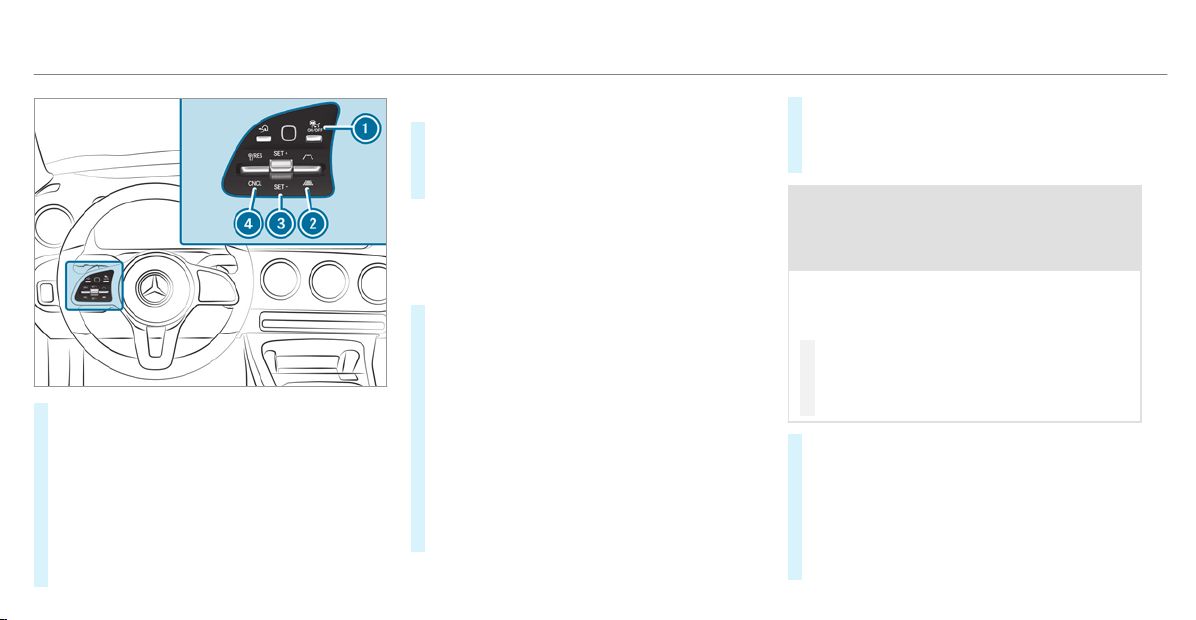
#
To activate/deactivate Active Distance
Assist DISTRONIC: press button 1.
#
To activate Active Distance Assist
DISTRONIC: press rocker switch 3 up (SET
+) or down (SET-), or press rocker switch 4
up. Remove your foot from the acceler ator
pedal.
The current speed is stored and maintained
by the vehicle.
or
#
To activate Active Distance Assist
DISTRONIC with a stored speed: press
rocker switch 4 up. Remove your foot from
the accelerator pedal.
%
If rocker switch 4 is pressed up again after
activation with a stored speed, Active Dis‐
tance Assist DISTRONIC is activated with the
speed restriction displayed in the instrument
cluster.
#
To accept the displayed speed restriction
when Active Distance Assist DISTRONIC
is active: press rocker switch 4 up (RES).
The speed limit displayed in the instrument
cluster is adopted as the stored speed. The
vehicle adapts its speed to that of the vehicle
in front, but only up to the stored speed.
#
To pull away with Active Distance Assist
DISTRONIC: remove your foot from the
brake pedal and activate Active Distance
Assist DISTRONIC.
#
Press rocker switch 4 up (RES).
or
#
Depress the accelerator pedal briefly and
firmly.
The functions of Active Distance Assist
DISTRONIC continue to be carried out.
&
WARNING Risk of accident due to Active
Distance Assist DISTRONIC still being
activated when you leave the dr iver's
seat
If you leave the driver's seat while the vehicle
is being braked by Active Distance Assist
DISTRONIC only, the vehicle can roll away.
#
Always deactivate Active Distance
Assist DISTRONIC and secure the vehi‐
cle to prevent it from rolling away
before you leave the driver's seat.
#
To deactivate Active Distance Assist
DISTRONIC: press rocker switch 4 down
(CNCL).
#
To increase/reduce speed: press rocker
switch 3 up/down to the pressure point.
The stored speed is increased or reduced by
1 mph (1 km/h).
172
Driving and parking
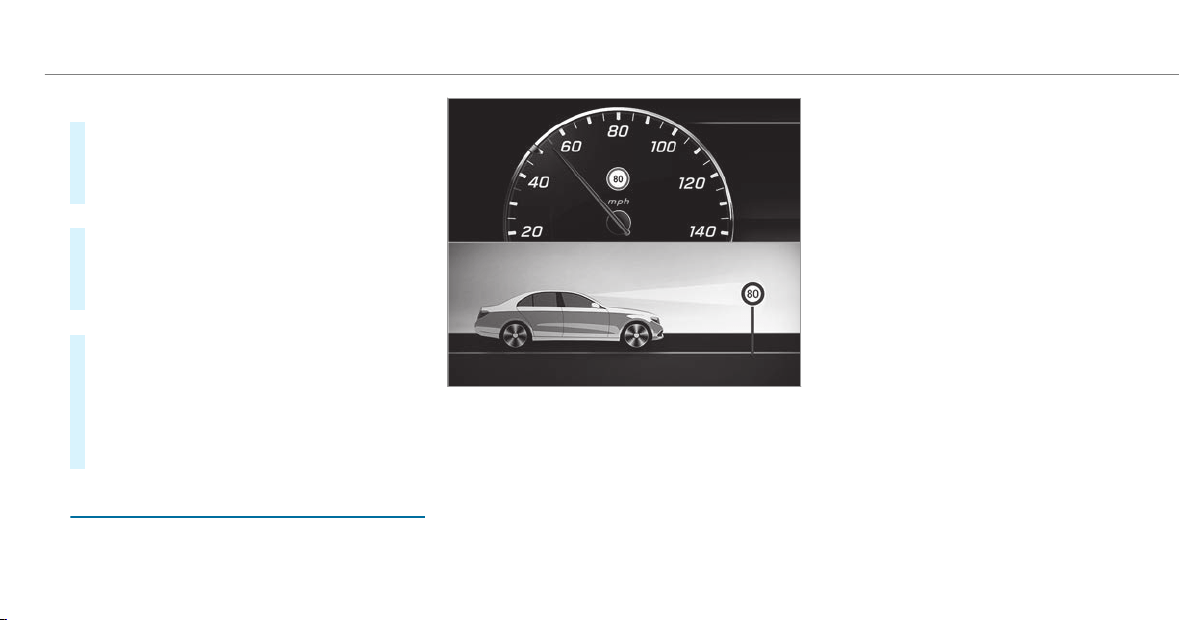
or
#
Press and hold rocker switch 3 up/down to
the pressure point.
The stored speed is increased or reduced in
increments of 1 mph (1 km/h).
or
#
Press rocker switch 3 beyond the pressure
point.
The stored speed is increased or reduced by
5 mph (10 km/h).
or
#
Press and hold rocker switch 3 beyond the
pressure point.
The stored speed is increased or reduced in
increments of 5 mph (10 km/h).
#
To increase or reduce the specified dis‐
tance from the vehicle in front: press
rocker switch 2 up or down.
Function of Active Speed Limit Assist
%
The following function is country-dependent
and only available in conjunction with the
Driving Assistance Package.
If a change in the speed limit is detected and
Active Distance Assist DISTRONIC is activated,
Active Distance Assist DISTRONIC adapts this
new speed as the stored speed.
The driven speed is adjusted when the vehicle is
level with the traffic sign at the latest. In the
case of signs indicating entry into an urban area,
the speed is adapted according to the speed
permitted within the urban area. The speed limit
display in the instrument display is always upda‐
ted when the vehicle is level with the traffic sign.
If there is no speed restriction on an unlimited
stretch of road (e.g. on a freeway), the recom‐
mended speed is adopted as the stored speed.
The system uses the speed stored on an unlimi‐
ted stretch of road as the recommended speed.
If you do not alter the stored speed on an unlimi‐
ted stretch of road, the recommended speed is
80 mph (130 km/h).
If Active Distance Assist DISTRONIC has been
put into passive mode by pressing the accelera‐
tor pedal, only speed limits which are higher
than the set speed are adopted.
Active Speed Limit Assist is only an aid. The
driver is responsible for keeping a safe distance
to the vehicle in front, for vehicle speed and for
braking in good time. The maximum permissible
speed also depends on factors such as the road
surface and traffic conditions.
System limitations
Temporary speed restrictions (e.g. for a certain
time or due to weather conditions) cannot be
properly detected by the system. The maximum
Driving and parking
173

permissible speed applying for a vehicle with a
trailer is not detected by the system. In these sit‐
uations you must adjust your speed yourself.
&
WARNING Risk of accident due to Active
Speed Limit Assist adapting the vehicle's
speed
The speed adopted by Active Speed Limit
Assist may be too high or incorrect in some
individual cases, such as:
R
In the wet or in fog
R
When towing a trailer
#
Ensure that the driven speed complies
with traffic regulations.
#
Adjust the driving speed to suit current
traffic and weather conditions.
Function of route-based speed adaptation
%
The following function is country-dependent
and only available in conjunction with the
Driving Assistance Package.
When Distance Assist DISTRONIC is active, the
function adjusts the speed depending on the
route events ahead. Depending on the drive pro‐
gram selected, the vehicle negotiates the route
event ahead in a fuel-saving, comfortable or
dynamic manner. When the route event has been
passed, the vehicle accelerates again to the
stored speed. The set distance to the vehicle in
front, vehicles detected ahead and speed restric‐
tions ahead are taken into account.
Route-based speed adjustment can by conf ig‐
ured in the multimedia system
(
/ page 175).
Route events ahead are:
R
Bends
R
T-intersections, traffic circles and toll sta‐
tions
R
Turns and exits
R
Traffic jams ahead (only with Live Traffic
(/ page 313))
%
When the toll station is reached, Active Dis‐
tance Assist DISTRONIC adopts the speed as
the stored speed.
Also, the speed is reduced if the turn signal to
change lanes is switched on and one of the fol‐
lowing situations is detected:
R
Turning off at intersections
R
Driving on slowing-down lanes
R
Driving on lanes adjacent to slowing-down
lanes
The driver is responsible for choosing the right
speed and observing other road users. This
applies in par ticular to intersections, traffic cir‐
cles and traffic lights, as route-based speed
adaptation does not brake the vehicle to a stand‐
still.
When route guidance is active, the first speed
adjustment is car ried out automatically. If the
turn signal indicator is switched on, the selected
route is conf irmed and further speed adjustment
is activated.
Speed adjustment is canceled in the following
cases:
R
If the tur n signal indicator is switched off
before the route event.
174
Driving and parking

R
If the driver depresses the accelerator or
brake pedal during the process.
System limitations
Route-based speed adaptation does not take
right of way regulations into account. The driver
is responsible for complying with road traffic
regulations and driving at a suitable speed.
In difficult conditions (e.g. unclear roads, narrow
lanes, wet road surfaces, snow or ice) or when
driving with a trailer, the speed adjustment made
by the system may not always be suitable. In
these situations the driver must intervene
accordingly.
&
WARNING Risk of accident in spite of
route-based speed adjustment
Route-based speed adjustment might mal‐
function or be temporarily unavailable in the
following situations:
R
If map data is not up to date or available
R
If you do not follow the selected route
guidance
R
If the set route is re-planned
R
In road construction areas
R
When towing a trailer
R
In bad weather or road conditions
R
If the accelerator pedal is depressed
#
Adjust the speed to the traffic situation.
Setting route-based speed adjustment
Requirements:
R
Active Distance Assist DISTRONIC is activa‐
ted.
Multimedia system:
4
©
5
Settings
5
Assistance
5
Route-based Speed
#
Activate or deactivate the function.
When the function is active, the vehicle
speed is adjusted depending on the route
events ahead.
%
Further information on the route-based
speed adaptation (/ page 174).
Active Steering Assist
Function of Active Steering Assist
%
Active Steering Assist is country-dependent
and only available for vehicles with the Driv‐
ing Assistance Package.
Active Steering Assist is operational at speeds
up to 130 mph (210 km/h) and helps you to stay
in the center of the lane by means of moderate
steering interventions. It uses the vehicle in front
and the lane markings as a reference depending
on the driven speed.
When the system is actively steering, the è
symbol is shown in green in the multifunction
display.
If the detection of lane markings and vehicles
ahead is impaired, Active Steering Assist
switches to passive mode. The system provides
no support in this case. During the transition
from active to passive status, the è symbol is
shown as enlarged and flashes yellow. Once the
system is passive, the è symbol is shown as
gray in the multifunction display.
Driving and parking
175
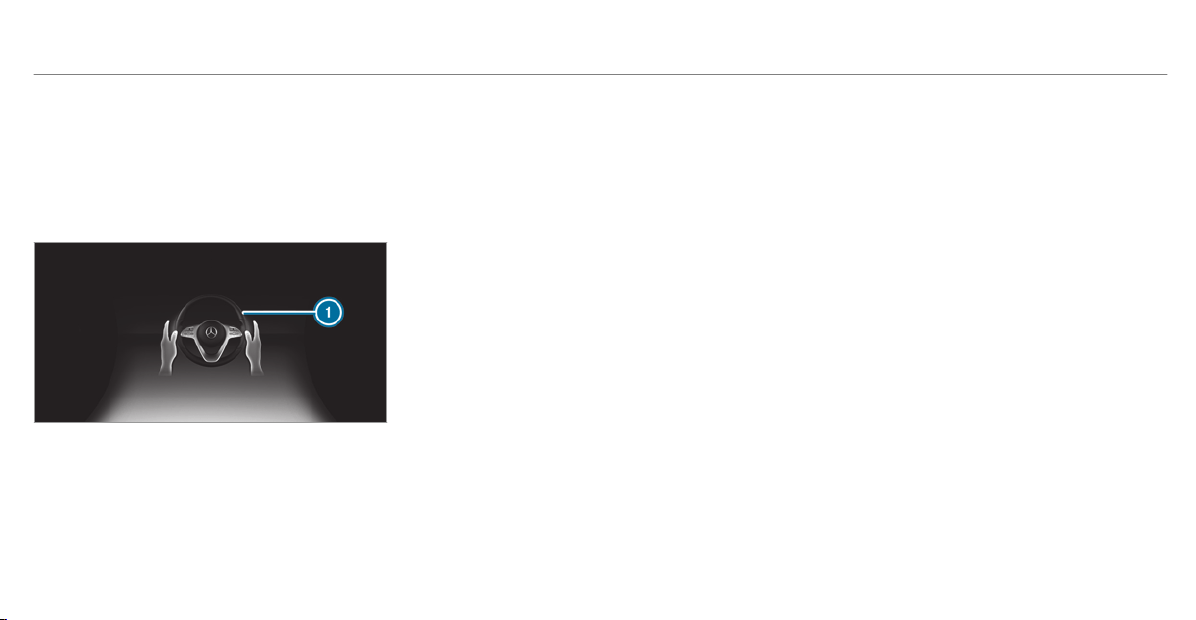
Steering and touch detection
The driver is required to keep their hands on the
steering wheel at all times and be able to inter‐
vene at any time to correct the course of the
vehicle and keep it in lane. The driver must
expect a change from active to passive mode or
vice versa at any time.
If the system reaches a system limitation or the
driver has not steered the vehicle for a consider‐
able period of time or has removed their hands
from the steering wheel, the system will,
depending on the situation, alert the driver
either with a visual warning or a visual and
acoustic warning. Display
1 appears in the mul‐
tifunction display.
If the driver does not steer the vehicle over a
long period, or has not taken hold of the steering
wheel, a repeated warning tone sounds in addi‐
tion to the visual warning message (depending
on the country).
The warning message does not appear or disap‐
pears if one of the following conditions are met:
R
The driver steers the vehicle.
R
The driver presses a steering wheel button or
operates Touch Control.
Active Steering Assist is only an aid. The driver is
responsible for the distance to the vehicle in
front, for vehicle speed, for braking in good time
and for staying in lane. Before changing lanes,
the driver must make sure that the neighboring
lane is free (glance over the shoulder).
System limitations
Active Steering Assist has a limited steering tor‐
que for lateral guidance. In some cases, the
steering intervention is not sufficient to keep the
vehicle in the lane or to drive past exits.
The system may be impaired or may not function
in the following instances:
R
In snow, rain, fog, heavy spray, if there is
glare, direct sunlight, greatly varying ambient
light, reflections or strong shadows on the
roadway.
R
Insufficient road illumination.
R
The windshield in the area of the camera is
dirty, fogged up, damaged or covered.
R
Absence of lane markings, or several unclear
lane markings, or if the markings change rap‐
idly.
R
The distance to the vehicle in front is too
small and the lane markings thus cannot be
detected.
R
The road is narrow and winding.
R
Obstacles on the lane or projecting out into
the lane.
The system does not provide assistance in the
following conditions:
R
On tight bends, intersections, toll stations,
traffic circles and when turning.
176
Driving and parking
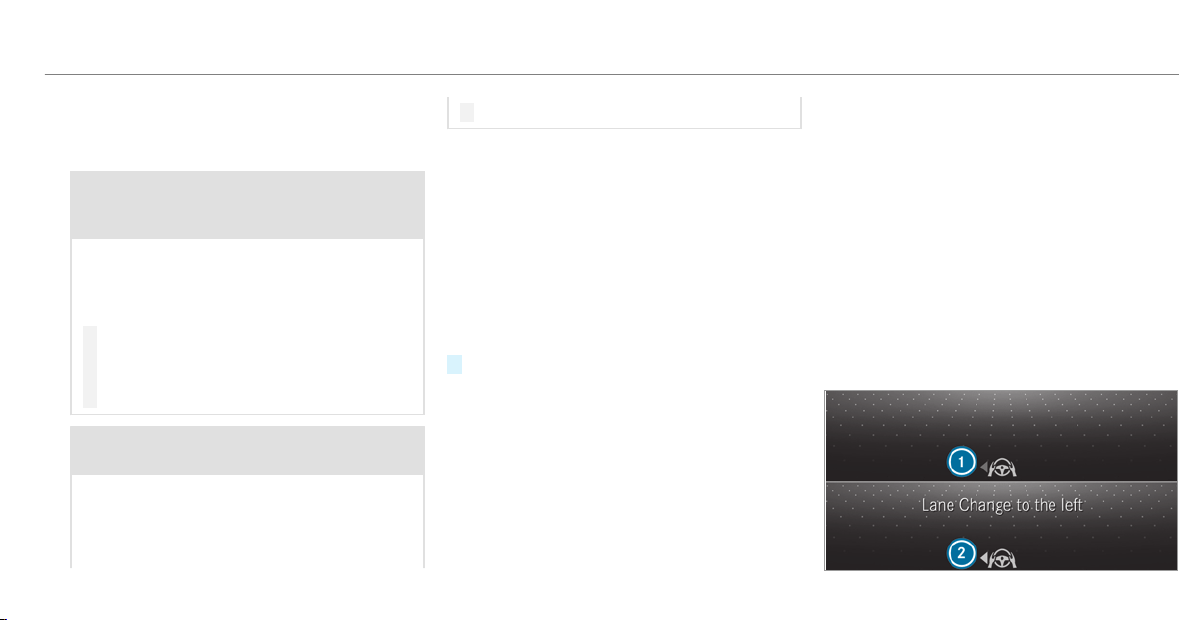
R
When actively changing lane without switch‐
ing on the turn signal.
R
When the tire pressure is too low.
&
WARNING Risk of accident if Active
Steering Assist unexpectedly stops func‐
tioning
If the system limitations of Active Steering
Assist are reached there is no guarantee that
the system will remain active or will keep the
vehicle in lane.
#
Always keep your hands on the steering
wheel and observe the traffic carefully.
#
Always steer the vehicle paying atten‐
tion to traff ic conditions.
&
WARNING Risk of accident if Active
Steering Assist unexpectedly intervenes
A malfunction in the detection of lane mark‐
ings and objects can occur.
This could cause unexpected steering inter‐
vention.
#
Steer according to traffic conditions.
Activating/deactivating Active Steering
Assist
Requirements:
R
ESP
®
is activated, but is not intervening.
R
Active Distance Assist DISTRONIC is activa‐
ted.
Multimedia system:
4
©
5
Settings
5
Schnellzugriff (Quick access)
#
Select a Steering Assist.
Function of Active Lane Change Assist
%
The following function is country-dependent
and only available in conjunction with the
Driving Assistance Package.
Active Lane Change Assist supports the driver
when changing lanes by applying steering torque
if the driver operates a turn signal.
Assistance when changing lanes is provided if all
the following conditions are met:
R
You are dr iving on a freeway or road with
multiple lanes in the direction of travel.
R
The neighboring lane is separated by a bro‐
ken lane marking.
R
No vehicle is detected in the adjacent lane.
R
The driven speed is between 50 mph
(80 km/h) and 110 mph (180 km/h).
R
Active Lane Change Assist is switched on in
the multimedia system.
R
Active Steering Assist is switched on and
active.
Driving and parking
177
If no vehicle is detected in the adjacent lane and
a lane change is permitted, the lane change
begins. This is shown to the driver with a green
arrow
2 next to the steering wheel symbol.
The Lane Change to the Left message also
appears, for example. If Active Lane Change
Assist has been activated with the turn signal
indicator but a lane change is not immediately
possible, a gray arrow
1 appears next to the
steering wheel symbol, which remains green.
When the lane change assistance starts, the turn
signal indicator is automatically activated beside
the display in the multifunction display.
If the assistance graphic is shown when chang‐
ing lanes, the lane change display appears with
an additional arrow pointing towards the adja‐
cent lane (
/ page 179).
If a lane change is not possible, the arrow fades
out after a few seconds and a new lane change
must be initiated. An immediate lane change is
only possible on freeway sections without speed
limits.
If the system is impaired, Active Lane Change
Assist may be canceled. If it is canceled, the
Lane Change Canceled message appears in the
multifunction display and a warning tone sounds.
&
WARNING Risk of accident from chang‐
ing lane to an occupied adjacent lane
Lane Change Assist cannot always detect
clearly if the adjacent lane is free.
The lane change might be initiated although
the adjacent lane is not free.
#
Before changing lanes, make sure that
the neighboring lane is free and there is
no danger to other road users.
#
Monitor the lane change.
&
WARNING Risk of accident if Lane
Change Assist unexpectedly stops func‐
tioning
If the system limitations for Lane Change
Assist have been reached, there is no guar‐
antee that the system will remain active.
Lane Change Assist cannot then assist you
by applying steering torques.
#
Always monitor the lane change and
keep your hands on the steering wheel.
Observe the traffic conditions and steer
and/or brake if necessary.
System limitations
The system limitations of Active Steering Assist
apply to Active Lane Change Assist
(/ page 175).
The system may also be impaired or may not
function in the following situations:
R
The sensors in the rear bumper are dirty,
damaged or covered, for instance by a
sticker or ice and snow.
R
The exterior lighting is malfunctioning.
Activating/deactivating Active Lane Change
Assist
Multimedia system:
4
©
5
Settings
5
Assistance
5
Act. Lane Change A.
#
Activate or deactivate the function.
178
Driving and parking
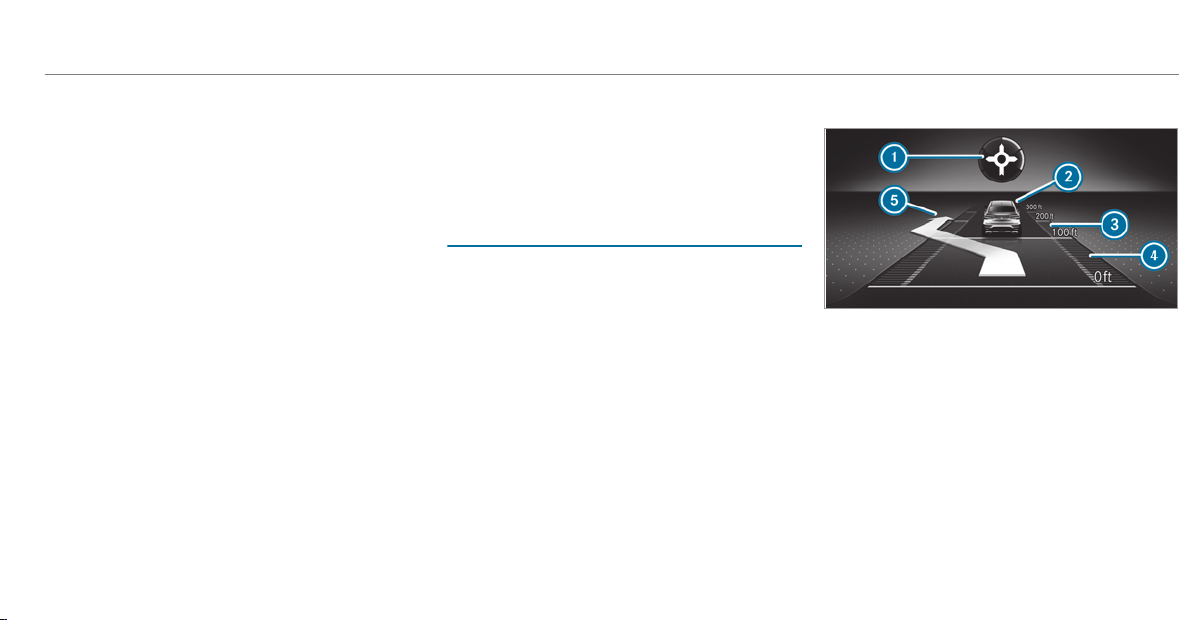
Function of Active Emergency Stop Assist
If the driver continually ignores the visual or
acoustic warning to put their hands on the steer‐
ing wheel, the Beginning Emergency Stop mes‐
sage appears in the multifunction display. If the
driver still does not respond, Active Distance
Assist DISTRONIC reduces the speed. The vehi‐
cle is decelerated in stages to a standstill. At
speeds below 40 mph (60 km/h) the hazard
warning lights switch on automatically.
When the vehicle is stationary, the following
actions are carried out:
R
The vehicle is secured with the electric park‐
ing brake
R
Active Distance Assist DISTRONIC is ended
R
The vehicle is unlocked
R
If possible, an emergency call is placed to
the Mercedes-Benz emergency call center
The driver can cancel the deceleration at any
time by performing one of the following actions:
R
Steering
R
Braking or accelerating
R
Pressing a steering wheel button
R
Operating Touch Control
R
Activating or deactivating Active Distance
Assist DISTRONIC
Overview of Active Distance Assist
DISTRONIC displays in the instrument clus‐
ter
The assistance graphic and the status display
show the status of the following functions in the
instrument cluster:
R
Active Distance Assist DISTRONIC
R
Route-based speed adaptation
R
Active Steering Assist
Assistant display
1
Route-based speed adaptation (type of route
event)
2
Vehicle in front
3
Distance indicator
4
Set specified distance
5
Active Lane Change Assist lane change dis‐
play
Driving and parking
179
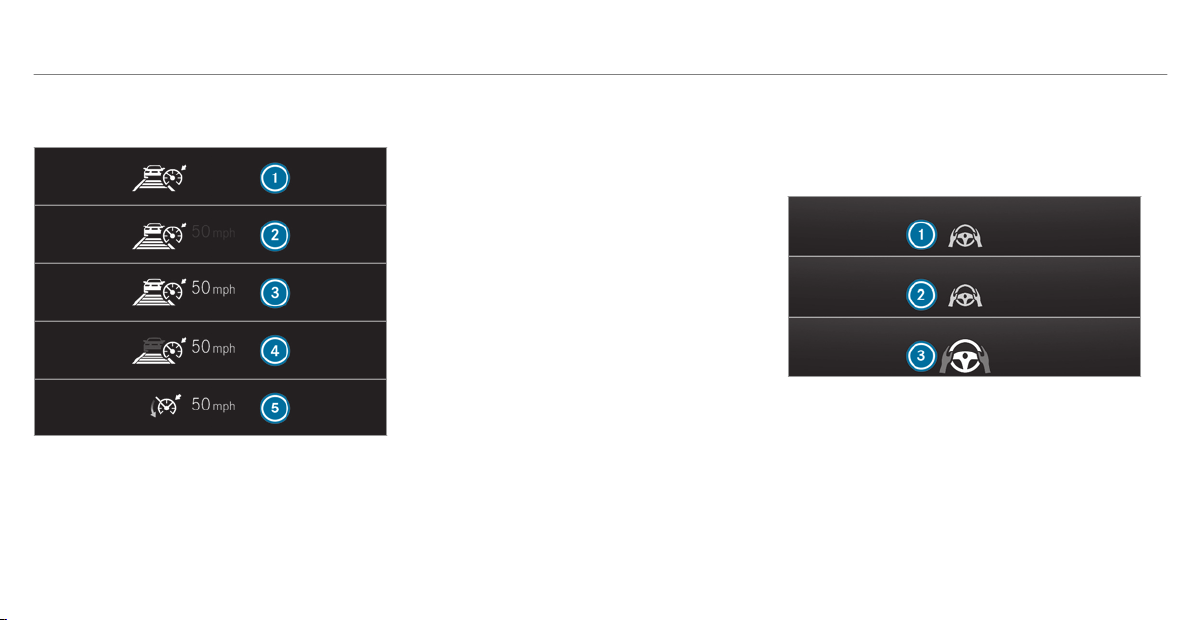
Active Distance Assist DISTRONIC status dis‐
play and route-based speed adaptation
1
Active Distance Assist DISTRONIC selected,
set specified distance (number of segments
below the vehicle)
2
Active Distance Assist DISTRONIC deactiva‐
ted, speed stored
3
Active Distance Assist DISTRONIC active,
speed stored, no vehicle detected (bright
vehicle symbol)
4
Active Distance Assist DISTRONIC active,
speed stored, vehicle detected (green vehi‐
cle symbol)
5
Active Distance Assist DISTRONIC and route-
based speed adaptation active, speed stored
%
On highways or high-speed major roads, the
green ç vehicle symbol is displayed cycli‐
cally when the vehicle is ready to pull away.
%
If you depress the accelerator pedal beyond
the setting of the Active Distance Assist
DISTRONIC, the system is switched to pas‐
sive mode. The ç
Suspended message
appears in the multifunction display.
Speedometer
The stored speed is highlighted on the speedom‐
eter. If the speed of the vehicle in front or the
speed adjustment is less than the stored speed
due to the route event ahead, the segments in
the speedometer light up. Activation or deactiva‐
tion of Active Distance Assist DISTRONIC, as
well as alterations to the speed due to manual or
automatic adoption of the speed limit, are dis‐
played in the control feedback of the multifunc‐
tion display on a single line.
Active Steering Assist status display
1
Gray steering wheel: Active Steering Assist
switched on and passive
2
Green steering wheel: Active Steering Assist
switched on and active
3
Flashing steering wheel: prompt to the driver
to actively confirm or transition from active
to passive status, system limitation detected
180
Driving and parking

Function of Hill Start Assist
Hill Start Assist holds the vehicle for a short
time when pulling away on a hill under the fol‐
lowing conditions:
R
Vehicles with automatic transmission:
The transmission is in position h or k.
R
The electric parking brake is released.
This gives you enough time to move your foot
from the brake pedal to the accelerator pedal
and depress it before the vehicle begins to roll
away.
&
WARNING Risk of accident and injury
due to the vehicle rolling away
After a short time, Hill Start Assist no longer
holds the vehicle and it can roll away.
#
Therefore, swiftly move your foot from
the brake pedal to the accelerator
pedal. Never attempt to leave the vehi‐
cle if it is being held by Hill Start Assist.
HOLD function
HOLD function
The HOLD function holds the vehicle at a stand‐
still without requiring you to depress the brake
pedal, e.g. while waiting in traffic.
The HOLD function is only an aid. The responsi‐
bility for the vehicle safely standing still remains
with the driver.
System limitations
The HOLD function is only intended to provide
assistance when driving and is not a sufficient
means of safeguarding the vehicle against rolling
away when stationary.
R
The incline must not be greater than 30%.
Activating/deactivating the HOLD function
&
WARNING Risk of an accident due to the
HOLD function being activated when you
leave the vehicle
If you leave the vehicle while only the HOLD
function is braking the vehicle, the vehicle
can roll away in the following situations:
R
If there is a malfunction in the system or
in the power supply.
R
If the HOLD function is deactivated by
depressing the accelerator pedal or brake
pedal, e.g. by a vehicle occupant.
#
Always deactivate the HOLD function
and secure the vehicle against rolling
away before leaving the vehicle.
Driving and parking
181

*
NOTE Damage from automatic braking
If one of the following functions is switched
on, the vehicle brakes automatically in cer‐
tain situations:
R
Active Brake Assist
R
Active Distance Assist DISTRONIC
R
HOLD function
R
Active Parking Assist
To avoid damage to the vehicle, deactivate
these systems in the following or similar sit‐
uations:
#
During towing
#
In a car wash
Requirements:
R
The vehicle is stationary.
R
The driver's door is closed or the seat belt on
the driver's side is fastened.
R
The engine is running or has been automati‐
cally switched off by the ECO start/stop
function.
R
The electric parking brake is released.
R
Active Distance Assist DISTRONIC is deacti‐
vated.
R
The transmission is in position h, k or i.
Activating the HOLD function
#
Depress the brake pedal and after a short
time quickly depress further until the ë
display appears in the multifunction display.
#
Release the brake pedal.
Deactivating the HOLD function
#
Depress the accelerator pedal to pull away.
or
#
Depress the brake pedal until the ë dis‐
play disappears from the multifunction dis‐
play.
The HOLD function is deactivated in the follow‐
ing situations:
R
Active Distance Assist DISTRONIC is activa‐
ted.
R
The transmission is switched to position j.
R
The vehicle is secured with the electric park‐
ing brake.
In the following situations, the vehicle is held by
the transmission position j or by the electric
parking brake:
R
The seat belt is unfastened and the driver's
door is opened.
R
The drive system is switched off.
R
There is a malfunction in the system or the
power supply is insuff icient.
Start-of f assist
Function of the start-off assist
The start-off assist enables optimal vehicle
acceleration from a standstill. For this, a suitably
high-grip road surface is required, the tires and
vehicle must also be in good condition.
Do not activate the start-off assist on public
roads.
Be sure to observe the safety notes and informa‐
tion on ESP
®
.
182
Driving and parking
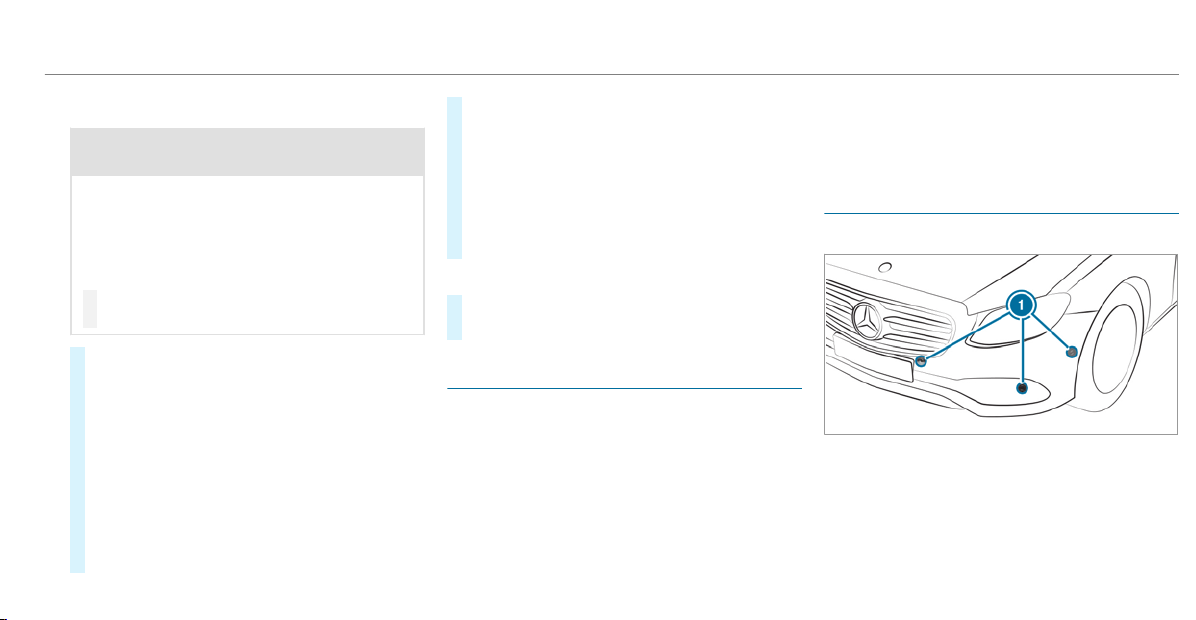
Activating the start-off assist
&
WARNING Risk of skidding and having
an accident from wheels spinning
When you use start-off assist, individual
wheels could spin and you could lose control
of the vehicle.
If ESP
®
is deactivated, there is a risk of skid‐
ding and accident!
#
Make sure that no persons or obstacles
are in the close vicinity of your vehicle.
#
Deactivate ESP
®
(/ page 160).
#
Move the steering wheel to the straight-
ahead position.
#
Depress the brake pedal firmly with your left
foot and keep it depressed.
#
Engage the h drive position
(/ page 141).
#
Select the sportiest available drive program
B or C(/ page 138).
#
Rapidly depress the accelerator pedal fully.
#
Take your foot off the brake, but keep the
accelerator pedal depressed.
The vehicle pulls away at maximum accelera‐
tion.
#
Switch on ESP
®
once the acceleration proce‐
dure is complete. ESP
®
will otherwise not be
able to stabilize the vehicle if the vehicle
starts to skid or a wheel starts to spin.
Canceling the start-off assist
#
Remove your foot from the acceler ator pedal.
#
Reactivate the ESP
®
.
Function of adaptive damping adjustment
Suspension with adaptive damping adjustment
continuously adjusts the characteristics of the
suspension dampers to the current operating
and driving conditions.
The damping is tuned individually for each wheel
and is affected by the following factors:
R
The road surface conditions
R
Vehicle load
R
The drive program selected
R
The driving style
The drive program can be adjusted using the
DYNAMIC SELECT switch.
Parking Assist PARKTRONIC
Function of Parking Assist PARKTRONIC
Parking Assist PARKTRONIC is an electronic
parking assistance system with ultrasound. It
monitors the area around your vehicle using six
sensors
1 in the front bumper and six sensors
in the rear bumper. Parking Assist PARKTRONIC
shows you the distance between your vehicle
and a detected obstacle visually and audibly.
Driving and parking
183
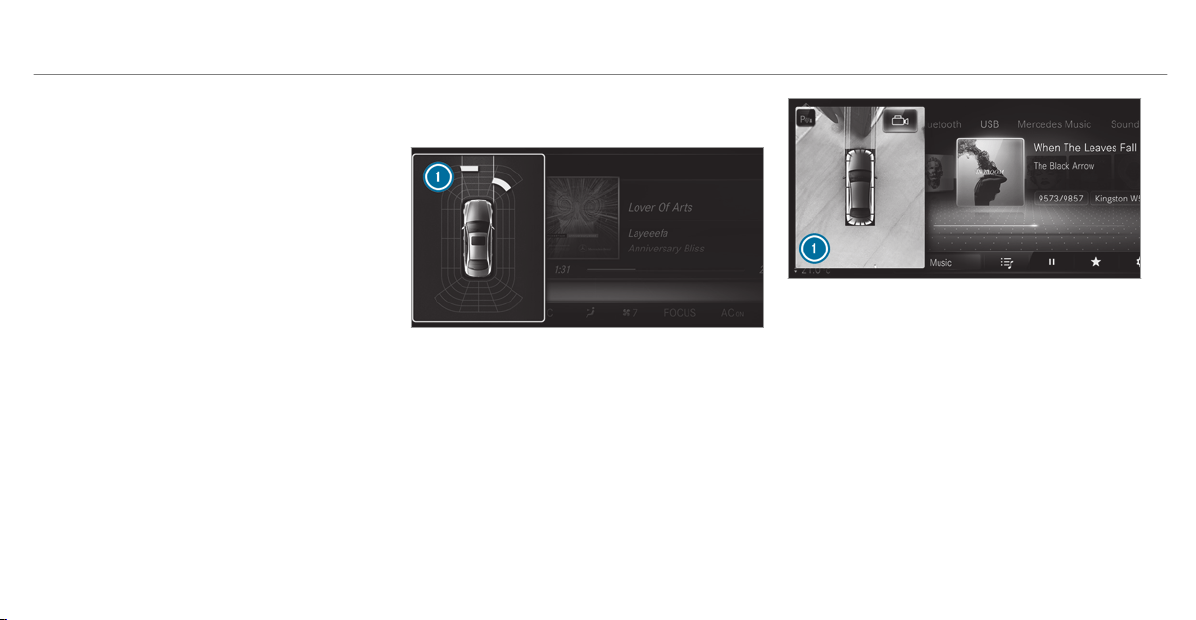
Parking Assist PARKTRONIC is only an aid. It is
not a substitute for your attention to the sur‐
roundings. The responsibility for safe maneuver‐
ing and parking remains with you. Make sure
that there are no persons, animals or objects in
the maneuvering area while maneuvering and
parking in/exiting parking spaces.
In the standard setting, an intermittent warning
tone sounds from a distance of approximately
1.0 ft (0.3 m) to an obstacle in front and approx‐
imately 3.3 ft (1.0 m) to an obstacle behind. A
continuous tone sounds from a distance of
approximately 0.7 ft (0.2 m). Using the Warn
early setting in the multimedia system, the
warning tones for front and side impact protec‐
tion can also be set to sound at a greater dis‐
tance of approximately 3.3 ft (1.0 m)
(
/ page 186).
%
The Warn early setting is always active in
the rear of the vehicle.
If Parking Assist PARKTRONIC is deactivated,
Active Parking Assist is unavailable.
Parking Assist PARKTRONIC display in the
multimedia system
Vehicles with Active Parking Assist without a
360° Camera
Vehicles with Active Parking Assist and a 360°
Camera
If Active Parking Assist is deactivated and an
obstacle is detected in the path of the vehicle, a
pop-up window for Parking Assist PARKTRONIC
1 appears in the multimedia system at speeds
below 6 mph (10 km/h).
System limitations
Parking Assist PARKTRONIC does not necessa‐
rily take into account the following obstacles:
R
Obstacles below the detection range, e.g.
persons, animals or objects.
184
Driving and parking
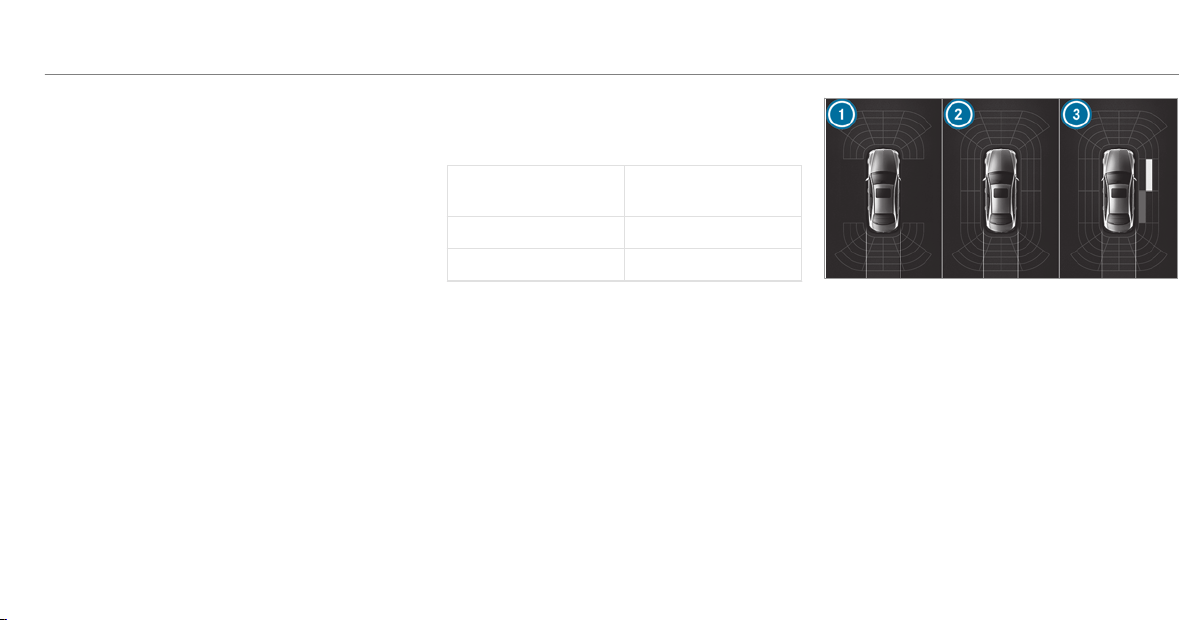
R
Obstacles above the detection range, e.g.
overhanging loads, overhangs or loading
ramps of trucks.
The sensors must be free of dirt, ice and slush.
Otherwise, they may not function correctly.
Clean the sensor s regular ly, taking care not to
scratch or damage them.
Function of the passive side impact protec‐
tion
Passive side impact protection is an additional
Parking Assist PARKTRONIC function which
warns the driver about obstacles at the side of
the vehicle. A warning is issued when obstacles
are detected between the front and rear detec‐
tion range. In order for an object on the side to
be detected, the sensors in the front and rear
bumper must first detect the object while you
are driving past it.
During the parking procedure or maneuvering,
objects are detected as the vehicle drives past.
If you steer in the direction of a detected obsta‐
cle and there is a risk of a lateral collision, a
warning is issued. The segments on the sides
light up yellow or red, depending on the distance
to the obstacle.
Segment color depending on distance
Color Lateral distance in
cm
Yellow Approx. 30 - 60
Red Approx. < 30
In order for lateral front or rear segments to be
displayed, the vehicle must fir st travel a distance
of at least half of the vehicle length. Once the
vehicle has traveled the length of the vehicle, all
of the lateral front and rear segments can be dis‐
played.
Vehicles without 360° Camera
1
Parking Assist PARKTRONIC is only opera‐
tional in the front and rear
2
Parking Assist PARKTRONIC is operational
and can also warn the driver about obstacles
at the side of the vehicle
3
Obstacle detected at the front right (yellow)
and rear (red)
Driving and parking
185
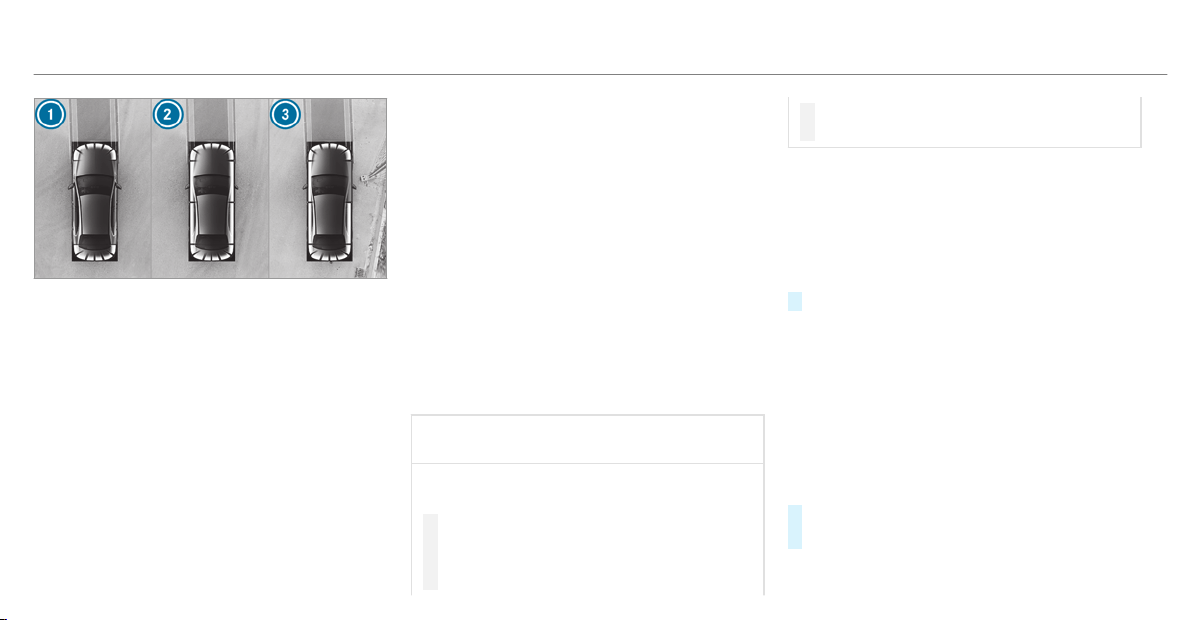
Vehicles with 360° Camera
1
Parking Assist PARKTRONIC is only opera‐
tional in the front and rear
2
Parking Assist PARKTRONIC is operational
and can also warn the driver about obstacles
at the side of the vehicle
3
Obstacle detected at the front right (red)
Saved obstacles on the sides are deleted in the
following situations, for example:
R
You park the vehicle and switch off the igni‐
tion.
R
You open the doors.
After the engine is restarted, obstacles must be
detected again before a new warning can be
issued.
System limitations
The system limitations for Parking Assist
PARKTRONIC apply for passive side impact pro‐
tection.
The following objects are not detected, for exam‐
ple:
R
Pedestrians who approach the vehicle from
the side
R
Objects placed next to the vehicle
Activating/deactivating Parking Assist
PARKTRONIC
*
NOTE Risk of an accident from objects
at close range
Parking Assist PARKTRONIC may not detect
cer tain objects at close range.
#
When parking or maneuvering the vehi‐
cle, pay particular attention to any
objects which are above or below the
sensors, e.g. flower pots or drawbars.
The vehicle or other objects could oth‐
erwise be damaged.
If the é symbol is shown in the multifunction
display, Parking Assist PARKTRONIC is not
active.
Multimedia system:
4
Settings
5
Quick Access
5
PARKTRONIC
#
Activate or deactivate the function.
%
Parking Assist PARKTRONIC is automatically
activated when the vehicle is started.
Adjusting the warning tones of Parking
Assist PARKTRONIC
Multimedia system:
4
©
5
Settings
5
Assistance
5
Camera & Parking
5
Set Warning Tones
Adjusting the volume of the warning tones
#
Select Warning Tone Volume.
#
Set a value.
186
Driving and parking
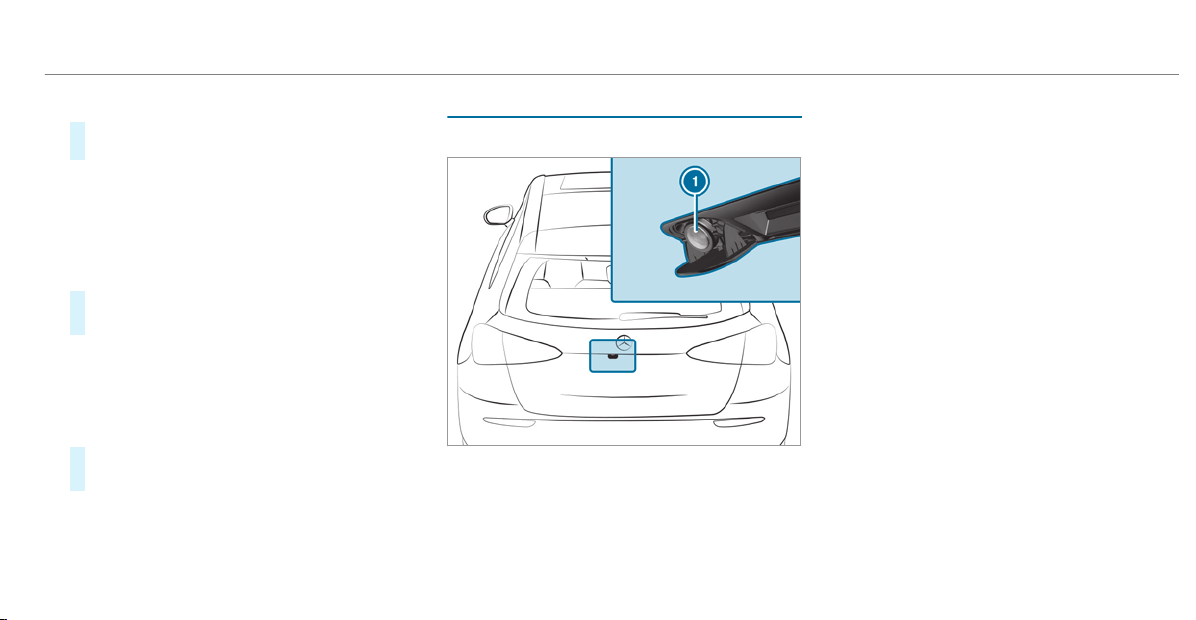
Adjusting the pitch of the warning tones
#
Select Warning Tone Pitch.
Set a value.
Specifying the starting point for the warning
tones
You can specify whether the Parking Assist
PARKTRONIC warning tones should commence
when the vehicle is further away from an obsta‐
cle.
#
Select Warn Early All Around.
#
Activate or deactivate the function.
Activating/deactivating audio fadeout
You can specify whether the volume of a media
source in the multimedia system is to be
reduced when Parking Assist PARKTRONIC gives
an audible warning.
#
Select Audio Fadeout During Warning Tones.
#
Activate or deactivate the function.
Reversing camera
Function of the rear view camera
When you engage reverse gear, the image from
rear view camera 1 is shown in the multimedia
system. Dynamic guide lines show the path the
vehicle will take with the steering wheel in its
current position. This helps you to orient your‐
self and to avoid obstacles when backing up.
The rear view camera is only an aid. It is not a
substitute for your attention to the surroundings.
The responsibility for safe maneuvering and
parking remains with you. Make sure that there
are no persons, animals or objects etc., in the
maneuvering area while maneuvering and park‐
ing.
Depending on the vehicle equipment, you can
select from the following views:
R
Normal view
R
Wide-angle view
The area behind the vehicle is displayed as a
mirror image, as in the inside rearview mirror.
Vehicles without Active Parking Assist
The following camera views are available in the
multimedia system:
Driving and parking
187
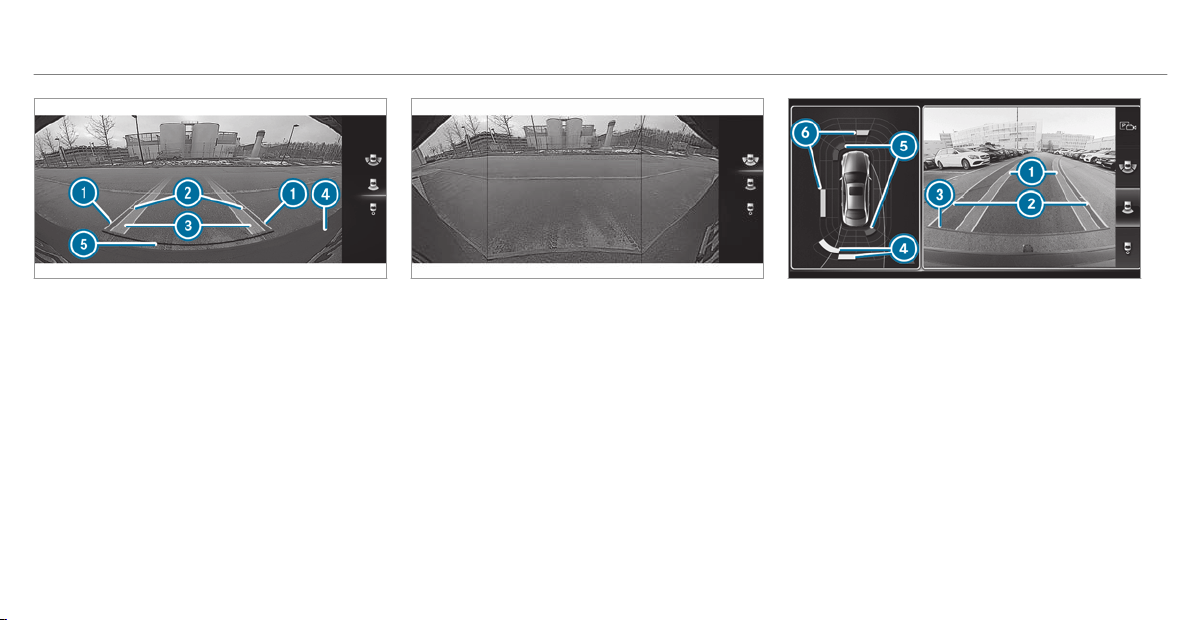
Normal view
1
Yellow guide line, vehicle width (driven sur‐
face) depending on the current steering
wheel angle (dynamic)
2
Yellow guide line at a distance of approx‐
imately 3.3 ft (1.0 m) from the rear area
3
Yellow lane marking the course the tires will
take at the current steering wheel angle
(dynamic)
4
Bumper
5
Red guide line at a distance of approximately
1.0 in (0.3 m) from the rear area
Wide-angle view
Vehicles with Active Parking Assist
The following camera views are available in the
multimedia system:
Normal view
1
Yellow lane marking the course the tires will
take at the current steering wheel angle
(dynamic)
2
Yellow guide line, vehicle width (driven sur‐
face) depending on the current steering
wheel angle (dynamic)
3
Red guide line at a distance of approximately
1.0 in (0.3 m) from the rear area
4
Yellow warning display of Parking Assist
PARKTRONIC: obstacles are at a distance of
between approximately 2.0 ft (0.6 m) and
3.3 ft (1.0 m)
188
Driving and parking
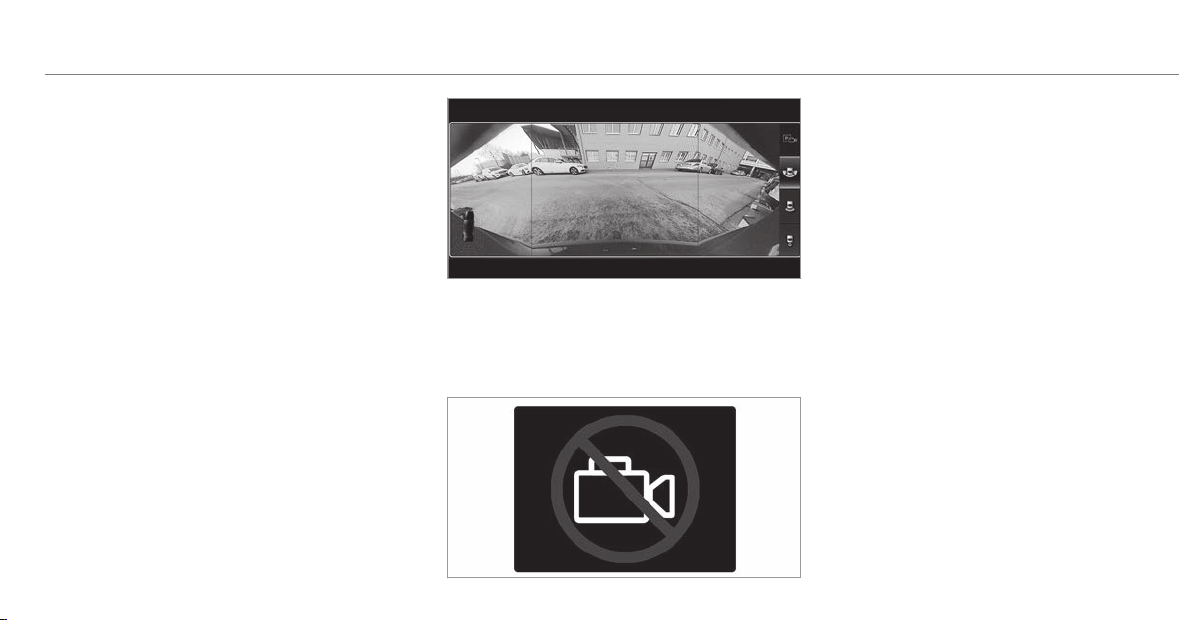
5
Red warning display of Parking Assist
PARKTRONIC: obstacles are very close
(approximately 1.0 ft (0.3 m) or less)
6
Orange warning display of Parking Assist
PARKTRONIC: obstacles are a medium dis‐
tance away (between approximately 1.0 ft
(0.3 m) and 2.0 ft (0.6 m))
%
If the entire system fails, the internal seg‐
ments of the warning display are shown in
red and the é symbol appears in the mul‐
tifunction display in the instrument cluster.
If the system fails at the rear, the rear seg‐
ments are shown in red when backing up
and are hidden when driving forwards.
When Active Parking Assist is active, lanes
1 are displayed in green.
If Parking Assist PARKTRONIC is deactivated,
the warning display fades out.
Wide-angle view
System failure
If there is no operational readiness, the following
message appears in the multimedia system:
System limitations
The rear view camera will not function or will
only partially function in the following situations:
R
The trunk lid is open.
R
There is heavy rain, snow or fog.
R
The ambient light conditions are poor, e.g. at
night.
R
The camera lens is obstructed, dirty or fog‐
ged up. Observe the notes on cleaning the
rear view camera (/ page 393).
R
The camera or rear of your vehicle is dam‐
aged. In this case, have the camera and its
position and setting checked at a qualified
specialist workshop.
%
Do not use the rear view camera in these
types of situation. You could otherwise injure
others or collide with objects when parking
the vehicle.
If the vehicle is carrying a heavy load, leaving the
standard height can result in inaccuracies in the
guide lines and in the display of the generated
images, depending on technical conditions.
Driving and parking
189
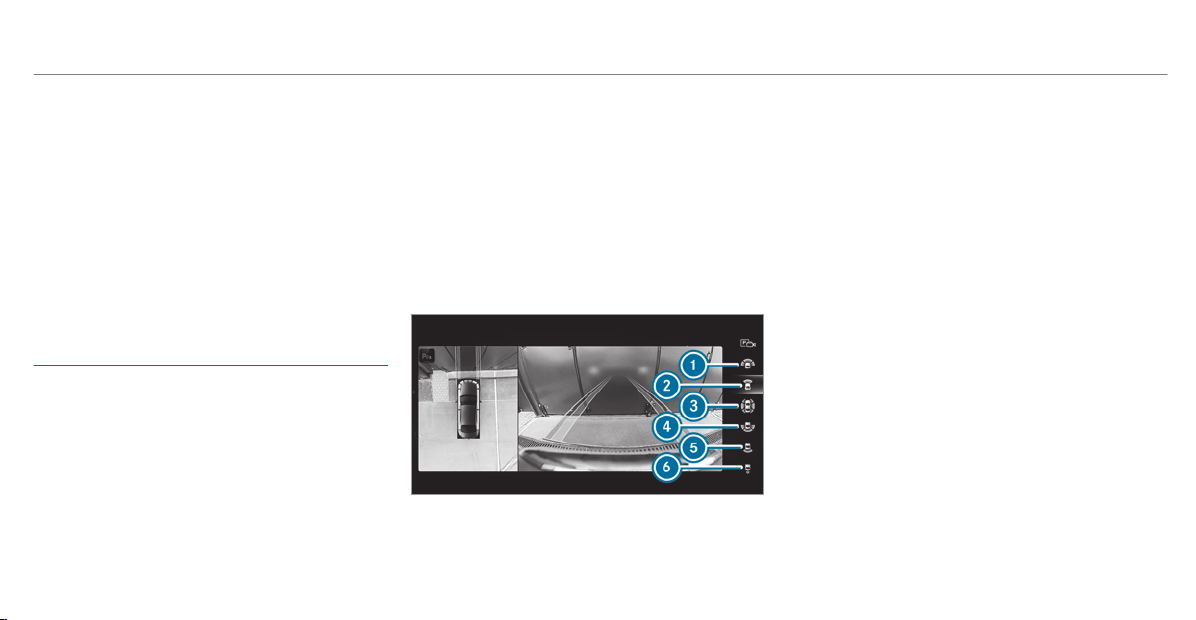
The field of vision and other functions of the rear
view camera may be restricted due to additional
accessories on the rear of the vehicle (e.g.
license plate bracket or bicycle rack).
%
The contrast of the display may be impaired
by direct sunlight or by other light sources,
e.g. when driving out of a garage. In this
case, pay particular attention.
%
Have the display repaired or replaced if, for
example, pixel errors considerably restrict its
use.
360° camera
Function of the 360° Camera
The 360° Camera is a system that consists of
four cameras. The cameras cover the immediate
vehicle surroundings. The system assists you,
e.g. when parking or at exits with reduced visibil‐
ity.
The 360° Camera is only an aid. It is not a sub‐
stitute for your attention to the surroundings.
The responsibility for safe maneuvering and
parking remains with you. Make sure that there
are no persons, animals or objects etc., in the
maneuvering area while maneuvering and park‐
ing.
The system evaluates images from the following
cameras:
R
Rear view camera
R
Front camera
R
Two side cameras in the outside mirrors
Views of the 360° Camera
You can select from different views:
1
Wide-angle view, front
2
Top view with image from the front camera
3
Top view with images from the side cameras
in the outside mir ror s
4
Wide-angle view, rear
5
Top view with image from the rear view cam‐
era
6
Top view with trailer view (if trailer hitch is
installed)
190
Driving and parking
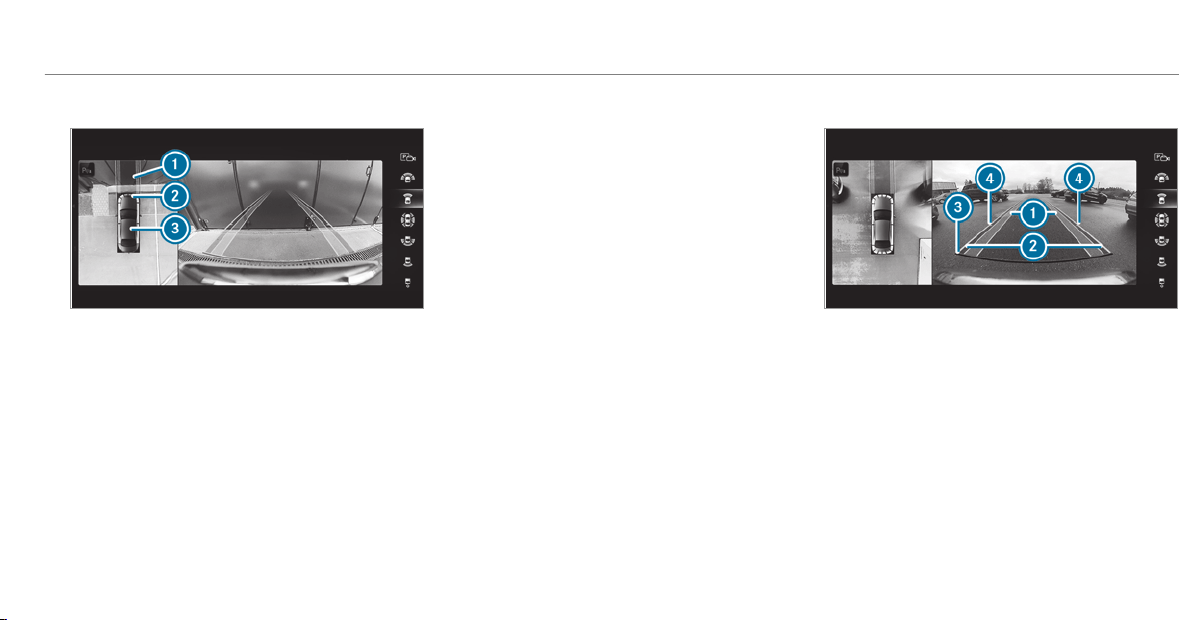
Top view
1
Lane indicating the route the vehicle will
take with the steering wheel in its current
position
2
Yellow warning display of Parking Assist
PARKTRONIC: obstacles at a distance of
approximately 3.3 ft (1.0 m) or less
3
Your vehicle from above
If the distance to the object lessens, the color of
warning display 2 changes:
R
From approx. 3.3 ft (1.0 m): yellow
R
From approx. 2.0 ft (0.6 m): orange
R
From approx. 1.0 ft (0.3 m): red
When Parking Assist PARKTRONIC is operational
and no object is detected, the segments of the
warning display are grayed out.
%
If the entire system fails, the segments of
the warning display are shown in red and the
é symbol appears in the multifunction
display in the instrument cluster.
If the system fails at the rear, the display of
the segments changes as follows:
R
The rear segments are shown in red
when backing up.
R
The rear segments are hidden when driv‐
ing forwards.
If Parking Assist PARKTRONIC is deactivated,
the warning display fades out.
Guide lines
1
Yellow lane marking the course the tires will
take at the current steering wheel angle
(dynamic)
2
Yellow guide line, vehicle width (driven sur‐
face) depending on the current steering
wheel angle (dynamic)
3
Red guide line at a distance of approximately
12 in (0.3 m) from the rear area
4
Mark at a distance of approx. 3.3 ft (1.0 m)
%
When Active Parking Assist is active, lanes
1 are displayed in green.
Driving and parking
191
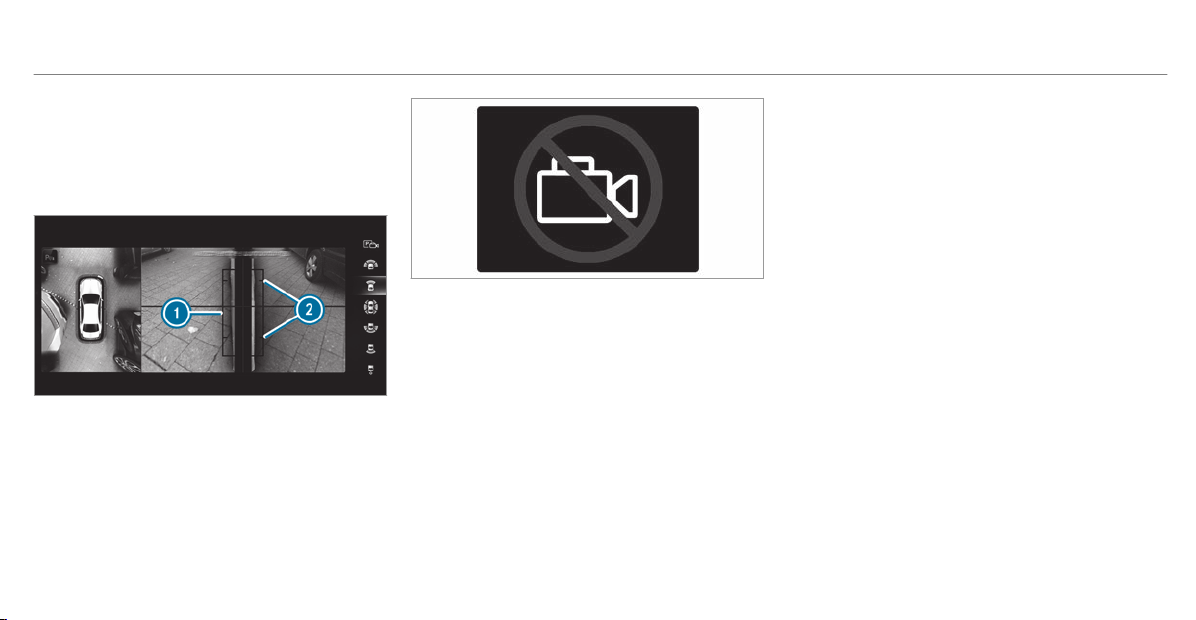
The guide lines in the multimedia system dis‐
play show the distances to your vehicle. The
distances apply to road level.
Side view of the mirror cameras
The sides of the vehicle can be seen in this view.
1
Guide line of external vehicle dimensions
with outside mirrors folded out
2
Marker of the wheel contact points
System failure
If there is no operational readiness, the following
message appears in the multimedia system:
System limitations
The 360° Camera will not function or will only
partially function in the following situations:
R
The doors are open.
R
The side mirrors are folded in.
R
The trunk lid is open.
R
There is heavy rain, snow or fog.
R
The ambient light conditions are poor, e.g. at
night.
R
The camera lens is obstructed, dirty or fog‐
ged up.
R
If cameras or vehicle components in which
the cameras are installed are damaged. In
this event, have the cameras, their positions
and their setting checked at a qualified spe‐
cialist workshop.
%
Do not use the 360° Camera under such cir‐
cumstances. You could otherwise injure oth‐
ers or collide with objects when parking the
vehicle.
If the vehicle is carrying a heavy load, leaving the
standard height can result in inaccuracies in the
guide lines and in the display of the generated
images, depending on technical conditions.
The field of vision and other functions of the
camera system may be restricted due to addi‐
tional attachments on the vehicle (e.g. license
plate bracket, bicycle rack).
%
The contrast of the display may be impaired
by abrupt direct sunlight or by other light
sources, e.g. when driving out of a garage. In
this case, pay particular attention.
%
Have the display repaired or replaced if, for
example, pixel errors considerably restrict its
use.
See the notes on cleaning the 360° Camera
(
/ page 393).
192
Driving and parking
Selecting a view for the 360° Camera
#
Engage reverse gear.
#
Select the desired view in the multimedia
system (/ page 190).
Opening the camera cover of the rear view
camera
Multimedia system:
4
©
5
Settings
5
Assistance
5
Camera & Parking
#
Select Open Camera Cover.
%
The camera cover closes automatically after
some time or after an ignition cycle.
Setting the camera as a favorite
You can call up the camera view directly in the
multimedia system by setting it as a favorite.
#
Press the ò button on the touchpad.
The main functions are displayed.
#
Navigate downwards twice.
The Favorites menu appears.
#
Select New Favorite.
#
Select Vehicle.
#
Select Camera.
Active Parking Assist
Function of Active Parking Assist
Active Parking Assist is an electronic parking
assistance system which uses ultrasound and is
automatically activated during forward travel.
The system is operational at speeds below
approximately 22 mph (35 km/h).
When all the conditions are fulfilled, the follow‐
ing symbol appears in the multifunction display
in the instrument cluster:
The system then independently locates and
measures par allel and perpendicular parking
spaces on both sides of the vehicle.
When Active Parking Assist has detected parking
spaces, the following symbol appears in the mul‐
tifunction display in the instrument cluster:
The arrows show on which side of the roadway
free parking spaces are located. They are then
shown in the multimedia system display.
The parking space and, if necessary, the parking
direction can be selected as desired. Active
Parking Assist calculates a suitable vehicle path
and assists you in parking and exiting the park‐
ing space.
Vehicles with automatic transmission: Active
Parking Assist supports with changing gear,
accelerating, braking and steering the vehicle.
Active Parking Assist is only an aid. It is not a
substitute for your attention to the surroundings.
The responsibility for safe maneuvering and
parking remains with you. Make sure that no
persons, animals or objects etc. are in the
maneuvering range.
Active Parking Assist is canceled if, among other
things, one of the following actions is carried
out:
R
You deactivate Parking Assist PARKTRONIC.
R
You deactivate Active Parking Assist.
R
You begin steering.
Driving and parking
193
R
You apply the parking brake.
R
Vehicles with automatic transmission:
You engage transmission position j.
R
ESP
®
intervenes.
R
You open the doors or the trunk lid while
driving.
System limitations
Objects located above or below the detection
range of Active Parking Assist are not detected
when the parking space is being measured.
These are also not taken into account when the
parking maneuver is calculated, e.g. overhanging
loads, overhangs or loading ramps of trucks or
the boundaries of par king spaces. In some cir‐
cumstances, Active Parking Assist may therefore
guide you into the par king space prematurely.
&
WARNING Risk of accident due to
objects located above or below the
detection range of Active Parking Assist
If there are objects above or below the
detection range, the following situations may
arise:
R
Active Parking Assist may steer too early.
R
Vehicles with automatic transmis‐
sion: The vehicle may not stop in front of
these objects.
This could cause a collision.
#
In these situations, do not use Active
Parking Assist.
Snowfall or heavy rain may lead to a parking
space being measured inaccur ately. Parking
spaces that are partially occupied by trailer
drawbars might not be identified as such or be
measured incorrectly. Only use Active Parking
Assist on level, high-grip ground.
Do not use Active Parking Assist in the following
situations:
R
In extreme weather conditions such as ice,
packed snow or in heavy rain.
R
When transporting a load that protrudes
beyond the vehicle.
R
If the parking space is on a steep downhill or
uphill gradient.
R
When snow chains are installed.
Active Parking Assist may also display parking
spaces that are not suitable for parking, e.g.:
R
Parking spaces where parking is prohibited.
R
Parking spaces on unsuitable surfaces.
Active Parking Assist will not assist you with
parking spaces at right angles to the direction of
travel in the following situations:
R
If two parking spaces are located immedi‐
ately next to each other.
R
If the parking space is immediately next to a
low obstacle such as a curb.
194
Driving and parking
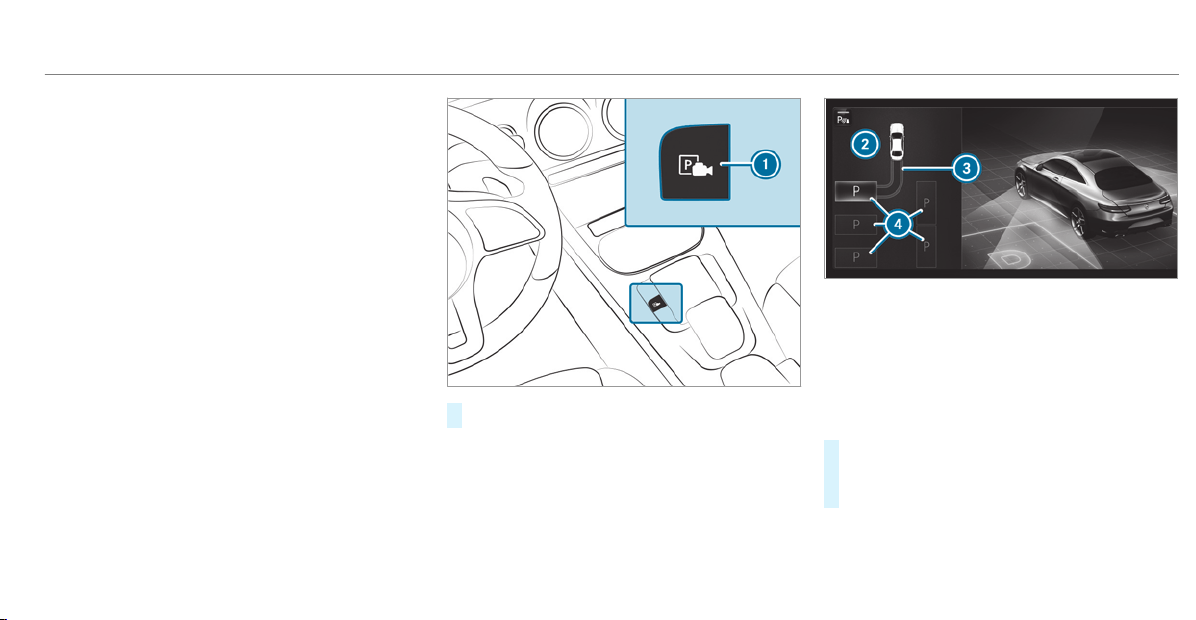
Active Parking Assist will not assist you with
parking spaces parallel or at right angles to the
direction of travel in the following situations:
R
If the parking space is on a curb.
R
If the parking space is bordered by an obsta‐
cle, e.g. a tree, a post or a trailer.
Parking with Active Parking Assist
%
Depending on the vehicle's equipment, the
button may also be located at a different
position in the center console.
#
Press button 1.
The Active Parking Assist view appears on the
multimedia system display. Area 2 displays
detected parking spaces 4 and vehicle path
3.
%
Vehicle path 3 shown on the multimedia
system display may differ from the actual
vehicle path.
#
If you have driven past a parking space: bring
the vehicle to a standstill.
#
Select desired parking space 4.
Driving and parking
195

#
Where necessary, select the parking direc‐
tion: forwards or reverse.
Vehicle path 3 is shown, depending on
selected parking space 4 and the parking
direction.
#
Confirm selected parking space 4.
%
The turn signal indicator is switched on auto‐
matically when the parking procedure
begins. The turn signal indicator is switched
off automatically when you switch to h.
You are responsible for selecting the turn signal
in accordance with the traffic conditions. If nec‐
essary, select the turn signal accordingly.
&
WARNING Risk of accident due to vehi‐
cle swinging out while parking or pulling
out of a parking space
While parking or exiting a parking space, the
vehicle swings out and can drive onto areas
of the oncoming lane.
This could cause you to collide with objects
or other road users.
#
Pay attention to objects and other road
users.
#
Where necessary, stop the vehicle or
cancel the parking procedure with
Active Parking Assist.
#
If, for example, the Please Engage Reverse
Gear message appears in the multimedia sys‐
tem display: select the corresponding trans‐
mission position.
The vehicle drives into the selected parking
space.
On completion of the parking procedure, the
Parking Assist Finished, Take Control of Vehicle
display message appears. Further maneuvering
may still be necessary.
#
After completion of the parking procedure,
safeguard the vehicle against rolling away.
When required by legal requirements or local
conditions: turn the wheels towards the curb.
%
You can stop the vehicle and change the
transmission position during the parking pro‐
cedure. The system then calculates a new
vehicle path. The parking procedure can
then be continued. If no new vehicle path is
available, the transmission position will be
changed again. If the vehicle has not yet
reached the parking space, the parking pro‐
cedure will be canceled, should a gear be
changed.
Exiting a parking space with Active Parking
Assist
Requirements:
R
The vehicle has been parked with Active
Parking Assist.
%
Depending on the vehicle's equipment, the
button may also be located at a different
position in the center console.
Please note that you are responsible for the vehi‐
cle and surroundings during the entire parking
procedure.
#
Start the vehicle.
196
Driving and parking
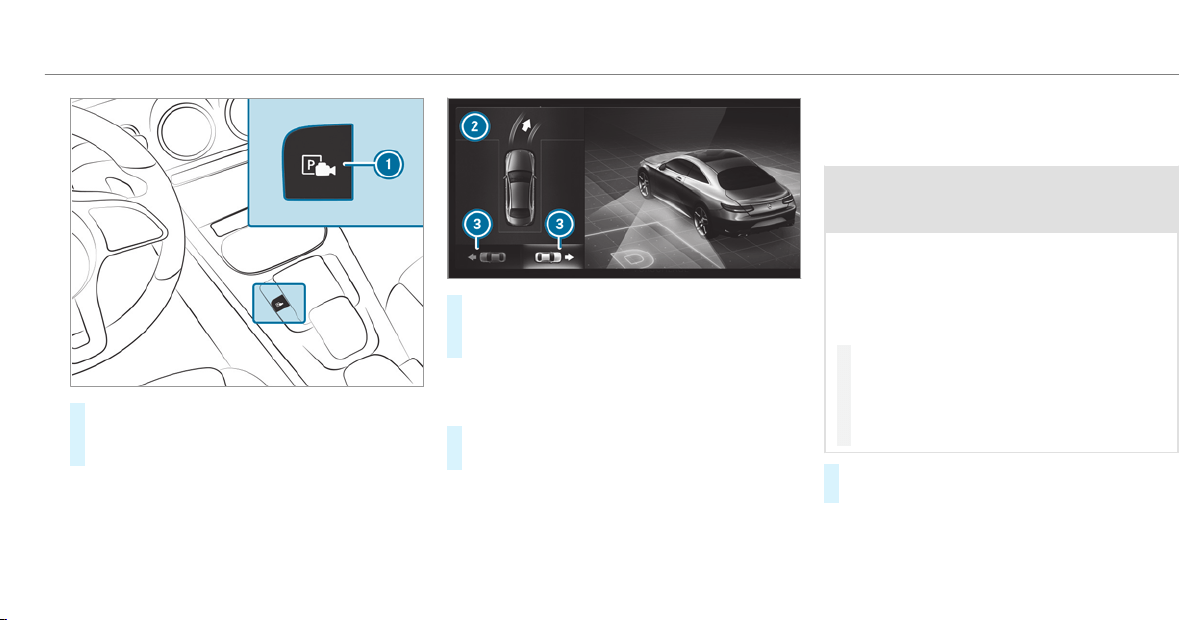
#
Press button 1.
The Active Parking Assist view appears on
the multimedia system display.
#
If the vehicle has been parked at right angles
to the direction of travel: in area 2, select
direction of travel 3.
%
The vehicle path shown on the multimedia
system display may differ from the actual
vehicle path.
#
Confirm direction of exit 3 to drive out of
the parking space.
%
The turn signal indicator is switched on auto‐
matically when the exit the parking space
procedure begins.
You are responsible for selecting the turn signal
in accordance with the traffic conditions. If nec‐
essary, select the turn signal accordingly.
&
WARNING Risk of accident due to vehi‐
cle swinging out while parking or pulling
out of a parking space
While parking or exiting a parking space, the
vehicle swings out and can drive onto areas
of the oncoming lane.
This could cause you to collide with objects
or other road users.
#
Pay attention to objects and other road
users.
#
Where necessary, stop the vehicle or
cancel the parking procedure with
Active Parking Assist.
#
If, for example, the Please Engage Forward
Gear message appears in the multimedia sys‐
Driving and parking
197
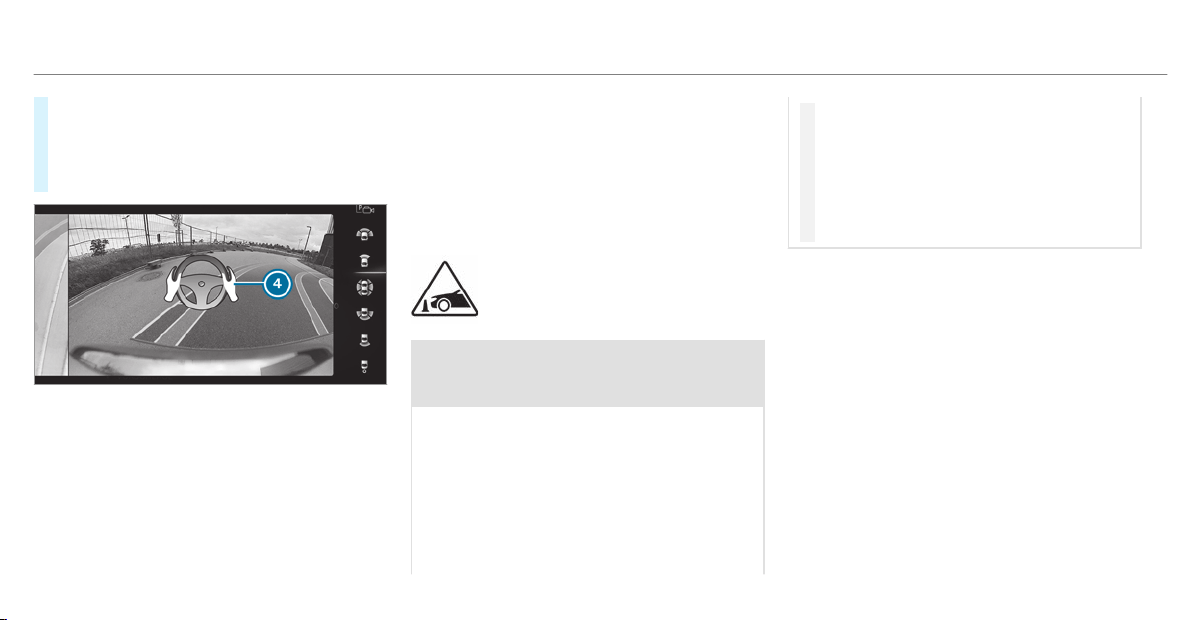
tem display: select the corresponding trans‐
mission position.
The vehicle moves out of the parking space.
The turn signal indicator is switched off auto‐
matically.
Example: vehicles with 360° Camera
After the exiting procedure has been completed,
the Parking Assist Finished, Take Control of
Vehicle message appears in the display of the
multimedia system. A warning tone and display
4 in the display of the multimedia system
prompt you to take over control of the vehicle.
You have to accelerate, brake, steer and change
gear yourself again.
Function of Drive Away Assist
Drive Away Assist can reduce the severity of an
impact when pulling away. If an obstacle is
detected in the direction of travel, the vehicle's
speed is briefly reduced to approx. 1 mph
(2 km/h). If a critical situation is detected, the
following symbol appears in the multimedia sys‐
tem display:
&
WARNING Risk of accident caused by
limited detection performance of Drive
Away Assist
Drive Away Assist cannot always clearly iden‐
tify objects and traffic situations.
In such cases, Drive Away Assist might:
R
Warn you without reason and limit the
vehicle speed.
R
Not warn you or not limit the vehicle
speed.
#
Always pay careful attention to the traf‐
fic situation; do not rely on Drive Away
Assist alone.
#
Be prepared to brake or swerve as nec‐
essary, provided the traffic situation
permits and that it is safe to take eva‐
sive action.
Drive Away Assist is only an aid. It is not a sub‐
stitute for your attention to the surroundings.
The responsibility for safe maneuvering and
parking remains with you. Make sure that no
persons, animals or objects etc. are in the
maneuvering range.
A risk of a collision may arise in the following sit‐
uations, for example:
R
If the driver mixes up the accelerator and
brake pedals.
R
If the wrong gear is selected.
The Drive Away Assist function is active under
the following conditions:
R
If Parking Assist PARKTRONIC is activated.
198
Driving and parking
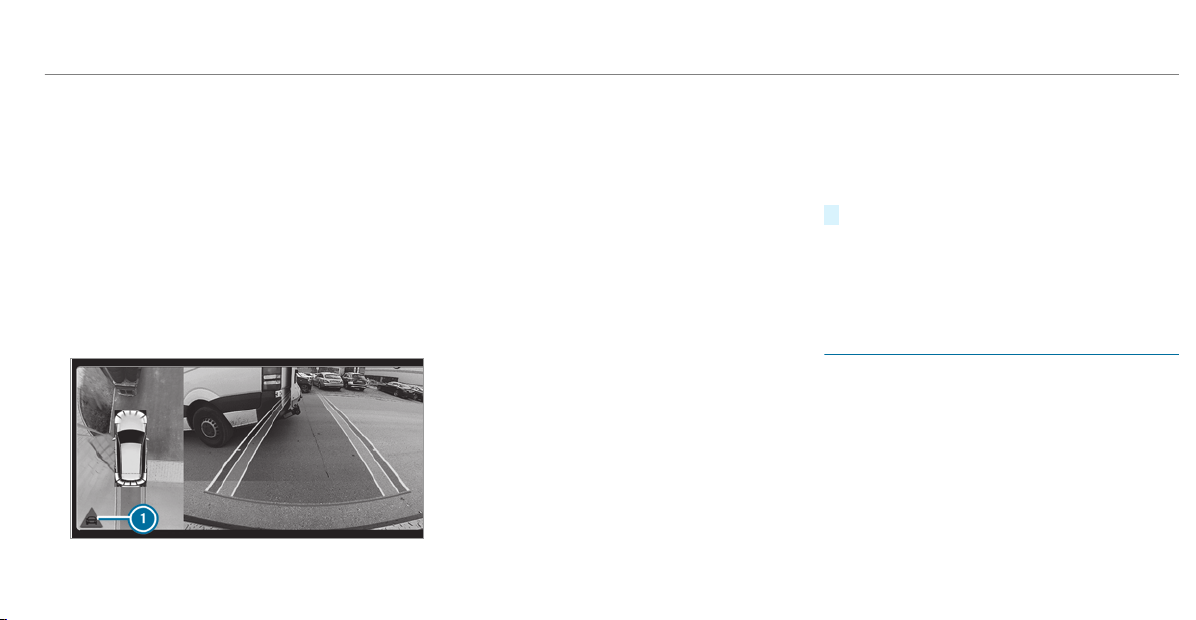
R
Every time the gear is changed to k or h
when the vehicle is at a standstill.
R
If the detected obstacle is less than approx.
3.3 ft (1.0 m) away.
R
If the maneuvering assistance function is
activated in the multimedia system.
System limitations
Drive Away Assist is not available on inclines.
Function of Cross Traffic Alert
%
Also read the instructions on Blind Spot
Assist ( / page 203).
Vehicles with Blind Spot Assist: drivers can
also be warned of any crossing traffic when
backing up out of a parking space. If a critical
situation is detected, symbol 1 appears in the
multimedia system display. If the driver does not
respond to the warning, the vehicle's brakes can
be applied automatically. To do this, the function
uses the radar sensors in the bumper. The area
adjacent to the vehicle is continually monitored.
If the radar sensors are obstructed by vehicles
or other objects, detection is not possible.
The Cross Traffic Alert function is active under
the following conditions:
R
If Blind Spot Assist is activated.
R
If the vehicle is backing up at walking pace.
R
If the maneuvering assistance function is
activated in the multimedia system.
System limitations
The Cross Traffic Alert function is not available
on inclines.
Activating/deactivating maneuvering assis‐
tance
Multimedia system:
4
©
5
Settings
5
Assistance
5
Camera & Parking
#
Switch Maneuvering Assist. on or off.
%
Maneuvering assistance must be active for
the function of Drive Away Assist
(/ page 198) and Cross Traffic Alert
(/ page 199).
ATTENTION ASSIST
Function of ATTENTION ASSIST
ATTENTION ASSIST assists you on long, monoto‐
nous journeys, e.g. on highways and trunk roads.
If ATTENTION ASSIST detects indicators of fati‐
gue or increasing lapses in concentr ation on the
part of the driver, it suggests taking a break.
ATTENTION ASSIST is only an aid. It cannot
always detect fatigue or lapses in concentration
in time. The system is not a substitute for a well-
rested and attentive driver. On long journeys,
Driving and parking
199
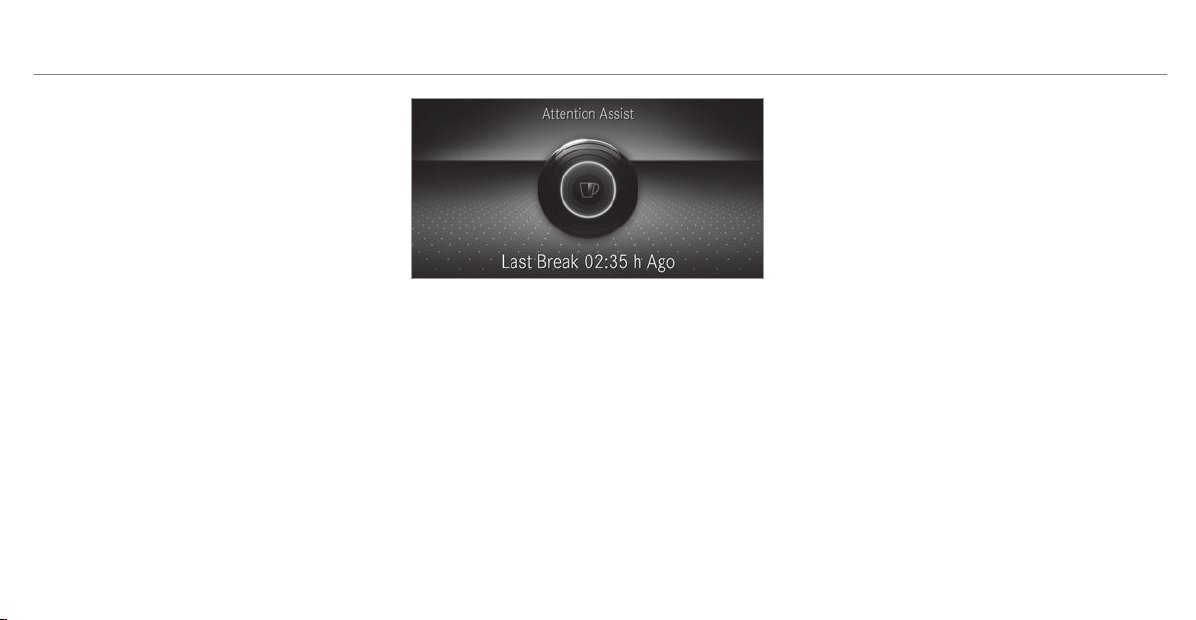
take regular breaks in good time that allow for
adequate recuperation.
You can choose between two settings.
R
Standard: normal system sensitivity.
R
Sensitive: higher system sensitivity. The
driver is warned earlier and the attention
level detected by ATTENTION ASSIST is adap‐
ted accordingly.
If drowsiness or increasing lapses in concentra‐
tion are detected, the ATTENTION ASSIST: Take
a Break! warning appears in the instrument dis‐
play. You can acknowledge the message and
take a break where necessary. If you do not take
a break and ATTENTION ASSIST continues to
detect increasing lapses in concentration, you
will be warned again after a minimum of
15 minutes.
You can have the following status information for
ATTENTION ASSIST displayed in the assistance
menu of the on-board computer:
R
The length of the journey since the last
break.
R
The attention level determined by ATTENTION
ASSIST:
-
the fuller the circle, the higher the atten‐
tional level determined
-
as your attention wanes, the circle in the
center of the display becomes smaller
If ATTENTION ASSIST is unable to calculate the
attention level and cannot issue a warning, the
System Suspended message appears.
If a warning is given in the instrument display,
the multimedia system offers to search for a rest
area. You can select a rest area and start naviga‐
tion to this rest area. This function can be activa‐
ted and deactivated in the multimedia system.
If ATTENTION ASSIST is deactivated, the é
symbol appears in the assistance graphic in the
instrument display when the engine is running.
ATTENTION ASSIST is activated automatically
when the engine is re-started. The last selected
sensitivity level remains stored.
System limitations
ATTENTION ASSIST is active in the 37 mph
(60 km/h) to 124 mph (200 km/h) speed range.
The functionality of ATTENTION ASSIST is
restricted, and warnings may be delayed or not
occur at all in the following situations:
R
If you have been driving for less than approx‐
imately 30 minutes.
200
Driving and parking
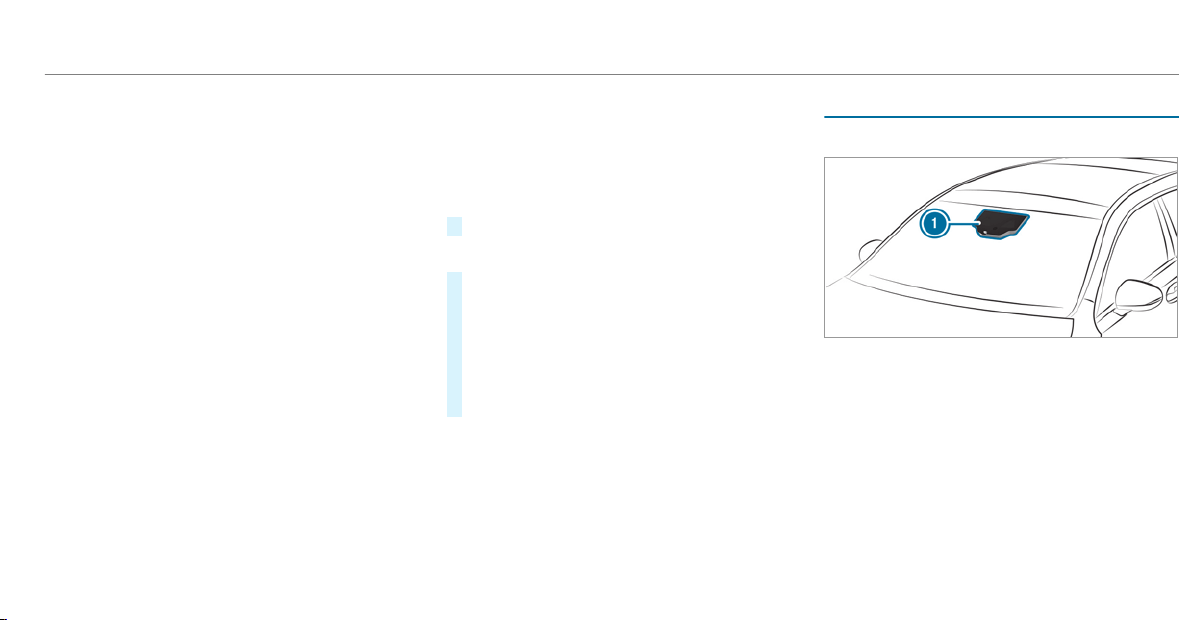
R
If the road condition is poor (uneven road
surface or potholes).
R
If there is a strong side wind.
R
If you adopt a sporty driving style (high cor‐
nering speeds or high rates of acceleration).
R
If the Steering Assist function of Active Dis‐
tance Assist DISTRONIC is active.
R
If the time has been set incorrectly.
R
In active driving situations, if you change
lanes and vary your speed frequently.
The ATTENTION ASSIST tiredness or alertness
assessment is deleted and restarted when con‐
tinuing the journey in the following situations:
R
If you switch off the engine.
R
If you unfasten your seat belt and open the
driver's door (e.g. changing drivers or taking
a break).
Setting ATTENTION ASSIST
Multimedia system:
4
©
5
Settings
5
Assistance
5
Attention Assist
Setting options
#
Select Standard, Sensitive or Off.
Suggesting a rest area
#
Select Suggest Rest Area.
#
Activate or deactivate the function.
If ATTENTION ASSIST detects fatigue or
increasing lack of attention, it suggests a
rest area in the vicinity.
#
Select the suggested rest area.
You are guided to the selected rest area.
Traffic Sign Assist
Function of Traffic Sign Assist
Traffic Sign Assist detects traffic signs with mul‐
tifunction camera 1. It assists you by display‐
ing detected speed limits and overtaking restric‐
tions in the instrument cluster and optionally in
the head-up display or central display.
Since Traffic Sign Assist also uses the data
stored in the navigation system, it can update
the display in the following situations without
detecting traffic signs:
R
When the vehicle changes roads, e.g. a free‐
way entry or exit road.
Driving and parking
201
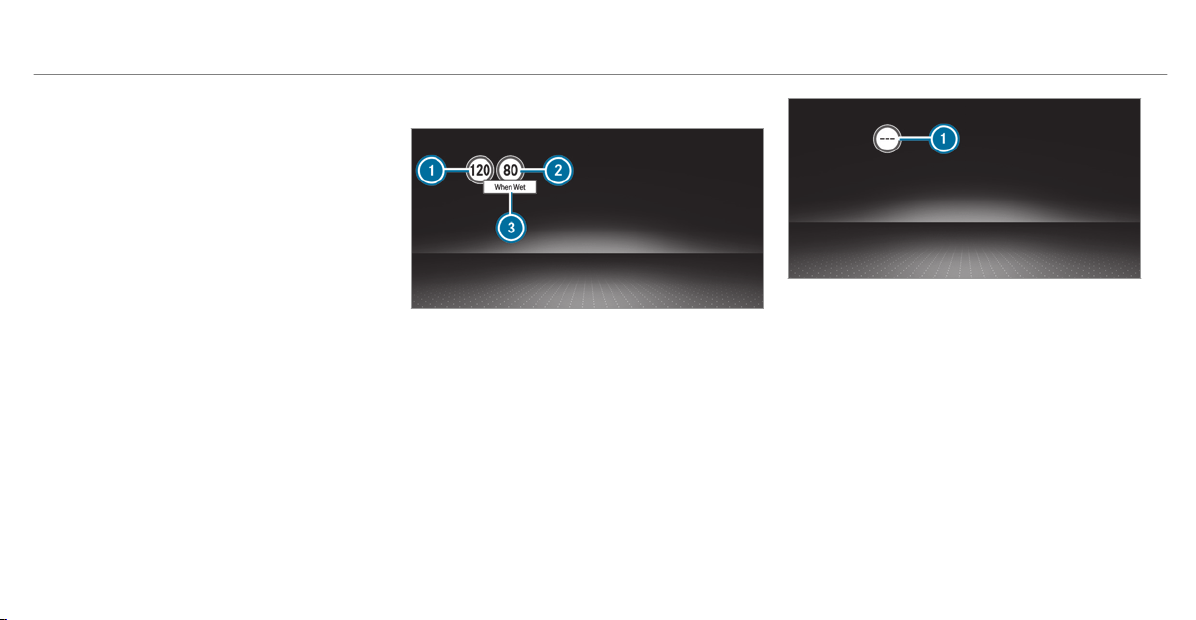
R
When a village or city boundary which is
stored in the digital map is crossed.
The camera also detects traffic signs with a
restriction indicated by an additional sign (e.g. in
wet conditions).
Traffic Sign Assist is only an aid. The driver is
responsible for keeping a safe distance to the
vehicle in front, for vehicle speed and for braking
in good time.
Warning when the maximum permissible
speed is exceeded
The system can warn you if you unintentionally
exceed the maximum permissible speed. To do
this, you can specify in the multimedia system
by how much the maximum permissible speed
can be exceeded before a warning is issued. You
can specify whether the warning is to be just a
visual warning or an acoustic one as well.
Display in the Instrument Display
Instrument Display in the Widescreen Cockpit
1
Permissible speed
2
Permissible speed when there is a restriction
3
Additional sign with restriction
Traffic Sign Assist is not available in all coun‐
tries. If it is unavailable, display 1 is shown in
the speedometer.
System limitations
The system may be impaired or may not function
in the following situations:
R
If there is poor visibility, e.g. due to insuffi‐
cient illumination of the road, if there are
highly variable shade conditions or in rain,
snow, fog or heavy spray.
R
If there is glare, e.g. from oncoming traffic,
direct sunlight or reflections.
202
Driving and parking

R
If the windshield in the area of the multifunc‐
tion camera is dirty, or if the camera is fog‐
ged up, damaged or covered.
R
If the traffic signs are hard to detect, e.g. due
to dirt or snow, or because they are covered
or due to insufficient lighting.
R
If the information in the navigation system's
digital map is incorrect or out-of-date.
R
If the signs are ambiguous, e.g. traffic signs
on construction sites or in adjacent lanes.
R
If you turn sharply when traffic signs are out‐
side the camera's field of vision.
Setting Traffic Sign Assist
Requirements:
R
For automatic adoption of speed limits:
Active Distance Assist DISTRONIC is activa‐
ted.
Multimedia system:
4
©
5
Settings
5
Assistance
5
Traffic Sign Assist
Activating/deactivating automatic adoption
of speed limits
#
Select Limit Adoption.
#
Activate or deactivate the function.
The speed limits detected by Traffic Sign
Assist are automatically adopted by Active
Distance Assist DISTRONIC.
%
If one of the following systems is activated,
the speed detected can be manually adopted
as the speed limit:
R
Active Distance Assist DISTRONIC
R
Cruise control
R
Variable limiter:
Further information (/ page 171).
Displaying detected traffic signs in the
media display
#
Select Display in HU.
#
Activate or deactivate the function.
Adjusting the type of warning
#
Select Visual & Audible, Visual or None.
Adjusting the warning threshold
This value determines the speed at which a
warning is issued when exceeded.
#
Select Warning Threshold.
#
Set the desired speed.
Blind Spot Assist and Active Blind Spot
Assist with exit warning
Function of Blind Spot Assist and Active
Blind Spot Assist with exit warning
Blind Spot Assist and Active Blind Spot Assist
use two lateral, rear-facing radar sensors to
monitor the area up to 130 ft (40 m) behind your
vehicle and 10 ft (3 m) directly next to your vehi‐
cle.
If a vehicle is detected at speeds above approx‐
imately 8 mph (12 km/h) and this vehicle subse‐
quently enters the monitoring range directly next
to your vehicle, the warning lamp in the outside
mirror lights up red.
Driving and parking
203
If a vehicle is detected close to the side of your
vehicle, the red warning lamp in the outside mir‐
ror flashes. If you switch on the turn signal indi‐
cator in the corresponding direction, a warning
tone sounds once. If the turn signal indicator
remains switched on, all other detected vehicles
are indicated only by the flashing of the red
warning lamp.
If you overtake a vehicle quickly, no warning is
given.
&
WARNING Risk of accident despite Blind
Spot Assist
Blind Spot Assist does not react to vehicles
approaching and overta king you at a greatly
different speed.
As a result, Blind Spot Assist cannot warn
drivers in this situation.
#
Always pay careful attention to the traf‐
fic situation and maintain a safe dis‐
tance at the side of the vehicle.
Blind Spot Assist and Active Blind Spot Assist
are only aids. They may fail to detect some vehi‐
cles and are no substitute for attentive driving.
Always ensure that there is sufficient distance to
the side for other road users and obstacles.
Exit warning
The exit warning is an additional function of
Blind Spot Assist and can warn vehicle occu‐
pants about approaching vehicles when leaving
the vehicle when stationary.
&
WARNING Risk of accident despite exit
warning
The exit warning reacts neither to stationary
objects nor to vehicles approaching you at a
greatly different speed.
As a result, the exit warning cannot warn
drivers in these situations.
#
Always pay particular attention to the
traffic situation when opening the doors
and make sure there is sufficient clear‐
ance.
If there is a vehicle in the monitoring range, this
is indicated in the outside mirror. If a vehicle
occupant opens the door on the side with the
warning, a warning tone sounds and the warning
lamp in the outside mirror starts to flash.
This additional function is only available when
Blind Spot Assist is activated and up to a maxi‐
mum of three minutes after the ignition has
been switched off. The exit warning is no longer
available once the warning lamp in the outside
mirror flashes three times.
The exit warning is only an aid and not a substi‐
tute for the attention of vehicle occupants. The
responsibility for opening and closing the doors
and for leaving the vehicle remains with the vehi‐
cle occupants.
System limitations
Blind Spot Assist and Active Blind Spot Assist
may be limited in the following situations:
R
if there is dirt on the sensors or the sensors
are obscured
R
in poor visibility, e.g. due to fog, heavy rain or
snow
R
if there are narrow vehicles, e.g. bicycles or
motorbikes
R
if the road has very wide or narrow lanes
204
Driving and parking
R
if vehicles are not driving in the middle of
their lane
Warnings may be issued in error when driving
close to crash barriers or similar solid lane bor‐
ders. Always make sure that there is sufficient
distance to the side for other traffic or obsta‐
cles.
Warnings may be interrupted when driving along‐
side long vehicles, for example trucks, for a pro‐
longed time.
Blind Spot Assist is not operational when reverse
gear is engaged.
The exit warning may be limited in the following
situations:
R
When the sensors are covered by adjacent
vehicles in narrow parking spaces.
R
When people approach the vehicle.
R
In the event of stationary or slowly moving
objects.
Function of brake application (Active Blind
Spot Assist)
The brake application function is only available
for vehicles with a Driving Assistance Package.
If Active Blind Spot Assist detects a risk of a side
impact in the monitoring range, a cour se-cor‐
recting brake application is carr ied out. This is
designed to help you avoid a collision.
The course-correcting brake application is availa‐
ble in the speed range between approximately
20 mph (30 km/h) and 125 mph (200 km/h).
&
WARNING Risk of accident despite
brake application of Active Blind Spot
Assist
A course-correcting brake application cannot
always prevent a collision.
#
Always steer, brake or accelerate your‐
self, especially if Active Blind Spot
Assist warns you or makes a course-
correcting brake application.
#
Always maintain a safe distance at the
sides.
&
WARNING Risk of accident despite
Active Blind Spot Assist
Active Blind Spot Assist does not react to the
following:
R
If vehicles overtake too closely on the
side, placing them in the blind spot area
R
Vehicles approaching and overtaking you
at a greatly different speed
As a result, Active Blind Spot Assist may nei‐
ther give warnings nor intervene in such sit‐
uations.
#
Always pay careful attention to the traf‐
fic situation and maintain a safe dis‐
tance at the side of the vehicle.
Driving and parking
205
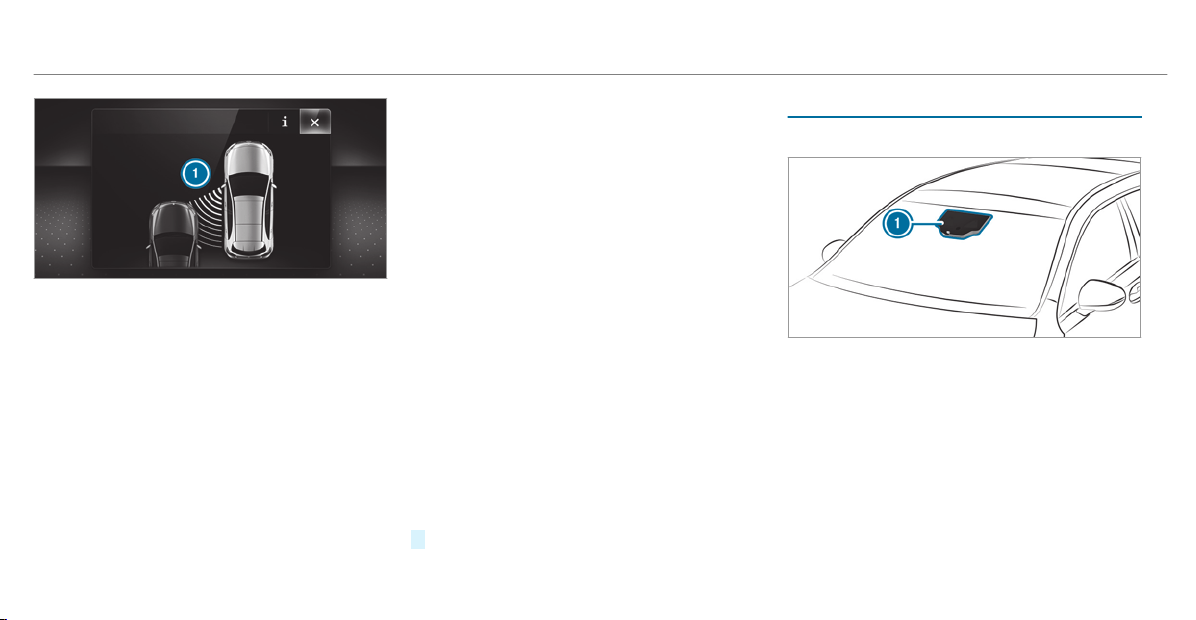
If a course-correcting brake application occurs,
the red warning lamp flashes in the outside mir‐
ror and a warning tone sounds. In addition, dis‐
play
1 indicating the danger of a side collision
appears in the multifunction display.
In rare cases, the system may make an inappro‐
priate brake application. This brake application
may be interrupted at any time if you steer
slightly in the opposite direction or accelerate.
System limitations
Either a cour se-correcting brake application
appropriate to the driving situation, or none at
all, may occur in the following situations:
R
Vehicles or obstacles, e.g. crash barriers, are
located on both sides of your vehicle.
R
A vehicle approaches too closely on the side.
R
You have adopted a sporty driving style with
high cornering speeds.
R
You brake or accelerate significantly.
R
A driving safety system intervenes, e.g. ESP
®
or Active Brake Assist.
R
ESP
®
is deactivated.
R
A loss of tire pressure or a defective tire is
detected.
Activating/deactivating Blind Spot Assist or
Active Blind Spot Assist
Multimedia system:
4
©
5
Settings
5
Assistance
#
Activate or deactivate Blind Spot Assist.
Active Lane Keeping Assist
Function of Active Lane Keeping Assist
Active Lane Keeping Assist monitors the area in
front of your vehicle by means of multifunction
camera 1. It serves to protect you against unin‐
tentionally leaving your lane. You will be warned
by vibration pulses in the steering wheel and gui‐
ded by a course-correcting brake application
back into your lane.
You are warned by vibration pulses in the steer‐
ing wheel in the following circumstances:
R
Active Lane Keeping Assist detects a lane
marking.
206
Driving and parking
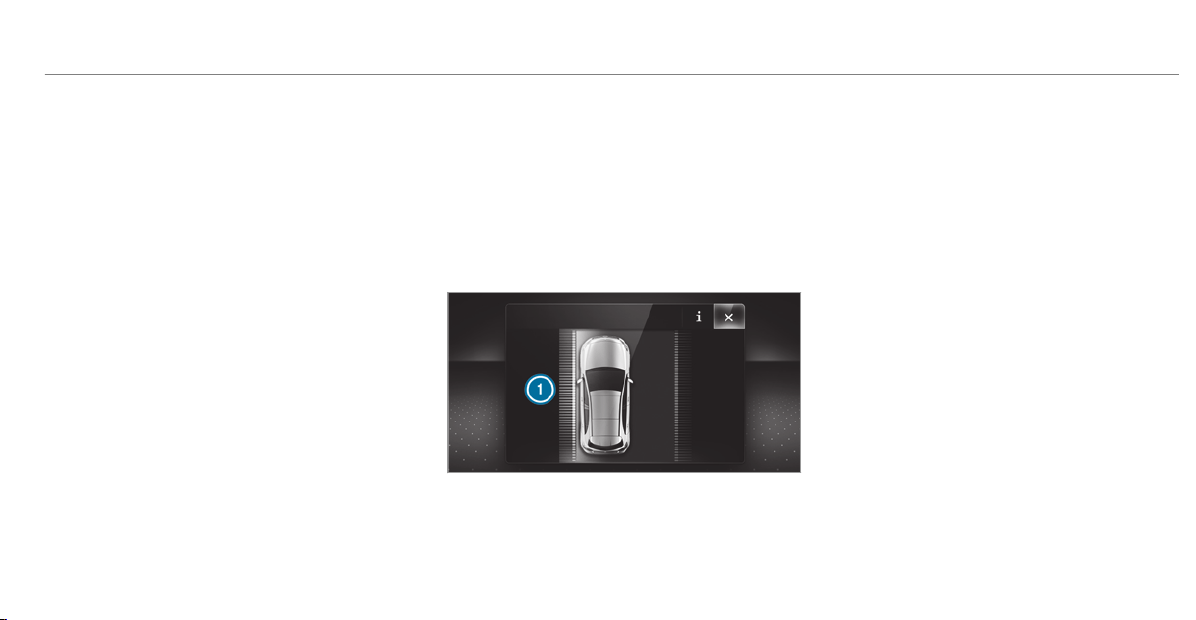
R
A front wheel drives over this lane marking.
You will also be guided back into your lane by
means of a course-correcting brake application
if the following conditions are met:
R
Active Lane Keeping Assist detects lane
markings on both edges of the lane.
R
A front wheel drives over a solid lane mar k‐
ing.
You can activate or deactivate the Active Lane
Keeping Assist warning.
Active Lane Keeping Assist can neither reduce
the risk of an accident if you fail to adapt your
driving style nor override the laws of physics. It
cannot take into account road, weather or traffic
conditions. Active Lane Keeping Assist is only an
aid. You are responsible for the distance to the
vehicle in front, for vehicle speed, for braking in
good time and for staying in your lane.
Active Lane Keeping Assist can bring the vehicle
back into the lane with a lane-correcting brake
application. In the case of a broken lane marking
being detected, a brake application will only be
made if a vehicle has been detected in the adja‐
cent lane. Oncoming traffic can be detected.
Vehicles with Driving Assistance package or
Driving Assistance Plus package: overtaking
vehicles and vehicles in adjacent lanes can also
be detected.
Active Lane Keeping Assist is available in the
speed range between 37 mph (60 km/h) and
124 mph (200 km/h).
If a lane-correcting brake application occurs, dis‐
play 1 appears in the multifunction display.
Sensitivity of Active Lane Keeping Assist
%
The availability of the following function is
country-dependent.
A lane-correcting brake application also occurs
in the Sensitive setting in the following situa‐
tions:
R
Active Lane Keeping Assist detects a solid
lane marking.
R
A front wheel drives over this lane marking.
System limitations
No lane-correcting brake application occurs in
the following situations:
R
You clearly and actively steer, brake or accel‐
erate.
R
You have switched on the turn signal indica‐
tor (situation-dependent).
R
A driving safety system intervenes, such as
ESP
®
, Active Brake Assist or Active Blind
Spot Assist.
R
You have adopted a sporty driving style with
high cornering speeds or high rates of accel‐
eration.
Driving and parking
207

R
When ESP
®
is deactivated.
R
If a loss of tire pressure or a faulty tire has
been detected and displayed.
The system may be impaired or may not function
in the following situations:
R
If there is poor visibility, e.g. due to insuffi‐
cient illumination of the road, if there are
highly variable shade conditions or in rain ,
snow, fog or heavy spray.
R
If there is glare, e.g. from oncoming traffic,
the sun or reflections.
R
If the windshield in the area of the multifunc‐
tion camera is dirty, or if the camera is fog‐
ged up, damaged or covered.
R
If there are no lane markings, or several
unclear lane markings are present for one
lane, e.g. around roadworks.
R
If the lane markings are worn, dark or cov‐
ered.
R
If the distance to the vehicle in front is too
short and thus the lane markings cannot be
detected.
R
If the lane markings change quickly, e.g.
lanes branch off, cross one another or
merge.
R
If the roadway is very narrow and winding.
Vehicles with Driving Assistance package:
Active Lane Keeping Assist uses radar sensors
to monitor several areas around the vehicle. If
the radar sensors in the rear bumper are dirty or
covered with snow, the system may be impaired
or may not function. If an obstacle in the lane in
which you are driving has been detected, no
lane-correcting brake application occurs.
Activating/deactivating Active Lane Keeping
Assist
Multimedia system:
4
©
5
Settings
5
Schnellzugriff (Quick access)
5
Active Lane Keeping Assist
#
Activate or deactivate the function.
Setting Active Lane Keeping Assist
Multimedia system:
4
©
5
Settings
5
Assistance
5
Act. Lane Keep. Assist
Setting the sensitivity
%
The availability of this function is dependent
on the country.
#
Select Standard, Sensitive or Off.
Activating/deactivating the haptic warning
#
Select Warning.
Activate or deactivate the function.
Vehicle towing instructions
The vehicle is not suitable for the use of tow bar
systems that are used for flat towing or dinghy
towing, for example. Attaching and using tow bar
systems can lead to damage on the vehicle.
When you are towing a vehicle with tow bar sys‐
tems, safe driving characteristics cannot be
guaranteed for the towing vehicle or the towed
vehicle. The vehicle-trailer combination may
swer ve from side to side. Comply with the per‐
208
Driving and parking

mitted towing methods (/ page 409) and
the instructions for towing with both axles on the
ground (/ page 410).
Driving and parking
209
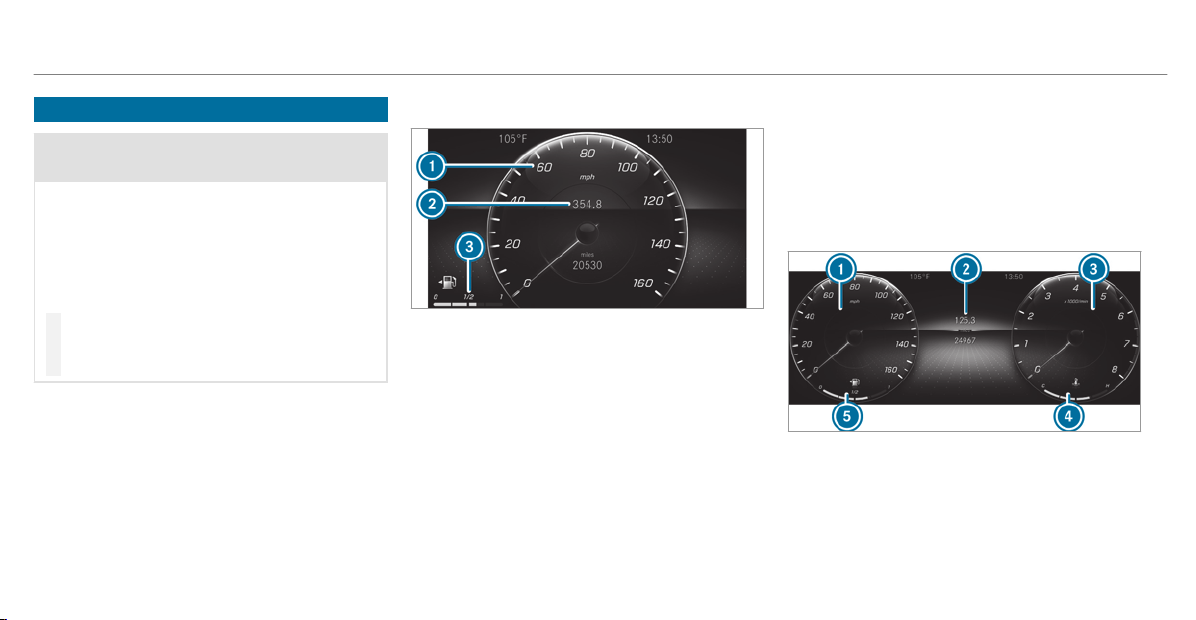
Instrument Display overview
&
WARNING Risk of accident due to an
instrument display malfunction
If the Instrument Display has failed or mal‐
functioned, you may not recognize function
restrictions applying to safety relevant sys‐
tems.
The operating safety of your vehicle may be
impaired.
#
Drive on carefully.
#
Have the vehicle checked immediately
at a qualified specialist workshop.
If the operating safety of your vehicle is
impaired, park the vehicle safely as soon as pos‐
sible. Contact a qualified specialist workshop.
Instrument Display (standard)
1
Speedometer (example)
2
Multifunction display
3
Fuel level and fuel filler flap location indica‐
tor
Further content can also be shown on multifunc‐
tion display 2:
R
Assistance graphic
R
Telephone
R
Navigation
R
Trip
R
Radio
R
Media
R
Vehicle dynamics
R
Styles
R
Maintenance
Instrument Display in the Widescreen Cock‐
pit
1
Speedometer (example)
2
Multifunction display
3
Tachometer (example)
4
Coolant temperature gauge
5
Fuel level and fuel filler flap location indica‐
tor
210
Instrument Display and on-board computer
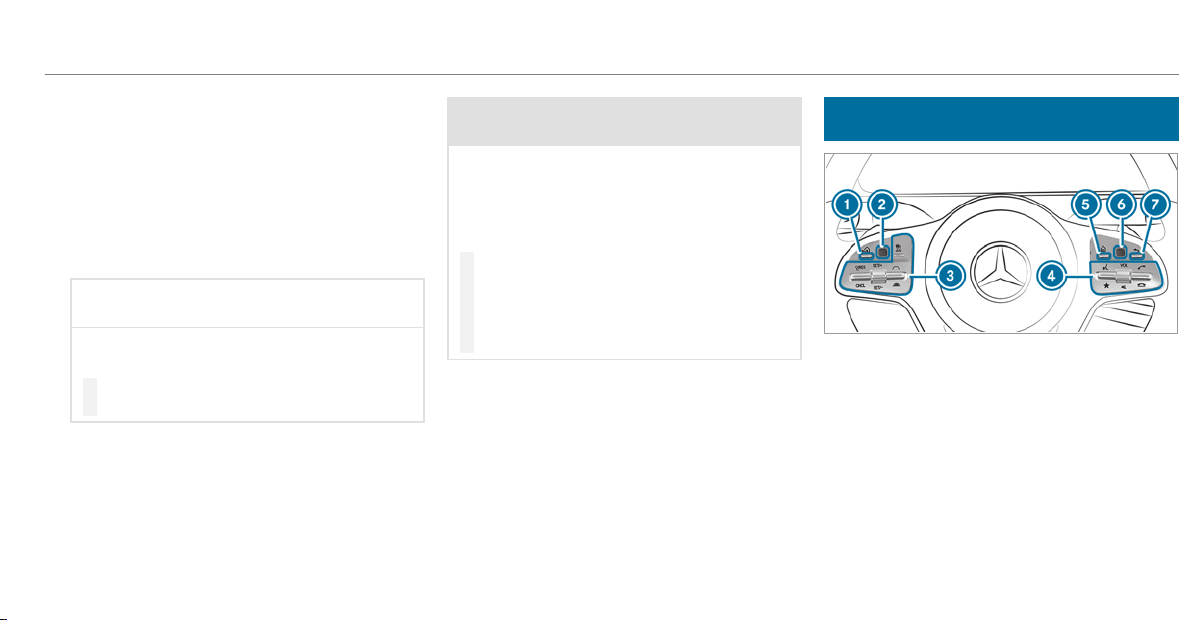
%
In addition to multifunction display 2, fur‐
ther content can be shown on displays 1
and 3 (/ page 214).
The segments on speedometer 1 indicate the
system status for the following:
R
Cruise control (/ page 167)
R
Active Distance Assist DISTRONIC
(/ page 169)
*
NOTE Engine damage due to excessively
high engine speeds
The engine will be damaged if you drive with
the engine in the overrevving range.
#
Do not drive with the engine in the over‐
revving range.
The fuel supply will be interrupted to protect the
engine when the red mark on the tachometer
(overrevving range) is reached.
Vehicles with Widescreen Cockpit: dur ing nor‐
mal operating conditions, the coolant tempera‐
ture display may rise to the red mark.
&
WARNING Danger of burns when open‐
ing the hood
If you open the hood when the engine has
overheated or during a fire in the engine
compartment, you could come into contact
with hot gases or other escaping operating
fluids.
#
Before opening the hood, allow the
engine to cool down.
#
In the event of a fire in the engine com‐
partment, keep the hood closed and
call the fire service.
Overview of the buttons on the steering
wheel
1
¤ Back/Home button (press and hold),
on-board computer
2
Touch Control, on-board computer
3
Control panel for cruise control or Active
Distance Assist DISTRONIC
4
Control panel for MBUX multimedia system:
£ Voice Control System
ß Displays favorites
VOL: control knob, adjusts the volume or
switches the sound off 8 (press)
6 Makes/accepts a call
Instrument Display and on-board computer
211
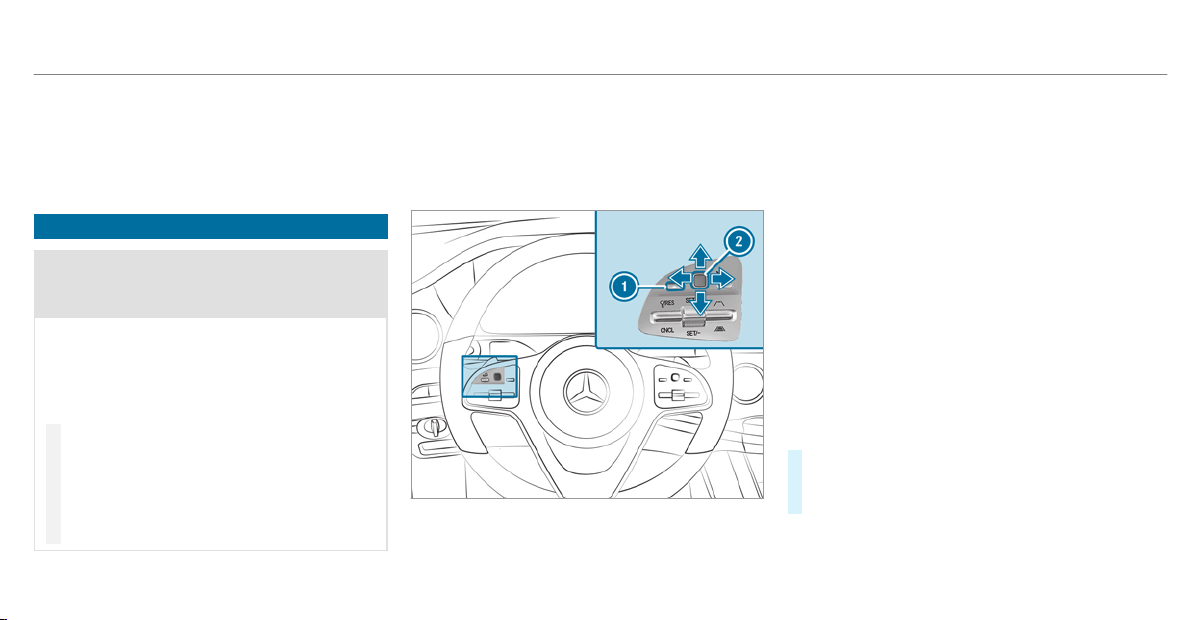
~ Rejects/ends a call
5
ò Calls up the home screen
6
Touch Control multimedia system
7
% Back button (press and hold)
Operating the on-board computer
&
WARNING Risk of distraction from infor‐
mation systems and communications
equipment
If you operate information and communica‐
tion equipment integrated in the vehicle
when driving, you will be distracted from the
traffic situation. This could also cause you to
lose control of the vehicle.
#
Only operate this equipment when the
traffic situation permits.
#
If you cannot be sure of this, stop the
vehicle whilst paying attention to road
and traffic conditions and operate the
equipment with the vehicle stationary.
Observe the legal requirements for the country
in which you are currently driving when you
operate the on-board computer.
%
The on-board computer displays appear on
the multifunction display (/ page 215).
The on-board computer can be operated using
left-hand Touch Control 2 and left-hand back/
home button 1.
When the on-board computer is being operated,
different acoustic signals sound as operating
feedback, e.g. when the end of a list is reached
or when you are scrolling through a list.
The following menus are available:
R
Assistance
R
Phone
R
Navigation
R
Trip
R
Radio
R
Media
R
Designs & Disp.
R
Service
The menus can be called up from the menu bar
on the multifunction display.
#
To call up the menu bar: press the back
button on the left 1 until the menu bar is
displayed.
%
Vehicles without Active Distance Assist
DISTRONIC: press the ò button to call
up the menu bar of the on-board computer.
212
Instrument Display and on-board computer
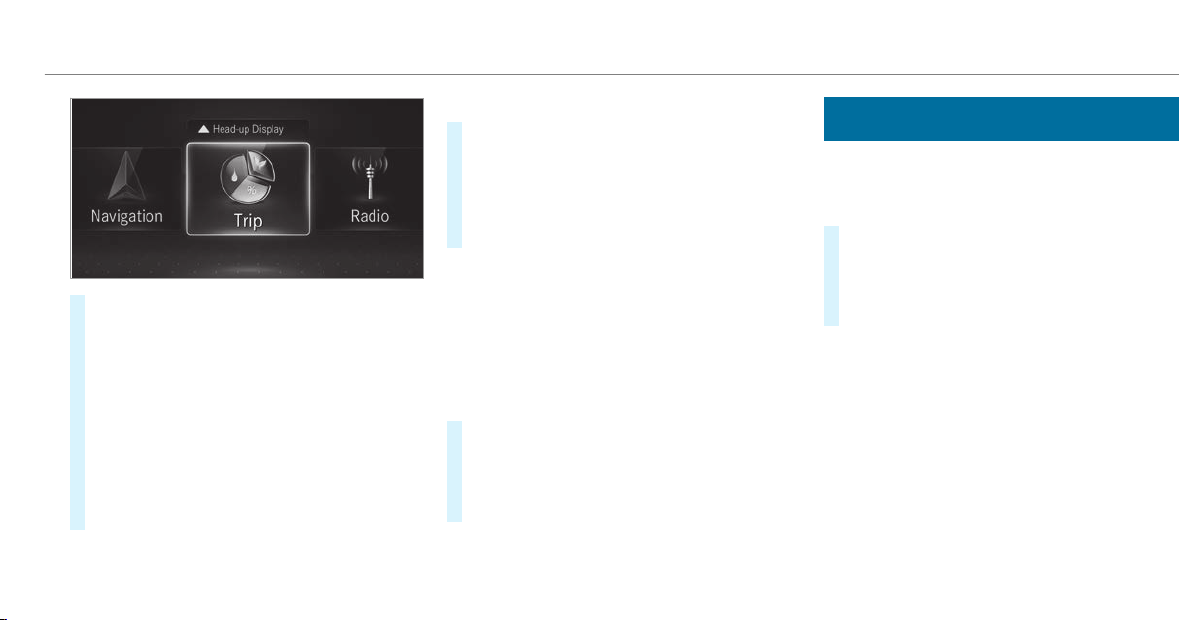
#
To scroll in the menu bar: swipe left or
right on left-hand Touch Control 2.
#
To call up a menu or confirm a selection:
press the left-hand Touch Control 2.
#
To scroll through displays or lists on the
menu: swipe upwards or downwards on left-
hand Touch Control 2.
#
To call up a submenu or confirm a selec‐
tion: press left-hand Touch Control 2.
#
To exit a submenu: press back button on
the left 1.
Selecting the Head-up Display
#
If the Head-up Display is switched on: swipe
upwards on left-hand Touch Control 2.
#
Swipe upwards on left-hand Touch Control
2 to switch to the Head-up Display.
#
If the Head-up Display is switched off: press
left-hand Touch Control 2.
Full-surface menu display
Vehicles with an Instrument Display in the
Widescreen Cockpit: the following menus can
be shown in full on the Instrument Display:
R
Assistance
R
Trip
R
Navigation
#
In the corresponding menu, use left-hand
Touch Control 2 to scroll to the end of the
list.
#
Press left-hand Touch Control 2.
The selected menu will be displayed in full.
Adjusting the design of the Instrument Dis‐
play
On-board computer:
4
Designs & Disp.
Setting the design
#
Swipe upwards or downwards on the left-
hand Touch Control.
#
Press the left-hand Touch Control.
The Instrument Display is shown in the selec‐
ted design.
The following designs can be selected, depend‐
ing on the vehicle equipment:
R
Classic
R
Sport
R
Progressive
R
Understated
R
Standard Displays
Instrument Display and on-board computer
213
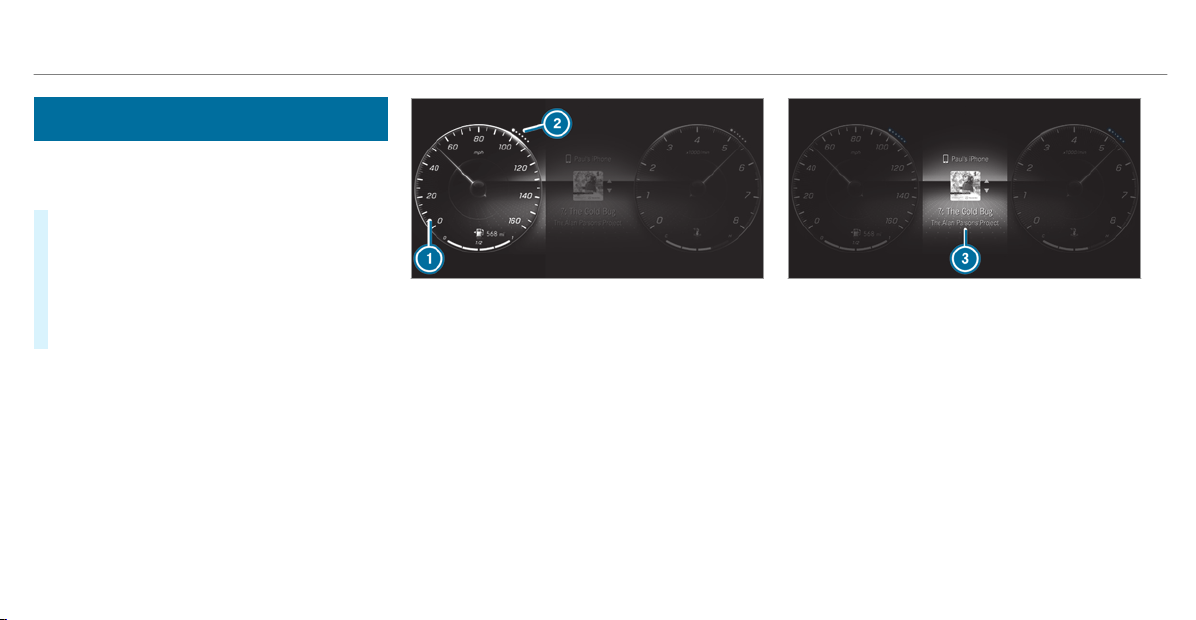
Showing display content on the instrument
cluster
Vehicles with an Instrument Display in the
Widescreen Cockpit: additional display content
can be shown on the instrument cluster.
#
To select display content: swipe to the
right on the left-hand Touch Control.
#
Swipe upwards or downwards on the left-
hand Touch Control to select the required
display content.
When the display content is selected, it will
briefly be highlighted.
1
Display content, lef t (example: speedometer)
2
The index points show the selected display
content.
Display content selection, lef t:
R
Speedometer
R
Time/date
R
Trip computer From Start and From Reset
R
Range
R
Audio
3
Display content, center (example: media)
Display content selection, center:
R
Assistance graphic
R
Telephone
R
Navigation
R
Trip
R
Radio
R
Media
R
Styles and display
R
Maintenance
214
Instrument Display and on-board computer
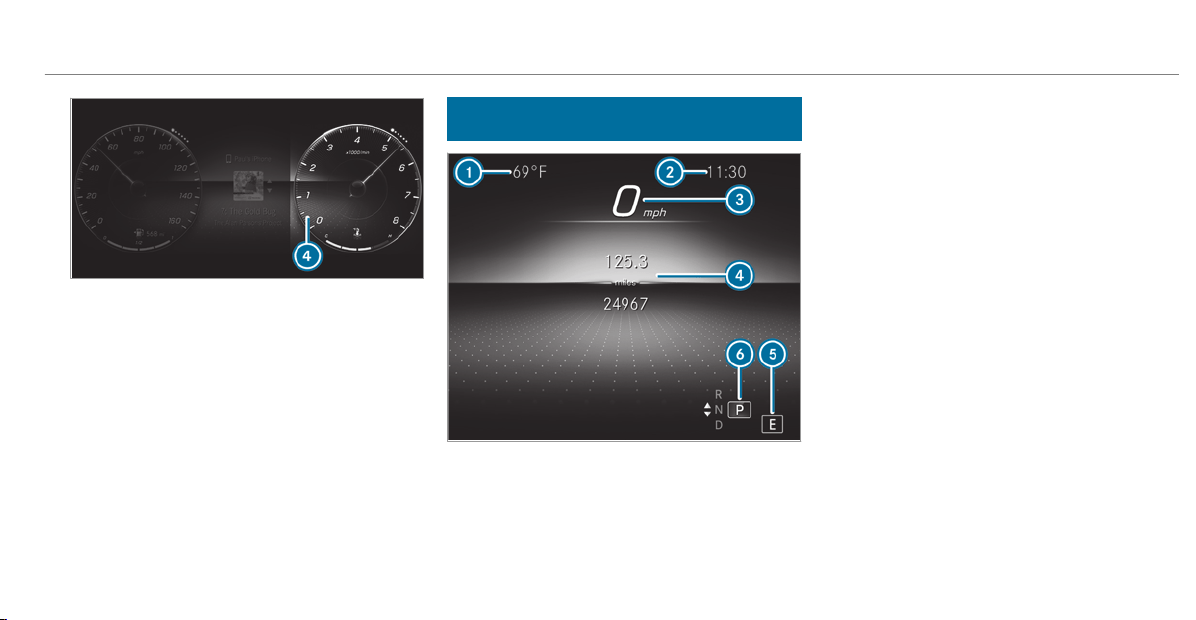
4
Display content, right (example: tachometer)
Display content selection, right:
R
Tachometer
R
Average fuel consumption
R
ECO display
R
Navigation
R
G-Meter
R
Assistance graphic
Overview of displays on the multifunction
display
1
Outside temperature
2
Time
3
Digital speedometer
4
Display section
5
Drive program
6
Transmission position
%
Vehicles with standard Instrument Dis‐
play: the position of the displays differs from
those shown here.
Further displays on the multifunction display:
Z
Gearshift recommendation
(/ page 143)
u
Active Parking Assist activated
(/ page 195)
é
Parking Assist PARKTRONIC deactivated
(/ page 186)
¯
Cruise control (/ page 167)
ç
Active Distance Assist DISTRONIC
(/ page 169)
æ
Active Brake Assist(/ page 167)
è
Active Steering Assist(/ page 175)
Ã
Active Lane Keeping
Assist(/ page 206)
±
Active Lane Change
Assist(/ page 177)
è
ECO start/stop function(/ page 135)
ë
HOLD function (/ page 181)
Instrument Display and on-board computer
215
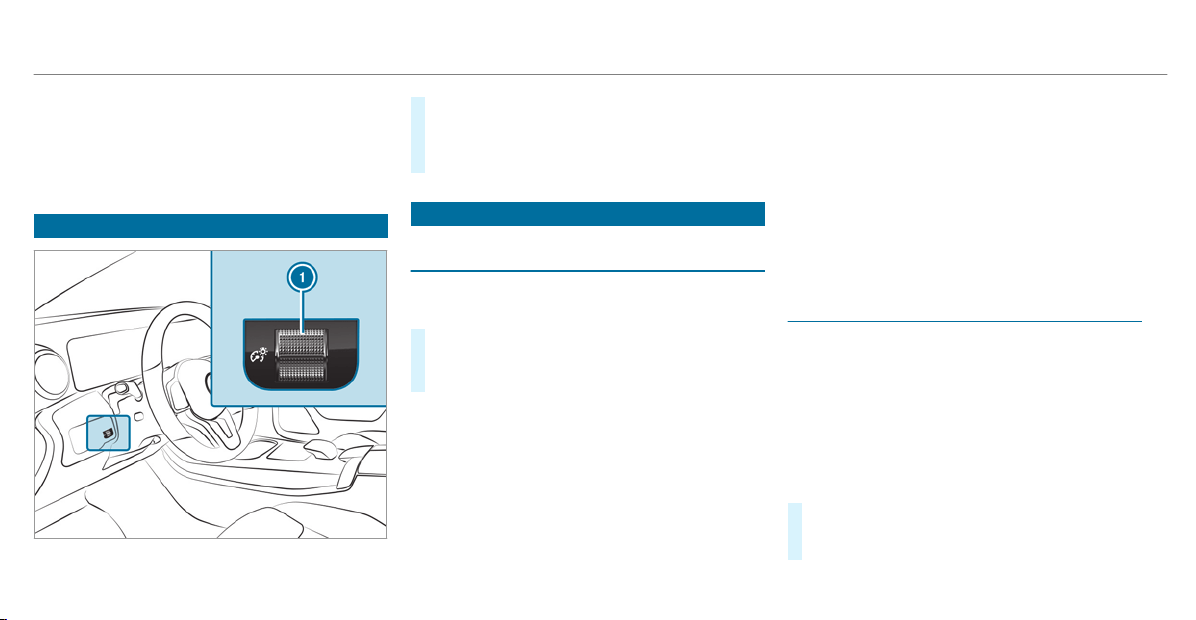
_
Adaptive Highbeam Assist
(/ page 116)
Vehicles with Traffic Sign Assist: Detected
instructions and traffic signs ( / page 201).
Adjusting the instrument lighting
#
Turn brightness control 1 up or down.
The lighting of the Instrument Display and in
the control elements of the vehicle interior is
adjusted.
Menus and submenus
Functions on the service menu of the on-
board computer
On-board computer:
4
Service
#
To select the function: swipe upwards or
downwards on the left-hand Touch Control.
#
Press the left-hand Touch Control.
Functions on the Service menu:
R
Message memory (/ page 460)
R
Tires:
-
Restart the tire pressure loss warning
system (/ page 425)
-
Check the tire pressure with the tire pres‐
sure monitor (/ page 423)
-
Restart the tire pressure monitor
(/ page 424)
R
ASSYST PLUS: calls up the service due date
(/ page 381)
R
Coolant: coolant temperature display
R
Engine Oil Level: engine oil level
R
Consumption Info: fuel life cycle consump‐
tion
Calling up the assistance graphic
On-board computer:
4
Assistance
The following displays are available on the assis‐
tant display menu:
R
Assistance graphic
R
Attention level (/ page 199)
R
Full-screen menu display
#
To switch between the displays: swipe
upwards or downwards on the left-hand
Touch Control.
216
Instrument Display and on-board computer
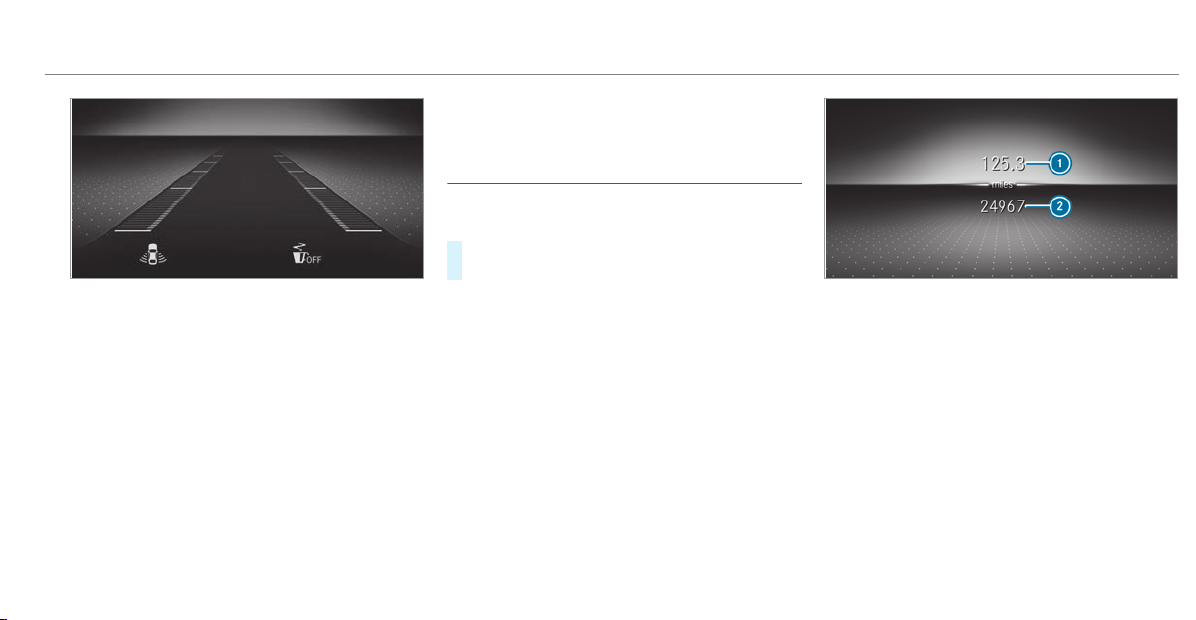
Status displays on the assistance graphic:
R
é ATTENTION ASSIST: deactivated
R
Light lane markings: Active Lane Keeping
Assist enabled
R
Green lane markings: Active Lane Keeping
Assist active
R
¸ Gray radar waves next to vehicle: Blind
Spot Assist or Active Blind Spot Assist ena‐
bled
R
¸ Green rad ar waves next to vehicle:
Blind Spot Assist or Active Blind Spot Assist
active
R
DISTRONIC Active Distance Assist displays
(/ page 169)
Calling up displays on the trip menu
On-board computer:
4
Trip
#
To select a display: swipe upwards or down‐
wards on the left-hand Touch Control.
Trip menu in the standard cockpit:
R
Speedometer
R
Tachometer
R
Range and current fuel consumption
R
ECO display (/ page 136)
R
Trip computer From Start and From Reset
Trip menu in the Widescreen Cockpit:
R
Standard display
R
Current fuel consumption
R
ECO display (/ page 136)
R
Trip computer From Start and From Reset
R
Full screen menu display
Example: standard display
1
Trip distance
2
Total distance
Instrument Display and on-board computer
217
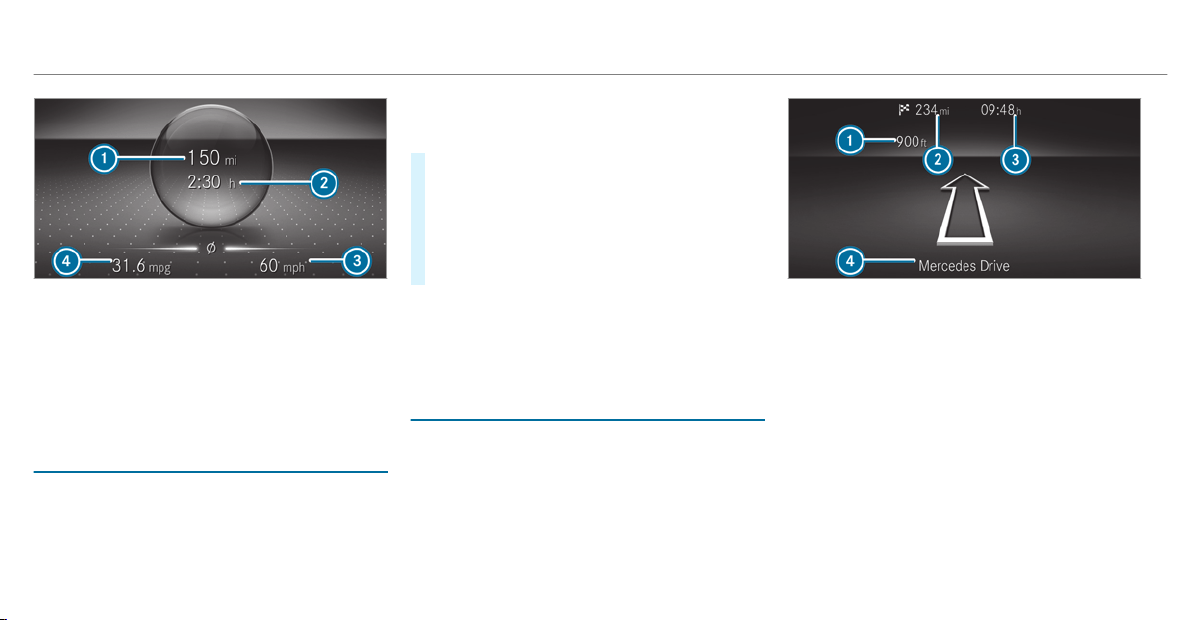
Example: trip computer
1
Total distance
2
Driving time
3
Average speed
4
Average fuel consumption
Resetting values on the trip menu of the on-
board computer
On-board computer:
4
Trip
You can reset the values of the following func‐
tions:
R
Trip distance
R
Trip computer From Start and From Reset
R
ECO display(/ page 136)
#
To select the function to be reset: swipe
upwards or downwards on the left-hand
Touch Control.
#
Press the left-hand Touch Control.
#
Select Yes .
#
Press the left-hand Touch Control.
If you press and hold the left-hand Touch Con‐
trol, the values of the function will be reset
immediately.
Calling up navigation instructions on the on-
board computer
On-board computer:
4
Navigation
The following displays are available in the naviga‐
tion menu:
R
Navigation view
R
Map view
R
Full-surface map view
Example: no change of direction announced
1
Distance to the next change of direction
2
Distance to the next destination
3
Estimated arrival time at next destination
4
Current road
218
Instrument Display and on-board computer
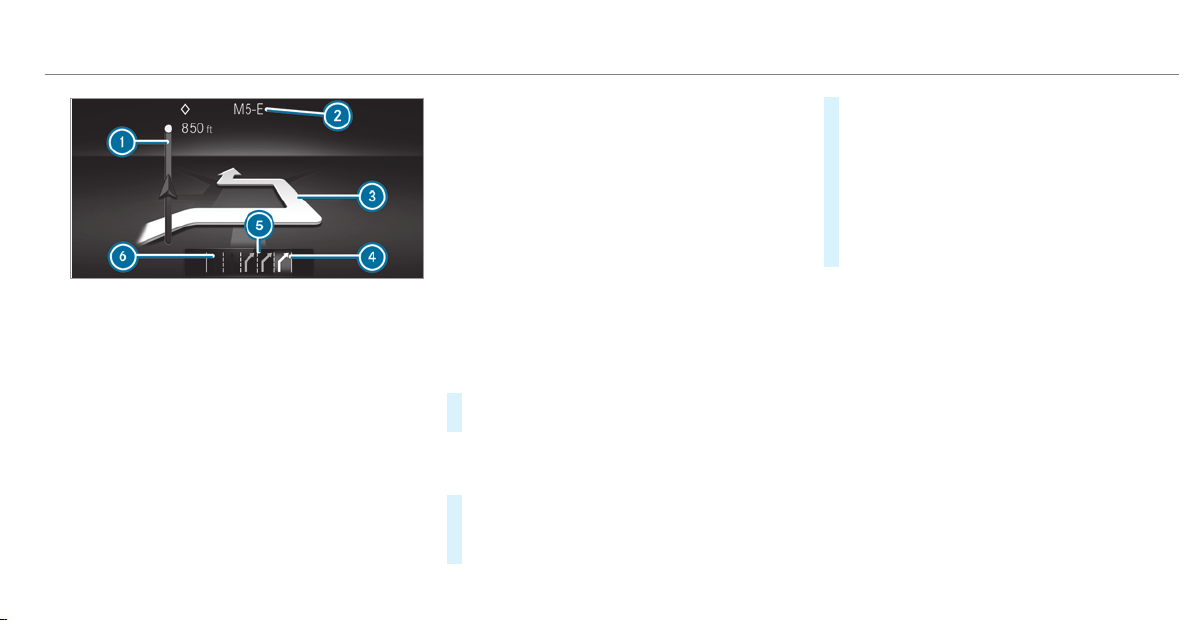
Example: change of direction announced
1
Distance to the change of direction
2
Road to which the change of direction leads
3
Change-of-direction symbol
4
Recommended lane (white)
5
Possible lane
6
Lane not recommended (dark gray)
Further possible displays on the Navigation
menu:
R
Direction of Travel: display of direction of
travel and road currently being traveled on.
R
New Route... or Calculating Route...: a new
route is being calculated.
R
Road Not Mapped: the road is unknown, e.g.
for newly built roads.
R
No Route: no route could be calculated to
the selected destination.
R
Off Map: the map for the current location is
not available.
R
Area of Destination Reached: when an inter‐
mediate destination is reached, the inter‐
mediate destination flag will be displayed
with the number of the intermediate destina‐
tion Î. After this, route guidance will con‐
tinue. Once the destination is reached, the
checkered flag Í will be displayed. Route
guidance will now be complete
#
To exit the menu: press the back button on
the left.
Vehicles with the MBUX multimedia system:
You can also start navigation to one of the
recent destinations on the Navigation menu:
#
Press the left-hand Touch Control.
#
To select a destination: swipe upwards or
downwards on the left-hand Touch Control.
#
Press the left-hand Touch Control.
Route guidance will start.
If route guidance has already been activated,
a request will appear asking whether you
wish to end the current route guidance.
#
Select Yes.
#
Press the left-hand Touch Control.
Route guidance will start.
Instrument Display and on-board computer
219
Selecting radio stations using the on-board
computer
On-board computer:
4
Radio
1
Frequency range
2
Station
3
Name of track
When you select a station from the memory pre‐
sets, the preset will appear next to the station
name. When you select a saved station in the
frequency range, an asterisk will appear next to
the station name.
#
To select a radio station: swipe upwards or
downwards on the left-hand Touch Control.
Selecting the frequency range or memory
preset
#
Press the left-hand Touch Control.
#
Swipe upwards or downwards on the left-
hand Touch Control.
#
Press the left-hand Touch Control.
Media playback using the on-board computer
On-board computer:
4
Media
1
Media source
2
Track number and current track
3
Name of artist (example)
#
To change tracks on an active media
source: swipe upwards or downwards on the
left-hand Touch Control.
Changing a media source
#
Press the left-hand Touch Control.
220
Instrument Display and on-board computer

#
To select a media source: swipe upwards
or downwards on the left-hand Touch Con‐
trol.
#
Press the left-hand Touch Control.
Dialing telephone numbers using the on-
board computer
&
WARNING Risk of distraction from infor‐
mation systems and communications
equipment
If you operate information and communica‐
tion equipment integrated in the vehicle
when driving, you will be distracted from the
traffic situation. This could also cause you to
lose control of the vehicle.
#
Only operate this equipment when the
traffic situation permits.
#
If you cannot be sure of this, stop the
vehicle whilst paying attention to road
and traffic conditions and operate the
equipment with the vehicle stationary.
When telephoning, you must observe the legal
requirements for the country in which you are
currently driving.
Requirements:
R
The mobile phone is connected to the multi‐
media system.
On-board computer:
4
Phone
The most recent telephone calls (dialed,
received and missed calls) are displayed on the
Phone menu.
#
To select an entry: swipe upwards or down‐
wards on the left-hand Touch Control.
#
Press the left-hand Touch Control.
If there is only one telephone number
saved to an entry: the telephone number
will be selected.
#
If there are multiple telephone numbers
saved to an entry: swipe upwards or down‐
wards on the left-hand touch control to
select the desired telephone number.
#
Press the left-hand Touch Control.
The telephone number will be dialed.
The following displays may appear instead of the
telephone numbers dialed:
R
Please Wait: the application is starting. If a
Bluetooth
®
connection to the mobile phone
is not established, the menu for authorizing
and connecting a mobile phone will be dis‐
played on the multimedia system
(
/ page 331).
R
Updating Data…: the call list is being upda‐
ted.
R
Importing Contacts: contacts are being
imported from the mobile phone or a storage
medium.
Accepting/rejecting a call
Vehicles with Head-up Display: when you
receive a call, the Incoming Call message will
appear on the Head-up Display.
#
Swipe upwards or downwards on the left-
hand Touch Control and select 6 (Accept)
or ~ (Reject).
#
Press the left-hand Touch Control.
You may accept/reject the call using button
6 or ~ on the steering wheel.
Instrument Display and on-board computer
221
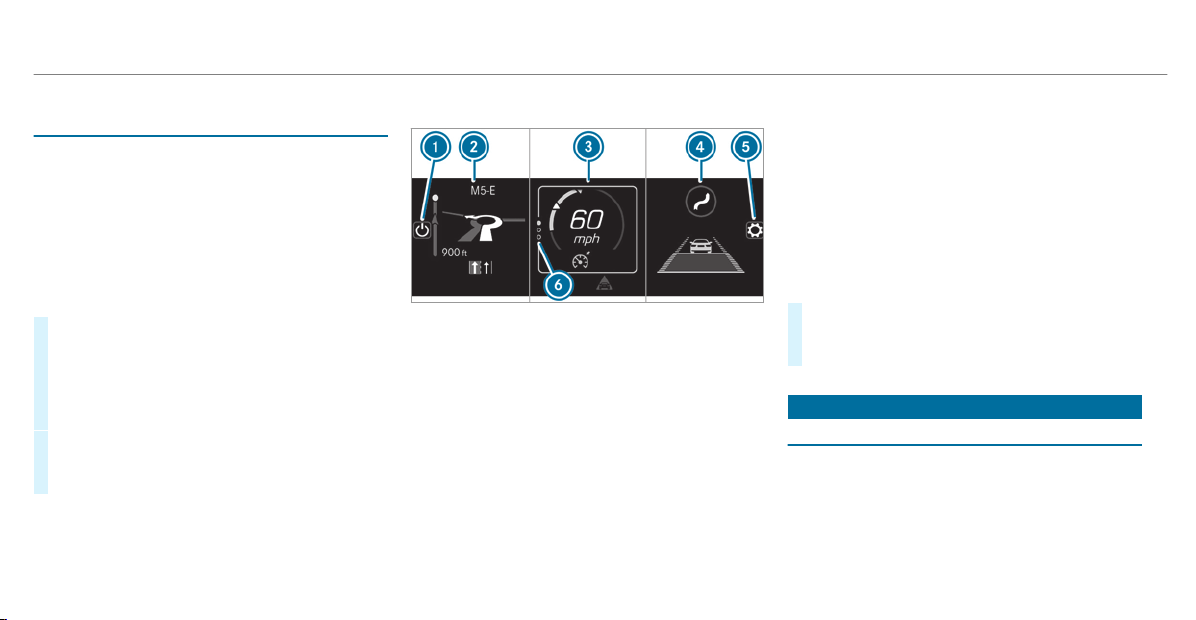
Setting the Head-up Display using the on-
board computer
On-board computer:
4
HEAD-UP DISPLAY
The following Head-up Display settings can be
selected:
R
Position
R
Brightness
R
Displays
#
To select a setting: swipe upwards or down‐
wards on the left-hand Touch Control.
#
Press the left-hand Touch Control.
#
To adjust the position: swipe upwards or
downwards on the left-hand Touch Control.
#
To adjust the brightness: swipe to the left
or right on the left-hand Touch Control.
#
Press the left-hand Touch Control.
Selecting what the Head-up Display shows
(Example)
1
To switch the Head-up Display on/off
2
Left display area
Navigation system
Average consumption
G-Meter
3
Central display area
Set speed in the driver assistance system
(e.g. cruise control)
Warnings from driver assistance systems
(e.g. distance warning)
4
Right display area
Traffic Sign Assist
Assistance graphic
5
To select the settings
6
Index points
Non-required display areas 2 to 4 can be hid‐
den.
%
In audio mode, the station name or track will
be shown temporarily when the audio source
is being actively operated.
#
To select a display: swipe upwards or down‐
wards on the left-hand Touch Control.
#
Press the left-hand Touch Control.
Head-up Display
Function of the Head-up Display
The Head-up Display projects important informa‐
tion in the driver's f ield of vision, e.g. current
speed.
Depending on the vehicle's equipment, different
content can be shown in the three areas of the
Head-up Display (
/ page 222).
222
Instrument Display and on-board computer

System limitations
The visibility of the displays will be affected by
the following conditions:
R
Seat position
R
Image position
R
Ambient light
R
Wet roadway
R
Objects on the display cover
R
Polarization in sunglasses
%
In extreme sunlight, sections of the display
may appear washed out. You can correct this
by deactivating and reactivating the Head-up
Display.
Instrument Display and on-board computer
223
Notes on operating safety
&
WARNING Risk of distraction from infor‐
mation systems and communications
equipment
If you operate information and communica‐
tion equipment integrated in the vehicle
when driving, you will be distracted from the
traffic situation. This could also cause you to
lose control of the vehicle.
#
Only operate this equipment when the
traffic situation permits.
#
If you cannot be sure of this, stop the
vehicle whilst paying attention to road
and traffic conditions and operate the
equipment with the vehicle stationary.
&
WARNING Risk of distraction from oper‐
ating mobile communication equipment
while the vehicle is in motion
If you operate mobile communication equip‐
ment when driving, you will be distracted
from the traff ic situation. This could also
cause you to lose control of the vehicle.
#
Only operate this equipment when the
vehicle is stationary.
For your own safety, always observe the follow‐
ing points when operating mobile communica‐
tions equipment and especially your voice con‐
trol system:
R
Observe the legal requirements for the coun‐
try in which you are driving.
R
While driving, only operate mobile communi‐
cations equipment and your voice control
system when the traffic conditions permit it.
You may otherwise be distracted from the
traffic conditions and cause an accident,
injuring yourself and others.
R
If you use the voice control system in an
emergency your voice can change and your
telephone call, e.g. an emergency call, can
thereby be unnecessarily delayed.
R
Familiarize yourself with the voice control
system functions before starting the journey.
Operation
Overview of operating the multifunction
steering wheel
The Voice Control System is operational approx‐
imately thirty seconds after the ignition is
switched on.
224
Voice Control System
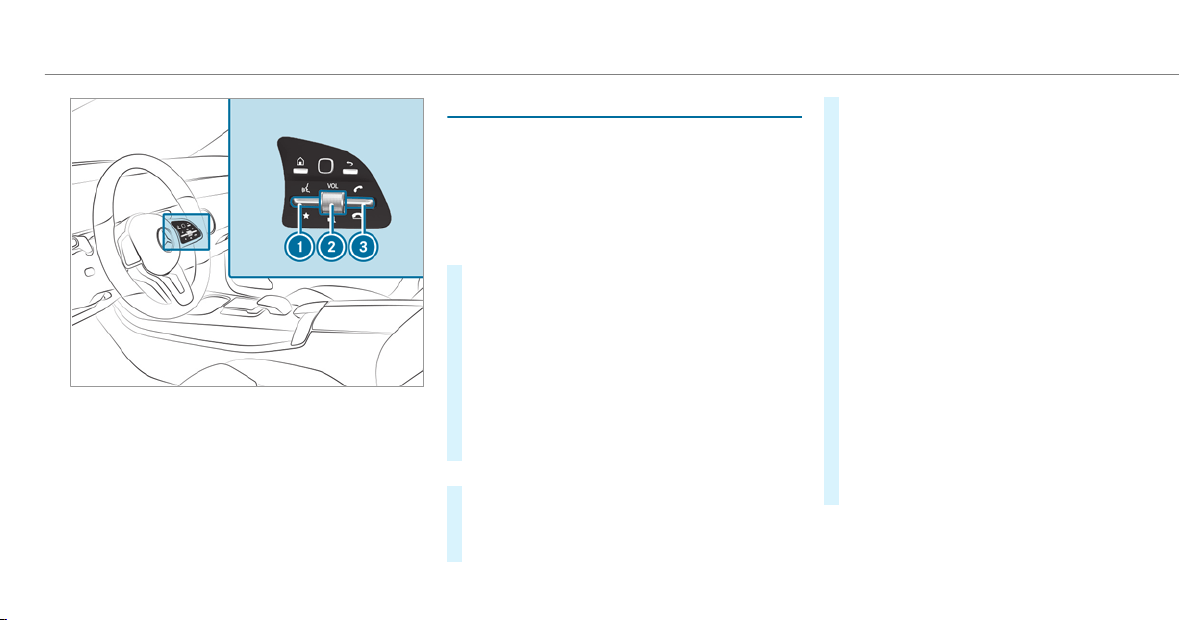
1
Press the rocker switch up: £ starts the
dialog
2
Press the control knob: 8 switches the
sound off or on (ends the dialog)
Turn the control knob up/down: increases/
decreases the volume
3
Press the rocker switch down: ~ rejects/
ends a call (ends the dialog)
Conducting a dialog
For the dialog with the Voice Control System,
you can use complete sentences of colloquial
language as voice commands, such as, for exam‐
ple, "Please show me the list of the last calls" or
"How warm is it outside?". It is not necessary to
first change to the relevant application such as
"Telephone" or "Vehicle function".
#
To activate or continue dialog by using a
keyword: say "Hello Mercedes" to activate
the Voice Control System. Voice activation
must be switched on in the multimedia sys‐
tem (/ page 226). For this, it is not nec‐
essary to press up the £ rocker switch on
the multifunction steering wheel.
Voice activation can also be directly com‐
bined with a voice command, e.g. "Hi
Mercedes, how fast can I drive?".
or
#
Press the £ rocker switch up on the mul‐
tifunction steering wheel.
You can say a voice command after an
acoustic signal.
#
To correct an entr y: say the Correction
voice command.
#
To select an entry from the selection list:
say the line number or the contents.
#
To browse the selection list: say the Next
or Back voice command.
#
To interrupt the dialog: say the Pause voice
command.
The dialog can be continued with the "Hello
Mercedes" voice command or by pressing up
the £ rocker switch on the multifunction
steering wheel.
#
To jump to the preceding dialog: say the
Back voice command.
#
To jump back to the top dialog level: say
the Home voice command.
#
To cancel the dialog: say the Close voice
command or press the 8 or ~ button
on the multifunction steering wheel.
Voice Control System
225

#
To interrupt a voice output: speak in the
middle of a voice dialog when the system is
still answering.
The voice output is shortened and the con‐
clusion is reached more quickly.
%
The Speak During Voice Output option must
be switched on in the multimedia system for
this (/ page 226).
Overview of the Voice Control System opera‐
ble functions
You can use the Voice Control System to operate
the following functions depending on the vehicle
equipment:
R
Telephone
R
Text messages
R
Navigation
R
Address book
R
Radio
R
Media
R
Vehicle functions
R
Weather
Full functionality is only available for you with
activation of online voice control
(/ page 226).
Notes on the language setting
You can change the language of the Voice Con‐
trol System via the system language settings. If
the set system language is not supported by the
Voice Control System, English will be selected.
The Voice Control System is available in English,
French, Portuguese and Spanish.
Setting the Voice Control System (multime‐
dia system)
Requirements:
For online voice control:
R
Your vehicle is connected with your
Mercedes me user account
(/ page 352).
R
There is an Internet connection
(/ page 355).
For activation of contacts for online use:
R
Online voice control is activated.
Multimedia system:
4
©
5
Settings
5
System
5
LINGUATRONIC
Switching voice activation of the Voice Con‐
trol System on/off
#
Select Voice Activation "Hey Mercedes".
Depending on the previous status, the func‐
tion is activated or deactivated.
If the function is active, the dialog can be
activated by using the "Hello Mercedes"
voice command.
Switching on voice interruption
#
Select Speak During Voice Output.
If the function is active, a command can be
interjected during voice output of the sys‐
tem.
Activating/deactivating online voice control
#
Switch Online Voice Control on.
226
Voice Control System

%
Online voice control is activated at the fac‐
tory.
#
Select Online Voice Control Subscr..
You will be connected with the Mercedes me
portal.
#
Activate online voice control in the Mercedes
me portal.
Activating contacts for online use
#
Select Contacts for Online Use.
When the function is active, contacts will be
found more easily and accurately using voice
input. The quality of the enunciation of con‐
tact names by the system will also be
improved.
Using the Voice Control System effectively
Help functions
You receive information and help for:
R
For optimal operation: say the Voice con-
trol tutorial voice command or call up the
Digital Operator's Manual with Could you go
to the Voice Control System tutorial please?,
for example. The full extent of the Digital
Operator's Manual is available when the vehi‐
cle is stationar y. Here you can also find
explanatory videos which introduce you to
the functions of the Voice Control System.
R
Current application: on the multifunction
steering wheel, press the £ rocker switch
up and say the Help voice command. You will
receive suggestions and information about
operation of the Voice Control System for the
current application.
R
Continued dialog: say the Help voice com‐
mand during a voice dialog. For every step of
the dialog you receive matching information.
R
Specific function: say the voice command
for the desired function, e.g. with "Hello
Mercedes, I need help with the radio" or after
pressing the £ rocker switch on the multi‐
function steering wheel up, say the Help for
the telephone voice command, for example.
Notes on optimal use of the Voice Control
System
Notes on how to improve recognition:
R
activate online voice control
(/ page 226).
R
only operate the Voice Control System from
the driver's seat.
R
say the voice commands coherently and
clearly, but do not exaggerate the words.
R
avoid loud noises that cause interference
while making a voice command entry, e.g.
the entertainment in the rear passenger
compartment.
R
For telephone or address book entries:
-
only create sensible address book entries
in the system/mobile phone, e.g. enter
surname and first name in the correct
field.
-
do not use any abbreviations, unneces‐
sary spaces or special characters.
R
For radio program names: say the Read
out station list voice command and say the
Voice Control System
227
desired station name in the way the voice
output reads aloud to you.
Notes on online voice control
Online voice control improves recognition and
makes additional results available as a result of
external information, e.g. information about POIs
and about the weather. We therefore recom‐
mend that you activate online voice control.
You will need a Mercedes me user account for
this. If you do not yet have a user account you
have to create one and connect it with your vehi‐
cle (
/ page 252).
Then call up your Mercedes me user account.
The Mercedes me services are shown and can
be activated (
/ page 253).
In addition, online voice control must be activa‐
ted (/ page 226).
Essential voice commands
Notes on the voice commands
Aside from the exact voice commands (see the
"Voice command" column in the following tables)
to call up specific functions, in most cases the
Voice Control System also understands a great
many paraphrases from daily usage. Examples of
these are listed in the "Colloquial examples" col‐
umn. For some languages however these exam‐
ples are only available to a limited extent.
%
Content in angled brackets, e.g. <POI> or
<contact>, is a placeholder which has to be
completed by you with the desired term. The
voice command: Set <POI> as intermediate
destination could, for example, be completed
with: Set Mercedes-Benz Arena as intermedi-
ate destination.
Overview of switch voice commands
Switch voice commands can be used to open
certain applications.
228
Voice Control System

Switch voice commands
Voice command Colloquial example Function
Switch to navigation I would like to go to navigation
Switches to navigation
Switch to address book I would like to switch to the
address book
Switches to the address book
Switch to telephone I would like to switch to the phone
Switches to the telephone
Switch to messages Can you switch to messages
please?
Switches to the text message applications
Switch to radio I would like to switch to the radio
Switches to radio mode
Switch to media I would like to switch to the media
application
Switches to media
Switch to comfort I would like to go to the comfort
application
Switches to the comfort settings
Switch to vehicle info I would like to go to the vehicle
application
Switches to vehicle information
Switch to settings I would like to go to the settings
menu
Switches to the menu with the setting options
Voice Control System
229
%
It is not necessary to first call up a menu in
order to operate a function it contains with
the Voice Control System. You can operate
the function directly using voice input, e.g.
call a contact or enter a destination for navi‐
gation. You can find further information in
the overview tables for voice commands.
Overview of navigation voice commands
Using the navigation voice commands you can
enter POIs and conventional addresses or navi‐
gate to your own contacts. You can also carry
out import ant navigation settings directly. The
following list offers just a small selection of the
possible navigation commands. You will receive
additional suggestions if you say Help for naviga-
tion.
Navigation voice commands
Voice command Colloquial example Function
Navigate to <address> Navigate to address "206 Prince-
ton Lane in Bel Air"
Starts navigation directly to the desired address
Navigate to <contact> Drive/bring me to the contact
address of John Doe
Destination entry to a contact in the address book
Navigate to <3 word address> Drive to Takeover Dot Desk Dot
Stumps
Starts navigation to a 3 word address, e.g. to the Mercedes-Benz Museum
Home I would like to go home/I want to
drive to my home address
Starts navigation to home address
Work I would like to navigate to work
Starts navigation to your workspace
Enter POI Bring me to a POI
Destination entry for a POI, e.g. the POI Brandenburg Gate
230
Voice Control System

Voice command Colloquial example Function
Navigate to <POI> Navigate to "McDonald's"
Starts navigation to a POI directly
Navigate to the online POI <POI> Navigate to online POI "McDonald's
Conducts a POI search on the Internet only
Start route guidance I would like to start route guid-
ance/Navigate there
Starts route guidance after entering a valid destination
Cancel route guidance Can you quit route guidance?
Cancels route guidance
Restart route guidance I would like to resume route guid-
ance
Continues route guidance after a break
Set <address> as intermediate des-
tination
Please set "Euclid Avenue in Cleve-
land" as an intermediate destina-
tion
Sets an address as an intermediate destination
Set <contact> as intermediate des-
tination
Set "John Doe" as intermediate des-
tination
Sets a contact from the address book as an intermediate destination on
the route
Set <POI> as intermediate destina-
tion
Set "Trump Tower" as intermediate
destination
Sets a POI as an intermediate destination on the route
Enter address in <country> I would like to enter a new address
in "France"
Enters a destination in the desired country
Voice Control System
231

Voice command Colloquial example Function
Enter ZIP code Start route guidance to a new ZIP
code
Enters a ZIP code
Last destinations Show the previous destinations
Selects a destination from the list of last entered destinations
Show alternative routes Search for alternative routes
Switches route guidance to another route
Driving recommendations on Switch on driving recommendations
Switches on voice output for route guidance
Driving recommendations off Mute the driving instructions
Switches off the voice output for route guidance
Show traffic map Switch on traffic jam info
Switches on the traff ic map
Hide traffic map Switch off the traffic jam messages
Switches off the traffic map
POI icons on Show me point of interest icons on
the map please
Switches on display of POI symbols on the map
Hide POI icons I would like to hide all POI symbols
Switches off the POI symbols display on the map
Overview of telephone voice commands
You can use the telephone voice commands to
make phone calls or search through the address
book. The following list offers just a small selec‐
tion of the possible telephone commands. You
will receive additional suggestions if you say
Help for phone.
232
Voice Control System

Telephone voice commands
Voice command Colloquial example Function
Call <telephone number> I would like you to dial 0171xxxxxxx
Makes a telephone call by entering the telephone number directly
Call <contact> Call Jane Doe on her mobile
Makes a telephone call directly by entering a name from the address book
Call Mercedes-Benz emergency
call center
Could you call the Mercedes-Benz
emergency center?
An emergency call is initiated
Call Mercedes me I’d like you to call the MB break-
down assistance please
Places a call with Mercedes-Benz breakdown assistance
Latest calls Show me the list of missed calls
The list of missed calls is shown
Previous calls Show me the last calls
Displays all outgoing, incoming and missed telephone calls.
Incoming calls Show me the calls received
The list of incoming calls is shown
Outgoing calls Show me the list of outgoing calls
The list of outgoing calls is shown
Search for <contact> Could you open the contact "John
Smith"?
Opens the contact data of a contact in the address book
Redial Redial/Call last phone number
Selects the last phone number dialed
Change phone Could you please switch to the sec-
ond phone?
Changes the primary telephone
Voice Control System
233

Overview of radio voice commands
Radio voice commands can also be used when
the radio application runs in the background and
another application is visible in the foreground.
The following list offers just a small selection of
the possible radio commands. You will receive
additional suggestions if you say Help for radio.
Radio voice commands
Voice command Colloquial example Function
Station <station name> I would like to select station "Cool
FM"
To select the radio station mentioned
Radio frequency <Frequency> Go to station/radio frequency
"eighty seven point five mega-
hertz".
To enter a radio frequency, e.g. for the FM range
Next radio station Call up the next radio station
The next radio station in a list is called up
Previous station Switch to the last radio station/to
the previous program
To switch to the previous station
Save radio station Save the radio station, please
To save a station name for a radio station
Show station list Please show me the list of all radio
stations
To show the list of stations that can be received
Read out radio station list Please read out the radio program
To have the list of available stations for the currently selected radio appli‐
cation read aloud
234
Voice Control System

Voice command Colloquial example Function
Traffic information on Switch on the traffic info
To activate/deactivate traffic announcements
Traffic information off I'd like to switch off traffic info
Radio info on I want you to turn on additional
radio station text
To switch the current station information on/off
Radio info off I want you to turn off additional
radio station text
Change to radio favorites Please show me the list of all favor-
ite radio stations
To show a list or radio stations saved as favorites
Overview of media player voice commands
Media player voice commands can also be used
when the media player application runs in the
background and another application is visible in
the foreground. The following list offers just a
small selection of the possible media player
voice commands. You will receive additional sug‐
gestions if you say Help for media or Help for
player.
Voice Control System
235

Media player voice commands
Voice command Colloquial example Function
Play <track/albums/artists/
composers/music genres>
Play "Yellow Submarine"
The names of all available tracks, albums, artists, composers or genres
are accepted during the search. In the case of a clear search result the
track found is played back immediately.
Play track <track> Play song "So What"
All available tracks, albums, artists, composers or genres are played back.
Play album <album> Play album "A Night at the Opera"
Play artist <artist> I want to listen to the artist
"Madonna"
Play composer <composer> I'd like to hear the composer "Lud-
wig van Beethoven"
Play music genre <music genre> I'd like to hear the music genre
"Rock"
Search for track <track> I would like to search for the song
"Sailing"
The names of all available tracks, albums, artists, composers or genres
are accepted during the search. A selection list appears from which you
can select the desired music. If you wish to play all the tracks in a selec‐
tion list, say "Play all tracks".
Search for album <album> Search for album "A Night at the
Opera"
236
Voice Control System

Voice command Colloquial example Function
Search for artist <artist> I would like to search for the artist
"Elton John"
Search for composer <composer> Search for composer "Beethoven"
Search for music genre <music
genre>
Search for music genre "Pop"
Next track Start the next song/video clip/film
Plays back the next track
Previous track Play the last song/composition/
clip again
Plays back the previous track
Repeat this track I'd like to listen to this track again
The current track is played back from the beginning
Play similar music I'd like to hear similar music
Similar tracks are played back
Play random music Play me a random track
Random tracks are played back
Random playback on Turn random playback on
Switches on random mode
Random track list off Switch off shuffle mode
Switches off random mode
What am I listening to? Which music is currently playing?
The information about the track currently playing is read aloud
Voice Control System
237

Overview of message voice commands
Text messages and e-mails can be created, edi‐
ted and listened to using the message voice
commands. The following list offers just a small
selection of the possible message commands.
You will receive additional suggestions if you say
Help for messaging.
Message voice commands
Voice command Colloquial example Function
Text message to <Name> I would like to write a new text to
John Doe's mobile number
To create a text message. All address book names are available.
Text message to <Name> <Text> Write a new text message to Ms.
Anne Harvey, business: "When is
the next meeting?"
To write a text message to the person called up. The content of the text
can be spoken immediately if online voice control has been activated.
Read out new text messages Read out all new texts
To have new text messages read out
Read out the last text message
from <Name>
Read out last text message from
"John, private"
The last text message from the per son mentioned is read out.
E-mail to <Name> I would like you to write a new text
to Jane Doe
To create an e-mail.
E-mail to <Name><Text> New email to John: "See you today
at lunch."
To write a email message to the person called up. The content of the text
can be spoken immediately if online voice control has been activated.
Forward e-mail Forward electronic mail
To forward selected or open e-mails.
238
Voice Control System
Voice command Colloquial example Function
Read out new e-mails I would like you to read out the
new email
To have new e-mails read out
Read out the last e-mail from
<Name>
Read out last text message from
Peter Parker
The last e-mail from the person mentioned is read out.
Overview of vehicle voice commands
You can use the vehicle voice commands to
directly call up the corresponding menus for the
vehicle settings and operate vehicle functions.
The following list offers just a small selection of
the possible vehicle voice commands. You will
receive additional suggestions if you say Help
for vehicle settings or Help for vehicle functions.
%
If no seat or side is mentioned for com‐
mands that relate to a seat or side of vehicle
then all actions are carried out automatically
for the driver's seat.
Vehicle voice commands
Voice command Colloquial example Function
Temperature colder I would like to reduce the tempera-
ture
Reduces the temperature of the air conditioning system
Air recirculation on I would like to activate the air circu-
lation
Switches on air recirculation mode for the air conditioning system
Voice Control System
239

Voice command Colloquial example Function
Automatic climate control driver on I would like to switch on the auto-
matic climate control for the driv-
er's seat
Switches on automatic climate control for the driver's or front passenger
side
Ambient light blue Switch ambient light to blue
Switches ambient lighting, e.g. to blue
Wave massage driver on I would like to switch on the wave
massage for the driver's seat
Switches on the wave massage for the driver's or front passenger seat
Massage driver's seat off Switch the driver's side massage
off
Switches off the massage function for the dr iver's or front passenger seat
Seat heating driver on I would like to switch on the seat
heating for the driver's seat
Switches on the seat heating for the driver's or front passenger seat
Seat heating front passenger level
2
Seat heating front-passenger on
level 2
Sets the seat heating for the driver's or front passenger seat to level 2
Current speed limit I would like to hear the speed limit
Calls up the current speed limit
Outside temperature I would like to find out what the
temperature outside is like
Calls up the outside temperature
Average consumption I would like to know the average
fuel consumption
Calls up average consumption
240
Voice Control System

Voice command Colloquial example Function
Vehicle data Can you please display the vehicle
data menu?
Calls up vehicle data
Range Tell me the current range
Calls up range data
Assistance menu Show me the driver assistance set-
tings
Displays assistance settings
Climate control menu Jump to the climate control menu
Displays climate control settings
Light menu Switch to the light settings
Displays light settings
Seats menu I would like to switch to seat menu
Displays seat adjustment settings
Massage menu Could you please switch to the
massage seat menu?
Displays massage settings
Next service Tell me my next service appoint-
ment
Calls up the next service due date
Voice Control System
241
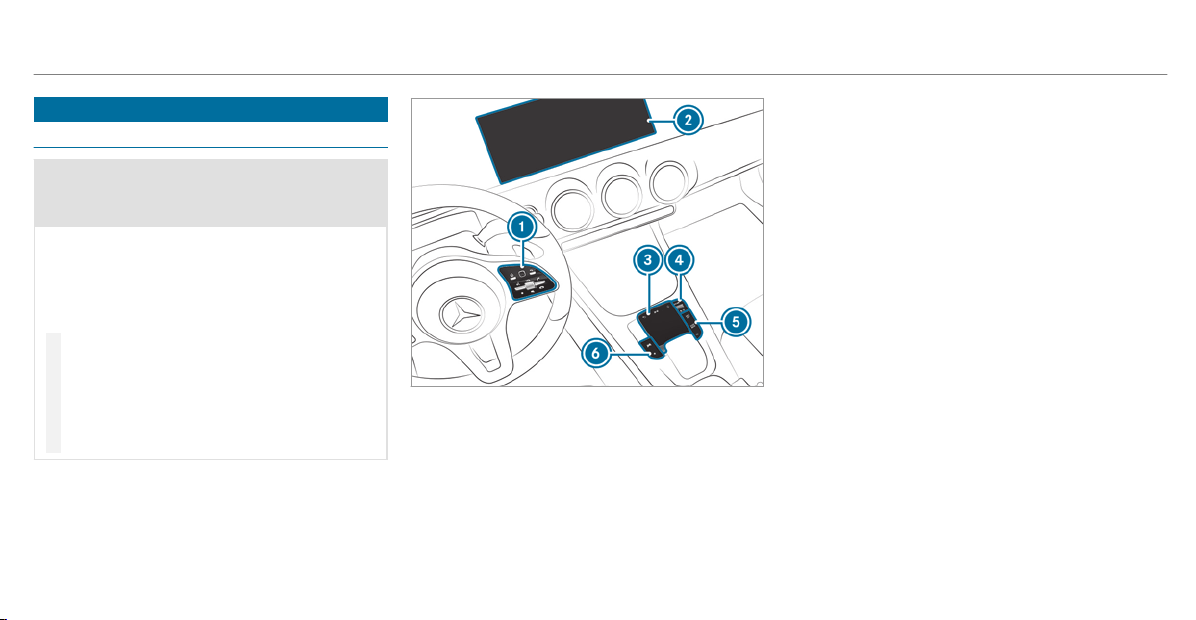
Overview and operation
Overview of the MBUX multimedia system
&
WARNING Risk of distraction from infor‐
mation systems and communications
equipment
If you operate information and communica‐
tion equipment integrated in the vehicle
when driving, you will be distracted from the
traffic situation. This could also cause you to
lose control of the vehicle.
#
Only operate this equipment when the
traffic situation permits.
#
If you cannot be sure of this, stop the
vehicle whilst paying attention to road
and traffic conditions and operate the
equipment with the vehicle stationary.
You must observe the legal requirements for the
country in which you are currently driving when
operating the multimedia system.
1
Touch Control and control panel for the
MBUX multimedia system
Operating Touch Control(/ page 246)
2
Media display with touch functionality
Home screen overview(/ page 244)
Operating the touchscreen (/ page 247)
3
Touchpad
Operating the touchpad(/ page 248)
4
Control knob
Press and hold: switches the multimedia sys‐
tem or media display on or off
Press briefly: switches the mute function
on/off
Turn: adjusts the volume
5
Buttons for navigation, radio/media and
telephone
Calling up applications(/ page 250)
6
Buttons for vehicle functions/system set‐
tings and favorites/themes
Calling up applications(/ page 250)
You can operate the MBUX multimedia system
with the following central control elements:
R
Touch Control 1 and touchpad 3
The operation for both control elements is
achieved by cursor control.
R
Media display 2
%
Alternatively, you can conduct a dialog with
the Voice Control System (/ page 225).
Numerous application, online services, services
and apps are available for you. You can call
242
MBUX multimedia system

these up using the home screen or using buttons
5 and 6 next to the touchpad.
You can conveniently call up and add favorites
using the ß rocker switch on the steering
wheel or using the ß button next to the
touchpad. Quick-access in the home screen and
in the applications serve to select functions
more quickly.
If you use the learn function of the multimedia
system, you will receive suggestions during oper‐
ation of the most probable navigation destina‐
tions, radio stations and contacts. The configu‐
ration of the suggestions takes place in your pro‐
file. You can compile your profile from various
vehicle settings and settings of the multimedia
system. You can create themes for various driv‐
ing situations in the home screen as well as
using the ß rocker switch or the ß but‐
ton.
The Notifications Center collects incoming notifi‐
cations, e.g. about an available software update.
Depending on the type of notification it offers
various actions. You can call up the Notifications
Center on the home screen and in the applica‐
tion menus.
With the global search in the vehicle you can
search on-board across many categories as well
as online in the Internet. You can use the global
search in the home screen and in the notifica‐
tions.
Protection against theft
This device is equipped with technical provisions
to protect it against theft. Further information on
protection against theft can be obt ained from an
authorized Mercedes-Benz Center.
Notes on the media display
Observe the notes on caring for the interior
(/ page 394).
Automatic temperature-controlled switch-
off feature: if the temperature is too high, the
brightness is initially reduced automatically. The
media display may then switch off completely for
a while.
%
If you are wearing polarized sunglasses, it
may be difficult to read the multimedia sys‐
tem display.
MBUX multimedia system
243
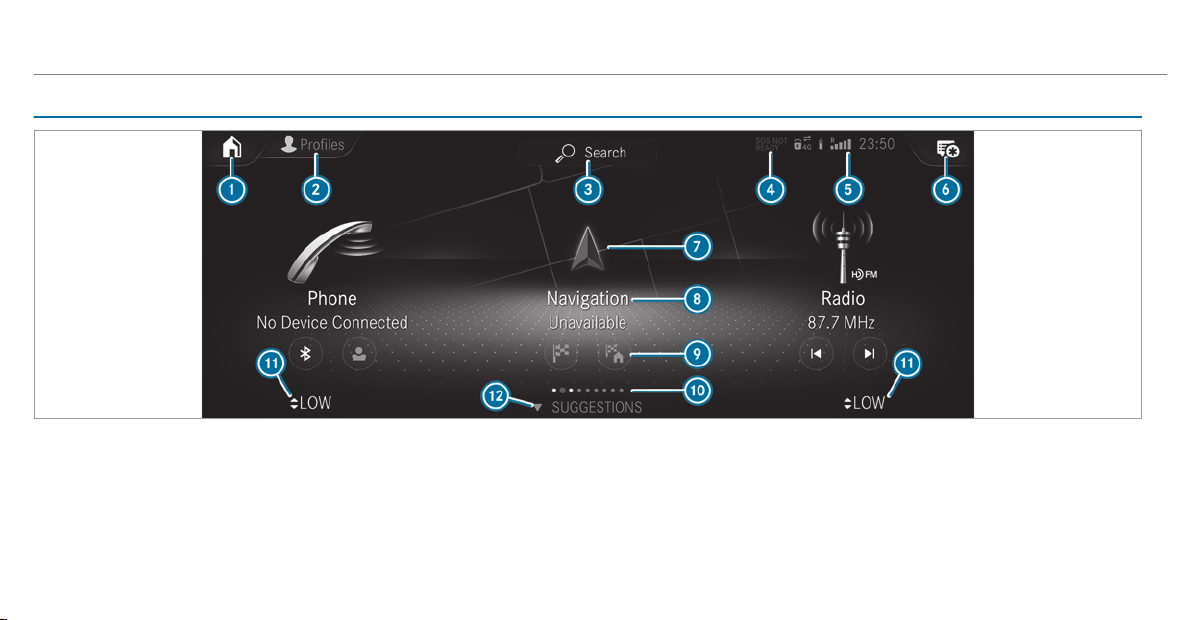
Home screen overview
1
On the home screen: displays the first three
applications
In other displays: calls up the home screen
2
Calls up the profile
3
Calls up the global search
4
SOS NOT READY display only when the
Mercedes-Benz emergency call system is not
available
5
Displays, for example network display, bat‐
tery status of the mobile phone connected,
signal strength of the mobile phone network,
time
6
Calls up the Notifications Center
The star indicates new notifications.
7
Calls up an application using the symbol
244
MBUX multimedia system

8
Name of the application, beneath the current
selection or information
9
Quick-access (in the example: calls up desti‐
nation entry, enters the destination address
for home)
A
Number of applications and currently selec‐
ted display area
B
Calls up the air conditioning menu
(/ page 126)
C
Calls up SUGGESTIONS, THEMES and
FAVORITES
MBUX multimedia system
245
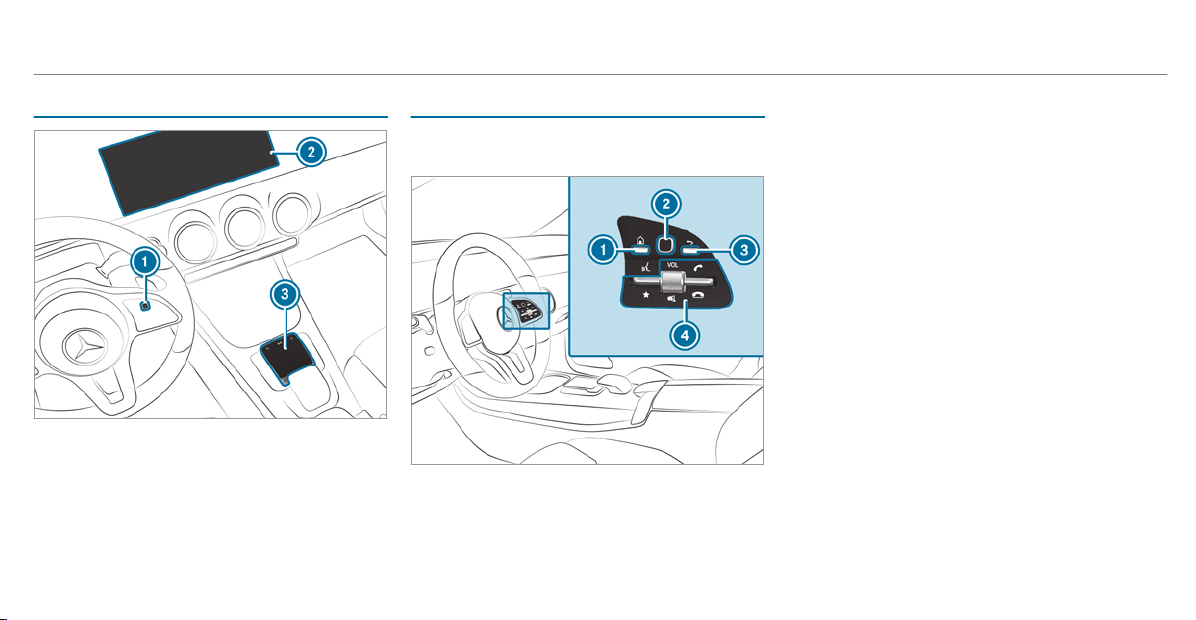
Central control elements overview
1
Touch Control
2
Media display with touch functionality
3
Touchpad
Touch Control
Operating Touch Control (MBUX multimedia
system)
1
© button
Shows the home screen and calls up appli‐
cations
Shows suggestions, themes and favorites:
when the home screen is shown, swipe
down on Touch Control
2.
2
Touch Control
3
G button
Press briefly: returns to the previous display
4
Control panel for MBUX multimedia system:
ß rocker switch
Press down briefly: shows favorites
Press down and hold: adds favorites and
themes
Control knob
Turn: adjusts the volume VOL
Press: switches off the sound 8
6 rocker switch
Press up: makes or accepts a call
~ rocker switch
Press down: rejects or ends a call
You can navigate in menus and lists via the
touch-sensitive surface of Touch Control
2 by
using a single-finger swipe.
246
MBUX multimedia system

#
To select the menu item or entry: swipe
up, down, left or right.
#
Press Touch Control 2.
#
To enter a character: enter a character
using the keyboard.
#
To move the digital map: swipe in any
direction.
Setting the sensitivity for the Touch Control
Multimedia system:
4
©
5
Settings
5
System
5
Controls
5
Touch Control Sensitivity
#
Select Fast, Medium or Slow.
Setting acoustic operating feedback for the
Touch Control
Multimedia system:
4
©
5
Settings
5
System
5
Controls
The function is suppor ted by the selection in a
list.
#
Select Acoustic Operating Feedback.
#
Set Normal, Loud or Off.
If the function is activated you will hear a
clicking sound when scrolling in a list. When
the beginning or end of the list is reached
you will hear another clicking sound.
Touchscreen
Operating the touchscreen
Tapping
#
To select a menu item or entry: t ap on a
symbol or an entry.
#
To increase the map scale: tap twice
quickly with one finger.
#
To reduce the map scale: tap with two fin‐
gers.
#
To enter characters with the keypad: tap
on a button.
Single-finger swipe
#
To navigate in menus: swipe up, down, left
or right.
#
To move the digital map: swipe in any
direction.
#
To use handwriting to enter characters:
write the character with one finger on the
touchscreen.
Two-finger swipe
#
To zoom in and out of the map: move two
fingers together or apart.
#
To enlarge or reduce the size of a section
of a website: move two f ingers together or
apart.
#
To turn the map: turn counter-clockwise or
clockwise using two fingers.
Touching, holding and moving
#
To move the map: touch the touchscreen
and move your finger in any direction.
#
To set the volume on a scale: touch the
touchscreen and move the finger to the left
or right.
MBUX multimedia system
247
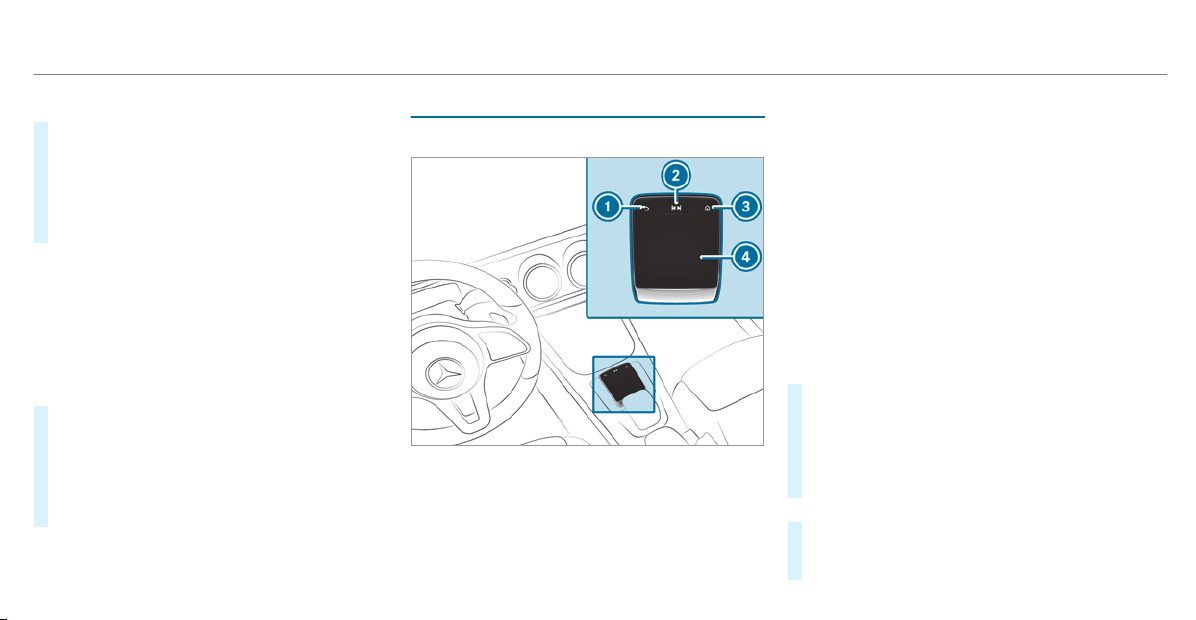
Touching and holding
#
To save the destination in the map: touch
the touchscreen and hold until a message is
shown.
#
To call up a global menu in the applica‐
tions: touch the touchscreen and hold until
the OPTIONS menu appears.
Setting acoustic operation feedback for the
touchscreen
Multimedia system:
4
©
5
Settings
5
System
5
Controls
The function is suppor ted by the selection in a
list.
#
Select Acoustic Operating Feedback.
#
Set Normal, Loud or Off.
If the function is activated you will hear a
clicking sound when scrolling in a list. When
the beginning or end of the list is reached
you will hear another clicking sound.
Touchpad
Operating the touchpad
1
G button
Press briefly: returns to the previous display
2
~ button
Pressing: calls up the control menu of the
last active audio source
Swiping to the left of right across ~:
selects the previous or next radio station/
music track
3
© button
Press: shows the home screen and calls up
applications
4
Touchpad
%
Calls up suggestions, themes and favorites:
when the home screen is shown, swipe
down on touchpad 4.
You can navigate in menus and lists via the
touch-sensitive surface of touchpad 4 by using
a single-finger swipe.
#
To select the menu item or entry: swipe
up, down, left or right.
#
Press touchpad 4.
#
To enter a character: enter a character
using the keyboard.
or
#
Write a character on the touchpad.
#
To move the digital map: swipe in any
direction.
248
MBUX multimedia system

Use the following functions with a two-finger
swipe:
#
To call up the Notifications Center: swipe
down with two fingers.
#
To close the Notifications Center: swipe
up with two fingers.
#
To call up the control menu of the last
active audio source: swipe up with two fin‐
gers.
#
To zoom in and out of the map: move two
fingers together or apart.
#
To enlarge or reduce the size of a section
of a website: move two f ingers together or
apart.
Setting the sensitivity for the touchpad
Multimedia system:
4
©
5
Settings
5
System
5
Controls
5
Touchpad Sensitivity
#
Select Fast, Medium or Slow.
#
To set the pressure sensitivity: switch
Touchpad Tap on or off.
If the function is switched on, a tap on the
touchpad is enough to select a menu item.
Switching the read-aloud function for hand‐
writing recognition on/off
Requirements:
R
The multimedia system is equipped with a
voice control system.
R
The read-aloud function is available for the
selected system language.
Multimedia system:
4
©
5
Settings
5
System
5
Audio
5
System Feedback
#
Switch Read Out Handwriting Recognition on
or off.
If the function is activated, characters are
read aloud as they are written on the touch‐
pad.
Activating/deactivating haptic operating
feedback on the touchpad
Multimedia system:
4
©
5
Settings
5
System
5
Controls
The function suppor ts you when making entries
on the touchpad and when selecting menus.
#
Switch Haptic Operating Feedback on or off.
When the function is activated, a tactile feed‐
back in the form of a vibration is effected
when the touchpad is operated.
Setting acoustic operating feedback for the
touchpad
Multimedia system:
4
©
5
Settings
5
System
5
Controls
The function is suppor ted by the selection in a
list.
#
Select Acoustic Operating Feedback.
#
Set Normal, Loud or Off.
If the function is activated you will hear a
clicking sound when scrolling in a list. When
MBUX multimedia system
249
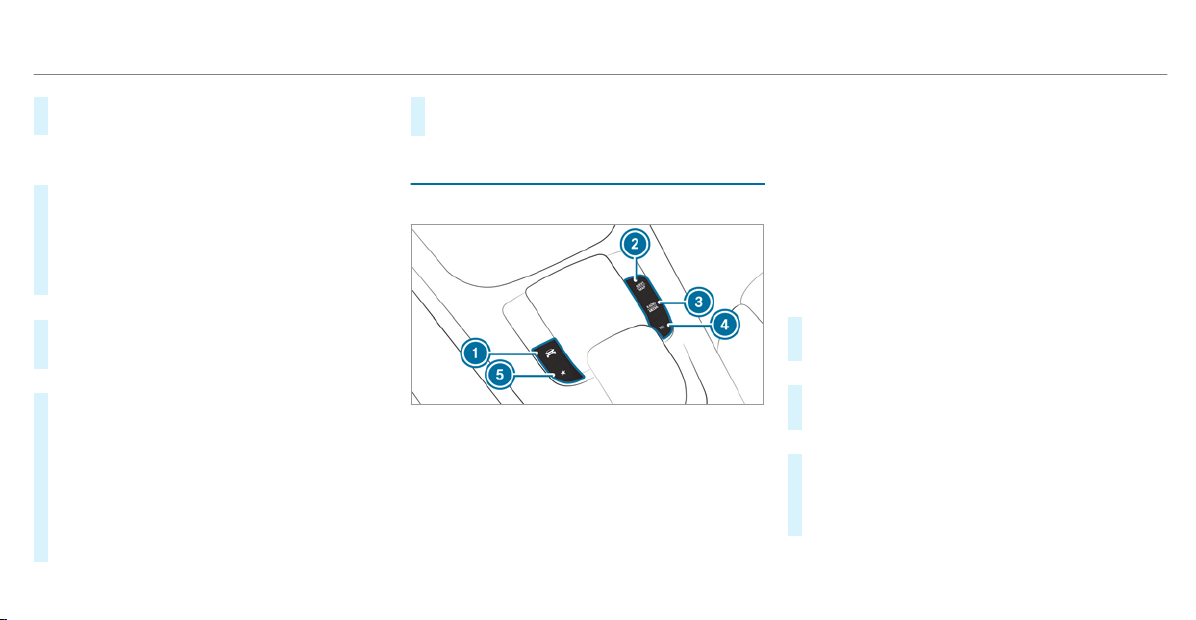
the beginning or end of the list is reached
you will hear another clicking sound.
Selecting a station and track using the
touchpad
#
Swipe to the left or right over the ~ but‐
ton.
Radio: the previous or next station is set.
Media source: the previous or next track is
selected.
or
#
To show the control menu: press the ~
button on the touchpad.
or
#
Swipe upwards using two fingers on the
touchpad.
The control menu appear s for the audio
source that was last selected.
#
Swipe left or right using one finger.
Radio: the previous or next station is set.
Media source: the previous or next track is
selected.
#
To hide the control menu: swipe down on
the touchpad using two fingers.
Main functions
Calling up applications
1
y button
Calls up vehicle functions
2
z button
Calls up navigation
3
| button
Calls up radio or media
4
% button
Calls up the telephone
5
ß button
Press briefly: calls up favorites
(/ page 258)
Press and hold: adds a favorite
(/ page 258) or creates a new theme
(/ page 255)
Alternatively in the home screen: when you
start the vehicle the home screen is shown in
the media display.
#
Select the application by swiping and tap‐
ping.
or
#
In any display: press the © button on the
Touch Control or on the touchpad.
or
#
Tap on the © symbol on the touchscreen.
The applications are displayed.
#
Select the application by swiping and tap‐
ping.
250
MBUX multimedia system

Changing the arrangement of applications on
the home screen
#
Call up the home screen.
#
Touch and hold an application on the
touchscreen until symbols appear.
#
Tap on = or ; and move the applica‐
tion in the menu.
#
Tap on ø.
Profile
Notes on profiles
&
WARNING Risk of becoming trapped
during adjustment of the driver's seat
after calling up a driver profile
Selecting a profile may trigger an adjustment
of the driver's seat to the position saved
under the profile. You or other vehicle occu‐
pants could be injured in the process.
#
Make sure that when the position of
driver's seat is being adjusted using the
multimedia system, no people or body
parts are in the seat's range of move‐
ment.
If there is a risk of someone becoming trap‐
ped, stop the adjustment process immedi‐
ately:
#
a) Tap the warning message on the
media display.
or
#
b) Press a memory position button or a
seat adjustment switch in the driver's
door.
The adjustment process is stopped.
The driver's seat is equipped with an anti-entrap‐
ment feature.
If the driver's door is open, the driver's seat will
not be set after calling up the driver's profile.
Overview of profiles
Using the multimedia system up to seven pro‐
files can be created in the vehicle.
Profiles store your personal vehicle settings and
settings for the multimedia system.
If the vehicle is used by several drivers, the
driver can select their profile before the journey,
without changing the settings of other drivers.
You can select the profile:
R
when entering (/ page 254)
R
using the home screen (/ page 244)
The profile settings are activated as soon as a
profile is selected.
%
When you call up your profile, the driver's
seat and outside mirrors can be set.
If you call up your profile when driving then
the driver's seat position will not be adjus‐
ted.
You can cancel the setting process with the
following actions:
R
Tap on the Positioning Seat and Steering
Wheel… Please tap to cancel. warning on
the media display.
R
Press one of the seat operating buttons
in the driver's door.
MBUX multimedia system
251

Profile content
Depending on the vehicle equipment, the follow‐
ing settings can be stored in your profile, for
example:
R
Driver's seat and mirror settings
R
Driver's seat memory
R
Radio (including station list)
R
Last destinations
R
Climate control
R
Ambient lighting
R
DYNAMIC SELECT I (individual)
R
Instrument Display, Head-up Display and
style (display style of the multimedia system)
R
Themes, suggestions and favorites
%
Settings for driver assistance systems can‐
not be saved in the profile.
Mercedes me connect profile
If you use a profile from Mercedes me connect,
the following online functions are available, for
example:
R
You can configure the settings in the vehicle
using the Mercedes me app and the
Mercedes me portal.
R
You can synchronize your profile on
Mercedes me connect with the profile in the
vehicle (/ page 253).
R
You can add a personal profile photo that is
shown in the vehicle.
R
You can take your profile and some of your
settings with you in new vehicles.
Requirements for using Mercedes me con‐
nect profiles:
For the vehicle owner:
R
You have a Mercedes me user account.
R
The vehicle has been connected with the
user account.
R
The personalization service is activated.
For additional users of the vehicle:
R
You have a Mercedes me user account.
R
The vehicle owner has invited you to connect
your user account on Mercedes me with that
of his vehicle.
R
You have accepted the invitation.
Creating a new profile
Multimedia system:
4
©
5
f Profiles
#
Select W Create Profile .
#
Select an avatar.
#
Enter the name and confirm with a.
#
Select Continuer.
#
To save the current settings in a profile:
select Current Settings.
#
Select Save.
or
#
To adopt factory settings: select Save save
directly.
%
Further information on setting a user profile
(/ page 253).
252
MBUX multimedia system

#
Activate Bluetooth
®
and select Connect
Phone, to connect a mobile phone with the
user profile (/ page 331).
You can also set up a user profile without regis‐
tering a mobile phone.
#
Select Finish.
The user profile is saved.
Selecting profile options
Multimedia system:
4
©
5
f Profiles
#
Select Ä for a profile.
#
To edit a profile: select Edit Profile.
#
Select an avatar.
#
Change the name, if necessary.
#
Select Save.
#
To configure suggestions: select Sugges-
tion Settings (/ page 257).
#
Resetting favorites or themes: select
Reset Favorite to Factory Settings or Reset
themes to the factory settings.
#
Select Yes.
#
To reset a profile: select Reset Profile to
Factory Settings.
#
Select Yes.
#
To delete a profile: select Delete Profile.
#
Select Yes.
%
The guest profile cannot be deleted.
Selecting a profile
Multimedia system:
4
©
5
f Profiles
%
When you call up your profile, the driver's
seat and outside mirrors can be set.
You can cancel the setting process with the
following actions:
R
Tap on the Positioning Seat and Steering
Wheel… Please tap to cancel. warning on
the media display.
R
Press one of the seat operating buttons
in the driver's door.
#
Select a profile.
#
Press the a button to confirm the mes‐
sage.
The profile is loaded and activated.
%
Alternatively, the profile can already be
selected when the vehicle is entered
(/ page 254).
Synchronizing a profile
Requirements:
R
You have a Mercedes me user account.
R
The vehicle is connected with your Mercedes
me user account.
R
The personalization service is activated on
Mercedes me connect.
Multimedia system:
4
©
5
f Profiles
5
General Settings
Synchronization enables the following:
R
You can configure the vehicle settings using
the Mercedes me app.
R
The profile on Mercedes me connect and the
profile in the vehicle are aligned (profile man‐
agement).
MBUX multimedia system
253

#
Switch Synchronize Profiles Automatically
on.
The profiles in the vehicle are automatically
synchronized with the profiles on Mercedes
me connect when the ignition is switched on
and off.
or
#
Select Synchronize Profiles Now.
After selecting this option, the profiles in the
vehicle are synchronized with the profiles on
Mercedes me connect.
%
During synchronization the profile list and
the profile functions are blocked.
%
Note on data protection: if you do not wish
to share your data with Mercedes me, make
sure that the automatic synchronization is
switched off and do not select Synchronize
Profiles Now.
Showing the profile selection when entering
Requirements:
R
At least one profile has been created.
Multimedia system:
4
©
5
f Profiles
If the option is activated, you can see a profile as
soon as you get in.
#
Select General Settings.
#
Switch Show Profile Selection When Getting
In on.
When the vehicle is started, the media dis‐
play shows the active profile.
Themes
Overview of themes
You can configure the vehicle settings according
to your preferences and save as a theme. A
theme can be called up any time via the home
screen. There is then no need to make the
desired settings again.
There are pre-defined themes available, e.g.
Journey, Efficiency and Lounge.
Example for the use of themes
For recurring driving situations, such as long
drives on the freeway, you can save you prefer‐
red settings in a theme in the vehicle.
You can save the following settings in a theme,
for example:
R
Displays (e.g. navigation map or tachometer)
R
Preferred radio station
R
Favored drive program
These settings are saved under the name you
wish when setting up a theme (/ page 255).
On the next freeway journey you can select this
theme and thereby restore your settings.
Content of a theme
Depending on vehicle equipment the following
settings can be saved in a theme:
R
Setting of the Instrument Display
(/ page 214)
R
Setting of the Head-up Display
(/ page 222)
R
Setting of the ambient lighting
(/ page 118)
254
MBUX multimedia system

R
Active audio source, e.g. radio or USB
R
Starting screen for the media display
R
Visual style (/ page 273)
R
DYNAMIC SELECT drive program
(/ page 138)
R
Eco start/stop setting (/ page 136)
R
Navigation system settings
%
A theme contains the currently active set‐
tings in the vehicle.
Calling up themes
Multimedia system:
4
©
#
When the home screen is shown, swipe up
until THEMES appears.
#
Select a theme.
Creating new themes
Requirements:
R
The settings which are to be saved in the
theme are active.
The overview shows the settings which can
be saved in a theme (
/ page 254).
Multimedia system:
4
©
5
THEMES
#
Select W Create Theme .
#
Select an entry screen.
#
Select Continuer.
#
Select an image.
#
Enter the names into the entry field and con‐
firm with a.
#
To save a theme: select Save.
Selecting additional settings
#
Select Advanced Settings.
#
Activate or deactivate the settings.
When the maximum number that can be
saved is reached:
#
Select a from the prompt.
#
Select a theme that should be overwritten.
#
Select an entry screen.
#
Select Continue r.
#
Select an image.
#
Enter the names into the entry field and con‐
firm with a.
#
To save a theme: select Save.
Creating using the ß rocker switch or but‐
ton
#
Press and hold the bottom section of the
ß rocker switch on the steering wheel.
or
#
Press and hold the ß button next to the
touchpad.
#
Select Create Theme.
#
Select an entry screen.
#
Select Continue r.
#
Select an image.
#
Enter the names into the entry field and con‐
firm with a.
#
To save a theme: select Save.
MBUX multimedia system
255

Modifying themes
Multimedia system:
4
©
#
When the home screen is shown, swipe up
until THEMES appears.
#
Press on a theme until the OPTIONS menu is
shown.
#
Select a.
#
Select an image.
#
Enter the name.
#
Select a.
#
To save a theme: select Save✓.
Moving themes
Multimedia system:
4
©
#
When the home screen is shown, swipe up
until THEMES appears.
#
Press on a theme until the OPTIONS menu is
shown.
#
Select Move.
#
Tap on = or ;.
#
Tap on ø.
Moving the themes menu in the home screen
#
Select ©.
#
Swipe upwards and select Set New Order.
#
Select Themes.
#
Tap on 9 or :.
#
Tap on ø.
Deleting themes
Multimedia system:
4
©
#
When the home screen is shown, swipe up
until THEMES appears.
#
Press on a theme until the OPTIONS menu is
shown.
#
Select Delete.
#
Select Yes.
Showing information about themes (DIBA)
Multimedia system:
4
©
#
When the home screen is shown, swipe up
until THEMES appears.
#
Press on a theme until the OPTIONS menu is
shown.
#
Select Operator's Manual.
Suggestions
Suggestions overview
The vehicle can learn the habits of the driver.
Based on previously used functions, the most
likely navigation destinations, media sources,
radio stations or contacts are of fered under
SUGGESTIONS.
Suggestions are shown when the following
requirements are fulfilled:
R
A profile has been created (/ page 252).
R
A profile has been selected.
R
You have accepted data recording.
256
MBUX multimedia system

R
From the beginning of usage, the multimedia
system must analyze the user habits. When
sufficient data is collected then the sugges‐
tions are available.
If the requirements mentioned are not fulfilled, a
preview with a description of the function
appears in the
SUGGESTIONS menu.
You can configure data recording
(/ page 257) or delete the suggestions
recorded ( / page 258).
Calling up suggestions
Requirements:
R
A profile has been created and is selected
(/ page 253).
#
Tap on © in the media display.
The home screen is shown.
#
Swipe up until the SUGGESTIONS menu is
shown.
#
Select a navigation destination, a media
source, a radio station or a contact.
If route guidance is already active, you can‐
not start a new route guidance or set an
intermediate destination for the existing
route.
Configuring suggestions
Multimedia system:
4
©
5
f Profiles
#
Select Z for a profile.
#
Select Suggestion Settings.
#
To switch suggestions display on/off:
switch Allow destination suggestions, Allow
Music Suggestions and Allow Contact Sug-
gestions on or off.
If an option is switched on, suggestions for
navigation destinations, media sources, radio
stations or contacts are shown.
If the option is switched off, no suggestions
are shown.
#
To deactivate the learn function for one
day: activate 24h Learning Deact..
For 24 hours no new actions will be trained
and no data recorded for the active profile.
Suggestions will continue to be shown. The
remaining time is shown next to
24h Learn-
ing Deact..
Before the time runs out, a message is
shown that the multimedia system will con‐
tinue the learn function shortly.
Example: if the option is switched on and a
route to a new destination has been calcula‐
ted, this destination would not be taken into
account for the learn function.
#
To reset the suggestion history: select
Reset Suggestion History.
%
This process cannot be reversed.
#
Select Yes.
#
To protect settings with a PIN: switch on
PIN Protection.
If PIN protection is switched on, you must
enter the Mercedes me PIN to set the sug‐
gestions. This PIN will be set in the Mercedes
me portal for the personalization service to
protect your personal settings.
Renaming suggestions
Only navigation destinations can be renamed.
#
Tap on the © symbol in the media display.
The home screen is shown.
MBUX multimedia system
257

#
Swipe up until the SUGGESTIONS menu is
shown.
#
Highlight a navigation destination and press
until the OPTIONS menu is shown.
#
Select Rename.
#
Enter the name.
#
To confirm the entry: select Yes.
Deleting a suggestion
#
Tap on © in the media display.
The home screen is shown.
#
Swipe up until the SUGGESTIONS menu is
shown.
#
Highlight a suggestion and press until the
OPTIONS menu is shown.
#
Select Delete.
Deleting suggestions in the applications
You can delete suggestions, for example in the
previous destinations, in the radio station list
and in the contacts.
#
Select : for a suggestion.
#
Select No Longer Suggest.
#
To delete the suggestion from the cur‐
rent list: select Not Now .
The suggestion will be shown again at a later
time in the list.
#
To delete a suggestion permanently:
select Never.
#
Select Yes.
The suggestion will not be shown again in
future.
#
To cancel the function: select Cancel.
Favorites
Overview of favorites
Favorites offer you quick access to frequently
used applications. It is possible to create 20
favorites in total.
You can select favorites from categories or you
add favorites directly from an application.
Calling up favorites
In the media display
#
Tap on ©.
The home screen is shown.
#
Swipe up until FAVORITES is shown.
On the steering wheel or the touchpad
#
Press the ß rocker switch on the steering
wheel down.
or
#
Press the ß button next to the touchpad.
Adding favorites
Selecting favorites from categories
#
Tap on © in the media display.
The home screen is shown.
#
Swipe up until FAVORITES is shown.
#
Select W Create Favorite.
The categories are displayed.
#
Select the category.
The favorites are displayed.
258
MBUX multimedia system

#
Select a favorite.
The favorite is stored at the next available
position.
#
All positions in the favorites are taken:
confirm the message shown with OK.
A list shows all the favorites.
#
Select a favorite which should be overwrit‐
ten.
Adding a favorite from an application
Examples of adding from an application are:
R
Saving a contact.
R
Storing a radio station.
R
Adding a media source.
R
Saving a navigation destination.
R
Adding an ENERGIZING comfort program (if
available).
#
To save a contact as a global favorite:
select a contact (/ page 337).
The details are displayed.
#
Press on a telephone number until the
OPTIONS menu is shown.
#
Select Save as Favorite.
The contact is added as a favorite.
#
To store a radio station as a global favor‐
ite: set a radio station (/ page 371).
#
Press on the radio station until the OPTIONS
menu is shown.
#
Select Save as Favorite.
The radio station is added as a favorite.
Renaming favorites
#
Tap on © in the media display.
The home screen is shown.
#
Swipe up until FAVORITES is shown.
#
Press on a favorite until the OPTIONS menu
is shown.
#
Select Rename.
#
Enter the name.
#
Select OK.
Moving favorites
Moving favorites in the favorites menu
#
Tap on © in the media display.
The home screen is shown.
#
Swipe up until FAVORITES is shown.
#
Press on a favorite until the OPTIONS menu
is shown.
#
Select Move.
#
Move the favorite to the new position.
#
Tap on ø.
Moving the favorites menu in the personali‐
zation
#
Tap on © in the media display.
The home screen is shown.
#
Swipe up until Set New Order is shown.
#
Select Set New Order.
#
Move Favorites to the new position.
#
Tap on ø.
#
To close the menu: select Close.
Deleting favorites
#
Tap on © in the media display.
The home screen is shown.
#
Swipe up until FAVORITES is shown.
MBUX multimedia system
259
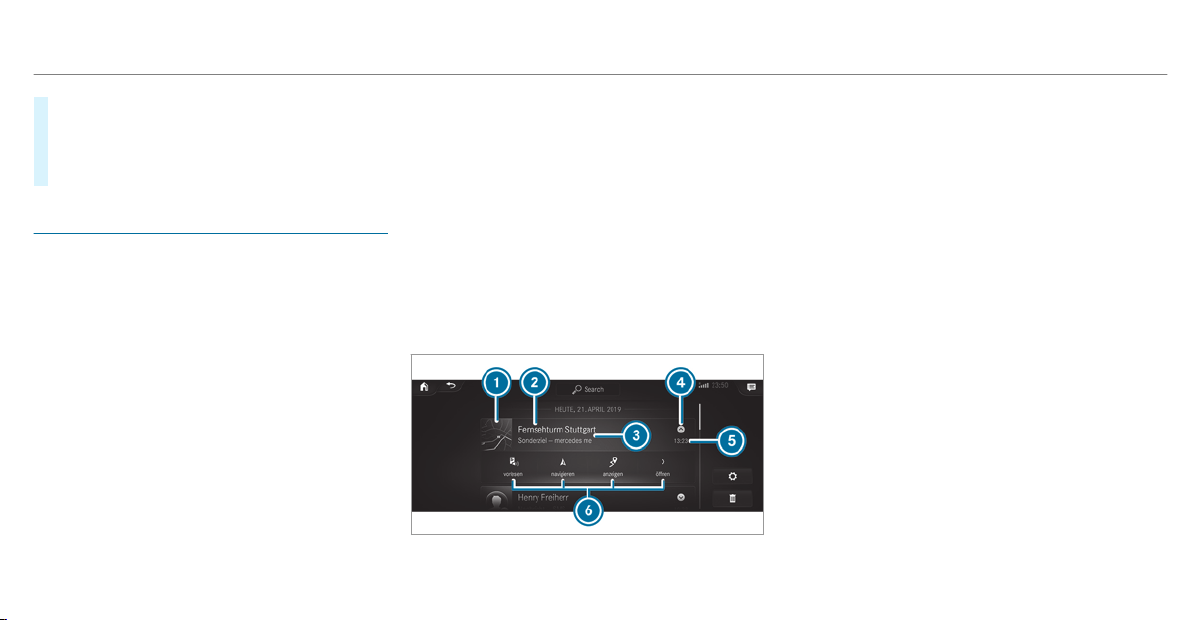
#
Press on a favorite until the OPTIONS menu
is shown.
#
Select Delete.
#
Select Yes.
Notifications Center
Overview of the Notifications Center
The following communications are collected in
the Notifications Center:
R
Communications which are generated by the
vehicle or from multimedia system.
R
Communications which are received through
the use of services.
The following notification types are available for
you:
R
Navigable destinations and routes
R
Messages (text messages)
R
System information, e.g. Important Software
Update Available
R
Other notifications, e.g. from additional
online services that can be subscribed to
The j Notifications Center can be found on
the home screen, in menus and at the top right
of the navigation map (/ page 244).
A star in the j symbol informs you of new
notifications.
Notifications are normally briefly shown as they
are received. This occurs for nearly every appli‐
cation that you are currently using. If you take
no action, these are stored for future access in
the Notifications Center.
The notifications are sorted chronologically. The
most recent notifications are at the top.
A notification shows the following information:
R
Symbol or image 1 for the application
R
Title 2, which contains the name, a tele‐
phone number or a navigation destination,
for example
R
The service and additional information 3
R
A time stamp 5
R
If several actions are available, symbol 4 to
open or close the notification.
Depending on the type of notification, up to four
different actions 6 are available.
Examples of actions include:
R
Read aloud
R
Placing a call
R
Reply
R
Calling up a web page
R
Navigation
Some notifications, e.g. a navigation destination,
are stored longer. Therefore, it is not necessary
to carry out available actions directly on the
260
MBUX multimedia system

receipt of the notifications. A route guidance can
be started at a later time.
%
You can start a global search in the Notifica‐
tions Center (/ page 262).
Calling up notifications
Opening the Notifications Center
#
On the touchpad: swipe down with two fin‐
gers.
or
#
On the touchscreen: tap on the j sym‐
bol for the Notifications Center.
or
#
On the Touch Control and on the touch‐
pad: mark the j symbol for the Notifica‐
tions Center by swiping.
#
Press on the control element.
Selecting a notification
#
Swipe up or down.
#
Tap or press on the control element.
Calling up old notifications
If notifications have not been called up after four
hours, these are put in the archive.
#
Swipe upwards and select Archive.
#
Select the notification.
Closing the Notifications Center
#
On the touchpad: swipe up with two fingers.
Selecting actions for a notification
The following options are available:
R
Select the action directly in an application
after a notification is received and shown.
R
Select the action later after calling up in the
Notifications Center.
#
An action is available: select the action.
#
Several actions are available: if the notifi‐
cation is not open, select the V symbol.
#
Select the action.
The notification is still available.
Editing notifications
#
Call up the Notifications Center
(/ page 261).
#
To make settings: select Z.
%
If no settings can be made, a message
appears.
#
Activate or deactivate the setting.
#
To delete: select the recycle bin.
#
Select Delete or Delete All.
Delete deletes a single notification.
Delete All deletes all notifications currently
shown.
#
With Finished you will exit delete mode.
Global search
Global search overview
You can use the global search in the home
screen and in the notifications.
The global search provides search results for the
following categories and their sub-categories:
R
Navigation
MBUX multimedia system
261

R
Media
R
Telephone, social media
R
User interface and Digital Operator's Manual
R
Internet
This enables you to search for cities, roads and
tourist attractions with the navigation system,
for example.
%
You can also search for 3 word addresses
(/ page 295).
When you enter a 3 word address in the
global search, separate each of the words
with a space or a full stop.
During the entry process the most likely sugges‐
tions are shown beneath the search field. When
you enter "S", "Stuttgart", "Steak" and "Sandra"
are shown, for example. If you select "Stuttgart",
you receive the suggestions "Starbucks", "Steak"
and "City railway", for example.
The search results in the list are shown, sorted
according to category. Next to the category is
the number of results. You will be shown the
best results from each category. Additional
results can be found after selecting the respec‐
tive category.
If you confirm an entry with
OK, all categories
and the number of results will be shown in a
summary. After selecting a category you can
select the search results within the category.
When you select a search result the detailed
view opens. In the detailed view you can choose
whether and which actions you want to carry out
with the respective search result. For example,
you can start route guidance or place a call to
somebody. The actions are named correspond‐
ingly.
The search can be carried out with the following
input methods:
R
Entering characters using the on-screen key‐
pad
R
Entering characters with handwriting recog‐
nition
R
Dictation function
Using the global search
Multimedia system:
4
©
#
Select ª Search .
or
#
Call up the notifications (/ page 261).
#
Select Search.
#
Enter the search term into the search field.
During the entry process the three most
likely suggestions are offered beneath the
search field.
In the list on the right, the top two search
results are shown for each category.
%
Use the character input function
Alternatively, you can use the p dictation
function for the search.
#
To accept a suggestion: select the sugges‐
tion.
The three most likely suggestions are
offered.
#
Continue the search or accept a suggestion.
262
MBUX multimedia system
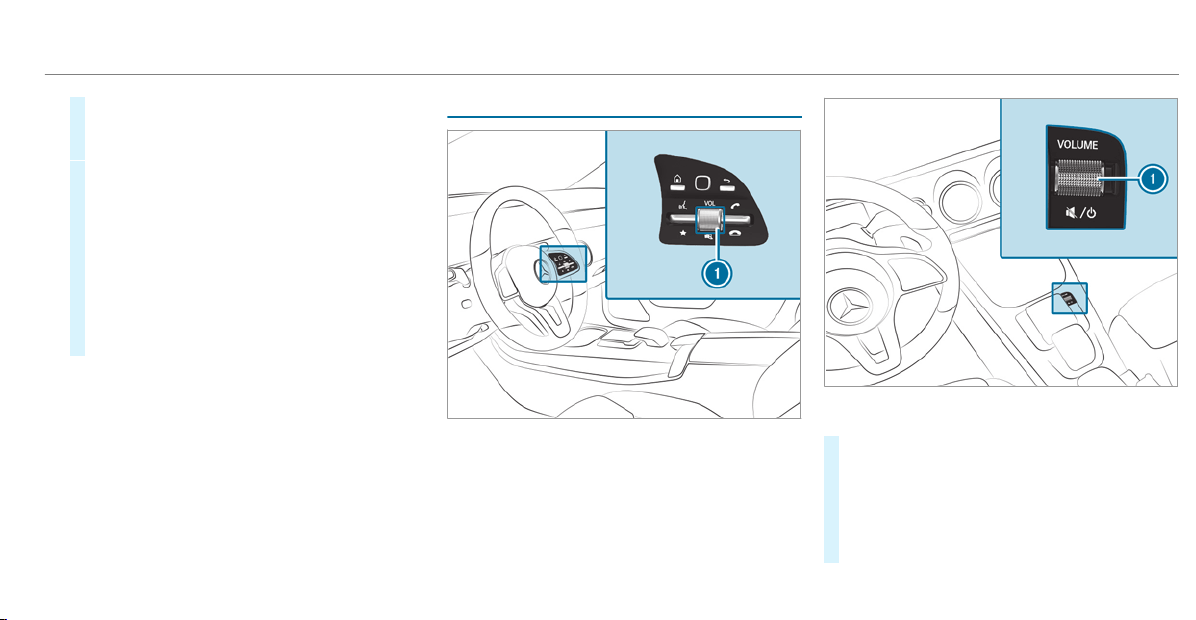
#
To accept the second search result: select
the search result.
An action starts or a list is shown.
#
Select a search result or an action in the list.
#
To show all categories: select OK.
#
To show search results for a categor y:
select a category.
#
To show details: select a search result.
#
To start an action: select an action.
After selection of an action, a track is played
back or the route to a destination is calcula‐
ted, for example.
Switching the sound on/off
On the multifunction steering wheel
On the multimedia system
#
To mute: press volume control 1.
The 8 symbol appears in the status line
of the media display.
You will also hear traffic announcements and
navigation announcements even when the
sound is muted.
MBUX multimedia system
263
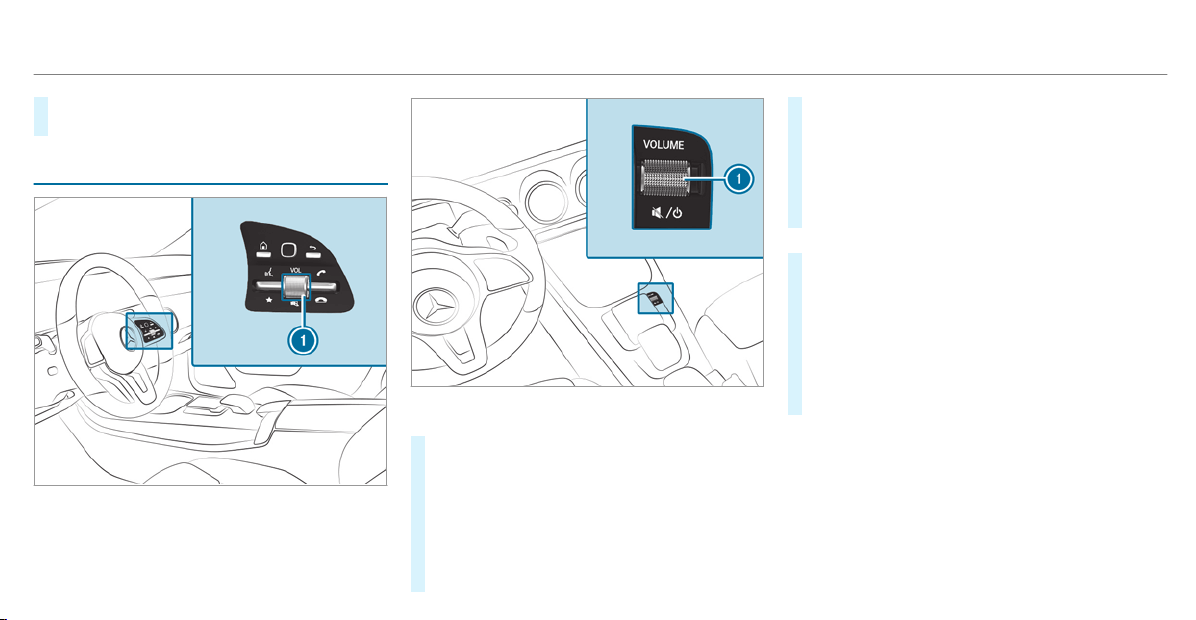
#
To switch on: tur n volume control 1 or
change the media source.
Adjusting the volume
On the multifunction steering wheel
On the multimedia system
#
Turn volume control 1.
The volume of the current radio or media
source is set. The volume of other audio
sources can be adjusted separately.
Adjust the volume in the following situations:
R
during a traffic announcement
R
during a navigation announcement
The volume of the current media source
changes in accordance with the volume
of the navigation announcement.
R
during a telephone call
R
when entering or exiting a parking space
while using Active Parking Assist
or
#
Press the © button on the Touch Control
or on the touchpad.
#
Select Settings.
#
Select System.
#
Select Audio.
#
Select a volume setting.
#
Set the volume.
264
MBUX multimedia system

Entering characters
Using the character input function
&
WARNING Risk of distraction from infor‐
mation systems and communications
equipment
If you operate information and communica‐
tion equipment integrated in the vehicle
when driving, you will be distracted from the
traffic situation. This could also cause you to
lose control of the vehicle.
#
Only operate this equipment when the
traffic situation permits.
#
If you cannot be sure of this, stop the
vehicle whilst paying attention to road
and traffic conditions and operate the
equipment with the vehicle stationary.
You must observe the legal requirements for the
country in which you are currently driving when
operating the multimedia system.
Requirements:
R
For the handwriting recognition read-
aloud function: the multimedia system is
equipped with a voice control system.
R
The read-aloud function is available for the
selected system language.
R
The handwriting recognition read-aloud func‐
tion is activated.
Character entry can be carr ied out with these
control elements:
R
Touch Control
R
Touchscreen (media display)
R
Touchpad
Character input can be started with a control
element and resumed with another.
#
When the keypad is shown, enter the charac‐
ters on the control element by swiping and
pressing or by tapping (touchscreen).
or
#
Write the characters on the touchpad or the
touchscreen.
Character input on the touchpad is supported by
the following functions:
R
The handwriting recognition supports charac‐
ter entry with character suggestions.
R
If the read aloud function is activated for
handwriting recognition then the entered
characters are read aloud.
Examples of character entry:
R
Renaming a favorite
R
Entering a destination address in the naviga‐
tion system
R
Entering a web address
Entering characters on the touchpad
Requirements:
R
If you wish to have the character input read
aloud: the read aloud function of the hand‐
writing recognition is switched on
(
/ page 249).
R
An online connection is required for some
functions.
MBUX multimedia system
265
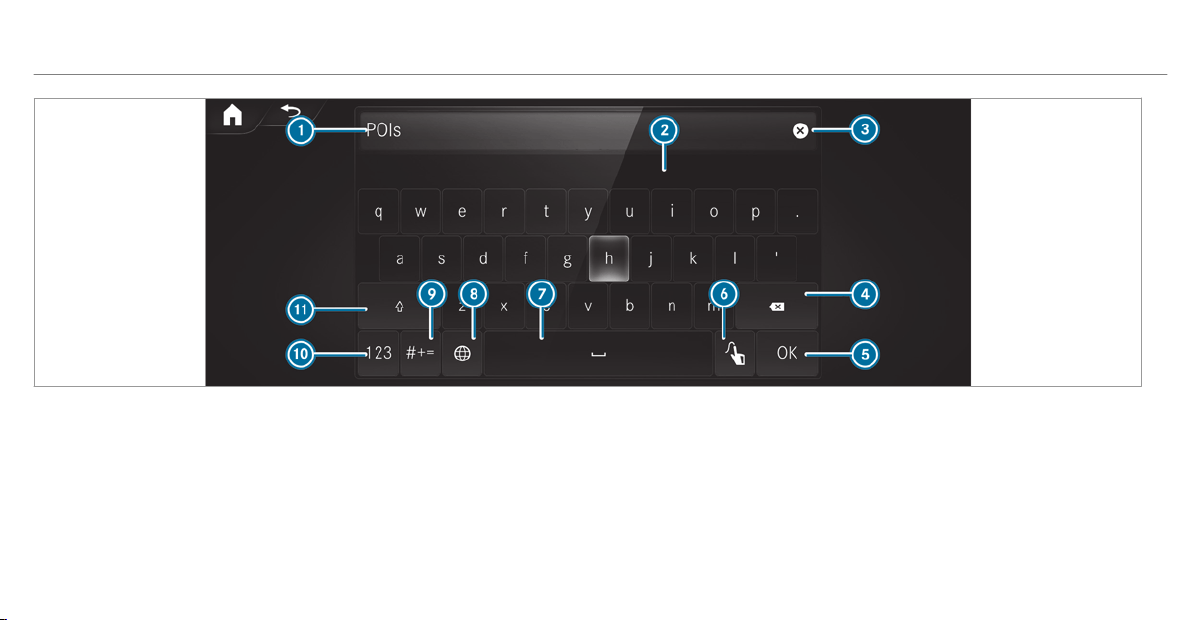
Using the keyboard
1
Input line
2
Shows suggestions during input (if available)
3
Deletes an entry
4
Deletes
Pressing or pressing briefly deletes the last
character entered
Pressing and holding deletes the entry
5
Accepts an entry
6
Switches to handwriting input
7
Enters a space
8
Changes the keyboard language
9
Switches to special characters
A
Switches to digits and additional special
characters
ABC Switches to letters (level 2)
B
Pressing or pressing briefly switches
between upper-case and lower-case letters
Pressing and holding switches to upper-case
letters permanently
266
MBUX multimedia system

If available, the p symbol allows you to
change to voice input.
%
When Touchpad Tap is switched on D,
tapping is sufficient to select a character or
an option (/ page 249).
#
Call up the character entry to rename a
favorite, for example (/ page 259).
#
Select the character by swiping and pressing.
The character is entered in input line 1.
Suggestions are shown in 2.
#
To select a suggestion: select one of the
entries.
#
If available, display additional suggestions
with q or r.
#
Resume character input.
#
To enter an alternative character: press
and hold a character.
#
Select the character.
#
To end character input: press the G but‐
ton.
%
The available editing functions depend on
the editing task, the language set and the
character level.
%
Entry using the keyboard can also be com‐
pleted using the Touch Control.
MBUX multimedia system
267
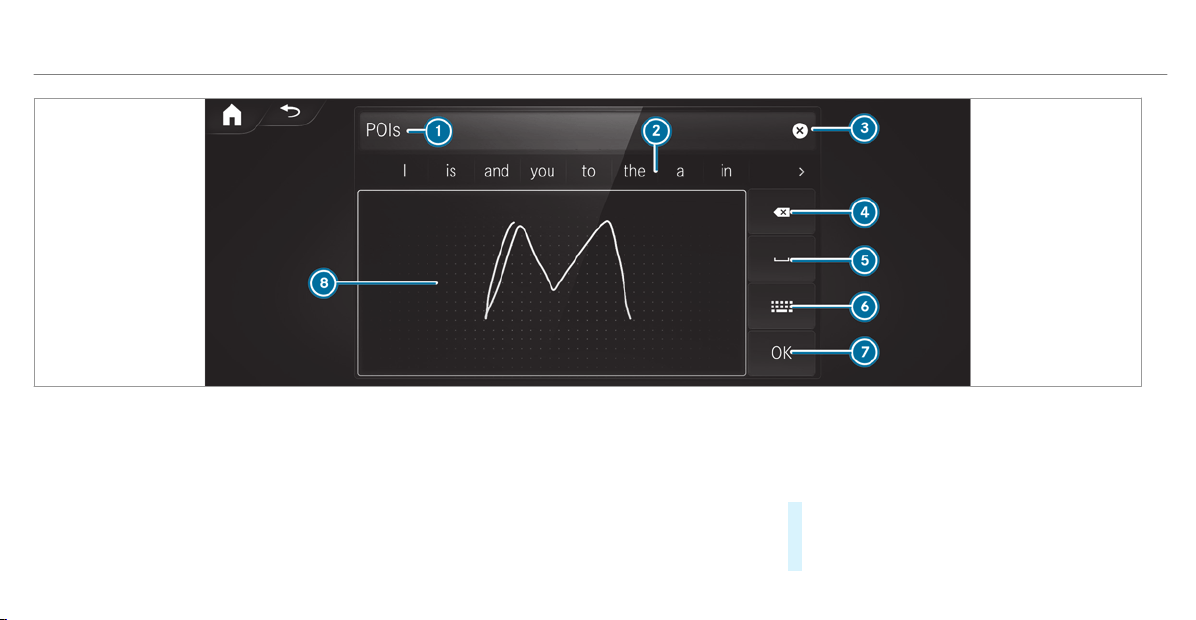
Using handwriting input
1
Input line
2
Shows suggestions during input
3
Deletes an entry
4
Deletes
Pressing or pressing briefly deletes the last
character entered
Pressing and holding deletes the entry
5
Enters a space
6
Switches to input using the keyboard
7
Accepts an entry
8
Writes characters on the drawing surface
If available, the p symbol allows you to
change to voice input.
%
When Touchpad Tap is switched on D,
tapping is sufficient to select an option
(/ page 249).
#
Call up the character entry to rename a
favorite, for example (/ page 259).
#
When the keyboard is displayed, select v.
268
MBUX multimedia system

#
Write the character on the touchpad with a
finger.
The character is entered in input line 1.
Suggestions are shown in 2.
#
To select a suggestion: select one of the
entries.
#
If available, display additional suggestions
with q or r.
#
Resume character input. The letters can be
written next to each other or above each
other.
#
To end character input: press the G but‐
ton.
Entering characters on the touchscreen
Requirements:
R
If you wish to have the character input read
aloud: the read aloud function of the hand‐
writing recognition is switched on
(
/ page 249).
R
An online connection is required for some
functions.
MBUX multimedia system
269
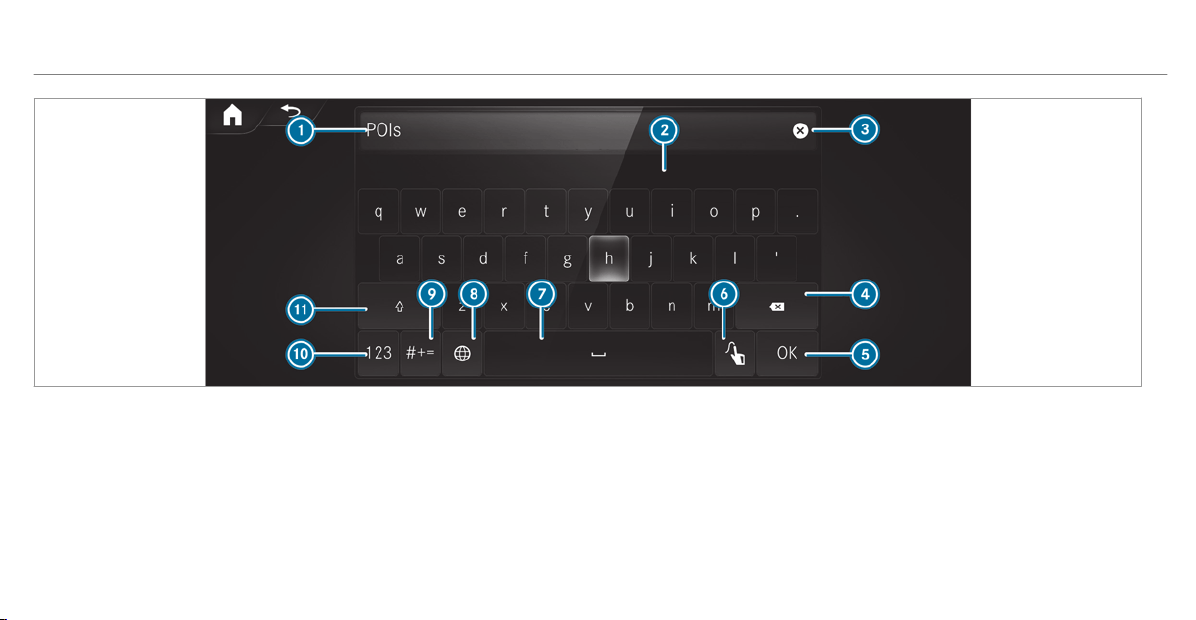
Using the keyboard
1
Input line
2
Shows suggestions during input (if available)
3
Deletes an entry
4
Deletes
Pressing or pressing briefly deletes the last
character entered
Pressing and holding deletes the entry
5
Accepts an entry
6
Switches to handwriting input
7
Enters a space
8
Changes the keyboard language
9
Switches to special characters
A
Switches to digits and additional special
characters
ABC Switches to letters (level 2)
B
Pressing or pressing briefly switches
between upper-case and lower-case letters
Pressing and holding switches to upper-case
letters permanently
270
MBUX multimedia system

If available, the p symbol allows you to
change to voice input.
#
Call up the character entry to rename a
favorite, for example (/ page 259).
The keyboard is shown.
#
Press briefly on a character key.
The character is entered in input line 1.
Suggestions are shown in 2.
#
To select a suggestion: select one of the
entries.
#
If available, display additional suggestions
with q or r.
#
Resume character input.
#
To enter an alternative character: press
and hold a character.
#
Select the character.
#
To end character input: press the G but‐
ton.
%
The available editing functions depend on
the editing task, the language set and the
character level.
MBUX multimedia system
271
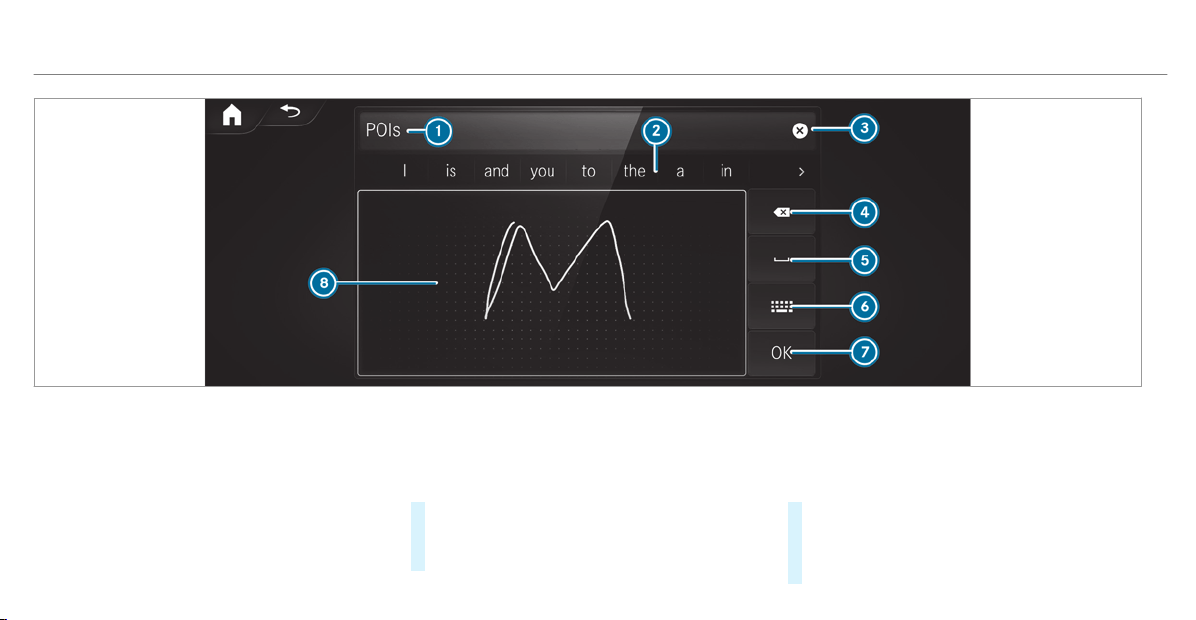
Using handwriting input
1
Input line
2
Shows suggestions during input
3
Deletes an entry
4
Deletes
Pressing or pressing briefly deletes the last
character entered
Pressing and holding deletes the entry
5
Enters a space
6
Switches to input using the keyboard
7
Accepts an entry
8
Writes characters on the drawing surface
If available, the p symbol allows you to
change to voice input.
#
Call up the character entry to rename a
favorite, for example (/ page 259).
#
When the keyboard is displayed, select v.
#
Write the character with one finger on the
touchscreen.
The character is entered in input line 1.
Suggestions are shown in 2.
272
MBUX multimedia system
#
To select a suggestion: select one of the
entries.
#
If available, display additional suggestions
with q or r.
#
Resume character input. The letters can be
written next to each other or above each
other.
#
To end character input: press the G but‐
ton.
Setting the keyboard for character entry
Multimedia system:
4
Settings
5
System
5
Controls
5
Keyboards and Handwriting
#
Confirm Select keyboards.
Select the keyboard language in the list.
System settings
Display
Configuring display settings
Multimedia system:
4
©
5
Settings
5
System
5
Designs & Disp.
Setting the design
#
Select Designs.
#
Select Classic, Sport or Progressive.
The multimedia system display changes
depending on the style selected. If you revert
to the factory settings, the
Classic style is
set.
Adapting the ambient light for the style
#
Select Adjust Ambient Lighting.
#
Activate or deactivate the function.
This function adjusts the ambient light for
the selected display style.
Setting the display brightness
#
Select Display Brightness.
#
Select a brightness value.
Switching the display off/on
#
Off: select Display Off.
#
On: press a button, %, for example.
Selecting the display design
#
Select Day/Night Design.
#
Select Automatic, Day Design or Night
Design.
Switching the temperature display on/off
#
Select Temperature Display.
#
Select Outside Temp. or Coolant Temp..
The selected temperature is displayed in the
instrument cluster.
MBUX multimedia system
273

Time and date
Setting the time and date automatically
Multimedia system:
4
©
5
Settings
5
System
5
Time and Date
#
Deactivate Manual Time Adjustment.
The time and date are set automatically for
the selected time zone and summer time
option.
%
The correct time is required for the following
functions:
R
Route guidance with time-dependent
traffic guidance.
R
Calculation of expected time of arrival.
Setting the time zone
Requirements:
R
For the manual time zone: Automatic Time
Zone is switched off.
Multimedia system:
4
©
5
Settings
5
System
5
Time and Date
Setting the time zone manually
#
Select Time Zone:.
The list of countries is displayed.
%
If there are several time zones available in a
country, these will be shown after the coun‐
try is selected.
#
Select a country and, if required, a time
zone.
The time zone set is displayed after Time
Zone:.
Setting the time zone automatically
#
Activate Automatic Time Zone.
Setting the time and date format
Multimedia system:
4
©
5
Settings
5
System
5
Time and Date
5
Set Format
#
Set the date and time format #.
Setting the time and date manually
Requirements:
R
The Manual Time Adjustment function is
switched on.
R
For setting the date manually: no GPS is
installed in the vehicle.
Multimedia system:
4
©
5
Settings
5
System
5
Time and Date
Setting the time (without time zone)
#
Select Set Time.
#
Set a time.
Setting the time (with time zone)
#
Select Set Time.
If a time zone is set the time is set automatically
using the time zone. The time can be adjusted by
a maximum of plus or minus 60 minutes.
#
Adjust the time using the slide control.
274
MBUX multimedia system

Setting the date
#
Select Set Date.
#
Set a date.
%
In vehicles with GPS, a date cannot be set
even with active manual time adjustments.
The date is then set automatically through
the selected time zone.
Connectivity
Switching transmission of the vehicle posi‐
tion on/off
Multimedia system:
4
©
5
Settings
5
System
5
Wi-Fi & Bluetooth
#
Select Transmit Vehicle Position.
#
Activate or deactivate the function.
Bluetooth
®
Information about Bluetooth
®
Bluetooth
®
technology is a standard for short-
range wireless data transfer up to approximately
32.8 ft (10 m).
You can use Bluetooth
®
to connect your mobile
phone to the multimedia system and use the fol‐
lowing functions, for example:
R
hands-free system with access to the follow‐
ing options:
-
contacts (/ page 336)
-
call lists ( / page 340)
-
text messages
R
Internet connection
R
listening to music via Bluetooth
®
audio
R
transferring business cards (vCards) into the
vehicle
Bluetooth
®
is a registered trademark of Blue‐
tooth Special Interest Group (SIG) Inc.
%
Internet connection via Bluetooth
®
is not
available in all countries.
Activating/deactivating Bluetooth
®
Multimedia system:
4
©
5
Settings
5
System
5
Wi-Fi & Bluetooth
#
To switch on Bluetooth
®
: select Connect
via Bluetooth.
#
Activate Bluetooth.
#
To switch off Bluetooth
®
: select Settings.
#
Deactivate Bluetooth.
Wi-Fi
Wi-Fi connection overview
You can use Wi-Fi to establish a connection with
a Wi-Fi network and to access the Internet or
other network devices.
The following connection options are available:
R
Wi-Fi connection
The Wi-Fi connection to a Wi-Fi-capable
device, e.g. the customer's mobile phone or
a tablet PC is established.
R
Multimedia system as a Wi-Fi hotspot
MBUX multimedia system
275

Using this function, a tablet PC or notebook
can be connected, for example. The connec‐
ted device can use the data tariff of the vehi‐
cle. A maximum of three devices can be con‐
nected with the hotspot at the same time.
%
The use of the vehicle data tariff by external
devices is not available in all countries.
To establish a connection, you can use the fol‐
lowing methods:
R
WPS PIN
The connection to a secure Wi-Fi network is
made via a PIN.
R
WPS PBC
The connection to a secure Wi-Fi network is
made by pressing a button (push button).
R
Security key
The connection to a secure Wi-Fi network is
made via a security key.
Setting up Wi-Fi
Requirements:
R
The device to be connected supports one of
the three means of connection described.
Multimedia system:
4
©
5
Settings
5
System
5
Wi-Fi & Bluetooth
Switching on Wi-Fi
#
Select Wi-Fi.
The Wi-Fi is switched on and you can con‐
nect the multimedia system with external
hotspots.
Switching off Wi-Fi
#
Select Settings.
#
Deactivate Wi-Fi.
If Wi-Fi is deactivated, communication via Wi-
Fi to all devices is interrupted. This also
means that a connection to the communica‐
tion module cannot be established. Then
some functions such as dynamic route guid‐
ance with Live Traffic Information are not
available.
Connecting the multimedia system with a
new device via Wi-Fi
This function is available if a communication
module is not installed.
The type of connection established must be
selected on the multimedia system and on the
device to be connected.
%
The connection procedure may differ
depending on the device. Follow the instruc‐
tions that are shown in the display. Further
information (see the manufacturer's operat‐
ing instructions).
#
Select Connect via Wi-Fi.
#
Select Add Hotspot.
Connecting using a security key
#
Select the options r of the desired Wi-Fi
network.
#
Select Connect Using Security Key.
#
Have the security key displayed on the device
to be connected (see the manufacturer's
operating instructions).
#
Enter this security key on the multimedia sys‐
tem.
#
Confirm the entry with ¡.
%
All devices support a security key as a
means of connection.
276
MBUX multimedia system

Connecting using a WPS PIN
#
Select the options r of the desired Wi-Fi
network.
#
Select Connect via WPS PIN Input.
The multimedia system generates an eight-
digit PIN.
#
Enter this PIN on the device to be connected.
#
Confirm the entry.
Connecting using a button
#
Select the options r of the desired Wi-Fi
network.
#
Select Connect via WPS PBC.
#
Select "Connect via WPS PBC" in the options
on the device to be connected (see the man‐
ufacturer's operating instructions).
#
Press the WPS button on the device to be
connected.
#
Select Continue in the multimedia system.
Activating automatic connection
#
Select Connect via Wi-Fi.
#
Select the options r of the desired Wi-Fi
network.
#
Activate Permanent Internet Connection.
Connecting with a known Wi-Fi
#
Select Connect via Wi-Fi.
#
Select a Wi-Fi network.
The connection is established again.
Setting up a Wi-Fi hotspot
Multimedia system:
4
©
5
Settings
5
System
5
Wi-Fi & Bluetooth
Configuring the multimedia system as a Wi-
Fi hotspot
The type of connection established depends on
the device to be connected. The function must
be supported by the multimedia system and by
the device to be connected. The type of connec‐
tion established must be selected on the multi‐
media system and on the device to be connec‐
ted.
#
Select Vehicle Hotspot.
#
Select Connect Device to Vehicle Hotspot.
Connecting using WPS PIN generation
#
Select Connect via WPS PIN Generation.
#
Enter the PIN shown in the media display on
the device to be connected and confirm.
Connecting using WPS PIN entry
#
Select Connect via WPS PIN Input.
#
Enter the PIN that is shown on the external
device's display on the multimedia system.
Connecting using a button
#
Select Connect via WPS PBC.
#
Press the push button on the device to be
connected (see the manufacturer's operating
instructions).
#
Select Continue.
Connecting using a security key
#
Select Connect Device to Vehicle Hotspot.
A security key is displayed.
#
Select the vehicle from the device to be con‐
nected. The vehicle is displayed with the MB
Hotspot XXXXX network name.
MBUX multimedia system
277

#
Enter the security key which is shown in the
media display on the device to be connected.
#
Confirm the entry.
Connecting using NFC
#
Select Connect via NFC.
#
Activate NFC on the mobile device (see the
manufacturer's operating instructions).
#
Bring the mobile device into the NFC area of
the vehicle (/ page 334).
#
Select Finished.
The mobile device is now connected to the
multimedia system hotspot via NFC.
Generating a new security key
#
Select Vehicle Hotspot.
#
Select Generate Security Key.
A connection will be established with the
newly created security key.
#
To save a security key: select Save.
When a new security key is saved, all existing
Wi-Fi connections are then disconnected. If
the Wi-Fi connections are being re-estab‐
lished, the new security key must be entered.
Managing MBUX Touch devices
Requirements:
R
The MBUX Touch app is installed on the
external device (e.g. tablet or smartphone).
R
Wi-Fi is activated (/ page 276) and the
multimedia system is configured as a Wi-Fi
hotspot (/ page 277).
Multimedia system:
4
©
5
Settings
5
System
5
MBUX Touch
Connecting and authorizing a new device
#
Select Authorize a New Device.
#
Select Connect New Device.
#
Enter the security key in the external device.
The Please start MBUX Touch on your device
and follow the instructions. message
appears.
#
Select Continue.
#
Accept the connection request from the new
device.
#
Enter the PIN shown on the external device.
The device is authorized.
Authorizing a connected device
#
Select Authorize a New Device.
#
Continue Using Connected Devices
The Please start MBUX Touch on your device
and follow the instructions. message
appears.
#
Select Continue.
#
The connection request from the device
Accept.
#
Enter the PIN shown on the external device.
The device is authorized.
De-authorizing the device
#
Select an authorized device from the list.
A prompt will appear asking whether you
would like to de-authorize the selected
device.
#
Select Deauthorize.
#
Select Yes.
The device is de-authorized.
278
MBUX multimedia system

System language
Notes on the system language
This function allows you to determine the lan‐
guage for the menu displays and the navigation
announcements. The selected language affects
the characters available for entry. The navigation
announcements are not available in all lan‐
guages. If a language is not available, the naviga‐
tion announcements will be in English.
Setting the system language
Multimedia system:
4
©
5
Settings
5
System
5
Language
#
Set the language.
%
If you are using Arabic map data, the text
information can also be shown in Arabic on
the navigation map. To do so, select ������� as
the language from the language list. Naviga‐
tion announcements are then also made in
Arabic.
Setting the distance unit
Multimedia system:
4
©
5
Settings
5
System
5
Units
#
Select km or mi.
#
In the multifunction display of the Instrument
Display, switch the Additional Speedometer
display on.
Data import and export
Data import/export function
The following functions are possible:
R
Transferring data from one system or vehicle
to another system or vehicle.
R
Creating a backup copy of your personal data
and loading it again.
R
Protecting your personal data against unwan‐
ted export with PIN protection.
%
Please note that the NTFS file system is not
suppor ted. The FAT32 f ile system is recom‐
mended.
Importing/exporting data
*
NOTE Loss of data due to premature
removal
#
Do not remove the data storage
medium when data is being exported.
Mercedes-Benz is not liable for any loss of
data.
Requirements:
R
The vehicle is stationary
R
The ignition is switched on.
R
A USB device is connected.
Multimedia system:
4
©
5
Settings
5
System
5
System Backup
#
Select Import Data or Export Data.
Importing
#
Select a data storage medium.
A prompt appears asking whether you really
wish to overwrite the current data. If data
MBUX multimedia system
279

originates from another vehicle, this is recog‐
nized during data reading.
#
Confirm the prompt.
The files are imported. The multimedia system is
restarted once the data has been imported.
%
Current vehicle settings can be edited after
the import.
Exporting
If PIN protection is activated, your PIN is reques‐
ted.
#
Enter the four-digit PIN.
#
Select a data storage medium.
A prompt appears asking whether you really
wish to carry out the export.
#
Confirm the prompt.
The data is exported. The data export may
take several minutes.
%
After successful export, the data is saved in
the "MyMercedesBackup" directory which
can be found on the storage medium.
Activating/deactivating PIN protection
Requirements for unlocking the PIN:
R
There is an Internet connection.
R
A Mercedes me account exists at http://
www.mercedes.me.
R
An individual user profile is active
(/ page 253).
Multimedia system:
4
©
5
Settings
5
System
5
PIN Protection
Setting the PIN
#
Select Set PIN.
#
Enter a four-digit PIN.
#
Enter the four-digit PIN again.
If both PINs match, PIN protection is active.
Changing the PIN
#
Select Change Settings.
#
Enter the current PIN.
#
Select Change PIN.
#
Set a new PIN.
Activating PIN protection for data export
#
Select Protect Data Export.
Activate or deactivate the function.
Unblocking the PIN via the Mercedes me por‐
tal
If the PIN has been entered incorrectly three
times, the PIN will be blocked. You can have a
single-use password sent to you via the
Mercedes me connect online portal to reset the
PIN protection.
#
Select Unlock PIN.
#
Enter the single-use password.
PIN protection is reset, and you can set a
new PIN.
Software update
Information on software updates
A software update consists of three steps:
R
Downloading or copying of the data required
for installation
R
Installation of the update
280
MBUX multimedia system

R
Activation of the update by restarting the
system
The multimedia system provides a message
when an update is available.
Depending on the source, you can perform vari‐
ous updates:
Software updates
Source of the
update
Update type
Internet Navigation map, sys‐
tem updates, Digital
Operator's Manual
External storage
medium, e.g. USB
flash drive
Navigation maps
%
Installation can ta ke several minutes and
cancellation is not possible. If you do not
install the software updates then the status
of your vehicle will not be up-to-date. During
the installation, individual functions or con‐
trol elements are not available or only availa‐
ble to a limited degree.
Advantages of updating software
Software updates ensure your vehicle's technol‐
ogy is always up-to-date.
In order to improve the quality of our services
you will receive future updates for your multime‐
dia system, the Mercedes me connect services
and your vehicle's communication module.
These will conveniently be sent to you via the
mobile phone connection in your vehicle and, in
many cases, installed automatically. You can
monitor the status of your updates at any time
on the Mercedes me portal and find information
about potential innovations.
Your advantages at a glance:
R
conveniently receive software updates via
the mobile phone network
R
improves the quality and availability of
Mercedes me connect services
R
keeps your multimedia system and communi‐
cation module up-to-date
Further information about software updates can
be found at http://me.mercedes-benz.com
Performing a software update
Requirements:
R
For online updates: an Internet connection
is established (/ page 355).
R
For automatic online updates: your vehicle
has a permanently installed communication
module.
Multimedia system:
4
©
5
Settings
5
System
5
Software Update
Automatically
#
Activate Automatic Online Update.
The updates will be downloaded and installed
automatically.
The current status of the updates is dis‐
played.
Manually
#
Deactivate Automatic Online Update.
MBUX multimedia system
281

#
Select an update from the list and start the
update.
Activating the software update
#
Restart the system.
The modifications from the sof tware update
will be active.
Function of important system updates
Importa nt system updates may be necessary for
the security of your multimedia system's data.
Install these updates, or else the security of your
multimedia system cannot be ensured.
%
If automatic software updates are activated,
the system updates will be downloaded auto‐
matically (/ page 281).
As soon as an update is available for download,
a corresponding message appears on the media
display.
You have the following selection options:
R
Accept and Install
The update will be downloaded in the back‐
ground.
R
Information
Information about the pending system
update is displayed.
R
Later
The update can be downloaded manually at a
later time (/ page 281).
Deep system updates
Deep system updates access vehicle or system
settings and can therefore only be carried out
when the vehicle is stationary and the ignition is
switched off.
If the download of a deep system update is com‐
pleted and the update is ready for installation,
you will be informed of this af ter the next igni‐
tion cycle, for example.
%
Park the vehicle safely in a suitable location
before starting the installation.
Requirements for the installation:
R
The ignition is switched off.
R
Notes and warnings have been read and
accepted.
R
The electric parking brake is applied.
If all requirements are met, the update will be
installed. The multimedia system cannot be
operated while the update is being installed and
vehicle functions are restricted.
If errors should occur during the installation, the
multimedia system automatically attempts to
restore the previous version. If restoration of the
previous version is not possible, a symbol
appears on the media display. Please consult a
qualified specialist workshop to resolve the
problem.
Resetting the multimedia system (reset func‐
tion)
Multimedia system:
4
©
5
Settings
5
System
5
Reset
Personal data is deleted, for example:
R
Station presets
R
Connected mobile phones
R
individual user profiles
%
The guest profile is reset when the settings
are restored to the factory settings.
282
MBUX multimedia system

A prompt appears again asking whether you
really wish to reset.
#
Select Yes.
The multimedia system is reset to the factory
settings. If you have set a PIN for your sys‐
tem, this will also be reset.
Fit & Healthy
Setting ENERGIZING seat kinetics
Requirements:
R
These functions are available only for fully
electric seats with a memory function.
Multimedia system:
4
©
5
Comfort
5
Seat Comfort
#
Select Seat Kinetics.
ENERGIZING seat kinetics can support back
health by changing the seat position during driv‐
ing. The muscles and joints are repeatedly
stressed and relieved by means of minor move‐
ments of the cushion and backrest.
Starting seat kinetics
#
Select Ì for the required seat.
#
The program runs for the set duration.
Configuring seat kinetics
#
Select Z for the required seat.
#
Select Backrest or Backrest and Seat Sur-
face.
#
Select the desired setting.
Vehicles with a multicontour seat:
In addition to the seat backrest and seat cush‐
ion, the lumbar function can be activated for the
function.
#
Switch Including Lumbar on or off.
Setting duration
#
Select Z for the required seat.
The following run times are available:
R
Short (16 minutes)
R
Medium (32 minutes)
R
Long (96 minutes)
#
Select a run time.
The selected program starts.
ENERGIZING comfort
MBUX multimedia system
283

ENERGIZING comfort program overview
Program Function
Refresh
Can make targeted changes to the interior climate to refresh vehicle occupants. Cooling airflow and ioniza‐
tion purify the air. The vehicle interior is illuminated with cool colors and the seats are ventilated.
Warmth
Can increase the comfort level of the vehicle occupants. The vehicle's panel, seat and steering wheel
heater produce a cozy warmth. The air is purified using ionization and a pleasant fragrance is released. The
vehicle interior is illuminated with warm lighting.
Vitality
Can counteract diminishing attentiveness in monotonous driving situations. Fast-paced music and a vitaliz‐
ing massage provide invigorating stimulation for the vehicle occupants. The air is purified using ionization
and a pleasant fragrance is released. The vehicle interior is illuminated in a stimulating hue and the seat is
ventilated.
Pleasure
Can promote a positive mood in the vehicle occupants as well as mental and physical regeneration. Moder‐
ately fast music is played and a massage program is activated. The air is purified using ionization and a
pleasant fragrance is released. The vehicle interior is illuminated with amicable lighting.
Well being
Can aid the physical and mental relaxation of vehicle occupants. A back massage combined with local
warmth provide relaxation. The air is purified using ionization and a pleasant fragrance is released. The
music player plays selections of calming music and the vehicle interior is illuminated with pleasant lighting.
284
MBUX multimedia system
Program Function
Training
Can counteract the onset of muscle tension, limbs falling asleep or stress with targeted relaxation or stim‐
ulation exercises. The exercises are demonstrated in short videos. The air is purified using ionization and a
pleasant fragrance is released. The vehicle interior is illuminated with lighting appropriate to the exercise.
The training consists of audio content and a brief animation. The audio content is conceived so that it can
also be played back when you are driving. The animation is only shown when the vehicle is driving slower
than 3 mph (5 km/h). The animation is hidden at higher speeds. Always observe the traffic conditions if
you are training when driving.
Tips
The system gives tips for possible exercises or measures for improving the comfort level of the vehicle
occupants. Playback is purely aural. By selecting the desired area of the body you can receive targeted tips
for the comfort level of this area.
%
Please note that the available programs and
the associated functions are dependent on
your vehicle equipment. Depending on your
equipment, fewer functions may be availa‐
ble.
Starting the ENERGIZING comfort program
&
WARNING Increased risk of an accident
when using the ENERGIZING comfort
program Tips and Training
If you use the ENERGIZING comfort program
Tips and Training when you are driving, you
could be distracted from the traffic situation.
#
Only carry out exercises when the traf‐
fic circumstances permit.
#
Make sure that you are always aware of
the traffic situation around you when
listening to the tips.
Requirements:
R
The ignition is switched on.
MBUX multimedia system
285

Multimedia system:
4
Comfort
5
ENERGIZING COMFORT
Starting a program
The following programs are available:
R
Refresh
R
Warmth
R
Vitality
R
Enjoyment
R
Well-being
#
Select a program.
#
Select Start.
The selected program will run for ten
minutes.
If, during an active program, a function require‐
ment is no longer met, a corresponding message
appears. The active program is canceled.
Selecting a seat
#
Select a program.
#
Select Seats.
#
Select the desired seat.
Configuring a program
#
Select a program.
#
Select Z.
#
Switch the functions included in the program
on or off.
Starting the training program
#
Select Training.
The following training programs are available:
R
Muscle Stim.
R
Muscle Relax.
R
Balance
#
Select a program.
The program starts.
#
To activate fragrancing for training: select
Air Freshener.
%
The animation for demonstration of the exer‐
cises is only shown when the vehicle is sta‐
tionary or when you are driving slower than
3 mph (5 km/h). At higher speeds the pic‐
ture is hidden and you will only be able to
hear the instructions.
Starting tips
#
Select Tips.
The following categories are available:
R
Upper Body
R
Lower Back
R
Head
R
Shoulders
R
Pelvis
#
Select the desired area of the body Ì.
Playback of the tip for this area of the body
starts.
#
Select É to stop playback of the tip.
%
You receive a tip for each option. To listen to
the next tip, again select a desired category.
286
MBUX multimedia system

ENERGIZING COACH
Function of the ENERGIZING COACH
Requirements:
R
The ENERGIZING COACH (ENERGIZING
COACH) service is activated in the Mercedes
me por tal or the Mercedes me app .
With ENERGIZING COACH you can evaluate the
driving and driver situation. Depending on the
situation, it offers recommendations for the start
of an appropriate ENERGIZING comfort program.
The following programs could be suggested:
R
Vitality
As an activating program in monotonous driv‐
ing situations or for long journey times, for
example.
Information on the vitality program see
(
/ page 284).
R
Enjoyment
As a balancing program in demanding driving
situations.
Information on the pleasure program see
(
/ page 284).
By connecting a GARMIN fitness tracker, for
example the GARMIN Vívosmart
®
3, additional
information can be entered into the evaluation
for the recommendation of an ENERGIZING com‐
fort program. The additional information
includes the stress level, that is calculated by
the fitness tracker. The stress level is based pri‐
marily on the pulse.
Requirements for the integration of additional
information via a GARMIN fitness tracker:
R
Your fitness tracker is connected with your
GARMIN account.
R
Your GARMIN account is connected with your
Mercedes me account.
If you wear your GARMIN fitness tracker at night
also, the sleep data is included in the evaluation
of the ENERGIZING COACH.
Requirement for the integration of the sleep
data:
R
The GARMIN fitness tracker is synchronized
with the GARMIN account before the begin‐
ning of the journey.
%
If ATTENTION ASSIST determines an exces‐
sive lack of attention, ENERGIZING COACH
makes no further suggestions. Further infor‐
mation about ATTENTION ASSIST
(
/ page 201).
Calling up the ENERGIZING COACH display
Multimedia system:
4
©
5
Comfort
#
Select ENERGIZING COACH.
Your current pulse as well as an evaluation of
your pulse for the last 30 minutes driving
time are shown.
A corresponding error message is shown if
there is no mobile phone connected or no
pulse can be shown.
#
In the event of an error message make sure
that the following requirements are fulfilled:
R
The fitness tracker is connected with your
GARMIN account.
R
Your GARMIN account is connected with
your Mercedes me account on your
mobile phone.
MBUX multimedia system
287
R
The mobile phone is connected as the
main phone to the multimedia system
(/ page 331).
Navigation
Switching navigation on
Multimedia system:
4
©
5
Navigation (Navigation)
#
Alternatively: press the z button.
The map appears. The current vehicle posi‐
tion is shown. The navigation menu is shown.
Showing/hiding the navigation menu
4
©
5
Navigation
If route guidance is not active the map appears.
The navigation menu is shown.
If route guidance is active the map appears in
full-screen mode. The navigation menu is not
shown.
#
To show: tap on the touchscreen.
or
#
Press the Touch Control or the touchpad.
#
To hide: the navigation menu is hidden auto‐
matically.
288
MBUX multimedia system
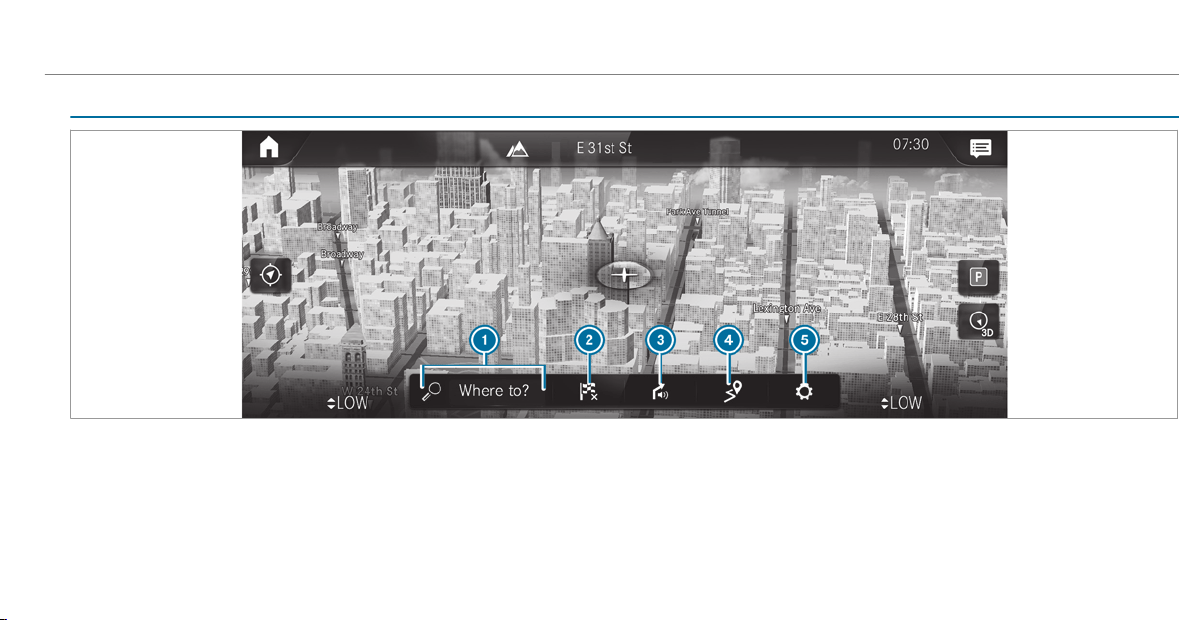
Navigation overview
Example: digital map with navigation menu
1
To enter a POI or address and additional des‐
tination entry options
2
To interrupt route guidance (if route guid‐
ance is active)
3
To repeat a navigation announcement and
switch navigation announcements on or off
4
To call up the ON THE WAY menu
• To show Route Overview
• To select Alternative Routes
• Report Traffic Incident (Car-to-X)
• To call up the TRAFFIC menu
♢ To show Traffic Announcements
♢ To show Area Messages
♢ To show Live Traffic Subscription Info
MBUX multimedia system
289
• To show Route List
• To call up the POSITION menu
♢ Save Position
♢ To show Compass
5
Quick-access and settings
• To show Traffic
• To show Parking
• To show Highway Information
• Via Advanced options to use View,
Announcements and Route
%
The options are not available in all countries.
%
You can enter 3 word addresses in the online
search (/ page 295). This option is not
available in all countries.
Destination entry
Notes on destination entry
&
WARNING Risk of distraction from oper‐
ating integrated communication equip‐
ment while the vehicle is in motion
If you operate communication equipment
integrated in the vehicle when driving, you
will be distracted from the traffic situation.
This could also cause you to lose control of
the vehicle.
#
Only operate this equipment when the
traffic situation permits.
#
If you cannot be sure of this, stop the
vehicle whilst paying attention to road
and traffic conditions and operate the
equipment with the vehicle stationary.
You must observe the legal requirements for the
country in which you are currently driving when
operating the multimedia system.
Entering a POI or address
&
WARNING Risk of distraction from infor‐
mation systems and communications
equipment
If you operate information and communica‐
tion equipment integrated in the vehicle
when driving, you will be distracted from the
traffic situation. This could also cause you to
lose control of the vehicle.
#
Only operate this equipment when the
traffic situation permits.
#
If you cannot be sure of this, stop the
vehicle whilst paying attention to road
and traffic conditions and operate the
equipment with the vehicle stationary.
You must observe the legal requirements for the
country in which you are currently driving when
operating the multimedia system.
Requirements:
R
For the online search: Mercedes me con‐
nect is available.
R
You have a user account for the Mercedes
me por tal.
290
MBUX multimedia system
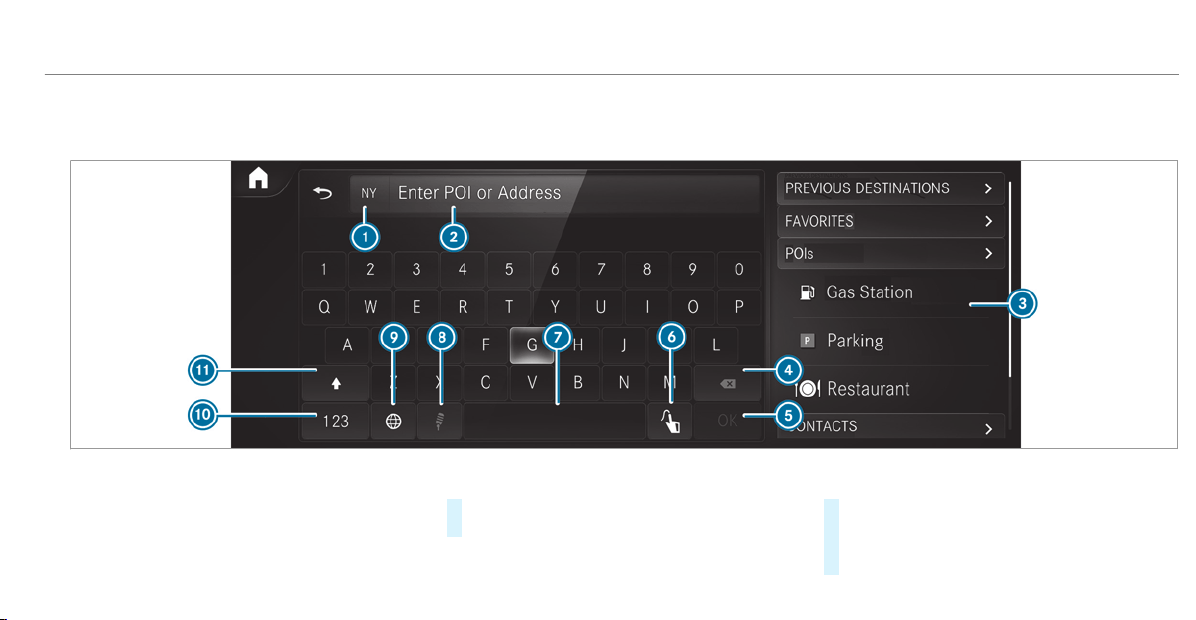
R
The service is available.
R
The service has been activated at an author‐
ized Mercedes-Benz Center.
Further information can be found at: http://
www.mercedes.me
Multimedia system:
4
©
5
Navigation
5
ª Where to?
On-board search with the keypad
Destination entry uses the on-board search of
the database stored in the multimedia system.
The federal state or province in which the vehicle
is located is set 1.
#
Enter the POI or the address using the key‐
board (in the image) or using handwriting
recognition 6 in input line 2. The entries
can be made in any order.
During destination entry, suggestions are
offered in 3 by the multimedia system. Des‐
MBUX multimedia system
291

tination selection takes place in list 3 or
with a.
If the multimedia system is equipped with a
small display, calling up list
3 is carried out
using a list symbol at the top right.
The following entries can be made, for exam‐
ple:
R
City, street, house number
R
Street, city
R
ZIP code
R
POI name
R
POI categories, e.g. Gas Station
R
City, POI name
R
Telephone number, if this is available for
the POI
R
Contact name
#
Alternatively, use voice input 8.
#
To switch to handwriting recognition:
select 6.
#
Write the character on the touchpad. The let‐
ters can be wr itten next to each other or
above each other (/ page 265).
#
To return to entry using the keyboard:
select _.
or
#
Press the touchpad.
#
To delete an entry: select 4.
The characters are deleted individually.
or
#
If characters have been entered in 2, select
£ next to the input line.
The complete entry is deleted.
#
To switch to upper-case or lower-case let‐
ters: select B.
#
To switch to digits, special characters
and symbols: select A.
123 changes to ABC.
Display B changes to #+=.
#
Select B and switch to additional special
characters.
#
To enter a space: select 7.
#
To set the language: select 9.
#
Select the language.
%
This function is useful for countries in which
several character sets are supported. An
example is Russia, which uses Cyrillic and
Latin characters.
#
To change the state: select indicator for
federal state or province 1.
#
Select the state in 1.
#
Enter the country indicator, e.g. CA for Can‐
ada.
The list is filtered.
#
Select the country on list 3.
The destination can be entered.
#
To change the state or province: select the
state or the province in list 3.
#
To accept a destination: select the destina‐
tion in list 3.
#
If the destination is ambiguous, select the
destination in the list.
The destination address is shown. The route
can be calculated.
292
MBUX multimedia system

Using online search
%
Requirements: there is an Internet connec‐
tion.
Online search is not available in all countries.
Destination entry uses online map services. If
the on-board search finds no suitable destina‐
tions or if you change countries, the online
search is available.
For the destination you can enter an address, a
POI or a three-word address.
%
Enter a 3 word address (/ page 295).
#
Select country indicator 1.
#
Select the provider for the online service
from the countries list.
or
#
If the on-board search delivers no search
results, select Online Search.
#
Enter the destination in the input line. The
entry order is not relevant, e.g. street and
city. Use the functions described for the on-
board search.
The search results are displayed.
#
Select the destination in the list.
The detailed view for the route is displayed.
Selecting previous destinations
Requirements:
R
Previous destinations are stored.
R
For destination suggestions: you have cre‐
ated a profile (/ page 252).
R
The Allow destination suggestions option is
switched on (/ page 257).
R
The multimedia system has already gathered
sufficient data in order to show destination
suggestions.
Multimedia system:
4
©
5
Navigation
5
ª Where to?
5
PREV. DESTINATIONS
The following entries can be selected in the pre‐
vious destinations:
R
Destination suggestions (/ page 312)
R
Destinations
R
Routes
#
Select the destination or route.
The destination address is shown. The route
can be calculated.
%
You can save a previous destination or a des‐
tination suggestion as a favorite
(/ page 312).
Using the favorites, you have quick access to
the destinations (/ page 297).
Selecting a POI
Requirements:
R
For use of personal POIs: a USB device is
connected with the multimedia system.
R
Personal POIs with the GPS Exchange format
(.gpx) have been saved in the "PersonalPOI"
folder on the USB device.
Multimedia system:
4
©
5
Navigation
5
ª Where to?
5
POIS
Searching using categories (no route guid‐
ance)
#
Select the category.
or
MBUX multimedia system
293

#
Select All Categories.
#
Select the category and the sub-category (if
available).
#
To filter according to categories or in
search results: enter a search entry in the
ª Search text field.
The search takes place in the vicinity of the
vehicle's current position. The search result
are sorted by distance in ascending order.
The POIs show the following information:
R
direction of the linear distance to the POI
(arrow)
R
name of POI
R
linear distance to the POI
#
Select a POI with a or select from the
list.
The destination address is shown. The route
can be calculated.
Searching using categories (route guidance
active)
#
Select the category, for example Gas Station.
or
#
Select All Categories.
#
Select the category and the sub-category (if
available).
#
To filter according to categories or in
search results: enter a search entry in the
ª Search text field.
#
Select the search positions In the Vicinity,
Near Destination or Along the Route.
#
If there are intermediate destinations for the
route and Near Destination has been selec‐
ted, select the search position in the route
overview.
#
Select a POI with a or select from the
list.
The destination address is shown. The route
can be calculated.
Searching for personal POIs
#
Select Personal POIs.
#
Select a category.
#
If route guidance is active, select a search
position In the Vicinity, Near Destination or
Along the Route.
#
Select a personal POI.
The destination address is shown. The route
can be calculated.
or
#
Enter a search entry into the search field and
filter the list.
#
Select a personal POI.
Editing personal POI categories
#
Select a personal POI category from the list
s.
A menu opens.
#
To change a name: select Change Name.
#
Enter the name.
#
Select a.
#
To change a symbol: select Change Icon.
#
Select a symbol.
#
To delete a personal POI category: select
Delete.
#
Select Yes.
294
MBUX multimedia system

Configuring categories for quick-access
You can configure the categories for quick-
access.
If you calculate the route, for example, the first
three categories can be selected as symbols.
#
Select All Categories.
#
Select the category and the sub-category (if
available).
#
Select f or ß.
f adds the category.
ß removes the category.
#
If all available quick-access positions are full,
select the category to be replaced.
Selecting a contact for destination entry
Requirements:
R
A mobile phone is connected to the multime‐
dia system (/ page 331).
Multimedia system:
4
©
5
Navigation
5
ª Where to?
5
CONTACTS
Using the contact list
#
Select a contact.
The contact details are displayed.
#
Select the address.
Using search entry
#
Enter a name or telephone number, for exam‐
ple, into the search field.
#
Select a.
#
Select the contact.
#
Select the address.
The destination address is shown. The route
can be calculated.
%
Route guidance to a contact address is relia‐
ble in the following cases:
R
the contact address is complete.
R
the contact data matches the map data
in the digital map.
Entering geo-coordinates
Multimedia system:
4
©
5
Navigation
5
ª Where to?
5
GEO-COORDINATES
#
Select Latitude or Longitude.
#
Select geo-coordinates as latitude and longi‐
tude coordinates in degrees, minutes and
seconds. To do this swipe up or down
respectively.
The map shows the position.
#
Confirm the entry with a.
#
To set the destination: select ¥ or
¦.
#
Calculate the route (/ page 297).
Entering the destination as a 3 word address
Requirements
R
Searching for a destination using 3 word
addresses is possible in the online search
(/ page 290).
R
The media display shows an Internet connec‐
tion with a double-arrow symbol in the status
line.
MBUX multimedia system
295

%
Searching for a destination using 3 word
addresses is not possible in all countries.
Multimedia system:
4
©
5
Navigation
5
ª Where to?
#
Select the country indicator.
#
Select the provider for the online service
from the countries list.
or
#
If the on-board search delivers no search
results, select Online Search.
#
Enter the destination address as a 3 word
address. Separate each of the words with a
period.
The search results are displayed.
#
Select the destination in the list.
The destination address is shown. The route
can be calculated.
%
3 word addresses from what3words are an
alternative addressing system for multilin‐
gual georeferencing of global locations with
a resolution of three meters. Using this grid,
locations on the Earth's surface are included
which do not have a building address such
as street and house number, for example.
The Empire State Building in New York has
the following language dependent 3 word
address, for example:
R
English: parade.help.bleat
R
French: commun.verbe.bisquer
R
Spanish: suertes.diga.pesca
3 word addresses are unique, easy to
remember and suffice for most routine appli‐
cations.
The bidirectional conversion of 3 word
addresses can be carried out here:
R
at the website http://what3words.com
R
in the what3words apps
Selecting a destination on the map
Multimedia system:
4
©
5
Navigation
#
Move the map (/ page 320).
#
Using the touchscreen: press and hold on
the touchscreen.
The destination address is shown.
If several destinations are located at the
selected position, a list shows the available
roads and POIs.
#
Select the destination in the list.
The destination address is shown. The route
can be calculated.
#
Using the touchpad: when the crosshair
marks the destination, press and hold on the
control element.
The destination address is shown.
If several destinations are located around the
crosshair, a list shows the available roads
and POIs.
#
Select the destination in the list.
The destination address is shown. The route
can be calculated.
Showing POIs in the vicinity of the map
If several destinations are located around the
crosshair, the function is available.
#
Select Ä.
296
MBUX multimedia system

#
Select POIs in the Vicinity.
The map appears.
#
Swipe left or right on the control element.
The previous or next POI is highlighted on the
map. The name or the address is shown.
#
Select the POI symbol.
or
#
To filter the display according to the POI
category: scroll on the control element.
#
Select the POI category.
Selecting a destination from favorites
Requirements:
R
Destinations are saved as favorites.
Save a previous destination or a destination
suggestion as a favorite (/ page 312).
Multimedia system:
4
©
5
Navigation
5
ª Where to?
5
FAVORITES
#
Select a favorite.
The destination address is shown. The route
can be calculated.
The following options are available in the favor‐
ites menu:
R
Saving addresses for home and work
R
Creating favorites
R
Deleting favorites
#
If no address has been saved for home
and work: select Home or Work.
#
Confirm the prompt with Yes.
#
Enter the favorite as a POI or address
(/ page 290).
#
To save a favorite: select Add Favorites.
#
Enter the favorite as a POI or address
(/ page 290).
or
#
If all the positions in the favorites are full,
first select a favorite which is to be overwrit‐
ten (/ page 258).
#
Follow the instructions provided.
#
To delete a favorite: select V for a desti‐
nation.
#
Select Delete.
or
#
Press on a favorite until the OPTIONS menu
is shown.
#
Select Delete.
Route
Calculating a route
Requirements:
R
The destination has been entered.
R
The destination address is shown.
MBUX multimedia system
297
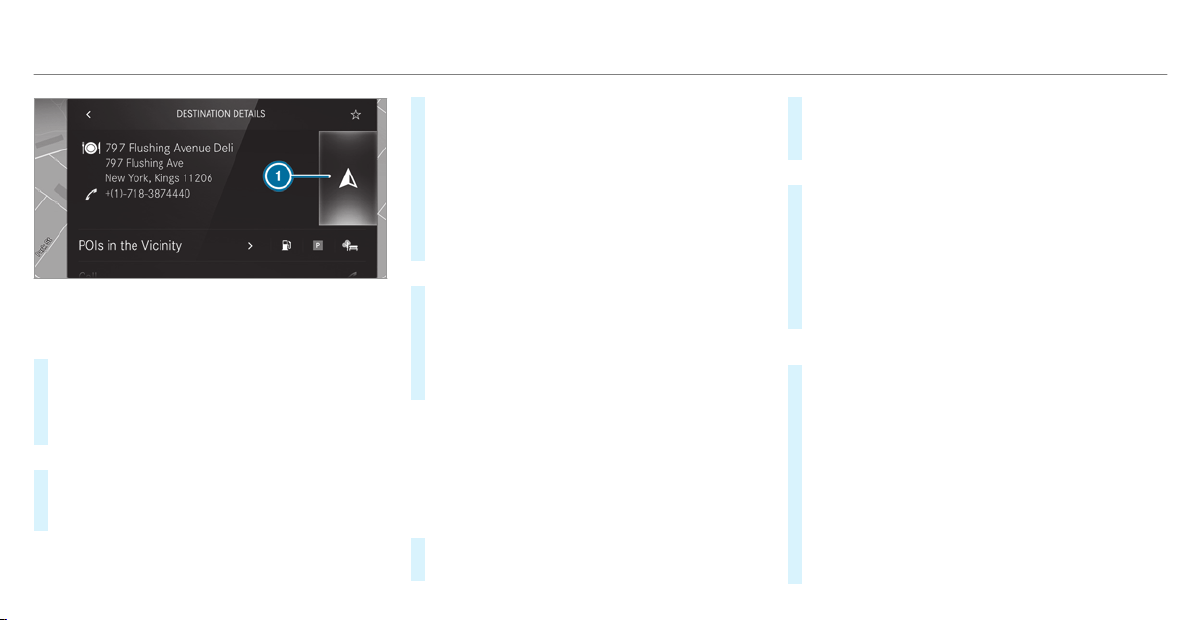
1
¥ No route yet
¦ A route has been mapped
#
Select ¥.
The route to the destination is calculated.
The map shows the route. Route guida nce
then begins.
or
#
Select ¦.
If a route is already mapped, a prompt is
shown.
#
Select Set as Way Point.
The selected destination address is set as
the next intermediate destination. Route
guidance begins.
If there are already four intermediate destina‐
tions, the multimedia system asks whether
intermediate destination 4 should be deleted.
Confirm the prompt with
Yes.
or
#
Select Start New Route Guidance.
The selected destination address is set as a
new destination. The previous destination
and the intermediate destinations are
deleted. Route guidance to the new destina‐
tion begins.
Searching for POIs in the vicinity of the des‐
tination shown
%
The POI symbols to the right of POIs in the
Vicinity show the first three categories for
quick-access. You can configure these cate‐
gories (/ page 293).
#
Select a POI symbol.
The search results are displayed.
#
Select a POI.
The destination address is shown. The route
can be calculated.
or
#
Select POIs in the Vicinity r.
#
Search using categories, enter a search entry
or search for a personal POI
(/ page 293).
#
Select a POI.
The destination address is shown. The route
can be calculated.
Other menu functions
#
To save the destination: select f.
#
Select an option.
The following options are available:
R
Save in "Previous Destinations"
R
Save as Favorite
R
Save as "Home"
R
Save as "Work"
#
To call the destination: if a telephone num‐
ber is available, select Call.
298
MBUX multimedia system

#
To share the destination using NFC or QR
code: select Share via NFC or QR Code.
#
Hold the NFC area of the mobile phone (see
manufacturer's operating instructions) on the
mat or place the mobile phone on it
(
/ page 334).
or
#
Hold the mobile phone near to the multime‐
dia system and scan the QR code.
#
To call up an Internet address: if a web
address is available, select www.
#
To show on the map: select Show on Map.
Selecting a route type
Multimedia system:
4
©
5
Navigation
5
Z
5
Advanced
5
Route
#
Select the route type.
If no route has been created, the next route
is calculated on the basis of the new route
type.
If a route has already been created, the route
is calculated on the basis of the new route
type.
The following route types are available:
R
Fast
A route with a quick journey time is calcula‐
ted.
R
Short
A route with a short driving distance is calcu‐
lated.
R
Eco
An economical route is calculated. The jour‐
ney time may be somewhat longer than for
quicker routes.
R
Trailer
The option is available if a trailer has been
coupled with the vehicle.
A prompt is shown in the multimedia system.
Confirm the prompt.
The route is optimized for trailer operation.
For these route types you can select the fol‐
lowing dynamic route guidance options:
#
Select Dynamic Route Guidance r.
#
Select Automatic, On Request or Off.
Explanation of the options:
R
Automatic
The route is calculated with the currently set
route type.
Traffic reports via Live Traffic Information are
taken into account (
/ page 313).
Live Traffic Information is not available in all
countries.
R
On Request
A prompt appears when a new route is detec‐
ted with a shorter journey time based on traf‐
fic reports. You can continue to use the cur‐
rent route or use the dynamic route instead
(
/ page 300).
R
Off
No traffic reports are taken into account for
the route.
Calculating alternative routes
#
Activate Suggest Alternative Route.
The display button is activated. Alternative
routes are calculated for every route.
#
Select an alternative route (/ page 303).
MBUX multimedia system
299

Accepting a detour recommendation after a
prompt
Requirements:
R
On Request is switched on # in the
DYNAMIC ROUTE GUIDANCE menu
(/ page 299).
R
Route guidance is active.
R
There are traffic reports for the current
route.
If a new route with a shorter driving time is
determined, the current and new routes will be
shown.
The notification is shown in another application.
Confirm the notification.
#
To accept the new route: select Accept
Recommended Detour.
#
To maintain the current route: select Keep
to Current Route.
Selecting route options
Multimedia system:
4
©
5
Navigation
5
Z
5
Advanced
5
Route
Avoiding areas
#
Select Avoid Options.
#
Select Avoid Areas (/ page 323).
Avoiding or using highways, ferries, tunnels,
motorail trains, unpaved roads
#
Select Avoid Options.
#
Activate or deactivate the avoid option.
To avoid: the display button is activated. The
route avoids highways, for example.
To use: the display button is off. The route
takes highways into consideration, for exam‐
ple.
The selected route options cannot always be
implemented. Therefore, a route may include
a ferry, for instance, even though the
Avoid
Ferries avoid option is enabled. A message
appears and you will hear a corresponding
message.
Avoiding or using toll roads
#
Select Avoid Options.
#
Select Toll Roads.
#
Switch Avoid All on or off.
or
#
Switch the Cash or Card Payment and Elec-
tronic Billing options on or off.
To avoid: the display button is activated. The
route avoids toll roads with the selected
method of payment.
To use: the display button is off. The route
takes into account roads that require the
payment of a usage fee (toll) corresponding
with the payment type selected.
Using carpool lanes
When using carpool lanes, observe the applica‐
ble legal requirements as well as any conditions
pertaining to when and where such lanes may be
used. Carpool lanes may only be used if certain
conditions are met.
Carpool lanes are not available in all countries.
#
Select Avoid Options.
300
MBUX multimedia system

#
Select Carpool Lanes.
#
Select For Two Occupants or For 3 Occu-
pants or More ·.
or
#
Select On Request ·.
When this option is selected and a carpool
lane is available, a prompt appears. You can
continue to use the current route or select a
route with the carpool lane.
%
If the Avoid option is selected, then no car‐
pool lanes will be used for the route.
Selecting notifications for the route
Requirements:
R
For an audible indication when approach‐
ing a personal POI: the USB device contains
personal POIs.
R
The USB device is connected with the multi‐
media system.
R
The category in which the personal POI
belongs is activated.
Multimedia system:
4
©
5
Navigation
5
Z
5
Advanced
5
Announcements
#
Activate Announce Street Names.
The display button is activated. The name of
the street into which you should tur n is
announced in the guidance instructions.
This option is not available in all countries
and languages.
Selecting messages for
TRAFFIC
#
Activate a message.
The display button is activated.
The following options are available:
R
Traffic Incidents
Traffic incidents are announced, e.g.
roadworks and road blocks.
This option is not available in all countries
and languages.
R
Announce Traffic Warnings
Warning messages are announced, e.g.
before tailbacks that pose a risk (if availa‐
ble).
This option is not available in all countries
and languages.
Audible indication when approaching a per‐
sonal POI
#
Select Personal POIs.
#
Activate a category.
The display button is activated. When
approaching a personal POI in this category
an audible indication will be issued.
Showing destination information for the
route
Requirements:
R
A destination is entered.
Multimedia system:
4
©
5
Navigation
5
¡
#
Select Route Overview.
When route guidance is active, the destina‐
tion and intermediate destinations are
shown, if these have been entered and not
yet been passed.
MBUX multimedia system
301

The route can include up to four intermediate
destinations.
#
Select a destination or an intermediate desti‐
nation.
The following information is displayed:
R
Remaining driving distance
R
Time of arrival
R
Remaining journey time
R
Name, destination address
R
Phone number (if available)
R
Web address (if available)
Planning routes
Multimedia system:
4
©
5
Navigation
5
¡
5
Route Overview
#
Select Set Way Point.
#
Enter the intermediate destination as a POI
or address, for example (/ page 290).
#
Select the intermediate destination.
After selection of an intermediate destina‐
tion, the route overview is shown again.
#
Calculate the route with intermediate desti‐
nations(/ page 302)
%
If there are already four intermediate desti‐
nations, delete an intermediate destination
(/ page 302).
Editing a route with intermediate destina‐
tions
Multimedia system:
4
©
5
Navigation
5
¡
5
Route Overview
#
To change the sequence of destinations:
select V for a destination.
A menu opens.
#
Select Move.
ø is highlighted.
#
Move the intermediate destination or the
destination with 4 or s to the desired
position.
#
Tap on ø.
#
To delete a destination: select V for an
intermediate destination or destination.
#
Select Delete.
The destination is deleted.
Calculating a route with intermediate desti‐
nations
Requirements:
R
The destination and at least one intermediate
destination have been entered.
Multimedia system:
4
©
5
Navigation
5
¡
5
Route Overview
#
Select Start Route Guidance.
or
#
If the route has been edited, select To Navi-
gation G.
#
Confirm the prompt with Yes.
The route is calculated. Route guidance
begins.
302
MBUX multimedia system

Displaying the route list
Multimedia system:
4
©
5
Navigation
5
¡
#
Select Route List.
The route sections are displayed. The current
vehicle position is marked on the map.
The current vehicle position is shown with
the following information:
R
The a symbol for the current vehicle
position is displayed.
R
The name of the road on which you are
currently driving is shown.
R
The road number of the road on which
you are currently driving is shown.
The route list is updated during the journey.
#
To show route sections: swipe up or down
on the control element.
The route section is shown on the map.
Selecting an alternative route
Requirements:
R
The Suggest Alternative Route option is
switched on (/ page 299).
Multimedia system:
4
©
5
Navigation
5
¡
#
Select Alternative Routes.
The routes are displayed in accordance with
the setting made in the route settings.
The routes are numbered.
#
Select the alternative route.
#
To show the route on the map: select
Show on Map.
#
Move the map (/ page 320).
#
Set the map scale (/ page 319).
Activating a commuter route
Requirements:
R
You have created a profile (/ page 252).
R
The Allow destination suggestions option is
switched on (/ page 257).
R
The Activate Commuter Route option is
switched on.
R
The multimedia system has gathered suffi‐
cient data in order to show destination sug‐
gestions.
R
Routes have been learned for these destina‐
tion suggestions.
%
This commuter route is not available in all
countries.
Multimedia system:
4
©
5
Navigation
5
Z
5
Advanced
5
Route
#
Activate Activate Commuter Route.
The display button is activated. The naviga‐
tion system automatically detects that the
vehicle is on a commuter route. It automati‐
cally starts a route guidance without voice
output.
For the daily commuter route, traffic inci‐
dents on the route are also reported when
driving without active route guidance.
MBUX multimedia system
303

Switching the automatic gas station search
on/off
Multimedia system:
4
©
5
Settings
5
Vehicle
#
Switch Gas Station Search… on or off.
When the fuel reserve level is reached, and
the display button is switched on, a message
appears to start searching for gas stations.
Starting an automatic gas station search
Requirements:
R
The automatic gas station search is activated
(/ page 304) .
Driving situation
The fuel level in the fuel tank reaches the
reserve fuel level.
The following notification is shown in the media
display
Reserve Fuel Tap here to search for gas
stations.
#
Confirm the notification.
The automatic gas station search begins. The
available gas stations along the route or in
the vicinity of the vehicle's current position
are displayed.
#
Select a gas station.
The address of the gas station is displayed.
#
Calculate the route (/ page 297).
The gas station is set as the destination or
the next intermediate destination.
#
If there are already four intermediate des‐
tinations: select Yes in the prompt.
The gas station is entered in the route over‐
view. Intermediate destination 4 is deleted.
Route guidance begins.
Starting the automatic service station
search
Requirements:
R
ATTENTION ASSIST and the Suggest Rest
Area function are activated
(/ page 201).
R
There are service stations along the route
section ahead.
Driving situation
The following notification is shown in the media
display ATTENTION ASSIST Tap here to search
for rest areas.
#
Confirm the notification.
The service station search starts. The availa‐
ble service stations along the route or in the
vicinity of the vehicle's current position are
displayed.
#
Select a service station.
The service station address is displayed.
#
Calculate the route (/ page 297).
The service station is set as the destination
or the next intermediate destination.
#
If there are already four intermediate des‐
tinations: select Yes in the prompt.
The service station is entered in the route
overview. Intermediate destination 4 is
deleted. Route guidance begins.
304
MBUX multimedia system

Showing a stored route on the map
Requirements:
R
A USB device with stored routes is connec‐
ted with the multimedia system
(/ page 366).
R
The route is stored in the "Routes" folder
with the GPS Exchange format (.gpx).
Multimedia system:
4
©
5
Navigation
5
ª Where to?
5
SAVED ROUTES
#
Select a route.
#
Select Show on Map.
#
Move the map (/ page 320).
Starting a saved route
Requirements:
R
A USB device with stored routes is connec‐
ted with the multimedia system
(/ page 366).
R
The route is stored in the "Routes" folder
with the GPS Exchange format (.gpx).
Multimedia system:
4
©
5
Navigation
5
ª Where to?
5
SAVED ROUTES
#
Select a route.
#
Select Start Route Guid. from Beginning of
Route or Start Route Guidance from Curr.
Position.
Route guidance star ts.
%
The route can be saved with f in the
menu (/ page 297).
Recording a route
Requirements:
R
A USB device is connected with the multime‐
dia system (/ page 366).
Multimedia system:
4
©
5
Navigation
5
ª Where to?
5
SAVED ROUTES
#
To start recording: select Start Recording a
New Route.
A red recording symbol is shown.
The route is stored on the USB device.
#
To stop recording: select End Recording.
Saving a recorded route
Requirements:
R
A USB device is connected with the multime‐
dia system (/ page 366).
Multimedia system:
4
©
5
Navigation
5
ª Where to?
5
SAVED ROUTES
#
Select a route.
#
Select f.
#
Select Save in "Previous Destinations".
The route is stored in the "Previous destina‐
tions" memory and can be called up from
there for route guidance.
Editing a stored route
Requirements:
R
A USB device with stored routes is connec‐
ted with the multimedia system
(/ page 366).
MBUX multimedia system
305
Multimedia system:
4
©
5
Navigation
5
ª Where to?
5
SAVED ROUTES
#
Select a route with V.
#
To enter a name: select Change Name.
#
Enter the name.
#
Select OK.
or
#
When the name has been changed, press the
G button.
#
Select Yes.
#
To delete a route: select Delete.
#
Select Yes.
Route guidance
Notes on route guidance
&
WARNING Risk of distraction from oper‐
ating integrated communication equip‐
ment while the vehicle is in motion
If you operate communication equipment
integrated in the vehicle when driving, you
will be distracted from the traffic situation.
This could also cause you to lose control of
the vehicle.
#
Only operate this equipment when the
traffic situation permits.
#
If you cannot be sure of this, stop the
vehicle whilst paying attention to road
and traffic conditions and operate the
equipment with the vehicle stationary.
You must observe the legal requirements for the
country in which you are currently driving when
operating the multimedia system.
Route guidance begins once a route has been
calculated.
The road and traffic rules and regulations always
have priority over multimedia system driving
instructions.
Driving instructions are:
R
Navigation announcements
R
Route guidance displays
R
Lane recommendations
If you do not follow the driving instructions or if
you leave the calculated route, a new route is
calculated automatically.
Driving instructions may differ from the actual
road and traffic conditions if:
R
The route is diverted
R
The direction of a one-way street has been
changed
For this reason, you must always observe road
and traffic rules and regulations during your
journey as well as the prevailing traffic condi‐
tions.
The route may differ from the ideal route due to
the following:
R
Roadworks
306
MBUX multimedia system
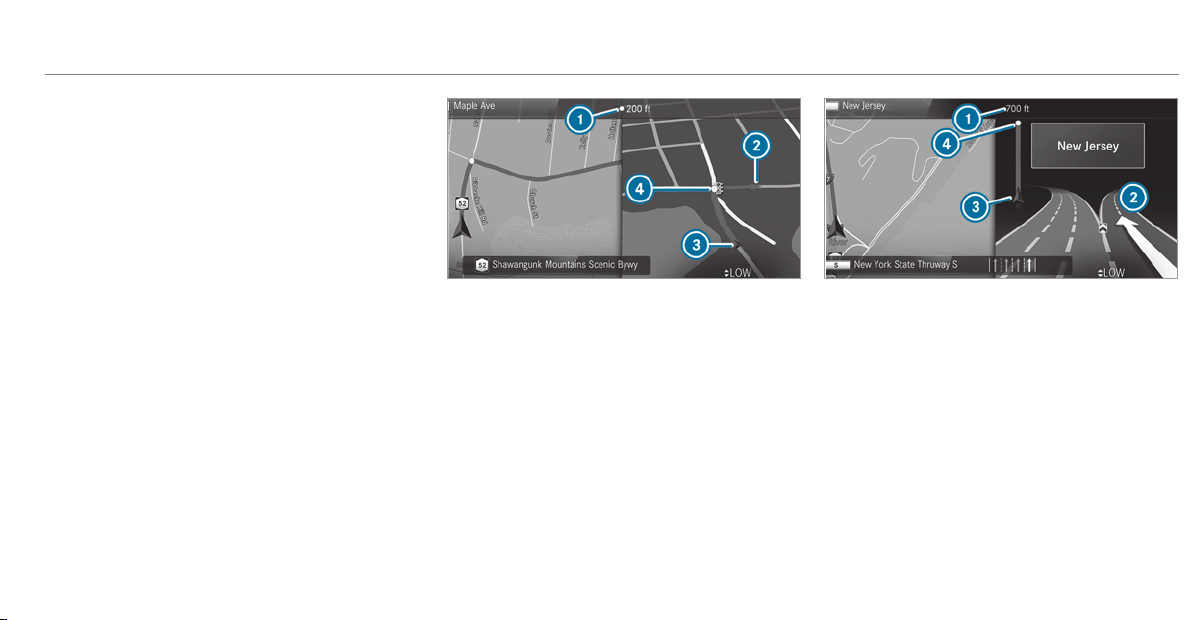
R
Incomplete digital map data
Notes on GPS reception
The correct function of the navigation system
depends amongst other things on GPS recep‐
tion. In certain situations GPS reception can be
impaired, defective or even not possible, e.g. in
tunnels or in parking garages.
Changing direction overview
Changes of direction are shown in the following
displays:
R
Detailed image of the intersection
The display appears when you drive into an
intersection.
R
3D image
The display appears when driving on inter‐
section-free, multi-lane roads, for example on
freeway exits and freeway interchanges.
Example: detailed image of the crossing with
upcoming changes of direction
1
Current distance to the change of direction
2
Driving maneuver
3
Current vehicle position
4
Maneuver point
Example: 3D image of the upcoming change
of direction
1
Current distance to the change of direction
2
Driving maneuver
3
Current vehicle position
4
Maneuver point
There are three phases when changing direction:
R
Preparation phase
If there is enough time between the changes
of direction, the multimedia system prepares
you for the upcoming change of direction. A
navigation announcement is issued, e.g.
"Prepare to turn right".
MBUX multimedia system
307
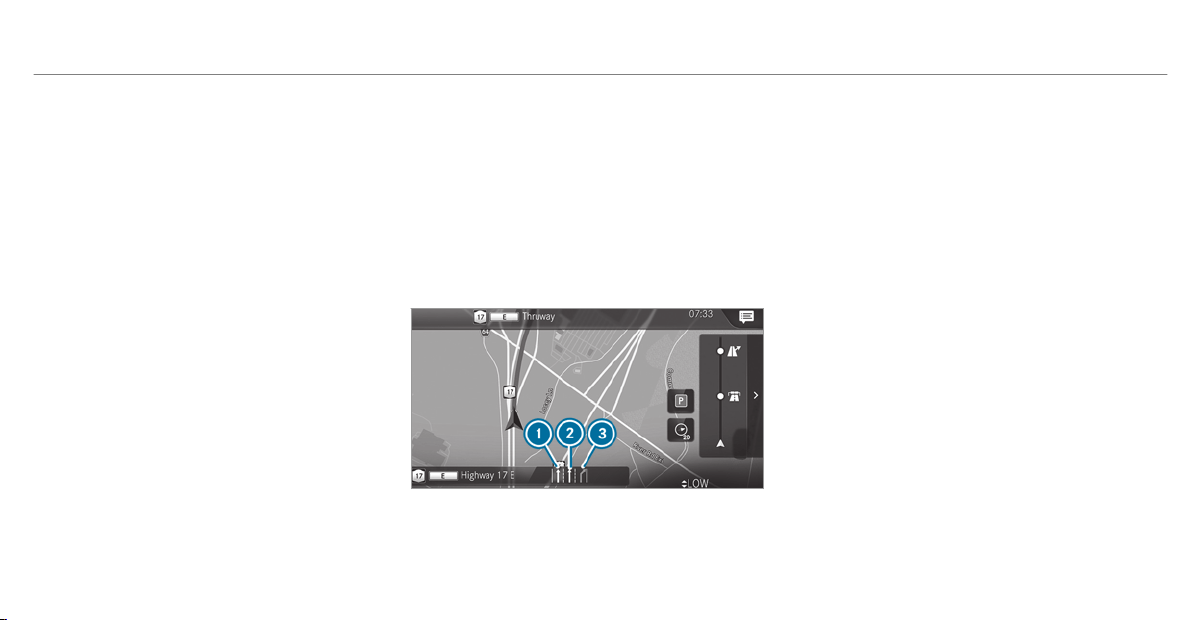
The map appears in full-screen mode.
The status line shows: the direction informa‐
tion or the name of the road which is to be
turned into and the distance to the change of
direction.
R
Announcement phase
The multimedia system announces the
upcoming change of direction, e.g. by
announcing "Turn right in 300 ft (100 m)".
The display is split into two parts. The map is
displayed on the left; on the right, there is a
detailed image of the intersection or a 3D
image of the upcoming change of direction.
R
Change-of-direction phase
The multimedia system announces the immi‐
nent change of direction, e.g. by announcing
"Now turn r ight".
The display is split into two parts.
The change of direction takes place when the
distance to maneuver point
4 is shown with
0 ft (0 m) and the symbol for vehicle position
3 has reached maneuver point 4.
When the change of direction is complete,
the map appear s in full-screen mode.
%
Changes of direction are also shown in the
Instrument Display.
Lane recommendations overview
This display appears for multi-lane roads.
The multimedia system can show lane recom‐
mendations if the digital map contains the rele‐
vant data.
1
Recommended lane (white arrow, blue back‐
ground)
2
Possible lane (white arrow)
3
Lane not recommended (gray arrow)
Explanation of the displayed lanes:
R
Recommended lane 1
In this lane, you will be able to complete both
the next change of direction and the one
after that.
R
Possible lane 2
In this lane, you will only be able to complete
the next change of direction.
R
Lane not recommended 3
In this lane, you will not be able to complete
the next change of direction without chang‐
ing lane.
During the change of direction, new lanes may
be added.
Bus lanes are also shown.
%
Lane recommendations can also be dis‐
played in the Instrument Display and in the
Head-up Display.
308
MBUX multimedia system
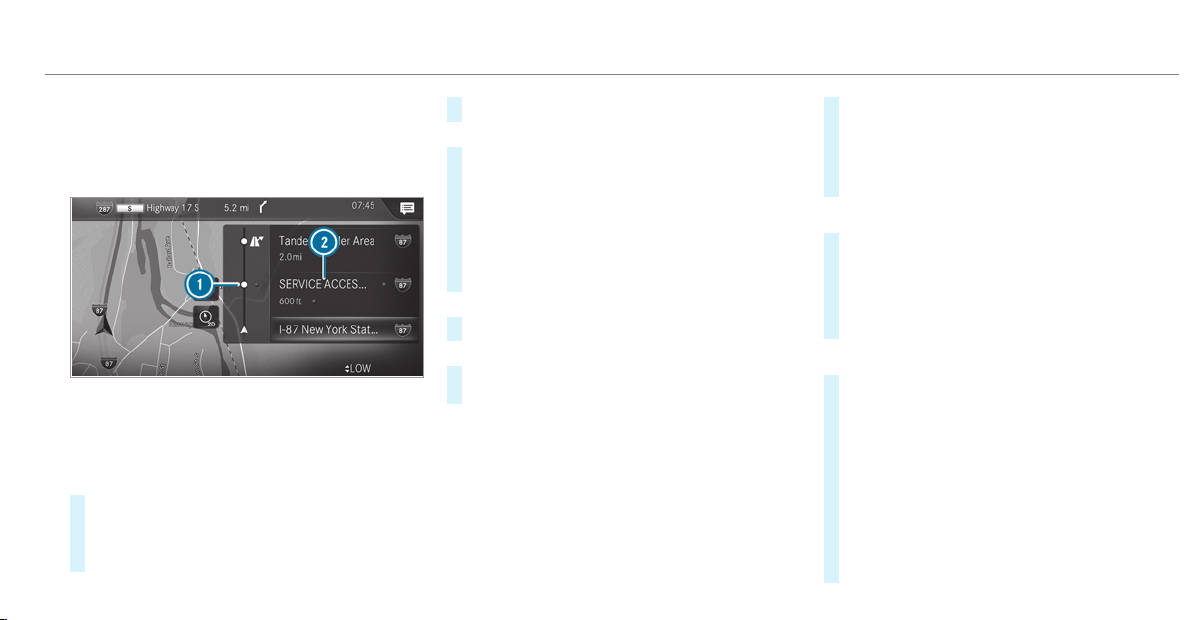
Using freeway information
Requirements:
R
The Highway Information option is switched
on (/ page 322).
When driving on the freeway, upcoming freeway
facilities 1 and available service facilities 2
are shown in the overview. These include gas
stations, parking lots, service stations and free‐
way exits, for example.
#
To open the display: select r.
The entries are sor ted according to increas‐
ing distance from the current vehicle posi‐
tion.
#
To close the display: tap on the map.
or
#
To use freeway information: select an
entry.
#
If several service facilities are available,
select a service facility from the list.
The destination address and the map posi‐
tion are shown.
#
Calculate the route (/ page 297).
or
#
Search for a POI in the vicinity.
or
#
Use other functions, e.g. save the destination
address of the service facility.
Using quick-access for a destination informa‐
tion, alternative route and POIs
Requirements:
R
The POI categories for quick-access are con‐
figured (/ page 293).
#
If route guidance is active, select the £
symbol with arrival time and distance to the
destination on the map.
The address of the destination or the next
intermediate destination is shown.
Using alternative routes
#
Select Alternative Route.
The routes are displayed in accordance with
the setting made in the route settings.
The routes are numbered.
#
Select the alternative route.
Setting a POI as an intermediate destination
#
Select a category symbol, e.g. B for a car
park.
#
Select a POI from the list.
The selection takes place on the route. The
destination address is shown. The route can
be calculated.
#
To use POI categories for quick-access:
select a search position In the Vicinity, Near
Destination or Along the Route.
#
Select a POI from the list.
MBUX multimedia system
309

or
#
Enter a search entry into the search field and
filter the list.
#
Select a POI from the list.
The destination address is shown. The route
can be calculated.
Saving the current vehicle position
#
Select Save Position.
The current vehicle position is saved to the
"Previous destinations" memory.
Destination reached
Once the destination is reached, you will see the
Í checkered flag. Route guidance is finished.
The navigation menu is shown.
When an intermediate destination has been
reached, you will see the intermediate destina‐
tion flag with the number of your Î inter‐
mediate destination. Route guidance is contin‐
ued.
Switching navigation announcements on/off
#
To switch off: turn the volume control on
the steering wheel or next to the touchpad
during a navigation announcement
(/ page 263).
The Voice Guidance has been deactivated.
message appears.
or
#
Show the navigation menu (/ page 288).
#
Select !.
The symbol changes to #.
#
To activate: select # .
The current navigation announcement is
played.
The symbol changes to !.
%
This function can be added and called up
from the favorites within the navigation cate‐
gory.
Switching navigation announcements on/off
during a phone call
#
Press the © button on the steering wheel
or on the touchpad.
or
#
Tap on © in the media display.
#
Select Settings.
#
Select System.
#
Select Audio.
#
Select Navigation and Traffic Announce-
ments.
#
Switch Voice Guidance During Call on or off.
When the option is switched on, the display
button is activated.
#
To leave the menu: select q.
Adjusting the volume of navigation
announcements
Multimedia system:
4
©
5
Settings
5
System
5
Audio
5
Navigation and Traffic Announcements
#
Select Voice Guidance Volume.
#
Set the volume.
#
To leave the menu: select q.
Route guidance is active
#
Turn the volume control on the steering
wheel or next to the touchpad during a navi‐
gation announcement.
310
MBUX multimedia system

Switching audio fadeout on or off during nav‐
igation announcements
#
Press the © button on the steering wheel
or on the touchpad.
or
#
Tap on © in the media display.
#
Select Settings.
#
Select System.
#
Select Audio.
#
Switch Audio Fadeout on or off.
When the option is switched on, the display
button is activated.
#
To leave the menu: select q.
Repeating navigation announcements
Requirements:
R
A route has already been created.
R
Route guidance is active.
Multimedia system:
4
Navigation (Navigation)
#
Select !.
#
Select #.
The current navigation announcement is
repeated.
%
This function can be added and called up
from the favorites within the navigation cate‐
gory.
Canceling route guidance
Requirements:
R
a route has already been created.
R
route guidance is active.
#
Show the navigation menu.
#
Select ¤ in the navigation menu
(/ page 289).
Overview of route guidance to an off-road
destination
An off-road destination is within the digital map.
The map contains no roads that lead to the des‐
tination.
You can enter geo-coordinates or a three word
address for off-road destinations on the map.
Route guidance guides you for as long as possi‐
ble with navigation announcements and displays
on roads that are known to the multimedia sys‐
tem.
Shor tly before you reach the last known position
on the map, you will hear the "Please follow the
direction arrow" announcement, for example.
The display shows a direction arrow and the lin‐
ear distance to the destination.
Overview of route guidance from an off-road
location to a destination
In an off-road position, the current vehicle posi‐
tion is located within the digital map on roads
that are not available.
The following displays appear when route guid‐
ance begins:
R
A message appears that the road is not on
the map.
R
A direction arrow showing the linear direc‐
tion to the POI.
When the vehicle is back on a road known to the
multimedia system, route guidance continues as
normal.
MBUX multimedia system
311

Overview of off-road status during route
guidance
Due to roadworks, for example, there may be dif‐
ferences between the data on the digital map
and the actual cour se of the road. In such cases,
the multimedia system will temporarily be
unable to locate the vehicle's current position on
the digital map. The vehicle is off-road.
When the vehicle is off-road, the following dis‐
plays are shown:
R
A message appears that the road is not on
the map.
R
A direction arrow showing the linear direc‐
tion to the POI.
When the vehicle is back on a road known to the
multimedia system, route guidance continues as
normal.
Destination
Saving the current vehicle position
Multimedia system:
4
©
5
Navigation
5
¡
5
Position
#
Select Save Position.
The current vehicle position is saved to the
"Last destinations" memory.
Using quick-access
#
If route guidance is active, select the £
symbol with arrival time and distance to the
destination on the map.
The address of the destination or the next
intermediate destination is shown.
#
Select Save Position.
Editing the previous destinations
Requirements:
R
To edit destination suggestions: the Allow
destination suggestions option is activated
(/ page 257).
R
The multimedia system has gathered suffi‐
cient data in order to show destination sug‐
gestions.
Multimedia system:
4
©
5
Navigation
5
ª Where to?
5
PREV. DESTINATIONS
The following entries can be edited:
R
Destination suggestions
R
Destinations
R
Routes
#
To no longer display a destination sugges‐
tion: select V for a destination sugges‐
tion.
#
Select No Longer Suggest.
Saving the last destination as a favorite
%
After saving, the destination can be called
up via the favorites (/ page 258).
#
Select V for a destination.
#
Select f Save as Favorite .
312
MBUX multimedia system

#
To save as a favorite: select Save as Favor-
ite .
#
To save as "Home" address: select Save
as "Home" .
#
To save as "Work" address: select Save as
"Work" .
Deleting a previous destination
#
To delete a destination: select V for a
destination.
#
Select Delete.
#
Select Yes.
#
To delete all destinations: select Ä.
#
Select Delete All.
#
Select Yes.
Using external destinations and routes
External destinations and routes can be received
from the following sources, for example:
R
Mercedes-Benz Apps
R
door-to-door navigation with the Companion
app (USA)
R
a call with the Mercedes-Benz Customer
Assistance Center via the me button
A prompt appears on the media display.
Received destinations and routes are saved in
the previous destinations.
#
A destination has been received: select
Yes.
#
Calculate the route.
#
If route guidance is already active, select Set
as Way Point or Start New Route Guidance.
or
#
If a destination was received with photo
information, select Start Route Guidance.
#
Calculate the route.
or
#
If a destination has been received from an
app, select Details.
#
Calculate the route.
#
A route has been received: select Yes.
#
Select Start Route Guid. from Beginning of
Route or Start Route Guidance from Curr.
Position.
Route guidance star ts from the selected
position.
Route guidance with current traffic reports
Traffic information overview
Traffic reports are received using Live Traffic
Information and are used for route guidance.
This service is unavailable in some countries.
%
There may be differences between the traffic
reports received and the actual road and
traffic conditions.
Importa nt information on Live Traffic Informa‐
tion:
R
Current traffic reports are received via the
Internet connection.
R
The traffic situation is updated at short, regu‐
lar intervals.
R
Subscription information shows the status
(/ page 314).
MBUX multimedia system
313

Information on the vehicle's position is regularly
sent to Daimler AG. The data is immediately ren‐
dered anonymous by Daimler AG and forwarded
to the traffic data provider. Using this data, traf‐
fic reports relevant to the vehicle's position are
sent to the vehicle. The vehicle acts as a sensor
for the flow of traffic and helps to improve the
quality of the traffic reports.
If you do not want to transmit the vehicle posi‐
tion, you have the following options:
R
You deactivate the service in the Mercedes
me por tal.
R
You have the service deactivated at an
authorized Mercedes-Benz Center.
Showing subscription information for Live
Traffic Information
Requirements:
R
The vehicle is equipped with Live Traffic
Information.
Multimedia system:
4
©
5
Navigation
5
¡
5
Traffic
#
To display manually: select Live Traffic Sub-
scription Info.
The traffic data supplier's logo and the status
of the subscription are displayed. The sub‐
scription is either still valid or it has expired.
The subscription expiration date is automatically
displayed:
R
one month before the expiration date
R
one week before the expiration date
R
on the expiration date
%
The subscription can be extended:
R
at any authorized Mercedes-Benz Center
R
with a call to the Mercedes-Benz Cus‐
tomer Assistance Center via the me but‐
ton (/ page 350)
Showing traffic information
Requirements:
R
The Traffic display is switched on
(/ page 316).
R
The following traffic displays are switched on
(/ page 316):
Traffic Incidents
Free Flowing Traffic
Delay
Multimedia system:
4
©
#
Select Navigation.
The map shows the following traff ic information:
R
traffic incidents, for example:
-
roadworks
-
road blocks
-
warning messages
When route guidance is active, the symbols
for traffic incidents will be shown in color on
the route. Off the route they are gray.
R
warning message symbols:
-
symbol Ô
-
road safety notes, e.g. when approaching
the end of a traffic jam
314
MBUX multimedia system

If the vehicle approaches a danger area
on the route, a warning message is dis‐
played on the map. In addition, an audible
notification can follow a hazard warning.
R
traffic flow information:
-
traffic jam (red line)
-
slow -moving traff ic (orange line)
-
heavy traffic (yellow line)
-
free-flowing traffic (green line)
R
display for traffic delays on the route lasting
at least one minute
Displaying traffic incidents
Requirements:
R
The Traffic Incidents display is switched on
(/ page 316).
Multimedia system:
4
©
5
Navigation
5
¡
5
Traffic
#
Select Traffic Announcements.
If there are traffic reports, you will see a list.
Traffic reports include accidents and other
traffic events, for example. The list is sorted
according to distance and shows the traffic
reports received both on and off the route.
A traffic report shows the following informa‐
tion:
R
Street number or street name
R
Traffic incident symbol
On the route: color
Off the route: gray
R
Cause
R
Street symbol for a traffic incident on the
route
R
Distance from current vehicle position
#
Select a traffic report r.
The detailed information is shown, for exam‐
ple the route section.
Showing traffic incidents in the vicinity of
the map
#
Select a traffic incident symbol on the map.
The details about the traffic incident are dis‐
played.
#
Select Ä.
#
Select Traffic Incidents in Vicinity.
The map shows the traffic incident symbols
in the vicinity.
Traffic incident information is displayed in
the status line:
R
Traffic incident symbol
R
Cause of the traffic incident, e.g. con‐
struction work
R
Warning message (highlighted red)
#
To select a traffic incident symbol: select
q or r.
#
To select a map section: ta p on the
touchscreen.
or
#
Press the Touch Control or the touchpad.
#
Move the map.
#
To return to the navigation map: tap on
G.
or
#
Press the G button on the Touch Control
or on the touchpad.
MBUX multimedia system
315

Switching the traffic information display on
Multimedia system:
4
©
5
Navigation
5
Z
#
Activate Traffic.
The display button is activated.
Activating Incidents, Free Flow and Delay
#
Select Advanced.
#
Select View.
#
Select Map Elements.
#
In the TRAFFIC category, activate the Traffic
Incidents, Free Flowing Traffic and Delay
entries.
The display buttons are activated.
If traffic information has been received, then
traffic incidents such as roadworks, road
blocks, local area reports (e.g. fog) and warn‐
ing messages are displayed.
The traffic delay is displayed for the current
route. Traffic delays lasting one minute or
longer are taken into consideration.
Showing local area messages
Multimedia system:
4
©
5
Navigation
5
¡
5
Traffic
#
Select Area Messages.
Local area messages are shown, for example
fog or heavy rain.
#
Select a local area message.
The details are displayed.
Car-to-X-Communication
Car-to-X-Communication overview
The following requirements apply for using Car-
to-X-Communication:
R
The vehicle is equipped with a multimedia
system featuring navigation and a communi‐
cation module with an activated, integrated
SIM card.
R
Car-to-X-Communication is activated.
%
Car-to-X-Communication is available in
selected countries.
The communication module automatically estab‐
lishes an Internet connection once the ignition is
switched on. If there are any hazard warnings,
they will be provided shortly thereaf ter. Depend‐
ing on the mobile phone connection, the provi‐
sion takes place from within a second up to
about a minute.
Benefits of Car-to-X-Communication:
R
Hazards are recognized automatically in the
background by the vehicle or may be repor‐
ted by the driver. These are then sent to vehi‐
cles with Car-to-X-Communication in the
immediate vicinity.
R
If available, current details relating to hazard
spots near the vehicle's current position are
received.
This gives you sufficient time to adapt your
driving style to the traffic conditions.
The use of Car-to-X-Communication requires the
regular transmission of vehicle data to Daimler
AG. The data is then immediately pseudony‐
mized by Daimler AG. The vehicle data is deleted
after an appropriate amount of time has elapsed
(several weeks) and is not stored permanently.
316
MBUX multimedia system

%
Data which serves as identification is
replaced during the pseudonymization proc‐
ess. In this way, your identity is protected
against access by unauthorized third parties.
Displaying hazard warnings
Multimedia system:
4
©
#
Select Navigation (Navigation).
If hazard warnings are available these will be
shown on the map.
The following hazard warnings are shown on the
map:
R
broken-down vehicles
R
accidents
R
hazardous weather
R
general hazards
R
hazard warning lights, if activated
%
If the vehicle is approaching a hazard spot
with a vehicle speed of at least 37 mph
(60 km/h), the voice output "Traffic incident
ahead" is issued.
The voice output is not issued for hazardous
weather.
Sending hazard warnings
Automatically detected hazard warnings are sent
by the vehicle.
#
To send a hazard warning yourself: tap on
the media display when the map is shown.
The navigation menu is shown.
#
Select ¡.
#
Select Report Traffic Incident.
A prompt is shown.
#
Select Yes.
The Thank You for Supporting Accident Pre-
vention message appears.
Route guidance with augmented reality
Overview of route guidance with augmented
reality
&
WARNING Risk of accident and injury
caused by distraction, incorrect image or
interpretation of the display
The distance to other road users or informa‐
tion, such as traffic lights, can be incorrectly
assessed from the camera image. The cam‐
era image of the augmented reality display is
not suitable to be used for driving.
#
Always keep your eyes on the actual
traffic situation. Only glance briefly at
the camera image.
#
Be aware that depending on the driving
situation there may be hazards that are
not captured in the camera image, e.g.
when turning. Avoid observing the cam‐
era image for extended periods.
During route guidance with augmented reality a
camera image with the real traffic scene is
MBUX multimedia system
317
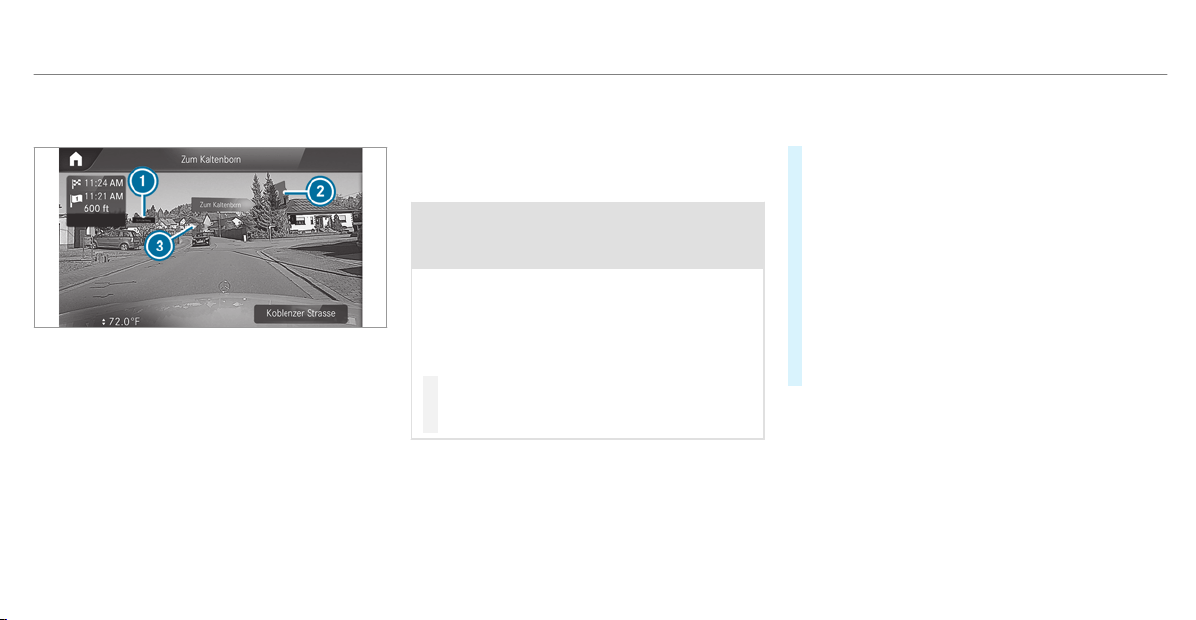
shown in the media display before a turning
maneuver.
1
Street name
2
House number
3
Change of direction arrow
Route guidance with augmented reality is not
available in all countries.
Route guidance with augmented reality is cur‐
rently not available on freeways.
The camera image can contain the following
additional information:
R
Change of direction arrow
R
Street names
R
House numbers
Activating route guidance with augmented
reality
&
WARNING Risk of accident and injury
caused by inaccurate positioning of addi‐
tional information
The additional information indicated with the
augmented reality display can be incorrectly
positioned in the camera image. For this rea‐
son, the camera image cannot replace the
need to observe the actual driving situation.
#
Maintain the actual dr iving situation in
view for all driving maneuvers, e.g.
when turning and when changing lanes.
Requirements:
R
Route guidance is active.
Multimedia system:
4
©
5
Navigation
#
If the detailed intersection view appears dur‐
ing route guidance, tap on the camera sym‐
bol.
The display button is activated. The camera
image is shown in the media display depend‐
ing on the situation.
The camera image will be shown instead of
the navigation map before a turning maneu‐
ver and will show the additional information.
#
To return to the navigation map: tap on
the camera symbol again.
The display button is off.
Activating displays of street names and
house numbers for route guidance with aug‐
mented reality
Requirements:
R
Augmented reality is activated
(/ page 318).
318
MBUX multimedia system

Multimedia system:
4
©
5
Navigation
5
Z
5
Advanced
5
Augmented Reality
#
Activate Street Names and House Numbers.
The display buttons are activated. During
route guidance, street names and house
numbers are shown as additional information
in the video image.
Switching on display of traffic lights
Requirements:
R
Augmented reality is activated
(/ page 318).
R
The Traffic Light Display Zoom option is
switched on.
When the vehicle is standing in first position at
an intersection, the camera image will show an
enlarged traffic lights display.
%
When the vehicle pulls away the navigation
map is shown again.
Multimedia system:
4
©
5
Navigation
5
Z
5
Advanced
5
Augmented Reality
#
Activate Traffic Light Display Zoom.
The display button is activated.
#
Under TRAFFIC LIGHT VIEW select one of the
Off, On Request or Automatic options.
If On Request is set, the Traffic Light Display
Available message is shown. The camera
image is shown after confirmation of the
message.
If
Automatic is set, the traffic lights display is
shown automatically in the camera image
when available.
#
To return to the navigation map: press the
G button.
Map and compass
Setting the map scale
Multimedia system:
4
©
5
Navigation
Zooming in
#
When the map is shown, tap twice quickly
with one finger on the media display or the
touchpad.
or
#
Move two fingers apart on the media display
or on the touchpad.
Zooming out
#
Tap with two fingers on the media display or
the touchpad.
or
#
Move two fingers together on the media dis‐
play or on the touchpad.
%
You can set the unit of measurement of the
map scale (/ page 279).
MBUX multimedia system
319
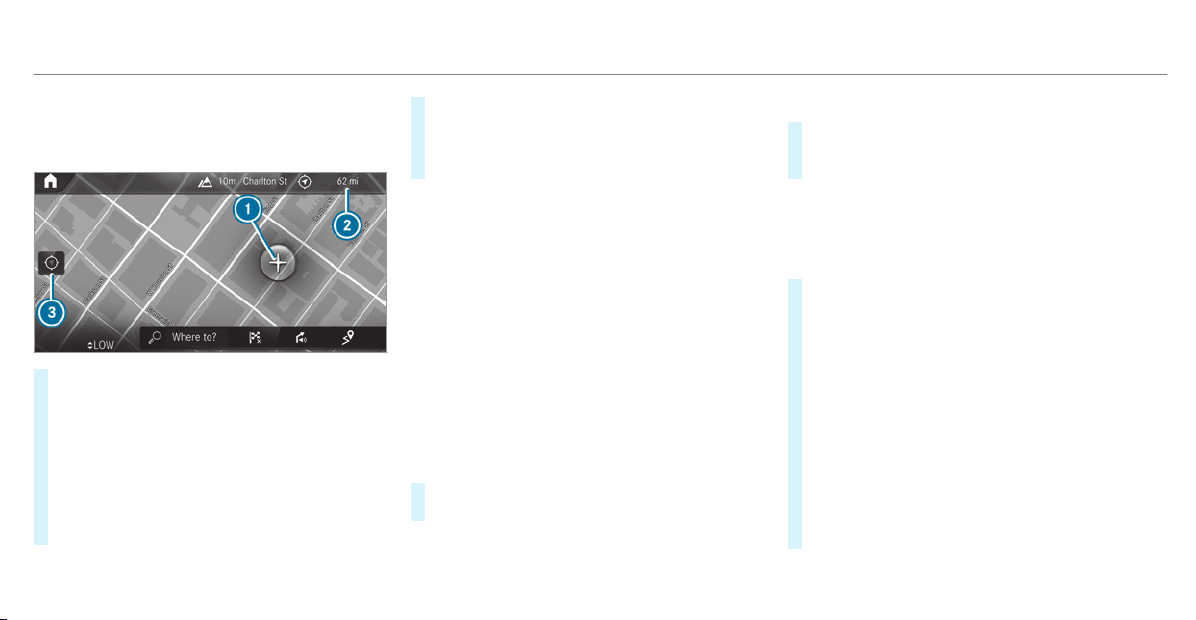
Moving the map
Multimedia system:
4
©
5
Navigation
#
On the touchscreen: move the finger in any
direction when the map is shown.
#
On the touchpad: call up the navigation
menu by pressing.
#
Swipe your finger up.
#
Press the touchpad.
Crosshair 1 appears. The map can be
moved.
#
Touch the touchpad and move your finger in
any direction.
The map moves in the opposite direction
under crosshair
1.
When the map has been moved the following
information appears in the status line, for exam‐
ple:
R
Distance 2 from the vehicle's current posi‐
tion is shown.
R
Information about the current map position
is shown, e.g. the name of the road.
The following functions are available:
R
Select a destination on the map
(/ page 296).
R
Select a POI (/ page 293).
R
Show traffic incidents on the map
(/ page 315).
#
To reset the map to the current vehicle
position: select 3.
Rotating the map
#
With two fingers, rotate counter-clockwise or
clockwise on the media display or the touch‐
pad.
Selecting the map orientation
Multimedia system:
4
©
5
Navigation
5
Z
5
Advanced
#
Select View.
#
Select Map Orientation.
#
Select an option.
The # dot indicates the current setting.
The following options are available:
R
2D Heading Up option: the 2D map view
is aligned to the direction of travel.
R
2D North Up option: the 2D map view is
displayed so that north is always at the
top.
R
3D option: the 3D map view is aligned to
the direction of travel.
or
320
MBUX multimedia system

#
Using quick-access: repeatedly tap or press
on the Ä compass symbol on the map.
The view changes in the sequence 3D, 2D
Heading Up to 2D North Up.
If the map is moved, it can switch between
3D and 2D North Up.
Selecting POI symbols for the map display
Multimedia system:
4
©
5
Navigation
5
Z
POIs include gas stations and hotels, for exam‐
ple. These can be displayed as symbols on the
map. Not all POIs are available everywhere.
Personal POIs are destinations which you have
saved on a USB device, for example.
%
The display of POI symbols on the map can
be activated or deactivated as a favorite.
#
To switch on/off using quick-access: If
available, switch POI Symbols on or off.
The POI symbols for the selected categories
are shown on the map.
or
#
To switch on/off in the menu: select
Advanced.
#
Select View.
#
Select Map Elements.
#
Select POI Symbols.
#
Switch Display POIs on or off.
Selecting categories
#
Select All Categories in the menu r.
#
Switch Show All on or off.
The POI symbols for all categories are shown
on the map.
or
#
Select the categories and sub-categories (if
available) r.
#
Switch the categories and sub-categories (if
available) on or off.
The POI symbols for the selected categories
are shown on the map.
Selecting personal POI categories
#
Select Personal POIs in the menu r.
#
Select a category r.
#
Switch Show on Map on or off.
When the display is switched on and the
vehicle approaches a personal POI in this
category, a visual and audible notification
can be issued.
#
To set a notification when approaching:
select a category or a personal POI V.
#
Switch Visual Notification and Acoustic Noti-
fication on or off.
Switching display of categories for quick-
access on/off
#
Switch a category on or off in the menu.
Resetting the POI symbol display
#
Select Reset POIs in the menu.
The settings are reset to the standard set‐
tings.
MBUX multimedia system
321

Selecting the display of text information in
the map
Multimedia system:
4
©
5
Navigation
5
Z
5
Advanced
#
Select View.
#
Select Text Information.
#
Select an option in the FOOTER category.
The # dot indicates the current setting.
The following options are available:
R
Current Street option
The street you are currently on is shown in
the bottom bar.
When the map is moved, the street name,
the POI name or the area name appears
under the crosshair.
R
The Geo-coordinates option shows the fol‐
lowing information in the bottom bar:
-
longitude and latitude
-
elevation
The elevation shown may deviate from
the actual elevation.
-
number of satellites from which a signal
can be received
When the map is moved, this information
does not appear.
R
None option
The media display shows no text information
in the bottom bar.
Switching freeway information on/off
Multimedia system:
4
©
5
Navigation
5
Z
#
Using quick-access: switch Highway Infor-
mation on or off.
The display button is activated or off.
or
#
Using the menu: select Advanced.
#
Select View.
#
Select Text Information.
#
Switch Highway Information on or off.
When the display button is switched on, addi‐
tional information about the freeway facilities
ahead appears during the freeway journey.
These include parking lots, service stations
and freeway exits, for example.
Displaying the next intersecting street
Requirements:
R
Route guidance is not active.
Multimedia system:
4
©
5
Navigation
5
Z
5
Advanced
#
Select View.
#
Select Text Information.
#
Activate Next Intersecting Street.
The display button is activated. If the option
is switched on and the journey continues
without route guidance, the name of the next
intersecting street will be displayed at the
upper edge of the display.
Displaying the map version
Multimedia system:
4
©
5
Navigation
5
Z
5
Advanced
#
Select View.
322
MBUX multimedia system

#
Select Map Version.
The detail information is displayed.
%
The online map update service from
Mercedes me connect can be used to
update the map data (/ page 324).
A message is shown in the media display
when a new map version is available.
%
Information about new versions of the digital
map can be obtained from an authorized
Mercedes-Benz Center.
Overview of avoiding an area for the route
You can define areas along a route that you
would like to avoid.
Highways or multi-lane highways, which are
routed through an area to be avoided are taken
into account for the route.
Avoiding a new area for the route
Multimedia system:
4
©
5
Navigation
5
Z
5
Advanced
5
Route
5
Avoid Options
5
Avoid Areas
#
Select Avoid New Area.
#
To start in the map: select Using Map.
#
Move the map (/ page 320).
#
To start via destination search: select Via
Address Entry.
#
Enter the address (/ page 290).
#
Select the destination in the list or accept
with a.
The map appears.
#
To show an area: tap or press on the control
element.
A red rectangle appears. This designates the
area that should be avoided.
#
To change the map scale: move two fingers
apart or together on the media display or on
the touchpad.
The map is zoomed in or out.
#
To set an area: tap or press on the control
element.
The area is entered into the list.
Changing an area to be avoided
Multimedia system:
4
©
5
Navigation
5
Z
5
Advanced
5
Route
5
Avoid Options
5
Avoid Areas
#
Select an area in the list.
#
Select Edit.
#
To move an area on the map: swipe in any
direction on the control element.
#
To change the size of the area: tap or press
on the control element.
#
Swipe up or down on the control element.
#
Tap or press on the control element.
#
To take account of an area for the route:
select an area from the list.
#
Activate Avoid Area.
The display button is activated.
If route guidance is active, a new route is cal‐
culated.
If there is no route yet, the setting is carried
over to the next route guidance.
MBUX multimedia system
323

The route can include an area that is to be
avoided in the following cases:
R
the destination is located in an area that
is to be avoided.
R
the route includes freeways or multi-lane
highways which pass through an area to
be avoided.
R
there is no sensible alternative route.
Deleting an area
Multimedia system:
4
©
5
Navigation
5
Z
5
Advanced
5
Route
5
Avoid Options
5
Avoid Areas
#
To delete an area: select an area in the list.
#
Select Delete.
#
Confirm the prompt with Yes.
#
To delete all areas: if at least two areas to
avoid are set, select Delete All.
#
Confirm the prompt with Yes.
Map data update overview
Updating at the authorized Mercedes-Benz
Center
The digital maps generated by the map software
become outdated in the same way as conven‐
tional road maps. Optimal route guidance can
only be provided by the navigation system in
conjunction with the most up-to-date map data.
Information about new versions of the digital
map can be obtained from an authorized
Mercedes-Benz Center.
You can receive updates to the digital map there.
Online map update
The online map update service from Mercedes
me connect can be used to update the map
data.
%
The online map update service is not availa‐
ble in all countries.
The following options are available for the
update:
R
for one region (automatic map update)
For automatic map updates the Automatic
Online Update system setting must be activa‐
ted (/ page 281).
R
for several or all regions (manual map
update)
The map data will first be downloaded onto a
storage medium and then updated on the
multimedia system.
Further information on online map updates is
available here:
R
at an authorized Mercedes-Benz Center
R
at: http://www.mercedes.me
Further information on updates can be found at:
http://manuals.daimler.com/baix/cars/
connectme/en_GB/index.html.
Overview of map data
Your vehicle is supplied with map data at the fac‐
tory. Depending on the country, map data for
your region is either pre-installed or the map
data is supplied on a data storage medium.
324
MBUX multimedia system

If the map data on your vehicle has been instal‐
led at the factory and you wish to reinstall it, you
do not need to enter the activation code.
For map data that you have purchased in the
form of a data storage medium, you must enter
the accompanying activation code.
%
If you save the map data on a data storage
medium with the online map update service,
no entry is required. The activation code is
stored on the data storage medium during
the downloading process.
Observe the following when entering the activa‐
tion code:
R
The activation code can be used for one vehi‐
cle
R
The activation code is not transferable
R
The activation code has six digits
In the event of the following problems, please
contact an authorized Mercedes-Benz Center:
R
The multimedia system does not accept the
activation code
R
You have lost the activation code
Displaying the compass
Multimedia system:
4
©
5
Navigation
5
¡
5
Position
#
Select Compass.
The compass display shows the following
information:
R
the cur rent direction of travel with bear‐
ing (360° format) and compass direction
R
longitude and latitude coordinates in
degrees, minutes and seconds
R
height (rounded)
R
number of GPS satellites from which a
signal can be received
Setting the map scale automatically
Multimedia system:
4
©
5
Navigation
5
Z
5
Advanced
#
Select View.
#
Select Map Orientation.
#
Activate Auto Zoom.
The display button is activated. The map
scale is set automatically depending on your
driving speed and the type of road.
%
The automatically selected map scale can be
changed manually. After a few seconds, this
is automatically reset.
Displaying the satellite map
Multimedia system:
4
©
5
Navigation
5
Z
5
Advanced
#
Select View.
#
Select Map Elements.
#
Switch Satellite Map on or off.
If the display button is activated, satellite
maps are displayed in map scales from 2 mi
(2 km).
If the display button is deactivated, satellite
maps are not displayed in map scales from
2 mi (2 km) to 20 mi (20 km).
%
The satellite maps for these map scales are
not available in all countries.
MBUX multimedia system
325

Displaying the range
Requirements:
R
The multimedia system supports the func‐
tion.
Multimedia system:
4
©
5
Navigation
5
Z
5
Advanced
#
Select View.
#
Select Map Elements.
#
Activate Range.
The display button is activated.
The range is shown on the map with the follow‐
ing displays:
R
For gasoline and diesel vehicles: green dis‐
play
R
For hybrid vehicles:
Total range: green display
Electrical range: blue display
When the lower reserve capacity is reached then
the range display on the map is switched off.
%
The range display on the map is not available
in all countries.
Displaying weather information and other
map contents
Requirements:
R
Mercedes me connect is available.
R
You have a user account for the Mercedes
me por tal.
R
The service is available.
R
The service has been activated at an author‐
ized Mercedes-Benz Center.
Further information can be found at: http://
www.mercedes.me
Multimedia system:
4
©
5
Navigation
5
Z
5
Advanced
#
Select View.
#
Select Map Elements.
#
Scroll up and show the ONLINE MAP CON-
TENT category.
The available services are displayed. The
services are provided by Mercedes me con‐
nect.
#
Switch on a service, e.g. Weather.
Current weather information is displayed on
the navigation map, e.g. temperature or
cloud cover. The service information is not
shown in all map scales, e.g. weather sym‐
bols.
Further information about available services and
about displaying information in the map scales
can be found at: http://www.mercedes.me
%
Weather information is not available in all
countries.
Showing map view in the multifunction dis‐
play of the instrument cluster
Multimedia system:
4
©
5
Navigation
5
Z
5
Advanced
#
Select View.
326
MBUX multimedia system
#
Select Map Orientation.
#
Scroll up and show the INSTRUMENT CLUS-
TER VIEW category.
#
To set the map scale automatically: switch
on Auto Zoom.
The display button is activated. The map
scale is set automatically depending on your
driving speed and the type of road.
#
To select map orientation: select an option.
The # dot indicates the current selection.
The following options are available:
R
2D Heading Up option: the 2D map view
is aligned to the direction of travel.
R
2D North Up option: the 2D map view is
displayed so that north is always at the
top.
R
3D option: the 3D map view is aligned to
the direction of travel.
Parking service
Notes on the parking service
&
WARNING Risk of accident and injury
due to not observing the maximum per‐
mitted access height
If the vehicle height exceeds the maximum
permitted access height for parking garages
and underground parking lots, the vehicle
roof as well as other vehicle parts could be
damaged.
There could be a risk of injury to the vehicle
occupants.
#
Before driving into a parking garage or
underground parking lot observe the
locally signposted access height.
#
If the vehicle height, including any addi‐
tional equipment, exceeds the maxi‐
mum permitted access height, do not
drive into the parking garage or under‐
ground parking lot.
This service is not available in all countries.
Selecting parking options
*
NOTE Before selecting the parking
option
The data is based on the information made
available by the respective service provider.
#
Always pay attention to the local infor‐
mation and circumstances.
Requirements:
R
The navigation services option is available,
subscribed to and activated in the Mercedes
me portal.
R
The parking service is within the scope of the
navigation service.
R
Parking is activated (/ page 328).
Multimedia system:
4
©
5
Navigation
#
Tap on j in the map.
#
Select a parking option.
The following information is displayed (if
available):
MBUX multimedia system
327

R
Destination address, distance from cur‐
rent vehicle position and arrival time
R
Information on the parking garage/park‐
ing lot
For example, opening times, parking
charges, current occupancy, maximum
parking time, maximum access height .
The maximum access height shown by
the parking service does not replace the
need for observation of the actual cir‐
cumstances.
R
Available payment options (Mercedes
pay, coins, bank notes, cards)
R
Details on parking tariffs
R
Number of available parking spaces
R
Payment method (e.g. at the parking
machine)
R
Services/facilities at the parking option
R
Telephone number
#
Calculate the route (/ page 297).
The following functions can also be selected (if
available):
R
Search for POIs in the vicinity.
R
Save the destination.
R
Place a call at the destination.
R
Share the destination using NFC or QR code.
R
Call up the web address.
R
Show the destination on the map.
Displaying parking options on the map
Requirements:
R
The navigation services option is available,
subscribed to and activated in the Mercedes
me portal.
R
The parking service is within the scope of the
navigation service.
Multimedia system:
4
©
5
Navigation
5
Z
#
Activate Parking.
The display button is activated. The parking
options within the vicinity of the current vehi‐
cle position are shown.
Telephone
Telephony
Notes on telephony
&
WARNING Risk of distraction from oper‐
ating integrated communication equip‐
ment while the vehicle is in motion
If you operate communication equipment
integrated in the vehicle when driving, you
will be distracted from the traffic situation.
This could also cause you to lose control of
the vehicle.
#
Only operate this equipment when the
traffic situation permits.
#
If you cannot be sure of this, stop the
vehicle whilst paying attention to road
and traffic conditions and operate the
equipment with the vehicle stationary.
328
MBUX multimedia system

&
WARNING Risk of distraction from oper‐
ating mobile communication equipment
while the vehicle is in motion
If you operate mobile communication equip‐
ment when driving, you will be distracted
from the traff ic situation. This could also
cause you to lose control of the vehicle.
#
Only operate this equipment when the
vehicle is stationary.
You must observe the legal requirements for the
country in which you are currently driving when
operating mobile communication equipment in
the vehicle.
Further information can be obtained from an
authorized Mercedes-Benz Center or at: http://
www.mercedes-benz.com/connect.
MBUX multimedia system
329
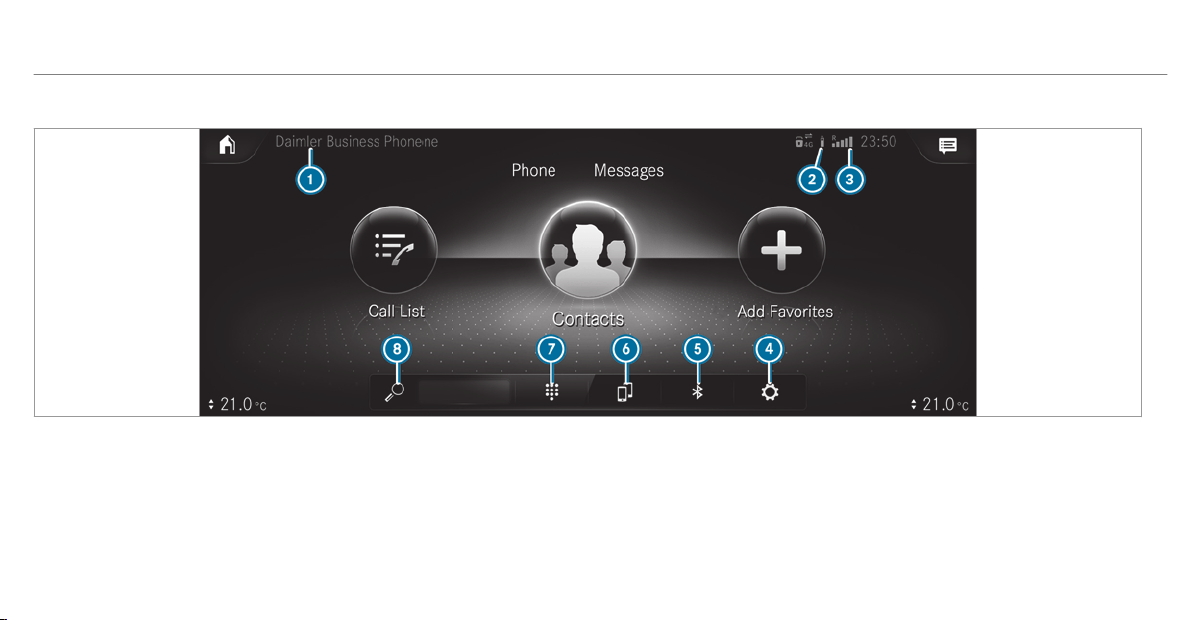
Telephone menu overview
1
Bluetooth
®
device name of the currently
connected mobile phone/the mobile phone
in the foreground (two phone mode)
2
Battery status of the connected mobile
phone
3
Signal strength of the mobile phone network
4
Options
5
Device manager
6
To switch mobile phones (two phone mode)
7
Numerical pad
8
Contact search
330
MBUX multimedia system

Bluetooth
®
profile overview
Bluetooth
®
profile
of the mobile phone
Function
PBAP (Phone Book
Access Profile)
Contacts are auto‐
matically displayed in
the multimedia sys‐
tem
MAP (Message
Access Profile)
Message functions
can be used
Telephony operating modes overview
Depending on your equipment, the following tel‐
ephony operating modes are available:
R
A mobile phone is connected to the multime‐
dia system via Bluetooth
®
(/ page 331).
R
Two mobile phones are connected with the
multimedia system via Bluetooth
®
(two
phone mode).
-
You can use all the functions of the multi‐
media system with the mobile phone in
the foreground.
-
You can receive incoming calls and mes‐
sages with the mobile phone in the back‐
ground.
You can interchange the mobile phone in
the foreground and background any time
(
/ page 332).
%
Irrespective of this, Bluetooth
®
audio func‐
tionality can by used with any mobile phone
(/ page 366).
Information on telephony
The following situations can lead to the call
being disconnected while the vehicle is in
motion:
R
There is insufficient network coverage in the
area
R
You move from one transmission/reception
station to another and no communication
channels are free
R
The SIM card used is not compatible with the
network available
R
A mobile phone with "Twincard" is logged
into the network with the second SIM card at
the same time
The multimedia system supports calls in HD
Voice
®
for improved speech quality. A require‐
ment for this is that the mobile phone and the
mobile phone network provider of the person
you are calling support HD Voice
®
.
Depending on the quality of the connection, the
voice quality may fluctuate.
Connecting a mobile phone
Requirements:
R
Bluetooth
®
is activated on the mobile phone
(see the manufacturer's operating instruc‐
tions).
R
Bluetooth
®
is activated on the multimedia
system (/ page 275).
Multimedia system:
4
©
5
Phone
5
ª
Searching for a mobile phone
#
Select Connect New Device.
MBUX multimedia system
331
Connecting a mobile phone (authorization
using Secure Simple Pairing)
#
Select a mobile phone.
#
A code is displayed in the multimedia system
and on the mobile phone.
#
If the codes match: confirm the code on
the mobile phone.
%
For older mobile phone models, enter a one
to sixteen-digit number code on the mobile
phone and on the multimedia system for
authorization.
%
Up to 15 mobile phones can be authorized
on the multimedia system.
Authorized mobile phones are reconnected
automatically.
%
The connected mobile phone can also be
used as Bluetooth
®
audio equipment
(/ page 366).
Connecting a second mobile phone (two
phone mode)
Requirements:
R
At least one mobile phone is already connec‐
ted to the multimedia system via Bluetooth
®
.
Multimedia system:
4
©
5
Phone
5
ª
#
Select Connect New Device.
#
Select the mobile phone.
#
Select With <Mobile phone>.
The selected mobile phone is connected to
the multimedia system.
Functions of the mobile phone in two phone
mode
Functions overview
Mobile phone in the
foreground
Mobile phone in the
background
Full range of func‐
tions
Incoming calls and
messages
Interchanging mobile phones (two phone
mode)
Multimedia system:
4
©
5
Phone
#
Select F.
You can also interchange the two connected
mobile phones in the following submenus:
R
Contacts
R
Call list
R
Messages
After interchanging the mobile phones in one of
the submenus, the mobile phone in the fore‐
ground is replaced by the mobile phone in the
background.
Changing the function of a mobile phone
Multimedia system:
4
©
5
Phone
5
ª
Activating a function
#
Select a gray symbol in the line of a mobile
phone.
The corresponding function is activated.
332
MBUX multimedia system

Deactivating a function
#
A function is active: select the color symbol
in the line of a mobile phone.
The mobile phone is disconnected from the
multimedia system.
#
Several functions are active: select a color
symbol in the line of a mobile phone.
The corresponding function is deactivated.
Replacing mobile phones
Multimedia system:
4
Phone
5
ª
#
No authorized mobile phone available:
select Connect New Device.
#
Select a mobile phone.
#
Newly authorized mobile phone: confirm
the number code on the mobile phone.
Using in single telephone mode
#
Select Only <Mobile phone>.
A newly authorized mobile phone is connec‐
ted in single telephone mode.
If the mobile phone has already been author‐
ized and connected in single telephone
mode, it is connected again in single tele‐
phone mode.
If a mobile phone has already been author‐
ized and connected in two phone mode with
another mobile phone, it will be connected in
future in single telephone mode.
Using in two phone mode
#
Select With <Mobile phone>.
A newly authorized mobile phone is connec‐
ted with the selected mobile phone in two
phone mode.
If the mobile phone has already been author‐
ized and connected in single telephone
mode, it will be connected in future with the
selected mobile phone in two phone mode.
If the mobile phone was previously connec‐
ted with another mobile phone, this connec‐
tion is canceled.
Disconnecting/de-authorizing a mobile
phone
Multimedia system:
4
©
5
Phone
5
ª
#
Select Ä in the line of the mobile phone.
#
To disconnect: select Disconnect.
If applicable, the mobile phone will be auto‐
matically reconnected when the vehicle is
next started.
#
To de-authorize: select Deauthorize.
Information on Near Field Communication
(NFC)
NFC enables short-range wireless data transfer
or (re)connection of a mobile phone with the
multimedia system.
The following functions are available without
having authorized a mobile phone:
R
Transferring a URL or a contact to be viewed
in the multimedia system (see the manufac‐
turer's operatin g instructions).
R
Setting up the vehicle's W i-Fi access data via
the system settings (/ page 277).
MBUX multimedia system
333
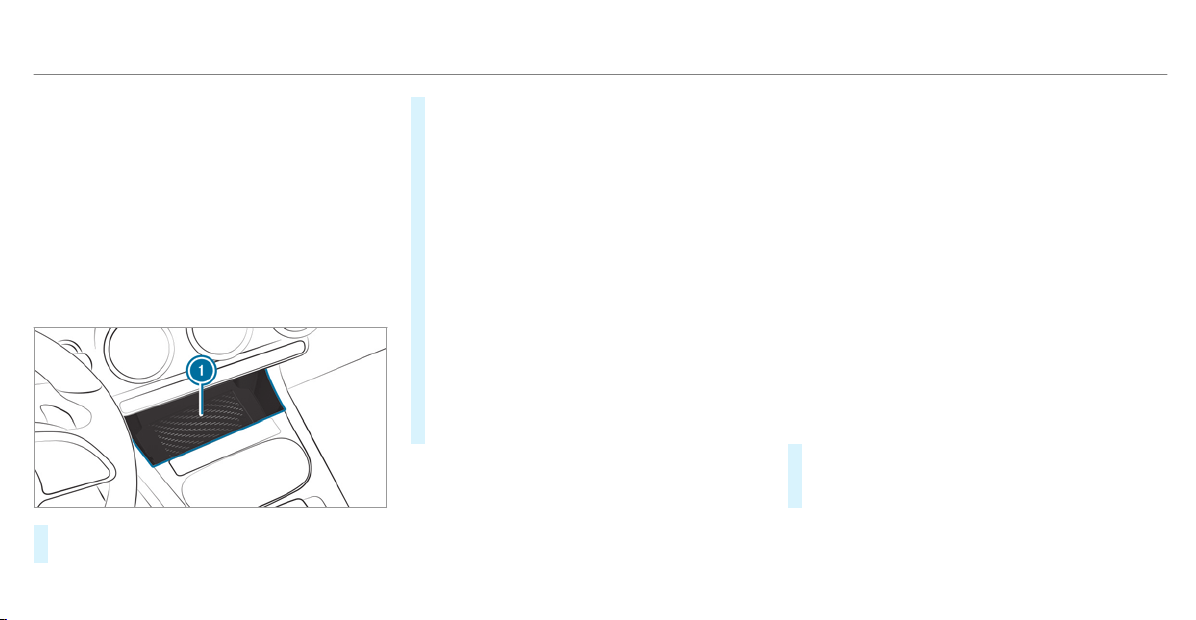
Further information can be obtained at: http://
www.mercedes-benz.com/connect
Using the mobile phone with Near Field Com‐
munication (NFC)
Requirements:
R
NFC is activated on the mobile phone (see
the manufacturer's operating instructions)
R
The mobile phone's screen is switched on
and unlocked (see the manufacturer's oper‐
ating instructions)
#
To connect a mobile phone: hold the NFC
area of the mobile phone (see manufactur‐
er's operating instructions) on mat 1 or
place the mobile phone on it.
#
Follow the additional prompts on the media
display to connect the mobile phone. Con‐
nect the mobile phone in single telephone
mode (
/ page 331). Connect the mobile
phone in two phone mode (/ page 332).
#
To replace a mobile phone: hold the NFC
area of the mobile phone (see manufactur‐
er's operating instructions) on mat 1 or
place the mobile phone on it.
#
Follow the additional prompts on the media
display to replace the mobile phone in one or
two phone mode (/ page 332).
#
If required, confirm the prompts on your
mobile phone (see the manufacturer's oper‐
ating instructions).
%
If your mobile phone supports wireless
charging, it will be automatically charged via
NFC when it is connected or replaced. A
requirement for this is that the mobile phone
is on the charging mat (
/ page 111).
If you want to charge a mobile phone without
connecting it to the multimedia system, lay it on
the mat without beforehand unblocking the
screen.
Further information can be found at: http://
www.mercedes-benz.com/connect
Setting the reception and transmission vol‐
ume
Requirements:
R
A mobile phone is connected
(/ page 331).
Multimedia system:
4
©
5
Phone
5
Z
This function ensures optimal language quality.
%
Please note that the respective mobile
phone must be selected for adjustment of
the reception and transmission volume.
#
Select Volume.
#
Set Reception Volume and Transmission Vol-
ume.
Further information on the recommended recep‐
tion and transmission volume: http://
www.mercedes-benz.com/connect
334
MBUX multimedia system

Setting the ringtone
Multimedia system:
4
©
5
Phone
5
Z
%
Please note that the respective mobile
phone must be selected for adjustment of
the ringtone.
#
Select Ringtones.
#
Set the ringtone.
%
If the mobile phone supports the transfer of
the ringtone, you will hear the ringtone of
the mobile phone instead of that of the vehi‐
cle.
Starting/stopping mobile phone voice recog‐
nition
Requirements:
R
The mobile phone in the foreground is con‐
nected with the multimedia system
(/ page 331).
Starting mobile phone voice recognition
#
Press and hold the £ button on the multi‐
function steering wheel for more than one
second.
You can use mobile phone voice recognition.
Stopping mobile phone voice recognition
#
Press the 8 or ~ button on the multi‐
function steering wheel.
%
If a mobile phone is connected via Smart‐
phone Integration, the voice recognition of
this mobile phone is started or stopped.
Calls
Using the telephone
Multimedia system:
4
©
5
Phone
Making a call by entering the numbers
#
Select _.
#
Enter a number.
#
Select R.
The call is made.
Accepting a call
#
Select R Accept.
Rejecting a call
#
Select k Reject.
Ending a call
#
Select k.
Activating functions during a call
The following functions are available during a
call:
k
End Call
m
Microphone Off
_
Numeric Keypad (show to send DTMF
tones)
W
Add Call
h
Transfer to Phone (an active call in hands-
free mode is tr ansferred over to the tele‐
phone)
#
Select a function.
MBUX multimedia system
335

Conducting calls with several participants
Requirements:
R
There is an active call (/ page 335).
R
Another call is being made.
Switching between calls
#
Select the contact.
The selected call is active. The other call is
on hold.
Activating a call on hold
#
Select the contact of the call on hold.
Conducting a conference call
#
Select i Create Confer. Call.
The new participant is included in the confer‐
ence call.
Ending an active call
#
Select k End Call.
%
On some mobile phones, the call on hold is
activated as soon as the active call is ended.
Accepting/rejecting a waiting call
Requirements:
R
There is an active call (/ page 335).
If you receive a call while already in a call, a
message is displayed.
Depending on the mobile phone and mobile net‐
work oper ator you will hear a call-waiting sound.
In addition, in two phone mode you will hear an
acoustic signal when the call goes through to the
other (not yet active) mobile phone.
#
Select R Accept.
The incoming call is active.
If only one mobile phone is connected with
the multimedia system, the previous call will
be put on hold.
If during a call you accept a call with the
other mobile phone when in two phone mode
then the existing call is ended.
#
Select k Reject.
%
This function and behavior depends on your
mobile phone network provider and the
mobile phone (see the manufacturer's oper‐
ating instructions).
Contacts
Information about the contacts menu
The contacts menu contains all contacts from
existing data sources, e.g. mobile phone or data
storage medium.
Depending on the data source, you have the fol‐
lowing number of contacts:
R
Permanently saved contacts: 3,000 entries
R
Contacts loaded from the mobile phone:
5,000 entries per mobile phone
From the contacts menu, you can perform the
following actions:
R
Make a call, for example call a contact
(/ page 338)
R
Navigation (/ page 295)
R
Compose messages (/ page 341)
R
Additional options (/ page 338)
336
MBUX multimedia system

If a mobile phone is connected to the multimedia
system (/ page 331) and automatic calling
up (/ page 337) is activated, the mobile
phone's contacts are displayed in the address
book.
The multimedia system can show suggestions
based on frequently used contacts as well as
incoming and outgoing calls (
/ page 257).
These are shown at the top of the contact list.
Downloading mobile phone contacts
Multimedia system:
4
©
5
Phone
5
Z
#
Select the connected mobile phone.
#
Select Contacts & Recent Calls.
Automatically
#
To switch Synchronize Contacts Automati-
cally on: activate the LED symbol.
Manually
#
To deactivate Synchronize Contacts Auto-
matically: deactivate the LED symbol.
#
Select Synchronize Contacts.
Calling up contacts
Multimedia system:
4
©
5
Phone
5
g
The following options can be used to search for
contacts:
R
searching by initials
R
searching by name
R
searching by phone number
#
Enter characters into the search field.
#
Select the contact.
A contact can contain the following details:
R
phone numbers
R
navigation addresses
R
geo-coordinates
R
Internet address
R
e-mail addresses
R
voice tag (if set)
R
relation (if set)
Editing the format of a contact's name
Multimedia system:
4
©
5
Phone
5
Z
#
Select General.
#
Select Name Format.
The following options are available:
R
Last Name, First Name
R
Last Name First Name
R
First Name Last Name
#
Select an option.
MBUX multimedia system
337

Overview of impor ting contacts
Contacts from various sources
Source Requirements
ò USB device The USB device is
connected with the
USB port.
ñ Bluetooth
®
con‐
nection
If the sending of
vCards via Bluetooth
®
is suppor ted, vCards
can be received on
mobile phones or net‐
books, for example.
Bluetooth
®
is activa‐
ted in the multimedia
system and on the
respective device
(see the manufactur‐
er's operating instruc‐
tions).
Importing contacts into the contacts menu
Multimedia system:
4
©
5
Phone
5
Z
5
General
5
Import Contacts
#
Select an option.
Saving a mobile phone contact
Multimedia system:
4
©
5
Phone
5
g
#
Select ó r in the line of the mobile
phone contact.
#
Select Ä.
#
Select Save to Vehicle.
#
Select Yes.
The contact saved in the multimedia system
is identified by the q symbol.
Calling a contact
Multimedia system:
4
©
5
Phone
5
g
#
Select ª Search for Contacts .
#
Enter characters into the search field.
#
Select the contact.
#
Select the telephone number.
The number is dialed.
Selecting further options in the contacts
menu
Multimedia system:
4
©
5
Phone
5
g
#
Select r in the line of the contact.
#
Select Ä.
Depending on the stored data, the following
options are available:
R
Add Voice Tag/Delete Voice Tag
R
Set Relationship/Delete Relationship
R
Send DTMF Tones (for a number with DTMF
tones)
The function is available when a call is active.
#
Select an option.
338
MBUX multimedia system

Selecting options for suggestions in the con‐
tacts menu
Requirements:
R
A profile has been created (/ page 252).
R
The Allow Contact Suggestions setting is
switched on (/ page 257).
Multimedia system:
4
©
5
Phone
#
Select + Recent Calls .
#
Select V in the line of a suggested con‐
tact.
The following options are available:
R
Save as Favorite
The suggestions are saved as global
favorites and do not appear on the home
screen.
R
No Longer Suggest
#
Select an option.
Deleting contacts
Requirements:
R
The contacts are saved in the vehicle.
R
To delete an individual contact, this has been
imported manually into the vehicle.
Multimedia system:
4
©
5
Phone
Deleting all contacts
#
Select Z.
#
Select General.
#
Select Delete Contacts.
#
Select an option.
Deleting a contact
#
Select g.
#
Select r in the line of the contact.
#
Select Ä.
#
Select Delete Contact.
#
Select Yes.
Saving a contact as a favorite
Multimedia system:
4
©
5
Phone
5
f Add Favorites
#
Select a contact.
#
Select r in the line of the contact.
#
Select the telephone number.
The contact is stored as a favorite in the tele‐
phone menu overview.
Deleting favorites in the telephone menu
overview
Multimedia system:
4
©
#
Select a favorite in the telephone menu over‐
view (/ page 339).
#
Press and hold the favorite.
#
Select Delete.
#
Select Yes.
Deleting all favorites
#
Tap on © in the media display.
#
Select Phone.
MBUX multimedia system
339

#
Select Z.
#
Select the connected telephone.
#
Select Contacts & Recent Calls.
#
Select Do you want to delete all favorites?.
#
Select Yes.
Call list
Overview of the call list
Depending on whether your mobile phone sup‐
ports the PBAP Bluetooth
®
profile or not, this
can have different effects on the presentation
and functions of the call list.
If the PBAP Bluetooth
®
profile is supported, the
effects are as follows:
R
The call lists from the mobile phone are dis‐
played in the multimedia system.
R
When connecting the mobile phone, you may
have to confirm the connection for the PBAP
Bluetooth
®
profile.
If the PBAP Bluetooth
®
profile is not supported,
the effects are as follows:
R
The multimedia system generates a call list
independently as soon as calls are made in
the vehicle.
R
The call list is not synchronized with the call
lists in the mobile phone.
The multimedia system can show suggestions
based on frequently used contacts as well as
incoming and outgoing calls (/ page 257).
These are shown at the top of the call list.
Making a call from the call list
Multimedia system:
4
©
5
Phone
#
Select + Recent Calls .
#
Select an entry.
The call is made.
Calling up additional options in the call list
Multimedia system:
4
©
5
Phone
#
Select + Recent Calls.
#
For previously stored contacts: select r
in the line of an entry.
The search results are displayed.
#
For contacts who have not been stored:
select i.
Selecting options for suggestions in the call
list
Requirements:
R
A profile has been created (/ page 252).
R
The Allow Contact Suggestions setting is
switched on (/ page 257).
Multimedia system:
4
©
5
Phone
#
Select + Recent Calls.
#
Select V in the line of a suggested entry.
The following options are available:
R
Save as Favorite
R
No Longer Suggest
#
Select an option.
340
MBUX multimedia system

Deleting the call list
Multimedia system:
4
©
5
Phone
5
Z
#
Select the connected mobile phone.
#
Select Contacts & Recent Calls.
#
Select Delete Recent Calls.
#
Select Yes.
%
This function is only available if your mobile
does not support the PBAP Bluetooth
®
pro‐
file.
Text messages
Overview of message functions
In the messages menu you can receive and send
text messages.
If the connected mobile phone supports the
Bluetooth
®
MAP profile, the message function
can be used on the multimedia system.
You can obtain further information about set‐
tings and supported functions of Bluetooth
®
-
capable mobile phones from a Mercedes-Benz
service center or at: http://www.mercedes-
benz.com/connect
Some mobile phones require further settings
after being connected to the multimedia system
(see manufacturer's operating instructions).
Setting message displays
Multimedia system:
4
©
5
Phone
5
Z
#
Select the connected mobile phone.
#
Select Message Display.
The following options are available:
R
All Messages
R
New and Unread Messages
R
Messages While Driving
R
Off (The message function is no longer
available.)
#
Select a setting.
Reading messages
Multimedia system:
4
©
5
Phone
5
Messages
#
Select a message sequence with a contact.
Using the read-aloud function
#
Select a message.
#
Select .
The message is read aloud.
Dictating and sending a new message
Requirements:
R
There is an Internet connection.
Multimedia system:
4
©
5
Phone
5
Messages
#
r selects a new message.
Adding a recipient
#
Select f.
#
Select a contact.
Dictating text
#
Select p.
The dictating function is started.
MBUX multimedia system
341
#
Say the message.
After the voice message has been processed,
it is shown as text.
Sending a message
#
Select Send.
%
When the vehicle is stationary you can use
the keyboard to write a message. No Inter‐
net connection is required to use the key‐
board.
Replying to a message in the messaging his‐
tory
Multimedia system:
4
©
5
Phone
5
Messages
#
Select a message sequence with a contact.
#
Select p.
The dictating function is started.
#
Say the message.
After the voice message has been processed,
it is shown as text.
#
Select Send.
Using message templates
Multimedia system:
4
©
5
Phone
5
Messages
Using a template as a new message
#
Select r to write a new message.
#
Add a recipient using f.
#
Select a template .
Answering a message with a template
#
Select a message sequence with a contact.
#
Select a template.
#
Select a template.
Forwarding a message
Multimedia system:
4
©
5
Phone
5
Messages
#
Select a message sequence with a contact.
#
Press and hold on a message.
#
To forward a message: select Forward.
Calling a message sender
Multimedia system:
4
©
5
Phone
5
Messages
#
Select a message sequence with a contact.
#
Select Ä.
#
Select Call.
Using telephone numbers or URLs from a
text message
Requirements:
R
An Internet connection is available to call up
a URL.
Multimedia system:
4
©
5
Phone
5
Messages
#
Select a message sequence with a contact.
#
Select a telephone number or a URL in the
message.
If a URL is selected the web browser opens.
342
MBUX multimedia system

If a telephone number is selected the follow‐
ing options are available:
R
Call
R
Write New Text Message
#
Select an option.
Deleting a message
Multimedia system:
4
©
5
Phone
5
Messages
#
Select a contact.
#
Press and hold on a message.
#
To delete the message: select Delete.
Mercedes-Benz link
Overview of Mercedes-Benz Link
&
WARNING Risk of distraction from infor‐
mation systems and communications
equipment
If you operate information and communica‐
tion equipment integrated in the vehicle
when driving, you will be distracted from the
traffic situation. This could also cause you to
lose control of the vehicle.
#
Only operate this equipment when the
traffic situation permits.
#
If you cannot be sure of this, stop the
vehicle whilst paying attention to road
and traffic conditions and operate the
equipment with the vehicle stationary.
You must observe the legal requirements for the
country in which you are currently driving when
operating the multimedia system.
With Mercedes-Benz Link you can use mobile
phone functions via the multimedia system. It is
operated using the touchscreen or the voice-
operated control system. You can activate the
voice-operated control system by pressing and
holding the £ button on the multifunction
steering wheel.
When using Mercedes-Benz Link via the voice-
operated control system, the multimedia system
can still be operated via the Voice Control Sys‐
tem (
/ page 224).
The Mercedes-Benz Link control box supplemen‐
tary equipment is required for this. This is availa‐
ble at an authorized Mercedes-Benz Center.
Only one mobile phone at a time can be connec‐
ted via Mercedes-Benz Link to the multimedia
system.
When a mobile phone is connected with
Mercedes-Benz Link, only one additional mobile
phone can be connected using Bluetooth
®
with
the multimedia system when in two phone
mode.
%
The Mercedes-Benz Link control box uses
the Android operating system.
%
The service provider is responsible for these
apps and the services and content connec‐
ted to it.
Notes on Mercedes-Benz Link
If a mobile phone is used with Mercedes-Benz
Link, USB access using the media menu is possi‐
ble for this mobile phone.
MBUX multimedia system
343

%
Only one route guidance can be active at a
time. If route guidance is active on the multi‐
media system, it is closed when route guid‐
ance is started on the mobile phone.
Connecting Mercedes-Benz Link with the
multimedia system
Requirements:
R
The vehicle is equipped with the Mercedes-
Benz Link control box.
R
The Mercedes-Benz Link app is installed on
the mobile phone.
R
The mobile phone is switched on.
R
Mercedes-Benz Link is connected to the mul‐
timedia system via the ç USB port using
a suitable cable (/ page 366).
%
The first activation of Mercedes-Benz Link
on the multimedia system must be carried
out when the vehicle is stationary for safety
reasons.
Multimedia system:
4
©
5
Mercedes me & Apps
5
Smartphone
5
Mercedes-Benz Link
5
Start Mercedes-Benz Link
Accepting/rejecting the data protection reg‐
ulations
For the initial start of the application: a message
with the data protection provisions appears.
#
Select Accept & Start.
Quitting Mercedes-Benz Link
#
Press the ò button.
%
Mercedes-Benz Link starts automatically
when it is connected with the system using a
cable. If Mercedes-Benz Link was not dis‐
played in the foreground before disconnect‐
ing, the application starts in the background
when reconnected. You can call up
Mercedes-Benz Link using the main menu.
You can find more information in the Mercedes-
Benz Link control box operating instructions.
Calling up Mercedes-Benz Link sound set‐
tings
Multimedia system:
4
©
5
Mercedes me & Apps
5
Smartphone
5
Mercedes-Benz Link
5
Z
#
Select sound settings.
Ending Mercedes-Benz Link
#
Disconnect the connecting cable between
Mercedes-Benz Link and the multimedia sys‐
tem.
%
Mercedes-Benz recommends disconnecting
the connecting cable only when the vehicle
is stationar y.
344
MBUX multimedia system

Apple CarPlay™
Overview of Apple CarPlay™
&
WARNING Risk of distraction from infor‐
mation systems and communications
equipment
If you operate information and communica‐
tion equipment integrated in the vehicle
when driving, you will be distracted from the
traffic situation. This could also cause you to
lose control of the vehicle.
#
Only operate this equipment when the
traffic situation permits.
#
If you cannot be sure of this, stop the
vehicle whilst paying attention to road
and traffic conditions and operate the
equipment with the vehicle stationary.
You must observe the legal requirements for the
country in which you are currently driving when
operating the multimedia system.
iPhone
®
functions can be used via the multime‐
dia system using Apple CarPlay™. They are oper‐
ated using the touchscreen, touchpad, Touch
Control or the Siri
®
voice-operated control sys‐
tem. You can activate the voice-operated control
system by pressing and holding the £ button
on the multifunction steering wheel.
When using Apple CarPlay™ via the voice-oper‐
ated control system, the multimedia system can
still be operated via the Voice Control System
(
/ page 224).
Only one mobile phone at a time can be connec‐
ted via Apple CarPlay™ to the multimedia sys‐
tem.
Also for use of Apple CarPlay™ with two phone
mode, only one additional mobile phone can be
connected using Bluetooth
®
with the multimedia
system.
The availability of Apple CarPlay™ may vary
according to the country.
The service provider is responsible for this appli‐
cation and the services and content connected
to it.
Information on Apple CarPlay™
When Apple CarPlay™ is being used, the iPod
®
media source is not available for the respective
iPhone
®
.
Only one route guidance can be active at a time.
If route guidance is active on the multimedia sys‐
tem, it is closed when route guidance is star ted
on the mobile phone.
Connecting an iPhone
®
via Apple CarPlay™
(cable)
Requirements:
R
The current version of your device's operat‐
ing system is being used (see the manufac‐
turer's operatin g instructions).
R
There is an Internet connection for the full
range of functions for Apple CarPlay™.
R
The iPhone
®
is connected to the multimedia
system via the USB port ç using a suita‐
ble cable (/ page 366).
MBUX multimedia system
345

Multimedia system:
4
©
5
Mercedes me & Apps
5
Smartphone
5
Apple CarPlay
5
Start Apple CarPlay
#
Alternative: If an Apple CarPlay™ application
is active (e.g. when music is being played or
route guidance is active), you can call up the
active application using the |, z or
% application buttons (
/ page 250).
%
To control with the application buttons,
these must be switched on first .
Accepting/rejecting the data protection reg‐
ulations
For the initial start of the application: a message
with the data protection provisions appears.
#
Select Accept & Start.
Exiting Apple CarPlay™
#
Press the ò button.
%
Apple CarPlay™ starts automatically when
the iPhone
®
is connected with the system
using a cable. If Apple CarPlay™ was not dis‐
played in the foreground before disconnect‐
ing, the application starts in the background
when reconnected. You can call up Apple
CarPlay™ in the main menu.
Calling up Apple CarPlay™ sound settings
Multimedia system:
4
©
5
Mercedes me & Apps
5
Smartphone
5
Apple CarPlay
5
Z
#
Select sound settings.
Ending Apple CarPlay™
#
To end the connection of Apple Car‐
Play™: disconnect the connection via the
connecting cable between the iPhone
®
and
multimedia system.
%
Mercedes-Benz recommends disconnecting
only when the vehicle is stationary.
Android Auto
Android Auto overview
&
WARNING Risk of distraction from infor‐
mation systems and communications
equipment
If you operate information and communica‐
tion equipment integrated in the vehicle
when driving, you will be distracted from the
traffic situation. This could also cause you to
lose control of the vehicle.
#
Only operate this equipment when the
traffic situation permits.
#
If you cannot be sure of this, stop the
vehicle whilst paying attention to road
and traffic conditions and operate the
equipment with the vehicle stationary.
You must observe the legal requirements for the
country in which you are currently driving when
operating the multimedia system.
Mobile phone functions can be used with
Android Auto using the Android operating sys‐
tem on the multimedia system. It is operated
346
MBUX multimedia system

using the touchscreen or the voice-operated
control system. You can activate the voice-oper‐
ated control system by pressing and holding the
£ button on the multifunction steering wheel.
When using Android Auto via the voice-operated
control system, the multimedia system can still
be operated via the Voice Control System
(
/ page 224).
Only one mobile phone at a time can be connec‐
ted via Android Auto to the multimedia system.
Also for use of Android Auto with two phone
mode, only one additional mobile phone can be
connected using Bluetooth
®
with the multimedia
system.
The availability of Android Auto and Android Auto
Apps may vary according to the country.
The service provider is responsible for this appli‐
cation and the services and content connected
to it.
Information on Android Auto
If a mobile phone is used with Android Auto,
USB access using the media menu is not possi‐
ble for this mobile phone.
Only one route guidance can be active at a time.
If route guidance is active on the multimedia sys‐
tem, it is closed when route guidance is star ted
on the mobile phone.
Connecting a mobile phone via Android Auto
Requirements:
R
The mobile phone supports Android Auto
from Android 5.0.
R
The Android Auto app is installed on the
mobile phone.
R
In order to use the telephone functions, the
mobile phone must be connected to the mul‐
timedia system via Bluetooth
®
(/ page 331).
If there was no prior Internet connection, this
is established with the use of the mobile
phone with Android Auto.
R
The mobile phone is connected to the multi‐
media system via the USB port ç using a
suitable cable (/ page 366).
R
There is an Internet connection for the full
range of functions for Android Auto.
Multimedia system:
4
©
5
Mercedes me & Apps
5
Smartphone
5
Android Auto
5
Start Android Auto
#
Alternative: if Android Auto is active (e.g.
when music is being played or route guid‐
ance is active), you can call up the applica‐
tion using the |, z or % buttons
(
/ page 250).
%
The first activation of Android Auto on the
multimedia system must be carried out
when the vehicle is stationary for safety rea‐
sons.
Accepting/rejecting the data protection reg‐
ulations
For the initial start of the application: a message
with the data protection provisions appears.
#
Select Accept & Start.
Exiting Android Auto
#
Press the ò button.
MBUX multimedia system
347

%
Android Auto starts automatically when the
mobile phone is connected with the system
using a cable. If Android Auto was not dis‐
played in the foreground before disconnect‐
ing, the application starts in the background
when reconnected. You can call up Android
Auto in the main menu.
Calling up the Android Auto sound settings
Multimedia system:
4
©
5
Mercedes me & Apps
5
Smartphone
5
Android Auto
5
Z
#
Select sound settings.
Ending Android Auto
#
Disconnect the connecting cable between
the mobile phone and multimedia system.
%
Mercedes-Benz recommends disconnecting
the connecting cable only when the vehicle
is stationar y.
Transferred vehicle data with Android Auto
and Apple CarPlay™
Overview of transferred vehicle data
When using Android Auto or Apple CarPlay™,
certain vehicle data is transferred to the mobile
phone. This enables you to get the best out of
selected mobile phone services. Vehicle data is
not directly accessible.
The following system information is transmitted:
R
Software release of the multimedia system
R
System ID (anonymized)
The transfer of this data is used to optimize com‐
munication between the vehicle and the mobile
phone.
To do this, and to assign several vehicles to the
mobile phone, a vehicle identifier is randomly
generated.
This has no connection to the vehicle identifica‐
tion number (VIN) and is deleted when the multi‐
media system is reset (
/ page 282).
The following driving status data is transmitted:
R
Transmission position engaged
R
Distinction between parked, standstill, rolling
and driving
R
Day/night mode of the instrument cluster
The transfer of this data is used to alter how
content is displayed to correspond to the driving
situation.
The following position data is transmitted:
R
Coordinates
R
Speed
R
Compass direction
R
Acceleration direction
This data is only transferred while the navigation
system is active, in order to improve it (e.g. so it
can continue functioning when in a tunnel).
348
MBUX multimedia system

Mercedes me connect
Notes on Mercedes me connect
Mercedes me connect provides the following
services:
R
Accident and breakdown management (auto‐
matic accident or breakdown detection, or
me button)
R
Appointment requests or similar (me button)
R
If the service is activated: Concierge Service
(me button)
R
Mercedes-Benz emergency call system (auto‐
matic emergency call or SOS button)
Mercedes me connect accident and breakdown
management, the Mercedes me connect Con‐
cierge Service (if service is activated) and the
Mercedes-Benz emergency call center are availa‐
ble for you around the clock.
The me button and the SOS button can be found
on the vehicle's overhead control panel
(
/ page 350).
You can also call the Mercedes-Benz Customer
Center using the multimedia system
(/ page 349).
Please note that Mercedes me connect is a
Mercedes-Benz service. In emergencies, always
call the national emergency services first using
the standard national emergency service phone
numbers. In emergencies, you can also use the
Mercedes-Benz emergency call system
(
/ page 353).
Observe the conditions of use for Mercedes me
connect and other services. These can be
obtained in the Mercedes me portal: https://
me.secure.mercedes-benz.com
Calling the Mercedes-Benz Customer Center
using the multimedia system
Requirements:
R
Access to a GSM network is available.
R
The contract partner's GSM network cover‐
age is available in the respective region.
R
The ignition must be switched on so that
vehicle data can be transferred automati‐
cally.
Multimedia system:
4
©
5
Phone
5
g
#
Call Mercedes me connect.
Then, you can select a service and be connected
to a specialist at the Mercedes-Benz Customer
Center.
Further information on Mercedes me connect,
the provided service scope and operation are
available at: http://manuals.daimler.com/baix/
cars/connectme/en_GB/index.html
MBUX multimedia system
349
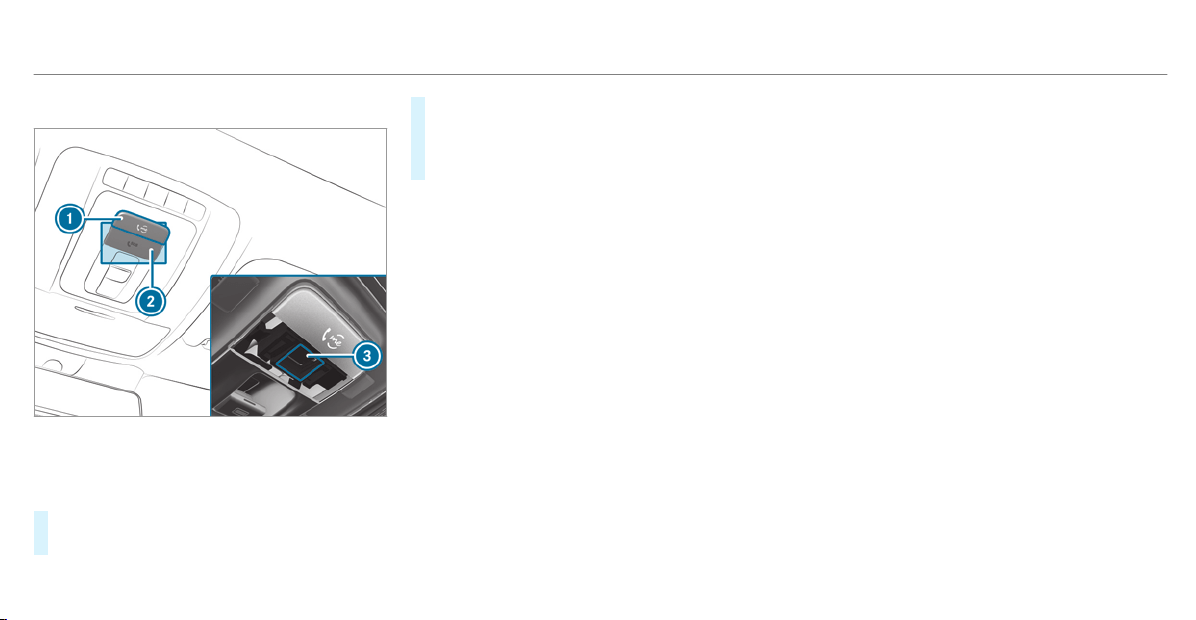
Making a call via the overhead control panel
1
Service call button (me button)
2
SOS button cover
3
SOS button
#
To make a service call: press me button
1.
#
To make an emergency call: press SOS
button cover 2 briefly to open.
#
Press and hold SOS button 3 for at least
one second.
If a service call is active, an emergency call can
still be triggered. This has priority over all other
active calls.
Information about the ser vice call using the
me button
A call to the Mercedes-Benz Customer Center
has been initiated via the me button in the over‐
head control panel or the multimedia system.
In the event of a breakdown, you will get sup‐
port:
R
A qualified Mercedes-Benz technician pro‐
vides breakdown assistance on site and/or
the vehicle will be towed to the nearest
authorized Mercedes-Benz Center.
You may be charged for these services.
You can find information on the following topics:
R
Activation of Mercedes me connect
R
Operating the vehicle
R
Nearest authorized Mercedes-Benz Center
R
Other products and services from Mercedes-
Benz
Data is transmitted during the connection to the
Mercedes-Benz Customer Center
(/ page 351).
Information on Mercedes me connect acci‐
dent and breakdown management
The Mercedes me connect accident and break‐
down management is an extension of the
Mercedes-Benz emergency call system
(
/ page 353).
An emergency call is made to the Mercedes-
Benz emergency call center after an accident:
R
A voice connection is made to a contact per‐
son at the Mercedes-Benz emergency call
center.
R
If necessary, the contact person at the
Mercedes-Benz emergency call center for‐
wards the call to Mercedes me connect acci‐
dent management.
Forwarding the call is not possible in all
countries.
350
MBUX multimedia system

R
If necessary, the vehicle will be towed to an
authorized Mercedes-Benz Center.
If the vehicle detects a minor accident, a mes‐
sage appears in the multimedia system.
The message is confirmed in the multimedia sys‐
tem:
R
A voice connection is made to a contact per‐
son at Mercedes me connect accident man‐
agement.
R
If necessary, the vehicle will be towed to an
authorized Mercedes-Benz Center.
Arranging a service appointment via
Mercedes me connect
If you have activated the maintenance manage‐
ment service, relevant vehicle data is transferred
automatically to the Mercedes-Benz Customer
Center. You will then receive individual recom‐
mendations regarding the maintenance of your
vehicle.
Regardless of whether you have consented to
the maintenance management service, the multi‐
media system reminds you after a certain
amount of time that a service is due. A prompt
appears asking if you would like to make an
appointment.
#
To arrange a service appointment: select
Call.
After your agreement the vehicle data is sent
and a Mercedes-Benz Customer Center
employee deals with your appointment. The
information is then sent to your desired
service outlet.
This service outlet will then contact you
within 24 hours.
%
If you select Later after the service message
appears, the message is hidden and reap‐
pears after a certain period of time.
Transferred data during a service call
Observe the conditions of use for Mercedes me
connect and other services. These can be
obtained in the Mercedes me portal: https://
me.secure.mercedes-benz.com
When you make a service call via Mercedes me
connect, data will be transmitted.
The following data is transmitted if a service call
is made via Mercedes me connect:
R
Vehicle identification number
R
Reason for the initiation of the call
Mercedes me and apps
Information about Mercedes me
When you log in with a user account to the
Mercedes me portal, then services and offers
from Mercedes-Benz will be available to you.
Availability is country-dependent.
For more information consult an authorized
Mercedes-Benz Center or visit the Mercedes me
portal: http://me.secure.mercedes-benz.com
%
Make sure you always keep the Mercedes
me apps updated.
MBUX multimedia system
351

Calling up the Mercedes me user account
Multimedia system:
4
©
5
Mercedes me & Apps
Your vehicle is connected with a user
account
#
Select Mercedes me.
Information about the connected user
account appears.
Your vehicle is not yet connected with a user
account
#
Select Mercedes me.
#
The instructions for creating a user account
and connecting the vehicle with this follow
on the media display.
%
If the Mercedes me app is available on a
mobile phone, the vehicle connection can be
accomplished using the QR code shown.
Calling up the Mercedes me services
Requirements:
R
The vehicle is connected with the user
account.
Multimedia system:
4
©
5
Mercedes me & Apps
#
Select Services.
Within the various categories you can see the
Mercedes me services you have already pur‐
chased and also those still available to pur‐
chase.
To activate or deactivate the services, log in
to your user account in the Mercedes me
portal.
Deleting a connection between a user
account and the vehicle
Requirements:
R
The (vehicle) profile of the user account that
was initially connected with the vehicle is
selected.
R
The profile is synchronized (/ page 253).
R
A PIN has been set.
Multimedia system:
4
©
5
Mercedes me & Apps
5
Mercedes me
#
Select Delete Vehicle Assignment.
#
Enter the PIN of the connected user account.
%
Only the user, whose user account was ini‐
tially connected with the vehicle can delete
the connection between all user accounts
and the vehicle.
Mercedes-Benz emergency call system
Information on the Mercedes-Benz emer‐
gency call system
Your vehicle is equipped with the Mercedes-Benz
emergency call system ("eCall"). This feature can
help save lives in the event of an accident. eCall
in no way replaces assistance provided from
dialing 911.
The Mercedes-Benz emergency call system is
available for at least ten years starting from the
manufacturing date.
Mercedes-Benz eCall only functions in areas
where mobile phone coverage is available from
352
MBUX multimedia system

the wireless service providers. Insufficient net‐
work coverage from the wireless service provid‐
ers may result in an emergency call not being
transmitted.
eCall is a standard feature in your Mercedes-
Benz vehicle. In order to function as intended,
the system relies on the transmission of data
detailed in the "Mercedes-Benz emergency call
system data transmission" section that follows
(
/ page 355).
To disable eCall, a customer must visit an
authorized Mercedes-Benz Service department
to deactivate the vehicle's communication mod‐
ule.
Deactivation of this module prevents the
activation of any and all Mercedes me con‐
nect services. After the deactivation of
eCall, automatic emergency call and manual
emergency call will not be available.
The ignition must be switched on before an auto‐
matic emergency call can be made.
%
eCall is activated at the factory.
%
eCall can be deactivated by an authorized
Mercedes-Benz dealer. Please note that in
the event ownership of the vehicle is trans‐
ferred to another owner in its deactivated
state, eCall will remain deactivated unless
the new owner visits an authorized
Mercedes-Benz dealership to reactivate the
system.
Overview of the Mercedes-Benz emergency
call system
eCall can help to reduce the time between an
accident and the ar rival of emergency services
at the site of the accident. It helps locate an
accident site in places that are difficult to
access. However, even if a vehicle is equipped
with eCall, this does not mean the system is ON.
As such, eCall does not replace dialing 911 in the
event of an accident.
The emergency call can be made automatically
(
/ page 353) or manually (/ page 354).
Only make emergency calls if you or others are
in need of rescue.
Only make emergency calls if you or others are
in need of rescue. Do not make an emergency
call in the event of a breakdown or a similar sit‐
uation.
Notification in the multimedia system dis‐
play:
SOS NOT READY: the ignition is not on or eCall
not available.
During an active emergency call, G appears
in the display.
You can find more information on the regional
availability of eCall at: http://www.mercedes-
benz.com/connect_ecall
%
If there is a malfunction in the Mercedes-
Benz emergency call system (e.g. a malfunc‐
tion with the speaker, microphone, airbag,
SOS button), a corresponding message
appears in the multifunction display of the
instrument cluster.
Triggering an automatic Mercedes-Benz
emergency call
Requirements:
R
The ignition is switched on.
R
The starter battery is sufficiently charged.
MBUX multimedia system
353

The Mercedes-Benz emergency call system trig‐
gers an emergency call automatically in the fol‐
lowing cases:
R
After activation of the restraint systems such
as airbags or Emergency Tensioning Devices
after an accident.
R
After an automatically initiated emergency
stop by Active Emergency Stop Assist.
The emergency call has been made:
R
A voice connection is made to the Mercedes-
Benz emergency call center.
R
A message with accident data is transmitted
to the Mercedes-Benz emergency call center.
The Mercedes-Benz emergency call center
can transmit the vehicle position data to one
of the emergency call centers.
The SOS button in the overhead control panel
flashes until the emergency call is finished.
It is not possible to immediately end an auto‐
matic emergency call.
If no connection can be made to the emergency
services either, a corresponding message
appears in the media display.
#
Dial the local emergency number on your
mobile phone.
If an emergency call has been initiated:
R
Remain in the vehicle if the road and traffic
conditions permit you to do so until a voice
connection is established with the emer‐
gency call center service provider.
R
On the basis of the call, the service provider
decides whether it is necessary to call res‐
cue teams and/or the police to the accident
site.
R
If no vehicle occupant answers, an ambu‐
lance is sent to the vehicle immediately.
Triggering a manual Mercedes-Benz emer‐
gency call
#
Using the SOS button in the overhead
control panel: press the SOS button at least
one second long.
#
Using voice control: use the Voice Control
System voice commands (/ page 232).
The emergency call has been made:
R
A voice connection is made to the Mercedes-
Benz emergency call center.
R
A message with accident data is transmitted
to the Mercedes-Benz emergency call center.
The Mercedes-Benz emergency call center
can transmit the vehicle position data to one
of the emergency call centers.
R
Remain in the vehicle if the road and traffic
conditions permit you to do so until a voice
connection is established with the emer‐
gency call center service provider.
R
On the basis of the call, the service provider
decides whether it is necessary to call res‐
cue teams and/or the police to the accident
site.
If no connection can be made to the emergency
services either, a corresponding message
appears in the media display.
#
Dial the local emergency number on your
mobile phone.
354
MBUX multimedia system

Ending an unintentionally triggered manual
Mercedes-Benz emergency call
#
On the multifunction steering wheel:
select ~. Depress button for several sec‐
onds.
Data transfer of the Mercedes-Benz emer‐
gency call system
In the event of an automatic or manual emer‐
gency call the following data is transmitted, for
example:
R
Vehicle's GPS position data
R
GPS position data on the route (a few
300 feet (hundred meters) before the inci‐
dent)
R
Direction of travel
R
Vehicle identification number
R
Vehicle drive type
R
Number of people determined to be in the
vehicle
R
Whether Mercedes me connect is available
or not
R
Whether the emergency call was initiated
manually or automatically
R
Time of the accident
R
Language setting on the multimedia system
Data transmitted is vehicle information. For any
questions about the collection, use and sharing
of the eCall system data, please contact MBU‐
SA's Customer Assistance Center at 800-FOR-
MERC.
For Canada, please contact MBC's Customer
Assistance Center at 1-800-387-000.
Customer requests for covered information
should be submitted via the same channels.
For accident clarification purposes, the following
measures can be taken up to an hour af ter the
emergency call has been initiated:
R
The current vehicle position can be called up
R
A voice connection to the vehicle occupants
can be established
Online and Internet functions
Internet connection
Information on connecting to the Internet
&
WARNING Risk of distraction from infor‐
mation systems and communications
equipment
If you operate information and communica‐
tion equipment integrated in the vehicle
when driving, you will be distracted from the
traffic situation. This could also cause you to
lose control of the vehicle.
#
Only operate this equipment when the
traffic situation permits.
#
If you cannot be sure of this, stop the
vehicle whilst paying attention to road
and traffic conditions and operate the
equipment with the vehicle stationary.
You must observe the legal requirements for the
country in which you are currently driving when
operating the multimedia system.
MBUX multimedia system
355

&
WARNING Risk of distraction from oper‐
ating mobile communication equipment
while the vehicle is in motion
If you operate mobile communication equip‐
ment when driving, you will be distracted
from the traff ic situation. This could also
cause you to lose control of the vehicle.
#
Only operate this equipment when the
vehicle is stationary.
You must observe the legal requirements for the
country in which you are currently driving when
operating mobile communication equipment in
the vehicle.
The Internet functions can only be used to a limi‐
ted degree whilst driving.
Function of the communication module
On vehicles with a built-in communication mod‐
ule, the Internet connection is established via an
integrated SIM card.
To use Internet access via the communication
module the following conditions must be met:
R
Mercedes me connect is active and ready for
operation.
R
Mercedes me connect is activated for Inter‐
net access.
R
Data volume via Mercedes me connect is
available.
If the data volume limit is reached, the availabil‐
ity of Mercedes me connect services is limited.
The data volume must be purchased via
Mercedes me connect.
%
Contact an authorized Mercedes-Benz Cen‐
ter to find out whether it is possible to pur‐
chase data volume in your country.
Establishing an Internet connection
Multimedia system:
4
©
5
Mercedes me & Apps
#
For example, select z Browser .
%
The multimedia system usually establishes
the Internet connection automatically. If the
multimedia system is not connected to the
Internet, the Internet connection is estab‐
lished when an Internet application is used.
%
The availability of web browsers is country-
dependent.
356
MBUX multimedia system
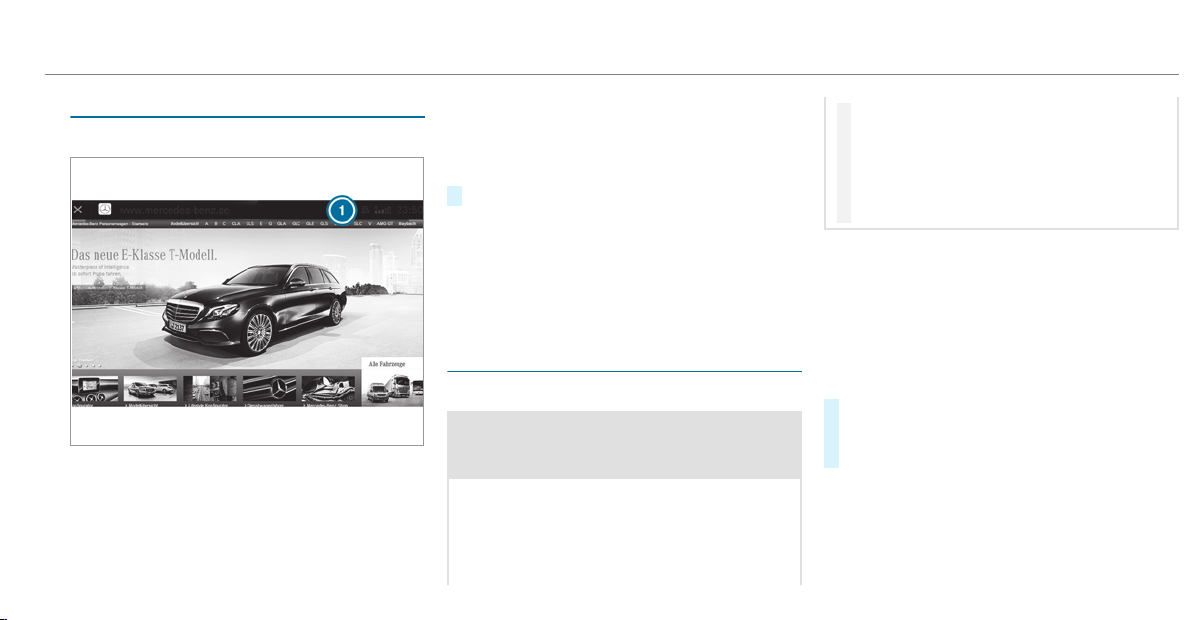
Connection status
Connection status overview
1
Display of existing connection (double ar row)
and reception field strength of the communi‐
cation module
Displaying the connection status
Multimedia system:
4
©
5
Settings
5
System
5
Wi-Fi & Bluetooth
#
Select Internet Status.
%
In the case of a connection via the communi‐
cation module the following status informa‐
tion is shown:
R
Type of network
R
Status online/offline
Web browser
Calling up a web page
&
WARNING Risk of distraction from infor‐
mation systems and communications
equipment
If you operate information and communica‐
tion equipment integrated in the vehicle
when driving, you will be distracted from the
traffic situation. This could also cause you to
lose control of the vehicle.
#
Only operate this equipment when the
traffic situation permits.
#
If you cannot be sure of this, stop the
vehicle whilst paying attention to road
and traffic conditions and operate the
equipment with the vehicle stationary.
You must observe the legal requirements for the
country in which you are currently driving when
operating the multimedia system.
Multimedia system:
4
©
5
Mercedes me & Apps
5
z Browser
Calling up a new web page
#
Select ä.
#
Entering a web address.
#
Select ¬.
%
The function is country-dependent.
%
Websites cannot be shown while the vehicle
is in motion.
MBUX multimedia system
357
Calling up a website from the browser his‐
tory
#
To call up the previous or next page from the
history: select X or Y.
Web browser overview
1
URL entry
2
Bookmarks
3
Web page, back
4
Web page, forwards
5
To refresh/stop
6
Options
358
MBUX multimedia system

Calling up web browser options
Multimedia system:
4
©
5
Mercedes me & Apps
5
z Browser
5
Z
The following functions are available:
R
Bookmarks
R
Options with the settings:
-
Browser Settings
-
Delete Browser Data
#
Select an option.
#
Change the settings.
Calling up the web browser settings
Multimedia system:
4
©
5
Mercedes me & Apps
5
z Browser
5
Z
5
Browser Settings
The following functions are available:
R
Block Pop-ups
R
Activate Javascript
R
Allow Cookies
#
Switch a function on O or off ª.
Deleting Internet history
Multimedia system:
4
©
5
Mercedes me & Apps
5
z Browser
5
Z
5
Delete Browser Data
The following options are available:
R
All
R
Cache
R
Cookies
R
Entered URLs
#
Select an option.
#
Select Yes.
Managing bookmarks
Multimedia system:
4
©
5
Mercedes me & Apps
5
z Browser
#
Select ?.
Selecting a bookmark
#
Select an entry.
Creating a bookmark
#
Select Add Current Page to Bookmarks.
The bookmark is created.
Editing a bookmark
#
Select V after a bookmark.
#
Select Edit.
#
Enter the name.
#
Select a.
Deleting a bookmark
#
Select V after a bookmark.
#
Select Delete.
#
Select Yes.
Closing the browser
Multimedia system:
4
©
5
Mercedes me & Apps
5
z Browser
#
Select ©.
MBUX multimedia system
359

Internet radio
Calling up Internet radio
Requirements:
R
The Internet radio service is activated.
R
The data volume is available.
Depending on the country, data volume may
need to be purchased.
R
A fast Internet connection for data transmis‐
sion free of interference.
%
The functions and services are country-
dependent. For more information, consult an
authorized Mercedes-Benz Center.
Multimedia system:
4
©
5
Radio
#
Select TuneIn Radio.
The Internet radio menu appears. The last
station set starts playing.
%
The connection quality depends on the local
mobile phone reception.
360
MBUX multimedia system
Internet radio overview
1
Additional information on the current station
2
Display (if connected to private user
account)
3
Data transfer rate
4
Options
5
Favorites
6
To start/end
7
To browse
8
Search
9
Selected category
A
Internet radio provider
MBUX multimedia system
361

Selecting and connecting Internet radio sta‐
tions
Multimedia system:
4
©
5
Radio
5
TuneIn Radio
#
Select =.
#
Select a category.
#
Select a station.
The connection is established automatically.
or
#
Select the search field.
#
Enter a station name.
%
A relatively large volume of data can be
transmitted when using Internet radio.
Saving/deleting an Internet radio station as
a favorite
Multimedia system:
4
©
5
Radio
5
TuneIn Radio
#
Select a station.
#
Select ß.
The list of saved favorite stations appears.
#
Select Add to favorites.
or
#
Create an account for the online provider
(TuneIn radio) and then log in on the multi‐
media system.
Your favorites are imported to the multimedia
system.
Deleting favorites
#
Select a station.
#
Select ß.
#
Select Delete favorite.
Setting Internet radio options
Multimedia system:
4
©
5
Radio
5
TuneIn Radio
5
Z
5
TuneIn
The following options are available:
R
Select Stream: select the stream quality.
R
Login to TuneIn Account: log in to your
TuneIn user account.
R
Log Out of Account: log out of your TuneIn
user account.
#
Select an option.
Showing the station list for the last category
selected
Multimedia system:
4
©
5
Radio
5
TuneIn Radio
#
Press the cover of the current station.
Depending on how the station was selected,
a station list is shown.
Media
Information about media mode
Information about supported formats and
data storage media
&
WARNING Risk of distraction when han‐
dling data storage media
If you handle a data storage medium while
driving, your attention is diverted from the
traffic conditions. This could also cause you
to lose control of the vehicle.
#
Only handle a data storage medium
when the vehicle is stationary.
362
MBUX multimedia system
The multimedia system supports the follow‐
ing formats and data media:
Permissible
file systems
FAT32, exFAT, NTFS
Permissible
data carriers
USB devices, iPod
®
/iPhone
®
,
MTP devices, Bluetooth
®
audio equipment
Suppor ted
audio formats
MP3, WMA, AAC, WAV, FLAC,
ALAC
Suppor ted
video formats
MPEG, AVI, DivX, MKV, MP4,
M4V, WMV
%
Observe the following notes:
R
The multimedia system supports a total
of up to 50,000 files.
R
Data storage media up to 2 TB are sup‐
ported (32‑bit address space).
R
Due to the large variety of available
music and video files regarding encod‐
ers, sampling rates and dat a transfer
rates, playback cannot be guaranteed.
R
Due to the wide range of USB devices
available on the market, playback cannot
be guaranteed for all USB devices.
R
Videos up to FullHD (1920x1080) are
suppor ted.
R
Copy-protected music and video files or
DRM (Digital Rights Management)
encrypted files cannot be played back.
R
MP3 players must suppor t Media Trans‐
fer Protocol (MTP).
Information on copyright protection and
trademarks
Audio files which you create yourself (e.g. copies
of data storage media you make yourself) are
generally subject to copyright protection. In
many countries, reproductions are not permitted
without the prior consent of the copyright
holder, even for private use. Make sure that you
know about the applicable copyright regulations
and that you comply with these.
Manufactured under license from Dolby Laborato‐
ries. Dolby, Dolby Audio and the double-D symbol
are trademarks of Dolby Labor atories.
MBUX multimedia system
363

Gracenote, the Gracenote logo and logotype, "Pow‐
ered by Gracenote", MusicID and Playlist Plus are
either registered trademarks or trademarks of
Gracenote, Inc. in the United States and/or other
countries.
TIDAL and TIDAL logo are registered trademark of
Aspiro AB in the European Union and other coun‐
tries.
For DTS Patents, see http://patents.dts.com.
Manufactured under license from DTS Licensing
Limited. DTS, the Symbol, & DTS and the Symbol
together are registered trademarks, and DTS Tru‐
Volume is a trademark of DTS, Inc.
©
. DTS, Inc.
All Rights Reserved.
364
MBUX multimedia system
Overview of the media menu
1
Previous track or fast rewind
2
Next track or fast forward
3
Album cover
4
Active media source
5
Track and ar tist
6
Current track number/track in playback list
and active data storage medium
7
Repeat
8
Settings
9
Additional options
A
Controls playback
B
Timeline
C
Categories
D
Music search
E
Random playback
MBUX multimedia system
365
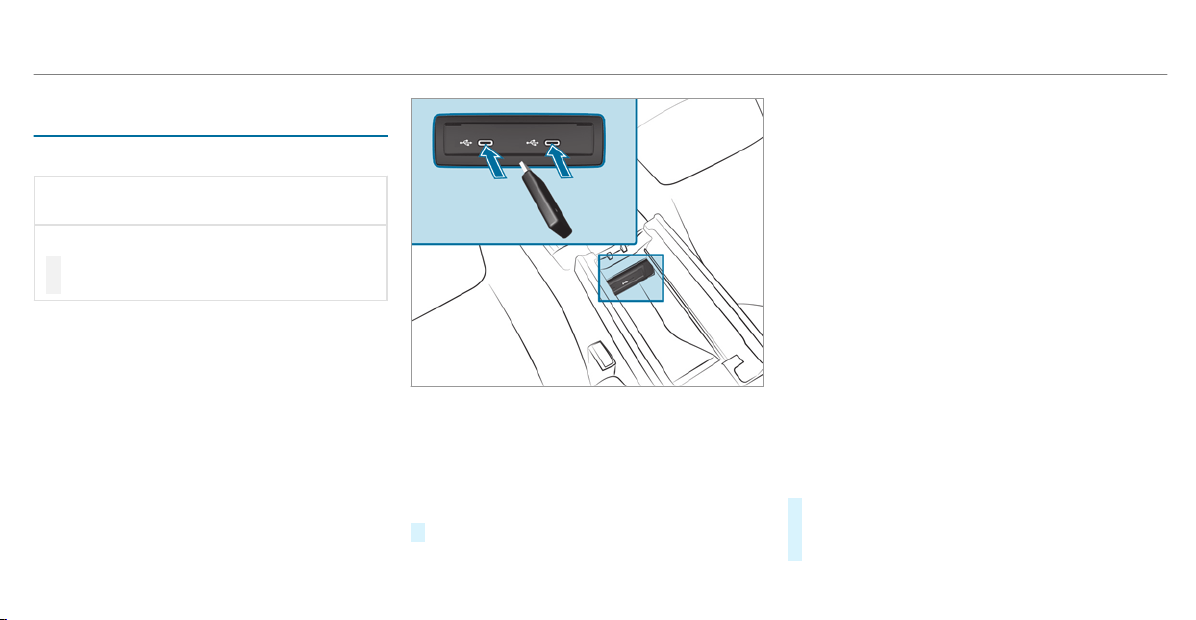
Connecting the data storage medium to the
multimedia system
Connecting USB devices
*
NOTE Damage caused by high tempera‐
tures
High temperatures can damage USB devices.
#
Remove the USB device after use and
take it out of the vehicle.
The multimedia connection unit is found in the
stowage compartment under the armrest and
has two type C USB ports. Depending on the
vehicle's equipment, additional USB ports can
be found in the stowage compartment of the
center console or rear folding compartment.
#
Connect the USB device to the USB port.
%
When connecting several Apple
®
devices
simultaneously, pay attention to the order in
which the devices are connected. The multi‐
media system only connects with the device
that is connected first. Additional Apple
®
devices that are connected at the same time
are only supplied with power.
Searching for and authorizing a Bluetooth
®
audio device
Requirements:
R
Bluetooth
®
is activated on the multimedia
system and audio equipment.
R
The audio equipment supports the Blue‐
tooth
®
audio profiles A2DP and AVRCP.
R
The audio equipment is "visible" for other
devices.
Multimedia system:
4
©
5
Media
5
Bluetooth
5
ª
Authorizing a new Bluetooth
®
audio device
#
Select Connect New Device.
Detected equipment is displayed in the
device list.
366
MBUX multimedia system

#
Select an audio device.
Authorization starts. A code is displayed on
the multimedia system and on the mobile
phone.
#
If the codes are identical, confirm on the
audio equipment.
#
Select Only as Bluetooth Audio Device.
The Bluetooth
®
audio equipment is connec‐
ted with the multimedia system.
Connecting previously authorized Bluetooth
®
audio equipment
#
Select a Bluetooth
®
audio device from the
list.
The connection is established.
Starting media playback
Requirements
R
A data storage medium is connected to the
multimedia system.
Multimedia system:
4
©
5
Media
#
Select USB or Bluetooth as the media
source.
Controlling media playback
Multimedia system:
4
©
5
Media
#
To pause playback: select 8.
#
To continue playback: select 6.
#
To repeat a track: select :.
For the repeat function there are the follow‐
ing settings:
R
Select once: the active playlist is repea‐
ted.
R
Select twice: the current track is repea‐
ted.
R
Select three times: the repeat function
is deactivated.
#
To play back tracks in random order:
select 9.
#
To wind a track forwards or backwards:
tap on the desired point on the timeline.
#
To select the next track: select ü.
#
To select the previous track: select û.
#
To scroll through tracks quickly: press and
hold û or ü.
#
To show the current track list: select the
track image shown.
Additional options for setting media play‐
back
Multimedia system:
4
©
5
Media
Calling up additional options
#
Select ß.
The additional options are shown.
The following options are available:
R
Play Similar Tracks
MBUX multimedia system
367

Select during playback of a track in order to
create a playlist with similar tracks.
R
Surprise Mix
A playlist with randomly selected tracks is
created.
R
Add to Favorite Songs
The current track is added to the favorite
songs.
R
Remove from Favorite Songs
The current track is removed from the favor‐
ite songs.
#
Select an option.
Media search
Notes about the search function in catego‐
ries
Under 5 you can search through all available
media files. There are several categories availa‐
ble for selection. The categories shown depend
on the connected device and data format.
Available categories with Bluetooth
®
audio:
R
Current Tracklist
The folders and categories of the connected
device are shown.
Available categories with audio files:
R
Current Tracklist
R
Playlists
R
Folder
R
Albums
R
Artists
R
Tracks
R
Favorite Songs
R
Often Played
R
Most Recently Added
R
Mood (/ page 369)
R
Music Genres
R
Year
R
Composers
R
Select By Cover
R
Podcasts (Apple
®
devices)
R
Audiobooks (Apple
®
devices)
Available categories with video files:
R
Folder
R
Videos
%
The categories are available as soon as the
entire media content has been read in and
analyzed.
Starting a search in categories
Multimedia system:
4
©
5
Media
5
5
#
Select a category.
#
Select ª and enter a search term.
Sorting results shown or playing back all
media found
#
Select Ä.
#
To play back all results found in the cate‐
gory: select Play All.
If, for example, the Albums category is
active, all albums found by the desired artist
will be played back.
368
MBUX multimedia system

#
To sort results alphabetically: select Sort
from A-Z.
#
To sort results in reverse alphabetical
order: select Sort from Z-A.
%
The available options depend on the selec‐
ted category and the connected device.
Using the keyword search
Multimedia system:
4
©
5
Media
You can look for content using the keyword
search with free text input.
#
Select ª.
A keyboard for character entry appears.
#
Enter the term searched for.
%
The search begins with the first character
entered. The more characters entered the
more concrete the search results become.
#
Select the desired entry from the result list.
If the selected result is an album, song or a
playback list then playback is started. If the
selected result is a new category then this is
opened in the search.
Searching for a track according to mood
Multimedia system:
4
©
5
Media
5
5
By searching in categories, you can find music
tracks suitable for a mood.
#
Select Mood.
A grid with the following moods appears:
R
Positive
R
Calm
R
Dark
R
Energetic
#
Pull the controller to the desired position.
The system searches for tracks that are suit‐
able for the mood entered.
Making video settings
Multimedia system:
4
©
5
Media
5
Z
5
General
#
Select Video Settings.
#
Select an aspect ratio.
Setting full screen
#
Select G.
Radio
Switching on the radio
Multimedia system:
4
©
5
Radio
#
Alternatively: press the | button.
The radio display appears. You will hear the
last station played on the last frequency
band selected.
MBUX multimedia system
369
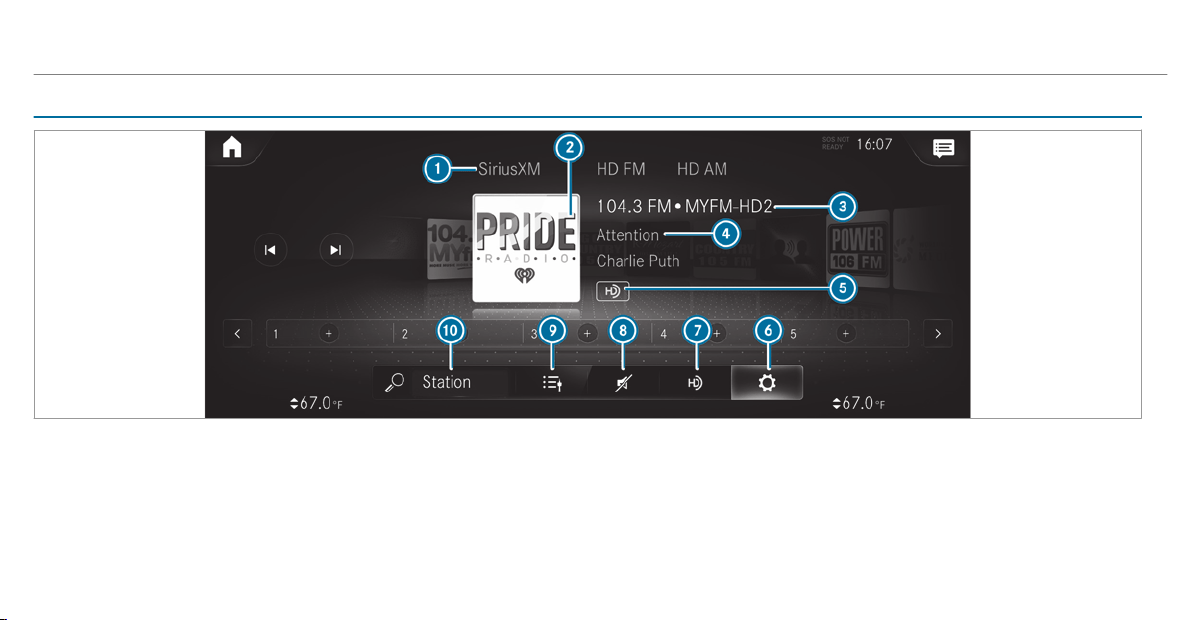
Radio overview
1
Selects an active frequency band
2
Station logo
3
Station name or set frequency
4
Artist, title, album and radio text
5
HD radio logo
6
Options
7
Switches the HD Radio function on or off
8
Mute function
9
Calls up the station list
A
Search
370
MBUX multimedia system
Switching the HD Radio function on/off
Multimedia system:
4
©
5
Radio
5
HD FM
#
Switch HD on or off.
%
HD Radio Technology manufactured under
license from iBiquity Digital Corporation.
U.S. and Foreign Patents. For patents see
DTS website. HD Radio and the HD, HD
Radio, and "ARC" logos are registered trade‐
marks or trademarks of iBiquity Digital Cor‐
poration in the United States and/or other
countries.
Setting the waveband
Multimedia system:
4
©
5
Radio
The following frequency bands are available:
R
SiriusXM
R
HD FM
R
HD AM
#
Select a frequency band.
Selecting a radio station
Multimedia system:
4
©
5
Radio
#
Swipe to the left or right on the control ele‐
ment.
Calling up the radio station list
Multimedia system:
4
©
5
Radio
#
Select .
The station list appears.
#
Select a station.
Searching for radio stations using station
names or frequency entry
Multimedia system:
4
©
5
Radio
#
Select è.
#
Enter a station name or frequency.
#
Select a station.
Storing radio stations
Multimedia system:
4
©
5
Radio
#
Select a radio station.
MBUX multimedia system
371

Memory slots are available in station presets
#
Select f.
or
#
Press and hold on the radio station.
Replacing an entry in the station presets
#
Press and hold on an entry in the station pre‐
sets.
#
Select Yes.
Editing station presets
Multimedia system:
4
©
5
Þ Radio
Moving stations
#
Press and hold a stored station.
#
Select Move.
#
Move the station to the new position.
Deleting channels
#
Press and hold a station.
#
Select Delete.
Replacing a station
#
Press and hold a station.
#
Select Replace Radio Station.
Showing accident reports
Multimedia system:
4
©
5
Radio
5
Z
%
The availability of the function is dependent
on the country.
#
Switch Display Emergency Warnings on or
off.
Displaying radio text
Multimedia system:
4
©
5
Radio
5
Z
#
Switch Display Radio Text Information on or
off.
Satellite radio
Information on the satellite radio
SIRIUS XM
®
satellite radio offers more than 175
digital-quality radio channels providing 100%
commercial-free music, sports, news and enter‐
tainment, for example. SIRIUS XM satellite radio
employs a fleet of high-performance satellites to
broadcast around the clock throughout the USA
and Canada. The satellite radio program is avail‐
able for a monthly fee. Information about this
can be obtained from a Sirius XM
®
Service Cen‐
ter and at http://www.siriusxm.com (USA) or
http://www.siriusxm.ca (Canada).
%
Sirius, XM and all related marks and logos
are tr ademarks of Sirius XM Radio Inc. and
its subsidiaries. All other marks, channel
names and logos are the property of their
respective owners. All rights reserved.
Satellite radio restrictions
Satellite radio mode may be temporarily unavail‐
able or interrupted for a variety of reasons.
These include environmental or topographical
conditions beyond the control of Mercedes-Benz
372
MBUX multimedia system

USA, LLC. Thus, operation at certain locations
may not be possible.
Registering satellite radio
Requirements:
R
Satellite radio equipment is available.
R
Registration with a satellite radio provider
has been completed.
R
If registration is not included when purchas‐
ing the system, your credit card details will
be required to activate your account
Multimedia system:
4
©
5
Þ Radio
5
SiriusXM
5
Z Options
#
Select Service Information.
The service information screen appears
showing the radio ID and the current sub‐
scription status.
#
Establish a telephone connection.
#
Follow the service staff's instructions.
The activation process may take up to ten
minutes.
%
You can also have the satellite service acti‐
vated online. To do so, please visit http://
www.siriusxm.com (USA) or http://
www.siriusxm.ca (Canada).
Switching on satellite radio
Multimedia system:
4
©
5
Þ Radio
#
Select SiriusXM.
MBUX multimedia system
373
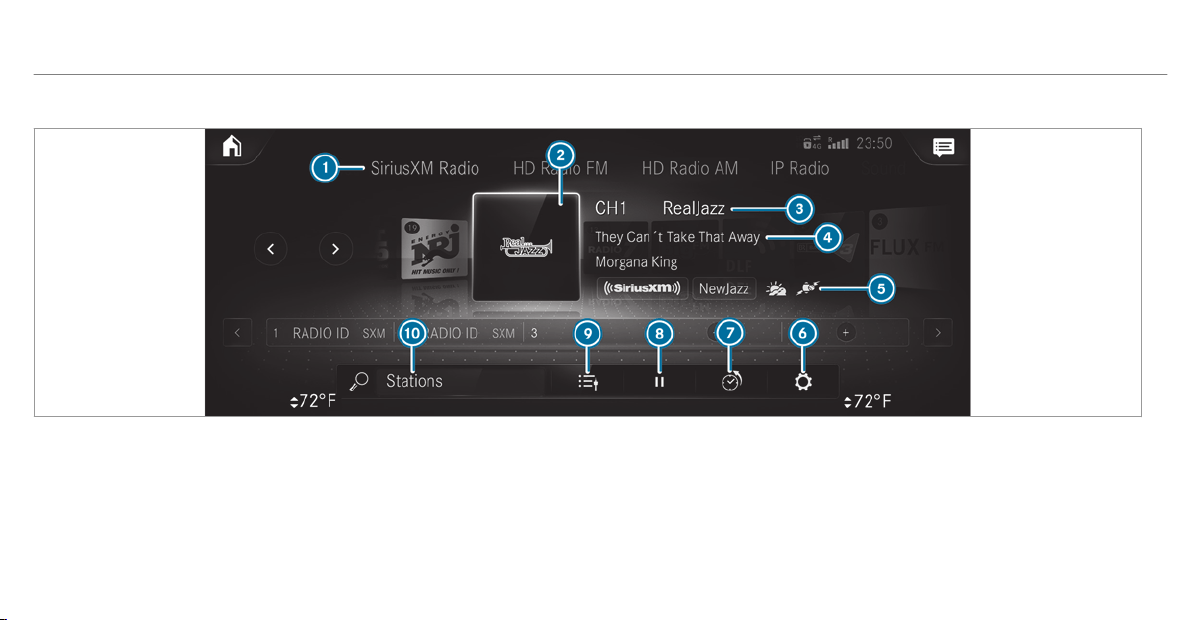
Overview of the satellite radio
1
Active frequency band
2
Logo or album art (if available)
3
Channel name
4
Track information
5
Traffic & Weather Now and Sports Flash
6
Options
7
Shows or hides playback controls
8
Stops playback controls
9
Station list
A
Search
374
MBUX multimedia system

Selecting a satellite radio category
Multimedia system:
4
©
5
Þ Radio
5
SiriusXM
#
Select .
#
Select Category.
#
Select a category.
Selecting a satellite radio channel
Multimedia system:
4
©
5
Þ Radio
5
SiriusXM
#
Select .
#
Select a channel.
Saving or deleting a satellite radio channel
Multimedia system:
4
©
5
Þ Radio
5
SiriusXM
Storing the current channel
#
Press and hold the logo of the current station
until the Options menu appears.
#
Select Add to Presets.
Moving a channel
#
Press and hold a channel in the presets until
the Options menu appears.
#
Select Move Highlighted Station.
#
Move the channel to a new position.
Deleting a channel
#
Press and hold a channel in the presets until
the Options menu appears.
#
Select Delete Highlighted Station.
Displaying EPG information for the current
channel
Multimedia system:
4
©
5
Þ Radio
5
SiriusXM
5
Z
#
Select Electr. Program Guide.
Setting parental control for radio
Multimedia system:
4
©
5
Þ Radio
5
SiriusXM
5
Z
#
Select Parental Control.
#
Determine a four-digit character sequence
and select ¡.
All channels with adult content are locked.
Unlocking a channel
#
Enter the four-digit character sequence and
select ¡.
All channels with adult content are unlocked.
Music and sport alerts function
This function enables you to program an alert for
your favorite artists, tracks or sporting events.
Music alerts can be saved whilst a track is being
played and sport alerts can be saved during a
live game. You can also specify sport aler ts via
the menu option. The system then continuously
searches through all the channels. If a match is
found with a stored alert, you will be informed.
Setting music and spor t alerts
Multimedia system:
4
©
5
Þ Radio
5
SiriusXM
5
Z
5
Alerts
Activating the music information function
#
Activate Music Alerts O.
MBUX multimedia system
375

Setting a music aler t
#
Select Add Alert.
#
Select Artists or Song in the dialog window.
The alert is set for the current artist or track.
If a match is found, a prompt appears asking
whether you wish to change to the station.
Activating sports information
#
Activate Activate Sports Alerts O.
Setting a spor t alert
#
Select Add Alert.
#
Select the team name or league in the dialog
window.
Deleting individual spor ts and music alerts
#
Select Manage Music Alerts.
or
#
Select Manage Sports Alerts.
#
Select an artist or track.
or
#
Select a team.
#
Select Delete Selected Entries.
All highlighted alerts are deleted.
Deleting all spor ts and music alerts
#
Select Manage Music Alerts.
or
#
Select Manage Sports Alerts.
#
Select Delete All Entries.
All alerts are deleted.
Information about Smart Favorites and
TuneStart
From the station presets you can set up to eight
stations as Smart Favorites. Smart Favorites sta‐
tions are automatically saved to temporary stor‐
age in the background. If you change to a Smart
Favorites station, you can replay, pause or
actively skip forward or back to broadcasts
which you have missed. If Tune Start is activated
and you change to another Smart Favorites sta‐
tion, the music track currently playing on the
station is automatically restarted from the begin‐
ning of the track.
Adding a channel to Smart Favorites
Multimedia system:
4
©
5
Þ
5
Radio
5
SiriusXM
#
Press and hold on the station logo until the
Options menu appears.
#
To add a channel: select Add to Smart
Favorites in the menu.
#
To remove a channel: select Delete from
Smart Favorites in the menu.
Creating a TuneMix list
Multimedia system:
4
©
5
Þ Radio
5
SiriusXM
5
Z
5
TuneMix Lists
In order to listen to seamless music, you can put
together a TuneMix list from various stations.
#
Select Create TuneMix List.
#
If necessary, limit the number of stations
shown using the Category entry.
#
Select the station shown O.
#
Press q to confirm.
A TuneMix station logo is created in the radio
menu.
376
MBUX multimedia system
Activating/deactivating TuneStart
Multimedia system:
4
©
5
Þ Radio
5
SiriusXM
5
Z
#
Switch TuneStart on or off.
Switching on satellite radio playback control
Multimedia system:
4
©
5
Þ Radio
5
SiriusXM
You can pause the playback of the current sta‐
tion or skip forward or backward in the timeline.
This leaves live mode to access the internal tem‐
porary storage.
#
To show the timeline: press .
#
To fast forward/rewind: tap anywhere on
the timeline.
#
To pause playback: select Ë.
#
To return to live mode: navigate to the end
of the timeline.
Displaying satellite radio service information
Multimedia system:
4
©
5
Þ Radio
5
SiriusXM
5
Z
#
Select Service Information.
Sound
Tone settings
Information about the sound system
The sound system has a total output of 100 W
and is equipped with 6 speakers. It is available
for all functions in the radio and media modes.
Calling up the sound menu
Multimedia system:
4
©
5
Media
5
Z
5
Sound
The following functions are available:
R
Equalizer
R
Balance and Fader
R
Volume
#
Select a function.
Adjusting treble, mid-range and bass set‐
tings
Multimedia system:
4
©
5
Media
5
Z
5
Sound
5
Equalizer
#
Set TREBLE, MID or BASS.
Activating/deactivating automatic volume
adjustment
Multimedia system:
4
©
5
Media
5
Z
5
Sound
5
Volume
Automatic volume adjustment compensates for
differing volumes when changing between audio
sources and within an audio source.
#
Switch Automatic Adjustment on or off.
MBUX multimedia system
377

Adjusting the balance/fader
Multimedia system:
4
©
5
Media
5
Z
5
Sound
5
Balance and Fader
Adjusting the balance
#
Move the volume distribution between the
right and left sides of the vehicle in the grid
shown.
The volume is distributed between the speak‐
ers on the left and right sides in the vehicle.
Adjusting the fader
#
Move the volume distribution between the
front and rear of the vehicle in the grid
shown.
The volume is distributed between the speak‐
ers in the front and rear of the vehicle.
Burmester
®
surround sound system
Information about the Burmester
®
surround
sound system
The Burmester
®
surround sound system has a
total output of 590 W and is equipped with 11
speakers. It is available for all functions in the
radio and media modes.
Calling up the sound menu in the
Burmester
®
surround sound system
Multimedia system:
4
©
5
Media
5
Z
5
Burmester
The following functions are available:
R
Equalizer
R
Balance and Fader
R
Sound Focus
R
Sound Profiles
R
Volume
#
Select a function.
Adjusting the treble, mid and bass settings
on the Burmester
®
surround sound system
Multimedia system:
4
©
5
Media
5
Z
5
Burmester
5
Equalizer
#
Set TREBLE, MID or BASS.
Activating/deactivating volume adjustment
in the Burmester
®
surround sound system
Multimedia system:
4
©
5
Media
5
Z
5
Burmester
5
Volume
Automatic volume adjustment compensates for
differing volumes when changing between audio
sources and within an audio source.
#
Switch Automatic Adjustment on or off.
Adjusting the balance/fader in the
Burmester
®
surround sound system
Multimedia system:
4
©
5
Media
5
Z
5
Burmester
5
Balance and Fader
Adjusting the balance
#
Move the volume distribution between the
right and left sides of the vehicle in the grid
shown.
The volume is distributed between the speak‐
ers on the left and right sides in the vehicle.
378
MBUX multimedia system

Adjusting the fader
#
Move the volume distribution between the
front and rear of the vehicle in the grid
shown.
The volume is distributed between the speak‐
ers in the front and rear of the vehicle.
Selecting a sound profile in the Burmester
®
surround sound system
Multimedia system:
4
©
5
Media
5
Z
5
Burmester
5
Sound Profiles
The following profiles are available:
R
Pure
R
Surround Sound
#
Select a sound profile.
Adjusting the sound focus in the Burmester
®
surround sound system
Multimedia system:
4
©
5
Media
5
Z
5
Burmester
5
Sound Focus
#
Select a position for the sound focus or All
Seats.
Advanced sound system
Information about the Advanced sound sys‐
tem
The Advanced sound system has a total output
of 225 W and is equipped with 9 speakers. It is
available for all functions in the radio and media
modes.
Calling up the sound menu in the Advanced
sound system
Multimedia system:
4
©
5
Media
5
Z
5
Sound
The following functions are available:
R
Equalizer
R
Balance and Fader
R
Volume
#
Select a function.
Adjusting treble, mid-range and bass set‐
tings in the Advanced sound system
Multimedia system:
4
©
5
Media
5
Z
5
Sound
5
Equalizer
#
Set TREBLE, MID or BASS.
Switching volume adjustment in the
Advanced sound system on/off
Multimedia system:
4
©
5
Media
5
Z
5
Sound
5
Volume
Automatic volume adjustment compensates for
differing volumes when changing between audio
sources and within an audio source.
#
Switch Automatic Adjustment on or off.
MBUX multimedia system
379

Setting the balance/fader in the Advanced
sound system
Multimedia system:
4
©
5
Media
5
Z
5
Sound
5
Balance and Fader
Adjusting the balance
#
Move the volume distribution between the
right and left sides of the vehicle in the grid
shown.
The volume is distributed between the speak‐
ers on the left and right sides in the vehicle.
Adjusting the fader
#
Move the volume distribution between the
front and rear of the vehicle in the grid
shown.
The volume is distributed between the speak‐
ers in the front and rear of the vehicle.
380
MBUX multimedia system
ASSYST PLUS service interval display
Function of the ASSYST PLUS service interval
display
The ASSYST PLUS service interval display on the
Instrument Display provides information on the
remaining time or distance before the next
service due date.
You can hide this service message using the
back button on the left-hand side of the steering
wheel.
Depending on how the vehicle is used, the
ASSYST PLUS service interval display may
shorten the service interval, e.g. in the following
cases:
R
Mainly short-distance driving
R
When the engine is often left idling for long
periods
R
In the event of frequent cold start phases
Mercedes-Benz recommends avoiding such
operating conditions.
You can obtain further information concerning
the servicing of your vehicle from a qualified
specialist workshop, e.g. an authorized
Mercedes-Benz Center.
Displaying the service due date
On-board computer:
4
Service
5
ASSYST PLUS
The next service due date is displayed.
#
To exit the display: press the back button
on the left-hand side of the steering wheel.
Make sure to observe the following further rela‐
ted subject:
R
Operating the on-board computer
(/ page 212).
Information on regular maintenance work
*
NOTE Premature wear through failure to
observe service due dates
Service work which is not carried out at the
right time or incompletely can lead to
increased wear and damage to the vehicle.
#
Always observe the prescribed service
intervals.
#
Always have the prescr ibed service
work carried out at a qualified specialist
workshop.
Special service requirements
The prescribed service interval is based on nor‐
mal operation of the vehicle. Maintenance work
will need to be performed more often if the vehi‐
cle is operated under arduous conditions or
increased loads.
The ASSYST PLUS service interval display is only
an aid. The driver of the vehicle bears responsi‐
bility as regards to whether maintenance work
needs to be performed more often than speci‐
fied based on the actual operating conditions
and/or loads.
Examples of arduous operating conditions:
R
regular city driving with frequent intermedi‐
ate stops
R
mainly short-distance driving
Maintenance and care
381
R
frequent operation in mount ainous terrain or
on poor road surfaces
R
when the engine is often left idling for long
periods
R
operation in particularly dusty conditions
and/or if air-recirculation mode is frequently
used
In these or similar operating conditions, have the
interior air filter, engine air cleaner, engine oil
and oil filter etc. changed more frequently. The
tires must be checked more frequently if the
vehicle is operated under increased loads. Fur‐
ther information can be obtained at a qualified
specialist workshop.
Battery disconnection periods
The ASSYST PLUS service interval display
can only calculate the service due date when
the battery is connected.
#
Note down the service due date displayed on
the instrument display before disconnecting
the battery (/ page 381).
Engine compartment
Opening/closing the hood
&
WARNING Risk of accident if the engine
hood is unlatched while driving
An unlocked engine hood may open up when
the vehicle is in motion and block your view.
#
Never unlatch the engine hood while
driving.
#
Before every trip, ensure that the
engine hood is latched.
&
WARNING Risk of accident and injury
when opening and closing the engine
hood
When opening or closing the engine hood, it
may suddenly drop into the end position.
There is a risk of injury for anyone in the
engine hood's range of movement.
#
Only open or close the engine hood
when there are no persons in the
engine hood's range of movement.
&
WARNING Danger of burns when open‐
ing the hood
If you open the hood when the engine has
overheated or during a fire in the engine
compartment, you could come into contact
with hot gases or other escaping operating
fluids.
#
Before opening the hood, allow the
engine to cool down.
#
In the event of a fire in the engine com‐
partment, keep the hood closed and
call the fire service.
&
WARNING Risk of injury due to moving
parts
Cer tain components in the engine compart‐
ment may continue to move or suddenly
move again even after the ignition has been
switched off, e.g. the cooler fan.
Make sure of the following before performing
tasks in the engine compartment:
#
Switch the ignition off.
382
Maintenance and care
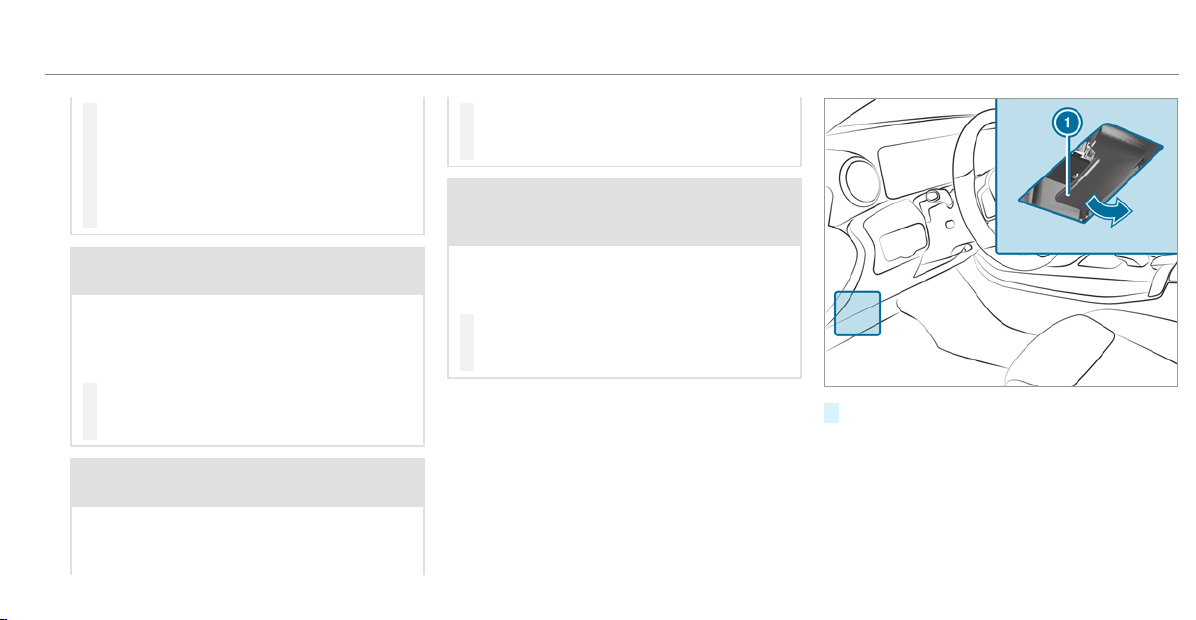
#
Never touch the danger zone surround‐
ing moving component parts, e.g. the
rotation area of the fan.
#
Remove jewelry and watches.
#
Keep items of clothing and hair away
from moving parts.
&
WARNING Risk of injury from touching
component parts under voltage
The ignition system and the fuel injection
system work under high voltage. If you touch
component parts which are under voltage,
you could receive an electric shock.
#
Never touch component parts of the
ignition system or the fuel injection sys‐
tem when the ignition is switched on.
&
WARNING Risk of burns from hot com‐
ponent parts in the engine compartment
Cer tain component parts in the engine com‐
par tment can be very hot, e.g. the engine,
the cooler and parts of the exhaust system.
#
Let the engine cool down and only
touch the component parts described
as follows.
&
WARNING Risk of injury from using the
windshield wipers while the engine hood
is open
When the engine hood is open and the wind‐
shield wipers are set in motion, you can be
trapped by the wiper linkage.
#
Always switch off the windshield wipers
and ignition before opening the engine
hood.
#
To open: pull lever 1 to release the hood.
Maintenance and care
383
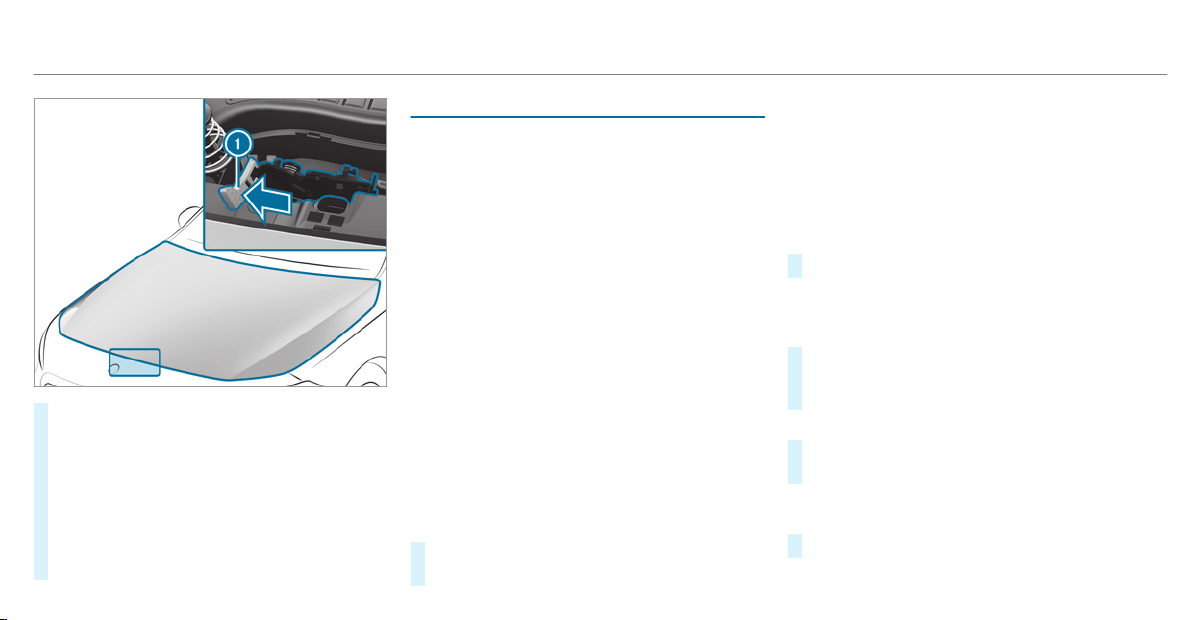
#
Push yellow handle 1 on the hood catch to
the left as far as it will go (palm downwards).
Lift the hood until it is automatically raised
by the pneumatic strut.
#
To close: lower the hood and let it fall from a
height of approximately 8 in (20 cm).
#
If the hood can still be lifted slightly, open
the hood again and close it with a little force
until it engages correctly.
Engine oil
Checking the engine oil level using the on-
board computer
Requirements
The engine oil level is determined during driving.
Determining the engine oil level can take up to
30 minutes with a normal driving style and even
longer with an active driving style.
In order to receive a result as quickly as possi‐
ble:
R
Warm up the engine
R
Park the vehicle on a level surface
R
Leave the engine running at idling speed
On-board computer:
4
Service
5
Engine Oil Level
You will see one of the following messages on
the multifunction display:
R
Measuring Engine Oil Level...: measurement
of the oil level is not yet possible.
#
Repeat the request after a maximum of
30 minutes driving.
R
Engine Oil Level OK and the bar display for
indicating the oil level on the multifunction
display is green and is between "min" and
"max": the oil level is correct.
R
Engine Oil Level Add 1,1 qts. and the bar dis‐
play for indicating the oil level on the multi‐
function display is orange and is below "min":
#
Add 1.1 US qt (1 l) engine oil.
R
Reduce Engine Oil Level and the bar display
for indicating the oil level on the multifunc‐
tion display is orange and is above "max":
#
Drain off excess engine oil that has been
added. Consult a qualified specialist work‐
shop.
R
For Engine Oil Level Switch Ignition On:
#
Switch on the ignition to check the engine oil
level.
R
Engine Oil Level System Inoperative: sensor
faulty or not inserted.
#
Consult a qualified specialist workshop.
R
Engine Oil Level System Currently Unavail.:
384
Maintenance and care
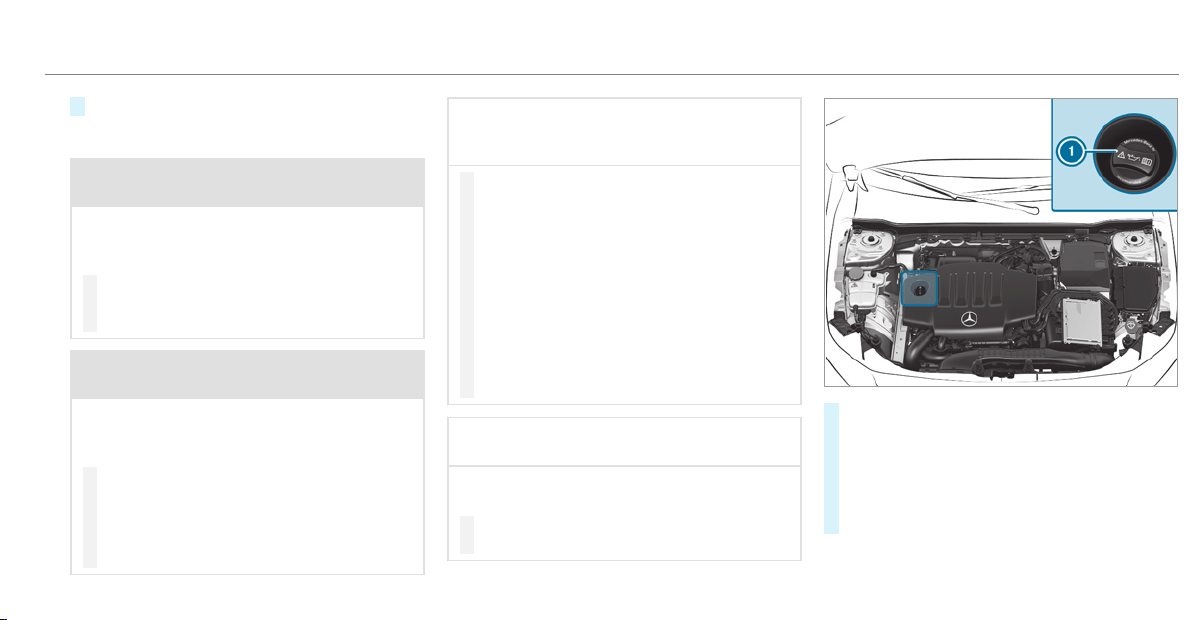
#
Close the hood.
Adding engine oil
&
WARNING Risk of burns from hot com‐
ponent parts in the engine compartment
Cer tain components in the engine compart‐
ment can be very hot, e.g. the engine, the
radiator and parts of the exhaust system.
#
Allow the engine to cool down and only
touch component parts described in the
following.
&
WARNING Risk of fire and injury from
engine oil
If engine oil comes into contact with hot
component parts in the engine compart‐
ment, it may ignite.
#
Make sure that no engine oil is spilled
next to the filler opening.
#
Allow the engine to cool off and thor‐
oughly clean the engine oil from compo‐
nent parts before starting the vehicle.
*
NOTE Engine damage caused by an
incorrect oil filter, incorrect oil or addi‐
tives
#
Do not use engine oils or oil filters
which do not correspond to the specifi‐
cations explicitly prescribed for the
service intervals.
#
Do not alter the engine oil or oil filter in
order to achieve longer change intervals
than prescribed.
#
Do not use additives.
#
Follow the instructions in the service
interval display regarding the oil
change.
*
NOTE Damage caused by adding too
much engine oil
Too much engine oil can damage the engine
or the catalytic converter.
#
Have excess engine oil removed at a
qualified specialist workshop.
#
Turn cap 1 counter-clockwise and remove
it.
#
Add engine oil.
#
Replace cap 1 and turn it clockwise as far
as it will go.
#
Check the oil level again (/ page 384).
Maintenance and care
385
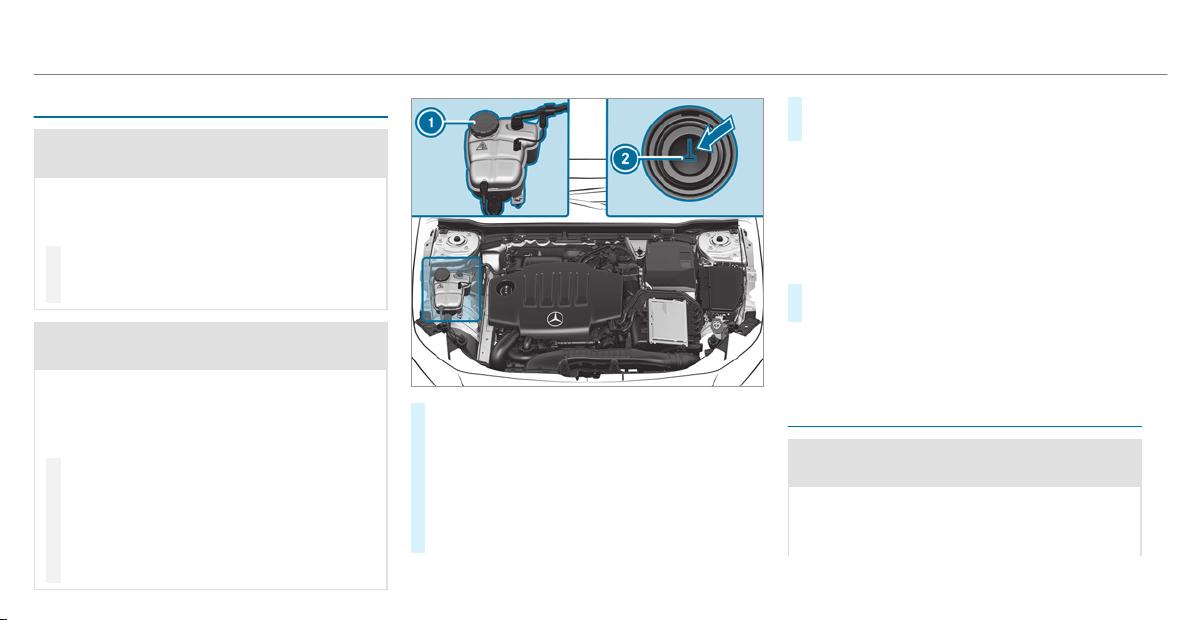
Checking coolant level
&
WARNING Risk of burns from hot com‐
ponent parts in the engine compartment
Cer tain components in the engine compart‐
ment can be very hot, e.g. the engine, the
radiator and parts of the exhaust system.
#
Allow the engine to cool down and only
touch component parts described in the
following.
&
WARNING Risk of scalding from hot
coolant
The engine cooling system is pressurized,
par ticularly when the engine is warm. If you
open the cap, you could be scalded by hot
coolant spraying out.
#
Let the engine cool down before open‐
ing the cap.
#
When opening the cap, wear protective
gloves and safety glasses.
#
Open the cap slowly to release pres‐
sure.
#
Park the vehicle on a level surface.
#
Check the coolant temperature display in the
instrument cluster.
The coolant temperature must be below
158 °F (70 °C).
#
Slowly tur n cap 1 counter-clockwise to
release overpressure.
#
Continue turning cap 1 counter-clockwise
and remove it.
The coolant level is correct in the following
cases:
R
If the engine is cold, the coolant is up to
marker bar 2.
R
If the engine is warm, the coolant is up to
0.6 in (1.5 cm) over the marker bar 2.
#
If necessary, add coolant that has been
approved for Mercedes-Benz.
R
Further information on coolant
(/ page 455).
Adding washer fluid to the windshield
washer system
&
WARNING Risk of burns from hot com‐
ponent par ts in the engine compartment
Certain components in the engine compart‐
ment can be very hot, e.g. the engine, the
radiator and parts of the exhaust system.
386
Maintenance and care
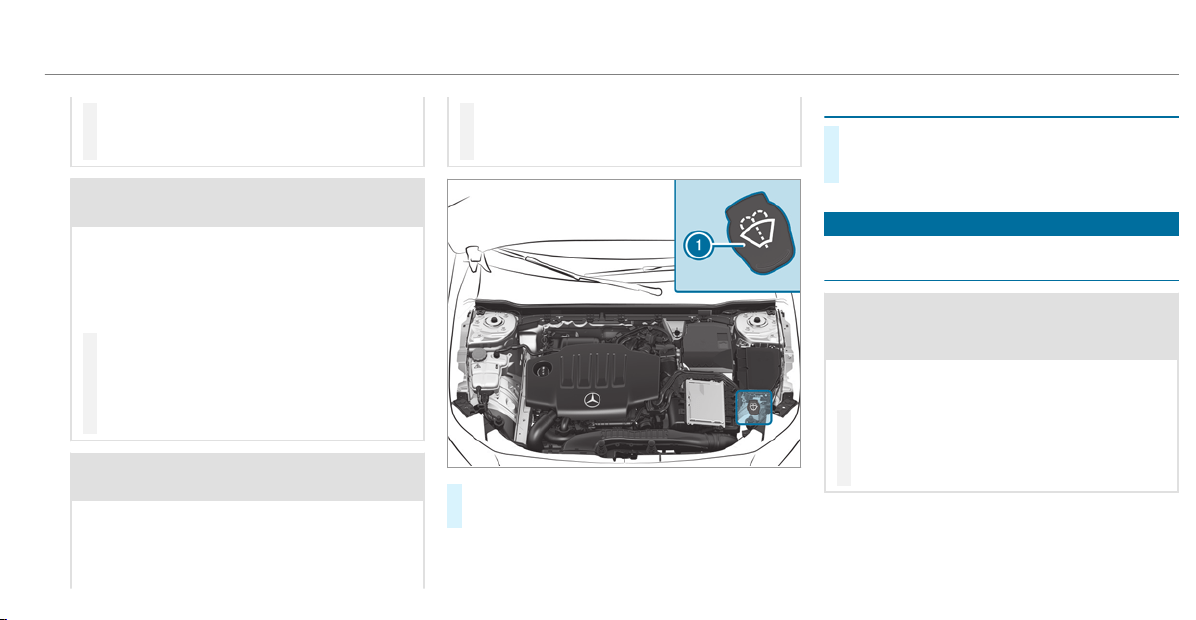
#
Allow the engine to cool down and only
touch component parts described in the
following.
&
WARNING Danger of burns when open‐
ing the hood
If you open the hood when the engine has
overheated or during a fire in the engine
compartment, you could come into contact
with hot gases or other escaping operating
fluids.
#
Before opening the hood, allow the
engine to cool down.
#
In the event of a fire in the engine com‐
partment, keep the hood closed and
call the fire service.
&
WARNING ‑ Risk of fire and injury from
windshield washer concentrate
Windshield washer concentrate is highly
flammable. It could ignite if it comes into
contact with hot engine component parts or
the exhaust system.
#
Make sure that no windshield washer
concentrate spills out next to the filler
opening.
#
Remove cap 1 by the tab.
#
Add washer fluid.
Keeping the air-water duct free
#
Keep the area between the hood and the
windshield free of deposits, e.g. ice, snow
and leaves.
Cleaning and care
Information on washing the vehicle in a car
wash
&
WARNING Risk of accident due to
reduced braki ng effect after washing the
vehicle
The braking effect is reduced after washing
the vehicle.
#
After the vehicle has been washed,
brake carefully while paying attention to
the traffic conditions until the braking
effect has been fully restored.
Maintenance and care
387
*
NOTE Damage due to unsuitable car
wash
#
Before driving into a car wash make
sure that the car wash is suitable for
the vehicle dimensions.
#
Ensure there is sufficient ground clear‐
ance between the underbody and the
guide rails of the car wash.
#
Ensure that the clearance width of the
car wash, in particular the width of the
guide rails, is sufficient.
To avoid damage to your vehicle when using a
car wash, ensure the following beforehand:
R
Active Distance Assist DISTRONIC and the
HOLD function are deactivated.
R
the 360° Camera or the rear view camera is
switched off.
R
the side windows and sliding sunroof are
completely closed.
R
the blower for the ventilation/heating is
switched off.
R
the windshield wiper switch is in position g.
R
in car washes with a conveyor system: neu‐
tral i is engaged.
R
the SmartKey is at a minimum distance of
10 ft (3 m) away from the vehicle, otherwise
the trunk lid could open unintentionally.
%
If you would like to leave the vehicle while it
is being washed, make sure the Smar tKey is
located in the vehicle. The j gear is other‐
wise automatically engaged.
%
If, after the car wash, you remove the wax
from the windshield and wiper rubbers, this
will prevent smearing and reduce wiper
noise.
Information on using a power washer
&
WARNING Risk of accident when using
high-pressure cleaning equipment with
round-spray nozzles
The water jet from a round-spray nozzle (dirt
grinder) may cause damage to tires and sus‐
pension components that is not visible.
Components damaged in this way may fail
unexpectedly.
#
Do not use high-pressure cleaning
equipment with round-spray nozzles to
clean your vehicle.
#
Damaged tires or suspension compo‐
nents must be replaced immediately.
To avoid damage to your vehicle, observe the fol‐
lowing when using a power washer:
R
keep the SmartKey at least 10 ft (3 m) away
from the vehicle. Otherwise the trunk lid
could open unintentionally.
R
maintain a distance of at least 11.8 in
(30 cm) to the vehicle.
R
vehicles with decorative foil: parts of your
vehicle are covered with a decorative foil.
Maintain a distance of at least 27.6 in
(70 cm) between the foil-covered parts of the
vehicle and the nozzle of the power washer.
Move the power washer nozzle around whilst
cleaning. The water temperature of the
power washer must not exceed 140 °F
(60 °C).
388
Maintenance and care

R
observe the information on the correct dis‐
tance in the equipment manufacturer's oper‐
ating instructions.
R
do not point the nozzle of the power washer
directly at sensitive parts such as tires, slits,
electrical components, batteries, light bulbs
and ventilation slots.
Washing the vehicle by hand
Observe the legal requirements, e.g. in a number
of countries, washing by hand is only permitted
in specially designated wash bays.
#
Use a mild cleaning agent, e.g. car shampoo.
#
Wash the vehicle with lukewarm water using
a soft car sponge. When doing so, do not
expose the vehicle to direct sunlight.
#
Carefully hose the vehicle off with water and
dry using a chamois. Take care not to point
the water jet directly towards the air inlet
grille.
Maintenance and care
389
Notes on paintwork/matte finish paintwork care
Observe the following information:
Cleaning and care Avoiding paintwork damage
Paintwork
R
Insect remains: soak with insect remover and rinse off the
treated areas afterwards.
R
Bird droppings: soak with water and rinse off afterwards.
R
Tree resin, oils, fuels and greases: remove by rubbing gen‐
tly with a cloth soaked in petroleum ether or lighter fluid.
R
Coolant and brake fluid: remove with a damp cloth and
clean water.
R
Tar stains: use tar remover.
R
Wax: use silicone remover.
R
Do not attach stickers, films or similar.
R
Remove dirt immediately, where possible.
390
Maintenance and care
Cleaning and care Avoiding paintwork damage
Matte finish
R
Only use care products approved for Mercedes-Benz.
R
Do not polish the vehicle and alloy wheels.
R
Only use car washes that correspond to the latest engi‐
neering standards.
R
Do not use car wash programs with a final hot wax treat‐
ment.
R
Do not use paint cleaners, buffing or polishing products,
gloss preservers, e.g. wax.
R
Always have paintwork repairs carried out at a qualified
specialist workshop.
Notes on cleaning decorative foils
Observe the notes on matte finish care in the
chapter "Notes on paintwork/matte finish paint‐
work care" (/ page 390). They also apply to
matte decorative foils.
Maintenance and care
391
Observe the following information:
Cleaning Avoiding damage to the decorative foil
R
For cleaning, use plenty of water and a mild cleaning agent without
additives or abrasive substances, e.g. a car shampoo approved for
Mercedes-Benz.
R
Remove dirt immediately, where possible, whilst avoiding rubbing
too hard. There is otherwise a r isk of damaging the decorative foil
irreparably.
R
If there is dirt on the finish or if the decorative foil is dull: use the
Paint Cleaner recommended and approved for Mercedes-Benz.
R
Insect remains: soak with insect remover and rinse off the treated
areas afterwards.
R
Bird droppings: soak with water and rinse off afterwards.
R
To prevent water stains, dry a foil-wrapped vehicle with a soft,
absorbent cloth after every car wash.
R
The service life and color of decorative foils are impaired by:
-
sunlight
-
temperature, e.g. hot air blower
-
weather conditions
-
stone chippings and dirt
-
chemical cleaning agents
-
oily products
R
Do not use polish on matte decorative foil. Polishing will have the effect
of shining the foil-wrapped surface.
R
Do not treat matte or structured decorative foils with wax. Permanent
stains may occur.
Scratches, corrosive deposits, areas affected by
corrosion and damage caused by incorrect care
cannot always be completely repaired. In such
cases, visit a qualified specialist workshop.
You can obtain more information on care and
cleaning products from the manufacturer.
In the case of foil-wrapped surfaces, optical dif‐
ferences may occur between the surfaces that
were not protected by a decorative foil after
removing a decorative foil.
%
Have work or repairs to decorative foils car‐
ried out at a qualified specialist workshop,
e.g. in an authorized Mercedes-Benz Center.
392
Maintenance and care
Notes on care of vehicle parts
&
WARNING Risk of entrapment if the
windshield wipers are switched on while
the windshield is being cleaned
If the windshield wipers are set in motion
while you are cleaning the windshield or
wiper blades, you can be trapped by the
wiper arm.
#
Always switch off the windshield wipers
and the ignition before cleaning the
windshield or wiper blades.
&
WARNING Risk of burning from the tail‐
pipe or tailpipe trim
The tailpipe and tailpipe trim can become
very hot. If you come into contact with these
car par ts, you could burn yourself.
#
Always be particularly careful when in
the vicinity of the tailpipe and tailpipe
trims and supervise children very
closely when in this area.
#
Before any conta ct, allow the car parts
to cool down.
Observe the following information:
Notes on cleaning and care Avoiding vehicle damage
Wheels/rims
Use water and acid-free wheel cleaners.
R
Do not use acidic wheel cleaners to remove brake dust.
This could damage wheel bolts and brake components.
R
To avoid corrosion of the brake discs and brakepads, drive
the vehicle for a few minutes after cleaning before parking
it. The brake discs and brakepads warm up and dry out.
Windows
Clean the windows on the inside and outside using a damp
cloth and cleaning agents recommended by Mercedes-Benz.
Do not use dry cloths or abrasive or solvent-based cleaning
agents to clean the inside of windows.
Wiper blades
Fold out the wiper blades and clean them using a damp cloth. Do not clean the wiper blades too often.
Maintenance and care
393
Notes on cleaning and care Avoiding vehicle damage
Exterior lighting
Clean the lenses with a wet sponge and mild cleaning agent,
e.g. car shampoo.
Only use cleaning agents or cleaning cloths that are suitable
for plastic lenses.
Sensors
Clean the sensor s in the front and rear bumper and in the
radiator grill with a soft cloth and car shampoo.
When using a power washer, maintain a minimum distance of
11.8 in (30 cm).
Rear view camera
and 360° Camera
R
Open the camera cover with the multimedia system
(/ page 193) .
R
Use clean water and a soft cloth to clean the camera lens.
Do not use a power washer.
Tailpipes
Clean with cleaning agents recommended by Mercedes-Benz,
par ticularly in the winter and after washing the vehicle.
Do not use acidic cleaning agents.
Notes on care of the interior
&
WARNING Risk of injury from plastic
parts breaking off after the use of sol‐
vent-based care products
Care and cleaning products containing sol‐
vents can cause surfaces in the cockpit to
become porous.
When the airbags are deployed, plastic parts
may break away.
#
Do not use any care or cleaning prod‐
ucts containing solvents to clean the
cockpit.
&
WARNING Risk of injury or death from
bleached seat belts
Bleaching or dyeing seat belts can severely
weaken them.
This can, for example, cause seat belts to
tear or fail in an accident.
#
Never bleach or dye seat belts.
394
Maintenance and care

Observe the following information:
Cleaning and care Avoiding vehicle damage
Seat belts
Clean with lukewarm and soapy water.
R
Do not use chemical cleaning agents.
R
Do not dry seat belts by heating them to over 176 °F
(80 °C) or exposing them to direct sunlight.
Display
Clean the surface carefully with a microfiber cloth and a suit‐
able display care product (TFT/LCD).
R
Switch off the display and let it cool down.
R
Do not use any other cleaning products.
Plastic trim
R
Clean with a damp microf iber cloth.
R
For heavy soiling: use care product recommended for
Mercedes-Benz.
R
Do not attach stickers, films or similar materials.
R
Do not allow cosmetics, insect repellent or sun cream to
come in contact with the plastic trim.
Real wood/trim
inserts
R
Clean with a microfiber cloth.
R
Black piano-lacquer look: clean with a damp cloth and
soapy water.
R
For heavy soiling: use care product recommended for
Mercedes-Benz.
Do not use solvent-based cleaning agents, polishes or waxes.
Headliner
Clean with a brush or dry shampoo.
Carpet
Use carpet and textile cleaning agents recommended for
Mercedes-Benz.
Maintenance and care
395
Cleaning and care Avoiding vehicle damage
Genuine leather
seat covers
R
Clean with a damp cloth and then wipe with a dry cloth.
R
Leather care: use leather care agents that have been rec‐
ommended for Mercedes-Benz.
R
Do not allow the leather to become too damp.
R
Do not use a microfiber cloth.
DINAMICA seat cov‐
ers
Clean with a damp cloth. Do not use a microfiber cloth.
Imitation leather
seat covers
Clean with a damp cloth and 1% soapy water. Do not use a microfiber cloth.
Cloth seat covers
Clean with a damp microfiber cloth and 1% soapy water and
allow to dry.
396
Maintenance and care
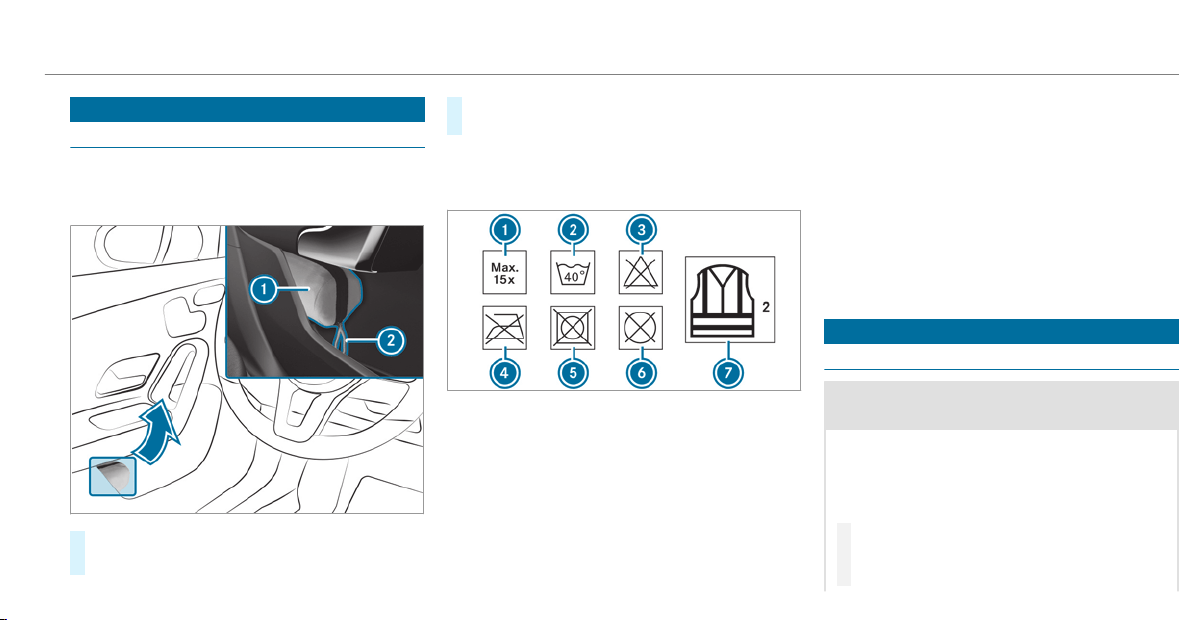
Emergency
Removing the safety vest
The safety vests are located in the safety vest
compartments in the driver's and front
passenger door stowage compartments.
#
To remove: pull out safety vest bag 1 by
loop 2.
#
Open safety vest bag 1 and pull out the
safety vest.
%
There are also safety vest compartments in
the rear door stowage compartments in
which safety vests can be stored.
1
Maximum number of washes
2
Maximum wash temperature
3
Do not bleach
4
Do not iron
5
Do not tumble dry
6
Do not dry clean
7
Class 2 safety vest
The requirements defined by the legal standard
are only fulfilled if the safety vest is the correct
size and is fully closed.
The safety vest must be replaced in the following
situations:
R
the reflective strips are damaged or dirty
R
the maximum permissible number of washes
is exceeded
R
the fluorescence has faded
Flat tire
Notes on flat tires
&
WARNING Risk of accident due to a flat
tire
A flat tire severely affects the driving charac‐
teristics as well as the steering and braking
of the vehicle.
Tires without run-flat characteristics:
#
Do not drive on with a flat tire.
#
Change the flat tire immediately with an
emergency spare wheel or spare wheel.
Breakdown assistance
397
Alternatively, consult a qualified spe‐
cialist workshop.
Tires with run-flat characteristics:
#
Observe the information and warning
notes on MOExtended tires (run-flat
tires).
In the event of a flat tire, the following options
are available depending on your vehicle's equip‐
ment:
R
Vehicles with MOExtended tires: it is pos‐
sible to continue the journey for a short
period of time. Make sure you observe the
notes on MOExtended tires (run-flat tire)
(
/ page 398).
R
Vehicles with a TIREFIT kit: you can repair
the tires so that it is possible to continue the
journey for a short period of time. To do this,
use the TIREFIT kit (/ page 399).
R
Vehicles with Mercedes me connect: you
can make a call for Roadside Assistance via
the overhead control panel in the case of a
breakdown (/ page 350).
R
All vehicles: change the wheel
(/ page 442).
Notes on MOExtended tires (run-flat tire)
&
WARNING Risk of accident when driving
in emergency mode
When driving in emergency mode, the han‐
dling characteristics are impaired. e.g. when
cornering, when accelerating strongly and
when braking.
#
Do not exceed the permissible maxi‐
mum speed for MOExtended tires.
#
Avoid any abrupt steering and driving
maneuvers as well as driving over
obstacles (curbs, pot holes, off-road).
This applies, in particular, to a loaded
vehicle.
#
Stop driving in the emergency mode if
you notice:
R
banging noise
R
vehicle vibration
R
smoke which smells like rubber
R
continuous ESP
®
intervention
R
cracks in tire side walls
#
After driving in emergency mode have
the rims checked by a qualified special‐
ist workshop with regard to their further
use.
#
The defective tire must be replaced in
every case.
With MOExtended tires (run-flat tire), you can
continue to drive your vehicle even if there is a
total loss of pressure in one or more tires. How‐
ever, the tire affected must not show any clearly
visible damage.
You can recognize MOExtended tires by the
MOExtended marking which appears on the side
wall of the tire.
Vehicles with tire pressure loss warning sys‐
tem: MOExtended tires may only be used in con‐
junction with an activated tire pressure loss
warning system.
398
Breakdown assistance
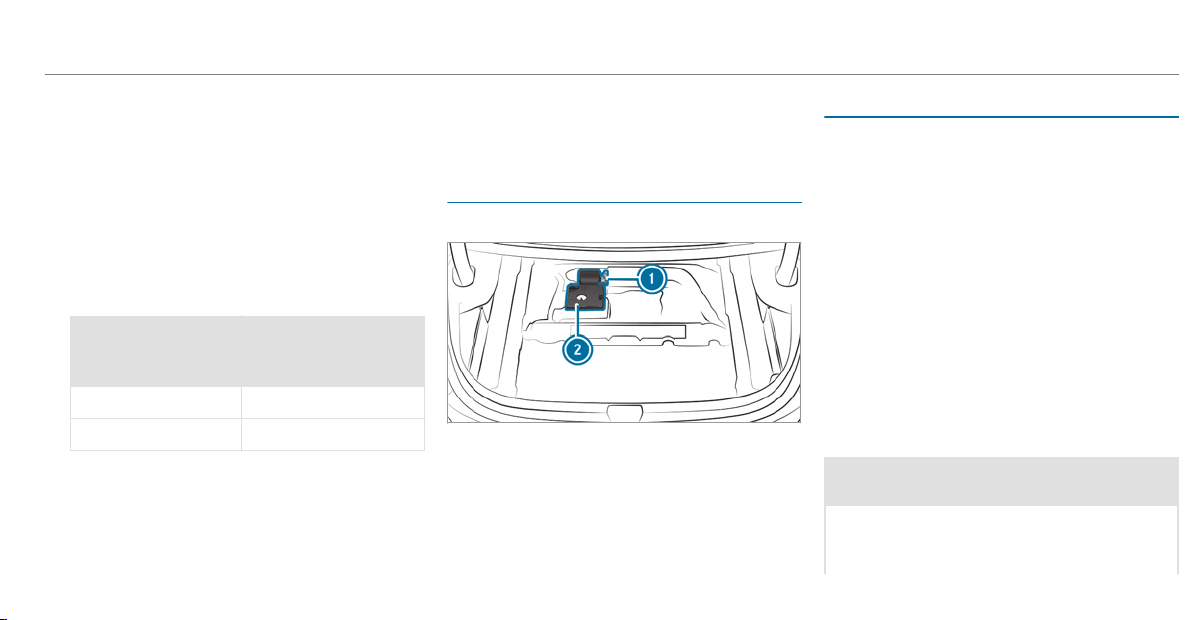
Vehicles with tire pressure monitoring sys‐
tem: MOExtended tires may only be used in con‐
junction with an activated tire pressure monitor‐
ing system.
If a pressure loss warning message appears in
the multifunction display, proceed as follows:
R
Check the tire for damage.
R
If driving on, observe the following notes.
Driving distance possible in emergency
mode after the pressure loss warning:
Load condition Driving distance pos‐
sible in emergency
mode
Partially laden 50 miles (80 km)
Fully laden 19 miles (30 km)
The driving distance possible in emergency
mode may vary depending on the driving style.
Observe the maximum permissible speed of
50 mph (80 km/h).
If a tire has gone flat and cannot be replaced
with an MOExtended tire, you can use a stand‐
ard tire as a temporary measure.
TIREFIT kit storage location
The TIREFIT kit is located under the trunk floor.
1
Tire sealant bottle
2
Tire inflation compressor
Using the TIREFIT kit
Requirements
Required tools:
R
Tire sealant bottle
R
TIREFIT sticker
R
Sticker with details of the maximum permis‐
sible speed
R
Tire inflation compressor
R
Gloves
TIREFIT kit storage location: (/ page 399)
You can use TIREFIT tire sealant to seal perfora‐
tion damage of up to 0.16 in (4 mm), particularly
those in the tire contact surface. You can use
TIREFIT in outside temperatures down to -4°F
(-20°C).
&
WARNING Risk of accident when using
tire sealant.
In the following situations, the tire sealant is
unable to provide sufficient breakdown assis‐
tance, as it is unable to seal the tire properly:
Breakdown assistance
399
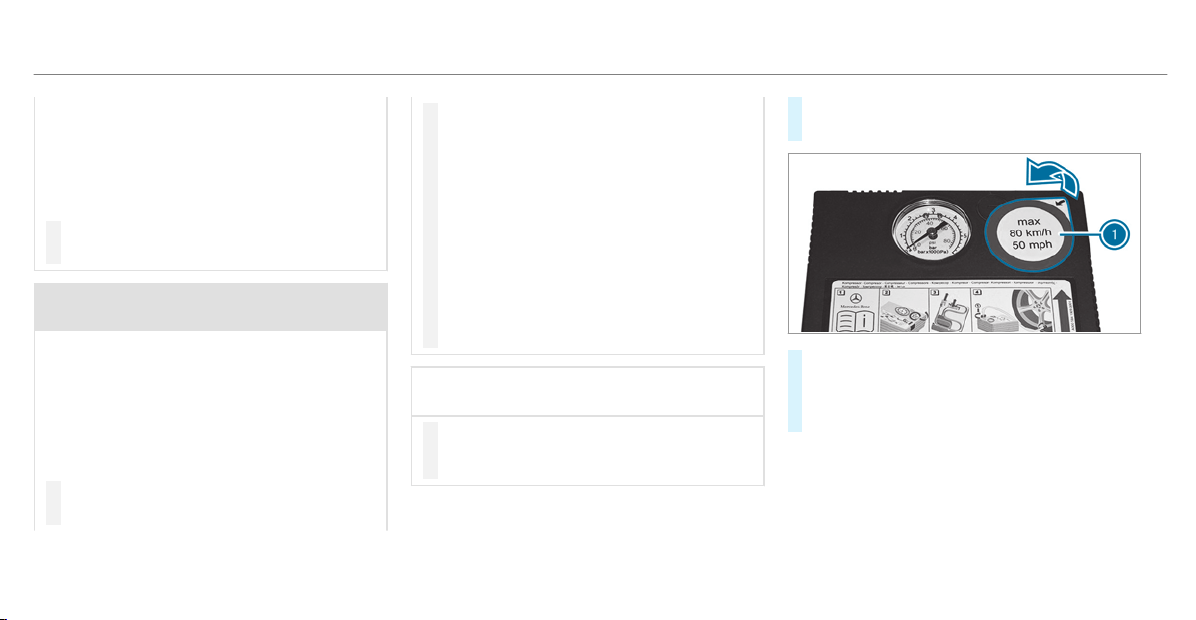
R
There are cuts or punctures in the tire
larger than those previously mentioned.
R
The wheel rim is damaged.
R
You have driven at a very low tire pres‐
sure or on a flat tire.
#
Do not continue driving.
#
Consult a qualified specialist workshop.
&
WARNING Risk of injury and poisoning
from tire sealant
The tire sealant is harmful and causes irrita‐
tion. Do not allow it to come into contact
with the skin, eyes or clothing, and do not
swallow it. Do not inhale tire sealant fumes.
Keep the tire sealant away from children.
If you come into contact with the tire sealant,
observe the following:
#
Rinse off the tire sealant from your skin
immediately using water.
#
If tire sealant gets into your eyes, thor‐
oughly rinse out the eyes using clean
water.
#
If tire sealant has been swallowed,
immediately rinse out the mouth thor‐
oughly and drink plenty of water. Do not
induce vomiting and seek medical
attention immediately.
#
Change out of any clothes contamina‐
ted with tire sealant immediately.
#
If allergic reactions occur, seek medical
attention immediately.
*
NOTE Overheating due to the tire infla‐
tion compressor running too long
#
Do not run the tire inflation compressor
for longer than ten minutes without
interruption.
Comply with the manufacturer's safety notes on
the sticker on the tire sealant bottle.
Have the tire sealant bottle replaced in a quali‐
fied specialist workshop every five years.
#
Do not remove any foreign objects which
have entered the tire.
#
Remove sticker 1 from the tire inflation
compressor housing and affix it to the instru‐
ment cluster within the driver's field of
vision.
400
Breakdown assistance
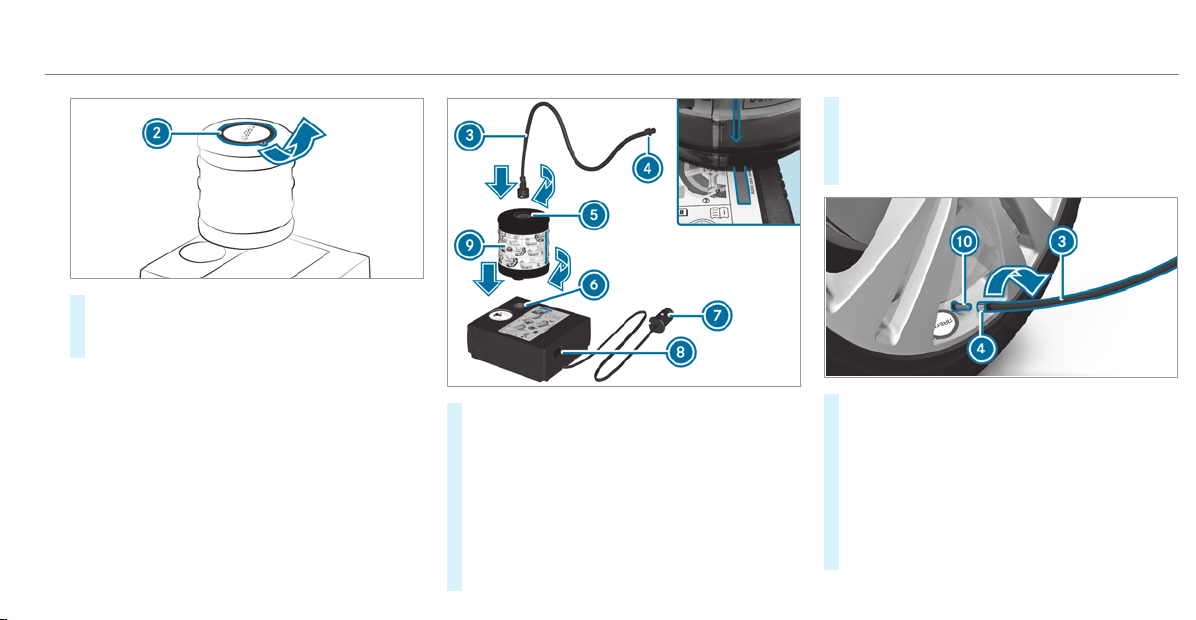
#
Remove sticker 2 from the tire sealant bot‐
tle and affix it near the valve on the wheel
with the defective tire.
#
Pull plug 7 with the cable and filler hose 3
out of the tire inflation compressor housing.
#
Insert tire sealant bottle 9 in socket 6 of
the tire inflation compressor in such a way
that the red arrow on tire sealant bottle 9
matches the red arrow on the tire inflation
compressor.
#
Then turn tire sealant bottle 9 a quarter
turn clockwise.
#
Insert the plug of filler hose 3 in socket 5
of tire sealant bottle 9.
#
Then turn filler hose 3 a quarter turn clock‐
wise.
#
Remove the valve cap from valve A on the
defective tire.
#
Screw union nut 4 of filler hose 3 onto
valve A.
#
Insert plug 7 into a 12 V socket in your
vehicle.
#
Turn the SmartKey to position 1 in the igni‐
tion lock.
Breakdown assistance
401
#
Press on and off switch 8 on the tire infla‐
tion compressor.
The tire inflation compressor is switched on.
The tire is inflated. First, tire sealant is pum‐
ped into the tire. The pressure may briefly
rise to approximately 500 kPa (5 bar/73 psi).
Do not switch off the tire inflation compres‐
sor during this phase.
#
Let the tire inflation compressor run for a
maximum of ten minutes.
The tire should then have attained a tire
pressure of at least 200 kPa (2.0 bar/
29 psi).
If tire sealant leaks out, make sure you clean the
affected area as quickly as possible. It is prefera‐
ble to use clear water.
If you get tire sealant on your clothing, have it
cleaned as soon as possible with perchloroethy‐
lene.
If, after ten minutes, a tire pressure of
200 kPa (2.0 bar/29 psi) has not been ach‐
ieved:
#
Switch off the tire inflation compressor.
#
Unscrew the filling hose from the valve of the
defective tire.
Please note that tire sealant may leak out when
unscrewing the filling hose.
#
Drive forwards or reverse very slowly for
approximately 33 ft (10 m).
#
Pump up the tire again.
After a maximum of ten minutes the tire
pressure must be at least 200 kPa (2.0 bar/
29 psi).
&
WARNING Risk of accident due to the
specified tire pressure not being reached
If the specified tire pressure is not reached
after the specified time, the tire is too badly
damaged. The tire sealant cannot repair the
tire in this instance.
Damaged tires and a tire pressure that is too
low can significantly impair braking and han‐
dling characteristics.
#
Do not continue driving.
#
Consult a qualified specialist workshop.
*
NOTE Staining caused by leaking tire
sealant
After use, excess tire sealant may leak out
from the filling hose.
#
Therefore, place the filling hose in the
plastic bag that contained the TIREFIT
kit.
If, after ten minutes, a tire pressure of
200 kPa (2.0 bar/29 psi) has been achieved:
#
Switch off the tire inflation compressor.
#
Unscrew the filling hose from the valve of the
defective tire.
Please note that tire sealant may leak out when
unscrewing the filling hose.
402
Breakdown assistance
&
WARNING Risk of accident from driving
with sealed tires
A tire temporarily sealed with tire sealant
impairs driving characteristics and is not
suitable for higher speeds.
#
Adapt your driving style accordingly and
drive carefully.
#
Do not exceed the maximum speed
limit with a tire that has been repaired
using tire sealant.
#
Observe the maximum permissible speed for
a tire sealed with tire sealant 50 mph
(80 km/h).
#
The sticker with details of the maximum per‐
missible speed must be affixed to the instru‐
ment cluster where it can be easily seen by
the driver.
*
NOTE Staining caused by leaking tire
sealant
After use, excess tire sealant may leak out
from the filling hose.
#
Therefore, place the filling hose in the
plastic bag that contained the TIREFIT
kit.
+
ENVIRONMENTAL NOTE Environmental
pollution caused by environmentally irre‐
sponsible disposal
Tire sealant contains pollutants.
#
Have the tire sealant bottle disposed of
professionally, e.g. at an authorized
Mercedes-Benz Center.
#
Stow the tire sealant bottle and the tire infla‐
tion compressor.
#
Pull away immediately.
#
Stop driving after approximately ten minutes
and check the tire pressure using the tire
inflation compressor.
The tire pressure must now be at least
130 kPa (1.3 bar/19 psi).
&
WARNING Risk of accident due to the
specified tire pressure not being reached
If the specified tire pressure is not reached
after a brief drive, the tire is too badly dam‐
aged. The tire sealant cannot repair the tire
in this instance.
Damaged tires and tire pressure that is too
low can significantly impair the braking prop‐
er ties and the handling characteristics.
#
Do not continue driving.
#
Consult a qualified specialist workshop.
In cases such as the one mentioned above, con‐
tact an authorized Mercedes-Benz Center. Or
call 1-800-FOR -MERCedes (in the USA) or
1-800-387-0100 (in Canada).
#
Correct the tire pressure if it is still at least
130 kPa (1.3 bar/19 psi). See the Tire and
Loading Information placard on the driver's
side B‑pillar or the tire pressure table in the
fuel filler flap for values.
#
To increase the tire pressure: switch on
the tire inflation compressor.
Breakdown assistance
403
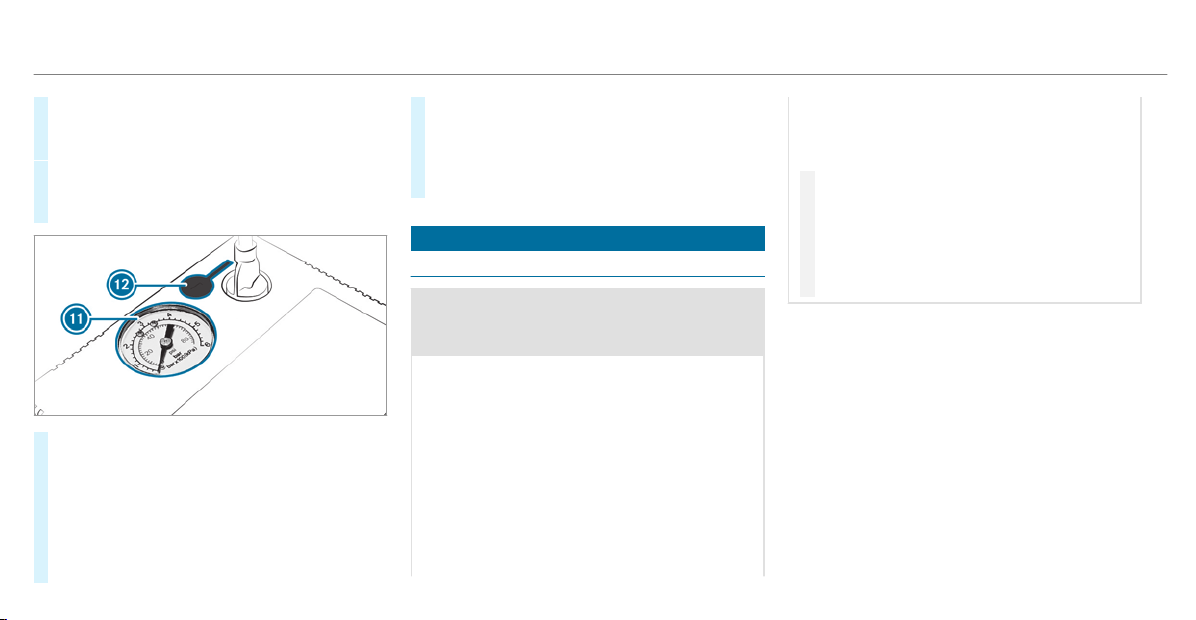
#
To reduce the tire pressure: remove the
tire sealant bottle from the tire inflation com‐
pressor.
#
Insert the filler hose in the socket of the tire
inflation compressor and turn it a quarter
turn clockwise.
#
Press pressure release button C next to
pressure gauge B.
#
When the tire pressure is correct, unscrew
the filling hose from the valve of the sealed
tire.
#
Screw the valve cap onto the valve of the
sealed tire.
#
Stow the tire sealant bottle and the tire infla‐
tion compressor.
#
Drive to the nearest qualified specialist work‐
shop and have the tire, tire sealant bottle and
filling hose replaced there.
Battery (vehicle)
Notes on the 12 V battery
&
WARNING Risk of an accident due to
work carried out incorrectly on the bat‐
tery
Work carried out incorrectly on the battery
can, for example, lead to a short circuit. This
can lead to function restrictions in safety-rel‐
evant systems, for example the lighting sys‐
tem, ABS (anti-lock braking system) or ESP
®
(Electronic Stability Program). The operating
safety of your vehicle may be restricted.
You could lose control of the vehicle in the
following situations:
R
when braking
R
in the event of abrupt steering maneuvers
and/or when the vehicle's speed is not
adapted to the road conditions
#
In the event of a short circuit or a simi‐
lar incident, contact a qualified special‐
ist workshop immediately.
#
Do not continue driving.
#
Always have work on the battery carried
out at a qualified specialist workshop.
R
Further information on ABS (/ page 157)
R
Further information on ESP
®
(/ page 158)
For safety reasons, Mercedes-Benz recommends
that you only use batteries which have been tes‐
ted and approved for your vehicle by Mercedes-
Benz. These batteries provide increased impact
protection to prevent vehicle occupants from
suffering acid burns should the battery be dam‐
aged in the event of an accident.
404
Breakdown assistance
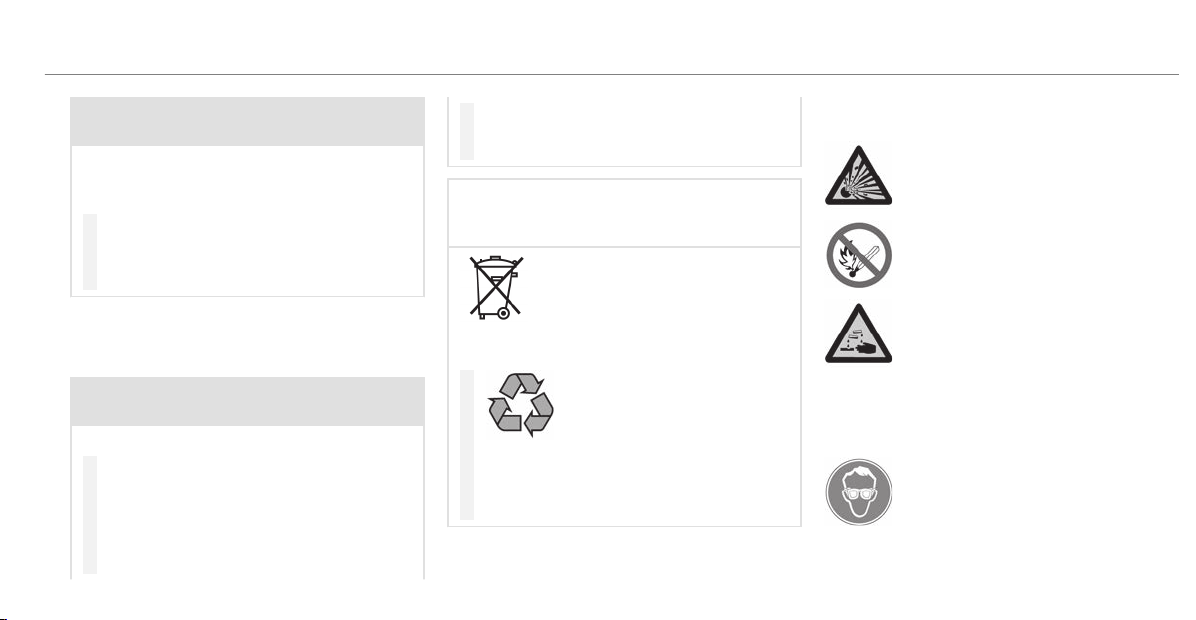
&
WARNING Risk of explosion due to elec‐
trostatic charge
Electrostatic charge can cause sparks which
may ignite the highly flammable gas mixture
in the battery.
#
To discharge any electrostatic charge
that may have built up, touch the metal
vehicle body before handling the bat‐
tery.
The highly flammable gas mixture is created
while the battery is charging and during starting
assistance.
&
WARNING Danger of chemical bur ns
from the battery acid
Battery acid is caustic.
#
Avoid contact with the skin, eyes or
clothing.
#
Do not lean over the battery.
#
Do not inhale battery gases.
#
Keep children away from the battery.
#
Immediately rinse battery acid off thor‐
oughly with plenty of clean water and
seek medical attention immediately.
+
ENVIRONMENTAL NOTE Environmental
damage caused by improper disposal of
batteries
Batteries contain pollutants. It is
illegal to dispose of them with the household
rubbish.
#
Dispose of batteries in an
environmentally responsible manner.
Take discharged batteries to a qualified
specialist workshop or to a collection
point for used batteries.
If you have to disconnect the 12 V battery, con‐
tact a qualified specialist workshop.
Comply with safety notes and take protective
measures when handling batteries.
Risk of explosion.
Fire, open flames and smoking are
prohibited when handling the batter y.
Avoid creating sparks.
Electrolyte or battery acid is corro‐
sive. Avoid contact with the skin, eyes
or clothing. Wear suitable protective
clothing, in particular gloves, an
apron and a face mask. Immediately
rinse electrolyte or acid splashes off
with clean water. Consult a doctor if
necessary.
Wear safety glasses.
Breakdown assistance
405
Keep children away.
Observe this Operator's Manual.
If you do not intend to use the vehicle over an
extended period of time:
R
activate standby mode, or
R
connect the battery to a battery charger
approved by Mercedes-Benz, or
R
consult a qualified specialist workshop to
disconnect the battery
Notes on starting assistance and on charg‐
ing the 12 V battery
When charging the battery and during starting
assistance, always use the jump-start connec‐
tion point in the engine compartment.
*
NOTE Damaging the battery through
overvoltage
When charging using a battery charger with‐
out a maximum charging voltage, the battery
or the vehicle electronics may be damaged.
#
Only use battery chargers with a maxi‐
mum charging voltage of 14.8 V.
&
WARNING Risk of explosion from hydro‐
gen gas igniting
A battery generates hydrogen gas during the
charging process. If there is a short circuit or
sparks start to form, there is a danger of the
hydrogen gas igniting.
#
Make sure that the positive terminal of
the connected battery does not come
into contact with vehicle parts.
#
Never place metal objects or tools on a
battery.
#
When connecting and disconnecting the
battery, you must observe the descri‐
bed order for the battery clamps.
#
When giving starting assistance, always
make sure that you only connect bat‐
tery terminals with identical polarity.
#
During starting assistance, you must
observe the described order for con‐
necting and disconnecting the jumper
cables.
#
Do not connect or disconnect the bat‐
tery clamps while the engine is running.
&
WARNING Risk of explosion during
charging process and starting assistance
During the charging process and starting
assistance, the battery may release an explo‐
sive gas mixture.
#
Avoid fire, open flames, creating sparks
and smoking.
#
Make sure that there is sufficient venti‐
lation during the charging process and
during star ting assistance.
#
Do not lean over a battery.
406
Breakdown assistance
&
WARNING Risk of explosion from a fro‐
zen battery
A discharged battery may freeze at tempera‐
tures slightly above or below freezing point.
During star ting assistance or battery charg‐
ing, battery gas may be released.
#
Always thaw a frozen battery out first
before charging it or performing start‐
ing assistance.
If the indicator/warning lamps in the instrument
cluster do not light up at low temperatures, it is
very likely that the discharged battery has fro‐
zen. In this case you may neither jump-start the
vehicle nor charge the battery.
The service life of a battery that has been
thawed may be dramatically shortened. The
starting characteristics may be impaired, espe‐
cially at low temperatures.
It is recommended that you have a thawed bat‐
tery checked at a qualified specialist workshop.
*
NOTE Damage caused by numerous or
extended attempts to start the engine
Numerous or extended attempts to start the
engine may damage the catalytic converter
due to non-combusted fuel.
#
Avoid numerous and extended attempts
to start the engine.
Observe the following points during starting
assistance and when charging the battery:
R
Only use undamaged jumper cables/charg‐
ing cables with a sufficient cross-section and
insulated terminal clamps.
R
Non-insulated parts of the terminal clamps
must not come into contact with other metal
parts while the jumper cable/charging cable
is connected to the battery/jump-start con‐
nection point.
R
The jumper cable/charging cable must not
come into contact with any parts which may
move when the engine is running.
R
Always make sure that neither you nor the
battery is electrostatically charged.
R
Keep away from fire and open flames.
R
Do not lean over the battery.
Observe the additional following points when
charging the battery:
R
Only use battery chargers tested and
approved for Mercedes-Benz.
R
Read the battery charger's operating instruc‐
tions before charging the battery.
Observe the additional following points during
starting assistance:
R
Starting assistance may be performed using
only batteries with a nominal voltage of 12 V.
R
The vehicles must not touch.
R
Gasoline engine: Only accept starting assis‐
tance if the engine and exhaust system are
cold.
Breakdown assistance
407
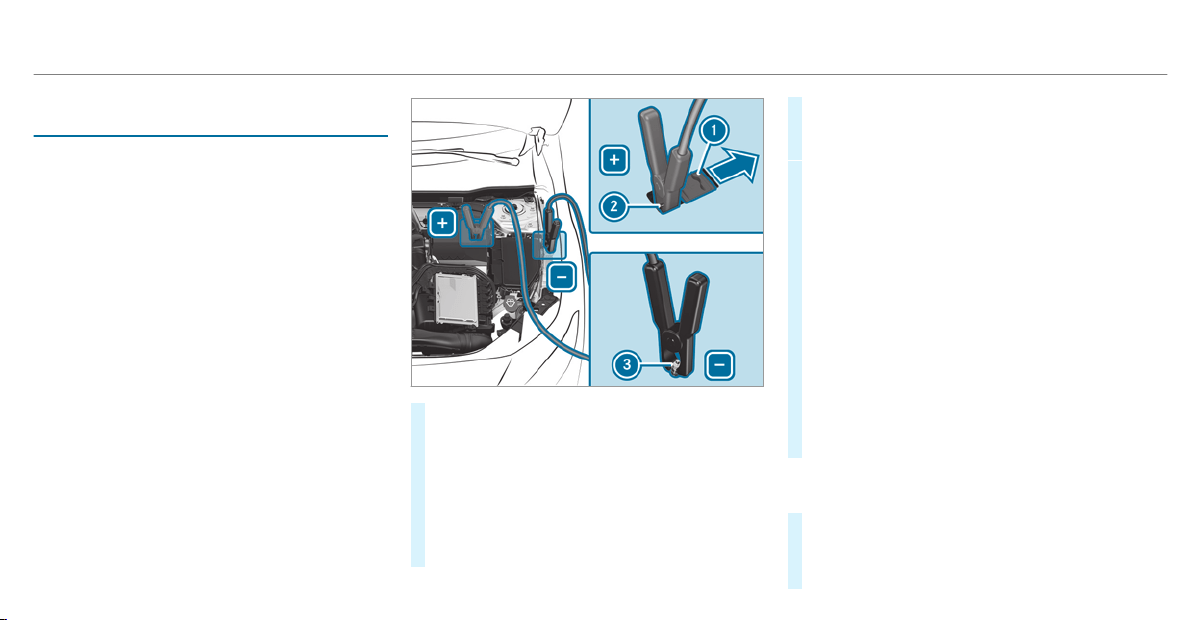
Starting assistance and charging the 12 V
battery
Requirements:
R
The vehicle is secured with the electric park‐
ing brake.
R
Automatic transmission: The transmission
is in position j.
R
The ignition and all electrical consumers are
switched off.
R
The hood is open.
#
Slide cover 1 of positive clamp 2 on the
jump-starting connection point in the direc‐
tion of the arrow.
#
Connect positive clamp 2 on your vehicle to
the positive pole of the donor battery using
the jumper cable/charging cable. Always
begin with positive clamp 2 on your own
vehicle first.
#
During starting assistance: start the
engine of the donor vehicle and run at idle
speed.
#
Connect the negative pole of the donor bat‐
tery and ground point 3 of your own vehicle
by using the jumper cable/charging cable.
Begin with the donor battery first.
#
During starting assistance: start the
engine of your own vehicle.
#
During the charging process: start the
charging process.
#
During starting assistance: let the engines
run for several minutes.
#
During starting assistance: before discon‐
necting the jumper cable, switch on an elec‐
trical consumer in your own vehicle, e.g. the
rear window heater or lighting.
When the starting assistance/charging process
is complete:
#
First, remove the jumper cable/charging
cable from ground point 3 and negative
pole of the donor battery, then from positive
clamp 2 and positive pole of the donor bat‐
408
Breakdown assistance
tery. Begin each time with the contacts on
your own vehicle first.
#
After removing the jumper cable/charging
cable, close cover 1 of positive clamp 2.
Further information can be obtained at a quali‐
fied specialist workshop.
Replacing the 12 V battery
#
Observe the notes on the 12 V battery
(/ page 404).
Mercedes-Benz recommends that you have the
12 V battery replaced at a qualified specialist
workshop, e.g. at an authorized Mercedes-Benz
Center.
Observe the following notes if you want to
replace the battery yourself:
R
Always replace a faulty battery with a battery
which meets the specific vehicle require‐
ments.
The vehicle is equipped with an AGM technol‐
ogy battery (Absorbent Glass Mat). Full vehi‐
cle functionality is only guaranteed with an
AGM battery. For safety reasons, Mercedes-
Benz recommends that you only use batter‐
ies which have been tested and approved for
your vehicle by Mercedes-Benz.
R
Carry over detachable parts, such as vent
hoses, elbow fitting or terminal covers from
the battery being replaced.
R
Make sure that the vent hose is always con‐
nected to the or iginal opening on the side of
the battery.
Install any existing or supplied cell caps.
Otherwise, gases or battery acid could
escape.
R
Make sure that detachable parts are recon‐
nected in the same way.
Tow starting or towing away
Permitted towing methods
Mercedes-Benz recommends transporting your
vehicle in the case of a breakdown, rather than
towing it away.
For towing, use a tow rope or tow bar with both
axles on the ground. Do not use tow bar sys‐
tems.
&
WARNING Risk of accident when towing
with steering wheel lock
You will no longer be able to steer the vehicle
if the steering wheel lock is engaged.
#
Always switch on the ignition when tow‐
ing the vehicle with a tow cable or a tow
bar.
*
NOTE Damage to the vehicle due to tow‐
ing away incorrectly
#
Observe the instructions and notes on
towing away.
Breakdown assistance
409
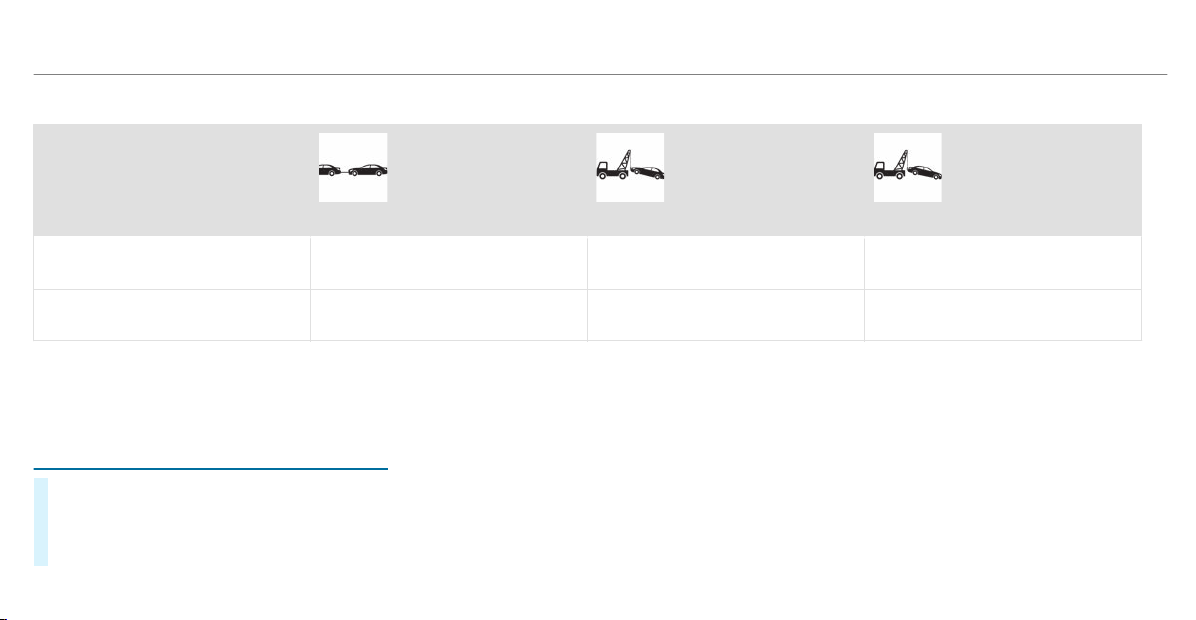
Permitted towing methods
Vehicle equipment/towing
method
Both axles on the ground Front axle raised Rear axle raised
Vehicles with automatic transmis‐
sion
Yes, maximum 31 miles (50 km) at
31 mph (50 km/h)
Yes, maximum 31 miles (50 km) at
31 mph (50 km/h)
Yes, maximum 31 miles (50 km) at
31 mph (50 km/h)
4MATIC vehicles Yes, maximum 31 miles (50 km) at
31 mph (50 km/h)
No No
Towing with a raised axle: towing should be
performed by a towing company.
Towing the vehicle with both axles on the
ground
#
Observe the notes on the permitted towing
methods (/ page 409).
#
Make sure that the battery is connected and
charged.
Observe the following points when the battery is
discharged:
R
The engine cannot be started
R
The electric parking brake cannot be
released or applied
R
Vehicles with automatic transmission:
The automatic transmission cannot be shif‐
ted to position i or j.
%
Vehicles with automatic transmission: If
the automatic transmission cannot be shif‐
ted to position i, or the multifunction dis‐
play in the instrument cluster does not show
anything, have the vehicle transported away
(
/ page 412). A towing vehicle with lift‐
ing equipment is required for vehicle trans‐
por tation.
410
Breakdown assistance
*
NOTE Damage due to towing away at
excessively high speeds or over long dis‐
tances
The drivetrain could be damaged when tow‐
ing at excessively high speeds or over long
distances.
#
A towing speed of 30 mph (50 km/h)
must not be exceeded.
#
A towing distance of 30 miles (50 km)
must not be exceeded.
&
WARNING Risk of accident when towing
a vehicle which is too heavy
If the vehicle being tow-started or towed
away is heavier than the permissible gross
mass of your vehicle, the following situations
can occur:
R
The towing eye may become detached.
R
The vehicle/trailer combination may
swer ve or even overturn.
#
If another vehicle is tow-started or
towed away, its weight must not exceed
the permissible gross mass of your own
vehicle.
If a vehicle must be tow started or towed away,
its permissible gross mass must not exceed the
permissible gross mass of the towing vehicle.
#
Information on the permissible gross mass of
the vehicle can be found on the vehicle iden‐
tification plate (/ page 450).
#
Vehicles with automatic transmission: Do
not open the driver's door or front passenger
door, otherwise the automatic transmission
automatically shifts to position j.
#
Installing the towing eye (/ page 413).
#
Fasten the tow bar.
*
NOTE Damage due to incorrect connec‐
tion
#
Only connect the tow rope or tow bar to
the towing eyes.
#
Deactivating the automatic locking mecha‐
nism (/ page 72).
#
Do not activate the HOLD function.
#
Deactivate Active Brake Assist
(/ page 167).
#
Vehicles with automatic transmission:
Shift the automatic transmission to position
i.
#
Release the electric parking brake.
#
Switch on the ignition, otherwise the steering
wheel lock may engage.
&
WARNING Risk of accident due to limi‐
ted safety-related functions during the
towing process
Safety-related functions are limited or no lon‐
ger available in the following situations:
R
the ignition is switched off.
R
the brake system or power steering sys‐
tem is malfunctioning.
R
the energy supply or the on-board electri‐
cal system is malfunctioning.
Breakdown assistance
411
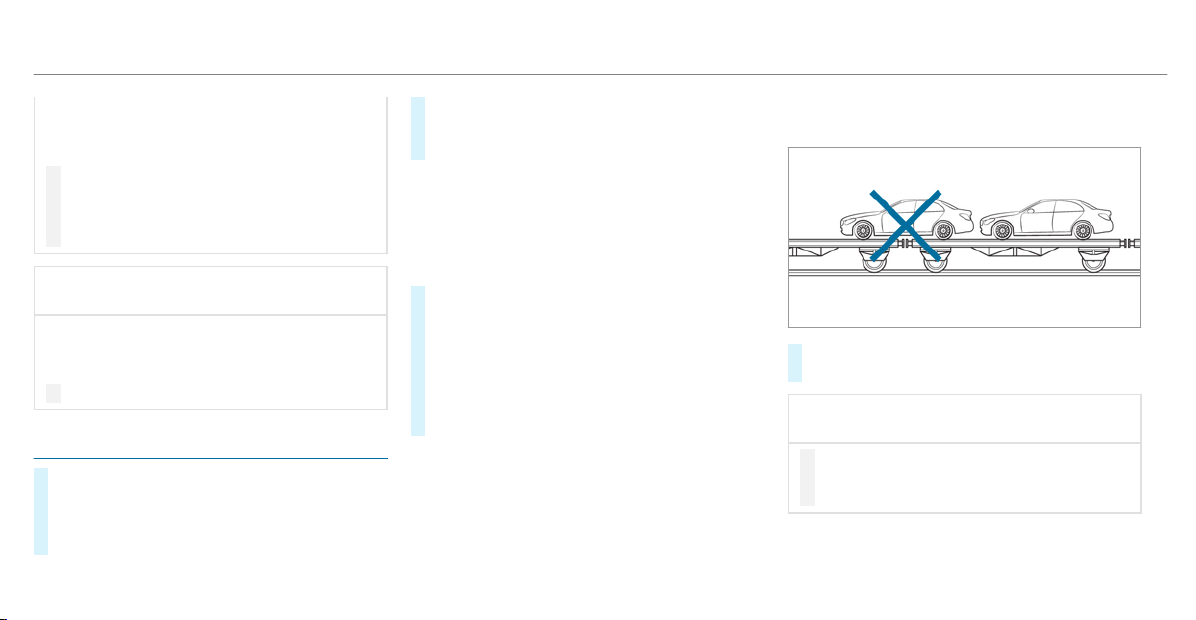
When your vehicle is then towed away, signif‐
icantly more effort may be required to steer
and brake than is normally required.
#
Use a tow bar.
#
Make sure that the steering wheel can
move freely, before towing the vehicle
away.
*
NOTE Damage due to excessive tractive
power
If you pull away sharply, the tractive power
may be too high and the vehicles could be
damaged.
#
Pull away slowly and smoothly.
Loading the vehicle for transport
#
Observe the notes on towing away
(/ page 410).
#
Connect the tow bar to the towing eye in
order to load the vehicle.
#
Vehicles with automatic transmission:
Shift the automatic transmission to position
i.
%
Vehicles with automatic transmission:
The automatic transmission may be locked
in position j in the event of damage to the
electrical system. To shift to i, provide the
on-board electrical system with power
(
/ page 408).
#
Load the vehicle onto the transporter.
#
Vehicles with automatic transmission:
Shift the automatic transmission to position
j.
#
Use the electric parking brake to secure the
vehicle against rolling away.
#
Only secure the vehicle by the wheels.
4MATIC vehicles/vehicles with automatic
transmission
#
Make sure that the front and rear axles come
to rest on the same transportation vehicle.
*
NOTE Damage to the drivetrain due to
incorrect positioning
#
Do not position the vehicle above the
connection point of the transport vehi‐
cle.
412
Breakdown assistance
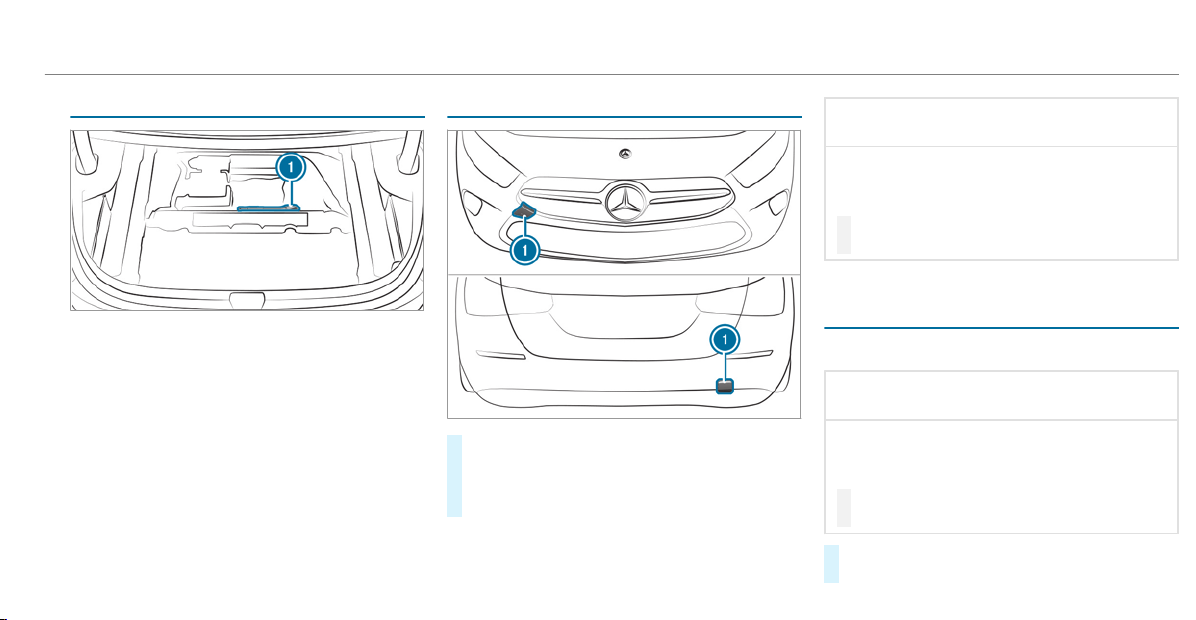
Towing eye storage location
Towing eye 1 is located in the stowage space
under the trunk floor.
Installing the towing eye
#
Press the mark on cover 1 inwards and
remove.
#
Screw in the towing eye clockwise as far as it
will go and tighten.
%
Make sure that cover 1 engages in the
bumper when you remove the towing eye.
*
NOTE Damage due to incorrect use of
the towing eye
When a towing eye is used to recover a vehi‐
cle, the vehicle may be damaged in the proc‐
ess.
#
Only use the towing eye to tow away or
tow start the vehicle.
Tow starting the vehicle (emergency engine
start)
Vehicles with automatic transmission
*
NOTE Damage to the automatic trans‐
mission due to tow starting
The automatic transmission may be damaged
in the process of tow starting vehicles with
automatic transmission.
#
Vehicles with automatic transmission
must not be tow started.
#
Vehicles with automatic transmission must
not be tow-started.
Breakdown assistance
413
Electrical fuses
Notes on electrical fuses
&
WARNING Risk of accident and injury
due to overloaded lines
If you manipulate or bridge a faulty fuse or if
you replace it with a fuse with a higher
amperage, the electric line could be overloa‐
ded.
This could result in a fire.
#
Always replace faulty fuses with speci‐
fied new fuses containing the correct
amperage.
*
NOTE Damage due to incorrect fuses
Electrical components or systems may be
damaged by incorrect fuses, or their func‐
tionality may be signif icantly impaired.
#
Only use fuses that have been approved
by Mercedes-Benz and which have the
correct fuse rating.
Blown fuses must be replaced with fuses of the
same rating, which you can recognize by the
color and fuse rating. The fuse ratings and fur‐
ther information to be observed are listed in the
fuse assignment diagram.
Fuse assignment diagram: on the fuse box in
the engine compartment (
/ page 414).
*
NOTE Damage or malfunctions caused
by moisture
Moisture may cause damage to the electrical
system or cause it to malfunction.
#
When the fuse box is open, make sure
that no moisture can enter the fuse
box.
#
When closing the fuse box, make sure
that the seal of the lid is positioned cor‐
rectly on the fuse box.
If the newly inserted fuse also blows, have the
cause traced and rectified at a qualif ied special‐
ist workshop.
Ensure the following before replacing a fuse:
R
The vehicle is secured against rolling away
R
All electrical consumers are switched off
R
The ignition is switched off
The electrical fuses are located in various fuse
boxes:
R
Fuse box in the engine compartment on the
left-hand side of the vehicle, when viewed in
the direction of travel (/ page 414)
R
Fuse box in the front passenger footwell
(/ page 415)
R
Fuse box in the center of the trunk
(/ page 416)
Opening and closing the fuse box in the
engine compartment
Requirements:
R
A dry cloth and a screwdriver are available.
Observe the notes on electrical fuses
(/ page 414).
414
Breakdown assistance
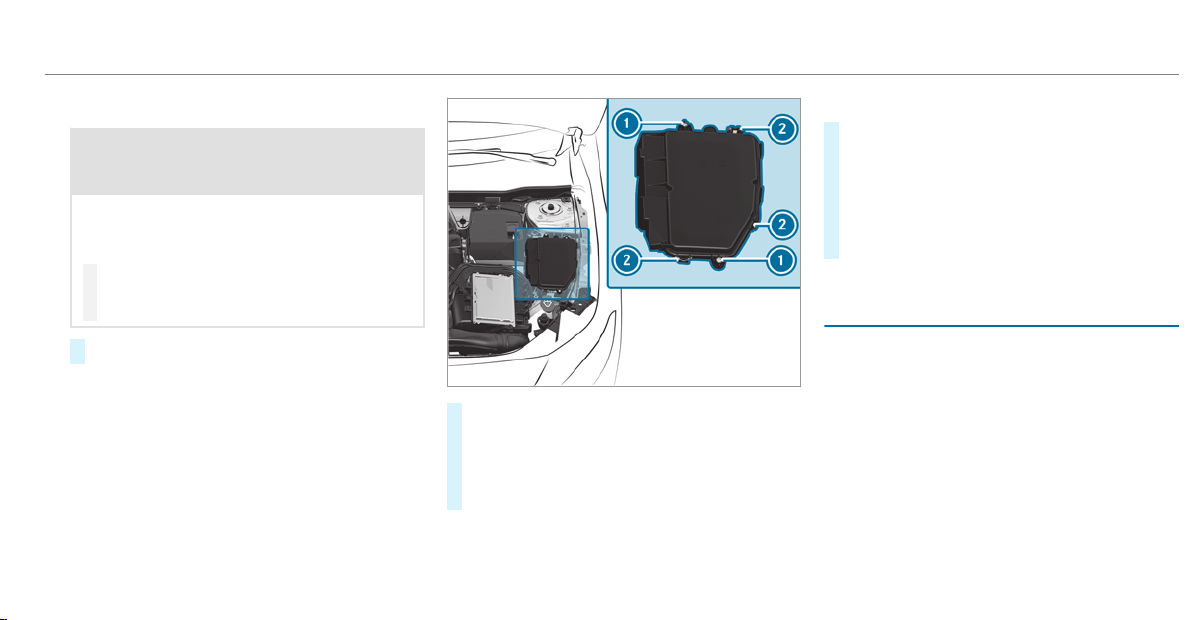
Opens
&
WARNING Risk of injury from using the
windshield wipers while the engine hood
is open
When the engine hood is open and the wind‐
shield wipers are set in motion, you can be
trapped by the wiper linkage.
#
Always switch off the windshield wipers
and ignition before opening the engine
hood.
#
Open the hood.
#
Remove any existing moisture from the fuse
box using a dry cloth.
#
Loosen screws 1.
#
Press clamps 2 and lift the fuse box lid up
and out.
The fuse allocation chart is in a recess on the
side of the fuse box.
Closing
#
Check whether the seal is positioned cor‐
rectly in the lid.
#
Place the lid on the fuse box.
#
Make sure that clamps 2 engage.
#
Tighten screws 1.
#
Close the hood.
Opening and closing the fuse box in the front
passenger footwell
Observe the notes on electrical fuses
(/ page 414).
Breakdown assistance
415
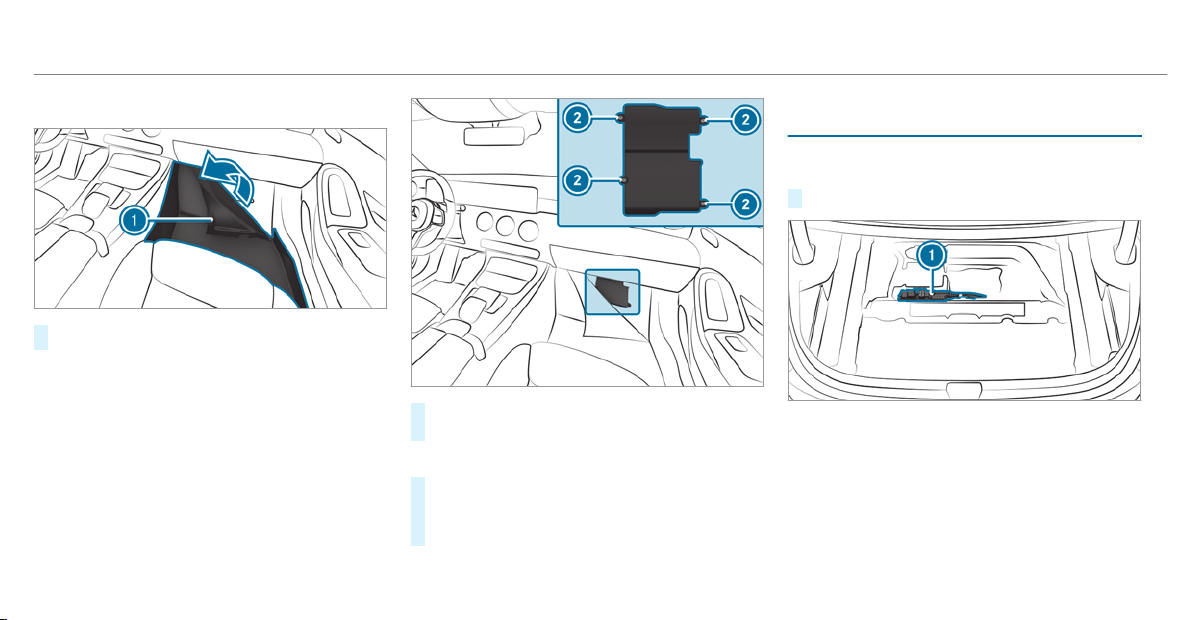
Opening
#
Lift carpet 1 in the direction of the arrow.
#
Loosen screws 2 and remove the fuse box
lid from the top.
Closing
#
Place the lid on the fuse box.
#
Tighten screws 2.
#
Fold back the carpet.
Opening and closing the fuse box in the
trunk
Observe the notes on electrical fuses
(/ page 414).
#
Open the trunk floor (/ page 104).
Fuse box 1 is located in the center underneath
the trunk floor.
416
Breakdown assistance
Notes on noise or unusual handling charac‐
teristics
While driving, pay attention to vibrations, noises
and unusual handling characteristics, e.g. pulling
to one side. This may indicate that the wheels or
tires are damaged. If you suspect that a tire is
defective, reduce your speed immediately. Stop
the vehicle as soon as possible to check the
wheels and tires for damage. Hidden tire dam‐
age could also be causing the unusual handling
characteristics. If you find no signs of damage,
have the tires and wheels checked at a qualified
specialist workshop.
Notes on regularly inspecting wheels and
tires
&
WARNING Risk of accident from dam‐
aged tires
Damaged tires can cause tire pressure loss.
As a result, you could lose control of your
vehicle.
#
Check the tires regularly for signs of
damage and replace any damaged tires
immediately.
&
WARNING Risk of aquaplaning due to
insufficient tire tread
Insufficient tire tread will result in reduced
tire grip. The tire tread is no longer able to
dissipate water.
This means that in heavy rain or slush the
risk of hydroplaning is increased, in particu‐
lar if vehicle speed is not adapted to suit the
conditions.
If the tire pressure is too high or too low,
tires may exhibit different levels of wear at
different locations on the tire cont act sur‐
face.
#
Thus, you should regularly check the
tread depth and the condition of the tire
contact surface across the entire width
of all tires.
Minimum tread depth for:
R
Summer tires: â in (3 mm)
R
M+S tires: ã in (4 mm)
#
For safety reasons, replace the tires
before the legally prescribed limit for
the minimum tread depth is reached.
Carry out the following checks on all wheels reg‐
ularly, at least once a month or as required, e.g.
prior to a long jour ney or driving off-road:
R
Check the tire pressure (/ page 419).
R
Visually inspect tires and wheels for damage.
R
Check the valve caps.
The valves must be protected against mois‐
ture and dirt by the valve caps approved
especially for your vehicle by Mercedes-Benz.
R
Visual check of the tire tread depth and the
tire cont act surface across the entire width.
The minimum tread depth for summer tires is
â in (3 mm) and for winter tires ã in
(4 mm).
Wheels and tires
417
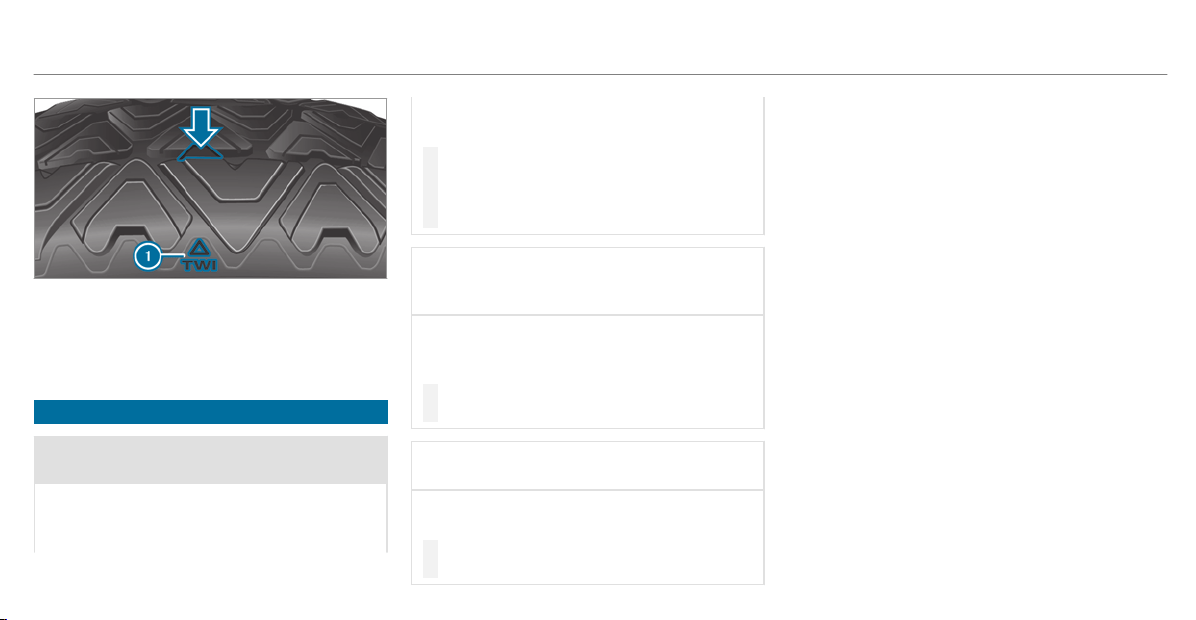
Six marks 1 show where the bar indicators
(arrow) are integrated into the tire tread. They
are visible once a tread depth of approximately
á in (1.6 mm) has been reached.
Notes on snow chains
&
WARNING Risk of accident due to incor‐
rect snow chain fitting
If you fit snow chains to the rear wheels, the
snow chains may grind against the vehicle
body or chassis components.
This could cause damage to the vehicle or
the tires.
#
Never fit snow chains to the rear
wheels.
#
Always fit snow chains to the front
wheels in pairs.
*
NOTE Damage to components of the
vehicle body or chassis due to fitted
snow chains
If you fit snow chains to the front wheels of
4MATIC vehicles, you may damage compo‐
nents of the vehicle body or chassis.
#
Only fit snow chains to the rear wheels
of 4MATIC vehicles.
*
NOTE Damage to the wheel trim from
mounted snow chains
If snow chains are mounted to steel wheels,
the wheel trims can be damaged.
#
Remove the wheel trims of steel wheels
before mounting snow chains.
Observe the following notes when using snow
chains:
R
Snow chains are only permissible for certain
wheel/tire combinations. You can obtain
information about this from an authorized
Mercedes-Benz Center.
R
For safety reasons, only use snow chains that
have been specifically approved for your
vehicle by Mercedes-Benz, or snow chains
with the same quality standard.
R
If snow chains are installed, the maximum
permissible speed is 30 mph (50 km/h).
R
Vehicles with Active Parking Assist: Do
not use Active Parking Assist when snow
chains are installed.
%
You can deactivate ESP
®
to pull away
(/ page 160). This allows the wheels to
spin, achieving an increased driving force.
418
Wheels and tires
Tire pressure
Notes on tire pressure
&
WARNING Risk of accident due to insuf‐
ficient or excessive tire pressure
Underinflated or overinflated tires pose the
following risks:
R
The tires may burst, especially as the
load and vehicle speed increase.
R
The tires may wear excessively and/or
unevenly, which may greatly impair tire
traction.
R
The driving characteristics, as well as
steering and braking, may be greatly
impaired.
#
Comply with the recommended tire
pressure and check the tire pressure of
all tires including the spare wheel regu‐
larly:
R
at least once a month
R
when the load changes
R
before embarking on a longer journey
R
if operating conditions change, e.g. off-
road driving
#
Adjust the tire pressure as necessary.
Driving with tire pressure that is too high or too
low can:
R
Shorten the service life of the tires.
R
Cause increased tire damage.
R
Adversely affect driving characteristics and
thus driving safety, e.g. due to hydroplaning.
&
WARNING Risk of an accident due to
insufficient tire pressure
Tires with pressure that is too low can over‐
heat and burst as a result.
In addition, they also suffer from excessive
and/or irregular wear, which can significantly
impair the braking properties and the han‐
dling characteristics.
#
Avoid excessively low tire pressures in
all the tires, including the spare wheel.
Tire pressure which is too low can cause:
R
Tire defects as a result of overheating
R
Impaired handling characteristics
R
Irregular wear
R
Increased fuel consumption
&
WARNING Risk of accident from exces‐
sive tire pressure
Tires with excessively high pressure can
burst because they are damaged more easily
by highway fill, pot holes etc.
In addition, they also suffer from irregular
wear, which can significantly impair the brak‐
ing properties and the handling characteris‐
tics.
#
Avoid excessively high tire pressures in
all the tires, including the spare wheel.
Excessively high tire pressure can result in:
R
Increased braking distance
R
Impaired handling characteristics
R
Irregular wear
Wheels and tires
419

R
Impaired driving comfort
R
Susceptibility to damage
&
WARNING Risk of accident caused by
repeated drop in tire pressure
If the tire pressure drops repeatedly, the
wheel, valve or tire may be damaged.
Insufficient tire pressure can cause the tires
to burst.
#
Inspect the tire for signs of foreign
objects.
#
Check whether the wheel or valve has a
leak.
#
If you are unable to rectify the damage,
contact a qualified specialist workshop.
You can find information on tire pressure for the
vehicle's factory-installed tires on the following
labels:
R
Tire and Loading Information placard on the
B‑pillar of your vehicle (/ page 426).
R
Tire pressure table on the inside of the fuel
filler flap ( / page 420).
Observe the maximum tire pressure
(/ page 433).
Use a suitable tire pressure gauge to check the
tire pressure. The outer appearance of a tire
does not permit any reliable conclusion about
the tire pressure.
Vehicles with a tire pressure monitoring sys‐
tem: You can also check the tire pressure using
the on-board computer.
Only correct tire pressure when the tires are
cold. Conditions for cold tires:
R
The vehicle has been parked with the tires
out of direct sunlight for at least three hour s.
R
The vehicle has traveled less than 1 mile
(1.6 km).
A rise in the tire temperature of 18 °F (10 °C)
increases the tire pressure by approx. 10 kPa
(0.1 bar/1.5 psi). Take this into account when
checking the tire pressure of warm tires.
The tire pressure recommended for increased
load/speed in the tire pressure table can affect
the ride comfort.
&
WARNING Risk of accident from unsuita‐
ble accessories on the tire valves
If you mount unsuitable accessories onto tire
valves, the tire valves may be overloaded and
malfunction, which can cause tire pressure
loss. Tire pressure monitoring systems for
retrofitting will cause the tire valve to remain
open. This can also result in tire pressure
loss.
#
Only screw standard valve caps or valve
caps specifically approved by
Mercedes-Benz for your vehicle onto
the tire valve.
Tire pressure table
The tire pressure table is on the inside of the
fuel filler flap.
%
The data shown in the images is example
data.
420
Wheels and tires
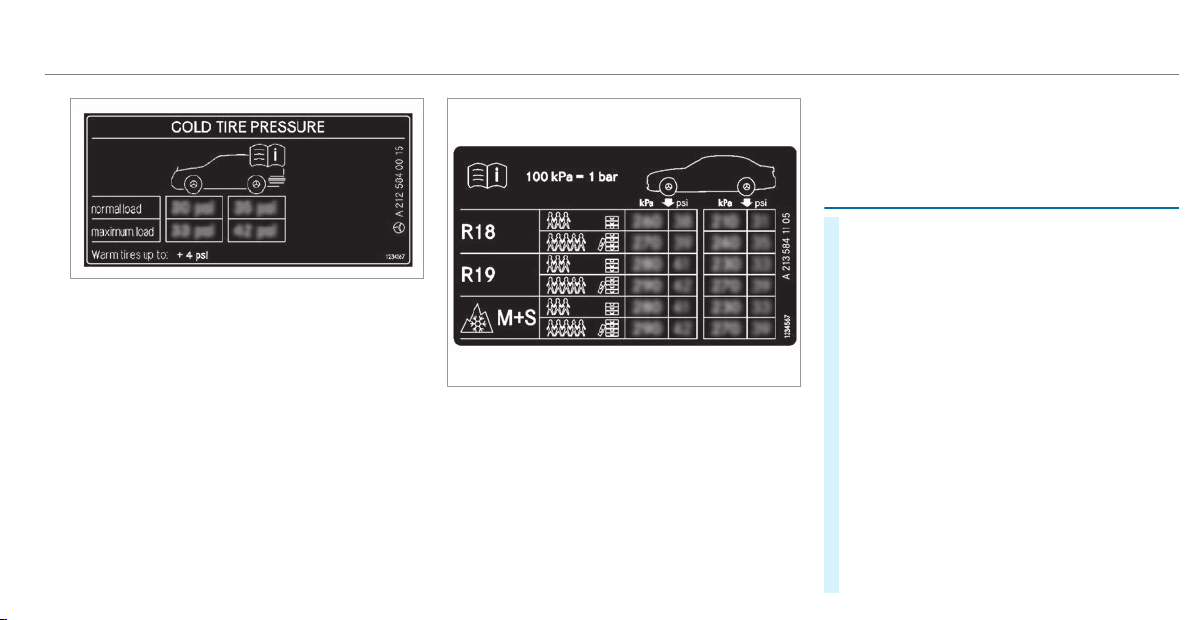
The tire pressure table shows the recommended
tire pressure for all tires approved for this vehi‐
cle. The recommended tire pressures apply for
cold tires under various operating conditions, i.e.
loading and/or speed of the vehicle.
If one or more tire sizes precede a tire pressure,
the tire pressure information following is only
valid for those tire sizes.
The load conditions "partially laden" and "fully
laden" are defined in the table for different num‐
bers of passengers and amounts of luggage. The
actual number of seats may differ from this.
Some tire pressure tables only show the rim
diameter instead of the complete tire size, e.g.
R18. The rim diameter is part of the tire size and
can be found on the tire side wall
(
/ page 433).
Be sure to also observe the following further
related subjects:
R
Notes on tire pressure (/ page 419)
R
Tire and Loading Information placard
(/ page 426)
R
Maximum tire pressure (/ page 433)
Checking tire pressures manually
#
Read the tire pressure for the current operat‐
ing conditions from the Tire and Loading
Information placard or the tire pressure
table. Observe the notes on tire pressure.
#
Remove the valve cap of the tire to be
checked.
#
Press the tire pressure gauge securely onto
the valve.
#
Read the tire pressure.
#
If the tire pressure is lower than the recom‐
mended value, increase the tire pressure to
the recommended value.
#
If the tire pressure is higher than the recom‐
mended value, release air. To do so, press
down the metal pin in the valve, e.g. using
the tip of a pen for example. Then check the
tire pressure again using the tire pressure
gauge.
Wheels and tires
421

#
Screw the valve cap onto the valve.
Further related subjects:
R
Notes on tire pressure (/ page 419)
R
Tire pressure table (/ page 420)
R
Tire and Loading Information placard
(/ page 426)
Tire pressure monitoring system
Function of the tire pressure monitoring sys‐
tem
&
DANGER Risk of accident due to incor‐
rect tire pressure
Every tire, including the spare (if provided),
should be checked when cold at least once a
month and inflated to the pressure recom‐
mended by the vehicle manufacturer (see
Tire and Loading Information placard on the
B-pillar on the driver’s side or the tire pres‐
sure label on the inside of the fuel f iller flap
of your vehicle). If your vehicle has tires of a
different size than the size indicated on the
Tire and Loading Information placard or the
tire pressure table, you need to determine
the proper tire pressure for those tires.
As an added safety feature, your vehicle has
been equipped with a tire pressure monitor‐
ing system (TPMS) that illuminates a low tire
pressure indicator lamp when one or more of
your tires are significantly underinflated.
Accordingly, if the low tire pressure indicator
lamp lights up, you should stop and check
your tires as soon as possible, and inflate
them to the proper pressure. Driving on a
significantly underinflated tire causes the tire
to overheat and can lead to tire failure.
Underinflation also increases fuel consump‐
tion and reduces tire tread life, and may
affect the vehicle's handling and braking abil‐
ity. Please note that the TPMS is not a substi‐
tute for proper tire maintenance, and it is the
driver's responsibility to maintain correct tire
pressure, even if underinflation has not
reached the level to trigger illumination of
the TPMS low tire pressure indicator lamp.
Your vehicle has also been equipped with a
TPMS malfunction indicator to indicate when
the system is not operating properly. The
TPMS malfunction indicator is combined with
the low tire pressure indicator lamp. When
the system detects a malfunction, the indica‐
tor lamp will flash for approximately a minute
and then remain continuously illuminated.
This sequence will continue upon subsequent
vehicle start-ups as long as the malfunction
exists.
When the malfunction indicator is illumina‐
ted, the system may not be able to detect or
signal low tire pressure as intended. TPMS
malfunctions may occur for a variety of rea‐
sons, including the installation of incompati‐
ble replacement or alternate tires or wheels
on the vehicle that prevent the TPMS from
functioning properly.
Always check the TPMS malfunction warning
lamp after replacing one or more tires or
wheels on your vehicle to ensure that the
replacement or alternate tires and wheels
422
Wheels and tires
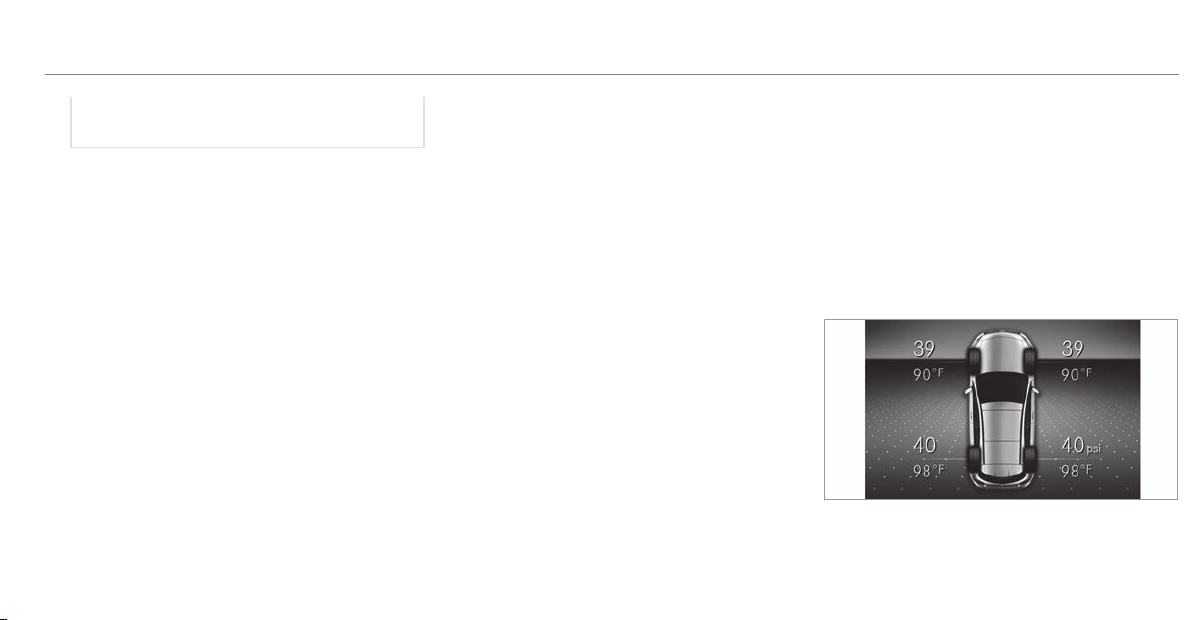
allow the TPMS to continue to function prop‐
erly.
The system checks the tire pressure and the tire
temperature of the tires installed on the vehicle
by means of a tire pressure sensor.
New tire pressure sensors, e.g. in winter tires,
are automatically taught-in during the f irst jour‐
ney they are used.
The tire pressure and the tire temperature
appear in the multifunction display
(
/ page 423).
If there is a substantial pressure loss or if the
tire temperature is excessive, you will be warned
in the following ways:
R
via display messages (/ page 491)
R
via the h warning lamp in the instrument
cluster (/ page 514)
The tire pressure monitoring system is only an
aid. It is the driver's responsibility to set the tire
pressure to the recommended cold tire pressure
suitable for the operating situation. Set the tire
pressure for cold tires using a tire pressure
gauge. Note that the correct tire pressure for the
current operating situation must first be taught-
in to the tire pressure monitoring system.
In most cases, the tire pressure monitoring sys‐
tem will automatically update the new reference
values after you have changed the tire pressure.
You can, however, also update the reference val‐
ues by restarting the tire pressure monitoring
system manually (
/ page 424).
System limitations
The system may be impaired or may not function
in the following situations:
R
If the tire pressure is set incorrectly
R
If there is a sudden pressure loss caused, for
example, by a foreign object penetrating the
tire
R
If there is a malfunction caused by another
radio signal source
Make sure to observe the following further rela‐
ted subject:
R
Notes on tire pressure (/ page 419)
Checking the tire pressure with the tire pres‐
sure monitoring system
Requirements:
R
The ignition is switched on.
On-board computer:
4
Service
5
Tires
One of the following displays appears:
R
Current tire pressure and tire temperature of
the individual wheels:
R
Tire pressure will be displayed after driving a
few minutes
Wheels and tires
423

R
Tire Pressure Monitor Active: the teach-in
process of the system is not yet complete.
The tire pressures are already being moni‐
tored.
#
Compare the tire pressure with the recom‐
mended tire pressure for the current operat‐
ing condition (/ page 420). Observe the
notes on tire temperature (/ page 419).
%
The values displayed in the multifunction dis‐
play may deviate from those of the tire pres‐
sure gauge as they refer to sea level. At high
altitudes, the tire pressure value indicated by
a pressure gauge are higher than those
shown by the on-board computer. In this
case, do not reduce the tire pressure.
Make sure to observe the following further rela‐
ted subject:
R
Notes on tire pressure (/ page 419)
Restarting the tire pressure monitoring sys‐
tem
Requirements:
R
The recommended tire pressure is correctly
set for the respective operating status on
each of the four wheels (/ page 419).
Restart the tire pressure monitoring system in
the following situations:
R
The tire pressure has changed.
R
The wheels or tires have been changed or
newly installed.
On-board computer:
4
Service
5
Tires
#
Swipe downwards on Touch Control on the
left-hand side of the steering wheel.
The Use Current Pressures as New Refer-
ence Valuesmessage is shown in the multi‐
function display.
#
To begin restart, press Touch Control on the
left-hand side of the steering wheel.
The Tire Press. Monitor Restarted message is
shown in the multifunction display.
Current warning messages are deleted and
the yellow h warning lamp goes out.
After you have been driving for a few
minutes, the system checks whether the cur‐
rent tire pressures are within the specified
range. The current tire pressures are then
accepted as reference values and monitored.
Make sure to observe the following further rela‐
ted subject:
R
Notes on tire pressure (/ page 419)
Radio equipment approval of the tire pres‐
sure monitoring system
Radio equipment approval numbers
Country Radio equipment approval
number
Canada IC: 4008C-TSSRE4A
USA FCC ID: YGOTSSRE4A
Further information on the declaration of con‐
formity for wireless vehicle components
(/ page 26).
424
Wheels and tires

Tire pressure loss warning system
Function of the tire pressure loss warning
system
The tire pressure loss warning system warns the
driver by means of display messages when there
is a severe tire pressure loss.
After a change in tire pressure, a wheel rotation
or a tire change, or if you have re-installed
wheels or tires, the tire pressure loss warning
system has to be restarted (
/ page 425).
The tire pressure loss warning system does not
replace the need to regularly check the tire pres‐
sure.
System limitations
The system may be impaired or may not function
par ticularly in the following situations:
R
Incorrectly set tire pressure
R
Sudden pressure loss caused, for example,
by a foreign object penetrating the tire
R
Steady pressure loss in several tires
The system has a restricted or delayed function
particularly in the following situations:
R
Poor ground conditions, e.g. snow or gravel
R
Driving with snow chains
R
When adopting a very sporty driving style
with high cornering speeds or sudden accel‐
eration
R
Driving with a high load
Be sure to also observe the following further
related subjects:
R
Notes on tire pressure (/ page 419)
R
Display messages about the tires
(/ page 491)
Restarting the tire pressure loss warning
system
Requirements:
R
The recommended tire pressure is correctly
set for the respective operating status on
each of the four wheels (/ page 419).
Restart the tire pressure loss warning system in
the following situations:
R
The tire pressure has changed.
R
The wheels or tires have been changed or
newly installed.
On-board computer:
4
Service
5
Tires
#
Swipe downwards on the Touch Control on
the left-hand side of the steering wheel.
The Tire Pressure Control System
ActiveRestart message is shown in the multi‐
function display.
Restart the tire pressure loss warning system in
the following situations:
R
The tire pressure has changed.
R
The wheels or tires have been changed or
newly installed.
#
To begin the restart, press the Touch Control
on the left-hand side of the steering wheel.
The Tire Pressure Now OK? message is
shown in the multifunction display.
Wheels and tires
425
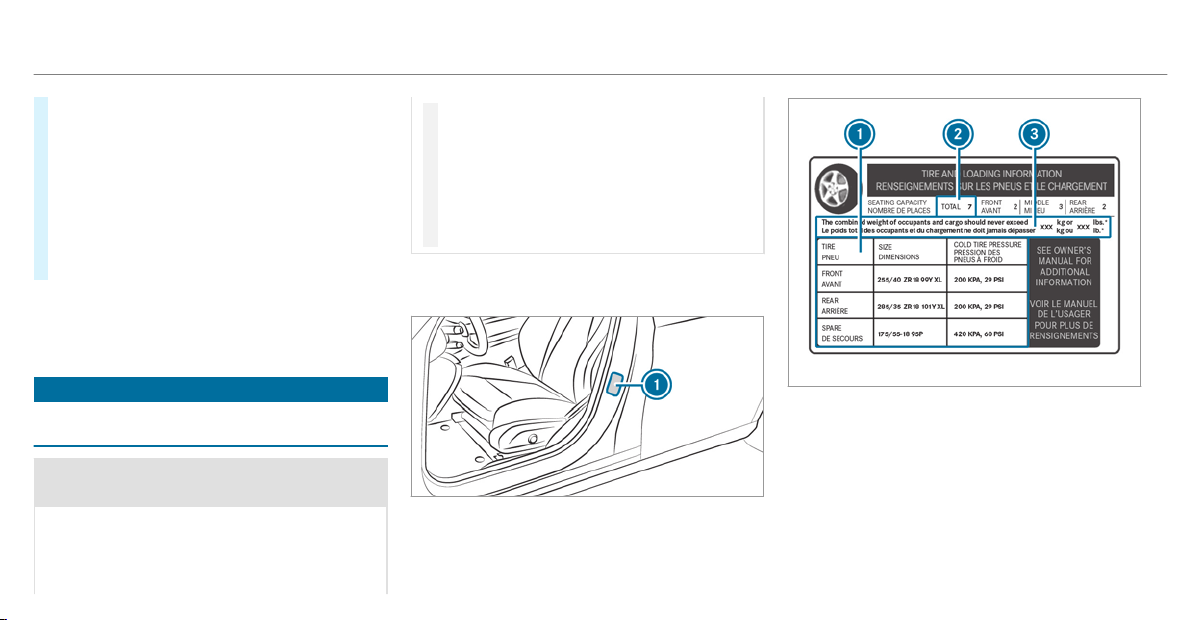
#
Select Yes .
#
To confirm the restart, press the Touch Con‐
trol on the left-hand side of the steering
wheel.
The
Run Flat Indicator Restarted message is
shown in the multifunction display.
After you have driven for a few minutes, the
tire pressure loss warning system monitors
the set tire pressures of all the tires.
Be sure to also observe the following further
related subjects:
R
Notes on tire pressure (/ page 419)
Loading the vehicle
Notes on Tire and Loading Information plac‐
ard
&
WARNING Risk of accident from overloa‐
ded tires
Overloaded tires may overheat and burst as a
consequence. Overloaded tires can also
impair the steering and handling characteris‐
tics and lead to brake failure.
#
Observe the load-bearing capacity of
the tires.
#
The load-bearing capacity must be at
least half the gross axle weight rating of
the vehicle.
#
Never overload the tires by exceeding
the maximum load.
The Tire and Loading Information placard is on
the B-pillar on the driver's side of the vehicle.
1
Tire and Loading Information placard
%
The data shown in the illustration is example
data.
The Tire and Loading Information placard shows:
R
Maximum number of seats 2 according to
the maximum number of people per mitted to
travel in the vehicle.
R
Maximum permissible load 3 comprises the
gross weight of all vehicle occupants, load
and luggage.
426
Wheels and tires

R
Recommended tire pressures 1 for cold
tires. The recommended tire pressures are
valid for the maximum permissible load and
up to the maximum permissible vehicle
speed.
Please also note:
R
Information on permissible weights and loads
on the vehicle identification plate
(/ page 450).
R
Information on tire pressure in the tire pres‐
sure t able (/ page 420).
Further related subjects:
R
Determining the maximum permissible load
(/ page 427)
R
Notes on tire pressure (/ page 419).
Determining the maximum permissible load
The following steps have been developed as
required of all manufacturers under Title 49,
Code of U.S. Federal Regulations, Part 575, pur‐
suant to the "National Traffic and Motor Vehicle
Safety Act of 1966".
#
Step 1: locate the statement "The combined
weight of occupants and load should never
exceed XXX kg or XXX lbs." ("The combined
weight of occupants and load should never
exceed XXX kg or XXX lbs.") on your vehicle's
Tire and Loading Information placard.
#
Step 2: determine the combined weight of
the driver and passengers that will be travel‐
ing in your vehicle.
#
Step 3: subtract the combined weight of the
driver and passengers from XXX kg or
XXX lbs.
#
Step 4: the resulting figure equals the per‐
missible cargo and luggage load capacity. For
example: If "XXX" equals 1400 lbs and there
are five occupants in your vehicle with a
weight of 150 lbs each, the maximum cargo
and luggage load capacity is 650 lbs (1400 -
750 (5 x 150) = 650 lbs).
#
Step 5: determine the combined weight of
luggage and load that the vehicle will be car‐
rying. For safety reasons, this weight may not
safely exceed the available cargo and lug‐
gage load capacity calculated in step 4.
Even if you have calculated the total load care‐
fully, you should still make sure that the maxi‐
mum permissible gross mass and the maximum
permissible axle load of your vehicle are not
exceeded. Details can be found on the vehicle
identification plate.
#
Have your loaded vehicle – including driver,
occupants and load – weighed on a vehicle
weighbridge.
The measured values may not exceed the
maximum permissible values stated on the
vehicle identification plate.
Further related subjects:
R
Calculation example for determining the max‐
imum load (/ page 428)
R
Tire and Loading Information placard
(/ page 426)
R
Tire pressure table (/ page 420)
R
Vehicle identification plate
Wheels and tires
427
Calculation example for determining the
maximum load
The following table shows examples of how to
calculate total and load capacities with varying
seating configurations and different numbers
and sizes of occupants. The following examples
use a maximum load of 1500 lbs (680 kg). This
is for illustration purposes only. Make sure
you are using the actual load limit for your vehi‐
cle stated on your vehicle's Tire and Loading
Information placard (
/ page 426).
The higher the weight of all the occupants, the
smaller the maximum load for luggage.
Step 1
Example 1 Example 2
Combined maximum weight of occupants and
load (data from the Tire and Loading Information
placard)
1500 lbs (680 kg) 1500 lbs (680 kg)
Step 2
Example 1 Example 2
Number of people in the vehicle (driver and
occupants)
5 1
Distribution of the occupants Front: 2
Rear: 3
Front: 1
428
Wheels and tires

Example 1 Example 2
Weight of occupants Occupant 1: 150 lbs (68 kg)
Occupant 2: 180 lbs (82 kg)
Occupant 3: 160 lbs (73 kg)
Occupant 4: 140 lbs (63 kg)
Occupant 5: 120 lbs (54 kg)
Occupant 1: 200 lbs (91 kg)
Total weight of all occupants 750 lbs (340 kg) 200 lbs (91 kg)
Step 3
Example 1 Example 2
Permissible load (maximum gross vehicle weight
rating from the Tire and Loading Information
placard minus the gross weight of all occupants)
1500 lbs (680 kg) Ò 750 lbs (340 kg) = 750 lbs
(340 kg)
1500 lbs (680 kg) Ò 200 lbs (91 kg) = 1300 lbs
(589 kg)
Wheels and tires
429
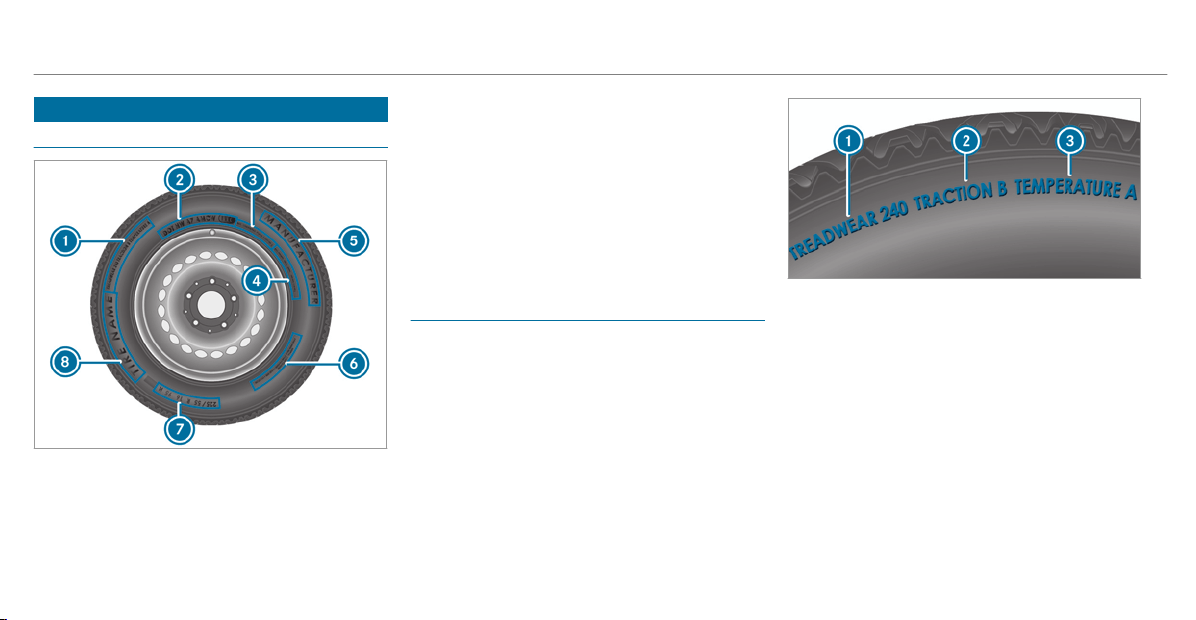
Tire labeling
Overview of tire labeling
1
Uniform Tire Quality Grading Standard
(/ page 430)
2
DOT, Tire Identification Number
(/ page 431)
3
Maximum tire load (/ page 432)
4
Maximum tire pressure (/ page 433)
5
Manufacturer
6
Characteristics of the tire (/ page 433)
7
Tire size designation, load-bearing capacity,
speed rating and load index
(/ page 433)
8
Tire name
%
The data shown in the image is example
data.
Tire Quality Grading
In accordance with the US Department of Trans‐
portation's "Uniform Tire Quality Grading Stand‐
ards", tire manufacturers are required to grade
their tires on the basis of the following three per‐
formance factors:
1
Tread wear grade
2
Traction grade
3
Temperature grade
%
The data shown in the image is example
data.
%
The classification is not legally stipulated for
Canada, but it is generally stated.
Tread wear grade
The tread wear grade is a comparative rating
based on the wear rate of the tire when tested
under controlled conditions on a specified test
track of the US Department of Transportation.
For example, a tire graded 150 would wear one
430
Wheels and tires
and one-half times as well on the government
test track as a tire graded 100.
The relative performance of tires depends upon
the actual conditions of their use, however, and
may depart significantly from the norm due to
variations in driving habits, service practices and
differences in road characteristics and climate
conditions.
Traction grade
&
DANGER Risk of accident due to inade‐
quate traction
The traction grade assigned to this tire is
based on straight-ahead bra king traction
tests, and does not include either accelera‐
tion, cornering, hydroplaning or peak traction
characteristics.
#
Always adapt your driving style and
drive at a speed to suit the prevailing
traffic and weather conditions.
*
NOTE Damage to the drivetrain from
wheelspin
#
Avoid wheelspin.
The traction grades – from highest to lowest –
are AA, A, B and C. Those grades represent the
tire's ability to stop on wet pavement as meas‐
ured under controlled conditions on specified
government test surfaces made of asphalt and
concrete.
Temperature grade
&
WARNING Risk of accident from tire
overheating and tire failure
The temperature grade for this tire is estab‐
lished for a tire that is properly inflated and
not overloaded. Excessive speed, underinfla‐
tion, or excessive loading, either separately
or in combination, can cause excessive heat
build-up and possible tire failure.
#
Observe the recommended tire pres‐
sures and regularly check the tire pres‐
sure of all tires including the spare
wheel.
#
Adjust the tire pressure as necessary.
The temperature grades are A (the highest), B
and C. They represent the tire's resistance to the
generation of heat and its ability to dissipate
heat when tested under controlled conditions on
a specified indoor laboratory test wheel. Sus‐
tained high temperature can cause the material
of the tire to degenerate and reduce tire life, and
excessive temperature can lead to sudden tire
failure. Grade C corresponds to a level of per‐
formance which all passenger car tires must
meet under the requirements of the US Depart‐
ment of Transportation.
DOT, Tire Identification Number (TIN)
US tire regulations stipulate that every tire man‐
ufacturer or retreader must imprint a TIN in or
on the side wall of each tire produced.
Wheels and tires
431
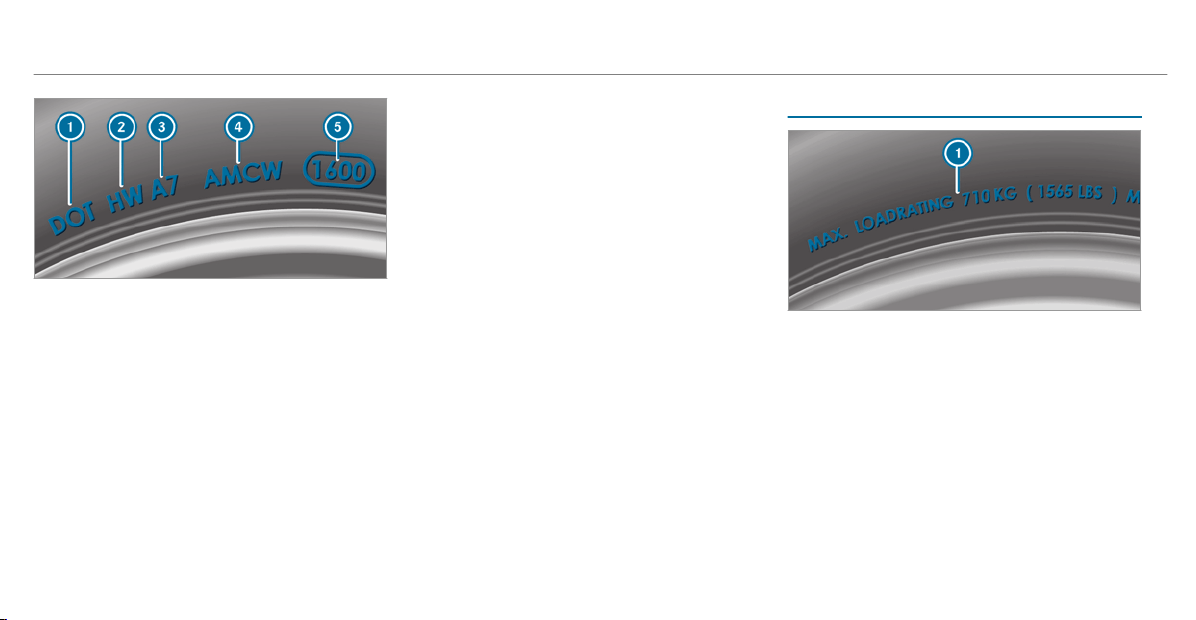
%
The data shown in the image is example
data.
The TIN is a unique identification number to
identify tires and compris es the following:
R
DOT (Department of Transportation): tire
symbol marks 1 indicating that the tire
complies with the requirements of the US
Department of Transportation.
R
Manufacturer identification code: manu‐
facturer identification code 2 contains
details of the tire manufacturer. New tires
have a code with two symbols. Retreaded
tires have a code with four symbols. Further
information on retreaded tires
(/ page 438).
R
Tire size: identifier 3 describes the tire
size.
R
Tire type code: tire type code 4 can be
used by the manufacturer as a code to
describe specific characteristics of the tire.
R
Manufacturing date: manufacturing date
5 provides information about the age of a
tire. The 1st and 2nd positions represent the
calendar week and the 3rd and 4th positions
state the year of manufacture (e.g. "3208"
represents the 32nd week of 2008).
Information on the maximum tire load
%
The data shown in the image is example
data.
Maximum tire load 1 is the maximum permissi‐
ble weight for which the tire is approved.
Do not overload the tires by exceeding the speci‐
fied load limit. The maximum permissible load
can be found on the vehicle's Tire and Loading
Information placard on the B-pillar on the driv‐
er's side (
/ page 426).
432
Wheels and tires
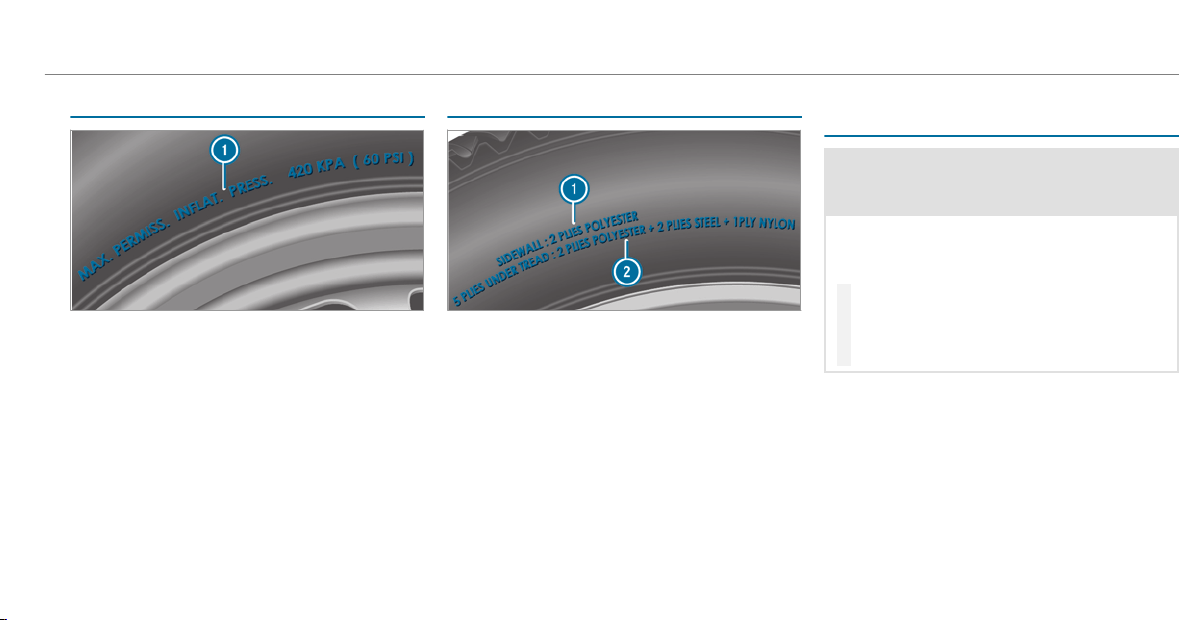
Specifications for maximum tire pressure
%
The data shown in the image is example
data.
Never exceed maximum tire pressure 1 speci‐
fied for the tire.
Information on tire characteristics
%
The data shown in the image is example
data.
This information describes the type of tire cord
and the number of layers in side wall
1 and
under tire tread 2.
Tire size designation, load-bearing capacity,
speed rating and load index
&
WARNING Risk of injury through exceed‐
ing the specified tire load rating or the
permissible speed rating
Exceeding the specified tire load rating or
the permissible speed rating may lead to tire
damage and to the tires bursting.
#
Therefore, only use tire types and sizes
approved for your vehicle model.
#
Observe the tire load rating and speed
rating required for your vehicle.
Wheels and tires
433
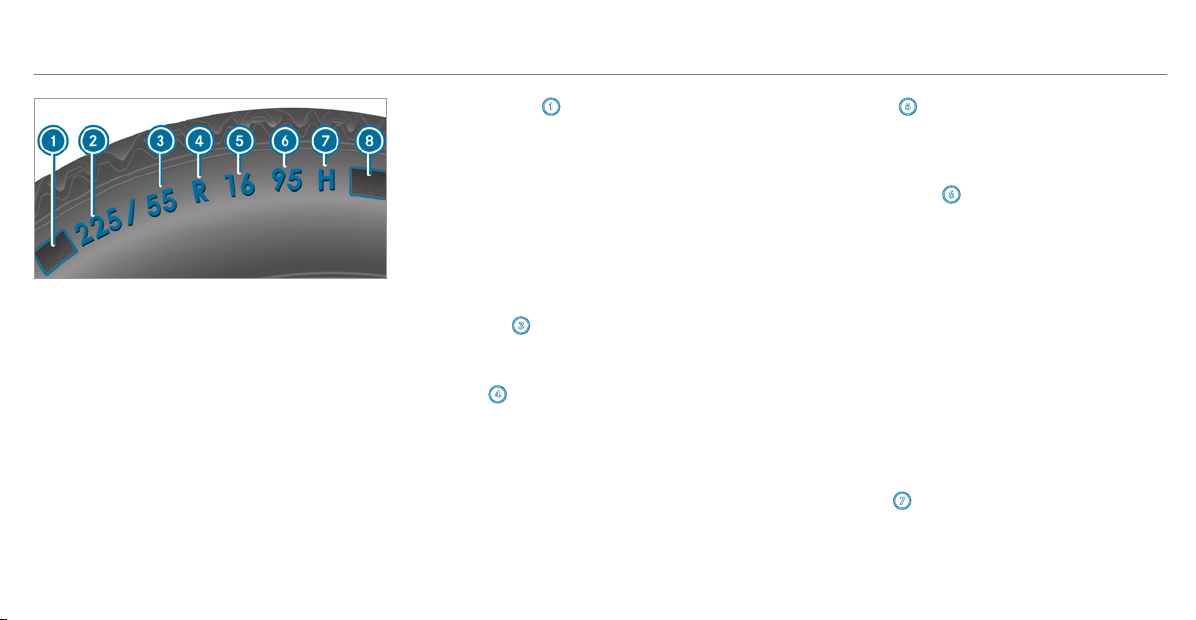
1
Preceding letter
2
Nominal tire width in millimeters
3
Aspect ratio in %
4
Tire code
5
Rim diameter
6
Load-bearing index
7
Speed rating
8
Load index
%
The data shown in the image is example
data.
Information about reading tire data can be
obtained from any qualified specialist workshop.
Preceding letter 1:
R
Without: passenger vehicle tires according to
European manufacturing standards.
R
"P": passenger vehicle tires according to US
manufacturing standards.
R
"LT": light truck tires according to US manu‐
facturing standards.
R
"T": compact emergency spare wheels with
high tire pressure that are only designed for
temporary use in an emergency.
Aspect ratio
3:
Ratio between tire height and tire width in per‐
cent (tire height divided by tire width).
Tire code 4 (tire type):
R
"R" radial tire
R
"D": bias ply tire
R
"B": bias belted tires
R
"ZR": radial tire with a maximum speed above
149 mph (240 km/h) (optional)
Rim diameter 5:
The diameter of the bead seat (not the diameter
of the rim flange). The rim diameter is specified
in inches (in).
Load-bearing index 6:
Numerical code that specifies the maximum
load-bearing capacity of a tire (e.g. "91" corre‐
sponds to 1356 lbs (615 kg)).
The load-bearing capacity of the tire must be at
least half the permissible axle load of your vehi‐
cle. Do not overload the tires by exceeding the
specified load limit.
See also:
R
Maximum permissible load on the Tire and
Loading Information placard
(/ page 426)
R
Maximum tire load (/ page 432)
R
Load index
Speed rating 7:
Specifies the approved maximum speed of the
tire.
434
Wheels and tires
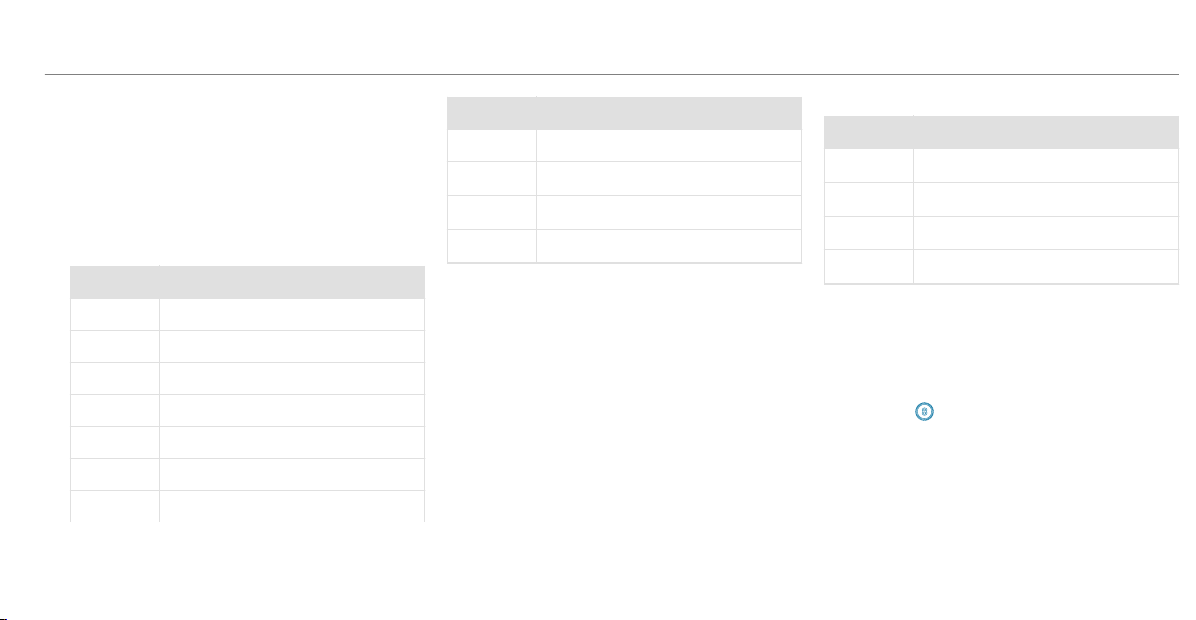
%
An electronic speed limiter prevents your
vehicle from exceeding a speed of 130 mph
(210 km/h).
Make sure that your tires have the required
speed rating. You can obtain information on the
required speed rating from an authorized
Mercedes-Benz Center.
Summer tires
Index Speed rating
Q up to 100 mph (160 km/h)
R up to 106 mph (170 km/h)
S up to 112 mph (180 km/h)
T up to 118 mph (190 km/h)
H up to 130 mph (210 km/h)
V up to 149 mph (240 km/h)
W up to 168 mph (270 km/h)
Index Speed rating
Y up to 186 mph (300 km/h)
ZR...Y
1
up to 186 mph (300 km/h)
ZR...(..Y)
1
over 186 mph (300 km/h)
ZR
1
over 149 mph (240 km/h)
R
Specifying the speed rating as the "ZR" index
in tire code 4 is optional for tires up to
186 mph (300 km/h).
R
If your tire code 4 includes "ZR" and there
is no speed rating 7, find out what the max‐
imum speed is from the tire manufacturer.
R
If load-bearing index 6 and speed rating 7
are in br ackets, the maximum speed rating of
your tire is above 186 mph (300 km/h). To
find out the maximum speed, ask the tire
manufacturer.
All-weather tires and winter tires
Index Speed rating
Q M+S
2
up to 100 mph (160 km/h)
T M+S
2
up to 118 mph (190 km/h)
H M+S
2
up to 130 mph (210 km/h)
V M+S
2
up to 149 mph (240 km/h)
Winter tires bear the i snowflake symbol
and fulfill the requirements of the Rubber Manu‐
facturers Association (RMA) and the Rubber
Association of Canada (RAC) regarding the tire
traction on snow.
Load index
8:
R
No specification given: standard load (SL)
tire
R
"XL" or "Extra Load": extra load tire or rein‐
forced tire
R
"Light Load": light load tire
1
"ZR" stated in the tire code.
2
Or "M+S i" for winter tires
Wheels and tires
435

R
"C", "D", "E": a load range that depends on
the maximum load that the tire can carry at a
certain pressure
Definition of terms for tires and loading
Tire structure and characteristics: describes
the number of layers or the number of rubber-
coated belts in the tire contact surface and the
tire wall. These are made of steel, nylon, poly‐
ester and other materials.
Bar: metric unit for tire pressure.
14.5038 pounds per square inch (psi) and
100 kilopascal (kPa) is the equivalent of one bar.
DOT (Department of Transportation): DOT-
marked tires fulfill the requirements of the
US Depar tment of Transportation.
Average weight of the vehicle occupants: the
number of vehicle occupants for which the vehi‐
cle is designed, multiplied by 150 lb (68 kg).
Uniform Tire Quality Grading Standards: a
uniform standard to grade the quality of tires
with regard to tread quality, tire traction and
temperature characteristics. The quality grading
assessment is made by the manufacturer follow‐
ing specifications from the U.S. government. The
quality grade of a tire is imprinted on the side
wall of the tire.
Recommended tire pressure: the recommen‐
ded tire pressure is the tire pressure specified
for the tires mounted to the vehicle at the fac‐
tory.
The tire and information table contains the rec‐
ommended tire pressures for cold tires, the max‐
imum permissible load and the maximum per‐
missible vehicle speed.
The tire pressure table contains the recommen‐
ded tire pressures for cold tires under various
operating conditions, i.e. loading and/or speed
of the vehicle.
Increased vehicle weight due to optional
equipment: the combined weight of all standard
and optional equipment available for the vehicle,
regardless of whether it is actually installed on
the vehicle or not.
Rim: the part of the wheel on which the tire is
installed.
GAWR (Gross Axle Weight Rating): the GAWR
is the maximum permissible axle load. The
actual load on an axle must never exceed the
gross axle weight rating. The gross axle weight
rating can be found on the vehicle identification
plate on the B‑pillar on the driver's side.
Speed rating: the speed rating is part of the tire
identification. It specifies the speed range for
which a tire is approved.
GVW (Gross Vehicle Weight): the gross vehicle
weight comprises the weight of the vehicle
including fuel, tools, the spare wheel, accesso‐
ries installed, occupants, luggage and the trailer
drawbar noseweight, if applicable. The gross
vehicle weight must not exceed the gross vehicle
weight rating GVWR as specified on the vehicle
identification plate on the B‑pillar on the driver's
side.
GVWR (Gross Vehicle Weight Rating): the
GVWR is the maximum permitted gross weight
of the fully laden vehicle (weight of the vehicle
including all accessories, occupants, fuel, lug‐
gage and the trailer drawbar noseweight if appli‐
cable). The gross vehicle weight rating is speci‐
436
Wheels and tires

fied on the vehicle identification plate on the
B‑pillar on the driver's side.
Maximum weight of the laden vehicle: the
maximum weight is the sum of the curb weight
of the vehicle, the weight of the accessories, the
maximum load and the weight of optional equip‐
ment installed at the factory.
Kilopascal (kPa): metric unit for tire pressure.
6.9 kPa corresponds to 1 psi. Another unit for
tire pressure is bar. 100 kilopascal (kPa) equals
1 bar.
Load index: in addition to the load-bearing
index, the load index may also be imprinted on
the side wall of the tire. This specifies the load-
bearing capacity of the tire more precisely.
Curb weight: the weight of a vehicle with stand‐
ard equipment including the maximum capacity
of fuel, oil and coolant. It also includes the air
conditioning system and optional equipment if
these are installed on the vehicle, but does not
include passengers or luggage.
Maximum tire load: the maximum tire load is
the maximum permissible weight in kilograms or
lbs for which a tire is approved.
Maximum permissible tire pressure: maxi‐
mum permissible tire pressure for one tire.
Maximum load on one tire: maximum load on
one tire. This is calculated by dividing the maxi‐
mum axle load of one axle by two.
PSI (pounds per square inch): standard unit of
measurement for tire pressure.
Aspect ratio: ratio between tire height and tire
width in percent.
Tire pressure: pressure inside the tire applying
an outward force to every square inch of the tire.
The tire pressure is specified in pounds per
square inch (psi), in kilopascals (kPa) or in bar.
The tire pressure should only be corrected when
the tires are cold.
Cold tire pressure: the tires are cold when the
vehicle has been parked for at least 3 hours
without direct sunlight on the tires or the vehicle
has been driven for less than 1 mile (1.6 km).
Tire contact surface: the part of the tire that
comes into contact with the road.
Tire bead: the purpose of the tire bead is to
ensure that the tire sits securely on the wheel
rim. There are several wire cores in the tire bead
to prevent the tire from changing length on the
wheel rim.
Side wall: the part of the tire between the tread
and the tire bead.
Weight of optional equipment: the combined
weight of the optional equipment weighing more
than the replaced standard parts and more than
5 lbs (2.3 kg). This optional equipment, such as
high-performance brakes, level control system, a
roof luggage rack or high-performance batteries,
is not included in the curb weight and the weight
of the accessories.
TIN (Tire Identif ication Number): a unique
identification number which can be used by a
tire manufacturer to identify tires, for example,
in a product recall, and thus identify the pur‐
chasers. The TIN is made up of the manufactur‐
er's identity code, tire size, tire type code and
the manufacturing date.
Load-bearing index: the load-bearing index is a
code that contains the maximum load-bearing
capacity of a tire.
Wheels and tires
437
Traction: traction is the grip resulting from fric‐
tion between the tires and the road surface.
Wear indicator: narrow bars (tread wear bars)
that are distributed over the tire contact surface.
If the tire tread is level with the bars, the wear
limit of 1/16 in (1.6 mm) has been reached.
Distribution of vehicle occupants: distribution
of vehicle occupants over designated seat posi‐
tions in a vehicle.
Maximum permissible payload weight: nomi‐
nal load and luggage load plus 150 lb (68 kg)
multiplied by the number of seats in the vehicle.
Changing a wheel
Notes on selecting, installing and replacing
tires
You can ask for information regarding permitted
wheel/tire combinations at an authorized
Mercedes-Benz Center.
&
WARNING Risk of accident due to incor‐
rect dimensions of wheels and tires
If wheels and tires of the wrong size are
installed, the wheel brakes or wheel suspen‐
sion components may be damaged.
#
Always replace wheels and tires with
those that fulf ill the specifications of
the original part.
When replacing wheels, make sure to fit the
correct:
R
Designation
R
Model
When replacing tires, make sure to install the
correct:
R
Designation
R
Manufacturer
R
Model
&
WARNING Risk of injury through exceed‐
ing the specified tire load rating or the
permissible speed rating
Exceeding the specified tire load rating or
the permissible speed rating may lead to tire
damage and to the tires bursting.
#
Therefore, only use tire types and sizes
approved for your vehicle model.
#
Observe the tire load rating and speed
rating required for your vehicle.
*
NOTE Vehicle and tire damage through
tire types and sizes that have not been
approved
For safety reasons, only use tires, wheels
and accessories which have been specially
approved by Mercedes-Benz for your vehicle.
These tires are specially adapted to the con‐
trol systems, such as ABS, ESP
®
and
4MATIC, and marked as follows:
R
MO = Mercedes-Benz Original
438
Wheels and tires

R
MOE = Mercedes-Benz Original Extended
(run-flat tire only for certain wheels)
R
MO1 = Mercedes-Benz Original (only cer‐
tain AMG tires)
Certain characteristics, such as handling,
vehicle noise emissions, fuel consumption,
etc. may otherwise be adversely affected.
Furthermore, other tire sizes could result in
the tires rubbing against the body and axle
components when loaded. This could result
in damage to the tire or the vehicle.
Only use tires, wheels and accessor ies that
have been checked and recommended by
Mercedes-Benz.
*
NOTE Risk to driving safety from retrea‐
ded tires
Retreaded tires are neither tested nor recom‐
mended by Mercedes-Benz, since previous
damage cannot always be detected on
retreaded tires.
For this reason driving safety cannot be guar‐
anteed.
#
Do not use used tires if you have no
information about their previous usage.
*
NOTE Possible damage to wheels or tires
when driving over obstacles
Large wheels have a lower tire section width.
The lower the tire section width, the greater
is the risk of damage to wheels or tires when
driving over obstacles.
#
Avoid obstacles or drive particularly
carefully.
*
NOTE Damage to electronic component
parts from the use of tire-mounting tools
Vehicles with a tire pressure monitoring
system: Electronic component parts are
located in the wheel. Tire-mounting tools
should not be used in the area of the valve.
This could otherwise damage the electronic
component parts.
#
Have the tires changed at a qualified
specialist workshop only.
*
NOTE Damage to summer tires at low
ambient temperatures
At low ambient temperatures, tears could
form when driving with summer tires, caus‐
ing permanent damage to the tires.
#
At temperatures below 45 °F (7 °C),
use M+S tires .
Accessory parts that are not approved for your
vehicle by Mercedes-Benz or are not being used
correctly can impair the operating safety.
Before purchasing and using non-approved
accessories, visit a qualified specialist workshop
and inquire about:
R
Suitability
R
Legal stipulations
R
Factory recommendations
&
WARNING Risk of accident with high
performance tires
The special tire tread in combination with the
optimized tire compound means that the risk
Wheels and tires
439

of skidding or hydroplaning on wet roads is
increased.
In addition, the tire grip is greatly reduced at
a low outside temperature and tire running
temperature.
#
Switch on the ESP
®
and adapt your
driving style accordingly.
#
Use M+S tire at outside temperatures
of less than 10 °C (50 °F).
Observe the following when selecting, installing
and replacing tires:
R
Only use tires and wheels of the same type
(summer tires, winter tires, MOExtended
tires) and the same make.
R
Only install wheels of the same size on one
axle (left and right).
It is only permissible to install a different
wheel size in the event of a flat tire in order
to drive to the specialist workshop.
R
Only install tires of the correct size onto the
wheels.
R
Vehicles with a tire pressure monitoring
system: All installed wheels must be equip‐
ped with functioning sensors for the tire
pressure monitoring system.
R
At temperatures below 45 °F (7 °C), use win‐
ter tires or all-season tires marked M+S for
all wheels.
Winter tires bearing the i snowflake sym‐
bol in addition to the M+S marking provide
the best possible grip in wintry road condi‐
tions.
R
For M+S tires, only use tires with the same
tread.
R
Observe the maximum permissible speed for
the M+S tires installed.
If this is below the vehicle's maximum speed,
this must be indicated by an appropriate
label in the driver's field of vision.
R
Break in new tires at moderate speeds for
the first 60 miles (100 km).
R
Replace the tires after six years at the latest,
regardless of wear.
R
When replacing with tires that do not fea‐
ture run-flat characteristics: vehicles with
MOExtended tires are not equipped with a
TIREFIT kit at the factory. Equip the vehicle
with a TIREFIT kit after replacing with tires
that do not feature run-flat characteristics,
e.g. winter tires.
For more information on wheels and tires, con‐
tact a qualified specialist workshop.
Be sure to also observe the following further
related subjects:
R
Notes on tire pressure (/ page 419)
R
Tire and Loading Information placard
(/ page 426)
R
Tire size designation, load-bearing capacity,
speed rating and load index
(/ page 433)
R
Tire pressure table (/ page 420)
440
Wheels and tires
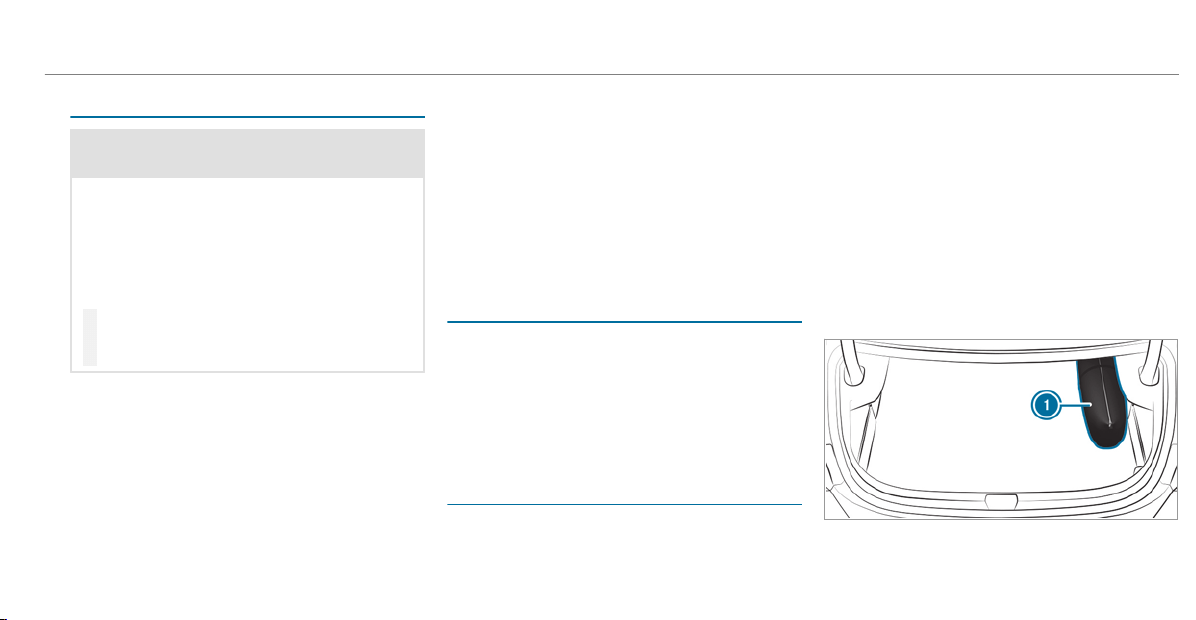
Notes on rotating wheels
&
WARNING Risk of injury through differ‐
ent wheel sizes
Interchanging the front and rear wheels if the
wheels or tires have different dimensions
may severely impair the driving characteris‐
tics.
The wheel brakes or wheel suspension com‐
ponents may also be damaged.
#
Rotate front and rear wheels only if the
wheels and tires are of the same dimen‐
sions.
The wear patterns on the front and rear wheels
differ:
R
Front wheels wear more on the shoulder of
the tire
R
Rear wheels wear more in the center of the
tire
On vehicles that have the same size front and
rear wheels, rotate the wheels according to the
intervals in the tire manufacturer's warranty
book in your vehicle documents. If this is not
available, rotate the tires every
3,000 to 6,000 miles (5,000 to 10,000 km),
depending on the wear. Ensure that the direction
of rotation is maintained.
It is imperative to observe the instructions and
safety notes on "Changing a wheel" when doing
so Preparing the vehicle for a wheel
change(
/ page 442).
Notes on storing wheels
When storing wheels, observe the following
notes:
R
After removing wheels, store them in a cool,
dry and preferably dark place.
R
Protect the tires from contact with oil, grease
or fuel.
Overview of the tire-change tool kit
Apar t from some country-specific variants, vehi‐
cles are not equipped with a tire-change tool kit.
For more information on which tire-change tools
are required and approved for performing a
wheel change on your vehicle, consult a qualified
specialist workshop.
You require the following tools, for instance, to
change a wheel:
R
Jack
R
Chock
R
Lug wrench
R
Alignment bolt
The tire-change tool kit is located in tool bag 1
in the trunk.
1
Tool bag
Wheels and tires
441
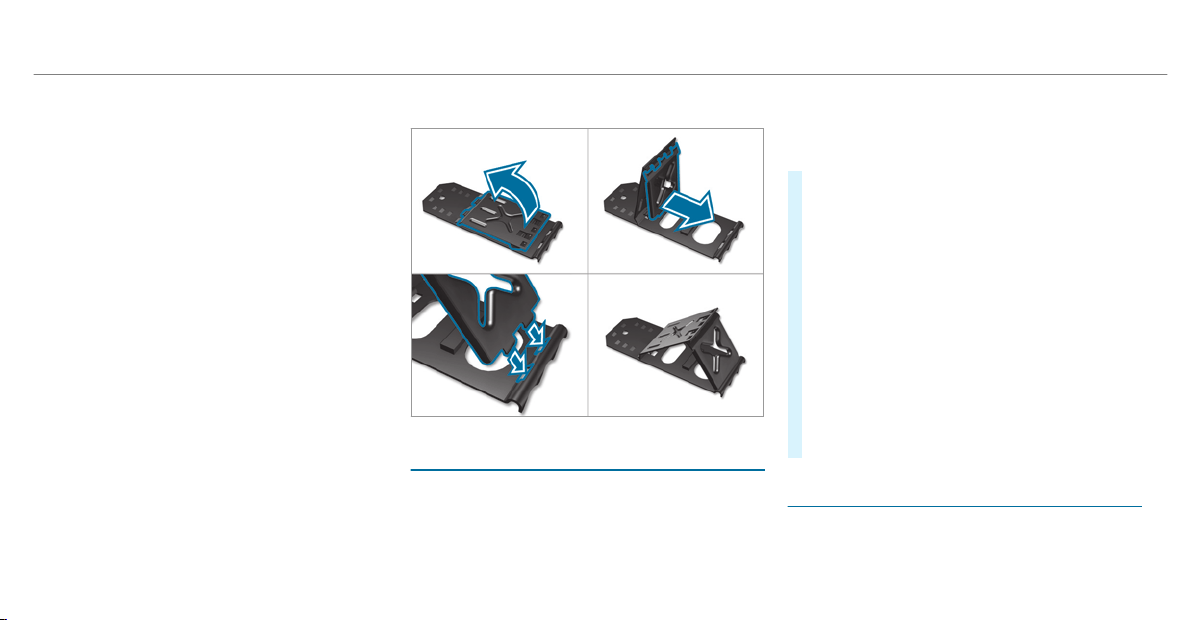
Tool bag 1 contains:
R
Jack
R
Gloves
R
Lug wrench
R
Alignment bolt
R
Folding chock
R
Ratchet for jack
Setting up the folding chock
Preparing the vehicle for a wheel change
Requirements:
R
The required tire-change tool is available. If
your vehicle is not equipped with the tire-
change tool kit, consult a qualified specialist
workshop to find out about suitable tools.
R
The vehicle is not on a slope.
R
The vehicle is on solid, non-slippery and level
ground.
#
Apply the electric par king brake manually.
#
Move the front wheels to the straight-ahead
position.
#
Vehicles with automatic transmission:
Shift into position j.
#
Switch off the engine.
#
Make sure that the engine cannot be started.
#
Place chocks or other suitable items under
the front and rear of the wheel that is diago‐
nally opposite the wheel you wish to change.
#
Remove the hub caps if necessary
(/ page 442).
#
Raise the vehicle (/ page 443).
Removing and installing hub caps
Requirements:
R
The vehicle is prepared for a wheel change
(/ page 442).
442
Wheels and tires
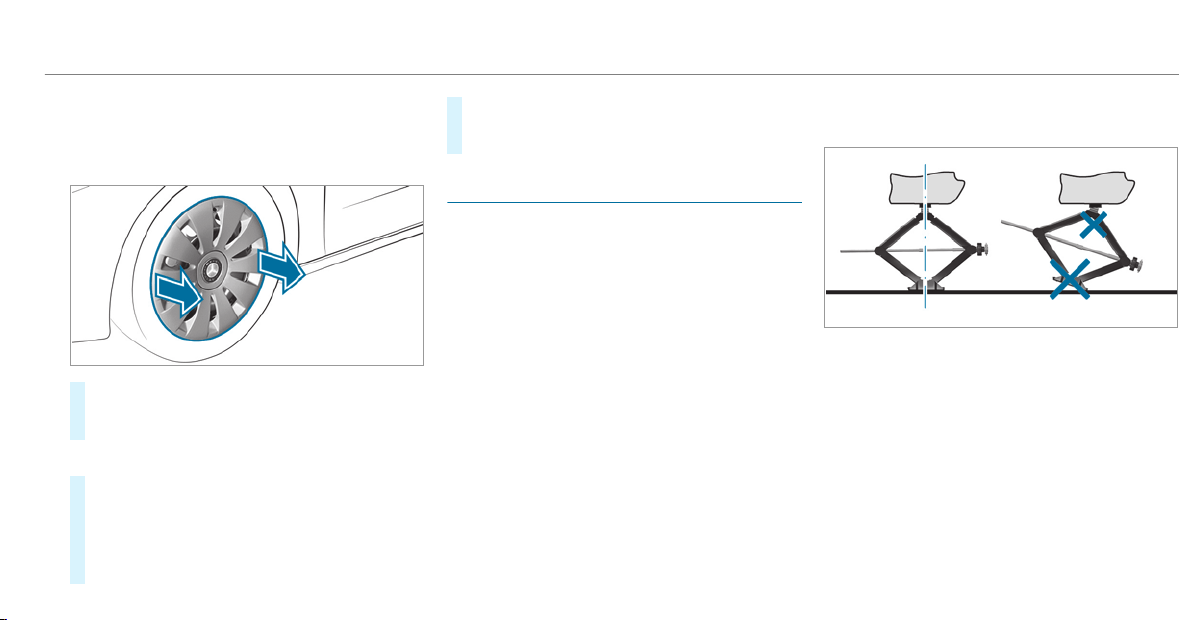
Vehicles with steel wheels
The wheel trim covers the wheel bolts. Before
you can unscrew the wheel bolts, you must
remove the wheel trim.
#
To remove: using both hands, carefully reach
into two wheel trim openings and remove the
wheel trim.
Plastic hub cap
#
To remove: turn the center cover of the hub
cap counter-clockwise and remove the hub
cap.
#
To install: make sure that the center cover of
the hub cap is turned counter-clockwise.
#
Position the hub cap and turn the center
cover clockwise until the hub cap engages
physically and audibly.
Raising the vehicle when changing a wheel
Requirements:
R
There are no per sons in the vehicle.
R
The vehicle has been prepared for a wheel
change (/ page 4 42).
R
The hub caps have been removed
(/ page 442).
Importa nt notes on using the jack:
R
Use only the vehicle-specific jack that has
been tested and approved by Mercedes-Benz
to raise the vehicle.
R
The jack is only designed for raising and
holding the vehicle for a short time while a
wheel is being changed and not for mainte‐
nance work under the vehicle.
R
The jack must be placed on a firm, flat and
non-slip surface. If necessary, use a large,
flat, load-bearing, non-slip underlay.
R
The foot of the jack must be positioned verti‐
cally under the jack support point.
Rules of conduct when the vehicle is raised:
R
Never place your hands or feet under the
vehicle.
R
Never lie under the vehicle.
R
Do not start the engine and do not release
the electric parking brake.
R
Do not open or close any doors or the trunk
lid.
Wheels and tires
443
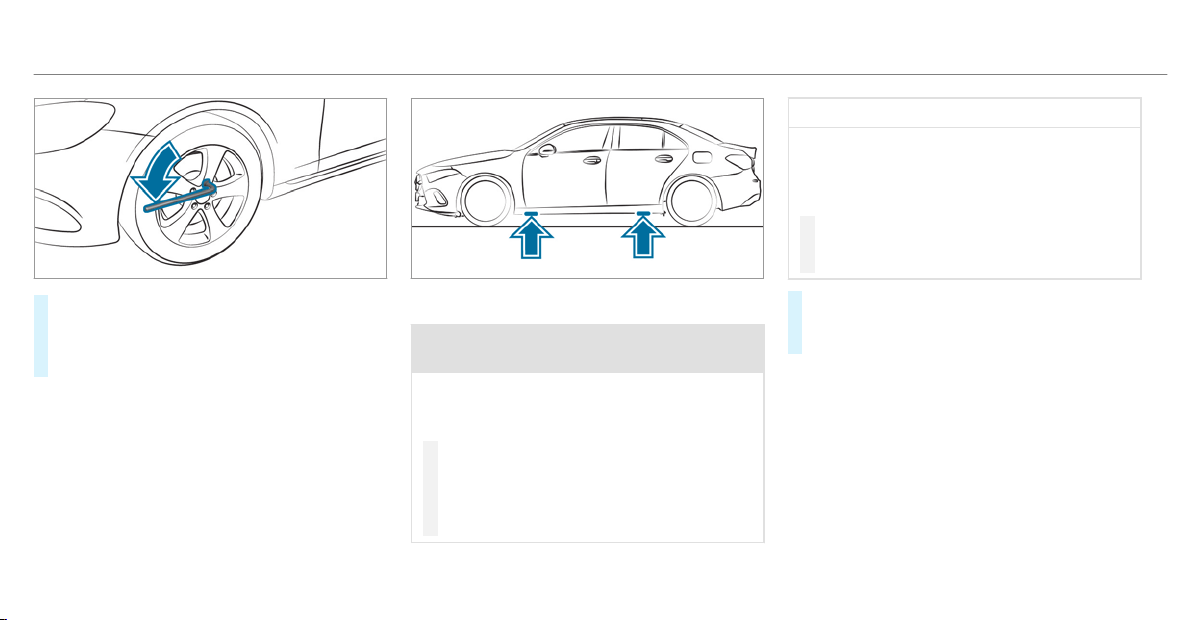
#
Using the lug wrench, loosen the wheel bolts
on the wheel you wish to change by about
one full turn. Do not unscrew the bolts com‐
pletely.
Position of jack support points
&
WARNING Risk of injury from incorrect
positioning of the jack
If you do not position the jack correctly at
the appropriate jacking point of the vehicle,
the jack could tip with the vehicle raised.
#
Only position the jack at the appropri‐
ate jacking point of the vehicle. The
base of the jack must be positioned ver‐
tically under the jacking point of the
vehicle.
*
NOTE Vehicle damage from the jack
If you do not position the jack correctly at
the appropriate jack support point of the
vehicle, the jack could tip over with the vehi‐
cle raised.
#
The jack is designed exclusively for
jacking up the vehicle at the jack sup‐
port points.
#
Take the ratchet out of the tire-change tool
kit and place it on the hexagon nut of the
jack so that the letters "AUF" are visible.
444
Wheels and tires
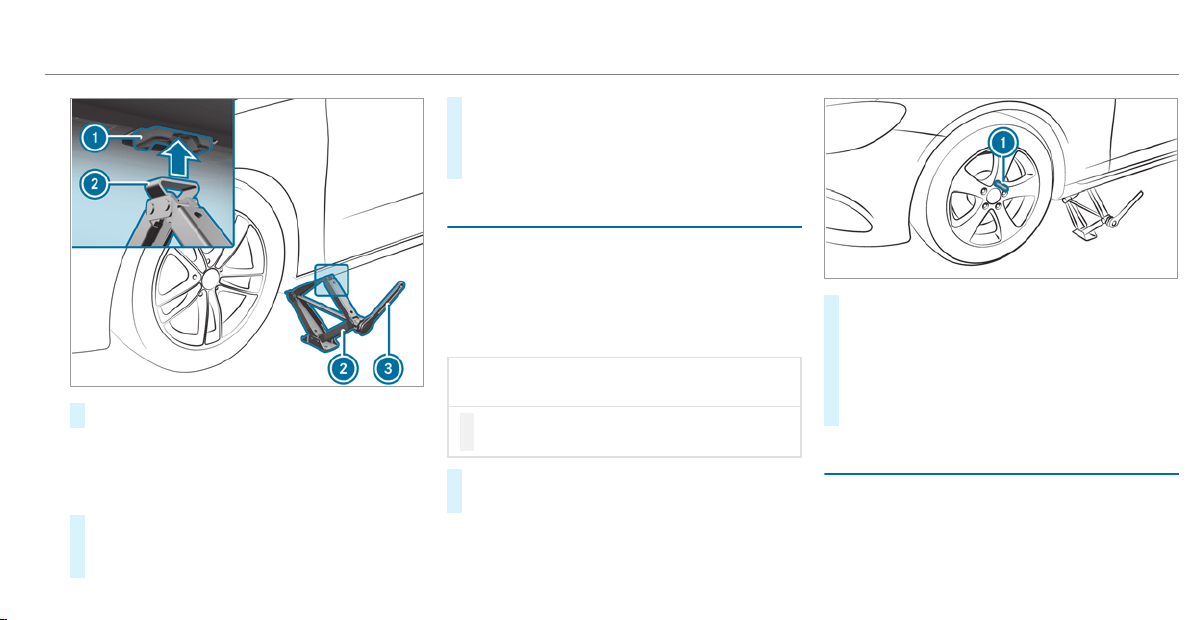
#
Position jack 2 at jack support point 1.
%
If there is a total loss of pressure in a tire, it
may be possible that the jack cannot be
positioned at jack support point 1. In this
case, unload the vehicle.
#
Turn ratchet 3 clockwise until jack 2 sits
completely on jack support point 1 and the
base of the jack lies evenly on the ground.
#
Turn ratchet 3 until the tire is raised a maxi‐
mum of 1.2 in (3 cm) from the ground.
#
Loosen and remove the wheel
(/ page 445).
Removing a wheel
Requirements:
R
The vehicle is raised (/ page 443).
When changing a wheel, avoid applying any force
to the brake discs, since this could impair the
level of comfort when braking.
*
NOTE Damage to threading from dirt on
wheel bolts
#
Do not place wheel bolts in sand or on
a dirty surface.
#
Unscrew the uppermost wheel bolt com‐
pletely.
#
Screw alignment bolt 1 into the thread
instead of the wheel bolt.
#
Unscrew the remaining wheel bolts fully.
#
Remove the wheel and, if necessary, store it
in the trunk.
#
Install the new wheel (/ page 445).
Mounting a new wheel
Requirements:
R
The wheel is removed (/ page 445).
Wheels and tires
445
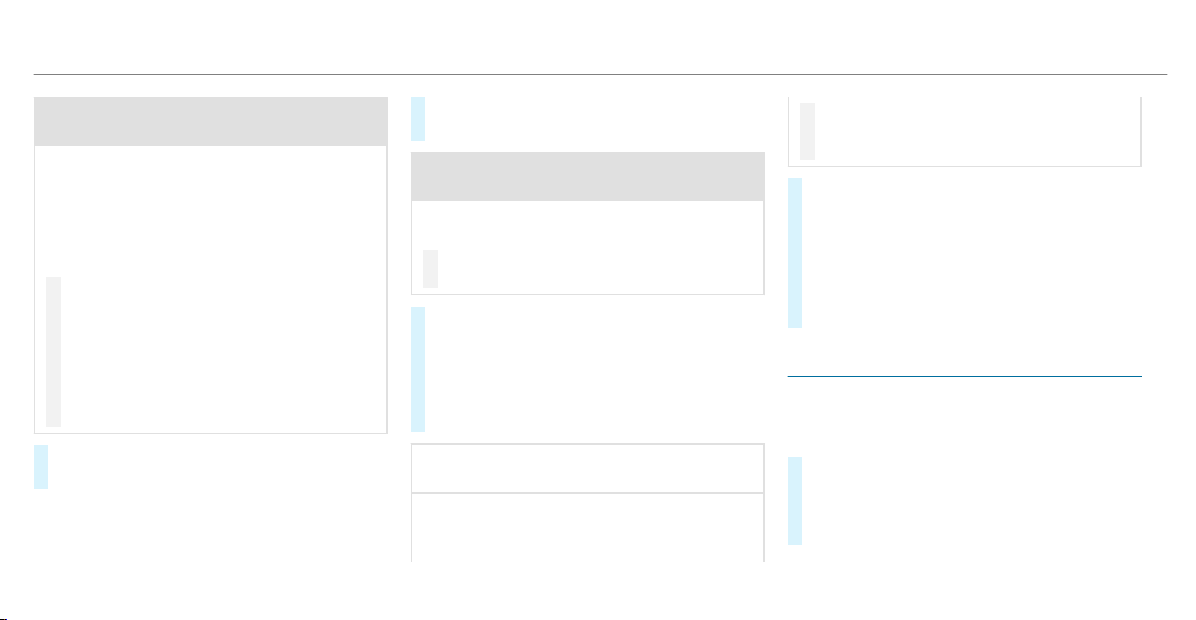
&
WARNING Risk of accident from losing a
wheel
Oiled, greased or damaged wheel bolt/wheel
nut threads or wheel hub/wheel mounting
bolt threads can cause the wheel bolts/
wheel nuts to come loose.
As a result, you could lose a wheel while driv‐
ing.
#
Never oil or grease the threads.
#
In the event of damage to the threads,
contact a qualified specialist workshop
immediately.
#
Have the damaged wheel bolts or dam‐
aged hub threads replaced.
#
Do not continue driving.
#
Observe the information on the choice of
tires (/ page 438).
For tires with a specified direction of rotation, an
arrow on the side wall of the tire indicates the
correct direction of rotation. Observe the direc‐
tion of rotation when installing.
#
Slide the wheel to be mounted onto the
alignment bolt and push it on.
&
WARNING Risk of injury from tightening
wheel bolts and nuts
If you tighten the wheel bolts or wheel nuts
when the vehicle is raised, the jack could tip.
#
Only tighten wheel bolts or wheel nuts
when the vehicle is on the ground.
#
Be sure to observe the instructions and
safety notes on "Changing a wheel"
(/ page 438).
#
For safety reasons, only use wheel bolts
which have been approved by Mercedes-
Benz and for the wheel in question.
*
NOTE Damage to paintwork of the wheel
rim when screwing on the first wheel bolt
If the wheel has too much play when screw‐
ing in the first wheel bolt, the wheel rim paint
can be damaged.
#
Press the wheel firmly against the
wheel hub when screwing on the first
wheel bolt.
#
Tighten the wheel bolts evenly in a diagonal
pattern in the order indicated until they are
finger-tight.
#
Unscrew the alignment bolt.
#
Tighten the last wheel bolt until it is finger-
tight.
#
Lower the vehicle (/ page 446).
Lowering the vehicle after a wheel change
Requirements:
R
The new wheel has been installed
(/ page 445).
#
Place the ratchet onto the hexagon nut of the
jack so that the letters "AB" are visible.
#
To lower the vehicle: turn the ratchet of the
jack counter-clockwise.
446
Wheels and tires
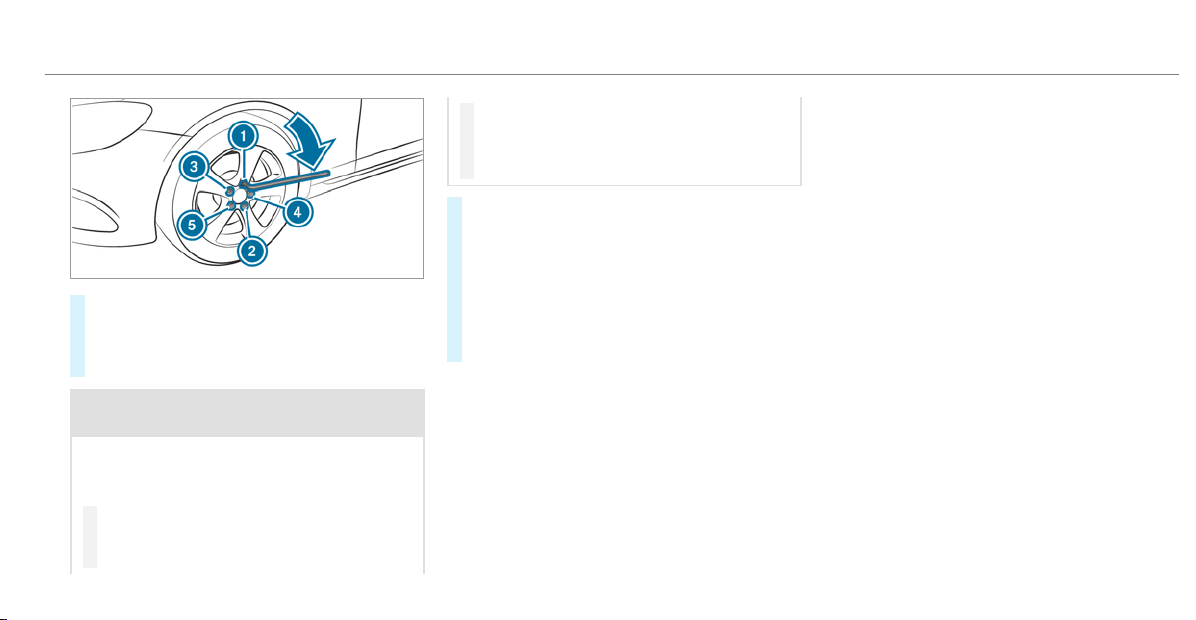
#
Tighten the wheel bolts evenly in a diagonal
pattern in the order indicated (1 to 5).
Specified tightening torque: 96 lb-ft
(130 Nm).
&
WARNING Risk of injury through incor‐
rect tightening torque
The wheels could come loose if the wheel
bolts or wheel nuts are not tightened to the
prescribed tightening torque.
#
Make sure the wheel bolts or wheel
nuts are tightened to the prescribed
tightening torque.
#
If you are not sure, do not move the
vehicle. Consult a qualified specialist
workshop and have the tightening tor‐
que checked immediately.
#
Check the tire pressure of the newly moun‐
ted wheel and adjust accordingly.
#
Vehicles with tire pressure loss warning
system: Restart the tire pressure loss warn‐
ing system (/ page 425).
#
Vehicles with a tire pressure monitoring
system: Restart the tire pressure monitoring
system (/ page 424).
Make sure to observe the following further rela‐
ted subject:
R
Notes on tire pressure (/ page 419)
Wheels and tires
447
Notes on technical data
The data stated only applies to vehicles with
standard equipment. You can obtain further
information from an authorized Mercedes-Benz
Center.
Vehicle electronics
Two-way radios
Notes on installing two-way radios
&
WARNING Risk of accident due to
improper work on two-way radios
The electromagnetic radiation from two-way
radios can interfere with the on-board elec‐
tronics if RF transmitters are manipulated or
retrofitted incorrectly.
This could jeopardize the operating safety of
the vehicle.
#
You should have all work on electrical
and electronic components carried out
at a qualified specialist workshop.
&
WARNING Risk of accident from incor‐
rect operation of two-way radios
If you operate two-way radios incorrectly in
the vehicle, the electromagnetic radiation
could interfere with the on-board electronics,
e.g.:
R
if the two-way radio is not connected to
an exterior antenna
R
if the exterior antenna is not correctly
mounted or is not of low reflection
This could jeopardies the operating safety of
the vehicle.
#
Have the low -reflection exterior
antenna installed at a qualif ied special‐
ist workshop.
#
When operating two-way radios in the
vehicle, always connect them to the
low -reflection exterior antenna.
*
NOTE Invalidation of the operating per‐
mit due to failure to comply with the
instructions for installation and use
The operating permit may be invalidated if
the instructions for installation and use of
two-way radios are not observed.
#
Only use approved frequency bands.
#
Observe the maximum permissible out‐
put power in these frequency bands.
#
Only use approved antenna positions.
448
Technical data
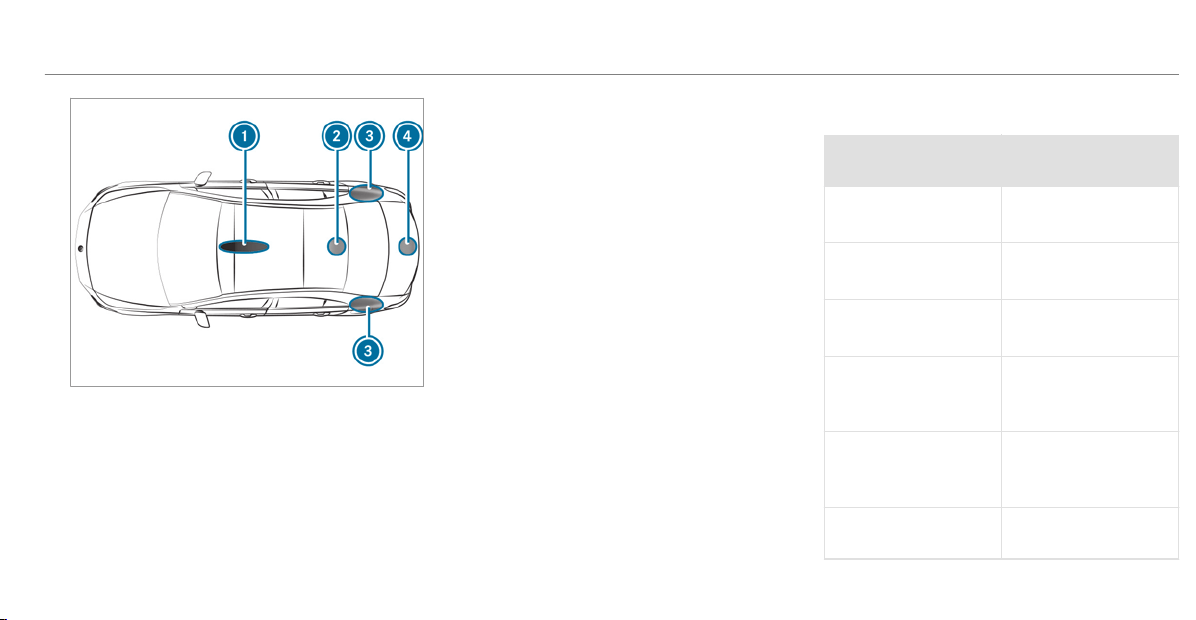
1
Front roof area
2
Rear roof area
3
Rear fenders
4
Trunk lid
On vehicles with a panoramic sliding sunroof,
installing an antenna to the front or rear roof
area is not permitted.
On the rear fenders, it is recommended that you
install the antenna on the side of the vehicle
closest to the center of the road.
Use Technical Specification ISO/TS 21609 (Road
Vehicles – "EMCs for installation of aftermarket
radio frequency trans mitting equipment") when
retrofitting two-way radios. Comply with the
legal requirements for detachable parts.
If your vehicle has installations for two-way radio
equipment, use the power supply and antenna
connectors provided in the pre-installation. Be
sure to observe the manufacturer's supplements
when installing.
Two-way radio transmission output
The maximum transmission output (PEAK) at the
base of the antenna must not exceed the values
in the following table.
Frequency band and maximum transmission
output
Frequency band Maximum transmis‐
sion output
Short wave
3 - 54 MHz
(100 W)
4 m frequency band
74 - 88 MHz
(30 W)
2 m frequency band
144 - 174 MHz
(50 W)
Trunked radio sys‐
tem/Tetra
380 - 460 MHz
(10 W)
70 cm frequency
band
420 - 450 MHz
(35 W)
Two-way radio
(2G/3G/4G)
(10 W)
Technical dat a
449
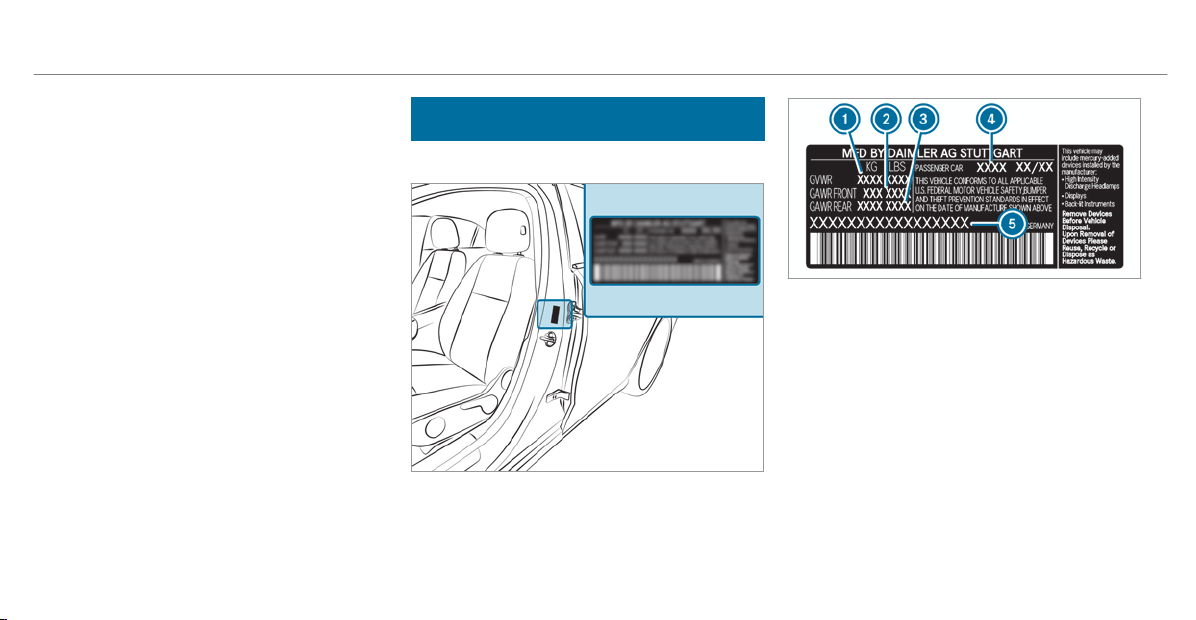
The following devices can be used in the vehicle
without restrictions:
R
Two-way radios with a maximum transmis‐
sion output of up to 100 mW
R
Two-way radios with transmitter frequencies
in the 380 - 410 MHz frequency band and a
maximum transmission output of up to 2 W
(trunked radio system/Tetra)
R
Mobile phones (2G/3G/4G)
There are no restrictions when positioning the
antenna on the outside of the vehicle for the fol‐
lowing frequency bands:
R
Trunked radio system/Tetra
R
70 cm frequency band
R
2G/3G/4G
Vehicle identification plate, VIN and engine
number
Vehicle identification plate
Vehicle identification plate (USA only)
1
Permissible gross weight
2
Permissible front axle load
3
Permissible rear gross axle weight rating
4
Paint code
5
VIN (vehicle identification number)
450
Technical data
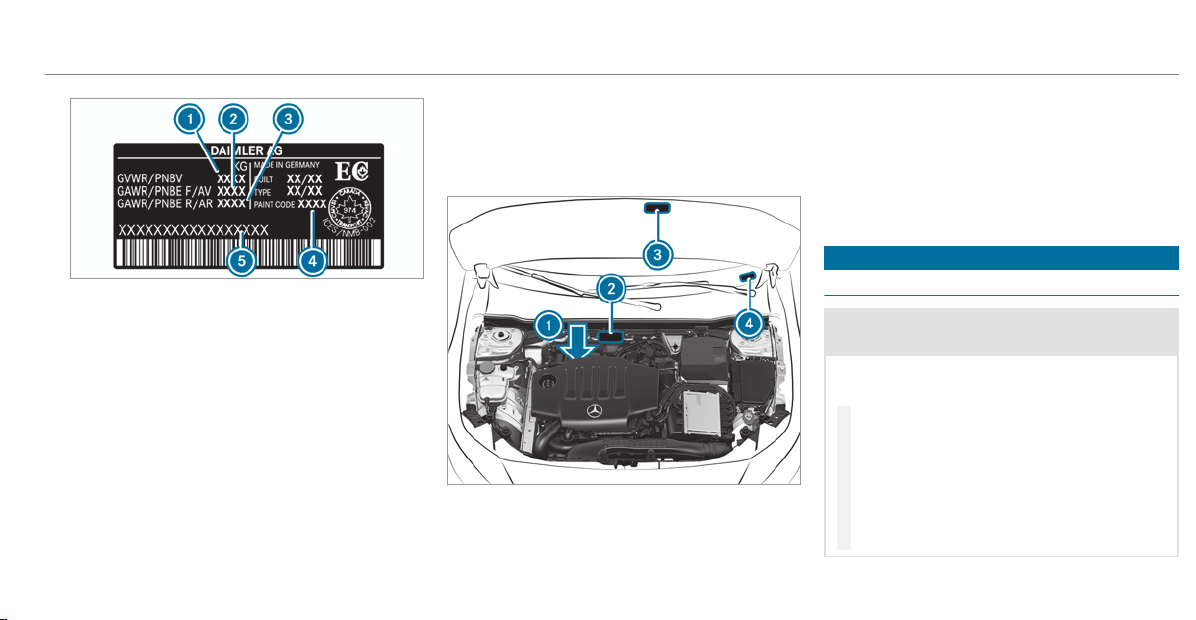
Vehicle identification plate (Canada only)
1
Permissible gross weight
2
Permissible front axle load
3
Permissible rear axle load
4
Paint code
5
VIN (vehicle identification number)
The permissible gross vehicle weight is made up
of the vehicle weight, all vehicle occupants, the
fuel and the load. The maximum gross axle
weight rating is the maximum weight that can be
carried on one axle (front or rear axle).
Never exceed the permissible gross vehicle
weight or the maximum gross axle weight rating
for the front or rear axle.
VIN, engine number and other signs
1
Engine number stamped into the crankcase
2
VIN (vehicle identification number) stamped
into the crossmember
3
Plate with information about emissions test‐
ing, including confirmation of emissions
guidelines at the U.S. federal level as well as
for California
4
VIN as a label at the lower edge of the wind‐
shield
Operating fluids
Notes on operating fluids
&
WARNING Risk of injury from operating
fluids harmful to your health
Operating fluids may be poisonous and harm‐
ful to your health.
#
Observe the text on the original con‐
tainers when using, storing or disposing
of operating fluids.
#
Always store operating fluids sealed in
their original cont ainers.
#
Always keep children away from operat‐
ing fluids.
Technical dat a
451
+
ENVIRONMENTAL NOTE Environmental
pollution caused by environmentally irre‐
sponsible disposal
#
Dispose of operating fluids in an envi‐
ronmentally responsible manner.
Operating fluids include the following:
R
Fuels
R
Lubricants
R
Coolant
R
Brake fluid
R
Windshield washer fluid
R
Climate control system refrigerant
Only use products approved by Mercedes-Benz.
Damage caused by the use of products that have
not been approved is not covered by the
Mercedes-Benz warranty or goodwill gestures.
You can identify operating fluids approved by
Mercedes-Benz by the following inscriptions on
the container:
R
MB-Freigabe (e.g. MB-Freigabe 229.51)
R
MB-Approval (e.g. MB-Approval 229.51)
Further information on approved operating fluids
is available at the following locations:
R
in the Mercedes-Benz Specifications for
Operating Fluids by entering the designation
-
at http://bevo.mercedes-benz.com
-
in the Mercedes-Benz BeVo App
R
at a qualified specialist workshop
&
WARNING Risk of fire or explosion from
fuel
Fuels are highly flammable.
#
Fire, open flames, smoking and creation
of sparks must be avoided.
#
Switch off the ignition and, if available,
the stationary heater, before and while
refueling the vehicle.
&
WARNING Risk of injury from fuels
Fuels are poisonous and hazardous to your
health.
#
Do not swallow fuel or let it come into
contact with skin, eyes or clothing.
#
Do not inhale fuel vapor.
#
Keep children away from fuel.
#
Keep doors and windows closed during
the refueling process.
If you or other people come into contact with
fuel, observe the following:
#
Immediately rinse fuel off your skin with
soap and water.
#
If fuel comes into contact with your
eyes, immediately rinse them thor‐
oughly with clean water. Seek medical
attention immediately.
#
If you swallow fuel, seek medical atten‐
tion immediately. Do not induce vomit‐
ing.
#
Change immediately out of clothing that
has come into contact with fuel.
452
Technical data

Fuel
Notes on fuel grades for vehicles with a gas‐
oline engine
Observe the notes on operating fluids
(/ page 451).
*
NOTE Damage caused by the wrong fuel
Even small amounts of the wrong fuel could
result in damage to the fuel system, the
engine and the emission control system.
#
Only refuel with low-sulfur unleaded
fuel.
This fuel may contain up to 10% ethanol by
volume. Your vehicle is suitable for use with
E10 fuel.
Never refuel with one of the following fuels:
R
Diesel
R
Gasoline with more than 10% ethanol by
volume, e.g. E15, E85, E100
R
Gasoline with more than 3% methanol by
volume, e.g. M15, M30, M85, M100
R
Gasoline with additives containing metal
If you have accidentally refueled with the
wrong fuel:
#
Do not switch on the ignition.
#
Consult a qualified specialist workshop.
If the available fuel is not suff iciently low in sul‐
fur, this can produce unpleasant odors.
Only refuel with fuel that has at least the octane
number specified in the instruction label in the
fuel filler flap (
/ page 145).
If you want maximum engine output: only
refuel with unleaded premium grade gasoline
with an octane number of at least 91 AKI/
95 RON.
As a temporary measure, if the recommended
fuel is not available, you may also refuel with
unleaded regular gasoline with at least 87 AKI/
91 RON. This may reduce engine output and
increase fuel consumption.
Never refuel using gasoline with a lower RON.
*
NOTE Premature wear through unleaded
regular gasoline
Unleaded regular gasoline can cause the
engine to wear more quickly and impair lon‐
gevity and performance.
If unleaded premium grad e gasoline is
unavailable and you have to refuel using
unleaded regular gasoline:
#
Only fill the fuel tank to half full with
unleaded regular gasoline and fill up as
soon as possible with unleaded pre‐
mium grade gasoline.
#
Do not drive at the maximum design
speed.
#
Avoid sudden acceleration and engine
speeds over 3000 rpm.
Further information on fuel is available at the fol‐
lowing locations:
R
at a gas station
R
at a qualified specialist workshop
R
USA only: at http://www.mbusa.com
Technical dat a
453
Information on additives in gasoline
Observe the notes on operating fluids
(/ page 451).
*
NOTE Damage from use of unsuitable
additives
Even small amounts of the wrong additive
may lead to malfunctions occurring.
#
Only add cleaning additives recommen‐
ded by Mercedes-Benz to the fuel.
Mercedes-Benz recommends that you use fuel
brands that have additives.
In some countries, the fuel available may not
have sufficient additives. Residue could build up
in the fuel injection system as a result. In this
case, in consultation with an authorized
Mercedes-Benz Center, the fuel may be mixed
with the cleaning additive recommended by
Mercedes-Benz. Be sure to observe the notes
and mixing ratios specified on the container.
Tank content and fuel reser ve
Capacity
Model Total capacity
All models 13.4 gal (51.0 liters)
Model Of which reserve
All models 1.3 gal (5.0 liters)
Engine oil
Notes on engine oil
Observe the notes on operating fluids
(/ page 451).
*
NOTE Engine damage caused by an
incorrect oil filter, incorrect oil or addi‐
tives
#
Do not use engine oils or oil filters other
than those which meet the specifica‐
tions necessary for the prescribed
service intervals.
#
Do not alter the engine oil or oil filter in
order to achieve longer change intervals
than prescribed.
#
Do not use additives.
#
Have the engine oil changed after the
prescribed intervals.
Mercedes-Benz recommends that you have the
oil change carried out at a qualified specialist
workshop.
Further information on engine oil and oil filters is
available at the following locations:
R
In the Mercedes-Benz Specifications for
Operating Fluids by entering the designation:
-
At http://bevo.mercedes-benz.com
-
In the Mercedes-Benz BeVo app
454
Technical data
R
at a qualified specialist workshop
Quality and capacity of engine oil
MB-Freigabe or MB-Approval
Gasoline engine MB-Freigabe or MB-
Approval
A220
A 220 4MATIC
229.71
The following values refer to an oil change,
including the oil filter.
Replacement amount
Model Replacement
amount
All models 5.8 US qt (5.5 liters)
Notes on brake fluid
Observe the notes on operating fluids
(/ page 451).
&
WARNING Risk of an accident due to
vapor pockets forming in the brake sys‐
tem
The brake fluid constantly absorbs moisture
from the air. This lowers the boiling point of
the brake fluid. If the boiling point is too low,
vapor pockets may form in the brake system
when the brakes are applied hard.
This causes the braking effect to be
impaired.
#
Have the brake fluid renewed at the
specified intervals.
Have the brake fluid regularly replaced at a
qualified specialist workshop.
Only use brake f luid approved by Mercedes-Benz
according to MB-Freigabe or MB-Approval 331.0.
You can obtain further information on brake fluid
in the following places:
R
in the Mercedes-Benz Specifications for
Operating Fluids
-
at http://bevo.mercedes-benz.com
-
in the Mercedes-Benz BeVo App
R
at a qualified specialist workshop
Coolant
Notes on coolant
Observe the notes on operating fluids
(/ page 451).
&
WARNING ‑ Risk of fire and injury from
antifreeze
If antifreeze comes into contact with hot
component parts in the engine compart‐
ment, it may ignite.
#
Allow the engine to cool down before
adding antifreeze.
#
Make sure that no antifreeze spills out
next to the filler opening.
#
Thoroughly clean off any antifreeze
from component parts before starting
the vehicle.
Technical dat a
455

*
NOTE Damage caused by incorrect cool‐
ant
#
Only add coolant that has been pre‐
mixed with the required antifreeze pro‐
tection.
Information on coolant is available at the fol‐
lowing locations:
R
In the Mercedes-Benz Specification for
Operating Fluids 310.1
-
At http://bevo.mercedes-benz.com
-
In the Mercedes-Benz BeVo app
R
At a qualified specialist workshop
*
NOTE Overheating at high outside tem‐
peratures
If an inappropriate coolant is used, the
engine cooling system is not sufficiently pro‐
tected against overheating and corrosion at
high outside temperatures.
#
Always use coolant approved by
Mercedes-Benz.
#
Observe the instructions in the
Mercedes-Benz Specifications for Oper‐
ating Fluids 310.1.
Have the coolant regularly replaced at a qualified
specialist workshop.
The proportion of corrosion inhibitor/antifreeze
concentrate in the engine cooling system should
be:
R
a minimum of 50% (antifreeze protection
down to approximately -35 °F (-37 °C))
R
a maximum of 55% (antifreeze protection
down to -49 °F (-45 °C))
Coolant capacity
Capacity
Model Capacity
All models 10.6 US qt
(10.0 liters)
Notes on windshield washer fluid
Observe the notes on operating fluids
(/ page 451).
&
WARNING ‑ Risk of fire and injury from
windshield washer concentrate
Windshield washer concentrate is highly
flammable. It could ignite if it comes into
contact with hot engine component parts or
the exhaust system.
#
Make sure that no windshield washer
concentrate spills out next to the filler
opening.
*
NOTE Damage to the exterior lighting
due to unsuitable windshield washer fluid
Unsuitable windshield washer fluid may dam‐
age the plastic surface of the exterior light‐
ing.
#
Only use windshield washer f luid which
is also suitable for use on plastic surfa‐
ces, e.g. MB SummerFit or MB Winter‐
Fit.
456
Technical data
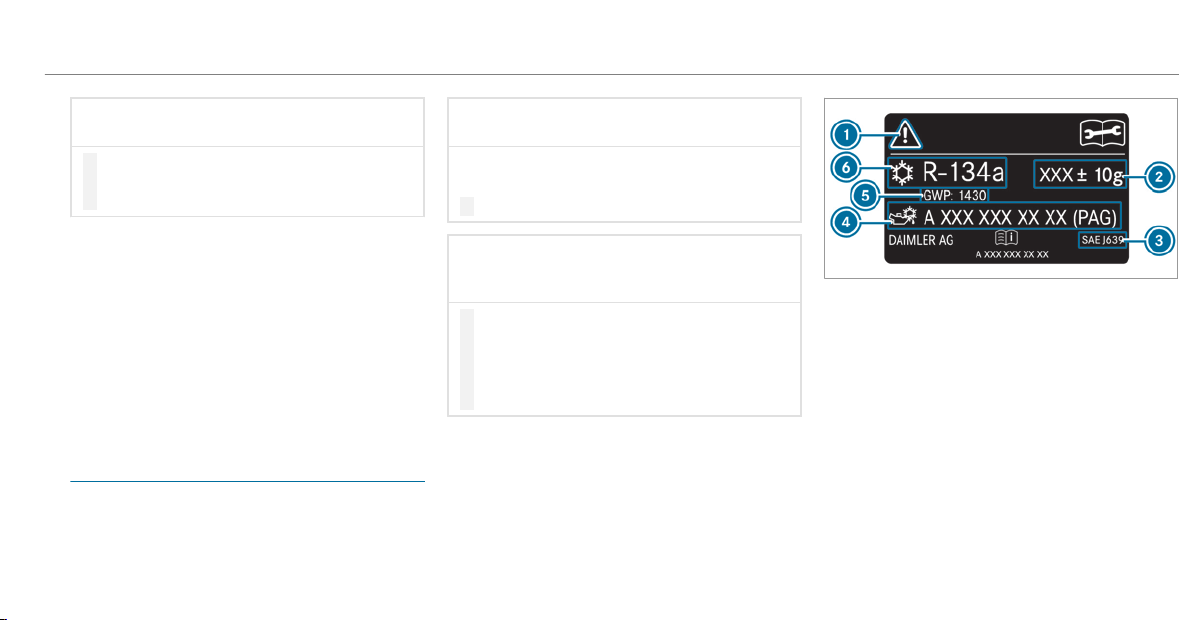
*
NOTE Blocked spray nozzles caused by
mixing windshield washer f luids
#
Do not mix MB SummerFit and MB Win‐
terFit with other windshield washer flu‐
ids.
Do not use distilled or de-ionized water as the fill
level sensor may be triggered erroneously.
Recommended windshield washer fluid:
R
Above freezing point: e.g. MB SummerFit
R
Below freezing point: e.g. MB WinterFit
For the correct mixing ratio, refer to the informa‐
tion on the antifreeze container.
Mix the washer fluid with the windshield washer
fluid all year round.
Refrigerant
Notes on refrigerants
Observe the notes on operating fluids
(/ page 451).
*
NOTE Damage due to incorrect refriger‐
ant
If a non-approved refrigerant is used, the cli‐
mate control system may be damaged.
#
Only use the refrigerant R‑134a
*
NOTE Damage to the climate control
system due to incorrect refrigerant com‐
pressor oil
#
Only use refrigerant compressor oil that
has been approved by Mercedes-Benz.
#
Do not mix the approved refrigerant
compressor oil with a different refriger‐
ant compressor oil.
Work on the climate control system may be car‐
ried out only by a qualified specialist workshop.
All applicable regulations, as well as SAE stand‐
ard J639, must be adhered to.
The instruction label on the climate control sys‐
tem for the refrigerant type and the refrigerant
compressor oil is located on the inside of the
hood.
1
Hazard and service warning symbols
2
Refrigerant filling capacity
3
Applicable standards
4
PAG oil part number
5
GWP (Global Warming Potential) of the refrig‐
erant used
6
Refrigerant type
Symbols 1 warn of the following:
R
Possible dangers
R
The need to have service work carried out at
a qualified specialist workshop only
Technical dat a
457
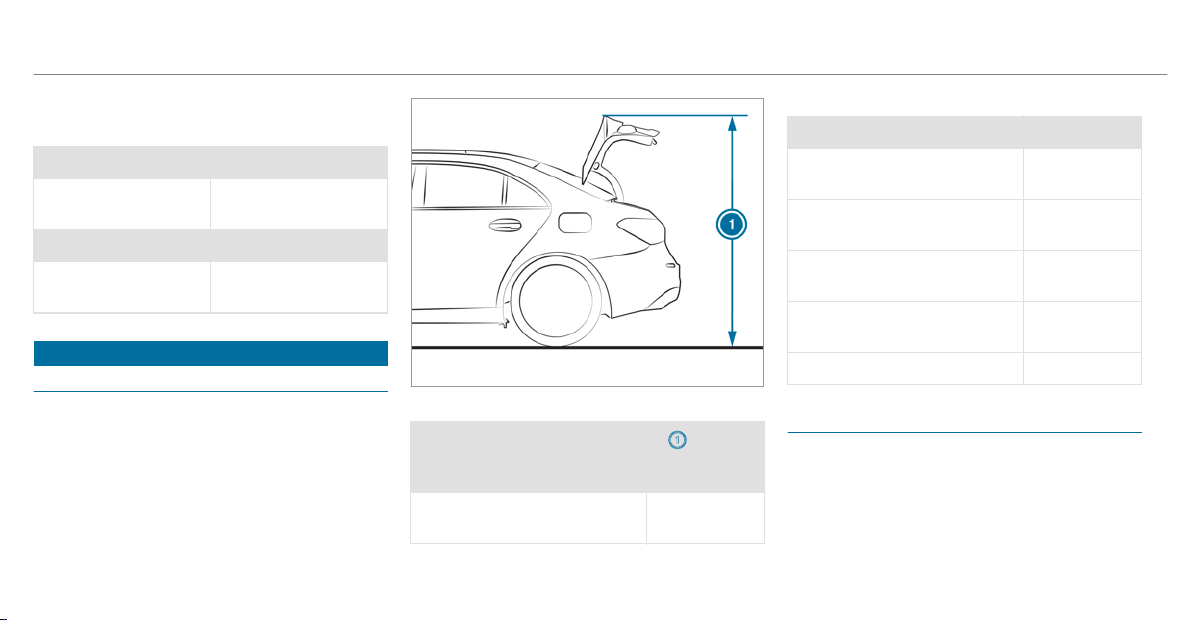
Refrigerant f illing capacity
Filling capacity for refrigerant and PAG oil
Model Refrigerant
All models 21.2 ± 0.4 oz
(600 ± 10 g)
Model PAG oil
All models 2.8 ± 0.4 oz
(80 ± 10 g)
Vehicle data
Vehicle dimensions
The heights specified may vary as a result of the:
R
Tires
R
Load
R
Condition of the suspension
R
Optional equipment
Height when opened
Model
1 Height
when
opened
All models 68.1 in
(1729 mm)
Vehicle dimensions
All models
Vehicle length 179.1 in
(4549 mm)
Vehicle width including out‐
side mirrors
78.4 in
(1992 mm)
Vehicle height 57.1 in
(1451 mm)
Wheelbase 107.4 in
(2729 mm)
Turning circle 36.1 ft (11 m)
Weights and loads
Please note that for the specified vehicle data:
R
Items of optional equipment increase the
curb weight and reduce the payload.
458
Technical data

Roof load
All models
Maximum roof load 165 lb (75 kg)
Technical dat a
459

Display messages
Introduction
Notes on display messages
Display messages appear on the multifunction
display.
Display messages with graphic symbols are sim‐
plified in the Operator's Manual and may differ
from the symbols on the multifunction display.
The multifunction display shows high-priority dis‐
play messages in red. Certain display messages
are accompanied by a warning tone.
Please respond in accordance with the display
messages and follow the additional notes in this
Operator's Manual.
For some display messages, a symbol is also
shown:
R
¤ Further information
R
O Hide display message
You can select the desired symbol by swiping
left or right on the left-hand Touch Control.
Press the ¤ symbol to show fur ther informa‐
tion on the multifunction display. Press the O
symbol to hide the display message.
You can hide low-priority display messages by
pressing the ¤ button or the left-hand Touch
Control. The display messages are then stored in
the message memory.
Rectify the cause of a display message as
quickly as possible.
High-priority display messages cannot be hid‐
den. The multifunction display shows these dis‐
play messages continuously until the cause of
the message has been rectified.
Calling up stored display messages
On-board computer:
4
Service
5
1 Message
If there are no display messages, No Messages
appears on the multifunction display.
#
Scroll through the display messages by swip‐
ing upwards or downwards on the left-hand
Touch Control.
#
To exit the message memory: press the
¤ button.
460
Display messages and warning/indicator lamps
Safety systems
Display messages
Possible causes/consequences and M Solutions
÷
Currently Unavailable See
Operator's Manual
*
ESP
®
is temporarily unavailable.
Other driving systems and driving safety systems may also malfunction.
&
WARNING Risk of skidding if ESP
®
is malfunctioning
If ESP
®
is malfunctioning, ESP
®
cannot carry out vehicle stabilization. In addition, other driving safety systems
are switched off.
#
Drive on carefully.
#
Have ESP
®
checked at a qualified specialist workshop.
#
Carefully drive on a suitable stretch of road, making slight steering movements at a speed above 19 mph
(30 km/h).
#
If the display message does not disappear, consult a qualified specialist workshop immediately. Drive carefully.
F
(USA only)
*
The red F (USA only) or ! indicator lamp (Canada only) is lit.
You have attempted to release the electric parking brake with the ignition switched off.
#
Switch the ignition on.
Display messages and warning/indicator lamps
461
Display messages
Possible causes/consequences and M Solutions
!
(Canada only)
Turn On the Ignition to
Release the Parking Brake
F
(USA only)
!
(Canada only)
Parking Brake See Opera-
tor's Manual
*
The yellow ! indicator lamp is lit. The electric parking br ake is malfunctioning.
To apply:
#
Switch off the ignition and switch it back on.
#
Apply the electric par king brake manually (/ page 155).
If it is not possible to apply the electr ic parking brake:
#
Visit a qualified specialist workshop.
#
Where necessary, also safeguard the parked vehicle against rolling away.
The yellow ! and the red F (USA only) or ! (Canada only) indicator lamps are lit. The electric parking
brake is malfunctioning.
To release:
#
Switch off the ignition and switch it back on.
#
Release the electric parking brake manually (/ page 155).
462
Display messages and warning/indicator lamps
Display messages
Possible causes/consequences and M Solutions
or
#
Release the electric parking brake automatically (/ page 154).
If it is still not possible to release the electric parking brake:
#
Do not continue driving under any circumstances. Consult a qualified specialist workshop.
The yellow ! indicator lamp is lit and the red F (USA only) or ! (Canada only) indicator lamp is flashing.
The electric parking brake is malfunctioning.
The electric parking brake could not be applied or released.
#
Switch off the ignition and switch it back on.
To apply:
#
Release and then apply the electric parking brake manually (/ page 155).
To release:
#
Apply and then release the electric parking brake manually.
If the electric par king brake cannot be applied or the red F (USA only) or ! (Canada only) indicator lamp
continues to flash:
#
Do not continue driving under any circumstances. Consult a qualified specialist workshop.
#
Where necessary, also safeguard the parked vehicle against rolling away.
The yellow ! indicator lamp is on and the red F indicator lamp (USA only) or the ! indicator lamp (Can‐
ada only) flashes for approximately ten seconds after the electric parking brake has been applied or released. It
then remains lit or goes out. The electric parking brake is malfunctioning.
Display messages and warning/indicator lamps
463
Display messages
Possible causes/consequences and M Solutions
If the battery charge level is too low:
#
Charge the battery.
To apply:
#
Switch off the ignition.
The electric parking brake is applied automatically.
If the electric par king brake should not be applied, e.g. when washing the vehicle in an automatic car wash or when
having the vehicle towed, leave the ignition switched on. This does not include having the vehicle towed with the
rear axle raised.
If the electric par king brake is not applied automatically:
#
Switch off the ignition and switch it back on.
#
Release and then apply the electric parking brake manually (/ page 155).
If it is still not possible to apply the electric parking brake:
#
Visit a qualified specialist workshop.
#
Where necessary, also safeguard the parked vehicle against rolling away.
To release:
#
If the conditions for automatic release are fulfilled and the electric par king brake is not released automatically,
release the electric parking brake manually (/ page 155).
464
Display messages and warning/indicator lamps
Display messages
Possible causes/consequences and M Solutions
If it is still not possible to release the electric parking brake:
#
Do not continue driving under any circumstances. Consult a qualified specialist workshop.
F
(USA only)
!
(Canada only)
Please Release Parking
Brake
*
The red F (USA only) or ! (Canada only) indicator lamp flashes.
The electric parking brake is applied while you are driving:
R
A condition for automatic release of the electric parking brake is not fulfilled (/ page 154).
R
You are performing emergency braking using the electric par king brake (/ page 155).
#
Check that the conditions for automatic release of the electric parking brake are fulfilled.
#
Release the electric parking brake manually.
Display messages and warning/indicator lamps
465
Display messages
Possible causes/consequences and M Solutions
T
!
÷
Inoperative See Operator's
Manual
*
EBD, ABS and ESP
®
are malfunctioning.
Other driving systems and driving safety systems may also malfunction.
&
WARNING Risk of skidding if EBD, ABS and ESP
®
are malfunctioning
If EBD, ABS and ESP
®
are malfunctioning, the wheels can lock when braking and ESP
®
cannot carry out vehicle
stabilization.
The steering capability and braking characteristics are thus severely impaired. The braking distance in an emer‐
gency braking situation can increase. In addition, other driving safety systems are switched off.
#
Drive on carefully.
#
Have the brake system checked immediately at a qualified specialist workshop.
#
Drive on carefully.
#
Visit a qualified specialist workshop immediately.
$
(USA only)
J
* There is insufficient brake fluid in the brake fluid reservoir.
&
WARNING Risk of an accident due to low brake fluid level
If the brake fluid level is too low, the braking effect and the braking characteristics may be impaired.
#
Pull over and stop the vehicle safely as soon as possible, paying attention to road and traffic conditions.
Do not continue driving under any circumstances.
466
Display messages and warning/indicator lamps
Display messages
Possible causes/consequences and M Solutions
(Canada only)
Check Brake Fluid Level
#
Consult a qualified specialist workshop.
#
Do not add brake fluid.
#
Pull over and stop the vehicle safely as soon as possible, paying attention to road and traffic conditions. Do not
continue driving under any circumstances.
#
Do not add brake fluid.
#
Consult a qualified specialist workshop.
!
÷
Currently Unavailable See
Operator's Manual
*
ABS and ESP
®
are temporarily unavailable.
Other driving systems and driving safety systems may also be temporarily unavailable.
The brake system continues to operate normally. The braking distance in an emergency braking situation can
increase.
&
WARNING Risk of skidding if ABS and ESP
®
are malfunctioning
If ABS and ESP
®
are malfunctioning, the wheels could lock when braking and ESP
®
cannot carry out vehicle
stabilization.
The steering capability and braking characteristics are thus severely impaired. The braking distance in an emer‐
gency braking situation can increase. In addition, other driving safety systems are switched off.
#
Drive on carefully.
#
Have ABS and ESP
®
checked immediately at a qualified specialist workshop.
Display messages and warning/indicator lamps
467
Display messages
Possible causes/consequences and M Solutions
#
Carefully drive on a suitable stretch of road, making slight steering movements at a speed above 19 mph
(30 km/h).
#
If the display message does not disappear, consult a qualified specialist workshop immediately. Drive carefully.
!
÷
Inoperative See Operator's
Manual
*
ABS and ESP
®
are malfunctioning.
Other driving systems and driving safety systems may also malfunction.
The brake system continues to operate normally. The braking distance in an emergency braking situation can
increase.
&
WARNING Risk of skidding if ABS and ESP
®
are malfunctioning
If ABS and ESP
®
are malfunctioning, the wheels could lock when braking and ESP
®
cannot carry out vehicle
stabilization.
The steering capability and braking characteristics are thus severely impaired. The braking distance in an emer‐
gency braking situation can increase. In addition, other driving safety systems are switched off.
#
Drive on carefully.
#
Have ABS and ESP
®
checked immediately at a qualified specialist workshop.
#
Drive on carefully.
#
Visit a qualified specialist workshop immediately.
468
Display messages and warning/indicator lamps
Display messages
Possible causes/consequences and M Solutions
÷
Inoperative See Operator's
Manual
*
ESP
®
is malfunctioning
Other driving systems and driving safety systems may also malfunction.
The brake system continues to operate normally. The braking distance in an emergency braking situation can
increase.
&
WARNING Risk of skidding if ESP
®
is malfunctioning
If ESP
®
is malfunctioning, ESP
®
cannot carry out vehicle stabilization. In addition, other driving safety systems
are switched off.
#
Drive on carefully.
#
Have ESP
®
checked at a qualified specialist workshop.
#
Drive on carefully.
#
Visit a qualified specialist workshop immediately.
6
Left Side Curtain Airbag
Malfunction Service
Required (Example)
* The corresponding window curtain airbag is malfunctioning (/ page 35).
&
WARNING Risk of injury or fatal injury due to malfunctions in the window airbag
If the window airbag is malfunctioning, it might be triggered unintentionally or might not be triggered at all in
the event of an accident with high deceleration.
#
Have the window airbag checked and repaired immediately at a qualif ied specialist workshop.
Display messages and warning/indicator lamps
469
Display messages
Possible causes/consequences and M Solutions
#
Visit a qualified specialist workshop immediately.
Front Passenger Airbag
Enabled See Operator's
Manual
* The front passenger airbag and knee airbags are enabled during the journey:
R
even when a child, a small adult or an object weighing less than the system weight threshold is located on the
front passenger seat
R
even when the front passenger seat is not occupied
The system may detect objects or forces that are adding to the weight applied to the seat.
&
WARNING Risk of injury or fatal injury when using a child restraint system while the front passenger air bag
is enabled
If you secure a child in a child restraint system on the front passenger seat and the front passenger air bag is
enabled, the front passenger air bag can deploy in the event of an accident.
The child could be struck by the air bag.
#
Ensure, both before and during the journey, that the status of the front passenger air bag is correct.
NEVER use a rearward facing child restraint on a seat protected by an ACTIVE FRONT AIR BAG; DEATH or SERI‐
OUS INJURY to the CHILD can occur.
#
Pull over and stop the vehicle safely as soon as possible, paying attention to road and traffic conditions.
#
Check the status of the automatic front passenger airbag shutoff (/ page 45).
#
If necessary, consult a qualified specialist workshop immediately.
470
Display messages and warning/indicator lamps
Display messages
Possible causes/consequences and M Solutions
Front Passenger Airbag Dis-
abled See Operator's Man-
ual
* The front passenger airbag and the knee airbag are deactivated, although an adult or a person with an adult stature
is on the front passenger seat. If additional forces are applied to the seat, the weight the system detects may be
too low.
&
WARNING Risk of injury or fatal injury due to a disabled front passenger airbag
If the front passenger airbag is disabled, the front passenger airbag will not be deployed in the event of an acci‐
dent and cannot perform its intended protective function.
A person in the front passenger seat could then, for example, come into contact with the vehicle's interior,
especially if the per son is sitting too close to the cockpit.
#
Make sure, both before and during the journey, that the status of the front passenger airbag is correct.
#
Pull over and stop the vehicle safely as soon as possible, paying attention to road and traffic conditions.
#
Check the status of the automatic front passenger airbag shutoff (/ page 45).
#
If necessary, consult a qualified specialist workshop immediately.
Active Brake Assist Func-
tions Limited See Opera-
tor's Manual
* Vehicles with Driving Assistance Package: Active Brake Assist with cross-traffic function, Evasive Steering
Assist or PRE‑SAFE
®
PLUS is malfunctioning.
Vehicles without Driving Assistance Package: Active Brake Assist is malfunctioning.
#
Visit a qualified specialist workshop.
PRE-SAFE Inoperative See
Operator's Manual
*
PRE‑SAFE
®
functions are malfunctioning.
#
Visit a qualified specialist workshop.
Display messages and warning/indicator lamps
471
Display messages
Possible causes/consequences and M Solutions
Mercedes me connect
Services Limited See Oper-
ator's Manual
* Service limited.
At least one of the main functions of the Mercedes me connect system is malfunctioning.
#
Observe the notes on the diagnostics connection (/ page 26).
#
Visit a qualified specialist workshop.
G
Inoperative
* At least one main function of the Mercedes me connect system or of the SOS emergency call system is malfunc‐
tioning.
#
Visit a qualified specialist workshop.
6
Front Left Malfunction
Service Required (Example)
* The corresponding restraint system is faulty (/ page 35).
&
WARNING Risk of injury or fatal injury due to a malfunction in the restraint system
If the restraint system is malfunctioning, restraint system components may be triggered unintentionally or
might not be triggered at all in the event of an accident. This may affect the Emergency Tensioning Device or
airbag, for example.
#
Have the restraint system checked and repaired immediately at a qualified specialist workshop.
Detection of a restraint system malfunction:
R
The 6 restraint system warning lamp does not light up when the ignition is switched on.
R
The 6 restraint system warning lamp lights up continuously or repeatedly during a journey.
472
Display messages and warning/indicator lamps
Display messages
Possible causes/consequences and M Solutions
#
Visit a qualified specialist workshop immediately.
Active Brake Assist Func-
tions Currently Limited See
Operator's Manual
* Vehicles with the Driving Assistance Package: Active Brake Assist with cross-traffic function, Evasive Steering
Assist or PRE‑SAFE
®
PLUS are temporarily unavailable or only par tially available.
Vehicles without the Driving Assistance package: Active Brake Assist is temporarily unavailable.
The ambient conditions are outside the system limits (/ page 161).
#
Drive on.
As soon as the ambient conditions are within the system limits, the system will become available again.
#
If the display message does not disappear, stop the vehicle while paying attention to road and traffic conditions
and restart the engine.
6
SRS Malfunction Service
Required
* The restraint system is faulty (/ page 35).
&
WARNING Risk of injury or fatal injury due to a malfunction in the restraint system
If the restraint system is malfunctioning, restraint system components may be triggered unintentionally or
might not be triggered at all in the event of an accident. This may affect the Emergency Tensioning Device or
airbag, for example.
#
Have the restraint system checked and repaired immediately at a qualified specialist workshop.
Detection of a restraint system malfunction:
R
The 6 restraint system warning lamp does not light up when the ignition is switched on.
R
The 6 restraint system warning lamp lights up continuously or repeatedly during a journey.
Display messages and warning/indicator lamps
473
Display messages
Possible causes/consequences and M Solutions
#
Visit a qualified specialist workshop immediately.
Check Brake Pads See
Operator's Manual
* The brake pads have reached the wear limit.
&
WARNING Risk of accident due to restricted braking power
When the brake pads have reached their wear limit, the braking power may be restricted.
#
Drive on carefully.
#
Have the brake system checked immediately at a qualified specialist workshop.
#
Visit a qualified specialist workshop.
Driving systems
Display messages
Possible causes/consequences and M Solutions
Active Blind Spot Asst. Not
Available When Towing a
Trailer See Operator's Man-
ual
* When you establish the electrical connection to the trailer, Active Blind Spot Assist is unavailable.
#
Press the left-hand Touch Control and acknowledge the display message.
Blind Spot Assist Currently
Unavailable See Operator's
Manual
* Blind Spot Assist is temporarily unavailable.
The system limits have been reached (/ page 203).
474
Display messages and warning/indicator lamps
Display messages
Possible causes/consequences and M Solutions
#
Drive on.
Once the cause of the problem is no longer present, the system will be available again.
or
#
If the display message does not disappear, stop the vehicle while paying attention to road and traffic conditions
and restart the engine.
Active Steering Assist Inop-
erative
* Active Steering Assist is malfunctioning. Active Distance Assist DISTRONIC remains available.
#
Visit a qualified specialist workshop.
Blind Spot Assist Inopera-
tive
* Blind Spot Assist is malfunctioning.
#
Visit a qualified specialist workshop.
Active Parking Assist and
PARKTRONIC Inoperative
See Operator's Manual
* Active Parking Assist and Parking Assist PARKTRONIC are malfunctioning.
#
Stop the vehicle, paying attention to road and traffic conditions, and restart the engine.
#
If the display message continues to be displayed, consult a qualified specialist workshop.
Active Blind Spot Assist
Currently Unavailable See
Operator's Manual
* Active Blind Spot Assist is temporarily unavailable.
The system limits have been reached (/ page 203).
Display messages and warning/indicator lamps
475
Display messages
Possible causes/consequences and M Solutions
#
Drive on.
Once the cause of the problem is no longer present, the system will be available again.
#
If the display message does not disappear, stop the vehicle while paying attention to road and traffic conditions
and restart the engine.
Active Steering Assist Cur-
rently Unavailable See
Operator's Manual
* Active Steering Assist is temporarily unavailable.
The ambient conditions are outside the system limits (/ page 175).
#
Drive on.
As soon as the ambient conditions are within the system limits, the system will become available again.
#
If necessary, clean the windshield in the camera's f ield of vision.
#
Check the tire pressure if necessary.
À
ATTENTION ASSIST: Take a
Break!
* ATTENTION ASSIST has detected fatigue or an increasing lack of concentration on the part of the driver
(/ page 199).
#
If necessary, take a break.
Traffic Sign Assist Inopera-
tive
* Traffic Sign Assist is malfunctioning.
#
Visit a qualified specialist workshop.
* Active Lane Keeping Assist is temporarily unavailable.
The ambient conditions are outside the system limits (/ page 206).
476
Display messages and warning/indicator lamps
Display messages
Possible causes/consequences and M Solutions
Active Lane Keeping Assist
Currently Unavailable See
Operator's Manual
#
Drive on.
As soon as the ambient conditions are within the system limits, the system will become available again.
* Active Steering Assist has reached its system limits.
#
Take over the steering and drive on in accordance with the traffic conditions.
Traffic Sign Assist Cur-
rently Unavailable See
Operator's Manual
* Traffic Sign Assist is temporarily unavailable.
#
Drive on.
Once the cause of the problem is no longer present, the system will be available again.
ë
Off
* The HOLD function is deactivated because the vehicle is skidding or a condition for activation is not met.
#
Reactivate the HOLD function later or check the activation conditions for the HOLD function (/ page 181).
Active Lane Keeping Assist
Inoperative
* Active Lane Keeping Assist is malfunctioning.
#
Consult a qualified specialist workshop.
Blind Spot Assist Not Avail-
able When Towing a Trailer
See Operator's Manual
* When you establish the electrical connection to the trailer, Blind Spot Assist is unavailable.
#
Press the left-hand Touch Control and acknowledge the display message.
Display messages and warning/indicator lamps
477
Display messages
Possible causes/consequences and M Solutions
À
ATTENTION ASSIST Inoper-
ative
* ATTENTION ASSIST is malfunctioning.
#
Consult a qualified specialist workshop.
Active Blind Spot Assist
Inoperative
* Active Blind Spot Assist is malfunctioning.
#
Visit a qualified specialist workshop.
Currently Unavailable
Radar Sensors Dirty
* The radar sensor system is malfunctioning. Possible causes are:
R
dirt on the sensors
R
heavy rain or snow
R
extended country driving without other traffic, e.g. in the desert
Driving systems and driving safety systems may be malfunctioning or temporarily unavailable.
Once the cause of the problem is no longer present, the driving and drive safety systems will be available again.
If the display message does not disappear:
#
Pull over and stop the vehicle safely as soon as possible, paying attention to road and traffic conditions.
#
Clean all sensors (/ page 393).
#
Restart the engine.
478
Display messages and warning/indicator lamps
Display messages
Possible causes/consequences and M Solutions
ç
Off
* Active Distance Assist DISTRONIC was deactivated. If a warning tone also sounds, the Active Distance Assist
DISTRONIC has deactivated automatically (/ page 171).
ç
- - - mph
* Active Distance Assist DISTRONIC cannot be activated as not all activation conditions have been fulfilled.
#
Comply with the activation conditions of Active Distance Assist DISTRONIC (/ page 171).
ç
Suspended
* If you activate the accelerator pedal beyond the Active Distance Assist DISTRONIC setting, the system will be put
into passive mode (/ page 179).
Active Distance Assist Cur-
rently Unavailable See
Operator's Manual
* Active Distance Assist DISTRONIC is temporarily unavailable.
The ambient conditions are outside the system limits (/ page 169).
#
Drive on.
As soon as the ambient conditions are within the system limits, the system will become available again.
Active Distance Assist Inop-
erative
* Active Distance Assist DISTRONIC is malfunctioning.
Other driving systems and driving safety systems may also malfunction.
#
Visit a qualified specialist workshop.
Display messages and warning/indicator lamps
479
Display messages
Possible causes/consequences and M Solutions
Active Distance Assist Now
Available
* Active Distance Assist DISTRONIC is operational again and can be activated (/ page 171).
¯
- - - mph
* Cruise control cannot be activated as not all activation conditions are fulfilled.
#
Observe the activation conditions for cruise control (/ page 168).
Cruise Control Off
* Cruise control has been deactivated.
If there is an additional warning tone, cruise control has been deactivated automatically (/ page 167).
Cruise Control Inoperative
* Cruise control is malfunctioning.
#
Visit a qualified specialist workshop.
480
Display messages and warning/indicator lamps
Display messages
Possible causes/consequences and M Solutions
Currently Unavailable Cam-
era View Restricted
* The camera view is restricted. Possible causes are:
R
dirt on the windshield in the camera's field of vision
R
heavy rain, snow or fog
R
condensation on the windshield in front of the camera
%
Condensation detected on the windshield is automatically cleared using a built-in heater within approx.
12 minutes.
Driving systems and driving safety systems may be malfunctioning or temporarily unavailable.
Once the cause of the problem is no longer present, the driving and drive safety systems will be available again.
If the display message does not disappear:
#
Pull over and stop the vehicle safely as soon as possible, paying attention to road and traffic conditions.
#
Clean the windshield if necessary.
Engine
Display messages
Possible causes/consequences and M Solutions
#
See Operator's Manual
* The battery is not being charged.
Display messages and warning/indicator lamps
481
Display messages
Possible causes/consequences and M Solutions
*
NOTE Possible engine damage if you continue driving
#
Do not continue driving under any circumstances.
#
Consult a qualified specialist workshop.
#
Pull over and stop the vehicle safely and switch off the engine, paying attention to road and traffic conditions.
#
Consult a qualified specialist workshop.
#
Stop Vehicle Leave Engine
Running
* The battery charge level is too low.
#
Pull over and stop the vehicle safely as soon as possible, paying attention to road and traffic conditions. Do not
continue driving under any circumstances.
#
Leave the engine running.
#
Wait until the display message disappears before pulling away.
Check Coolant Level See
Operator's Manual
* The coolant level is too low.
*
NOTE Engine damage due to insufficient coolant
#
Avoid long journeys with insufficient coolant.
#
Add coolant (/ page 386).
482
Display messages and warning/indicator lamps
Display messages
Possible causes/consequences and M Solutions
#
12 V Battery See Opera-
tor's Manual
* The engine is off and the battery charge level is too low.
#
Switch off electrical consumers that are not required.
#
Leave the engine running for a few minutes, or drive for a longer distance.
The battery will charge.
If the message appears while the engine is running, this indicates an on-board electrical system malfunction.
#
Visit a qualified specialist workshop.
#
Stop Vehicle See Opera-
tor's Manual
* The battery is no longer being charged and the battery charge level is too low.
*
NOTE Possible engine damage if you continue driving
#
Do not continue driving under any circumstances.
#
Consult a qualified specialist workshop.
#
Pull over and stop the vehicle safely as soon as possible, paying attention to road and traffic conditions. Do not
continue driving under any circumstances.
#
Switch off the engine.
#
Consult a qualified specialist workshop.
?
* The fan motor is defective.
#
Avoiding high loads on the engine, drive to the nearest qualified specialist workshop. In doing so, ensure that
the coolant temperature display remains below the red marking.
Display messages and warning/indicator lamps
483
Display messages
Possible causes/consequences and M Solutions
?
Coolant Too Hot Stop Vehi-
cle Turn Engine Off
* The coolant is too hot.
#
Pull over and stop the vehicle safely and switch off the engine, paying attention to road and traffic conditions.
&
WARNING Danger of burns when opening the hood
If you open the hood when the engine has overheated or during a fire in the engine compartment, you could
come into contact with hot gases or other escaping operating fluids.
#
Before opening the hood, allow the engine to cool down.
#
In the event of a fire in the engine compartment, keep the hood closed and call the fire service.
#
Wait until the engine has cooled down.
#
Make sure that the air supply to the radiator is not obstructed.
#
Avoiding high loads on the engine, drive to the nearest qualified specialist workshop. In doing so, ensure that
the coolant temperature display remains below the red marking.
æ
Gas Cap Loose
* There has been pressure loss in the fuel system. The fuel filler cap is not closed correctly or the fuel system is
leaking.
#
Close the fuel filler cap.
#
If the fuel filler cap was already properly closed: consult a qualified specialist workshop.
484
Display messages and warning/indicator lamps
Display messages
Possible causes/consequences and M Solutions
æ
Fuel Level Low
* The fuel supply has dropped into the reserve range.
#
Refuel.
Engine oil
Display messages
Possible causes/consequences and M Solutions
5
Engine Oil Level Cannot Be
Measured
* The electrical connection to the oil level sensor has been interrupted or the oil level sensor is faulty.
#
Consult a qualified specialist workshop.
4
Engine Oil Reduce Oil Level
* Display message only for certain engines:
The engine oil level is too high.
*
NOTE Engine damage caused by driving with excess engine oil
#
Avoid long journeys with excess engine oil.
#
Consult a qualified specialist workshop immediately and have the engine oil siphoned off.
Display messages and warning/indicator lamps
485
Display messages
Possible causes/consequences and M Solutions
4
Engine Oil Level Low Stop
Vehicle Turn Engine Off
* Display message only for certain engines:
The engine oil level is too low.
*
NOTE Engine damage caused by driving with insufficient engine oil
#
Avoid long journeys with insufficient engine oil.
#
Pull over and stop the vehicle safely as soon as possible, paying attention to road and traffic conditions. Do not
continue driving under any circumstances.
#
Switch off the engine.
#
Add 1.1 US qt (1 l) engine oil.
#
Check the engine oil level.
Top up engine oil (/ page 385).
Notes on engine oil (/ page 454).
4
Engine Oil Pressure Stop
Switch Off Engine
* Display message only for certain engines:
The engine oil pressure is too low.
*
NOTE Engine damage caused by driving with insufficient engine oil pressure
#
Avoid driving with insufficient engine oil pressure.
486
Display messages and warning/indicator lamps
Display messages
Possible causes/consequences and M Solutions
#
Pull over and stop the vehicle safely as soon as possible, paying attention to road and traffic conditions. Do not
continue driving under any circumstances.
#
Consult a qualified specialist workshop.
4
Check Engine Oil Level
(Add 1 quart)
* Display message only for certain engines:
The engine oil level has dropped to the minimum level.
*
NOTE Engine damage caused by driving with insufficient engine oil
#
Avoid long journeys with insufficient engine oil.
#
When next refueling, add 1 quart of engine oil.
Top up engine oil (/ page 385).
Notes on engine oil (/ page 454).
Transmission
Display messages
Possible causes/consequences and M Solutions
Transmission Malfunction
Service Required
* The transmission is malfunctioning.
Visit a qualified specialist workshop.
*
The transmission is malfunctioning. The transmission shifts to position i automatically.
Display messages and warning/indicator lamps
487
Display messages
Possible causes/consequences and M Solutions
Transmission Malfunction
Stop
#
Pull over and stop the vehicle safely as soon as possible, paying attention to road and traffic conditions.
#
Switch the transmission to position j.
#
Consult a qualified specialist workshop.
To Deselect P or N,
Depress Brake and Start
Engine
*
You have attempted to shift the transmission out of position j or i into another transmission position.
#
Depress the brake pedal.
#
Start the engine.
Apply Brake to Shift from
'P'
*
You have attempted to shift the transmission out of position j and into another transmission position.
#
Depress the brake pedal.
Service Required Do Not
Shift Gears Visit Dealer
* The transmission is malfunctioning. The transmission position can no longer be shifted.
#
When the transmission is in position h, consult a qualified specialist workshop and do not change the trans‐
mission position.
#
For all other transmission positions, park the vehicle safely.
#
Consult a qualified specialist workshop or breakdown service.
Parking Lock Malfunct.
Apply Parking Brake
* The transmission is malfunctioning. The parking lock cannot be engaged.
#
Park the vehicle safely.
#
Use the electric parking brake to secure the vehicle against rolling away.
Reversing Not Possible
Service Required
* The transmission is malfunctioning. Reverse gear can no longer be engaged.
#
Visit a qualified specialist workshop.
488
Display messages and warning/indicator lamps
Display messages
Possible causes/consequences and M Solutions
Teaching in Transmission
Operate Selector Lever
Apply Brake for XX s Risk
of Vehicle Rolling Away
* The transmission is being taught in. There is a risk of the vehicle rolling away.
#
Depress and hold the brake pedal until the teach-in procedure has been completed.
The electric parking brake is applied automatically during the teach-in procedure.
#
Switch on the ignition.
#
Select transmission position j, k or i.
Auxiliary Battery Malfunc-
tion
* The auxiliary battery for the transmission is no longer being charged.
#
Visit a qualified specialist workshop.
#
Until then, manually set the transmission to position j before you switch off the engine.
#
Before leaving the vehicle, apply the electric parking brake.
N Permanently Active Risk
of Rolling Away
*
While the vehicle is rolling or while you are driving, the transmission has been shifted to position i.
#
Depress the brake pedal to stop and, when the vehicle is stationary, shift the transmission to position j.
#
To continue your journey, shift the transmission to position h or k.
Apply Parking Brake Risk
of Rolling Away See Opera-
tor's Manual
* The transmission position cannot be identified securely.
#
Use the electric parking brake to secure the vehicle against rolling away.
Trans. Oil Overheated
Drive on with Care
* The transmission is overheating. When the display message is active, start-up and driving characteristics may be
temporarily impaired.
#
Drive at low speeds.
Display messages and warning/indicator lamps
489
Display messages
Possible causes/consequences and M Solutions
#
Avoid sporty driving.
#
Before starting up on uphill gradients, let the transmission cool down until the display message disappears.
Teaching in Transmission
Complete
* The transmission's teach-in process is complete. All transmission positions can be engaged again.
Only Shift to 'P' when Vehi-
cle is Stationary
*
The transmission can only be shifted to position j when the vehicle is stationary.
Driver's Door Open &
Transmission Not in P Risk
of Vehicle Rolling Away
*
The driver's door is not fully closed and the transmission is in position k, i or h.
#
Shift the transmission to position j when you park the vehicle.
Apply Brake to Shift to 'R'
*
You have tried to switch to transmission position k.
#
Depress the brake pedal.
#
Shift the transmission to position k.
Transmission Malfunction
* The transmission is malfunctioning. The cause could be an overheated clutch or blocked gears.
#
Let the transmission cool down.
#
If the display message still appears following a restart, consult a qualified specialist workshop.
Ð
* The electric steering lock is malfunctioning. The steering may be locked by the electric steering lock.
490
Display messages and warning/indicator lamps
Display messages
Possible causes/consequences and M Solutions
Steering Malfunction See
Operator's Manual
&
WARNING Risk of accident if steering capability is impaired
If the steering does not function as intended, the vehicle's operating safety is jeopardized.
#
Pull over and stop the vehicle safely as soon as possible, paying attention to road and traffic conditions.
Do not continue driving under any circumstances.
#
Consult a qualified specialist workshop.
#
Pull over and stop the vehicle safely as soon as possible, paying attention to road and traffic conditions. Do not
continue driving under any circumstances.
#
Consult a qualified specialist workshop.
_
Before Starting the Engine,
Turn Steering Wheel
* The electric steering lock has not unlocked the steering.
#
Switch the ignition off.
#
To unlock the steering, move the steering wheel slightly to the left and right.
#
Switch the ignition back on.
Tires
Display messages
Possible causes/consequences and M Solutions
Check Tire Pressure Soon
* Canada only:
Display messages and warning/indicator lamps
491
Display messages
Possible causes/consequences and M Solutions
The tire pressure loss warning system has detected a significant loss in pressure.
&
WARNING Risk of an accident due to insufficient tire pressure
Tire pressures that are too low pose the following hazards:
R
The tires may burst, especially as the load and vehicle speed increase.
R
The tires may wear excessively and/or unevenly, which may greatly impair tire traction.
R
The driving characteristics, as well as steering and braking, may be greatly impaired.
You could then lose control of the vehicle.
#
Observe the recommended tire pressure.
#
Adjust the tire pressure if necessary.
#
Stop the vehicle, paying attention to road and traffic conditions.
#
Check the tire pressure (/ page 419) and the tires.
#
When the tire pressure is correct, restart the tire pressure loss warning system (/ page 425).
h
Warning Tire Malfunction
* The tire pressure in one or more tires has dropped suddenly. The wheel position is displayed.
492
Display messages and warning/indicator lamps
Display messages
Possible causes/consequences and M Solutions
&
WARNING Risk of an accident from driving with a flat tire
Flat tires are dangerous in the following ways:
R
The tires can overheat and cause a fire.
R
The driving characteristics, as well as steering and braking, may be greatly impaired.
You could then lose control of the vehicle.
#
Do not drive with a flat tire.
#
Observe the notes on flat tires.
Notes on flat tires (/ page 397).
#
Stop the vehicle, paying attention to road and traffic conditions.
#
Check the tires.
h
Check Tires
* The tire pressure in one or more tires has dropped significantly. The wheel position is displayed.
&
WARNING Risk of an accident due to insufficient tire pressure
Tire pressures that are too low pose the following hazards:
R
The tires may burst, especially as the load and vehicle speed increase.
R
The tires may wear excessively and/or unevenly, which may greatly impair tire traction.
R
The driving characteristics, as well as steering and braking, may be greatly impaired.
Display messages and warning/indicator lamps
493
Display messages
Possible causes/consequences and M Solutions
You could then lose control of the vehicle.
#
Observe the recommended tire pressure.
#
Adjust the tire pressure if necessary.
#
Stop the vehicle, paying attention to road and traffic conditions.
#
Check the tire pressure (/ page 419) and the tires.
h
Please Correct Tire Pres-
sure
* The tire pressure is too low in at least one of the tires, or the tire pressure difference between the wheels is too
great.
#
Check the tire pressure and add air, if necessary.
#
When the tire pressure is correct, restart the tire pressure monitoring system (/ page 424).
h
Tire Press. Monitor Cur-
rently Unavailable
* There is interference from a powerful radio signal source. As a result, no signals from the tire pressure sensor are
received. The tire pressure monitoring system is temporarily unavailable.
#
Drive on.
The tire pressure monitoring system restarts automatically as soon as the cause has been rectified.
h
* The tire pressure sensor signal is missing from one or more tire(s). The pressure of the affected tire is not dis‐
played.
#
Have the defective tire pressure sensor replaced at a qualified specialist workshop.
494
Display messages and warning/indicator lamps
Display messages
Possible causes/consequences and M Solutions
Wheel Sensor(s) Missing
h
Tire Pressure Monitor Inop-
erative No Wheel Sensors
* The wheels installed do not have suitable tire pressure sensors. The tire pressure monitoring system is deactivated.
#
Install wheels with suitable tire pressure sensors.
h
Tire Press. Monitor Inopera-
tive
* The tire pressure monitoring system is defective.
&
WARNING There is a risk of an accident if the tire pressure monitoring system is malfunctioning
If the tire pressure monitoring system is malfunctioning, it is not able to issue a warning if there is pressure loss
in one or more of the tires.
Underinflated tires may, for example, impair the driving, steering and braking characteristics.
#
Have the tire pressure monitoring system checked at a qualified specialist workshop.
#
Visit a qualified specialist workshop.
Tires Overheated
* At least one tire is overheating. The affected tires are displayed in red. At temperatures close to the limit value, the
tires are displayed in yellow.
#
Drive more slowly.
Decrease Speed
* At least one tire is overheating. The affected tires are displayed in red. At temperatures close to the limit value, the
tires are displayed in yellow.
Display messages and warning/indicator lamps
495
Display messages
Possible causes/consequences and M Solutions
&
WARNING Risk of an accident from driving with overheated tires
Overheated tires may burst, particularly at high speeds.
#
Reduce speed so that the tires cool down.
#
Reduce speed so that the tires cool down.
Check Tire Pressure Then
Restart Run Flat Indicator
* Canada only:
The tire pressure loss warning system generated a display message and has not been restarted since.
#
When the tire pressure is correct, restart the tire pressure loss warning system (/ page 425).
Run Flat Indicator Inopera-
tive
* Canada only:
The tire pressure loss warning system is malfunctioning.
#
Visit a qualified specialist workshop.
SmartKey
Display messages
Possible causes/consequences and M Solutions
Á
* The SmartKey cannot be detected and may no longer be in the vehicle.
The Smar tKey is no longer in the vehicle and you switch off the engine:
R
You can no longer start the engine.
496
Display messages and warning/indicator lamps
Display messages
Possible causes/consequences and M Solutions
Key Not Detected (red dis‐
play message)
R
You cannot centrally lock the vehicle.
#
Make sure that the SmartKey is in the vehicle.
If the SmartKey detection function has a malfunction due to a strong radio signal source:
#
Pull over and stop the vehicle safely as soon as possible, paying attention to road and traffic conditions.
#
Place the SmartKey in the marked space for star ting the engine with the SmartKey (/ page 130).
Á
Obtain a New Key
* The SmartKey needs to be replaced.
#
Visit a qualified specialist workshop.
Á
Key Not Detected (white
display message)
* The SmartKey is currently undetected.
#
Change the location of the SmartKey in the vehicle.
#
If the SmartKey is still not recognized, start the engine with the SmartKey in the marked space
(/ page 130).
Á
Replace Key Battery
* The SmartKey battery is discharged.
#
Replace the battery (/ page 67).
Display messages and warning/indicator lamps
497
Display messages
Possible causes/consequences and M Solutions
Á
Place the Key in the
Marked Space See Opera-
tor's Manual
* The SmartKey detection function is malfunctioning.
#
Change the location of the SmartKey in the vehicle.
#
Start the vehicle with the SmartKey in the marked space (/ page 130).
Á
Don't Forget Your Key
* A warning tone will also sound. This message reminds you to ta ke your SmartKey with you when you leave the
vehicle.
Vehicle
Display messages
Possible causes/consequences and M Solutions
ï
Operation Only Possible in
Transmission Position P
*
You have attempted to displace the ball coupling and the transmission is in position k, i or h.
#
Depress the brake pedal.
#
Shift the transmission to position j.
498
Display messages and warning/indicator lamps
Display messages
Possible causes/consequences and M Solutions
Ð
Steering Malfunction Stop
Immediately See Opera-
tor's Manual
* The steering is malfunctioning Steering capability is considerably impaired.
&
WARNING Risk of accident if steering capability is impaired
If the steering does not function as intended, the vehicle's operating safety is jeopardized.
#
Pull over and stop the vehicle safely as soon as possible, paying attention to road and traffic conditions.
Do not continue driving under any circumstances.
#
Consult a qualified specialist workshop.
#
Pull over and stop the vehicle safely as soon as possible, paying attention to road and traffic conditions. Do not
continue driving under any circumstances.
#
Consult a qualified specialist workshop.
Ð
Steering Malfunction
Increased Physical Effort
See Operator's Manual
* The power assistance for the steering is malfunctioning.
&
WARNING Risk of an accident due to altered steering characteristics
If the power assistance of the steering fails partially or completely, you will need to use more force to steer.
#
If safe steering is possible, drive on carefully.
#
Visit or consult a qualified specialist workshop immediately.
#
If safe steering is possible, drive on carefully.
#
Visit or consult a qualified specialist workshop immediately.
Display messages and warning/indicator lamps
499
Display messages
Possible causes/consequences and M Solutions
M
* The hood is open.
&
WARNING Risk of accident if the engine hood is unlatched while driving
An unlocked engine hood may open up when the vehicle is in motion and block your view.
#
Never unlatch the engine hood while driving.
#
Before every trip, ensure that the engine hood is latched.
#
Stop the vehicle immediately, paying attention to road and traffic conditions.
#
Close the hood.
C
* At least one door is open.
#
Close all doors.
N
* The trunk lid is open.
&
DANGER Risk of exhaust gas poisoning
Combustion engines emit poisonous exhaust gases such as carbon monoxide. Exhaust gases can enter the
vehicle interior if the trunk lid is open when the engine is running, especially if the vehicle is in motion.
#
Always switch off the engine before opening the trunk lid.
#
Never drive with the trunk lid open.
#
Close the trunk lid.
500
Display messages and warning/indicator lamps
Display messages
Possible causes/consequences and M Solutions
¥
Check Washer Fluid
* The washer fluid level in the washer fluid reservoir has dropped below the minimum.
#
Add washer fluid (/ page 386).
Lights
Display messages
Possible causes/consequences and M Solutions
b
Intell. Light System Inoper-
ative
* The Intelligent Light System is defective. The lighting system continues to function properly without the functions of
the Intelligent Light System.
#
Visit a qualified specialist workshop.
b
Check Left Low
Beam (Example)
* The corresponding light source is defective.
#
Drive on carefully.
#
Visit a qualified specialist workshop immediately.
%
LED light bulbs: the display message for the corresponding lamp appears only when all the light-emitting diodes
in the lamp have failed.
Display messages and warning/indicator lamps
501
Display messages
Possible causes/consequences and M Solutions
b
Active Headlamps Inopera-
tive
* The active headlamps are defective.
#
Visit a qualified specialist workshop.
b
Switch Off Lights
* You are leaving the vehicle and the lights are still switched on.
#
Turn the light switch to the à position.
b
Malfunction See Opera-
tor’s Manual
* The exterior lighting is defective.
#
Visit a qualified specialist workshop.
b
Switch On Headlamps
* You are driving without low-beam headlamps.
#
Turn the light switch to the L or à position.
502
Display messages and warning/indicator lamps
Display messages
Possible causes/consequences and M Solutions
b
Automatic Headlamp Mode
Inoperative
* The light sensor is faulty.
#
Consult a qualified specialist workshop.
Adaptive Highbeam Assist
Inoperative
* Adaptive Highbeam Assist is malfunctioning.
#
Visit a qualified specialist workshop.
Adaptive Highbeam Assist
Currently Unavailable See
Operator's Manual
* Adaptive Highbeam Assist is temporarily unavailable.
The system limits have been reached (/ page 116).
#
Drive on.
Once the cause of the problem is no longer present, the system will be available again. The Adaptive Highbeam
Assist Now Available display message appears.
Warning and indicator lamps
Overview of warning and indicator lamps
Some systems will perform a self-test when the
ignition is switched on. Some warning and indi‐
cator lamps may briefly light up or flash. This
behavior is non-critical. These warning and indi‐
cator lamps indicate a malfunction only if they
light up or flash after the engine has been star‐
ted or during a journey.
Display messages and warning/indicator lamps
503
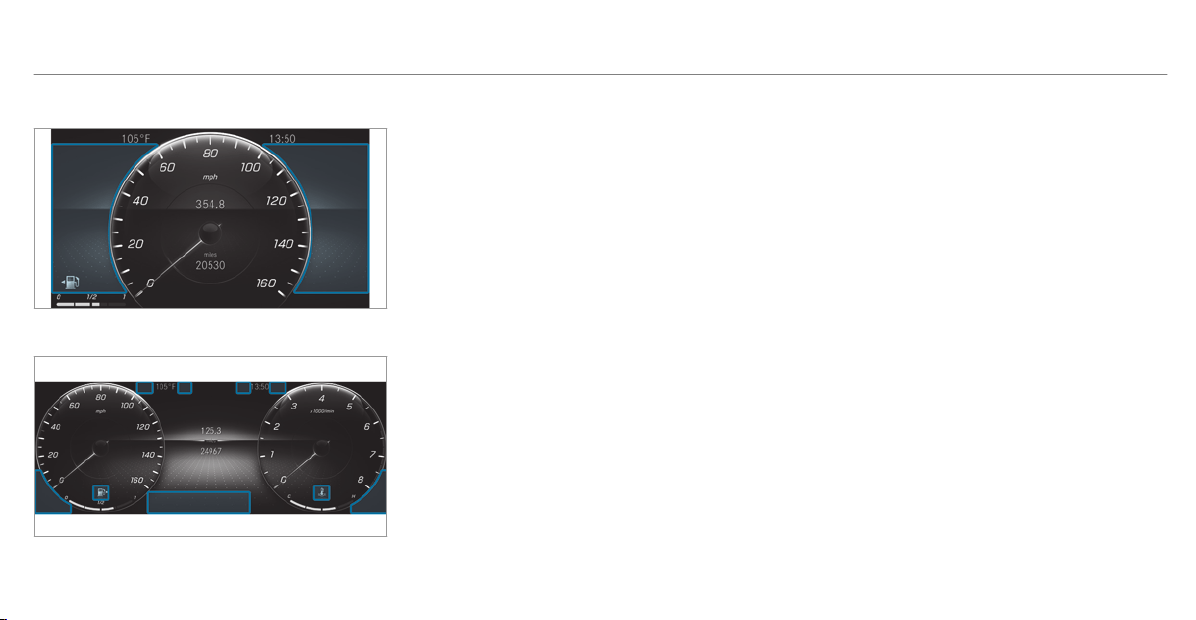
Instrument Display (standard)
Widescreen Cockpit Instrument Display
Depending on the display setting, the positions
of the indicator lamps on the Instrument Display
may differ from the example shown.
Warning and indicator lamps:
L
Low beam (/ page 113)
T
Parking lights (/ page 113)
K
High beam (/ page 114)
#!
Turn signal indicators
(/ page 114)
R
Rear fog light (/ page 113)
6
Restraint system (/ page 505)
ü
Seat belt not fastened
(/ page 510)
$
USA: brakes (red) (/ page 505)
J
Canada: brakes (red)
(/ page 505)
!
Electric parking brake (yellow)
(/ page 505)
F
USA: electric parking brake applied
(red) (/ page 505)
!
Canada: electric parking brake
applied (red) (/ page 505)
!
ABS malfunction (/ page 505)
÷
ESP
®
(/ page 505)
å
ESP
®
OFF (/ page 505)
L
Distance warning (/ page 511)
Ð
Power-assisted steering malfunction
(/ page 515)
;
Check Engine (/ page 511)
#
Electrical malfunction
(/ page 511)
æ
Fuel reserve with fuel filler cap loca‐
tion indicator (/ page 511)
(/ page 511)
?
Vehicles with Widescreen Cock‐
pit: Coolant too hot/cold
(/ page 511)
h
Tire pressure monitor
(/ page 514)
504
Display messages and warning/indicator lamps
Safety systems
Warning/indicator lamp
Possible causes/consequences and M Solutions
$
Brake warning lamp (USA)
J
Brakes warning lamp (Can‐
ada)
The red br ake system warning lamp is lit while the engine is running.
Possible causes are:
R
The brake force boosting is malfunctioning and the braking characteristics may be affected.
R
There is insufficient brake fluid in the brake fluid reservoir.
&
WARNING Risk of accident and injury if brake force boosting is malfunctioning
If brake force boosting is malfunctioning, increased brake pedal force may be necessary for braking. The br aking
characteristics may be impaired. The braking distance can increase in emergency br aking situations.
#
Stop in a safe location immediately. Do not continue driving.
#
Consult a qualified specialist workshop.
&
WARNING Risk of an accident due to low brake fluid level
If the brake fluid level is too low, the braking effect and the braking characteristics may be impaired.
#
Pull over and stop the vehicle safely as soon as possible, paying attention to road and traffic conditions. Do
not continue driving under any circumstances.
#
Consult a qualified specialist workshop.
#
Do not add brake fluid.
Display messages and warning/indicator lamps
505
Warning/indicator lamp
Possible causes/consequences and M Solutions
#
Pull over and stop the vehicle safely as soon as possible, paying attention to road and traffic conditions. Do not
continue driving under any circumstances.
#
Observe the messages on the multifunction display.
#
Consult a qualified specialist workshop.
!
ABS warning lamp
The yellow ABS warning lamp is lit while the engine is running.
ABS is malfunctioning.
If there is an additional warning tone, EBD is malfunctioning.
Other driving systems and driving safety systems may also malfunction.
&
WARNING There is risk of skidding if EBD or ABS is malfunctioning
If EBD or ABS is malfunctioning, the wheels could lock when braking
The steering capability and braking characteristics are thus severely impaired. The braking distance in an emer‐
gency braking situation can increase. In addition, other driving safety systems are switched off.
#
Drive on carefully.
#
Have the brake system checked immediately at a qualified specialist workshop.
#
Drive on carefully.
#
Observe the messages on the multifunction display.
#
Visit a qualified specialist workshop.
506
Display messages and warning/indicator lamps
Warning/indicator lamp
Possible causes/consequences and M Solutions
F
Red indicator lamp, electric
parking brake applied (USA
only)
!
Red indicator lamp, electric
parking brake applied (Can‐
ada only)
!
Yellow electric parking
brake indicator lamp is mal‐
functioning
The red electric parking brake indicator lamp flashes or is lit. The yellow indicator lamp is also lit if the electric parking
brake malfunctions.
#
Observe the messages on the multifunction display.
÷
The yellow ESP
®
warning lamp flashes while the vehicle is in motion.
At least one wheel and tire assembly has reached its traction limit (/ page 158).
#
Adapt your driving style to suit the road and weather conditions.
Display messages and warning/indicator lamps
507
Warning/indicator lamp
Possible causes/consequences and M Solutions
ESP
®
warning lamp flashes
÷
ESP
®
warning lamp lights
up
The yellow ESP
®
warning lamp is lit while the engine is running.
ESP
®
is malfunctioning
Other driving systems and driving safety systems may also malfunction.
&
WARNING Risk of skidding if ESP
®
is malfunctioning
If ESP
®
is malfunctioning, ESP
®
cannot carry out vehicle stabilization. In addition, other driving safety systems are
switched off.
#
Drive on carefully.
#
Have ESP
®
checked at a qualified specialist workshop.
#
Drive on carefully.
#
Observe the messages on the multifunction display.
#
Visit a qualified specialist workshop.
å
ESP
®
OFF warning lamp
The yellow ESP
®
OFF warning lamp is lit while the engine is running.
ESP
®
is deactivated.
508
Display messages and warning/indicator lamps
Warning/indicator lamp
Possible causes/consequences and M Solutions
&
WARNING Risk of skidding when driving with ESP
®
deactivated
If ESP
®
is deactivated, ESP
®
cannot carry out vehicle stabilization. The availability of further driving safety systems
is also limited.
#
Drive on carefully.
#
Only deactivate ESP
®
for as long as the situation requires.
If ESP
®
cannot be activated, ESP
®
is malfunctioning.
#
Have ESP
®
checked immediately at a qualified specialist workshop.
#
Observe the notes on deactivating ESP
®
(/ page 158).
6
Restraint system warning
lamp
The red restraint system warning lamp is lit while the engine is running.
The restraint system is faulty (
/ page 35).
&
WARNING Risk of injury or fatal injury due to a malfunction in the restraint system
If the restraint system is malfunctioning, restraint system components may be triggered unintentionally or might not
be triggered at all in the event of an accident. This may affect the Emergency Tensioning Device or airbag, for exam‐
ple.
#
Have the restraint system checked and repaired immediately at a qualified specialist workshop.
#
Drive on carefully.
Display messages and warning/indicator lamps
509
Warning/indicator lamp
Possible causes/consequences and M Solutions
#
Observe the messages on the multifunction display.
#
Visit a qualified specialist workshop immediately.
Seat belts
Warning/indicator lamp
Possible causes/consequences and M Solutions
7
Seat belt warning lamp
lights up
The red seat belt warning lamp will light up for six seconds once the engine has started.
In addition, a warning tone may sound.
The seat belt warning lamp reminds the driver and front passenger to fasten their seat belts.
#
Fasten your seat belt (/ page 39).
If you have placed objects on the front passenger seat, the seat belt warning lamp may remain lit.
7
Seat belt warning lamp
flashes
The red seat belt warning lamp flashes and an intermittent warning tone sounds.
The driver or front passenger has not fastened their seat belt while the vehicle is in motion.
#
Fasten your seat belt(/ page 39).
There are objects on the front passenger seat.
#
Remove the objects from the front passenger seat.
510
Display messages and warning/indicator lamps
Driving systems
Warning/indicator lamp
Possible causes/consequences and M Solutions
L
Warning lamp for distance
warning function
The red distance warning lamp lights up while the vehicle is in motion.
The distance to the vehicle in front is too small for the speed selected.
If there is an additional warning tone, you are approaching an obstacle at too high a speed.
#
Be prepared to brake immediately.
#
Increase the distance.
Function of Active Brake Assist .
Engine
Warning/indicator lamp
Possible causes/consequences and M Solutions
;
Engine diagnosis warning
lamp
The yellow Check Engine warning lamp is lit while the engine is running.
A malfunction has occurred in the engine, the exhaust system or the fuel system.
The emission limit values may be exceeded and the engine may be in emergency mode.
In some states, legal requirements stipulate that you must immediately consult a qualified specialist workshop as soon
as the yellow Check Engine warning lamp lights up.
#
Have the vehicle checked as soon as possible at a qualified specialist workshop.
Display messages and warning/indicator lamps
511
Warning/indicator lamp
Possible causes/consequences and M Solutions
æ
Fuel reserve warning lamp
The yellow fuel reserve warning lamp lights up while the engine is running.
The fuel supply has dropped into the reserve range.
#
Refuel.
æ
Fuel reserve warning lamp
The yellow fuel reserve warning lamp lights up while you are driving.
There has been pressure loss in the fuel system. The fuel filler cap is not closed correctly or the fuel system is leaking.
#
Close the fuel filler cap.
If the fuel filler cap has already been closed correctly:
#
Visit a qualified specialist workshop.
#
Electrical malfunction warn‐
ing lamp
The red electrical malfunction warning lamp is lit.
There is a malfunction in the electrics.
#
Observe the messages on the multifunction display.
?
Coolant warning lamp
The red coolant warning lamp is lit while the engine is running.
Possible causes are:
R
The temperature sensor is malfunctioning
R
The coolant level is too low
512
Display messages and warning/indicator lamps
Warning/indicator lamp
Possible causes/consequences and M Solutions
R
The air supply to the radiator is obstructed
R
The radiator fan is faulty
If there is an additional warning tone, the coolant temperature has exceeded the maximum permissible temperature.
&
WARNING Danger of burns when opening the hood
If you open the hood when the engine has overheated or during a fire in the engine compartment, you could come
into contact with hot gases or other escaping operating fluids.
#
Before opening the hood, allow the engine to cool down.
#
In the event of a fire in the engine compartment, keep the hood closed and call the fire service.
#
Pull over and stop the vehicle safely and switch off the engine, paying attention to road and traffic conditions. Do
not continue driving under any circumstances.
#
Observe the messages on the multifunction display.
If the coolant temperature display is at the lower end of the temperature scale:
#
Consult a qualified specialist workshop.
or
#
Exit the vehicle and keep a safe distance from it until the engine has cooled down.
#
Check the coolant level (/ page 386).
#
Make sure that the air supply to the radiator is not obstructed.
Display messages and warning/indicator lamps
513
Warning/indicator lamp
Possible causes/consequences and M Solutions
#
Avoiding high loads on the engine, drive to the nearest qualified specialist workshop. In doing so, ensure that the
coolant temperature display remains below the red area.
Tires
Warning/indicator lamp
Possible causes/consequences and M Solutions
h
Tire pressure monitoring
system warning lamp lights
up
The yellow tire pressure monitoring system warning lamp (pressure loss/malfunction) is lit.
The tire pressure monitoring system has detected tire pressure loss in at least one of the tires.
&
WARNING Risk of an accident due to insufficient tire pressure
Tire pressures that are too low pose the following hazards:
R
The tires may burst, especially as the load and vehicle speed increase.
R
The tires may wear excessively and/or unevenly, which may greatly impair tire traction.
R
The driving characteristics, as well as steering and braking, may be greatly impaired.
You could then lose control of the vehicle.
#
Observe the recommended tire pressure.
#
Adjust the tire pressure if necessary.
#
Stop the vehicle, paying attention to road and traffic conditions.
514
Display messages and warning/indicator lamps
Warning/indicator lamp
Possible causes/consequences and M Solutions
#
Check the tire pressure and the tires.
h
Tire pressure monitoring
system warning lamp
flashes
The yellow tire pressure monitoring system warning lamp (pressure loss/malfunction) flashes for approximately one
minute and then remains lit.
The tire pressure monitoring system is defective.
&
WARNING There is a risk of an accident if the tire pressure monitoring system is malfunctioning
If the tire pressure monitoring system is malfunctioning, it is not able to issue a warning if there is pressure loss in
one or more of the tires.
Underinflated tires may, for example, impair the driving, steering and braking characteristics.
#
Have the tire pressure monitoring system checked at a qualified specialist workshop.
#
Visit a qualified specialist workshop.
Vehicle
Warning/indicator lamp
Possible causes/consequences and M Solutions
Ð
The red power steering system warning lamp is lit while the engine is running.
The power-assisted steering or the steering itself is malfunctioning.
Display messages and warning/indicator lamps
515
Warning/indicator lamp
Possible causes/consequences and M Solutions
Power steering system
warning lamp
&
WARNING Risk of accident if steering capability is impaired
If the steering does not function as intended, the vehicle's operating safety is jeopardized.
#
Pull over and stop the vehicle safely as soon as possible, paying attention to road and traffic conditions. Do
not continue driving under any circumstances.
#
Consult a qualified specialist workshop.
#
Observe the messages on the multifunction display.
516
Display messages and warning/indicator lamps

1, 2, 3 ...
4MATIC ..................................................... 144
Function .............................................. 144
12 V battery
see Battery (vehicle)
12 V socket
see Socket (12 V)
115 V socket
see Socket (115 V)
360° Camera ........................................... 190
Care .................................................... 393
Function .............................................. 190
Opening the camera cover (rear view
camera) ............................................... 193
Selecting a view ................................... 193
Setting favorites .................................. 193
A
A/C function
Activating/deactivating (multimedia
system) ................................................ 126
Switching on/off (control panel) ......... 125
ABS (Anti-lock Braking System) ............. 157
Acceleration
see Kickdown
Accident and breakdown manage‐
ment
Mercedes me connect ......................... 350
Acoustic locking verification signal
Activating/deactivating ......................... 66
Activating/deactivating automatic
volume adjustment
Advanced sound system ...................... 379
Burmester
®
surround sound system .... 378
Active Blind Spot Assist ......................... 203
Brake application ................................. 205
Function .............................................. 203
Switching on/off ................................. 206
System limitations ............................... 203
Active Brake Assist
Function/notes .................................... 161
Setting ................................................. 167
Active Distance Assist DISTRONIC ........ 169
Active Emergency Stop Assist ............. 179
Active Lane Change Assist ................... 177
Calling up a speed ............................... 171
Displays in the Instrument Display ...... 179
Function .............................................. 169
Increasing/decreasing speed .............. 171
Requirements ...................................... 171
Route-based speed adaptation ............ 174
Steering wheel buttons ........................ 171
Storing a speed .................................... 171
Switching off/deactivating .................. 171
Switching on/activating ....................... 171
System limitations ............................... 169
Active Emergency Stop Assist ............... 179
Active Lane Change Assist ..................... 177
Activating/deactivating ....................... 178
Function .............................................. 177
Active Lane Keeping Assist .................... 206
Activating/deactivating ....................... 208
Activating/deactivating the warning ... 208
Function .............................................. 206
Setting the sensitivity .......................... 208
System limitations ............................... 206
Active Parking Assist .............................. 193
Cross Traffic Alert ................................ 199
Drive Away Assist ................................ 198
Exiting a parking space ........................ 196
Function .............................................. 193
Index
517

Maneuvering assistance ...................... 199
Parking ................................................ 195
System limitations ............................... 193
Active Service System PLUS
see ASSYST PLUS
Active Speed Limit Assist ....................... 173
Display ................................................. 173
Function ............................................... 173
Active Steering Assist ............................. 175
Activating/deactivating ....................... 177
Active Emergency Stop Assist ............. 179
Active Lane Change Assist ................... 177
Displays in the Instrument Display ...... 179
Function ............................................... 175
System limitations ............................... 175
Adaptive cruise control
see Active Distance Assist DISTRONIC
Adaptive Highbeam Assist
Function ............................................... 116
Switching on/off .................................. 117
Additives .................................................. 454
Engine oil ............................................. 454
Fuel ..................................................... 454
Additives (engine oil)
see Additives
Additives (fuel)
see Fuel
Address book
see Contacts
Adjusting the balance/fader
Advanced sound system ...................... 380
Burmester
®
surround sound system .... 378
Adjusting the sound focus
Burmester
®
surround sound system ... 379
Adjusting treble, mid-range and bass
settings
Advanced sound system ...................... 379
Burmester
®
surround sound system .... 378
Advanced sound system
Activating/deactivating automatic
volume adjustment .............................. 379
Adjusting the balance/fader ............... 380
Adjusting treble, mid-range and bass
settings ............................................... 379
Calling up the sound menu .................. 379
Information .......................................... 379
After-sales ser vice center
see ASSYST PLUS
Air bag
Reduced protection ............................... 42
Air conditioning menu
Calling up ............................................ 126
Air distribution
Setting (multimedia system) ................ 126
Air inlet
see Air-water duct
Air pressure
see Tire pressure
Air vents ................................................... 128
Adjusting (front) .................................. 128
Adjusting (rear) .................................... 128
Air vents
see Air vents
Air-recirculation mode ............................ 127
Air-water duct .......................................... 387
Keeping free ........................................ 387
Airbag ......................................................... 40
Activation .............................................. 35
518
Index

Front airbag (driver, front passenger) .... 40
Installation locations ............................. 40
Knee airbag ........................................... 40
Overview ............................................... 40
PASSENGER AIR BAG indicator lamp ..... 45
Protection .............................................. 41
Side airbag ............................................ 40
Window curtain airbag ........................... 40
Alarm
see Panic alarm
Alarm system
see ATA (anti-theft alarm system)
All-wheel drive
see 4MATIC
Alternative route
see Route
Ambient lighting
Setting (multimedia system) ................ 118
Android Auto ............................................ 346
Connecting a mobile phone ................. 347
Ending ................................................. 348
Information .......................................... 347
Overview ............................................. 346
Sound settings .................................... 348
Transferred vehicle data ...................... 348
Animals
Pets in the vehicle ................................. 64
Anti-lock braking system
see ABS (Anti-lock Braking System)
Anti-skid chains
see Snow chains
Anti-theft alarm system
see ATA (anti-theft alarm system)
Anti-theft protection
Immobilizer ............................................ 85
Anti-theft protection
see ATA (anti-theft alarm system)
Anticipatory occupant protection
see PRE-SAFE
®
(anticipatory occu‐
pant protection)
see PRE-SAFE
®
PLUS (anticipatory
occupant protection plus)
Apple CarPlay
Transferred vehicle data ...................... 348
Apple CarPlay™ ....................................... 345
Connecting an iPhone
®
....................... 345
Ending ................................................. 346
Notes .................................................. 345
Overview ............................................. 345
Sound settings .................................... 346
Assistance systems
see Driving safety system
Assistant display
Menu (on-board computer) .................. 216
ASSYST PLUS ........................................... 381
Battery disconnection periods ............. 382
Displaying the service due date ........... 381
Function/notes ................................... 381
Regular maintenance work .................. 381
Special service requirements .............. 381
ATA (anti-theft alarm system) .................. 85
Deactivating the alarm .......................... 86
Function ................................................ 85
ATTENTION ASSIST .......................... 199, 201
Function .............................................. 199
Setting ................................................. 201
System limitations ............................... 199
Attention assistant
see ATTENTION ASSIST
Index
519
Augmented reality
see Route guidance with augmented reality
Authorized Mercedes-Benz Center
see Qualified specialist workshop
Authorized workshop
see Qualified specialist workshop
Automatic distance control
see Active Distance Assist DISTRONIC
Automatic driving lights .......................... 114
Automatic engine start (ECO start/
stop function) .......................................... 135
Automatic engine stop (ECO start/
stop function) .......................................... 135
Automatic front passenger front air‐
bag shutoff .......................................... 43, 45
Function of the automatic front
passenger front airbag shutoff .............. 43
PASSENGER AIR BAG indicator lamp ..... 45
Automatic front passenger front air‐
bag shutoff
see Automatic front passenger front
airbag shutoff
Automatic mirror folding function
Activating/deactivating ....................... 124
Automatic transmission
DIRECT SELECT lever ........................... 140
Drive program display .......................... 138
Drive programs .................................... 137
DYNAMIC SELECT switch .................... 137
Engaging drive position ........................ 141
Engaging neutral .................................. 141
Engaging park position ......................... 141
Engaging reverse gear .......................... 141
Kickdown ............................................. 143
Manual gearshifting ............................. 142
Steering wheel paddle shifters ............ 142
Transmission position display .............. 140
Transmission positions ........................ 140
Automatic transmission (problem)
see Transmission (problem)
B
Baidu CarLife
Transferred vehicle data ...................... 348
BAS (Brake Assist System) ..................... 157
Battery
Charging (Remote Online) .................... 131
SmartKey ............................................... 67
Battery
see Battery (vehicle)
Battery (vehicle) ...................................... 409
Charging .............................................. 408
Charging (Remote Online) .................... 131
Notes .................................................. 404
Notes (star ting assistance and
charging) ............................................. 406
Replacing ............................................ 409
Starting assistance .............................. 408
Belt
see Seat belt
Blind Spot Assist ..................................... 203
Function .............................................. 203
Switching on/off ................................. 206
System limitations ............................... 203
Bluetooth
®
................................................ 275
Activating/deactivating ....................... 275
Information .......................................... 275
Brake Assist System
see BAS (Brake Assist System)
520
Index
Brake fluid
Notes .................................................. 455
Brake force distribution
EBD (electronic brake force distribu‐
tion) ..................................................... 161
Brakes
ABS (Anti-lock Braking System) ........... 157
Active Brake Assist .............................. 161
BAS (Brake Assist System) .................. 157
Driving tips .......................................... 133
EBD (electronic brake force distribu‐
tion) ..................................................... 161
HOLD function ..................................... 181
Limited braking effect (salt-treated
roads) .................................................. 133
New/replaced brakepads/brake
discs .................................................... 132
Notes on breaking-in a new vehicle ..... 132
Braking assistance
see BAS (Brake Assist System)
Breakdown
Changing a wheel ................................ 442
Overview of the help functions .............. 18
Roadside Assistance .............................. 24
Tow-starting ......................................... 413
Towing away ......................................... 410
Transporting the vehicle ....................... 412
Breakdown
see Flat tire
Burmester
®
surround sound system ..... 378
Adjusting the balance/fader ................ 378
Adjusting the sound focus ................... 379
Adjusting treble, mid-range and bass
settings ................................................ 378
Automatic volume adjustment ............. 378
Calling up the sound menu .................. 378
Information .......................................... 378
Selecting the sound profile .................. 379
Buttons
Steering wheel ..................................... 211
C
Call list
Deleting ............................................... 341
Making a call ....................................... 340
Overview ............................................. 340
Selecting options ................................ 340
Calling up the sound menu
Advanced sound system ...................... 379
Burmester
®
surround sound system .... 378
Calls .......................................................... 335
Accepting ............................................ 335
Activating functions during a call ........ 335
Calls with several participants ............. 336
Declining ............................................. 335
Ending a call ........................................ 335
Incoming call during an existing call .... 336
Making ................................................ 335
Mercedes me connect ......................... 350
Camera
see 360° Camera
see Rear view camera
Car key
see SmartKey
Car wash
see Care
Car wash (care) ....................................... 387
Car-to-X-Communication
Displaying hazard warnings .................. 317
Overview .............................................. 316
Sending hazard warnings ..................... 317
Index
521

Care .......................................................... 394
Air-water duct ...................................... 387
Automatic car wash ............................. 387
Carpet ................................................. 394
Decorative foil ..................................... 391
Display ................................................ 394
Exterior lighting ................................... 393
Headliner ............................................. 394
Matte finish ......................................... 390
Paintwork ............................................ 390
Plastic trim .......................................... 394
Power washer ...................................... 388
Real wood/trim elements .................... 394
Rear view camera ................................ 393
Rear view camera/360° Camera ........ 393
Seat belts ............................................ 394
Seat cover ........................................... 394
Sensors ............................................... 393
Tailpipes .............................................. 393
Washing by hand ................................. 389
Wheels/rims ....................................... 393
Windows .............................................. 393
Wiper blades ....................................... 393
Cargo tie-down rings ............................... 104
Carpet (Care) ............................................ 394
Change of address ..................................... 24
Change of ownership ................................ 24
Changing a wheel
Preparation ......................................... 442
Raising the vehicle .............................. 443
Changing gears ........................................ 142
Manually .............................................. 142
Changing hub caps ................................. 442
Character entry
On the touchpad ................................. 265
Charging
Battery (vehicle) .................................. 408
USB port .............................................. 109
Child safety lock
Rear door .............................................. 62
Rear side windows ................................. 63
Child seat
Attaching (notes) ................................... 54
Basic instructions .................................. 49
front-passenger seat (notes) ................. 60
LATCH-type (ISOFIX) (installing) ............ 56
Notes on risks and dangers ................... 50
Securing on the front passenger seat .... 61
Securing on the rear seat ...................... 59
Top Tether .............................................. 58
Children
Avoiding dangers in the vehicle ............. 50
Basic instructions .................................. 49
Special seat belt retractor ..................... 55
Chock ........................................................ 441
Storage location .................................. 441
Chock
see Chock
Cleaning
see Care
Climate control
Activating/deactivating ....................... 125
Activating/deactivating the A/C
function (control panel) ....................... 125
Activating/deactivating the A/C
function (multimedia system) .............. 126
Activating/deactivating the synchro‐
nization function (control panel) .......... 127
Activating/deactivating the synchro‐
nization function (multimedia sys‐
tem) ..................................................... 127
Air distribution settings ............ ........... 126
522
Index

Air-recirculation mode ......................... 127
Automatic control ................................ 126
Calling up the air conditioning menu ... 126
Control panel for 3-zone automatic
climate control .................................... 125
Filling capacity for PAG oil ................... 458
Front air vents ..................................... 128
Note .................................................... 125
Rear air vents ...................................... 128
Refrigerant .......................................... 457
Refrigerant filling capacity ................... 458
Removing condensation from the
windows .............................................. 127
Residual heat ....................................... 127
Setting (multimedia system) ................ 126
Ventilating the vehicle (convenience
opening) ................................................ 78
Cockpit ......................................................... 6
Overview ................................................. 6
Coffee cup symbol
see ATTENTION ASSIST
Combination switch ................................. 114
Compass .................................................. 325
Computer
see On-board computer
Connection status
Displaying ............................................ 357
Overview ............................................. 357
Connectivity
Switching transmission of the vehicle
position on/off .................................... 275
Contacts ................................................... 336
Calling up ............................................ 337
Deleting ............................................... 339
Deleting favorites ................................ 339
Downloading (from mobile phone) ....... 337
Importing ............................................ 338
Importing (overview) ........................... 338
Information .......................................... 336
Making a call ....................................... 338
Name format ....................................... 337
Options ................................................ 338
Saving as a favorite ............................. 339
Selecting options for suggestions ........ 339
Storing ................................................ 338
Convenience closing feature .................... 79
Convenience opening ................................ 78
Coolant (engine)
Check level .......................................... 386
Filling capacity .................................... 456
Notes .................................................. 455
Copyright
Licenses ................................................ 32
Trademarks ............................................ 32
Cornering light function .......................... 116
Cross Traffic Alert ................................... 199
Crosswind Assist
Function/notes .................................... 161
Cruise control .......................................... 167
Buttons ................................................ 168
Calling up a speed ............................... 168
Function ............................................... 167
Requirements: ..................................... 168
Selecting ............................................. 168
Setting a speed ................................... 168
Storing a speed ................................... 168
Switching off ....................................... 168
Switching on ........................................ 168
System limitations ............................... 167
Cup holder ............................................... 106
Installing/removing (center console) ... 106
Index
523

Rear passenger compartment ............. 107
Customer Assistance Center (CAC) ......... 28
Customer Relations Department ............. 28
D
Damping adjustment .............................. 183
Dashboard
see Cockpit
Dashboard lighting
see Instrument cluster lighting
Data acquisition
Vehicle .................................................. 29
Data import/export ................................ 279
Function/notes ................................... 279
Importing/exporting ........................... 279
Data storage
Electronic control units ......................... 29
Online services ...................................... 30
Vehicle .................................................. 29
Date
Setting the time and date automati‐
cally ..................................................... 274
Deactivating the alarm (ATA) .................... 86
Dealership
see Qualified specialist workshop
Declaration of conformity
Wireless vehicle components ................ 26
Decorative foil (cleaning instructions) .. 391
Definitions (tires and loading) ............... 436
Designs
Menu (on-board computer) .................. 213
Destination ............................................... 312
Editing intermediate destinations ........ 302
Editing the previous destinations ......... 312
External ............................................... 313
Quick-access to destination informa‐
tion ...................................................... 309
Saving (current vehicle position) .......... 312
Saving as global favorite ...................... 312
Destination entry .................................... 290
Entering 3 word addresses .................. 295
Entering a POI or address .................... 290
Entering an intermediate destination .. 302
Entering geo-coordinates .................... 295
Notes .................................................. 290
Selecting a contact ............................. 295
Selecting a POI .................................... 293
Selecting from favorites ...................... 297
Selecting from the map ....................... 296
Selecting previous destinations ........... 293
Detecting inattentiveness
see ATTENTION ASSIST
Diagnostics connection ............................ 26
Digital Operator's Manual ........................ 20
Digital speedometer ................................ 217
Dinghy towing
see Tow-bar system
DIRECT SELECT lever ............................... 140
Engaging drive position ........................ 141
Engaging neutral .................................. 141
Engaging park position ......................... 141
Engaging park position automatically ... 141
Engaging reverse gear .......................... 141
Function .............................................. 140
Display
Care .................................................... 394
Display (multimedia system) .................. 247
Home screen ....................................... 244
524
Index

Operating ............................................. 247
Settings ............................................... 273
Display (on-board computer)
Displays on the multifunction display .. 215
Display content
Displaying ............................................ 214
Display message ..................................... 460
Calling up (on-board computer) ........... 460
Notes .................................................. 460
Display messages
¯ - - - mph ..................................... 480
ç - - - mph ...................................... 479
#12 V Battery See Operator's
Manual ................................................ 483
Active Blind Spot Assist Currently
Unavailable See Operator's Manual ..... 475
Active Blind Spot Assist Inoperative .... 478
Active Blind Spot Asst. Not Available
When Towing a Trailer See Opera‐
tor's Manual ......................................... 474
Active Brake Assist Functions Cur‐
rently Limited See Operator's Man‐
ual ....................................................... 473
Active Brake Assist Functions Limi‐
ted See Operator's Manual .................. 471
Active Distance Assist Currently
Unavailable See Operator's Manual ..... 479
Active Distance Assist Inoperative ...... 479
Active Distance Assist Now Available
............................................................. 480
bActive Headlamps Inoperative ..... 502
Active Lane Keeping Assist Currently
Unavailable See Operator's Manual ..... 476
Active Lane Keeping Assist Inopera‐
tive ...................................................... 477
Active Parking Assist and
PARKTRONIC Inoperative See Opera‐
tor's Manual ........................................ 475
Active Steering Assist Currently
Unavailable See Operator's Manual ..... 476
Active Steering Assist Inoperative ....... 475
Adaptive Highbeam Assist Currently
Unavailable See Operator's Manual ..... 503
Adaptive Highbeam Assist Inopera‐
tive ...................................................... 503
Apply Brake to Shif t from 'P' ............... 488
Apply Brake to Shif t to 'R' ................... 490
Apply Parking Brake Risk of Rolling
Away See Operator's Manual .............. 489
ÀATTENTION ASSIST Inoperative ... 478
ÀATTENTION ASSIST: Take a
Break! .................................................. 476
bAutomatic Headlamp Mode
Inoperative .......................................... 503
Auxiliary Battery Malfunction .............. 489
_Before Starting the Engine, Turn
Steering Wheel .................................... 491
Blind Spot Assist Currently Unavaila‐
ble See Operator's Manual .................. 474
Blind Spot Assist Inoperative ............... 475
Index
525

Blind Spot Assist Not Available When
Towing a Trailer See Operator's Man‐
ual ....................................................... 477
$Check Brake Fluid Level .............. 466
Check Brake Pads See Operator's
Manual .............................................. ... 474
Check Coolant Level See Operator's
Manual ................................................ 482
4Check Engine Oil Level (Add 1
quart) .................................................. 487
bCheck Left Low Beam (Exam‐
ple) ...................................................... 501
Check Tire Pressure Soon ................... 491
Check Tire Pressure Then Restart
Run Flat Indicator ................................ 496
hCheck T ires ................................. 493
¥Check Washer Fluid ..................... 501
?Coolant Too Hot Stop Vehicle
Turn Engine Off .................................... 484
Cruise Control Inoperative .................. 480
Cruise Control Off ............................... 480
Currently Unavailable Camera View
Restricted ............................................ 481
Currently Unavailable Radar Sensors
Dirty .................................................... 478
!Currently Unavailable See Oper‐
ator's Manual ...................................... 467
÷Currently Unavailable See Oper‐
ator's Manual ....................................... 461
Decrease Speed .................................. 495
ÁDon't Forget Your Key ................. 498
Driver's Door Open & Transmission
Not in P Risk of Vehicle Rolling Away .. 490
5Engine Oil Level Cannot Be
Measured ............................................ 485
4Engine Oil Level Low Stop Vehi‐
cle Turn Engine Off .............................. 486
4Engine Oil Pressure Stop Switch
Off Engine ........................................... 486
4Engine Oil Reduce Oil Level ......... 485
6Front Left Malfunction Service
Required (Example) .............................. 472
Front Passenger Airbag Disabled See
Operator's Manual ............................... 471
Front Passenger Airbag Enabled See
Operator's Manual ............................... 470
æFuel Level Low ............................ 485
æGas Cap Loose ............................ 484
!Inoperative See Operator's
Manual ................................................ 468
÷Inoperative See Operator's
Manual ................................................ 469
TInoperative See Operator's
Manual ................................................ 466
GInoperative .................................. 472
bIntell. Light System Inoperative ... 501
ÁKey Not Detected (red display
message) ............................................. 496
ÁKey Not Detected (white dis‐
play message) ...................................... 497
526
Index

6Left Side Curtain Airbag Mal‐
function Service Required (Example) ... 469
bMalfunction See Operator’s
Manual ................................................ 502
Mercedes me connect Services Limi‐
ted See Operator's Manual .................. 472
N Permanently Active Risk of Rolling
Away ................................................... 489
ÁObtain a New Key ........................ 497
çOff ............................................... 479
ëOff ............................................... 477
Only Shift to 'P' when Vehicle is Sta‐
tionary ................................................. 490
ïOperation Only Possible in
Transmission Position P ....................... 498
FParking Brake See Operator's
Manual ................................................ 462
Parking Lock Malfunct. Apply Park‐
ing Brake ............................................. 488
ÁPlace the Key in the Marked
Space See Operator's Manual ............. 498
hPlease Correct Tire Pressure ....... 494
FPlease Release Parking Brake ..... 465
PRE-SAFE Inoperative See Opera‐
tor's Manual ......................................... 471
ÁReplace Key Batter y .................... 497
Reversing Not Possible Service
Required .............................................. 488
Run Flat Indicator Inoperative ............. 496
#See Operator's Manual ................ 481
Service Required Do Not Shift Gears
Visit Dealer .......................................... 488
6SRS Malfunction Service
Required .............................................. 473
ÐSteering Malfunction Increased
Physical Effort See Operator's Man‐
ual ....................................................... 499
ÐSteering Malfunction See Oper‐
ator's Manual ...................................... 490
ÐSteering Malfunction Stop
Immediately See Operator's Manual ... 499
#Stop Vehicle Leave Engine Run‐
ning ..................................................... 482
#Stop Vehicle See Operator's
Manual ................................................ 483
çSuspended .................................. 479
bSwitch Off Lights ......................... 502
bSwitch On Headlamps ................. 502
Teaching in Transmission Complete .... 490
Teaching in Transmission Operate
Selector Lever Apply Brake for XX s
Risk of Vehicle Rolling Away ................ 489
hTire Press. Monitor Currently
Unavailable .......................................... 494
hTire Press. Monitor Inoperative ... 495
hTire Pressure Monitor Inopera‐
tive No Wheel Sensors ........................ 495
Tires Overheated ................................. 495
Index
527

To Deselect P or N, Depress Brake
and Start Engine .................................. 488
Traffic Sign Assist Currently Unavail‐
able See Operator's Manual ................ 477
Traffic Sign Assist Inoperative .............. 476
Trans. Oil Overheated Drive on with
Care .................................................... 489
Transmission Malfunction .................... 490
Transmission Malfunction Service
Required .............................................. 487
Transmission Malfunction Stop ............ 487
FTurn On the Ignition to Release
the Parking Brake ................................ 461
hWarning Tire Malfunction ............ 492
hWheel Sensor(s) Missing ............. 494
Display on the windshield
see Head-up Display
Distance control
see Active Distance Assist DISTRONIC
Distance recorder
see Trip distance
DISTRONIC
see Active Distance Assist DISTRONIC
Door
Child safety lock (rear door) .................. 62
Locking (emergency key) ....................... 73
Opening (from the inside) ...................... 70
Unlocking (emergency key) .................... 73
Unlocking (from the inside) ................... 70
Door control panel ..................................... 16
DOT, Tire Identification Number (TIN) ... 431
Drawbar
see Tow-bar system
Drinking and driving ................... ............. 133
Drinks holder
see Cup holder
Drive Away Assist .................................... 198
Drive position
Inserting .............................................. 141
Drive program display ............................. 138
Drive programs
see DYNAMIC SELECT
Driver's seat
see Seat
Driving lights
see Automatic driving lights
Driving safety system ............................. 156
ABS (Anti-lock Braking System) ........... 157
Active Brake Assist .............................. 161
BAS (Brake Assist System) .................. 157
EBD (electronic brake force distribu‐
tion) ..................................................... 161
ESP
®
Crosswind Assist ........................ 161
Overview ............................................. 156
Radar sensors ..................................... 156
Responsibility ...................................... 156
STEER CONTROL .................................. 161
Driving system
Suspension with adaptive damping
adjustment .......................................... 183
Driving system
see 360° Camera
see Active Blind Spot Assist
see Active Distance Assist DISTRONIC
see Active Emergency Stop Assist
see Active Lane Change Assist
528
Index

see Active Lane Keeping Assist
see Active Parking Assist
see Active Speed Limit Assist
see Active Steering Assist
see ATTENTION ASSIST
see Blind Spot Assist
see Cruise control
see Driving safety system
see HOLD function
see Parking Assist PARKTRONIC
see Rear view camera
see Traffic Sign Assist
Driving tips
Drinking and driving ............................ 133
General driving tips ............................. 133
Notes on breaking-in a new vehicle ..... 132
Drowsiness detection
see ATTENTION ASSIST
Dynamic handling control system
see ESP
®
(Electronic Stability Program)
DYNAMIC SELECT .................................... 137
Configuring drive program I ................. 139
Displaying engine data ........................ 139
Displaying vehicle data ........................ 139
Drive program display .......................... 138
Drive programs .................................... 137
Function .............................................. 137
Operating (DYNAMIC SELECT switch)
............................................................. 138
Selecting the drive program ................ 138
DYNAMIC SELECT switch
Damping adjustment ........................... 183
E
E10 ............................................................ 453
Easy entry feature
Function/notes ..................................... 96
Setting ................................................... 97
Easy exit feature
Function/notes ..................................... 96
Setting ................................................... 97
EBD (electronic brake force distribu‐
tion)
Function/notes .................................... 161
ECO display
Function .............................................. 136
Resetting ............................................. 218
ECO start/stop function ......................... 135
Automatic engine start ........................ 135
Automatic engine stop ......................... 135
Method of operation ............................ 135
Switching off/on ................................. 136
Electric parking brake ............................. 153
Applying automatically ........................ 153
Applying or releasing manually ............ 155
Emergency braking .............................. 155
Releasing automatically ....................... 154
Electronic Stability Program
see ESP
®
(Electronic Stability Program)
Emergency
Overview of the help functions .............. 18
Reflective safety vest ........................... 397
Emergency braking ................................. 155
Emergency braking
see BAS (Brake Assist System)
Emergency call system
see Mercedes-Benz emergency call system
Emergency engine start .......................... 413
Emergency key
Locking a door ....................................... 73
Index
529

Unlocking a door ................................... 73
Emergency operation mode
Starting the vehicle ............................. 130
Emergency release
Trunk lid (from inside) ............................ 76
Emergency Tensioning Devices
Activation .............................................. 35
ENERGIZING Coach
Calling up ............................................ 287
Function .............................................. 287
ENERGIZING comfort .............................. 283
Overview of programs ......................... 284
Starting the program ........................... 285
ENERGIZING seat kinetics
Setting ................................................. 283
ENERGIZING seat kinetics
see ENERGIZING comfort
Engine
ECO start/stop function ...................... 135
Engine number .................................... 450
Starting (emergency operation
mode) .................................................. 130
Starting (Remote Online) ..................... 132
Starting (start/stop button) ................. 130
Starting assistance .............................. 408
Switching off (start/stop button) ......... 147
Engine data
Displaying ............................................ 139
Engine number ........................................ 450
Engine oil ................................................. 385
Additives ............... .............................. 454
Capacity .............................................. 455
Checking the oil level using the on-
board computer ................................... 384
MB-Freigabe or MB-Approval ............... 455
Quality ................................................. 455
Topping up ........................................... 385
Entering characters
Function/notes ................................... 265
On the touchscreen (media display) .... 269
Setting the keyboard ........................... 273
ESC (Electronic Stability Control)
see ESP
®
(Electronic Stability Program)
ESP
®
Crosswind Assist .................................. 161
ESP
®
(Electronic Stability Program) ...... 158
Activating/deactivating ....................... 160
Function/notes ................................... 158
Exterior lighting
Care .................................................... 393
Exterior lighting
see Lights
Exterior mirrors ............................... 121, 122
Anti-glare mode (automatic) ................ 122
Automatic mirror folding function ........ 124
Folding in/out ...................................... 121
Operating the memory function ............. 97
Parking position ................................... 123
Setting ................................................. 121
Eyeglasses compartment ....................... 101
F
Fatigue detection
see ATTENTION ASSIST
Favorites
Adding ................................................. 258
Adding a destination ............................ 297
Calling up ............................................ 258
Deleting ............................................... 259
530
Index

Home address ..................................... 297
Moving ................................................ 259
Overview ............................................. 258
Renaming ............................................ 259
Work address ...................................... 297
Flat tire ..................................................... 397
Changing a wheel ................................ 442
MOExtended tires ................................ 398
Notes ................................................... 397
TIREFIT kit ........................................... 399
Flat towing
see Tow-bar system
Floor mats ................................................. 111
Foil covering
Radar sensors ..................................... 156
Free software ............................................ 32
Frequencies
Two-way radio ..................................... 449
Frequency band
Dialing (on-board computer) ................ 220
Front airbag (driver, front passenger) ..... 40
Fuel ........................................................... 454
Additives ............... .............................. 454
E10 ...................................................... 453
Fuel reserve ........................................ 454
Gasoline .............................................. 453
Quality (gasoline) ................................ 453
Refueling ............................................. 145
sulfur content ...................................... 453
Tank content ....................................... 454
Fuel consumption
On-board computer .............................. 217
Fuel consumption indicator
Calling up ............................................ 139
Function seat
see Door control panel
Fuses ........................................... .............. 414
Before replacing a fuse ........................ 414
Fuse assignment diagram .................... 414
Fuse box in the engine compartment ... 414
Fuse box in the front-passenger foot‐
well ...................................................... 415
Fuse box in the trunk ........................... 416
Notes ................................................... 414
Fuses
see Fuses
G
Garage door opener
Clearing the memory ........................... 152
Opening or closing the door ................. 151
Programming buttons .......................... 149
Radio equipment approval number s .... 152
Resolving problems .............................. 151
Synchronizing the rolling code ............. 150
Gas station search
Starting automatic search ................... 304
Switching automatic search on/off ..... 304
Gasoline ................................................... 453
Gearshift recommendation .................... 143
Genuine parts ............................................ 22
Glide mode ............................................... 143
Global search
Function .............................................. 262
Overview .............................................. 261
Glove box
Locking/unlocking .............................. 100
Index
531
H
Handbrake
see Electric parking brake
Handling characteristics (unusual) ........ 417
HANDS-FREE ACCESS ................................ 75
Hazard warning lights ............................. 115
Head restraint
Front (adjusting mechanically) ............... 91
Rear (installing/removing) ..................... 92
Rear passenger compartment
(adjusting) ............................................. 92
Head-up Display ...................................... 222
Adjusting display elements (on-board
computer) ............................................ 222
Adjusting the brightness (on-board
computer) ............................................ 222
Function .............................................. 222
Menu (on-board computer) .................. 222
Operating the memory function ............. 97
Setting the position (on-board com‐
puter) .................................................. 222
Headliner (care) ....................................... 394
High beam
Switching on/off .................................. 114
High-beam flasher ................................... 114
High-beam headlamps
Adaptive Highbeam Assist ................... 116
Hill start assist ........................................ 181
HOLD function ......................................... 181
Function/notes .................................... 181
Switching on/off ................................. 181
Home screen (media display)
Overview ............................................. 244
Hood
Opening/closing ................................. 382
Hotspot
Setting up (Wi-Fi) ................................. 277
I
Identification plate
Engine ................................................. 450
Refrigerant .......................................... 457
Vehicle ................................................ 450
Ignition
Switching on (Start/Stop button) ........ 129
Ignition key
see SmartKey
Immobilizer ................................................ 85
Indicator lamps
see Warning/indicator lamps
Individual drive program
Configuring .......................................... 139
Selecting ............................................. 138
Inside rearview mirror
see Exterior mirrors
Inspection
see ASSYST PLUS
Instrument cluster
see Instrument Display
Instrument cluster lighting ..................... 216
Instrument Display .................................. 210
Adjusting the lighting ........................... 216
Function/notes .................................... 210
Instrument cluster ................................. 12
Warning/indicator lamps .................... 503
Intelligent Light System
Adaptive Highbeam Assist ................... 116
Cornering light function ....................... 116
532
Index

Interior lighting ........................................ 118
Ambient lighting ................................... 118
Reading light ........................................ 118
Setting ................................................. 118
Switch-off delay time ........................... 119
Intermediate destination
Calculating a route with intermediate
destinations ........................................ 302
Entering ............................................... 302
Modifying ............................................ 302
Starting an automatic gas station
search ................................................. 304
Starting the automatic service sta‐
tion search .......................................... 304
Internet
Calling up a web page ......................... 357
Closing the browser ............................ 359
Deleting a bookmark ........................... 359
Deleting history ................................... 359
Managing bookmarks .......................... 359
Internet connection
Communication module function ........ 356
Connection status ............................... 357
Displaying the connection status ......... 357
Establishing ......................................... 356
Information .......................................... 355
Restrictions ......................................... 355
Internet radio
Calling up ............................................ 360
Calling up the station list (category
last selected) ....................................... 362
Deleting stations ................................. 362
Logging out ......................................... 362
Overview .............................................. 361
Registering .......................................... 362
Saving stations .................................... 362
Selecting and connecting to a station
............................................................. 362
Selecting stream ................................. 362
Setting options .................................... 362
Terms of use ........................................ 362
iPhone
®
see Apple CarPlay™
see Mercedes-Benz Link
J
Jack
Storage location .................................. 441
Jump-start connection ............................ 408
General notes ...................................... 406
K
KEYLESS-GO
Locking the vehicle ................................ 70
Problem ................................................. 71
Unlocking setting .................................. 66
Unlocking the vehicle ............................ 70
Kickdown ................................................. 143
Using ................................................... 143
Knee airbag ................................................ 40
L
Labeling (tires)
see Tire labeling
Lamp
see Interior lighting
Lamps (Instrument Display)
see Warning/indicator lamps
Lane detection (automatic)
see Active Lane Keeping Assist
Index
533

Lane Keeping Assist
see Active Lane Keeping Assist
Language .................................................. 279
Notes ................................................... 279
Setting ................................................. 279
LATCH-type (ISOFIX) child seat secur‐
ing system
Installing ................................................ 56
Light switch
Overview .............................................. 113
Lighting
see Interior lighting
see Lights
Lights ........................................................ 113
Adaptive Highbeam Assist ................... 116
Adjusting the instrument lighting ......... 216
Automatic driving lights ....................... 114
Combination switch ............................. 114
Cornering light function ....................... 116
Hazard warning lights .......................... 115
High beam ........................................... 114
High-beam flasher ................................ 114
Light switch ......................................... 113
Low-beam headlamps .......................... 113
Parking lights ....................................... 113
Rear fog lamp ....................................... 113
Responsibility for lighting systems ....... 113
Setting the exterior lighting switch-
off delay time ....................................... 117
Standing lights ..................................... 113
Switching the surround lighting
on/off .................................................. 117
Turn signals .......................................... 114
Limited Warranty
Vehicle .................................................. 28
Live Traffic Information
Displaying subscription information ..... 314
Displaying the traffic map .................... 314
Displaying traffic incidents .................. 315
Showing local area messages .............. 316
Switching the traffic information dis‐
play on ................................................. 316
Load index (tires) .................................... 433
Load-bearing capacity (tires) ................. 433
Loading ..................................................... 104
Cargo tie-down rings ........................... 104
Definitions ........................................... 436
Notes ..................................................... 99
Roof carrier ......................................... 104
Stowage space under the trunk floor ... 104
Loading guidelines .................................... 99
Loading information table ...................... 426
Loads
Securing ................................................ 99
Locking/unlocking
Activating/deactivating the auto‐
matic locking feature ............................. 72
Emergency key ...................................... 73
KEYLESS-GO .......................................... 70
Unlocking and opening doors from
the inside .............................................. 70
Low-beam headlamps
Switching on/off .................................. 113
Lubricant additives
see Additives
Luggage
Securing ......................................... ....... 99
Lumbar support
see Lumbar support (4-way)
Lumbar support (4-way) ........................... 91
534
Index

M
Maintenance
Menu (on-board computer) .................. 216
Vehicle ................................................... 24
Maintenance
see ASSYST PLUS
Malfunction
Restraint system ................................... 35
Malfunction message
see Display message
Map ................................................... 314, 319
Avoiding an area .................................. 323
Avoiding an area (overview) ................. 323
Changing an area ................................ 323
Deleting an area .................................. 324
Displaying the compass ....................... 325
Displaying the map version ................. 322
Displaying the next intersecting
street ................................................... 322
Displaying the range ............................ 326
Displaying the satellite map ................ 325
Displaying the traffic map .................... 314
Displaying weather information ........... 326
Map data ............................................. 324
Moving ................................................ 320
Selecting POI symbols ......................... 321
Selecting text information ................... 322
Selecting the map orientation ............. 320
Setting the map scale .......................... 319
Setting the map scale automatically .... 325
Showing in the multifunction display
of the instrument cluster ..................... 326
Switching freeway information
on/off ................................................. 322
Updating .............................................. 324
Massage program
Resetting the settings ............................ 93
Massage programs
Selecting the front seats ....................... 93
Massage settings
Resetting ............................................... 93
Matte finish (cleaning instructions) ...... 390
Maximum load rating .............................. 432
Maximum permissible load
Calculation example ............................ 428
Determining ......................................... 427
Maximum tire pressure .......................... 433
MBUX multimedia system
see Multimedia system
MBUX Touch
Managing devices ................................ 278
Mechanical key
Inserting/removing ............................... 67
Media
Menu (on-board computer) .................. 220
Media display
Notes ................................................... 243
Media mode
Adding a favorite song ......................... 367
Connecting Bluetooth
®
audio equip‐
ment .................................................... 366
Connecting USB devices ..................... 366
Controlling media playback ................. 367
Copyright and trademarks ................... 363
Making video settings ......................... 369
Notes about the search function in
categories ........................................... 368
Overview of the media menu ............... 365
Playing back similar music tracks ........ 367
Removing a favorite song .................... 367
Index
535

Searching for a music track accord‐
ing to mood ......................................... 369
Starting a search in categories ............ 368
Starting media playback ...................... 367
Supported format and data storage
media .................................................. 362
Surprise mix ........................................ 367
Using the keyword search ................... 369
Media playback
Operating (on-board computer) ........... 220
Media source
Selecting (on-board computer) ............ 220
Memory function
Head-up Display — Calling up stored
settings .................................................. 97
Head-up Display — Storing settings ....... 97
Operating .............................................. 97
Outside mirrors — Calling up stored
settings .................................................. 97
Outside mirrors — Storing settings ........ 97
Seat — Calling up stored settings ........... 97
Seat — Storing settings .......................... 97
Menu (on-board computer)
Assistant display .................................. 216
Designs ................................................ 213
Head-up Display .................................. 222
Maintenance ........................................ 216
Media .................................................. 220
Navigation ............................................ 218
Overview .............................................. 212
Radio ................................................... 220
Telephone ............................................ 221
Trip ....................................................... 217
Mercedes me
Calling up services .............................. 352
Calling up your user account ............... 352
Deleting a connection ......................... 352
Information .......................................... 351
Mercedes me connect
Accident and breakdown manage‐
ment .................................................... 350
Arranging a service appointment ......... 351
Calling the Mercedes-Benz Customer
Center ................................................. 349
Information .......................................... 349
Making a call via the overhead con‐
trol panel ............................................. 350
Service call with the me button ........... 350
Transferred data .................................. 351
Mercedes-Benz emergency call sys‐
tem ........................................................... 352
Automatic emergency call ................... 353
Information .......................................... 352
Information on data processing ........... 355
Manual emergency call ........................ 354
Overview ............................................. 353
Mercedes-Benz Link ................................ 343
Connecting .......................................... 344
Ending ................................................. 34 4
Note .................................................... 343
Overview ............................................. 343
Sound settings .................................... 344
Message (multifunction display)
see Display message
Message memory .................................... 460
Messages ................................................. 341
Calling a message sender .................... 342
Composing .......................................... 341
Configuring the displayed text mes‐
sages ................................................... 341
Deleting ............................................... 343
Forwarding .......................................... 342
Overview .............................................. 341
536
Index

Reading ................................................ 341
Replying .............................................. 342
Sending ............................................... 341
Using a number/URL .......................... 342
Using templates .................................. 342
Voice commands (Voice Control Sys‐
tem) ..................................................... 238
Mirrors
see Exterior mirrors
Mobile phone
Wireless charging ................................. 111
Mobile phone
see Android Auto
see Apple CarPlay™
see Mercedes-Benz Link
see Second telephone
see Telephone
Mobile phone voice recognition
Starting ............................................... 335
Stopping .............................................. 335
Model series
see Vehicle identification plate
MOExtended tires ................................... 398
Multifunction display
Overview of displays ............................ 215
Multifunction steering wheel
Overview of buttons ............................. 211
Multifunction steering wheel
see Steering wheel
Multimedia system .................................. 242
Activating/deactivating standby
mode ................................................... 156
Adjusts the volume .............................. 264
Central control elements ..................... 246
Configuring display settings ................ 273
ENERGIZING comfort program (over‐
view) .................................................... 284
ENERGIZING seat kinetics ................... 283
Entering characters ............................. 265
Favorites ............................................. 258
Main functions .................................... 250
Overview ............................................. 242
Restoring the factory settings ............. 282
Standby mode function ....................... 155
Starting the ENERGIZING comfort
program .............................................. 285
Switching the sound on or off ............. 263
Multimedia system
see Display (multimedia system)
see Notifications Center
see Profile
see Suggestions
see Themes
see Touch Control
see Touchpad
N
Navigation
Menu (on-board computer) .................. 218
Overview ............................................. 289
Showing/hiding the menu ................... 288
Switching on ....................................... 288
Updating the map data ........................ 324
Voice commands (Voice Control Sys‐
tem) ..................................................... 230
Navigation
see Destination
see Destination entry
see Map
see Route
see Route guidance
see Traffic information
Index
537
Navigation announcements
Activating/deactivating ....................... 310
Adjusting the volume ........................... 310
Repeating ............................................. 311
Switching audio fadeout on/off ........... 310
Navigation messages
On-board computer ............................. 218
Near Field Communication (NFC) .......... 334
Connecting the mobile phone to the
multimedia system .............................. 334
General information ............................ 333
Switching mobile phones .................... 334
Using a mobile phone .......................... 334
Neutral
Inserting .............................................. 141
NFC
see Near Field Communication (NFC)
Non-operational time
Activating/deactivating standby
mode ................................................... 156
Standby mode function ....................... 155
Notes on breaking-in a new vehicle ....... 132
Notifications Center ................................ 260
Calling up a notification ....................... 261
Editing a notification ............................ 261
Global search ....................................... 261
Notification types ................................ 260
Overview ............................................. 260
Selecting actions for a notification ...... 261
Using the global search ....................... 262
O
Occupant safety
Pets in the vehicle ................................. 64
Occupant safety
see Airbag
see Automatic front passenger front
airbag shutoff
see PRE-SAFE
®
(anticipatory occu‐
pant protection)
see PRE-SAFE
®
PLUS (anticipatory
occupant protection plus)
see Restraint system
see Seat belt
Odometer
see Total distance
Oil
see Engine oil
On-board computer ................................. 212
Assistance graphic menu ..................... 216
Displaying the service due date ........... 381
Head-up Display menu ........................ 222
Media menu ........................................ 220
Menu designs ...................................... 213
Menu overview ..................................... 212
Multifunction display ............................ 215
Navigation system menu ...................... 218
Operating ............................................. 212
Radio menu ......................................... 220
Service menu ....................................... 216
Telephone menu .................................. 221
Trip menu ............................................. 217
On-board diagnostics interface
see Diagnostics connection
Open-source software .............................. 32
Opening the trunk lid using your foot
HANDS-FREE ACCESS ........................... 75
Operating fluids
Additives (fuel) .................................... 454
Brake fluid ........................................... 455
538
Index

Coolant (engine) .................................. 455
Engine oil ............................................. 454
Fuel (gasoline) ..................................... 453
Notes ................................................... 451
Refrigerant (air conditioning system) ... 457
Windshield washer fluid ...................... 456
Operating safety
Declaration of conformity (wireless
vehicle components) ............................. 26
Information ............................................ 25
Operating system
see On-board computer
Operator's Manual
Vehicle equipment ................................. 23
Operator's Manual (digital) ...................... 20
Overhead control panel
Overview ................................................ 14
P
Paint code ................................................ 450
Paintwork (cleaning instructions) ......... 390
Panic alarm ................................................ 66
Activating/deactivating ......................... 66
Panoramic sliding sunroof
see Sliding sunroof
Park position
Inserting .............................................. 141
Selecting automatically ........................ 141
Parking
see Electric parking brake
Parking (navigation service)
Showing a parking option on the
map ..................................................... 328
Parking (service for navigation)
Notes ................................................... 327
Selecting parking options .................... 327
Parking aid
see Parking Assist PARKTRONIC
Parking Assist PARKTRONIC .................. 183
Activating ............................................ 186
Adjusting warning tones ...................... 186
Function .............................................. 183
Side impact protection ........................ 185
Switching off ....................................... 186
System limitations ............................... 183
Parking assistance systems
see Active Parking Assist
Parking brake
see Electric parking brake
Parking for an extended period .............. 155
Parking lights ........................................... 113
Parking position
Exterior mirrors ................................... 123
Storing the position of the front-
passenger outside mirror using
reverse gear ......................................... 124
PASSENGER AIR BAG status display
see Automatic front passenger front
airbag shutoff
Payload
Calculation example ............................ 428
Determining the maximum .................. 427
Permitted towing methods ..................... 409
Pets in the vehicle ..................................... 64
Phone book
see Contacts
Index
539

PIN protection
Activating/deactivating ....................... 280
Plastic trim (Care) ................................... 394
POI
Quick access ....................................... 309
Selecting ............................................. 293
POI symbols
Selecting ............................................. 321
Power supply
Switching on (Start/Stop button) ........ 129
Power washer (care) ............................... 388
Power windows
see Side windows
PRE-SAFE
®
(anticipatory occupant
protection) ................................................. 48
Function ................................................ 48
PRE-SAFE
®
Sound ................................. 48
Reversing measures .............................. 48
PRE-SAFE
®
PLUS (anticipatory occu‐
pant protection plus) ................................ 48
Function ................................................ 48
Reversing measures .............................. 48
Preventative occupant protection sys‐
tem
see PRE-SAFE
®
(anticipatory occu‐
pant protection)
Previous destinations
Selecting ............................................. 293
Profile ....................................................... 251
Creating a new profile ......................... 252
Maximum number of profiles ............... 251
Notes ................................................... 251
Overview .............................................. 251
Selecting a profile ............................... 253
Selecting profile options ..................... 253
Showing the profile selection when
entering ............................................... 254
Synchronizing ...................................... 253
Programs
see DYNAMIC SELECT
Protecting the environment
Notes ..................................................... 22
Q
QR code
Rescue card .......................................... 29
Qualified specialist workshop .................. 27
R
Radar sensors
Foil covering ........................................ 156
Radio
Activating/deactivating radio text ....... 372
Calling up the station list ..................... 371
Deleting channels ................................ 372
Direct frequency entry ......................... 371
Displaying information ......................... 372
Displaying radio text ............................ 372
Editing station presets ......................... 372
Menu (on-board computer) .................. 220
Moving stations ................................... 372
Overview ............................................. 370
Searching for stations .......................... 371
Setting a channel ................................. 371
Setting the waveband .......................... 371
Showing accident reports .................... 372
Storing radio stations .......................... 371
Switching on ....................................... 369
Switching the HD radio function
on/off .................................................. 371
540
Index

Voice commands (Voice Control Sys‐
tem) ..................................................... 234
Radio stations
Dialing (on-board computer) ................ 220
Rain closing function
Sliding sunroof ...................................... 83
Range
Displaying ............................................ 217
Reading light
see Interior lighting
Real wood (Care) ..................................... 394
Rear door (child safety lock) .................... 62
Rear fog lamp
Switching on/off .................................. 114
Rear seat
see Seat
Rear view camera .................................... 187
Care .................................................... 393
Function .............................................. 187
Opening the camera cover (360°
Camera) ............................................... 193
Setting favorites (360° Camera) .......... 193
Reflective safety vest .............................. 397
Refrigerant (air conditioning system)
Notes ................................................... 457
Refueling
Refueling the vehicle ........................... 145
Remote Online
Charging the battery ............................ 131
Cooling or heating the vehicle inte‐
rior ....................................................... 131
Starting the vehicle ............................. 132
Reporting malfunctions relevant to
safety .......................................................... 28
Rescue card ............................................... 29
Reserve
Fuel ..................................................... 454
Reset function (multimedia system) ..... 282
Residual heat ........................................... 127
Restoring (factory settings)
see Reset function (multimedia system)
Restraint system ....................................... 34
Basic instructions for children ............... 49
Function in an accident ......................... 35
Functionality .......................................... 35
Malfunction ........................................... 35
Protection .............................................. 34
Reduced protection ............................... 34
Self-test ................................................. 35
Warning lamp ........................................ 35
Reverse gear
Inserting .............................................. 141
Rims (Care) .............................................. 393
Roadside Assistance ................................. 24
Roll away protection
see HOLD function
Roof carrier
Attaching ............................................. 104
Loading ............................................... 104
Roof load .................................................. 458
Roof load display
Information .......................................... 137
Route ................................................ 297, 303
Accepting a detour recommendation
after a prompt ..................................... 300
Activating a commuter route ............... 303
Alternative route (quick-access) .......... 309
Index
541
Calculating .......................................... 297
Displaying destination information ...... 301
Displaying the route list ....................... 303
Editing a stored route .......................... 305
External ............................................... 313
Planning .............................................. 302
Recording a route ................................ 305
Saving a recorded route ...................... 305
Selecting a type .................................. 299
Selecting an alternative route ............. 303
Selecting notifications ......................... 301
Selecting options ................................ 300
Showing a stored route on the map .... 305
Starting a saved route ......................... 305
Starting the automatic service sta‐
tion search .......................................... 304
Switching the automatic gas station
search on/off ...................................... 304
With intermediate destinations ........... 302
Route guidance ....................................... 306
Canceling ............................................. 311
Changing direction .............................. 307
Destination reached ............................. 310
Freeway information ............................ 309
From an off-road location ..................... 311
Lane recommendations ....................... 308
Notes .................................................. 306
Off-road ............................................... 312
To an off-road destination .................... 311
Route guidance with augmented real‐
ity .............................................................. 317
Activating ............................................. 318
Displaying street names and house
numbers .............................................. 318
Overview .............................................. 317
Switching on display of traffic lights .... 319
Route-based speed adaptation
Displays in the Instrument Display ...... 179
Function ............................................... 174
Route-based speed adjustment
Setting ................................................. 175
Run-flat characteristics
MOExtended tires ................................ 398
S
Safety systems
see Driving safety system
Satellite map ........................................... 325
Satellite radio
Activating/deactivating TuneStart ....... 377
Adding a channel to Smart Favorites ... 376
Deleting a channel ............................... 375
Displaying EPG information ................. 375
Displaying service information ............ 377
Information .......................................... 372
Information about Smart Favorites
and TuneStart ...................................... 376
Logging in ............................................ 373
Moving a channel ................................ 375
Music and sport alerts function ........... 375
Overview .............................................. 374
Pause and playback function ............... 377
Restrictions ......................................... 372
Selecting a category ............................ 375
Selecting a channel ............................. 375
Setting music and sport alerts ............. 375
Setting the parental control ................. 375
Storing a channel ................................. 375
Switching on ........................................ 373
Seat ..................................................... 87, 101
4-way lumbar support ............................ 91
Adjusting (electrically) ........................... 90
Adjusting (Seat Comfort) ....................... 90
542
Index

Adjustment (without Seat Comfort
Package) ................................................ 88
Backrest (rear) locking ........................ 103
Configuring the settings ........................ 93
Correct driver's seat position ................ 87
ENERGIZING seat kinetics ................... 283
Folding the backrest (rear passenger
compartment) back ............................. 102
Folding the backrest (rear) forwards .... 101
Operating the memory function ............. 97
Resetting the settings ............................ 93
Setting options ...................................... 16
Seat belt ..................................................... 36
Fastening ............................................... 39
Protection .............................................. 36
Seat belt adjustment
Activating/deactivating ......................... 40
Function ................................................ 40
Seat belt warning
see Seat belts
Seat belts ................................................... 40
Activating/deactivating seat belt
adjustment ............................................ 40
Care .................................................... 394
Reduced protection ............................... 37
Releasing ............................................... 40
Seat belt adjustment (function) ............. 40
Warning lamp ........................................ 40
Seat cover (Care) ..................................... 394
Seat heating
Activating/deactivating ......................... 93
Seat kinetics
Setting ................................................. 283
Seat kinetics
see ENERGIZING comfort
Seat ventilation
Switching on/off ................................... 94
Second telephone ................................... 332
Connecting .......................................... 332
Features .............................................. 332
Selecting a gear
see Changing gears
Selecting the sound profile
Burmester
®
surround sound system ... 379
Selector lever
see DIRECT SELECT lever
Self-test
Automatic front passenger front air‐
bag shutoff ............................................ 45
Sensors (Care) ......................................... 393
Service center
see Qualified specialist workshop
Service interval display
see ASSYST PLUS
Service station search
Starting automatic search ................... 304
Setting a speed
see Cruise control
Setting the date format ........................... 274
Setting the distance unit ........................ 279
Setting the map scale
see Map
Shift paddles
see Steering wheel paddle shifters
Shifting gears
Gearshift recommendation .................. 143
Short messages
see Messages
Index
543

Side airbag ................................................. 40
Side impact protection ........................... 185
Side windows ............................................. 77
Child safety lock in the rear
passenger compartment ....................... 63
Closing .................................................. 77
Closing using the SmartKey ................... 79
Convenience closing feature ................. 79
Convenience opening ............................ 78
Opening ................................................. 77
Opening with the SmartKey ................... 78
Problem ................................................. 80
Size designation (tires) ........................... 433
Sliding sunroof ........................................... 81
Automatic functions .............................. 83
Closing .................................................. 81
Closing using the SmartKey ................... 79
Opening ................................................. 81
Opening with the SmartKey ................... 78
Problem ................................................. 84
Rain closing function ............................. 83
SmartKey ................................................... 65
Acoustic locking verification signal ....... 66
Battery ................................................... 67
Energy consumption .............................. 66
Features ................................................ 65
Key ring attachment .............................. 67
Mechanical key ...................................... 67
Overview ............................................... 65
Panic alarm ........................................... 66
Problem ................................................. 68
Unlocking setting .................................. 66
SmartKey functions
Deactivating .......................................... 66
Smartphone
see Android Auto
see Apple CarPlay™
see Mercedes-Benz Link
see Telephone
Snow chains ............................................. 418
Socket (12 V) ............................................ 107
Front center console ............................ 107
Trunk ................................................... 109
Socket (115 V) .......................................... 108
Rear passenger compartment ............. 108
Software update ...................................... 280
Importa nt system updates .................. 282
Information .......................................... 280
Performing ........................................... 281
Sound
PRE-SAFE
®
Sound ................................. 48
Wheels and tires .................................. 417
Sound
see Burmester
®
surround sound system
see Sound settings
Sound settings ......................................... 377
Adjusting the balance/fader ................ 378
Adjusting treble, mid-range and bass
settings ............................................... 377
Automatic volume adjustment ............. 377
Calls up the sound menu ..................... 377
Information .......................................... 377
Special seat belt retractor ........................ 55
Specialist workshop ................... ............... 27
Speech dialog system
see Voice Control System
Speed index (tires) .................................. 433
Speedometer
Digital .................................................. 217
Standby mode
Activating/deactivating ....................... 156
544
Index

Function .............................................. 155
Standing lights ......................................... 113
Start-off assist
Activating ............................................ 183
Function .............................................. 182
Start/Stop button
Parking the vehicle .............................. 147
Starting the vehicle ............................. 130
Switching on the power supply or
ignition ................................................ 129
Start/stop function
see ECO start/stop function
Starting assistance
see Jump-start connection
Starting the engine
see Vehicle
Starting-off aid
see Hill start assist
Station
Deleting ............................................... 372
Direct frequency entry ......................... 371
Moving ................................................. 372
Searching ............................................ 371
Setting ................................................. 371
Storing ................................................. 371
Station list
Calling up ............................................. 371
Station presets
Modifying ............................................. 372
STEER CONTROL
Function/notes .................................... 161
Steering wheel ......................................... 211
Adjusting (manually) .............................. 95
Buttons ................................................ 211
Steering wheel heater ........................... 96
Steering wheel heater
Switching on/off ................................... 96
Steering wheel paddle shifters .............. 142
Stowage areas
see Loading
see Stowage compartment
Stowage compartment ........................... 100
Armrest ............................................... 100
Center console .................................... 100
Door .................................................... 100
Eyeglasses compartment ..................... 101
Glove box ............................................. 100
Stowage compartments
see Loading
see Stowage compartment
Stowage space under the trunk floor .... 104
Suggestions ............................................. 256
Calling up ............................................ 257
Configuring .......................................... 257
Deleting ............................................... 258
Overview ............................................. 256
Renaming ............................................ 257
Sulfur content ......................................... 453
Sun visor
Operating ............................................. 124
Surround lighting
Switching on/off .................................. 117
Surround View
see 360° Camera
Suspension
Adaptive damping adjustment ............. 183
Damping characteristics ...................... 183
Switch-off delay time
Exterior ................................................ 117
Index
545
Interior ................................................. 119
Synchronization function
Activating/deactivating (multimedia
system) ................................................ 127
Switching on/off (control panel) ......... 127
System settings
Activating/deactivating PIN protec‐
tion ...................................................... 280
Reset function (multimedia system) .... 282
Setting the distance unit ..................... 279
Setting the time and date automati‐
cally ..................................................... 274
Setting the time zone ........................... 274
Setting the time/date format .............. 274
Switching transmission of the vehicle
position on/off .................................... 275
System settings
see Bluetooth
®
see Data impor t/export
see Language
see Software update
see Wi-Fi
T
Tailpipes (Care) ........................................ 393
Tank content
Fuel ..................................................... 454
Reserve (fuel) ...................................... 454
Technical data
Information .......................................... 448
Tire pressure monitor .......................... 424
Vehicle identification plate .................. 450
Telephone ......................................... 221, 330
Activating functions during a call ........ 335
Changing a function ............................ 332
Connecting a mobile phone (Near
Field Communication (NFC)) ............... 334
Connecting a mobile phone (Pass‐
key) ...................................................... 331
Connecting a mobile phone (Secure
Simple Pairing) .................................... 331
Disconnecting a mobile phone ............ 333
Importing contacts .............................. 338
Importing cont acts (overview) ............. 338
Incoming call during an existing call .... 336
Information .......................................... 331
Interchanging mobile phones .............. 332
Menu (on-board computer) .................. 221
Mobile phone voice recognition .......... 335
Notes .................................................. 328
Operating modes ................................. 331
Reception and transmission volume .... 334
Ringtone volume ................................. 335
Switching mobile phones .................... 333
Switching mobile phones (Near Field
Communication (NFC)) ........................ 334
Telephone menu overview ................... 330
Telephone operation ............................ 335
Using Near Field Communication
(NFC) ................................................... 334
Voice commands (Voice Control Sys‐
tem) ..................................................... 232
Wireless charging (mobile phone) ........ 111
Telephone
see Second telephone
Telephone number
Dialing (on-board computer) ................ 221
Telephony operating modes
Bluetooth
®
Telephony .......................... 331
Telephony operating modes
see Second telephone
546
Index

Temperature grade .................................. 430
Text messages
Voice commands (Voice Control Sys‐
tem) ..................................................... 238
Text messages
see Messages
Themes ..................................................... 254
Calling up ............................................ 255
Creating .............................................. 255
Deleting ............................................... 256
Displaying information (DIBA) .............. 256
Modifying ............................................ 256
Moving ................................................ 256
Overview ............................................. 254
Through-loading feature
see Seat
Time
Manual time setting ............................. 274
Setting the time and date automati‐
cally ..................................................... 274
Setting the time zone ........................... 274
Setting the time/date format .............. 274
TIN (Tire Identif ication Number) ............ 431
Tire and Loading Information placard ... 426
Tire characteristics ................................. 433
Tire inflation compressor
see TIREFIT kit
Tire information table ............................. 426
Tire labeling ............................................. 430
Characteristics .................................... 433
DOT, Tire Identification Number (TIN) .. 431
Load index ........................................... 433
Load-bearing capacity ......................... 433
Maximum tire load .............................. 432
Maximum tire pressure ....................... 433
Overview ............................................. 430
Speed rating ........................................ 433
Temperature grade .............................. 430
Tire Quality Grading ............................. 430
Tire size designation ............................ 433
Traction grade ..................................... 430
Tread wear grade ................................. 430
Tire load (maximum) ............................... 432
Tire pressure .................................... 420, 421
Checking (manually) ............................ 421
Checking (tire pressure monitoring
system) ............................................... 423
Maximum ............................................ 433
Notes ................................................... 419
Restarting the tire pressure loss
warning system ................................... 425
Restarting the tire pressure monitor‐
ing system ........................................... 424
Tire pressure loss warning system
(function) ............................................. 425
Tire pressure monitoring system
(function) ............................................. 422
Tire pressure table .............................. 420
TIREFIT kit ........................................... 399
Tire pressure loss warning system
Function .............................................. 425
Restarting ............................................ 425
Tire pressure monitor
Restarting ............................................ 424
Technical data ..................................... 424
Tire pressure monitoring system
Checking the tire pressure .................. 423
Checking the tire temperature ............ 423
Function .............................................. 422
Tire pressure table .................................. 420
Tire Quality Grading ................................ 430
Index
547

Tire temperature
Checking (tire pressure monitoring
system) ............................................... 423
Tire pressure monitoring system
(function) ............................................. 422
Tire tread .................................................. 417
Tire-change tool kit
Overview .............................................. 441
TIREFIT kit ................................................ 399
Storage location .................................. 399
Using ................................................... 399
Tires
Changing hub caps .............................. 442
Characteristics .................................... 433
Checking .............................................. 417
Checking the tire pressure (man‐
ually) .................................................... 421
Checking the tire pressure (tire pres‐
sure monitoring system) ...................... 423
Definitions ........................................... 436
DOT, Tire Identification Number (TIN) .. 431
Flat tire ................................................ 397
Installing .............................................. 445
Load index ........................................... 433
Load-bearing capacity ......................... 433
Maximum tire load .............................. 432
Maximum tire pressure ....................... 433
MOExtended tires ................................ 398
Noise ................................................... 417
Notes on installing .............................. 438
Overview of tire labeling ...................... 430
Removing ............................................ 445
Replacing .................................... 438, 442
Restarting the tire pressure loss
warning system ................................... 425
Restarting the tire pressure monitor‐
ing system ........................................... 424
Rotating ............................................... 441
Selection ............................................. 438
Snow chains ......................................... 418
Speed rating ........................................ 433
Storing ................................................. 441
Temperature grade .............................. 430
Tire and Loading Information placard
............................................................. 426
Tire pressure (notes) ............................ 419
Tire pressure loss warning system
(function) ............................................. 425
Tire pressure monitoring system
(function) ............................................. 422
Tire pressure table .............................. 420
Tire Quality Grading ............................. 430
Tire size designation ............................ 433
TIREFIT kit ........................................... 399
Traction grade ..................................... 430
Tread wear grade ................................. 430
Unusual handling characteristics ......... 417
Tool
see Vehicle tool kit
Top Tether .................................................. 58
Total distance ........................................... 217
Displaying ............................................ 217
Touch Control .......................................... 246
On-board computer .............................. 212
Operating ............................................ 246
Setting acoustic operating feedback ... 247
Setting the sensitivity .......................... 247
Touchpad .................................................. 248
Activating/deactivating haptic oper‐
ating feedback ..................................... 249
Operating ............................................ 248
Reading the handwriting recognition
aloud ................................................... 249
Selecting a station and track ............... 250
548
Index

Setting acoustic operating feedback ... 249
Setting the sensitivity .......................... 249
Touchscreen (media display)
Entering characters ............................. 269
Operating ............................................. 247
Setting acoustic operating feedback ... 248
Tow-bar system ....................................... 208
Tow-starting ............................................. 413
Towing away ............................................. 410
Towing eye
Installing .............................................. 413
Storage location ................................... 413
Towing methods ...................................... 409
Traction grade ......................................... 430
Traffic information ................................... 313
Car-to-X-Communication ..................... 316
Displaying the traffic map .................... 314
Displaying traffic incidents .................. 315
Live Traffic Information ........................ 314
Overview .............................................. 313
Switching on the display ...................... 316
Traffic map
see Map
Traffic Sign Assist .................................... 201
Function/notes ................................... 201
Setting ................................................. 203
System limitations ............................... 201
Transferred vehicle data
Android Auto ....................................... 348
Apple CarPlay ...................................... 348
Baidu CarLife ....................................... 348
Transmission (problem) .......................... 144
Transmission position display ................ 140
Transporting
Vehicle ................................................. 412
Tread wear grade ..................................... 430
Trim element (Care) ................................. 394
Trip
Menu (on-board computer) .................. 217
Trip computer
Displaying ............................................ 217
Resetting ............................................. 218
Trip distance ............................................. 217
Displaying ............................................ 217
Resetting ............................................. 218
Trip odometer
see Trip distance
Trunk lid
Closing .................................................. 75
Emergency release (from inside) ............ 76
HANDS-FREE ACCESS ........................... 75
Opening ................................................. 74
Opening dimensions ............................ 458
TuneMix
Creating a list ...................................... 376
Turn signal indicator
see Turn signals
Turn signals .............................................. 114
Switching on/off .................................. 114
Two phone mode
see Second telephone
Two-way radios
Frequencies ......................................... 449
Notes on installation ........................... 448
Transmission output (maximum) ......... 449
Index
549

U
Units of measurement
Setting ................................................. 279
Unlocking setting ...................................... 66
USB port ................................................... 109
User profile
see Profile
Using the telephone
see Calls
V
Vehicle ...................................................... 130
Activating/deactivating standby
mode ................................................... 156
Correct use ........................................... 27
Data acquisition .................................... 29
Data storage .......................................... 29
Diagnostics connection ......................... 26
Equipment ............................................. 23
Limited Warranty ................................... 28
Locking (automatically) ......................... 72
Locking (from the inside) ................... .... 70
Locking (KEYLESS-GO) .......................... 70
Locking/unlocking (emergency key) ...... 73
Lowering ............................................. 446
Maintenance .......................................... 24
Parking for an extended period ............ 155
Problem notification .............................. 28
QR code rescue card ............................. 29
Qualified specialist workshop ................ 27
Raising ................................................ 4 43
Standby mode function ....................... 155
Starting (emergency operation
mode) .................................................. 130
Starting (Remote Online) ..................... 132
Starting (start/stop button) ................. 130
Switching off (start/stop button) ......... 147
Towing ................................................. 208
Unlocking (from the inside) ................... 70
Unlocking (KEYLESS-GO) ....................... 70
Ventilating (convenience opening) ......... 78
Voice commands (Voice Control Sys‐
tem) ..................................................... 239
Vehicle data
Displaying (DYNAMIC SELECT) ............ 139
Roof load ............................................. 458
Transferring to Android Auto ............... 348
Transferring to Apple CarPlay .............. 348
Transferring to Baidu CarLife ............... 348
Turning circle ....................................... 458
Vehicle height ...................................... 458
Vehicle length ...................................... 458
Vehicle width ....................................... 458
Wheelbase ........................................... 458
Vehicle data storage
COMAND/mbrace ................................. 31
Event data recorders ............................. 31
MBUX multimedia system/Mercedes
me connect ............................................ 31
Vehicle dimensions ................................. 458
Vehicle electronics
Notes .................................................. 448
Two-way radios .................................... 448
Vehicle identification number
see VIN
Vehicle identification plate .................... 450
Paint code ........................................... 450
VIN ...................................................... 450
Vehicle interior
Cooling or heating (Remote Online) ..... 131
550
Index

Vehicle key
see SmartKey
Vehicle maintenance
see ASSYST PLUS
Vehicle operation
Outside the USA or Canada ................... 24
Vehicle position
Switching transmission on/off ............ 275
Vehicle tool kit ........................................ 399
TIREFIT kit ........................................... 399
Towing eye ........................................... 413
Ventilating
Convenience opening ............................ 78
Vents
see Air vents
VIN ............................................................ 450
Engine compartment ........................... 450
Identification plate .............................. 450
Windshield ........................................... 450
Vision
Removing condensation from the
windows .............................................. 127
Voice Control System .............................. 224
Audible help functions ......................... 227
Improving speech quality ..................... 227
Language setting ................................. 226
Media player voice commands ............ 235
Message voice commands .................. 238
Multifunction steering wheel (operat‐
ing) ...................................................... 224
Navigation voice commands ................ 230
Notes on the voice commands ............ 228
Online voice control ............................ 228
Operable functions .............................. 226
Operating safety .................................. 224
Radio voice commands ....................... 234
Setting (multimedia system) ................ 226
Switch voice commands ...................... 228
Telephone voice controls ..................... 232
Text message voice commands ........... 238
Vehicle voice commands ..................... 239
Voice prompting .................................. 225
Voice control system
see Voice Control System
W
Warning lamps
see Warning/indicator lamps
Warning system
see ATA (anti-theft alarm system)
Warning/indicator lamp
!ABS warning lamp ....................... 506
$Brake warning lamp (USA) ........... 505
JBrakes warning lamp (Canada) .... 505
?Coolant warning lamp .................. 512
#Electrical malfunction warning
lamp ..................................................... 512
;Engine diagnosis warning lamp .... 511
åESP
®
OFF war ning lamp .............. 508
÷ESP
®
warning lamp flashes ......... 507
÷ESP
®
warning lamp lights up ....... 508
æFuel reserve warning lamp ........... 512
ÐPower steering system warning
lamp ..................................................... 515
Index
551

!Red indicator lamp, electric
parking brake applied (Canada only) ... 507
FRed indicator lamp, electric
parking brake applied (USA only) ........ 507
6Restraint system warning lamp ... 509
7Seat belt warning lamp flashes .... 510
7Seat belt warning lamp lights
up ........................................................ 510
hTire pressure monitoring sys‐
tem warning lamp flashes .................... 515
hTire pressure monitoring sys‐
tem warning lamp lights up .................. 514
LWarning lamp for distance
warning function .................................. 511
!Yellow electric parking brake
indicator lamp is malfunctioning .......... 507
Warning/indicator lamps ....................... 503
Overview ............................................. 503
PASSENGER AIR BAG ............................ 45
Warranty .................................................... 28
Washer fl uid
see Windshield washer fluid
Washing by hand (care) .......................... 389
Water tank
see Air-water duct
Weather information ............................... 326
Web browser
Calling up a web page ......................... 357
Calling up options ............................... 359
Calling up the settings ......................... 359
Deleting a bookmark ........................... 359
Deleting Internet history ...................... 359
Ending ................................................. 359
Managing bookmarks .......................... 359
Overview ............................................. 358
Website
Calling up ............................................ 357
Wheel change
Lowering the vehicle ........................... 446
Mounting a new wheel ........................ 445
Removing a wheel ............................... 445
Removing/installing hub caps ............. 442
Wheel rotation ......................................... 441
Wheels
Care .................................................... 393
Changing hub caps .............................. 442
Checking .............................................. 417
Checking the tire pressure (man‐
ually) .................................................... 421
Checking the tire pressure (tire pres‐
sure monitoring system) ...................... 423
Definitions ........................................... 436
DOT, Tire Identification Number (TIN) .. 431
Flat tire ................................................ 397
Installing .............................................. 445
Load index ........................................... 433
Load-bearing capacity ......................... 433
Maximum tire load .............................. 432
Maximum tire pressure ....................... 433
MOExtended tires ................................ 398
Noise ................................................... 417
Notes on installing .............................. 438
Overview of tire labeling ...................... 430
Removing ............................................ 445
Replacing .................................... 438, 442
Restarting the tire pressure loss
warning system ................................... 425
Restarting the tire pressure monitor‐
ing system ........................................... 424
552
Index

Rotating ............................................... 441
Selection ............................................. 438
Snow chains ......................................... 418
Speed rating ........................................ 433
Storing ................................................. 441
Temperature grade .............................. 430
Tire and Loading Information placard
............................................................. 426
Tire characteristics .............................. 433
Tire pressure (notes) ............................ 419
Tire pressure loss warning system
(function) ............................................. 425
Tire pressure monitoring system
(function) ............................................. 422
Tire pressure table .............................. 420
Tire Quality Grading ............................. 430
Tire size designation ............................ 433
TIREFIT kit ........................................... 399
Traction grade ..................................... 430
Tread wear grade ................................. 430
Unusual handling characteristics ......... 417
Wi-Fi .......................................................... 275
Overview ............................................. 275
Setting ................................................. 276
Setting up a hotspot ............................ 277
Widescreen Cockpit Instrument Dis‐
play
Instrument cluster ................................. 10
Window curtain airbag ............................. 40
Windows
see Side windows
Windows (Care) ....................................... 393
Windshield ............................................... 120
Replacing the wiper blades .................. 120
Windshield
see Windshield
Windshield washer fluid ......................... 456
Notes .................................................. 456
Windshield washer system
Topping up ........................................... 386
Windshield wipers
Activating/deactivating ........................ 119
Replacing the wiper blades .................. 120
Winter operation
Snow chains ......................................... 418
Wiper blades
Care .................................................... 393
Replacing ............................................. 120
Wireless charging
Function/notes ................................... 109
Mobile phone ....................................... 111
Wireless vehicle components
Declaration of conformity ...................... 26
Workshop
see Qualified specialist workshop
Index
553