Thank you for choosing Philips.
Need help fast?
Read your Quick Use Guide and/or
Owner's Manual first for quick tips
that make using your Philips product
more enjoyable.
If you have read your instructions
and still need assistance,
you may access our online help at
www.philips.com/support
or call
1-888-PHILIPS (744-5477)
while with your product.
Philips vous remercie de
votre confiance.
Besoin d'une aide
rapide?
Les Guide d'utilisation rapide et Manuel de
l'utilisateur regorgent d'astuces destinées à
simplifier l'utilisation de votre produit Philips.
Toutefois, si vous ne parvenez pas à résoudre
votre probléme, vous pouvez accéder à
notre aide en ligne à l'adresse
www.philips.com/support
ou formez le
1-800-661-6162 (Francophone)
1-888-PHILIPS (744-5477) (English speaking)
Veillez à avoir votre produit à
portée de main.
(et model / serial nombre)
Gracias por escoger Philips
Necesita ayuda
inmediata?
Lea primero la Guía de uso rápido o el
Manual del usuario, en donde encontrará
consejos que le ayudarán a disfrutar
plenamente de su producto Philips.
Si después de leerlo aún necesita ayuda,
consulte nuestro servicio de
asistencia en línea en
www.philips.com/support
o llame al teléfono
1-888-PHILIPS (744-5477)
y tenga a mano el producto.
(y número de model / serial)
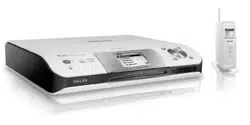
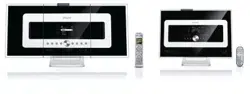
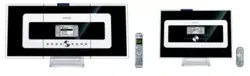
WACS 57
Wireless Music Center + Station
(and Model / Serial number)
p001-P052-WACS57_Eng_37 1/25/2006, 14:111
2
p001-P052-WACS57_Eng_37 1/25/2006, 14:112
3
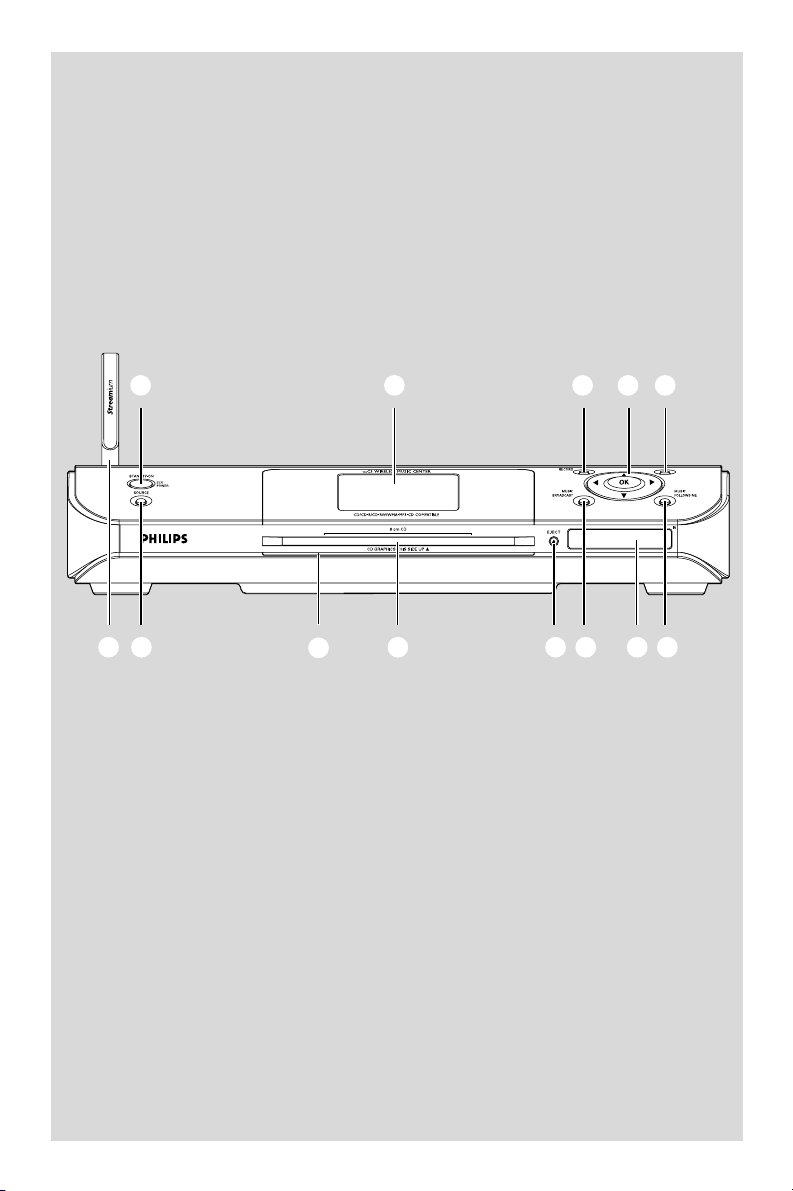
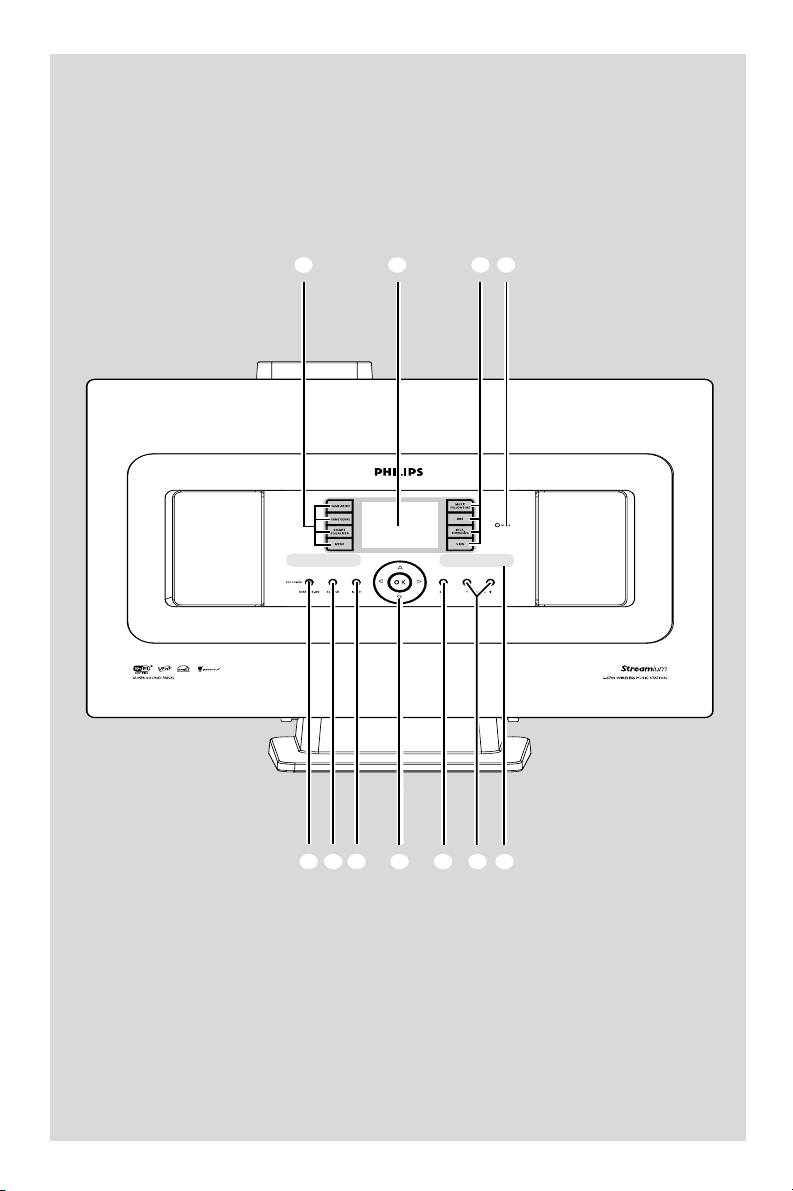
# @
1 2 3 4 5
0 9 8 7 6
STOP•MENU
!
Wireless Music Center WAC5
p001-P052-WACS57_Eng_37 1/25/2006, 14:113
4
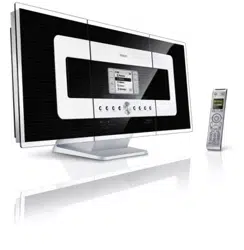
Wireless Music Station WAS700
1 3 4
567890!
2
p001-P052-WACS57_Eng_37 1/25/2006, 14:114

5
Visit our World Wide Web Site at http://www.usasupport.philips.com
Congratulations on your purchase,
and welcome to the “family!”
Dear PHILIPS product owner:
Thank you for your confidence in PHILIPS. You’ve selected one of
the best-built, best-backed products available today. We’ll do every-
thing in our power to keep you happy with your purchase for many
years to come.
As a member of the PHILIPS “family,” you’re entitled to protection
by one of the most comprehensive warranties and outstanding serv-
ice networks in the industry. What’s more, your purchase guaran-
tees you’ll receive all the information and special offers for which
you qualify, plus easy access to accessories from our convenient
home shopping network.
Most importantly, you can count on our uncompromising commit-
ment to your total satisfaction.
All of this is our way of saying welcome - and thanks for investing in
a PHILIPS product.
P.S. To get the most from your PHILIPS purchase, be
sure to complete and return your Product Registration
Card at once.
p001-P052-WACS57_Eng_37 1/25/2006, 14:115
6
IMPORTANT SAFETY INSTRUCTIONS
Class II equipment symbol
This symbol indicates that the unit has
a double insulation system
Clean only with a piece of dry cloth.
materials
p001-P052-WACS57_Eng_37 1/25/2006, 14:116
The set complies with the FCC-Rules,
Part 15 and with RSS-210 of Industry
Canada.
Operation is subject
to the following two conditions:
1. this device may not cause harmful
interference, and
2. this device must accept any interference
received, including interference that may
cause undesired operation.
This equipment has been tested and found to
comply with the limits for a Class B digital
device, pursuant to Part 15 of the FCC Rules.
These limits are designed to provide reasonable
protection against harmful interference in a
residential installation. This equipment generates,
uses, and can radiate radio frequency energy
and, if not installed and used in accordance with
the instructions, may cause harmful interference
to radio communications. However, there is no
guarantee that interference will not occur in a
particular installation. If this equipment does
cause harmful interference to radio or television
reception, which can be determined by turning
the equipment off and on, the user is
encouraged to try to correct the interference
by one or more of the following measures:
– Reorient or relocate the receiving antenna.
– Increase the separation between the
equipment and the receiver.
– Connect the equipment into an outlet on a
circuit different from that to which the
receiver is connected.
– Consult the dealer or an experienced radio/
TV technician for help.
IMPORTANT NOTE:
FCC Radiation Exposure Statement:
This equipment complies with FCC radiation
exposure limits set forth for an uncontrolled
environment. This equipment should be installed
and operated with minimum distance 20cm
between the radiator and your body. This
transmitter must not be co-located or operating
in conjunction with any other antenna or
transmitter.
Canada
English:
This digital apparatus does not exceed
the Class B limits for radio noise
emissions from digital apparatus as set
out in the Radio Interference
Regulations of the Canadian
Department of Communications.
Français:
Cet appareil numérique n'emet pas
de bruits radioélectriques dépassant
les limites applicables aux appareils
numériques de Class B prescrites dans
le Règlement sur le Brouillage
Radioélectrique édicté par le Ministère
des Communications du Canada.
Philips
WAC5
Philips
WAS700
p001-P052-WACS57_Eng_37 1/25/2006, 14:117

8
End-User License Agreement USE OF THIS PRODUCT IMPLIES ACCEPTANCE OF
THE TERMS BELOW.
This product contains technology and data from Gracenote of Emeryville, California (“Gracenote”). The
technology from Gracenote (the “Gracenote Embedded Software”) enables this product to do disc
identification and obtain music-related information, including name, artist, track, and title information
(“Gracenote Data”), which is included on the Gracenote Database (the “Gracenote Database”).
You agree that you will use Gracenote Data, the Gracenote Database, and Embedded Software for your
own personal non-commercial use only. You agree that you will access Gracenote Data only by means of
the standard end user functions and features of this product. You agree not to assign, copy, transfer or
transmit the Embedded Software or any Gracenote Data to any third party. YOU AGREE NOT TO USE
OR EXPLOIT GRACENOTE DATA, THE GRACENOTE DATABASE, OR GRACENOTE COMPONENT,
EXCEPT AS EXPRESSLY PERMITTED HEREIN.
You agree that your non-exclusive license to use the Gracenote Data, the Gracenote Database, and
Embedded Software will terminate if you violate these restrictions. If your license terminates, you agree to
cease any and all use of the Gracenote Data, the Gracenote Database, and Gracenote Embedded
Software. Gracenote reserves all rights in the Gracenote Data, Gracenote Database, and Gracenote
Embedded Software, including all ownership rights. You agree that Gracenote may enforce its rights under
this Agreement against you directly in its own name.
The Embedded Software and each item of Gracenote Data are licensed to you “AS IS.” Gracenote makes
no representations or warranties, express or implied, regarding the accuracy of any Gracenote Data.
Gracenote reserves the right to delete data or to change data categories in any Data updates and for any
cause that Gracenote deems sufficient. No warranty is made that the Embedded Software is error-free or
that functioning of the Embedded Software will be uninterrupted. Gracenote is not obligated to provide
you with any new enhanced or additional data types or categories that Gracenote may choose to provide
in the future.
GRACENOTE DISCLAIMS ALL WARRANTIES EXPRESS OR IMPLIED, INCLUDING, BUT NOT
LIMITED TO, IMPLIED WARRANTIES OF MERCHANTABILITY, FITNESS FOR A PARTICULAR
PURPOSE, TITLE, AND NON-INFRINGEMENT. GRACENOTE DOES NOT WARRANT THE RESULTS
THAT WILL BE OBTAINED BY YOUR USE OF THE GRACENOTE COMPONENT OR ANY
GRACENOTE SERVER. IN NO CASE WILL GRACENOTE BE LIABLE FOR ANY CONSEQUENTIAL
OR INCIDENTAL DAMAGES OR FOR ANY LOST PROFITS OR LOST REVENUES.
Rev 2.1
p001-P052-WACS57_Eng_37 1/25/2006, 14:118

9
English
Français
Español
English
Français
Español
Index
LGPL Library written offer
This product contains Linux 2.4.27-vrsl, that is
made available under the GNU LGPL license
version 2.1 (hereafter called "the Library").
Philips Electronics Hong Kong Ltd. hereby offers to
deliver or make available, upon request, for a
charge no more than the cost of physically
performing source distribution, a complete
machine-readable copy of the corresponding
source code of the Library on a medium
customarily used for software interchange.
Please contact:
Mr. Bin Li
BLC Audio PDCC Development
5/F., Philips Electronics Building
5 Science Park East Avenue
Hong Kong Science Park
Shatin Hong Kong
This offer is valid for a period of three years after
the date of purchase of this product.
GPL Package written offer
This product contains Linux 2.4.27-vrsl, that is
made available under the GNU GPL license
version 2 (hereafter called "the Program").
Philips Electronics Hong Kong Ltd. hereby offers to
deliver or make available, upon request, for a
charge no more than the cost of physically
performing source distribution, a complete
machine-readable copy of the corresponding
source code of the Program on a medium
customarily used for software interchange.
Please contact:
Mr. Bin Li
BLC Audio PDCC Development
5/F., Philips Electronics Building
5 Science Park East Avenue
Hong Kong Science Park
Shatin Hong Kong
This offer is valid for a period of three years after
the date of purchase of this product.
English ---------------------------------------------- 10
Français -------------------------------------------- 53
Español ------------------------------------------- 100
p001-P052-WACS57_Eng_37 1/25/2006, 14:119

English
10
Contents
HD
Playing Harddisk(HD) ........................................ 30
Selecting and searching ............................... 30-31
Selecting a different album or track
Fast search during playback
Selecting tracks of a particular artist
Selecting tracks of a particular genre
Different play modes: REPEAT, SHUFFLE ...... 31
SMART EQUALIZER (for Station only) ........ 31
Creating Playlist: custom collection of your
favorite music ...................................................... 32
Deleting a playlist, album or track .................. 32
Building music library on Center .............. 33-34
Ripping CDs
Importing MP3/WMA tracks from PC
Recording from External source
Display track information ................................. 35
Moving in your WiFi network of Center and
Stations ........................................................... 35-36
MUSIC FOLLOWS ME
MUSIC BROADCAST
Station mangagement ........................................ 37
Adding a station
Deleting a station
Viewing station status
Information about your WACS57 ................... 37
Firmware .............................................................. 38
Upgrading firmware
Restoring previous firmware
Re-establishing Wi-Fi connection
CD (on Center only)
Discs for playback .............................................. 39
Playing discs ................................................... 39-40
Selecting and searching ..................................... 40
Selecting a different album/track
Finding a passage within a track during playback
Different play modes: REPEAT, SHUFFLE ...... 41
Display track information ................................. 41
FM radio (on Station only)
Tuning to radio stations .................................... 43
Storing preset radio stations ..................... 43-44
Autostore: automatic programming
Manual programming
To listen to a preset station
General Information
About WACS57 ................................................. 11
Supplied accessories .......................................... 11
Philips on-line support ...................................... 12
Environmental information .............................. 13
Maintenance ........................................................ 13
Safety information .............................................. 13
Controls
Controls on the Center ................................... 14
Controls on the Station .................................... 15
Center’s 2-way remote control ................ 16-17
Station’s remote control ............................. 18-19
Installation
Placing Center and Station ............................... 21
Setting up Wi-Fi connection
between Center and Station ..................... 21-22
Rear connections ......................................... 22-24
On Center
On Station
Using AC power ................................................. 24
Preparation
Using the remote control .......................... 25-26
Preparation
Using Center’s remote control
Using the navigation controls .......................... 26
Basic Functions
Switching to standby/on and
selecting functions .............................................. 27
Switching to power-saving mode .................... 27
Auto-standby ....................................................... 27
Display adjustment ............................................. 28
Selecting languages ............................................. 28
Switching the blue indicator on/off
(on Center only) ................................................ 28
Volume control (for Station only) .................. 28
MUTE (for Station only) ................................... 29
Sound control (for Station only) ..................... 29
Equalizer
Bass adjustment
Incredible surround
AUX
AUX (Listening to an external source) ......... 44
p001-P052-WACS57_Eng_37 1/25/2006, 14:1110

11
English
Contents
SLEEP
SLEEP .................................................................... 45
Reset
Reset ..................................................................... 46
Specifications ........................................... 47
Tr oubleshooting .............................. 48-50
Appendix
How to mount your Station onto walls ........ 51
CAUTION
High voltage! Do not open. You run the risk
of getting an electric shock.
The machine does not contain any user-
serviceable parts.
Modification of the product could result in
hazardous radiation of EMC or other
unsafe operation.
Changes or modifications not expressly
approved by Philips could void FCC
authorization to operate this
equipment.
The making of unauthorized copies of
copy-protected material, including
computer programs, files, broadcasts and
sound recordings, may be an infringement
of copyrights and constitute a criminal
offence. This equipment should not be used
for such purposes.
p001-P052-WACS57_Eng_37 1/25/2006, 14:1111

English
12
General Information
About WACS57
WACS57 comprise a WAC5 Wireless Music
Center and a WAS700 Wireless Music Station.
Up to 5 Stations can be connected to a WAC5
Center.
On WAC5’s 80GB* hard disk, you can centrally
store up to 1,500 audio CDs. All the stored
music can be wirelessly streamed, via Wi-Fi**,
from Center to connected Stations.
You can easily connect your WAC5 to your
existing home audio systems, such as the audio/
video receiver, home theatre system, mini/micro
system, or multimedia speaker boxes (with built-
in amplifier) and audio amplifiers.
WAS700 Station provides sound and FM radio
features unavailable in WAC5.
No need to be bound to your CD player or PC
etc., or be troubled by the wiring. Now, you will
have the freedom to enjoy and share your
favorite music around your home.
* Available storage capacity is based on 4 minutes per
song, 10 songs per CD on average, 128 kbps MP3
encoding and given the fact that operational software is
part of the product's memory.
Actual free space is 69GB or less, due to the buffer
partition for MP3 compression, firmware, music CD
database and demo tracks stored.
** Wi-Fi, or IEEE802.11 b/g, is the international leading
industry standard for wireless broadband networking. It
transfers digital data with wider range and bandwidth.
Supplied accessories
– Center’s remote control and
4 x AAA batteries
– Station’s remote control with
1 x CR2025 battery
–1 x Audio cables (for Center)
–1 x FM wire antenna (for Station)
–1 x Ethernet cable
– PC installer CD
–1 x Mounting kit (for Station)
p001-P052-WACS57_Eng_37 1/25/2006, 14:1112

13
English
Philips on-line support
Philips products have been designed and manufactured to the highest quality
standards. If your Philips WACS57 is not working correctly, we recommend you
check your User Manual to verify that your product is properly connected and
configured.
The web site for WACS57 support: www.philips.com/support offers you all
information you need to optimally enjoy your product, and about new additions
to this exciting range, to make your home entertainment experience even more
enjoyable.
Please visit: www.philips.com/support and enter your product name
(WACS57) to view:
● FAQ (Frequently Asked Questions)
● Latest user manuals and PC software manuals
● Firmware upgrade files for WACS57
● Latest PC software downloads
● Interactive troubleshooting
Since it is possible for you to upgrade your product, we recommend that you
register your product on www.philips.com/register so we can inform you as
soon as new free upgrades become available.
Enjoy your WACS57!
The model number is on the rear of the set.
General Information
p001-P052-WACS57_Eng_37 1/25/2006, 14:1113
English
14
Environmental information
All unnecessary packaging has been omitted.
We have tried to make the packaging easy to
separate into three materials: cardboard (box),
polystyrene foam (buffer) and polyethylene (bags,
protective foam sheet).
Your system consists of materials which can be
recycled and reused if disassembled by a
specialized company. Please observe the local
regulations regarding the disposal of packaging
materials, exhausted batteries and old
equipment.
Maintenance
Cleaning the Set
● Use a soft cloth slightly moistened with a mild
detergent solution. Do not use a solution
containing alcohol, spirits, ammonia or abrasives.
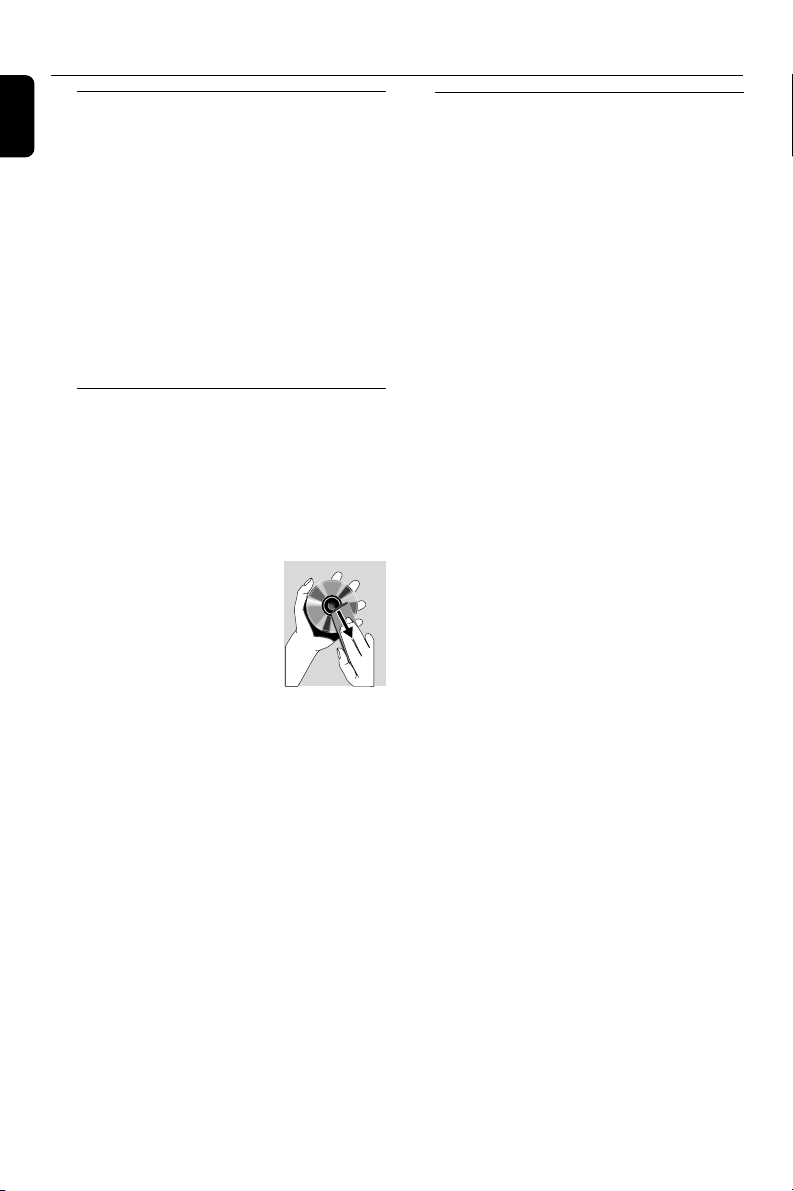
Cleaning Discs
● When a disc becomes dirty,
clean it with a cleaning cloth.
Wipe the disc from the center
out.
● Do not use solvents such as
benzene, thinner, commercially
available cleaners, or antistatic
spray intended for analog records.
Protecting the hard disk
● Keep your WAC5 Center from violent vibration,
which may result in the damage to the hard disk.
Safety information
● Place the set on a flat, hard and stable surface.
● Do not expose the system, batteries or discs to
excessive moisture, rain, sand or heat sources
caused by heating equipment or direct sunlight.
● Place the sets in a location with adequate
ventilation to prevent internal heat build-up in
your system. Allow at least 10 cm (4 inches)
clearance from the rear and the top of the unit
and 5 cm (2 inches) from each side.
● The ventilation should not be impeded by
covering the ventilation openings with items,
such as newspapers table-cloths, curtains, etc.
● The apparatus shall not be exposed to dripping
or splashing.
● No objects filled with liquids, such as vases, shall
be placed on the apparatus.
● No naked flame sources, such as lighted candles,
should be placed on the apparatus.
● The mechanical parts of the set contain self-
lubricating bearings and must not be oiled or
lubricated.
General Information
p001-P052-WACS57_Eng_37 1/25/2006, 14:1114

15
English
Controls (illustrations on page 3)
Controls on the Center (Top and
front panels)
1
STANDBY-ON/ ECO POWER
– press briefly to switch Center on or
to standby mode;
– press and hold to switch Center to ECO
POWER (power-saving mode) or on
– Green indicator: lights up green when the set
is on; flashes during CD ripping /MP3 conversion
(when the set is on)
– Red indicator: lights up red when the set is
switched to Standby mode or ECO POWER
2 Display
– shows status of Center
3 RECORD
– CD/AUX: starts the recording to hard disk
4 1 / 2 / 3 / 4
–navigation controls (left, right, up, down) to scroll
through the option list
1
– HD/CD: returns to previous option lists
3 / 4
– HD/CD: skips/searches tracks/passage
backward/forward (in playback screen);
fast scrolls the option list
2 / OK
– confirms selection
OK
– HD/CD: starts or pauses playback
– CD: selects or deselects tracks to be recorded
on hard disk
5 STOP • MENU
– stops playback or recording;
– press and hold to enter or exit setup menu
6 MUSIC FOLLOWS ME
– HD: moves music playback between Center and
Station
7 IR
– sensor for the infrared remote control
Helpful hints: Always point the remote control
towards this sensor.
8 MUSIC BROADCAST
– HD: broadcast music from Center to Station
9 EJECT
– ejects a disc from the CD slot loader
0 CD slot loader
! Blue indicator
– lights up when the set is on
@ SOURCE
– selects sound source HD, CD or AUX
– In standby mode: switches Center on and
selects sound source HD, CD or AUX
# Wi-Fi antenna
p001-P052-WACS57_Eng_37 1/25/2006, 14:1115

English
16
Controls (illustrations on page 4)
Controls on the Station ( front
panel)
1 SAME ARTIST
– HD: plays all the tracks of current artist
SAME GENRE
– HD: plays all the tracks of current genre
SMART EQUALIZER
– HD: selects match sound setting for current
genre
MENU
– enters or exits setup menu
2 Display
– shows status of Station
3 MUSIC FOLLOWS ME
– HD: moves music playback between Center and
Station or between Station and Station
DBB (Dynamic Bass Boost)
– turns the bass enhancement on (DBB1, DBB2,
DBB3) or off
INCR. SURROUND
– selects surround sound effect
VIEW
– toggles playback display and previous option list
4 ACTIVE
– HD/AUX: lights up green when streaming is
activated between Center and Station (after you
have switched on Station)
5 IR
– sensor for the infrared remote control
Helpful hints: Always point the remote control
towards this sensor.
6 VOLUME -, +
– adjusts the volume level
7 STOP
– stops playback
8 1 / 2 / 3 / 4
–navigation controls (left, right, up, down) to scroll
through the option list
1
– HD: returns to previous option lists
– Radio: enters the list of preset stations
3 / 4
– HD: skips/searches tracks/passage backward/
forward (in playback screen); fast scrolls the
option list
– Radio: tunes to radio stations
2 / OK
– confirms selection
OK
– HD: starts or pauses playback
9 MUTE
– switches the sound off temporarily
0 SOURCE
– selects sound source HD, Radio or AUX
– In standby mode: switches Station on and
selects sound source HD, Radio or AUX
! STANDBY-ON/ ECO POWER
– press briefly to switch Station on or
to standby mode;
– press and hold to switch Station to ECO
POWER (power-saving mode) or on
– Green indicator: lights up green when the set is
on
– Red indicator: lights up red when the set is
switched to Standby mode or ECO POWER
p001-P052-WACS57_Eng_37 1/25/2006, 14:1116
17
English
Controls
Center’s 2-way remote control
IMPORTANT!
– This remote control can be also used for
WAS700 Station, which provides sound and
tuner features unavailable in WAC5. Such
sound/tuner buttons will not work with
WAC5.
– To operate Station using Center’s remote
control, see Preparation: Using Center’s
remote control.
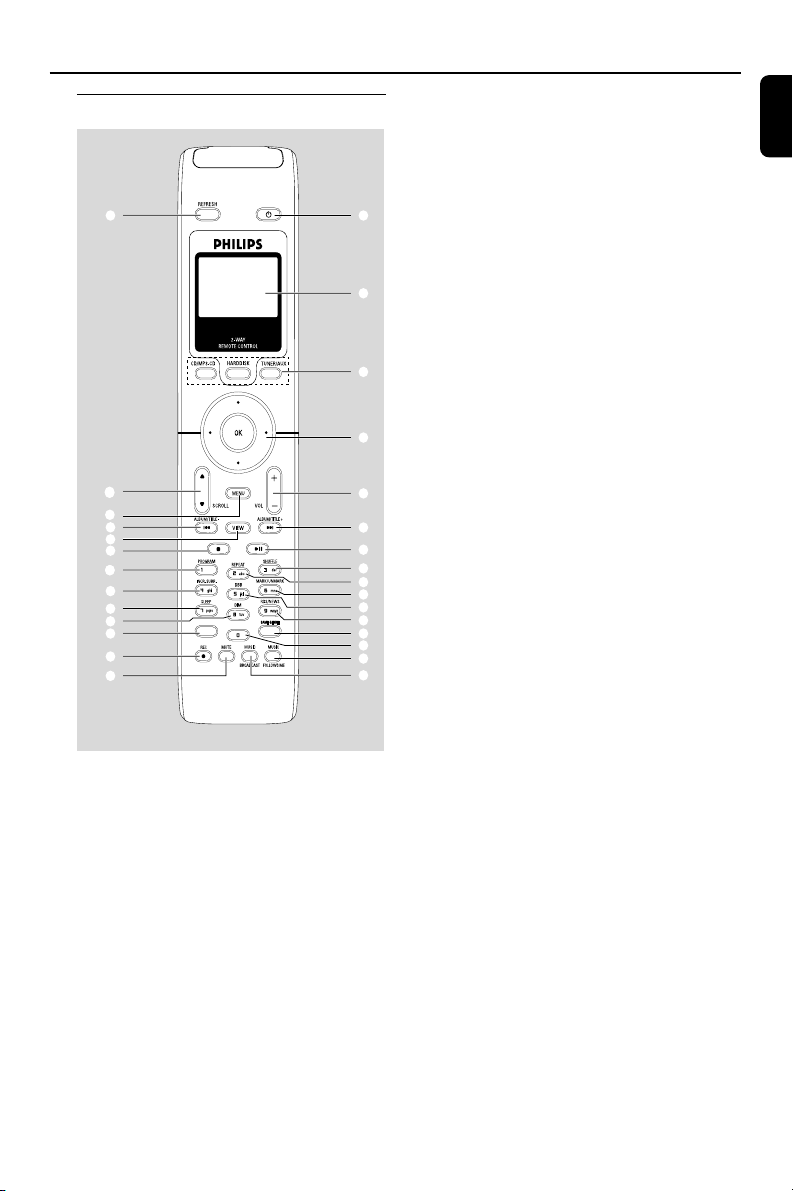
1
2
3
4
5
#
%
^
&
$
7
6
8
!
0
@
9
*
(
¡
™
≤
6
§
•
)
∞
£
≥
SAME ARTIST
SAME ARTIST
SMART EQ
SMART EQ
1 y
– press briefly to switch the set to standby mode
– press and hold to switch the set to ECO
POWER (power-saving) mode or on
2 Synchro display
– synchronous display of the set’s status
3 Source buttons
CD/MP3-CD
– selects CD source
– In standby mode: switches the set on and
selects CD source
HARDDISK
– selects HD source
– In standby mode: switches the set on and
selects HD source
TUNER/AUX
on Center:
– selects the audio input from an additional
connected appliance
– In standby mode: switches the set on and
selects the audio input from an additional
connected appliance
on Staton:
– selects Radio source or the audio input from an
additional connected appliance
– In standby mode: switches the set on and
selects Radio source or the audio input from an
additional connected appliance
4 1 / 2 / 3 / 4
–navigation controls (left, right, up, down) to scroll
through the option list
1
– HD/CD: returns to previous option lists
– Radio: enters the list of preset stations (for
Station only)
3 / 4
– HD/CD: skips/searches tracks/passage backward/
forward (in playback screen); fast scrolls the
option list
– Radio: tunes to radio stations (for Station only)
2 / OK
– confirms selection
5 VOL +, -
– adjusts the volume level (for Station only)
p001-P052-WACS57_Eng_37 1/25/2006, 14:1117

English
18
6 4 / ¢
– HD/CD: skips/searches tracks/passage
backward/forward (in playback screen)
7 ÉÅ
– HD/CD: starts or pauses playback
8 SHUFFLE
– selects random playback
9 REPEAT
– selects continuous playback
0 MARK/UNMARK
– CD: selects or deselects tracks to be recorded
on hard disk
! DBB(Dynamic Bass Boost)
– turns the bass enhancement on (DBB1, DBB2,
DBB3) or off (for Station only)
@ RDS/NEWS
no function on this set
# SAME GENRE
– HD: plays all the tracks of current Genre
$ SAME ARTIST
– HD: plays all the tracks of current Artist
% MUSIC FOLLOWS ME
– HD: moves music playback between Center and
Station or between Station and Station
^ MUSIC BROADCAST
– HD: broadcasts music from Center to Station
& MUTE
–switches the sound off temporarily (for Station
only)
* REC
– CD/AUX: starts the recording to hard disk
( SMART EQ
– HD: selects match sound setting for current
genre (for Station only)
) DIM
– changes the brightness of display illumination
– press and hold to turn the blue indicator on or
off (for Station only)
¡ SLEEP
– adjusts/displays/switches off sleep timer
™ INCR. SURROUND
– selects surround sound effect (for Station only)
£ PROGRAM
– Radio: manually programs preset radio stations
(for Station only)
≤ Ç
– stops playback or recording
∞ VIEW
– toggles playback screen and previous option list
§ MENU
– enters or exits setup menu
≥ 3 / 4 SCROLL
– scroll the display screen upward or downward
• REFRESH
– sychronize remote control’s display
with the set’s display
Controls
p001-P052-WACS57_Eng_37 1/25/2006, 14:1218
19
English
Controls
Station’s remote control
Same Artist Same Genre
Smart EQ
1
™
¡
)
(
*
&
^
$
#
%
2
5
8
0
!
9
7
6
3
4
@
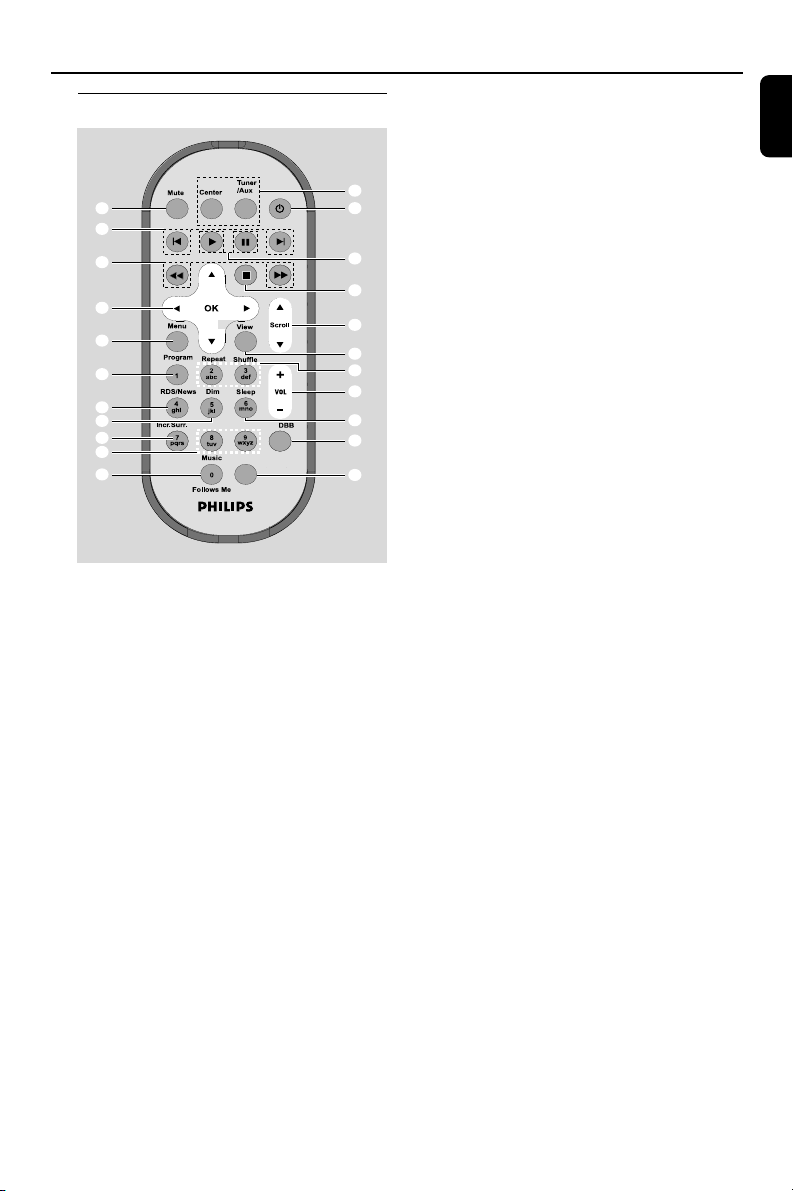
1 Source buttons
Center
– selects HD source (located on Center)
– In standby mode: switches the set on and
selects HD source (located on Center)
Tuner/Aux
– selects Radio source or the audio input from an
additional connected appliance
– In standby mode: switches the set on and
selects Radio source or the audio input from an
additional connected appliance
2 y
– press briefly to switch the set to standby mode
– press and hold to switch the set to ECO
POWER (power-saving mode) or on
3 2
– HD/CD: starts playback
Å
– HD/CD: pauses playback
4 Ç
– stops playback or recording
5 3 / 4 Scroll
– scroll the display screen upward or downward
6 View
– toggles playback display and previous option list
7 Repeat
– selects continuous playback
Shuffle
– selects random playback
8 VOL +, -
– adjusts the volume level
9 Sleep
– ajusts/displays/switches off sleep timer
0 DBB(Dynamic Bass Boost)
– turns the bass enhancement on (DBB1, DBB2,
DBB3) or off
! Smart EQ
– HD: selects match sound setting for current
genre
@ Music Follows Me
– HD: moves music playback between Center and
Station
# Same Artist
– HD: plays all the tracks of current Artist
Same Genre
– HD: plays all the tracks of current Genre
$ Incr. Surr.
– selects surround sound effect
% Dim
– changes the brightness of display illumination
^ RDS/News
no function on this set
p001-P052-WACS57_Eng_37 1/25/2006, 14:1219

English
20
Controls
& Program
– manually programs preset radio stations
* Menu
– enters or exits setup menu
( 1 / 2 / 3 / 4
–navigation controls (left, right, up, down) to scroll
through the option list
1
– HD/CD: returns to previous option lists
– Radio: enters the list of preset stations
3 / 4
– HD/CD: skips/searches tracks/passage backward/
forward (in playback screen); fast scrolls the
option list
– Radio: tunes to radio stations
2 / OK
– confirms selection
) à / á
– HD/CD: searches track passage backward/
forward (in playback screen)
¡ O, P
– HD/CD: skips tracks backward/forward (in
playback screen)
™ MUTE
– switches the sound off temporarily
p001-P052-WACS57_Eng_37 1/25/2006, 14:1220
21
English
Installation
Center
AC power cord
Station
(for illustration only)
OPTICAL OUT
DIGITAL OUT
FM antenna
75 Ω FM ANTENNA
AC power cord
p001-P052-WACS57_Eng_37 1/25/2006, 14:1221
English
22
Installation
Placing Center and Station
IMPORTANT!
– Install your Center and Station near
the AC outlet and where the AC power
plug can be reached easily.
Ta ke the following steps to optimize the
Wi-Fi connection between Center and
Station:
– Keep your Center and Station away from the
source of interference (wireless routers,
microwave ovens, DECT phones, bluetooth
devices, cordless phones, other Wi-Fi products,
etc.)
–Avoid placing your Center or Station close to
the plasma TV. It may result in improper display
on your Center’s 2-way remote control.
– Keep Stations adequately apart or in different
angles (e.g. in different rooms blocked by one
wall). Within a distance and angle (e.g. in the
same room), your Center’s remote control is
powerful enough to simultaneously operate
several Stations, which may also result in
improper display on the 2-way remote control.
With the detachable stand and by-packed wall
mounting kit, WAS700 Station allows you to
place it in two ways: on desktops with stand
or on walls without stand.
See Appendix: How to mount your Station
onto walls to learn more about
wall mounting
Setting up Wi-Fi connection
between Center and Station
Wi-Fi connection starts automatically when
you power up WAC5 Center and WAS700
Station
1 The first time you set up Wi-Fi connection, place
Center and Station side by side on a flat and firm
surface
2 First, connect the Center to power supply,
and then, connect the Station to power supply
Center/Station:
➜ The screen lights up. Auto installation/
connection starts
➜ You will enter HD (Harddisk) mode when
the installation/connection is finished
3 Relocate Center and Station as desired: plug
and stream*
● Simply unplug your Center or Station and power
them up in other rooms
➜ You will be able to stream the harddisk music
between Center and Station
Helpful hints:
– Make sure you have powered up Center before
powering up Station.
IMPORTANT!
– Avoid thick walls. Your Center and Station should
never be blocked by 2 or more walls.
– Avoid placing the sets close to large metal
objects.
– For better Wi-Fi reception, turn the Wi-Fi
antenna, or adjust the location of your Center and
Station.
– indicates maximum reception
– indicates no reception
* Streaming is the process describing data is
pulled between places, which be multiple places.
(on desktops with stand)
(on walls without stand)
p001-P052-WACS57_Eng_37 1/25/2006, 14:1222
23
English
If there is interference in the neighborhood,
the set may pause during playback or
respond slowly to your operation. In such
cases
– Use the WEP* key when connecting your Center
and Station to an existing wireless PC network. See
the Owner’s manual of your router and the manual
Connect to your PC: Option 2.
– Change the operating channel of your Center
and Station when connecting them to an existing
wireless PC network. To learn about how to change
channels, see the manual Connect to your PC:
Option 2.
– If possible, change the operating channels of the
other Wi-Fi devices at your home.
–Turn the above devices in different directions to
minimize interference.
* stands for Wired Equivalent Privacy. It is a
security protocol for wireless local area
network
Rear connections
Warning:
Never make or change connections with
the mains supply switched on.
On Center
A Connecting to an audio system
You can easily connect your WAC5 to your
existing home audio systems, such as the audio/
video receiver, home theatre system, mini/micro
system, or multimedia speaker boxes (with built-
in amplifier) and audio amplifiers.
Using audio cables, connect one (one set) of
WAC5’s sound output terminals: LINE OUT,
DIGITAL OUT or OPTICAL OUT to the
corresponding input terminals in the connected
device.
Helpful hints:
–For better sound output, use DIGITAL OUT or
OPTICAL OUT if it is available on the connected
device.
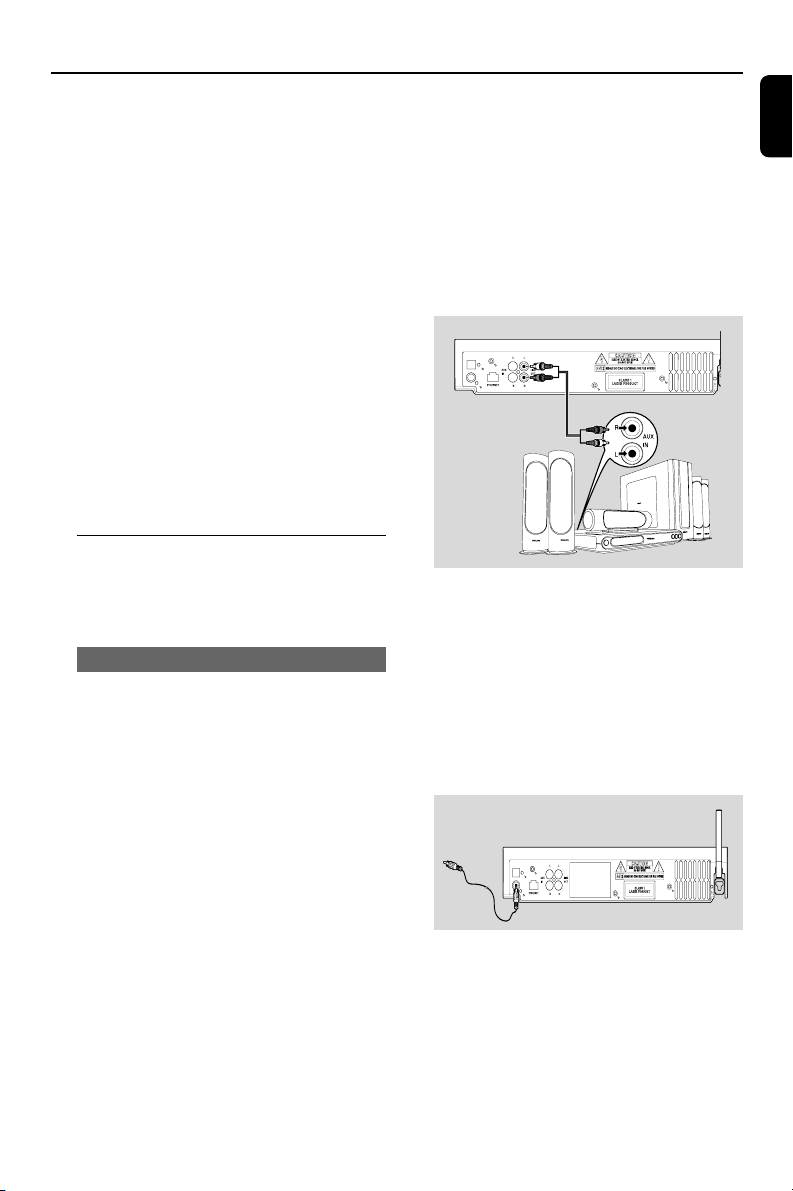
LINE OUT:
1 Insert the red plug of the red/white audio
cables (supplied) to the red socket LINE
OUT R and the white plug to the white
socket LINE OUT L
2 Connect the other end of the audio cables to
the AUX IN (or AUDIO IN) terminals of
the additional appliance, red plug to the red
socket AUX IN R and white plug to the
white socket AUX IN L
OPTICAL OUT
DIGITAL OUT
3 Select AUX mode in the connected audio
system
DIGITAL OUT:
1 Insert the plug of digital audio cables (not
supplied) to the DIGITAL OUT socket
2 Connect the other end of the audio cables to
the DIGITAL IN terminal of an additional
appliance
Installation
(for illustration only)
OPTICAL OUT
DIGITAL OUT
3 Select the Digital Input mode (such as DI) in the
connected audio system
Helpful hints:
– Noises occur if the digital output/input does not
suit your audio system’s amplifiers well. In that case,
use the LINE OUT /AUX IN connection instead.
See the steps under LINE OUT.
– Always refer to the owner’s manual of other
equipment for details.
Center
p001-P052-WACS57_Eng_37 1/25/2006, 14:1223
English
24
Installation
OPTICAL OUT:
1 Insert the plug of optical audio cables (not
supplied) to the OPTICAL OUT socket
2 Connect the other end of the audio cables to
the OPTICAL IN terminal of the additional
appliance.
OPTICAL OUT
DIGITAL OUT
3 Select the Optical Input mode in the connected
audio system.
Helpful hints:
– Always refer to the owner’s manual of other
equipment for details.
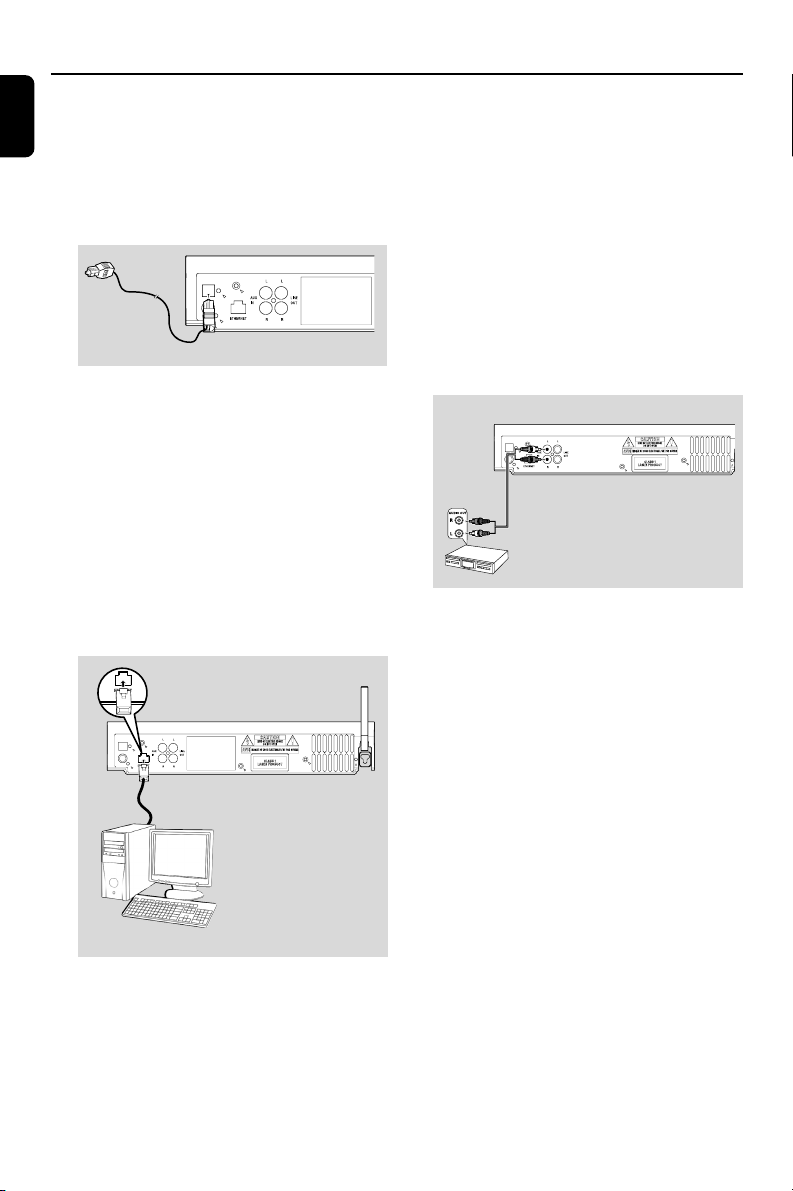
B Connecting to your PC
● Connect the supplied Ethernet cable to Center’s
ETHERNET and your computer’s Ethernet
port. For details, see the manual Connect to
your PC
OPTICAL OUT
DIGITAL OUT
C Connecting an additional appliance
It is possible to use an additional appliance, e.g.
TV, VCR, Laser Disc player or DVD player, with
the WAC5 Center. On WAC5 Center, you can
playback or record music from an external
source.
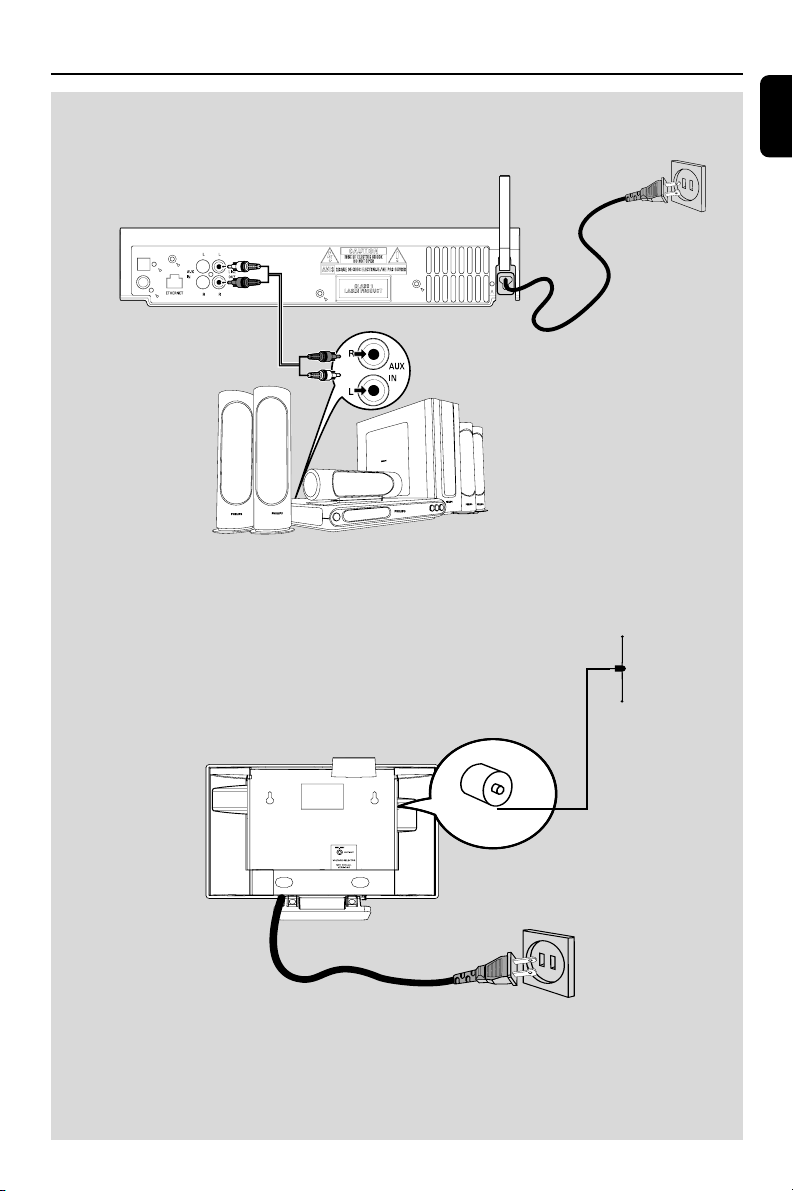
1 Insert the red plug of the red/white audio cables
(not supplied) to the red socket AUX IN R
and the white plug to the white socket AUX
IN L
2 Connect the other end of the audio cables to
the AUDIO OUT terminals of the additional
appliance
OPTICAL OUT
DIGITAL OUT
3 Select AUX mode on Center
Helpful hints:
– For more information about recording/playback
from the external source, see HD: Recording
from external source and AUX.
– For better sound output, use the LINE OUT
terminals on the external device.
– If the connected device has only a single audio
out terminal, connect it to the AUX IN left terminal.
Alternatively, you can use a “single to double” cinch
cable, but the output sound still remain mono.
– Always refer to the owner’s manual of other
equipment for complete connection.
Center
Center
p001-P052-WACS57_Eng_37 1/25/2006, 14:1224
25
English
Installation
On Station
A Antenna Connection
1 Extend the wire antenna and fit it to
FM ANTENNA as shown below
2 To improve FM reception, fit the plug of the wire
antenna, as shown, into the plug of the extension
line
3 Extend the extension line and move it in
different positions for optimal reception (as far
away as possible from the TV, VCR or other
radiation sources)
4 Fix the extension line’s end to the ceiling
B Connecting an additional appliance
It is possible to use an additional appliance, e.g.
TV, VCR, Laser Disc player, DVD player or CD
recorder, with the Station. On WAS700 Station,
you can playback music from an external source.
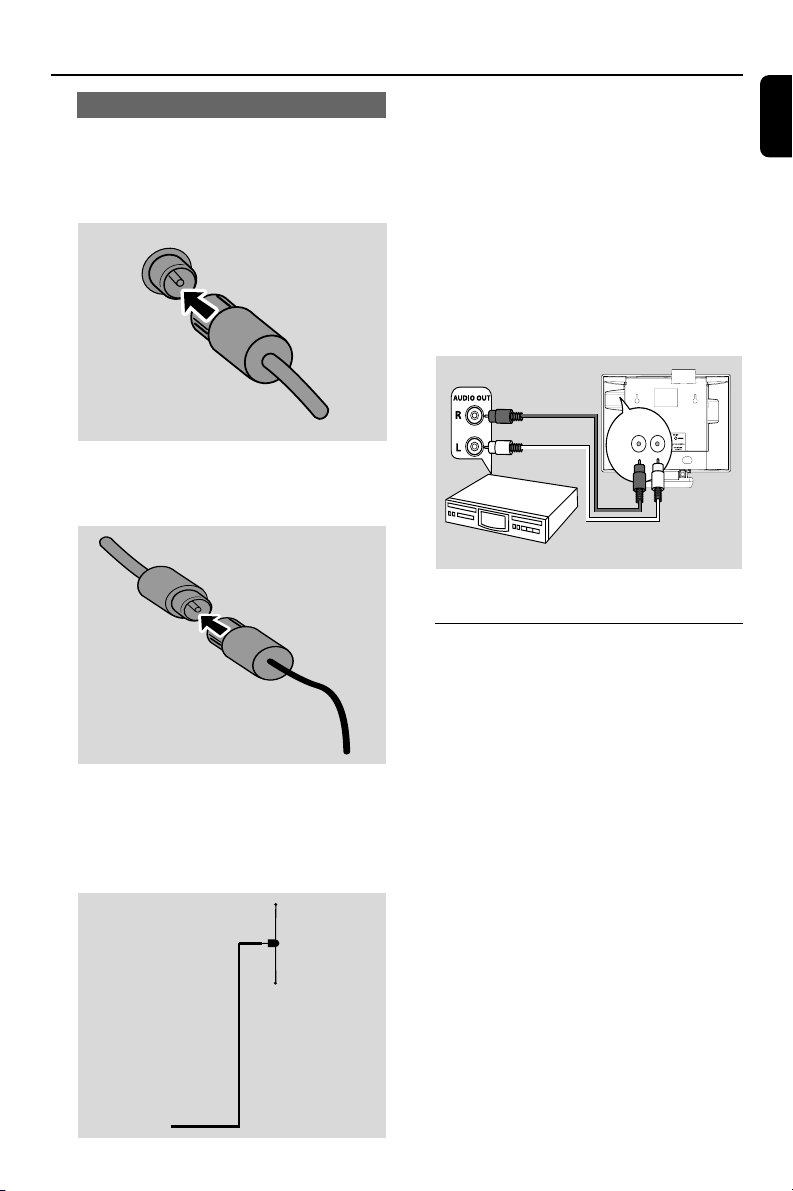
1 Insert the red plug of the red/white audio cables
(not supplied) to the red socket AUX IN R and
the white plug to the white socket AUX IN L.
2 Connect the other end of the audio cables to
the AUDIO OUT terminals of the additional
appliance.
Using AC power
1 Make sure all the connections have been made
before switching on the power supply
2 Connect the AC power cord to the wall socket.
This switches on the power supply
When Center or Station is switched to standby,
it is still consuming some power. To disconnect
the system from the power supply
completely, remove the power plug from
the wall socket.
The type plate is located on the rear of the
set.
AUX
IN
R L
3 Select AUX mode on Station
Station
p001-P052-WACS57_Eng_37 1/25/2006, 14:1225
English
26
Preparation
Using the remote control
WACS57 are equipped with two remote
controls, one for Center and the other for
Station. By using either of the remote controls,
you can operate both Center and Station
IMPORTANT!
–Always point the remote control
directly towards IR area on the Center or
Station you wish to operate.
– Some functional keys on Center’s
remote control are exclusively used for
Center (for example, CD/MP3-CD,
MARK/UNMARK, MUSIC BROADCAST
etc.)
Preparation
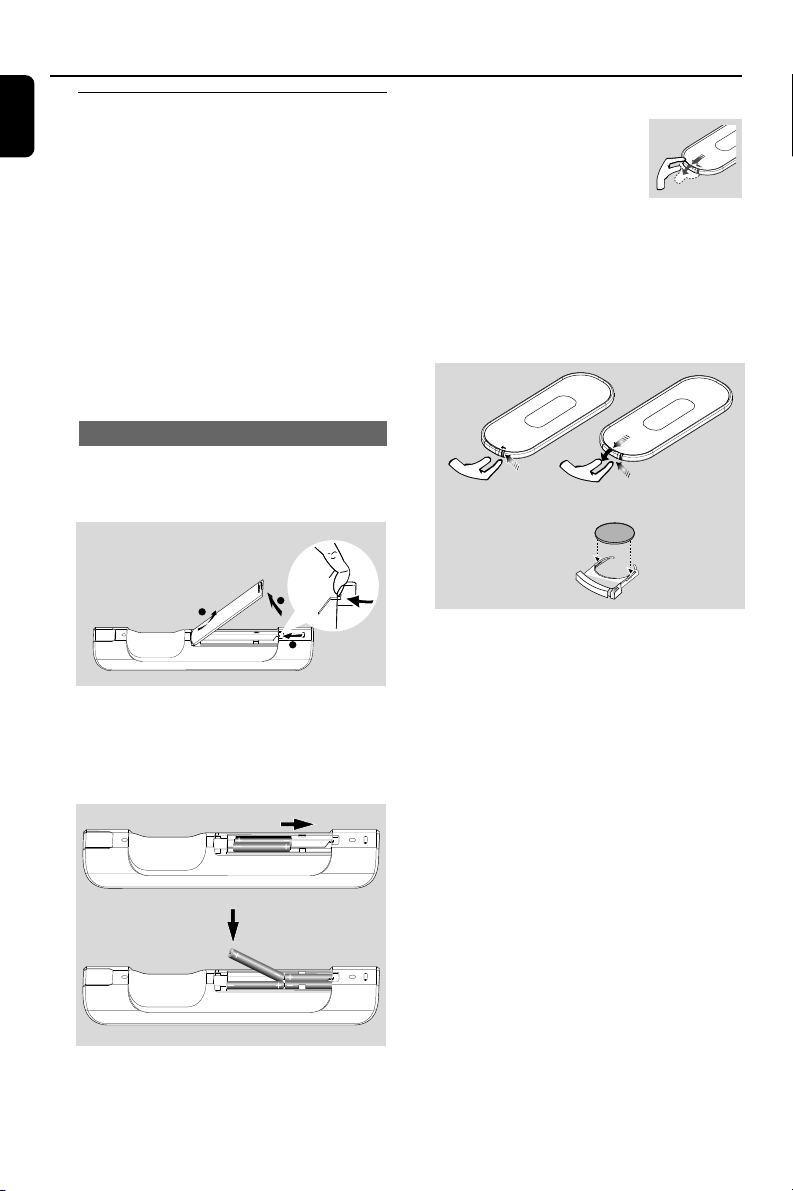
Center’s remote control:
1 Open the battery compartment.
1
3
2
2 Insert 4 batteries type R03 or AAA into the
remote control with the correct polarity as
indicated by the "+" and "-" symbols inside
the battery compartment
3 Put back the compartment door
Station’s remote control:
● Remove the protective plastic tab
before using the Station’s remote
control.
To replace the battery
1 Press and hold 1 as indicated
2 Simultaneously, pull the battery tray at 4
3 Remove the old battery and put a new CR2025
battery in place
4 Put back the battery tray
C
R
2
0
2
5
L
I
T
H
I
U
M
2
➠
3
1
CAUTION!
– Remove batteries if they are
exhausted or will not be used for a long
time.
– Do not use old and new or different
types of batteries in combination.
– Batteries contain chemical substances,
so they should be disposed of properly.
p001-P052-WACS57_Eng_37 1/25/2006, 14:1226
27
English
Preparation
Using Center’s remote control
Battery usage: As a remote control with
synchronous display, Center’s remote control
consumes more power than normal remote
controls. When its batteries are low or empty, the
icon appears on the remote control’s display.
Replace the batteries with new alkaline batteries.
By default, Center’s remote control works with
Center only. To operate Station using
Center’s remote control
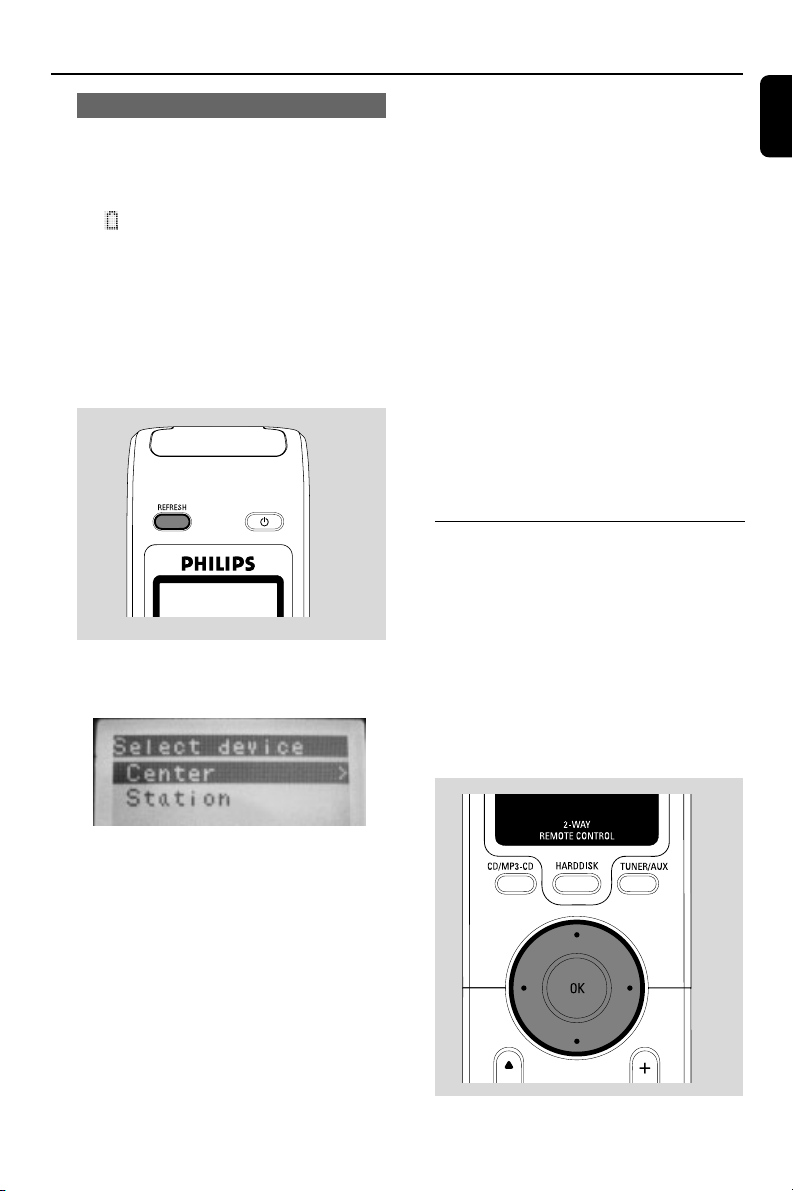
1 Press and hold REFRESH until the selection
screen appears on the display of Center’s
remote control.
2 Press the navigation controls 3 or 4 and 2
to select Station
On Center’s remote control:
➜ Display shows current status of Station
after Station is connected
➜ You can use Center’s remote control to
operate Station now.
Helpful hints:
– To operate Center using the remote control
again, repeat the above steps 1-2 to select Center.
– Center’s remote control will return to its
default setting (works with Center only)
when you insert new batteries into it.
Using the display on the Center’s remote
control
You can synchronize the local display of your
Center or Station onto the display of Center’s 2-
way remote control. With the synchronized
display, your operation of remote control
becomes quicker and easier.
Note:
–Avoid placing your Center or Station close to the
plasma TV. It may interfere with the Center’s
remote control and cause improper display on your
Center’s remote control. In this case, turn off your
plasma TV or use Station’s remote control.
– If you switch on your Center or Station using the
STANDBY-ON/ ECO POWER button on the
set, press REFRESH on Center’s remote control
to synchronize the remote control’s display.
– The display supports 6 European languages:
English, French, Spanish, Dutch, Italian and German.
Using the navigation controls
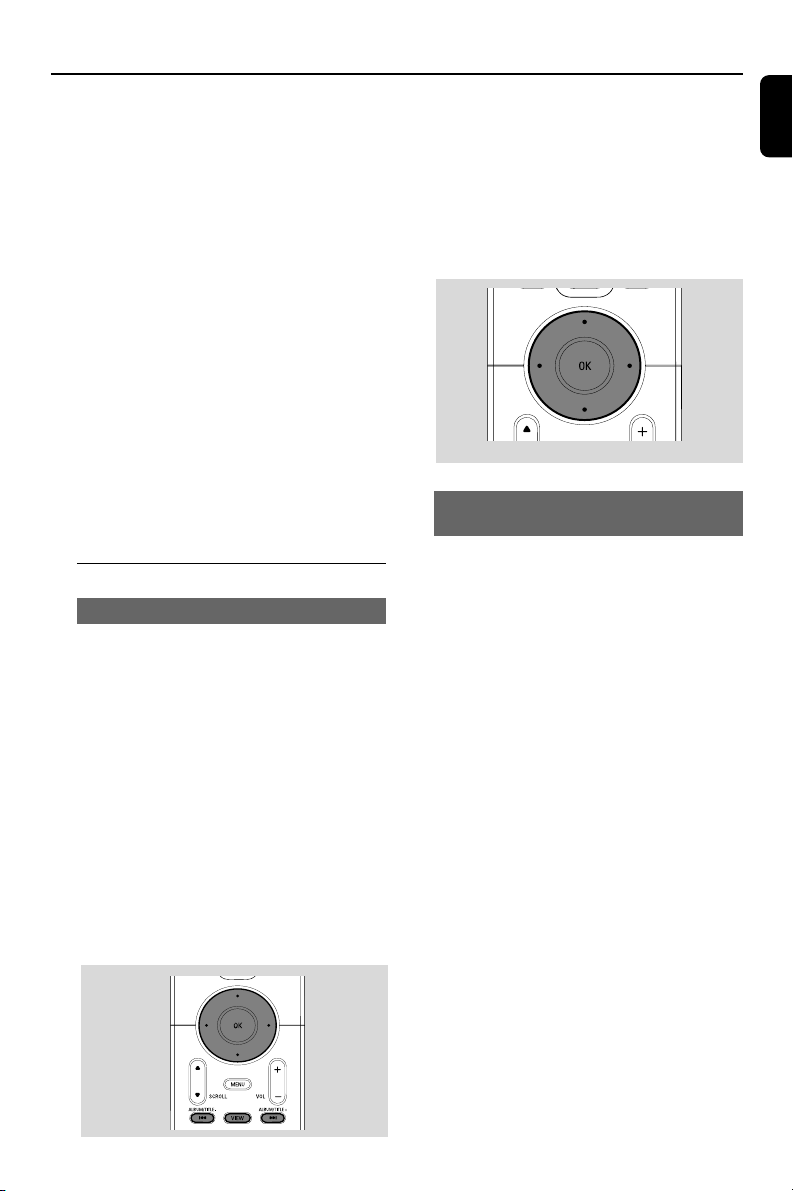
When selecting options on the set’s screen, you
often need to use the navigation controls 1 / 2
/ 3 / 4.
1 Press 3 / 4 to highlight an option
2 Enter its submenu by pressing 2
3 Press 1 to return to the previous option list
screen
4 Press OK or 2 to confirm
p001-P052-WACS57_Eng_37 1/25/2006, 14:1227

English
28
Basic functions
Switching to standby/on and
selecting functions
1 When the set is on, press STANDBY-ON/
ECO POWER to switch it to standby (or y
on the remote control)
➜ Display shows GoodBye
➜ The Red indicator lights up
➜ The screen dims out.
2 To switch on, press STANDBY-ON/ ECO
POWER on the set
➜ The set switches to the last source selected
➜ The Green indicator lights up
OR
On the remote control, press the source button
(e.g. HARDDISK, CD/MP3-CD, TUNER/
AUX, Center)
3 To select your function, press SOURCE once
or more on the set (or HARDDISK, CD/
MP3-CD, TUNER/AUX on the remote
control)
● On Station’s remote control, press Center to
select HD source (music stored on Center)
Helpful hints:
– CD/MP3-CD source is only available on Center;
TUNER source is only available on Station.
STANDBY-ON
Switching to power-saving mode
In the power-saving Eco power mode, the set’s
display and Wi-Fi connection are turned off. The
Center’s harddisk also stops working. When you
switch Center to Eco power, it is impossible to
move music between Center and Station or
import music from PC to Center.
1 When the set is on, press and hold STANDBY-
ON/ ECO POWER to switch it to Eco
power (or y on the remote control)
➜ The display is switched off
➜ The Red indicator lights up
2 To switch on, press and hold STANDBY-ON/
ECO POWER (or y on the remote control)
or press and hold SOURCE on the set
➜ The set switches to the last source selected
Helpful hints:
– In the standby/Eco power mode, the settings of
networking, sound, display, language and CD
recording, the tuner presets, and the volume level
(maximum: the moderate level) will be retained in
the set’s memory.
– To protect the hard disk, always switch Center to
standby/ECO POWER before removing its power
plug from the wall outlet.
Auto-standby
● When the set has reached the end of playback/
recording and remains in the stop position for
more than 20 minutes, the set will switch to
standby automatically to save power.
ECO
POWER
p001-P052-WACS57_Eng_37 1/25/2006, 14:1228
29
English
Basic functions
Selecting languages
1 Press and hold STOP•MENU to enter the
MENU screen (or on remote control, press
MENU)
2 Use the navigation controls 3 or 4 and 2
to select Settings
3 Use the navigation controls 3 or 4 and 2
to select Language
4 Press 3 or 4 and 2 to select:
English, French, Spanish, Dutch, Italian
and German
Display adjustment
You can adjust the display’s backlight and
contrast settings.
1 Press and hold STOP • MENU to enter the
MENU screen (or on remote control, press
MENU).
2 Use the navigation controls 3 or 4 and 2
to select Settings.
3 Press 3 or 4 and 2 to select Display.
4 Press 1 / 2 / 3 / 4 to select your
options:
Backlight:
Press 3 or 4 and 2 to select on or off ;
● You can also turn the backlight on or off by
pressing DIM on the remote control
SAME ARTIST
SMART EQ
SMART EQ
Contrast:
Press 1 / 2 to reduce or enlarge the contrast
Switching the blue indicator on/
off (for Center only)
The blue indicator lights up when the set is
switched on.
● On Center’s remote control, press and hold
DIM to turn the brightness on or off
SAME ARTIST
SMART EQ
Volume control (for Station only)
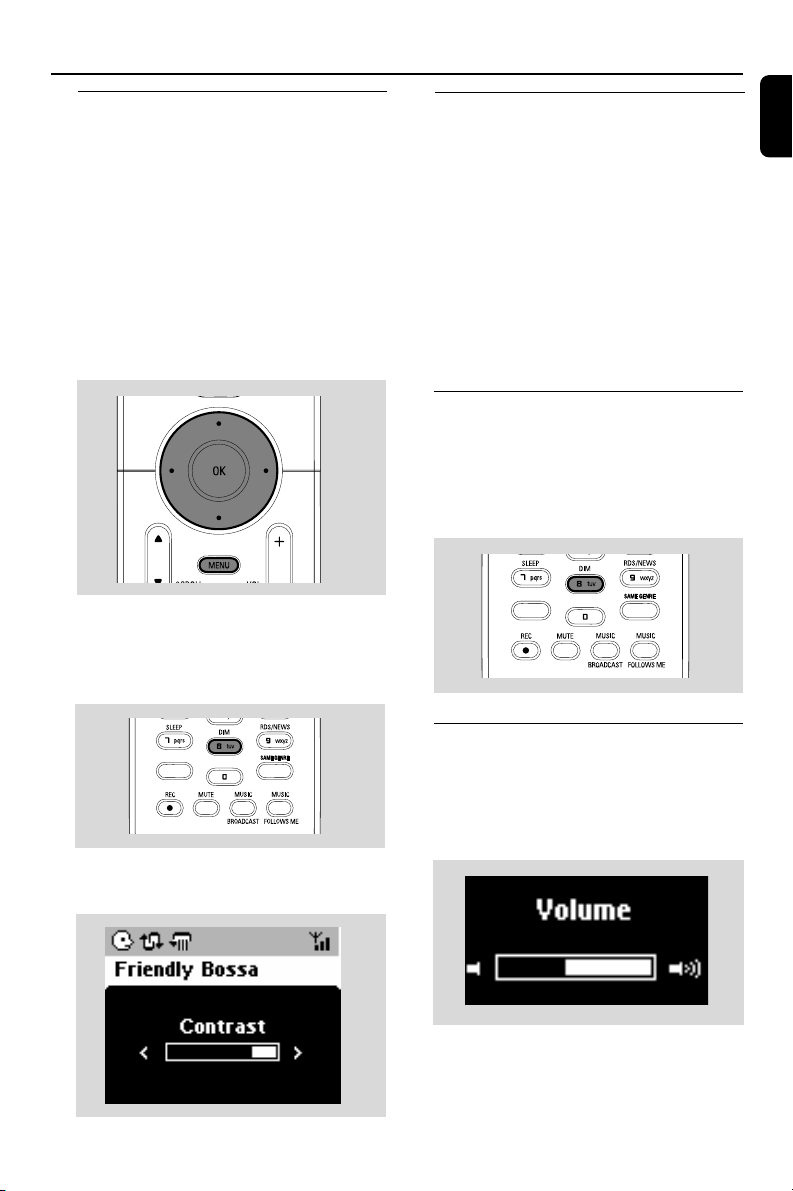
1 Check the playback starts.
2 Adjust the volume with VOL +/- buttons
➜ Display shows the volume bar, indicating the
volume level
p001-P052-WACS57_Eng_37 1/25/2006, 14:1229
English
30
MUTE (for Station only)
During playback, you can temporarily switch off
the sound without switching off the set.
1 Press MUTE to switch off the sound
➜ The icon appears. Playback continues
without sound
2 To switch on the sound, press MUTE again or
adjust the volume with VOL +/-
– You can also switch on the sound by activating
MUSIC BROADCAST on the Center
➜ The icon disappears
SAME ARTIST
SMART EQ
Sound control (for Station only)
Equalizer
Equalizer enables you to select predefined
sound settings.
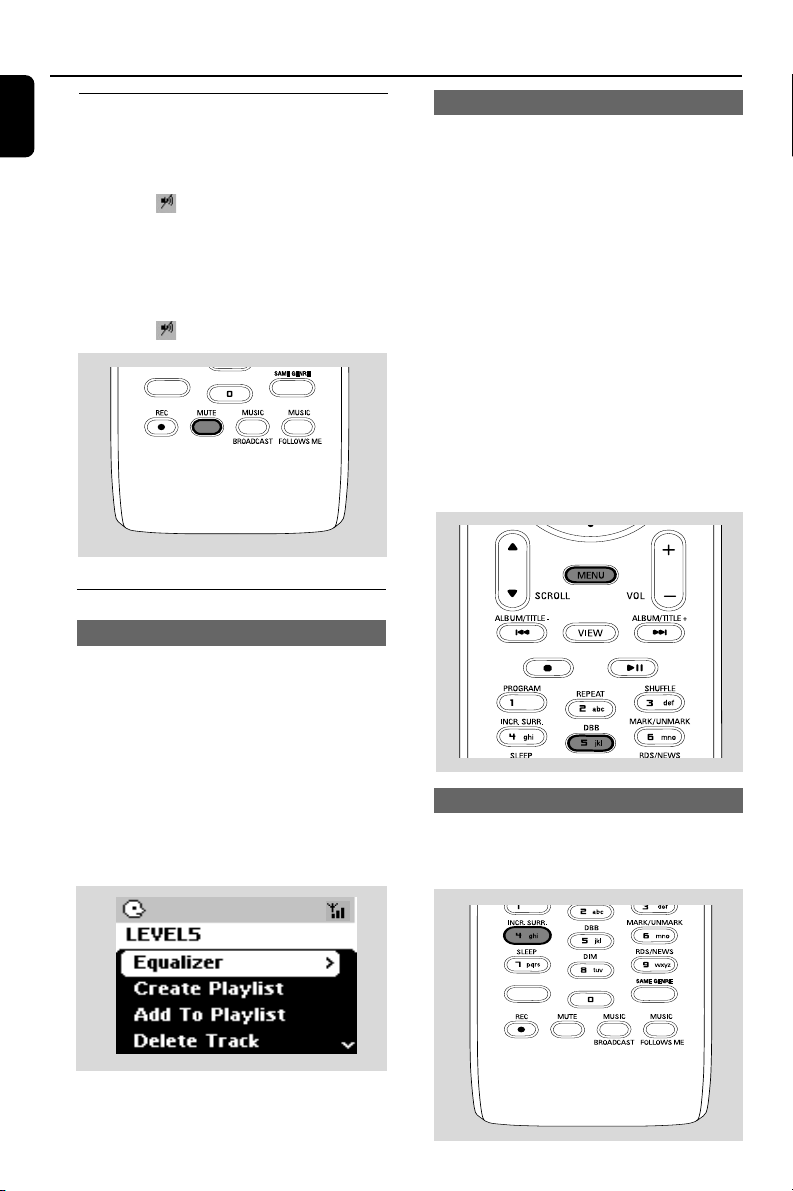
1 Press MENU to enter the MENU screen
2 Use the navigation controls 3 or 4 and 2
to select Equalizer
3 Press 3 or 4 and 2 to select Rock,
Pop (default), Jazz, Neutral, Techno,
Classical or Bass/Treble
4 Press OK or 2 to confirm
Bass adjustment
● Press DBB (Dynamic Bass Boost) once or
more to select your option: DBB OFF (by
default), DBB 1, DBB 2 or DBB 3
● To select Treble/Bass options:
1 Press MENU to enter the MENU screen
2 Use the navigation controls 3 or 4 and 2
to select Settings
3 Press 3 or 4 and 2 to select Treble/Bass
4 Press 1 / 2 / 3 / 4 to select your options:
Treble (+3 to -3), Bass (+3 to -3)
Helpful hints:
– Some discs might be recorded in high
modulation, which causes a distortion at high
volume. If this occurs, switch off DBB or reduce
the volume.
SMART EQ
SAME ARTIST
Incredible surround
● Press Incr. Surr. once or more to turn the
surround sound effect on or off
➜ Display shows IS ON or IS OFF
SAME ARTIST
SAME ARTIST
SMART EQ
Basic functions
p001-P052-WACS57_Eng_37 1/25/2006, 14:1230
31
English
3 Press the navigation controls 3 or 4 and 2
to select your option
4 Press OK to start playback
● Press OK on a highlighted artist, genre or album
to start playback from the beginning of the item
(orÉÅ on Center’s remote control; the Play
keyÉ on Station’s remote control)
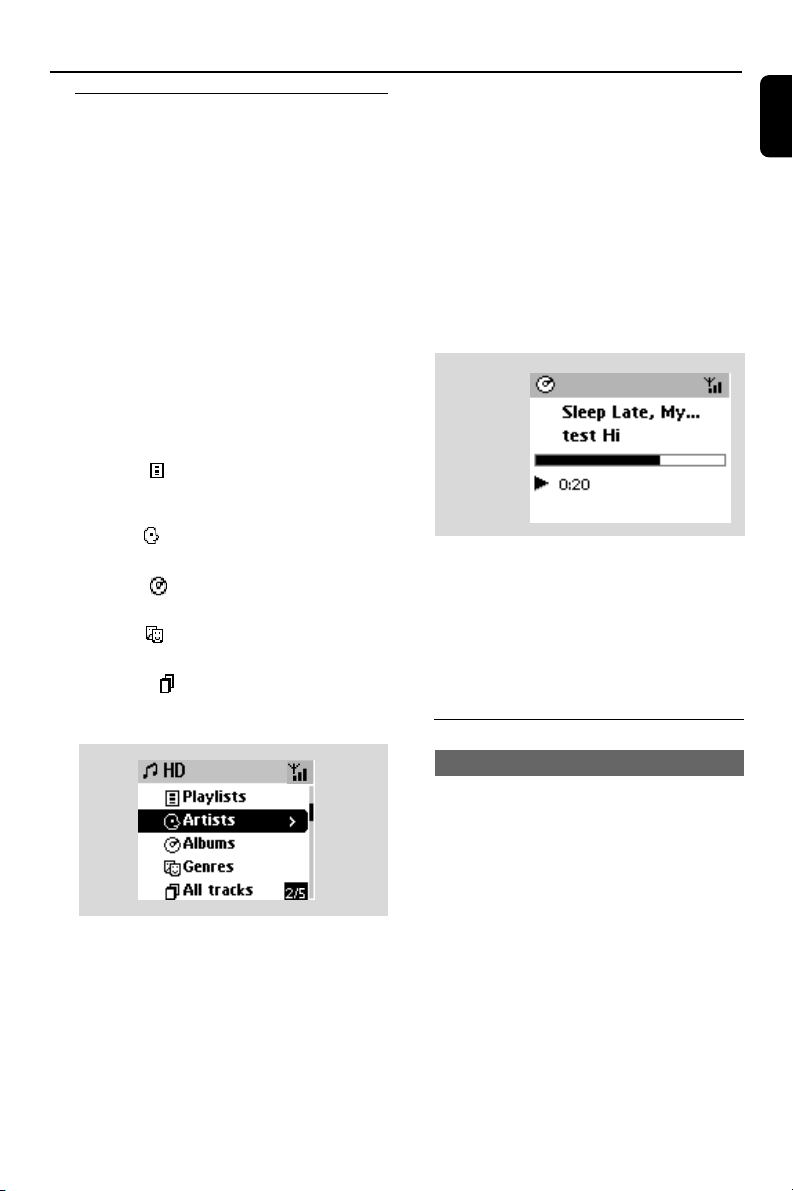
➜ The playback screen shows:
on the top: your HD option (e.g. Playlist, Artist)
in the middle: current track name and some
track information
at the bottom: elapsed playing time
5 To pause playback, press OK (orÉÅ on
Center’s remote control; Å on the Station’s
remote control). To resume playback, press the
button again (the Play keyÉ on Station’s
remote control)
6 To stop playback, press STOPÇ
Selecting and searching
Selecting a different album or track
1 If necessary, press 1 to enter previous option list
2 Repeatedly press the navigation controls 3 or
4 and 2 to select the desired album or track
3 Press VIEW to return to the playback screen, if
necessary
To select a different track in current
album during playback
● In the playback screen, briefly and repeatedly
press the navigation controls 3 or 4 to select
previous or next tracks (or 4 or ¢ on
Center’s remote control; O, P on Station’s
remote control)
HD
Playing Harddisk (HD)
On WAC5 Center is located a 80GB
hard disk, where music is centrally stored.
Via Wi-Fi, all the stored music can be
streamed and played on Station.
1 Check the Center or Station is switched on or
to standby
For Station: also check the Center is switched
on or to standby (See Basic functions)
2 Press SOURCE once or more to select HD
(on Center’s remote control, press HARDDISK;
on Station’s remote control, press Center)
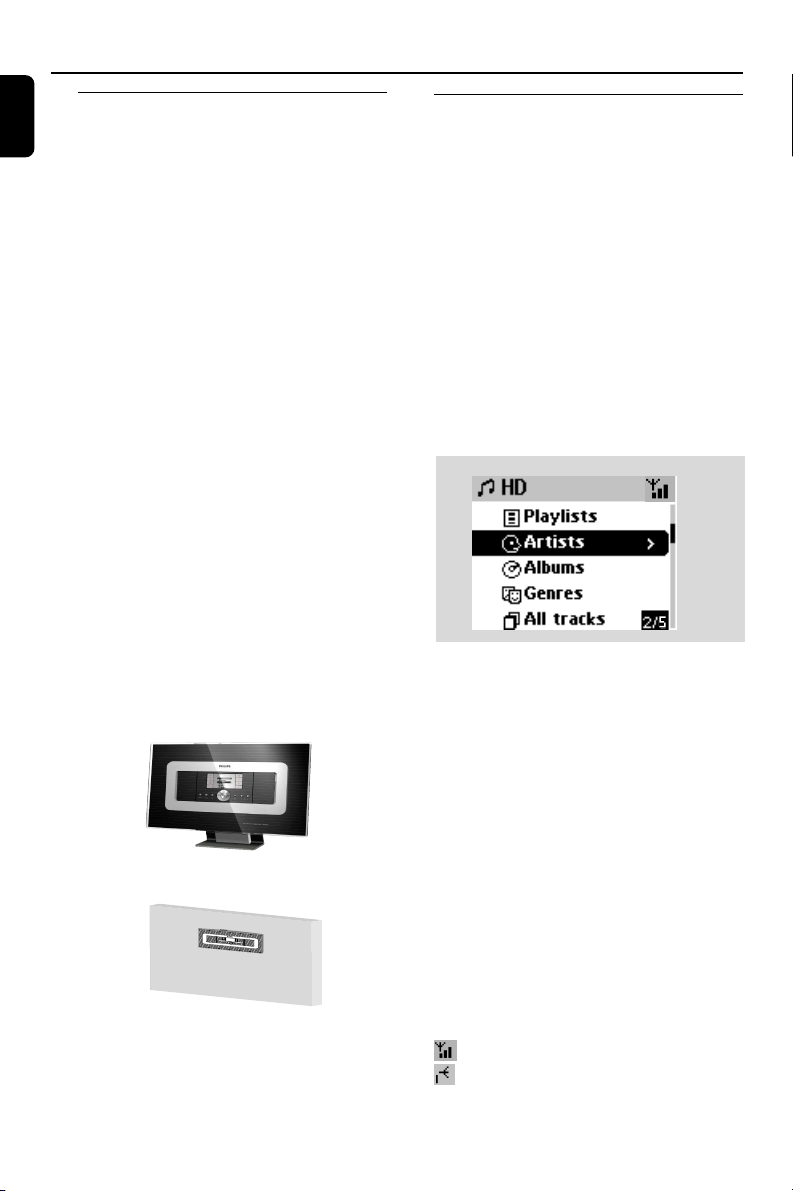
➜ Display shows HD and the categories of your
music library: Playlists, Artists, Albums, Genres,
All tracks
➜ Demo tracks are stored in Playlists
Playlists( ): custom collection of your
favorite tracks sorted by the playlists’ name in
alphanumeric order
Artists ( ): collection of albums sorted by
the artists’ name in alphanumeric order
Albums ( ): albums sorted by the albums’
name in alphanumeric order
Genres ( ): artists’ album collection sorted
by music style
All tracks ( ): tracks sorted by the tracks’
name in alphanumeric order
On the top
In the middle
At the bottom
p001-P052-WACS57_Eng_37 1/25/2006, 14:1231
English
32
HD
Different play modes: REPEAT,
SHUFFLE
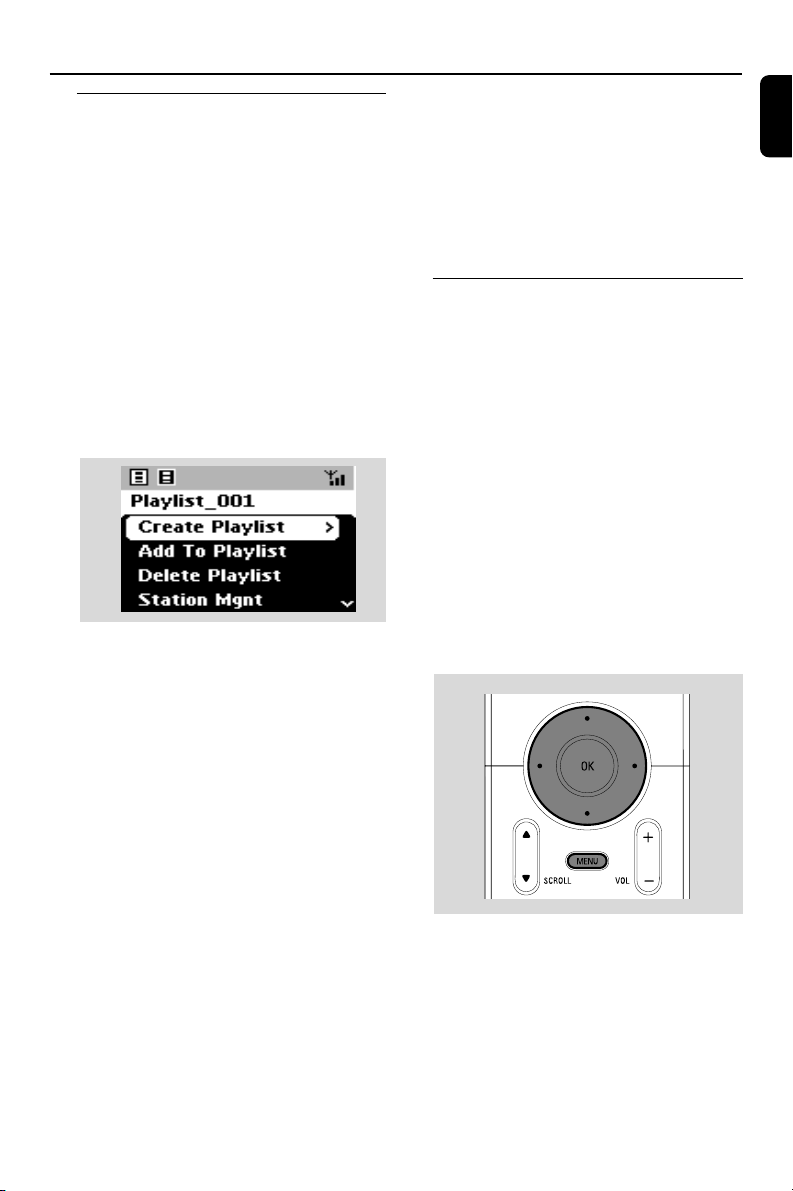
– plays the current track continuously
– repeats all the tracks (under current artist,
genre or album )
– repeats all the tracks (under current
artist, genre or album) in random order
– tracks (under current artist, genre or
album) are played in random order
1 During playback, press once or more REPEAT
or/ and SHUFFLE to select play modes
2 To return to normal playback, press REPEAT or
SHUFFLE repeatedly until the various modes
are no longer displayed.
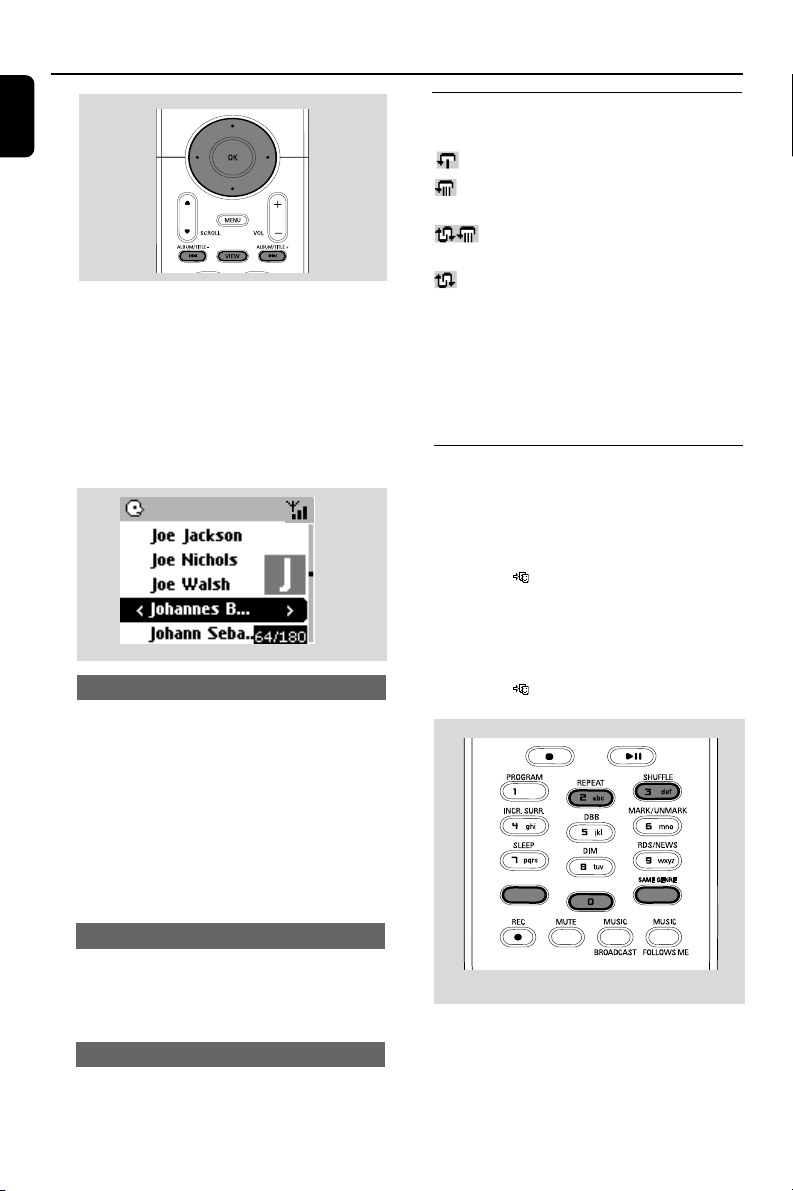
Using the fast skip 3 or 4
Use this function to find an option (e.g. an album
or a track) in a long option list.
● Press and hold the navigation controls 3 or 4
in the long option list
➜ You will skip the options faster and faster
➜ At the high speed skip, the initial letter of
current options appears for easy identification
Fast search during playback
1 In the playback screen, press and hold the
navigation controls 3 or 4 (or 4 or ¢ on
Center’s remote control; à / á on Station’s
remote control)
➜ The HD plays at a high speed
2 When you recognize the passage you want,
release 3 or 4 (or 4 or ¢ on Center’s
remote control; à / á on Station’s remote
control)
➜ Normal playback resumes
Selecting tracks of a particular artist
● During playback, press SAME ARTIST
➜ Playback of current artist’s tracks continues
after current track
Selecting tracks of a particular genre
● During playback, press SAME GENRE
➜ Playback of current genre’s tracks continues
after current track
SMART EQUALIZER (for Station
only)
This function enables you to playback music of
current genre with the match sound settings.
● During playback, press SMART EQUALIZER
➜ The icon appears if SMART
EQUALIZER is activated
● To deactivate SMART EQUALIZER, adjust
the sound settings (DBB, Tr eble/Bass setting,
Incr. Surr. or Equalizer)
➜ The icon disappears
SAME ARTIST
SAME ARTIST
SMART EQ
SMART EQ
p001-P052-WACS57_Eng_37 1/25/2006, 14:1232
33
English
HD
Helpful hints:
– You can also create your playlists on your
computer via Philips Digital Media Manager
(DMM). For details, see DMM’s help file. Refer to
the manual Connect to your PC to learn how to
install DMM software.
– You can rename your playlists or edit the track
information via DMM.
Deleting a playlist, album or
track
1 Use the navigation controls 3 or 4 and 2 to
enter a category (Playlist, Artists, Albums, Genres,
All tracks)
● If necessary, press 3 or 4 and 2 once or
more to enter the album/track list
2 Press 3 or 4 to highlight a selected playlist,
album or track
3 To select Delete Playlist, Delete Album or
Delete Track
a. Press and hold STOP • MENU to enter the
MENU screen
b. In the MENU screen, use the navigation
controls 3 or 4 and 2 to select.
4 Press 3 or 4 and 2 to select Ye s
Creating Playlist: custom
collection of your favorite music
On Center’s hard disk., you can create up to 99
playlists consisting of your favorite tracks in the
desired sequence.
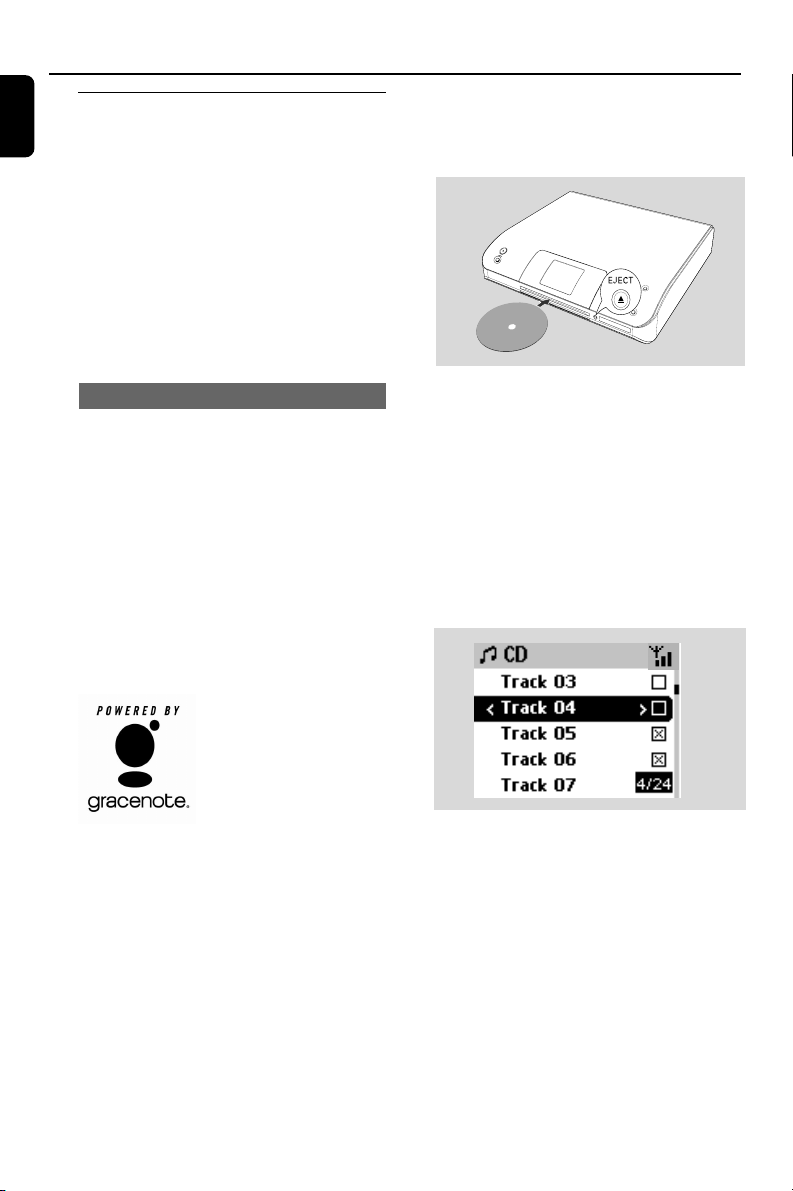
To create a playlist
1 Press and hold STOP • MENU to enter the
MENU screen (or on the remote control, press
MENU)
2 Use the navigation controls 3 or 4 and 2
to select Create Playlist
➜ A new playlist is created (a default playlist
name, e.g. Playlist_001, is assigned). Display
shows: “Playlist created. To add tracks,
select “ Add to Playlist”
3 Use the navigation controls 1 / 2 / 3 / 4 to
select/highlight the desired track (see Selecting
and searching)
4 To select Add to Playlist,
a. Press and hold STOP • MENU to enter the
MENU screen
b. In the MENU screen, use the navigation
controls 3 or 4 and 2 to select
➜ A list of playlists appears
5 Use the navigation controls 3 or 4 and 2
to select the desired playlist
➜ Display shows: Track(s) added to playlist
6 Repeat steps 3, 4 , 5 to select and store all
desired tracks in this way.
p001-P052-WACS57_Eng_37 1/25/2006, 14:1233
English
34
HD
Building music library on Center
By Ripping CDs, Importing MP3/WMA
tracks from PC and Recording from
external source you can build your music
library on Center’s hard disk.
IMPORTANT!
– Recording is permissible if copyright
or other rights of third parties are not
infringed upon.
–For CDs encoded with copyright
protection technologies by some record
companies, recording is restricted.
Ripping CDs
With WAC5 Center, you can rip audio CD
tracks from your pre-recorded CDs and store
them as MP3 files in the Center’s hard disk.
The Gracenote
®
music recognition service
enables your set to look up from its built-in
database the CD track information (including
album, artist, genre, track information). It allows
the ripped CD tracks to be properly categorized
(for example, under Artists, Albums, Genres
or All tracks) and also merged with the
existing tracks in the harddisk. To update your
Gracenote® music recognition service database,
see the manual Connect to your PC
Music recognition technology
and related data are provided
by Gracenote
®
. Gracenote is
the industry standard in music
recognition technology and
related content delivery. For
more information, visit www.
gracenote.com.
CD and music-related data from Gracenote, Inc.,
copyright
C
2000-2005 Gracenote. Gracenote CDDB
®
Client Software, copyright 2000-2005 Gracenote. This
product and service may practice one or more of the
following U.S. Patents: #5,987,525; #6,061,680;
#6,154,773, #6,161,132, #6,230,192, #6,230,207,
#6,240,459, #6,330,593, and other patents issued or
pending. Services supplied and/or device manufactured
under license for following Open Globe, Inc. United
States Patent 6,304,523.
Gracenote and CDDB are registered trademarks of
Gracenote. The Gracenote logo and logotype, and the
“Powered by Gracenote” logo are trademarks of
Gracenote.
To rip a disc at fast speed (default)
(For audio CDs, MP3/WMA CDs)
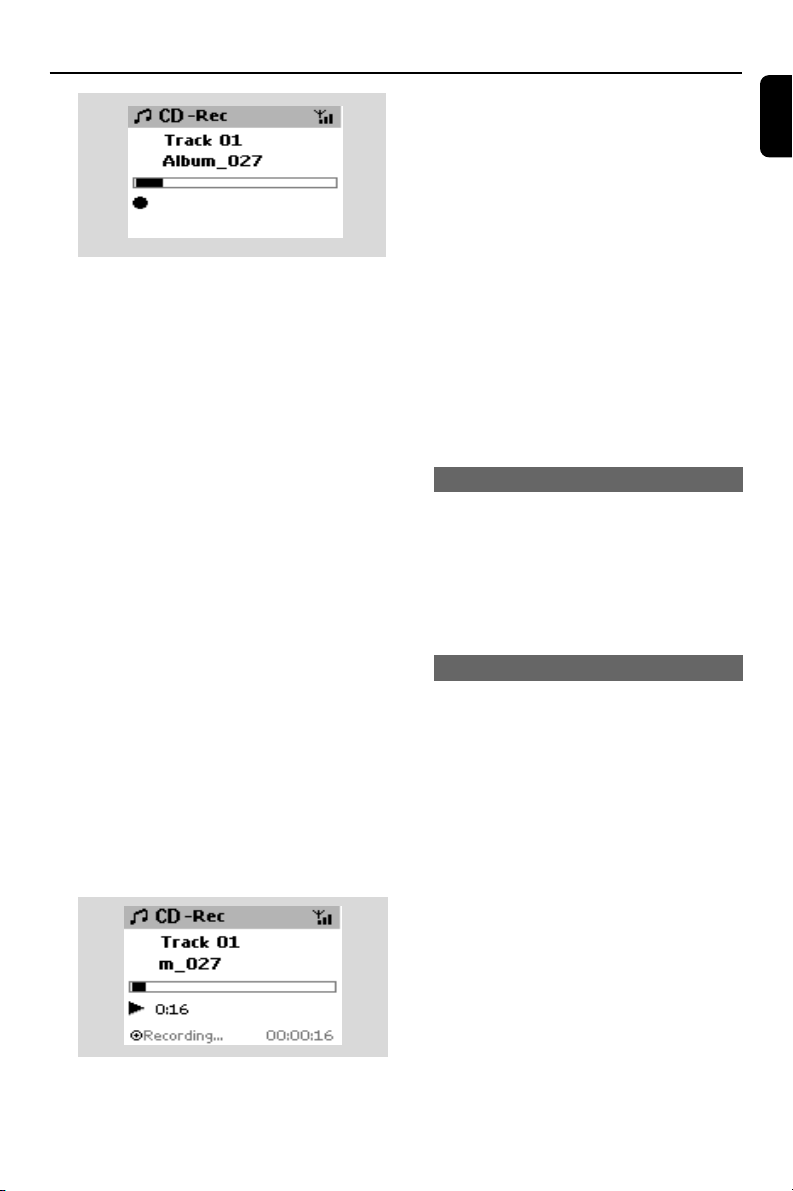
1 Insert a CD into Center’s CD slot loader, with
the printed side facing up
➜ Display shows: Reading CD.
➜ List of tracks appears
● MP3/WMA: To enter the track list, press 2 on a
highlighted file folder
2 In the screen of track list, press RECORD
➜ List of track checkboxes appears
3 Press OK to select or deselect the tracks to be
recorded (or MARK•UNMARK on the
remote control)
● To select/deselect all tracks, press and hold OK
(MARK• UNMARK on the remote control)
4 To select Rec quality,
a. Press and hold STOP • MENU to enter the
MENU screen (or on remote control, press
MENU)
b. Use the navigation controls 3 or 4 and 2 to
enter Settings menu
c. In Settings menu, use the navigation
controls 3 or 4 and 2 to select
5 To start recording, press RECORD
➜ Display shows CD-Rec and the album
name of the track being recorded.
(a default album name, e.g. Album_001, is
assigned if the CD track information cannot be
found in Center’s built-in Gracenote® music
recognition service database)
P
r
i
n
t
e
d
S
i
d
e
C
D
(
R
W)
p001-P052-WACS57_Eng_37 1/25/2006, 14:1234
35
English
HD
Important!
– It takes some time to convert the ripped tracks
into MP3 files.
– If power failure occurs during the conversion,
you will lose all the ripped tracks not converted
yet.. Switch Center to ECO POWER (power-saving
mode) before removing its power plug from the
wall outlet.
To find your ripped tracks
After MP3 conversion is completed, you can find
and playback the ripped tracks in Albums
1 Select HD source
2 In Albums, use the navigation controls 3 or 4
and 2 to enter the album of recorded tracks.
– Only the completely ripped track can be
found on Center’s harddisk
Importing MP3/WMA tracks from PC
The supplied PC Installer CD contains Digital
Media Manager (DMM) software. It will help
you organize the music files on your PC and
import them to WAC5 Center. For details, see
DMM’s help file. Refer to the manual Connect
to your PC to learn how to install DMM
software.
Recording from external source
A maximum of 3-hour recording can be made
from the external source.
1 Check the external device has been properly
connected (See Installation, Connecting an
additional appliance)
2 In AUX mode, start playback from the external
source (see AUX)
3 Press RECORD
➜ Recording starts
4 To stop recording, press STOP/Ç.
➜ The recording is saved as a file under AUX in
Albums. A file name is given, e.g. Aux_xx
(where xx denotes a number)
To find your recording
1 Select HD source
2 In Albums, use the navigation controls 3 or 4
and 2 to enter AUX
Helpful hints:
– You can edit your track information via DMM.
➜ Center will return to CD mode when ripping is
finished
➜ All the functions are available at this time
6 To rip another CD, repeat the step 1-5 above
(Up to 8 CDs can be ripped consecutively)
7 To stop recording, press STOP/Ç
To rip a disc during playback
(for audio CDs only)
● During playback, press RECORD.
➜ Recording and playback start from current
track
Or
1 Follow the Step 1-3 under To rip a disc at fast
speed
2 Select Normal speed by
a. Press and hold STOP • MENU to enter the
MENU screen (or on remote control, press
MENU)
b. Use the navigation controls 3 or 4 and 2 to
enter Settings menu
c. In Settings menu, use the navigation
controls 3 or 4 and 2 to select Rec
speed
d. Press 3 or 4 and 2 to select
3 To start recording, press RECORD
➜ Recording and playback start
➜ Display shows the album name of the track
being recorded
p001-P052-WACS57_Eng_37 1/25/2006, 14:1235
English
36
HD
Moving in your WiFi network of
Center and Stations
Up to 5 Stations can be to connected to WAC5
Center. Via Wi-Fi, music can be streamed
between Center and Stations. Even in different
places of your house, you and your family will
enjoy and share music with ease.
MUSIC FOLLOWS ME
As you move around at home, let music move
around you, between Center and Station or
between Station and Station.
On the first unit (Center or Station), where
music will leave:
1 During HD playback, select the album or playlist
you wish to play on the second unit (see
Selecting and searching, Selecting a
different album or track)
● To start playback from the selected point on the
second unit, press OK to pause playback on
that point (or ÉÅ on the Center’s remote
control; Å on the Station’s remote control)
2 Press MUSIC FOLLOWS ME to activate
➜ The icon appears.
3 To deactivate MUSIC FOLLOWS ME, press
MUSIC FOLLOWS ME again or other
functional keys (e.g. SLEEP, 1 / 2 / 3 / 4)
● MUSIC FOLLOWS ME will be automatically
deactivated if you do not activate MUSIC
FOLLOWS ME on the second unit within 5
minutes
On the second unit (Center or Station),
where music will continue
4 Check you have switched the second unit on or
to standby mode (see Basic functions,
Switch on/to standby and selecting
functions)
Display track information
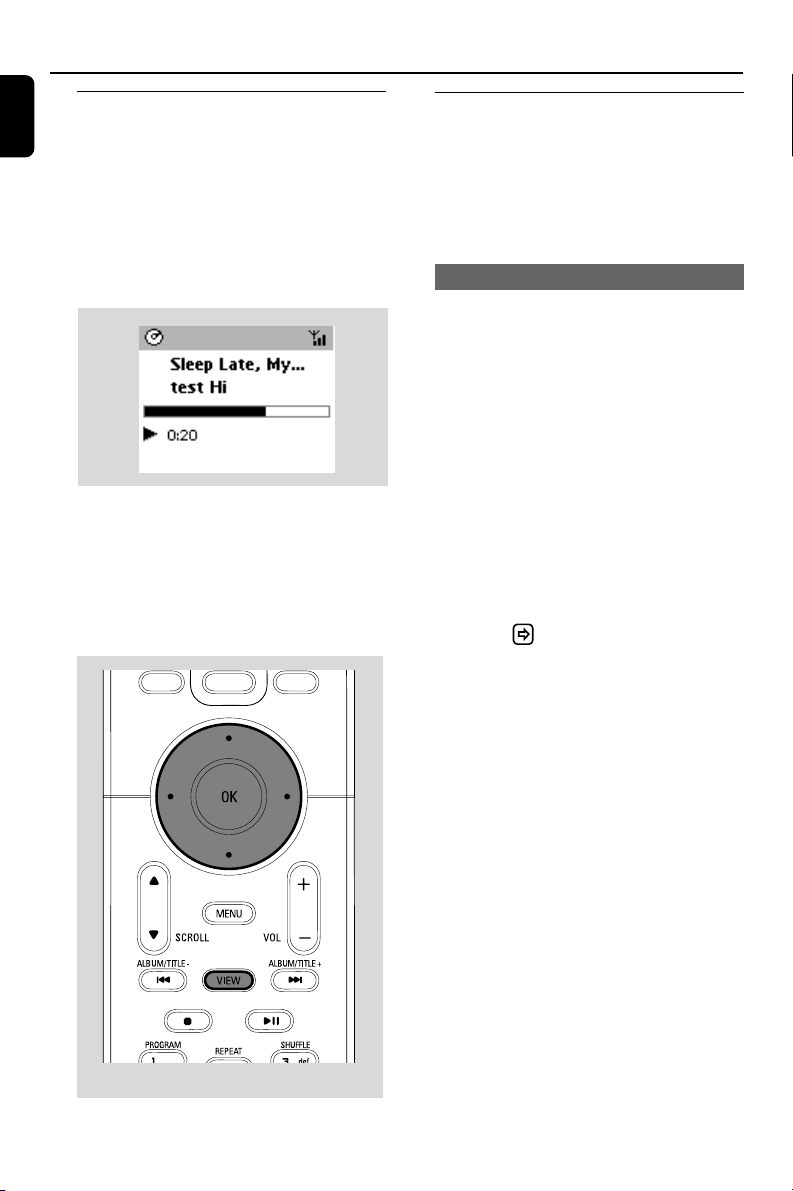
1 During playback, press VIEW on the remote
control once or more to enter the playback
screen
➜ The display shows:
on the top: your HD option (e.g. Playlist, Artist)
in the middle: current track name and some
track information
at the bottom: elapsed playing time
2 Press 2
➜ The display shows track information (e.g.
track name, file type, file size, bit rate of mp3/
wma files)
3 Press VIEW once or more to return to the
playback screen
p001-P052-WACS57_Eng_37 1/25/2006, 14:1236
37
English
HD
MUSIC BROADCAST
MUSIC BROADCAST allows you to
broadcast music from Center to Station(s).
On Station(s)
1 Check you have switched the Station(s) on or to
standby mode (see Basic functions, Switch
on/to standby and selecting functions)
On Center
2 During HD playback, select the album or playlist
you wish to broadcast to Station(s)
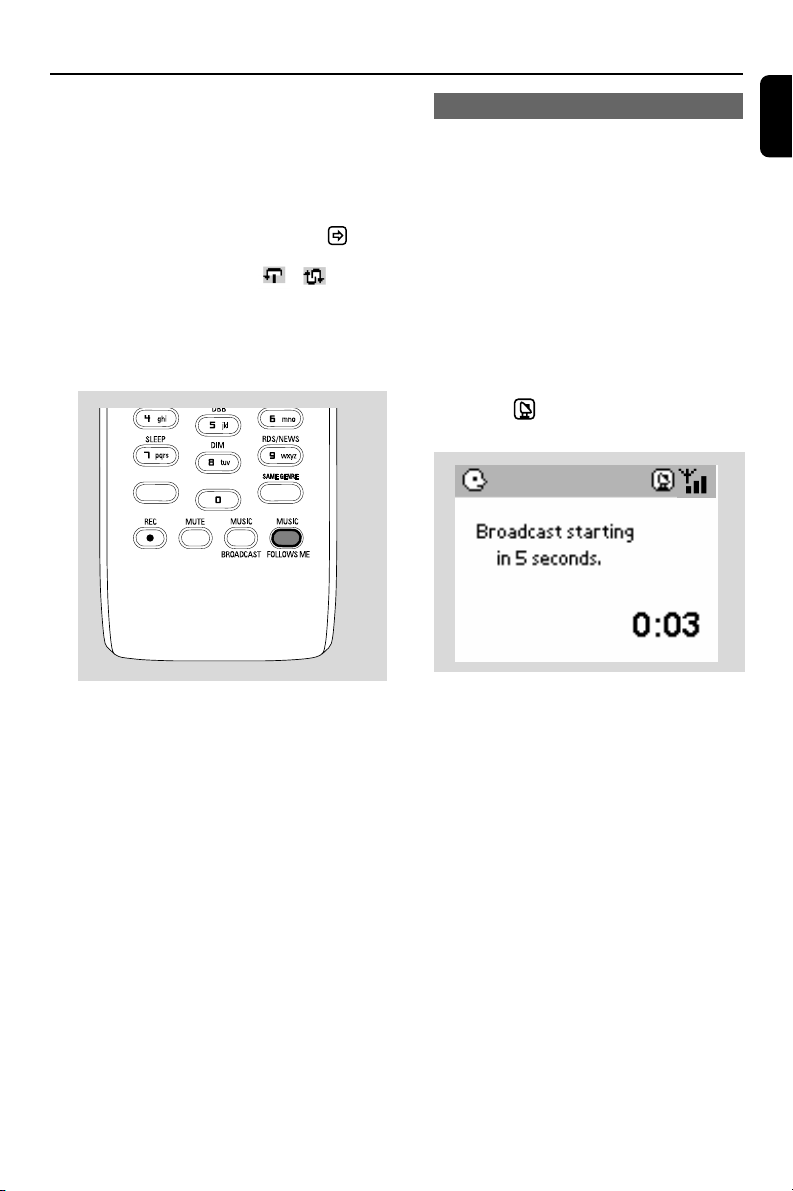
3 Press MUSIC BROADCAST to activate
➜ The icon appears on Center and
Station(s). 5-second countdown starts
➜ On Center and Station(s): Selected
music plays simultaneously several seconds after
the 5-second countdown
➜ If connection fails on a Station, the Center
will try to re-establish the connection on the
next track
4 For a station to exit MUSIC BROADCAST,
press STOP/Ç on the Station
● To broadcast music to the station again, you have
to stop MUSIC BROADCAST on Center
and then, activate MUSIC BROADCAST
again on Center
5 To stop MUSIC BROADCAST, press STOP/
Ç on the Center
Helpful hints: MUSIC BROADCAST will
also stop when:
– you switch Center to Standby or Eco power;
– the selected album or playlist has reached
the end.
5 Press MUSIC FOLLOWS ME
● MUSIC FOLLOWS ME will be automatically
deactivated if you do not activate MUSIC
FOLLOWS ME on the second unit within 5
minutes
➜ Selected music stops on the first unit and
continues on the second unit. The icon
disappears
➜ Selected play modes (e.g. , )are
retained on the second unit (see Different
play modes: REPEAT, SHUFFLE)
6 To stop MUSIC FOLLOWS ME, press
STOP/Çon the second unit
SAME ARTIST
SAME ARTIST
SMART EQ
Helpful hints:
After MUSIC FOLLOWS ME is activated on
the second unit, on the first unit:
– make sure the first unit is switched on or to
standby mode
– you can select other tracks or source for
playback
p001-P052-WACS57_Eng_37 1/25/2006, 14:1237
English
38
Station management
Adding a station
You can add a station to an existing Wi-Fi
network of Center and Station. Up to 5 stations
can be connected to a WAC5 Center.
On Center
1 Switch on WAC5 Center and select HD source
2 To select Add New Station on Center
a. Press and hold STOP • MENU to enter the
MENU screen (or on remote control, press
MENU)
b. Use the navigation controls 3 or 4 and 2 to
enter Station Mgnt menu
c. In Station Mgnt menu, use the navigation
controls 3 or 4 and 2 to select
➜ You will enter the Installation Mode.
Searching for the new station starts
➜ Playback stops on the previously associated
Station if you are playing the HD source
On Station
3 Connect the new station to power supply
4 Select AUX mode and enter Installation
Mode by:
a. Press MENU
b. Use the navigation controls 3 or 4 and 2 to
select Installation Mode
On Center
5 Press STOP/Ç on the Center when all your
stations are found
Helpful hints:
–To change your setting of Wi-Fi connection, see
the manual Connect to your PC.
HD
3 Press 3 or 4 and 2 to select the station you
wish to delete
4 Press 3 or 4 and 2 to select Ye s
Viewing station status
1 Switch on WAC5 Center and select HD source
2 To select Station Status on Center
a. Press MENU on the remote control
b. Use the navigation controls 3 or 4 and 2
to enter Station Mgnt menu
c. In Station Mgnt menu, use the navigation
controls 3 or 4 and 2 to select
➜ On the Center ‘s display shows the list of
stations connected or ever connected
3 Press 2 to view the connection information
Information about your WACS57
1 Switch on WAC5 Center (or WAS700 Station)
and select HD source.
2 To select Information on Center or Station
a. Press and hold STOP • MENU to enter the
MENU screen (or on remote control, press
MENU)
b. Use the navigation controls 3 or 4 and 2 to
enter Information menu
➜ The display shows: the name of Center or
Station, firmware version and free harddisk
space (for Center only)
Deleting a station
1 Switch on WAC5 Center and select HD source
2 To select Delete Station on Center
a. Press and hold STOP • MENU to enter the
MENU screen (or on remote control, press
MENU)
b. Use the navigation controls 3 or 4 and 2 to
enter Station Mgnt menu
c. In Station Mgnt menu, use the navigation
controls 3 or 4 and 2 to select
➜ The Center ‘s display shows the list of
connected stations
p001-P052-WACS57_Eng_37 1/25/2006, 14:1238

39
English
HD
Re-establishing Wi-Fi connection
After upgrading or restoring the Center’s
firmware, you need to re-establish the Wi-Fi
connection between Center and Stations.
On Center,
● Select HD mode and then, enter Installation
Mode by:
a. Press and hold STOP • MENU (or on
remote control, press MENU)
b. Use the navigation controls 3 or 4 and 2 to
enter Station Mgnt menu
c. In Station Mgnt menu, use the navigation
controls 3 or 4 and 2 to select Add New
Station
➜ Searching for Stations starts
On the Stations,
● Select AUX mode and enter Installation
Mode by:
a. Press MENU
b. Use the navigation controls 3 or 4 and 2 to
select Installation Mode
Firmware
Upgrading firmware
The supplied PC Installer CD contains Digital
Media Manager (DMM) software. It will help
you get the upgrades for WAC5 Center. For
details, see DMM’s help file. Refer to the manual
Connect to your PC to learn how to install
DMM software.
Restoring previous firmware
After the Center’s firmware is upgraded, you can
restore it to its previous version as desired.
1 In Center’s HD mode, press and hold STOP •
MENU (or on remote control, press MENU)
2 Use the navigation controls 3 or 4 and 2 to
enter Settings menu
3 Press 3 or 4 and 2 to select Firmware
4 Press 3 or 4 and 2 to select Restore
firmware
5 Press 3 or 4 and 2 to select Yes
On Center,
● Press STOPÇto exit Installation
Mode when Center has found all the stations
p001-P052-WACS57_Eng_37 1/25/2006, 14:1239
English
40
Discs for playback
With this system, you can play
– all pre-recorded audio CDs (CDDA)
– all finalized audio CD-Rs and CD-RWs
(12cm CD and 8cm 185 or 200 MB CD)
– MP3WMA-CDs (CD-Rs/CD-RWs with MP3/
WMA files)
IMPORTANT!
– This system is designed for regular
discs. Therefore, do not use any
accessories such as disc stabilizer rings or
disc treatment sheets, etc.
About MP3/ WMA
The music compression technology MP3
(MPEG1 Audio Layer 3) and WMA (Windows
Media Audio) significantly reduces the digital data
of an audio CD while maintaining CD quality
sound.
Windows Media Audio® is a registered
trademark of Microsoft Corporation.
Supported formats:
– Disc format ISO9660, Joliet, UDF (created on
Adaptec Direct CD v5.0 and Nero Burning
ROM UDF v5.5) and multi-session CDs
– MP3 bit rate (data rate): 32-320 Kbps and
variable bit rate.
– 12-cm 650Mb and 700Mb CD-R/ CD-RWs
– Directory nesting up to a maximum of 8
levels
– WMA v8 or earlier (max. 192Kbps cbr)
The system will not play or support the
following:
•Empty albums: an empty album is an album
that does not contain MP3/WMA files, and will
not be shown in the display.
• Non-suppor ted file formats are skipped. This
means that e.g.: Word documents .doc or MP3
files with extension .dlf are ignored and will not
be played.
• DRM protected WMA files
• WMA files in Lossless or VBR format
CD (on Center only)
IMPORTANT!
– Make sure that the file names of MP3
files end with .mp3.
–For DRM protected WMA files, use
Windows Media Player 10 (or later) for
CD burning/conversion. Visit www.
microsoft.com for details about Windows
Media Player and WM DRM (Windows
Media Digital Rights Management).
Playing discs
1 Check the Center is switched on or to standby
(See Basic functions, Switching on/to
standby and selecting functions,
Switching to Eco power/ on)
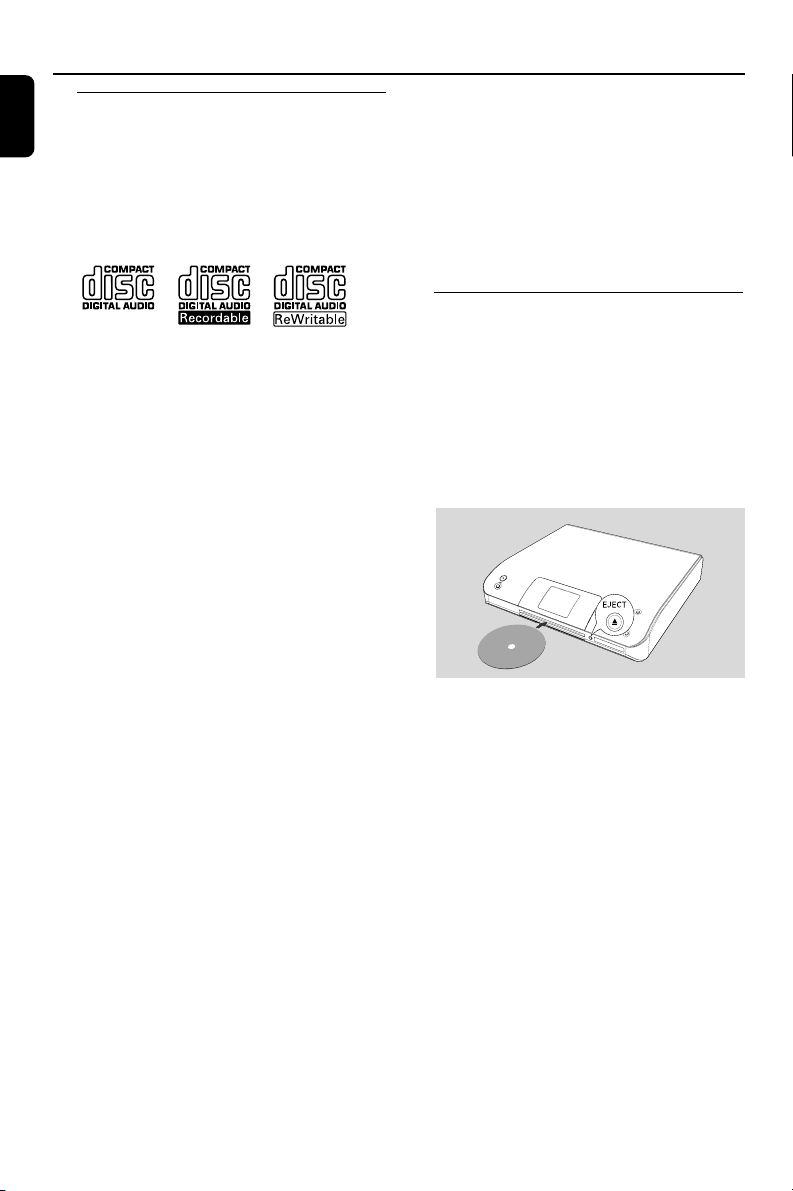
2 Insert a CD/CD-R(W) into Center’s CD slot
load, with the printed side facing up
● Make sure you have removed any other disc
from the CD slot loader.
➜ Reading CD is displayed as the player scans
the contents of a disc
➜ Audio CD: the list of tracks appears (track
information appears if it is available after the
lookup of Gracenote Music Recognition Service
database)
➜ MP3/WMA: the list of albums appears
Helpful hints:
– If you have not organized MP3/WMA files into
any albums on your disc, an album “Others” will
be automatically assigned for all those files.
– If the disc contains both audio CD tracks
(CDDA)and MP3/WMA files, “CDDA” will be
automatically assigned for all the audio CD tracks
–“All tracks” is shown as an album for MP3/
WMA CD
P
r
i
n
t
e
d
S
i
d
e
C
D
(
R
W)
p001-P052-WACS57_Eng_37 1/25/2006, 14:1240
41
English
CD (on Center only)
Using the fast skip 3 or 4
Use this function to find an option (e.g. an album
or a track) in a long option list.
● Press and hold the navigation controls 3 or 4
in the long option list
➜ You will skip the options faster and faster
➜ At the high speed skip, the initial letter of
current options appears for easy identification
Finding a passage within a track
during playback
1 In the playback screen, press and hold the
navigation controls 3 or 4 (or 4 or ¢ on
Center’s remote control; à / á on Station’s
remote control)
➜ The CD plays silently at a high speed
2 When you recognize the passage you want,
release 3 or 4 (or or 4 or ¢ on Center’s
remote control; à / á on Station’s remote
control)
➜ Normal playback resumes
3 Press once or more the navigation controls 3
or 4 and 2 to select a track
4 Press OK (or 2) to start playback, if necessary.
● MP3/WMA: Press OK on a highlighted album
to start playback of the album (orÉÅ on
Center’s remote control; the Play keyÉ on
Station’s remote control)
● MP3/WMA: Press OK on the highlighted
album All tracks to start playback of all the
tracks on the disc (orÉÅ on Center’s remote
control; the Play keyÉ on Station’s remote
control)
5 To pause playback, press OK (orÉÅ on
Center’s remote control; Å on the Station’s
remote control). To resume playback, press the
button again (the Play keyÉ on Station’s
remote control)
6 To stop playback, press STOPÇ
7 To remove the disc, press EJECT on Center
Selecting and searching
Selecting a different album/track
1 If necessary, repeatedly press 1 to enter
previous option lists
2 Repeatedly press the navigation controls 3 or
4 and 2 to select the desired album or track
3 Press VIEW to return to the playback screen, if
necessary
To select a different track (in current
album) during playback
● In the playback screen, briefly and repeatedly
press the navigation controls 3 or 4 to select
previous or next tracks (or 4 or ¢ on
Center’s remote control; O, P on Station’s
remote control)
p001-P052-WACS57_Eng_37 1/25/2006, 14:1241
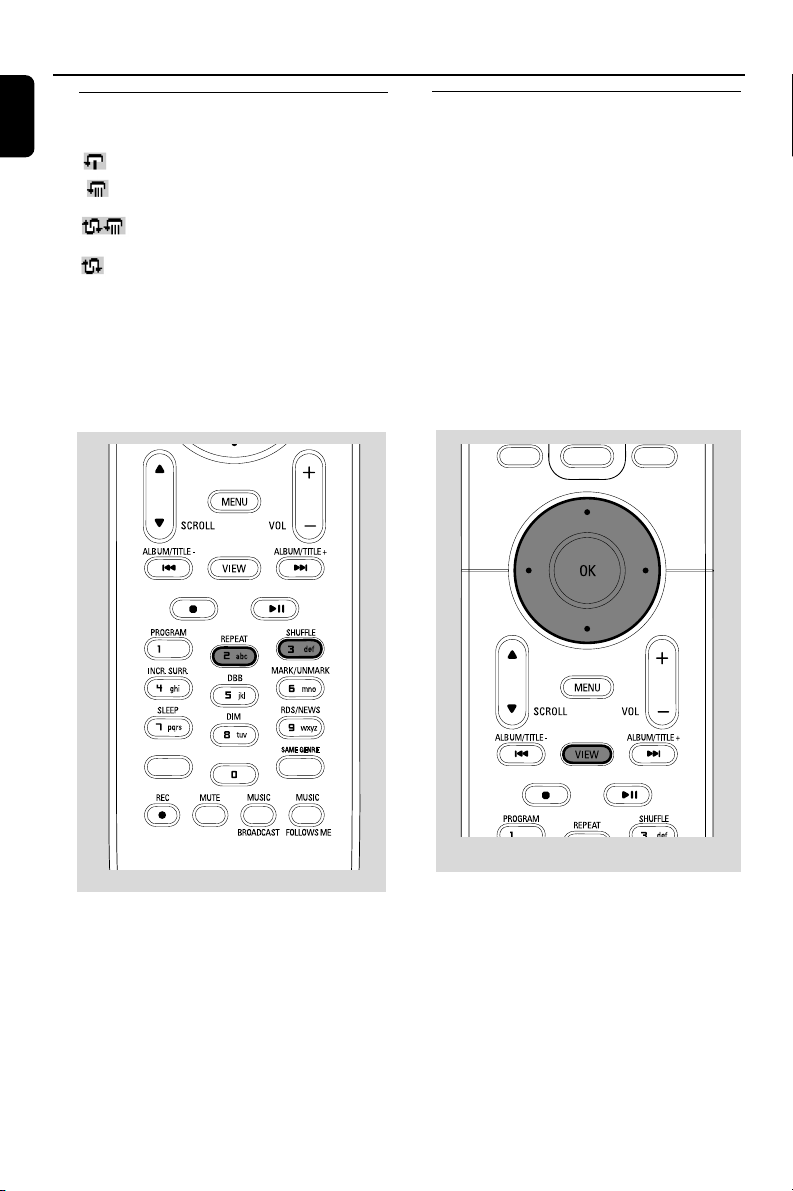
English
42
CD (on Center only)
Display track information
1 During playback, press VIEW once or more to
enter the playback screen
➜ The display shows:
on the top: CD
in the middle: current track name and some
track information
at the bottom: elapsed playing time
2 Press 2
➜ The display shows track information (e.g.
track name, file type, file size, bit rate of mp3/
wma files)
3 Press VIEW once or more to return to the
playback screen
Different play modes: REPEAT,
SHUFFLE
– plays the current track continuously
– repeats all the tracks (under current
album )
– repeats all the tracks (under current
album) in random order
– tracks (under current album) are played
in random order
1 During playback, press once or more REPEAT
or/ and SHUFFLE to select play modes
2 To return to normal playback, press REPEAT or
SHUFFLE repeatedly until the various modes
are no longer displayed
SAME ARTIST
SMART EQ
p001-P052-WACS57_Eng_37 1/25/2006, 14:1242
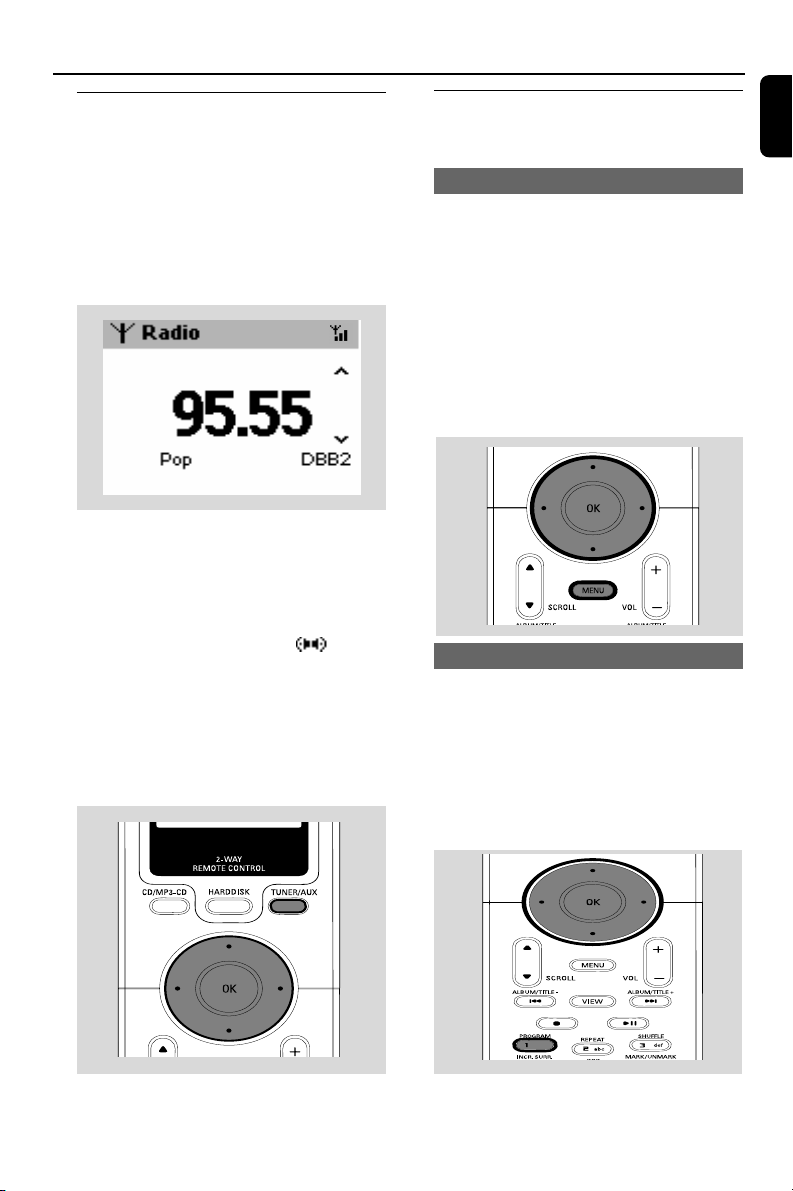
43
English
FM radio (on Station only)
Tuning to radio stations
1 Check the set is switched on or to standby
(See Basic functions)
2 Press SOURCE once or more to select Radio
(on the remote control, press TUNER/AUX
once or more)
➜ Playback screen appears. Display shows:
Radio, r adio station frequency and If
programmed, a preset number
3 Press and hold 3 or 4 until the frequency
in the display starts running
➜ The radio automatically tunes to a station of
sufficient reception. Display shows searching
during automatic tuning
➜ If a station is received in stereo, is
shown
4 Repeat step 3 if necessary until you find the
desired radio station
● To tune to a weak station, press 3 or 4
briefly and repeatedly until optimal reception is
found
Storing preset radio stations
You can store up to 40 preset radio stations in
the memory.
Autostore: automatic programming
Autostore automatically starts programming
radio stations from preset 1. Available stations
are programmed in the order of radio
frequencies.
● To select Autostore radio,
a. Press MENU
b. Use the navigation controls 3 or 4 and 2 to
select
➜ Display shows: Autostore Please wait...
➜ After all stations are stored, the first autostore
preset station will then automatically play
Manual programming
1 Tune to your desired radio station (see Tuning
to radio stations)
2 On the remote control, press Program to
store the station
➜ The station is stored in the 1st vacant preset
position. Display shows its preset number
3 Repeat steps 1-2 to store other stations
SAME ARTIST
SMART EQ
Helpful hints:
– If you store more than 40 stations, the new
station will replace the 1st preset station.
p001-P052-WACS57_Eng_37 1/25/2006, 14:1243
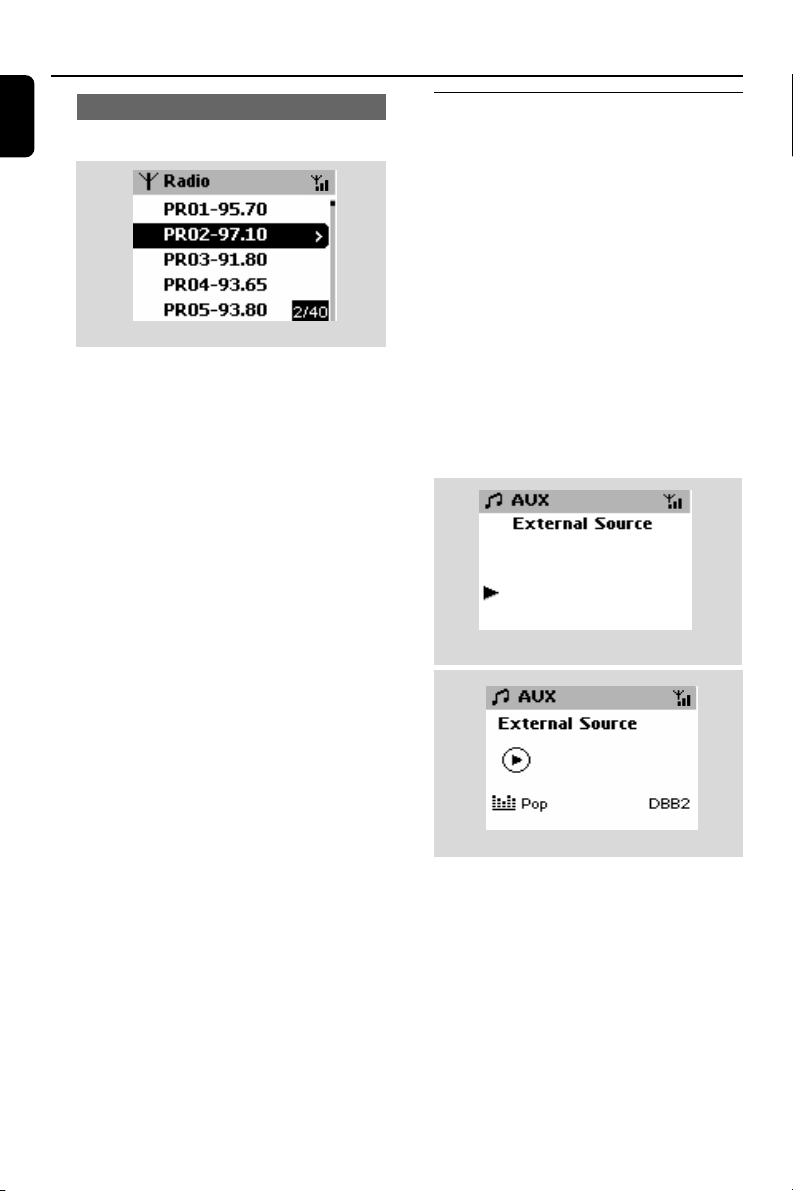
English
44
FM radio (on Station only) AUX
To listen to a preset station
1 Press 1 to enter the list of presets
2 Use the navigation controls 3 or 4 and 2 to
select the desired station
AUX (Listening to an external
source)
You can listen to the sound of the connected
external device through your Center or Station.
1 Check the external device has been properly
connected (See Installation, Connecting an
additional appliance)
2 Check the set is switched on or to standby
(See Basic functions)
3 Press SOURCE once or more to select AUX
(on the remote control, press TUNER/AUX)
4 Press the PLAY key on the connected device to
start playback.
5 To adjust the sound and volume, use the sound
controls on your external device or WAS700
Station
Center
Station
p001-P052-WACS57_Eng_37 1/25/2006, 14:1244
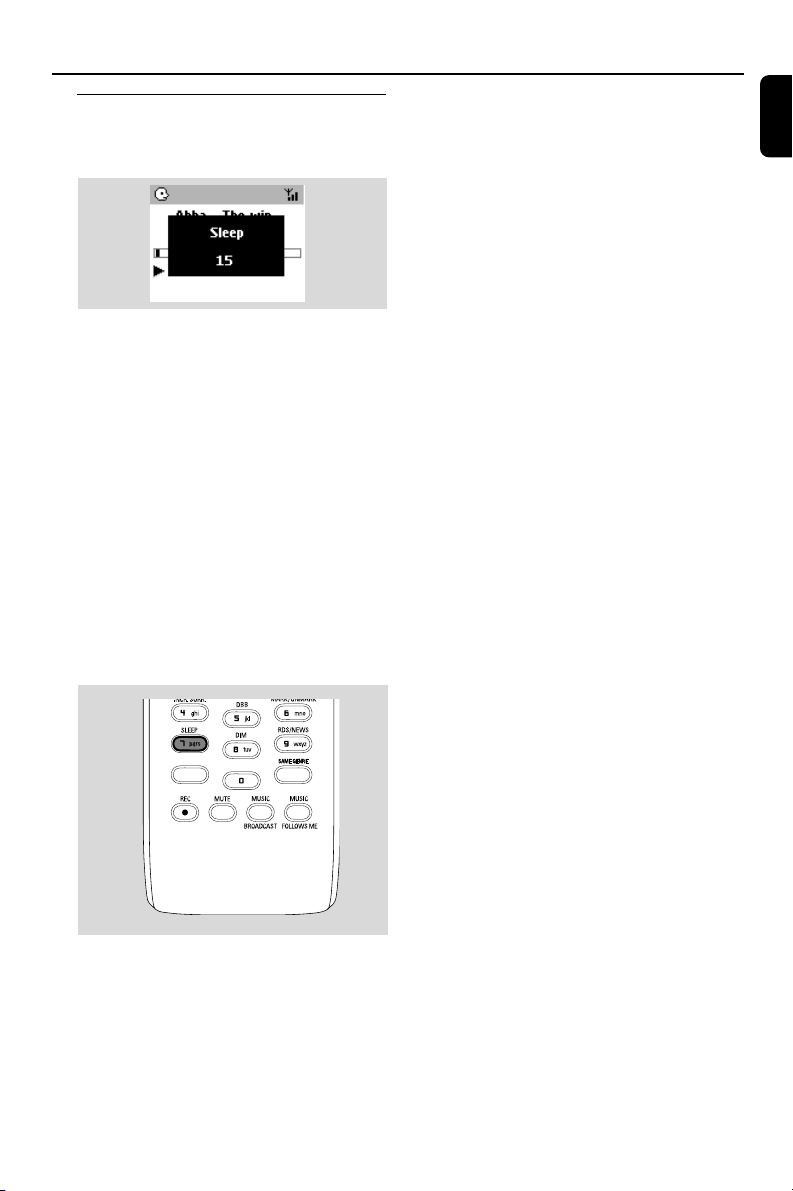
45
English
SAME ARTIST
SAME ARTIST
SMART EQ
SMART EQ
SLEEP
SLEEP
You can set a certain period of time after which
the Center or Station will switch to standby.
1 On the remote control, press SLEEP
repeatedly to select the desired time period
options (in minutes):
➜ Display shows in sequence: Sleep 15, 30,
45, 60, 90, 120, Off
➜ Display shows the selected option briefly and
returns to its previous status. The icon Z
Z
appears
2 To view the time countdown to the standby
mode, press SLEEP again
To deactivate the sleep timer, press
SLEEP until Sleep Off is displayed.
or
Press STANDBY-ON/ ECO POWER to
switch the set to standby (or y on the remote
control)
p001-P052-WACS57_Eng_37 1/25/2006, 14:1245

English
46
Reset
Reset
If desired, you can restore your Center or Station
to their default setting (including the network
setting).
When to reset Center or Station:
● Resetting Center or Station helps to re-establish
the connection between Center and Station.
● To change the way your Center connects to PC,
you need to reset the Center (see the Option
1, Option 2 or Option 3 in manual Connect
to your PC)
1 Check the set is switched on (See Basic
functions, Switching on/to standby and
selecting functions, Switching to Eco
power/ on)
2 Press and hold STOP • MENU to enter the
MENU screen (or on the remote control, press
MENU)
3 Use the navigation controls 3 or 4 and 2
to enter Settings
4 Use the navigation controls 3 or 4 and 2
to enter Restore settings
5 Press 3 or 4 and 2 to select Ye s
➜ The set is rebooted. Language selection
screen appears
6 Select your desired language: English, French,
Spanish, Dutch, Italian and German
➜ The set enters Installation Mode
➜ The search for Center or Stations starts.
The Wi-Fi connection is being re-established
If the Center is reset and Stations are
not reset:
● On the Stations, select AUX mode
and enter Installation Mode by:
a. Press MENU.
b. Use the navigation controls 3 or 4 and 2 to
select Installation Mode
➜ The Stations start to connect Center
If a Station is reset and the Center is not:
● On the Center, select HD mode and then, enter
Installation Mode by:
a. Press and hold STOP • MENU to enter the
MENU screen (or on the remote control,
press MENU)
b. Use the navigation controls 3 or 4 and 2 to
enter Station Mgnt menu
c. In Station Mgnt menu, use the navigation
controls 3 or 4 and 2 to select Add New
Station
➜ Searching for Stations starts
If both Center and Stations are reset:
● Do as you did in the first-time Wi-Fi connection
(see Installation, Set up Wi-Fi connection
between Center and Station)
7 On Center, press STOPÇto exit Installation
Mode when all your Stations are found
p001-P052-WACS57_Eng_37 1/25/2006, 14:1246

47
English
Specifications
General
AC Power
WAC5 ......................... 120V ±10% (max. 110W)
WAS700 ........................ 120V ±10% (max. 55W)
Power consumption
Active
WAC5 .................................................................. < 15W
WAS700 ............................................................... < 25W
Standby
WAC5 .................................................................. < 13W
WAS700 .............................................................. < 14W
Eco Power Standby
WAC5 ....................................................................... < 1W
WAS700 .................................................................. < 1W
Dimensions (w x h x d)
WAC5 ........................................ 360 x 70 x 326mm
WAS700 ............................... 360 x 283 x 128 mm
Weight
WAC5 ...................................................................... 4.0 kg
WAS700 .................................................................. 4.2 kg
LINE OUT (WAC5 only)
Output level ......................................... 500mV(±1.5dB)
Output impedance ................................................ 3.5k Ω
Distortion ................................................................... ≤ 0.5%
Channel difference ................................................. ≤ 3dB
Channel separation .............................................. ≥ 60dB
S/N ratio ................................................. ≥ 76 dBA (IEC)
Amplifier (WAS700 only)
Output power
WAS700 .............................. RMS 2 x 4W + 1 x 8W
Frequency response ............... 50-16,000Hz, - 3dB
S/N ratio ................................................. ≥ 72 dBA (IEC)
Input sensitivity
AUX/CDR IN ................................................ 500mV/1V
Output
Impedance speakers
(WAS700) ...... ≥6 Ω (Panel) ≥12 Ω (Subwoofer)
Impedance headphones .......................... 32Ω -150Ω
Wireless
Wireless standard .................................................................
.......... 802.11g, backwards compatible to 802.11b
Wireless security ...................................................................
.................................... WEP (64 or 128bit), WPA-PSK
Frequency range 2412-2462 MHz (CH1-CH11)
Tuner (WAS700 only)
Wave range
FM .......................................................... 87.5-108 MHz
Number of presets ...................................................... 40x
FM Antenna/cable .................................................................
............... COAX / T-antenna (75Ω IEC-connector)
HDD/CD player (WAC5 only)
Frequency range ........................ 30-18000 Hz, -3 dB
S/N ratio ................................................ ≥ 72 dBA (IEC)
MPEG 1 Layer 3 (MP3-CD) .......... MPEG AUDIO
MP3-CD bit rate ...................................................................
.......................... 32-256 kbps, VBR, 128 kbps advised
WMA bit rate ......................................... up to 160kbps
Sampling frequencies ....................... 32, 44.1, 48 kHz
HDD Storage capacity (WAC5 only) ........ 80GB*
Recording quality ......................128kbps or 160kbps
Recording speed ....................................................... 1x, 4x
* Actual formatted capacity will be less
Specifications and external appearance are
subject to change without notice.
p001-P052-WACS57_Eng_37 1/25/2006, 14:1247

English
48
WARNING
Under no circumstances should you try to repair the system yourself, as this will
invalidate the warranty. Do not open the system as there is a risk of electric shock.
If a fault occurs, first check the points listed below before taking the system for repair. If
you are unable to remedy a problem by following these hints, consult your dealer or
Philips for help.
Problem
Solution
Troubleshooting
✔ Check you have placed the Center and Station
side by side on a flat and firm surface.
✔ Check you have connected the Center to power
supply.
✔ When adding a new station, check your center is
in Installation mode (See HD, Station
management).
✔ Tu rn off the wireless router nearby if there is
difficulty in connecting your Center and Station.
If you are playing the set, stop playback and take
the appropriate measures as follows:
✔ Keep the Center or Station at least 3 meters
away from such devices.
✔ Use the WEP key when connecting your
Center and Station to an existing wireless PC
network. Refer to the owner’s manual of your
router and Option 2 in Connect to your
PC.
✔ Change the operating channel of your Center
and Station when connecting them to an existing
wireless PC network. To learn about how to
change channels, see the manual Connect to
your PC.
✔ If possible, change the operating channels of
the other Wi-Fi devices at your home.
✔ Tu rn the devices in different directions to
minimize interference.
✔ Check your plasma TV is turned off.
✔ Check you have placed two IR operated devices
(Station) in separate rooms wherever possible.
Wi-Fi connection:
During the first-time setup, Station’s
display shows “Searching for Center”
I get interference on my wireless (WiFi)
link between center and station.
The WACS 5 operate in the 2.4GHz radio
frequency spectrum. Many other household/IT
devices also operate in the frequency spectrum,
for example: microwave ovens, Dect phones,
Bluetooth devices like Bluetooth headphones,
computer mouse, wireless routers, cordless
phones, WiFi compatible printers, PDAs.
These devices can interfere with the WiFi link
between Center and Station, resulting in such
interference as the pause during playback , the
set’s slow response to your operation. The
severity of interference varies depending on the
extent of radiation from the device and the
strength of Wi-Fi signals in the position.
Remote control:
When I am using the Center’s 2-way
remote control, it starts to show
"connecting to Center" on the display
endlessly.
When you read this message on the 2-way
remote control, there could be the following
interference on your remote control:
1) interference signals from the Plasma TV screen
(if this device is turned on);
2) conflicting IR signals from a nearby Station
p001-P052-WACS57_Eng_37 1/25/2006, 14:1248

49
English
Troubleshooting
Stations react when you operate
Center’s remote control
x flashes on the sychro display of Center’s
remote control
After the set is switched on, nothing
appears on the synchronous display of
Center’s remote control
The remote control does not function
properly.
CD
“No Disc”/ “Cannot read CD” is
displayed
Sound cannot be heard or is of poor
quality.
The disc skips tracks
Sound skips during MP3/WMA playback
✔ Center’s remote control is powerful enough to
operate several Stations within certain distance
or angle. Check you have placed the Stations in
different rooms or place Stations in different
angles.
✔ Use Station’s remote control or the controls on
the set.
✔ Signal error. Check you have pointed the remote
control toward the IR area of the set you wish
to operate.
✔ You switched on the set by using the control on
the set instead of center’s remote control.
Press REFRESH on center’s remote control to
synchronize its display.
✔ Remove the protective plastic tab before using
the Station’s remote control.
✔ Reduce the distance between the remote
control and the set.
✔ Insert the batteries with their polarities
(+/– signs) aligned as indicated.
✔ Replace the batteries.
✔ Point the remote control directly towards the IR
sensor.
✔ Insert a suitable disc.
✔ Check if the disc is inserted with graphics facing
front.
✔ Wait until the moisture condensation at the lens
has cleared.
✔ Replace or clean the disc, see “Maintenance”.
✔ Use a finalized CD-RW or CD-R.
✔ Adjust the volume in the connected audio
system.
✔ Disconnect the headphones on the Station
✔ Switch off MUTE on the Station
✔ Replace or clean disc.
✔ Switch off SHUFFLE.
✔ MP3 file made at compression level exceeding
320kbps. Use a lower compression level to rip
audio CD tracks.
✔ Replace or clean disc.
p001-P052-WACS57_Eng_37 1/25/2006, 14:1249

English
50
Tuner
Radio reception is poor
There will be interference on the radio
reception whenever my Station is near
the PC.
Such interference happens to most of the built-in
tuner product.
Wall mounting
How do I mount the Station onto walls?
✔ If the signal is too weak, adjust the antenna or
connect an external antenna for better
reception.
✔ Increase the distance between the set and your
TV or VCR.
✔ Install the supplied FM wire antenna for better
reception.
✔ Keep your Station at least 1 meter away from
PC.
✔ Use the by-packed wall mounting kits. It is
recommended you get a qualified person to fix
the mounting brackets safely onto your walls
before you mount the Station. For details, refer
to the Appendix : How to mount your
Station onto Walls
Troubleshooting
p001-P052-WACS57_Eng_37 1/25/2006, 14:1250
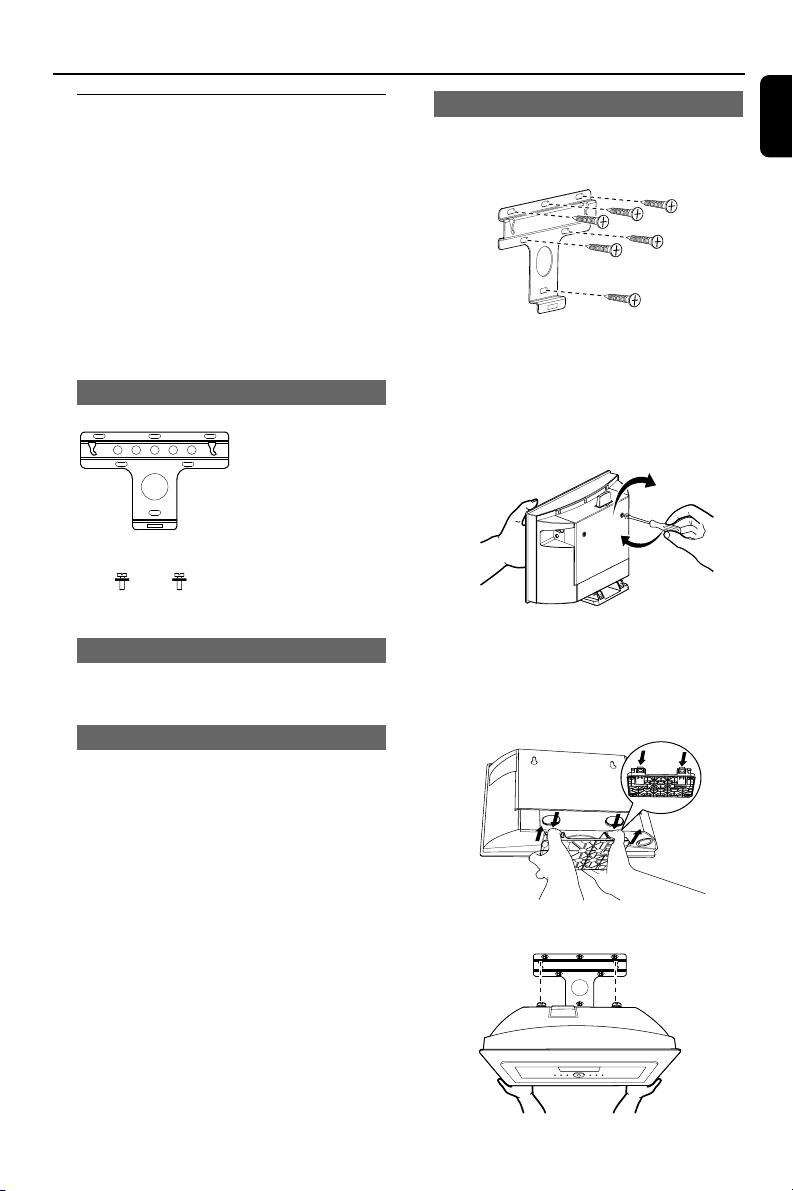
51
English
Appendix
How to mount your Station onto
walls
IMPORTANT!
– The wall mounting instructions are for
the use of the qualified wall mounting
person only!
– Ask a qualified person to help you
with the wall mounting, which includes
drilling holes on the wall, fixing the
mounting bracket to the wall, and
mounting the set onto the bracket.
What’s in the supplied mounting kit
1 x mounting bracket
2 x screws (for Station
mounting)
What else you’ll need
– 6 x screws for fixing the Station’s bracket
– Drilling tools (e.g. electric drill)
Preparation
● To find a suitable location for mounting, try
your necessary rear connections and the Wi-Fi
connection between Center and Station (see
the chapter Installation).
● Ask a qualified person to help you with the
wall mounting, who should:
– to avoid unexpected damage, learn about the
piping, wiring and other relevant information
inside your walls;
– according to your walls’ materials, decide what
type of screws you need to fix the mounting
brackets and hold the weight of a Station;
– according to the drilling requirements, choose
suitable drilling tools;
– take other precautions necessary for the wall
mounting work.
Mounting your Station
1 Align the bracket in the chosen location on a
wall. Use a pencil to mark the drilling positions
2 Drill holes as marked
3 Fix the brackets to the wall using suitable screws
(not supplied)
4 As shown, fasten the supplied screws to your
Station using a screwdriver
5 To detach the stand from Station,
a. As shown, hold down the Lock•unlock
buttons
b. Move out the stand to detach
6 As shown, hook and mount Station in place
p001-P052-WACS57_Eng_37 1/25/2006, 14:1251

English
52
Philips, P.O. Box 671539, Marietta, GA. 30006-0026
One (1) Year Labor and Parts Repair (Facility)
PHILIPS LIMITED WARRANTY
PHILIPS CONSUMER ELECTRONICS warrants this
product against defect in material or workmanship, subject to
any conditions set forth as follows:
PROOF OF PURCHASE:
You must have proof of the date of purchase to receive war-
ranted repair on the product.A sales receipt or other docu-
ment showing the product and the date that you purchased the
product as well as the authorized retailer included, is consid-
ered such proof.
COVERAGE:
(If this product is determined to be defective)
LABOR: For a period of one (1) year from the date of purchase,
Philips will repair or replace the product, at its option, at no
charge, or pay the labor charges to the Philips authorized repair
facility (see warranty service phone numbers in next column).
After the period of one (1) year, Philips will no longer be
responsible for charges incurred.
PARTS: For a period of one (1) year from the date of purchase,
Philips will supply, at no charge, new or rebuilt replacement
parts in exchange for defective parts. Philips authorized repair
facility will provide removal and installation of the part under
the specified labor warranty.
EXCLUDED FROM WARRANTY COVERAGE
Your warranty does not cover:
• Labor charges for installation or setup of the product, adjust-
ment of customer controls on the product, and installation
or repair of antenna systems outside of the product.
•Product repair and/or part replacement because of improper
installation, connections to improper voltage supply, abuse,
neglect, misuse, accident, unauthorized repair or other cause
not within the control of Philips.
•A product that requires modification or adaptation to enable
it to operate in any country other than the country for
which it was designed, manufactured, approved and/or autho-
rized, or repair of products damaged by these modifications.
• Damage occurring to product during shipping when improp-
erly packaged or cost associated with packaging.
•Product lost in shipment and no signature verification of
receipt can be provided.
•A product used for commercial or institutional purposes
(including but not limited to rental purposes).
•Products sold AS IS or RENEWED.
SHIP-IN WARRANTY
For Ship-In warranty repair, ship the product to a Philips autho-
rized service facility for repair in its original carton and packing
material. If you do not have the original carton or packing mate-
rial, have your product professionally packed for shipping. Ship
product via a traceable carrier.When it is necessary for you to
ship the product to Philips for repair, you will pay the shipping
cost for shipment to Philips. Philips will pay the shipping costs
when returning the product to you.
TO OBTAIN WARRANTY SERVICE IN THE U.S.A.,
PUERTO RICO, OR U.S.VIRGIN ISLANDS…
Contact Philips Customer Care Center at:
1-888-PHILIPS (1-888-744-5477)
TO OBTAIN WARRANTY SERVICE IN CANADA…
1-800-661-6162 (French Speaking)
1-888-PHILIPS (1-888-744-5477) (English or Spanish
Speaking)
REPAIR OR REPLACEMENT AS PROVIDED UNDER THIS
WARRANTY IS THE EXCLUSIVE REMEDY FOR THE CON-
SUMER. PHILIPS SHALL NOT BE LIABLE FOR ANY INCIDEN-
TAL OR CONSEQUENTIAL DAMAGES FOR BREACH OF
ANY EXPRESS OR IMPLIED WARRANTY ON THIS PROD-
UCT. EXCEPT TO THE EXTENT PROHIBITED BY APPLICABLE
LAW, ANY IMPLIED WARRANTY OF MERCHANTABILITY OR
FITNESS FOR A PARTICULAR PURPOSE ON THIS PRODUCT
IS LIMITED IN DURATION TO THE DURATION OF THIS
WARRANTY.
Some states do not allow the exclusions or limitation of inci-
dental or consequential damages, or allow limitations on how
long an implied warranty lasts, so the above limitations or exclu-
sions may not apply to you. In addition, if you enter into a ser-
vice contract agreement with the PHILIPS partnership within
ninety (90) days of the date of sale, the limitation on how long
an implied warranty lasts does not apply.
This warranty gives you specific legal rights. You may have other rights which vary from state/province to state/province.
(Warranty: 4835 710 27100)
p001-P052-WACS57_Eng_37 1/25/2006, 14:1252