
Introduction
4
System introduction 4
Driving restrictions 4
How to get going 5
System overview
9
Map display options 12
Display voice commands 13
Status bars 13
Home screen 13
Loading pictures 14
Reverse camera 16
Quick reference chart 17
Setting the clock 19
Voice recognition system overview
23
How to use voice commands 25
Adjusting the voice prompt volume 26
Voice recognition tutorial 28
Tutorial voice commands 28
Voice name tags 29
User profiles 29
User profile voice commands 31
Audio features
33
AM/FM 34
HD Radio™ 36
Radio voice commands 36
CD 41
CD voice commands 44
Playing a DVD in the system 44
DVD voice commands 46
Video CD voice commands 46
Disc voice commands 47
Jukebox features 47
Recording (saving) music to your jukebox 48
Accessing the music in your jukebox 48
Table of Contents
1
2012 Centerstack (ng1)
Supplement, 1st Printing
Arabic_(LHD) (gc_lhd)

Creating a playlist 50
Jukebox voice commands 52
User Device (if equipped) 54
Rear DVD voice commands 56
DVD (if equipped) 56
Climate features (if equipped)
58
Climate voice commands 60
Information menu
61
Accessing your calendar 61
Accessing the help screen 62
Sound menu features
63
General Information
65
Glossary 67
SYNC姞 phone features (if equipped)
69
Quickstart - How to get going 69
Pairing your phone through your navigation system 69
Making a call 71
Saving a contact or phone number as a Quick Dial 72
Accessing your phone book 73
Call history 73
System settings 74
Adding (pairing) a phone 75
Connecting a phone 75
Deleting a phone 76
Advanced settings 77
Turning Bluetooth on/off 78
Setting a ring tone 79
Message notification 80
Automatically download your phone book 81
Modifying your phone book and call history 82
Turning prompts on/off 83
Returning to factory defaults 84
Table of Contents
2
2012 Centerstack (ng1)
Supplement, 1st Printing
Arabic_(LHD) (gc_lhd)

Performing a master reset 85
Installing new vehicle applications 86
Accessing SYNC威 system information 86
Text messaging with your navigation system 87
Forwarding a text message 91
Voice commands in phone mode 92
SYNC姞 media features (if equipped)
94
Connecting your digital media player to SYNC威 94
SYNC威 media features 95
What’s playing? 96
Supported player, media formats and metadata information 96
Accessing and using your USB port 96
Streaming music from your phone 97
Using the Auxiliary input jack (Line in) 98
Using the play all feature 99
Selecting and playing specific artists 100
Selecting and playing specific albums 101
Selecting different genres 101
Accessing your playlists 102
Playing a specific track 103
Exploring the USB device 103
Accessing BT devices 104
Adding a new device in discovery or discoverable mode 105
Voice commands in media mode 106
SYNC姞 End user license agreement
108
Index
116
All rights reserved. Reproduction by any means, electronic or mechanical
including photocopying, recording or by any information storage and retrieval
system or translation in whole or part is not permitted without written
authorization from Ford Motor Company. Ford may change the contents without
notice and without incurring obligation.
Copyright © 2010 Ford Motor Company
Table of Contents
3
2012 Centerstack (ng1)
Supplement, 1st Printing
Arabic_(LHD) (gc_lhd)

MOBILE MEDIA NAVIGATION SYSTEM
Your vehicle is equipped with a mobile media navigation system which
allows you to listen to, record and save music, play DVDs (audio and
video), and operate climate control functions (if equipped).
Your system has a large range of features, yet is easy to use. The display
screen is the primary means for operating the system through the use of
its vertically tabbed menus, text screens and menu displays. Screen
selections are made by touching the desired area on the touchscreen.
The “tabs” along the left side of the screen represent the major
components of the system. The status bars at the top and bottom of the
screen will display for the majority of the time once the system is turned
on and ready for operation. The top status bar will contain menu names,
icons, and a clock. The lower status bar contains climate information (if
equipped), icons and advisory messages. Please refer to Status bars in
the System Overview chapter for more information. Navigation guidance
is shown on the display touchscreen and is supplemented with voice
prompts.
DRIVING RESTRICTIONS
In order to prevent the system from distracting you while driving, access
to certain functions are restricted when the vehicle is traveling above
5 mph (8 km/h). Restricted functions include:
• Touchscreen keyboard
• Scrolling of long lists
• Jukebox restrictions such as creating/editing playlists, sorting playlists,
editing track, artist and album names
• Uploading photographs
Note: If your vehicle is equipped with SYNC威, similar features will be
restricted also.
When the vehicle speed is reduced to 5 mph (8 km/h) or less, system
restrictions are lifted and you have full access to the system.
Introduction
4
2012 Centerstack (ng1)
Supplement, 1st Printing
Arabic_(LHD) (gc_lhd)

PRIVACY INFORMATION
When a cellular phone is connected to SYNC威, SYNC威 creates a profile
within your vehicle that is linked to that cellular phone. This profile is
created in order to offer you more cellular features and to operate more
efficiently. Among other things, this profile may contain data about your
cellular phone book, text messages (read and unread), and call history,
including history of calls when your cell phone was not connected to
SYNC威. In addition, if you connect a media device, SYNC威 creates and
retains an index of media content supported by SYNC威. SYNC威 also
records a short development log of approximately 10 minutes of all
recent SYNC威 activity. The log profile and other SYNC威 data may be
used to improve SYNC威 and help diagnose any problems that may occur.
The cellular profile, media device index, and development log will remain
in the vehicle unless you delete it and are generally accessible only in
the vehicle when the cellular phone or media player is connected. If you
no longer plan to use SYNC威 or the vehicle, we recommend you perform
a Master Reset to erase all information stored in SYNC威.
SYNC威 data cannot be accessed without special equipment and access to
the vehicle’s SYNC威 module. Ford Motor Company and Ford of Canada
will not access SYNC威 data for any purpose other than as described
absent consent, a court order, or where required by law enforcement,
other government authorities, or other third parties acting with lawful
authority. Other parties may seek to access the information
independently of Ford Motor Company and Ford of Canada. For further
privacy information, see the sections on 911 Assist™ (if equipped),
Vehicle Health Report (if equipped), and Traffic, Directions and
Information (if equipped).
QUICK START
WARNING: Driving while distracted can result in loss of vehicle
control, accident and injury. Ford strongly recommends that
drivers use extreme caution when using any device or feature that may
take their focus off the road. Your primary responsibility is the safe
operation of the vehicle. We recommend against the use of any
handheld device while driving and that you comply with all applicable
laws.
Introduction
5
2012 Centerstack (ng1)
Supplement, 1st Printing
Arabic_(LHD) (gc_lhd)
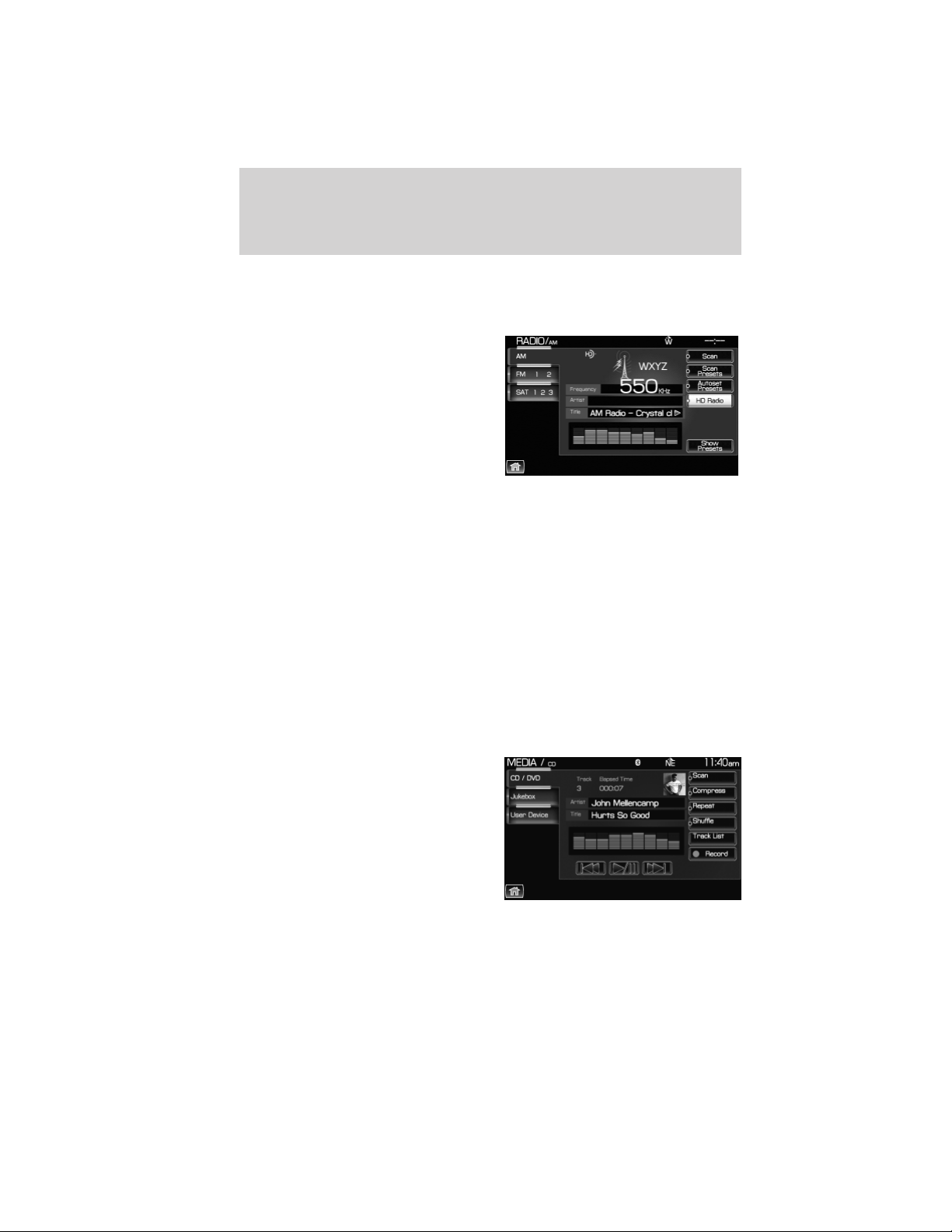
TO PLAY A RADIO STATION
1. Ensure that the system is on.
2. Press the RADIO hard button.
3. Select the ‘AM’ or ‘FM’ tab on the
touchscreen.
• Turn the TUNE knob to the right/left to go up/down the frequency
band in individual increments.
• Or, press SEEK to find the next strong station up/down the frequency
band.
Note: Since RDS is always ON if the PTY (Program type) is selected, the
station selection will be limited to that specific genre. In satellite radio
mode (if activated), the SEEK function is limited to the selected genre.
TO LOAD A CD OR DVD:
1. Insert a CD or DVD into the slot.
2. A CD will begin to play. A DVD will play audio and video if the vehicle
is in Park (P). Otherwise, only the audio will play.
Note: This system only plays NTSC-format DVDs; PAL format is not
supported.
3. Use the touch controls on the
screen to advance tracks, scan,
pause, view the track list, etc.
Introduction
6
2012 Centerstack (ng1)
Supplement, 1st Printing
Arabic_(LHD) (gc_lhd)
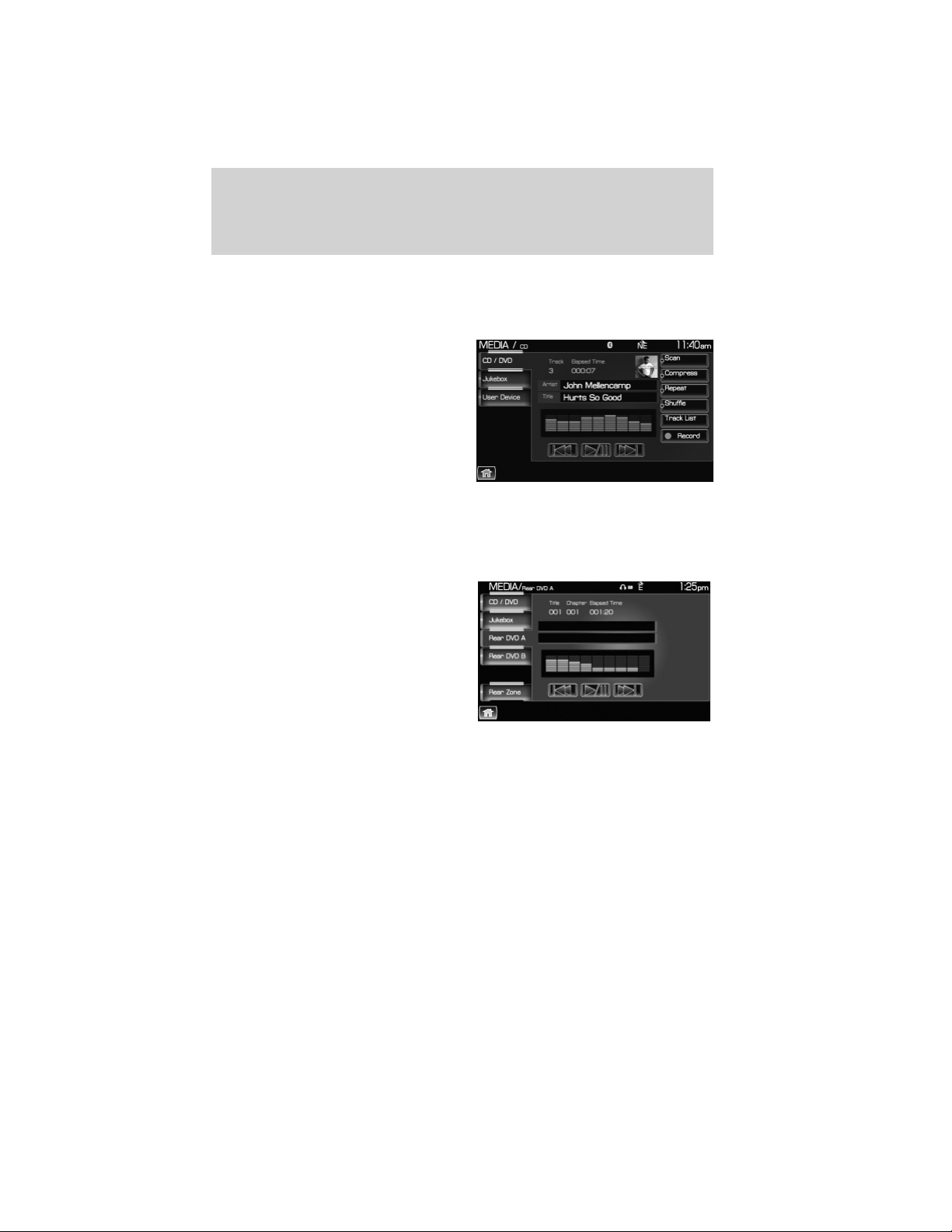
TO PLAY A PREVIOUSLY LOADED CD OR DVD:
1. Ensure that the system is on.
2. Press the MEDIA hard button on the system.
3. Select CD/DVD tab on the
touchscreen (if there is not a CD or
DVD loaded into the system, the tab
will be disabled and NO DISC will
appear in the status bar when you
try to select it).
4. A CD will begin to play. A DVD
will begin to play audio and video if
the vehicle is in P (Park).
Otherwise, only audio will play.
TO PLAY A PREVIOUSLY LOADED DVD IN THE FAMILY
ENTERTAINMENT DVD SYSTEM (IF EQUIPPED)
1. Press the MEDIA hard button on the navigation system.
2. Press the Rear DVD A or Rear
DVD B tab to access the desired
monitor system.
The previously loaded DVD will begin to play in the system.
Introduction
7
2012 Centerstack (ng1)
Supplement, 1st Printing
Arabic_(LHD) (gc_lhd)
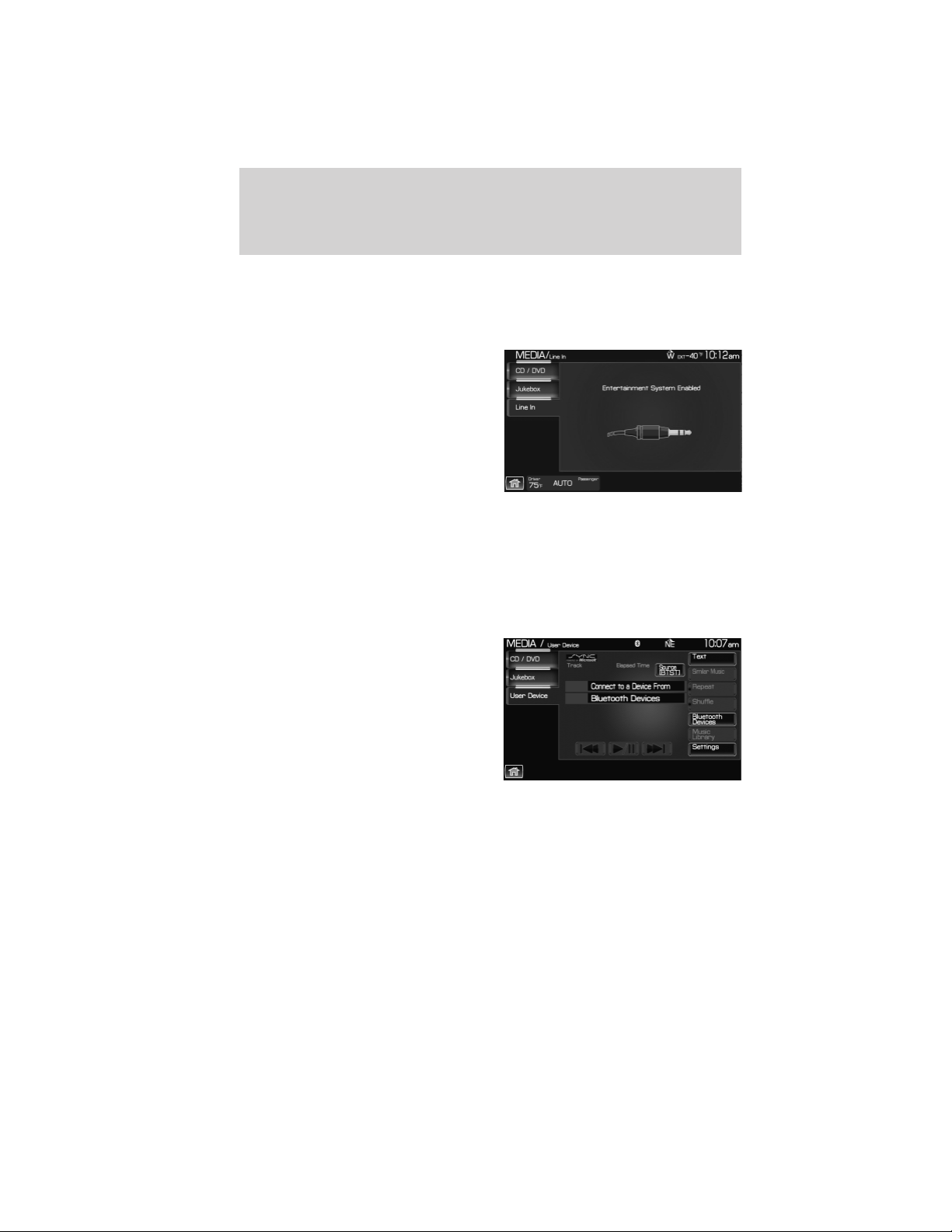
USING THE AUXILIARY INPUT JACK:
Your vehicle is equipped with an auxiliary input jack which allows a
portable audio device to be listened to through your vehicle’s audio
system. To access the auxiliary input jack mode:
1. Press the MEDIA hard button on
the system.
2. Select the ‘LINE IN’ tab on the
touchscreen.
Once a 3.5 mm input jack is plugged into the Line In jack, sound from
the device will be heard through the vehicle speakers.
For information on the auxiliary input jack location, please refer to
Auxiliary input jack in the Entertainment chapter in your Owner’s
Guide.
USING SYNC姞 (IF EQUIPPED)
Your vehicle may be equipped with
SYNC威 — a hands-free
communication and entertainment
system which allows you to connect
and use a portable media player
through a USB port located in your
vehicle, pair a Bluetooth威 enabled
cellular phone, and operate these
devices through your vehicle. Please
refer to the SYNC威 media chapter
for more information on using portable media players with SYNC威 and
refer to the SYNC威 phone chapter for information on pairing your
Bluetooth enabled cellular phone and using the phone features.
Introduction
8
2012 Centerstack (ng1)
Supplement, 1st Printing
Arabic_(LHD) (gc_lhd)
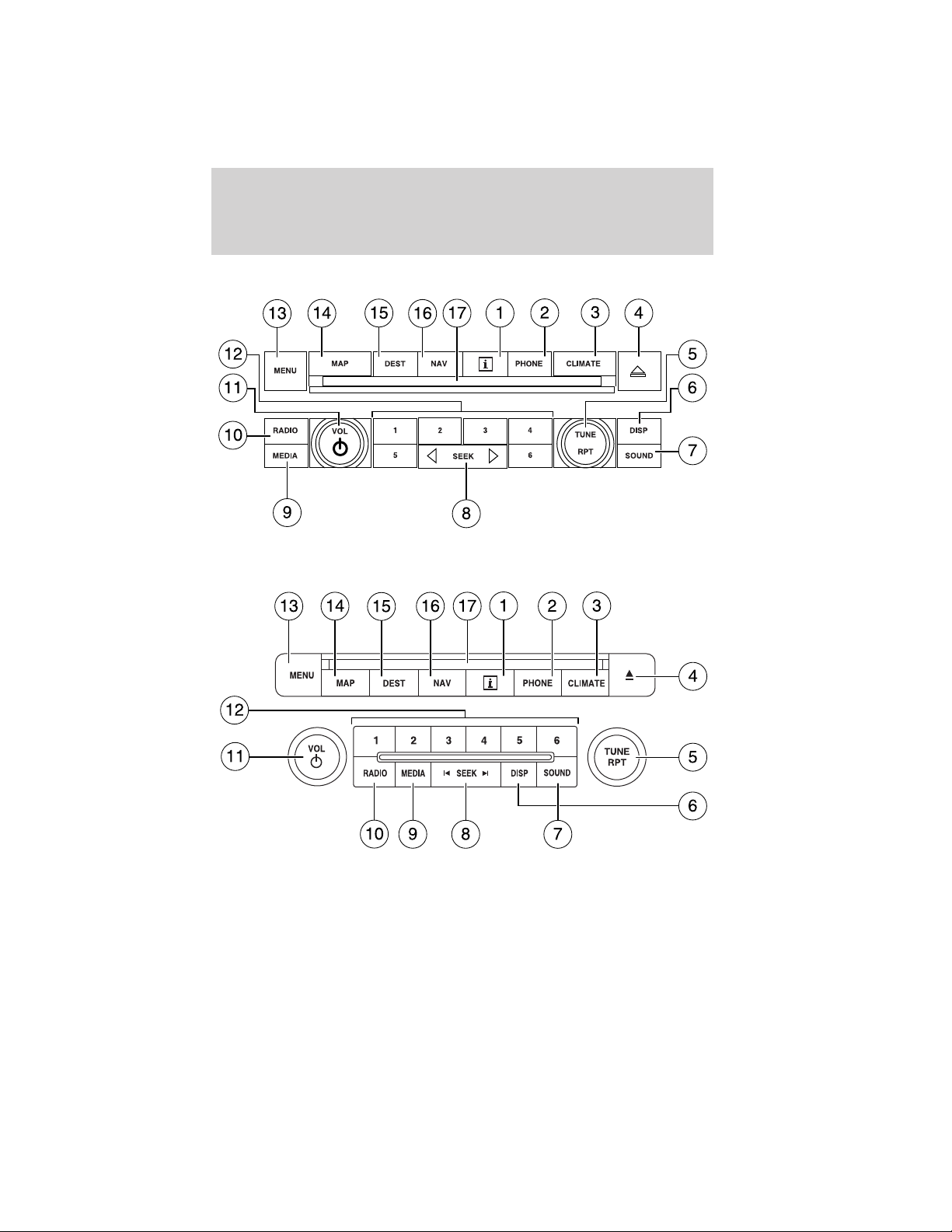
FORD SYSTEM
LINCOLN SYSTEM
System overview
9
2012 Centerstack (ng1)
Supplement, 1st Printing
Arabic_(LHD) (gc_lhd)
WARNING: Driving while distracted can result in loss of vehicle
control, accident and injury. Ford strongly recommends that
drivers use extreme caution when using any device or feature that may
take their focus off the road. Your primary responsibility is the safe
operation of the vehicle. We recommend against the use of any
handheld device while driving and that you comply with all applicable
laws.
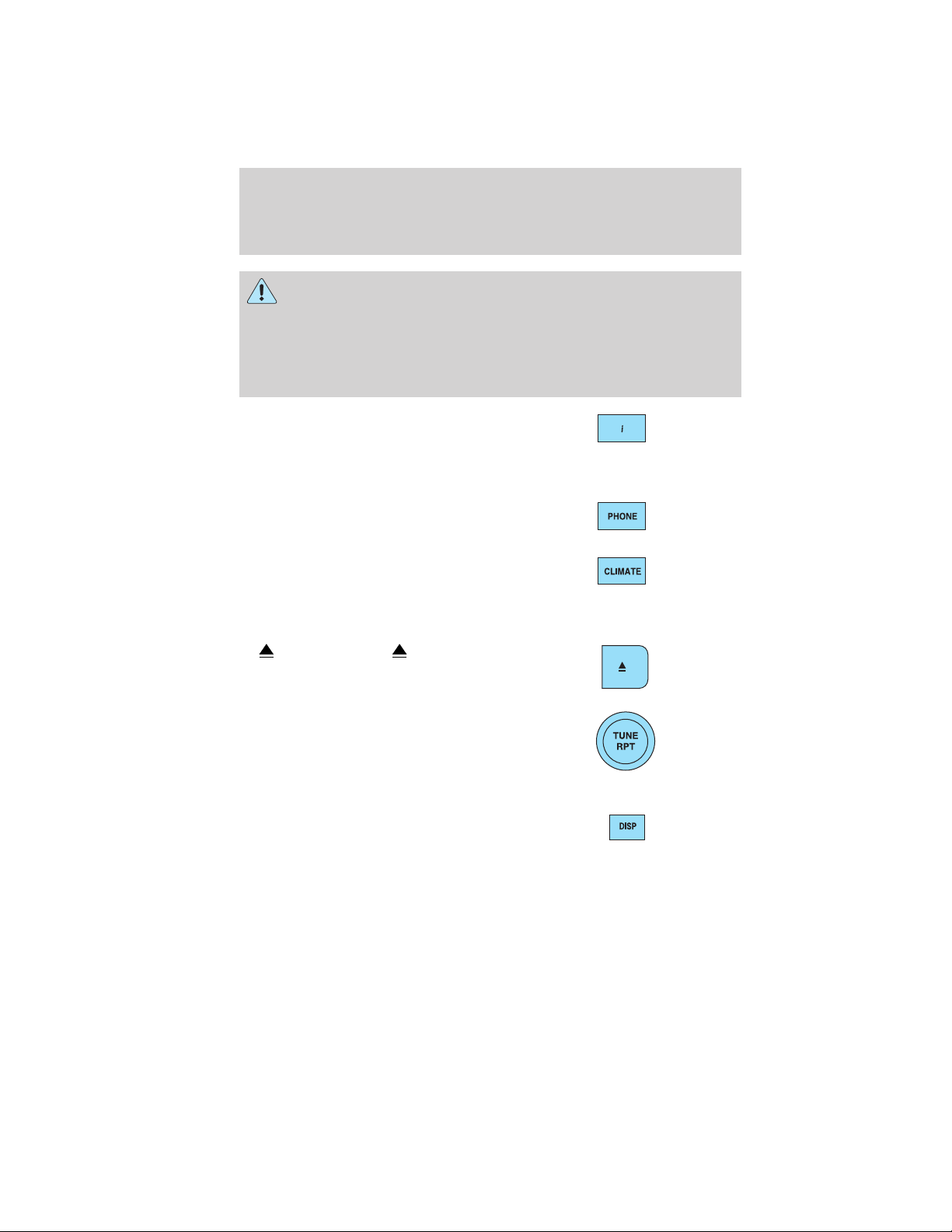
1. I (Information): Press I to
access the information menu. Press
while the information menu is active
to step through the information tabs of: Calendar, System Info (System
Information) and Help.
2. PHONE: Press PHONE to access
the phone menu (if equipped with
SYNC威).
3. CLIMATE: Press CLIMATE to
access the climate menu. Press the
button while the climate menu is
active to step through the climate menu tabs of Front Zone and Rear
Zone (if equipped).
4.
(Eject): Press (Eject) to
eject the disc in the slot.
5. TUNE: In radio or satellite
radio mode (if activated), turn to
advance in individual increments
up/down the frequency/channel
listing.
In MP3 mode, turn to advance to the next/previous folder.
6. DISP: Press the DISP button to
step through the following display
modes: On, Status Bar Only, and
Off.
System overview
10
2012 Centerstack (ng1)
Supplement, 1st Printing
Arabic_(LHD) (gc_lhd)
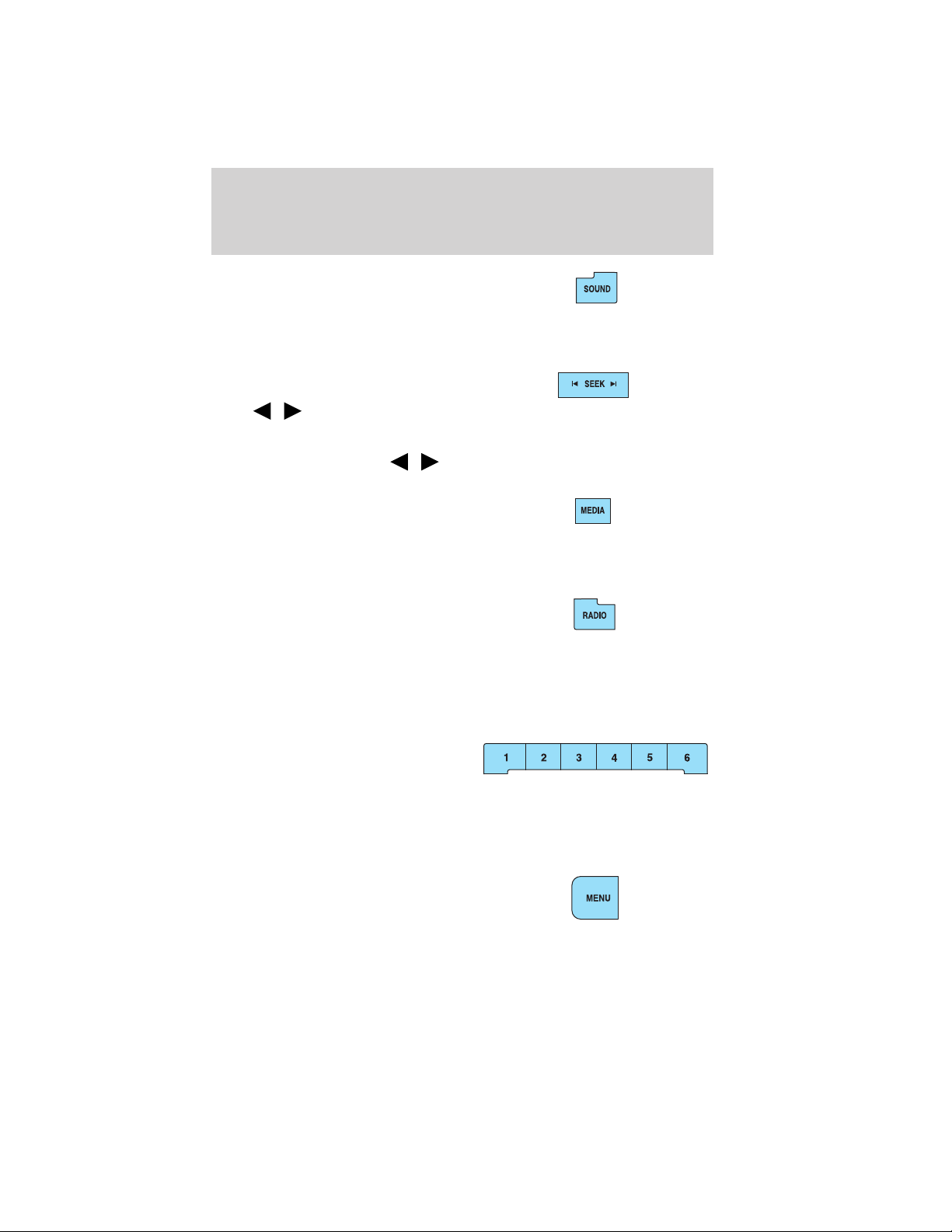
7. SOUND: Press SOUND to access
the sound menu. Press while the
sound menu is active to step
through the sound menu tabs of
Bass/Treble, Balance/Fade, SCV (Speed compensated volume), DSP
(Digital Signal Processing) and the Visualizer.
8. SEEK:In radio and satellite
radio mode (if activated),
press
/ to seek to the
previous/next available station or channel within the currently selected
Category/Genre.
In CD/DVD mode, press
/ to access the previous/next track or
chapter.
9. MEDIA: Press MEDIA to access
the media menu. Press while the
media menu is active to step
through the available media sources of CD/DVD, Jukebox, User Device,
Rear DVD (Rear overhead mounted DVD), if equipped, and Rear AUX
(Rear overhead mounted AUX inputs), if equipped.
10. RADIO: Press RADIO to access
the radio menu. Press while the
radio menu is active to step through
the available radio sources of AM, FM1, FM2, SAT1, SAT2, and SAT3
(satellite radio, if activated).
11. VOL (On/off/volume): Press to turn the audio system on/off. Press
and hold to turn the radio completely off. Turn to adjust the volume of
the audio system.
12. Memory presets:In radio and
satellite radio mode (if
activated): Press 1-6 to access
your previously saved preset
stations/channels. To save to a preset: Tune to the desired
station/channel. Press and hold the desired preset button in which you
would like to store the station/channel. The sound will momentarily mute
and then return when the preset is saved.
13. MENU: Press MENU to access
the system menu. Press while the
system menu is active to step
through the system menu tabs of
Display, Clock, Feedback Settings, System Settings and Valet Mode.
System overview
11
2012 Centerstack (ng1)
Supplement, 1st Printing
Arabic_(LHD) (gc_lhd)

14. MAP: Press to access the
navigation map. Please see the
separate Navigation operating
instruction manual for more information.
15. DEST: Press to access the
navigation map. Please see the
separate Navigation operating
instruction manual for more information.
16. NAV: Press to access the
navigation map. Please see the
separate Navigation operating
instruction manual for more information.
17. CD/DVD slot: Insert a CD or DVD, label side up.
After the system initializes, the screen will be divided in two sections:
• Status bars: This is the top and bottom portion of the screen that
displays the clock or date and useful information, depending on the
current mode.
• Display area: The interactive screen that is activated by finger touch
and changes depending on current system operation. Graphical
buttons are displayed in this area depending on the current screen for
you to make choices.
SCREEN DIFFERENCES
Depending on your vehicle line and option package, your screen may
vary in appearance from the screens shown in this supplement. These
differences could include: background color, tab options, climate controls
and other features. Your features may also be limited depending on your
market. (For example, SIRIUS威 Travel Link™ is only available in the
continental United States). Please check with your authorized dealer for
availability.
Display options
You can choose to turn your screen on/off and also if you would like to
view the status bars on the top and bottom of the screen. To access:
Press DISP repeatedly to cycle through these options.
System overview
12
2012 Centerstack (ng1)
Supplement, 1st Printing
Arabic_(LHD) (gc_lhd)

Voice commands in display mode (if equipped)
While in display mode, press
or VOICE on the steering wheel
controls. When prompted, you may say any of the following commands:
• Display on • Auto
• Day • Night
• Status bar • Display off
• Brighter • Dimmer
• Help
Note: If you are not in display mode, press
or VOICE on the steering
wheel controls. When prompted, say, “Display mode” and then any of the
above commands.
STATUS BARS
Your screens may have status bars on the top and bottom of each screen.
The status bar on the top of the
screen will tell your current mode,
the exterior temperature, the time
as well as display icons if you have
enabled Bluetooth, or are using headphones with your Rear overhead
mounted Family entertainment DVD system among other options.
The status bar on the bottom of the
screen may list the Home icon, the
current temperature selected for the
Driver and Passenger as well as the fan speed and air flow direction, the
current mode being used (if equipped), the Artist and Title of the
currently playing CD (if available), Artist and Title for Jukebox (if
available) and satellite radio (if activated).
Note: As climate controls are vehicle dependent, some vehicles may not
display climate readings in the status bar.
HOME SCREEN
Your system has a Home Screen where you can save/view favorite
pictures, view your current audio and climate control settings as well as
display the audio visualizer or the hybrid fuel economy (if equipped).
You can split the screen in to two or three different sections, or you can
choose to have one main view.
To access your home screen, press the house icon (
)atthebottom
left hand corner of any screen.
System overview
13
2012 Centerstack (ng1)
Supplement, 1st Printing
Arabic_(LHD) (gc_lhd)
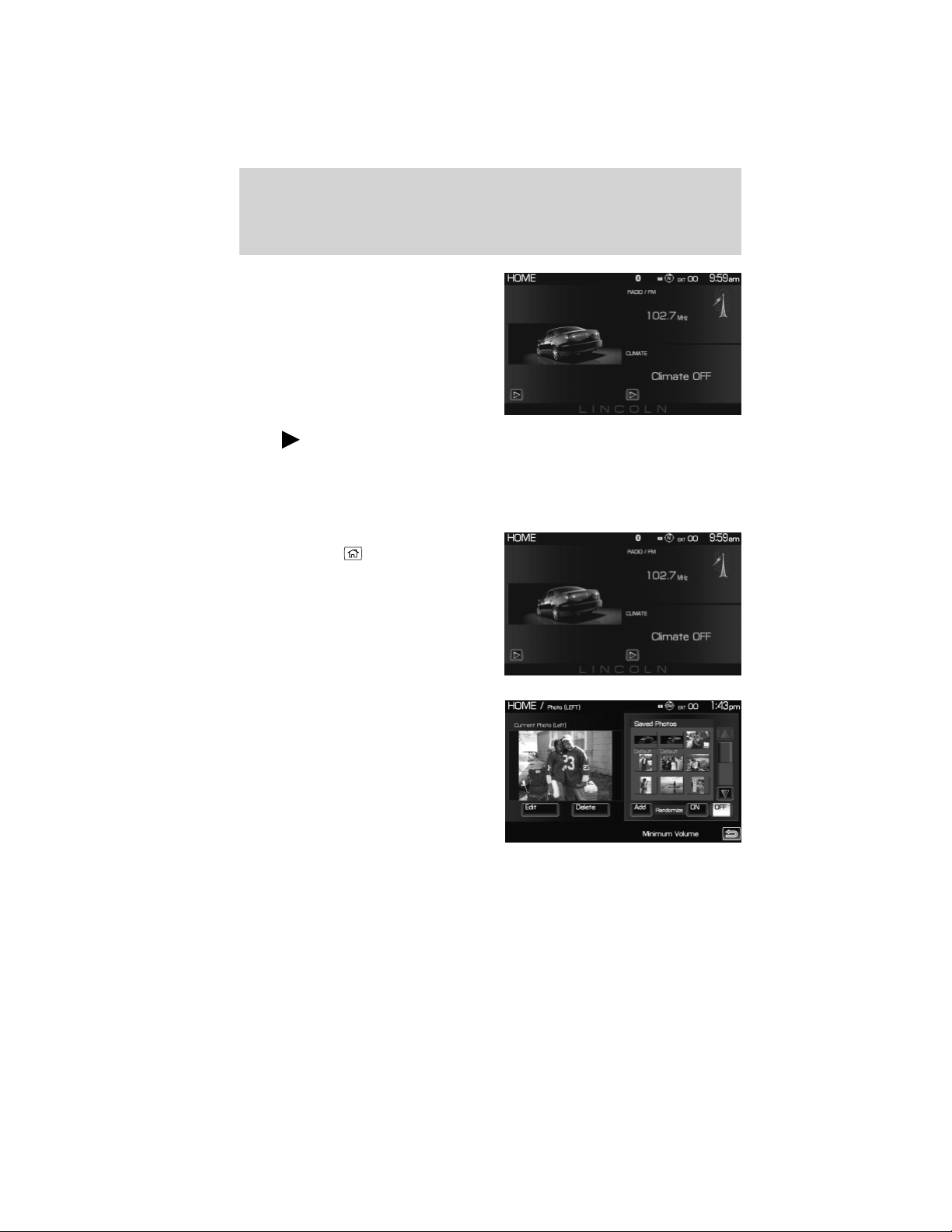
The left side of the screen will
display an uploaded photo or the
map screen. The right side can also
display the uploaded photo. The
upper right panel will only display
the current audio settings. The
lower right panel displays the
vehicle’s climate settings (if
equipped), the visualizer or the
hybrid fuel economy (if equipped).
Press
on the bottom of the display to access the settings screen for
the left or right side.
Loading pictures
Your system allows you to save and view up to 32 photos. To access:
1. Ensure that you are on the Home
Screen. (Press
at the bottom
left of any screen to access.)
2. Touch the left side of the home
screen to initiate the left screen
photo display and saved photos
screen.
3. Select the ‘Add’ button on the
touchscreen. The following
disclaimer will appear, “Please
confirm the supported photo
formats”.
System overview
14
2012 Centerstack (ng1)
Supplement, 1st Printing
Arabic_(LHD) (gc_lhd)

4. When the pop-up dialog box with
the disclaimer appears, press OK
and ensure that you are using the
proper format.
5. Insert a CD-ROM which contains
your photos as jpegs.
6. Press OK. The photos will be
listed on the right half of the screen.
7. Select either ADD or ADD ALL.
The photos are now saved to the hard drive.
Photo display limitations:
• The file must be 1.5MB or less.
• The extension of the file must be one of JPE/JPG/JPEG.
• The CD or DVD must be ISO 9660 format, UDF format is not
supported.
• The file path must be 255 characters or less.
• Up to 256 files or folders can be displayed in one folder.
• Not compatible with discs written in Packet Write mode.
• Only the photograph(s) which meet these conditions will be displayed.
Note: When burning a CD, ensure that you ‘close’ or ‘finalize’ the disc
when the CD-burning process finishes (you should select this option
before you start burning). Consult your software manual or the program’s
help files if you’re not sure how to finalize the disc. Also, write the audio
data into the first session of a multi-session CD as audio systems won’t
be able to sort through other sessions to find more audio tracks.
Editing and deleting photos
1. Press
to access the home screen.
2. Touch the current photo on the home screen.
3. To edit the photo:
• Select the Edit button.
• Adjust the photo by zooming in or out, moving right, left, up or down
and also rotating left or right.
• Press the Reset button to return to the original image.
4. To delete the photo, select the Delete button.
System overview
15
2012 Centerstack (ng1)
Supplement, 1st Printing
Arabic_(LHD) (gc_lhd)

5. To delete all stored photos:
• Press the Menu hard button.
• Select the System Settings tab on the touchscreen.
• Press the View button for Delete Stored Items.
• Select Saved photos.
REVERSE CAMERA (IF EQUIPPED)
Your vehicle may be equipped with a reverse camera on the tailgate which
provides a video image of the area behind the vehicle. When the
transmission is in R (Reverse), an image will automatically display on the
navigation screen. Once the vehicle is back in D (Drive), the image will
continue to display until you are driving over 5 mph (8 km/h). To remove
this image from the screen, press any hard button on the navigation system.
When the vehicle is in R (Reverse),
press SETTINGS to make
adjustments to the brightness of the
display as well as the rear camera
display.
When the rear camera delay
function is ON, it extends the
display of the camera image into
Drive mode until vehicle speed is
greater than 5 mph (8 km/h). This
is useful when trying to
engage/disengage a trailer. Once you
shift out of R (Reverse), the image
will be removed from the screen.
The default for the rear camera
delay is off.
Prior to using, ensure that the camera lens is clear of any debris, mud,
etc. and that both reverse lamps are operational if using at night.
Depending on your vehicle, you may have a Zoom button (if equipped)
as well as additional selections under the Settings button.
For complete information, refer to Rear-view Camera System in the
Driving chapter in your Owner’s Guide.
System overview
16
2012 Centerstack (ng1)
Supplement, 1st Printing
Arabic_(LHD) (gc_lhd)
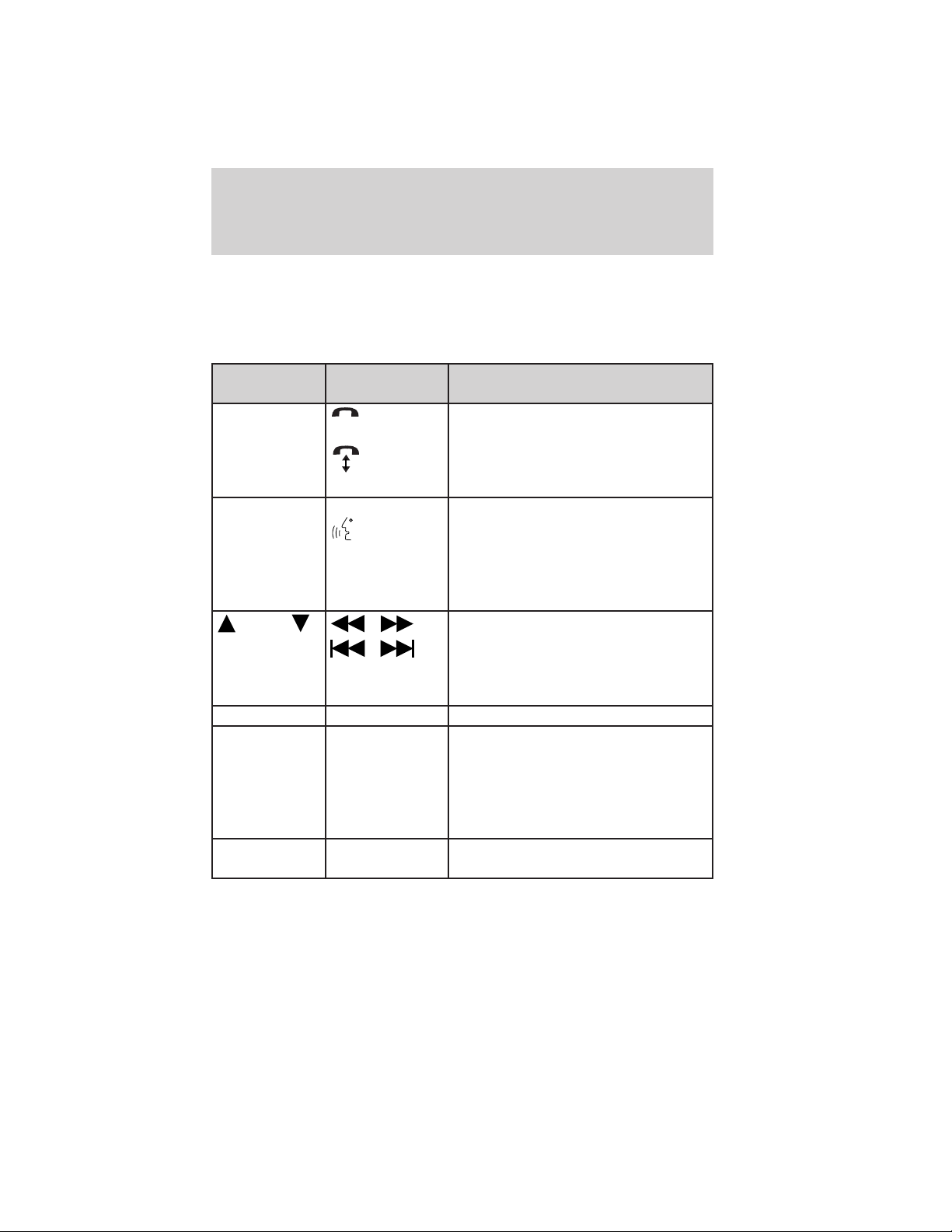
QUICK REFERENCE CHART
SYNC威 works with your navigation system, DVD system (if equipped),
voice commands and also through your steering wheel controls. Below is
a quick listing of the functions of some steering wheel controls and
navigation system controls.
Navigation
bezel control
Steering wheel
control
Function
N/A
Press to answer an incoming call.
Press to send a call or text message
(if supported).
Press and hold to end a call.
Press it initiate a redial.
N/A VOICE
Press to activate Voice Recognition.
Press and hold to end an active
voice session.
Refer to the Voice recognition
system overview chapter for further
information.
SEEK ,
,
Press to access the previous/next
preset radio station, preset satellite
channel (if activated) or CD track.
Press and hold to seek to the next
satellite channel (if activated).
N/A OK Press to confirm your selection.
MEDIA N/A Press repeatedly to access all
available media sources in your
vehicle such as: CD, DVD, Jukebox,
Rear Zone, Rear DVD (if equipped)
Line In, and User Device (if
equipped with SYNC威).
PHONE N/A Press to access SYNC威 PHONE
features.
System overview
17
2012 Centerstack (ng1)
Supplement, 1st Printing
Arabic_(LHD) (gc_lhd)
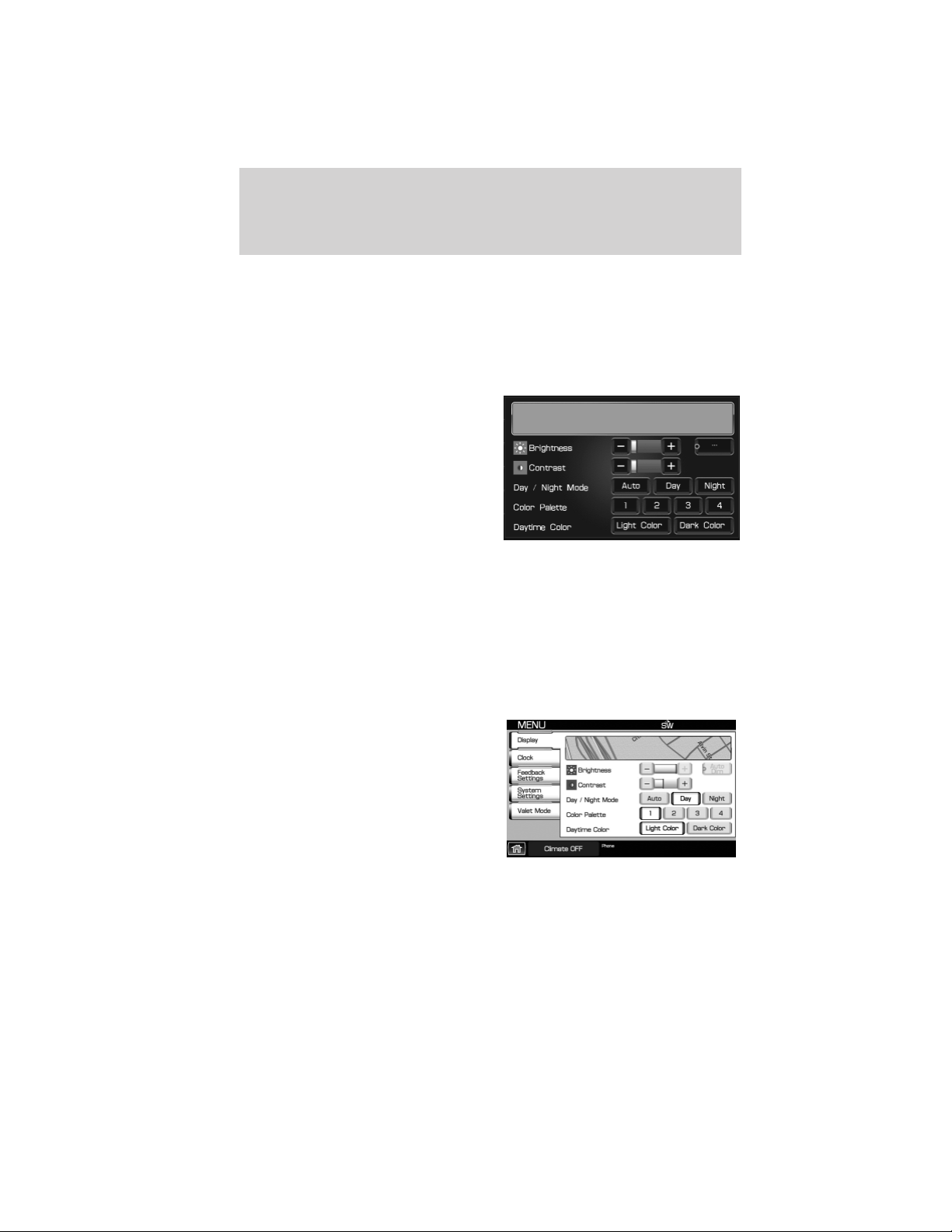
SYSTEM MENU FEATURES
Your system has many menu features such as allowing you to adjust the
touchscreen brightness, adjusting the time and languages, adjusting the
feedback and system settings. To access, press the MENU hard button on
the navigation system.
Display options
1. Press the MENU hard button.
2. Select the ‘Display’ tab on the
touchscreen. Select from the
following display options:
Brightness: Select AUTO DIM to
manually adjust the brightness by
pressing + or —.
Contrast: Press + to increase and
— to decrease the level of contrast
on the screen.
Day/Night Mode: Select ‘Day’ to always display day mode or ‘Night’ to
always display night mode. Select ‘Auto’ for the screen to automatically
change between day and night mode.
Color Palette (Available on Lincoln vehicles only): Select between
four different background colors: 1. Black, 2. Blue, 3. Green, 4. Red.
Daytime color: Press to select Light color or Dark color for the screen
lighting.
Note: When the headlamps are on
under high ambient light conditions,
the system will remain in day mode,
even if night is selected.
System overview
18
2012 Centerstack (ng1)
Supplement, 1st Printing
Arabic_(LHD) (gc_lhd)
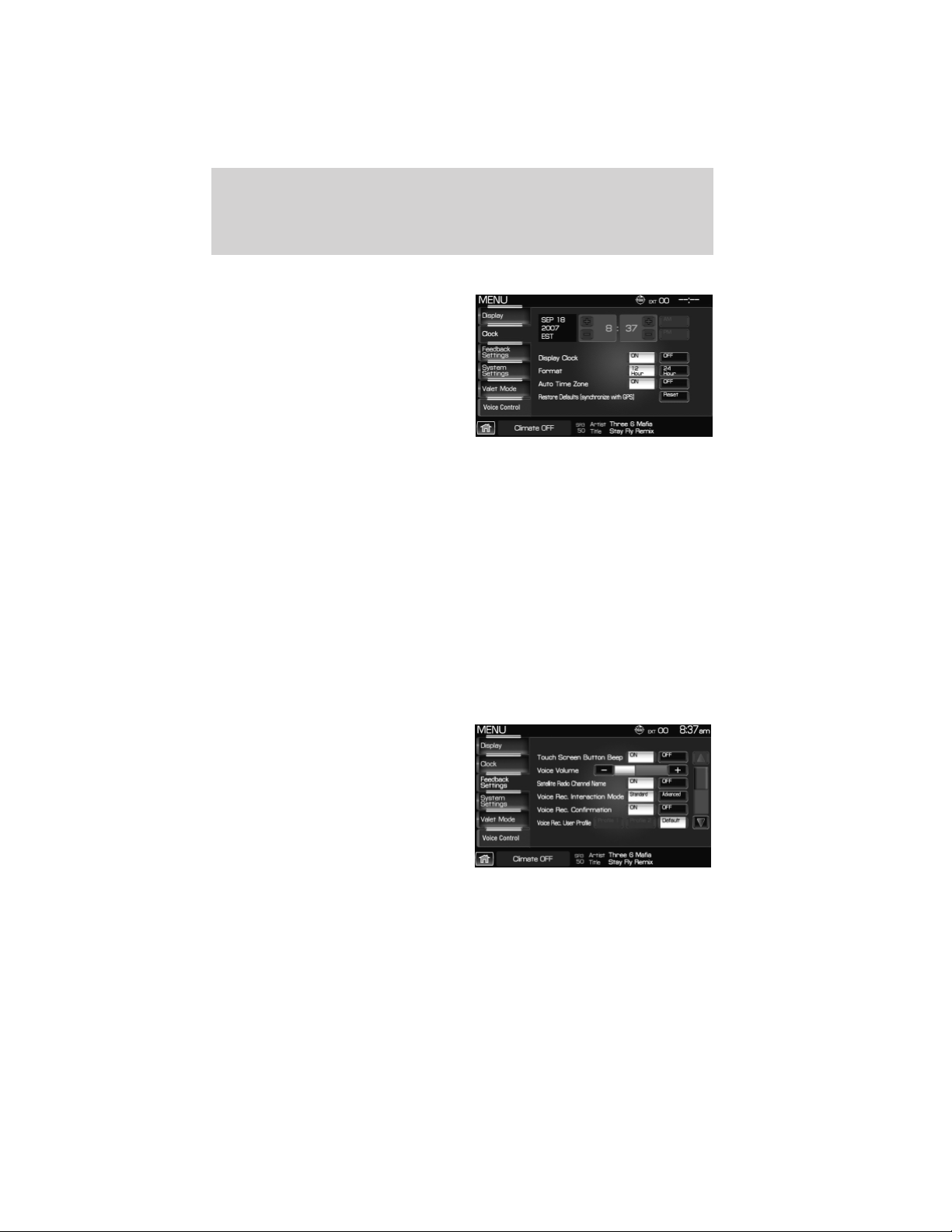
Setting the clock
1. Press the MENU hard button.
2. Select the ‘Clock’ tab on the
touchscreen. Select from the
following display options:
Time set buttons: To set the time, press +, — to increase/decrease the
time and select AM or PM.
Display clock: Press to turn the clock display on/off.
Format: Press to select between 12 hour and 24 hour format.
Auto time zone: If enabled, the system will automatically adjust the
time when you enter into a new time zone. If disabled, you will have to
manually adjust the time when entering different time zones. Note: The
system does not implement daylight savings time.
Restore defaults: Select ‘Reset’ to reset to the default settings.
Note: If your vehicle is equipped with an in-dash analog clock, you can
set the time on this screen but it may not appear in status bar for
viewing purposes.
Feedback settings
1. Press the MENU hard button.
2. Select the ‘Feedback Settings’ tab
on the touchscreen. Select from the
following display options:
Voice recognition user profile: You can ‘train’ the system to better
recognize your voice. Two profiles can be created. Refer to the Voice
Recognition section for more information.
System overview
19
2012 Centerstack (ng1)
Supplement, 1st Printing
Arabic_(LHD) (gc_lhd)

Button tone: Select to select/adjust when the system will sound a tone.
Press ‘Button tone’ to then select from:
• All Buttons: Select to have the system sound a tone when any hard
or soft key is touched.
• Touch Screen: Select to have the system only sound a tone when a
selection is made on the touch screen.
• Off: Select to turn off all tones.
Voice volume: Press + to increase or — to decrease the volume level of
the navigation voice. Voice volume adjustment also includes the volume
level of chimes.
Voice recognition interaction mode: This feature determines the level
of interaction/feedback you will receive from the system.
• Standard: This is the default setting. The ‘Standard setting’ provides
you with the most interaction / feedback in the form of prompts.
• Advanced: This feature has less prompts and feedback.
Voice recognition confirmation:
• On: Select to have the system always ask to confirm/verify a
command.
• Off: Select to have the system ask less frequently to confirm /verify a
command.
System settings
1. Press the MENU hard button.
2. Select the ‘System Settings’ tab
on the touchscreen. Select from the
following display options:
Language: Select between ‘English’, ‘Francais’ or ‘Espanol’.
Units: Select between ‘English’ and ‘Metric’.
Keyboard layout: Select ‘ABC’ or ‘QWERTY’ for the keyboard layout in
the display.
System overview
20
2012 Centerstack (ng1)
Supplement, 1st Printing
Arabic_(LHD) (gc_lhd)
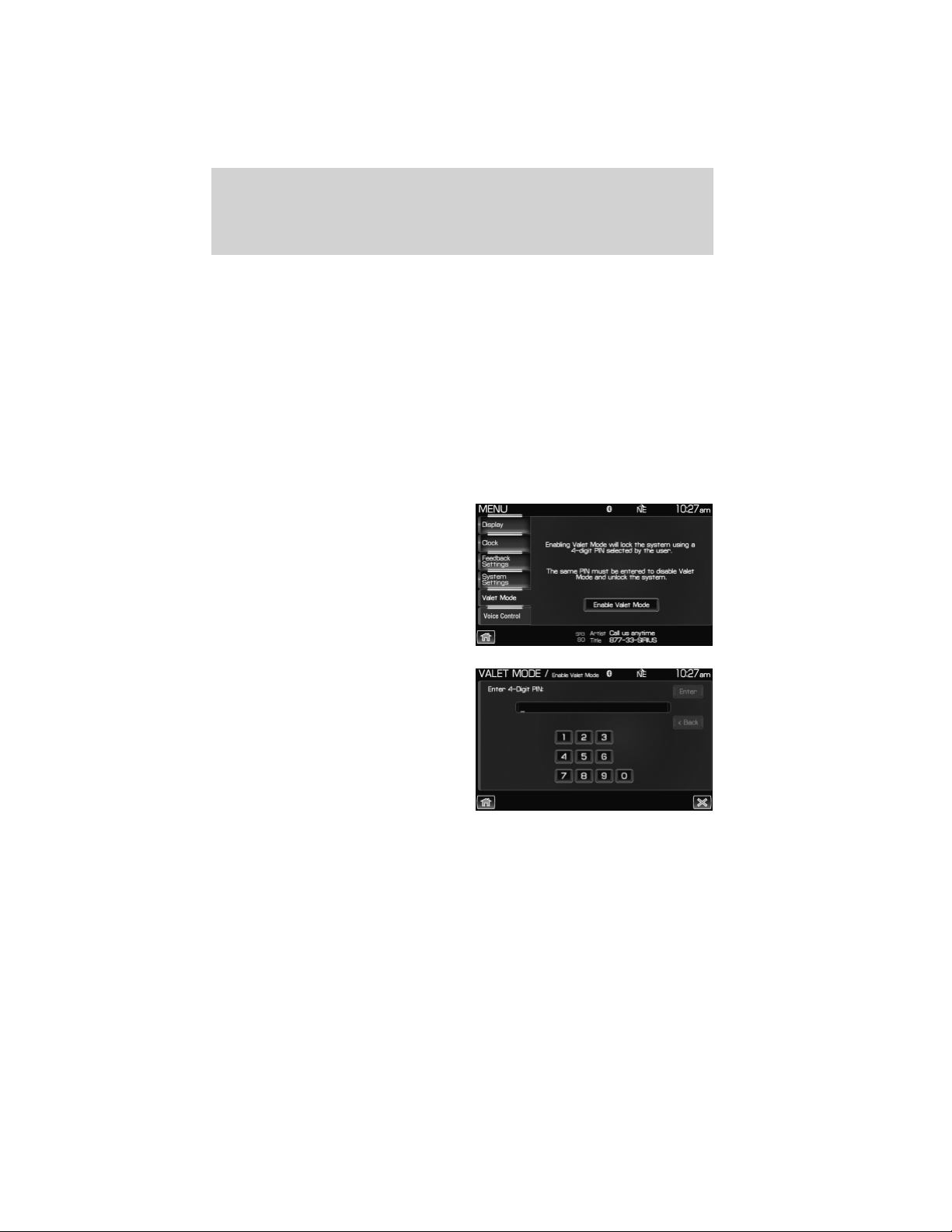
Delete stored items: Select ‘View’ to see what areas contain stored
items. You can then choose to delete all of the entries from these areas:
Address Book, Saved Photos and Voice Recognition Profiles.
Restore factory default settings: Press ‘Reset’ to return to the factory
default settings.
Valet Mode: Press to access Valet Mode.
• Enable Valet Mode: Select to lock the system with a four digit PIN.
The same PIN must be entered to unlock the system and disable valet
mode.
Valet mode
1. Press the MENU hard button.
2. Select the ‘Valet Mode’ tab on the
touchscreen. Press ‘Enable Valet
Mode’.
3. Enter a four digit Personal
Identification Number (PIN) and
press ‘Enter’. The system will ask
you to re-enter the PIN. Once
entered, select ‘Enable’ to activate
Valet mode. The system is then
locked until the correct four digit
PIN is entered.
Note: The PIN can be reset by simultaneously pressing and holding
presets 1 and 5 while on the PIN entry screen. After approximately five
seconds, the system will transition to the Valet mode screen indicating
that the PIN is reset. Once you have reset the PIN, the system will then
allow you to set a new PIN.
System overview
21
2012 Centerstack (ng1)
Supplement, 1st Printing
Arabic_(LHD) (gc_lhd)

SYNC姞 audio voice control
This feature allows you to set the
system to automatically listen for
USB or SYNC voice commands first,
if desired. This eliminates the need
to say “USB” or “User Device”
before any of the SYNC media
commands.
When ‘On’ is selected, you do not need to say, “USB” or “User Device”
first to control a connected USB device.
When ‘Off’ is selected, you will need to say, “USB” or “User Device”
before all SYNC commands.
System overview
22
2012 Centerstack (ng1)
Supplement, 1st Printing
Arabic_(LHD) (gc_lhd)

VOICE RECOGNITION
Your vehicle may be equipped with an advanced interactive Voice
Recognition (VR) system. This system allows you to perform many
operations such as operating the navigation, audio, phone (if equipped),
media, climate (if equipped), display and voice settings by “speaking”
certain commands. The system will respond with a series of audible
tones, prompts, questions and spoken confirmations depending on the
situation and the chosen level of dialogue interaction.
Feedback through audible tones
Your VR system will respond through various audible tones. You may
hear a tone at the following times:
• When you press VOICE or
on your steering wheel controls.
• When you access the help feature.
• When the VR system does not understand your request
• When a VR session is completed successfully
• When a VR session is ended unsuccessfully
• When a speed dependent feature has been accessed
• When a new device is connected
The navigation system has five different audible tones that will play
depending on the circumstance.
• Initial: Sounds when you are entering a new mode.
• Positive: Sounds for a positive recognition or a successful VR session
completion.
• Negative: Sounds for a negative recognition, an unsuccessful VR
session, or when a speed dependent feature has been accessed.
• Listening: Sounds when the system is ready to listen for a command.
• Help: Sounds when you ask for ’Help’.
Voice recognition system overview
23
2012 Centerstack (ng1)
Supplement, 1st Printing
Arabic_(LHD) (gc_lhd)

Confirmation prompts
Confirmation prompts are short questions asked by the system when the
system has not clearly understood your request or when there are
several possible responses to your request. For example, if you have
Confirmation prompts ON, the system may say, “Phone, is that correct?”.
The system will then listen for a “Yes” or “No” confirmation from you. If
you say “Yes”, the system will proceed. If you say “No”, the system will
ask you to say the command again. If you have Confirmation prompts
OFF, the system may assume it understood your request or may ask you
to repeat your request. If the system is unsure of what was asked, it will
prompt you to try again or ask for help.
Note: Even with Confirmation prompts turned OFF, you may be asked to
confirm certain settings occasionally.
HOW TO USE VOICE COMMANDS WITH YOUR SYSTEM
Press
or VOICE on your steering wheel controls to activate Voice
Recognition. Depending on the feedback setting, you will hear the
prompt, “Please say a command” followed by a tone, or you will hear a
tone, signaling that the system is ready to accept your command. Any
command spoken prior to the beep will not register with the system.
Speak the command clearly to ensure that the system is able to
recognize and perform the desired function. You can, at any time,
press
or VOICE and say “Help” for a list of possible commands.
The main categories of your voice commands are as follows:
• Audio • Climate (if equipped)
• Radio • Jukebox
• User profile • Display mode
• CD • Disc
• Video CD • DVD
• Rear AUX (if equipped) • Line in
• Phone (if equipped) • USB (if equipped)
• Voice settings • Tutorial
• Dial (if equipped) • Confirmations
To access a list of all available voice commands:
1. Press the i button (
) on the system.
2. Select the ‘Help’ tab on the touchscreen.
3. Select ‘Voice commands’ at the top of the screen.
4. Select the desired category.
Voice recognition system overview
24
2012 Centerstack (ng1)
Supplement, 1st Printing
Arabic_(LHD) (gc_lhd)
Voice recognition visual feedback
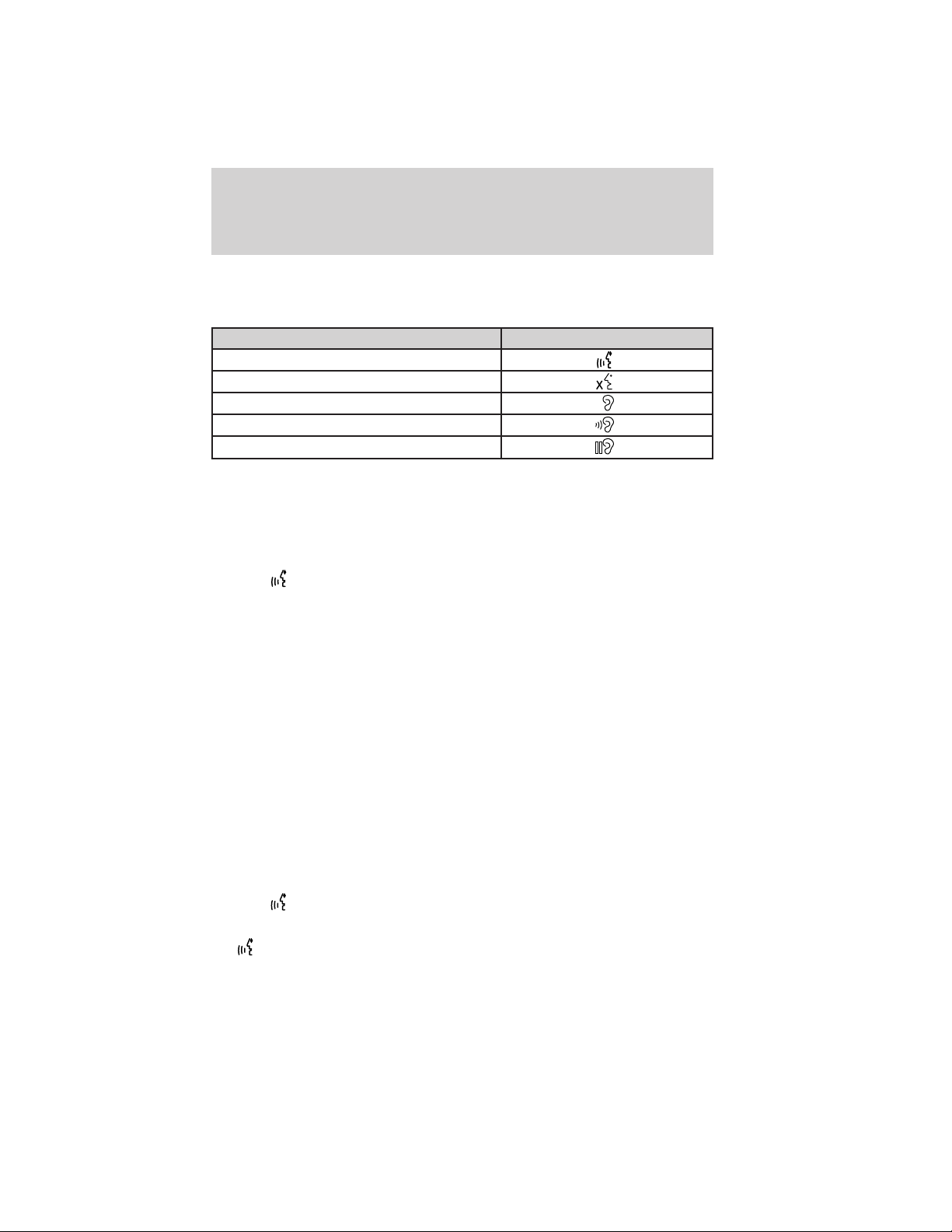
When Voice recognition (VR) is activated, the following icons will appear
in the status bar.
VR State VR Icon
Main Menu/Generic
VR recognition failure
VR session unsuccessful
?
Listening
Listening paused
Speaking instructions
For the best voice recognition, please ensure that:
• The interior of the vehicle needs to be as quiet as possible. Wind noise
from open windows and road vibrations may prevent the system from
correctly recognizing voice commands.
• Press
or VOICE and wait until the second tone sounds before
speaking a command.
• Speak naturally without large pauses in between words.
• Speak louder if background noise is preventing the system from
recognizing your command
• Only one person should speak while the system is listening for a
command.
• Please realize voice recognition performance is not 100% and varies by
user. The voice recognition system is meant to be a secondary
convenience control and if it doesn’t operate optimally, you can still
operate your system via the touch screen and hard buttons.
To speak voice commands:
Depending on the feedback setting, the system will respond differently. If
the feedback settings are set to ‘Standard’, the system will respond with
a tone, a prompt and another tone. If the feedback settings are set to
Advanced, the system will respond without a prompt and with tones
only.
1. Press
or VOICE on the steering wheel. A tone will sound.
2. The system will say, “Please say a command” and VOICE/Main Menu
and
will appear in the status bar.
Voice recognition system overview
25
2012 Centerstack (ng1)
Supplement, 1st Printing
Arabic_(LHD) (gc_lhd)

3. A tone will sound and the ’Listening’ icon will appear in the status bar
signifying the system is ready for your command.
4. Speak your command loudly and clearly.
5. If the system is not confident that it recognized the command, it will
ask you for confirmation. If the system does not recognize or hear your
voice command, it will say, “Sorry, please say a command or say Help”
and will allow you to repeat the voice command. The ’voice failed’ icon
will appear in the status bar.
6. If the system does not recognize or hear your voice command a
second time, the system will say, “Sorry, please say a command” and will
allow you to repeat the voice command. The ’voice failed’ icon will
appear in the status bar.
7. If the system doesn’t recognize or hear your command a third time,
the voice session is terminated.
8. Once the system does understand your command, (and the feedback
settings are set to standard), a tone will sound and the system will say,
“<Command> Please say a command.” VOICE/Command and
will
appear in the status bar.
9. The listening tone will sound and the appropriate voice menu name
and the listening icon will appear in the status bar as the system waits
for your response. Speak the command clearly and loudly.
10. This sequence of events occurs until the voice recognition session is
complete.
ADJUSTING THE VOICE PROMPT VOLUME
There are three different ways you can adjust the voice volume:
• When the system is speaking, turn the volume knob to decrease or
increase the volume.
OR
1. Press the MENU hard button.
Voice recognition system overview
26
2012 Centerstack (ng1)
Supplement, 1st Printing
Arabic_(LHD) (gc_lhd)
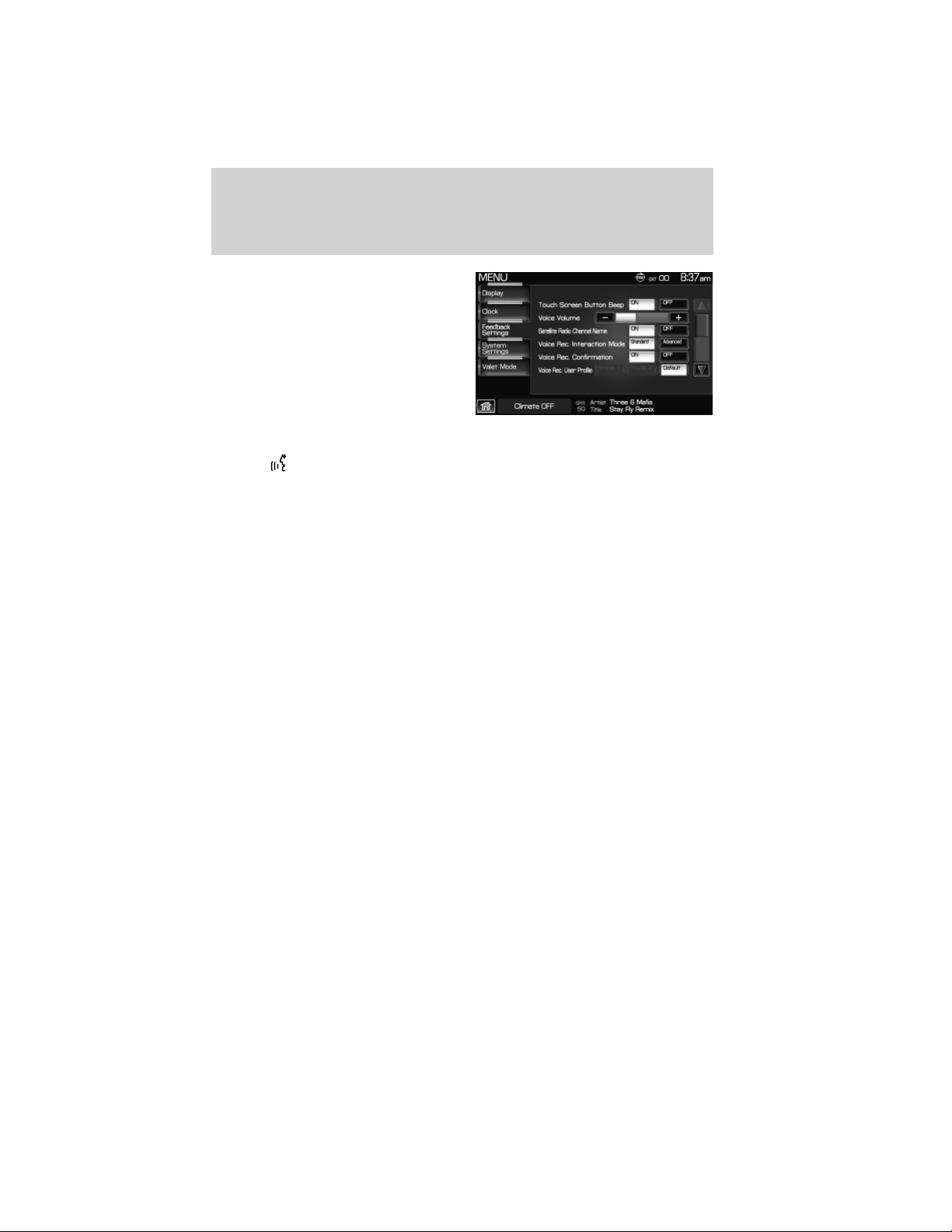
2. Select the ‘Feedback Settings’
tab.
3. Press + to increase or — to
decrease the voice volume levels.
OR
1. Press
or VOICE on the steering wheel. A tone will sound followed
by the prompt, “Please say a command.” Another tone will sound
signaling the system is ready to accept your command.
2. Say “Voice volume decrease” or “Voice volume increase”.
Voice feedback / interaction
You can adjust the level of interaction and feedback you would like from
your voice recognition system. There are four different levels varying
from the most interaction/feedback to the least.
Standard Interaction Mode with Confirmation Prompts on: This
selection provides the most feedback and guidance from the system. You
will be prompted to say a command. The system will repeat your
command and ask, “Is that correct?”
Standard mode with prompts off: This selection offers the second
highest level of feedback with the system. You will be prompted to say a
command. If the system is not certain of your command, the system will
repeat your command and ask, “Is that correct?”
Advance mode with prompts on: You will be prompted by two tones.
If the system is not certain of your command, the system may repeat
your command and ask, “Is that correct?”.
Advance mode with prompts off: This selection provides the least
interaction with the system. You will be prompted by two tones. You will
rarely be asked to confirm your command.
Standard interaction mode provides more detailed interaction and guidance
with confirmation prompts while the advanced mode has less audible
interaction and more tone prompts. Confirmation prompts are short
questions asked by the system when the system has not clearly heard or
understood your request. Tone prompts are audible sounds signifying the
system has entered a mode or is waiting for your command.
Voice recognition system overview
27
2012 Centerstack (ng1)
Supplement, 1st Printing
Arabic_(LHD) (gc_lhd)
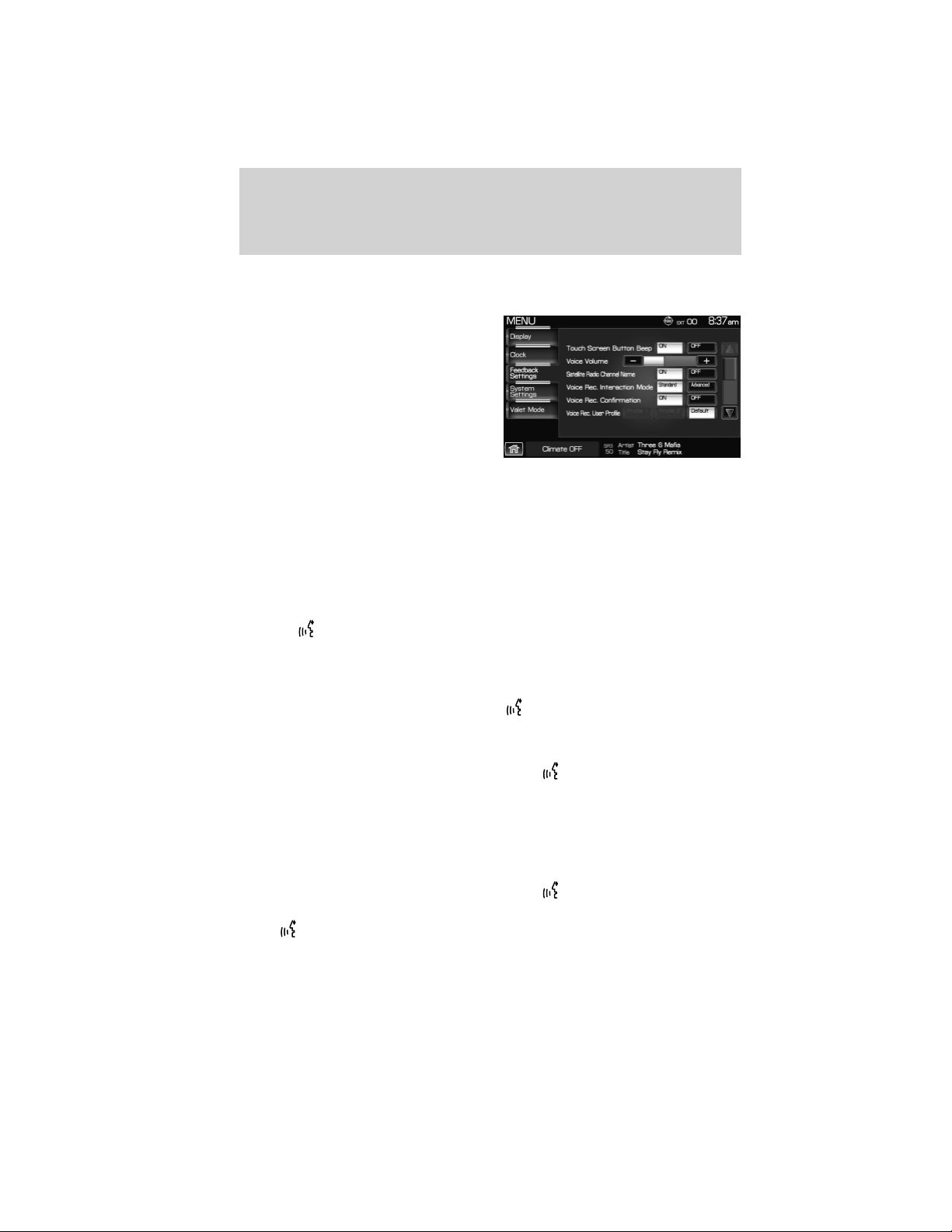
To access these settings:
1. Press the MENU hard button on the navigation system.
2. Select the ‘Feedback Settings’ tab
on the touchscreen to make
adjustments.
VOICE RECOGNITION TUTORIAL
Your system has three different tutorials to help you become better
acquainted with the voice recognition system. They are as follows:
• Lesson one: What you can do with speech
• Lesson two: How we’ll work together
• Lesson three: Getting accustomed to the system
To access:
1. Press
or VOICE on the steering wheel.
A tone will sound and the system will prompt you, “Please say a
command.”
2. After the tone, say “Tutorial”. The system will begin with Lesson 1.
3. To listen to a different lesson, press
on the steering wheel and say
one of the voice commands on the screen.
Tutorial voice commands
While listening to the tutorial lessons, press
or VOICE on the
steering wheel controls and after the tone, you may say any of the
following commands:
• Lesson 1 • Lesson 2
• Lesson 3 • Next Lesson
• Previous Lesson • Help
Note: If you are not in tutorial mode, press
or VOICE on the
steering wheel controls. When prompted, say, “Tutorial” and then
press
or VOICE on the steering wheel controls again to say any of
the above commands.
Voice recognition system overview
28
2012 Centerstack (ng1)
Supplement, 1st Printing
Arabic_(LHD) (gc_lhd)

VOICE NAME TAGS
Your voice recognition system includes a feature which allows you to
enter personal names for locations. These are called ’voice name tags’.
You can assign voice name tags to all locations entered in your Address
Book and then use them as destinations. Press
or VOICE on the
steering wheel controls and say, “Destination <nametag>” after the tone.
CREATING A USER PROFILE
You can create user profiles in your voice recognition system to help train
the system to fine tune its listening to a specific person (voice). To access:
1. Press the MENU hard button on the navigation system.
2. Select the ‘Feedback Settings’ tab on the touchscreen.
3. Select ‘Edit’.
4. Select ‘Create’ to create either Profile 1 or Profile 2.
5. Follow the voice prompt instructions.
CREATING A USER PROFILE USING VOICE RECOGNITION
1. Press
or VOICE on the steering wheel. A tone will sound and the
system will say, “Please say a command”. Another tone will sound
signaling the system is ready for your command.
2. Say “User Profile”.
VOICE/User Profile and
will appear in the status bar and then the
icon will change to the listening icon (
Listening
).
3. Say “Create”.
VOICE/User Profile and
will appear in the status bar and then the
icon will change to the listening icon (
Listening
).
4. Say “User Profile 1” or “User Profile 2”.
5. Follow the voice prompts.
Once a user profile has been created, it will then become the active user
profile in the system.
Selecting a user profile
1. Press the MENU hard button on the navigation system.
2. Select the ‘Feedback Settings’ tab on the touchscreen.
3. Select the ’Profile 1’ or ’Profile 2’ icon.
Voice recognition system overview
29
2012 Centerstack (ng1)
Supplement, 1st Printing
Arabic_(LHD) (gc_lhd)

Selecting a user profile using voice recognition
1. Press
or VOICE on the steering wheel. A tone will sound and the
system will say, “Please say a command”. Another tone will sound
signaling the system is ready for your command.
2. Say “User Profile”.
VOICE/User Profile and
will appear in the status bar and then the
icon will change to the listening icon (
Listening
).
3. Say “Select”.
4. Depending on the chosen level of feedback, you will need to select
which user profile.
Editing a user profile
1. Press the MENU hard button on the navigation system.
2. Select the ‘Feedback Settings’ tab on the touchscreen.
3. Scroll down and select ‘Edit’.
4. Select ‘Continue’ to edit either Profile 1 or Profile 2.
5. A pop-up window will appear to confirm and the system will prompt
“This profile has been partially created by <name>. Only <name>
should continue to create this profile. Would you like to continue to
create this profile?”
Editing a user profile using voice recognition
1. Press
or VOICE on the steering wheel. A tone will sound and the
system will say, “Please say a command”. Another tone will sound
signaling the system is ready for your command.
2. Say “User Profile”.
VOICE/User Profile and
will appear in the status bar and then the
icon will change to the listening icon (
Listening
).
3. Say “Edit”.
4. Depending on the chosen level of feedback, you will need to
tell/confirm which user profile to edit.
Deleting a user profile
1. Press the MENU hard button on the navigation system.
2. Select the ‘Feedback Settings’ tab on the touchscreen.
3. Use the scroll arrow to go to the second page and press the ‘Edit’
button to ‘Manage Voice Recognition User Profiles’.
Voice recognition system overview
30
2012 Centerstack (ng1)
Supplement, 1st Printing
Arabic_(LHD) (gc_lhd)

4. Select ‘Delete’ to delete either Profile 1 or Profile 2.
5. Select YES when the confirmation pop-up window appears.
Deleting all user profiles at once
1. Press the MENU hard button.
2. Select the ‘System Settings’ tab.
3. Press the ‘View’ button for ‘Delete Stored items’.
4. Select ‘Voice Recognition User Profile’.
Deleting a user profile using voice recognition
1. Press
or VOICE on the steering wheel. A tone will sound and the
system will say, “Please say a command”. Another tone will sound
signaling the system is ready for your command.
2. Say “User Profile”.
VOICE/User Profile and
will appear in the status bar and then the
icon will change to the listening icon (
Listening
).
3. Say “Delete”.
VOICE/User Profile and
will appear in the status bar and then the
icon will change to the listening icon (
Listening
).
4. Depending on the chosen level of feedback, you will need to
tell/confirm which user profile to delete.
User profile voice commands
In order to create, edit, delete, or select a user profile through voice,
press
or VOICE on the steering wheel controls. After the second
tone, say, “User Profile”. A tone will sound and the system will say, “User
profile, please say a command” (if in ‘Standard mode’) and another tone
will sound. After the second tone, you may say any of the following
commands:
• Create user profile 1 • Create user profile 2
• Delete user profile 1 • Delete user profile 2
• Select user profile 1 • Select user profile 2
• Edit user profile 1 • Edit user profile 2
• Help
Voice recognition system overview
31
2012 Centerstack (ng1)
Supplement, 1st Printing
Arabic_(LHD) (gc_lhd)

SYNC姞 audio voice control
This feature allows you to set the
system to automatically listen for
USB or SYNC voice commands first,
if desired. This eliminates the need
to say “USB” or “User Device”
before any of the SYNC media
commands.
When ‘On’ is selected, you do not need to say, “USB” or “User Device”
first to control a connected USB device.
When ‘Off’ is selected, you will need to say, “USB” or “User Device”
before all SYNC commands.
Voice recognition system overview
32
2012 Centerstack (ng1)
Supplement, 1st Printing
Arabic_(LHD) (gc_lhd)

THX AUDIO SYSTEM — IF EQUIPPED (LINCOLN VEHICLES ONLY)
Your vehicle may be equipped with
the THX威 certified premium audio
system. This system creates optimal
acoustic quality for all seating
positions and road conditions.
The system offers an advanced speaker system, amplifier, subwoofer and
equalizer.
SONY AUDIO SYSTEM (IF EQUIPPED)
Your vehicle may be equipped with
the SONY premium audio system.
This system creates optimal acoustic
quality and offers an advanced
speaker system, amplifier, subwoofer
and equalizer.
Voice commands in audio mode
When in audio mode, press
or VOICE on the steering wheel controls.
When prompted, you may say any of the following commands:
•On •Off
•Jukebox •Disc
•CD •DVD
•Video CD •Radio
•Rear AUX •Line in
•SYNC •User Device
•USB •Phone
•Bluetooth audio •Read Message
•Help
Note: If you are not in audio mode, press
or VOICE on the steering
wheel controls. When prompted, say, “Audio” and then any of the above
commands.
Audio features
33
2012 Centerstack (ng1)
Supplement, 1st Printing
Arabic_(LHD) (gc_lhd)

AM
1. Ensure that the system is on.
2. Press the RADIO hard button.
3. Select the ‘AM’ tab on the touchscreen. Once in AM mode, you may
select from ‘Show Options’ and ‘Show Presets’.
4. Press ‘Show Options’ to select from:
• Scan: Press for a brief sampling
of all listenable stations. Press
again to disable and remain on
the current selection.
• Scan Presets: Press for a brief
sampling of all the stations held
in the memory presets.
• Autoset Presets: The autoset
feature allows you to set strong
radio stations without losing your original preset stations. This feature
is helpful on trips when traveling between cities with different radio
stations.
To enable, select AUTOSET PRESETS and the six strongest stations
in your current area will be set as presets. To return to your original
presets, press AUTOSET PRESETS again and the feature will disable.
• HD Radio (if available): Press to activate HD Radio broadcasts. This
enables you to receive radio broadcasts digitally, (where available),
providing a better quality sound with clear reception and no station
drop off, static or distortion. When this feature is not activated or HD
Radio broadcasts are not available, you will receive analog radio
broadcasts. Refer to HD Radio Information in the following section
for more information. Note: HD Radio broadcasts not available in all
markets.
5. Press SHOW PRESETS to view the preset stations. To set or change a
preset station, press and hold any of the memory presets buttons (1–6)
or any of the soft key memory preset buttons on the screen while on the
desired station. The new station will replace the previous one recorded.
FM
1. Ensure that the system is on.
2. Press the RADIO hard button.
3. Select the ‘FM’ tab on the touchscreen. Press again to toggle between
FM1 or FM2. Once in FM mode, you may select between ‘Show Options’
and ‘Show Presets’.
Audio features
34
2012 Centerstack (ng1)
Supplement, 1st Printing
Arabic_(LHD) (gc_lhd)

4. Press ‘Show Options’ to select
from:
• Scan: Press for a brief sampling of all listenable stations. Press again
to disable and remain on the current selection.
• Scan Presets: Press for a brief sampling of all the stations held in the
memory presets.
• Autoset Presets: The autoset feature allows you to set strong radio
stations without losing your original preset stations. This feature is
helpful on trips when traveling between cities with different radio
stations.
To enable, select AUTOSET PRESETS and the six strongest stations
in your current area will be set as presets. To return to your original
presets, press AUTOSET PRESETS again and the feature will disable.
• HD Radio (if available): Press to activate HD Radio broadcasts. This
enables you to receive radio broadcasts digitally, (where available),
providing a better quality sound with clear reception and no station
drop off, static or distortion. When this feature is not activated or HD
Radio broadcasts are not available, you will receive analog radio
broadcasts. Refer to HD Radio Information in the following section
for more information. Note: HD Radio broadcasts not available in all
markets.
• Multicast (if available): When HD Radio broadcasts are available,
this button will appear if the selected station has more than one
digital broadcast. HD1 signifies the main programming status and is
available in analog and digital broadcasts. Any additional multicast
stations (HD2–HD8) are digitally broadcast and can be accessed by
pressing the multicast button. Refer to HD Radio Information in the
following section for more information.
Audio features
35
2012 Centerstack (ng1)
Supplement, 1st Printing
Arabic_(LHD) (gc_lhd)

• Set PTY/ALL: Press to select a program type, (as well as between All
Radio and All HD stations). Once selected, the type will be displayed
above the SET PTY button. Press SEEK or SCAN to initiate a search
up or down the frequency. The search will stop when the desired
program type has been reached.
Note: The system will scan the frequency band three times for the
chosen program type. If the program type is unavailable in your
reception range, the system will return to the previous station.
5. Press ‘Show Presets’ to view the preset stations. To set or change a
preset station, press and hold any of the presets while on the desired
station. The new station will replace the previous one recorded.
Radio voice commands
While listening to the radio, press
or VOICE on the steering wheel
controls. When prompted, you may say any of the following commands:
• On • Off
• <530–1710> • <87.7–107.9>
• AM <530–1710> • FM <87.7–107.9>
• AM • FM1
• FM2 • Preset <1–6>
• AM preset <1–6> • FM1 preset <1–6>
• FM2 preset <1–6> • Tune
• Help
Note: If you are not listening to the radio, press
or VOICE on the
steering wheel controls. When prompted, say, “Radio” and then press
or VOICE on the steering wheel controls again and you can say any of
the above commands.
*If you have said, “Tune”, you can then say any the following
commands:
•<530–1710> •<87.7–107.9>
•AM <530–1710> •FM <87.7–107.9>
•AM •FM1
•FM2 •Preset <1–6>
•AM preset <1–6> •FM1 preset <1–6>
•FM2 preset <1–6>
Audio features
36
2012 Centerstack (ng1)
Supplement, 1st Printing
Arabic_(LHD) (gc_lhd)
HD RADIO™ INFORMATION (IF AVAILABLE)
What is HD Radio™ technology and how does it work? HD Radio™
technology is the digital evolution of analog AM/FM radio. Your system
has a special receiver which allows it to receive digital broadcasts (where
available) in addition to the analog broadcasts it already receives. Digital
broadcasts have better sound quality than analog broadcasts as digital
broadcasts provide free, crystal clear audio with no static or distortion.
For more information, and a guide to available stations and programming,
please visit www.hdradio.com.
Note: HD Radio broadcasts are not available in all markets.
Using HD Radio™ technology
1. Press the RADIO hard button.
2. Select the AM or FM tab on the touchscreen.
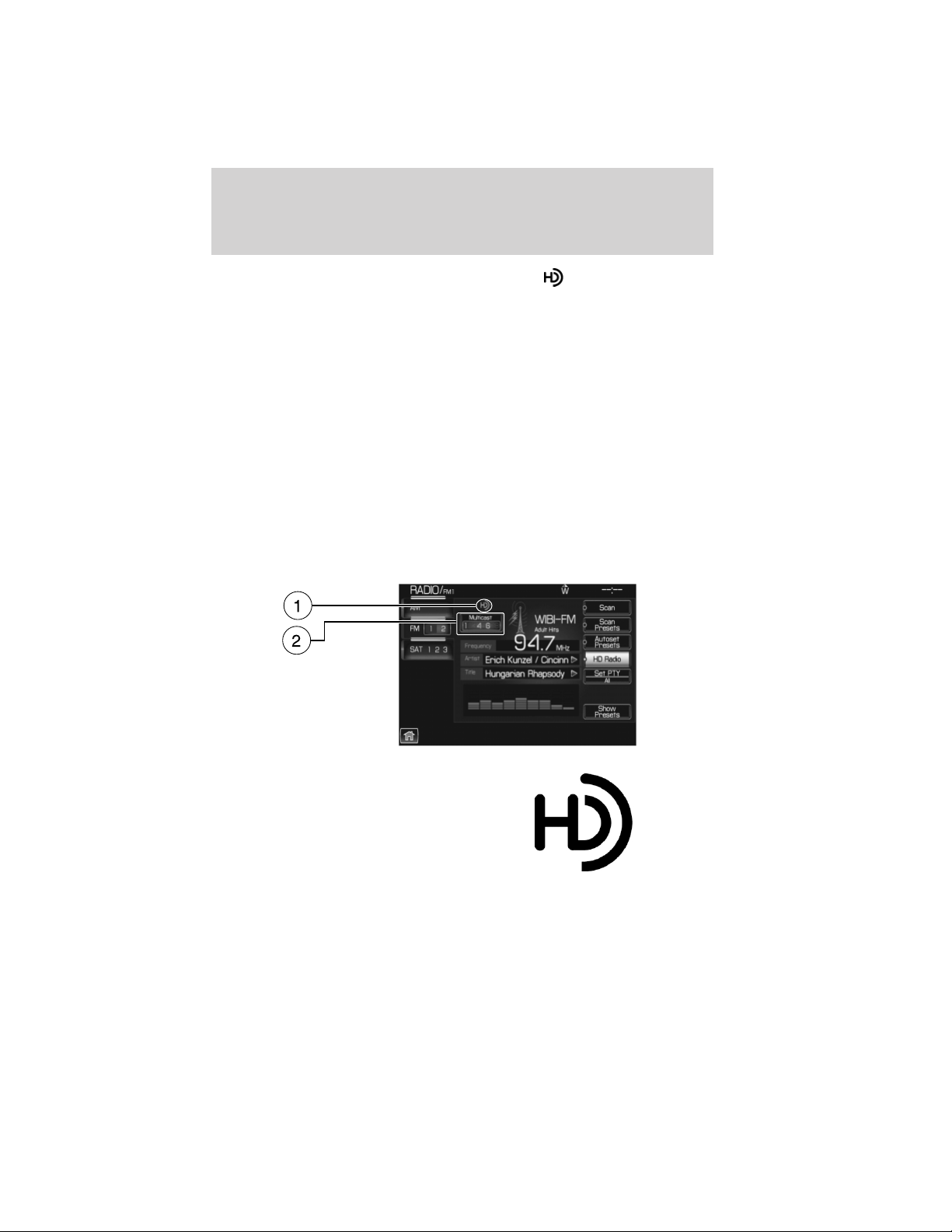
3. Select ‘HD Radio’. When HD Radio™ reception is enabled and you are
tuned to a station with HD Radio broadcasts, you may notice the
following indicators on your screen:
1. HD) logo: This indicator will
display in gray when a digital station
is being acquired and will appear in
orange when digital audio is playing.
Note: When this logo is available,
you will also see Title and Artist
fields on screen.
Audio features
37
2012 Centerstack (ng1)
Supplement, 1st Printing
Arabic_(LHD) (gc_lhd)
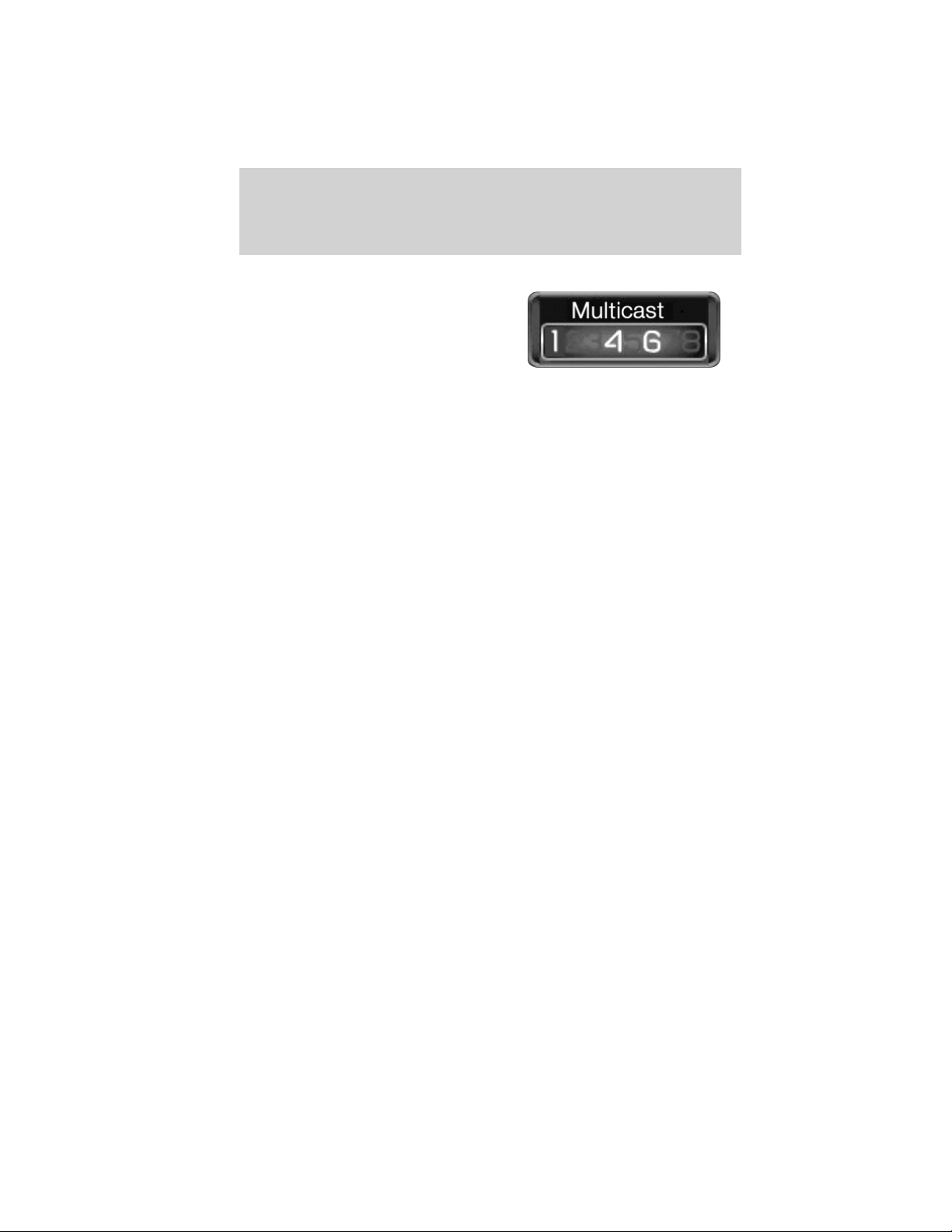
2. Multicast button: This button
will appear in FM mode (only) if the
current station has multiple digital
broadcasts. Press the multicast
button repeatedly to access the
other digital broadcasts. The
numbers that are highlighted signify
available digital channels where
new/different content is available. HD1 will signify the main programming
service and is available in analog and digital broadcasts. Any additional
multicast stations (HD2–HD8) are only broadcast digitally.
When HD Radio broadcasts are active, you can access the
following functions:
•
Set PTY/ALL: Select ‘All HD Stations’ to have your system only access
HD stations. Press Seek to initiate the search for HD Radio stations.
Note: When your system is searching for an HD Radio station, it will
momentarily pause on all strong stations in an attempt to decode the
station (to see if there is a digital broadcast).
• Scan: Press to scan through available stations. Note: You will not be
able to access HD2–HD8 stations but you may see the HD logo appear
if the station has a digital broadcast.
• Seek: Press to seek to the next strong radio station. If the current
station has multiple digital broadcasts, the mutlicast button will
display. Press Seek repeatedly to advance through all available
broadcasts. If you are on the last multicast channel, press Seek to
advance to the next strong station.
• Tune: Turn the tune knob to go up/down the frequency in individual
increments. If the current station has multiple digital
broadcasts, the mutlicast button will display. Turn the tune knob to
advance through all available broadcasts. If you are on the last
broadcast channel, turn to advance to the next frequency on the band.
• Multicast button: Press the multicast button repeatedly to access
other available HD Radio broadcasts (these will be highlighted). HD1
is the main programming status and is available in analog and digital
broadcasts. Any additional multicast stations (HD2–HD8) are only
broadcast digitally.
• Saving a multicast station as a preset When the channel is active
on-screen, press and hold a memory preset slot on the right side of
the screen until the sound returns. When recalling a HD2/HD3
memory preset, there will be a momentary mute before the digital
Audio features
38
2012 Centerstack (ng1)
Supplement, 1st Printing
Arabic_(LHD) (gc_lhd)
audio is played as the system must once again acquire the digital
signal. If you have turned this feature off, this will automatically turn
on HD Radio broadcasts and will tune to the selected frequency.
Note: As with any saved radio station, you will not be able to access
the saved station if your vehicle is outside the station’s reception area.
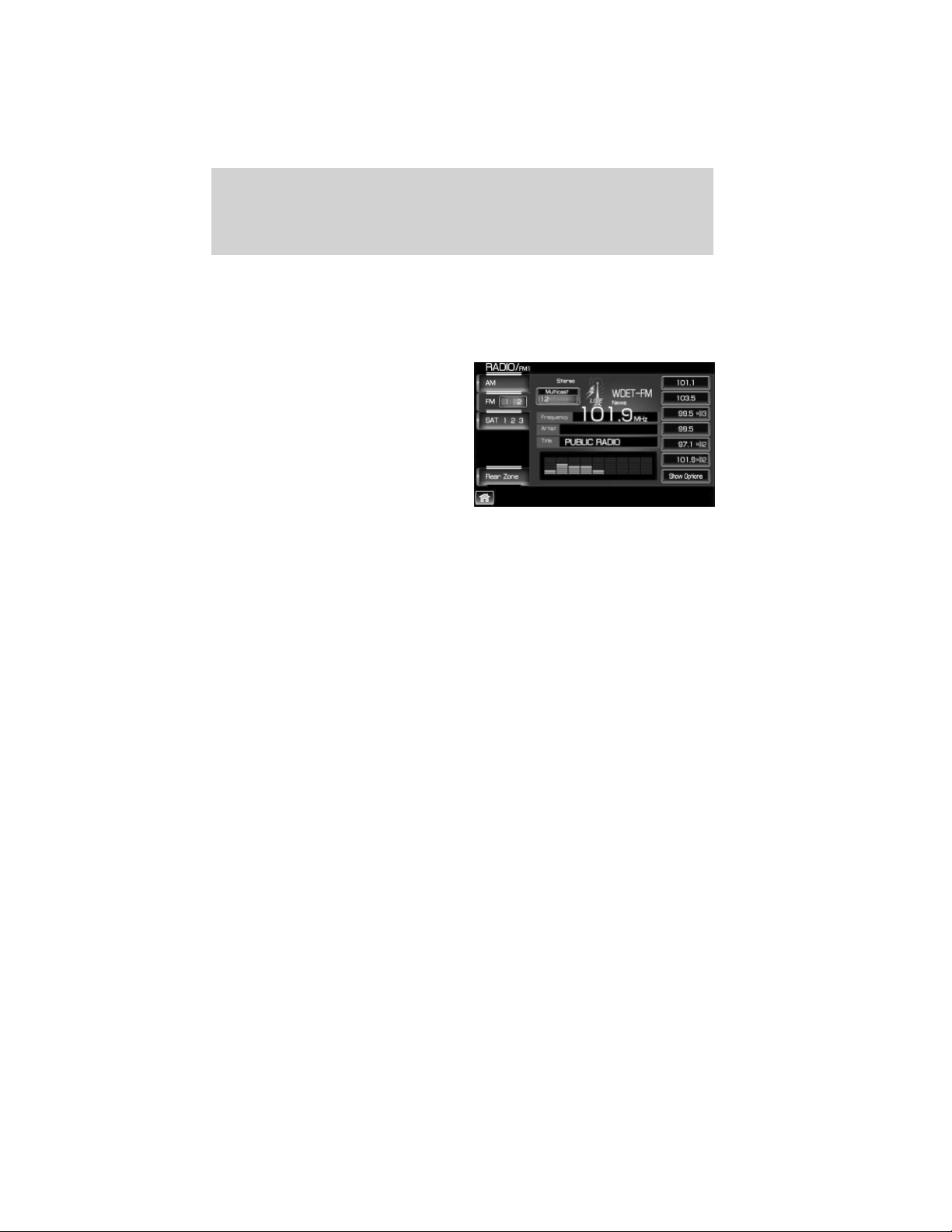
LIVE broadcasts: If a station has a
live broadcast (such as a baseball
game), LIVE will appear embedded
in the antenna on screen. These are
analog broadcasts with digital
components (i.e. artist, title).
Note: If HD1 is a live broadcast, the
HD Radio broadcast logo will not
appear. If HD2–HD8 is a live
broadcast, the multicast button may
be displayed, but not the HD Radio
broadcast logo.
HD Radio reception factors
Reception area: If you are listening to a multicast station and you are
on the fringe of the reception area, the station may mute due to weak
signal strength. If you are listening to HD1, the system will simply switch
to the analog broadcast until the digital broadcast is available again.
However, if you are listening to any of the possible HD2–HD8 multicast
channels, the station will mute and stay muted unless it is able to
connect to the digital signal again. If it is not able to reconnect, ‘HD
Unavailable’ will appear in the lower status bar.
Station blending: When a station is received, the system will play the
station in the analog version and then, if the receiver verifies the station
is an HD Radio station, it will shift into the digital version. Depending on
the station quality, you may hear a slight sound change when the station
segues from analog to the digital version. The shift from analog to digital
or digital back to analog sound is known as ’blending’.
Station issues
In order to provide the best possible experience, a contact form has been
developed to report any station issues found while listening to a station
broadcasting with HD Radio technology. Every station is independently
owned and operated. These stations are responsible for ensuring all
audio streams and data fields are accurate. This form can be found at:
http://www.ibiquity.com/automotive/report_radio_station_experiences.
Audio features
39
2012 Centerstack (ng1)
Supplement, 1st Printing
Arabic_(LHD) (gc_lhd)

Troubleshooting
Experience Cause Possible action
Echo, stutter, skip or
repeat in audio
Increase or decrease in
audio volume
Poor time alignment by
the radio broadcaster.
None — broadcast issue.
Sound fading, blending
in and out
Radio is shifting
between analog and
digital audio.
Reception issue that may
clear up as you continue
to drive.
Audio mute delay when
selecting HD2/HD3
multicast preset or
using the direct tune
voice command
The digital multicast is
not available until HD
Radio broadcast can be
decoded and make the
audio available.
This is normal behavior.
Wait until the audio is
available.
Cannot access
HD2/HD3 multicast
channel when recalling
a preset or using the
direct tune voice
command
The previously stored
multicast preset or
direct tune is not
available in your
current reception area.
None — the station is
not available in your
current location.
Text information does
not match currently
playing audio
Data service issue by
the radio broadcaster.
Fill out the station issue
form at
www.ibiquity.com/
automotive/report_radio
_station_experiences.
No text information
shown for currently
selected frequency.
Data service issue by
the radio broadcaster.
Fill out the station issue
form at
www.ibiquity.com/
automotive/report_radio
_station_experiences.
HD2–HD8 stations not
found when Scan is
pressed.
Pressing Scan will
disable HD2–HD8
channel search.
None — this is normal
behavior.
HD Radio™ technology is manufactured under license from iBiquity
Digital Corp. U.S. and foreign patents. HD Radio™ and the HD and HD
Radio logos are proprietary trademarks of iBiquity Digital Corp. Ford
Motor Company and iBiquity Digital Corp are not responsible for the
content sent using HD Radio technology. Content may be changed,
added or deleted at any time at the station owner’s discretion.
Audio features
40
2012 Centerstack (ng1)
Supplement, 1st Printing
Arabic_(LHD) (gc_lhd)

HD voice commands (if available)
While listening to the radio, press
or VOICE on the steering wheel
controls. When prompted, you may say any of the following commands:
• <87.7 - 107.9> HD <1–8> • FM <87.7-107.9> HD <1-8>
• Tune HD <1-8>
Note: If you are not listening to the radio, press
or VOICE on the
steering wheel controls. When prompted, say, “Radio” and then press
or VOICE on the steering wheel controls again and you can say any of
the above commands.
*If you have said, “Tune”, you can then say any the following
commands:
• <87.7 - 107.9> HD <1–8> • FM <87.7-107.9> HD <1-8>
• Tune HD <1-8>
PLAYING A CD
Note: CD units are designed to play commercially pressed 4.75 in
(12 cm) audio compact discs in the ISO 9660 format only. (UDF
format is not supported.) Due to technical incompatibility,
certain recordable and re-recordable compact discs may not
function correctly when used in CD players. Irregular shaped
CDs, CDs with a scratch protection film attached, and CDs with
homemade paper (adhesive) labels should not be inserted into
the CD player. The label may peel and cause the CD to become
jammed. It is recommended that homemade CDs be identified
with permanent felt tip marker rather than adhesive labels.
Ballpoint pens may damage CDs. Please contact your authorized
dealer for further information.
If you press CD/DVD and there is not a disc loaded into the system, NO
DISC will appear in the status bar and you will not be able to access the
CD screen.
• Insert a disc into the slot. The disc will begin to play.
You can access any of the following options in CD mode:
Scan: Press for a brief sampling of all listenable CD tracks.
Compress (Compression) : Press to engage/disengage the compression
feature. Compression boosts more quiet music and lowers louder music
to minimize the need for volume adjustments.
Repeat: Press to engage / disengage the repeat feature. The system will
keep playing the same track continually.
Audio features
41
2012 Centerstack (ng1)
Supplement, 1st Printing
Arabic_(LHD) (gc_lhd)

Shuffle: Press to engage / disengage the shuffle feature. The system will
play all tracks on the disc randomly.
Track List: Press to view a list of tracks on the CD.
Record: Press to record and save the CD or any track(s) on the CD to
the Jukebox. You can then later access/play the saved tracks / CD.
: Press to access the previous track. Press and hold to reverse in
the current track.
/ (Play/Pause) : Press to play or pause the current track.
: Press to access the next track. Press and hold to advance within
the current track.
Press
SEEK hard button on your system to listen to the next
(
) or previous ( ) track.
MP3
If you press the CD/DVD tab and there is not a disc loaded into the
system, NO DISC will appear in the status bar and you will not be able to
access the CD screen.
• Insert a disc into the slot. The disc will begin to play.
You can access any of the following
options in MP3 mode:
Scan: Press for a brief sampling of all listenable tracks.
Compress (Compression): Press to engage/disengage the compression
feature. Compression boosts more quiet music and lowers louder music
to minimize the need for volume adjustments.
Repeat: Press to engage / disengage the repeat feature. The system will
keep playing the same track continually.
Audio features
42
2012 Centerstack (ng1)
Supplement, 1st Printing
Arabic_(LHD) (gc_lhd)
Shuffle: Press to engage / disengage the shuffle feature. The system will
play all tracks on the disc randomly.
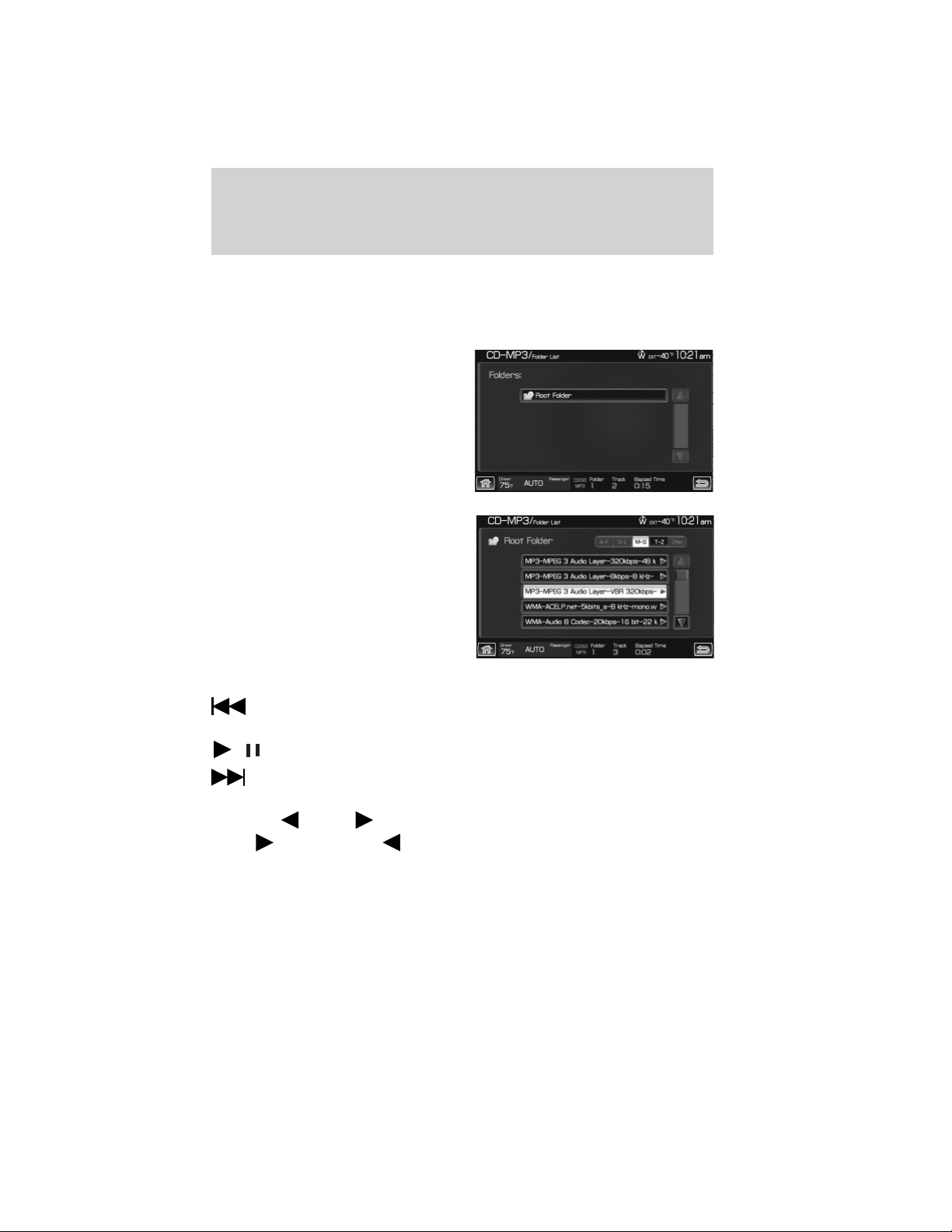
Folder mode: Press to activate folder mode. When activated, song play
and seeking stays within the current folder.
Folder List: Press to access/view a
list of folders on the disc. Select the
root folder (if available).
You may then select from all
possible folders on the disc.
You may also use the following:
: Press to access the previous track. Press and hold to reverse in
the current track.
/ (Play/Pause) : Press to play or pause the current track.
: Press to access the next track. Press and hold to advance within
the current track.
Press the SEEK hard button on your system to listen to the
next (
) or previous ( ) track.
Audio features
43
2012 Centerstack (ng1)
Supplement, 1st Printing
Arabic_(LHD) (gc_lhd)

CD voice commands
While listening to a CD, press
or VOICE on the steering wheel
controls. When prompted, you may say any of the following commands:
• Play • Pause
• Repeat • Repeat off
• Shuffle • Shuffle off
• Play next track • Play previous track
• Play track <1–512> • Play folder <1–255>
• Play folder <1–255>
track <1–512>
• Play next folder
• Play previous folder • Folder mode
• Folder mode off • Help
Note: If you are not listening to a CD, press
or VOICE on the
steering wheel controls. When prompted, say, “CD” and then any of the
above commands.
PLAYING A DVD IN THE SYSTEM (available in North America only)
Your system allows you to play DVD audio and video discs. (Your system
only plays NTSC formatted discs. PAL format is not supported.)
Ensure that the vehicle is in Park (P) for automatic transmission
vehicles, or that the parking brake is engaged for manual transmission
vehicles. This will allow you to be able to view and hear the DVD. If the
vehicle is moving, you will only be able to hear the audio.
To play a DVD:
1. Ensure that the vehicle and the system are on.
2. Insert a DVD into the system, label side up. The system will
automatically go into DVD mode.
You can then select any of the
following options on the
touchscreen:
: Press to access the previous chapter. Press and hold to reverse in
the current chapter.
Audio features
44
2012 Centerstack (ng1)
Supplement, 1st Printing
Arabic_(LHD) (gc_lhd)

/ (Play/Pause) : Press to play or pause the DVD.
: Press to access the next chapter. Press and hold to advance
within the current chapter.
(Stop): Press to stop the current track.
Title: Goes to the main title screen stored on the disc.
Menu: Goes to the main menu of the disc.
Cursor controls: Use these controls to navigate to the desired menu
selections.
Search:: Press to select and go to a specific title or chapter using the
keypad.
Settings: Allows you to adjust the certain settings of the DVD player,
such as:
• Video Display Settings: Press to adjust the brightness and contrast.
You can also choose to return to the default settings by pressing
‘Restore Default’.
• Audio Language: Press to select which language you would like the
DVD to display.
• Subtitle Display: Press to turn subtitles on/off.
• Subtitle Language: Press to select in which language you would like
the subtitles to appear.
• Aspect Ratio: Press to select from wide, full, normal and cinema
display.
• Angle Mark Notification: Some DVD discs may have more viewing
angles from which to select. Once you have made your selection, press
ENTER to confirm. This is a disc dependent feature.
Note: Some of the above settings are DVD dependent and
availability/operation will vary among DVDs.
Dolby威 noise reduction is manufactured under license from Dolby威
Laboratories Licensing Corporation. “Dolby威” and the double-D symbol
are registered trademarks of Dolby威 Laboratories Licensing Corporation.
Audio features
45
2012 Centerstack (ng1)
Supplement, 1st Printing
Arabic_(LHD) (gc_lhd)
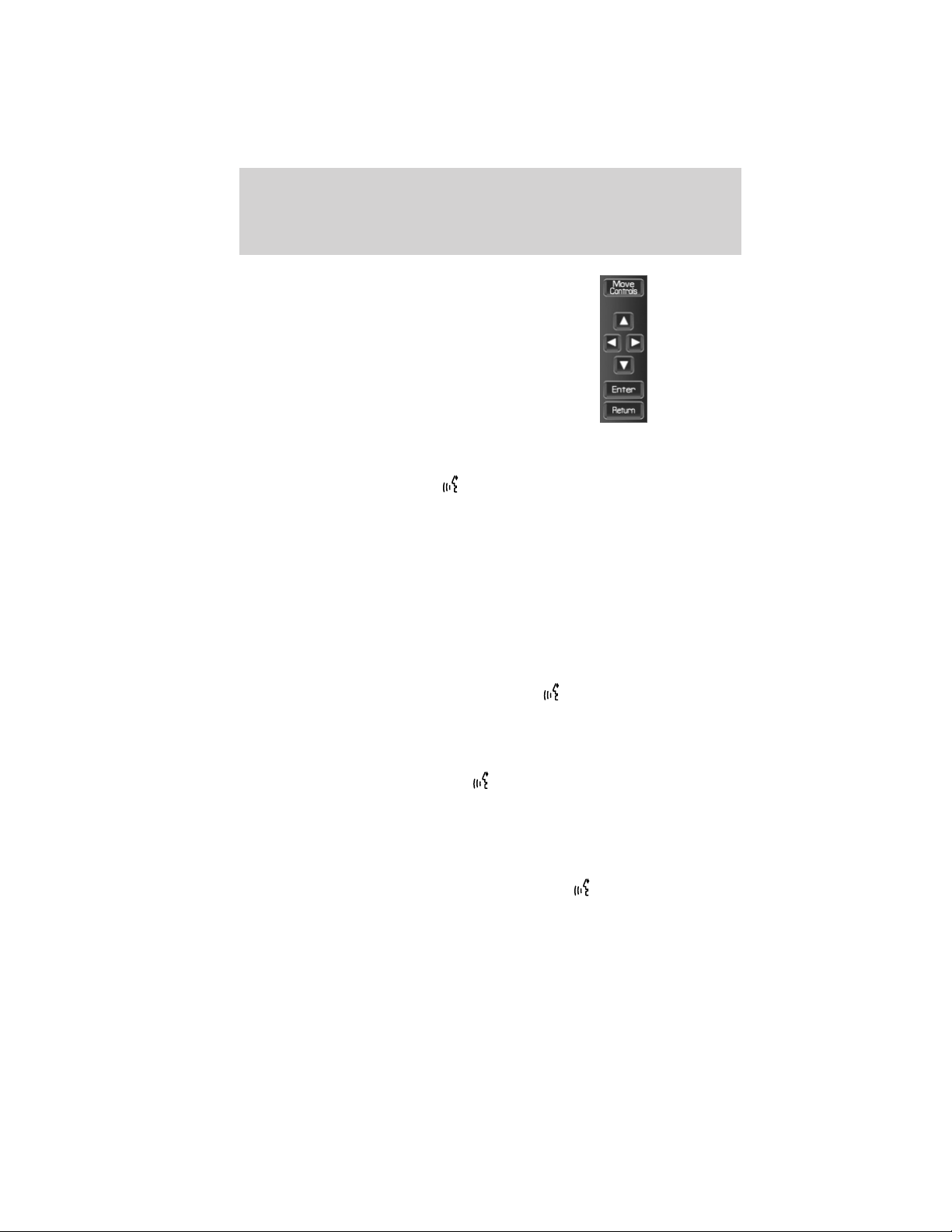
During DVD play, you can also
touch the screen to access the
‘virtual remote’ which will allow you
to ‘Move controls’ on the screen as
well as use the cursor controls,
‘Enter’ and ‘Return’ to navigate and
make selections within the menus.
DVD voice commands
While watching a DVD, press
or VOICE on the steering wheel
controls. When prompted, you may say any of the following commands:
• Play • Pause
• Menu • Menu title
• Play next title • Play previous title
• Play title <1–99> • Play next chapter
• Play previous chapter • Play chapter <1–999>
• Play next group • Play group <1–9>
• Repeat • Repeat off
• Play next track <1–512> • Play previous track
Note: If you are not watching a DVD, press
or VOICE on the
steering wheel controls. When prompted, say, “DVD” and then any of the
above commands.
Video CD voice commands
While watching a video CD, press
or VOICE on the steering wheel
controls. When prompted, you may say any of the following commands:
• Play • Pause
• Play previous track • Play next track
• Play track <1–512> • Help
Note: If you are not watching a video CD, press
or VOICE on the
steering wheel controls. When prompted, say, “video CD” and then any of
the above commands.
Audio features
46
2012 Centerstack (ng1)
Supplement, 1st Printing
Arabic_(LHD) (gc_lhd)

Disc voice commands
While watching a disc, press
or VOICE on the steering wheel
controls. When prompted, you may say any of the following commands:
• Play • Pause
• Menu • Title menu
• Play next title • Play previous title
• Play title <1–99> • Play next chapter
• Play previous chapter • Play chapter <1–999>
• Play next group • Play previous group
• Play group <1–9> • Repeat
• Repeat off • Shuffle
• Shuffle off • Play next track
• Play previous track • Play track <1–512>
• Play folder <1–255> track
<1–512>
• Play next folder
• Play previous folder • Folder mode
• Folder mode off • Help
Note: If you are not watching a disc, press
or VOICE on the steering
wheel controls. When prompted, say, “disc” and then any of the above
commands.
JUKEBOX
Your mobile media navigation system has a Jukebox which allows you to
save desired tracks or CDs to the hard drive for later access. The hard
drive can store up to 10 GB* (164 hours; approximately 2,472 tracks) of
music. The system contains a Gracenote威 media database that allows for
display of song title, album title, and album cover art. After saving music
to the hard drive, you can access and play your music by specific tracks,
artists, albums or genres. You can even choose to create and access your
own playlists.
*Note: 1 GB equals one billion bytes (1,000,000,000B).
Audio features
47
2012 Centerstack (ng1)
Supplement, 1st Printing
Arabic_(LHD) (gc_lhd)
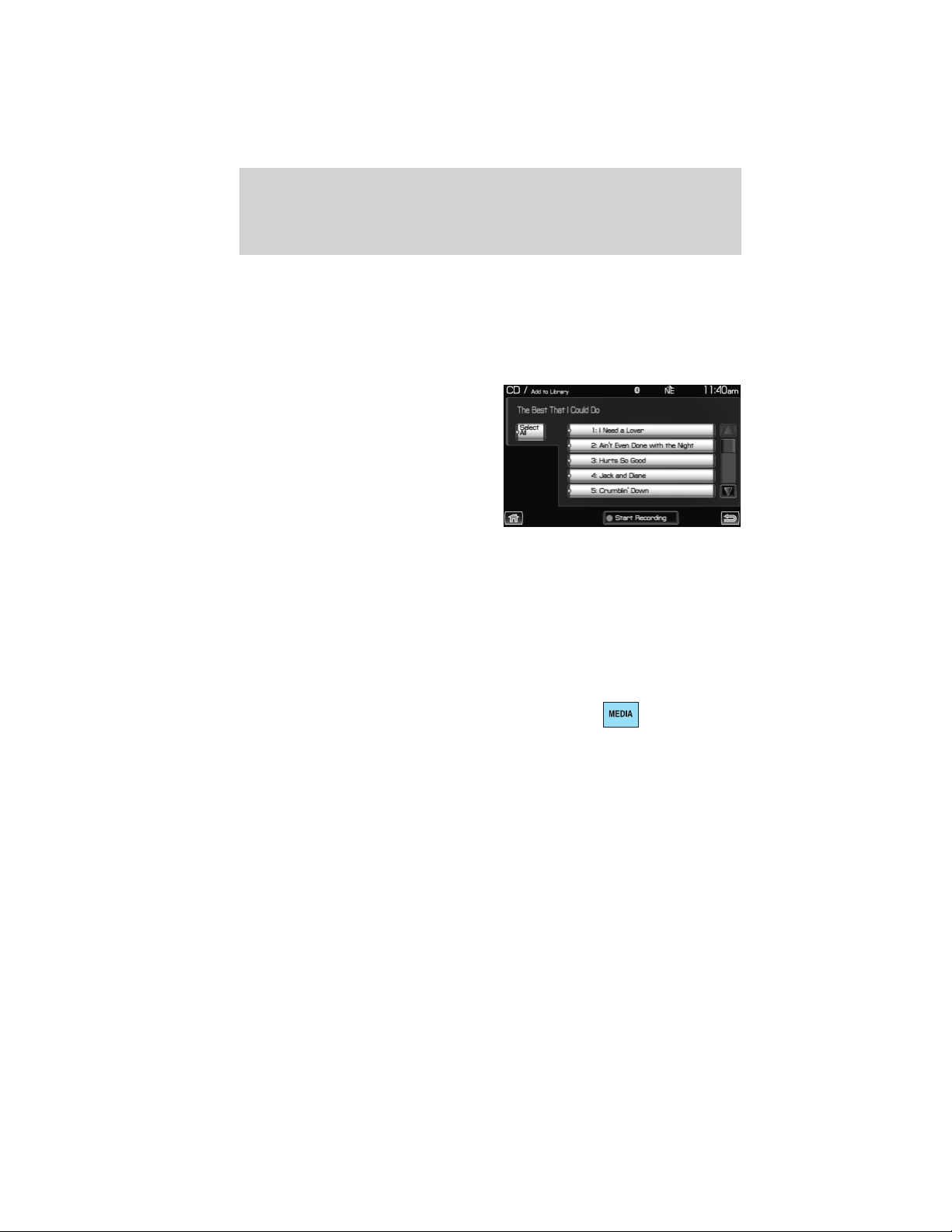
Recording (saving) music to your jukebox
To record (save) music to your jukebox:
1. Ensure that the system is on.
2. Insert a CD into the system. The CD tab will appear.
3. Select ‘Record’ on the touchscreen.
4. Select either individual tracks or
press ‘Select All’ to record the entire
CD. Note: The system will default
to selecting all tracks if none are
selected.
5. Press ‘Start Recording’.
6.
The progress will show at the
bottom of the screen.
When the recording process is finished, the system will save your
track(s) / CD to the Jukebox.
Note: If you are not actively listening to the disc being recorded, the
record rate is much quicker (as fast as five minutes).
Accessing the music in your jukebox
Once you have saved music to your jukebox, you can then choose
several ways to play your favorite music. To access:
1. Press the MEDIA hard button on
the navigation system.
2. Select the ‘Jukebox’ tab on the
touchscreen. You can then select from the following options:
Scan: Press for a brief sampling of the currently selected CD, playlist,
genre, etc. Press again to disengage.
Repeat: Press to repeat the current CD, playlist, etc. Press again to
disengage.
Shuffle: Press to shuffle all the tracks on the current CD, playlist, etc. in
random order. Press again to disengage.
Audio features
48
2012 Centerstack (ng1)
Supplement, 1st Printing
Arabic_(LHD) (gc_lhd)
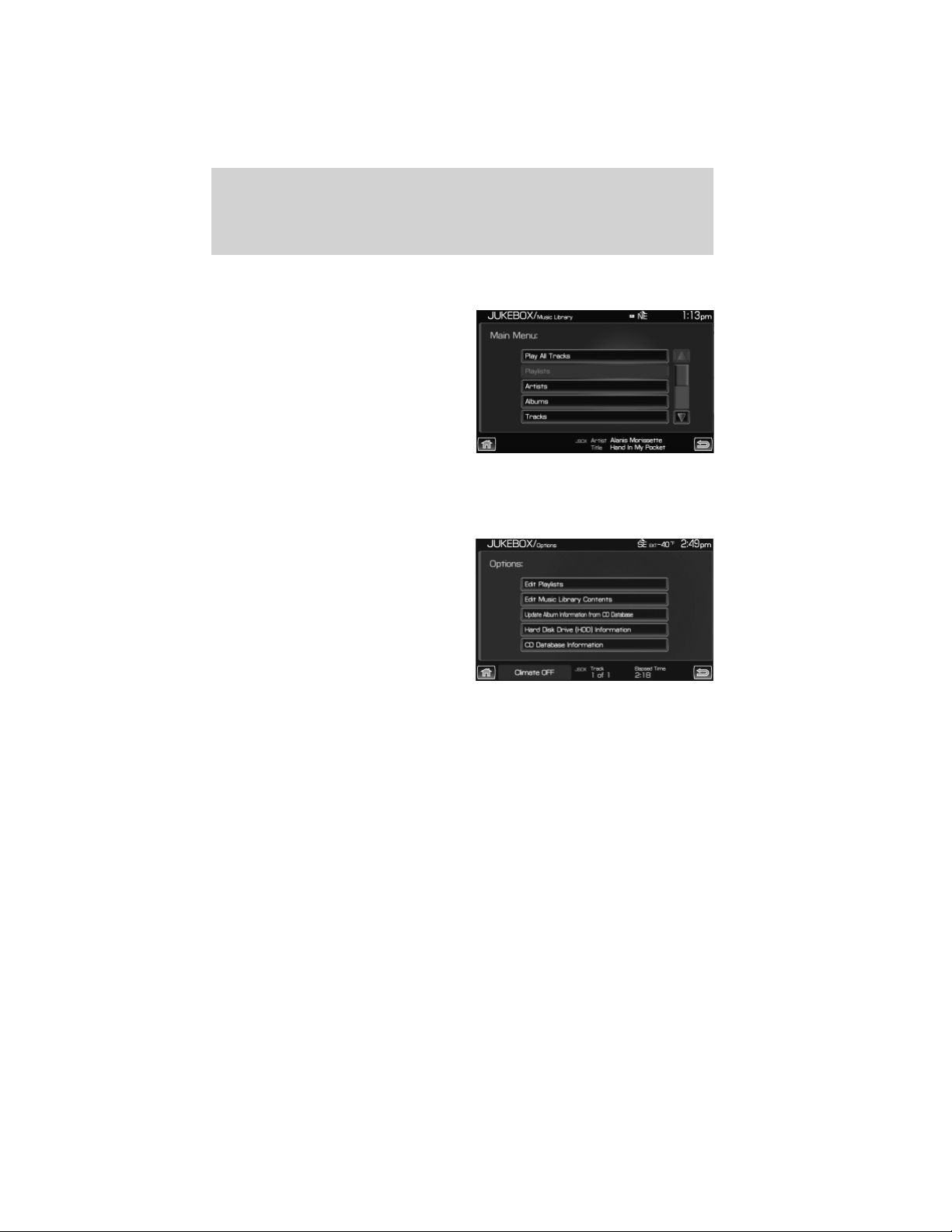
Music library: Press to access all of your saved music. You can choose
to view/play the material in the following ways:
• Play all tracks: Select to play all
tracks saved in the jukebox.
• Playlist: Select to play your own
playlist.
• Play genre: Select to have the
system play only music from a
specific genre.
• Play artist: Select to have the
system play only music by a
specific artist.
• Play album: Select to have the system play only music from a specific
album.
Options: Select to view your other
options:
• Edit Playlists: Select to edit your playlists.
• Edit Music Library Contents: Select to make changes to the
content in your music library.
• Update Album Information from CD Database: Select to update
the residing album information from the Gracenote威 database if a
recent software update was performed.
• Hard Disk Drive Information: Select to access the system’s hard
drive disc information such as used/free space and total capacity.
• CD Database Information: Select to access the CD database
information.
Audio features
49
2012 Centerstack (ng1)
Supplement, 1st Printing
Arabic_(LHD) (gc_lhd)
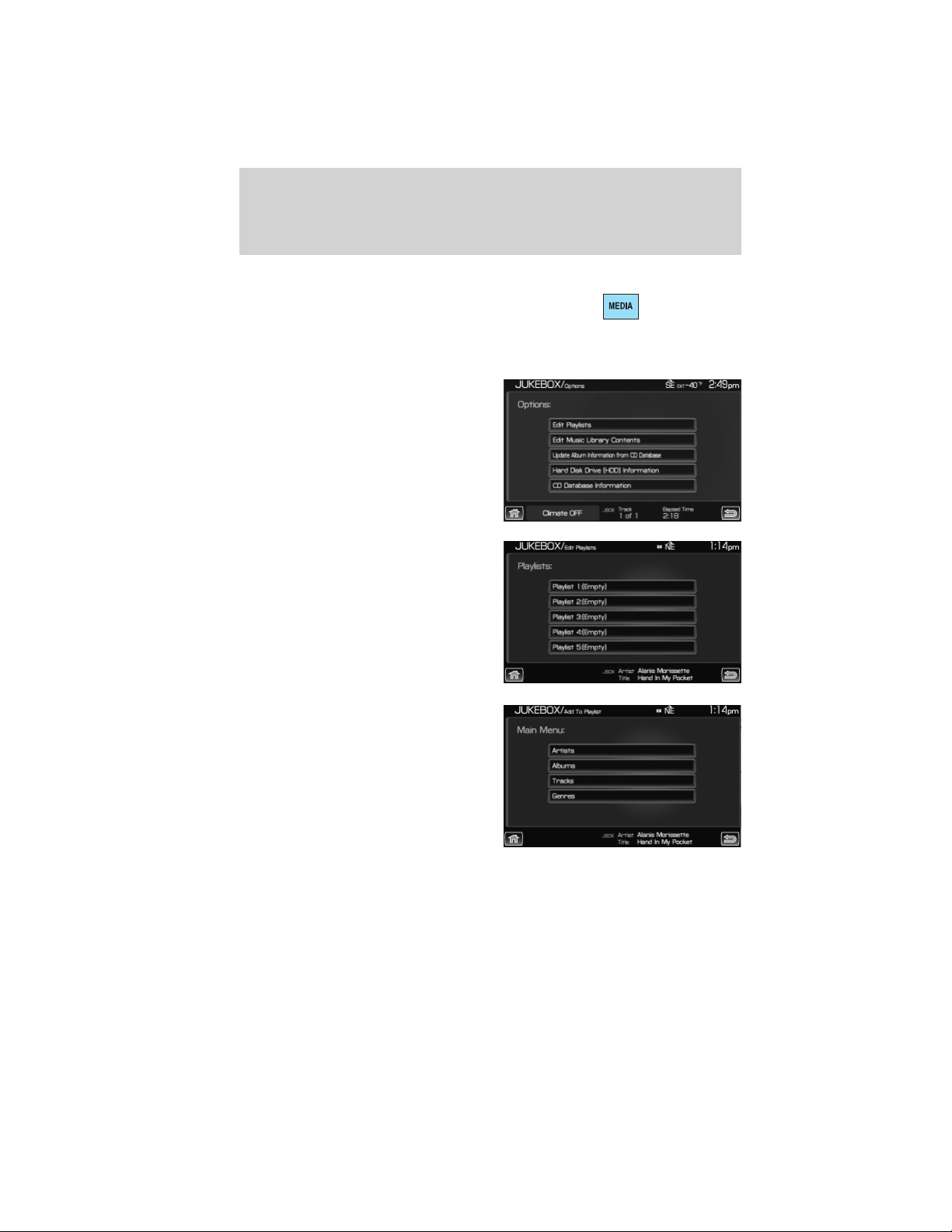
Creating a playlist
1. Press the MEDIA hard button.
2. Select the ‘Jukebox’ tab on the
touchscreen.
3. Select ‘Options’.
4. Select ‘Edit Playlists’.
5. Select which playlist you would
like to create.
6. Select which category you would
like to access from your saved
music.
Audio features
50
2012 Centerstack (ng1)
Supplement, 1st Printing
Arabic_(LHD) (gc_lhd)
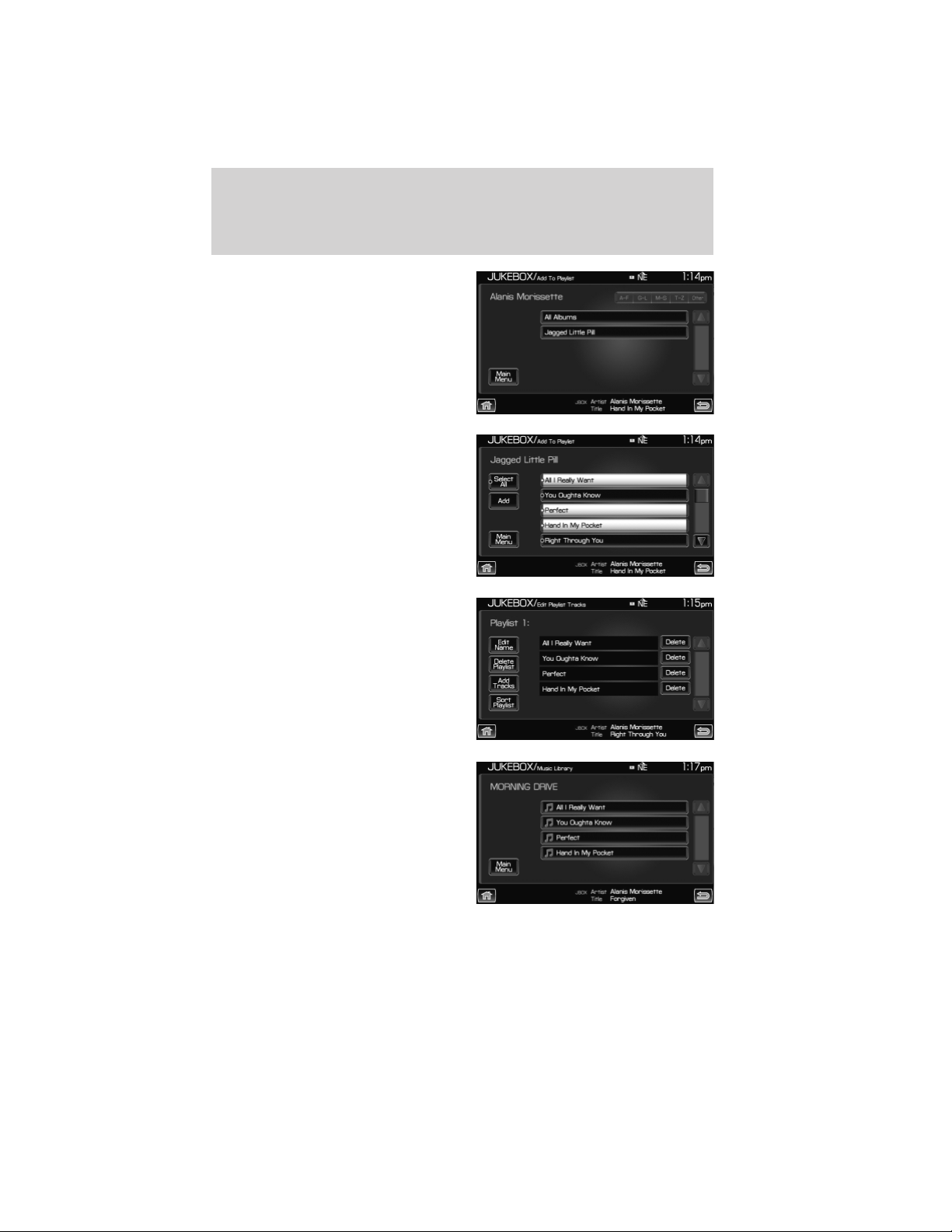
For example, say you chose one
saved album from which to select
songs.
7. Select the desired songs and then
press ‘Add’.
The system will show you your
currently selected songs. You can
choose to add more tracks to your
playlist, Sort the Playlist, Delete the
playlist or to edit the name of the
playlist.
8. When you are done making any
adjustment to the playlist, select
‘Edit Name’ to rename your playlist.
You can then access your playlist by
that name.
Audio features
51
2012 Centerstack (ng1)
Supplement, 1st Printing
Arabic_(LHD) (gc_lhd)

Replacing fields when they are listed as ’unknown’
Your navigation system uses the Gracenote威 music title and album art
database to recognize and display CD/DVD information. If a disc is
inserted into the system that it does not recognize, it will display
Unknown Artist, Title, and Album on the Jukebox, CD, or DVD screens.
If you have your home screen configured to display the audio, the
unknown labels will also appear on your home screen. You can manually
fill in the labels by doing the following:
1. Press the MEDIA hard button.
2. Select ‘Jukebox’ on the touchscreen.
3. Press ‘Options’.
4. Press ‘Edit Music Library Contents’.
5. Press ‘Artist’ to edit artist names or ‘Tracks’ to edit song titles.
6. Select the track or artist to be edited and use the on-screen keyboard
to type in the correct listing.
7. Press ‘Enter’ to complete the entry.
8. Repeat this procedure for each song title and artist name.
Jukebox voice commands
While listening to the music stored in the jukebox, press
or VOICE
on the steering wheel controls. When prompted, you may say any of the
following commands:
• Play • Pause
• Shuffle • Shuffle off
• Repeat • Repeat off
• Play next track • Play previous track
• Play genre <name> • Play artist <name>
• Play album <name> • Play track <name>
• Play playlist <name> • Play playlist <1–5>
• Help
Note: If you are not listening to the jukebox, press
or VOICE on the
steering wheel controls. When prompted, say, “Jukebox” and then any of
the above commands.
Audio features
52
2012 Centerstack (ng1)
Supplement, 1st Printing
Arabic_(LHD) (gc_lhd)

Search commands
Your jukebox has advanced search commands which allow you to have
the system search the stored music in your jukebox for a specific artist,
album or track. You can search for and play a specific type (genre) of
music, a specific album, a specific artist or a specific track.
To use the search commands
When listening to the jukebox, press
or VOICE on the steering wheel
controls. When prompted, you may say any of the following commands:
• Search genre <name> • Search artist <name>
• Search album <name> • Search track <name>
Once the system is done searching for the type of music, artist, album,
or track, you can say any of the following commands:
• Play • Play album <name>
• Play track <name> • Play artist <name>
‘Refining’ your search
You can choose to ’refine’ your search even farther. For example, if you
told the system to search and play all music by a certain artist, you can
then tell the system to “Refine album” and choose a specific album when
prompted. If you then say “Play”, the system will only play music from
that specific album.
To refine your search, say any of the following commands after system
has finished searching for the type of music, artist, album, or track:
• Refine album <name> • Refine artist <name>
You can then select to:
• Play • Play track <name>
Audio features
53
2012 Centerstack (ng1)
Supplement, 1st Printing
Arabic_(LHD) (gc_lhd)
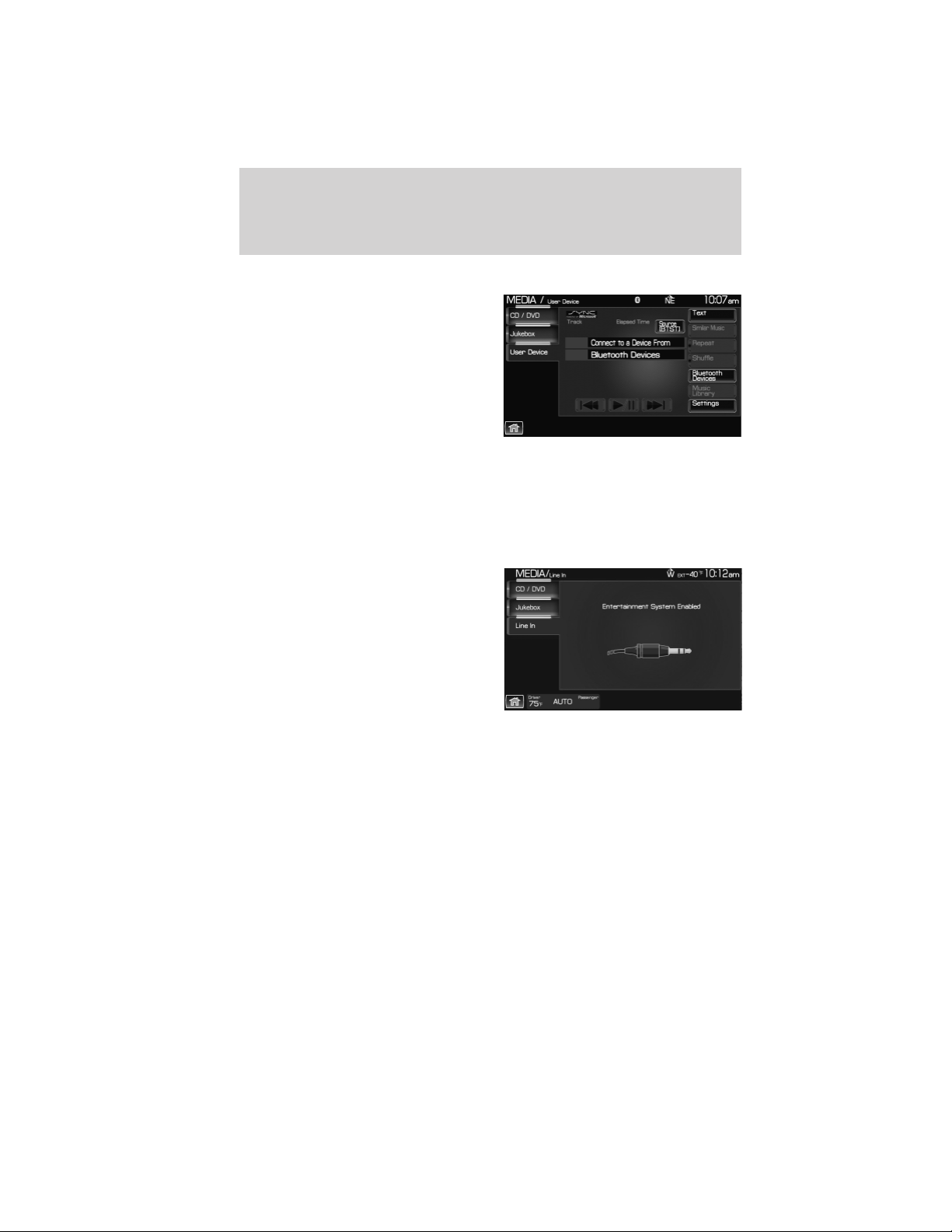
USER DEVICE
If your vehicle is equipped with
SYNC威, there will be a ‘User Device’
tab in your media options. For more
information, please refer to the
SYNC威 media features chapter
later in this supplement.
LINE IN (AUXILIARY INPUT JACK)
Your vehicle is equipped with an audio input jack which will allow a
portable audio device to be listened to through your vehicle’s audio
system. To activate this feature:
1. Press the MEDIA hard button on the navigation system.
2. Select the ‘Line In’ tab.
Once a 3.5 mm input jack is plugged into the Line in jack, ensure that
the playing device is turned on with the volume set at the maximum
level. Press the play button and sound from the device will be emitted
through the vehicle speakers. Adjust the volume using the volume
control on the navigation system.
For information on the auxiliary input jack location, please refer to the
Auxiliary input jack (Line in) in the Entertainment chapter of your
Owner’s Guide.
Audio features
54
2012 Centerstack (ng1)
Supplement, 1st Printing
Arabic_(LHD) (gc_lhd)
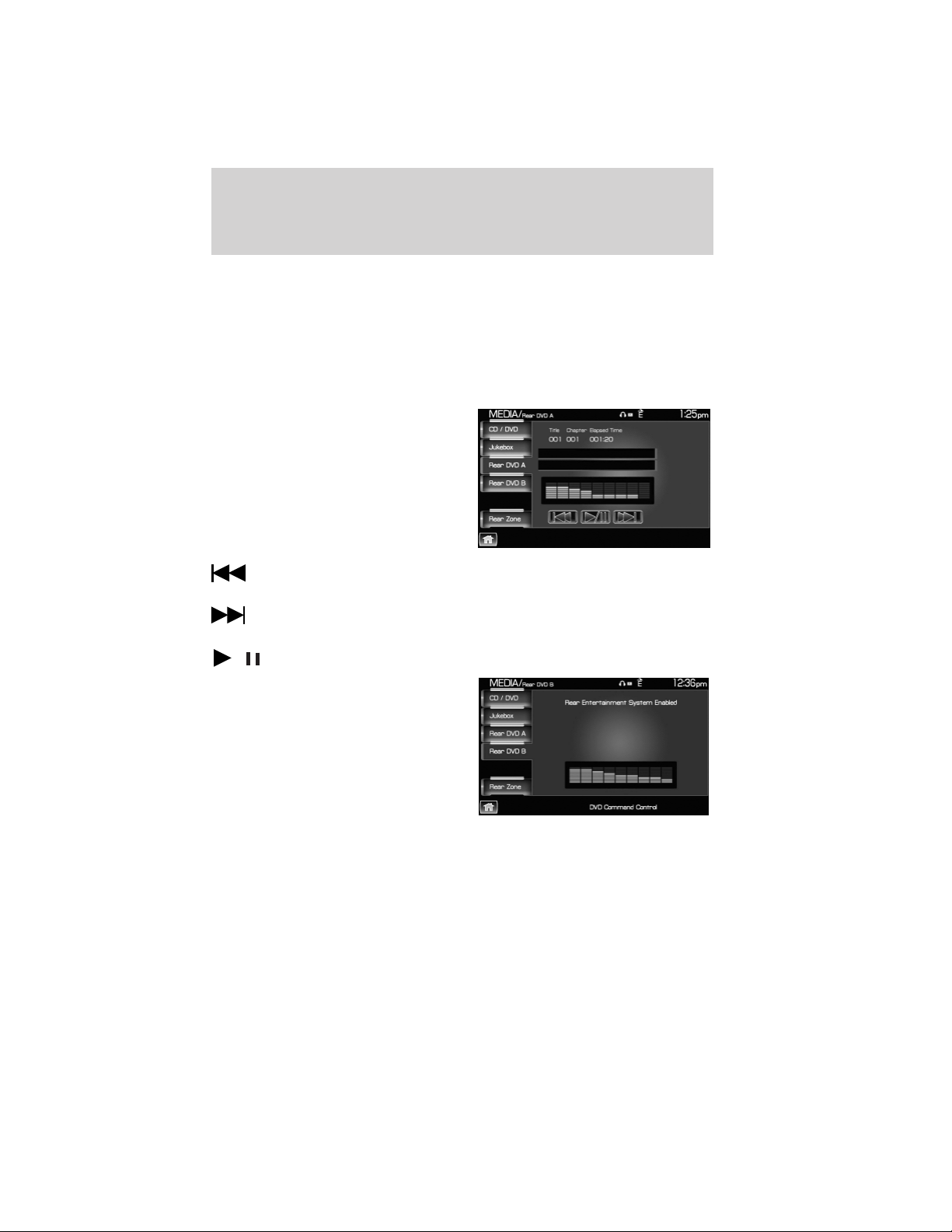
REAR DVD SYSTEM (IF EQUIPPED)
Note: The dual DVD headrest screens will only appear if the DVD
system was ordered on the vehicle prior to delivery. If the system was
added to the vehicle after delivery, these screens will not appear.
Your navigation system allows you to access the dual DVD headrest
system (if equipped). To access:
1. Press the MEDIA hard button on the navigation system.
2. Select the ‘Rear DVD A’ tab on
the touchscreen to access the
Monitor A headrest system:
: Press to access the previous track. Press and hold to reverse in
the current track.
: Press to access the next track. Press and hold to advance within
the current track.
/ (Play/Pause): Press to play or pause the current track.
3. Select the ‘Rear DVD B’ tab on
the touchscreen to view the status
of the Monitor B headrest system.
Audio features
55
2012 Centerstack (ng1)
Supplement, 1st Printing
Arabic_(LHD) (gc_lhd)

Rear DVD voice commands (if equipped)
If the rear DVD ⬙A⬙ is the only audio source playing, press
or VOICE
on the steering wheel controls. When prompted, you may say any of the
following commands.
Note: These commands will not function with the audio source in DVD
⬙B⬙.
• Play • Pause
• Play previous chapter • Play next chapter
• Play previous track • Play next track
• Play previous folder • Play next folder
• Folder mode (if equipped) • Folder mode off (if equipped)
• Shuffle • Shuffle off
• Headphones • Headphones off
• Help
Note: If the Rear DVD is not the only audio source (i.e., the radio is on
also), then press
or VOICE on the steering wheel controls. When
prompted, say, “Rear DVD” and then any of the above commands. Each
command will be applied based on the type of media in the player. For
example, if a DVD movie is playing as DVD⬙A⬙, then the command ⬙Play
previous folder⬙ will not be functional, because a DVD video disc does
not have folders. Similarly, if a DVD movie is playing as DVD ⬙A⬙, saying
the command ⬙Play Previous Chapter⬙ will command the DVD player to
jump to the previous chapter.
REAR ZONE (IF EQUIPPED)
This screen allows front seat passengers to select/listen to a different
audio/video source than the back seat passengers. The only restriction is
that the front and back seat passengers cannot both listen to a different
frequency band (AM/FM1/FM2). The frequency band selected by the
driver is the band accessible by the rear passenger. To access:
1. Ensure that the system is ON.
2. Press the MEDIA or RADIO hard button on the system.
3. Select the ‘Rear Zone’ tab on the touchscreen.
Audio features
56
2012 Centerstack (ng1)
Supplement, 1st Printing
Arabic_(LHD) (gc_lhd)
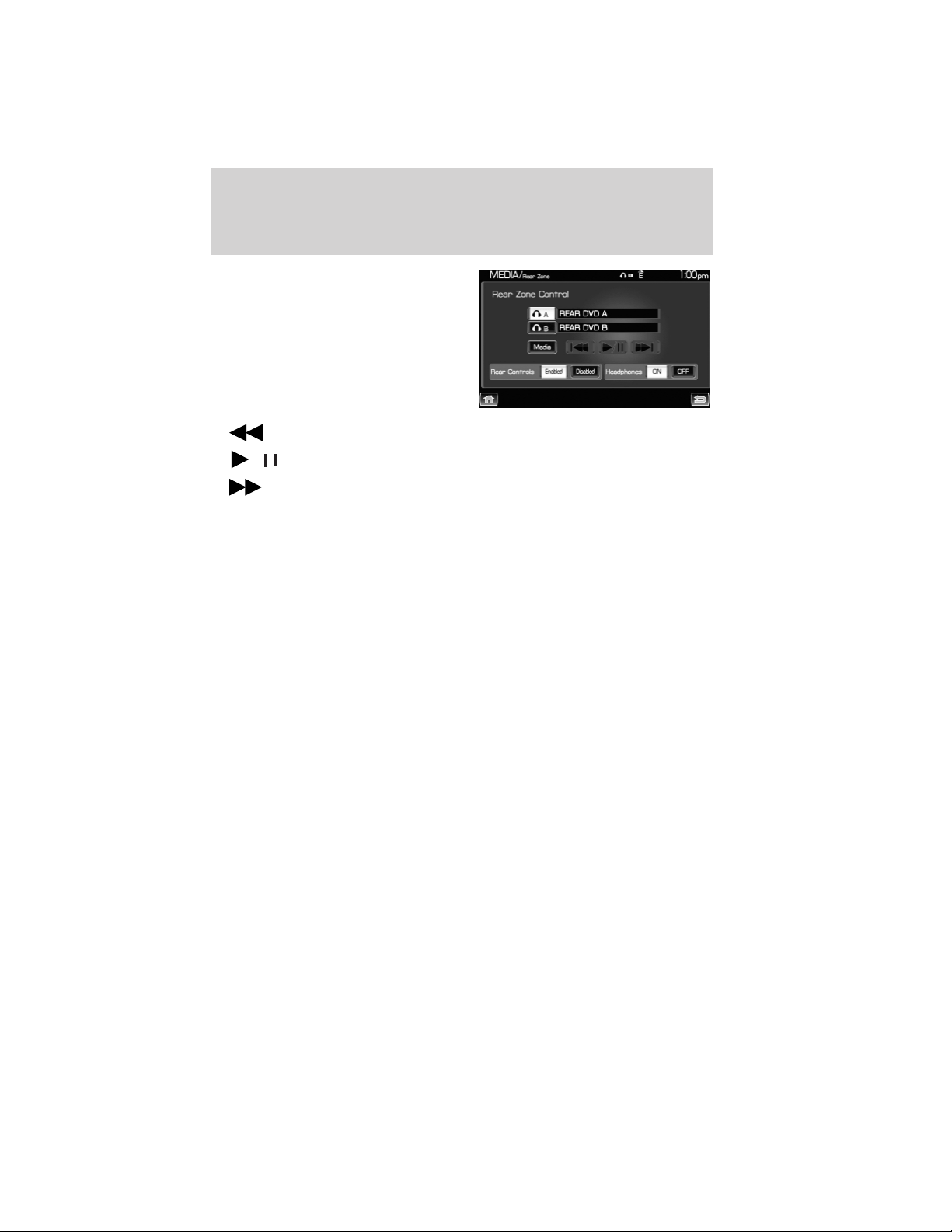
The screen will show you the
selected playing media of both DVD
headrest systems and headsets (A
and B). To make adjustments,
ensure that the correct system (A
or B) is highlighted. The appropriate
controls will appear to allow you to
make adjustments to your current
playing media.
•
(Reverse): Press for reverse play.
•
/ (Play/Pause): Press to play or pause the DVD.
• (Fast forward): Press for advance play.
SEEK: You may press the SEEK hard button on the system to access
the next or previous chapter.
• Media: Press to select the desired media in the selected headset (A
or B).
• Rear Controls Enabled/Disabled: Press to turn the Rear Controls
(if equipped) on/off.
• Headphones On/Off: Press to turn the headphones on/off.
Audio features
57
2012 Centerstack (ng1)
Supplement, 1st Printing
Arabic_(LHD) (gc_lhd)
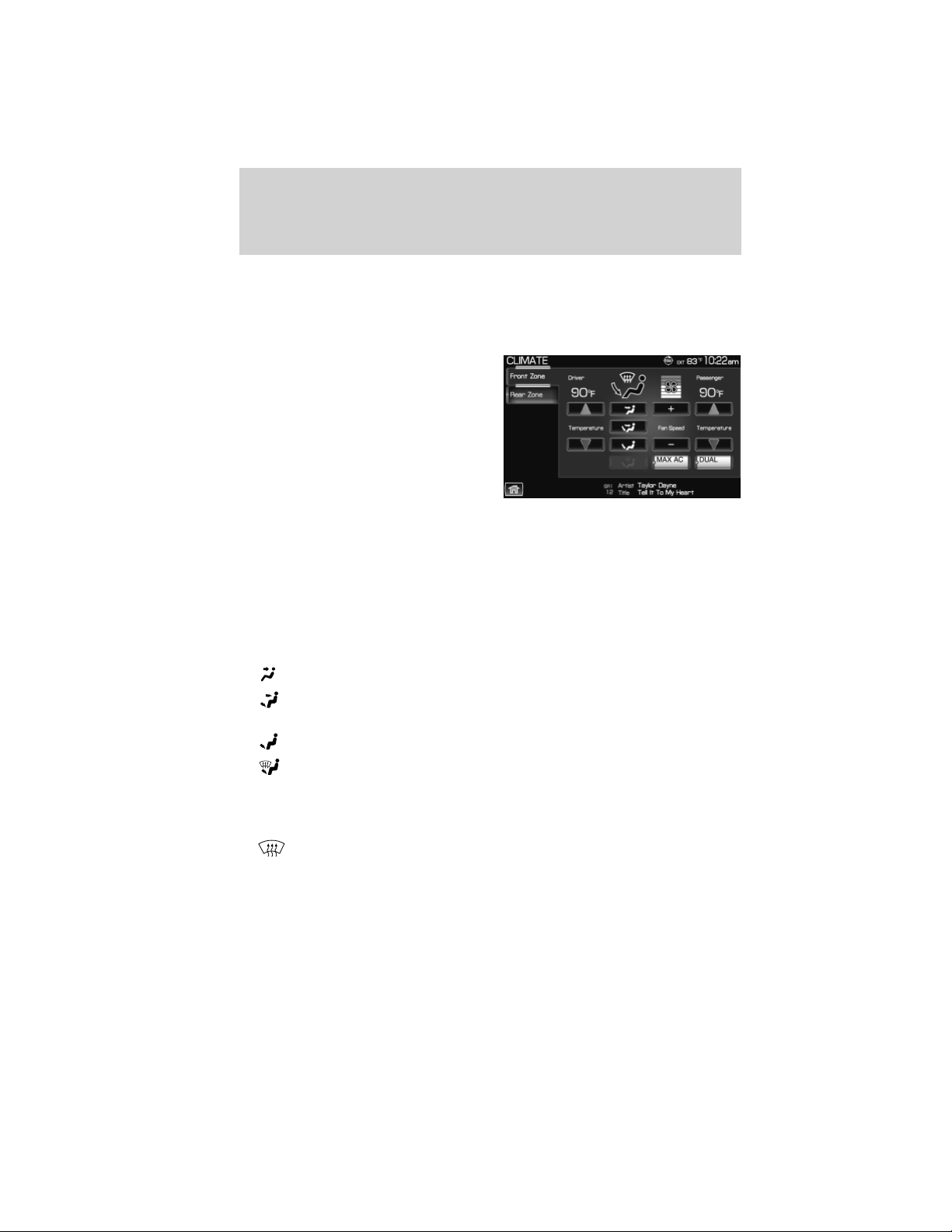
REAR ZONE / CLIMATE CONTROL (IF EQUIPPED)
Your system may allow you to access and make adjustments to the front
and rear zone climate controls. To access:
• Press the CLIMATE hard button.
From the ‘Front Zone’ screen, you
can select from / make adjustments
to the following:
• Driver temperature: Press to increase/decrease the airflow
temperature for the driver side of the vehicle. This control also adjusts
the passenger side temperature when dual zone operation is
disengaged.
• Passenger temperature: Press to activate separate passenger
temperature control and increase/decrease the airflow temperature for
the passenger in the front of the vehicle.
• +/- Fan speed: Press to increase/decrease the fan speed.
•
: Distributes air through the instrument panel vents.
• : Distributes air through the instrument panel vents, floor vents,
rear seat floor vents and de-mister vents.
•
: Distributes air through the floor vents, rear seat floor vents.
• : Distributes air through the windshield defroster vents, de-mister
vents, floor vents and rear seat floor vents. The system will
automatically provide outside air to reduce window fogging.
To return to full automatic control, press AUTO on the main bezel.
•
: Distributes outside air through the windshield defroster vents
and de-mister vents. Can be used to clear the windshield of fog and
thin ice. The system will automatically provide outside air to reduce
window fogging.
• Dual: Press to activate/deactivate separate driver and passenger
temperature controls.
Climate features (if equipped)
58
2012 Centerstack (ng1)
Supplement, 1st Printing
Arabic_(LHD) (gc_lhd)
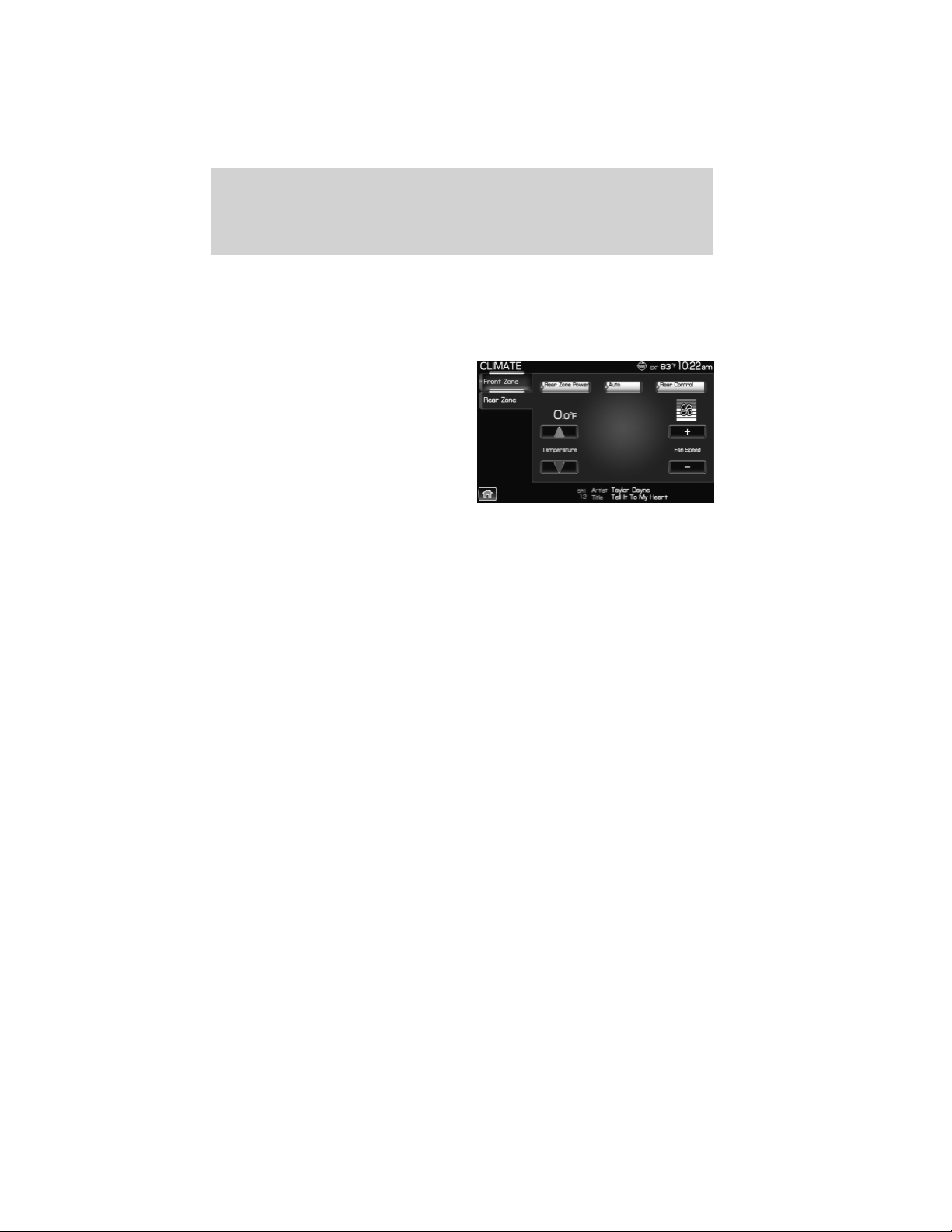
• Max A/C: Distributes recirculated air through the instrument panel
vents to cool the vehicle. This re-cooling of the interior air is more
economical and efficient. Recirculated air may also help reduce
undesirable odors from entering the vehicle. Press the MAX A/C
button again for normal A/C operation.
From the ‘Rear Zone’ screen (if
equipped) you can select from /
make adjustments to the following:
• Rear Zone Power: Press to activate/deactivate the rear climate
system.
• Rear Control: Press to allow the rear passengers to control the rear
climate system using the rear mounted controls.
• Auto: Press to activate automatic mode and have the climate control
system automatically select air flow, fan speed and heating or cooling
to achieve the desired temperature.
• Temperature: Press up/down to increase/decrease the rear climate
temperature.
• +/- Fan Speed: Press to increase/decrease the rear climate airflow.
Note: The appearance of your rear zone screen may vary depending on
your vehicle. For more information on your climate control system,
please refer to the Climate Control chapter in your Owner’s Guide.
Climate features (if equipped)
59
2012 Centerstack (ng1)
Supplement, 1st Printing
Arabic_(LHD) (gc_lhd)

Climate voice commands (if equipped)
When using climate commands, press or VOICE on the steering
wheel controls. When prompted, say, “Climate”. Wait for the system to
sound two tones and you may say any of the following commands:
• On • Off
• Automatic • Dual off
• AC on • AC off
• Max AC on • Max AC off
• Defrost • Defrost off
• Rear Defrost • Rear Defrost off
• Recirc • Recirc off
• Fan speed increase • Fan speed decrease
• Temperature increase • Temperature decrease
• Temperature <16.0–32.0> • Temperature <60–90>
• Help
Note: If the system is not displaying the climate touchscreen, press
or VOICE on the steering wheel controls. When prompted, say, “Climate”
and then any of the above commands.
Climate features (if equipped)
60
2012 Centerstack (ng1)
Supplement, 1st Printing
Arabic_(LHD) (gc_lhd)

INFORMATION MENU
Your system has an Information menu which allows you access to
features such as: Calendar, System Information and Help. These can be
accessed by pressing the I hard button (
) on the system.
CALENDAR
• Press the I button and then select
the ‘Calendar’ tab.
You can then select which month
you would like to view by
pressing
/ or you can also
select ‘Go to Today’.
• You are able to view calendars
from one previous year and the
next 10 years.
Note: Not all tab selections shown here will be available in all markets.
Check with your authorized dealer for availability.
SYSTEM INFORMATION
• Press the I button (
)onthe
navigation system and then select
the ‘System Information’ tab on
the touchscreen.
In this screen you can view the following options:
• Phone number for your Customer Service Center
• Current system versions installed
Note: Not all tab selections or features are available in all markets. (For
example, SIRIUS威 Travel Link™ is only available in the U.S., and
SIRIUS威 Satellite Radio is only available in the U.S. and Canada.) Please
check with your authorized dealer for availability.
Information menu
61
2012 Centerstack (ng1)
Supplement, 1st Printing
Arabic_(LHD) (gc_lhd)

HELP
The Help screen allows you to view basic information about controls and
driving restrictions as well as traffic legend information and basic voice
commands available in various modes. To access:
• Press the I button (
) on the system and then select the ‘Help’ tab.
Select ‘Basic Operation’ at the top of
the screen to view hard buttons on
your navigation system. Press the
desired icon to view the button
description.
Select ‘Driving Restriction’ at the
top of the screen to view the
system’s driving restriction.
Select ‘Voice Commands’ at the top
of the screen. Select any of the
available categories on the screen.
When selected, the system will show
you a brief listing of possible voice
commands in that specific mode.
Please refer to the Voice
recognition system overview
chapter for information on the voice
recognition system.
Information menu
62
2012 Centerstack (ng1)
Supplement, 1st Printing
Arabic_(LHD) (gc_lhd)
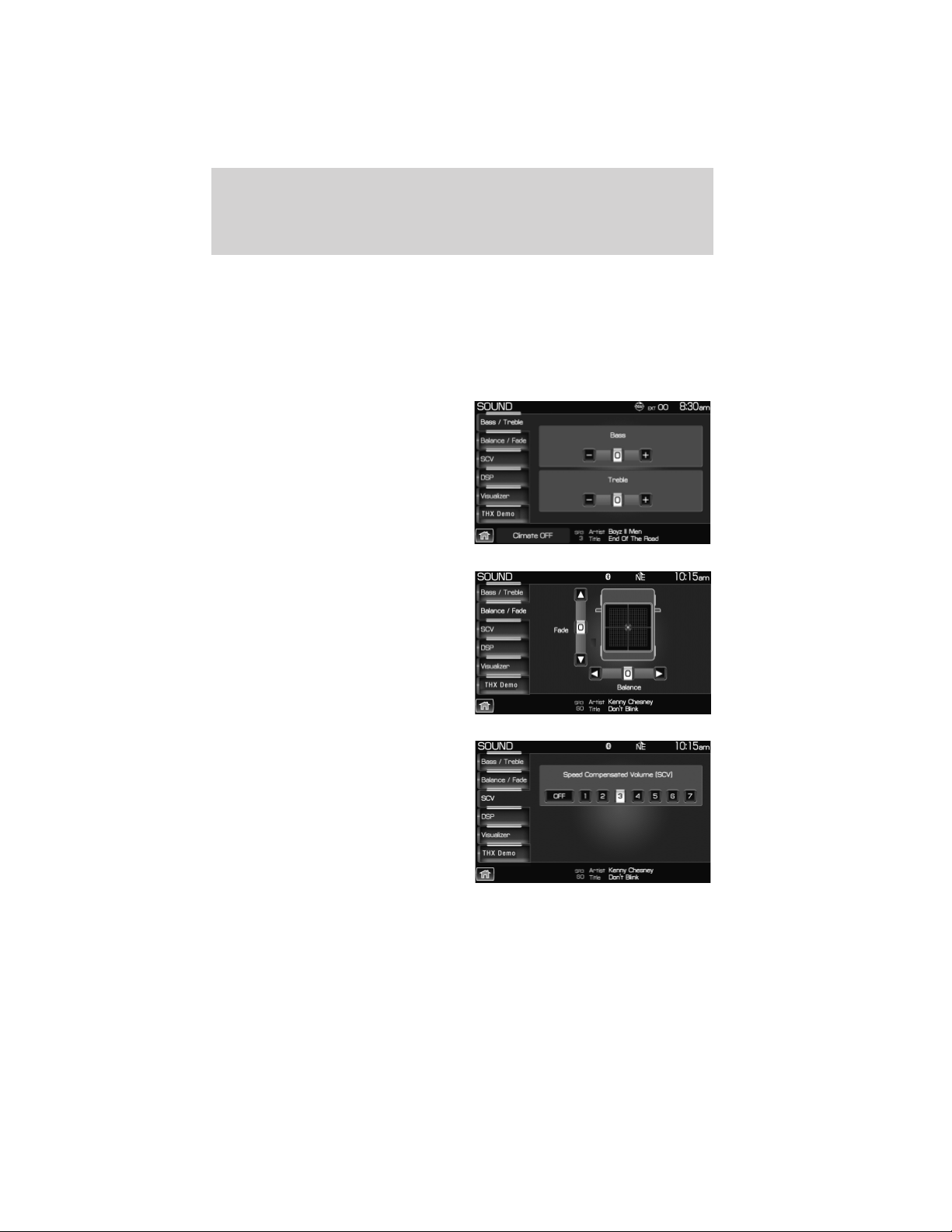
SOUND FEATURES
The sound menu allows you to access and adjust settings such as Bass,
Treble, Fade, Balance, Digital Signal Processing (DSP), Speed
compensated volume (SCV) and the visualizer. To access:
1. Press the SOUND hard button.
2. Press the appropriate tab to select from:
Bass/Treble: Press + to increase or
— to decrease the levels.
Balance/Fade: Press to adjust the
sound between the left and right
speakers (Balance) and to adjust
the sound to the front and rear
speakers (Fade).
SCV (Speed compensated volume):
With this feature on, the radio
volume changes automatically with
vehicle speed to compensate for
road and wind noise. Select a level
of compensation between 1 and 7 by
pressing the corresponding button.
Sound menu features
63
2012 Centerstack (ng1)
Supplement, 1st Printing
Arabic_(LHD) (gc_lhd)
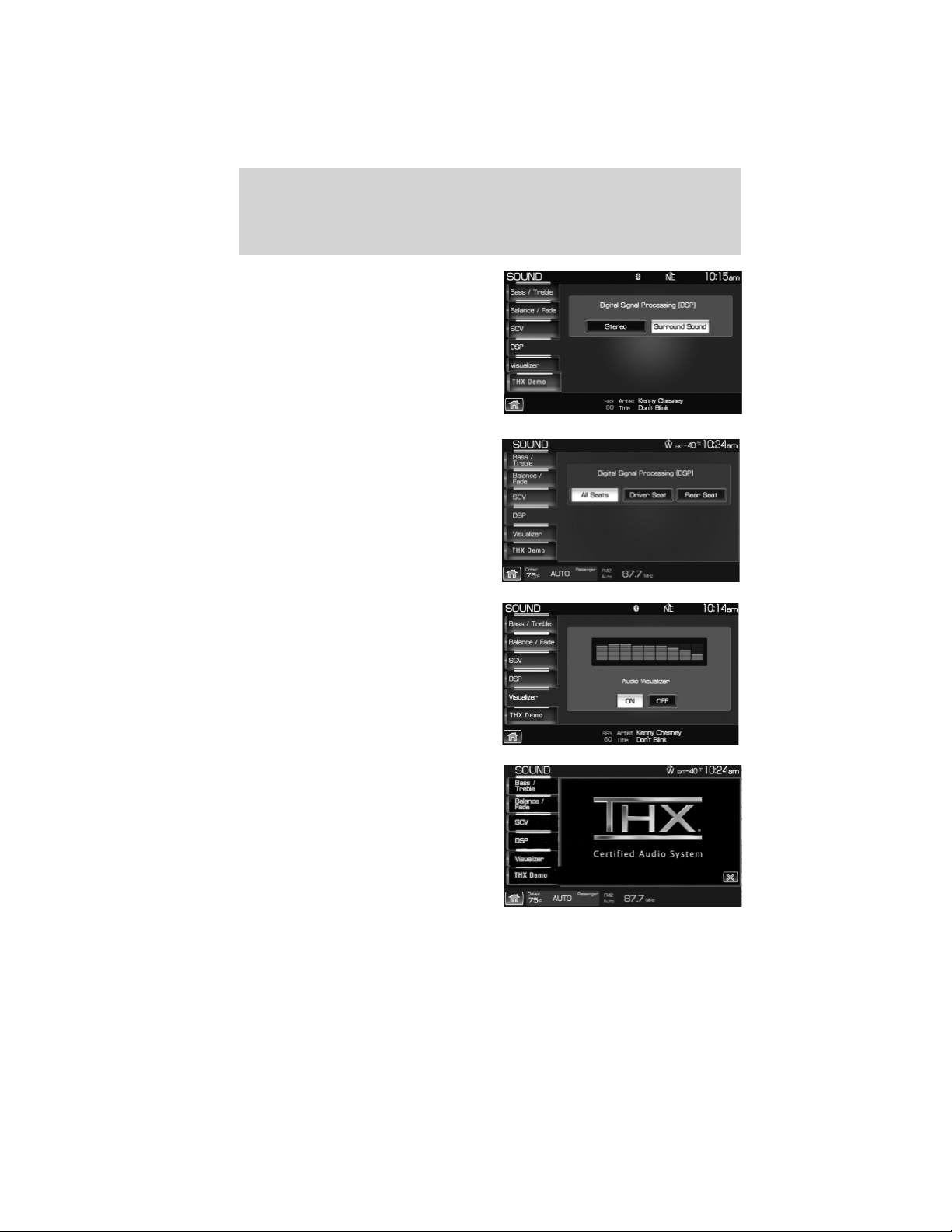
DSP (Digital Signal Processing):
Depending on your option package,
you may either select from ‘Stereo’
or ‘Surround Sound’.
Or, you may choose to optimize the
sound quality for ‘All Seats’, ‘Driver
Seat’ or ‘Rear Seat’.
Visualizer: Press to turn the audio
visualizer display on or off.
Note: Turning the visualizer setting
to off will not remove the visualizer
on the home screen. You will need
to select a different view in order to
remove the visualizer.
THX Demo (Lincoln vehicles
only, if equipped): Select this tab
to activate the THX audio
demonstration. You may press “X” to
stop the demonstration.
Sound menu features
64
2012 Centerstack (ng1)
Supplement, 1st Printing
Arabic_(LHD) (gc_lhd)

GRACENOTE姞 COPYRIGHT
CD and music — related data from Gracenote, Inc., copyright
娀2000–2007 Gracenote. Gracenote Software, copyright 娀 2000–2007
Gracenote. This product and service may practice one or more of the
following U.S. Patents #5,987,525; #6,061,680; #6,154,773, #6,161,132,
#6,230,192, #6,230,207, #6,240,459, #6,330,593, and other patents issued
or pending. Some services supplied under license from Open Globe, Inc.
for U.S. Patent: #6,304,523.
Gracenote and CDDB are registered trademarks of Gracenote. The
Gracenote logo and logotype, and the ⬙Powered by Gracenote™⬙ logo are
trademarks of Gracenote.
GRACENOTE姞 END USER LICENSE AGREEMENT (EULA)
This device contains software from Gracenote, Inc. of 2000 Powell Street
Emeryville, California 94608 (“Gracenote”).
The software from Gracenote (the “Gracenote Software”) enables this
device to do disc and music file identification and obtain music-related
information, including name, artist, track, and title information
(“Gracenote Data”) from online servers (“Gracenote Servers”), and to
perform other functions. You may use Gracenote Data only by means of
the intended End User functions of this device
This device may contain content belonging to Gracenote’s providers. If
so, all of the restrictions set forth herein with respect to Gracenote Data
shall also apply to such content and such content providers shall be
entitled to all of the benefits and protections set forth herein that are
available to Gracenote.
You agree that you will use the content from Gracenote (“Gracenote
Content”), Gracenote Data, the Gracenote Software, and Gracenote
Servers for your own personal, non-commercial use only. You agree not
to assign, copy, transfer or transmit the Gracenote Content, Gracenote
Software or any Gracenote Data (except in a Tag associated with a music
file) to any third party. YOU AGREE NOT TO USE OR EXPLOIT
GRACENOTE CONTENT, GRACENOTE DATA, THE GRACENOTE
SOFTWARE, OR GRACENOTE SERVERS, EXCEPT AS EXPRESSLY
PERMITTED HEREIN.
You agree that your non-exclusive licenses to use the Gracenote Content,
Gracenote Data, the Gracenote Software, and Gracenote Servers will
terminate if you violate these restrictions. If your licenses terminate, you
agree to cease any and all use of the Gracenote Content, Gracenote
Data, the Gracenote Software, and Gracenote Servers. Gracenote,
General Information
65
2012 Centerstack (ng1)
Supplement, 1st Printing
Arabic_(LHD) (gc_lhd)

respectively, reserve all rights in Gracenote Data, the Gracenote
Software, and the Gracenote Servers and Gracenote Content, including
all ownership rights. Under no circumstances will either Gracenote
become liable for any payment to you for any information that you
provide, including any copyrighted material or music file information. You
agree that Gracenote may enforce its respective rights, collectively or
separately, under this agreement against you, directly in each company’s
own name.
Gracenote uses a unique identifier to track queries for statistical
purposes. The purpose of a randomly assigned numeric identifier is to
allow Gracenote to count queries without knowing anything about who
you are. For more information, see the web page at www.gracenote.com
for the Gracenote Privacy Policy
THE GRACENOTE SOFTWARE, EACH ITEM OF GRACENOTE DATA
AND THE GRACENOTE CONTENT ARE LICENSED TO YOU “AS IS.”
NEITHER GRACENOTE MAKES ANY REPRESENTATIONS OR
WARRANTIES, EXPRESS OR IMPLIED, REGARDING THE ACCURACY
OF ANY GRACENOTE DATA FROM THE GRACENOTE SERVERS OR
GRACENOTE CONTENT. GRACENOTE COLLECTIVELY AND
SEPARATELY RESERVE THE RIGHT TO DELETE DATA AND/OR
CONTENT FROM THE COMPANIES’ RESPECTIVE SERVERS OR, IN
THE CASE OF GRACENOTE, CHANGE DATA CATEGORIES FOR ANY
CAUSE THAT GRACENOTE DEEMS SUFFICIENT. NO WARRANTY IS
MADE THAT EITHER GRACENOTE CONTENT OR THE GRACENOTE
SOFTWARE OR GRACENOTE SERVERS ARE ERROR-FREE OR THAT
THE FUNCTIONING OF THE GRACENOTE SOFTWARE OR
GRACENOTE SERVERS WILL BE UNINTERRUPTED. GRACENOTE IS
NOT OBLIGATED TO PROVIDE YOU WITH ANY ENHANCED OR
ADDITIONAL DATA TYPES THAT GRACENOTE MAY CHOOSE TO
PROVIDE IN THE FUTURE AND IS FREE TO DISCONTINUE ITS
ONLINE SERVICES AT ANY TIME. GRACENOTE DISCLAIM ALL
WARRANTIES EXPRESS OR IMPLIED, INCLUDING, BUT NOT LIMITED
TO, IMPLIED WARRANTIES OF MERCHANTABILITY, FITNESS FOR A
PARTICULAR PURPOSE, TITLE, AND NON-INFRINGEMENT. NEITHER
GRACENOTE WARRANTS THE RESULTS THAT WILL BE OBTAINED
BY YOUR USE OF THE GRACENOTE SOFTWARE OR ANY
GRACENOTE SERVER. IN NO CASE WILL GRACENOTE BE LIABLE
FOR ANY CONSEQUENTIAL OR INCIDENTAL DAMAGES OR FOR ANY
LOST PROFITS OR LOST REVENUES FOR ANY REASON
WHATSOEVER.
娀 Gracenote 2007
General Information
66
2012 Centerstack (ng1)
Supplement, 1st Printing
Arabic_(LHD) (gc_lhd)

CLEANING THE DISPLAY
Clean the display with a clean soft cloth such as one used for cleaning
glasses. If dirt or finger prints are still visible, apply a small amount of
alcohol to the cloth. Do not pour/spray alcohol onto the display. Do not
use detergent or any type of solvent to clean the display.
GLOSSARY OF TERMS
Autoplay: With Autoplay turned ON, SYNC威 allows you to listen to
music which has already been randomly indexed during the indexing
process. With Autoplay turned off, the chosen music will not begin to
play until all of the music has been indexed by SYNC威. Depending on the
size of the material, this may take a few minutes.
Bluetooth enabled cellular phone: Any cellular phone which has the
Bluetooth wireless technology which will enable the phone to connect
with SYNC威 and exchange information wirelessly.
Comp: Compression
Dest: Destination
Digital media player / USB Device: This is a generic term used to
signify any of the following media devices: iPod威, Zune™, “Plays from
device” players, and most USB drives (thumb drives, flash drives, PEN
drives, etc.)
Discoverable mode: A mode which allows other Bluetooth enabled
devices to find your Bluetooth enabled device.
Discovery mode: A mode which allows your Bluetooth enabled device
to search for other ‘discoverable’ Bluetooth enabled devices.
DSP: Digital Signal Processing
ETA : Estimated Time of Arrival
FCC: Federal Communications Commission
GPS: Global Positioning System
In-band ringing: This is a phone dependent feature. If your Bluetooth
enabled cellular phone supports this feature, SYNC威 can play your ring
tone during incoming calls.
Indexing: A process in which SYNC威 builds a voice recognition grammar
for the media content of your digital media player. While indexing,
SYNC威 will play already indexed media if Autoplay is on. However, voice
recognition is not available for the media until the indexing process is
complete.
General Information
67
2012 Centerstack (ng1)
Supplement, 1st Printing
Arabic_(LHD) (gc_lhd)

Metadata: Descriptive tags embedded in your digital media which
provide SYNC威 with information such as ARTIST, ALBUM, GENRE and
TRACK.
Pairing: To use your Bluetooth enabled cellular phone with SYNC威, you
must go through a pairing (bonding) process. “Pairing” is a special
process used when two devices connect for the first time. The pairing
process is used to generate a link key that is used for authentication
purposes during subsequent Bluetooth connections between the two
devices.
PIN (Personal Identification number): This six digit number
(sometimes referred to as a passkey) will be shown in the radio display
during the pairing process with your Bluetooth enabled device. You do
not need to write down this number as it will only be used for that
specific pairing procedure.
POI: Point(s) Of Interest
PROV: Province
PTY: Program Type
RDS: Radio Data System
SAT: Satellite Radio
SCV: Speed Compensated Volume
Smart Speller: Feature that provides a number of available candidates
matching partial input entered by the user.
Touchscreen: A touch-sensitive screen that lets the user make choices
by touching icons or graphical buttons on the screen.
Waypoint: An intermediate stop or destination before the final
destination.
General Information
68
2012 Centerstack (ng1)
Supplement, 1st Printing
Arabic_(LHD) (gc_lhd)

PHONE DEPENDENT FEATURES
While SYNC威 supports a variety of features, many are dependent upon
the functionality of your cell phone with Bluetooth威 wireless technology.
At a minimum, most cellular phones with Bluetooth wireless technology
support the following functions:
• Answering an incoming call
• Ending a call
• Using privacy mode
• Dial a number
• Redial
• Call waiting notification
• Caller ID
Other features, such as text messaging via Bluetooth, and automatic
phone book download are phone dependent features. To ensure that you
have a compatible cellular phone, refer to your phone’s user manual and
visit www.SyncMyRide.com or www.syncmaroute.ca.
QUICK START — HOW TO GET GOING
WARNING: Driving while distracted can result in loss of vehicle
control, accident and injury. Ford strongly recommends that
drivers use extreme caution when using any device or feature that may
take their focus off the road. Your primary responsibility is the safe
operation of the vehicle. We recommend against the use of any
handheld device while driving and that you comply with all applicable
laws.
Pairing your phone
Note: This is a speed dependent feature and will not work if your
vehicle is traveling at speeds greater than 3 mph (5 km/h).
The first thing you will need to do to get going is to pair your
Bluetooth威 enabled cellular phone with SYNC威.
1. Press the PHONE hard button on the system.
SYNC姞 phone features (if equipped)
69
See End User License Agreement at the end of this book
2012 Centerstack (ng1)
Supplement, 1st Printing
Arabic_(LHD) (gc_lhd)
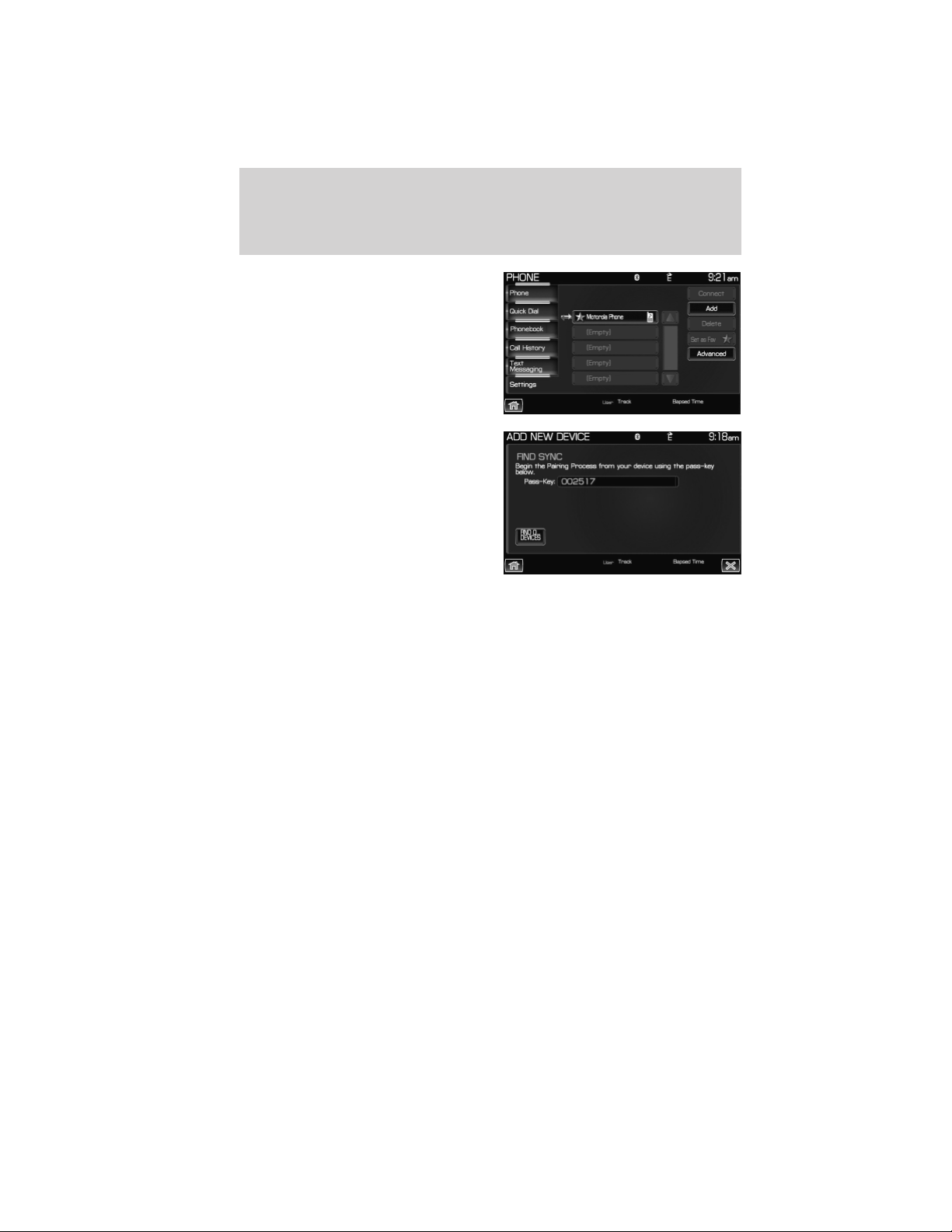
2. The screen will read NO PHONE
CONNECTED. Press the ‘Settings’
tab on the touchscreen.
3. Press ‘Add’.
4. If Bluetooth is on, SYNC威 will
begin the pairing process between
your Bluetooth enabled phone or
device and SYNC威.
Note: Please refer to your phone’s user guide for specific pairing
instructions.
5. SYNC威 will give you a six digit Pass-key (PIN) that you will need to
enter into your phone or device when prompted.
When the pairing is complete, PAIRING SUCCESSFUL and then DEVICE
NAME CONNECTED will appear on the screen.
6. Press YES or NO when SYNC威 prompts you to set the phone as the
FAVORITE PHONE.
As a ‘favorite phone’, SYNC威 will search for this phone upon each
connection cycle. If a phone is not set as a primary, it will still be stored
in the device listing to enable you to reconnect to it at any time.
7. If supported by your Bluetooth enabled cellular phone, SYNC威 will
prompt you to download your phone book/call history. Press YES or NO.
Note: Selecting YES will tell SYNC威 to re-download the phone book and
call history information from your Bluetooth enabled cellular phone (if
supported) EVERY time your phone reconnects to SYNC威. If you have
made any changes to your phone book/call history in SYNC威, they will be
overwritten with the new download.
SYNC威 will confirm when the phone book and call history are downloaded.
SYNC姞 phone features (if equipped)
70
See End User License Agreement at the end of this book
2012 Centerstack (ng1)
Supplement, 1st Printing
Arabic_(LHD) (gc_lhd)
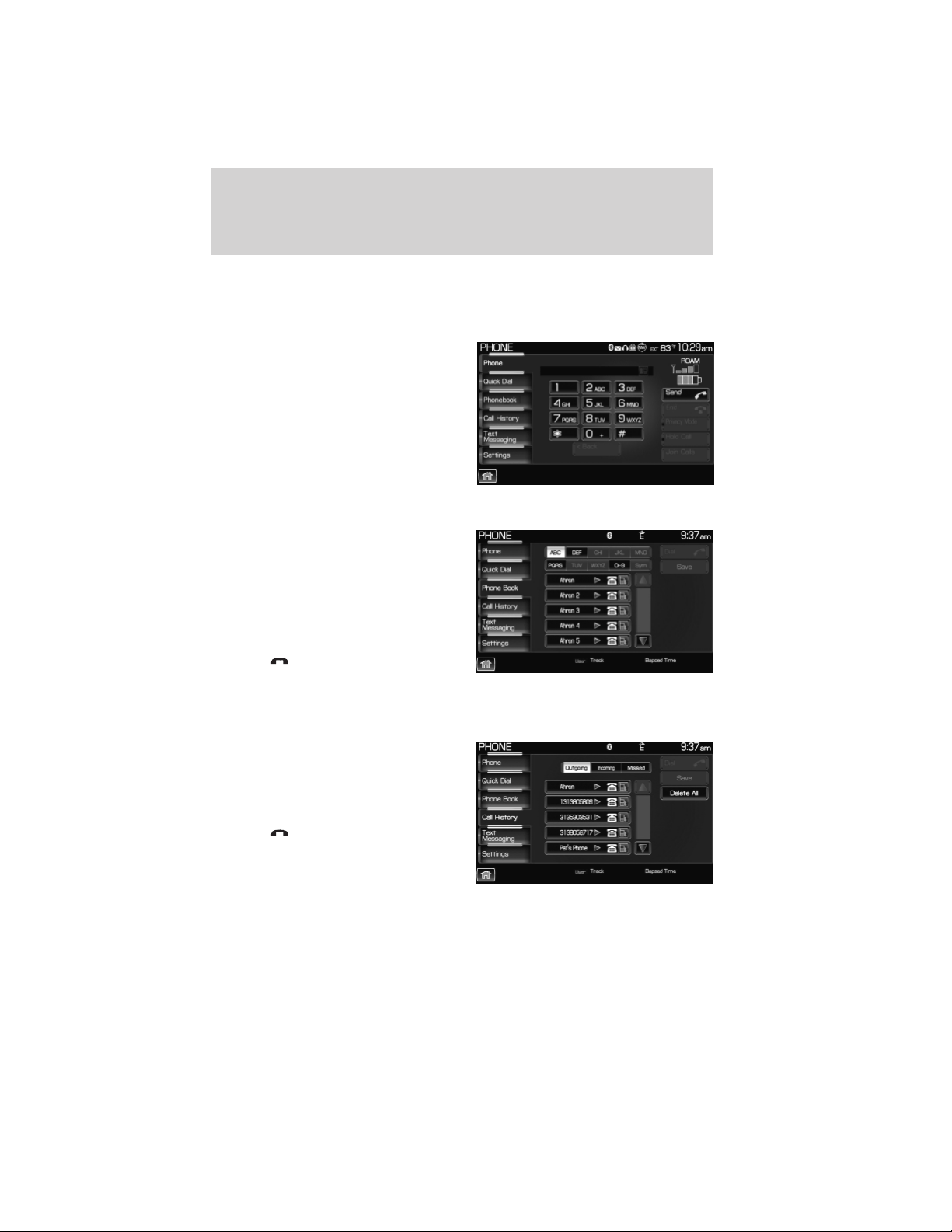
Making a call
Making a phone call using SYNC威 is easy.
Press PHONE and select from one of the following:
• Use the keypad on the ‘Phone’
tab to manually enter a phone
number and press SEND.
OR
• Select the ‘Phonebook’ tab (if the
desired number is saved in the
downloaded phone book
information).
• Use the quick sort buttons to
browse to the desired contact.
• Select the desired contact and
press
‘Dial’.
Note: This is a phone dependent feature.
OR
• Select the ‘Call History’ tab (if the
desired number is saved in the
downloaded call history
information).
• Select the desired contact and
press
‘Dial’.
Note: This is a phone dependent feature.
SYNC姞 phone features (if equipped)
71
See End User License Agreement at the end of this book
2012 Centerstack (ng1)
Supplement, 1st Printing
Arabic_(LHD) (gc_lhd)

Making a call using voice commands
1. Press or VOICE. A tone will sound and the system will say “Main
menu”.
2. Say “Phone”.
3. When prompted, say, “Call <phone book contact name> or say “Dial”
and the desired number.
To erase the last spoken digit, say “Delete”.
To erase all spoken digits, say “Clear”.
4. Once the desired number/contact is on the screen, either say “Call” or
“Dial”. SYNC威 will attempt to connect to the desired number.
Note: Once the call is placed, it will be logged into your outgoing call
history folder.
SAVING A CONTACT OR A PHONE NUMBER AS A QUICK DIAL
After you have connected your Bluetooth enabled cellular phone and
downloaded your phone book/call history, SYNC威 allows you to save 10
frequently called numbers for quick access.
1. Press the PHONE hard button on the system.
2. Select the ‘Phone Book’ or ‘Call
History’ tab.
3. Select the phone number or the
contact you wish to save to the
Quick Dial screen.
4. Press ‘Save’.
5. Select the Quick Dial location in
which you wish to store the contact.
6. Press ‘Set/Replace’ at the bottom
of the screen to save the contact’s
number to the chosen Quick Dial
location.
The system will confirm when the
number of the contact is
successfully stored.
SYNC姞 phone features (if equipped)
72
See End User License Agreement at the end of this book
2012 Centerstack (ng1)
Supplement, 1st Printing
Arabic_(LHD) (gc_lhd)

USING THE PHONE BOOK FEATURE
Note: This is a speed dependent feature. The vehicle must be moving
less than 3 mph (5 km/h) to use this feature.
SYNC威 enables you to view the contacts downloaded from your
Bluetooth enabled cellular phone. To access:
1. Press the PHONE hard button on the system.
2. Select the ‘Phonebook’ tab to
access the phone numbers of the
contacts downloaded from your
Bluetooth enabled cellular phone.
Note: SYNC威 will categorize your
contacts alphabetically in the Quick
Sort buttons on the right of the
screen. The buttons will be
highlighted if there are contacts
stored in that category. Press the
highlighted category to access those listings.
For your safety, while you are driving, SYNC威 limits the number of
viewable contacts. However, all contacts are always available through
voice commands.
Note: If supported by your phone, SYNC威 will assign location icons for
the numbers (i.e., cellular number, home number, work number).
USING YOUR CALL HISTORY
If your Bluetooth enabled cellular phone supports phone book/call
history downloads via Bluetooth, SYNC威 will provide these numbers
sorted in the CALL HISTORY tab. If your Bluetooth enabled cellular
phone does NOT support phone book/call history downloads via
Bluetooth, then SYNC威 will log all calls made through SYNC威 in the
CALL HISTORY tab.
1. Press the PHONE hard button.
SYNC姞 phone features (if equipped)
73
See End User License Agreement at the end of this book
2012 Centerstack (ng1)
Supplement, 1st Printing
Arabic_(LHD) (gc_lhd)
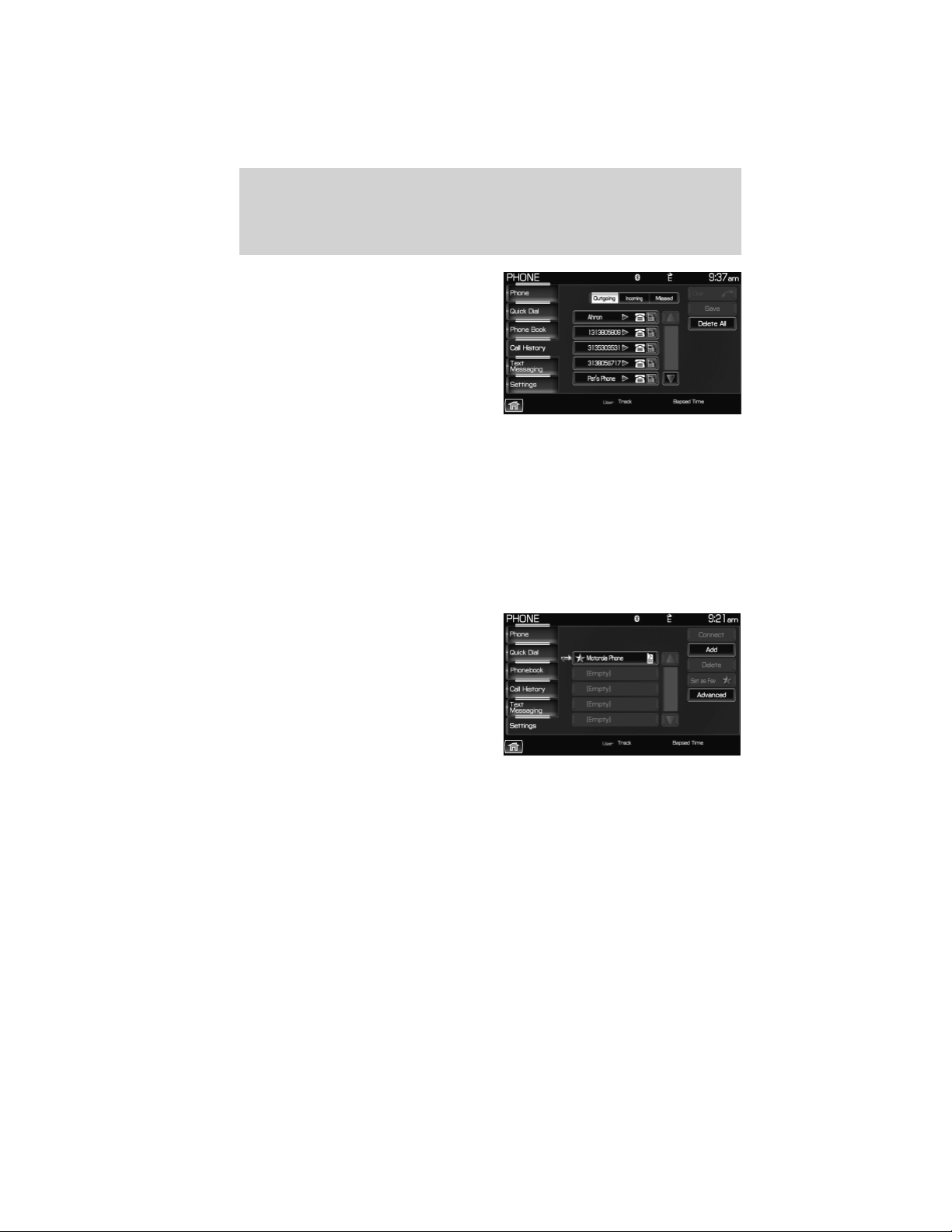
2. Select the ‘Call History’ tab which
allows you to have quick access to
recent call activity.
Press OUTGOING to view your outgoing calls.
Press INCOMING to view your incoming calls.
Press MISSED to view your missed calls.
SYSTEM SETTINGS
SYNC威 allows you to connect, add, delete or set specified phones as a
favorite as well as change advanced settings.
To access:
1. Press the PHONE hard button.
2. Select the ‘Settings’ tab and then
choose the desired device.
You can now choose from the
following options:
Connect
Add
Delete
Set as Fav (Favorite)
Advanced
Please refer to the following sections for more information on these
features.
SYNC姞 phone features (if equipped)
74
See End User License Agreement at the end of this book
2012 Centerstack (ng1)
Supplement, 1st Printing
Arabic_(LHD) (gc_lhd)
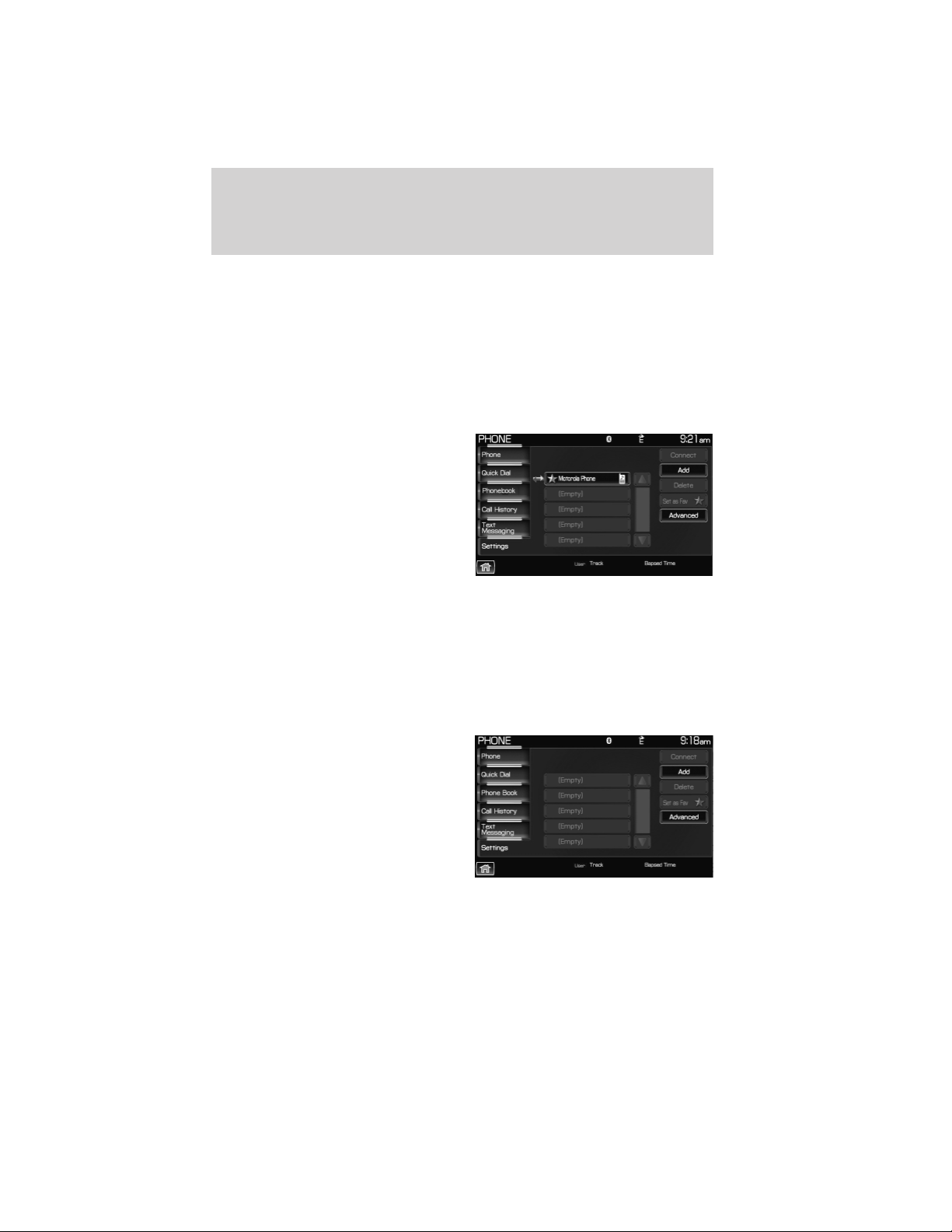
Adding a new phone to SYNC姞
Note: This is a speed dependent feature. For your safety, this procedure
cannot be completed if the vehicle is traveling at speeds faster than
3 mph (5 km/h).
Note: SYNC威 can store up to 12 previously paired phones.
This feature allows you to add (pair) a new Bluetooth enabled phone to
SYNC威. To access:
1. Press the PHONE hard button.
2. Select the ‘Settings’ tab on the
touchscreen.
3. Select ‘Add’.
4. When prompted on your phone’s display, enter the PIN provided by
SYNC威.
Depending on your phone’s capability, you may be prompted with
additional options from your phone or SYNC威 such as downloading the
phone book/call history and setting a favorite.
Connecting a previously paired phone to SYNC姞
1. Press the PHONE hard button.
2. Select the ‘Settings’ tab on the
touchscreen.
3. Select the desired device.
4. Select ‘Connect’.
SYNC威 will confirm it is connecting
to the selected phone.
Note: When SYNC威 connects the newly selected phone, it will
disconnect any previously connected phone.
SYNC姞 phone features (if equipped)
75
See End User License Agreement at the end of this book
2012 Centerstack (ng1)
Supplement, 1st Printing
Arabic_(LHD) (gc_lhd)
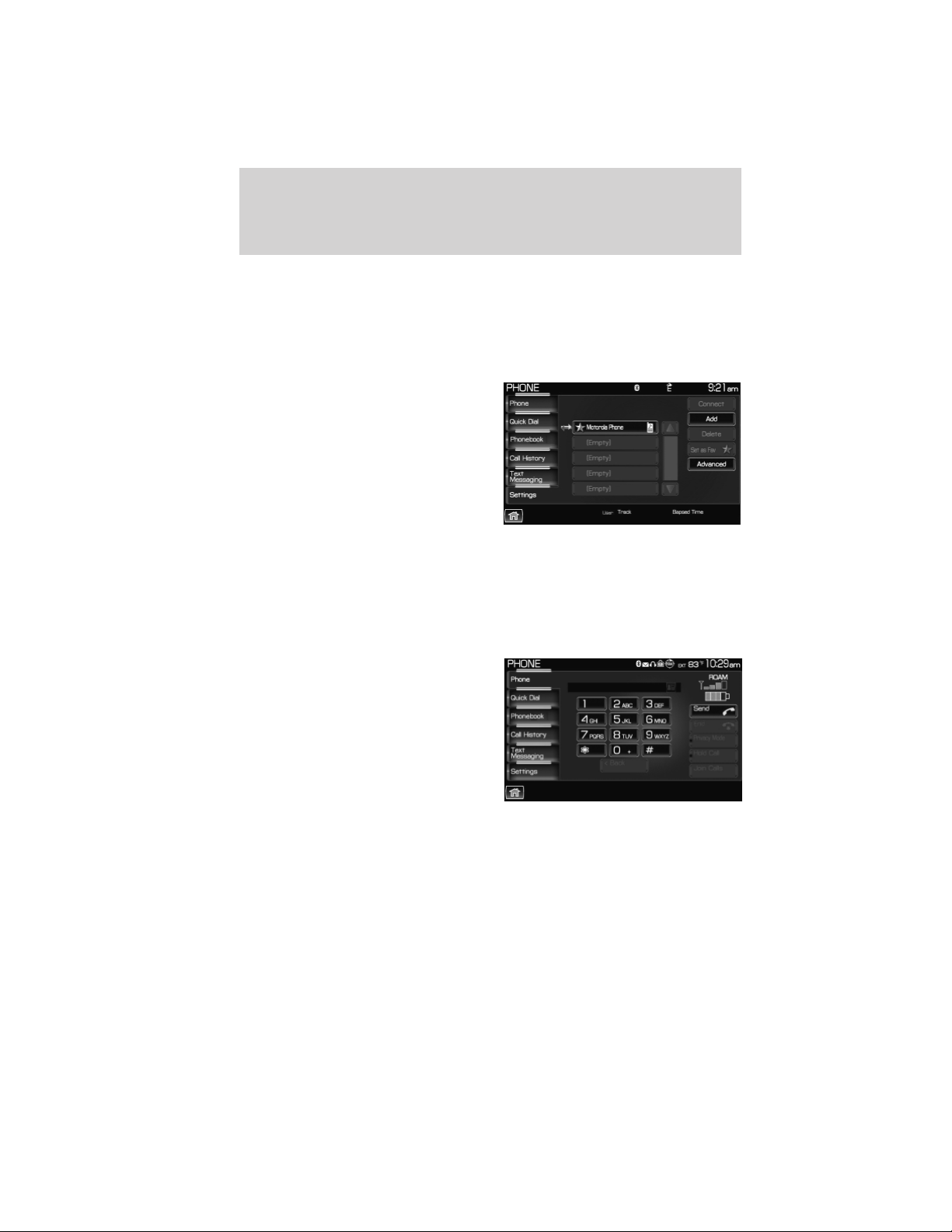
Deleting a phone from SYNC姞
This feature allows you to delete a previously paired phone from SYNC威.
Note: Deleting your phone will remove all information relevant to that
phone such as phone book/call history, text messages, etc.
1. Press the PHONE hard button.
2. Select the ‘Settings’ tab on the
touchscreen.
3. Select the desired phone.
4. Press ‘Delete’. The system will
ask you to confirm.
Setting a phone as your favorite
SYNC威 allows you to set a phone as your favorite. This will then be the
primary phone that SYNC威 reconnects to after each ignition cycle. To
access:
1. Press the PHONE hard button.
2. Select the ‘Settings’ tab on the
touchscreen.
3. Select the desired device.
4. Press ‘Set as Fav’.
SYNC姞 phone features (if equipped)
76
See End User License Agreement at the end of this book
2012 Centerstack (ng1)
Supplement, 1st Printing
Arabic_(LHD) (gc_lhd)
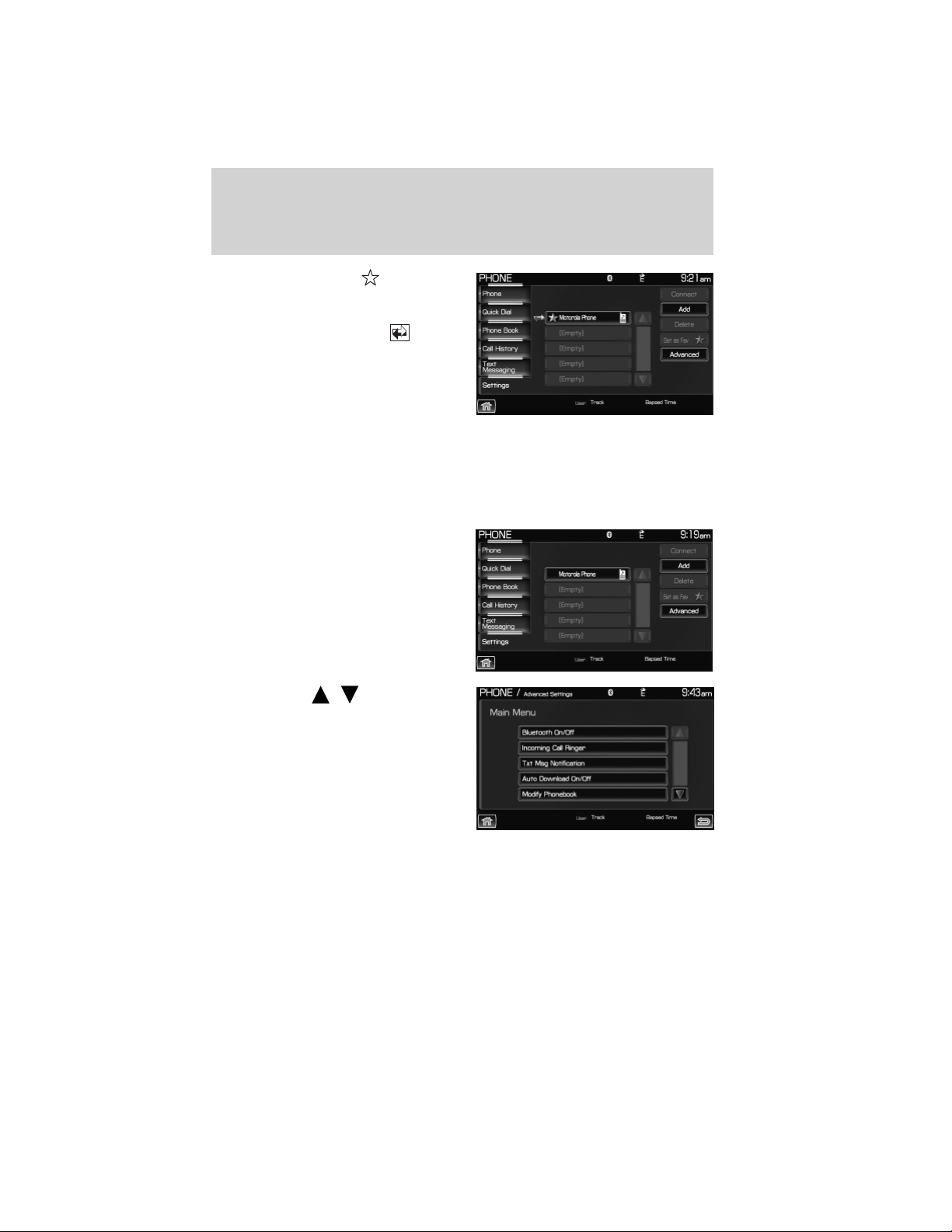
Note: The star icon ( ) will
appear to the left of the currently
selected favorite (primary) phone
and a double arrow icon (
) will
appear to signify which phone is
currently connected.
Advanced settings
SYNC威 allows you to change many Advanced Settings.
To access:
1. Press the PHONE hard button.
2. Select the ‘Settings’ tab.
3. Select ‘Advanced’.
4. Scroll using
/ on the
screen to cycle through the
following options:
• Bluetooth On/Off
• Incoming Call Ringer
• Text Message Notification
• Automatic Download On/Off
• Modify Phonebook
• Provider
• Candidate Lists
• Factory Defaults
• Master Reset
• Install
• System Information
SYNC姞 phone features (if equipped)
77
See End User License Agreement at the end of this book
2012 Centerstack (ng1)
Supplement, 1st Printing
Arabic_(LHD) (gc_lhd)
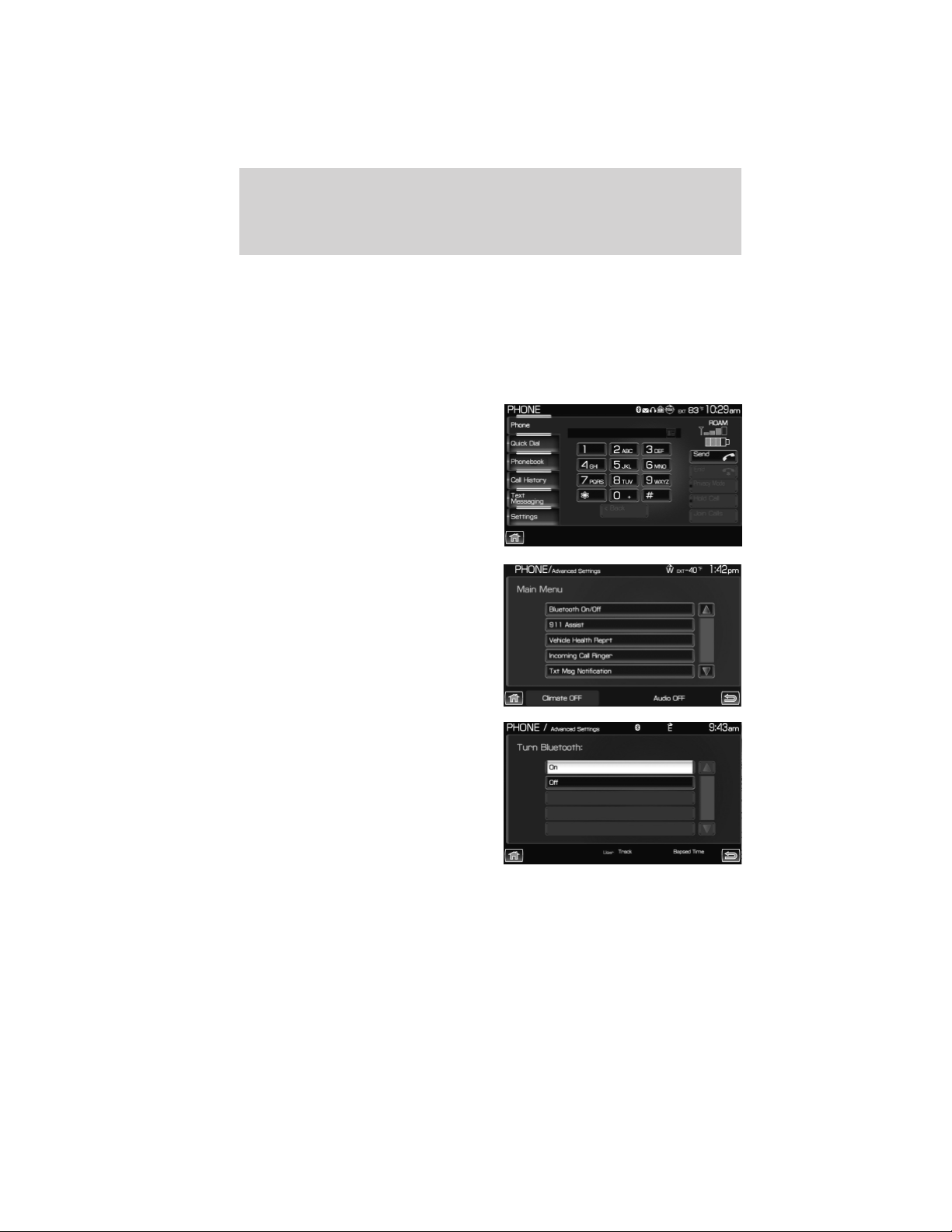
Turning Bluetooth on/off
Turning Bluetooth OFF will turn off access to all features to all SYNC威
Bluetooth related features (i.e., text messaging, hands-free calling,
Bluetooth media streaming). Any incoming text or phone messages will
go into their respective missed folders.
To access:
1. Press the PHONE hard button.
2. Select the ‘Settings’ tab on the
touchscreen.
3. Select ‘Advanced’.
4. Select ‘Bluetooth On/Off’.
5. Select ‘On’ or ‘Off’.
SYNC姞 phone features (if equipped)
78
See End User License Agreement at the end of this book
2012 Centerstack (ng1)
Supplement, 1st Printing
Arabic_(LHD) (gc_lhd)

Selecting your ring tone
SYNC威 allows you to select from various ringers which will sound during
an incoming call. To access:
1. Press the PHONE hard button.
2. Select the ‘Settings’ tab on the
touchscreen.
3. Select ‘Advanced’.
4. Scroll using
/ on the
touchscreen and select ‘Incoming
Call Ringer’.
5. Select from three ring tones, your
cellular phone’s ring tone or to turn
the ringer off.
SYNC姞 phone features (if equipped)
79
See End User License Agreement at the end of this book
2012 Centerstack (ng1)
Supplement, 1st Printing
Arabic_(LHD) (gc_lhd)
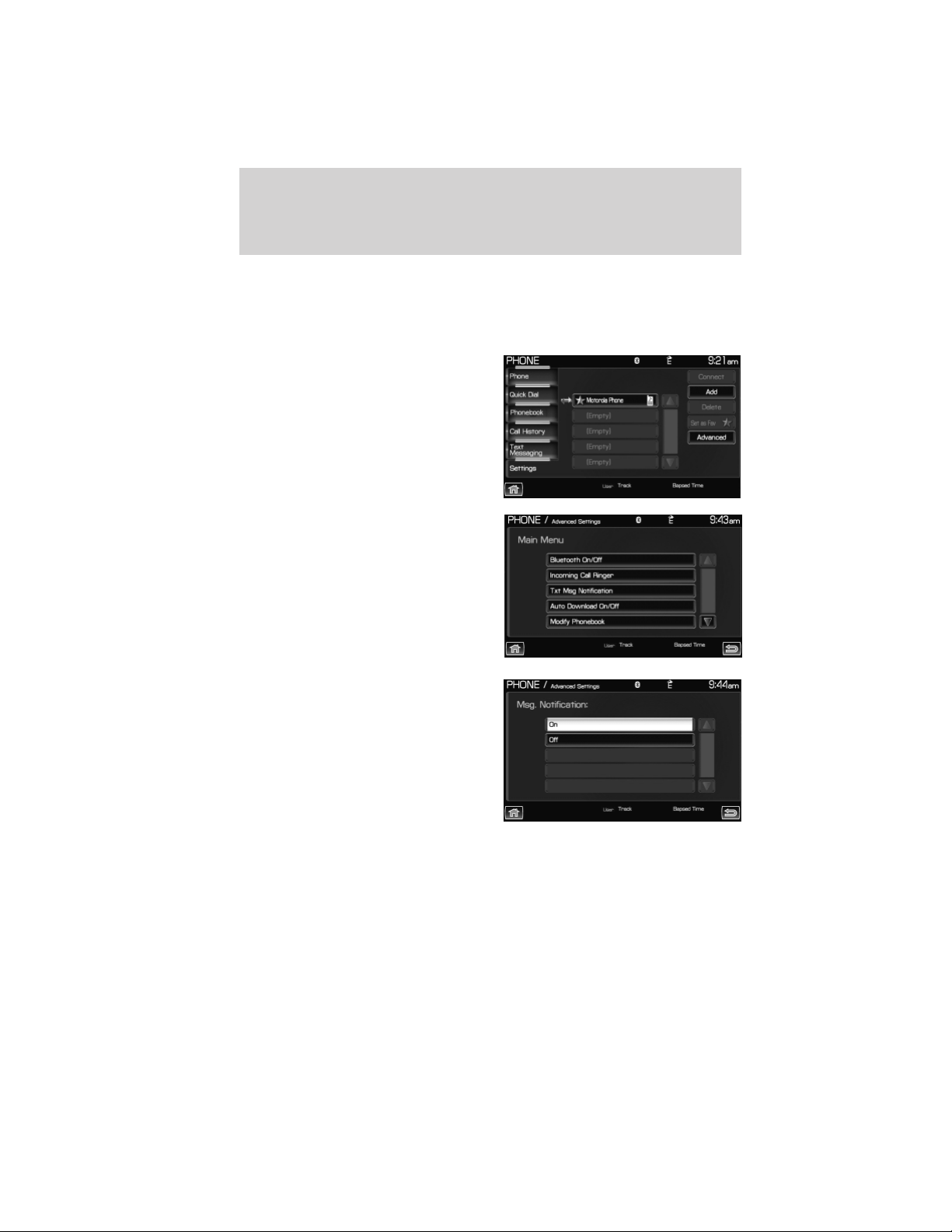
Turning the text message notification on/off
You can choose to turn SYNC威’s text message notification on or off. To
access:
1. Press the PHONE hard button.
2. Select the ‘Settings’ tab on the
touchscreen.
3. Select ‘Advanced’.
4. Select ‘Txt Msg Notification’ and
turn the feature on or off.
Select ‘On’ to turn text message
notification on. With notifications
turned on, an audible tone sounds
during an incoming text message
and response options appear in the
display (i.e., view the message, have
the system read the message aloud,
dial the person sending the message
or cancel).
Select ‘Off’ to turn text notifications
off. With notifications turned off, you will not be notified by a tone and
the incoming text message will not appear on screen.
SYNC姞 phone features (if equipped)
80
See End User License Agreement at the end of this book
2012 Centerstack (ng1)
Supplement, 1st Printing
Arabic_(LHD) (gc_lhd)
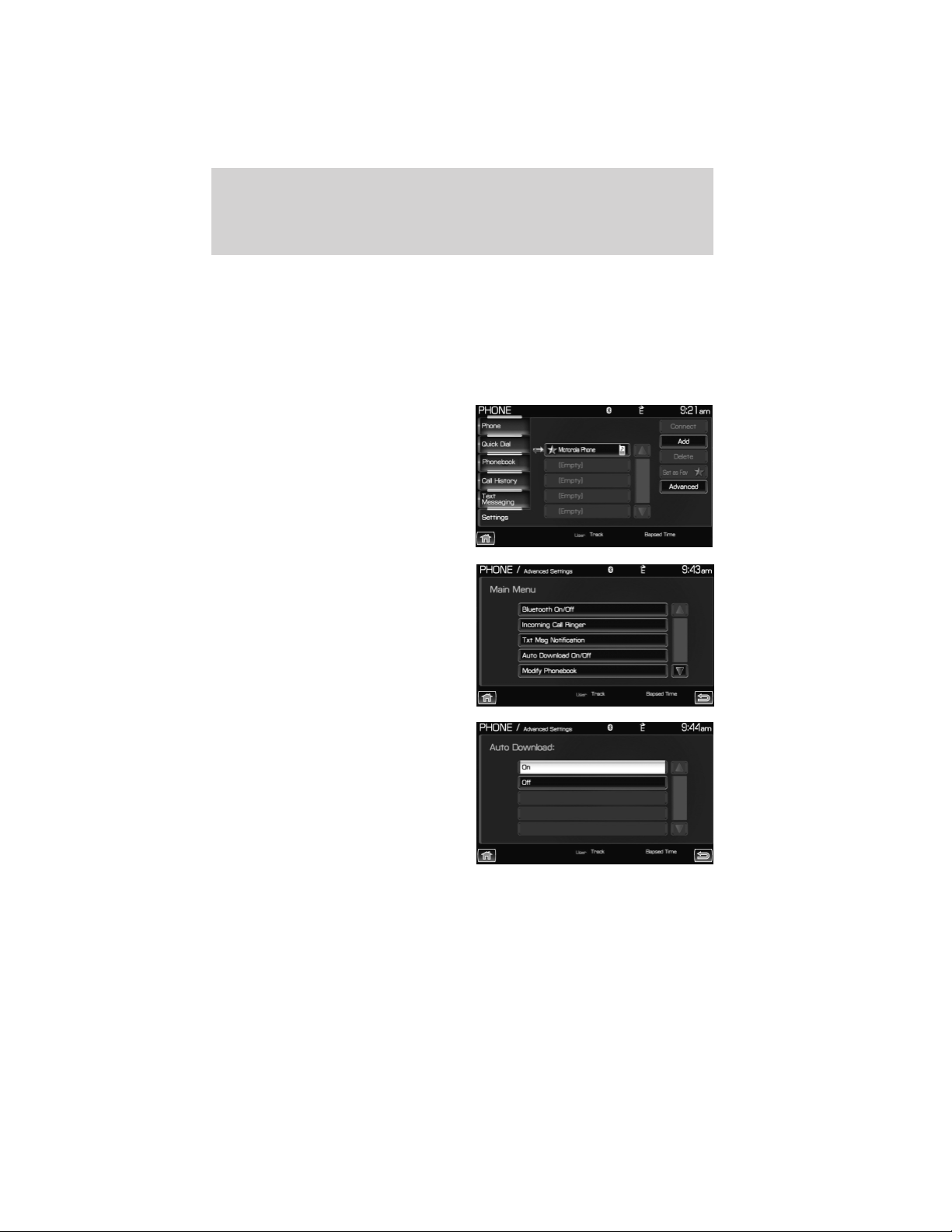
Selecting automatic downloading
If you choose, SYNC威 will automatically download your phone book and
call history from your connected Bluetooth enabled cellular phone upon
every connection cycle. This automatic download will overwrite your
existing phone book and call history stored in SYNC威.
To access:
1. Press the PHONE hard button.
2. Select the ‘Settings’ tab on the
touchscreen.
3. Select ‘Advanced’.
4. Select ‘Auto Download On/Off’.
5. Select ‘On’ or ‘Off’.
SYNC姞 phone features (if equipped)
81
See End User License Agreement at the end of this book
2012 Centerstack (ng1)
Supplement, 1st Printing
Arabic_(LHD) (gc_lhd)
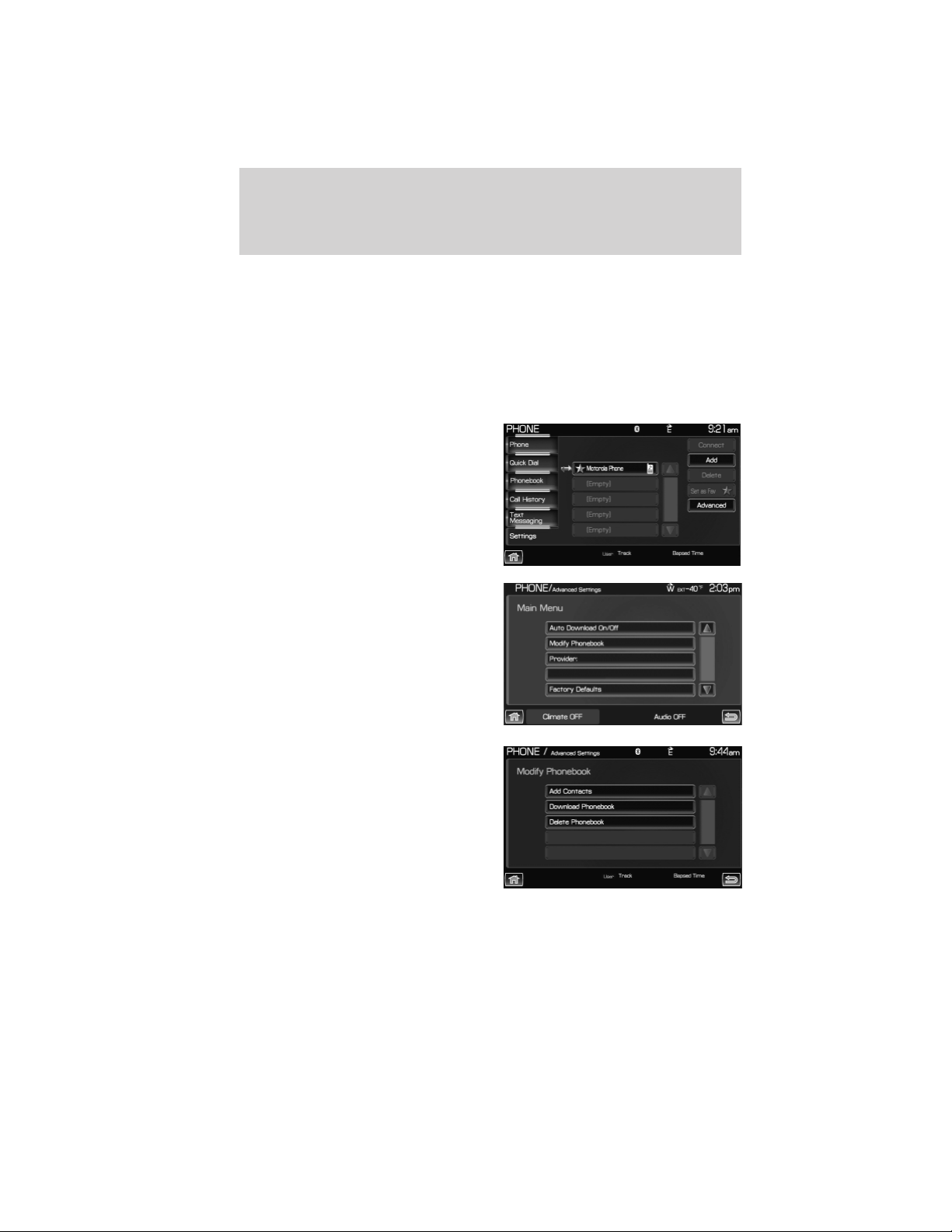
Modifying your phone book and call history
SYNC威 allows you to add contacts as well as download and delete your
phone book/call history.
Note: Erasing a contact or all contacts in your phone book/call history in
your SYNC威 system will NOT erase any information in your cellular
phone.
To access:
1. Press the PHONE hard button.
2. Select the ‘Settings’ tab on the
touchscreen.
3. Press ‘Advanced’.
4. Select ‘Modify Phonebook’ and
select from:
ADD CONTACTS: Select to ‘push’
contacts from your Bluetooth
enabled cellular phone. SYNC威 will
prompt you to send the contacts
from your phone. When successfully
sent, the display will read XXX
CONTACTS RECEIVED FINISHED?
Press YES if you are finished or
press NO if you wish to send more
contacts to SYNC威.
Note: Pushing contacts via Bluetooth is a phone dependent feature.
Refer to your phone’s user guide for instructions.
Candidate List
SYNC姞 phone features (if equipped)
82
See End User License Agreement at the end of this book
2012 Centerstack (ng1)
Supplement, 1st Printing
Arabic_(LHD) (gc_lhd)
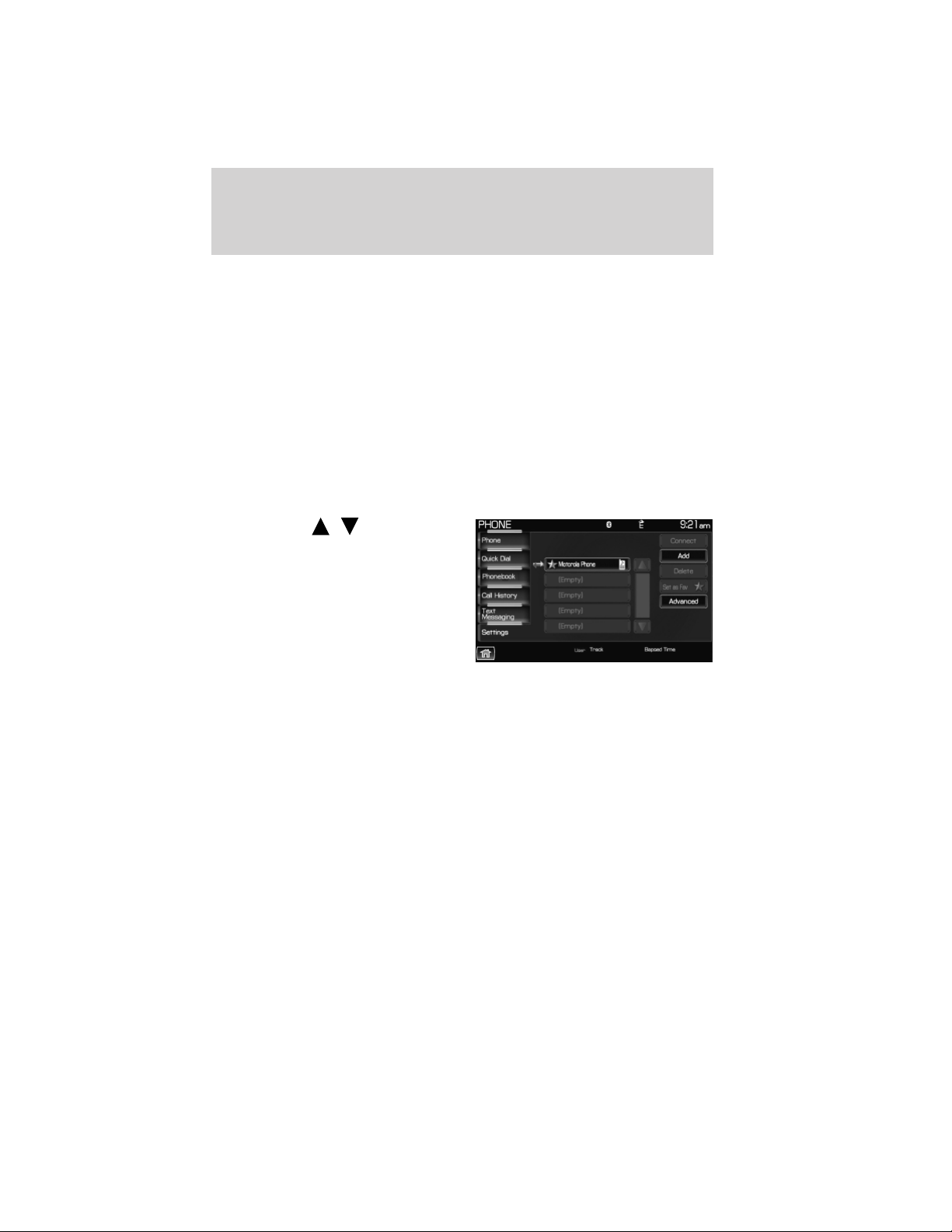
DOWNLOAD PHONE BOOK / CALL HISTORY: Select YES to
automatically download the phone book/call history from your currently
connected Bluetooth enabled cellular phone. Select NO and the system
will not perform this function upon every connection cycle.
DELETE PHONE BOOK / CALL HISTORY: Select YES to delete the
entire phone book/call history from SYNC威.
Note: This function will NOT delete any information from your
connected Bluetooth enabled cellular phone.
Viewing your phone’s provider
Note: This is a phone dependent feature.
To view your phone’s provider through SYNC威:
1. Press the PHONE hard button.
2. Scroll using
/ on the
touchscreen until ‘Provider’ appears.
Candidate lists
SYNC威 is equipped with an advanced voice recognition system which can
perform a multitude of tasks. For example, SYNC威’s voice recognition
system will ask for clarification if it does not have a high level of
confidence in what was spoken. The level of feedback which SYNC威
provides can be adjusted. You can choose a higher level of verbal
prompts for more guidance or you can choose to simply hear the
prompts when the system needs direction.
To access:
1. Press the PHONE hard button.
SYNC姞 phone features (if equipped)
83
See End User License Agreement at the end of this book
2012 Centerstack (ng1)
Supplement, 1st Printing
Arabic_(LHD) (gc_lhd)
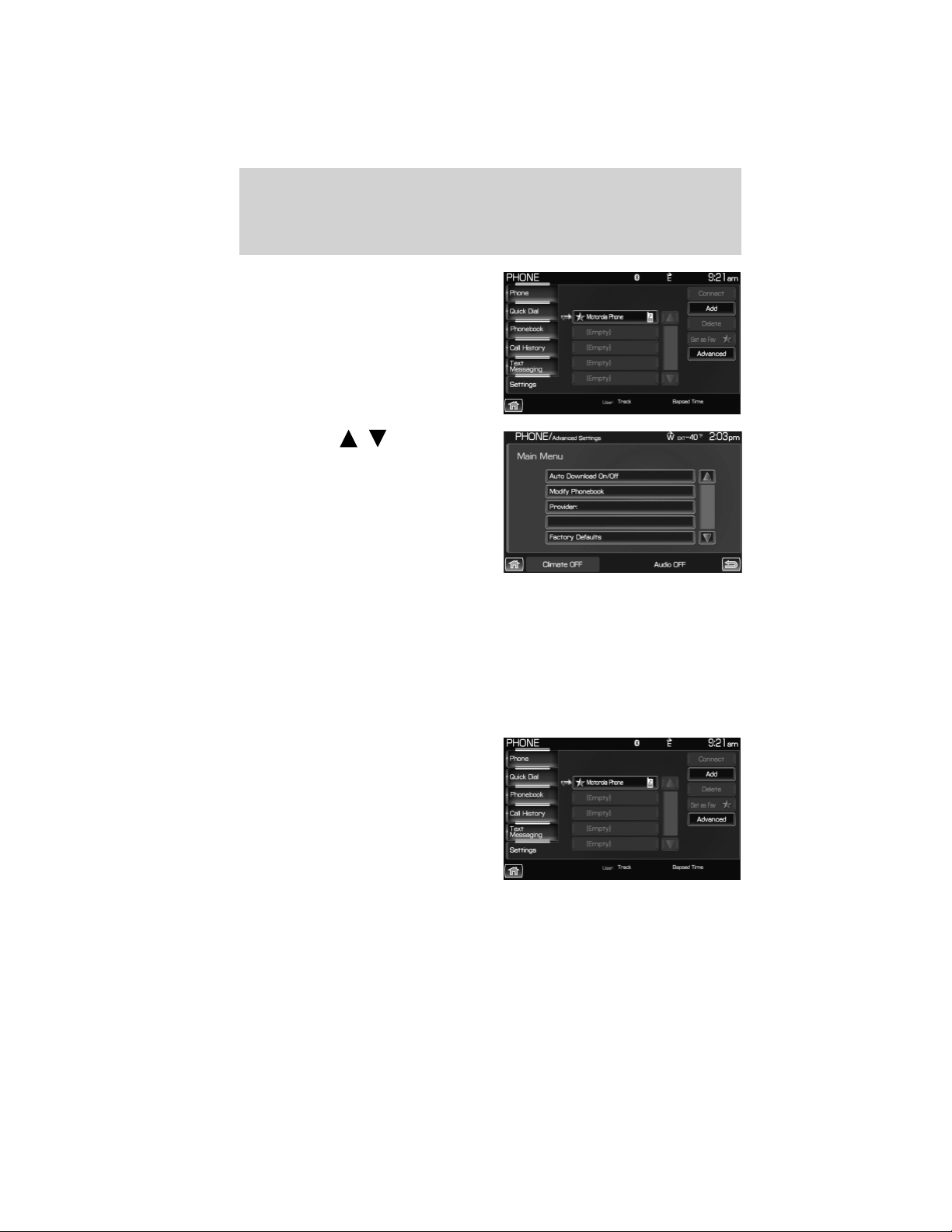
2. Select the ‘Settings’ tab on the
touchscreen.
3. Press ‘Advanced’.
4. Scroll using
/ on the
touchscreen and select ‘Candidate
Lists’.
5. Select ‘On’ for a higher level of
voice interaction or ‘Off’ to turn off
the voice prompts.
Returning to the factory default settings
SYNC威 allows you to return to its factory default settings. This selection
will not erase your downloaded phone book/call history, text messages,
etc. If you wish to erase all information, refer to Performing a master
reset in the following section.
To access:
1. Press the PHONE hard button.
2. Select the ‘Settings’ tab on the
touchscreen.
3. Select ‘Advanced’.
Candidate List
SYNC姞 phone features (if equipped)
84
See End User License Agreement at the end of this book
2012 Centerstack (ng1)
Supplement, 1st Printing
Arabic_(LHD) (gc_lhd)

4. Scroll using / on the
touchscreen and select ‘Factory
Defaults’.
5. SYNC威 will ask you to confirm
your selection. Press YES and the
system will confirm ‘Factory
Defaults Reset’.
Performing a master reset
Performing a master reset will not only return all preference settings to
the factory defaults, but it will also completely erase all phone book, call
history and text messages previously downloaded to SYNC威. To access:
1. Press the PHONE hard button.
2. Select the ‘Settings’ tab on the
touchscreen.
3. Select ‘Advanced’.
4. Scroll using
/ on the
touchscreen and select ‘Master
Reset’.
5. SYNC威 will ask you to confirm.
Press YES to continue.
SYNC威 will confirm when the
master reset is complete.
Candidate List
SYNC姞 phone features (if equipped)
85
See End User License Agreement at the end of this book
2012 Centerstack (ng1)
Supplement, 1st Printing
Arabic_(LHD) (gc_lhd)
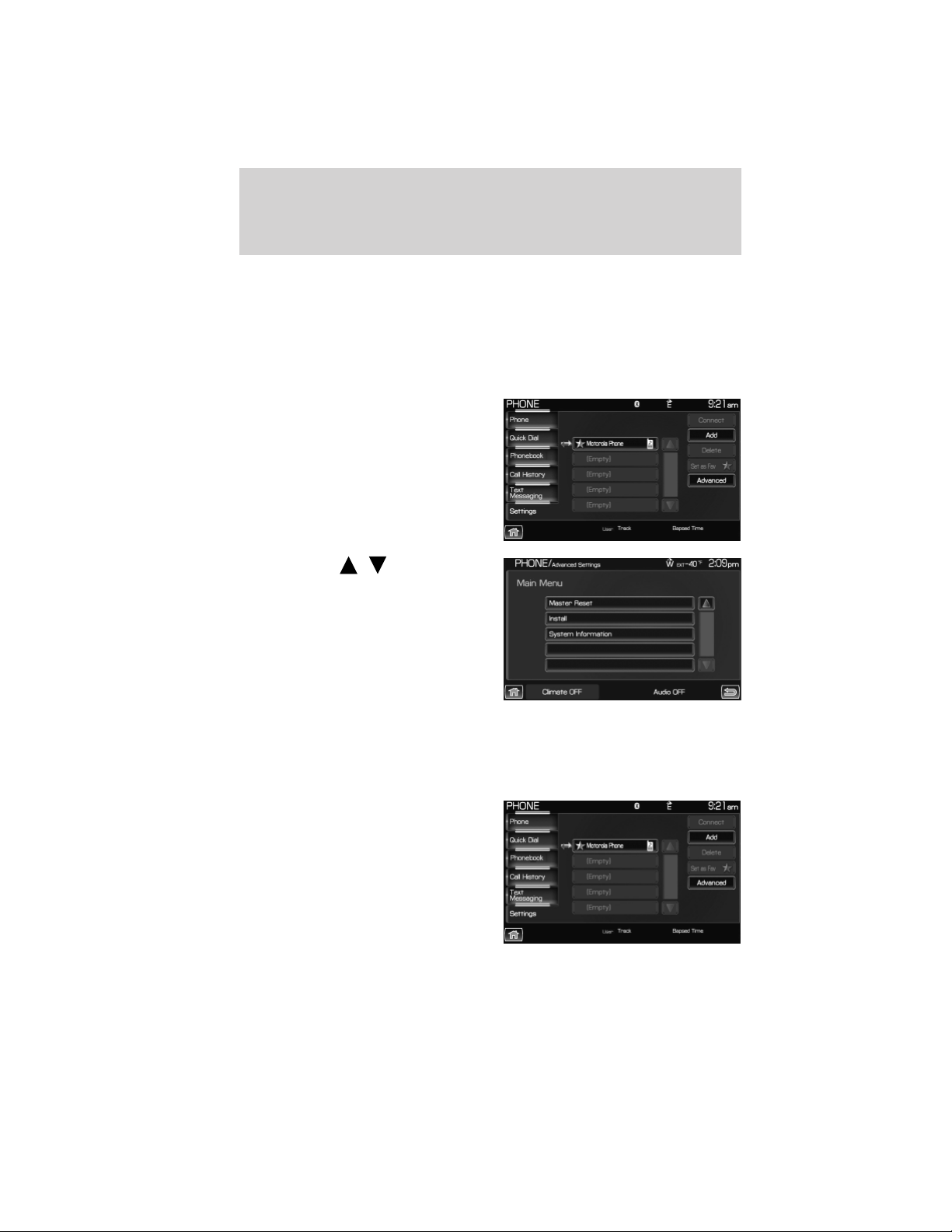
Installing a new application
You can download new software applications (if available) and then load
the desired applications onto SYNC威 through your USB port. Please refer
to www.SyncMyRide.com for more information.
To install any downloaded software:
1. Press the PHONE hard button.
2. Select the ‘Settings’ tab on the
touchscreen.
3. Select ‘Advanced’.
4. Scroll using
/ on the
touchscreen and select ‘Install’.
Follow the prompts.
Accessing SYNC姞 system information
To access SYNC威 system information:
1. Press the PHONE hard button.
2. Select the ‘Settings’ tab on the
touchscreen.
3. Select ‘Advanced’.
SYNC姞 phone features (if equipped)
86
See End User License Agreement at the end of this book
2012 Centerstack (ng1)
Supplement, 1st Printing
Arabic_(LHD) (gc_lhd)

4. Scroll using / on the
touchscreen and select ‘System
Information’.
This screen will show you SYNC威’s
system information.
TEXT MESSAGING
Note: Downloading and sending text messages via Bluetooth are phone
dependent features.
Note: Certain features in text messaging are speed dependent and
cannot be completed when the vehicle is traveling at speeds over 3 mph
(5 km/h).
SYNC威 not only enables you to send and receive text messages via
Bluetooth, but SYNC威 will read them to you aloud and also translate
many popularly used text messaging acronyms such as “lol”. SYNC威 also
allows you to respond with a list of predefined messages.
To access:
1. Press the PHONE hard button.
SYNC姞 phone features (if equipped)
87
See End User License Agreement at the end of this book
2012 Centerstack (ng1)
Supplement, 1st Printing
Arabic_(LHD) (gc_lhd)
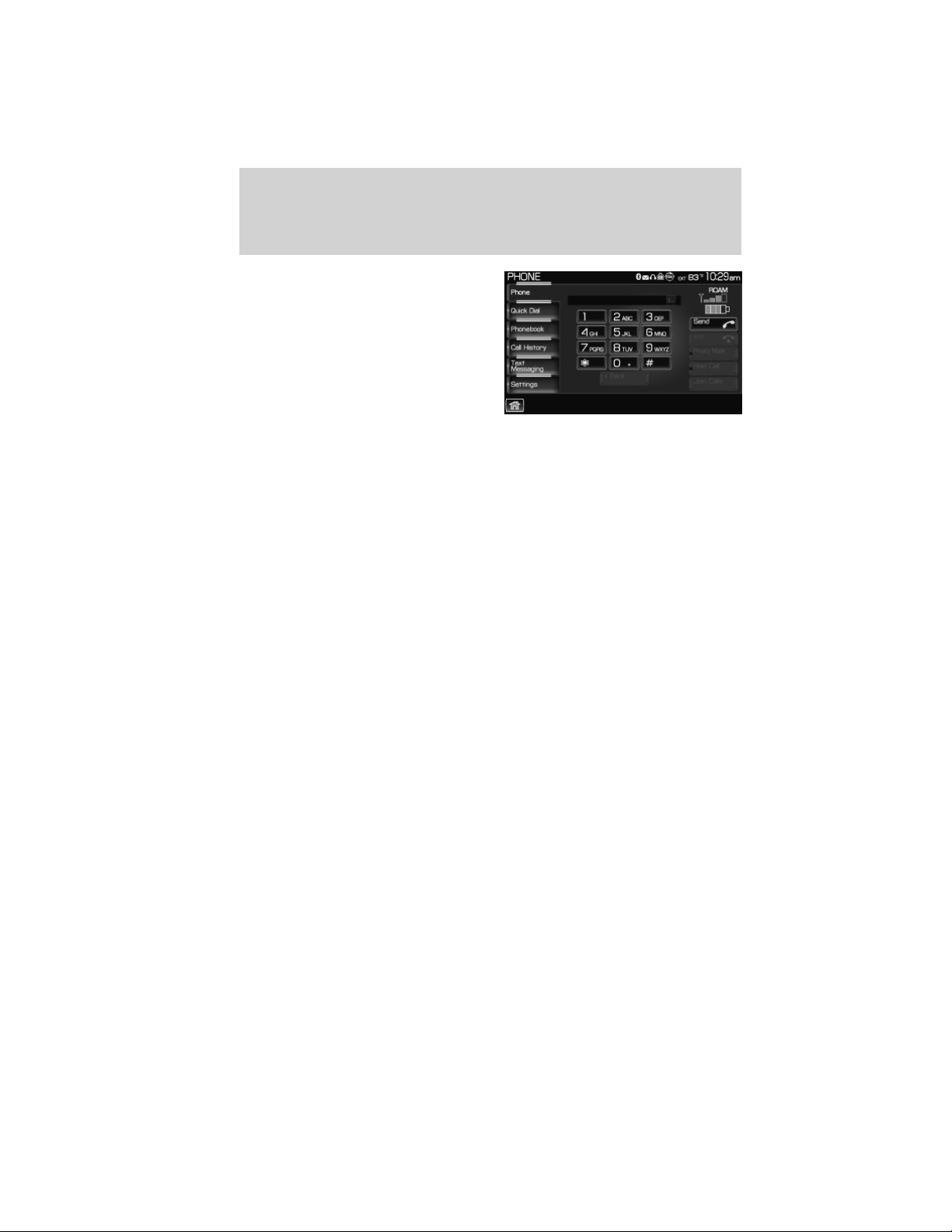
2. Select the ‘Text Message’ tab on
the touchscreen. SYNC威 will
automatically check to see if the
currently connected phone supports
text messaging. If it does not, this
screen will display.
3. If your phone is equipped for text messaging, SYNC威 will take you to
the text messaging screen. From this screen you will be able to select
from the following options:
View: Select the desired text message and press VIEW to view the text
message.
Note: For your safety, this is a speed dependent feature.
Listen: Select desired message and press LISTEN to have the system
read the text message to you aloud.
Compose: Select to compose a new text message.
Note: For your safety, this is a speed dependent feature.
Delete All: Select to delete all text messages from SYNC威.
Note: This will not delete all messages from your Bluetooth enabled
cellular phone.
Download: If your phone supports downloading text messages via
Bluetooth wireless technology, you can download your unread text
messages to SYNC威.
Note: SYNC威 does not download read text messages from your phone.
Receiving an incoming text message
When there is an incoming text message, an audible tone will sound and
the screen will display a pop up with the caller name and ID if supported
by your phone.
Press ‘View’ to view the text message.
Press ‘Listen’ for SYNC威 to read the message to you aloud.
Press ‘Reply’ to send a reply text message.
Press ‘Dial’ to call the contact.
Press ‘Cancel’ to exit the screen.
SYNC姞 phone features (if equipped)
88
See End User License Agreement at the end of this book
2012 Centerstack (ng1)
Supplement, 1st Printing
Arabic_(LHD) (gc_lhd)
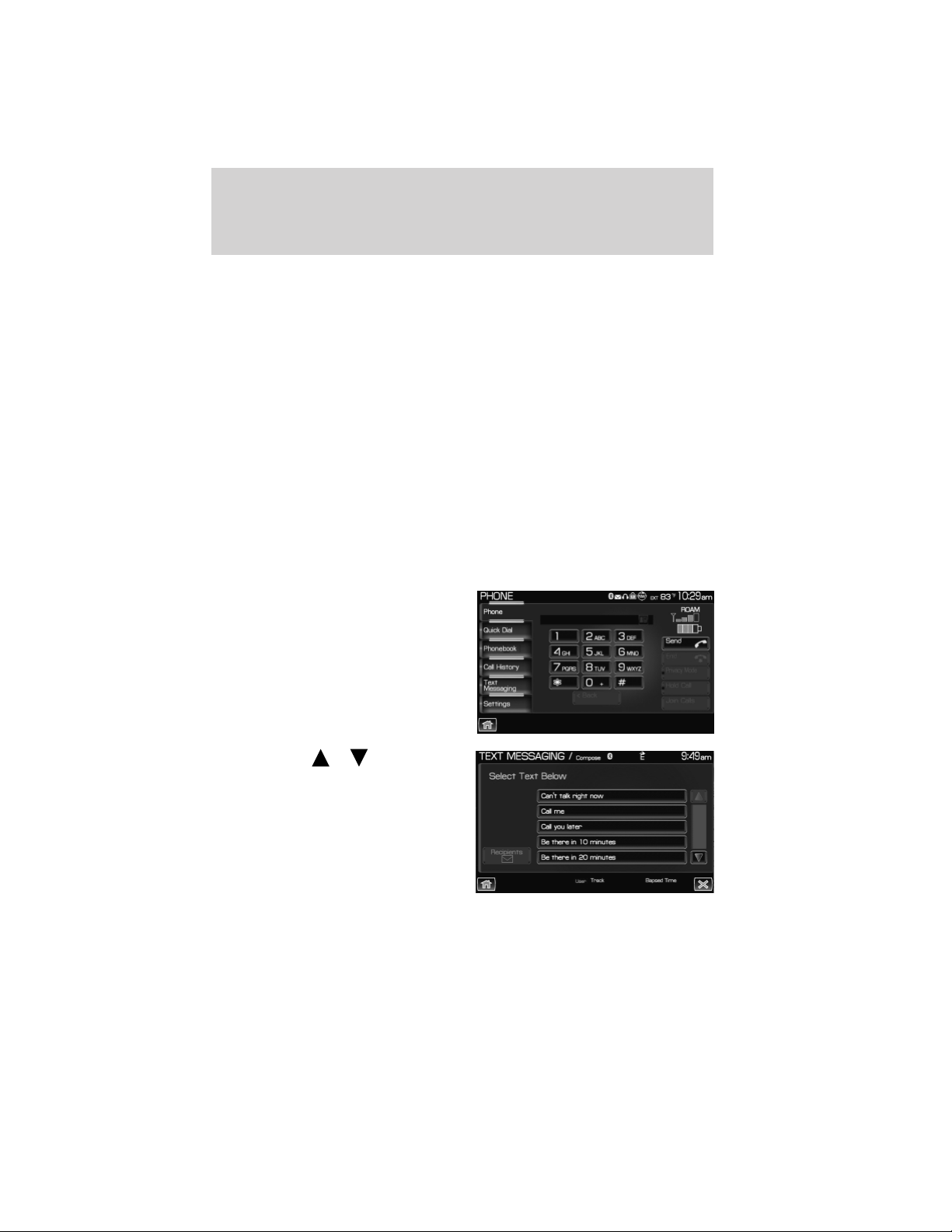
From the ‘View’ screen, you can then choose to:
• Listen as SYNC威 reads the message to you aloud.
• Compose your own message.
Note: This is a speed dependent feature.
• Reply to the message.
Note: This is a speed dependent feature.
• Forward the text message to someone in your phone book or to a
phone number.
Note: This is a speed dependent feature.
Sending a text message
Note: Sending text messages via Bluetooth is a phone dependent
feature.
Note: This is a speed dependent feature and cannot be completed when
the vehicle is traveling at speeds over 3 mph (5 km/h).
1. Press the PHONE hard button.
2. Select the ‘Text Message’ tab on
the touchscreen.
3. Press ‘Compose’.
4. Scroll using
/ on the
touchscreen to cycle through a list
of 15 predefined text messages you
can send from SYNC威.
• Can’t talk right now
• Call me
• Call you later
• Be there in 10 minutes
• Be there in 20 minutes
SYNC姞 phone features (if equipped)
89
See End User License Agreement at the end of this book
2012 Centerstack (ng1)
Supplement, 1st Printing
Arabic_(LHD) (gc_lhd)
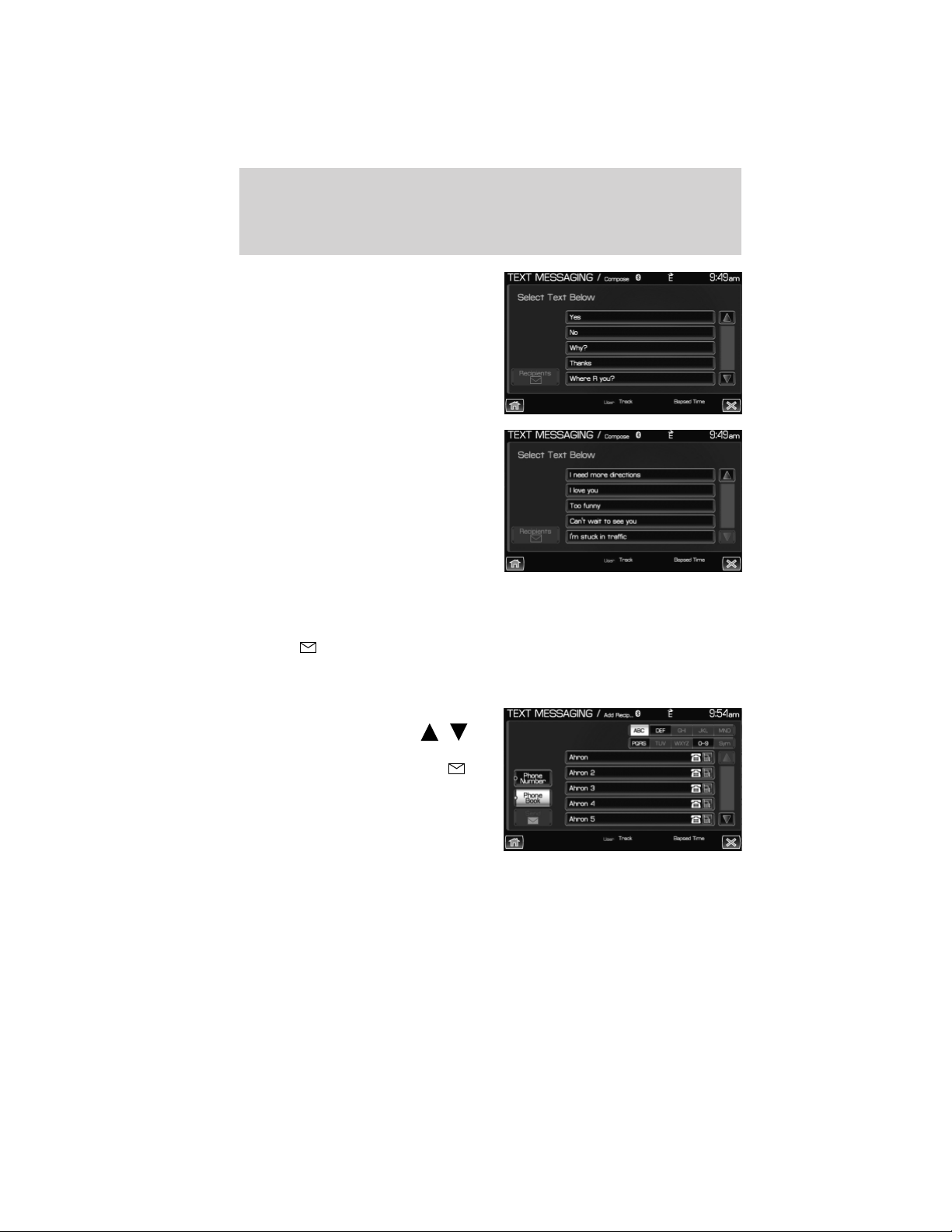
• Yes
• No
• Why?
• Thanks
• Where R you?
• I need more directions
• I love you
• Too funny
• Can’t wait to see you
• I’m stuck in traffic
5. Select the desired text message. In addition to your text, the message
will also contain a signature of : “This message was sent from my Ford
or Lincoln vehicle.”
6. Press
Recipients. SYNC威 will now allow you to choose to whom
you would like to send your text message.
Note: Only one recipient per text message is allowed.
7. Press ‘Phone Book’ to access your
phone book listings. Press
/
to cycle through the contacts. Press
the desired contact and press
Send.
Note: For quicker browsing, SYNC威 will only make available the quick
sort buttons for the respective downloaded phone book contacts.
SYNC姞 phone features (if equipped)
90
See End User License Agreement at the end of this book
2012 Centerstack (ng1)
Supplement, 1st Printing
Arabic_(LHD) (gc_lhd)
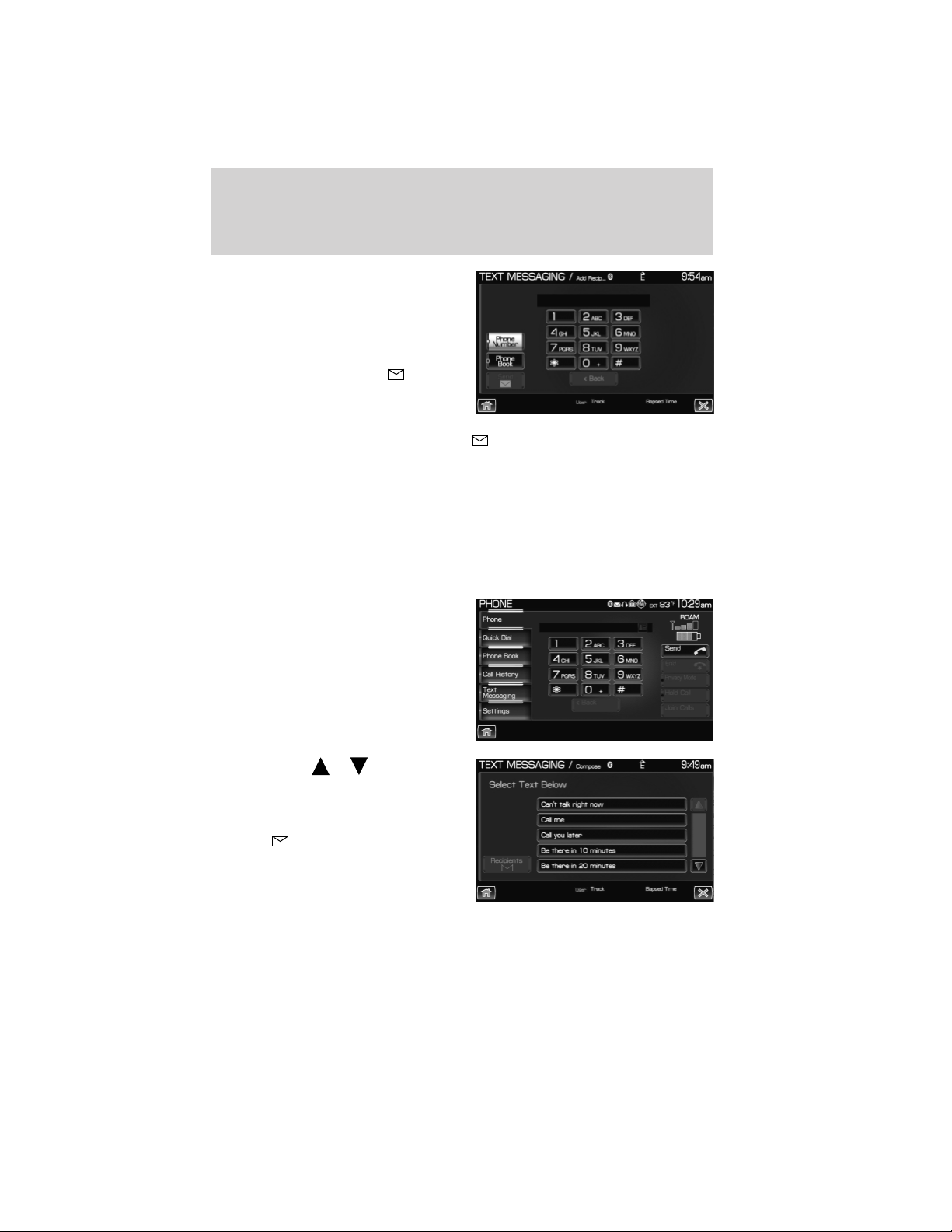
Press ‘Phone Number’ to send your
text message to a phone number
(which is not listed with a contact
in your phone book/call history).
Use the dial pad to manually enter
the desired number. Once the
number is entered, press
Send.
SYNC威 will ask you to confirm. Press
Send.
Forwarding a text message
Note: Forwarding text messages via Bluetooth is a phone dependent
feature.
Note: This is a speed dependent feature and cannot be completed when
the vehicle is traveling at speeds over 3 mph (5 km/h).
1. Press the PHONE hard button.
2. Select the ‘Text Message’ tab on
the touchscreen.
3. Select ‘Compose’.
4. Scroll using
/ on the
touchscreen to select one of
SYNC威’s 15 predefined text
messages.
5. Press
Recipients. SYNC威 will
now allow you to choose to whom
you would like to send your text
message.
Note: Only one recipient per text
message is allowed.
SYNC姞 phone features (if equipped)
91
See End User License Agreement at the end of this book
2012 Centerstack (ng1)
Supplement, 1st Printing
Arabic_(LHD) (gc_lhd)
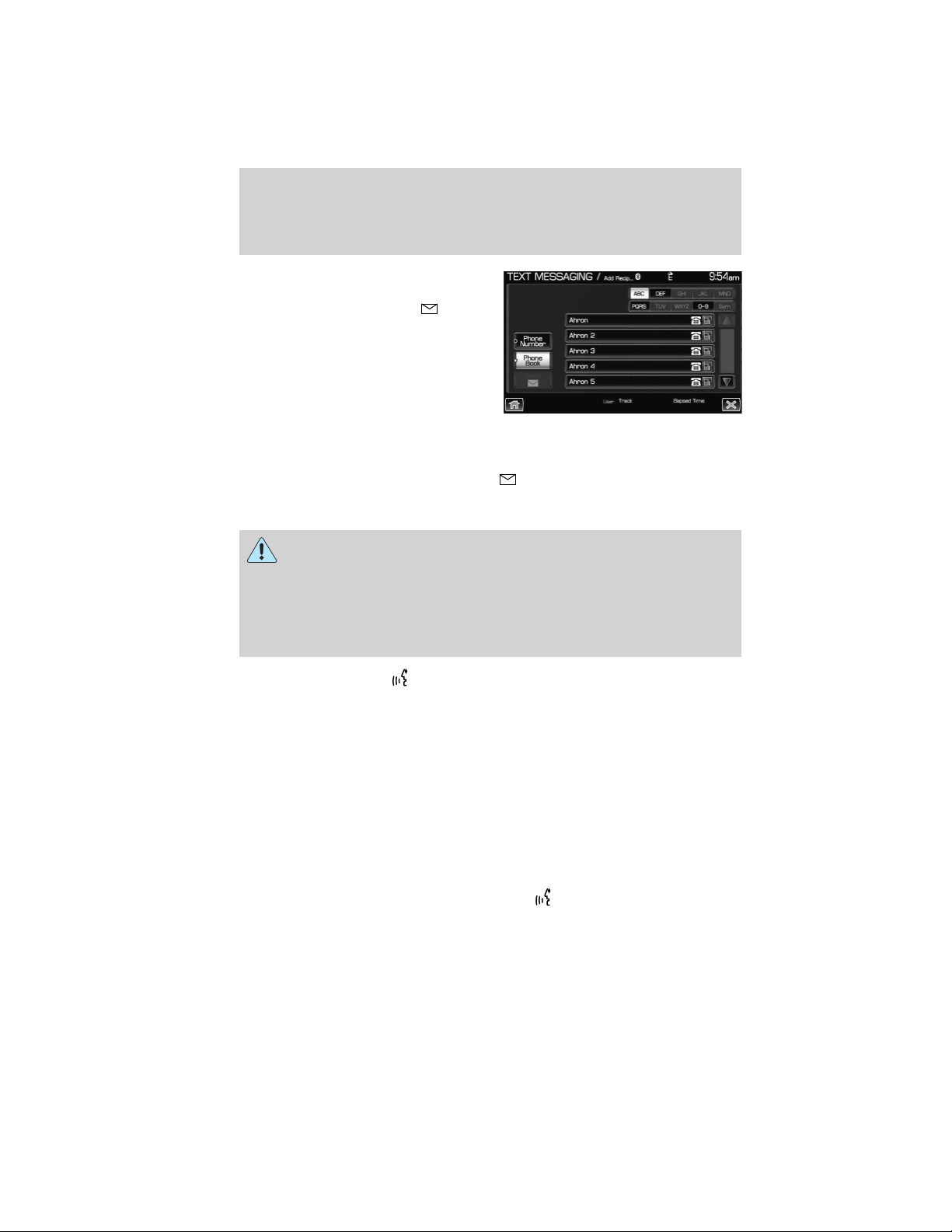
6. Press ‘Phone Book’ to access your
phone book contacts. Select the
desired contact and press Send.
Note: For quicker browsing, SYNC威 will only make available the quick
sort buttons for the respective downloaded phone book contacts.
SYNC威 will ask you to confirm. Press
Send.
VOICE COMMANDS IN PHONE MODE
WARNING: Driving while distracted can result in loss of vehicle
control, accident and injury. Ford strongly recommends that
drivers use extreme caution when using any device or feature that may
take their focus off the road. Your primary responsibility is the safe
operation of the vehicle. We recommend against the use of any
handheld device while driving and that you comply with all applicable
laws.
In phone mode, press
or VOICE on the steering wheel controls.
When prompted, you may say any of the following commands:
• Dial • Call <name>
• Call <name> at home • Call <name> on mobile OR cell
• Call <name> at work OR Call
<name> in office
• Call <name> on other
Note: In the above possible commands, “<name>” is a dynamic listing in
that it could be any desired name from your phone book, call history,
etc.
Note: With the above commands, words in()areoptional and do not
have to be spoken for the system to understand the command.
Note: If you are not in phone mode, press
or VOICE on the steering
wheel controls. When prompted, say, “Phone” and then any of the above
commands.
SYNC姞 phone features (if equipped)
92
See End User License Agreement at the end of this book
2012 Centerstack (ng1)
Supplement, 1st Printing
Arabic_(LHD) (gc_lhd)

In phone mode, you can say “Dial” to access any of the following
commands:
• <number> 0–9 • Dial
• Delete (deletes one digit) • Clear (deletes all entered digits)
• Plus • Star
• Asterisk (*) • 800 (eight hundred)
• 700 (seven hundred) • 900 (nine hundred)
• 411 (four-one-one), 911
(nine-one-one), etc.
• # / (pound, slash)
In phone mode, you may say these commands at any time:
• Phone • Voice settings
• Exit • Help
In voice settings mode, you may say:
• Phone candidate lists on • Phone candidate lists off
Phone candidate lists are a list of possible results from your voice
commands. These occur when SYNC has equal confidence of several
possible results from your voice command.
Clarification through candidate lists
Candidate lists are created when the system has several possible options
of similar level of confidence as a result of your request. The system will
submit back to you as many as five possibilities for your clarification.
This may happen either with your phone book and/or music selections.
Example #1:
You want to call John Doe at home, so you say, “Call John Doe at home”.
If the system has a similar confidence level for a few items, it may
respond with:
• (initial tone) “Say 1 after the tone to call John Doe at home. Say 2
after the tone to call Johnny Doe on mobile. Say 3 after the tone to
call Jane Doe at home.” (listen tone)
Example #2:
You want to listen to a certain artist, so you say, “Play Artist John”. If the
system has a similar confidence level for two possible options, it may
respond with:
• (initial tone) “Say 1 after the tone to play John Doe. Say 2 after the
tone to play Johnny Doe.” (listen tone)
SYNC姞 phone features (if equipped)
93
See End User License Agreement at the end of this book
2012 Centerstack (ng1)
Supplement, 1st Printing
Arabic_(LHD) (gc_lhd)
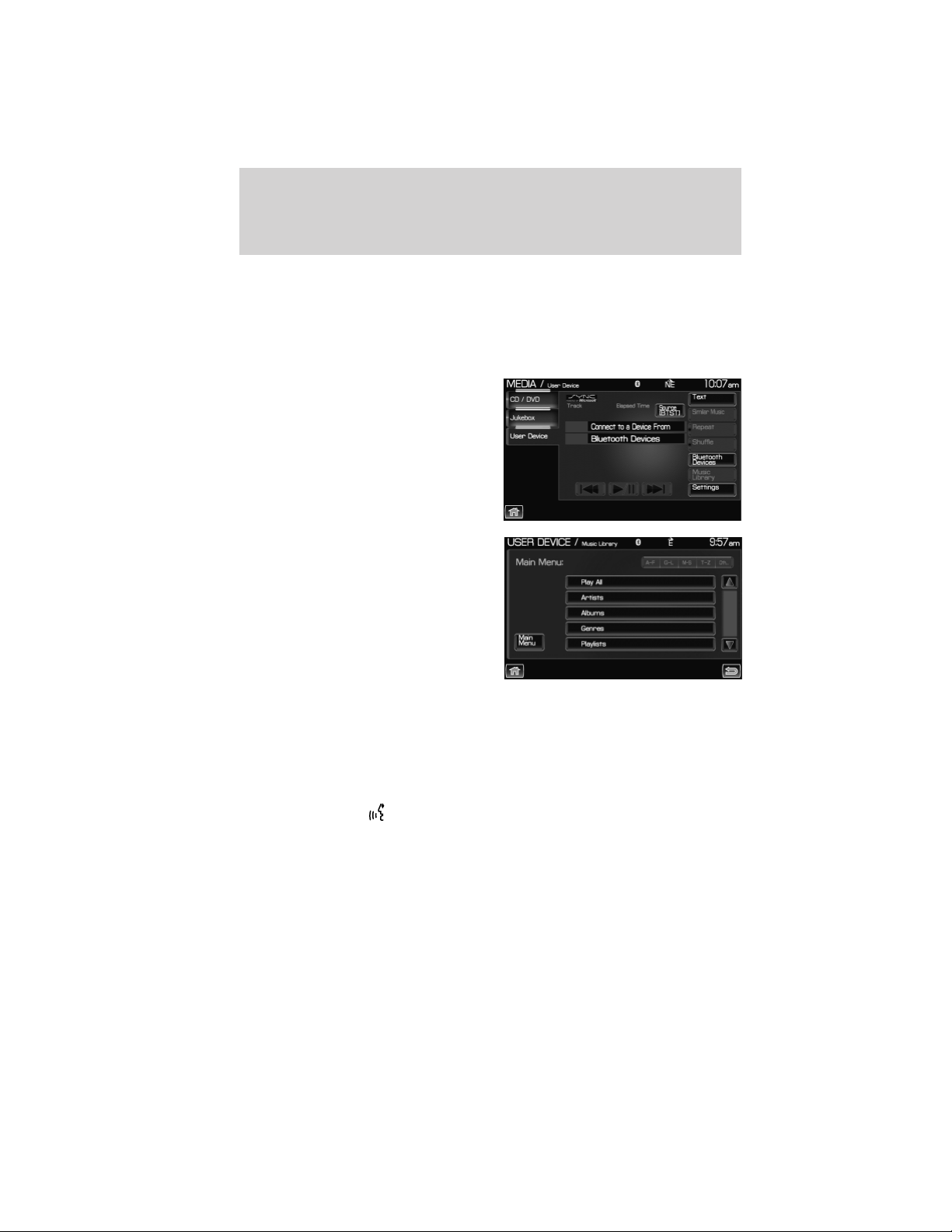
CONNECTING YOUR DIGITAL MEDIA PLAYER TO SYNC姞
1. Ensure that the vehicle and the system are ON.
2. Plug the media device into the USB port and ensure that the device is
ON. (Refer to your vehicle’s Owner’s guide for exact USB port location.)
3. Press the MEDIA hard button on the system.
4. Select the ‘User Device’ tab.
5. Press ‘Source’ repeatedly until
USB appears.
6. Press ‘Music Library’.
7. Select from the listed features.
Please refer to Using the Media
Music Library later in this chapter.
CONNECTING YOUR DIGITAL MEDIA PLAYER TO SYNC姞 VIA
VOICE COMMANDS
1. Ensure that the vehicle and the system are ON.
2. Plug the media device into the USB port and ensure that the device is
ON. (Refer to your vehicle’s Owner’s guide for exact USB port location.)
3. Press VOICE or
. SYNC威 will say, “ Main menu” and the listening
icon will appear in the display.
4. Say “User Device”. The system will say, “USB, please say a command.”
SYNC威 will begin indexing the music media when the device is plugged
into the USB port. If your digital media player contains many media files,
INDEXING may appear in the display. When the indexing process is
complete, you may access the media content in your digital media player
using voice commands.
SYNC姞 media features (if equipped)
94
See End User License Agreement at the end of this book
2012 Centerstack (ng1)
Supplement, 1st Printing
Arabic_(LHD) (gc_lhd)

5. Once the music is indexed, you can play music on your digital media
player by saying any of the following commands:
• Play All
• Play Artist <name>
• Play Album <name>
• Play Genre <name>
• Play Playlist <name>
• Play track <name>
SYNC姞 MEDIA SOURCES AND FEATURES
The ‘User Device’ tab provides you access and control over the SYNC威
media sources: USB, BT AUDIO and LINE IN. Once you choose which
SYNC威 media source you would like to listen to, you can then use
SYNC威’s many other features to make playing adjustments.
To access:
1. Ensure that your playing device is plugged into the USB port or
Auxiliary input jack (LINE IN) and your device is on.
Note: If you already have a device connected to the USB port, you
cannot access the LINE IN feature. Some digital media players require
both USB and LINE IN ports to stream data and music separately.
2. Press the MEDIA hard button on the system.
3. Select the ‘Users Device’ tab on
the touchscreen.
4. Press ‘Source’ repeatedly to cycle
through the possible media sources
of USB, BT AUDIO and LINE IN.
You can also access the following
buttons:
• Music Library: Provides you access to SYNC威’s many media features,
such as: Play All, Play Artists, Play Albums, Play Tracks, Play Playlists,
and Explore the USB.
• Similar Music: In USB mode, select to have SYNC威 create a new
playlist of music similar to the currently playing track.
• Repeat: Select to repeat the current track in USB mode.
• Shuffle: Select to shuffle the current tracks in USB mode.
SYNC姞 media features (if equipped)
95
See End User License Agreement at the end of this book
2012 Centerstack (ng1)
Supplement, 1st Printing
Arabic_(LHD) (gc_lhd)

• Settings: Refer to Advanced settings in the SYNC威 phone features
chapter for information on how to make adjustments to the prompts,
language, master reset, factory defaults, etc.
• Text: Press to view additional information, if available.
What’s playing?
At any time while a track is playing, SYNC威 will read the metadata tags
of the track to you (if populated). Simply press
or VOICE. A tone
will sound and SYNC威 will say “Main menu”. Say “USER DEVICE” and,
when prompted, ask “What’s playing?”
Supported media players, formats and metadata information
SYNC威 is capable of hosting nearly any digital media player, including
iPod威, Zune™, “Plays from device” players, and most USB drives.
Supported audio formats include MP3, WMA, WAV and AAC.
SYNC威 is also able to organize and sort your indexed media from your
playing device by metadata tags. Metadata tags are descriptive software
identifiers embedded in your media files which provide information about
the media file. SYNC威 supports the following metadata tags:
• Artist
• Album
• Genre
• Track
If your indexed media files contain no information embedded in these
metadata tags, SYNC威 will automatically classify the empty metadata tags
as UNKNOWN.
ACCESSING AND USING YOUR USB PORT
Your vehicle is equipped with a USB port. (For exact location, refer to
your vehicle’s Owner’s guide). You can use the USB port to plug in and
access media devices as well as charge devices (if supported by your
device). For a list of compatible media players, refer to
www.SyncMyRide.com.
Note: Since your USB port allows you to charge your device (if
supported by your device), SYNC威 will not automatically change media
modes when something is initially plugged into the USB port. To access:
1. Ensure that your digital playing device is plugged into the USB and is
ON.
2. Press the MEDIA hard button on the system.
SYNC姞 media features (if equipped)
96
See End User License Agreement at the end of this book
2012 Centerstack (ng1)
Supplement, 1st Printing
Arabic_(LHD) (gc_lhd)
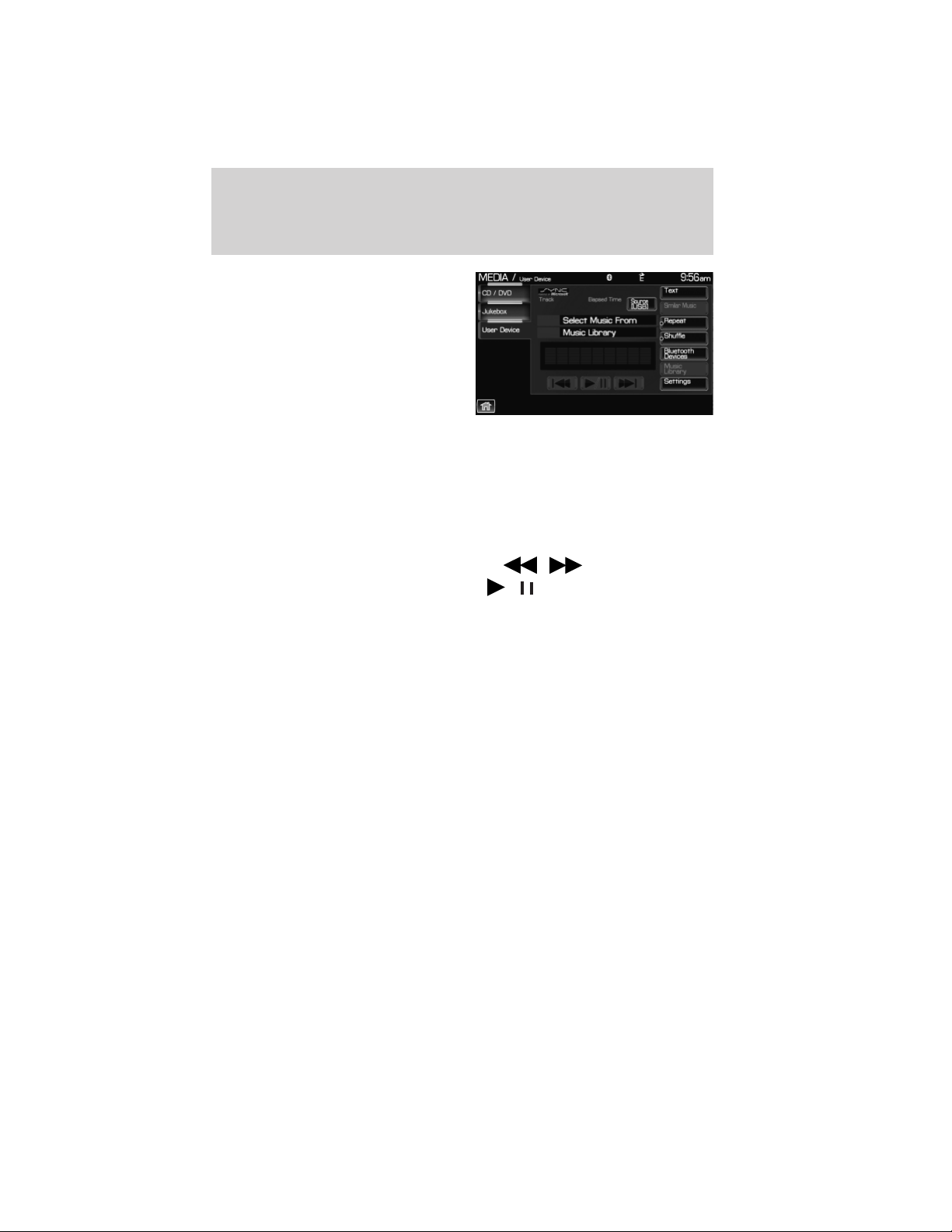
3. Select the ‘User Device’ tab.
4. Press ‘Source’ repeatedly to until
USB appears in the line above
‘Source’.
If the connected device and media content is supported, SYNC威 will
begin indexing available media files. NO MEDIA will appear if there are
no readable media files for SYNC威 to play. If there are readable files,
INDEXING may appear. If Autoplay is ON, SYNC威 gives you the ability to
access media files randomly as they are indexed. If Autoplay is OFF,
indexed media is not available until the indexing process is complete.
After indexing is complete, INDEXED will appear.
Once indexing is complete, you may press
/ to access the
previous/next track. You may also press
/ to play/pause the
current track.
Note: SYNC威 is capable of indexing thousands of average size media
files. The time required to complete the indexing process is dependent
upon the size of the media content being indexed and the device itself.
If at any time the device is removed from the USB port, USB REMOVED
will appear.
STREAMING MUSIC FROM YOUR BLUETOOTH ENABLED PHONE
Note: This is a phone dependent feature. Refer to your phone’s user
guide for further information on how to stream Bluetooth audio.
SYNC威 allows you to stream music from your Bluetooth enabled cellular
phone to play through SYNC威. To access:
1. Ensure that the desired music is playing on your paired phone and
your phone is in Bluetooth audio streaming mode.
2. Press the MEDIA hard button on the system.
SYNC姞 media features (if equipped)
97
See End User License Agreement at the end of this book
2012 Centerstack (ng1)
Supplement, 1st Printing
Arabic_(LHD) (gc_lhd)
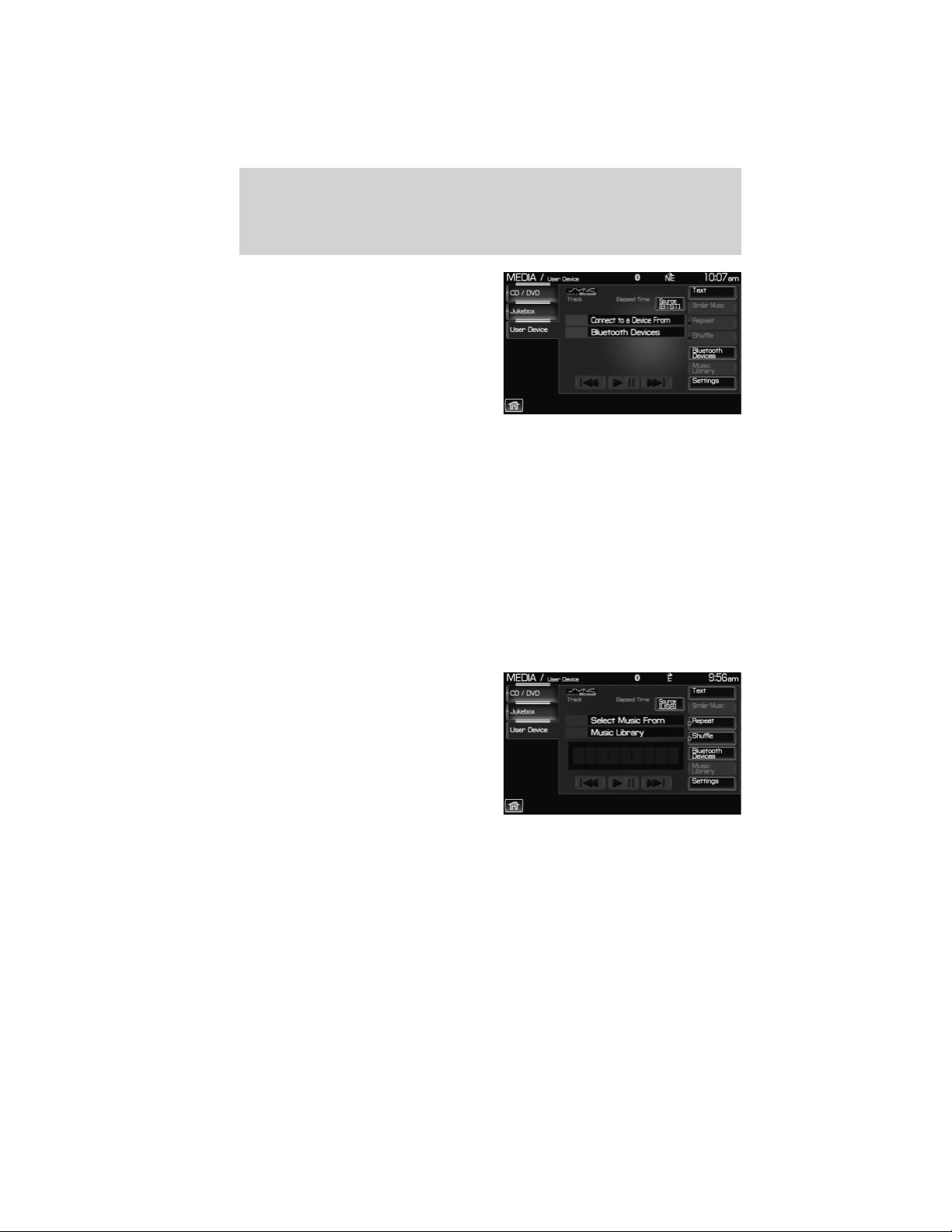
3. Select the ‘User Device’ tab on
the touchscreen.
4. Press SOURCE repeatedly to until
BT AUDIO appears in the line above
SOURCE.
USING LINE IN (AUXILIARY INPUT JACK) WITH SYNC姞
Your vehicle is equipped with an auxiliary input jack which allows you to
plug in and play your portable music player over the vehicle speakers.
For exact location of your auxiliary input jack, refer to your vehicle’s
Owner’s guide.
To access:
Note: If you already have a device connected to the USB port, you
cannot access the LINE IN feature. Some digital media players require
both USB and LINE IN ports to stream data and music separately.
1. Ensure that the desired device is plugged into the Auxiliary input jack
and is playing.
2. Press the MEDIA hard button on the system.
3. Select the ‘User Device’ tab on
the touchscreen.
4. Press ‘Source’ repeatedly to until
LINE IN appears in the display. The
music will begin to play over the
vehicle’s speakers.
SYNC姞 media features (if equipped)
98
See End User License Agreement at the end of this book
2012 Centerstack (ng1)
Supplement, 1st Printing
Arabic_(LHD) (gc_lhd)
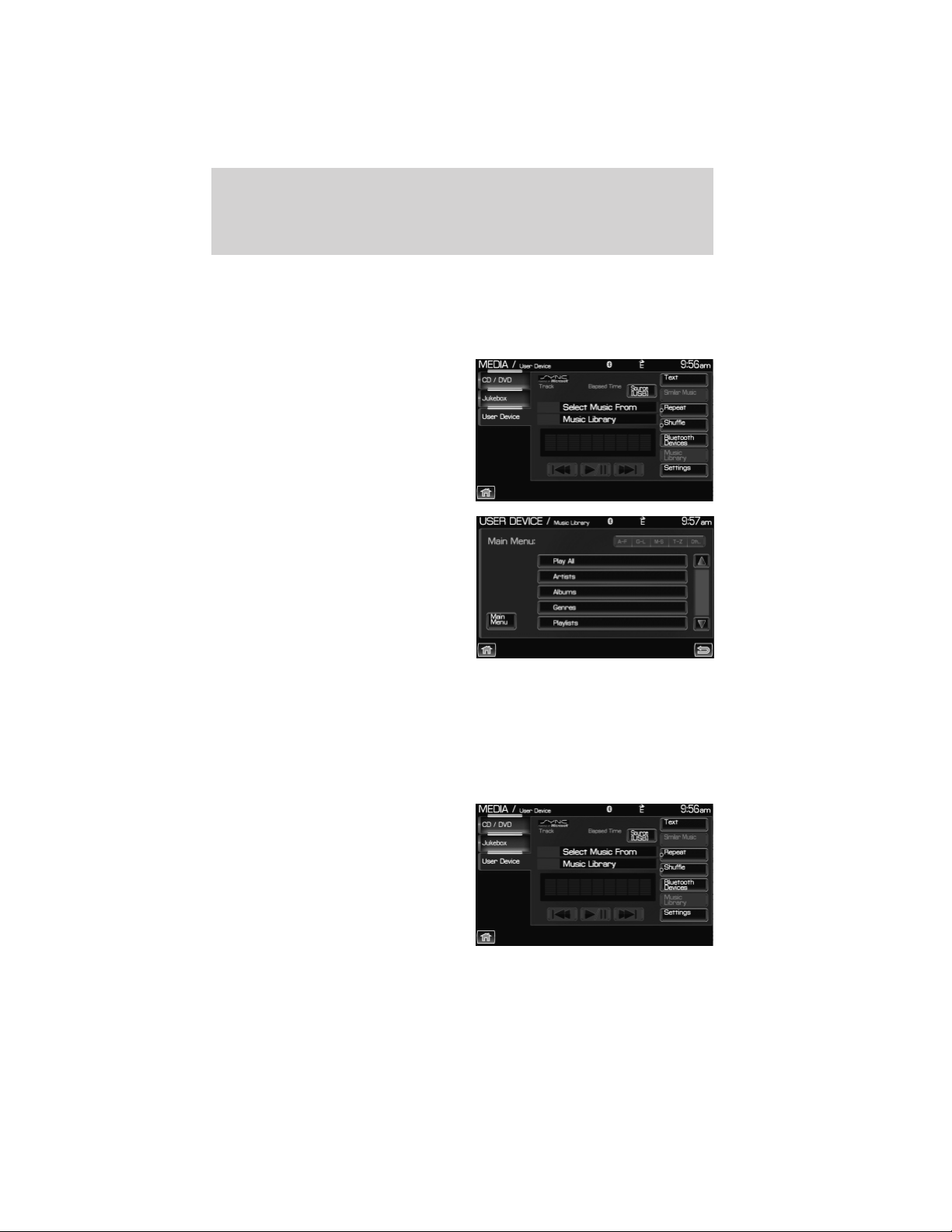
USING THE MEDIA MUSIC LIBRARY
Once your music has been indexed into SYNC威 through the USB port,
you can then use the many features of the media library. To access:
1. Press the MEDIA hard button on the system.
2. Select the ‘User Device’ tab on
the touchscreen. Press ‘Source’
repeatedly until USB appears in the
display.
3. Select ‘Music Library’.
From this screen, you can access
the following:
• Play All
• Artists
• Albums
• Genres
• Playlists
• Tracks
• Explore USB
Accessing the Play All feature
The Play All feature in SYNC威 will play all indexed media (tracks) from
your playing device in flat file mode, one at a time in alphabetical order.
To access:
1. Press the MEDIA hard button on the system.
2. Select the ‘User Device’ tab on
the touchscreen.
3. Press ‘Source’ repeatedly until
USB appears.
4. Press ‘Music Library’.
SYNC姞 media features (if equipped)
99
See End User License Agreement at the end of this book
2012 Centerstack (ng1)
Supplement, 1st Printing
Arabic_(LHD) (gc_lhd)

5. Scroll using / on the
touchscreen to select ‘Play All’.
Selecting and playing specific artists
SYNC威 allows you to sort all indexed media by artists. To access:
1. Press the MEDIA hard button on the system.
2. Select the ‘User Device’ tab on
the touchscreen.
3. Press ‘Source’ repeatedly until
USB appears.
4. Select ‘Music Library’.
5. Scroll using
/ on the
touchscreen and select ‘Artists’.
SYNC威 will allow you to scroll through all indexed artists and select
which you would like to hear.
SYNC姞 media features (if equipped)
100
See End User License Agreement at the end of this book
2012 Centerstack (ng1)
Supplement, 1st Printing
Arabic_(LHD) (gc_lhd)
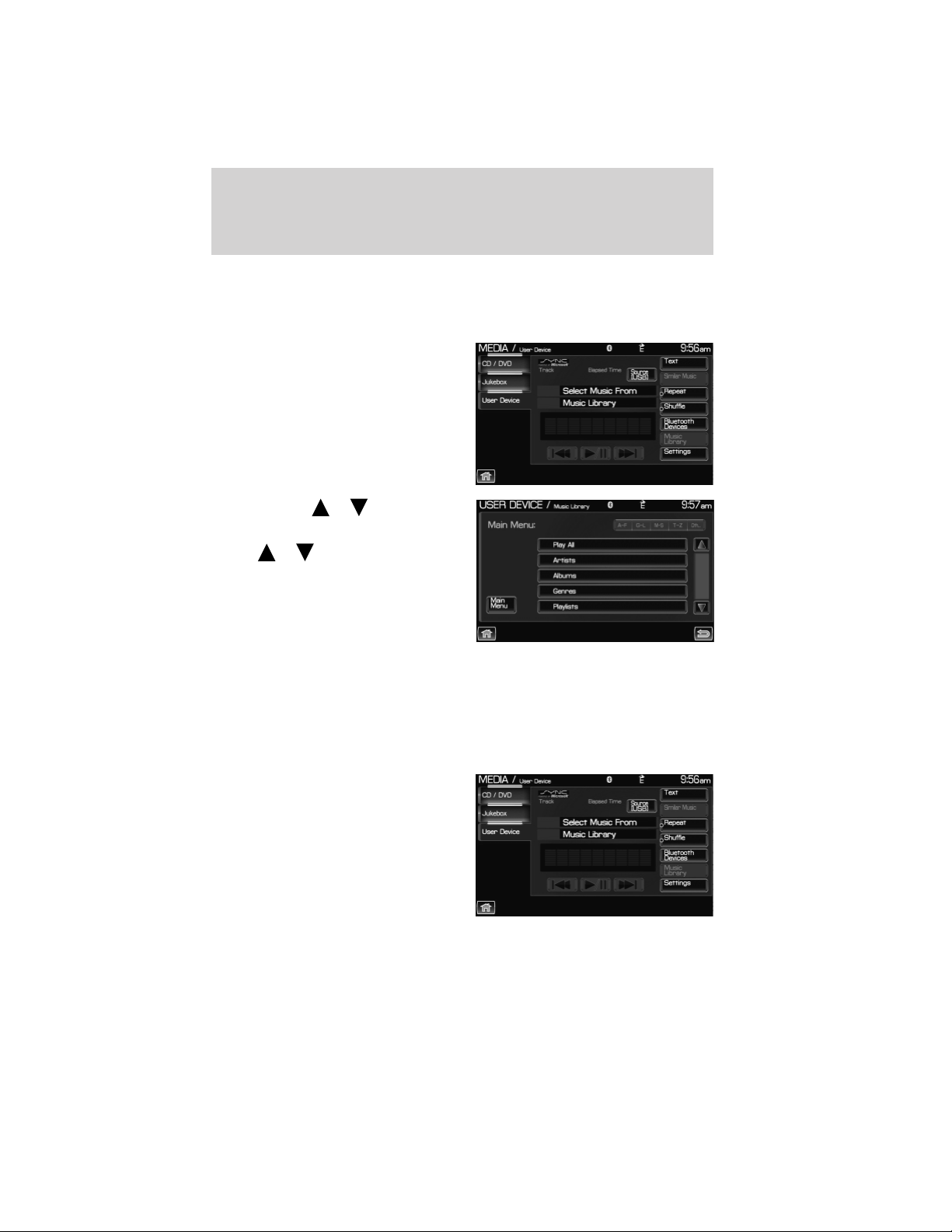
Selecting and playing specific albums
SYNC威 allows you to play all indexed media by ALBUMS. To access:
1. Press the MEDIA hard button on the system.
2. Select the ‘User Device’ tab on
the touchscreen.
3. Press ‘Source’ repeatedly until
USB appears.
4. Select ‘Music Library’.
5. Scroll using
/ on the
touchscreen and select ‘Albums’.
6. Use
/ to scroll through
and select the desired album to play.
Selecting from different genres
SYNC威 allows you to sort indexed music by genre (category) type.
SYNC威 will automatically re-categorize your indexed music according to
the available genre metadata tags. To access:
1. Press the MEDIA hard button on the system.
2. Select the ‘User Device’ tab.
3. Press ‘Source’ repeatedly until
USB appears.
4. Select ‘Music Library’.
SYNC姞 media features (if equipped)
101
See End User License Agreement at the end of this book
2012 Centerstack (ng1)
Supplement, 1st Printing
Arabic_(LHD) (gc_lhd)
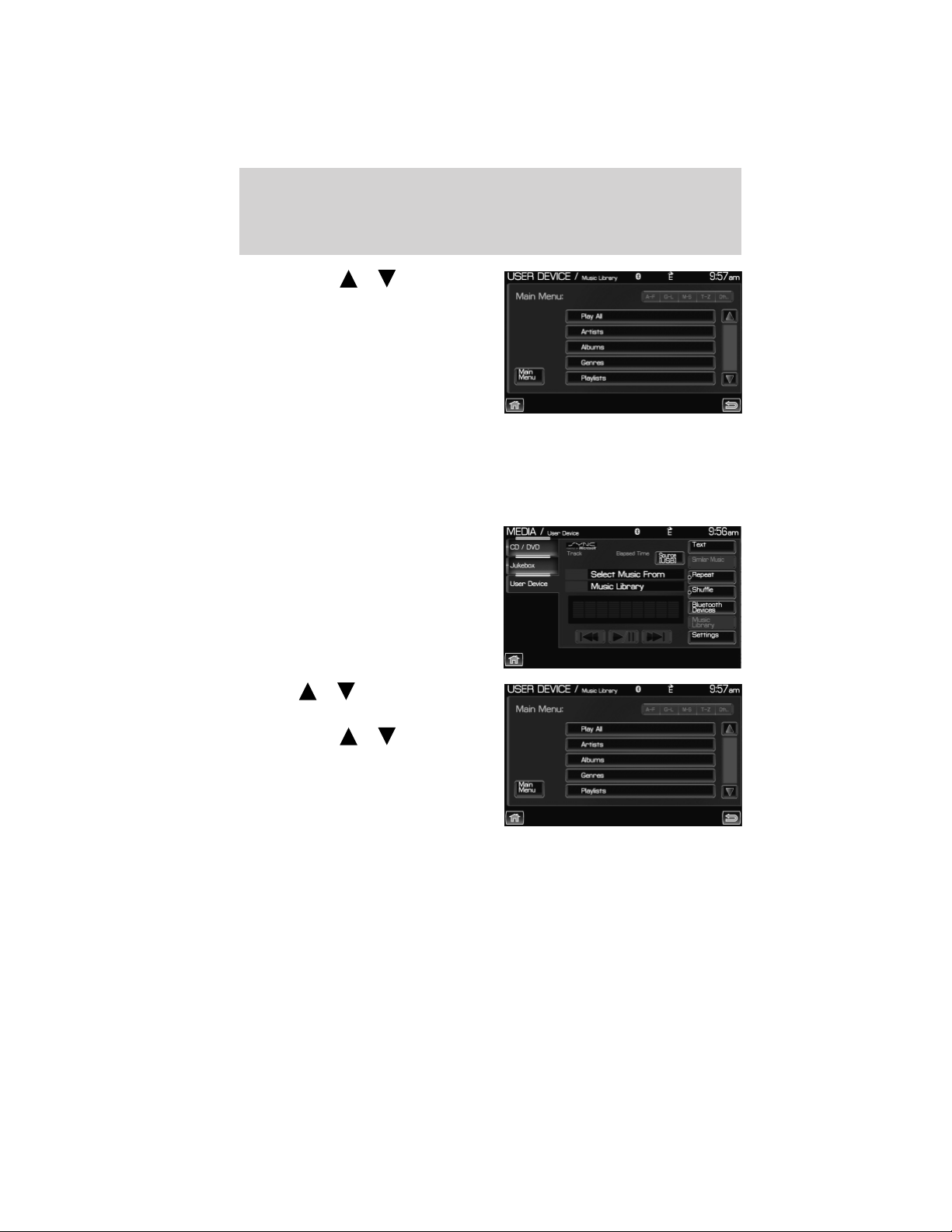
5. Scroll using / on the
touchscreen and select ‘Genres’.
Accessing your playlists
SYNC威 supports many playlists formats, such as: .ASX, .M3U, .WPL and
.MTP. To access:
1. Press the MEDIA hard button on the system.
2. Select the ‘User Device’ tab on
the touchscreen.
3. Press ‘Source’ repeatedly until
USB appears.
4. Select ‘Music Library’.
5. Scroll
/ using on the
touchscreen and select ‘Playlists’.
6. Scroll using
/ to select
the desired playlist.
SYNC姞 media features (if equipped)
102
See End User License Agreement at the end of this book
2012 Centerstack (ng1)
Supplement, 1st Printing
Arabic_(LHD) (gc_lhd)
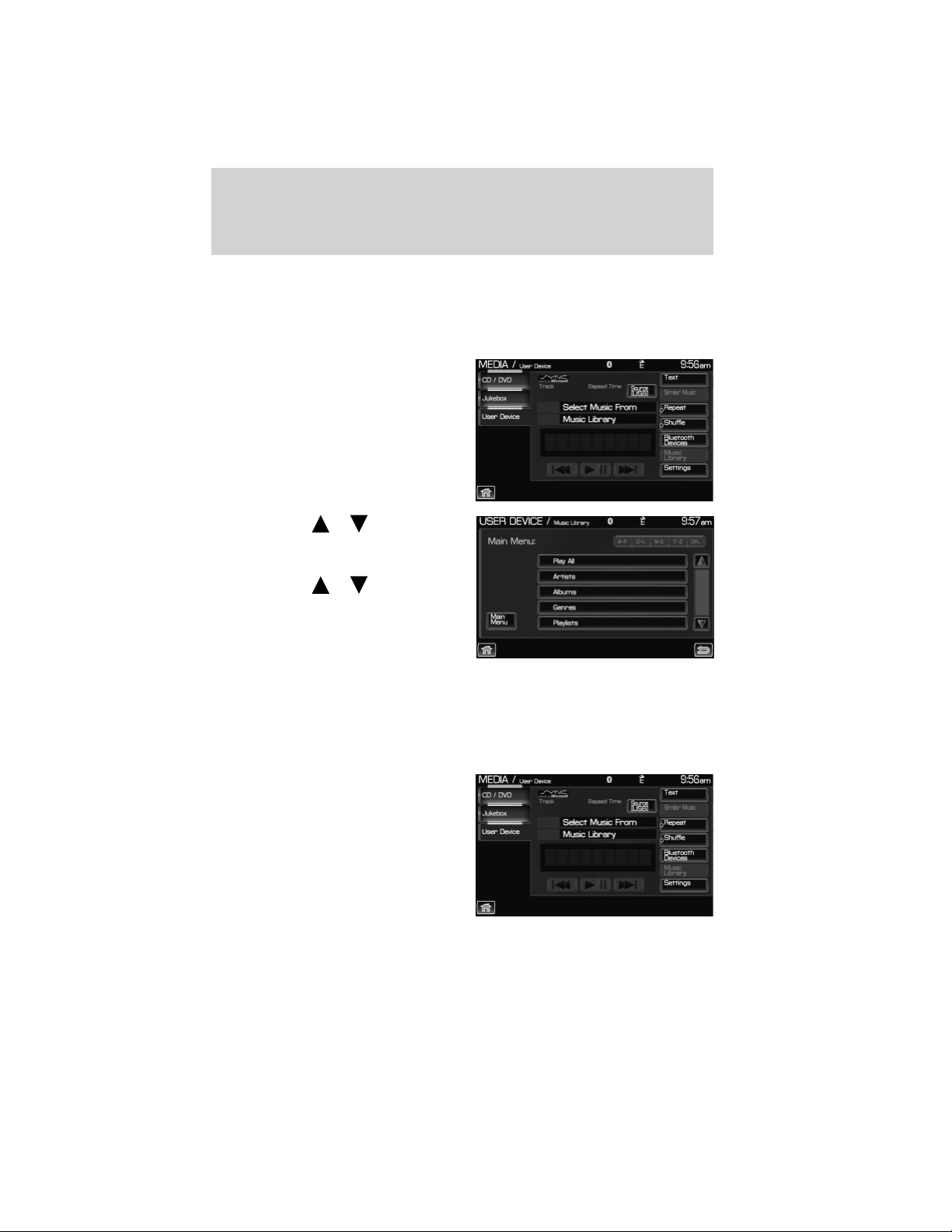
Playing a specific track
SYNC威 allows you to search for and play a specific track which has been
indexed. To access:
1. Press the MEDIA hard button on the system
2. Select the ‘User Device’ tab.
3. Press ‘Source’ repeatedly until
USB appears.
4. Select ‘Music Library’.
5. Scroll using
/ on the
touchscreen and select ‘Tracks’ to
view your indexed tracks.
6. Scroll using
/ and select
the desired track to play.
Exploring the USB device
SYNC威 allows you to explore through all supported digital media on your
media device which is connected through the USB port. To access:
1. Press the MEDIA hard button on the system.
2. Select the ‘User Device’ tab.
3. Press ‘Source’ repeatedly until
USB appears.
4. Select ‘Music Library’.
SYNC姞 media features (if equipped)
103
See End User License Agreement at the end of this book
2012 Centerstack (ng1)
Supplement, 1st Printing
Arabic_(LHD) (gc_lhd)
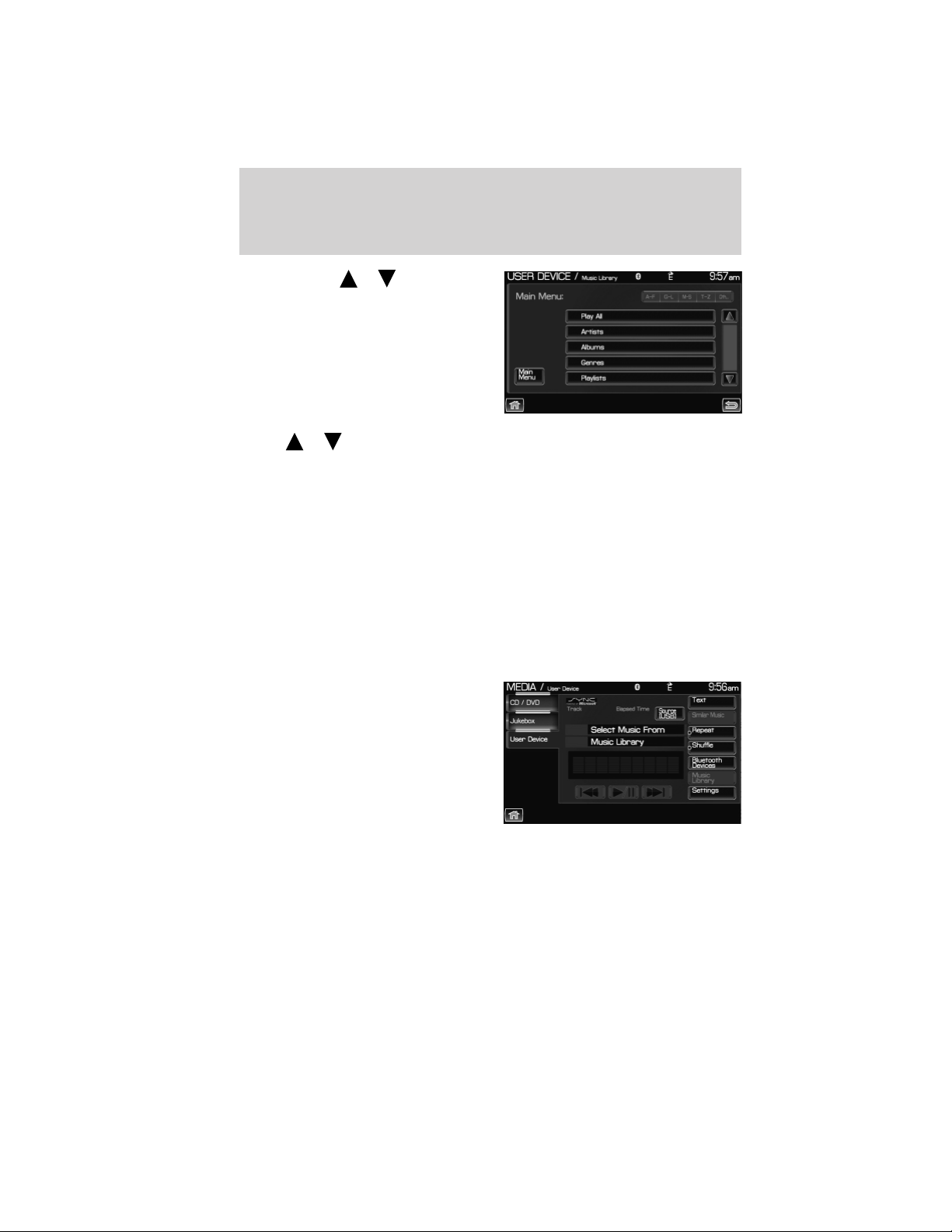
5. Scroll using / on the
touchscreen and select ‘Explore
USB’.
6. Use
/ to scroll through all indexed media on your USB device.
Note: Media can be played directly through the Explore USB feature by
selecting the desired track or by selecting PLAY ALL.
Note: When you are playing USB SYNC威 MEDIA using the Explore USB
feature, and you have folders saved on your playing device, you are in
folder mode. In folder mode, you can say, “Play next folder” or “Play
previous folder” to advance within your saved folders.
Accessing your BT Devices menu and features
The BT DEVICES menu allows you to connect, add and delete Bluetooth
devices from SYNC威.
To access:
1. Press the MEDIA hard button on the system.
2. Select the ‘User Device’ tab.
3. Select ‘BT Devices’.
SYNC姞 media features (if equipped)
104
See End User License Agreement at the end of this book
2012 Centerstack (ng1)
Supplement, 1st Printing
Arabic_(LHD) (gc_lhd)
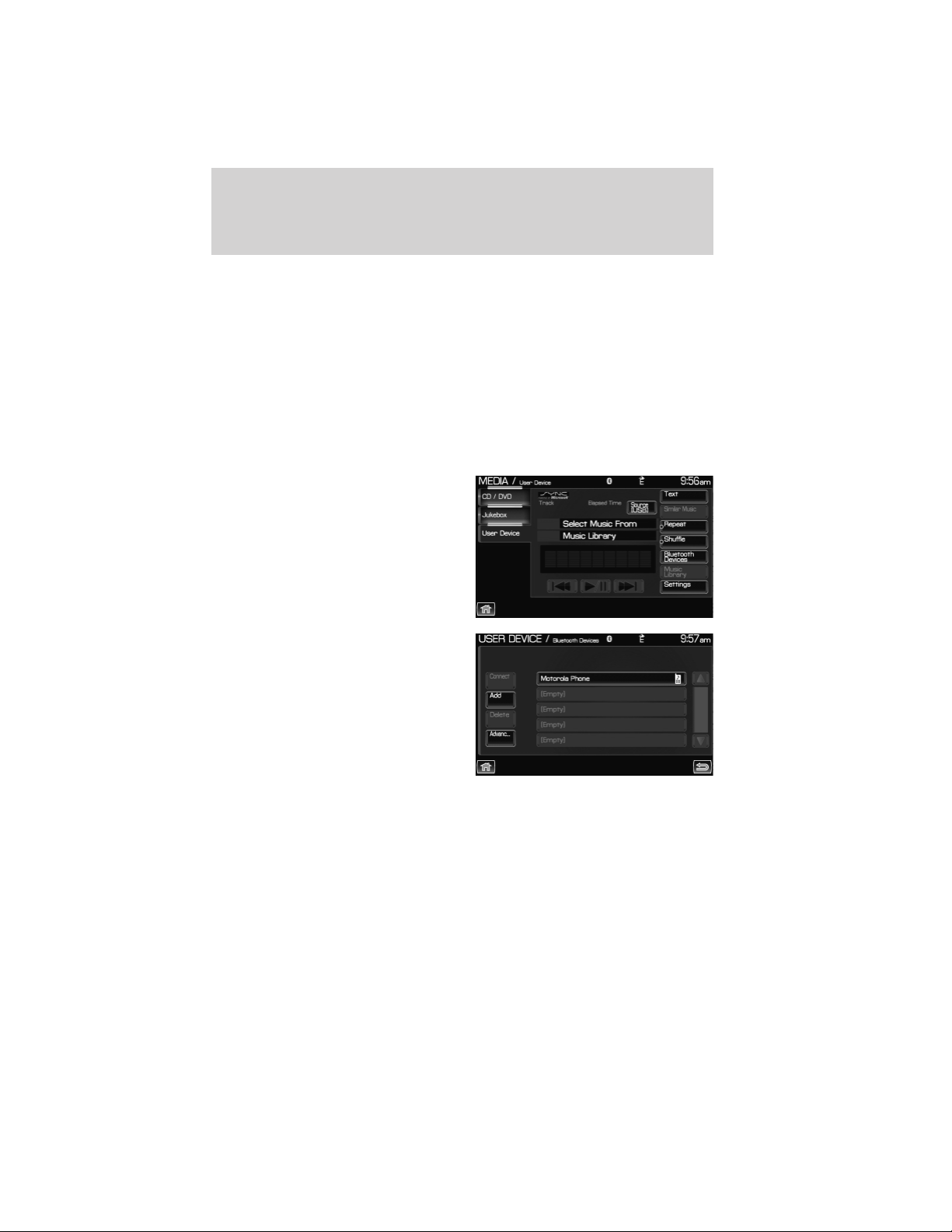
4. Select from available options of:
• Connect: Select to connect a previously paired device to SYNC威.
• Add: Select to add a device through Discovery and Discoverable
modes. Refer to Adding a new device in discovery or discoverable
mode in the following section.
• Delete: Select to delete a previously paired device.
• Advanced: Refer to Advanced Settings in the SYNC威 phone features
chapter for information on how to make adjustments to advanced
settings.
Adding a new device in discovery or discoverable mode
1. Press the MEDIA hard button on
the system.
2. Select the ‘User Device’ tab.
3. Select ‘Bluetooth Devices’.
4. Select ‘Add’. If your device
supports discoverable mode, enter
the PIN given by SYNC威. If your
device supports discovery mode,
press ‘Find Other Devices’.
5. Select the desired device.
6. SYNC威 will take you to the ‘New
Device’ menu. Enter the PIN given
by your device into SYNC威 via the
touch pad and press ‘Enter’.
SYNC姞 media features (if equipped)
105
See End User License Agreement at the end of this book
2012 Centerstack (ng1)
Supplement, 1st Printing
Arabic_(LHD) (gc_lhd)

VOICE COMMANDS WHEN USING THE USB PORT
WARNING: Driving while distracted can result in loss of vehicle
control, accident and injury. Ford strongly recommends that
drivers use extreme caution when using any device or feature that may
take their focus off the road. Your primary responsibility is the safe
operation of the vehicle. We recommend against the use of any
handheld device while driving and that you comply with all applicable
laws.
When using the USB port, press
or VOICE on the steering wheel
controls. When prompted, say “User Device” and any of the following
commands:
• Play all • Play
• Pause • What’s playing?
• Similar music • Play next track
• Play previous track • Play next folder
2
• Shuffle on • Shuffle off
• Play previous folder
2
• Autoplay on
• Autoplay off • Repeat on
• Repeat off • Play album <name>
• Play genre <name>
1
• Play playlist <name>
1
• Play track <name>
1
• Play artist <name>
1
• Voice settings
In voice settings mode, press
or VOICE on the steering wheel
controls. When prompted, you may say the following commands:
• Media candidate lists on • Media candidate lists off
1
Voice commands are not available until indexing is complete.
2
Voice commands only available in folder mode. For more information,
refer to Exploring the USB device.
Note: In the above possible commands, “name” is a dynamic listing in
that it could be the name of any desired group, artist, etc.
Media candidate lists: These are a list of possible results from your
voice commands. These occur when SYNC has equal confidence of
several possible results from your voice command.
SYNC姞 media features (if equipped)
106
See End User License Agreement at the end of this book
2012 Centerstack (ng1)
Supplement, 1st Printing
Arabic_(LHD) (gc_lhd)

Autoplay: With this feature ON, SYNC will automatically begin to play
your music as it is being indexed. As the system is finishing indexing all
of your songs, you can listen to music. With this feature OFF, SYNC will
not begin to play any of your music until it has all been indexed.
Note: The larger the number of songs SYNC has to index, the longer
indexing will take.
Play Genre: You can play a specific genre (type) of music. SYNC will
read all the data from your indexed music and, if available, will begin to
play that type of music.
Note: You can only play genres of music which are present in the music
you have indexed to SYNC.
Similar music: You can tell SYNC to play music ‘similar’ to what you are
currently playing.
Voice commands while using Line in
While using the Line in feature (Auxiliary input jack), press
or
VOICE on the steering wheel controls. When prompted, you may say the
following commands:
• Exit • Line in
Voice commands when in Bluetooth audio mode
When in Bluetooth audio mode, press
or VOICE on the steering
wheel controls. When prompted, say any of the following commands:
• Play • Pause
• Play next track • Play previous track
Note: Please refer to your device’s user guide to see if these commands
are supported for Bluetooth audio.
At any time, you may say these commands:
• User Device • Help
• Phone • Line in
• Exit
SYNC姞 media features (if equipped)
107
See End User License Agreement at the end of this book
2012 Centerstack (ng1)
Supplement, 1st Printing
Arabic_(LHD) (gc_lhd)

SYNC姞 END USER LICENSE AGREEMENT (EULA)
• You have acquired a device (“DEVICE”) that includes software
licensed by FORD MOTOR COMPANY from an affiliate of Microsoft
Corporation (“MS”). Those installed software products of MS origin, as
well as associated media, printed materials, and “online” or electronic
documentation (“MS SOFTWARE”) are protected by international
intellectual property laws and treaties. The MS SOFTWARE is licensed,
not sold. All rights reserved.
• The MS SOFTWARE may interface with and/or communicate with, or
may be later upgraded to interface with and/or communicate with
additional software and/or systems provided by FORD MOTOR
COMPANY. The additional software and systems of FORD MOTOR
COMPANY origin, as well as associated media, printed materials, and
“online” or electronic documentation (“FORD SOFTWARE”) are
protected by international intellectual property laws and treaties. The
FORD SOFTWARE is licensed, not sold. All rights reserved.
• The MS SOFTWARE and/or FORD SOFTWARE may interface with
and/or communicate with, or may be later upgraded to interface with
and/or communicate with additional software and/or systems provided by
third party software and service suppliers. The additional software and
services of third party origin, as well as associated media, printed
materials, and “online” or electronic documentation (“THRID PARTY
SOFTWARE”) are protected by international intellectual property laws
and treaties. The THIRD PARTY SOFTWARE is licensed, not sold. All
rights reserved.
• The MS SOFTWARE, FORD SOFTWARE and THIRD PARTY
SOFTWARE hereinafter collectively and individually will be referred to as
⬙SOFTWARE.⬙
IF YOU DO NOT AGREE TO THIS END USER LICENSE
AGREEMENT (“EULA”), DO NOT USE THE DEVICE OR COPY
THE SOFTWARE. ANY USE OF THE SOFTWARE, INCLUDING
BUT NOT LIMITED TO USE ON THE DEVICE, WILL
CONSTITUTE YOUR AGREEMENT TO THIS EULA (OR
RATIFICATION OF ANY PREVIOUS CONSENT).
GRANT OF SOFTWARE LICENSE: This EULA grants you the
following license:
• You may use the SOFTWARE as installed on the DEVICE and as
otherwise interfacing with systems and/or services provide by or
through FORD MOTOR COMPANY or its third party software and
service providers.
SYNC姞 End user license agreement
108
2012 Centerstack (ng1)
Supplement, 1st Printing
Arabic_(LHD) (gc_lhd)

DESCRIPTION OF OTHER RIGHTS AND LIMITATIONS:
• Speech Recognition: If the SOFTWARE includes speech recognition
component(s), you should understand that speech recognition is an
inherently statistical process and that recognition errors are inherent
in the process. Neither FORD MOTOR COMPANY nor its suppliers
shall be liable for any damages arising out of errors in the speech
recognition process.
• Limitations on Reverse Engineering, Decompilation and
Disassembly: You may not reverse engineer, decompile, or
disassemble nor permit others to reverse engineer, decompile or
disassemble the SOFTWARE, except and only to the extent that such
activity is expressly permitted by applicable law notwithstanding this
limitation.
• Limitations on Distributing, Copying, Modifying and Creating
Derivative Works: You may not distribute, copy, make modifications
to or create derivative works based on the SOFTWARE, except and
only to the extent that such activity is expressly permitted by
applicable law notwithstanding this limitation.
• Single EULA: The end user documentation for the DEVICE and
related systems and services may contain multiple EULAs, such as
multiple translations and/or multiple media versions (e.g., in the user
documentation and in the software). Even if you receive multiple
EULAs, you are licensed to use only one (1) copy of the SOFTWARE.
• SOFTWARE Transfer: You may permanently transfer your rights
under this EULA only as part of a sale or transfer of the DEVICE,
provided you retain no copies, you transfer all of the SOFTWARE
(including all component parts, the media and printed materials, any
upgrades, and, if applicable, the Certificate(s) of Authenticity), and
the recipient agrees to the terms of this EULA. If the SOFTWARE is
an upgrade, any transfer must include all prior versions of the
SOFTWARE.
• Termination: Without prejudice to any other rights, FORD MOTOR
COMPANY or MS may terminate this EULA if you fail to comply with
the terms and conditions of this EULA.
• Security Updates/Digital Rights Management: Content owners use
the WMDRM technology included in your DEVICE to protect their
intellectual property, included copyrighted content. Portions of the
SOFTWARE on your DEVICE use WMDRM software to access
WMDRM-protected content. If the WMDRM software fails to protect
the content, content owners may ask Microsoft to revoke the
SYNC姞 End user license agreement
109
2012 Centerstack (ng1)
Supplement, 1st Printing
Arabic_(LHD) (gc_lhd)

SOFTWARE’s ability to use WMDRM to play or copy protected
content. This action does not affect unprotected content. When your
DEVICE downloads licenses for protected content, you agree that
Microsoft may include a revocation list with the licenses. Content
owners may require you to upgrade the SOFTWARE on your DEVICE
to access their content. If you decline an upgrade, you will not be able
to access content that requires the upgrade.
• Consent to Use of Data: You agree that MS, Microsoft Corporation,
FORD MOTOR COMPANY, third party software and systems suppliers,
their affiliates and/or their designated agent may collect and use
technical information gathered in any manner as part of product
support services related to the SOFTWARE or related services. MS,
Microsoft Corporation, FORD MOTOR COMPANY, third party software
and services suppliers, their affiliates and/or their designated agent
may use this information solely to improve their products or to
provide customized services or technologies to you. MS, Microsoft
Corporation, FORD MOTOR COMPANY, third party software and
systems suppliers, their affiliates and/or their designated agent may
disclose this information to others, but not in a form that personally
identifies you.
• Internet-Based Services Components: The SOFTWARE may
contain components that enable and facilitate the use of certain
Internet-based services. You acknowledge and agree that MS, Microsoft
Corporation, FORD MOTOR COMPANY, third party software and
service suppliers, their affiliates and/or their designated agent may
automatically check the version of the SOFTWARE and/or its
components that you are utilizing and may provide upgrades or
supplements to the SOFTWARE that may be automatically
downloaded to your DEVICE.
• Additional Software/Services: The SOFTWARE may permit FORD
MOTOR COMPANY, third party software and service suppliers, MS,
Microsoft Corporation, their affiliates and/or their designated agent to
provide or make available to you SOFTWARE updates, supplements,
add-on components, or Internet-based services components of the
SOFTWARE after the date you obtain your initial copy of the
SOFTWARE (“Supplemental Components”).
If FORD MOTOR COMPANY or third party software and services
suppliers provide or make available to you Supplemental Components
and no other EULA terms are provided along with the Supplemental
Components, then the terms of this EULA shall apply.
If MS, Microsoft Corporation, their affiliates and/or their designated agent
make available Supplemental Components, and no other EULA terms are
SYNC姞 End user license agreement
110
2012 Centerstack (ng1)
Supplement, 1st Printing
Arabic_(LHD) (gc_lhd)

provided, then the terms of this EULA shall apply, except that the MS,
Microsoft Corporation or affiliate entity providing the Supplemental
Component(s) shall be the licensor of the Supplemental Component(s).
FORD MOTOR COMPANY, MS, Microsoft Corporation, their affiliates
and/or their designated agent reserve the right to discontinue without
liability any Internet-based services provided to you or made available to
you through the use of the SOFTWARE.
• Links to Third Party Sites: The MS SOFTWARE may provide you
with the ability to link to third party sites through the use of the
SOFTWARE. The third party sites are not under the control of MS,
Microsoft Corporation, their affiliates and/or their designated agent.
Neither MS nor Microsoft Corporation nor their affiliates nor their
designated agent are responsible for (i) the contents of any third
party sites, any links contained in third party sites, or any changes or
updates to third party sites, or (ii) webcasting or any other form of
transmission received from any third party sites. If the SOFTWARE
provides links to third party sites, those links are provided to you only
as a convenience, and the inclusion of any link does not imply an
endorsement of the third party site by MS, Microsoft Corporation,
their affiliates and/or their designated agent.
• Obligation to Drive Responsibly: You recognize your obligation to
drive responsibly and keep attention on the road. You will read and
abide with the DEVICE operating instructions particularly as they
pertain to safety and assumes any risk associated with the use of the
DEVICE.
UPGRADES AND RECOVERY MEDIA: If the SOFTWARE is provided
by FORD MOTOR COMPANY separate from the DEVICE on media such
as a ROM chip, CD ROM disk(s) or via web download or other means,
and is labeled “For Upgrade Purposes Only” or ⬙For Recovery Purposes
Only⬙ you may install one (1) copy of such SOFTWARE onto the
DEVICE as a replacement copy for the existing SOFTWARE, and use it
in accordance with this EULA, including any additional EULA terms
accompanying the upgrade SOFTWARE.
INTELLECTUAL PROPERTY RIGHTS: All title and intellectual
property rights in and to the SOFTWARE (including but not limited to
any images, photographs, animations, video, audio, music, text and
“applets,” incorporated into the SOFTWARE), the accompanying printed
materials, and any copies of the SOFTWARE, are owned by MS,
Microsoft Corporation, FORD MOTOR COMPANY, or their affiliates or
suppliers. The SOFTWARE is licensed, not sold. You may not copy the
printed materials accompanying the SOFTWARE. All title and intellectual
SYNC姞 End user license agreement
111
2012 Centerstack (ng1)
Supplement, 1st Printing
Arabic_(LHD) (gc_lhd)

property rights in and to the content which may be accessed through use
of the SOFTWARE is the property of the respective content owner and
may be protected by applicable copyright or other intellectual property
laws and treaties. This EULA grants you no rights to use such content.
All rights not specifically granted under this EULA are reserved by MS,
Microsoft Corporation, FORD MOTOR COMPANY, third party software
and service providers, their affiliates and suppliers. Use of any on-line
services which may be accessed through the SOFTWARE may be
governed by the respective terms of use relating to such services. If this
SOFTWARE contains documentation that is provided only in electronic
form, you may print one copy of such electronic documentation.
EXPORT RESTRICTIONS: You acknowledge that the SOFTWARE is
subject to U.S. and European Union export jurisdiction. You agree to
comply with all applicable international and national laws that apply to
the SOFTWARE, including the U.S. Export Administration Regulations,
as well as end-user, end-use and destination restrictions issued by U.S.
and other governments. For additional information, see http://
www.microsoft.com/exporting/.
TRADEMARKS: This EULA does not grant you any rights in connection
with any trademarks or service marks of FORD MOTOR COMPANY, MS,
Microsoft Corporation, third party software or service providers, their
affiliates or suppliers.
PRODUCT SUPPORT: Product support for the SOFTWARE is not
provided by MS, its parent corporation Microsoft Corporation, or their
affiliates or subsidiaries. For product support, please refer to FORD
MOTOR COMPANY instructions provided in the documentation for the
DEVICE. Should you have any questions concerning this EULA, or if you
desire to contact FORD MOTOR COMPANY for any other reason, please
refer to the address provided in the documentation for the DEVICE.
No Liability for Certain Damages: EXCEPT AS PROHIBITED BY
LAW, FORD MOTOR COMPANY, ANY THRID PARTY SOFTWARE OR
SERVICES SUPPLIERS, MS, MICROSOFT CORPORATION AND THEIR
AFFILIATES SHALL HAVE NO LIABILITY FOR ANY INDIRECT,
SPECIAL, CONSEQUENTIAL OR INCIDENTAL DAMAGES ARISING
FROM OR IN CONNECTION WITH THE USE OR PERFORMANCE OF
THE SOFTWARE. THIS LIMITATION SHALL APPLY EVEN IF ANY
REMEDY FAILS OF ITS ESSENTIAL PURPOSE. IN NO EVENT SHALL
MS, MICROSOFT CORPORATION AND/OR THEIR AFFILIATES BE
LIABLE FOR ANY AMOUNT IN EXCESS OF U.S. TWO HUNDRED
FIFTY DOLLARS (U.S.$250.00).
• THERE ARE NO WARRANTIES OTHER THAN THOSE THAT MAY
EXPRESSLY BE PROVIDED FOR YOUR NEW VEHICLE.
SYNC姞 End user license agreement
112
2012 Centerstack (ng1)
Supplement, 1st Printing
Arabic_(LHD) (gc_lhd)

END USER NOTICE
MICROSOFT姞 WINDOWS姞 MOBILE FOR AUTOMOTIVE IMPORTANT
SAFETY INFORMATION
This system Ford SYNC™ contains software that is licensed to
Manufacturer FORD MOTOR COMPANY by an affiliate of Microsoft
Corporation pursuant to a license agreement. Any removal, reproduction,
reverse engineering or other unauthorized use of the software from this
system in violation of the license agreement is strictly prohibited and
may subject you to legal action.
Read and follow instructions
Before using your Windows Automotive-based system, read and follow all
instructions and safety information provided in this end user manual
(“User’s Guide”). Not following precautions found in this User’s Guide
can lead to an accident or other serious consequences.
Keep User’s Guide in Vehicle
When kept in the vehicle, the User’s Guide will be a ready reference for
you and other users unfamiliar with the Windows Automotive-based
system. Please make certain that before using the system for the first
time, all persons have access to the User’s Guide and read its
instructions and safety information carefully.
WARNING: Operating certain parts of this system while driving
can distract your attention away from the road, and possibly
cause an accident or other serious consequences. Do not change
system settings or enter data non-verbally (using your hands) while
driving. Stop the vehicle in a safe and legal manner before attempting
these operations. This is important since while setting up or changing
some functions you might be required to distract your attention away
from the road and remove your hands from the wheel.
SYNC姞 End user license agreement
113
2012 Centerstack (ng1)
Supplement, 1st Printing
Arabic_(LHD) (gc_lhd)

General operation
Voice Command Control
Functions within the Windows Automotive-based system may be
accomplished using only voice commands. Using voice commands while
driving allows you to operate the system without removing your hands
from the wheel.
Prolonged Views of Screen
Do not access any function requiring a prolonged view of the screen
while you are driving. Pull over in a safe and legal manner before
attempting to access a function of the system requiring prolonged
attention. Even occasional short scans to the screen may be hazardous if
your attention has been diverted away from your driving task at a critical
time.
Volume Setting
Do not raise the volume excessively. Keep the volume at a level where
you can still hear outside traffic and emergency signals while driving.
Driving while unable to hear these sounds could cause an accident.
Use of Speech Recognition Functions
Speech recognition software is inherently a statistical process which is
subject to errors. It is your responsibility to monitor any speech
recognition functions included in the system and address any errors.
Navigation Features
Any navigation features included in the system are intended to provide
turn by turn instructions to get you to a desired destination. Please make
certain all persons using this system carefully read and follow
instructions and safety information fully.
Distraction Hazard
Any navigation features may require manual (non-verbal) setup.
Attempting to perform such set-up or insert data while driving can
seriously distract your attention and could cause an accident or other
serious consequences. Stop the vehicle in a safe and legal manner before
attempting these operations.
SYNC姞 End user license agreement
114
2012 Centerstack (ng1)
Supplement, 1st Printing
Arabic_(LHD) (gc_lhd)

Let Your Judgment Prevail
Any navigation features are provided only as an aid. Make your driving
decisions based on your observations of local conditions and existing
traffic regulations. Any such feature is not a substitute for your personal
judgment. Any route suggestions made by this system should never
replace any local traffic regulations or your personal judgment or
knowledge of safe driving practices.
Route Safety
Do not follow the route suggestions if doing so would result in an unsafe
or illegal maneuver, if you would be placed in an unsafe situation, or if
you would be directed into an area that you consider unsafe. The driver
is ultimately responsible for the safe operation of the vehicle and
therefore, must evaluate whether it is safe to follow the suggested
directions.
Potential Map Inaccuracy
Maps used by this system may be inaccurate because of changes in
roads, traffic controls or driving conditions. Always use good judgment
and common sense when following the suggested routes.
Emergency Services
Do not rely on any navigation features included in the system to route
you to emergency services. Ask local authorities or an emergency
services operator for these locations. Not all emergency services such as
police, fire stations, hospitals and clinics are likely to be contained in the
map database for such navigation features.
SYNC姞 End user license agreement
115
2012 Centerstack (ng1)
Supplement, 1st Printing
Arabic_(LHD) (gc_lhd)

A
Accessing SYNC威 system
information ..................................86
Accessing the help screen .........62
Accessing the music in your
jukebox ........................................48
Accessing your calendar ............ 61
Accessing your phone book .......73
Accessing your playlists ...........102
Adding a new device in
discovery or discoverable
mode ..................................104–105
Adding (pairing) a phone ..........75
Adjusting the voice prompt
volume .........................................26
Advanced settings .......................77
AM/FM .........................................34
Automatically download your
phone book ..................................81
C
Call history ..................................73
CD ..........................................41–42
CD voice commands ...................44
Climate voice commands ...........60
Connecting a phone ....................75
Connecting your digital media
player to SYNC威 .........................94
Creating a playlist .......................50
D
Deleting a phone .........................76
Disc voice commands .................47
Display voice commands ............13
Driving restrictions .......................4
DVD (if equipped) ......................56
DVD voice commands ................46
E
End user license agreement ....108
Exploring the USB device ........103
F
Forwarding a text message ........91
G
Glossary .......................................67
H
HD Radio™ ...........................36–37
Home screen ...............................13
How to get going ..........................5
How to use voice commands .....25
I
Installing new vehicle
applications .................................86
J
Jukebox features .........................47
Jukebox voice commands ..........52
L
Loading pictures .........................14
Index
116
2012 Centerstack (ng1)
Supplement, 1st Printing
Arabic_(LHD) (gc_lhd)

M
Making a call ...............................71
Map display options ....................12
Message notification ................... 80
Modifying your phone book
and call history ...........................82
P
Pairing your phone through
your navigation system ..............69
Performing a master reset .........85
Phone dependent features .........69
Playing a DVD in the system .....44
Playing a specific track ............103
Privacy information ......................5
Q
Quick reference chart ................17
R
Radio voice commands .........36, 41
Rear DVD voice commands .......56
Returning to factory defaults ....84
Reverse camera ...........................16
S
Saving a contact or phone
number as Quick Dial .................72
Selecting and playing specific
albums .......................................101
Selecting and playing specific
artists .........................................100
Selecting different genres ........101
Setting a ring tone ......................79
Setting the clock .........................19
Status bars ..................................13
Streaming music from your
phone ...........................................97
Supported player, media
formats and metadata
information ..................................96
SYNC威 media features ...............95
System introduction .....................4
System overview ...........................9
System settings ...........................74
T
Text messaging with your
navigation system .......................87
Turning Bluetooth on/off ............78
Turning prompts on/off ..............83
Tutorial voice commands ...........28
U
USB port ......................................96
User Device (if equipped) .........54
User profiles ................................29
User profile voice commands ....31
Using the Auxiliary input jack
(Line in) ......................................98
Using the play all feature ...........99
V
Video CD voice commands ........46
Voice commands in media
mode ..........................................106
Index
117
2012 Centerstack (ng1)
Supplement, 1st Printing
Arabic_(LHD) (gc_lhd)