37InchLCD_Philips_Eng 2/6/07 6:07 PM Page 1
SAFETY INSTRUCTIONS
CAUTION: TO REDUCE THE RISK OF ELECTRIC SHOCK, DO NOT REMOVE COVER (OR BACK). NO USER
SERVICEABLE PARTS INSIDE. REFER SERVICING TO QUALIFIED SERVICE PERSONNEL.
This symbol indicates high voltage is present inside. It is dangerous to make any kind of contact with
any inside part of this product.
This symbol alerts you that important literature concerning operation and maintenance has been
included with this product.
Note to CATV system installer: This reminder is provided to call CATV system installer’s attention to Article
820-40 of the National Electrical Code (Section 54 of Canadian Electrical Code, Part I), that provides guidelines for
proper grounding and, in particular, specifies that the cable ground shall be connected to the grounding system of the
building as close to the point of cable entry as practical.
Caution: FCC/CSA regulations state that any unauthorized changes or modifications to this equipment may void the
user’s authority to operate it.
Caution: To prevent electric shock, match the wide blade of plug to the wide slot, and fully insert the plug.
Attention: Pour eviter les chocs electriques, introduire la lame le plus large de la fiche dans la borne correspondante
de la prise et pousser jusqu’au fond.
Important: One Federal Court has held that unauthorized recording of copyrighted TV programs is an infringement
of U.S. copyright laws. Certain Canadian programs may also be copyrighted and any unauthorized recording in whole
or in part may be in violation of these rights.
TO PREVENT DAMAGE WHICH MAY RESULT IN FIRE OR ELECTRIC SHOCK HAZARD, DO NOT
EXPOSE THIS APPLIANCE TO RAIN OR MOISTURE.
The Socket-outlet shall be installed near the apparatus and shall be easily accessible.
i
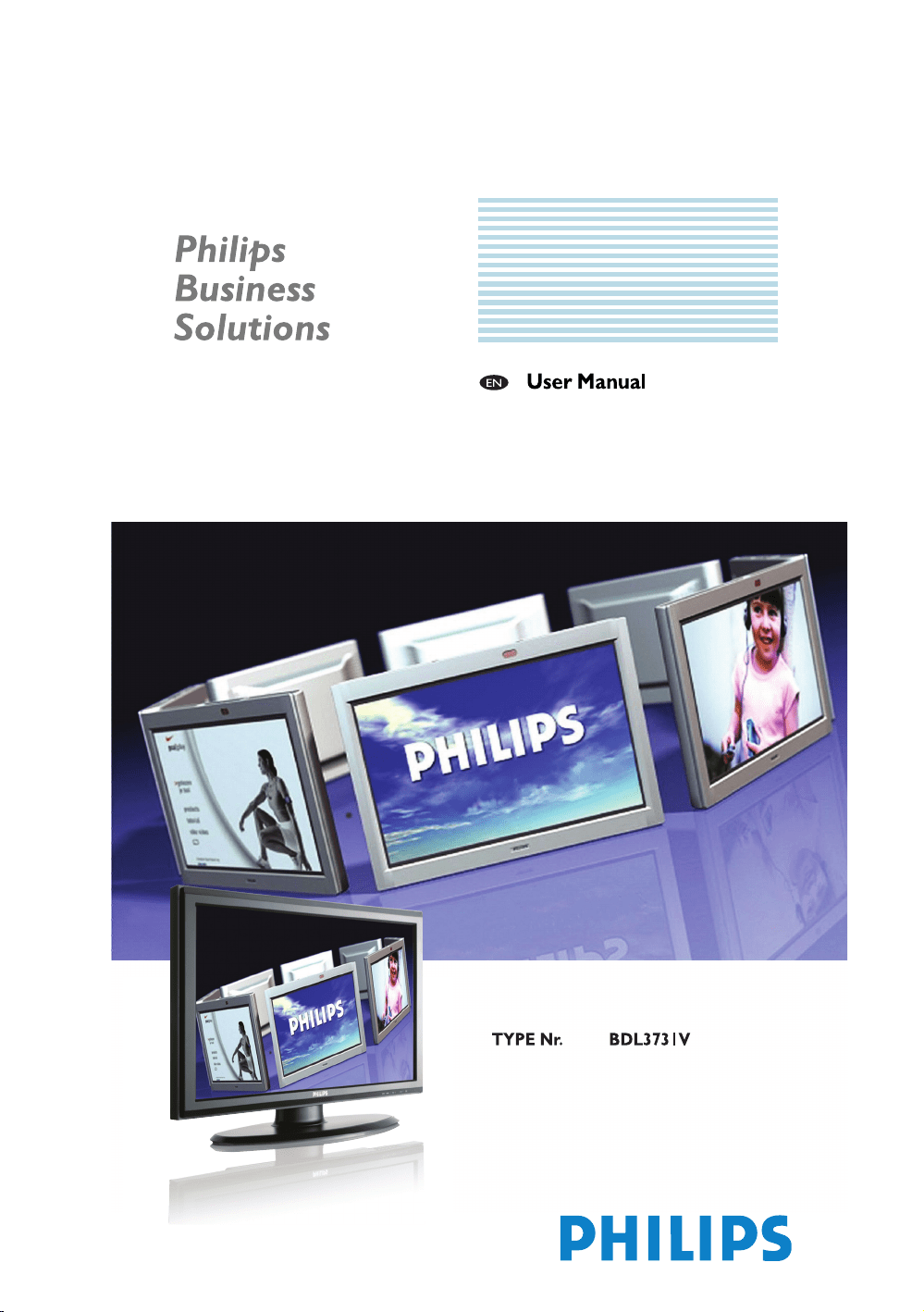
User Manual BDL3731V
CAUTION
RISK OF ELECTRIC SHOCK
DO NOT OPEN
37InchLCD_Philips_Eng 1/25/07 3:03 PM Page ii
WARNING
• Unplug this product from the wall outlet immediately when it smokes or makes a strange smell.
• Do not block any ventilation openings. (This can result in a risk of fire or electric shock.)
• Do not overload wall outlets or extension cords (This can result in a risk of fire or electric shock.)
• Connect at the receptacle certainly not to be shaken (This can result in a risk of heat and a fire if it is connected to
the wall outlet imperfectly.)
• Do not use the uncovered cables. (This can result in a risk of fire or electric shock.)
• During a storm conditions (especially when there is lightning) unplug this product from the wall outlet and don’t
touch the antenna. (This can result in a risk of fire or electric shock.)
• Do not expose this product to direct sunlight and extreme. (This can result in a risk of fire.)
• Keep children away from this product not to hang on or go up on it.
• Leave batteries for remote control away from your young children. (They may swallow them.)
• Place this product in a well-ventilated place. (This can result in a risk of fire.)
• People over 2 persons must move this product. (It can be the reason of the wound because of the weight of goods.)
• Never put objects of any kind into this product and place heavy things on it.
• Place an antenna away from a high-voltage cable.
• Please use a soft and dry cloth (not containing volatile matter) when you clean this product. (This can result in a
risk of fire.)
CAUTION
• Please use a soft and dry cloth when you clean this product. (This can result in a risk of electric shock)
• Should not be adhered to a power supply plug and receptacle. (This can result in a risk of fire)
• Do not use new batteries with old ones together. (This can result in a risk of electric shock)
• Do not place this product in the place to reach children’s hands.
• Do not take out a power supply plug with the wet hand. (This can result in a risk of electric shock)
• Bend down the outdoor antenna cable to prevent the rain water flows and not to enter the room.
(This can result in a risk of fire or electric shock)
• Maintain a suitable distance between you and a TV or monitor to protect your eye sight.
(Your eye sight can get worse if you watch TV very nearly)
• Place remote control away from a humid or hot place because it is very minute device.
• If this product is not used for a long period of time, unplug the power cord. (This can result in a risk of fire or
electric shock)
• Do not drop this product. Unplug the power cord and ask to Service Centre when it is broken.
• Do not cover this product with curtains or a tablecloth. (This can result in a risk of fire)
• Place the batteries rightly to the both sides (+,-) when you replace them. (The batteries can be explosive and
you’ re wound)
• Do not place this product on the floor. (Children can press it down)
• Do not damage the power cord. (This can result in a risk of fire or electric shock)
• The LCD panel is very high technology product with about million thin film transistors, giving you fine picture
details. Occasionally, a few non-active pixels may appear on the screen as a fixed point of blue, green or red.
Please note that this does affect the performance of your product.
User Manual BDL3731V
ii
37InchLCD_Philips_Eng 1/25/07 3:03 PM Page iii

FCC INFORMATION
User Instructions
NOTE: This equipment has been tested and found to comply with the limits for a Class B digital device, pursuant to
Part 15 of the FCC Rules.These limits are designed to provide reasonable protection against harmful interference in a
residential installation.
This equipment generates, uses, and can radiate radio frequency energy and, if not installed and used in accordance
with the instructions, may cause harmful interference to radio communications. However, there is no guarantee that
interference will not occur in a particular installation.
If this equipment does cause harmful interference to radio or television receptions, which can be determined by
turning the equipment off and on, the user is encouraged to try to correct the interference by one or more of the
following measures:
• Reorient or relocate the receiving antenna.
• Increase the separation between the equipment and receiver.
• Connect the equipment into an outlet on a circuit different from that to which the receiver is connected.
• Consult the dealer or an experienced radio/TV technician for help.
User Information
Changes or modifications not expressly approved by the party responsible for compliance could void the user’s
authority to operate the equipment. If necessary, consult your dealer or an experienced radio/television technician for
additional suggestions.You may find the booklet called How to Identify and Resolve Radio/TV Interference Problems
helpful.This booklet was prepared by the Federal Communications Commission. It is available from the U.S.
Government Printing Office,Washington, DC 20402, Stock Number 004-000-00345-4.
The party responsible for product compliance:Your dealer.
Warning
User must use shielded signal interface cables to maintain FCC compliance for the product.
Provided with this monitor is a detachable power supply cord with IEC320 style terminations.
It may be suitable for connection to any UL Listed personal computer with similar configuration. Before making the
connection, make sure the voltage rating of the computer convenience outlet is the same as the monitor and that the
ampere rating of the computer convenience outlet is equal to or exceeds the monitor voltage rating.
For 120 Volt applications, use only UL Listed detachable power cord with NEMA configuration 5-15P type (parallel
blades) plug cap. For 240 Volt applications use only UL Listed Detachable power supply cord with NEMA
configuration 6015P type (tandem blades) plug cap.
IC Compliance Notice
This Class B digital apparatus meets all requirements of the Canadian Interference-Causing Equipment Regulations of
ICES-003.
Notice de Conformité IC
Cet appareil numérique de classe B respecte toutes les exigences du Règlement ICES-003 sur les équipements
produisant des interférences au Canada.
User Manual BDL3731V
iii
37InchLCD_Philips_Eng 1/25/07 3:03 PM Page iv

VCCI
This is a Class B product based on the standard of the Voluntary Control Council for Interference by Information
Technology Equipment (VCCI). If this is used near a radio or television receiver in a domestic environment, it may
cause radio interference. Install and use the equipment according to the instruction manual.
This Class B digital apparatus complies with Canadian ICES-003.
Cet appareil numéique de la classe B est conforme à la norme NMB-003 du Canada.
User Manual BDL3731V
This device complies with part 15 of the FCC Rules. Operation is subject to the following two conditions:
1. This device may not cause harmful interference, and
2. This device must accept any interference received, including interference that may cause unesired operation.
This television receiver provides display of television closed captioning in accordance with §15.119 of the
FCC rules.
iv
37InchLCD_Philips_Eng 1/25/07 3:03 PM Page v

2
User Manual BDL3731V
TABLE OF CONTENTS
1. IMPORTANT NOTES AND SAFETY INSTRUCTIONS . . . . . . . . . . . . . . . . . . . . . . . . . . . . . . . 4
1.1 Safety Instructions . . . . . . . . . . . . . . . . . . . . . . . . . . . . . . . . . . . . . . . . . . . . . . . . . . . . . . . . . . . . . .4
1.2 Warnings and Precautions . . . . . . . . . . . . . . . . . . . . . . . . . . . . . . . . . . . . . . . . . . . . . . . . . . . . . . . .6
1.2.1 Note to the CATV System Installer . . . . . . . . . . . . . . . . . . . . . . . . . . . . . . . . . . . . . . . . . . . 6
1.3 Cleaning & Care . . . . . . . . . . . . . . . . . . . . . . . . . . . . . . . . . . . . . . . . . . . . . . . . . . . . . . . . . . . . . . . .7
1.4 End-Of-Life Disposal . . . . . . . . . . . . . . . . . . . . . . . . . . . . . . . . . . . . . . . . . . . . . . . . . . . . . . . . . . . .7
2 UNPACKING AND INSTALLATION . . . . . . . . . . . . . . . . . . . . . . . . . . . . . . . . . . . . . . . . . . . . . 8
2.1 Unpacking . . . . . . . . . . . . . . . . . . . . . . . . . . . . . . . . . . . . . . . . . . . . . . . . . . . . . . . . . . . . . . . . . . . .8
2.2 Package Contents . . . . . . . . . . . . . . . . . . . . . . . . . . . . . . . . . . . . . . . . . . . . . . . . . . . . . . . . . . . . . .8
2.3 Installation Notes . . . . . . . . . . . . . . . . . . . . . . . . . . . . . . . . . . . . . . . . . . . . . . . . . . . . . . . . . . . . . . .9
3PARTS AND FUNCTIONS . . . . . . . . . . . . . . . . . . . . . . . . . . . . . . . . . . . . . . . . . . . . . . . . . . . 10
3.1 Front View . . . . . . . . . . . . . . . . . . . . . . . . . . . . . . . . . . . . . . . . . . . . . . . . . . . . . . . . . . . . . . . . . . .10
3.2 Rear View . . . . . . . . . . . . . . . . . . . . . . . . . . . . . . . . . . . . . . . . . . . . . . . . . . . . . . . . . . . . . . . . . . . .11
3.3 Remote Control . . . . . . . . . . . . . . . . . . . . . . . . . . . . . . . . . . . . . . . . . . . . . . . . . . . . . . . . . . . . . .12
3.3.1 General Functions . . . . . . . . . . . . . . . . . . . . . . . . . . . . . . . . . . . . . . . . . . . . . . . . . . . . . . . 12
3.3.2 Teletext Function Buttons. . . . . . . . . . . . . . . . . . . . . . . . . . . . . . . . . . . . . . . . . . . . . . . . . . 13
3.3.3 Inserting the Batteries in the Remote Control . . . . . . . . . . . . . . . . . . . . . . . . . . . . . . . . . . 13
4 CONNECTIONS TO EXTERNAL EQUIPMENT . . . . . . . . . . . . . . . . . . . . . . . . . . . . . . . . . . . 14
4.1 Connecting External Equipment (VCR, DVD, camcorder, satellite receiver) . . . . . . . . . . . . . . . . . .14
4.1.1 Using SCART (AV) Socket Input. . . . . . . . . . . . . . . . . . . . . . . . . . . . . . . . . . . . . . . . . . . . . 14
4.1.2 Using S-Video Input . . . . . . . . . . . . . . . . . . . . . . . . . . . . . . . . . . . . . . . . . . . . . . . . . . . . . . 14
4.1.3 Using Component Video Input . . . . . . . . . . . . . . . . . . . . . . . . . . . . . . . . . . . . . . . . . . . . . . 14
4.1.4 Using Video Input . . . . . . . . . . . . . . . . . . . . . . . . . . . . . . . . . . . . . . . . . . . . . . . . . . . . . . . . 15
4.1.5 Using Monitor Output . . . . . . . . . . . . . . . . . . . . . . . . . . . . . . . . . . . . . . . . . . . . . . . . . . . . 15
4.1.6 Using DVI Input . . . . . . . . . . . . . . . . . . . . . . . . . . . . . . . . . . . . . . . . . . . . . . . . . . . . . . . . . 15
4.1.7 Using HDMI Input . . . . . . . . . . . . . . . . . . . . . . . . . . . . . . . . . . . . . . . . . . . . . . . . . . . . . . . 15
4.2 External Audio Connection . . . . . . . . . . . . . . . . . . . . . . . . . . . . . . . . . . . . . . . . . . . . . . . . . . . . . .16
4.2.1 Connecting External Speaker . . . . . . . . . . . . . . . . . . . . . . . . . . . . . . . . . . . . . . . . . . . . . . . 16
4.2.2 Using Digital Audio Output. . . . . . . . . . . . . . . . . . . . . . . . . . . . . . . . . . . . . . . . . . . . . . . . . 16
4.3 Connecting a PC . . . . . . . . . . . . . . . . . . . . . . . . . . . . . . . . . . . . . . . . . . . . . . . . . . . . . . . . . . . . . .17
4.3.1 Using RGB (VGA) or DVI Video Input . . . . . . . . . . . . . . . . . . . . . . . . . . . . . . . . . . . . . . . . 17
5BASIC FUNCTIONS . . . . . . . . . . . . . . . . . . . . . . . . . . . . . . . . . . . . . . . . . . . . . . . . . . . . . . . . 18
5.1 Powering ON / OFF . . . . . . . . . . . . . . . . . . . . . . . . . . . . . . . . . . . . . . . . . . . . . . . . . . . . . . . . . . .18
5.2 Selecting Signal Source . . . . . . . . . . . . . . . . . . . . . . . . . . . . . . . . . . . . . . . . . . . . . . . . . . . . . . . . . .18
5.3 Volume Adjustment . . . . . . . . . . . . . . . . . . . . . . . . . . . . . . . . . . . . . . . . . . . . . . . . . . . . . . . . . . . .19
5.4 MUTE . . . . . . . . . . . . . . . . . . . . . . . . . . . . . . . . . . . . . . . . . . . . . . . . . . . . . . . . . . . . . . . . . . . . . .19
5.5 Display Information . . . . . . . . . . . . . . . . . . . . . . . . . . . . . . . . . . . . . . . . . . . . . . . . . . . . . . . . . . . .20
37InchLCD_Philips_Eng 1/25/07 3:03 PM Page 2

3
User Manual BDL3731V
6ADVANCED FUNCTIONS . . . . . . . . . . . . . . . . . . . . . . . . . . . . . . . . . . . . . . . . . . . . . . . . . . . 21
6.1 Picture Controls . . . . . . . . . . . . . . . . . . . . . . . . . . . . . . . . . . . . . . . . . . . . . . . . . . . . . . . . . . . . . .21
6.1.1 Adjusting Picture Settings . . . . . . . . . . . . . . . . . . . . . . . . . . . . . . . . . . . . . . . . . . . . . . . . . . 21
6.1.2 Reset to the Factory Defaults. . . . . . . . . . . . . . . . . . . . . . . . . . . . . . . . . . . . . . . . . . . . . . . 21
6.2 Sound Controls . . . . . . . . . . . . . . . . . . . . . . . . . . . . . . . . . . . . . . . . . . . . . . . . . . . . . . . . . . . . . . .22
6.2.1 Adjusting Sound Settings. . . . . . . . . . . . . . . . . . . . . . . . . . . . . . . . . . . . . . . . . . . . . . . . . . . 22
6.2.2 Reset to the Factory Defaults. . . . . . . . . . . . . . . . . . . . . . . . . . . . . . . . . . . . . . . . . . . . . . . 22
6.3 OSD Menu Language . . . . . . . . . . . . . . . . . . . . . . . . . . . . . . . . . . . . . . . . . . . . . . . . . . . . . . . . . . .23
6.4 Power Save Mode . . . . . . . . . . . . . . . . . . . . . . . . . . . . . . . . . . . . . . . . . . . . . . . . . . . . . . . . . . . . .23
6.5 Adjusting the Color Temperature . . . . . . . . . . . . . . . . . . . . . . . . . . . . . . . . . . . . . . . . . . . . . . . . . .23
6.6 Adjusting the Brightness of Backlight . . . . . . . . . . . . . . . . . . . . . . . . . . . . . . . . . . . . . . . . . . . . . .24
6.7 Freezing the Current Picture . . . . . . . . . . . . . . . . . . . . . . . . . . . . . . . . . . . . . . . . . . . . . . . . . . . . .24
6.8 On-Screen Display Timeout . . . . . . . . . . . . . . . . . . . . . . . . . . . . . . . . . . . . . . . . . . . . . . . . . . . . . .24
6.9 Adjusting the Menu Transparency . . . . . . . . . . . . . . . . . . . . . . . . . . . . . . . . . . . . . . . . . . . . . . . . .24
6.10 Changing the Screen Size . . . . . . . . . . . . . . . . . . . . . . . . . . . . . . . . . . . . . . . . . . . . . . . . . . . . . . .25
6.11 Setting up the PC Input . . . . . . . . . . . . . . . . . . . . . . . . . . . . . . . . . . . . . . . . . . . . . . . . . . . . . . . . .25
6.12 Teletext . . . . . . . . . . . . . . . . . . . . . . . . . . . . . . . . . . . . . . . . . . . . . . . . . . . . . . . . . . . . . . . . . . . . .26
6.13 Viewing the Picture In Picture (PIP) . . . . . . . . . . . . . . . . . . . . . . . . . . . . . . . . . . . . . . . . . . . . . . . .28
6.14 Remote Management . . . . . . . . . . . . . . . . . . . . . . . . . . . . . . . . . . . . . . . . . . . . . . . . . . . . . . . . . . .29
7INPUT MODE . . . . . . . . . . . . . . . . . . . . . . . . . . . . . . . . . . . . . . . . . . . . . . . . . . . . . . . . . . . . . 30
8 TECHNICAL SPECIFICATIONS. . . . . . . . . . . . . . . . . . . . . . . . . . . . . . . . . . . . . . . . . . . . . . . . 32
9 CLEANING AND TROUBLESHOOTING. . . . . . . . . . . . . . . . . . . . . . . . . . . . . . . . . . . . . . . . . 35
9.1 Cleaning . . . . . . . . . . . . . . . . . . . . . . . . . . . . . . . . . . . . . . . . . . . . . . . . . . . . . . . . . . . . . . . . . . . . .35
9.2 Troubleshooting . . . . . . . . . . . . . . . . . . . . . . . . . . . . . . . . . . . . . . . . . . . . . . . . . . . . . . . . . . . . . . .36
10 LIMITED WARRANTY(EUR) . . . . . . . . . . . . . . . . . . . . . . . . . . . . . . . . . . . . . . . . . . . . . . . . . . 37
37InchLCD_Philips_Eng 1/25/07 3:03 PM Page 3

4
User Manual BDL3731V
1. IMPORTANT NOTES AND SAFETY INSTRUCTIONS
1.1 SAFETY INSTRUCTIONS
Read and keep these instructions.
Heed all warnings.
Follow all instructions.
Do not use this apparatus near water.
Disconnect from the electric outlet before cleaning. Do not use
liquid or aerosol cleaners. Clean only with a slightly damp cloth.
Do not block any of the ventilation openings. Install in accordance
with the manufacturers instructions.
Do not install in direct sunlight, near any heat sources such as
radiators, heat registers, stoves, or other apparatus (including
amplifiers) that produce heat.
Do not defeat the safety purpose of the polarized or grounding
type plug.A polarized plug has two blades with one wider than the
other. A grounding type plug has two blades and a third grounding
prong.The wide blade or third prong are provided for your safety.
When the provided plug does not fit into your outlet, consult an
electrician for replacement of the obsolete outlet.
Do not remove cover, to prevent electric shock. Refer servicing to
qualified service personnel only.
Unauthorized modification of this equipment or usage of an unshielded
connecting cable may cause excessive interference.
Adjust only those controls that are covered by the operating
instructions. Improper adjustment of other controls can result in
damage which often requires extensive work by a qualified technician
to restore the unit to normal operation.
Use in well-ventilated area and do not block any of the ventilation
openings. Install in accordance with the manufacturer’s instructions.
The unit must be operated from the type of power source
indicated on the label. If the type of available power is unknown,
consult your dealer or local power company.
Protect the power cord from being walked on or pinched
particularly at plugs, convenience receptacles, and the point where
they exit from the apparatus power outlet.This is a safety feature.
If you are unable to insert the plug into the outlet, contact your
electrician. Do not alter the plug; this will defeat the safety feature.
Do not overload wall outlets and extension cords as this can result
in a risk of fire or electric shock.
If the picture displayed looks abnormal, turn off the unit and
disconnect it from the electric outlet.Verify your signal wire
connections and reconnect the display to the electric outlet.
Only use attachments/accessories specified by the manufacturer.
37InchLCD_Philips_Eng 1/25/07 3:03 PM Page 4

5
User Manual BDL3731V
Use only with a cart, stand, tripod, bracket, or table specified by the
manufacturer, or sold with apparatus.When a cart is used, use
caution when moving the cart/apparatus combination to avoid
injury from tip-over.
Unplug this apparatus during lightning storms or when unused for
long periods of time.
Refer all servicing to qualified service personnel. Servicing is required
when the apparatus has been damaged in any way, such as power-sup-
ply cord or plug is damaged, liquid has been spilled or objects have fall-
en into apparatus, the apparatus has been exposed to rain or moisture,
does not operate normally, or has been dropped.
This product may contain mercury. Disposal of this material may be
regulated due to environmental considerations.
For disposal or recycling information, please contact your local
authorities or the Electronic Industries Alliance: www.eiae.org
Damage Requiring Service:
The appliance should be serviced by qualified service personnel
when:
•
The power supply cord or the plug has been damaged or frayed.
•
Objects have fallen, or liquid has been spilled into the appliance.
•
The appliance has been exposed to rain.
•
The appliance does not appear to operate normally or exhibits a
marked change in performance.
•
The appliance has been dropped, or the enclosure damaged.
•
Unit does not operate normally when the operating instructions
are followed.
Tilt/Stability:
•
All displays must comply with recommended international global
safety standards for tilt and stability properties of its cabinet design.
•
Do not compromise these design standards by applying
excessive pull force to the front, or top, of the cabinet which
could ultimately overturn the product.
•
Do not endanger yourself, or children, by placing electronic
equipment/toys on the top of the set and cause product damage
and/or personal injury.
•
Do not place the unit on an unstable cart, stand or table. Or the
product may fall, causing serious damage.
Do not place the unit on a bed, sofa, rug, or similar surfaces.
Wall or Ceiling Mounting:
The appliance should be mounted to a wall or ceiling only as
recommended by the manufacturer.
Power Lines:
An outdoor antenna should be located away from power lines.
Object and Liquid Entry:
Care should be taken so that objects do not fall and liquids are not
spilled into the enclosure through openings.
37InchLCD_Philips_Eng 1/25/07 3:03 PM Page 5

6
User Manual BDL3731V
Battery Usage:
CAUTION:To prevent battery leakage that may result in bodily
injury, property damage, or damage to the unit.
•
Install all batteries correctly, with + and - aligned as marked on
the unit.
•
Do not mix batteries (old and new or carbon and alkaline, etc.).
•
Remove batteries when the unit is not used for a long time.
1.2 WARNINGS AND PRECAUTIONS
1.2.1 NOTE TO THE CATV SYSTEM INSTALLER
This reminder is provided to call the CATV system installer’s attention
to Article 820-40 of the NEC that provides guidelines for proper
grounding and, in particular, specifies that the cable ground must be
connected to the grounding system of the building, as close to the
point of cable entry as practical.
KNOW THESE SAFETY SYMBOLS
This lightning flash with arrow-head within a triangle indicates
uninsulated material within your unit, which can cause an electric
shock. For the safety of everyone in your household, do not
remove product cover.
For the safety of everyone in your household, do not remove
product cover.The exclamation point within a triangle calls
attention to features for which you must read the enclosed
literature closely to prevent operating and maintenance problems.
WARNING
To r educe the risk of fire or electric shock, this appliance must not be
exposed to rain or moisture, and objects filled with liquids, such as
vases, must not be placed upon this apparatus.
CAUTION
To prevent electric shock, match wide plug blade to wide slot, and fully
insert.
ATTENTION
Pour éviter les chocs électriques, introduire la lame la plus large de la
fiche dans la bome correspondante de la prise et pousser jusqu’au
fond.
37InchLCD_Philips_Eng 1/25/07 3:03 PM Page 6

7
User Manual BDL3731V
1.3 CLEANING & CARE
To avoid possible shock hazard, please be sure that the television is
unplugged from the electrical outlet before cleaning.
When cleaning the television screen, take care not to scratch or
damage the screen surface (avoid wearing jewelry or using anything
abrasive).
Wipe the front of the screen with a clean cloth dampened with
water. Use even, easy, vertical strokes when cleaning.
Gently wipe the cabinet surfaces with a clean cloth or sponge
dampened in a solution of cool clear water. Use a clean dry cloth
to dry the wiped surfaces.
Occasionally vacuum the ventilation holes or slots in the cabinet
back.
Never use thinners, insecticide sprays, or other chemicals on or
near the cabinet, as they might cause permanent marring of the
cabinet finish.
Do not allow a still image to be displayed for an extended period
of time as this can cause a permanent after- image to remain.
1.4 END-OF-LIFE DISPOSAL
This Philips product and its packaging contain materials that can be
recycled and re-used. Specialized companies can recycle your
product to increase the amount of reusable materials and minimize
the amounts which need to be properly disposed.
This product might also use batteries, which should not be thrown
away when depleted, but should be handed in and disposed of as
small chemical waste.
Please find out about the local regulations regarding the disposal of
the television, batteries, and packaging materials whenever you
replace existing equipment.
37InchLCD_Philips_Eng 1/25/07 3:03 PM Page 7

8
User Manual BDL3731V
2. UNPACKING AND INSTALLATION
2.1 UNPACKING
This product is packed in a carton, together with the standard
accessories.Any other optional accessories will be packed
separately.
The weight of the product differs - depending on the type - from
27 to 53 kg. Due to the size and weight it is recommended to
move it by 2 people.
The protective glass and the glass substrate are installed on the
front of the product. Since both glass can be broken and scraped
easily the product has to be handled with care. Never place the
product with the glass faced down unless it is protected with pads.
After opening the carton ensure that the content is in good
condition and complete.
2.2 PACKAGE CONTENTS
Please verify that you received the following items with your package
content:
1 LCD
2 Remote Control with batteries
3 User Manual on CD-ROM
4Power Cord (UK, Continent, US)
5VGA, DVI cable
6Table Stand
User’s Manual
Remote Control/
AAA Batteries
Power Cord
VGA, DVI cableLCD
37InchLCD_Philips_Eng 1/25/07 3:03 PM Page 8

9
User Manual BDL3731V
2.3 INSTALLATION NOTES
Due to the high power consumption, always use the plug
exclusively designed for this product. If an extended line is
required, please consult your service agent.
The product should be installed on a flat surface to avoid tipping.
The distance between the back of the product and the wall should
be maintained for proper ventilation.Avoid installing the product in
the kitchen, bathroom or any other places with high humidity so as
not to shorten the service life of the electronic components.
Please ensure the product is installed horizontally.Any 90 degrees
clockwise or counter-clockwise installation may induce poor
ventilation and subsequent component damage.
To protect the screen and avoid screen damage, do not display a
still picture for a long time.
The product can normally operate only under 2000m in height. It
might abnormally function at a place over 2000m in height and do
not install and operate there.
37InchLCD_Philips_Eng 1/25/07 3:03 PM Page 9
10
User Manual BDL3731V
3. PARTS AND FUNCTIONS
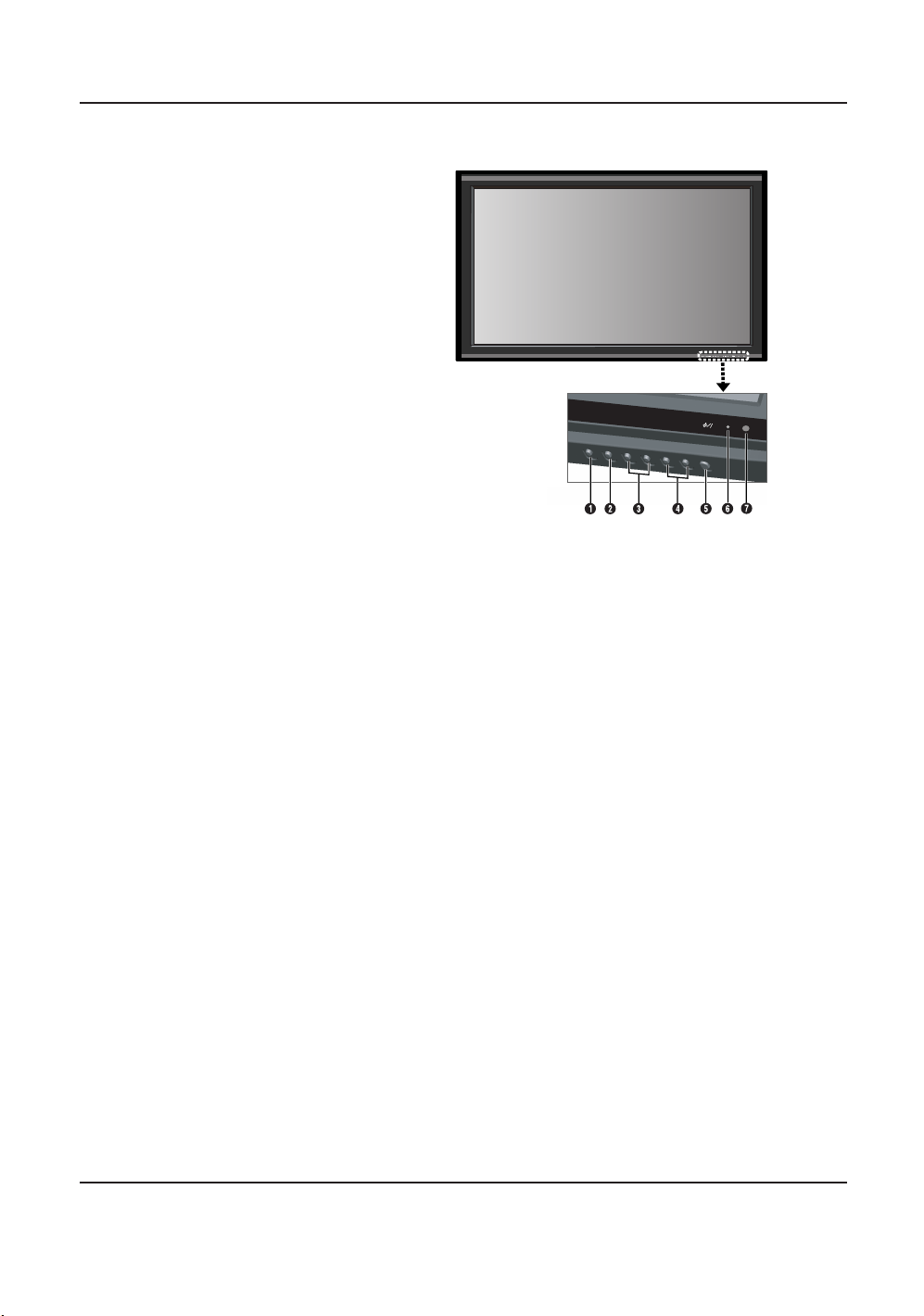
3.1 FRONT VIEW
1 Input Button
Use this button to switch between available inputs.
2 Menu Button
Use this button to engage the On Screen Display menu.
3Volume Adjustment Buttons
Use these buttons to adjust volume up and down.These buttons
also serve as navigation and adjustment buttons when On Screen
Display menu is engaged.
4 Select Buttons
Use these buttons to navigate through the On Screen Display
menu. If an optional TV tuner is installed, these buttons also
function as Channel Up/Down.
5Power (Standby) Button
Turns power on/off from standby mode.There is a wait period
between on/off cycles.
6 Remote Control Signal Receiver
Point the remote control towards this spot on the monitor.
7 Status LED
•
Not Illuminated = No AC Power detected
If the main power switch (rear of panel) is turned off, this LED
will not illuminate.
•
Red = Standby (Power OFF) with AC power detected
The LED will illuminate in red color if the monitor is shut off but
the main power cord is plugged into the back of the unit.
•
Solid Green = Power ON
IN
P
U
T
M
E
N
U
V
O
L
-
+
C
H
-
+
37InchLCD_Philips_Eng 1/25/07 3:03 PM Page 10
11
User Manual BDL3731V
3.2 REAR VIEW
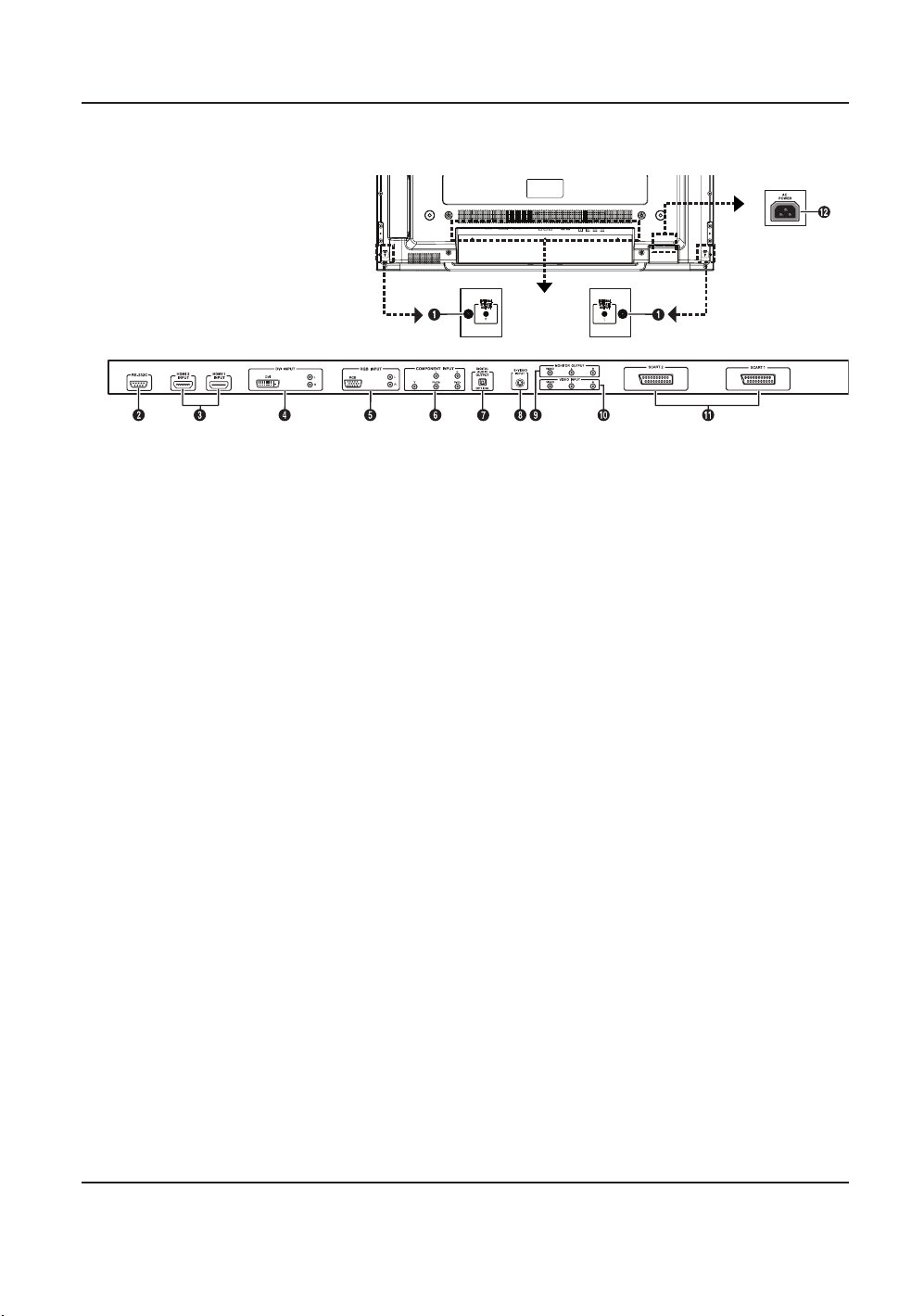
1 External speaker output
Connect to external speakers.
2 RS-232 Connector
Connect to a PC to update software.
3 Digital HDMI input
Connect to the HDMI output jack of an external device.
4 Digital DVI input
Connect to digital video signals from a Set-Top box or Computer.
5 RGB(VGA) input
Connect to RGB (VGA) output of Computer or Set-Top box.
6 Component Video inputs
Auto-detecting component video inputs (Y/Pb/Pr or Y/Cb/Cr) for
connecting to the component output jacks of a DVD player or
Set-Top Box.
7 Digital Audio output - OPTICAL
Connect to a device with digital audio input.
8 S-Video input
Connect S-Video signals from external sources such as VCRs or
DVD players.
9 Monitor output
Connect to the video and audio input of a recording VCR or DVD.
Connect to the audio input of an audio system.
10. Video input
Connect to the video and audio output of an external device.
11 SCART (AV) Connector
Connect to external sources such as VCRs or DVD players.
12 Power connection
Connect the supplied power cord to the wall outlet.
37InchLCD_Philips_Eng 1/25/07 3:03 PM Page 11
12
User Manual BDL3731V
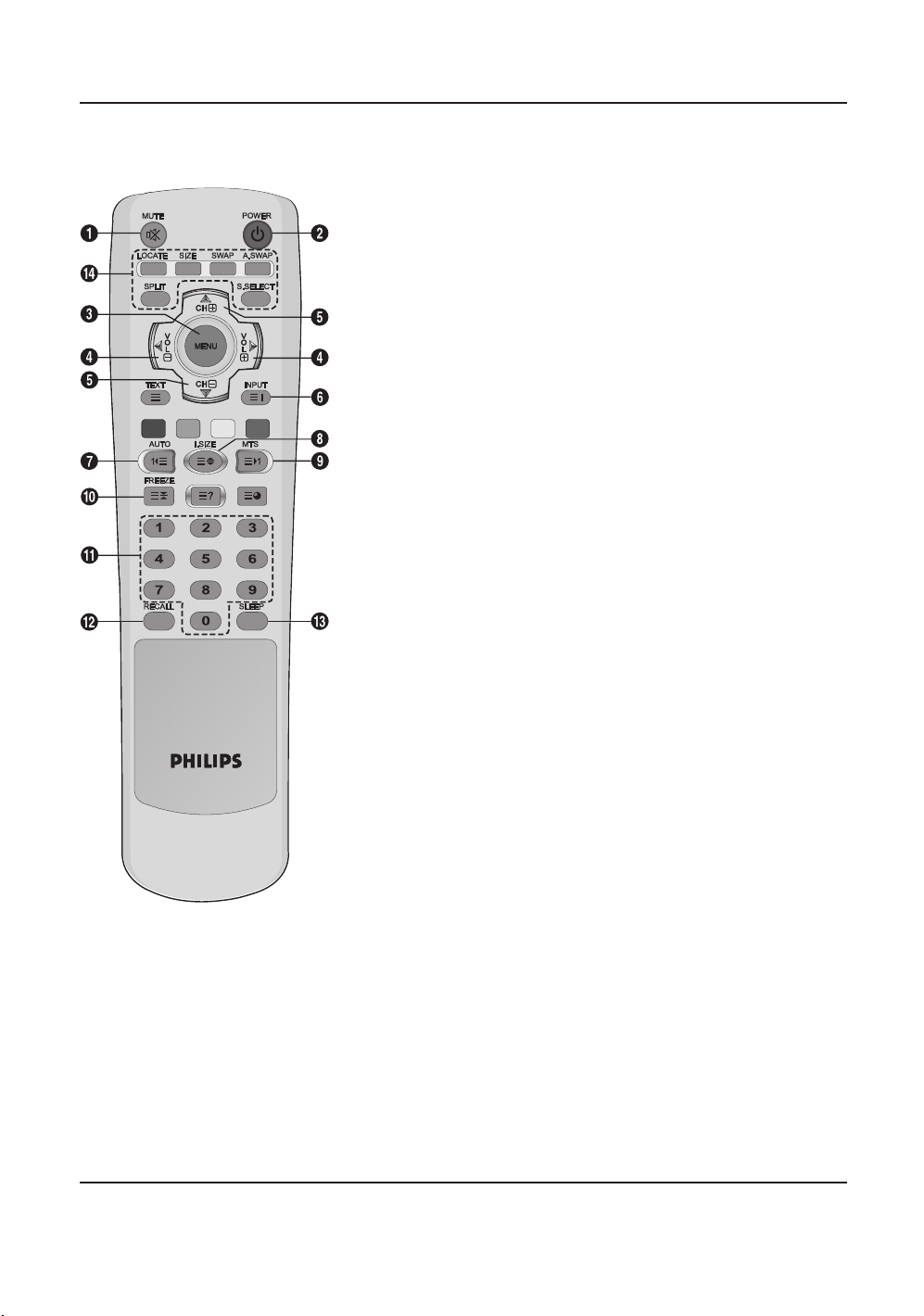
3.3 REMOTE CONTROL
3.3.1 GENERAL FUNCTIONS
1 Sound Mute On/Off
2 Standby Power On/Off
Push this button to switch on the monitor from Standby mode.
Push it again to turn it off to Standby mode.
3 Menu
Activates the OSD (On Screen Display) menu.
4Volume +/-
Turns volume up or down.
5 Channel +/-
Changes the TV channels sequentially.
6 INPUT
Displays the available input sources.
7AUTO
- Used to adjusts the screen automatically when connected to the
Digital Visual Interface (DVI) or PC input.
- Used to launch the Program Table menu while watching analog TV
channels.
8 I.SIZE (Image SIZE)
Used to select the picture size.
9MTS
Used to select the sound mode.
10 FREEZE
Freeze the display on the screen.The playback system will continue
playing.
11 Number keypad
Use number keypad to select the TV channel you want to watch.
12 RECALL
Display information.
13 SLEEP
Press this button to set timer off.
14 PIP Function Buttons
LOCATE : Used to select a location of the sub-picture.
It is available in PIP mode only.
SIZE : Used to select a size of the sub-picture. It is available in PIP
mode only.
SWAP : Used to interchange the main picture and sub-picture.
It is available in PIP and PBP mode only.
A.SWAP : Used to select the audio for the main or sub-picture.
It is available in PIP and PBP mode only.
SPLIT : Used to select a PIP mode (NORMAL, PIP, PBP)
S.SELECT (Screen SELECT) : Used to select the main picture
or sub-picture.Then you can
adjust the status of selected
picture. It is available in PIP and
PBP mode only.
37InchLCD_Philips_Eng 1/25/07 3:03 PM Page 12
13
User Manual BDL3731V
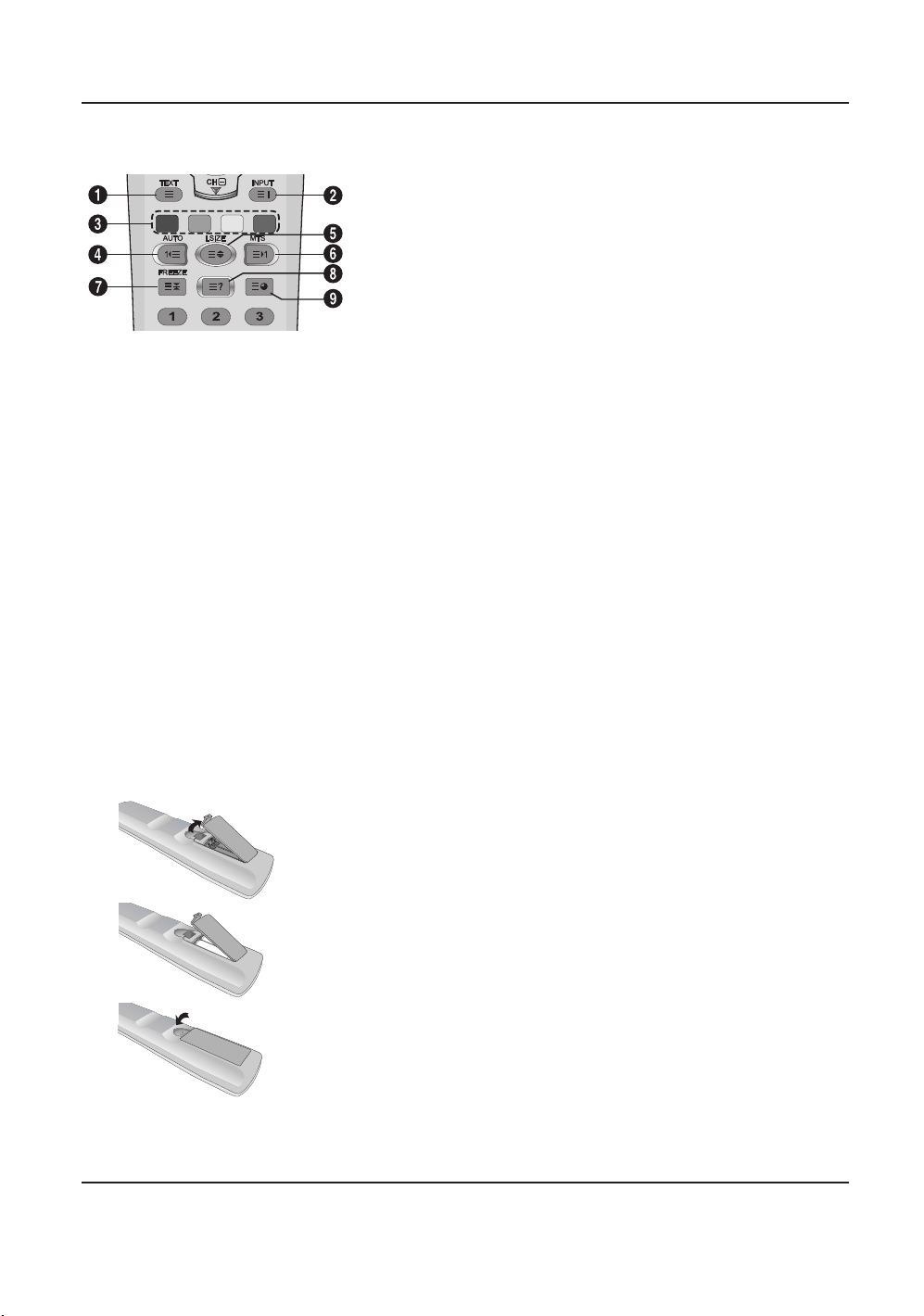
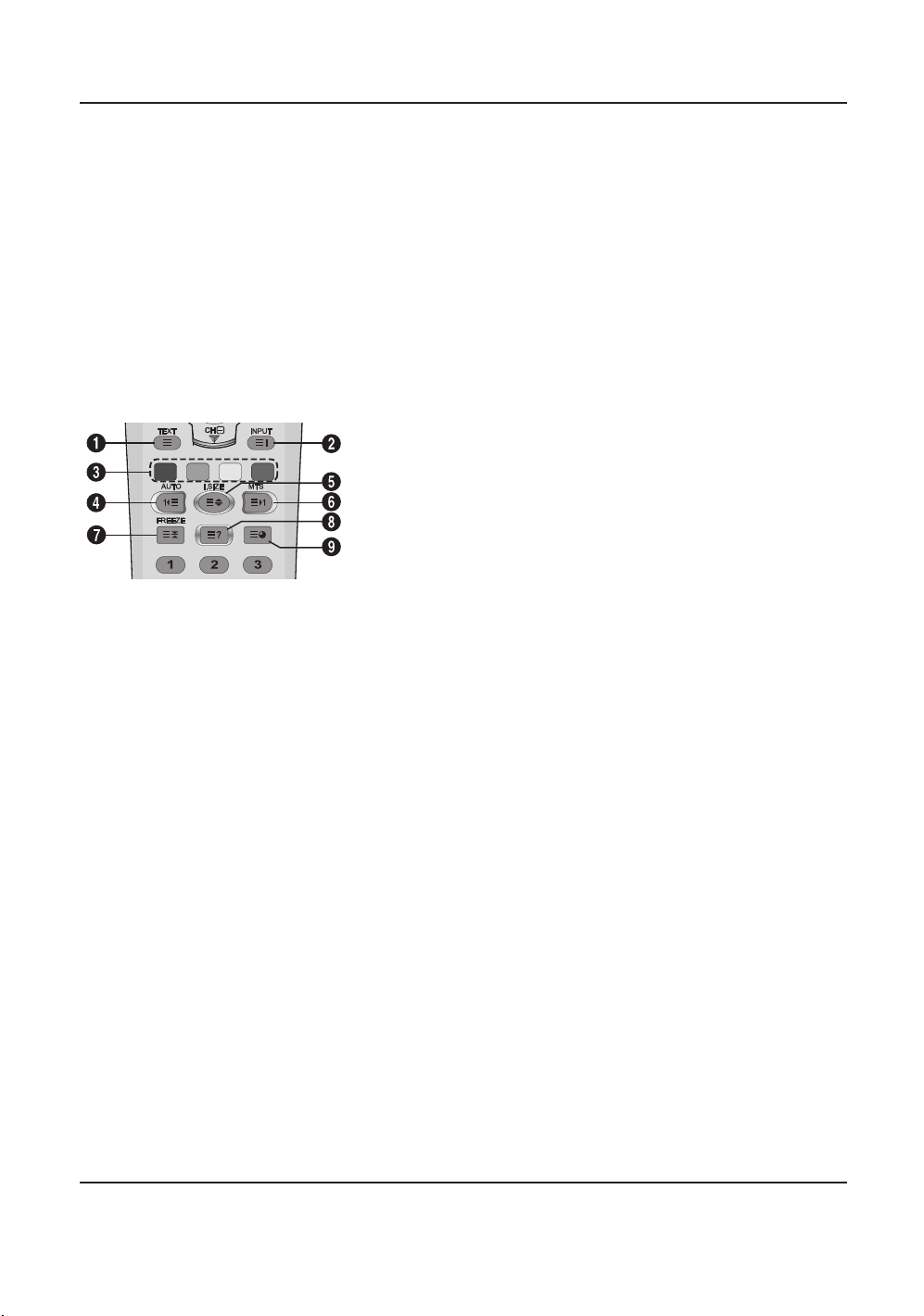
3.3.2 TELETEXT FUNCTION BUTTONS
1 TEXT
Activates the TELETEXT mode.
2 INPUT
Displays the TELETEXT index.
3Fastext
With Fastext, you can easily access the topic and relevant pages
you want by pressing the red, green, yellow and blue buttons on
the remote control.
In TELETEXT mode, volume controls remain available, but the
relevant symbols are not shown on the screen.
4Page Down (AUTO)
Displays the previous TELETEXT page.
5 Zoom (I.SIZE)
Press the I.SIZE button once to zoom in on the top part of the
screen.
Press twice to zoom in on the bottom part of the screen and
three times to return to normal display.
6Page Up (MTS)
Displays the next TELETEXT page.
7 FREEZE
Freezes the current page, preventing update and subpage display.
•
Press the HOLD/POSITION button on the remote control to
select this function.
•
Press the HOLD/POSITION button again to cancel.
8Reveal
Reveals hidden page information. Press the Reveal button to show
the information again.
9 Sub-page
Press to display a secondary page by entering its number.
3.3.3 INSERTING THE BATTERIES IN THE REMOTE
CONTROL
1 Remove the cover on the rear of the remote control.
2 Insert two AAA size 1.5V batteries ensuring that the "+" and "-"
ends of the batteries are correctly aligned.
3 Replace the cover.
Note:
Do not mix battery types, e.g. alkaline and manganese.
37InchLCD_Philips_Eng 1/25/07 3:03 PM Page 13

14
User Manual BDL3731V
4. CONNECTIONS TO EXTERNAL EQUIPMENT
4.1 CONNECTING EXTERNAL EQUIPMENT (VCR,
DVD, CAMCORDER, SATELLITE RECEIVER)
4.1.1 USING SCART (AV) SOCKET INPUT
1 Connect the SCART socket of the external device to the SCART
socket of the monitor.
2 Connect the video recorder to the antenna wall socket or cable
box.
4.1.2 USING S-VIDEO INPUT
1 Connect the S-Video (4-pin DIN) connector of the external device
to the S-VIDEO INPUT of the monitor.
2 Connect the red (R) and white (L) audio jacks of the device to the
R and L audio-in jacks located next to the S-VIDEO connector.
4.1.3 USING COMPONENT VIDEO INPUT
1 Connect the green-colored (labeled as "Y") jack of the device to
the green-colored "Y" jack of the monitor.
2 Connect the red-colored (labeled as "Pr") jack of the device to the
red-colored "PR/CR" jack of the monitor.
3 Connect the blue-colored (labeled as "Pb") jack of the device to
the blue-colored "PB/CB" jack of the monitor.
4 Connect the red (R) and white (L) audio jacks of the device to the
R and L audio-in jacks of the monitor.
37InchLCD_Philips_Eng 1/25/07 3:03 PM Page 14
15
User Manual BDL3731V
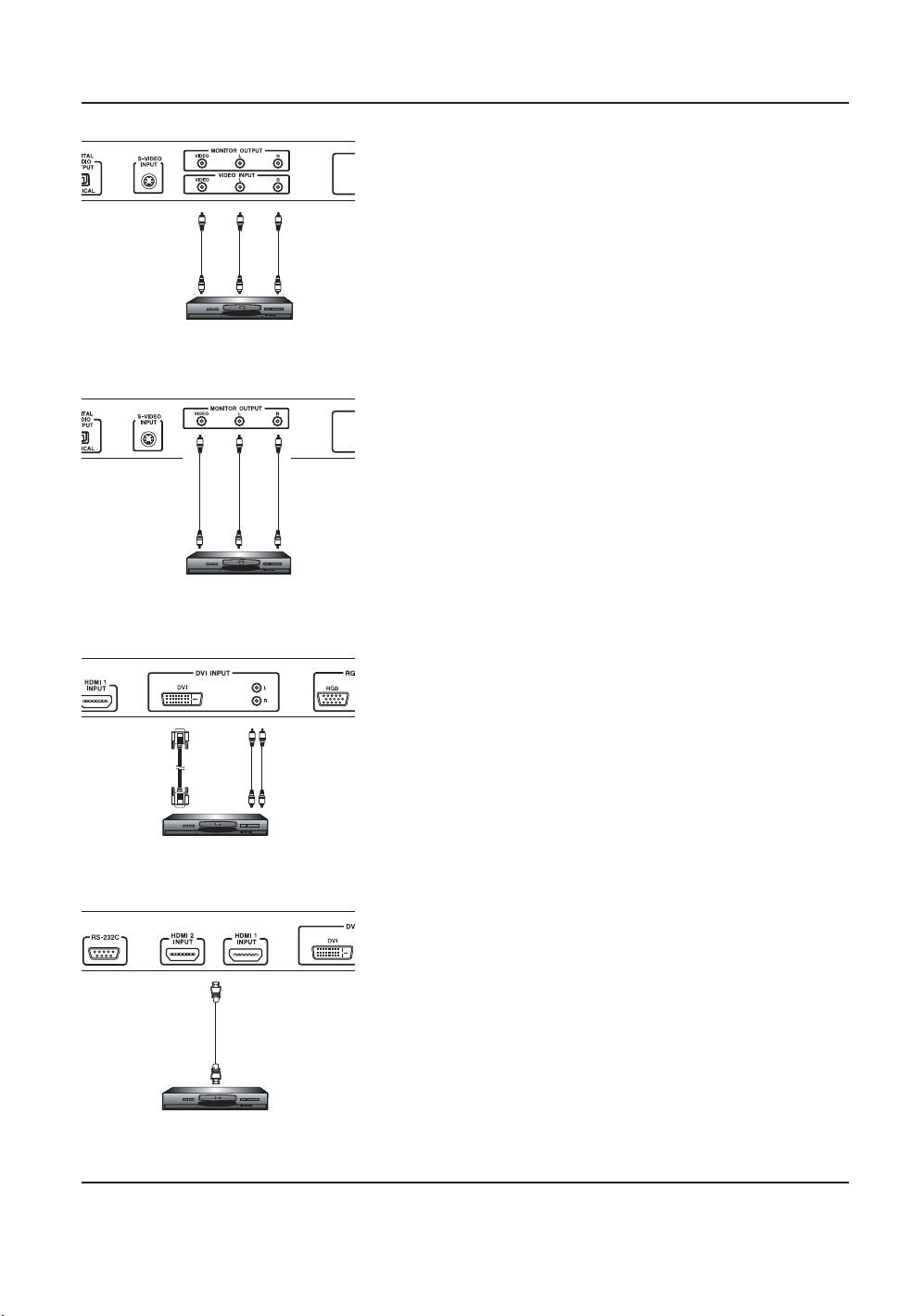
4.1.4 USING VIDEO INPUT
1 Connect the jack of the external device to the VIDEO INPUT of
the monitor.
2 Connect the red (R) and white (L) audio jacks to the R and L
audio-in jacks located next to the VIDEO connector.
4.1.5 USING MONITOR OUTPUT
1 Connect the jack of the DVD or VCR (for recording) or audio
system to the MONITOR OUTPUT of the monitor.
2 Connect the red (R) and white (L) audio jacks to the R and L
audio-out jacks located next to the VIDEO connector.
4.1.6 USING DVI INPUT
1 Connect the DVI-jack of the DVD, decoder or satellite receiver to
the DVI INPUT of the monitor.
2 Connect the red (R) and white (L) audio jacks to the R and L
audio-in jacks located next to the DVI connector.
4.1.7 USING HDMI INPUT
1 Connect the HDMI-jack of the external device to the HDMI
INPUT of the monitor.
37InchLCD_Philips_Eng 1/25/07 3:03 PM Page 15
16
User Manual BDL3731V
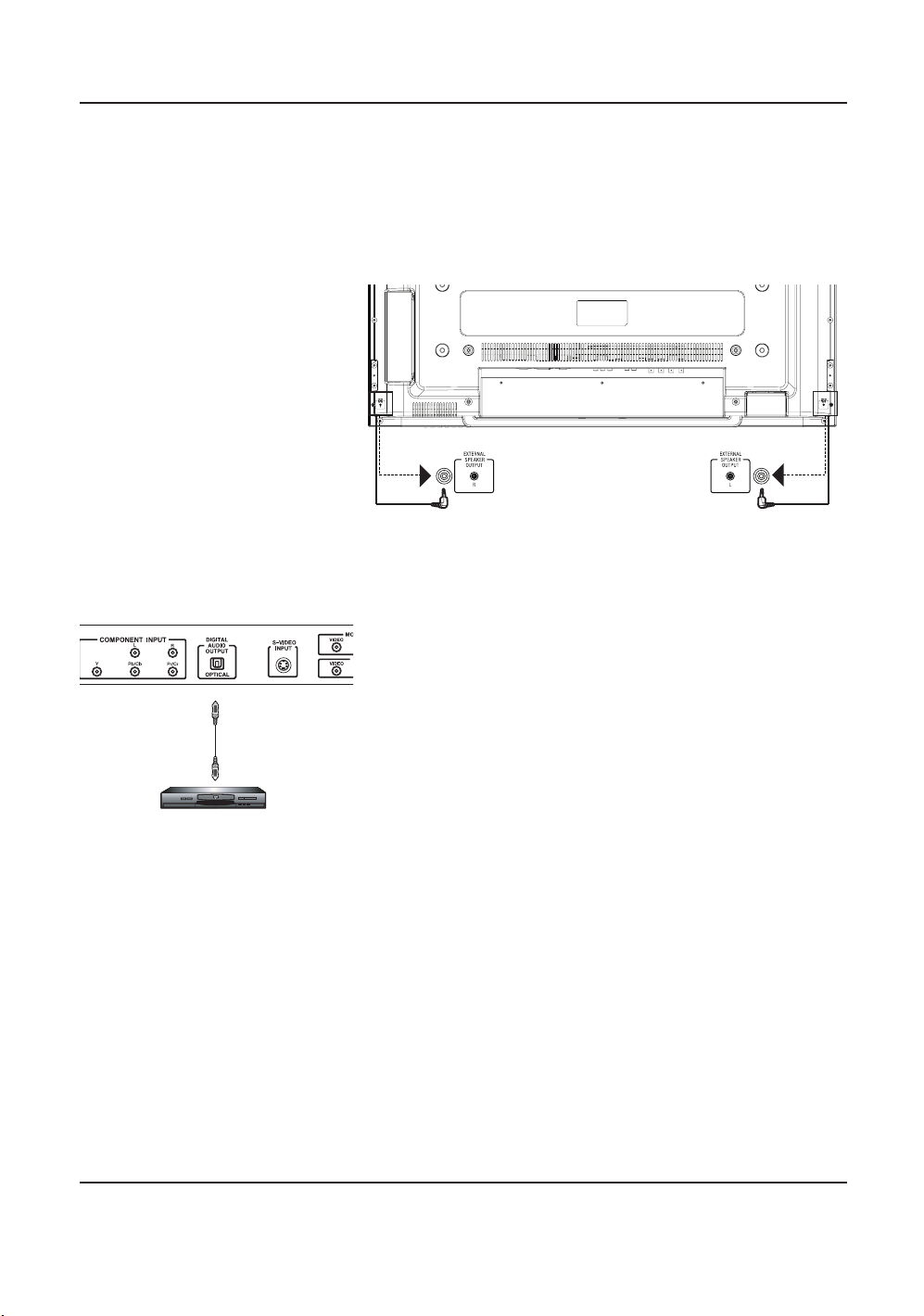
4.2 EXTERNAL AUDIO CONNECTION
4.2.1 CONNECTING EXTERNAL SPEAKER
Connect the speaker audio cable to the external speaker output jack
on the rear of the LCD.
• Before connecting the speaker wire to the LCD, turn off your LCD.
4.2.2 USING DIGITAL AUDIO OUTPUT
Connect the optical cable to the DIGITAL AUDIO OUTPUT on the
rear of the LCD.
37InchLCD_Philips_Eng 1/25/07 3:03 PM Page 16
17
User Manual BDL3731V
4.3 CONNECTING A PC
4.3.1 USING RGB (VGA) OR DVI VIDEO INPUT
1 Connect the 15-pin D-Sub RGB(VGA) connector of the PC to the
RGB-IN connector of the monitor.
If you have a PC that is equipped with a DVI (Digital Visual
Interface), you may connect the PC DVI connector from the PC to
the DVI-IN connector of the monitor.
2 For both RGB (VGA) and DVI, connect the red (R) and white (L)
audio jacks of the PC to the R and L (DVI/RGB) AUDIO IN jacks
of the monitor.
Setting Up Your Display Using Plug and Play
This display adheres to VESA Plug and Play standard to eliminate
complicated and time consuming setup of monitors.This monitor
identifies itself to the computer and automatically sends the PC its
Extended Display Identification Data (EDID) using Display Data
Channel (DDC) protocols.
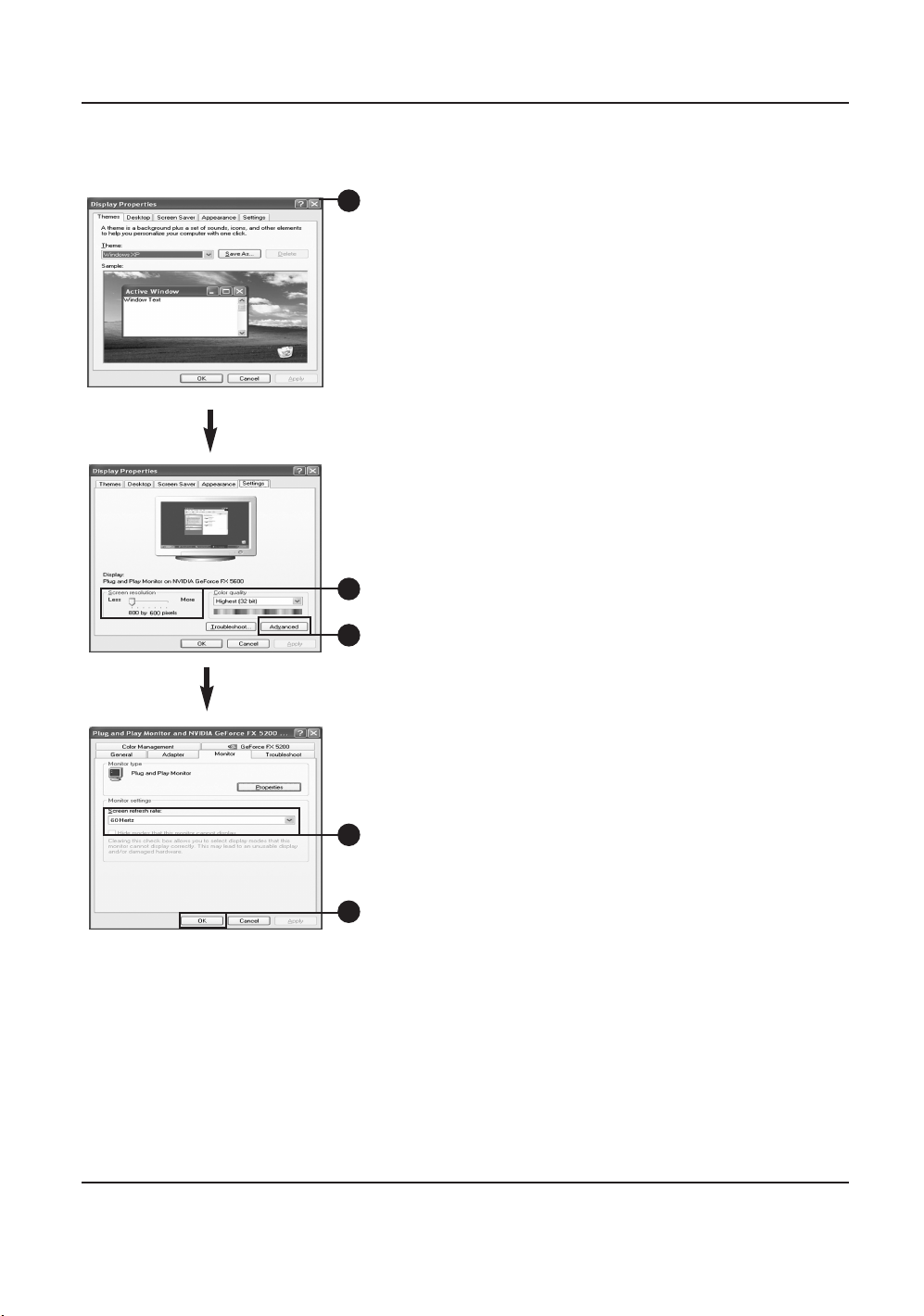
How to Set up Your PC for Use with Monitor (Windows)
The display settings for a typical Windows-based computer are shown
below. However, the actual screens on your computer will differ
depending on the version of Windows and video card equipped with
the computer. Even though the actual screen may look different from
example displayed below, basic set-up routine will apply in most cases.
1 Go to the Window's CONTROL PANEL by clicking START,
SETTINGS, CONTROL PANEL.
=> The CONTROL PANEL Window is displayed.
2 Select the DISPLAY icon from this window.
=> The DISPLAY PROPERTIES dialog box is displayed.
3 Select the SETTINGS tab to display your computer's video output
settings.
4 Set the "Screen Resolution" settings to 1024x768 PIXELS. For
COLOR QUALITY, select 24 BIT COLOR (might also be
expressed as 16 million colors).
5 If a vertical-frequency option is available, set the value to 60 or
60 Hz.
6 Click OK to complete the setting.
Note:
Both screen position and size will vary, depending on the type of PC
graphics card and its resolution selected. See page 30 for an overview
of the supported resolutions.
1
2
3
4
5
37InchLCD_Philips_Eng 1/25/07 3:03 PM Page 17
18
User Manual BDL3731V
5. BASIC FUNCTIONS
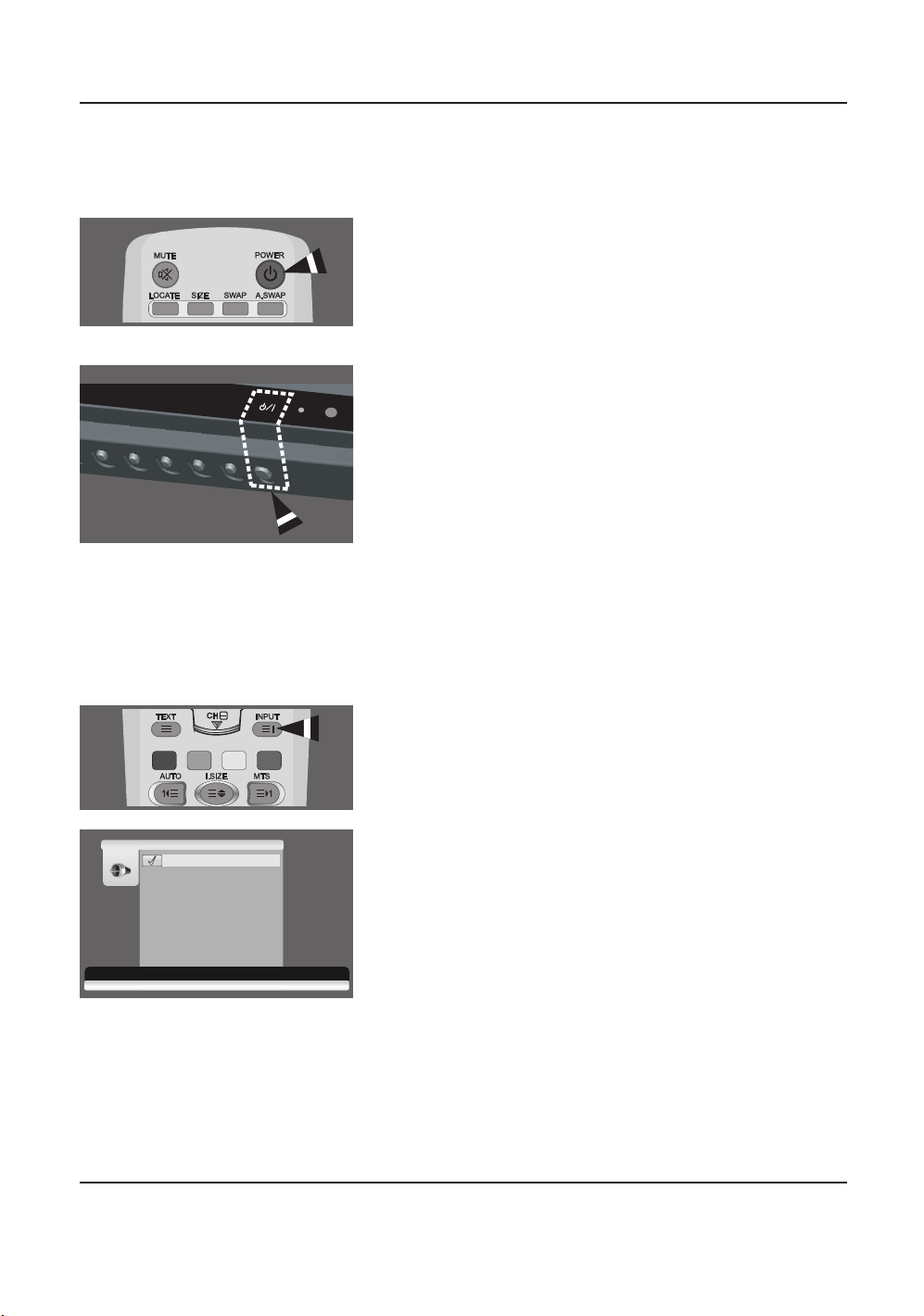
5.1 POWERING ON / OFF
Make sure the monitor is plugged into the wall outlet with the supplied
power cord.
If the power is plugged in, the STATUS LED on the control panel will
illuminate in red color.
Using Front Panel or Remote Control
1 Press the POWER button on the front panel or remote control.
=> The monitor will now turn on after a brief pause.The STATUS
LED will now turn green to indicate power on status.
2 Turn off the power by pressing the POWER button on the front
panel or the remote control again.
5.2 SELECTING SIGNAL SOURCE
Using Front Panel or Remote Control
1 Press the INPUT button on the front panel or remote control.
2 Pressing the CH + or CH - button will cycle the monitor through
all available input signal sources in the following order:
SCART 1 - SCART 2 - VIDEO - S-VIDEO -
COMPONENT - RGB - DVI - HDMI 1 - HDMI 2
3 Press the VOL+ or VOL- button to select the source.
T
MENU VOL
-
+
CH
-
+
Main Input
Move [- CH +] Select [- VOL +] Exit [MENU]
SCART 1
SCART 2
VIDEO
S-VIDEO
COMPONENT
RGB
DVI
HDMI 1
HDMI 2
37InchLCD_Philips_Eng 1/25/07 3:03 PM Page 18
19
User Manual BDL3731V
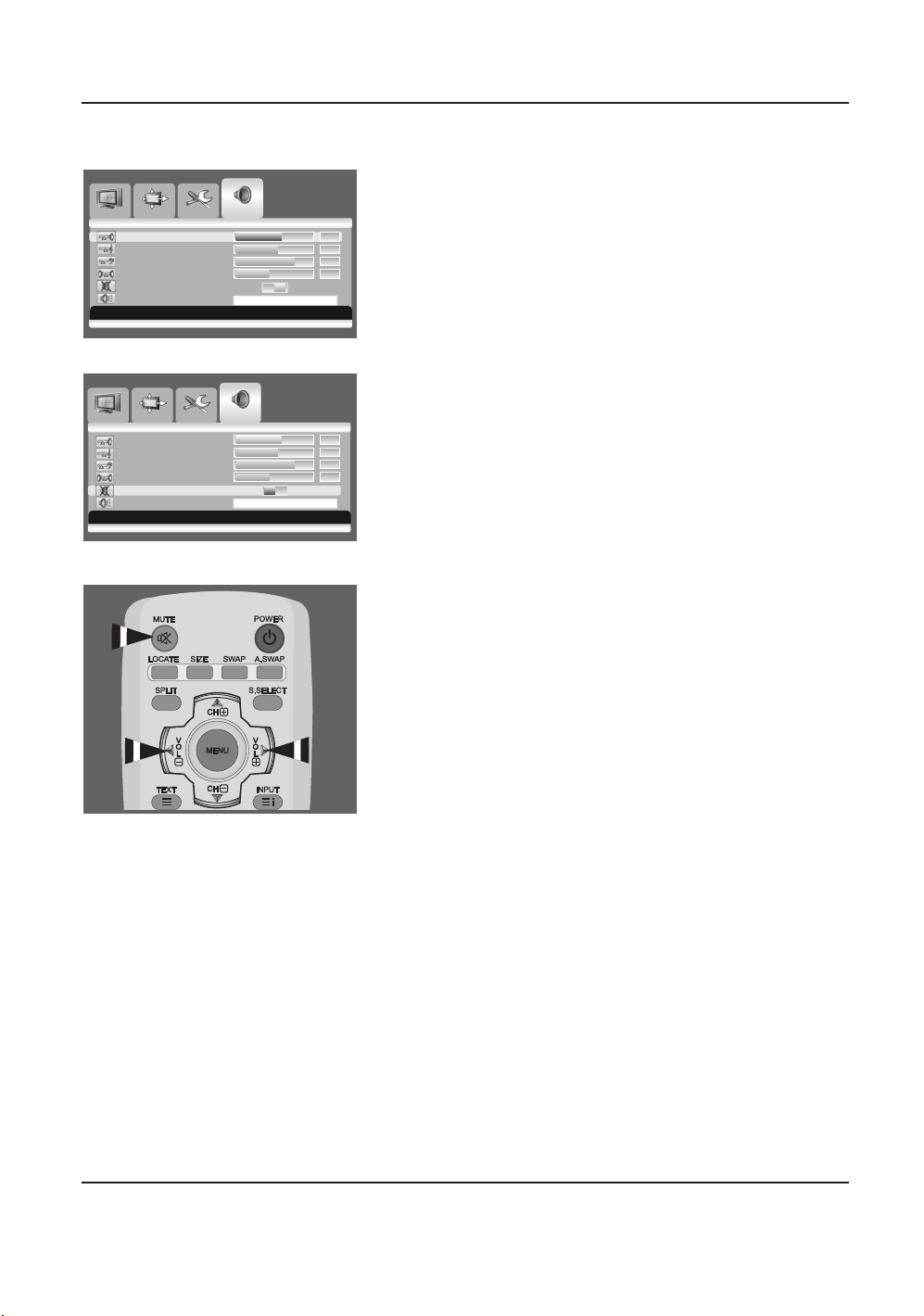
5.3 VOLUME ADJUSTMENT
Using Front Panel or Remote Control
1 Press the MENU button on the front panel or remote control.
2 Press the VOL+ or VOL- button to select Audio.
3 Press the CH- button to enter the selected menu group.
4 Press the VOL+ or VOL- button to adjust the sound volume.
Note:
If the monitor's built-in speakers are turned off, then the volume
controls will not affect volume generated by the built-in speaker.
5.4 MUTE
Using Remote Control
1 Press the MUTE button on the remote control.
=> The audio is cut off.
2 Press the MUTE, VOL+ or VOL- button to turn the audio
back on.
Image Screen Setup Audio
Move [- CH +] Adjust [- VOL +] Exit [MENU]
Volume 60
Tr eble 055
Bass 072
Balance 043
Mute ON OFF
Audio Preset [-VOL+] to Preset Audio
Image Screen Setup Audio
Move [- CH +] Select [- VOL +] Exit [MENU]
Volume 60
Tr eble 055
Bass 072
Balance 043
Mute ON OFF
Audio Preset [-VOL+] to Preset Audio
37InchLCD_Philips_Eng 1/25/07 3:03 PM Page 19
20
User Manual BDL3731V
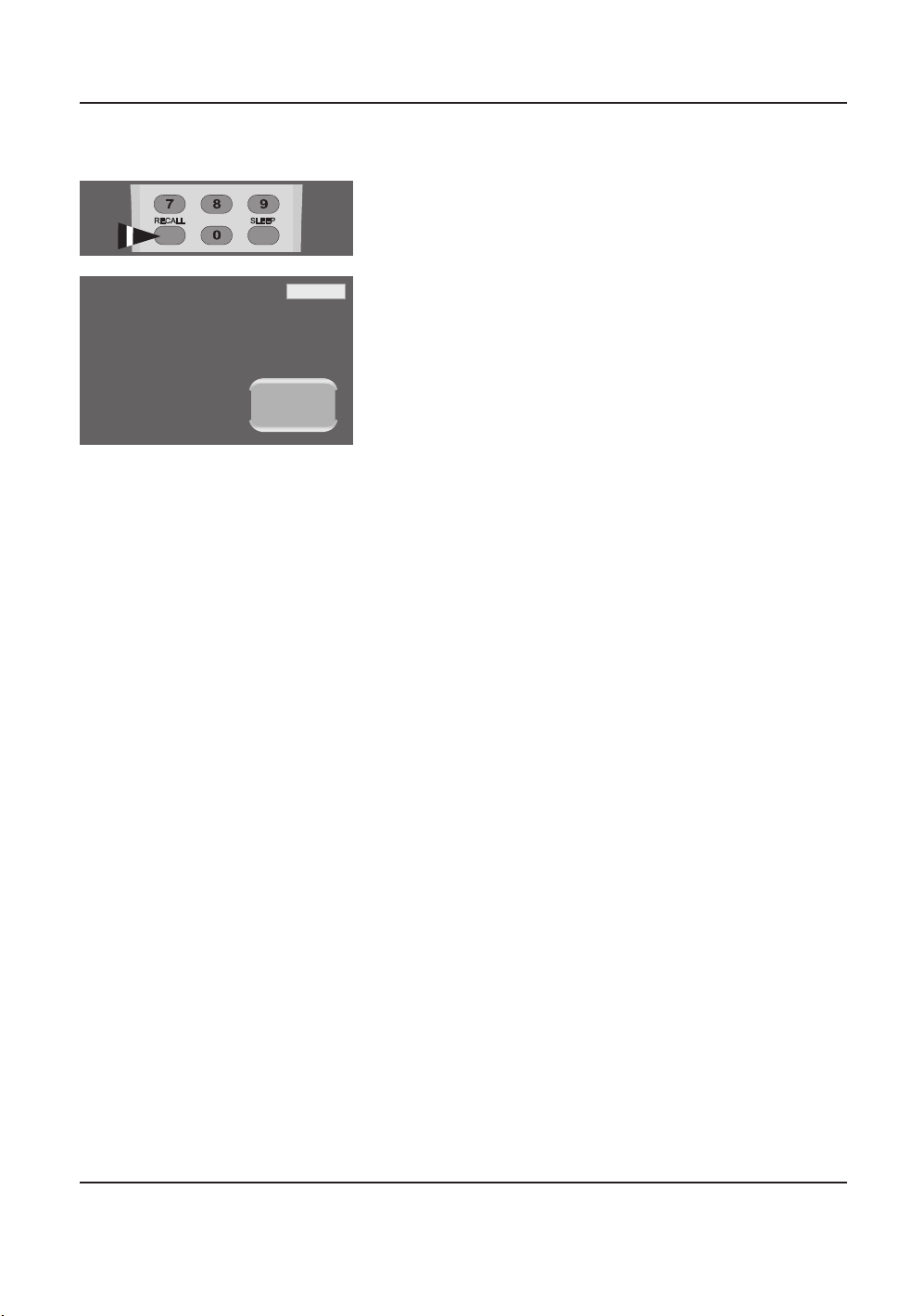
5.5 DISPLAY INFORMATION
Via Remote Control
Press the RECALL button to display the channel information and
setting status. Press again to exit.
Note:
The displayed information can differ, depending on the selected source.
TIMER OFF
VIDEO
37InchLCD_Philips_Eng 1/25/07 3:03 PM Page 20
21
User Manual BDL3731V
6. ADVANCED FUNCTIONS
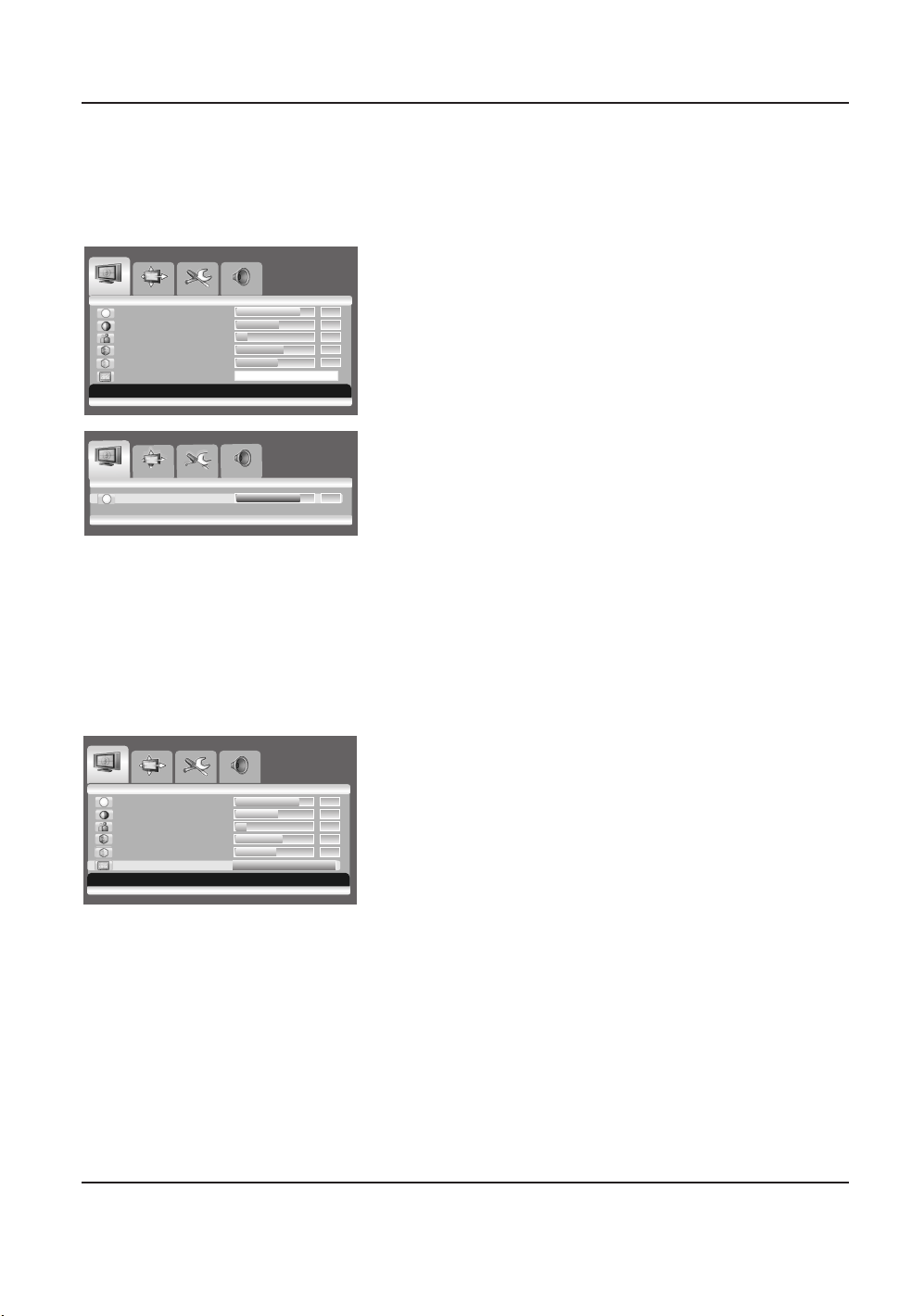
6.1 PICTURE CONTROLS
6.1.1 ADJUSTING PICTURE SETTINGS
Various picture adjustments can be set using the Picture Adjustment
OSD menu.
1 Press the MENU button on the front panel or remote control.
The Image menu is displayed.
2Press the CH+ button to enter the selected menu group.
3
Press the CH+
or
CH- button to select the option to be adjusted.
Depending on the input source, the following menu’s appear:
• Brightness - Contrast - Sharpness - Color - Tint
- Image Preset
• Brightness - Contrast - Phase - Frequency
- Sharpness (RGB (PC) mode)
4Press the VOL+ or VOL- button to select the optimal setting.
5Press the MENU button to return to the previous menu.
6.1.2 RESET TO THE FACTORY DEFAULTS
1Press the CH+ or CH- button to select Image Preset.
2Press the VOL+ or VOL- button to reset the picture settings to
the factory defaults.
Image Screen Setup Audio
Move [- VOL +] Select [- CH +] Exit [MENU]
Brightness 083
Contrast 052
Sharpness 019
Color 063
Tint 050
Image Preset [-VOL+] to Preset Image
Image Screen Setup Audio
Adjust [- VOL +] Exit [MENU]
Brightness 083
Image Screen Setup Audio
Move [- CH +] Select [- VOL +] Exit [MENU]
Brightness 083
Contrast 052
Sharpness 019
Color 063
Tint 050
Image Preset Image Preset Complete!
37InchLCD_Philips_Eng 1/25/07 3:03 PM Page 21
22
User Manual BDL3731V
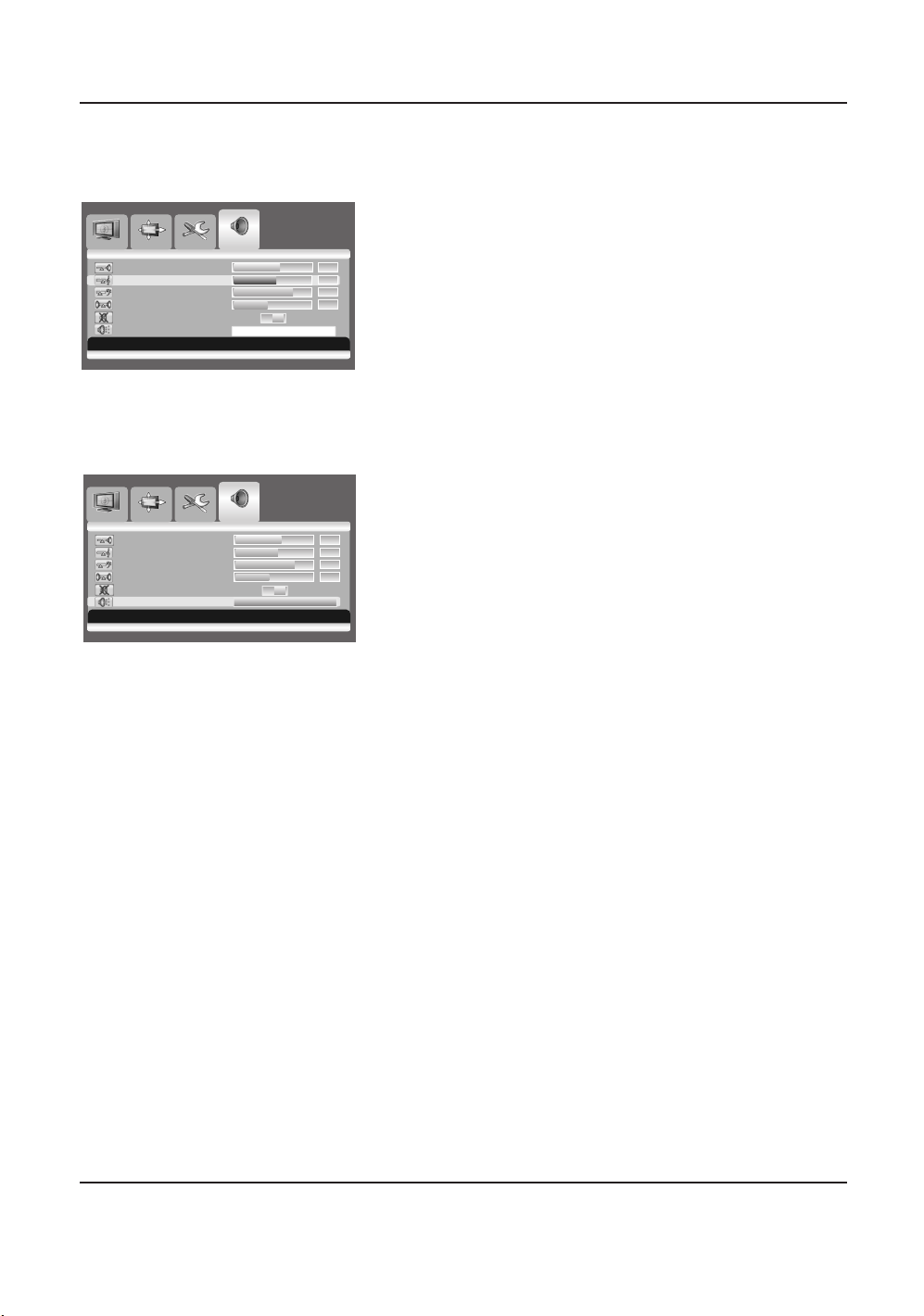
6.2 SOUND CONTROLS
6.2.1 ADJUSTING SOUND SETTINGS
Various sound adjustments can be set using the Sound Adjustment
OSD menu.
1Press the MENU button on the front panel or remote control.
2Press the VOL+ or VOL- button to select Audio.
3Press the CH- button to enter the selected menu group.
4Press the CH+ or CH- button to select the desired option:
Treble - Bass -Balance
5Press the VOL+ or VOL- button to adjust the settings.
6.2.2 RESET TO THE FACTORY DEFAULTS
1Press the CH+ or CH- button to select Audio Preset.
2Press the VOL+ or VOL- button to reset the sound settings to
the factory defaults.
Image Screen Setup Audio
Move [- CH +] Adjust [- VOL +] Exit [MENU]
Volume 60
Tr eble 055
Bass 072
Balance 043
Mute ON OFF
Audio Preset [-VOL+] to Preset Audio
Image Screen Setup Audio
Move [- CH +] Select [- VOL +] Exit [MENU]
Volume 60
Tr eble 055
Bass 072
Balance 043
Mute ON OFF
Audio Preset
Audio Preset Complete!
37InchLCD_Philips_Eng 1/25/07 3:03 PM Page 22
23
User Manual BDL3731V
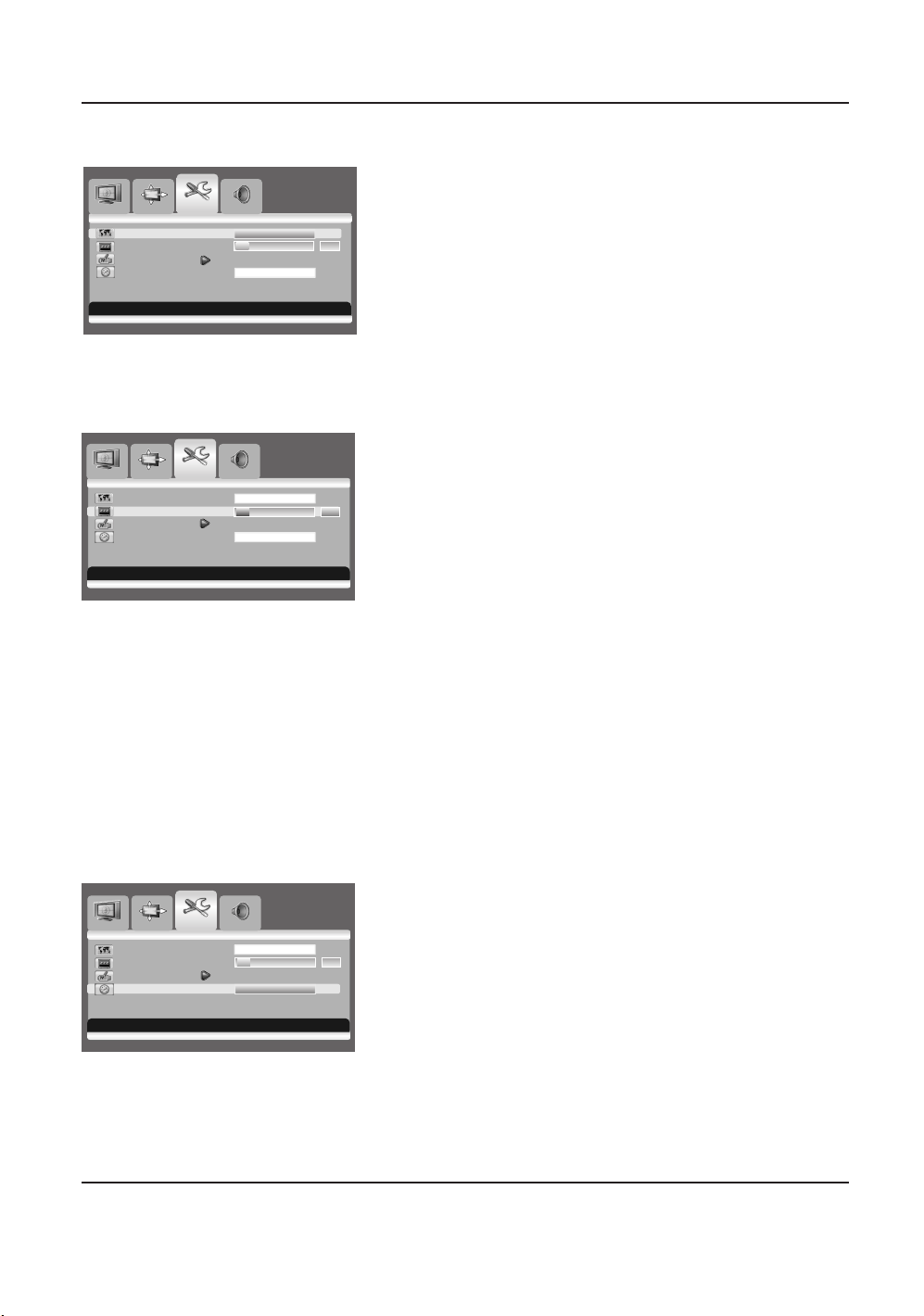
6.3 OSD MENU LANGUAGE
This monitor has multiple OSD Menu languages built-in including
English, French, Spanish, Italian, German, Dutch, and Portuguese.
1Press the MENU button on the front panel or remote control.
2Press the VOL+ or VOL- button to select Setup.
3Press the CH- button to enter the selected menu group.
4Press the VOL+ or VOL- button to select the required language.
6.4 POWER SAVE MODE
This monitor is equipped with a Power Save mode under RGB(VGA)
or DVI input modes.When there are no signals detected by the
monitor for a certain time, the monitor will automatically go into sleep
mode until signal is restored.You can select a time period between 10
and 180 minutes.
1Press the MENU button on the front panel or remote control.
2Press the VOL+ or VOL- button to select Setup.
3Press the CH- button to enter the selected menu group.
4Press the CH+ or CH- button to select Sleep Timer.
5Press the VOL+ or VOL- button to select the required time
interval.
Note:
You can simply select required time interval by repeatedly pressing the
SLEEP button on the remote control.
6.5 ADJUSTING THE COLOR TEMPERATURE
You can change tint of the entire screen to suit your requirements.
1Press the MENU button on the front panel or remote control.
2Press the VOL+ or VOL- button to select Setup.
3Press the CH- button to enter the selected menu group.
4Press the CH+ or CH- button to select Color Temp.
5Press the VOL+ or VOL- button to select required option.
WARM - NORMAL - COOL
Image Screen Setup Audio
Move [- CH +] Select [- VOL +] Exit [MENU]
Image Screen Setup Audio
Move [- CH +] Adjust [- VOL +] Exit [MENU]
Image Screen Setup Audio
Move [- CH +] Adjust [- VOL +] Exit [MENU]
Language English
Sleep Timer 030
OSD Setting
Color Temp. Normal
Language
English
Sleep Timer
030
OSD Settings
Color Temp. Normal
Language English
Sleep Timer 030
OSD Settings
Color Temp.
Normal
37InchLCD_Philips_Eng 1/25/07 3:03 PM Page 23

24
User Manual BDL3731V
6.6 ADJUSTING THE BRIGHTNESS OF BACKLIGHT
You can adjust the brightness of your LCD backlight.
1Press the MENU button on the front panel or remote control.
2Press the VOL+ or VOL- button to select Screen.
3Press the CH- button to enter the selected menu group.
4Press the CH+ or CH- button to select Backlight.
5Press the VOL+ or VOL- button to adjust the settings.
20 : minimum value ~ 100 : maximum value
6.7 FREEZING THE CURRENT PICTURE
You can freeze the picture when watching a television program.
1Press the MENU button on the front panel or remote control.
2Press the VOL+ or VOL- button to select Screen.
3Press the CH- button to enter the selected menu group.
4Press the CH+ or CH- button to select Freeze.
5Press the VOL+ or VOL- button to select required option (OFF
or ON).
Note:
Simply press the FREEZE button on the remote control. then current
picture is stilled.To return to normal viewing press it again.
6.8 ON-SCREEN DISPLAY TIMEOUT
You can select for how long the OSD will be shown.
1Press the MENU button on the front panel or remote control.
2Press the VOL+ or VOL- button to select Setup.
3Press the CH- button to enter the selected menu group.
4Press the CH+ or CH- button to select OSD Settings.
5Press the Vol+ button to enter the selected menu group.
6Press the CH+ or CH- button to select Timeout.
7
Press the VOL+ or VOL- button until you reach the optimal setting
6.9 ADJUSTING THE MENU TRANSPARENCY
You can give the transparency OSD background.
1Press the MENU button on the front panel or remote control.
2Press the VOL+ or VOL- button to select Setup.
3Press the CH- button to enter the selected menu group.
4Press the CH+ or CH- button to select OSD Settings.
5Press the VOL+ button to enter the selected menu group.
=> The Transparency is selected.
6
Press the VOL+ or VOL- button until you reach the optimal setting.
Image Screen Setup Audio
Move [- CH +] Select [- VOL +] Exit [MENU]
Image Screen Setup Audio
Move [- CH +] Select [- VOL +] Exit [MENU]
Image Screen Setup Audio
Move [- CH +] Adjust [- VOL +] Exit [MENU]
Image Screen Setup Audio
Move [- CH +] Adjust [- VOL +] Exit [MENU]
Size AUTO
Freeze OFF ON
Backlight
100
Image Screen Setup Audio
Adjust [- VOL +] Exit [MENU]
Backlight 100
Size AUTO
Freeze OFF ON
Backlight
100
Language English
Sleep Timer 030
OSD Settings
Transparency
070
Timeout
020
Color Temp. Normal
Language English
Sleep Timer 030
OSD Settings
Transparency
070
Timeout
020
Color Temp. Normal
37InchLCD_Philips_Eng 1/25/07 3:03 PM Page 24
25
User Manual BDL3731V
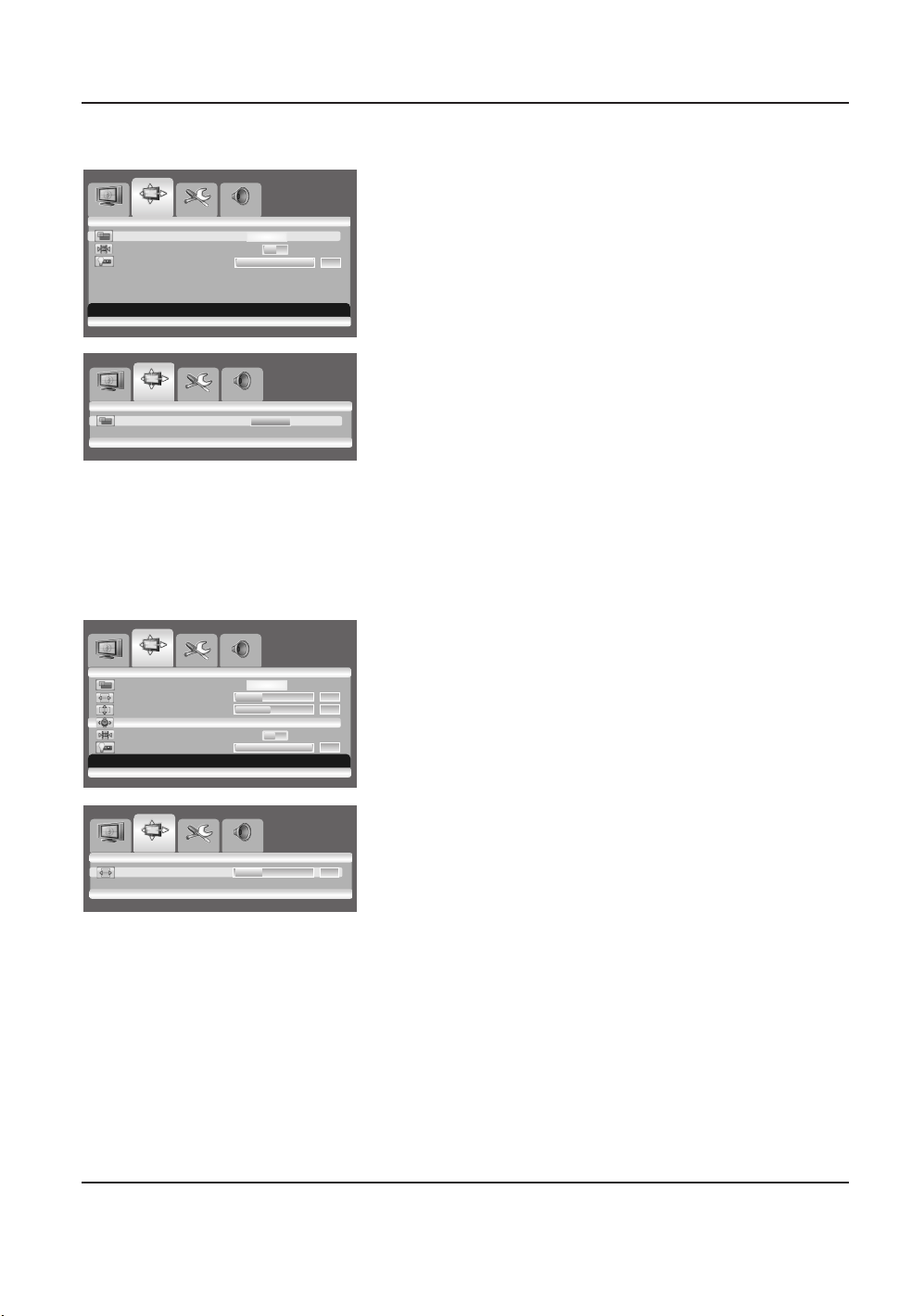
6.10 CHANGING THE SCREEN SIZE
You can select the screen size which best corresponds to your viewing
requirements.
1Press the MENU button on the front panel or remote control.
2Press the VOL+ or VOL
-
button to select Screen.
3Press the CH
-
button to enter the selected menu group.
=> The Size is selected.
4Press the VOL+ or VOL
-
button to select required screen size.
AUTO - FILL ALL - FILL ASPECT - ZOOM -
ANAMORPHIC - *WIDE
(*WIDE is only available when the split screen mode is not
selected.)
Note:
You can simply select required screen size by repeatedly pressing the
I.SIZE (Image SIZE) button on the remote control.
6.11 SETTING UP THE PC INPUT
Preset to the RGB mode by pressing the INPUT button.
1Press the MENU button on the front panel or remote control.
2Press the VOL+ or VOL
-
button to select Screen.
3Press the CH
-
button to enter the selected menu group.
Adjusting the PC screen automatically
1Press the CH+ or CH- button to select Auto.
2Press the VOL+ or VOL
-
button.
=> The screen quality and position are automatically adjusted.
Note:
You can adjust the PC screen automatically by simply pressing the
AUTO button on the remote control.
Selecting the position of the PC screen if it does not fit the
LCD screen
1Press the CH+ or CH- button to select H Position or
V Positing.
2Press the VOL+ or VOL
-
button to fit the TV screen until you
reach the optimal setting.
Image Screen Setup Audio
Move [- CH +] Select [- VOL +] Exit [MENU]
Image Screen Setup Audio
Size AUTO
Select [- VOL +] Exit [MENU]
Image Screen Setup Audio
Move [- CH +] Select [- VOL +] Exit [MENU]
Size AUTO
H Position 035
V Position 044
Auto
Freeze OFF ON
Backlight 100
Image Screen Setup Audio
Adjust [- VOL +] Exit [MENU]
H Position 035
Size AUTO
Freeze OFF ON
Backlight 100
37InchLCD_Philips_Eng 1/25/07 3:04 PM Page 25
26
User Manual BDL3731V
6.12 TELETEXT
The Teletext service is available in many countries under a variety of names
(TOP Text, Fastext, FLOF test,Videotext). It is provided as a free service by
some television broadcasters.This service provides a real wealth of
information, available at any time, on weather, sporting results, news, games,
etc.The information is presented in pages organized in topics specified in
color on the screen and you can access this information by simply pressing
the buttons of the same color on the remote control.
This product doesn't have a tuner inside, but an external settop box may
still contain channels with teletext information.
Accessing Teletext
1Press the CH+ or CH- button to select the required source.
2Press the TEXT button (Œ) on the remote control.
=> Teletext opens on the index page (100).
3Press the TEXT button again to exit.
Select a specific Teletext page
1 Enter the three-digit Teletext page number using the numeric
buttons.
=> The current page is displayed. If the selected page is linked to
with several secondary pages these pages are displayed in
sequence.
2Press the FREEZE button (∏) to freeze the display on a given
page.
3To resume, press the FREEZE button again.
Display TELETEXT index
1Press the INPUT button (´) to display the TELETEXT index.
Fastext
1Press the red, green, yellow and blue buttons (ˇ) on the
remote control to easily access the topic and relevant pages you
want.
Page Down (AUTO)
1Press the AUTO button (¨) to display the previous TELETEXT
page.
Zoom (I. SIZE)
1Press the I. SIZE button (ˆ) once to zoom in on the top part of
the screen.
2Press twice to zoom in on the bottom part of the screen and
three times to return to normal display.
37InchLCD_Philips_Eng 1/25/07 3:04 PM Page 26

27
User Manual BDL3731V
Page Up (MTS)
1Press the MTS button (Ø) to display the next TELETEXT page.
FREEZE
1Press the FREEZE button (∏) on the remote control to freeze
the current page, preventing update and subpage display.
2Press the FREEZE button again to cancel.
Reveal
1Press the Reveal button (”) to hide page information. Press the
button again to unhide.
Sub-page
1Press the sub-page button (’) to display a secondary page by
entering its number.
Subtitles
Some channels provide subtitles for some of their program through
Teletext.The numbers of the relevant pages are specified on the
Teletext index page.
1 Enter the number of the relevant page to display the subtitles.
=> The subtitles appear in the TV picture.The header disappears
after a couple of seconds.
2Press any button on the remote control (except TEXT or the
volume adjustment buttons) to display the subtitles again.
3Press the TEXT button (Œ) to return to TV mode.
Note:
In Teletext mode, volume controls remain available, but the relevant
symbols are not shown on the screen.
37InchLCD_Philips_Eng 1/25/07 3:04 PM Page 27

28
User Manual BDL3731V
6.13 VIEWING THE PICTURE IN PICTURE (PIP)
You can display a sub-picture with the main picture. In this way you can
watch monitor the video input from any connected devices while
watching other video input.
Selecting a PIP mode
Press the SPLIT button repeatedly to select required mode.
The available modes are displayed in the following order.
NORMAL - PIP - PBP
Selecting a location of the sub-picture
Press the LOCATE button.
Press the VOL+, VOL
-
, CH+, or CH- button to select required loca-
tion. It is available in PIP mode only.
Selecting a size of the sub-picture
Press the SIZE button.
Press the VOL+ or VOL
-
button to select required size.
It is available in PIP mode only.
Split Screen NORMAL
PIP Locate
PIP Size
37InchLCD_Philips_Eng 1/25/07 3:04 PM Page 28
29
User Manual BDL3731V
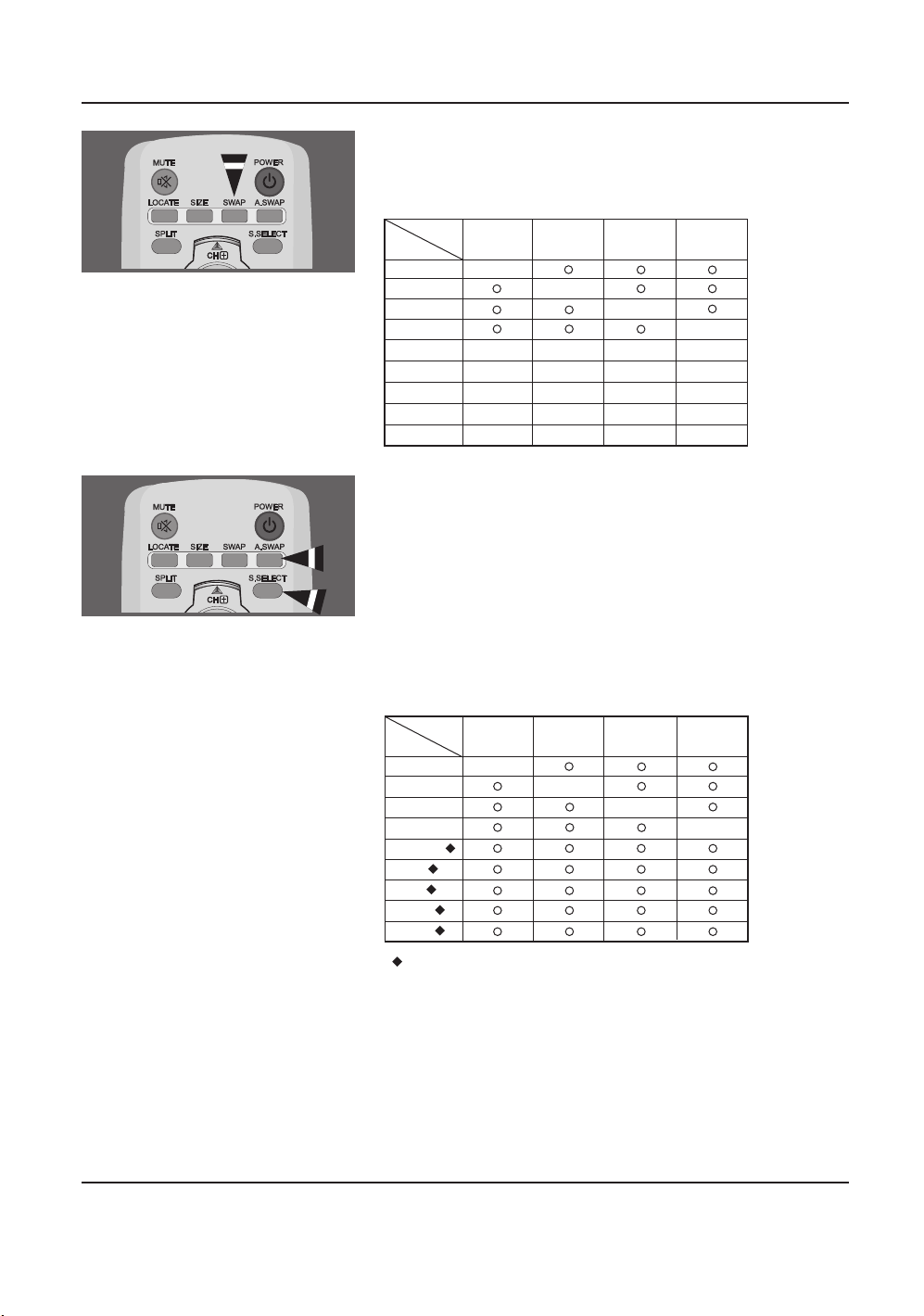
Swapping the main picture and the sub-picture
Press the SWAP button.
The main picture and the sub picture are interchanged.
It is available in PIP and PBP mode only.
Swapping the audio of the main or sub-picture
Press the A.SWAP (Audio SWAP) button repeatedly.
You can hear the audio of the main or sub-picture alternately.
It is available in PIP and PBP mode only.
Selecting the main picture or the sub-picture
Press the S.SELECT button repeatedly.
You can select the main or sub-picture alternately and adjust the status
of selected picture.
It is available in PIP and PBP mode only.
PIP Settings
“” Max. : 480p, 576p, 1024x768/60 Hz
In the PIP mode, the sub input source is differently defined
for the default value (scart1 or scart2) depending on your LCD model.
6.14 REMOTE MANAGEMENT
This display can be managed remotely through the RS232 9-pin port,
by using a Serial Interface Communication Protocol (SICP).
The specifications of the SICP protocol can be found in a separate
document, called "SICP User Manual".
SCART 1
SCART 2
VIDEO
S-VIDEO
COMPONENT
RGB
DVI
HDMI 1
HDMI 2
Main Input
Sub Input
X
X
X
X
X
X
X
X
X
X
X
X
X
X
X
XXXX
XXXX
X
SCART 1 SCART 2 VIDEO S-VIDEO
SCART 1
SCART 2
VIDEO
S-VIDEO
COMPONENT
RGB
DVI
HDMI 1
HDMI 2
Main Input
Sub Input
X
X
X
X
SCART 1 SCART 2 VIDEO S-VIDEO
37InchLCD_Philips_Eng 1/25/07 3:04 PM Page 29
30
User Manual BDL3731V
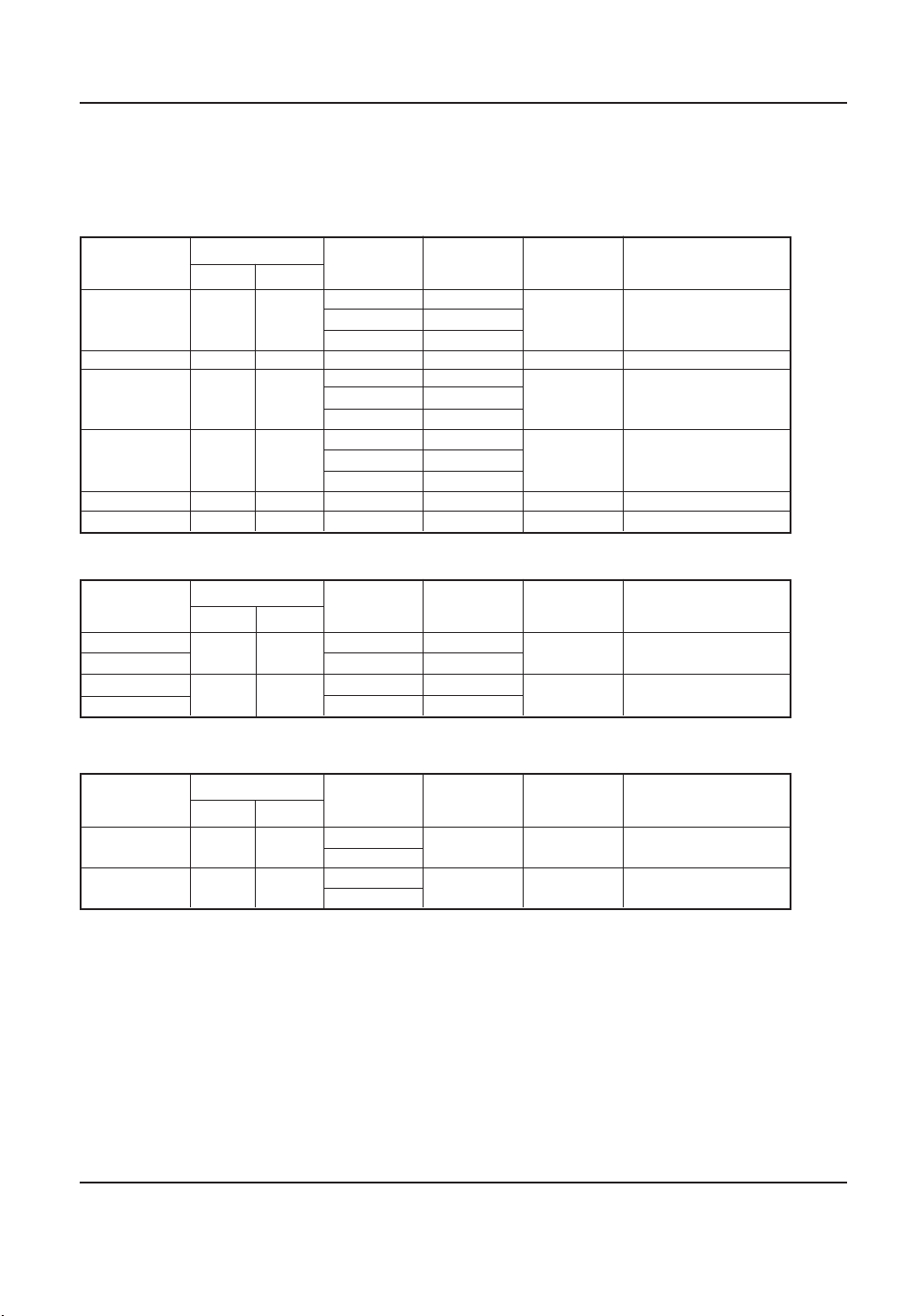
7. INPUT MODE
VGA Resolution
SDTV Resolution
HDTV Resolution
VGA
WVGA
SVGA
XGA
WXGA
SXGA
Standard
Resolution
Active Resolution
H Pixels V Lines
640
848
800
1024
1360
1280
480
480
600
768
768
1024
Refresh Rate
60 Hz
72 Hz
75 Hz
60 Hz
60 Hz
72 Hz
75 Hz
60 Hz
70 Hz
75 Hz
60 Hz
60 Hz
Pixel Rate
25.175 MHz
31.5 MHz
31.5 MHz
31.5 MHz
40 MHz
50 MHZ
49.5 MHz
65 MHz
75 MHz
78.5 MHz
84.75 MHz
108 MHz
Aspect ratio
4 : 3
16 : 9
4 : 3
4 : 3
16 : 9
4 : 3
Stand for Mode
Video Graphic Array
Wide Video Graphic Array
Super VGA
Super VGA Extended
Graphic Array
Wide XGA
Super XGA
720p
1080i
Standard
Resolution
1280
1920
720
1080
50 Hz
60 Hz
25 Hz
30 Hz
74.25 MHz
74.25 MHz
16 : 9
16 : 9
Normally DVB Mode
Normally ATSC Mode
480i
480p
576i
576p
Standard
Resolution
720
720
480
576
29.97 Hz
59.94 Hz
25 Hz
50 Hz
13.5 MHz
27 MHz
13.5 MHz
27 MHz
4 : 3
4 : 3
Modified NTSC Standard
Modified PAL Standard
Active Resolution
H Pixels V Lines
Refresh Rate Pixel Rate
Aspect ratio
Stand for Mode
Active Resolution
H Pixels V Lines
Refresh Rate
Pixel Rate
Aspect ratio
Stand for Mode
37InchLCD_Philips_Eng 1/25/07 3:04 PM Page 30

31
User Manual BDL3731V
• The PC text quality is optimum in XGA mode (1360 x 768, 60Hz).
• When this LCD is used as a PC display, 24-bit color is supported (over 16 million colors).
• Your PC display screen might appear different depending on the manufacture (and your particular version of
Windows). Check your PC instruction book for information about connecting your PC to a display.
• If a vertical and horizontal frequency-select mode exists, select 60Hz (vertical) and 31.5kHz (horizontal). In some
cases, abnormal signals (such as stripes) might appear on the screen when the PC power is turned off (or if the PC
is disconnected). If so, press the INPUT button to enter the video mode.Also, make sure that the PC is connected.
• When horizontal synchronous signals seem irregular in RGB mode, check PC power saving mode or cable
connections.
• The display settings table complies to the IBM/VESA standards, and based on the analog input.
• The DVI support mode is regarded as same to the PC support mode.
• The best timing for the vertical frequency to each mode is 60Hz.
37InchLCD_Philips_Eng 1/25/07 3:04 PM Page 31
32
User Manual BDL3731V
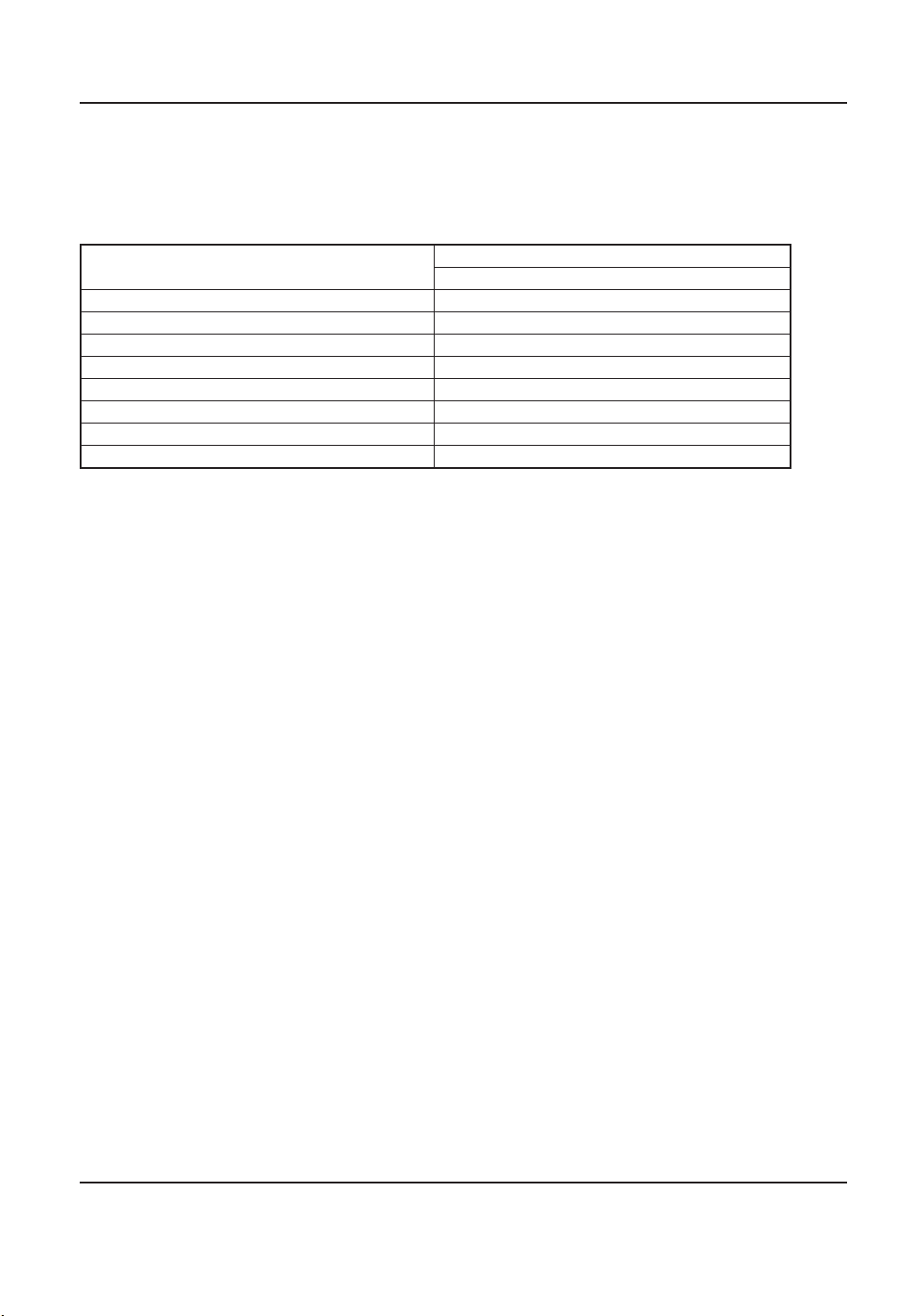
8. TECHNICALS SPECIFICATIONS
Display
Item
Specifications
37” LCD
Screen Size (Active Area) 37.02" (819.6(H) x 460.8(V)[mm])
Aspect ratio 16:9
Number of pixels 1366(H) x 768 (V)
Pixel pitch 0.600 (H) x 0.600 (V) [mm]
Displayable Colors 16.7 M colors
Brightness 500 cd/m
2
Contrast ratio 800:1
Viewing Angle Over 160 degrees
37InchLCD_Philips_Eng 1/25/07 3:04 PM Page 32
33
User Manual BDL3731V
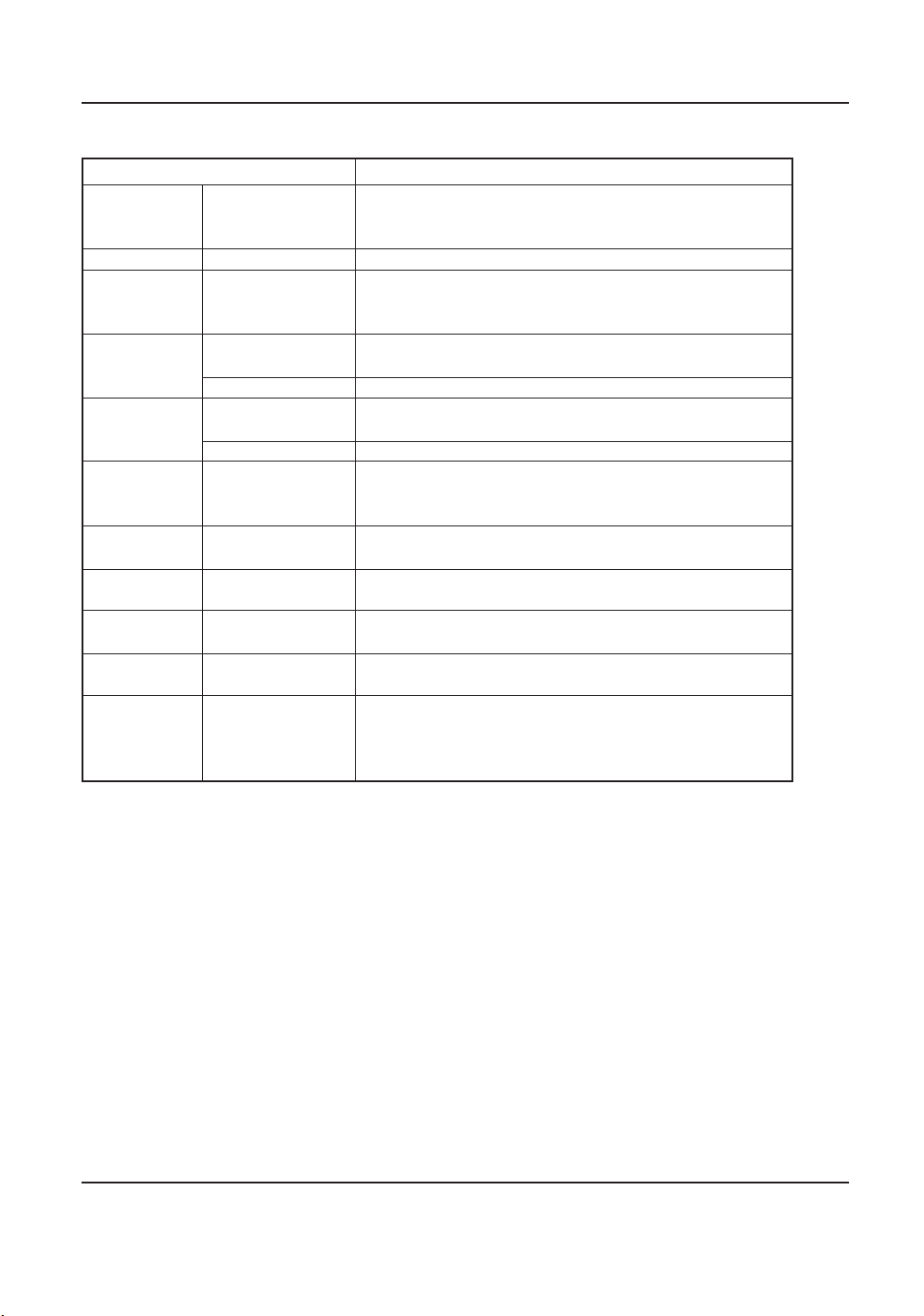
In / Out Terminals
Speaker Output
RS-232C
HDMI Input
DVI Input
RGB Input
Component Input
Digital Audio
Output
Monitor Output
S-Video Input
Video Input
Scart 1, 2
Item Specifications
Internal speaker
D-Sub Jack x 1 (9 pin)
HDMI Jack x 2 (Type A)
DVI Jack x 1 (24 pin)
RCA Jack x 1
D-Sub Jack x 1 (15 pin)
RCA Jack x 1
RCA Jack x 1
Optical Jack x 1
RCA Jack x 1
Mini DIN Jack x 1 (4 pin)
RCA Jack x 1
Scart Jack x 2 (21 pin)
[Full x 1, Half x 1]
10W(L) + 10W(R) [RMS] /8Ω
1 Way 1 Speaker System
88 dB/W/M / 140 Hz ~10 KHz
TXD + RXD(1:1)
Digital RGB :TMDS (Video + Audio)
MAX : Video - 720p, 1080i, 1280x1024/60Hz(SXGA)
Audio - 48kHz / 2 Channel (L+R)
Digital RGB :TMDS
MAX : 720p, 1080i, 1280x1024/60Hz(SXGA)
Audio - 0.5[rms](Normal) / 2 Channel (L+R)
Analog RGB:0.7V[p-p](75Ω), H/CS/V:TTL(2.2kΩ), SOG:1V[p-p](75Ω)
MAX:720p, 1080i, 1280x1024/60Hz(SXGA)
Audio:0.5V[rms](Normal) /2 Channel (L + R)
Y:1V[p-p](75Ω), Pb/Cb:0.7V[p-p](75Ω), Pr/Cr:0.7V[p-p](75Ω)
MAX : 480i, 576i, 480p, 576p, 720p, 1080i
Audio: 0.5V[rms](Normal) / 2 Channel (L + R)
3V[p-p](75Ω)
48kHz Sampling (4 Hz ~ 22 KHz)
Video : 1V[p-p](75Ω)
Audio : 0.5V[rms](Normal) /2 Channel (L + R)
Y:1V[p-p] (75Ω), C:0.286V[p-p] (75Ω)[NTSC]
Y:1V[p-p] (75Ω), C:0.300V[p-p] (75Ω)[PAL/SECAM]
Video : 1V[p-p](75Ω)[NTSC / PAL / SECAM]
Audio : 0.5V[rms](Normal)/2 Channel(L + R)
Video : 1V[p-p] (75Ω)
Y : 1V[p-p] (75Ω), C : 0.3V[p-p](75Ω)
RGB : 0.7V[p-p] (75Ω)
Audio : 0.5V[rms](Normal)/2 Channel(L + R)
37InchLCD_Philips_Eng 1/25/07 3:04 PM Page 33
34
User Manual BDL3731V
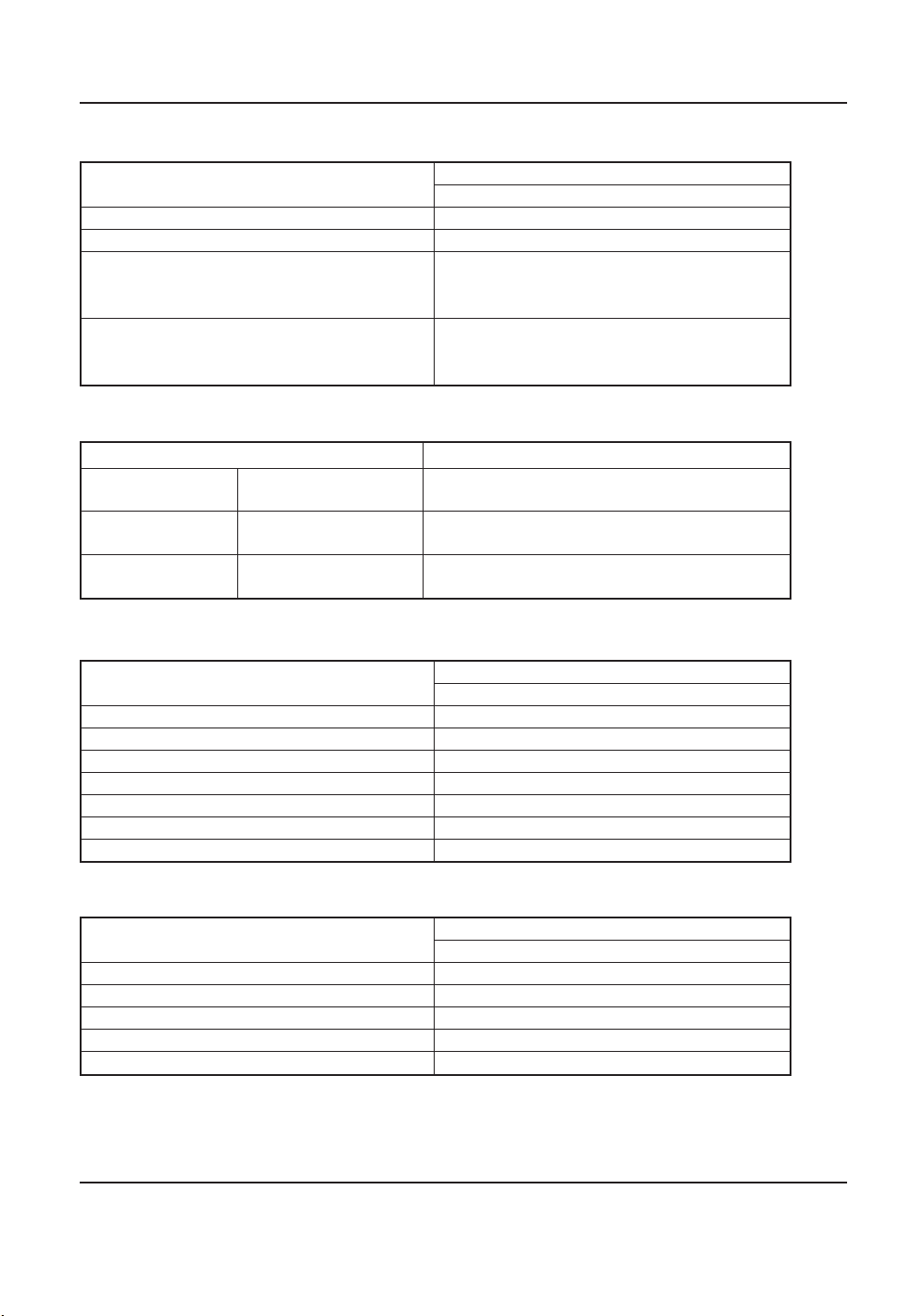
General
Environment Condition
External Speaker
Internal Speaker
Temperature
Humidity
Pressure
Item Specifications
Operational
Storage
Operational
Storage
Operational
Storage/Shipmemt
0 ~ 40 °C
-20 ~ 60 °C
20 ~ 80% RH (No condensation)
10 ~ 90% RH (No condensation)
800 ~ 1100 hPa (Altitude: 0 ~ 2,000 m)
700 ~ 1100 hPa (Altitude: 0 ~ 3,000 m)
Item
Specifications
37” LCD
Power Supply AC 100V ~ 240V, 50/60 Hz
Power Consumption (Typical) 170 W
Dimension [W x H x D mm]
With Stand 928.0 x 634.2 x 302.0 [mm]
Without Stand 928.0 x 546.0 x 117.0 [mm]
Weight
With Stand 27.0 kg
Without Stand 22.7 kg
Item
Specifications
37” LCD
Dimension (W x H x D) 75.0 x 564.0 mm x 117.0 [mm]
Weight 2 kg (L + R )
Type 2 Way 3 Speaker System
Input 10 W (RMS)]
Impedance 8 Ohm
Output Sound Pressure 87 dB/W/M
Frequency Response 45 Hz ~ 20 KH z
Item
Specifications
37” LCD
Type 1 Way 1 Speaker
Input 10 W (RMS)
Impedance 8 Ohm
Output Sound Pressure 88 dB/W/M
Frequency Response 140 Hz ~ 10 KHz
37InchLCD_Philips_Eng 1/25/07 3:04 PM Page 34

35
User Manual BDL3731V
9. CLEANING AND TROUBLESHOOTING
9. 1 CLEANING
Cautions When Using the Display
Do not bring your hands, face or objects close to the ventilation
holes of the display. Top of display is usually very hot due to the
high temperature of exhaust air being released through the
ventilation holes. Burns or personal injuries may occur if any body
parts are brought too close. Placing any object near the top of the
display could also result in heat related damages to the object as
well as the display itself.
Be sure to disconnect all cables before moving the display. Moving
the display with its cables attached may damage the cables and thus
case fire or electric shock danger.
Disconnect the power plug from the wall outlet as a safety
precaution before carrying out any type of cleaning or maintenance
procedure.
Front Panel Cleaning Instructions
The front of the display has been specially treated.Wipe the
surface gently using only a cleaning cloth or a soft, line-free cloth.
If the surface is particular dirty, soak a soft, line-free cloth in a mild
detergent solution.Wring the cloth to remove excess liquid.Wipe
the surface of the display to remove dirt.Then use a dry cloth of
the same type to dry.
Do not scratch or hit the surface of the panel with fingers or hard
objects of any kind.
Do not use volatile substances such as insert sprays, solvents and
thinners.
Cabinet Cleaning Instructions
If the cabinet becomes dirty, wipe the cabinet with a soft, dry cloth.
If the cabinet is extremely dirty, soak a lint-free cloth in a mild
detergent solution.Wring the cloth to remove as much moisture as
possible.Wipe the cabinet. Use another dry cloth to wipe over
until the surface is dry.
Do not allow any water or detergent to come into contact with
the surface of the display. If water or moisture gets inside the unit,
operating problems, electrical and shock hazards may result.
Do not scratch or hit the cabinet with fingers or hard objects of
any kind.
Do not use volatile substances such as insert sprays, solvents and
thinners on the cabinet.
Do not place anything made from rubber or PVC near the cabinet
for any extended periods of time.
37InchLCD_Philips_Eng 1/25/07 3:04 PM Page 35

36
User Manual BDL3731V
9.2 TROUBLESHOOTING
No picture is displayed
Interference displayed on
the monitor or audible
noise is heard
Color is abnormal
Picture is distorted with
abnormal patterns
Display image doesn't fill
up the full size of the
screen
Can hear sound, but no
picture
Can see picture but no
sound is heard
Some picture elements do
not light up
After-Images can still be
seen on the monitor after
the monitor is powered
off. (Examples of still
pictures include logos,
video games, computer
images, and images
displayed in 4:3 normal
mode)
RemedyPossible CauseSymptom
1.The power cord is disconnected.
2.The main power switch on the back of the monitor
is not switched on.
3.The selected input has no connection.
4.The monitor is in standby mode in RGB mode.
Caused by surrounding electrical appliances,
cars/motor cycles or fluorescent lights.
The signal cable is not connected properly.
1.The signal cable is not connected properly.
2.The input signal is beyond the capabilities of the
monitor.
1. If under RGB mode, the H-Size and V-Size is
incorrectly set.
2. If under AV1, AV2, or Component with 480i input,
the 4:3 WIDE mode is switched on.
Improperly connected source signal cable.
1. Improperly connected source signal cable.
2.Volume is turned all the way down.
3. MUTE is turned on.
Some pixels of the display may not turn on.
A still picture is displayed for an over extended
period of time.
1. Plug in the power cord.
2. Make sure the power switch is switched on.
3. Connect a signal connection to the monitor.
Move the monitor to another location to see is the
interference is reduced.
Make sure that the signal cable is attached firmly to
the back of the monitor.
1. Make sure that the signal cable is attached firmly.
2. Check the video signal source to see if it is beyond
the range of the monitor. Please verify its
specifications with this monitor's specification
section.
1. Use H-Size and V-Size to adjust the size of the
video.
2. Use the I.SIZE button to scroll through various full
screen modes.
Make sure that both video inputs and sound inputs
are correctly connected.
1. Make sure that both video inputs and sound inputs
are correctly connected.
2. Use the VOL+/
-
button to hear sound.
3. Switch MUTE off by using the MUTE button.
This monitor is manufactured using an extremely high
level of precision technology:
however, sometimes some pixels of the monitor may
not display.
This is not a malfunction. Please see the enclosed
warranty card for more information.
Do not allow a still image to be displayed for an
extended period of time as this can cause a
permanent after-image to remain on the monitor.
37InchLCD_Philips_Eng 1/25/07 3:04 PM Page 36

37
User Manual BDL3731V
10. LIMITED WARRANTY (EUR)
Tw o Year Free Labor
Tw o Year Free Parts
WHO IS COVERED?
You must have proof of the date purchased to receive warranty
service. A sales receipt or other document showing the date that you
purchased the product is considered proof of purchase.
WHAT IS COVERED?
Warranty cover age begins the day you buy your product. For two
years thereafter, all defective parts will be repaired or replaced and
labor is free.After two years from the day of purchase, you pay for the
replacement or repair of all parts, and for all labor charges.All parts,
including repaired and replaced parts, are covered only for the original
warranty period.When the warranty on the product expires, the
warranty on all replaced and repaired parts also expires.
WHAT IS EXCLUDED?
Your warranty does not cover:
labor charges for removal, installation or setup of the product,
adjustment of customer controls on the product, and installation or
repair of antenna systems outside of the product.
product repair and/or part replacement because of misuse,
accident, unauthorized repair or other cause not within the control
of Philips Consumer Electronics Europe.
reception problems caused by signal conditions or cable or antenna
systems outside the unit.
a product that requires modification or adaptation to enable it to
operate in any country other than the country for which it was
designed, manufactured, approved and/or authorized, or repair of
products damaged by these modifications.
incidental or consequential damages resulting from the product.
(some states do not allow the exclusion of incidental or
consequential damages, so the above exclusion may not apply to
you.This includes, but is not limited to, prerecorded material,
whether copyrighted or not copyrighted.)
modifications or adaptations to enable the product to operate in
any country other that the country for which it was designed,
manufactured, approved and/or authorized, or the repair of
products damaged by these modifications.
normal wear and tear (decreased light output of LCD module)
over the product's lifetime.
phosphor burn. Do not display static images for prolonged periods,
otherwise phosphor burn might appear on part of the panel.
limited quantity of cells (fine pixel elements) that do not produce
light, or that remain lit after they should have turned off.
37InchLCD_Philips_Eng 1/25/07 3:04 PM Page 37

38
User Manual BDL3731V
WHERE IS SERVICE AVAILABLE?
Warranty service is available in all countries where the product is
officially distributed by Philips Consumers Electronics Europe.
In countries where Philips Consumers Electronics Europe does not
distribute the product, the local Philips service organization will
attempt to provide service (although there may be a delay if the
appropriate spare parts and technical manual(s) are not readily
available).
MAKE SURE YOU KEEP...
Please keep your sales receipt or other document showing proof of
purchase.Attach it to this owner's manual and keep both nearby.
Also keep the original box and packing material in case you need to
return your product.
BEFORE REQUESTING SERVICE...
Please check your owner's manual before requesting service.
Adjustments of the controls discussed there may save you a service
call.
TO GET WARRANTY SERVICE,
OR IF YOU HAVE QUESTIONS...
Please contact Philips at one of the telephone numbers below:
Austria . . . . . . . . . . . . . . . . . . . . . . . . . . . . . . . 0820 901115
Belgium . . . . . . . . . . . . . . . . . . . . . . . . . . . . . . . 070 253 010
Denmark . . . . . . . . . . . . . . . . . . . . . . . . . . . . . . . 35 25 87 61
Finland . . . . . . . . . . . . . . . . . . . . . . . . . . . . . . . 09 2290 1908
France . . . . . . . . . . . . . . . . . . . . . . . . . . . . . . . 08 9165 0006
Germany . . . . . . . . . . . . . . . . . . . . . . . . . . . . 0180 5 007 532
Greece . . . . . . . . . . . . . . . . . . . . . . . . . . . . 00800 3122 1223
Ireland . . . . . . . . . . . . . . . . . . . . . . . . . . . . . . . . . 1 601 1161
Italy . . . . . . . . . . . . . . . . . . . . . . . . . . . . . . . . . . 199 404 042
Luxembourg . . . . . . . . . . . . . . . . . . . . . . . . . . . . . 26 84 3000
Netherlands . . . . . . . . . . . . . . . . . . . . . . . . . . 0900 0400 063
Norway . . . . . . . . . . . . . . . . . . . . . . . . . . . . . . . . 22 70 82 50
Portugal . . . . . . . . . . . . . . . . . . . . . . . . . . . . . . 2 1 359 1440
Spain . . . . . . . . . . . . . . . . . . . . . . . . . . . . . . . . . 902 888 785
Sweden . . . . . . . . . . . . . . . . . . . . . . . . . . . . . . . 08 632 0016
Switzerland . . . . . . . . . . . . . . . . . . . . . . . . . . . . 02 2310 2116
United Kingdom . . . . . . . . . . . . . . . . . . . . . . . 0906 1010 017
Russia . . . . . . . . . . . . . . . . . . . . . . . . . . . . . . 8 800 200-0880
Repair must be performed by an authorized service center or a factory
service center. If you do not live near a factory service center, contact
your dealer. If you dealer is an authorized service center, he will
arrange repair.
37InchLCD_Philips_Eng 1/25/07 3:04 PM Page 38

39
User Manual BDL3731V
REMEMBER...
Please record the model and serial numbers found on the product
below.Also, please fill out and mail your warranty registration card
promptly.
It will be easier for us to notify you if necessary.
MODEL#_ _ _ _ _ _ _ _ _ _ _ _ _ _ _ _ _ _
SERIAL#_ _ _ _ _ _ _ _ _ _ _ _ _ wo _ _ _
37InchLCD_Philips_Eng 1/25/07 3:04 PM Page 39