www.lg.com
OWNER’S MANUAL
LED LCD MONITOR TV
LED LCD MONITOR TV MODELS
M2080D
M2280D
M2380D
M2780D
M2380DF
M2780DF
Please read this manual carefully before operating
your set and retain it for future reference.
ENGLISH
CONTENTS
CONTENTS
2
PREPARATION
FRONT PANEL INFORMATION ..............................4
BACK PANEL INFORMATION .................................5
STAND INSTALLATION
M2080D/M2280D/M2380D/M2780D .......6
M2380DF/M2780DF .......................................... 7
DETACHING THE STAND
M2080D/M2280D/M2380D/M2780D .......8
M2380DF/M2780DF ..........................................9
DETACHING THE STAND BODY (Only M2080D/
M2280D/M2380D/M2780D) .............................. 10
WALL MOUNT: HORIZONTAL INSTALLATION 11
SWIVEL STAND(Only M2780D / M2780DF) ....12
DESKTOP PEDESTAL INSTALLATION ................12
POSITIONING YOUR DISPLAY ..............................13
LOCATION ....................................................................13
KENSINGTON SECURITY SYSTEM ..................... 14
EXTERNAL EQUIPMENT SETUP
ANTENNA CONNECTION ...................................... 15
HD RECEIVER SETUP
Connecting with a Component Cable ...........16
Connecting a Set-top Box with
an HDMI Cable .....................................................17
Connecting with an HDMI to DVI Cable ...... 18
DVD SETUP
Connecting with a Component Cable ...........19
Connecting with an HDMI Cable ..................20
VCR SETUP
Connecting with an RF Cable ..........................21
Connecting with an RCA Cable .................... 22
DIGITAL AUDIO OUT SETUP ............................... 23
USB SETUP .................................................................24
HEADPHONE SETUP .............................................. 25
OTHER A/V SOURCE SETUP .............................. 26
PC SETUP
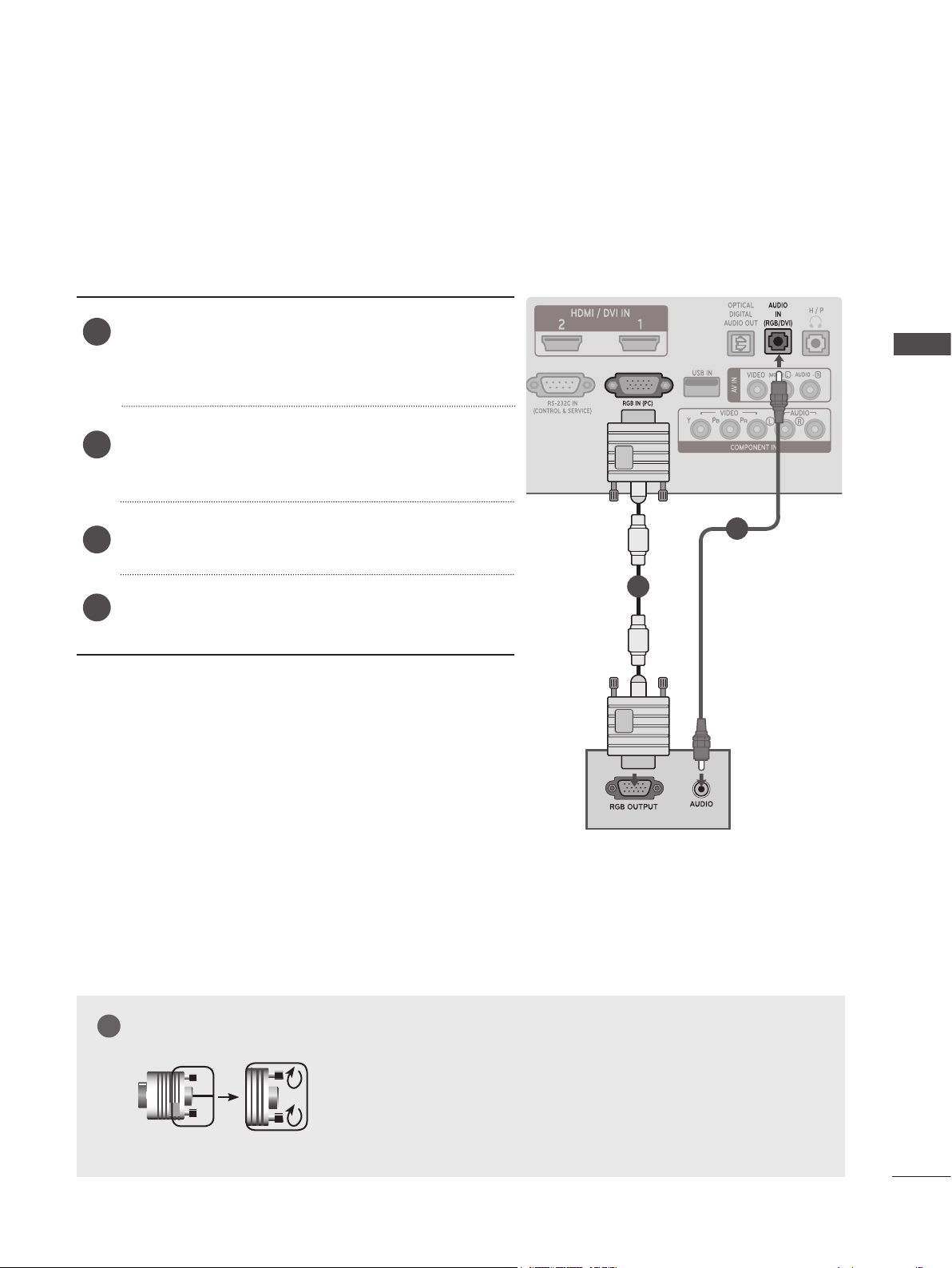
Connecting with a D-sub 15-pin Cable ......27
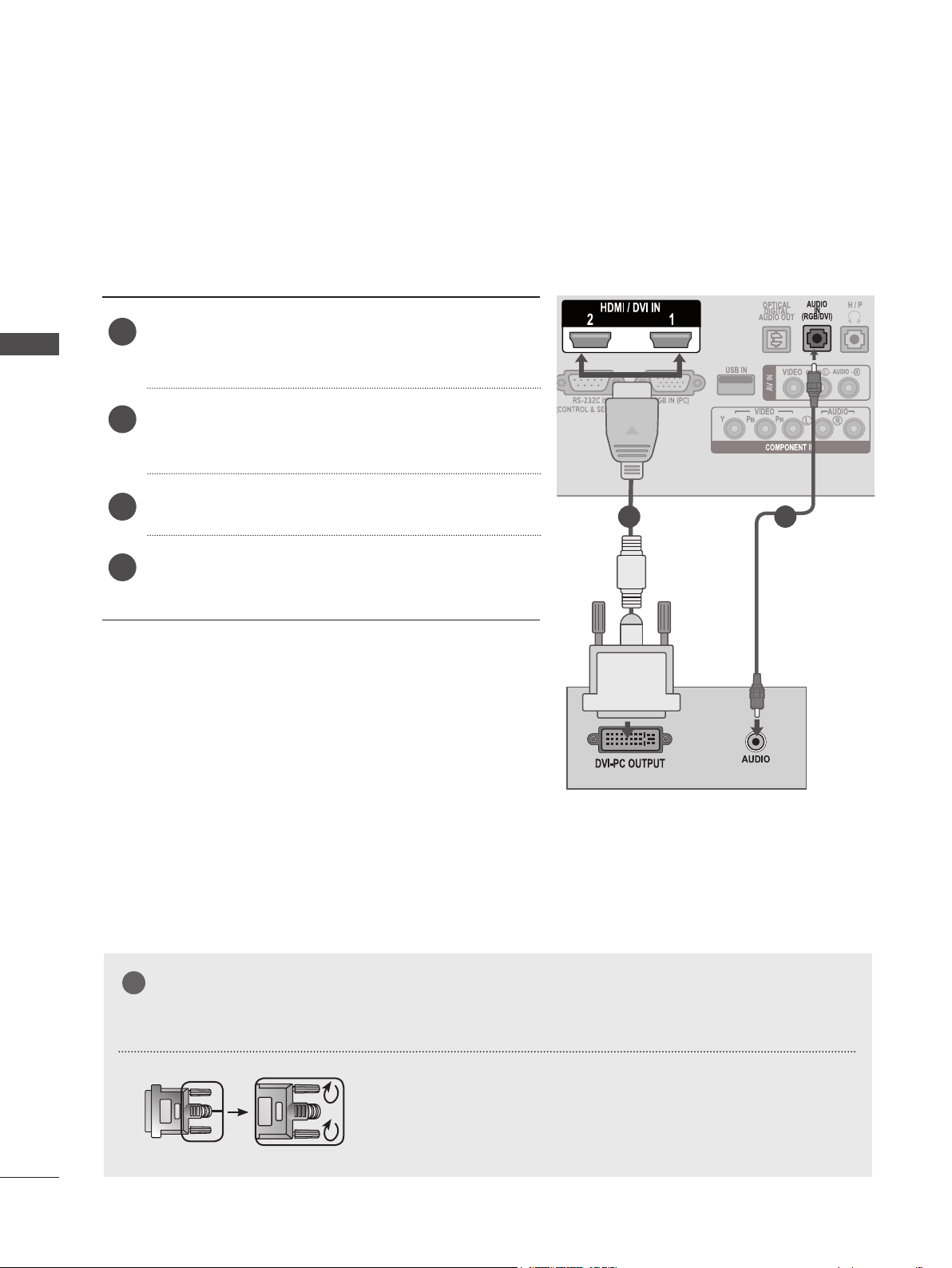
Connecting with an HDMI to DVI Cable ..... 28
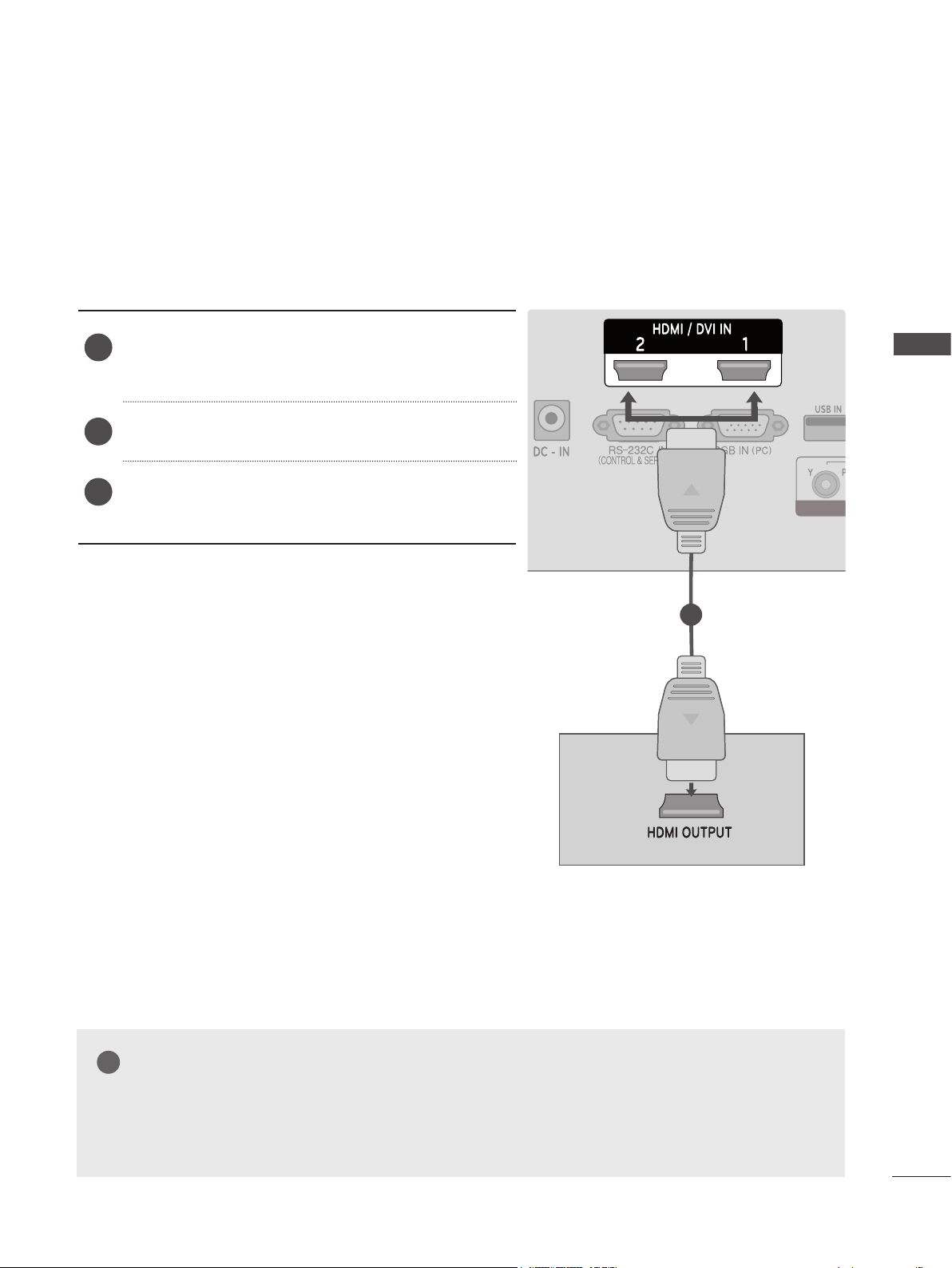
Connecting with an HDMI to HDMI Cable ..... 29
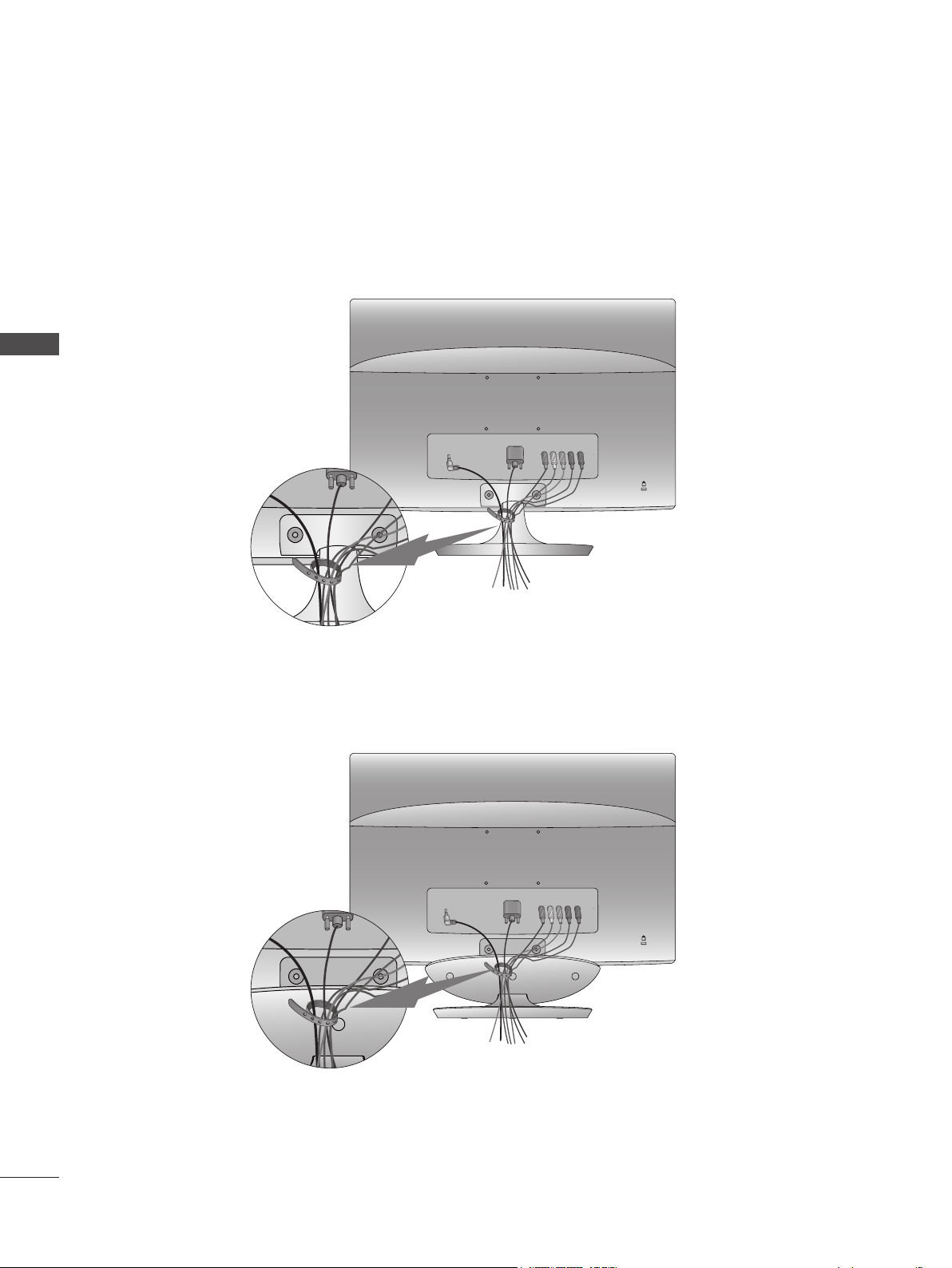
BACK COVER WIRE ARRANGEMENT ..............30
SUPPORTED DISPLAY RESOLUTIONS ..............31
WATCHING TV/CHANNEL CONTROL
REMOTE CONTROL KEY FUNCTIONS ............. 33
TURNING ON THE TV ............................................ 35
CHANNEL SELECTION .......................................... 35
VOLUME ADJUSTMENT ........................................ 35
INITIAL SETTING ...................................................... 36
QUICK MENU .............................................................37
ON-SCREEN MENU SELECTION AND
ADJUSTMENT ........................................................... 38
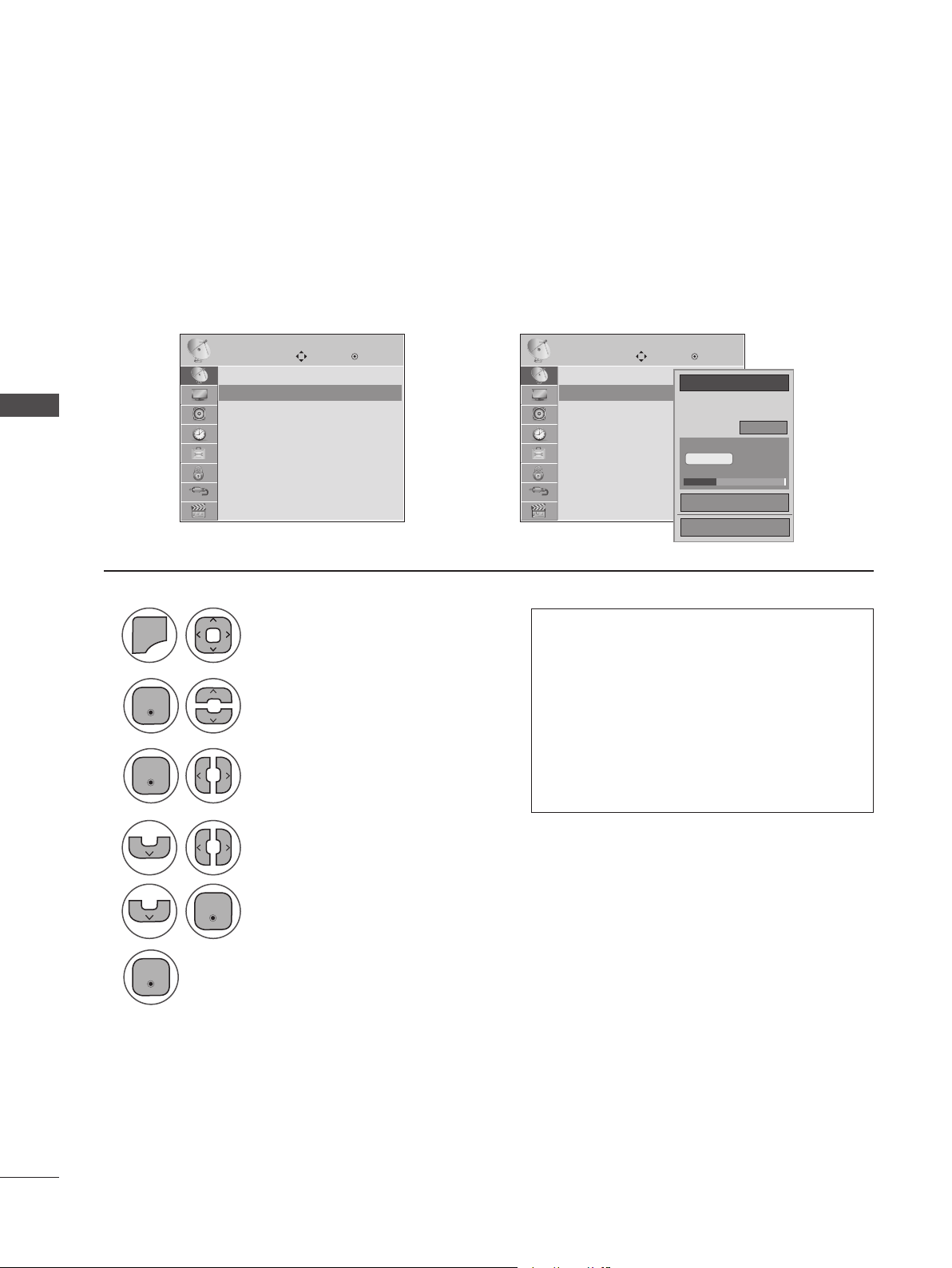
AUTO SCAN (AUTO TUNING) ............................. 39
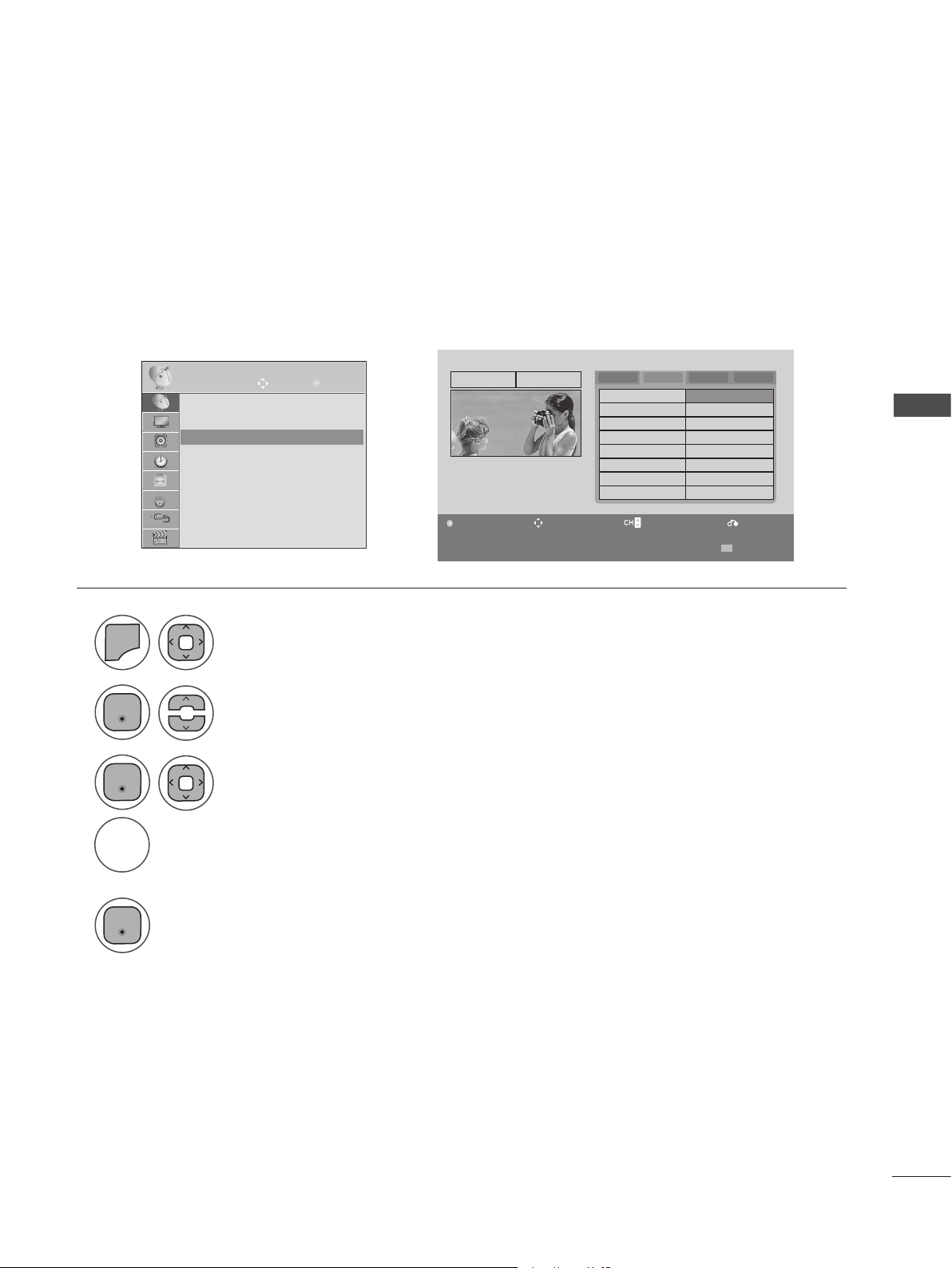
ADD/DELETE CHANNEL (MANUAL TUNING) ...40
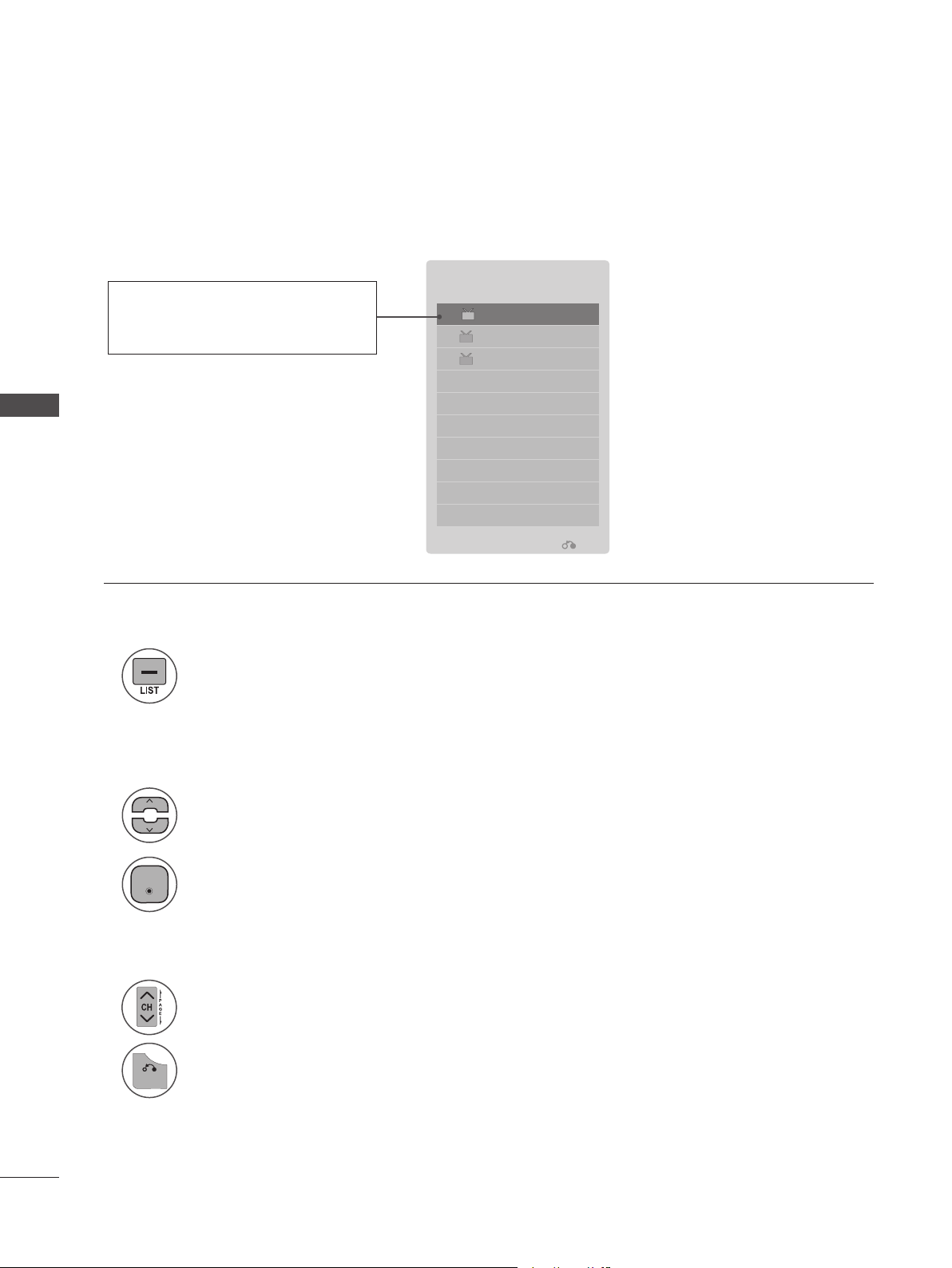
CHANNEL EDITING ...................................................41
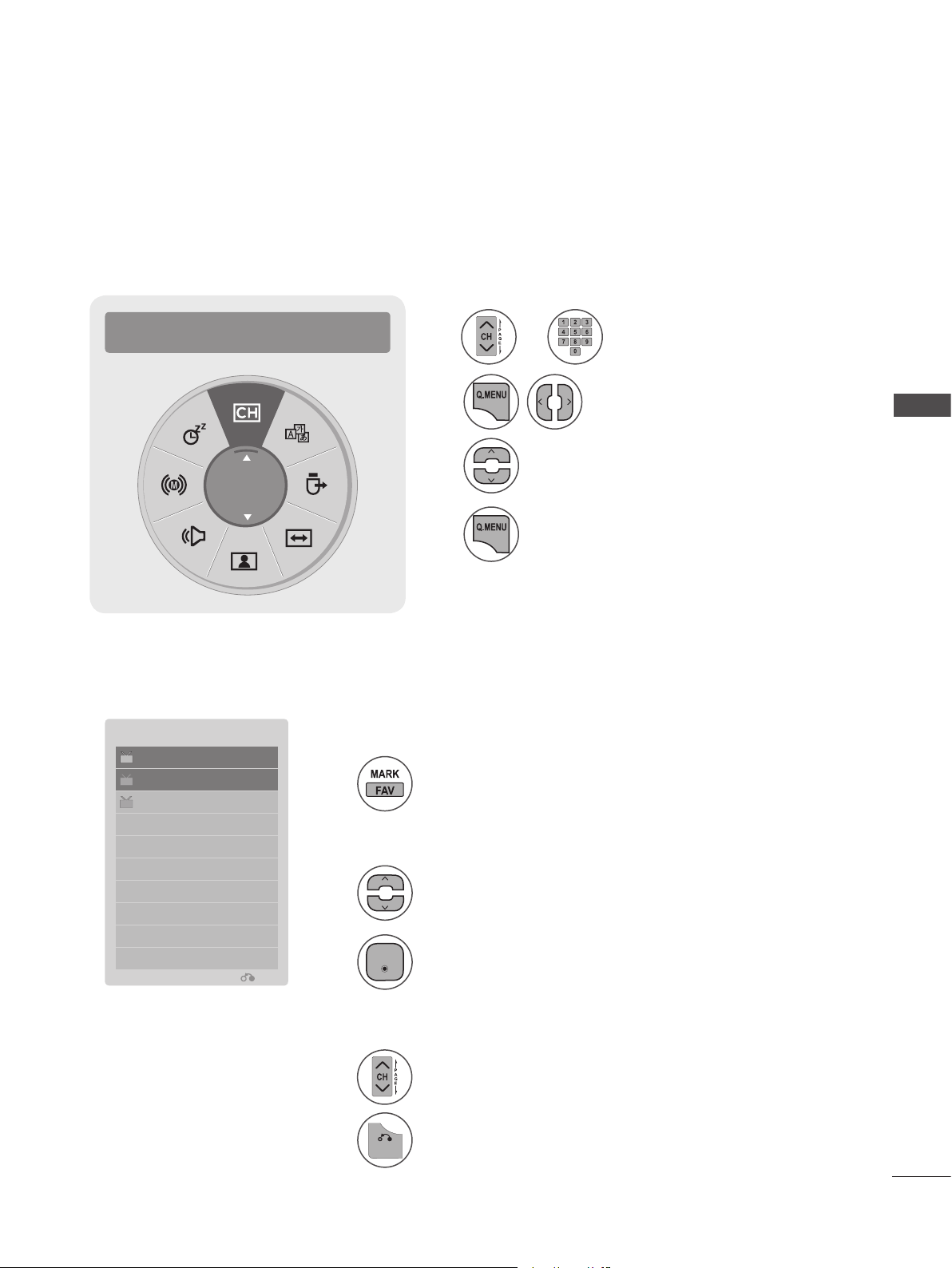
CHANNEL LIST ......................................................... 42
FAVORITE CHANNEL SETUP ............................... 43
FAVORITE CHANNEL LIST .................................... 43
BRIEF INFORMATION ............................................. 44
INPUT LIST ................................................................. 45
PICTURE CONTROL
ASPECT RATIO SELECTION ................................ 46
PICTURE WIZARD ................................................... 48
ꕫ ENERGY SAVING ............................................... 49
PRESET PICTURE SETTINGS(PICTURE MODE) ... 50
MANUAL PICTURE ADJUSTMENT-USER MODE .....51
PICTURE IMPROVEMENT TECHNOLOGY ....... 52
EXPERT PICTURE CONTROL .............................. 53
PICTURE RESET ....................................................... 56
SCREEN SETUP FOR PC MODE
Selecting Resolution ..........................................57
Auto Configure (RGB-PC Mode Only) ........ 58
Adjustment for Screen Position, Size, Phase .... 59
Screen Reset .......................................................60
SOUND CONTROL
AUTO VOLUME LEVELER (AUTO VOLUME) ....61
CLEAR VOICE II ........................................................ 62
BALANCE ................................................................... 63
PRESET SOUND SETTINGS
-SOUND MODE ................................................. 64
PRESET SOUND SETTINGS
-USER MODE ..................................................... 65

CONTENTS
3
Surround X .................................................................. 65
AUDIO RESET ........................................................... 66
TV SPEAKERS ON/OFF SETUP ...........................67
STEREO/SAP BROADCAST SETUP .................. 68
TIME SETTING
CLOCK SETUP
Auto Clock Setup ...............................................69
Manual Clock Setup...........................................70
AUTO ON/OFF TIME SETTING..............................71
SLEEP TIMER SETTING ..........................................72
OPTIONAL SETTINGS
ON-SCREEN MENUS LANGUAGE SELECTION....73
AUDIO LANGUAGE ..................................................74
INPUT LABEL .............................................................75
KEY LOCK ....................................................................76
CAPTION MODE
Analog Broadcasting System Captions .......77
Digital Broadcasting System Captions .........78
Caption Option ....................................................79
POWER INDICATOR ................................................80
DEMO MODE ...............................................................81
PARENTAL CONTROL/RATINGS
PASSWORD & LOCK SYSTEM SETTINGS
Setting Up Your Password............................... 82
Lock System ........................................................ 83
Set Password ....................................................... 84
CHANNEL BLOCKING ............................................ 85
MOVIE & TV RATINGS
Movie Rating (MPAA) - For USA/MEXICO ... 86
TV Ratings Children - For USA/MEXICO ...87
TV Ratings General - For USA/MEXICO .... 88
TV Ratings English - For CANADA .............. 89
TV Ratings French - For CANADA ...............90
DOWNLOADABLE RATINGS ..................................91
EXTERNAL INPUT BLOCKING ............................ 92
USING USB DEVICES
ENTRY MODES ......................................................... 93
PHOTO LIST ............................................................... 95
MUSIC LIST................................................................ 99
MOVIE LIST ...............................................................102
DIVX REGISTRATION CODE ................................107
DEACTIVATION ....................................................... 108
APPENDIX
TROUBLESHOOTING ............................................109
MAINTENANCE.........................................................112
PRODUCT SPECIFICATIONS
<M2080D> ..........................................................113
<M2280D> ..........................................................114
<M2380D/M2380DF> ....................................115
<M2780D/M2780DF> .....................................116
IR CODES ................................................................... 117
EXTERNAL CONTROL THROUGH RS-232C
RS-232C Setup .................................................118
Type of Connector; D-Sub 9-pin Male ........118
Communication Parameters ..........................118
RS-232C Configurations ................................119
Set ID ....................................................................119
4
PREPARATION
PREPARATION
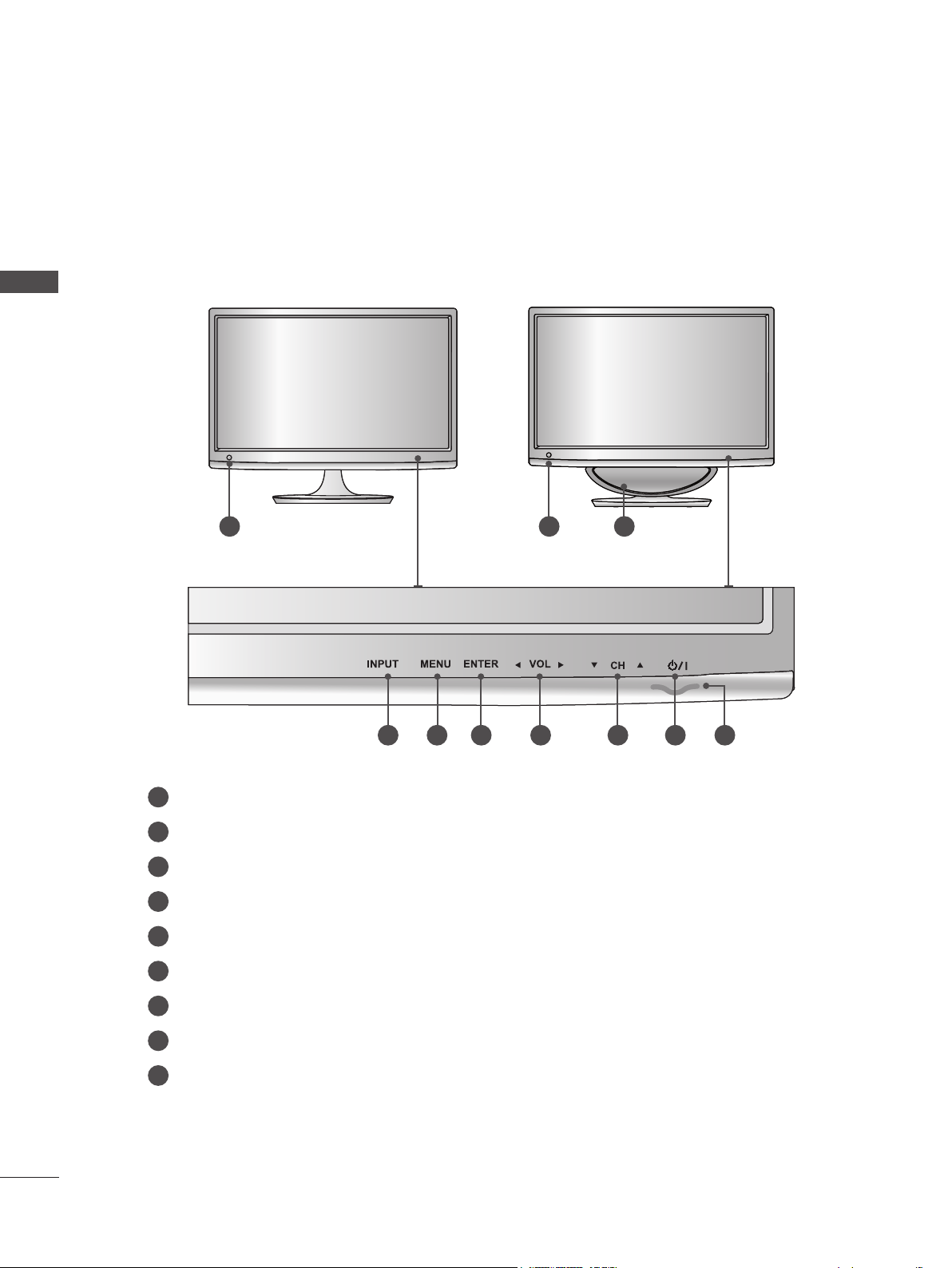
FRONT PANEL INFORMATION
■ This is a simplified representation of the front panel. The image shown may be somewhat different
from your Monitor set.
INPUT BUTTON
IR RECEIVER (remote control signal receiver)
SPEAKER (WOOFER)
M2080D / M2280D
M2380D / M2780D
M2380DF / M2780DF
MENU BUTTON
ENTER BUTTON
VOLUME BUTTON
CHANNEL BUTTON
POWER BUTTON
POWER INDICATOR
Illuminates blue when the set is switched on.
Note: You can adjust the power indicator in the OPTION menu.
1
5
9
2
6
3
7
4
8
1 1 2
3 4 5 6 7 8 9
5
PREPARATION
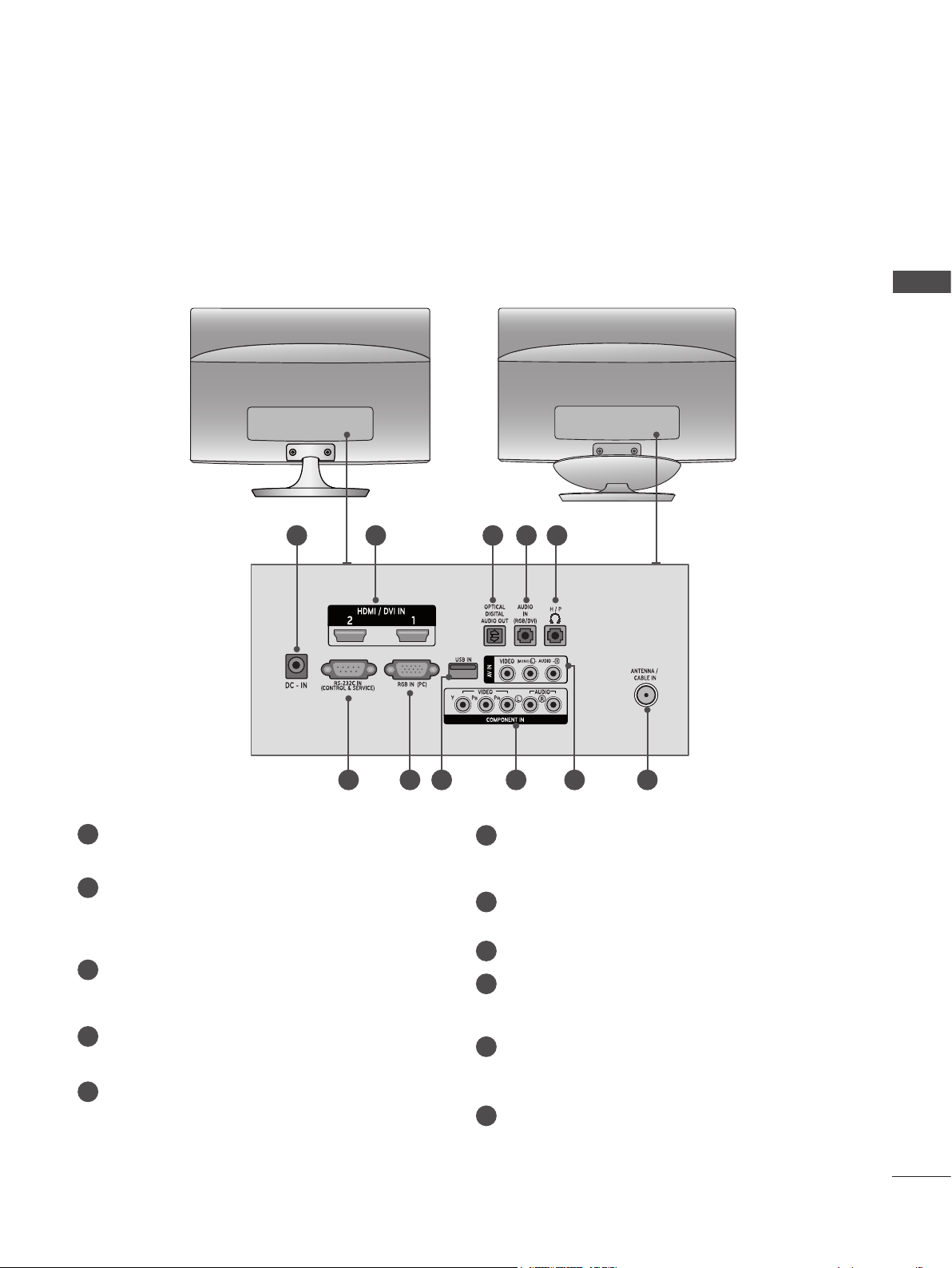
BACK PANEL INFORMATION
■ This is a simplified representation of the front panel. The image shown may be somewhat different
from your Monitor set.
1
6 7 8 9
10 11
2 3 4 5
DC ADAPTER PORT
Connect to the power jack.
HDMI INPUT
Connect an HDMI signal to HDMI IN or a DVI
(VIDEO) signal to HDMI IN with a DVI to HDMI
cable.
OPTICAL DIGITAL AUDIO OUT
Connect digital audio to various types of equip-
ment with an optical audio cable.
RGB/DVI AUDIO INPUT
Connect the audio from a PC.
HEADPHONE SOCKET
Plug headphones into the headphone socket.
RS-232C IN (CONTROL & SERVICE) PORT
Connect to the RS-232C port on a PC.
This port is used for Service or Hotel mode.
RGB INPUT (PC)
Connect the output from a PC.
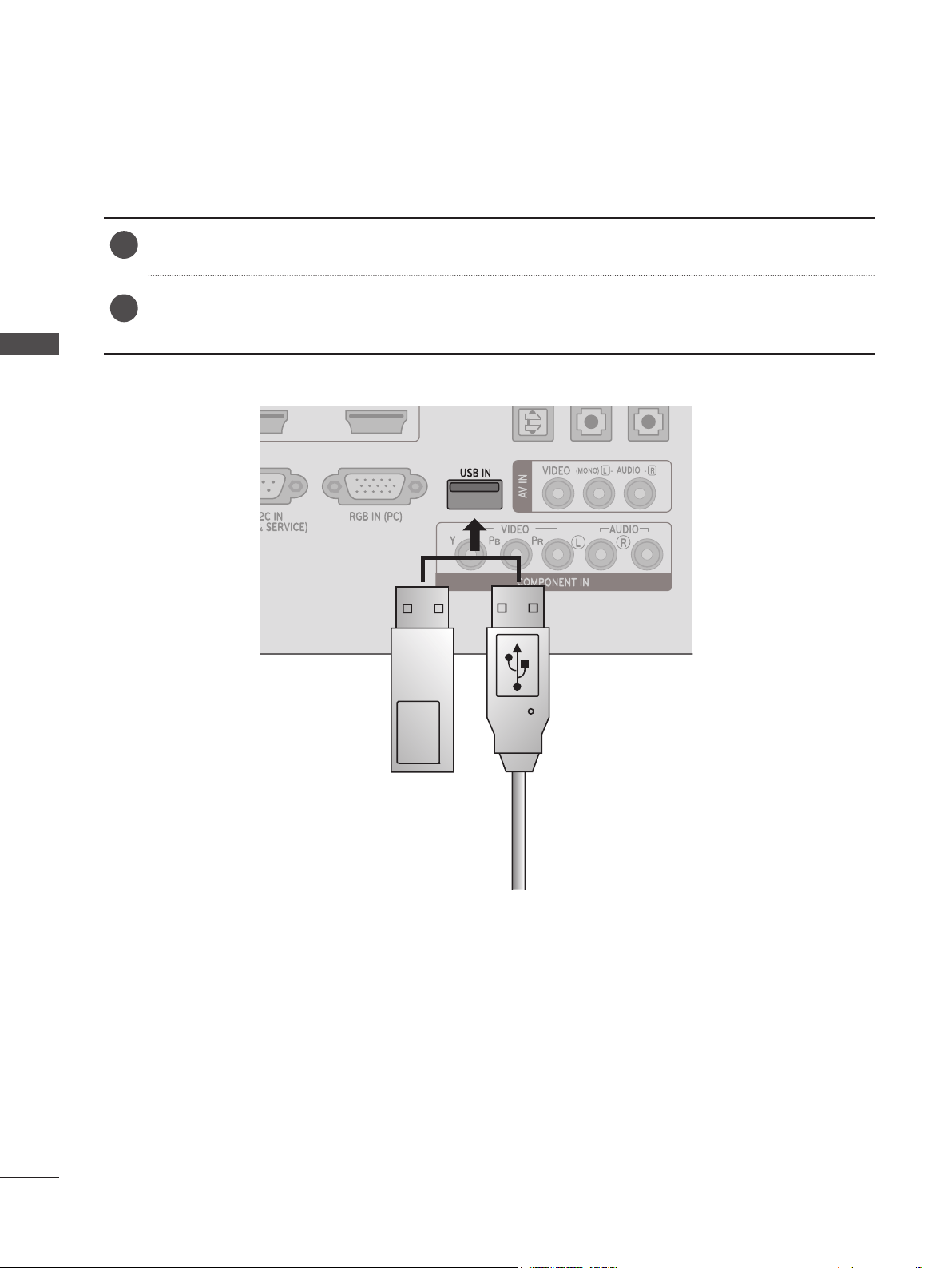
USB INPUT
COMPONENT INPUT
Connect a component video/audio device to
these jacks.
AV(AUDIO/VIDEO) INPUT
Connect audio/video output from an external
device to these jacks.
ANTENNA / CABLE INPUT
Connect over-the-air signals to this jack.
1
5
6
7
8
9
10
11
2
3
4
M2080D / M2280D
M2380D / M2780D
M2380DF / M2780DF
6
PREPARATION
PREPARATION
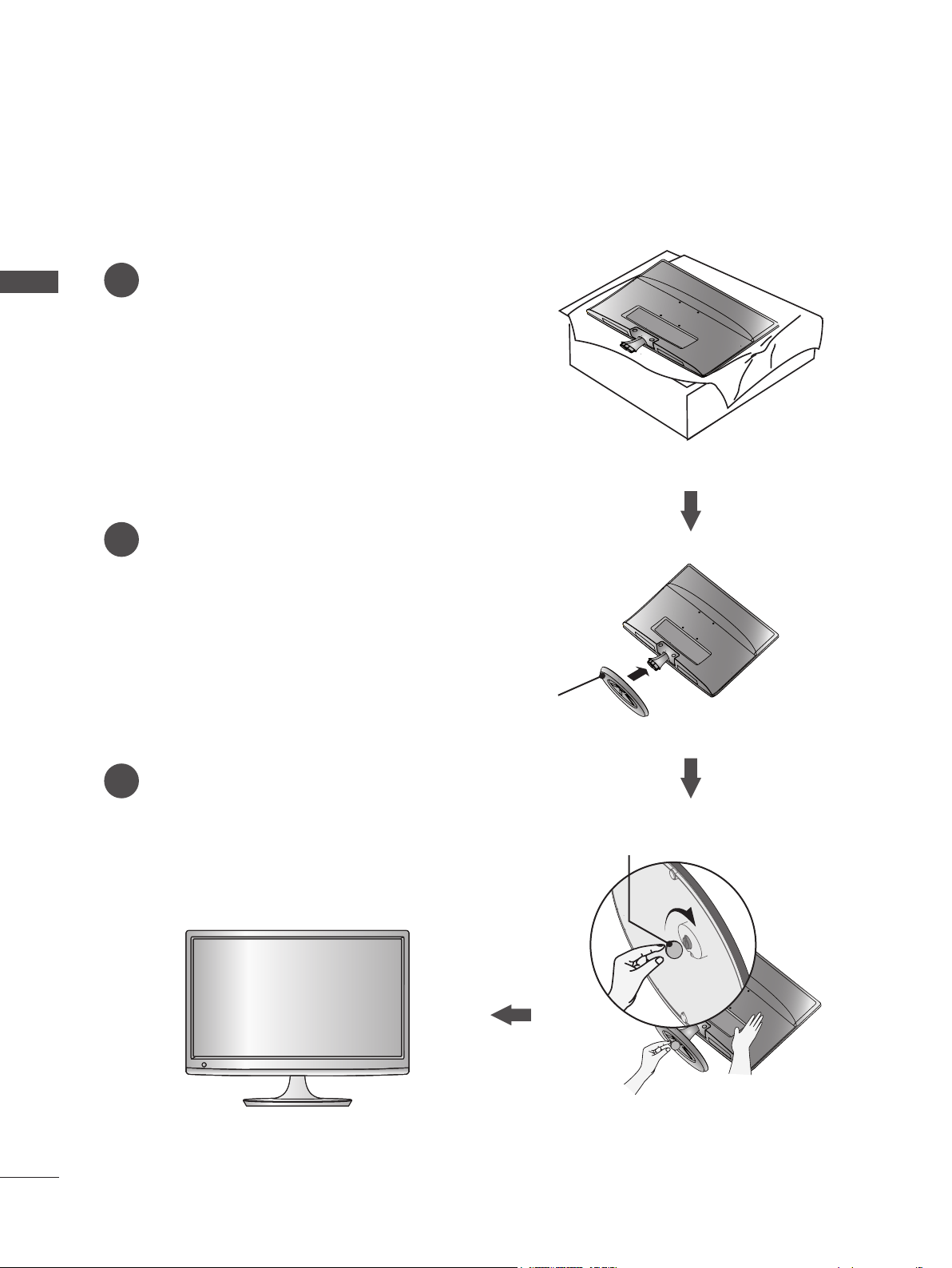
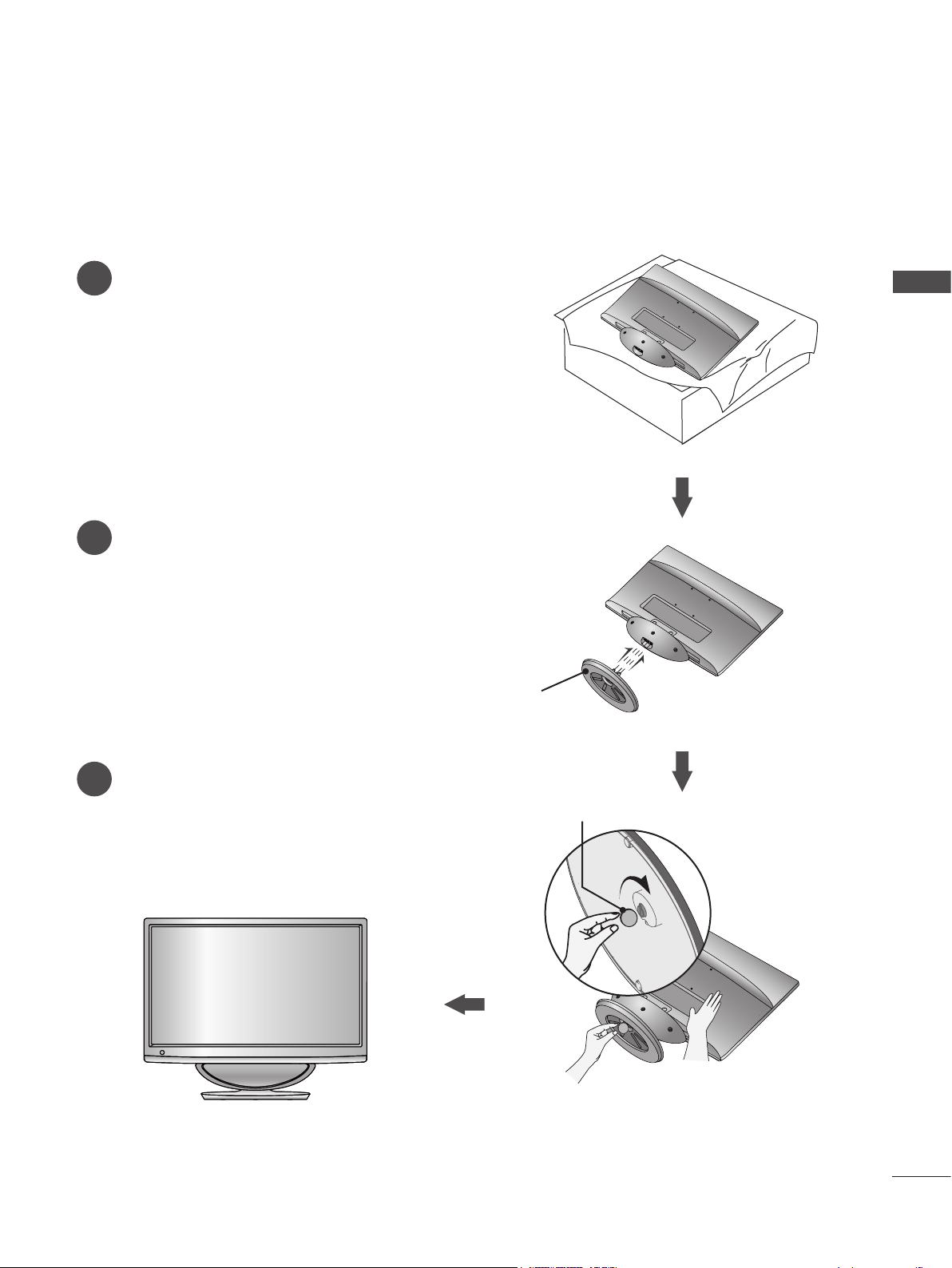
STAND INSTALLATION
■ The image shown may be somewhat different from your Monitor set.
Carefully place the product screen side down on a
cushioned surface that will protect the Monitor set
and its screen from damage.
Insert the Stand Base into the product.
Stand Base
Use a Coin on the bottom of the stand base
and turn the screw clockwise to tighten.
1
2
3
M2080D/M2280D/M2380D/M2780D
Coin
7
PREPARATION
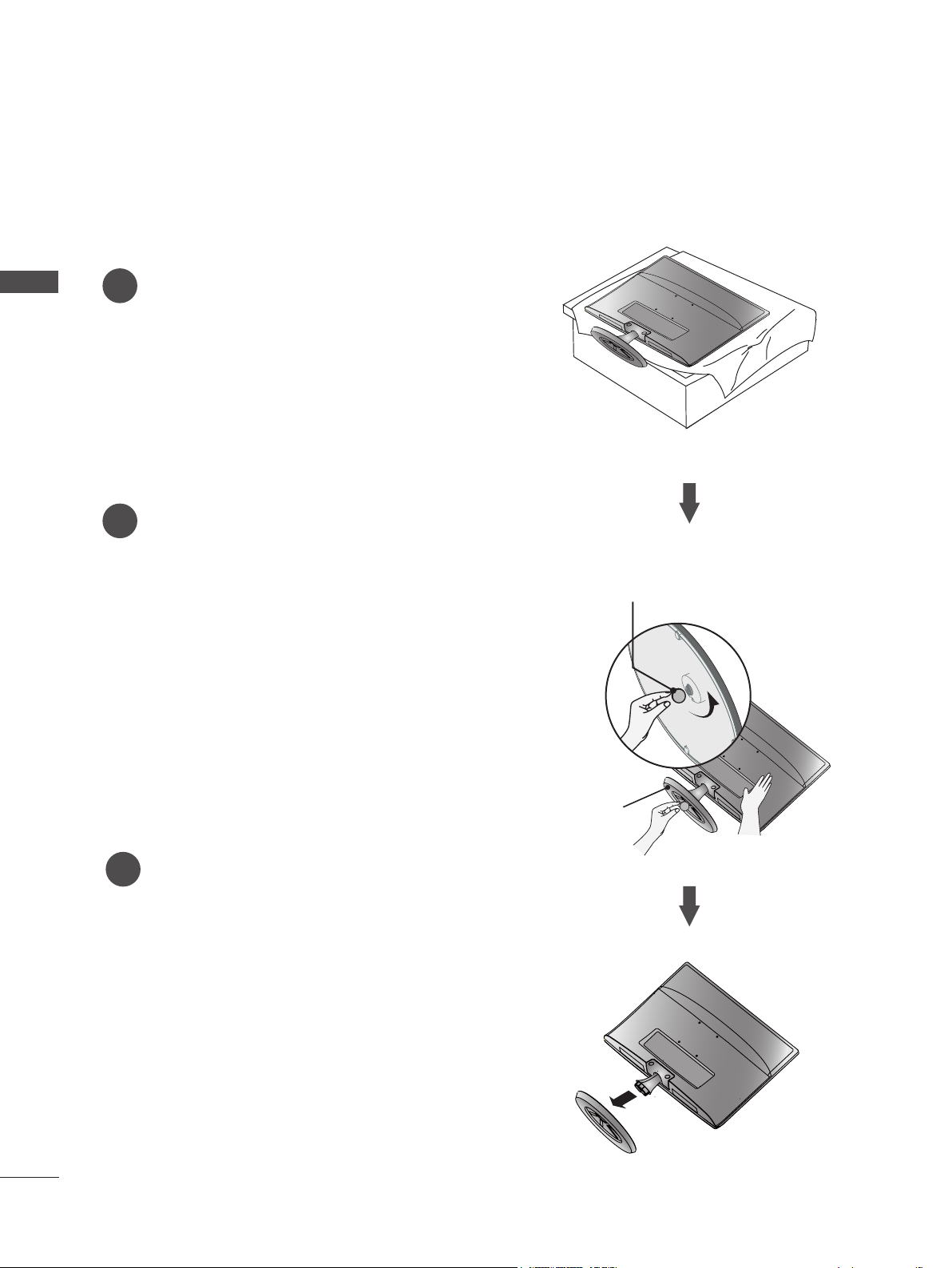
STAND INSTALLATION
■ The image shown may be somewhat different from your Monitor set.
Carefully place the product screen side down on a
cushioned surface that will protect the Monitor set
and its screen from damage.
Insert the Stand Base into the product.
Use a Coin on the bottom of the stand base
and turn the screw clockwise to tighten.
1
2
3
M2380DF/M2780DF
Stand Base
Coin
8
PREPARATION
PREPARATION
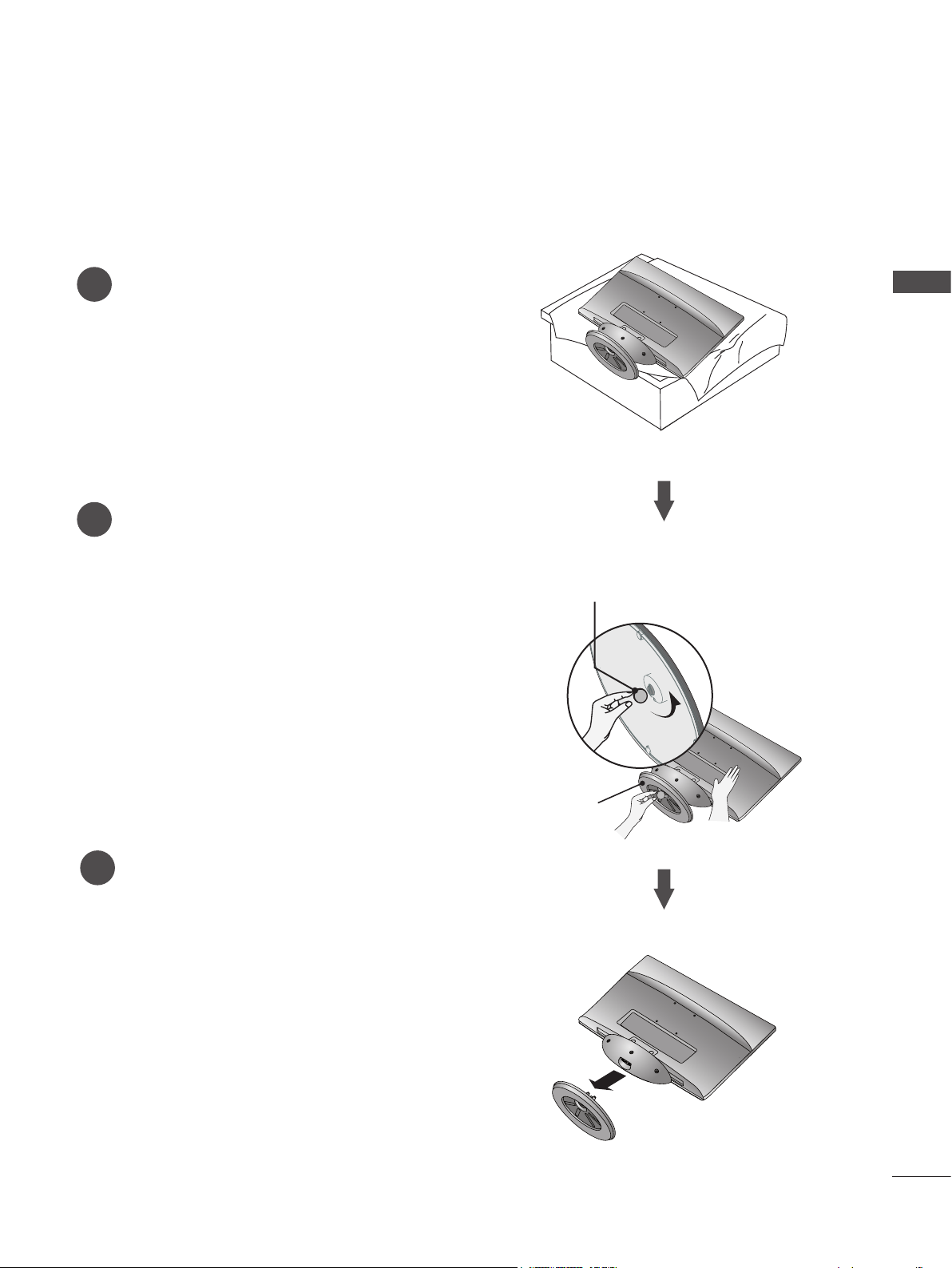
DETACHING THE STAND
■ The image shown may be somewhat different from your Monitor set.
1
2
3
Place the Monitor set screen side down on a
cushion or soft cloth.
Detach the Stand Base from the set by turning the
screw to the left with a Coin.
Pull the stand base.
Stand Base
M2080D/M2280D/M2380D/M2780D
Coin
9
PREPARATION
DETACHING THE STAND
■ The image shown may be somewhat different from your Monitor set.
1
2
3
Place the Monitor set screen side down on a
cushion or soft cloth.
Detach the Stand Base from the set by turning the
screw to the left with a Coin.
Pull the stand base.
M2380DF/M2780DF
Stand Base
Coin
10
PREPARATION
PREPARATION
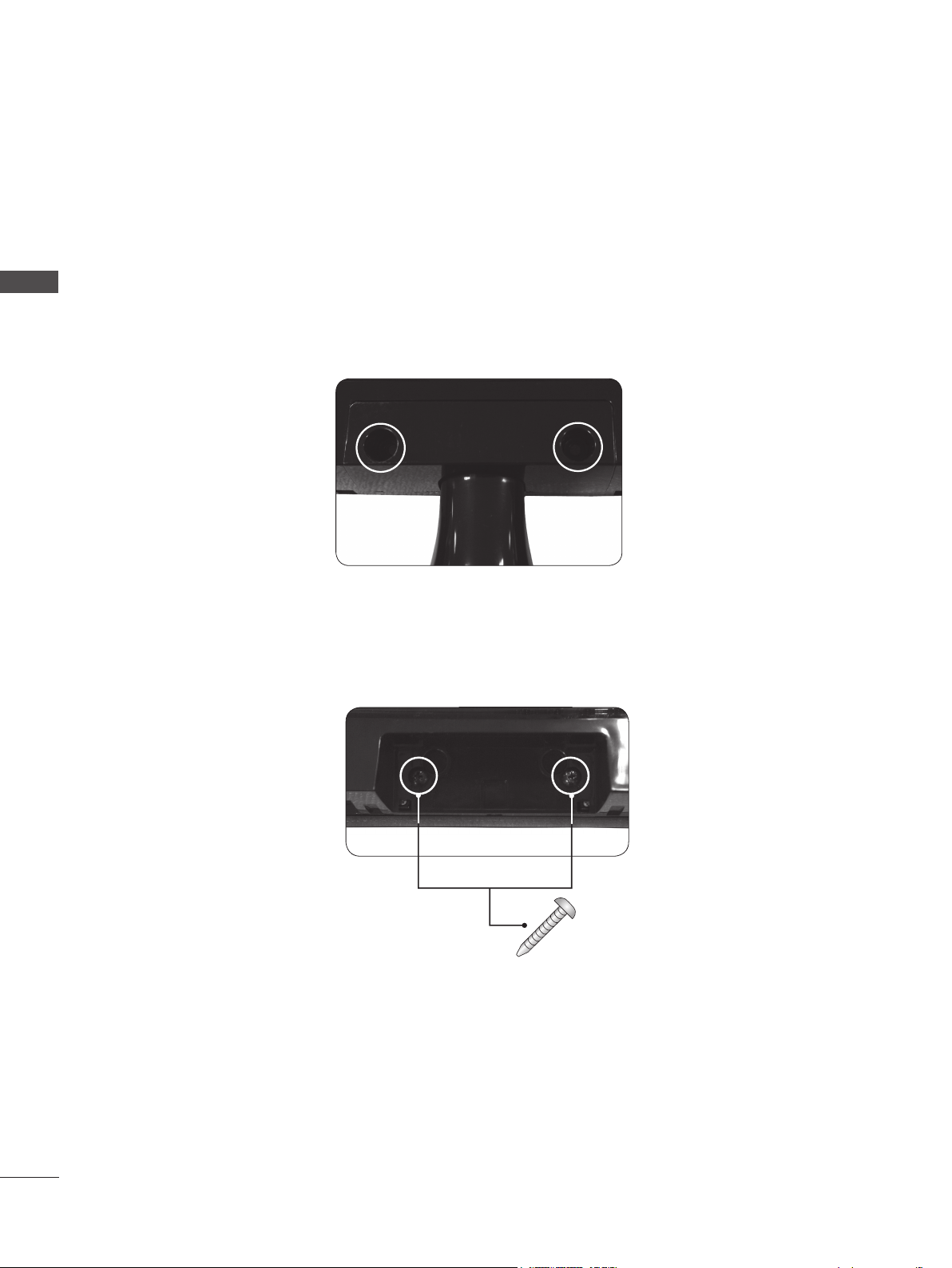
DETACHING THE STAND BODY (Only M2080D/
M2280D/M2380D/M2780D)
■ When using a VESA mount on the monitor set, you may wish to remove the stand body.
■ The image shown may be somewhat different from your Monitor set.
1. Remove the screw 2 points.
2. Pull the stand body.
3. Assemble the screw 2 points.
Screw
11
PREPARATION
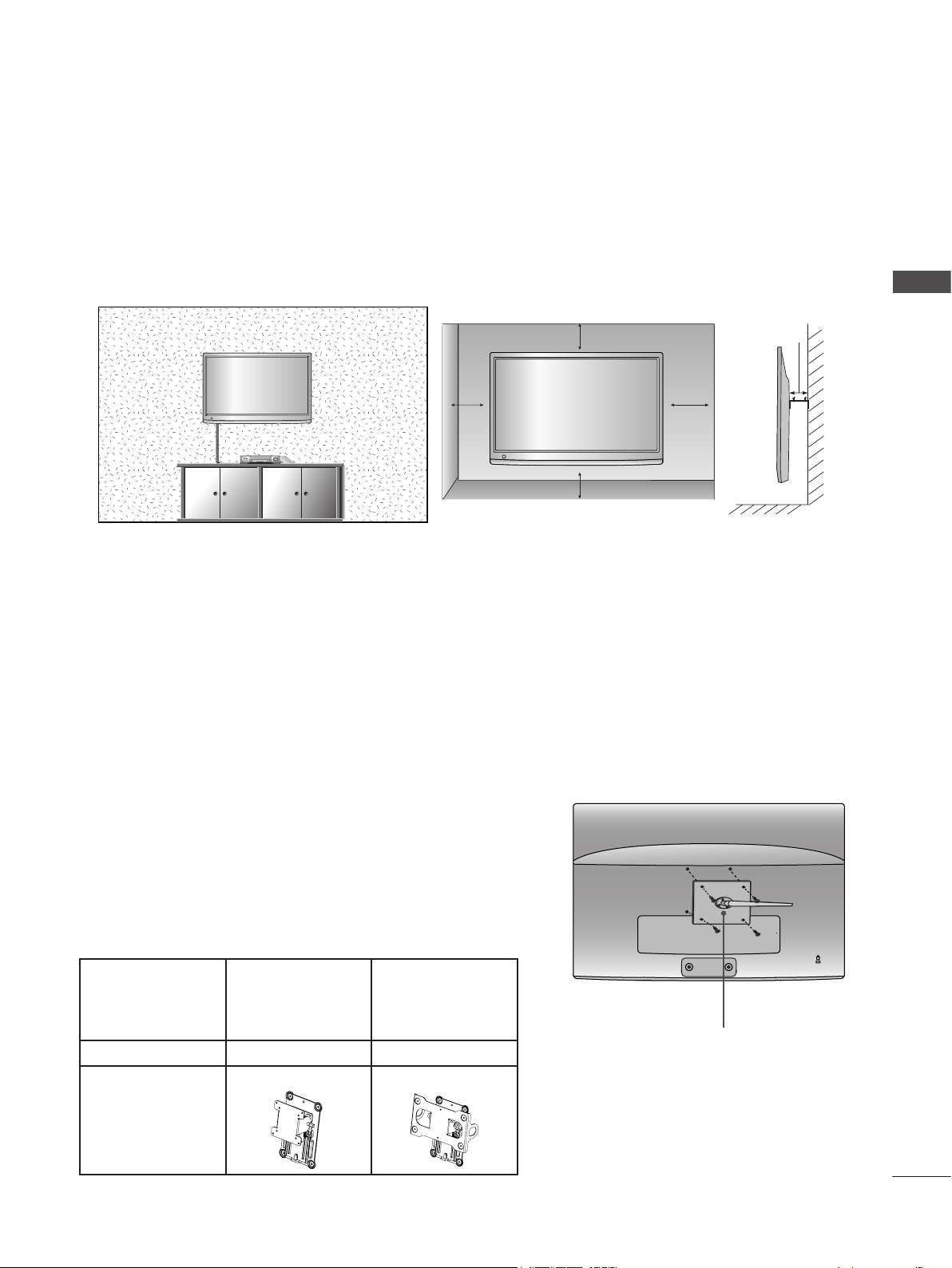
WALL MOUNT: HORIZONTAL INSTALLATION
■ The image shown may be somewhat different from your Monitor set.
For proper ventilation, allow a clearance of 10 cm on each side and from the wall. Detailed installation instruc-
tions are available from your dealer. See the optional Tilt Wall Mounting Bracket Installation and Setup Guide.
If you intend to mount the Monitor set to a wall, attach the wall mounting interface (optional) to the back of
the Monitor set. When you install the Monitor set using the wall mounting interface (optional), attach it care-
fully so it will not drop.
1. Be sure to use screws and a wall mount that meet VESA standards.
2. Using screws longer than those recommended might damage the Monitor set.
3. Using screws that do not meet VESA standards might either damage the Monitor set or result in it com-
ing away from the wall. LG is not responsible for any damage resulting from failure to follow these instruc-
tions.
4. "VESA compatible" refers to the screw mounting interface dimensions and mounting screw specifications.
5. Please use VESA standards as shown below.
5-1) 784.8 mm (30.9 inch) and under
* Wall Mount Pad Thickness: 2.6 mm
* Screw: Φ 4.0 mm x Pitch 0.7 mm x Length 10 mm
5-2) 787.4 mm (31.0 inch) and above
* Please use a VESA standard wall mount pad and screws.
< Screw Mounting Interface Dimensions >
Model M2080D
M2280D
M2380D
M2380DF
M2780D
M2780DF
VESA ( A x B) 75 x 75 200 x 100
Wall mount
bracket(optional)
RW120 RW240
10 cm
10 cm
10 cm
10 cm
10 cm
Wall Mount Pad
12
PREPARATION
PREPARATION
DESKTOP PEDESTAL INSTALLATION
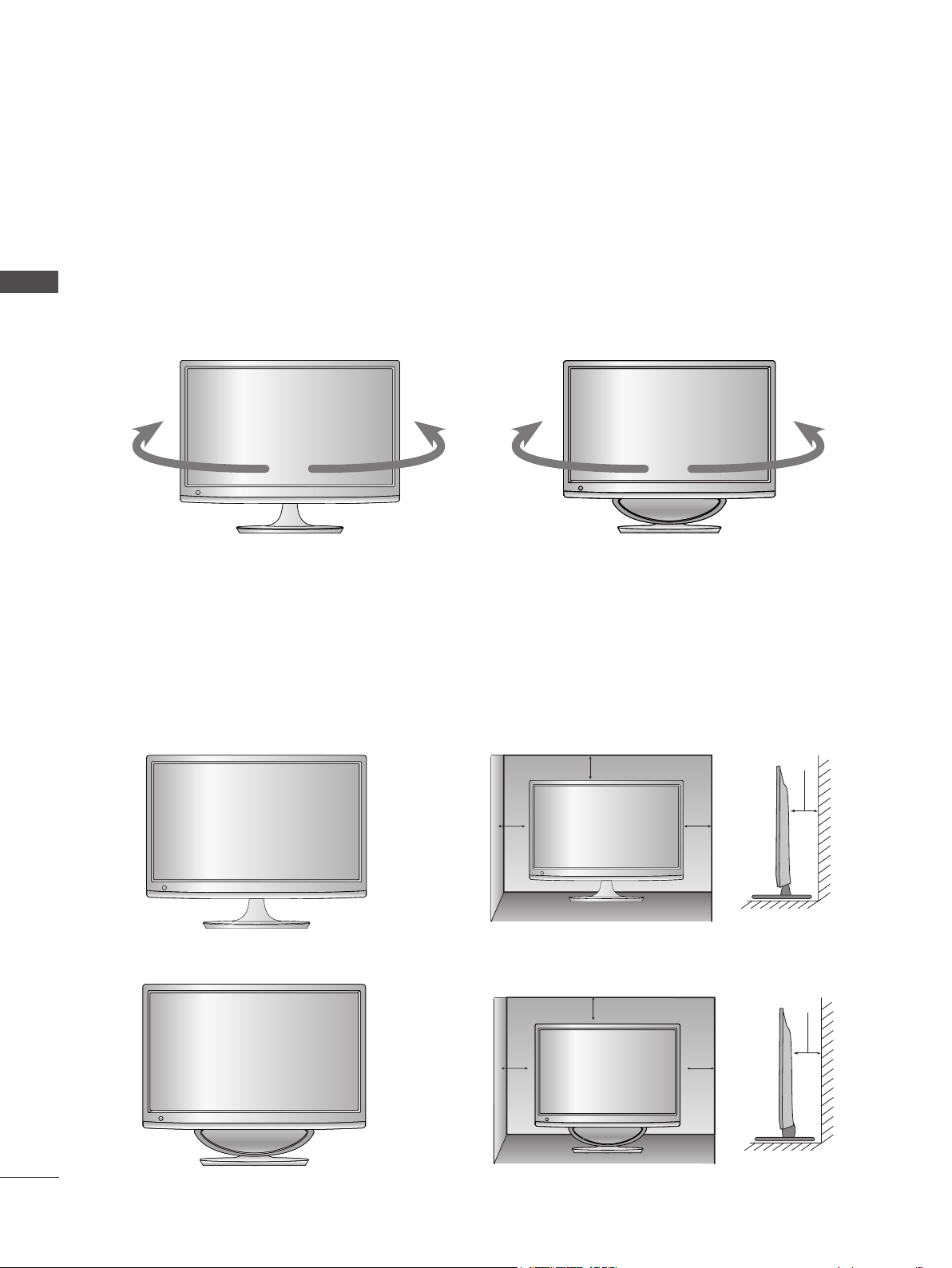
For proper ventilation, allow a clearance of 10 cm on each side and from the wall.
■ The image shown may be somewhat different from your Monitor set.
10 cm
10 cm 10 cm
10 cm
10 cm
10 cm
10 cm
10 cm
M2080D / M2280D
M2380D / M2780D
M2380DF / M2780DF
SWIVEL STAND(Only M2780D / M2780DF)
■ The image shown may be somewhat different from your Monitor set.
After installing the set, you can adjust the set manually to the left or right direction by 179 degrees to
suit your viewing position.
M2780D
M2780DF
13
PREPARATION
POSITIONING YOUR DISPLAY
LOCATION
■ The image shown may be somewhat different from your set.
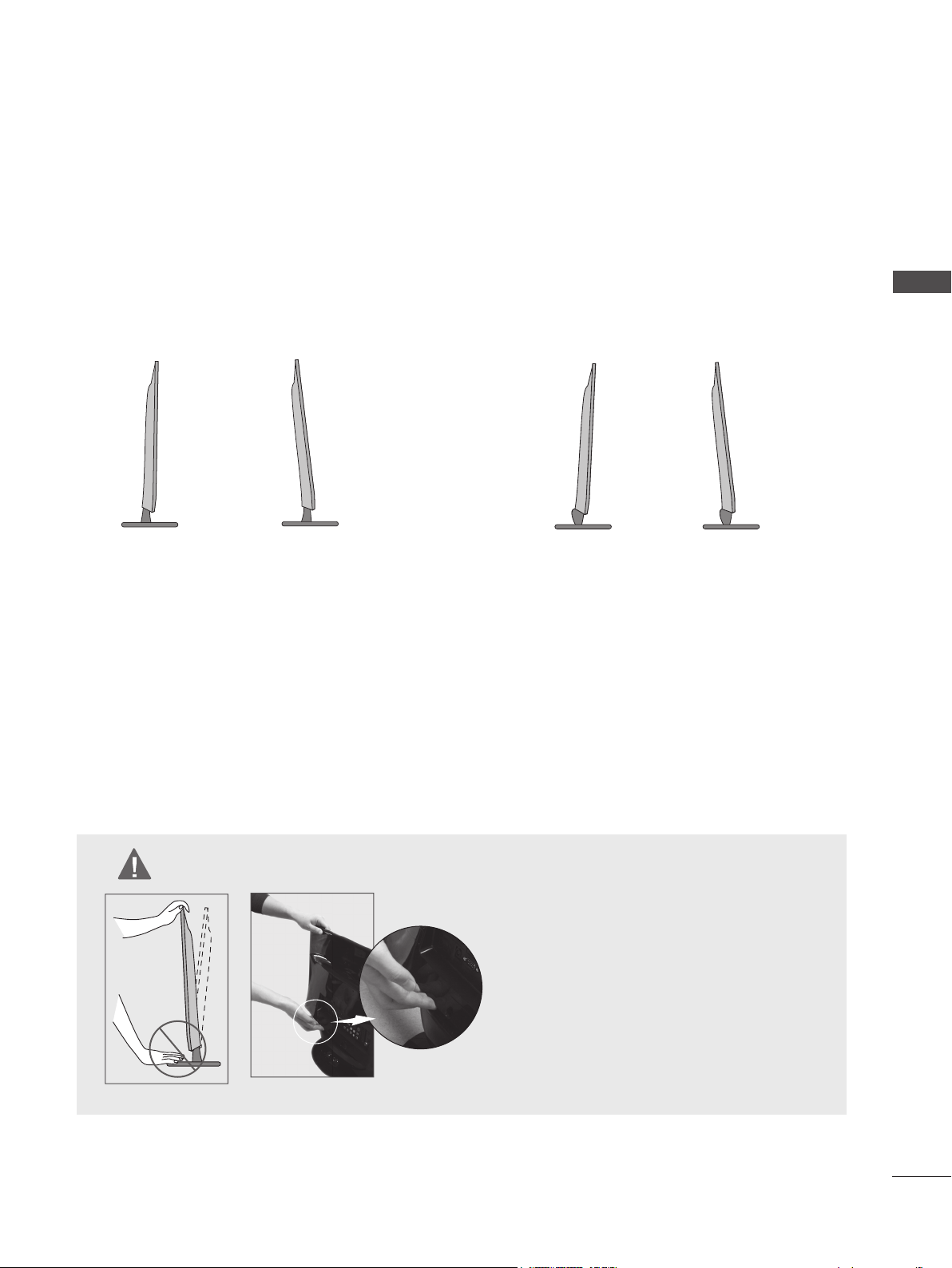
Adjust the position of the panel in various ways for maximum comfort.
* Tilt Range
-5° -5°10° 10°
■ When adjusting the angle of the screen, do
not put your finger(s) in between the head of
the monitor and the stand body or woofer.
You can hurt your finger(s).
Position your set so that no bright light or sunlight falls directly onto the screen. Care should be taken not
to expose the set to any unnecessary vibration, moisture, dust or heat. Also, ensure that the set is placed in
a position to allow a free flow of air. Do not cover the ventilation openings on the back cover.
WARNING
M2380DF / M2780DF
M2080D / M2280D / M2380D / M2780D M2380DF / M2780DF
14
PREPARATION
PREPARATION
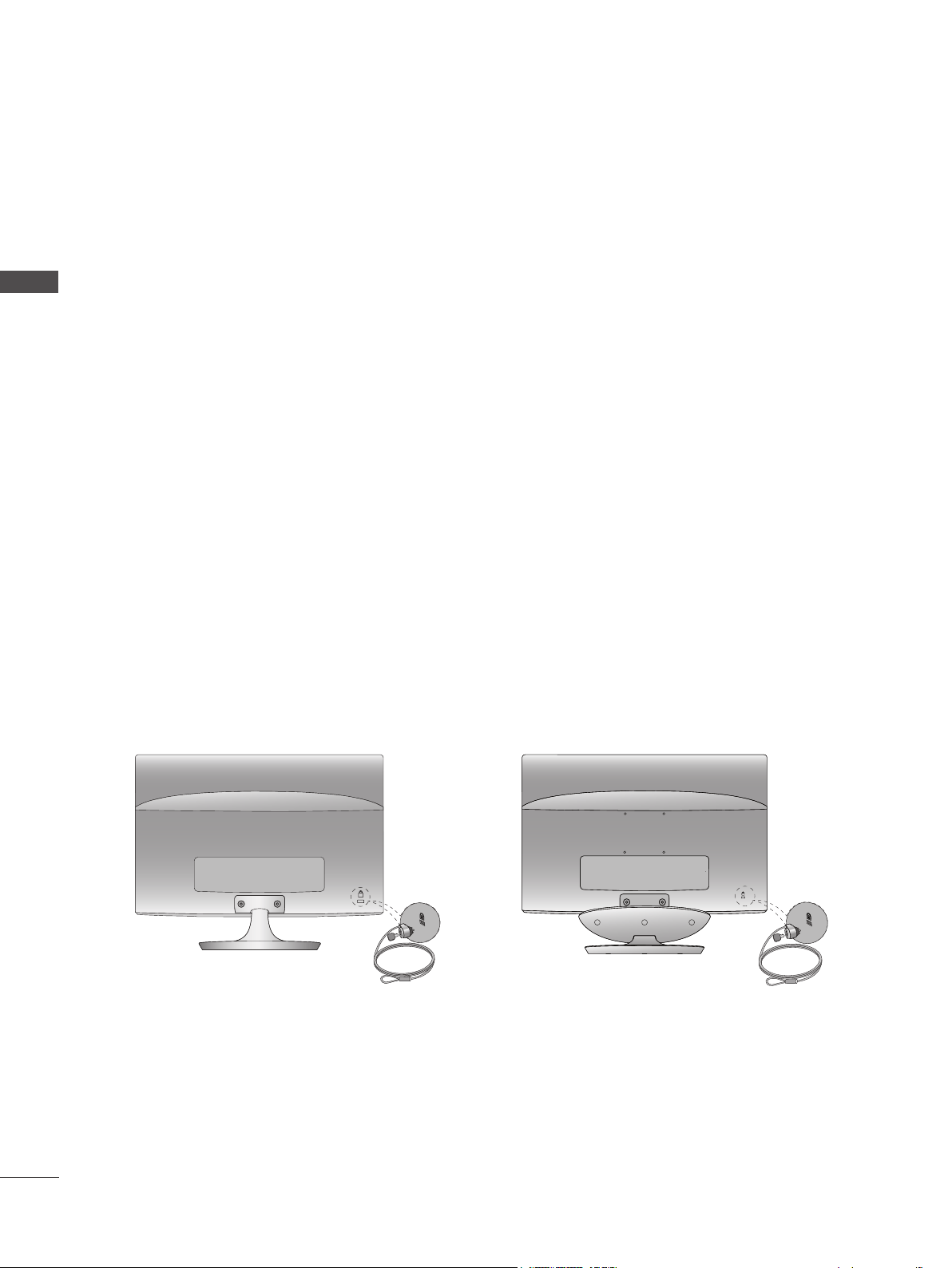
KENSINGTON SECURITY SYSTEM
- The product is equipped with a Kensington Security System connector on the back panel. Connect
the Kensington Security System cable as shown below.
- For detailed installation and use of the Kensington Security System, refer to the user’s guide provided
with the Kensington Security System.
- For further information, visit http://www.kensington.com. Kensington sells security systems for expen-
sive electronic equipment such as notebook PCs and LCD projectors.
NOTE
- The Kensington Security System is an optional accessory.
NOTES
a. If the product feels cold to the touch, there may be a small “flicker” when it is turned on.
This is normal, there is nothing wrong with product.
b. Some minute dot defects may be visible on the screen, appearing as tiny red, green, or blue spots.
However, they have no adverse effect on the monitor’s performance.
c. Avoid touching the LCD screen or holding your finger(s) against it for long periods of time.
Doing so may produce temporary distortions on the screen.
M2080D / M2280D
M2380D / M2780D M2380DF / M2780DF
15
EXTERNAL EQUIPMENT SETUP
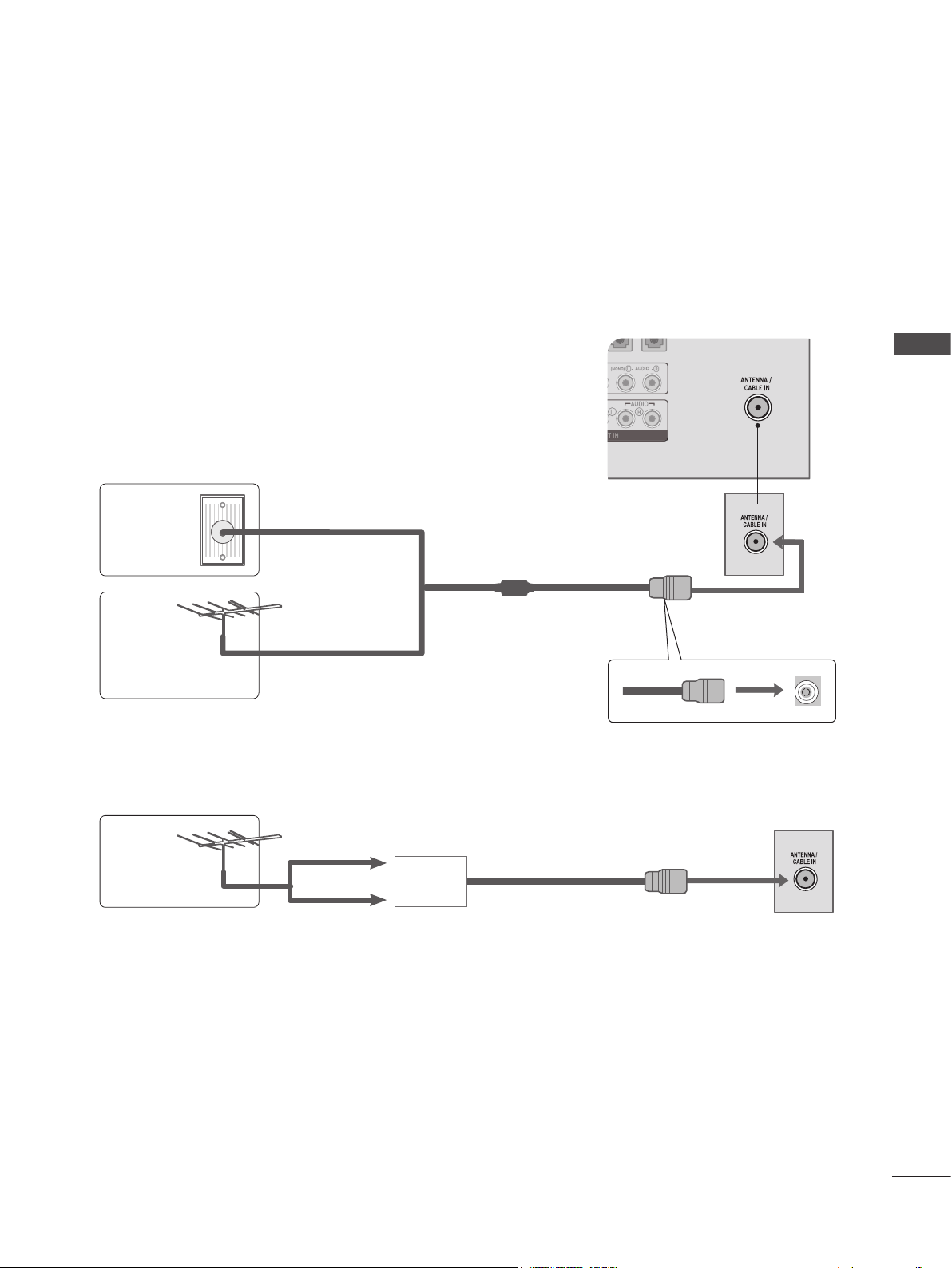
ANTENNA CONNECTION
■ To prevent damage, do not connect the set to the a power outlet until all connections have been made
between the devices.
■ For optimum picture quality, adjust the antenna's direction.
■ An antenna cable and converter are not included with the Monitor set.
Multi-family Dwellings/Apartments
(Connect to wall antenna socket)
Wall
Antenna
Socket
Outdoor
Antenna
(VHF, UHF)
Single-family Dwellings/Houses
(Connect to wall jack for outdoor antenna)
RF Coaxial Wire (75 Ω)
■ To get better picture quality in poor signal areas, install a signal amplifier to the antenna as shown
above.
■ If the signal needs to be split for two devices, use an antenna signal splitter.
EXTERNAL EQUIPMENT SETUP
Antenna
UHF
VHF
Signal
Amplifier
16
EXTERNAL EQUIPMENT SETUP
EXTERNAL EQUIPMENT SETUP
HD RECEIVER SETUP
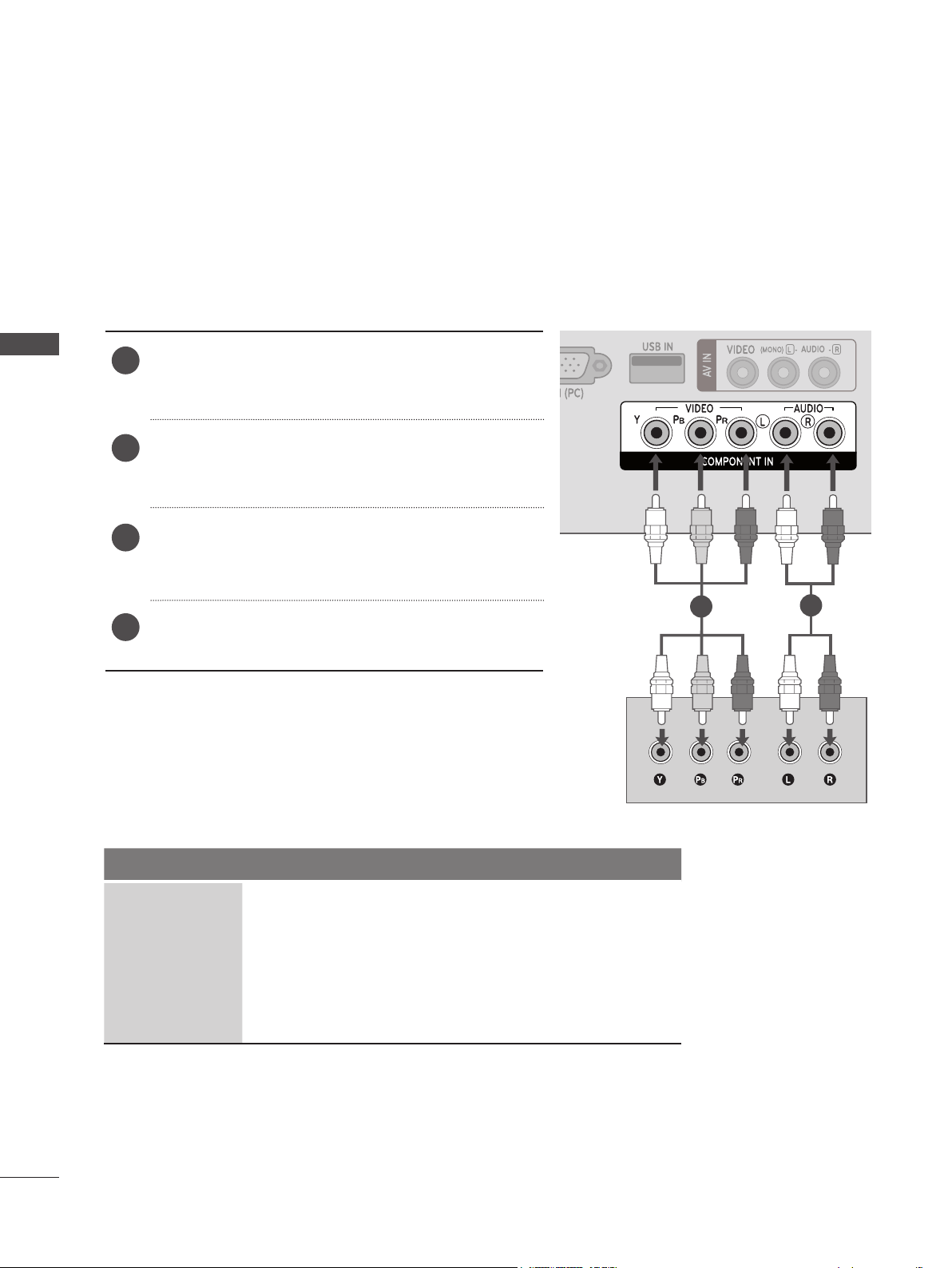
Connecting with a Component Cable
■ To prevent damage, never plug in any power cords until you have finished connecting all equipment.
■ The image shown may be somewhat different from your Monitor set.
► HDMI Audio Supported formats: Dolby Digital, PCM
DTS Audio format is not supported.
Signal Component HDMI
480i / 576i YES No
480p / 576p YES YES
720p / 1080i YES YES
1080p
YES
(50 Hz / 60Hz only)
YES
(24 Hz / 30 Hz / 50Hz / 60Hz)
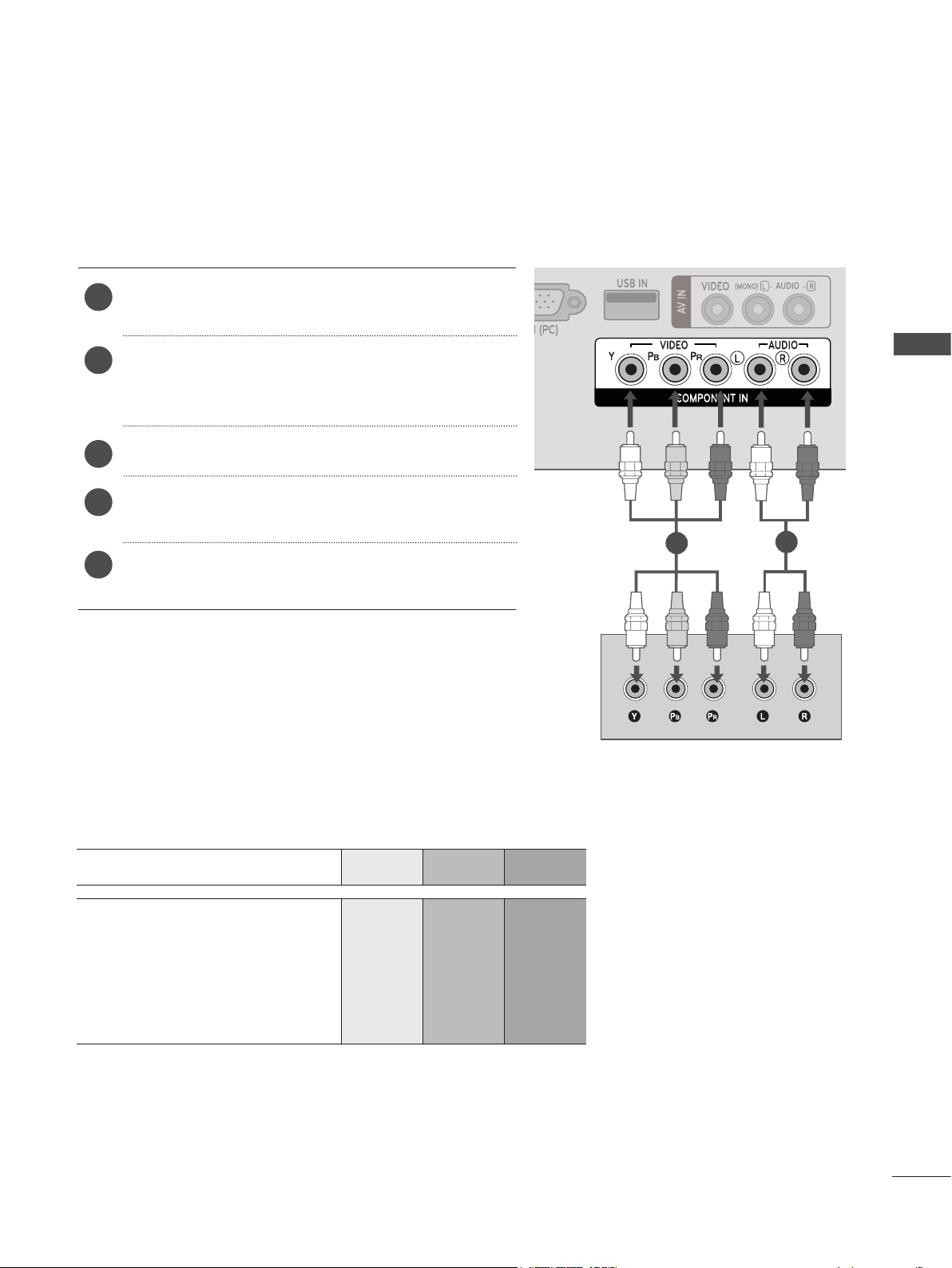
Connect the video outputs (Y, PB, PR) of the digital
set-top box to the COMPONENT IN VIDEO jacks on
the Monitor set.
Connect the audio output of the digital set-top box
to the COMPONENT IN AUDIO jacks on the
Monitor set.
Turn on the digital set-top box. (Refer to the owner’s
manual for the digital set-top box.)
Select COMPONENT input source using the INPUT
button on the remote control.
1
2
3
4
1
2
17
EXTERNAL EQUIPMENT SETUP
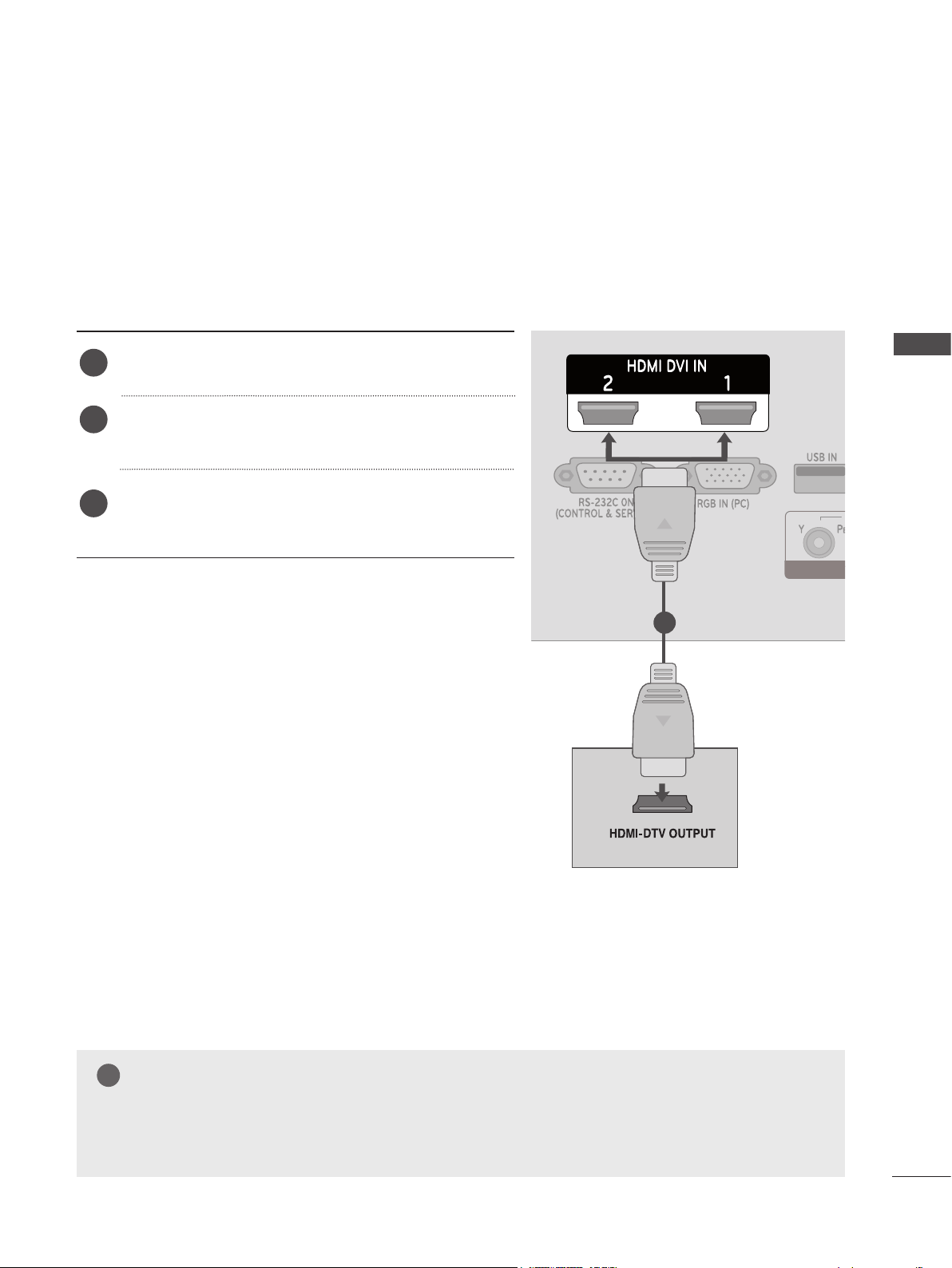
Connecting a Set-top Box with an HDMI Cable
Connect the digital set-top box to the HDMI/DVI IN 1
or HDMI/DVI IN 2 jack on the Monitor set.
Turn on the digital set-top box. (Refer to the owner’s
manual for the digital set-top box.)
Select HDMI 1 or HDMI 2 input source using the
INPUT button on the remote control.
1
2
3
NOTE
►Check that your HDMI cable is a high speed HDMI cable. If the HDMI cables are not high speed,
flickering or no screen display can result.
!
1
18
EXTERNAL EQUIPMENT SETUP
EXTERNAL EQUIPMENT SETUP
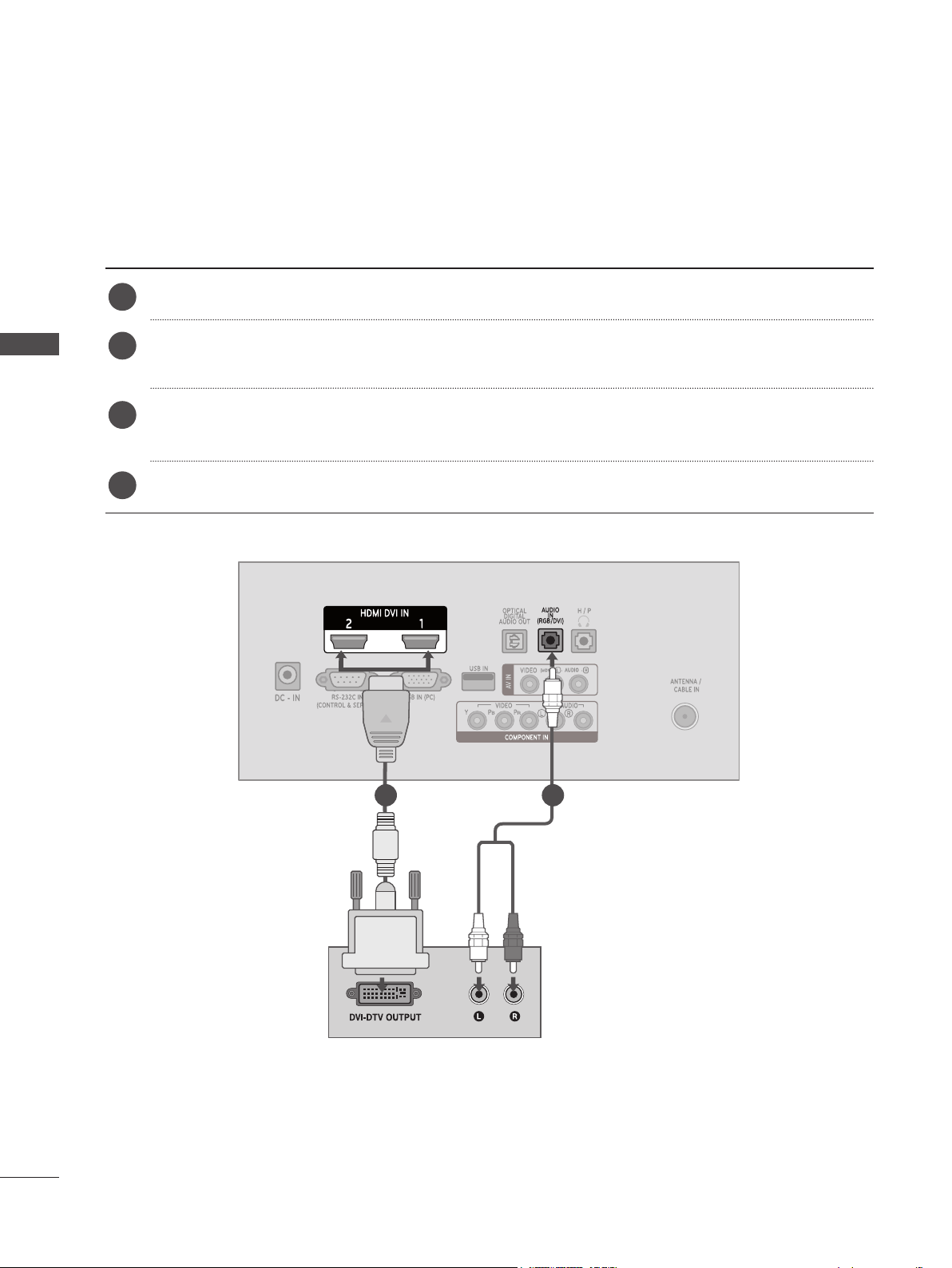
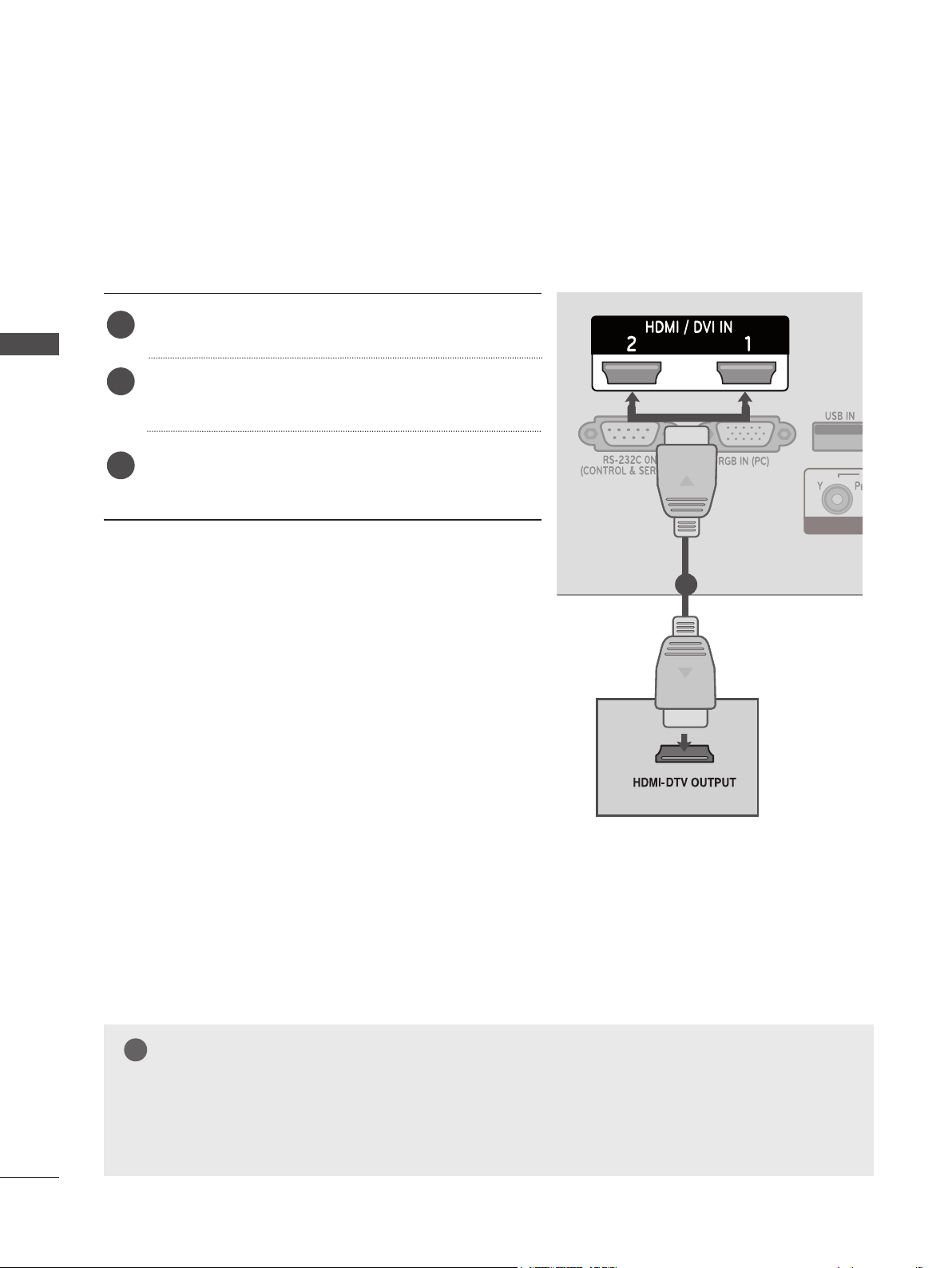
Connect the digital set-top box to the HDMI/DVI IN 1 or HDMI/DVI IN 2 jack on the Monitor set.
Connect the audio output of the digital set-top box to the AUDIO IN (RGB/DVI) jack on the
Monitor set.
Turn on the digital set-top box. (Refer to the owner’s manual for the digital set-top box.)
Select HDMI 1 or HDMI 2 using the INPUT on the remote control.
Connecting with an HDMI to DVI Cable
1
2
3
4
1 2
19
EXTERNAL EQUIPMENT SETUP
DVD SETUP
Connecting with a Component Cable
Connect the video outputs (Y, PB, PR) of the DVD
to the COMPONENT IN VIDEO jacks on the Monitor
set.
Connect the audio outputs of the DVD to the
COMPONENT IN AUDIO jacks on the Monitor set.
Turn on the DVD player, insert a DVD.
Select Component using the INPUT on the remote
control.
Refer to the DVD player's manual for operating
instructions.
1
2
3
4
5
Component Input Ports
For better picture quality, connect a DVD player to the component input ports as shown below.
Component Ports on the set Y P
B
P
R
Video output Ports
on the DVD player
Y P
B
P
R
Y B-Y R-Y
Y Cb Cr
Y Pb Pr
1
2
20
EXTERNAL EQUIPMENT SETUP
EXTERNAL EQUIPMENT SETUP
Connecting with an HDMI Cable
Connect the HDMI output of the DVD to the HDMI/
DVI IN 1 or HDMI/DVI IN 2 jack on the Monitor set.
Select HDMI 1 or HDMI 2 using the INPUT on the
remote control.
Refer to the DVD player's manual for operating
instructions.
1
2
3
NOTE
►Check that your HDMI cable is a high speed HDMI cable. If the HDMI cables are not high speed,
flickering or no screen display can result.
!
1
21
EXTERNAL EQUIPMENT SETUP
VCR SETUP
Connecting with an RF Cable
■ To avoid picture noise (interference), allow adequate distance between the VCR and set.
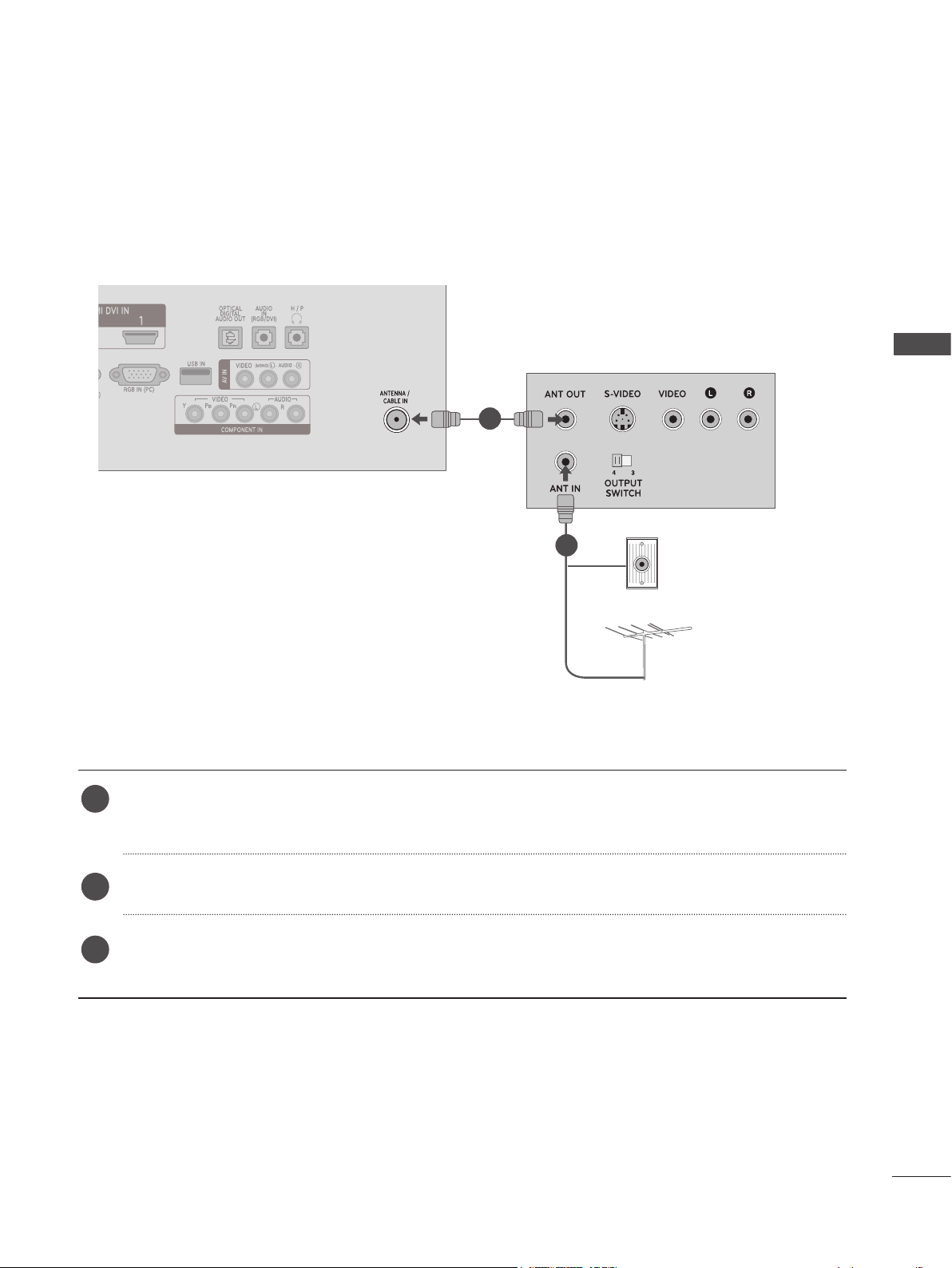
Connect the ANT OUT socket of the VCR to the ANTENNA/CABLE IN socket on the Monitor
set.
Connect the antenna cable to the ANT IN socket of the VCR.
Press PLAY on the VCR and match the appropriate channel between the set and the VCR for
viewing.
1
1
2
2
3
Wall Jack
Antenna
22
EXTERNAL EQUIPMENT SETUP
EXTERNAL EQUIPMENT SETUP
Connecting with an RCA Cable
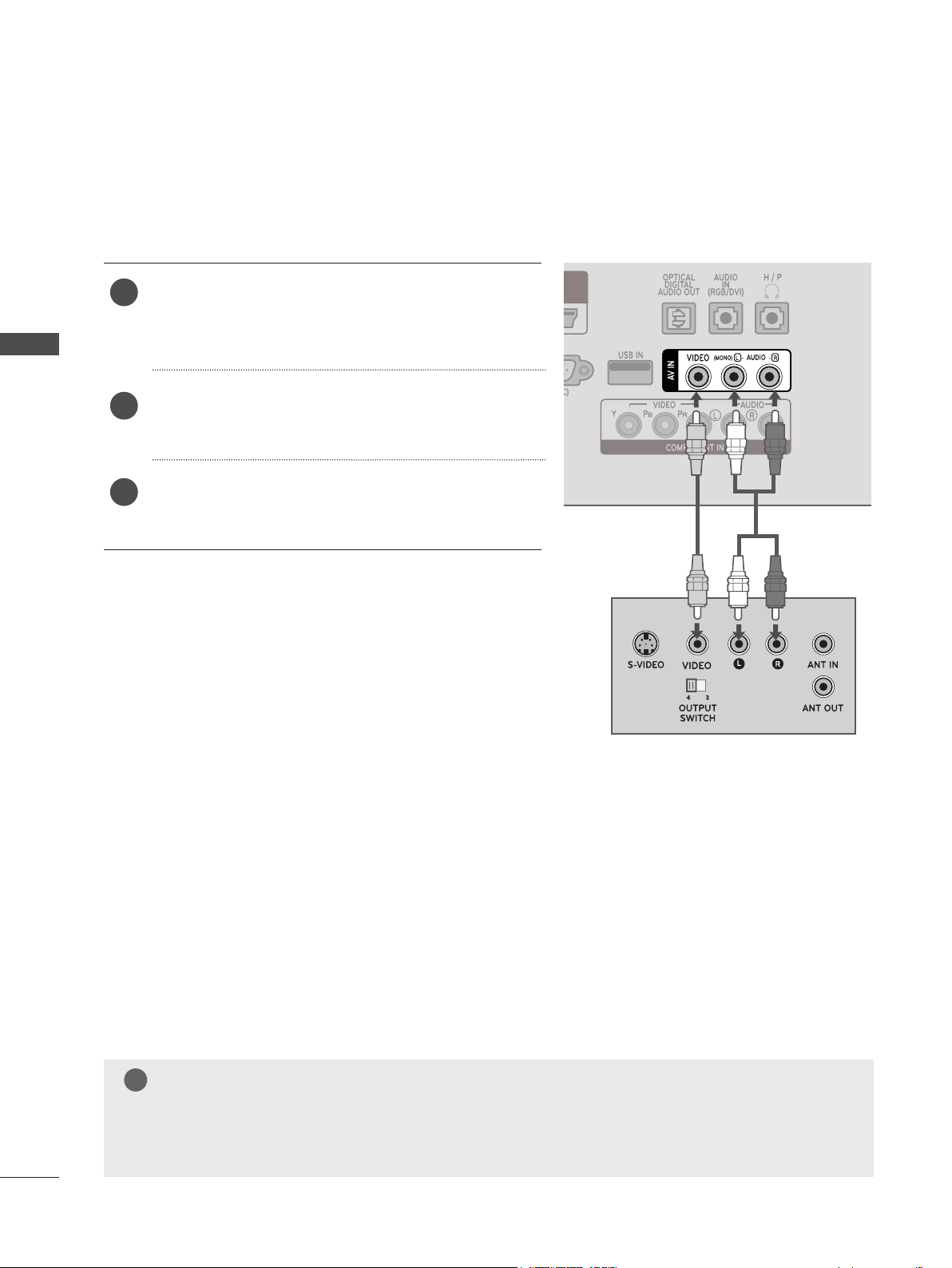
Connect the AUDIO/VIDEO jacks between set and
VCR. Match the jack colors (Video = yellow, Audio
Left = white, and Audio Right = red)
Insert a video tape into the VCR and press PLAY.
(Refer to the VCR owner’s manual.)
Select AV input source using INPUT on the remote
control.
1
2
3
NOTE
►If you have a mono VCR, connect the audio cable from the VCR to the AUDIO L/MONO jack
of the set.
!
23
EXTERNAL EQUIPMENT SETUP
DIGITAL AUDIO OUT SETUP
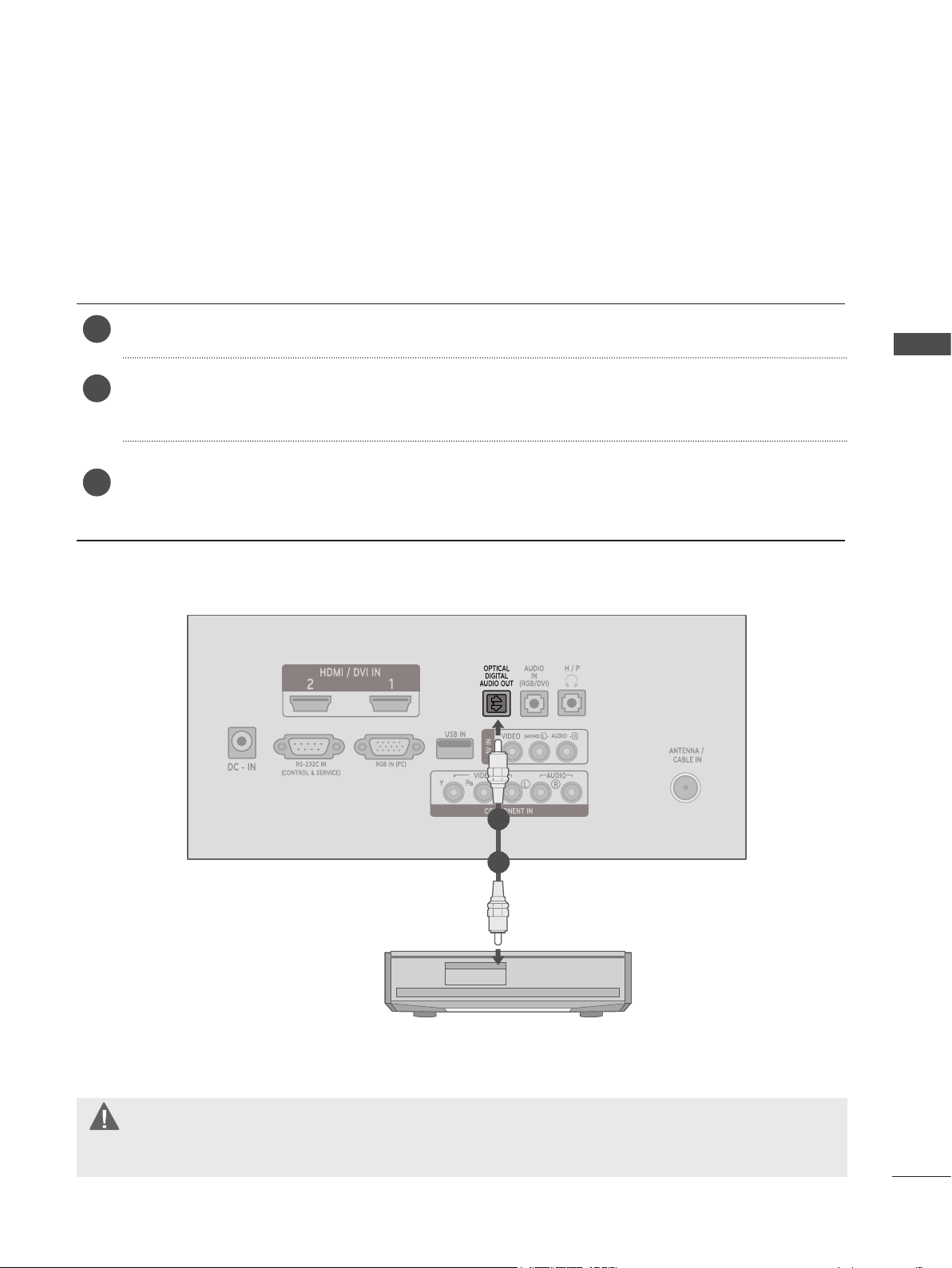
Connect one end of an optical cable to the OPTICAL DIGITAL AUDIO OUT port.
Connect the other end of the optical cable to the digital audio (Optical) input on the audio
equipment.
Set the “TV Speaker option - Off ” in the AUDIO menu. ( P. 67)
Refer to the external audio equipment instruction manual for operation.
1
2
3
CAUTION
►Do not look into the optical output port. Looking at the laser beam may damage your vision.
To send the monitor SET’s audio signal to external audio equipment, use the Digital Audio Output
(Optical) port. If you want to enjoy digital broadcasting through 5.1-channel speakers, connect the
OPTICAL DIGITAL AUDIO OUT terminal on the back of the monitor SET to a home theater (or amp).
1
2
25
EXTERNAL EQUIPMENT SETUP
HEADPHONE SETUP
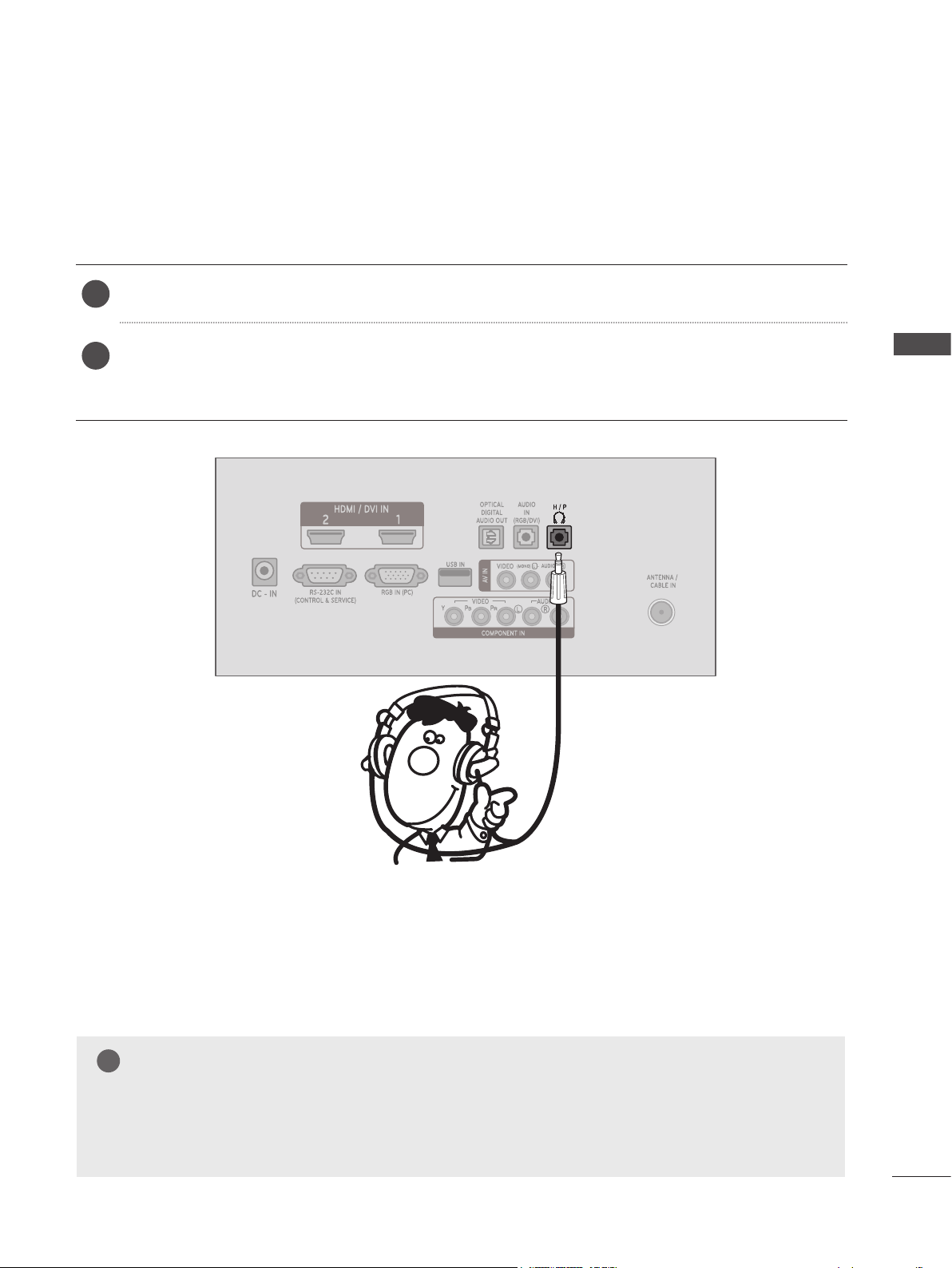
Plug the headphone into the headphone socket (H/P).
To adjust the headphone volume, press the VOL + or - button. If you press the MUTE button,
the sound from the headphone is switched off.
1
2
You can listen to sound through headphones plugged into the headphone jack.
NOTE
►AUDIO menu items are disabled when headphones are connected.
►Optical Digital Audio Out is not available when headphones are connected.
!
26
EXTERNAL EQUIPMENT SETUP
EXTERNAL EQUIPMENT SETUP
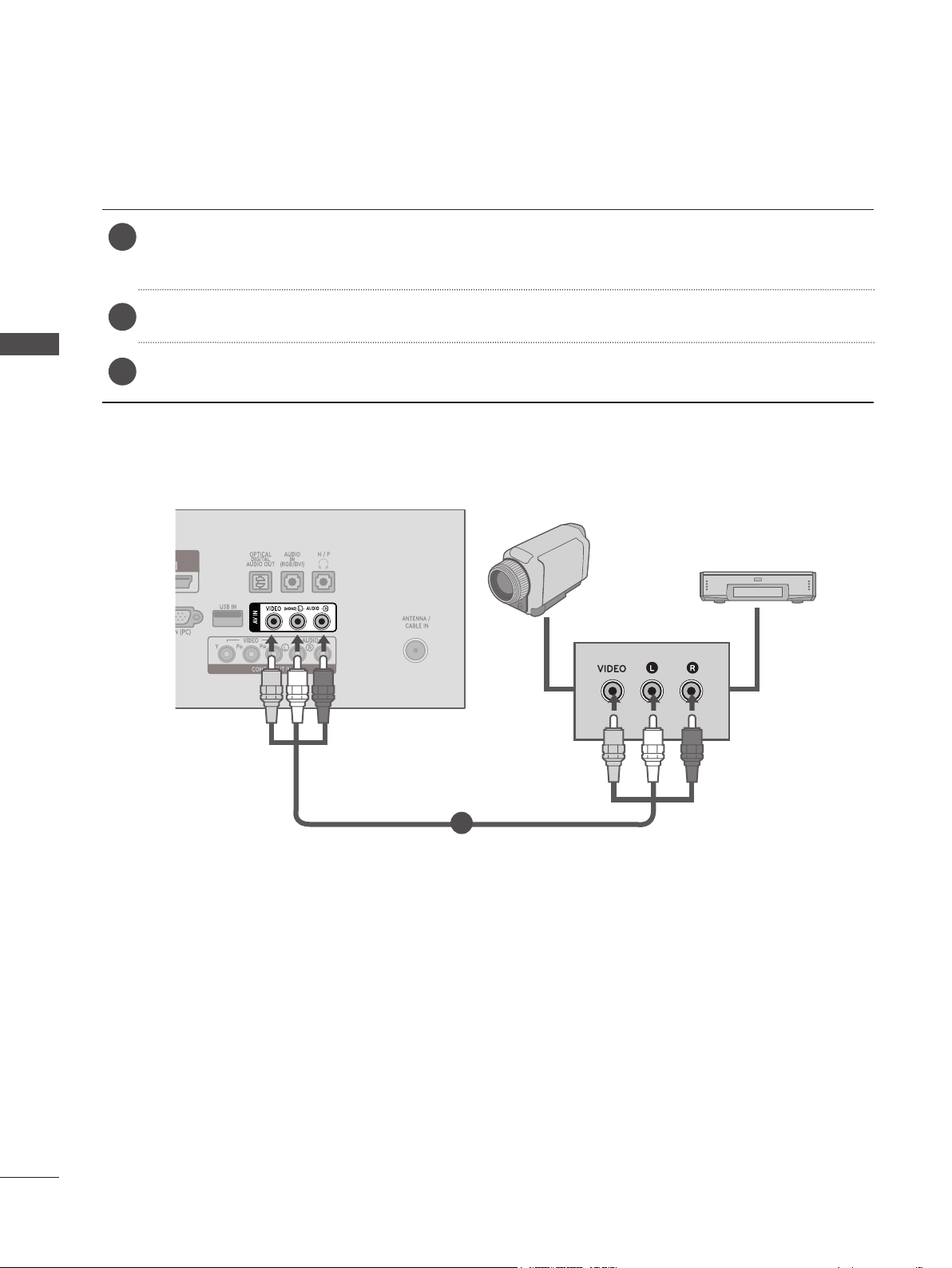
Connect the AUDIO/VIDEO jacks between set and external equipment. Match the jack colors.
(Video = yellow, Audio Left = white, and Audio Right = red)
Select AV input source with using INPUT on the remote control.
Operate the corresponding external equipment. Refer to external equipment operating guide.
1
2
3
OTHER A/V SOURCE SETUP
Camcorder
Video game set
1
27
EXTERNAL EQUIPMENT SETUP
PC SETUP
When using the remote control, aim it at the remote control sensor on the Monitor set.
Connecting with a D-sub 15-pin Cable
Connect the signal cable from the monitor output
socket of the PERSONAL COMPUTER to the PC
input socket of the Monitor set.
Connect the audio cable from the PC to the AUDIO
IN(RGB/DVI) socket of the Monitor set.
Press the INPUT to select RGB-PC.
Switch on the PC, and the PC screen appears on
the set. The set can be operated as a PC monitor.
1
2
3
4
1
2
►Connect the signal input cable and tighten it by turning the
screws clockwise.
NOTE
!
28
EXTERNAL EQUIPMENT SETUP
EXTERNAL EQUIPMENT SETUP
Connecting with an HDMI to DVI Cable
Connect the DVI output of the PC to the HDMI/DVI
IN1 or HDMI/DVI IN2 jack on the Monitor set.
Connect the PC audio output to the AUDIO IN
(RGB/DVI) jack on the Monitor set.
Turn on the PC and the set.
Select HDMI 1 or HDMI 2 input source using the
INPUT on the remote control.
1
2
3
4
1 2
►Connect the signal input cable and tighten it by turning the
screws clockwise.
NOTE
!
►If you want to use HDMI-PC mode, you must set the input label to PC mode.
29
EXTERNAL EQUIPMENT SETUP
Connecting with an HDMI to HDMI Cable
Connect the HDMI output of the PC to the HDMI/
DVI IN1 or HDMI/DVI IN2 jack on the Monitor set.
Turn on the PC and the Monitor set.
Select HDMI 1 or HDMI 2 input source using INPUT
on the remote control.
1
2
3
1
NOTE
►Check that your HDMI cable is a high speed HDMI cable. If the HDMI cables are not high speed,
flickering or no screen display can result.
►If you want to use HDMI-PC mode, you must set the input label to the PC mode.
!
30
EXTERNAL EQUIPMENT SETUP
EXTERNAL EQUIPMENT SETUP
BACK COVER WIRE ARRANGEMENT
Tie cables together for better cable management as shown in the illustration below.
M2080D / M2280D / M2380D / M2780D
M2380DF / M2780DF
31
EXTERNAL EQUIPMENT SETUP
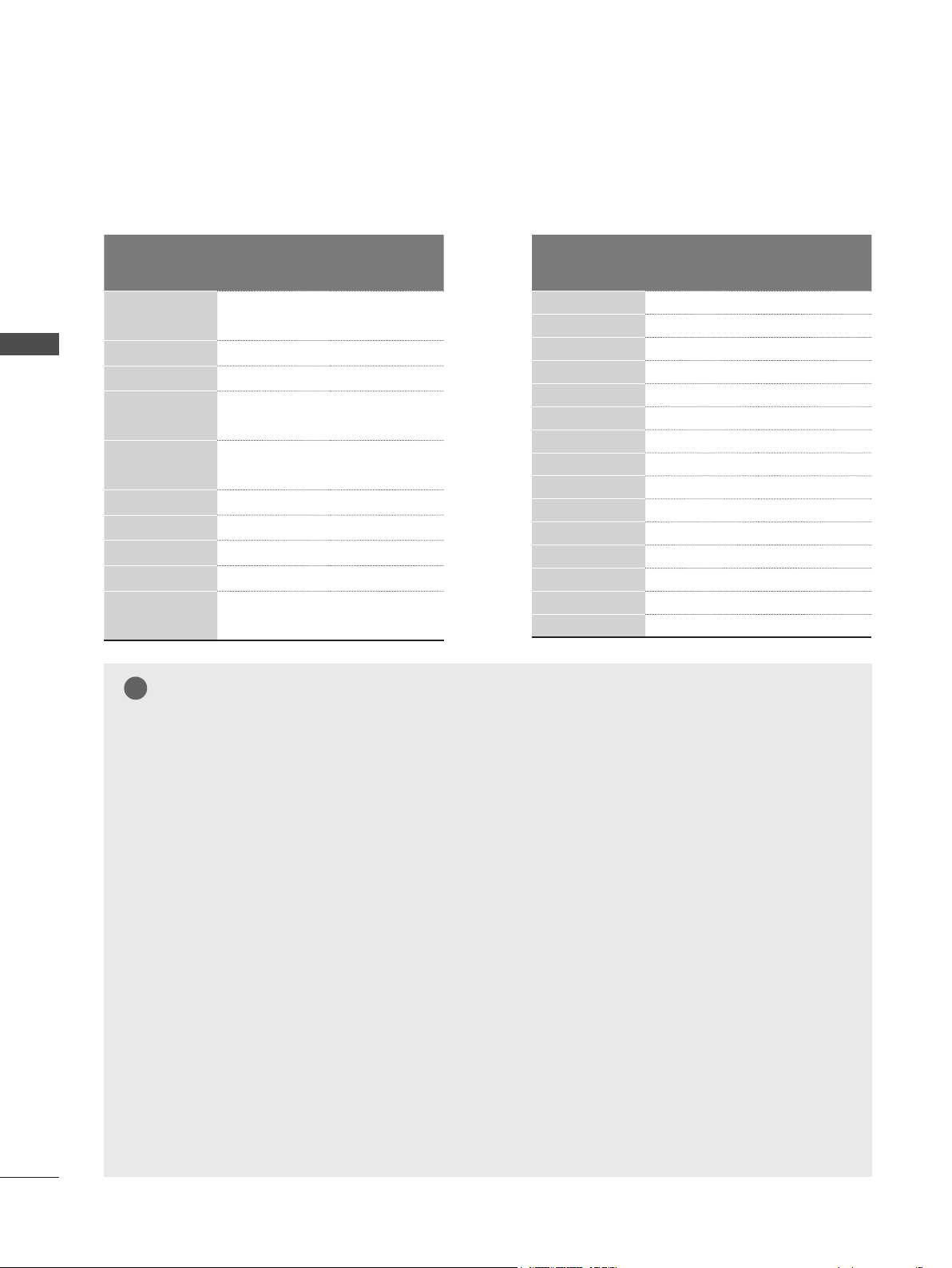
SUPPORTED DISPLAY RESOLUTIONS
RGB[PC] Mode
HDMI/DVI - PC Mode
Resolution
Horizontal
Frequency(kHz)
Vertical
Frequency(Hz)
640 x 480 31.469 59.94
640 x 480 37.5 75
800 x 600 37.879 60.317
800 x 600 46.875 75
832 x 624 49.725 64.55
1024 x 768 48.363 60
1024 x 768 60.023 75.029
1280 x 1024 63.981 60.02
1600 x 900 60 60
Resolution
Horizontal
Frequency(kHz)
Vertical
Frequency(Hz)
640 x 480 31.469 59.94
640 x 480 37.5 75
800 x 600 37.879 60.317
800 x 600 46.875 75
832 x 624 49.725 64.55
1024 x 768 48.363 60
1024 x 768 60.023 75.029
1280 x 1024 63.981 60.02
1600 x 900 60 60
Resolution
Horizontal
Frequency(kHz)
Vertical
Frequency(Hz)
720 x 400 31.468 70.08
640 x 480 31.469 59.94
640 x 480 37.5 75
800 x 600 37.879 60.317
800 x 600 46.875 75.0
1024 x 768 48.363 60.0
1024 x 768 60.023 75.029
1152 x 864 67.500 75.000
1280 x 1024 63.981 60.02
1280 x 1024 79.976 75.025
1680 x 1050 64.674 59.883
1680 x 1050 65.290 59.954
1600 x 1200 75.0 60.0
1920 x 1080 67.5 60
Resolution
Horizontal
Frequency(kHz)
Vertical
Frequency(Hz)
720 x 400 31.468 70.08
640 x 480 31.469 59.94
640 x 480 37.5 75
800 x 600 37.879 60.317
800 x 600 46.875 75.0
1024 x 768 48.363 60.0
1024 x 768 60.023 75.029
1152 x 864 67.500 75.000
1280 x 1024 63.981 60.02
1280 x 1024 79.976 75.025
1680 x 1050 64.674 59.883
1680 x 1050 65.290 59.954
1600 x 1200 75.0 60.0
1920 x 1080 67.5 60
M2080D
M2080D
M2280D / M2380D / M2780D
M2380DF / M2780DF
M2280D / M2380D / M2780D
M2380DF / M2780DF
32
EXTERNAL EQUIPMENT SETUP
EXTERNAL EQUIPMENT SETUP
HDMI/DVI - DTV Mode Component Mode
Resolution
Horizontal
Frequency(kHz)
Vertical
Frequency(Hz)
720 x 480
31.469
31.5
59.94
60
720 x 576 31.25 50
1280 x 720 37.500 50
1280 x 720
44.96
45
59.94
60
1920 x 1080
33.72
33.75
59.94
60
1920 x 1080 28.125 50.00
1920 x 1080 27 24
1920 x 1080 33.75 30.00
1920 x 1080 56.250 50
1920 x 1080
67.43
67.5
59.94
60
Resolution
Horizontal
Frequency(kHz)
Vertical
Frequency(Hz)
720 x 480 15.73 59.94
720 x 480 15.75 60.00
720 x 576 15.625 50.00
720 x 480 31.47 59.94
720 x 480 31.50 60.00
720 x 576 31.25 50.00
1280 x 720 44.96 59.94
1280 x 720 45.00 60.00
1280 x 720 37.50 50.00
1920 x 1080 33.72 59.94
1920 x 1080 33.75 60.00
1920 x 1080 28.125 50.00
1920 x 1080 56.25 50
1920 x 1080 67.432 59.94
1920 x 1080 67.5 60.00
NOTE
►Avoid keeping a fixed image on the screen for
prolonged periods of time. Fixed images may
become permanently imprinted on the screen.
Use a screen saver when possible.
► There may be interference relating to resolution,
vertical pattern, contrast or brightness in PC
mode. Change the PC mode to another resolution
or change the refresh rate or adjust the brightness
and contrast on the menu until the picture is clear.
If the refresh rate of the PC graphic card cannot
be changed, change the PC graphic card or con-
sult the manufacturer of the PC graphic card.
► The synchronization input waveform for horizontal
and vertical frequencies are separate.
► Connect the signal cable from the monitor output
port of the PC to the RGB (PC) port of the set or
the signal cable from the HDMI output port of the
PC to the HDMI/DVI IN port on the Monitor set.
► Connect the audio cable from the PC to the audio
input on the Monitor set. (Audio cables are not
included with the Monitor set.)
► If the graphic card on the PC does not output
analog and digital RGB simultaneously, connect
either the RGB or HDMI/DVI IN to display the PC
output on the Monitor set.
► If the graphic card on the PC does output analog
and digital RGB simultaneously, set the Monitor
set to either RGB or HDMI. (The other mode is
Monitor set to plug-and-play automatically by the
Monitor set.)
► DOS mode may not work depending on the video
card if you use an HDMI to DVI cable.
► If you use an RGB-PC cable that is too long, there
may be interference on the screen. We recom-
mend using under 5m of cable.
!

33
WATCHING TV/CHANNEL CONTROL
WATCHING TV/CHANNEL CONTROL
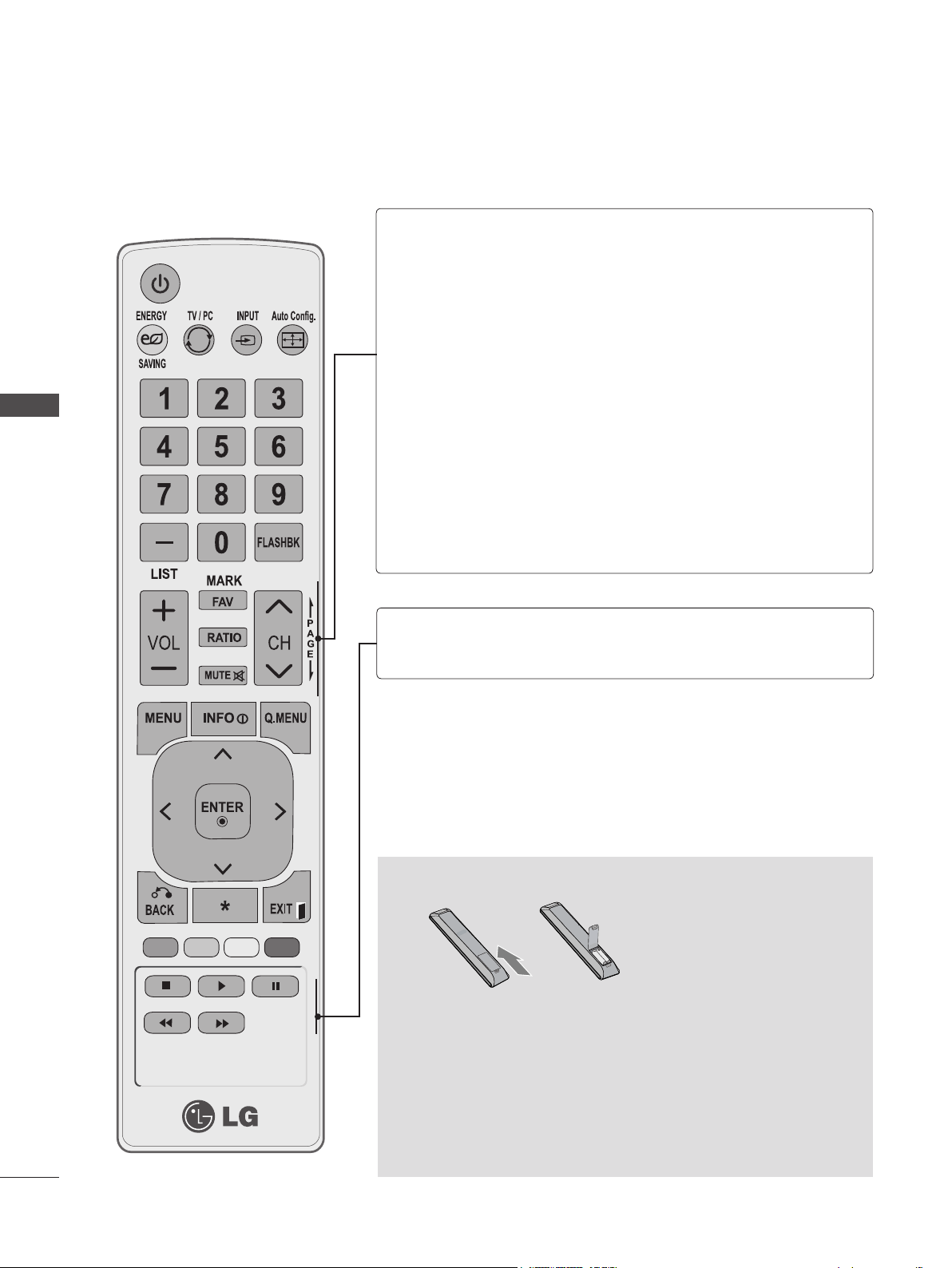
REMOTE CONTROL KEY FUNCTIONS
When using the remote control, aim it at the remote control sensor on the set.
ꔰ(POWER)
ENERGY
SAVING
TV/PC
INPUT
Auto Config.
Switches the set on from standby or off to standby.
Adjusts the Energy Saving. (► P. 49)
Selects TV or PC mode.
Cycles through external input modes.
Automatically adjusts picture position and minimiz-
es image instability.
0 to 9 number
button
LIST
FLASHBK
MENU
INFO
Q. MENU
THUMBSTICK
(Up/Down/Left/Right)
ENTER
BACK
EXIT
Selects a channel.
Selects numbered items in a menu.
Displays the channel table. (► P. 42)
Tunes to the last channel viewed.
Selects a menu.
Clears all on-screen displays and returns to TV viewing
from any menu. (► P. 38)
Shows the present screen information.
Selects the desired quick menu source. (Aspect Ratio,
Picture Mode, Sound Mode, Audio, Sleep Timer, Del/
Add/Fav, Caption, USB Device). (► P.37)
Allows you to navigate the on-screen menus and adjust
the system settings to your preference.
Accepts your selection or displays the current mode.
Allows the user to move return one step in an interac-
tive application or other user interaction function.
Clears all on-screen displays and returns to TV viewing
from any menu
Colored
buttons
Accesses special functions in some menus.
34
WATCHING TV/CHANNEL CONTROL
WATCHING TV/CHANNEL CONTROL
VOLUME
UP/DOWN
FAV
MARK
RATIO
MUTE
CHANNEL
UP/DOWN
PAGE
UP/DOWN
USB Menu
Control
Buttons
Adjusts the volume.
Scrolls through programmed favorite channels.
(► P. 43)
Checks and un-checks programs in the USB menu.
Selects your desired Aspect Ratio of picture.
Switches the sound on or off.
Changes the channel.
Moves from one full set of screen information to the
next one.
Controls USB menu.
(Photo List, Music List and Movie List).
Installing Batteries
■ Open the battery compartment cover on the back side of the
remote and install the batteries matching correct polarity
(
+with +,-with -
)
■ Install two 1.5 V AAA batteries. Do not mix old or used bat-
teries with new ones.
■ Close cover.
■ To remove the batteries, perform the installation actions in
reverse.
35
WATCHING TV/CHANNEL CONTROL
TURNING ON THE TV
- When your TV is turned on, you will be able to use its features.
CHANNEL SELECTION
VOLUME ADJUSTMENT
Connect the power cord and switch the AC power control switch on the TV to on. The TV
switches to standby mode.
■ To turn the TV on from standby mode, press the ꔰ / I, INPUT or CH▲▼ button on the TV
or press POWER, INPUT, CHꕭꕮor NUMBER (0 to 9) on the remote control.
Select the viewing source by using the INPUT button on the remote control.
■ This TV is programmed to remember which power state it was last set to, even if the power
cord is out.
When finished using the TV, press the POWER button on the remote control. The TV reverts to
standby mode.
Press CH ꕭ ꕮ or the NUMBER buttons to select a channel.
Press VOL(+ or -) to adjust the volume.
If you wish to switch the sound off, press MUTE.
You can cancel this function by pressing MUTE or VOL(+ or -).
1
3
2
1
1
2
NOTE
►If you intend to be away on vacation, disconnect the power plug from the wall power outlet.
►If you do not complete the initial setting, it will appear whenever the TV is switched on until the
initial setting procedure is completed.
►If the TV is unplugged once or turns off with the AC power control switch on the TV, you will need
to reset the Clock function.
!
36
WATCHING TV/CHANNEL CONTROL
WATCHING TV/CHANNEL CONTROL
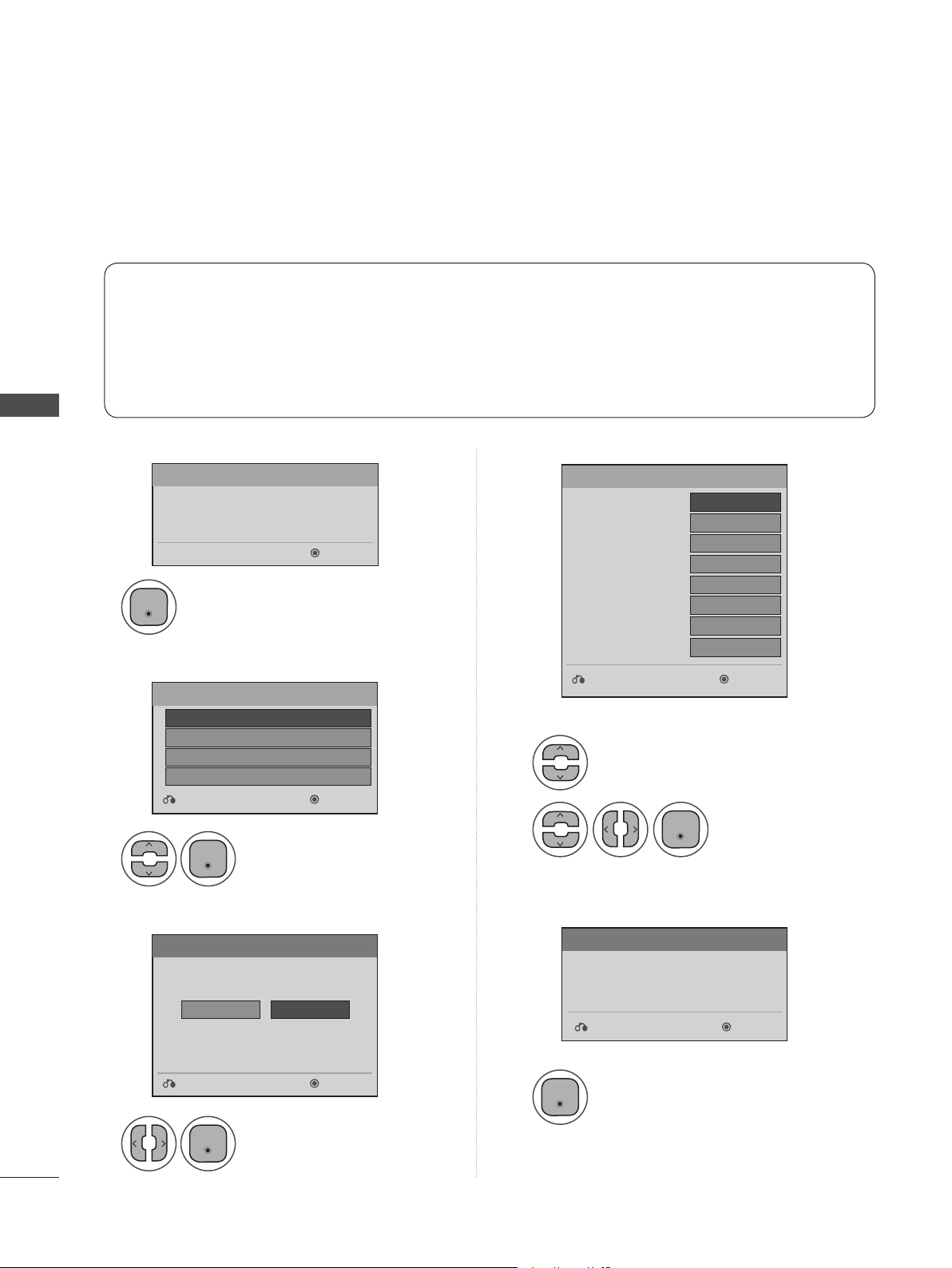
INITIAL SETTING
Step1. Welcome
Step4. Setting the Time
Step2. Selecting a Language
Step3. Setting the Mode
Step5. Auto Tuning
This function guides the user to easily set the essential items for viewing the TV for the first time. It can
also be activated from the user menus.
■ The default selection is “Home Use”. We recommend keeping the TV set to the “Home Use” mode
for the best picture in your home environment.
■ “Store Demo” mode is only intended for use in retail environments. Customers can adjust the
“Picture menu - Picture mode” manually while inspecting the TV, but the TV will automatically
return to preset instore mode after 5 minutes.
■ “Store Demo” mode is an optimal setting for displaying at stores. “Store Demo” mode initializes
the TV to set the image quality.
■ You can also adjust Initial Setting in the OPTION menu.
1
1
1
2
1
1
Select Menu Language.
Select Auto or Manual.
Select desired time
option.
Check your antenna connection
and start Auto Tuning.
Select Home Use.
WELCOME
Next
WELCOME!
Thank you for choosing LG
Language
Mode Setting
Next
Next
Next
Previsous
Previsous
Previsous
English
Home Use
Français
Español
한국어
Store Demo
Selecting the environment.
Choose the setting mode you want.
Select [Home Use] to use this TV at home. To use this
TV at Store, select [Store Demo].
Auto Tuning
Before starting,
be sure that the
TV antenna is connected.
Time Setting
NextPrevisous
◄ Auto ►
----
--
--
--
--
Eastern
Auto
Current Time Setting
Month
Date
Year
Hour
Minute
Time Zone
Daylight Saving
Enter
Enter
Enter
Enter
Enter
37
WATCHING TV/CHANNEL CONTROL
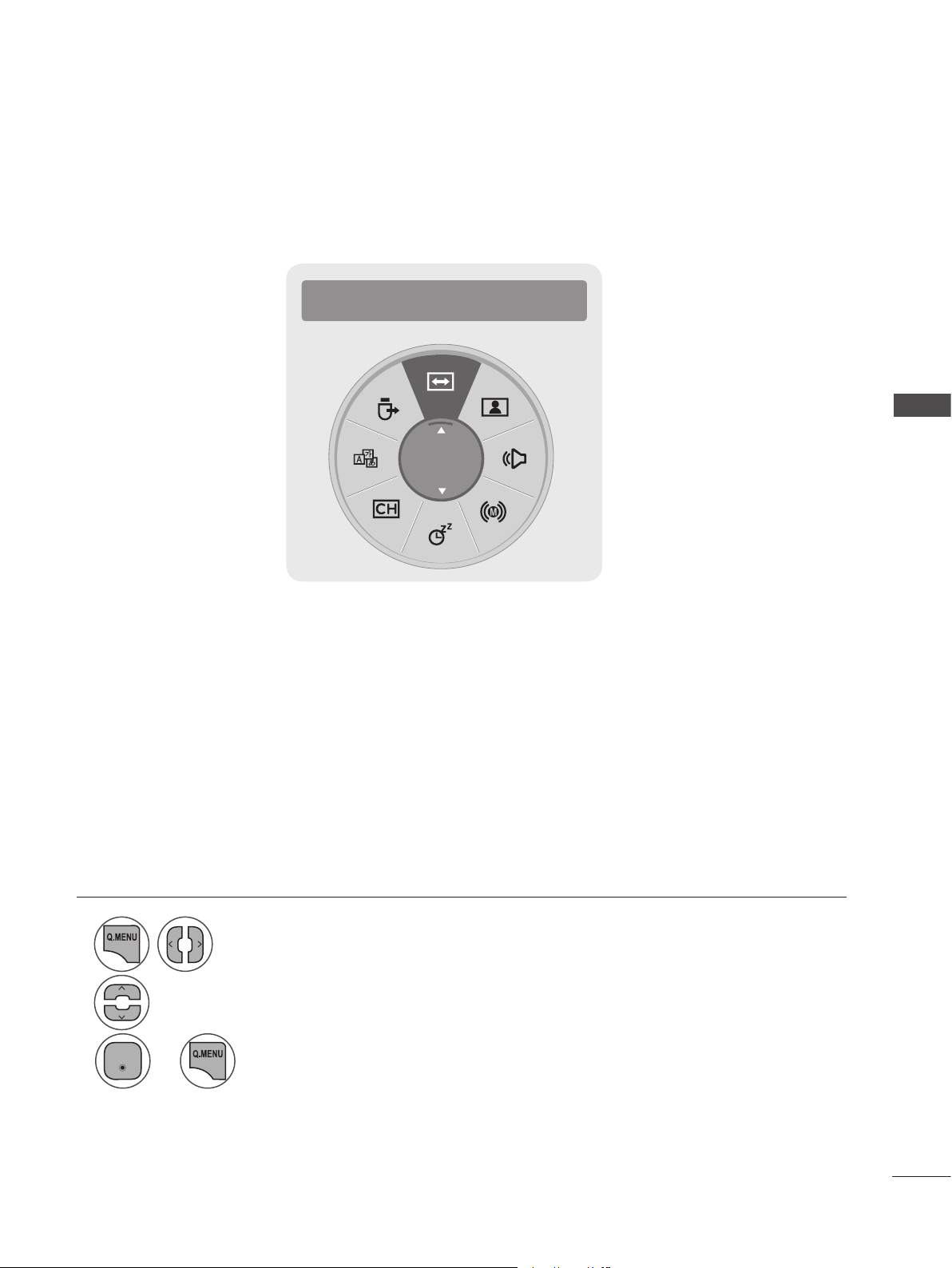
QUICK MENU
Your TV's OSD (On-Screen Display) may differ slightly from what is shown in this manual.
Q.Menu (Quick Menu) is a menu of features users might use frequently.
ꔬ Aspect Ratio: Selects your desired picture format.
ꕧ Picture Mode: Selects your desired Picture Mode.
ꕩ Sound Mode:: Selects the desired preset sound setting.
ꕁ Audio: Selects the sound output.
ꔑ Sleep Timer: Sets the sleep timer.
ꕀDel/Add/Fav: Selects the channel you want to add/delete or add the channel to the Favorite List.
ꕢ Caption: Selects on or off.
ꔧ USB Device: Selects “Eject” in order to eject a USB device.
1
2
3
Display each menu.
Make appropriate adjustments.
Return to TV viewing.
or
• Press BACK to move to the previous menu screen.
◄ Aspect Ratio ►
16:9
Enter
38
WATCHING TV/CHANNEL CONTROL
WATCHING TV/CHANNEL CONTROL
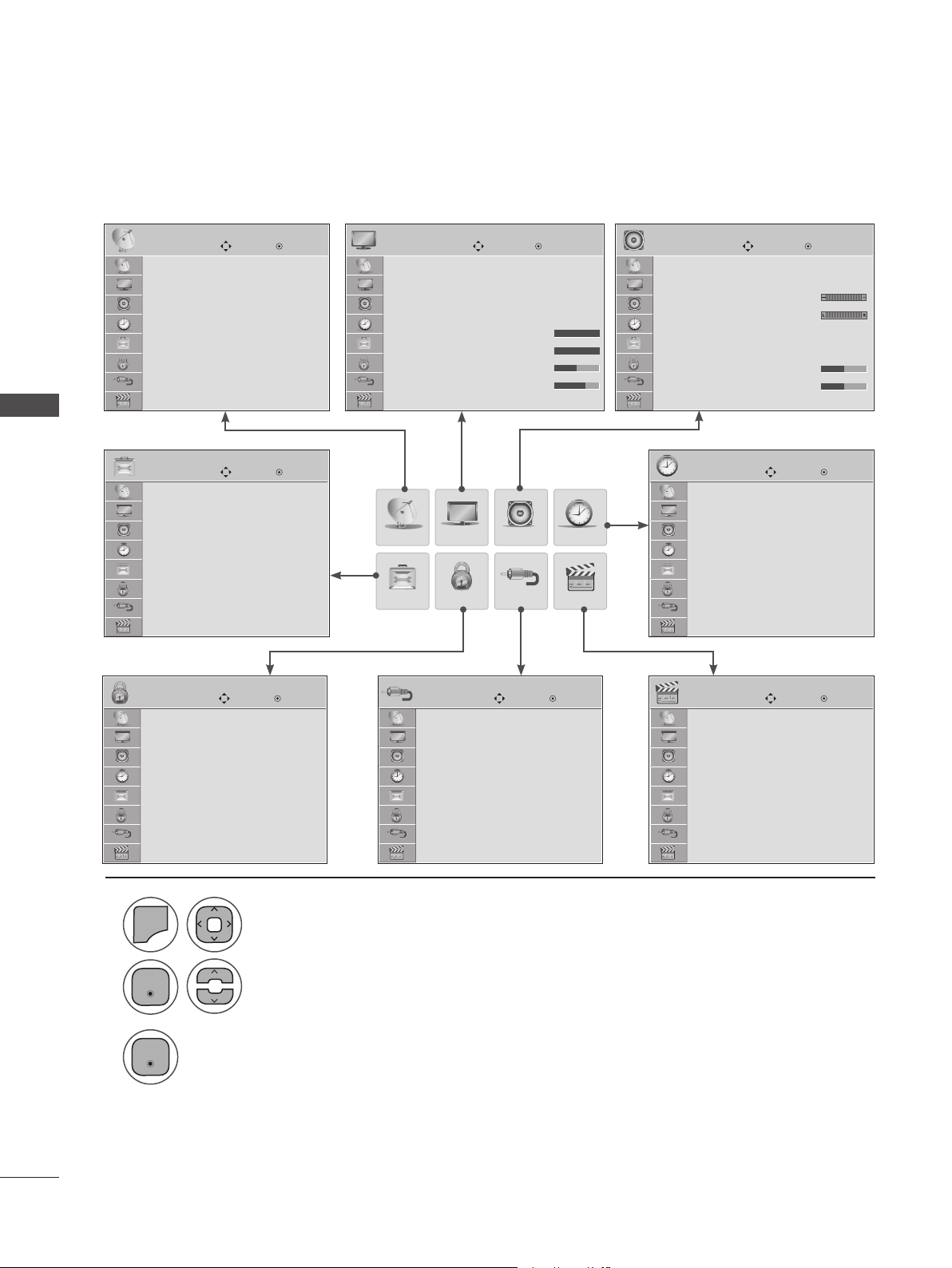
ON-SCREEN MENU SELECTION AND ADJUSTMENT
Your set's OSD (On-Screen Display) may differ slightly from what is shown in this manual.
CHANNEL
CHANNEL
Move
Move Move
Enter
Enter Enter
OPTION
PICTURE
PICTURE
LOCK
AUDIO
AUDIO
TIME
USB
INPUTLOCK
OPTION
INPUT
TIME
USB
Move Enter
Move Move Move
Move
Enter Enter Enter
Enter
Auto Tuning
Manual Tuning
Channel Edit
Menu Language : English
Audio Language : English
Input Label
Key Lock : Off
Caption : Off
Set ID : 1
Power Indicator : On
Demo Mode : Off
Lock System : Off
Set Password
Block Channel
Movie Rating
TV Rating-Children
TV Rating-General
Downloadable Rating
Input Block
TV
AV
Component
RGB-PC
HDMI1
HDMI2
Photo List
Music List
Movie List
DivX Reg. Code
Deactivation
Aspect Ratio : 16:9
Picture Wizard
ꕫ Energy Saving : Off
Picture Mode : Vivid
• Backlight 100
• Contrast 100
• Brightness 50
• Sharpness 70
Auto Volume : Off
Clear Voice II : Off
• Level 3
Balance 0
Sound Mode : Standard
• Surround X : Off
• Treble 50
• Bass 50
Clock
Off Time : Off
On Time : Off
Sleep Timer : Off
1
2
3
MENU
Select a menu item.
Display each menu.
Accept the current selection..
• Press MENU or EXIT to close the menu window.
• Press BACK to move to the previous menu screen.
Enter
Enter
39
WATCHING TV/CHANNEL CONTROL
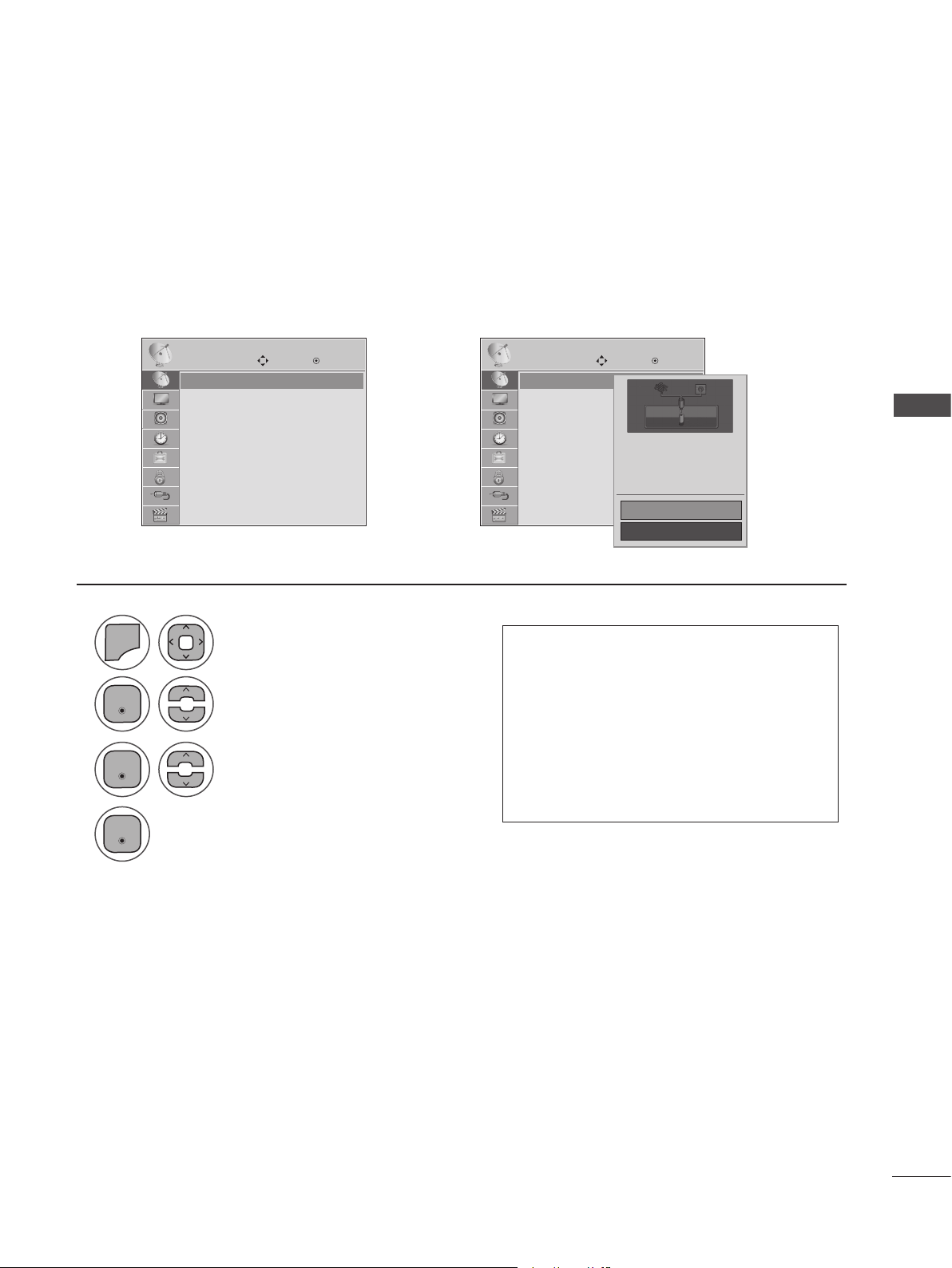
AUTO SCAN (AUTO TUNING)
Use this to automatically find and store all available channels. Automatically finds all channels available
through antenna or cable inputs, and stores them in memory on the channel list.
CHANNEL CHANNEL
Move Move
Enter Enter
Auto Tuning
Manual Tuning
Channel Edit
Auto Tuning
Manual Tuning
Channel Edit
1
2
4
3
MENU
Select Auto Tuning.
Select Yes.
Select CHANNEL.
Run Auto tuning.
• Press MENU or EXIT to close the menu window.
• Press BACK to move to the previous menu screen.
Auto Tuning ꔋ Auto Tuning ꔋ
➩
• The TV will ask for a password if parental
control has been activated (Lock Menu).
Use the password you set up in the Lock
Menu to allow a channel search.
• When setting the Auto Tuning or Manual
Tuning, the number of maximum chan-
nels you can store is 1,000. This number
is subject to change depending on the
broadcasting signal environment.
Check your antenna connection.
The previous channel information
will be updated during Auto
Tuning.
Yes
No
Enter
Enter
Enter
40
WATCHING TV/CHANNEL CONTROL
WATCHING TV/CHANNEL CONTROL
ADD/DELETE CHANNEL (MANUAL TUNING)
When selecting DTV or CADTV input signal in the Manual Tuning menu, you can view the on-screen
signal strength monitor to see the quality of the signal being received.
CHANNEL CHANNEL
Move Move
Enter Enter
Auto Tuning
Manual Tuning
Channel Edit
Auto Tuning
Manual Tuning
Channel Edit
Manual Tuning ꔋ Manual Tuning ꔋ
➩
2
◄ DTV
Channel
Select channel type and
RF-channel number.
Add
DTV 2-1
Bad Normal Good
Close
1
2
4
5
3
6
MENU
Select Manual Tuning.
Select channel you want to add or delete.
Select Add or Delete.
Select DTV, TV, CADTV or CATV.
Select CHANNEL.
• The TV will ask for a password if parental
control has been activated (LOCK Menu).
Use the password you set up in the LOCK
Menu to allow a channel search.
• When setting the Auto tuning or Manual
tuning, the number of maximum channel
you can store is 1,000. This number is
subject to change depending on the
broadcasting signal environment.
• Press MENU or EXIT to close the menu window.
• Press BACK to move to the previous menu screen.
Enter
Enter
Enter
Enter
No Signal
41
WATCHING TV/CHANNEL CONTROL
• Press MENU or EXIT to close the menu window.
• Press BACK to move to the previous menu screen.
CHANNEL EDITING
The channels in the Channel Edit List are displayed in black and the channels deleted from the Channel
Edit List are displayed in blue. When a channel number is deleted, it means that you will be unable to
select it using CH ꕭꕮ button during TV viewing. If you wish to select the deleted channel, directly enter
the channel number with the NUMBER buttons or select it in the Channel Edit menu.
CHANNEL
Move
Enter
Auto Tuning
Manual Tuning
Channel Edit
Channel Edit ꔋ
➩
2-0
4-0
6-0
8-0
10-0
12-0
14-0
51-0
3-0
5-0
7-0
9-0
11-0
13-0
30-0
63-0
ch. Change Navigation Page Change Previous
Add / Delete
2-1
1
2
4
3
5
MENU
Select Channel Edit.
Add or delete a channel.
Select a channel.
Select CHANNEL.
DTV TV CADTV CATV
BLUE
Enter
Enter
Enter
42
WATCHING TV/CHANNEL CONTROL
WATCHING TV/CHANNEL CONTROL
CHANNEL LIST
You can check which channels are stored in the memory by displaying the channel label.
Channel List
ꔖ
TV
2-0
ꔋ
TV
4-0
TV
3-0
Exit
BACK
1
1
1
2
2
Select a channel.
Turn the pages.
Switch to the chosen channel number.
Return to TV viewing.
Display the Channel List.
Enter
CHANNEL LIST
SELECTING A CHANNEL IN THE CHANNEL LIST
PAGING THROUGH A CHANNEL LIST
• This padlock is displayed when
the channel is locked with
parental control.
43
WATCHING TV/CHANNEL CONTROL
FAVORITE CHANNEL SETUP
FAVORITE CHANNEL LIST
Favorite Channels are a convenient feature that let you quickly select channels of your choice without waiting
for the TV to select all the channels in between. To tune to a favorite channel, press FAV (Favorite) repeatedly.
BACK
1
1
1
2
2
Select a channel.
Turn the pages.
Switch to the chosen channel number.
Return to TV viewing.
Display the Favorite channel list.
Enter
Displaying the Favorite Channel List
Selecting a Channel in the Favorite Channel List
Paging through a Favorite Channel List
◄ Del / Add / Fav ►
Add
1
Select your desired channel.
or
2
4
3
Select Del/Add/Fav.
Return to TV viewing.
Select Favourite.
TV
2-1
ꔋ
TV
4-1
TV
3-1
Exit
♥ Favourite List
44
WATCHING TV/CHANNEL CONTROL
WATCHING TV/CHANNEL CONTROL
DTV
CNN
Multilingual Caption TV-PG D L S VD
D
Brief Info Title Test..
Tue, Mar 30, 2010 09:45 PM 10:45 PM
11-1
DOLBY DIGITAL
09:45 PM
HD
CC
CC
16 : 9
4 : 3
16 : 9
480i
480p
720p
1080i
1080p
BACK
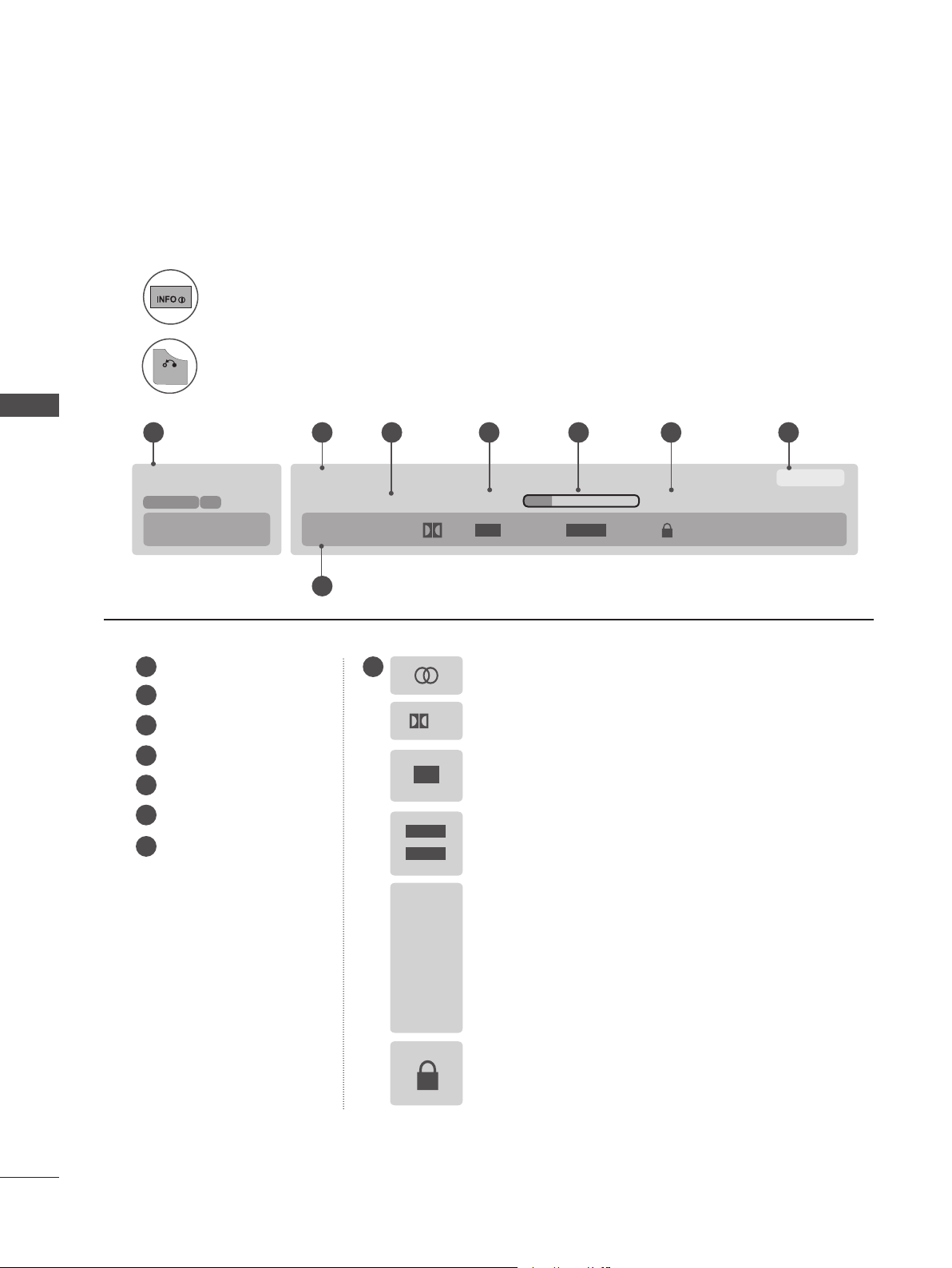
BRIEF INFORMATION
Brief Info shows the present screen information.
1
2
Show the Brief Info on the screen.
Return to TV viewing
1
1 8
2
3
4
5
6
7
2 3 4 5 6 7
8
Banner information
Program title
Day, Month, Year
Program start time
Program progress bar
Program finish time
Present time
Multilingual: The program contains two or more audio
services. Use the Q.MENU menu to select wanted Audio.
Dolby Digital: The program contains a Dolby Digital audio
signal in TV, HDMI input source and DivX.
Caption: The program contains one or more caption
services. Use the Q.MENU menu to select the desired
Closed caption.
V-Chip: The program contains V-Chip information. Refer
to the LOCK menu: A (Age), D (Dialogue), L (Language),
S (Sex), V (Violence), FV (Fantasy Violence).
The original aspect ratio of the video is 4:3
The original aspect ratio of the video is 16:9 (wide)
The video resolution is 720x480i
The video resolution is 720x480p
The video resolution is 1280x720p
The video resolution is 1920x1080i
The video resolution is 1920x1080p
45
WATCHING TV/CHANNEL CONTROL
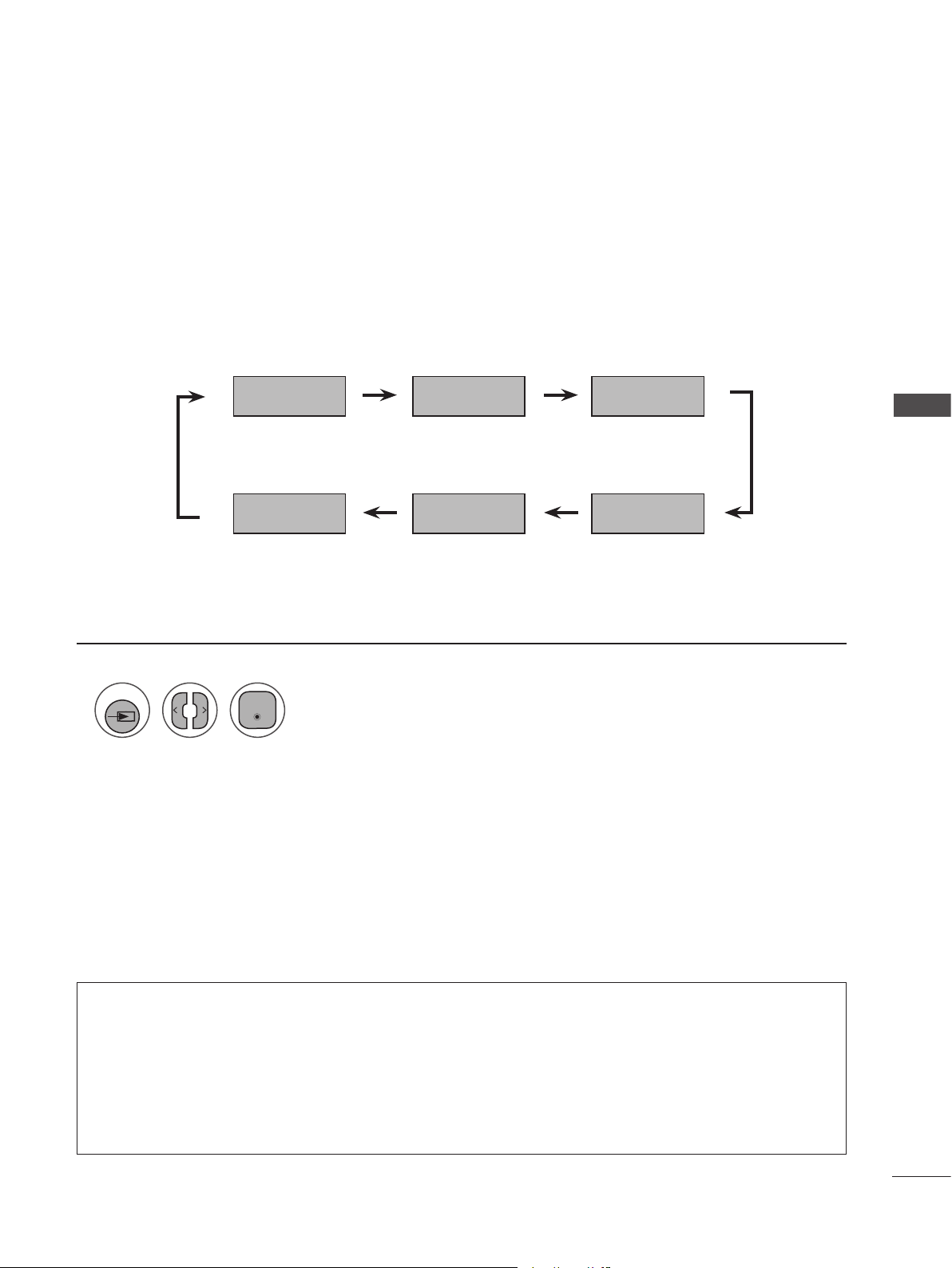
INPUT LIST
TV, HDMI, AV, Component and RGB-PC can be recognized by a detect pin and thus enabled only when
an external device receives the approved voltage..
HDMI 2
TV
RGB-PC
Component
HDMI 1
AV
1
Select the desired input source.
You can also select the desired input source in the INPUT menu.
INPUT
• TV: Watch over-the-air, cable and digital cable broadcasts.
• AV: Watch a VCR or external equipment.
• Component: Watch a DVD player or a digital set-top box.
• RGB-PC: View PC input.
• HDMI 1, HDMI 2: Watch high definition devices.
Enter
46
PICTURE CONTROL
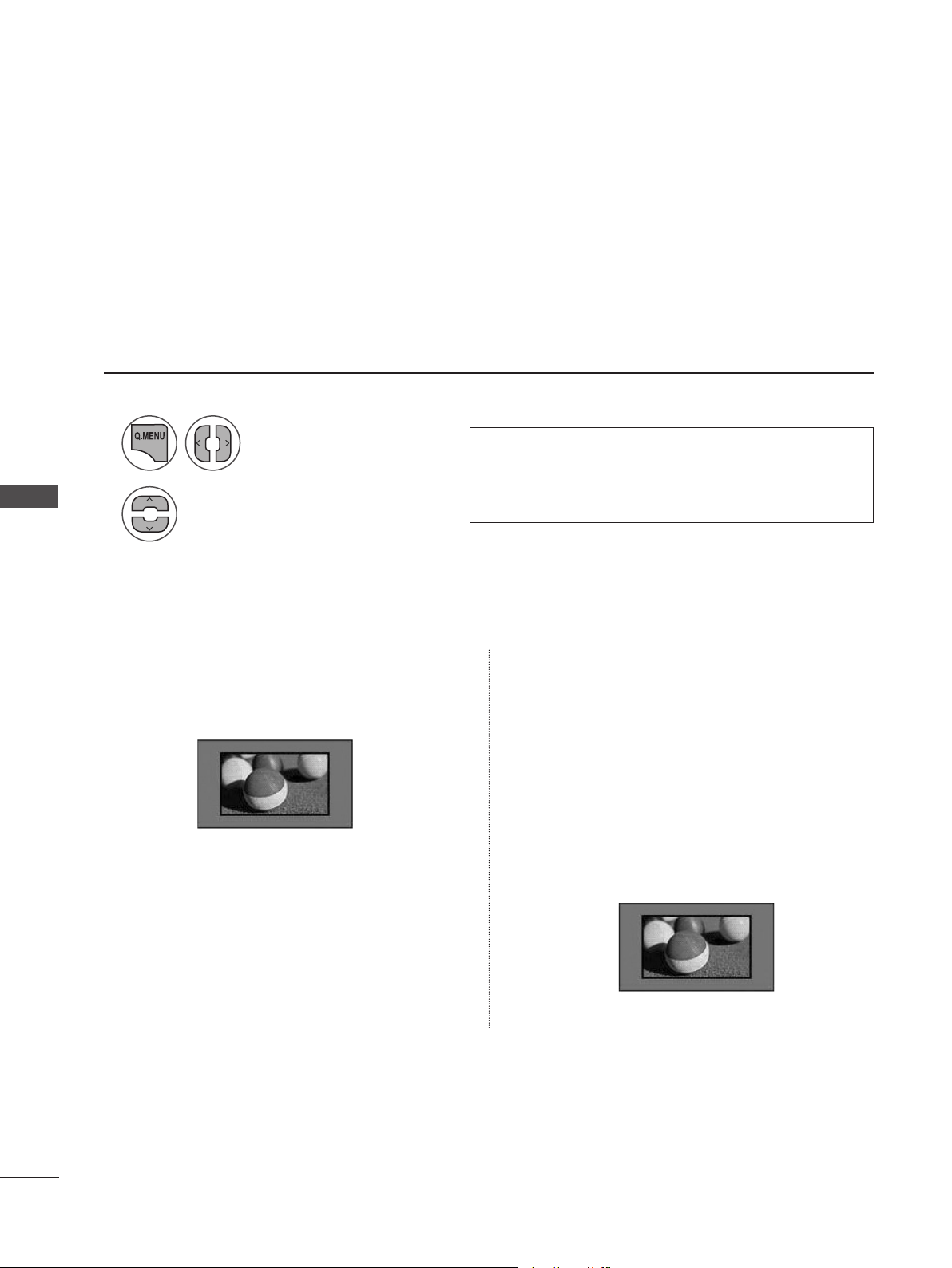
Image signals can be displayed in various picture formats: 16:9, Just Scan, Set By Program , 4:3, Zoom
and Cinema Zoom. You can adjust the enlarge proportion using ꕭꕮ button. This function works with the
signals listed below.
Note that if a fixed image is displayed on the screen for a long time, that image may become imprinted
on the screen and remain visible.
PICTURE CONTROL
ASPECT RATIO SELECTION
1
2
Select Aspect Ratio.
Select the desired picture format.
• You can also adjust Aspect Ratio in the PICTURE
and Q.MENU menu.
• Press RATIO repeatedly to select the desired picture
format.
• 16:9
Adjust the picture horizontally, in a linear pro-
portion to fill the entire screen.
• Just Scan
Normally, the edges of video signals are cropped
1-2%. Just Scan turns off this cropping and
shows the complete video.
Note: if there is noise on the edges of the
original signal, it will be visible when Just Scan
is activated.
Just Scan operates only in DTV/CADTV/
Component/HDMI-DTV(720p/1080i/1080p)
input source.
Just Scan
47
PICTURE CONTROL
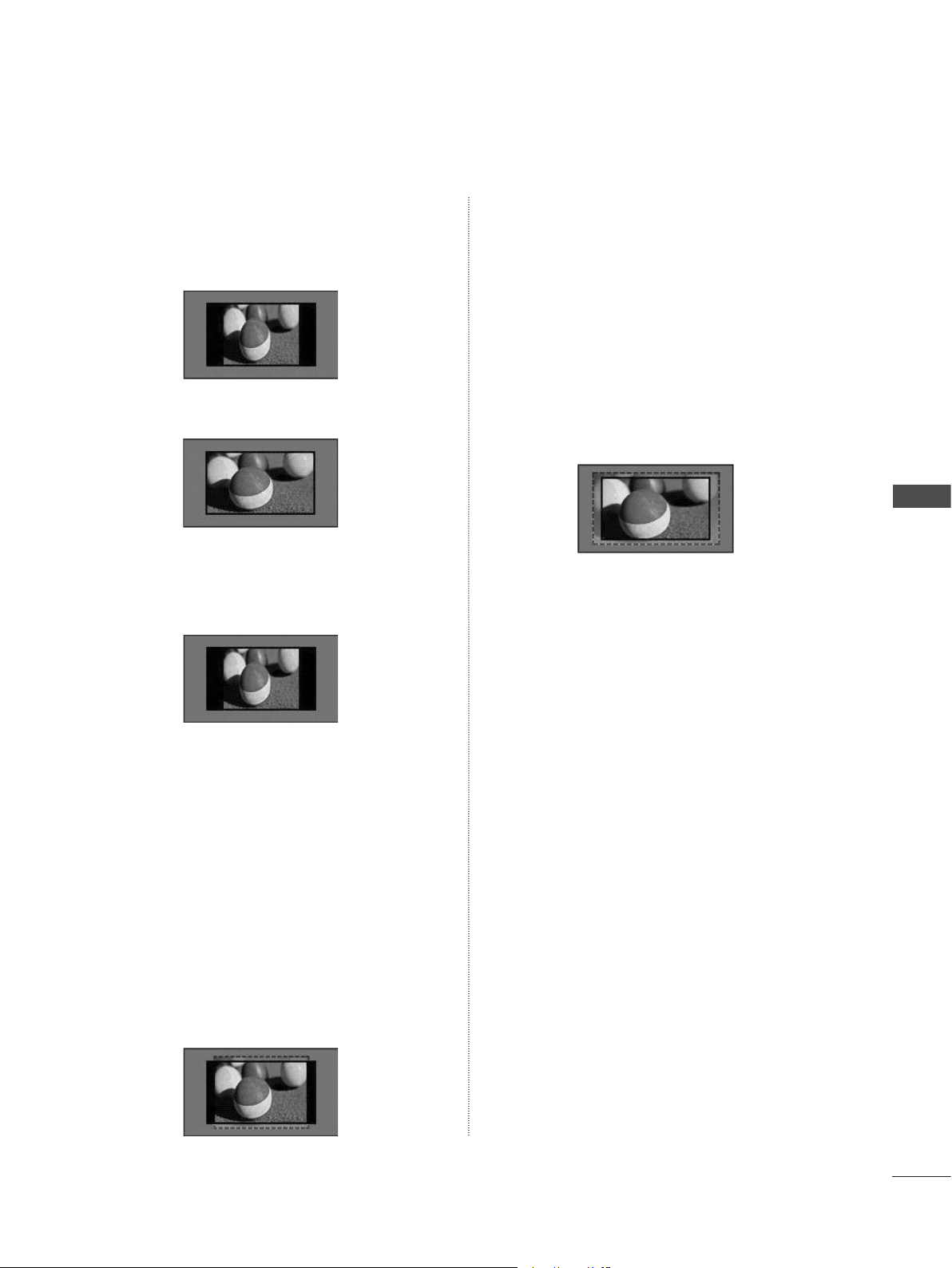
• Set By Program
Selects the proper picture proportion to match
the source’s image.
(4:3 4:3)
(16:9 16:9)
• 4:3
Choose 4:3 when you want to view a picture
with an original 4:3 aspect ratio.
• Zoom
Choose Zoom when you want to view the pic-
ture without any alteration. However, the top
and bottom portions of the picture will be
cropped.
When adjusting in Q.MENU menu,
a. < or > : Adjust proportion of Zoom.
b. ꕭ or ꕮ: Move the image on the screen.
• Cinema Zoom 1 to 16
Choose Cinema Zoom when you want to
enlarge the picture in correct proportion.
Note: When enlarging or reducing the picture,
the image may become distorted.
< or > : Adjusts proportion of Cinema Zoom.
The adjustment range is 1 to 16.
ꕭ or ꕮ: Moves the image on the screen.
Set By Program
Set By Program
48
PICTURE CONTROL
PICTURE CONTROL
EnterEnter
Enter
Enter
Enter
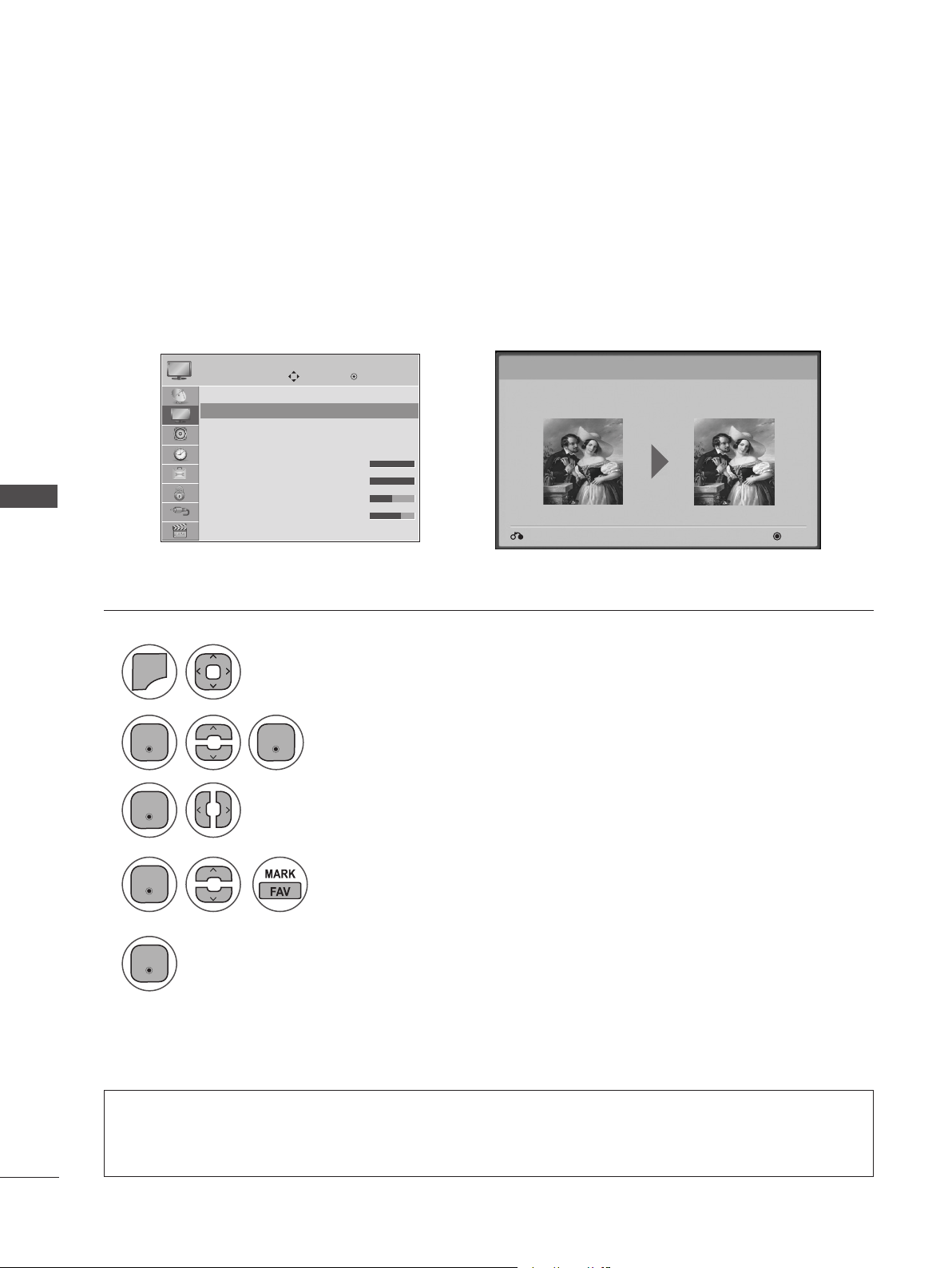
This feature lets you adjust the picture quality of the original image.
Use this to calibrate the screen quality by adjusting the Black and White Level, etc. You can calibrate the
screen quality by easily following each step.
When you adjust the image to Low, Recommended or High, you can see an example of the changes
you've made.
PICTURE WIZARD
Move
Enter
PICTURE
Aspect Ratio : 16:9
Picture Wizard
ꕫ Energy Saving : Off
Picture Mode : Vivid
• Backlight 100
• Contrast 100
• Brightness 50
• Sharpness 70
Picture Wizard ꔋ
➩
Next
Previous
Picture Wizard
With Picture Wizard, you can adjust the picture quality of the
original image.
1
2
4
5
3
MENU
Select Picture Wizard.
Select input source to apply the settings.
Adjust Black level, White level, Color, Tint, Horizontal Sharpness, Vertical Sharpness,
Color Temperature, Dynamic Contrast , Color Gain, Backlight.
Select PICTURE.
• If you stop the setting before the final step, the changes will not be saved to the set.
• Once the Picture Wizard sets the picture quality, Energy Saving is changed to Off automatically.
• Press MENU or EXIT to close the menu window.
• Press BACK to move to the previous menu screaen.
49
PICTURE CONTROL
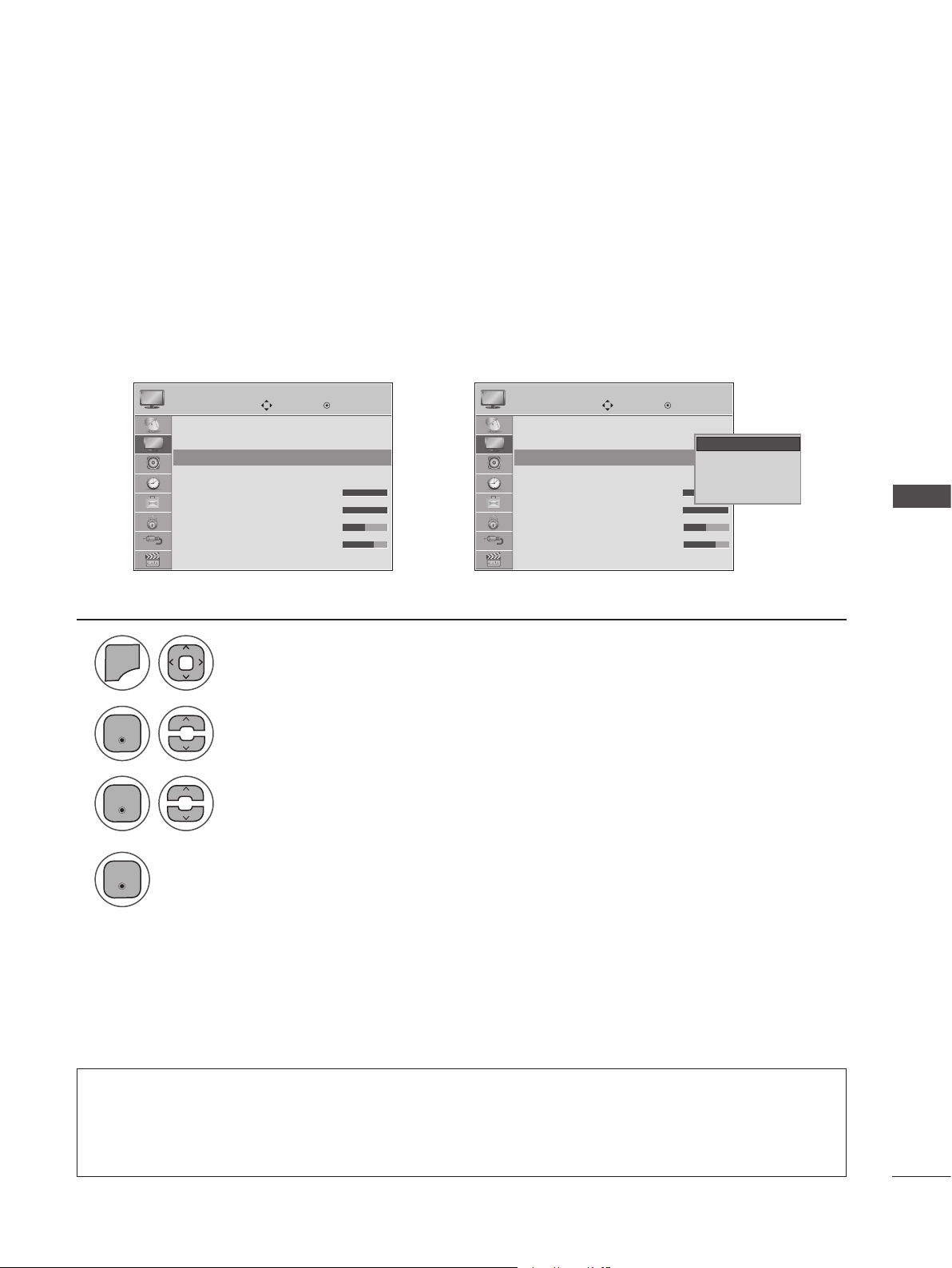
Reduces the set's power consumption by lowering the backlight level. You can increase the brightness
of your screen by adjusting the Energy Saving level or by setting the Picture Mode.
ꕫ ENERGY SAVING
Move Move
Enter Enter
PICTURE PICTURE
Aspect Ratio : 16:9
Picture Wizard
ꕫ Energy Saving : Off
Picture Mode : Vivid
• Backlight 100
• Contrast 100
• Brightness 50
• Sharpness 70
Aspect Ratio : 16:9
Picture Wizard
ꕫ Energy Saving : Off
Picture Mode : Vivid
• Backlight 100
• Contrast 100
• Brightness 50
• Sharpness 70
ꕫ Energy Saving : Off ꔋ ꕫ Energy Saving : Off ꔋ
➩
Off
Minimum
Medium
Maximum
Screen Off
Off ꔋ
1
2
3
4
MENU
Select
ꕫ
Energy Saving.
Select Off, Minimum, Medium, Maximum or Screen Off.
Select PICTURE.
• Press MENU or EXIT to close the menu window.
• Press BACK to move to the previous menu screaen.
• When selecting Screen off, the screen will turn off in 3 seconds.
• If you adjust “Energy Saving-Minimum, Medium, Maximum”, the Backlight feature will not work.
• Press ENERGY SAVING repeatedly to select the appropriate Energy Saving setup.
Enter
Enter
Enter
50
PICTURE CONTROL
PICTURE CONTROL
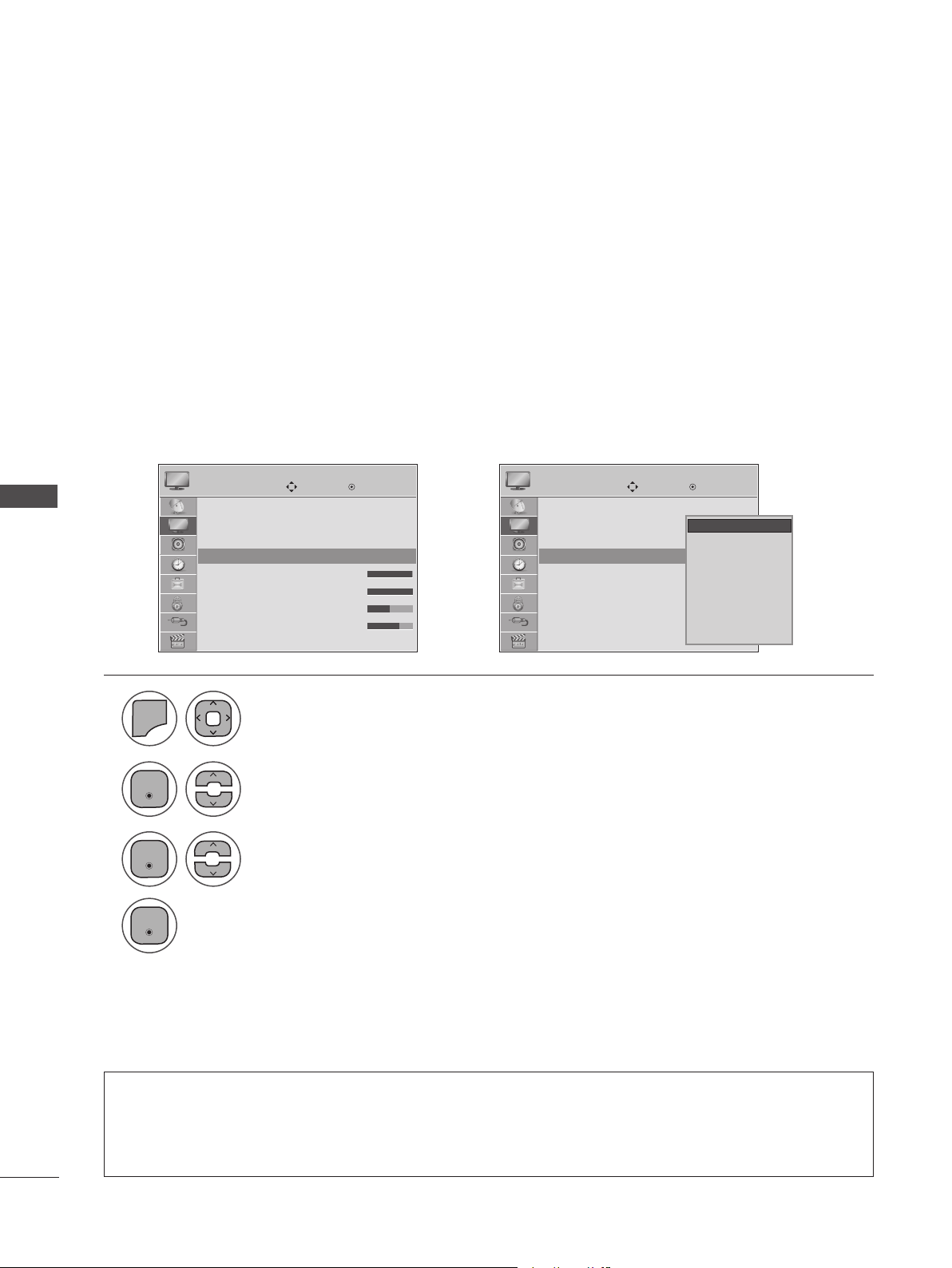
Vivid Maximizes the effect of the video in retail stores. Strengthen the contrast, brightness,
color and sharpness for vivid picture.
Standard This is the optimum viewing condition for general users.
Natural This is the mode to display the most natural screen status.
Cinema This mode optimizes video for watching movie.
Sport This mode emphasizes dynamic video and primary colors (e.g. white, uniforms, grass, sky
blue, etc.) by realizing the optimal image settings for sports.
Game This is the mode for fast response speeds for video games.
Expert 1,2 User-defined settings.
PRESET PICTURE SETTINGS (PICTURE MODE)
Move Move
Enter Enter
PICTURE PICTURE
Aspect Ratio : 16:9
Picture Wizard
ꕫ Energy Saving : Off
Picture Mode : Vivid
• Backlight 100
• Contrast 100
• Brightness 50
• Sharpness 70
Aspect Ratio : 16:9
Picture Wizard
ꕫ Energy Saving : Off
Picture Mode : Vivid
• Backlight 100
• Contrast 100
• Brightness 50
• Sharpness 70
Picture Mode : Vivid ꔋ Picture Mode : Vivid ꔋ
➩
Vivid
Standard
Natural
Cinema
Sport
Game
ꕬ Expert 1
ꕬ Expert 2
Vivid ꔋ
1
2
3
MENU
Select Picture Mode.
Select Vivid, Standard, Natural, Cinema, Sport or Game
Select PICTURE.
• Press MENU or EXIT to close the menu window.
• Press BACK to move to the previous menu screaen.
• Picture Mode adjusts the set for the best picture appearance. Select the preset value in the Picture
Mode menu based on the channel category.
• You can also adjust Picture Mode in the Q. Menu.
Enter
Enter
Enter
4
51
PICTURE CONTROL
Enter
Enter
Enter
Enter
Enter
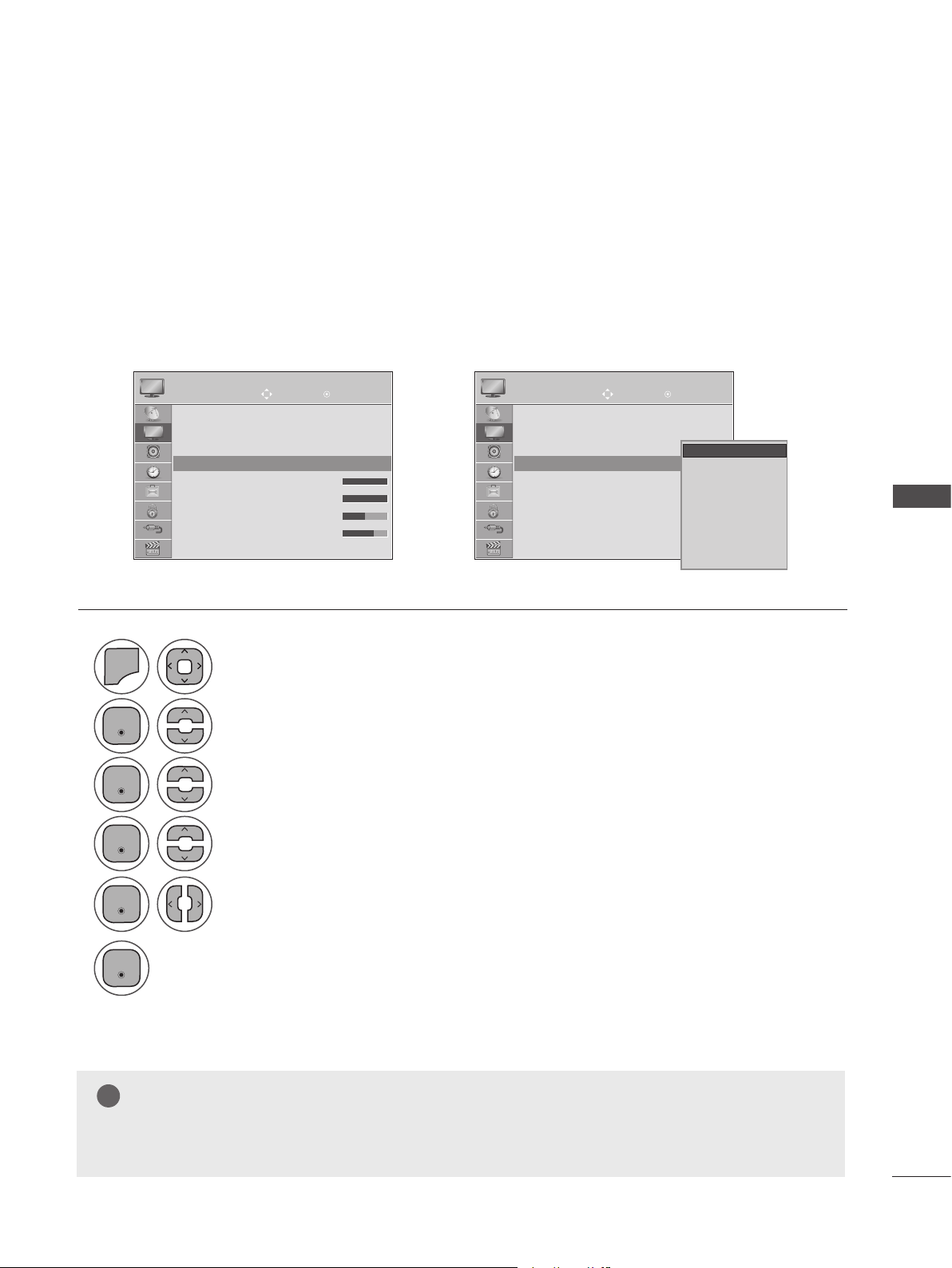
Backlight Adjusts the brightness of LCD panel.
Contrast Adjusts the difference between light and dark levels.
Brightness Adjusts the brightness of the screen.
Sharpness Adjusts the clearness of the screen.
Color Adjusts the color.
Tint Adjusts the tint.
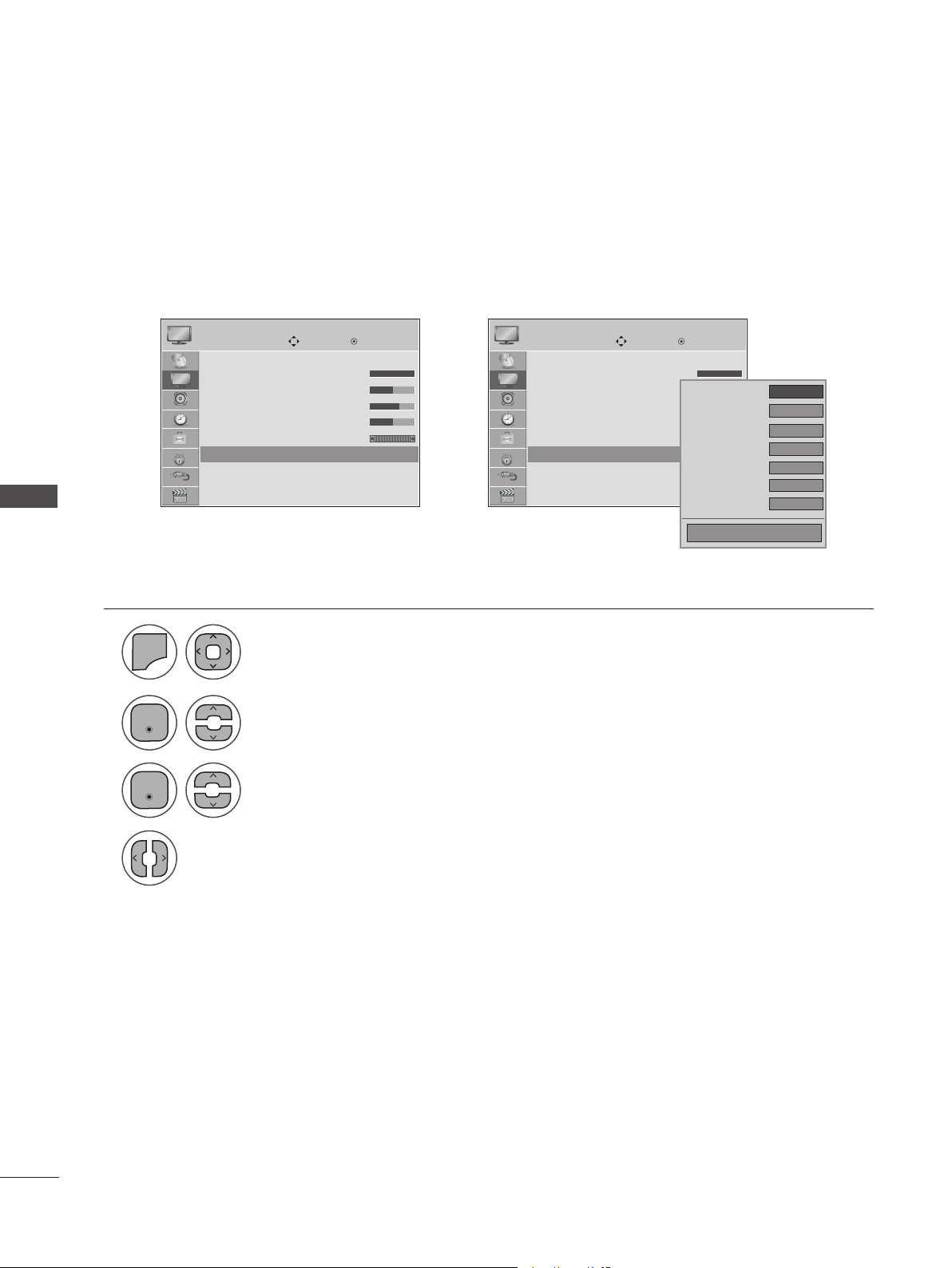
MANUAL PICTURE ADJUSTMENT-USER MODE
Move Move
OK OK
PICTURE PICTURE
Aspect Ratio : 16:9
Picture Wizard
ꕫ Energy Saving : Off
Picture Mode : Vivid
• Backlight 100
• Contrast 100
• Brightness 50
• Sharpness 70
Aspect Ratio : 16:9
Picture Wizard
ꕫ Energy Saving : Off
Picture Mode : Vivid
• Backlight 100
• Contrast 100
• Brightness 50
• Sharpness 70
Picture Mode : Vivid (User) ꔋ Picture Mode : Vivid (User) ꔋ
➩
1
4
2
5
6
3
MENU
Select Picture Mode.
Make appropriate adjustments.
Select Vivid, Standard, Natural, Cinema, Sport or Game
Select PICTURE.
Select Backlight, Contrast, Brightness, Sharpness, Color or Tint
• Press MENU or EXIT to close the menu window.
• Press BACK to move to the previous menu screaen.
NOTE
►You cannot adjust color and tint in the RGB-PC/HDMI-PC mode.
►When the Expert 1/2 is selected, you can select Backlight, Contrast, Brightness, H Sharpness, V
Sharpness, Color or Tint .
!
Vivid
Standard
Natural
Cinema
Sport
Game
ꕬ Expert 1
ꕬ Expert 2
Vivid ꔋ
52
PICTURE CONTROL
PICTURE CONTROL
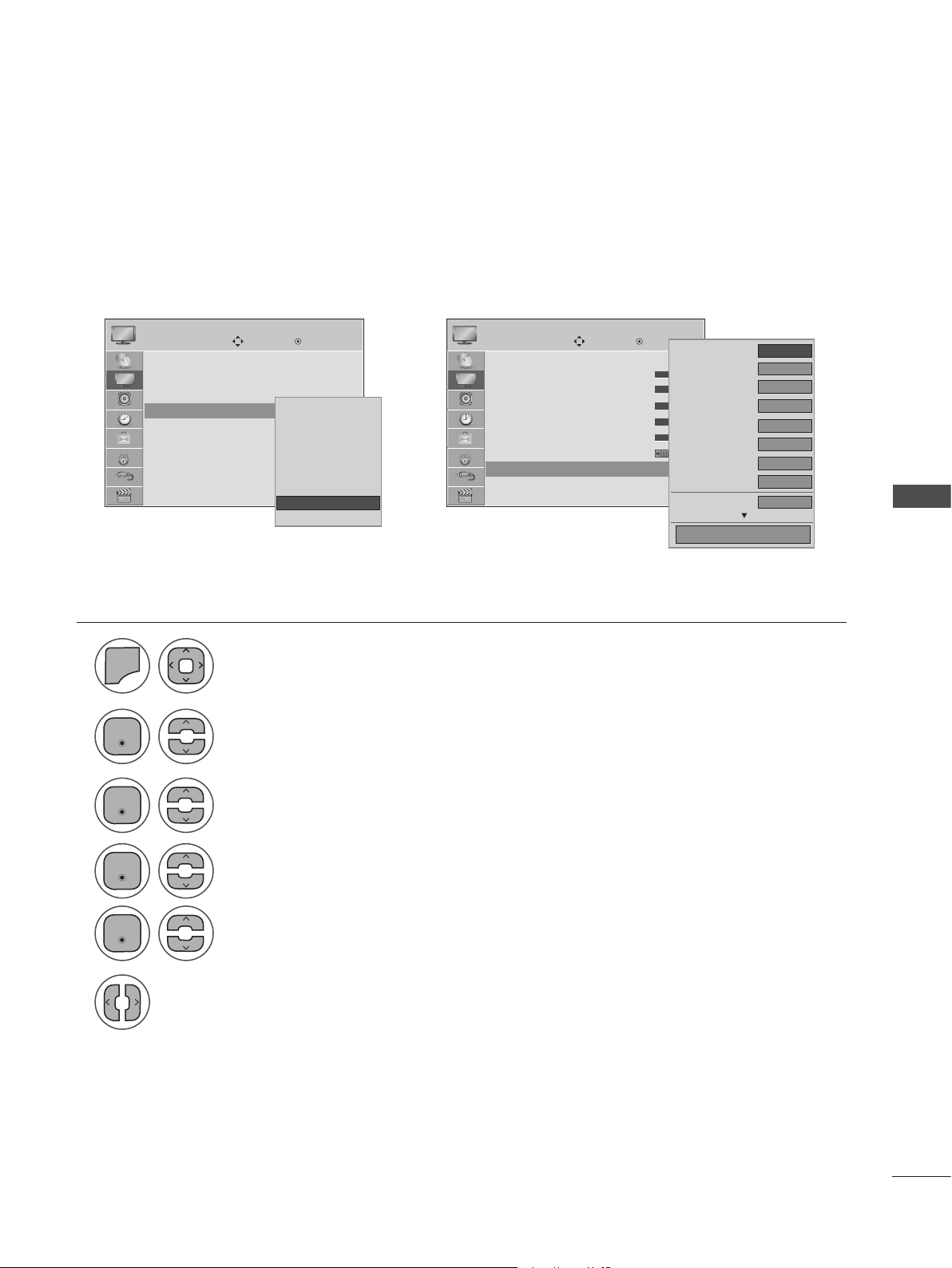
You can calibrate the screen for each Picture Mode or set the video value according to the special video
screen. You can set the video value differently for each input. To reset to the factory default screen after
making adjustments to each video mode, execute the “Picture Reset” function for each Picture Mode.
PICTURE IMPROVEMENT TECHNOLOGY
Move Move
OK OK
PICTURE PICTURE
• Contrast 100
• Brightness 50
• Sharpness 70
• Color 50
• Tint 0
• Advanced Control
• Picture Reset
Screen(RGB-)PC
• Contrast 100
• Brightness 50
• Sharpness 70
• Color 50
• Tint 0
• Advanced Control
• Picture Reset
Screen(RGB-)PC
• Advanced Control ꔋ • Advanced Control ꔋ
➩
• Press MENU or EXIT to close the menu window.
• Press BACK to move to the previous menu screaen.
◄ Medium ►
High
Auto
High
Medium
Medium
On
Color Temperarute
Dynamic Contrast
Dynamic Color
Noise Reduction
Gamma
Black Level
Film Mode
Close
1
2
3
4
MENU
Select Advanced Control.
Make appropriate adjustments.
Select your desired options.
Select PICTURE.
Enter
Enter
53
PICTURE CONTROL
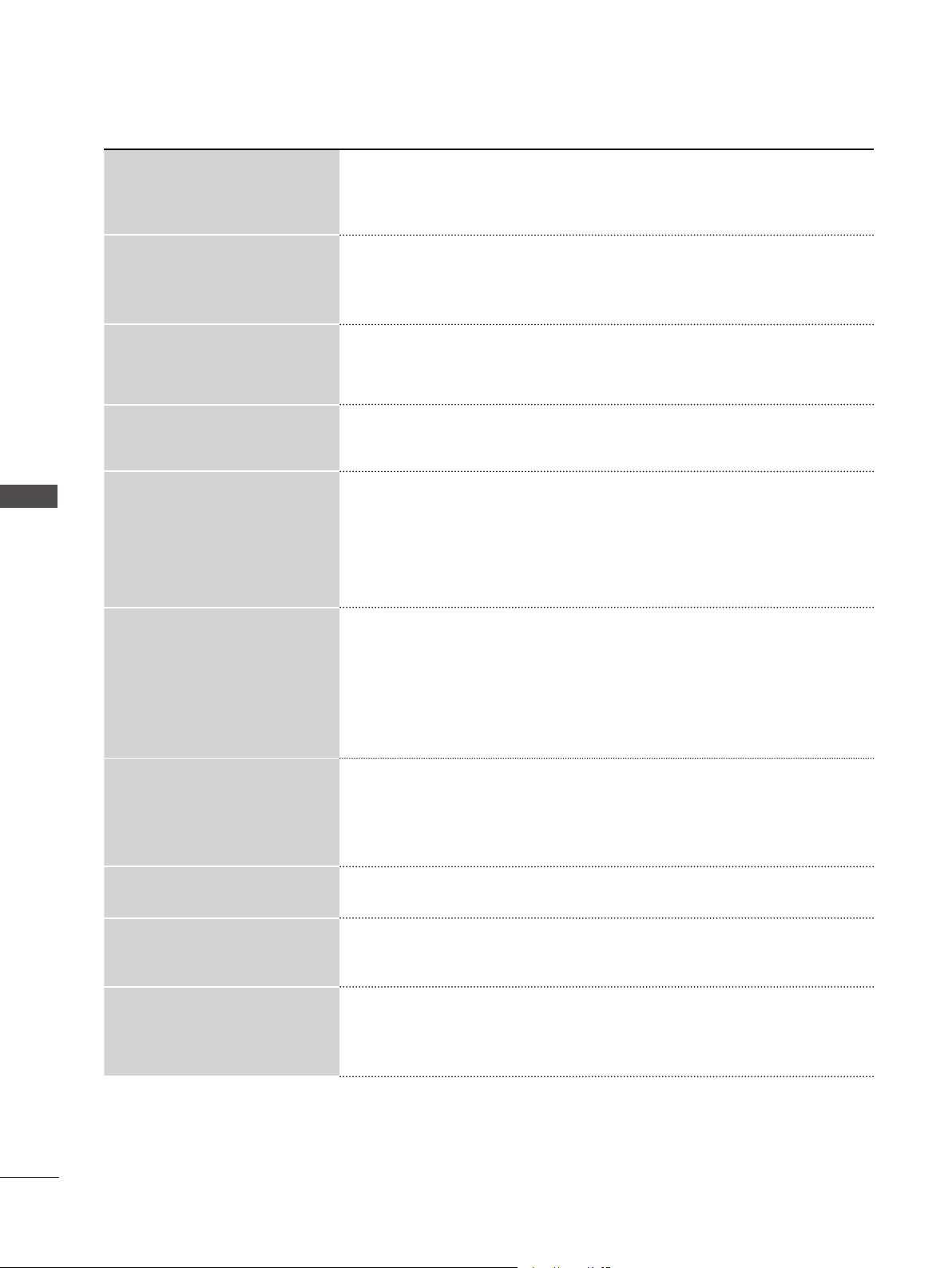
By segmenting categories, Expert 1 and Expert 2 provide more categories which users can set as they
see fit, offering optimal picture quality. This may also be used to help a professional optimize the set
performance using specific videos.
EXPERT PICTURE CONTROL
1
2
3
4
5
6
MENU
Select Picture Mode.
Select Expert Control.
Select your desired source.
Make appropriate adjustments.
Select ꕬ Expert 1 or ꕬ Expert 2.
Select PICTURE.
• Press MENU or EXIT to close the menu window.
• Press BACK to move to the previous menu screaen.
Enter
Enter
Enter
Enter
Move
Enter
PICTURE
Aspect Ratio : 16:9
Picture Wizard
ꕫ Energy Saving : Off
Picture Mode : Standard
• Backlight 70
• Contrast 90
• Brightness 50
• H Sharpness 70
Picture Mode : ꕬ Expert 1 ꔋ
➩
Move
Enter
PICTURE
• Contrast 80
• Brightness 50
• H Sharpness 50
• V Sharpness 50
• Color 50
• Tint 0
• Advanced Control
• Picture Reset
• Expert Control ꔋ
◄ Off ►
On
Medium
Off
Auto
HD
Off
Off
medium
Dynamic Contrast
Nosie Reduction
Gamma
Black Level
Film Mode
Color Standard
Expert Pattern
Color Filter
Color Temperature
Close
Vivid
Standard
Natural
Cinema
Sport
Game
ꕬ Expert 1
ꕬ Expert 2
ꕬ Expert 1 ꔋ
54
PICTURE CONTROL
PICTURE CONTROL
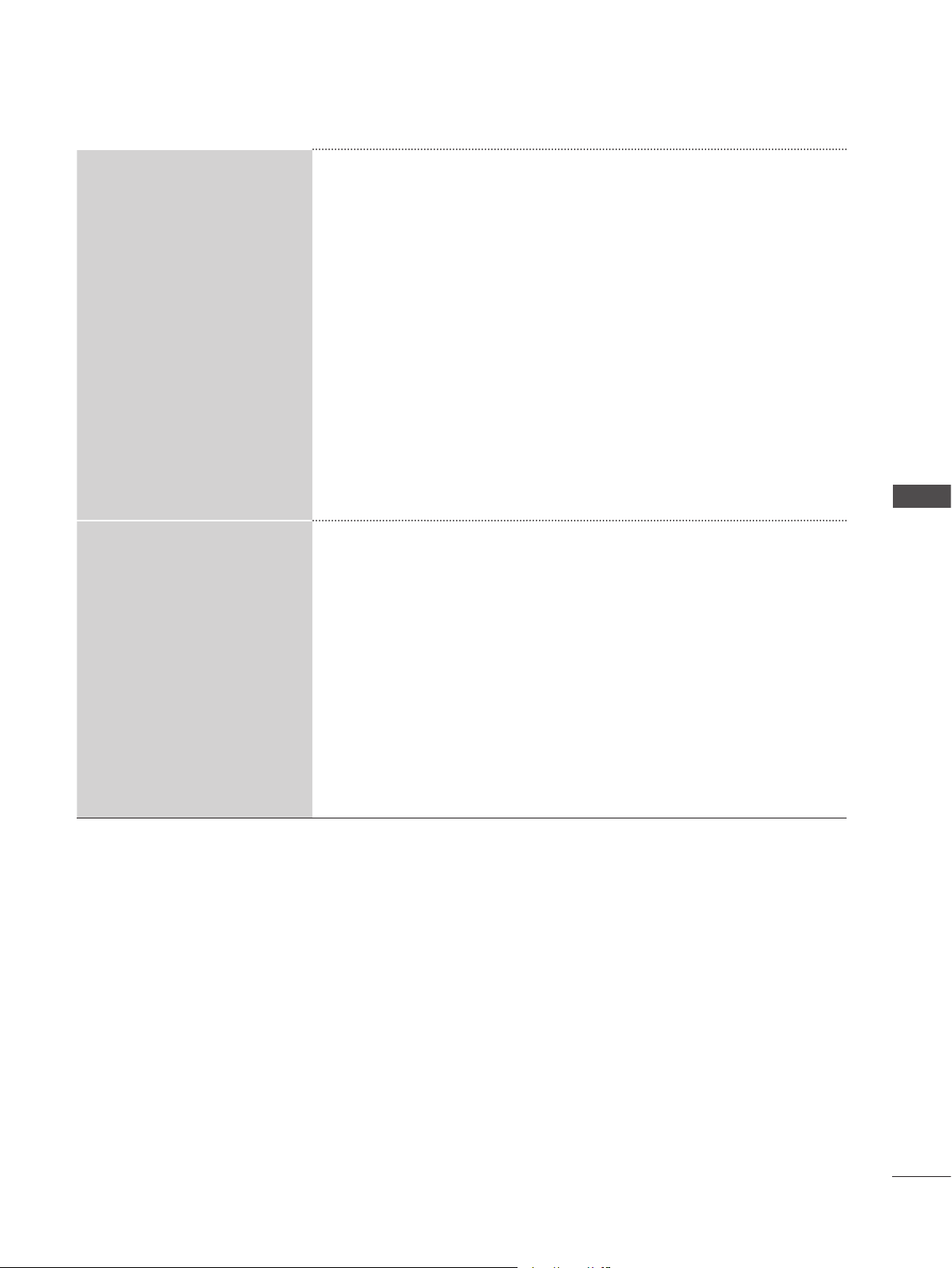
Color Temperature
■ Set to warm to enhance hotter colors such as red, or set to cool to
enhance cooler colors such as blue.
Dynamic Contrast
■ Adjusts the contrast to keep it at the best level according to the
brightness of the screen. The picture is improved by making bright
parts brighter and dark parts darker.
Dynamic Color
■ Adjusts screen colors so that they look livelier, richer and clearer.
This feature enhances hue, saturation and luminance so that red,
blue, green and white look more vivid.
Noise Reduction ■ Reduces screen noise without compromising video quality.
Gamma
• Low: Makes dark and middle gray level areas of the picture brighter.
• Medium: Express original picture levels.
• High: Makes dark and middle gray level area of the picture darker.
■ You can adjust the brightness of dark areas and middle gray level
areas of the picture.
Black Level
• Low: The reflection of the screen gets darker.
• High: The reflection of the screen gets brighter.
■ Sets black level of the screen to a proper level.
■ This function enables you to select 'Low' or 'High' in the following
mode: AV (NTSC-M), HDMI or Component. Otherwise, 'Black level'
is set to 'Auto'.
Film Mode
■ Makes video clips recorded in film look more natural by eliminating
jitter effect.
Color Standard ■ Convert the color of a different video to HD color.
Color Filter
■ Filters the specific colors of the video.
You can use the RGB filter to set color saturation and hue accu-
rately.
Expert Pattern
■ This is the pattern necessary for expert adjustment.
■ This function is enabled in "Picture Mode - Expert" when you watch
DTV.
55
PICTURE CONTROL
White Balance
■ Adjusts the overall color of the screen.
a. Method : 2 Points
- Pattern: Inner, Outer
- Red/Green/Blue Contrast, Red/Green/Blue Brightness: The
adjustment range is -50 to +50.
b. Method : 10 Point IRE
- Pattern: Inner, Outer
- IRE (Institute of Radio Engineers) is the unit to display the size of
the video signal and can be set among 10, 20, 30 - 100. You can
adjust Red, Green or Blue according to each setting.
- Luminance: This function displays calculated luminance value for
2.2 gamma. You can input luminance value you want at 100 IRE,
than the target luminance value for 2.2 gamma is displayed at
every 10 steps from 10 IRE to 90 IRE.
- Red/Green/Blue: The adjustment range is -50 to +50.
Color Management System
■ A tool used by the experts to make adjustments by using the test
patterns, this does not affect other colors but can be used to selec-
tively adjust the 6 color areas (Red/Green/Blue/Cyan/Mgt/Yellow).
Color difference may not be distinctive even when you make the
adjustments for general video.
Adjusts Red/Green/Blue/Yellow/Cyan/Magenta.
- Red/Green/Blue/Yellow/Cyan/Magenta Color: The adjustment
range is -30 to +30.
- Red/Green/Blue/Yellow/Cyan/Magenta Tint: The adjustment range
is -30 to +30.
- This feature is disabled in RGB-PC and HDMI-PC mode.
56
PICTURE CONTROL
PICTURE CONTROL
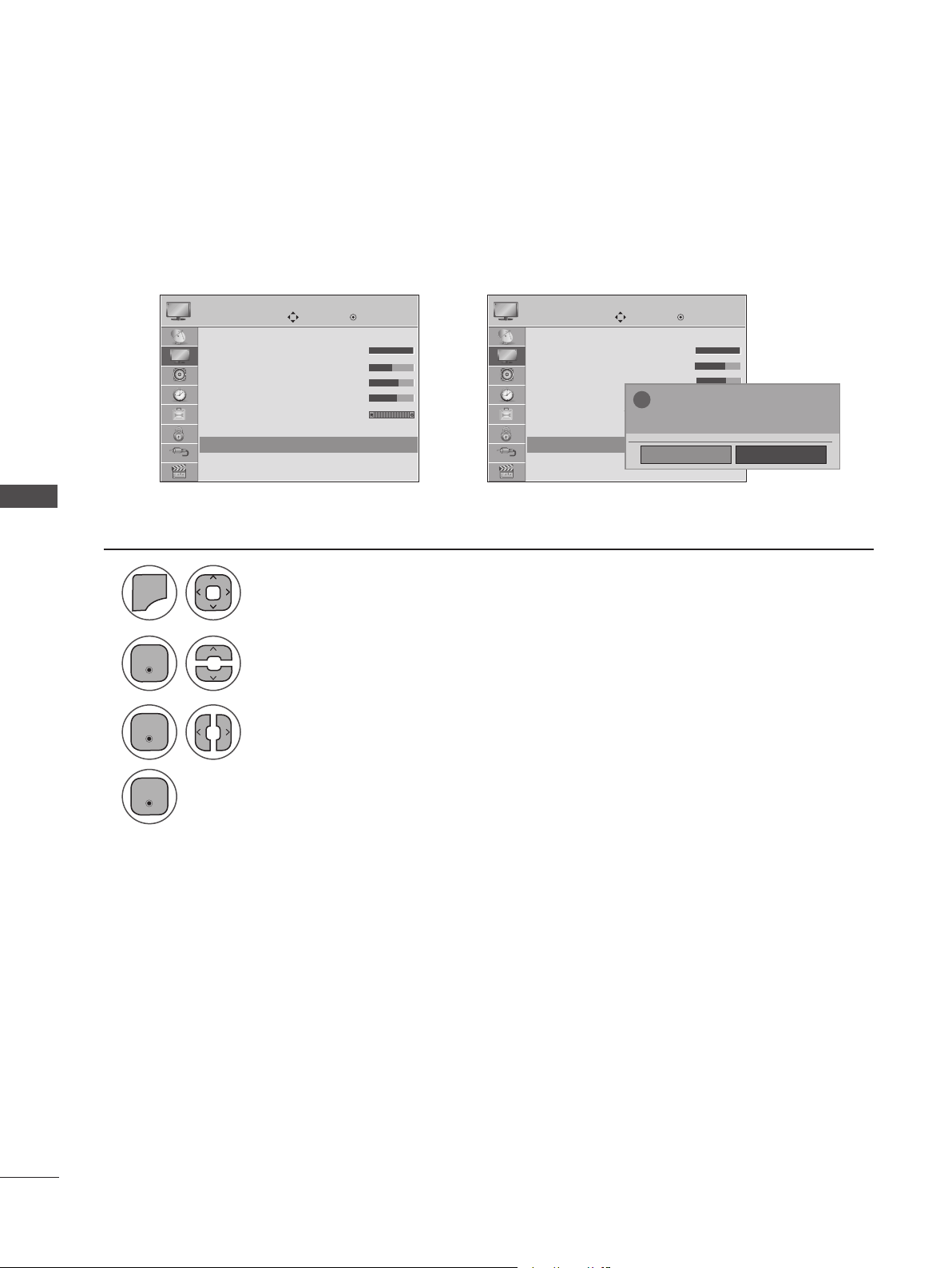
Return the settings of the selected Picture Mode to the default factory settings.
PICTURE RESET
Move Move
Enter Enter
PICTURE PICTURE
• Contrast 100
• Brightness 50
• Sharpness 70
• Color 50
• Tint 0
• Advanced Control
• Picture Reset
Screen(RGB-)PC
• Contrast 100
• Brightness 50
• Sharpness 70
• Color 50
• Tint 0
• Advanced Control
• Picture Reset
Screen(RGB-)PC
• Picture Reset ꔋ • Picture Reset ꔋ
➩
No
Yes
?
All picture setting will be resetted.
Continue?
1
2
3
4
MENU
Select Picture Reset.
Select Yes or No.
Select Picture.
• Press MENU or EXIT to close the menu window.
• Press BACK to move to the previous menu screaen.
Enter
Enter
Enter
57
PICTURE CONTROL
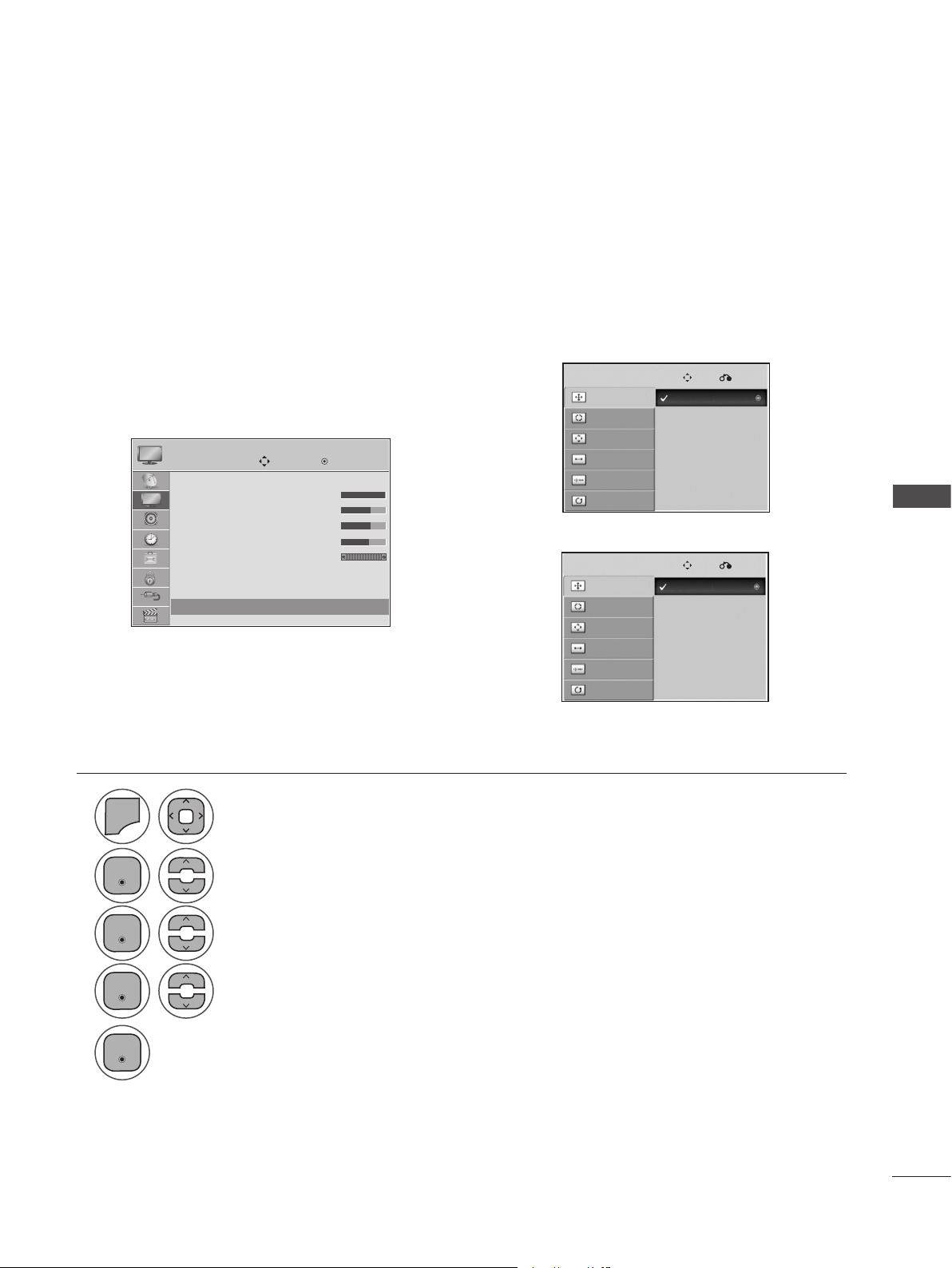
Selecting Resolution
To view a normal picture, match the resolution of RGB mode and selection of PC mode.
This function works in RGB-PC mode
<Vertical resolution : 768>
<Vertical resolution : 900>
SCREEN SETUP FOR PC MODE
Move
Enter
PICTURE
• Contrast 100
• Brightness 50
• Sharpness 70
• Color 50
• Tint 0
• Advanced Control
• Picture Reset
Screen(RGB-)PC
Screen(RGB - PC)
ꔋ
➩
Resoluttion
Auto Config.
Position
Size
Phase
Reset
1024 x 768
1280 x 768
1360 x 768
1280 x 960
1400 x 900
1600 x 900
Resoluttion
Auto Config.
Position
Size
Phase
Reset
Move
Move
Prev.
Prev.
SCREEN
SCREEN
1
2
3
4
5
MENU
Select Screen (RGB-PC).
Select Resolution.
Select the desired resolution.
Select Picture.
• Press MENU or EXIT to close the menu window.
• Press BACK to move to the previous menu screaen.
Enter
Enter
Enter
Enter
58
PICTURE CONTROL
PICTURE CONTROL
Auto Configure (RGB-PC Mode Only)
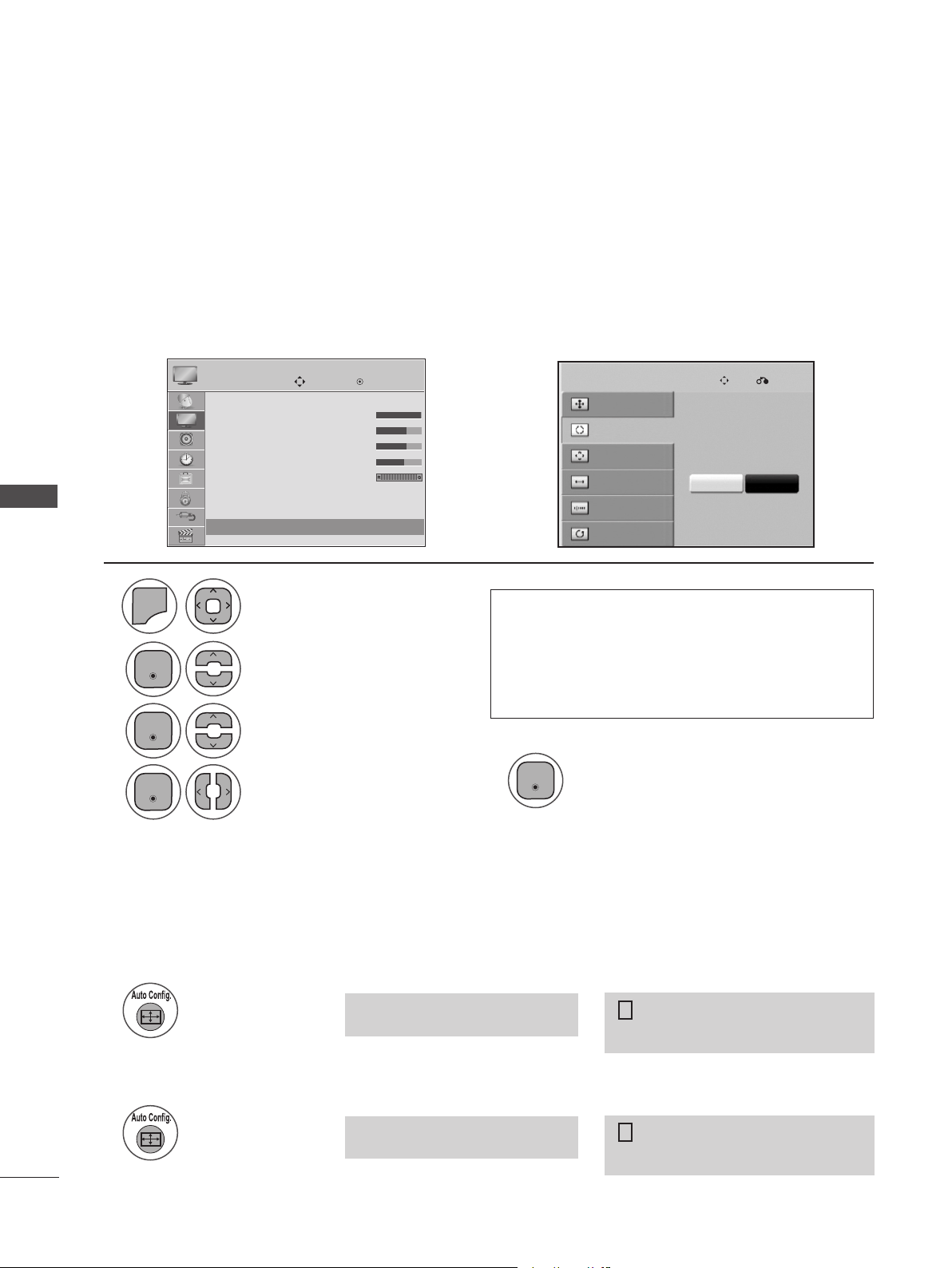
Automatically adjusts picture position and minimizes image instability. After adjustment, if the image is
still not correct, your set is functioning properly but needs further adjustment.
Auto Configure
This function is for automatic adjustment of the screen position, clock, and phase The displayed image
will be unstable for a few seconds while the auto configuration is in progress.
1. Using OSD
➩
1
2
3
4
5
MENU
Run Auto Config.
Select Screen (RGB-PC).
Select Auto Config.
Select Yes.
Select PICTURE.
• Press MENU or EXIT to close the menu window.
• Press BACK to move to the previous menu screaen.
Resolution
Auto Config.
Position
Size
Phase
Reset
SCREEN
To Set
Yes No
• If the position of the image is still not correct,
try Auto adjustment again.
• If picture needs to be adjusted again after Auto
adjustment in RGB-PC, you can adjust the
Position, Size or Phase.
2. Using Auto Config. (Remocon)
<M2080D>
<M2280D/M2380D/M2780D/M2380DF/M2780DF>
This function is available for RGB signals only.
<Others Resolution>
<Others Resolution>
<1600 x 900 Resolution>
<1920 x 1080 Resolution>
Press Auto Config.
Press Auto Config.
1
1
Auto in progress
For optimal display
change resolution 1600 x 900
Auto in progress
For optimal display
change resolution 1920 x 1080
Auto in progress
Auto in progress
!
!
Move
Enter
PICTURE
• Contrast 100
• Brightness 50
• Sharpness 50
• Color 50
• Tint 0
• Advanced Control
• Picture Reset
Screen(RGB-)PC
Screen(RGB - PC)
ꔋ
Enter
Enter
Enter
Enter
Move Prev.
59
PICTURE CONTROL
Adjustment for Screen Position, Size, Phase
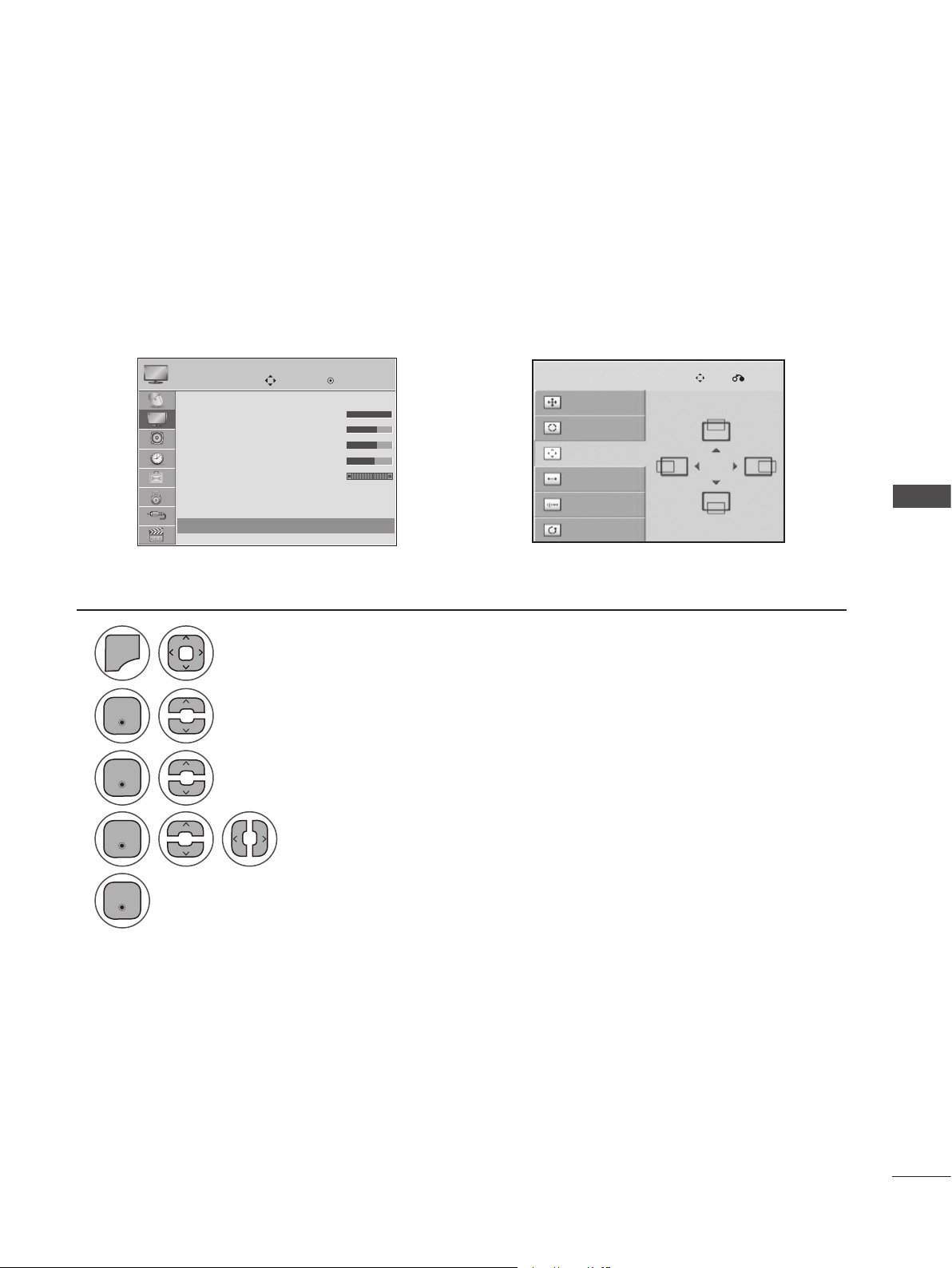
If the picture is not clear after auto adjustment and especially if characters are still shaking, adjust the
picture phase manually.
This function works in RGB-PC mode.
➩
Resolution
Auto Config.
Position
Size
Phase
Reset
SCREEN
1
2
3
4
5
MENU
Select Screen (RGB-PC).
Select Position, Size or Phase.
Make appropriate adjustments.
Select PICTURE.
• Press MENU or EXIT to close the menu window.
• Press BACK to move to the previous menu screaen.
Move
Enter
PICTURE
• Contrast 100
• Brightness 50
• Sharpness 50
• Color 50
• Tint 0
• Advanced Control
• Picture Reset
Screen(RGB-)PC
Screen(RGB - PC)
ꔋ
Enter
Enter
Enter
Enter
Move Prev.
60
PICTURE CONTROL
PICTURE CONTROL
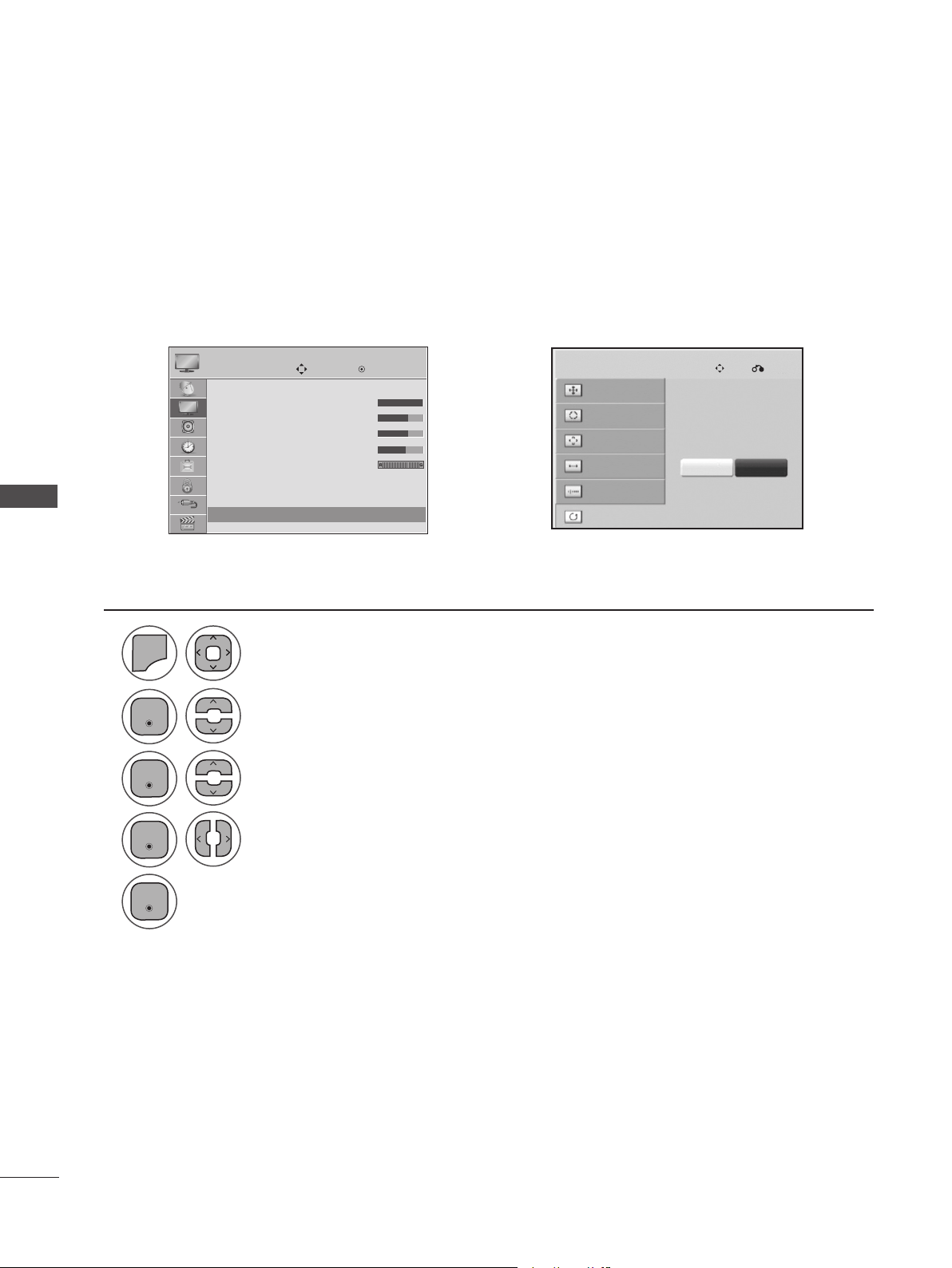
Screen Reset
Returns Position, Size and Phase to the factory default settings.
This function works in RGB-PC mode.
➩
1
2
3
4
5
MENU
Select Screen (RGB-PC).
Select Reset.
Select Yes.
Run Reset.
Select PICTURE.
• Press MENU or EXIT to close the menu window.
• Press BACK to move to the previous menu screaen.
Resolution
Auto Config.
Position
Size
Phase
Reset
SCREEN
To Set
Yes No
Move
Enter
PICTURE
Enter
Enter
Enter
Enter
Move Prev.
• Contrast 100
• Brightness 50
• Sharpness 50
• Color 50
• Tint 0
• Advanced Control
• Picture Reset
Screen(RGB-)PC
61
SOUND CONTROL
SOUND CONTROL
1
2
3
4
MENU
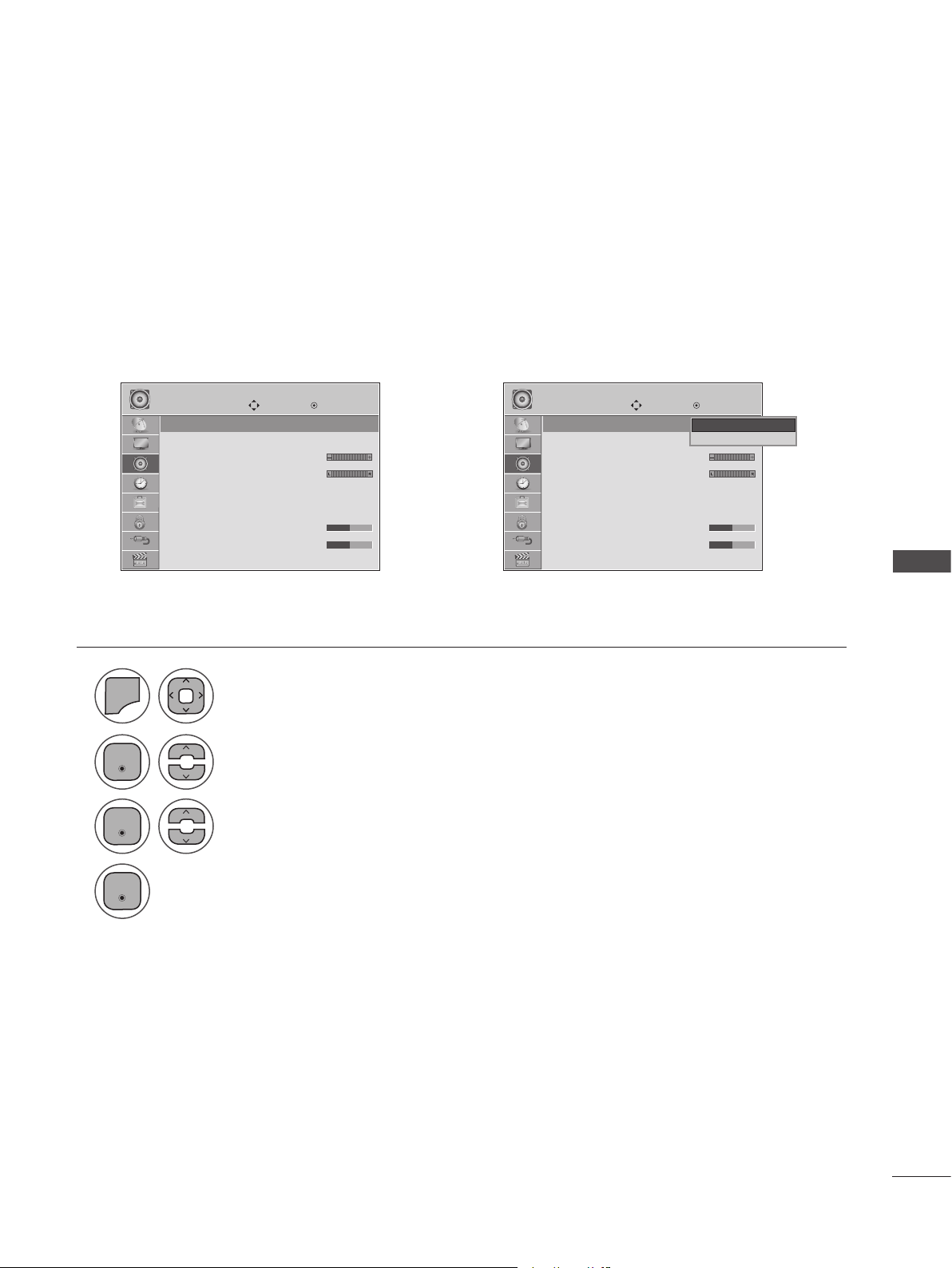
Select Auto Volume.
Select On or Off.
Select AUDIO.
• Press MENU or EXIT to close the menu window.
• Press BACK to move to the previous menu screaen.
Auto Volume makes sure that the volume level remains consistent whether you are watching a commer-
cial or a regular TV program. Because each broadcasting station has its own signal conditions, volume
adjustment may be needed every time the channel is changed. This feature allows users to enjoy stable
volume levels by making automatic adjustments for each program.
AUTO VOLUME LEVELER (AUTO VOLUME)
Move Move
Enter Enter
AUDIO AUDIO
Auto Volume : Off
Clear Voice II : Off
• Level 3
Balance 0
Sound Mode : Standard
• Surround X : Off
• Treble 50
• Bass 50
Auto Volume : Off
Clear Voice II : Off
• Level 3
Balance 0
Sound Mode : Standard
• Surround X : Off
• Treble 50
• Bass 50
Auto Volume : Off ꔋ Auto Volume : Off ꔋ
➩
Off
On
Off ꔋ
Enter
Enter
Enter

62
SOUND CONTROL
SOUND CONTROL
Move Move
Enter Enter
AUDIO AUDIO
Auto Volume : Off
Clear Voice II : Off
• Level 3
Balance 0
Sound Mode : Standard
• Surround X : Off
• Treble 50
• Bass 50
Auto Volume : Off
Clear Voice II : Off
• Level 3
Balance 0
Sound Mode : Standard
• Surround X : Off
• Treble 50
• Bass 50
Clear Voice II : Off ꔋ Clear Voice II : Off ꔋ
➩
1
2
4
3
5
MENU
Select Clear Voice II.
Select Level.
Select On or Off.
Make appropriate adjustments.
Adjustment for Clear Voice Level Selecting On
Select AUDIO.
• Press MENU or EXIT to close the menu window.
• Press BACK to move to the previous menu screaen.
By differentiating the human sound range from others, Clear Voice II improves the sound quality of
voices.
CLEAR VOICE II
• If you select “On” for Clear Voice II, the
Surround X feature will not work.
• Select levels from ‘-6’ to ’+6’.
Enter
Enter
Enter
Enter
Off
On
On ꔋ
63
SOUND CONTROL
Move Move
Enter Enter
AUDIO AUDIO
Auto Volume : Off
Clear Voice II : Off
• Level 3
Balance 0
Sound Mode : Standard
• Surround X : Off
• Treble 50
• Bass 50
Auto Volume : Off
Clear Voice II : Off
• Level 3
Balance 0
Sound Mode : Standard
• Surround X : Off
• Treble 50
• Bass 50
➩
Balance 0 ꔋ Balance 0 ꔋ
1
2
3
MENU
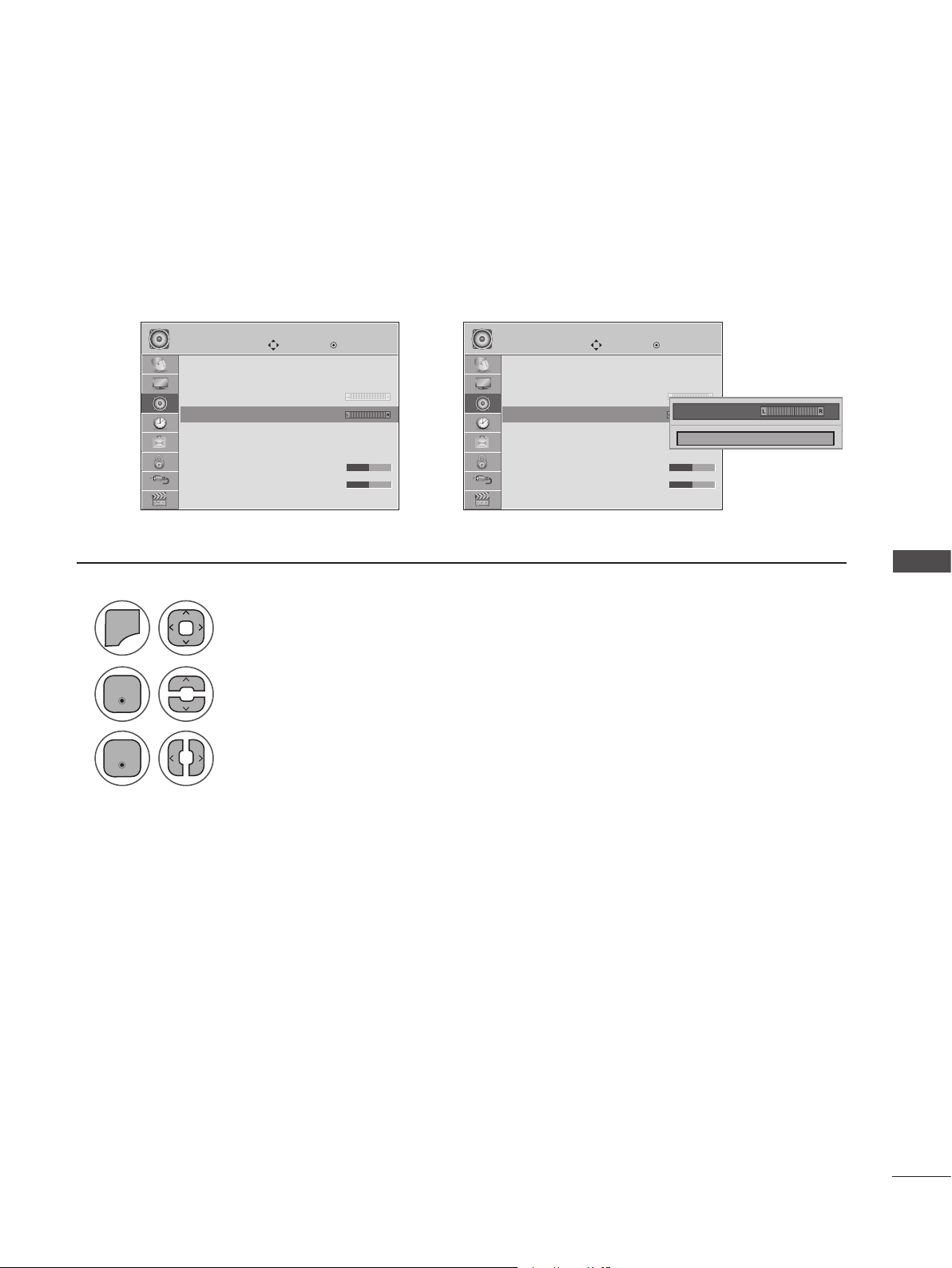
Select Balance.
Make appropriate adjustments.
Select AUDIO.
• Press MENU or EXIT to close the menu window.
• Press BACK to move to the previous menu screaen.
Adjust the left/right sound of the speakers to suit your taste and room situations.
BALANCE
Enter
Enter
Balance 0 ◄ ►
Close
64
SOUND CONTROL
SOUND CONTROL
1
2
3
4
MENU
• Press MENU or EXIT to close the menu window.
• Press BACK to move to the previous menu screaen.
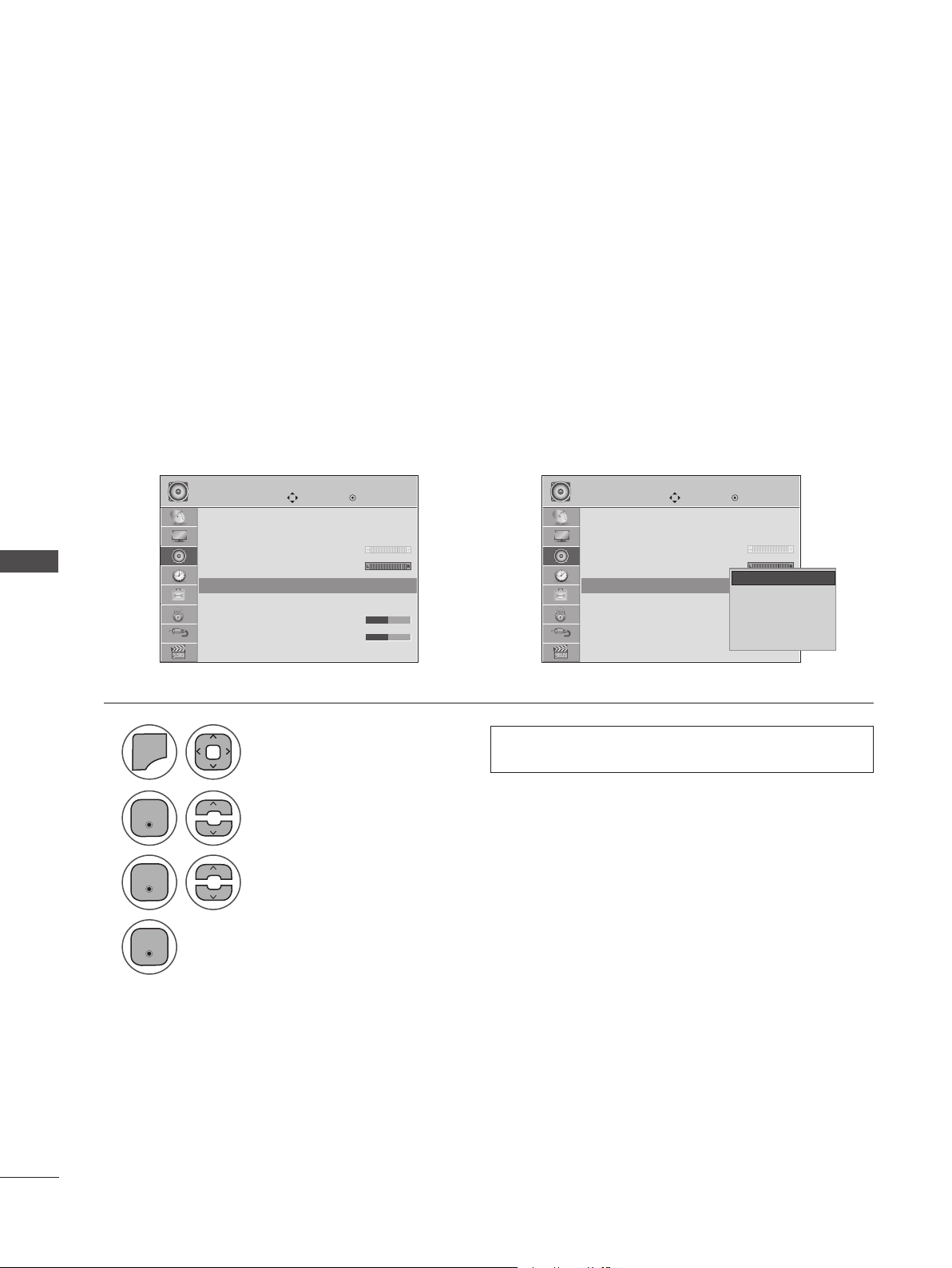
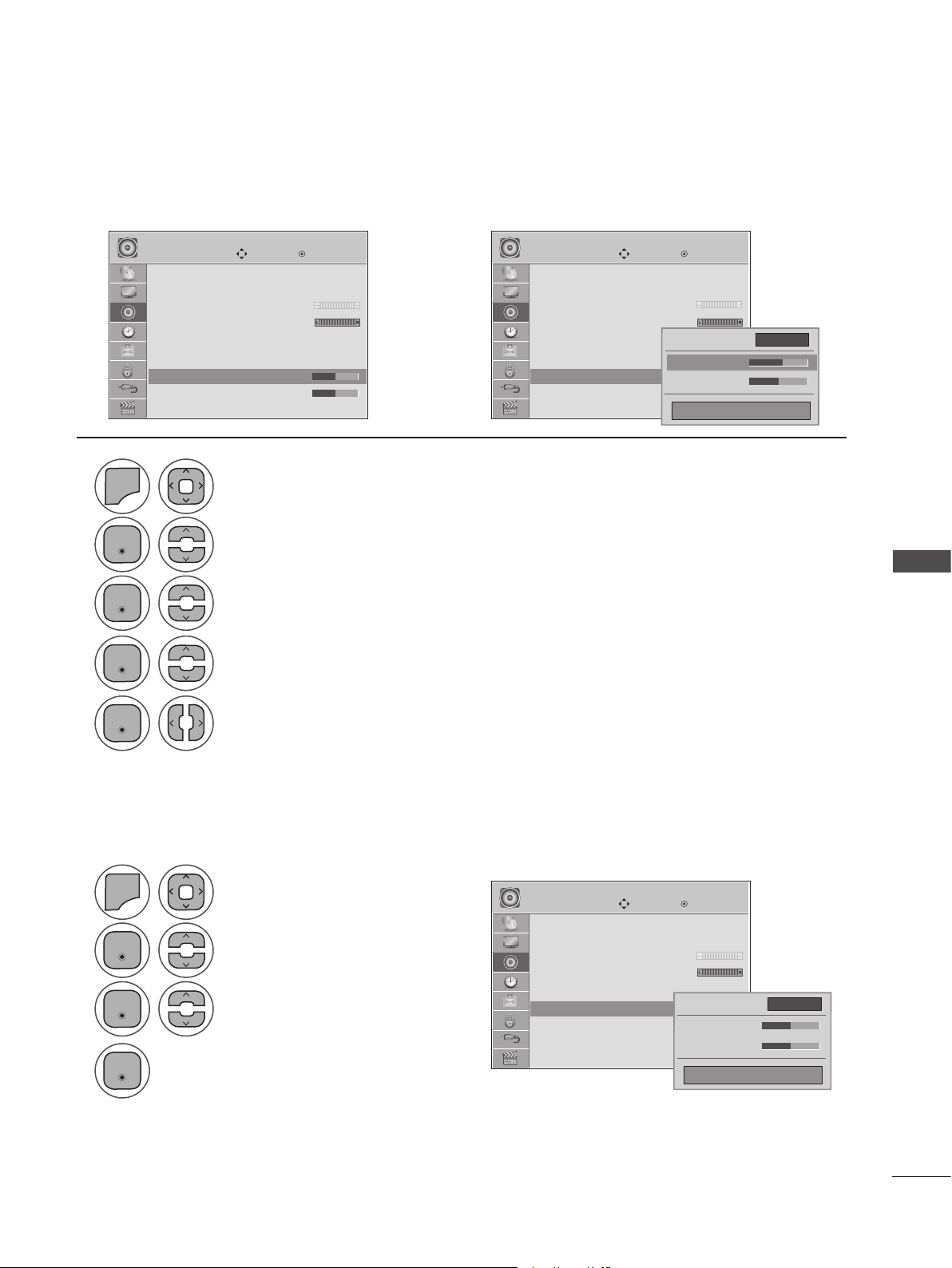
You can select your preferred sound setting; Standard, Music, Cinema, Sport or Game and you can also
adjust the Treble or Bass. Sound Mode lets you enjoy the best sound without any special adjustment as
the TV sets the appropriate sound options based on the program content. Standard, Music, Cinema,
Sport and Game are preset for optimum sound quality at the factory.
Standard Offers standard-quality sound.
Music Optimizes sound for listening to music.
Cinema Optimizes sound for watching movies.
Sport Optimizes sound for watching sports events.
Game Optimizes sound for playing video games.
PRESET SOUND SETTINGS-SOUND MODE
• You can also adjust Sound Mode in the Q Menu.
Select Sound Mode.
Select Standard, Music, Cinema, Sport or Game.
Select AUDIO.
Move Move
Enter Enter
AUDIO AUDIO
Auto Volume : Off
Clear Voice II : Off
• Level 3
Balance 0
Sound Mode : Standard
• Surround X : Off
• Treble 50
• Bass 50
Auto Volume : Off
Clear Voice II : Off
• Level 3
Balance 0
Sound Mode : Standard
• Surround X : Off
• Treble 50
• Bass 50
Sound Mode : Standard ꔋ Sound Mode : Standard ꔋ
➩
Enter
Enter
Enter
Standard
Music
Cinema
Sport
Game
Standard ꔋ
65
SOUND CONTROL
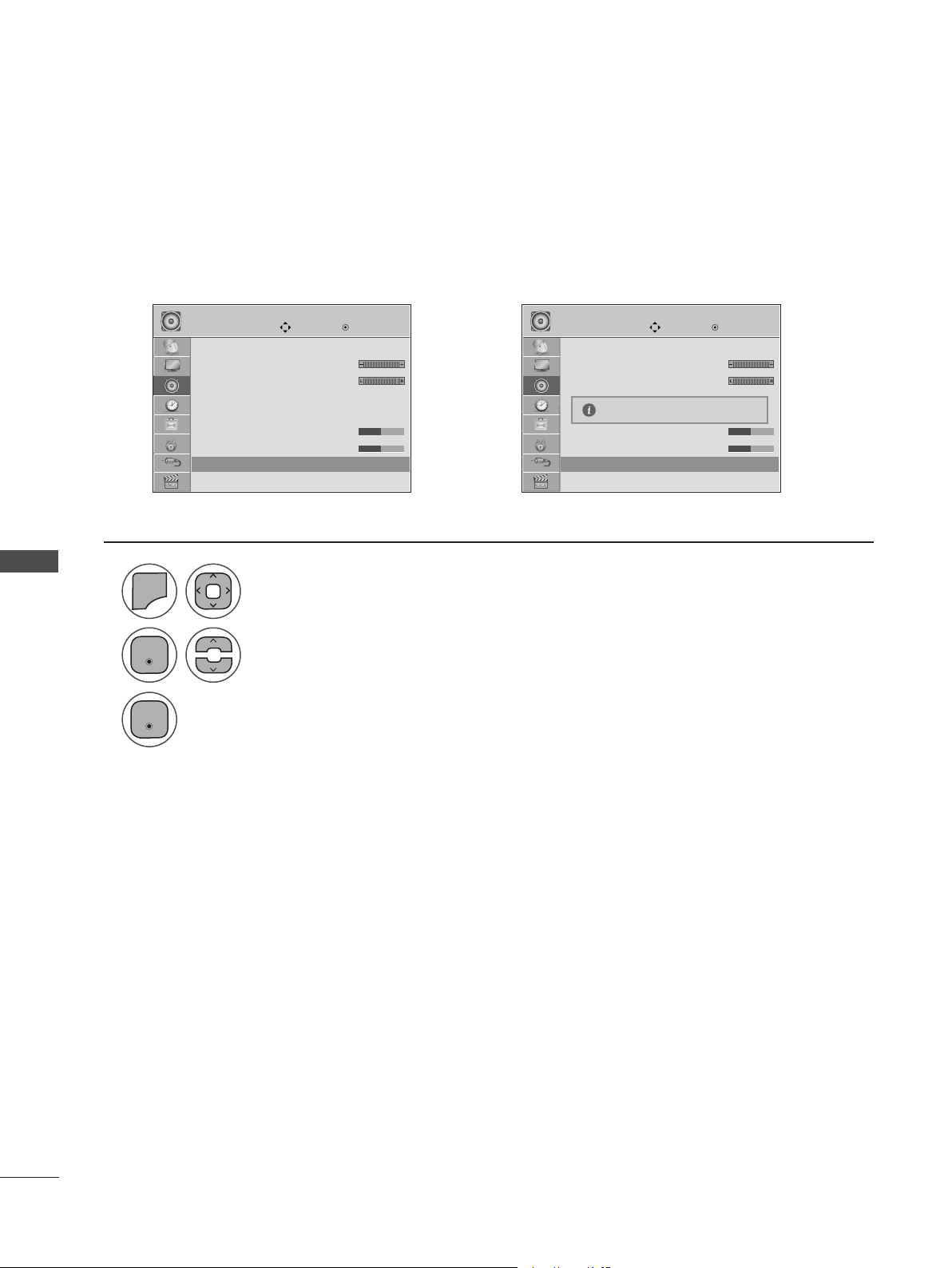
Adjust the sound to suit your taste and room situations.
1
1
2
2
3
3
4
4
5
MENU
MENU
Select Sound Mode.
Select Surround X.
Select Standard, Music, Cinema, Sport or Game.
Select On or off
Select Treble or Bass.
Make appropriate adjustments.
Select AUDIO.
Select AUDIO.
• Press MENU or EXIT to close the menu window.
• Press BACK to move to the previous menu screaen.
PRESET SOUND SETTINGS-USER MODE
Surround X
This option enhances sound depth and clarity by maximizing the Surround effect.
Move Move
Move
Enter Enter
Enter
AUDIO AUDIO
AUDIO
Auto Volume : Off
Clear Voice II : Off
• Level 3
Balance 0
Sound Mode : Standard
• Surround X : Off
• Treble 50
• Bass 50
Auto Volume : Off
Clear Voice II : Off
• Level 3
Balance 0
Sound Mode : Standard(User)
• Surround X : Off
• Treble 50
• Bass 50
Auto Volume : Off
Clear Voice II : Off
• Level 3
Balance 0
Sound Mode : Standard
• Surround X : Off
• Treble 50
• Bass 50
➩
• Treble 50 ꔋ • Treble 50 ꔋ
• Surround X : Off ꔋ
Enter
Enter
Enter
Enter
Enter
Enter
Enter
◄ Off ►
• Surround X
• Treble 50
• Bass 50
Close
• Treble 56 ◄ ►
◄ On ►
• Surround X
• Treble 50
• Bass 50
Close
66
SOUND CONTROL
SOUND CONTROL
1
2
3
MENU
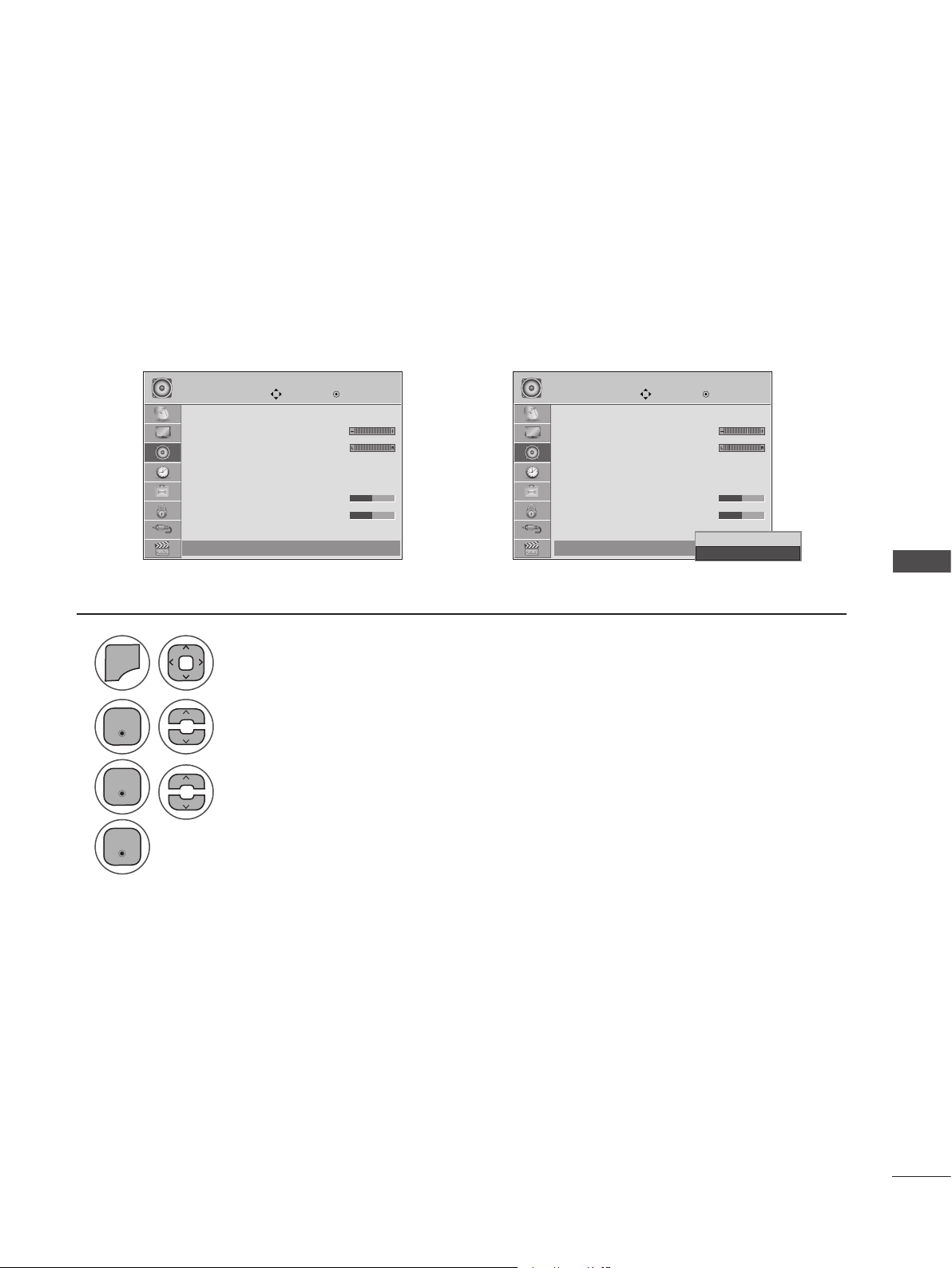
Select Reset.
Initialize the adjusted value.
Select AUDIO.
• Press MENU or EXIT to close the menu window.
• Press BACK to move to the previous menu screaen.
AUDIO RESET
MoveMove
OKOK
AUDIOAUDIO
ꔎ
• Level 3
Balance 0
Sound Mode : Standard
• Surround X : Off
• Treble 50
• Bass 50
• Reset
TV Speaker : On
ꔎ
• Level 3
Balance 0
Sound Mode : Standard
• Surround X : Off
• Treble 50
• Bass 50
• Reset
TV Speaker : On
• Reset ꔋ • Reset ꔋ
➩
Return the settings of the selected Sound Mode to the default factory settings.
Resetting sound mode configuration...
Enter
Enter
67
SOUND CONTROL
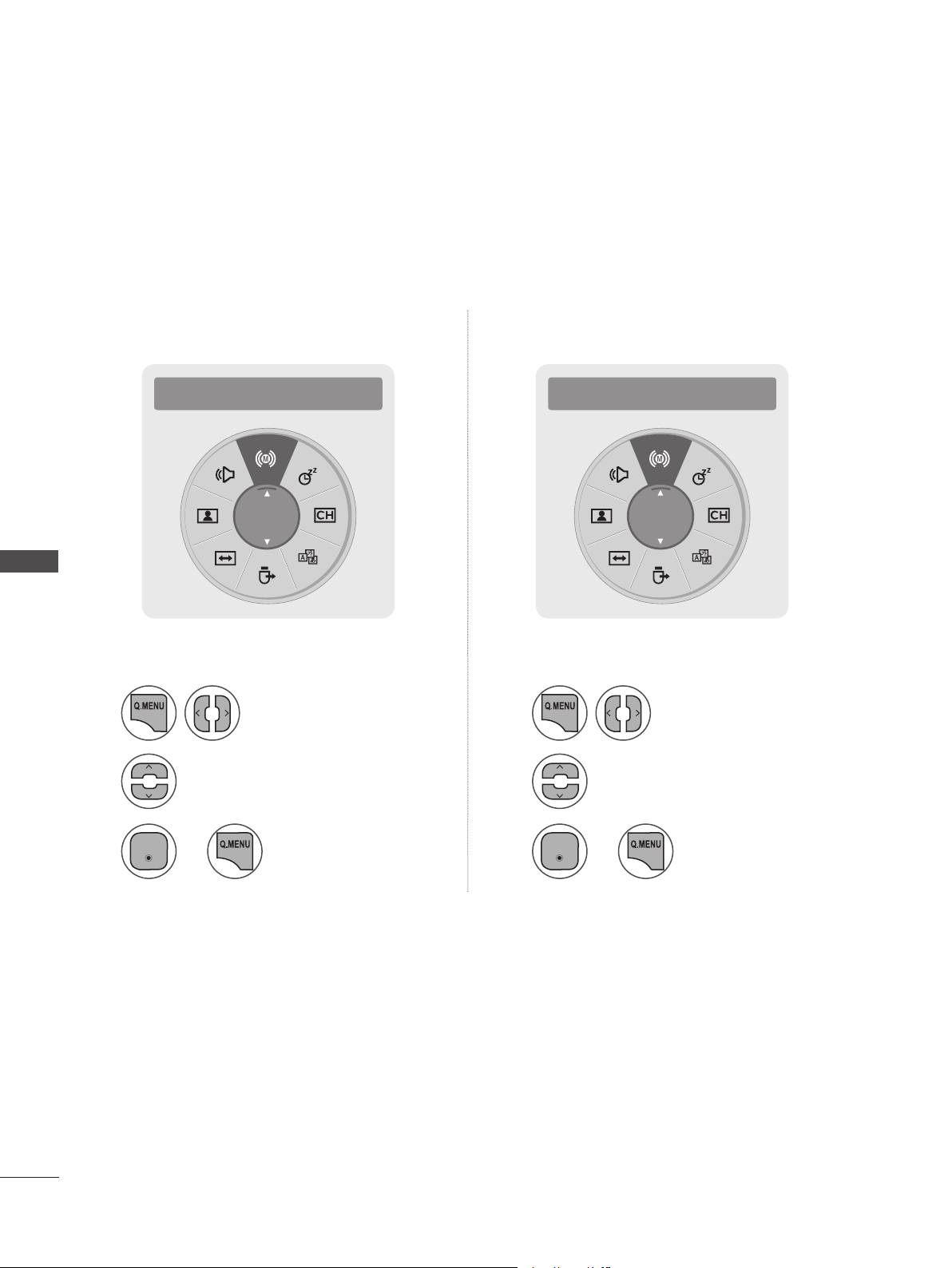
You can adjust the SET internal speaker status.
In AV, COMPONENT, RGB and HDMI 1/2 with HDMI to DVI cable, the TV speaker can be operational
even when there is no video signal. If you wish to use an external Hi-Fi system, turn off the SET’s inter-
nal speakers.
MoveMove
OKOK
AUDIOAUDIO
ꔎ
• Level 3
Balance 0
Sound Mode : Standard
• Surround X : Off
• Treble 50
• Bass 50
• Reset
TV Speaker : On
ꔎ
• Level 3
Balance 0
Sound Mode : Standard
• Surround X : Off
• Treble 50
• Bass 50
• Reset
TV Speaker : On
➩
1
2
3
4
MENU
Select TV Speaker.
Select On or Off.
Select AUDIO.
• Press MENU or EXIT to close the menu window.
• Press BACK to move to the previous menu screaen.
TV SPEAKERS ON/OFF SETUP
TV Speaker : On ꔋ
TV Speaker : On ꔋ
Off
On
On ꔋ
Enter
Enter
Enter
68
SOUND CONTROL
SOUND CONTROL
STEREO/SAP BROADCAST SETUP
On analog signals, this set can receive MTS stereo programs and any SAP (Secondary Audio Program)
that accompanies the stereo program if the station transmits an additional sound signal. Mono sound
is automatically used if the broadcast is only in Mono.
◄ SAP ►
MONO
◄ Multi Audio ►
English
1 1
2 2
3 3
Select SAP. Select Multi Audio.
Select Mono, Stereo or SAP. Select a language
Return to TV viewing. Return to TV viewing.or or
Analog TV Digital TV
Enter Enter
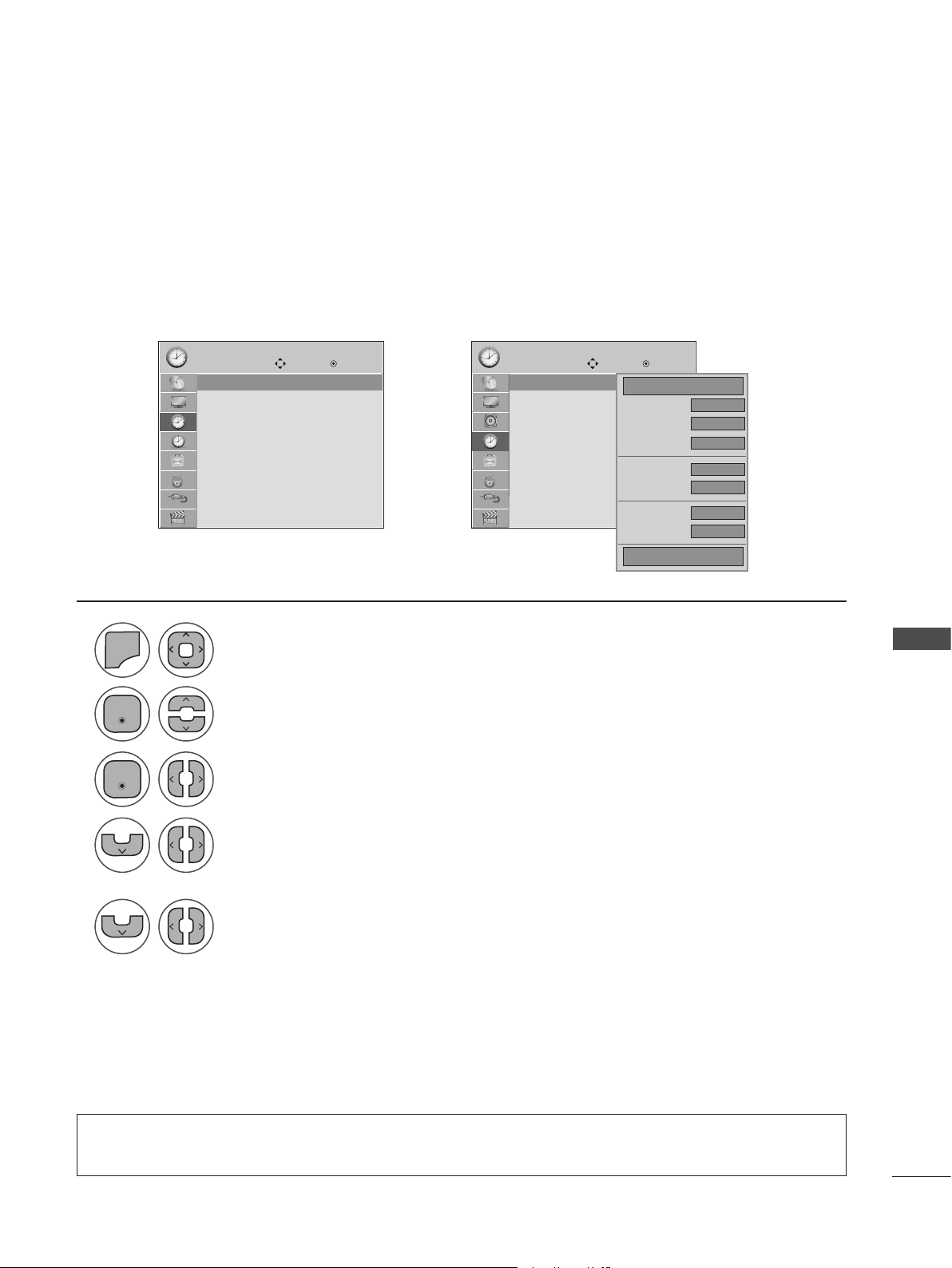
69
TIME SETTING
TIME SETTING
The time is set automatically from a digital channel signal. The digital channel signal includes informa-
tion for the current time provided by the broadcasting station. Monitor set the clock manually if the
current time is Monitor set incorrectly by the auto clock function.
CLOCK SETUP
TIME TIME
Move MoveEnter Enter
Clock
Off Time : Off
On Time : Off
Sleep Timer : Off
Clock
Off Time : Off
On Time : Off
Sleep Timer : Off
Clock ꔋ Clock ꔋ
➩
----
--
--
Auto
--
--
Eastern
Month
Date
Year
Hour
Minute
Time Zone
Daylight
Saving
Close
◄ Auto ►
1
2
3
4
5
MENU
Select Clock.
Select Auto.
Select your viewing area time zone.
• U.S.A: Eastern, Central, Mountain, Pacific, Alaska or Hawaii.
• Canada: Eastern, Central, Mountain, Pacific, New F. land or Atlantic.
Select Auto, Off or On (depending on whether or not your viewing area observes
Daylight Saving time).
Select TIME.
• Press MENU or EXIT to close the menu window.
• Press BACK to move to the previous menu screaen.
Auto Clock Setup
Enter
Enter
• If this set is unplugged once or turn off with the AC power control switch on the set and the Clock
function.
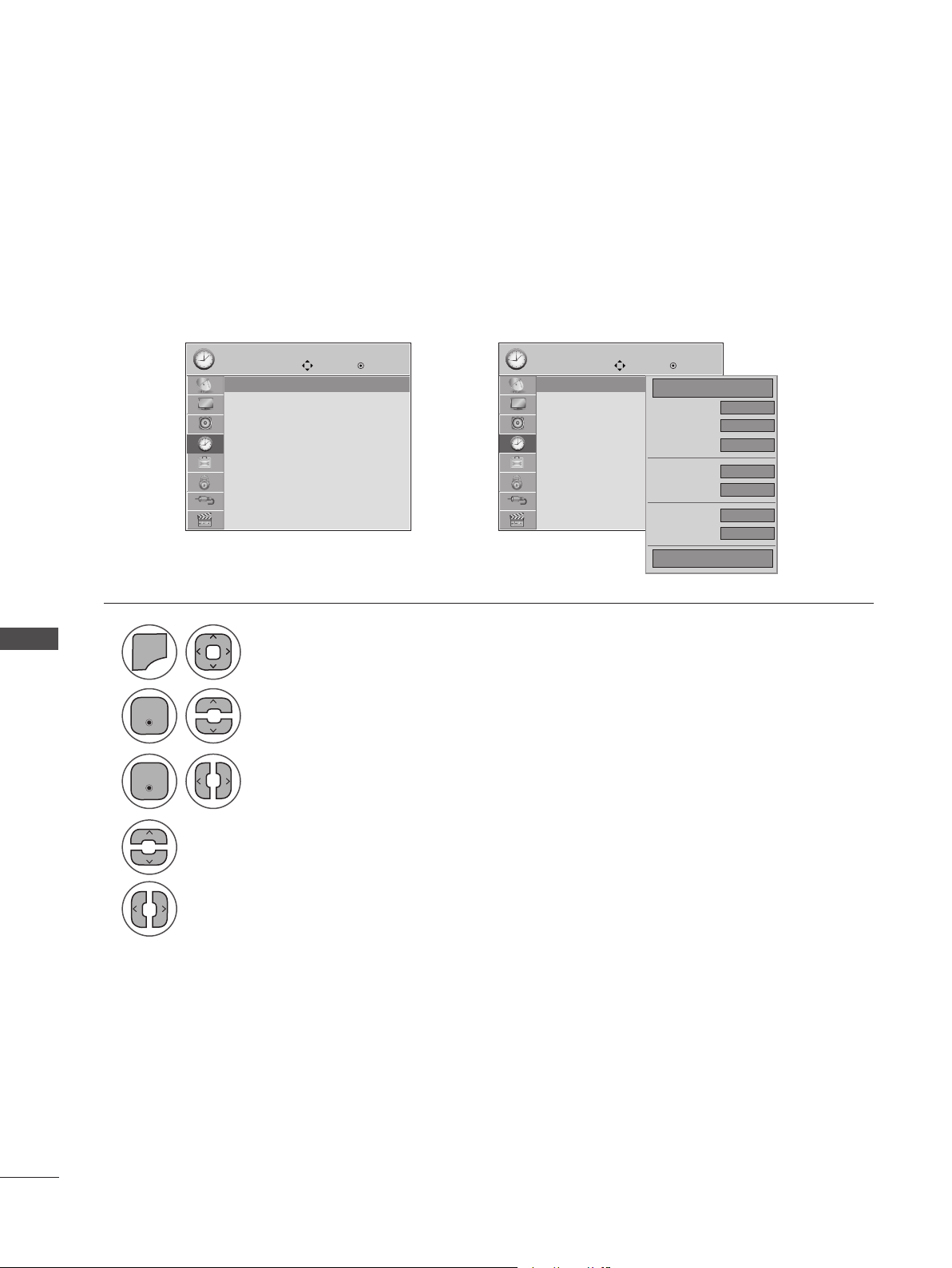
70
TIME SETTING
TIME SETTING
If the current time setting is wrong, reset the clock manually.
If this Monitor set is unplugged or turns off with the AC power control, switch on the Monitor set and
reset the Clock function.
TIME TIME
Move MoveEnter Enter
Clock
Off Time : Off
On Time : Off
Sleep Timer : Off
Clock
Off Time : Off
On Time : Off
Sleep Timer : Off
Clock ꔋ Clock ꔋ
➩
----
--
--
Auto
--
--
Eastern
Month
Date
Year
Hour
Minute
Time Zone
Daylight
Saving
Close
◄ Manual ►
1
2
3
4
5
MENU
Select Clock.
Select Manual.
Select the Year, Month, Date, Hour, or Minute option.
Set the Year, Month, Date, Hour, or Minute option.
Select Time.
• Press MENU or EXIT to close the menu window.
• Press BACK to move to the previous menu screaen.
Manual Clock Setup
Enter
Enter
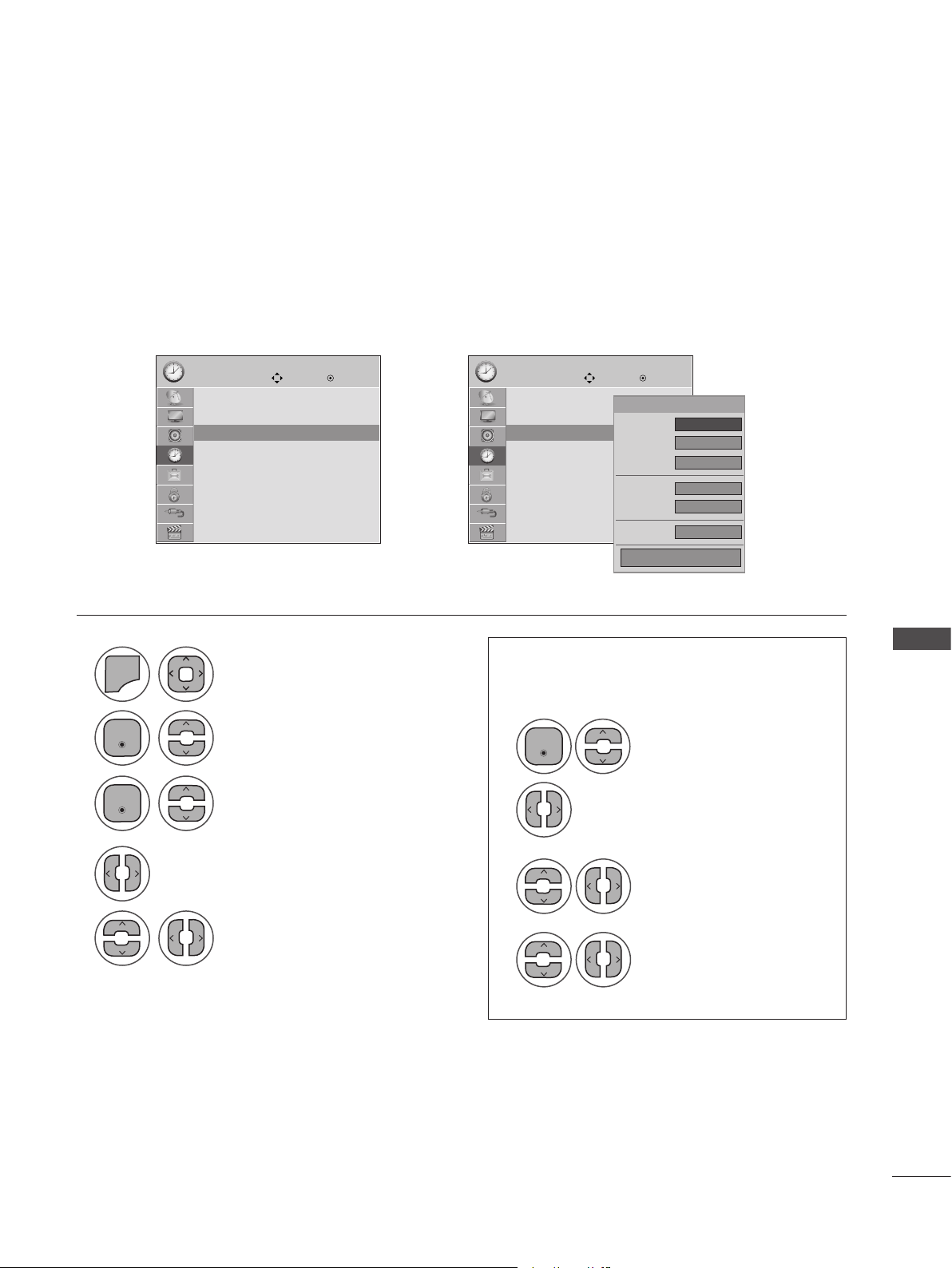
71
TIME SETTING
TIME TIME
Move MoveEnter Enter
Clock
Off Time : Off
On Time : Off
Sleep Timer : Off
Clock
Off Time : Off
On Time : Off
Sleep Timer : Off
This function operates only if the current time has been Monitor set.
The Off Time function overrides the On Time function if they are both set to the same time.
The Monitor set must be in standby mode for the On Time to work.
If you do not press any button within 2 hours after the set turns on with the On Time function, the Monitor
set will automatically revert to standby mode.
AUTO ON/OFF TIME SETTING
On Time : Off ꔋ On Time : Off ꔋ
➩
ꔐ Jun. 12, 2010 10:00 AM
00
00
TV 2-0
◄ Off ►
TV
30
Repeat
Hour
Minute
Input
Channel
Volume
Close
1
1
2
3
4
2
3
4
5
MENU
Select Off Time or On Time.
Select Repeat.
Select Off, Once, Daily, Mon to Fri,
Mon to Sat, Sat to Sun or Sun.
Set the Hour or Minute.
Select Time.
Select Input.
Select the desired input source.
When selecting set:
set the channel at turn-on.
Adjust to sound level at
turn-on.
• Press MENU or EXIT to close the menu window.
• Press BACK to move to the previous menu screaen.
• To cancel On/Off Time function, select Off.
• For On Time function only
Enter
Enter
Enter
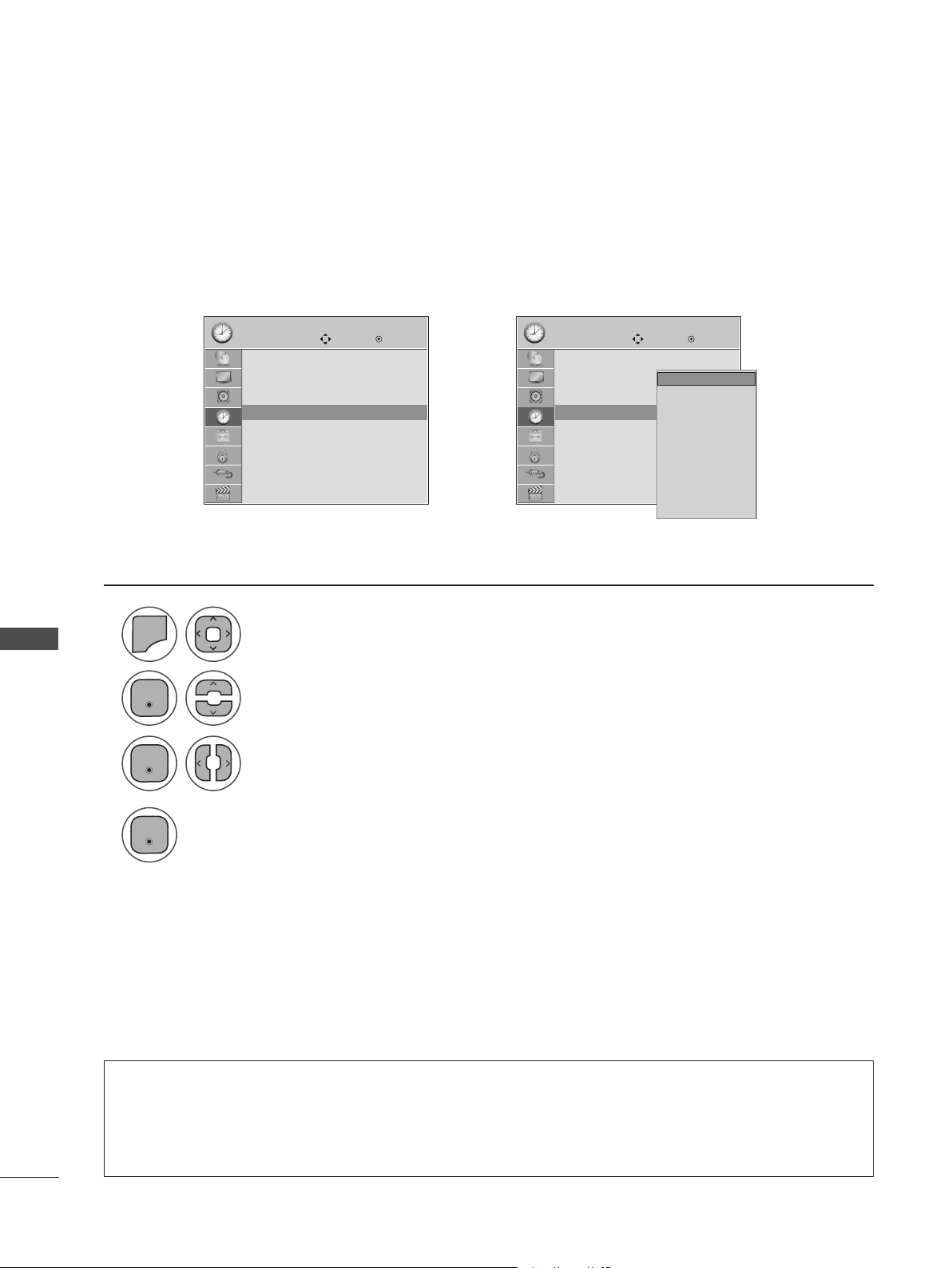
72
TIME SETTING
TIME SETTING
The Sleep Timer turns the Monitor set off at the preset time. Note that this setting is cleared when the
Monitor set is turned off.
SLEEP TIMER SETTING
• To cancel the Sleep Timer, select Off.
• You can also adjust Sleep Timer in the Q.MENU.
4
TIME TIME
Move MoveEnter Enter
Clock
Off Time : Off
On Time : Off
Sleep Timer : Off
Clock
Off Time : Off
On Time : Off
Sleep Timer : Off
Sleep Timer : Off ꔋ Sleep Timer : Off ꔋ
➩
Off
10 min.
20 min.
30 min.
60 min.
90 min.
120 min.
180 min.
240 min.
Off ꔋ
1
2
3
MENU
Select Sleep Timer.
Make appropriate adjustments.
Select TIME.
Enter
Enter
Enter
• Press MENU or EXIT to close the menu window.
• Press BACK to move to the previous menu screaen.
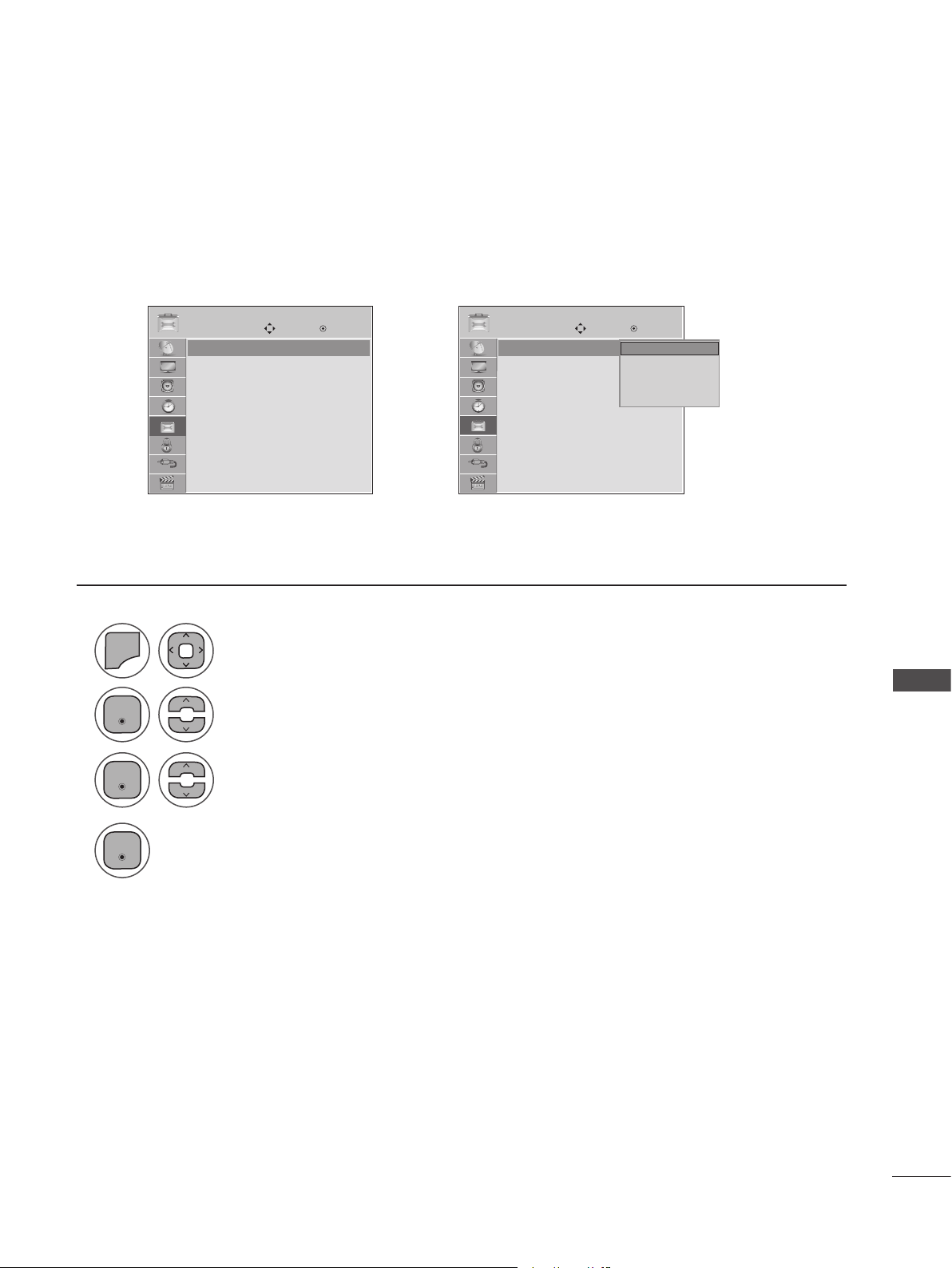
73
OPTIONAL SETTINGS
ON-SCREEN MENUS LANGUAGE SELECTION
OPTIONAL SETTINGS
The menus can be shown on the screen in the selected language.
1
2
3
4
MENU
Select Menu Language.
Select your desired language.
From this point on, the on-screen menus will be shown in the selected language.
Select OPTION.
• Press MENU or EXIT to close the menu window.
• Press BACK to move to the previous menu screaen.
➩
Enter
Enter
Enter
OPTION OPTION
Move MoveEnter Enter
Menu Language : English
Audio Language : English
Input Label
Key Lock : Off
Caption : Off
Set ID : Off
Power Indicator : On
Demo Mode : Off
Menu Language : English
Audio Language : English
Input Label
Key Lock : Off
Caption : Off
Set ID : Off
Power Indicator : On
Demo Mode : Off
Menu Language : English ꔋ Menu Language : English ꔋ
English
Español
Français
한국어
English ꔋ
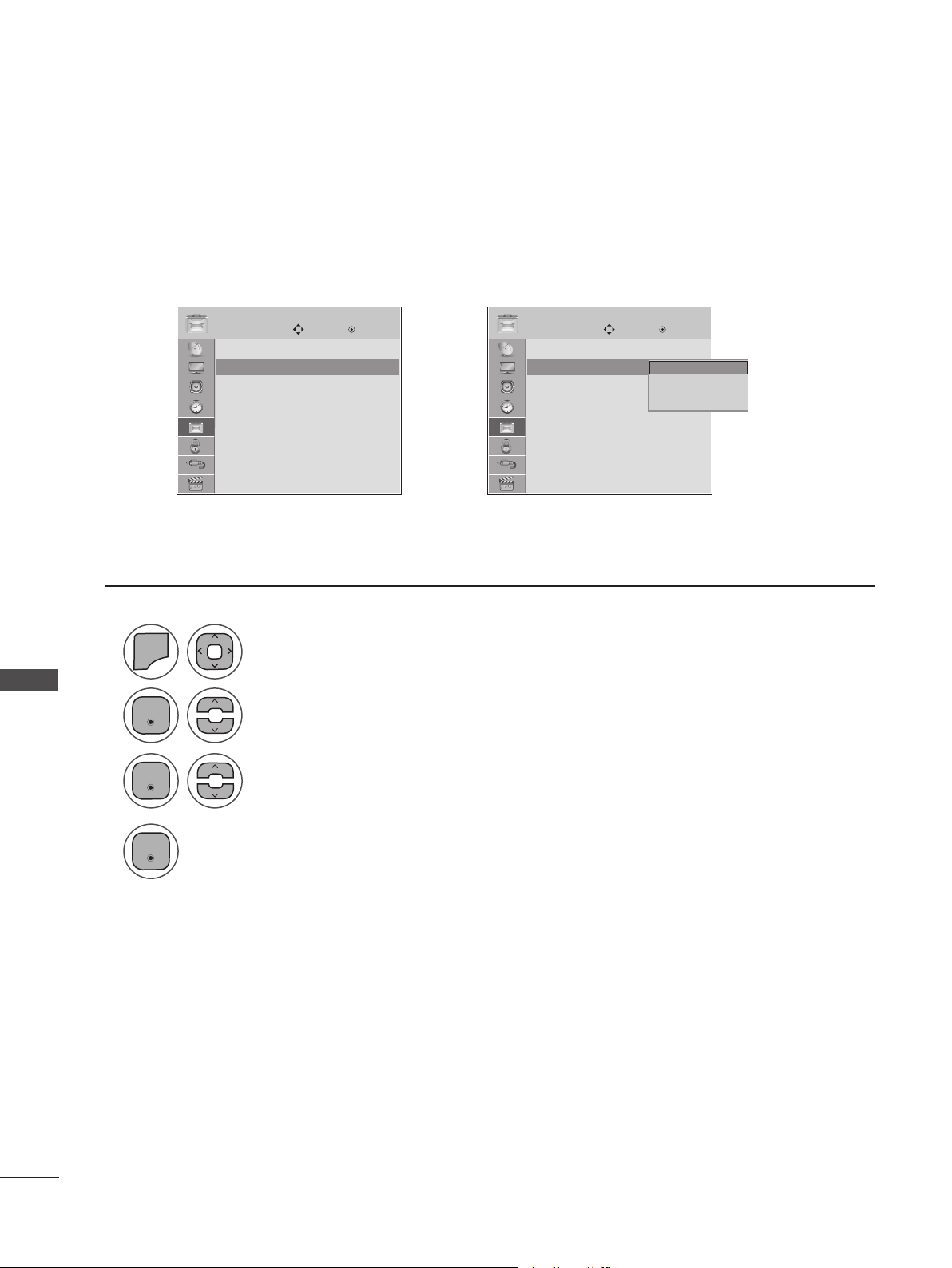
74
OPTIONAL SETTINGS
OPTIONAL SETTINGS
AUDIO LANGUAGE
Other languages may be available if a digital signal is provided by the broadcasting station.
This feature operates only in DTV/CADTV mode.
1
2
3
4
MENU
Select Audio Language.
Select your desired language.
Select OPTION.
• Press MENU or EXIT to close the menu window.
• Press BACK to move to the previous menu screaen.
➩
Enter
Enter
Enter
OPTION OPTION
Move MoveEnter Enter
Menu Language : English
Audio Language : English
Input Label
Key Lock : Off
Caption : Off
Set ID : Off
Power Indicator : On
Demo Mode : Off
Menu Language : English
Audio Language : English
Input Label
Key Lock : Off
Caption : Off
Set ID : Off
Power Indicator : On
Demo Mode : Off
Audio Language : English ꔋ Audio Language : English ꔋ
English
Spanish
French
English ꔋ
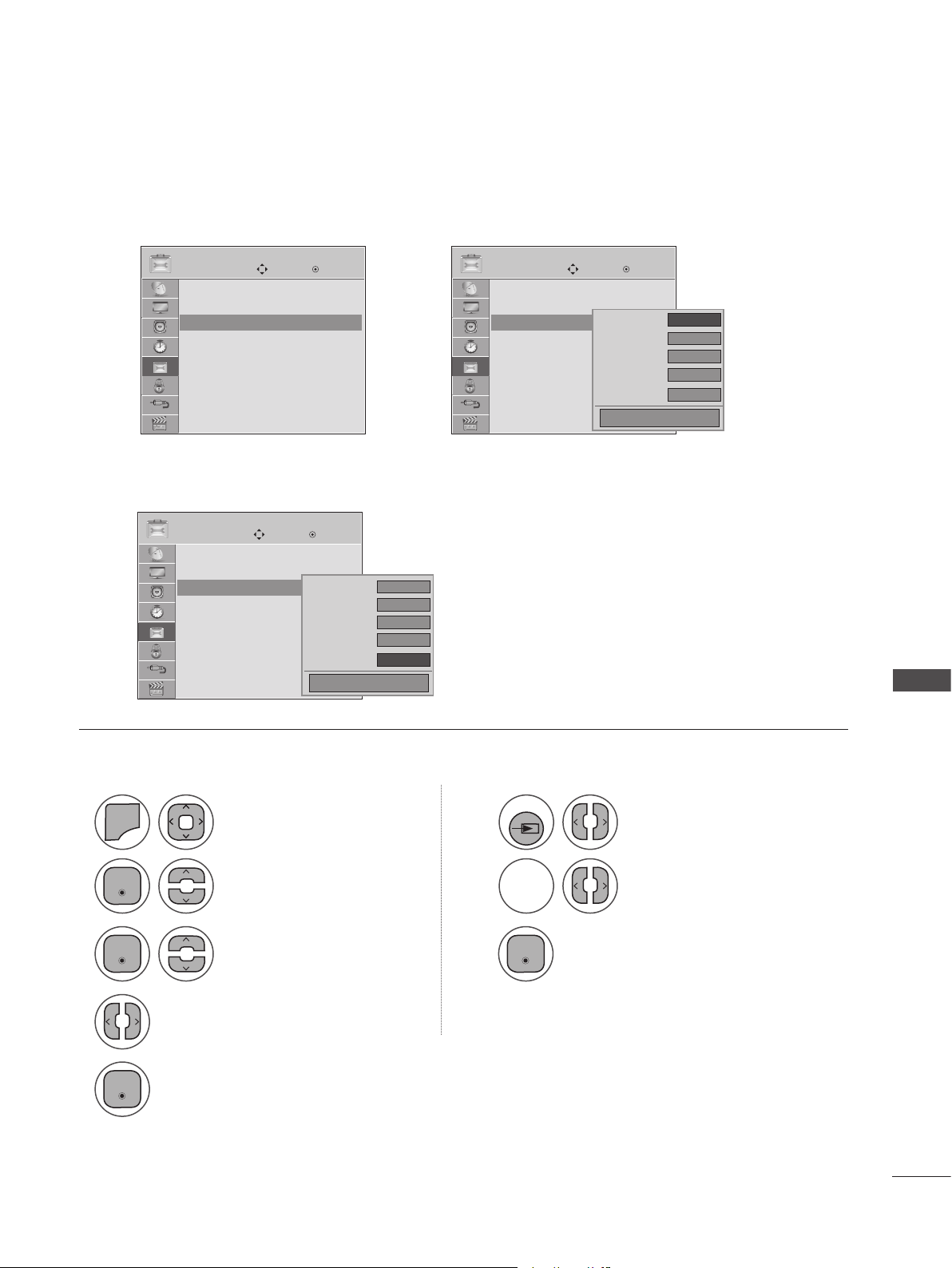
75
OPTIONAL SETTINGS
You can set a label for each input source when it's not in use.
If you want to use HDMI-PC mode, you must set the input label to PC mode.
(Refer to the below figure).
INPUT LABEL
1 1
2 2
3 3
5
4
MENU
Select Input Label. Select the label.
Select the source.
Select the label.
Select OPTION. Select the source.
• Press MENU or EXIT to close the menu window.
• Press BACK to move to the previous menu screaen.
➩
Enter Enter
Enter
Enter
OPTION OPTION
OPTION
Move Move
Move
Enter Enter
Enter
Menu Language : English
Audio Language : English
Input Label
Key Lock : Off
Caption : Off
Set ID : Off
Power Indicator : On
Demo Mode : Off
Menu Language : English
Audio Language : English
Input Label
Key Lock : Off
Caption : Off
Set ID : Off
Power Indicator : On
Demo Mode : Off
Menu Language : English
Audio Language : English
Input Label
Key Lock : Off
Caption : Off
Set ID : Off
Power Indicator : On
Demo Mode : Off
Input Label ꔋ Input Label ꔋ
Input Label ꔋ
◄ ►
AV
Component
RGB - PC
HDMI1
HDMI2
Close
PC
◄ PC ►
AV
Component
RGB - PC
HDMI1
HDMI2
Close
Using the OPTION Menu Using INPUT
INPUT
BLUE
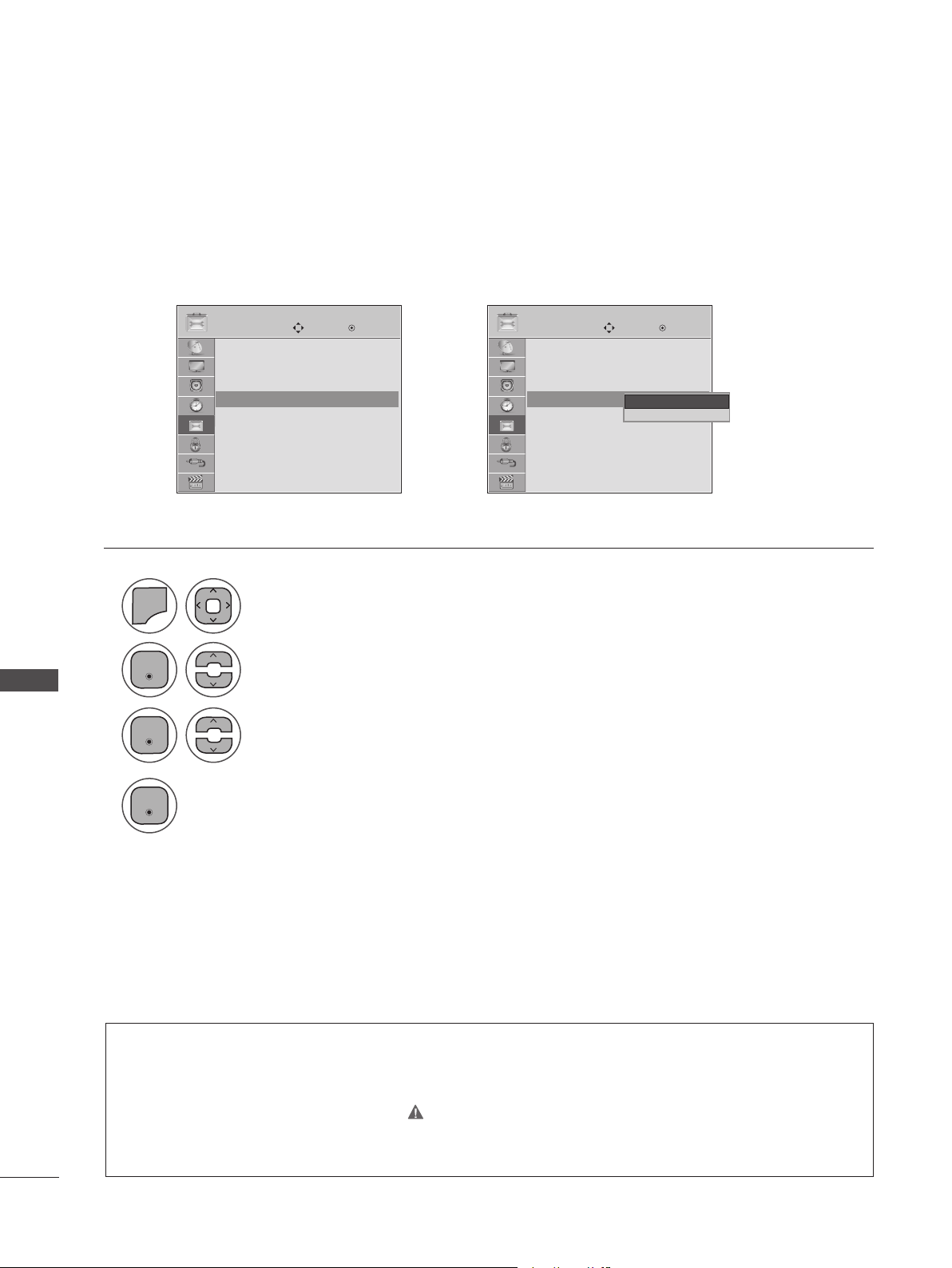
76
OPTIONAL SETTINGS
OPTIONAL SETTINGS
KEY LOCK
This feature can be used to prevent unauthorized viewing by locking out the front panel controls.
This TV is programmed to remember which option it was last set to even if you turn the set off.
➩
OPTION OPTION
Move MoveEnter Enter
Menu Language : English
Audio Language : English
Input Label
Key Lock : Off
Caption : Off
Set ID : Off
Power Indicator : On
Demo Mode : Off
Menu Language : English
Audio Language : English
Input Label
Key Lock : Off
Caption : Off
Set ID : Off
Power Indicator : On
Demo Mode : Off
Key Lock : Off ꔋ Key Lock : Off ꔋ
Off
On
Off ꔋ
1
2
3
4
MENU
Select Key Lock.
Select On or Off.
Select OPTION.
Enter
Enter
Enter
• Press MENU or EXIT to close the menu window.
• Press BACK to move to the previous menu screaen.
• In Key Lock ‘On’, if the TV is turned off, press ꔰ / l , INPUT, CH (ꕭorꕮ) on the TV or POWER,
INPUT, CH (ꕭorꕮ) or NUMBER buttons on the remote control.
• With the Key Lock On, the display ‘ Key Lock On ’ appears on the screen if any button on the
front panel is pressed while viewing the TV.
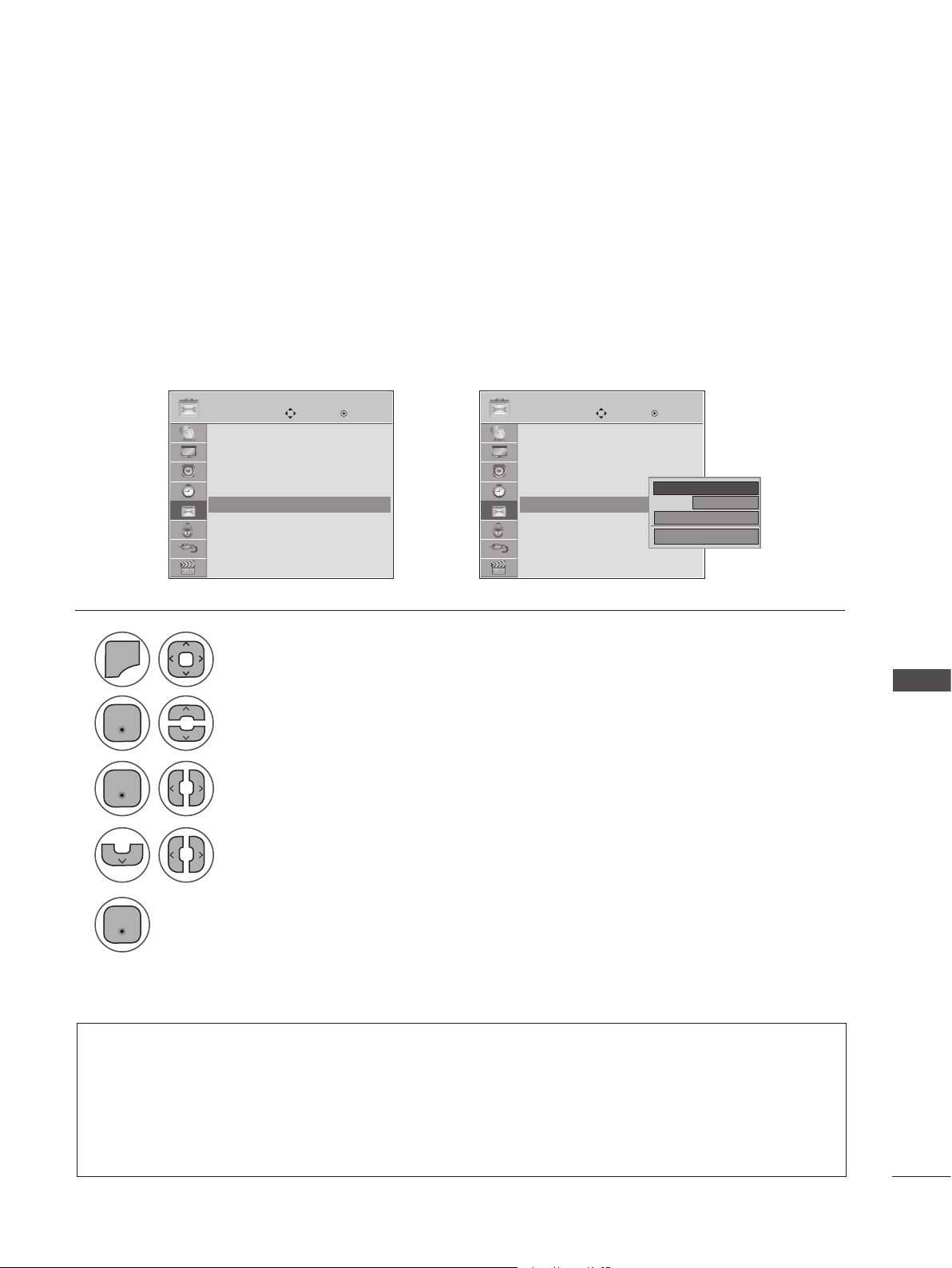
77
OPTIONAL SETTINGS
CAPTION MODE
Captions are provided to help the hearing impaired watch TV. Select a caption mode for displaying cap-
tioning information if provided with a program. Analog caption displays information at any position on
the screen and is usually the program's dialog. Caption/Text, if provided by the broadcaster, would be
available for both digital and analog channels on the Antenna/Cable. This TV is programmed to memo-
rize the caption/text mode which was last set when you turned the power off. This function is only avail-
able when Caption Mode is set On.
➩
OPTION OPTION
Move MoveEnter Enter
Menu Language : English
Audio Language : English
Input Label
Key Lock : Off
Caption : Off
Set ID : Off
Power Indicator : On
Demo Mode : Off
Menu Language : English
Audio Language : English
Input Label
Key Lock : Off
Caption : Off
Set ID : Off
Power Indicator : On
Demo Mode : Off
Caption : Off ꔋ Caption : CC1 ꔋ
1
2
3
5
4
MENU
Select Caption.
Select On.
Select CC 1-4 or Text 1-4.
Select OPTION.
Enter
Enter
Enter
• Press MENU or EXIT to close the menu window.
• Press BACK to move to the previous menu screaen.
• When selecting Off, Sub-menus for Analog, DTV, and Digital Option become disabled.
• CAPTION: The term for the words that scroll across the bottom of the TV screen; usually the
audio portion of the program provided for the hearing impaired.
• TEXT: The term for the words that appear in a large black frame and almost cover the entire
screen; usually messages provided the broadcaster.
Analog Broadcasting System Captions
CC1
◄ On ►
Digital Option
Mode
Close
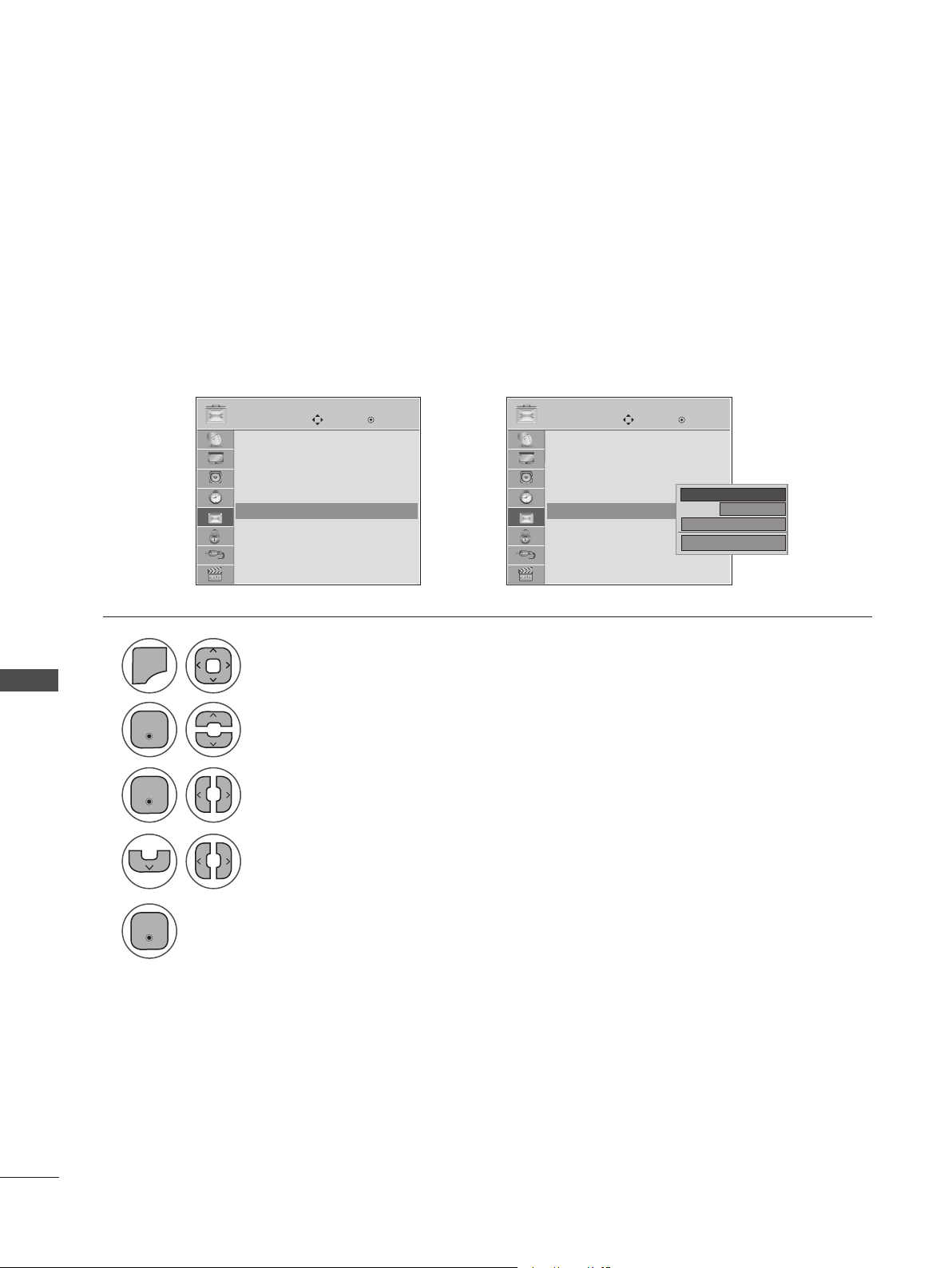
78
OPTIONAL SETTINGS
OPTIONAL SETTINGS
Choose the language in which you want the DTV/CADTV captions to appear in.
Other languages can be chosen for digital sources only if they are included owith the program.
This function in only available when Caption Mode is On.
➩
OPTION OPTION
Move MoveEnter Enter
Menu Language : English
Audio Language : English
Input Label
Key Lock : Off
Caption : Off
Set ID : Off
Power Indicator : On
Demo Mode : Off
Menu Language : English
Audio Language : English
Input Label
Key Lock : Off
Caption : Off
Set ID : Off
Power Indicator : On
Demo Mode : Off
Caption : Off ꔋ Caption : CC1 ꔋ
1
2
3
5
4
MENU
Select Caption.
Select On.
Select CC1-4, Text1-4, or Service1 - 6.
Select OPTION.
Enter
Enter
Enter
• Press MENU or EXIT to close the menu window.
• Press BACK to move to the previous menu screaen.
Digital Broadcasting System Captions
CC1
◄ On ►
Digital Option
Mode
Close
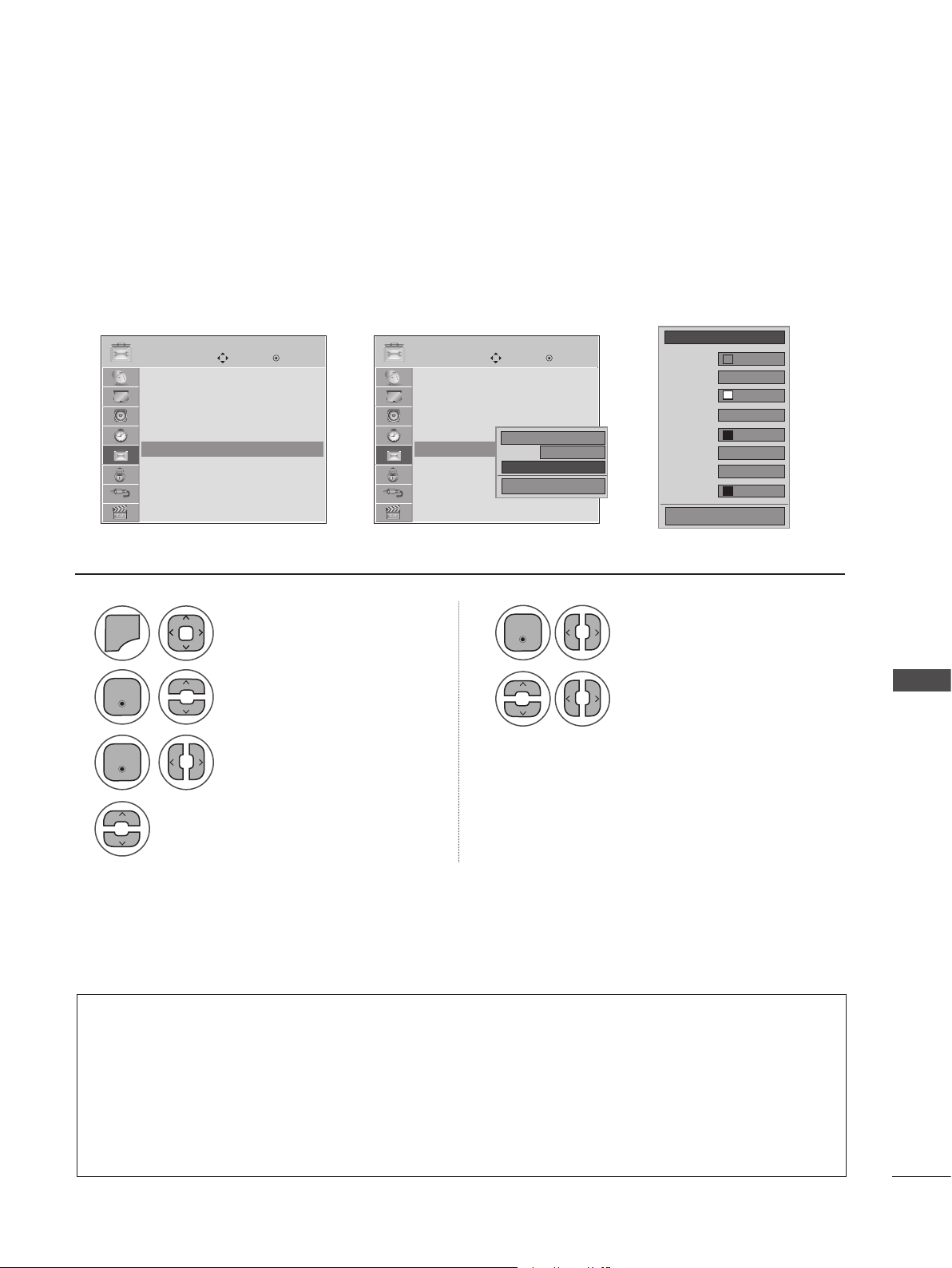
79
OPTIONAL SETTINGS
Customize the DTV/CADTV captions that appear on your screen.
This function in only available when Caption Mode is On.
➩ ➩
OPTION OPTION
Move MoveEnter Enter
Menu Language : English
Audio Language : English
Input Label
Key Lock : Off
Caption : Off
Set ID : Off
Power Indicator : On
Demo Mode : Off
Menu Language : English
Audio Language : English
Input Label
Key Lock : Off
Caption : Off
Set ID : Off
Power Indicator : On
Demo Mode : Off
Caption : Off ꔋ Caption : CC1 ꔋ
1
2
3
5
6
4
MENU
Select Caption.
Select Custom.
Customize the Size, Font, etc.,
to your preference. A preview
icon is provided at the bottom
of the screen, use it to see the
caption language.
Select On.
Select Digital Option.
Select OPTION.
Enter
Enter
Enter
• Press MENU or EXIT to close the menu window.
• Press BACK to move to the previous menu screaen.
Caption Option
CC1
On
Digital Option
Mode
Close
◄ Custom ►
Standard
A
Black
Solid
Black
White
None
Font 1
Solid
Size
Font
Text Color
Text Opacity
Bg Color
Bg Opacity
Edge Type
Edge Color
Close
• Size: Sets the word size.
• Font: Selects a typeface for the text.
• Text Color: Chooses a color for the text.
• Text Opacity: Specifies the opacity for the text color.
• Bg (Background) Color: Selects a background color.
• Bg (Background) Opacity: Selects the opacity for the background color.
• Edge Type: Selects an edge type.
• Edge Color: Selects a color for the edges.
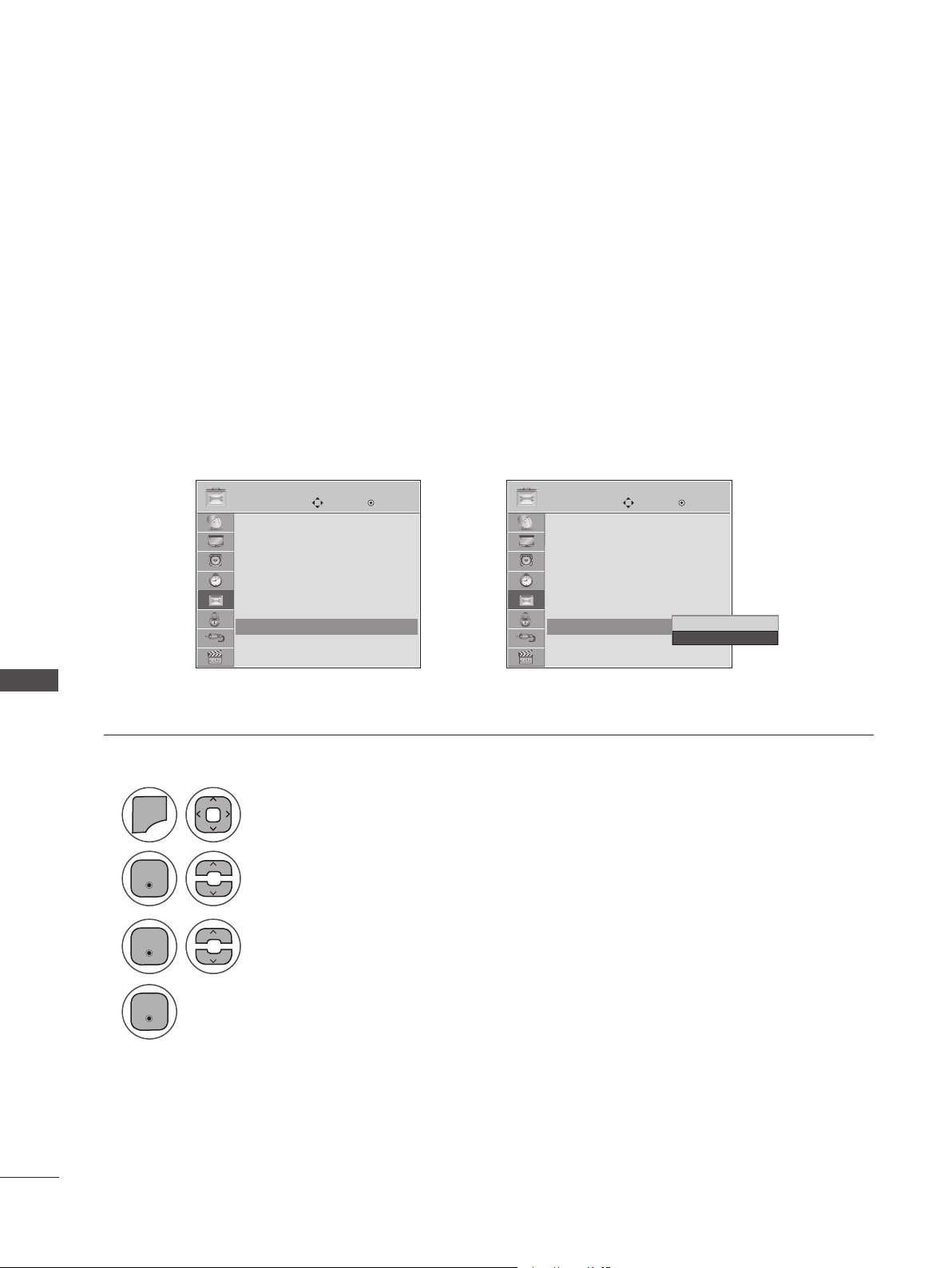
80
OPTIONAL SETTINGS
OPTIONAL SETTINGS
Adjust the power/standby indicator light on the front of the Monitor set.
Power Indicator On
- Normal Mode: Blue LED On.
- Off Mode: LED Off
Power Indicator Off
- Normal Mode: Blue LED Off.
- Off Mode: LED Off
POWER INDICATOR
1
2
3
4
MENU
Select Power Indicator.
Select On or Off.
Select OPTION.
• Press MENU or EXIT to close the menu window.
• Press BACK to move to the previous menu screaen.
➩
OPTION OPTION
Move MoveEnter Enter
Menu Language : English
Audio Language : English
Input Label
Key Lock : Off
Caption : Off
Set ID : Off
Power Indicator : On
Demo Mode : Off
Menu Language : English
Audio Language : English
Input Label
Key Lock : Off
Caption : Off
Set ID : Off
Power Indicator : On
Demo Mode : Off
Power Indicator : On ꔋ Power Indicator : On ꔋ
Off
On
On ꔋ
Enter
Enter
Enter
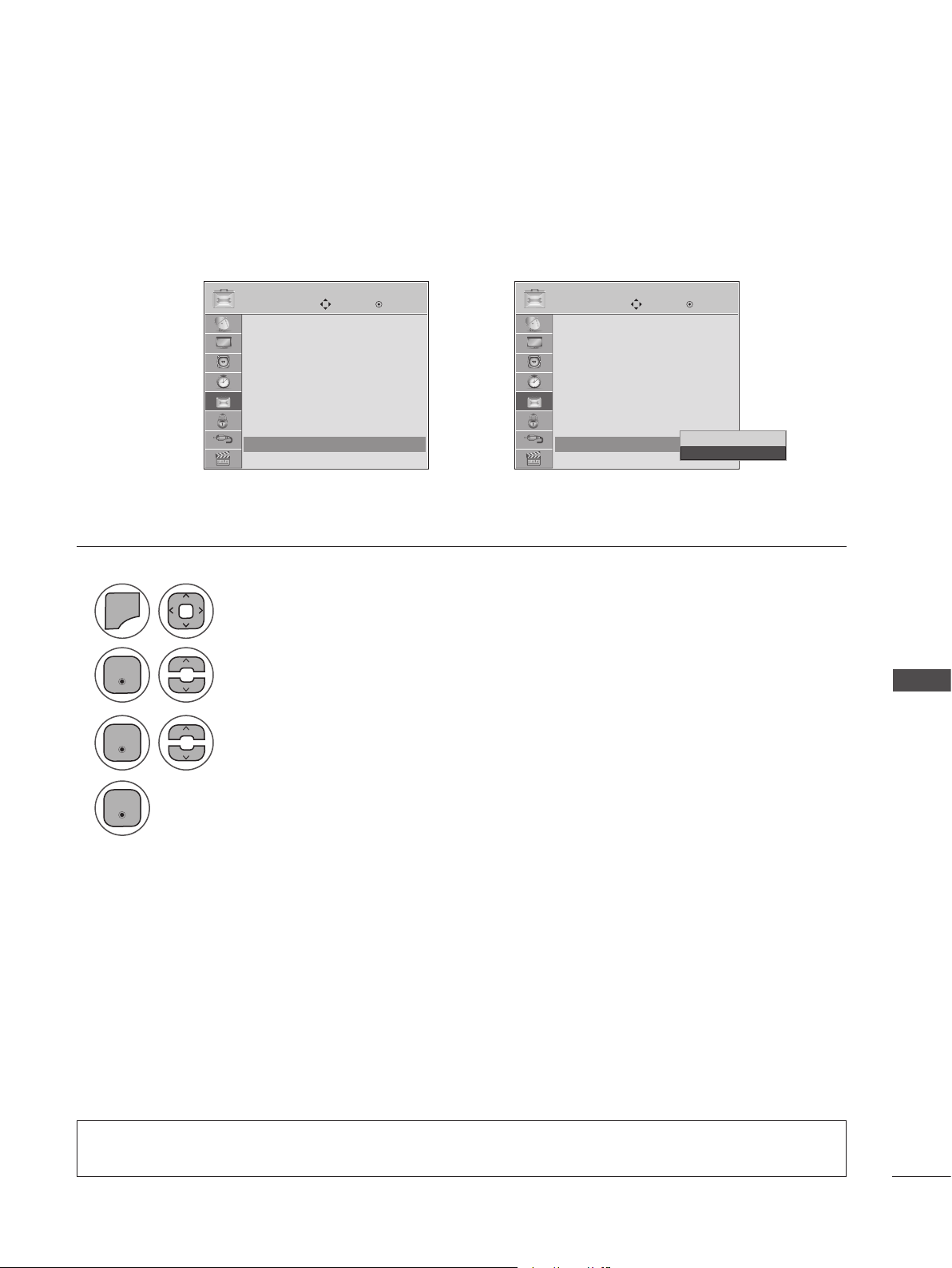
81
OPTIONAL SETTINGS
Displays a slide show to explain the various features of this Monitor set.
DEMO MODE
1
2
3
4
MENU
Select Demo Mode.
Select On to show the various feature of the Monitor set.
Return to TV viewing.
After a while, Demo Mode starts. If you want to stop the demo, press any button
(Except VOL +, - and MUTE button).
Select OPTION.
• Press MENU or EXIT to close the menu window.
• Press BACK to move to the previous menu screaen.
➩
OPTION OPTION
Move MoveEnter Enter
Audio Language : English
Input Label
Key Lock : Off
Caption : Off
Set ID : Off
Power Indicator : On
Demo Mode : Off
Initial Setting : Store Demo
Audio Language : English
Input Label
Key Lock : Off
Caption : Off
Set ID : Off
Power Indicator : On
Demo Mode : Off
Initial Setting : Store Demo
Demo Mode : Off ꔋ Demo Mode : Off ꔋ
Off
On
On ꔋ
Enter
Enter
Enter
• This feature is disabled in “Initial Setting - Home Use”.
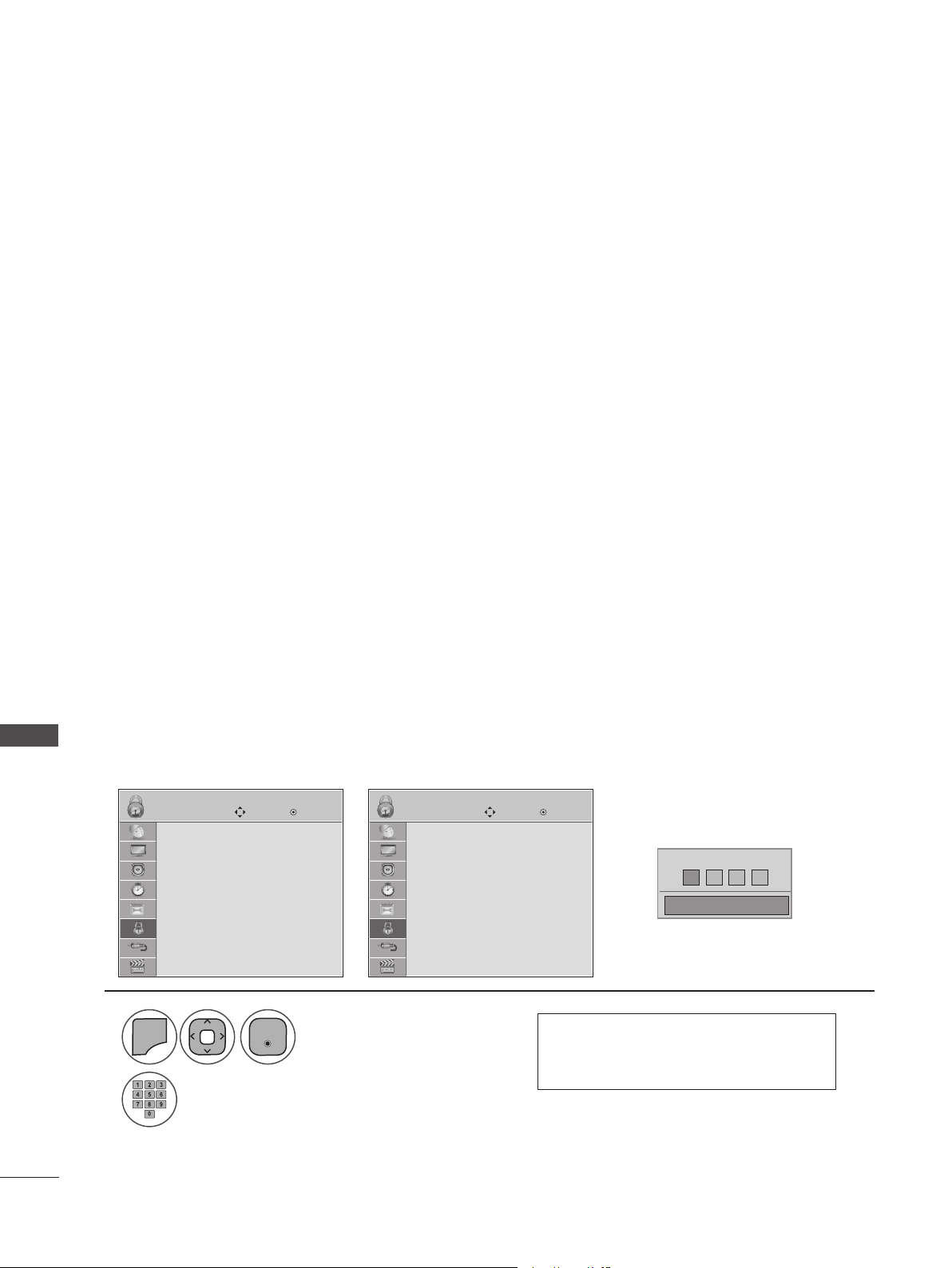
82
PARENTAL CONTROL/RATINGS
PARENTAL CONTROL/RATINGS
Parental Control can be used to block specific channels, ratings and other viewing sources.
The Parental Control Function (V-Chip) is used to block program viewing based on the ratings sent by
the broadcasting station. The default setting is to allow all programs to be viewed. Viewing can be
blocked by choosing the type of the program and the categories. It is also possible to block all program
viewing for a time period. To use this function, the following must be done:
1. Set ratings and categories to be blocked.
2. Specify a password.
3. Enable the lock.
V-Chip Ratings and Categories
Rating guidelines are provided by broadcasting stations. Most television programs and television movies
can be blocked by TV rating and/or individual categories. Movies that have been shown in theaters or
direct-to-video movies use the MPAA rating system.
Ratings for Television programs including made-for-TV movies:
TV-G (General audience)
TV-PG (Parental guidance suggested)
TV-14 (Parents strongly cautioned)
TV-MA (Mature audience only)
TV-Y (All children)
TV-Y7 (Children 7 years and older)
Set up blocking schemes to block specific channels, ratings, and external viewing sources.
A password is required to gain access to this menu.
PASSWORD & LOCK SYSTEM SETTINGS
1
2
MENU
Input the password.
Select LOCK.
• Press MENU or EXIT to close the menu window.
• Press BACK to move to the previous menu screaen.
• Enter the password as requested.
• The set is setup with the initial
password “0-0-0-0”.
LOCK LOCK
Move MoveEnter Enter
Lock System : Off
Set Password
Block Channel
Movie Rating
TV Rating-Children
TV Rating-General
Downloadable Rating
Input Block
Lock System : Off
Set Password
Block Channel
TV Rating-English
TV Rating-French
Downloadable Rating
Input Block
Setting Up Your Password
For USA / MEXICO
For CANADA
➩
* * * *
Enter Password
Close
Enter
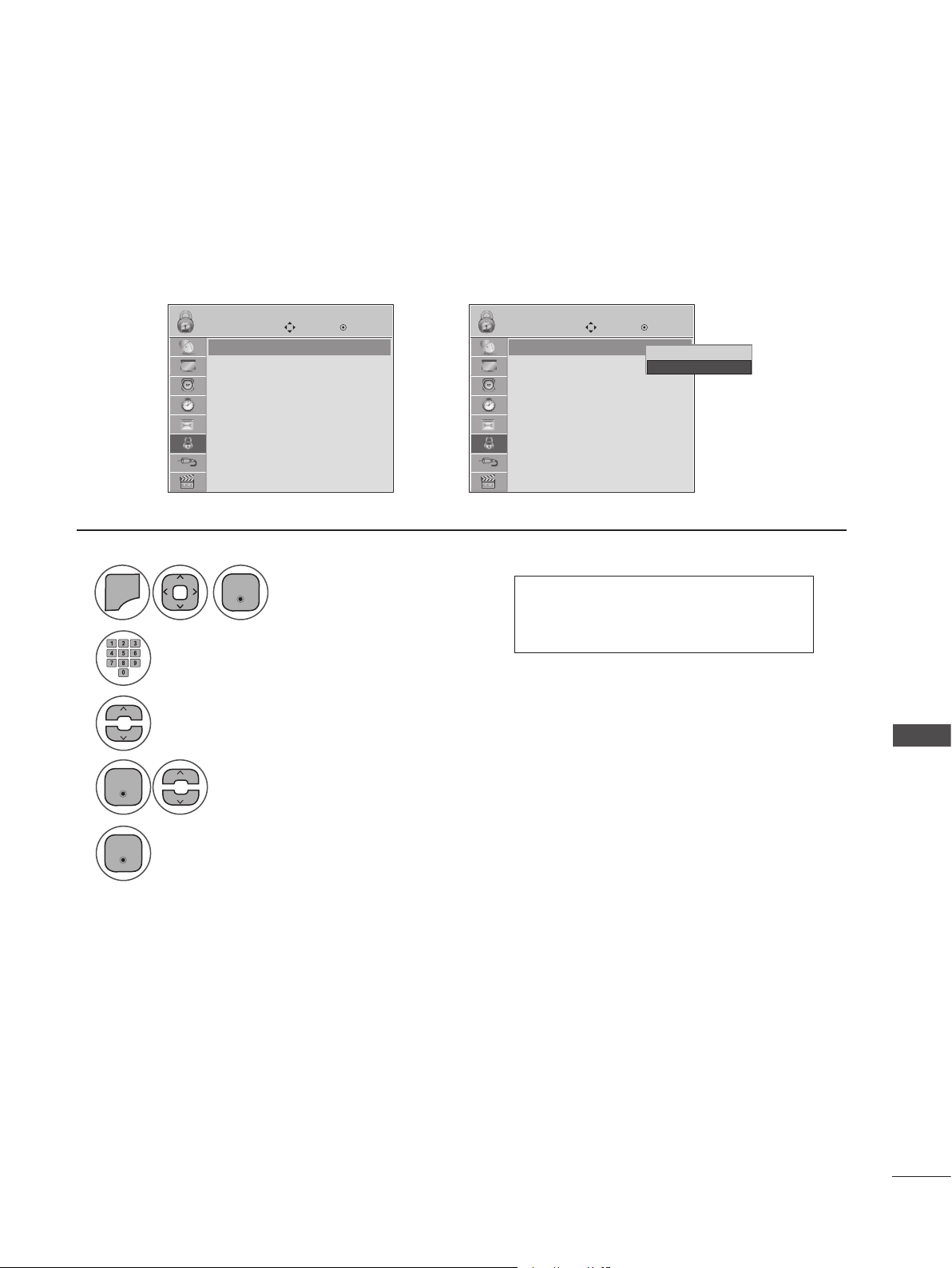
83
PARENTAL CONTROL/RATINGS
Enables or disables the blocking scheme you set up previously.
1
2
3
4
5
MENU
Select Lock System.
Select Lock System.
Input the password.
Select LOCK.
• Press MENU or EXIT to close the menu window.
• Press BACK to move to the previous menu screaen.
• When you select On, the Lock
System is enable.
LOCK LOCK
Move MoveEnter Enter
Lock System : Off
Set Password
Block Channel
Movie Rating
TV Rating-Children
TV Rating-General
Downloadable Rating
Input Block
Lock System : Off
Set Password
Block Channel
Movie Rating
TV Rating-Children
TV Rating-General
Downloadable Rating
Input Block
Lock System
Enter
Enter
Enter
Lock System : Off
Lock System : Off ꔋ
➩
Off
On
On ꔋ
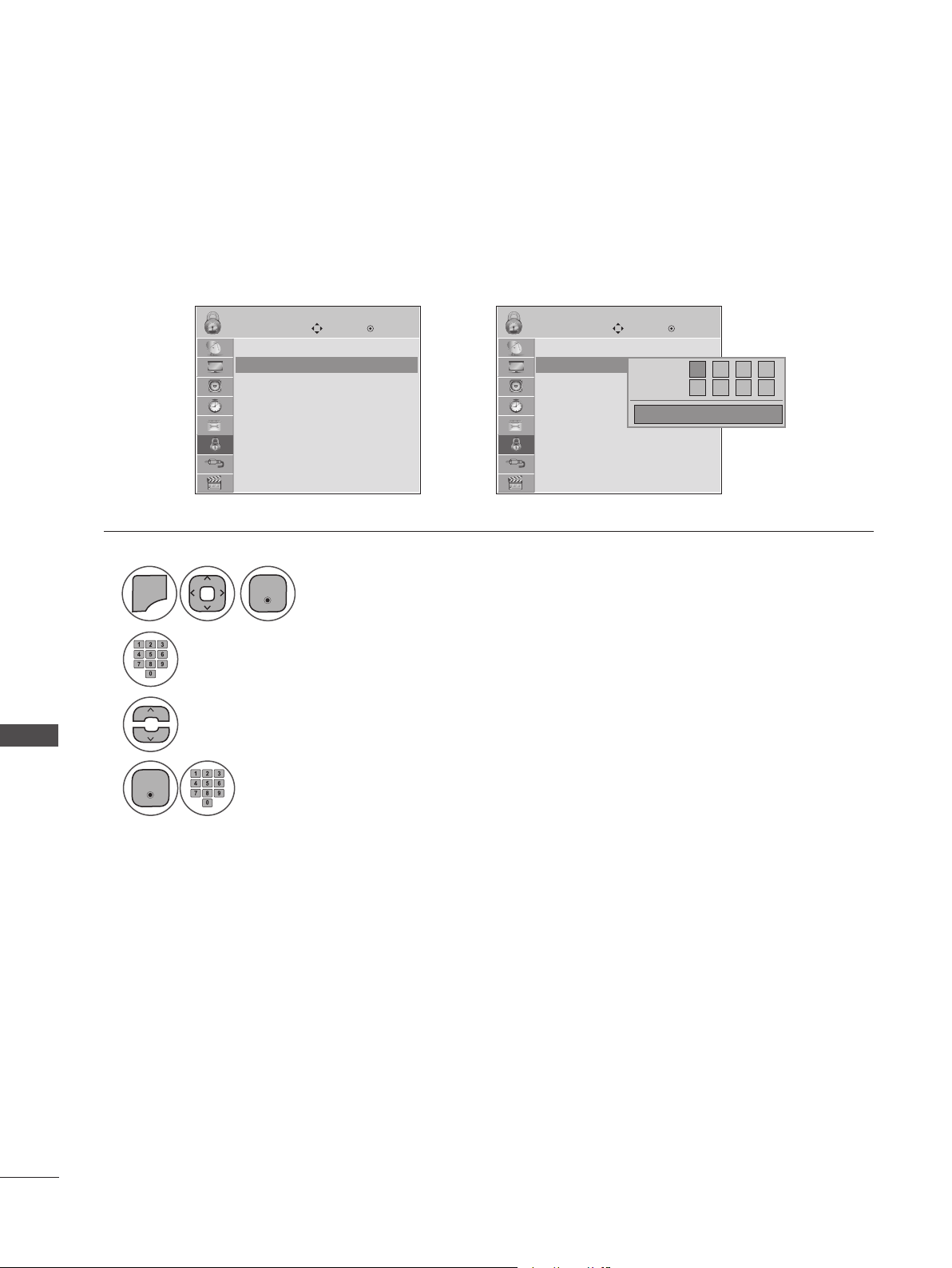
84
PARENTAL CONTROL/RATINGS
PARENTAL CONTROL/RATINGS
Change the password by inputting a new password twice.
1
2
3
4
MENU
Select Set Password.
Choose any 4 digits for your new password.
As soon as the 4 digits are entered, re-enter the same 4 digits in the password
confirmation.
Input the password.
Select LOCK.
• Press MENU or EXIT to close the menu window.
• Press BACK to move to the previous menu screaen.
LOCK LOCK
Move MoveEnter Enter
Lock System : Off
Set Password
Block Channel
Movie Rating
TV Rating-Children
TV Rating-General
Downloadable Rating
Input Block
Lock System : Off
Set Password
Block Channel
Movie Rating
TV Rating-Children
TV Rating-General
Downloadable Rating
Input Block
Set Password
Enter
Enter
Set Password ꔋ Set Password ꔋ
➩
*
**
*
*
*
*
*
New
Confirm
Close
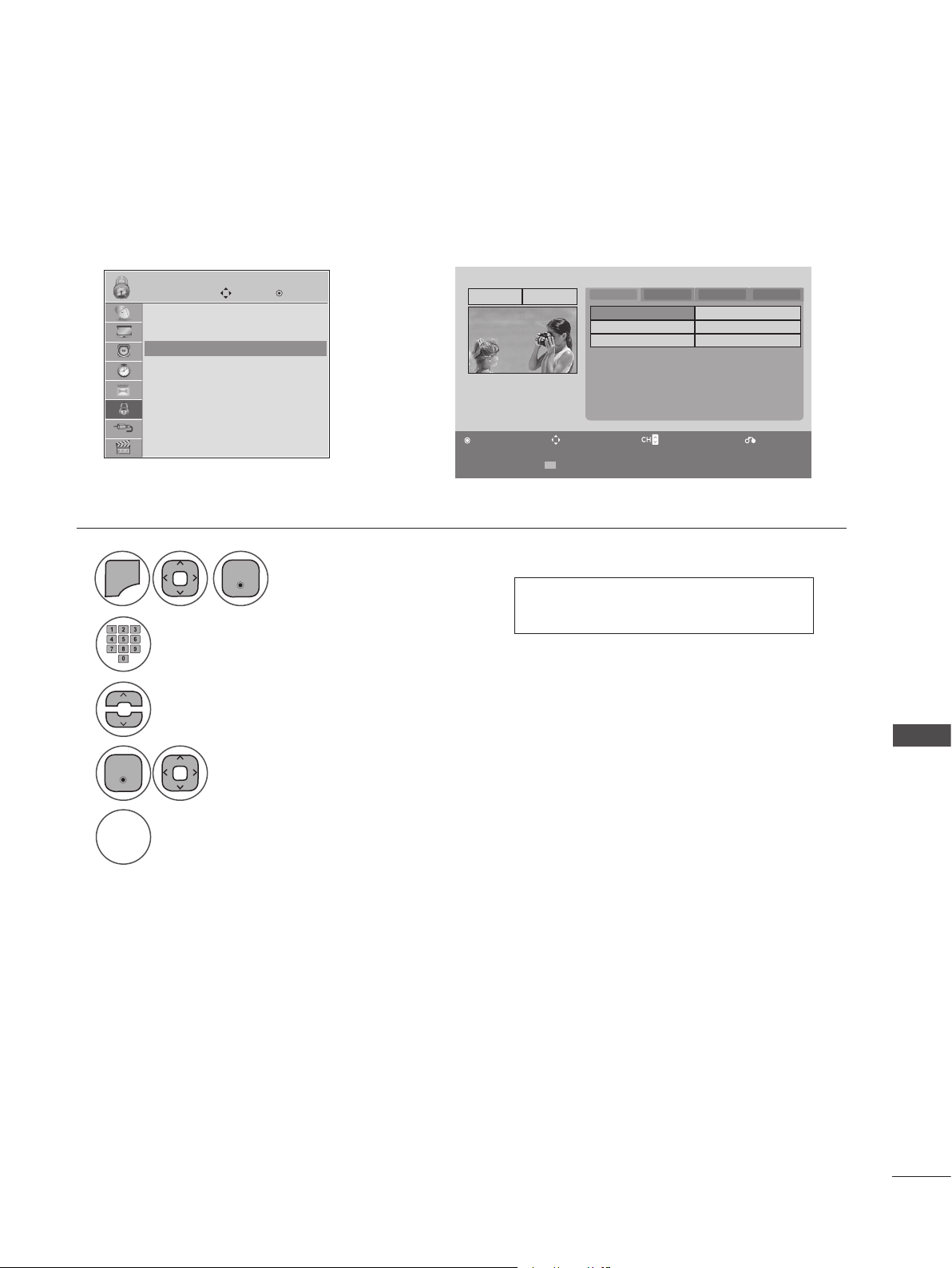
85
PARENTAL CONTROL/RATINGS
This feature blocks any channels that you do not want to watch or that you do not want your children to
watch.
CHANNEL BLOCKING
➩
• Press MENU or EXIT to close the menu window.
• Press BACK to move to the previous menu screaen.
GREEN
1
2
3
4
5
MENU
Select Block Channel.
Select a channel to block or unblock.
Block or unblock a channel.
Input the password.
Select LOCK.
• If a channel is locked, enter the pass-
word to unlock it temporarily.
LOCK
Move Enter
Lock System : Off
Set Password
Block Channel
Movie Rating
TV Rating-Children
TV Rating-General
Downloadable Rating
Input Block
Enter
Enter
Block Channel ꔋ
Ch. Change Navigation Page Change Previous
Block/Unblock
2-1
9-1
11-1
13-5
7-1
13-1
15-1
DTV TV CADTV CATV
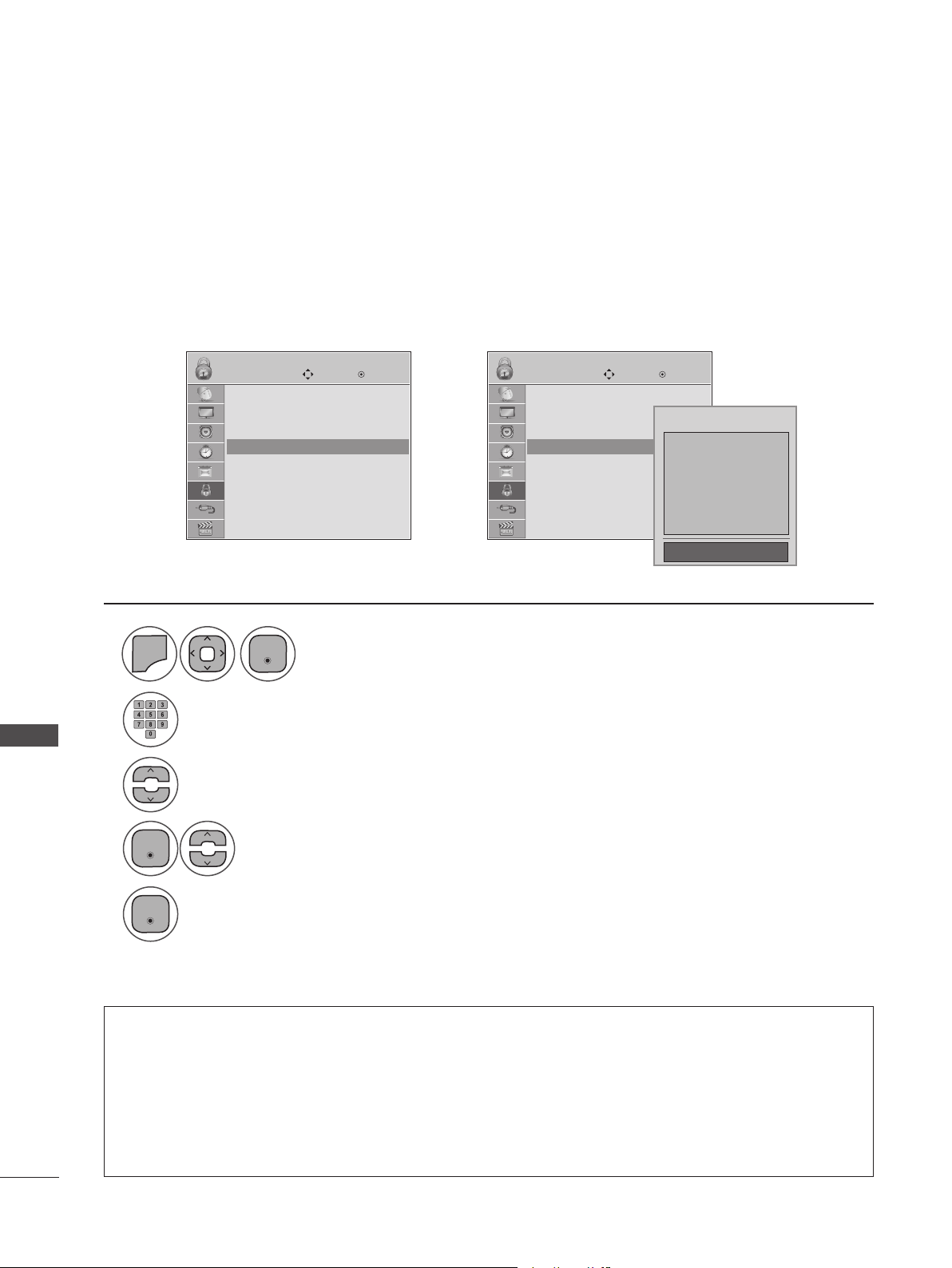
86
PARENTAL CONTROL/RATINGS
PARENTAL CONTROL/RATINGS
Movie Rating (MPAA) - For USA/MEXICO
MOVIE & TV RATINGS
LOCK LOCK
Move MoveEnter Enter
Lock System : Off
Set Password
Block Channel
Movie Rating
TV Rating-Children
TV Rating-General
Downloadable Rating
Input Block
Lock System : Off
Set Password
Block Channel
Movie Rating
TV Rating-Children
TV Rating-General
Downloadable Rating
Input Block
Movie Rating
ꔋ
Movie Rating
ꔋ
➩
G
PG
PG-13
R
NC-17
X
Blocking off : Permits all programs
Blocking Off ꔗ
1
2
3
4
5
MENU
Select Movie Rating.
Select G, PG, PG-13, R, NC-17, X, or Blocking Off.
Input the password.
Select LOCK.
• G (General audiences)
• PG (Parental guidance suggested)
• PG-13 (Parents strongly cautioned)
• R (Restricted)
• NC-17 (No one 17 and under admitted)
• X (Adult only)
• Blocking Off (Permits all programs)
• If you set PG-13: G and PG movies will be available, PG-13, R, NC-17 and X will be blocked.
• If a Movie Rating is locked, enter the password to unlock it temporarily.
Enter
Enter
Enter
• Press MENU or EXIT to close the menu window.
• Press BACK to move to the previous menu screaen.
Movies can be blocked according to the movie ratings limits specified, so children cannot view certain
movies. You can set the ratings limit by blocking out all the movies with the ratings above a specified
level. Keep in mind that the movie ratings limit only applies to movies shown on TV, not TV programs,
such as soap operas.
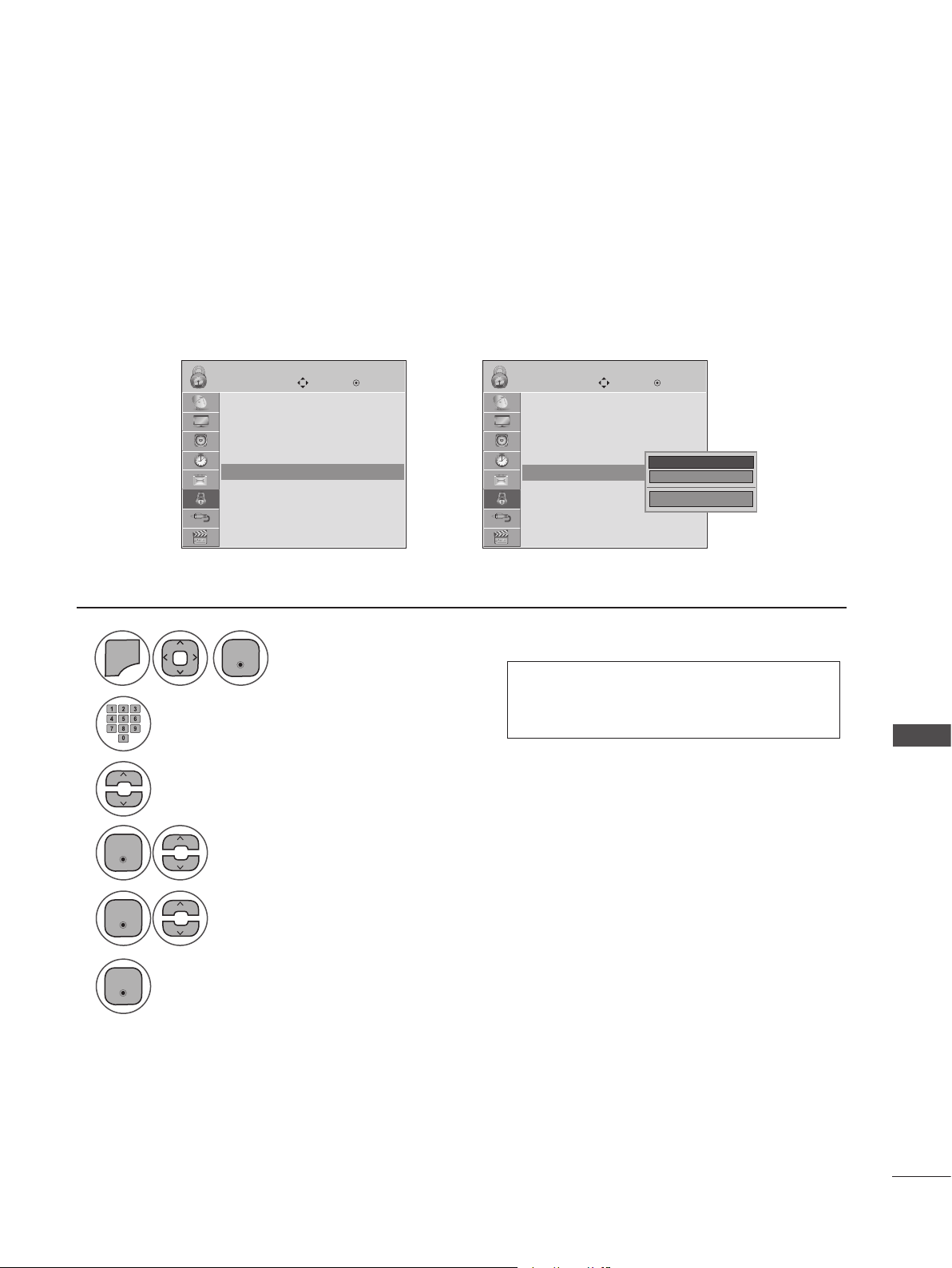
87
PARENTAL CONTROL/RATINGS
TV Ratings Children - For USA/MEXICO
LOCK LOCK
Move MoveEnter Enter
Lock System : Off
Set Password
Block Channel
Movie Rating
TV Rating-Children
TV Rating-General
Downloadable Rating
Input Block
Lock System : Off
Set Password
Block Channel
Movie Rating
TV Rating-Children
TV Rating-General
Downloadable Rating
Input Block
TV Rating-Children ꔋ
TV Rating-Children ꔋ
➩
1
2
3
4
5
6
MENU
Select TV Rating-Children.
Select Age or Fantasy Violence.
Select block options.
Input the password.
Select LOCK.
Enter
Enter
Enter
Enter
• Press MENU or EXIT to close the menu window.
• Press BACK to move to the previous menu screaen.
Certain children's programs can be blocked according to the ratings limit set. The children rating does
not apply to other TV programs. Unless you block certain TV programs intended for mature audiences
in the TV Rating - sub menu, your children can still view these programs.
Age ꔋ
Fantasy Violence
Close
• Age (applies to TV-Y, TV-Y7)
• Fantasy violence (applies to TV-Y7)
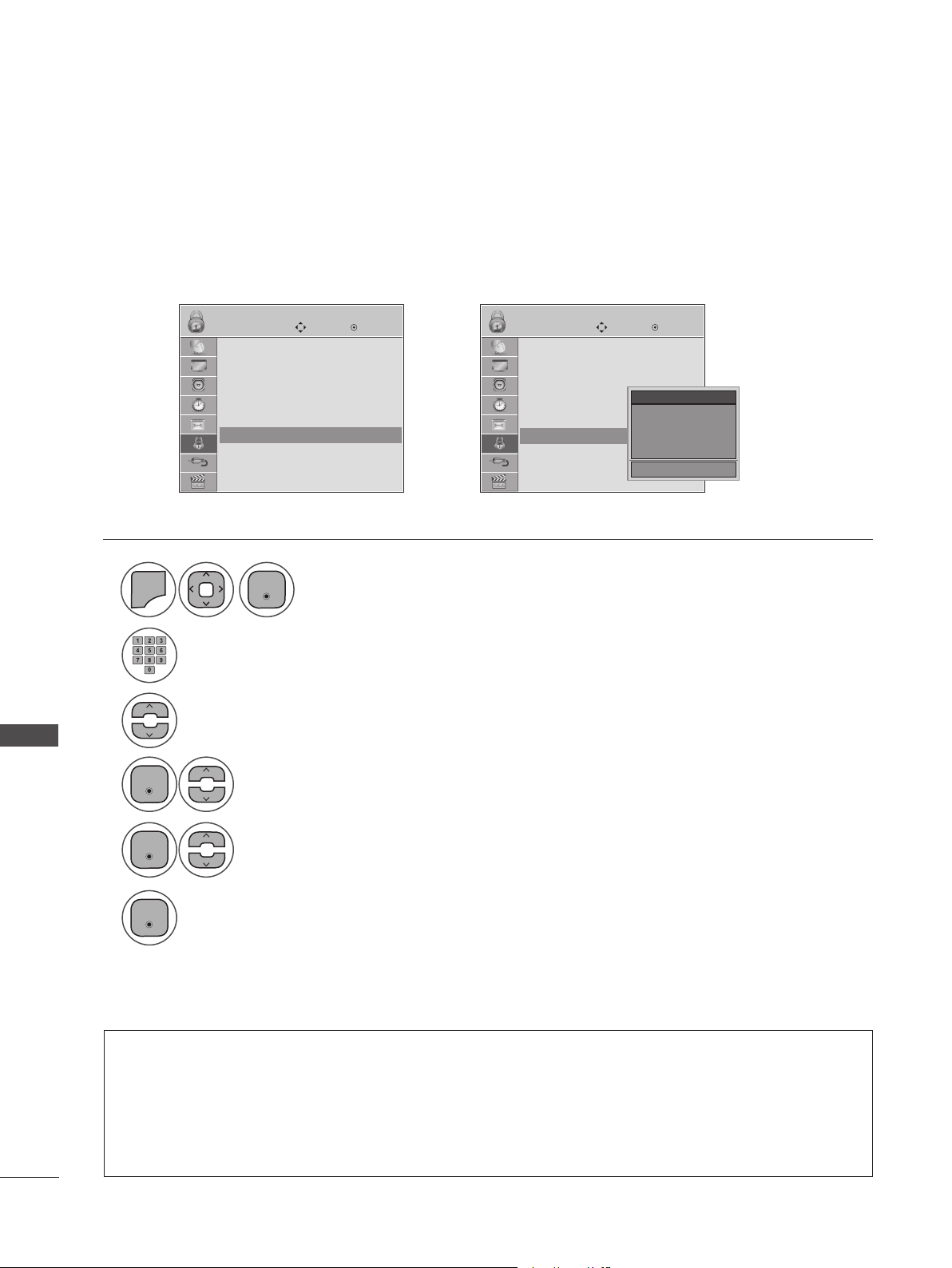
88
PARENTAL CONTROL/RATINGS
PARENTAL CONTROL/RATINGS
TV Ratings General - For USA/MEXICO
LOCK LOCK
Move MoveEnter Enter
Lock System : Off
Set Password
Block Channel
Movie Rating
TV Rating-Children
TV Rating-General
Downloadable Rating
Input Block
Lock System : Off
Set Password
Block Channel
Movie Rating
TV Rating-Children
TV Rating-General
Downloadable Rating
Input Block
TV Rating-General ꔋ
TV Rating-General ꔋ
➩
1
2
3
4
5
6
MENU
Select TV Rating-General.
Select Age, Dialogue, Language, Sex or Violence.
Select block options.
Input the password.
Select LOCK.
Enter
Enter
Enter
Enter
• Press MENU or EXIT to close the menu window.
• Press BACK to move to the previous menu screaen.
Based on the ratings, blocks certain TV programs that you and your family do not want to view.
Age ꔋ
Dialogue
Language
Sex
Violence
Close
• Age (applies to TV-G,TV-PG,TV-14,TV-MA)
• Dialogue-sexual dialogue (applies to TV-PG, TV-14)
• Language-adult language (applies to TV-PG, TV-14, TV-MA)
• Sex-sexual situations (applies to TV-PG, TV-14, TV-MA)
• Violence (applies to TV-PG, TV-14, TV-MA)
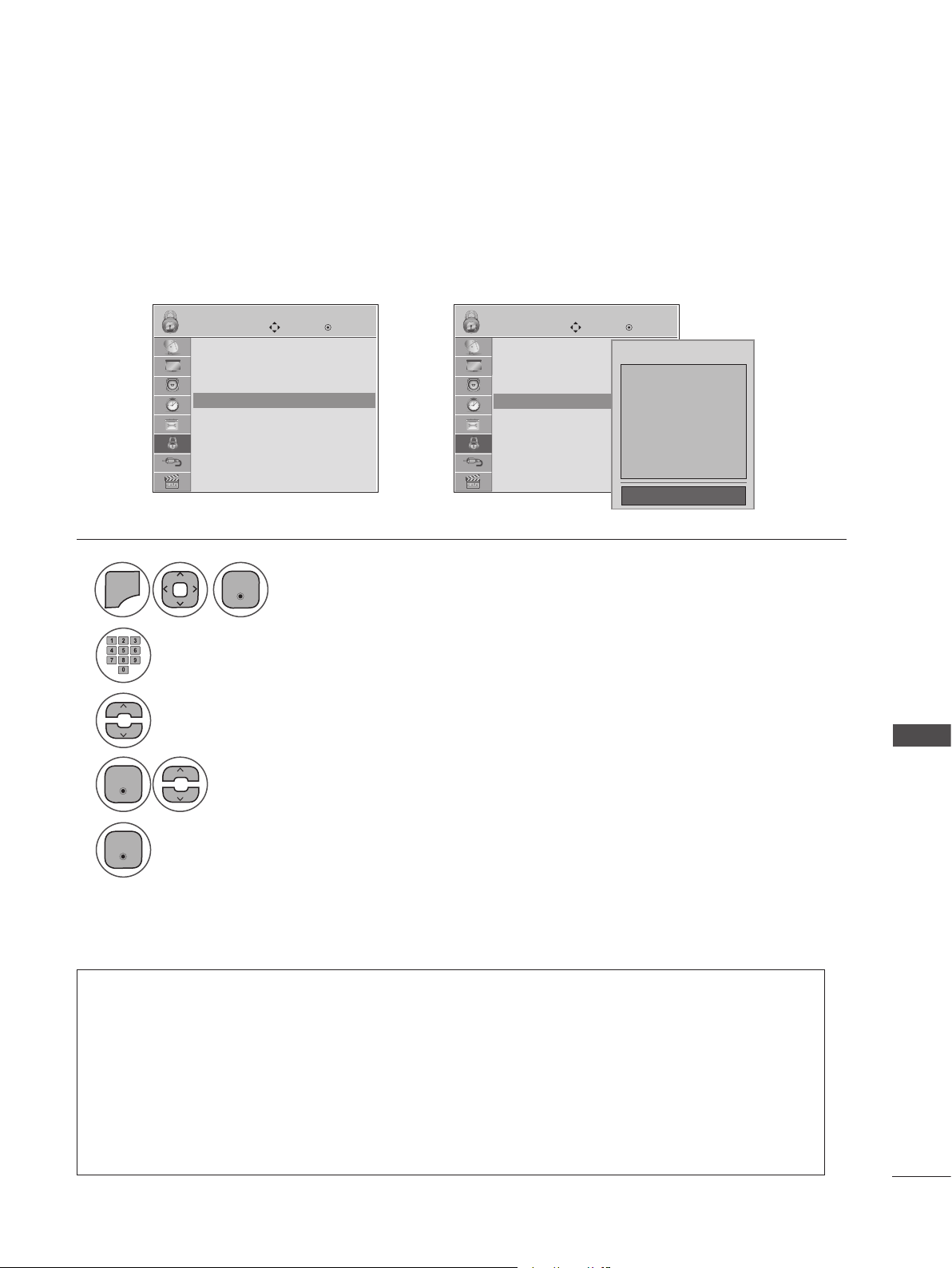
89
PARENTAL CONTROL/RATINGS
TV Ratings English - For CANADA
LOCK LOCK
Move MoveEnter Enter
Lock System : Off
Set Password
Block Channel
TV Rating-English
TV Rating-French
Downloadable Rating
Input Block
Lock System : Off
Set Password
Block Channel
TV Rating-English
TV Rating-French
Downloadable Rating
Input Block
TV Rating-English ꔋ
TV Rating-English ꔋ
➩
1
2
3
4
5
MENU
Select TV Rating-English.
Select E, C, C8+, G, PG, 14+, 18+, or Blocking Off.
Input the password.
Select LOCK.
Enter
Enter
Enter
• Press MENU or EXIT to close the menu window.
• Press BACK to move to the previous menu screaen.
Selecting Canadian English rating system.
E
C
C8+
G
PG
14+
18+
Blocking off : Permits all programs
Blocking Off ꔗ
• If TV Rating-English or TV Rating-French is locked, enter the password to unlock it temporarily.
• E (Exempt)
• C (Children)
• C8+ (Children eight years and older)
• G (General programming, suitable for all audiences)
• PG (Parental Guidance)
• 14+ (Viewers 14 years and older)
• 18+ (Adult programming)
• Blocking Off (Permits all programs)
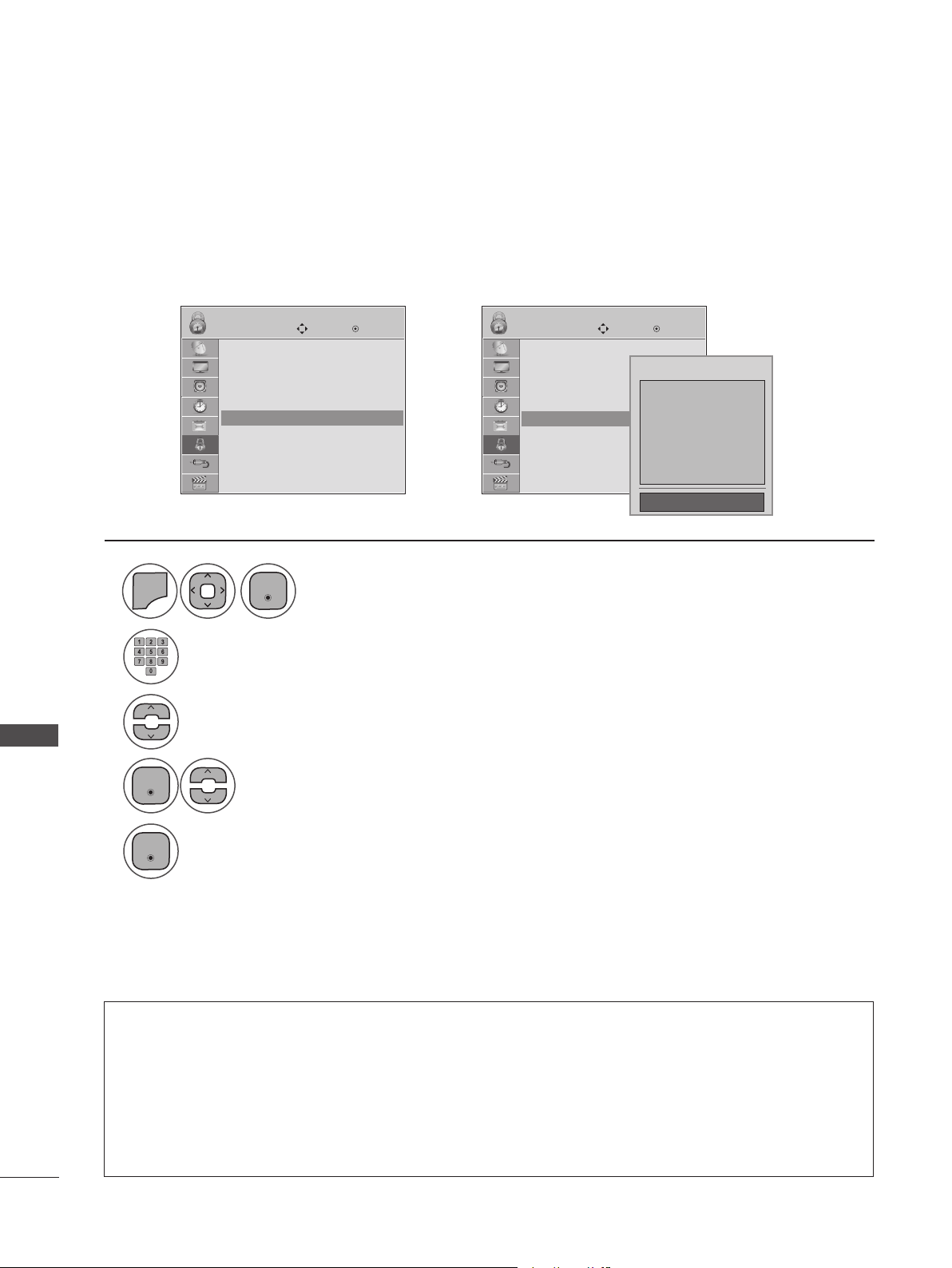
90
PARENTAL CONTROL/RATINGS
PARENTAL CONTROL/RATINGS
TV Ratings French - For CANADA
LOCK LOCK
Move MoveEnter Enter
Lock System : Off
Set Password
Block Channel
TV Rating-English
TV Rating-French
Downloadable Rating
Input Block
Lock System : Off
Set Password
Block Channel
TV Rating-English
TV Rating-French
Downloadable Rating
Input Block
TV Rating-French ꔋ
TV Rating-French ꔋ
➩
1
2
3
4
5
MENU
Select TV Rating-French.
Select E, G, 8ans+, 13ans+, 16ans+, 18ans+, or Blocking off.
Input the password.
Select LOCK.
Enter
Enter
Enter
• Press MENU or EXIT to close the menu window.
• Press BACK to move to the previous menu screaen.
Selecting Canadian French rating system.
E
G
8ans+
13ans+
16ans+
18ans+
Blocking off : Permits all programs
Blocking Off ꔗ
• E (Exempt)
• C (Children)
• C8+ (General-not suitable for little children)
• 13ans+ (Not suitable for children of 13 years and younger)
• 16ans+ (Not suitable for children of 16 years and younger)
• 18ans+ (These programs are only for adults)
• Blocking Off (Permits all programs)
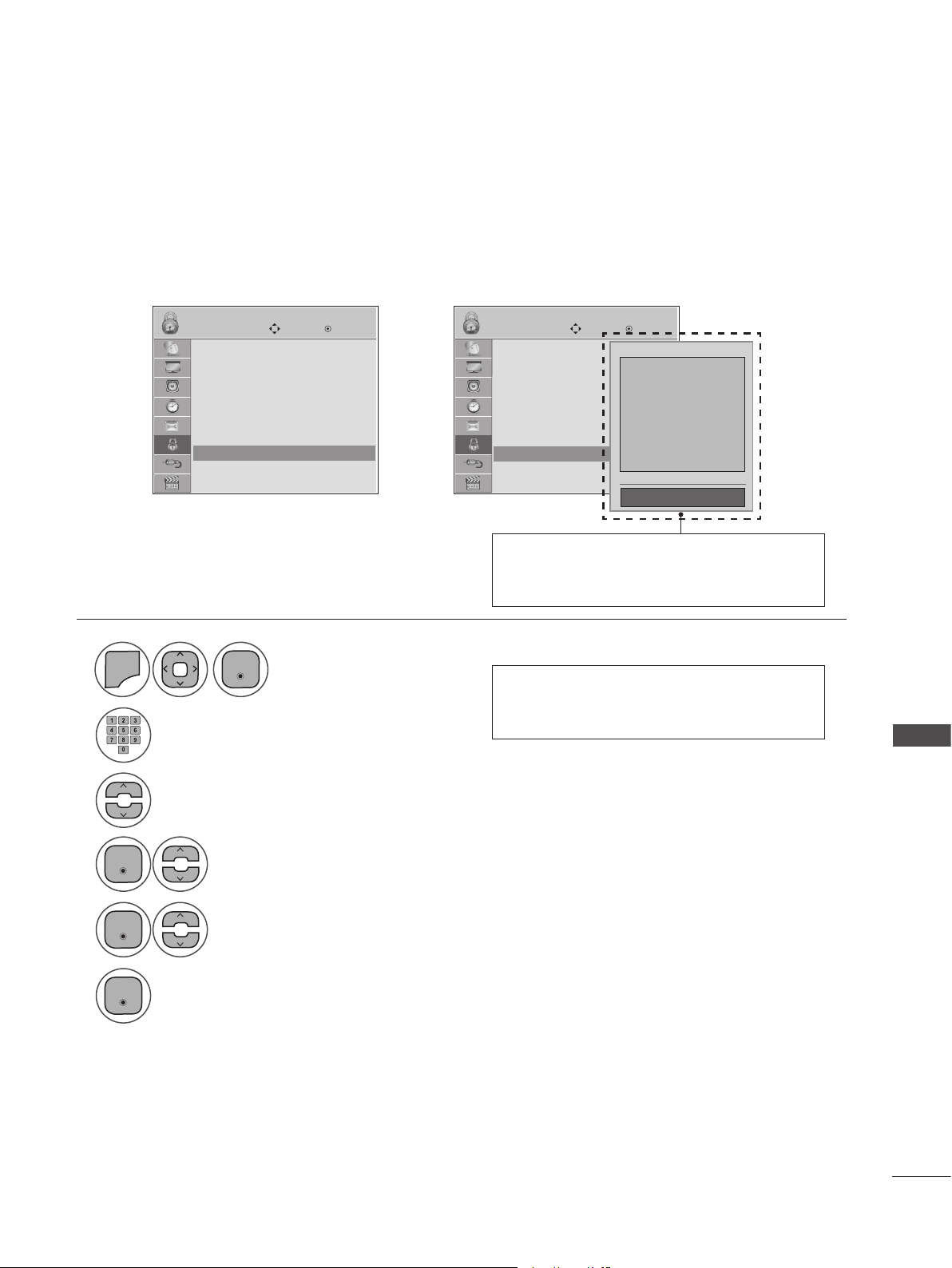
91
PARENTAL CONTROL/RATINGS
LOCK LOCK
Move MoveEnter Enter
Lock System : Off
Set Password
Block Channel
Movie Rating
TV Rating-Children
TV Rating-General
Downloadable Rating
Input Block
Lock System : Off
Set Password
Block Channel
Movie Rating
TV Rating-Children
TV Rating-General
Downloadable Rating
Input Block
Downloadable Rating ꔋ
Downloadable Rating ꔋ
➩
1
2
3
4
5
6
MENU
Select Downloadable Rating.
Select Downloadable Rating option.
Select desired option and block it.
Input the password.
Select LOCK.
Enter
Enter
Enter
Enter
• Press MENU or EXIT to close the menu window.
• Press BACK to move to the previous menu screaen.
Downloadable ratings are only available for digital channels and operate only when TV has received
Region 5 rating data
DOWNLOADABLE RATINGS
• Based on ratings tables, your TV's OSD
(On-Screen Display) may differ slightly
from what is shown in this manual.
• If a downloadable rating is locked, enter
the password to unlock it temporarily.
Humor
Sport
Cruelty
Language
Sadness
Genre
Age
Close
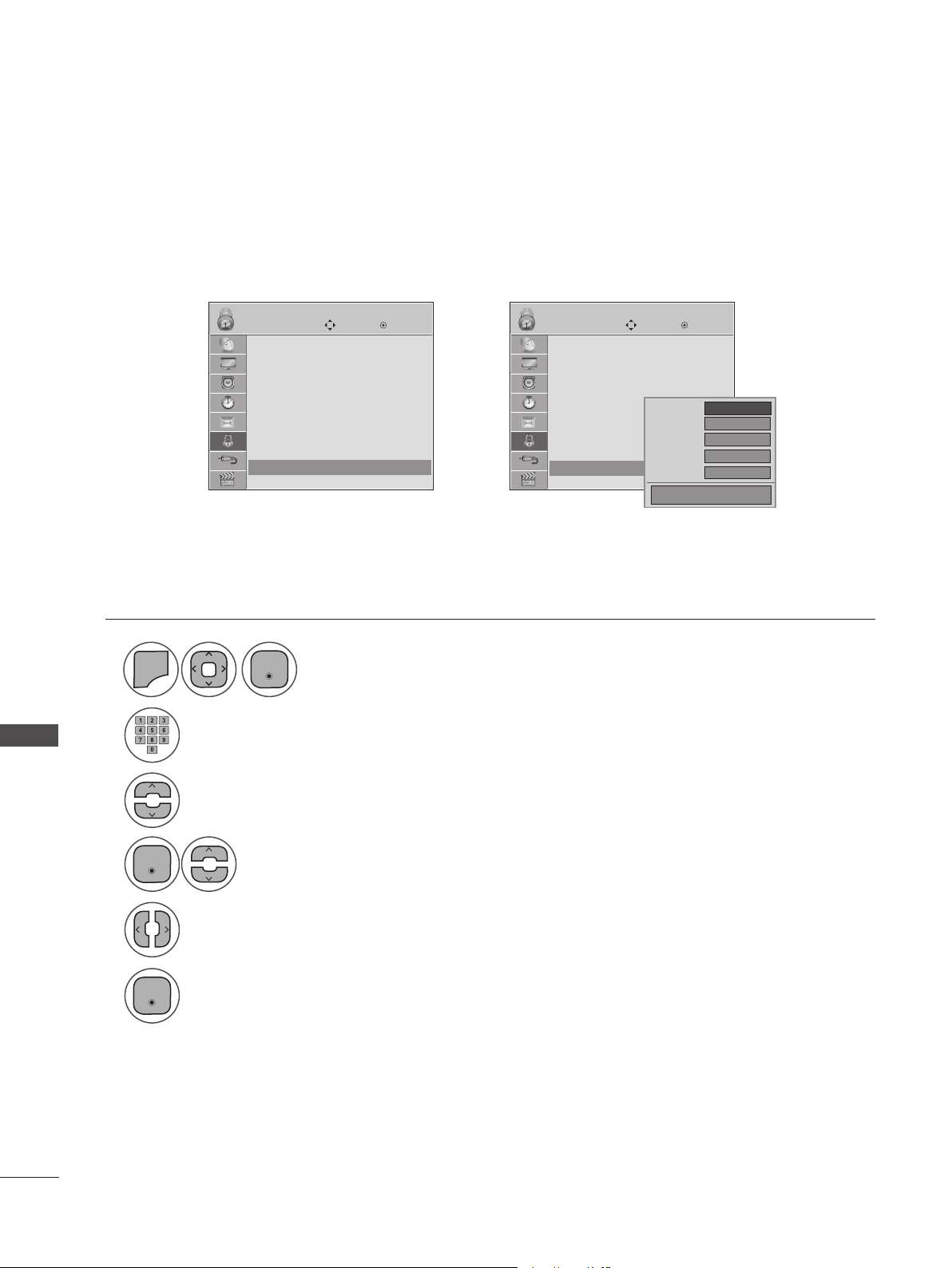
92
PARENTAL CONTROL/RATINGS
PARENTAL CONTROL/RATINGS
LOCK LOCK
Move MoveEnter Enter
Lock System : Off
Set Password
Block Channel
Movie Rating
TV Rating-Children
TV Rating-General
Downloadable Rating
Input Block
Lock System : Off
Set Password
Block Channel
Movie Rating
TV Rating-Children
TV Rating-General
Downloadable Rating
Input Block
Input Block ꔋ
Input Block ꔋ
➩
1
2
3
4
5
6
MENU
Select Input Block.
Select input source.
Select On or Off.
Input the password.
Select LOCK.
Enter
Enter
Enter
• Press MENU or EXIT to close the menu window.
• Press BACK to move to the previous menu screaen.
Enables you to block an input.
EXTERNAL INPUT BLOCKING
◄ Off ►
Off
Off
Off
Off
AV
Component
RGB-PC
HDMI1
HDMI2
Close
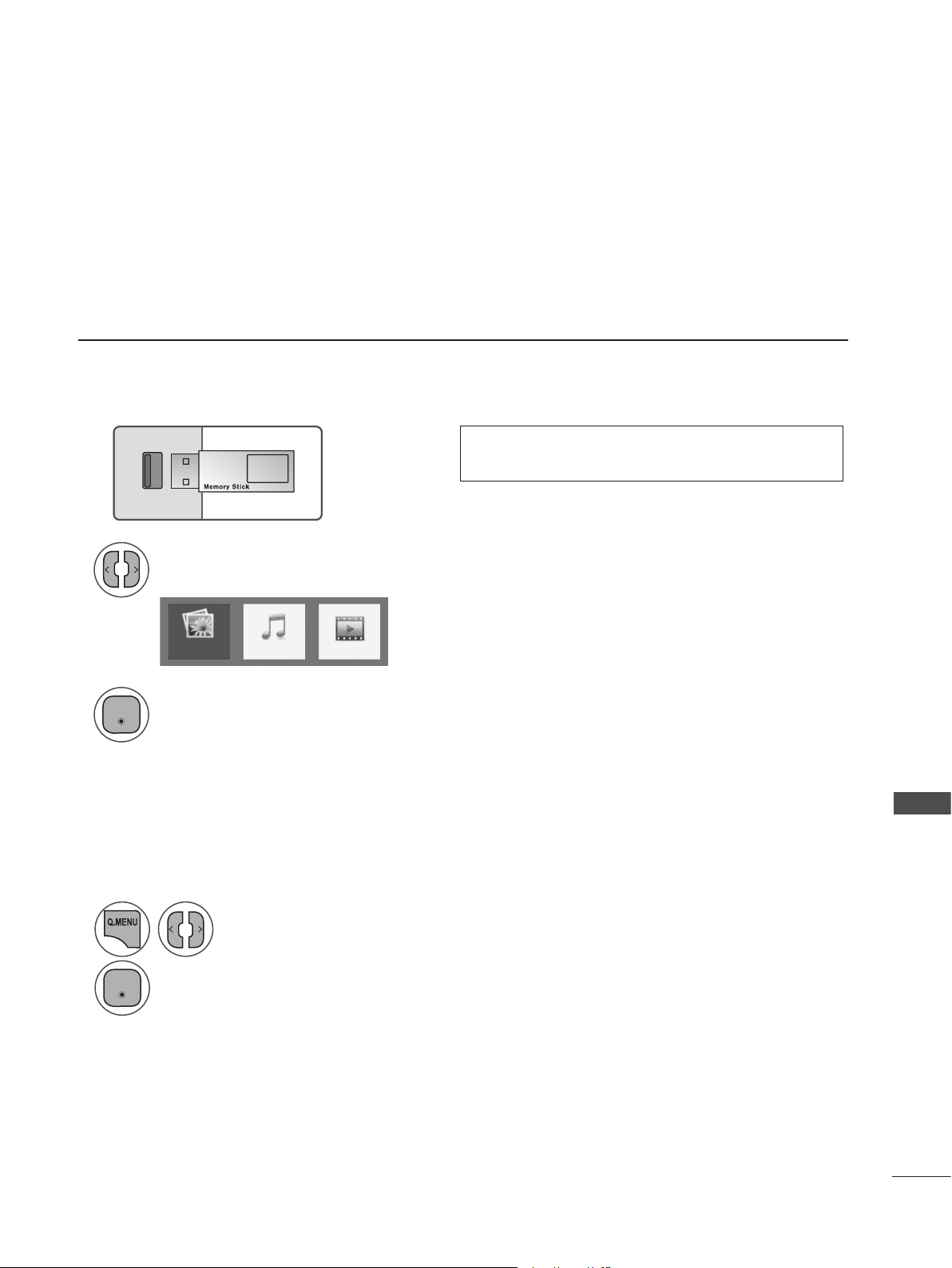
93
USING USB DEVICES
USING USB DEVICES
ENTRY MODES
When you connect a USB device, this pop-up menu is displayed automatically. If the pop-up menu
does not appear, you can manually select Photo List, Music List or Movie List in the USB menu. On a
USB device, you cannot add new folders or delete an existing folders.
Select the USB device menu before removing the USB device.
1
2
3
Select PHOTO LIST, MUSIC LIST or MOVIE LIST.
Connect the USB device to the USB jack on
the back of the SET.
Removing USB Devices
PHOTO LIST
MUSIC LIST
MOVIE LIST
• This set supports JPG, MP3 and HD DivX file
types.
1
2
Select USB Device.
Select Eject.
USB IN
Enter
Enter
94
USING USB DEVICES
USING USB DEVICES
USB Device Precautions
►Only a USB storage device is recognizable.
►If the USB storage device is connected through a USB hub, the device is not recognizable.
►A USB storage device using an automatic recognition program may not be recognized.
►A USB storage device that uses its own driver may not be recognized.
►The recognition speed of a USB storage device may depend on each device.
►Please do not turn off the MONITOR or unplug the USB device when the connected USB storage
device is working. When such device is suddenly separated or unplugged, the stored files or the
USB storage device may be damaged.
►Do not connect a USB storage device that has been artificially written to on the PC. The device
may cause the monitor to malfunction or fail to be played. Never forget to use only a USB storage
device that has normal music files or image files.
►Please use only a USB storage device that was formatted as a FAT16, FAT32, NTFS file system
provided with the Windows operating system. If a storage device has been formatted as a different
utility program that is not supported by Windows, it may not be recognized. Data on a USB storage
device cannot be deleted in the NTFS file system.
►Please connect power to a USB storage device that requires an external power supply. If not, the
device may not be recognized.
►Please connect a USB storage device with the cable provided by the USB maker. If connected with
an aftermarket cable or an excessively long cable, the device may not be recognized.
►Some USB storage devices may not be supported or operate smoothly.
►A maximum of 999 files and folders can be recognized.
►Data on a USB storage device cannot be aligned. Up to 128 English characters can be recognized
as a file name.
►Please back up important files because data on the USB device may be damaged. Data manage-
ment is solely the consumer's responsibility and the manufacturer does not cover the product
bearing data damage.
►If the USB is connected in Standby Mode, the device will automatically be loaded when the mon-
itor is turned on.
►The recommended capacity is 1TB or less for an external USB hard disk and 32GB or less for USB
memory.
►Any device with more than the recommended capacity may not work properly.
►If an external USB hard disk with a “Power Saving” function does not work, turn the hard disk off
and on again to make it work properly.
►USB storage devices below USB 2.0 are supported, but they may not work properly in the movie
list.
►When using a USB HDD via a USB extension cable, connect it to a supported power source.
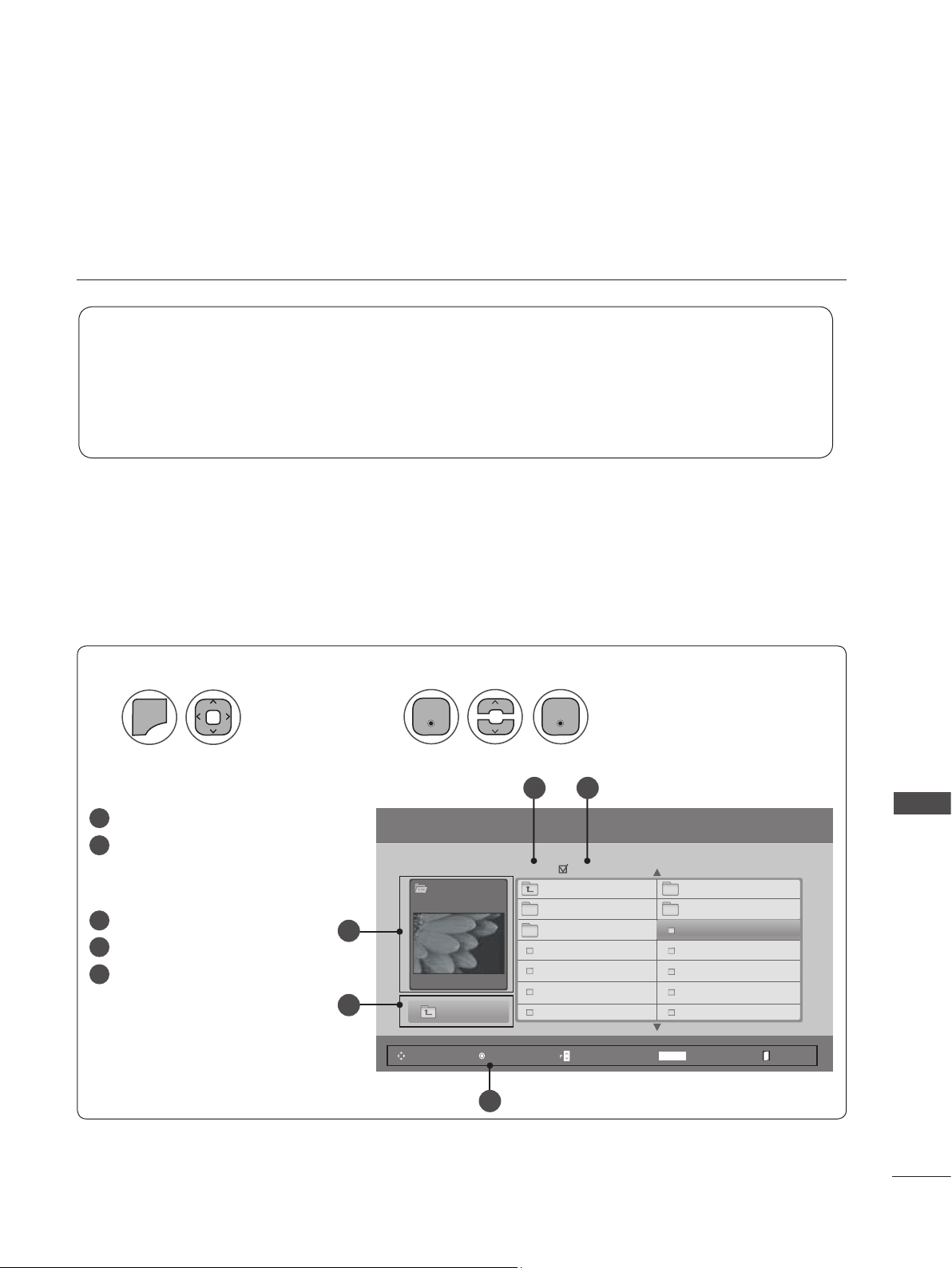
95
USING USB DEVICES
You can only view .JPG files from USB storage devices. The on-Screen display on your model may be
slightly different.
Moves to upper level folder
Preview: Displays the thumbnail/
folder name of the photo in the
selected folder
Current page/total pages
Total number of marked photos.
Corresponding buttons on the
remote control.
PHOTO LIST
Screen Components
Supported photo file type: *.JPG
• You can view JPG files only.
• Only baseline scan JPGs are supported.
• Available JPG file size: 64 pixel (width) x 64 pixel (height) to 15360 pixel (width) x 8640 pixel
(height)
1
2
MENU
Select Photo List.
Select USB.
1
2
3
4
5
1
5
3
2
4
Photo List
Page 2/3
Drive1
SGKIM001
1366x768, 125KB
Up Folder
Up Folder
SG101 04/01/2010
SG102 04/01/2010
SGKIM001 04/01/2010
SGKIM002 04/01/2010
SGKIM003 04/01/2010
SGKIM004 04/01/2010
SG103 04/01/2010
SG104 04/01/2010
SGKIM005 04/01/2010
SGKIM007 04/01/2010
SGKIM008 04/01/2010
SGKIM009 04/01/2010
SGKIM010 04/01/2010
No Marked
Popup MenuNavigation MarkPage Change Exit
MARK
Enter Enter
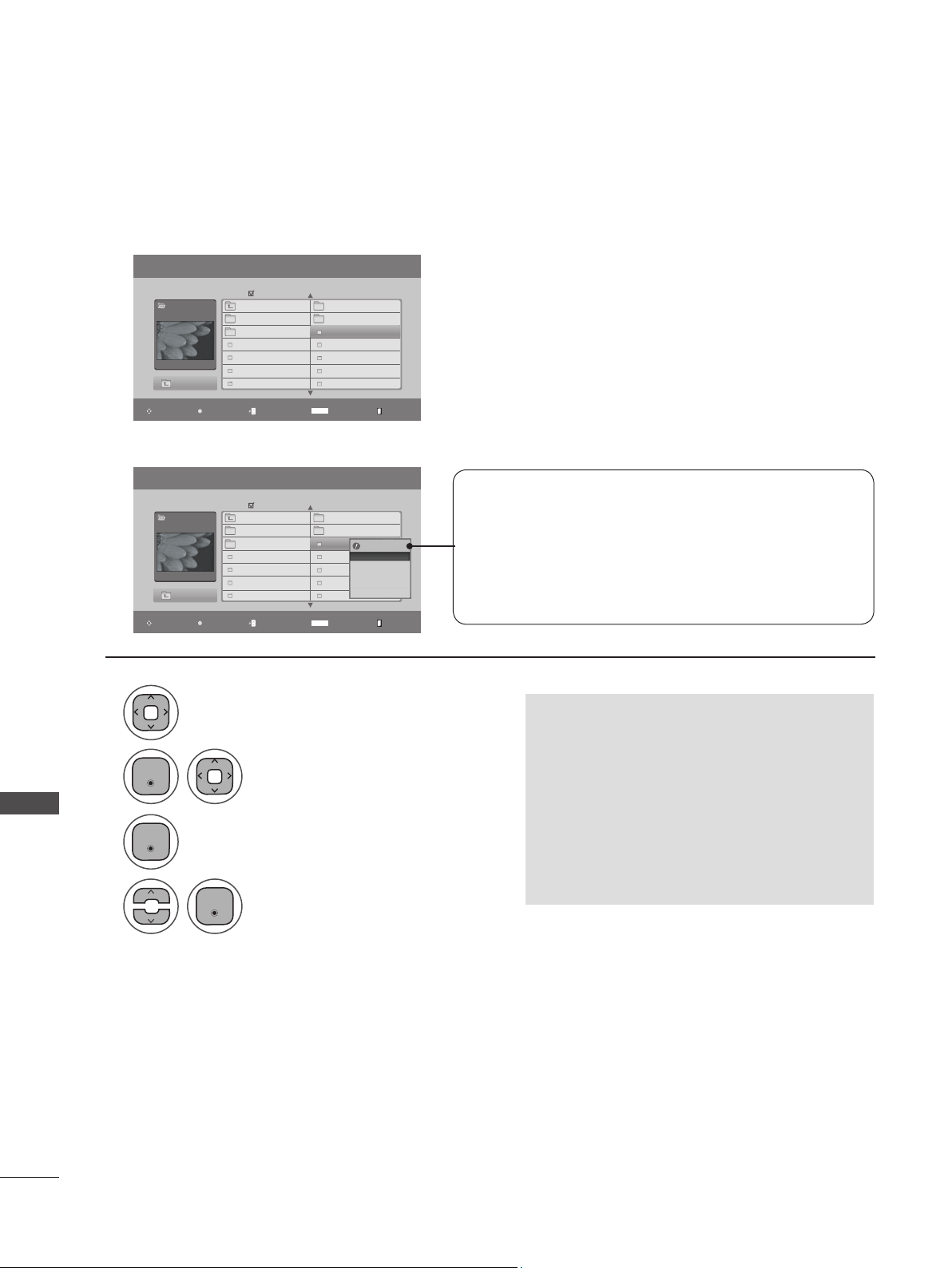
96
USING USB DEVICES
USING USB DEVICES
Photo List
Page 2/3
Drive1
SGKIM001
1366x768, 125KB
Up Folder
Up Folder
SG101 04/01/2010
SG102 04/01/2010
SGKIM001 04/01/2010
SGKIM002 04/01/2010
SGKIM003 04/01/2010
SGKIM004 04/01/2010
SG103 04/01/2010
SG104 04/01/2010
SGKIM005 04/01/2010
SGKIM007 04/01/2010
SGKIM008 04/01/2010
SGKIM009 04/01/2010
SGKIM010 04/01/2010
No Marked
Popup MenuNavigation MarkPage Change Exit
MARK
When you select a file (not folder), this Pop-up menu
is displayed.
► View: Display the selected item.
► Mark All: Mark all photos on the screen.
► Unmark All: Deselect all marked photos.
► Delete or Delete Marked: Delete the selected photo item.
► Close: Close the Pop-up menu.
Photo Selection and Pop-up Menu
➩
1366x768, 125KB
View ꔋ
Mark All
Delete
Close
1
2
3
4
Select the desired photos.
Show the Pop-up menu.
Select the desired Pop-up menu.
Select the target folder or drive.
• Press BACK to move to the previous menu screen.
• Use CH ꕭꕮ to navigate in the photo
page.
• Use MARK to mark or unmark a photo.
When one or more photos are marked,
you can view individual photos or a slide
show of the marked photos. If no photos
are marked, you can view all photos indi-
vidually or all photos in the folder in a
slide show.
Photo List
Page 2/3
Drive1
SGKIM001
1366x768, 125KB
Up Folder
Up Folder
SG101 04/01/2010
SG102 04/01/2010
SGKIM001 04/01/2010
SGKIM002 04/01/2010
SGKIM003 04/01/2010
SGKIM004 04/01/2010
SG103 04/01/2010
SG104 04/01/2010
SGKIM005 04/01/2010
SGKIM007 04/01/2010
SGKIM008 04/01/2010
SGKIM009 04/01/2010
SGKIM010 04/01/2010
No Marked
Popup MenuNavigation MarkPage Change Exit
MARK
Enter
Enter
Enter
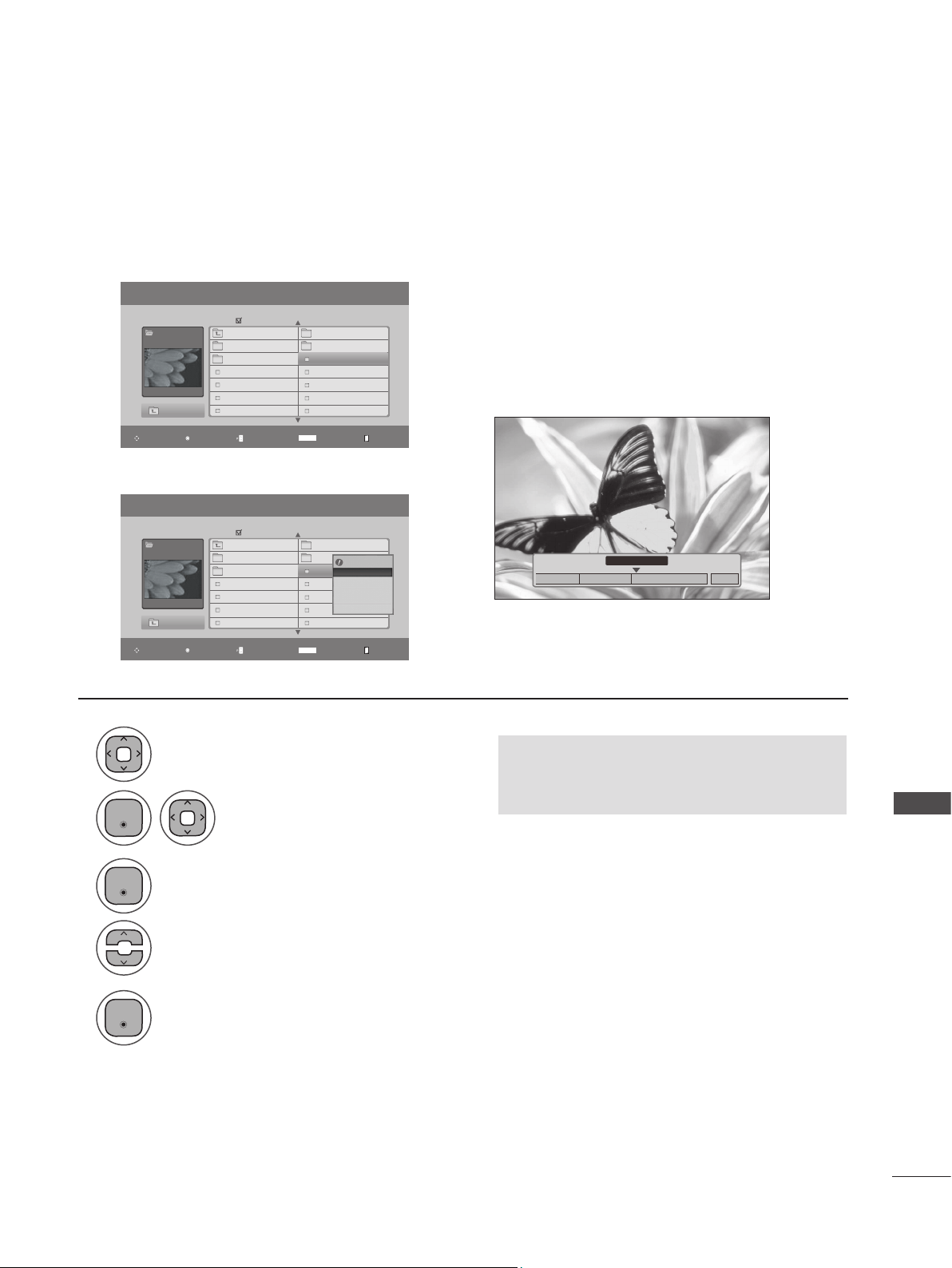
97
USING USB DEVICES
Photo List
Page 2/3
Drive1
SGKIM001
1366x768, 125KB
Up Folder
Up Folder
SG101 04/01/2010
SG102 04/01/2010
SGKIM001 04/01/2010
SGKIM002 04/01/2010
SGKIM003 04/01/2010
SGKIM004 04/01/2010
SG103 04/01/2010
SG104 04/01/2010
SGKIM005 04/01/2010
SGKIM007 04/01/2010
SGKIM008 04/01/2010
SGKIM009 04/01/2010
SGKIM010 04/01/2010
No Marked
Popup MenuNavigation MarkPage Change Exit
MARK
Full Screen Menu
1366x768, 125KB
View ꔋ
Mark All
Delete
Close
➩
1
2
3
5
4
Select the desired photos.
Show the Pop-up menu.
Select View.
The selected photo is displayed in full size.
Select the target folder or drive.
• Press BACK to move to the previous menu screen.
• Use CH ꕭꕮ to navigation in the photo
page.
You can change the Photo List view so that it fills the screen. More operations are available in full
screen mode.
The aspect ratio of a photo may change the
size of the photo displayed on the screen in full
size. Press BACK to move to the previous
menu screen.
◄ 1/17 ►
Slideshow ꘡ BGM ꘡
Delete Option Hide
꘤
➩
Photo List
Page 2/3
Drive1
SGKIM001
1366x768, 125KB
Up Folder
Up Folder
SG101 04/01/2010
SG102 04/01/2010
SGKIM001 04/01/2010
SGKIM002 04/01/2010
SGKIM003 04/01/2010
SGKIM004 04/01/2010
SG103 04/01/2010
SG104 04/01/2010
SGKIM005 04/01/2010
SGKIM007 04/01/2010
SGKIM008 04/01/2010
SGKIM009 04/01/2010
SGKIM010 04/01/2010
No Marked
Popup MenuNavigation MarkPage Change Exit
MARK
Enter
Enter
Enter
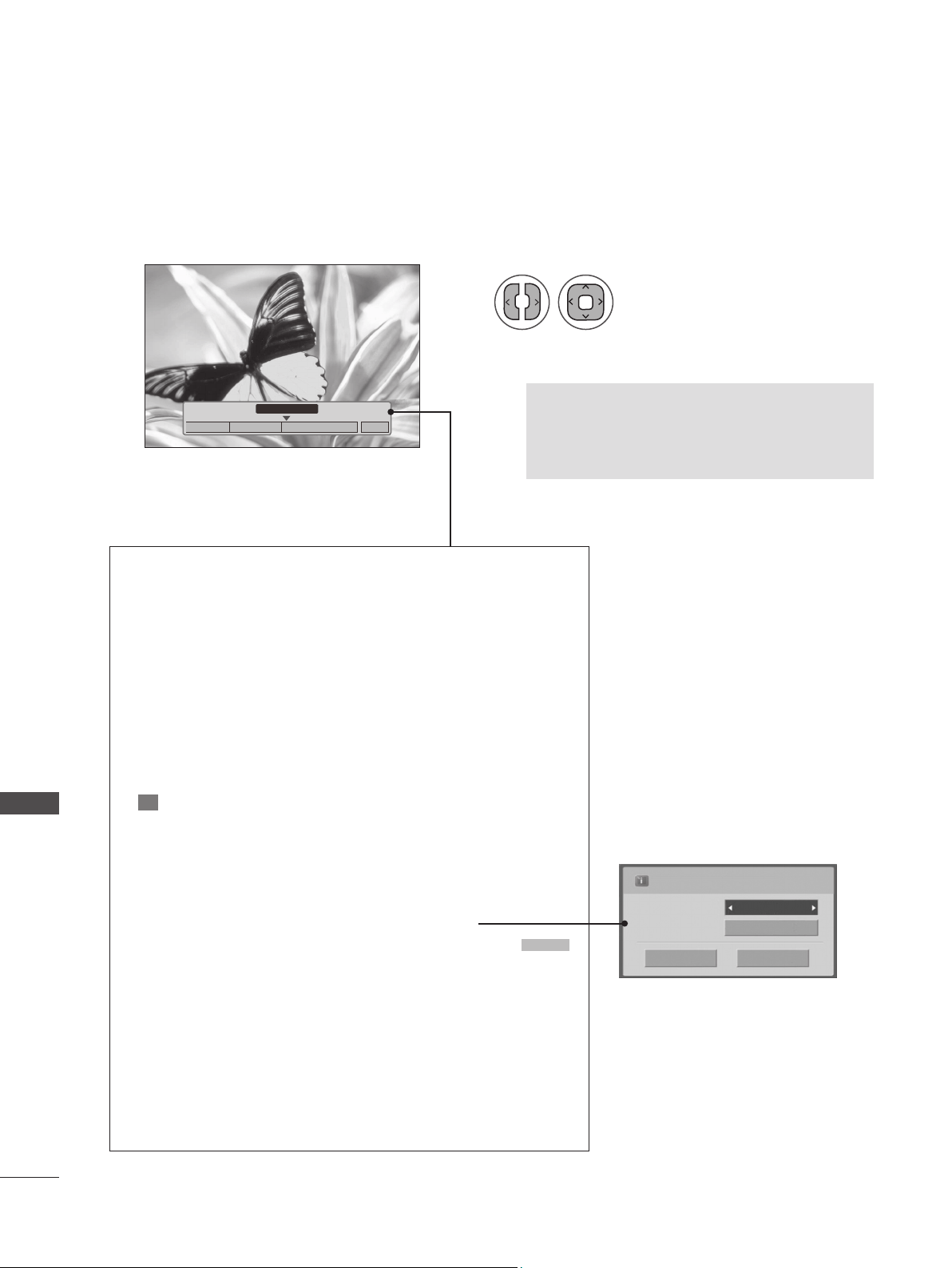
98
USING USB DEVICES
USING USB DEVICES
◄ 1/17 ►
Slideshow ꘡ BGM ꘡
Delete Option Hide
꘤
6
Select the Slideshow , BGM,
꘤(Rotate), Delete , Option or Hide.
• Use < > to select the previous or next
photo.
• Use ꕭꕮ< > to select and control the menu
on the full-sized screen.
► Slideshow : Selected photos are displayed during the slide show. If no
photo is selected, all photos in the current folder are displayed during
slide show.
■ Set the time interval of the slide show in Option.
► BGM: Listen to music while viewing photos in full-size..
■ Set the BGM device and album in Option.
►
꘤
(Rotate): Rotate photos.
■ Rotates the photo 90°, 180°, 270°, 360° clockwise.
► Delete: Delete photos.
► Option: Set values for Slide Speed and Music Album.
■ Use ꕭꕮ < > and ENTER to set values Then go to
Enter
and press ENTER to save the settings.
■ You cannot change the Music Album while BGM is playing.
► Hide: Hide the menu on the full-sized screen.
■ To see the menu again on the full-sized screen, press
ENTER to display.
Press ◀▶ to set the time interval between slides.
Slide Speed
Music aalbum
Fast
...
Enter Cancel
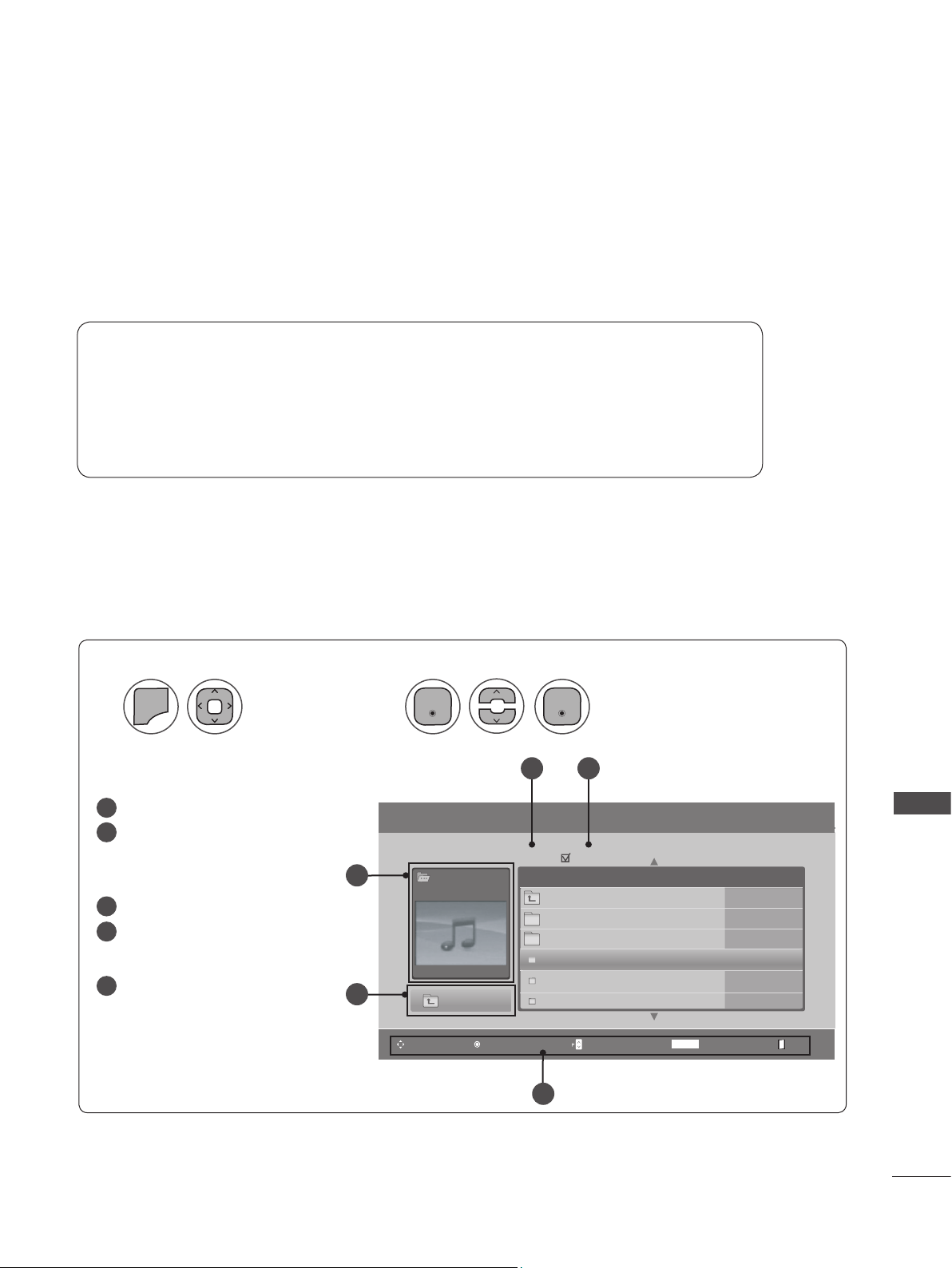
99
USING USB DEVICES
You can use the Music List menu to play MP3 files from a USB storage device. This set cannot play back
copy-protected files. The on-screen display on your model may be slightly different.
MUSIC LIST
Screen Components
Supported music file type: *.MP3
Bit rate range 32 kbps to 320 kbps
• Sampling rate MPEG1 Layer3: 32kHz, 44.1kHz, 48kHz
• Sampling rate MPEG2 Layer3: 16kHz, 22.05kHz, 24kHz
• Sampling rate MPEG2.5 Layer3: 8kHz, 11.025kHz, 12kHz
Music List
Page 2/3
Music
SGKIM003
00:00/01:34
Up Folder
Title Duration
No Marked
Moves to upper level folder
Preview: If any album jacket for
the file exists, this jacket is dis-
played
Current page/total pages
Total number of marked music
files
Corresponding buttons on the
remote control
1
2
MENU
Select Music List.
Select USB.
1
2
3
4
5
Popup MenuNavigation Mark ExitPage Change
MARK
Up Folder
SGKIM001
SGKIM002
SGKIM003
SGKIM004
SGKIM005
03:33
04:45
01:30
02:37
01:58
2
1
5
3 4
Enter Enter
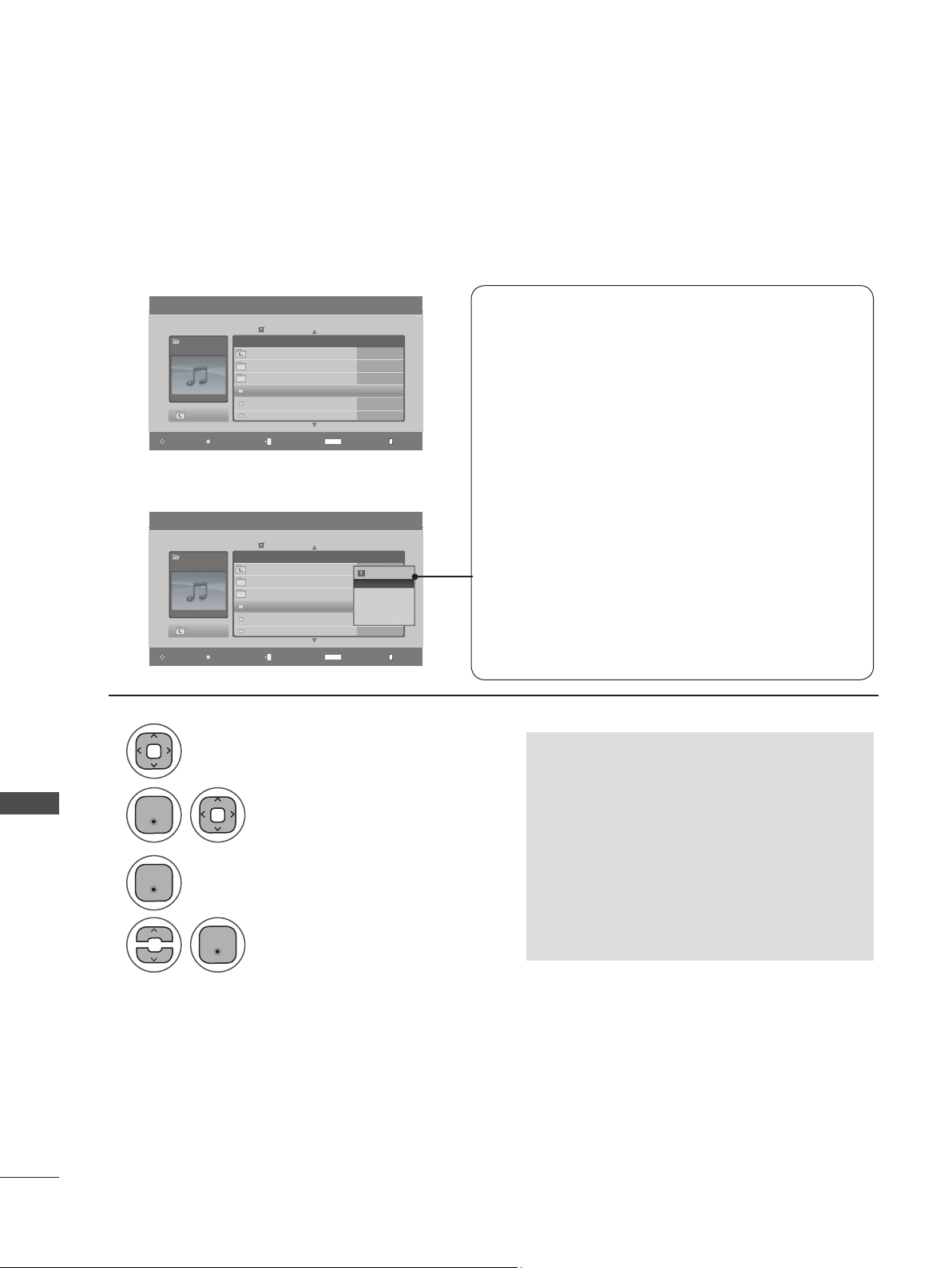
100
USING USB DEVICES
USING USB DEVICES
Music Selection and Pop-up Menu
1
2
3
4
Select the desired music files.
Show the Pop-up menu.
Select the desired Pop-up menu.
Select the target folder or drive.
• Press BACK to move to the previous menu screen.
• Use CH ꕭꕮ to navigate up/down in the
music page
• Use MARK to mark or unmark a music
file. If no music is marked, all the music
in the folder will be played in sequence.
When one or more music files are
marked, the marked music files will be
played in sequence. If you want to listen
to only one song repeatedly, just mark
that one file and play.
► Play (During stop): Plays the selected music titles.
Once a song finishes playing, the next selected
one will be played. When there are no selected
files to play, the next one in the current folder
will be played. If you go to a different folder and
press ENTER, the current song in playback will
stop.
► Play Marked: Plays the selected files. Once a file
finishes playing, the next selected one will be played
automatically.
► Stop Play (During playback): Stop the playing files.
► Play with Photo: Starts playing the selected files and
then move to the Photo List..
► Mark All: Marks all files in the folder.
► Unmark All: Deselects all marked files.
► Delete or Delete Marked: Deletes the selected files.
► Close: Close the
Pop-up
menu.
➩
Music List
Page 2/3
Music
SGKIM003
00:00/01:34
Up Folder
Title Duration
No Marked
Popup MenuNavigation Mark ExitPage Change
MARK
Up Folder
SGKIM001
SGKIM002
SGKIM003
SGKIM004
SGKIM005
03:33
04:45
01:30
02:37
01:58
Music List
Page 2/3
Music
SGKIM003
00:00/01:34
Up Folder
Title Duration
No Marked
Popup MenuNavigation Mark ExitPage Change
MARK
Up Folder
SGKIM001
SGKIM002
SGKIM003
SGKIM004
SGKIM005
03:33
04:45
01:30
02:37
01:58
3945 KB 128 Kbps
Play ꔋ
Play with Photo
Mark All
Delete
Close
Enter
Enter
Enter
101
USING USB DEVICES
■ The play information box (as shown below) will automatically move
across the screen when there is no user input to prevent a fixed image
remaining on the screen for an extended period of time.
NOTE
►When music is playing, ♪ is displayed in front of the music play time.
►A damaged or corrupted music file that does not play displays 00:00 as the play time.
►A music downloaded from a paid service with copyright protection does not start but displays
inappropriate information in playtime.
►If you press ENTER, ꔠ or BACK , screen saver stops.
!
Music
S003
► 0:27 / 3:67
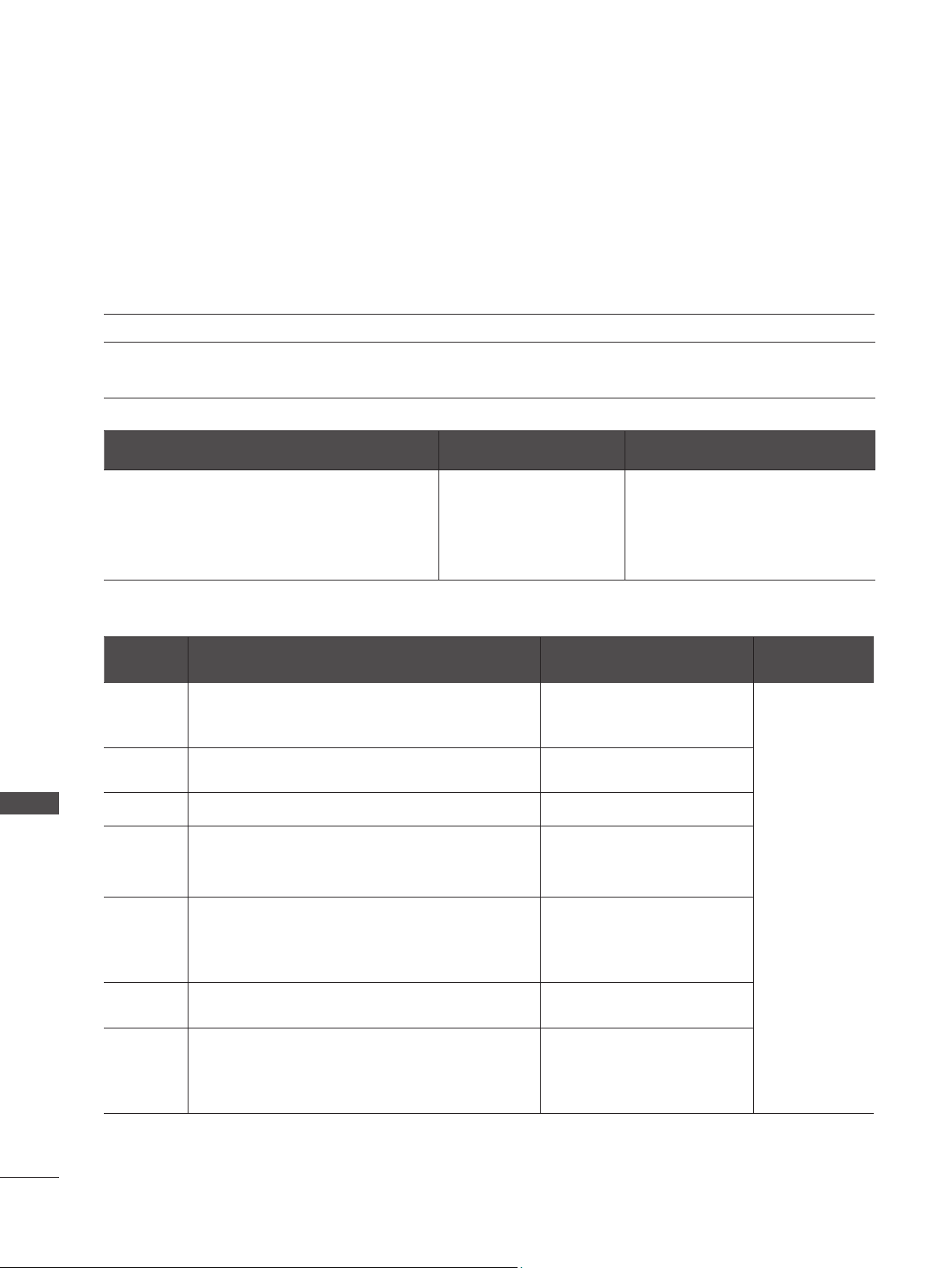
102
USING USB DEVICES
USING USB DEVICES
The movie list is activated once a USB drive is detected and is used when playing movie files on the set.
The movie list displays the movies in the USB folder and allows you to select movies for playback. All
movies in the folder can be played back, but you cannot add or delete movies.
MOVIE LIST
Extension
name
Video Decoder Audio Codec Resolution
mpg,
mpeg,
vob
MPEG1, MPEG2
Dolby Digital, MPEG, MP3,
LPCM
1920 x 1080P
@ 25 / 30P,
1280 x 720P
@ 50 / 60P
dat MPEG1
Dolby Digital, MPEG, MP3,
LPCM
ts,trp,tp MPEG2, H.264/AVC Dolby Digital, AAC, MPEG
mp4
MPEG4 SP, MPEG4 ASP, Divx 3.11, Dvix 4.12, Dvix 5.x
Dvix 6, Xvid 1.00, Xvid 1.01, Xvid 1.02, Xvid 1.03
Xvid 1.10–beta 1, Xvid 1.10-beta 2, H.264/AVC
Dolby Digital, HE-AAC, AAC,
MPEG, MP3, LPCM
avi
MPEG 2, MPEG 4 SP, MPEG4 ASP, DivX 3.11, DivX
4, DivX 5, DivX 6 Xvid 1.00, Xvid 1.01, Xvid 1.02,
Xvid 1.03, Xvid 1.10–beta 1 Xvid 1.10–beta 2, H.264/
AVC
Dolby Digital, HE-AAC, AAC,
MPEG, MP3, LPCM
mkv
H.264/AVC, MPEG 1, MPEG 2, MPEG 4 SP ,
MPEG4, ASP
Dolby Digital, HE-AAC, AAC,
MPEG, MP3, LPCM
divx
MPEG 2, MPEG 4 SP, MPEG4 ASP, DivX 3.11, DivX
4, DivX 5, DivX 6 Xvid 1.00, Xvid 1.01, Xvid 1.02,
Xvid 1.03, Xvid 1.10–beta 1 Xvid 1.10–beta 2, H.264/
AVC
Dolby Digital, HE-AAC, AAC,
MPEG, MP3, LPCM
Video Format
Audio Format Subtitle format
DivX3.11, DivX4.12, DivX5.x, DivX6, Xvid1.00,
Xvid1.01, Xvid1.02, Xvid1.03, Xvid 1.10-beta-
1/beta-2, Mpeg-1, Mpeg-2, Mpeg-4, H.264/AVC
Dolby Digital, AAC, Mpeg,
MP3, LPCM, HE-AAC
*
.smi/
*
.srt/
*
.sub(MicroDVD,
SubViewer1.0/2.0)/
*
.ass/
*
.ssa/
*
.
txt(TMPlayer)/
*
.psb(PowerDivX)
Movie file types supported: (*.dat/*.mpg/*.mpeg/*.ts/*.trp/*.tp/*.vob/*.mp4/*.mkv/*.avi/*.divx).
Bit rate: within 32 kbps to 320 kbps (MP3).
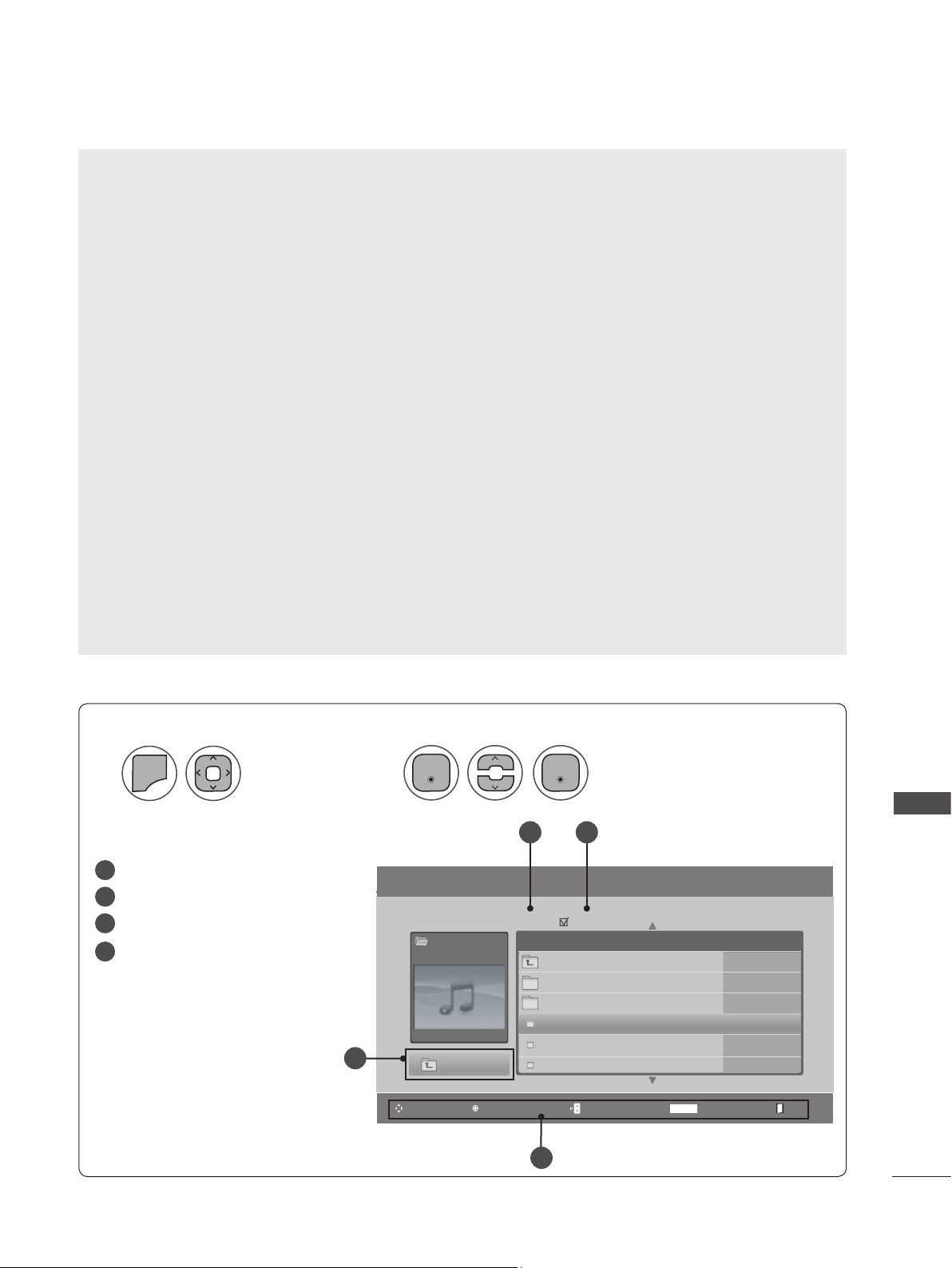
103
USING USB DEVICES
Moves to upper level folder
Current page/total pages
Total number of marked movie
Corresponding buttons on the
remote control
Screen Components
1
2
MENU
Select Movie List.
Select USB.
1
2
3
4
Movie Playing Precautions
► Some user-created subtitles may not work properly.
► Some special characters are not supported in subtitles.
► HTML tags are not supported in subtitles.
► Subtitles in languages other than the supported lan-
guages are not available.
► Time information in an external subtitle file should be
arranged in ascending order to be played.
► The screen may suffer temporary interruptions (image
stoppage, faster playback, etc.) when the audio lan-
guage is changed.
► A damaged video file may not play correctly, or some
player functions may not be usable.
► Video files produced with some encoders may not play
correctly.
► If the video and audio structure of a recorded file is not
interleaved, either the video or audio is output.
► HD videos with a maximum of 1920x1080 @ 25/30P
or 1280x720 @ 50/60P are supported, depending on
the frame rate.
► Videos with resolutions higher than 1920x1080 @
25/30P or 1280x720 @ 50/60P may not work prop-
erly depending on the frame rate.
► Video files other than the specified types and formats
may not work properly.
► Video files encoded with the GMC (Global Motion
Compensation) are not supported.
► Only files saved in ASCII CODE are supported in sub-
titles.
► Only 250 Korean characters, 500 letters and 500
numbers are supported for each line of the subtitles.
► Only 10,000 sync blocks can be supported within the
subtitle file.
► The max bitrate of playable movie files is 20Mbps.
► We do not guarantee smooth playback of profiles
encoded level 4.1 or higher in H.264/AVC.
► DTS Audio codec is not supported.
► A video file more than 30GB in file size is not sup-
ported for playback.
► Playing a video via a USB connection that doesn’t sup-
port high speed may not work properly.
► USB storage devices below USB 2.0 are supported, but
they may not work properly in the movie list.
► The video file and the subtitle file must be located in
the same folder.
► The name of the video file and the subtitle file must be
the same to view the subtitles normally.
Movie List
Page 2/3
Drive1
SGKIM003
640x480, 720KB
Up Folder
Title Duration
No Marked
Popup MenuNavigation Mark ExitPage Change
MARK
Up Folder
GKIM001
SGKM002
SGKIM001
SGKIM001
SGKIM001
01:34:15
01:35:30
01:30:20
1
4
2 3
Enter Enter
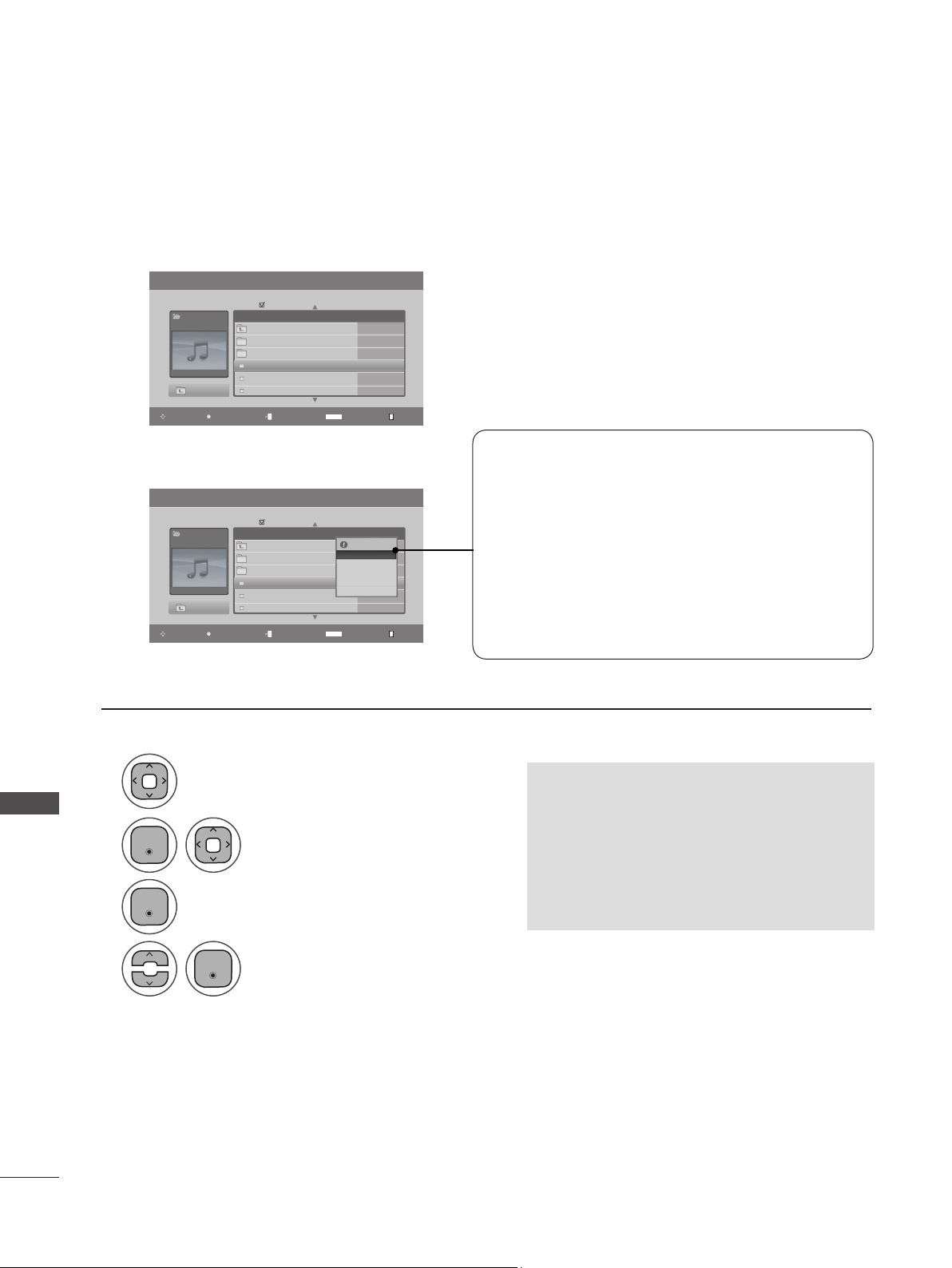
104
USING USB DEVICES
USING USB DEVICES
Movie List
Page 2/3
Movie
SGKIM003
640x480, 720KB
Up Folder
Title Duration
No Marked
Popup MenuNavigation Mark ExitPage Change
MARK
Up Folder
SGKIM001
SGKM002
SGKIM001
SGKIM001
SGKIM001
01:34:15
01:35:30
01:30:20
Movie List
Page 2/3
Movie
SGKIM003
640x480, 720KB
Up Folder
Title Duration
No Marked
Popup MenuNavigation Mark ExitPage Change
MARK
Up Folder
SGKIM001
SGKM002
SGKIM001
SGKIM001
SGKIM001
01:34:15
01:35:30
01:30:20
Movie Selection and Pop-up Menu
➩
1366x768, 125KB
Play ꔋ
Mark All
Delete
Close
1
2
3
4
Select the desired movies.
Show the Pop-up menu.
Select the desired Pop-up menu.
Select the target folder or drive.
• Press BACK to move to the previous menu screen.
• Use CH ꕭꕮ to navigate in the movie page.
• Use MARK to mark or unmark a movie file.
When one or more movie files are marked,
the marked movie files will be played in
sequence.
►Play: Plays the selected file. DivX play is execut-
ed while the screen changes.
►Play Marked: Plays the selected files. Once a
movie finishes playing, the next selected one will
be played automatically.
►Mark All: Marks all files in the folder.
►Unmark All: Deselects all marked files.
►Delete or Delete Marked(FAT32 file system only):
Deletes the selected file.
►Close: Close the
Pop-up
menu.
Enter
Enter
Enter
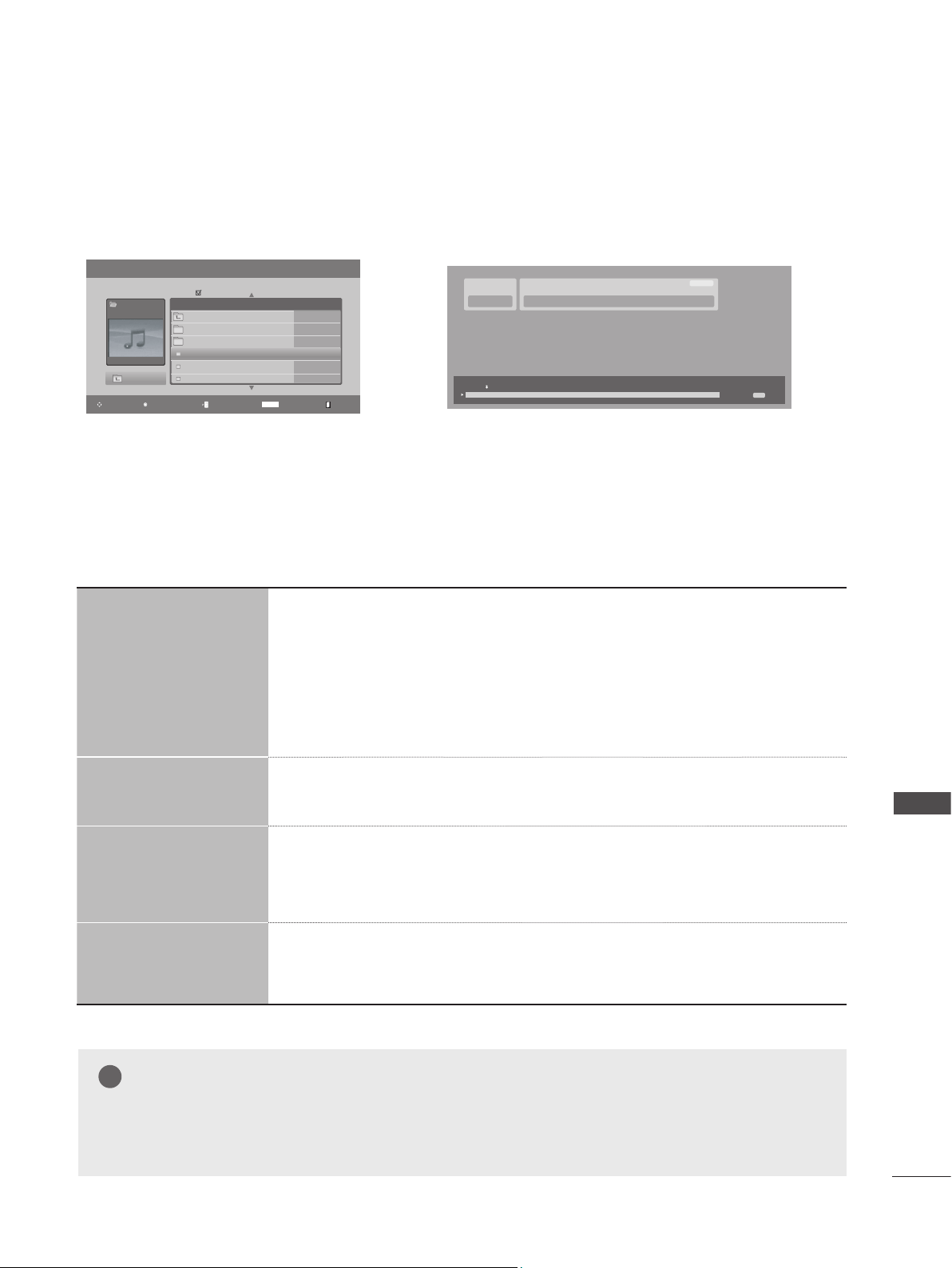
105
USING USB DEVICES
Movie List
Page 2/3
Movie
SGKIM003
640x480, 720KB
Up Folder
Title Duration
No Marked
Popup MenuNavigation Mark ExitPage Change
MARK
Up Folder
SGKIM001
SGKM002
SGKIM001
SGKIM001
SGKIM001
01:34:15
01:35:30
01:30:20
Option Menu Selection
There are various ways to playback, rewind and fast forward through a movie.
Using the Remote Control
◄◄ / ►►
When playing, repeatedly, press the REW(◄◄) to speed up ◄◄(x2) →
◄◄◄ (x4) → ◄◄◄◄ (x8) → ◄◄◄◄◄(x16) → ◄◄◄◄◄◄(x32) .
repeatedly, press FF(►►) to speed up ►►(x2)→ ►►► (x4)→ ►►►►
(x8) → ►►►►►(x16) → ►►►►►► (x32).
■ Pressing these buttons repeatedly increases the fast forward/rewind
speed.
ll ■ During playback, press Pause(II) and a still screen will be displayed.
< >
■ When using < or > during playback, a cursor indicating the position will be
displayed.
Play(►) Press Play(►) button to return to normal playback.
➩
H.264 / AAC_HAAC
SJS001USB
640 x 480
08:03 PM
00:02:08
00:00:15
Option
NOTE
Use ( < / > ) to move to a specific frame forward or backward while playing a movie. (( < / > )
may not work properly for some files while playing a movie.)
!
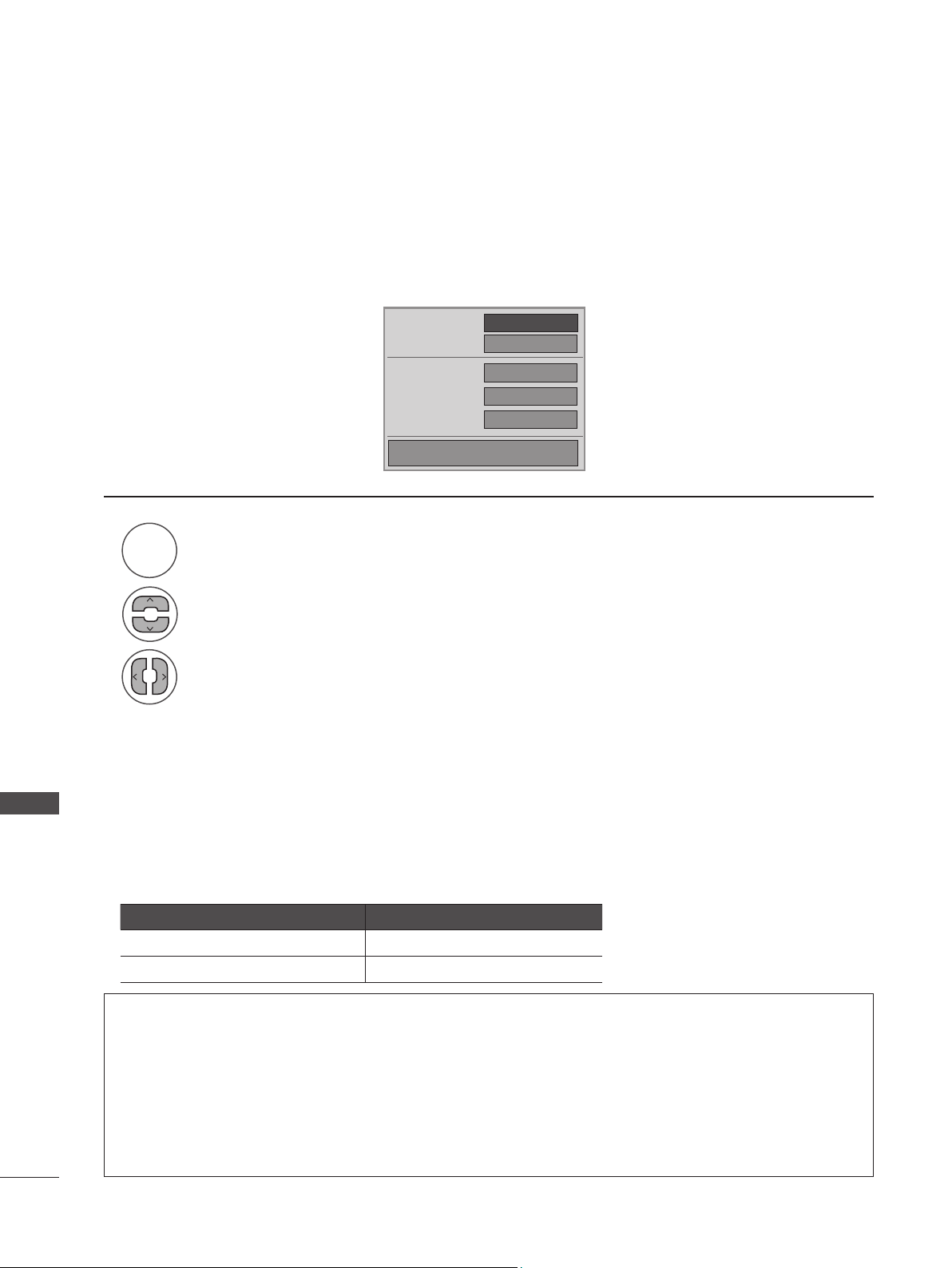
106
USING USB DEVICES
USING USB DEVICES
DivX Audio Language & Subtitle Language
◄ Full ►
1
0
Off
0
Picture Size
Audio Language
Subtitle Language
· Sync
· Position
Close
1
2
3
Select Picture Size, Audio Language, Subtitle Language, Sync or Position.
Select the desired option.
When DivX is playing, the above menu is displayed.
RED
► Picture Size: Select the Full screen or Original size.
► Audio Language: Select the language. But, the file with only one audio can not be selected.
► Subtitle Language: Subtitles can be turned on or off. If there are two or more subtitles, you can select one of them.
• Sync: When the video is not synchronized with the captions, it can be adjusted in 0.5 second units.
• Position: Move the location of the subtitle.
• Press BACK to move to the previous menu screen.
Subtitle Language Group
Supported Language
Latin1 English, Spanish, French
Korean English, Korean
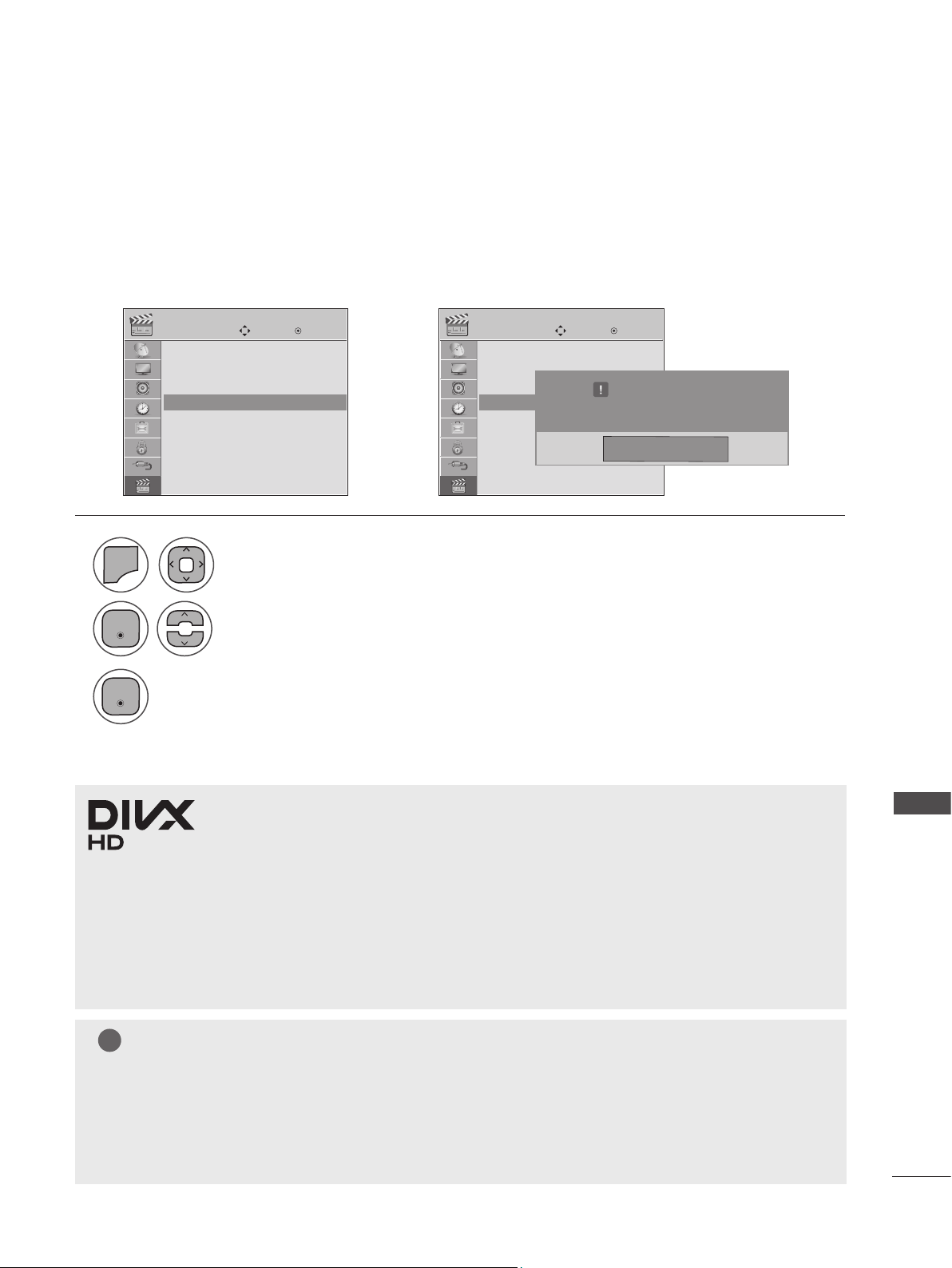
107
USING USB DEVICES
NOTE
►When loading, some buttons may not work.
►If you use the DivX registration code of another device, the rented or purchased DivX file cannot
be played. Therefore always use the DivX registration code assigned to this product.
►The video or audio of a file converted based on a standard other than the DivX codec standard
may be corrupted or unable to be played.
!
Confirm the DivX registration code number of the set. Using the registration number, movies can be
rented or purchased at www.divx.com/vod. With a DivX registration code from another set, playback of
rented or purchased DivX files is not allowed. (Only DivX files matched with the registration code of the
purchased set are playable.)
DIVX REGISTRATION CODE
USB USB
Move MoveEnter Enter
Photo List
Music List
Movie List
DivX Reg. Code
Deactivation
Photo List
Music List
Movie List
DivX Reg. Code
Deactivation
DivX Reg. Code ꔋ DivX Reg. Code ꔋ
➩
DivX(R) Video On Demand
Your registration Code is: XXXXXXXXXX
To learn more visit www.divx.com/vod.
Close
1
2
3
Select DivX Reg. Code.
Display DivX Reg. Code.
Select USB.
MENU
• Press MENU or EXIT to close the menu window.
• Press BACK to move to the previous menu screaen.
ABOUT DIVX VIDEO: DivX® is a digital video format created by DivX, Inc. This is an official DivX Certified
device that plays DivX video. Visit www.divx.com for more information and software tools to
convert your files into DivX video.
ABOUT DIVX VIDEO-ON-DEMAND: This DivX Certified® device must be registered in order to play DivX
Video-on-Demand (VOD) content. To generate the registration code, locate the DivX VOD section in the
device setup menu. Go to vod.divx.com with this code to complete the registration process and learn
more about DivX VOD.
“DivX Certified® to play DivX® video up to HD 1080p, including premium content.”
“DivX®, DivX Certified® and associated logos are trademarks of DivX, Inc. and are used under license.”
“Pat. 7,295,673; 7,460,668; 7,515,710; 7,519,274”
Enter
Enter
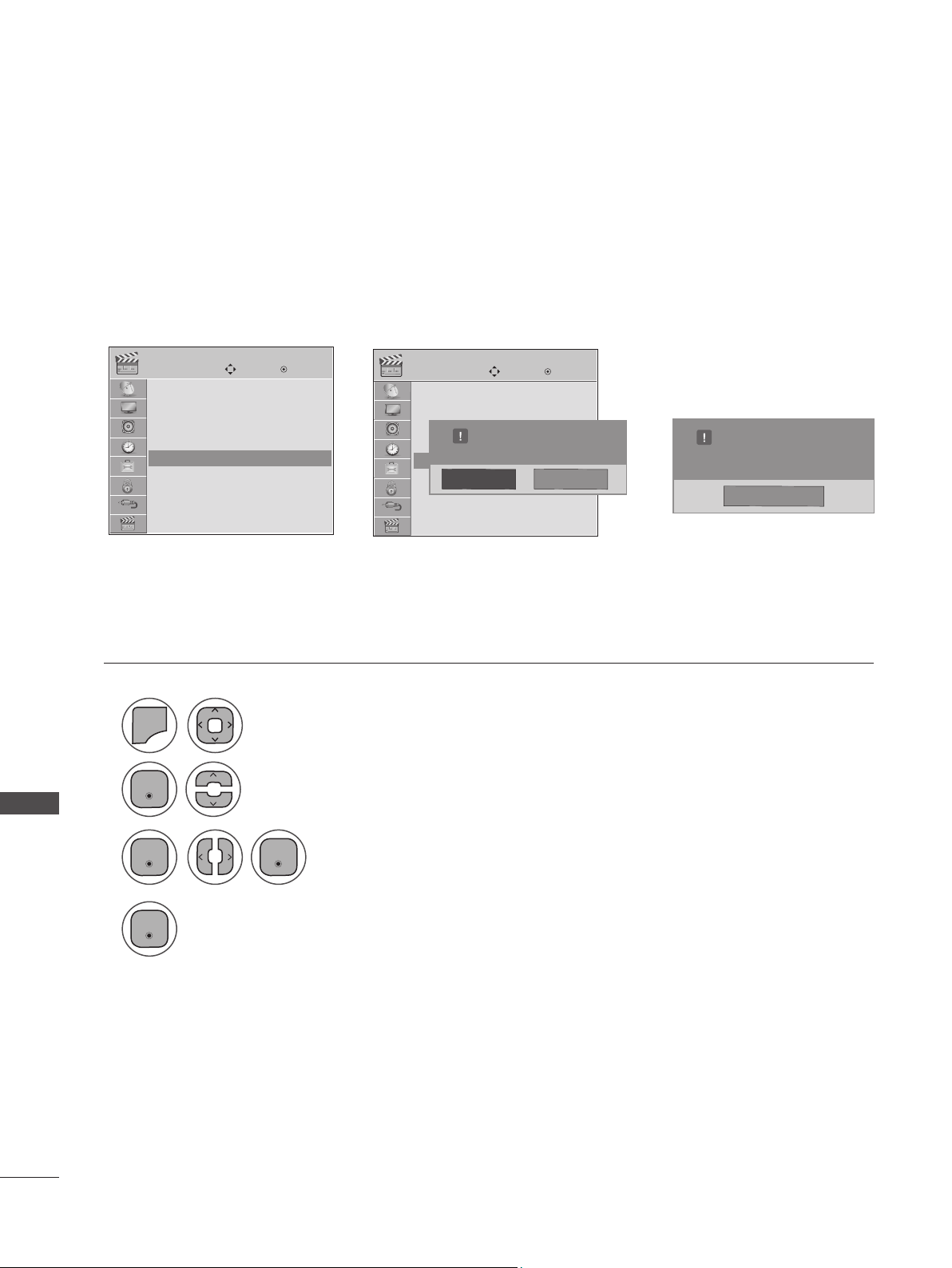
108
USING USB DEVICES
USING USB DEVICES
USB
USB
Move
Move
Enter
Enter
Photo List
Music List
Movie List
DivX Reg. Code
Deactivation
Photo List
Music List
Movie List
DivX Reg. Code
Deactivation
Delete the existing authentication information to receive a new DivX user authentication for set. Once
this function is done,, a DivX user authentication is required again to play DivX DRM files.
DEACTIVATION
Deactivation ꔋ
Deactivation ꔋ
➩
➩
DivX(R) Video On Demand
Do you want to deactivate your device?
Yes No
1
2
3
4
Select Deactivation.
Select Yes.
Select Close.
Select USB.
MENU
• Press MENU or EXIT to close the menu window.
• Press BACK to move to the previous menu screaen.
DivX(R) Video On Demand
This device is deactivated.
Your deactivation code is : XXXXXXXX
To learn more visit www.divx.com/vod
Close
Enter
Enter Enter
Enter
109
APPENDIX
APPENDIX
TROUBLESHOOTING
Abnormal Operation
The remote control doesn’t
work.
■ Check to see if there is any object between the product and the remote
control causing obstruction. Ensure that you are pointing the remote con-
trol directly at the set.
■ Ensure that the batteries are installed with correct polarity (+ to +, - to -).
■ Ensure that the correct remote operating mode is set: TV, VCR etc.
■ Install new batteries.
Power is suddenly
turned off
■ Is the sleep timer set?
■ Check the power control settings. Power may have been interrupted.
■ If there is no signal, the set turns off automatically in 15 minutes.
■ When a corrupted file is played in USB mode, the set may turn off.
Please check the file in your USB storage device.
Video Problems
No picture &No sound
■ Check whether the product is turned on.
■ Try another channel. The problem may be with the broadcast.
■ Is the power cord inserted into wall power outlet?
■ Check your antenna direction and/or location.
■ Test the wall power outlet, plug another product’s power cord into the
outlet where the product’s power cord was plugged in.
The picture appears slowly
after switching on.
■ This is normal. The image is muted during the product startup pro-
cess. Please contact your service center if the picture has not appeared
after five minutes.
There is no picture, poor
color or poor picture.
■ Adjust the color in the menu.
■ Keep a sufficient distance between the product and the VCR.
■ Try another channel. The problem may be with the broadcast.
■ Are the video cables installed properly?
■ Activate any function to restore the brightness of the picture.
There are horizontal/vertical
bars or the picture is shaking.
■ Check for local interference such as an electrical appliance or power tool.
The reception is poor on
some channels.
■ Station or cable product experiencing problems. Tune to another station.
■ The station signal may be weak. Reorient antenna to receive weaker sta-
tions better.
■ Check for sources of possible interference.
There are lines or streaks in
the picture.
■ Check antenna (change the direction of the antenna).
There is no picture when
connecting via HDMI.
■ If an HDMI cable doesn’t support High Speed HDMI, it can cause flick-
ers or no screen display. In this case, use the latest cables that support
High Speed HDMI.
110
APPENDIX
APPENDIX
Audio Problems
There is no output from one
of the speakers.
■ Adjust the balance in the menu.
There is an unusual sound
from inside the product.
■ A change in ambient humidity or temperature may result in an unusu-
al noise when the product is turned on or off and does not indicate a
fault with the product.
There is no sound
when connecting via HDMI/
USB.
■ Check that you are using a High Speed HDMI cable.
■ Check that your USB cable is version 2.0 or late
■ Use a normal MP3 file
PC Mode Problems
The signal is out of range.
■ Adjust resolution, horizontal frequency, or vertical frequency on the PC.
■ Check the input source.
There is a vertical bar or
stripe in the background &
horizontal noise & incorrect
position.
■ Activate the Auto configure feature or adjust size, phase, or H/V posi-
tion. (Option)
The screen color is unstable
or in a single color.
■ TThe signal from the PC (video card) is out of the vertical or horizontal
frequency range of the product. Adjust the frequency range by refer-
ring to the Specifications in this user’s guide.
When connecting with an
HDMI cable to the PC, there
is no audio.
■ Check the manual for the video card in the PC to see if it supports
HDMI audio and how to set it up properly.
111
APPENDIX
Movie List Problems
The file does not appear in
the Movie List.
■ Check whether the file extension is supported.
A message is displayed
saying “This file is invalid”
or the audio is working nor-
mally but the video is not
working normally.
■ Check that the file plays normally on a PC. (Is the file corrupted or
damaged?)
■ Check that the resolution is supported.
■ Check that the video/audio codec is supported.
■ Check that the frame rate is supported.
A message is displayed
saying “Unsupported
Audio” or the video is work-
ing normally but the audio
is not working normally.
■ Check that the file plays normally on a PC. (Is the file corrupted or
damaged?)
■ Check that the audio codec is supported.
■ Check that the bit rate is supported.
■ Check that the sample rate is supported.
The subtitles are not work-
ing.
■ Check that the file plays normally on a PC. (Is the file corrupted or
damaged?)
■ Check that the video file and subtitle file name are the same.
■ Check that the video file and subtitle file are located in the same
folder.
■ Check that the subtitle file is supported.
■ Check that the language is supported. (When you open the subtitle file
on a PC, you can check the language of the subtitle file.)
112
APPENDIX
APPENDIX
MAINTENANCE
Early malfunctions can be prevented. Careful and regular cleaning can extend the life of your new
Monitor set.
Caution: Be sure to turn the power off and unplug the power cord before you begin any cleaning.
Here’s a great way to keep the dust off your screen for a while. Wet a soft cloth in a mixture of luke-
warm water and a little fabric softener or dish washing detergent. Wring the cloth until it’s almost
dry, and then use it to wipe the screen.
Make sure the excess water is off the screen, and then let it air-dry before you turn on your set.
■ To remove dirt or dust, wipe the cabinet with a soft, dry, lint-free cloth.
■ Please be sure not to use a wet cloth.
Cleaning the Screen
Cleaning the Cabinet
Extended Absence
1
2
► If you expect to leave your set dormant for a long time (such as a vacation), it’s a good idea to unplug the
power cord to protect against possible damage from lightning or power surges.
CAUTION
113
APPENDIX
■ The specifications shown above may be changed without prior notice for quality improvement.
PRODUCT SPECIFICATIONS
<M2080D>
LCD Panel
Screen Type
508.5 mm Wide (20.0 inch) TFT (Thin Film Transistor)
LCD (Liquid Crystal Display) Panel
Visible diagonal size: 508.5 mm
Pixel Pitch
0.2766 mm (H)x0.2766 mm (V)
Video Signal
Max. Resolution
1600x900 @ 60 Hz
Recommended Resolution
1600x900 @ 60 Hz
Horizontal Frequency
30 kHz to 65 kHz
Vertical Frequency
56 Hz to 75 Hz
Synchronization Type
Separate Sync, Digital
Input Connector
TV, D-Sub Analog, PC Audio In, component, HDMI
*
2, CVBS
Power
Rated Voltage
19 V 2.0 A
Power Consumption
On Mode 27 W (typ.)
Off Mode ≤ 1 W
AC/DC Adapter
Manufacturer: LITE-ON, Model PA-1650-68
INPUT: AC 100-240 V 50/60 Hz 2.0 A
OUTPUT: DC 19 V / 3.42 A
Tilt Tilt Range
-5° to 10°
Dimensions (Width x Height x Depth)
Weight
M2080D
476.4 mm x 376.1 mm x 193.8 mm (18.75 inch x 14.81 inch x 7.62 inch)
3.5 kg ( 7.12 lb)
Environmental
Conditions
Operating Temperature
Operating Humidity
10 °C to 35 °C
20 % to 80 %
-10 °C to 60 °C
5 % to 90 %
Storage Temperature
Storage Humidity
114
APPENDIX
APPENDIX
■ The specifications shown above may be changed without prior notice for quality improvement.
<M2280D>
LCD Panel
Screen Type
546.86 mm Wide (21.53 inch) TFT (Thin Film Transistor)
LCD (Liquid Crystal Display) Panel
Visible diagonal size: 546.86 mm
Pixel Pitch
0.248 mm (H)x0.248 mm (V)
Video Signal
Max. Resolution
1920x1080 @ 60 Hz
Recommended Resolution
1920x1080 @ 60 Hz
Horizontal Frequency
30 kHz to 83 kHz
Vertical Frequency
56 Hz to 75 Hz
Synchronization Type
Separate Sync, Digital
Input Connector
TV, D-Sub Analog, PC Audio In, component, HDMI
*
2, CVBS
Power
Rated Voltage
19 V 2.2 A
Power Consumption
On Mode 35 W (typ.)
Off Mode ≤ 1 W
AC/DC Adapter
Manufacturer: LITE-ON, Model PA-1650-68
INPUT: AC 100-240 V 50/60 Hz 2.0 A
OUTPUT: DC 19 V / 3.42 A
Tilt Tilt Range
-5° to 10°
Dimensions (Width x Height x Depth)
Weight
M2280D
509.6 mm x 396.2 mm x 193.8 mm (20.06 inch x 15.6 inch x 7.63 inch)
3.7 kg (8.16 lb)
Environmental
Conditions
Operating Temperature
Operating Humidity
10 °C to 35 °C
20 % to 80 %
-10 °C to 60 °C
5 % to 90 %
Storage Temperature
Storage Humidity
115
APPENDIX
■ The specifications shown above may be changed without prior notice for quality improvement.
<M2380D/M2380DF>
LCD Panel
Screen Type
584.2 mm Wide (23 inch) TFT (Thin Film Transistor)
LCD (Liquid Crystal Display) Panel
Visible diagonal size: 584.2 mm
Pixel Pitch
0.265 mm (H)x0.265 mm (V)
Video Signal
Max. Resolution
1920x1080 @ 60 Hz
Recommended Resolution
1920x1080 @ 60 Hz
Horizontal Frequency
30 kHz to 83 kHz
Vertical Frequency
56 Hz to 75 Hz
Synchronization Type
Separate Sync, Digital
Input Connector
TV, D-Sub Analog, PC Audio In, component, HDMI
*
2, CVBS
Power
Rated Voltage
19 V 2.4 A
Power Consumption
On Mode 37 W (typ.)
Off Mode ≤ 1 W
AC/DC Adapter
Manufacturer: LITE-ON, Model PA-1650-68
INPUT: AC 100-240 V 50/60 Hz 2.0 A
OUTPUT: DC 19 V / 3.42 A
Tilt Tilt Range
-5° to 10°
Dimensions (Width x Height x Depth)
Weight
M2380D
547 mm x 415.7 mm x 193.8 mm (21.53 inch x 16.37 inch x 7.62 inch)
4.2 kg ( 9.26 lb)
M2380DF
547 mm x 427.9 mm x 193.9 mm (21.53 inch x 16.85 inch x 7.63 inch)
4.4 kg ( 9.7 lb)
Environmental
Conditions
Operating Temperature
Operating Humidity
10 °C to 35 °C
20 % to 80 %
-10 °C to 60 °C
5 % to 90 %
Storage Temperature
Storage Humidity
116
APPENDIX
APPENDIX
■ The specifications shown above may be changed without prior notice for quality improvement.
<M2780D/M2780DF>
LCD Panel
Screen Type
685.8 mm Wide (27 inch) TFT (Thin Film Transistor)
LCD (Liquid Crystal Display) Panel
Visible diagonal size: 685.8 mm
Pixel Pitch
0.3114 mm (H)x0.3114 mm (V)
Video Signal
Max. Resolution
1920x1080 @ 60 Hz
Recommended Resolution
1920x1080 @ 60 Hz
Horizontal Frequency
30 kHz to 83 kHz
Vertical Frequency
56 Hz to 75 Hz
Synchronization Type
Separate Sync, Digital
Input Connector
TV, D-Sub Analog, PC Audio In, component, HDMI
*
2, CVBS
Power
Rated Voltage
19 V 2.8 A
Power Consumption
On Mode 47 W (typ.)
Off Mode ≤ 1 W
AC/DC Adapter
Manufacturer: LITE-ON, Model PA-1650-68
INPUT: AC 100-240 V 50/60 Hz 2.0 A
OUTPUT: DC 19 V / 3.42 A
Tilt Tilt Range
-5° to 10°
Dimensions (Width x Height x Depth)
Weight
M2780D
644 mm x 480.6 mm x 222.8 mm (23.53 inch x 18.92 inch x 8.77 inch)
5.8 kg ( 12.79 lb)
M2780DF
644 mm x 493.6 mm x 221.7 mm (23.53 inch x 19.43 inch x 8.72 inch)
6.1 kg ( 13.45 lb)
Environmental
Conditions
Operating Temperature
Operating Humidity
10 °C to 35 °C
20 % to 80 %
-10 °C to 60 °C
5 % to 90 %
Storage Temperature
Storage Humidity
117
APPENDIX
IR CODES
• This feature is not available for all models.
Code (Hexa)
Function Note
95 Energy Saving R/C BUTTON
08 POWER R/C BUTTON (POWER ON/OFF)
50 TV / PC R/C BUTTON
0B INPUT R/C BUTTON
79 RATIO R/C BUTTON
F0 Auto Config R/C BUTTON
45 Q.MENU R/C BUTTON
43 MENU R/C BUTTON
AB INFO R/C BUTTON
40
Up (ꕭ)
R/C BUTTON
41
Down (ꕮ)
R/C BUTTON
07 Left (<) R/C BUTTON
06 Right (>) R/C BUTTON
44
Enter(ꔋ)
R/C BUTTON
28 BACK R/C BUTTON
5B EXIT R/C BUTTON
02 Vol ( + ) R/C BUTTON
03 Vol ( - ) R/C BUTTON
1E FAV ( MARK ) R/C BUTTON
09 MUTE R/C BUTTON
00
CH (ꕭ)
R/C BUTTON
01
CH (ꕮ)
R/C BUTTON
10 to 19 Number Key 0 to 9
R/C BUTTON
53 LIST R/C BUTTON
1A FLASHBK R/C BUTTON
72 RED Key R/C BUTTON
71 GREEN Key R/C BUTTON
63 YELLOW Key R/C BUTTON
61 BLUE Key R/C BUTTON
B1
R/C BUTTON
B0
R/C BUTTON
BA
l l
R/C BUTTON
8F
◄◄
R/C BUTTON
8E
►►
R/C BUTTON
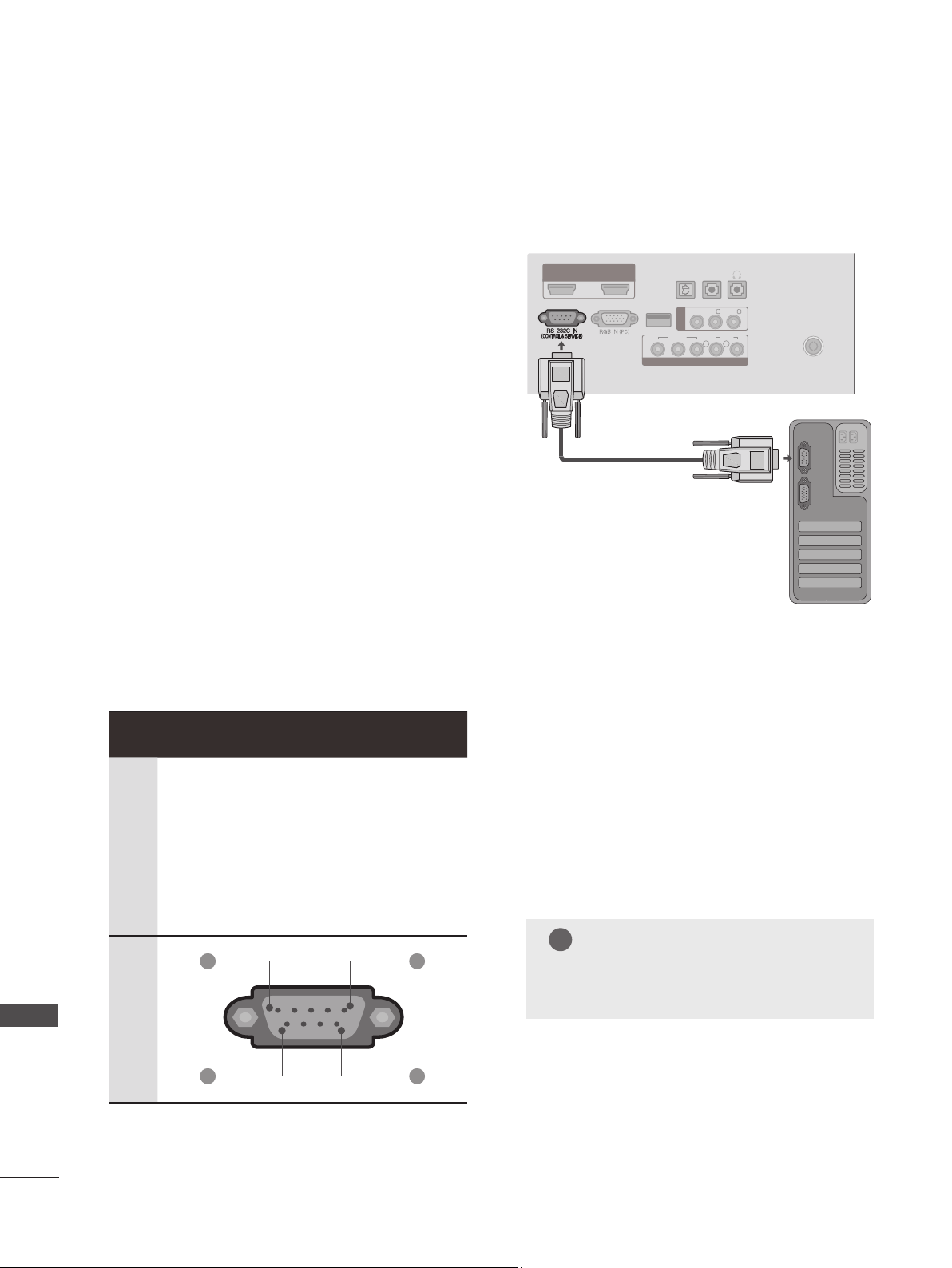
118
APPENDIX
APPENDIX
EXTERNAL CONTROL THROUGH RS-232C
RS-232C Setup
The RS-232C port allows you to connect the
RS-232C input jack to an external control device
(such as a computer or an A/V control system) to
control the SET’s functions externally.
■ Note: the RS-232C on this unit is intended to be
used with third party RS-232C control hardware
and software. The instructions below are provided
to help with programming software or to test
functionality using telenet software.
■ Baud rate: 9600 bps (UART)
■ Data length: 8 bits
■ Parity: None
■ Stop bit: 1 bit
■ Communication code: ASCII code
■ Use a crossed (reverse) cable.
Type of Connector; D-Sub 9-pin Male Communication Parameters
No. Pin Name
1
2
3
4
5
6
7
8
9
No connection
RXD
(
Receive data
)
TXD
(
Transmit data
)
DTR
(
DTE side ready
)
GND
DSR
(
DCE side ready
)
RTS
(
Ready to send
)
CTS
(
Clear to send
)
No Connection
1 5
6 9
HDMI DVI IN
12
OPTICAL
DIGITAL
AUDIO OUT
ANTENNA /
CABLE IN
USB IN
VIDEO
VIDEO
YP
B
P
R
LR
AUDIO
(MONO) L -
AUDIO
- R
AUDIO
IN
(RGB/DVI)
AV IN
COMPONENT IN
H / P
NOTE
►This product has command echo back in
the RS-232C Command.
!
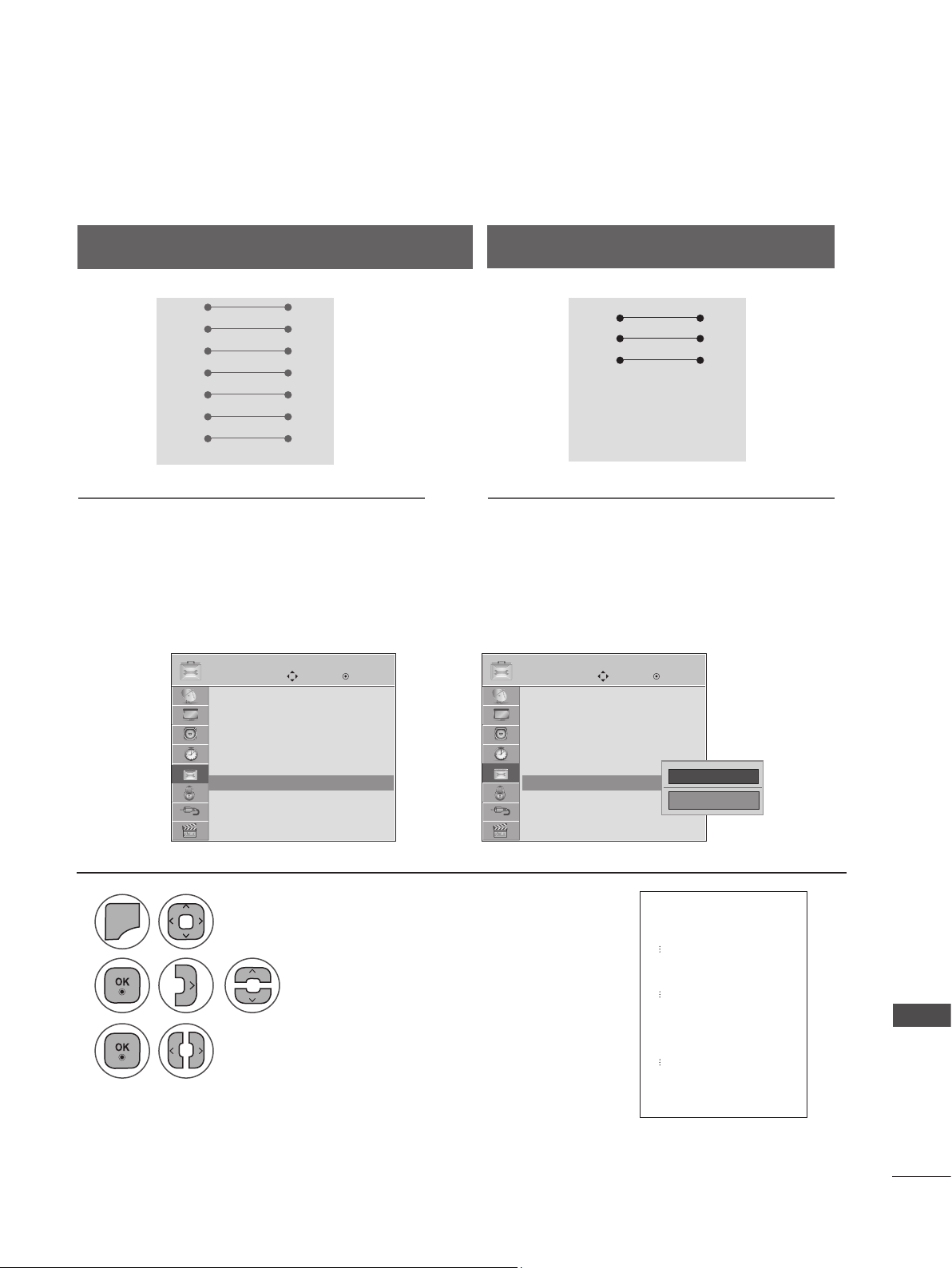
119
APPENDIX
Set ID
Use this function to specify a set ID number.
Refer to ‘Real Data Mapping’.
Either cable below can be used.
1
2
3
MENU
Select Set ID.
Choose the desired TV ID number..
The adjustment range of Set ID is 1 to 99.
Select OPTION.
• Press MENU or EXIT to close the menu window.
• Press BACK to move to the previous menu screaen.
RS-232C Configurations
7-Wire Configuration
(Serial female-female NULL modem cable)
PC SET
RXD 2 3 TXD
TXD 3 2 RXD
GND 5 5 GND
DTR 4 6 DSR
DSR 6 4 DTR
RTS 7 8 CTS
CTS 8 7 RTS
D-Sub 9 D-Sub 9
3-Wire Configurations
(
Not standard
)
PC SET
RXD 2 3 TXD
TXD 3 2 RXD
GND 5 5 GND
DTR 4 6 DTR
DSR 6 4 DSR
RTS 7 7 RTS
CTS 8 8 CTS
D-Sub 9 D-Sub 9
➩
OPTION OPTION
Move MoveEnter Enter
Menu Language : English
Audio Language : English
Input Label
Key Lock : Off
Caption : Off
Set ID : Off
Power Indicator : On
Demo Mode : Off
Menu Language : English
Audio Language : English
Input Label
Key Lock : Off
Caption : Off
Set ID : Off
Power Indicator : On
Demo Mode : Off
Set ID : 1 ꔋ Set ID : 1 ꔋ
◄ 1 ►
Close
*
Real data mapping
1 :
Step 0
A :
Step 10 (Set ID 10)
F :
Step 15 (Set ID 15)
10 :
Step 16 (Set ID 16)
63 :
Step 99 (Set ID 99)
64 :
Step 100
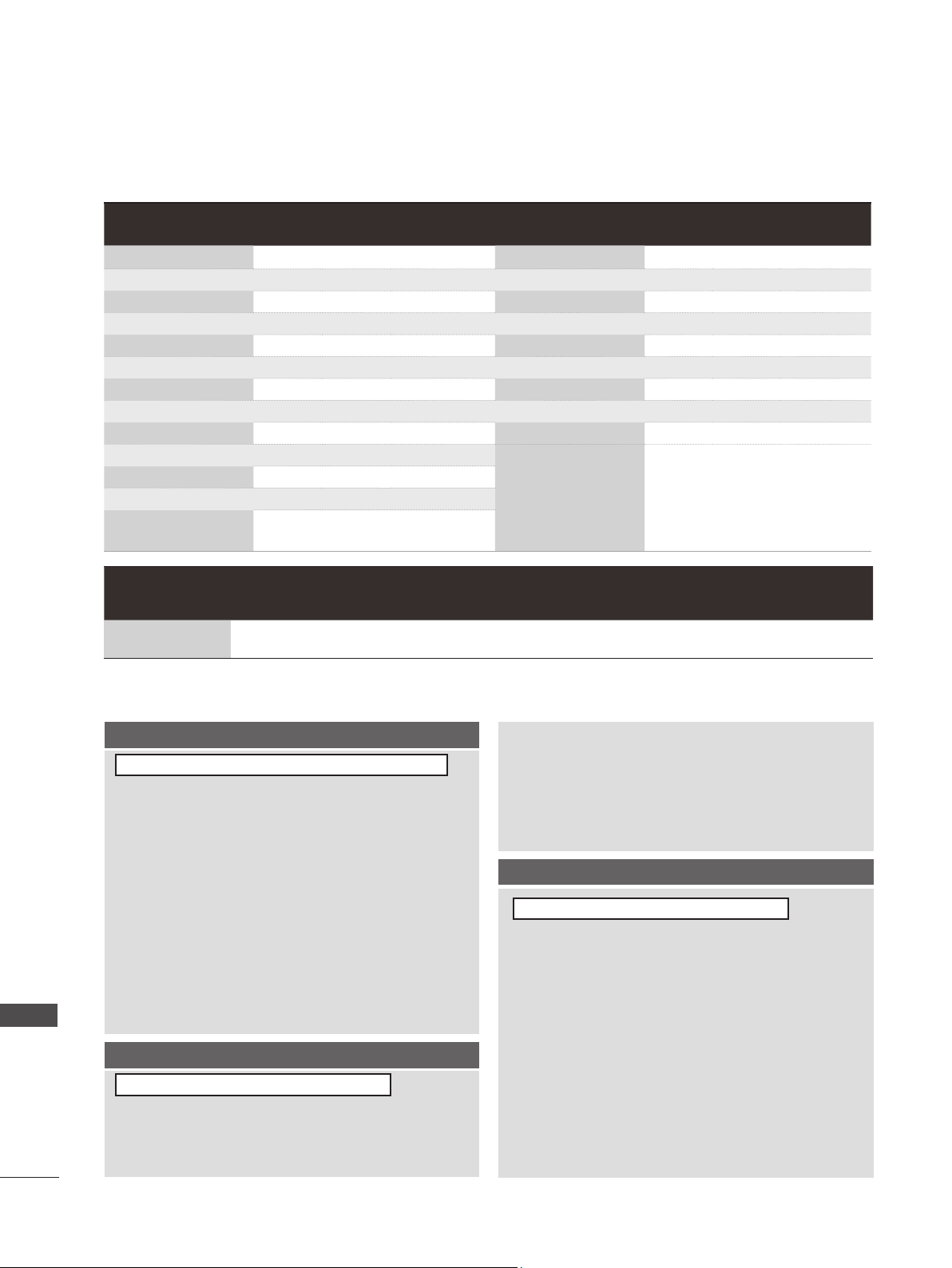
120
APPENDIX
APPENDIX
Command Reference List
Transmission/Receiving Protocol
COMMAND
1
COMMAND
2
DATA
(Hexadecimal)
COMMAND
1
COMMAND
2
DATA
(Hexadecimal)
01. Power k a 00 to 01 14. Treble k r 00 to 64
02. Input Select x b ( p. 121) 15. Bass k s 00 to 64
03. Aspect Ratio k c ( p. 121) 16. Balance k t 00 to 64
04. Screen Mute k d 00 to 10 17. Color Temperature k u 00 to 02
05. Volume Mute k e 00 to 01 18. Energy Saving j q ( p. 122)
06. Volume Control k f 00 to 64 19. Auto Configuration j u ( p. 122)
07. Contrast k g 00 to 64 21. Channel Add/Del m c 00 to 01
08. Brightness k h 00 to 64 22. Key m g ( p. 123)
09. Color k i 00 to 64 23. Backlight m g 00 to 64
10. Tint k j 00 to 64
11. Sharpness k k 00 to 64
12. OSD Select k l 00 to 01
13. Remote Control
Lock Mode
k m 00 to 01
COMMAND
1
COMMAND
2
DATA00
(Hexadecimal)
DATA01
(Hexadecimal)
DATA02
(Hexadecimal)
DATA03
(Hexadecimal)
DATA04
(Hexadecimal)
DATA05
(Hexadecimal)
20. Channel Tuning m a
physical
channel
major high major low minor high minor low attribute
Transmission
[Command 1] : First command to control the set.(j, k, m or x)
[Command 2] : Second command to control the set.
[Set ID] : You can adjust the set ID to choose desired TV ID
number in Setup menu. Adjustment range is 1 to
99. When selecting Set ID ‘0’, every connected the
TV is controlled. Set ID is indicated as decimal (1 to
99) on menu and as Hexa decimal (0x0 to 0x63)
on transmission /receiving protocol.
[DATA] : To transmit the command data.
T ransmit the ‘FF’ data to read status of command.
[Cr] : Carriage Return
ASCII code ‘0x0D’
[ ] : ASCII code ‘space (0x20)’
* In this model, TV will not send the status during the standby
mode.
OK Acknowledgement
The TV transmits ACK (acknowledgement) based on this
format when receiving normal data. At this time, if the data
is data read mode, it indicates present status data. If the
data is data write mode, it returns the data of the PC com-
puter.
* In this model, TV will not send the status during the standby mode.
* Data Format
[Command 2] : Use as command.
[Set ID] : Use the small character, if set ID is 10, it will send the ‘0’, ‘a’.
[DATA] : Use the small character, if data is 0 x ab, it will send the ‘a’, ‘b’.
[OK] : Use the large character.
Error Acknowledgement
The TV transmits ACK (acknowledgement) based on this
format when receiving abnormal data from non-viable func-
tions or communication errors.
Data1: Illegal Code
Data2: Not supported function
Data3: Wait more time
* In this model, TV will not send the status during the standby mode.
* Data Format
[Command 2] : Use as command.
[Set ID] : Use the small character, if set ID is 10, it will send the ‘0’, ‘a’.
[DATA] : Use the small character, if data is 0 x ab, it will send the ‘a’, ‘b’.
[NG] : Use the large character
[Command1][Command2][ ][Set ID][ ][Data][Cr]
[Command2][ ][Set ID][ ][OK][Data][x]
[Command2][ ][Set ID][ ][NG][Data][x]
121
APPENDIX
01. Power (Command: k a)
To control Power On/Off of the TV.
Transmission [k][a][ ][Set ID][ ][Data][Cr]
Data 00: Power Off Data 01: Power On
Acknowledgement [a][ ][Set ID][ ][OK/NG][Data][x]
* In a like manner, if other functions transmit ‘FF’ data
based on this format, Acknowledgement data feed-
back presents status about each function.
* Note: In this model, TV will send the Acknowledge after
power on processing completion.
There might be a time delay between command and
acknowledge.
02. Input Select (Command: x b)
To select input source for TV.
Transmission [x][b][ ][Set ID][ ][Data][Cr]
Data 00: DTV (Antenna) Data 01: DTV (Cable)
Data 10: Analog (Antenna) Data 11: Analog (Cable)
Data 20: AV Data 40: Component
Data 60: RGB-PC Data 90: HDMI1
Data 91: HDMI2
Acknowledgement [b][ ][Set ID][ ][OK/NG][Data][x]
03. Aspect Ratio (Command: k c)
To adjust the screen format.
Transmission [k][c][ ][Set ID][ ][Data][Cr]
Data 01: 4:3 09: Just scan
02: 16:9 10: Cinema Zoom1
04: Zoom
06: Set by program 1F: Cinema Zoom16
Acknowledgement [c][ ][Set ID][ ][OK/NG][Data][x]
04. Screen Mute (Command: k d)
To select screen mute on/off.
Transmission [k][d][ ][Set ID][ ][Data][Cr]
Data 00: Screen mute off (Picture on), Video-out Mute off
Data 01: Screen mute on (Picture off)
Data 10: Video-out Mute on
Acknowledgement [d][ ][Set ID][ ][OK/NG][Data][x]
* In case of Video-out Mute on only, TV will display On
Screen Display (OSD). But, in case of screen mute on,
TV will not display On Screen Display (OSD).
05. Volume Mute (Command: k e)
To control volume mute on/off.
You can also adjust mute using the MUTE button on
remote control.
Transmission [k][e][ ][Set ID][ ][Data][Cr]
Data 00: Volume mute on (Volume off)
Data 01: Volume mute off (Volume on)
Acknowledgement [e][ ][Set ID][ ][OK/NG][Data][x]
06. Volume Control (Command: k f)
To adjust volume.
You can also adjust volume with the volume buttons on
remote control.
Transmission [k][f][ ][Set ID][ ][Data][Cr]
Data Min: 00 to Max: 64 (*transmit by Hexadecimal code)
*Refer to ‘Real data mapping’. See page 119.
Acknowledgement [f][ ][Set ID][ ][OK/NG][Data][x]
07. Contrast (Command: k g)
To adjust screen contrast.
You can also adjust contrast in the PICTURE menu.
Transmission [k][g][ ][Set ID][ ][Data][Cr]
Data Min: 00 to Max: 64 (*transmit by Hexadecimal code)
*Refer to ‘Real data mapping’. See page 119.
Acknowledgement [g][ ][Set ID][ ][OK/NG][Data][x]
08. Brightness (Command: k h)
To adjust screen brightness.
You can also adjust brightness in the PICTURE menu.
Transmission [k][h][ ][Set ID][ ][Data][Cr]
Data Min: 00 to Max: 64 (*transmit by Hexadecimal code)
*Refer to ‘Real data mapping’. See page 119.
Acknowledgement [h][ ][Set ID][ ][OK/NG][Data][x]
09. Color (Command: k i)
To adjust screen color.
You can also adjust color in the PICTURE menu.
Transmission [k][i][ ][Set ID][ ][Data][Cr]
Data Min: 00 to Max: 64 (*transmit by Hexadecimal code)
*Refer to ‘Real data mapping’. See page 119.
Acknowledgement [i][ ][Set ID][ ][OK/NG][Data][x]
10. Tint (Command: k j)
To adjust screen tint.
You can also adjust tint in the PICTURE menu.
Transmission [k][j][ ][Set ID][ ][Data][Cr]
Data Red: 00 to Green: 64 (*transmit by Hexadecimal code)
*Refer to ‘Real data mapping’. See page 119.
Acknowledgement [ j ][ ][Set ID][ ][OK/NG][Data][x]

122
APPENDIX
APPENDIX
11. Sharpness (Command: k k)
To adjust screen sharpness.
You can also adjust sharpness in the PICTURE menu.
Transmission [k][k][ ][Set ID][ ][Data][Cr]
Data Min: 00 to Max: 64 (*transmit by Hexadecimal code)
*Refer to ‘Real data mapping’. See page 119.
Acknowledgement [k][ ][Set ID][ ][OK/NG][Data][x]
12. OSD Select (Command: k l)
To select OSD (On Screen Display) on/off.
Transmission [k][l][ ][Set ID][ ][Data][Cr]
Data 00: OSD off Data 01: OSD on
Acknowledgement [l][ ][Set ID][ ][OK/NG][Data][x]
13. Remote Control Lock Mode (Command: k m)
To lock the remote control and the front panel controls
on the Monitor set.
Transmission [k][m][ ][Set ID][ ][Data][Cr]
Data 00: Lock off Data 01: Lock on
Acknowledgement [m][ ][Set ID][ ][OK/NG][Data][x]
If you’re not using the remote control and front panel
controls on the TV, use this mode. When main power is
on/off, remote control lock is released.
If Key Lock is on in the standby mode, TV will not turn
on by POWER button of remote control and on the TV.
14. Treble (Command: k r)
To adjust treble.
You can also adjust treble in the AUDIO menu.
Transmission [k][r][ ][Set ID][ ][Data][Cr]
Data Min: 00 to Max: 64 (*transmit by Hexadecimal code)
*Refer to ‘Real data mapping’. See page 119.
Acknowledgement [r][ ][Set ID][ ][OK/NG][Data][x]
15. Bass (Command: k s)
To adjust bass.
You can also adjust bass in the AUDIO menu.
Transmission [k][s][ ][Set ID][ ][Data][Cr]
Data Min: 00 to Max: 64 (*transmit by Hexadecimal code)
*Refer to ‘Real data mapping’. See page 119.
Acknowledgement [s][ ][Set ID][ ][OK/NG][Data][x]
16. Balance (Command: k t)
To adjust balance.
You can also adjust balance in the AUDIO menu.
Transmission [k][t][ ][Set ID][ ][Data][Cr]
Data Min: 00 to Max: 64 (*transmit by Hexadecimal code)
*Refer to ‘Real data mapping’. See page 119.
Acknowledgement [t][ ][Set ID][ ][OK/NG][Data][x]
17. Color Temperature (Command: k u)
To adjust color temperature.
You can also adjust color temperature in the PICTURE menu.
Transmission [k][u][ ][Set ID][ ][Data][Cr]
Data 00: Medium 01: Cool 02: Warm
Acknowledgement [u][ ][Set ID][ ][OK/NG][Data][x]
18. Energy Saving (Command: j q)
To control the energy saving function.
Transmission [ j ][q][ ][Set ID][ ][Data][Cr]
Data 00: Energy saving - off
01: Energy saving - Minimum
02: Energy saving - Medium
03: Energy saving - Maximum
05: Energy saving - Screen off
Acknowledgement [q][ ][Set ID][ ][OK/NG][Data][x]
19. Auto Configuration (Command: j u)
To adjust picture position and minimize image shaking
automatically. Auto configuration only works in RGB-PC
mode.
Transmission [ j ][u][ ][Set ID][ ][Data][Cr]
Data 01: To set
Acknowledgement [u][ ][Set ID][ ][OK/NG][Data][x]
20. Channel Tuning (Command: m a)
To tune channel to following physical/major/minor number.
Transmission [m][a][ ][Set ID][ ][Data00][ ][Data01]
[ ][Data02][ ][Data03][ ][Data04][ ][Data05][Cr]
Digital channels have a Physical, Major, and Minor chan-
nel number. The Physical number is the actual digital
channel number, the Major is the number that the chan-
nel should be mapped to, and the Minor is the sub-
channel. Since the ATSC tuner automatically maps the
channel to the Major number, the Physical number is not
required when sending a command.
Data 00: Physical Channel Number
NTSC air: 02 to 45, NTSC cable: 01, 0E to 7D
ATSC air: 01 to 45, ATSC cable: 01 to 87
Data 01 & 02: Major Channel Number
Data 01: High byte Data 02: Low byte
Two bytes are available for the Major and Minor, nor-
mally only the second byte is used.
Data 03 & 04: Minor Channel Number
Not needed for NTSC.
123
APPENDIX
Data05:
The table above lists the binary code that must be
converted to hexadecimal before sending. For
example, the binary code to tune the sub source
to an NTSC cable channel is “1000 0001”, which
translates to “81” in hex.
* 7th bit: for which source do you want to change
the channel.
* 6th bit: use a two part or one part channel. Most
cases just use 0 since it’s ignored when using
NTSC.
* 5th bit: use 0 with NTSC since it can only use
the physical channel number. Normally use 1 for
ATSC since most times it doesn’t matter what the
physical number is
* 4th bit: set to 0.
* 3-0 bits: choose signal type.
* Tune Command Examples:
1. Tune to the analog (NTSC) cable channel 35.
Data 00 = Physical of 35 = 23
Data 01 & 02 = No Major = 00 00
Data 03 & 04 = No Minor = 00 00
Data 05 = 0000 0001 in binary = 01
Total = ma 00 23 00 00 00 00 01
2. Tune to the digital (ATSC) local channel 30-3.
Data 00 = Don’t know Physical = 00
Data 01 & 02 = Major is 30 = 00 1E
Data 03 & 04 = Minor is 3 = 00 03
Data 05 = 0010 0010 in binary = 22
Total = ma 00 00 00 1E 00 03 22
Acknowledgement[a][ ][Set ID][ ][OK][Data00]
[Data01] [Data02][Data03][Data04][x][a][ ][Set
ID][ ][NG][Data00][x]
21. Channel Add/Del (Command: m b)
To add and delete the channels.
Transmission [m][b][ ][Set ID][ ][Data][Cr]
Data 00: Channel Delete Data 01: Channel Add
Acknowledgement [b][ ][Set ID][ ][OK/NG][Data][x]
22. Key (Command: m c)
To send IR remote control code.
Transmission [m][c][ ][Set ID][ ][Data][Cr]
See page 118.
Acknowledgement [c][ ][Set ID][ ][OK/NG][Data][x]
When TV is in the standby mode, TV will turn on by
POWER button of remote control only.
23. Backlight (Command: m g)
To adjust screen backlight.
Transmission [m][g][ ][Set ID][ ][Data][Cr]
Data Min:00 - Max:64 (*transmit by Hexadecimal code)
*Refer to ‘Real data mapping’. See page 119.
Acknowledgement [g][ ][Set ID][ ][OK/NG][Data][x]
Step
NTSC Air
NTSC Cable
ATSC Air
ATSC Cable_std
ATSC Cable_hrc
ATSC Cable_irc
ATSC cable_auto
Reserved
...
Reserved
1
0
0
1
1
0
0
1
1
x
1
2
0
0
0
0
1
1
1
1
x
1
3
0
0
0
0
0
0
0
0
x
1
4
x
x
x
x
x
x
x
x
x
x
Reserved
5
0
1
Use
No Use
Using Physical
Channel
6
0
1
Two
One
Two/One
Part Channe
7
0
1
Main
Sub
Main/Sub
Picture
0
0
1
0
1
0
1
0
1
x
1

Make sure to read the Safety Precautions before
using the product.
Keep the Owner’s Manual (CD) in an accessible
place for future reference.
The model and serial number of the set is
located on the back and one side of the set.
Record it below should you ever need service.
MODEL
SERIAL