1
MC-
i250
MC-
i250
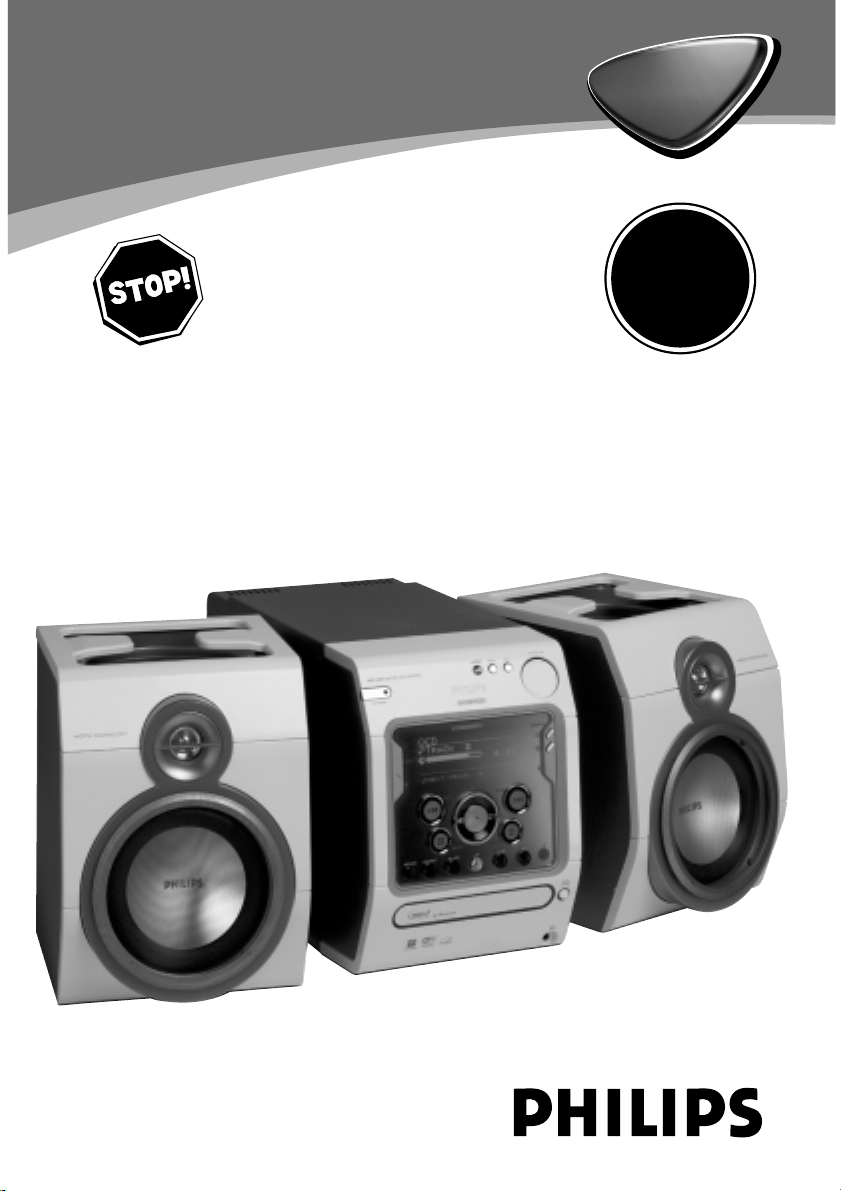
Wireless Broadband Internet Audio System
Read this manual first!
Congratulations on purchasing this Philips product.
We’ve included everything you need to get started.
If you have any problems, Philips Representatives can
help you get the most from your new product by explaining:
• Hookups,
• First Time Setup, and
• Feature Operation.
Do not attempt to return this product to the store.
For fast help, call us first!
1-800-531-0039
Thank you for making Philips a part of your home!
S
E
E
W
H
Y
I
N
S
I
D
E
I
M
P
O
R
T
A
N
T
!
Return
your Warranty
Registration Card
within 10 days
For more information on Streamium,
go to:
http://My.Philips.com
2
Canada
English:
This digital apparatus does not exceed
the Class B limits for radio noise
emissions from digital apparatus as set
out in the Radio Interference
Regulations of the Canadian
Department of Communications.
Français:
Cet appareil numérique n'emet pas
de bruits radioélectriques dépassant
les limites applicables aux appareils
numériques de Class B prescrites dans
le Règlement sur le Brouillage
Radioélectrique édicté par le Ministère
des Communications du Canada.
CAUTION
Use of controls or adjustments or
performance of procedures other
than herein may result in hazardous
radiation exposure or other unsafe
operation.
ATTENTION
L'utilisation des commandes ou
réglages ou le non-respect des
procédures ci-incluses peuvent se
traduire par une exposition
dangereuse à l'irradiation.
ATENCIÓN
El uso de mando o ajustes o la
ejecucción de métodos que no sean
los aquí descritos puede ocasionar
peligro de exposición a radiación.
UPGRADEABLE
As new services and features are continuously added to this product
through our online upgrades, the documentation included may not be
up-to-date. Please refer to My.Philips.com for the most recent
information.
MISES À NIVEAU
De nouveaux services et de nouvelles fonctions sont ajoutés régulièrement
à ce produit par nos mises à niveau en ligne; par conséquence, il se peut que
la documentation fournie ne soit pas mise à jour. Reportez-vous à
My.Philips.com pour les informations les plus récentes.
ACTUALIZABLE
Como se añaden continuamente nuevos servicios y funciones a este
producto a través de nuestras actualizaciones en línea, es posible que
la documentación adjunta no esté al día. Para obtener la información
más reciente, consulte My.Philips.com.
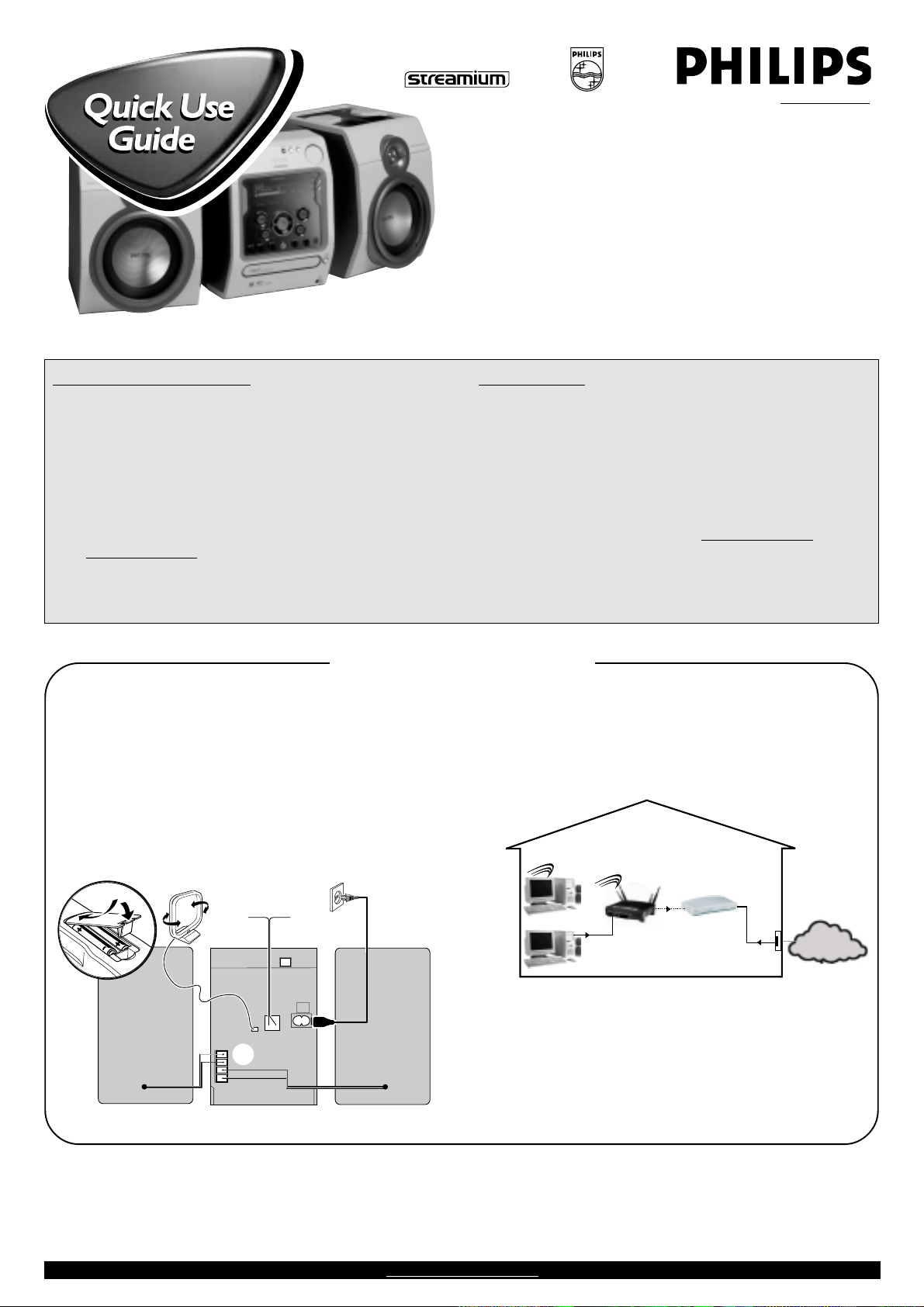
MC-i250
This Quick Use Guide gives a
rough overview and helps to
quickly start with basic steps.
Please read the supplied
instruction manual for detailed
information.
General Requirements
For online music services (INTERNET):
– Ethernet-based broadband Internet access (cable/DSL)
– Working email address
For PC Link:
– PC within the same network as MC-i250 (IP addresses of PC and
set have to be in same subnet)
– PC Link software installed (can be downloaded from
“http://My.Philips.com”)
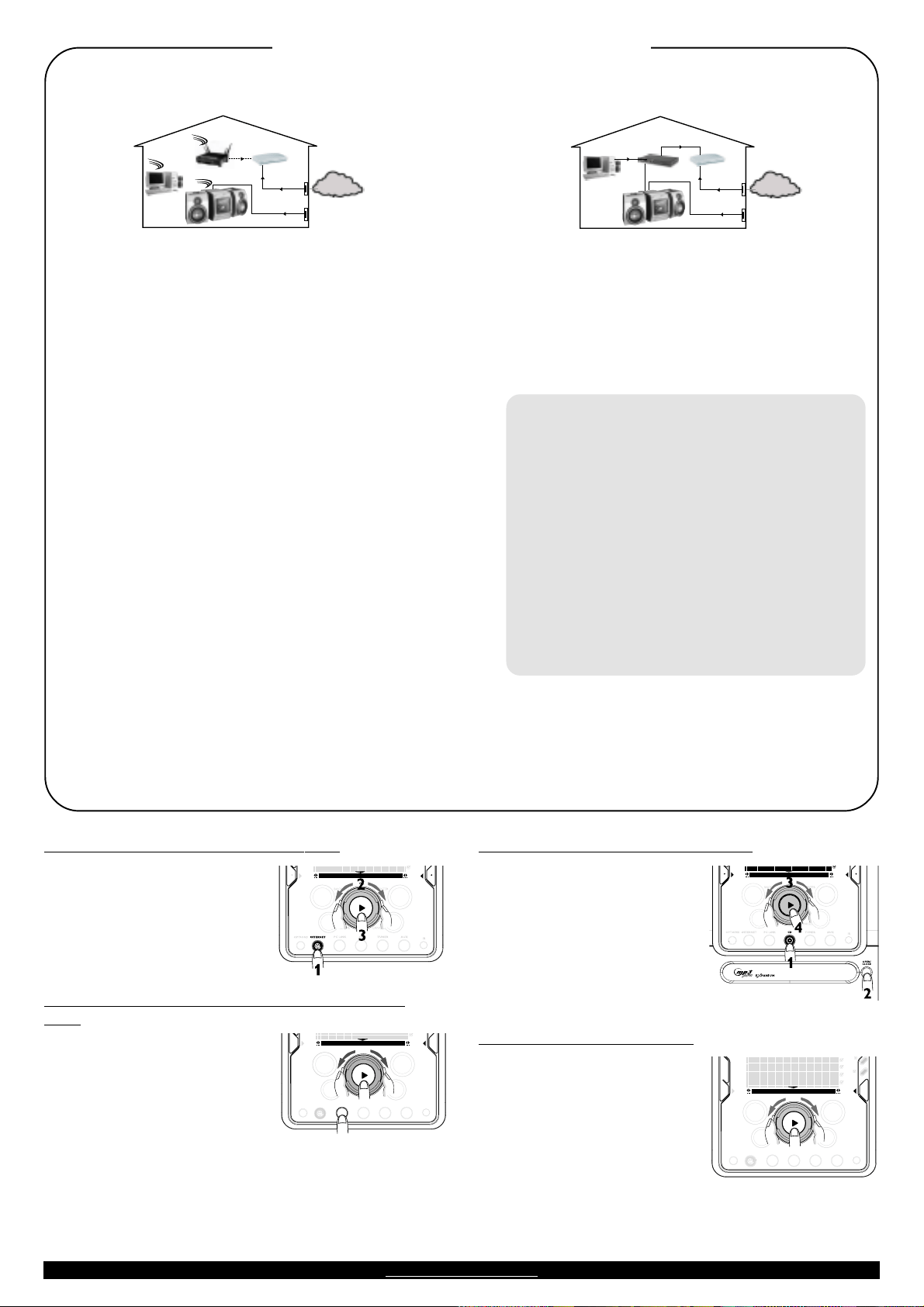
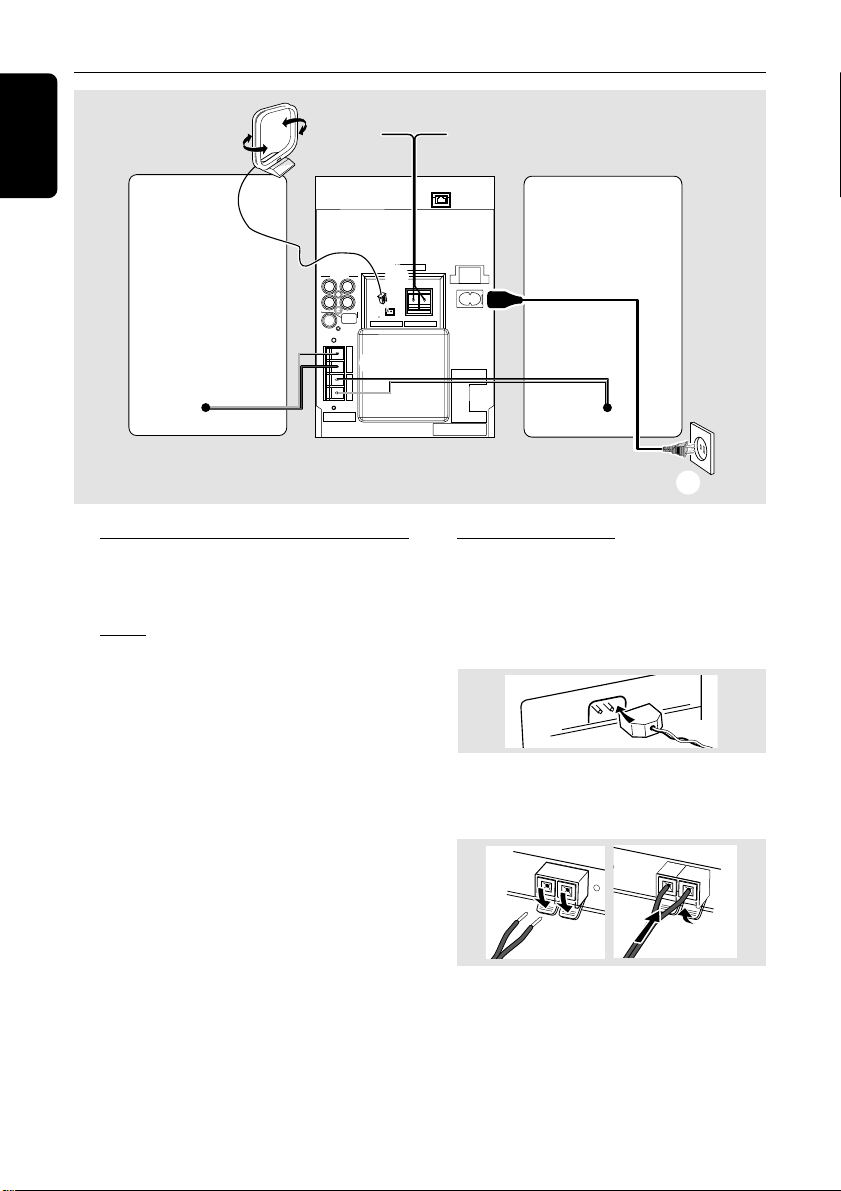
1 Basic audio connection
A FM wire antenna
B AM loop antenna
C Speakers
D Power cord
E Insert batteries into remote control.
You can now already listen to music from the sources TUNER and CD!
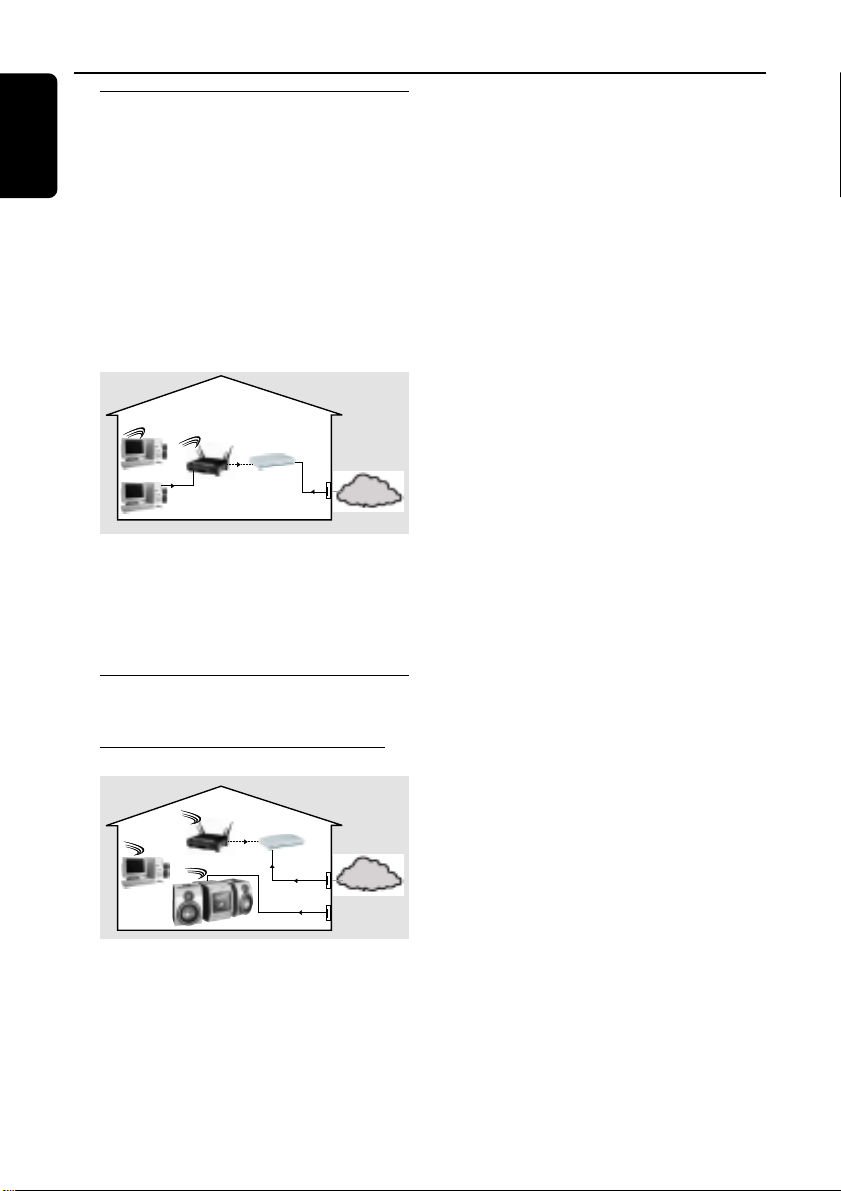
2 Home network connection
Connect your PC, (wireless) gateway router and broadband
modem (cable/DSL) according to the router’s setup
instructions.
INTERNET
DSL or
cable modem
data
port
wireless
access point
router
PC with wireless
network adaptor
3 Configure your home network
Follow the directions specified in your router’s manual and make
sure that the PC’s Internet connection is installed properly and
working. If you have problems with the setup of the Internet
connection, contact your networking equipment manufacturer or
Internet Service Provider.
Prerequisites For Setup
IMPORTANT!
Do not connect the Streamium MC-i250 to the home network before the internet connection of a connected PC
through the router is working.
AM
FM
D
A
B
C
E
speaker
(right)
speaker
(left)
Registration
To activate the online features of MC-i250, you have to
register your set after completing the “Prerequisites
for Setup” and “Connecting Streamium MC-i250”.
1 Enter your email address (using the remote control) on the set
and press OK/PLAY (É).
2 After a short moment you will receive an e-mail at the entered
address. Create your account with “http://My.Philips.com” and
activate music services by following the instructions received in
that e-mail.
Visit our website “http://My.Philips.com” for online help.
12NC : 3139 115 22192
Connecting Streamium MC-i250
õ For wireless operation (Wi-Fi, 802.11b):
INTERNET
DSL or
cable modem
Data port
Power outlet
wireless
access point
router
PC with wireless
network adaptor
1 If there is no networking cable plugged into the set at the first
setup, you will be asked whether you want to use wired
(Ethernet) or wireless (WiFi) operation. Choose Wireless.
For any further connection, the set will start up in the operation
mode last used. This setting can be changed at any later point in
time in the ‘SET OPTIONS’ menu under ‘SELECT NETWORK’.
2 You will be asked to choose between ‘Infrastructure’ or ‘Ad-hoc’
operation mode. If you want to use a wireless access point
(Infrastructure mode - recommended), select accordingly. If you
select “NO”, MC-i250 will try to establish a direct connection to a
wireless network adapter (Ad-hoc mode).
3 You will be asked to enter the network name (ESSID). Enter this
case-sensitive name, using the remote control.
4 You will be asked to select the network channel number. If you
use an access point (infrastructure mode), choose the used
channel or type in “0” for automatic detection. This process will
take a short while. If you do not use a wireless access point
(Ad-hoc mode), use the soft keys to select the used channel.
5 You can choose to use WEP encryption. If you choose ‘YES’,
you will be asked to enter up to four encryption keys. The first key
will be used as the outgoing key. The outgoing key can be defined
at any later point in time in the ‘SET OPTIONS’ menu under
‘ENCRYPT CONFIG’.
Notes:
– You can use ASCII or HEX encryption keys, but all have to be
the same length.
– When the wireless connection is established, you still might
have to configure the network settings (please see network
settings of wired operation).
õ For wired operation (Ethernet):
INTERNET
DSL or
cable modem
gateway
router
Data port
Power outlet
from
RJ45
After the Internet connection of a PC in the home network has
proven to be working, connect the MC-i250 to the gateway
router with the supplied cable. Press INTERNET.
The Streamium MC-i250’s network settings are by default set to
‘DHCP’ (dynamic IP addressing) and ‘NO PROXY’. When your
router is configured as a DHCP server and your ISP does not use
a proxy, the set should automatically establish a connection to the
Internet.
As soon as you are asked to enter your email address on the
screen, your set has successfully established a connection to the
Internet. To activate the online features of MC-i250, you
still have to complete the registration (see first page).
For Static IP addressing, enter the following information:
IP address _ _ _._ _ _._ _ _._ _ _
default gateway _ _ _._ _ _._ _ _._ _ _
subnet mask _ _ _._ _ _._ _ _._ _ _
DNS 1 _ _ _._ _ _._ _ _._ _ _
DNS 2 _ _ _._ _ _._ _ _._ _ _
Example: to enter the IP address 164.23.5.114, use the
remote control to key in :
164.023.005.114
If your ISP uses a proxy server, you will have to enter the
proxy name and proxy port.
Proxy name ___________________
Proxy port ___________________
Visit our website “http://My.Philips.com” for
online help.
Playing music from online music services
1 Press INTERNET.
2 Browse through music services with
Navigation Jog.
3 Press OK/PLAY (É) to select
and start choices.
Playing MP3-music-files from the computer’s hard
drive
1 Press PC LINK.
2 Browse and select PC’s, folders and
tracks with Navigation Jog.
3 Press OK/PLAY (É).
Note: Before you can use this music source,
1) You have to switch on your PC and connect it to the network.
2) You have to download and install the PC LINK PC application from
“http://My.Philips.com”.
CD AUX
TUNER
PC LINK
CANCELRESUME
OK
ENTERBACK
iR
• •
OPTIONS
OK
INTERNET
2
3
1
CD AUX
TUNER
PC LINK
VIEW
CANCELRESUME
OK
ENTER
BACK
iR
•
•
•
•
OPTIONS
OK
INTERNET
2
1, 3
Playing a CD/MP3-CD in the CD drive
1 Press CD.
2 Press OPEN/CLOSE and insert
a CD or MP3-CD into the tray.
Close the drawer by pressing
OPEN/CLOSE again.
3 Select track with Navigation Jog.
4 Press OK/PLAY (É) to start
playback.
Playing FM/AM radio stations
1 In standby mode, press and hold
OK/PLAY (É) on the system
until “
PRESS PLAY TO INSTALLPRESS PLAY TO INSTALL
PRESS PLAY TO INSTALLPRESS PLAY TO INSTALL
PRESS PLAY TO INSTALL
TUNERTUNER
TUNERTUNER
TUNER” is displayed.
Press OK/PLAY (É) again to
install all available radio stations.
2 Use the Navigation Jog to scroll
through the list of radio stations.
3 Press OK/PLAY (É) to select the radio station.
Visit our website “http://My.Philips.com” for online help.
3
SLEEPINCR. SURR. ALLREPEATSHUFFLEDIM 123 AM FMMW LW
REC
NEWS
1 2 3
NAVIGATE PLAY FAVORITES
CD
INTERNET
OPTIONS
CANCELRESUME
OK
ENTERBACK
AUX
TUNER
PC LINK
OPEN/
CLOSE
VIEW
FAVORITES
W
OO
X TREBLE BASS
SOUND JOG
0
@
#
$
%
^
&
5
4
(
)
¡
™
1
3
4
5
6
7
8
9
2
!
*
STANDBY•ON
ECO POWER
MICRO HIFI SYSTEM
iR
•
•
•
•
3
4
• Once your Philips purchase is registered,
you’re eligible to receive all the privileges
of owning a Philips product.
• So complete and return the Warranty
Registration Card enclosed with your
purchase at once, and take advantage
of these important benefits.
Return your Warranty Registration card today to
ensure you receive all the benefits you’re entitled to.
Warranty
Verification
Registering your product
within 10 days confirms
your right to maximum
protection under the
terms and conditions of
your Philips warranty.
Owner
Confirmation
Your completed Warranty
Registration Card serves
as verification of owner-
ship in the event of prod-
uct theft or loss.
Model
Registration
Returning your Warranty
Registration Card right
away guarantees you’ll
receive all the information
and special offers which
you qualify for as the
owner of your model.
t
This “bolt of lightning” indi-
cates uninsulated material
within your unit may cause
an electrical shock.For the safety of
everyone in your household,please do
not remove product covering.
s
The “exclamation point” calls
attention to features for
which you should read the
enclosed literature closely to prevent
operating and maintenance problems.
WARNING:
TO PREVENT
FIRE OR SHOCK HAZARD, DO
NOT EXPOSE THIS EQUIPMENT TO
RAIN OR MOISTURE.
CAUTION:
To prevent electric
shock,match wide blade of plug to
wide slot,and fully insert.
For Customer Use
Enter below the Serial No. which is locat-
ed on the rear of the cabinet.Retain this
information for future reference.
Model No. _______________________
Serial No. ________________________
MAC5097
Know these
ssaaffeettyysymbols
CAUTION
RISK OF ELECTRIC SHOCK
DO NOT OPEN
CAUTION: TO REDUCE THE RISK OF ELECTRIC SHOCK, DO NOT
REMOVE COVER (OR BACK). NO USER-SERVICEABLE PARTS
INSIDE. REFER SERVICING TO QUALIFIED SERVICE PERSONNEL.
5
Congratulations on your purchase,
and welcome to the “family!”
Dear Philips product owner:
Thank you for your confidence in Philips.You’ve selected one of the best-built,
best-backed products available today.And we’ll do everything in our power to
keep you happy with your purchase for many years to come.
As a member of the Philips “family,” you’re entitled to protection by one
of the most comprehensive warranties and outstanding service networks
in the industry.
What’s more, your purchase guarantees you’ll receive all the information
and special offers for which you qualify,plus easy access to accessories
from our convenient home shopping network.
And most importantly you can count on our uncompromising commitment
to your total satisfaction.
All of this is our way of saying welcome – and thanks for investing in a
Philips product.
Sincerely,
Lawrence J.Blanford
President and Chief Executive Officer
P.S. Remember, to get the most from your Philips product, you
must return your Warranty Registration Card within 10 days.
So please mail it to us right now!
R
E
G
I
S
T
R
A
T
I
O
N
N
E
E
D
E
D
W
I
T
H
I
N
1
0
D
A
Y
S
Hurry!
Visit our World Wide Web Site at http://www.philips.com

6
1.
Read these instructions.
2.
Keep these instructions.
3.
Heed all warnings.
4.
Follow all instructions.
5.
Do not use this apparatus near
water.
6.
Clean only with dry cloth.
7.
Do not block any ventilation
openings. Install in accordance with
the manufacturer´s instructions.
8.
Do not install near any heat sources
such as radiators, heat registers, stoves, or
other apparatus (including amplifiers) that
produce heat.
9.
Do not defeat the
safety purpose of the
polarized or
grounding-type plug.
A polarized plug has two blades with one
wider than the other. A grounding type plug
has two blades and a third grounding prong.
The wide blade or the third prong are
provided for your safety. If the provided plug
does not fit into your outlet, consult an
electrician for replacement of the obsolete
outlet.
10.
Protect the power cord from being
walked on or pinched, particularly at plugs,
convenience receptacles, and the point
where they exit from the apparatus.
11.
Only use attachments/accessories
specified by the manufacturer.
12.
Use only with the cart, stand,
tripod, bracket, or table specified
by the manufacturer or sold with
the apparatus. When a cart is
used, use caution when moving
the cart/apparatus combination
to avoid injury from tip-over.
13 .
Unplug this apparatus during lightning
storms or when unused for long periods of
time.
14 .
Refer all servicing to qualified service
personnel. Servicing is required when the
apparatus has been damaged in any way,
such as power-supply cord or plug is
damaged, liquid has been spilled or objects
have fallen into the apparatus, the apparatus
has been exposed to rain or moisture, does
not operate normally, or has been dropped.
15.
Battery usage
CAUTION
– To
prevent battery leakage which may result in
bodily injury, property damage, or damage
to the unit:
●
Install all batteries correctly, + and - as
marked on the unit.
●
Do not mix batteries (old and new or
carbon and alkaline, etc.).
●
Remove batteries when the unit is not used
for a long time.
EL 6475-E004: 02/8
IMPORTANT SAFETY INSTRUCTIONS
AC Polarized
Plug
Class II equipment symbol
This symbol indicates that the unit has
a double insulation system

7
English
Français
Español
English ------------------------------------------------ 8
Index
Français -------------------------------------------- 44
Español --------------------------------------------- 80

8
English
Contents
General Information
About MC-i250................................................... 10
About MP3........................................................... 10
Environmental information .............................. 11
Supplied accessories .......................................... 11
Safety information .............................................. 11
Preparations
Rear connections ........................................ 12–13
Power
Antennas connection
Speakers connection
Optional connections........................................ 13
Analog audio connections
Subwoofer out connection
Inserting batteries into the remote control .. 13
Prerequisites for home network setup ......... 14
Connecting Streamium MC-i250 to
your home network ................................... 14–15
For wireless operation (WiFi, 802.11b)
For wired operation (Ethernet)
Registration ......................................................... 15
Controls
Controls on the system and remote
control ........................................................... 16–17
Basic Functions
Plug and Play ........................................................ 18
Switching the system on ................................... 19
Switching the system to standby mode ........ 19
Switching the system to Eco Power
standby mode...................................................... 19
Power saving automatic standby..................... 19
Dim mode ............................................................ 19
Volume control ................................................... 19
Sound control ..................................................... 20
wOOx
Bass/Treble
Incredible Surround
Screen display...................................................... 21
Navigation view
Play view
Switching between Navigation view and Play view
Using the soft keys............................................. 21
Scrolling ................................................................ 22
Internet Audio
Connecting to your PC (PC LINK) ............... 23
Connecting to online music services............. 23
Set options.................................................... 24–25
Select User
Select Network
Network Configuration
Wireless Configuration
Encryption Configuration
Proxy Configuration
Wireless Information
Network Information
Product Information
Online Upgrade
Reset Settings
About “My.Philips.com” .................................... 25
CD/MP3-CD Operations
Discs for playback .............................................. 26
Loading disc ......................................................... 26
Basic operations ................................................. 27
Selecting a desired track/passage.................... 27
Repeat and Shuffle.............................................. 27
Repeat play
Random play
Playing a MP3-CD........................................ 27–28
Marking favorite tracks ..................................... 28
Activating the favorites list
Deactivating the favorites list
Playing a favorites list
Cancelling a favorite track
Deleting all favorite tracks
Artist and title information.............................. 29
Requesting on-line audio CD information
Radio Reception
Tuning to radio stations .................................... 30
Storing favorite radio stations .................. 30–31
Automatic Preset Programming
Manual Preset Programming
Selecting a favorite radio station .................... 31
Erasing a favorite radio station........................ 31
Deleting all the favorite radio stations .......... 31

9
English
Personalized and interactive
features
Multiple users...................................................... 32
Creating your user account
Selecting a user account
Favorites ............................................................... 32
Creating your favorites list
Accessing your favorites list
Returning to normal list (exit from favorites list)
Getting extra information ................................ 32
External Sources
Connecting an external device ....................... 33
Listening to external source............................ 33
Maintenance.............................................. 33
Clock/Timer
View clock............................................................ 34
Clock setting ....................................................... 34
Timer setting................................................ 34–35
Checking the timer
Activate/deactivate the timer
Sleep timer setting ............................................. 35
Specifications ........................................... 36
Troubleshooting .............................37–38
Limited Warranty ................................ 39
Contents

10
English
General Information
About MP3
Supported formats
– MP3PRO, MP3
– ISO9660, Joliet, Multisession
– Supported sampling frequencies : 16, 22.05,
24, 32, 44.1, 48 (kHz)
– Supported Bit-rates of MP3 disc are:
32–256 (kbps) and variable bit-rate
Making your own MP3-CD
1 Copy the music from your own Digital Audio
CDs or download legal MP3 music from the
Internet.
2 Record (“burn”) the music on a CD-R(W) disc
with your home PC. Make sure to use a
recording speed not faster than indicated on the
CD-R(W) and avoid running other programs
simultaneously on your PC during the recording
process.
Sound Quality
Take note that MP3-CD compilations should
best contain only MP3 tracks (.mp3).
To achieve a good MP3 quality, a bit rate
of 128 kbps or higher is recommended.
About MC-i250
Philips Streamium MC-i250 is a wireless
broadband internet audio system. It is compliant
with the IEEE 802.11B specification, which is,
known under the name WiFi™. WiFi™ is the
leading wireless industry standard for broadband
networking, and delivers, depending on your
environment, bandwidth of up to 11 Mbps over
distances up to 100 meters.
MC-i250 allows you to enjoy the massive
benefits of broadband entertainment in locations
of your house which do not have a wired
network connection. MC-i250 has its own MAC
address and needs its own IP address to operate
properly.
General requirements :
for Online music services
– Ethernet-based broadband Internet access
(cable/DSL).
– Working e-mail address.
Note:
– Please consult your Internet Service Provider on
the feasibility of connecting multiple devices to your
Internet connection.
for PC Link
– PC within the same network as MC-i250
(IP addresses of PC and set have to be in
same subnet).
– PC Link software installed (can be
downloaded from “http://My.Philips.com”).
Useful tips to help you get the best
wireless performance
– The best place to put your wireless access
point is as close as possible to the center of the
area that you want to cover.
– Position your wireless access point’s
antenna(s) vertically.
– Keep antenna(s) away from large metal
objects to avoid interference.
– Avoid placing MC-i250 directly under the
wireless access point.
– Refer to the signal bar strength indication
(from ‘Wireless information’) to locate the best
position for placing the MC-i250.

11
English
Safety information
● Before operating the system, check that the
operating voltage indicated on the typeplate
(or the voltage indication beside the voltage
selector) of your system is identical with the
voltage of your local power supply. If not, please
consult your dealer.
● Place the system on a flat, hard and stable
surface.
● Place the system in a location with adequate
ventilation to prevent internal heat build-up in
your system. Allow at least 10 cm (4 inches)
clearance from the rear and the top of the unit
and 5 cm (2 inches) from each side.
● Do not expose the system, batteries or discs to
excessive moisture, rain, sand or heat sources
caused by heating equipment or direct sunlight.
● If the system is brought directly from a cold to a
warm location, or is placed in a very damp room,
moisture may condense on the lens of the disc
unit inside the system. Should this occur, the CD
player will not operate normally. Leave the
power on for about one hour with no disc in the
system until normal playback is possible.
● When the system is switched to Standby
mode, it is still consuming some power.
To disconnect the system from the
power supply completely, remove the AC
power plug from the wall socket.
This system complies with the FCC rules,
Part 15 and with 21 CFR 1040.10.
Operation is subject to the following two
conditions:
– This device may not cause harmful
interference, and
– This device must accept any interference
received, including interference that may
cause undesired operation.
Environmental information
All unnecessary packaging has been omitted.
We have tried to make the packaging easy to
separate into three materials: cardboard (box),
polystyrene foam (buffer) and polyethylene (bags,
protective foam sheet).
Your system consists of materials which can be
recycled and reused if disassembled by a
specialized company. Please observe the local
regulations regarding the disposal of packaging
materials, exhausted batteries and old
equipment.
Supplied accessories
– 2 speaker boxes
– Remote control
– Batteries (two AA size) for remote control
– AM loop antenna
– FM wire antenna
– AC power cord
– Category 5 Ethernet cable
General Information
12
English
Preparations
Rear connections
The type plate is located at the rear of the
system.
A Power
Before connecting the AC power cord to the
wall outlet, ensure that all other connections
have been made.
WARNING!
– For optimal performance, use only the
original power cable.
– Never make or change any
connections with the power switched on.
To avoid overheating of the system, a safety
circuit has been built in. Therefore, your
system may switch to Standby mode
automatically under extreme conditions. If
this happens, let the system cool down
before reusing it (not available for some
versions).
B Antennas connection
Connect the supplied AM loop antenna and FM
antenna to the respective terminals. Adjust the
position of the antenna for optimal reception.
AM Antenna
● Position the antenna as far as possible from a TV,
VCR or other radiation source.
FM Antenna
1
2
● For better FM stereo reception, connect an
outdoor FM antenna to the FM ANTENNA
terminal.
speaker
(right)
speaker
(left)
SPEAKERS 6Ω
_
L
+
_
R
+
DIGITAL
IN OUT
AC
MAINS
~
VOLTAGE
SELECTOR
NOT FOR ALL
COUNTRIES
110V-
127V
220V-
240V
SUB
WOOFER OUT
AUX/
CDR IN
R
L
LINE OUT
R L
DIGITAL
OUT
AM ANTENNA
FM ANTENNA
AM loop
antenna
AC power cord
A
FM wire antenna
B
C
13
English
Preparations
C Speakers connection
Front Speakers
Connect the speaker wires to the SPEAKERS
terminals, right speaker to "R" and left speaker to
"L", colored (marked) wire to "+" and black
(unmarked) wire to "-".
1
2
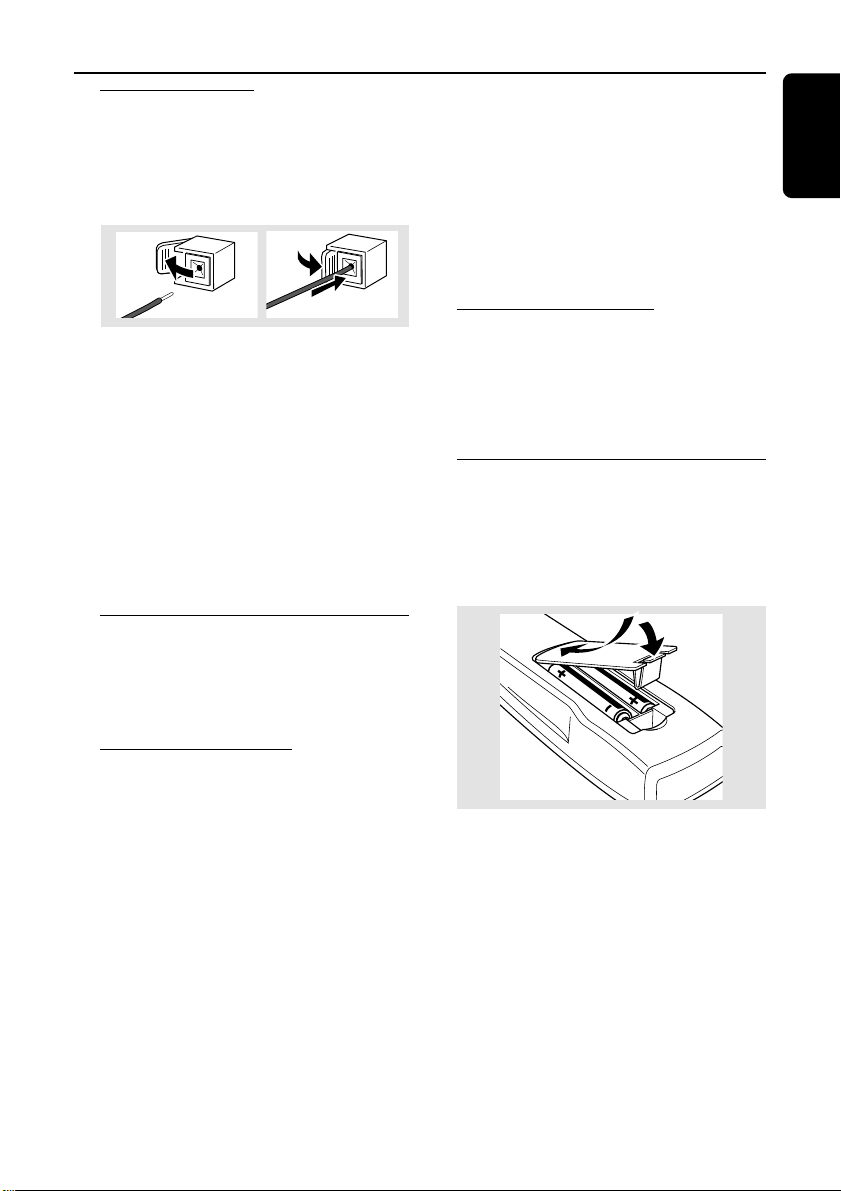
● Fully insert the stripped portion of the speaker
wire into the terminal as shown.
Notes:
– To avoid magnetic interference, do not position
the front speakers too close to the PC monitor/TV.
– For optimal sound performance, use the
supplied speakers.
– Do not connect more than one speaker to any
one pair of +/- speaker terminals.
– Do not connect speakers with impedance lower
than the speakers supplied. Please refer to the
SPECIFICATIONS section of this manual.
Optional connections
The optional equipment and connecting cords
are not supplied. Refer to the operating
instructions of the connected equipment for
details.
Analog audio connections
AUX/CDR IN (R/L)
Use a cinch cable to connect these terminals to
the analog audio out terminals of an external
equipment (TV, VCR, Laser Disc player, DVD
player or CD Recorder), for listening to this
source.
LINE OUT (R/L)
Use a cinch cable to connect these terminals to
the analog audio inputs of any analog audio
equipment (amplifier/receiver or tape recorder,
for example), for playback or performing analog
recording.
Notes:
– Do not connect equipment to both the
LINE OUT and AUX/CDR IN terminals at the
same time. Otherwise, noise will be generated and
malfunction might occur.
– If you are connecting equipment with a
monaural output (a single audio out terminal),
connect it to the AUX/CDR IN left terminal.
Alternatively, you can use a “single to double” cinch
cable (the output sound will still remain mono).
Subwoofer out connection
Connect the subwoofer to the SUBWOOFER
OUT terminal. The subwoofer reproduces just
the low bass sound effects (explosions or the
rumble of spaceships, for example).
Inserting batteries into the
remote control
Insert two batteries (type R06 or AA) into the
remote control with the correct polarity as
indicated by the “+” and ”-” symbols inside
the battery compartment.
CAUTION!
– Remove batteries if they are exhausted
or will not be used for a long time.
– Do not use old and new or different
types of batteries in combination.
– Batteries contain chemical substances,
so dispose of them properly.
14
English
Preparations
Prerequisites for home network
setup
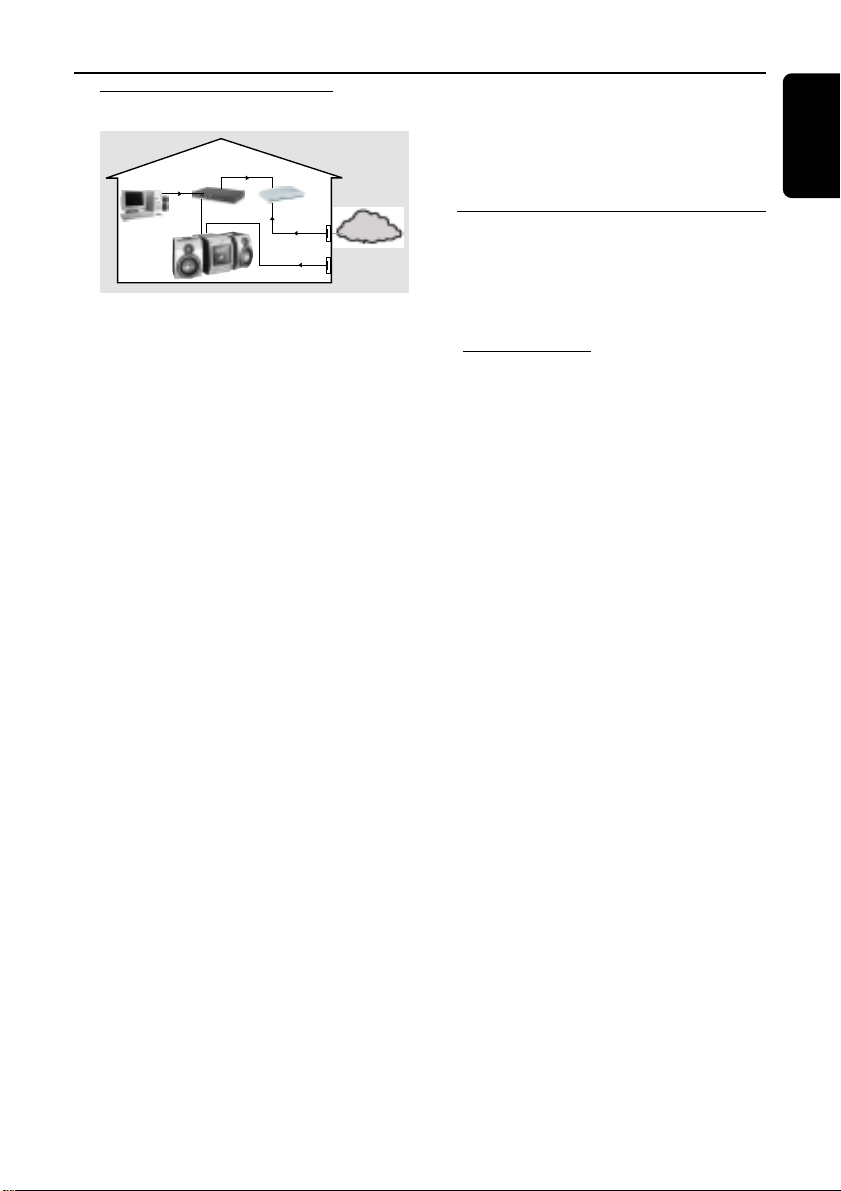
1 Connect your PC, (wireless) gateway router and
broadband modem (cable/DSL) according to
the router’s setup instruction.
2 Configure your home network following the
directions specified in your router’s manual and
make sure that the PC’s Internet connection is
installed properly and working. If you have
problems with the setup of the Internet
connection, contact your networking equipment
manufacturer or Internet Service Provider.
INTERNET
DSL or
cable modem
data
port
wireless
access point
router
PC with wireless
network adaptor
IMPORTANT!
Do not connect the Streamium MC-i250
to the home network before the Internet
connection of the connected PC through
the router is working.
Connecting Streamium MC-i250
to your home network
For wireless operation (WiFi, 802.11b)
INTERNET
DSL or
cable modem
Data port
Power outlet
wireless
access point
router
PC with wireless
network adaptor
1 If there is no networking cable plugged into the
set at the first setup, you will be asked whether
you want to use wired (Ethernet) or wireless
(WiFi) operation. Choose Wireless. For any
further connection, the set will start up in the
operation mode last used. This setting can be
changed at any later point in time in the
‘SET OPTIONS’ menu under ‘SELECT
NETWORK’.
2 You will be asked to choose between
‘Infrastructure’ or ‘Ad-hoc’ operation mode.
If you want to use a wireless access point
(Infrastructure mode - recommended), select
accordingly. If you select “NO”, MC-i250 will try
to establish a direct connection to a wireless
network adapter (Ad-hoc mode).
3 You will be asked to enter the network name
(ESSID). Enter this case-sensitive name, using the
remote control.
4 You will be asked to select the network channel
number. If you use an access point
(infrastructure mode), choose the used channel
or type in “0” for automatic detection. This
process will take a short while. If you do not use
a wireless access point (Ad-hoc mode), use the
soft keys to select the used channel.
5 You can choose to use WEP encryption.
If you choose ‘YES’, you will be asked to enter
up to four encryption keys. The first key will be
used as the outgoing key. The outgoing key can
be defined at any later point in time in the
‘SET OPTIONS’ menu under ‘ENCRYPT
CONFIG’.
Notes:
– All the characters shown on the system’s display
screen are in capital letter. The case-sensitive is
determined by the size of character, for example
“e” will be shown as “E” in a smaller size.
– You can use ASCII or HEX encryption keys, but
all have to be the same length.
– When the wireless connection is established, you
still might have to configure the network settings
(please see network settings of wired operation).
15
English
For wired operation (Ethernet)
INTERNET
DSL or
cable modem
gateway
router
Data port
Power outlet
from
RJ45
After the Internet connection of a PC in the
home network has proven to be working,
connect the MC-i250 to the gateway router with
the supplied cable. Press INTERNET.
The Streamium MC-i250’s network settings are
by default set to ‘DHCP’ (dynamic IP addressing)
and ‘NO PROXY’. When your router is
configured as a DHCP server and your ISP does
not use a proxy, the set should automatically
establish a connection to the Internet.
If your home network uses static IP addressing,
you will have to set a static IP address, network
mask, default gateway and two DNS servers.
This information can be obtained from your ISP.
Also, if your ISP uses a proxy server, you will have
to enter the proxy name and proxy port.
Information you might need for setup
(can be requested from your ISP):
● Does the network use static or dynamic
(DHCP) IP addressing?
➜ In DHCP, an IP address is automatically
assigned to the set. In static IP mode, the
information mentioned above has to be entered
using the remote control.
● Does the ISP use a proxy?
➜ If yes, what is the proxy name and proxy port?
● Does the ISP only allow registered devices to
use DHCP?
➜ If yes, you might have to tell the ISP the set’s
MAC address (can be found in ‘SET OPTIONS’
under ‘NETWORK INFO’).
As soon as you are asked to enter your email
address on the screen, your set has successfully
established a connection to the Internet.
To activate the online features of MC-i250, you
still have to complete the registration.
Registration
1 Enter your email address (using the remote
control) on the set and press OK/PLAY (2).
2 After a short moment you will receive an e-mail
at the entered address. Create your account with
“http://My.Philips.com” and activate music
services by following the instructions received in
that e-mail.
– Use the numerical/alphabetical keypad on the
remote control to enter your e-mail address.
– To delete a character, press S to move the
cursor backward.
– To exit the registration mode without storing,
press Ç.
– Press OK (2) to confirm your entry. Your
registration confirmation details will be e-mailed
to you.
– Registration is only available for the default
user.
Preparations

16
English
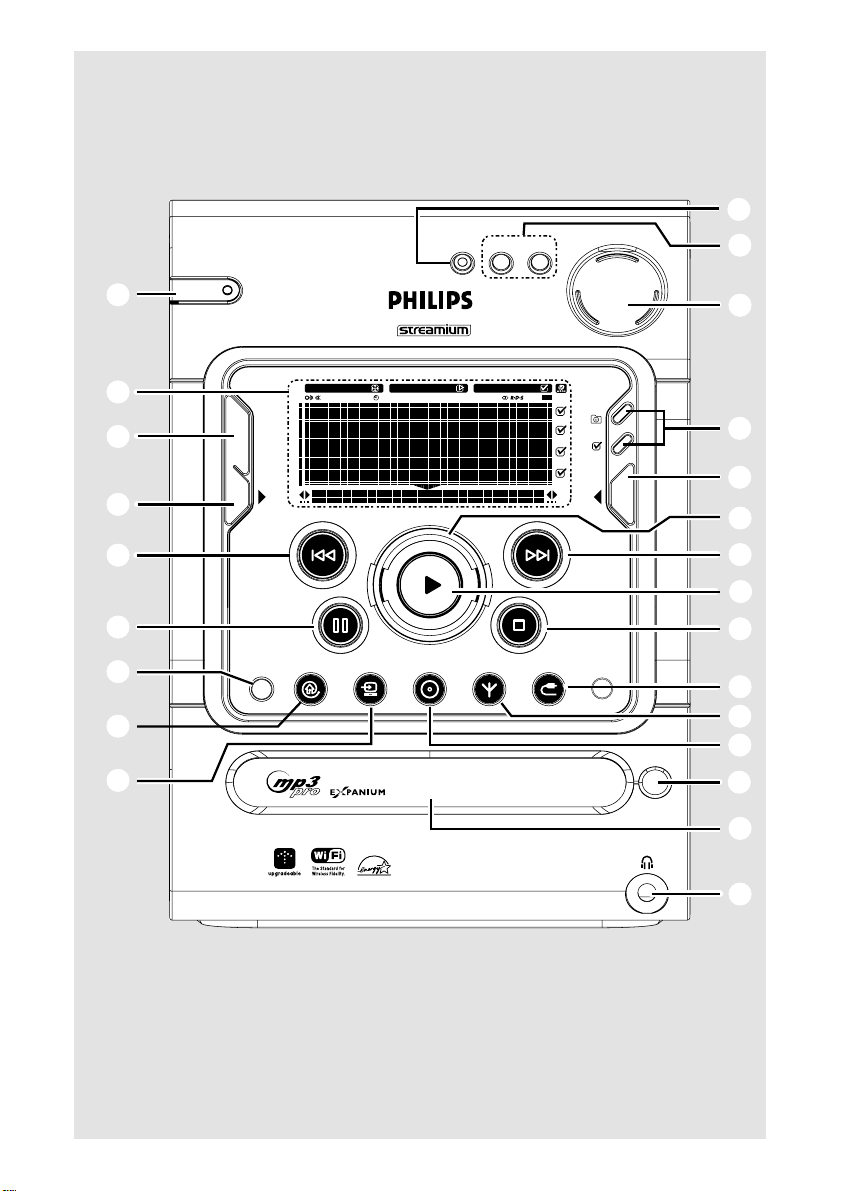
Controls (main system’s illustration on page 3)
Controls on the system and
remote control
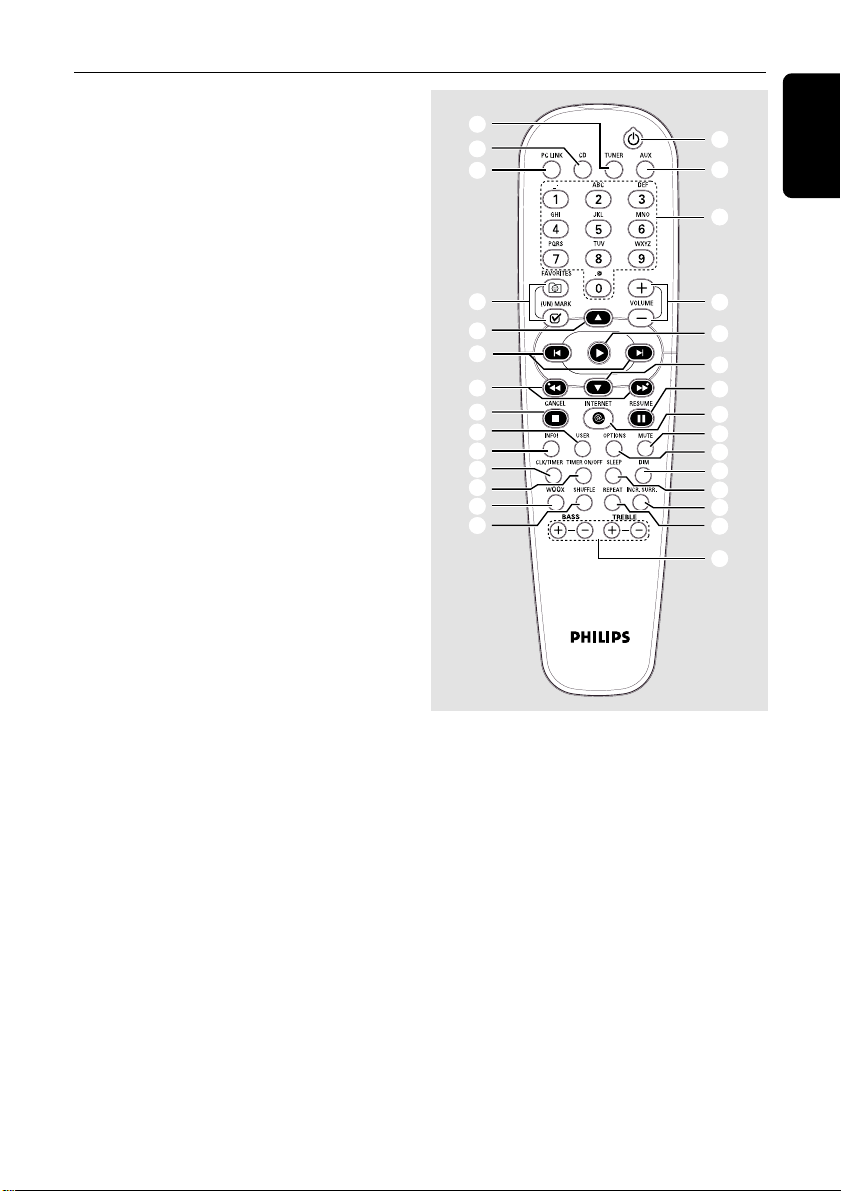
1 STANDBY ON / ECO POWER
– to switch the system on (on the system only).
– to switch the system to standby mode.
– hold down to switch the system to Eco Power
standby mode.
2 Display screen
– to view the current status of the system.
3 VIEW
– to switch to navigation or play view.
4 @ ! (soft keys)
– to select from the available choices on the
bottom line of the screen.
5 BACK S / ENTER T
for CD, INTERNET, PC LINK
(play view) ......... to skip to the beginning of the
current, previous, or next track.
................................. hold down to search backward/
forward.
for Tuner (play view)…to tune to a lower or
higher radio frequency.
for Clock ............ to change between hour and
minutes field.
6 Å (RESUME)
– to interrupt or resume playback.
7 OPTIONS
– to modify source/service settings.
8 INTERNET
– to connect to an internet audio service.
9 PC LINK
– to access MP3 files stored on home network’s
PC.
0 n
– to connect headphones.
! Disc tray
@ OPEN/CLOSE
– to open or close the disc tray.
# CD
– to enter CD mode.
$ TUNER
– to enter tuner mode or select waveband
(FM or AM).
% AUX
– to select the input for an additional appliance.
^ Ç (CANCEL)
for CD ................. to stop playback.
for Tuner ............. to stop programming.
for Clock ............ to exit clock setting or cancel
timer.
for Plug & Play…to exit plug & play mode.
&
22
22
2 (OK)
– to start playback.
– to confirm the selection.
– to initiate and start plug & play mode.
* Navigation jog (3
/
4)
for CD, INTERNET, PC LINK…to scroll through
a list.
for Tuner ............. to select a favorite radio station.
for Clock ............ to set the hours and minutes.
( FAVORITES ( )
for CD, PC LINK, INTERNET ... to switch to the
favorites list of the selected
mode.
for Tuner ............. hold down to auto program
radio stations.
(UN)MARK ( )
– to select and add an item to a favorite list.
– to delete an item from a favorite list.
– hold down to delete the complete favorites.
) SOUND JOG (VOLUME +/-)
– to increase or decrease volume.
– (on the system only) to increase or decrease the
low or high tone level for the respective BASS or
TREBLE sound feature selected.
¡ BASS / TREBLE
– to select BASS or TREBLE sound feature.
BASS / TREBLE +/- (on the remote control)
– to increase or decrease bass or treble level.
17
English
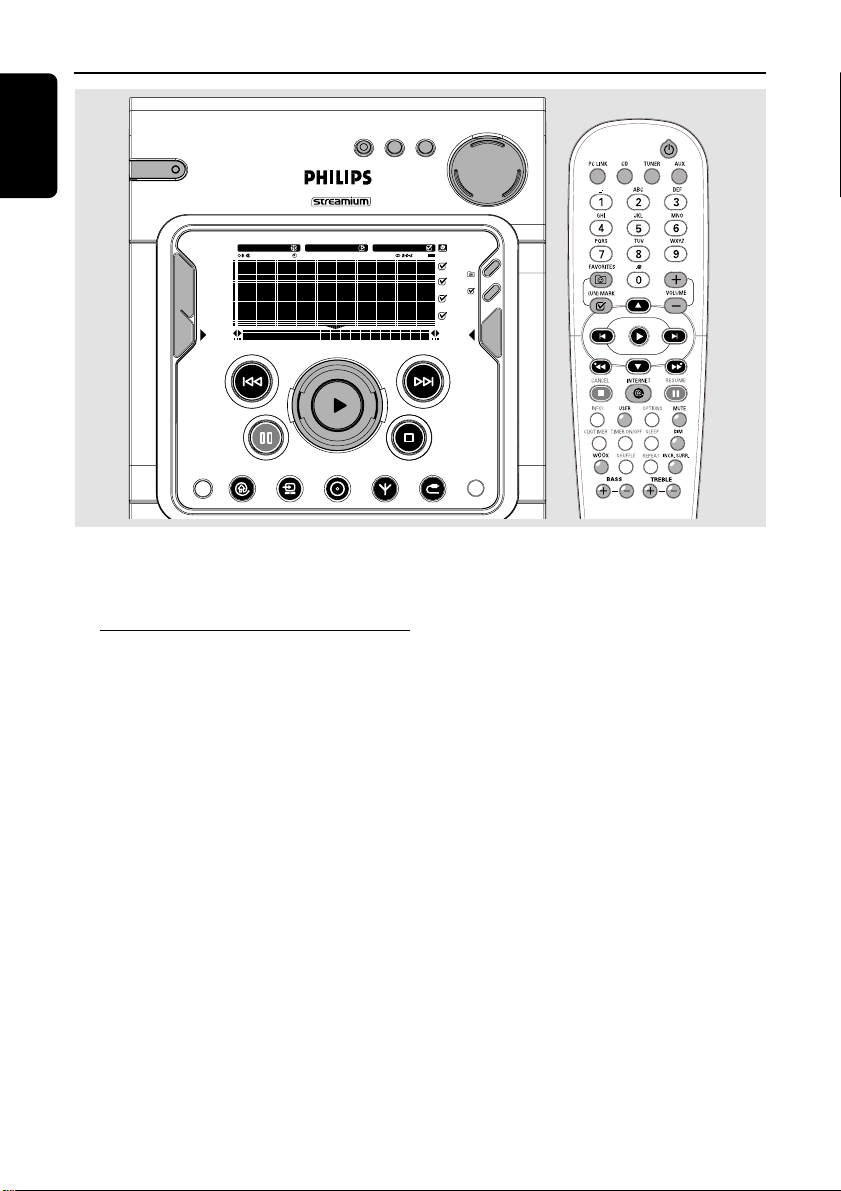
™ wOOx
– to select the next wOOx level or switch off
wOOx sound effect.
£ ¡ / ™
for CD, INTERNET, PC LINK
(play view) ......... to skip to the beginning of the
current, previous, or next track.
for Tuner (play view)…to select a favorite radio
station.
for Clock ............ to change between hour and
minutes field.
≤ à / á
for CD (play view)…to search backward/
forward.
for Tuner ............. to tune to a lower or higher
radio frequency.
– used as a soft keys, to select from the available
choices on the bottom line of the screen.
∞ USER
– to select an active user.
§ INFO!
– to request on-line information about currently
playing item through e-mail (if available).
≥ CLK/TIMER
– to display or set the clock / timer.
• TIMER ON/OFF
– to activate or deactivate the timer function.
ª SHUFFLE
– to playback all tracks/favorites in random order.
º REPEAT
– to playback track/ disc / favorites repeatedly.
⁄ INCR. SURR.
– to activate or deactivate the surround sound
effect.
¤ SLEEP
– to activate, deactivate or set the sleep timer
function.
‹ DIM
– to select different brightness for the display
screen : DIM 1, DIM 2, DIM 3 or DIM OFF.
› MUTE
– to interrupt or resume sound reproduction.
Controls
#
9
$
ª
™
•
≥
§
∞
^
‹
¤
⁄
º
¡
7
›
8
6
*
&
)
≤
£
*
(
fi
%
1
fi DIGITS 0 – 9
(numbers consisting more than two figures must be
keyed in within 2 seconds.)
for CD, INTERNET, PC LINK ... to select a track.
for OPTIONS…for text/number editing.
for Tuner ............. to select a favorite radio station.
Notes for remote control:
– First, select the source you wish to
control by pressing one of the source select
keys on the remote control (CD or TUNER,
for example).
– Then select the desired function (
É
,
í
,
ë
for example).
18
English
Basic Functions
SLEEPINCR. SURR. ALLREPEATSHUFFLEDIM 123 AM FMMW LW
REC
NEWS
1 2 3
NAVIGATE PLAY FAVORITES
CD
INTERNET
OPTIONS AUX
TUNER
PC LINK
VIEW
WOOX TREBLE BASS
SOUND JOG
FAVORITES
STANDBY•ON
ECO POWER
MICRO HIFI SYSTEM
CANCELRESUME
OK
ENTERBACK
iR
•
•
•
•
IMPORTANT!
Before you operate the system, complete
the preparation procedures.
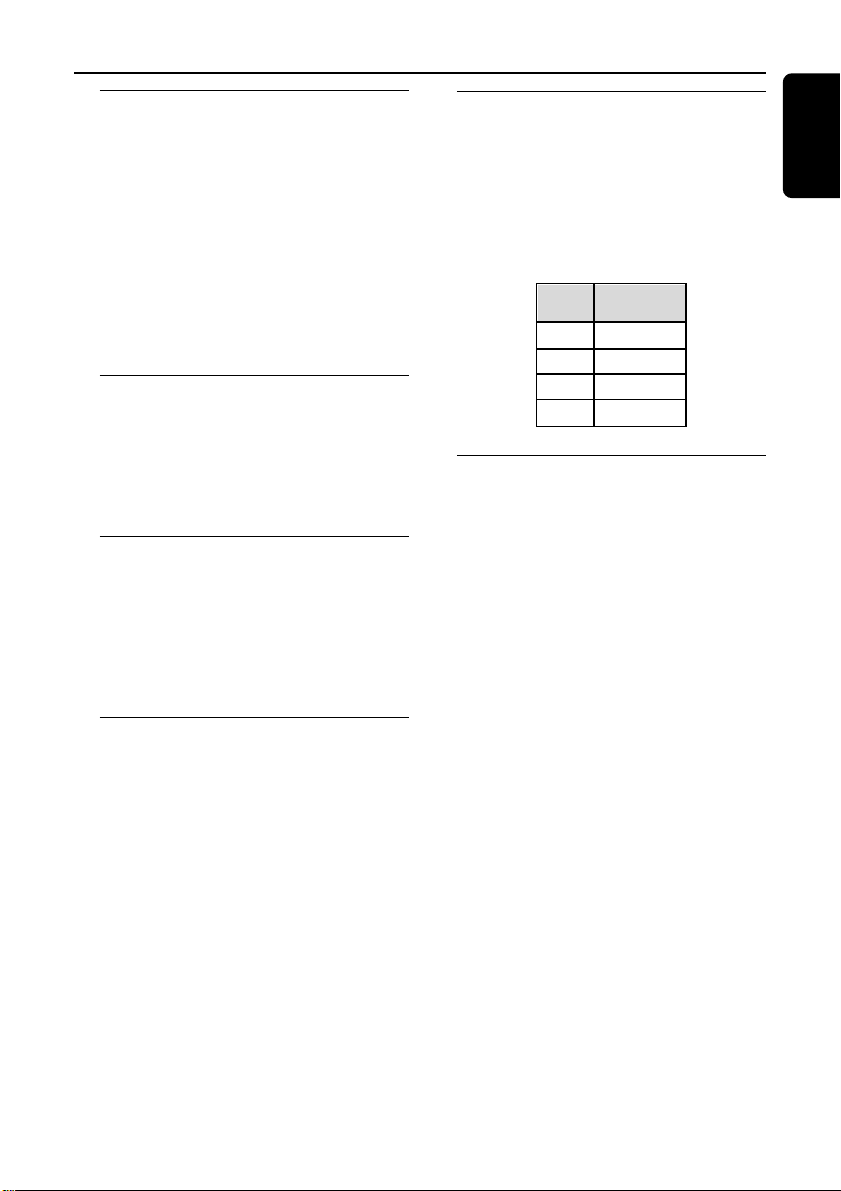
Plug and Play
Plug and Play allows you to store all available
radio stations automatically.
First time setup/power up
1 When you turn on the power supply,
"
PRESS PLAY TO INSTALL TUNERPRESS PLAY TO INSTALL TUNER
PRESS PLAY TO INSTALL TUNERPRESS PLAY TO INSTALL TUNER
PRESS PLAY TO INSTALL TUNER" is
displayed.
2 Press
22
22
2 to start installation.
➜ "
INSTALLING TUNERINSTALLING TUNER
INSTALLING TUNERINSTALLING TUNER
INSTALLING TUNER" is displayed, followed
by "
AUTO PROGRAM IN PROGRESS...AUTO PROGRAM IN PROGRESS...
AUTO PROGRAM IN PROGRESS...AUTO PROGRAM IN PROGRESS...
AUTO PROGRAM IN PROGRESS...".
➜ All available radio stations with sufficient signal
strength will be stored automatically, starting
from FM and followed by AM band.
➜ When all the available radio stations are
stored or the memory for 40 presets is used, the
last preset radio station will be played.
To reinstall Plug and Play
1 In standby mode, press and hold
22
22
2 until "
PRESSPRESS
PRESSPRESS
PRESS
PLAY TO INSTALL TUNERPLAY TO INSTALL TUNER
PLAY TO INSTALL TUNERPLAY TO INSTALL TUNER
PLAY TO INSTALL TUNER" is displayed.
2 Press
22
22
2 again to start installation.
➜ All previously stored radio stations will be
replaced.
To exit without storing the Plug and Play
● Press Ç.
➜ If you do not complete the Plug and Play
installation, the function will be restarted when
you next turn on the power supply again.
Notes:
– When the power is turned on, the disc tray may
open and close to initialize the system.
– If no stereo frequency is detected during
Plug and Play, "
PLEASE CHECK ANTENNA
" is
displayed.
19
English
Switching the system on
In standby mode
● Press STANDBY ON to switch on the last
selected source.
● Press PC LINK, INTERNET, CD, TUNER,
or AUX to select the desired source.
In Eco Power Standby mode
● Press STANDBY ON on the system.
● Press PC LINK, CD, TUNER, INTERNET or
AUX on the remote control.
Switching the system to standby
mode
● Press STANDBY ON (or B on the remote
control).
➜ The clock will appear on the display when the
system is in standby mode.
Switching the system to Eco
Power standby mode (<0.5W)
● Press and hold STANDBY ON (or B on the
remote control) for more than three seconds.
➜ "
ECO POWER MODEECO POWER MODE
ECO POWER MODEECO POWER MODE
ECO POWER MODE" is displayed, then the
display screen will go blank.
➜ The low power LED will be lighted.
Power saving automatic standby
As a power-saving feature, the system will
automatically switch to Standby mode if you do
not press any buttons within 30 minutes after a
disc has stopped playing.
Dim mode
You can select the desired brightness for the
display.
● Press DIM on the remote control repeatedly to
select DIM 1, DIM 2, DIM 3 or DIM OFF display
mode.
➜ DIM and the corresponding dim level will
appear on the display, except for DIM OFF mode.
DIM
mode
1
2
3
OFF
LEDs
on
on
off
on
Volume control
Adjust SOUND JOG (or press VOLUME
+/- on the remote control) to increase or
decrease the volume level.
➜ "
-XX dB-XX dB
-XX dB-XX dB
-XX dB" is displayed. "
XXXX
XXXX
XX" denotes the
volume level.
To listen through the headphones
● Connect the headphones plug to the n socket
at the front of the system.
➜ The speakers will be muted.
To switch off the volume temporarily
● Press MUTE on the remote control.
➜ Playback will continue without sound and
"
MUTE ONMUTE ON
MUTE ONMUTE ON
MUTE ON" is displayed.
● To restore the volume, press MUTE again or
increase the volume level.
Basic Functions
20
English
Sound control
For optimal sound listening, you are only
able to select BASS/TREBLE or wOOx at a
time.
wOOx
There are three wOOx settings to enhance the
bass response.
● Press wOOx repeatedly to select the next
wOOx level or switch the wOOx effect off :
wOOx 3, wOOx 2, wOOx 1 or wOOx OFF.
➜ WOOX and the corresponding wOOx level
will appear on the display, except for wOOx
OFF mode.
Notes:
– When switched off the wOOx effect, the last
Bass/Treble will resume automatically.
– Some discs might be recorded in high
modulation, which causes a distortion at high
volume. If this occurs, deactivate wOOx or reduce
the volume.
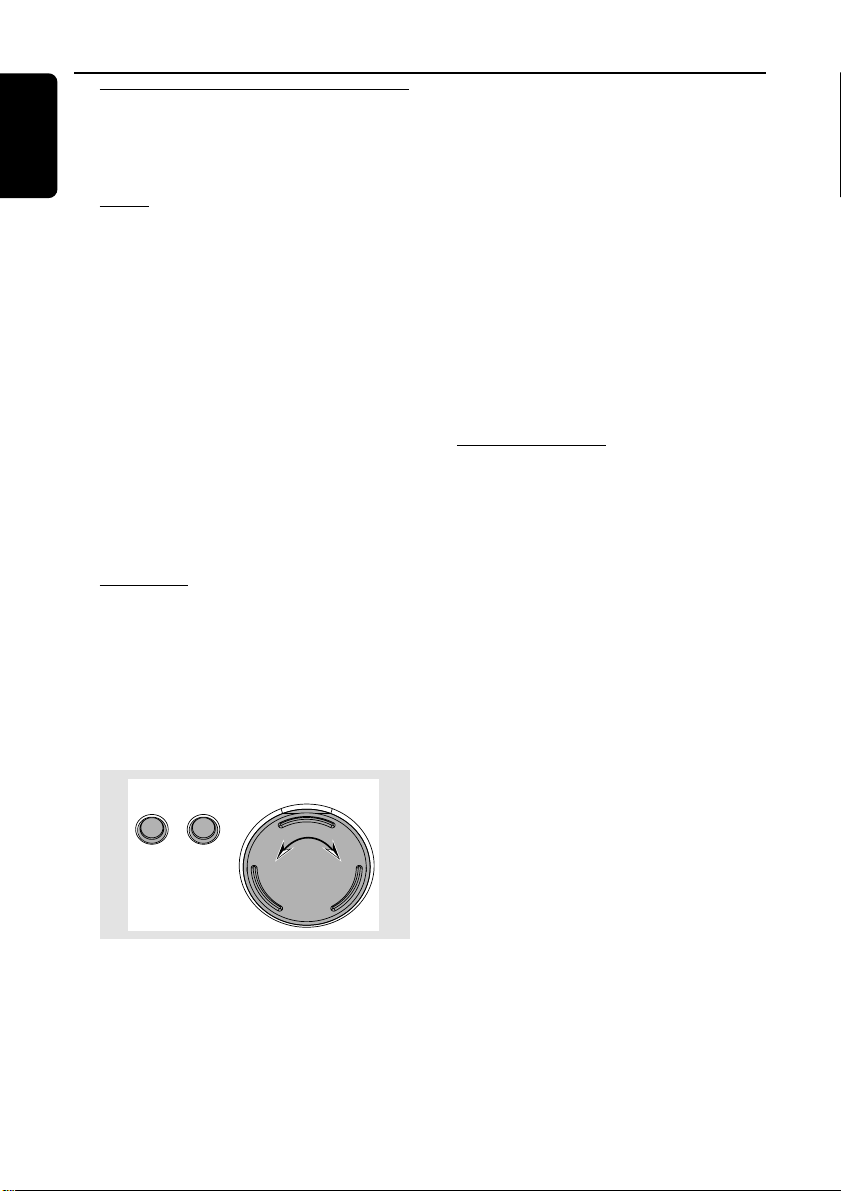
Bass/Treble
The BASS (low tone) and TREBLE (high tone)
feature enables you to define the sound-
processor settings.
● Press BASS +/- or TREBLE +/- on the
remote control repeatedly to select the next
Bass or Treble level.
OR
TREBLE BASS
SOUND JOG
1
=
=
2
Basic Functions
1 Press BASS or TREBLE on the system to
select Bass or Treble sound feature.
2 Adjust SOUND JOG on the system to select
the desired Bass or Treble level.
➜ "
BASS LEVEL XXBASS LEVEL XX
BASS LEVEL XXBASS LEVEL XX
BASS LEVEL XX" or "
TREBLE LEVEL XXTREBLE LEVEL XX
TREBLE LEVEL XXTREBLE LEVEL XX
TREBLE LEVEL XX"
is displayed. "
XXXX
XXXX
XX" denotes the level as follows :
MINMIN
MINMIN
MIN ™
-2-2
-2-2
-2 …™
00
00
0… ™
+2+2
+2+2
+2 ™
MAXMAX
MAXMAX
MAX…
Notes:
– The sound jog can be used to adjust Bass/Treble
level immediately after you have selected the
respective Bass/Treble sound feature. If the sound
jog is not used within five seconds, it will become
normal volume control function.
– The Bass/Treble mode will exit automatically if
wOOx feature selected.
Incredible Surround
The Incredible Surround magnifies the virtual
distance between the front speakers for an
incredibly wide, enveloping, stereo effect.
● Press INCR. SURR. on the remote control
repeatedly.
➜ If activated, INCR. SURR. is shown.
➜ If deactivated, “
INCR. SURR. OFFINCR. SURR. OFF
INCR. SURR. OFFINCR. SURR. OFF
INCR. SURR. OFF” is
displayed.
21
English
Screen display
The system has two main screen display views –
NAVIGATION and PLAY.
Navigation view
Allows you to navigate through the contents of
the currently selected source/service.
In some cases, there may exist more than one
level of navigation. For example, selecting an item
in the existing list may further generate a sub-list
of the selected item.
“
>>
>>
>” – indicates level 2 sub-list
“...
>>
>>
>” – indicates any level lower than level 2
ALTERNATIVE
BLUES
COOL CHARTS
Play view
When OK (É) is pressed on a highlighted item
within navigation view, the device switches to
Play view and will start playing the item. The
display content in Play view varies for each
source/service.
You may switch back to Navigation view while
music is playing to make your next selection.
Switching between Navigation view and
Play view
● Press VIEW on the system.
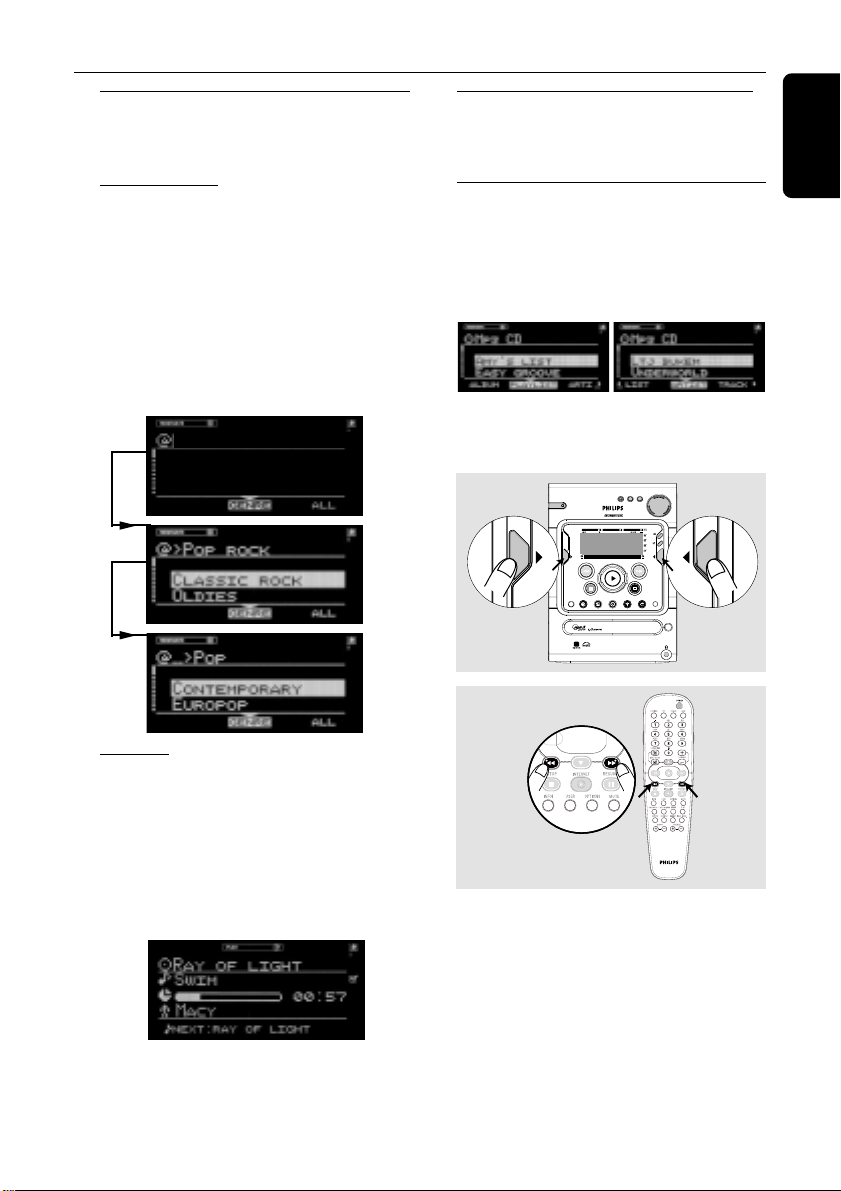
Using the soft keys
Each source/service has different sort modes.
For example, the sort modes when playing back
an MP3CD are ALBUM, PLAYLIST, ARTIST and
TRACK. (only some of the modes may be
available, depending on the disc)
The “( “ or “)“ at the bottom right or left hand
corner of the screen indicates that there is more
information to be viewed.
SLEEPINCR. S URR. ALLREPEATSHUFFLEDIM 123 AM FMMW LW
REC
NEWS
1 2 3
NAVIGATE PLA Y FAVOR ITES
CD
INTERNET
OPTIONS AUX
TUNER
PC LINK
OPEN/
CLOSE
VIEW
WOOX TREBLE BASS
SOUND JOG
FAVORITES
STANDBY•ON
ECO POWER
MICRO HIFI SYSTEM
CANCELRESUME
OK
ENTER
BACK
iR
•
•
•
•
••
••
•
•
••
••
•
•
To select from choices on the bottom
line of the display
● Use the left hand soft key (@) or right hand soft
key (!) on your system (à / á on the remote
control).
Basic Functions
22
English
Scrolling
All lists in navigation view are sorted in
alphabetical or numerical order.
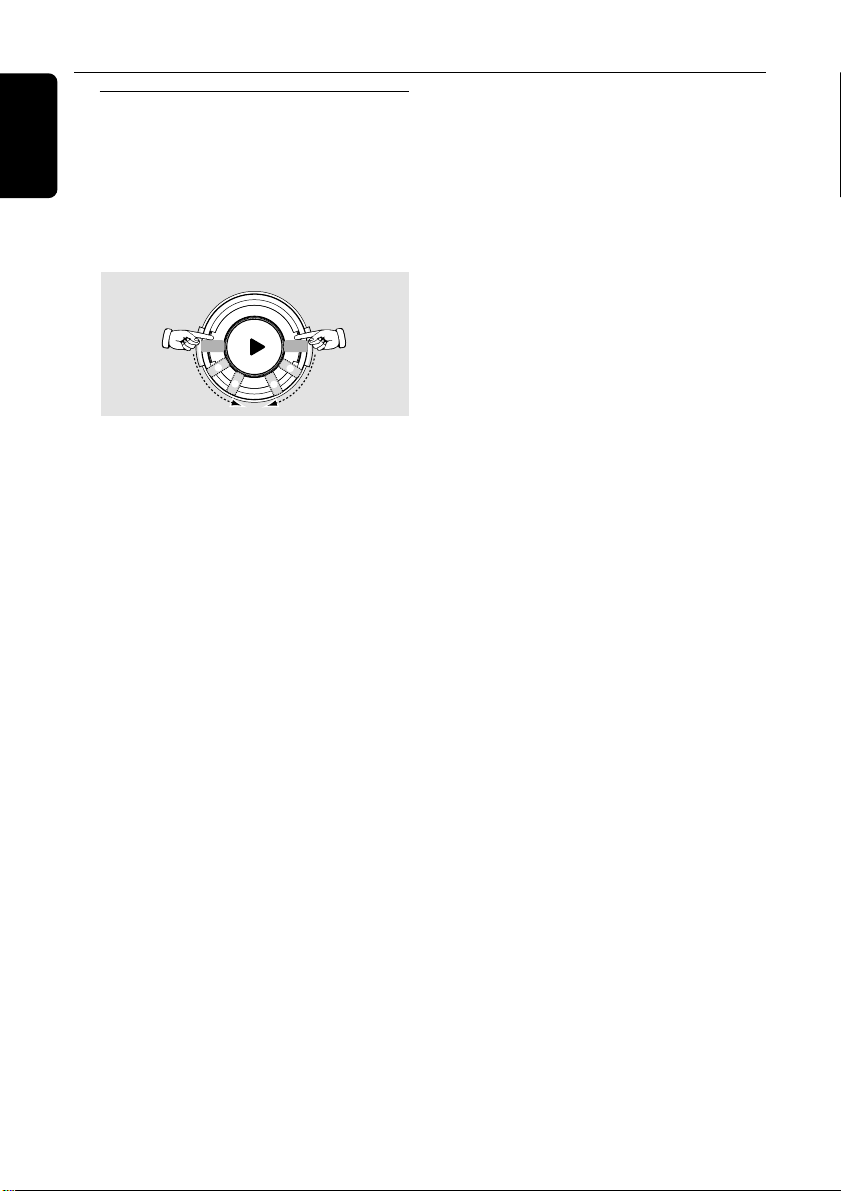
To scroll through a list
● Adjust the navigation jog clockwise to scroll
down or counterclockwise to scroll up. There
are two scrolling speeds : 1 slow and 2 fast.
OK
s
c
r
o
l
l
u
p
s
c
r
o
l
l
d
o
w
n
1
1
2
2
1 Enables you to skip forward/backward to an item
on the list.
2 Enables you to skip forward/backward by several
items on the list.
Basic Functions

23
English
Internet Audio
Connecting to your PC (PC LINK)
This feature allows you to stream your favorite
MP3 music from your PC via the home PC’s
network. In order to enjoy the PC Link,
you have to install the PC Link PC application.
This application can be downloaded from
“http://My.Philips.com”.
1 Press PC LINK.
➜ “
SEARCHING...SEARCHING...
SEARCHING...SEARCHING...
SEARCHING...” is displayed.
➜ If no PC is found within 30 seconds, an error
message “
NO PC’S FOUNDNO PC’S FOUND
NO PC’S FOUNDNO PC’S FOUND
NO PC’S FOUND” is displayed.
Check your network setup.
➜ If PCs are found, the names of the servers are
displayed. Select the preferred server by pressing
OK (É).
2 Use the navigation jog to navigate and press
OK (É) to enter/play a desired item.
Note:
– PC Link favorites are not user specific.
The same PC Link server will always have the same
favorites.
Connecting to online music
services
The INTERNET feature is not a source/service
by itself. It works with on-line services such as
Internet radio stations to get access to music.
The services offer different types of Internet
audio content, that can be categorized by
GENRE, REGION, LANGUAGE, PERSONAL,
STATION, etc..
1 Press INTERNET.
➜ A list of on-line services is displayed.
MY RADIO
STREAMIUM RADIO
INTERNET
➜ If unsuccessful, “
DID NOT CONNECT.DID NOT CONNECT.
DID NOT CONNECT.DID NOT CONNECT.
DID NOT CONNECT.
PLEASE TRY AGAIN LATERPLEASE TRY AGAIN LATER
PLEASE TRY AGAIN LATERPLEASE TRY AGAIN LATER
PLEASE TRY AGAIN LATER“ is displayed.
2 Use the navigation jog (or press 3 / 4 on the
remote control) to select a music service
provider and then press OK (É) or
ENTER (T) to enter the service.
➜ The system will start connecting to the
service and “
LOADING...LOADING...
LOADING...LOADING...
LOADING...” is displayed
➜ When connection is established, the system
will show a list of available internet music
services or subcategories.
3 To enter a subcategory, press OK (É) or
ENTER (T). To start playing a certain music
service, press OK (É). To go back to a higher
level or leave a music service, go to navigation
view by pressing VIEW or using navigation jog
and press BACK (S).
➜ If there are sort modes for the music services
available, they will be shown on the bottom line
of the display. You can change the sort mode by
pressing the soft keys (@) or (! ).
Notes:
– Only Stations can be marked as a favorite.
– Each user can have its own favorites.

24
English
Set options
An option menu exists for each source/service
except for TUNER and AUX. The available
option menus are detailed within the respective
source/service sections in this manual.
1 Press INTERNET followed by OPTIONS.
2 Press the soft key (!) on the system to select
“
SETSET
SETSET
SET”.
➜ Below are some possible options :
– SELECT USER
– SELECT NETWORK
– NETWORK CONFIG
– WIRELESS CONFIG
– ENCRYPT CONFIG
– PROXY CONFIG
– WIRELESS INFO
– NETWORK INFO
– PRODUCT INFO
– ONLINE UPGRADE
– RESET SETTINGS
Note:
– This option list may be extended or changed if
new services become available.
3 Use the navigation jog (or press 3 / 4 on the
remote control) to select the desired set options
and press OK (2) to confirm.
Select User
The user menu displays the available account(s)
for easy selection. Select a user account to
retrieve user specific favorites within a source/
service.
Select Network
This option allows to choose between wireless
and Ethernet operation mode.
Network Configuration
Depending on the type of Internet connection
you have, “DHCP” or “STATIC” must be selected
to enable your system to connect to the
Internet. Check with your service provider to
obtain the correct IP mode.
For users whose systems are set to “STATIC”
mode, the following additional input fields have
to be completed :
– SET IP
– SET NETMASK
– SET GATEWAY
– SET DNS 1
– SET DNS 2
Check with your service provider and enter the
necessary connection settings for these options.
Note:
– The change of network configuration is only
necessary if your system does not work with the
default configuration.
Wireless Configuration
This feature allows you to configure the wireless
setup.
The following settings have to be completed
depending on your access point setup :
– Wireless mode : Intrastructure or Ad-hoc
– ESSID (case-sensitive)
– Channel configuration
Encryption Configuration
ENCRYPT CONFIG allows to enable/disable
WEP encryption for wireless operation mode.
If enabled, the user is asked to enter the
encryption keys and to choose the outgoing key
(set sending key).
Internet Audio

25
English
Internet Audio
Proxy Configuration
Check with your service provider to obtain the
correct proxy name and proxy port.
Wireless Information
Selecting this feature will show the signal
strength of the wireless connection, the type of
network chosen, the ESSID of the network, the
channel used and the security level. You may
need to adjust the position of your internet
micro system in order to get the optimal
reception (signal level = >10%).
Network Information
This feature reports the details of your network
connection.
Product Information
Check the current system information.
Online Upgrade
This feature allows you to check for new
software updates. If you are already a registered
user, “My.Philips.com” will automatically notify
you of any software updates by e-mail.
Reset Settings
Selecting this feature will revert the system to
the default setting.
WARNING!
Restore the default settings erases all
the information stored in the set options.
You will remain registered at
“My.Philips.com”.
Note:
– To terminate internet access when switching the
source mode to CD or AUX, press OPTIONS and
select accordingly.
About “My.Philips.com”
“My.Philips.com” provides a personal online
tool for managing your entertainment choices. It
is an exclusive service to owners of Philips’
premium internet-connected products. Once
you have registered with “My.Philips.com”, you
will be able to :
– create and personalize your music selections.
– update on latest music releases or favorite
artists.
– keep up with developments in technology
and software.
– contact the music service providers.
– review and obtain information on artists and
music tracks by pressing INFO! button.
26
English
CD/MP3-CD Operations
SLEEPINCR. SURR. ALLREPEATSHUFFLEDIM 123 AM FMMW LW
REC
NEWS
1 2 3
NAVIGATE PLAY FAVORITES
CD
INTERNET
OPTIONS AUX
TUNER
PC LINK
OPEN/
CLOSE
VIEW
FAVORITES
CANCELRESUME
OK
ENTERBACK
iR
•
•
•
•
IMPORTANT!
– This system is designed for regular
discs. Therefore, do not use any
accessories such as disc stabilizer rings or
disc treatment sheets.
– Do not load more than one disc into
the tray.
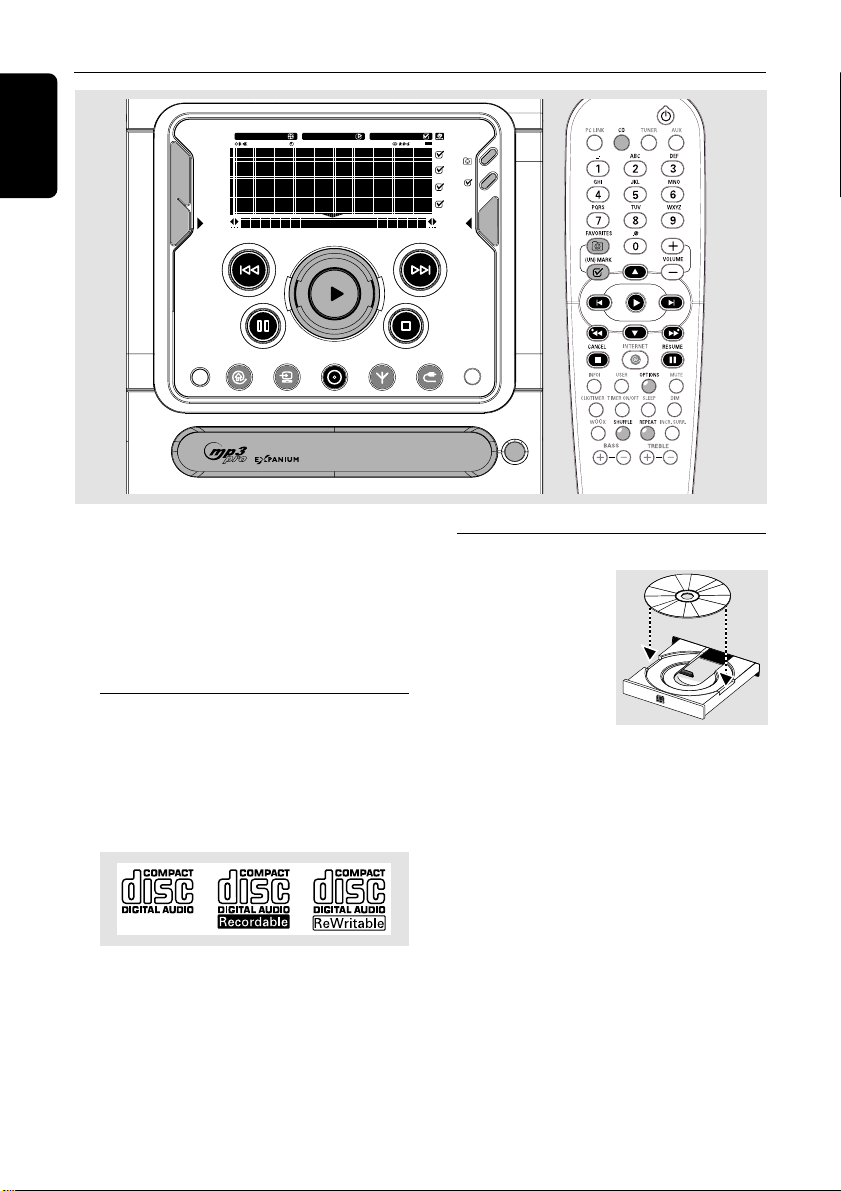
Discs for playback
This system is able to play :
– All pre-recorded audio CDs
– All finalized audio CDR and audio
CDRW discs
– CD’s with MP3 and/or MP3PRO files (files
end with .mp3)
Loading disc
1 Press OPEN/CLOSE
to open the disc tray.
2 Load in a disc with the
label side facing up.
3 Press OPEN/CLOSE
again to close the disc
tray.
➜ The system detects the type of disc being
loaded, “
CDCD
CDCD
CD” or “
MP3 CDMP3 CD
MP3 CDMP3 CD
MP3 CD” is displayed.
➜ The system then starts to retrieve text
information for the disc.
Notes:
– To ensure good system performance, wait until
the disc tray completely reads the disc before
proceeding.
– For MP3 discs, the disc reading time may exceed
10 seconds due to the large number of songs
compiled onto one disc.
P
O
W
E
R
O
N
/
O
F
F

27
English
CD/MP3-CD Operations
Basic operations
Playing a disc
● Press 2.
To interrupt playback
● Press Å.
➜ The current track time flashes.
● To resume playback, press Å again.
To stop playback
● Press Ç.
Selecting a desired track/passage
To select a desired track
– While playing
● Press S or T (or ¡ / ™ on the remote
control) repeatedly until the desired track is
displayed.
– in stop mode
● Use the navigation jog (or press 3 / 4 on the
remote control) until the desired track is
highlighted.
● PressÉ to start playback.
To search for a particular passage during
playback
● Press and hold S or T (or à / á on
the remote control) until the desired passage is
located.
➜ During searching, the volume will be reduced.
To skip to the beginning of the current
track during playback
● Press S ( ¡) once.
Repeat and Shuffle
You can select and change the various play
modes before or during playback.
Repeat play
1 Press REPEAT on the remote control
repeatedly to select the following :
➜ REPEAT TRACK – repeat the current track.
➜ REPEAT ALL – repeat the entire disc.
2 To resume normal playback, press REPEAT
until "
REPEAT OFFREPEAT OFF
REPEAT OFFREPEAT OFF
REPEAT OFF" is displayed.
Random play
1 Press SHUFFLE on the remote control.
➜ SHUFFLE is shown and "
SHUFFLINGSHUFFLING
SHUFFLINGSHUFFLING
SHUFFLING" is
displayed.
➜ All the tracks or favorite tracks (if favorite
mode is active) will be played in random order.
2 To resume normal playback, press SHUFFLE
again.
➜ SHUFFLE disappears.
Playing a MP3-CD
1 Load in a MP3-CD.
➜ “
ANALYZING DISCANALYZING DISC
ANALYZING DISCANALYZING DISC
ANALYZING DISC” is shown.
2 Press the soft key (! or @) to select the following
options from the navigation view : ALBUM
(directory name on disc), PLAYLIST or TRACK
(file name).
3 Use the navigation jog (or press 3 / 4 on the
remote control) until the desired item is
highlighted.
4 PressÉ to start playback.
● Pressing the REPEAT or SHUFFLE button
will repeat or shuffle the last selected option.
➜ REPEAT – repeat the current album/playlist/
artist/track.
➜ REPEAT ALL – repeat all albums/playlists/
artists/tracks.
➜ SHUFFLE – shuffle all albums/playlists / artists/
tracks.
28
English
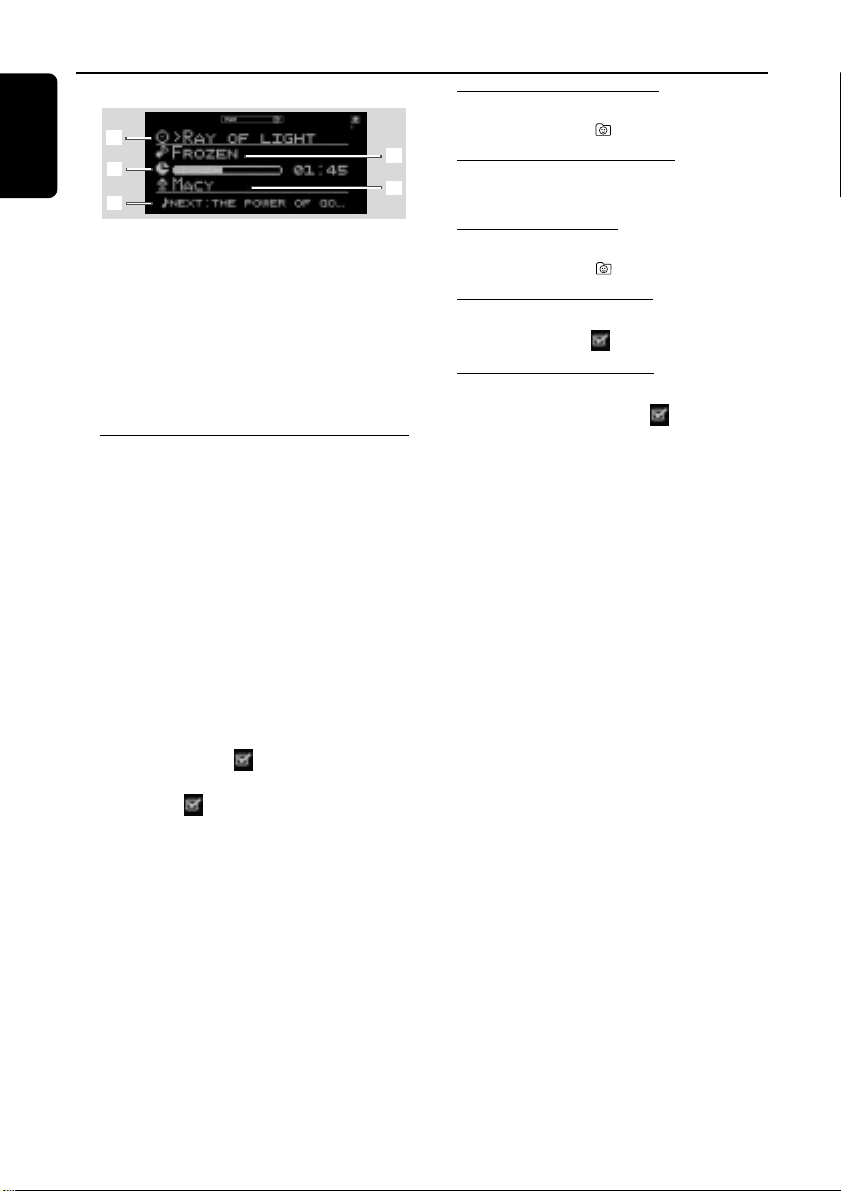
display screen
2
1
3
5
4
1 The selected item is shown (album name, playlist
name, artist name or MP3-CD name).
2 Track name.
3 Elapsed play time.
4 Artist name is shown. If 1 shows the artist
name, then album name is shown here.
5 Next track name.
Marking favorite tracks
This feature allows you to mark your favorite
tracks for easy playback the next time you load
in the CD/MP3CD again. It can store up to a
maximum of 50 tracks for a normal CD and 128
tracks for MP3-CD. Different users can store
different favorites for the same CD/MP3CD
using their individual user ID.
You can manage your CD/MP3-CD favorites in
My.Philips.com (refer to “My.Philips.com” for
more information).
1 Use the navigation jog (or press 3 / 4 on the
remote control) to scroll through the tracks.
2 Press (UN)MARK ( ) to add into the favorite
list.
➜ The icon “ ” appears next to the selected
track.
● Repeat this step to select additional tracks to
your favorite list.
➜ The next selected track will appear at the
end of the list.
➜ If you attempt to program more than
50 (CD) / 128 (MP3-CD) tracks, ”
NO MORENO MORE
NO MORENO MORE
NO MORE
FAVORITES CAN BE ADDEDFAVORITES CAN BE ADDED
FAVORITES CAN BE ADDEDFAVORITES CAN BE ADDED
FAVORITES CAN BE ADDED” is displayed.
Activating the favorites list
● Press FAVORITES ( ).
Deactivating the favorites list
● Press CD.
Playing a favorites list
● Press FAVORITES ( ) followed by OK (É).
Cancelling a favorite track
● Press (UN)MARK ( ) on the marked track.
Deleting all favorite tracks
1 Press and hold (UN)MARK ( ) for more than
three seconds.
➜ ”
DO YOU WANT TO DELETE CDDO YOU WANT TO DELETE CD
DO YOU WANT TO DELETE CDDO YOU WANT TO DELETE CD
DO YOU WANT TO DELETE CD
FAVORITES?FAVORITES?
FAVORITES?FAVORITES?
FAVORITES?” is displayed, followed by “
YESYES
YESYES
YES”
and “
NONO
NONO
NO” options.
2 Press the soft key (@) on the system to select
“
YESYES
YESYES
YES”.
Note:
– When FAVORITES is on, no additional tracks can
be marked.
CD/MP3-CD Operations
29
English
CD/MP3-CD Operations
Artist and title information
The system is able to display artist and title
information such as CD title, artist’s name,
musical genre, track titles and so forth
(metadata).
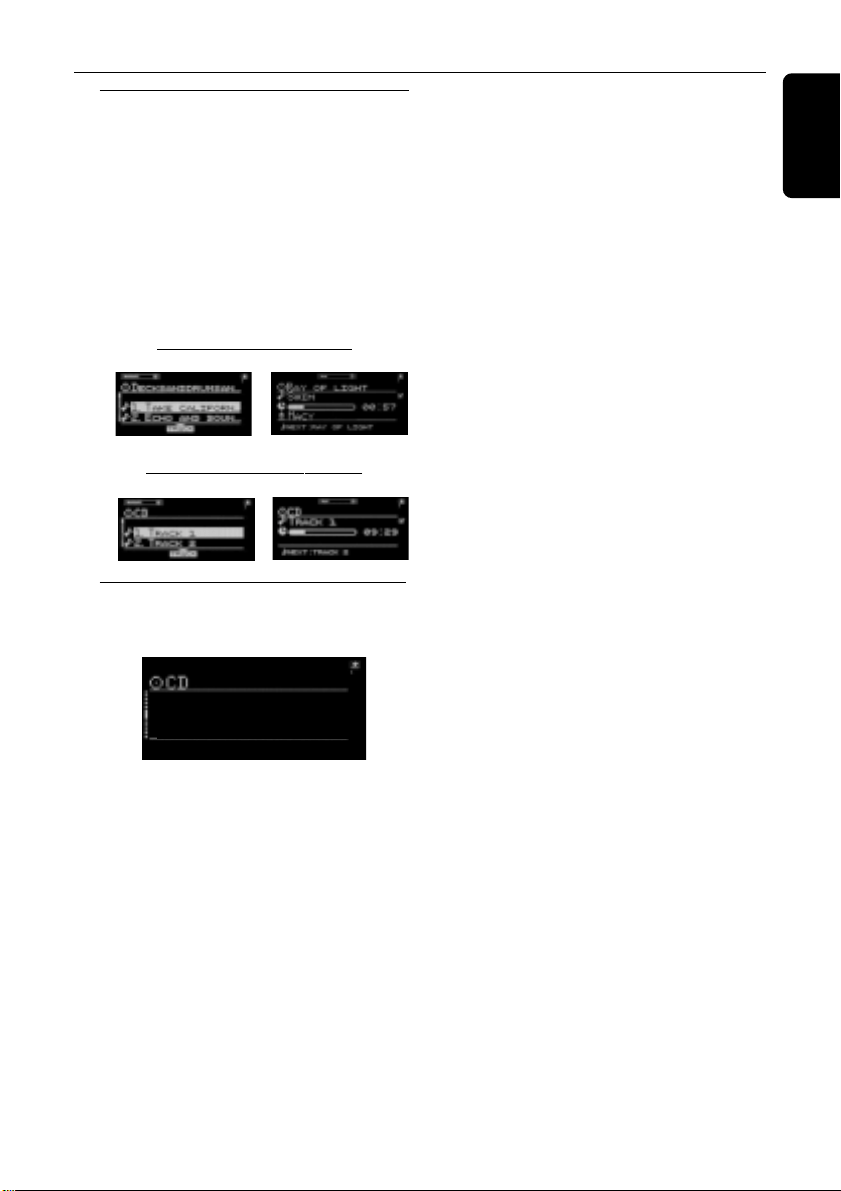
CD
The tracks on the disc are displayed in numerical
order when no CD information is available. If
artist and title information is detected, the song
titles will be displayed instead.
with artist and title information
navigation view play view
without artist and title information
navigation view play view
Requesting on-line audio CD information
1 While in CD mode, press OPTIONS.
➜ A list of options is displayed on screen.
GET CD INFO
RESET CD INFO
NEXT CD INFO
2 Use the navigation jog (or press 3 / 4 on the
remote control) to select “
GET CD INFOGET CD INFO
GET CD INFOGET CD INFO
GET CD INFO” and
press OK (2) to confirm.
➜ The retrieved information will replace the
default track numbers on your screen.
If more information is available, the screen will
display “
MULTIPLE MATCHESMULTIPLE MATCHES
MULTIPLE MATCHESMULTIPLE MATCHES
MULTIPLE MATCHES”.
● Press OPTIONS and use the navigation jog to
select “
NEXT CD INFONEXT CD INFO
NEXT CD INFONEXT CD INFO
NEXT CD INFO” and press OK (2) to
confirm to access alternative CD information.
To return to default CD information
(numerical order)
● Press OPTIONS and use the navigation jog to
select “
RESET CD INFORESET CD INFO
RESET CD INFORESET CD INFO
RESET CD INFO”.
➜ The tracks will be displayed numerically (for
example, TRACK 1, TRACK 2, ...).
MP3-CD
If you want to replace the file names and
directory names on your display by artist, album
and track name, press OPTIONS. Use the
navigation jog (or press 3 / 4 on the remote
control) to select “
READ MP3CD INFOREAD MP3CD INFO
READ MP3CD INFOREAD MP3CD INFO
READ MP3CD INFO” and
press OK (2) to confirm. To start reading this
information, use the soft key to select “
YESYES
YESYES
YES”.
This will take up to several minutes, but it only
has to be done once for each MP3CD. You will
now be able to access additional sort modes like
artist name, album name or title information by
pressing the soft keys (@) or (! ).
30
English
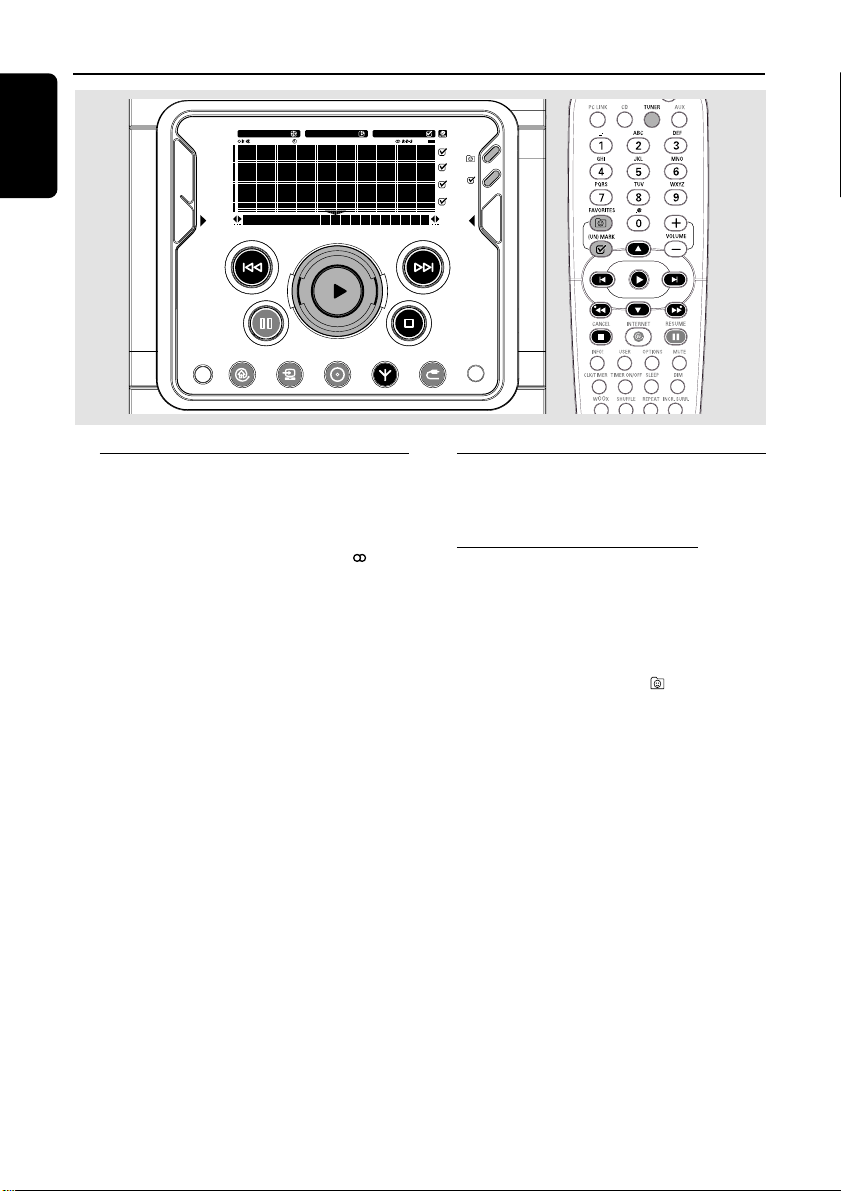
Tuning to radio stations
1 Press TUNER to select TUNER mode.
➜ "
TUNERTUNER
TUNERTUNER
TUNER" is displayed. The current radio
frequency will appear on the display.
➜ If an FM station is received in stereo, is
displayed.
2 Press TUNER again to select the desired
waveband : FM or AM.
3 Press and hold S or T (or à / á on
the remote control) until the frequency
indication starts to change, then release.
➜ The display will show "
SEARCHING...SEARCHING...
SEARCHING...SEARCHING...
SEARCHING..." until
a radio station with sufficient signal strength is
found.
4 Repeat step 3 if necessary until you find the
desired radio station.
● To tune to a weak station, press S or T
(à / á) briefly and repeatedly until optimal
reception found.
Storing favorite radio stations
You can store up to 40 favorite radio stations in
the memory. Favorites is always on in Tuner mode.
Automatic Preset Programming
● Plug and Play setting (refer to “Basic Functions -
Plug and Play”).
OR
1 Press TUNER to select TUNER mode.
2 Press and hold FAVORITES until
““
““
“
AUTOAUTO
AUTOAUTO
AUTO
PROGRAM FAVORITE STATIONSPROGRAM FAVORITE STATIONS
PROGRAM FAVORITE STATIONSPROGRAM FAVORITE STATIONS
PROGRAM FAVORITE STATIONS
??
??
?” is
displayed, followed by “
YESYES
YESYES
YES” and “
NONO
NONO
NO” options.
3 Press the soft key (@) on the system to select
“
YESYES
YESYES
YES”.
➜ “
AUTO PROGRAM IN PROGRESS...AUTO PROGRAM IN PROGRESS...
AUTO PROGRAM IN PROGRESS...AUTO PROGRAM IN PROGRESS...
AUTO PROGRAM IN PROGRESS...” is
displayed.
➜ All available radio stations with sufficient signal
strength will be stored automatically, starting
from FM and followed by AM band.
➜ When all the available radio stations are
stored or the memory for 40 presets is used, the
last preset radio station will be played.
To stop storing the automatic preset
● Press Ç.
SLEEPINCR. SURR. ALLREPEATSHUFFLEDIM 123 AM FMMW LW
REC
NEWS
1 2 3
NAVIGATE PLAY FAVORITES
CD
INTERNET
OPTIONS AUX
TUNER
PC LINK
VIEW
FAVORITES
CANCELRESUME
OK
ENTERBACK
iR
•
•
•
•
Radio Reception

31
English
Manual Preset Programming
1 Tune to your desired radio station (refer to
“Tuning to radio stations”).
2 Press (UN)MARK ( ).
➜ The current station will be stored in the next
available preset number.
● Repeat steps 1–2 to store other radio stations.
Notes:
– If a radio station has been stored in one of the
presets, it will not be stored again under another
preset number.
– The favorites function for this source is not user
dependent. The same favorites list applies for all
users.
– If you attempt to store more than 40 preset
radio stations, "
NO MORE FAVORITES CAN BENO MORE FAVORITES CAN BE
NO MORE FAVORITES CAN BENO MORE FAVORITES CAN BE
NO MORE FAVORITES CAN BE
ADDEDADDED
ADDEDADDED
ADDED
" is displayed.
Selecting a favorite radio station
1 Use the navigation jog (or press 3 / 4 on the
remote control) to select the desired preset
radio station from the favorite list.
2 Press OK (2) to confirm.
➜ The preset number, radio frequency, and
waveband are displayed.
OR
● Press ¡ / ™ on the remote control.
Radio Reception
Erasing a favorite radio station
1 Use the navigation jog (or press 3 / 4 on the
remote control) to select a preset radio station
from the favorite list.
2 Press (UN)MARK ( ).
➜ The icon will disappear.
➜ The preset numbers of all other preset
stations in the waveband with a higher number
are decreased by one.
Deleting all the favorite radio
stations
1 In Tuner mode, press and hold (UN)MARK
( ) for more than 3 seconds.
2 Press the soft key (@) on the system to select
“
YESYES
YESYES
YES”.
32
English
Personalized and interactive features
Multiple users
This system allows personalization for multiple
users. Your personal selections are bound to a
user account. This feature is available for
PC LINK, INTERNET and CD only.
Creating your user account
(Refer to “Preparations – Registration).
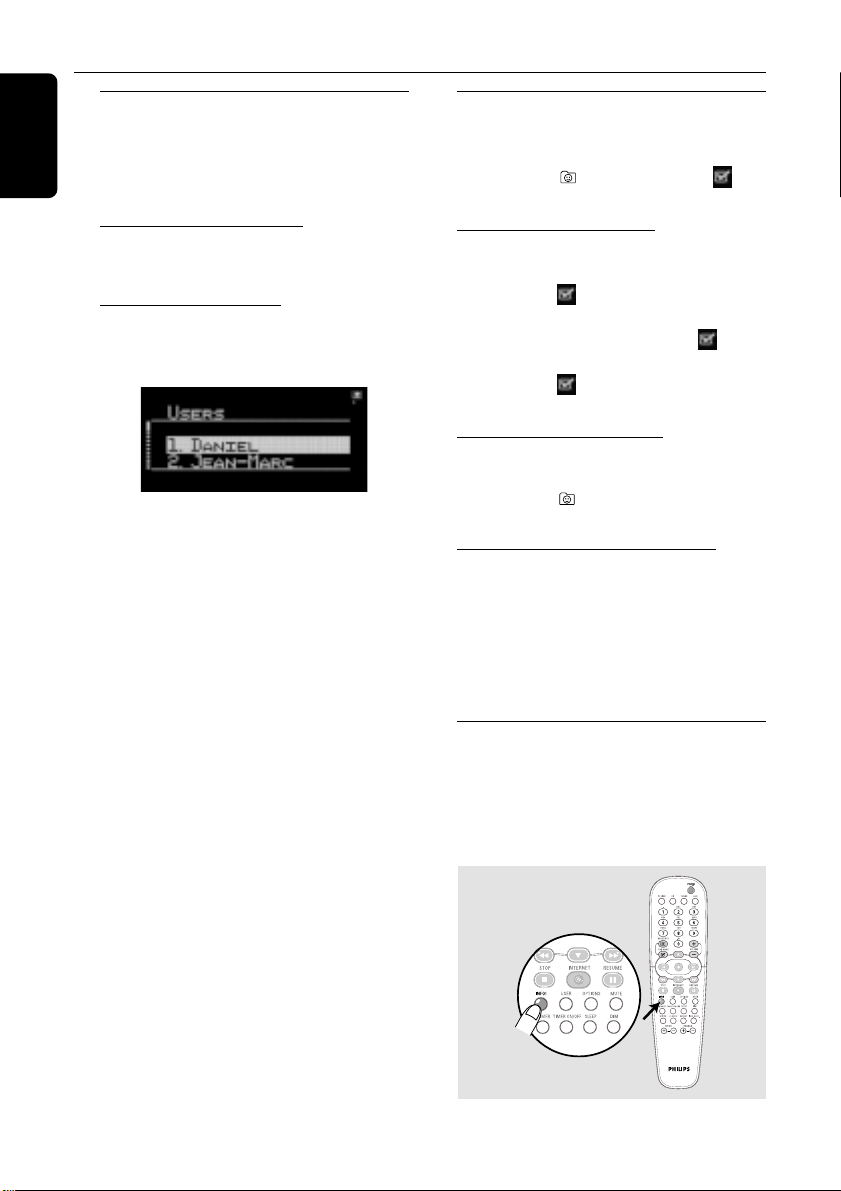
Selecting a user account
1 Press USER on the remote control.
➜ The available user accounts will be displayed.
2 Use the navigation jog (or press 3 / 4 on the
remote control) to select and then press
OK (É) to confirm.
Favorites
In any modes, you can easily manage your
favorite tracks and stations by using the
FAVORITES ( ) and (UN)MARK ( )
buttons.
Creating your favorites list
When in CD/PC LINK/INTERNET-mode, press
(UN)MARK ( ) to add/remove tracks or
stations to/from your favorites lists. In
TUNER-mode, press (UN)MARK ( ) to
save and delete radio stations and hold down
(UN)MARK ( ) to auto program radio
stations.
Accessing your favorites list
To play from the favorites list, press
FAVORITES ( ), select a track or station,
followed by OK (É).
Returning to normal list (exit from
favorites list)
Press the relevant source key (CD, PC LINK or
INTERNET). For example, if you are currently in
CD favorites list, pressing CD button will
deactivate the favorites list and return to the
normal list.
Getting extra information
Pressing the INFO! button sends extra
information about the currently playing item
to your email address. The INFO! function
works within all source modes except TUNER
and AUX.
33
English
This source enables you to connect external
sound devices and play the sound through your
system’s built-in speakers.
Connecting an external device
● Connect the audio out terminals of the external
device to the AUX/CDR IN terminals of your
system.
Listening to an external source
1 Press AUX to select “
AUXAUX
AUXAUX
AUX” when connected to
a TV, VCR or Laser Disc player.
OR
● Press AUX again to select “
CDR/DVDCDR/DVD
CDR/DVDCDR/DVD
CDR/DVD” when
connected to a CD recorder or DVD player.
2 Play the external device.
● When CDR/DVD mode is selected, any audio
equipment connected to the LINE OUT
terminals of this micro system will be muted.
You will not be able to record or listen to the
sound on equipment connected to the LINE
OUT terminal.
Notes:
– You are advised not to listen to and record from
the same source simultaneously.
– All the sound control features (INCR. SURR.,
BASS/TREBLE, for example) are available for
selection.
– Refer to the operating instructions for the
connected equipment for details.
External Sources
SLEEPINCR. SURR. ALLREPEATSHUFFLEDIM 123 AM FMMW LW
REC
NEWS
1 2 3
NAVIGATE PLAY FAVORITES
CD
INTERNET
OPTIONS AUX
TUNER
PC LINK
VIEW
FAVORITES
CANCELRESUME
OK
ENTERBACK
iR
•
•
•
•
To clean a CD, wipe it in a straight
line from the center toward the
edge using a soft, lint-free cloth. A
cleaning agent may damage the
disc! Write only on the printed
side of a disc and only with a soft
felt-tipped pen.
Clean the system with a soft,
slightly dampened, lint-free
cloth. Do not use any
cleaning agents as they may
have a corrosive effect.
Maintenance
SLEEPINCR. SURR. ALLREPEATSHUFFLEDIM 123 AMFMMW LW
REC
NEWS
1 2 3
NAVIGATE PLAY FAVORITES
STANDBY•ON
ECO POWER
CD
CONNECT
OPTIONS
STOPPAUSE
OK
ENTERBACK
AUX
TUNER
PC-LINK
OPEN/
CLOSE
VIEW
FAVORITES
WOOX TREBLE BASS
SOUND JOG
Do not expose the system
batteries or discs to
humidity, rain, sand or
excessive heat (caused by
heating equipment or direct
sunlight). Always keep the disc tray closed to
avoid dust on the lens.
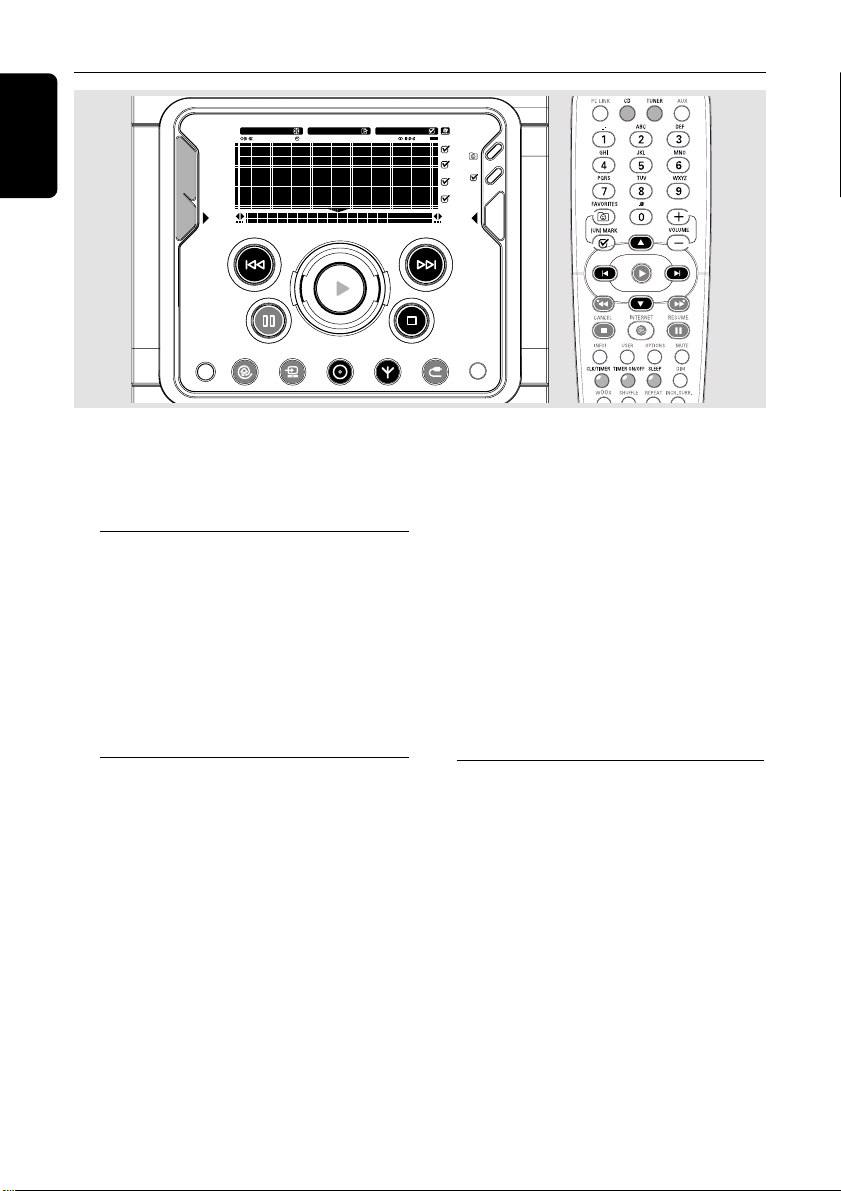
34
English
IMPORTANT!
When in Eco Power standby mode, it is
not possible to operate the clock or
timer function.
View clock
The clock (if it is set) will be shown in standby
mode.
To view the clock in any source mode
(CD or TUNER for example)
● Press CLK/TIMER on the remote control.
➜ The clock is displayed for a few seconds.
➜ If the clock has not been set, "
--:----:--
--:----:--
--:--" is
displayed.
Clock setting
The clock can be set in either 12-hour or
24-hour mode ("
12:00 AM12:00 AM
12:00 AM12:00 AM
12:00 AM" or "
00:0000:00
00:0000:00
00:00", for
example).
1 In standby or view clock mode, press
CLK/TIMER once. In any other source
modes, press CLK/TIMER twice.
➜ "
12:00 AM12:00 AM
12:00 AM12:00 AM
12:00 AM" or "
00:0000:00
00:0000:00
00:00" starts flashing.
2 Press the left hand soft key (@) to select 12- or
24- hour clock mode.
3 Press S or T (or ¡ / ™
on the remote
control) to switch between hour or minutes
setting.
➜ The hour or minutes digits flash.
4 Use the navigation jog (or press 3
/
4
on the
remote control) to set the hour and minutes.
5 Press CLK/TIMER again to store the setting.
➜ The clock starts working.
To exit without storing the setting
● Press Ç.
Notes:
– The clock setting will be cancelled when the
power cord is disconnected or if a power failure
occurs.
– During clock setting, if no button is pressed
within 90 seconds, the system will exit clock setting
mode automatically.
Timer setting
The system can switch on to CD, TUNER,
INTERNET or PC LINK mode automatically
at a preset time, serving as an alarm to wake
you up.
IMPORTANT!
– Before setting the timer, ensure that
the clock is set correctly.
– The timer will always be switched on
after it has been set.
– The volume of the timer will increase
gradually from the minimum level to the
last tuned volume level.
– The system will switch to standby
mode if no button is pressed within 30
minutes after timer wake up.
SLEEPINCR. SURR. ALLREPEATSHUFFLEDIM 123 AM FMMW LW
REC
NEWS
1 2 3
NAVIGATE PLAY FAVORITES
CD
INTERNET
OPTIONS AUX
TUNER
PC LINK
VIEW
FAVORITES
CANCELRESUME
OK
ENTERBACK
iR
•
•
•
•
Clock/Timer

35
English
1 Press and hold CLK/TIMER for more than
two seconds to select timer mode.
➜ "
12:00 AM12:00 AM
12:00 AM12:00 AM
12:00 AM" or "
00:0000:00
00:0000:00
00:00" or the last timer
setting starts flashing.
➜ starts flashing.
➜ The selected source will be lighted while
other available sources are flashing.
2 Press CD, TUNER, INTERNET or PC LINK
to select the desired source.
➜ For CD mode, the timer will wake up by
playing the first track of the disc or favorite list. If
the disc tray is empty, it will switch to Tuner
mode.
➜ For Tuner mode, the timer will wake up by
playing the last tuned radio station.
➜ For INTERNET or PC LINK mode, the timer
will wake up by playing the last streamed music.
If the connection fails, it will switch to Tuner
mode.
3 Press S or T (or ¡ / ™
on the remote
control) to switch between hour or minutes
setting.
➜ The hour or minutes digits flash.
4 Use the navigation jog (or press 3
/
4
on the
remote control) to set the hour and minutes.
5 Press CLK/TIMER to store the timer.
➜ "
TIMERTIMER
TIMERTIMER
TIMER", the set timer "
XX:XXXX:XX
XX:XXXX:XX
XX:XX" and the
selected source will be displayed.
➜ remains on the display.
● At the preset time, the selected sound source
will play.
To exit without storing the setting
● Press Ç.
Note:
– During timer setting, if no button is pressed
within 90 seconds, the system will exit timer setting
mode automatically.
Checking the timer
● Press CLK/TIMER once on the remote
control.
➜ If the timer has been activated, the set timer
information is displayed.
Activate/deactivate the timer
● Press TIMER ON/OFF repeatedly on the
remote control.
➜ If activated, the last set timer information is
displayed for a few seconds.
➜ If deactivated, “
TIMER OFFTIMER OFF
TIMER OFFTIMER OFF
TIMER OFF” is displayed.
Sleep timer setting
The sleep timer enables the system to switch to
standby mode automatically at a preset time.
1 Press SLEEP on the remote control repeatedly
to select a preset time.
➜ The selections are as follows (time in
minutes):
1515
1515
15 ™
3030
3030
30 ™
4545
4545
45 ™
6060
6060
60 ™
9090
9090
90 ™
120120
120120
120 ™
OFFOFF
OFFOFF
OFF ™
1515
1515
15 …
➜ "
XX MINUTESXX MINUTES
XX MINUTESXX MINUTES
XX MINUTES" or "
OFFOFF
OFFOFF
OFF" is displayed. "
XXXX
XXXX
XX" is
the time in minutes.
2 When you reach the desired length of time, stop
pressing the SLEEP button.
➜ SLEEP is shown, except for "
OFFOFF
OFFOFF
OFF" mode.
➜ The sleep timer is now set. Before the system
switches to standby mode, a countdown of 10
seconds is displayed.
"
10 SECONDS10 SECONDS
10 SECONDS10 SECONDS
10 SECONDS" ™ "
9 SECONDS9 SECONDS
9 SECONDS9 SECONDS
9 SECONDS"....
™ "
1 SECOND1 SECOND
1 SECOND1 SECOND
1 SECOND" ™ "
SLEEPSLEEP
SLEEPSLEEP
SLEEP"
To check the remaining length of time
after sleep timer is activated
● Press SLEEP once.
To change the preset sleep timer
● Press SLEEP again while the remaining sleep
timer is shown.
➜ The display will show the next sleep timer
options.
To deactivate the sleep timer
● Press SLEEP repeatedly until "
OFFOFF
OFFOFF
OFF" is displayed,
Clock/Timer

36
English
Specifications
AMPLIFIER
Output power ....................................... 100 W total power
.............................. 2 x 50 W RMS / 2 x 40 W FTC
(1)
Signal-to-noise ratio .......................... ≥ 70 dBA (IEC)
Frequency response ......... 50 – 16000 Hz, ± 3 dB
Input sensitivity
AUX In / CDR/DVD In .................... 500 mV / 1V
Output
Speakers .................................................................... ≥ 6 Ω
Headphones ...................................... 32 Ω – 1000 Ω
Subwoofer Out ..............1.3 V ±2dB, > 22000 Ω
Line Out ...................... 500 mV ±2dB, > 22000 Ω
(1) (6 Ω, 60 Hz – 12.5 kHz, 10% THD)
INTERNET / PC LINK / MP3-CD
Input
RJ45 jack .......................................................... IEEE 802.3
MP3 specifications
Frequency response (256 kbps) 63 – 14000 Hz
Signal-to-noise ratio ................................... ≥ 67 dBA
Channel separation ...................... ≥ 40 dB (1 kHz)
Total harmonic distortion (256 kbps) ... < 0.05%
Bit rate ..................................................... 32 – 256 kbps
Sampling frequencies
.................................... 16, 22.05, 24, 32, 44.1, 48 kHz
DISC PLAYER
Number of favorite tracks ............................ CD - 50
........................................................................ MP3-CD - 128
Frequency response .......................... 20 – 20000 Hz
Signal-to-noise ratio ....................................... ≥ 76 dBA
Channel separation .......................... ≥ 79 dB (1 kHz)
Total harmonic distortion............ < 0.02% (1 kHz)
TUNER
FM wave range ................................... 87.5 – 108 MHz
AM wave range .................................. 530 – 1700 kHz
Number of presets ........................................................ 40
Antenna
FM ..................................................... 300 Ω dipole wire
AM .............................................................. Loop antenna
SPEAKERS
Front left/right
System ............................ 2-way speaker system with
top firing wOOx membrane
Impedance ........................................................................ 6 Ω
wOOx ........... 1 x 5" top firing wOOx membrane
Woofer ............................... 1 x 5.25" aluminium cone
Tweeter ............................................................. 1 x 1" cone
Dimensions (w x h x d) . 180 x 244 x 227 (mm)
.............................................. 7.09 x 9.61 x 8.93 (inches)
Weight .................................................................... 3 kg each
.................................................................... 6.6 pounds each
GENERAL
Material/finish ................................... Polystyrene/Metal
AC Power ................................................... 120 V / 60 Hz
Power Consumption
Active ......................................................................... 80 W
Standby ................................................................. < 15 W
Eco Power Standby ....................................... < 0.5 W
Dimensions (w x h x d) .. 175 x 244 x 366 (mm)
........................................... 6.89 x 9.61 x 14.41 (inches)
Weight (without speakers) ...... 5.0 kg / 11 pounds
Wireless ................... compliant to the IEEE 802.11b
Specifications and external appearance are
subject to change without notice.

37
English
WARNING
Under no circumstances should you try to repair the system yourself, as this will invalidate the
warranty. Do not open the system as there is a risk of electric shock.
If a fault occurs, first check the points listed below before taking the system for repair. If you
are unable to remedy a problem by following these hints, consult your dealer or service center.
Problem Solution
CD/MP3-CD OPERATIONS
“
NO CD AVAILABLE! PLEASENO CD AVAILABLE! PLEASE
NO CD AVAILABLE! PLEASENO CD AVAILABLE! PLEASE
NO CD AVAILABLE! PLEASE – Insert a disc.
INSERT CDINSERT CD
INSERT CDINSERT CD
INSERT CD” is displayed. – Check if the disc is inserted upside down.
– Wait until the moisture condensation at the lens
has cleared.
– Replace or clean the disc (see “Maintenance”)
“
UNRECOGNIZED DISC FORMATUNRECOGNIZED DISC FORMAT
UNRECOGNIZED DISC FORMATUNRECOGNIZED DISC FORMAT
UNRECOGNIZED DISC FORMAT” – Check for any scratches or smudges on the disc.
is displayed. – Replace or clean the disc (see “Maintenance”).
CONNECTION TO INTERNET
The set does not connect to the – Press INTERNET again.
internet. – Make sure you have configured your home
network correctly (try connecting to the internet
from a PC on the same network).
Do not get audio from the product – Check your network settings in the product.
even though the connection to the
internet from PC is working.
On some music services, the music – Try to change the Audio Buffer settings in the
has “hickups”. set options.
Troubleshooting
Visit our website “http://My.Philips.com” for online help.

38
English
RADIO RECEPTION
Radio reception is poor. – If the signal is too weak, adjust the antenna or
connect an external antenna for better
reception.
– Increase the distance between the Micro System
and your TV or VCR.
GENERAL
The system does not react when buttons – Remove the AC power plug for one minute.
are pressed. Then reconnect and switch on the system again.
Sound cannot be heard or is of poor – Adjust the volume.
quality. – Disconnect the headphones.
– Check that the speakers are connected correctly.
– Check if the stripped speaker wire is clamped
into the speaker terminal.
– Make sure the MP3-CD was recorded within
32-256 kbps bit rate with sampling frequencies
at 16 kHz, 22.05 kHz, 48 kHz, 44.1 kHz or
32 kHz.
The left and right sound outputs are – Check the speaker connections and location.
reversed.
The remote control does not function – Select the source (CD or TUNER, for example)
properly. before pressing the function button (É,í,ë).
– Reduce the distance between the remote
control and the system.
– Insert the batteries with their polarities
(+/- signs) aligned as indicated.
– Replace the batteries.
– Point the remote control directly toward the
IR sensor on the front of the system.
The timer is not working. – Set the clock correctly.
– Press TIMER ON/OFF to switch on the timer.
Not all buttons are lit. – Press DIM to select DIM OFF display mode.
The Clock/Timer setting is erased. – Power has been interrupted or the power cord
has been disconnected. Reset the clock/timer.
Troubleshooting
Visit our website “http://My.Philips.com” for online help.

39
AUDIO SYSTEM
One Year Free Labor
One Year Free Service on Parts
This product must be carried in for repair.
LIMITED WARRANTY
WHO IS COVERED?
You must have proof of purchase to receive warranty ser-
vice.A sales receipt or other document showing that you
purchased the product is considered proof of purchase.
WHAT IS COVERED?
Warranty coverage begins the day you buy your product.
For one year thereafter,all parts will be repaired or
replaced,and labor is free.After one year from the day of
purchase,you pay for the replacement or repair of all
parts, and for all labor charges.
All parts, including repaired and replaced parts, are covered
only for the original warranty period.When the warranty
on the product expires, the warranty on all replaced and
repaired parts also expires.
WHAT IS EXCLUDED?
Your warranty does not cover:
• labor charges for installation or setup of the product,
adjustment of customer controls on the product, and
installation or repair of antenna systems outside of the
product.
• product repair and/or part replacement because of misuse,
accident,unauthorized repair or other cause not within the
control of Philips.
• reception problems caused by signal conditions or cable
or antenna systems outside the unit.
• a product that requires modification or adaptation to
enable it to operate in any country other than the coun-
try for which it was designed, manufactured, approved
and/or authorized,or repair of products damaged by
these modifications.
• incidental or consequential damages resulting from the
product.(Some states do not allow the exclusion of inci-
dental or consequential damages,so the above exclusion
may not apply to you.This includes,but is not limited to,
prerecorded material,whether copyrighted or not copy-
righted.)
• a product that is used for commercial or institutional
purposes.
WHERE IS SERVICE AVAILABLE?
Warranty service is available in all countries where the
product is officially distributed by Philips. In countries
where Philips does not distribute the product, the local
Philips service organization will attempt to provide service
(although there may be a delay if the appropriate spare
parts and technical manual(s) are not readily available).
MAKE SURE YOU KEEP...
Please keep your sales receipt or other document showing
proof of purchase.Attach it to this owner’s manual and
keep both nearby.Also keep the original box and packing
material in case you need to return your product.
BEFORE REQUESTING SERVICE...
Please check your owner's manual for assistance. If you
have additional questions, call us at 1-800-531-0039.
TO GET WARRANTY SERVICE IN U.S.A.,
PUERTO RICO, OR U.S. VIRGIN ISLANDS...
Take the product to a Philips factory service center (see
enclosed list) or authorized service center for repair.When
the product has been repaired, you must pick up the unit at
the center. Centers may keep defective parts.
(In U.S.A.,Puerto Rico,and U.S.Virgin Islands, all implied
warranties,including implied warranties of merchantability
and fitness for a particular purpose, are limited in duration
to the duration of this express warranty. But,because some
states do not allow limitations on how long an implied
warranty may last, this limitation may not apply to you.)
TO GET WARRANTY SERVICE IN CANADA...
Please contact Philips at:
1-800-661-6162 (French Speaking)
1-800-531-0039 (English or Spanish Speaking)
(In Canada,this warranty is given in lieu of all other war-
ranties.No other warranties are expressed or implied,
including any implied warranties of merchantability or fit-
ness for a particular purpose. Philips is not liable under any
circumstances for any direct,indirect,special, incidental or
consequential damages,howsoever incurred,even if notified
of the possibility of such damages.)
REMEMBER...
Please record below the model and serial numbers found
on the product.Also, please fill out and mail your warranty
registration card promptly.It will be easier for us to notify
you if necessary.
MODEL # __________________________________
SERIAL # __________________________________
EL4965E007 / 8-02
This warranty gives you specific legal rights.You may have other rights which vary from state/province to state/province.
Philips, P.O. Box 520890, Miami, FL 33152, USA, (402) 536-4171

40
English