Digital
Media
Recorder
with
Microsoft
Program
Guide
User
's
Guide
Model:
LRM-519
Before
connecting,
operating
or
adjusting
this
product,
please
read
this
instruction
booklet
carefully
and
completely.
ⓒ
Copyright
2005,
LG
Electronics
U.S.A.,
Inc.
Call
us
toll-free
for
technical
support,
or
to
subscribe
to
the
Microsoft
Program
Guide
service:
1-800-984-6306
www.microsoftprogramguide.com
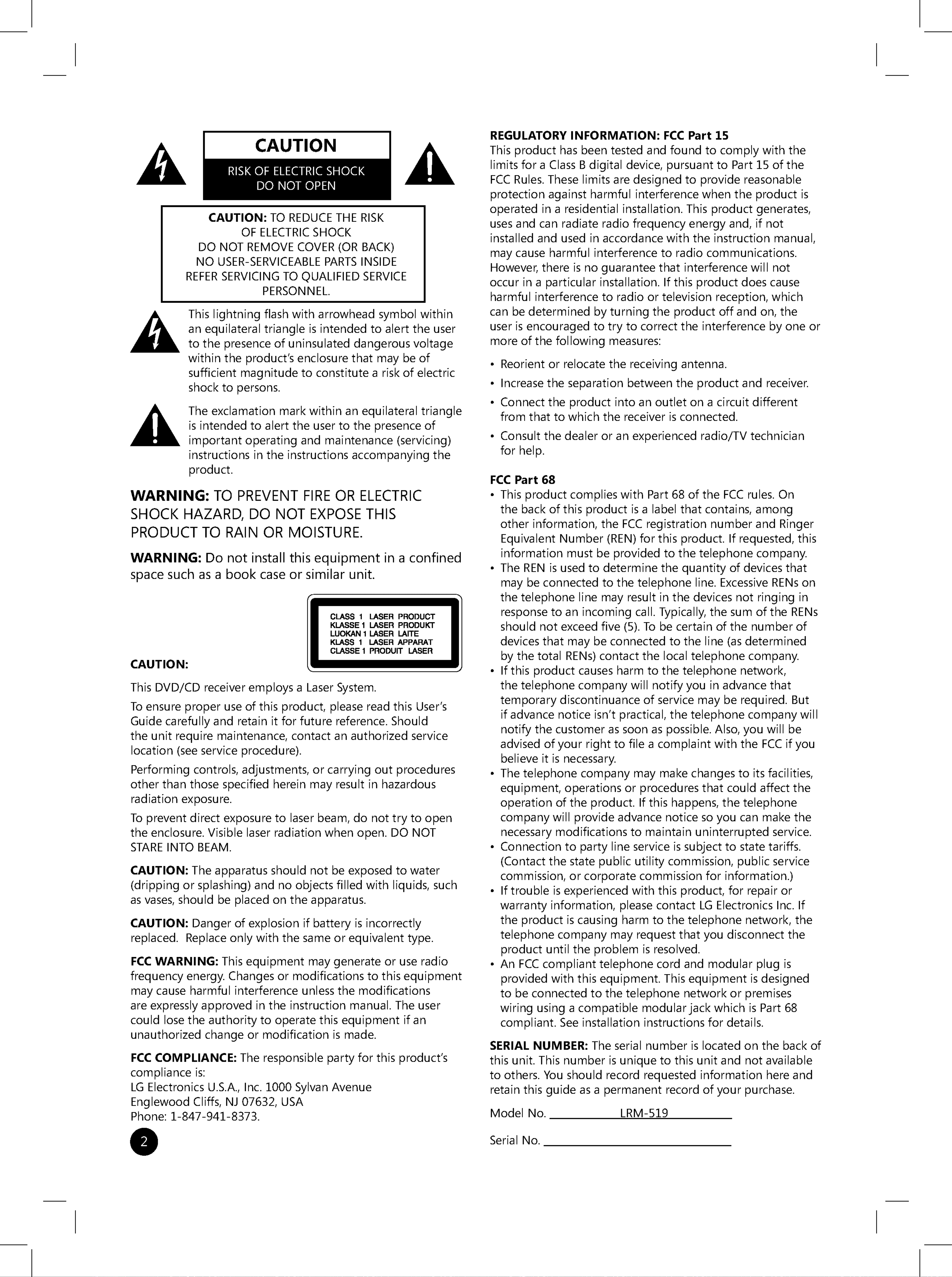
CAUTION
CAUTION:
TO
REDUCE
THE
RISK
OF
ELECTRIC
SHOCK
DO
NOT
REMOVE
COVER
(OR BACK)
NO
USER-SERVICEABLE
PARTS
INSIDE
REFER
SERVICING
TO
QUALIFIED
SERVICE
PERSONNEL.
This
lightning
fash
with
arrowhead
symbol
within
an
equilateral
triangle
is
intended
to
alert
the
user
to
the
presence
of
uninsulated
dangerous
voltage
within
the
product’s
enclosure
that
may
be
of
suffcient
magnitude
to
constitute
a
risk
of
electric
shock
to
persons.
The
exclamation
mark
within
an
equilateral
triangle
is
intended
to
alert
the
user
to
the
presence
of
important
operating
and
maintenance
(ser
vicing)
instructions
in
the
instructions
accompanying
the
product.
WARNING:
TO
PREVENT
FIRE
OR
ELECTRIC
SHOCK
HAZARD,
DO
NOT
EXPOSE
THIS
PRODUCT
TO
RAIN
OR
MOISTURE.
WARNING:
Do
not
install
this
equipment
in
a
confned
space
such
as
a
book
case
or
similar
unit.
REGULATORY
INFORMATION:
FCC
Part
15
This
product
has
been
tested
and
found
to
comply
with the
limits
for
a
Class
B
digital
device,
pursuant
to
Part
15
of
the
FCC
Rules.
These
limits
are
designed
to
provide
reasonable
protection
against
harmful
interference
when
the
product
is
operated
in
a
residential
installation.
This
product
generates,
uses
and
can
radiate
radio
frequency
energy
and,
if
not
installed
and
used
in
accordance
with
the
instruction
manual,
may
cause
harmful
interference
to
radio
communications.
However,
there
is
no
guarantee
that
interference
will
not
occur
in
a
particular
installation.
If
this
product
does
cause
harmful
interference
to
radio
or
television
reception,
which
can
be
determined
by
turning
the
product
off
and
on,
the
user
is
encouraged
to
try
to
correct
the
interference
by
one
or
more
of
the
following
measures:
?
Reorient
or
relocate
the
receiving
antenna.
?
Increase
the
separation
between
the
product
and
receiver.
?
Connect
the
product
into
an
outlet
on
a
circuit
different
from
that
to
which
the
receiver
is
connected.
?
Consult
the
dealer
or
an
experienced
radio/TV
technician
for
help.
FCC
Part
68
?
This
product
complies
with
Part
68
of
the
FCC
rules.
On
the
back
of
this
product
is
a
label
that
contains,
among
other
information,
the
FCC
registration
number
and
Ringer
Equivalent
Number
(REN)
for
this
product.
If
requested,
this
information
must
be
provided
to
the
telephone
company.
?
The
REN
is
used
to
determine
the
quantity
of
devices
that
may
be
connected
to
the
telephone
line.
Excessive
RENs
on
the
telephone
line
may
result
in
the
devices
not
ringing
in
response
to
an
incoming
call.
Typically,
the
sum
of
the
RENs
should
not
exceed
fve
(5).
To
be
certain
of
the
number
of
devices
that
may
be
connected
to
the
line
(as
determined
by
the
total
RENs)
contact
the
local
telephone
company.
?
If
this
product
causes
harm
to
the
telephone
network,
the
telephone
company
will
notify
you
in
advance
that
temporary
discontinuance
of
ser
vice
may
be
required.
But
if
advance
notice
isn’t
practical,
the
telephone
company
will
notify
the
customer
as
soon
as
possible.
Also,
you
will
be
advised
of
your
right
to
fle
a
complaint
with the
FCC
if
you
believe
it
is
necessary.
?
The
telephone
company
may
make
changes
to
its
facilities,
equipment,
operations
or
procedures
that
could
affect
the
operation
of
the
product.
If
this
happens,
the
telephone
company
will
provide
advance
notice
so
you
can
make
the
necessary
modifcations
to
maintain
uninterrupted
service.
?
Connection
to
party
line
service
is
subject
to
state
tariffs.
(Contact
the
state
public
utility
commission,
public
ser
vice
commission,
or
corporate
commission
for
information.)
?
If
trouble
is
experienced
with
this
product,
for
repair
or
warranty
information,
please
contact
LG
Electronics
Inc.
If
the
product
is
causing
harm
to
the
telephone
network,
the
telephone
company
may
request
that
you
disconnect
the
product
until
the
problem
is
resolved.
?
An
FCC
compliant
telephone
cord
and modular
plug
is
provided
with
this
equipment.
This
equipment
is
designed
to
be
connected
to
the
telephone
network
or
premises
wiring
using
a
compatible
modular
jack
which
is
Part
68
compliant.
See
installation
instructions
for
details.
SERIAL
NUMBER:
The
serial
number
is
located
on
the
back
of
this
unit.
This
number
is
unique
to
this
unit
and
not
available
to
others.
You
should
record
requested
information
here
and
retain
this
guide
as
a
permanent
record
of
your
purchase.
Model
No.
LRM-519
Serial
No.
CAUTION:
This
DVD/CD
receiver
employs
a
Laser
System.
To
ensure
proper
use
of
this
product,
please
read
this
User
’s
Guide
carefully
and
retain
it
for
future
reference.
Should
the
unit
require
maintenance,
contact
an
authorized
service
location
(see
service
procedure).
Performing
controls,
adjustments,
or
carrying
out
procedures
other
than
those
specifed
herein
may
result
in
hazardous
radiation
exposure.
To
prevent
direct
exposure
to
laser
beam,
do
not
try
to
open
the
enclosure.
Visible
laser
radiation
when
open.
DO
NOT
STARE
INTO
BEAM.
CAUTION:
The
apparatus
should
not
be
exposed
to
water
(dripping
or
splashing)
and
no
objects
flled
with
liquids,
such
as
vases,
should
be
placed
on
the
apparatus.
CAUTION:
Danger
of
explosion
if
battery
is
incorrectly
replaced.
Replace
only
with the
same
or
equivalent
type.
FCC
WARNING:
This
equipment
may
generate
or
use
radio
frequency
energy.
Changes
or
modifcations
to
this
equipment
may
cause
harmful
interference
unless
the
modifcations
are
expressly
approved
in
the
instruction
manual.
The
user
could
lose
the
authority
to
operate
this
equipment
if
an
unauthorized
change
or
modifcation
is
made.
FCC
COMPLIANCE:
The
responsible
party
for
this
product’s
compliance
is:
LG
Electronics
U.S.A.,
Inc.
1000
Sylvan
Avenue
Englewood
Cliffs,
NJ
07632,
USA
Phone:
1-847-941-8373.
IMPORTANT
SAFETY
INSTRUCTIONS
CAUTION:
PLEASE
READ
AND
OBSERVE
ALL
WARNINGS
AND
INSTRUCTIONS
IN
THIS
USER'S
GUIDE
AND
THOSE
MARKED
ON
THE
UNIT.
RETAIN
THIS
MANUAL
FOR
FUTURE
REFERENCE.
This
set
has
been
designed
and
manufactured
to
assure
personal
safety.
Improper
use
can
result
in
electric
shock
or
fre
hazard.
The
safeguards
incorporated
in
this
unit
will
protect
you
if
you
observe
the
following
procedures
for
installation,
use,
and
servicing.
This
unit
does
not
contain
any
parts
that
can
be
repaired
by
the
user.
DO
NOT
REMOVE
THE
CABINET
COVER,
OR
YOU
MAY
BE
EXPOSED
TO
DANGEROUS
VOLTAGE.
REFER
SERVICING
TO
QUALIFIED
SERVICE
PERSONNEL
ONLY.
9.
Do
not
defeat
the
safety
purpose
of
the
polarized
or
grounding-type
plug.
A
polarized
plug
has
two
blades
with
one
wider
than
the
other.
A
grounding
type
plug
has
two
blades
and
a
third
grounding
prong.
The
wide
blade
or
the
third
prong
are
provided
for
your
safety.
If
the
provided
plug
does
not
ft
into
your
outlet,
consult
an
electrician
for
replacement
of
the
obsolete
outlet.
10.
Protect
the
power
cord
from
being
walked
on
or
pinched
particularly
at
plugs,
convenience
receptacles,
and
the
point
where
they
exit
from
the
apparatus.
11.
Only
use
attachments/accessories
specifed
by
the
manufacturer.
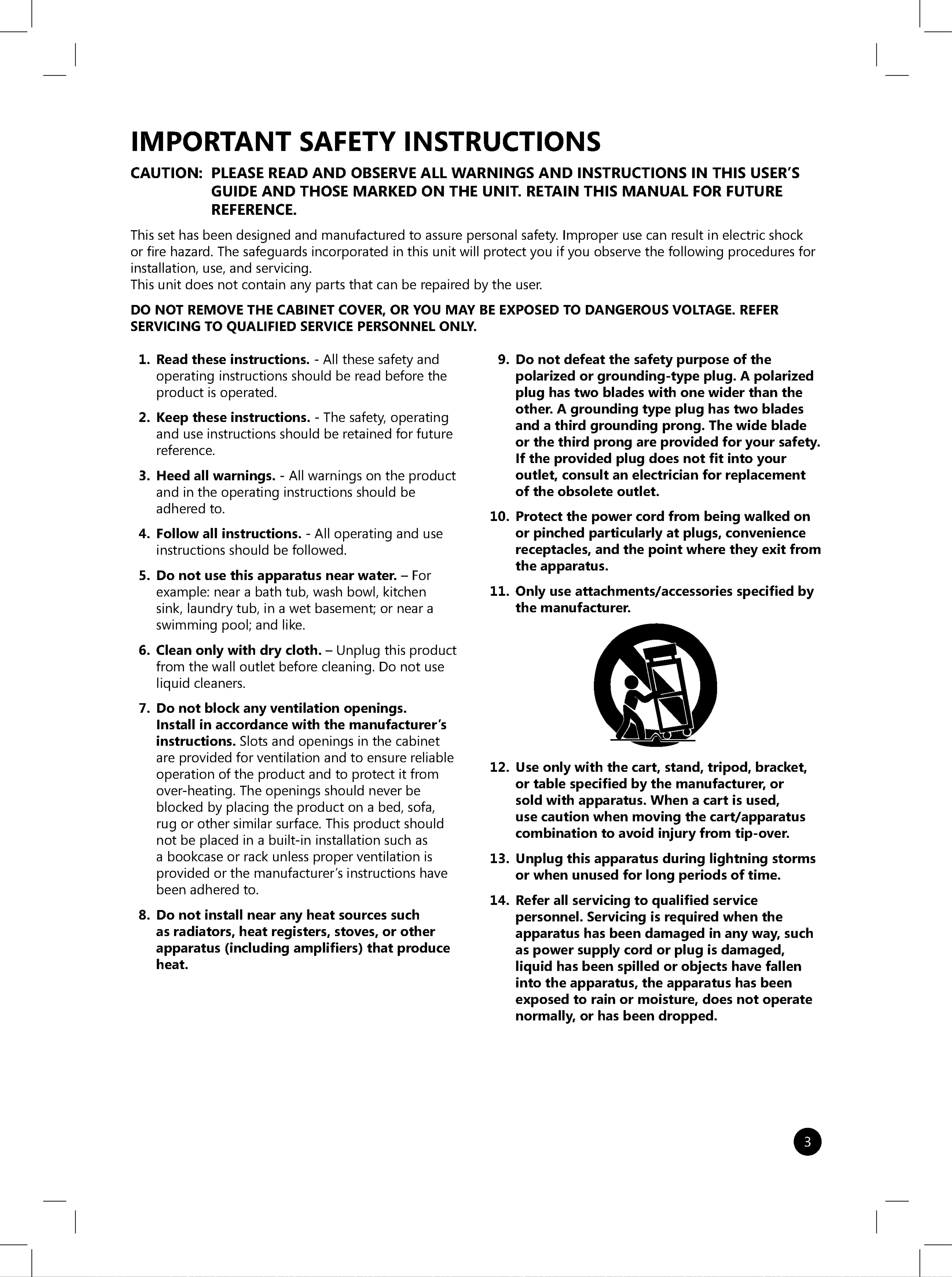
12.
Use
only
with
the
cart,
stand,
tripod,
bracket,
or
table
specifed
by
the
manufacturer,
or
sold
with
apparatus.
When
a
cart
is
used,
use
caution
when
moving
the
cart/apparatus
combination
to
avoid
injury
from
tip-over.
13.
Unplug
this
apparatus
during
lightning
storms
or
when
unused
for
long
periods
of
time.
14.
Refer
all
servicing
to
qualifed
service
personnel.
Servicing
is
required
when
the
apparatus
has
been
damaged
in
any
way,
such
as
power
supply
cord
or
plug
is
damaged,
liquid
has
been
spilled
or
objects
have
fallen
into
the
apparatus,
the
apparatus
has
been
exposed
to
rain
or
moisture,
does
not
operate
normally,
or
has
been
dropped.
1.
Read
these
instructions.
-
All
these
safety
and
operating
instructions
should
be
read
before
the
product
is
operated.
2.
Keep
these
instructions.
-
The
safety,
operating
and
use
instructions
should
be
retained
for
future
reference.
3.
Heed
all
warnings.
-
All
warnings
on
the
product
and
in
the
operating
instructions
should
be
adhered
to.
4.
Follow
all
instructions.
-
All
operating
and
use
instructions
should
be
followed.
5.
Do
not
use
this
apparatus
near
water.
--
For
example:
near
a
bath
tub,
wash
bowl,
kitchen
sink,
laundry
tub,
in
a
wet
basement;
or
near
a
swimming
pool;
and
like.
6.
Clean
only
with
dry
cloth.
--
Unplug
this
product
from
the
wall
outlet
before
cleaning.
Do
not
use
liquid
cleaners.
7.
Do
not
block
any
ventilation
openings.
Install
in
accordance
with
the
manufacturer's
instructions.
Slots
and
openings
in
the
cabinet
are
provided
for
ventilation
and
to
ensure
reliable
operation
of
the
product
and
to
protect
it
from
over-heating.
The
openings
should
never
be
blocked
by
placing
the
product
on
a
bed,
sofa,
rug
or
other
similar
surface.
This
product
should
not
be
placed
in
a
built-in
installation
such
as
a
bookcase
or
rack unless
proper
ventilation
is
provided
or
the
manufacturer’s
instructions
have
been
adhered
to.
8.
Do
not
install
near
any
heat
sources
such
as
radiators,
heat
registers,
stoves,
or
other
apparatus
(including
amplifers)
that
produce
heat.
ON
COPYRIGHTS:
It
is
forbidden
by
law
to
copy,
broadcast,
show,
broadcast
via
cable,
play
in
public,
or
rent
copyrighted
material
without
permission.
This
product
features
the
copy
protection
function
developed
by
Macrovision.
Copy
protection
signals
are
recorded
on
some
discs.
When
recording
and
playing
the
pictures
of
these
discs
on
a
VCR,
picture
noise
will
appear.
This
product
incorporates
copyright
protection
technology
that
is
protected
by
method
claims
of
certain
U.S.
patents
and
other
intellectual
property
rights
owned
by
Macrovision
Corporation
and
other
rights
owners.
Use
of
this
copyright
protection
technology
must
be
authorized
by
Macrovision
Corporation,
and
is
intended
for
home
and
other
limited
viewing
uses
only
unless
otherwise
authorized
by
Macrovision
Corporation.
Reverse
engineering
or
disassembly
is
prohibited.
LEGAL
NOTICE
This
product
is
protected
by
certain
intellectual
property
rights
of
Microsoft
Corporation.
Use
or
distribution
of
such
technology
outside
of
this
product
is
prohibited
without
a
license
from
Microsoft
Corporation
or
an
authorized
Microsoft
Corporation
subsidiary.
This
product
is
intended
to
be
used
with
a
program
guide
service
provided
by
Microsoft
and
that
any
rights
or
claims
the
purchaser
may
have
regarding
the
use,
content
or
availability
of
the
service
will
be
determined
by
the
terms
of
ser
vice
agreement
provided
by
Microsoft
that
govern
such
service.

5
Table
of
Contents
LG
LRM-519
FRONT
PANEL
AND
REARPANEL........................9
PACKAGECONTENTS...............10
Optionalaccessories.......................10
SUBSCRIBE
TO
THE
MICROSOFT
PROGRAMGUIDE..................11
CONNECT
THE
RECORDER TO
THE
TV,
AUDIO
COMPONENTS,
ANDINTERNET....................12
ConnecttotheTVsource...................12
StandardCable........................12
DigitalCable..........................13
Satellite...............................14
Antenna..............................15
MultipleTVsources........................16
SatelliteandAntenna...................16
SatelliteandStandardCable.
. . . . . . . . . . .
.17
ConnecttheRecordertotheTV.
. . . . . . . . . . .
.19
UseCompositeCables..................19
UseS-VideoCables.....................19
UseComponentCables.................20
Using
Composite
versus
480i/480p
. . . . . . .
20
The
IR
control
cable
and
the
Serial
Data
ControlCable.............................21
DigitalorOpticalAudioSetup.
. . . . . . . . . . . . .
.23
DigitalAudiocable.....................23
TOScable.............................24
Connect
to
the
Microsoft
Program
GuideService.............................24
Connect
to
a
wired
network
(Ethernet)
. . . .
24
Connect
to
a
wireless
network
(802.11).
. . .
25
Supported
USB
Wireless
Network
Adaptors..............................25
Connectusingdial-up..................26
ProgramtheRemotetoControltheTV.
. . . . .
.26
Toprogramtheremotecontrol.
. . . . . . . .
.27
TV
Manufacturing
Remote
Control
Codes
. . . . .
28
Connect
the
Power
to
the
Recorder
and
TurnontheTV............................30
SETUPTHERECORDER..............31
WelcometoSetup.........................31
Terms
of
Service
and
End-User
License
Agreement................................32
1.SetupConnection.......................32
1a.UseBroadband.....................32
WirelessConfguration..............32
If
You
Select
"Use
USB
Wireless
NetworkAdaptor”..................32
If
You
Select
"Use
Wired
(Ethernet)Connection”..............33
1b.UsePhoneLine.....................33
PhoneConfguration................33
Enter
Your
Home
Phone
Number
. . . . .
33
PhoneConnection..................34
ChooseDial-upNumber.............34
2.ClockSetting............................34
3.SubscriptionStatus.......................35
4.EnteryourZIPCode......................35
5.
Wiring
Setup
and
TV
Service
Provider
. . . . . .
35
TVServiceProvider.................36
Choose
Number
of
Digits
and
HowYouChangeChannels.
. . . . . . . .
.36
6.
Set
up
the
Recorder
to
Change
ChannelsontheSet-topBox................37
The
IR
Control
Cable
and
the
Serial
DataControlCable.................37
PrepareforSet-topBoxSetup.
. . . . . .
.37
VideoTest.........................37
SelectRemoteControlCode.
. . . . . . .
.37
TestChangingChannels.............38
SpeedTest.........................38
Recorder
Remote
Control
Settings
. . . .
38
7.WatchTV...............................38
Downloading
the
Program
Guide and
SoftwareUpdates..........................39
The
First
Time
You
Setup
The
Recorder.
. . .
39
FutureProgramGuideUpdates.
. . . . . . . .
.39
FutureSoftwareUpdates................39

6
ParentalControlsandLocks.................40
CreateaParentalControlPIN.
. . . . . . . . . .
.40
SettheParentalControlPolicy.
. . . . . . . . .
.40
LockbyRating.....................40
LockbyChannel....................41
LockDVD..........................41
TurnonLockPolicy.....................41
ChangePIN...........................41
Reset.................................41
ForgottheParentalControlPIN?.
. . . . . . .
.41
ChangingSettings.........................41
Recorder..................................42
GuideSetup...............................42
DVDSettings..............................43
ParentalControls..........................44
PhoneandNetworkSetup..................44
RunSetupAgain...........................44
SystemInformation........................44
SendtoPC................................44
AudioSettings.............................44
WINDOWS
MEDIA
CONNECT:
ACCESS
PICTURES
AND
MUSIC
STOREDONACOMPUTER...........45
Before
You Use
Windows
MediaConnect............................45
Connect
to
a
Computer
Running
WindowsMediaConnect...................45
GETTING
AROUND
THE
RECORDERMENUS.................46
(START)..............................46
MoveAroundtheMenus...................46
SelectaMenuItem........................46
EnterTextbyUsingtheRemote.
. . . . . . . . . . . .
.47
Viewing
Pay-Per-View
or
Video-On-DemandPrograms...............47
USINGTHERECORDER..............48
WatchingTV..............................48
ChangeChannelsontheTV.............48
Switch
between
the
Current
Channel
andthePreviousChannel...............48
Display
Information
about
the
CurrentTVShow.......................48
ControllingLiveTV.....................49
PauseLiveTV......................49
Continue
Playback
of
a
Paused
TVShow...........................49
ReplayLiveTV......................49
RewindLiveTV.....................49
FastForward.......................49
SkipAhead........................49
ReturntoLiveTV.......................49
TurntheTVOfforOn...................50
ChangetheTVVolume.................50
MutetheTV...........................50
ChangetheTVInputSource.
. . . . . . . . . . .
.50
TheProgramGuide........................50
TurnofftheGuide..................51
Navigating
within
the
Program
Guide.
. . . .
51
RecordedTV..............................51
RecordtheCurrentShow................51
RecordaShowUsingtheGuide.
. . . . . . . .
.52
RecordUsingSearch....................52
RecordaTVSeries......................53
ManuallyRecordaShow................53
StoptheCurrentRecording..............53
CancelFutureRecordings...............53
RecordingConficts.....................54
ChangeRecordingOptions..............54
View
Information
about
a
Show
ThatisRecording.......................54
Copy
a
Recording
to
a
DVD
oraComputer.........................54
Record-protected
program
content.
. . . . . .
54
ViewaRecordedShow..................55
ViewScheduledRecordings.
. . . . . . . . . . .
.55
ViewInfoaboutaRecordedShow.
. . . . . .
.55
AddAdditionalStorage.....................55
ConnectaUSBdriveforstorage
. . . . . . . .
.56
RemoveaUSBdrive....................56
Search....................................57
PlayaDVD/CD............................57
ViewingaDVD........................57
DVDControls..........................58
CreateaDVD..............................58
Copying
Copy-protected
Shows.
. . . . . . . . .
58
Copy
of
Commercial/Retail
CopyrightedDVDs.....................59
CopyaRecordingtoaDVD.............59
Copy
a
Large
Recording
to
More
ThanOneDVD........................59
MyPictures...............................60
ViewPictureswiththeRecorder.
. . . . . . . .
.60
MyMusic.................................61
FindMusictoPlay......................61
ListentoMusic.........................61
PlayMusiconaCDorDVD.
. . . . . . . .
.61
Play
Music
on
a
USB
Device
orAnotherComputer...............62
ShuffeandRepeatMusic...............62
AddMusictoaSlideShow..............62
SendtoPC................................63
If
Your
Computer
is
Connected
to
a
NetworkDomain.......................63
BeforeUsingSendtoPC................63
Your
Network
User
Account
andPassword..........................63
WindowsXPHomeEdition.
. . . . . . . . .
.63
WindowsXPProfessional.
. . . . . . . . . .
.63
The
Shared
Folder
and
the
Location
oftheFolder..........................64
WindowsXPHomeEdition.
. . . . . . . . .
.64
WindowsXPProfessional.
. . . . . . . . . .
.64
Use
Send
to
PC
to
Copy
a
Recording
toaComputer.........................65
StoptheCopyProcess..................65
APPENDIX
A:
THE
MICROSOFT
PROGRAMGUIDE..................66
APPENDIX
B:
TROUBLESHOOTING
. . . .
67
SPECIFICATIONS...................73
LRM-519
Limited
Warranty
. . .
Rear
Cover

8
TV
POWER
TV
INPUT
4
5
GHI
JKL
MNO
PQRS
TUV
WXYZ
2
3
1
7 8 9
0
ABC
DEF
MUTE
CLEAR
VOL
CH/PG
TOP
MENU
AUDIO
SUBTITLE
ANGLE
BACK
GUIDE
RECORDED
TV
LIVE
TV
STOP
PLAY
REC
REW
PAUSE
FWD
SKIP
REPLAY
INFO
DVD
MENU
POWER
6
OK
*
#
i
POWER
Turns
on
or
turns
off
the
Recorder.
When
the
Recorder
is
turned
off,
the
Recorder
is
actually
in
a
standby
mode.
While
in
standby,
the
Recorder
will
continue
copy-
ing
programs
to
a
DVD
(the
Create
DVD/CD
feature)
and
record
any
programs
you
have
scheduled.
TV
POWER
Turn
on
or
turn
off
the
TV.
To
use
the
TV
POWER
button,
you
must
program
the
remote
to
control
your
TV.
For
more
information,
see
Program
the
Remote
to
Control
the
TV.
PLAY
Play
a
paused
or
stopped
DVD,
CD,
song,
a
recorded
TV
show
or
a
paused
TV
show.
To
play
a
stopped
DVD,
you
can
also
select
Play
DVD
on
the
Start
menu.
STOP
Stop
playback
of
a
DVD,
a
CD
track,
a
song
from
a
USB
drive
or
another
computer,
and
a
re-
corded
TV
program.
REW
Rewind
through
a
recorded
pro-
gram,
live
TV,
the
current
chapter
ofaDVD,ortrackofaCD.
REPLAY
Replays
the
previous
7
seconds
of
live
TV
or
a
recorded
show.
Move
back
to
the
beginning
of
the
current
chapter
of
a
DVD
or
track
of
a
CD;
press
a
second
time
to
go
back
to
the
preced-
ing
chapter
of
a
DVD
or
track
ofaCD.
RECORDED
TV
Display
recorded
TV
shows.
BACK
Return
to
the
previous
menu
or
screen.
OK
Selects
the
current
on-screen
button such
as
Next,
OK,
Cancel,
oraniteminalistsuchasthe
Program
Guide.
When
watching
live
TV,
press
once
to
switch
from
the
current
channel
to
the
previous
channel.
Press
OK
again
to
switch
back.
DVD
MENU
During
DVD
playback,
displays
the
top-level
(main)
DVD
menu.
If
you
are
within
a
DVD
menu,
takes
you
back
one
level
in
the
menu.
TOP
MENU
During
DVD
playback
or
while
navigating
DVD
menus,
takes
you
back
to
the
top-level
(main)
menu
on
the
DVD.
AUDIO
Change
DVD
audio
options.
VOL
Increases
(+)
or
decreases
(-)
the
TV
volume.
To
use
the
VOL
button,
you
must
program
the
remote
to
control
your
TV.
For
more
information,
see
Program
the
Remote
to
Control
the
TV.
MUTE
Mutes
the
TV.
To
use
the
MUTE
button,
you
must
program
the
remote
to
control
your
TV.
For
more
information,
see
Program
the
Remote
to
Control
the
TV.
PAUSE
Pause
a
DVD,
CD,
song,
live
TV,
or
recorded
TV
program.
TV
INPUT
Change
the
video
inputs
on
your
TV.
For
example,
the
Re-
corder
will
be
connected
to
one
video
input
(such
as
VIDEO
1)
and
a
Video
Cassette
Recorder
could
be
connected
to
VIDEO
2.
To
use
the
TV
INPUT
button,
you
must
program
the
remote
to
control
your
TV.
For
more
information,
see
Program
the
Remote
to
Control
the
TV.
REC
When
watching
TV,
records
the
current
program.
In
the
Guide
or
the
mini-Guide,
schedules
the
selected
show
to
be
re-
corded.
FWD
Fast
for
ward
through
a
record-
ed
program,
the
current
chapter
ofaDVD,ortrackofaCD.
SKIP
Jump
forward
30
seconds
of
a
recorded
program
or
paused
live
TV.
Advances
to
the
next
chapter
ofaDVDortrackofaCD.
GUIDE
Press
once
to
display
the
Mini-
Guide.
Press
again
to
display
the
Program
Guide.
Press
a
third
time
to
dismiss
the
Guide.
Start
Display
the
Start
menu.
INFO
Display
information
info
in
a
window
about
the
live
TV
show
or
the
recorded
program
you
are
watching.
Press
INFO
again
to
display
additional
informa-
tion
in
full-screen.
Up,
down,
left,
and
right
arrows
Move
between
on-screen
but-
tons
(menu
buttons,
navigation
buttons)
and
Guide
items.
Moves
between
pictures
in
a
slideshow.
LIVE
TV
Displays
live
TV.
ANGLE
View
alternate
scene
angles.
If
you
enable
this
feature,
this
icon
appears
when
an
alternate
angle
is
available.
SUBTITLE
Turn
on
or
turn
off
DVD
sub-
titles
or
scroll
through
available
subtitle
languages.
CH/PG
Change
TV
channels
one
at
a
time
on
the
Recorder.
In
the
on-screen
lists
(such
as
the
Program
Guide)
advances
the
list
one
page
at
a
time
up
or
down.
Numeric
keypad
When
watching
live
TV,
enter
a
channel
number
and
press
OK
to
change
to
that
channel.
In
onscreen
menus,
enter
num-
bers
(such
as
your
zip
code
dur-
ing
setup
or
a
channel
number
when
manually
recording)
or
text
(such
as
when
searching
for
a
program).
CLEAR
Clears
on-screen
entries
(such
as
Search
text)
one
character
to
the
left
at
a
time.
Clears
the
Guide
or
any
on-screen
menu
or
page.

9
LG
LRM-519
Front
Panel
and
Rear
Panel
Disc
Tray:
Insert
a
DVD
or
CD
here.
POWER:
Turns
the
Recorder
on
and
off.
A
blue
light
appears
when
the
Recorder
is
turned
on.
OPEN/CLOSE:
Opens
or
closes
the
disc
tray.
(Play):
Play
the
DVD
or
CD
inserted
into
the
disc
tray.
DVD
PLAY:
Indicates
aDVDis
playing.
HDD
REC.:
Indicates
a
show
is
being
recorded
to
the hard
disk
drive.
(Pause):
Pause
play-
back
of
the
DVD
or
CD.
(Stop):
Stops
play-
back
of
the
DVD
or
CD.
HDD
PLAY:
Indicates
a
recorded
show
stored
on
the
hard
disk drive
is
playing.
DVD
REC.:
Indicates
a
recorded
show
is
being
copied
to
a
DVD.
Display
Window:
Shows
the
current
status
of
the
Recorder.
ANT.IN:
Connect
VHF/UHF/
CATV
TV
service.
RF
BYPASS:
Passes
through
the
ANT.IN
signal.
S-VIDEO
OUT:
Connect
to
aTVwithan
S-Video
Input.
S-VIDEO
IN:
Connect
a
dig-
ital
cable
or
satellite
set-top
box
with
an
S-Video
cable.
AUDIO
IN:
Connect
the
audio
output
of
a
digital
cable
or
satellite
set-
top
box
with
audio
cables.
VIDEO
IN:
Connect
the
video
output
of
a
digital
cable
or
satellite
set-
top
box
with
a
video
cable.
AUDIO
OUT:
Connect
to
a
TV
with
audio
inputs.
VIDEO
OUT:
Connect
to
a
TV
with
video
inputs.
COMPONENT
OUT:
Connect
toaTVwith
component
(Y/Pb/Pr)
inputs
and
audio
inputs.
DIGITAL
OUT
--
COAXIAL:
Connect
to
dig-
ital
(coaxial)
audio
equipment.
DIGITAL
OUT
--
OPTICAL:
Connect
to
dig-
ital
(optical)
audio
equipment.
COMPOSITE/
480i/480p:
Set
to
COMPOSITE
if
using
a
video
cable/S-Video
cable
to
connect
to
the
TV.
Select
480i/480p
if
us-
ing
component
cables.
CONTROL
--
IR:
Connect
the
IR
control
cable
(if
used).
CONTROL
--
SERIAL:
Connect
the
serial
data
control
cable
(if
used).
ETHERNET:
Connect
to
an
Ethernet
network.
USB:
Connect
USB
2.0
drives
or
a
USB
wire-
less
network
adaptor.
PHONE:
Con-
nect
a
phone
cable
for
dial-
up
connections.
Power
cord:
Connect
the
AC
power
cord.


11
Subscribe
to
the
Microsoft
Program
Guide
To
receive
all
of
the
features
of
the
LG
LRM-519
Digital
Media
Recorder,
you
must
subscribe
to
the
Microsoft
Program
Guide.
Without
a
subscription
to
this
service,
the
Recorder
will
have
limited
features.
To
sign-up
for
the
Microsoft
Program
Guide
visit
www.microsoftprogramguide.com
on
the
web.
For
a
list
of
the
features
provided
by
the
Microsoft
Program
Guide,
see
The
Microsoft
Program
Guide
in
the
Appendix
A.

12
Connect
the
Recorder
to
the
TV,
Audio
Components,
and
Internet
There
are
four
steps
to
connecting
the
Recorder.
?
Connect
a
TV
source
or
multiple
TV
sources
(standard
cable,
digital
cable,
satellite
receiver,
or
antenna)
to
the
Recorder.
?
Connect
the
video
and
audio
from
the
Recorder
to
the
TV.
(If
you
have
a
Home
Theater
system,
you
can
connect
the
audio
to
the
amplifer
or
receiver
instead
of
the
TV.)
?
Connect
the
Recorder
to
the
Internet
(broadband
or
dial-up
service)
to
download
the
Program
Guide and
Software
Updates.
?
Program
the
Recorder
remote
control
to
operate
the
TV.
More
information
about
each
step
is
provided
in
the
following
sections.
Connect
to
the
TV
source
The
TV
source
provides
the
TV
service
to
your
home.
The
TV
source
is
typically
an
antenna,
a
standard
cable,
a
digital
cable
service,
or
a
satellite
service.
Notes
·
Labels
for
connections
on
TVs
vary
by
brand.
If
you
cannot
fnd
a
connection
as
specifed
in
the
following
instructions,
refer
to
the
TV
documentation.
·
Depending
on
the
TV
service,
you
can
connect
the
service
to
the
Recorder
by
using
a
S-Video
cable,
a
composite
cable,
or
an
RF/coax
cable.
See
the
following
sections
for
connection
instructions.
·
When
you
connect
a
digital
cable
set-top
box
or
a
satellite
set-top
box
to
the
Recorder,
you
must
use
composite
or
S-Video
cables.
Using
an
RF/coax
cable
to
connect
a
cable
set-top
box
or
a
satellite
set-top
box
to
the
Recorder
is
not
supported.
Standard
Cable
If
you
use
RF/coaxial
cable
(Included)
ANT.
IN
RF
BY-
PAS
Wall
Outlet
Recorder
1.
Connect
an
RF/coaxial
cable
to
the
cable
connection
in
the
wall.
2.
On
the
Recorder,
connect
the
RF/coaxial
cable
to
the
ANT.IN
connector.

13
Digital
Cable
Note
Using
an
RF/coax
cable
to
connect
a
cable
set-top
box
to
the
Recorder
is
not
supported.
If
you
use
composite
cable
(Included)
Digital
Cable
Set-Top
Box
Recorder
Wall
Outlet
1.
Connect
the
composite
audio/video
cables
(red/white/yellow)
to
the
composite
out
connection
on
the
digital
cable
set-top-box.
2.
On
the
Recorder,
connect
the
composite
video
cable
(yellow)
to
VIDEO
IN.
Connect
the
composite
audio
cables
(red
and
white)
to
AUDIO
IN.
If
you
use
S-Video
cable
(Not
included)
Digital
Cable
Set-Top
Box
Wall
Outlet
Recorder
1.
On
the
digital
cable
set-top
box,
connect
the
S-Video
cable
(not
included)
to
the
S-Video
out
connection.
2.
On
the
Recorder,
connect
the
S-Video
cable
to
the
S-VIDEO
IN
connection.
3.
Connect
the
audio
cables
(red
and
white)
from
the
audio
out
jacks
on
the
digital
cable
set-top-box
to
the
AUDIO
IN
audio
connectors
on
the
Recorder.

14
Satellite
Notes
?
The
Recorder
does
not
support
satellite
set-top
boxes
that
do
not
have
Composite
(red/white/yellow),
or
S-Video
output
connections.
?
Using
an
RF/coax
cable
to
connect
a
satellite
set-top
box
to
the
Recorder
is
not
supported.
If
you
use
composite
cable
(Included)
Satellite
Receiver
Recorder
Wall
Outlet
1.
Connect
the
composite
audio/video
cable
(red/white/yellow)
to
the
composite
out
connection
on
the
satellite
receiver.
2.
On
the
Recorder,
connect
the
composite
video
cable
(yellow)
to
VIDEO
IN.
Connect
the
composite
audio
cables
(red
and
white)
to
AUDIO
IN.
If
you
use
S-Video
cable
(Not
included)
Satellite
Receiver
Recorder
Wall
Outlet
1.
On
the
satellite
receiver
set-top
box,
connect
the
S-Video
cable
(not
included)
to
the
S-Video
out
connection.
2.
On
the
Recorder,
connect
the
S-Video
cable
to
the
S-VIDEO
IN
connection.
3.
Connect
the
audio
cables
(red
and
white)
from
the
audio
out
connectors
on
the
satellite
receiver
to
the
AUDIO
IN
audio
connectors
on
the
Recorder.

15
Antenna
Connect
an
antenna
Recorder
Wall
Outlet
Antenna
OR
1.
Connect
the
antenna
leads
to
an
Antenna
to
an
RF/coaxial
converter.
2.
On
the
Recorder,
connect
the
RF/coaxial
converter
to
the
ANT.IN
connector.
OR
1.
Connect
an
RF/coaxial
cable
to
the
antenna
connection
in
the
wall.
2.
On
the
Recorder,
connect
the
RF/coaxial
cable
to
the
ANT.IN
connector.

16
Multiple
TV
sources
The
Recorder
supports
multiple
TV
sources
connected
at
the
same
time.
You
can
connect
satellite
service
and
an
antenna
(for
example,
if
you
use
an
antenna
to
receive
local
channels
and
satellite
for
all
other
channels),
or
satellite
service
and
standard
cable
service.
Satellite
and
Antenna
Connect
the
satellite
receiver
Satellite
Receiver
Recorder
Wall
Outlet
1.
Connect
the
S-Video
cable
(not
included)
to
the
S-Video
out
connection
on
the
satellite
receiver.
2.
On
the
Recorder,
connect
the
S-Video
cable
to
the
S-VIDEO
IN
connection.
3.
Connect
the
audio
cables
(red
and
white)
from
the
audio
out
connectors
on
the
satellite
receiver
to
the
AUDIO
IN
audio
connectors
on
the
Recorder.
OR
1.
Connect
the
audio/video
cables
(red/white/yellow)
to
the
composite
out
connection
on
the
satellite
receiver.
2.
On
the
Recorder,
connect
the
composite
video
cable
(yellow)
to
VIDEO
IN.
Connect
the
composite
audio
cables
(red
and
white)
to
AUDIO
IN.

17
Connect
the
antenna
Recorder
Wall
Outlet
Antenna
OR
1.
Connect
the
antenna
leads
to
an
Antenna
to
RF/coaxial
converter
or
connect
an
RF/coaxial
cable
to
an
antenna
wall
connector.
2.
On
the
Recorder,
connect
the
Antenna
to
RF/coaxial
converter
or
the
RF/coaxial
cable
to
the
ANT.IN
connector.
Satellite
and
Standard
Cable
Note
This
confguration
does
not
support
standard
cable
with
premium
services
that
require
a
set-top
box
Connect
the
satellite
receiver
Satellite
Receiver
Recorder
Wall
Outlet
1.
Connect
the
S-Video
cable
(not
included)
to
the
S-Video
out
connection
on
the
satellite
receiver.
2.
On
the
Recorder,
connect
the
S-Video
cable
to
the
S-VIDEO
IN
connection.
3.
Connect
the
audio
cables
(red
and
white)
from
the
audio
out
connectors
on
the
satellite
receiver
to
the
AUDIO
IN
audio
connectors
on
the
Recorder.
OR
1.
Connect
the
audio/video
cables
(red/white/yellow)
to
the
composite
out
connection
on
the
satellite
receiver.
2.
On
the
Recorder,
connect
the
composite
video
cable
(yellow)
to
VIDEO
IN.
Connect
the
composite
audio
cables
(red
and
white)
to
AUDIO
IN.

18
Connect
the
standard
cable
ANT.
IN
RF
BY-
PAS
Wall
Outlet
Recorder
1.
Connect
the
RF/coaxial
cable
to
the
cable
wall
connection.
2.
On
the
Recorder,
connect
the
RF/coaxial
cable
to
the
ANT.IN
connector.

19
Connect
the
Recorder
to
the
TV
To
connect
the
Recorder
to
the
TV,
you
can
use
S-Video,
Composite,
or
Component
cables.
You
may
need
to
change
the
TV
video
source
to
use
the
Recorder.
On
your
TV
remote
control
or
the
front
panel
of
your
TV,
press
TV/VIDEO
until
you
see
the
Recorder
Welcome
screen.
The
TV/VIDEO
button
might
be
marked
SOURCE,
INPUT,
VIDEO
1,
or
VIDEO
2.
Important
Connecting
the
Recorder
to
a
TV
by
using
an
RF/coaxial
cable
is
not
supported.
Note
Labels
for
connections
on
TVs
vary
by
brand.
If
you
cannot
fnd
a
connection
as
specifed
in
the
following
instructions,
refer
to
the
TV
documentation.
Use
Composite
Cables
AV
IN
TV
Recorder
1.
On
the
Recorder,
connect
the
composite
video
cable
(yellow)
to
VIDEO
OUT.
Connect
the
composite
audio
cables
(red
and
white)
to
AUDIO
OUT.
2.
On
the
TV,
connect
the
composite
cable
to
the
composite
In
connections
(for
example,
AV
IN,
TV
IN).
Use
S-Video
Cables
AV
IN
TV
Recorder
S-Video
1.
On
the
Recorder,
connect
the
S-Video
cable
(not
included)
to
the
S-VIDEO
OUT
connection.
2.
On
the
TV,
connect
the
S-Video
cable
to
the
S-Video
in
connection.

20
3.
Connect
the
audio
cables
(red
and
white)
from
the
AUDIO
OUT
connections
on
the
Recorder
to
the
audio
in
(red
and
white)
connections
on
the
TV.
Use
Component
Cables
AV
IN
TV
Recorder
COMPONENT
IN
1.
On
the
Recorder,
connect
the
component
cables
(Y/Pr/Pb)
(not
included)
to
the
COMPONENT
OUT
connections.
2.
On
the
TV,
connect
the
component
cables
to
the
COMPONENT
IN
connections.
These
connections
may
be
labeled
as
AV
IN
or
TV
IN.
3.
Connect
the
audio
cables
(red
and
white)
from
the
AUDIO
OUT
connections
on
the
Recorder
to
the
audio
in
connections
(red
and
white)
on
the
TV.
Using
Composite
versus
480i/480p
Composite
480i
480p
?
When
using
composite
or
S-Video
cables,
make
sure
the
composite/
480i/480p
switch
is
set
to
Composite.
?
When
using
Component
cables,
make
sure
the
switch
is
set
to
480i
(interlaced)
or
480p
(progressive
scan),
depending
on
your
TV.
If
your
TV
supports
both
480i
and
480p,
select
480p.
To
determine
if
your
TV
supports
480i
or
480p,
refer
to
your
TV
documentation.
?
To
change
the
switch
after
you
have
been
using
the
Recorder,
make
sure
the
Recorder
is
in
Standby
mode.
To
place
the
Recorder
into
Standby
mode,
press
POWER
on
the
front
of
the
Recorder
or
POWER
on
the
remote.
When
the
Recorder
is
in
Standby
mode,
the
Power
light
will
turn
off
and
the
time
displays
on
the
front
panel.
Change
the
switch
and
then
turn
on
the
Recorder.

21
The
IR
Control
Cable
and
the
Serial
Data
Control
Cable
If
you
have
digital
cable
TV
service
or
satellite
TV
service,
you
must
use
the
IR
control
cable
or
the
serial
data
control
cable
to
connect
the
Recorder
to
the
digital
cable
set-top
box
or
the
satellite
receiver
set-
top
box.
When
you
change
the
channels
by
using
the
remote
or
when
the
Recorder
must
change
the
channel
to
record
a
show
you
have
scheduled,
the
IR
control
cable
or
the
serial
data
control
cable
sends
a
code
to
the
set-top
box
to
change
the
channel.
02
The
IR
control
cable
works
with
any
set-top
box
that
has
a
remote
control.
Plug
the
mini-jack
on
the
cable
into
the
Recorder,
and
then
place
the other
end
of
the
cable
in
front
of
the
remote
control
receiver
(or
sensor)
on
the
front
of
the
set-top
box.
The
serial
data
control
cable
can
only
be
connected
to
a
satellite
set-top
box
with
a
9-pin
serial
input
port.
The
mini-plug
on
the
cable
connects
to
the
Recorder.
9-pin
serial
port
Notes
?
The
serial
data
control
cable
provides
the
best
connection
between
the
Recorder
and
a
satellite
set-top
box.
However,
only
a
few
satellite
set-top
boxes
have
a
serial
input
port.
If
your
satellite
set-top
box
does
not
have
this
serial
input
port,
you
must
use
the
IR
control
cable.
?
During
the
on-screen
setup
process,
the
Recorder
will
ask
you
to
select
the
brand
and
a
manufacturer
code
for
the
digital
cable
or
satellite
set-top
box
to
which
your
recorder
is
connected.
Selecting
the
right
brand
and
manufacturer
code
will
allow
the
recorder
to
change
channels
on
the
cable
or
satellite
set-top
box
using
the
IR
control
cable
or
serial
control
cable.
?
Some
satellite
set-top
boxes?including
some
DirecTV
set-top
boxes
with
Home
Control
or
non-standard
serial
connections---require
an
additional
cable
to
connect
the
Recorder
to
the
satellite
set-top
box.
To
determine
if
your
satellite
set-top
box
requires
this
cable
or
to
purchase
the
cable,
contact
your
satellite
set-top
box
retailer
or
the
satellite
service
provider.
?
Do
not
connect
both
the
IR
control
cable
and
the
serial
data
control
cable
to
the
satellite
set-top
box
at
the
same
time.
?
Before
you
connect
the
serial
data
control
cable,
make
sure
the
power
cord
for
the
Recorder
and
the
power
cord
for
the
satellite
set-top
box
are
not
plugged
into
a
power
outlet
or
power
strip.

22
Connect
the
IR
control
cable
Digital
Cable
Set-Top
Box/
Satellite
Receiver
Recorder
Front
1.
On
the
Recorder,
connect
the
mini-jack
of
the
IR
control
cable
to
the
IR
port.
2.
On
the
IR
control
cable,
attach
the
adhesive
tape
(included)
to
the
fat
surface
just
below
of
the
blaster
on
the
IR
control
cable.
3.
On
the
digital
cable
set-top
box
or
satellite
set-top
box,
locate
the
remote
control
receiver/sensor.
The
remote
control
receiver/sensor
is
usually
behind
a
small
window
on
the
front
panel
of
the
set-top
box.
If
you
cannot
locate
the
receiver,
shine
a
fashlight
along
the
front
of
the
set-top
box.
Refer
to
the
set-top
box
documentation
or
contact
your
cable
service
or
satellite
service
provider
for
more
information.
4.
Place
the
IR
control
cable
blaster
in
front
of
the
remote
control
sensor
and
press
the
top
of
the
blaster
(with
the
adhesive
tape)
to
the
surface
below
the
set-top
box.
OR
Connect
the
serial
data
control
cable
Satellite
Receiver
Recorder
1.
On
the
satellite
set-top
box,
connect
the
serial
data
cable
to
the
9-pin
serial
port.
2.
On
the
Recorder,
connect
the
mini-jack
to
the
SERIAL
port.

23
Digital
Coaxial
or
Optical
Audio
Setup
Digital
Audio
cable
Digital
audio
cable
provides
5.1
channel
audio
to
an
amplifer
or
TV
that
supports
5.1
channel
audio.
Notes
?
If
the
Recorder
is
connected
to
a
home
entertainment
center
amplifer/receiver
or
a
TV
that
supports
Dolbyⓒ
Digital
playback
(a
Dolby
Digital
decoder),
select
Settings
on
the
Start
menu,
select
DVD
Settings,
select
DVD
Audio
Output,
and
then
select
Bitstream
under
Dolby
Digital.
Otherwise,
select
PCM.
Note
Dolbyⓒ
Digital
playback?5.1
audio?is
only
available
if:
?
The
DVD
that
you
are
watching
supports
5.1
channel
audio.
?
Your
home
entertainment
center
amplifer/receiver
supports
5.1
audio
playback.
?
You
have
selected
Bitstream
under
Dolby
Digital.
?
If
the
Recorder
is
connected
to
a
home
entertainment
center
amplifer/receiver
or
a
TV
that
supports
DTS
playback,
select
Settings
on
the
Start
menu,
select
DVD
Settings,
select
DVD
Audio
Output,
and
then
select
Bitstream
under
DTS.
Otherwise,
select
Off.
Note
When
Bitstream
is
selected,
the
Recorder
sound
effects
are
disabled.
Analog
audio
output
(provided
through
red
and
white
audio
cables
connected
to
AUDIO
OUT
on
the
back
of
the
Recorder)
is
also
disabled.
Digital
coaxial
audio
COAXIAL
IN
Recorder
Entertainment
Center
1.
On
the
Recorder,
connect
a
digital
audio
coax
cable
(not
included)
to
the
DIGITAL
OUT
--
COAXIAL
connector.
2.
On
your
home
entertainment
center
amplifer
or
receiver
or
your
TV,
connect
the
digital
audio
coax
cable
to
the
Digital
Audio
In
connector.


25
Connect
to
a
wireless
network
(802.11)
The
Recorder
supports
802.11a,
802.11b,
or
802.11g
wireless
networks.
Important
The
USB
wireless
network
adaptor
must
be
supported
by
the
Recorder.
See
the
following
list
of
supported
USB
wireless
network
adaptors.
Additional
USB
wireless
network
adaptors
that
are
supported
can
be
found
on
the
technical
support
website
(www.LGusa.com/
DigitalMediaRecorders).
Supported
USB
Wireless
Network
Adaptors
Brand
Model
D-Link
DWL-G120
Netgear
WG111
WG121
USB
wireless
network
adaptor
Recorder
Wireless
Router
Wireless
Adapter
?
Connect
a
USB
wireless
network
adaptor
to
the
USB
port
on
the
Recorder.

To
program
the
remote
to
control
the
TV
1.
Make
sure
your
TV
is
turned
on.
2.
On
the
Recorder
remote,
press
and
hold
the
TV
POWER
button.
3.
Using
the
numeric
keypad,
enter
the
manufacturer
code
for
your
TV.
4.
Your
TV
will
turn
off
if
the
code
is
correct.
5.
Press
TV
POWER.
Your
TV
should
turn
on.
Press
VOL+/-
to
change
the
volume
or
toggle
MUTE
to
turn
the
sound
on
or
off.
6.
If
the
buttons
do
not
turn
the
TV
off
or
on,
change
the
volume,
or
mute
the
TV,
repeat
steps
2
to
5
using
a
different
code
for
the
TV
manufacturer.
Notes
?
The
remote
control
is
programmed
to
control
LG
brand
TVs
by
default.
?
If
you
enter
a
new
code
number,
the
code
number
previously
entered
will
be
erased.
?
After
you
replace
the
batteries
in
the
remote,
the
code
number
you
have
set
may
be
reset
to
the
default
setting.
If
the
remote
does
not
change
the
volume
or
mute
the
TV
after
you
change
the
batteries,
re-enter
the
code.
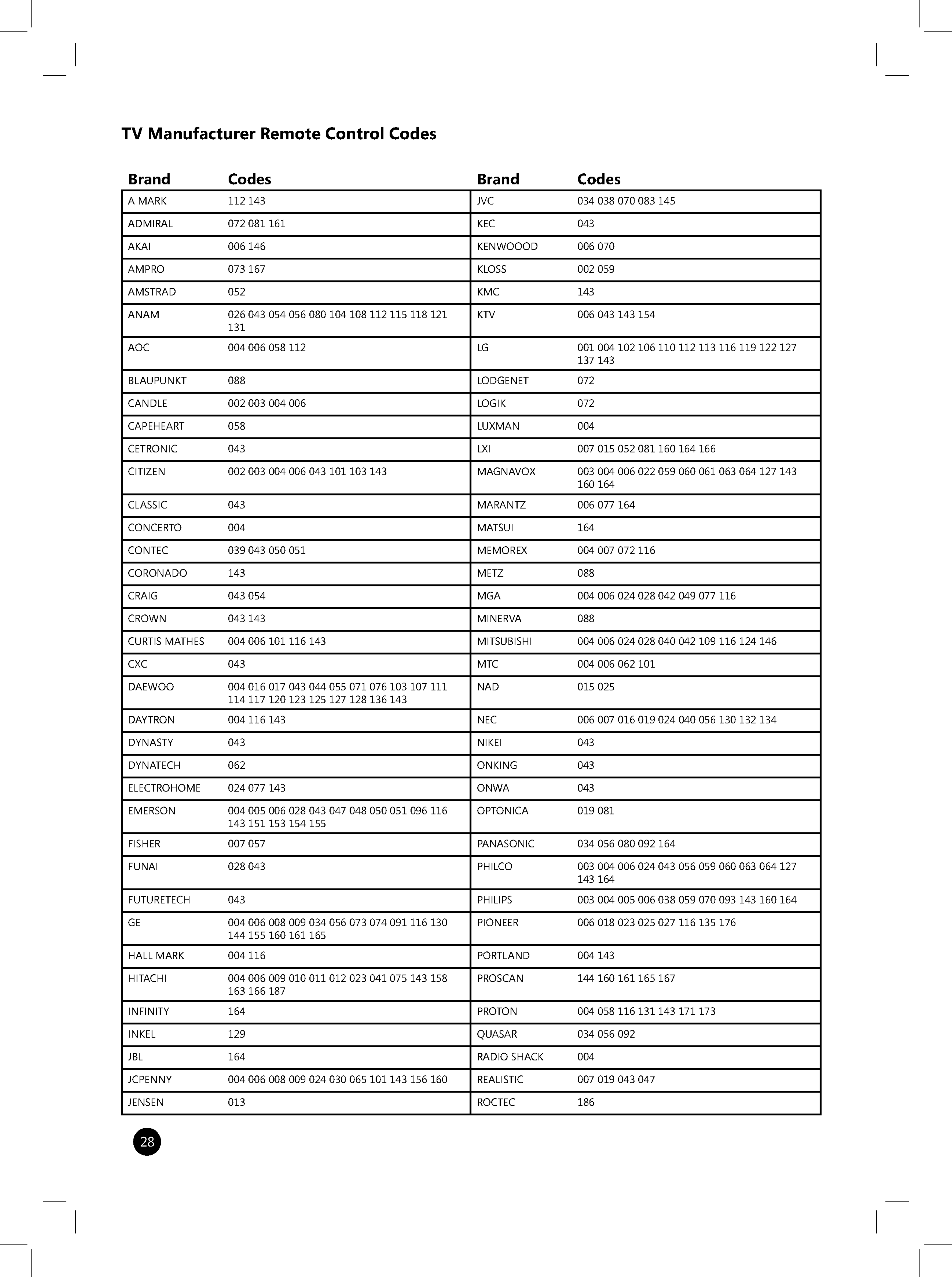
TV
Manufacturer
Remote
Control
Codes
Brand
Codes
Brand
Codes
A
MARK
112 143
JVC 034
038
070
083
145
ADMIRAL
072 081
161
KEC
043
AKAI
006
146
KENWOOOD
006 070
AMPRO
073
167
KLOSS
002 059
AMSTRAD
052
KMC
143
ANAM
026
043 054 056 080
104 108 112 115
118 121
131
KTV
006
043 143
154
AOC
004 006
058
112
LG
001
004
102
106 110
112 113
116
119
122 127
137 143
BLAUPUNKT
088
LODGENET
072
CANDLE
002 003 004 006 LOGIK
072
CAPEHEART
058
LUXMAN
004
CETRONIC
043
LXI
007 015
052 081 160
164 166
CITIZEN
002 003 004 006
043
101
103 143
MAGNAVOX
003
004
006
022 059 060
061 063
064
127 143
160 164
CLASSIC 043
MARANTZ
006
077
164
CONCERTO
004
MATSUI
164
CONTEC
039 043 050
051
MEMOREX
004
007
072 116
CORONADO
143
METZ
088
CRAIG
043
054
MGA
004 006
024
028 042
049 077 116
CROWN
043
143
MINERVA
088
CURTIS
MATHES
004 006
101
116
143
MITSUBISHI
004 006
024
028
040
042
109
116 124
146
CXC
043
MTC
004 006 062
101
DAEWOO
004 016
017 043
044
055
071
076
103
107 111
114
117 120
123 125 127
128
136
143
NAD
015 025
DAYTRON
004
116
143
NEC
006
007
016
019
024
040 056
130
132
134
DYNASTY
043
NIKEI
043
DYNATECH
062
ONKING
043
ELECTROHOME
024
077
143
ONWA
043
EMERSON
004
005 006
028 043 047
048
050
051 096
116
143 151
153
154
155
OPTONICA
019 081
FISHER
007 057
PANASONIC
034 056
080
092 164
FUNAI
028 043
PHILCO
003
004
006 024
043 056
059
060
063
064
127
143
164
FUTURETECH
043
PHILIPS
003
004 005
006
038
059
070
093
143
160 164
GE
004 006
008 009
034 056 073
074
091
116 130
144
155 160
161 165
PIONEER
006
018
023 025 027
116
135
176
HALL
MARK
004
116
PORTLAND
004
143
HITACHI
004 006
009
010
011 012
023 041 075
143 158
163
166
187
PROSCAN
144 160 161 165 167
INFINITY
164
PROTON
004
058
116
131 143
171 173
INKEL
129
QUASAR
034 056 092
JBL
164
RADIO
SHACK
004
JCPENNY
004 006
008 009
024 030 065
101 143 156 160
REALISTIC
007 019
043 047
JENSEN
013
ROCTEC
186
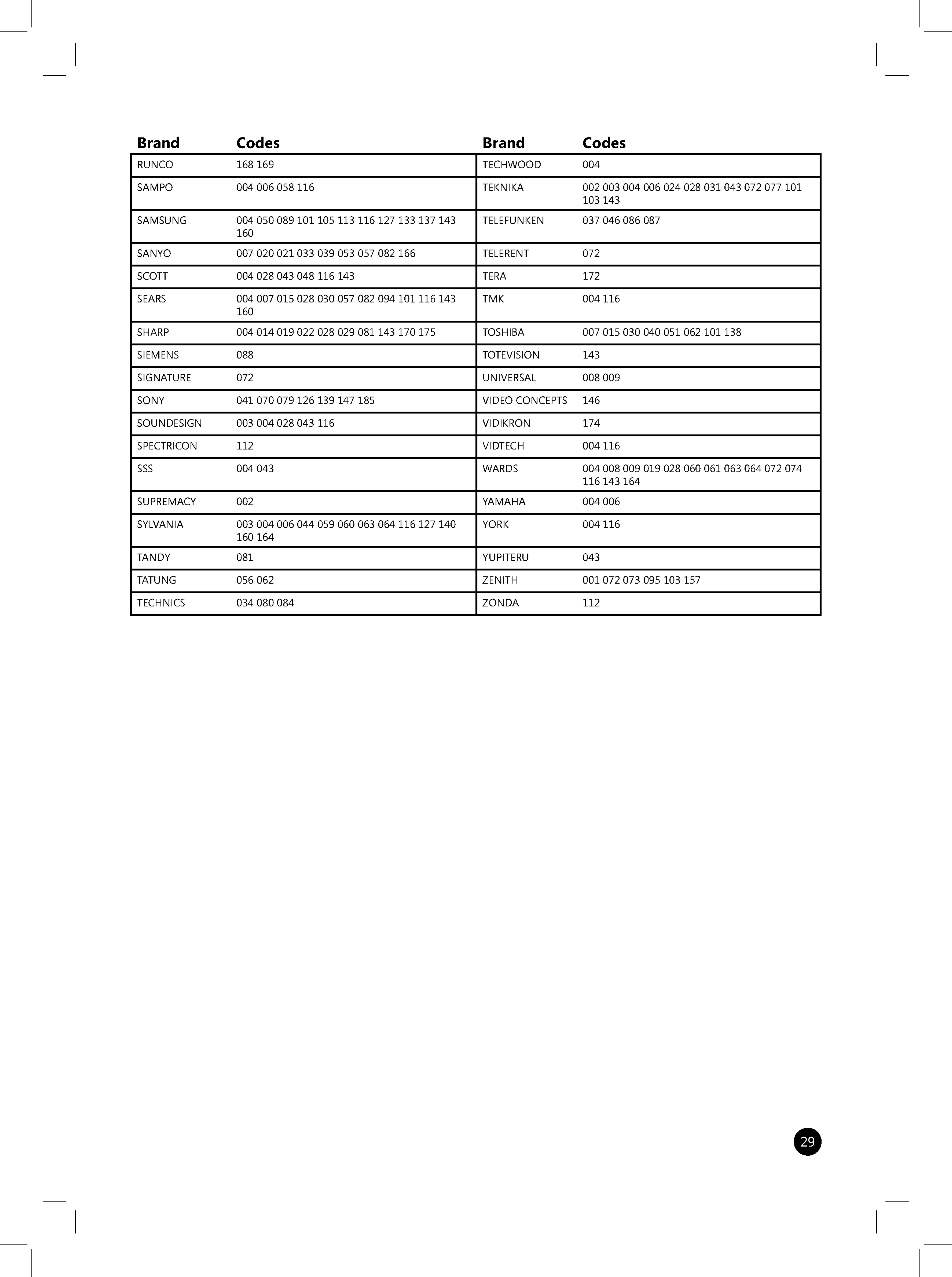
Brand
Codes
Brand
Codes
RUNCO
168
169
TECHWOOD
004
SAMPO
004
006
058 116
TEKNIKA
002 003
004
006 024
028 031
043 072 077
101
103 143
SAMSUNG
004
050
089
101
105 113
116
127
133 137 143
160
TELEFUNKEN
037
046 086
087
SANYO
007
020
021 033
039 053 057 082
166
TELERENT
072
SCOTT
004 028 043 048
116
143
TERA
172
SEARS
004 007 015 028 030
057 082
094
101
116
143
160
TMK
004
116
SHARP
004
014
019 022
028 029 081
143
170
175
TOSHIBA
007 015
030
040
051 062
101
138
SIEMENS
088
TOTEVISION
143
SIGNATURE
072
UNIVERSAL
008 009
SONY
041
070
079 126
139 147 185
VIDEO
CONCEPTS
146
SOUNDESIGN
003
004
028 043
116
VIDIKRON
174
SPECTRICON
112
VIDTECH
004
116
SSS
004 043
WARDS
004
008 009
019 028
060
061
063
064
072 074
116
143
164
SUPREMACY
002
YAMAHA
004 006
SYLVANIA
003
004 006 044
059
060
063
064 116
127
140
160
164
YORK
004
116
TANDY
081
YUPITERU
043
TATUNG
056 062
ZENITH
001 072 073
095
103 157
TECHNICS
034
080 084
ZONDA
112
Connect
the
Power
to
the
Recorder
and
Turn
on
the
TV
1.
Attach
the
power
cord
to
the
Recorder
and
plug
the
power
cord
into
a
power
strip/surge
protector
or
a
wall
outlet.
2.
Turn
on
the
TV.
3.
Press
POWER
on
the
Recorder.
The
TV
should
now
display
the
Welcome
screen
for
the
Recorder
Setup
Wizard.
Note
You
may
need
to
change
the
TV
video
source
to
use
the
Recorder.
On
your
TV
remote
control
or
the
front
panel
of
your
TV,
press
TV/VIDEO
until
you
see
the
Welcome
screen
for
the
Recorder
Setup
Wizard.
The
TV/VIDEO
button
might
be
marked
SOURCE,
INPUT,
VIDEO
1,
or
VIDEO
2.

31
Set
up
the
Recorder
To
provide
TV
services,
you
must
determine
the
following:
?
Which
type
of
TV
service
you
are
using
?
Who
provides
your
TV
service
(if
using
cable
or
satellite)
?
If
you
will
connect
the
Recorder
to
a
broadband
or
dial-up
connection
to
download
Microsoft
Program
Guide
service
information.
If
you
use
a
broadband
connection,
the
Recorder
can
connect
to
computers
on
your
home
network
to
share
recorded
shows
or
access
music
and
picture
fles.
Remember
The
frst
time
you
schedule
a
recording,
LG
will
guide
you
through
the
process
for
free.
Contact
LG
at
800-984-6306.
Subscribe
to
the Microsoft
Program
Guide
To
receive
all
of
the
features
of
the
LG
LRM-519
Digital
Media
Recorder
powered
by
Windows
Media
Center
Technologies,
you
must
subscribe
to
the
Microsoft
Program
Guide.
Without
a
subscription
to
this
service,
the
Recorder
will
have
limited
features.
To
sign
up
for
the
Microsoft
Program
Guide
service
visit
www.microsoftprogramguide.com.
For
a
list
of
the
features
provided
by
the
Microsoft
Program
Guide,
see
The
Microsoft
Program
Guide
in
Appendix
A.
Welcome
to
Setup
After
you
turn
on
the
TV
and
press
the
POWER
button
on
the
Recorder,
the
Welcome
screen
for
the
Setup
Wizard
displays.
The
Setup
Wizard
gathers
the
information
needed
by
the
Recorder
to
provide
you
with
TV
viewing,
programming,
and
recording
features.
As
you
proceed
through
the
Setup
Wizard,
you
will
need
to
know
the
following:
?
what
type
of
connection
you
will
use
for
downloading
Program
Guide
information
?
your
ZIP
code
so
the
Recorder
will
know
what
TV
providers
are
in
your
area
?
your
TV
provider
?
the
brand
of
your
digital
cable
set-top
box
or
satellite
set-top
box
(if
you
have
digital
cable
service
or
satellite
service).







Downloading
the
Program
Guide
and
Software
Updates
To
receive
the
Program
Guide,
subscribe
to
the
Microsoft
Program
Guide
service.
For
more
information
about
the
service,
see
The
Microsoft
Program
Guide
service
in
Appendix
A.
Note
The
Recorder
can
connect
to
a
network
by
using
broadband
and
download
Guide
listings
by
using
a
dial-up
connection,
at
the
same
time.
For
more
information,
see
1.
Set
up
Connection
in
Set
up
the
Recorder.
The
First
Time
You
Setup
The
Recorder
After
you
complete
setting
up
the
Recorder
and
begin
to
watch
TV,
the
Recorder
checks
to
see
if
there
is
an
update
to
the
Recorder
software.
If
there
is
a
newer
version
of
the
software,
the
Recorder
automatically
downloads
the
updated
software
and
then
the
current
Program
Guide.
Future
Program
Guide
Updates
The
Recorder
attempts
to
download
Program
Guide
updates
daily,
during
early
morning
hours.
Important
·
When
updating
the
Program
Guide,
the
updated
Guide
information
is
downloaded
and
then
merged
into
the
Guide.
The
download
can
take
15
minutes
or
longer
depending
on
your
network
connection
and
network
conditions.
The
process
of
merging
the
frst
12
hours
of
Guide
listings
can
take
30
minutes
or
longer.
During
the
frst
download
of
the
Program
Guide
listings,
the
Guide
will
not
contain
information
immediately.
The
complete
Guide
update
may
take
up
to
3
hours.
·
You
can
check
the
status
of
the
current
Program
Guide
update
or
the
last
time
the
Guide
successfully
updated
by
selecting
Start
>
Settings
>
Guide
Settings
>
Get
Latest
Guide
Listings.
·
You
can
download
the
latest
Program
Guide
by
selecting
Start
>
Settings
>
Guide
Settings
>
Get
Latest
Guide
Listings
and
select
Download
Now.
·
When
the
Program
Guide
is
being
updated
over
a
dial-up
connection,
you
can
stop
the
download
to
make
a
phone
call.
If
you
pick
up
your
phone
you
will
hear
the
the
Recorder
receiving
data.
Hang
up
the
phone,
and
then
pick
the
phone
up
again.
This
will
stop
the
download
and
disconnect
the
Recorder.
After
you
make
your
phone
call,
the
Recorder
will
automatically
reconnect
at
a
later
time
and
continue
the
download.

40
Future
Software
Updates
Software
updates
download
as
necessary
during
updates
to
the
Program
Guide.
Important
·
If
you
have
a
broadband
connection,
a
software
update
download
can
take
5
minutes
or
longer,
followed
by
the
Program
Guide
download
and
update.
The
download
time
can
be
shorter
or
longer
depending
on
network
traffc.
·
If
you
have
a
dial-up
connection,
a
software
update
download
can
take
up
to
90
minutes,
followed
by
the
Program
Guide
download
and
update.
The
download
time
can
be
shorter
or
longer
depending
on
your
modem
speed
and
network
conditions.
·
When
the
software
is
being
updated
over
a
dial-up
connection,
you
can
stop
the
download
to
make
a
phone
call.
If
you
pick
up
your
phone
you
will
hear
the
the
Recorder
receiving
data.
Hang
up
the
phone,
and
then
pick
the
phone
up
again.
This
will
stop
the
download
and
disconnect
the
Recorder.
After
you
make
your
phone
call,
the
Recorder
will
automatically
reconnect
at
a
later
time
and
continue
the
download.
Parental
Controls
and
Locks
Create
a
parental
lock
PIN
to
restrict
what
can
be
watched
by
show
rating
or
by
channel.
The
Parental
Control
PIN
is
requested
when:
?
You
are
watching
an
unrestricted
show
and
tune
to
a
restricted
show
by
entering
a
channel
number
or
by
using
CH/PG
on
the
remote.
?
By
selecting
a
restricted
show
in
the
Program
Guide.
?
You
are
viewing
an
unrestricted
show
and
a
restricted
show
starts.
To
set
the
Parental
Control
Lock,
press
Start
on
the
remote,
and
then
select
Settings
>
Parental
Control.
Create
a
Parental
Control
PIN
Create
a
Parental
Control
PIN
using
the
numeric
keypad
on
the
remote.
This
PIN
must
be
four
digits
long.
Re-enter
the
PIN
to
confrm
it.

Reset
To
remove
all
parental
control
locks
and
the
Parental
Control
PIN,
select
Reset.
Forgot
the
Parental
Control
PIN?
If
you
forget
the
Parental
Control
PIN,
you
can
change
the
PIN
by
using
the
Change
PIN
Authorization
Number.
1.
If
a
message
requests
the
Parental
Control
PIN
(see
Parental
Control
Locks
earlier),
select
Forgot
PIN.
2.
Enter
the
following
Change
PIN
Authorization
Number:
2229566
3.
Select
Done.
4.
Follow
the
instructions
onscreen
to
create
a
new
PIN.
Changing
Settings
You
can
use
the
Settings
menu
to
change
Recorder
settings.
Following
is
a
list
of
the
settings
you
can
change.
Recorder
Change
Recorder
default
settings,
including:
?
Change
the
default
setting
for
how
long
a
recording
should
be
kept.
Set
Keep
from
the
default
of
Until
Space
Needed
to
Until
I
Delete.
?
Set
the
default
quality
of
recordings.
Change
Quality
to
Good,
Better,
or
Best.
Note
Best
quality
requires
the
most
storage
space
for
a
recording,
followed
by
Better
quality
and
then
Good
quality
(which
uses
the
least
amount
of
storage
space).
Guide
Setup
Guide
setup
settings
include:
?
If
you
need
to
change
your
TV
signal
or
TV
service
provider,
how
you
enter
channels
by
using
the
remote
and
other
TV
settings
select
Set
up
TV
Signal
and
Guide
to
launch
the
Set
up
TV
Signal
and
Guide
portion
of
the
Setup
Wizard.
?
To
add
or
remove
channels
from
the
Program
Guide,
select
Edit
Channels.
Any
channel
with
a
check
next
to
it
is
displayed
in
the
Guide.
To
remove
a
channel
from
the
Guide
or
add
a
channel
previously
removed,
select
the
channel
and
press
OK.
You
can
scroll
through
the
list
by
using
the
arrow
keys
or
CH/PG
on
the
remote.
?
To
download
the
latest
Program
Guide
listings,
check
the
status
of
the
current
Guide
download,
or
see
the
last
time
the
Guide
was
downloaded,
select
Get
Latest
Guide
Listings.
In
addition
to
the
Program
Guide
download,
any
new
software
update
for
the
Recorder
will
be
downloaded
at
the
same
time.
DVD
Settings
Set
the
default
language
options
for
DVD
playback.
Note
You
cannot
access
DVD
Settings
during
DVD
playback.
?
DVD
Language
?
Set
the
default
DVD
subtitle
language.
?
Change
the
language
of
the
default
audio
track
(such
as
English,
French,
or
Spanish).
?
Set
the
default
language
of
the
DVD
menu.
?
Digital
Audio
Output
?
If
the
Recorder
is
connected
to
a
home
entertainment
center
amplifer/receiver
or
a
TV
that
supports
Dolbyⓒ
Digital
playback
(5.1
channel
audio
through
a
Dolby
Digital
decoder),
select
Bitstream
under
Dolby
Digital.
Otherwise,
select
PCM.
Note
Dolbyⓒ
Digital
playback?5.1
audio?is
only
available
if:
?
The
DVD
that
you
are
watching
supports
5.1
channel
audio.
?
Your
home
entertainment
center
amplifer/receiver
supports
5.1
audio
playback.
?
You
have
selected
Bitstream
under
Dolby
Digital.
?
If
the
Recorder
is
connected
to
a
home
entertainment
center
amplifer/receiver
or
a
TV
that
supports
DTS
playback,
select
Bitstream
under
DTS.
Otherwise,
select
Off.
Note
When
Bitstream
is
selected,
the
Recorder
sound
effects
are
disabled.
Analog
audio
output
(provided
through
red
and
white
audio
cables
connected
to
AUDIO
OUT
on
the
back
of
the
Recorder)
is
also
disabled.
?
Angle
Indicator
?
For
DVDs
with
multiple
camera
angles,
select
Angle
Indicator
is
ON
to
display
the
angle
indicator
when
multiple
angles
are
available.
?
TV
aspect
ratio
?
Set
the
TV
aspect
ratio
to
4:3
letterbox,
16:9
widescreen,
or
4:3
pan
and
scan.
These
settings
depend
on
your
TV;
for
more
information,
see
your
TV
documentation.
Parental
Control
Create
a
parental
control
PIN,
assign
the
lock
code
to
different
types
of
shows
or
change
the
parental
lock
code
PIN.
For
more
information,
see
Set
the
Parental
Control
Policy.
Phone
and
Network
Setup
Select
Phone
and
Network
Setup
to
update
dial-up
and
networking
settings.
You
can
switch
from
dial-up
to
broadband
(or
vice
versa)
or
change
wired
(Ethernet),
wireless,
or
dial-up
connection
settings.
Run
Setup
Again
If
you
do
not
use
the
Setup
Wizard
for
30
minutes
(such
as
leaving
your
TV
before
completing
setup),
the wizard
will
stop
running
and
display
the
current
TV
show.
To
complete
the
Setup,
select
Run
Setup
Again
System
Information
The
System
Information
menu
includes:
?
The
Recorder
information
such
as
the
Service
ID
and
software
version.
?
Your
current
Microsoft
Program
Guide
subscription
information.
?
Set
Clock
where
you
can
change
the
clock
settings.
Send
to
PC
Set
the
defaults
for
copying
recorded
shows
to
other
PCs
on
your
home
network.
You
can
provide
the
following
default
information:
?
Network
path
to
the
destination
folder
on
the
computer
(in
the
format
\\PCname\foldername).
?
Your
network
account
user
name.
?
Your
network
account
password.
Note
You
can
only
copy
recordings
to
one
computer
at
a
time.
To
copy
to
another
computer,
change
the
path
and
network
account
information
for
the
second
computer,
and
then
start
the
process
over
again.
Audio
Settings
Select
the
default
audio
format:
Mono,
Stereo,
or
the
Secondary
Audio
(SAP).
Note
A
Secondary
Audio
Program
is
an
audio
broadcast
or
track
in
a
language
other
than
English.
The
secondary
audio
may
be
Spanish,
French,
Japanese
or
another
language.
If
the
SAP
is
selected
and
you
record
a
show,
the
show
is
recorded
in
the
SAP
language,
not
stereo
audio.
Some
TV
shows
include
an
SAP
that
is
inaudible.
If
you
select
SAP
and
do
not
hear
audio,
switch
to
Stereo.

45
Windows
Media
Connect:
Access
Pictures
and
Music
Stored
on
a
Computer
Windows
Media
Connect
provides
digital
media
such
as
music
fles
(.WMA
or
.MP3)
and
pictures
(JPEG)
from
a
computer
on
your
home
network
to
the
Recorder.
The
computer
must
have
Windows
Media
Connect
installed
in
order
for
the
computer
to
share
its
fles
to
the
Recorder.
On
the
computer
containing
the
media,
the
Recorder
must
be
registered
as
a
device
that
can
access
the
fles.
Before
You
Use
Windows
Media
Connect
Before
the
Recorder
can
connect
to
a
computer
using
Windows
Media
Connect,
make
sure:
?
Depending
on
the
version
of
Windows
Media
Connect
you
have
installed,
Microsoft
.NET
framework
1.1
may
be
required.
For
more
information,
visit
the
Microsoft
website
(www.microsoft.com).
?
Any
updates
for
Windows
Media
Connect
are
installed.
For
more
information,
visit
the
Microsoft
website
(www.microsoft.com).
?
The
IP
address
for
your
home
network
must
be
within
the
following
ranges:
10.0.0.0--10.255.255.255
169.254.0.0?169.254.255.255
172.16.0.0?172.31.255.255
192.168.0.0?192.168.255.255
For
more
information
about
the
IP
address
for
your
home
network,
consult
the
network
documentation.
Connect
to
a
Computer
Running
Windows
Media
Connect
1.
Make
sure
the
computer
with
Windows
Media
Connect
is
turned
on.
2.
After
the
Recorder
is
connected
to
the
home
network,
Windows
Media
Connect
will
display
a
message
on
the
computer
that
a
new
device
has
been
connected
to
the
network.
3.
Follow
the
instructions
onscreen
to
add
the
Recorder
(LRM-519)
to
the
list
of
devices.
4.
Select
the
folders
you
want
to
access
from
the
Recorder.
After
the
Recorder
is
added,
the
computer
will
appear
in
My
Pictures
and
My
Music.
Notes
?
Computers
that
are
part
of
a
network
domain
(such
as
corporate
networks)
instead
of
a
workgroup
are
restricted
to
the
domain
security
policies.
If
the
computer
with
Windows
Media
Connect
is
part
of
a
domain,
there
may
be
limitations
on
sharing
fles.
For
more
information,
consult
your
network
administrator.
?
The
Recorder
can
connect
to
a
network
by
using
broadband
and
download
Guide
listings
by
using
a
dial-up
connection,
at
the
same
time.
For
more
information,
see
1.
Set
up
Connection
in
Set
up
the
Recorder.


47
Enter
Text
by
Using
the
Remote
To
enter
text
on-screen,
use
the
numeric
keypad
on
the
remote
control
by
pressing
the
number
repeatedly
for
the
desired
letter.
To
enter
the
letter
“b”
press
the
number
2
twice;
to
enter
word
“bl”
(for
example,
shows
beginning
with
“blue”),
press
2
twice
for
“b”,
and
then
press
number
5
three
times
for
the
letter
“l”.
a
2
ABC
b
2
ABC
c
2
ABC
1
2
3
When
entering
a
word
where
the
letters
are
on
the
same
key
such
as
searching
for
shows
that
begin
with
“de”
(both
on
the
number
3
key),
enter
the
frst
letter,
press
the
right
arrow
on
the
remote
(or
wait
a
few
seconds
and
the
cursor
will
move
to
the
right),
and
then
enter
the
next
letter.
If
you
make
a
mistake,
press
CLEAR
on
the
remote
to
delete
the
previous
character.
Viewing
Pay-Per-View
or
Video-On-Demand
Programs
Important
Some
cable
and
satellite
service
providers
offer
pay-per-
view
or
video-on-demand
programming.
The
Recorder
remote
cannot
be
used
to
purchase
these
programs.
To
order
this
programming,
use
the
remote
control
for
your
digital
cable
or
satellite
set-top
box.
For
more
information,
contact
your
cable
or
satellite
service
provider.

48
Using
the
Recorder
With
the
Recorder,
you
can
watch
TV
shows,
record
shows,
pause
live
TV,
replay
live
TV,
and
copy
shows
to
a
DVD.
Many
of
these
features
can
be
used
at
the
same
time.
For
example:
?
You
can
watch
a
recorded
show
while
recording
a
different
show
and
copying
a
recording
to
a
DVD.
?
You
can
watch
a
TV
show
while
recording
it
and
copying
a
recording
to
a
DVD.
?
You
can
watch
a
DVD
while
recording
a
show.
This
section
describes
all
of
the
features
of
the
Recorder.
Watching
TV
Before
you
can
watch
TV
by
using
the
Recorder,
make
sure:
?
The
Recorder
is
set
up
correctly
and
you
have
completed
the
Setup
Wizard.
Once
the
Setup
Wizard
successfully
completes,
you
can
watch
live
TV.
Change
Channels
on
the
TV
Press
CH/PG
to
change
the
TV
channels.
You
can
also
enter
the
channel
number
by
using
the
numeric
keypad
on
the
remote
and
the
channel
will
change
after
a
few
seconds.
Switch
between
the
Current
Channel
and
the
Previous
Channel
When
watching
a
live
TV
show
(and
not
in
any
menu
or
on-screen
page),
you
can
jump
between
the
current
TV
channel
you
are
watching
and
the
previous
channel
by
pressing
OK.
To
switch
back,
press
OK.
Note
If
you
were
previously
watching
a
recorded
show
or
a
DVD,
pressing
OK
will
return
you
to
the
recorded
show
or
the
DVD.
Display
Information
about
the
Current
TV
Show
To
see
the
name
of
the
TV
show
you
are
watching,
the
current
TV
channel,
and
the
current
time,
press
INFO.
To
see
detailed
information
about
the
TV
show,
press
INFO
twice.



Record
a
Show
Using
the
Guide
?
To
record
a
show
in
the
Guide,
display
the
mini-Guide
or
the
Guide,
select
the
show,
and
then
press
REC
on
the
remote.
?
To
record
the
current
and
future
episodes
of
a
series,
press
REC
twice.
Record
Using
Search
Note
Program
search
does
not
contain
listings
unless
you
have
a
subscription
to
the
Microsoft
Program
Guide
service.
For
more
information,
see
The
Microsoft
Program
Guide
in
Appendix
A.
You
can
fnd
shows
to
record
by
using
the
Search
feature.
The
Recorder
can
search
for
shows
using
the
following
methods.
?
Title
search
The
Recorder
searches
for
any
show
title
beginning
with
each
character
you
enter.
For
example,
if
you
enter
“b”
a
list
is
displayed
of
show
titles
beginning
with
the
letter
B;
if
you
enter
“be”
the
list
displays
those
titles
beginning
with
“be”.
?
Category
search
The
Recorder
displays
a
list
of
different
types
of
shows,
such
as
Comedy
or
Drama.
?
Keyword
search
Use
this
option
to
display
a
list
of
shows
by
a
certain
subject
(enter
“seattle”
to
see
shows
about
Seattle),
actor
name,
or
a
specifc
word
in
a
show
description.
To
record
a
show
using
Search
1.
From
the
Start
menu,
select
Search.
2.
Select
the
type
of
search:
Title,
Category,
or
Keyword.
3.
Do
one
of
the
following:
?
For
a
Title
search
Use
the
numeric
keypad
on
the
remote
to
enter
the
frst
few
characters
of
the
show
title.
?
For
a
Category
search
Select
the
type
of
show
you
want
to
watch.
?
For
a
Keyword
search
Use
the
numeric
keypad
on
the
remote
to
enter
the
frst
few
characters
of
a
subject
title,
actor
name,
or
other
keyword.
Select
Search
to
locate
shows
matching
the
keywords.
4.
Select
the
show
you
want
to
record.
5.
Press
INFO,
and
then
select
Record.



Connect
a
USB
drive
for
storage
1.
Make
sure
the
Recorder
is
turned
on.
2.
If
you
are
viewing
pictures
(My
Pictures)
or
listening
to
music
(My
Music),
press
Start
on
the
remote
to
exit
My
Pictures
or
My
Music
and
display
the
Start
menu.
3.
Connect
the
USB
drive
to
one
of
the
USB
ports
on
the
Recorder.
4.
Follow
the
on-screen
messages
to
use
the
USB
device
for
additional
storage.
Remove
a
USB
drive
Important
When
you
disconnect
a
USB
drive,
make
sure
the
Recorder
is
powered
off.
1.
To
power
off
the
Recorder,
press
and
hold
Power
on
the
front
panel
of
the
Recorder
or
press
and
hold
POWER
on
the
Recorder
remote.
Press
and
hold the
button
until
the
front
panel
of
the
Recorder
turns
off
(approximately
fve
seconds).
2.
Disconnect
the
USB
drive.
3.
Turn
the
Recorder
on
by
pressing
Power
on
the
front
panel
of
the
Recorder
or
POWER
on
the
Recorder
remote.


58
DVD
Controls
On
the
Recorder
remote,
use
the
following
buttons
on
the
remote
to
control
DVD
playback.
To
Press
Start
DVD
playback
PLAY
Pause
DVD
playback
PAUSE
Stop
the
DVD
STOP
Fast
forward
through
the
DVD
FWD
Rewind
through
the
DVD
REW
Advance
to
the
next
chapter/track
SKIP
Move
back
to
the
beginning
of
the
current
chapter/track
REPLAY
or
press
twice
to
move
back
to
the
beginning
of
the
preceding
chapter/track
Display
the
top
menu
of
the
DVD
or
return
to
the
DVD
MENU
previous
menu
(when
navigating
the
DVD
menus)
Display
the
top
menu
of
the
DVD
TOP
MENU
Change
DVD
audio
options
AUDIO
Turn
on
or
turn
off
DVD
subtitles
or
scroll
through
SUBTITLE
available
subtitle
languages
View
alternate
scene
angles
(if
available;
a
camera
icon
ANGLE
appears
when
a
chapter
has
alternate
angles)
Create
a
DVD
To
store
a
recorded
show
for
future
viewing,
you
can
copy
the
recording
to
a
DVD.
To
create
DVDs
of
your
recorded
shows,
both
single-
and
double-layer
DVDs
may
be
used.
Note
When
the
Recorder
is
creating
a
DVD,
the
Send
to
PC
functionality
is
not
available.
Supported
DVD
formats
Number
of
shows
DVD+/-RorDVD+/-RW
Up
to
7
shows
or
available
recording
space,
whichever
comes
frst.
DVD+R
double
layer
Up
to
16
shows
or
available
recording
space,
whichever
comes
frst
Copying
Copy-protected
Shows
The
provider
of
a
show
can
restrict
content
from
being
copied.
When
the
Recorder
encounters
a
copy
restriction
within
a
recording
of
a
show,
the
Recorder
will
not
allow
the
protected
content
to
be
copied
to
DVDs,
computers,
or
USB
devices.
When
you
select
recordings
to
copy
to
a
DVD,
recordings
that
cannot
be
copied
are
not
available.





If
you
do
not
have
a
network
user
account:
?
Create
a
new
user
account.
For
more
information,
search
for
the
topic
Create
a
new
user
account
in
Help
and
Support
on
the
Windows
XP
Start
menu.
Note
The
Recorder
does
not
support
spaces
in
network
user
account
names.
The
Recorder
does
support
the
underscore
character
(
_
)
in
network
user
account
names.
?
Make
sure
the
network
account
is
not
disabled
and
you
do
not
have
to
change
the
network
password
the
next
time
you
log
on.
To
check
this:
1.
On
the
Start
menu,
click
Control
Panel.
2.
Select
User
Accounts
and
then
select
User
Accounts
again.
3.
Click
the
Advanced
tab
and
then
click
the
Advanced
button.
4.
Double-click the
Users
folder
in
the
right
pane
and
then
right-click
the
user
account
name
and
select
Properties.
5.
Make
sure
the
User
must
change
password
at
next
logon
and
Account
is
disabled
are
not
checked.
?
Keep
track
of
your
network
password.
The
Shared
Folder
And
The
Location
Of
The
Folder
Make
sure
you
have
a
shared
folder
on
the
computer
that
is
ready
to
receive
recordings.
For
more
information,
search
for
Using
shared
folders
in
Help
and
Support
on
the
computer.
For
the
process
to
share
a
folder,
search
for
To
share
a
folder
or
drive
in
Help
and
Support.
Make
sure
to
use
the
instructions
for
Using
Windows
Explorer.
Windows
XP
Home
Edition
?
Make
sure
the
folder
is
stored
at
the
top
(root)
level
of
a
hard
drive.
For
example,
if
the
shared
folder
is
named
CopiedShows
on
the
C:
drive,
make
sure
it
is
at
the
root
level
of
the
C:
drive:
C:\CopiedShows.
?
You
must
know
the
network
name
of
your
computer.
This
is
usually
the
name
of
the
computer.
For
example,
the
name
of
your
home
computer
may
be
HomePC.
?
The
location
of
the
shared
folder
on
the
network
is
the
path
to
the
folder
in
the
form
\\ComputerName\FolderName.
For
this
example,
the
path
to
the
shared
folder
is
\\HomePC\CopiedShows.
Windows
XP
Professional
?
Make
sure
the
folder
is
stored
at
the
top
(root)
level
of
a
hard
drive.
For
example,
if
the
shared
folder
is
named
CopiedShows
on
the
C:
drive,
make
sure
it
is
at
the
root
level
of
the
C: drive:
C:\CopiedShows.
?
You
have
permission
to
change
and
read
the
folder.
You
can
also
have
full
privileges
for
the
folder.
For
more
information,
search
for
the
topic
To
set,
view,
change,
or
remove
fle
and
folder
permissions
in
Help
and
Support
on
the
Windows
XP
Start
menu.
?
You
must
know
the
network
name
of
your
computer.
This
is
usually
the
name
of
the
computer.
For
example,
the
name
of
your
home
computer
may
be
HomePC.
?
The
location
of
the
shared
folder
on
the
network
is
the
path
to
the
folder
in
the
form
\\ComputerName\FolderName.
For
this
example,
the
path
to
the
shared
folder
is
\\HomePC\CopiedShows.
Note
When
connecting
the
Recorder
to
a
computer,
there
is
no
need
to
disable
your
frewall
or
network
security.
Use
Send
to
PC
to
Copy
a
Recording
to
a
Computer
1.
On
the
Start
menu,
select
Send
to
PC.
2.
Using
the
numeric
keypad
on
the
remote,
enter
the
path
(in
the
format:
\\PCname\foldername)
to
a
shared
folder
on
the
computer.
Note
Make
sure
you
have
write
permissions
for
the
shared
folder.
3.
Enter
your
network
account
user
name.
4.
Enter
your
network
account
password
(if
the
account
has
a
password).
5.
Select
Next.
6.
Select
the
recordings
you
want
to
copy.
7.
Select
Send
to
PC.
Note
Once
you
enter
the
network
path
and
account
information
(step
2
through
step
5),
the
Recorder
retains
the
settings.
If
you
want
to
copy
recordings
to
another
computer,
select
Start
>
Settings
>
Send
to
PC
and
change
the
path
to
the
shared
folder,
the
network
user
account
and
password
as
necessary.
Stop
the
Copy
Process
?
To
stop
the
copy
process,
select
Stop
in
the
Copy
Process
message.
Note
You
can
resume
copying
the
recording
to
the
computer
at
a
later
time.
When
you
continue
the
copy
process,
the
Recorder
synchronizes
the
copy
and
only
copies
the
remainder
of
the
recording.
Important
Before
you
can
copy
the
remainder
of
a
recording
to
the
computer,
you
must
be
logged
on
to
the
network
by
using
the
Send
to
PC
page.
You
may
need
to
change
your
logon
information
(network
user
account
name
and
password)
on
the
Start
>
Settings
>
Send
to
PC
page
on
the
Recorder.If
another
person
logs
on
to
the
network
to
copy
the
remainder,
the
Recorder
will
not
properly
synchronize
the
remainder
of
the
recording.
Notes
?
Recordings
of
shows
can
be
restricted
from
copying.
For
more
information,
see
Copying
Copy-protected
Shows.
?
The
Recorder
cannot
copy
commercial
or
retail
copy-righted
DVDs.
For
more
information,
see
Copy
of
Commercial/Retail
Copyrighted
DVDs.
?
The
Recorder
can
connect
to
a
network
by
using
broadband
and
download
Guide
listings
by
using
a
dial-up
connection,
at
the
same
time.
For
more
information,
see
1.
Set
up
Connection
in
Set
up
the
Recorder.

66
Appendix
A:
The
Microsoft
Program
Guide
The
Microsoft
Program
Guide
service
enables
all
of
the
features
of
the
Recorder.
With
a
subscription,
the
following
features
are
available
to
you:
?
The
Program
Guide,
including
up
to
two
weeks
of
TV
listings
?
Search
for
upcoming
shows
?
Record
shows
by
selecting
the
show
in
the
Guide
or
Mini-Guide
and
pressing
REC
on
the
remote.
?
Record
TV
series
To
subscribe
to
the
service
or
for
more
information,
visit
www.
microsoftprogramguide.com
or
contact
LG
Customer
Support
at
1-800-984-6306.
Note
If
the
Program
Guide
does
not
download
after
you
subscribe
to
the
Microsoft
Program
Guide
service,
select
Start
>
Settings
>
Guide
Settings
>
Get
Latest
Guide
Listings
>
Download
Now.
When
you
select
Get
Latest
Guide
Listings,
you
can
also
check
the
status
of
the
download.

67
Appendix
B:
Troubleshooting
Issue
The
Recorder
Setup
Wizard
disappeared.
Solution
The
Setup
Wizard
automatically
dismisses
from
the
screen
after
30 minutes
of
inactivity.
Depending
on
your
TV
service,
you
may
see
live
TV
or
a
snowy
picture.
To
resume
Setup,
select
Start
>
Settings
>
Run
Setup
Again.
The
Program
Guide
is
blank.
?
To
receive
the
Program
Guide,
you
must
subscribe
to
the
Microsoft
Program
Guide
service.
For
more
information,
see
The
Microsoft
Program
Guide
in
Appendix
A.
?
The
Program
Guide
could
still
be
downloading.
The
download
may
take
20
minutes
or
longer
depending
on
your
network
connection
(broadband
vs.
dial-up)
and
network
traffc.
You
can
check
the
status
of
the
download
by
selecting
Start
>
Settings
>
Guide
Settings
>
Get
Latest
Guide
Listings.
?
The
Recorder
may
be
downloading
a
software
update
and
the
Program
Guide.
Over
a
dial-up
connection,
this
may
take
90
minutes
or
longer.
For
more
information,
see
Downloading
the
Program
Guide
and
Software
Updates.
?
The
Recorder
could
not
download
the
Guide
because
of
network
issues.
For
more
information,
see
The
Recorder
cannot
connect
to
the
Microsoft
Program
Guide
service
or
you
receive
a
Service
Connection
Error.
Can
only
record
a
TV
show
by
using
REC
on
the
remote
or
by
manually
scheduling
a
recording.
To
record
shows
by
using
the
Guide
or
Mini-Guide,
you
must
subscribe
to
the
Microsoft
Program
Guide
service.
For
more
information,
see
The
Microsoft
Program
Guide
in
Appendix
A.
The
Recorder
cannot
connect
to
the
Microsoft
Program
Guide
service
or
you
receive
a
Service
Connection
Error.
?
Your
network
may
be
having
problems.
Make
sure
your
home
network
is
working
properly
and
that
your
broadband
or
dial-up
service
is
working:
If
using
a
wired
broadband
connection:
?
Make
sure
the
Ethernet
cable
is
connected
to
the
ETHERNET
port
on
the
back
of
the
Recorder
and
is
properly
connected
to
your
home
network.
?
Make
sure
the
Recorder
is
receiving
an
IP
address.
On
the
Start
menu,
select
Settings
>
System
Information
and
confrm
there
is
an
IP
address
and
that
the
IP
address
is
correct.
?
Make
sure
your
network
settings
are
correct.
On
the
Start
menu,
select
Settings
>
Phone
and
Network
Setup.
?
Make
sure
your
broadband
serivce
is
working.
If
other
devices
such
as
a
computer
in
your
home
also
connect
to
your
broadband
service,
check
to
make
sure
you
have
service
from
those
devices.
If
not,
contact
your
broadband
service
provider
for
more
information.
continued
>>>

<<<
continued
If
using
wireless
broadband
connection:
?
Make
sure
the
Recorder
is
receiving
an
IP
address.
On
the
Start
menu,
select
Settings
>
System
Information
and
confrm
there
is
an
IP
address
and
that
the
IP
address
is
correct.
?
Make
sure
your
network
settings
are
correct.
On
the
Start
menu,
select
Settings
>
Phone
and
Network
Setup.
?
Make
sure
your
broadband
serivce
is
working.
If
other
devices
such
as
a
computer
in
your
home
also
connect
to
your
broadband
service,
check
to
make
sure
you
have
service
from
those
devices.
If
not,
contact
your
broadband
service
provider
for
more
information.
If
using
a
dial-up
connection:
?
Make
sure
your
phone
line
is
connected
to
the
back
of
the
Recorder
and
to
a
phone
jack.
?
Make
sure
your
phone
service
is
working.
Try
to
make
a
phone
call
using
the
same
phone
line.
?
Make
sure
there
are
no
messages
waiting
signals
on
your
phone
line.
?
Make
sure
your
dial-up
settings
are
correct.
On
the
Start
menu,
select
Settings
>
Phone
and
Network
Setup.
If
you
switched
your
connection
from
dial-up
or
wireless
to
wired
(Ethernet)
and
cannot
connect
to
the
service:
1.
Check
for
the
Recorder
IP
address.
On
the
Start
menu,
select
Settings
>
Settings
>
System
Information.
Write
down
the
IP
address.
2.
Go
to
a
computer
connected
to
your
network.
Open
a
command
window
(on
the
Start
menu
in
Windows
XP,
select
Run
and
then
type
cmd
and
select
OK),
type
ping
followed
by
the
IP
address
for
the
Recorder
and
press
ENTER.
If
the
request
fails,
then
there
is
a
network
error.
See
your
network
documentation
for
more
information.
?
Your
subscription
may
have
expired.
Visit
www.
microsoftprogramguide.com
to
determine
the
status
of
your
subscription.
To
continue
to
receive
Guide
listings
and
schedule
recordings
of
your
favorite
shows,
the
Recorder
must
be
connected
the
Microsoft
Program
Guide
service.
Try
connecting
again.
To
connect
again,
download
the
Guide
listings.
On
the
Start
menu,
select
Settings
>
Guide
Settings
>
Get
Latest
Guide
Listings
and
then
select
Download
Now.

Cannot
record
a
TV
series.
To
record
a
TV
series,
you
must
subscribe
to
the
Microsoft
Program
Guide
service.
For
more
information,
see
The
Microsoft
Program
Guide
in
Appendix
A.
Solution
Make
sure
the
Recorder
is
in
Standby
mode
or
the
Recorder
is
turned
off
if
you
change
the
Composite/480i/480p
switch.
?
Standby
mode:
Press
Power
on
the
front
of
the
Recorder,
or
press
POWER
on
the
remote.
The
power
light
will
turn
off
and
the
front
panel
displays
the
current
time
only.
?
Turn
off
the
Recorder:
Press
and
hold
Power
on
the
Recorder
or
POWER
on
the
remote
until
the
front
panel
of
the
Recorder
is
turned
off.
Turn
the
Recorder
on:
Press
Power
on
the
Recorder
or
POWER
on
the
remote
to
bring
the
Recorder
out
of
Standby
or
to
turn
the
power
on.
Issue
The
TV
picture
is
lost
when
the
Composite/480i/480p
switch
is
changed.
The
Recorder
has
locked
up
or
frozen--the
Start
menu
does
not
display,
the
TV
picture
is
frozen,
the
DVD
tray
will
not
open.
Delete
all
of
personal
settings
such
as
ZIP
code
and
phone
number.
To
reset
your
own
settings
(such
as
ZIP
code
or
phone
number),
press
and
hold
(Play)
and
(Stop)
at
the
same
time
on
the
front
of
the
Recorder
until
the
Recorder
restarts.
Restart
the
Recorder.
1.
Press
and
hold
the
Power
button
on
the
Recorder
fve
seconds
or
press
POWER
on
the
remote
for
fve
seconds.
The
Recorder
will
shut
down
and
the
front
panel
display
will
turn
off.
2.
Wait
fve
seconds,
and
then
press
Power
on
the
Recorder
or
press
POWER
on
the
remote.
Forgot
the
Parental
Control
PIN.
If
you
forget
your
PIN,
you
can
enter
the
following
Change
PIN
Authorization
Number,
and
then
create
a
new
PIN.
In
the
Forgot
PIN
message,
enter
the
following
authorization
code,
and
then
select
Done:
Authorization
Number:
2229566
You
can
then
create
a
new
PIN.
Unable
to
change
the
volume
on
the
TV
or
mute
the
volume.
To
change
the
volume
on
the
TV
or
mute
the
volume,
you
must
program
the
remote
control
to
work
with
your
TV.
For
more
information,
see
Program
the
Remote
to
Control
the
TV.

Issue
There
is
no
audio.
Solution
?
Make
sure
the
remote
is
programmed
to
change
the
volume
on
the
TV
or
mute
the
TV.
For
mor
information,
see
Program
the
Remote
to
Control
the
TV.
?
Check
the
audio
connections
between
the
cable
set-top
box
or
the
satellite
set-top
box
and
the
Recorder.
For
more
information,
see
Connect
the
Recorder
to
the
TV,
Audio
Components,
and
Internet.
?
Check
the
audio
connections
between
the
Recorder
and
the
TV
or
home
entertainment
system.
For
more
information,
see
Connect
the
Recorder
to
the
TV,
Audio
Components,
and
Internet.
?
If
you
have
enabled
Dolbyⓒ
Digital
playback---5.1
audio---in
Settings
>
DVD
Settings
>
Digital
Audio
Settings:
?
The
DVD
or
other
content
you
are
watching
supports
5.1
audio.
?
Your
home
entertainment
center
amplifer/receiver
supports
5.1
audio
playback.
?
You
have
selected
Bitstream
under
Dolby
Digital.
?
Check
the
Audio
Settings.
If
Secondary
Audio
Program
(SAP)
is
selected,
try
switching
to
Stereo.
To
check
the
audio
settings,
select
Start
>
Settings
>
Audio
Settings.
The
TV
picture
is
blurry,
snowy,
or
black
and
white.
Check
the
video
connections
between
your
TV
source
(cable
or
satellite)
and
the
Recorder.
Also
check
the
connections
from
the
Recorder
to
the
TV.
Pay-per-view
or
video-on-
demand
programming
cannot
be
purchased.
To
purchase
pay-per-view
or
video-on-demand
shows,
use
the
remote
control
for
your
digital
cable
or
satellite
set-top
box.
The
Recorder
does
not
respond
to
the
remote
control.
(The
remote
cannot
turn
off
the
Recorder,
the
remote
cannot
change
channels,
the
Start
button
does
not
display
the
Start
menu.)
?
Check
the
batteries
are
correctly
positioned
in
the
remote,
or
replace
the
batteries.
?
The
Recorder
may
be
in
Demonstration
mode.
To
end
Demonstration
mode,
unplug
the
power
cord
from
the
back
of
the
Recorder,
wait
fve
seconds,
and
then
re-attach
the
power
cord
to
the
Recorder
while
press
OPEN/CLOSE
on
the
front
panel.

Issue
Cannot
change
channels
or
the
cable
set-top
box
or
satellite
set-top
box
changes
to
the
wrong
channel.
Solution
The
IR
control
cable
may
not
be
properly
positioned
or
the
IR
settings
for
the
remote
may
be
incorrect.
Make
sure:
?
The
cable
set-top
box
or
satellite
set-top
box
is
turned
on.
The
set-top
box
must
be
left
on
at
all
times.
If
not,
the
Recorder
cannot
change
channels
and
cannot
record
TV
shows
you
schedule.
?
The
IR
control
cable
is
properly
positioned
in
front
of
the
IR
receiver
on
the
digital
cable
or
satellite
set-top
box.
If
you
are
not
sure,
check
the
documentation
for
you
digital
cable
or
satellite
service.
For
more
information,
see
The
IR
control
cable
and
the
Serial
Data
Control
Cable.
?
The
IR
control
cable
is
connected
to
the
IR
port
on
the
back
of
the
Recorder.
?
The
IR
settings
for
the
cable
set-top
box
or
satellite
set-top
box
are
correct.
These
settings
include
the
remote
control
code
for
the
cable
set-top
box
or
the
satellite
set-top
box
and
the
speed
of
the
remote
control
signal.
If
the
remote
control
code
is
incorrect,
incorrect
codes
may
be
sent
to
change
the
channels.
If
the
speed
for
sending
codes
to
the
set-top
box
is
incorrect,
the
set-top
box
may
try
to
change
channels
incorrectly.
Or,
the
Recorder
may
need
to
send
an
ENTER
or
OK
code
to
set-top
box
after
you
enter
a
channel
change.
To
change
these
settings,
run
Setup
again.
On
the
Start
menu,
select
Settings
>
Guide
Settings
>
Setup
TV
Signal
and
Guide.
For
additional
information
about
the
cable
set-top
box
or
satellite
set-top
box,
contact
the
manufacturer
or
the
TV
service
provider.
?
Some
cable
set-top
boxes
and
satellite
set-top
boxes
require
you
to
press
the
OK
or
ENTER
button
on
the
remote
control
when
you
enter
a
channel
you
want
to
change
to.
Make
sure
you
have
correctly
selected
this
option
when
you
setup
the
Recorder.
For
more
information,
see
section
5.
Wiring
Setup
and
TV
Service
Provider
in
Setup
the
Recorder.

Issue
Channels
do
not
change
with
the
serial
data
control
cable
connected.
Solution
Restart
both
the
satellite
set-top
box
and
the
Recorder.
If
this
channels
still
do
not
change,
use
the
IR
control
cable
instead.
Notes:
?
Some
satellite
set-top
boxes
support
the
use
of
the
serial
data
control
cable
to
change
channels
and
the
IR
control
cable.
However,
not
all
of
theses
specifc
satellite
set-top
boxes
enable
the
serial
input
port.
For
more
information,
check
with
the
set-top
box
manufacturer.
?
Before
you
connect
the
serial
data
control
cable,
make
sure
the
power
cord
for
the
Recorder
and
the
power
cord
for
the
satellite
setBefore
you
connect
the
serial
data
control
cable,
make
sure
the
power
cord
for
the
Recorder
and
the
power
cord
for
the
satellite
set-
top
box
are
not
plugged
into
a
power
outlet
or
power
strip.
?
The
Recorder
supports
serial
data
control
by
using
the
Serial-APG
and
Serial-MPG
serial
data
control
protocols.
Check
with
the
set-top
box
manufacturer
or
satellite
service
provider
to
make
sure
your
satellite
set-top
box
uses
this
standard.
For
more
information,
see
The
IR
control
cable
and
the
Serial
Data
Control
Cable.
The
message
“<TV
show>
cannot
be
recorded
because
there
are
too
many
recorded
shows”
appears.
The
Recorder
disk
drive
contains
too
many
recorded
TV
shows
and
there
is
not
enough
disk
space
to
record
the
current
show.
Go
to
Recorded
TV
and
delete
some
recorded
shows,
or
add
a
USB
device
for
additional
storage.
For
information
about
adding
a
USB
device,
see
Add
Additional
Storage.
Pictures
and
Music
from
other
computers
are
not
available.
To
display
pictures
and
play
music
stored
on
a
computer,
the
computer
and
the
Recorder
must
be
connected
to
the
same
network
and
the
computer
must
be
running
Window
Media
Connect.
If
these
two
conditions
are
met,
check
the
following:
?
Make
sure
both
the
computer
and
the
Recorder
have
network
access.
For
example,
try
downloading
the
Guide
listings
on
the
Recorder
and
open
a
browser
window
on
the
computer.
?
The
computer
must
be
turned
on.
?
Open
Windows
Media
Connect
and
make
sure
the
Recorder
is
listed
as
a
recognized
device.
For
more
information,
see
Windows
Media
Connect:
Access
Pictures
and
Music
Stored
on
a
Computer.
Cannot
record
a
DVD
from
a
DVD
player
to
the
Recorder.
You
cannot
connect
a
DVD
player
and
then
copy
a
DVD
to
the
Recorder.
For
more
information,
see
Copying
of
Commercial/Retail
Copyrighted
DVDs.
The
Recorder
plays
a
sample
video
repeatedly.
The
Recorder
may
be
in
Demonstration
mode.
To
end
Demonstration
mode,
unplug
the
power
cord
from
the
back
of
the
Recorder,
wait
fve
seconds,
and
then
re-attach
the
power
cord
to
the
Recorder
while
press
OPEN/CLOSE
on
the
front
panel.

73
Specifcations
General
Television
System
NTSC,
Analog
American
Standard
(480i)
Channel
Coverage
Unscrambled
Air/Analog
CATV
1-135
Power
Requirement
AC
120V,
60Hz
Power
Consumption
65W
Hard
Disk
Drive
160GB
Operating
Temperature
41°F
to
95°F
Operating
Humidity
5%to90%
Dimension
(W
x
D
x
H)
16.9
x
11.8
x
2.3
inches
Weight
11
lbs
Inputs/Output
RF
Input
Air/Cable
TV
(1)
RF
Output
Out
To
TV
(1)
(Loop
Out)
Component
Video
Output
Component
Out
(1),
RCA
Jack
connector
480p,
480i
->
YPbPr
S-Video
Output
Simultaneous
Out
with
CVBS
S-Video
Out
(1),
4-pin
Mini-DIN
Composite
Video
Output
Video
Out,
RCA
Jack
connector
(1-Port)
Simultaneous
Out
with
S-video
Video
Output
Selection
Switch
480i
->
Composite
480i,
480p
->
Component
Selection
Video
In
480i
Composite
NTSC
Video
In
with
L/R
in(2),
RCA
Jack
connector
S-Video
In
S-Video
In,
4-pin
Mini-DIN
Audio
out
L/R
Out(2),
SPDIF
Out
(1:
Optical,
1:
Coaxial)
USB
USB2.0
(2-Port)
Ethernet
10BASE-T/100BASE-T,
RJ45
(1)
Modem
56kbps
Data
Modem,
RJ11
(1)
Satellite/Cable
Set-Top
Box
Control
IR
Controller
(1),
Serial
Controller
(1)
DVD
±
R/W
Specifcations
DVD
DVD-ROM:
4.7GB
(Single
Layer)
,
8.5GB
(Dual
Layer)
DVD-R:
4.7GB
(Ver.
2.0
for
Authoring
:
read
&
write)
4.7GB
(Ver.
2.0
for
General
:
read
&
write)
DVD-RW:
4.7GB
(Ver.
1.1
read
&
write)
DVD+R:
4.7GB
(Ver.
1.1
read
&
write)
DVD+R
Dual
Layer:
8.5GB
(Ver.
1.0
read
&
write)
DVD+RW:
4.7GB
(Ver.
2.1
read
&
write)
CD CD-ROM
Mode-1
data
disc
CD-ROM
Mode-2
data
disc
CD-ROM
XA,
CD-I,
CD-Audio
Disc
Mixed
mode
CD-ROM
disc
(data
and
audio)
CD-Extra,
CD-Text
CD-R
(Conforming
to
“Orange
Book
Part
2”:
read)
CD-RW
(Conforming
to
“Orange
Book
Part
3”:
read)
This
LG
Electronics
product,
will
be
repaired
or
replaced,
at
LG's
option,
if
it
proves
to
be
defective
in
material
or
workmanship,
under
normal
use,
during
the
warranty
period
("Warranty
Period")
listed
below,
effective
from
the
date
("Date
of
Purchase")
of
original
consumer
purchase
of
the
product.
This
warranty
is
good
only
to
the
original
purchaser
of
the
product
and
effective
only
when
used
in
the
United
States,
excluding
U.S. Territories.
THIS
WARRANTY
IS
IN
LIEU
OF
ANY
OTHER
WARRANTIES,
EXPRESS
OR
IMPLIED,
INCLUDING
WITHOUT
LIMITATION,
ANY
WARRANTY
OF
MERCHANTABILITY
OR
FITNESS
FOR
A
PARTICULAR
PURPOSE.
TO
THE
EXTENT
ANY
IMPLIED
WARRANTY
IS
REQUIRED
BY
LAW,
IT
IS
LIMITED
IN
DURATION TO
THE
EXPRESS
WARRANTY
PERIOD
ABOVE.
LG
ELECTRONICS
WILL
NOT
BE
LIABLE
FOR
ANY
INCIDENTAL,
CONSEQUENTIAL,
INDIRECT,
SPECIAL
OR
PUNITIVE
DAMAGES
OF
ANY
NATURE,
EVEN
IF
ADVISED
OF
THE
POSSIBILITY
OF
SUCH
DAMAGES,
INCLUDING
WITHOUT
LIMITATION,
LOST
REVENUES
OR
PROFITS,
LOST
OR
CORRUPTED
PROGRAMMING
OR
DATA,
OR
ANY
OTHER
DAMAGE
WHETHER
BASED
IN
CONTRACT,
TORT
OR
OTHERWISE.
Some
states
do
not
allow
the
exclusion
or
limitation
of incidental
or
consequential
damages
or
limitation
on
how
long
an
implied
warranty
lasts,
so
the
above
exclusion
or
limitation
may
not
apply
to
you.
This
warranty
gives
you
specifc
legal
rights
and
you
may
also
have
other
rights
that
may
vary
from
state
to
state.
THIS
LIMITED
WARRANTY
DOES
NOT
APPLY
TO:
?
Damages
or
operating
problems
that
result
from
shipping,
installation,
adjustment
of
user
controls,
calibration,
maintenance
or
failure
to
maintain,
or
separate
system
components;
and
?
Damages
or
operating
problems
that
result
from
normal
wear
and
tear,
misuse,
abuse,
operation
outside
environmental
specifcations
or
contrary
to
the
requirements
or
precautions
in
the
Operating
Guide,
accident,
lightning
strikes
or
other
natural
causes,
unauthorized
modifcation
or
alteration,
incorrect
electrical
current
or
voltage,
signal
reception
or
input,
software
not
licensed
directly
by
LG,
software
errors
that
do
not
disable
functionality,
operating
and
software
protocols
adopted
after
the
date
of
manufacture
or
for
outside
the
US,
institutional
or
commercial
use,
or
other
causes
not
arising
out
of
defect
in
material
or
workmanship.
The
cost
of
repair
or
replacement
under
these
excluded
circumstances
shall
be
borne
by
the
consumer.
CUSTOMER
INTER-ACTIVE
CENTER
NUMBERS:
For
Warranty
Service,
Where
to
buy,
Product
Assistance,
or
Customer
Assistance
Call
1-800-984-6306
(24
hours
a
day,
365
days
per
year)
and
select
appropriate
options
from
the
menu.
Or
visit
our
website
at
http://www.lgservice.com
WARRANTY
PERIOD:
LABOR:
90
days
from
the
Date
of
Purchase.
PARTS:
One
Year
from
the
Date
of
Purchase.
Replacement
Units
and
Repair
Parts
may
be
new
or
factory
remanufactured.
Replacement
units
are
warranted
for
the
remaining
portion
of
the
original
warranty
period.
HOW
SERVICE
IS
HANDLED:
Call
1-800-984-6306
for
instructions
on
getting
the
defective
unit
repaired
or
replaced.
Please
retain
dated
sales
receipt
and
your
box
to
return
the
unit
to
LG
for
repair
or
replacement.
Shipping
both
ways
will
be
paid
by
LG
during
the
frst
90
days
of
the
Warranty
Period.
During
the
remainder
of
the
Warranty
Period
(91-365
days),
you
pay
inbound
shipping
charges
and
LG
pays
return
shipping
charges.
Visit
our
website
at:
http://www.lgservice.com
TO
CONTACT
THE
LGE
CUSTOMER
INTERACTIVE
CENTER
BY
MAIL
LGE
Customer
Interactive
Center
P.O.
Box
240007
201
James
Record
Road
Huntsville,
AL
35824
P/N
:
3835RB0001Y
Issue
0
Printed
in
Korea