PUB. DIM-890
DVD Camcorder
Instruction Manual
Caméscope DVD
Manuel d’instruction
English
Français
Español
Videocámara DVD
Manual de Instrucciones
NTSC
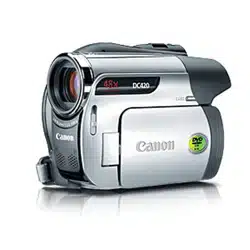
DC420
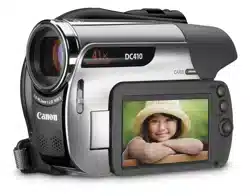
DC410
DC420
COPY
2
Introduction
Important Usage Instructions
WARNING!
TO REDUCE THE RISK OF FIRE OR ELECTRIC SHOCK, DO NOT EXPOSE THIS
PRODUCT TO RAIN OR MOISTURE.
WARNING!
TO REDUCE THE RISK OF ELECTRIC SHOCK AND TO REDUCE ANNOYING
INTERFERENCE, USE THE RECOMMENDED ACCESSORIES ONLY.
COPYRIGHT WARNING:
Unauthorized recording of copyrighted materials may infringe on the rights of copyright
owners and be contrary to copyright laws.
DVD Camcorder, DC420 A/DC410 A systems
This device complies with Part 15 of the FCC Rules. Operation is subject to the following two conditions: (1) This device may not cause
harmful interference, and (2) this device must accept any interference received, including interference that may cause undesired
operation.
Note: This equipment has been tested and found to comply with the limits for class B digital device, pursuant to Part 15 of the FCC
Rules. These limits are designed to provide reasonable protection against harmful interference in a residential installation. This
equipment generates, uses and can radiate radio frequency energy and, if not installed and use in accordance with the instructions,
may cause harmful interference to radio communications. However, there is no guarantee that interference will not occur in a
particular installation. If this equipment does cause harmful interference to radio or television reception, which can be determined by
turning the equipment off and on, the user is encouraged to try to correct the interference by one or more of the following measures:
• Reorient or relocate the receiving antenna.
• Increase the separation between the equipment and receiver.
• Connect the equipment into an outlet on a circuit different from that to which the receiver is connected.
• Consult the dealer or an experienced radio/TV technician for help.
The cable with the ferrite core provided with the digital video camcorder must be used with this equipment in order to comply with
Class B limits in Subpart B of Part 15 of the FCC rules.
Do not make any changes or modifications to the equipment unless otherwise specified in the manual.
If such changes or modifications should be made, you could be required to stop operation of the equipment.
Canon U.S.A. Inc.
One Canon Plaza, Lake Success, NY 11042, U.S.A.
Tel No. (516)328-5600
CAUTION:
TO PREVENT ELECTRIC SHOCK, MATCH WIDE BLADE OF PLUG TO WIDE SLOT, FULLY INSERT.
The Mains plug is used as the disconnect device. The Mains plug shall remain readily operable to disconnect the
plug in case of an accident.
I
mpor
t
an
t
W
arn
i
ng
CAUTION:
TO REDUCE THE RISK OF ELECTRIC
SHOCK, DO NOT REMOVE COVER (OR
BACK). NO USER-SERVICEABLE PARTS
INSIDE. REFER SERVICING TO QUALIFIED
SERVICE PERSONNEL.
CAUTION
RISK OF ELECTRIC SHOCK
DO NOT OPEN
The lightning flash with arrowhead symbol,
within an equilateral triangle, is intended to
alert the user to the presence of uninsulated
“dangerous voltage” within the product’s
enclosure, that may be of sufficient
magnitude to constitute a risk of electric
shock to persons.
The exclamation point, within an equilateral
triangle, is intended to alert the user to the
presence of important operating and
maintenance (servicing) instructions in the
literature accompanying the product.
COPY
3
In these safety instructions the word “product” refers to
the Canon DVD Camcorder DC420 A/DC410 A and all its
accessories.
1 Read these instructions.
2 Keep these instructions.
3 Heed all warnings.
4 Follow all instructions.
5 Do not use this apparatus near water.
6 Clean only with dry cloth.
7 Do not install near any heat sources such as
radiators, heat registers, stoves, or other
apparatus (including amplifiers) that produce heat.
8 Do not defeat the safety purpose of the polarized
or grounding-type plug. A polarized plug has two
blades with one wider than the other. A grounding
type plug has two blades and a third grounding
prong. The wide blade or the third prong are
provided for your safety. If the provided plug does
not fit into your outlet, consult an electrician for
replacement of the obsolete outlet.
9 Protect the power cord from being walked on or
pinched particularly at plugs, convenience
receptacles, and the point where they exit from
the apparatus.
10 Only use attachments/accessories specified by
the manufacturer.
11 Unplug this apparatus during lightning storms or
when unused for long periods of time.
12 Refer all servicing to qualified service personnel.
Servicing is required when the apparatus has
been damaged in any way, such as power-supply
cord or plug is damaged, liquid has been spilled or
objects have fallen into the apparatus, the
apparatus has been exposed to rain or moisture,
does not operate normally, or has been dropped.
13 Read Instructions — All the safety and operating
instructions should be read before the product is
operated.
14 Retain Instructions — The safety and operating
instructions should be retained for future
reference.
15 Heed Warnings — All warnings on the product
and in the operating instructions should be
adhered to.
16 Follow Instructions — All operating and
maintenance instructions should be followed.
17 Cleaning — Unplug this product from the wall
outlet before cleaning. Do not use liquid or aerosol
cleaners. The product should be cleaned only as
recommended in this manual.
18 Accessories — Do not use accessories not
recommended in this manual as they may be
hazardous.
19 Avoid magnetic or electric fields — Do not use the
camera close to TV transmitters, portable
communication devices or other sources of
electric or magnetic radiation. They may cause
picture interference, or permanently damage the
camera.
20 Water and Moisture — Hazard of electric shock
— Do not use this product near water or in rainy/
moist situations.
21 Placing or Moving — Do not place on an unstable
cart, stand, tripod, bracket or table. The product
may fall, causing serious injury to a child or adult,
and serious damage to the product.
A product and cart combination
should be moved with care.
Quick stops, excessive force,
and uneven surfaces may
cause the product and cart
combination to overturn.
22 Power Sources — The CA-570 Compact Power
Adapter should be operated only from the type of
power source indicated on the marking label. If
you are not sure of the type of power supply to
your home, consult your product dealer or local
power company. Regarding other power sources
such as battery power, refer to instructions in this
manual.
23 Polarization — The CA-570 Compact Power
Adapter is equipped with a polarized 2-prong plug
(a plug having one blade wider than the other).
The 2-prong polarized plug will fit into the power
outlet only one way. This is a safety feature. If you
are unable to insert the plug fully into the outlet,
try reversing the plug. If the plug still fails to fit,
contact your electrician to replace your obsolete
outlet. Do not defeat the safety purpose of the
polarized plug.
24 Power Cord Protection — Power cords should be
routed so that they are not likely to be walked on
or pinched by items placed upon or against them.
Pay particular attention to plugs and the point
from which the cords exit the product.
IMPORTANT SAFETY INSTRUCTIONS
COPY
4
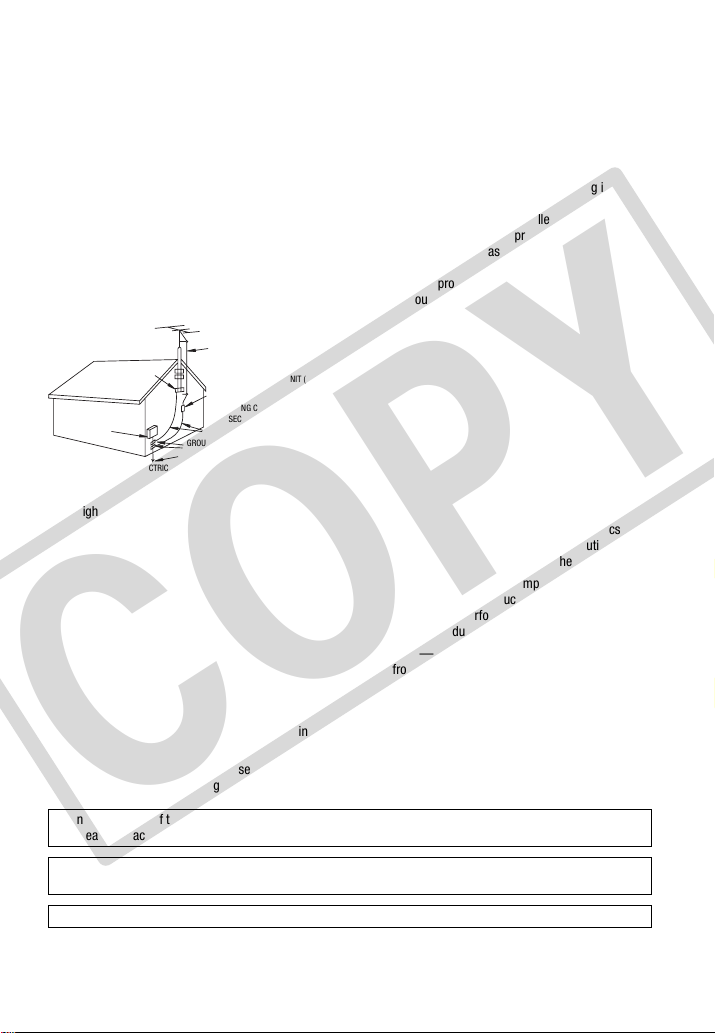
25 Outdoor Antenna Grounding — If an outside
antenna is connected to the product, be sure the
antenna is grounded so as to provide some
protection against voltage surges and built-up
static charges. Section 810 of the National
Electrical Code, ANSI / NFPA No. 70—1984,
provides information with respect to proper
grounding of the mast and supporting structure,
grounding of the lead-in wire to an antenna
discharge unit, size of grounding conductors,
location of antenna discharge unit, connection to
grounding electrodes, and requirements for the
grounding electrode. See figure 1.
26 Lightning — For added protection of this product
during a lightning storm, or when it is left
unattended and unused for long periods of time,
disconnect it from the wall outlet and disconnect
the antenna. This will prevent damage to the
product due to lightning and power-line surges.
27 Overloading — Do not overload wall outlets and
extension cords as this can result in a risk of fire
or electric shock.
28 Objects and Liquid Entry — Never push objects of
any kind into this product through openings as
they may touch dangerous voltage points or short
out parts that could result in a fire or electric
shock. Be careful not to spill liquid of any kind
onto the product.
29 Servicing — Do not attempt to service this
product yourself as opening or removing covers
may expose you to dangerous voltage or other
hazards. Refer all servicing to qualified service
personnel.
30 Damage Requiring Service — Disconnect this
product from the wall outlet and all power sources
including battery, and refer servicing to qualified
service personnel under the following conditions:
a. When the power-supply cord or plug is
damaged.
b. If any liquid has been spilled onto, or objects
have fallen into, the product.
c. If the product has been exposed to rain or
water.
d. If the product does not operate normally even if
you follow the operating instructions. Adjust
only those controls that are covered by the
operation instructions. Improper adjustment of
other controls may result in damage and will
often require extensive work by a qualified
technician to restore the product to its normal
operation.
e. If the product has been dropped or the cabinet
has been damaged.
f. When the product exhibits a distinct change in
performance. This indicates a need for service.
31 Replacement Parts — When replacement parts
are required, be sure the service technician has
used replacement parts that are specified by
Canon or that have the same characteristics as
the original part. Unauthorized substitutions may
result in fire, electric shock or other hazards.
32 Safety Check — Upon completion of any service
or repairs to this product, ask the service
technician to perform safety checks to determine
that the product is in safe operating order.
33 Heat — The product should be situated away
from heat sources such as radiators, heat
registers, stoves, or other products (including
amplifiers) that produce heat.
EXAMPLE OF ANTENNA GROUNDING AS PER NATIONAL
ELECTRICAL CODE
ANTENNA LEAD
IN WIRE
ANTENNA DISCHARGE UNIT (NEC
SECTION 810-20)
GROUNDING CONDUCTORS
(NEC SECTION 810-21)
GROUND CLAMPS
POWER SERVICE GROUNDING
ELECTRODE SYSTEM
(NEC ART 250. PART H)
NEC - NATIONAL ELECTRICAL
CODE
ELECTRIC
SERVICE
EQUIPMENT
GROUND CLAMP
Fig. 1
When replacement of the power supply is required, please return it to the responsible nearest Canon Service Center
and please replace it with the same type number CA-570.
The Adapter can be used with a power supply between 100 and 240 V AC. For areas where 120 V AC power is not
used, you will need a special plug adapter. Contact your nearest Canon Service Center for further information.
This Class B digital apparatus complies with Canadian ICES-003.
COPY
5
How to Select a DVD Disc
There are many types of DVD discs but this camcorder uses only the following three
types of 8 cm mini DVD discs: DVD-R, DVD-R DL and DVD-RW. Read the differences
between them and select the disc that best fits your needs.
DVD-Rs can be recorded only once – you cannot edit or delete the recordings. On the
other hand, these discs are comparatively cheaper and can be played back on most
DVD players.
Dual-layered discs allow writing up to 80% more data (approx. 2.6 GB) on a single
recording side. However, you cannot edit or delete the recordings.
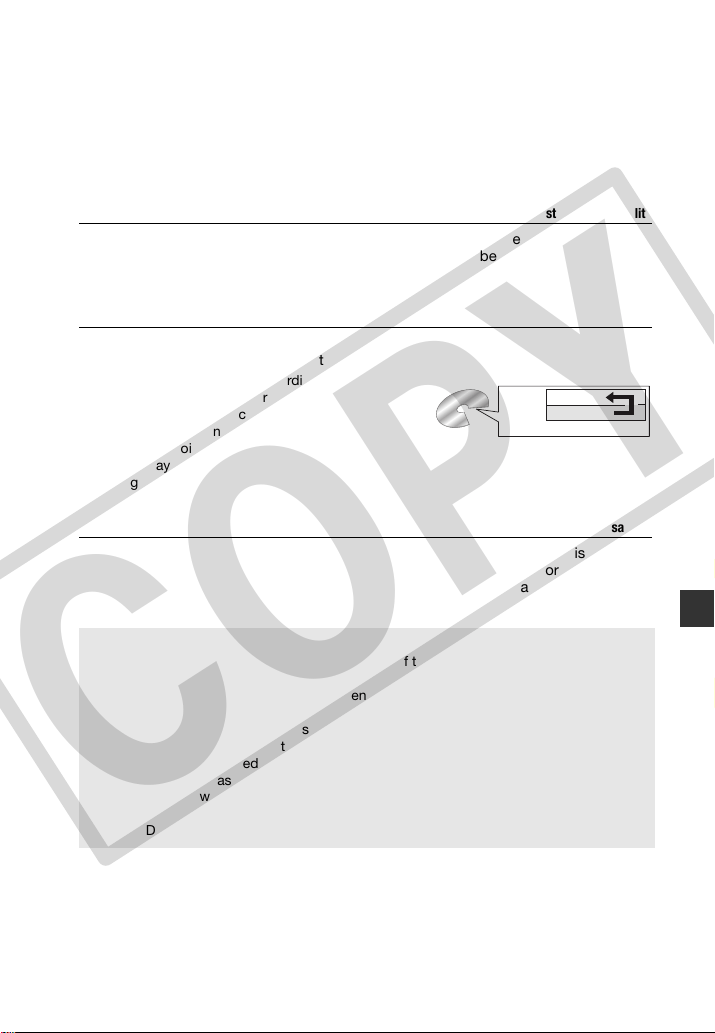
Dual-layered discs have two recording layers. The
camcorder will record on layer 1 and then continue to
layer 2. During the playback of a recording spanning
both layers, you may notice a brief stop (about 1
second) at the point where the camcorder switches to
the second layer. The switch to layer 2 will break the
recording into 2 separate scenes.
Recordings made on a DVD-RW disc can be edited or deleted. Also, the disc can be
initialized. Initializing a DVD-RW disc clears all the recordings and restores the free
space on the disc to its initial value so you can use the same disc again.
DVD-R
Best for Compatibility
DVD-R DL
Best for Recording Time
DVD-RW
Best for Reusability
Scene 2
Scene 1
Layer 2
Layer 1
Recording surface
Disc specification on DVD-RWs
DVD-RW discs can be recorded using either one of two disc specifications: VIDEO mode
or VR mode. When you first insert a brand new DVD-RW disc, the camcorder will
automatically display the initialization screen where you can select the disc specification
for the disc.
VIDEO mode: Once finalized, discs recorded in VIDEO mode can be played back on most
common DVD players offering the best compatibility. However, recordings cannot be
edited (deleted, rearranged, etc.).
VR mode: You can easily edit the recordings. However, discs recorded in VR mode can be
played back only with DVD players compatible with DVD-RWs in VR mode.
Note: DVD-R and DVD-R DL discs can be recorded only in VIDEO mode.
COPY
6
Enjoying your DVDs
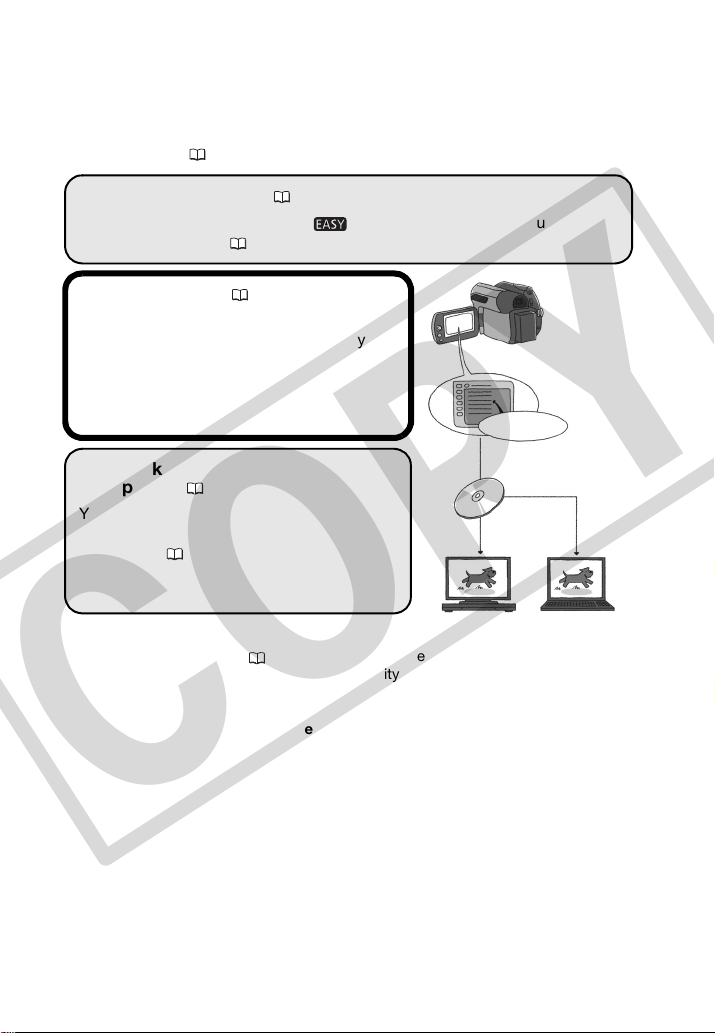
After selecting the type of disc that is best for your needs, complete the rest of
the preparations ( 18) to get your camcorder ready to start recording.
Enjoy Shooting Video ( 28)
Take it easy recording movies in mode or have fun trying out more
advanced functions ( 36).
Finalize the Disc ( 48)
Do not forget to finalize your disc with this
camcorder to play it back on a DVD player or
other external device.
Play back your finalized disc on your
DVD player ( 49)
You can also connect the camcorder to the
TV and play back the disc with your
camcorder ( 65).
Playback on external devices
Make sure to finalize discs ( 48) before you play them back on external DVD
devices. The disc's type will affect its compatibility with external devices. Refer to the
instruction manual of the external device and make sure it is compatible before
inserting the disc.
For the highest compatibility with external DVD devices we recommend using
V
IDEO mode.
FINALIZE
COPY
7
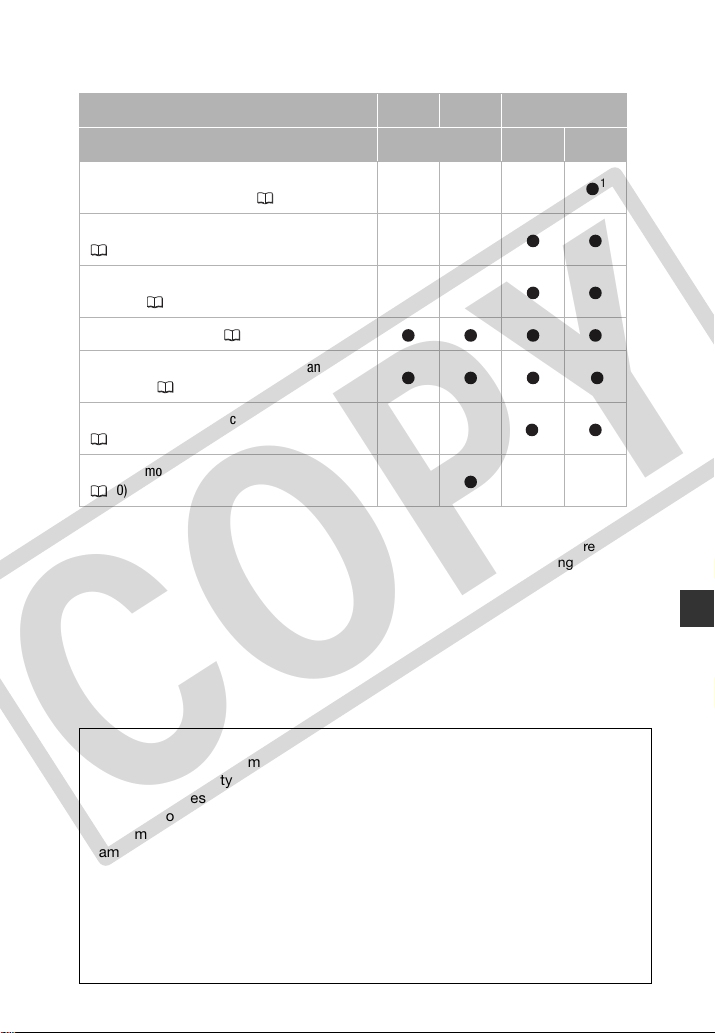
Available features depend on the DVD disc used
1
Only scenes in the playlist can be divided.
2
To finalize a DVD-R DL disc, the camcorder has to process both layers. Therefore, and
depending on the amount of free space on the disc, this process may be lengthy.
3
You will need to unfinalize the disc first.
Disc type DVD-R
DVD-R DL
DVD-RW
Disc specifications VIDEO VIDEO VR
Editing scenes with this camcorder (deleting
scenes, dividing scenes, etc.) ( 45)
–––
1
Deleting a scene while reviewing it after recording it
( 33)
––
Initializing the disc in order to use it again for
recording ( 47)
––
Giving a title to the disc ( 47)
Finalizing the disc in order to play it with an external
DVD device ( 48)
2
Adding recordings to a disc already finalized
( 49)
––
3
Recording more video on a single recording side
( 30)
–––
Approved discs
The camcorder's performance was tested and its correct operation was verified
using the following types of discs (as of November 2008*). Single-layered: Hitachi-
Maxell HG-series discs; dual-layered: Canon DVD-R DL54 and Verbatim DVD-R
DL discs. For further details, contact directly the customer support center of the
disc's manufacturer. Note that attempting to record or play back with this
camcorder DVD discs that were recorded, initialized or finalized with a device other
than this camcorder can result in damage to the camcorder or in the permanent
loss of the recordings.
* For the latest information, visit your local Canon Web site or contact your nearest
Canon office. The use of DVD-R DL discs that have not been tested by Canon may
result in incorrect recording/playback or in not being able to remove the disc.
COPY
8 • Table of contents
Table of contents
Introduction ____________________________________
5 How to Select a DVD Disc
6 Enjoying your DVDs
11 About this Manual
12 Getting to Know the Camcorder
12 Supplied Accessories
13 Components Guide
15 Screen Displays
Preparations ____________________________________
18 Getting Started
18 Charging the Battery Pack
20 Preparing the Accessories
20 Basic Operation of the Camcorder
20 Power Switch
21 Joystick and Joystick Guide
21 Using the Menus
23 First Time Settings
23 Setting the Date and Time
23 Changing the Language
24 Changing the Time Zone
24 Getting Ready to Start Recording
24 Opening the Lens Cover and Adjusting the LCD screen
25 Inserting and Removing a Disc
27 Inserting and Removing a Memory Card
Video _________________________________________
28 Basic Recording
28 Shooting Video
30 Selecting the Video Quality (Recording Mode)
30 Changing the Aspect Ratio of the Recordings (Widescreen / 4:3)
30 Zooming: Optical, Advanced and Digital Zoom
32 Quick Start Function
32 Reviewing and Deleting the Last Scene Recorded
COPY
Table of contents • 9
33 Basic Playback
33 Playing Back the Video
35 Deleting Scenes
36 Additional Functions
36 : Special Scene Recording Programs
38 Flexible Recording: Changing the Shutter Speed
39 LCD Video Light
39 Self Timer
40 Manual Exposure Adjustment
40 Manual Focus Adjustment
41 White Balance
42 Image Effects
42 Digital Effects
43 On-Screen Displays and Data Code
44 Using an External Microphone
45 Editing the Playlist and Disc Operations
45 Creating a Playlist
45 Deleting Scenes from the Playlist
46 Dividing Scenes in the Playlist
46 Moving Scenes in the Playlist
47 Initializing the Disc
47 Disc Playback on an External Device
47 Changing the Disc Title
48 Finalizing the Disc
49 Disc Playback on External Devices
49 Unfinalizing the Disc - Additional Recordings on a Finalized Disc
Photos ________________________________________
51 Basic Recording
51 Taking Photos
52 Selecting Photo Size and Quality
53 Erasing a Photo Right After Recording It
53 Basic Playback
53 Viewing Photos
54 Magnifying Photos during Playback
55 Slideshow
55 Erasing Photos
56 Additional Functions
56 Drive Mode: Continuous Shooting and Exposure
Bracketing
56 Histogram Display
COPY

10 • Table of contents
57 Protecting Photos
57 Initializing the Memory Card
58 Printing Photos
58 Printing Photos from the Memory Card
58 Direct Print
59 Selecting the Print Settings
61 Print Orders
External Connections _____________________________
63 Terminals on the Camcorder
64 Connection Diagrams
65 Playback on a TV Screen
65 Copying your Recordings to an External Video Recorder
Additional Information ____________________________
66 Appendix: Menu Options Lists
66 FUNC. Menu
68 Setup menus
68 Camera Setup (AdvancedZoom, Image Stabilizer, etc.)
69 Disc Operations (Initialization, Finalization etc.)
70 Still Image Operations (Card Initialization, etc.)
70 Display Setup (LCD Brightness, Language, etc.)
71 System Setup (Volume, Beep, etc.)
72 Date/Time Setup
73 Trouble?
73 Troubleshooting
76 List of Messages
80 Do’s and Don’ts
80 Handling Precautions
84 Using the Camcorder Abroad
86 General Information
86 System Diagram
87 Optional Accessories
90 Product Codes
91 Specifications
94 Index
COPY
Introduction • 11
Thank you for purchasing the Canon DC420/DC410. Please read this manual
carefully before you use the camcorder and retain it for future reference. Should your
camcorder fail to operate correctly, refer to Troubleshooting (
73).
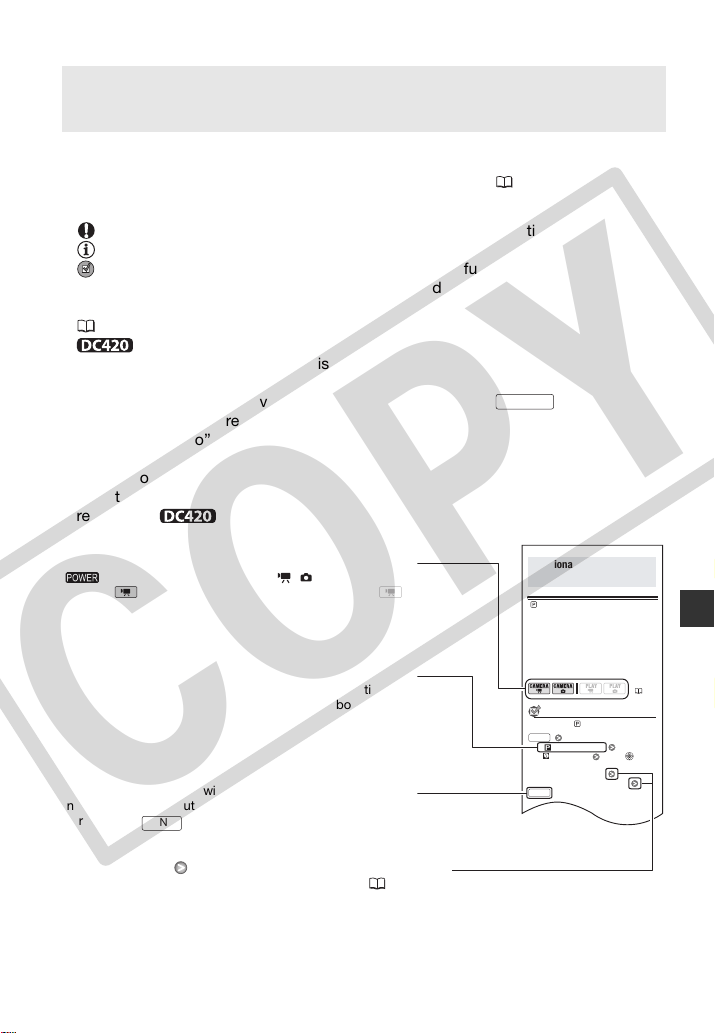
Conventions Used in this Manual
• IMPORTANT: Precautions related to the camcorder’s operation.
• NOTES: Additional topics that complement the basic operating procedures.
• POINTS TO CHECK: Restrictions that apply if the function described is not
available in all operating modes (the operating mode to which the camcorder
should be set, the type of disc required, etc.).
• : Reference page number.
• : Text that applies only to the model(s) shown in the icon.
• The following terms are used in this manual:
“Screen” refers to the LCD and the viewfinder screen.
“Scene” refers to one movie unit from the point you press to start
recording until you press again to pause the recording.
The terms “photo” and “still image” are used interchangeably with the same
meaning.
• The photos included in this manual are simulated pictures taken with a still camera.
• Note that unless indicated otherwise, screenshots and illustrations in this manual
refer to the model.
About this Manual
Start/Stop
: Special Scene Recording Programs
Recording in a very bright ski resort or
capturing the full colors of a sunset or a
fireworks display becomes as easy as
selecting a Special Scene recording
program. For details about the available
options, refer to the sidebar below.
POINTS TO CHECK
Mode switch:
[ PROGRAM AE]
[ PORTRAIT] Press to
display the Special Scene (SCN)
recording programs
Desired recording program
Additional Functions
( 28)
FUNC.
FUNC.
Names of buttons and switches other than the joystick are
indicated within a
“button” frame.
For example .
FUNC.
Brackets [ ] and capital letters are used to refer to menu
options as they are displayed on screen. In menu option lists
and option tables the default value is shown in boldface.
For example [ON], [OFF].
The camcorder's operating mode is determined by the
switch and the position of the / switch. In this
manual, indicates that a function is available and
indicates that the function is not available. When no
operating mode icons are given, the function is available in
all operating modes.
In this manual, the arrow is used to abbreviate menu selections.
For a detailed explanation refer to Using the Menus ( 21).
COPY
12 • Introduction
Getting to Know the Camcorder
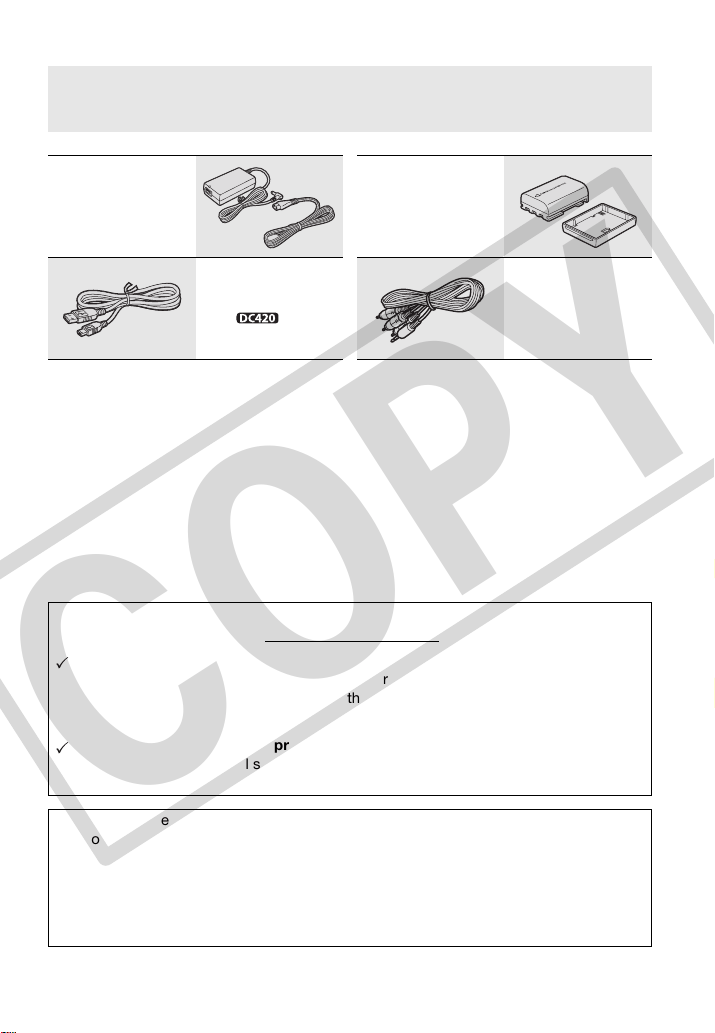
Supplied Accessories
CA-570 Compact Power
Adapter (incl. power cord)
NB-2LH Battery Pack
IFC-300PCU USB Cable
( only)
STV-250N Stereo Video
Cable
Yellow • Red • White plugs
Online product registration for U.S.A. Customers only.
Register your product online at www.registercanon.com
Protect your product
We will keep the model number and date of purchase of your new Canon product on
file to help you refer to this information in the event of an insurance claim such as loss
or theft.
Receive information on new products and promotions
Upon your request, we will send you information on Canon new products and
promotions.
The serial number of this product can be found at the battery attachment unit of the
camcorder. Write down the number and other information here and retain this book as a
permanent record of your purchase to aid identification in case of theft.
Date of Purchase: Model Name: DC420 A/DC410 A
Purchased From: Serial No.:
Dealer Address:
Dealer Phone No.:
COPY
Introduction • 13
* only.
** only.
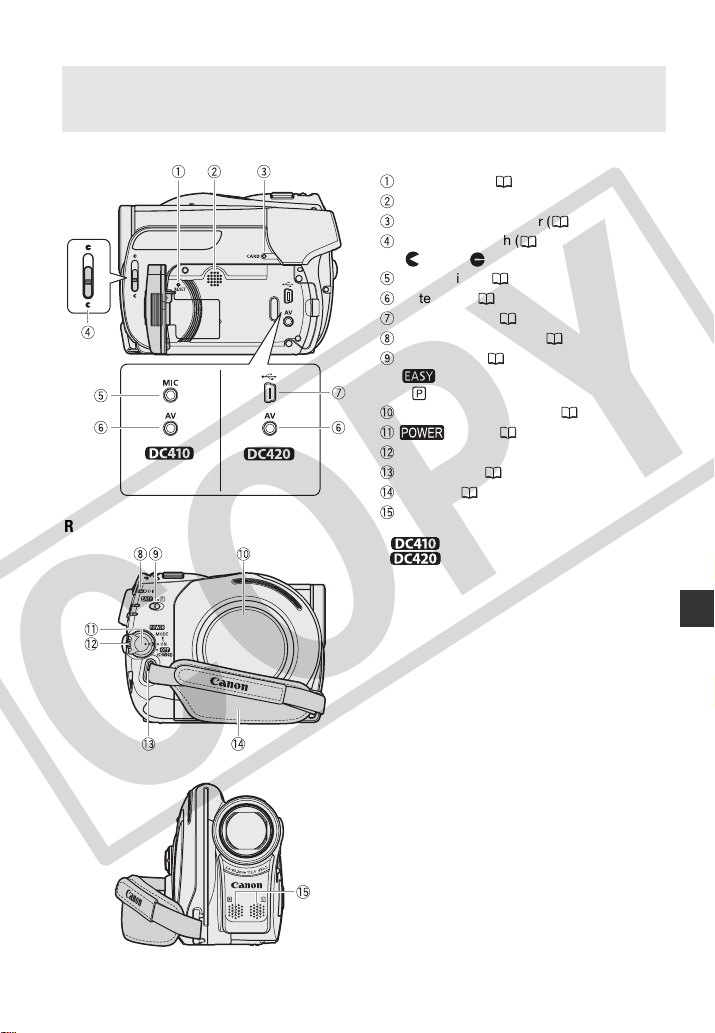
Components Guide
Left side view
Front view
Right side view
RESET button ( 75)
Speaker
CARD access indicator ( 51)
Lens cover switch ( 28, 51)
( open,
closed)
MIC terminal* ( 44)
AV terminal ( 63)
USB terminal** ( 63)
DISC access indicator ( 28)
Mode switch ( 29)
Easy recording
Recording programs
Disc compartment cover ( 25)
switch ( 20)
Lock button
Strap mount ( 89)
Grip belt ( 20)
Stereo microphone
COPY
14 • Introduction
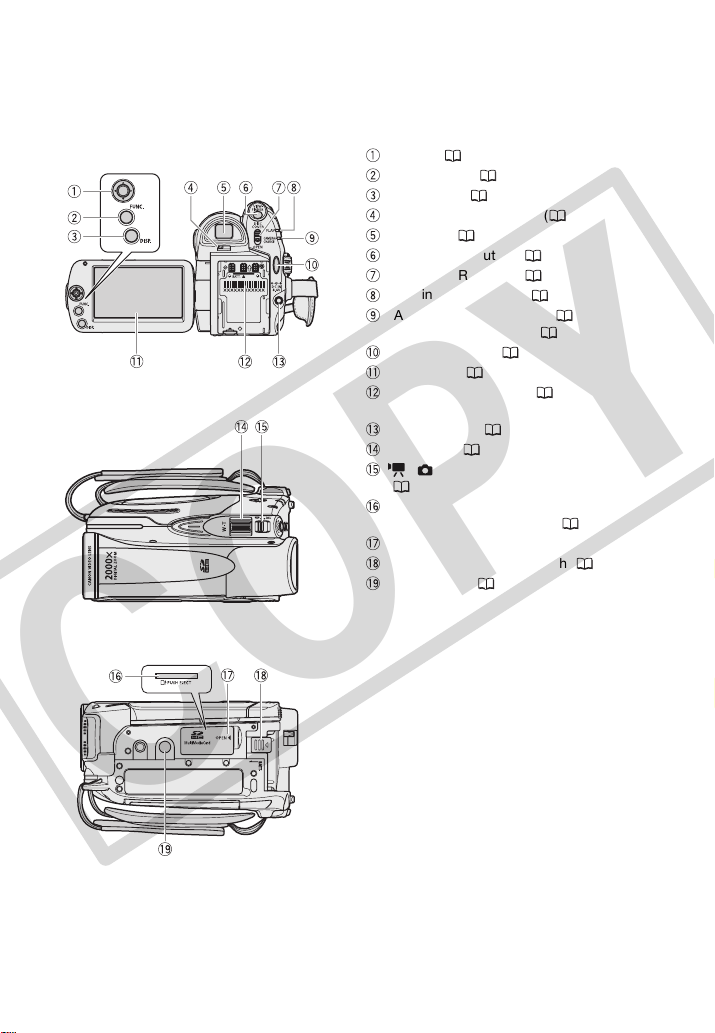
Back view
Top view
Bottom view
Joystick ( 21)
FUNC. button ( 22, 66)
DISP. button ( 43)
Dioptric adjustment lever ( 29)
Viewfinder ( 29)
VIEWFINDER button ( 29)
DISC COVER switch ( 25)
PLAY indicator (green) ( 21)
CAMERA indicator (green) ( 21)/
CHARGE indicator (red) ( 18)
Start/Stop button ( 28)
LCD screen ( 24)
Battery attachment unit ( 18)/
Serial number
DC IN terminal (
18
)
Zoom lever ( 30)
/ (movies/still images) switch
(21)
Memory card slot
(open the cover to access) ( 27)
Memory card slot cover
BATT. (battery release) switch ( 18)
Tripod socket ( 80)
COPY
Introduction • 15
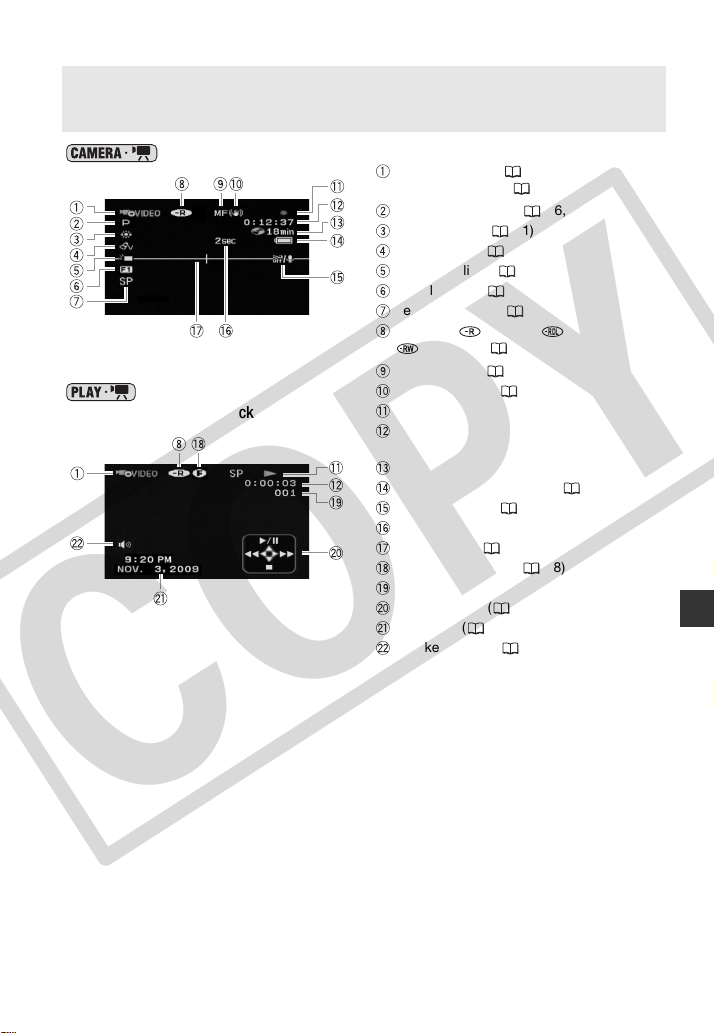
Screen Displays
Recording movies
Playing movies
(during playback)
Operating mode ( 21) /
Disc specification ( 5)
Recording program ( 36, 38)
White balance ( 41)
Image effects ( 42)
LCD video light ( 39)
Digital effects ( 42)
Recording mode ( 30)
Disc type DVD-R, DVD-R DL,
DVD-RW ( 5)
Manual focus ( 40)
Image stabilizer ( 68)
Disc operation
Time code/Playback time
(hours : minutes : seconds)
Remaining recording time on the disc
Remaining battery charge ( 17)
Wind screen off ( 69)
Recording reminder
Level marker ( 70)
Finalized disc mark ( 48)
Scene number
Joystick guide ( 21)
Data code ( 43)
Speaker volume ( 34)
COPY

16 • Introduction
Recording still images
Viewing still images
Zoom ( 30), Exposure ( 40)
Recording program ( 36, 38)
White balance ( 41)
Image effects ( 42)
LCD video light ( 39)
Digital effects ( 42)
Drive mode ( 56)
Still image quality/size ( 52)
Manual focus ( 40)
Number of still images available on the
memory card
Self timer ( 39)
AF frame ( 69)
Joystick guide ( 21)
Focus/exposure automatically set and
locked ( 51)
Camcorder shake warning ( 68)
Image number ( 17, 71)
Current image / Total number of images
Histogram ( 56)
Date and time of recording
Image protection mark ( 57)
Manual exposure ( 40)
Image size ( 52)
File size
Aperture value
Shutter speed ( 38)
COPY
Introduction • 17
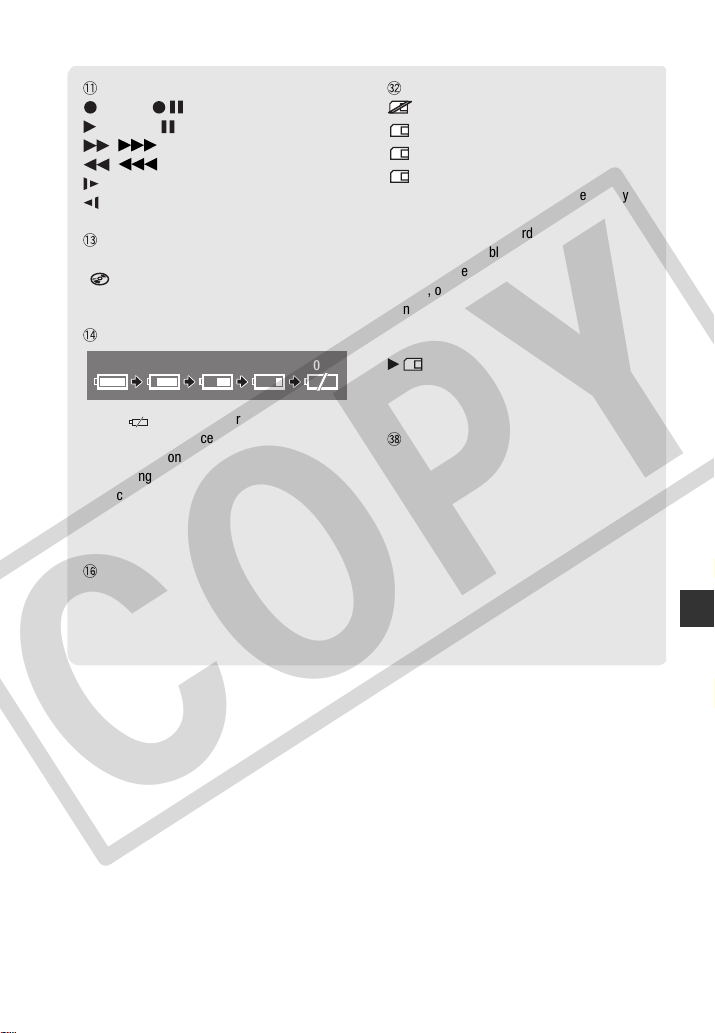
Disc operation
Record, Record pause,
Playback, Playback pause,
, Fast playback,
, Fast reverse playback,
Slow playback,
Slow reverse playback
Remaining recording time
When there is no more disc space available,
“ END” will be displayed and the recording
will stop.
Remaining battery charge estimate
•When is displayed in red, the battery pack
is exhausted. Replace the battery pack with a
fully charged one.
•Depending on the conditions under which the
camcorder and the battery pack are used, the
actual battery charge may not be indicated
accurately.
Recording reminder
The camcorder counts from 1 to 10 seconds
when you start recording. This is helpful to avoid
scenes that are too short.
Number of still images available on the card
displayed in red: No card
in green: 6 or more images
in yellow: 1 to 5 images
in red: No more images can be recorded
•When viewing the still images, the display will
always be in green.
•Depending on the recording conditions, the
number of available still images displayed may
not decrease even after a recording has been
made, or may decrease by 2 still images at
once.
Card access display
is displayed next to the number of images
available while the camcorder is writing on the
memory card.
Image number
The image number indicates the name and
location of the file on the memory card. For
example, the file name of image 101-0107 is
“IMG_0107.JPG”, stored under the folder
“DCIM\101CANON”.
100% 75% 50% 25% 0%
COPY
18 • Preparations
Preparations
This chapter describes basic operations, such as navigating the
menus, and first time settings to help you learn more about your
camcorder.
Getting Started
Charging the Battery Pack
The camcorder can be powered with a
battery pack or directly using the
compact power adapter. Charge the
battery pack before use.
For approximate charging times and
recording/playback times with a full
battery pack, refer to the tables on
pages87-88.
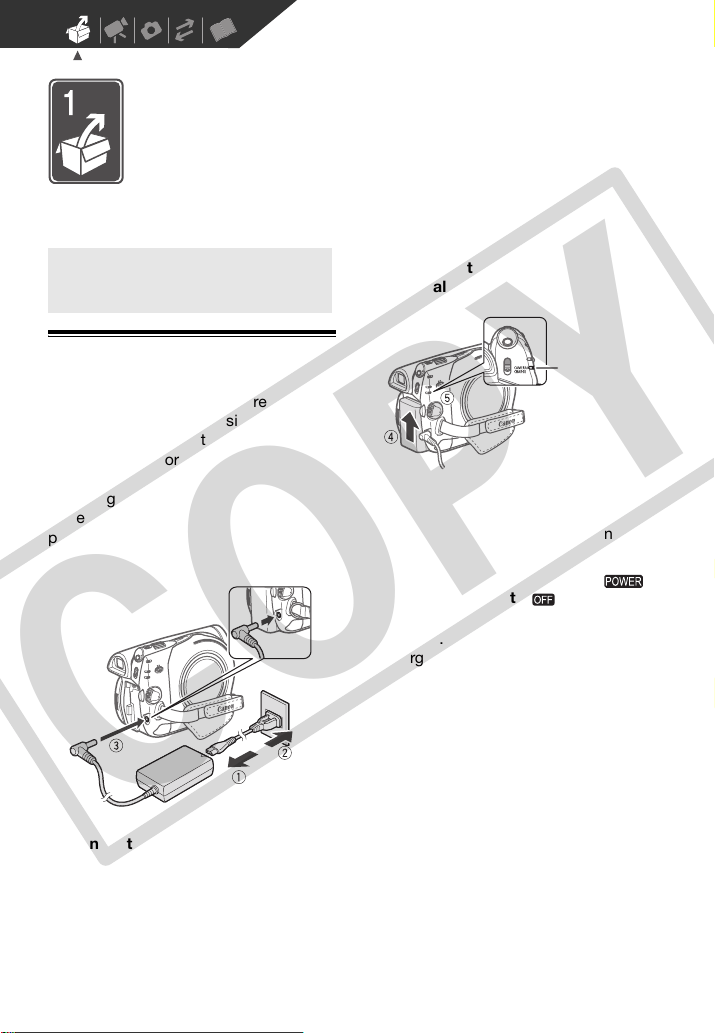
1 Connect the power cord to the
compact power adapter.
2 Plug the power cord into a power
outlet.
3 Connect the compact power
adapter to the camcorder’s DC IN
terminal.
4 Attach the battery pack to the
camcorder.
Press the battery pack lightly and
slide it up until it clicks.
5 Charging will start when the
switch is turned to (CHARGE).
The red CHARGE indicator starts
flashing. The indicator goes out when
charging is completed.
Getting Started
DC IN terminal
CHARGE
indicator
(red)
COPY
Preparations • 19
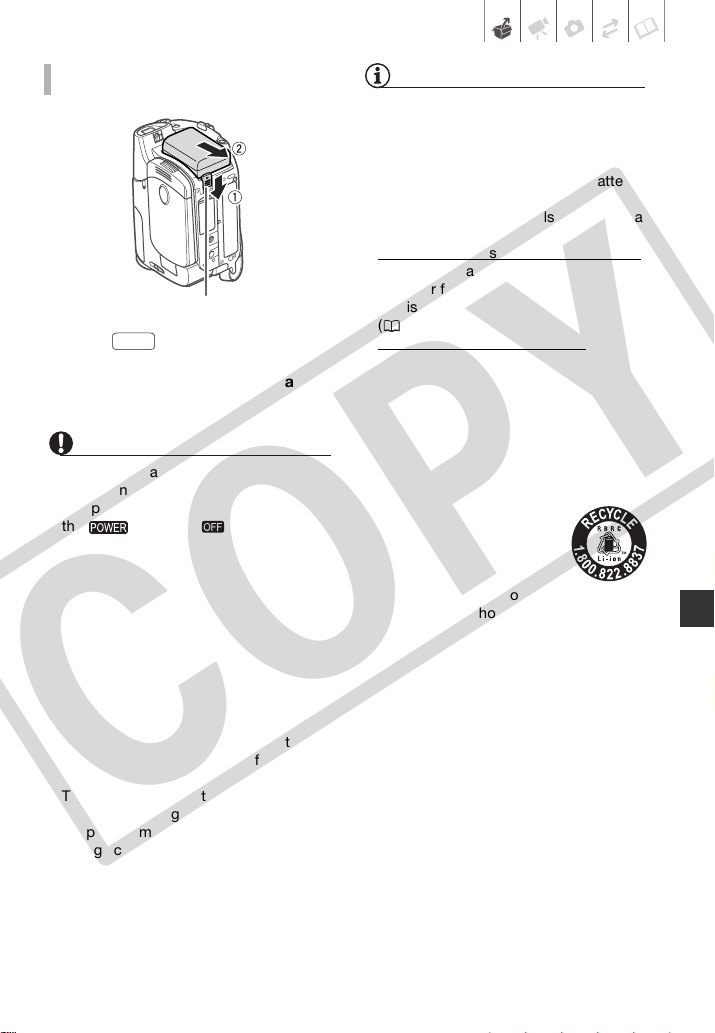
1 Slide in the direction of the
arrow and hold it pressed down.
2 Slide the battery pack down and
then pull it out
IMPORTANT
• Turn off the camcorder before
connecting or disconnecting the
compact power adapter. After you turn
the switch to , important file
allocation data is updated on the disc.
Be sure to wait until the CAMERA green
indicator goes out.
• We recommend charging the battery
pack in temperatures between 10°C and
30°C (50°F and 86°F). Outside the
temperature range of 0 °C to 40 °C
(32°F to 104°F), the charging will not
start.
• Do not connect to the camcorder’s DC
IN terminal or to the compact power
adapter any electrical equipment that is
not expressly recommended for use with
this camcorder.
• To prevent equipment breakdowns and
excessive heating, do not connect the
supplied compact power adapter to
voltage converters for overseas travels or
special power sources such as those on
aircraft and ships, DC-AC inverters, etc.
NOTES
• The battery pack will be charged only
when the camcorder is off.
• If remaining battery time is an issue, you
can power the camcorder using the
compact power adapter so the battery
pack will not be consumed.
• The CHARGE indicator also serves as a
rough estimate of the charge status.
Two quick flashes at 1-second intervals
:
Battery pack at least 50% charged. If the
indicator flashes quickly but not exactly
in this pattern, refer to Troubleshooting
(73).
One flash at 1-second intervals
: Battery
pack less than 50% charged.
• Charged battery packs continue to
discharge naturally. Therefore, charge
them on the day of use, or the day
before, to ensure a full charge.
• We recommend that you prepare battery
packs to last 2 to 3 times longer than you
think you might need.
• USA and Canada only: The
Lithium ion/polymer
battery that powers this
product is recyclable.
Please call
1-800-8-BATTERY for
information on how to recycle this
battery.
TO REMOVE THE BATTERY PACK
BATT. switch
BATT.
COPY
20 • Preparations
Preparing the Accessories
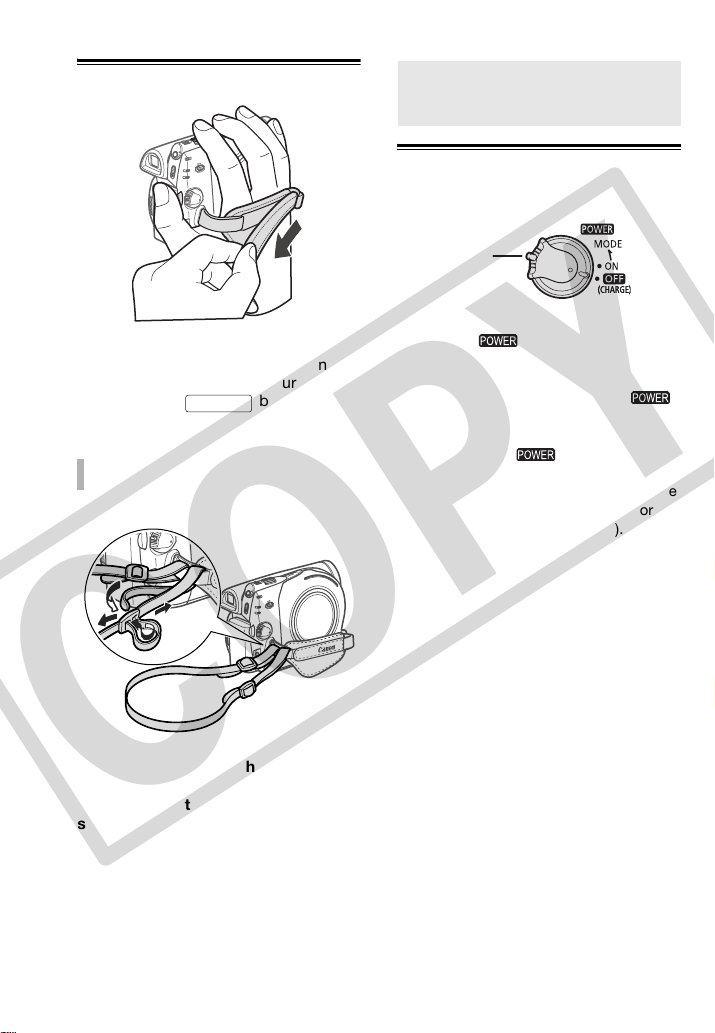
Fasten the grip belt.
Adjust the grip belt so that you can
reach the zoom lever with your index
finger, and the button with
your thumb.
Pass the ends of the shoulder strap
through the strap mount on the grip
belt and adjust the length of the
strap.
Basic Operation of the Camcorder
Power Switch
In addition to turning the camcorder on
and off, the switch also toggles the
camcorder’s operating mode.
To turn on the camcorder: Hold the lock
button pressed down and turn the
switch to ON.
To change the operating mode: From the ON
position, turn the switch
momentarily toward MODE and release it.
This action will toggle the operating mode
between recording (CAMERA indicator on)
and playback (PLAY indicator on).
TO ATTACH A SHOULDER STRAP
Start/Stop
Basic Operation of the
Camcorder
Lock button
COPY
Preparations • 21
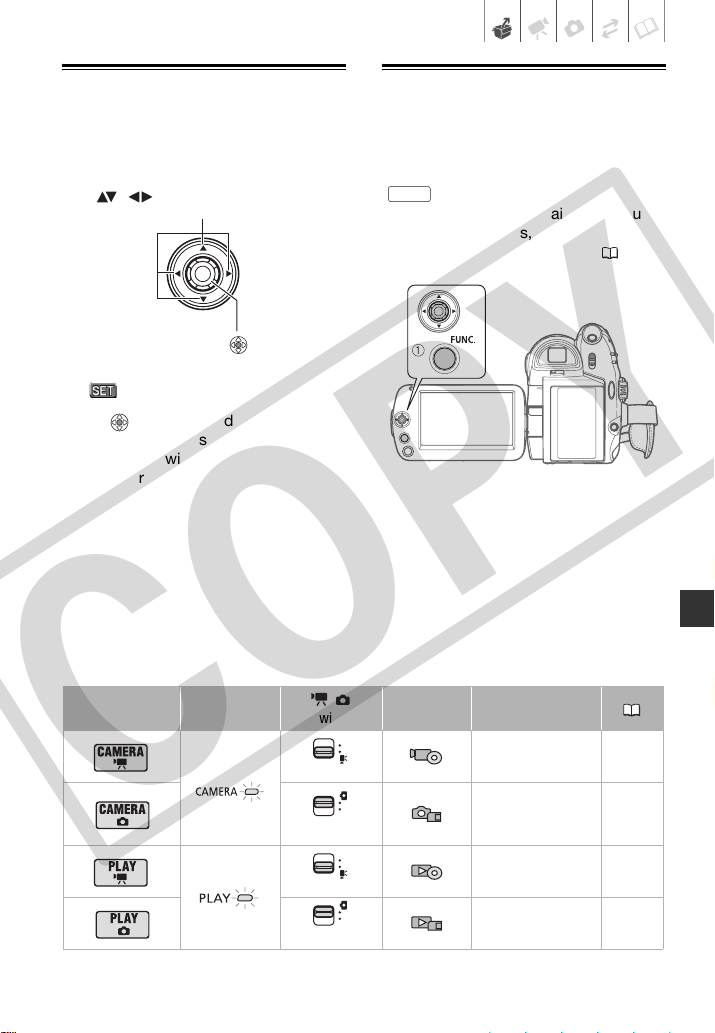
Joystick and Joystick Guide
Use the joystick to operate the
camcorder's menus.
Press to display/hide the joystick
guide. The functions that appear on the
joystick guide will change depending
on the operating mode.
Using the Menus
Many of the camcorder’s functions can
be adjusted from the menus that open
after pressing the FUNC. button
().
For details about the available menu
options and settings, refer to the
appendix Menu Options Lists ( 66).
Operating mode
Operating mode
indicator
/
switch
Icon display Operation
(movies)
Recording movies
on a disc
28
(still images)
Recording still
images on a
memory card
51
(movies)
Playing movies
from a disc
33
(still images)
Viewing still images
from a memory card
53
Press the joystick itself ( ) to save the
settings or confirm an action. On menu
screens, this is indicated by the icon
.
Push the joystick up, down, left or right
( , ) to select an item or change
settings.
FUNC.
COPY
22 • Preparations
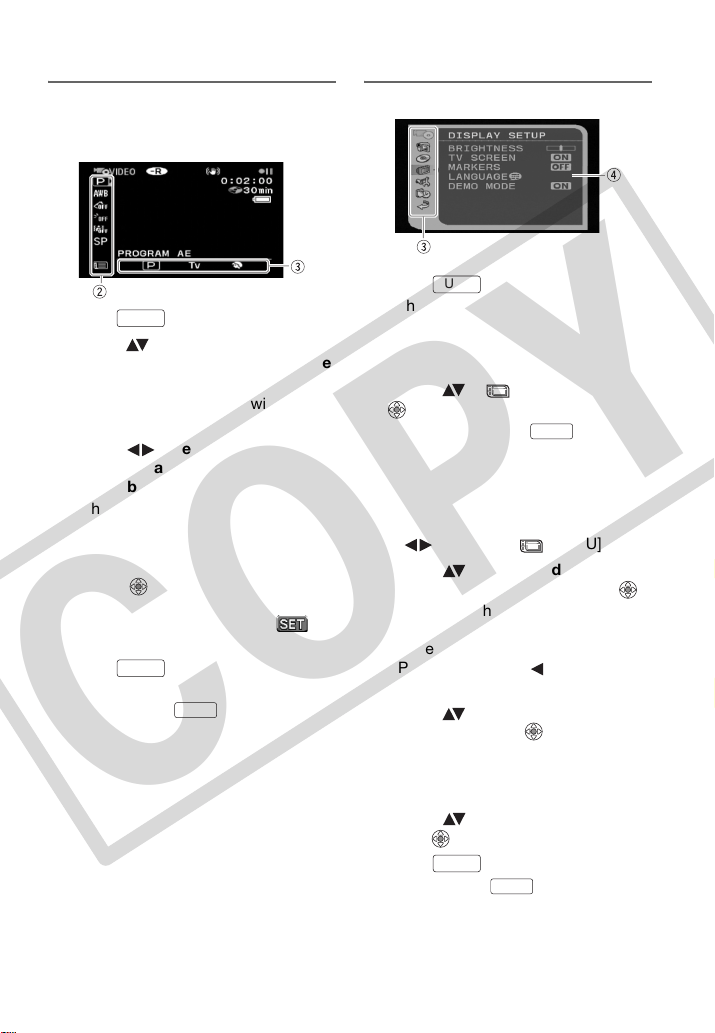
Selecting an Option from the FUNC. menu
Following is an example of selecting an
option from the FUNC. menu in a
recording mode.
1 Press .
2 Select ( ) the icon of the function
you want change from the left side
column.
Menu items not available will appear
grayed out.
3 Select ( ) the desired setting
from the available options at the
bottom bar.
• The selected option will be
highlighted in light blue.
• With some settings, you will need
to make further selections and/or
press . Follow the additional
operation guides that will appear
on the screen (such as the
icon, small arrows, etc.).
4 Press to save the settings
and close the menu.
You can press to close the
menu at any time.
Selecting an Option from the Setup Menus
1 Press .
In the index screen (VIDEO mode)
and still image index screen, the
setup menus will open. Continue with
step 3.
2 Select ( ) [ MENU] and press
to open the setup menus.
• You can also hold pressed
down for more than 1 second to
open directly the setup menus
screen.
• In the index screen (DVD-RW discs
in VR mode), push the joystick
( ) to select [ MENU].
3 Select ( ) the desired menu from
the left side column and press .
• The title of the selected menu
appears on top of the screen and
under it the list of settings.
• Push the joystick ( ) to return to
the menu selection screen.
4 Select ( ) the setting you want to
change and press .
The orange selection bar indicates
the menu setting currently selected.
Items not available appear in black.
5 Select ( ) the desired option and
press to save the setting.
6 Press .
You can press to close the
menu at any time.
FUNC.
FUNC.
FUNC.
FUNC.
FUNC.
FUNC.
FUNC.
COPY
Preparations • 23
First Time Settings
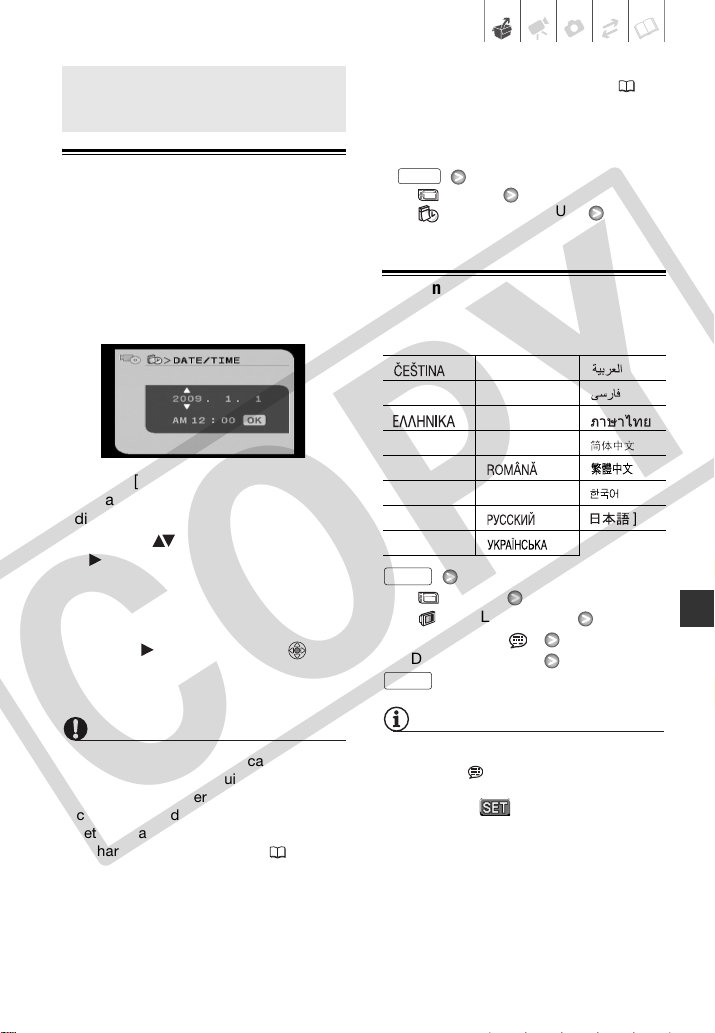
Setting the Date and Time
You will need to set the date and time of
the camcorder before you can start
using it. If the camcorder's clock is not
set, the [DATE/TIME] screen will appear
automatically when the camcorder is
turned on.
When the [DATE/TIME] screen appears,
the year will be displayed in orange and
indicated with up/down arrows.
1 Change ( ) the year and move
( ) to the month.
2 Change the rest of the fields
(month, day, hour and minutes) in
the same way.
3 Select ( ) [OK] and press to
start the clock and close the setup
screen.
IMPORTANT
• When you do not use the camcorder for
about 3 months, the built-in
rechargeable battery may discharge
completely and the date and time
setting may be lost. In such case,
recharge the built-in battery ( 83) and
set the time zone, date and time again.
• The date appears in a year-month-day
format only in the first setup screen. In
subsequent screen displays the date
and time will appear as month-day-year
(for example, [JAN. 1, 2009 12:00 AM]).
You can change the date format ( 72).
• You can also change the date and time
later on (not during the initial setup).
Open the [DATE/TIME] screen from the
setup menus:
[ MENU]
[
DATE/TIME SETUP]
[DATE/TIME]
Changing the Language
Options
Default value
[ MENU]
[ DISPLAY SETUP]
[LANGUAGE ]
Desired language
NOTES
• If you changed the language by mistake,
follow the mark next to the menu
item to change the setting.
• The display that appears in some
menu screens refers to the name of the
button on the camcorder and will not
change, regardless of the language
selected.
First Time Settings
[][MELAYU][]
[DEUTSCH] [NEDERLANDS] [ ]
[ ] [POLSKI] [ ]
[ENGLISH]
[PORTUGUÊS] [ ]
[ESPAÑOL] [ ] [ ]
[FRANÇAIS] [TÜRKÇE] [ ]
[ITALIANO] [ ] [ ]
[MAGYAR] [ ]
FUNC.
FUNC.
FUNC.
COPY
24 • Preparations
Changing the Time Zone
In addition to your local date and time,
the camcorder can keep a second clock
(for example, the time at a travel
destination). The default time zone is
New York.
[ MENU]
[ DATE/TIME SETUP]
[T.ZONE/DST]
Your local time zone*
[ MENU]
[ DATE/TIME SETUP]
[T.ZONE/DST]
Local date and time in your
destination*
* To adjust for daylight saving time, select the
area name marked with a .
Getting Ready to Start Recording
Opening the Lens Cover and Adjusting
the LCD screen
Before you start recording, open the
lens cover.
Move the lens cover switch down to
to open the lens cover.
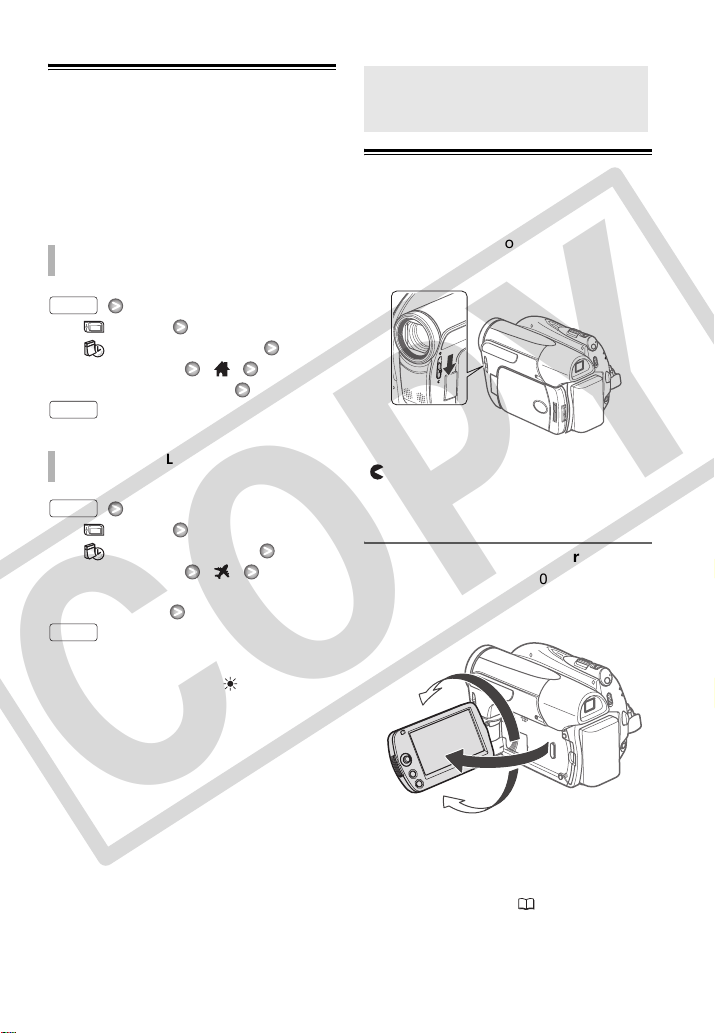
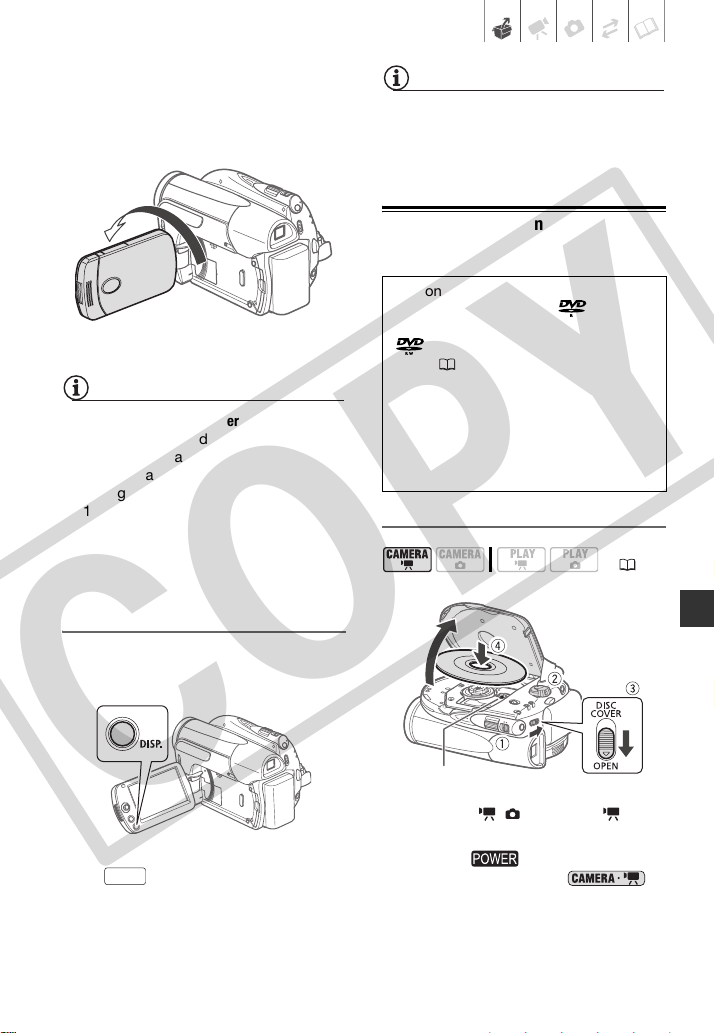
Rotating the LCD Panel
Open the LCD panel 90 degrees.
You can rotate the panel 90 degrees
downward.
• You can rotate the panel 180 degrees
toward the lens (allowing the subject
to monitor the LCD screen while you
use the viewfinder
(29)). Rotating
the LCD panel 180 degrees can be
useful in the following cases:
TO SET THE HOME TIME ZONE
WHEN YOU TRAVEL
FUNC.
FUNC.
FUNC.
FUNC.
Getting Ready to Start
Recording
180°
90°
COPY
Preparations • 25
- To allow the subject to monitor the
LCD screen while you use the
viewfinder.
- To include yourself in the picture when
recording with the self timer.
NOTES
About the LCD and viewfinder screen: The
screens are produced using extremely
high-precision manufacturing techniques,
with more than 99.99% of the pixels
operating to specification. Less than
0.01% of the pixels may occasionally
misfire or appear as black, red, blue or
green dots. This has no effect on the
recorded image and does not constitute a
malfunction.
LCD Backlight
You can set the brightness of the LCD
screen to normal or bright.
Hold pressed down for more
than 2 seconds.
Repeat this action to toggle between
the normal and bright settings.
NOTES
• This setting does not affect the
brightness of the recordings.
• Using the bright setting will shorten the
effective usage time of the battery pack.
Inserting and Removing a Disc
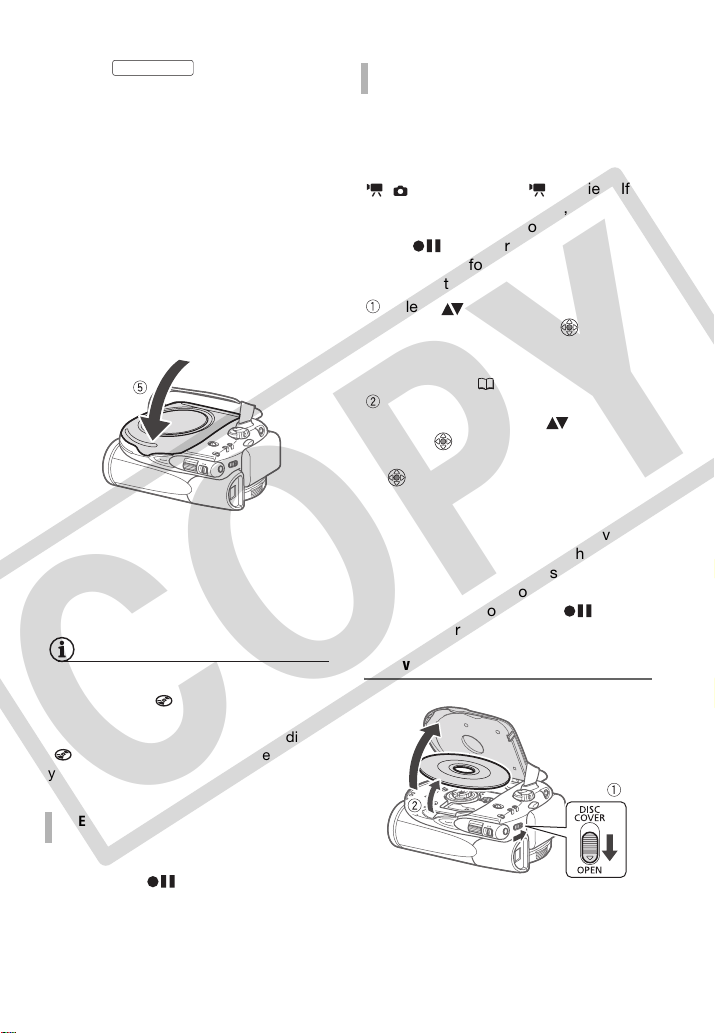
Inserting the Disc
1 Move the / switch to
(movies).
2 Turn the switch to ON to
set the camcorder in
mode.
180°
Subject can monitor the LCD screen
DISP.
Use only 8 cm (3 in.) mini DVD discs
marked with the DVD-R logo
(including DVD-R DL) or the DVD-RW
logo. Refer also to Approved
discs (7).
Before inserting the disc, be sure to
check that the recording surface is
clean. If necessary, use a soft lens-
cleaning cloth to remove any
fingerprints, dirt buildup or smudges
from the disc surface.
( 21)
Pick up lens
COPY
26 • Preparations
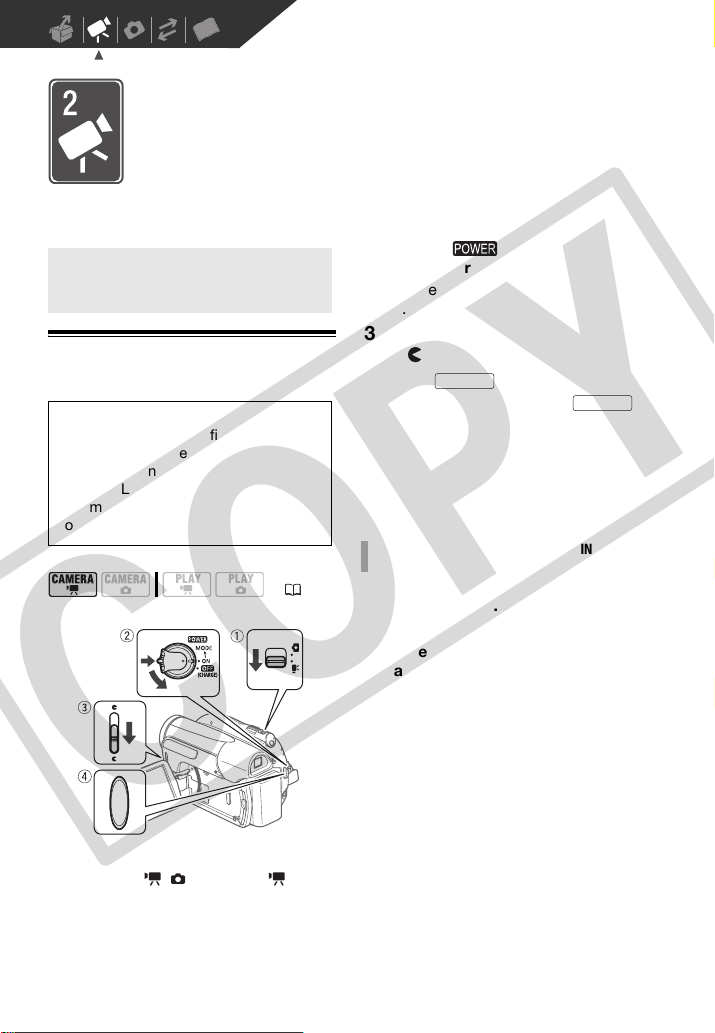
3 Slide fully toward
OPEN and gently open the disc
cover completely until it stops.
Retract the grip belt under the
camcorder so it will not get in the way
of the disc cover.
4 Insert the disc and press its center
firmly until it clicks in place.
• Insert the disc with the recording
side facing down (single sided
discs – label side facing out).
• Be careful not to touch the
recording surface of the disc or the
pick up lens.
5 Close the disc cover.
Do not force the cover closed if the
disc is not correctly inserted and
firmly set in place.
NOTES
The process of recognizing a disc may take
a moment. The display will move while
the disc is being read. Wait until the
camcorder finishes recognizing the disc
( stops moving and turns green) before
you start recording.
You can start recording movies once the
record pause indicator appears.
You need to initialize new discs before
you can start recording. The disc
initialization screen will appear when a
new DVD-RW disc is first inserted if the
/ switch is set to (movies). If
the disc is already initialized, you can
start recording movies once the record
pause indicator appears.
Otherwise, perform the following steps
to initialize the disc.
Select ( ) the desired disc
specification and press . For a
comparison between the VIDEO and
VR specifications, see How to Select
a DVD Disc(5).
A confirmation message will appear
on the screen. Select ( ) [YES] and
press to start the disc
initialization, or select [NO] and press
to return and select a different
disc specification.
• The disc initialization will take
approximately one minute. Avoid
moving the camcorder while the
operation is in progress.
• You can start recording movies
once the record pause
indicator appears.
Removing the Disc
WHEN USING DVD-R/DVD-R DL DISCS
DISC COVER
WHEN USING DVD-RW DISCS
COPY

Preparations • 27
1 Slide fully toward
OPEN and gently open the disc
cover completely until it stops.
• Do not subject the camcorder to
strong impacts while the DISC
access indicator is on or flashing.
• Retract the grip belt under the
camcorder so it will not get in the
way of the disc cover.
• It may take a moment after sliding
for the disc cover to
open.
2 Grab the edge of the disc and
gently pull it out.
Be careful not to touch the recording
surface of the disc or the pick up
lens.
3 Close the disc cover.
IMPORTANT
When you slide after making
a recording, important file allocation data
is updated on the disc before the disc
cover opens. While the DISC access
indicator is on or flashing do not subject
the camcorder to shocks such as
forcefully laying it on a table.
Inserting and Removing a Memory Card
You can use commercially available
SDHC (SD High Capacity)
memory cards, SD memory
cards or MultiMedia Cards (MMC) with
this camcorder.
Make sure to initialize all memory cards
before using them with this camcorder
( 57).
1 Turn off the camcorder.
2 Open the memory card slot cover.
3 Insert the memory card straight,
with the label facing up, all the
way into the memory card slot
until it clicks.
4 Close the memory card slot cover.
Do not force the cover closed if the
memory card is not correctly inserted.
Push the memory card once to
release it. When the memory card
springs out, pull it all the way out.
IMPORTANT
Memory cards have front and back sides
that are not interchangeable. Inserting a
memory card facing the wrong direction
can cause a malfunction of the camcorder.
Be sure to insert the memory card as
described in step 3.
NOTES
Compatibility with all SD, SDHC or MMC
memory cards cannot be guaranteed.
DISC COVER
DISC COVER
DISC COVER
TO REMOVE THE MEMORY CARD
COPY
28 • Video
Video
This chapter covers functions related to shooting movies, including
recording, playback, advanced manual adjustments and playlist and
scene operations.
Basic Recording
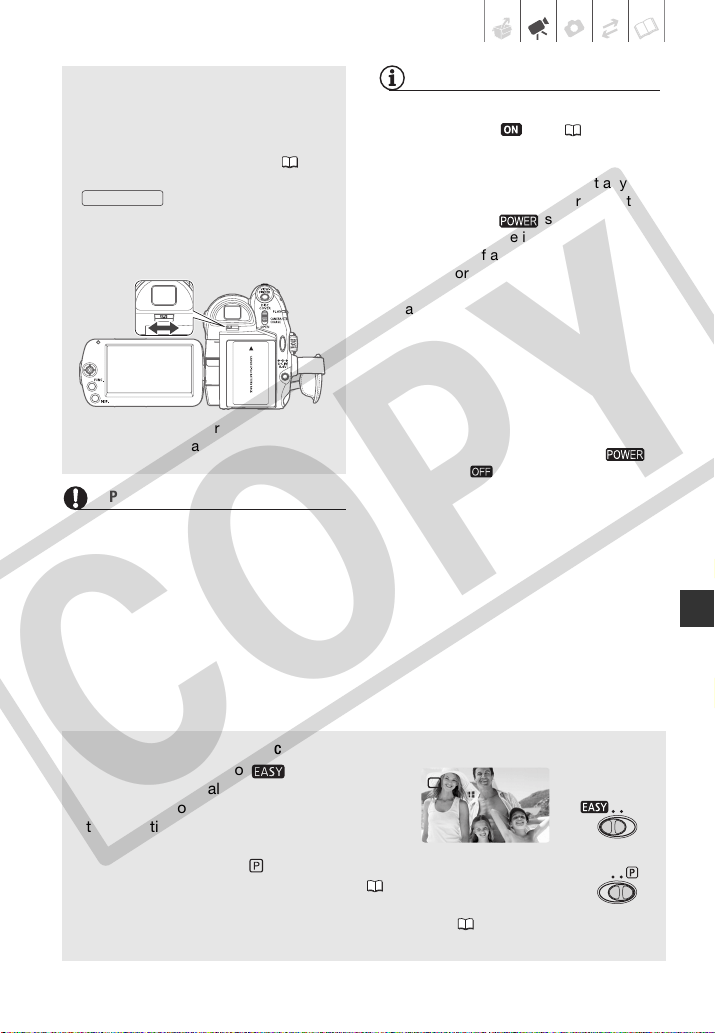
Shooting Video
1 Move the / switch to
(movies).
2 Turn the switch to ON to set
the camcorder in CAMERA mode.
The green CAMERA indicator will turn
on.
3 Move the lens cover switch down
to to open the lens cover.
4 Press to begin recording.
• Recording starts; press
again to pause the recording.
• The DISC access indicator will flash
while recording and will stay on
briefly after pausing while the
scene is recorded on the disc.
1 Make sure that the DISC access
indicator is off.
2 Turn off the camcorder.
3 Close the lens cover and the LCD
panel.
4 Remove the disc.
Basic Recording
Before You Begin Recording
Make a test recording first to check if
the camcorder operates correctly.
Since recordings made on a DVD-R or
DVD-R DL disc cannot be deleted, we
recommend you use a DVD-RW disc
to make the test recordings.
( 21)
WHEN YOU HAVE FINISHED RECORDING
Start/Stop
Start/Stop
COPY
Video • 29
IMPORTANT
Observe the following precautions while
the DISC access indicator is on or
flashing. Failing to do so may result in
permanent data loss.
- Do not subject the camcorder to
vibrations or strong impacts.
- Do not open the disc cover and do not
remove the disc.
- Do not disconnect the power source or
turn off the camcorder.
- Do not change the operating mode.
NOTES
• About the Power Save mode: If [POWER
SAVE] is set to [ ON] ( 71), the
camcorder will shut off automatically to
save power when it is powered by a
battery pack and is left without any
operation for 5 minutes. To restore the
power, turn the switch toward
MODE and release it, or turn the
camcorder off and then on again.
• When recording in very loud places (such
as fireworks shows or concerts), sound
may become distorted or it may not be
recorded at the actual levels. This is not
a malfunction.
• The following may take longer with a disc
in VR mode than a disc in VIDEO mode.
- The time between turning on the
camcorder and being able to start
recording.
- The time between turning the
switch to and the camcorder
shutting off.
Using the viewfinder
When recording in bright places it
may be difficult to use the LCD
screen. In such case, change the
brightness of the LCD screen ( 25)
or use the viewfinder instead. Press
to activate the
viewfinder along with the LCD panel.
Close the LCD panel to use only the
viewfinder.
Adjust the viewfinder as necessary
with the dioptric adjustment lever.
VIEWFINDER
About the mode switch and recording programs
Set the mode switch to to let the
camcorder adjust all the settings for you,
allowing you to just point the camcorder and
start shooting.
Set the mode switch to to select one of the recording programs.
The Special Scene recording programs ( 36) offer a convenient
way to select the optimal settings to match special recording
conditions; and with the flexible recording programs ( 38) you can
set the shutter speed manually, or enjoy the flexibility to change other settings.
COPY
30 • Video
Selecting the Video Quality
(Recording Mode)
The camcorder offers 3 recording
modes. Changing the recording mode
will change the recording time available
on the disc. Select XP mode for better
movie quality; select LP mode for longer
recording times.
The following table gives approximate
recording times with a brand new DVD
disc (on a single recording side).
Default value
[
STANDARD PLAY 6 Mbps]
Desired recording mode
NOTES
• In LP mode, recordings are more liable to
be affected by imperfections of the disc
used or recording conditions and you
may experience some anomalies (blocky
video artifacts, banding, skipping audio,
etc.) during playback. We recommend
using XP or SP mode for important
recordings.
• The camcorder uses a variable bit rate
(VBR) to encode video so the actual
recording times will vary depending on
the content of the scenes.
Changing the Aspect Ratio of the
Recordings (Widescreen / 4:3)
The default aspect ratio of movies is
16:9 (widescreen). Follow the procedure
below to change it to 4:3.
[ MENU]
[ CAMERA SETUP]
[WIDESCREEN] [ OFF]
NOTES
• Playing back a widescreen recording:
TV sets compatible with the Video ID-1
system will switch automatically to 16:9
mode. Otherwise, change the aspect
ratio of the TV manually.
• To play back on a TV with normal aspect
ratio (4:3) change the [TV TYPE] setting
accordingly ( 72).
Zooming: Optical, Advanced and Digital
Zoom
The camcorder offers three types of
zoom when recording movies: optical,
advanced and digital zoom (In
mode, only the optical
zoom is available.) You can also change
the zoom speed.
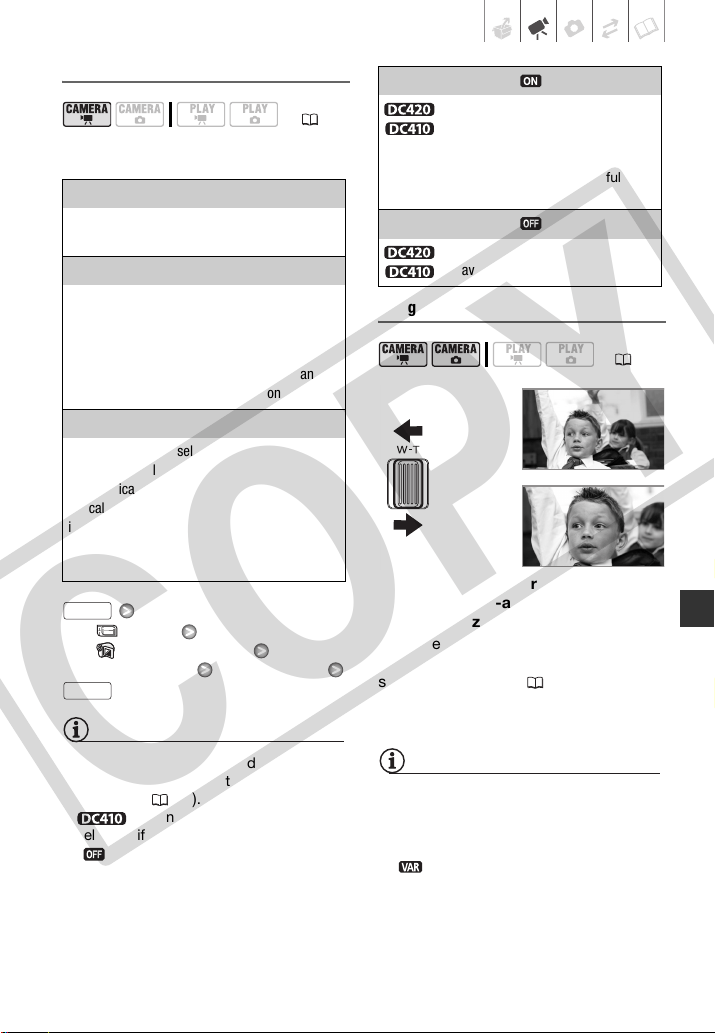
Recording mode
Disc type
DVD-R,
DVD-RW
DVD-R DL
20 min. 36 min.
30 min. 54 min.
60 min. 108 min.
( 21)
FUNC.
FUNC.
( 21)
FUNC.
FUNC.
COPY
Video • 31
Selecting the Zoom Type
Options
Default value
[ MENU]
[ CAMERA SETUP]
[ZOOM TYPE] Desired option
NOTES
• The range of the advanced zoom will
change depending on the aspect ratio of
the scene
( 30).
• Advanced zoom cannot be
selected if [WIDESCREEN] is set to
[ OFF].
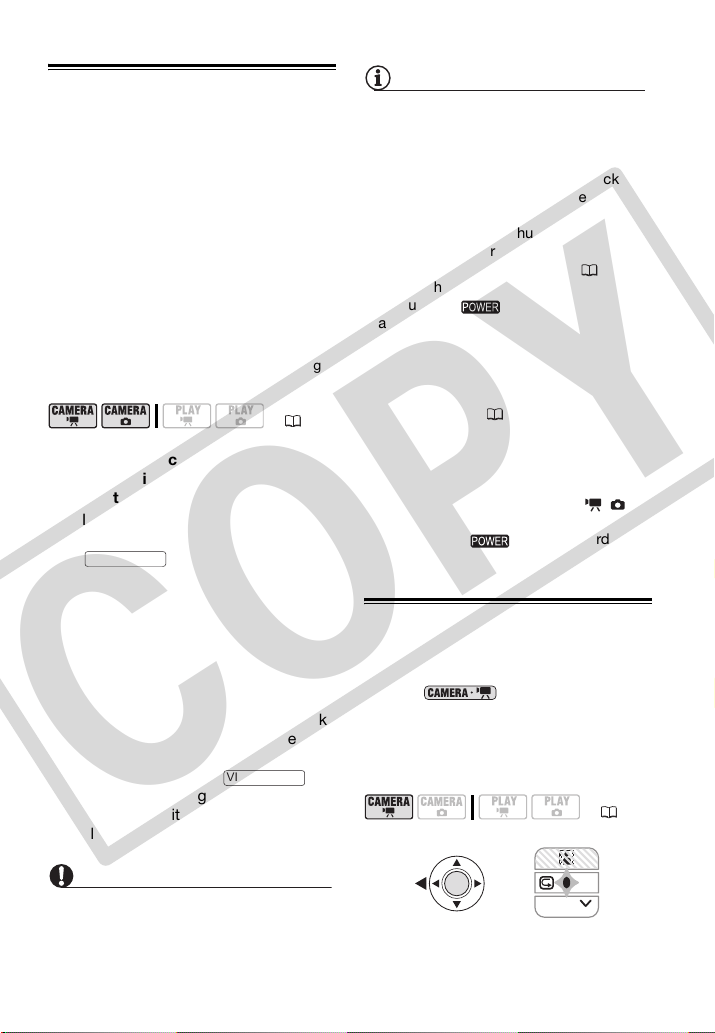
Using the Zoom
Move the zoom lever toward W to
zoom out (wide-angle). Move it
toward T to zoom in (telephoto).
Press gently for slower zooms; press
harder for faster zooms. You can also
set [ZOOM SPEED] ( 68) to one of
three constant speeds (3 is the fastest, 1
the slowest).
NOTES
• Keep at least 1 m (3.3 ft.) away from the
subject. At full wide-angle, you can focus
on a subject as close as 1 cm (0.39 in.).
• When [ZOOM SPEED] is set to
[ VARIABLE], the zoom speed will be
faster in record pause mode than when
actually recording.
( 21)
[OPTICAL] (37x)
The zoom range is limited to the optical
magnification ratio of the lens.
[ADVANCED]
(Advanced Zoom)
In addition to the optical zoom range, the
camcorder processes the image digitally to obtain
a larger zoom range without any deterioration in
image quality. When recording movies with a
16:9 aspect ratio, the angle of view will change.
Refer to the table in the NOTES section.
[DIGITAL] (2000x)
When this option is selected, the camcorder will
switch to digital zoom (light blue area on the
zoom indicator) when you zoom in beyond the
optical zoom range (white area on the zoom
indicator). With the digital zoom the image is
processed digitally so image quality will
deteriorate the more you zoom in.
FUNC.
FUNC.
[WIDESCREEN] set to [ ON] (16:9)
48x*
41x**
* The angle of view will be wider at both full
telephoto and full wide-angle.
**The angle of view will be wider at full
wide-angle.
[WIDESCREEN] set to [ OFF] (4:3)
55x
Not available
( 21)
W
Zoom out
Zoom in
T
COPY
32 • Video
Quick Start Function
When you close the LCD panel with the
camcorder set to a recording mode, the
camcorder enters the standby mode. In
standby mode the camcorder consumes
only about half the power used when
recording, saving energy when you are
using a battery pack. Additionally, when
you open the LCD panel, the camcorder
is ready to start recording in
approximately 1 second*, ensuring you
do not miss important shooting
opportunities.
* The actual time required varies depending
on the shooting conditions.
1 With the camcorder on and the
CAMERA indicator lit up in green,
close the LCD panel.
• If you are using the viewfinder and
the LCD panel is closed, press
to enter the standby
mode.
• A beep will sound and the
CAMERA indicator will change to
orange to indicate the camcorder
entered the standby mode.
2 When you wish to resume
recording, open the LCD panel.
• The CAMERA indicator turns back
green and the camcorder is ready
to record.
• You can also press to
resume recording using the
viewfinder with the LCD panel
closed.
IMPORTANT
Do not disconnect the power source while
the camcorder is in standby mode
(
CAMERA indicator is lit in orange).
NOTES
• If you close the LCD panel under some
circumstances (for example, while the
DISC access indicator is flashing or a
menu is being displayed), the camcorder
may not enter standby mode. Check that
the
CAMERA indicator changes to
orange.
• The camcorder will shut off if left in
standby mode for 10 minutes, regardless
of the [POWER SAVE] setting ( 71). To
restore the power if the camcorder shut
off, turn the switch toward MODE
and release it, or turn the camcorder off
and then on again.
• You can select the length of time until
shut-off or turn off the Quick Start
function altogether with the [QUICK
START] setting ( 71).
• Performing any of the following actions
while the camcorder is in standby mode
will reactivate the camcorder.
- Opening the disc compartment cover.
- Changing the position of the /
switch.
- Turning the switch toward
MODE.
Reviewing and Deleting the Last Scene
Recorded
Even in mode you can play
back the last scene recorded in order to
check it. If you are using a DVD-RW
disc, you can also delete the scene
while reviewing it.
( 21)
VIEWFINDER
VIEWFINDER
( 21)
NEXT
COPY
Video • 33
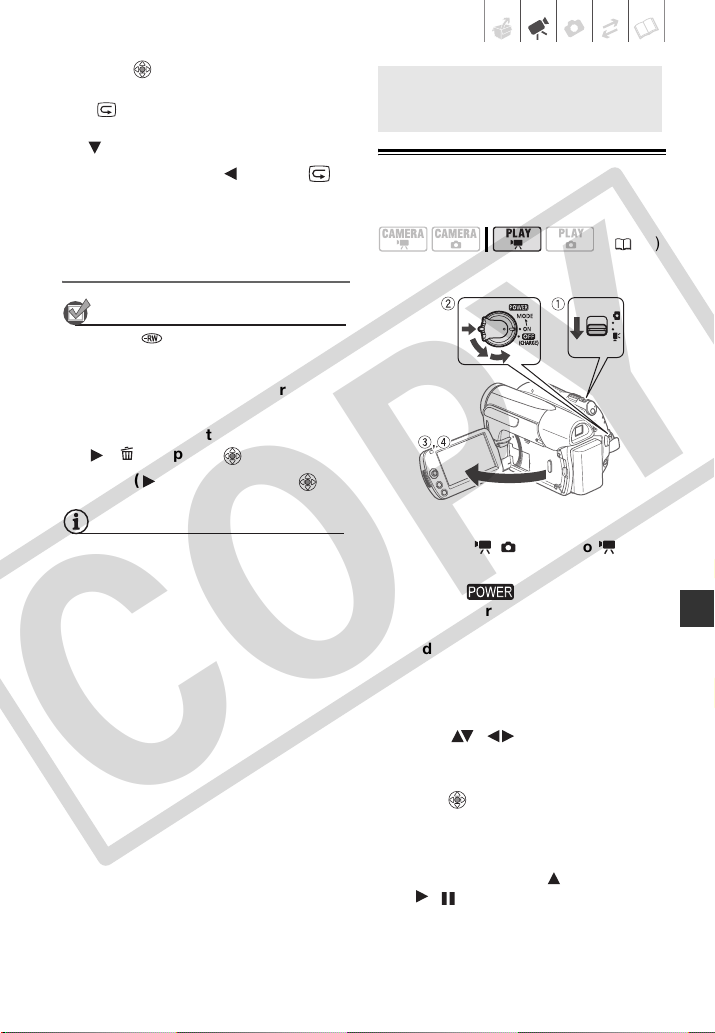
1 Press to display the joystick
guide.
If does not appear on the joystick
guide, repeatedly push the joystick
( ) toward [NEXT] to display it.
2 Push the joystick ( ) toward .
The camcorder plays back the last
scene (but without sound) and
returns to record pause mode.
Deleting a Scene After Recording It
POINTS TO CHECK
Disc type: DVD-RW
After recording a scene:
1 Review the scene as described in
the previous section.
2 While reviewing the scene, select
( ) and press .
3 Select ( ) [YES] and press .
NOTES
• Avoid any other operations on the
camcorder while the scene is being
deleted.
• You will not be able to delete the last
scene if after the scene was recorded
you changed the operating mode, turned
off the camcorder or removed the disc.
Basic Playback
Playing Back the Video
1 Move the / switch to
(movies).
2 Turn the switch to ON, then
turn it toward MODE and release it
to set the camcorder in PLAY
mode.
• The green PLAY indicator will turn
on.
• The scene index screen appears.
3 Move ( , ) the selection
frame to the scene you want to
play back.
4 Press to begin the playback.
• Playback will start from the scene
selected and continue until the end
of the last scene recorded.
• Push the joystick ( ) toward
/ to pause the playback.
Basic Playback
( 21)
COPY
34 • Video
• Push the joystick ( ) toward to
stop the playback and return to the
scene index screen.
During the playback of a scene:
[
SPEAKER VOL.]
Adjust ( ) the volume
NOTES
• Depending on the recording conditions,
you may notice brief stops in video or
sound playback between scenes.
• This camcorder can play back discs
recorded with this camcorder. You may
not be able to correctly play back discs
recorded with other camcorders or discs
created with a computer.
• When playing back a finalized disc,
depending on the number of scenes, it
may take a few seconds before the index
screen appears.
• Sound from the speaker will be muted
when the LCD panel is closed in order to
use the viewfinder for playback.
Special playback modes
Use the joystick guide to enter the
special playback modes. There is no
sound during the special playback
modes.
Fast playback
During normal playback, push the
joystick ( ) toward or ( ) toward
. Push it in the same direction again
to increase the playback speed.
Slow playback
In playback pause mode, push the
joystick ( ) toward or ( ) toward .
Push it in the same direction again to
increase the playback speed 1/8
→
1/4
the normal speed.
Ending special playback modes
During any special playback mode, push
the joystick ( ) toward / .
NOTES
During some special playback modes, you
may notice some anomalies (blocky video
artifacts, banding, etc.) in the playback
picture.
TO ADJUST THE VOLUME
FUNC.
FUNC.
COPY
Video • 35
Deleting Scenes
If you are using a DVD-RW disc, you can
delete those scenes that you are not
interested in keeping.
Deleting a Single Scene
POINTS TO CHECK
Disc type: DVD-RW • VR mode
From the original index screen, select
( , ) the scene to delete.
[ DELETE]
[YES]
Deleting All Scenes
POINTS TO CHECK
Disc type: DVD-RW • VR mode
To delete all the scenes from the original
index screen, perform the following
procedure. This will delete also the
entire playlist.
[ MENU]
[ DISC OPERATIONS]
[DEL.ALL MOVIES]
[YES]
IMPORTANT
Be careful when deleting original
recordings. Once deleted, original scenes
cannot be recovered.
NOTES
• You may not be able to delete scenes
shorter than 5 seconds. To delete such
scenes you must initialize the disc
( 47), in the process deleting all the
recordings on the disc.
• Do not change the position of the
switch or the / switch while the
scene is being deleted (while the DISC
access indicator is on or flashing).
( 21)
( 21)
FUNC.
FUNC.
FUNC.
COPY
36 • Video
Additi ona l Functi ons
: Special Scene Recording Programs
Recording in a very bright ski resort or
capturing the full colors of a sunset or a
fireworks display becomes as easy as
selecting a Special Scene recording
program. For details about the available
options, refer to the sidebar on page 37.
POINTS TO CHECK
Mode switch:
[ PROGRAM AE]
[ PORTRAIT] Press to
display the Special Scene (SCN)
recording programs
Desired recording program
NOTES
• [ PORTRAIT]/[ SPORTS]/
[ BEACH]/[ SNOW]
- The picture may not appear smooth
during playback.
• [ PORTRAIT]
- The blur effect of the background
increases the more you zoom in (T).
•[ NIGHT]
- Moving subjects may leave a trailing
afterimage.
- Picture quality may not be as good as
in other modes.
- White points may appear on the
screen.
- Autofocus may not work as well as in
other modes. In such case, adjust the
focus manually.
• [ SNOW]/[ BEACH]
- The subject may become overexposed
on cloudy days or in shaded places.
Check the image on the screen.
•[ FIREWORKS]
- To avoid camcorder shake, we
recommend using a tripod. Make sure
to use a tripod especially in
mode, as the shutter
speed slows down.
• Do not set the mode switch to
during the actual recording of a scene;
the brightness of the picture may change
abruptly.
Additional Functions
( 21)
FUNC.
FUNC.
COPY
Video • 37
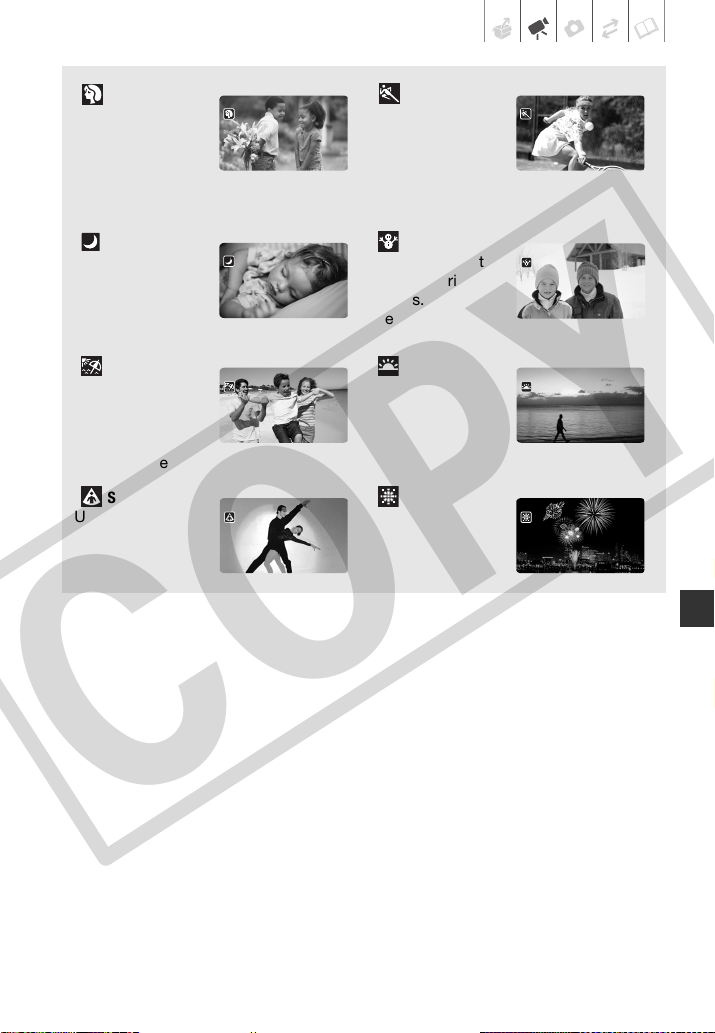
[ PORTRAIT]
The camcorder
uses a large
aperture, achieving
a focus on the
subject while blurring other distracting
details.
[ SPORTS]
Use this mode to
record sports
scenes such as
tennis or golf.
[ NIGHT]
Use this mode to
record in dimly lit
places.
[ SNOW]
Use this mode to
record in bright ski
resorts. It prevents
the subject from
being underexposed.
[ BEACH]
Use this mode to
record on a sunny
beach. It prevents
the subject from
being underexposed.
[ SUNSET]
Use this mode to
record sunsets in
vibrant colors.
[ SPOTLIGHT]
Use this mode to
record spotlit
scenes.
[ FIREWORKS]
Use this mode to
record fireworks.
COPY
38 • Video
Flexible Recording: Changing the
Shutter Speed
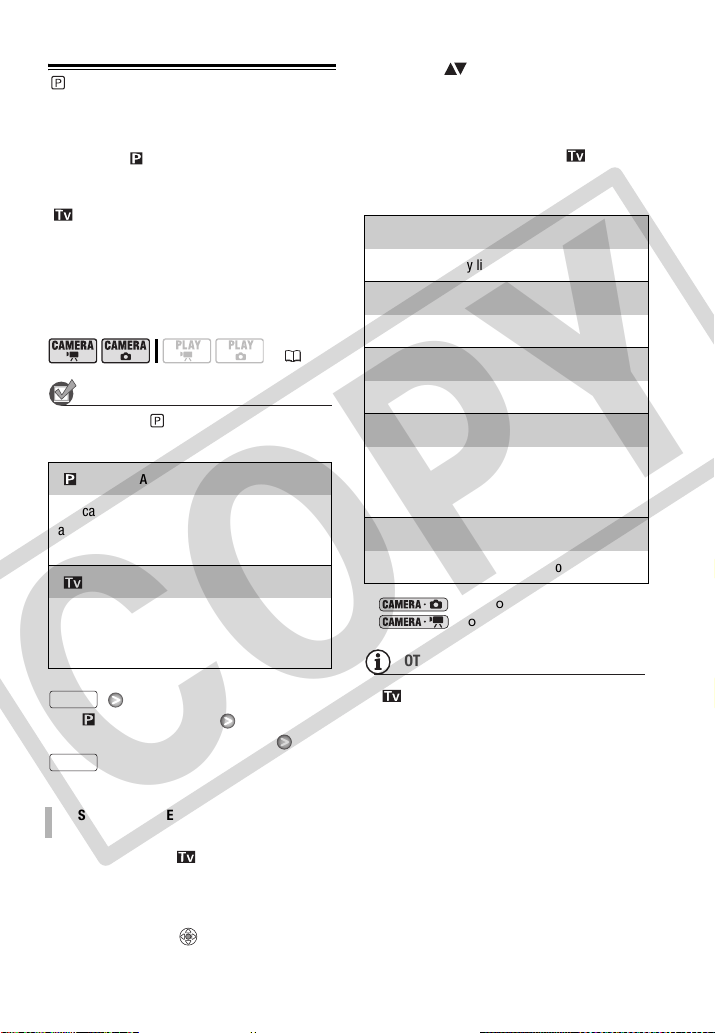
Select the [ PROGRAM AE] recording
program to use functions like the white
balance or image effects, or use
[ SHUTTER-PRIO.AE] to give priority
to the shutter speed.
Use faster shutter speeds to record
subjects moving quickly; use slower
shutter speeds to add motion blur,
emphasizing the feel of movement.
POINTS TO CHECK
Mode switch:
Options
Default value
[ PROGRAM AE]
Desired recording program
When you select [ SHUTTER-
PRIO.AE], a numeric value will appear
next to the recording program icon.
1 If the joystick guide appears on the
screen, press to hide it.
2 Adjust ( ) the shutter speed to
the desired value.
Shutter speed guidelines
Note that on screen only the
denominator is displayed – [ 250]
indicates a shutter speed of 1/250
second, etc.
* mode only.
** mode only.
NOTES
• [ SHUTTER-PRIO.AE]
- When setting the shutter speed, the
number displayed will flash if the
shutter speed selected is not
appropriate for the recording
conditions. In such case, select a
different value.
- If you use a slow shutter speed in dark
places, you can obtain a brighter
image, but the image quality may be
lower, and the autofocus may not work
well.
- The image may flicker when recording
with fast shutter speeds.
( 21)
[ PROGRAM AE]
The camcorder automatically adjusts the
aperture and shutter speed to obtain the
optimal exposure for the subject.
[ SHUTTER-PRIO.AE]
Set the shutter speed value. The camcorder
automatically sets the appropriate aperture
value.
TO SET THE SHUTTER SPEED
FUNC.
FUNC.
1/2*, 1/4*, 1/8, 1/15, 1/30
To record in dimly lit places.
1/60
To record under most ordinary conditions.
1/100
To record indoor sports scenes.
1/250, 1/500, 1/1000**
To record from within a moving car or train or to
shoot fast-moving subjects such as roller
coasters.
1/2000**
To record outdoor sports scenes on sunny days.
COPY
Video • 39
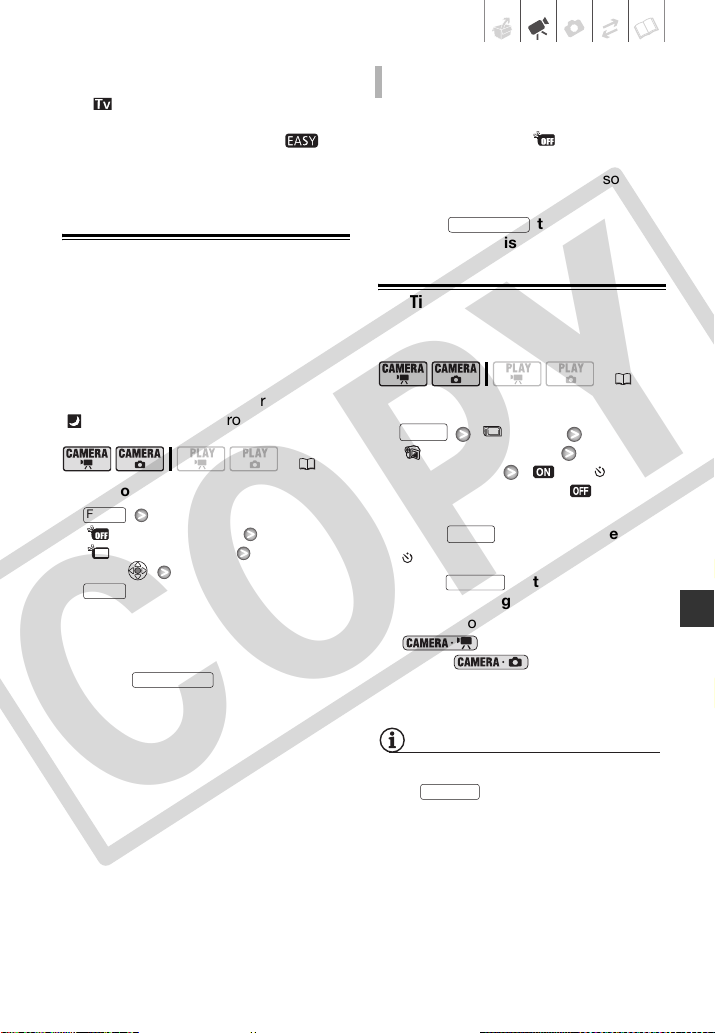
- Recording movies under fluorescent lights:
If the screen starts to flicker, select
[ SHUTTER-PRIO.AE] and set the
shutter speed to 1/100.
• Do not set the mode switch to
during the actual recording of a scene;
the brightness of the picture may change
abruptly.
LCD Video Light
You can use the brightness of the LCD
screen (LCD video light) to record in
completely dark places. For a brighter
picture, we recommend keeping a
distance of about 20 cm – 60 cm (8 in. –
2 ft.) from the subject and/or using the
[
NIGHT] recording program.
1 Turn on the LCD video light.
[ LCD LIGHT OFF]
[ LCD LIGHT ON]
Press
2 Rotate the LCD panel toward the
lens and point it in the direction of
the subject.
3 Press to turn on the
viewfinder.
Use the viewfinder to continue
recording.
1 Using the viewfinder, repeat step 1
above, selecting [ LCD LIGHT
OFF] instead.
Closing the LCD panel will also turn
off the LCD video light.
2 Press to turn off the
viewfinder's display.
Self Timer
1 Activate the self timer.
[ MENU]
[ CAMERA SETUP]
[SELF TIMER] [ ON ]
• Set [SELF TIMER] to [ OFF] to
cancel the self timer.
2 Press to close the menu.
appears.
3 Press on the camcorder to
start recording.
The camcorder starts recording video
( mode) or records a still
image ( mode) after a
10-second countdown. The
countdown appears on the screen.
NOTES
Once the countdown has begun, you can
press again or turn off the
camcorder to cancel the self timer.
( 21)
FUNC.
FUNC.
VIEWFINDER
TO TURN OFF THE LCD VIDEO LIGHT
( 21)
VIEWFINDER
FUNC.
FUNC.
Start/Stop
Start/Stop
COPY

40 • Video
Manual Exposure Adjustment
At times, backlit subjects may appear
too dark (underexposed) or subjects
under very strong lights may appear too
bright or glaring (overexposed). To
correct this, you can manually adjust the
exposure.
POINTS TO CHECK
Mode switch: (except for the
[ FIREWORKS] recording program).
1 Press to display the joystick
guide.
If [EXP] does not appear on the
joystick guide, repeatedly push the
joystick ( ) toward [NEXT] to display
it.
2 Push the joystick ( ) toward
[EXP].
• The exposure adjustment indicator
and the neutral value “±0”
appear on the screen.
• The adjustment range and the
length of the exposure adjustment
indicator will vary depending on the
initial brightness of the picture.
• If you operate the zoom, the
brightness of the image may
change.
3 Adjust ( ) the brightness of the
image as necessary and press .
• The exposure adjustment indicator
will change to white and the
exposure will be locked.
• During exposure lock, press
and push the joystick ( ) toward
[EXP] again to return the camcorder
to automatic exposure.
Manual Focus Adjustment
Autofocus may not work well on the
following subjects. In such case, focus
manually.
• Reflective surfaces
• Subjects with low contrast or without
vertical lines
• Fast moving subjects
• Through wet windows
• Night scenes
POINTS TO CHECK
Adjust the zoom before you start the
procedure.
Mode switch:
1 Press to display the joystick
guide.
If [FOCUS] does not appear on the
joystick guide, repeatedly push the
joystick ( ) toward [NEXT] to display
it.
2 Push the joystick ( ) toward
[FOCUS].
“MF” appears.
3 Adjust ( ) the focus as
necessary and press .
• The focus will be locked.
( 21)
NEXT
EXP
( 21)
NEXT
FOCUS
COPY
Video • 41
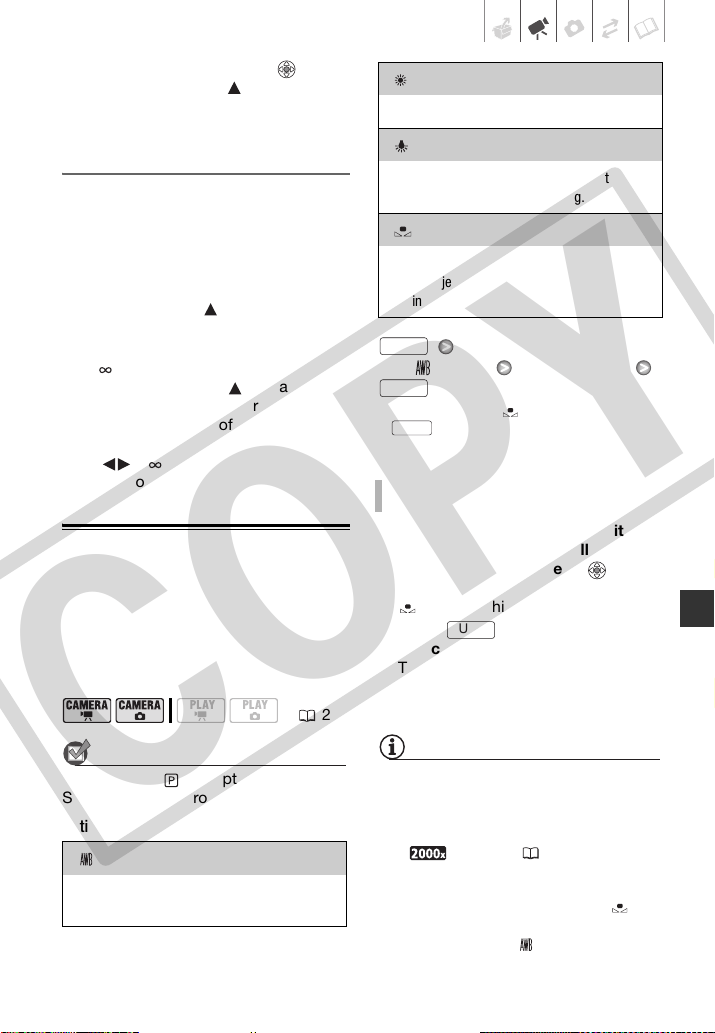
• During focus lock, press and
push the joystick ( ) toward
[FOCUS] again to return the
camcorder to autofocus.
Infinity Focus
Use this function when you wish to
focus on faraway subjects such as
mountains or fireworks.
Instead of step 2 in the previous
procedure:
Push the joystick ( ) toward
[FOCUS] and hold it for more than 2
seconds.
• appears.
• Push the joystick ( ) toward
[FOCUS] again to return the
camcorder to autofocus.
• If you operate the zoom or joystick
( ), changes to “MF” and the
camcorder returns to manual focus.
White Balance
The white balance function helps you to
accurately reproduce colors under
different lighting conditions so that white
objects will always look truly white in
your recordings.
POINTS TO CHECK
Mode switch: (except for the Special
Scene recording programs).
Options
Default value
[ AUTO] Desired option*
* When you select [ SET], do not press
and continue instead with the
following procedure.
1 Point the camcorder at a white
object, zoom in until it fills the
whole screen and press .
When the adjustment is completed,
stops flashing and stays on.
2 Press to save the setting
and close the menu.
The camcorder retains the custom
setting even if you turn off the
camcorder.
NOTES
• When you select the custom white balance:
- Set the custom white balance in a
sufficiently illuminated place.
- Select a zoom type other than
[ DIGITAL] ( 30).
- Reset the white balance when the
lighting conditions change.
- Depending on the light source, may
keep flashing. The result will still be
better than with [ AUTO].
( 21)
[AUTO]
The camcorder automatically sets the white
balance for natural looking colors.
[DAYLIGHT]
For recording outdoors on a bright day.
[TUNGSTEN]
For recording under tungsten and tungsten type
(3-wavelength) fluorescent lighting.
[ SET]
Use the custom white balance setting to make
white subjects appear white under colored
lighting.
TO SET THE CUSTOM WHITE BALANCE
FUNC.
FUNC.
FUNC.
FUNC.
COPY
42 • Video
• In the following cases, if the colors on the
screen do not look natural using the
[ AUTO] setting, try using the custom
white balance.
- Changing lighting conditions
- Close-ups
- Subjects in a single color (sky, sea or
forest)
- Under mercury lamps and certain types
of fluorescent lights
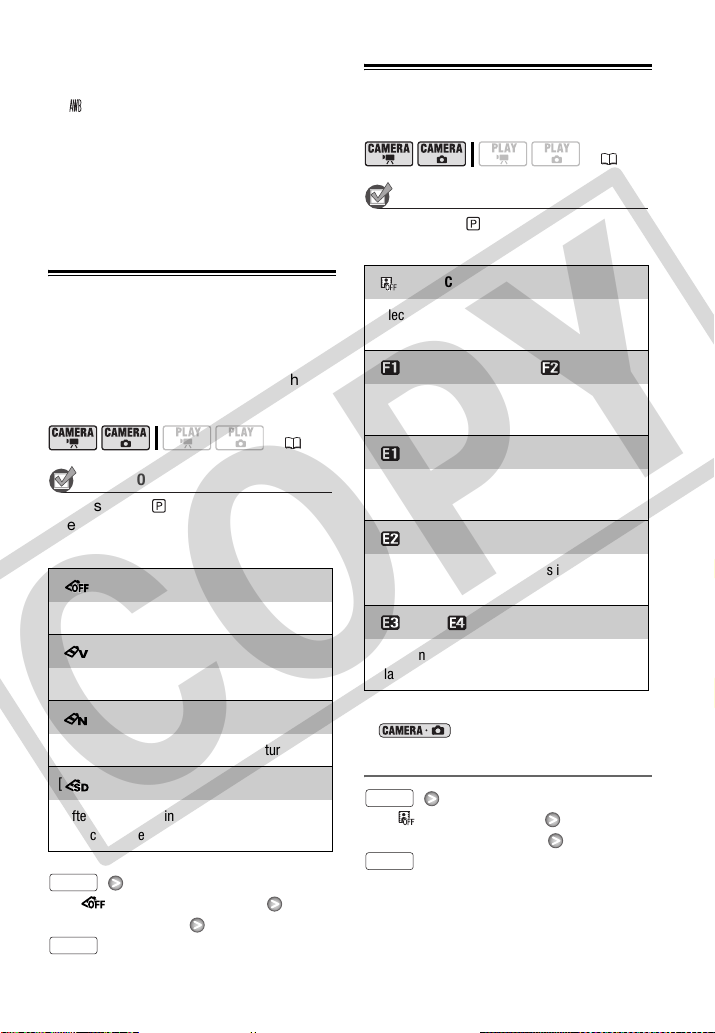
Image Effects
You can use the image effects to change
the color saturation and contrast to
record movies and still images with
special color effects.
POINTS TO CHECK
Mode switch: (except for the Special
Scene recording programs).
Options
Default value
[ IMAGE EFFECT OFF]
Desired option
Digital Effects
POINTS TO CHECK
Mode switch:
Options
Default value
* Only these digital effects are available in
mode.
Setting
[ D.EFFECT OFF]
Desired fader/effect*
**
* You can preview the digital effect on the
screen.
** The icon of the selected digital effect
appears.
( 21)
[ IMAGE EFFECT OFF]
Records with no image enhancing effects.
[ VIVID]
Emphasizes the contrast and color saturation.
[ NEUTRAL]
Tones down the contrast and color saturation.
[ SOFT SKIN DETAIL]
Softens the details in the skin tone area for a
more complimentary appearance.
FUNC.
FUNC.
( 21)
[ D.EFFECT OFF]
Select this setting when you do not intend to
use the digital effects.
[ FADE-T] (fade trigger), [ WIPE]
Select one of the faders to begin or end a scene
with a fade from or to a black screen.
[ BLK&WHT]*
Records movies and still images in black and
white.
[ SEPIA]*
Records movies and still images in sepia tones
for an “old” look.
[ ART], [ MOSAIC]
Select one of these digital effects to add
“flavor” to your recordings.
FUNC.
FUNC.
COPY
Video • 43
Applying
1 Press to display the joystick
guide.
If does not appear on the joystick
guide, repeatedly push the joystick
( ) toward [NEXT] to display it.
2 Push the joystick ( ) toward .
• The icon of the selected digital
effect turns green.
• Push the joystick ( ) toward
again to deactivate the digital effect
(its icon will turn white again).
Activate the selected fader in record
pause mode ( ), then press
to start recording with a fade
in.
Activate the selected fader while
recording ( ), then press to
fade out and pause the recording.
mode: Activate the selected
effect while recording or in record pause
mode.
mode: Activate the selected
effect and then press to
record the still image.
NOTES
• When you apply a fader, not only the
picture but also the sound will fade in or
out. When you apply an effect, the sound
will be recorded normally.
• The camcorder retains the last setting
used even if you turn off the digital
effects or change the recording program.
On-Screen Displays and Data Code
You can turn most on-screen displays
on or off.
Repeatedly press to turn the
on-screen displays on/off in the
following sequence:
, mode:
• All displays on
• Most displays off*
mode:
• All displays on
• Data code only
• All displays off
mode:
• All displays on
• Regular displays only (removes the
histogram and information icons)
• All displays off
TO FADE IN
TO FADE OUT
TO ACTIVATE AN EFFECT
NEXT
Start/Stop
Start/Stop
Start/Stop
DISP.
COPY
44 • Video
* The following icons will appear even when
all other on-screen displays are turned off:
The icons and (in
mode), the icon and AF frames when the
autofocus is locked (in mode),
screen markers (both recording modes).
Using an External Microphone
You can use a commercially available
microphone, for example to record
audio more accurately.
Connect the external microphone to
the MIC terminal.
NOTES
• Use commercially available condenser
microphones with their own power
supply. You can connect almost any
stereo microphone with a ∅ 3.5 mm plug
but audio recording levels may vary.
• When an external microphone is
connected to the camcorder,
[WIND SCREEN] will automatically be set
to [ OFF ].
About the Data Code
With every scene or still image
recorded, the camcorder keeps a data
code (date/time of recording,
information about the camera setup,
etc.). In mode, this
information is displayed on the bottom
bar and as information icons; in
mode, you can select the
information to be displayed with the
[DATA CODE] setting ( 70).
( 21)
COPY
Video • 45
Editing the Playlist and Disc
Operations
Creating a Playlist
Create a playlist to play back only the
scenes you prefer and in the order of
your choice. Deleting, dividing or
moving scenes in the playlist will not
affect the original recordings.
Adding Scenes to the Playlist
You can choose to add to the playlist all
the original scenes at once or only the
selected scene.
1 Select ( , ) the scene you
want to add to the playlist.
To add all scenes, there is no need to
select any particular scene.
2 Add the scene(s) to the playlist.
[ ADD TO PLAYLIST]
Desired option
[YES]
• To check the playlist, in the original
index screen:
[ TO PLAYLIST].
• To return to the original index
screen, in the playlist index screen:
[ TO ORIGINAL].
Deleting Scenes from the Playlist
Deleting scenes from the playlist will not
affect your original recordings.
POINTS TO CHECK
Disc type: DVD-RW • VR mode
Deleting a Single Scene
1 Select the playlist index screen.
[ TO PLAYLIST]
2 Select ( , ) the scene you
want to delete.
3 Delete the scene.
[ DELETE]
[YES]
Deleting the Entire Playlist
1 Select the playlist index screen.
[ TO PLAYLIST]
2 Delete the playlist.
[ MENU]
[ DISC OPERATIONS]
[DEL.PLAYLIST] [YES]
Editing the Playlist and Disc
Operations
( 21)
FUNC.
FUNC.
FUNC.
( 21)
FUNC.
FUNC.
FUNC.
FUNC.
FUNC.
COPY
46 • Video
Dividing Scenes in the Playlist
You can divide scenes (in the playlist
only) in order to leave only the best parts
and later cut out the rest. Remember
that when you divide scenes in the
playlist, you do not affect your original
recordings.
POINTS TO CHECK
Disc type: DVD-RW • VR mode
1 Select the playlist index screen.
[ TO PLAYLIST]
2 Select ( , ) the scene you
want to divide.
3 Press , select ( )
[ DIVIDE] and press .
Playback of the scene selected will
start. Pause the playback at the point
where you want to divide the scene.*
4 Press , select ( ) [YES] and
press .
The video from the division point to
the end of the scene will appear as a
new scene in the playlist index
screen.
* You can use the / (Frame reverse/
advance) icons and fast playback ( 34) to
bring the scene to a precise point.
NOTES
Very short scenes (shorter than 2 seconds)
cannot be divided.
Moving Scenes in the Playlist
Move the scenes in the playlist to play
them back in the order of your choice.
POINTS TO CHECK
Disc type: DVD-RW • VR mode
1 Select the playlist index screen.
[ TO PLAYLIST]
2 Select ( , ) the scene you
want to move.
3 Press , select ( )
[ MOVE] and press .
4 Move ( , ) the orange marker
to the desired position of the scene
and press .
The original position of the scene and
the current position of the marker are
displayed at the bottom of the
screen.
5 Select ( ) [YES] and press to
move the scene.
( 21)
FUNC.
FUNC.
FUNC.
( 21)
FUNC.
FUNC.
COPY
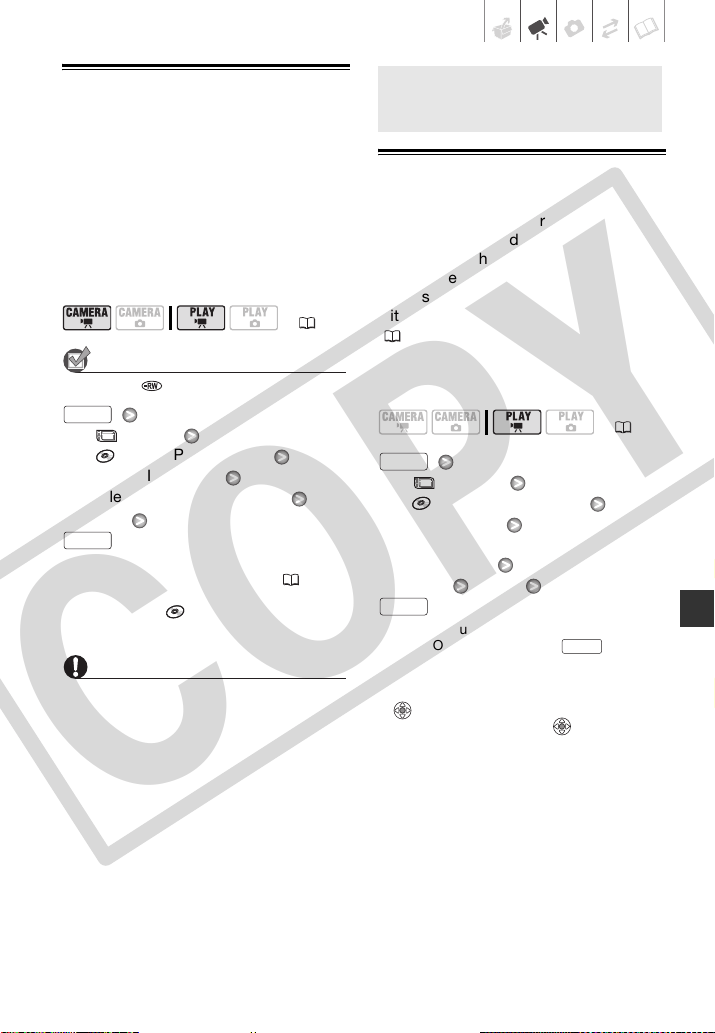
Video • 47
Initializing the Disc
You need to initialize all new DVD-RW
discs when you first insert them into the
camcorder and you may have to
initialize them if you get the message
[UNABLE TO RECOGNIZE THE DATA].
You can also initialize a DVD-RW disc
when you want to completely erase the
disc to reuse it or in order to change the
disc specification.
POINTS TO CHECK
Disc type: DVD-RW
[ MENU]
[
DISC OPERATIONS]
[INITIALIZE DISC]
Select a disc specification*
[YES]
**
* For details about disc specifications, refer to
Disc specification on DVD-RWs. (5)
**Close the menu only after the screen display
returns to the [
DISC OPERATIONS]
menu.
IMPORTANT
Initializing the disc will permanently erase
all recordings. Lost original recordings
cannot be recovered.
Disc Playback on an External Device
Changing the Disc Title
Before you finalize your disc, you can
give it a title*. The disc title will be
displayed on the index screen when
playing the finalized disc in most DVD
players. You can check the disc’s title
with the [DISC INFO] menu option
( 69).
* You can change the title of DVD-RW discs
recorded in VR mode also after having
finalized them.
[ MENU]
1
[
DISC OPERATIONS]
[DISC TITLE]
Enter the title (up to 20
characters)
2
[SET] [YES]
1
Only when using a DVD-RW recorded in VR
mode. Otherwise, pressing will open
the menu directly on the setup menus
screen.
2
Select one character at a time and press
to add it to the title. Select
[BACKSPACE] and press to delete the
character to the left of the cursor’s position.
( 21)
FUNC.
FUNC.
Disc Playback on an
External Device
( 21)
FUNC.
FUNC.
FUNC.
COPY
48 • Video
Finalizing the Disc
To play the disc you recorded on a DVD
player, a computer’s DVD drive or other
digital device, you need to finalize it
first.
1 Power the camcorder using the
compact power adapter or a fully
charged battery pack.
2 Set the camcorder to
mode.
The green PLAY indicator will turn on.
3 Start the disc's finalization.
[ MENU]
[
DISC OPERATIONS]
[FINALIZE] [YES]
• A progress bar and the time
remaining will be displayed on the
screen.
• Selecting [ MENU] is only
necessary when using a DVD-RW
recorded in VR mode. Otherwise,
pressing will open the menu
directly on the setup menus screen.
4 When the process is completed
([OK] appears), press and wait
until the [ DISC OPERATIONS]
menu is displayed again.
Depending on the number of scenes,
this may take a moment.
5 Press to close the menu.
During playback and in
mode, the icon will indicate that
the disc is finalized.
IMPORTANT
• Be sure to finalize the disc in normal
room temperatures. If the procedure
was not completed correctly due to
high temperature, let the camcorder
cool off before resuming operation.
• Place the camcorder on a table or
other stable surface before starting
the procedure. Subjecting the
camcorder even to slight impacts (for
example to place it on a table or to
disconnect a cable) after the
finalization process started may result
in permanent data loss.
• Do not disconnect the power source
while the operation is in progress. Doing
so can interrupt the process and result in
permanent data loss.
• Depending on the type of disc and the
disc specification, after finalizing the disc
you may not be able to initialize the disc,
edit your recordings or add new
recordings to the disc. Refer to the table
on page 49.
• Do not use this camcorder to finalize
discs that were not recorded with it.
NOTES
The time required to finalize the disc
depends on the scenes recorded and the
remaining free space on the disc.
( 21)
FUNC.
FUNC.
FUNC.
COPY
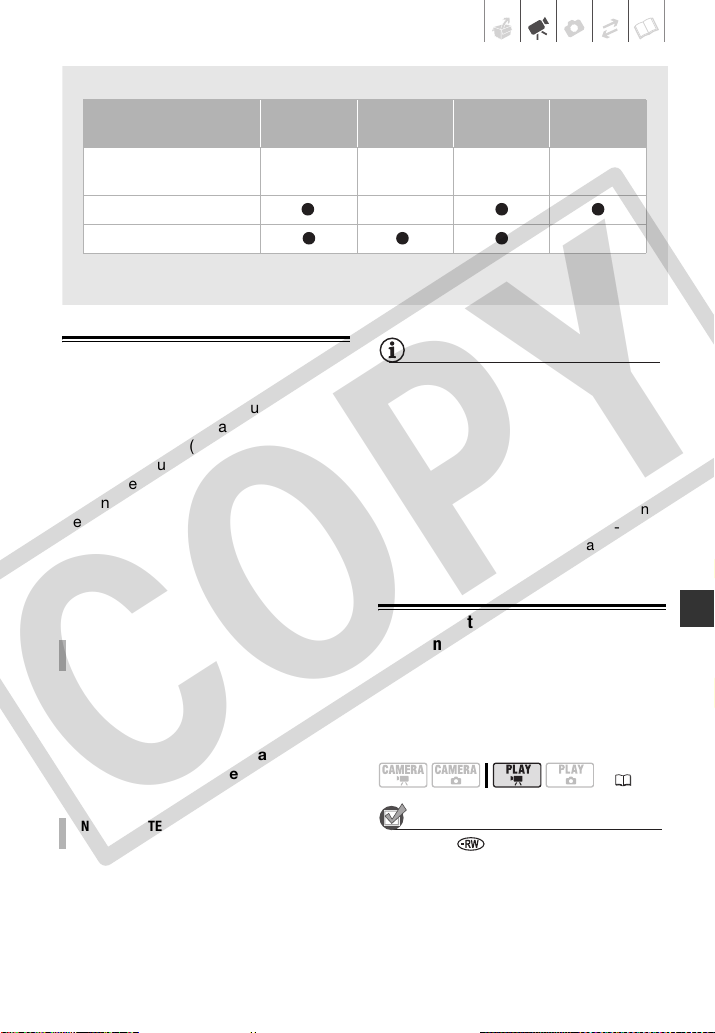
Video • 49
Disc Playback on External Devices
After finalizing the disc, you can play it
on DVD players compatible with the
type of disc used (DVD-R, DVD-R DL or
DVD-RW). You cannot play back discs
on an external DVD device if the discs
have not yet been finalized.
Refer to the instruction manual of the
DVD player or DVD drive to confirm that
it is compatible with the type/
specification of the disc you want to
play back.
1 Turn on the TV and DVD player.
2 Insert the finalized disc in the DVD
player.
3 Select the scene you want to play
from the index screen.
1 Insert the finalized disc in the DVD
drive.
2 Run the DVD playback software.
Refer also to the instruction manual
of your DVD playback software.
NOTES
• DVD-RW discs recorded in VR mode can
be played back only on VR mode-
compatible DVD players.
• Depending on your DVD device you may
not be able to play back the disc.
• In order to play back the disc on a
computer you need to have DVD
playback software installed and running.
Also, in order to play back a DVD-R DL
you must have a DVD drive capable of
reading dual-layered DVD discs.
Unfinalizing the Disc - Additional
Recordings on a Finalized Disc
Unfinalize a disc to allow recording
additional movies on the disc even after
it was finalized.
POINTS TO CHECK
Disc type: DVD-RW •
VIDEO mode • Finalized
1 Power the camcorder using the
compact power adapter or a fully
charged battery pack.
Restrictions after disc finalization
1
You will need to unfinalize the disc first.
2
Only scenes in the playlist can be divided.
Additional
recordings
Editing
recordings
Initializing
the disc
Unfinalizing
the disc
DVD-R/DVD-R DL
in VIDEO mode
– – – –
DVD-RW in VIDEO mode
1
–
DVD-RW in VR mode
2
–
ON A DVD PLAYER
ON A cOMPUTER’S DVD DRIVE
( 21)
COPY
50 • Video
2 Set the camcorder to
mode.
The green PLAY indicator will turn on.
3 Start the disc's unfinalization.
[
DISC OPERATIONS]
[UNFINALIZE] [YES]
• A progress bar will be displayed on
the screen.
4 When the process is completed
([OK] appears), press .
5 Press to close the menu.
IMPORTANT
• Be sure to unfinalize the disc in
normal room temperatures. If the
procedure was not completed
correctly due to high temperature, let
the camcorder cool off before
resuming operation.
• Place the camcorder on a table or
other stable surface before starting
the procedure. Subjecting the
camcorder even to slight impacts (for
example to place it on a table or to
disconnect a cable) after the
unfinalization process started may
result in permanent data loss.
• Do not disconnect the power source
while the operation is in progress. Doing
so can interrupt the process and result in
permanent data loss.
• Only discs that were finalized using this
camcorder can be unfinalized with it.
Discs that can be unfinalized
Only DVD-RW discs recorded in VIDEO
mode and finalized with this camcorder
can be unfinalized. DVD-R and DVD-R
DL discs cannot be unfinalized at all,
whereas DVD-RW discs recorded in VR
mode do not need to (you can record
additional scenes without unfinalizing
the disc).
FUNC.
FUNC.
COPY
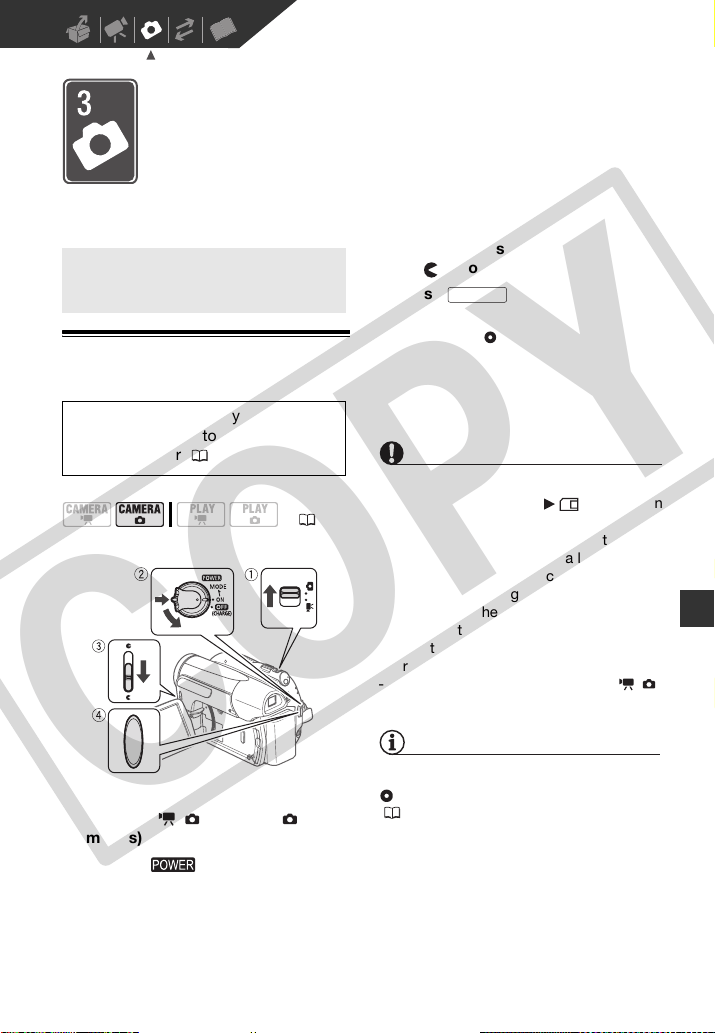
Photos • 51
Photos
Refer to this chapter for details on shooting photos – from recording
and playing back still images to printing them.
Basic Recording
Taking Photos
1 Move the / switch to (still
images).
2 Turn the switch to ON to set
the camcorder in CAMERA mode.
The green CAMERA indicator will turn
on.
3 Move the lens cover switch down
to to open the lens cover.
4 Press .
• Once the focus is automatically
adjusted, will turn green and one
or more AF frames will appear.
• The CARD access indicator will
flash as the still image is being
recorded.
IMPORTANT
Observe the following precautions while
the card access display ( ) appears on
screen, and while the CARD access
indicator is on or flashing. Failing to do so
may result in permanent data loss.
- Do not subject the camcorder to
vibrations or strong impacts.
- Do not open the memory card slot cover
and do not remove the memory card.
- Do not disconnect the power source or
turn off the camcorder.
- Do not change the position of the /
switch or the operating mode.
NOTES
If the subject is not suitable for autofocus,
turns yellow. Adjust the focus manually
(40).
Basic Recording
Before using a memory card for the
first time, be sure to initialize it with
this camcorder ( 57).
( 21)
Start/Stop
COPY
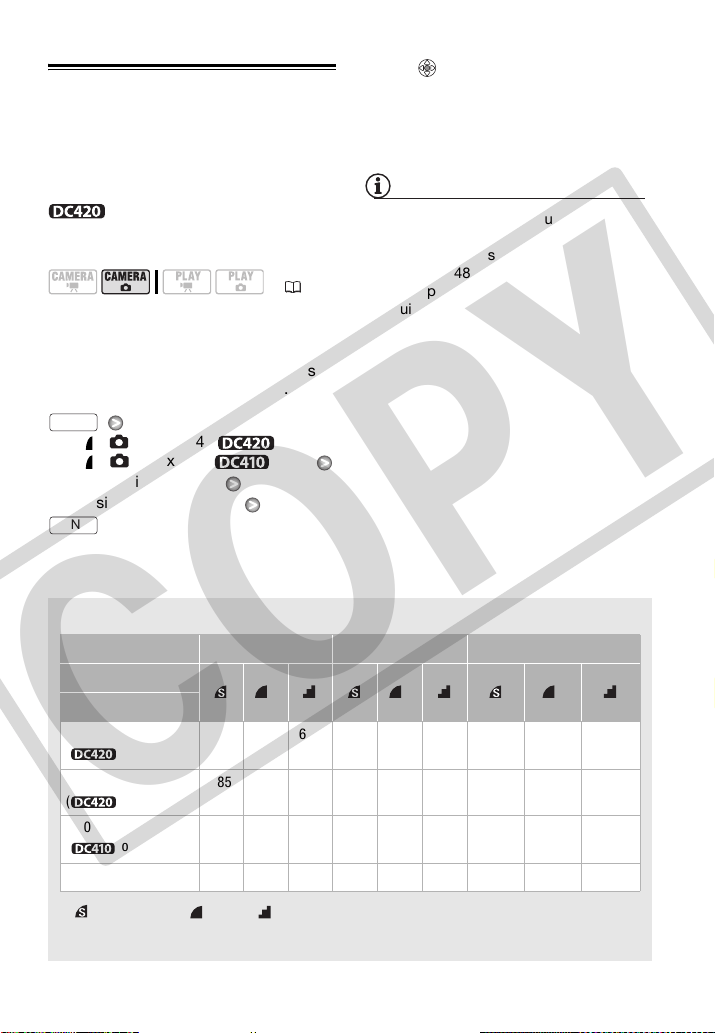
52 • Photos
Selecting Photo Size and Quality
Still images are recorded on the memory
card as JPG files. As a general rule,
select a larger image size for higher
quality.
Select the [LW 1152x648] size
for still images with an aspect ratio of
16:9.
Options
Image size options and the approximate
number of still images that can be
recorded on memory cards of various
sizes are given in the table below.
[
L
1152x864] ( only) or
[
L
1024x768] ( only)
Desired image size*
Desired image quality*
* Press to move back and forth between
size and quality selection. The number
displayed on the right corner indicates the
approximate number of images that can be
recorded with the current quality/size
setting.
NOTES
When printing still images, use the
following guidelines as a reference for
selecting the print size.
- LW 1152x648: To print photos with a
16:9 aspect ratio. (Wide photo paper is
required.)
- L 1152x864 (or 1024x768): To print
photos up to L size (9 x 13 cm,
3.5 x 1.5 in.) or postcard size
(10x14.8cm, 4x6in.)
- S 640x480: To send images as e-mail
attachments or post them on the Web.
( 21)
Approximate number of still images on a memory card
Default value
1
: [SUPER FINE], : [FINE], : [NORMAL]
2
Approximate number of still images that can actually be recorded on the memory card. (The
maximum number of remaining still images displayed on the screen is 9999.)
Memory card 128 MB 512 MB 1 GB
Image quality
1
→
Image size ↓
LW 1152x648
( only)
245 360 695 970 1,435 2,745 1,945 2,875 5,490
L 1152x864
( only)
185 280 545 735 1,115 2,155 1,470 2,235 4,315
L 1024x768
( only)
235 345 695 940 1,370 2,745 1,885 2,745 5,490
S 640x480 585 850 1,530 2,320 3,355 6,040 4,645 6,715 12,085
2
FUNC.
FUNC.
COPY
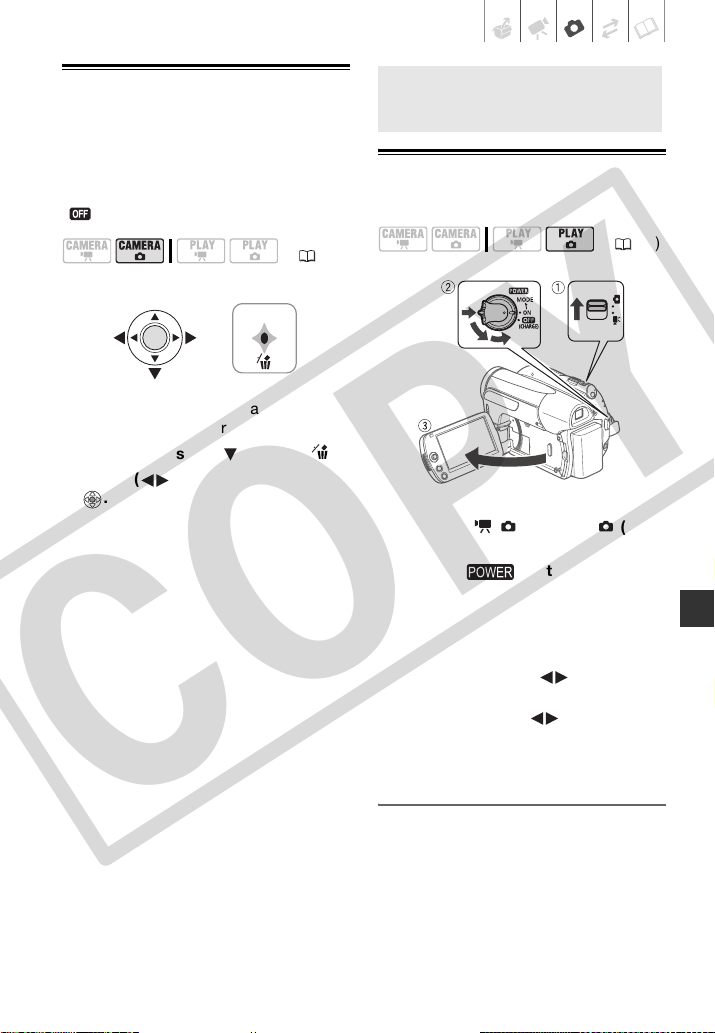
Photos • 53
Erasing a Photo Right After Recording It
You can erase the still image recorded
last while reviewing it within the time set
for the [REVIEW] option (or immediately
after recording it, if [REVIEW] is set to
[ OFF]).
While reviewing the still image
immediately after recording:
1 Push the joystick ( ) toward .
2 Select ( ) [ERASE] and press
.
Basic Playback
Viewing Photos
1 Move the / switch to (still
images).
2 Turn the switch to ON, then
turn it toward MODE and release it
to set the camcorder in PLAY
mode.
The green PLAY indicator will turn on.
3 Push the joystick ( ) to move
between still images.
Push the joystick ( ) and hold it
down to run quickly through the still
images.
Image Jump Function
When you have recorded a large number
of still images, you can jump 10 or 100
images at a time.
( 21)
Basic Playback
( 21)
COPY
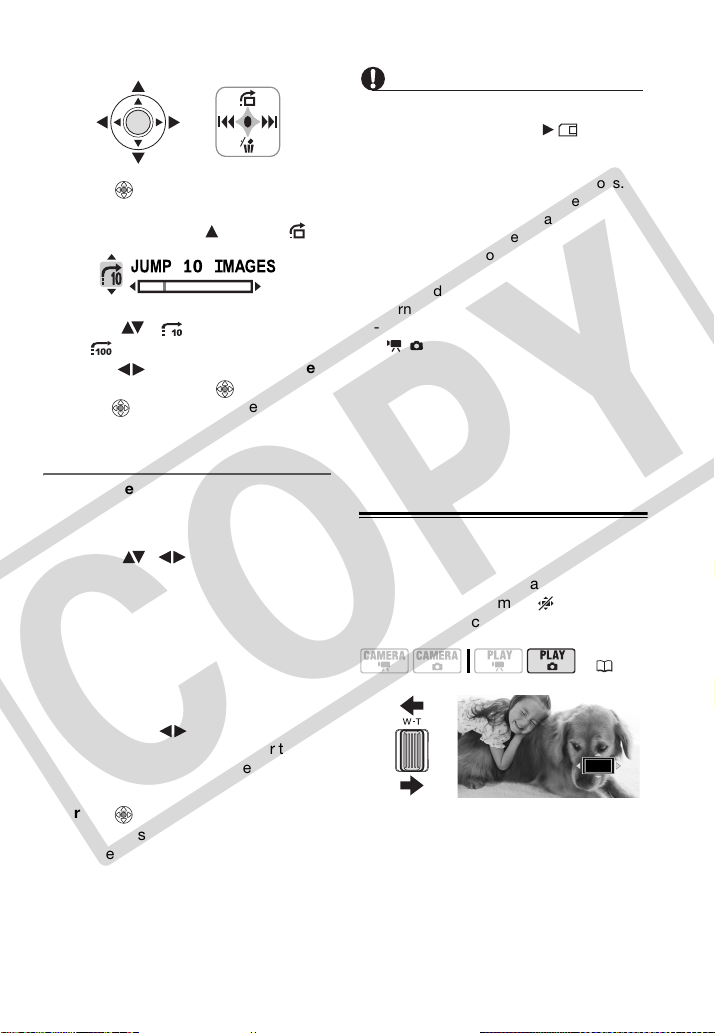
54 • Photos
1 Press to display the joystick
guide.
2 Push the joystick ( ) toward .
3 Select ( ) [ JUMP 10 IMAGES]
or [ JUMP 100 IMAGES].
4 Jump ( ) the number of images
selected and press .
Press again to hide the joystick
guide.
Index Screen
1 Move the zoom lever toward W.
The still images index screen
appears.
2 Select ( , ) an image.
• Move the green selection frame to
the image you want to view.
• When you have recorded a large
number of still images, you may
find it easier to browse entire index
pages instead. Move the zoom
lever toward W to extend the green
selection frame to the whole page,
and move ( ) between index
pages. Move the zoom lever toward
T to return to moving between
single images.
3 Press .
The index screen closes and the
selected image is displayed.
IMPORTANT
• Observe the following precautions while
the card access display ( ) appears
on screen, and while the CARD access
indicator is on or flashing. Failing to do
so may result in permanent data loss.
- Do not subject the camcorder to
vibrations or strong impacts.
- Do not open the memory card slot
cover and do not remove the memory
card.
- Do not disconnect the power source or
turn off the camcorder.
- Do not change the position of the
/ switch or the operating mode.
• The following may not be displayed
correctly.
- Images not recorded with this
camcorder.
- Images edited on a computer.
- Images whose file names have been
changed.
Magnifying Photos during Playback
During playback, still images can be
magnified up to 5 times. will appear
for images that cannot be enlarged.
1 Move the zoom lever toward T.
• The image is magnified by 2 times
and a frame appears indicating the
position of the magnified area.
(21)
COPY
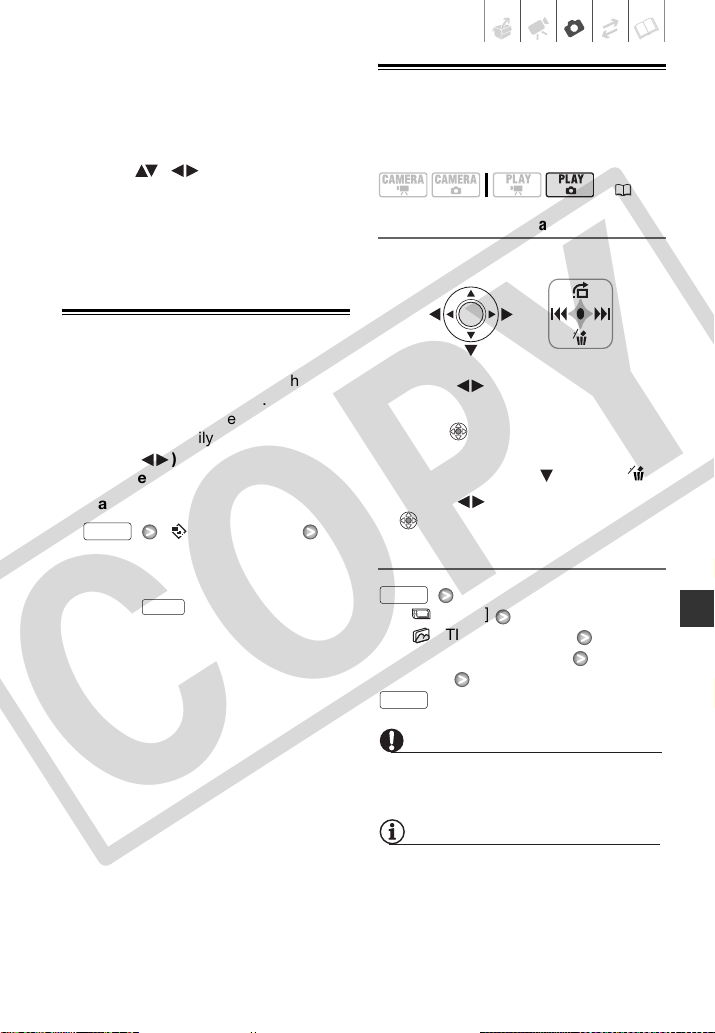
Photos • 55
• To further enlarge the image, move
the zoom lever toward T. To reduce
the magnification to less than 2
times, move the zoom lever toward
W.
2 Move ( , ) the frame to the
part of the image you want to see
enlarged.
To cancel the magnification, move
the zoom lever toward W until the
frame disappears.
Slideshow
You can play a slideshow of all the still
images on the memory card. Play the
slideshow on a TV screen to share your
memories with family and friends.
1 Select ( ) the first still image of
the slideshow.
2 Start the slideshow.
[ SLIDESHOW]
[START]
• Images are played back one after
another.
• Press to stop the slideshow.
Erasing Photos
You can erase those still images that
you are not interested in keeping.
Erasing a Single Still Image
1 Select ( ) the image you want to
erase.
2 Press to display the joystick
guide.
3 Push the joystick ( ) toward .
4 Select ( ) [ERASE] and press
.
Erasing All Still Images
[ MENU]
[ STILL IMG OPER.]
[ERASE ALL IMAGES]
[YES]
IMPORTANT
Be careful when erasing still images.
Erased images cannot be recovered.
NOTES
Protected still images cannot be erased.
FUNC.
FUNC.
( 21)
FUNC.
FUNC.
COPY
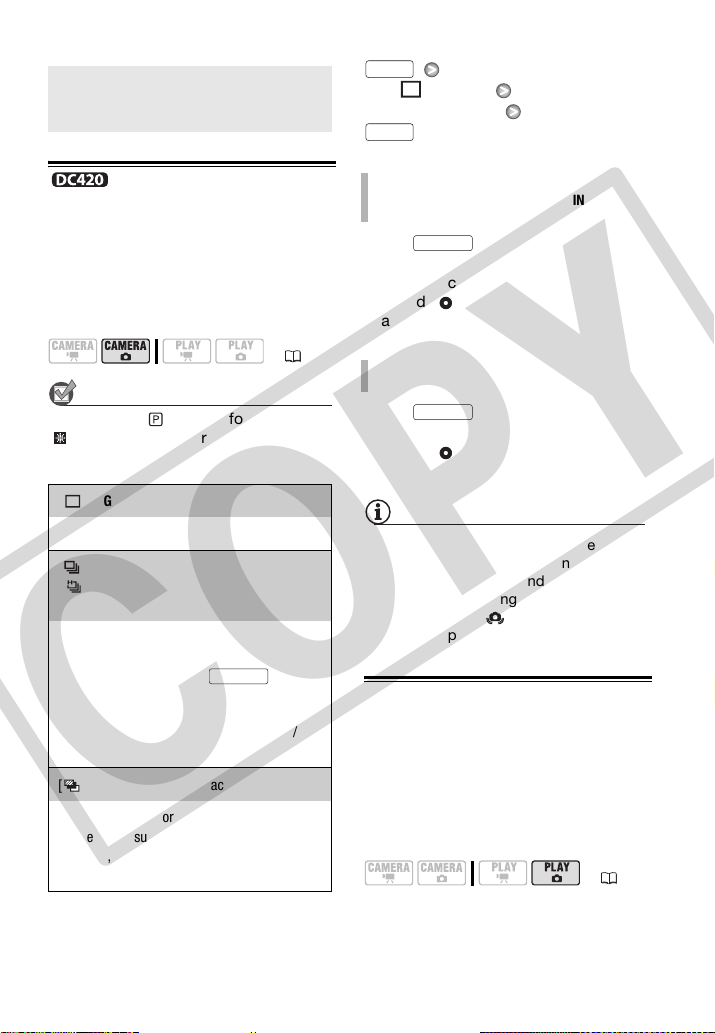
56 • Photos
Additi ona l Functi ons
Drive Mode: Continuous
Shooting and Exposure Bracketing
Take a series of pictures of a moving
subject or record the same picture in
3 levels of exposure in order to choose
later the picture you like the best.
POINTS TO CHECK
Mode switch: (except for the
[ FIREWORKS] recording program).
Options
Default value
[SINGLE]
Desired option
Press and hold it pressed
down.
Once the focus is automatically
adjusted, will turn green and the still
images will be recorded.
Press .
Once the focus is automatically
adjusted, will turn green and the still
images will be recorded.
NOTES
• Continuous shooting speeds are
approximate and vary depending on
recording conditions and subjects.
• Continuous shooting speeds will
decrease when
(camcorder shake
warning) appears on the screen.
Histogram Display
When viewing still images you can
display the histogram and the icons of
all the functions used at the time of
recording. Use the histogram as a
reference to verify the correct exposure
of the still image.
Additional Functions
( 21)
[SINGLE]
Records a single still image.
[ CONT.SHOOT.] (Continuous Shooting),
[ HISPEED CONT.SHOOT. ]
(High-Speed Continuous Shooting)
Captures a series of up to 20 still images
(image size L or LW) or 60 still images (image
size S) as long as you hold pressed
down. There are two continuous shooting
speed settings: normal (approx. 3 images/
second) and high speed (approx. 5 images/
second).
[ AEB] (Auto Exposure Bracketing)
The camcorder records 3 still images using 3
different exposures (dark, normal, light in 1/2
EV steps), allowing you to choose the still image
you like the best.
Start/Stop
CONTINUOUS SHOOTING/
H
IGH-SPEED CONTINUOUS SHOOTING
A
UTO EXPOSURE BRACKETING
( 21)
FUNC.
FUNC.
Start/Stop
Start/Stop
COPY
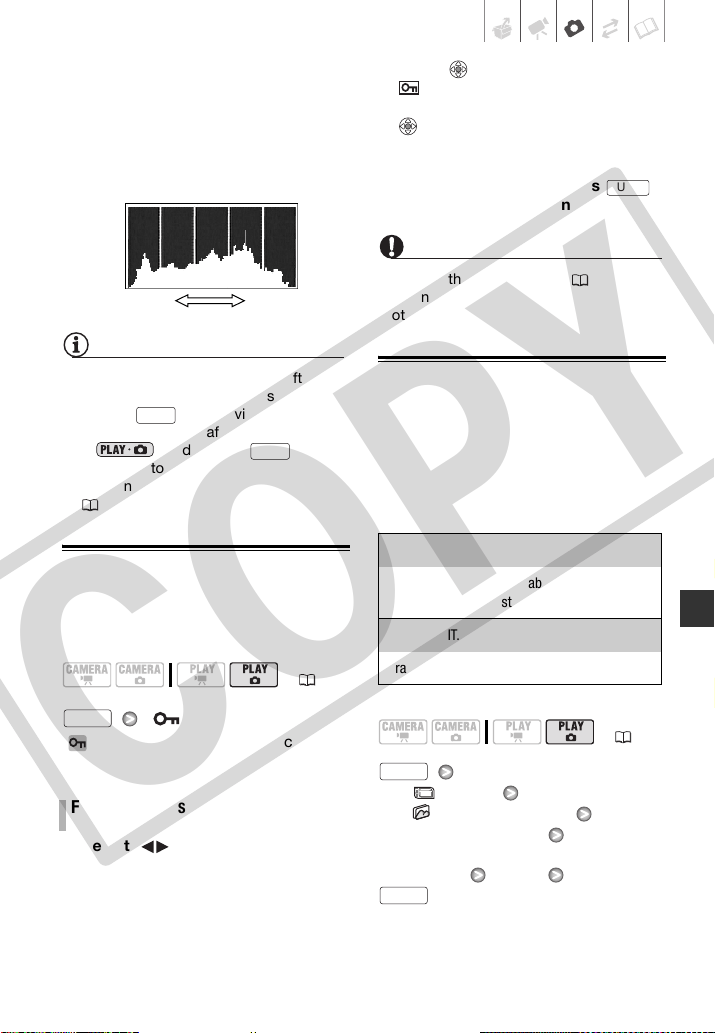
Photos • 57
The area to the right of the histogram
represents highlights and the left side
represents shadows. A still image
whose histogram skews to the right is
relatively bright; while one whose
histogram peaks to the left, is relatively
dark.
NOTES
• The histogram will appear also after
recording a still image, unless you
pressed while reviewing the still
image immediately after recording it.
• In mode, press
repeatedly to turn the histogram and
other onscreen displays on and off
(43).
Protecting Photos
You can protect still images from
accidental erasure.
[ PROTECT]
[ PROTECT]: The image selection
screen appears.
1 Select ( ) the still image you
want to protect.
2 Press to protect the still image.
appears on the bottom bar and
the image cannot be erased. Press
again to remove the image
protection.
3 Repeat steps 1-2 to protect
additional images or press
twice to close the menu.
IMPORTANT
Initializing the memory card ( 57) will
permanently erase all still images, including
protected ones.
Initializing the Memory Card
Initialize memory cards when you use
them with this camcorder for the first
time, or to erase all the still images on
them.
Options
[ MENU]
[
STILL IMG OPER.]
[INITIALIZE CARD]
Select the card initialization
method
[YES]*
( 21)
FROM THE IMAGE SELECTION SCREEN
Shadows
Pixel Count
Highlights
DISP.
DISP.
FUNC.
[INITIALIZE]
Clears the file allocation table but does not
physically erase the stored data.
[COMPL.INIT.]
Erases all data completely.
( 21)
FUNC.
FUNC.
FUNC.
COPY
58 • Photos
* Press to cancel the complete
initialization while it is in progress. All the
image files will be erased and the memory
card can be used without any problem.
IMPORTANT
Initializing the memory card will
permanently erase all still images,
including protected ones. Lost original still
images cannot be recovered.
Printing Photos
Printing Photos from the Memory Card
You can print still images recorded on
the memory card by inserting it into the
memory card slot of a printer
compatible with DPOF* (Digital Print
Order Format). You can mark in advance
the still images you want to print and set
the desired number of copies as a print
order ( 61).
* DPOF is a standard that allows you to
specify the still images and information to
be printed.
Direct Print
The camcorder can be connected to any
PictBridge-compatible printer. You can
set print orders ( 61) also when using
Direct Print. Mark the still images in
advance and print them after
connecting the camcorder directly to a
compatible printer.
Canon printers: SELPHY printers of the
CP, DS and ES series and PIXMA
printers marked with the PictBridge
logo.
Connecting the Camcorder to the Printer
1 Insert the memory card that
contains the still images you want
to print.
You can also use the following
functions...
The following functions and features
of the camcorder can be used either
for shooting video or for taking
photos. The way to set and use
them was already explained in
detail, so we refer you to the relevant
page in the “Video” section.
• Zoom ( 30)
• Quick Start ( 32)
• Special Scene recording programs
( 36)
• Flexible recording programs ( 38)
• LCD video light ( 39)
• Self timer ( 39)
• Manual exposure adjustment ( 40)
• Manual focus ( 40)
• White balance ( 41)
• Image effects ( 42)
• Digital effects ( 42)
Printing Photos
( 21)
COPY
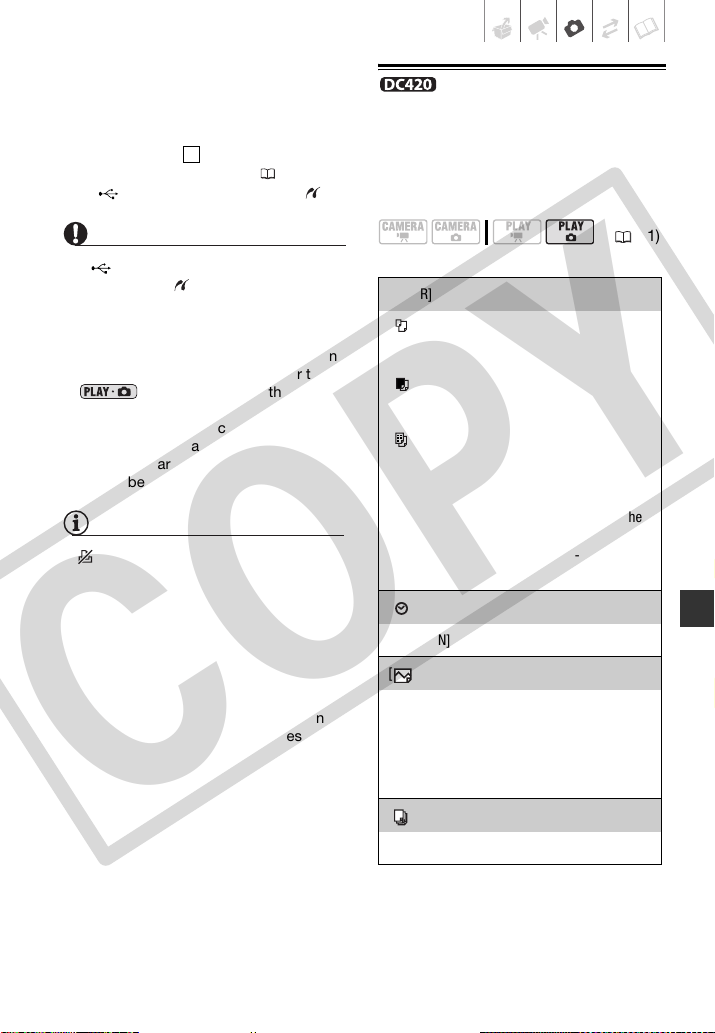
Photos • 59
2 Turn on the printer.
3 Connect the camcorder to the
printer using the supplied USB
cable.
• Connection . Refer to
Connection Diagrams ( 64).
•
appears and changes to .
IMPORTANT
• If continues to flash (for more than
1 minute) or if does not appear, the
camcorder is not correctly connected to
the printer. In such case, disconnect the
USB cable and turn off the camcorder
and the printer. After a short while, turn
them on again, set the camcorder to
mode and restore the
connection.
• If the printer is connected to the
camcorder while all still images or all
print orders are being erased, the printer
will not be recognized correctly.
NOTES
• will appear for images that cannot be
printed.
• We recommend powering the camcorder
using the compact power adapter.
• Refer also to the printer’s instruction
manual.
• Connection to a PictBridge-compatible
printer will not work when the memory
card contains 1,800 still images or more.
For best performance, we recommend
keeping the number of still images on the
memory card under 100.
Selecting the Print Settings
You can select the number of copies
and other settings for printing. The
setting options vary depending on your
printer model.
Options
2
( 21)
[PAPER]
[ PAPER SIZE]: Available paper sizes vary
depending on the printer model.
[ PAPER TYPE]: Select [PHOTO], [FAST
PHOTO], [PLAIN] or [DEFAULT].
[ PAGE LAYOUT]: Select [DEFAULT],
[BORDERED] or one of the following available
page layouts.
[BORDERLESS]: The still image is enlarged and
may be slightly cropped at the edges to fit the
paper.
[2-UP], [4-UP], [8-UP], [9-UP], [16-UP]: Refer to
the sidebar on page 60.
[] (Date print)
Select [ON], [OFF] or [DEFAULT].
[ ] (Print Effect)
Available only with printers compatible with the
Image Optimize function. Select [ON], [OFF] or
[DEFAULT].
Canon PIXMA/SELPHY DS printers: You can
also select [VIVID], [NR] and [VIVID+NR].
[ ] (Number of Copies)
Select 1-99 copies.
COPY
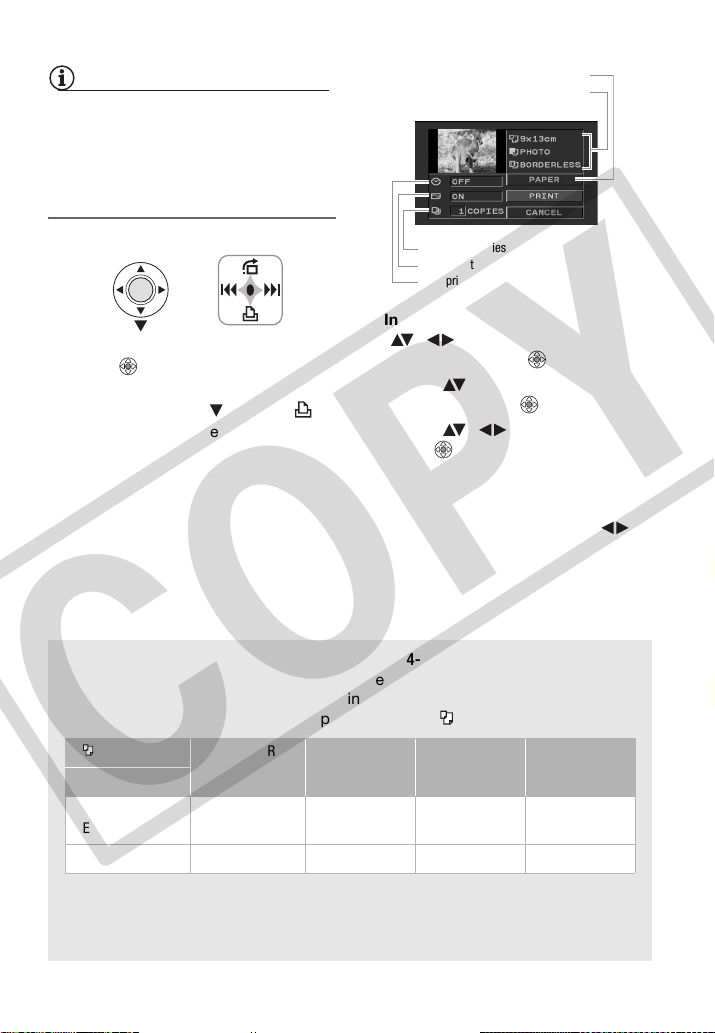
60 • Photos
NOTES
Print setting options and [DEFAULT]
settings vary depending on the printer
model. For details, refer to the printer’s
instruction manual.
Printing after Changing the Print Settings
1 Press to display the joystick
guide.
2 Push the joystick ( ) toward .
The print settings menu appears.
3 In the print settings menu, select
( , ) the setting you want to
change and press .
4 Select ( ) the desired setting
option and press .
5 Select ( , ) [PRINT] and
press .
• Printing starts. The print settings
menu disappears when the printing
is completed.
• To continue printing, select ( )
another still image.
Printing multiple images on the same sheet [2-UP], [4-UP], etc.
When using Canon printers you can print the same still image multiple times on
the same sheet of paper. Use the following table as a guideline for the
recommended number of copies depending on the [ PAPER SIZE] setting.
1
You can also use the special sticker sheets.
2
With the [8-UP] setting, you can also use the special sticker sheets.
SELPHY CP: When you use the wide-sized photo paper with the [DEFAULT] setting, you
can also use [2-UP] or [4-UP].
[ PAPER SIZE]→ [CREDITCARD] [9 x 13 cm] [10 x 14.8 cm] [A4]
Canon printer ↓
PIXMA
SELPHY DS
– – 2, 4, 9 or 16
1
4
SELPHY CP/ES 2, 4 or 8
2
2 or 4 2 or 4 –
Current paper settings (paper size, paper
type and page layout)
Date printing
Print effect
Number of copies
Paper settings
COPY
Photos • 61
1 Press while printing.
2 Select ( ) [OK] and press .
Disconnect the cable from the camcorder
and printer and turn off the camcorder.
If an error occurs while printing, an error
message (for example, [NO PAPER]) will
appear on the camcorder’s screen. Solve
the problem referring to the error message
list ( 78) and to the printer's instruction
manual.
•
Canon's PictBridge-compatible printers:
If
printing does not resume automatically
after you solved the problem, select
[CONTINUE] and press to resume
printing. If that option is not available,
select [STOP] and press and then
restart printing from the beginning.
• Other printers or if the error still persists with
a Canon printer: If printing does not
resume automatically, disconnect the
USB cable and turn off the camcorder.
After a short while, turn on the
camcorder and restore the USB
connection.
IMPORTANT
• You may not be able to print correctly
with a PictBridge-compatible printer still
images whose file names have been
changed or that were recorded, created,
edited or changed with any device other
than this camcorder.
• Observe the following precautions while
printing:
- Do not turn off the camcorder or the
printer.
- Do not change the position of the
/ switch.
- Do not disconnect the USB cable.
- Do not open the memory card slot
cover and do not remove the memory
card.
• If [BUSY] does not disappear, disconnect
the USB cable and restore the
connection after a short while.
Print Orders
You can mark in advance the still images
you want to print and set the desired
number of copies as a print order. Later,
you can easily print out the print orders
in one of the following ways:
- Insert the memory card into the memory
card slot of a DPOF-compatible printer.
Refer to printer’s instruction manual for
the correct procedure.
- Connect the camcorder
directly to a PictBridge-compatible
printer ( 58).
You can set print orders for up to 998
still images.
Selecting Still Images for Printing
(Print Order)
Set the print orders before
connecting the supplied USB cable to
the camcorder.
[ PRINT ORDER]
: The image selection screen
appears.
1 Select ( ) the still image you
want to mark with a print order.
2 Press to set the print order.
The number of copies appears in
orange.
TO CANCEL THE PRINTING
WHEN YOU HAVE FINISHED PRINTING
PRINT ERRORS
( 21)
FROM THE IMAGE SELECTION SCREEN
FUNC.
COPY
62 • Photos
3 Set ( ) the number of copies
desired and press .
To cancel the print order, set ( ) the
number of copies to 0.
4 Repeat steps 1-3 to mark
additional images with print orders
or press twice to close the
menu.
Printing the Still Images Marked
with Print Orders Using Direct Print
1 Connect the camcorder to the
printer using the supplied USB
cable.
Connection . Refer to Connection
Diagrams ( 64).
2 Open the print menu.
[ MENU]
[ PRINT]
• The print menu appears.
• If there are no photos marked with
print orders, [SET PRINT
ORDER] appears.
• Depending on the connected
printer, you may be able to change
some print settings ( 59).
3 Select ( , ) [PRINT] and
press .
Printing starts. The print menu
disappears when the printing is
completed.
NOTES
• To cancel the printing, refer to page 61.
• Restarting Printing: Open the print settings
menu as explained in step 2. In the print
settings menu, select [PRINT]* or
[RESUME] and press . The remaining
images will be printed.
Printing cannot be restarted when the
print order settings have been changed
or if you deleted a still image with print
order settings.
* In case the print order was interrupted
after the first still image.
Erasing All Print Orders
[ MENU]
[
STILL IMG OPER.]
[ERASE ALL ORD]
[YES]
FUNC.
2
FUNC.
FUNC.
FUNC.
COPY
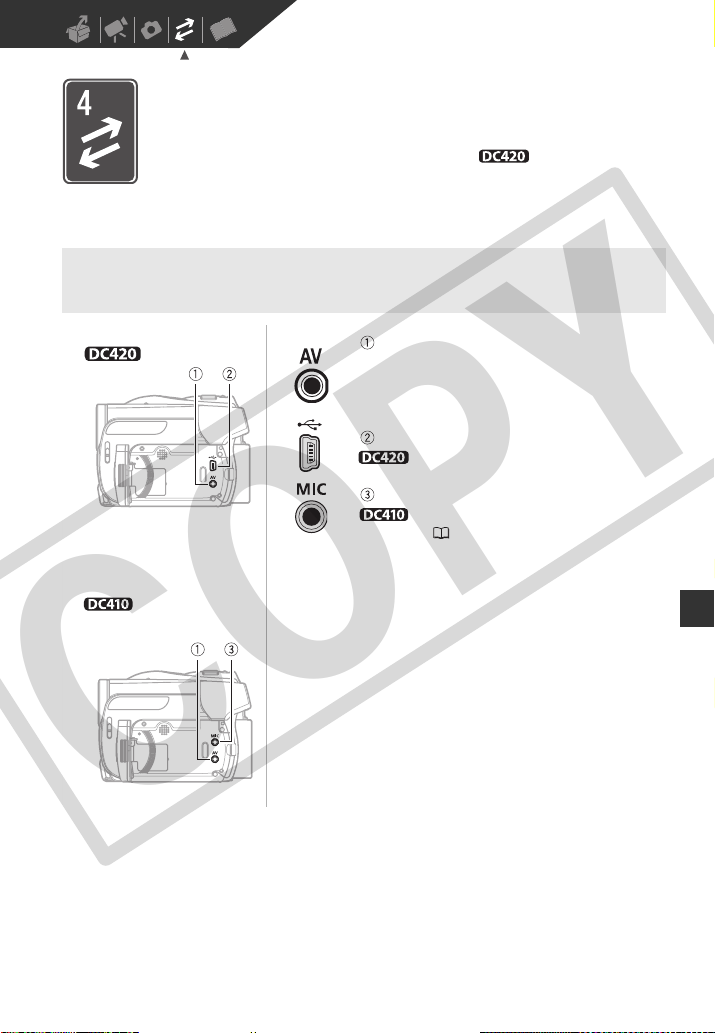
External Connections • 63
External Connections
This chapter explains how to connect your camcorder to an external
device such as a TV, VCR or (in the case of a only) a printer.
Terminals on the Camcorder
Terminals on the Camcorder
AV Terminal
Sound from the built-in speaker will be muted while
the STV-250N Stereo Video Cable is connected to the
camcorder.
USB Terminal
only.
MIC Terminal
only. Use to connect an external
microphone ( 44).
Open the LCD panel to
access.
COPY
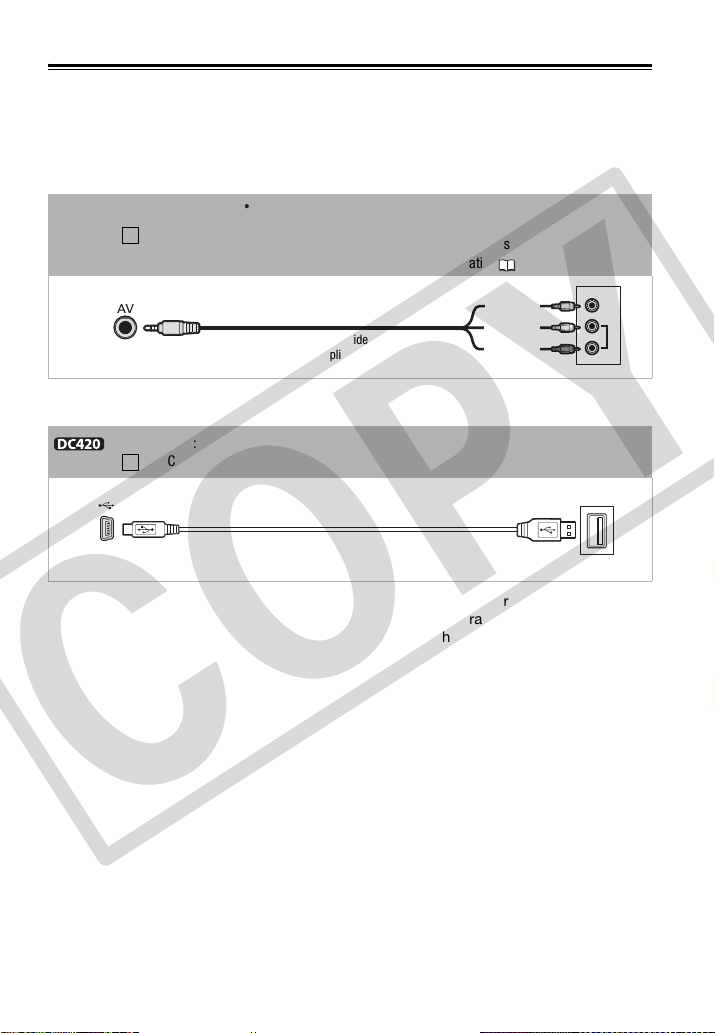
64 • External Connections
Connection Diagrams
In the following connection diagrams, the left side shows the terminals on the
camcorder and the right side shows (for reference only) an example of terminals on a
connected device.
* Users of Windows Vista, Windows XP and Mac OS X: Your camcorder is equipped with
the standard Picture Transfer Protocol (PTP) allowing you to transfer still images (JPEG
only) by connecting the camcorder to a computer using the supplied USB cable.
Connection
Type: Analog Output only
Connect to a TV or VCR with audio/video input terminals.
- Change the [TV TYPE] setting according to the TV set (widescreen or 4:3), if the TV
cannot automatically detect and change the aspect ratio ( 72).
Connection
Type: Digital data connection
Connect to a PictBridge-compatible printer to print out your still images*.
1
VIDEO
AUDIO
R
L
STV-250N Stereo Video Cable
(supplied)
Yellow
White
Red
2
USB Cable
(supplied)
COPY
External Connections • 65
Playback on a TV Screen
This section explains how to play back
the disc or still images with this
camcorder by connecting it to a TV. To
play back the disc with another DVD
device refer to Disc Playback on an
External Device ( 47).
1 Turn off the camcorder and the TV.
2 Connect the camcorder to the TV.
Connection . Refer to Connection
Diagrams ( 64).
3 Turn on the connected TV.
On the TV, select as the video input
the same terminal to which you
connected the camcorder.
4 Turn on the camcorder and start
the playback of movies ( 33) or
still images ( 53).
NOTES
• Sound from the built-in speaker will be
muted while the STV-250N Stereo Video
Cable is connected to the camcorder.
• We recommend powering the camcorder
using the compact power adapter.
• Refer also to the instruction manual of
the connected TV.
Copying your Recordings to an External
Video Recorder
You can copy your recordings by
connecting the camcorder to a VCR or a
digital video device with analog audio/
video input terminals.
Connecting
Connect the camcorder to the VCR or
digital device using connection . Refer
to Connection Diagrams ( 64).
Recording
1 External device: Load a blank
cassette or disc and set the device
to record pause mode.
2 Camcorder: Locate the scene you
wish to copy and pause playback
shortly before the scene.
3 Camcorder: Resume the movie
playback.
By default, on-screen displays will be
embedded in the output video signal.
You can change the displays by
repeatedly pressing ( 43).
4 External device: Begin recording
when the scene you wish to copy
appears. Stop recording when
copying is complete.
5 Camcorder: Stop playback.
NOTES
We recommend powering the camcorder
using the compact power adapter.
( 21)
1
( 21)
1
DISP.
COPY
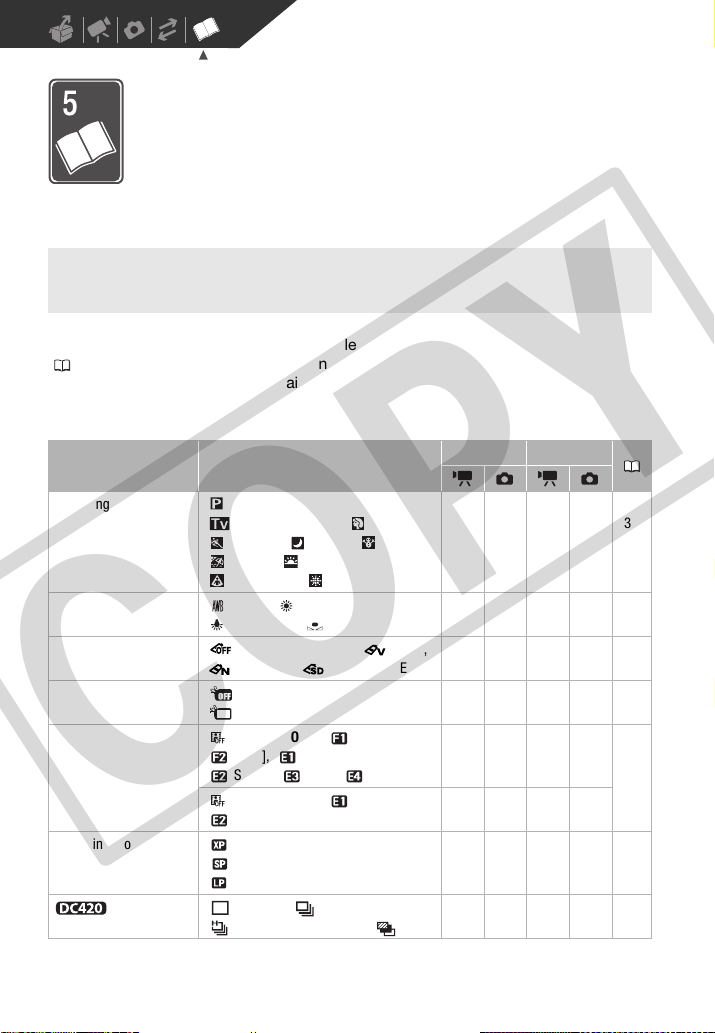
66 • Additional Information
Additional Information
This chapter contains troubleshooting advice, screen messages,
handling and maintenance tips, and other information.
Appendix: Menu Options Lists
Menu items not available appear grayed out in the FUNC. menu or in black in the
setup menus. For details about how to select an item, refer to Using the Menus
(
21). For details about each function, see the reference page. Menu options
without a reference page are explained below the tables.
FUNC. Menu
FUNC. Menu
Appendix: Menu Options Lists
Menu item Setting options
CAMERA PLAY
Recording programs
1
[ PROGRAM AE],
[ SHUTTER-PRIO.AE], [ PORTRAIT],
[ SPORTS], [ NIGHT], [ SNOW],
[ BEACH], [ SUNSET],
[ SPOTLIGHT], [ FIREWORKS]
zz ––36,
38
White balance
1
[AUTO], [ DAYLIGHT],
[ TUNGSTEN], [ SET]
zz ––41
Image effects
1
[ IMAGE EFFECT OFF], [ VIVID],
[ NEUTRAL], [ SOFT SKIN DETAIL]
zz ––42
LCD video light [ LCD LIGHT OFF],
[
LCD LIGHT ON]
zz ––39
Digital effects
1
[ D.EFFECT OFF], [ FADE-T],
[ WIPE], [ BLK&WHT],
[ SEPIA], [ ART], [
MOSAIC]
z –––42
[ D.EFFECT OFF], [ BLK&WHT],
[ SEPIA]
– z ––
Recording mode [ HIGH QUALITY 9 Mbps],
[ STANDARD PLAY 6 Mbps],
[ LONG PLAY 3 Mbps]
z –––30
Drive mode
1
[ SINGLE], [ CONT.SHOOT.],
[ HISPEED CONT.SHOOT], [ AEB]
– z ––56
COPY
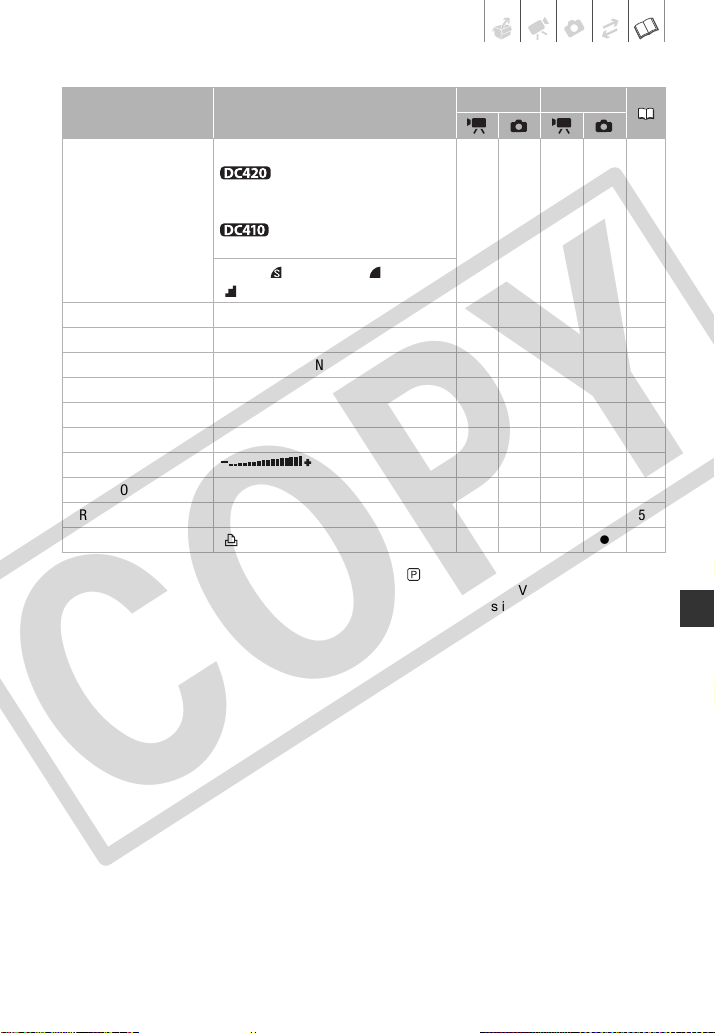
Additional Information • 67
FUNC. Menu (cont.)
1
Option available only when the mode switch is set to .
2
Option available only in the original index screen with DVD-RW discs in VR mode.
3
Option available only in the playlist index screen with DVD-RW discs in VR mode.
4
Option available only with DVD-RW discs in VR mode.
5
Option available only during playback.
Menu item Setting options
CAMERA PLAY
Still image size/quality Size:
[LW 1152x648], [L 1152x864],
[S 640x480]
[L 1024x768], [S 640x480]
– z ––52
Quality: [ SUPER FINE], [FINE],
[NORMAL]
[TO PLAYLIST]
2
–––z –45
[TO ORIGINAL]
3
–––z –45
[ADD TO PLAYLIST]
2
[ALL SCENES], [ONE SCENE], [CANCEL] – – z –45
[MOVE]
3
–––z –46
[DIVIDE]
3
–––z –46
[DELETE]
4
[NO], [YES] – – z –35
[SPEAKER VOL.]
5
––z –34
[SLIDESHOW]
[CANCEL], [START] –––z 55
[PROTECT] – – – – z 57
[PRINT ORDER] [ 0 – 99] – – – z 61
COPY
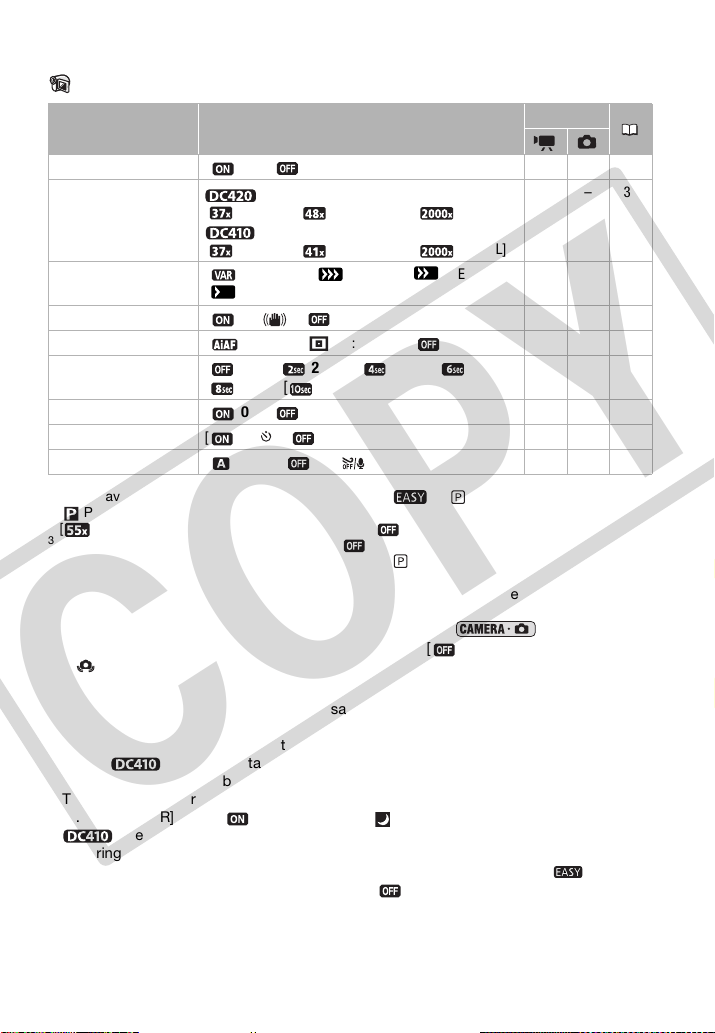
68 • Additional Information
Set up men us
Camera Setup (Advanced Zoom, Image Stabilizer, etc.)
CAMERA SETUP
1
Option available only when the mode switch is set to or (only in the
[ PROGRAM AE] recording program).
2
[ ADVANCED] when [WIDESCREEN] is set to [ OFF].
3
Not available when [WIDESCREEN] is set to [ OFF].
4
Option available only when the mode switch is set to .
[A.SL SHUTTER]: The camcorder automatically uses slow shutter speeds to obtain
brighter recordings in places with insufficient lighting.
• The camcorder uses shutter speeds down to 1/30 (1/15 in mode).
• If a trailing afterimage appears, set the slow shutter to [ OFF].
• If (camcorder shake warning) appears, we recommend stabilizing the camcorder, for
example, by mounting it on a tripod.
[IMG STAB]: The image stabilizer compensates for camcorder shake even at full
telephoto.
• The image stabilizer is designed to compensate for a normal degree of camcorder
shake. The image stabilizer may not be able to successfully eliminate all blur if
the camcorder or the subject is moving too much.
• The image stabilizer may not be effective when recording in dark places with
[A.SL SHUTTER] set to [ ON] or using the [ NIGHT] recording program.
• The image stabilizer may not work well on subjects with low contrast, with a
recurring, repetitive pattern or without vertical lines.
• The image stabilizer cannot be turned off when the mode switch is set to .
• We recommend setting the image stabilizer to [ OFF] when using a tripod.
Menu item Setting options
CAMERA
[A.SL SHUTTER]
1
[ON], [ OFF] zz –
[ZOOM TYPE]
[ OPTICAL], [ ADVANCED]
2
, [ DIGITAL]
[ OPTICAL], [ ADVANCED]
3
, [ DIGITAL]
z –30
[ZOOM SPEED] [ VARIABLE], [ SPEED 3], [ SPEED 2],
[ SPEED 1]
zz31
[IMG STAB]
4
[ON ], [ OFF] z ––
[FOCUS PRI.]
4
[ ON:AiAF], [ ON:CENTER], [ OFF] – z –
[REVIEW]
[OFF], [ 2 sec], [ 4 sec], [ 6 sec],
[8sec], [10sec]
– z –
[WIDESCREEN] [ON], [ OFF] z –30
[SELF TIMER] [ ON ], [ OFF] zz39
[WIND SCREEN]
4
[ AUTO], [ OFF ] z ––
COPY
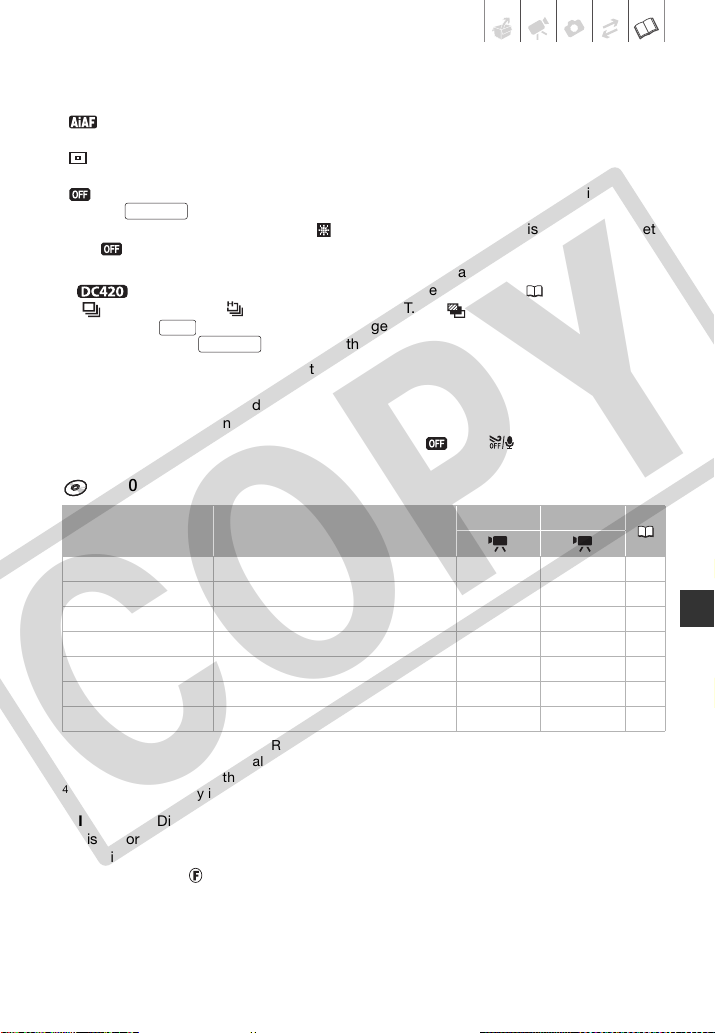
Additional Information • 69
[FOCUS PRI.]: When the focus priority is activated, the camcorder records a still image
only after the focus has been adjusted automatically. You can also select which AF frames
to use.
[ ON:AiAF]: One or more AF frames out of the nine frames available are automatically
selected and the focus is fixed on them.
[ ON:CENTER]: A single focusing frame appears in the center of the screen and the
focus is automatically fixed on it.
[ OFF]: No AF frame will appear and the still image will be recorded immediately after
pressing .
• When the recording mode is set to [ FIREWORKS], focus priority is automatically set
to [ OFF].
[REVIEW]: Selects the time to display a still image after it has been recorded.
• This menu item will not be available when the drive mode ( 56) is set to
[ CONT.SHOOT.], [ HISPEED CONT.SHOOT.] or [ AEB].
• If you press while reviewing a still image it will continue to be displayed
indefinitely. Press to return to the normal display.
[WIND SCREEN]: The camcorder automatically reduces the background sound of wind
when recording outdoors.
• Some low-frequency sounds will be suppressed along with the sound of wind. When
recording in surroundings unaffected by wind or if you want to record low-frequency
sounds, we recommend setting the wind screen to [ OFF ].
Disc Operations (Initialization, Finalization etc.)
DISC OPERATIONS
1
Option available only with DVD-RW discs.
2
Option available only with finalized DVD-RW discs in VIDEO mode.
3
Option available only in the original index screen with DVD-RW discs in VR mode.
4
Option available only in the playlist index screen with DVD-RW discs in VR mode.
[DISC INFO]: Displays a screen where you can check the disc's details.
• Disc information includes the disc title, the disc type (DVD-R, DVD-R DL or DVD-RW),
the disc specification (VIDEO mode or VR mode), and an icon to indicate whether the
disc is finalized ( ). Additionally, the total recorded time is displayed for non-finalized
discs.
• The remaining recording time of finalized discs will appear as [--min].
Menu item Setting options
CAMERA PLAY
[DISC INFO] – zz–
[INITIALIZE DISC]
1
[VIDEO], [VR], [CANCEL] zz47
[FINALIZE] [NO], [YES] – z 48
[UNFINALIZE]
2
[NO], [YES] – z 49
[DEL.ALL MOVIES]
3
[NO], [YES] – z 35
[DEL.PLAYLIST]
4
[NO], [YES] – z 45
[DISC TITLE] – – z 47
Start/Stop
DISP.
Start/Stop
COPY
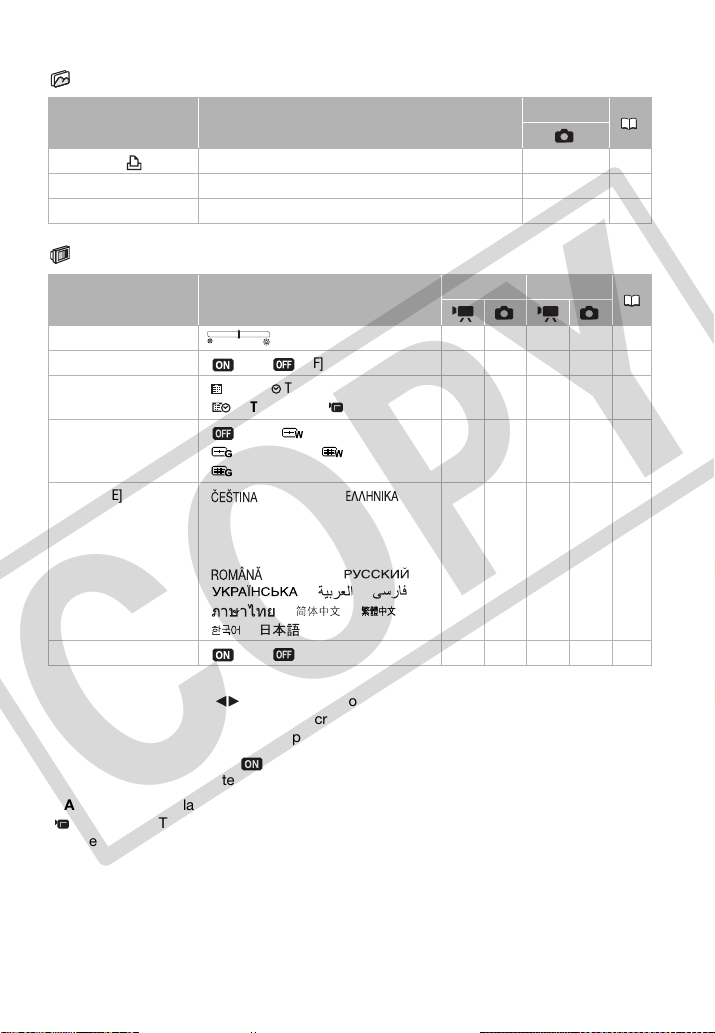
70 • Additional Information
Still Image Operations (Card Initialization, etc.)
STILL IMG OPER.
Display Setup (LCD Brightness, Language, etc.)
DISPLAY SETUP
[BRIGHTNESS]: Adjust ( ) the brightness of the LCD screen.
• Changing the brightness of the LCD screen does not affect the brightness of the
recordings or that of the playback picture on a connected TV.
[TV SCREEN]: When set to [ ON], the camcorder’s on-screen displays will appear also
on the screen of a connected TV or monitor.
[DATA CODE]: Displays the date and/or time when the scene was recorded.
[ CAMERA DATA]: Displays the aperture (f-stop) and shutter speed used when recording
the scene.
[MARKERS]: You can display a grid or a horizontal line at the center of the screen. Use the
markers as a reference to make sure your subject is framed correctly (vertically and/or
horizontally).
• Using the markers will not affect the recordings.
Menu item Setting options
PLAY
[ERASE ALL ORD] [NO], [YES] z 62
[ERASE ALL IMAGES] [NO], [YES] z 55
[INITIALIZE CARD] [INITIALIZE], [COMPL.INIT.], [CANCEL] z 57
Menu item Setting options
CAMERA PLAY
[BRIGHTNESS] zzzz–
[TV SCREEN] [ON], [ OFF] zz –––
[DATA CODE] [ DATE], [ TIME],
[DATE & TIME], [ CAMERA DATA]
––z ––
[MARKERS] [ OFF], [ LEVEL(WHT)],
[ LEVEL(GRY)], [ GRID(WHT)],
[ GRID(GRY)]
zz –––
[LANGUAGE] [ ], [DEUTSCH], [ ],
[ENGLISH], [ESPAÑOL], [FRANÇAIS],
[ITALIANO], [MAGYAR], [MELAYU],
[NEDERLANDS], [POLSKI], [PORTUGUÊS],
[ ], [TÜRKÇE], [ ],
[ ], [ ], [ ],
[ ], [ ], [ ],
[], [ ]
zzzz23
[DEMO MODE] [ON], [ OFF] zz –––
COPY
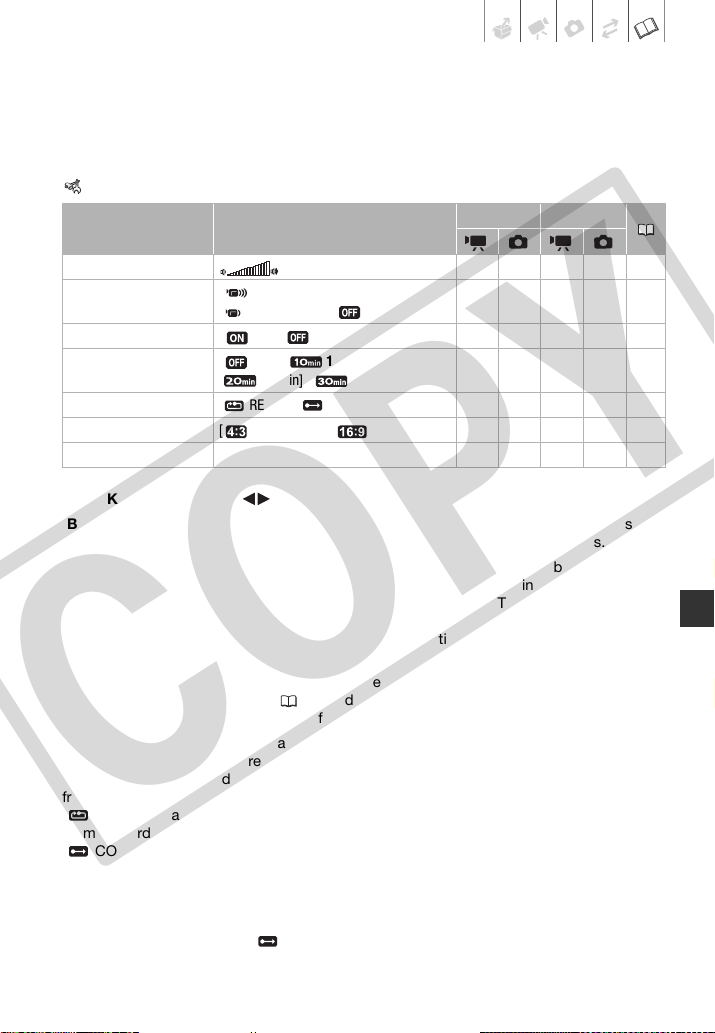
Additional Information • 71
[DEMO MODE]: The demonstration mode displays the camcorder’s main features. It starts
automatically when the camcorder is powered with the compact power adapter if you
leave it turned on without loading a disc or memory card for more than 5 minutes.
• To cancel the demo mode once it started, press any button, turn off the camcorder or
load a disc.
System Setup (Volume, Beep, etc.)
SYSTEM SETUP
[SPEAKER VOL.]: Adjust ( ) the volume of the playback.
[BEEP]: A beep will accompany some operations like turning on the camcorder, the self-
timer countdown, etc. It also serves as a warning beep under unusual conditions.
[POWER SAVE]: In order to save power when the camcorder is powered by a battery
pack, it will automatically shut off if left without any operation for 5 minutes.
• Approximately 30 seconds before the camcorder shuts off, [AUTO POWER OFF] will
appear.
• In standby mode, the camcorder will shut off after the time selected for the [QUICK
START] setting.
[QUICK START]: Select whether to activate the Quick Start function when you close the
LCD panel in a recording mode ( 32) and the length of time after which the camcorder
will end the standby mode and shut off automatically.
[IMG NUMBERS]: Select the image numbering method to be used when you insert a new
memory card. Still images are automatically assigned consecutive image numbers from
0101 to 9900, and stored in folders containing up to 100 images. Folders are numbered
from 101 to 998.
[ RESET]: Image numbers will restart from 101-0101 every time you insert a new
memory card.
[ CONTINUOUS]: Image numbers will continue from the number following that of the
last image recorded with the camcorder.
• If the memory card you insert already contains an image with a larger number, a new
image will be assigned a number, one higher than that of the last image on the memory
card.
• We recommend using the [ CONTINUOUS] setting.
Menu item Setting options
CAMERA PLAY
[SPEAKER VOL.] – – z ––
[BEEP] [HIGH VOLUME],
[ LOW VOLUME], [ OFF]
zzzz–
[POWER SAVE] [ON], [ OFF] zzzz–
[QUICK START] [ OFF], [ 10 min],
[ 20 min], [ 30 min]
zz –––
[IMG NUMBERS] [ RESET], [ CONTINUOUS] – z –––
[TV TYPE] [ NORMAL TV], [ WIDE TV] zzzz–
[FIRMWARE] – – – – z –
COPY
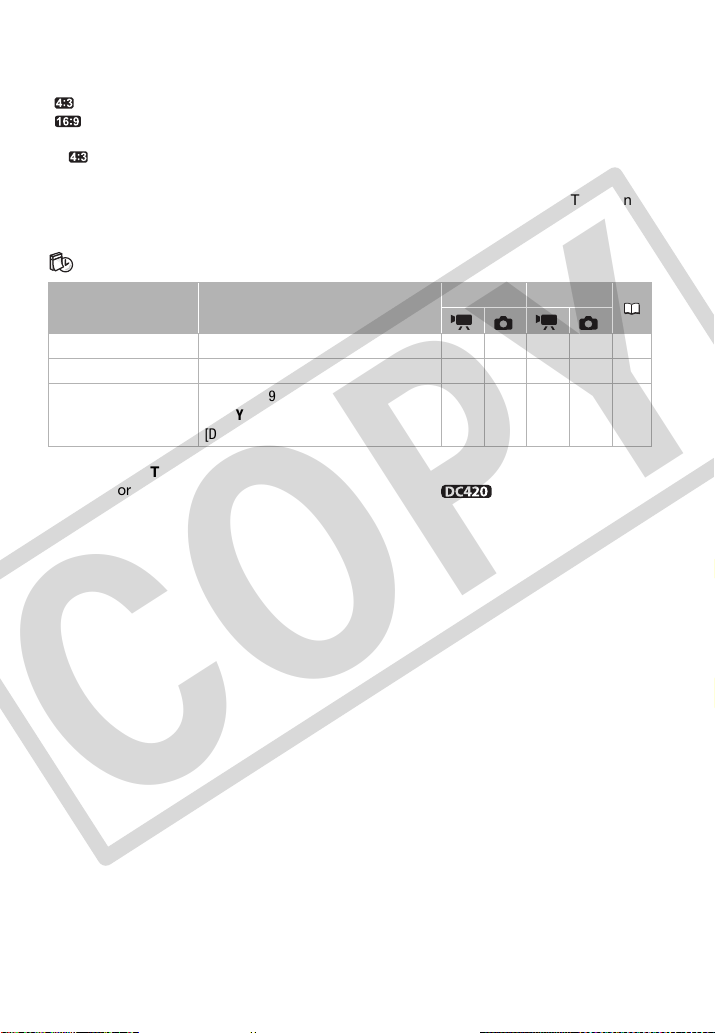
72 • Additional Information
[TV TYPE]: In order to display the picture in full and in the correct aspect ratio, select the
setting according to the type of television to which you will connect the camcorder.
[ NORMAL TV]: TV sets with 4:3 aspect ratio.
[ WIDE TV]: TV sets with 16:9 aspect ratio.
• If the camcorder is connected to a widescreen TV with the TV type set to
[ NORMAL TV], during the playback of video originally recorded with an aspect ratio
of 16:9, the picture will not be displayed full screen.
[FIRMWARE]: You can verify the current version of the camcorder’s firmware. This menu
option is usually unavailable.
Date/T ime Setup
DATE/TIME SETUP
[DATE FORMAT]: Changes the date format for on-screen displays and, if this option is
selected, for the date printed on photos using Direct Print ( only).
Menu item Setting options
CAMERA PLAY
[T.ZONE/DST] List of world time zones. zzzz24
[DATE/TIME] – zzzz23
[DATE FORMAT] [Y.M.D (2009.1.1 AM 12:00)],
[M.D,Y (JAN. 1, 2009 12:00 AM)],
[D.M.Y (1.JAN.2009 12:00 AM)]
zzzz–
COPY
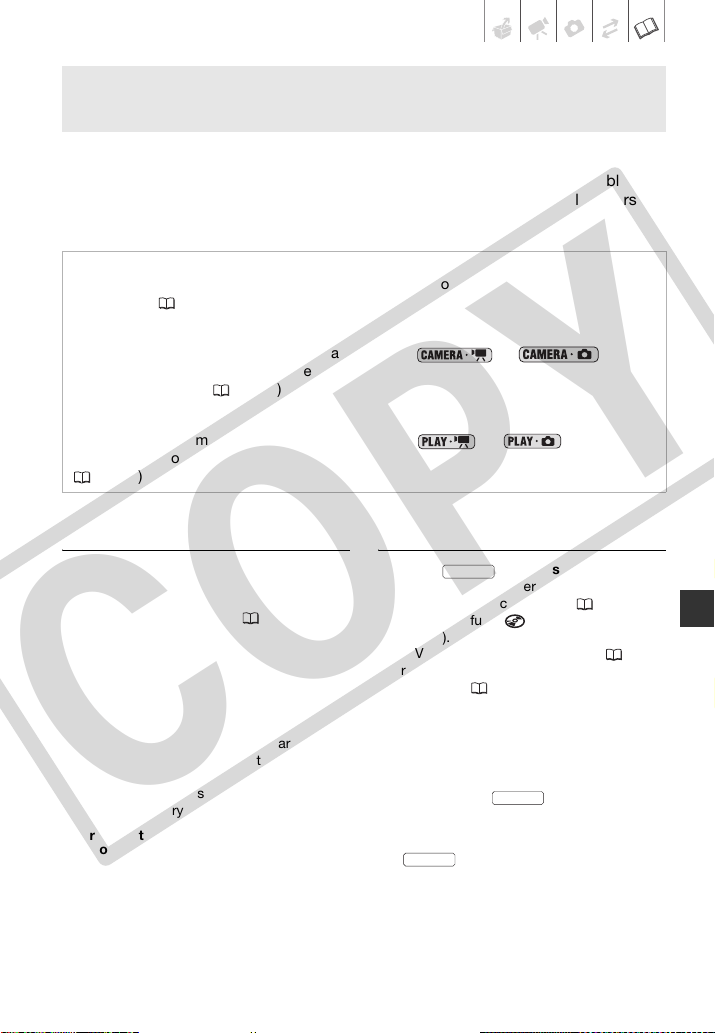
Additional Information • 73
Trou b le?
If you have a problem with your camcorder, refer to this section. Sometimes what you
think is a malfunction of the camcorder may have the simplest of solutions - please
read the “CHECK THIS FIRST” box before going on to the more detailed problems
and solutions. Consult your dealer or a Canon Service Center if the problem persists.
CHECK THIS FIRST
Power Source
The camcorder will not turn on or it turns
off by itself.
- The battery pack is exhausted. Replace or
charge the battery pack ( 18).
- Remove the battery pack and reattach it
correctly.
Cannot charge the battery pack.
- Charge the battery pack in temperatures
between 0 °C and 40 °C (32 °F and
104 °F).
- The battery pack is too hot. Charging will
start once the battery pack temperature is
below 40 °C (104 °F).
- The battery pack is damaged. Use a
different battery pack.
After using the camcorder for a long time,
it becomes hot.
- This is not a malfunction. Turn off the
camcorder and let it cool down before
resuming use.
Recording
Pressing will not start recording.
- Use a disc whose performance has been
tested with this camcorder ( 7).
- The disc is full (“ END” appears on the
screen). Delete some recordings (DVD-RW
in VR mode) to free some space ( 35) or
replace the disc.
- Unfinalize ( 49) the disc (DVD-RW in
VIDEO mode).
- The camcorder has exceeded its
operational temperature. Turn off the
camcorder and let it cool down before
resuming use.
The point where was pressed
does not match the beginning/end of the
recording.
- There is a slight interval between pressing
and the actual start of recording.
This is not a malfunction.
Troubleshooting
Power supply
Is the battery charged? Is the compact power adapter correctly connected to the
camcorder? ( 18)
Recording
Did you turn the camcorder on and set and set it to or mode?
Is the CAMERA indicator lit up in green? Was the disc or memory card correctly inserted
into the camcorder? ( 25, 27)
Playback
Did you turn the camcorder on and set and set it to or mode? Is the
PLAY indicator on? Was the disc or memory card correctly inserted into the camcorder?
( 25, 27) Does it contain any recordings?
Start/Stop
Start/Stop
Start/Stop
COPY
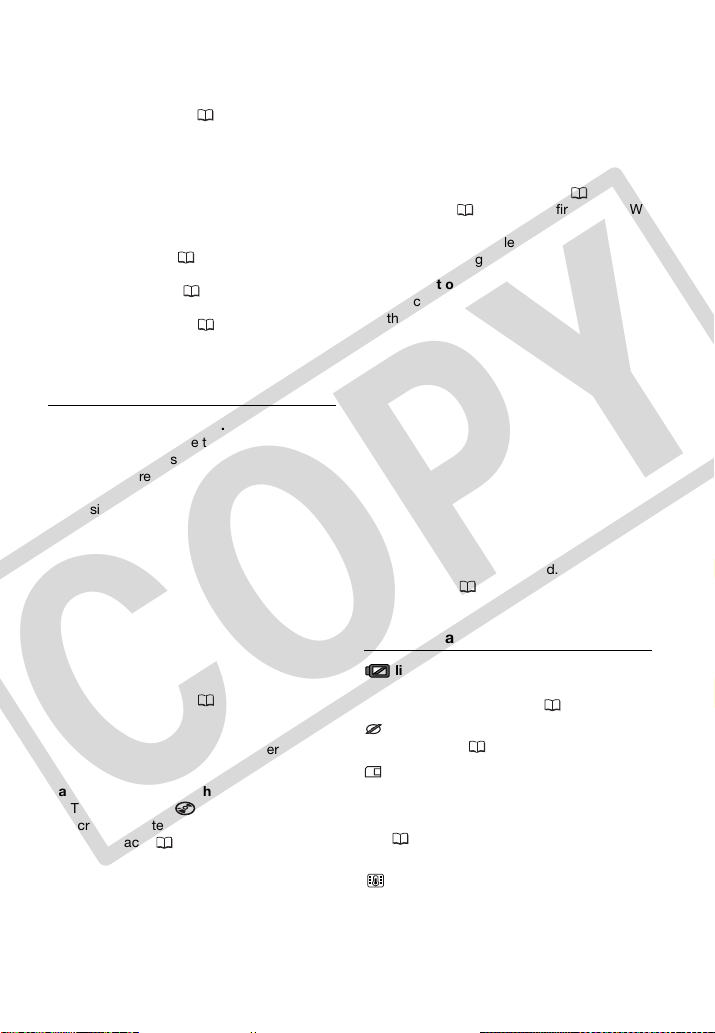
74 • Additional Information
The recording suddenly stops shortly after
starting recording.
- The disc is dirty. Clean the disc with a soft
lens-cleaning cloth ( 81). If the problem
persists replace the disc.
- The camcorder has exceeded its
operational temperature. Turn off the
camcorder and let it cool down before
resuming use.
The camcorder will not focus.
- Autofocus does not work on the subject.
Focus manually ( 40).
- Adjust the viewfinder with the dioptric
adjustment lever ( 29).
- The lens is dirty. Clean the lens with a soft
lens-cleaning cloth ( 83). Never use
tissue paper to clean the lens.
Playback
Cannot play back the disc.
- You may not be able to play with this
camcorder, discs recorded or edited with
other DVD recorders or computer DVD
drives.
- If using a single-sided disc, check that the
disc is inserted with the label side facing
up.
- The camcorder has exceeded its
operational temperature. Turn off the
camcorder and let it cool down before
resuming use.
• During playback there is video noise and
the sound is distorted.
• The disc cannot be recognized.
- The disc is dirty. Clean the disc with a soft
lens-cleaning cloth ( 81).
- You may not be able to play with this
camcorder, discs recorded or edited with
other DVD recorders or computer DVD
drives.
Cannot add scenes to the playlist.
- The disc is full (“ END” appears on the
screen). Delete some recordings to free
some space ( 35).
- The playlist can contain a maximum of 999
scenes.
Cannot divide the scene.
- You cannot edit or delete scenes on a disc
that was recorded using another digital
device.
- You cannot divide the scene if there are
already 999 scenes on the disc.
- You cannot divide original scenes.
- You cannot divide the scene if it is too
short (2 seconds or less).
Cannot edit the disc title.
- You cannot add a title to a DVD-R/DVD-R
DL disc after it was finalized ( 48).
- Unfinalize ( 49) the disc first (DVD-RW
in VIDEO mode).
- You may not be able to edit the title if you
entered it using another digital device.
Cannot edit or delete scenes.
- You cannot edit or delete scenes on a disc
that was protected using another digital
device.
- Scenes cannot be deleted in a DVD-R/
DVD-R DL disc or a DVD-RW disc
recorded in VIDEO mode.
Cannot finalize the disc.
- The camcorder has exceeded its
operational temperature. Turn off the
camcorder and let it cool down before
resuming use.
- Power the camcorder using the compact
power adapter or use a fully charged
battery pack.
Cannot delete a still image.
- The still image is protected. Remove the
protection ( 57).
Indicators and Onscreen Displays
lights up in red.
- Battery pack is exhausted. Replace or
charge the battery pack ( 18).
appears on the screen.
- Load a disc ( 25).
lights up in red.
- A memory card error occurred. Turn off the
camcorder. Remove and reinsert the
memory card. Initialize the memory card
( 57) if the display does not change
back to normal.
lights up in red.
- The camcorder has exceeded its
operational temperature. This is not a
malfunction. Turn off the camcorder and
let it cool down before resuming use.
COPY
Additional Information • 75
Even after stopping recording, the DISC
access indicator does not go out.
- The scene is being recorded on the disc.
This is not a malfunction.
The CHARGE indicator flashes rapidly.
-
(one flash at 0.5-second intervals)
Charging has stopped because the
compact power adapter or the battery
pack is faulty. Consult a Canon Service
Center.
The CHARGE indicator flashes very slowly.
-
(one flash at 2-second intervals)
The battery pack is too hot. Charging will
start once the battery pack temperature is
below 40 °C (104 °F).
- Charge the battery pack in temperatures
between 0 °C and 40 °C (32 °F and
104 °F).
- The battery pack is damaged. Use a
different battery pack.
Picture and Sound
Screen displays turn on and off repeatedly.
- The battery pack is exhausted. Replace or
charge the battery pack ( 18).
- Remove the battery pack and reattach it
correctly.
Abnormal characters appear on the screen
and the camcorder does not operate
properly.
- Disconnect the power source and
reconnect it after a short time. If the
problem still persists, disconnect the
power source and press the RESET button
with a pointed item. Pressing the RESET
button resets all settings.
Video noise appears on screen.
- Keep a distance between the camcorder
and devices that emit strong
electromagnetic fields (plasma TVs,
cellular phones, etc.).
A vertical light bar appears on the screen.
- Bright light in a dark scene may cause a
vertical light bar (smear) to appear. This is
not a malfunction.
No picture appears on the viewfinder.
- Press to activate the
viewfinder ( 29).
Viewfinder picture is blurred.
- Adjust the viewfinder with the dioptric
adjustment lever ( 29).
Sound is distorted or is recorded at lower
levels.
- When recording near loud sounds (such as
fireworks, shows or concerts), sound may
become distorted or it may not be
recorded at the actual levels. This is not a
malfunction.
Even without a disc loaded, when closing
the disc compartment cover a motor sound
can be heard.
- The camcorder is checking if a disc is
loaded or not. This is not a malfunction.
• The disc's rotation can be heard faintly.
• Occasionally, the camcorder's operation
sound can be heard.
- The disc is activated from time to time.
This is not a malfunction.
The picture is displayed correctly but there
is no sound from the built-in speaker.
- Open the LCD panel.
- Speaker volume is turned off. Adjust the
volume ( 34).
- If the STV-250N Stereo Video Cable is
connected to the camcorder, disconnect
it.
The camcorder vibrates.
- The camcorder may vibrate occasionally.
This is not a malfunction.
Memory Card and Accessories
Cannot open the disc cover to remove the
disc.
- Turn off the camcorder, disconnect the
compact power adapter and remove the
battery pack. Restore the power supply
and try again.
- The camcorder has exceeded its
operational temperature. Turn off the
camcorder and let it cool down before
resuming use.
VIEWFINDER
COPY
76 • Additional Information
The disc cannot be recognized.
- The disc is dirty. Clean the disc with a soft
lens-cleaning cloth ( 81). If the problem
persists replace the disc.
- The disc is not correctly loaded. Check the
disc ( 25).
- Verify that the camcorder supports the
type of DVD disc you inserted ( 5).
Cannot insert the memory card.
- The memory card was not facing the
correct direction. Turn the memory card
over and insert it ( 27).
Cannot record on the memory card.
- The memory card is full. Erase some still
images ( 55) to free some space or
replace the memory card.
- Initialize the memory card ( 57) when
you use it with the camcorder for the first
time.
- The LOCK switch on an SD or SDHC
memory card is set to prevent accidental
erasure. Change the position of the LOCK
switch ( 82).
- The folder and file numbers have reached
their maximum value. Set [IMG
NUMBERS] to [RESET] ( 71) and insert
a new memory card.
Connections/Playback with External
Devices
There is a brief stop between scenes.
- Depending on the DVD player, there might
be a very short stop between scenes
during playback.
The disc cannot be recognized by the
device. Or, even though the disc is read,
cannot play back the disc or the picture is
distorted.
- Finalize the disc using the camcorder
( 48).
- The disc is dirty. Clean the disc with a soft
lens-cleaning cloth ( 81).
- DVD-RW discs in VR mode can only be
played back with VR mode-compatible
DVD players. Refer to the instruction
manual of your DVD device.
Cannot edit my recordings or add
recordings to the disc with the DVD device.
- It may not be possible to edit or add
recordings with an external DVD recorder
on a disc recorded using this camcorder.
Video noise appears on the TV screen.
- When using the camcorder in a room
where a TV is located, keep a distance
between the compact power adapter and
the power or antenna cables of the TV.
The disc is running but there is no image on
the TV screen.
- The video input on the TV is not set to the
video terminal to which you connected the
camcorder. Select the correct video input.
- You attempted to play back an
incompatible disc. Stop playback.
The computer doesn't recognize
the camcorder even though the camcorder
is connected correctly.
- Disconnect the USB cable and turn off the
camcorder. After a short while, turn it on
again and restore the connection.
- Connect the camcorder to a different USB
port on the computer.
The printer is not working even
though the camcorder and printer are
connected correctly.
- Disconnect the USB cable and turn off the
printer. After a short while turn it on again
and restore the connection.
List of Messages
List of Messages (in alphabetical order)
CANNOT ENTER THE STANDBY MODE
NOW
- The camcorder cannot enter standby
mode ( 32) while the disc is being
recognized after it was inserted or if the
remaining battery charge is too low.
CANNOT PLAY BACK
- The disc is dirty or scratched, or you
attempted to play back a disc type not
supported by this camcorder (not DVD-R/
RW).
COPY
Additional Information • 77
- This message can also appear if
condensation has formed. Wait until the
camcorder dries completely before
resuming use ( 84).
CANNOT READ THE DISC CHECK THE
DISC
- Disc could not be recognized. Try cleaning
it ( 81) or replace the disc.
- This message can also appear if the
camcorder has exceeded its operational
temperature. Turn off the camcorder and
let it cool down before resuming use.
- This message can also appear if
condensation has formed. Wait until the
camcorder dries completely before
resuming use ( 84).
- The disc may not be loaded correctly. Try
removing the disc and reinserting it
(25).
CANNOT RECORD
- There is a problem with the disc.
- This message can also appear if
condensation has formed. Wait until the
camcorder dries completely before
resuming use ( 84).
- The disc’s recording surface may be dirty
or scratched.
- This message may appear when the
camcorder is repeatedly subjected to
vibrations.
CANNOT USE DISC USE OF A
RECOMMENDED DISC IS ADVISED
- The disc cannot be used. We recommend
that you use a disc whose performance
has been tested with this camcorder
(7).
CARD ERROR
- A memory card error occurred. The
camcorder cannot record or display the
image. The error may be temporary. If the
message disappears after 4 seconds and
appears in red, turn the camcorder off,
remove the card and reinsert the card. If
changes to green, you can resume
recording/playback.
CARD FULL
- The memory card is full. Erase some still
images ( 55) to free some space or
replace the memory card.
CHANGE THE BATTERY PACK
- The battery pack is exhausted. Replace or
charge the battery pack ( 18).
DISC ACCESS FAILURE CHECK THE DISC
- There was an error when reading the disc
or attempting to write onto it. Try cleaning
the disc ( 81) or replace it.
- This message can also appear if
condensation has formed. Wait until the
camcorder dries completely before
resuming use ( 84).
- The disc may not be loaded correctly. Try
removing the disc and reinserting it
(25).
DISC COVER IS OPEN
- Verify the disc is correctly inserted and
close the disc cover ( 25).
DISC FULL
- The disc is full (“ END” appears on the
screen). Delete some recordings (DVD-RW
in VR mode) to free some space ( 35) or
replace the disc.
DISC IS FINALIZED CANNOT RECORD
- You cannot record additional scenes on a
finalized DVD-R/DVD-R DL disc.
- You cannot record additional scenes or
unfinalize a DVD-RW disc in VIDEO mode
that was finalized using another digital
device.
DISC MUST BE FINALIZED ( MODE) TO
PLAY BACK IN COMPATIBLE PLAYERS
- Be sure to finalize the disc and check the
compatibility of the device before playing
back the disc on external DVD devices
( 48).
LOADING THE DISC
- The disc is being recognized. Wait before
you start recording.
NAMING ERROR
- The folder and file numbers have reached
their maximum value. Set
[IMG NUMBERS] to [RESET] and erase all
the images on the memory card ( 55)
or initialize it ( 57).
NO CARD
- There is no memory card in the camcorder
( 27).
COPY
78 • Additional Information
NO DISC
- There is no disc in the camcorder. Insert a
disc ( 25).
- This message can also appear if
condensation has formed. Wait until the
camcorder dries completely before
resuming use ( 84).
NO IMAGES
There are no still images on the memory card.
PRINT ORDER ERROR
- You attempted to set more than 998 still
images in the print order ( 61).
REACHED THE MAXIMUM NUMBER OF
SCENES
- The maximum number of scenes has been
reached. Delete some recordings
(DVD-RW in VR mode) to free some space
( 35) or replace the disc.
RECOVERING DATA PLEASE WAIT…
- Data on the disc is being recovered. Wait
until this message disappears before
resuming use.
TASK IN PROGRESS DO NOT
DISCONNECT THE POWER SOURCE
- The camcorder is updating important file
allocation data on the disc. Do not
disconnect the compact power adapter or
remove the battery pack under any
circumstances.
• TEMPERATURE TOO HIGH CANNOT
RECORD
• TEMPERATURE TOO HIGH CANNOT
REMOVE DISC
- The camcorder has exceeded its
operational temperature. Disconnect the
compact power adapter and remove the
battery pack. Let the camcorder cool
down before resuming use.
TOO MANY STILL IMAGES
DISCONNECT USB CABLE
- Disconnect the USB cable. Try using a
memory card reader or decrease the
number of still images on the memory card
(Windows: fewer than 1,800 still images,
Macintosh: fewer than 1,000 still images).
If a dialog box appeared on the computer
screen, close it and then reconnect the
supplied USB cable.
UNABLE TO RECOGNIZE THE DATA
- The disc may not be recognized by this
camcorder if it was initialized with a
different device.
- You inserted a disc recorded in a different
television system (PAL or SECAM).
UNABLE TO RECOVER DATA
- Could not recover a corrupted file.
- This message can also appear if
condensation has formed. If you suspect
condensation is the reason, do not
initialize the disc and wait until the
camcorder dries completely before
resuming use ( 84).
UNFINALIZE THE DISC
- You cannot record additional scenes on a
finalized DVD-RW in VIDEO mode.
Unfinalize the disc first ( 49).
USE OF A RECOMMENDED DISC IS
ADVISED
- The disc can be used but performance is
not guaranteed. We recommend that you
use a disc whose performance has been
tested with this camcorder ( 7).
Direct Print Related Messages
About Canon PIXMA/ SELPHY DS
Printers: If the printer’s error indicator
flashes or an error message appears on
the printer’s operation panel, refer to the
printer’s instruction manual.
CANNOT PRINT!
- You attempted to print a still image that
was recorded with another camcorder, has
a different compression, or was edited on
a computer.
COMMUNICATION ERROR
- The printer is experiencing a data transfer
error. Cancel printing. Disconnect the USB
cable and turn off the printer. After a
while, turn the printer back on and
reconnect the supplied USB cable.
COPY
Additional Information • 79
- You attempted to print from a memory
card that contains a large number of still
images. Reduce the number of still
images.
COULD NOT PRINT X IMAGES
- You attempted to use the print order
settings to print X images that were
recorded with another camcorder, with a
different compression or were edited on a
computer.
FILE ERROR
- You attempted to print an image that was
recorded with another camcorder, has a
different compression, or was edited on a
computer.
HARDWARE ERROR
- Cancel printing. Turn off the printer and
turn it back on. Check the printer status. If
the printer is equipped with a battery, it
might be exhausted. In such case, turn off
the printer, replace the battery and turn it
back on.
- Ink tank errors have occurred. Replace the
ink tank.
INCOMPATIBLE PAPER SIZE
- The paper settings of the camcorder
conflict with the printer’s settings.
INK ABSORBER FULL
- Select [CONTINUE] to resume printing.
Consult a Canon Service Center (refer to
the list included with the printer) to replace
the ink absorber.
INK ERROR
- There is a problem with the ink. Replace
the ink cartridge.
LOW INK LEVEL
- The ink cartridge needs to be replaced
soon. Select [CONTINUE] to restart
printing.
NO INK
- The ink cartridge is not inserted or is out of
ink.
NO PAPER
- Paper is not correctly inserted or there is
no paper.
NO PRINTHEAD
- No print head is installed in the printer or
the print head is defective.
PAPER ERROR
- There is a problem with the paper. The
paper is not correctly loaded or the paper
size is wrong. Alternatively, if the paper
output tray is closed, open it to print.
PAPER JAM
- The paper jammed during printing. Select
[STOP] to cancel printing. After removing
the paper, set some paper again and retry
printing.
PAPER LEVER ERROR
- Paper lever error occurred. Adjust the
paper selection lever to the proper
position.
PRINT ERROR
- Cancel printing, disconnect the USB cable
and turn off the printer. After a while, turn
the printer back on and reconnect the
supplied USB cable. Check the printer
status.
PRINTER COVER OPEN
- Close the printer cover securely.
PRINTER ERROR
- A malfunction has occurred that may
require repairs. (Canon PIXMA printers: the
printer's green power lamp and orange
error lamp flash alternately.)
- Disconnect the USB cable and turn off the
printer. Unplug the printer's power cord
from the power outlet and contact the
appropriate customer support center or
service center.
PRINTER IN USE
- The printer is in use. Check the printer
status.
SET PRINT ORDER
- No still images have been marked with a
print order.
COPY
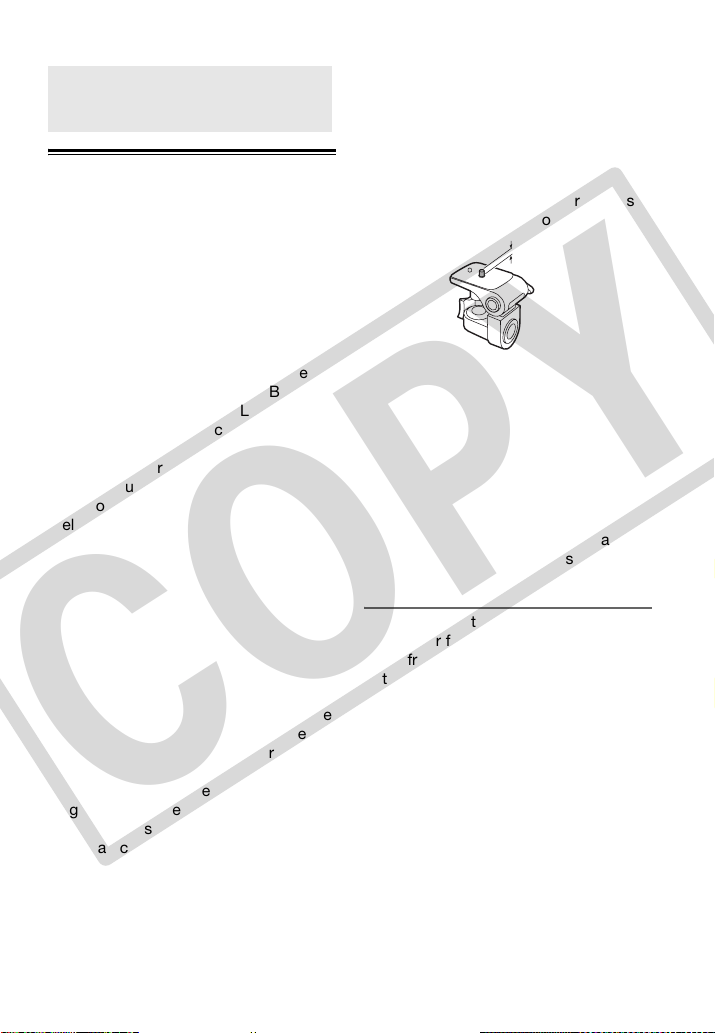
80 • Additional Information
Do’s an d Don’ ts
Camcorder
• Do not touch the pick up lens.
• Do not subject the camcorder to
vibrations or strong impacts while the
DISC access indicator is on or
flashing. The data may not be
correctly recorded on the disc, and
the recording may be permanently
lost.
• Do not carry the camcorder by the
LCD panel or the disc cover. Be
careful when closing the LCD panel.
• Do not leave the camcorder in places
subject to high temperatures (like the
inside of a car under direct sunlight),
or high humidity.
• Do not use the camcorder near strong
electromagnetic fields such as above
TVs, near plasma TVs or mobile
phones.
• Do not point the lens or viewfinder at
strong light sources. Do not leave the
camcorder pointed at a bright subject.
• Do not use or store the camcorder in
dusty or sandy places. The camcorder
is not waterproof – avoid also water,
mud or salt. If any of the above should
get into the camcorder it may damage
the camcorder and/or the lens. Be
sure to close the disc compartment
cover after use.
• Be careful of heat generated by
lighting equipment.
• Do not disassemble the camcorder. If
the camcorder does not function
properly, consult qualified service
personnel.
• Handle the camcorder with care. Do
not subject the camcorder to shocks
or vibration as this may cause
damage.
• When mounting the camcorder on a
tripod, make sure that the tripod's
fastening screw is shorter than
5.5 mm (0.2 in.). Using other tripods
may damage the camcorder.
• When recording movies, try to get a
calm, stable picture.
Excessive camcorder movement while
shooting and extensive use of fast
zooms and panning can result in jittery
scenes. In extreme cases, the
playback of such scenes may result in
visually induced motion sickness. If
you experience such a reaction,
immediately stop the playback and
take a rest break as necessary.
Long-term storage
If you do not intend to use the
camcorder for a long time, store it in a
place free of dust, in low humidity, and
at temperatures not higher than 30 °C
(86 °F).
Handling Precautions
5.5 mm
COPY
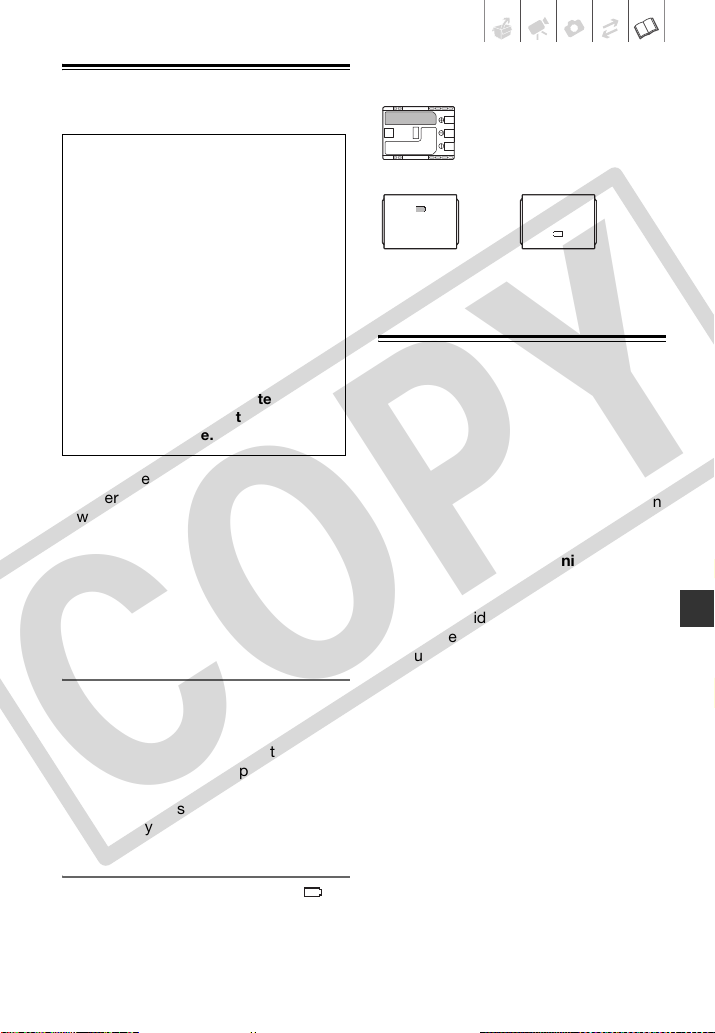
Additional Information • 81
Battery Pack
• Attach the terminal cover whenever a
battery pack is not in use. Contact
with metallic objects may cause a
short circuit and damage the battery
pack.
• Dirty terminals may cause a poor
contact between the battery pack and
the camcorder. Wipe the terminals
with a soft cloth.
Long-term storage
• Store battery packs in a dry place at
temperatures no higher than 30
°C
(86
°F).
• To extend the battery life of the battery
pack, discharge it completely before
storing it.
• Charge and discharge all your battery
packs fully at least once a year.
About the battery terminal cover
The battery terminal cover has a [ ]-
shaped hole. This is useful when you
wish to differentiate between charged
and uncharged battery packs.
Back side of the battery pack
Terminal cover attached
Mini DVD Disc
The recording surface of DVD discs is
extremely delicate. If handled or stored
in an incorrect manner, the camcorder
may stop recognizing or may not be
able to play back the disc. Be sure to
observe the following precautions when
storing/handling your discs.
• Always remove the disc from the
camcorder after you finish
recording.
Do not store the camcorder with a
disc left inside.
• Keep the disc clean of dust, dirt or
smudges. Even very small smudges or
particles of dust can lead to problems
when recording or playing back the
disc. Carefully inspect the recording
surface of the disc before inserting it
in the camcorder. If the disc gets dirty
use a dry, soft lens-cleaning cloth to
remove any fingerprints, dirt buildup
or smudges from the disc surface.
Clean the disc in a radial motion from
its center outwards.
• Never use a chemically treated cloth
or flammable solvents such as paint
thinner to clean the disc.
• Do not bend, scratch or wet the disc
and do not subject it to strong shocks.
DANGER!
Treat the battery pack with care.
• Keep it away from fire (or it might
explode).
• Do not expose the battery pack to
temperature higher than 60 °C
(140 °F). Do not leave it near a heater
or inside a car in hot weather.
• Do not try to disassemble or modify it.
• Do not drop it or subject it to shocks.
• Do not get it wet.
CAUTION:
Danger of explosion if battery is
incorrectly attached. Attach only
with the same type.
Charged
Uncharged
COPY
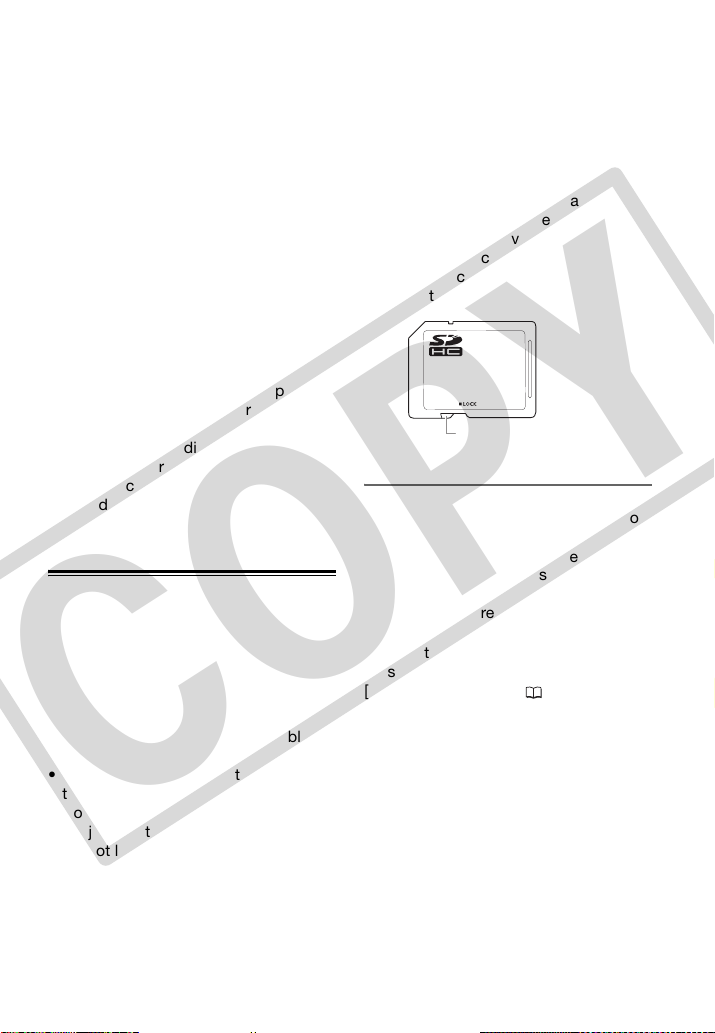
82 • Additional Information
• Do not attach any labels or stickers on
the disc surfaces. The disc may not
rotate in a stable manner and this may
cause malfunctions.
• To protect the disc, return it to its case
for storage.
• When writing on the label side of the
disc, avoid hard tip pens. Use
waterproof soft-tipped felt pens
instead.
• Moving a disc rapidly between hot
and cold temperatures may cause
condensation to form on its surfaces.
If condensation forms on the disc, put
it aside until the water droplets have
evaporated completely.
• Never expose the disc to direct
sunlight and do not store it in places
subject to high temperatures or high
humidity.
• Always finalize a disc before inserting
it into an external DVD device. Failing
to do so can result in the loss of the
recorded data.
Memory Card
• We recommend backing up the still
images recorded on the memory card
onto your computer. Data may be
corrupted or lost due to memory card
defects or exposure to static
electricity. Canon shall not be liable for
lost or corrupted data.
• Do not touch or expose the terminals
to dust or dirt.
• Do not use memory cards in places
subject to strong magnetic fields.
• Do not leave memory cards in places
subject to high humidity and high
temperature.
• Do not disassemble, bend, drop, or
subject memory cards to shocks and
do not expose them to water.
• Check the direction before inserting
the memory card. Forcing a memory
card into the slot if it is not correctly
oriented may damage the memory
card or the camcorder.
• Do not attach any labels or stickers on
the memory card.
• SD/SDHC memory cards have a
physical switch to prevent writing on
the card so as to avoid the accidental
erasure of the card's content. To
write-protect the memory card set the
switch to the LOCK position.
Disposal
When you erase still images or initialize
the memory card, only the file allocation
table is altered and stored data is not
physically erased. Take the necessary
precautions when you dispose of the
memory card, for example by physically
damaging it to prevent the leakage of
private data.
If giving the memory card to another
person, initialize it using the
[COMPL.INIT.] option ( 57). Fill it up
with unimportant still images, and then
initialize it again using the same option.
This makes recovering the original still
images very difficult.
LOCK switch
COPY
Additional Information • 83
Built-in Rechargeable Lithium Battery
The camcorder has a built-in
rechargeable lithium battery to keep the
date/time and other settings. The built-
in lithium battery is recharged while you
use the camcorder; however, it will
become totally discharged if you do not
use the camcorder for about 3 months.
To recharge the built-in lithium battery:
Connect the compact power adapter to
the camcorder and leave it connected
for 24 hours with the switch set to
.
Cleaning
Camcorder Body
• Use a soft, dry cloth to clean the
camcorder body. Never use
chemically treated cloths or volatile
solvents such as paint thinner.
Pick Up Lens
• Remove any dust or dirt particles
using a non-aerosol type blower
brush. Never touch the pick up lens
directly to clean it.
Lens and Viewfinder
• If the lens surface is dirty, the
autofocus may not work properly.
• Remove any dust or dirt particles
using a non-aerosol type blower
brush.
• Use a clean, soft lens-cleaning cloth
to gently wipe the lens or viewfinder.
Never use tissue paper.
LCD Screen
• Clean the LCD screen using a clean,
soft lens-cleaning cloth.
• Condensation may form on the
surface of the screen when the
temperature changes suddenly. Wipe
it with a soft dry cloth.
Maintenance/Others
COPY

84 • Additional Information
Condensation
Moving the camcorder rapidly between
hot and cold temperatures may cause
condensation (water droplets) to form
on its internal surfaces. Stop using the
camcorder if condensation is detected.
Continued use may damage the
camcorder.
Condensation may form in the following
cases:
• When the camcorder is moved quickly
from cold to warm places
• When the camcorder is left in a humid
room
• When a cold room is heated rapidly
• Do not expose the camcorder to
sudden or extreme changes in
temperature.
• Remove the disc and memory card
and the camcorder in an airtight
plastic bag. Let the camcorder adjust
to temperature changes slowly before
removing it from the bag.
• If a disc is loaded, remove the disc
immediately and leave the disc cover
open. Leaving the disc in the
camcorder may damage it.
• A disc cannot be loaded when
condensation is detected.
The precise time required for water
droplets to evaporate will vary
depending on the location and weather
conditions. As a general rule, wait for
2 hours before resuming use of the
camcorder.
Using the Camcorder Abroad
Power Sources
You can use the compact power adapter
to operate the camcorder and charge
battery packs in any country with power
supply between 100 and 240 V AC, 50/
60 Hz. Consult a Canon Service Center
for information on plug adapters for
overseas use.
Playback on a TV Screen
You can only play back your recordings
on TVs compatible with the NTSC
system. NTSC is used in the following
regions/countries:
Americas: All of North America and
Central America; most Caribbean
islands (except in French territories like
Guadeloupe and Martinique); most of
South America (except in Argentina,
Brazil and Uruguay).
Asia: Only in
Japan, the Philippines, South Korea,
Taiwan and Myanmar.
Oceania: US
territories (Guam, American Samoa,
etc.) and some Pacific islands like
Micronesia, Samoa and Tonga.
TO AVOID CONDENSATION
W
HEN CONDENSATION IS DETECTED
RESUMING USE
COPY
Additional Information • 85
Trademark Acknowledgements
• The SD logo is a trademark. The SDHC logo is a trademark.
• Microsoft, Windows and Windows Vista are trademarks or registered trademarks of Microsoft Corporation in the United States and/or
other countries.
• Macintosh and Mac OS are trademarks of Apple Inc., registered in the U.S. and other countries.
• is a trademark of DVD Format/Logo Licensing Corporation.
• Manufactured under license from Dolby Laboratories.
“Dolby” and the double-D symbol are trademarks of Dolby Laboratories.
• Other names and products not mentioned above may be trademarks or registered trademarks of their
respective companies.
• ANY USE OF THIS PRODUCT OTHER THAN CONSUMER PERSONAL USE IN ANY MANNER THAT
COMPLIES WITH THE MPEG-2 STANDARD FOR ENCODING VIDEO INFORMATION FOR PACKAGED MEDIA
IS EXPRESSLY PROHIBITED WITHOUT A LICENSE UNDER APPLICABLE PATENTS IN THE MPEG-2 PATENT PORTFOLIO, WHICH LICENSE
IS AVAILABLE FROM MPEG LA, L.L.C., 250 STEELE STREET, SUITE 300, DENVER, COLORADO 80206.
COPY
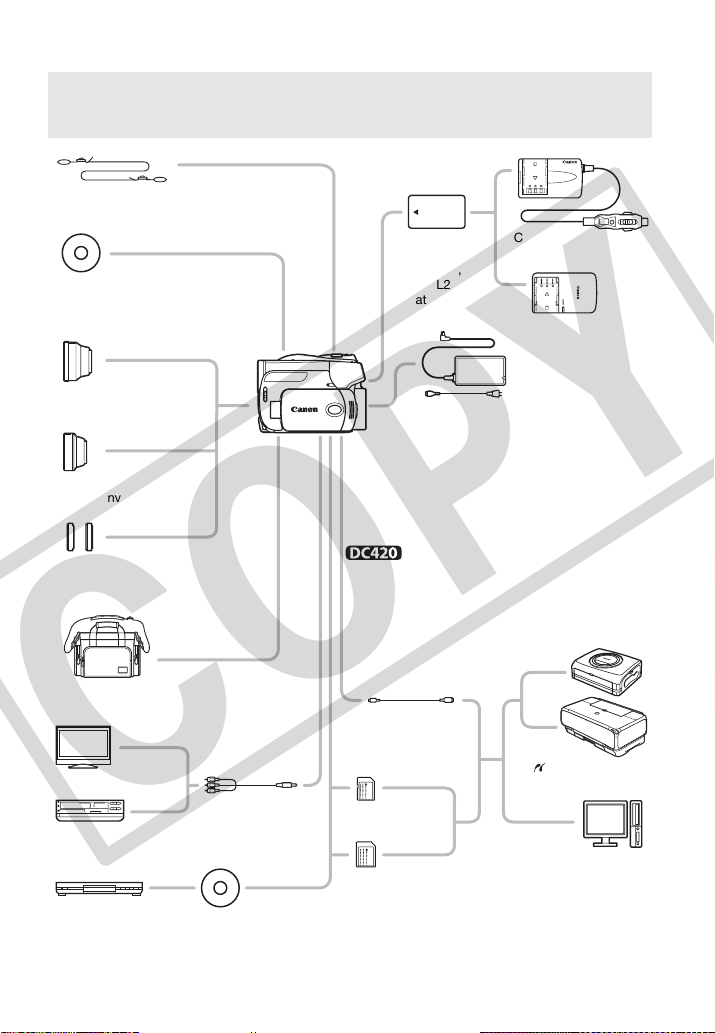
86 • Additional Information
Gener al Inform ation
System Diagram
System Diagram (Availability differs from area to area)
CB-2LW
Battery Charger
CBC-NB2
Car Battery Charger
CA-570 Compact
Power Adapter
SC-2000
Soft Carrying Case
SS-600/SS-650
Shoulder Strap
MultiMedia
Card
NB-2LH,
BP-2L13,
BP-2L14,
BP-2L24H
Battery Pack
Computer
VCR
PictBridge-
compatible printers
IFC-300PCU
USB Cable
Mini DVD disc
DVD-R/DVD-RW/DVD-R DL
TV
SD/SDHC
memory card
STV-250N Stereo
Video Cable
DVD player/recorder
Mini DVD disc
DVD-R/DVD-RW/
DVD-R DL
only
TL-H30.5
Tele-converter
WD-H30.5
Wide-converter
FS-30.5U
Filter Set
COPY
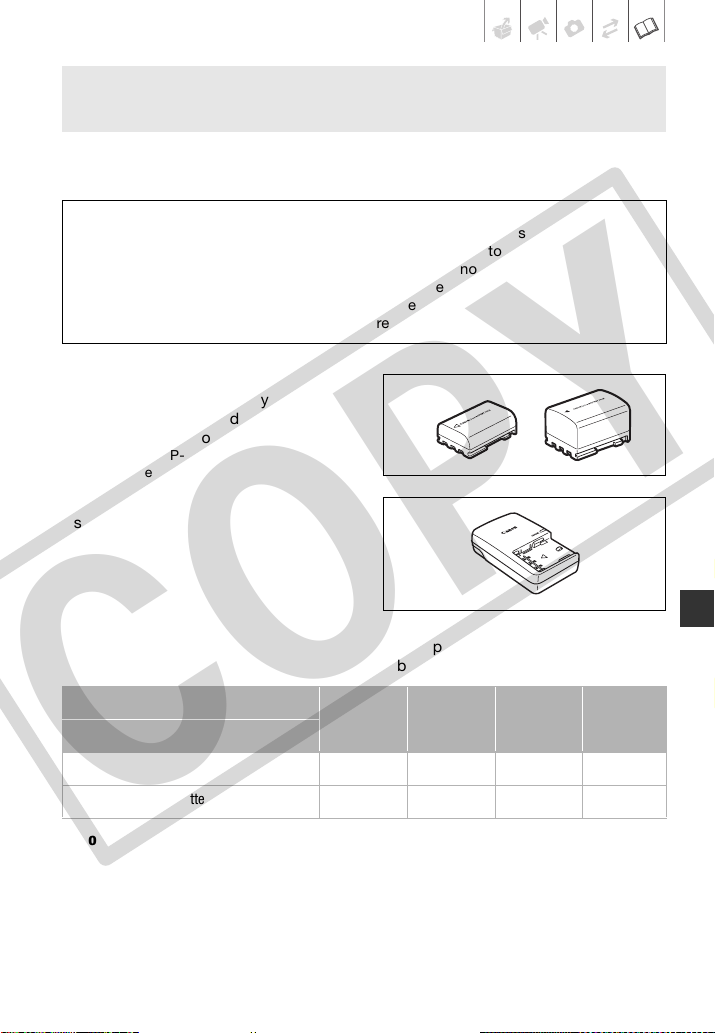
Additional Information • 87
Call or visit your local retailer/dealer for genuine Canon video accessories. You can
also obtain genuine accessories for your Canon camcorder by calling:
1-800-828-4040, Canon U.S.A. Information Center.
Battery Packs
When you need extra battery packs, select
one of the following models: NB-2LH,
BP-2L13, BP-2L14 or BP-2L24H*.
* Attaching the BP-2L24H battery pack will make
using the viewfinder more difficult.
CB-2LW Battery Charger
Use the battery charger to charge the
battery packs. It plugs directly into a power
outlet without a cable.
Charging Times
The charging times given in the following table are approximate and vary according
to charging conditions and initial charge of the battery pack.
Recording and Playback Times
The recording and playback times given in the following table are approximate and
vary according to recording mode and charging, recording or playback conditions.
The effective usage time of the battery pack may decrease when recording in cold
surroundings, when using the brighter screen settings, etc.
Optional Accessories
Use of genuine Canon accessories is recommended.
This product is designed to achieve excellent performance when used with genuine
Canon accessories. Canon shall not be liable for any damage to this product and/or
accidents such as fire, etc., caused by the malfunction of non-genuine Canon
accessories (e.g., a leakage and/or explosion of a battery pack). Please note that this
warranty does not apply to repairs arising out of the malfunction of non-genuine Canon
accessories, although you may request such repairs on a chargeable basis.
Battery pack →
NB-2LH BP-2L13 BP-2L14 BP-2L24H
Charging conditions ↓
Using the camcorder 135 min. 225 min. 240 min. 370 min.
Using the CB-2LW Battery Charger 105 min. 175 min. 195 min. 330 min.
COPY
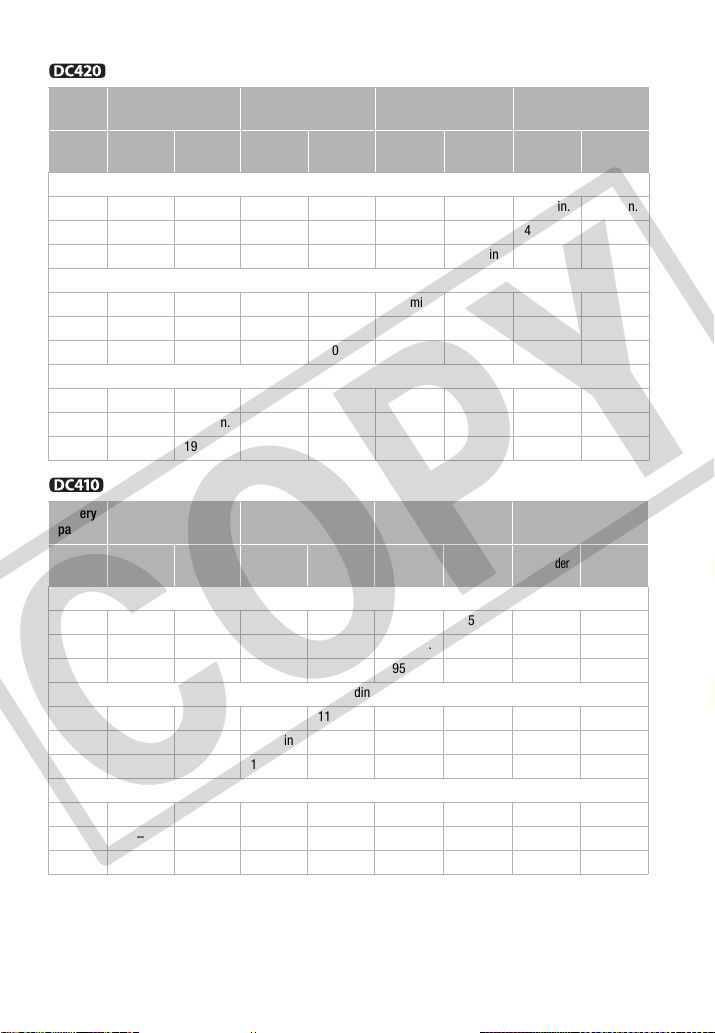
88 • Additional Information
* Approximate times for recording with repeated operations such as start/stop, zooming, and
power on/off.
Battery
pack
NB-2LH BP-2L13 BP-2L14 BP-2L24H
Screen
used
Viewfinder
LCD
Viewfinder
LCD
Viewfinder
LCD
Viewfinder
LCD
Maximum Recording Time
XP 115 min. 115 min. 205 min. 205 min. 245 min. 245 min. 415 min. 410 min.
SP 135 min. 135 min. 235 min. 235 min. 280 min. 280 min. 485 min. 475 min.
LP 140 min. 140 min. 245 min. 240 min. 295 min. 295 min. 500 min. 495 min.
Typical Recording Time*
XP 65 min. 65 min. 110 min. 110 min. 135 min. 130 min. 220 min. 220 min.
SP 70 min. 70 min. 120 min. 120 min. 145 min. 145 min. 245 min. 240 min.
LP 70 min. 70 min. 125 min. 120 min. 150 min. 145 min. 250 min. 245 min.
Playback Time
XP – 155 min. – 270 min. – 315 min. – 515 min.
SP – 180 min. – 305 min. – 370 min. – 620 min.
LP – 190 min. – 325 min. – 390 min. – 650 min.
Battery
pack
NB-2LH BP-2L13 BP-2L14 BP-2L24H
Screen
used
Viewfinder
LCD
Viewfinder
LCD
Viewfinder
LCD
Viewfinder
LCD
Maximum Recording Time
XP 120 min. 115 min. 215 min. 205 min. 260 min. 245 min. 425 min. 415 min.
SP 135 min. 135 min. 235 min. 235 min. 285 min. 280 min. 485 min. 475 min.
LP 140 min. 140 min. 245 min. 240 min. 295 min. 295 min. 500 min. 500 min.
Typical Recording Time*
XP 65 min. 65 min. 115 min. 110 min. 135 min. 130 min. 220 min. 220 min.
SP 70 min. 70 min. 120 min. 120 min. 145 min. 145 min. 245 min. 240 min.
LP 70 min. 70 min. 125 min. 120 min. 150 min. 145 min. 250 min. 245 min.
Playback Time
XP – 155 min. – 270 min. – 325 min. – 550 min.
SP – 180 min. – 305 min. – 370 min. – 635 min.
LP – 190 min. – 325 min. – 395 min. – 665 min.
COPY
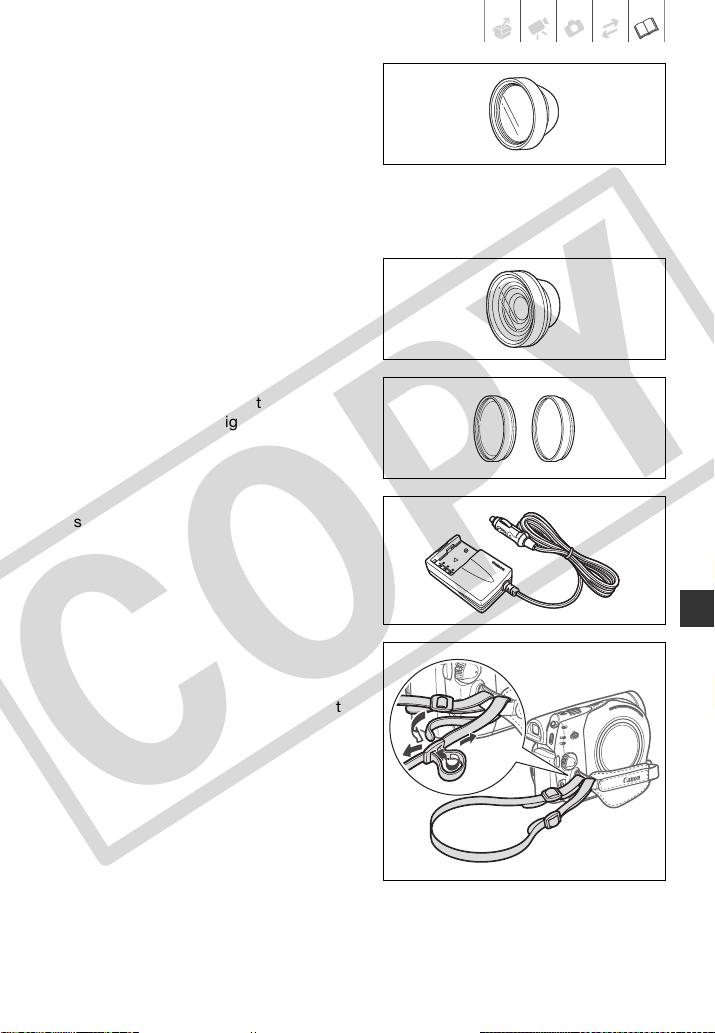
Additional Information • 89
TL-H30.5 Tele-converter
This Tele-converter lens increases the focal
length of the camcorder lens by a factor of
1.9.
• The image stabilizer is not as effective
when the Tele-converter is attached.
• The minimum focusing distance with the
TL-H30.5 attached is 3 m (9.8 ft.) at full
telephoto; 3 cm (1.2 in.) at full wide angle.
WD-H30.5 Wide-converter
This lens decreases focal length by a factor
of 0.7, giving you a wide perspective for
indoor shots or panoramic views.
FS-30.5U Filter Set
Neutral density and MC protector filters help
you to control difficult lighting conditions.
CBC-NB2 Car Battery Charger
Use the car battery charger to charge
battery packs while you are on the go. The
car battery cable plugs into your car's
cigarette lighter and runs off a 12-24 V DC
negative ground battery.
Shoulder Strap
You can attach a shoulder strap for more
security and portability.
Pass the ends through the strap mount and
adjust the length of the strap.
COPY
90 • Additional Information
SC-2000 Soft Carrying Case
A handy camcorder bag with padded
compartments and plenty of space for
accessories.
Product Codes
Provided Accessories
CA-570 Compact Power Adapter 8468A002AA
NB-2LH Battery Pack 9612A001AA
STV-250N Stereo Video Cable 3067A001BA (D82-0590-001)
STV-250N Stereo Video Cable D82-0590-002
IFC-300PCU USB Cable 6906A001AA (D82-0590-001)
Optional Accessories
BP-2L13 Battery Pack 2069B002AA
BP-2L14 Battery Pack 9582A002AA
BP-2L24H Battery Pack 2383B002AA
CB-2LW Battery Charger 0763B001AA
CBC-NB2 Car Battery Charger 7873A002AA
WD-H30.5 Wide-converter 9065A001AA
TL-H30.5 Tele-converter 9064A001AA
FS-30.5U Filter Set 6738A002AA
SS-650 Shoulder Strap 3123A001AA
SS-600 Shoulder Strap 3122A001AA
SC-2000 Soft Carrying Case 9389A001AA
This mark identifies genuine Canon video accessories. When
you use Canon video equipment, we recommend Canon-
brand accessories or products bearing the same mark.
COPY
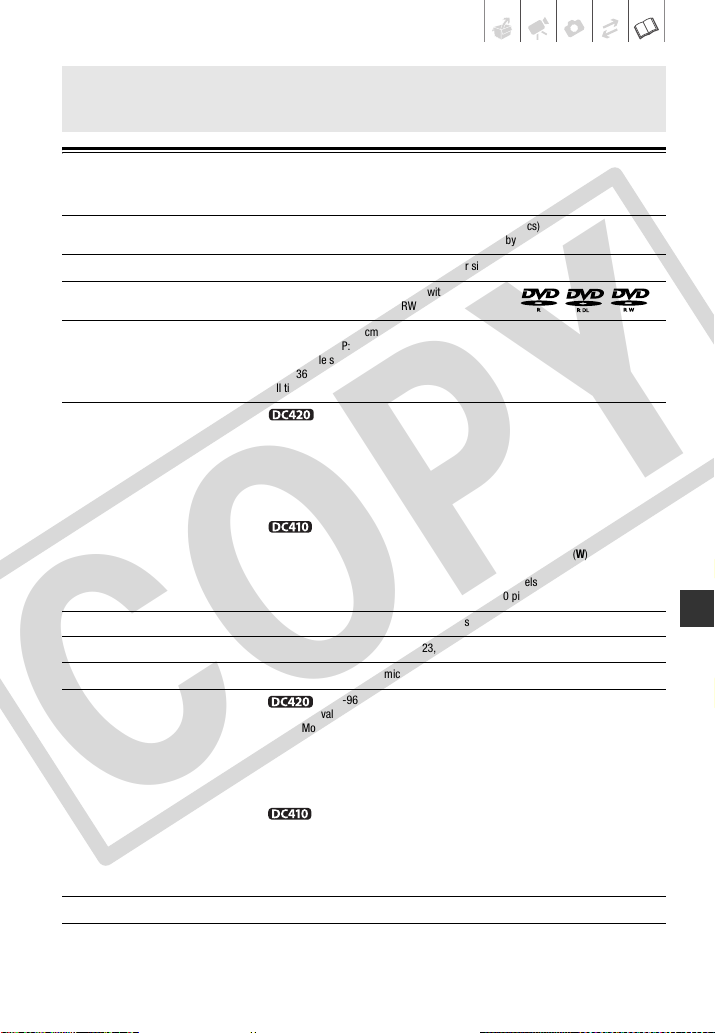
Additional Information • 91
DC420/DC410
Specifications
System
Disc Recording System DVD-VIDEO (all disc types), DVD-VR (only with DVD-RW discs)
Video Compression: MPEG-2, Audio Compression: Dolby Digital 2ch
Television System EIA standard (525 lines, 60 fields) NTSC color signal
Compatible Media 8 cm (3 in.) mini DVD discs marked with
the DVD-R, DVD-R DL or DVD-RW logo
Maximum Recording Time 1.4 GB single sided 8 cm mini DVD disc:
XP: 20 min., SP: 30 min., LP: 60 min.
2.6 GB single sided dual-layered 8 cm mini DVD disc:
XP: 36 min., SP: 54 min., LP: 108 min.
(All times given are approximate figures)
Image Sensor 1/6-inch CCD, approx. 1,070,000 pixels
Effective pixels
1
(all figures are approximate values)
16:9 Movies (advanced zoom) 410,000 (T) / 710,000 (W) pixels
(optical zoom) 550,000 pixels
4:3 Movies (advanced zoom) 310,000 (T) / 690,000 (W) pixels
(optical zoom) 690,000 pixels
16:9 Still images 600,000 pixels
4:3 Still images 800,000 pixels
1/6-inch CCD, approx. 680,000 pixels
Effective pixels
1
(all figures are approximate values)
16:9 Movies (advanced zoom) 360,000 (T) / 450,000 (W) pixels
(optical zoom) 360,000 pixels
4:3 Movies 340,000 pixels
Still images 450,000 pixels
LCD Screen 2.7 in., wide, TFT color, approx. 112,000 dots
Viewfinder 0.27 in., wide, TFT color, approx. 123,000 dots
Microphone Stereo electret condenser microphone
Lens f=2.6-96.2 mm, F/2.0-5.2, 37x power zoom
35 mm equivalent (all figures are approximate values)
16:9 Movies (advanced zoom) 41.7-2,002 mm
(optical zoom) 47.1-1,743 mm
4:3 Movies (advanced zoom) 44.6-2,453 mm
(optical zoom) 44.6-1,650 mm
16:9 Still images 45.2-1,672 mm
4:3 Still images 41.5-1,536 mm
f=2.6-96.2 mm, F/2.0-5.2, 37x power zoom
35 mm equivalent (all figures are approximate values)
16:9 Movies (advanced zoom) 41.3-1,695 mm
(optical zoom) 45.8-1,695 mm
4:3 Movies 49.8-1,843 mm
Still images 43.6-1,613 mm
Lens Configuration 10 elements in 8 groups (1 double-sided, aspheric element)
1
When two values are given, the first indicates the value at full telephoto (T) and the second indicates the value at full wide-angle (W).
COPY
92 • Additional Information
AF System TTL autofocus, manual focus available
Filter Diameter 30.5 mm
Minimum Focusing Distance 1 m (3.3 ft.); 1 cm (0.39 in.) at full wide angle
White Balance Auto white balance, preset white balance (DAYLIGHT, TUNGSTEN) or custom white
balance
Minimum Illumination [NIGHT] recording program, Shutter speed at 1/8:
1.7 lx, 1.3 lx
Auto slow shutter [ON], Shutter speed at 1/30:
6.5 lx, 5 lx
Recommended Illumination More than 100 lx
Image Stabilization Electronic
Memory Card
Recording Media SDHC (SD High Capacity) memory card, SD memory card, MultiMedia Card (MMC)*
Size of Still Images 1,152 x 648 / 1,152 x 864 / 640 x 480 pixels
1,024 x 768 / 640 x 480 pixels
File Format Design rule for Camera File system (DCF), Exif 2.2 compliant
**
, DPOF compliant
Image Compression Method JPEG (compression: Super Fine, Fine, Normal)
*
This camcorder has been tested with SD/SDHC cards up to 32 GB. Performance cannot be guaranteed for all memory cards.
**
This camcorder supports Exif 2.2 (also called “Exif Print”). Exif Print is a standard for enhancing the communication between
camcorders and printers. By connecting to an Exif Print-compliant printer, the camcorder’s image data at the time of shooting is
used and optimized, yielding extremely high quality prints.
Terminals
AV Terminal ∅ 3.5 mm minijack, output only
Video: 1 Vp-p/75 Ω unbalanced
Audio: -10 dBV (47 kΩ load/3 kΩ or less)
USB Terminal mini-B, USB 2.0 (Hi-Speed USB)
MIC terminal ∅ 3.5 mm stereo minijack
-57 dBV (with 600 Ω microphone) / 5 kΩ or more
Power/Others
Power supply (rated) 7.4 V DC (battery pack), 8.4 V DC (compact power adapter)
Power consumption (SP mode) 2.2 W (viewfinder/LCD screen, normal brightness)
2.1 W (viewfinder); 2.2 W (LCD screen, normal brightness)
Operating temperature 0 – 40 °C (32 – 104 °F)
Dimensions (W x H x D) 66 x 90 x 123 mm (2.6 x 3.5 x 4.8 in.) excluding the grip belt
Weight (camcorder body only) 380 g (13.4 oz.)
COPY

Additional Information • 93
CA-570 Compact Power Adapter
NB-2LH Battery Pack
Weight and dimensions are approximate. Errors and omissions excepted.
The information in this manual is verified as of November 2008. Subject to change without notice.
Power supply 100 – 240 V AC, 50/60 Hz
Rated output / consumption 8.4 V DC, 1.5 A / 29 VA (100 V) – 39 VA (240 V)
Operating temperature 0 – 40 °C (32 – 104 °F)
Dimensions 52 x 29 x 90 mm (2.1 x 1.1 x 3.5 in.)
Weight 135 g (4.8 oz.)
Battery type Rechargeable Lithium Ion Battery
Rated voltage 7.4 V DC
Operating temperature 0 – 40 °C (32 – 104 °F)
Battery capacity 720 mAh
Dimensions 33.3 x 16.2 x 45.2 mm (1.3 x 0.64 x 1.8 in.)
Weight 43 g (1.5 oz.)
COPY
94 • Additional Information
A
Abroad, using the camcorder . . . . . . . . 84
AEB - Auto exposure bracketing
1
. . . . . 56
Approved discs . . . . . . . . . . . . . . . . . . . . 7
Aspect ratio
of a connected TV (TV type) . . . . . . 72
of movies (Widescreen). . . . . . . . . . 30
Auto slow shutter . . . . . . . . . . . . . . . . . . 68
Autofocus: AF frame
(9-point AiAF/Center point) . . . . . . . 69
AV terminal. . . . . . . . . . . . . . . . . . . . . . . 63
B
Battery pack
Charging . . . . . . . . . . . . . . . . . . . . . 18
Remaining charge indicator . . . . . . 17
Beach (recording program) . . . . . . . . . . 37
Beep . . . . . . . . . . . . . . . . . . . . . . . . . . . 71
Built-in backup battery . . . . . . . . . . . . . 83
C
Compact power adapter . . . . . . . . . . . . 18
Condensation . . . . . . . . . . . . . . . . . . . . 84
Connections to external devices . . . . . . 63
Continuous shooting
1
. . . . . . . . . . . . . . 56
D
Data code . . . . . . . . . . . . . . . . . . . . 43, 70
Date and time . . . . . . . . . . . . . . . . . . . . 23
Date format . . . . . . . . . . . . . . . . . . . 72
Daylight saving time . . . . . . . . . . . . 24
Time zone . . . . . . . . . . . . . . . . . . . . 24
Deleting/erasing
Movies. . . . . . . . . . . . . . . . . . . . . . . 45
Still images . . . . . . . . . . . . . . . . . . . 55
Digital effects . . . . . . . . . . . . . . . . . . . . . 42
Direct print
1
. . . . . . . . . . . . . . . . . . . . . . 58
Disc specifications (DVD-VIDEO, VR) . . . 5
Disc title . . . . . . . . . . . . . . . . . . . . . . . . . 47
Disc types
(DVD-R, DVD-R DL, DVD-RW) . . . . . 5
Drive mode
1
. . . . . . . . . . . . . . . . . . . . . . 56
E
EASY (recording program) . . . . . . . . . . 29
Error messages . . . . . . . . . . . . . . . . . . . 76
Exposure . . . . . . . . . . . . . . . . . . . . . . . . 40
F
Finalizing the disc . . . . . . . . . . . . . . . . . 48
Fireworks (recording program) . . . . . . . 37
Focus priority . . . . . . . . . . . . . . . . . . . . 69
FUNC. menu . . . . . . . . . . . . . . . . . . 22, 66
H
Histogram . . . . . . . . . . . . . . . . . . . . . . . 56
I
Image effects . . . . . . . . . . . . . . . . . . . . 42
Image jump . . . . . . . . . . . . . . . . . . . . . . 53
Image numbers . . . . . . . . . . . . . . . . . . . 71
Image stabilizer . . . . . . . . . . . . . . . . . . . 68
Index screen . . . . . . . . . . . . . . . . . . 33, 54
Initialization
Disc . . . . . . . . . . . . . . . . . . . . . . . . 47
Memory card . . . . . . . . . . . . . . . . . 57
J
Joystick and joystick guide. . . . . . . . . . 21
L
Language . . . . . . . . . . . . . . . . . . . . . . . 23
LCD screen . . . . . . . . . . . . . . . . . . . . . . 24
LCD video light . . . . . . . . . . . . . . . . . . . 39
LP mode (recording mode) . . . . . . . . . . 30
M
Magnifying a still image . . . . . . . . . . . . 54
Maintenance . . . . . . . . . . . . . . . . . . . . . 83
Manual exposure adjustment . . . . . . . . 40
Manual focus . . . . . . . . . . . . . . . . . . . . 40
Markers . . . . . . . . . . . . . . . . . . . . . . . . . 70
Memory card. . . . . . . . . . . . . . . . . . 27, 82
MIC terminal
2
. . . . . . . . . . . . . . . . . . . . 44
Microphone
2
. . . . . . . . . . . . . . . . . . . . . 44
Mode switch . . . . . . . . . . . . . . . . . . . . . 29
Index
1
only.
2
only.
COPY
Additional Information • 95
N
Night (recording program) . . . . . . . . . . .37
O
Onscreen display selection . . . . . . . . . .43
Original recordings . . . . . . . . . . . . . . . . .45
P
P (recording program). . . . . . . . . . . . . . .38
Playback
Movies . . . . . . . . . . . . . . . . . . . . . . .33
Still images . . . . . . . . . . . . . . . . . . .53
Playlist . . . . . . . . . . . . . . . . . . . . . . . . . .45
Portrait (recording program) . . . . . . . . . .37
Power save. . . . . . . . . . . . . . . . . . . . . . .71
Print order. . . . . . . . . . . . . . . . . . . . . . . .61
Printing still images . . . . . . . . . . . . . . . .58
Protecting still images . . . . . . . . . . . . . .57
Q
Quick Start function . . . . . . . . . . . . . . . .32
R
Recording
Movies . . . . . . . . . . . . . . . . . . . . . . .28
Still images . . . . . . . . . . . . . . . . . . .51
Recording mode. . . . . . . . . . . . . . . . . . .30
Recording programs. . . . . . . . . . . . . . . .38
Recording reminder . . . . . . . . . . . . . . . .17
RESET . . . . . . . . . . . . . . . . . . . . . . . . . .75
Reviewing
Movies (Record review) . . . . . . . . . .32
Still images (Review) . . . . . . . . . . . .69
S
Screen icons. . . . . . . . . . . . . . . . . . . . . .15
SD/SDHC memory card . . . . . . . . . . . . .27
Self timer . . . . . . . . . . . . . . . . . . . . . . . .39
Serial number . . . . . . . . . . . . . . . . . . . . .13
Setup menus . . . . . . . . . . . . . . . . . .22, 68
Shutter speed. . . . . . . . . . . . . . . . . . . . .38
Slideshow. . . . . . . . . . . . . . . . . . . . . . . .55
Snow (recording program) . . . . . . . . . . .37
SP mode. . . . . . . . . . . . . . . . . . . . . . . . .30
Special scene (recording programs). . . .36
Sports (recording program) . . . . . . . . . . 37
Spotlight (recording program) . . . . . . . . 37
Still image quality . . . . . . . . . . . . . . . . . 52
Still image size. . . . . . . . . . . . . . . . . . . . 52
Sunset (recording program). . . . . . . . . . 37
T
Telephoto . . . . . . . . . . . . . . . . . . . . . . . . 31
Tripod. . . . . . . . . . . . . . . . . . . . . . . . . . . 80
Troubleshooting . . . . . . . . . . . . . . . . . . . 73
Tv (recording program) . . . . . . . . . . . . . 38
U
USB terminal
1
. . . . . . . . . . . . . . . . . . . . 63
V
VIDEO mode (disc specification) . . . . . . . 5
Viewfinder . . . . . . . . . . . . . . . . . . . . . . . 29
Volume. . . . . . . . . . . . . . . . . . . . . . . . . . 34
VR mode (disc specification) . . . . . . . . . . 5
W
White balance . . . . . . . . . . . . . . . . . . . . 41
Wide angle. . . . . . . . . . . . . . . . . . . . . . . 31
Widescreen 16:9 . . . . . . . . . . . . . . . . . . 30
Wind screen. . . . . . . . . . . . . . . . . . . . . . 69
X
XP mode . . . . . . . . . . . . . . . . . . . . . . . . 30
Z
Zoom
Advanced zoom . . . . . . . . . . . . . . . 31
Zoom speed . . . . . . . . . . . . . . . . . . 68
Zoom type . . . . . . . . . . . . . . . . . . . 31
1
only.
2
only.
COPY

96
CANON CONSUMER DIGITAL VIDEO EQUIPMENT LIMITED WARRANTY FOR
THE UNITED STATES
The limited warranty set forth below is given by Canon U.S.A., Inc. (“Canon USA”) with respect to Canon Consumer Digital Video
Equipment (the “Equipment”) purchased in the United States. This limited warranty is only effective upon presentation of your Bill of Sale
or other proof of purchase.
The Equipment is warranted under normal, non-commercial, personal use, against defective materials or workmanship as follows:
Parts: Defective parts will be exchanged for new parts or comparable rebuilt parts for a period of ONE YEAR from the date of original
purchase, except for a defective Video Head, which will be exchanged for a period of three months from the date of purchase.
Labor: For a period of ONE YEAR from the date of original purchase, labor will be provided free of charge by our factory service centers or
designated service facilities located in the United States.
When returning Equipment under this warranty, you must pre-pay the shipping charges, and you must enclose the Bill of Sale or other
proof of purchase with a complete explanation of the problem. During the ONE-YEAR warranty period, repairs will be made and the
Equipment will be return-shipped to you free of charge. For repairs after the warranty period is over, you will be given an estimate of the
cost of repair and an opportunity to approve or disapprove of the repair expense before it is incurred. If you approve, repairs will be made
and the Equipment will be return-shipped to you. (shipping charges apply). If you disapprove, we will return-ship the equipment at no
charge to you.
Non-Canon brand peripheral equipment and software which may be distributed with, or factory loaded on, the Equipment, are
sold “AS IS” without warranty of any kind by Canon USA, including any implied warranty regarding merchantability or fitness
for a particular purpose. The sole warranty with respect to such non-Canon brand items is given by the manufacturer or
producer thereof. If the Equipment contains a hard disk drive, Canon USA recommends that data stored on that drive be
duplicated or backed up to prevent its loss in the event of failure or other malfunction of such drive.
Canon USA shall have no responsibility under this limited warranty for use of the Equipment in conjunction with incompatible peripheral
equipment and incompatible software.
In order to obtain warranty service, contact the authorized Canon retail dealer from whom you purchased the Equipment or call the
CANON INFORMATION CENTER AT 1-800-OK-CANON). You will be directed to the nearest service facility for your Equipment.
This Limited Warranty covers all defects encountered in normal use of the Equipment and does not apply in the following cases:
A) Loss or damage to the Equipment due to abuse, mishandling, accident, improper maintenance, or failure to follow operating
instructions;
B) If the Equipment is defective as a result of leaking batteries, sand, dirt or water damage;
C) If defects or damages are caused by the use of unauthorized parts or by service other than by Canon USA's factory service
centers or authorized service facilities;
D) If the Equipment is used for commercial or industrial use.
This Limited Warranty does not cover cabinet (exterior finish), video cassette tape, head cleanings, nor does it apply to Equipment
purchased outside the United States. This warranty does not cover units sold to rental firms, military operations, hotels, schools,
hospitals or for other commercial, industrial, or institutional applications. These uses are covered only by such specific warranty as
Canon may issue with such sales.
This Limited Warranty does not apply to accessories or consumables for the Equipment, which are sold “AS IS”, without warranty of any
kind by Canon USA.
Please retain this warranty card and your Bill of Sale as a permanent record of your purchase. This card is most important in order to be
sure you are contacted right away should there be a safety inspection, modification or product recall under applicable laws or
regulations.
NO IMPLIED WARRANTY, INCLUDING MERCHANTABILITY AND FITNESS FOR A PARTICULAR PURPOSE APPLIES TO THIS EQUIPMENT
AFTER THE APPLICABLE PERIOD OF EXPRESS WARRANTY OR GUARANTY, EXCEPT AS MENTIONED ABOVE, GIVEN BY ANY PERSON, FIRM
OR CORPORATION WITH RESPECT TO THIS EQUIPMENT SHALL BIND THE UNDERSIGNED (SOME STATES DO NOT ALLOW LIMITATIONS ON
HOW LONG AN IMPLIED WARRANTY LASTS, SO THE ABOVE LIMITATION OR EXCLUSION MAY NOT APPLY TO YOU). CANON USA SHALL
NOT BE LIABLE FOR LOSS OF REVENUES OR PROFITS, EXPENSE FOR SUBSTITUTE EQUIPMENT OR SERVICE, STORAGE CHARGES, LOSS
OR CORRUPTION OF DATA, INCLUDING WITHOUT LIMITATION, LOSS OR CORRUPTION OF DATA STORED ON THE EQUIPMENT’S HARD
DRIVE, OR ANY OTHER SPECIAL, INCIDENTAL OR CONSEQUENTIAL DAMAGES CAUSED BY THE USE, MISUSE OR INABILITY TO USE THE
EQUIPMENT, REGARDLESS OF THE LEGAL THEORY ON WHICH THE CLAIM IS BASED, AND EVEN IF CANON USA HAS BEEN ADVISED OF
THE POSSIBILITY OF SUCH DAMAGES. NOR SHALL RECOVERY OF ANY KIND AGAINST CANON USA BE GREATER THAN THE PURCHASE
PRICE OF THE EQUIPMENT SOLD BY CANON USA AND CAUSING THE ALLEGED DAMAGE. WITHOUT LIMITING THE FOREGOING, YOU
ASSUME ALL RISK AND LIABILITY FOR LOSS, DAMAGE OR INJURY TO YOU AND YOUR PROPERTY AND TO OTHERS AND THEIR PROPERTY
ARISING OUT OF USE, MISUSE OR INABILITY TO USE THE EQUIPMENT NOT CAUSED DIRECTLY BY THE NEGLIGENCE OF CANON USA.
(SOME STATES DO NOT ALLOW THE EXCLUSION OR LIMITATION OF INCIDENTAL OR CONSEQUENTIAL DAMAGES, SO THE ABOVE
LIMITATION MAY NOT APPLY TO YOU).THIS WARRANTY SHALL NOT EXTEND TO ANYONE OTHER THAN THE ORIGINAL PURCHASER OF
THIS EQUIPMENT OR THE PERSON FOR WHOM IT WAS PURCHASED AS A GIFT.
This warranty gives you specific legal rights, and you may also have other rights which vary from state to state.
CANON U.S.A., INC.
U.S.A.
COPY

97
CANON CONSUMER DIGITAL VIDEO EQUIPMENT LIMITED WARRANTY
The limited warranty set forth below is given by Canon Canada Inc. (“Canon Canada”) with respect to Canon Consumer Digital Video Equipment (the
"Equipment") purchased in Canada. This limited warranty is only effective upon presentation of a bill of sale or other proof of purchase for this
Equipment to a Canon Service Facility when repairs are required.
The Equipment is warranted under normal, non-commercial, personal use, against defective materials or workmanship as follows:
Parts: Defective parts will be exchanged for new parts or, at Canon Canada’s option, comparable rebuilt parts for a period of one year from the date of
original purchase, except Video Heads which will be exchanged for a period of 3 months from the date of purchase.
Labour: For a period of one year from the date of original purchase, labour will be provided free of charge by our Canon Service Facilities in Canada.
This limited warranty covers all defects except where:
(a) The loss or damage to the product results from:
i) accident, natural disaster, mishandling, abuse, neglect, unauthorized product modification or failure to follow instructions contained in the
instruction manual;
ii) the use of accessories, attachments, products, supplies, parts or devices with the Equipment that do not conform to Canon specifications
or that cause abnormally frequent service problems;
iii) repairs or services performed by any party other than a Canon Service Facility;
iv) defective batteries or any exposure to water, sand or dirt;
v) shipping (claim must be presented to the shipper);
(b) Any serial number on the video Equipment is altered or removed.
(c) The Equipment is used for commercial, professional or industrial purposes.
This limited warranty does not cover the cabinet (exterior finish) of the Equipment, media, nor does it apply to Equipment purchased outside Canada.
If the Equipment contains a hard disk drive, Canon Canada recommends that data stored on that drive be duplicated or backed up to prevent its loss
in the event of a failure or other malfunction of such drive.
TO OBTAIN WARRANTY SERVICE
Ship your Equipment in its original carton, box or equivalent, properly packed, fully insured with shipping charges prepaid, together with a copy of
your bill of sale or other proof of purchase and a description of the problem to any of the Canon Service Facilities in Canada.
LIMITATIONS
Except as otherwise required by applicable legislation, this warranty is in lieu of all other warranties, conditions, guarantees or representations,
express or implied, statutory or otherwise, relative to the Equipment, including implied warranties or conditions of merchantability or fitness for a
particular purpose.
Canon Canada assumes no liability for special, consequential or incidental damages, loss or corruption of data including, without limitation, data
stored on the hard disk drive of the Equipment or loss that may arise, whether on account of negligence or otherwise, from the use, misuse or inability
to use the Equipment (including loss of profit, revenue, media or enjoyment) or from failure to conform to any express or implied warranties,
conditions, guarantees or representations. Any recovery under this limited warranty shall not exceed the purchase price of the equipment. Canon
Canada does not assume or authorize any other person to assume for Canon Canada any other liability with respect to this equipment.
This warranty does not extend to any person other than the original purchaser of the Equipment or the person for whom it was purchased as a gift and
states your exclusive remedy.
NOTICE TO CONSUMER
If you plan to take important videos or if the product has not been used for some time, please check all functions with the instruction book before
using it.
CANADA
COPY
USA CANON U.S.A., INC. NEW JERSEY OFFICE
100 Jamesburg Road, Jamesburg, NJ 08831 USA
CANON U.S.A., INC. CHICAGO OFFICE
100 Park Blvd., Itasca, IL 60143 USA
CANON U.S.A., INC. LOS ANGELES OFFICE
15955 Alton Parkway, Irvine, CA 92618 USA
CANON U.S.A., INC. HONOLULU OFFICE
210 Ward Avenue, Suite 200, Honolulu, Hl 96814 USA
❖ If you have any questions, call the Canon U.S.A. Information
Center toll-free at 1-800-828-4040 (U.S.A. only).
CANADA CANON CANADA INC.
6390 Dixie Road, Mississauga, ON L5T 1P7
CANON CANADA INC. CALGARY
2828 16th Street NE, Calgary, AB T2E 7K7
CANON CANADA INC. MONTREAL
8801 Route Transcanadienne, Saint-Laurent, QC H4S 1Z6
❖
If you have any questions, call the Canon Canada Information Center
toll free (in Canada only) at 1-800-OK-CANON (1-800-652-2666).
❖
Si vous avez des questions, veuillez téléphoner 1-800-OK-CANON
(1-800-652-2666, sans frais au Canada seulement).
MÉXICO CANON MEXICANA, S DE RL DE CV
Blvd. Manuel Ávila Camacho No. 138, Piso 17
Col. Lomas de Chapultepec
C.P. 11000 México, D.F., México
CANON U.S.A., INC. NEW JERSEY OFFICE
100 Jamesburg Road, Jamesburg, NJ 08831 USA
CENTRO Y CANON LATIN AMERICA, INC.
SURAMÉRICA 703 Waterford Way, Suite 400, Miami, FL 33126 USA
ASIA CANON HONGKONG COMPANY LTD.
19/F, The Metropolis Tower, 10 Metropolis Drive,
Hunghom, Kowloon, Hong Kong
Tel: +852 3191 2333, Fax: +852 2428 3963
PUB. DIM-890 © CANON INC. 2009
COPY