www.lg.com
LK51*
(1712-REV00)
*MFL70400412*
AAA
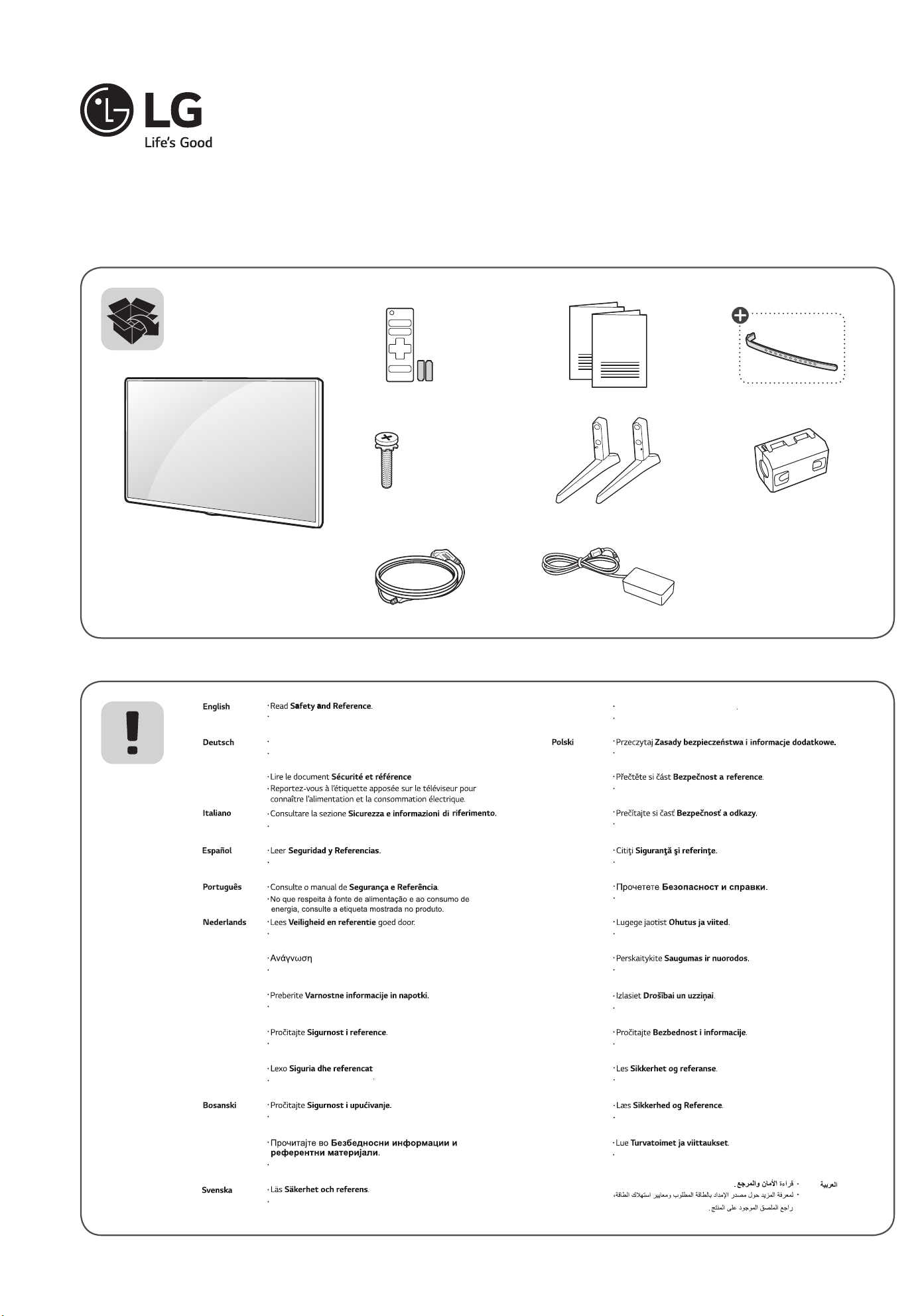
: Depending on model / Abhängig vom Modell / Selon le modèle / In base al modello / En función del modelo / Dependendo do modelo / Afhankelijk van het
model / Ανάλογα με το μοντέλο / Odvisno od modela / Típusfüggő / Zależnie od modelu / Závisí na modelu / V závislosti od modelu / În funcţie de model
/ В зависимост от модела / Sõltub mudelist / Priklauso nuo modelio / Atkarībā no modeļa / U zavisnosti od modela / Ovisno o modelu / Në varësi të
modelit / Ovisno o modelu / Во зависност од моделот / Beroende på modell / Avhengig av modell / Afhængigt af modellen / Mallin mukaan /
X 4
(M4 X L14)
1 2 3
A
B
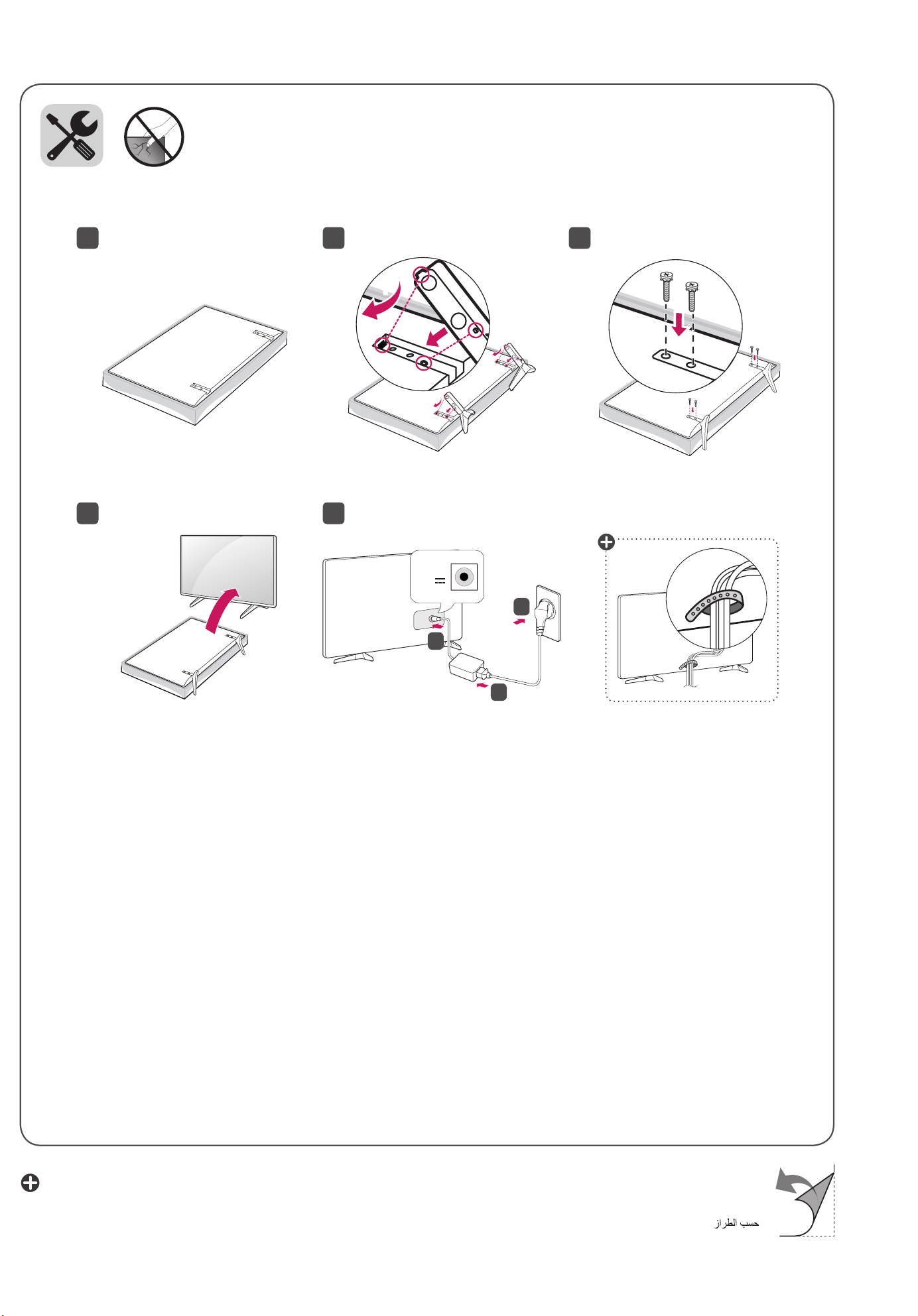
1
2
4 5
DC-IN
(19 V )
2
3
1
Read Safety and Reference.
Fr
ançais
.
Consultare la sezione Sicur
riferiment
Leer
Consulte o manual de Segurança e Referência.
Lees Veiligheid en referentie
Ελληνικ
ά
Ανάγνωση
Slovenščina
Preberite Varnostne informacije in napotki.
Przeczytaj
Česky
Přečtěte si část Bezpečnost areference.
For the power supply and power consumption, refer
to the label attached to the product.
Informationen zur Stromversorgung und zum Stromver-
brauch sind dem Etikett auf dem Gerät zu entnehmen.
Per l'alimentazione e il consumo di energia, consultare
l'etichetta applicata sul prodotto.
Para obtener información acerca de la fuente de alimentación
y el consumo de energía, consulte la etiqueta del producto.
Informatie over de stroomvoorziening en het stroomver-
bruik vindt u op het label op het product.
Για πληροφορίες σχετικά με την τροφοδοσία και την
κατανάλωση ενέργειας, δείτε την ετικέτα του προϊόντος.
Podatke o napajanju in porabi energije si oglejte na
nalepki izdelka.
Magyar
Lásd: Biztonsági óvintézkedések
.
A tápellátásra és az áramfogyasztásra vonatkozó
adatok a készülékre ragasztott címkén találhatók.
Dokładne informacje o zasilaniu i zużyciu energii są
umieszczone na etykiecie znajdującej się na produkcie.
Informace onapájení apříkonu naleznete na štítku
připevněném kvýrobku.
Eesti
Lugege jaotist Ohutus ja viited.
Lietuvių k.
Perskaitykite Saugumas ir nuorodos
Slovenčina
Prečítajte si časť Bezpečnosť a odkazy.
Română
Citiţi Siguranţă şi referinţe.
Български Прочетете Безопасност и справки.
Informácie o zdroji napájania a spotrebe elektrickej
energie nájdete na štítku pripojenom k zariadeniu.
Pentru sursa de alimentare şi consumul de energie,
consultaţi eticheta ataşată pe produs.
Направете справка с етикета на продукта за
електрозахранването и консумацията на енергия.
Toiteallika ja energiatarbe kohta saate teavet tootele
kinnitatud märgiselt.
Informacijos apie maitinimą ir energijos sąnaudas
rasite etiketėje ant gaminio.
Latviešu
Izlasiet Drošībai un uzziņai.
Informāciju par elektroenerģijas padevi un patēriņu
skatiet izstrādājumam pievienotajā etiķetē.
Srpski
Pročitajte Bezbednost i informacije.
Da biste saznali informacije u vezi sa napajanjem i
potrošnjom energije, pogledajte oznaku na proizvodu.
Hr
vatski
Pročitajte Sigurnost i reference.
Shqi
p
Lexo Sigur
.
Pročitajte Sigurnost i upućivanje.
Ма
кедонски
Про
Informacije o napajanju i potrošnji energije potražite na
oznaci koja se nalazi na proizvodu.
Për ushqimin me energji dhe konsumin e energjisë,
shih etiketën e ngjitur në produkt.
Informacije o napajanju električnom energijom i potrošnji električne
energije možete pronaći na naljepnici koja se nalazi na proizvodu.
За напојувањето и потрошувачката на енергија, погледнете
ја етикетата која е прикачена на производот.
För strömförsörjning och strömförbrukning, se etiketten
på produkten.
Norsk
Les Sikkerhet og referanse.
Dansk
Læs Sikkerhed og Reference.
Suomi
Lue Turvatoimet ja viittaukset.
Hvis du vil ha informasjon om strømforsyning og strømfor-
bruk, kan du se på etiketten som er festet på produktet.
Du kan få oplysninger om strømforsyning og strømfor-
brug på mærket, der sidder på produktet.
Tietoja virtalähteestä ja virrankulutuksesta on laitteeseen
kiinnitetyssä tarrassa.
Ασφάλεια και Αναφορά.
Bitte lesen Sie Sicherheitshinweise und Referenzen!
www.lg.com
LK51*
(1712-REV00)
*MFL70400412*
AAA
: Depending on model / Abhängig vom Modell / Selon le modèle / In base al modello / En función del modelo / Dependendo do modelo / Afhankelijk van het
model / Ανάλογα με το μοντέλο / Odvisno od modela / Típusfüggő / Zależnie od modelu / Závisí na modelu / V závislosti od modelu / În funcţie de model
/ В зависимост от модела / Sõltub mudelist / Priklauso nuo modelio / Atkarībā no modeļa / U zavisnosti od modela / Ovisno o modelu / Në varësi të
modelit / Ovisno o modelu / Во зависност од моделот / Beroende på modell / Avhengig av modell / Afhængigt af modellen / Mallin mukaan /
X 4
(M4 X L14)
1 2 3
A
B
1
2
4 5
DC-IN
(19 V )
2
3
1
Read Safety and Reference.
Fr
ançais
.
Consultare la sezione Sicur
riferiment
Leer
Consulte o manual de Segurança e Referência.
Lees Veiligheid en referentie
Ελληνικ
ά
Ανάγνωση
Slovenščina
Preberite Varnostne informacije in napotki.
Przeczytaj
Česky
Přečtěte si část Bezpečnost areference.
For the power supply and power consumption, refer
to the label attached to the product.
Informationen zur Stromversorgung und zum Stromver-
brauch sind dem Etikett auf dem Gerät zu entnehmen.
Per l'alimentazione e il consumo di energia, consultare
l'etichetta applicata sul prodotto.
Para obtener información acerca de la fuente de alimentación
y el consumo de energía, consulte la etiqueta del producto.
Informatie over de stroomvoorziening en het stroomver-
bruik vindt u op het label op het product.
Για πληροφορίες σχετικά με την τροφοδοσία και την
κατανάλωση ενέργειας, δείτε την ετικέτα του προϊόντος.
Podatke o napajanju in porabi energije si oglejte na
nalepki izdelka.
Magyar
Lásd: Biztonsági óvintézkedések
.
A tápellátásra és az áramfogyasztásra vonatkozó
adatok a készülékre ragasztott címkén találhatók.
Dokładne informacje o zasilaniu i zużyciu energii są
umieszczone na etykiecie znajdującej się na produkcie.
Informace onapájení apříkonu naleznete na štítku
připevněném kvýrobku.
Eesti
Lugege jaotist Ohutus ja viited.
Lietuvių k.
Perskaitykite Saugumas ir nuorodos
Slovenčina
Prečítajte si časť Bezpečnosť a odkazy.
Română
Citiţi Siguranţă şi referinţe.
Български Прочетете Безопасност и справки.
Informácie o zdroji napájania a spotrebe elektrickej
energie nájdete na štítku pripojenom k zariadeniu.
Pentru sursa de alimentare şi consumul de energie,
consultaţi eticheta ataşată pe produs.
Направете справка с етикета на продукта за
електрозахранването и консумацията на енергия.
Toiteallika ja energiatarbe kohta saate teavet tootele
kinnitatud märgiselt.
Informacijos apie maitinimą ir energijos sąnaudas
rasite etiketėje ant gaminio.
Latviešu
Izlasiet Drošībai un uzziņai.
Informāciju par elektroenerģijas padevi un patēriņu
skatiet izstrādājumam pievienotajā etiķetē.
Srpski
Pročitajte Bezbednost i informacije.
Da biste saznali informacije u vezi sa napajanjem i
potrošnjom energije, pogledajte oznaku na proizvodu.
Hr
vatski
Pročitajte Sigurnost i reference.
Shqi
p
Lexo Sigur
.
Pročitajte Sigurnost i upućivanje.
Ма
кедонски
Про
Informacije o napajanju i potrošnji energije potražite na
oznaci koja se nalazi na proizvodu.
Për ushqimin me energji dhe konsumin e energjisë,
shih etiketën e ngjitur në produkt.
Informacije o napajanju električnom energijom i potrošnji električne
energije možete pronaći na naljepnici koja se nalazi na proizvodu.
За напојувањето и потрошувачката на енергија, погледнете
ја етикетата која е прикачена на производот.
För strömförsörjning och strömförbrukning, se etiketten
på produkten.
Norsk
Les Sikkerhet og referanse.
Dansk
Læs Sikkerhed og Reference.
Suomi
Lue Turvatoimet ja viittaukset.
Hvis du vil ha informasjon om strømforsyning og strømfor-
bruk, kan du se på etiketten som er festet på produktet.
Du kan få oplysninger om strømforsyning og strømfor-
brug på mærket, der sidder på produktet.
Tietoja virtalähteestä ja virrankulutuksesta on laitteeseen
kiinnitetyssä tarrassa.
Ασφάλεια και Αναφορά.
Bitte lesen Sie Sicherheitshinweise und Referenzen!
A
B
C
D
E
F
F
G
43LK5100PLA
43LK5100PLB
976 628 217.9 583 81.5 8.1 7.8
19 V 2.7 A
49LK5100PLA
49LK5100PLB
1108 702 217.9 657 81.5 10.9 10.6
19 V 3.2 A
1
2
0
D
B
E
C
A
F
G
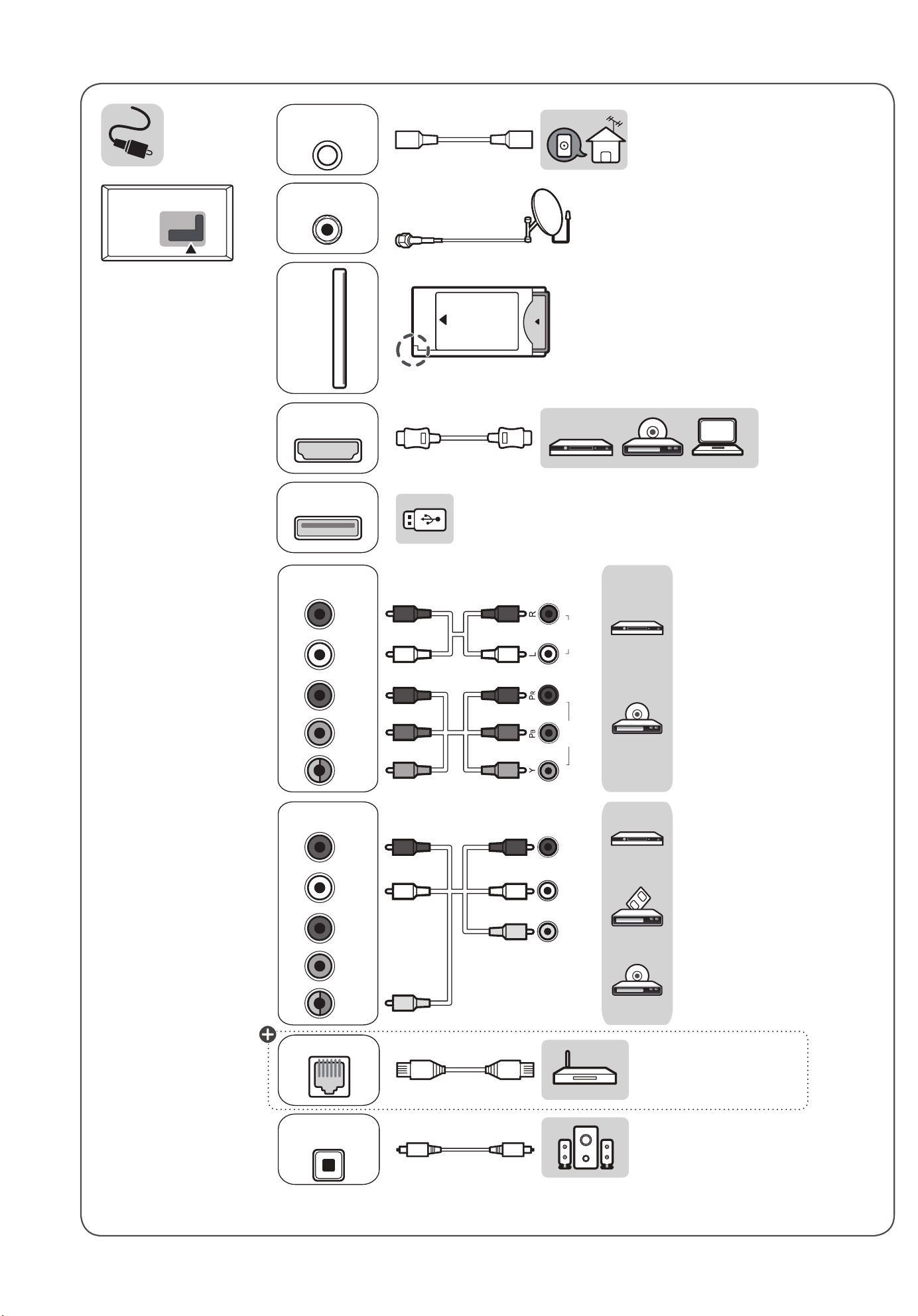
ANTENNA
/
CABLE IN
Satellite IN
HDMI IN
PCMCIA CARD SLOT
LAN
OPTICAL DIGITAL
AUDIO OUT
COMPONENT IN
AV IN
VIDEO L/MONO AUDIOR
VIDEO/YP
B
P
R
L/MONO AUDIO R
VIDEO/YP
B
P
R
L/MONOAUDIO R
VIDEO
AUDIO
USB IN
A
B
C
D
E
F
F
G
43LK5100PLA
43LK5100PLB
976 628 217.9 583 81.5 8.1 7.8
19 V 2.7 A
49LK5100PLA
49LK5100PLB
1108 702 217.9 657 81.5 10.9 10.6
19 V 3.2 A
1
2
0
D
B
E
C
A
F
G
ANTENNA
/
CABLE IN
Satellite IN
HDMI IN
PCMCIA CARD SLOT
LAN
OPTICAL DIGITAL
AUDIO OUT
COMPONENT IN
AV IN
VIDEO L/MONO AUDIOR
VIDEO/YP
B
P
R
L/MONO AUDIO R
VIDEO/YP
B
P
R
L/MONOAUDIO R
VIDEO
AUDIO
USB IN

Copyright©2018LGElectronicsInc.AllRightsReserved.
Please read this manual carefully before operating your set and retain
it for future reference.
Safety and Reference
OWNER’S MANUAL
LED TV*
* LG LED TV applies LCD screen with LED backlights.
www.lg.com*MFL70362804*
(1803-REV01)
ENGLISH
2
Warning! Safety
instructions
CAUTION
RISK OF ELECTRIC SHOCK
DO NOT OPEN
CAUTION : TO REDUCE THE RISK OF ELECTRIC SHOCK, DO NOT
REMOVE COVER (OR BACK). NO USER-SERVICEABLE PARTS INSIDE.
REFER TO QUALIFIED SERVICE PERSONNEL.
This symbol is intended to alert the user to the presence of
uninsulated “dangerous voltage” within the product’s
enclosure that may be of sufficient magnitude to constitute a risk
of electric shock to persons.
This symbol is intended to alert the user to the presence of
important operating and maintenance (servicing)
instructions in the literature accompanying the appliance.
WARNING : TO REDUCE THE RISK OF FIRE AND ELECTRIC SHOCK, DO
NOT EXPOSE THIS PRODUCT TO RAIN OR MOISTURE.
• TO PREVENT THE SPREAD OF FIRE, KEEP CANDLES OR OTHER ITEMS
WITH OPEN FLAMES AWAY FROM THIS PRODUCT AT ALL TIMES.
• Do not place the TV and/or remote control in the following
environments:
- Keep the product away from direct sunlight.
- An area with high humidity such as a bathroom
- Near any heat source such as stoves and other devices that
produce heat.
- Near kitchen counters or humidifiers where they can easily be
exposed to steam or oil.
- An area exposed to rain or wind.
- Do not expose to dripping or splashing and do not place objects
filled with liquids, such as vases, cups, etc. on or over the
apparatus (e.g., on shelves above the unit).
- Near flammable objects such as gasoline or candles, or expose
the TV to direct air conditioning.
- Do not install in excessively dusty places.
Otherwise, this may result in fire, electric shock, combustion/
explosion, malfunction or product deformation.
• Ventilation
- Install your TV where there is proper ventilation. Do not install in
a confined space such as a bookcase.
- Do not install the product on a carpet or cushion.
- Do not block or cover the product with cloth or other materials
while unit is plugged in.
• Take care not to touch the ventilation openings. When watching
the TV for a long period, the ventilation openings may become hot.
• Protect the power cord from physical or mechanical abuse, such as
being twisted, kinked, pinched, closed in a door, or walked upon.
Pay particular attention to plugs, wall outlets, and the point where
the cord exits the device.
• Do not move the TV whilst the Power cord is plugged in.
• Do not use a damaged or loosely fitting power cord.
• Be sure do grasp the plug when unplugging the power cord. Do not
pull on the power cord to unplug the TV.
• Do not connect too many devices to the same AC power outlet as
this could result in fire or electric shock.
• Disconnecting the Device from the Main Power
- The power plug is the disconnecting device. In case of an
emergency, the power plug must remain readily accessible.
• Do not let your children climb or cling onto the TV. Otherwise, the
TV may fall over, which may cause serious injury.
• Outdoor Antenna Grounding (Can differ by country):
- If an outdoor antenna is installed, follow the precautions below.
An outdoor antenna system should not be located in the vicinity
of overhead power lines or other electric light or power circuits,
or where it can come in contact with such power lines or circuits
as death or serious injury can occur.
Be sure the antenna system is grounded to provide some
protection against voltage surges and built-up static charges.
Section 810 of the National Electrical Code (NEC) in the U.S.A.
provides information with respect to proper grounding of the
mast and supporting structure, grounding of the lead-in wire
to an antenna discharge unit, size of grounding conductors,
location of antenna discharge unit, connection to grounding
electrodes and requirements for the grounding electrode.
Antenna grounding according to the National Electrical Code,
ANSI/NFPA 70

ENGLISH
3
• Grounding (Except for devices which are not grounded.)
- TV with a three-prong grounded AC plug must be connected to
a three-prong grounded AC outlet. Ensure that you connect the
earth ground wire to prevent possible electric shock.
• Never touch this apparatus or antenna during a lightning storm.
You may be electrocuted.
• Make sure the power cord is connected securely to the TV and wall
socket if not secured damage to the Plug and socket may occur and
in extreme cases a fire may break out.
• Do not insert metallic or inflammable objects into the product. If a
foreign object is dropped into the product, unplug the power cord
and contact the customer service.
• Do not touch the end of the power cord while it is plugged in. You
may be electrocuted.
• If any of the following occur, unplug the product
immediately and contact your local customer service.
- The product has been damaged.
- If water or another substance enters the product (like an AC
adapter, power cord, or TV).
- If you smell smoke or other odors coming from the TV
- When lightning storms or when unused for long periods of time.
Even the TV is turned off by remote control or button, AC power
source is connected to the unit if not unplugged in.
• Do not use high voltage electrical equipment near the TV (e.g., a
bug zapper). This may result in product malfunction.
• Do not attempt to modify this product in any way without written
authorization from LG Electronics. Accidental fire or electric shock
can occur. Contact your local customer service for service or repair.
Unauthorized modification could void the user’s authority to
operate this product.
• Use only an authorized attachments / accessories approved by
LG Electronics. Otherwise, this may result in fire, electric shock,
malfunction, or product damage.
• Never disassemble the AC adapter or power cord. This may result in
fire or electric shock.
• Handle the adapter carefully to avoid dropping or striking it. An
impact could damage the adapter.
• To reduce the risk of fire or electrical shock, do not touch the TV
with wet hands. If the power cord prongs are wet or covered with
dust, dry the power plug completely or wipe dust off.
• Batteries
- Store the accessories (battery, etc.) in a safe location out of the
reach of children.
- Do not short circuit, disassemble, or allow the batteries to
overheat. Do not dispose of batteries in a fire. Batteries should
not be exposed to excessive heat.
• Moving
- When moving, make sure the product is turned off, unplugged,
and all cables have been removed. It may take 2 or more people
to carry larger TVs. Do not press or put stress on the front panel
of the TV. Otherwise, this may result in product damage, fire
hazard or injury.
• Keep the packing anti-moisture material or vinyl packing out of the
reach of children.
• Do not allow an impact shock, any objects to fall into the product,
and do not drop anything onto the screen.
• Do not press strongly upon the panel with a hand or a sharp
object such as a nail, pencil, or pen, or make a scratch on it. It may
causedamage to screen.
• Cleaning
- When cleaning, unplug the power cord and wipe gently with a
soft/dry cloth. Do not spray water or other liquids directly on the
TV. Do not clean your TV with chemicals including glass cleaner,
any type of air freshener, insecticide, lubricants, wax (car,
industrial), abrasive, thinner, benzene, alcohol etc., which can
damage the product and/or its panel. Otherwise, this may result
in electric shock or product damage.
ENGLISH
4
Preparing
• If the TV is turned on for the first time after it was shipped from the
factory, initialization of the TV may take a few minutes.
• Image shown may differ from your TV.
• Your TV’s OSD (On Screen Display) may differ slightly from that
shown in this manual.
• The available menus and options may differ from the input source
or product model that you are using.
• New features may be added to this TV in the future.
• The device must be easily accessed to a location outlet near the
access. Some devices are not made by turning on / off button,
turning off the device and unplugging the power cord.
• The items supplied with your product may vary depending on the
model.
• Product specifications or contents of this manual may be changed
without prior notice due to upgrade of product functions.
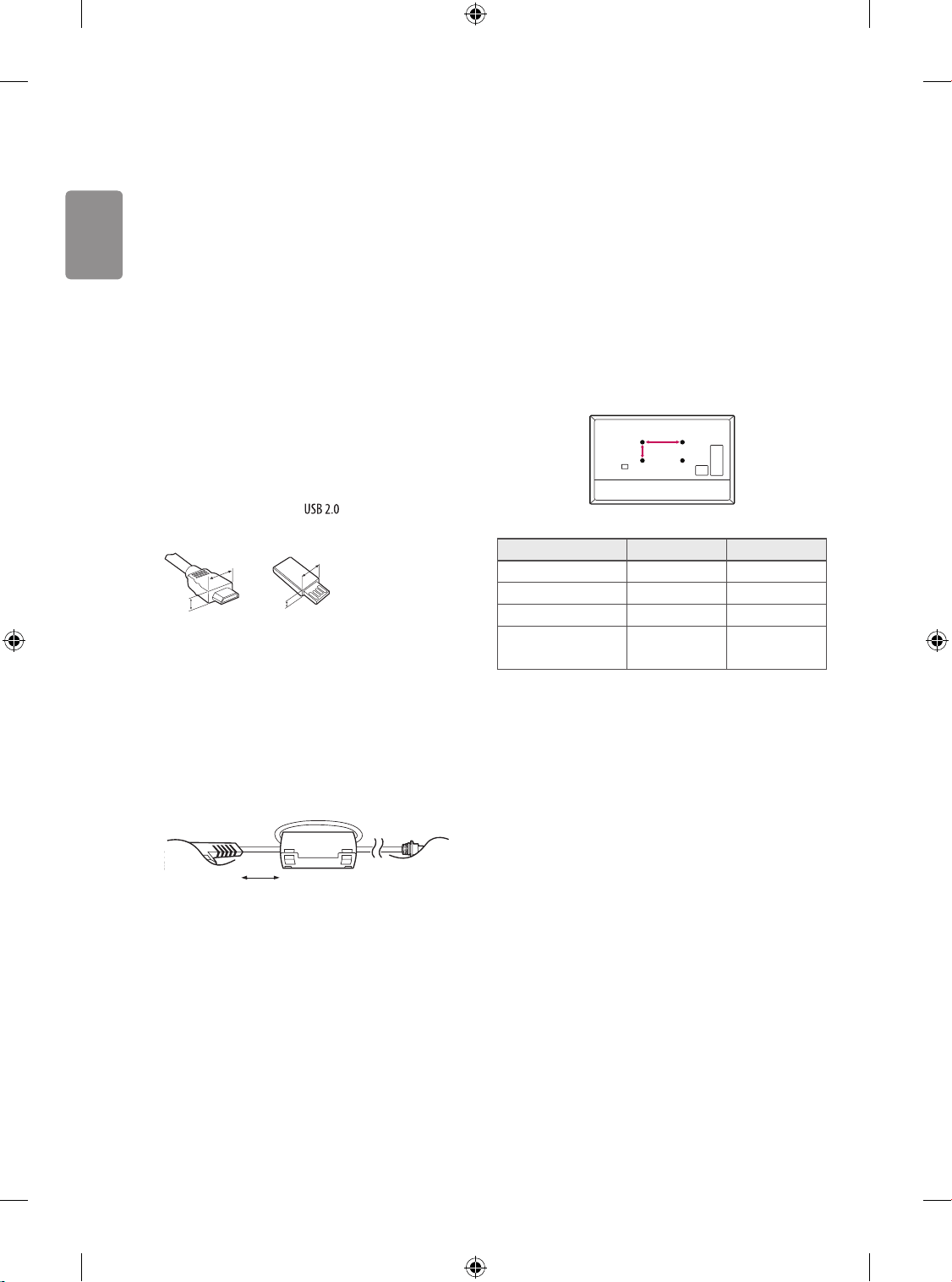
• For an optimal connection, HDMI cables and USB devices should
have bezels less than 10 mm thick and 18 mm width. Use an
extension cable that supports if the USB cable or USB
memory stick does not fit into your TV’s USB port.
A
B
A
B
* A
<
=
10 mm
* B
<
=
18 mm
• Use a certified cable with the HDMI logo attached.
• If you do not use a certified HDMI cable, the screen may not display
or a connection error may occur. (Recommended HDMI Cable Types)
- High-Speed HDMI®/
TM
Cable (3 m or less)
- High-Speed HDMI®/
TM
Cable with Ethernet (3 m or less)
• How to use the ferrite core (Depending on model)
- Use the ferrite core to reduce the electromagnetic interference in
the power cord. Wind the power cord on the ferrite core once.
[Wall side]
[TV side]
10 cm (+ / -2 cm)
Separate Purchase
Separate purchase items can be changed or modified for quality
improvement without any notification. Contact your dealer to buy these
items. These devices only work with certain models.
The model name or design may be changed depending on the upgrade
of product functions, manufacturer’s circumstances or policies.
(Depending on model)
Wall Mounting Bracket
Make sure to use screws and wall mount bracket that meet the VESA
standard. Standard dimensions for the wall mount kits are described in
the following table.
A
B
Model 32/43LK51* 49LK51*
VESA (A x B) (mm) 200 x 200 300 x 300
Standard screw M6 M6
Number of screws 4 4
Wall mount bracket
LSW240B
MSW240
OLW480B
MSW240
ENGLISH
5
Lifting and moving the TV
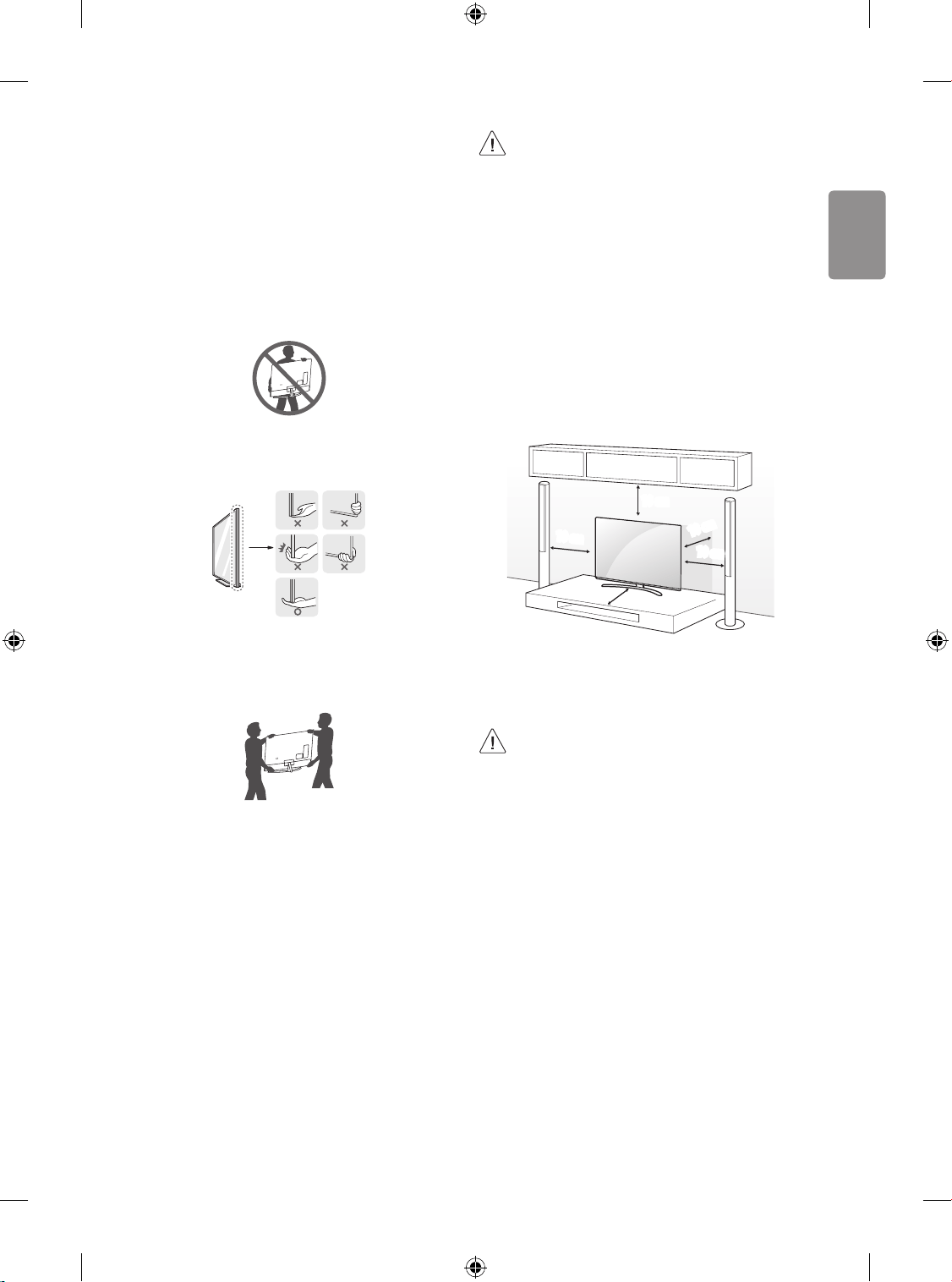
Please note the following advice to prevent the TV from being scratched
or damaged and for safe transportation regardless of its type and size.
• It is recommended to move the TV in the box or packing material
that the TV originally came in.
• Before moving or lifting the TV, disconnect the power cord and all
cables.
• When holding the TV, the screen should face away from you to
avoid damage.
• Hold the top and bottom of the TV frame firmly. Make sure not to
hold the transparent part, speaker, or speaker grill area.
• When transporting a large TV, there should be at least 2 people.
• When transporting the TV by hand, hold the TV as shown in the
following illustration.
• When transporting the TV, do not expose the TV to jolts or excessive
vibration.
• When transporting the TV, keep the TV upright, never turn the TV
on its side or tilt towards the left or right.
• Do not apply excessive pressure to cause flexing / bending of frame
chassis as it may damage screen.
• When handling the TV, be careful not to damage the protruding
buttons.
• Avoid touching the screen at all times, as this may result in
damage to the screen.
• Do not move the TV by holding the cable holders, as the
cable holders may break, and injuries and damage to the
TV may occur.
• When attaching the stand to the TV set, place the screen
facing down on a cushioned table or flat surface to protect
the screen from scratches.
Mounting on a Table
1 Lift and tilt the TV into its upright position on a table.
• Leave a 10 cm (minimum) space from the wall for proper
ventilation.
10 cm
10 cm
10 cm
10 cm
10 cm
(Depending on model)
2 Connect the power cord to a wall outlet.
• Do not apply foreign substances (oils, lubricants, etc.) to
the screw parts when assembling the product. (Doing so
may damage the product.)
• If you install the TV on a stand, you need to take actions
to prevent the product from overturning. Otherwise, the
product may fall over, which may cause injury.
• Do not use any unapproved items to ensure the safety and
product life span.
• Any damage or injuries caused by using unapproved items
are not covered by the warranty.
• Make sure that the screws are inserted correctly and
fastened securely. (If they are not fastened securely
enough, the TV may tilt forward after being installed.)
Do not use too much force and over tighten the screws;
otherwise screw may be damaged and not tighten
correctly.
ENGLISH
6
Securing TV to the Wall
(Depending on model)
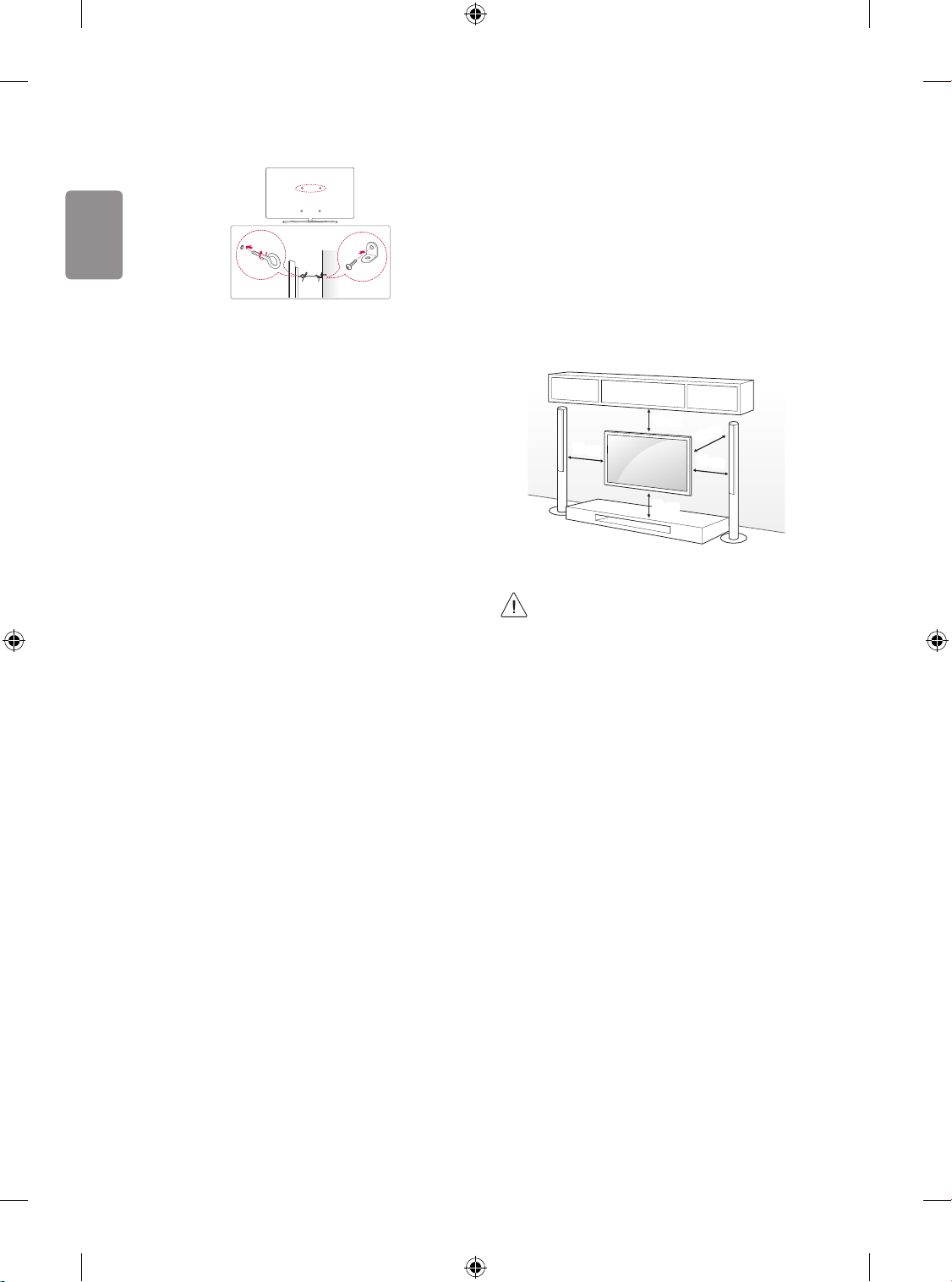
1 Insert and tighten the eye-bolts, or TV brackets and bolts on the
back of the TV.
• If there are bolts inserted at the eye-bolts position, remove the
bolts first.
2 Mount the wall brackets with the bolts to the wall. Match the
location of the wall bracket and the eye-bolts on the rear of the TV.
3 Connect the eye-bolts and wall brackets tightly with a sturdy rope.
Make sure to keep the rope horizontal with the flat surface.
• Use a platform or cabinet that is strong and large enough to
support the TV securely.
• Brackets, bolts and ropes are not provided. You can obtain
additional accessories from your local dealer.
Mounting to the Wall
Attach an optional wall mount bracket at the rear of the TV carefully
and install the wall mount bracket on a solid wall perpendicular to
the floor. When you attach the TV to other building materials, please
contact qualified personnel. LG recommends that wall mounting be
performed by a qualified professional installer. We recommend the use
of LG’s wall mount bracket. LG’s wall mount bracket is easy to move with
cables connected. When you do not use LG’s wall mount bracket, please
use a wall mount bracket where the device is adequately secured to the
wall with enough space to allow connectivity to external devices. It is
advised to connect all the cables before installing fixed wall mounts.
10 cm
10 cm
10 cm
10 cm
10 cm
(Depending on model)
• Remove the stand before installing the TV on a wall mount
by performing the stand attachment in reverse.
• For more information of screws and wall mount bracket,
refer to the Separate Purchase.
• If you intend to mount the product to a wall, attach VESA
standard mounting interface (optional parts) to the back
of the product. When you install the set to use the wall
mounting bracket (optional parts), fix it carefully so as
not to drop.
• When mounting a TV on the wall, make sure not to install
the TV by hanging the power and signal cables on the back
of the TV.
• Do not install this product on a wall if it could be exposed
to oil or oil mist. This may damage the product and cause
it to fall.
ENGLISH
7
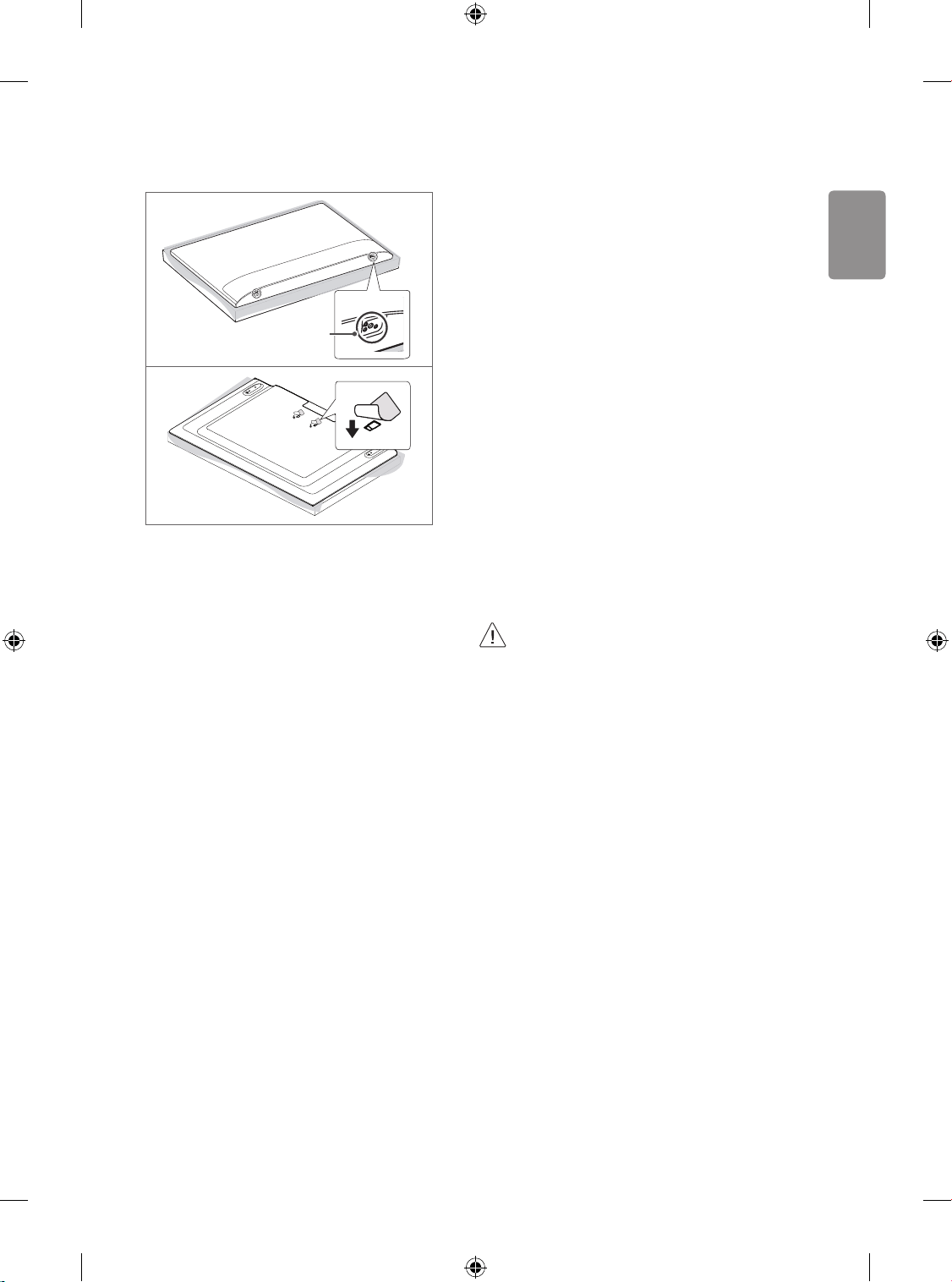
• When installing the wall mounting bracket, it is recommended to
cover the stand hole using tape, in order to prevent the influx of
dust and insects. (Depending on model)
Stand hole
Connections
Connect various external devices to the TV and switch input modes to
select an external device. For more information of external device’s
connection, refer to the manual provided with each device.
Antenna/Cable
Connect the TV to a wall antenna socket with an RF cable (75 Ω).
• Use a signal splitter to use more than 2 TVs.
• If the image quality is poor, install a signal amplifier properly to
improve the image quality.
• If the image quality is poor with an antenna connected, try to
realign the antenna in the correct direction.
• An antenna cable and converter are not supplied.
Satellite dish
Connect the TV to a satellite dish to a satellite socket with a satellite RF
cable (75 Ω). (Depending on model)
CI module
View the encrypted (pay) services in digital TV mode. (Depending on
model)
• Check if the CI module is inserted into the PCMCIA card slot in the
right direction. If the module is not inserted properly, this can
cause damage to the TV and the PCMCIA card slot.
• If the TV does not display any video and audio when CI+ CAM is
connected, please contact to the Terrestrial/Cable/Satellite Service
Operator.
Other connections
Connect your TV to external devices. For the best picture and audio
quality, connect the external device and the TV with the HDMI cable.
Some separate cable is not provided.
HDMI
• Supported HDMI Audio format (Depending on model):
Dolby Digital / Dolby Digital Plus (32 kHz / 44.1 kHz / 48 kHz),
PCM (32 kHz / 44.1 kHz / 48 kHz / 96 kHz / 192 kHz)
Adapter
(Depending on model)
• Please be sure to connect the TV to the AC-DC power
adapter before connecting the TV’s power plug to a wall
power outlet.
ENGLISH
8
External Devices
Available external devices are: Blu-ray player, HD receivers, DVD players,
VCRs, audio systems, USB storage devices, PC, gaming devices, and
other external devices.
• The external device connection may differ from the model.
• Connect external devices to the TV regardless of the order of the
TV port.
• If you record a TV program on a Blu-ray/DVD recorder or VCR, make
sure to connect the TV signal input cable to the TV through a DVD
recorder or VCR. For more information of recording, refer to the
manual provided with the connected device.
• Refer to the external equipment’s manual for operating
instructions.
• If you connect a gaming device to the TV, use the cable supplied
with the gaming device.
• In PC mode, there may be noise associated with the resolution,
vertical pattern, contrast or brightness. If noise is present, change
the PC output to another resolution, change the refresh rate to
another rate or adjust the brightness and contrast on the PICTURE
menu until the picture is clear.
• In PC mode, some resolution settings may not work properly
depending on the graphics card.
• When connecting via a wired LAN, it is recommended to use a CAT
7 cable. (Only when port is provided.)
Remote RS-232C setup
To obtain the RS-232C external control setup information, please visit
ww w.lg.com. Download and read the manual. (Depending on model)
• Do not drop the product or let it fall over when connecting
external devices. Otherwise, this may result in injury or
damage to the product.
• When connecting external devices such as video game
consoles, make sure the connecting cables are long
enough. Otherwise, the product may fall over, which may
cause injury or damage the product.
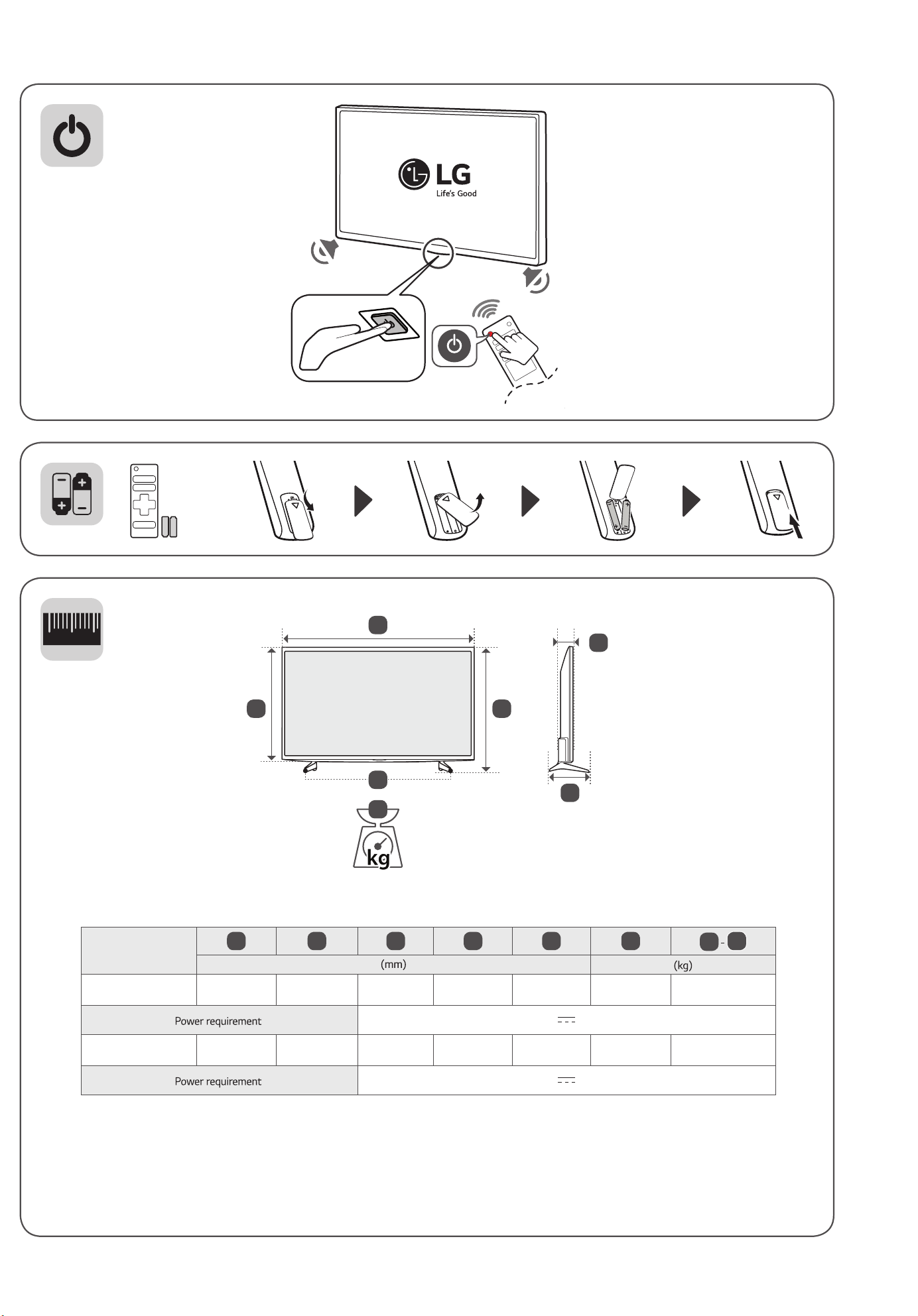
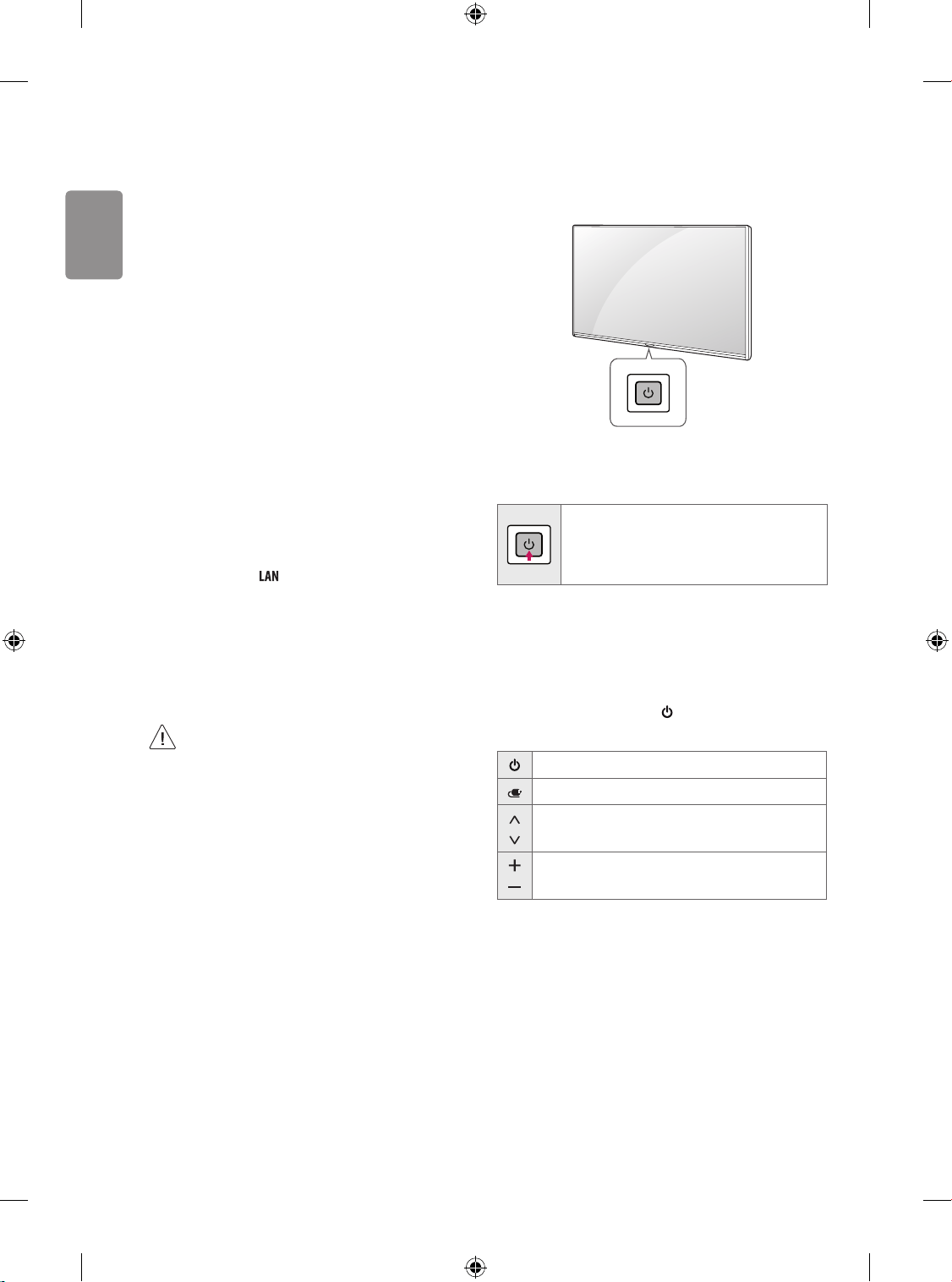
Using Button
You can simply operate the TV functions, using the button. (Depending
on model)
Basic functions
Power On (Press)
Power Off (Press and Hold)
Menu Control (Press
1
)
Menu Selection (Press and Hold
2
)
1 You can access and adjust the menu by pressing the button when
TV is on.
2 You can use the function when you access menu control.
Adjusting the menu
When the TV is turned on, press the button one time. You can adjust
the Menu items using the button.
Turns the power off.
Changes the input source.
Scrolls through the saved programmes.
Adjusts the volume level.
ENGLISH
9
Using Remote Control
The descriptions in this manual are based on the buttons on the remote
control. Please read this manual carefully and use the TV correctly.
To replace batteries, open the battery cover, replace batteries
(1.5VAAA) matching the and ends to the label inside the
compartment, and close the battery cover. To remove the batteries,
perform the installation actions in reverse.
Make sure to point the remote control toward the remote control sensor
on the TV.
(Some buttons and services may not be provided depending on models
or regions.)
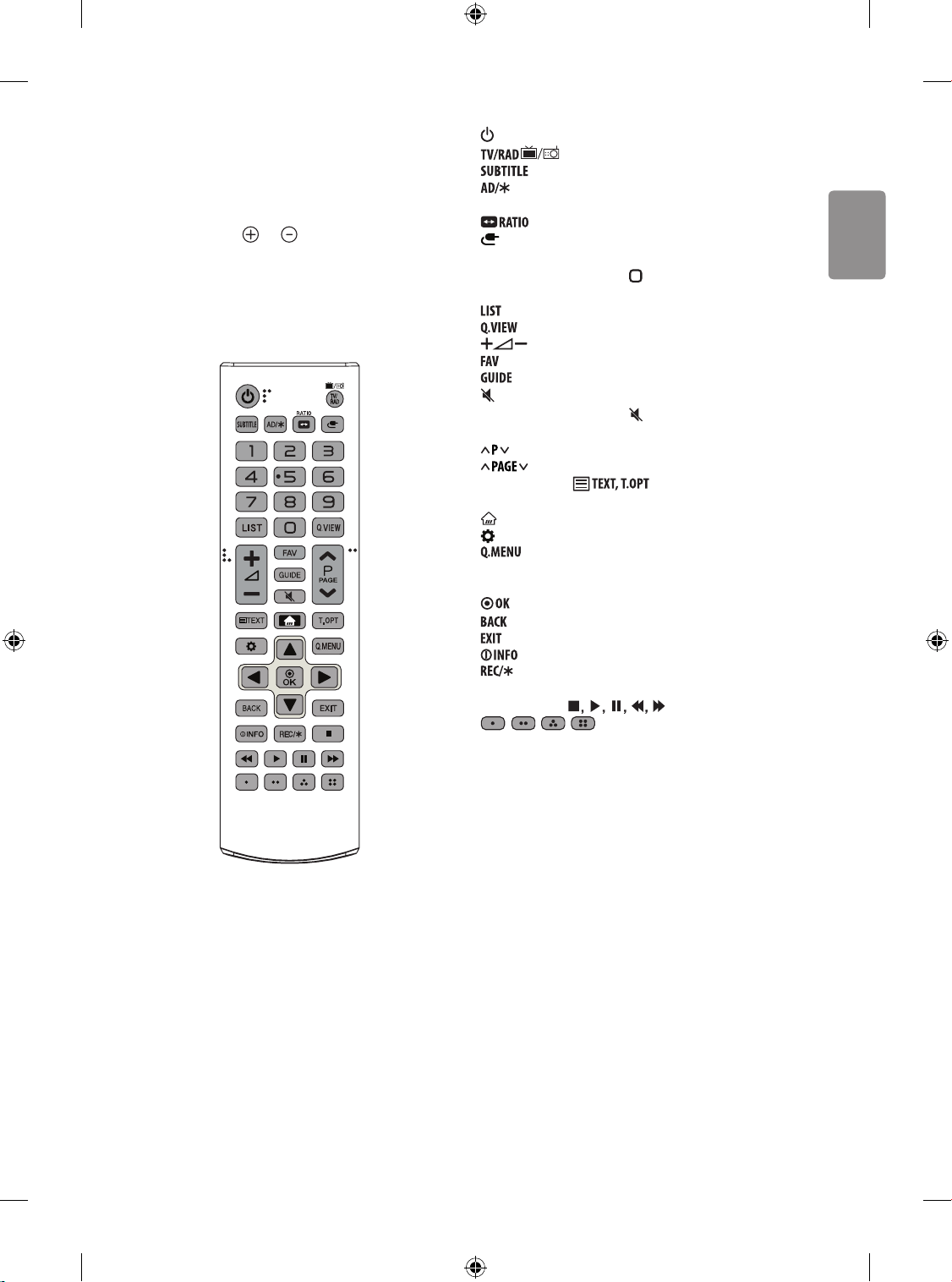
(POWER) Turns the TV on or off.
Selects Radio, TV and DTV programme.
Recalls your preferred subtitle in digital mode.
Audio descriptions function will be enabled. (Depending on
model)
Resizes an image.
(INPUT) Changes the input source.
Number buttons Enters numbers.
- Pressing and holding the button accesses the Quick Access
menu.
Accesses the saved programmes list.
Returns to the previously viewed programme.
Adjusts the volume level.
Accesses your favourite programme list.
Shows programme guide.
(MUTE) Mutes all sounds.
- Pressing and holding the button accesses the Accessibility
menu.
Scrolls through the saved programmes.
Moves to the previous or next screen.
Teletext buttons ( ) These buttons are used for
teletext.
(HOME) Accesses the Home menu.
(Settings) Accesses the Settings menu.
Accesses the Quick menus.
Navigation buttons (up/down/left/right) Scrolls through menus
or options.
Selects menus or options and confirms your input.
Returns to the previous level.
Clears on-screen displays and returns to TV viewing.
Views the information of the current programme and screen.
Starts to record and displays record menu. (Only Time
Machine
Ready
supported model) (Depending on model)
Control buttons ( ) Controls media contents.
, , , These access special functions in some
menus.

ENGLISH
10
• Do not mix new batteries with old batteries. This may
cause the batteries to overheat and leak.
• Failure to match the correct polarities of the battery may
cause the battery to burst or leak, resulting in fire, personal
injury, or ambient pollution.
• This apparatus uses batteries. In your community there
might be regulations that require you to dispose of these
batteries properly due to environmental considerations.
Please contact your local authorities for disposal or
recycling information.
• Batteries inside or inside the product shall not be exposed
to excessive heat such as sunshine, fire or the like.
Settings
Automatically Setting Up Programme
(Settings) → Programmes → Auto Tuning
Automatically tunes the programmes.
• If Input Source is not connected properly, programme registration
may not work.
• Auto Tuning only finds programmes that are currently
broadcasting.
• If Lock System is turned on, a pop-up window will appear asking
for password.
To select Picture Mode
(Settings) → Picture → Picture Mode Settings → Picture
Mode
Select the picture mode optimized for the viewing environment or the
programme.
• Vivid : Heightens contrast, brightness and sharpness to display
vivid images.
• Standard : Displays images in standard levels of contrast,
brightness and sharpness.
• Eco / : [Depending on model]
The Energy Saver feature changes settings on the TV to reduce
power consumption.
• Cinema / Game : Displays the optimum picture for movie, game.
• Sports : [Depending on model]
Optimizes the video image for high and dynamic actions by
emphasizing primary colours such as white, grass, or sky blue.
• Expert1 / Expert2 : Menu for adjusting picture quality that
allows experts and amateurs to enjoy the best TV viewing. This
is the adjustment menu provided for ISF-certified picture tuning
professionals. (ISF logo can only be used on ISF-certified TVs.)
ISFccc: Imaging Science Foundation Certified Calibration Control
• Depending on input signal, available range of picture modes may
differ.
• Expert mode is for picture tuning professionals to control
and fine-tune using a specific image. For normal images, the
effects may not be dramatic.
• The ISF function is only available on some models.
• Changing Picture Mode may modify Energy Saving
and Motion Eye Care settings, which can also affect energy
consumption.

ENGLISH
11
Fine-tuning Picture Mode
(Settings) → Picture → Picture Mode Settings
This feature allows you to adjust the selected picture mode in detail.
• Backlight : Controls the level of screen brightness by adjusting the
backlight. The closer to 100, the brighter the screen.
• Contrast : Adjusts the contrast of the bright and dark areas of the
picture. The closer to 100, the higher the contrast.
• Brightness : Adjusts the overall screen brightness. The closer to
100, the brighter the screen.
• Sharpness : Adjusts the sharpness of the image. The closer to 50,
the sharper and clearer the image.
• Colour : Tones down or up the colours displayed on the screen. The
closer to 100, the deeper the colour.
• Tint : Adjusts the colour balance between red and green displayed
on the screen. The closer to Red 50, the more red the colour will be.
The closer to Green 50, the more green the colour will be.
• Colour Temperature : Adjusts the colour temperature from cold
to warm.
• Depending on input signal or other picture settings, the range of
detailed items for adjustment may differ.
To set advanced controls
(Settings) → Picture → Picture Mode Settings →
Advanced Controls / Expert Controls
Calibrates the screen for each picture mode; or adjusts picture settings
for a special screen.
• Dynamic Contrast : Adjusts the contrast to the optimal level
according to the brightness of the image.
• Dynamic Colour : Adjusts colours to make the image appear in
more natural colours.
• Preferred Colour : Adjust the colours of skin, grass and sky to your
personal preferences.
• Gamma : Sets the gradation curve according to the output of
picture signal in relation to the input signal.
• Colour Gamut : Selects the range of colours that can be expressed.
• Colour Filter : Filters a specific colour spectrum in RGB colours to
fine-tune colour saturation and hue accurately.
• White Balance : Adjusts the overall tone of the screen as desired.
• Colour Management System : This is a system that experts use
when they adjust colour with a test pattern. They can select from
six colour areas (Red / Green / Blue / Cyan / Magenta / Yellow)
without affecting other colours. For normal images, adjustments
may not result in noticeable colour changes.
• Depending on input signal or other picture settings, the range of
detailed items for adjustment may differ.
To set additional picture options
(Settings) → Picture → Picture Mode Settings → Picture
Options
Adjusts detailed setting for images.
• Noise Reduction : Eliminates noise in the picture.
• MPEG Noise Reduction : Eliminates noise generated while
creating digital picture signals.
• Black Level : Adjusts the brightness and contrast of the screen
to suit the black level of the input picture by using the blackness
(black level) of the screen.
• Real Cinema : Optimizes the screen for movie viewing.
• Motion Eye Care : Automatically adjusts brightness and reduces
image blur based on image data to reduce eyestrain.
• Depending on input signal or other picture settings, the range of
detailed items for adjustment may differ.
Resetting picture settings
(Settings) → Picture → Picture Mode Settings → Picture
Reset
Resets picture settings that the user customizes. Each picture mode is
reset. Select the picture mode you wish to reset.
ENGLISH
12
To use Energy Saving feature
(Settings) → Picture → Energy Saving
Reduces power consumption by adjusting screen brightness.
• Auto : [Depending on model]
The TV sensor detects the ambient lighting and automatically
adjusts the screen brightness.
• Off : Turns off the Energy Saving mode.
• Minimum / Medium / Maximum : Applies the pre-set
Energy Saving mode.
• Screen Off : Screen is turned off and only sound is played. Press
any button except Power button on the remote control to turn the
screen back on.
• Depending on the Energy Saving (Auto / Maximum), you
may not be able to adjust the Backlight.
In this case, navigate to (Settings) → Picture →
Energy Saving and set to Off or Minimum.
To use Eye Comfort Mode feature
(Settings) → Picture → Additional Settings → Eye Comfort
Mode
If you turn this option on, colour temperature will be automatically
adjusted to reduce eye strain.
• On : Automatically adjusts the screen colour temperature.
• Off : Turns off the Eye Comfort Mode.
Selecting Sound Mode
(Settings) → Sound → Sound Mode Settings → Sound
Mode
Adjusts TV audio to an optimal level based on a selected sound mode.
• Standard : Optimizes the sound for all types of content.
• Clear Voice : Boosts voice clarity from the TV.
• Music : [Depending on model] Optimizes the sound for music.
• Cinema : Optimizes the sound for cinemas.
• Sports : [Depending on model] Optimizes the sound for sports.
• Game : Optimizes the sound for gameplay.
Adjusting audio balance
(Settings) → Sound → Sound Mode Settings → Balance
Adjust the volume of the left and right speakers.
Using the Sound Effect function
(Settings) → Sound → Sound Mode Settings
The user can select various sound effects.
• Virtual Surround : Enjoy an immersive soundscape with the
virtual multi-channel surround sound effect.
• Equalizer : Set the desired sound by adjusting the equalizer
directly.
• Reset : Reset the sound effect settings.
• This is only available if Sound Mode is set to Standard.
To use TV speaker
(Settings) → Sound → Sound Out → Internal TV Speaker
[Depending on model]
Sound is output through the TV speaker.
ENGLISH
13
To use External Speaker
(Settings) → Sound → Sound Out → Audio Out (Optical)
[Depending on model]
Sound is output through the speaker connected to the optical port.
• SimpLink is supported.
To use Internal TV Speaker + Audio Out
(Optical)
(Settings) → Sound → Sound Out → Internal TV Speaker +
Audio Out (Optical)
[Depending on model]
Audio is played through the TV’s built-in speakers and the audio device
connected to the digital optical audio output port simultaneously.
To connect and use LG audio device
(Settings) → Sound → Sound Out → LG Sound Sync
(Optical)
[Depending on model]
Connect LG audio device with the logo to the optical digital audio
output port. LG audio device allows you to enjoy rich powerful sound
easily.
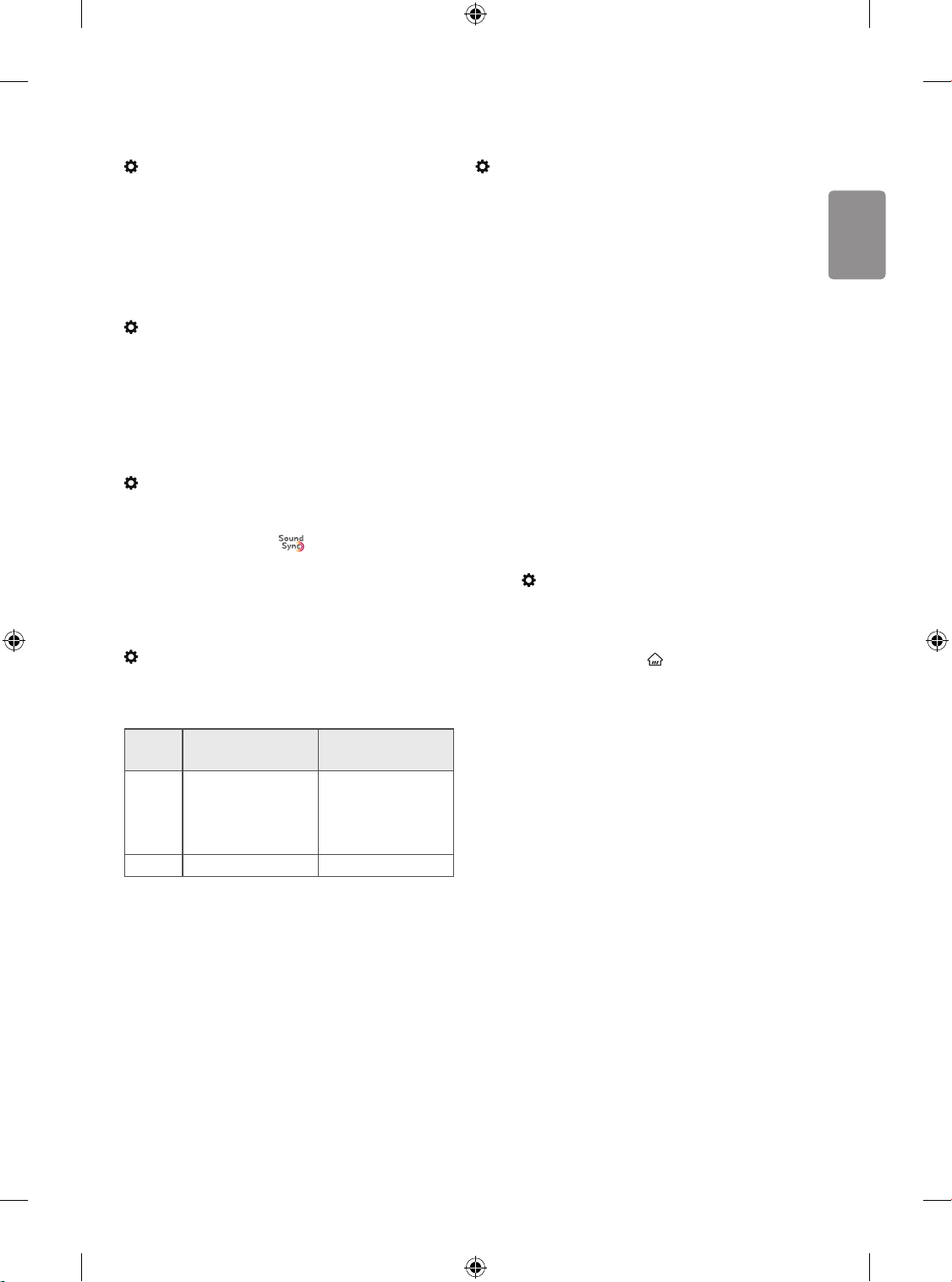
To use Digital Sound Out
(Settings) → Sound → Sound Out → Internal TV Speaker +
Audio Out (Optical) → Digital Sound Out
[Depending on model]
Sets up Digital Sound Out.
Item Audio Input Digital Audio Output
Auto
MPEG
Dolby Digital
Dolby Digital Plus
HE-AAC
PCM
Dolby Digital
Dolby Digital
Dolby Digital
PCM All PCM
• Supported DTV Audio: MPEG, Dolby Digital, Dolby Digital Plus,
HE-AAC
To synchronize audio and video
(Settings) → Sound → AV Sync Adjustment
[Depending on model]
Synchronizes video and audio directly when they do not match. If you
set AV Sync Adjustment to on, you can adjust the sound output (TV
speakers or External Speaker) to the screen image.
• If you select the Bypass, Outputs the broadcast signals or the
sound from external devices without any audio delay. The audio
may be output before the video because of the time the TV takes to
process the video input.
To use SIMPLINK
[Depending on model]
SIMPLINK is a feature that enables you to control and manage various
multimedia devices conveniently via the SIMPLINK menu.
1 Connect the TV’s HDMI IN terminal and the SIMPLINK device’s HDMI
output terminal using an HDMI cable.
• [Depending on model]
For home theatre units with a SIMPLINK function, connect HDMI
terminals as above, and use an optical cable to connect Optical
Digital Audio Out from the TV to Optical Digital Audio In of the
SIMPLINK device.
2 Select (Settings) → General → SIMPLINK.
SIMPLINK menu window appears.
3 In SIMPLINK Setting window, set SIMPLINK function to On.
4 Configure the Auto Power Sync settings to on or off.
• You can also set the SIMPLINK in (HOME) → Inputs →
SIMPLINK. In SIMPLINK menu window, selects the device you
want to control.
• This function is only compatible with devices with the SIMPLINK
logo.
• To use the SIMPLINK function, you need to use a high-speed HDMI®
cable (with CEC (Consumer Electronics Control) feature added).
High-speed HDMI®
cables have the No. 13 pin connected for
information exchange between devices.
• If you switch to another input, the SIMPLINK device will stop.
• If a third-party device with the HDMI-CEC function is also used, the
SIMPLINK device may not work normally.
• [Depending on model]
If you select or play media from the device with a home theatre
function, the HT Speaker (Speaker) is automatically connected.
Be sure to connect with an optical cable (sold separately) to use the
HT Speaker (Speaker) function.

ENGLISH
14
SIMPLINK function description
• Direct Play : Plays the multimedia device on the TV instantly.
• Controlling devices with the TV remote control : Manages the
multimedia device with the TV remote control.
• Main Power Off : If Auto Power Sync is set to on in the SIMPLINK
settings and turn off your TV, the devices connected to your TV via
SIMPLINK will also be turned off.
• Main Power On : If Auto Power Sync is set to on in the SIMPLINK
settings, turning on a SIMPLINK-linked device will turn the TV on.
(Behavior may vary depending on connected device.)
• Speaker : [Depending on model]
Select speaker either on the home theatre unit or the TV.
To set password
(Settings) → Safety → Set Password
Sets or changes the TV password.
• The initial password is set to ‘0000’.
• When France is selected for Country, password is not ‘0000’ but
‘1234’.
• When France is selected for Country, password cannot be set to
‘0000’.
To return Reset to Initial Settings
(Settings) → General → Reset to Initial Settings
All stored information is deleted and TV settings are reset.
The TV turns itself off and back on, and all settings are reset.
• When Lock System is in place, a pop-up window appears and asks
for password.
• Do not turn off the power during initialization.
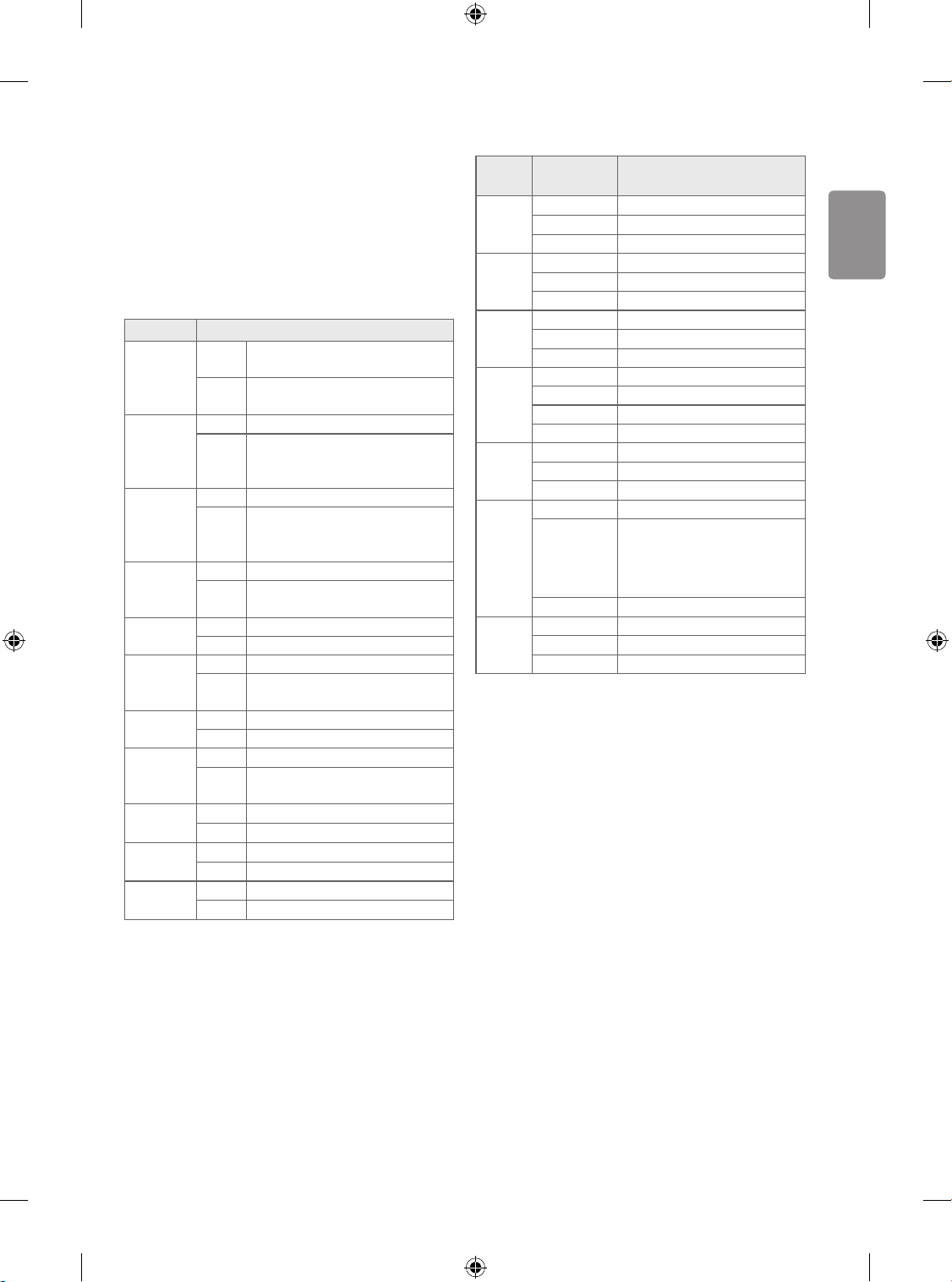
To remove the USB device
Select the connected USB HDD from (HOME) → Inputs and select
the Eject button to disconnect the USB HDD storage device.
When you see a message that the USB device has been removed,
separate the device from the TV.
• Once a USB device has been selected for removal, it can no longer
be read. Remove the USB storage device and then re-connect it.
Using a USB storage device - warning
• If the USB storage device has a built-in auto recognition program or
uses its own driver, it may not work.
• Some USB storage devices may not work or may work incorrectly.
• Use only USB storage devices formatted with the Windows FAT32
or NTFS File System.
• For external USB HDDs, it is recommended that you use devices
with a rated voltage of less than 5 V and a rated current of less
than 500 mA.
• It is recommended that you use USB memory sticks of 32 GB or less
and USB HDDs of 2 TB or less.
• If a USB HDD with power-saving function does not work properly,
turn the power off and on. For more information, refer to the user
manual of the USB HDD.
• Data in the USB storage device can be damaged, so be sure to back
up important files to other devices. Data maintenance is the user’s
responsibility and the manufacturer is not responsible for data loss.
ENGLISH
15
My Media supporting file
• Maximum data transfer rate: 20 Mbps (Mega bit per second)
• External supported subtitle formats : *.smi, *.srt, *.sub
(MicroDVD, SubViewer1.0/2.0), *.ass, *.ssa, *.txt (TMplayer), *.psb
(PowerDivX)
Supported Video Formats
• Maximum: 1,920 x 1,080 @ 30p (Only Motion JPEG 640 x 480 @
30p)
Extension Codec
.asf, .wmv
Video
MPEG-4 Part2, Xvid, H.264/AVC,
VC1(WMV3, WVC1)
Audio
WMA Standard, WMA9(Pro), MP3, AAC,
AC3
.avi
Video MPEG-2, MPEG-4 Part2, Xvid, H.264/AVC
Audio
HE-AAC, LPCM, ADPCM, MPEG-1 Layer I,
MPEG-1 Layer II, Dolby Digital, MPEG-1
Layer III (MP3), DTS
1
.ts, .trp, .tp,
.mts, .m2ts
Video H.264/AVC, MPEG-2, H.265/HEVC
Audio
MPEG-1 Layer I, MPEG-1 Layer II, MPEG-1
Layer III (MP3), Dolby Digital, Dolby Digital
Plus, AAC, HE-AAC, DTS
1
.vob
Video MPEG-1, MPEG-2
Audio
Dolby Digital, MPEG-1 Layer I, MPEG-1
Layer II, DVD-LPCM
.mp4, .m4v,
.mov
Video MPEG-2, MPEG-4 Part2, Xvid, H.264/AVC
Audio AAC, MPEG-1 Layer III (MP3), DTS
1
.mkv
Video MPEG-2, MPEG-4 Part2, Xvid, H.264/AVC
Audio
HE-AAC, Dolby Digital, MPEG-1 Layer III
(MP3), LPCM, DTS
1
motion JPEG
Video MJPEG
Audio LPCM, ADPCM
.mpg, .mpeg,
.mpe
Video MPEG-1, MPEG-2
Audio
MPEG-1 Layer I, MPEG-1 Layer II, Dolby
Digital, LPCM
.dat
Video MPEG-1, MPEG-2
Audio MP2
.flv
Video Sorenson H.263, H.264/AVC
Audio MP3, AAC, HE-AAC
.3gp
Video H.264/AVC, MPEG-4 Part2
Audio AAC, AMR(NB/WB)
1 Depending on model
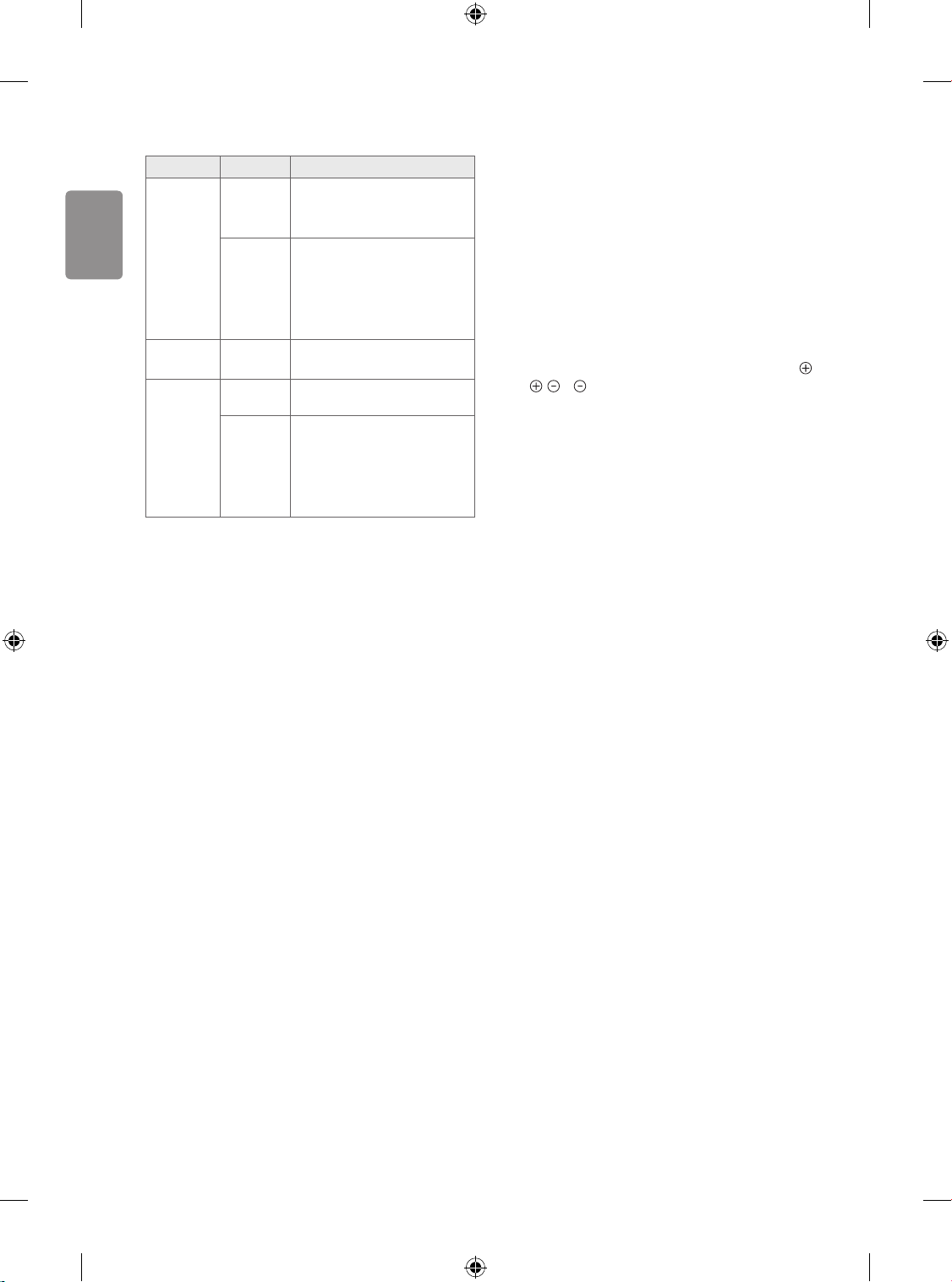
Supported Audio Formats
File
Format
Item Info
MP3
Bit rate 32 Kbps ~ 320 Kbps
Sample freq. 16 kHz ~ 48 kHz
Support MPEG-1, MPEG-2, Layer2, Layer3
AAC
Bit rate Free Format
Sample freq. 8 kHz ~ 48 kHz
Support ADIF, ADTS
M4A
Bit rate Free Format
Sample freq. 8 kHz ~ 48 kHz
Support MPEG-4
WAV
Bit rate 64 kbps ~ 1.5 Mbps
Sample freq. 8 kHz ~ 48 kHz
Support LPCM
Bit depth 8 bit / 16 bit / 24 bit
WMA
Bit rate 128 Kbps ~ 320 Kbps
Sample freq. 8 kHz ~ 48 kHz
Support WMA7, WMA8, WMA9 Standard
WMA 10
Pro
Bit rate ~ 768 Kbps
Channel /
Sample freq.
M0: up to 2 Channel @ 48 kHz (Except
LBR mode),
M1: up to 5.1 Channel @ 48 kHz,
M2: up to 5.1 Channel @ 96 kHz
Support WMA 10 Pro
OGG
Bit rate Free Format
Sample freq. 8 kHz ~ 48 kHz
Support OGG Vorbis
ENGLISH
16
Supported Photo Formats
File Format Item Resolution
jpeg, jpg, jpe
Available
File Type
SOF0: Baseline
SOF1: Extend Sequential
SOF2: Progressive
Photo Size
Minimum: 64 (W) x 64 (H)
Maximum (Normal Type):
15,360 (W) x 8,640 (H)
Maximum (Progressive Type):
1,920 (W) x 1,440 (H)
BMP Photo Size
Minimum: 64 (W) x 64 (H)
Maximum: 9,600 (W) x 6,400 (H)
PNG
Available
File Type
Interlace, Non-Interlace
Photo Size
Minimum: 64 (W) x 64 (H)
Maximum (Interlace):
1,200 (W) x 800 (H)
Maximum (Non-Interlace):
9,600 (W) x 6,400 (H)
* BMP and PNG format files may be slower to display than JPEG.
To see web manual
To obtain detailed User Guide information, please visit www.lg.com.
Troubleshooting
Cannot control the TV with the remote control.
• Check the remote control sensor on the product and try again.
• Check if there is any obstacle between the product and the remote
control.
• Check if the batteries are still working and properly installed (
to , to ).
No image display and no sound is produced.
• Check if the product is turned on.
• Check if the power cord is connected to a wall outlet.
• Check if there is a problem in the wall outlet by connecting other
products.
The TV turns off suddenly.
• Check the power control settings. The power supply may be
interrupted.
• Check if the auto-off function is activated on the settings related
time.
• If there is no signal while the TV is on, the TV will turn off
automatically after 15 minutes of inactivity.
When connecting to the PC (HDMI), no signal is detected.
• Turn the TV off/on using the remote control.
• Reconnect the HDMI cable.
• Restart the PC with the TV on.

ENGLISH
17
Abnormal Display
• If the product feels cold to the touch, there may be a small “flicker”
when it is turned on. This is normal, there is nothing wrong with
product.
• This panel is an advanced product that contains millions of pixels.
You may see tiny black dots and/or brightly coloured dots (red, blue
or green) at a size of 1ppm on the panel. This does not indicate a
malfunction and does not affect the performance and reliability of
the product. This phenomenon also occurs in third-party products
and is not subject to exchange or refund.
• You may find different brightness and colour of the panel
depending on your viewing position(left/right/top/down).
This phenomenon occurs due to the characteristic of the panel.
It is not related with the product performance, and it is not
malfunction.
• Displaying a still image for a prolonged period of time may cause
image sticking. Avoid displaying a fixed image on the TV screen for
a long period of time.
Generated Sound
• “Cracking” noise: A cracking noise that occurs when watching or
turning off the TV is generated by plastic thermal contraction due
to temperature and humidity. This noise is common for products
where thermal deformation is required.
• Electrical circuit humming/panel buzzing: A low level noise is
generated from a high-speed switching circuit, which supplies a
large amount of current to operate a product. It varies depending
on the product. This generated sound does not affect the
performance and reliability of the product.
ENGLISH
18
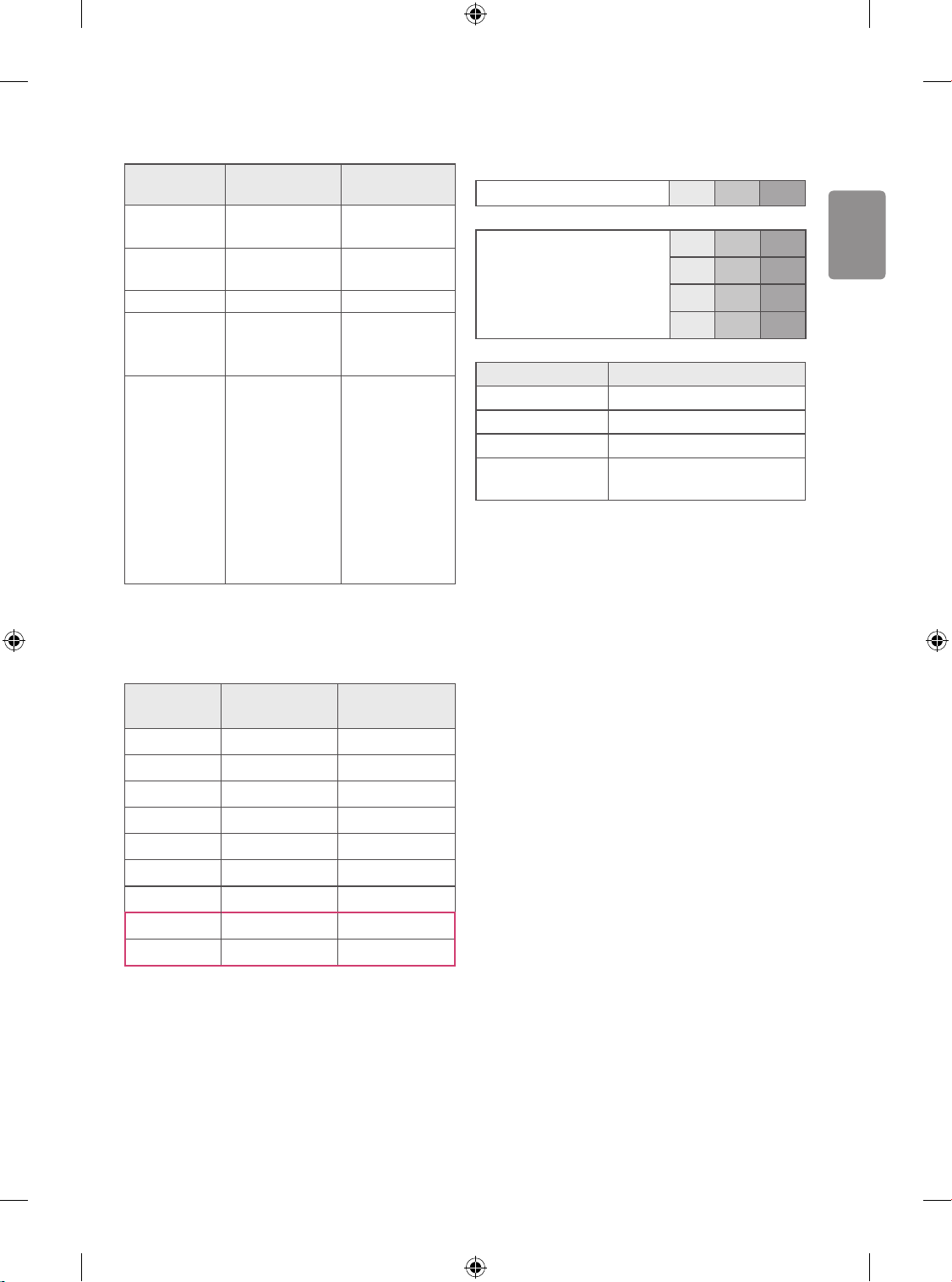
Specifications
(Depending on country)
Broadcasting Specifications
Digital TV Analogue TV
Television system
DVB-S/S2
1
DVB-T/T2
1
DVB-C
PAL/SECAM B/G, D/K, I
SECAM L
Channel coverage
(Band)
DVB-S/S2
1
DVB-C DVB-T/T2
1
46 ~ 862 MHz
950~2,150 MHz 46 ~ 890 MHz
VHF III : 174 ~ 230 MHz
UHF IV : 470 ~ 606 MHz
UHF V : 606 ~ 862 MHz
S Band II : 230 ~ 300 MHz
S Band III : 300 ~ 470 MHz
Maximum number of
storable programmes
6,000 2,000
External antenna
impedance
75 Ω
CI Module (W x H x D) 100.0 mm x 55.0 mm x 5.0 mm
1 Only DVB-T2/C/S2 support models
AC/DC Adapter
32LK51* 43/49LK51*
Manufacturer : Lien Chang
Model : LCAP45
Manufacturer : APD
Model : DA-48G19
Manufacturer : Chicony
Model : A16-048N2A
Manufacturer : Lien Chang
Model : LCAP40
Manufacturer : APD
Model : DA-65F19
Manufacturer : Chicony
Model : A16-065N4A
Input : AC 100 - 240 V ~ 50/60 Hz
Output : DC 19 V 2.53 A
Input : AC 100 - 240 V ~ 50/60 Hz
Output : DC 19 V 3.42 A
Environment condition
Operating Temperature 0 °C to 40 °C
Operating Humidity Less than 80 %
Storage Temperature -20 °C to 60 °C
Storage Humidity Less than 85 %
ENGLISH
19
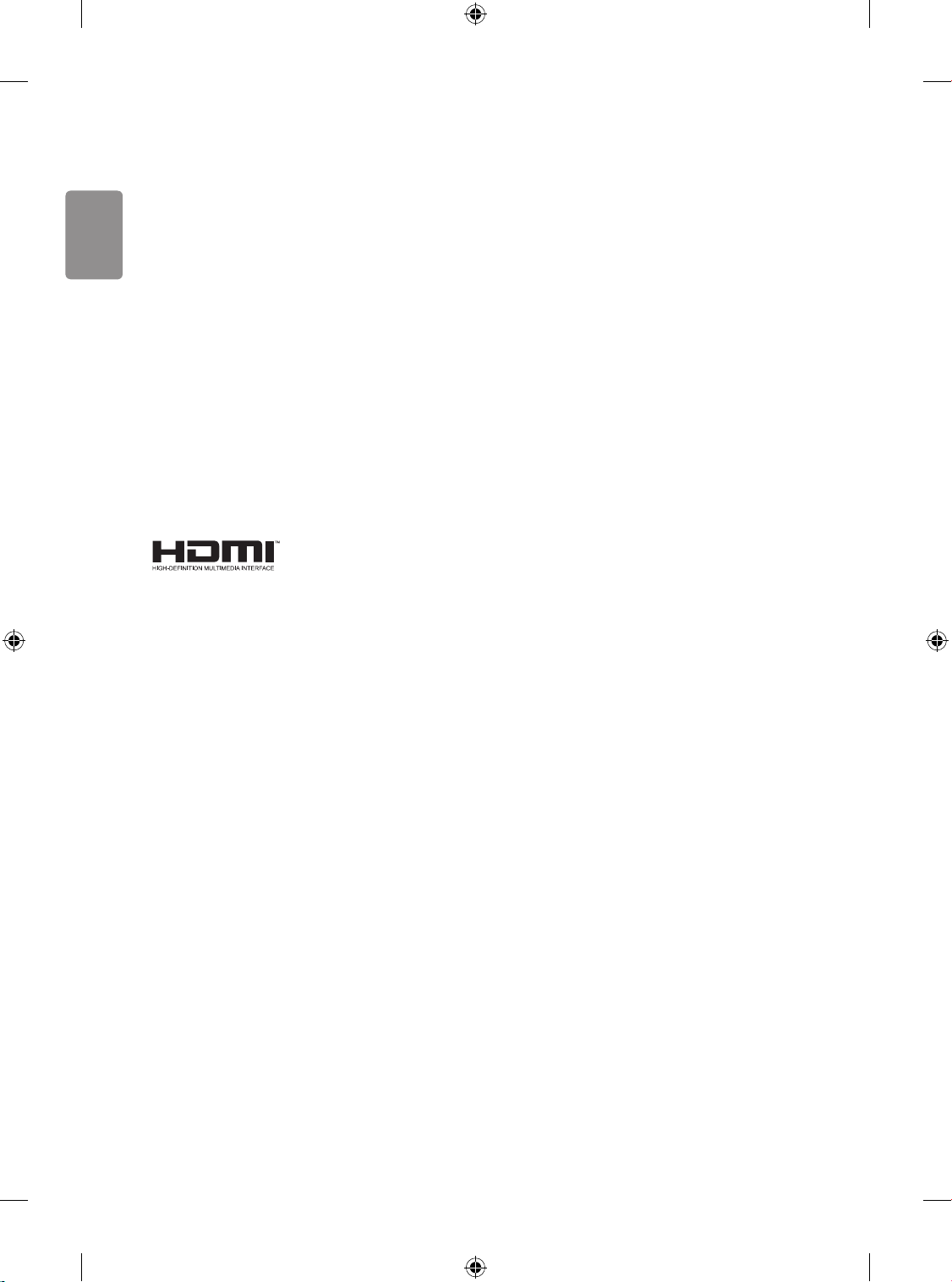
HDMI-DTV supported mode
Resolution
Horizontal
Frequency (kHz)
Vertical
Frequency (Hz)
640 x 480
31.46
31.50
59.94
60.00
720 x 480
31.47
31.50
59.94
60.00
720 x 576 31.25 50.00
1,280 x 720
37.50
45.00
44.96
50.00
60.00
59.94
1,920 x 1,080
28.12
33.75
33.72
56.25
67.50
67.43
27.00
26.97
33.75
33.71
50.00
60.00
59.94
50.00
60.00
59.94
24.00
23.97
30.00
29.97
HDMI-PC supported mode
Use HDMI IN 1 for PC mode
Resolution
Horizontal
Frequency (kHz)
Vertical
Frequency (Hz)
640 x 350 31.46 70.09
720 x 400 31.46 70.08
640 x 480 31.46 59.94
800 x 600 37.87 60.31
1,024 x 768 48.36 60.00
1,152 x 864 54.34 60.05
1,360 x 768 47.71 60.01
1,280 x 1,024
1
63.98 60.02
1,920 x 1,080
1
67.50 60.00
1 Except for 32LK51*
Component port connecting
information
Component ports on the TV Y P
B
P
R
Video output ports on DVD player
Y P
B
P
R
Y B-Y R-Y
Y Cb Cr
Y Pb Pr
Signal Component
480i / 576i O
480p / 576p O
720p / 1,080i O
1,080p
O
(Only 50 Hz / 60 Hz)
ENGLISH
20
Open Source Software
Notice Information
To obtain the source code under GPL, LGPL, MPL, and other open source
licenses, that is contained in this product, please visit http://opensource.
lge.com.
In addition to the source code, all referred license terms, warranty
disclaimers and copyright notices are available for download.
LG Electronics will also provide open source code to you on CD-ROM
for a charge covering the cost of performing such distribution (such
as the cost of media, shipping, and handling) upon email request to
This offer is valid for a period of three years after our last shipment of
this product. This offer is valid to anyone in receipt of this information.
Licenses
Supported licenses may differ by model.
The terms HDMI and HDMI High-Definition Multimedia Interface,
and the HDMI Logo are trademarks or registered trademarks of
HDMI Licensing Administrator, Inc. in the United States and other
countries.
Manufactured under license from Dolby Laboratories. Dolby, Dolby
Vision, Dolby Audio, Dolby Atmos, and the double-D symbol are
trademarks of Dolby Laboratories.

OWNER’S MANUAL
EXTERNAL CONTROL
DEVICE SETUP
www.lg.com
Please read this manual carefully before operating the set and retain it for
future reference.
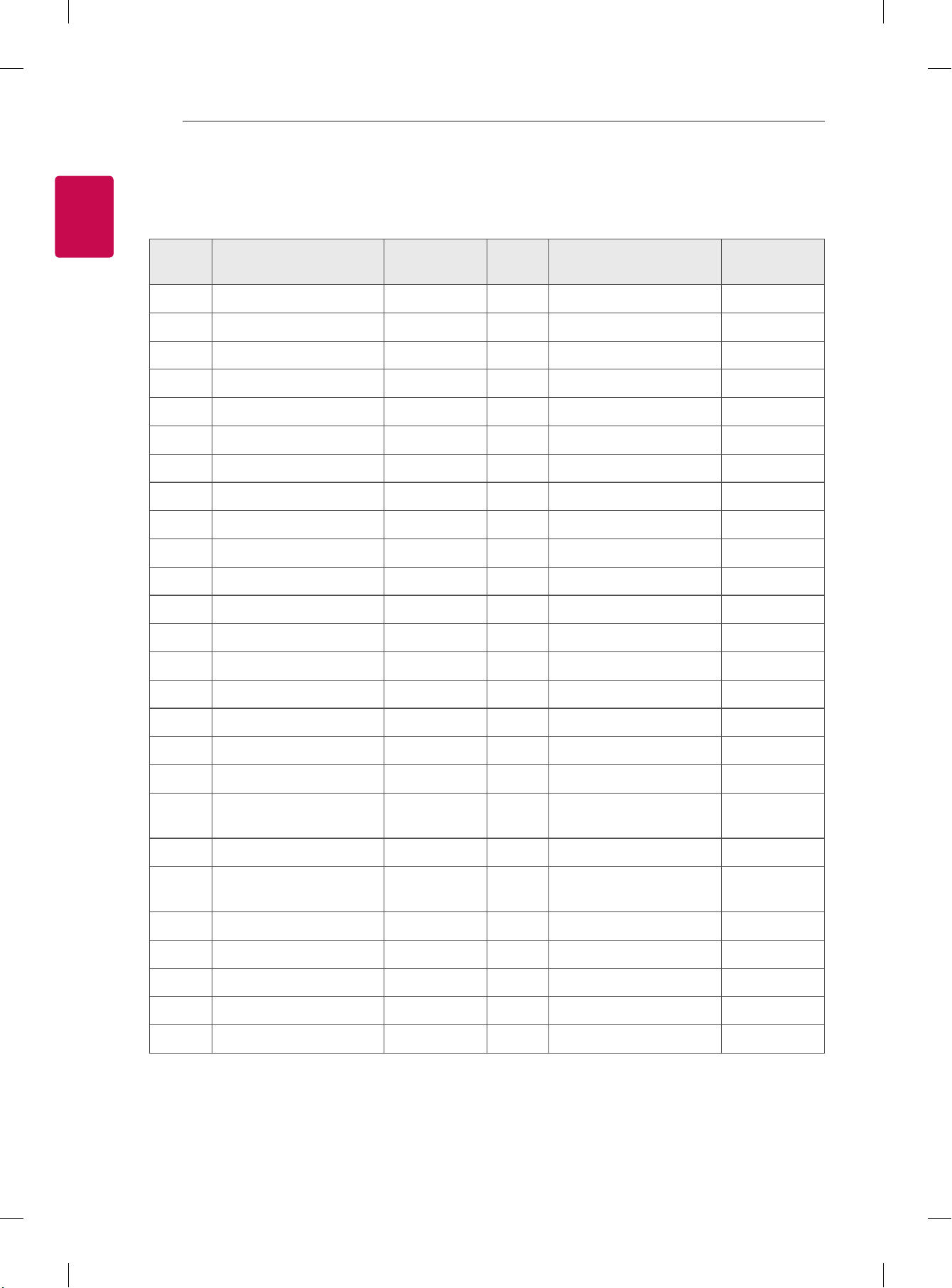
2
ENG
ENGLISH
2
KEY CODES
KEY CODES
• This feature is not available for all models.
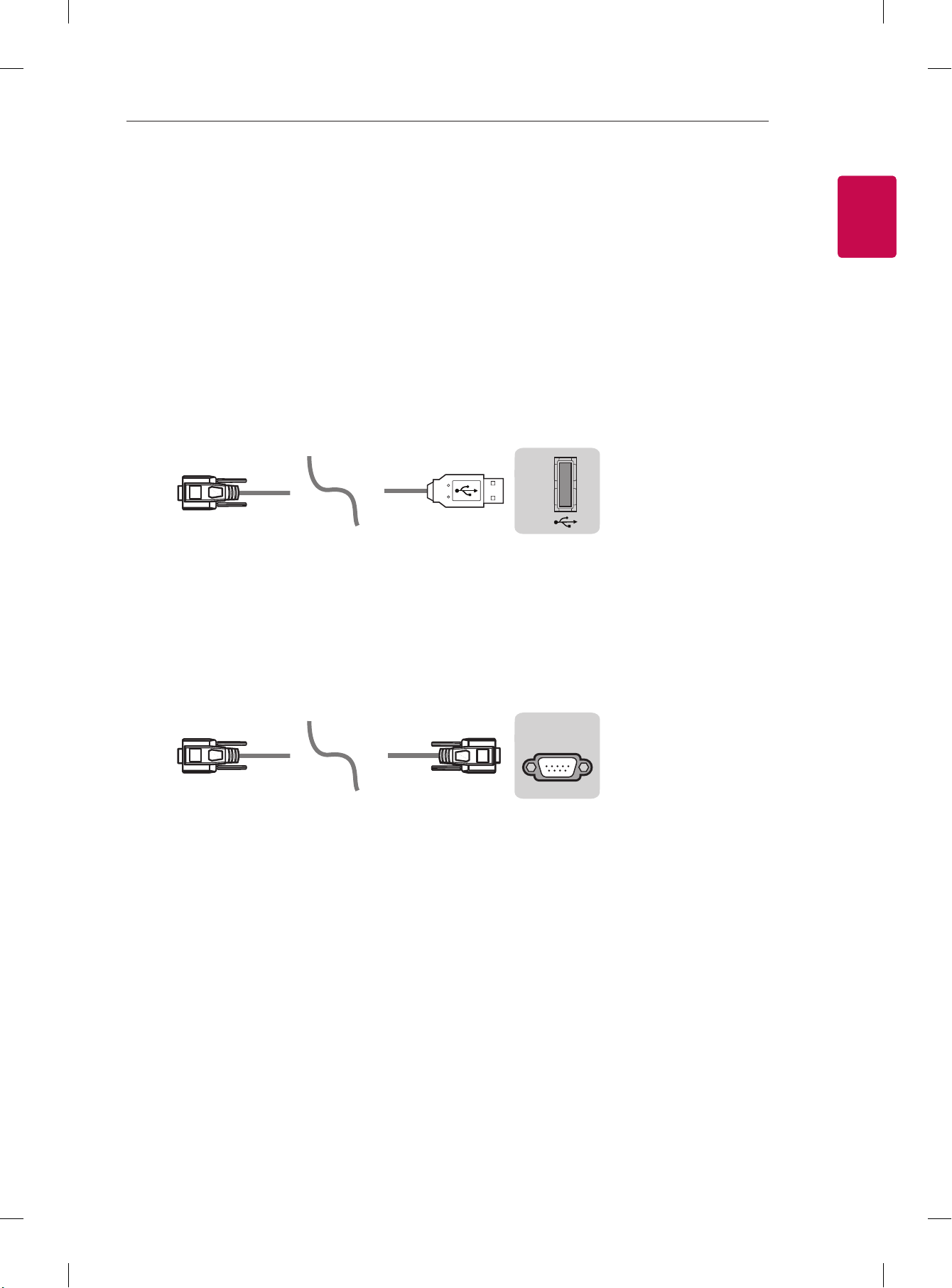
Code
(Hexa)
Function Note
Code
(Hexa)
Function Note
00 CH +, PR + R/C Button 53 List R/C Button
01 CH -, PR - R/C Button 5B Exit R/C Button
02 Volume + R/C Button 60 PIP(AD) R/C Button
03 Volume - R/C Button 61 Blue R/C Button
06 > (Arrow Key / Right Key) R/C Button 63 Yellow R/C Button
07 < (Arrow Key / Left Key) R/C Button 71 Green R/C Button
08 Power R/C Button 72 Red R/C Button
09 Mute R/C Button 79 Ratio / Aspect Ratio R/C Button
0B Input R/C Button 91 AD (Audio Description) R/C Button
0E SLEEP R/C Button 7A User Guide R/C Button
0F TV, TV/RAD R/C Button 7C Smart / Home R/C Button
10 - 19 * Number Key 0 - 9 R/C Button 7E SIMPLINK R/C Button
1A Q.View / Flashback R/C Button 8E ►►(Forward) R/C Button
1E FAV (Favorite Channel) R/C Button 8F ◄◄(Rewind) R/C Button
20 Text (Teletext) R/C Button AA Info R/C Button
21 T. Opt (Teletext Option) R/C Button AB Program Guide R/C Button
28 Return (BACK) R/C Button B0 ►(Play) R/C Button
30 AV (Audio / Video) Mode R/C Button B1 ꕗ (Stop / File List) R/C Button
39 Caption/Subtitle R/C Button BA
ꕘ (Freeze / Slow Play /
Pause)
R/C Button
40 Λ
(Arrow Key / Cursor Up)
R/C Button BB Soccer R/C Button
41
V (Arrow Key / Cursor
Down)
R/C Button BD ꔄ (REC) R/C Button
42 My Apps R/C Button DC 3D R/C Button
43 Menu / Settings R/C Button 99 AutoConfig R/C Button
44 OK / Enter R/C Button 9F App / * R/C Button
45 Q.Menu R/C Button 9B TV/PC R/C Button
4C List, - (ATSC Only) R/C Button
* Key code 4C (0x4C) is available on ATSC/ISDB models which use major/minor channel.
(For South Korea, Japan, North America, Latin America except Colombia models)
3
ENGENGLISH
3
EXTERNAL CONTROL DEVICE SETUP
EXTERNAL CONTROL DEVICE SETUP
• Image shown may differ from your TV.
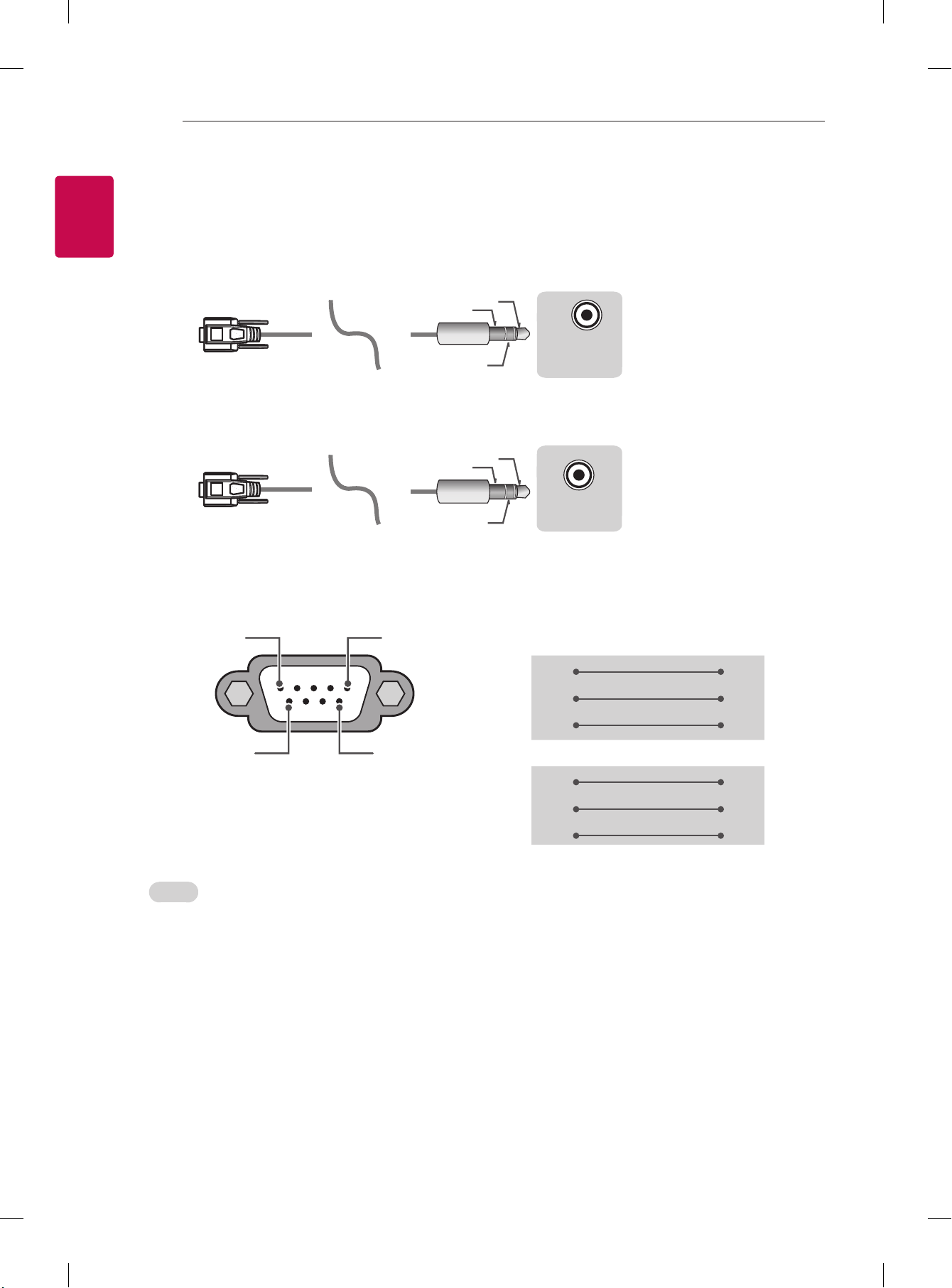
Connect the USB to Serial converter/RS-232C input jack to an external control device (such as a computer
or an A/V control system) to control the product’s functions externally.
Note: The type of control port on the TV can be different between model series.
* Please be advised that not all models support this type of connectivity.
* Cable is not provided.
USB to Serial converter with USB Cable
USB Type
USB IN
(TV)
(PC )
(PC
)
RS-232C IN
(CONTROL & SERVICE)
(TV)
(TV)
(PC )
(TV)
(PC )
SERVICE ONLY
RS-232C IN
(CONTROL & SERVICE)
RS-232C IN
(CONTROL & SERVICE)
1
3
2
1
3
2
• LGTV supports PL2303 chip-based (Vendor ID : 0x0557, Product ID : 0x2008) USB to serial converter
which is not made nor provided by LG.
• It can be purchased from computer stores that carry accessories for IT support professionals.
RS-232C With RS232C Cable
DE9 (D-Sub 9pin) Type
• You need to purchase the RS-232C (DE9, D-Sub 9pin female-to-female type) to RS-232C cable required
for the connection between the PC and the TV, which is specified in the manual.
USB IN
(TV)
(PC
)
(PC )
RS-232C IN
(CONTROL & SERVICE)
(TV)
(TV)
(PC )
(TV)
(PC )
SERVICE ONLY
RS-232C IN
(CONTROL & SERVICE)
RS-232C IN
(CONTROL & SERVICE)
1
3
2
1
3
2
The connection interface may differ from your TV.
4
ENG
ENGLISH
4
EXTERNAL CONTROL DEVICE SETUP
Phone jack Type
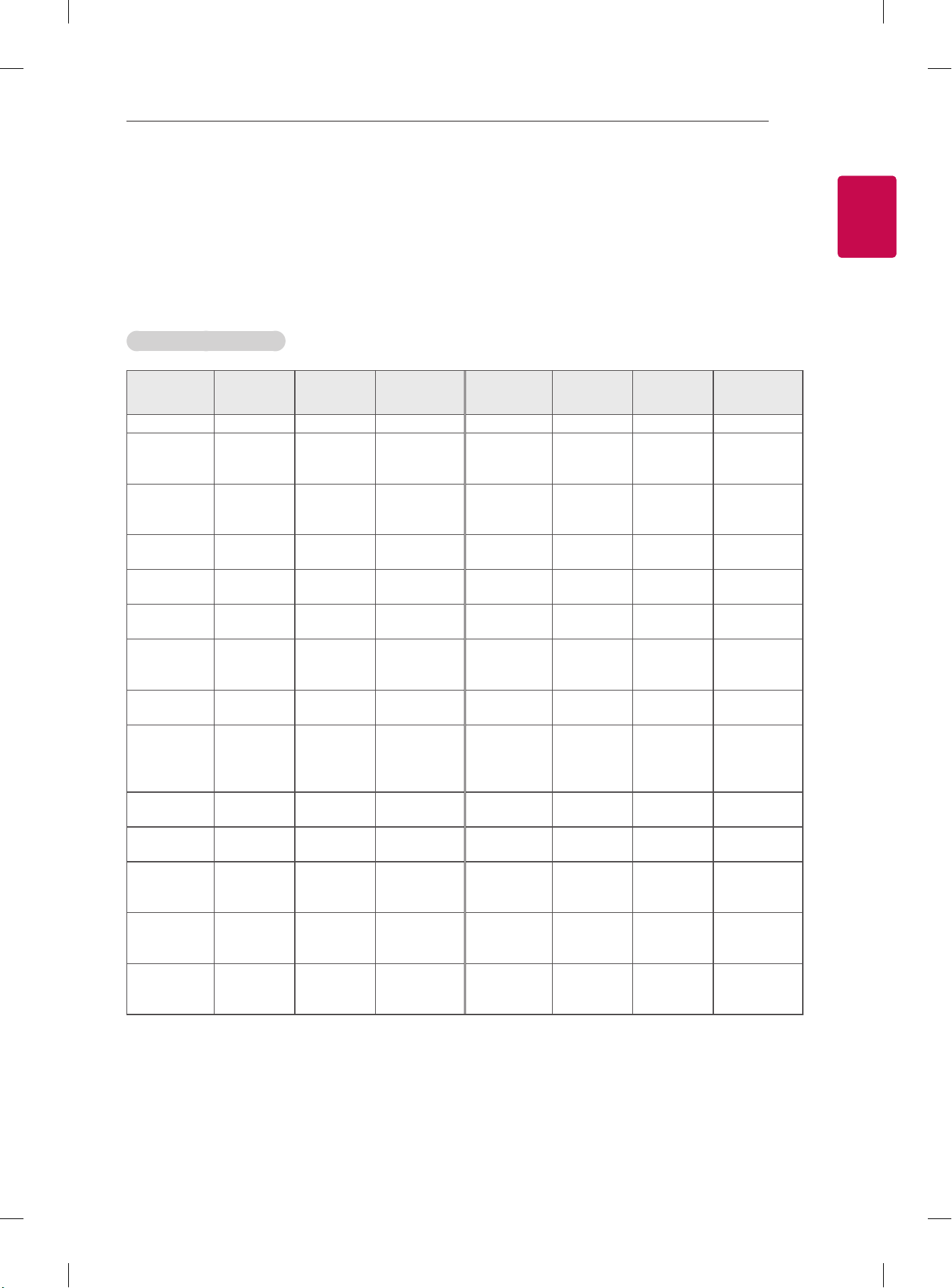
• You need to purchase the phone-jack to RS-232 cable required for the connection between the PC and
the TV, which is specified in the manual.
* For other models, connect to the USB port.
* The connection interface may differ from your TV.
USB IN
(TV)
(PC )
(PC )
RS-232C IN
(CONTROL & SERVICE)
(TV)
(TV)
(PC
)
(TV)
(PC )
SERVICE ONLY
RS-232C IN
(CONTROL & SERVICE)
RS-232C IN
(CONTROL & SERVICE)
1
3
2
1
3
2
- or
USB IN
(TV)
(PC )
(PC )
RS-232C IN
(CONTROL & SERVICE)
(TV)
(TV)
(PC )
(TV)
(PC
)
SERVICE ONLY
RS-232C IN
(CONTROL & SERVICE)
RS-232C IN
(CONTROL & SERVICE)
1
3
2
1
3
2
Customer Computer RS-232C configurations
3-Wire Configurations(Not standard)
1
6
5
9
PC TV
RXD 2 2 TXD
TXD 3 1 RXD
GND 5 3 GND
OR
RXD 3 2 TXD
TXD 2 1 RXD
GND 5 3 GND
D-Sub 9 Phone
RS-232C
(Serial port)
Set ID
For Set ID number, see "Real Data Mapping" on p.6
1. Press SETTINGS to access the main menus.
2. Press the Navigation buttons to scroll to (*General → About this TV or OPTION) and press OK.
3. Press the Navigation buttons to scroll to SET ID and press OK.
4. Scroll left or right to select a set ID number and select CLOSE. The adjustment range is 1-99.
5. When you are finished, press EXIT.
* (Depending on model)
5
ENGENGLISH
5
EXTERNAL CONTROL DEVICE SETUP
Communication Parameters
• Baud rate : 9600 bps (UART)
• Data length : 8 bits
• Parity : None
• Stop bit : 1 bit
• Communication code : ASCII code
• Use a crossed (reverse) cable.
Command reference list
(Depending on model)
COMMAND1 COMMAND2
DATA
(Hexadecimal)
COMMAND1 COMMAND2
DATA
(Hexadecimal)
01. Power* k a 00 to 01 15. Balance k t 00 to 64
02. Aspect
Ratio
k c (p.7)
16. Color
(Colour)
Temperature
x u 00 to 64
03. Screen
Mute
k d (p.7)
17. ISM
Method (Only
Plasma TV)
j p (p.8)
04. Volume
Mute
k e 00 to 01 18. Equalizer j v (p.8)
05. Volume
Control
k f 00 to 64
19. Energy
Saving
j q 00 to 05
06. Contrast k g 00 to 64
20. Tune
Command
m a (p.9)
07.
Brightness
k h 00 to 64
21. Channel
(Programme)
Add/Del(Skip)
m b 00 to 01
08. Color/
Colour
k i 00 to 64 22. Key m c Key Codes
09. Tint k j 00 to 64
23. Control
Backlight,
Control Panel
Light
m g 00 to 64
10.
Sharpness
k k 00 to 32
24. Input
select (Main)
x b (p.11)
11. OSD
Select
k l 00 to 01
25. 3D (Only
3D models)
x t (p.11)
12. Remote
Control Lock
Mode
k m 00 to 01
26. Extended
3D (Only 3D
models)
x v (p.11)
13. Treble k r 00 to 64
27. Auto
Configure
j u (p.12)
14. Bass k s 00 to 64
* Note: During playing or recording media, all commands except Power (ka) and Key (mc) are not
executed and treated as NG.
With RS232C cable, TV can communicate "ka command" in power-on or power-off status. but with
USB-to-Serial converter cable, the command works only if TV is on.

6
ENG
ENGLISH
6
EXTERNAL CONTROL DEVICE SETUP
Transmission / Receiving Protocol
Transmission
[Command1][Command2][ ][Set ID][ ][Data][Cr]
[Command 1] : First command to control the TV. (j, k, m or x)
[Command 2] : Second command to control the TV.
[Set ID] : You can adjust the [Set ID] to choose desired monitor ID number in option menu.
Adjustment range in TV is 1 to 99. If [Set ID] value is selected to ‘0’, every connected set
can be controlled.
* [Set ID] is indicated as decimal (1 to 99) on menu and as Hexadecimal (0x00 to 0x63) on
transmission/receiving protocol.
[DATA] : To transmit command data (hexadecimal). Transmit ‘FF’ data to read status of command.
[Cr] : Carriage Return - ASCII code ‘0x0D’
[ ] : Space – ASCII code ‘0x20’
OK Acknowledgement
[Command2][ ][Set ID][ ][OK][Data][x]
* The set transmits ACK (acknowledgement) based on this format when receiving normal data. At this time,
if the data is data read mode, it indicates present status data. If the data is data write mode, it returns the
data of the PC computer.
Error Acknowledgement
[Command2][ ][Set ID][ ][NG][Data][x]
* The set transmits ACK (acknowledgement) based on this format when receiving abnormal data from
non-viable functions or communication errors.
Data 00: Illegal Code
Real data mapping (Hexadecimal b Decimal)
* When you enter the [data] in hexadecimal, refer to following conversion table.
* Channel Tune (ma) Command uses two-byte hexadecimal value([data]) to select channel number.
00 : Step 0 32 : Step 50 (Set ID 50) FE : Step 254
01 : Step 1 (Set ID 1) 33 : Step 51 (Set ID 51) FF : Step 255
... ... ...
0A : Step 10 (Set ID 10) 63 : Step 99 (Set ID 99) 01 00 : Step 256
... ... ...
0F : Step 15 (Set ID 15) C7 : Step 199 27 0E : Step 9998
10 : Step 16 (Set ID 16) C8 : Step 200 27 0F : Step 9999
... ... ...

7
ENGENGLISH
7
EXTERNAL CONTROL DEVICE SETUP
* Commands may work differently depending on model and signal.
01. Power (Command: k a)
► To control Power *On or Off of the set.
Transmission[k][a][ ][Set ID][ ][Data][Cr]
Data 00 : Power Off 01 : *Power On
Ack [a][ ][Set ID][ ][OK/NG][Data][x]
► To Show TV is Power On or *Off
Transmission [k][a][ ][Set ID][ ][FF][Cr]
Ack [a][ ][Set ID][ ][OK][Data][x]
* Similarly, if other functions transmit ‘FF’ data
based on this format, Acknowledgement feedback
presents status about each function.
02. Aspect Ratio (Command: k c)
(Main Picture Size)
► To adjust the screen format. (Main picture format)
You can also adjust the screen format using the
Aspect Ratio in the Q.MENU. or PICTURE menu.
Transmission [k][c][ ][Set ID][ ][Data][Cr]
Data 01 : Normal screen
(4:3)
02 : Wide screen
(16:9)
04 : Zoom
05 : Zoom 2
(Latin America
except Colombia
Only)
06 : Set by Program/
Original
07 : 14:9
(Europe, Colombia, Mid-East,
Asia except South Korea and
Japan)
09 : * Just Scan
0B : Full Wide
(Europe, Colombia, Mid-
East, Asia except South
Korea and Japan)
10 to 1F : Cinema Zoom 1
to 16
Ack [c][ ][Set ID][ ][OK/NG][Data][x]
* Using the PC input, you select either 16:9 or 4:3
screen aspect ratio.
* In DTV/HDMI/Component mode (high-definition),
Just Scan is available.
* Full wide mode may work differently based on
model and is supported for DTV fully, and ATV,
AV partially.
03. Screen Mute (Command: k d)
► To select screen mute on/off.
Transmission [k][d][ ][Set ID][ ][Data][Cr]
Data 00 : Screen mute off (Picture on)
Video mute off
01 : Screen mute on (Picture off)
10 : Video mute on
Ack [d][ ][Set ID][ ][OK/NG][Data][x]
* In case of video mute on only, TV will display On
Screen Display(OSD). But, in case of Screen mute
on, TV will not display OSD.
04. Volume Mute (Command: k e)
► To control volume mute on/off.
You can also adjust mute using the MUTE button
on remote control.
Transmission [k][e][ ][Set ID][ ][Data][Cr]
Data 00 : Volume mute on (Volume off)
01 : Volume mute off (Volume on)
Ack [e][ ][Set ID][ ][OK/NG][Data][x]
05. Volume Control (Command: k f)
► To adjust volume.
You can also adjust volume with the volume
buttons on remote control.
Transmission [k][f][ ][Set ID][ ][Data][Cr]
Data Min : 00 to Max : 64
Ack [f][ ][Set ID][ ][OK/NG][Data][x]
06. Contrast (Command: k g)
► To adjust screen contrast.
You can also adjust contrast in the PICTURE
menu.
Transmission [k][g][ ][Set ID][ ][Data][Cr]
Data Min : 00 to Max : 64
Ack [g][ ][Set ID][ ][OK/NG][Data][x]
07. Brightness (Command: k h)
► To adjust screen brightness.
You can also adjust brightness in the PICTURE
menu.
Transmission [k][h][ ][Set ID][ ][Data][Cr]
Data Min : 00 to Max : 64
Ack [h][ ][Set ID][ ][OK/NG][Data][x]
08. Color/Colour (Command: k i)
► To adjust the screen Color(Colour).
You can also adjust colour in the PICTURE menu.
Transmission [k][i][ ][Set ID][ ][Data][Cr]
8
ENG
ENGLISH
8
EXTERNAL CONTROL DEVICE SETUP
Data Min : 00 to Max : 64
Ack [i][ ][Set ID][ ][OK/NG][Data][x]
09. Tint (Command: k j)
► To adjust the screen tint.
You can also adjust tint in the PICTURE menu.
Transmission [k][j][ ][Set ID][ ][Data][Cr]
Data Red : 00 to Green : 64
Ack [j][ ][Set ID][ ][OK/NG][Data][x]
10. Sharpness (Command: k k)
► To adjust the screen sharpness.
You can also adjust sharpness in the PICTURE
menu.
Transmission [k][k][ ][Set ID][ ][Data][Cr]
Data Min : 00 to Max : 32
Ack [k][ ][Set ID][ ][OK/NG][Data][x]
11. OSD Select (Command: k l)
► To select OSD (On Screen Display) on/off when
controlling remotely.
Transmission [k][l][ ][Set ID][ ][Data][Cr]
Data 00 : OSD off 01 : OSD on
Ack [l][ ][Set ID][ ][OK/NG][Data][x]
12. Remote control lock mode (Command: k m)
► To lock the front panel controls on the monitor and
remote control.
Transmission [k][m][ ][Set ID][ ][Data][Cr]
Data 00 : Lock off 01 : Lock on
Ack [m][ ][Set ID][ ][OK/NG][Data][x]
* If you are not using the remote control, use this
mode.
When main power is off & on (plug-off and plug-in,
after 20 - 30 seconds), external control lock is
released.
* In the standby mode (DC off by off timer or ‘ka’,
‘mc’ command), and if key lock is on, TV will not
turn on by power on key of IR & Local Key.
13. Treble (Command: k r)
► To adjust treble.
You can also adjust in the AUDIO menu.
Transmission [k][r][ ][Set ID][ ][Data][Cr]
Data Min : 00 to Max : 64
Ack [r][ ][Set ID][ ][OK/NG][Data][x]
* (Depending on model)
14. Bass (Command: k s)
► To adjust Bass.
You can also adjust in the AUDIO menu.
Transmission [k][s][ ][Set ID][ ][Data][Cr]
Data Min : 00 to Max : 64
Ack [s][ ][Set ID][ ][OK/NG][Data][x]
* (Depending on model)
15. Balance (Command: k t)
► To adjust balance.
You can also adjust balance in the AUDIO menu.
Transmission [k][t][ ][Set ID][ ][Data][Cr]
Data Min : 00 to Max : 64
Ack [t][ ][Set ID][ ][OK/NG][Data][x]
16. Color(Colour) Temperature (Command: x u)
► To adjust colour temperature. You can also adjust
Color(Colour) Temperature in the PICTURE menu.
Transmission [x][u][ ][Set ID][ ][Data][Cr]
Data Min : 00 to Max : 64
Ack [u][ ][Set ID][ ][OK/NG][Data][x]
17. ISM Method (Command: j p) (Only Plasma TV)
► To control the ISM method. You can also adjust
ISM Method in OPTION menu.
Transmission [j][p][ ][Set ID][ ][Data][Cr]
Data Min : 02: Orbiter
08: Normal
20: Color(Colour) Wash
Ack [p][ ][Set ID][ ][OK/NG][Data][x]
18. Equalizer (Command : j v)
► Adjust EQ of the set.
Transmission [j][v][ ][Set ID][ ][Data][Cr]
0 0 0 0 0 0 0 0
MSB
Frequency Data
LSB
7 6 5
Frequency
4 3 2 1 0 Step
0 0 0
1st Band
0 0 0 0 0
0(decimal)
0 0 1
2nd Band
0 0 0 0 1
1(decimal)
0 1 0
3rd Band
... ... ... ... ...
...
0 1 1
4th Band
1 0 0 1 1
19(decimal)

9
ENGENGLISH
9
EXTERNAL CONTROL DEVICE SETUP
1 0 0
5th Band
1 0 1 0 0
20(decimal)
Acknowledgement [v][ ][Set ID][ ][OK/NG][Data][x]
* It depends on model, and can adjust when sound
mode is EQ adjustable value.
19. Energy Saving (Command: j q)
► To reduce the power consumption of the TV. You
can also adjust Energy Saving in PICTURE menu.
Transmission [j][q][ ][Set ID][ ][Data][Cr]
Data
00 : Off
01 : Minimum
02 : Medium
03 : Maximum
04 : Auto (For LCD TV / LED TV) /
Intelligent sensor (For PDP TV)
05 : Screen off
* (Depending on model)
Ack [q][ ][Set ID][ ][OK/NG][Data][x]
20. Tune Command (Command: m a)
* This command may work differently depending on
model and signal.
• For Europe, Mid-East, Colombia, Asia except
South Korea and Japan Model
► Select channel to following physical number.
Transmission [m][a][ ][Set ID][ ][Data 00][ ]
[Data 01][ ][Data 02][Cr]
* Analog Antenna/Cable
[Data 00][Data 01] Channel Data
Data 00 : High byte channel data
Data 01 : Low byte channel data
- 00 00 ~ 00 C7 (Decimal : 0 ~ 199)
Data 02 : Input Source (Analog)
- 00 : Antenna TV (ATV)
- 80 : Cable TV (CATV)
* Digital Antenna/Cable/Satellite
[Data 00][Data 01]: Channel Data
Data 00 : High Channel data
Data 01 : Low Channel data
- 00 00 ~ 27 0F (Decimal: 0 ~ 9999)
Data 02 : Input Source (Digital)
- 10 : Antenna TV (DTV)
- 20 : Antenna Radio (Radio)
- 40 : Satellite TV (SDTV)
- 50 : Satellite Radio (S-Radio)
- 90 : Cable TV (CADTV)
- a0 : Cable Radio (CA-Radio)
* Tune Command Examples:
1. Tune to the Analog antenna (PAL) Channel 10.
Set ID = All = 00
Data 00 & 01 = Channel Data is 10 = 00 0a
Data 02 = Analog Antenna TV = 00
Result = ma 00 00 0a 00
2. Tune to the digital antenna (DVB-T) Channel 01.
Set ID = All = 00
Data 00 & 01 = Channel Data is 1 = 00 01
Data 02 = Digital Antenna TV = 10
Result = ma 00 00 01 10
3. Tune to the satellite (DVB-S) Channel 1000.
Set ID = All = 00
Data 00 & 01 = Channel Data is 1000 = 03 E8
Data 02 = Digital Satellite TV = 40
Result = ma 00 03 E8 40
Ack [a][ ][Set ID][ ][OK][Data 00][Data 01]
[Data 02][x][a][ ][Set ID][ ][NG][Data 00][x]
• For South Korea, North/Latin America except
Colombia Model
► To tune channel to following physical/major/minor
number.
Transmission [m][a][ ][0][ ][Data00][ ][Data01]
[ ][Data02][ ][Data03][ ][Data04][ ][Data05][Cr]
Digital channels have a Physical, Major, and Minor
channel number. The Physical number is the actual
digital channel number, the Major is the number that
the channel should be mapped to, and the Minor is
the sub-channel. Since the ATSC tuner automatically
maps the channel from the Major / Minor number,
the Physical number is not required when sending a
command in Digital.
* Analog Antenna/Cable
Data 00 : Physical Channel Number
- Antenna (ATV) : 02~45 (Decimal: 2 ~ 69)
- Cable (CATV) : 01, 0E~7D (Decimal : 1, 14~125)
[Data 01 ~ 04]: Major/Minor Channel Number
Data 01 & 02: xx (Don't care)
Data 03 & 04: xx (Don't care)
Data 05: Input Source (Analog)
- 00 : Antenna TV (ATV)
- 01 : Cable TV (CATV)
* Digital Antenna/Cable
Data 00 : xx (Don't care)
[Data 01][Data 02]: Major Channel Number
Data 01 : High byte Channel Data
Data 02 : Low byte Channel Data
- 00 01 ~ 27 0F (Decimal: 1 ~ 9999)
[Data 03][Data 04]: Minor Channel Number
Data 03 : High byte Channel Data
Data 04 : Low byte Channel Data
Data 05 : Input Source (Digital)
- 02 : Antenna TV (DTV) – Use Physical Channel
Number
- 06 : Cable TV (CADTV) – Use Physical Channel

10
ENG
ENGLISH
10
EXTERNAL CONTROL DEVICE SETUP
Number
- 22 : Antenna TV (DTV) – Don’t Use Physical
Channel Number
- 26 : Cable TV (CADTV) - Don’t Use Physical
Channel Number
- 46 : Cable TV (CADTV) – Use Major Channel
Number Only (One Part Channel)
Two bytes are available for each major and minor
channel data, but usually the low byte is used alone
(high byte is 0).
* Tune Command Examples:
1. Tune to the Analog cable (NTSC) channel 35.
Set ID = All = 00
Data 00 = Channel Data is 35 = 23
Data 01 & 02 = No Major = 00 00
Data 03 & 04 = No Minor = 00 00
Data 05 = Analog Cable TV = 01
Total = ma 00 23 00 00 00 00 01
2. Tune to the digital antenna (ATSC) channel 30-3.
Set ID = All = 00
Data 00 = Don’t know Physical = 00
Data 01 & 02 = Major is 30 = 00 1E
Data 03 & 04 = Minor is 3 = 00 03
Data 05 = Digital Antenna TV = 22
Total = ma 00 00 00 1E 00 03 22
Ack [a][ ][Set ID][ ][OK][Data 00][Data 01]
[Data 02][Data 03][Data 04][Data 05]
[x][a][ ][Set ID][ ][NG][Data 00][x]
• For Japan Model
► To tune channel to following physical/major/minor
number.
Transmission [m][a][ ][0][ ][Data00][ ][Data01]
[ ][Data02][ ][Data03][ ][Data04][ ][Data05][Cr]
* Digital Antenna/Satellite
Data 00: xx (Don't care)
[Data 01][Data 02]: Major Channel Number
Data 01: High byte Channel Data
Data 02: Low byte Channel Data
- 00 01 ~ 27 0F (Decimal: 1 ~ 9999)
[Data 03][Data 04]: Minor/Branch Channel Number
(Don’t care in Satellite)
Data 03: High byte Channel Data
Data 04: Low byte Channel Data
Data 05 : Input Source (Digital/Satellite for Japan)
- 02 : Antenna TV (DTV)
- 07 : BS (Broadcasting Satellite)
- 08 : CS1 (Communication Satellite 1)
- 09 : CS2 (Communication Satellite 2)
* Tune Command Examples:
1
Tune to the digital antenna (ISDB-T) channel 17-1
.
Set ID = All = 00
Data 00 = Don’t know Physical = 00
Data 01 & 02 = Major is 17 = 00 11
Data 03 & 04 = Minor/Branch is 1 = 00 01
Data 05 = Digital Antenna TV = 02
Total = ma 00 00 00 11 00 01 02
2. Tune to the BS (ISDB-BS) channel 30.
Set ID = All = 00
Data 00 = Don’t know Physical = 00
Data 01 & 02 = Major is 30 = 00 1E
Data 03 & 04 = Don’t Care = 00 00
Data 05 = Digital BS TV = 07
Total = ma 00 00 00 1E 00 00 07
* This feature is varied based on the model.
Ack [a][ ][Set ID][ ][OK][Data 00][Data 01]
[Data 02][Data 03][Data 04][Data 05]
[x][a][ ][Set ID][ ][NG][Data 00][x]
21. Channel(Programme) Add/Del(Skip)
(Command: m b)
► To skip current channel(programme) for next time.
Transmission [m][b][ ][Set ID][ ][Data][Cr]
Data 00 : Del(ATSC,ISDB)/Skip(DVB) 01 : Add
Ack [b][ ][Set ID][ ][OK/NG][Data][x]
* Set the saved channel status to del(ATSC, ISDB)/
skip(DVB) or add.
22. Key (Command: m c)
► To send IR remote key code.
Transmission [m][c][ ][Set ID][ ][Data][Cr]
Data Key code - p.2.
Ack [c][ ][Set ID][ ][OK/NG][Data][x]
23. Control Backlight (Command: m g)
• For LCD TV / LED TV
► To control the backlight.
Transmission [m][g][ ][Set ID][ ][Data][Cr]
Data Min : 00 to Max : 64
Ack [g][ ][Set ID][ ][OK/NG][Data][x]
Control Panel Light (Command: m g)
• For Plasma TV
► To control the panel light.
Transmission [m][g][ ][Set ID][ ][Data][Cr]
Data Min : 00 to Max : 64
Ack [g][ ][Set ID][ ][OK/NG][Data][x]
11
ENGENGLISH
11
EXTERNAL CONTROL DEVICE SETUP
24. Input select (Command: x b)
(Main Picture Input)
► To select input source for main picture.
Transmission [x][b][ ][Set ID][ ][Data][Cr]
Data
00 : DTV
02 : Satellite DTV
ISDB-BS (Japan)
03 : ISDB-CS1 (Japan)
04 : ISDB-CS2 (Japan)
11 : CATV
01 : CADTV
10 : ATV
20 : AV or AV1 21 : AV2
40 : Component1
60 : RGB
41 : Component2
90 : HDMI1
92 : HDMI3
91 : HDMI2
93 : HDMI4
Ack [b][ ][Set ID][ ][OK/NG][Data][x]
* This function depends on model and signal.
25. 3D(Command: x t) (only 3D models)
(Depending on model)
► To change 3D mode for TV.
Transmission [x][t][ ][Set ID][ ][Data 00][ ][Data 01]
[ ][Data 02][ ][Data 03][Cr]
* (Depending on model)
Data Structure
[Data 00] 00 : 3D On
01 : 3D Off
02 : 3D to 2D
03 : 2D to 3D
[Data 01] 00 : Top and Bottom
01 : Side by Side
02 : Check Board
03 : Frame Sequential
04 : Column interleaving
05 : Row interleaving
[Data 02] 00 : Right to Left
01 : Left to Right
[Data 03] 3D Effect(3D Depth): Min : 00 - Max : 14
(*transmit by Hexadecimal code)
* [Data 02], [Data 03] functions depend on model
and signal.
* If [Data 00] is 00 (3D On), [Data 03] has no
meaning.
* If [Data 00] is 01 (3D off) or 02 (3D to 2D), [Data
01], [Data 02] and [Data 03] have no meaning.
* If [Data 00] is 03 (2D to 3D), [Data 01] and
[Data 02] have no meaning.
* If [Data 00] is 00 (3D On) or 03 (2D to 3D), [Data
03] works when 3D Mode (Genre) is manual only.
* All 3D pattern options ([Data 01]) may not be
available according to broadcasting/video signal.
[Data 00] [Data 01] [Data 02] [Data 03]
00 O O O
01 X X X
02 X X X
03 X O O
X : don’t care
Ack [t][ ][Set ID][ ][OK][Data00][Data01][Data02]
[Data03][x]
[t][ ][Set ID][ ][NG][Data00][x]
26. Extended 3D(Command: x v) (only 3D models)
(Depending on model)
► To change 3D option for TV.
Transmission [x][v][ ][Set ID][ ][Data 00][ ]
[Data 01][Cr]
[Data 00] 3D option
00 : 3D Picture Correction
01 : 3D Depth (3D Mode is Manual Only)
02 : 3D Viewpoint
06 : 3D Color Correction
07 : 3D Sound Zooming
08 : Normal Image View
09 : 3D Mode (Genre)
[Data 01] It has own range for each 3D option
determined by [Data 00].
1) When [Data 00] is 00
00 : Right to Left
01 : Left to Right
2) When [Data 00] is 01, 02
Data Min: 0 - Max: 14 (*transmit by Hexadecimal
code)
Data value range(0 - 20) converts Viewpoint range
(-10 - +10) automatically (Depending on model)
* This option works when 3D Mode (Genre) is manual
only.
3) When [Data 00] is 06, 07
00 : Off
01 : On
4) When [Data 00] is 08
00 : Revert to 3D video from 3D-to-2D
converted 2D video
01 : Change 3D video to 2D video, except
2D-to-3D video
* If conversion condition doesn’t meet, command is
treated as NG.
5) When [Data 00] is 09
00 : Standard
02 : Cinema
04 : Manual
01 : Sport
03 : Extreme
05 : Auto
Ack [v][ ][Set ID][ ][OK][Data00][Data01][x]
[v][ ][Set ID][ ][NG][Data00][x]

12
ENG
ENGLISH
12
EXTERNAL CONTROL DEVICE SETUP
27. Auto Configure (Command: j u)
(Depending on model)
► To adjust picture position and minimize image
shaking automatically. It works only in RGB (PC)
mode.
Transmission [j][u][ ][Set ID][ ][Data][Cr]
Data 01 : Run Auto Configure
Ack [u][ ][Set ID][ ][OK/NG][Data][x]