Quick Start Guide Smartwatch
Pairing
How to Pair TicWatch with IOS devices
Note: make sure your iOS version is 10 or above
- Download the Wear os by Google on your phone
- Press the power button to turn on TicWatch
- ”Tap to begin"
- Select your language
- Open the Wear os by Google app on your phone and follow the pairing instructions
- When the phone app prompts that pairing is complete click the "Done" button
How to Pair TicWatch with Android devices
Note: make sure your Android version is 4.4 or above
- Download the Wear os by Google on your phone
- Press the power button to turn on TicWatch
- ”Tap to begin"
- Select your language
- Open the Wear os by Google app on your phone and follow the pairing instructions
- When the phone app prompts that pairing is complete click the "Done" button
Improve Bluetooth Connection
Samsung Galaxy phones
- Turn on notification
- Make sure battery optimization is "not optimized"
- Turn on all permissions
Google pixel phones
- Turn on notification
- Turn off battery optimization
- Turn on all permissions
OnePlus phone
- Turn on notification
- Disable battery optimization
- Turn on all permissions
- Lock Google Wear os Window
Get connected
- Solve issues pairing your watch
- Connect to Bluetooth
- Connect to Wi-Fi networks
- Download Apps
Getting started
- Notifications: Swipe up
- Quick shake: Swipe Down
*Don't disturb /Airplane Mode
*Find my phone /Google pay
- Google Fit: Swipe left
*Heart points/ Move minutes
- Google assistant: Swipe right
Google assistant
- Showing upcoming meetings
- Alerting you if it will rain
- Let you know if there is a delay in your commute
Frequently asked questions (FAQ)
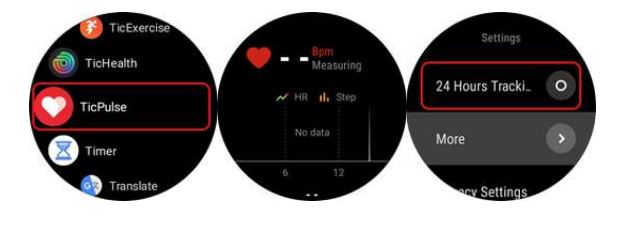
How to enable 24-Hour Heart Rate Monitoring?
- Please enter the main menu by pressing the upper button.
- Click the “TicPulse” App and you would see the “Data request settings”. Then enable “Heart Rate” and click “Done”.
- You would find “24 Hours Tracking” is disabled by default with an “O” sign. Please click the “O” sign to enable “24 Hours Tracking”. The sign will change to “I” accordingly.
- Swipe right and you would easily view your HR zone Analysis.
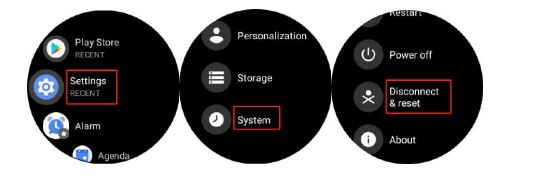
How to factory reset your watch?
- Please enter the main menu by pressing the upper button.
- Go to “Settings”--”System''--” Disconnect & reset”
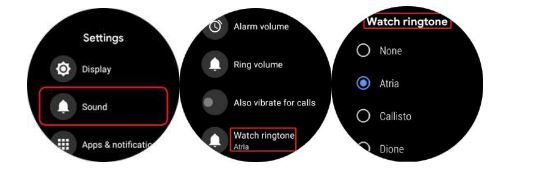
How to adjust “Sound”?
- Please enter the main menu by pressing the upper button.
- Go to “Settings”-- “Sound”
- You would be able to adjust the sound volume respectively for Media, Alarm and Ring.
- Click into “Watch Ringtone” and you are able to choose your preference from a variety of sounds as watch ringtone.
Note: Make sure your “Ring volume” is not “0” so you can hear the ringtone
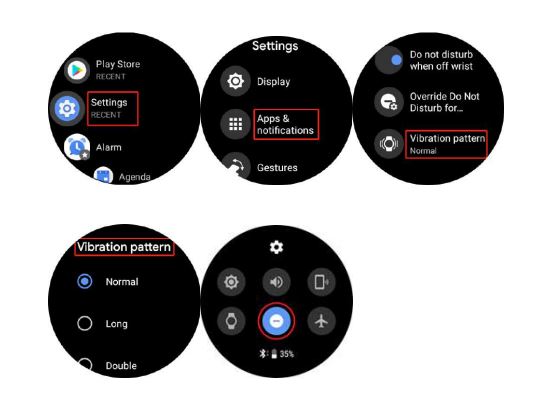
How to set up vibration pattern?
- Please enter the main menu by pressing the upper button.
- Go to “Settings”--”Apps & notifications”-- “Vibration pattern”
- You would be able to adjust the vibration pattern respectively for Alarm, Ring etc. Ticwatch supports three vibration modes: Normal, Long, Double.
Note:The Long mode persists vibrating longer than Normal mode. If you want strong vibration notification, please try to set Long mode vibration.
- If you want to switch off vibrations, you could drop the screen on the interface of watchface and select the icon of undisturbed mode.
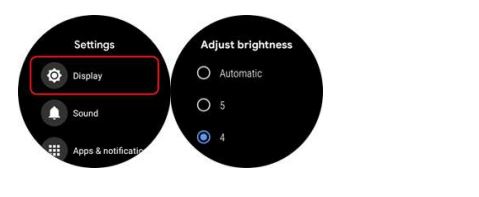
How to adjust brightness?
- Please enter the main menu by pressing the upper button.
- Go to “Settings”--”Display”- “Adjust brightness”
- There are 6 modes in all: 1; 2; 3; 4; 5 and automatic modes
(the lower the brightness value is selected, the more power is saved)
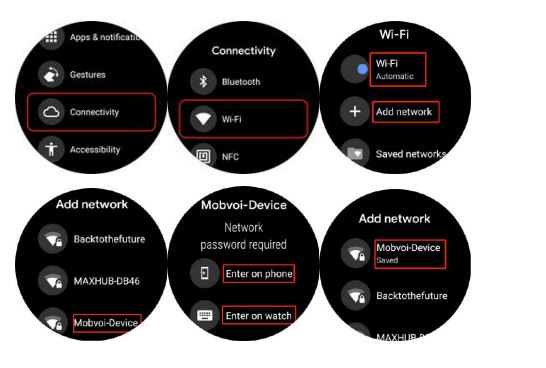
How to connect Wifi?
- Please enter the main menu by pressing the upper button.
- Go to “Settings”--”Connectivity”--”Wifi”--”Add network”
- Click the network you want to connect and you will be asked to enter a password. You may choose from “Enter on Phone” or “Enter on watch”.
- If you choose “Enter on Phone”, open Wear OS app on your phone and it would prompt a window for entering a password.
- If you choose “Enter on watch”, please use the mini keyboard on the watch to type password.
- After password is entered, the status would turn “Connected” in one minute.
How to download the watchface?
- Touch and hold the watch screen to zoom out the current watch face, then swipe left to change the watch face
- Tap See more watch faces to see all available build-in watch faces.
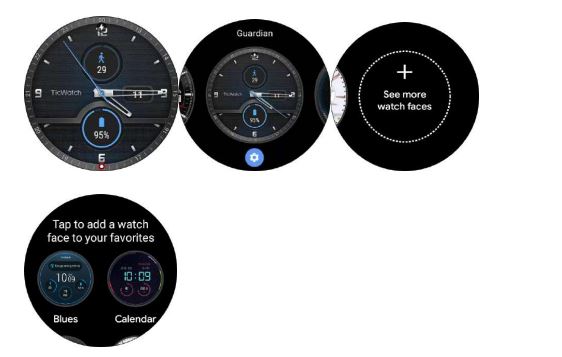
- Download watch faces from Play Store. Press the side button (power button). Tap Play Store > Watch Faces. Input the name of the watch face to download and install that watch face.
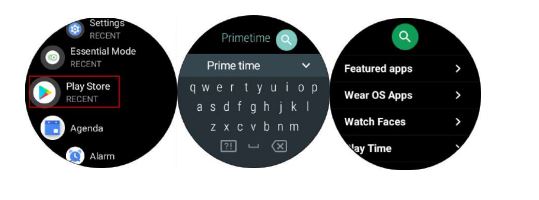
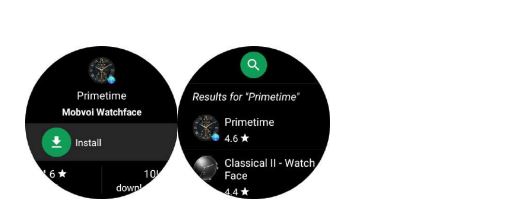
- Please refer to the link below for dial details
https://dwz.cn/OqvqqBg0 (Click to view the video)

How to change the watch face?
- Go to watch home screen, touch and hold the screen
- Swipe to the left, the following interface will show up
- Click on “+” to access Watch Face Center. Swipe to browse and choose watch face.

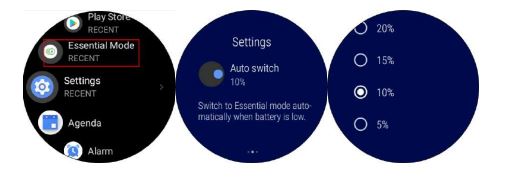
How to turn the Essential mode on?
1. The Essential model is currently only available for TicWatch Pro BT and TicWatch Pro 4G.
To manually turn Essential mode on or off:
- From the watch face, swipe down.
- Tap the setting icon.
- Tap System > Essential mode.
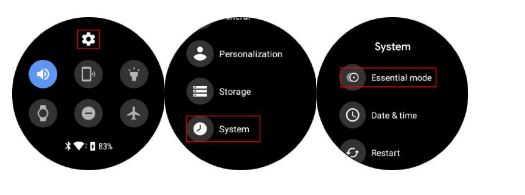
2. Tap Essential mode > Auto switch to set up auto switch condition.
Essential mode will automatically turn off when battery life reaches xx%.
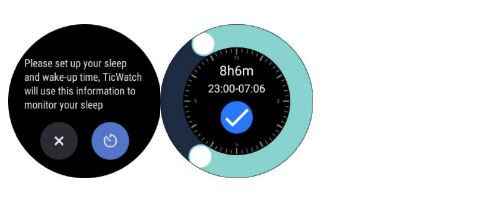
How to Turn on Sleep Tracking? (Only for Ticwatch Pro and Ticwatch Pro 4G at this moment, this will be available on S2 and E2 at a later date)
1. Open the Play store on your watch to download the TicSleep app
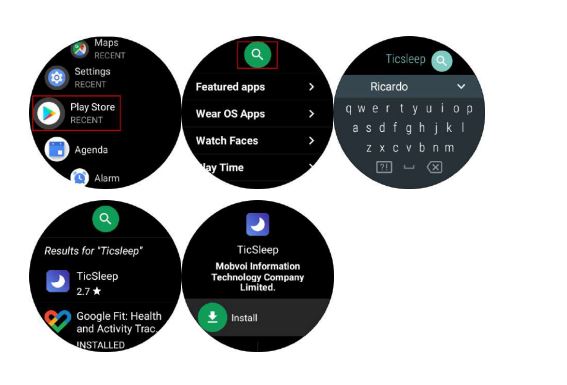
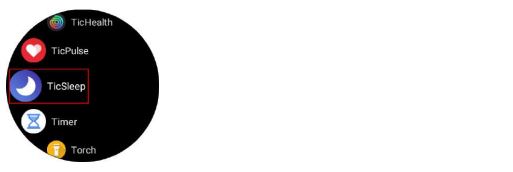
2. Tap TicPulse
3. Login to your account (if mobvoi App is already opened on your phone, this page will not show up) and tap to confirm
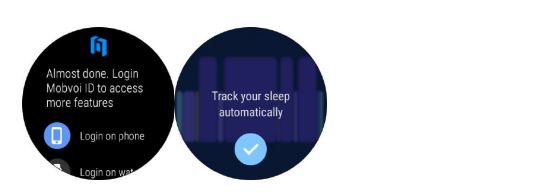
4. Tap the right button
5. Slide the ring bar to set sleep time
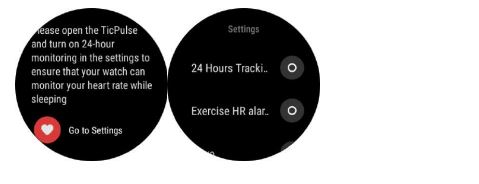
6. Turn on 24-hour heart rate monitoring and choose 24 Hours Tracking
How to set up “Do not disturb mode”?
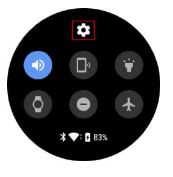
| 1. From home screen, swipe down. Tap the setting icon |
|
 |
 |
|
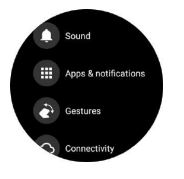
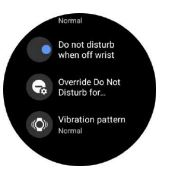
2. Tap Apps & notifications |
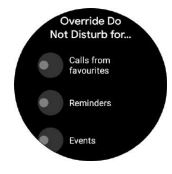
| 3. Tap on the desirable mode |
|
 |
 |
|
4. There are 3 modes for Override Do Not Disturb for... |
How to check the app is up to date?
|
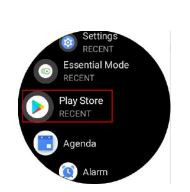
1. Press the side button (power button). Tap Play Store
|
|
|
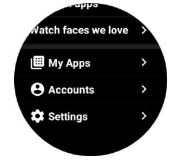
| 2. Tap Play Store > My Apps |
|
|
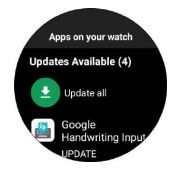
| 3. Updates Available displays a list of APP updates. User can choose whether to install the updates. |
|
|
Apps
1. Strava
a. Preparation
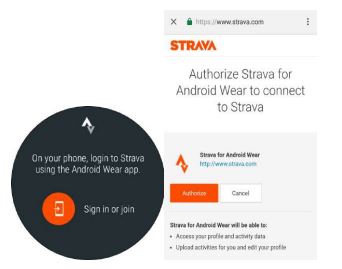
- Download Strava in Watch Google Play Store (search ‘strava’ in watch Play store)
- Open Strava app on watch and tap ‘sign in or join’
- Go to phone to check the pic, you have to log in to the Strava in the process
b. Permissions & Terms
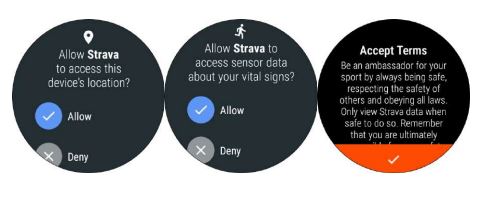
- After the authorization, open the phone app, and allow the [location] and [sensor data] permission.
- Accept terms then.
c. Start using
- After the permissions & terms, you can use the app to track your exercise.
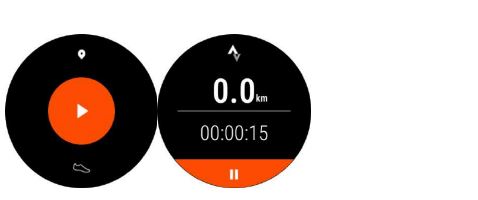
- Press [Start] button, then it begins to track your exercise data.
d. Other settings
- You could swipe down in the app first pic and call out a drawer. There are two tabs: [settings] and [Sync] for you to choose.
- Settings: Select your Sport Type (Ride or Run,) change your Auto-Pause settings, choose your units of measurement
- Sync: Uploading your data on watch to your account.

2. Uber
a. Preparation
- Download Uber in Watch Google Play Store (search ‘Uber’ in watch Play store)
- Open Uber app on watch and tap ‘sign in’
- Go to phone to check the pic, sign in to the Uber
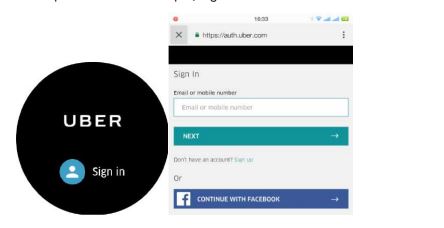
b. Start using
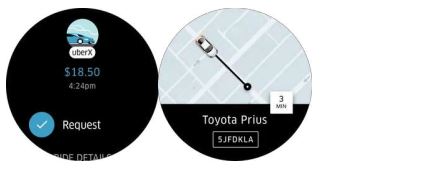
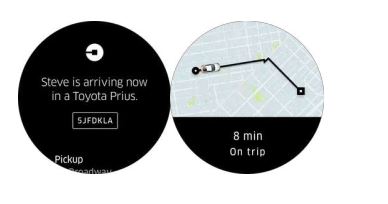
- After the login, you could use it to call an Uber
- Need to verify since Uber service is not available here, suggest let a test user to try abroad
3. Spotify
a. Preparation
- Download Spotify in Watch Google Play Store (search ‘spotify’ in watch Play store).
- Open Spotify app on watch and tap ‘pair on phone’
- Go to phone to pair
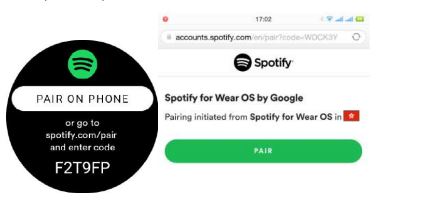
b. Start using
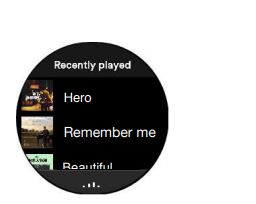
- After the pairing, open the Spotify app on watch. You can see your [Recently played] music.
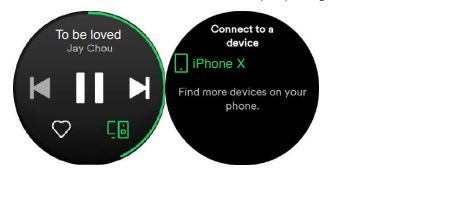
- And at the bottom, you can see the status bar if you’re playing music on your paired phone. Click the bar, go into the [playing page]
Pic below is the playing page showing the current status. And you can control the phone’s music play by clicking [Pause], [Previous] and [Next].
There’s also an [heart] icon shows the music is favorite or not(it is unclickable) and an [device] icon which shows the device you pairing now .