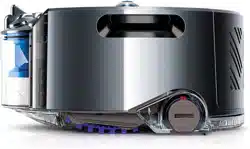
How to use your robot.
Cómo usar el robot.

2

3
Thank you for choosing to buy
the Dyson 360 Eye™ robot.
To read your manual in English
go to page 4.
Gracias por elegir comprar
el robot Dyson 360 Eye™.
Para leer el manual en español,
vaya a la página 34.

6
10
12
13
14
16
18
20
22
23
24
26
27
28
30
Getting started
Important safety instructions
Quick start
Dyson Link app
Getting connected: Part 1
Getting connected: Part 2 iOS
Getting connected: Part 2 Android
Cleaning modes
Understanding and optimizing your robot.
Important information
Troubleshooting
Additional information
Maintenance
Emptying the clear bin
Brush bar and track maintenance
Washing and drying the filters
Cleaning optics
Software updates
EN
Contents
5
We’re here to help:
Support Center
Online
Download the Dyson
Link app
Call: 1-866-664-8997 between Mon-Fri 8am to 8pm CST;
Sat 9am to 6pm CST
Email: suppor[email protected]
Chat: www.dyson.com/support/robots
Support site:
www.dyson.com/support/robots
Robot owner's site:
www.dyson.com/robot-owners
Ask Dyson:
www.youtube.com/AskDyson
The Dyson Link app allows you to control, monitor and get automatic
updates for the Dyson 360 Eye™ robot via your mobile device.
Search for the latest Dyson Link app on the App store or Google Play.
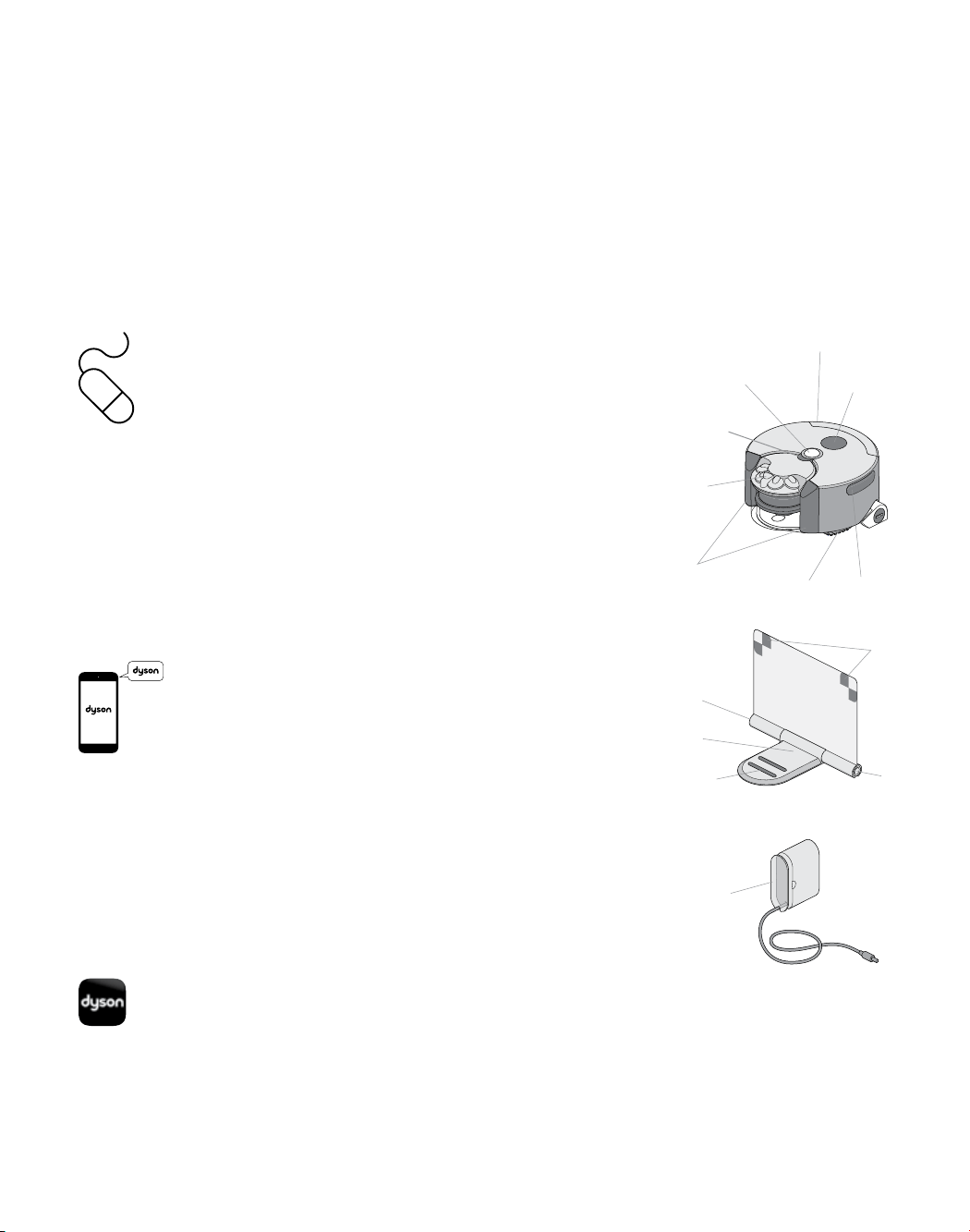
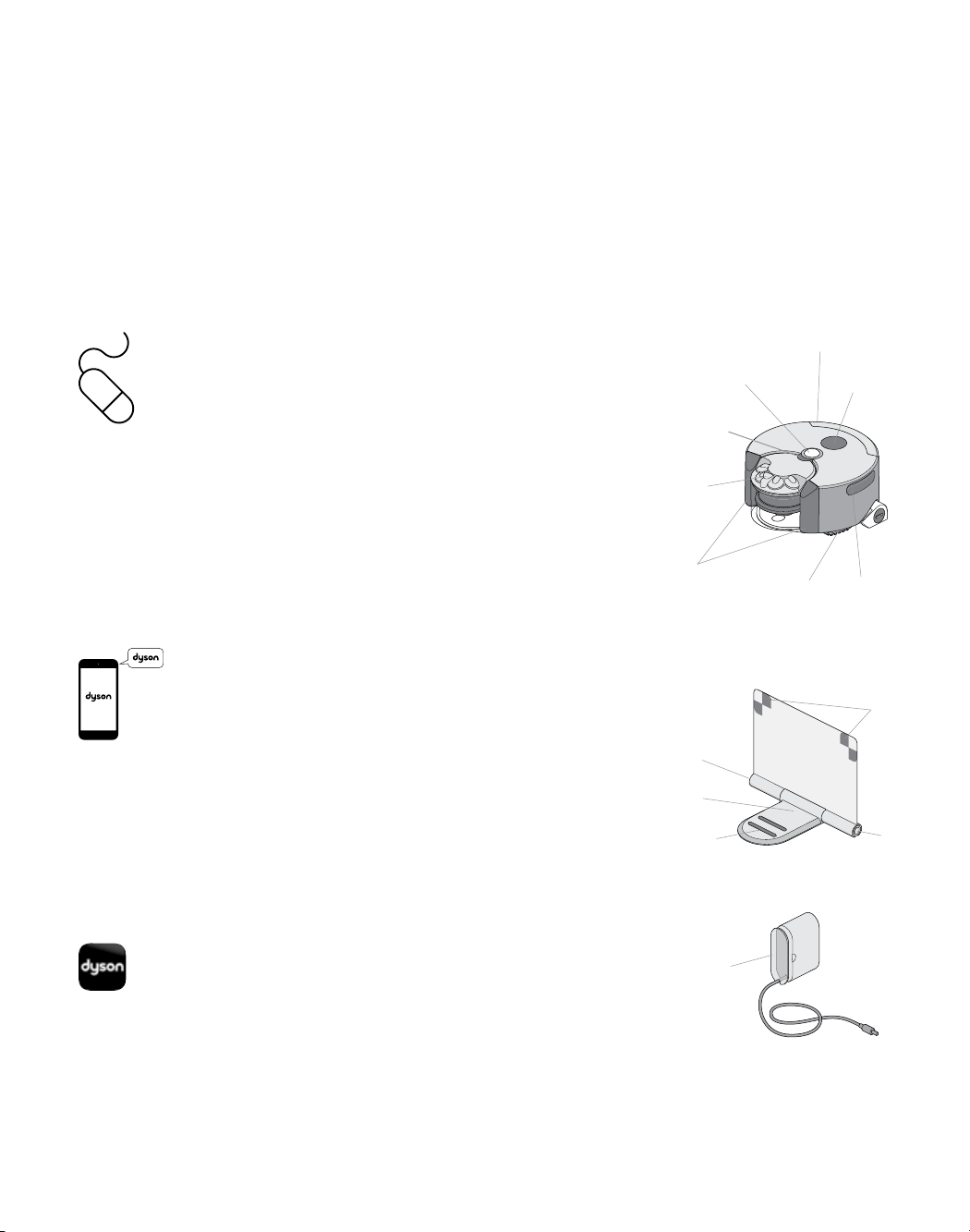
Navigational
camera
Sensors
Tracks
Power button
Docking
targets
Cyclone pack
(cyclone, cyclone
shroud and
clear bin)
Finger hold
Cyclone pack
release button
USB port
(behind post filter cover)
Robot
In the box
Plug
Dock
Charging
contacts
‘Power on’
indicator
Power
socket
Cable
wrap
Power
socket

6
TO REDUCE THE RISK OF FIRE,
ELECTRIC SHOCK, OR INJU RY:
1. This Dyson machine is not intended
for use by young children or infirm
persons with reduced physical,
sensory or reasoning capabilities, or
lack of experience and knowledge,
unless they have been given
supervision or instruction by a
responsible person concerning use of
the machine to ensure that they can
use it safely.
2. Do not allow to be used as a toy.
Close attention is necessary when
used by, or near, children and pets.
Children should be supervised to
ensure that they do not play with the
machine. Do not allow children or
pets to sit on the machine.
3. Use only as described in this Dyson
Operating Manual. Do not carry out
any maintenance other than that
shown in this manual, on the Dyson
Link app, on the Dyson website, or as
advised by the Dyson Helpline.
4. If the machine is not working as it
should, has received a sharp blow,
has been dropped, damaged,
left outdoors, or dropped into
water, do not use and contact the
Dyson Helpline.
5. If there is a problem with your Dyson
machine, refer to the diagnostic
information in this manual, on the
Dyson website, and on the Dyson Link
app. If service or repair is needed,
contact the Dyson Helpline so we can
discuss the available options. Do not
disassemble the machine as incorrect
reassembly may result in an electric
shock or fire.
6. Suitable for dry locations ONLY.
Do not use outdoors or on wet
surfaces or where contact with, or
immersion in, water is a possibility.
7. Do not install, charge or use this
machine outdoors, in a bathroom or
within 10 feet (3 meters) of a pool.
Do not use on wet surfaces and do
not expose to moisture, rain or snow.
IMPORTANT SAFETY INSTRUCTIONS
BEFORE USING THIS APPLIANCE READ ALL INSTRUCTIONS AND CAUTIONARY
MARKINGS IN THIS MANUAL AND ON THE MACHINE
When using an electrical machine, basic precautions should always be followed,
including the following:
WARNING
These warnings apply to the machine, charging dock and charger.

7
8. Do not use to pick up water.
9. Do not spill water on the machine.
10. Do not handle any part of the
charger, charging dock or machine
with wet hands.
11. Do not use with a damaged cord or
plug. If the supply cord is damaged it
must be replaced by Dyson, its service
agent or similarly qualified persons in
order to avoid a hazard.
12. Make sure the cable is located so that
it will not be stepped on, tripped over,
run over by the machine or otherwise
subjected to damage or stress.
13. Do not unplug the charger by pulling
on the cable. To unplug, grasp the
charger, not the cable. The use of an
extension cable is not recommended.
14. Unplug the charging dock when not in
use for extended periods and before
maintenance or servicing.
15. Do not use to pick up flammable or
combustible liquids, such as gasoline,
or use in areas where they or their
vapors may be present.
16. Do not pick up anything that
is burning or smoking, such as
cigarettes, matches, or hot ashes.
17. Do not operate the machine in an
area where there are open fireplaces,
lit candles or fragile objects on the
floor to be cleaned or where there are
candles on candlesticks, tables, etc.
that the machine may accidentally hit
or bump into.
18. Remove all electrical cables and other
items that could get tangled in the
machine from the area to be cleaned
before use.
19. Ensure that everyone in the household
is aware of the machine when it is
in use, particularly when using the
scheduled clean function available via
the Dyson Link app.
20. Do not operate the machine in a
room where an infant or child is
present and unattended.
21. Risk of falling: Do not use the machine
in any area where it can access a
down stairway or balcony, etc. Do not
use in high or narrow spaces such as
a shelf or stairs.
22. Keep hair, loose clothing, fingers,
and all parts of the body away from
openings and moving parts such as
the tracks and the brush bar.

8
23. Do not put any object into openings.
Do not use with any opening blocked;
keep free of dust, lint, hair, and
anything that may reduce airflow.
24. Do not touch the charging points on
the machine or the charging dock with
any object.
25. Do not use without the clear bin and
filters in place.
26. Do not obscure the sensors or
vision system.
27. Do not put anything on top of
the machine.
28. Carry the machine only by the finger
holds on each side.
29. The machine and charging dock
must be supplied at their rated Safety
Extra Low Voltage, use only the Dyson
power adaptor and battery supplied
with the product, other types of
batteries may burst causing injury to
persons and damage.
30. Use only Dyson recommended
accessories and replacement parts.
31. FIRE WARNING – Do not place
this product on or near a cooker or
any other hot surface and do not
incinerate this machine even if it is
severely damaged. The battery might
catch fire or explode.
32. FIRE WARNING – Do not apply
any fragrance or scented product
to the filter(s) of this machine. The
chemicals in such products are known
to be flammable and can cause the
machine to catch fire.
READ AND
SAVE THESE
INSTRUCTIONS
THIS DYSON MACHINE IS
INTENDED FOR HOUSEHOLD
USE O N LY

9
10
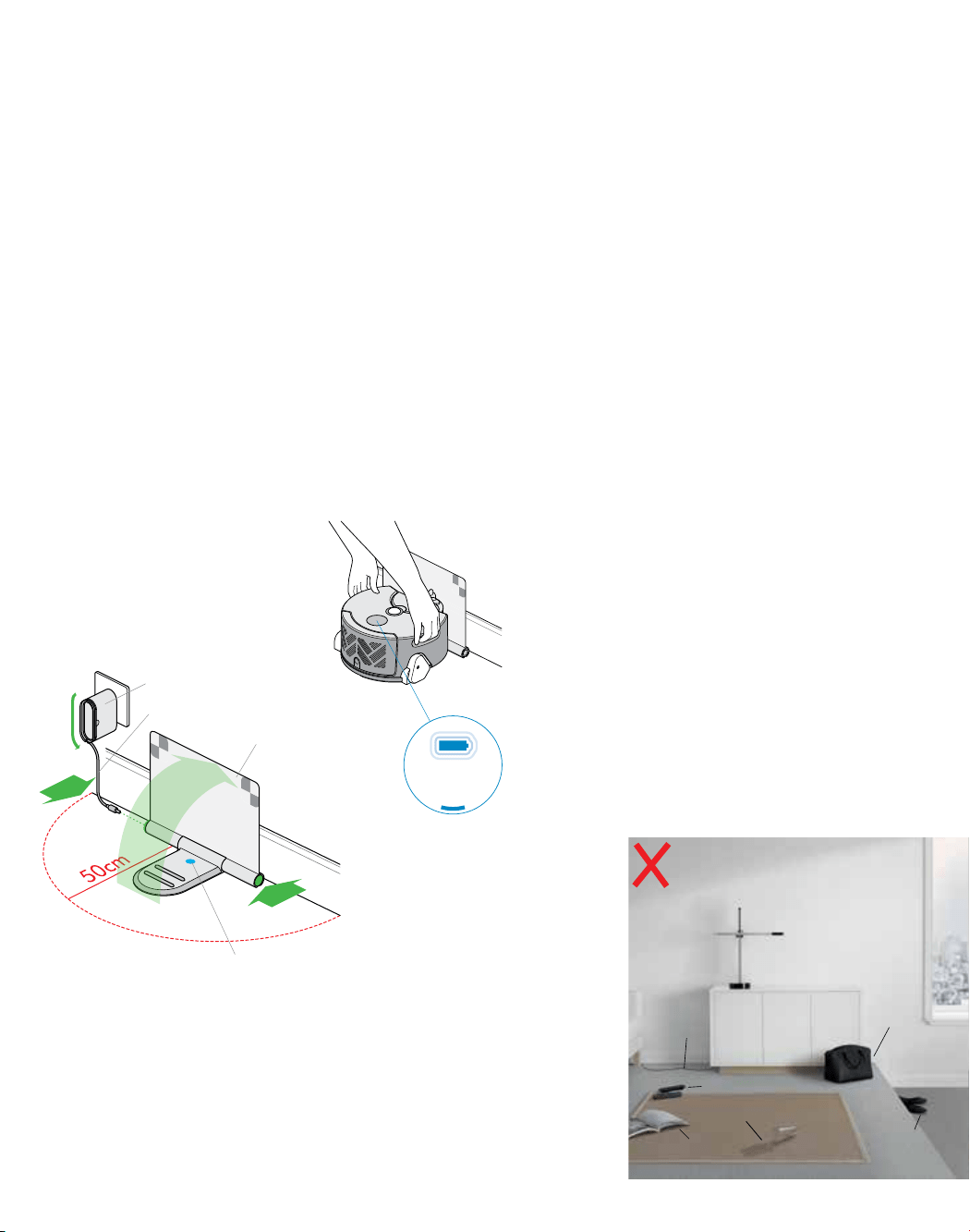
Setting Up
Charging
Preparing the room
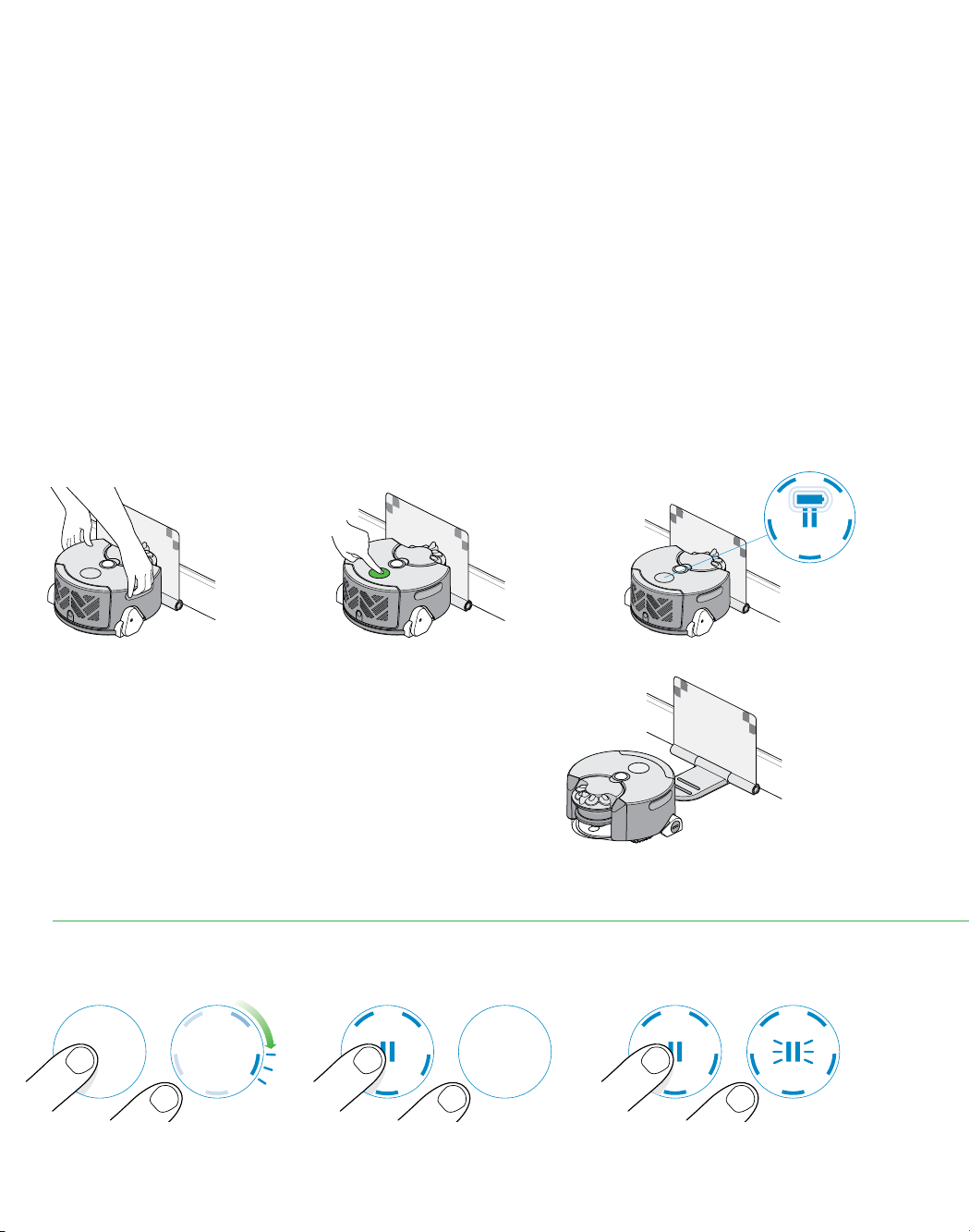
Open the dock fully to 90° and place it
against the wall.
Plug the charging cable into either side
of the dock.
Ensure the dock is powered, indicated
by a blue light on the dock.
Tidy any surplus cable by wrapping it
around the plug.
Ensure no objects are within
approximately a 20 in radius of
the dock.
1 2 3
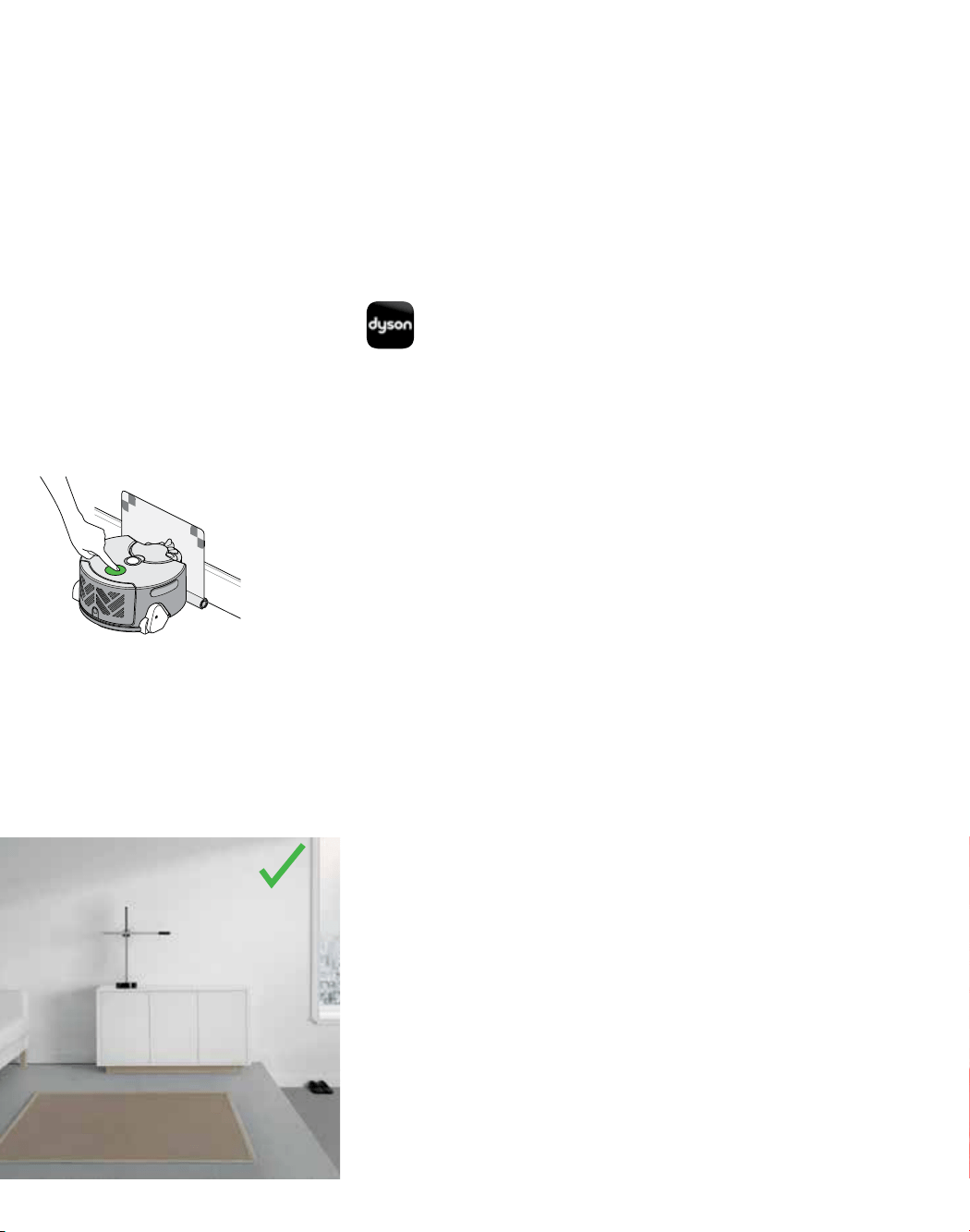
Place the robot on the dock with the
clear bin facing the wall.
The battery light, located on the power
button will pulsate, turning solid when
fully charged.
Your robot cleans using powerful
suction, please:
– Remove thin rugs or loose
items that may be sucked up,
limiting movement.
– Tidy obstacles such as shoe laces
or thin cables that may become
entangled in the brush bar.
– Clean any liquid spills or sharp items
that may cause damage to the robot.
Your robot uses infra-red sensors to
detect drops, please:
– Ensure there is no clutter such as
bags or shoes within 4 in of any
drops in the room.
Your robot uses a camera to navigate,
please:
– Provide adequate illumination for
the robot to navigate throughout
the clean.
Plug
Cable
Dock
Cables
Magazines
Bag
Shoes
Remotes
Spills
Quick start
‘Power on’indicator
11
Cleaning
Update your robot
Get the Dyson
Link App
4 5 6
Press the power button. The robot will
begin cleaning all accessible space,
recharging at its dock when required.
To ensure you get the best out of your
robot update to the latest software.
To register for automatic updates
connect your robot using the Dyson
Link app.
To update without using the app,
download the latest software from:
www.dyson.com/support/robots
To schedule cleans, view maps of
previous cleaning sessions, diagnose
faults and automatically update
software on your robot, please
download the Dyson Link app for free
on the App Store or Google Play.
See the 'setting up Dyson Link
app' page in this user guide for
setup instructions.
No cables
Clear floors
Clear
edges
Go to
www.dyson.com/support/robots
12
Dyson Link app
Functionality
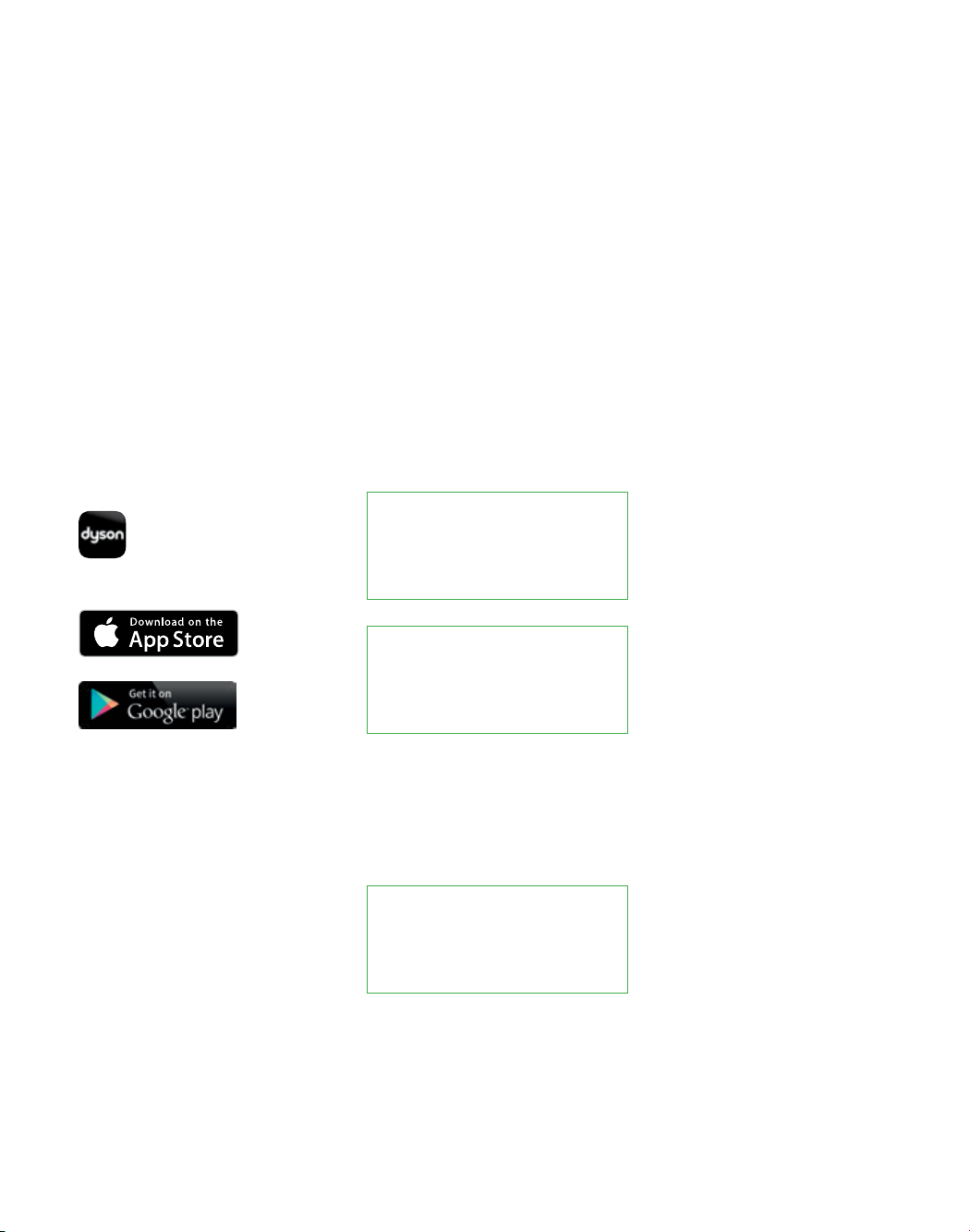
The Dyson Link app allows you to control, schedule and monitor
your Dyson 360 Eye™ robot even when you’re not at home.
Review data from your robot's last
five completed cleans, including a
cleaning map of the areas covered
in your home.
Choose when your robot cleans
by scheduling the time and day
of cleaning sessions.
Explore key technologies
inside Dyson 360 Eye™
robot, and access
troubleshooting support.
*Featured content based on version 1 of
the app. Visit our website for further assistance:
www.dyson.com/support/robots
Give your robot a name,
control notifications, configure
settings and check your robot's
software version.
13
Make a note of the robot’s serial
number – you will need this to identify
your robot’s Wi-Fi network during
connection. This can be found either on
the back of this user guide or behind the
clear bin on the robot.
Make a note of the robot's code - you
will need this to connect your robot. This
can be found either on the back of this
user guide or behind the clear bin on
the robot.
Search for the latest Dyson Link app on
the App Store or Google Play.
Getting connected: Part 1
Before you begin
Home Wi-Fi
password
Robot's serial
number
Robot's code
Download the app Check your Wi-Fi
Ensure you have the
following information:
1 2 3
Check that your dock is set up only a
short distance from your Wi-Fi router and
that it is powered.
Make sure that your device is on the same
network that you want to connect your
robot to.
The robot connects to 2.4GHz networks,
which includes most modern routers.
Check your router documentation
for compatibility.
Supported Wi-Fi protocols
– IEEE802.11b (Not recommeded)
– IEEE802.11g
– IEEE802.11n (Support only for 2.4GHz)
Check that your device’s Wi-Fi is enabled
and that it has a strong Wi-Fi signal, for
example try visiting your favorite website.
Further information is available at
www.dyson.com/support/robots
If you require any assistance please
contact the Dyson Helpine on
1-866-664-8997
14
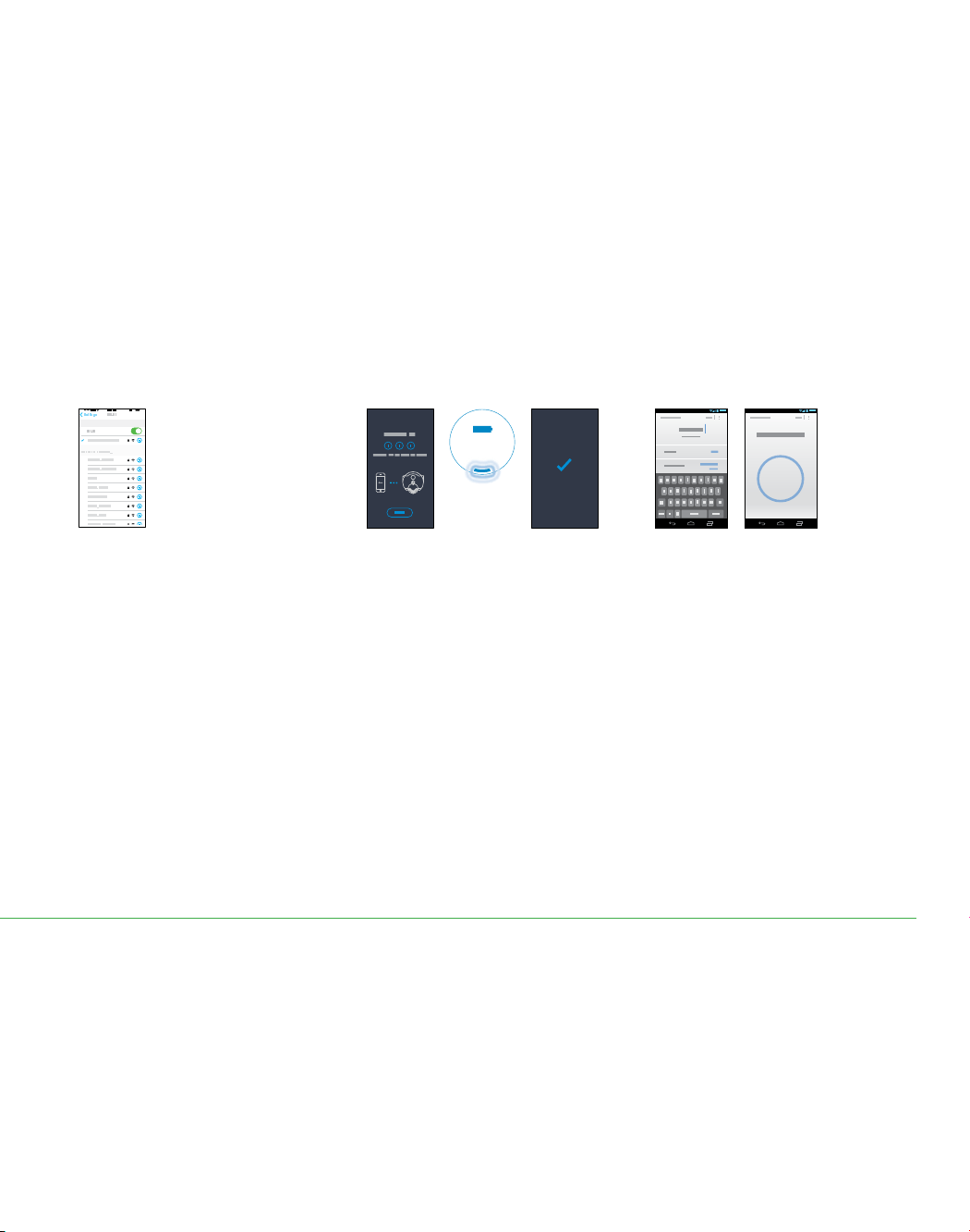
Need a little help?
Wi-Fi light
Register your account
Confirm your home
Wi-Fi network
Make your robot
discoverable
1 2 3
Getting connected: Part 2 iOS
Connect robot to your iOS device and home Wi-Fi.
The app will recommend a Wi-Fi
network to connect the robot to.
This will be the network your mobile
device is already connected to.
If this is the Wi-Fi network you would
like to connect your robot to, enter your
Wi-Fi password.
Pick up and place the robot on a
powered dock. After a short while the
Wi-Fi light will illuminate, the robot is
now discoverable.
Launch the app on your mobile device.
Select your country.
If you already have a Dyson account
select ‘Sign in’ and enter your
username and password.
If you are new, select ‘Register’.
To create an account,
complete all fields.
Not sure you have an account?
This is the account you set-up to purchase your robot
on dyson.com
Can’t download the app on to your mobile device?
The Dyson Link app is currently only available to iOS
and Android phones. We will keep adding devices,
so please check the app store in the country you
bought your robot in.
Can’t see your home network?
– Check that you are setting up close to your home
Wi-Fi router.
– Check that your home router is switched on.
– Check that your mobile device is connected to
Wi-Fi, indicated by a Wi-Fi signal icon in the top
left corner of the screen.
– Check that your home network is not hidden.
Want to connect your robot to a
different network?
Leave the Dyson Link app, open the settings app
on your mobile device and choose Wi-Fi. Connect
to your preferred network and return to the Dyson
Link app.
Check that you aren't connected to a 5GHz network.
Your robot will only connect to a 2.4GHz network.
Can’t see the Wi-Fi light?
– The robot will remain discoverable for
30 minutes after being placed on the
powered dock.
– Check that the dock is powered – a blue power
light will be showing on the dock.
– Pick up and replace the robot on the dock.
– Check that your robot is charging, indicated by
the battery light on the robot.
15
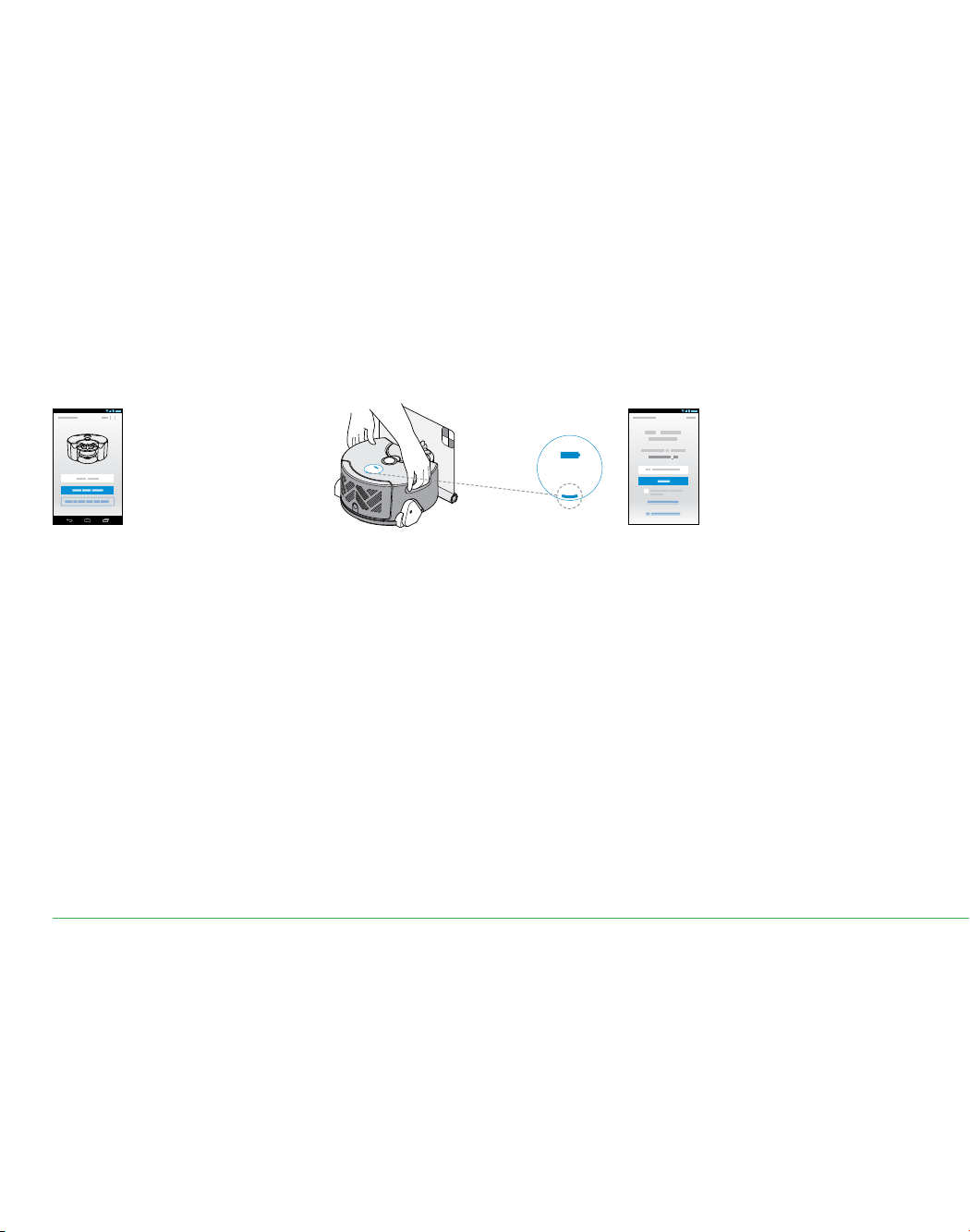
Connecting
(Wi-Fi light
pulses)
Connect your robot
to your home
Wi-Fi network and
to Dyson
Name your robot
and get started!
4 5
Can’t see your robot in the list of
available networks?
– Check that your robot’s Wi-Fi light is illuminated,
see step 3 in this guide.
– Check that your mobile device’s Wi-Fi is enabled
and that you are only a short distance from
your robot.
– Your robot’s Wi-Fi starts with ‘360EYE’.
Can’t connect your app to your robot?
– Make sure that you are only a short distance
from your robot.
– To reconnect your phone to your robot, repeat
step 4 in this guide.
Can’t connect your robot to your Wi-Fi?
– Your Wi-Fi might not be responding.
– If you’ve hidden your Wi-Fi, unhide it.
– Check that you haven’t set your Wi-Fi to 5GHz.
Your Wi-Fi needs to be set to 2.4GHz.
Can’t connect your robot to the Dyson network?
– The Dyson cloud might not have been able to
complete your connection, please try again.
The Wi-Fi light on your robot will pulse
while connecting.
When connected the light will turn off;
if the robot fails to connect the light will
become solid again.
Once you have registered your
ownership and named your robot
you can get started.
Leave the app, go to your mobile
device settings and select Wi-Fi:
Choose your 360 Eye network
(this will contain ‘360EYE’ and
the robot’s serial number).
When prompted, enter the robot’s code.
This can be found either on the back of
the user guide or behind your robot’s
clear bin.
Now, return to the Dyson Link app.
Connect your mobile
device to your robot’s
Wi-Fi network
6
16
1 2 3
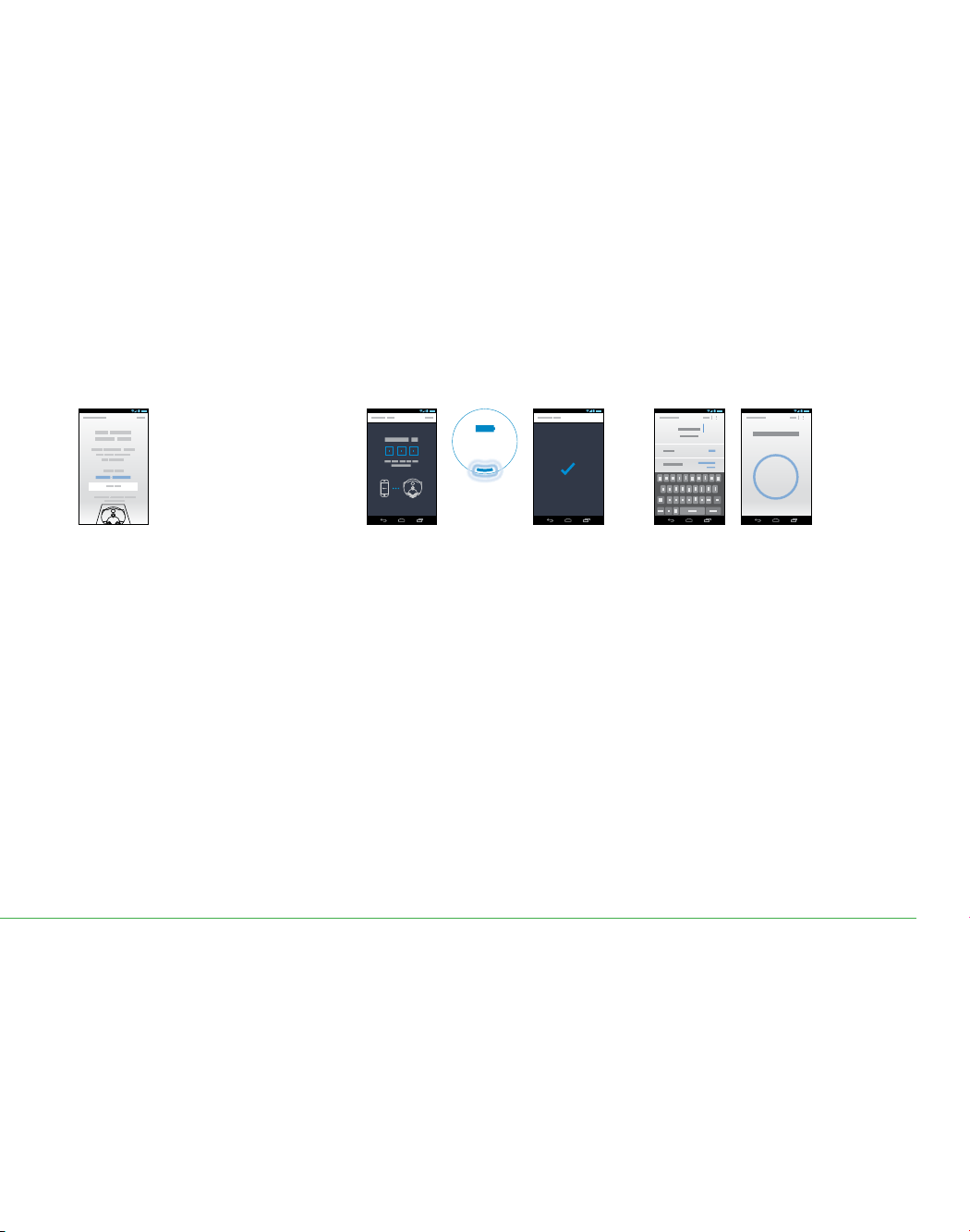
Getting connected: Part 2 Android
Connect robot to your Android device and home Wi-Fi.
Wi-Fi light
Register your account
Confirm your home
Wi-Fi network
Make your robot
discoverable
Not sure you have an account?
This is the account you set-up to purchase your robot
on dyson.com
Can’t download the app on to your mobile device?
The Dyson Link app is currently only available to iOS
and Android phones. We will keep adding devices,
so please check the app store in the country you
bought your robot in.
Can’t see your home network?
– Check that you are setting up close to your home
Wi-Fi router.
– Check that your home router is switched on.
– Check that your mobile device is connected to
Wi-Fi, indicated by a Wi-Fi signal icon in the top
left corner of the screen.
– Check that your home network is not hidden.
Want to connect your robot to a
different network?
– You can select a different network from within
the app.
Can’t see the Wi-Fi light?
– The robot will remain discoverable for
30 minutes after being placed on the
powered dock.
– Check that the dock is powered – a blue power
light will be showing on the dock.
– Pick up and replace the robot on the dock.
– Check that your robot is charging, indicated by
the battery light on the robot.
The app will recommend a Wi-Fi
network to connect the robot to.
This will be the network your mobile
device is already connected to.
If this is the Wi-Fi network you would
like to connect your robot to, enter your
Wi-Fi password.
Pick up and place the robot on a
powered dock. After a short while the
Wi-Fi light will illuminate, the robot is
now discoverable.
Launch the app on your mobile device.
Select your country.
If you already have a Dyson account
select ‘Sign in’ and enter your
username and password.
If you are new, select ‘Register’.
To create an account,
complete all fields.
Need a little help?
17
4 5 6
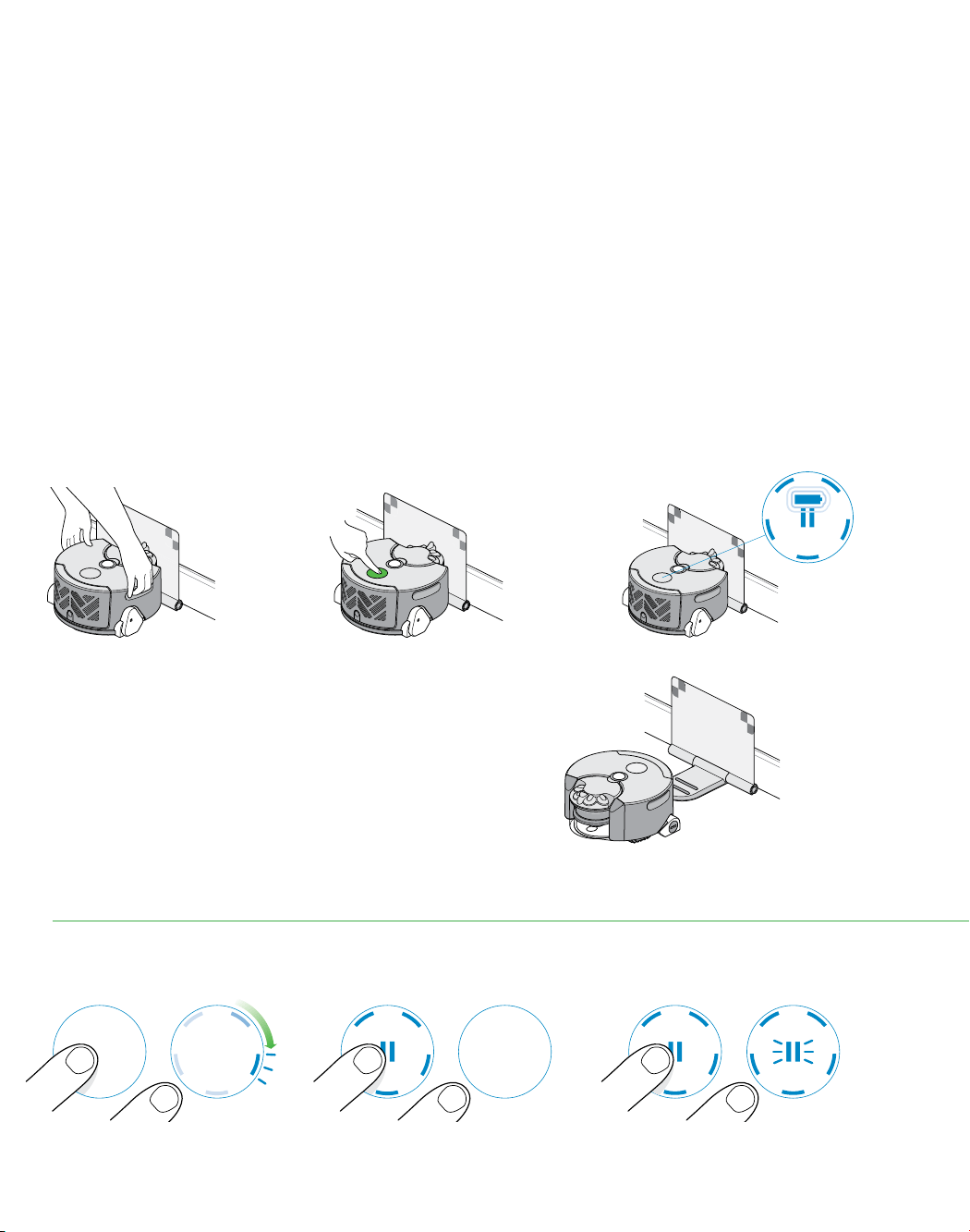
Connecting
(Wi-Fi light
pulses)
Connect your robot
to your home
Wi-Fi network and
to Dyson
Name your robot
and get started!
Can’t see your robot?
Check that your robot’s Wi-Fi light is illuminated,
see step 2 in this guide.
Check that your mobile device’s Wi-Fi is enabled
and that you are only a short distance from your
robot.
Can’t connect your app to your robot?
– Make sure that you are only a short distance
from your robot.
– Check that the robot’s Wi-Fi light is illuminated.
Can’t connect your robot to your Wi-Fi?
– Your Wi-Fi might not be responding.
– If you’ve hidden your Wi-Fi, unhide it.
– Check that you haven’t set your Wi-Fi to 5GHz.
– Your Wi-Fi needs to be set to 2.4GHz.
Can’t connect your robot to the Dyson network?
The Dyson cloud might not have been able to
complete your connection, please try again.
The Wi-Fi light on your robot will pulse
while connecting.
When connected the light will turn off;
if the robot fails to connect the light will
become solid again.
Once you have registered your
ownership and named your robot
you can get started.
When prompted, enter the robot’s code.
This can be found either on the back of
the user guide or behind your robot’s
clear bin.
Connect your mobile
device to your robot’s
Wi-Fi network
*Featured content based on version 1 of the app.
Visit our website for further assistance:
www.dyson.com/support/robots
18
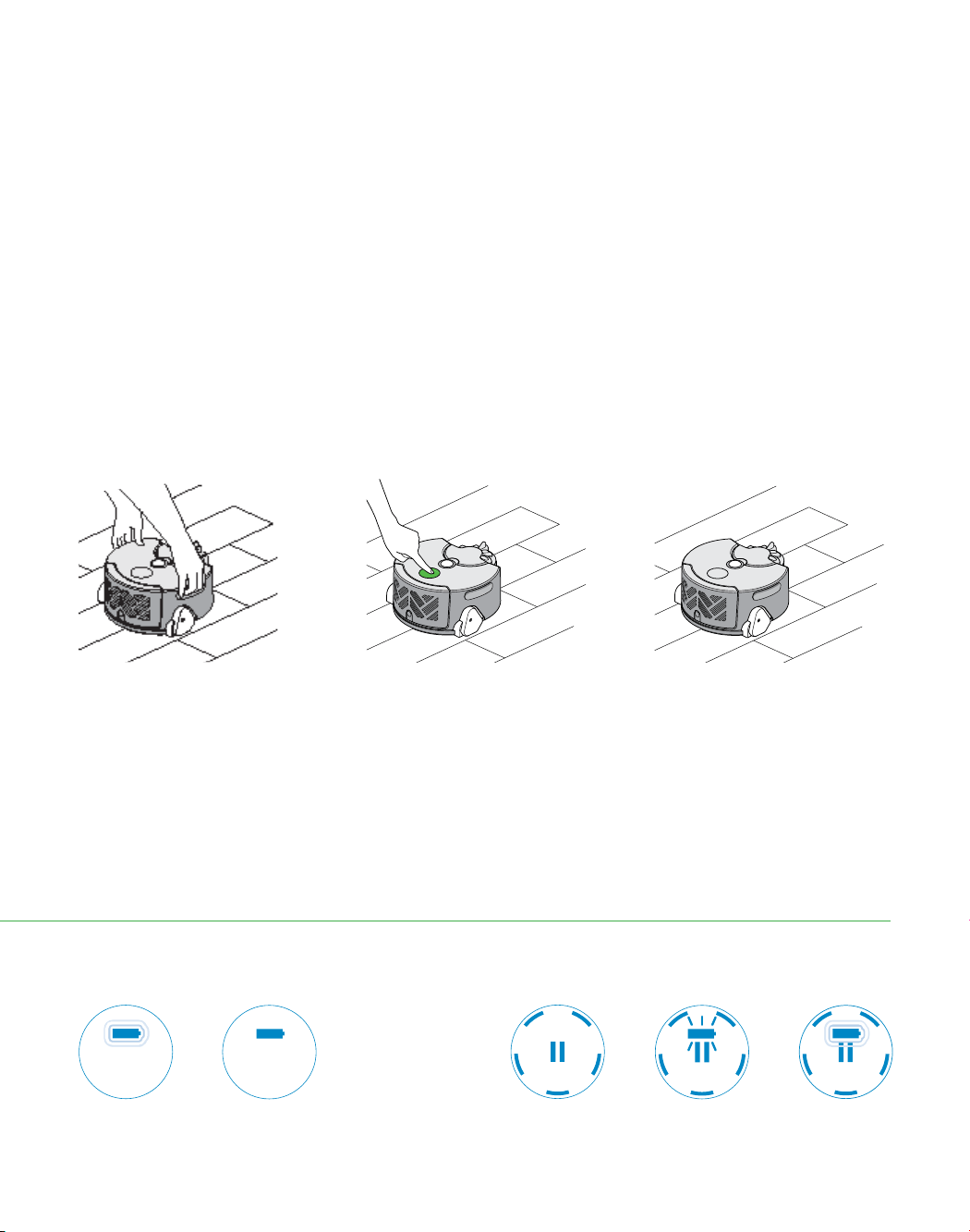
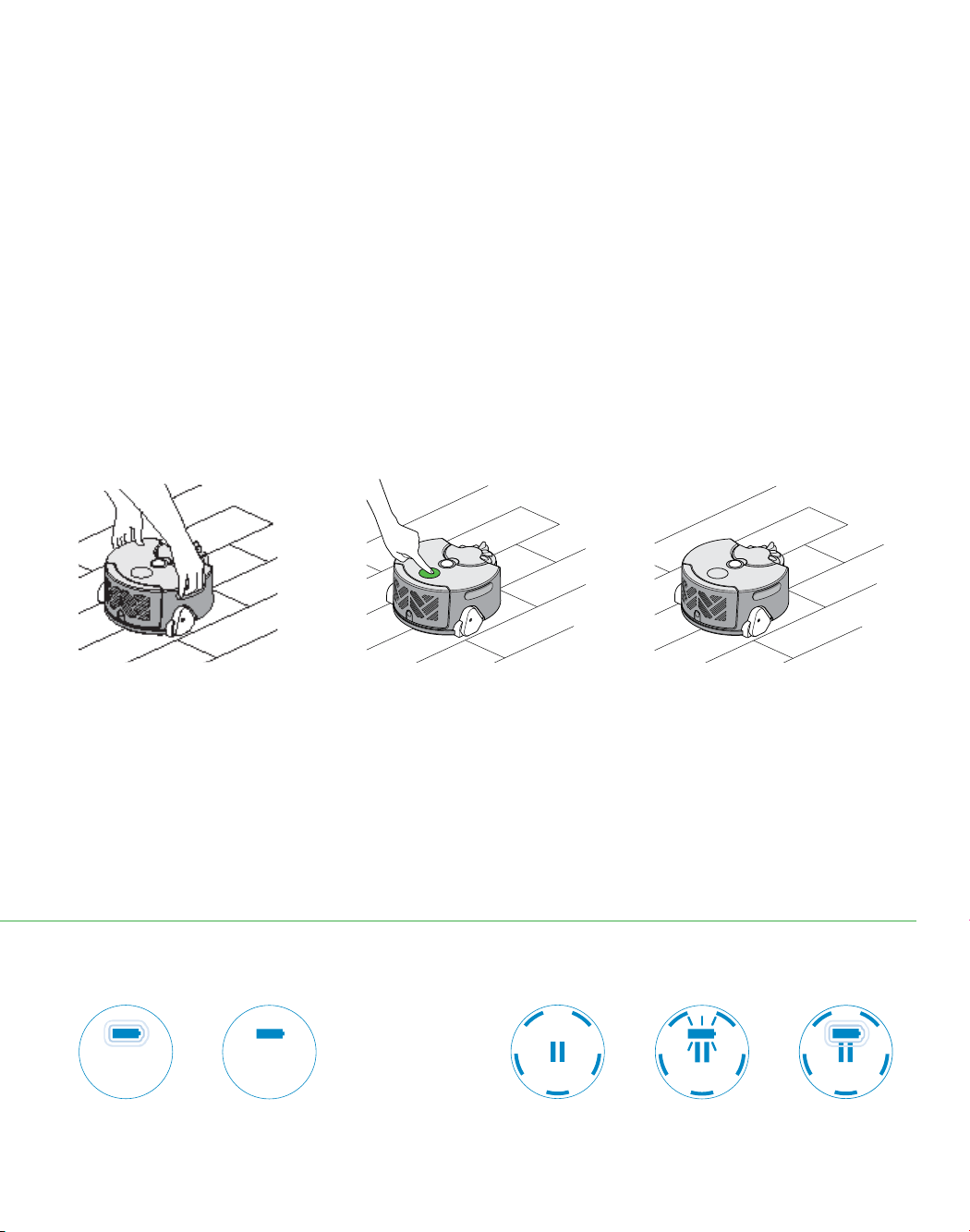
Press the power button and
the robot will begin cleaning
all accessible space.
Place the robot on the dock.
Ensure the dock is powered
and the robot is charging.
The robot will return to the dock to
recharge when the battery is low.
Cleaning modes
Once recharged,
the robot will
automatically
continue with the
cleaning session.
To switch ‘ON’, press the power button
until the blue lights come on.
To switch ‘OFF’, press the power
button until the lights go out.
To pause, press the power button.
The pause light will flash.
Press again to continue cleaning.
Lights
On/off/pause
Automatic recharging mode:
Robot cleans all accessible space,
recharging at its dock when required.
1 2 3
Charging.
19
Press the power button and the robot
will begin cleaning the accessible space
it can reach on a single charge only.
Place the robot on the floor, not on
the dock.
The robot will not recharge when the
battery is low, but return to its starting
point and switch ‘OFF’.
Performing
a clean.
Heading back
to charge.
Charging during
a clean.
CleaningStandby
Charged.
Charging.
Single charge mode:
Robot cleans the accessible space it
can reach on a single charge only.
321
Go to
www.dyson.com/support/robots
20
Understanding and optimizing
your robot.
Suction Navigation Cleaning behavior
Your robot uses a Dyson digital motor
and full width brushbar to deliver
powerful cleaning.
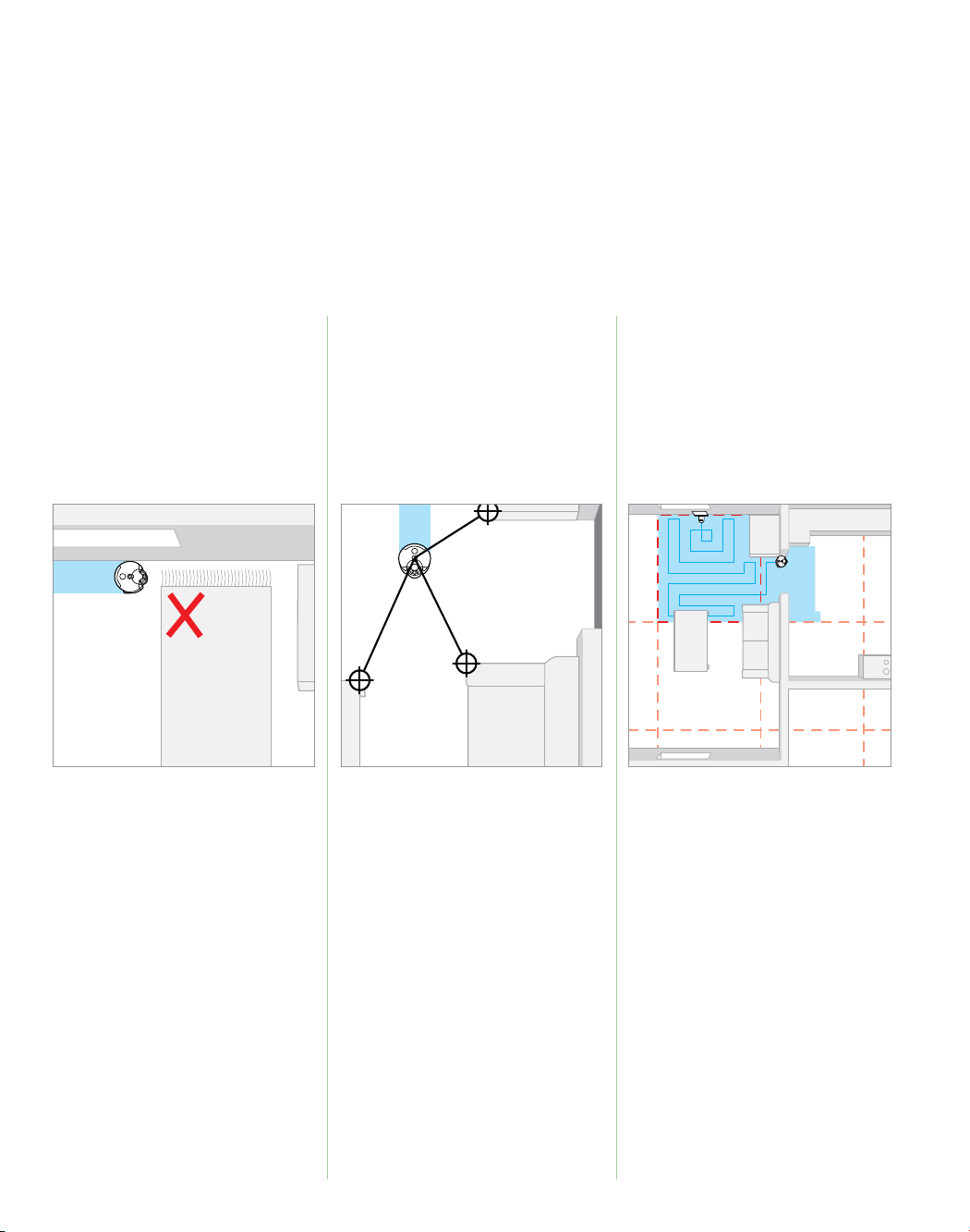
Your robot uses a 360° vision system
to take a full panoramic image of
the room.
Your robot maps out your home into a
grid of squares, and cleans it using a
systematic cleaning pattern.
Put away thin, lightweight or loose
items that may be sucked up and
impair movement.
Should a blockage occur, the robot
will attempt to clear the blockage by
reducing suction for a short period.
If the robot becomes stuck on an
obstacle: clear the obstacle, replace
the robot as close as possible to where
you picked it up (ideally somewhere the
robot has already cleaned) and press
the pause button to continue cleaning.
The robot navigates by identifying
features in its field of view and tracking
these as it moves.
To improve the robot’s ability to
navigate, please provide adequate and
consistent illumination throughout the
duration of the clean.
In low light the robot will supplement
ambient illumination with infra-
red headlights.
To maintain navigation performance
clean the camera and headlights
regularly. See the ‘Cleaning Optics’
section in this manual.
For safety reasons the drop sensors are
very sensitive. Your robot may mistake
dark surfaces as drops and consequently
will not clean over them.
The grid does not always line up with
the edges of the room, the robot
may clean into another room before
returning to clean areas it has missed.
If your robot had trouble navigating
into an area, or if it is taking a long
time to clean, next time try moving the
dock. This will realign the boundaries
of the grid to your home and may
improve performance.
To visualize the robot’s cleaning
behavior and see maps of completed
cleans, connect your robot using the
Dyson Link app.
21
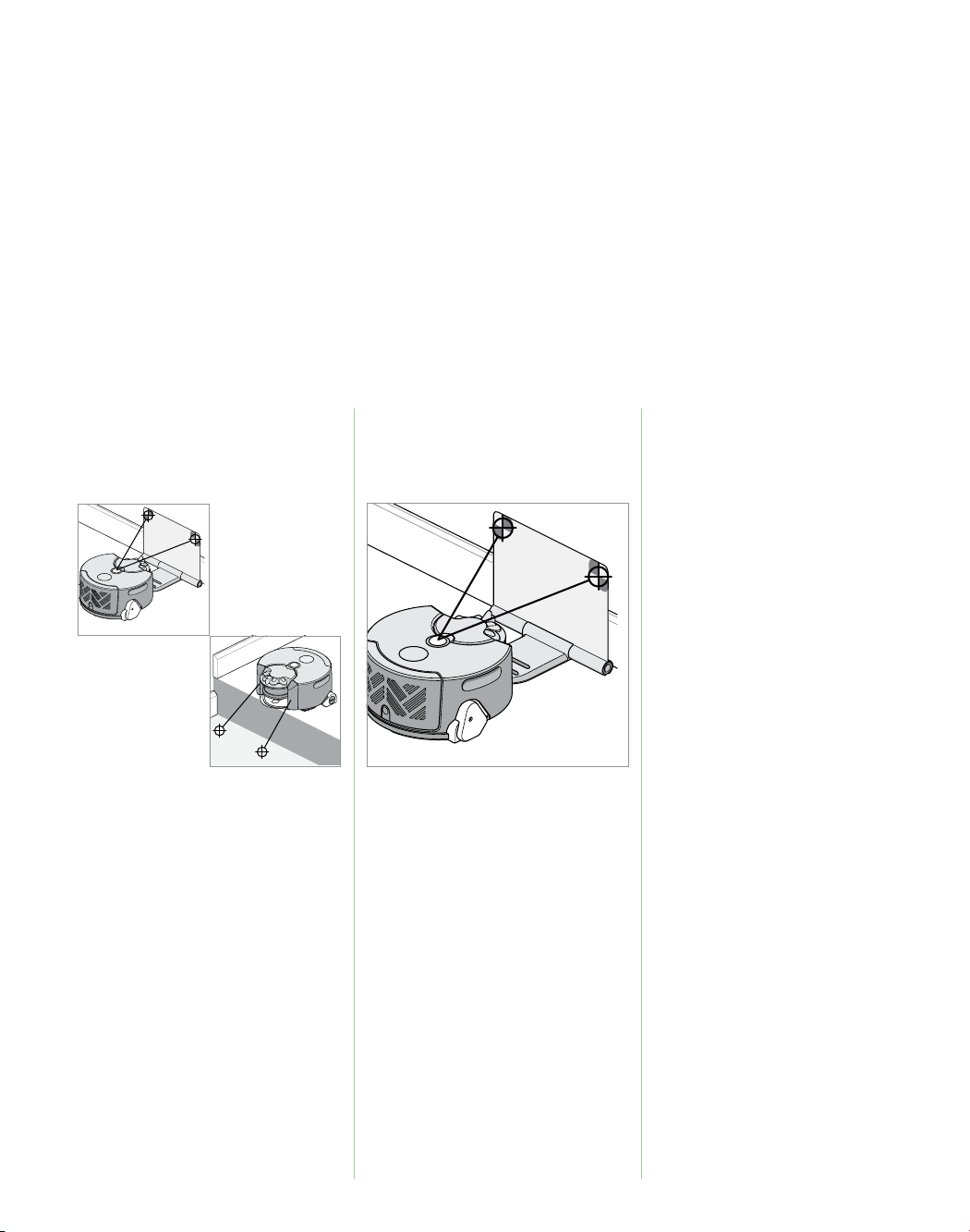
Your robot uses infra-red sensors
to identify obstacles, drops and the
boundaries of the cleaning space.
It then records these on its map.
When started from the dock your robot
will return to recharge mid-clean before
automatically resuming and completing
the clean.
If you do not want the robot to access an
area, provide a physical barrier, such as
closing a door.
Remove all clutter within 4in of drops as
this may interfere with the drop sensors.
The robot will occasionally detect some
obstacles by nudging them: please
put away any fragile items from the
floor space.
Your robot identifies the dock location
using the 360° camera: please make
sure that the dock is well lit and is
placed in an open, uncluttered area.
Your robot aligns its map to its start
orientation on the dock: place the dock
on a firm, level surface, flat against
a wall.
If your robot has trouble getting back to
the dock, try moving the dock’s location
before the next clean.
Your robot is powered using a lithium-
ion battery pack.
Charge time: 2hrs 45mins
Run time: 45mins
Your robot’s charge and run times are
approximate, as they depend on many
factors including charge remaining in
the battery, operating temperature and
the age of the battery.
Run time will also be influenced by the
layout of your home and type of floor
surface being cleaned.
To optimize the time it spends cleaning,
your robot's charge time will be less
when recharging at its dock mid-clean.
You do not have to wait for the robot’s
battery to be fully charged before
starting a clean, however if you
request a clean when the robot’s battery
is too low it will display a ‘Return to the
dock’ light.
22
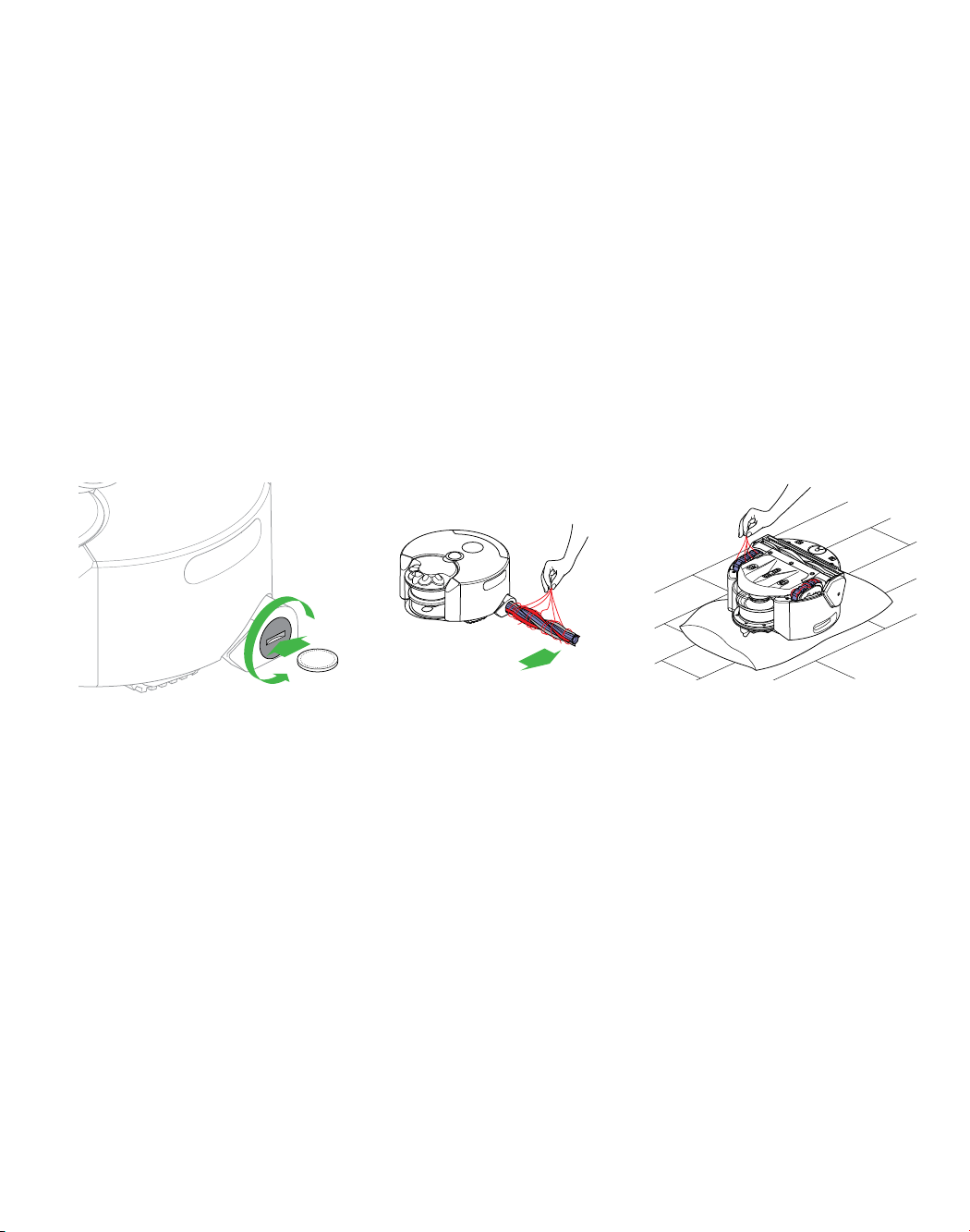
Emptying the clear bin
To empty the bin during a clean press the power button to pause
the robot. Once you've finished, return the robot to the same point
on the floor, press the power button again to resume cleaning.
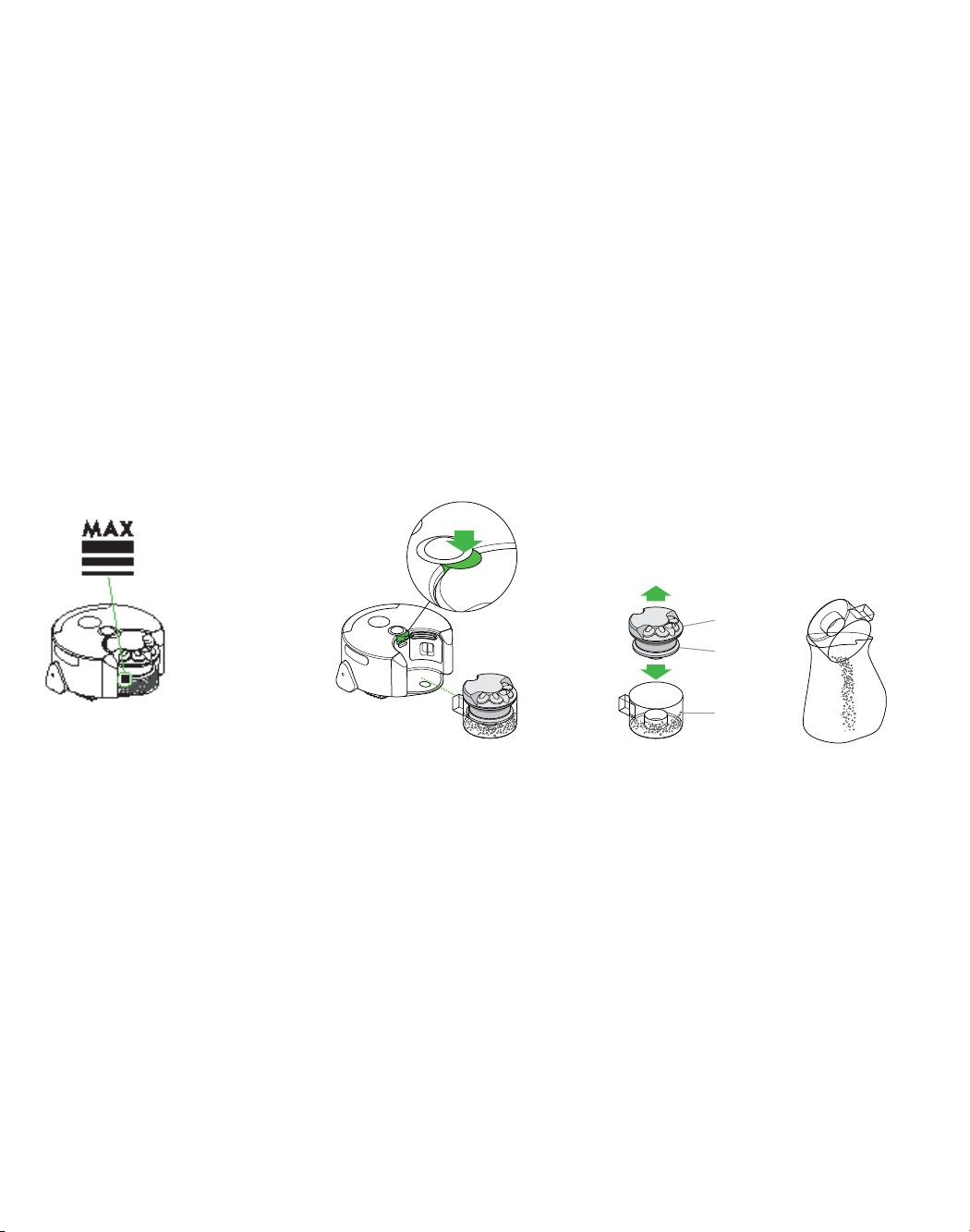
When dirt reaches the MAX mark it’s
time to empty the clear bin.
Make sure that the clear bin is emptied
before each use.
Press the cyclone pack release button. Lift the cyclone out of the clear bin.
Empty the contents into a bin.
To minimize dust/allergen contact when
emptying, encase the clear bin tightly in
a plastic bag and empty.
1 2 3
Cleaning the
clear bin
Clean the clear bin with cold water only.
Clean the cyclone shroud with a cloth or
dry brush to remove lint and dust.
Ensure the clear bin is completely dry
before replacing.
Do not immerse the whole cyclone in
water or pour water into the cyclones.
Clear bin
Cyclone
Cyclone
shroud
23
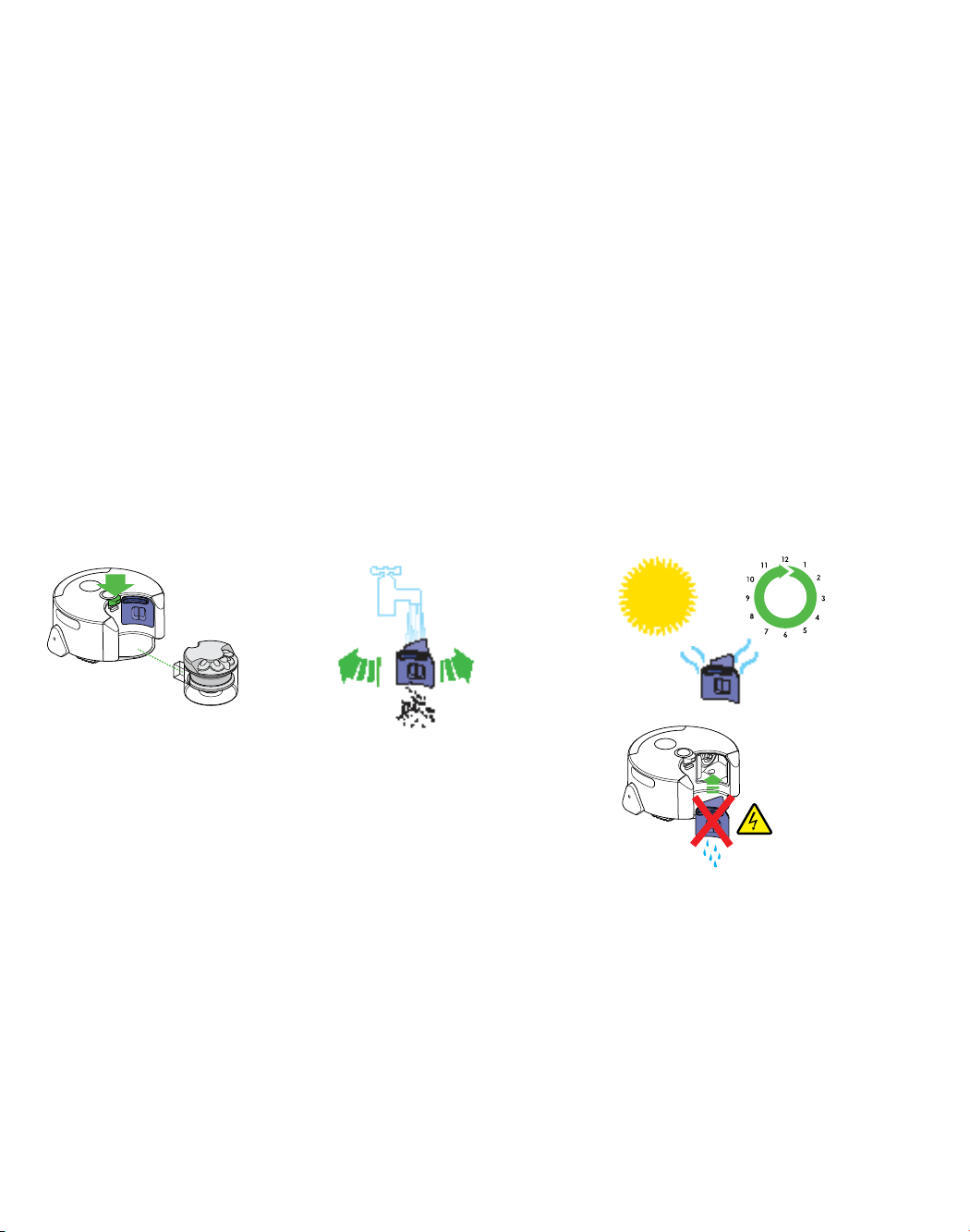
To conduct brush bar or track maintenance during cleaning press
the power button to pause the robot. When you are ready, return
the robot to the same point on the floor, press the power button
again to resume cleaning.
Brush bar and track maintenance
Using a coin, turn the brush bar
fastener anti-clockwise.
Remove the brush bar.
Remove any debris by hand.
Replace the brush bar.
Turn clockwise to lock.
Carefully place the robot upside down
on a soft surface. Remove any debris
by hand.
1 2 3
24
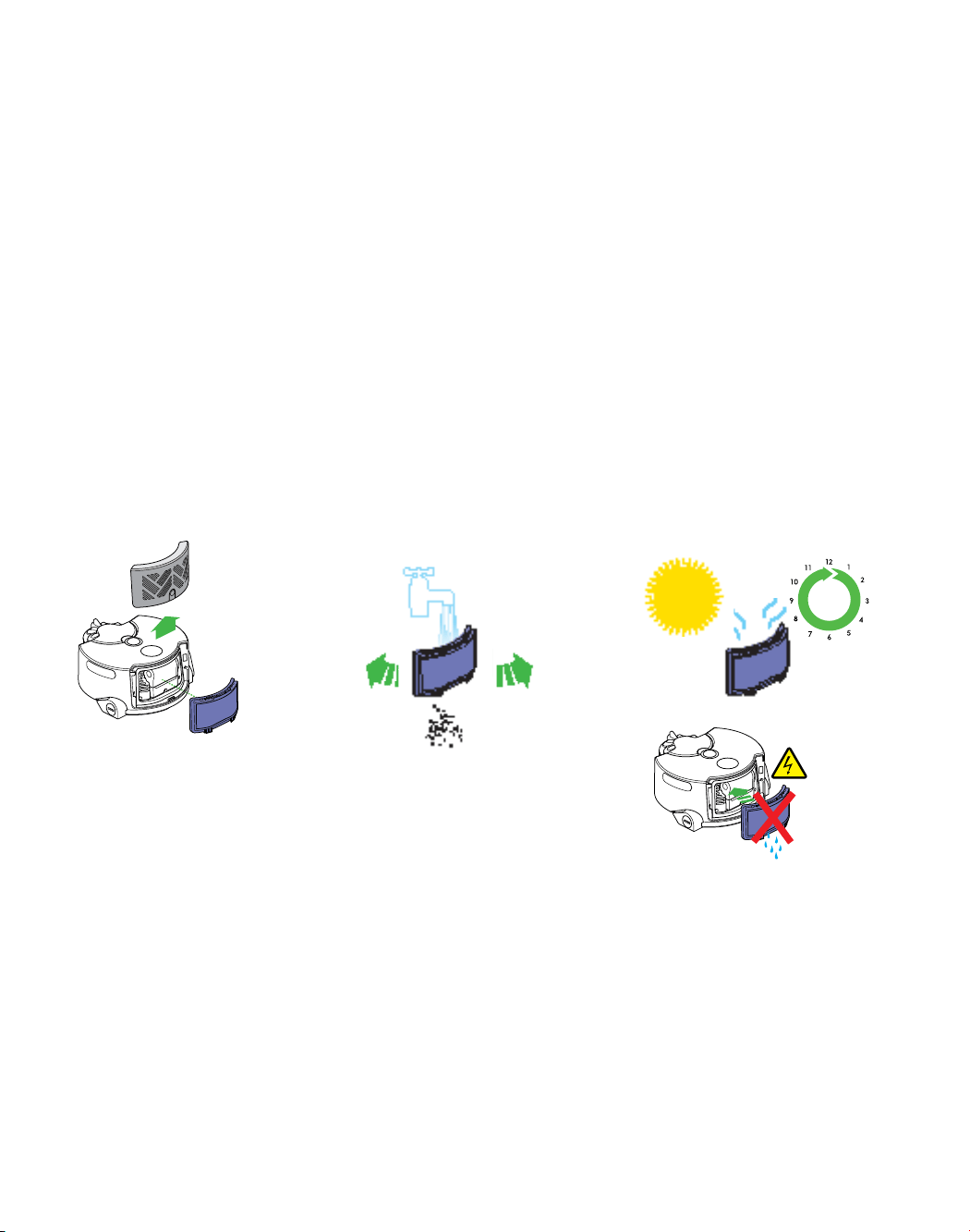
Washing and drying the filters
Pre-motor filter
Wash the pre-motor filter at least every month according
to the instructions below to maintain performance.
Press the cyclone release button and
remove the cyclone unit.
Pull out the pre-motor filter.
Wash the filter with cold water only.
Do not use hot water or detergents.
Shake the filter to remove debris and
excess water.
Repeat the wash/shake cycle until the
water runs clear.
Allow to completely dry naturally
(24 hours minimum).
To refit, re-assemble in reverse order.
1 2 3
24
hrs
25
Post-motor filter
Wash the post-motor filter at least every month according
to the instructions below to maintain performance.
Wash the filter with cold water only.
Do not use hot water or detergents.
Shake the filter to remove debris and
excess water.
Repeat the wash/shake cycle until the
water runs clear.
Press in the filter release button and
slide the filter cover up.
Remove the filter.
Allow to completely dry naturally
(24 hours minimum).
To refit: align the tabs on the bottom of
the filter with the slots on the robot, then
push the top of the filter into place.
Slide the filter cover downwards.
1 2 3
24
hrs
Go to
www.dyson.com/support/robots
26
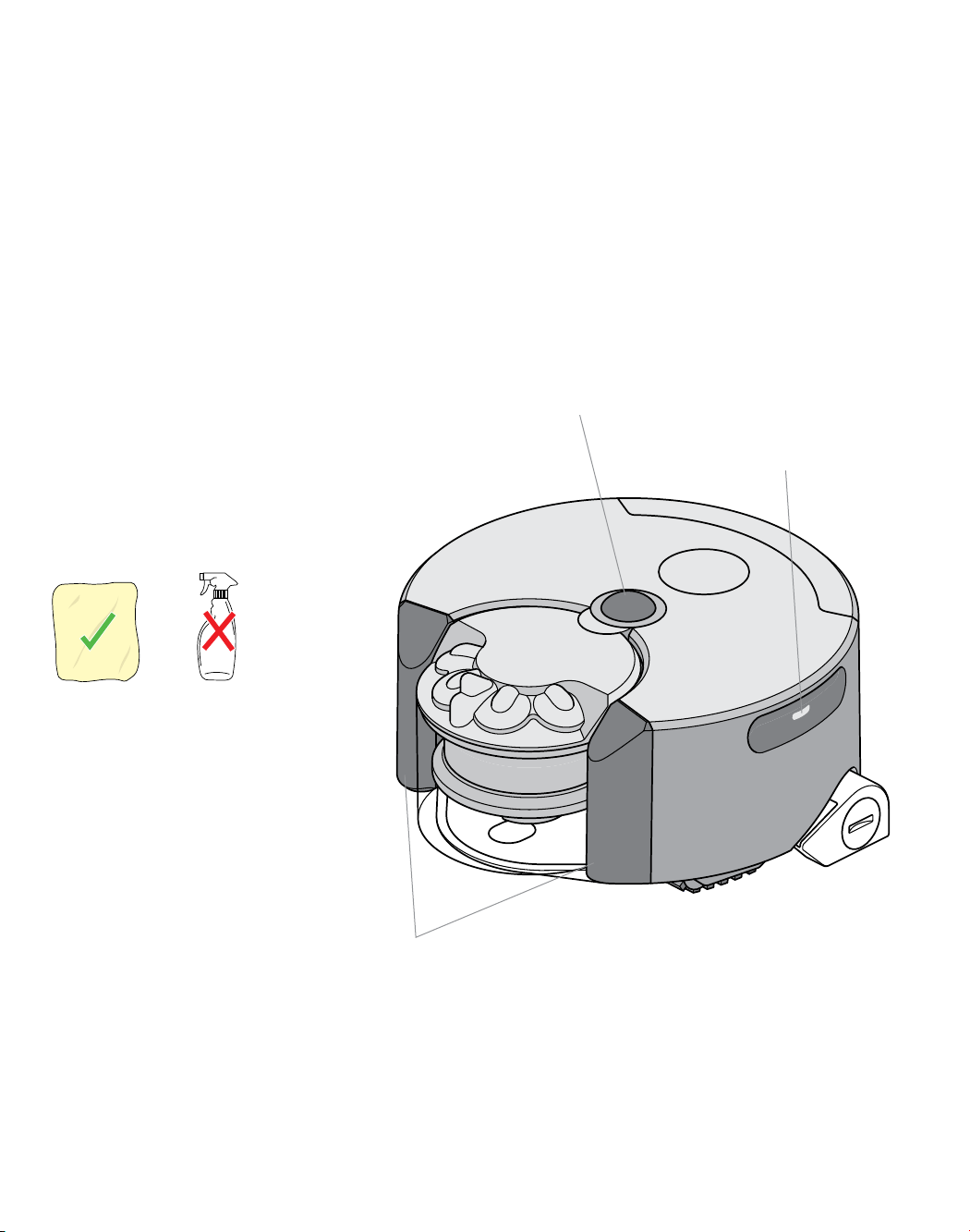
Cleaning optics
To get the best navigational performance
from your robot, clean the optics frequently.
Navigational camera
Drop and obstacle
detection sensors
Headlights (housed
within finger holds)
Check all sensor covers and the
navigational camera for dirt,
fingerprints or smears. Wipe with a soft,
dry, microfiber cloth to clean.
Do not use cleaning fluids, liquids or
sprays of any kind.
27
Software updates
To ensure you get the best out of your
robot update to the latest software.
1 2 3
Update progress will be indicated by a
sequence of pink lights. Do not attempt
to interrupt the update sequence until it
has completed. Removal of the battery
during an update may cause irreparable
damage.
Once complete the lights will turn off.
The robot is ready to use again.
By downloading the Dyson Link app
you will be registered for automatic
updates.
When an update becomes available
for your robot it will automatically
download and install at the next
available opportunity (when the robot
is inactive, on the dock and connected
to Wi-Fi).
Automatic updates via the Dyson Link app
1 2
3
Press and hold the power button until a
ring of pink lights flash to indicate that the
robot has started the update.
Check for a software update on the
Dyson website.
Download the update file onto a USB
stick without naming it. The USB stick
must have at least 256MB of free space
and must have no other files or folders
on it.
Remove the post-filter from the robot
and insert the stick into the USB port on
the back of the machine.
Update progress will be indicated by a
sequence of pink lights. Do not attempt
to interrupt the update sequence until
it has completed. Removal of the
battery during an update may cause
irreparable damage.
Once complete the lights will turn off.
The robot is ready to use again.
Manually update via USB
Go to
www.dyson.com/support/robots
28
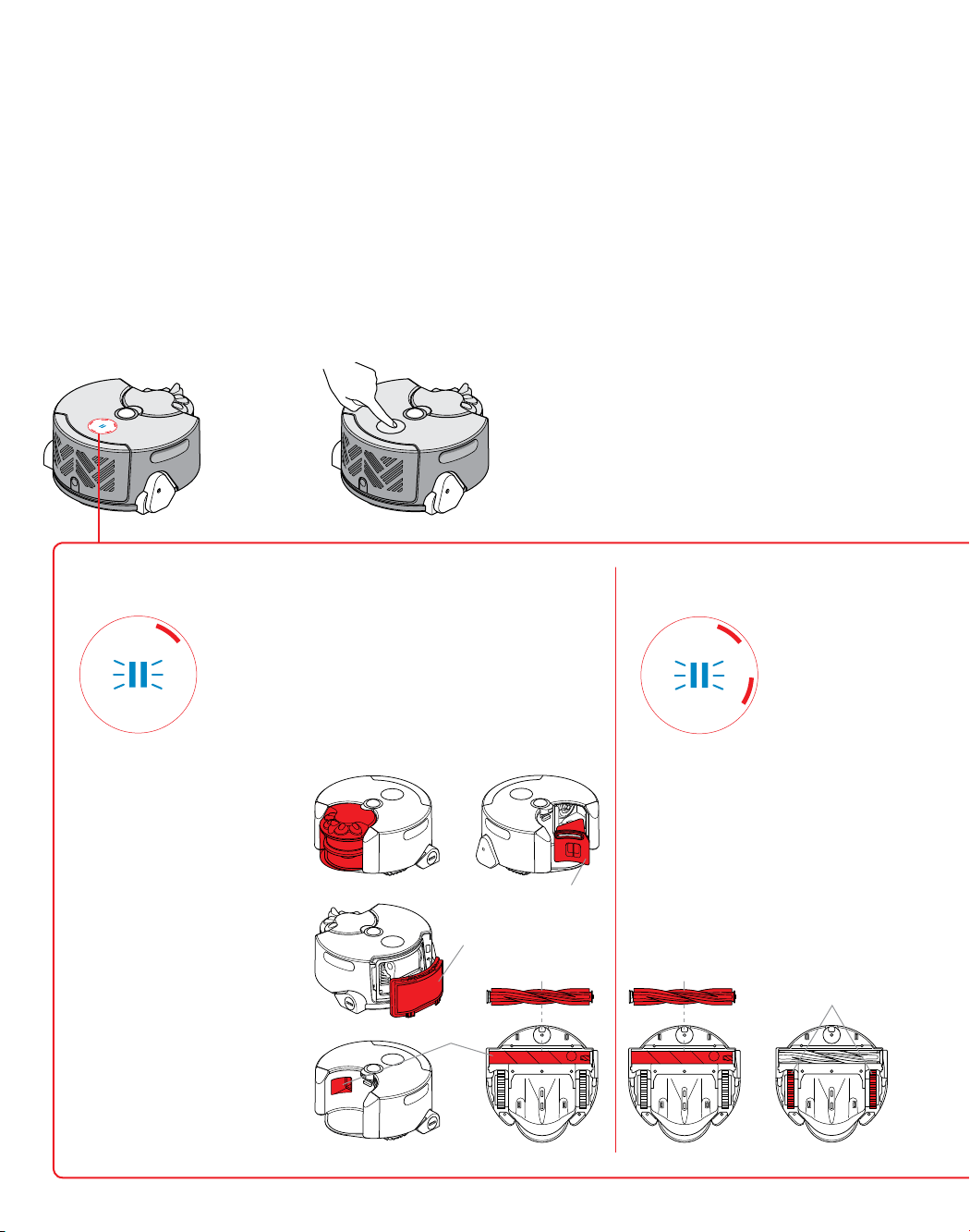
If your robot becomes stuck, please move the robot off
the obstruction and place nearby to resume cleaning.
Check the brush bar for wrapped hair or debris and
remove.
Check that the brush bar is correctly fitted.
Check the tracks and remove any wrapped hair and
debris.
For further information please refer to the 'Brush bar
and track maintenance' section
Troubleshooting
1 2
If your robot encounters a
problem, it will display one of the
lighting patterns below. Follow the
instructions to fix the issue.
When the problem has been fixed,
return the robot to the same point on
the floor, press the power button again
and step away to resume cleaning.
Check that a seal has not formed between
the brush bar and the cleaning surface.
Check that the clear bin is fitted correctly.
If the clear bin is full, empty it.
Check that the cyclone shroud isn’t
covered or blocked.
Remove the cyclone pack and check the
airways behind it for blockages.
Remove the brush bar and check the
airways for blockages.
Check for blockages on both filters.
Wash both filters.
Check the filters are in place.
Airways
Brush bar/tracks
Post-motor filter
Pre-motor filter
Airways
Brush bar Brush bar
Tracks
29
For more support
Online
www.dyson.com/support/robots
On the phone:
Call our helpline for dedicated support
on 1-866-664-8997 between Mon-Fri
8am to 8pm CST; Sat 9am to 6pm CST
On the Dyson link app:
You can use the Dyson Link app to
identify problems, view video guides
and take you through simple
step-by-step diagnostics to resolve.
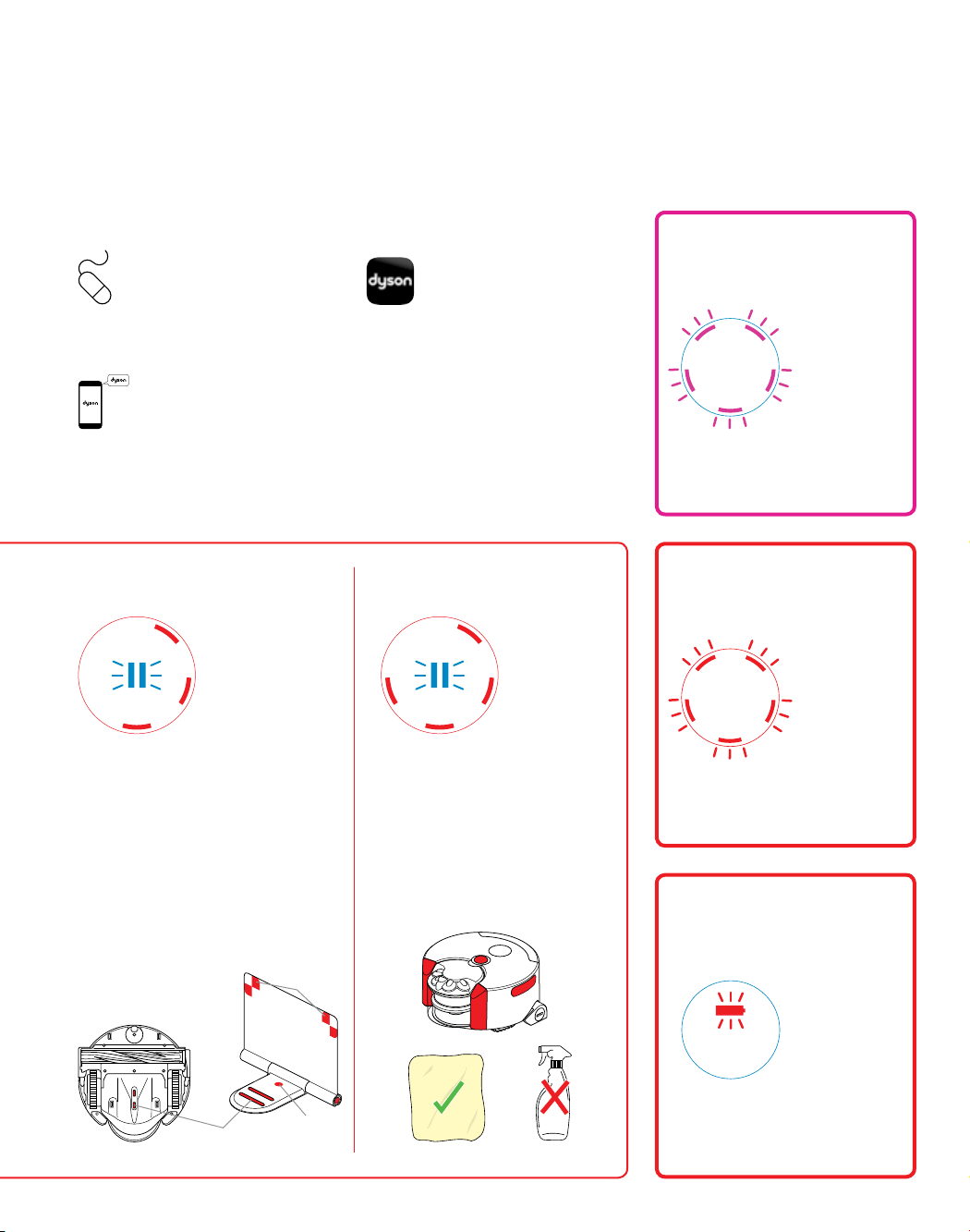
Red battery light flashing indicates that
your robot cannot complete the clean.
Please return your robot to the dock.
5 red flashing lights indicates that
your robot has encountered a fault
that you cannot fix. Please contact
the Dyson helpline.
Pink lights indicate a software
upgrade is in progress.
Contact the
Dyson Helpline
Software updates
Return to the dock
Check that power is going to the dock: the ‘Power
on’ indicator panel should illuminate on the base of
the dock.
Check that the charging contacts on the robot and
the dock are clean and not obstructed.
Check that the docking targets are folded out
correctly. Targets should be parallel to the wall and
facing out to the room.
Check the dock hasn't been moved since the robot
started cleaning, as this may interrupt the mapping
sequence.
Dock
Check all sensor covers and the navigational
camera for dirt, fingerprints or smears. Wipe
with a soft, dry, microfiber cloth to clean.
Do not use cleaning fluids, liquids or sprays of
any kind.
Check that there is adequate lighting for the
robot to operate across all cleaning areas,
including those already cleaned.
Optics
‘Power on’
indicator
Charging
contacts
Docking
targets

30
PLEASE READ THE ‘IMPORTANT SAFETY
INSTRUCTIONS’ IN THIS DYSON OPERATING
MANUAL BEFORE PROCEEDING.
PREPARING TO CLEAN
• To ensure the best performance from your robot, it is
important to prepare the cleaning surface, removing
obstacles such as:
– Objects that might become entangled in moving
parts: thin cables, such as headphone or charger
cables; shoe laces; items of clothing, curtains or
fabric; loose ends of rugs such as tassels.
– Hard to vacuum surfaces: thin, loose rugs such as
bath mats or animal hides; very deep pile rugs.
– Objects that might cause damage or blockage if
sucked up: magazines and papers; liquid spills;
sharp items.
– Objects that obscure drops: bags or shoes near
a drop.
– Objects within 4 inches of steps.
• To avoid damage to possessions, please remove any
fragile items such as vases on pedestals from the
cleaning surface.
• Ensure children and pets are kept away from the
cleaning area.
• Tell people in the household when the robot
is operating.
• The robot's navigation system is not designed to
operate in complete darkness, please ensure adequate
lighting across all cleaning areas, including those
already cleaned. For example, leave the lights on if
cleaning at night.
LOOKING AFTER YOUR DYSON MACHINE
• Store the robot indoors. Do not use or store it below
37.4°F. Ensure the robot is at room temperature
before operating.
• Clean the robot only with a dry cloth. Do not use any
lubricants, cleaning agents, polishes or air fresheners
on any part of the robot.
Check all sensor covers and the navigational camera
for dirt, fingerprints or smears. Wipe with a soft, dry,
microfiber cloth to clean. Do not use cleaning fluids,
liquids or sprays of any kind.
• Check the brush bar and tracks regularly and clear
away any debris (such as hair). Debris left on the
brush bar and tracks may cause damage to flooring
when vacuuming.
• Place the robot on a soft surface if it has to be turned
over when looking for blockages, etc. This will help to
avoid damaging the camera and sensors.
VACUUMING
• Before vacuuming your flooring, rugs and
carpets, check the manufacturer's recommended
cleaning instructions.
• Before vacuuming highly polished floors, such as wood
or lino, first check that the brush bar is free from foreign
objects that could cause marking.
• Fine dirt such as plaster dust or flour should only be
vacuumed in very small amounts.
• Do not use the robot to pick up sharp hard objects,
small toys, pins, paper clips, etc. They may damage
the robot.
EMPTYING THE CLEAR BIN
• Make sure that the clear bin is emptied before each use.
• Empty as soon as the dirt reaches the level of the MAX
mark – do not overfill.
CLEANING THE CLEAR BIN
• Clean the clear bin with cold water only.
• Clean the cyclone shroud with a cloth or dry brush to
remove lint and dust.
• Ensure the clear bin is completely dry before replacing.
• Do not immerse the cyclones in water or pour water into
the cyclones.
WASHING YOUR FILTERS
• Please refer to the 'Washing and drying the filters'
section; check and wash the filters regularly according
to the instructions to maintain performance.
• The filters may require more frequent washing if
vacuuming fine dust.
LOOKING FOR BLOCKAGES
• Ensure the robot is off the dock before looking for
blockages. Do not operate as this could result in
personal injury.
• Beware of sharp objects when checking for blockages.
• Refit all parts securely before using.
• Clearing blockages is not covered by your warranty.
• This robot has carbon fiber brushes. Take care if
coming into contact with them, as they may cause
minor skin irritation. Wash your hands after handling
the brushes.
Additional information

31
SOFT WARE UPGRADES
• To ensure the best performance from your robot please
ensure that the robot's software is regularly upgraded.
You can do this either by registering for automatic
upgrades via the Dyson Link app or by manually
downloading an upgrade via your computer. See
'Software updates' section.
DISABLE WI-FI
• Your robot is automatically set to periodically send out
a wi-fi signal that can be picked up as a local network
(also called ‘AP’ mode.) If desired this mode can be
switched ‘OFF’ by following the instructions below.
• Download the ‘Disable wi-fi’ software from the Dyson
website on to a USB stick. Make sure this software is
the only item on the USB stick and the stick has at least
256MB of free space.
• Remove the post-motor filter and filter cover and insert
the USB stick into the USB port.
Manually replace the robot on a powered dock and
ensure it is charging.
• Press the power button until a ring of pink lights flash,
then release the button. The software will automatically
switch ‘OFF’ wi-fi mode.
• Once complete the robot will turn off.
• Remove the USB and replace the filter and filter cover.
The robot is now ready to use as normal.
ENABLE WI-FI
• If you want to enable the robot to emit a wi-fi signal
again, follow the same steps as above but instead
download the ‘Enable wi-fi mode’ software from the
Dyson website.
RESETTING THE ROBOT
• If ownership of the robot changes, you may wish to
reset the robot so that home network names and
passwords are cleared.
• To reset the robot, follow the same steps as the 'disable
wi-fi' section but instead download the 'reset robot'
software from the Dyson website.
BATTERY SAFETY INSTRUCTIONS
• If the battery needs replacing please contact the
Dyson Helpline.
• The battery is a sealed unit and under normal
circumstances poses no safety concerns. In the unlikely
event that liquid leaks from the battery do not touch the
liquid and observe the following precautions:
• Skin contact – can cause irritation. Wash with soap
and water.
• Inhalation – can cause respiratory irritation. Expose to
fresh air and seek medical advice.
• Eye contact – can cause irritation. Immediately flush
eyes thoroughly with water for at least 15minutes. Seek
medical attention.
• Disposal – wear gloves to handle the battery and
dispose of immediately, following local ordinances
or regulations.
CAUTION
• The battery used in this machine may present a risk of
fire or chemical burn if mistreated. Do not disassemble,
short contacts, heat above 140°F(60°C), or incinerate.
Replace battery with a Dyson battery only: use of any
other battery may present a risk of fire or explosion.
Dispose of used battery promptly. Keep away from
children. Do not disassemble and do not dispose of
in fire.
DISPOSAL INFORMATION
• Dyson products are made from high grade recyclable
materials. Recycle where possible.
• The battery should be removed from the product
before disposal.
• Dispose of or recycle the battery in accordance with
local ordinances or regulations.
DYSON CUSTOMER CARE
THANK YOU FOR CHOOSING TO BUY A
DYSON MACHINE
If you have a question about your Dyson machine, call
the Dyson Helpline with your serial number and details
of where and when you bought the machine.
Most questions can be solved over the phone by one of
our Dyson Helpline staff.
If your Dyson machine needs service, call the Dyson
Helpline so we can discuss the available options. If your
Dyson machine is under warranty, and it is a covered
repair, it will be repaired at no cost.
Your serial number can be found on your rating plate
which is on the base of the machine.

32
PLEASE REGISTER AS A DYSON
MACHINE OWNER
To help us ensure you receive prompt and efficient
service, please register as a Dyson machine owner.
There are three ways to do this:
• Online at www.dyson.com
• Telephone the Dyson Helpline, at 1-866-664-8997
• On the Dyson Link app.
This will confirm ownership of your Dyson machine in
the event of an insurance loss, and enable us to contact
you if necessary.
2 YEAR LIMITED WARRANTY
TERMS AND CONDITIONS OF THE DYSON 2 YEAR
LIMITED WARRANTY
WHAT IS COVERED
Your Dyson machine is warranted against original
defects in materials and workmanship for a period
of 2 years from the date of purchase, when used
for normal domestic purposes in accordance with
the Dyson Operating Manual. Please retain your
proof of purchase. If you do not have your proof of
purchase, your warranty will start 90 days after the
date of manufacture, according to Dyson’s records.
This warranty provides, at no extra cost to you, all
labor and parts necessary to ensure your machine
is in proper operating condition during the warranty
period. The replacement of any part of your machine
under warranty will not extend the period of warranty.
Any parts which are returned to Dyson will become the
property of Dyson. Please call the Dyson Helpline at
1-866-664-8997 for more information.
This limited warranty is subject to the following terms:
WHAT IS NOT COVERED
Dyson shall not be liable for costs, damages or repairs
incurred as a result of, due to, or from:
• Purchases of machines from unauthorized dealers.
• Careless operation or handling, misuse, abuse and/or
lack of maintenance or use not in accordance with the
Dyson Operating Manual.
• Use of the machine other than for normal domestic
purposes within the United States, e.g. for commercial
or rental purposes.
• Use of parts not in accordance with the Dyson
Operating Manual.
• Use of parts and accessories other than those produced
or recommended by Dyson.
• External sources such as weather, electrical outages or
power surges.
• Repairs or alterations carried out by unauthorized
parties or agents.
• Clearing blockages from your machine or washing of
the filter.
• Normal wear and tear, including normal wearing parts,
such as clear bin, filter, brush bar, and power cord (or
where external damage or abuse is diagnosed), carpet
or floor damage due to use not in accordance with the
Dyson Operating Manual or failure to turn the brush
bar off when necessary.
• Reduction in battery discharge time due to battery age
or use (where applicable).
• Damage as a result of use not in accordance with the
rating plate.
• Use of this machine on rubble, ash, plaster, drywall,
liquids, or wet surfaces.
• Additionally, this limited warranty does not apply to
any machine that has had the serial number altered
or removed.
WARRANTY LIMITATIONS
AND EXCLUSIONS
• Any implied warranties relating to your machine
including but not limited to warranty of merchantability
or warranty of fitness for a particular purpose, are
limited to the duration of this warranty. This limitation is
not allowed by some States and so this limitation may
not apply to you.
• Your remedy for breach of this warranty is limited to
the warranty service described below. Dyson will not
be liable for any consequential damages or incidental
damages you may incur in connection with your
purchase and use of your machine. This limitation is not
allowed by some States and so this limitation may not
apply to you.
• This limited warranty gives you specific legal rights. You
may also have other rights which vary by State.
• This limited warranty is not transferable.
WARRANTY SERVICE
• Please fill out and return the Warranty Form, or register
online at www.dyson.com
• Before service can take place, the terms of the warranty
require that you contact the Dyson Helpline with your
model name/number, serial number, date and place
of purchase.
• Please keep your purchase receipt in a safe place to
ensure you have this information.
• All work will be coordinated by Dyson or its
authorized agents.
• Any replaced defective parts will become the property
of Dyson.
• Service under this warranty will not extend the period of
this warranty.
• If your machine is not functioning properly, please call
the Dyson Helpline at 1-866-664-8997. Most issues
can be rectified over the telephone by our trained
Customer Care staff.

33
This Dyson machine uses open source software, a full
list of all the software and copyright notices together
with the full license terms can be found at www.dyson.
com/360eyenotice. Changes may be made when the
machine’s software is remotely updated, please see
www.dyson.com/360eyenotice for up to date details
IMPORTANT DATA
PROTECTION INFORMATION
PRIVACY AND PERSONAL
DATA PROTECTION
You will need to provide us with basic contact
information when you register your Dyson Product or
the Dyson Link App;
WHEN REGISTERING YOUR
DYSON MACHINE
• You will need to provide us with basic contact
information to register your product and enable us to
support your warranty.
WHEN REGISTERING VIA THE DYSON
LINK APP
You will need to provide us with basic contact
information to register the Dyson Link App; this enables
us to securely link your product to your instance of
the App.
• When you register, you will have the opportunity
to choose whether you would like to receive
communications from us. If you opt-in to
communications from Dyson, we will send you details
of special offers and news of our latest innovations.
We never sell your information to third parties and only
use information that you share with us as defined by
our privacy policies which are available on our website.
www.dyson.com/support/privacypolicy
PRODUCT INFORMATION
Please note: Small details may vary from those shown.
CONFORMITY INFORMATION
This equipment has been tested and found to comply
with the limits for a Class B digital device, pursuant to
part 15 of the FCC Rules. These limits are designed
to provide reasonable protection against harmful
interference in a residential installation. This equipment
generates, uses and can radiate radio frequency energy
and, if not installed and used in accordance with the
instructions, may cause harmful interference to radio
communications. However, there is no guarantee that
interference will not occur in a particular installation.
If this equipment does cause harmful interference to
radio or television reception, which can be determined
by turning the equipment off and on, the user is
encouraged to try to correct the interference by one or
more of the following measures:
• Reorient or relocate the receiving antenna.
• Increase the separation between the equipment
and receiver.
• Connect the equipment into an outlet on a circuit
different from that to which the receiver is connected.
• Consult the dealer or an experienced radio/TV
technician for help.
This equipment complies with FCC radiation exposure
limits set forth for an uncontrolled environment. In
order to avoid the possibility of exceeding the FCC
radio frequency exposure limits, human proximity
to the antenna shall not be less than 20cm during
normal operation.
Changes or modifications not expressly approved by the
party responsible for compliance could void the user's
authority to operate the equipment.

36
40
42
43
44
46
48
50
52
53
54
56
57
58
60
Inicio
Instrucciones de seguridad importantes
Inicio rápido
Aplicación Dyson Link
Cómo conectarse: Parte 1
Cómo conectarse: Parte 2 iOS
Cómo conectarse: Parte 2 Android
Modalidades de limpieza
Cómo entender y optimizar el robot.
Información importante
Resolución de problemas
Información adicional
Mantenimiento
Cómo vaciar el cubo transparente
Mantenimiento del cepillo y de las placas de orugas
Lavado y secado de los filtros
Limpieza de las ópticas
Actualizaciones de software
ES
Contenido
35
Estamos aquí
para ayudar:
Centro de apoyo
En línea
Descargue la aplicación
Dyson Link
Llame: 1-866-664-8997 de lunes a viernes de 8:00 a.m. a
8:00 p.m. y sábados y domingos de 8:00 a.m. a 6:00 p.m.
Correo electrónico: [email protected]
Chat: www.dyson.com/support/robots
Sitio de apoyo:
www.dyson.com/support/robots
Sitio del propietario del robot:
www.dyson.com/robot-owners
Pregunte a Dyson:
www.youtube.com/AskDyson
La aplicación Dyson Link le permite controlar, monitorear y
obtener actualizaciones automáticas del robot Dyson 360
Eye™ a través de su dispositivo móvil.
Busque la aplicación Dyson Link más reciente en la tienda de
aplicaciones o en Google Play.
Cámara de
navegación
Sensores
Placas de
orugas
Botón de
encendido
Paquete del
extractor (extractor,
tapa del extractor y
cubo transparente)
Ranura para
sujeción
Blancos de
acoplamiento
Tomacorriente
Botón de
liberación del
paquete del
extractor
Puerto USB (detrás
de la cubierta del
filtro posterior)
Robot
En la caja
Enchufe
Estación de acoplamiento
Contactos
de carga
Indicador de
"encendido"
Tomacorriente
Recogecables

36
PARA DISMINUIR EL RIESGO
DE PROVOCAR UN INCENDIO,
RECIBIR UNA DESCARGA
ELÉCTRICA O LESIONES:
1. Este aparato Dyson no está destinada
para el uso por parte de personas
(incluso niños) con capacidades
físicas, cognitivas o mentales
reducidas, o con falta de experiencia
y conocimiento, salvo que hubieran
recibido supervisión o instrucciones
acerca del uso del aparato por parte
de una persona responsable por
su seguridad.
2. No permita que se utilice como un
juguete. Es necesaria la atención de
un adulto cuando es utilizada por o
cerca a un niño. Los niños deben ser
supervisados para asegurarse de que
no jueguen con la máquina.
3. Utilice el equipo únicamente de la
manera descrita en este Manual de
Operación de Dyson. No realice
ningún tipo de mantenimiento que
no se describa en este manual, en
la aplicación Dyson Link, en el sitio
web de Dyson o aconsejado por la
Línea directa de asistencia al cliente
de Dyson.
4. Si la máquina no funciona como es
debido, ha recibido un golpe fuerte
o se ha caído, dañado, dejado a la
intemperie, o sumergido en agua, no
lo utilice y comuníquese con la línea
de ayuda de servicio al cliente Dyson.
5. Si tiene un problema con el equipo
Dyson, consulte la información
diagnóstica en este manual, en el
sitio web de Dyson y en la aplicación
Dyson Link. Si se requiere servicio
INSTRUCCIONES DE SEGURIDAD
IMPORTANTES
ANTES DE UTILIZAR ESTA MÁQUINA, LEA TODAS LAS INSTRUCCIONES Y LA
INDICACIONES DE PRECAUCIÓN QUE VIENEN TANTO EN ESTE MANUAL COMO
EN LA MÁQUINA
Cuando se usa un aparato eléctrico, deben seguirse las precauciones básicas para
reducir riesgos de incendio, descarga eléctrica y lesiones personales, que incluyen
lo siguiente:
PELIGRO
Estas advertencias se aplican a la máquina, a todas las herramientas y
accesorios, así como a lo que corresponda a cualquier cargador o adaptador
de alimentación.

37
o reparación, comuníquese con la
Línea directa de asistencia al cliente
de Dyson para conversar sobre las
opciones disponibles. No desarme
el equipo porque un rearmado
incorrecto podría causar una
descarga eléctrica o un incendio.
6. Adecuado SOLAMENTE para
lugares secos. No utilice el equipo
en exteriores ni sobre superficies
mojadas donde existe la posibilidad
de contacto con agua o inmersión
en agua.
7. No instale, recargue o utilice esta
máquina en exteriores, en un baño
o a una distancia menor a 10 pies (3
metros) de una piscina. No lo utilice
sobre superficies mojadas, ni lo
exponga a humedad, lluvia o nieve.
8. No utilice para aspirar agua u otros
líquidos.
9. No derrame agua sobre el equipo.
10. No manipule el enchufe o de la
máquina con las manos mojadas.
11. No lo use si el cable o el enchufe
están dañados. Si se ha dañado
el cable de corriente, deberá ser
reemplazado por Dyson, uno de
sus representantes de servicio u otra
persona igualmente capacitada a fin
de evitar un peligro.
12. Verifique que el cable esté ubicado
de tal manera que no se pise, no
ocasione tropezones, no sea pisado
por el equipo ni de otra manera sufra
daños o estrés.
13. No desconecte la máquina tirando
del cable. Para desconectar, tome
el enchufe y no el cable. No es
recomendable utilizar una extensión
de cable.
14. Desconecte la estación de
acoplamiento cuando no la utilice
por períodos prolongados y antes
de trabajos de mantenimiento o de
servicio técnico.
15. No aspire líquidos inflamables o
combustibles como gasolina, ni la
utilice en áreas dónde pueda haber
este tipo de líquido.
16. No aspire nada que se esté
quemando o que emita humo,
como cigarrillos, fósforos o
cenizas calientes.
17. No utilice el equipo en áreas con
presencia de hogares a leña abiertos,

38
velas encendidas u objetos frágiles
sobre el piso que se limpiará o
velas sobre candelabros, mesas,
etc. con que el equipo pudiera
colisionar accidentalmente.
18. Antes de limpiar, retire del área que
se limpiará todos los cables eléctricos
y otros elementos que podrían
enredarse en el equipo.
19. Asegúrese de que todas las personas
presentes en la casa sepan que la
máquina está en funcionamiento,
en especial cuando se utiliza la
función de limpieza programada
disponible por medio de la aplicación
Dyson Link.
20. No utilice el equipo en una habitación
con presencia de un bebé o un niño
sin vigilancia.
21. Riesgo de caída: No utilice el equipo
en un área donde tenga acceso
a una escalera descendente o un
balcón, etc. No lo utilice en espacios
altos o estrechos como un estante o
una escalera.
22. Mantenga el cabello, ropa suelta,
los dedos y cualquier otra parte del
cuerpo alejados de las aberturas y
de las partes móviles. No apunte con
la manguera, la empuñadura o los
accesorios a los ojos u orejas, ni se
los meta en la boca.
23. No obstruya las aberturas de la
máquina con ningún objeto. No
utilice la máquina si tiene alguna
abertura obstruida; manténgalas
libres de polvo, pelusas, cabellos o
cualquier otra cosa que pueda reducir
la circulación del aire.
24. No toque con ningún objeto los
blancos de carga en el equipo ni en
la estación de acoplamiento.
25. No utilice si el compartimiento cubo
transparente y los filtros no están
colocados en su lugar.
26. No obscurezca los sensores ni el
sistema de visión.
27. No coloque nada sobre el equipo.
28. Para trasladar el aparato, sujételo
por las ranuras de sujeción que se
encuentran a cada lado.
29. El equipo y la estación de
acoplamiento se deben alimentar a
su Voltaje Extra Bajo de Seguridad
nominal; utilice únicamente el
adaptador de alimentación y la

39
batería Dyson que se entregan con
el producto; es posible que otros
tipos de batería revienten, causando
lesiones personales y daños.
30. Utilice solamente los accesorios y las
piezas de repuesto recomendadas
por Dyson.
31. No incinere esta máquina, aunque
esté muy dañado. El fuego podría
hacer explotar la batería.
32. ADVERTENCIA DE INCENDIO:
no aplique ninguna fragancia o
producto perfumado a los filtros de
la máquina. Se sabe que los químicos
en estos productos son inflamables
y pueden hacer que la máquina
se incendie.
LEA Y GUARDE
ESTAS
INSTRUCCIONES
ESTA MÁQUINA DYSON ES PARA
USO DOMÉSTICO SOLAMENTE
40
Configuración
Carga
Preparación de la
habitación
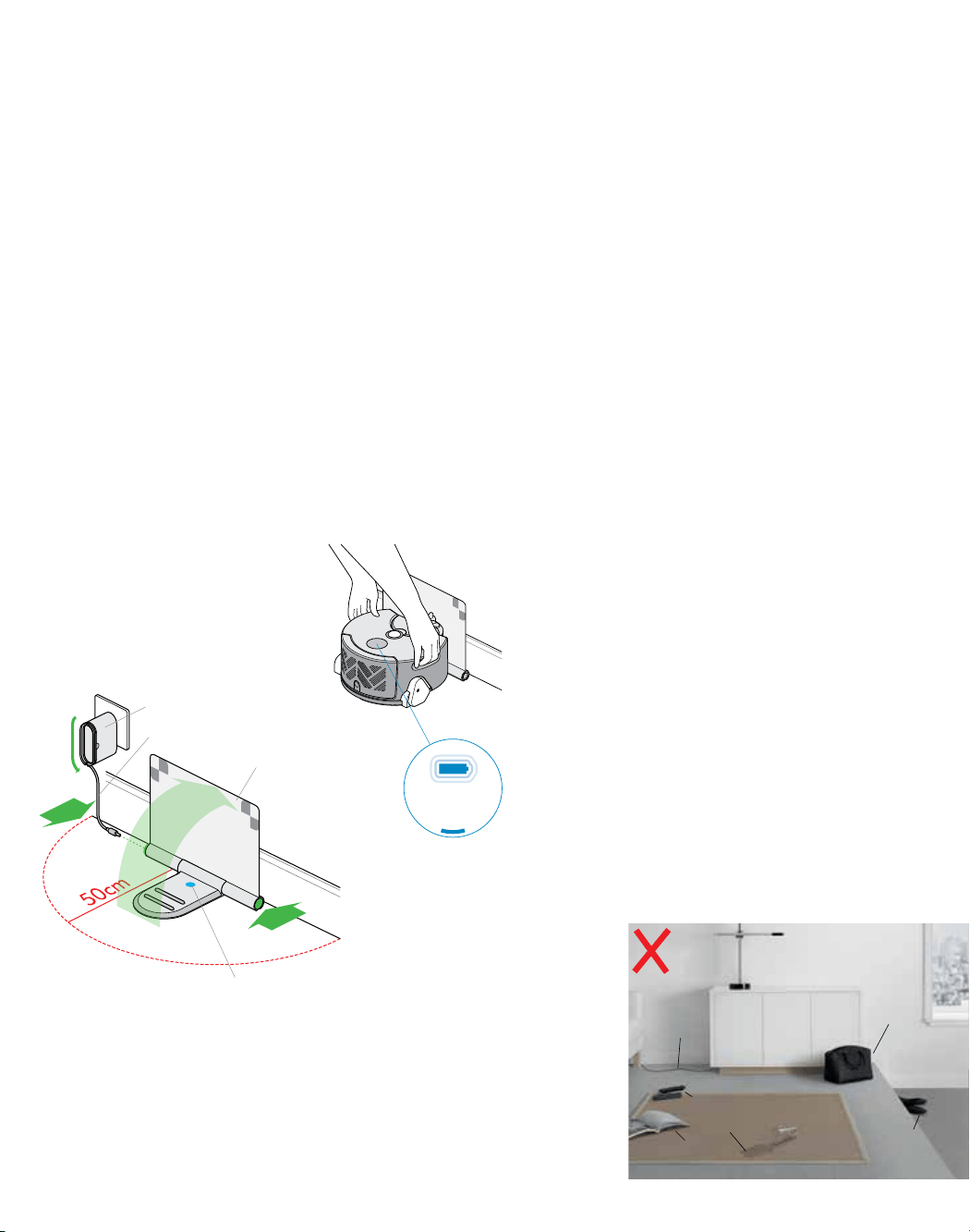
Abra la estación de acoplamiento
completamente a 90° y colóquela
contra la pared.
Conecte el cable para cargar
a cualquiera de los lados de la
estación de acoplamiento.
Asegúrese de que la estación
de acoplamiento cuente con
alimentación eléctrica, indicada por
una luz azul en la estación.
Recoja el cable excedente
envolviéndolo alrededor del enchufe.
Asegúrese de que no se
encuentren objetos en un radio
de aproximadamente 50 cm de la
estación de acoplamiento.
1 2 3
Coloque el robot en la estación de
acoplamiento de modo que el cubo
transparente quede hacia la pared.
La luz de la batería ubicada en el
botón de encendido parpadeará
durante la carga y quedará encendida
permanentemente cuando se complete
la carga.
El robot limpia utilizando una succión
potente, por lo que debe tener en cuenta
lo siguiente:
– Retire alfombras delgadas o elementos
sueltos que puedan ser succionados y
provocar una limitación del movimiento.
– Ordene obstáculos tales como cordones
de zapatos o cables delgados que
puedan quedar enganchados en
el cepillo.
– Quite cualquier líquido derramado o
elemento punzante que podrían dañar
al robot.
El robot utiliza sensores infrarrojos para
detectar caídas, por lo que debe tener en
cuenta lo siguiente:
– Asegúrese de que no haya bolsas o
zapatos desordenados a una distancia
inferior a 10 cm de cualquier caída en
la habitación.
El robot utiliza cámaras para navegar,
por lo que debe tener en cuenta
lo siguiente:
– Proporcione una iluminación adecuada
para la navegación del robot durante
toda la limpieza.
Enchufe
Cable
Estación de
acoplamiento
Cables
Revistas
Bolsa
Zapatos
Dispositivos de control remoto
Derrames
Inicio rápido
Indicador de
"encendido"
41
Limpieza
Actualización
del robot
Cómo obtener la
aplicación Dyson Link
4 5 6
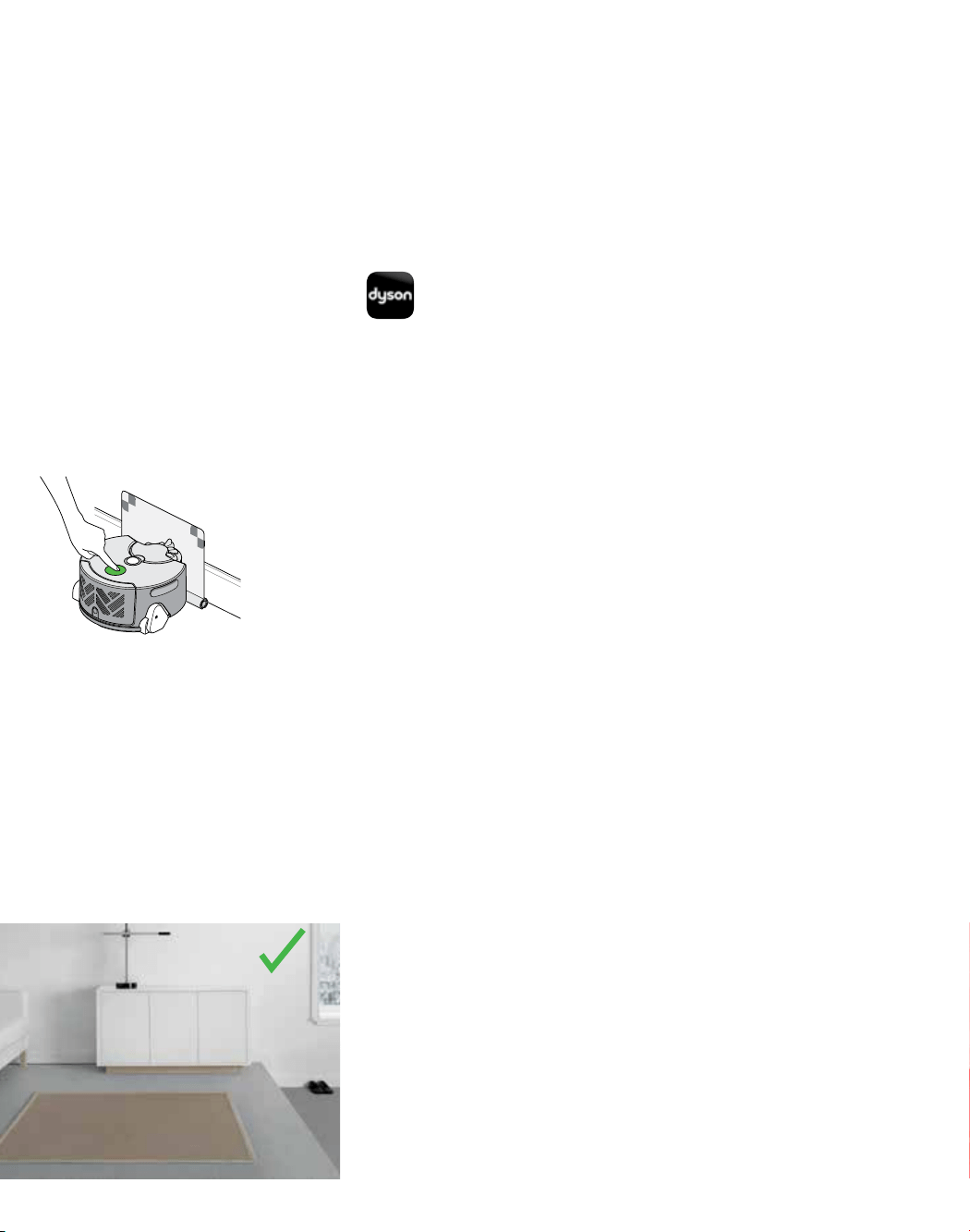
Presione el botón de encendido.
El robot comenzará a limpiar todo el
espacio accesible y se recargará en
la estación de acoplamiento cuando
sea necesario.
Para asegurarse de obtener los mejores
resultados con el robot, actualice el
software a la versión más reciente.
Para registrarse para actualizaciones
automáticas, conecte su robot usando
la aplicación Dyson Link.
Para actualizar sin usar la aplicación,
descargue la última versión de
software en:
www.dyson.com/support/robots
Para programar sesiones de limpieza,
observe los mapas de la sesión de
limpieza anterior, diagnostique las
fallas y actualice automáticamente
el software del robot. Descargue la
aplicación Dyson Link gratis en App
Store o Google Play.
Para obtener instrucciones de
configuración, consulte la página
"Cómo configurar la aplicación Dyson
Link" en esta guía para usuarios.
Sin cables
Despeje el piso
de objetos
Despeje los
bordes de
objetos
Vaya a
www.dyson.com/support/robots
42
Aplicación Dyson Link
Funcionalidad
La aplicación Dyson Link le permite controlar,
programar y monitorear el robot Dyson 360 Eye™
incluso cuando usted no está en casa.
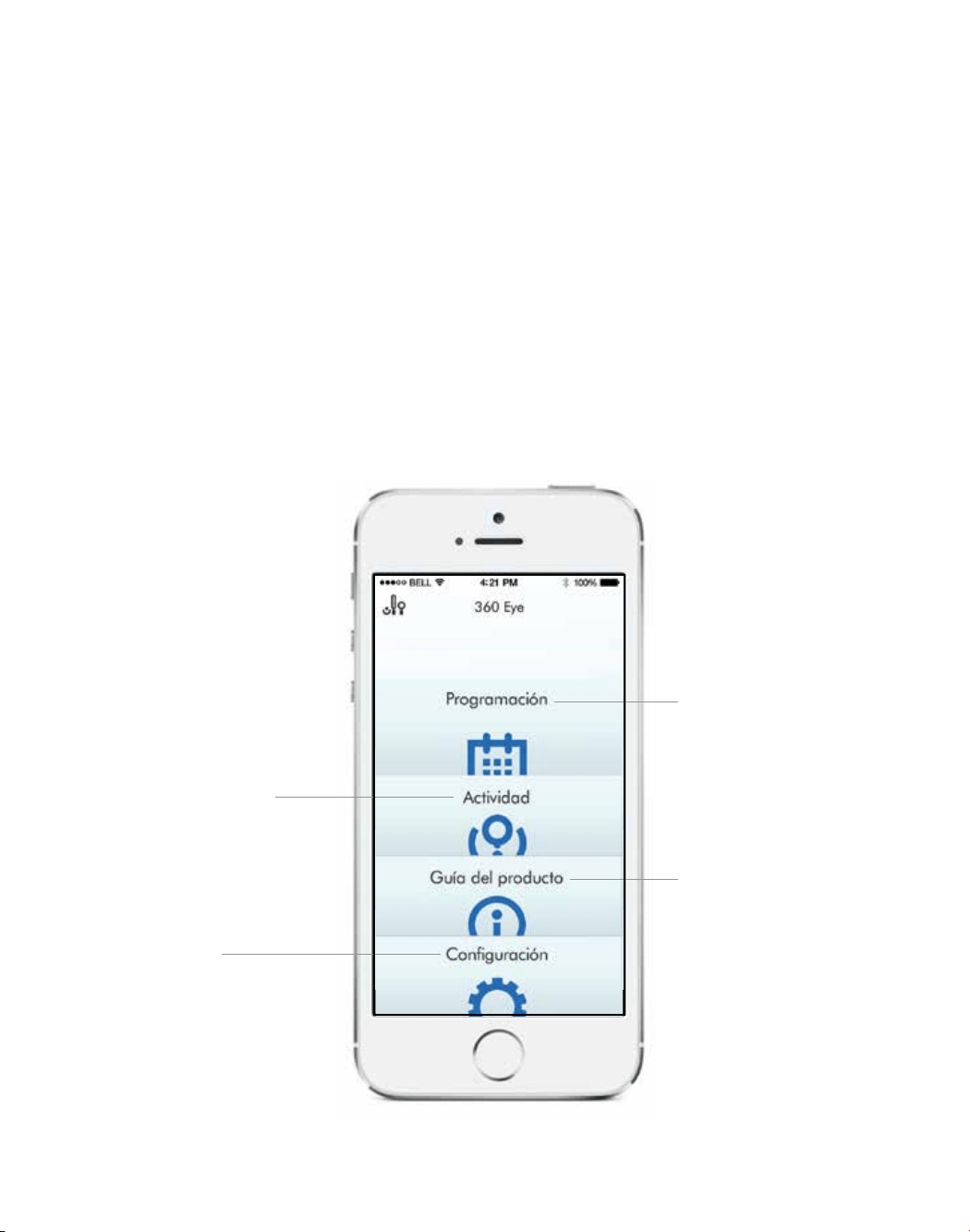
Revise los datos de las últimas
cinco limpiezas completadas de su
robot, que incluyen un mapa de
limpieza de las zonas cubiertas en
su casa.
Elija cuándo limpia el robot
programando la hora y el día
de las sesiones de limpieza.
Explore las tecnologías clave
incluidas en el robot Dyson
360 Eye™ y acceda al soporte
de Resolución de problemas.
*Contenido presentado basado en la
versión 1 de la aplicación. Visite nuestro
sitio web para obtener más ayuda:
www.dyson.com/support/robots
Ponga un nombre a su robot,
controle los avisos, configure
los ajustes y compruebe
la versión de software de
su robot.
43
Anote el número de serie del robot;
lo necesitará para identificar la red
Wi-Fi del robot durante la conexión.
Aparecen al dorso de esta guía para
usuarios o detrás del cubo transparente
en el robot.
Anote el código del robot; lo necesitará
para conectar el robot. Aparecen
al dorso de esta guía para usuarios
o detrás del cubo transparente en
el robot.
Busque la aplicación Dyson Link más
reciente en la tienda de aplicaciones
o Google Play.
Cómo conectarse: Parte 1
Antes de empezar
Contraseña del
Wi-Fi del hogar
Número de serie
del robot
Código del robot
Descargue la
aplicación
Controle la red Wi-Fi
Asegúrese de
tener la siguiente
información:
1 2 3
Verifique que la estación de acoplamiento
se encuentre cerca del router Wi-Fi y que
cuente con energía.
Verifique que su dispositivo esté en la
misma red a la que quiere conectar
el robot.
El robot se conecta a redes de 2.4 GHz,
que incluyen la mayoría de los routers
modernos. Revise la documentación de su
router para determinar si es compatible.
Protocolos de Wi-Fi compatibles
– IEEE802.11b (no recomendado)
– IEEE802.11g
– IEEE802.11n (compatible solo para
2.4 GHz)
Verifique que el Wi-Fi de su dispositivo
esté habilitado y conectado y que tenga
una señal potente, por ejemplo, intente
visitar su sitio web preferido.
Para obtener más información, consulte
www.dyson.com/support/robots
Si necesita ayuda, comuníquese con la
Línea directa de asistencia al cliente de
Dyson al
1-866-664-8997
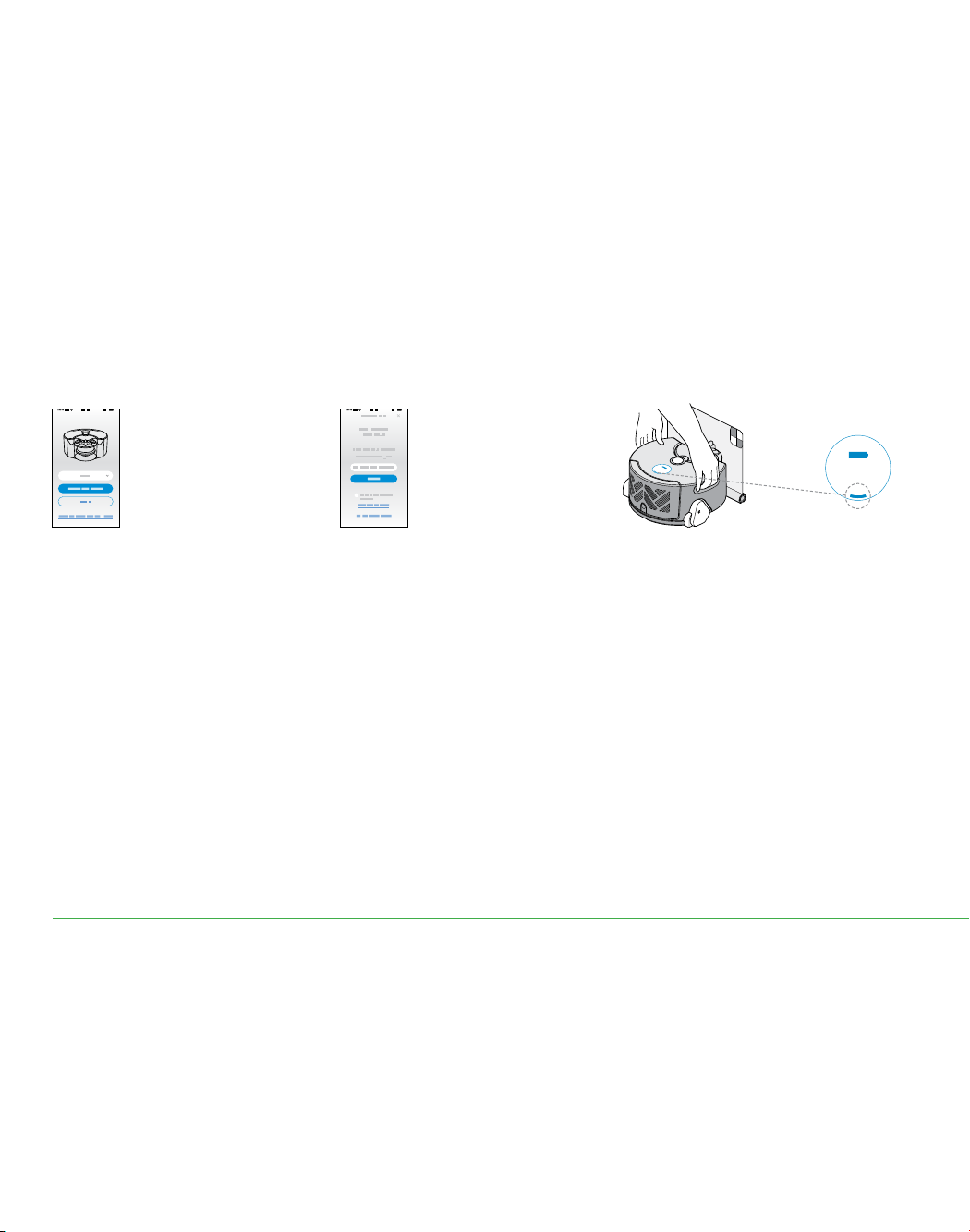
44
¿Necesita un poco de ayuda?
La luz de Wi-Fi
Registre su cuenta
Confirme la red
Wi-Fi del hogar
Haga que el robot
aparezca en modo
de recepción
1 2 3
Cómo conectarse: Parte 2 iOS
Conecte el robot a su dispositivo iOS y red Wi-Fi del hogar.
La aplicación recomendará una red
Wi-Fi a la cual conectar el robot.
Esta será la red a la que su dispositivo
móvil ya esté conectado.
Si esta es la red Wi-Fi a la que usted
desea conectar el robot, ingrese su
contraseña de Wi-Fi.
Levante el robot y vuelva a colocarlo
en una estación de acoplamiento
con energía. Después de un breve
intervalo, se iluminará la luz de Wi-Fi;
el robot ahora se encuentra en modo
de recepción.
Inicie la aplicación en su
dispositivo móvil.
Seleccione el país.
Si ya tiene una cuenta Dyson seleccione
"Sign in" (Iniciar sesión) e ingrese su
nombre de usuario y contraseña.
Si es un usuario nuevo, seleccione
"Register" (Registrarse).
Para crear una cuenta, complete todos
los campos.
¿No está seguro de si tiene una cuenta?
Esta es la cuenta que estableció para comprar el
robot en dyson.com.
¿No puede descargar la aplicación en su
dispositivo móvil?
La aplicación Dyson Link sólo está disponible
actualmente para dispositivos iOS y Android.
Continuaremos agregando dispositivos, por lo que
le solicitamos que visite la tienda de aplicaciones en
el país en que compró el robot.
¿No puede ver la red del hogar?
– Verifique que esté dentro del alcance del router
Wi-Fi del hogar.
– Verifique que el router del hogar esté encendido.
– Verifique que su dispositivo móvil esté conectado
a la red Wi-Fi, indicado por un icono de señal
de Wi-Fi en la esquina superior izquierda de
la pantalla.
– Verifique que la red del hogar no esté oculta.
¿Desea conectar el robot a una red diferente?
Salga de la aplicación Dyson Link, abra la
aplicación de configuración en su dispositivo móvil y
seleccione Wi-Fi. Conecte su red preferida y regrese
a la aplicación Dyson Link..
Verifique que no está conectado a una red de 5
GHz. El robot solamente se conectará a una red de
2.4 GHz.
¿No puede ver la luz de Wi-Fi?
– El robot permanecerá en modo de recepción
durante 30 minutos después de que se lo
coloque en la estación de acoplamiento.
– Verifique que la estación de acoplamiento
cuente con energía; se mostrará una luz azul de
energía en la estación de acoplamiento.
– Levante el robot y colóquelo en la estación
de acoplamiento.
– Verifique que el robot se esté cargando, indicado
por la luz de batería en el robot.
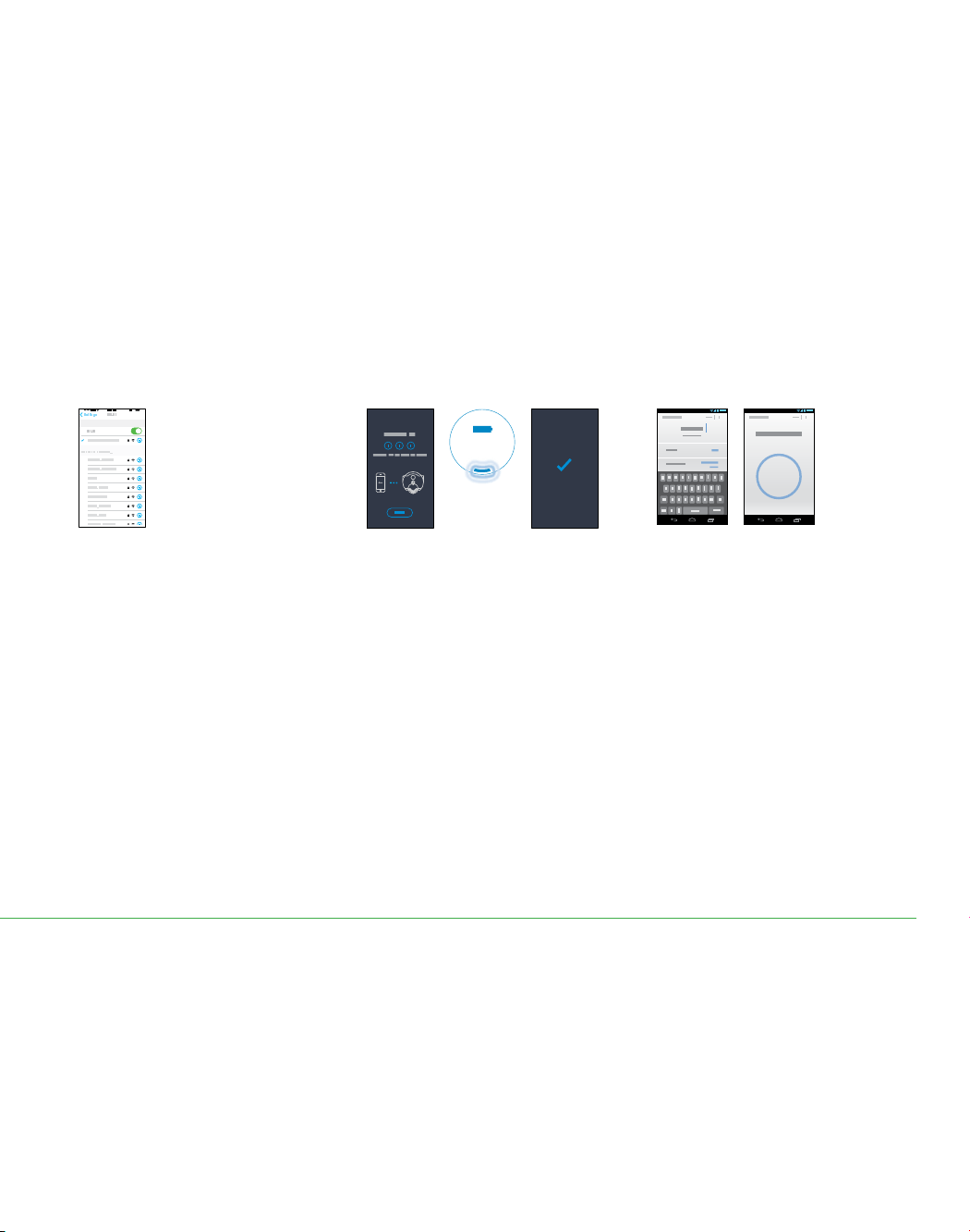
45
Connecting
(Wi-Fi light
pulses)
Conecte el robot
a la red Wi-Fi del
hogar y a Dyson
¡Asigne un
nombre al robot
y comience!
4 5
¿No puede ver el robot en la lista de
rede disponibles?
– Verifique que esté encendida la luz de Wi-Fi del
robot, consulte el paso 2 de esta guía.
– Verifique que el Wi-Fi de su dispositivo móvil
esté habilitado y que usted se encuentre cerca
del robot.
– La red Wi-Fi del robot comienza con "360EYE".
¿No puede conectar la aplicación con el robot?
– Asegúrese de estar cerca del robot.
– Para volver a conectar el teléfono con el robot,
repita el paso 4 de esta guía.
¿No puede conectar el robot con la aplicación?
– Es posible que su Wi-Fi no esté respondiendo.
– Si ha ocultado su Wi-Fi, póngalo a la vista.
– Verifique que no haya establecido su Wi-Fi en 5
GHz. Su Wi-Fi debe establecerse en 2.4 GHz.
¿No puede conectar el robot a la red de Dyson?
– La nube de Dyson posiblemente no puede
completar su conexión, intente nuevamente.
La luz de Wi-Fi en el robot parpadeará
mientras se conecta. Una vez conectado
el robot, la luz se apagará. Si el robot
no se conecta, la luz permanecerá
encendida permanentemente.
Una vez que haya registrado su
propiedad y le haya asignado un
nombre al robot, podrá comenzar.
Salga de la aplicación, vaya a la
configuración de su dispositivo móvil
y seleccione Wi-Fi: Seleccione la red
del 360 Eye (contendrá "360EYE" y el
número de serie del robot). Cuando
se le indique, ingrese el código del
robot. Este se encuentra al dorso de la
guía para usuarios o detrás del cubo
transparente en el robot. Ahora vuelva
a la aplicación Dyson Link.
Conecte su
dispositivo móvil a la
red Wi-Fi del robot
6
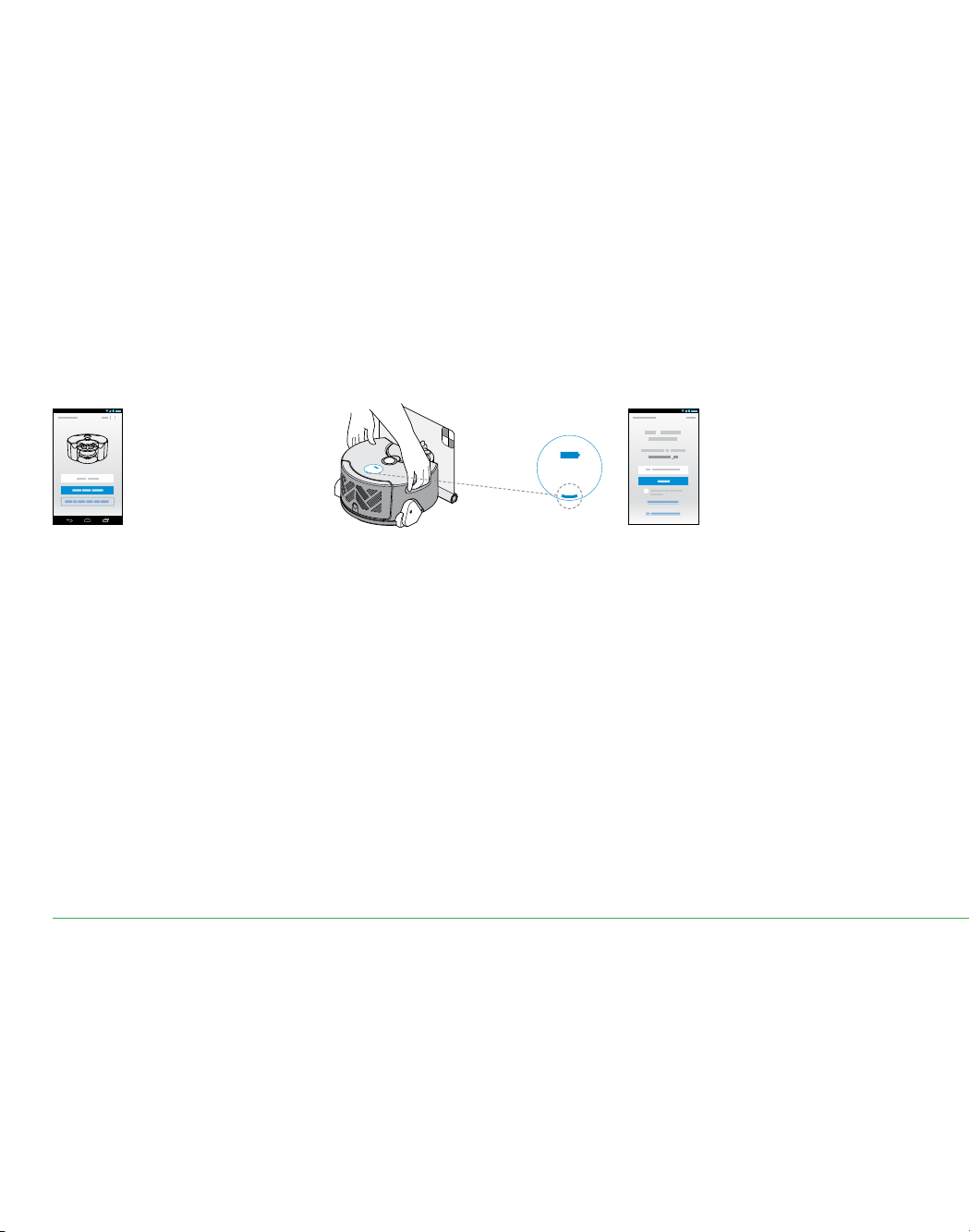
46
1 2 3
Cómo conectarse: Parte 2 Android
Conecte el robot a su dispositivo Android y red Wi-Fi del hogar.
La luz de
Wi-Fi
Registre su cuenta
Confirme la red
Wi-Fi del hogar
Haga que el robot
aparezca en modo
de recepción
¿No está seguro de si tiene una cuenta?
Esta es la cuenta que estableció para comprar el
robot en dyson.com.
¿No puede descargar la aplicación en su
dispositivo móvil?
La aplicación Dyson Link sólo está disponible
actualmente para dispositivos iOS y Android.
Continuaremos agregando dispositivos, por lo que
le solicitamos que visite la tienda de aplicaciones en
el país en que compró el robot.
¿No puede ver la red del hogar?
– Verifique que esté dentro del alcance del router
Wi-Fi del hogar.
– Verifique que el router del hogar esté encendido.
– Verifique que su dispositivo móvil esté conectado
a la red Wi-Fi, indicado por un icono de señal
de Wi-Fi en la esquina superior izquierda de
la pantalla.
– Verifique que la red del hogar no esté oculta.
¿Desea conectar el robot a una red diferente?
– Puede seleccionar una red diferente dentro de
la aplicación.
¿No puede ver la luz de Wi-Fi?
– El robot permanecerá en modo de recepción
durante 30 minutos después de que se lo
coloque en la estación de acoplamiento.
– Verifique que la estación de acoplamiento
cuente con energía; se mostrará una luz azul de
energía en la estación de acoplamiento.
– Levante el robot y colóquelo en la estación
de acoplamiento.
– Verifique que el robot se esté cargando,
indicado por la luz de batería en el robot.
La aplicación recomendará una red
Wi-Fi a la cual conectar el robot.
Esta será la red a la que su dispositivo
móvil ya esté conectado.
Si esta es la red Wi-Fi a la que usted
desea conectar el robot, ingrese su
contraseña de Wi-Fi.
Levante el robot y vuelva a colocarlo
en una estación de acoplamiento
con energía. Después de un breve
intervalo, se iluminará la luz de Wi-Fi;
el robot ahora se encuentra en modo
de recepción.
Inicie la aplicación en su
dispositivo móvil.
Seleccione el país.
Si ya tiene una cuenta Dyson seleccione
"Sign in" (Iniciar sesión) e ingrese su
nombre de usuario y contraseña.
Si es un usuario nuevo, seleccione
"Register" (Registrarse).
Para crear una cuenta, complete todos
los campos.
¿Necesita un poco de ayuda?
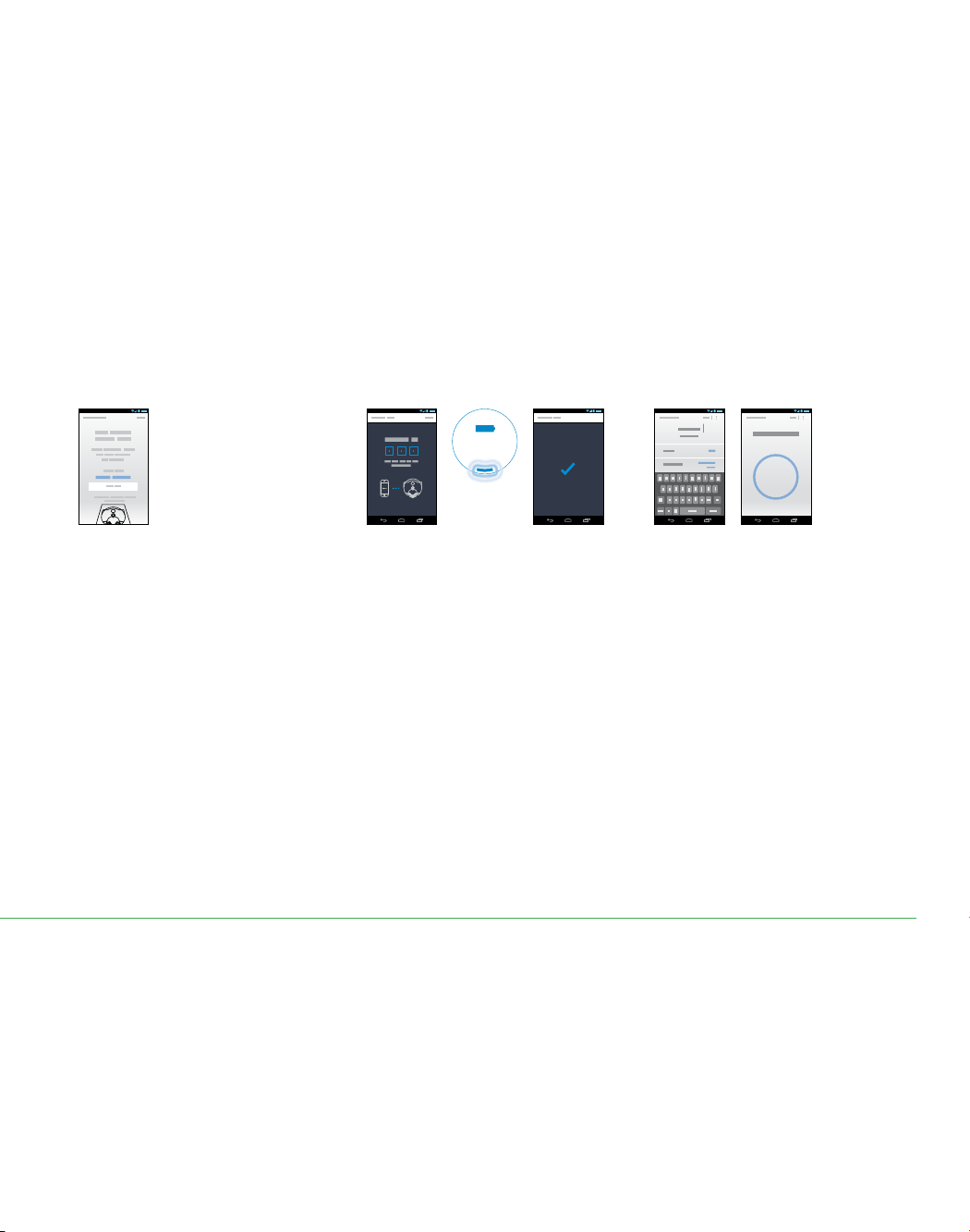
47
4 5 6
Connecting
(Wi-Fi light
pulses)
Conecte el robot
a la red Wi-Fi del
hogar y a Dyson
¡Asigne un nombre
al robot y comience!
¿No puede ver el robot?
Verifique que esté encendida la luz de Wi-Fi del
robot, consulte el paso 2 de esta guía.
Verifique que el Wi-Fi de su dispositivo móvil esté
habilitado y que usted se encuentre cerca del robot.
¿No puede conectar la aplicación con el robot?
– Asegúrese de estar cerca del robot.
– Verifique que esté encendida la luz de Wi-Fi
del robot.
¿No puede conectar el robot con la aplicación?
– Es posible que su Wi-Fi no esté respondiendo.
– Si ha ocultado su Wi-Fi, póngalo a la vista.
– Verifique que no haya establecido su Wi-Fi en
5 GHz.
– Su Wi-Fi debe establecerse en 2.4 GHz.
¿No puede conectar el robot a la red de Dyson?
La nube de Dyson posiblemente no puede completar
su conexión, intente nuevamente.
La luz de Wi-Fi en el robot parpadeará
mientras se conecta.
Una vez conectado el robot, la
luz se apagará. Si el robot no
se conecta, la luz permanecerá
encendida permanentemente.
Una vez que haya registrado su
propiedad y le haya asignado un
nombre al robot, podrá comenzar.
Cuando se le indique, ingrese el código
del robot. Este se encuentra al dorso de
la guía para usuarios o detrás del cubo
transparente en el robot.
Conecte su
dispositivo móvil a la
red Wi-Fi del robot
*Contenido presentado basado en la versión 1 de
la aplicación. Visite nuestro sitio web para obtener
más ayuda:
www.dyson.com/support/robots
48
Presione el botón de
encendido y el robot
comenzará a limpiar todo el
espacio accesible.
Coloque el robot en la
estación de acoplamiento.
Asegúrese de que la
estación cuente con
alimentación eléctrica y que
el robot se esté cargando.
El robot regresará a la estación
para recargarse cuando el nivel la
batería esté bajo.
Modalidades de limpieza
Una vez recargado,
el robot continuará
automáticamente
con la sesión
de limpieza.
Para encender ("ON") presione y
sostenga el botón de encendido hasta
que se enciendan las luces azules.
Para apagar ("OFF"), presione y
sostenga el botón hasta que se
apaguen las luces.
Para pausar, presione el botón. La luz de
pausa parpadeará. Presione nuevamente
el botón para continuar con la limpieza.
Luces
Botón de encendido/apagado/pausa
Modalidad de recarga automática: el robot limpia
todo el espacio accesible y se recarga en la estación
de acoplamiento cuando es necesario.
1 2 3
Charging
49
Presione el botón de encendido y el
robot comenzará a limpiar todo el
espacio accesible que pueda alcanzar
con una única carga.
Coloque el robot sobre el piso,
no en la estación.
El robot no se recargará cando la
batería esté baja, sino que regresará
a su punto de partida y se desactivará
(se colocará en "OFF").
Realización de
una limpieza.
Regresando
para cargar.
Cargando
durante
una limpieza.
LimpiezaStandby
Cargado.
Cargando.
Modalidad de opción única: el robot solo
limpia el espacio accesible que puede
alcanzar con una única carga.
321
Vaya a
www.dyson.com/support/robots
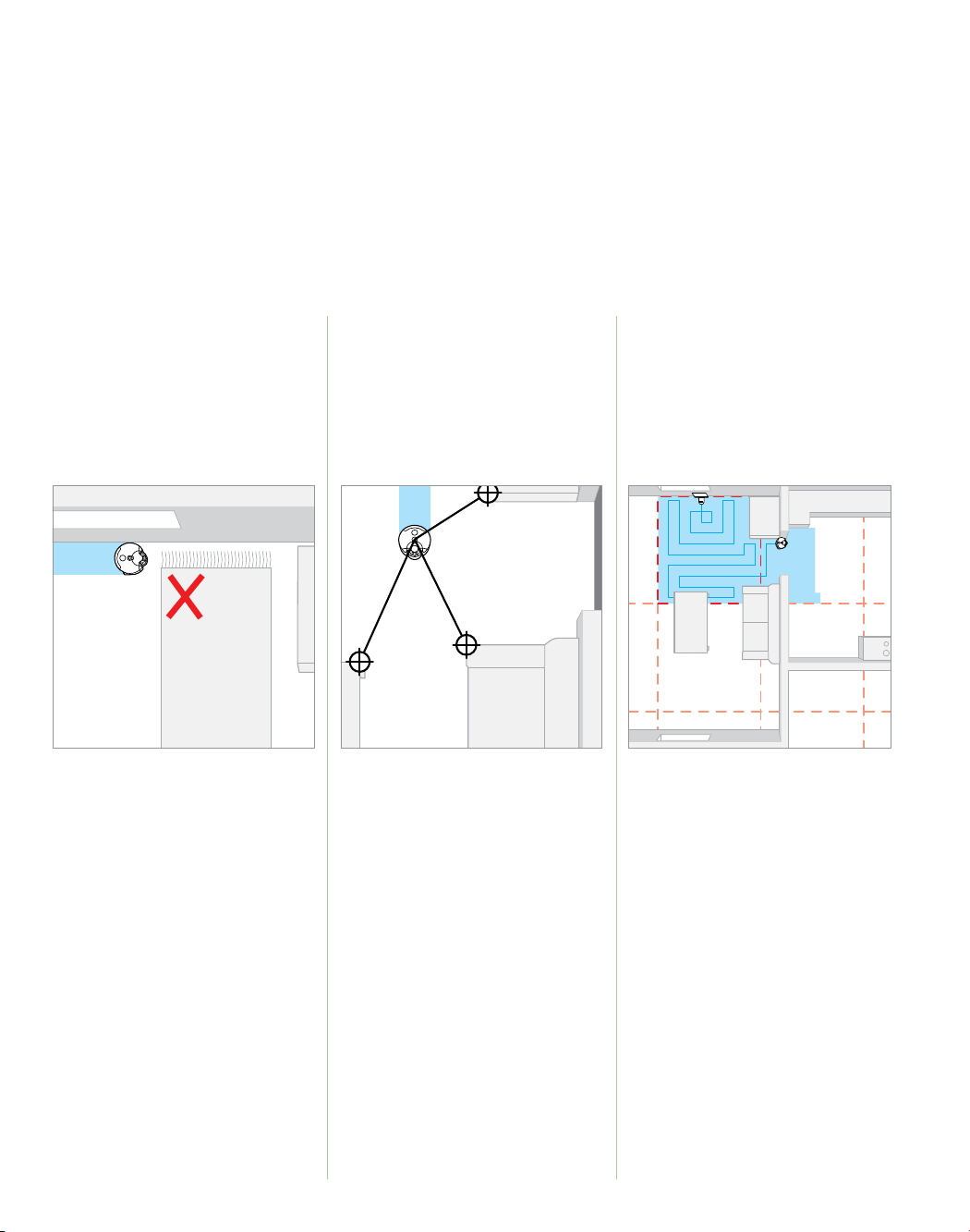
50
Cómo entender y optimizar el robot.
Succión Navegación Comportamiento
de limpieza
El robot usa un motor digital Dyson y un
cepillo de ancho completo para ofrecer
una limpieza potente.
El robot usa un sistema de visión 360°
para tener una imagen panorámica
completa de la habitación.
El robot traza un mapa del hogar en
forma de grilla de cuadrados, y lo
limpia usando un patrón sistemático
de limpieza.
Recoja los elementos delgados, livianos
o sueltos que puedan ser succionados y
provocar una limitación del movimiento.
En caso de que se produzca una
obstrucción, el robot intentará
eliminarla reduciendo la succión por un
período breve.
Si el robot se atasca en un obstáculo:
retire el obstáculo, vuelva a colocar el
robot lo más cerca posible del lugar en
donde lo levantó (preferentemente en
un lugar que el robot ya haya limpiado)
y presione le botón de pausa para
continuar con la limpieza.
El robot navega identificando
características en su campo de visión y
registrándolas mientras se mueve.
Para mejorar la capacidad de
navegación del robot, proporcione
una iluminación adecuada e uniforme
durante todo el ciclo de limpieza.
Con luz baja, el robot complementará
la iluminación ambiente con
luces infrarrojas.
Para mantener el desempeño de
navegación, limpie la cámara y las luces
con regularidad. Consulte la sección
"Limpieza de las ópticas" en este manual.
Por razones de seguridad los sensores
de caídas son muy sensibles. El robot
puede confundir superficies oscuras
con caídas y por consiguiente omitir
su limpieza.
La grilla no siempre se alinea con
los bordes de la habitación, el robot
puede limpiar en otra habitación antes
de regresar a áreas de limpieza que
ha omitido.
Si el robot tuvo dificultad para navegar
en un área, o está demorando
demasiado para limpiar, la próxima
vez intente mover la estación de
acoplamiento. Esto realineará los
límites de la grilla de su hogar y puede
mejorar el desempeño.
Para visualizar el comportamiento de
limpieza del robot y ver los mapas de
limpiezas completadas, conecte el robot
usando la aplicación Dyson Link.
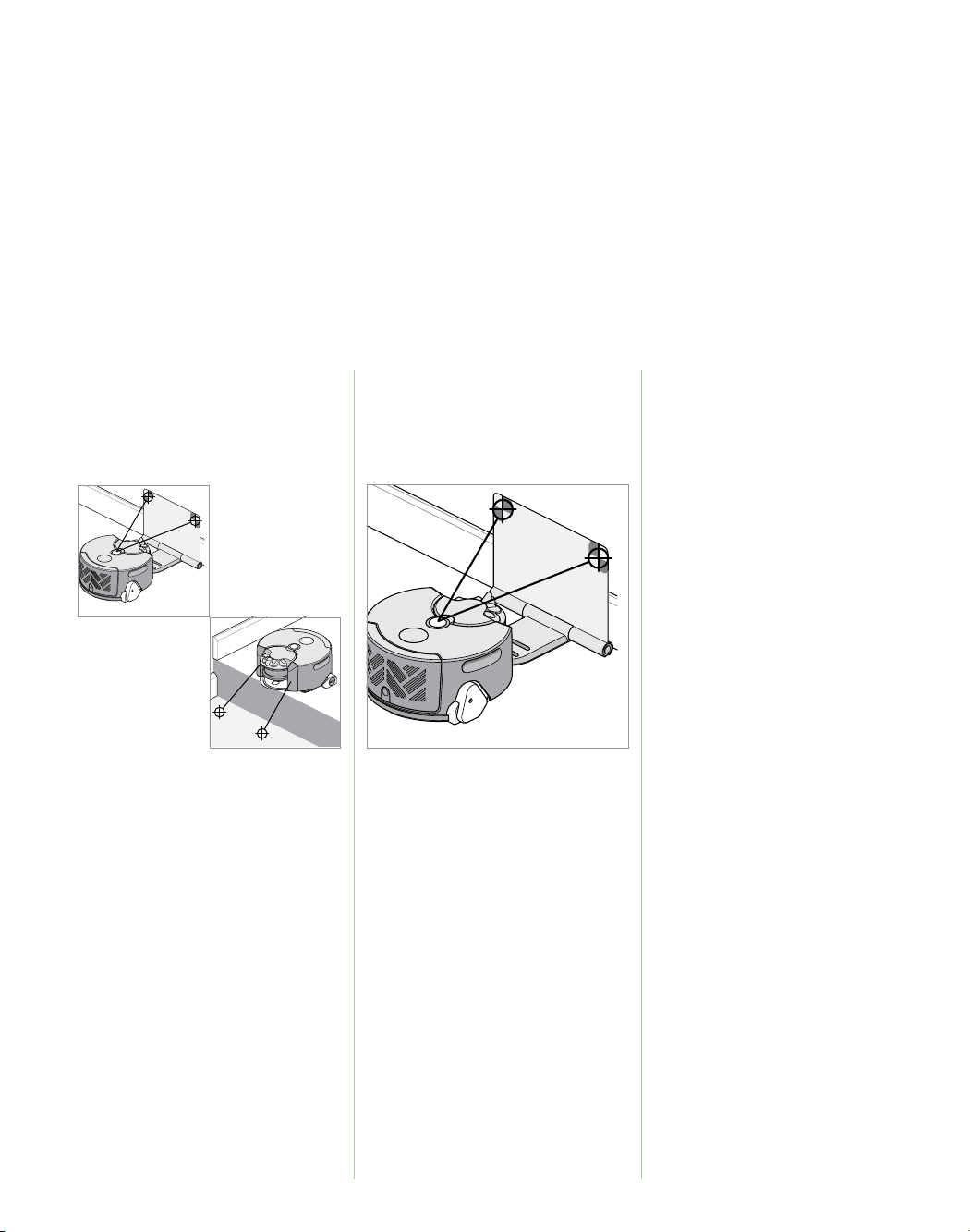
51
El robot usa sensores infrarrojos para
identificar obstáculos, caídas y los
límites del espacio de limpieza. Luego
los registra en su mapa.
Cuando sale de la estación de
acoplamiento, el robot regresa a
recargarse a mitad de la limpieza
antes de reanudar el funcionamiento
automáticamente y completar el ciclo
de limpieza.
Si no desea que el robot acceda a un
área, coloque una barrera física, como
por ejemplo cerrar una puerta.
Quite todo amontonamiento de
elementos ubicado a una distancia
inferior a 10 cm de cualquier caída
ya que esto puede interferir con los
sensores de caídas.
El robot ocasionalmente detecta
algunos obstáculos al empujarlos:
ponga en orden todo elemento frágil
que haya en el espacio de piso.
El robot identifica la ubicación de la
estación de acoplamiento usando la
cámara 360°: asegúrese de que la
estación de acoplamiento esté bien
iluminada y colocada en un área
abierta y sin obstáculos.
El robot alinea su mapa con su
orientación de inicio en la estación de
acoplamiento: coloque la estación de
acoplamiento en una superficie firme y
nivelada, apoyada en una pared.
Si el robot tiene dificultad para regresar
a la estación de acoplamiento,
intente cambiar la ubicación de la
estación de acoplamiento antes de la
siguiente limpieza.
El robot funciona con un paquete de
batería de iones de litio.
Tiempo de carga: 2hrs 45mins
Tiempo de funcionamiento: 45mins
El tiempo de carga y funcionamiento
del robot son aproximados, ya que
dependen de muchos factores, incluida
la carga restante en la batería, la
temperatura de operación y la edad de
la batería.
El tiempo de funcionamiento también
está influido por la distribución del
hogar y el tipo de superficie de piso que
se limpiará.
Para optimizar el tiempo que emplea
en limpiar, el tiempo de carga del robot
será inferior cuando se recargue en la
estación de acoplamiento a mitad de
la limpieza.
No es necesario que espere hasta que
la batería del robot esté completamente
cargada para comenzar con la
limpieza; sin embargo, si solicita una
limpieza cuando la batería del robot
está demasiado baja, se mostrará una
luz que indica "Regresar a la estación
de acoplamiento".
Vaya a
www.dyson.com/support/robots
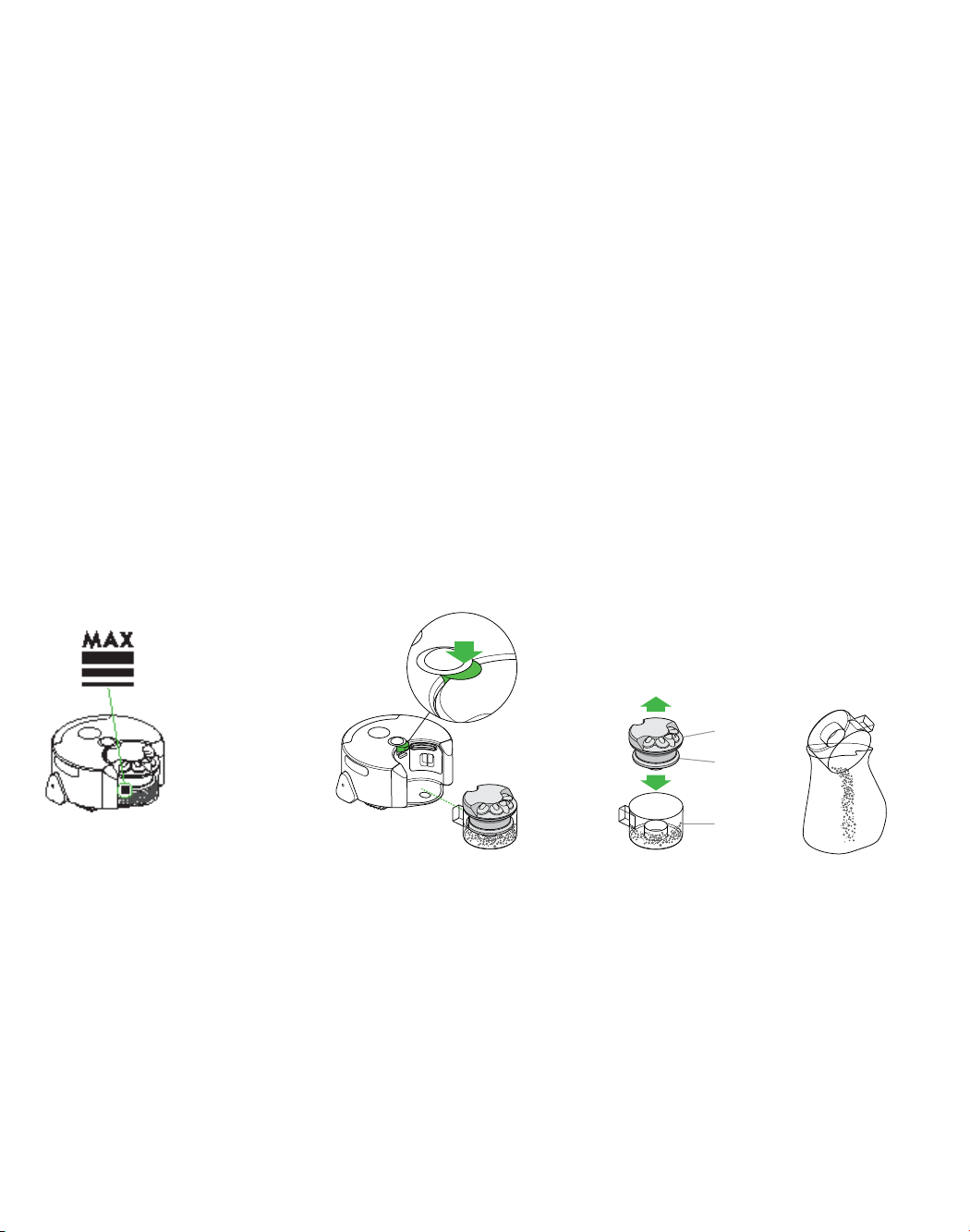
52
Cómo vaciar el cubo transparente
Para vaciar el cubo durante una limpieza, presione el botón
de encendido para poner el robot en pausa. Cuando esté
listo, vuelva a colocar el robot en el mismo lugar sobre el piso
y presione nuevamente el botón de encendido para reanudar
la limpieza.
Cuando la suciedad alcanza la marca
MAX, debe vaciarse el cubo.
Asegúrese de vaciar el cubo
transparente antes de cada uso.
Presione el botón de liberación del
paquete del extractor.
Retire el extractor del cubo transparente.
Vacíe el contenido en un recipiente para
residuos.
Para reducir al mínimo el contacto con
polvo o alergenos al vaciar el contenido,
coloque el cubo transparente en una
bolsa de plástico para vaciarlo.
1 2 3
Cómo limpiar el
cubo transparente
Lave el compartimiento cubo
transparente únicamente con agua fría.
Limpie la rejilla con un paño seco o un
cepillo seco para eliminar la pelusa y
el polvo.
Asegúrese de que el compartimiento
esté totalmente seco antes de colocarlo.
No sumerja todo el extractor en agua ni
vierta agua sobre él.
Cubo
transparente
Extractor
Tapa del
extractor
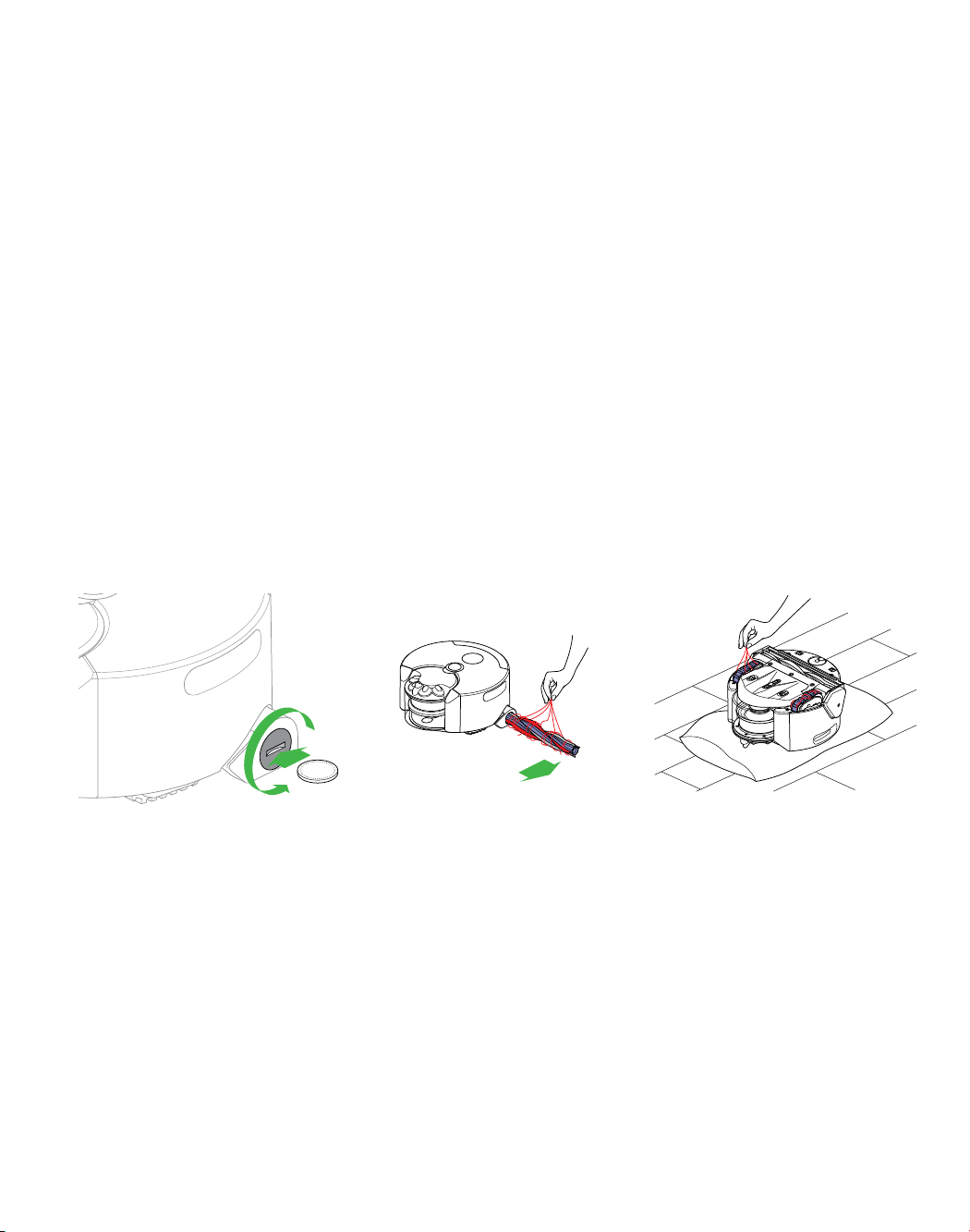
53
Para realizar el mantenimiento del cepillo o las placas de orugas
durante a limpieza, presione el botón de encendido para poner
el robot en pausa. Cuando esté listo, vuelva a colocar el robot en
el mismo lugar sobre el piso y presione nuevamente el botón de
encendido para reanudar la limpieza.
Mantenimiento del cepillo
y de las placas de orugas
Con una moneda, gire el sujetador del
cepillo en sentido contrario a las agujas
del reloj.
Retire el cepillo.
Retire los restos en forma manual.
Vuelva a colocar el cepillo.
Gire en sentido de las agujas del reloj
para sujetar.
Coloque cuidadosamente el robot al
revés sobre una superficie blanda.
Retire los restos en forma manual.
1 2 3
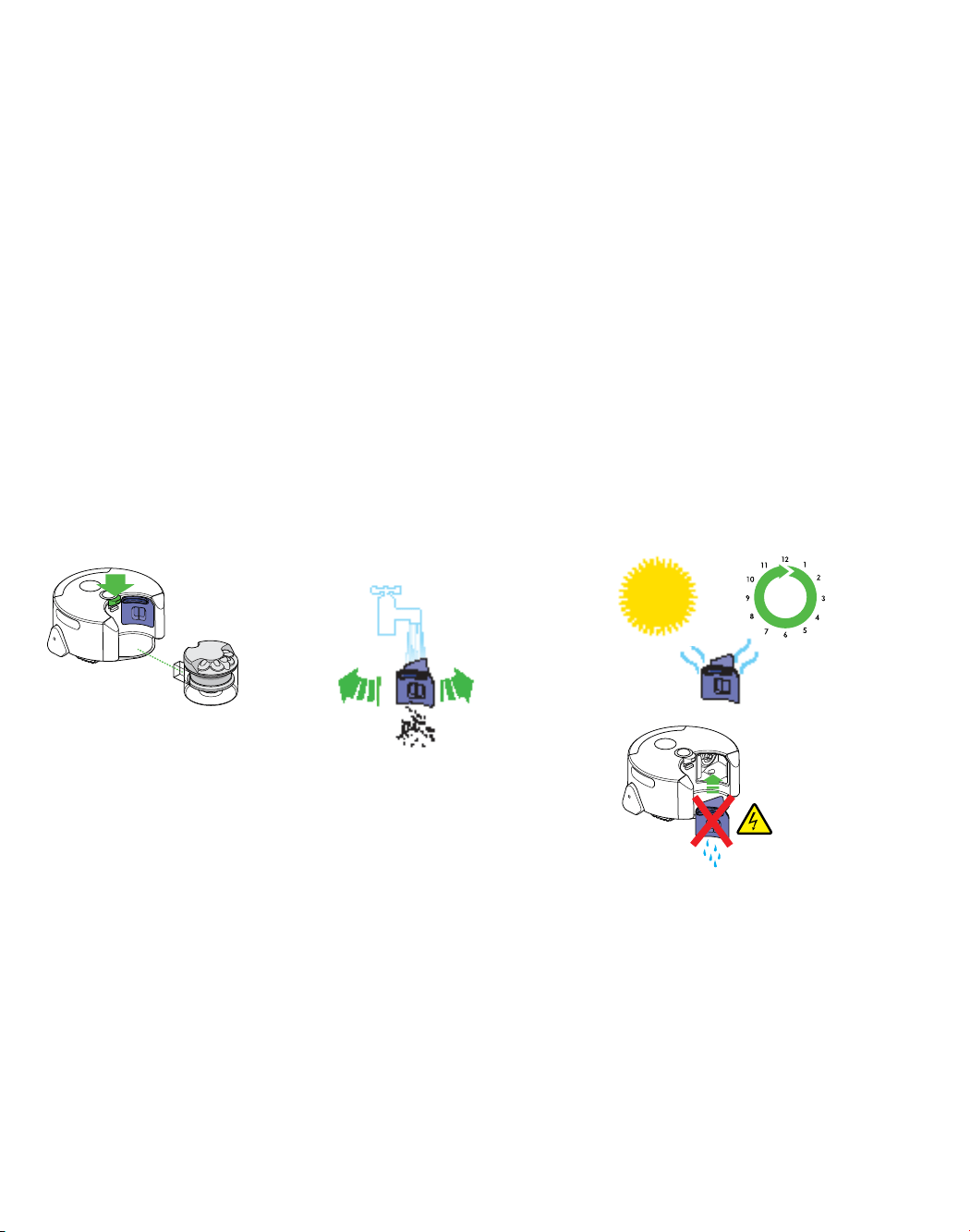
54
Lavado y secado de los filtros
Filtro premotor
Lave el filtro pre-motor al menos una vez al mes
según las instrucciones indicadas a continuación
para mantener el rendimiento.
Presione el botón de liberación del
extractor y retire la unidad extractora.
Tire para retirar el filtro anterior.
Utilice únicamente agua fría para lavar
el filtro. No utilice agua caliente ni
detergentes.
Sacuda el filtro para eliminar restos y
exceso de agua.
Repita el ciclo de enjuague/sacudida
hasta que el agua quede limpia.
Permita que se seque completamente
en forma natural (24 horas como
mínimo).
Para rearmar, vuelva a ensamblar en
el orden inverso.
1 2 3
24
hrs
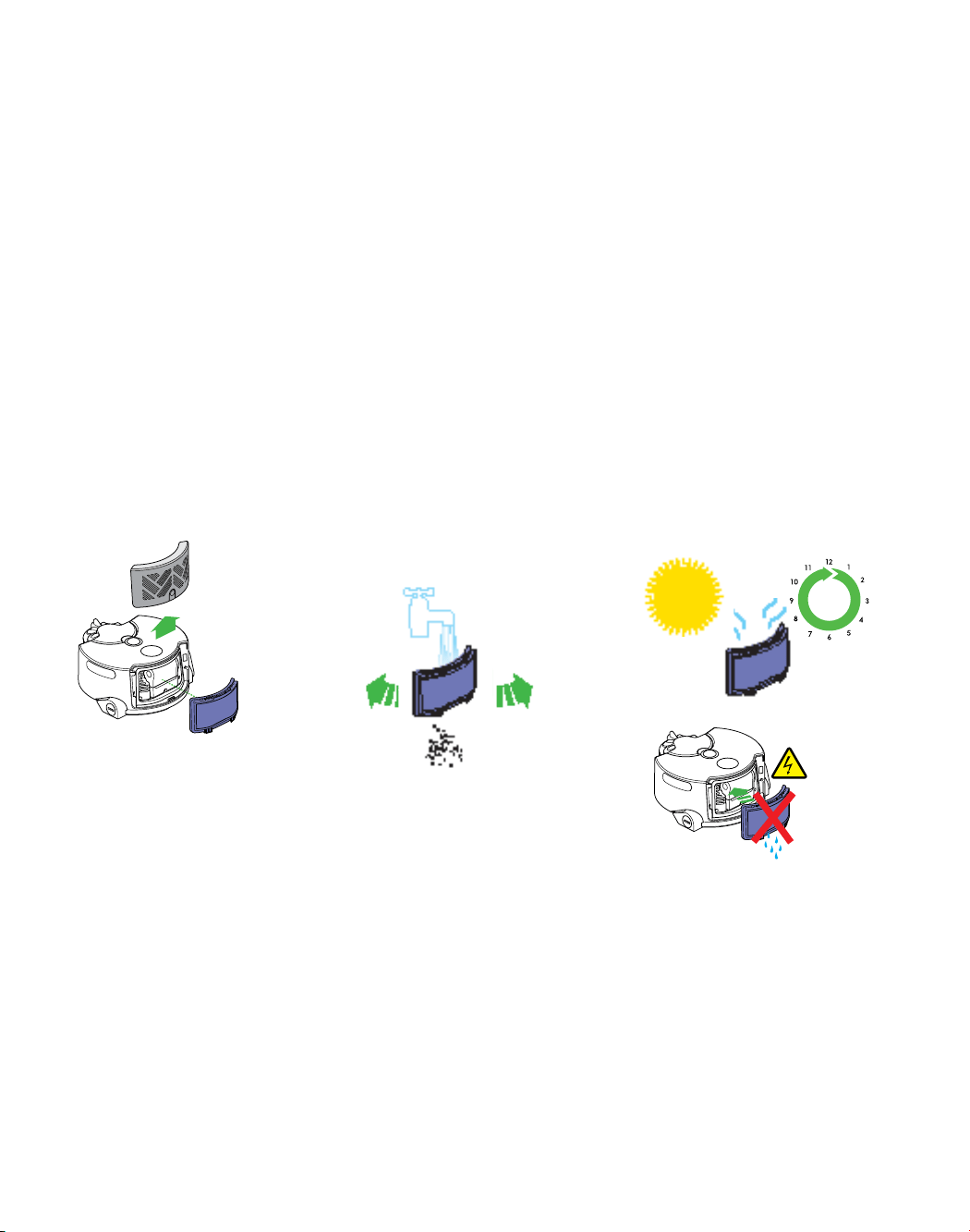
55
Filtro postmotor
Lave el filtro posterior como mínimo cada seis
meses de acuerdo a las siguientes instrucciones
con el fin de mantener el desempeño.
Utilice únicamente agua fría para lavar
el filtro. No utilice agua caliente ni
detergentes.
Sacuda el filtro para eliminar restos y
exceso de agua.
Repita el ciclo de enjuague/sacudida
hasta que el agua quede limpia.
Presione el botón de liberación del filtro
y deslice hacia arriba la cubierta del
filtro.
Retire el filtro.
Permita que se seque completamente en
forma natural (24 horas como mínimo).
Para volver a colocar: alinee las guías
de la base del filtro con las ranuras en el
robot, luego empuje la cubierta del filtro
para colocarla en su lugar. Deslice la
tapa del filtro hacia abajo.
1 2 3
24
hrs
Vaya a
www.dyson.com/support/robots
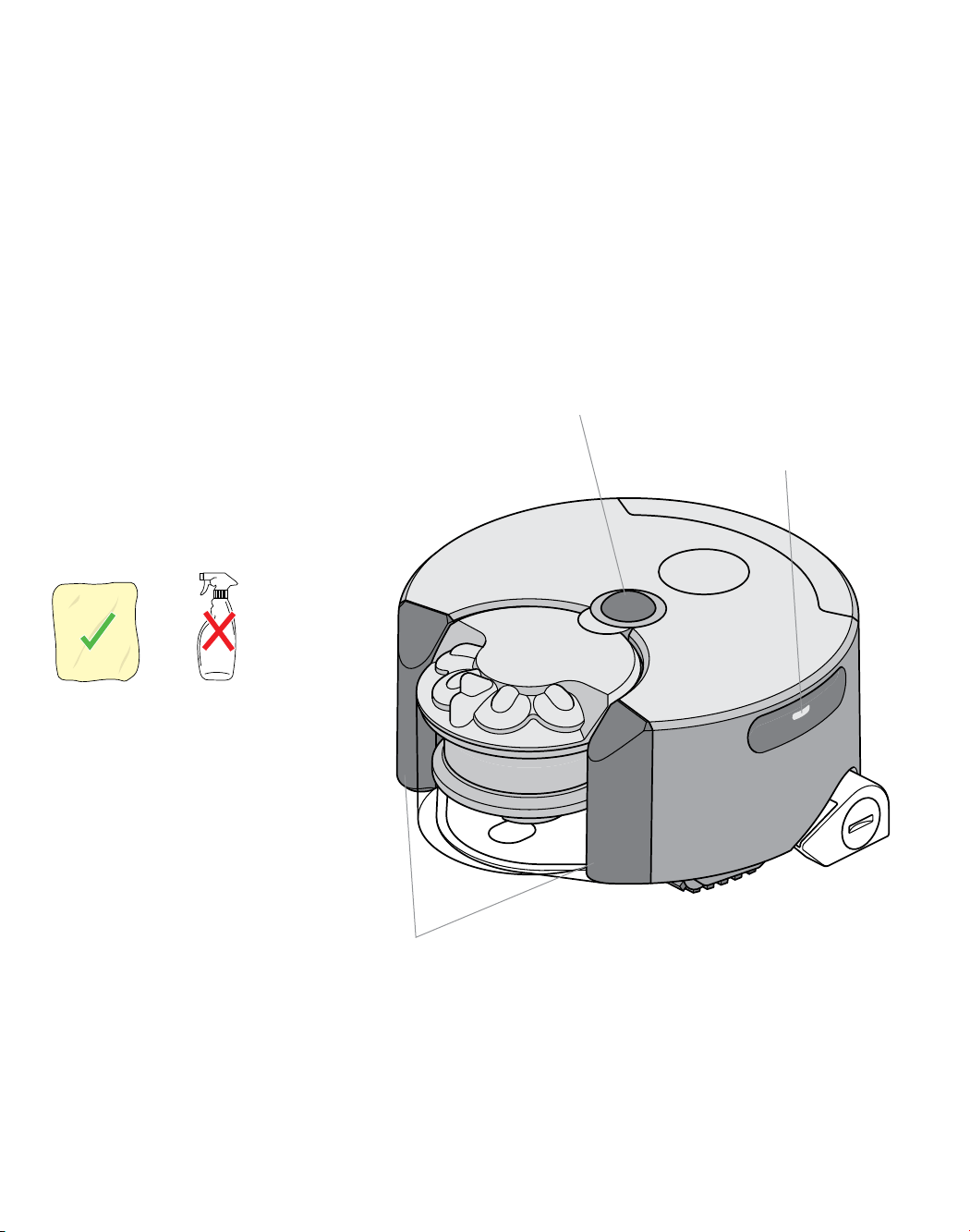
56
Limpieza de las ópticas
Para lograr el mejor desempeño de
navegación del robot limpie las ópticas
con frecuencia.
Cámara de navegación
Sensores de detección de
caídas y obstáculos
Luces (alojadas en las
ranuras de sujeción)
Revise todas las cubiertas de sensores
y la cámara de navegación para
determinar si hay presencia de
suciedad, huellas digitales o manchas.
Limpie con un paño de microfibra suave
y seco. No use fluidos de limpieza,
líquidos o rocíos de ningún tipo.
57
Actualizaciones
de software
Para asegurarse de obtener los mejores resultados con el robot,
actualice el software a la versión más reciente.
1 2 3
Una secuencia de luces rosadas indicará
el progreso de la actualización. No
intente interrumpir la secuencia de
actualización antes de que se complete.
Si se retira la batería durante una
actualización, podría ocasionar daños
irreparables.
Una vez completada la actualización,
se apagarán las luces. El robot estará
listo para volver a usar.
Si descarga la aplicación Dyson
Link, estará registrado para recibir
actualizaciones automáticas.
Cuando haya una actualización
disponible para el robot, se descargará
automáticamente y se instalará en la
siguiente oportunidad que se presente
(cuando el robot está inactivo, en la
estación de acoplamiento y conectado
a Wi-Fi).
Actualización automática a través de la aplicación Dyson Link
1 2
3
Presione y sostenga el botón de
encendido hasta que parpadee un anillo
de luces rosadas para indicar que el robot
ha iniciado la actualización.
Revise el sitio de Dyson en Internet para
determinar si hay una actualización
disponible.
Descargue el archivo de la actualización
a un dispositivo USB, sin nombrarlo. El
dispositivo USB debe disponer de 256 MB
de espacio libre como mínimo y no debe
contener otros archivos o carpetas.
Retire el filtro posterior del robot e
inserte el dispositivo USB en el puerto
USB situado en la parte posterior de la
máquina.
Una secuencia de luces rosadas
indicará el progreso de la actualización.
No intente interrumpir la secuencia de
actualización antes de que se complete.
Si se retira la batería durante una
actualización, podría ocasionar daños
irreparables.
Una vez completada la actualización,
se apagarán las luces. El robot estará
listo para volver a usar.
Actualización manual mediante USB
Vaya a
www.dyson.com/support/robots
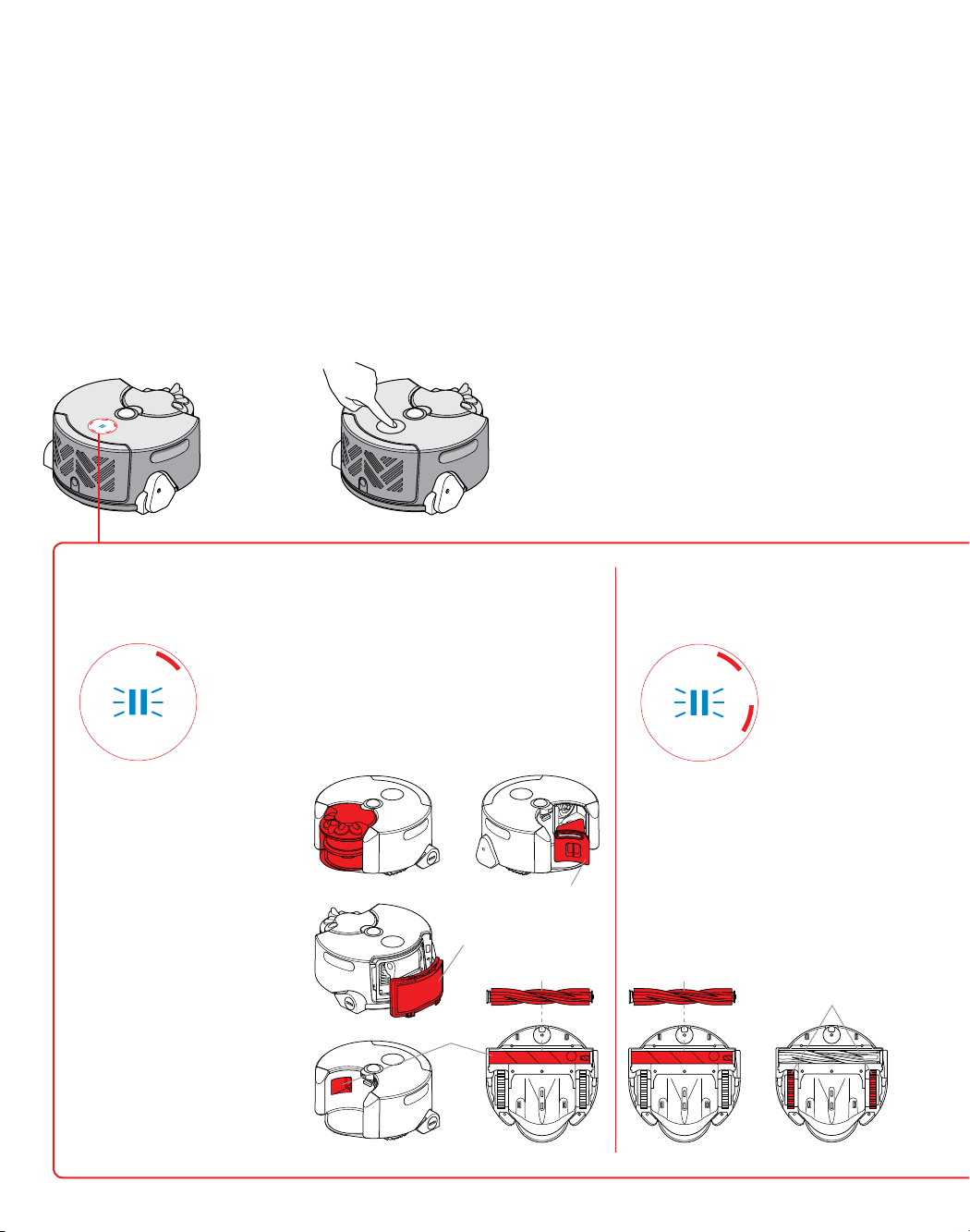
58
Si el robot se atasca, quite el robot de la obstrucción
y colóquelo en un sitio cercano para que reanude
la limpieza.Revise el cepillo para determinar si
hay presencia de cabellos o restos enredados, y
elimínelos.
Verifique que el cepillo esté colocado correctamente.
Revise las placas de orugas y elimine cabellos o
restos enredados.
Para obtener más información, consulte la sección
"Mantenimiento del cepillo y de las placas de
orugas".
Resolución de problemas
1 2
Si el robot encuentra un problema,
exhibirá uno de los patrones de
iluminación que se describen a
continuación. Siga las instrucciones
para solucionar el problema.
Cuando se haya solucionado el problema,
vuelva a colocar el robot en el mismo lugar
sobre el piso, presione nuevamente el botón de
encendido y aléjese para que el robot reanude la
limpieza.
Verifique que no se haya formado un sello
entre el cepillo y la superficie de limpieza.
Verifique que el cubo limpio esté colocado
correctamente.
Si el cubo transparente está lleno, vacíelo.
Verifique que la tapa del extractor no esté
cubierta u obstruida.
Retire el paquete del extractor y revise los
conductos de aire que se encuentran detrás
de él para determinar la presencia de
obstrucciones.
Retire el cepillo y revise los conductos de aire
para determinar si están obstruidas.
Revise ambos filtros para determinar si están
obstruidos.
Lave ambos filtros.
Verifique que los filtros estén colocados en
sus lugares correspondientes.
Conductos de aire
Cepillo/placas
de orugas
Filtro postmotor
Filtro
premotor
Conductos de aire
Cepillo Cepillo
Placas de orugas
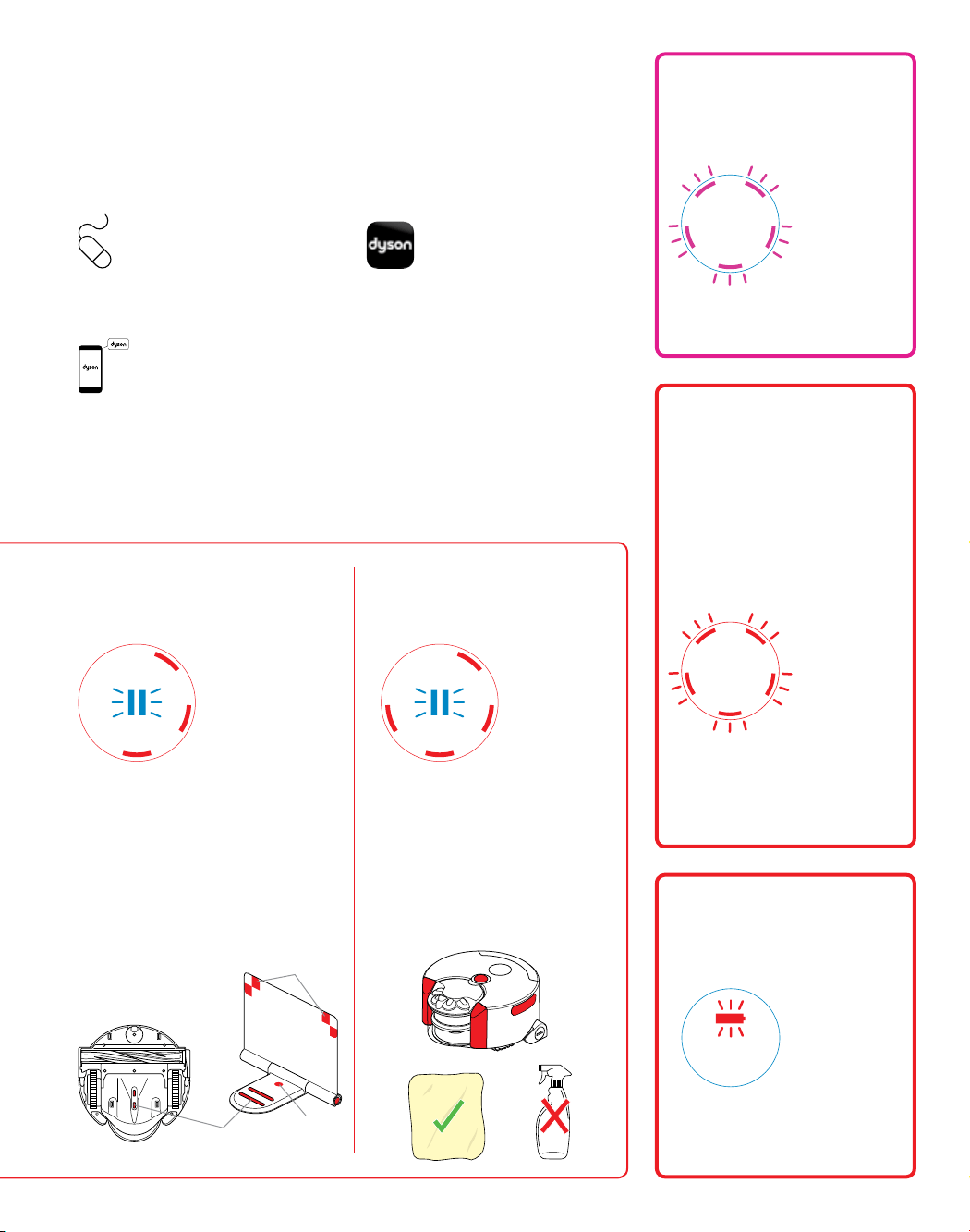
59
Para obtener más ayuda
En línea
www.dyson.com/support/robots
Por teléfono:
Llame a la Línea directa de asistencia al
cliente dedicada a ofrecer soporte para
1-866-664-8997 de lunes a viernes de
8 a.m. – 8 p.m., hora Centro; sábados
de 9 a.m. – 6 p.m., hora Centro
En la aplicación Dyson Link:
Puede usar la aplicación Dyson Link
para identificar problemas, ver guías en
video y recibir orientación que lo guiará
por pasos diagnósticos sencillos para la
resolución de problemas.
La luz roja intermitente de la batería
indica que el robot no puede completar
la limpieza. Vuelva a colocar el robot en
la estación de acoplamiento.
Cinco luces rojas intermitentes indican
que el robot ha detectado un fallo que
usted no puede reparar. Comuníquese
con la Línea directa de asistencia al
cliente de Dyson.
Las luces rosadas indican que hay
una actualización de software en
progreso.
Comuníquese
con la Línea
directa de
asistencia al
cliente de Dyson
Actualizaciones
de software
Regreso a
la estación
Verifique que la estación de acoplamiento reciba
alimentación eléctrica: el panel indicador "Power
on" (Encendido) en la base de la estación debe
iluminarse.
Verifique que los contactos de carga en el robot y en
la estación estén limpios y libres de obstrucciones.
Verifique que los blancos de acoplamiento estén
correctamente desplegados. Los blancos deben
estar paralelos a la pared, de cara hacia la
habitación.
Verifique que la estación de
acoplamiento no se haya
movido desde que el robot
empezó a limpiar, porque
podría interrumpir la secuencia
de mapeo.
Estación de
acoplamiento
Revise todas las cubiertas de sensores y la
cámara de navegación para determinar si
hay presencia de suciedad, huellas digitales o
manchas.
Limpie con un paño de microfibra suave y seco.
No use fluidos de limpieza, líquidos o rocíos de
ningún tipo.
Verifique que se disponga de una iluminación
adecuada para la operación del robot en todas
las áreas de limpieza, incluidas las que ya se
limpiaron.
Ópticas
Indicador de
"encendido"
Contactos
de carga
Blancos de
acoplamiento

60
USO DE SU MÁQUINA DYSON
ANTES DE CONTINUAR, SÍRVASE LEER LAS
“INSTRUCCIONES DE SEGURIDAD IMPORTANTES” DE
ESTE MANUAL DE FUNCIONAMIENTO DYSON.
PREPARACIÓN PARA LIMPIAR
• Para asegurar el mejor desempeño del robot, es
importante preparar la superficie de limpieza, quitando
obstáculos tales como:
– objetos que podrían enredarse en partes móviles:
Cables delgados, como cables de auriculares o
cargadores; cordones de zapatos; prendas de vestir,
cortinas o género; puntas sueltas de alfombras,
como borlas.
– Superficies difíciles de aspirar: alfombras delgadas
sueltas, como alfombras de baño o cueros de
animal; alfombras de pelo muy largo.
– Objetos que podrían causar daño o una obstrucción
si se aspiraran: revistas y papeles; derrames líquidos;
objetos afilados.
– Objetos que ocultan caídas: bolsas o zapatos cerca
de una caída.
– Objetos una distancia inferior a 4 in de
cualquier escalón.
• Con el fin de evitar daños a pertenencias, retire de la
superficie de limpieza todos los objetos frágiles, por
ejemplo floreros sobre pedestales.
• Asegúrese de mantener alejados del área de limpieza a
niños y mascotas.
• Advierta a las personas presentes en la casa cuando el
robot está en funcionamiento.
• El sistema de navegación del robot no está diseñado
para funcionar en oscuridad total. Asegure que haya
una iluminación adecuada en todas las áreas de
limpieza, incluidas las que ya se limpiaron. Por ejemplo,
deje encendidas las luces si va a limpiar durante
la noche.
CUIDADO DEL APARATO DYSON
• Guarde el robot en un entorno cubierto. No use ni
almacene el robot a temperaturas inferiores a 3°C
(37.4°F). Asegúrese de que el robot esté a temperatura
ambiente antes de ponerlo en funcionamiento.
• Utilice únicamente un paño seco para limpiar el
robot. No utilice lubricantes, productos de limpieza,
lustradores ni desodorantes de ambiente en ninguna
parte del robot.
Revise todas las cubiertas de sensores y la cámara
de navegación para determinar si hay presencia de
suciedad, huellas digitales o manchas. Limpie con un
paño de microfibra suave y seco. No use fluidos de
limpieza, líquidos o rocíos de ningún tipo.
• Revise periódicamente el cepillo y las placas de orugas
y elimine restos (por ejemplo, cabellos). Los desechos
que queden en el cepillo y las placas de orugas pueden
dañar los pisos al aspirar.
• Coloque el robot sobre una superficie blanda si
necesita voltearlo para detectar obstrucciones, etc.
Esto ayudará a evitar que se dañen la cámara y
los sensores.
ASPIRADO
• Antes de aspirar sus pisos, tapetes y alfombras,
consulte las instrucciones de limpieza que recomienda
el fabricante.
• Antes de aspirar pisos altamente lustrados, como
madera o linóleo, verifique que el cepillo esté libre de
objetos que podrían producir marcas.
• El polvo fino como la harina solo debe ser aspirado en
cantidades muy pequeñas.
• No use el robot para levantar objetos duros y filosos,
juguetes pequeños, alfileres, sujetapapeles, etc. Este
tipo de objetos podría dañar al robot.
CÓMO VACIAR EL CUBO TRANSPARENTE
• Asegúrese de vaciar el cubo transparente antes de
cada uso.
• Vacíelo tan pronto como la suciedad alcance el nivel de
la marca MAX. No sobrepase el límite de llenado.
CÓMO LIMPIAR EL CUBO TRANSPARENTE
• Lave el compartimiento cubo transparente únicamente
con agua fría.
• Limpie la rejilla con un paño seco o un cepillo seco
para eliminar la pelusa y el polvo.
• Asegúrese de que el compartimiento esté totalmente
seco antes de colocarlo.
• Asegúrese de que el compartimiento esté totalmente
seco antes de colocarlo.
LAVADO DEL FILTROS
• Consulte la sección 'Lavado y secado de los filtros'
Cómo lavar y secar los filtros"; para mantener
un desempeño óptimo verifique y lave los filtros
periódicamente según las instrucciones.
• Es posible que sea necesario lavar los filtros con mayor
frecuencia si se aspira polvo fino.
CÓMO BUSCAR OBSTRUCCIONES
• Asegúrese de que el robot esté fuera de la estación de
acoplamiento antes de buscar obstrucciones. No ponga
en funcionamiento el aparato ya que esta acción puede
causar lesiones en las personas.
Información adicional

61
• Tenga cuidado con los objetos filosos cuando revise en
busca de obstrucciones.
• Vuelva a colocar bien todas las piezas antes de utilizar
el aparato.
• La garantía no cubre la eliminación de obstrucciones.
• Este robot cuenta con cepillos de fibra de carbono.
Tenga cuidado si la piel entra en contacto con ellos, ya
que pueden causar irritaciones leves. Lávese las manos
después de manipular los cepillos.
ACTUALIZACIONES DE SOFTWARE
• Para asegurar el mejor desempeño del robot,
asegúrese de actualizar periódicamente el software
del robot. Puede hacerlo registrándose para
actualizaciones automáticas a través de la aplicación
Dyson Link o descargando manualmente una
actualización a través de su computadora. Consulte la
sección 'Actualizaciones de software'.
DESACTIVACIÓN DE WI-FI
• El robot está configurado automáticamente para emitir
periódicamente una señal Wi-Fi que puede recibirse
como una red local (llamada también modalidad "AP".)
Si desea, puede desactivar esta modalidad de acuerdo
a las siguientes instrucciones.
• Descargue el software "Disable wi-fi" (Desactivar
wi-fi) del sitio web de Dyson a un dispositivo USB.
Verifique que este software sea el único elemento en
el dispositivo USB y que el dispositivo USB tenga como
mínimo 256 MB de espacio libre.
• Retire el filtro posterior y la tapa del filtro e inserte el
dispositivo USB en el puerto USB.
Vuelva a colocar manualmente el robot en una
estación con alimentación eléctrica y verifique que se
esté cargando.
• Presione y sostenga el botón de encendido hasta que
parpadee un círculo de luces rosadas, luego suelte
el botón. El software apagará automáticamente la
modalidad wi-fi.
• Una vez completada la actualización, se apagará
el robot.
• Retire el USB y vuelva a colocar el filtro y la cubierta del
filtro. El robot ahora está listo para usar normalmente.
HABILITACIÓN DE WI-FI
• Si desea que el robot emita nuevamente una señal de
wi-fi, siga los mismos pasos descritos anteriormente,
pero descargando en cambio el software "Enable
wi-fi mode" (Habilitar modalidad wi-fi) del sitio web
de Dyson.
CÓMO REINICIAR EL ROBOT
• Si cambia el dueño del robot, es posible que desee
reiniciar el robot para borrar los nombres de la red de
hogar y contraseñas.
• Para reiniciar el robot, siga los mismos pasos que
aparecen en la sección "Desactivar wi-fi" pero
descargando en cambio el software "Reset robot"
(Reiniciar el robot) del sitio web de Dyson.
INSTRUCCIONES DE SEGURIDAD
PAR A BATERÍAS
• Si es necesario cambiar la batería, comuníquese con la
Línea directa de asistencia al cliente de Dyson.
• La batería es una unidad sellada y bajo circunstancias
normales no presenta riesgos de seguridad. En el
caso poco probable de que se produzca una fuga de
líquido de la batería, no toque el líquido y observe las
siguientes precauciones:
• Contacto con la piel: puede causar irritación. Lavar con
agua y jabón.
• Inhalación: puede causar irritación
respiratoria. Exponerse al aire fresco y solicitar
asesoramiento médico.
• Contacto con los ojos: puede causar irritación.
Enjuagar inmediatamente los ojos con agua durante 15
minutos como mínimo. Solicitar atención médica.
• Disposición: usar guantes para manipular la batería
y desecharla inmediatamente, observando las
ordenanzas o regulaciones locales.
PRECAUCIÓN:
• Si se trata incorrectamente la batería utilizada en
este equipo, es posible que presente un riesgo de
incendio o quemadura química. No la desarme, no
provoque cortos, no la caliente a más de 140°F ni
la incinere. Reemplace la batería con una batería
Dyson únicamente. El uso de otra batería puede
presentar riesgo de incendio o explosión. Deseche
inmediatamente la batería usada. Manténgala
alejada de los niños. No la desarme ni la incinere
para desechar.
INFORMACIÓN PARA DESECHAR
EL PRODUCTO
• Los productos Dyson están fabricados con materiales
reciclables de alta calidad. Siempre que sea posible,
recicle.
• Debe retirarse la batería antes de desechar el producto.
• Deseche o recicle la batería de acuerdo a ordenanzas o
regulaciones locales.

62
SERVICIO DE ATENCIÓN AL
CLIENTE DYSON
GRACIAS POR ELEGIR COMPRAR UNA
MÁQUINA DYSON
Si tiene alguna duda acerca de su máquina Dyson,
llame a la línea de ayuda de Dysonal con el número
de serie e información de cuándo y dónde compró la
máquina.
Si tiene más preguntas, puede consultar por teléfono a
algún miembro de la línea de ayuda.
Si su máquina Dyson necesita reparación llame a la
Línea de ayuda de Dyson para poder analizar las
opciones disponibles. Si su máquina tiene garantía y
la reparación necesaria está incluida dentro de esa
garantía, se reparará sin costo alguno.
Su número de serie se encuentra en la placa de
especificaciones situada en la base del aparato.
POR FAVOR REGÍSTRESE COMO
PROPIETARIO DE UNA MÁQUINA DYSON
Para ayudarnos a asegurarle que reciba un servicio
rápido y eficaz, por favor regístrese como propietario
de una máquina Dyson. Hay dos maneras de hacerlo:
• En línea en www.dyson.com
• Llamando por teléfono a la Línea de ayuda de Dyson,
1-866-664-8997
• En la aplicación Dyson Link.
Esto confirmará que la máquina Dyson es de su
propiedad en caso de que ocurra una pérdida
cubierta por el seguro, y nos permitirá contactarle si
fuese necesario.
2 AÑOS DE GARANTÍA LIMITADA
TÉRMINOS Y CONDICIONES DE LA GARANT ÍA
LIMITADA DE 2AÑOS DE DYSON
QUÉ ESTÁ CUBIERTO
Su máquina Dyson está garantizada contra defectos
originales de material o mano de obra por un período
de 2 años a partir de la fecha de compra, cuando se
utilice para fines domésticos normales y de acuerdo
con el Manual de funcionamiento de Dyson. Conserve
su factura de compra. Si no tiene la factura de compra,
la validez de la garantía empezará a contar desde los
90 días posteriores a la fecha de fabricación, según
los registros de Dyson. Esta garantía proporciona,
sin costo para usted, toda la mano de obra y piezas
para poner su máquina en perfectas condiciones
de funcionamiento durante el plazo de garantía. El
reemplazo de cualquier pieza de la máquina con
garantía no extiende el período de la garantía. Todas
las piezas que se devuelvan a Dyson serán propiedad
de Dyson. Comuníquese con la Línea Directa de
Asistencia al Cliente de Dyson al 1-866-664-8997
para obtener más información.
Esta garantía está sujeta a los siguientes términos:
QUÉ NO ESTÁ CUBIERTO
Dyson no será responsable de los costos, daños o
reparaciones originados como resultado de o debido a
lo siguiente:
• Compras de máquinas de un proveedor no autorizado.
• El funcionamiento o manejo descuidado, uso indebido
y/o falta de mantenimiento o el uso de forma contraria
al Manual de Instrucciones de Dyson.
• El uso de la máquina contrario a los usos domésticos
normales dentro de los Estados Unidos de América, por
ejemplo, para el uso comercial o alquiler.
• El uso de piezas que no estén contempladas en el
Manual de Instrucciones de Dyson.
• El uso de piezas y accesorios que no sean los
producidos o recomendados por Dyson.
• Fuentes externas como el clima, las interrupciones
eléctricas o las sobrecargas de energía.
• Reparaciones o alteraciones llevadas a cabo por partes
o agentes no autorizados.
• Limpieza de obturaciones de la máquina o lavado
del filtro.
• Uso y desgaste normal, incluido desgaste normal de
partes como el cubo transparente, el filtro, el cepillo y
el cable de corriente (o donde se diagnostique daño
o abuso externo), daño a la alfombra o piso debido
al uso sin cumplir las instrucciones del Manual de
funcionamiento de Dyson o por no apagar el cepillo
cuando es necesario.
• La reducción del tiempo de descarga de la batería es
debida a la antigüedad de la batería o uso.
• Daño como resultado de un uso que contravenga las
indicaciones de la placa de especificaciones.
• Uso de esta máquina sobre goma, ceniza, masilla,
paredes de yeso o superficies húmedas.
• Además, esta garantía limitada no se aplica a ningún
aparato cuyo número de serie se haya alterado
o quitado.
LIMITACIONES Y EXCLUSIONES DE
LA GARANTÍA
• Cualquier garantía implícita relacionada con su
máquina, incluyendo pero sin limitarse a una garantía
de comerciabilidad o garantía de idoneidad para un
propósito en particular, se limita a la duración de esta
garantía. Esta limitación no está permitida por algunos
estados, por lo que esta limitación puede no aplicarse
a usted.
• El recurso por el incumplimiento de esta garantía
se limita al servicio de garantía que se describe a
continuación. Dyson no es responsable por ningún
daño indirecto o daño inherente en el que pueda
incurrir en conexión con la adquisición y uso de su
aparato. Esta limitación no está permitida por algunos
Estados y, por lo tanto, podría no aplicarse en su caso.
• Esta garantía le otorga derechos legales específicos.
Usted podría tembien tener otros derechos los cuales
varían de acuerdo al estado.
• Esta garantía limitada no es transferible.
SERVICIO DE GARANTÍA
• Por favor complete y devuelva el Formulario de registro
del producto, o regístrese en línea en www.dyson.com
• Antes de llevar a cabo el servicio, los términos de la
garantía limitada requieren que usted se comunique a
la línea de ayuda de Dyson con el nombre o número de
su modelo, el número de serie, así como el lugar y la
fecha de compra.

63
Este aparato Dyson usa software de código
abierto. Aparece una lista completa de todo el
software y notificaciones de copyright junto a los
términos completos de la licencia en www.dyson.
com/360eyenotice. Es posible que se efectúen cambios
cuando se realiza la actualización remota del software
del aparato. Para conocer los detalles actuales,
consulte www.dyson.com/360eyenotice.
• Por favor mantenga la factura de compra en un sitio
seguro para asegurarse de tener esta información.
• Todo trabajo será coordinado por Dyson o sus
agentes autorizados.
• Cualquier pieza defectuosa que se reponga es
propiedad de Dyson.
• Service under this warranty will not extend the period of
this warranty.
• Si su máquina no funciona correctamente,
comuníquese a la línea de ayuda de Dyson al 1-866-
664-8997. Nuestro personal de Atención al cliente
podrá rectificar telefónicamente la mayoría de
los problemas.
INFORMACIÓN IMPORTANTE PARA LA
PROTECCIÓN DE DATOS
PRIVACIDAD Y PROTECCIÓN DE
DATOS PERSONALES
Cuando registre su producto Dyson o la aplicación
Dyson Link, deberá suministrarnos información básica
de contacto.
Cuando registre su producto Dyson
• Deberá suministrarnos información básica de contacto
para registrar su producto y para que podamos
respaldar su garantía.
CUANDO SE REGISTRE A TRAVÉS DE LA
APLICACIÓN DYSON LINK
Deberá suministrarnos información básica de contacto
para registrar la aplicación Dyson Link. Esto nos
permite vincular su producto de manera segura con su
instancia de la aplicación.
• Cuando se registre, tendrá la posibilidad de elegir si
quiere recibir comunicaciones de nosotros. Si acepta
recibir comunicaciones de Dyson, le enviaremos
detalles de ofertas especiales y noticias sobre nuestras
más recientes innovaciones. Nunca venderemos su
información a terceros. Usaremos la información que
comparta con nosotros únicamente de la manera que
se define en nuestras políticas de privacidad, que están
disponibles en nuestro sitio web www.dyson.com/
support/privacypolicy
INFORMACION ACERCA DEL PRODUCTO
Recuerde: El producto puede diferir en algunos
pequeños detalles en comparación con
las ilustraciones.
INFORMACIÓN DE CONFORMIDAD
Se han realizado pruebas en este equipo que han
permitido determinar que cumple con los límites
establecidos para los dispositivos de Clase B, en base
al artículo 15 de las Normas FCC. Estos límites están
diseñados para brindar una protección razonable
contra interferencias dañinas en instalaciones
residenciales. Este equipo genera, utiliza y puede
irradiar energía de radiofrecuencia y, si no se instala
y utiliza según las instrucciones, puede causar
interferencia dañina en las comunicaciones radiales.
Sin embargo, no existe garantía alguna de que no se
produzca interferencia en una instalación en particular.
Si este equipo causa interferencia dañina en la
recepción de una radio o un televisor (que se puede
determinar mediante el encendido y el apagado del
equipo), se recomienda que el usuario trate de corregir
la interferencia mediante la aplicación de una o más de
las siguientes medidas:
• Cambie la orientación o la ubicación de la
antena receptora.
• Aumente la distancia entre el equipo y el receptor.
• Conecte el equipo a una toma de corriente que se
encuentre en un circuito distinto al que está conectado
el receptor.
• Solicite ayuda al proveedor o a un técnico de radio o
TV con experiencia.
Este equipo respeta los límites de exposición a la
radiación de radiofrecuencia de la FCC establecidos
para un entorno no controlado. Para evitar la
posibilidad de exceder los límites de exposición a
radiofrecuencia de la FCC, la proximidad humana a
la antena no debería ser menor de 20 cm durante su
funcionamiento normal.
Los cambios o modificaciones no aprobados por
el grupo responsable de las reglas de conformidad
pueden invalidar la autoridad del usuario en la
operación del equipo.
JN.75068 PN.201306-07-02 25.04.16
Dyson customer care
If you have a question about your Dyson
machine, call the Dyson Helpline with your
serial number and details of where and when
you bought the machine.
Servicio de atención al cliente Dyson
Si tiene alguna duda acerca de su máquina
Dyson, llame a la línea de ayuda de Dysonal
con el número de serie e información de
cuándo y dónde compró la máquina.
Phone
Dyson Helpline: 1-866-664-8997
(Mon-Fri 8am to 8pm CST; Sat 9am to 6pm CST).
Por Telėfono
Servicio de atención al cliente Dyson:
1-866-664-8997 (lunes a viernes de 8 a.m. – 8 p.m.,
hora Centro; sábados de 9 a.m. – 6 p.m., hora Centro).