ES-M180813-1
Help SHARP improve the environment by reducing paper waste.
For detailed instructions and feature descriptions, access the full User Manual online.
Quick Start Guide
FHD Smart TV
LC-40Q5000U
LC-43Q5000U

1
Table of Contents
Register Your TV! .....................................................................................................................2
Packaged Contents
..................................................................................................................3
Buttons and Ports on the TV
....................................................................................................4
Attach the TV Stand or Wall Mount Bracket
.............................................................................5
Connect Devices to your TV
.....................................................................................................7
Buttons on your TV Remote
.....................................................................................................9
Begin Using your Remote.......................................................................................................10
Power on the TV
..................................................................................................................... 11
Complete the First-time Setup Menu.......................................................................................12
Begin to Enjoy your TV ........................................................................................................... 13
Product Specications
............................................................................................................ 14
Quick Problem-Solving Tips
...................................................................................................15
Certication and Compliance..................................................................................................17
2

3
PACKAGED CONTENTS
Your package in which you purchased your new TV contains the following items:
TV 2 AAA batteries
A left and right leg that forms the TV stand Quick Start Guide (this document)
Important Safety Information and Warranty Card leaflet 4 screws
Remote Control
IMPORTANT:
To prevent accidentally discarding items that came with your TV, be sure to check ALL of the foam in the carton box.
·
Please check foam for accessories before discarding.
·
Veuillez vérifier la mousse pour qu'il n'y ait pas d'accessoires avant de la jeter.
·
Antes de desechar la espuma, asegúrese de retirar todos los accesorios.
Required tools and devices
● Wirelessrouter(notincluded)forInternetconnectivity
● Phillipsscrewdriver(notincluded)tosecuretheTVstand
● HDMIandothertypesofcables(notincluded)toconnectexternaldevicestotheTV
● Wallmountbracket(notincluded)ifyouprefertomounttheTVtothewall
4
BUTTONS AND PORTS ON THE TV
Back View of the TV TV Side View
USB 2
DC 5V
0.5A(MAX)
HDMI 2(ARC)
ANT/CABLE
HDMI 1
USB 1
DC 5V
0.5A(MAX)
SERVICE
LAN
DIGITAL
AUDIO OUT
AUDIO
OUT
COMPONENT IN
Y
P
B
P
R
AV IN
VIDEO
L
R
AUDIO
HDMI 3
TV Bottom View
5
STEP 1. Attach the TV stand or wall mount bracket (not included)
Attach the TV Stand
CAUTION:
Be sure to disconnect the A/C power cord before installing a stand or Wall-Mount brackets.
The LED display is very fragile and must be protected at all times when installing the legs that form the stand. Be sure to protect the
TV screen from getting scratched or damaged by any hard objects. In addition, DO NOT exert pressure on the front of the TV at any
time because it could crack.
Follow the illustrations and instructions below to complete the installation steps:
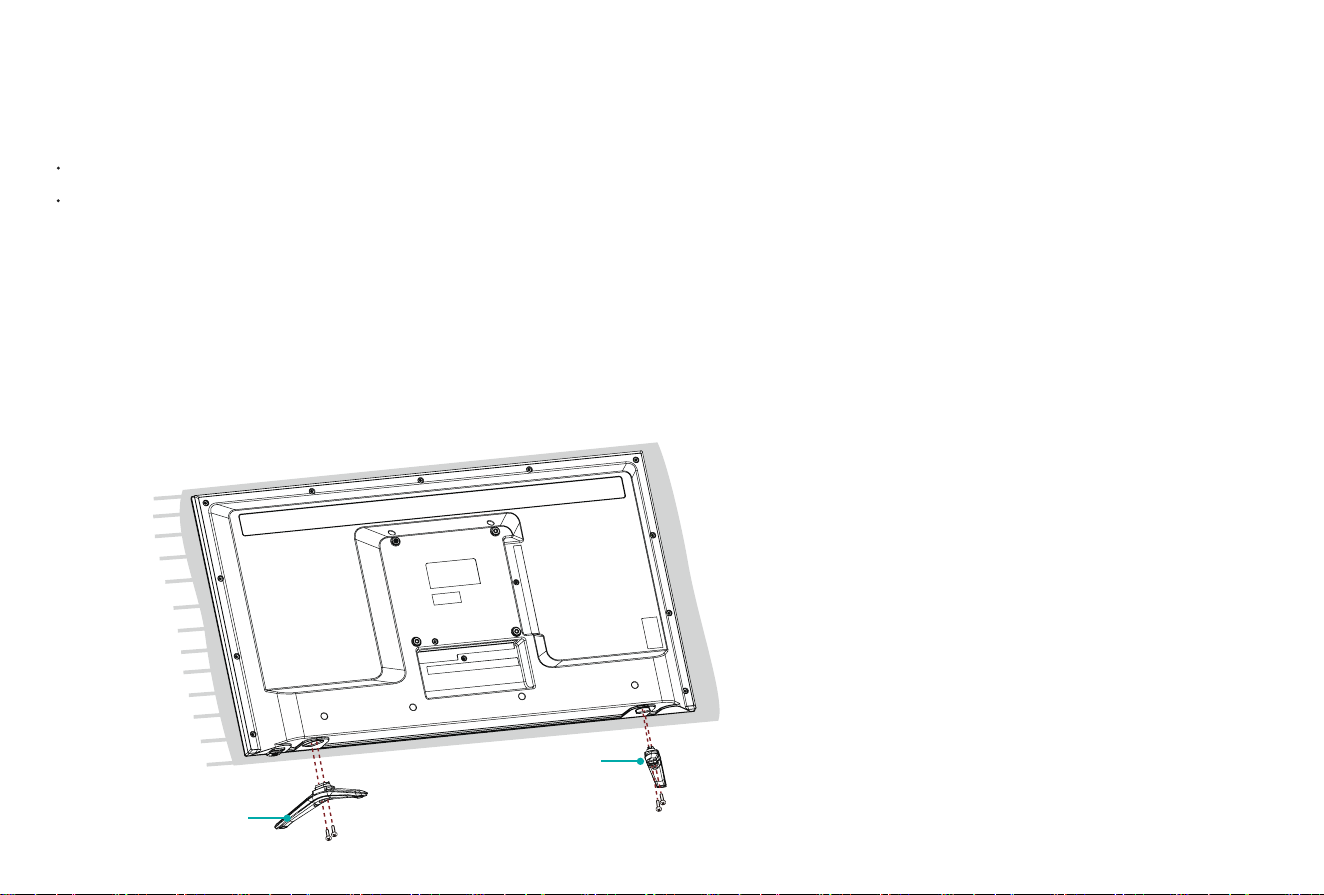
To attach the left and right leg that forms the stand:
1. Carefully place your TV face down on a soft, flat surface to prevent damage to the TV or scratching to the screen.
2. Remove the 2 legs from the foam and then insert the legs into the bottom slots of the TV.
3. Use the screws that came inside the carton with your TV to secure each leg tightly.
Screws:
M4
×
20 for 40"
/43"
BASE STAND
Screws:
M4
×
20 for 40"/43"
BASE STAND
6
Attach the Wall Mount Bracket (not included)
Before you begin the third-party manufacturer instructions, be
sure to do the following things:
1. Place the TV face down on a clean, safe and cushioned surface.
2. Remove the TV stand if you already attached it.
3. Place the spacers (not included) in the corresponding bracket
holes.
CAUTION:
• Whenyouattachthemount,besure tousethespacers
(providedbythethird-partymanufacturer)betweentheTV
and the bracket.
• TopreventinternaldamagetotheTVandensureitis
mountedsecurely,besuretousefixingscrews(not
provided)thatare8~10mm(40")/9.5~11.5mm(43")in
length when measured from the attaching surface of the
mounting hook.
Wall mount hole pattern
VESA (mm)
200 × 200
Wall mount screw size M6
Follow instructions provided with the Wall mount bracket.
To complete the installation, please contact the wall-mount
manufacturer or the retailer from which you purchased the TV.
The selected screws are 8 ~ 10 mm (40") / 9.5 - 11.5 mm (43")
in length when measured from the attaching surface of the rear
cover. The diameter and length of the screws differ depending
on the Wall mount bracket model.
NOTE:Thediameterandlengthofthescrewsdifferdepending
on the wall mount bracket model.
Screw
(not provided)
Bracket
(not provided)
Spacer
(not provided)
Rear cover of the TV Spacer
Screw
Wall mount bracket
8 ~ 10
mm
(
40"
)
9.5 ~ 11.5 mm
(
43"
)
7
STEP2.ConnectdevicestoyourTV
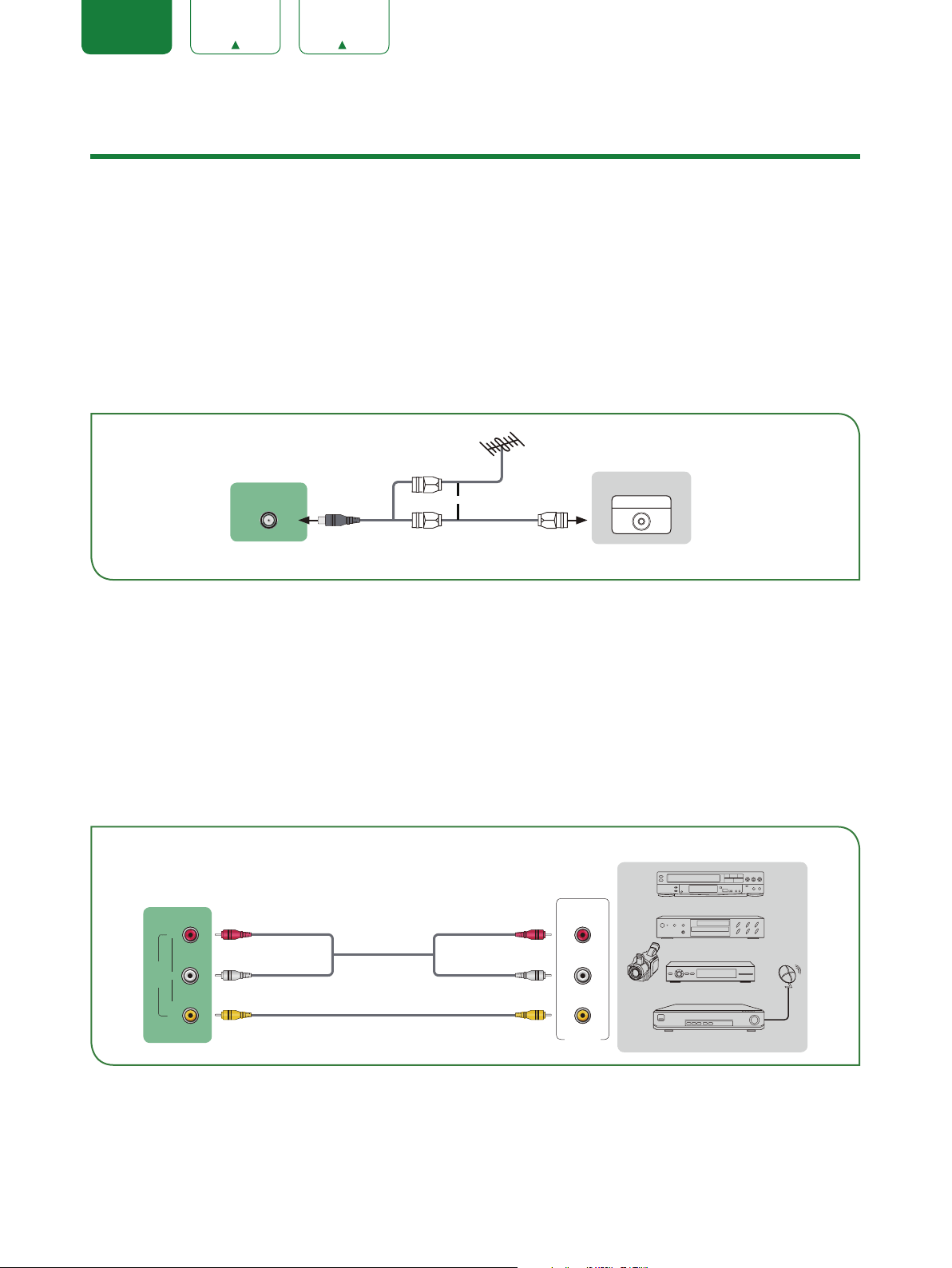
Check to ensure that you have selected the right cables for the ports and that they are connected securely. Loose connections can affect
the quality of the picture image and color.
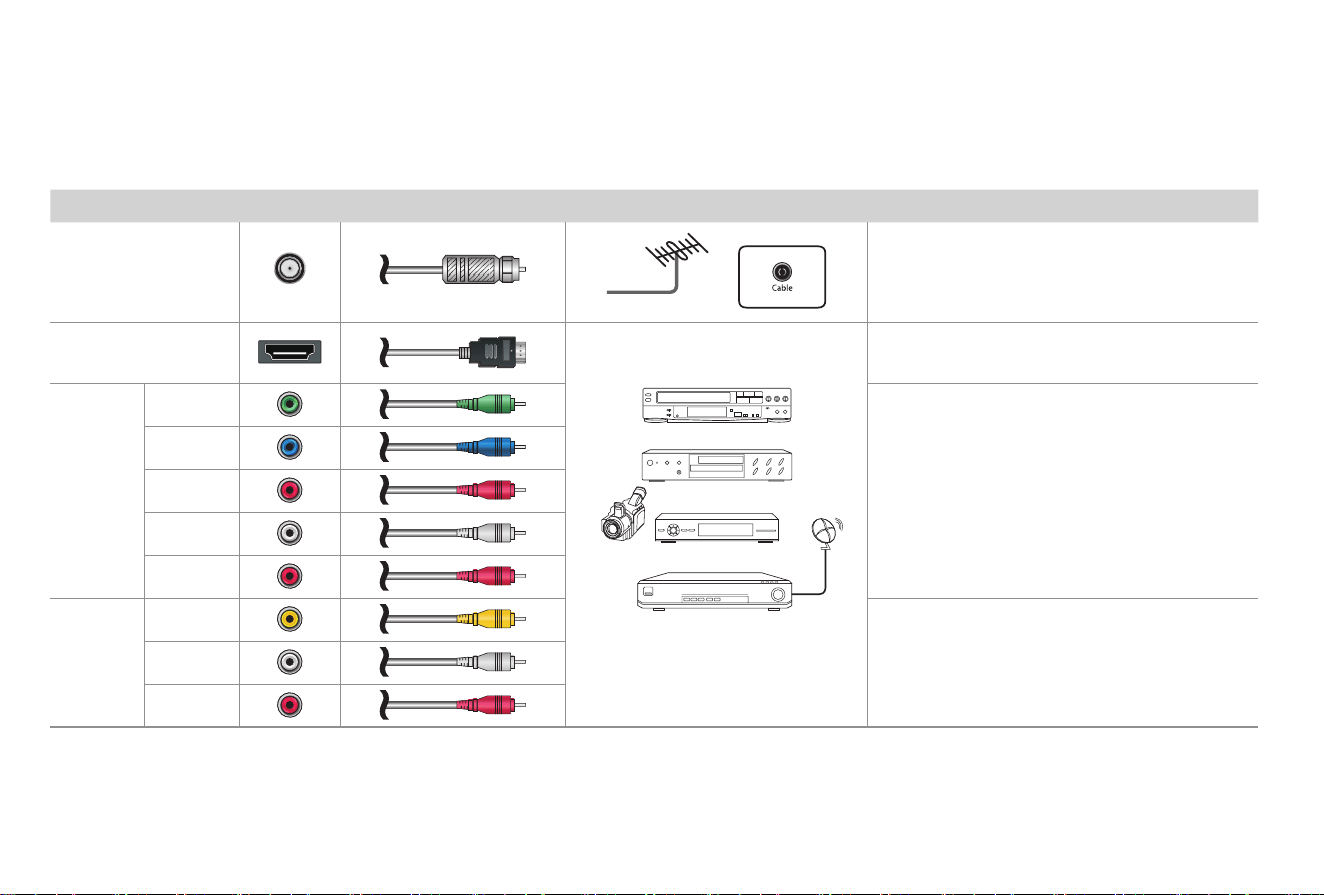
TV label Port Cable External Equipment Brief Description
ANT/CABLE
Antenna
VHF/UHF Antenna
ANT OUT
Connect an outdoor VHF/UHF antenna.
HDMI
DVD Player/Recorder
Set-top Box
Satellite Receiver
Satellite
antenna
cable
VCR
Video
Camera
ConnectaHighDenitionMultimediaInterface
(HDMI) cable from an external device.
COMPO-
NENT IN
Y
Green
Connect a component video cable and left-right
audio cables from an external AV device.
P
B
Blue
P
R
Red
L
White
R
Red
AV IN
VIDEO
Yellow
Connect a composite video cable and left-right
audio cables from an external AV device.
L
White
R
Red
8
TV label Port Cable External Equipment Brief Description
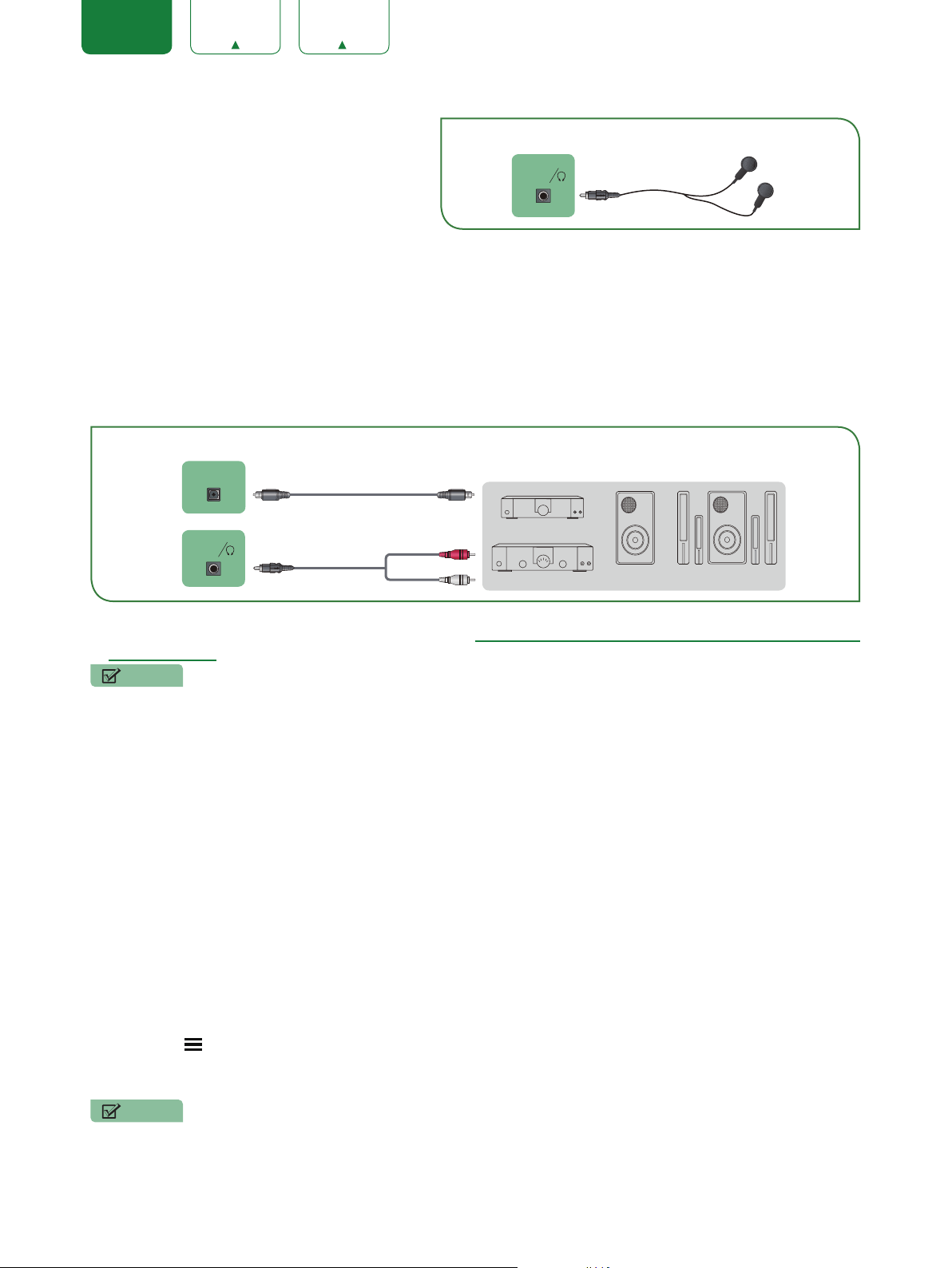
DIGITAL AUDIO OUT
SpeakerAudioAmplier
Connect an optical cable from an external
digital audio system.
AUDIO
OUT
Connect headphones to hear audio from the
TV.
Connect an audio adapter (not provided) from
an external analog audio system.
USB
DC 5V 0.5A(MAX)
Connect a USB device for browsing photos,
music and movies.
The unit only recognizes a USB Memory Stick.
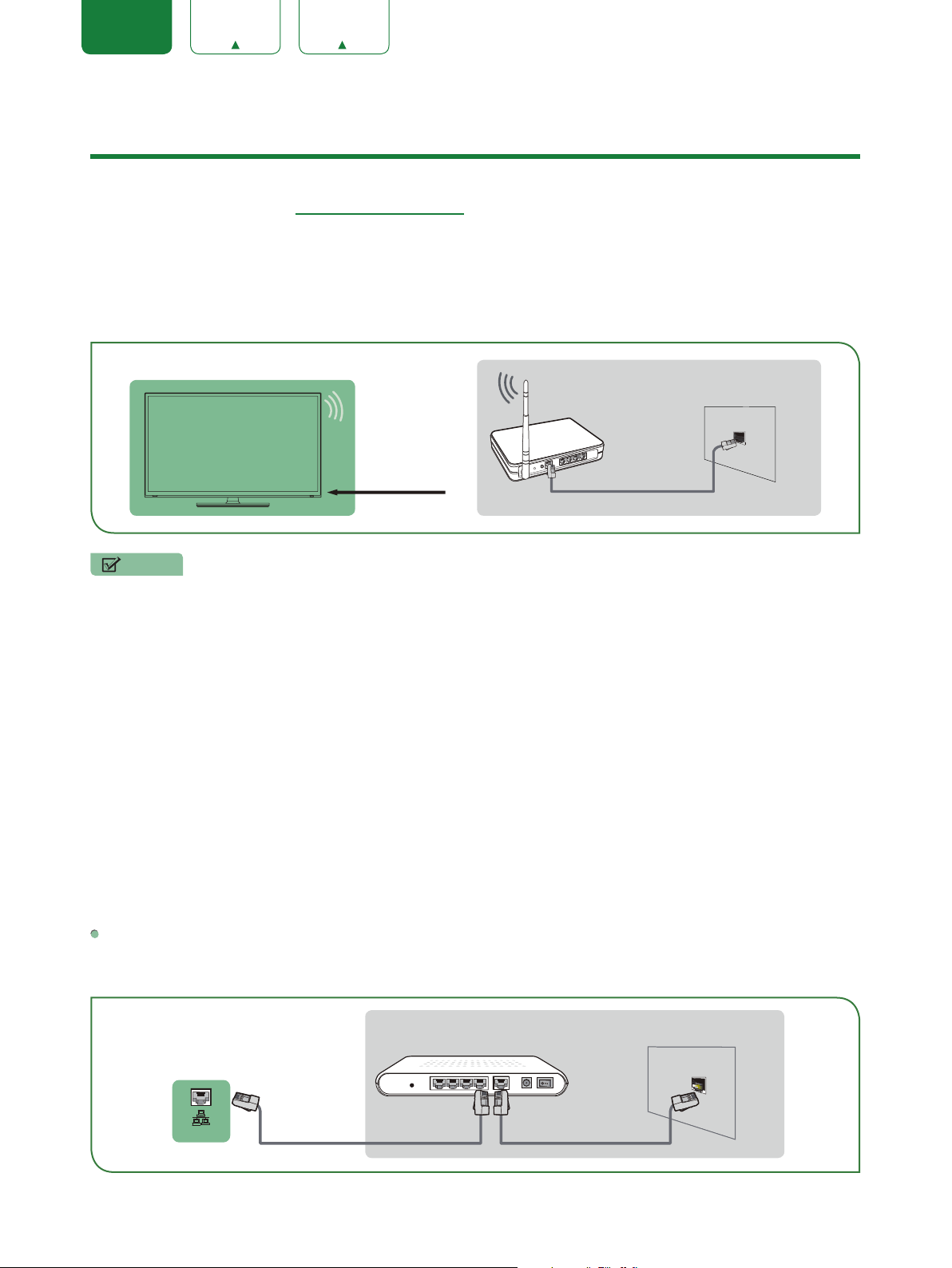
LAN
LAN
Connect an Ethernet cable to access a network
or the Internet. The TV also has a wireless
connectivity feature.
SERVICE
This port is not available for you to connect an external device. It can only be used by our factory for testing
purposes.
White
Red
Speaker
AudioAmplier
9
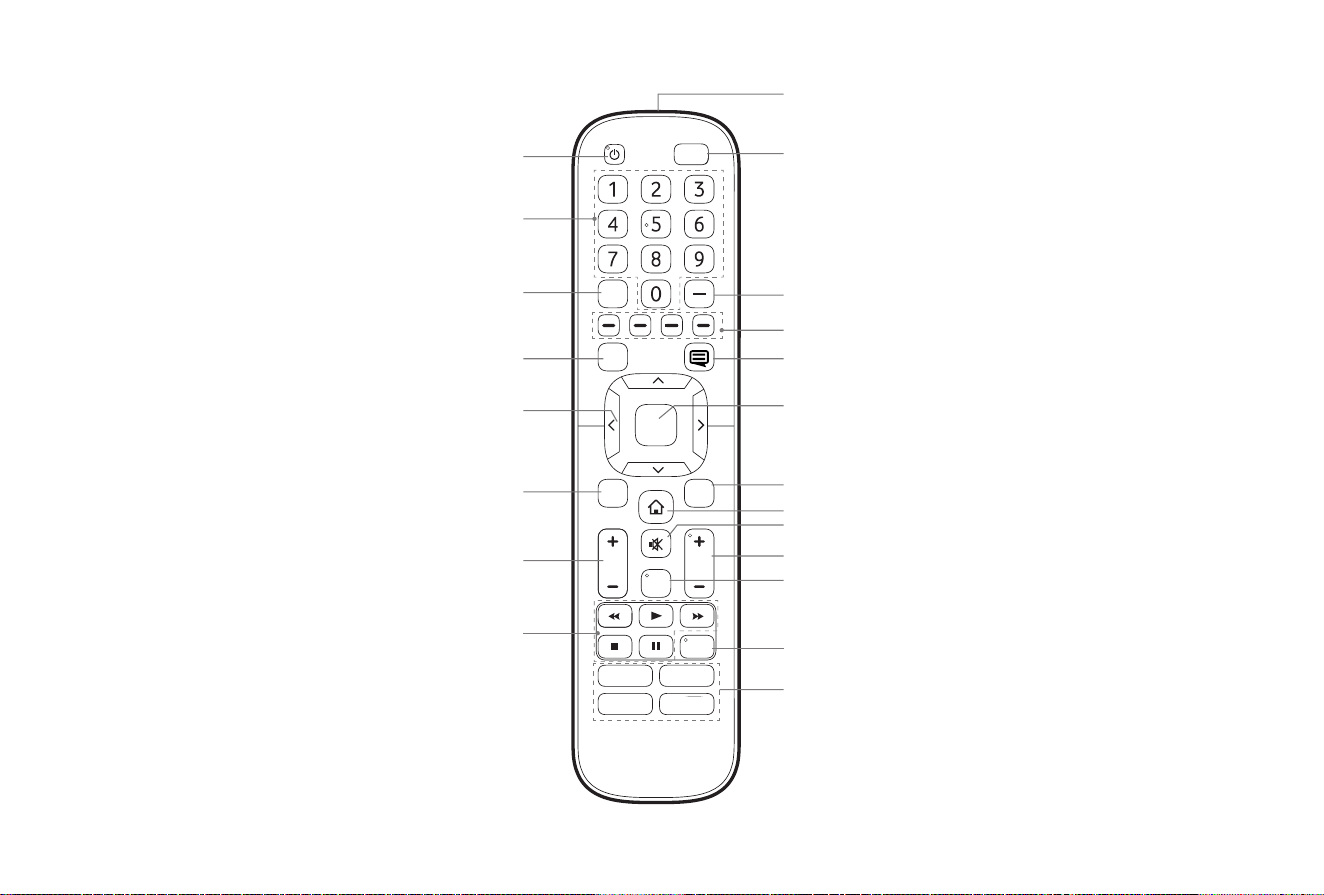
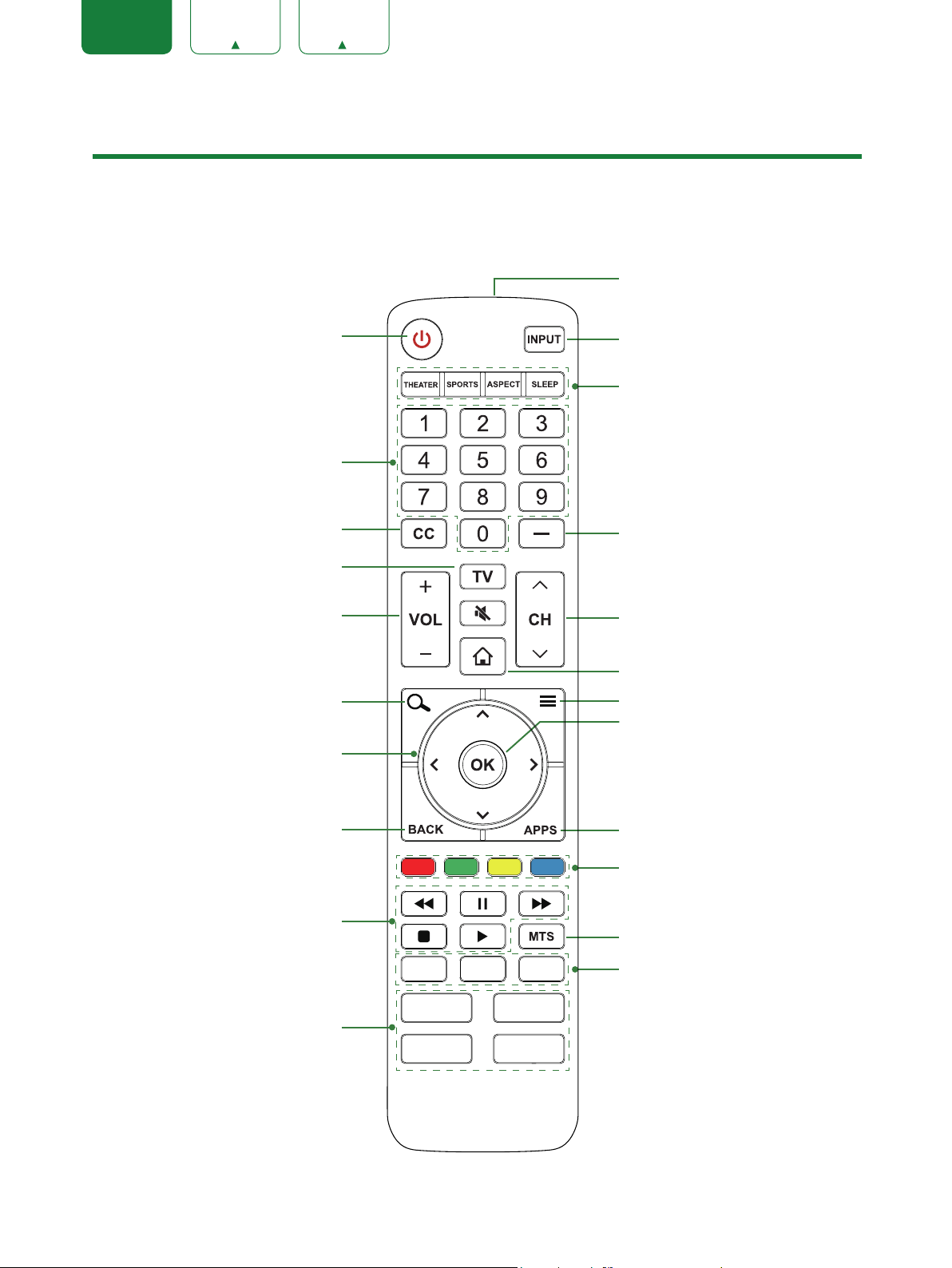
ButtonsonyourTVremote
NRT
VOLCH
OK
CC
BACK EXIT
INPUT
Infrared transmitter
Power on / off
Enter Channels / input numbers
Media content control function buttons
Dash button
Select a digital sub-channel
D-pad (up/down/left/right
navigation buttons)
Volume (up/down)
Choose to leave the Video description feature On or Off
Live TV
Return to the previous place in the menu or app
Change TV input source
The button for the Quick setup menu
Confirmation button
Channel (up/down)
Set the audio language(MTS)
Mute and restore sound
Exit the application
Turn Closed Caption On/Off
Special function buttons
Quick access buttons to apps
Display the Home screen
APP
APPAPP
APP
TV
MTS
Narrate (Turn the Video description on or off)
Multichannel Television Sound (Set the audio
language for the video description)
10
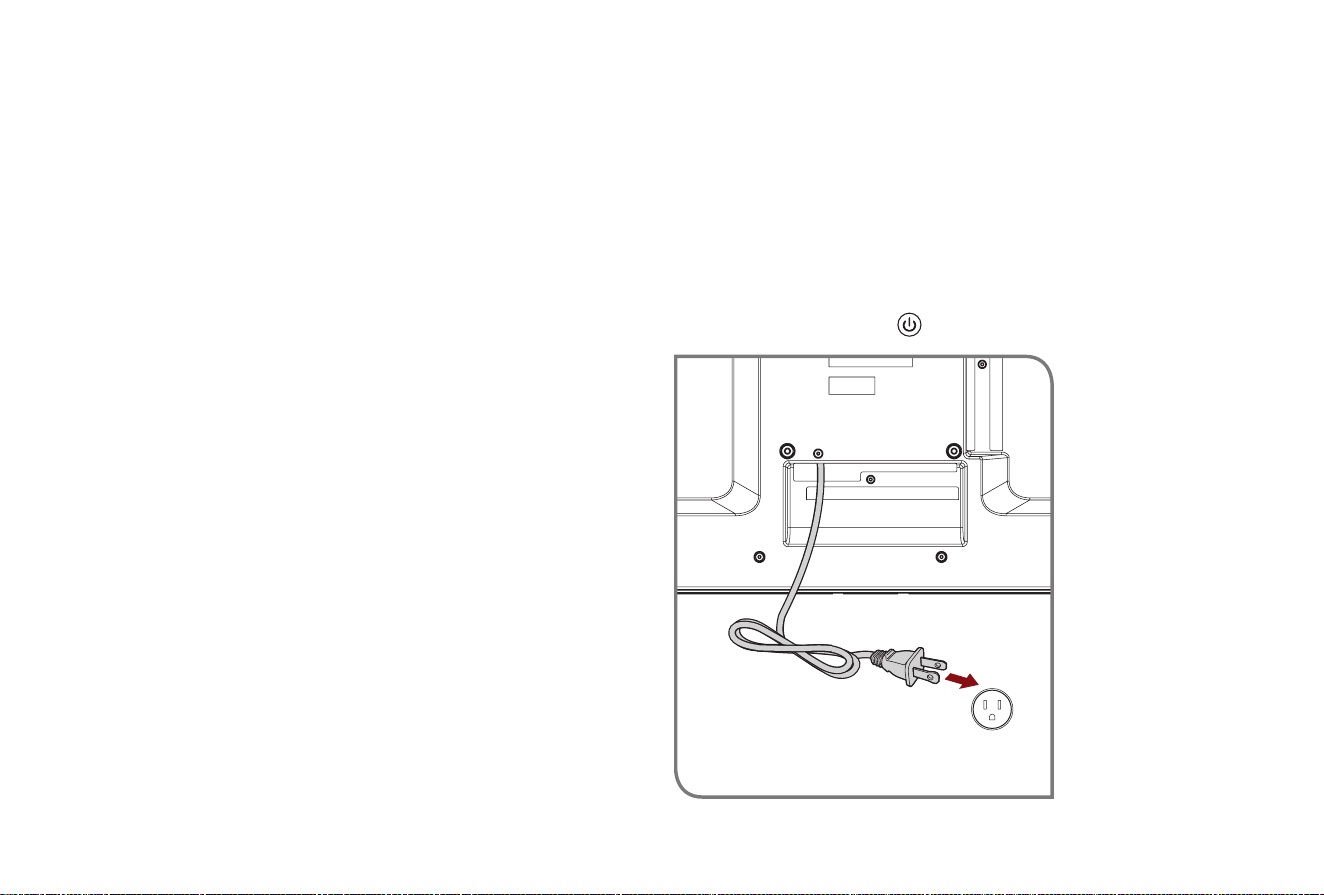
STEP3.Beginusingyourremote
1. Slide the back cover to open the battery compartment of the remote control
Insert the batteriesGently push and slide Gently push and slide
2. Insert two AAA size batteries. Make sure to match the (+) and (-) ends of the batteries with the (+) and ( - ) ends indicated in the
battery compartment.
3. Replace the battery compartment cover.
ImportantInformationabouttheremoteandbatteries:
• Discardbatteriesinadesignateddisposalarea.Donotthrowthemintoare.
• Removeoldbatteriesimmediatelytopreventthemfromleakingintothebatterycompartment.
• Ifyoudonotintendtousetheremotecontrolforalongtime,thenremovethebatteries.
• Batterychemicalscancausearash.Ifthebatteriesleak,cleanthebatterycompartmentwithacloth.Ifchemicalstouchyour
skinthenwashitimmediately.
• Donotmixoldandnewbatteries.
• Donotmixalkaline,standard(carbon-zinc)orrechargeable(NiCd,NiMH,etc.)batteries.
• Donotcontinueusingtheremoteifitgetswarmorhot.
CallourSupportCenterimmediatelyontheSHARPsupportwebsite.
Remote Control Range Information
●Theremotecontrolcanworkatadistanceofupto26feetinfrontoftheTVset.
●Itcanworkata30degreehorizontalorverticalangle.
11
Program Your Universal Cable or Satellite Remote
ControltoOperateYourNewSHARPTelevision
(onlyforUSA)
If you would like to program your other household remote controls
to your new SHARP television,please refer to the User Manual
supplied by your Cable or Satellite provider. It should include
instructions on how to program their remote to your television.
A list of SHARP codes for the most common Cable and Satellite
providers are listed below. Use the SHARP code that is associated
with your Cable or Satellite provider (if applicable).
DIRECTV......0178, 10178, 10019, 10748, 11314, 11660, 11710,
11780, 12049, 10171, 11204, 11326, 11517, 11564, 11641, 11963,
12002, 12183
Time Warner Cable......386, 0178, 10178, 400, 450, 461, 456,
0748, 1463, 0463, 10463
Comcast......0178, 10178, 10463, 11463, 10748, 11314, 11660,
10171, 11204, 11326, 11517, 11641, 11780, 11785, 11892, 11963,
12002
CoxCommunications......0178, 10178, 1326, 1463
Dish Network......505, 627, 538, 720, 659
If the SHARP code associated with your Cable or Satellite provider
is not listed, does not work or you cannot locate the instructions to
program your remote, call your local Cable or Satellite provider's
customer service center.
If your Cable or Satellite provider does not have a code available,
please contact us at one of the phone numbers on Page 2.
UsingYourCableSet-topBoxorSatelliteReceiver
Remote as a ‘Universal’ Remote
If you prefer to use your Cable Set-top Box or Satellite Receiver
Remote as a ‘Universal Remote’, then visit the Support page to
view a list of the codes.
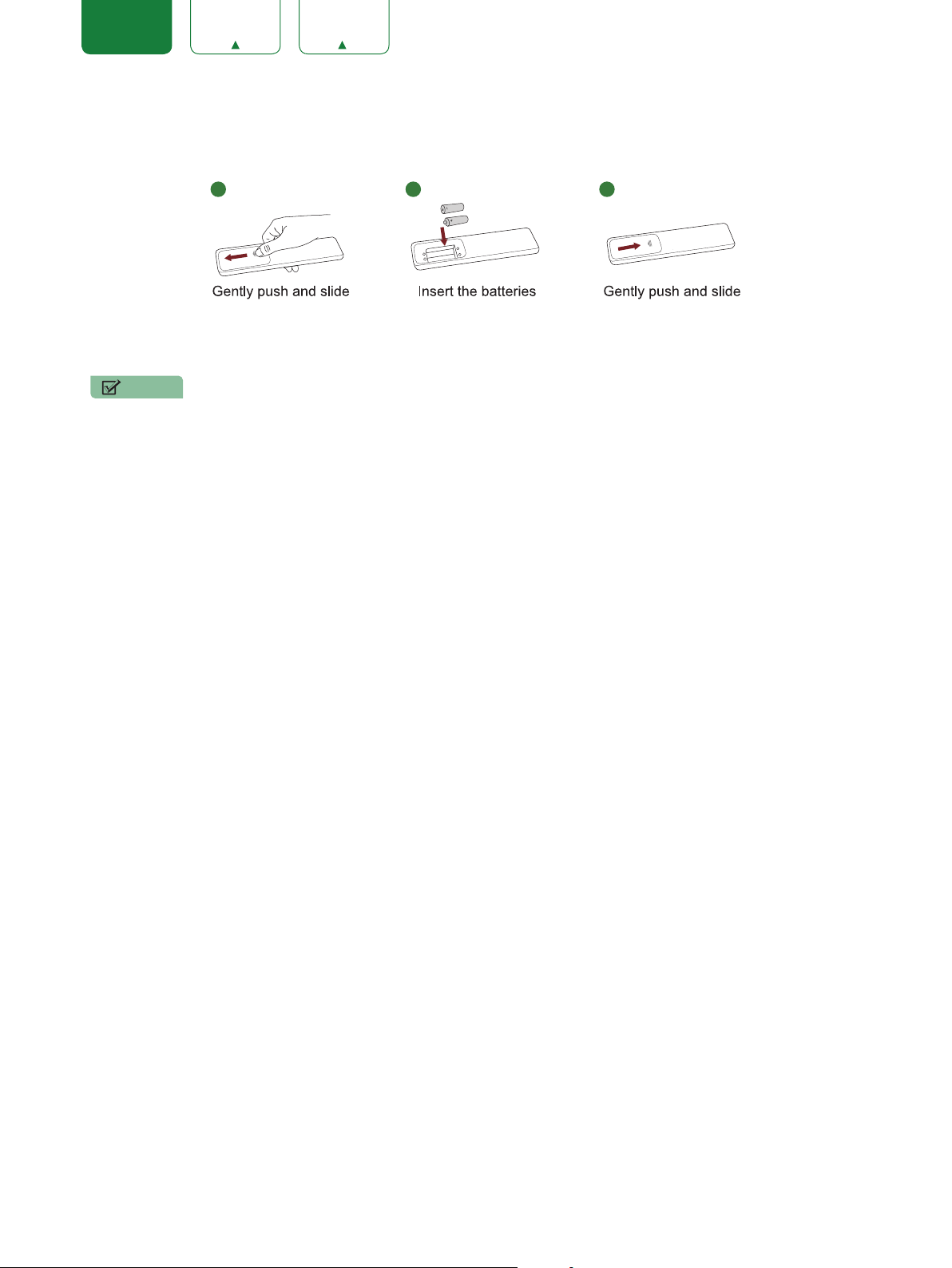
STEP4.PowerontheTV
Plug the power cord into a wall outlet.
Press the Power button
on the remote to turn on the TV. A
Power Cord
Wall Outlet
12
splash screen that shows the SHARP logo appears. Next, the
First-Time Setup Menu begins by prompting you to choose your
Language, Country, and Time Zone.
STEP5.Completetherst-timesetupmenu
After the splash screen that shows the SHARP logo appears, begin
therst-timesetupmenu.
Screen Task
LANGUAGE
AND
LOCATION
• UsingtheD-padarrowsofyourremote,choose
your Language, Country and Time Zone. Next,
navigate to the Forward arrow and press OK.
TERMS OF
SERVICE
• PressOK to select Acceptall. When you’re done
navigate to the Forward arrow and press OK.
TV USAGE
MODE
•SelectHome (which appears by default).
Next,navigate to the Forward arrow and press OK.
•Note: ‘Store mode’ should only be selected by
Retailers who plan to demonstrate the TV.
NETWORK
CONNECTION
•IfyourTVdoesnotautomaticallydetectanEthernet
connection, then select WiFi. When you’re done,
select your network from the list that displays and
move to the next screen.
LANGUAGE AND LOCATION
Language
Language Country Time Zone
TermsMode Network InputDone
+ + +
English United StatesSelect
13
Screen Task
LIVE TV
INPUT
SOURCE
Select how you receive your TV channels. Choose
from one of the following sources below and then move
to the next screen.
•TV
• AV
•COMPONENT
•HDMI
TIP: You only need to scan for channels if your TV is
connected to an Antenna.
CONGRATULATIONS!YourTVisnowreadytouse
.
Press the OKconrmationbuttononyourremoteifyouarene
with the selections that appear on the screen. Otherwise, navigate
to the back arrow on the screen to change your selection.
STEP6.BegintoenjoyyourTV
Your Smart TV is easy to use and brag-worthy!
Nowthatyou’vecompletedtherst-timesetupmenu,theHome
screen is your starting point for navigating the TV. Gone are
the days where your TV only provides one way for you to be
entertained. This showpiece provides you the convenience
of watching a program on a live channel, accessing Video on
Demand to watch a movie and many other entertainment options.
Using your remote, press the Home button to begin enjoying your
TV.
Disclaimer: Subscriptions or other payments may be required to access content through some applications. Some or all of the included
or downloaded application services in this Sharp, Aquos or Quattron device may not function depending on the Internet connection,
local limitations of included applications or other reasons outside of the Licensor's or Manufacturers control. ALL LICENSORS AND THE
MANUFACTURER EXPRESSLY DISCLAIM RESPONSIBILITY FOR ANY APPLICATION SERVICE FROM FUNCTIONING AT ANY
TIME, FOR CONTENT IN ANY APPLICATION SERVICE, FOR DISRUPTIONS OF SERVICE, LOCAL OR REGIONAL LIMITATIONS,
WARRANTIES OF TITLE, NO INFRINGEMENT, AND FOR IMPLIED WARRANTIES OF MERCHANTABILITY OR FITNESS FOR
A PARTICULAR PURPOSE. By purchasing this device, you accept such Disclaimer without any claim on any Licensor and/or the
Manufacturer at any time and in any territory.
14
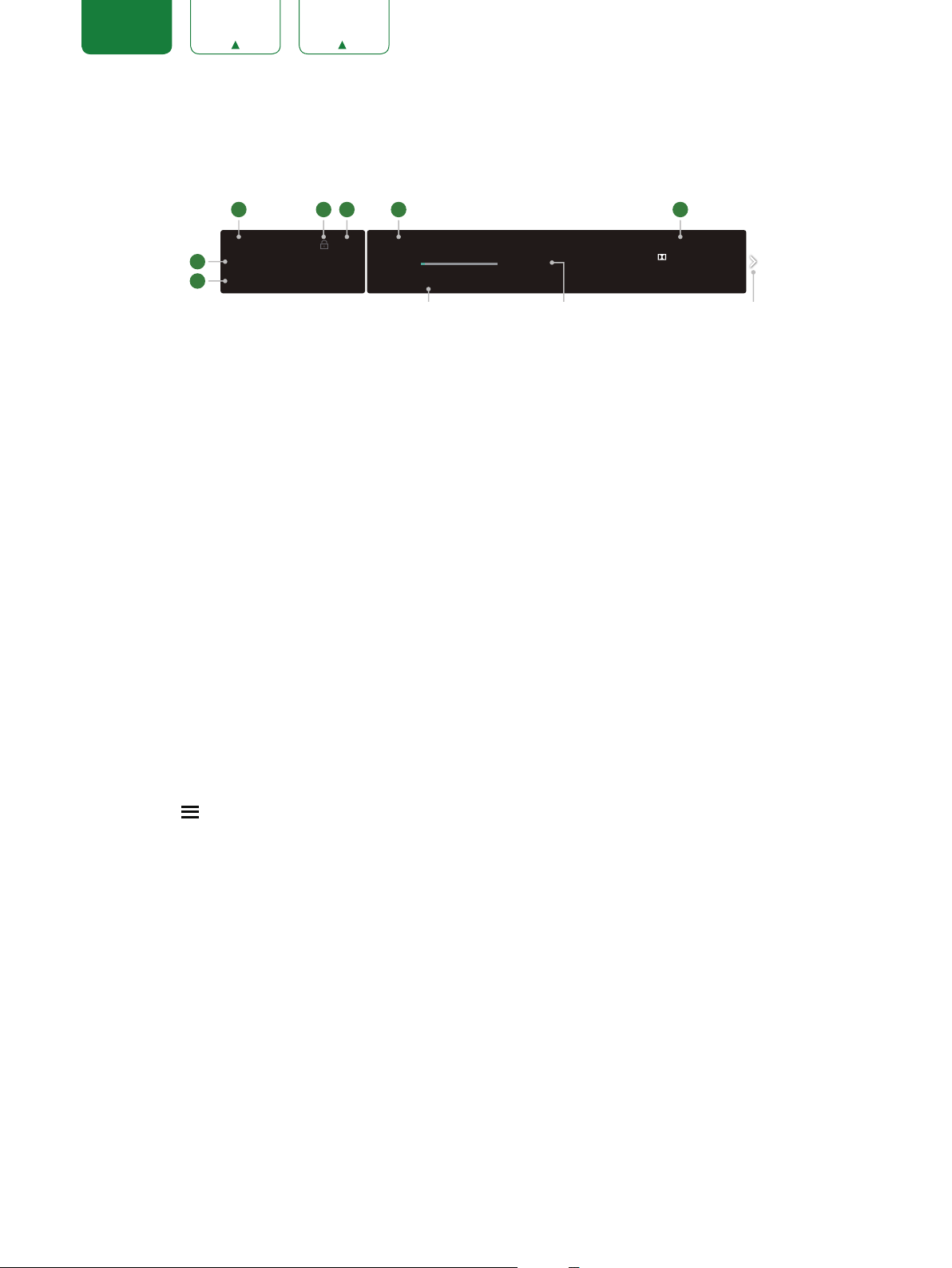
PRODUCT SPECIFICATIONS
Model Name
LC-40Q5000U
LC-43Q5000U
Dimension
(W × H × D)
Without Stand
35.6 × 20.6 × 3.4 inches
(903 × 523 × 86 mm)
38.3 × 22.3 × 3.6 inches
(971 × 567 × 92 mm)
With Stand
35.6 × 22.2 × 8.2 inches
(903 × 563 × 208 mm)
38.3 × 24.2 × 8.0 inches
(971 × 613 × 203 mm)
Weight Without Stand
15.4 lbs (7.0 kg) 19.4 lbs (8.8 kg)
With Stand
15.9 lbs (7.2 kg) 19.8 lbs (9.0 kg)
Active Screen Size (Diagonal)
39.6 inches 42.6 inches
Screen Resolution
1920 × 1080 1920 × 1080
Audio Power
7 W + 7 W 7 W + 7 W
Power consumption
70W 75W
Power Supply
120 V ~ 60 Hz
Performance and Compliance
HDMI, VESA, Dolby Digital Plus, FCC, dbx-tv® Total Technology
Audio technologies Supports Dolby Digital and dbx-tv®
Connectivity Built-in Wireless feature
Ports 3 HDMI ports, 2 USB ports, LAN port for Ethernet, 1 Digital Audio Output, 1 RF Input, 1 Earphone Audio Output,
1 RCA Composite Video Input, 1 left/right Audio Input for Composite, 1 RCA Component Video Input
Disclaimer:
otherwise.
15
QUICKPROBLEM-SOLVINGTIPS
When you experience an issue with your TV, turn it off and on again. If this does not resolve the problem, then refer to the tips below. If
the problem is still not resolved, then contact us at one of the phone numbers on Page 2.
ISSUES POSSIBLE SOLUTIONS
No sound or picture
• CheckifthepowercordispluggedintoapoweredACoutlet.
•Pressthe
Power button on the remote control to activate the unit from 'Standby' mode.
• ChecktoseeiftheLEDlightisonornot.Ifitis,thentheTVisreceivingpower.
I have connected an external
source to my TV and I get no
picture and/or sound.
•CheckforthecorrectoutputconnectionontheexternalsourceandforthecorrectinputconnectionontheTV.
•Makesureyouhavemadethecorrectselectionfortheinputmodefortheincomingsignal.
When I turn on my TV, there is a
delay for a few seconds before the
picture appears. Is this normal?
•Yes,thisisnormal.TheTVisinitializingandsearchingforprevioussettinginformation.
The picture is normal but there is
no sound
•Checkthevolumesettings.
•Checkif'Mute'modeissettoOn.
Sound but no picture or black and
white picture
•Ifthepictureisblackandwhite,unplugtheTVfromtheACoutletandreplugitafter60seconds.
•CheckthattheColorissetto50orhigher.
•TrydifferentTVchannels.
The sound and/or picture is
distorted or appears wavy
•AnelectricappliancemaybeaffectingtheTV.Turnoffanyappliancesthatarenearbyandmoveitfartheraway
from the TV.
•InsertthepowerplugoftheTVsetintoanotherpoweroutlet.
The sound and picture is blurry or
cuts out
•Ifusinganexternalantenna,checkthedirection,positionandconnectionoftheantenna.
•Adjustthedirectionofyourantennaorresetornetunethechannel.
A horizontal or vertical stripe
appears on the picture and/or the
picture is shaking
•Checkifthereisanapplianceorelectrictoolnearbythatiscausinginterference.
16
The plastic cabinet makes a
"clicking" type of sound
•The'click'soundcanoccurwhenthetemperatureofthetelevisionchanges.Thischangecausesthetelevision
cabinet to expand or contract, which makes the sound. This is normal and the TV is OK.
The remote control does not work
•ConrmthatTVstillhaspowerandisoperational.
•Changethebatteriesintheremotecontrol.
•Checkifthebatteriesarecorrectlyinstalled.
Needmorehelp?
AdditionalhelpisavailableonlineatsupportlinksonPage2.Youwillndanswerstofrequentlyaskedquestions,
downloadablermwareandmore.
17
CertificationandCompliance
FCC Notice
This device has been tested and found to comply with the limits
for a Class B digital device pursuant to Part 15 of the FCC Rules.
These limits are designed to provide reasonable protection
against harmful interference in a residential installation. This
device generates, uses, and can radiate radio frequency energy
and, if not installed and used in accordance with the instructions,
may cause harmful interference to radio communications.
However, there is no guarantee that interference will not
occur in a particular installation. If this device does cause
harmful interference to radio or television reception, which can
be determined by turning the device off and on, the user is
encouraged to try to correct the interference by one or more of the
following measures:
● Reorientorrelocatethereceivingantenna.
● Increasetheseparationbetweenthedeviceandreceiver.
● Connectthedeviceintoanoutletonacircuitdifferentfromthat
to which the receiver is connected.
● Consultthedealeroranexperiencedradio/TVtechnicianfor
help.
NOTE:Themanufacturerisnotresponsibleforanyradioor
TVinterferencecausedbyunauthorizedmodicationsto
thisequipment.Suchmodicationscouldvoidtheuser’s
authoritytooperatetheequipment.
The Wi-Fi Module complies with FCC radiation exposure limits
set forth for an uncontrolled environment. This device should be
installed and operated with a minimum distance of 20 centimeters
between the radiator and your body.
Manufactured under license from Dolby Laboratories. Dolby, Dolby
Audio, and the double-D symbol are trademarks of Dolby
Laboratories.
The terms HDMI and HDMI High-Definition Multimedia
Interface, and the HDMI Logo are trademarks or
registered trademarks of HDMI Licensing LLC in the United States and other
countries.
Manufactured under license from THAT Corporation.
THAT Corporation, dbx-tv, Total Sonics, Total Surround
and Total Volume are registered trademarks of THAT
Corporation. Total Technology is a trademark of THAT Corporation.
©2018. All rights reserved. SHARP and the SHARP log
o are trademarks
of SHARP. Other brand and product names are trademarks of their
respective owners.
ENERGY STAR
Your SHARP TV is ENERGY STAR® qualified
in the "Energy saving" mode. It meets
strict energy efficiency guidelines set by the
U.S.
Environmental Protection Agency and
Department of Energy. ENERGY STAR is
a joint program of these government agencies, designed to
pr
omote energy efficient products and practices. Changes to
ce
rtain features, settings, and functionalities of this TV (i.e.
TV Guide, Picture, Sound) can increase or change the power
consumption. Depending upon such changed settings, the power
consumption may exceed the limits required for the ENERGY
STAR qualification in the "Energy saving" mode.