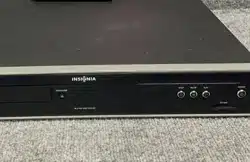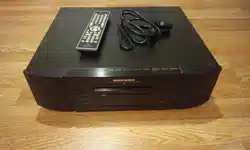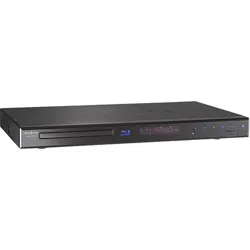

Wireless Blu-Ray Disc Player
NS-WBRDVD2/NS-WBRDVD2-CA
User Guide
NS-WBRDVD2-WBRDVD2-CA_10-0865_MAN_V5.book Page i Monday, October 24, 2011 10:28 PM

ii
www.insigniaproducts.com
Contents
Important safety instructions . . . . . . . . . . . . . . . . . . . . . . . . . . . . . . . . . . . . .1
Introduction . . . . . . . . . . . . . . . . . . . . . . . . . . . . . . . . . . . . . . . . . . . . . . . . . . . . .2
Features . . . . . . . . . . . . . . . . . . . . . . . . . . . . . . . . . . . . . . . . . . . . . . . . . . . . . . . . .2
Package contents . . . . . . . . . . . . . . . . . . . . . . . . . . . . . . . . . . . . . . . . . . . . . . . . 2
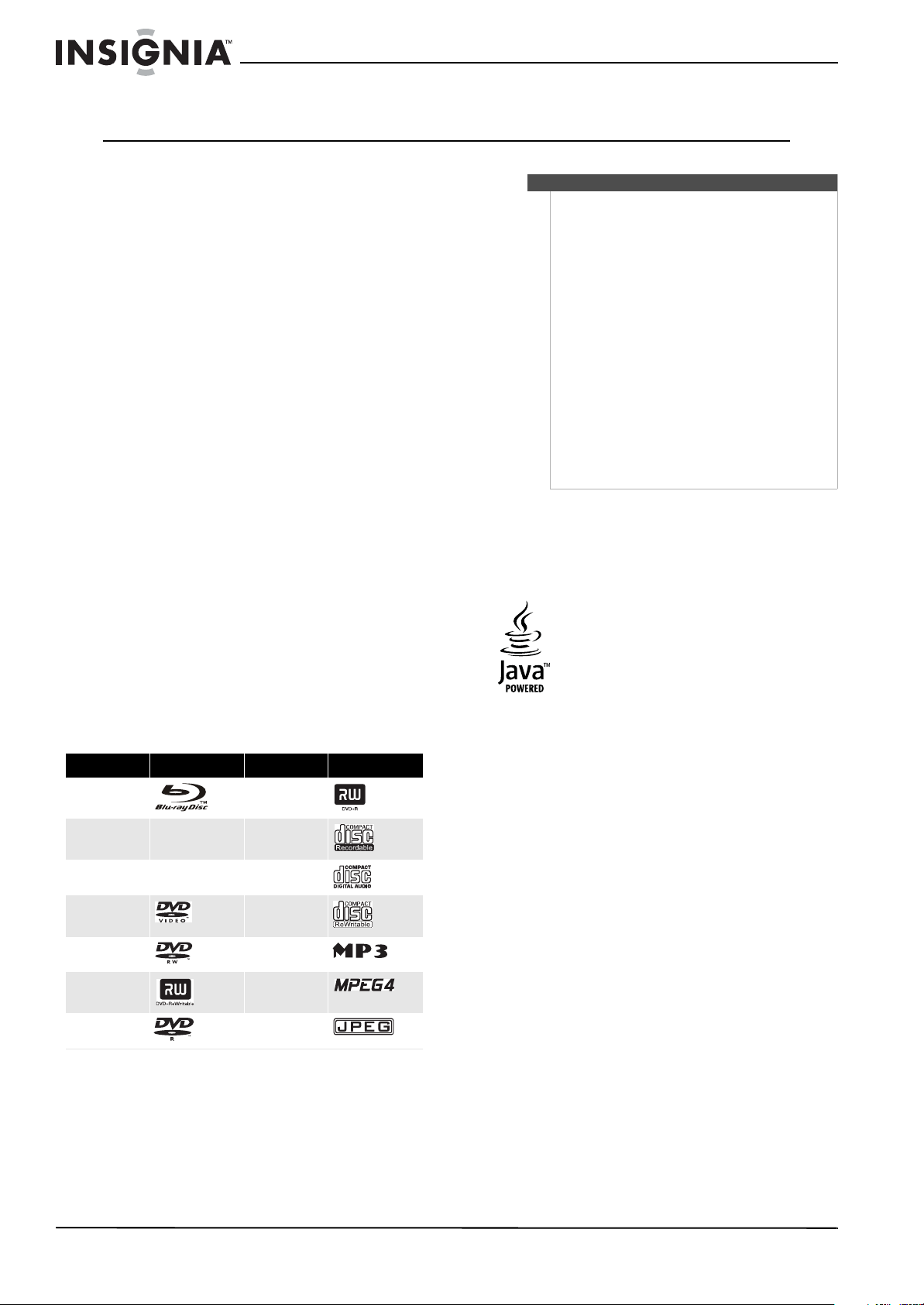
Playable discs . . . . . . . . . . . . . . . . . . . . . . . . . . . . . . . . . . . . . . . . . . . . . . . . . . . . 2
About Blu-ray Discs . . . . . . . . . . . . . . . . . . . . . . . . . . . . . . . . . . . . . . . . . . . . . . 2
Front . . . . . . . . . . . . . . . . . . . . . . . . . . . . . . . . . . . . . . . . . . . . . . . . . . . . . . . . . . . . 3
Back . . . . . . . . . . . . . . . . . . . . . . . . . . . . . . . . . . . . . . . . . . . . . . . . . . . . . . . . . . . . . 3
Remote control . . . . . . . . . . . . . . . . . . . . . . . . . . . . . . . . . . . . . . . . . . . . . . . . . . 3
Setting up your player . . . . . . . . . . . . . . . . . . . . . . . . . . . . . . . . . . . . . . . . . . . .4
Installing remote control batteries . . . . . . . . . . . . . . . . . . . . . . . . . . . . . . . . 4
Connecting a TV using an HDMI cable (best) . . . . . . . . . . . . . . . . . . . . . . 4
Connecting a TV using a component video cable (better) . . . . . . . . . 5
Connecting a TV using an A/V cable (good) . . . . . . . . . . . . . . . . . . . . . . . 5
Connecting audio to an amplifier or home theater system . . . . . . . . 5
Connecting to your home network . . . . . . . . . . . . . . . . . . . . . . . . . . . . . . . 5
Using your player . . . . . . . . . . . . . . . . . . . . . . . . . . . . . . . . . . . . . . . . . . . . . . . .7
Playing a Blu-ray Disc or DVD . . . . . . . . . . . . . . . . . . . . . . . . . . . . . . . . . . . . . 7
Controlling Blu-ray Disc or DVD playback . . . . . . . . . . . . . . . . . . . . . . . . . 7
Using connected applications for the US market . . . . . . . . . . . . . . . . . . 8
Using connected applications for the Canadian market . . . . . . . . . . . 8
Using BD-Live . . . . . . . . . . . . . . . . . . . . . . . . . . . . . . . . . . . . . . . . . . . . . . . . . . . 9
Displaying Blu-ray Disc or DVD information . . . . . . . . . . . . . . . . . . . . . . . 9
Playing files on a data disc or USB memory stick . . . . . . . . . . . . . . . . . . 9
Viewing photographs . . . . . . . . . . . . . . . . . . . . . . . . . . . . . . . . . . . . . . . . . . . . 9
Playing an audio CD . . . . . . . . . . . . . . . . . . . . . . . . . . . . . . . . . . . . . . . . . . . . 10
Searching for a title, chapter, or elapsed time . . . . . . . . . . . . . . . . . . . . 10
Repeating a title, chapter, or CD track . . . . . . . . . . . . . . . . . . . . . . . . . . . 10
Creating a playback loop on a DVD or audio CD . . . . . . . . . . . . . . . . . . 10
Using PIP (picture-in-picture) mode . . . . . . . . . . . . . . . . . . . . . . . . . . . . . 11
Using a disc popup menu . . . . . . . . . . . . . . . . . . . . . . . . . . . . . . . . . . . . . . . 11
Selecting the audio mode . . . . . . . . . . . . . . . . . . . . . . . . . . . . . . . . . . . . . . . 11
Selecting a viewing angle . . . . . . . . . . . . . . . . . . . . . . . . . . . . . . . . . . . . . . . 11
Using Quick Setup . . . . . . . . . . . . . . . . . . . . . . . . . . . . . . . . . . . . . . . . . . . . . . 11
Using the Settings menu . . . . . . . . . . . . . . . . . . . . . . . . . . . . . . . . . . . . . . . 11
Changing the Language settings . . . . . . . . . . . . . . . . . . . . . . . . . . . . . . . . 11
Changing the Display settings . . . . . . . . . . . . . . . . . . . . . . . . . . . . . . . . . . . 12
Changing the Audio settings . . . . . . . . . . . . . . . . . . . . . . . . . . . . . . . . . . . . 14
Changing the Parental Control settings . . . . . . . . . . . . . . . . . . . . . . . . . . 16
Changing the System settings . . . . . . . . . . . . . . . . . . . . . . . . . . . . . . . . . . . 17
Changing BD-Live settings . . . . . . . . . . . . . . . . . . . . . . . . . . . . . . . . . . . . . . 18
Changing the Network settings . . . . . . . . . . . . . . . . . . . . . . . . . . . . . . . . . 19
Upgrading your player’s firmware . . . . . . . . . . . . . . . . . . . . . . . . . . . . . . 21
Upgrading the player using a network connection . . . . . . . . . . . . . . . 21
Upgrading the player software with a disc or USB stick . . . . . . . . . . . 21
NS-WBRDVD2-WBRDVD2-CA_10-0865_MAN_V5.book Page ii Monday, October 24, 2011 10:28 PM

iii
Contents
www.insigniaproducts.com
Maintaining . . . . . . . . . . . . . . . . . . . . . . . . . . . . . . . . . . . . . . . . . . . . . . . . . . . . 21
General guidelines . . . . . . . . . . . . . . . . . . . . . . . . . . . . . . . . . . . . . . . . . . . . . . 21
Electrical disturbance . . . . . . . . . . . . . . . . . . . . . . . . . . . . . . . . . . . . . . . . . . . 22
Condensation . . . . . . . . . . . . . . . . . . . . . . . . . . . . . . . . . . . . . . . . . . . . . . . . . . 22
Storing discs . . . . . . . . . . . . . . . . . . . . . . . . . . . . . . . . . . . . . . . . . . . . . . . . . . . . 22
Handling discs . . . . . . . . . . . . . . . . . . . . . . . . . . . . . . . . . . . . . . . . . . . . . . . . . . 22
Cleaning discs . . . . . . . . . . . . . . . . . . . . . . . . . . . . . . . . . . . . . . . . . . . . . . . . . . 22
FAQ (frequently asked questions) . . . . . . . . . . . . . . . . . . . . . . . . . . . . . . . 22
Troubleshooting . . . . . . . . . . . . . . . . . . . . . . . . . . . . . . . . . . . . . . . . . . . . . . . 22
Resetting your player . . . . . . . . . . . . . . . . . . . . . . . . . . . . . . . . . . . . . . . . . . . 22
Power . . . . . . . . . . . . . . . . . . . . . . . . . . . . . . . . . . . . . . . . . . . . . . . . . . . . . . . . . . 23
Operation . . . . . . . . . . . . . . . . . . . . . . . . . . . . . . . . . . . . . . . . . . . . . . . . . . . . . . 23
TV screen and video . . . . . . . . . . . . . . . . . . . . . . . . . . . . . . . . . . . . . . . . . . . . 23
HDMI connections . . . . . . . . . . . . . . . . . . . . . . . . . . . . . . . . . . . . . . . . . . . . . . 23
BD-Live and USB connections . . . . . . . . . . . . . . . . . . . . . . . . . . . . . . . . . . . 24
Internet and USB connections . . . . . . . . . . . . . . . . . . . . . . . . . . . . . . . . . . . 24
Other playback problems . . . . . . . . . . . . . . . . . . . . . . . . . . . . . . . . . . . . . . . 24
Specifications . . . . . . . . . . . . . . . . . . . . . . . . . . . . . . . . . . . . . . . . . . . . . . . . . . 24
System and outputs . . . . . . . . . . . . . . . . . . . . . . . . . . . . . . . . . . . . . . . . . . . . 24
General . . . . . . . . . . . . . . . . . . . . . . . . . . . . . . . . . . . . . . . . . . . . . . . . . . . . . . . . . 24
Video file requirement (USB/DISC) . . . . . . . . . . . . . . . . . . . . . . . . . . . . . . . 25
MP3/WMA audio file requirement (USB/DISC) . . . . . . . . . . . . . . . . . . . . 25
Photo file requirement (USB/DISC) . . . . . . . . . . . . . . . . . . . . . . . . . . . . . . 25
Legal notices . . . . . . . . . . . . . . . . . . . . . . . . . . . . . . . . . . . . . . . . . . . . . . . . . . . 25
One-year limited warranty . . . . . . . . . . . . . . . . . . . . . . . . . . . . . . . . . . . . . . 27
NS-WBRDVD2-WBRDVD2-CA_10-0865_MAN_V5.book Page iii Monday, October 24, 2011 10:28 PM

iv
Contents
www.insigniaproducts.com
NS-WBRDVD2-WBRDVD2-CA_10-0865_MAN_V5.book Page iv Monday, October 24, 2011 10:28 PM
1
www.insigniaproducts.com
Important safety
instructions
1 Read these instructions.
2 Keep these instructions.
3 Heed all warnings.
4 Follow all instructions.
5 Do not use this apparatus near water.
6 Clean only with a dry cloth.
7 Do not block any ventilation openings. Install in
accordance with the manufacturer's
instructions.
8 Do not install near any heat sources such as
radiators, heat registers, stoves, or other
apparatus (including amplifiers) that produce
heat.
9 Do not defeat the safety purpose of the
polarized or grounding-type plug. A polarized
plug has two blades with one wider than the
other. A grounding type plug has two blades
and a third grounding prong. The wide blade or
the third prong are provided for your safety. If
the provided plug does not fit into your outlet,
consult an electrician for replacement of the
obsolete outlet.
10 Protect the power cord from being walked on or
pinched particularly at plugs, convenience
receptacles, and the point where they exit from
the apparatus.
11 Only use attachments/accessories specified by
the manufacturer.
12 Use only with the cart, stand,
tripod, bracket, or table specified
by the manufacturer, or sold with
the apparatus. When a cart is used,
use caution when moving the
cart/apparatus combination to
avoid injury from tip-over.
13 Unplug this apparatus during lightning storms
or when unused for long periods of time.
14 Refer all servicing to qualified service personnel.
Servicing is required when the apparatus has
been damaged in any way, such as
power-supply cord or plug is damaged, liquid
has been spilled or objects have fallen into the
apparatus, the apparatus has been exposed to
rain or moisture, does not operate normally, or
has been dropped.
15 To reduce the risk of fire or electric shock, do not
expose this device to rain, moisture, dripping, or
splashing, and no objects filled with liquids,
such as vases, shall be placed on it.
16 An apparatus with a three-prong,
grounding-type plug is a Class I apparatus,
which needs to be grounded to prevent
possible electric shock. Make sure that you
connect this Class I device to a grounding-type,
three-prong outlet.
17 The wall plug is the disconnecting device. The
plug must remain readily operable.
18 Keep a minimum distance of 4 inches (10cm)
around the apparatus for sufficient ventilation.
19 Do not install this equipment in a confined
space such as book case or similar unit. The
ventilation should not be impeded by covering
the ventilation openings with items such as
newspaper, table-cloths, or curtains.
20 Batteries should not be exposed to excessive
heat such as sunshine, fire, or the like.
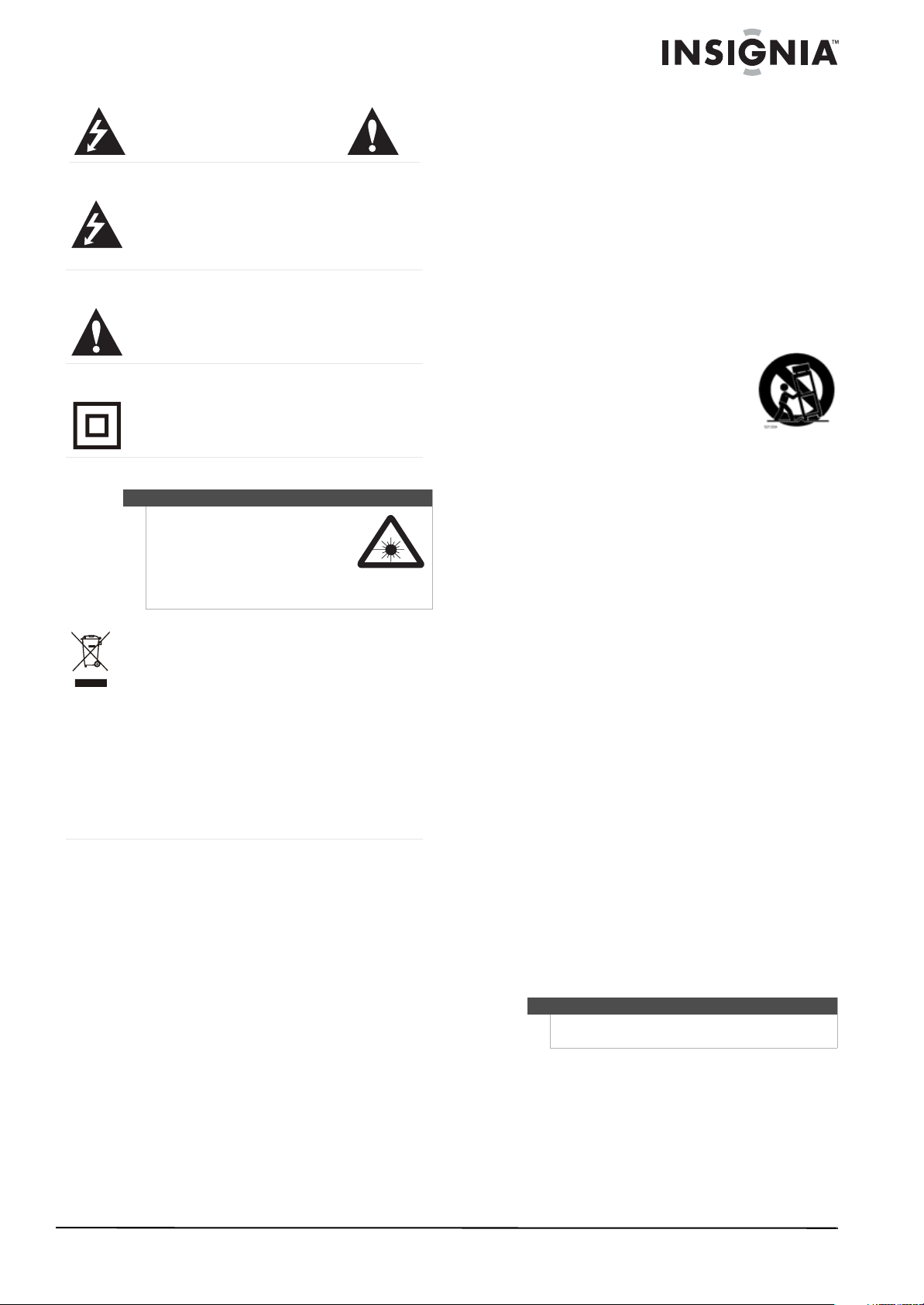
CAUTION
RISK OF ELECTRIC SHOCK
DO NOT OPEN
The lightning flash with arrowhead symbol within an equilateral
triangle is intended to alert you to the presence of uninsulated
dangerous voltage within your player’s enclosure that may be of
sufficient magnitude to constitute a risk of electric shock to
persons.
The exclamation point within an equilateral triangle is intended
to alert you to the presence of important operating and
maintenance (servicing) instructions in the literature that came
with your player.
This symbol is the symbol for CLASS II (Double Insulation).
Warning
Your player employs a laser system.
Use of controls, adjustments, or the
performance of procedures other
than those specified may result in
hazardous radiation exposure.
Visible laser radiation is present when open and
interlocks defeated. Do not stare into the beam.
Disposal of your old appliance
1. When this crossed-out wheeled bin symbol is attached to a
product, it means the product is covered by the European
Directive 2002/96/EC.
2. All electrical and electronic products should be disposed of
separately from the municipal waste stream via designated
collection facilities appointed by the government or the local
authorities.
3. The correct disposal of your old appliance will help prevent
potential negative consequences for the environment and
human health.
4. For more detailed information about disposal of your old
appliance, please contact your city office, waste disposal service,
or the shop where you purchased the product.
Caution
Danger of explosion if battery is incorrectly replaced. Replace
only with the same or equivalent type.
NS-WBRDVD2-WBRDVD2-CA_10-0865_MAN_V5.book Page 1 Monday, October 24, 2011 10:28 PM
2
NS-WBRDVD2/NS-WBRDVD2-CA Wireless Blu-ray Disc Player
www.insigniaproducts.com
Wireless Blu-ray Disc Player
Introduction
Congratulations on your purchase of a high-quality
Insignia product. Your NS-WBRDVD2 or
NS-WBRDVD2-CA represents the state of the art in
Blu-ray Disc player design and is designed for
reliable and trouble-free performance.
To obtain the most up-to-date manual for your
player, visit www.insigniaproducts.com.
Features
• 1080p
• Internet connectable and Wi-fi enabled
• Disc capacity of one
• Disc compatibility: Blu-Ray discs, BD-R, BD-RE,
DVD, DVD-/+R/RW, CD, CD-R/RW, WMA, and MP3
•Blu-ray profile: 2.0
•BDLive capable
• Decodes: Dolby Digital Plus, Dolby TrueHD, DTS
Digital Surround
• Inputs: USB 2.0 (1), Ethernet (1)
• Outputs: HDMI (1)
Package contents
•Blu-ray Disc player
•Remote control
• AAA batteries (2)
• User Guide
•Quick Setup Guide
Playable discs
About Blu-ray Discs
The massive storage capacity of a Blu-ray Disc
allows a higher standard of picture and audio
quality and a wealth of special effects and
enhanced features not available on DVDs.
Java
Your player features Java support so you can get the
most out of the latest Blu-ray Discs. When a Blu-ray
Disc loads, explore the title menu to enjoy such as
interactive menus and BD-Live.
HDMI
HDMI is the only domestic medium capable of
transmitting the huge volumes of data required by
the high picture resolutions and advanced digital
audio codecs that make Blu-ray such an exciting
medium.
Playing Blu-ray Discs
Playing Blu-ray Discs are a lot like playing DVDs,
except Blu-ray Discs have a higher level of
interactivity.
Most of the standard features of DVD playback work
the same with Blu-ray Disc playback. The two most
common exceptions are:
• Resume play—Not available on Blu-ray discs
• A-B repeat (playback loop)—Not available on
some Blu-ray Discs
Color buttons
The red, green, yellow, and blue buttons on the
remote control are used with interactive menus
when operating a Blu-ray Disc that includes BD-Live
applications. For more information about using this
kind of disc, see the instructions that came with the
disc.
Disc type Logo Disc type Logo
Blu-ray Disc DVD+R
BD-R CD-R
BD-RE Audio CDs (CDDA)
DVD-video
(DVD-ROM)
CD-RW
DVD-RW MP3
DVD+RW MPEG4
DVD-R JPEG
Notes
• Writeable DVD discs (DVD-RW, DVD-R) must be
finalized, VR-mode only.
• Playback may not work for some types of discs,
or when specific operations, such as angle
change and aspect ratio adjustment, are being
performed. Information about the disc is written
in detail on the box.
• Do not allow the disc to become dirty or
scratched. Fingerprints, dirt, dust, scratches, or
deposits of cigarette smoke on the recording
surface may make it impossible to use the disc
for playback.
• CD-R/-RW, DVD-RW/-R recorded with UDF or
ISO9660 format can be played back.
• Windows Media Audio (WMA) files must be
written to the disc with a .wma file extension in
order to be recognized and played back
correctly.
• JPEG picture files must be written to the disc
with a .jpeg or .jpg file extension in order to be
recognized and played back correctly.
NS-WBRDVD2-WBRDVD2-CA_10-0865_MAN_V5.book Page 2 Monday, October 24, 2011 10:28 PM
3
Wireless Blu-ray Disc Player
www.insigniaproducts.com
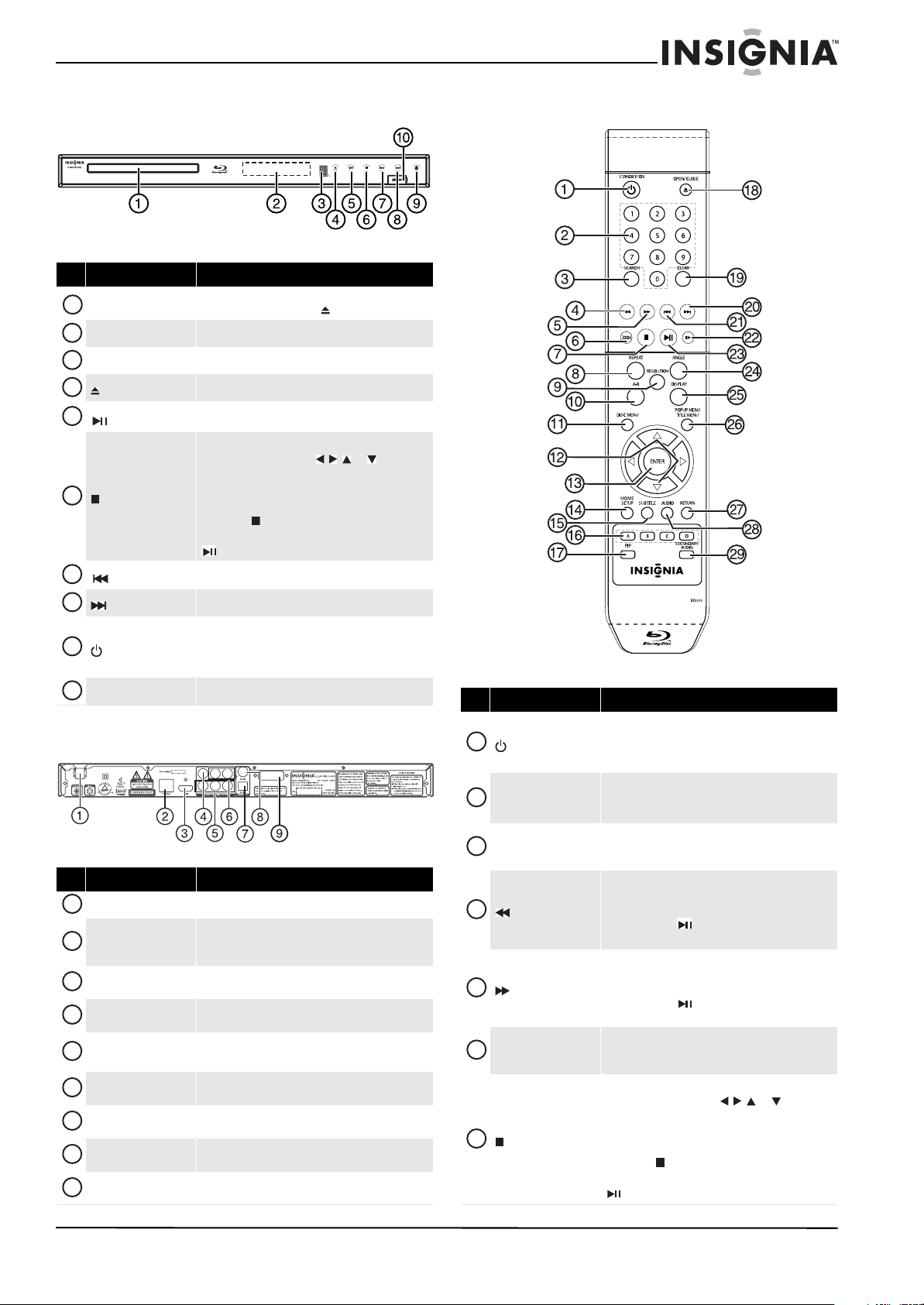
Front
Back
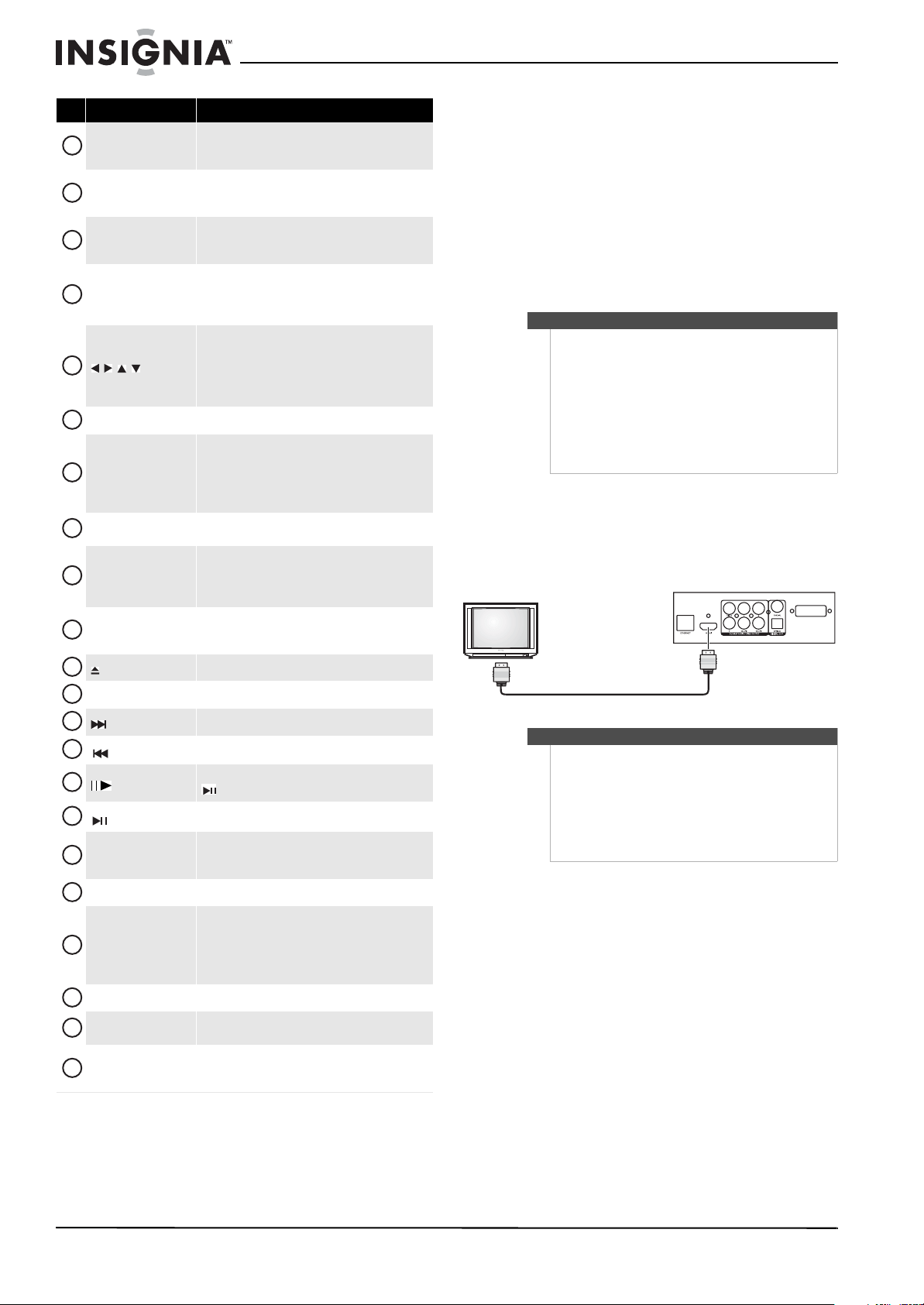
Remote control
# Item Description
Disc tray
Insert a disc with the label side up into this tray. To
open or close the tray, press (open/close).
Display screen
Displays information about disc playback.
Remote control sensor
Receives signals from the remote control. Do not block.
(open/close)
Press to open or close the disc tray.
(play/pause)
Press to start or pause playback.
(stop)
Press to stop playback.
To resume playback, press or to select
DVD/BD-ROM, then press ENTER. Depending on the
disc, playback starts where it stopped or at the
beginning of the disc.
If you press (stop) twice, playback stops
completely. To start playback again, press
(play/pause).
(previous)
Press to go to the previous title, chapter, or track.
(next)
Press to go to the next title, chapter, or track.
(standby/on)
Press to turn on your player or put your player in
standby mode. When your player is in standby mode,
power is still entering your player. To disconnect
power, unplug the power cord.
USB port
Plug a USB flash drive into this port.
# Item Description
Power connector
Plug the power cord into a power outlet.
ETHERNET jack
Connect an ethernet cable to this jack and to a
broadband Internet jack to access BD-Live information
or run connected applications.
HDMI
Connect a TV to this jack using an HDMI cable. An
HDMI cable carries both video and audio.
VIDEO
Connect a TV to this jack and to the AUDIO L/R jacks
using a composite video cable (provided).
COMPONENT VIDEO (Y,
Cb/Pb, Cr/Pr)
Connect a TV to these jacks and to the AUDIO L/R jacks
using a component video cable and audio cable.
AUDIO L/R
Connect the audio for a composite TV or component
video TV to these jacks.
OPTICAL DIGITAL OUT
Connect an optical digital amplifier to this jack to play
the sound through the amplifier’s speakers.
COAXIAL DIGITAL OUT
Connect a coaxial digital amplifier to this jack to play
the sound through the amplifier’s speakers.
WIFI antenna
Connects the player wirelessly to your wireless
network.
1
2
3
4
5
6
7
8
9
10
1
2
3
4
5
6
7
8
9
# Item Description
STANDBY/ON
Press to turn on your player or put your player in
standby mode. When your player is in standby mode,
power is still entering your player. To disconnect
power, unplug the power cord.
Number buttons
In playback mode, press SEARCH, then press the
number buttons to enter a title, chapter, track, or time.
In menu mode, press to enter numbers.
SEARCH
Press to search for a title, chapter, or specific time on a
disc. For more information, see “Searching for a title,
chapter, or elapsed time” on page 10.
(fast reverse)
Press to fast reverse. Each time you press this button,
the fast-reverse speed decreases from Fast x 2,
Fast x 4, Fast x 8, Fast x 16, Fast x 32, Fast x 64,
Fast x 128. Press (play/pause) to resume normal
playback.
(fast forward)
Press to fast forward. Each time you press this button,
the fast-forward speed increases from Fast x 2,
Fast x 4, Fast x 8, Fast x 16, Fast x 32, Fast x 64,
Fast x 128. Press (play/pause) to resume normal
playback.
ZOOM
Press to zoom in on a video. Each time you press this
button, the magnification level changes. This button is
only used for DVD discs or picture files.
(stop)
Press to stop playback.
To resume playback, press or to select
DVD/BD-ROM, then press ENTER. Depending on the
disc, playback starts where it stopped or at the
beginning of the disc.
If you press (stop) twice, playback stops
completely. To start playback again, press
(play/pause).
1
2
3
4
5
6
7
NS-WBRDVD2-WBRDVD2-CA_10-0865_MAN_V5.book Page 3 Monday, October 24, 2011 10:28 PM
4
NS-WBRDVD2/NS-WBRDVD2-CA Wireless Blu-ray Disc Player
www.insigniaproducts.com
Setting up your player
Installing remote control batteries
To install remote control batteries:
1 Remove the battery compartment cover.
2 Insert two AAA batteries into the battery
compartment. Make sure that the + and –
symbols on the batteries match the + and –
symbols in the battery compartment.
3 Replace the battery compartment cover.
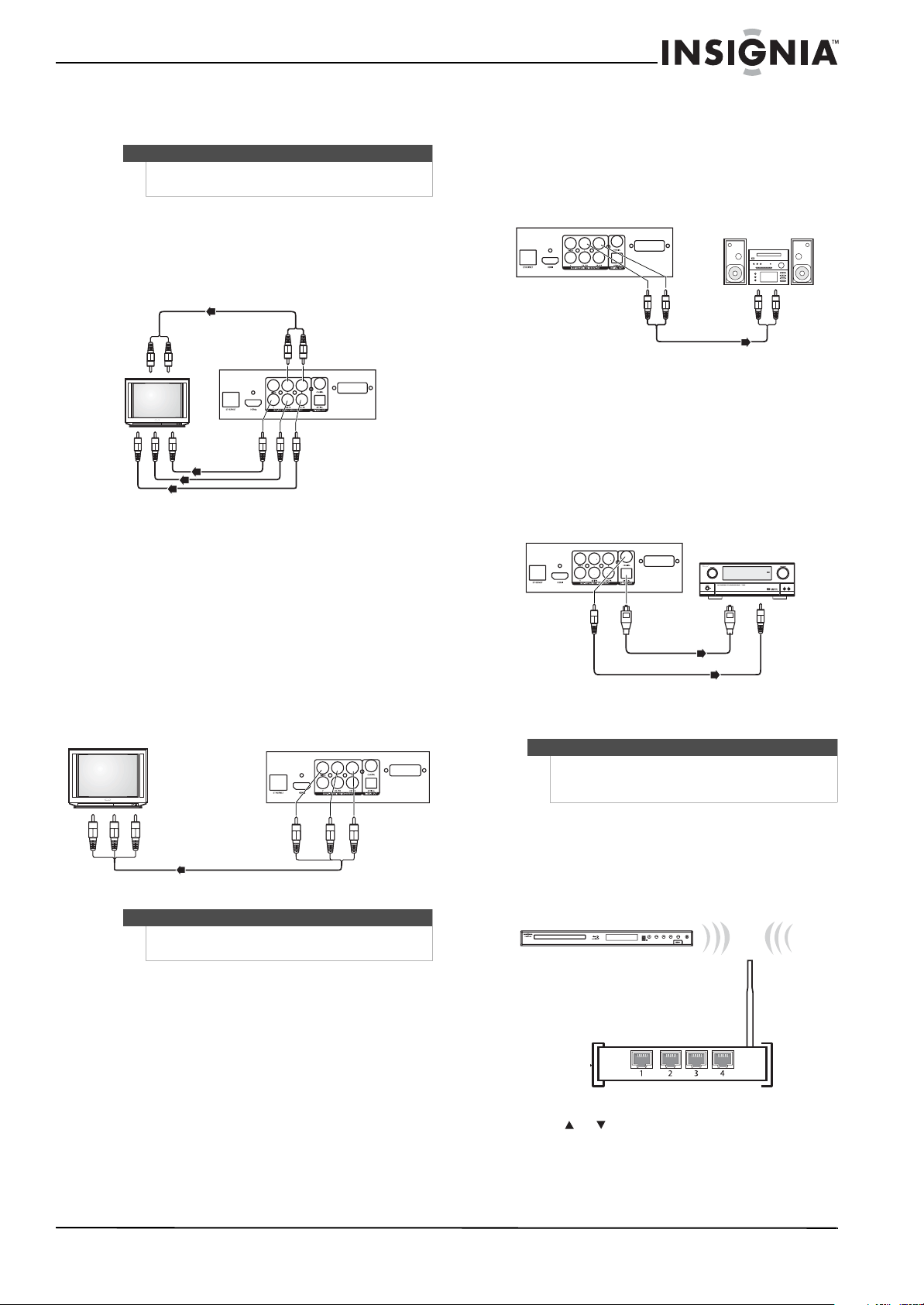
Connecting a TV using an HDMI cable (best)
To connect a TV using an HDMI cable:
• Connect an HDMI cable to the HDMI jack on
the back of your player and to the HDMI IN
jack on the TV.
REPEAT
Press to repeat the current title, chapter, track, or
repeat all. For more information, see “Repeating a
title, chapter, or CD track” on page 10.
RESOLUTION
Press to select the video resolution. For more
information, see “Selecting the video output
resolution” on page 13.
A-B
Press to create a playback loop. For more information,
see “Creating a playback loop on a DVD or audio CD”
on page 10.
DISC MENU
During DVD playback, press to open the DVD root
menu where you can select DVD playback options.
(This button is valid for DVDs that have a multi-layer
menu.)
If a disc menu opens when playing a Blu-ray Disc or
DVD, press to select a menu option, then press ENTER.
During media file browsing, press to select a file on the
popup menu.
When a menu is open, press to select an option.
ENTER
Press to confirm selection in a menu.
HOME/SETUP
Press to stop disc playback and enter home screen.
When accessing Connected applications such as
CinemaNow, Pandora, or Netflix, pressing
HOME/SETUP will stop the application and return you
to home screen.
SUBTITLE
Press to select a subtitle language or to turn subtitles
off.
A (red), B (green),
C(yellow), D (blue)
When playing a Blu-ray Disc that has a Java™
application, press to control playback. For more
information, see the documentation that came with
the Blu-ray Disc.
PIP
Press to turn PIP (picture-in-picture) mode on or off.
For more information, see “Using PIP
(picture-in-picture) mode” on page 11.
OPEN/CLOSE
Press to open or close the disc tray.
CLEAR
Press to clear an input error.
(next)
Press to go to the next title, chapter, or track.
(previous)
Press to go to the previous title, chapter, or track.
(step)
Press to advance one frame at a time. Press
(play/pause) to resume normal playback.
(play/pause)
Press to start or pause playback.
ANGLE
Press to select a viewing angle if multiple angles are
available on the disc. For more information, see
“Selecting a viewing angle” on page 11.
DISPLAY Press to display disc information.
POPUP MENU/
TITLE MENU
During Blu-ray Disc playback, press to open a menu
that lets you control Blu-ray Disc playback.
During DVD playback, press to open the DVD menu (if
available). For more information, see “Using a disc
popup menu” on page 11.
RETURN Press to return to the previous menu.
AUDIO
Press to select the audio mode. For more information,
see “Selecting the audio mode” on page 11.
SECONDARY AUDIO
In PIP mode, press to turn the audio for the secondary
video on or off. For more information, see “Using PIP
(picture-in-picture) mode” on page 11.
# Item Description
8
9
10
11
12
13
14
15
16
17
18
19
20
21
22
23
24
25
26
27
28
29
Notes
• Make sure that you insert the batteries correctly.
• Do not heat, open, or short-circuit batteries.
• Do not throw batteries into a fire.
• Do not mix different types of batteries or mix
old and new batteries.
• Do not try to recharge non-rechargable
batteries.
• If the remote control does not function correctly
or if the operating range becomes reduced,
replace the batteries.
Notes
• Only the HDMI is capable of 1080p video output
and the highest definition audio codecs.
• An HDMI cable carries both video and audio. If
you want to use TV speakers, you do not need to
make an audio connection if you are using an
HDMI cable. If you want to use an HDMI-capable
audio receiver, connect an HDMI cable between
your player and the HDMI input on the receiver.
TV
Back of player
NS-WBRDVD2-WBRDVD2-CA_10-0865_MAN_V5.book Page 4 Monday, October 24, 2011 10:28 PM
5
Wireless Blu-ray Disc Player
www.insigniaproducts.com
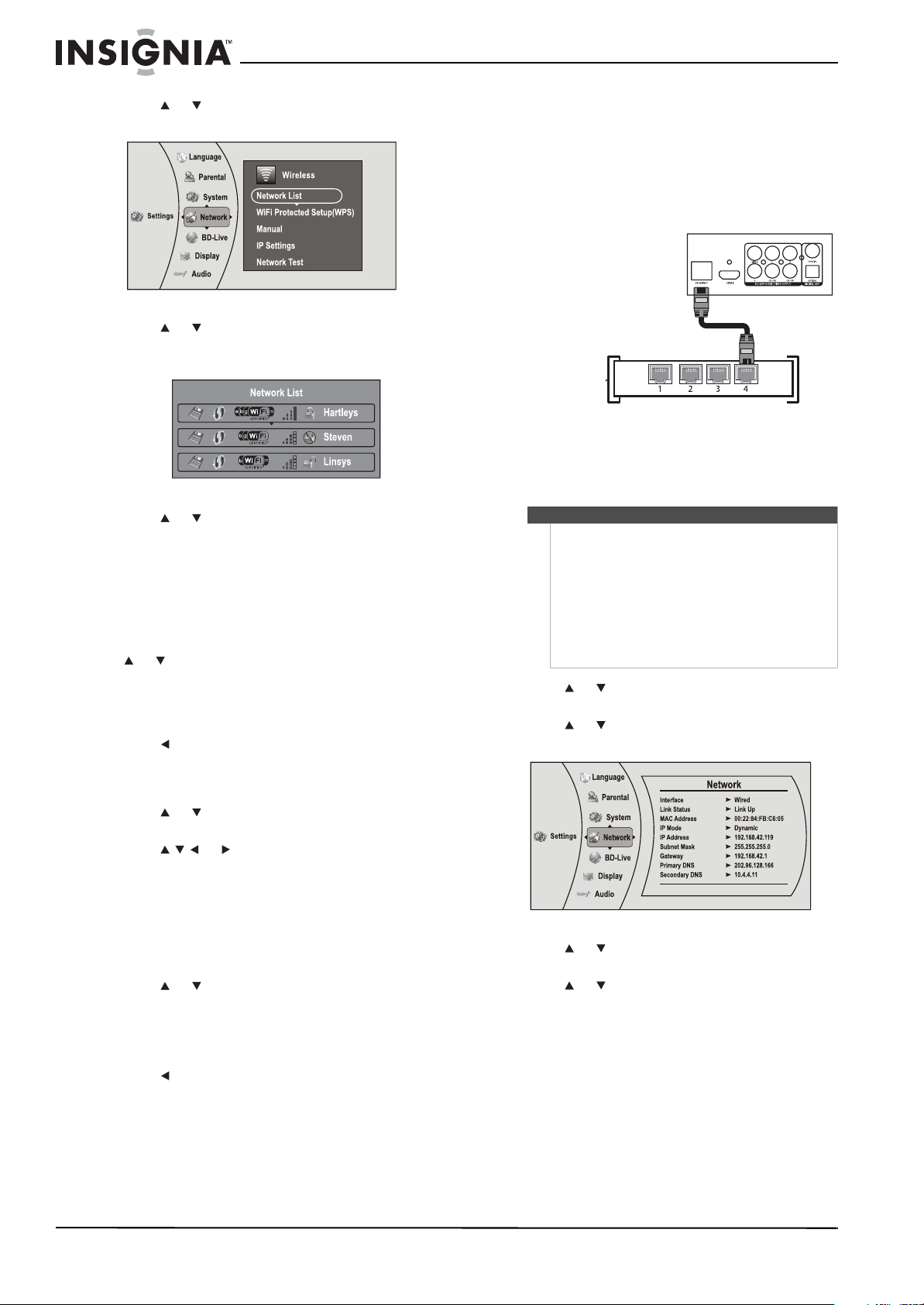
Connecting a TV using a component video
cable (better)
To connect a TV using component cables:
1 Connect a component video cable to the
COMPONENT VIDEO jacks on the back of your
player and to the COMPONENT VIDEO IN jacks
on the TV.
2 Connect an audio cable to the AUDIO L/R jacks
on the back of your player and to the AUDIO IN
L/R jacks on the TV.
Connecting a TV using an A/V cable (good)
To connect a TV using an AV cable:
• Connect an A/V cable to the VIDEO and
AUDIO L/R jacks on the back of your player
and to the VIDEO IN and AUDIO IN L/R jack
on the TV. Jacks and cable connectors are
usually color-coded. Make sure that you match
the colors.
Connecting audio to an amplifier or home
theater system
To connect audio to an analog amplifier:
• Connect an audio cable to the AUDIO L/R jacks
on the back of your player and to the AUDIO IN
L/R jacks on the receiver.
To connect audio to a digital amplifier or home
theater system:
• Connect a digital optical cable from the OPTICAL
DIGITAL OUT jack on the back of your player to
the OPTICAL DIGITAL IN jack on the receiver.
- Or -
Connect a digital coaxial cable from the COAXIAL
DIGITAL OUT jack on the back of your player to
the COAXIAL DIGITAL IN jack on the receiver.
Connecting to your home network
Connecting using a wireless network
To connect to the Internet with a wireless
network:
1 Set up your access point or wireless router (if not
already set up).
2 Press or to select Settings, then press
ENTER. The Settings menu opens.
Note
High definition video (up to 1080i) is supported with
a component video cable.
Note
The A/V cable can only send standard-definition
video (480i) to your TV.
Audio cable
Back of player
Component video cables
TV
Ye ll ow= Vi deo
White=Left audio
Red=Right audio
TV
Back of player
Note
This player can be connected to your wired network
using the Ethernet port on the back of your player or
by using a wireless network.
Analog audio receiver
Audio cable
Back of player
Connect to the OPTICAL
DIGITAL OUT jack
Back of player
Home theater system
Connect to the COAXIAL DIGITAL OUT jack
Wireless router
Player
NS-WBRDVD2-WBRDVD2-CA_10-0865_MAN_V5.book Page 5 Monday, October 24, 2011 10:28 PM
6
NS-WBRDVD2/NS-WBRDVD2-CA Wireless Blu-ray Disc Player
www.insigniaproducts.com
3 Press or to select Network, then press
ENTER. The Wireless Settings screen opens.
4 Press or to select Network List, then press
ENTER. The Network List screen opens, showing
a list of available wireless networks.
5 Press or to select the wireless network you
want your player to connect to. A Network Setup
screen opens with the following options:
•Password
•Connect
• Delete
•Cancel
6 If your network does not use encryption, press
or to select Connect, then press ENTER. If
the wireless network is working, you should see
a checkmark and a connected message on the
TV. If the message does not appear, repeat the
steps above.
7 Press to go to the previous screen.
OR
If your network uses encryption:
1 Press or to select the Password field, then
press ENTER. An on-screen keyboard opens.
2 Press or to select the first letter in the
password, then press ENTER. Repeat this step to
enter the rest of the password. If you make a
mistake, use backspace key to delete the
character.
3 After you enter the password, select Done in the
upper left-hand corner of the keyboard, then
press ENTER to close the keyboard.
4 Press or to select Connect, then press
ENTER. A connected message appears.
5 Select Close, then press ENTER. If the message
says the connection was not a success, repeat
the steps above.
6 Press to go to the previous screen.
To connect to a wireless network using Wi-Fi
Protected Setup (WPS), see “Setting up WiFi
protection (WPS)” on page 19.
Connecting using a wired network
To connect to the ethernet with a wired network:
1 Connect a network cable to the ETHERNET jack
on the back of your player and into a wired
router using a commercially available LAN or
Ethernet cable (Cat 5 or better, with RJ45
connectors).
Using a wired network provides the best
performance, because the attached devices
connect directly to the network and are not
subject to radio frequency interference.
2 Press or to select Settings, then press
ENTER. The
Settings menu opens.
3 Press or to select Network, then press
ENTER. The IP Settings screen opens.
4 Press or to select IP Mode, then press
ENTER.
5 Press or to select an IP mode. You can
select:
• Dynamic—Uses DHCP to automatically
obtain an IP address.
Notes
• When plugging or unplugging the LAN cable,
hold the plug portion of the cable. When
unplugging, do not pull on the LAN cable but
unplug while pressing down on the lock.
• Do not connect a modular phone cable to the
LAN port.
• Since there are various connection
configurations, follow the specifications of your
telecommunication carrier or Internet service
provider.
Wired router
Back of player
Network cable
NS-WBRDVD2-WBRDVD2-CA_10-0865_MAN_V5.book Page 6 Monday, October 24, 2011 10:28 PM
7
Wireless Blu-ray Disc Player
www.insigniaproducts.com
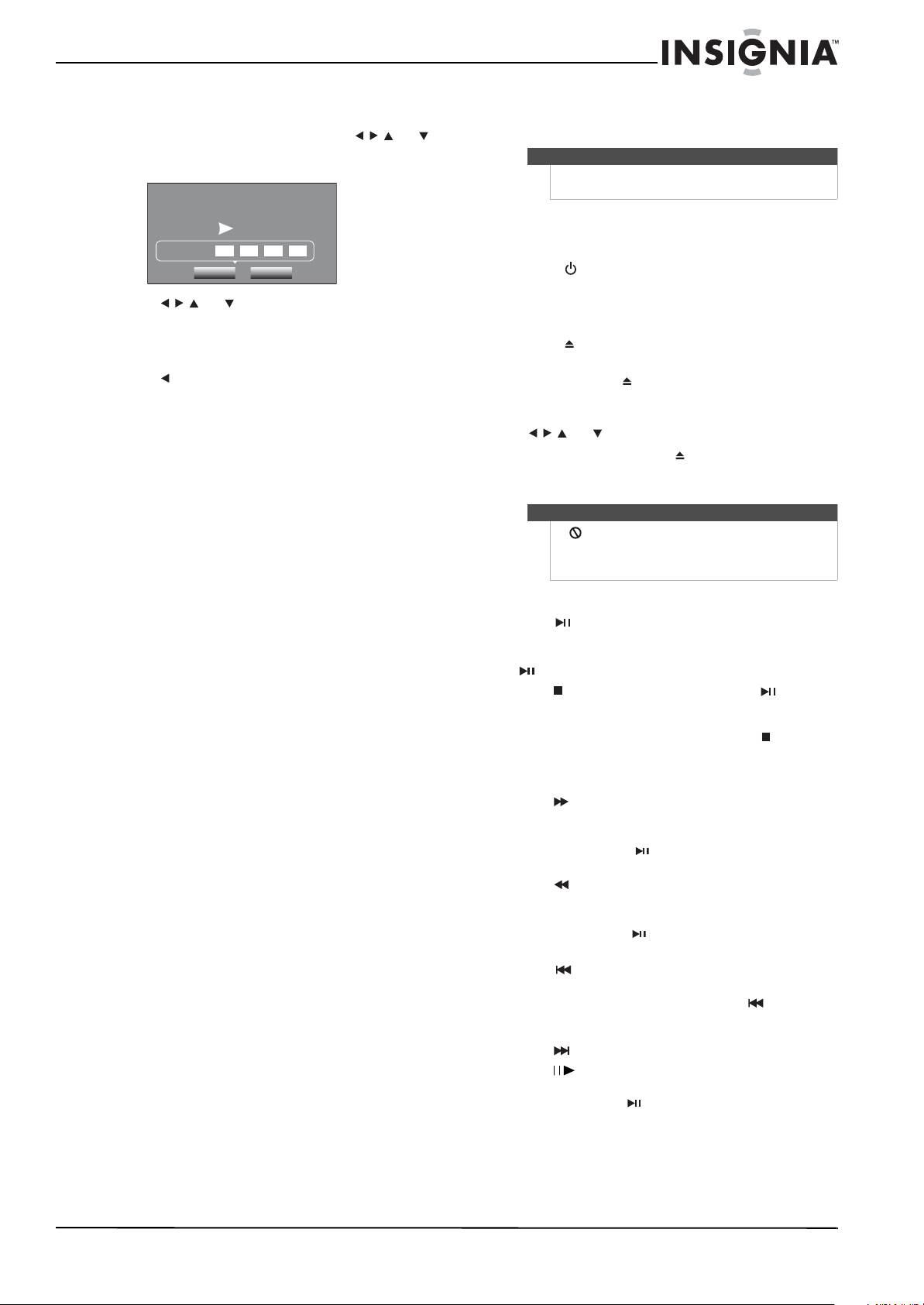
• Manual—Lets you manually configure
network settings, such as IP address, subnet
mask, and gateway settings. Press or
to navigate to each field, then enter the
appropriate IP information.
6 Press or to select Apply, then press
ENTER. A Network Test automatically runs.
7 If the connection is established, select OK, then
press ENTER to close the screen.
8 Press to go to the previous menu.
To make changes to your network connection,
see “Changing the Network settings” on page
19.
Using your player
Playing a Blu-ray Disc or DVD
To play a Blu-ray Disc or DVD:
1 Press .
2 Turn on the TV, then select the input setting on
the TV that matches the connection method
you used to connect your player.
3 Press to open the disc tray.
4 Place a disc on the disc tray with the label facing
up, then press to close the disc tray. It may
take a few seconds for the disc to load.
5 If a Blu-ray Disc or DVD menu opens, press
or to select PLAY, then press ENTER.
6 To eject the disc, press .
Controlling Blu-ray Disc or DVD playback
To control Blu-ray Disc or DVD playback:
• Press (play/pause) to start or pause playback.
The sound is muted when your player is in pause
mode. To resume normal playback, press
(play/pause).
• Press (stop) to stop playback, press
(play/pause) to start playback again. Depending
on the disc, playback starts where it stopped or at
the beginning of the disc. If you press (stop)
twice, playback stops completely and playback
starts at the beginning of the disc when you
resume playback.
• Press to fast-forward. Each time you press this
button, the fast-forward speed changes in the
following sequence: Fastx2, x4, x8, x16, x32,
x 64, x 128. Press (play/pause) to resume
normal playback.
• Press to fast-reverse. Each time you press this
button, the fast-reverse speed changes in the
following sequence: Fastx2, x4,x8, x16, x32,
x64, x128. Press (play/pause) to resume
normal playback.
• Press to go to the previous chapter within two
seconds after the current chapter starts. To go to
the beginning of the chapter, press any time
after the first two seconds of the chapter have
been played.
• Press to go to the next chapter.
• Press (step) to play one frame at a time. Each
time you press this button, the video advances
one frame. Press (play/pause) to resume
normal playback.
Please enter new IP Address
Valid range of each segment is 0 to 255
Current value 111.11.11.11
New Value
OK Cancel
Note
Unless otherwise noted, all tasks in this section are
based on using the remote control.
Note
If appears on the screen, the current action is not
permitted by the disc or your player. For example,
many discs do not let you fast-forward through the
warning information at the beginning of the disc.
NS-WBRDVD2-WBRDVD2-CA_10-0865_MAN_V5.book Page 7 Monday, October 24, 2011 10:28 PM

8
NS-WBRDVD2/NS-WBRDVD2-CA Wireless Blu-ray Disc Player
www.insigniaproducts.com
Using connected applications for the US
market
Your player is equipped with the capability to watch
movies over the Internet (for example, from Netflix
or CinemaNow), or listen to music (for example,
Pandora Internet radio). Before being able to use
these Inter services, you must first:
1. Have connected the player to the Internet, and
passed the Network Test. See “Connecting using a
wireless network” on page 5.
2. Have a valid account to these services.
You should contact the partner company (not
Insignia) if you experience an issue using one of
these applications.
Watching movies with CinemaNow
To set up your CinemaNow account:
1 First set up your CinemaNow account through
your PC. Go to www.cinemanow.com/activate
to get an activation PIN.
2 Click Activate a New Device, then sign in again
with your user/password.
3 Enter any name in the Name Your Device
section, then click Continue.
You now have been provided with a valid
activation number to enter into the activation
field within the CinemaNow application on your
Blu-ray player.
4 Once you have successfully established an
internet connection on your Blu-ray player,
select the CinemaNow application using your
remote control, then press ENTER.
5 Select the Settings tab at the bottom of the
screen, then press ENTER.
6 Select Activate and enter your activation code.
You can now rent movies using CinemaNow.
7 To exit CinemaNow, press Home/Setup.
Watching movies with Netflix
Once your player is connected to the Internet,
follow the steps below to register your player with
Netflix.
To watch movies with Netflix:
1 Press or to select Netflix, then press ENTER
to register your player with your Netflix account.
Follow the directions on the screen. You will be
provided with an activation code.
2 If you already have an existing Netflix account,
log in to your account on your PC. Click on the
Your Account & Help link in the upper right
corner of the screen.
3 In the WATCHING INSTANTLY ON YOUR TV OR
COMPUTER section, click Activate a Netflix
Ready Device and enter the activation code
from Step 1.
- OR -
If you do not have an existing Netflix account,
go to http://www.netflix.com/insignia to start
your free trial and enter the activation code
from Step 1 into the Insignia code field on
screen.
4 After setting up your account and activating
your Blu-ray player, browse to Instant under the
Your Q u eue tab and add movies to queue.
5 To exit Netflix, press Home/Setup
.
Listening to music with Pandora
For existing Pandora customers:
1 Press or to select Pandora, then press
ENTER.
2 Select I have a Pandora account from the
options, then sign in with your account
information.
For new Pandora customers:
1 Press or to select Pandora, then press
ENTER.
2 Select I am new to Pandora from the options.
You will receive an activation code.
3 On your PC, go to www.pandora.com/insignia
and enter the activation code from Step 2, then
click Activate.
4 Click Create a Pandora Account and follow the
on-screen instructions.
5 To exit Pandora, press Home/Setup.
To create a new Pandora account using a PC:
• Go to http://www.pandora.com/ to create a new
account.
Using connected applications for the
Canadian market
Your player is equipped with the capability to watch
movies over the Internet (for example, from Netflix).
Before being able to use this Internet service, you
must first:
1. Have connected the player to the Internet, and
passed the Network Test. See “Connecting using a
wireless network” on page 5.
2. Have a valid account to this service.
You should contact the partner company (not
Insignia) if you experience an issue using one of
these applications.
Watching movies with Netflix
Once the conditions above have been met, follow
the steps below to register your player with Netflix,
which enables it to stream movies from the Internet
to your TV.
To watch movies with Netflix:
1 Press or to select Netflix, then press ENTER
to register your player with your Netflix account.
Follow the directions on the screen. You will be
provided with an activation code.
2 If you already have an existing Netflix account,
log in to your account on your PC. Click on the
Your Account & Help link in the upper right
corner of the screen.
Note
The instructions and support numbers for the
connected applications apply to the US market only.
Note
Users must have a valid Netflix account in order to
stream Netflix movies to this player.
Note
Users must have a valid Netflix account in order to
stream Netflix movies to this player.
NS-WBRDVD2-WBRDVD2-CA_10-0865_MAN_V5.book Page 8 Monday, October 24, 2011 10:28 PM
9
Wireless Blu-ray Disc Player
www.insigniaproducts.com
3 In the WATCHING INSTANTLY ON YOUR TV OR
COMPUTER section, click Activate a Netflix
Ready Device and enter the activation code
from Step 1.
- OR -
If you do not have an existing Netflix account,
go to http://www.netflix.ca/activate to start
your free trial and enter the activation code
from Step 1 into the Insignia code field on
screen.
4 After setting up your account and activating
your Blu-ray player, browse to Instant under the
Your Q u e u e tab and add movies to queue.
5 For help with CS questions, go to
www.netflix.ca/help.
6 To exit Netflix, press Home/Setup.
To stay up-to-date on future service options, visit
www.insigniaproducts.com.
Using BD-Live
Some BD discs contain additional features that are
made available to players that are connected to the
Internet and have an additional USB memory stick
added.
These additional features may include things like:
• The ability to download new movie trailers.
• Additional commentary by actors and directors.
• Multiperson game play and chat.
In order to access BD-Live functions, the player
must be properly configured for BD-Live Internet
access and it must be equipped with an additional
USB memory stick.
Setting up your player for BD-Live Internet access
To set your player up for BD-Live Internet Access:
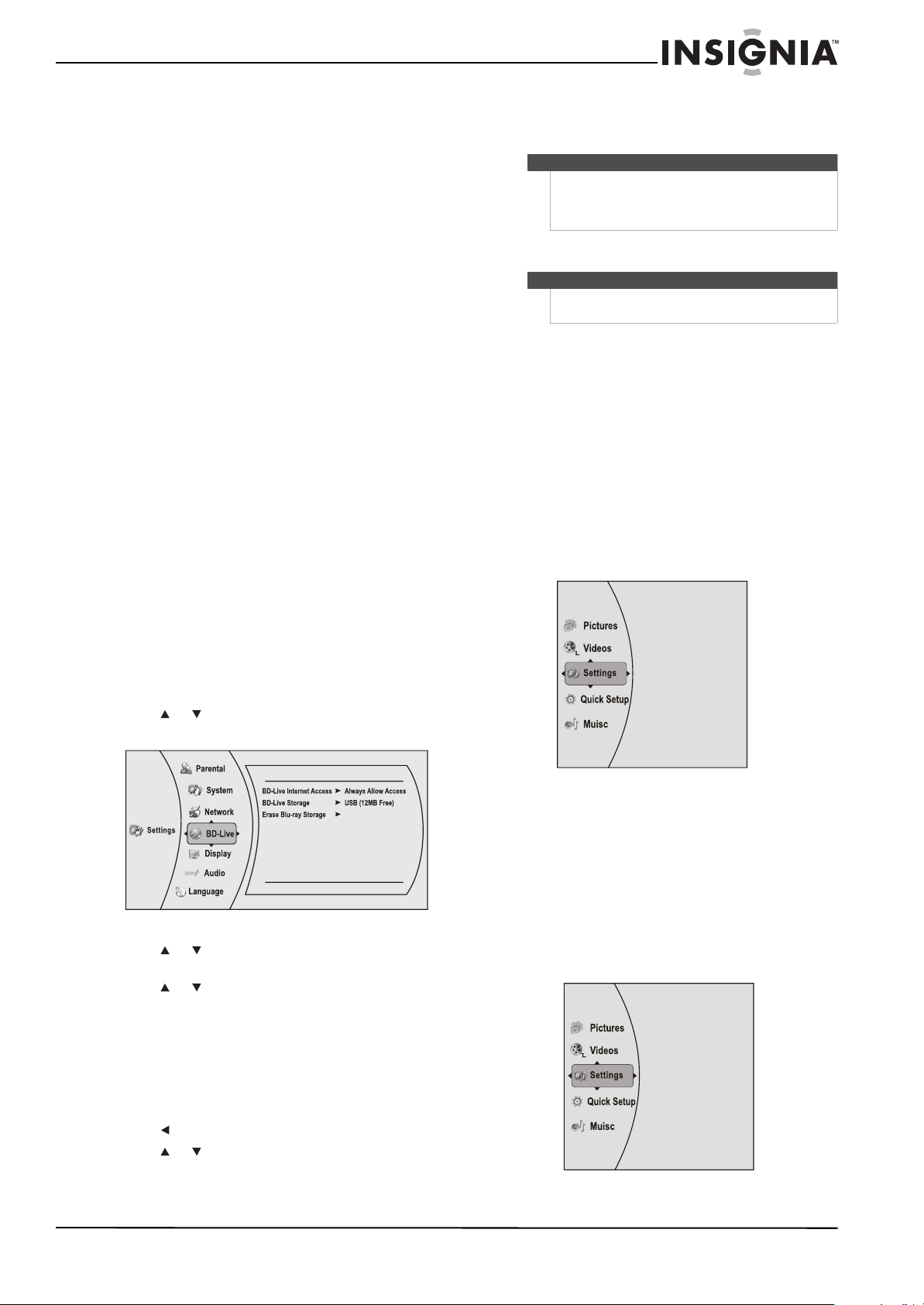
1 Press or to select Settings, then press
ENTER. The Settings menu opens.
2 Press or to select BD-Live. The BD-Live
menu opens.
3 Press or to select BD-Live Internet Access,
then press ENTER. Make sure that either Limit
Access or Always Allow Access is checked.
4 Insert a USB memory stick. The USB stick must
be at least 1 GB and be formatted as FAT32.
5 If there is not at least 1 GB of free space on your
player, try to select Erase Blu-ray Storage from
the BD-Live menu.
6 Press to go to the previous menu.
7 Press or to select Network, then press
ENTER.
8 Configure your Internet connection as
described in “Connecting using a wireless
network” on page 5.
Displaying Blu-ray Disc or DVD information
To display Blu-ray Disc or DVD information:
• Press DISPLAY. Your player displays information
about the Disc, such as type of disc, current
elapsed time in title, total amount of time in title,
current chapter, and total number of chapters.
• Press DISPLAY again to close the display.
Playing files on a data disc or USB memory
stick
When you insert a data disc or USB memory stick
containing picture, music, or video files into your
player, icons are added to the menu to indicate that
video, music, or picture files are available for
playback.
Viewing photographs
Your player can display digital photograph files that
are on a USB memory stick or that have been
burned onto a CD, DVD+/-R, DVD+/-R/(W), BD-R,
BD-RE, or Blu-ray Disc.
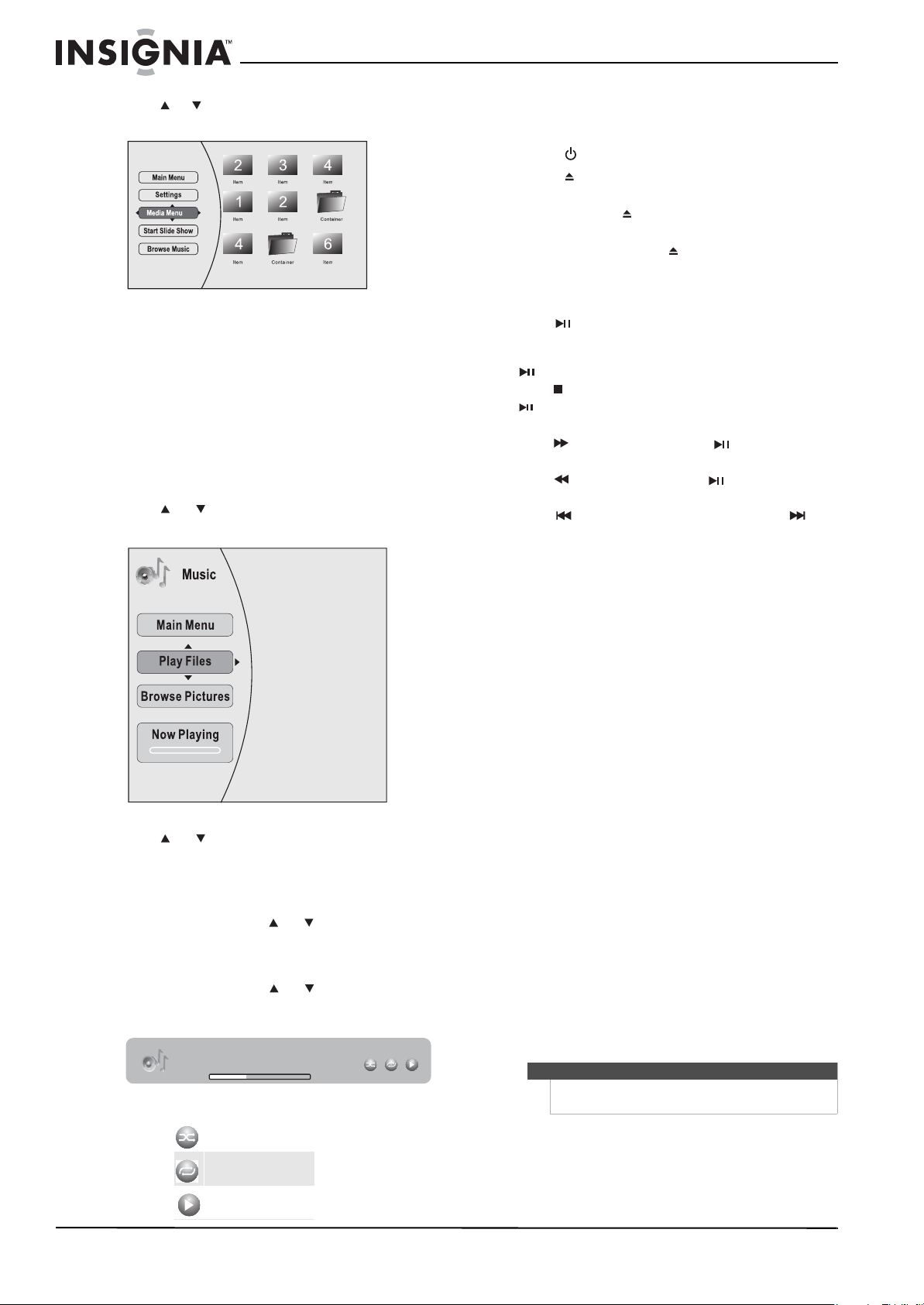
To view photographs:
1 Insert a disc or a USB memory stick containing
photographs into your Blu-ray player. The
following menu opens:
BD-Live
Note
Your player must pass the network test (see “Using
the network test” on page 20) or you are not
connected to the Internet and cannot access BD-Live
content on the web.
Note
The information displayed for discs other than
Blu-ray Discs will be different.
NS-WBRDVD2-WBRDVD2-CA_10-0865_MAN_V5.book Page 9 Monday, October 24, 2011 10:28 PM
10
NS-WBRDVD2/NS-WBRDVD2-CA Wireless Blu-ray Disc Player
www.insigniaproducts.com
2 Press or to select Pictures, then press
ENTER. The Picture menu opens.
• Select Start Slide Show to view the pictures in
the current folder one by one.
• Select Settings to set the slide show effects
and slide show delay time.
• Select Main Menu to return to the Main menu.
• To view a single file, select the files from the
right panel, then press ENTER.
• Select Previous folder menu to return to the
previous folder.
To play audio or video files:
1 Press or to select Music or Videos, then
press ENTER. A menu opens.
2 Press or to select Play Files, then press
ENTER. The files in the current folder will be
played.
• If you are playing music files and want to view
JPG picture files at the same time, press
RETURN, then press or to select Browse
Pictures, then press ENTER. Select the JPG
files you want to view.
• If you want to see information about the file
that is playing, press or to select Now
Playing, then press ENTER. The following
display appears.
Playing an audio CD
To play an audio CD:
1 Press .
2 Press to open the disc tray.
3 Place a CD on the disc tray with the label facing
up, then press to close the disc tray. It may
take a few seconds for the CD to load.
4 To eject the CD, press .
Controlling audio CD playback
To control audio CD playback:
• Press (play/pause) to start or pause playback.
The sound is muted when your player is in pause
mode. To resume normal playback, press
(play/pause).
• Press (stop) to stop playback completely. Press
(play/pause) to start playback again. Playback
starts at the beginning of the CD.
• Press to fast-forward. Press (play/pause) to
resume normal playback.
• Press to fast reverse. Press (play/pause) to
resume normal playback.
• Press to go to the previous track. Press to
go to the next track.
• Press SEARCH to select a track, enter the track
number immediately with the number buttons,
then press ENTER.
Or,
Enter the track number by pressing the
appropriate number buttons.
Searching for a title, chapter, or elapsed time
To search for a title, chapter, or elapsed time:
1 During playback, press SEARCH one or more
times to select a search mode.
• One press selects Goto Title - - - mode.
• Two presses selects Goto Chapter - - - mode.
• Three presses selects Goto Time --: -- : --
mode.
2 Press the number buttons to enter the title
number, chapter number, or time, then press
ENTER. Your player goes to the title, chapter, or
time you entered.
Repeating a title, chapter, or CD track
To repeat a title, chapter, or CD track:
• To repeat a title or chapter, press REPEAT one or
more times to select a repeat mode. You can
select Off, Repeat Title, Repeat Chapter, Repeat
track, Repeat all, or Random.
Creating a playback loop on a DVD or
audio CD
To create a playback loop:
1 Play the disc until you reach the point where
you want the loop to start, then press A-B.
Random play indicator
Repeat indicator
Play indicator
File 1/5 song1.mp3
Title: Cool Track
Artist: Ricardo Funiccio
Album: Dead Dux
0:02:00
0:30:00 O O
Play
Note
Blu-ray Discs do not normally support playback
loops.
NS-WBRDVD2-WBRDVD2-CA_10-0865_MAN_V5.book Page 10 Monday, October 24, 2011 10:28 PM

11
Wireless Blu-ray Disc Player
www.insigniaproducts.com
2 Play the disc until you reach the point where
you want the loop to stop, then press A-B. Your
player plays the loop you created repeatedly.
3 Press A-B to cancel the loop and return to
normal playback.
Using PIP (picture-in-picture) mode
Some Blu-ray Discs are compatible with
picture-in-picture (PIP) mode. In PIP mode, the
primary video is displayed on the full screen, and
the secondary video is displayed in a small window.
See the documentation that came with the disc for
playback instructions.
To use PIP mode:
1 Press PIP to turn PIP mode on or off.
2 If PIP mode is on, press SECONDARY AUDIO to
turn the audio for the video in the PIP window
on or off.
Using a disc popup menu
To use a disc popup menu:
1 During Blu-ray or DVD playback, press
POPUP MENU/TITLE MENU. The Blu-ray popup
menu or DVD disc menu opens.
2 Press or to select an option, then press
ENTER.
Selecting the audio mode
To select the audio mode:
1 Press AUDIO. Your player displays audio channel
information, such as “01/03 Eng Dolby Digital.”
“01” indicates the currently selected audio
channel. “03” indicates the total number of
audio channels. “Eng” (English) indicates the
audio language. “Dolby Digital” describes the
currently selected audio format.
2 Press to select an audio mode.
Selecting a viewing angle
To select the viewing angle:
• During playback, press ANGLE. Your player
displays “Angle X of X.” The first “X” indicates the
current viewing angle, and the second “X”
indicates the total number of viewing angles.
Using Quick Setup
To use Quick Setup:
1 Press or to select Quick Setup, then press
ENTER. The Quick Setup menu opens.
Follow the guide to set the most important
settings for your player.
Using the Settings menu
The settings menu is displayed on the screen
automatically under No Disc or Stop situations.
To use the Settings menus:
1 Press or to select Settings, then press
ENTER. The Settings menu opens.
2 Press or to select an option, then press
ENTER to open the sub-menu.
3 Press or RETURN to go to the previous menu.
Changing the Language settings
Selecting the on-screen menu language
To select the on-screen menu language:
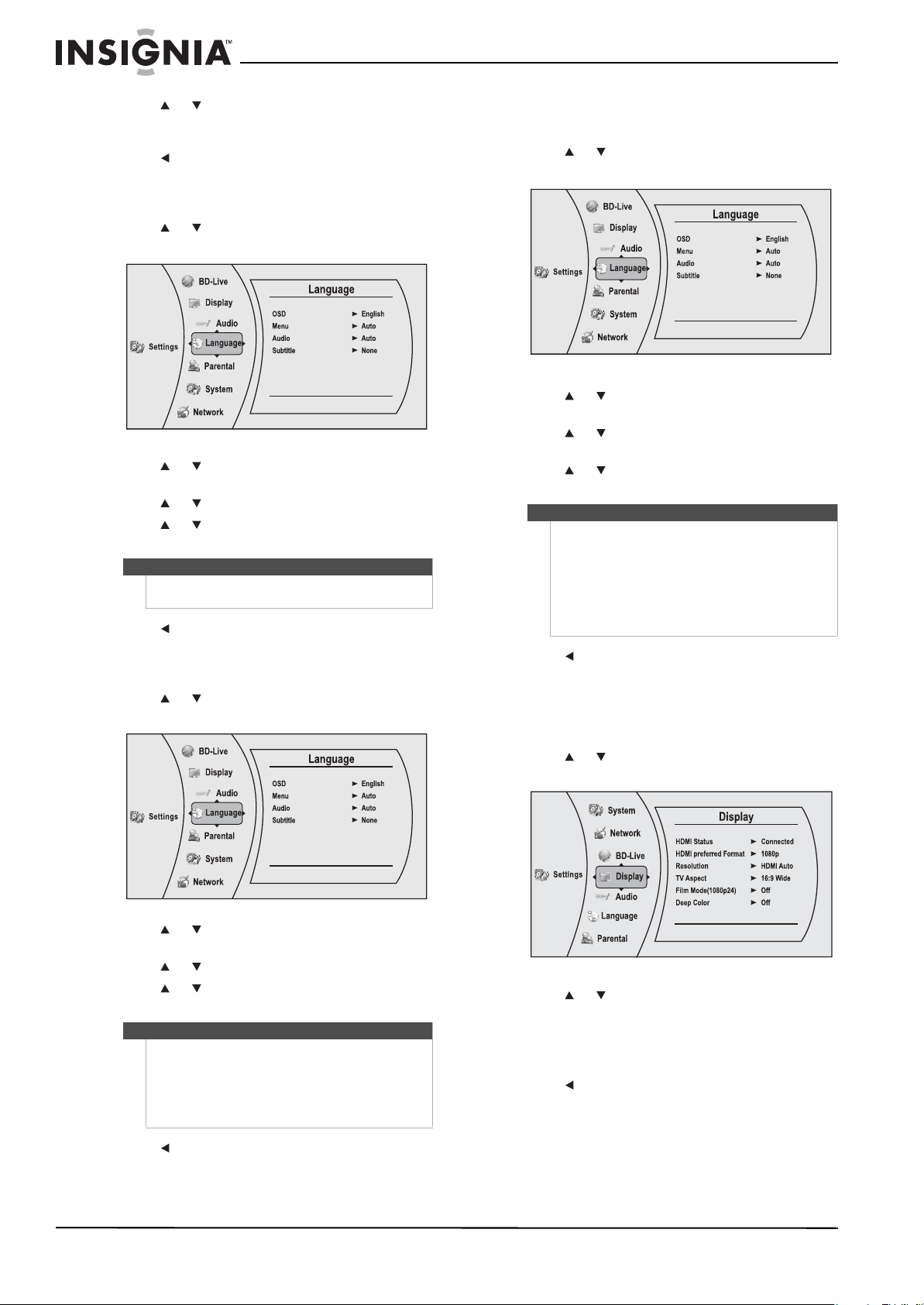
1 Press or to select Settings, then press
ENTER. The Settings menu opens.
2 Press or to select Language, then press
ENTER. The Language menu opens.
3 Press or to select OSD, then press ENTER.
Note
Not all discs are recorded with multiple viewing
angles and not all scenes on a disc have multiple
viewing angles.
Primary video
Secondary video
Music
NS-WBRDVD2-WBRDVD2-CA_10-0865_MAN_V5.book Page 11 Monday, October 24, 2011 10:28 PM
12
NS-WBRDVD2/NS-WBRDVD2-CA Wireless Blu-ray Disc Player
www.insigniaproducts.com
4 Press or to select the language you want,
then press ENTER. You can select English,
French, or Spanish.
5 Press to go to the previous menu.
Selecting the disc menu language
To select the disc menu language:
1 Press or to select Settings, then press
ENTER. The Settings menu opens.
2 Press or to select Language, then press
ENTER. The Language menu opens.
3 Press or to select Menu, then press ENTER.
4 Press or to select the language you want,
then press ENTER.
5 Press to go to the previous menu.
Selecting the audio language
To select the audio menu language:
1 Press or to select Settings, then press
ENTER. The Settings menu opens.
2 Press or to select Language, then press
ENTER. The Language menu opens.
3 Press or to select Audio, then press ENTER.
4 Press or to select the language you want,
then press ENTER.
5 Press to go to the previous menu.
Selecting the subtitle language
To select the subtitle language:
1 Press or to select Settings, then press
ENTER. The Settings menu opens.
2 Press or to select Language, then press
ENTER. The Language menu opens.
3 Press or to select Subtitle, then press
ENTER.
4 Press or to select the language you want,
then press ENTER.
5 Press to go to the previous menu.
Changing the Display settings
Determining whether an HDMI TV is connected
To determine whether an HDMI TV is connected:
1 Press or to select Settings, then press
ENTER. The Settings menu opens.
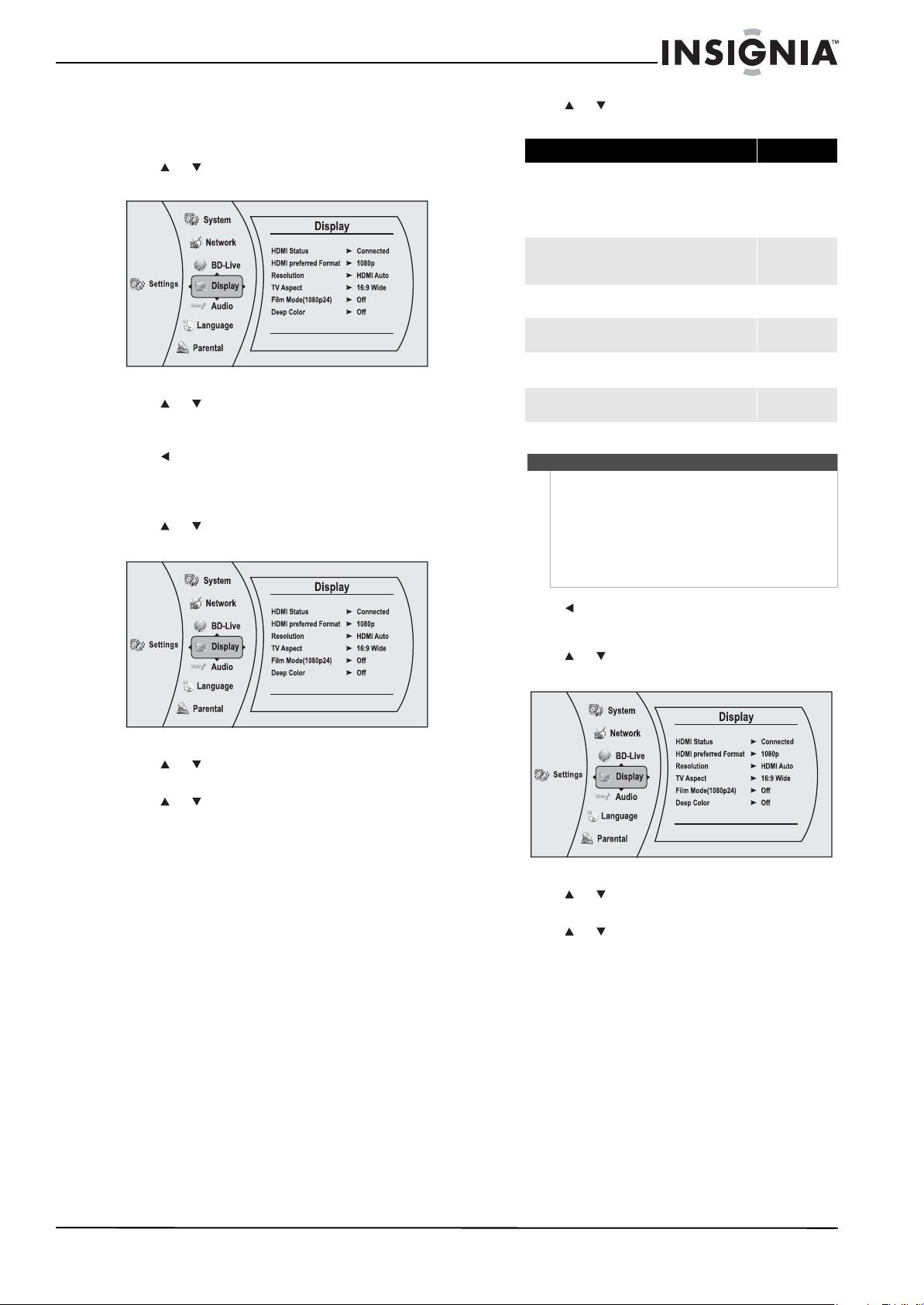
2 Press or to select Display. The Display
Preview menu opens.
If an HDMI TV is connected, Connected appears.
If an HDMI TV is not connected Disconnected
appears
3 Press to go to the previous menu.
Notes
• Not all languages are available on all discs.
• Most discs only have one menu language.
Notes
• Not all languages are available on all discs.
• Some discs do not let you select the audio
language using your player’s menu. Instead, you
have to select the audio language from the disc
setup menu (the menu that appears after you
insert the disc).
Notes
• Not all languages are available on all discs.
• Some discs do not let you select the subtitle
language from your player. Instead, you have to
select the subtitle language from the disc setup
menu (the menu that appears after you insert
the disc).
You can also select the subtitle language from the
Subtitle menu in the on-screen menu.
NS-WBRDVD2-WBRDVD2-CA_10-0865_MAN_V5.book Page 12 Monday, October 24, 2011 10:28 PM
13
Wireless Blu-ray Disc Player
www.insigniaproducts.com
Automatically determining the best HDMI resolution
To automatically determine the best HDMI
resolution:
1 Press or to select Settings, then press
ENTER. The Settings menu opens.
2 Press or to select Display. The Display
Preview menu opens. Your player displays the
best HDMI format for the connected TV.
3 Press to go to the previous menu.
Selecting the video output resolution
To select the video output resolution:
1 Press or to select Settings, then press
ENTER. The Settings menu opens.
2 Press or to select Display, then press
ENTER. The Display menu opens.
3 Press or to select Resolution, then press
ENTER.
4 Press or to select the resolution you want,
then press ENTER.
5 Press to go to the previous menu.
Selecting the TV aspect ratio
1 Press or to select Settings, then press
ENTER. The Settings menu opens.
2 Press or to select Display, then press
ENTER. The Display menu opens.
3 Press or to select TV Aspect, then press
ENTER.
TV type Resolution
If your TV is a high-definition TV (HDTV) connected to
the HDMI jack on your player and you want your
player to set the output resolution based on
information exchanged between the TV and your
player over the HDMI cable
HDMI Auto
If the TV is a high-definition TV (HDTV) capable of
1080p (any frame rate) connected to the HDMI jack
on your player
1080p
If your TV is a high-definition TV (HDTV) capable of
1080i only
1080i
If your TV is a high-definition TV (HDTV) capable of
720p only
720p
If your TV is an enhanced-definition
TV (EDTV)
480p
If your TV is a standard-definition NTSC TV (American
or Asian SD TV)
480i
Notes
• Selecting a resolution the TV does not support
could result in an unstable picture or loss of the
picture. See the documentation that came with
the TV to find the resolutions the TV supports.
• Only the HDMI output on your player supports
1080p video output at any frame rate. If the TV
is connected to the component output, the
video output is limited to 1080i or lower.
NS-WBRDVD2-WBRDVD2-CA_10-0865_MAN_V5.book Page 13 Monday, October 24, 2011 10:28 PM
14
NS-WBRDVD2/NS-WBRDVD2-CA Wireless Blu-ray Disc Player
www.insigniaproducts.com
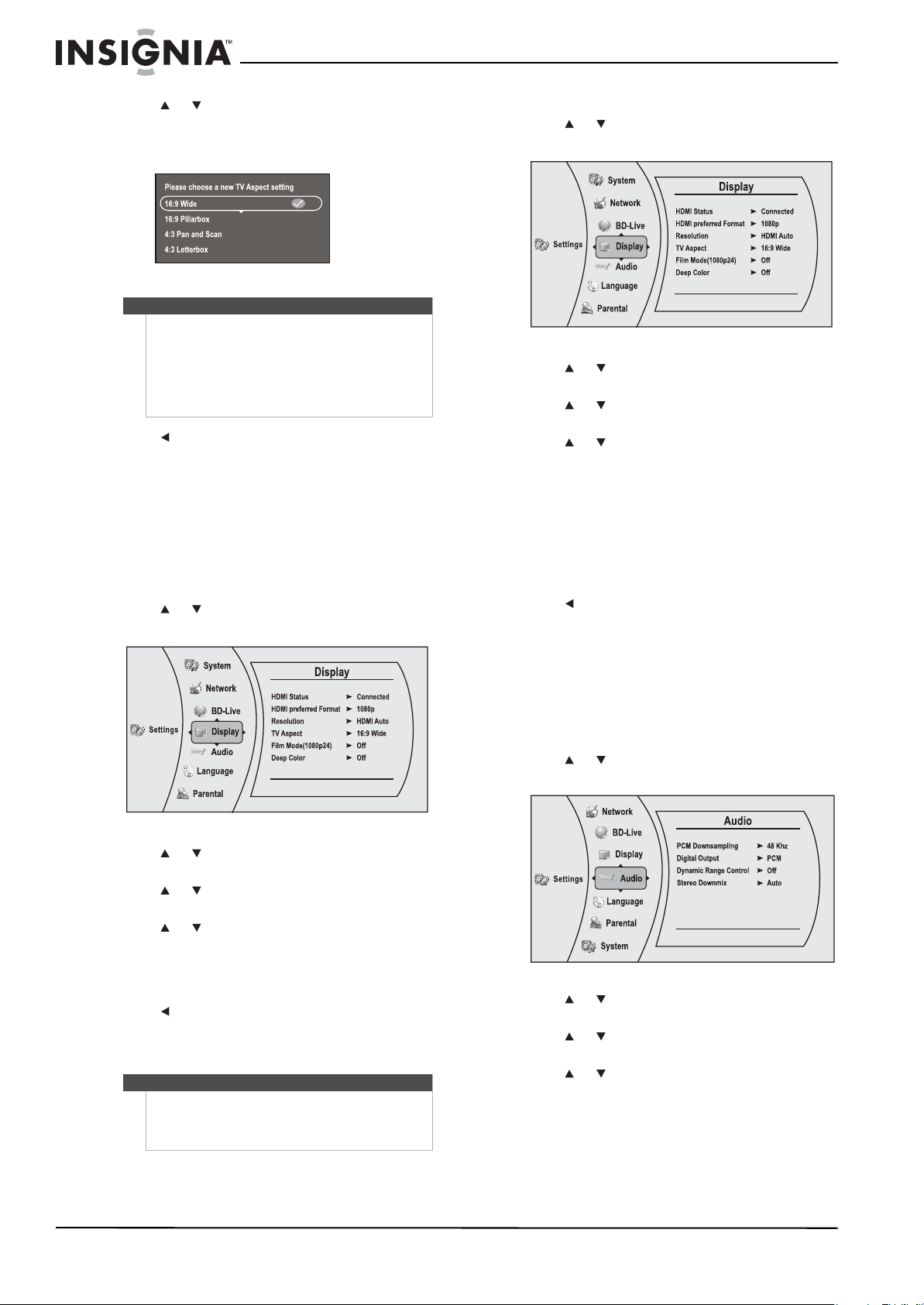
4 Press or to select the aspect ratio you want,
then press ENTER. You can select 16:9 Wide,
16:9 Pillarbox, 4:3 Pan and Scan, or 4:3 Letter
Box.
5 Press to go to the previous menu.
Turning film mode on or off
Movies are recorded on film at a rate of 24 pictures
(frames) per second. Many of the movies on Blu-ray
Discs are placed on the discs at this frame rate. If
your TV supports 24 frames per second, but you
would prefer viewing the video at a higher frame
rate, you should turn off Film Mode.
To turn film mode on or off:
1 Press or to select Settings, then press
ENTER. The Settings menu opens.
2 Press or to select Display, then press
ENTER. The Display menu opens.
3 Press or to select Film Mode (1080p24),
then press ENTER.
4 Press or to select Auto or Off, then press
ENTER. Off selects a 60 frames/second output
format. When the Film mode is set to Auto, the
output format will go to 24p automatically, if it's
supported.
5 Press to go to the previous menu.
Selecting Deep Color
Select 24 bits, 30 bits, or 36 bits.
To select Deep Color:
1 Press or to select Settings, then press
ENTER. The Settings menu opens.
2 Press or to select Display, then press
ENTER. The Display menu opens.
3 Press or to select Deep Color, then press
ENTER.
4 Press or to select Auto or Off, then press
ENTER. If Deep Color
is set to Auto, and the
player is connected to TV via HDMI cable, the
player will first try to set the color depth to 36
bits, if the 36 bits is not supported by the TV, it
will try to set the color depth to 30 bits, if the 30
bits is not supported by the TV, the player will
set the color depth to 24 bits. If Deep Color is
set to Off, the player will set the color depth to
24 bits.
5 Press to go to the previous menu.
Changing the Audio settings
Selecting the PCM downsampling rate
If your player is connected to an audio receiver or
TV with an optical or coaxial cable, select the
highest PCM sampling rate the amplifier supports.
To select the PCM downsampling rate:
1 Press or to select Settings, then press
ENTER. The Settings menu opens.
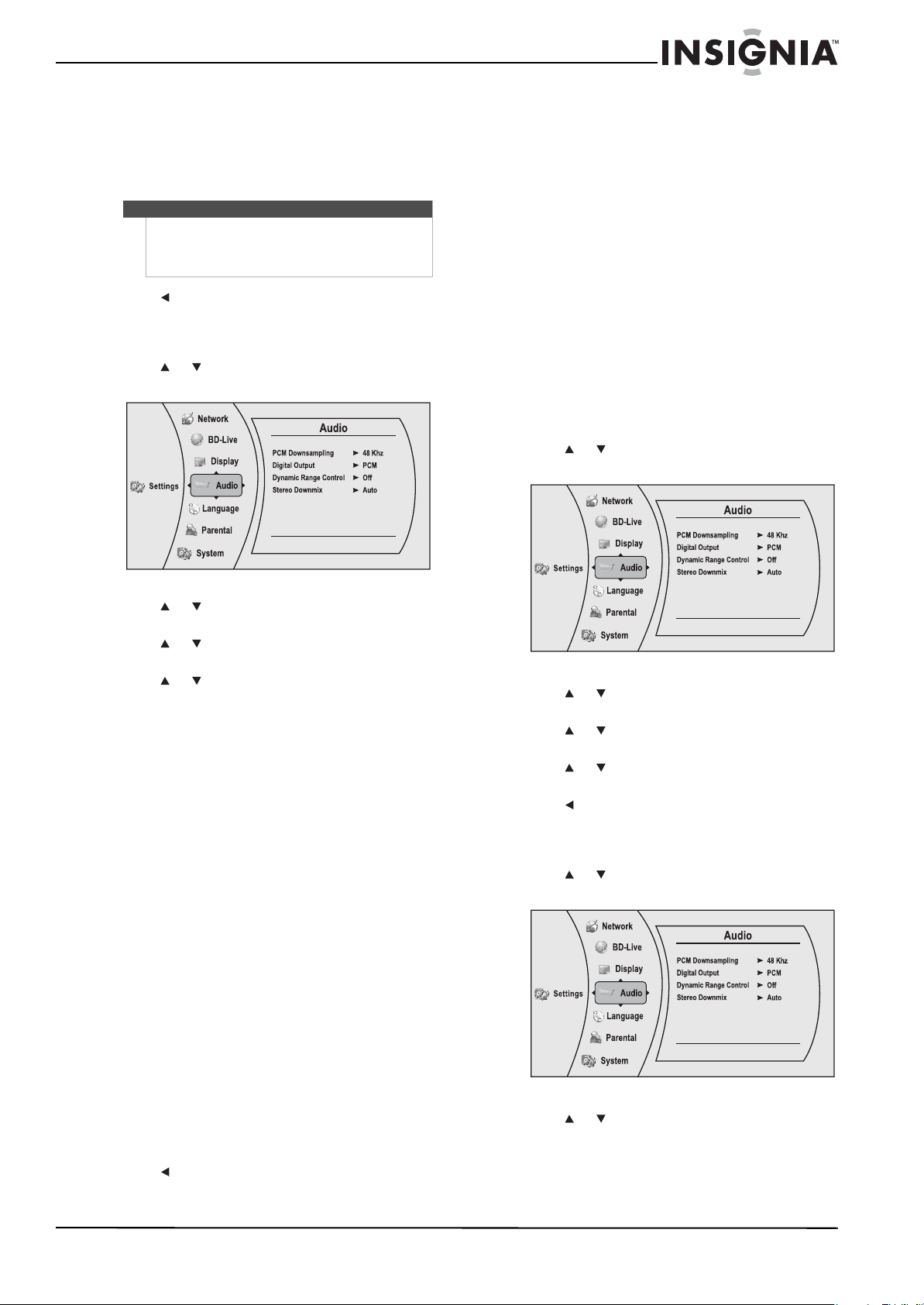
2 Press or to select Audio, then press ENTER.
The Audio menu opens.
3 Press or to select PCM Downsampling,
then press ENTER.
4 Press or to select the PCM downsampling
rate you want, then press ENTER. You can select
48KHz, 96KHz, or Off.
Notes
• If your TV has a rectangular (16:9) aspect ratio,
choose one of the 16:9 aspect ratios. If your TV
has a square (4:3) aspect ratio, choose one of the
4:3 aspect ratios.
• Setting your player for one of the 16:9 settings
when connected to a 4:3 TV may produce a
picture that does not correctly fit on the screen.
Note
Your player is capable of sending deep (up to 36-bit)
color over HDMI, if your TV supports it. This expands
the colors displayed from millions to billions, which is
much more vivid than the previous.
NS-WBRDVD2-WBRDVD2-CA_10-0865_MAN_V5.book Page 14 Monday, October 24, 2011 10:28 PM
15
Wireless Blu-ray Disc Player
www.insigniaproducts.com
If you do not have a surround sound receiver
connected to your player through one of the
digital audio jacks (optical or coaxial), select
48kHz. Otherwise, select the highest sampling
rate the receiver supports. See the
documentation that came with the receiver.
5 Press to go to the previous menu.
Selecting the digital audio output mode
To select the digital audio output mode:
1 Press or to select Settings, then press
ENTER. The Settings menu opens.
2 Press or to select Audio, then press ENTER.
The Audio menu opens.
3 Press or to select Digital Output, then
press ENTER.
4 Press or to select the digital output mode
you want, then press ENTER. You can select:
• PCM—Sends a PCM audio signal of up to 7.1
channels over the HDMI connection and up to
5.1 channels over the coaxial or optical
connection.
• Bitstream HD—Lets your player send Dolby
TrueHD or DTS-MA bitstreams over HDMI (if
your player is connected to a compatible
HDMI audio receiver). If your player is not
connected to a compatible HDMI receiver (for
example, your player is connected directly to
the TV or your player is connected to an audio
receiver using an optical or coaxial cable), a
compatible audio signal is automatically sent
over the HDMI and optical or coaxial
connections.
With this setting, Blu-ray audio is limited to the
soundtrack for the main movie (no PIP audio).
• Bitstream Legacy—Sends a DTS or Dolby
Digital bitstream from the disc over the HDMI
and optical or coaxial connections. Blu-ray
audio is limited to the soundtrack for the main
movie (no PIP audio).
• Bitstream mixed—Sends a mixed (PIP audio
and movie audio) DTS audio stream over the
HDMI and coaxial or optical connections. This
mode is primarily intended for use when you
want to hear both PIP audio and the movie
audio.
5 Press to go to the previous menu.
Turning dynamic range control on or off
Dynamic range control is only active when a Dolby
Digital signal is detected.
When Dynamic Range Control is set to Off, movie
soundtracks are played with the standard dynamic
range.
When movie soundtracks are played at low volume
or from smaller speakers, you can set Dynamic
Range Control to On. Your player applies
appropriate compression to make low-level content
more intelligible and prevent dramatic passages
from getting too loud.
When Dynamic Range Control is set to
Auto, the
system turns on the Dynamic range control for all
BD movie soundtracks except Dolby TruHD. If you
have selected a Dolby TruHD track on the BD disc,
Auto tells the BD player to only turn on dynamic
range control if information embedded in the
Dolby TruHD sound track tells it to do so.
To turn dynamic range control on or off:
1 Press or to select Settings, then press
ENTER. The Settings menu opens.
2 Press or to select Audio, then press ENTER.
The Audio menu opens.
3 Press or to select Dynamic Range Control,
then press ENTER.
4 Press or to select On, Off, or Auto, then
press ENTER.
5 Press to go to the previous menu.
Selecting the stereo downmix
To select the stereo downmix:
1 Press or to select Settings, then press
ENTER. The Settings menu opens.
2 Press or to select Audio, then press ENTER.
The Audio menu opens.
Note
Setting the optical or coaxial audio output’s PCM
downsampling sampling rate too high may result in
unpredictable audio playback. If you are not sure, set
the rate to 48kHz.
NS-WBRDVD2-WBRDVD2-CA_10-0865_MAN_V5.book Page 15 Monday, October 24, 2011 10:28 PM
16
NS-WBRDVD2/NS-WBRDVD2-CA Wireless Blu-ray Disc Player
www.insigniaproducts.com
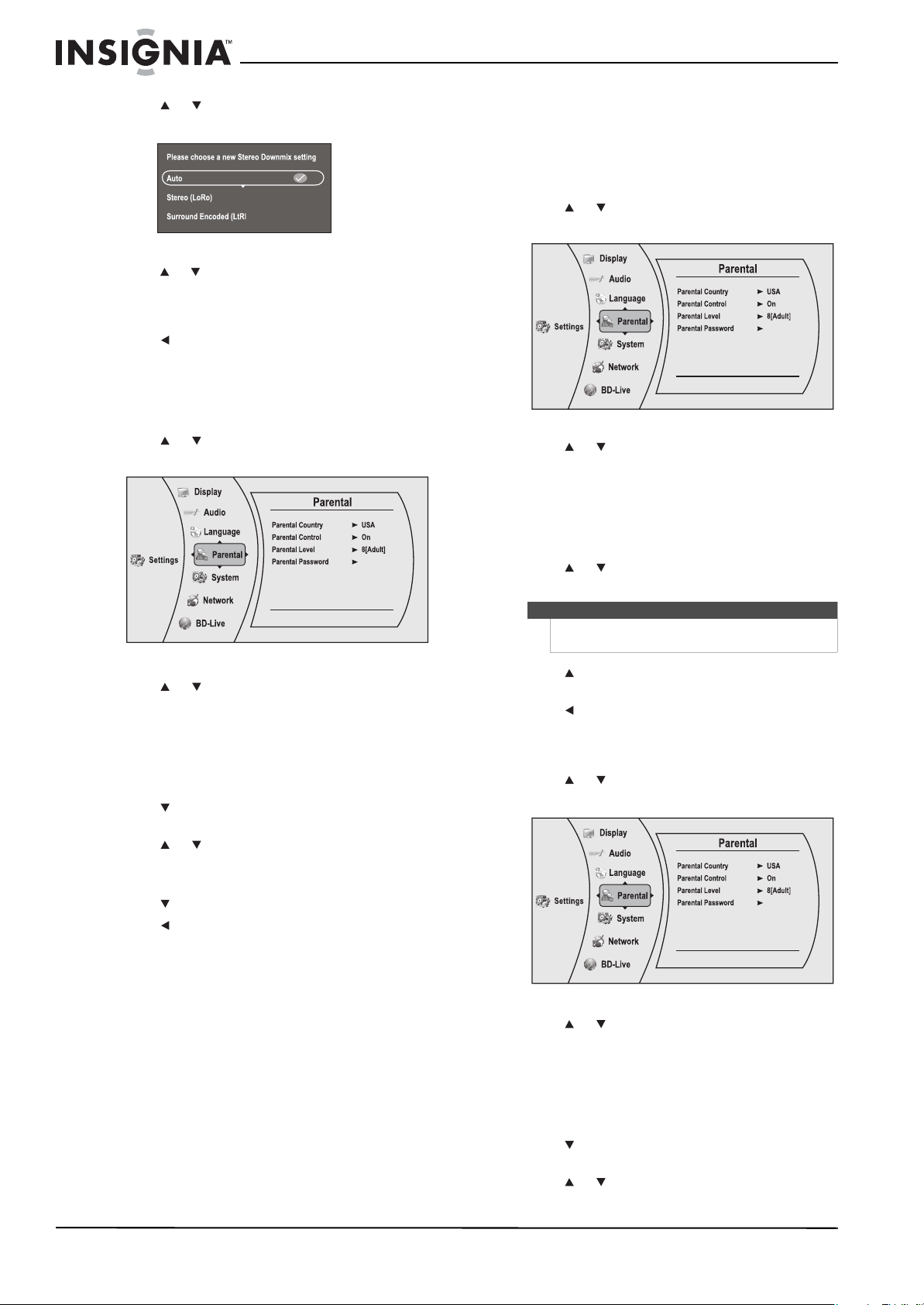
3 Press or to select Stereo Downmix, then
press ENTER. The Stereo Downmix menu opens.
4 Press or to select the stereo downmix mode
you want, then press ENTER. You can select
Auto, Stereo(LoRo), or Surround
Encoded(LtRt).
5 Press to go to the previous menu.
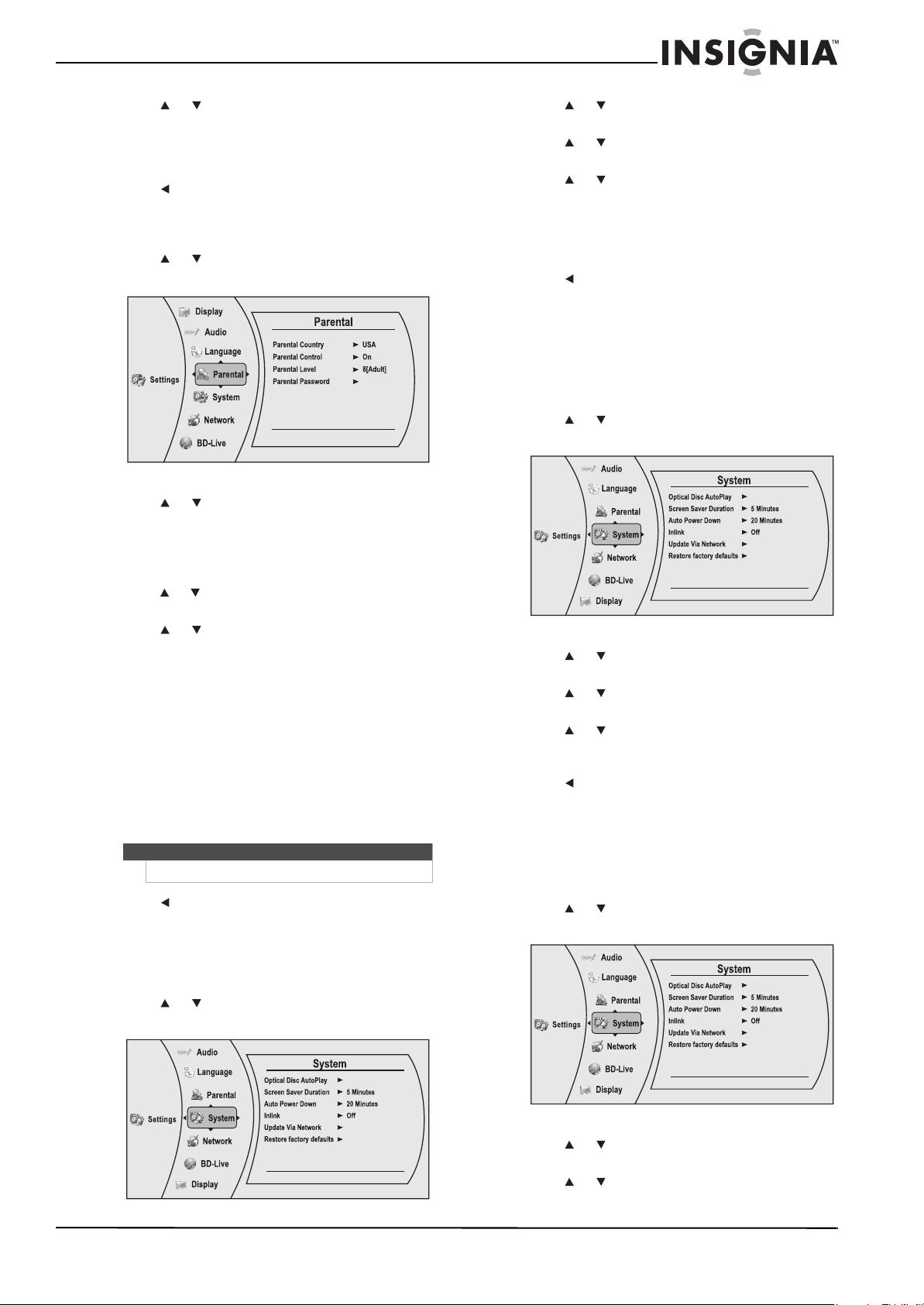
Changing the Parental Control settings
Setting the parental control password
To input the parental control password:
1 Press or to select Settings, then press
ENTER. The Settings menu opens.
2 Press or to select Parental, then press
ENTER, the Password screen opens.
3 Enter the default password (0000). If you forget
your password, reset your player to factory
defaults. The password will be reset to 0000. For
more information, see “Resetting settings to the
factory defaults” on page 18
4 Press to select Ok, then press ENTER. The
Parental menu opens.
5 Press or to select Parental Password, then
press ENTER, the Password screen opens.
6 Enter the new 4-digit password you want.
7 Press to select Ok, then press ENTER.
8 Press to go to the previous menu.
Selecting the parental control country
If a Blu-ray Disc has parental rating systems for
more than one country, you can select the country
you want to use.
To set the parental control country:
1 Press or to select Settings, then press
ENTER. The Settings menu opens.
2 Press or to select Parental, then press
ENTER, the Password screen opens.
3 Enter the default password (0000). If you forget
your password, reset your player to factory
defaults. The password will be reset to 0000. For
more information, see “Resetting settings to the
factory defaults” on page 18
4 Press or to select Parental Country, then
press ENTER.
5 Press to select the country you want, then
press ENTER.
6 Press to go to the previous menu.
Turning parental controls on or off
To turn parental controls on or off:
1 Press or to select Settings, then press
ENTER. The Settings menu opens.
2 Press or to select Parental, then press
ENTER. The Password screen opens.
3 Enter the password. If you forget your password,
reset your player to the factory defaults. The
password will be reset to 0000. For more
information, see “Resetting settings to the
factory defaults” on page 18.
4 Press to select Ok, then press ENTER. The
Parental menu opens.
5 Press or to select Parental Control, then
press ENTER.
Note
Some Blu-ray Discs do not have multiple countries
encoded for parental controls.
NS-WBRDVD2-WBRDVD2-CA_10-0865_MAN_V5.book Page 16 Monday, October 24, 2011 10:28 PM
17
Wireless Blu-ray Disc Player
www.insigniaproducts.com
6 Press or to select On or Off, then press
ENTER. If you select On, you can change the
other parental control options. If you select Off,
you cannot change the other parental control
options.
7 Press to go to the previous menu.
Setting the parental control level
To set the parental control level:
1 Press or to select Settings, then press
ENTER. The Settings menu opens.
2 Press or to select Parental, then press
ENTER. The Parental menu opens. If the parental
control option is set to On, input the password.
3 If the Parental Control option is set to Off, set
the option to On.
4 Press or to select Parental Level, then press
ENTER.
5 Press or to select the rating level you want
to block, then press ENTER. That rating and all
higher ratings will be blocked. You can select:
• 1[Kid Safe]—Suitable for all children.
• 2[G]—General audiences.
• 3[PG]—Parental guidance suggested.
• 4[PG-13]—Not suitable for anyone under 13.
• 5[PG-R]—Parental guidance recommended.
• 6[R]—Not suitable for anyone under 17 unless
supervised by a parent or adult guardian.
• 7[NC-17]—Not suitable for anyone under 17.
• 8[Adult]—All DVDs can be played.
6 Press to go to the previous menu.
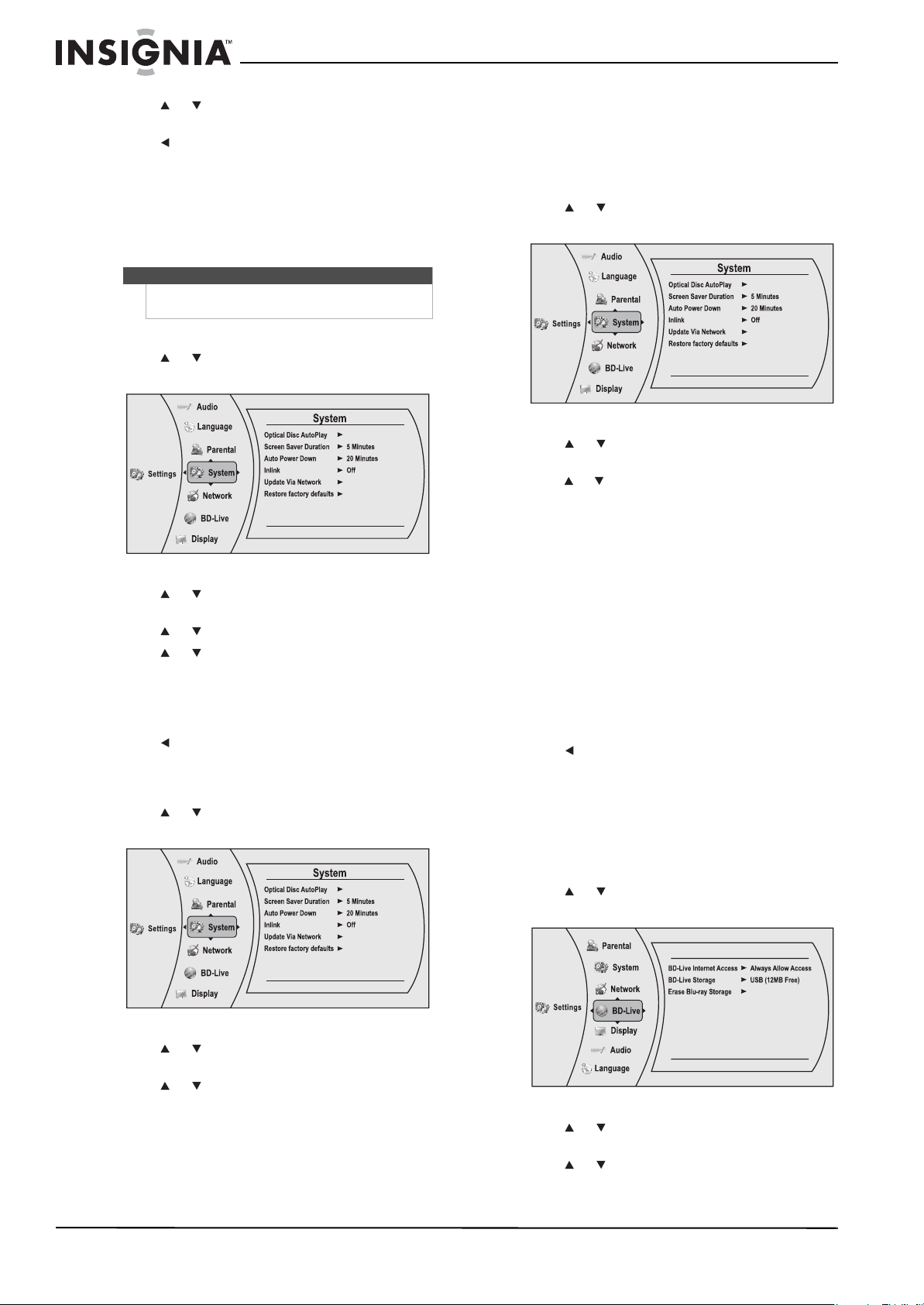
Changing the System settings
Setting automatic disc playback mode
To set automatic disc playback mode:
1 Press or to select Settings, then press
ENTER. The Settings menu opens.
2 Press or to select System, then press
ENTER. The System menu opens.
3 Press or to select Optical Disc Autoplay,
then press ENTER.
4 Press or to Enable or Disable, then press
ENTER. When Enable is selected and you insert
a Blu-ray Disc, playback begins automatically.
When Disable is selected, playback does not
begin automatically. Select the disc from the
Settings menu to begin playing it.
5 Press to go to the previous menu.
Setting the screen saver activation time
Your player has a screen saver feature that turns the
screen black when your player is inactive. You can
set the amount of time you want your player to wait
before activating the screen saver.
To set the screen saver activation time:
1 Press or to select Settings, then press
ENTER. The Settings menu opens.
2 Press or to select System, then press
ENTER. The System menu opens.
3 Press or to select Screen Saver Duration,
then press ENTER.
4 Press or to select Off, 5 Minutes, 10
Minutes, 20 Minutes, or 30 Minutes, then
press ENTER.
5 Press to go to the previous menu.
Setting Auto Power Down
Auto Power Down automatically turns the player off
if no settings are changed after a selected period of
time (5, 10, 20, or 30 minutes).
To set the Auto Power Down time:
1 Press or to select Settings, then press
ENTER. The Settings menu opens.
2 Press or to select System, then press
ENTER. The System menu opens.
3 Press or to select Auto Power Down, then
press ENTER.
Note
These ratings are for DVDs or Blu-ray Discs only.
Enable
Enable
Enable
NS-WBRDVD2-WBRDVD2-CA_10-0865_MAN_V5.book Page 17 Monday, October 24, 2011 10:28 PM
18
NS-WBRDVD2/NS-WBRDVD2-CA Wireless Blu-ray Disc Player
www.insigniaproducts.com
4 Press or to select 5 Minutes, 10 Minutes,
20 Minutes, or 30 Minutes, then press ENTER.
5 Press to go to the previous menu.
Enabling InLink support
This option is used to allow the TV remote control
to control certain functions of the Blu-ray player;
and for the Blu-ray player to control certain
functions of the TV. InLink control is only available
when you are using an HDMI connection to your TV.
To enable InLink support:
1 Press or to select Settings, then press
ENTER. The Settings menu opens.
2 Press or to select System, then press
ENTER. The System menu opens.
3 Press or to select InLink, then press ENTER.
4 Press or to select On (to allow mutual
control of devices through HDMI, then press
ENTER.
5 Review the User Guide for your TV for CEC setup
information.
6 Press to go to the previous menu.
Downloading player update software
To download player update software:
1 Press or to select Settings, then press
ENTER. The Settings menu opens.
2 Press or to select System, then press
ENTER. The System menu opens.
3 Press or to select Update Via Network,
then press ENTER.
4 Follow the on-screen instructions for updating
the software.
Resetting settings to the factory defaults
Reset all settings and deactivates the connected
applications. The Parental control password will be
reset to 0000.
To reset settings to the factory defaults:
1 Press or to select Settings, then press
ENTER. The Settings menu opens.
2 Press or to select System, then press
ENTER. The
System menu opens.
3 Press or to select Restore Factory Defaults,
then press ENTER. A message appears with a
warning.
4 Select OK, then press ENTER to close the
message box. The Restore factory defaults dialog
box appears.
5 Select an option, then press ENTER. Options
include:
• Restore factory settings and deactivate all
connected applications
• Restore factory settings
• Deactivate all connected applications
• Deactivate Netflix
• Deactivate Pandora
• Deactivate CinemaNow
6 Press to go to the previous menu.
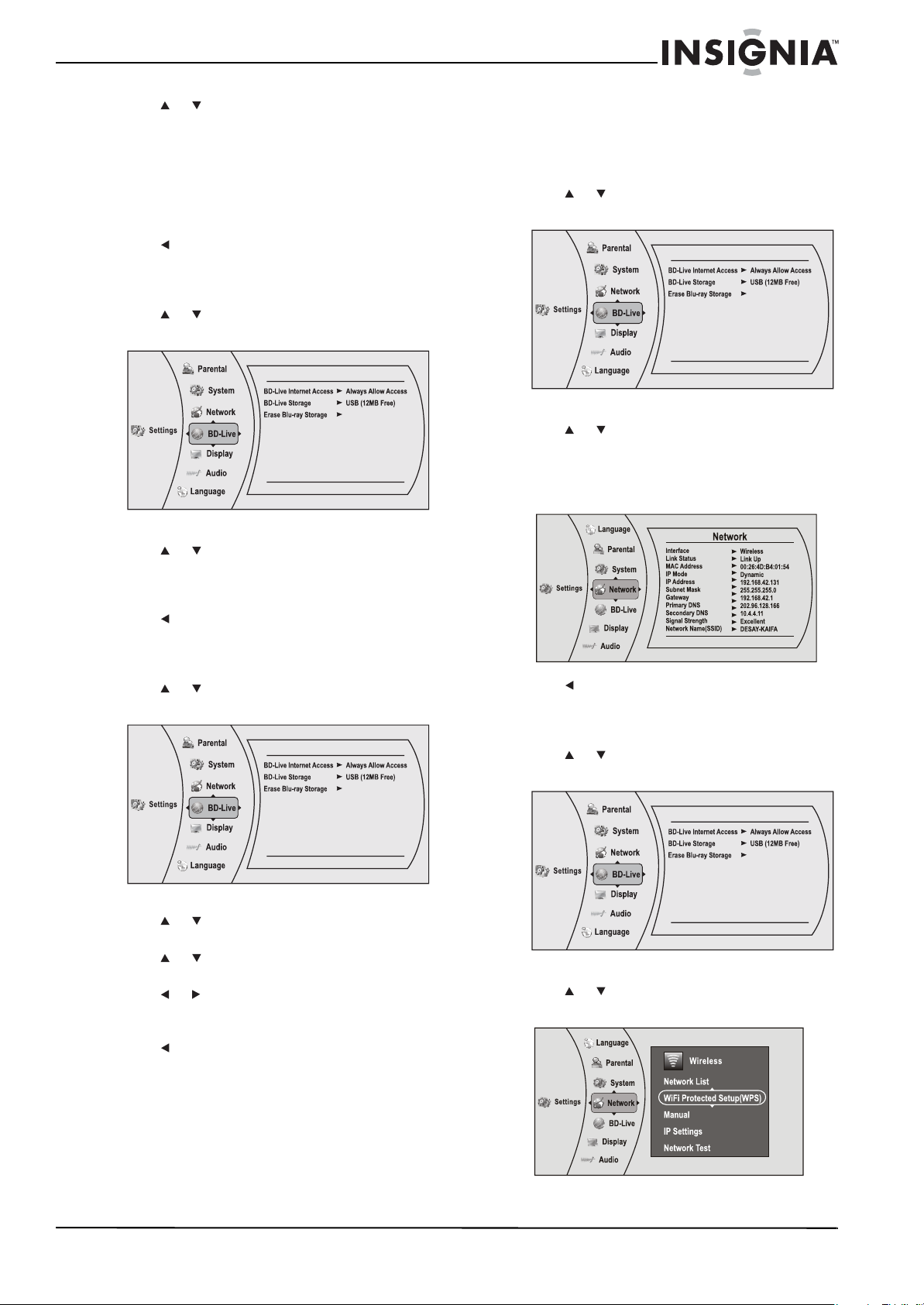
Changing BD-Live settings
Setting the BD-Live Internet access level
You can set the BD-Live Internet access level to
control access to BD-Live.
To set the BD-Live Internet access level:
1 Press or to select Settings, then press
ENTER. The Settings menu opens.
2 Press or to select BD-Live, then press
ENTER. The BD-Live menu opens.
3 Press or to select BD-Live Internet Access,
then press ENTER.
Note
Not all TVs are compatible with your Blu-ray
player.
Enable
Enable
Enable
BD-Live
NS-WBRDVD2-WBRDVD2-CA_10-0865_MAN_V5.book Page 18 Monday, October 24, 2011 10:28 PM
19
Wireless Blu-ray Disc Player
www.insigniaproducts.com
4 Press or to select the access level you want,
then press ENTER. You can select:
• Limit Access—Allows Internet access with
valid “BD-Live” network access approval.
• Always Allow Access—Always allows BD-Live
Internet access.
• Prohibit Access—Never allows BD-Live
Internet access.
5 Press to go to the previous menu.
Viewing available BD-Live storage space
To view available BD-Live storage space:
1 Press or to select Settings, then press
ENTER. The Settings menu opens.
2 Press or to select BD-Live, then press
ENTER. The BD-Live menu opens. The available
storage space is displayed next to BD-Live
Storage.
3 Press to go to the previous menu.
Erasing BD-Live storage
To erase BD-Live storage:
1 Press or to select Settings, then press
ENTER. The Settings menu opens.
2 Press or to select BD-Live, then press
ENTER. The BD-Live menu opens.
3 Press or to select Erase Blu-ray Storage,
then press ENTER.
4 Press or to select OK, then press ENTER. All
bookmarks and BD-live content saved in
memory are deleted.
5 Press to go to the previous menu.
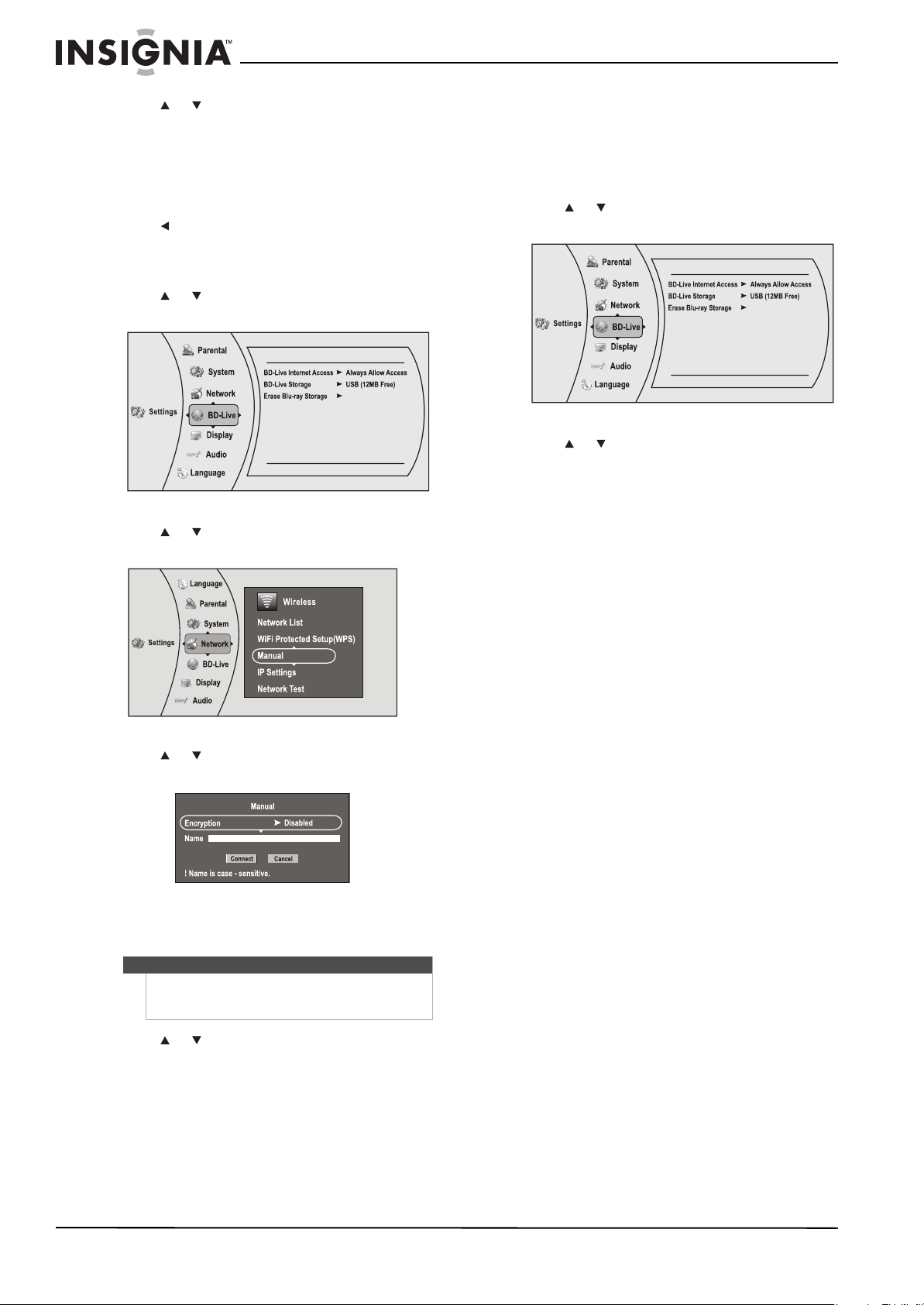
Changing the Network settings
Determining if the network connection is active (wired
connection)
To determine if the network connection is active:
1 Press or to select Settings, then press
ENTER. The Settings menu opens.
2 Press or to select Network. The IP Settings
screen opens. If the network connection is
active, Link Up appears next to Link Status. If
the network connection is not active, Link
Down appears next to Link Status.
3 Press to go to the previous menu.
Setting up WiFi protection (WPS)
To set up WiFi protection (WPS):
1 Press or to select Settings, then press
ENTER. The Settings menu opens.
2 Press or to select Network, then press
ENTER. The Wireless Settings screen opens.
BD-Live
BD-Live
BD-Live
BD-Live
NS-WBRDVD2-WBRDVD2-CA_10-0865_MAN_V5.book Page 19 Monday, October 24, 2011 10:28 PM
20
NS-WBRDVD2/NS-WBRDVD2-CA Wireless Blu-ray Disc Player
www.insigniaproducts.com
3 Press or to select WiFi Protected Setup
(WPS), then press ENTER. A screen appears,
asking you to press the button on your router.
4 Press the button on top of your router. A screen
should appear on your TV that says “Success”
when your player is connected to the router.
Press ENTER to close the message.
5 Press to go to the previous menu.
Manually setting access point entry
To configure the wireless Internet connection:
1 Press or to select Settings, then press
ENTER. The Settings menu opens.
2 Press or to select Network, then press
ENTER. The Wireless Settings screen opens.
3 Press or to select Manual, then press
ENTER. The following screen opens.
4 Enter network names, passwords, and so on,
then press Connect.
5 Press or to select IP Settings, then press
ENTER. The IP Settings menu opens.
6 Make changes to the IP and other parameters,
as appropriate.
Using the network test
The Network Test menu item lets you test the
connectivity of your player’s configuration by
pinging an IP address.
To test the network:
1 Press or to select Settings, then press
ENTER. The Settings menu opens.
1 Press or to select Network, then press
ENTER. The Wireless Settings screen opens.
2 Select Network Test, then press ENTER.
Network Test will run three tests.
• Local Network Test. If this test fails, you need
to check your connection to your home
network.
If you have a wired connection:
• Make sure your network cable is securely
attached to your router and your player.
• Make sure your router is connected to your
cable or DSL modem correctly.
If you have a wireless connection:
• Make sure your router is connected to your
cable or DSL modem correctly.
• Make sure your player is within the range
of your router.
• Make sure the desired WIFI network is
selected.
If you have a security password, be sure you
have entered the password correctly.
If further help is need for setting up security
and obtaining your security password, contact
your router manufacturer and/or cable or DSL
modem manufacturer.
• DNS Sever Test. If this test fails, there may be
an issue with your internet service provider.
• Make sure your router is connected to your
cable or DSL modem correctly.
• Contact your internet service provider for
more help.
• Internet Connection Test. If this test fails,
there may be an issue with your internet
service provider.
• Make sure your router is connected to your
cable or DSL modem correctly.
• Contact your internet service provider for
more help.
Note
If the password you are inputting contains letters,
press ENTER and a small keyboard will open on the
screen.
BD-Live
BD-Live
NS-WBRDVD2-WBRDVD2-CA_10-0865_MAN_V5.book Page 20 Monday, October 24, 2011 10:28 PM
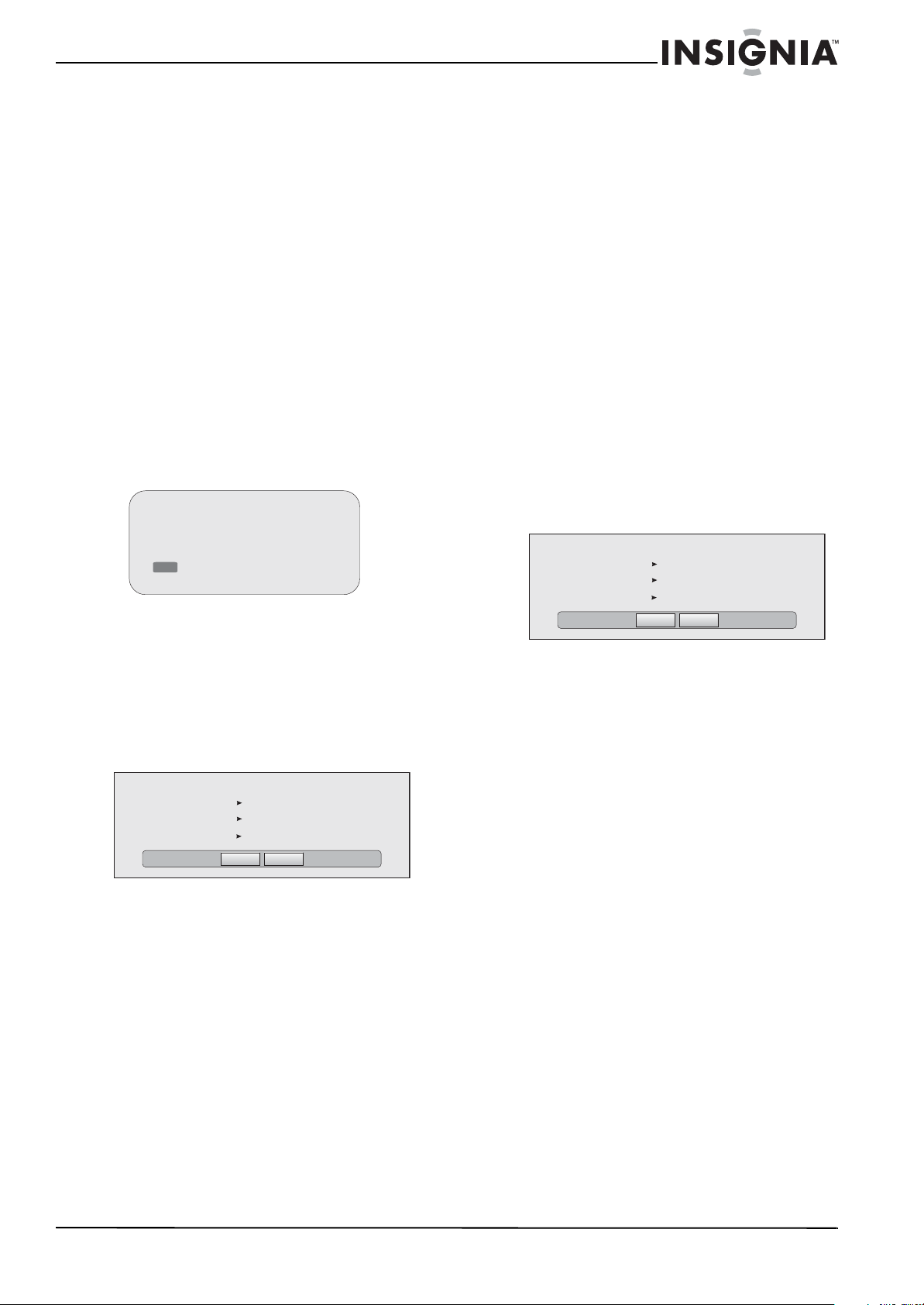
21
Wireless Blu-ray Disc Player
www.insigniaproducts.com
Upgrading your player’s
firmware
We may occasionally offer upgrades to the player’s
software. There are three ways to update the player:
• Upgrading the player using a network connection
• Automatic upgrades over the Internet
• Upgrading the player software with a disc or USB
stick
Upgrading the player using a network
connection
If you are connected to the Internet, your player can
automatically check for software updates on the
manufacturer’s website.
To upgrade the player’s firmware using a
network connection:
1 If an update is available, a message similar to the
following appears whenever the Settings menu
is selected on the player.
2 Press the red button to install the updates.
To automatically upgrade the firmware over the
Internet:
• If you see the above message, and want to update
your player’s firmware, use the arrow keys to
highlight OK, then press ENTER. The software
begins downloading and a status bar appears on
the TV screen, similar to what is shown below:
• Once the update is complete, a message appears
indicating that the player will turn itself off and
on.
Upgrading the player software with a disc or
USB stick
In order to perform the upgrade, you must first go
to the company’s website and click on the Support
link. From there, you must either create an upgrade
disc, or an update USB stick.
To create an update disc:
1 Download the firmware upgrade .iso file to a
computer.
2 Copy the .iso file directly to a data CD or DVD,
then finalize the disc.
- OR -
Use commercial software, such as Nero™, to
“burn” the .iso file onto a disc.
To create an update USB memory stick:
• Download the firmware upgrade .iso file directly
to the root directory of a USB memory stick
connected to your computer.
Updating the player software with the disc or USB stick
Once you have created an update CD or USB stick as
described in the section, perform the following
steps to update the player’s software.
To upgrade the player software with a disc or
USB stick:
1 Eject any discs that may be in the player and
remove any USB sticks already inserted in the
player.
2 Turn the player off. If using an upgrade USB
stick, insert the USB memory stick into the
player’s USB slot.
3 Turn the player back on. If you are using an
upgrade disc, open the tray and insert the
update disc.
4 After a short period of time, a screen similar to
the one below appears.
5 Press ENTER. The software update begins.
During the software update, a timer counts
down the approximate number of minutes and
seconds remaining for the update.
6 Once the update is complete, a screen appears.
If you used a CD for the update, eject the update
disc, and then throw it away. If you used an
update USB stick, power down the player, and
then erase any update .iso files placed on the
USB stick before using it again.
Maintaining
General guidelines
• The top and back panels of your player may
become hot after a long period of use. This is not a
malfunction.
• When your are not using your player, make sure
that you remove the disc and put your player into
standby mode.
• If you do not use your player for a long period of
time, it may not function correctly. Turn on and
use your player occasionally.
• Do not place objects on the disc tray.
•Do not locate your player:
• Near heating devices or in an enclosed vehicle
• In an area with a temperature over 104°F
(40°C) or humidity over 90%
• Dirty places
• In an area with direct exposure to sunlight
A software update for your player
is available, containing:
Various updates;
Press (red button) to install
these updates
Ok
Cancel
Below, select OK to proceed with the update or Cancel to abort, then press the Enter key
Player model INSIGNIA NS-WBRDVD2 BD Player
Player current version: PKG_085
Update version: PKG_90
Ok
Cancel
Below, select OK to proceed with the update or Cancel to abort, then press the Enter key
Player model INSIGNIA NS-WBRDVD2 BD Player
Player current version: PKG_085
Update version: PKG_90
NS-WBRDVD2-WBRDVD2-CA_10-0865_MAN_V5.book Page 21 Monday, October 24, 2011 10:28 PM
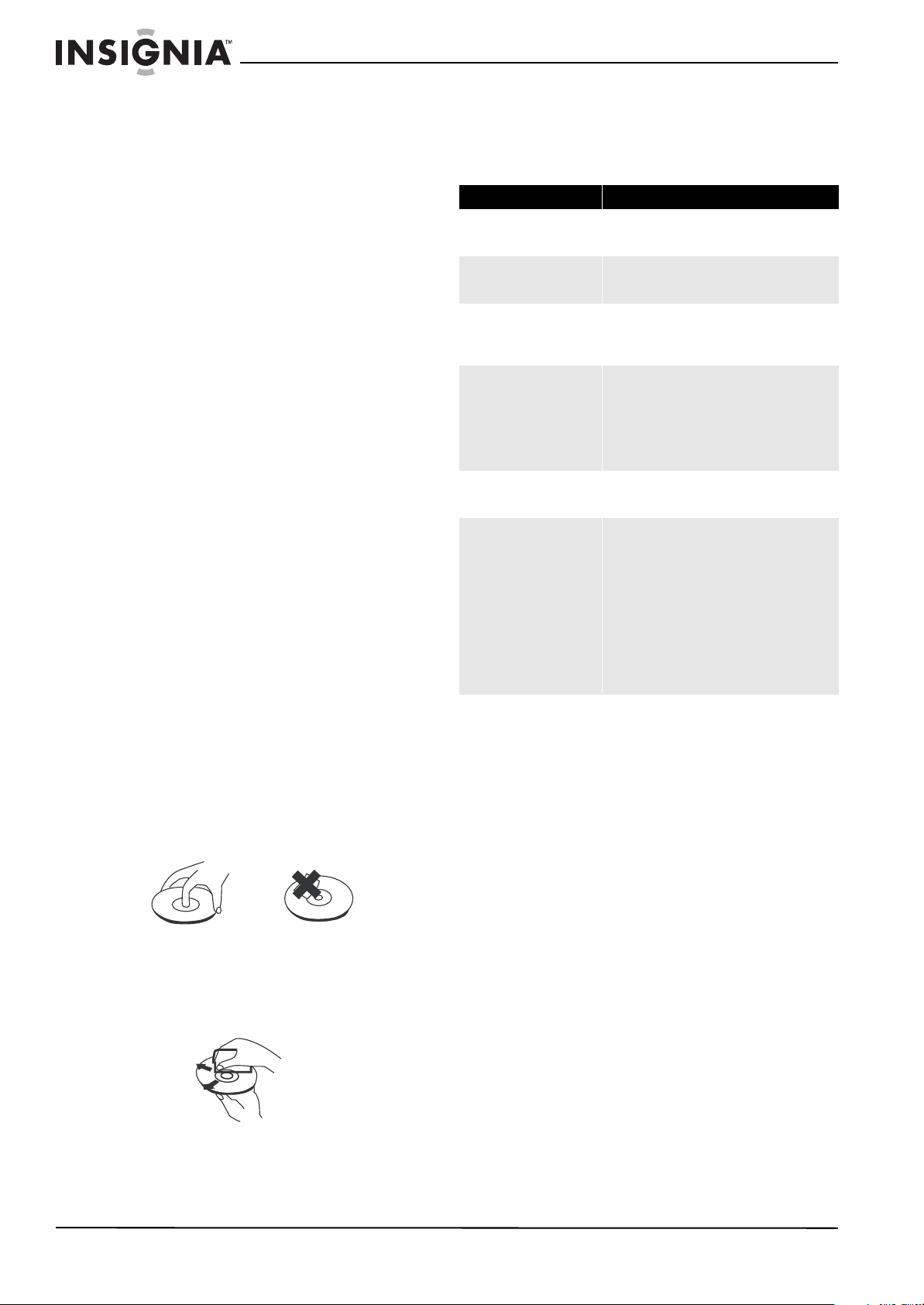
22
NS-WBRDVD2/NS-WBRDVD2-CA Wireless Blu-ray Disc Player
www.insigniaproducts.com
• Do not install this equipment in a confined
space such as a book case or similar unit. The
ventilation should not be impeded by
covering the ventilation openings with items
such as newspapers, table-cloths, or curtains.
• Make sure that you leave a minimum of 4 inches
(10 cm) around your player for sufficient
ventilation.
Electrical disturbance
If you place your player next to a radio, TV, or VCR,
the image may be poor and the sound may be
distorted. In this case, move your player away from
the radio, TV, or VCR.
Condensation
Condensation may form inside your player when:
• You move your player from a cold area to a warm
area
• You use it in a cold room where you have just
turned on a heater
• Air conditioning is blowing directly on your player
• Your player is in a damp place
If condensation forms inside your player, your
player will not work correctly. Turn on your player,
remove the disc and leave the tray open, then leave
your player on for two to three hours.
To minimize condensation problems, keep the
power cord connected to a power outlet.
Storing discs
• Do not store discs in a place that is exposed to
direct sunlight or heat.
• Do not store discs in a place that is exposed to
moisture and dust, such as a bathroom or near a
humidifier.
• Store discs vertically in their cases. Stacking discs
or placing objects on discs when not in their cases
may cause warping.
Handling discs
• To keep a disc clean, do not touch the play side
(non-label side) of the disc.
• Do not attach paper or tape to the disc.
Cleaning discs
• Before playback, wipe the disc outwards from the
center (not in a circle) with a clean cloth.
FAQ (frequently asked
questions)
Troubleshooting
Check the following information for the possible
cause and solution for a problem before contacting
the nearest service center or dealer for repairs.
The following do not indicate a problem with your
player:
• Regular disc rotation sounds.
• Image disturbance during search.
Resetting your player
To reset your player:
• To reset all settings (include parental control
settings) to the factory default, select one of the
following options from the System menu:
• Restore factory settings and deactivate all
connected applications
• Restore factory settings
• Deactivate all connected applications
• Deactivate Netflix
• Deactivate Pandora
• Deactivate CinemaNow
Question Answers
What do I need to play
multi-channel surround sound?
Connect the appropriate amplifier/receiver to the
HDMI jack, the DIGITAL AUDIO OUT jack (OPTICAL or
COAXIAL).
Can I connect headphones to my
player?
You cannot directly connect headphones to your
player. Connect headphones to the connected TV or
sound system.
My television has COMPOSITE
VIDEO IN, COMPONENT(YUV) IN
and HDMI IN jacks. Which
should I use?
HDMI provides the best video and audio. Component
video provides better video than composite video, but
not as good as HDMI video. Composite video provides
good video.
Can I play Blu-ray Discs and
DVDs bought in another
country?
You can play them if the video standard is NTSC.
However, you cannot play:
• Blu-ray Discs that do not include region code
A.
• DVDs that do not include region code 1 or
ALL.
Region codes are on the discs or disc packaging.
Can I play Blu-ray Discs and
DVDs that do not have a region
code?
No. Region codes indicate that a disc conforms to
industry standards. You cannot play a disc that does
not have a region code.
What types of discs will my
player play?
Your player can play:
• Blu-ray Discs, including BD-R and BD-RE.
• DVD-Video, DVD-R/RW (DVD Video format
and DVD Video Recording format), DVD-R DL
(DVD Video format and DVD Video Recording
format), DVD+R, DVD+RW, and DVD+R DL
•Audio CD
• CD-R/RW discs which have been recorded in
one of the following standards: CD-DA and
still pictures (JPEG). Close the session after
recording.
Note: Your player cannot write to discs.
NS-WBRDVD2-WBRDVD2-CA_10-0865_MAN_V5.book Page 22 Monday, October 24, 2011 10:28 PM

23
Wireless Blu-ray Disc Player
www.insigniaproducts.com
Power
Operation
TV screen and video
HDMI connections
Problem Solution
No power Make sure that the power cord is plugged into a power
outlet and that the outlet is supplying power.
The player switches to
standby mode
After a period of inactivity, your player switches to
standby mode automatically. This is a power saving
feature.
If your player switches to standby mode unexpectedly, a
safety device may have been activated. Press
STANDBY/ON on the front of your player.
Problem Solution
Remote control does not work
• Make sure that you are pointing the remote
control at the remote control sensor on the
front of your player.
• Make sure that there are no obstructions
between the remote control and the remote
control sensor on the front of your player.
• Make sure that there is no colored glass
between the remote control and the remote
control sensor on the front of your player.
Colored glass, such as the glass door of an
entertainment center, can interfere with
signal reception.
• Make sure that the remote control sensor is
not exposed to direct sunlight or bright light.
These can interfere with signal reception.
• Replace the batteries.
Some or all functions do not
work
• Some functions are not allowed by the disc, for
example, fast-forwarding through the
warning information at the beginning of the
disc.
• Condensation may have formed inside your
player. Turn off your player and wait one to
two hours for the condensation to evaporate.
• Reset your player. For instructions, see
“Resetting your player” on page 22.
Playback fails to start or starts
then stops even when
(play/pause) is pressed
• Make sure that the disc is inserted face up in
the disc tray.
• Make sure that the disc is not dirty. For
instructions, see “Cleaning discs” on page 22.
• The disc may be blank or incompatible with
your player. Try another disc.
Start up is slow and audio and
video output takes a long time
• If power has been interrupted or the power
cord has just been connected, startup is slow.
This is not a defect.
• If your player is connected to the TV with an
HDMI cable, startup is slow. This is not a
defect.
When reading a disc, the disc
tray opens
• Make sure that the disc is not dirty. For
instructions, see “Cleaning discs” on page 22.
• The disc may be incompatible with your
player. Try another disc.
• Reset your player. For instructions, see
“Resetting your player” on page 22.
Audio or video pause during
playback
• Make sure that the disc is not dirty. For
instructions, see “Cleaning discs” on page 22.
• Reset your player. For instructions, see
“Resetting your player” on page 22.
The player is on and the logo
and menu appear, but there is
no image from the disc
• Make sure that the disc is not dirty. For
instructions on cleaning a disc, see “Cleaning
discs” on page 22.
• Reset your player. For instructions, see
“Resetting your player” on page 22.
The player freezes when
reading a disc
• Reset your player. For instructions, see
“Resetting your player” on page 22. When you
see “loading” on the screen, press
(open/close) to open the disc tray and remove
the disc. Clean the disc. (For instructions, see
“Cleaning discs” on page 22), then try the disc
again.
• If your player freezes again, the disc may
contain some content that is not compatible
with your player. Do no try playing the disc
with your player.
• Make sure the firmware is up to date. See
“Upgrading your player’s firmware” on
page 21.
Problem Solution
Video does not appear on the
TV screen or the picture is
distorted
• Make sure that the TV is connected to the
correct jacks on the back of your player.
• Make sure that the TV is set to the correct
video input source.
• The TV may be in screen saver mode. Check
the documentation that came with the TV for
instructions about “waking” your TV.
• Reset your player. For instructions, see
“Resetting your player” on page 22.
Video is not output in high
definition
• High definition video cannot be output
through the VIDEO jack. You must connect
the TV to your player using the COMPONENT
jacks or HDMI jack.
• Make sure that the correct HDMI or
component video resolution has been
selected in the Setup menu. See “Selecting
the video output resolution” on page 13.
• Depending on the Blu-ray Disc, output from
the COMPONENT VIDEO jacks may be
restricted to 480p.
The 4:3 aspect ratio picture
expands left and right or the
picture size is incorrect
• Use the TV to change the aspect ratio. See the
documentation that came with the TV.
• When using a component video cable, set TV
Aspect on your player to 4:3 Pan & Scan.
See “Selecting the TV aspect ratio” on
page 13.
There is no apparent change in
the picture quality when the
picture settings are changed in
the Setup menu
• Depending on the video type, changes may
not be apparent.
When playing a BD-Live disc,
the screen is black
• Erase BD Storage. See “Erasing BD-Live
storage” on page 19.
• Make sure that your Internet connection is
working.
• Make sure that the Internet cable is
connected securely and correctly to your
player and the Internet jack. Some discs
require an Internet connection to play.
Problem Solution
The 4:3 aspect ratio picture
expands left and right or the
picture size is incorrect
• Change TV Aspect on your player to 16:9.
See “Selecting the TV aspect ratio” on
page 13.
Problem Solution
NS-WBRDVD2-WBRDVD2-CA_10-0865_MAN_V5.book Page 23 Monday, October 24, 2011 10:28 PM
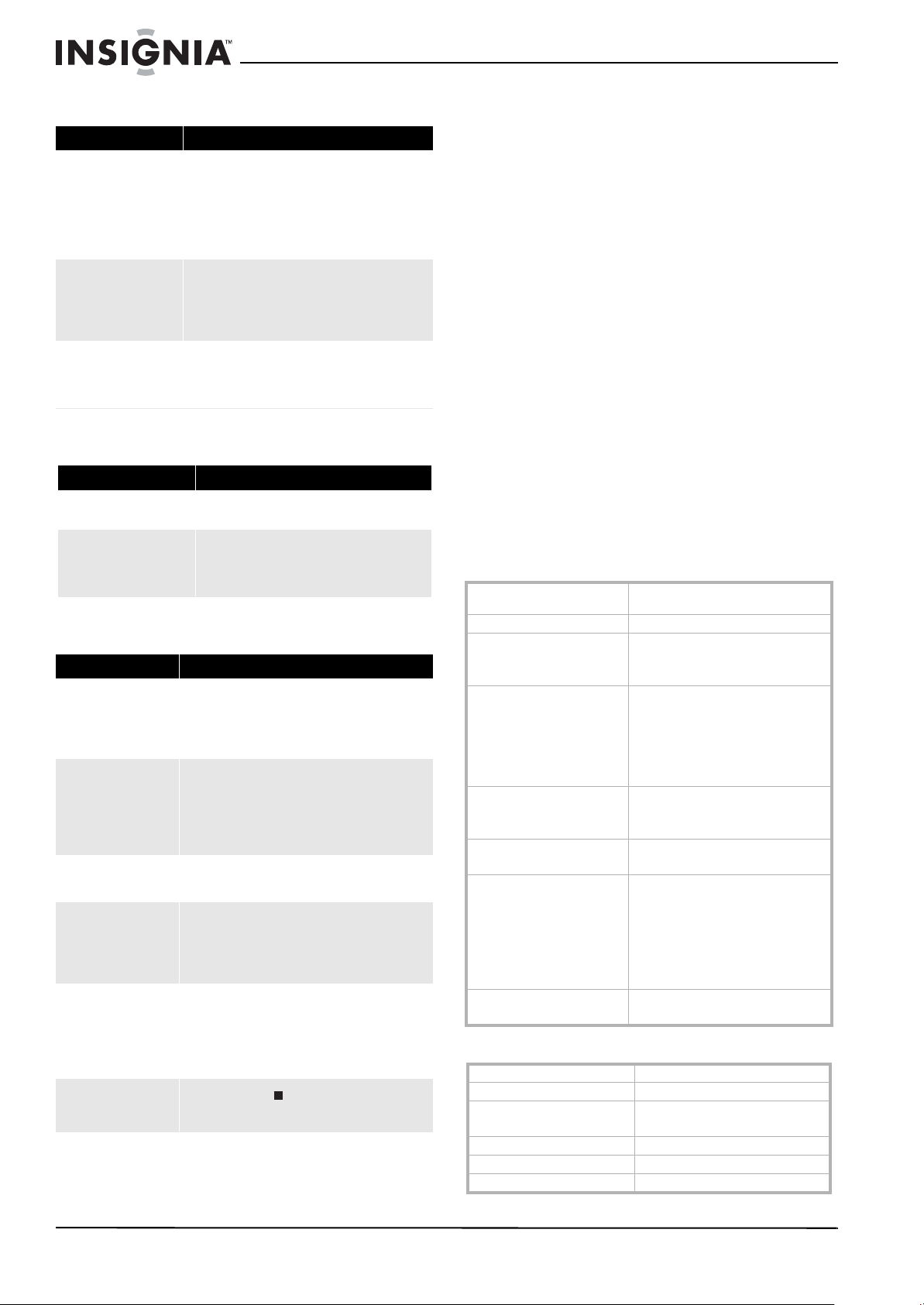
24
NS-WBRDVD2/NS-WBRDVD2-CA Wireless Blu-ray Disc Player
www.insigniaproducts.com
BD-Live and USB connections
Internet and USB connections
Other playback problems
BD-Live technical notes
• The Insignia player only supports the connection
of USB memory in order to fulfill the Blu-ray Disc
Profile 2.0 or “BD-Live” requirement for 1 GB of
free, available storage.
• An externally connected drive will become the
default storage for BD-Live content and the
internal storage will be ignored.
• You must have a BD-Live disc in the player to play
any related (already downloaded) content.
• Some BD-Live content may expire and will not
play.
• You will occasionally need to delete the contents
in storage in order to free up space. This can be
done from your player’s main setup menu, in the
BD-Live submenu (Select Erase Blu-ray storage).
The Insignia player currently only allows deleting
the entire BD storage.
• No clock is used to manage the expiration of
downloaded BD-live content. Instead, time and
expiration of content is managed by the BD-Live
server on the Internet.
Specifications
Specifications are subject to change without notice.
System and outputs
General
Problem Solution
Cannot connect access
BD-Live content
• Make sure that the BD-Live Disc you are using is
a legal copy.
• Make sure that the USB memory stick is
connected correctly and securely and has at
least 1 GB capacity.
• Make sure that the network connection is
working.
After connecting to the
Internet, cannot download a
file
• Erase BD Storage. See “Erasing BD-Live storage”
on page 19.
• Make sure that the Internet connection is
working.
• Try a different USB memory stick.
File was downloaded, but
playback from file pauses
• Make sure that the USB memory stick is a USB
2.0 device. Using a USB 1.1 device may cause
pausing.
• Try a different USB memory stick.
Problem Solution
Cannot perform automatic
setup with my wireless router
• Only WPS automatic setup is supported by
the player.
Cannot connect to my wireless
router
• Make sure that the router automatically
allows new devices to connect to it.
• The 802.11n specification is not finalized, so
not all 802.11n devices are compatible.
Problem Solution
Audio and video pause
momentarily
• This happens when your player is changing
chapters in a playlist.
• When playing a disc that is recorded on both
layers, audio and video may pause when your
player is changing layers.
Blu-ray Disc or DVD does
not play
• Make sure that the disc has the correct region
code.
• Check the rating on the disc. You may have set
parental controls to block that rating.
• Some Blu-ray discs will only play over an HDMI
connection.
Picture-in-Picture (PIP)
does not work on a Blu-ray
Disc
• Make sure that the disc supports PIP mode.
No subtitles
• Turn on subtitles. See “Selecting the subtitle
language” on page 12.
• Make sure that the disc was recorded with
subtitles. If the disc has subtitles, a subtitle
option should appear on the disc’s menu.
Cannot change the viewing
angle
• Some discs are not recorded with multiple
viewing angles. Check the documentation that
came with the disc.
• Not all scenes on a disc have multiple viewing
angles. Check the documentation that came with
the disc.
Resume function does not
work
• If you press (stop) twice, the resume
information is erased.
• Some discs do not support the resume function.
Media BD-ROM, DVD-Video, DVD+RW/+R,
DVD-RW/-R, CD-RW/-R, BD-R, and BD-RE.
TV signal system NTSC
Video output Electric level output: 1.0 Vp-p
Resistance: 75 ohms
Output connector: Pin jack (1 system)
Component video (Y, CB,CR) Y output level: 1.0 Vp-p Resistance: 75 ohms
PB output level: 0.7 Vp-p Resistance: 75 ohms
PR output level: 0.7 Vp-p Resistance: 75 ohms
Output connector: Pin jack (Y: green, PB: blue,
PR: red)(1 set)
Output format: 480i, 480p, 720p, 1080i
Audio output (analog) Output level: 2 Vrms (1 kHz, 0 dB)
Output connector: Pin jack
Number of connectors: 2-channel (1)
Audio output (digital) Optical digital output (1)
Coaxial digital output (pin jack) (1)
Audio performance (frequency
response)
DVD (linear audio):
• 4 Hz to 22 kHz (48 kHz sampling)
• 4 Hz to 44 kHz (96 kHz sampling)
CD-Audio: 4 Hz to 20 kHz
S/N ratio: 90 dB
Dynamic range: 80 dB
Total harmonic distortion: 0.004%
HDMI output Output format: 480i, 480p, 720p,1080i, 1080p
Output Connector: Type A (19 pin)
Power 110V-120V ~ 50/60Hz
Power consumption 15 W
Dimensions
L×W×H
16.93 × 9.06 × 1.50 inches
(430 × 230 × 38 mm)
Weight 4.74 lbs. (2.15 kg)
Operating temperature 41°F to 95°F (5°C to 35°C)
Operating humidity 10% to 80%
NS-WBRDVD2-WBRDVD2-CA_10-0865_MAN_V5.book Page 24 Monday, October 24, 2011 10:28 PM
25
Wireless Blu-ray Disc Player
www.insigniaproducts.com
Video file requirement (USB/DISC)
Video file compatibility with your player is limited
as follows:
• Maximum resolution size: 1920x1080 (W x H)
pixels
• File extensions: .wmv, .avi, .mp4, .mpeg (Note:
Files encoded by Divx cannot be played on this
player)
• Playable Audio format: Dolby Digital , DTS , MP3 ,
WMA , AAC , AC3
• Sampling frequency: within 32 to 48kHz (WMA),
within 16-48kHz (Mp3)
• Bit rate: within 20-320kbps (WMA), within
32-320kbps (Mp3)
• CD-R/RW, DVD R/RW, BD-R/RE Format: ISO
9660+JOLIET, UDF and UDF Bridge format
• Maximum Files/Folder: Less than 2000. The movie
file name and subtitle are limited to 180
characters.
• Not all of the WMA and AAC Audio formats are
compatible with your player.
• HD WMA movie files contained on a USB 1.0/1.1
flash drive may not play correctly. Blu-ray, DVD, or
USB 2.0 are recommended to play back HD WMA
movie files.
• Your player does not support files that are
recorded with GMC (Global Motion
Compensation) or Qpel (Quarter pixel). Those are
video encoding techniques in MPEG4 standard,
like DivX or XVID.
MP3/WMA audio file requirement (USB/DISC)
• File extensions: .mp3, .wma
• Sampling frequency: Within 8 to 48kHz (WMA),
within 11 to 48kHz (Mp3)
• Bit rate: Within 8-320kbps (WMA, Mp3)
• CD-R/RW, DVD R/RW, BD-R/RE Format:
ISO 9660+JOLIET, UDF and UDF Bridge format
•Maximum Files/Folder: Less than 2000 (total
number of files and folders)
• Depending on the size and number of the
MP3/WMA files, it may take several minutes to
read the contents of the media.
• HD WMA movie files contained on a USB 1.0/1.1
flash drive may not play correctly. Blu-ray, DVD, or
USB 2.0 are recommended to play back HD WMA
movie files.
Photo file requirement (USB/DISC)
• File extensions: .jpg , .jpeg , .png
• Recommended size:
• Less than 4,000 x 3,000 x 24 bit/pixel
• Less than 3,000 x 3,000 x 32 bit/pixel
• CD-R/RW, DVD R/RW, BD-R/RE Format:
ISO 9660+JOLIET, UDF, and UDF Bridge format
•Maximum Files/Folder: Less than 2000 (total
number of files and folders)
• Progressive and lossless compression photo
image files are not supported.
• Depending on the size and number of the photo
files, it may take several minutes to read the
contents of the media.
Legal notices
FCC Part 15
This device complies with Part 15 of the FCC Rules. Operation of
this product is subject to the following two conditions: (1) this
device may not cause harmful interference, and (2) this device
must accept any interference received, including interference
that may cause undesired operation.
This equipment has been tested and found to comply within the
limits for a class B digital device, pursuant to Part 15 of the FCC
Rules. These limits are designed to provide reasonable
protection against harmful interference in a residential
installation. This equipment generates, uses, and can radiate
radio frequency energy and, if not installed and used in
accordance with the instructions, may cause harmful
interference to radio communications. However, there is no
guarantee that interference will not occur in a particular
installation. If this equipment does cause harmful interference to
radio or television reception, which can be determined by
turning the equipment off and on, the user is encouraged to try
to correct the interference by one or more of the following
measures:
• Reorient or relocate the receiving antenna.
• Increase the separation between the equipment and
receiver.
• Connect the equipment into an outlet on a circuit different
from that to which the receiver is connected.
• Consult the dealer or an experienced technician for help.
FCC warning
Changes or modifications not expressly approved by the party
responsible for compliance with the FCC Rules could void the
user’s authority to operate this equipment.
DHHS and FDA safety certification
This product is made and tested to meet safety standards of the
FCC, requirements and compliance with safety performance of
the U.S. Department of Health and Human Services, and also
with FDA Radiation Performance Standards 21 CFR Subchapter J.
Canada ICES-003 statement
This Class B digital apparatus complies with Canadian ICES-003.
About copyright
Unauthorized copying, broadcasting, public performance, and
lending of discs are prohibited. Your player incorporates
copyright protection technology that is protected by U.S.
patents and other intellectual property rights. Use of this
copyright protection technology must be authorized by
Macrovision, and is intended for home and other limited viewing
uses only unless otherwise authorized by Macrovision. Reverse
engineering or disassembly is prohibited.
HDMI™
Your TV incorporates HDMI™ technology. HDMI, the
HDMI Logo and High-Definition Multimedia Interface are
trademarks or registered trademarks of HDMI Licensing LLC.
Energy Star
Products that have earned ENERGY STAR® are designed to
protect the environment through superior energy efficiency.
Your player is Energy Star compliant.
Sun Microsystems, Inc.
Java and all other Java trademarks and logos are
trademarks or registered trademarks of Sun
Microsystems, Inc. in the United States and/or other
countries.
Macrovision
This product incorporates copyright protection technology that
is protected by U.S. patents and other intellectual property
rights. Use of this copyright protection technology must be
authorized by Macrovision, and is intended for home and other
limited viewing uses only unless otherwise authorized by
Macrovision. Reverse engineering or disassembly is prohibited.
NS-WBRDVD2-WBRDVD2-CA_10-0865_MAN_V5.book Page 25 Monday, October 24, 2011 10:28 PM

26
NS-WBRDVD2/NS-WBRDVD2-CA Wireless Blu-ray Disc Player
www.insigniaproducts.com
Dolby Laboratories
Manufactured under license from Dolby
Laboratories. Dolby and the double-D symbol are
trademarks of Dolby Laboratories.
DTS, Inc.
Manufactured under license under U.S.
Patent #’s: 5,451,942; 5,956,674; 5,974,380;
5,978,762; 6,487,535 & other U.S. and
worldwide patents issued & pending. DTS
and the Symbol are registered trademarks, and DTS-HD, DTS-HD
Advanced Digital Out, and the DTS logos are trademarks of DTS,
Inc. Ptoduct includes software. ©DTS, Inc. All Rights Reserved.
OPEN SOURCE SOFTWARE
For OPEN SOURCE SOFTWARE information, refer to the System
information section in the on-screen display (OSD) on the
Blu-Ray player.
If you require additional information or you wish to receive the
complete corresponding GPL or LGPL licensed source code,
please call the Insignia support line at 1-877-467-4289. This
source code is available for a period of three (3) years from the
date of the distribution of this product by Insignia.
Disclaimer
This Insignia product may contain content and/or services that
belong to a third party. Such third party content and/or service
may only be used in compliance with the terms and conditions
that govern such use. Unless expressly authorized by the
applicable third party’s terms of use, you may not modify, copy,
republish, upload, post, transmit, translate, sell, create derivative
works, exploit, or distribute in any manner or medium any third
party content or service displayed through the Insignia product.
All third party content or service is provided “as is.” Third party
content or service may be terminated or interrupted at any time.
Insignia has no control over the networks and transmission
facilities that third party content and services are transmitted
through. Any question or request regarding third party content
or services should be made directly to the applicable third party.
INSIGNIA EXPRESSLY DISCLAIMS ANY RESPONSIBILITY OR
LIABILITY FOR ANY AVAILABILITY, INTERRUPTION OR
SUSPENSION OF ANY THIRD PARTY CONTENT OR SERVICE MADE
AVAILABLE THROUGH THE INSIGNIA PRODUCT. INSIGNIA DOES
NOT WARRANT OR MAKE ANY REPRESENTATION, WHETHER
EXPRESS OR IMPLIED, ABOUT THE SUBSTANCE, QUALITY,
FUNCTIONALITY, ACCURACY, VALIDITY, TIMELINESS, SUITABILITY,
AVAILABILITY, COMPLETENESS, FITNESS FOR A PARTICULAR
PURPOSE, MERCHANTABILITY OR ANY OTHER REPRESENTATION
ABOUT SUCH CONTENT OR SERVICES. INSIGNIA EXPRESSLY
DISCLAIMS ANY AND ALL IMPLIED WARRANTIES, INCLUDING
BUT NOT LIMITED TO, WARRANTIES OF MERCHANTABILITY OR
FITNESS FOR A PARTICULAR PURPOSE. UNDER NO
CIRCUMSTANCES, INCLUDING NEGLIGENCE, SHALL INSIGNIA BE
LIABLE, WHETHER IN CONTRACT OR TORT, FOR ANY DIRECT,
INDIRECT, INCIDENTAL, SPECIAL OR CONSEQUENTIAL DAMAGES,
ATTORNEY FEES, COSTS, EXPENSES, OR ANY OTHER DAMAGES
ARISING OUT OF OR IN CONNECTION WITH THE USE OF ANY
THIRD PARTY CONTENT OR SERVICES, EVEN IF ADVISED OF THE
POSSIBILITY OF SUCH DAMAGES.
NS-WBRDVD2-WBRDVD2-CA_10-0865_MAN_V5.book Page 26 Monday, October 24, 2011 10:28 PM

27
Wireless Blu-ray Disc Player
www.insigniaproducts.com
One-year limited warranty
Insignia Products (“Insignia”) warrants to you, the original
purchaser of this new product (“Product”), that the Product shall
be free of defects in the original manufacture of the material or
workmanship for a period of one (1) year from the date of your
purchase of the Product (“Warranty Period”). This Product must
be purchased from an authorized dealer of Insignia brand
products and packaged with this warranty statement. This
warranty does not cover refurbished Product. If you notify
Insignia during the Warranty Period of a defect covered by this
warranty that requires service, terms of this warranty apply.
How long does the coverage last?
The Warranty Period lasts for 1 year (365 days) from the date you
purchased the Product. The purchase date is printed on the
receipt you received with the Product.
What does this warranty cover?
During the Warranty Period, if the original manufacture of the
material or workmanship of the Product is determined to be
defective by an authorized Insignia repair center or store
personnel, Insignia will (at its sole option): (1) repair the Product
with new or rebuilt parts; or (2) replace the Product at no charge
with new or rebuilt comparable products or parts. Products and
parts replaced under this warranty become the property of
Insignia and are not returned to you. If service of Products or
parts are required after the Warranty Period expires, you must
pay all labor and parts charges. This warranty lasts as long as you
own your Insignia Product during the Warranty Period. Warranty
coverage terminates if you sell or otherwise transfer the Product.
How to obtain warranty service?
If you purchased the Product at a retail store location, take your
original receipt and the Product to the store you purchased it
from. Make sure that you place the Product in its original
packaging or packaging that provides the same amount of
protection as the original packaging. If you purchased the
Product from an online web site, mail your original receipt and
the Product to the address listed on the web site. Make sure that
you put the Product in its original packaging or packaging that
provides the same amount of protection as the original
packaging.
To obtain in-home warranty service for a television with a screen
30 inches or larger, call 1-888-BESTBUY. Call agents will diagnose
and correct the issue over the phone or will have an
Insignia-approved repair person dispatched to your home.
Should the Insignia-approved repair person not correct the issue
on the first call, an Insignia television (size and features to be
determined by Insignia) will be loaned to you until your TV is
repaired and returned, at no charge to you. This feature is only
available to Insignia television consumers residing in the United
States.
Where is the warranty valid?
This warranty is valid only to the original purchaser of the
product in the United States, Canada, and Mexico.
What does the warranty not cover?
This warranty does not cover:
• Customer instruction
• Installation
•Set up adjustments
•Cosmetic damage
• Damage due to acts of God, such as lightning strikes
• Accident
• Misuse
•Abuse
•Negligence
• Commercial use
• Modification of any part of the Product, including the
antenna
• Plasma display panel damaged by static (non-moving)
images applied for lengthy periods (burn-in).
This warranty also does not cover:
• Damage due to incorrect operation or maintenance
• Connection to an incorrect voltage supply
• Attempted repair by anyone other than a facility
authorized by Insignia to service the Product
• Products sold as is or with all faults
• Consumables, such as fuses or batteries
• Products where the factory applied serial number has been
altered or removed
REPAIR REPLACEMENT AS PROVIDED UNDER THIS WARRANTY IS
YOUR EXCLUSIVE REMEDY. INSIGNIA SHALL NOT BE LIABLE FOR
ANY INCIDENTAL OR CONSEQUENTIAL DAMAGES FOR THE
BREACH OF ANY EXPRESS OR IMPLIED WARRANTY ON THIS
PRODUCT, INCLUDING, BUT NOT LIMITED TO, LOST DATA, LOSS
OF USE OF YOUR PRODUCT, LOST BUSINESS OR LOST PROFITS.
INSIGNIA PRODUCTS MAKES NO OTHER EXPRESS WARRANTIES
WITH RESPECT TO THE PRODUCT, ALL EXPRESS AND IMPLIED
WARRANTIES FOR THE PRODUCT, INCLUDING, BUT NOT LIMITED
TO, ANY IMPLIED WARRANTIES OF AND CONDITIONS OF
MERCHANTABILITY AND FITNESS FOR A PARTICULAR PURPOSE,
ARE LIMITED IN DURATION TO THE WARRANTY PERIOD SET
FORTH ABOVE AND NO WARRANTIES, WHETHER EXPRESS OR
IMPLIED, WILL APPLY AFTER THE WARRANTY PERIOD. SOME
STATES, PROVINCES AND JURISDICTIONS DO NOT ALLOW
LIMITATIONS ON HOW LONG AN IMPLIED WARRANTY LASTS, SO
THE ABOVE LIMITATION MAY NOT APPLY TO YOU. THIS
WARRANTY GIVES YOU SPECIFIC LEGAL RIGHTS, AND YOU MAY
ALSO HAVE OTHER RIGHTS, WHICH VARY FROM STATE TO STATE
OR PROVINCE TO PROVINCE.
Contact Insignia:
For customer service please call 1-877-467-4289
www.insigniaproducts.com
Distributed by Best Buy Purchasing, LLC
7601 Penn Avenue South, Richfield, Minnesota, U.S.A.
55423-3645
© 2011 BBY Solutions, Inc.
All rights reserved. INSIGNIA is a trademark of BBY Solutions, Inc.
Registered in some countries. All other products and brand
names are trademarks of their respective owners.
NS-WBRDVD2-WBRDVD2-CA_10-0865_MAN_V5.book Page 27 Monday, October 24, 2011 10:28 PM

www.insigniaproducts.com (877) 467-4289
Distributed by Best Buy Purchasing, LLC
7601 Penn Avenue South, Richfield, MN USA 55423-3645
© 2011 BBY Solutions, Inc.
All rights reserved. INSIGNIA is a trademark of BBY Solutions, Inc. Registered in some countries.
All other products and brand names are trademarks of their respective owners.
ENGLISH
10-0865
NS-WBRDVD2-WBRDVD2-CA_10-0865_MAN_V5.book Page -1 Monday, October 24, 2011 10:28 PM