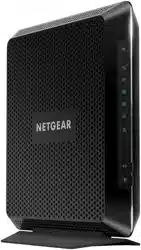
User Manual Netgear C7000V2 WiFi Cable Modem Router
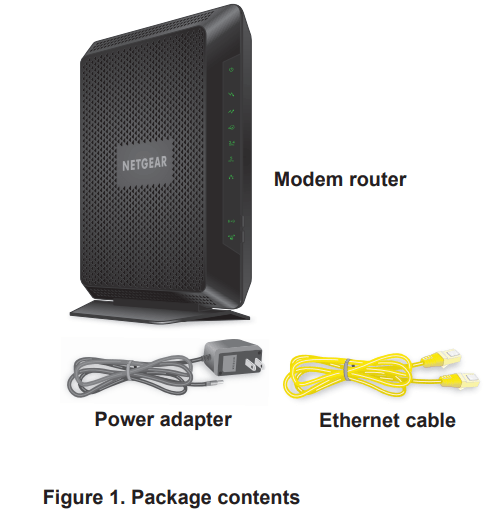
Unpack Your Modem Router
Your package contains the following items.
Front Panel
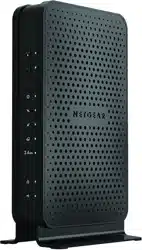
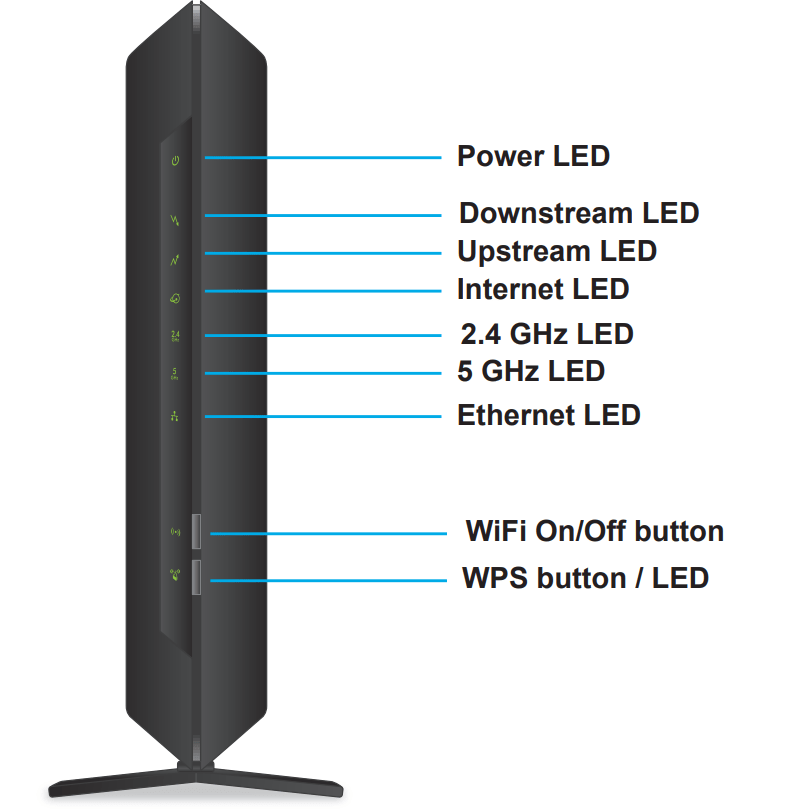
Status LEDs and buttons are located on the front or the modem router.
Figure 2. Modem router front view
LED Descriptions
You can use the LEDs to verify status and connections. The following table lists and describes each LED and button on the front panel of the modem router.
Table 1. LED and button descriptions
LED
Description
Power
Green. Power is supplied to the modem router.
Red. Power is cut off due to a thermal error caused by heat. Move the unit to a well ventilated area and power cycle the unit.
Off. No power is supplied to the modem router.
Downstream
Solid green. One or more downstream channels are locked.
Blinking green. The unit is scanning for a downstream channel.
Off. No downstream channel is locked.
Upstream
Solid green. One or more upstream channels are locked.
Blinking green. The unit is scanning for an upstream channel.
Off. No upstream channel is locked.
Internet
Solid green. The modem router is online.
Blinking green. The modem router is synchronizing with the cable provider's cable modem termination system (CMTS).
Off. The modem router is offline.
2.4 GHz radio
Green. The 2.4 GHz radio is on.
Blinking green. There is WiFi traffic on the 2.4 GHz band.
Off. The 2.4 GHz radio is off.
5 GHz radio
Green. The 5 GHz radio is on.
Blinking green. There is WiFi traffic on the 5 GHz band.
Off. The 5 GHz radio is off.
Ethernet
Green. A device is connected to an Ethernet port and powered on.
Blinking green. The Ethernet port is sending or receiving traffic.
Off. No device is connected to an Ethernet port.
WPS button with LED
This button lets you use WPS to join the WiFi network without typing the WiFi password. The WPS LED blinks during this process and then lights solid.
WiFi On/Off button with LED
Pressing this button for two seconds turns the WiFi radios in the modem router on and off. If this LED is lit, the WiFi radios are on. If this LED is off, the WiFi radios are turned off and
you cannot use WiFi to connect to the modem router.
Rear Panel
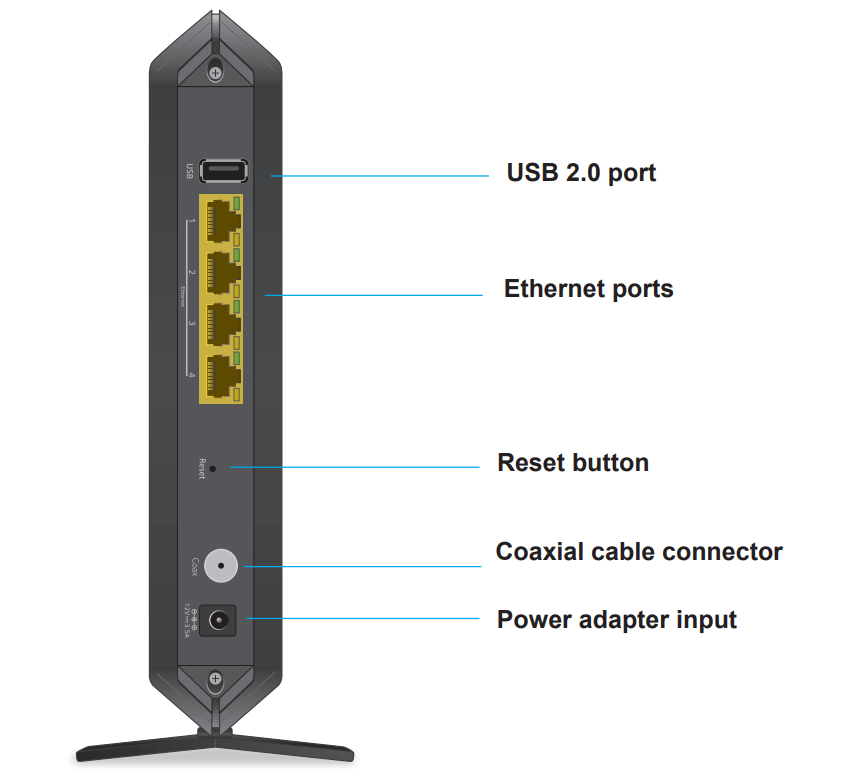
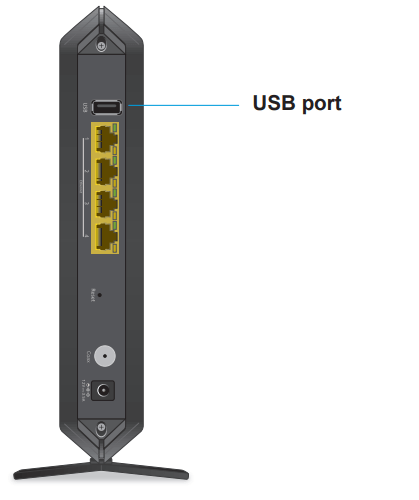
The connections and button on the rear panel are shown the following figure.
Figure 3. Modem router rear panel
Position Your Modem Router
The modem router lets you access your network anywhere within the operating range of your wireless network. However, the operating distance or range of your wireless connection can vary significantly depending on the physical placement of your modem router. For example, the thickness and number of walls the wireless signal passes through can limit the range.
Additionally, other wireless access points in and around your home might affect your modem router’s signal. Wireless access points are modem routers, repeaters, WiFi range extenders, and any other device that emits a wireless signal for network access.
Position your modem router according to the following guidelines:
Place your modem router near the center of the area where your computers and other devices operate, and within line of sight to your wireless devices.
Make sure that the modem router is within reach of an AC power outlet and near Ethernet cables for wired computers.
Place the modem router in an elevated location, minimizing the number walls and ceilings between the modem router and your other devices.
Place the modem router away from electrical devices such as these:
Ceiling fans
Home security systems
Microwaves
Computers
Base of a cordless phone
2.4 GHz cordless phone
Place the modem router away from large metal surfaces, large glass surfaces, insulated walls, and items such as these:
Solid metal doors
Aluminum studs
Fish tanks
Mirrors
Brick
Concrete
Install and Activate Your Modem Router
The modem router provides a connection between your cable Internet provider’s network and your computer, router, or WiFi router.
Connect Your Modem Router to a Computer
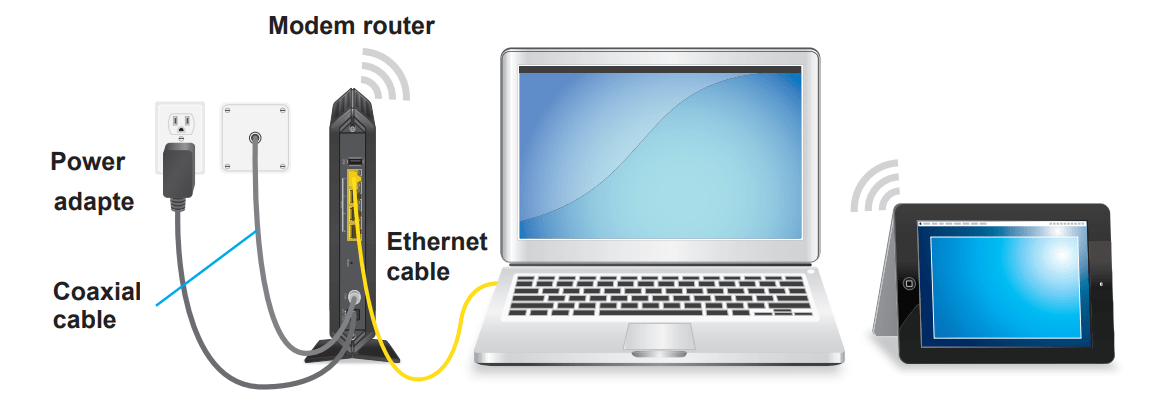
During the installation and activation, you must connect the modem router directly to a computer. After installation and activation, you can connect the modem router to a router.
Figure 4. Connect the modem router directly to a computer
Note: Before you connect your modem router and contact your cable Internet provider, collect your cable account number, account phone number, and login information (your email address or user name and password).
To connect your modem router directly to a computer:
Turn off existing modems and routers. If you are replacing a modem that is currently connected in your home, unplug the modem and plug the new modem router into the same outlet.
Connect a coaxial cable. Use the coaxial cable that your cable company provided to connect the cable port on the modem router to a cable wall outlet or a line splitter. Make sure that the cable is tightly connected. Note: If Charter is your cable Internet service provider (ISP), Charter recommends connecting your modem router directly to a cable wall outlet. If you must use a splitter, use a splitter that is rated at 3.5 dBmv. If Comcast XFINITY is your cable Internet provider, Comcast XFINITY recommends connecting your modem router directly to a cable wall outlet.
Connect the power adapter provided in the package to the modem router and plug the power adapter into an electrical outlet. When the startup procedure is complete, the Power LED lights solid green.
Wait for the modem router to come online. When the modem router comes online, the Internet LED stops blinking and lights solid green. This process might take up to 10 minutes.
Even though an Internet connection is established, Internet service is available only after you set it up with your cable Internet provider.
Activate Your Internet Service
Before you activate your Internet service, gather the following information:
Your cable Internet provider account information
Modem router model number, which is C7000v2
Modem router serial number
Modem router MAC address
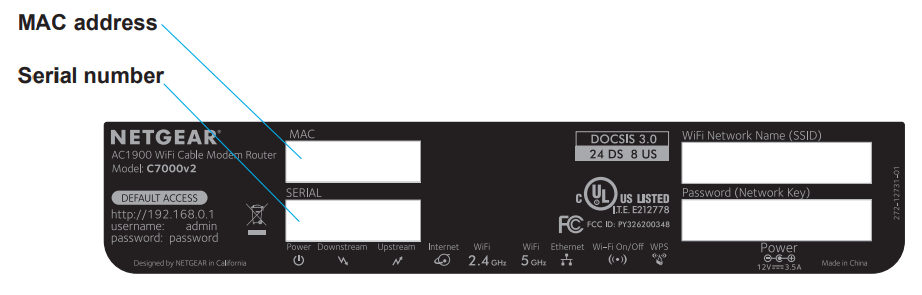
Your modem router’s serial number and MAC address are on the modem router label.
To activate your Internet service:
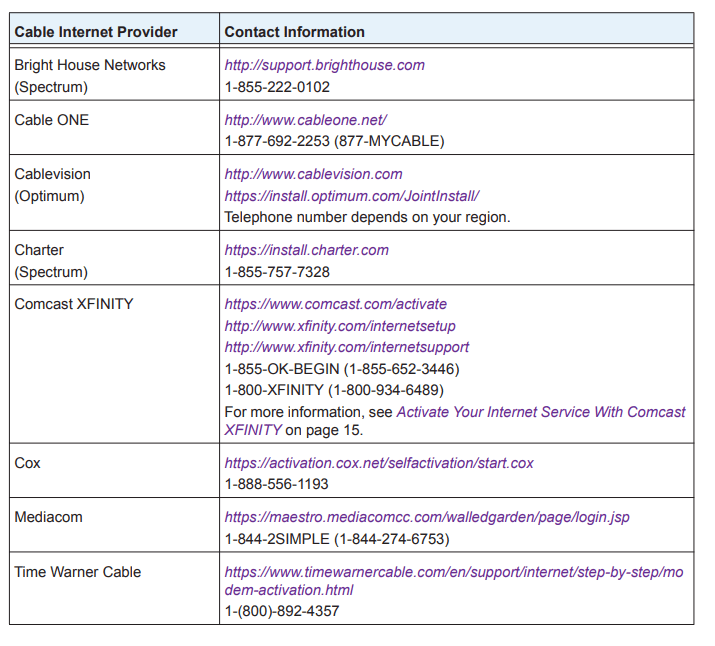
Visit your cable Internet provider’s website and follow the onscreen instructions to activate your Internet service.Note: Your cable Internet provider’s contact information might change. You can also find the contact information in your monthly Internet service billing statement.
If you are unable to activate your Internet service using the instructions on your cable Internet provider’s website, call your cable Internet provider for support.
Activate Your Internet Service With Comcast XFINITY
Activate your Internet service by using Comcast XFINITY’s self-activation process. If you are unable to self-activate your modem router, call Comcast XFINITY customer service. After you complete the setup, perform a speed test.
Before you start the self-activation process, gather the following information:
XFINITY account number
The phone number associated with your XFINITY account
XFINITY login information (your email address or user name and password)
Modem router model number, which is C7000v2
Modem router serial number
Modem router MAC address
Your modem router’s serial number and MAC address are on the modem router label.
To set up your Internet connection with Comcast XFINITY’s self-activation process:
Close all web browsers.
Launch a web browser.
You are redirected to the XFINITY self-activation page. If you are not redirected to the XFINITY self-activation page, visit comcast/activate.
Provide your XFINITY credentials and complete the self-activation process.
This process might take up to 15 minutes, during which the modem router reboots twice.
If you are unable to activate your modem router using the XFINITY self-activation process, call 1-855-OK-BEGIN (1-855-652-3446).
Perform a Speed Test
To determine the accurate Internet speed, visit the speed test website of your cable Internet provider and perform a speed test.
If your actual speed is lower than your subscribed speed, contact your cable Internet provider.
Connect Your Modem Router to a Router After Installation and Activation
During the installation and activation, you must connect the modem router directly to a computer. After installation and activation, you can connect the modem router to a router.
If you want to connect your modem router to a router, you must disable NAT. With NAT disabled, to avoid conflicting with the other router on the network, the modem router does not use NAT.
To disable NAT and connect your modem router to a router after installation and activation:
Connect a coaxial cable. Use the coaxial cable that is provided by your cable company to connect the cable port on the modem router to a cable wall outlet. Note: If Charter is your cable Internet service provider (ISP), Charter recommends connecting your modem router directly to a cable wall outlet. If you must use a splitter, use a splitter that is rated at 3.5 dBmv. Make sure that the cable is tightly connected.
Connect the power adapter to the modem router and plug the power adapter into an electrical outlet. The startup procedure takes about one minute. When the startup procedure is complete, the Power LED lights green.
On your WiFi-enabled computer or mobile device, find and select the WiFi network. The WiFi network name is on the modem router label.
Join the WiFi network and enter the WiFi password. The password is on the modem router label. Your WiFi device connects to the WiFi network.
Launch a web browser.
Type http://192.168.0.1. A login window opens.
Enter the modem router user name and password. The user name is admin. The default password is password. The user name and password are case-sensitive.
When prompted, change the password and enter security questions and answers. The BASIC Home page displays.
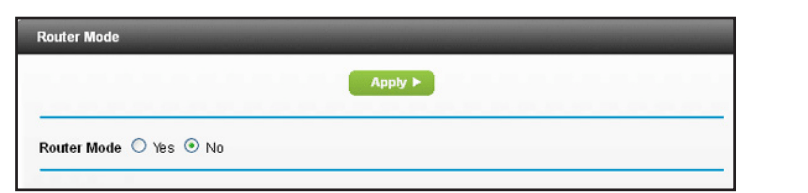
Select the No radio button. With this setting, the modem router works as a bridge and the router behind it obtains a WAN IP address from the Internet service provider.
Click the Apply button. Your settings are saved. Note: When your modem router is in bridge mode, use http://192.168.0.1 to log in to your modem router.
Follow the instructions that came with your router to connect it to the modem router.
Connect to the Network and Access the Modem Router
Connect to the Network
You can connect to the modem router’s network through a wired or WiFi connection. If you set up your computer to use a static IP address, change the settings so that it uses Dynamic Host Configuration Protocol (DHCP).
Wired Connection
You can connect your computer to the modem router using an Ethernet cable and join the modem router’s local area network (LAN).
To connect your computer to the modem router with an Ethernet cable:
Make sure that the modem router is receiving power (its Power LED is lit).
Connect an Ethernet cable to an Ethernet port on your computer.
Connect the other end of the Ethernet cable to one of the numbered Ethernet ports.
Your computer connects to the local area network (LAN). A message might display on your computer screen to notify you that an Ethernet cable is connected.
WiFi Connection
You can connect to the modem router’s WiFi network with Wi-Fi Protected Setup (WPS) or you can find and select the WiFi network.
To use WPS to connect to the WiFi network:
Make sure that the modem router is receiving power (its Power LED is lit).
Check the WPS instructions for your computer or wireless device.
Press the WPS button on the modem router.
Within two minutes, on your computer or WiFi device, press its WPS button or follow its instructions for WPS connections.
Your computer or wireless device connects to the WiFi network.
To find and select the WiFi network:
Make sure that the modem router is receiving power (its Power LED is lit).
On your computer or wireless device, find and select the WiFi network. The WiFi network name is on the modem router’s label.
Join the WiFi network and enter the WiFi password. The password is on the modem router’s label. Your wireless device connects to the WiFi network.
Label
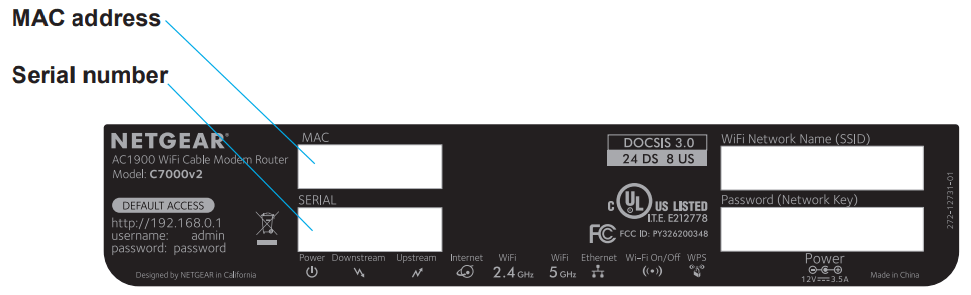
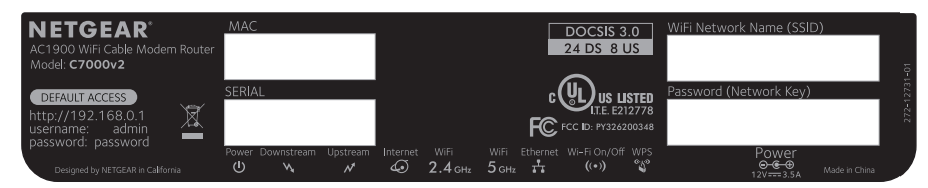
The label on the modem router shows the login information, MAC address, and serial number.
Figure 5. Modem Router label
Types of Logins
Separate types of logins serve different purposes. It is important that you understand the difference so that you know which login to use when.
Types of logins:
WiFi network key or password. Your modem router is preset with a unique wireless network name (SSID) and password for wireless access. This information is on the modem router label.
Note: Your modem router broadcasts dual-band 2.4 GHz and 5 GHz WiFi signals. The label shows the SSID for the 2.4 GHz signal. For information about 5 GHz WiFi settings, see Specify Basic WiFi Settings on page 69.
Modem router login.This logs you in to the modem router web interface as admin from an Internet browser.
Log In to the Modem Router
When you connect to the network (either with WiFi or with an Ethernet cable), you can use a web browser to access the modem router to view or change its settings. The first time you access the modem router, the modem router automatically checks to see if it can connect to your Internet service.
To log in to the modem router:
Launch a web browser from a computer or mobile device that is connected to the modem router network.
Enter http://192.168.0.1. A login window opens.
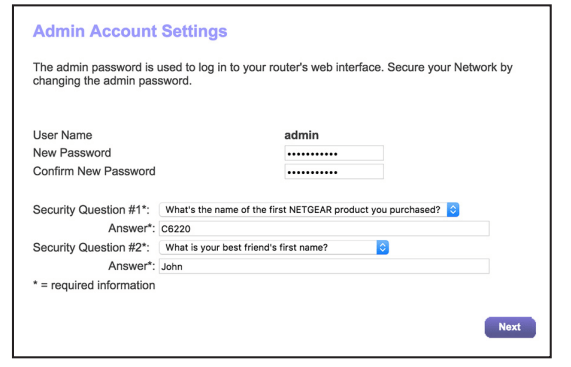
Enter the modem router user name and password. The user name is admin. The default password is password. The user name and password are case-sensitive. The first time you log in to the modem router, you are prompted to change the admin password and set up security questions. You must enter these settings before you can access the Internet.
Enter a new password.
Select security questions and enter the answers.
Click the Next button.
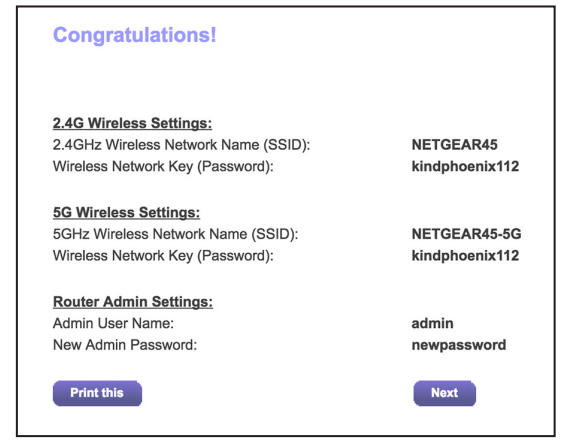
Click the Next button.
The modem router connects to the Internet. The BASIC Home page displays the status of the Internet connection.
Access the Modem Router With NETGEAR genie App
The genie® app is the easy dashboard for managing, monitoring, and repairing your home network. The genie app can help you with the following:
Automatically repair common wireless network problems.
Easily manage modem router features like Parental Controls, guest access, Internet traffic meter, speed test, and more.
To use the genie app to access the modem router:
Visit the NETGEAR genie web page at www.NETGEAR/genie.
Follow the onscreen instructions to install the app on your smartphone, tablet, or computer.
Launch the genie app.
The genie app dashboard page displays,
Specify Your Internet Settings
Usually, the quickest way to set up the modem router to use your Internet connection is to allow the modem router to detect the Internet connection when you first access the modem router with an Internet browser. You can also customize or specify your Internet settings.
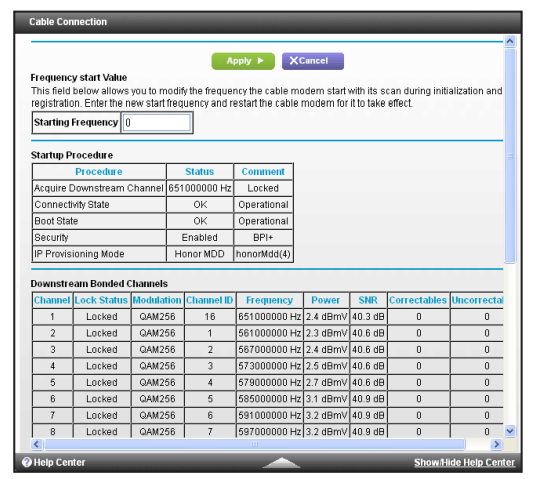
Specify the Cable Connection Starting Frequency
The starting frequency is automatically generated. For most Internet connections, you do not need to specify this information. If you must enter a starting frequency, contact your Internet provider.
To change the starting frequency:
Launch a web browser from a computer or mobile device that is connected to the modem router network.
Enter http://192.168.0.1. A login window opens.
Enter the modem router user name and password. The user name is admin. The default password is password. The user name and password are case-sensitive. The BASIC Home page displays.
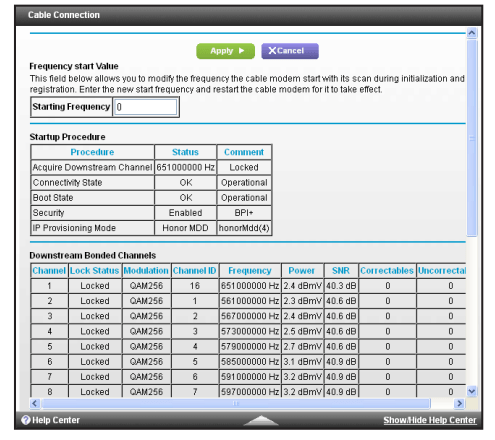
Select Cable Connection. The page displays the status of all downstream and upstream channels.
In the Starting Frequency field, enter a frequency.
Click the Apply button.
Your settings are saved.
View Modem Router Initialization
You can track the initialization procedure of the modem router and get details about the downstream and upstream cable channel. The time is displayed after the modem router is initialized.
The modem router automatically goes through the following steps in the provisioning process:
Scans and locks the downstream frequency and then ranges the upstream channels.
Obtains a WAN address for the modem router.
Connects to the Internet.
To view the status of the modem router initialization:
Launch a web browser from a computer or mobile device that is connected to the modem router network.
Enter http://192.168.0.1. A login window opens.
Enter the modem router user name and password. The user name is admin. The default password is password. The user name and password are case-sensitive. The BASIC Home page displays.
Select Cable Connection.
The Startup Procedure section displays the initialization progress. The page also displays the status of all downstream and upstream channels. (You must scroll down to view all the channels.) The number of downstream and upstream channels that are locked depends on the number of channels that your Internet provider uses.
Manually Set Up the Internet Connection
In most situations, you do not need to change these settings. NETGEAR recommends that you use the default settings for DHCP because most cable Internet services provide the IP address through DHCP.
To specify the Internet connection settings:
Launch a web browser from a computer or mobile device that is connected to the modem router network.
Enter http://192.168.0.1. A login window opens.
Enter the modem router user name and password. The user name is admin. The default password is password. The user name and password are case-sensitive. The BASIC Home page displays.
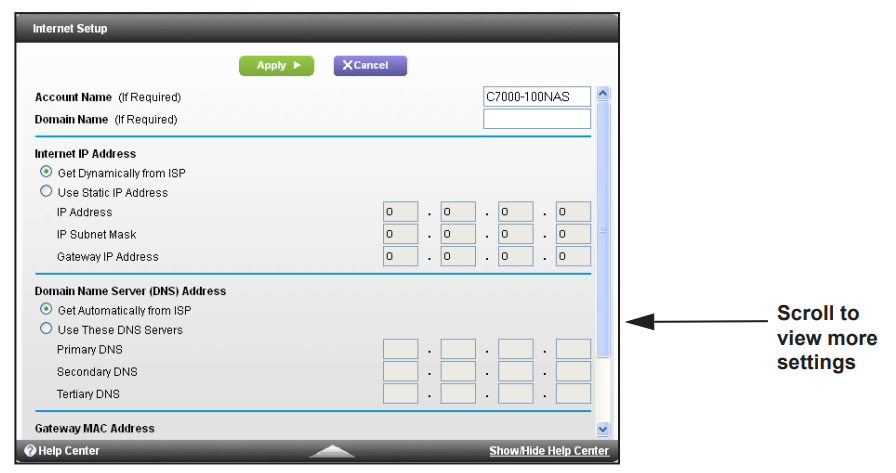
Select ADVANCED > Setup > Internet.
If your Internet connection requires an account name or host name, type it in the Account Name (If Required) field.
If your Internet connection requires a domain name, type it in the Domain Name (If Required) field. For the other sections in this page, the default settings usually work, but you can change them.
Select an Internet IP Address radio button:
Get Dynamically from ISP. Your ISP uses DHCP to assign your IP address. Your ISP automatically assigns these addresses.
Use Static IP Address. Enter the IP address, IP subnet mask, and the gateway IP address that your ISP assigned. The gateway is the ISP modem router to which your modem router connects.
Select a Domain Name Server (DNS) Address radio button:
Get Automatically from ISP. Your ISP uses DHCP to assign your DNS servers. Your ISP automatically assigns this address.
Use These DNS Servers. If you know that your ISP requires specific servers, select this option. Enter the IP address of your ISP’s primary DNS server. If a secondary DNS server address is available, enter it also.
For the Router MAC Address setting, select one of the following radio buttons:
Use Default Address. Use the default MAC address.
Use Computer MAC Address. The modem router captures and uses the MAC address of the computer that you are now using. You must use the one computer that the ISP allows.
Use This MAC Address. Enter the MAC address that you want to use.
Click the Apply button. Your settings are saved.
If the NETGEAR website does not display within one minute, see Chapter 10,
Troubleshooting.
Specify an IPv6 Internet Connection
To specify an IPv6 Internet connection:
Launch a web browser from a computer or mobile device that is connected to the modem router network.
Enter http://192.168.0.1. A login window opens.
Enter the modem router user name and password. The user name is admin. The default password is password. The user name and password are case-sensitive. The BASIC Home page displays.
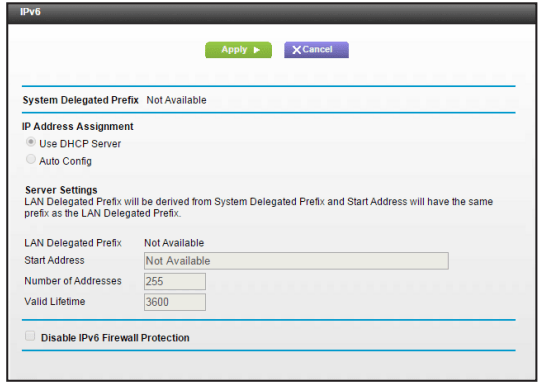
Select ADVANCED > Advanced Setup > IPv6. If your Internet provider supports IIPV6, the System Delegated Prefix field displays IPv6 information.
Specify how the modem router assigns IPv6 addresses to the devices on your home network (the LAN) by selecting one of the following radio buttons:
Use DHCP Server. This method passes more information to LAN devices, but some IPv6 systems might not support the DHCv6 client function.
Auto Config. This is the default setting.
Complete the fields in the Server Settings section.
Click the Apply button.
Your settings are saved.
Change the MTU Size
The maximum transmission unit (MTU) is the largest data packet a network device transmits. When one network device communicates across the Internet with another, the data packets travel through many devices along the way. If a device in the data path has a lower MTU setting than the other devices, the data packets must be split or “fragmented” to accommodate the device with the smallest MTU.
The best MTU setting for NETGEAR equipment is often the default value. In some situations, changing the value fixes one problem but causes another. Leave the MTU unchanged unless one of these situations occurs:
You experience problems connecting to your ISP or other Internet service, and the technical support of either the ISP or NETGEAR recommends changing the MTU setting. These web-based applications might require an MTU change:
A secure website that does not open, or displays only part of a web page
Yahoo email
MSN portal
America Online’s DSL service
You use VPN and experience severe performance problems.
You used a program to optimize MTU for performance reasons, and now you are experiencing connectivity or performance problems.
Control Access to the Internet
Set Up Parental Controls
The first time that you select Parental Controls from the BASIC Home page, your browser goes to the Parental Controls website, where you can learn more about Parental Controls. To set up Parental Controls, you must download the genie app.
To set up Parental Controls:
Launch a web browser from a computer or mobile device that is connected to the modem router network.
Enter http://192.168.0.1. A login window opens.
Enter the modem router user name and password. The user name is admin. The default password is password. The user name and password are case-sensitive. The BASIC Home page displays.
Select Parental Controls. The Parental Controls website opens.
Click the button for the genie app or version that you want to download and use.
Follow the onscreen instructions to download and install the genie app.
Open the genie app and select Parental Controls. Parental Controls automatically starts.
Click the button, read the note, and click the Next button again. Because Parental Controls uses free OpenDNS accounts, you are prompted to log in or create a free account.
Select a radio button as follows:
If you already own an OpenDNS account, leave the Yes radio button selected.
If you did not yet create an OpenDNS account, select the No radio button.
If you are creating an account, the Create a free OpenDNS account page displays. Do the following:
a. Complete the fields.
b. Click the Next button. After you log on or create your account, the filtering level page displays.
Select a radio button for a filtering level and click the Next button. The Setup is complete page displays.
Click the Take me to the status page button. The Status page displays. Parental Controls are now set up for the modem router.
To enable Parental Controls, click the Enable Live Parental Controls button.
Block Access to Your Network
You can use access control to block access to your network.
To set up access control:
Launch a web browser from a computer or mobile device that is connected to the modem router network.
Enter http://192.168.0.1. A login window opens.
Enter the modem router user name and password. The user name is admin. The default password is password. The user name and password are case-sensitive. The BASIC Home page displays.
Select ADVANCED > Security > Access Control.
Select the Turn on Access Control check box. You must select this check box before you can specify an access rule and use the Allow and Block buttons. When this check box is cleared, all devices are allowed to connect, even if a device is in the blocked list.
Select ann access rule:
Allow all new devices to connect. With this setting, if you buy a new device, it can access your network. You don’t need to enter its MAC address on this page. NETGEAR recommends that you leave this radio button selected.
Block all new devices from connecting. With this setting, if you buy a new device, before it can access your network, you must enter its MAC address for an Ethernet connection and its MAC address for a WiFi connection in the allowed list. The access rule does not affect previously blocked or allowed devices. It applies only to devices joining your network in the future after you apply these settings.
To allow the computer or device you’re currently using to continue to access the network, select the check box next to your computer or device, and click the Allow button.
Click the Apply button.
Your changes take effect.
Use Keywords to Block Internet Sites
You can use keywords to block certain Internet sites from your network. You can use blocking all the time or based on a schedule.
To set block Internet sites:
Launch a web browser from a computer or mobile device that is connected to the modem router network.
Enter http://192.168.0.1. A login window opens.
Enter the modem router user name and password. The user name is admin. The default password is password. The user name and password are case-sensitive. The BASIC Home page displays.
Select ADVANCED > Security > Block Sites.
Select one of the keyword blocking option:
Per Schedule. Turn on keyword blocking according to a schedule that you set. (See Schedule When to Block Internet Sites and Services on page 36.)
Always. Turn on keyword blocking all the time, independent of the Schedule page.
In the Type keyword or domain here field, enter a keyword or domain that you want to block. For example:
Specify XXX to block badstuff/xxx.html.
Specify if you want to allow only sites with domain suffixes such as .edu or .gov.
Enter a period (.) to block all Internet browsing access.
Click the Add Keyword button. The keyword is added to the keyword list. The keyword list supports up to 32 entries.
Click the Apply button.
Keyword blocking takes effect.
To delete keywords from the list:
Do one of the following:
To delete a single word, select it and click the Delete Keyword button. The keyword is removed from the list.
To delete all keywords on the list, click the Clear List button. All keywords are removed from the list.
Click the Apply button.
Your changes are saved.
Schedule When to Block Internet Sites and Services
When you schedule blocking, the same schedule is used to block sites and to block services. For information about how to specify what you want the modem router to block, see Use Keywords to Block Internet Sites on page 33 and Block Services From the Internet on page 35.
To schedule blocking:
Launch a web browser from a computer or mobile device that is connected to the modem router network.
Enter http://192.168.0.1. A login window opens.
Enter the modem router user name and password. The user name is admin. The default password is password. The user name and password are case-sensitive. The BASIC Home page displays.
Select ADVANCED > Security > Schedule.
Specify when to block keywords and services:
Days to Block. Select the check box for each day that you want to block the keywords or select the Every Day check box, which automatically selects the check boxes for all days.
Time of Day to Block. Select a start and end time in 24-hour format, or select All Day for 24-hour blocking.
Select your time zone from the list.
If you use daylight saving time, select the Automatically adjust for daylight savings time check box.
Click the Apply button.
Your settings are saved.
Avoid Blocking on a Trusted Computer
You can exempt one trusted computer from blocking. The computer you exempt must be assigned a fixed IP address. You can use the reserved IP address feature to specify the IP address. See Reserve LAN IP Addresses on page 66.
To specify a trusted computer:
Launch a web browser from a computer or mobile device that is connected to the modem router network.
Enter http://192.168.0.1. A login window opens.
Enter the modem router user name and password. The user name is admin. The default password is password. The user name and password are case-sensitive. The BASIC Home page displays.
Select ADVANCED > Security > Block Sites.
Scroll down and select the Allow trusted IP address to visit blocked sites check box.
In the Trusted IP Address field, enter the IP address of the trusted computer.
Click the Apply button.
Your changes are saved.
Share USB Devices Attached to the Modem Router
Connect a USB Storage Device to the Modem Router
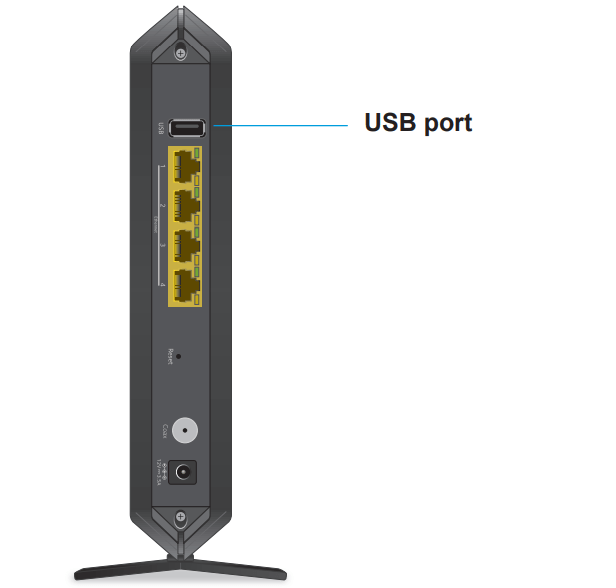
ReadySHARE lets you access and share a USB storage device connected to the modem router USB port. (If your USB storage device has special drivers, it is not compatible.)
To connect a USB storage device:
Insert your USB storage device into the USB port on the modem router.
If your USB storage device has a power supply, connect it.
You must use the power supply when you connect the USB storage device to the modem router.
When you connect the USB storage device to the modem router USB port, it might take up to two minutes before it is ready for sharing. By default, the USB storage device is available to all computers on your local area network (LAN).
Access a USB Drive Connected to the Modem Router From a Windows Computer
To access a USB storage device from a Windows computer:
Connect a USB storage device to a USB port on your router.
If your USB storage device uses a power supply, connect it. You must use the power supply when you connect the USB storage device to the modem router. When you connect the USB storage device to the modem router’s port, it might take up to two minutes before it is ready for sharing. By default, the USB storage device is available to all computers on your local area network (LAN).
Select Start > Run.
Enter \\readyshare in the dialog box.
Click the OK button.
A window automatically opens and displays the files and folders on the USB storage device.
Map a USB Device to a Windows Network Drive
To map a USB device to a Windows network drive:
Connect a USB storage device to a USB port on the router.
If your USB storage device has a power supply, connect it. You must use the power supply when you connect the USB storage device to the modem router. When you connect the USB storage device to the router’s port, it might take up to two minutes before it is ready for sharing. By default, the device is available to all computers on your local area network (LAN).
Select Start > Run.
Enter \\readyshare in the dialog box.
Click the OK button.
Right-click the USB device and select Map network drive.
Select the drive letter to map to the new network folder.
Click the Finish button. The USB storage device is mapped to the drive letter that you specified.
To connect to the USB storage device as a different user, select the Connect using different credentials check box, click the Finish button, and do the following:
Type the user name and password.
Click the OK button.
Access a USB Storage Device That Is Connected to the Modem Router From a Mac
To access the device from a Mac:
Connect a USB storage device to a USB port on your router.
If your USB storage device has a power supply, connect it. You must use the power supply when you connect the USB storage device to the modem router. When you connect the USB storage device to the router’s port, it might take up to two minutes before it is ready for sharing. By default, the USB storage device is available to all computers on your local area network (LAN).
On a Mac that is connected to the network, select Go > Connect to Server.
In the Server Address field, enter smb://readyshare.
When prompted, select the Guest radio button. If you set up access control on the router and you allowed your Mac to access the network, select the Registered User radio button and enter admin for the name and enter your admin password or the password. For more information about access control, see View Devices Currently on the Network on page 89.
Click the Connect button.
A window automatically opens and displays the files and folders on the USB storage device.
Control Access to the USB Storage Device
You can specify the device name, workgroups, and network folders for your USB device.
To specify the USB access settings:
Launch a web browser from a computer or mobile device that is connected to the modem router network.
Enter http://192.168.0.1. A login window opens.
Enter the modem router user name and password. The user name is admin. The default password is password. The user name and password are case-sensitive. The BASIC Home page displays.
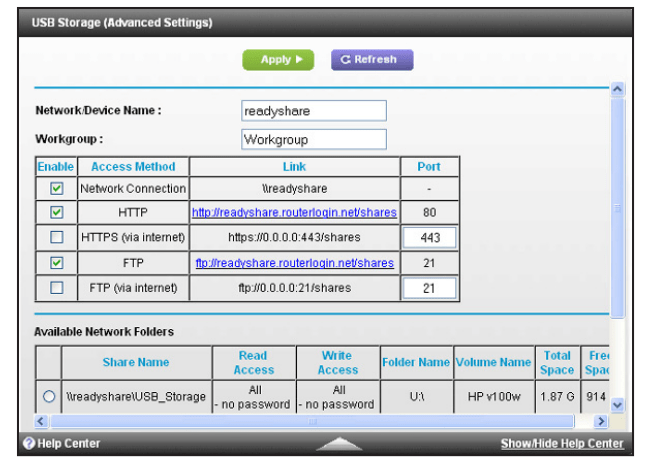
Select ADVANCED > USB Storage > Advanced Settings.
Specify access to the USB storage device:
Network Device Name. This is the name used to access the USB device connected to the modem router. The default is readyshare.
Workgroup. If you are using a Windows workgroup rather than a domain, the workgroup name is displayed here. The name works only in an operating system that supports NetBIOS, such as Microsoft Windows.
Access Method. Select the check boxes for the access methods that you want:
Network Neighborhood/MacShare. Enabled by default.
HTTP. Enabled by default. You can type http://readyshare.routerlogin.net/shares to access the USB storage device.
HTTP (via Internet). Disabled by default. If you enable this feature, remote users can type http://<public IP address>/shares (for example, http://11.10.102/shares) or a URL domain name to access the USB storage device over the Internet. This feature supports file uploading only.
FTP. Disabled by default.
FTP (via Internet). Disabled by default. If you select this check box, remote users can access the USB storage device through FTP over the Internet. This feature supports both downloading and uploading of files.
If you changed the settings, click the Apply button.
Your changes are saved.
View or Change Network Folders on a USB Storage Device
You can view or change the network folders on the USB storage device
To view or change network folders:
Launch a web browser from a computer or mobile device that is connected to the modem router network.
Enter http://192.168.0.1. A login window opens.
Enter the modem router user name and password. The user name is admin. The default password is password. The user name and password are case-sensitive. The BASIC Home page displays.
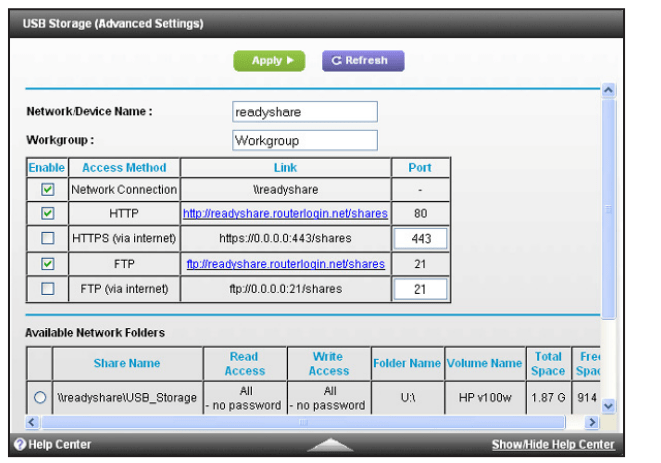
Select ADVANCED > USB Storage > Advanced Settings.
Scroll down to the Available Networks Folder section, and view or adjust the following settings:
Share Name. If only one device is connected, the default share name is USB_Storage. (Some modem router models include more than one USB port.) You can click the name, or you can type it in the address field of your web browser. If Not Shared is shown, the default share was deleted, and no other share for the root folder exists. Click the link to change this setting.
Read Access and Write Access. Show the permissions and access controls on the network folder. All-no password (the default) allows all users to access the network folder. The password for admin is the same one that you use to log in to the modem router.
Folder Name. Full path of the network folder.
Volume Name. Volume name from the storage device (either USB storage device or HDD).
Total Space and Free Space. Show the current utilization of the storage device.
Add a Network Folder on a USB storage device
You can add network folders on the USB storage device.
To add a network folder:
Launch a web browser from a computer or mobile device that is connected to the modem router network.
Enter http://192.168.0.1. A login window opens.
Enter the modem router user name and password. The user name is admin. The default password is password. The user name and password are case-sensitive. The BASIC Home page displays.
Select ADVANCED > ReadySHARE. The USB Storage (Advanced Settings) page displays.
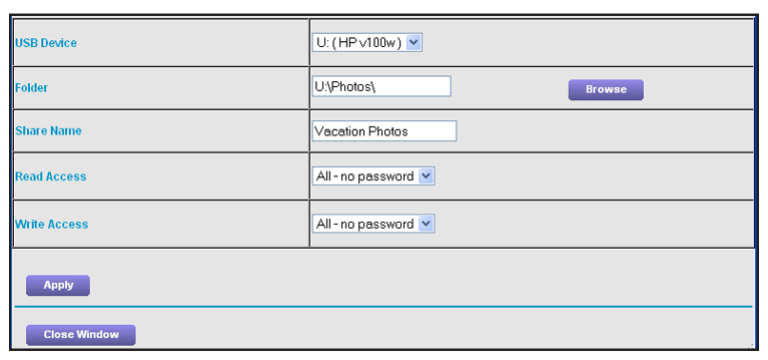
Click the Create Network Folder button. If this page does not display, your web browser might be blocking pop-ups. If it is, change the browser settings to allow pop-ups.
In the USB Device menu, select the USB storage device.
Click the Browse button and in the Folder field, select the folder.
In the Share Name field, type the name of the share.
In the Read Access menu and the Write Access menu, select the settings that you want. The user name (account name) for All-no password is guest. The password for admin is the same one that is used to log in to the modem router. By default, it is password.
Click the Apply button.
Your settings are saved.
Edit a Network Folder on a USB storage device
You can edit network folders on the USB storage device.
To edit a network folder:
Launch a web browser from a computer or mobile device that is connected to the modem router network.
Enter http://192.168.0.1. A login window opens.
Enter the modem router user name and password. The user name is admin. The default password is password. The user name and password are case-sensitive. The BASIC Home page displays.
Select ADVANCED > ReadySHARE.
Click the Edit button. The Edit Network Folder page displays the same settings shown in the Add a Network Folder page.
Change the settings in the fields as needed.
Click the Apply button.
Your changes are saved.
Approve USB Devices
For more security, you can set up the modem router to share only USB devices that you approve.
To approve USB devices:
Launch a web browser from a computer or mobile device that is connected to the modem router network.
Enter http://192.168.0.1. A login window opens.
Enter the modem router user name and password. The user name is admin. The default password is password. The user name and password are case-sensitive. The BASIC Home page displays.
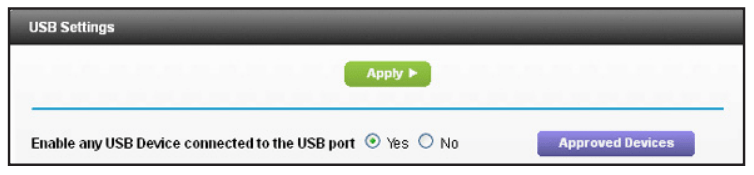
Select ADVANCED > Advanced Setup > USB Settings. By default the Enable any USB Device connection to the USB port radio button is selected. This setting lets you connect and access all your USB storage devices.
Select the No radio button.
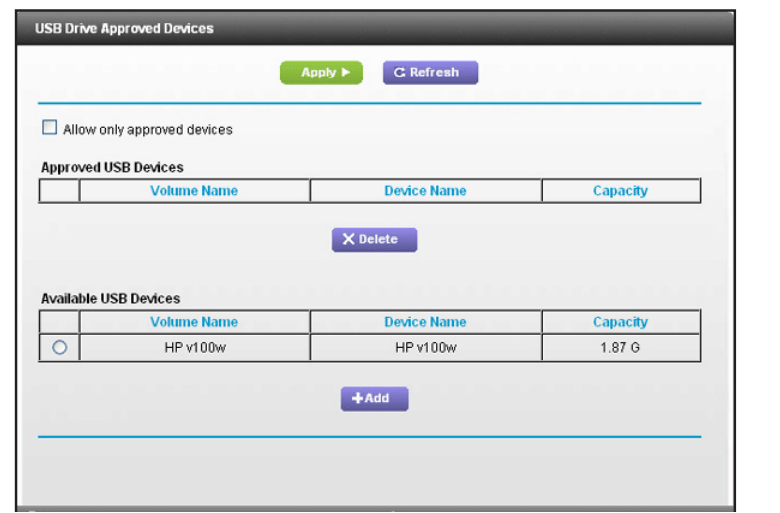
Click the Approved Devices button. The approved and available USB devices display.
In the Available USB Devices menu, select the drive that you want to approve.
Click the Add button.
Select the Allow only approved devices check box.
Click the Apply button. Your change takes effect.
To work with another USB device, first click the Safely Remove USB Device button for the currently connected USB device.
Connect the other USB device, and repeat this process.
Access the USB storage device Through the Internet
You can access the USB storage device through the Internet when you’re not home.
To access the USB storage device from a remote computer:
Launch a web browser on a computer that is not on your home network.
Connect to your modem router:
To connect with Dynamic DNS, type the DNS name. To use a Dynamic DNS account, you must enter the account information in the Dynamic DNS page. See Dynamic DNS on page 94.
To connect without Dynamic DNS, type the modem router’s Internet port IP address. You can view the modem router’s Internet IP address on the BASIC Home page.
You can use FTP to share files on a USB storage device connected to the modem router.
Share a USB Printer
Install the Printer Driver and Cable the Printer
Some USB printer manufacturers (for example, HP and Lexmark printers) request that you do not connect the USB cable until the installation software prompts you to do so.
To install the driver and cable the printer:
On each computer on your network that shares the USB printer, install the driver software for the USB printer. If you cannot find the printer driver, contact the printer manufacturer.
Use a USB printer cable to connect the USB printer to the modem router USB port.
Use the Shared Printer
For each computer, after you click the Connect and Disconnect buttons once, the utility automatically manages the printing queue. By default, the utility starts automatically whenever you log on to Windows and runs in the background.
To manually connect and print:
Click the NETGEAR USB Control Center icon The main page displays.
Click the Connect button. The printer status changes to Manually connected by Mycomputer. Now, only the computer that you are using can use this printer.
Use the print feature in your application to print your document.
To release the printer so that all computers on the network can use it, click the Disconnect button.
Specify Network Settings
View WAN Settings
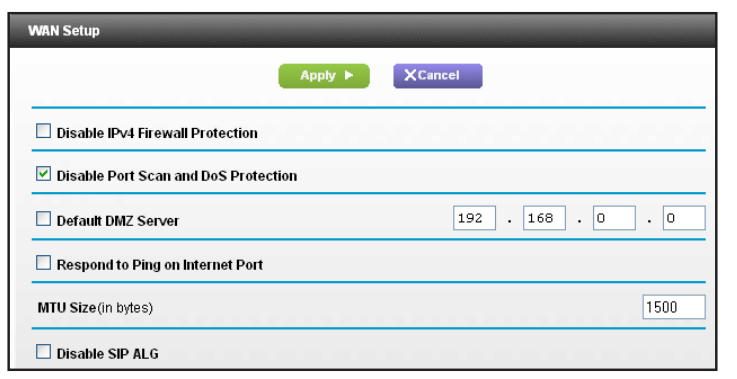
You can view or configure wide area network (WAN) settings for the Internet port. You can set up a DMZ (demilitarized zone) server, change the maximum transmit unit (MTU) size, and enable the modem router to respond to a ping to its WAN (Internet) port.
To view the WAN settings:
Launch a web browser from a computer or mobile device that is connected to the modem router network.
Enter http://192.168.0.1. A login window opens.
Enter the modem router user name and password. The user name is admin. The default password is password. The user name and password are case-sensitive. The BASIC Home page displays.
Select ADVANCED > Setup > WAN Setup. View or change the following settings:
Disable IPv4 Firewall Protection. NETGEAR recommends that you leave this check box cleared so that the firewall protects your modem router.
Disable Port Scan and DoS Protection. DoS protection protects your LAN against denial of service attacks such as Syn flood, Smurf Attack, Ping of Death, and many others. Select this check box only in special circumstances.
Default DMZ Server. This feature is disabled by default. It is sometimes helpful when you are playing online games or videoconferencing, but it makes the firewall security less effective. See Set Up a Default DMZ Server on page 62.
Respond to Ping on Internet Port. This feature allows your modem router to be discovered. Use this feature only as a diagnostic tool or if a specific reason exists.
MTU Size (in bytes). The normal MTU (maximum transmit unit) value for most Ethernet networks is 1500 bytes, or 1492 bytes for PPPoE connections. Change the
MTU only if you are sure that it is necessary for your ISP connection. See Change the MTU Size on page 28.
Disable SIP ALG. Some VoIP applications do not work well with the SIP ALG. Selecting this check box to turn off the SIP ALG might help your VoIP devices to create or accept a call through the modem router.
Click the Apply button.
Your changes are saved.
Set Up a Default DMZ Server
The default DMZ server feature is helpful when you are using some online games and videoconferencing applications that are incompatible with Network Address Translation (NAT). The modem router is programmed to recognize some of these applications and to work correctly with them, but other applications might not function well. In some cases, one local computer can run the application correctly if the IP address for that computer is entered as the default DMZ server.
To set up a default DMZ server:
Launch a web browser from a computer or mobile device that is connected to the modem router network
Enter http://192.168.0.1. A login window opens
Enter the modem router user name and password. The user name is admin. The default password is password. The user name and password are case-sensitive. The BASIC Home page displays.
Select ADVANCED > Setup > WAN Setup.
Select the Default DMZ Server check box.
Type the IP address.
Click the Apply button.
Your change takes effect.
Change the LAN TCP/IP Settings
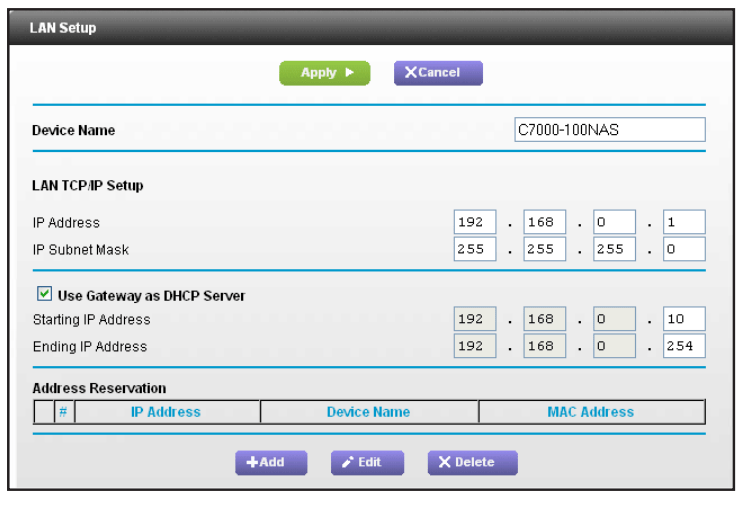
The modem router is preconfigured to use private IP addresses on the LAN side and to act as a DHCP server. The modem router’s default LAN IP configuration is as follows:
LAN IP address. 192.168.0.1
Subnet mask. 255.255.255.0
These addresses are part of the designated private address range for use in private networks and are suitable for most applications. If your network requires a different IP addressing scheme, you can change these settings.
You might want to change these settings if you need a specific IP subnet that one or more devices on the network use, or if you use competing subnets with the same IP scheme.
To change the LAN TCP/IP settings:
Launch a web browser from a computer or mobile device that is connected to the modem router network.
Enter http://192.168.0.1. A login window opens.
Enter the modem router user name and password. The user name is admin. The default password is password. The user name and password are case-sensitive. The BASIC Home page displays.
Select ADVANCED > Setup > LAN Setup.
In the IP Address field, type the IP address.
In the IP Subnet Mask, type the subnet mask of the modem router.
The IP address and subnet mask identify which addresses are local to a specific device and which must be reached through a gateway or modem router.
Click the Apply button. Your changes are saved. If you changed the LAN IP address of the modem router, you are disconnected when this change takes effect.
To reconnect, close your browser, relaunch it, and log in to the modem router.
Specify Basic WiFi Settings
The modem router comes with preset security. This means that the WiFi network name (SSID), network key (password), and security option (encryption protocol) are preset in the factory. You can find the preset SSID and password on the modem router label.
NETGEAR recommends that you do not change your preset security settings. If you change your preset security settings, make a note of the new settings and store it in a safe place where you can easily find it.
If you use a wireless computer to change the wireless network name (SSID) or other wireless security settings, you are disconnected when you click the Apply button. To avoid this problem, use a computer with a wired connection to access the modem router.
To specify basic wireless settings:
Launch a web browser from a computer or mobile device that is connected to the modem router network.
Enter http://192.168.0.1. A login window opens.
Enter the modem router user name and password. The user name is admin. The default password is password. The user name and password are case-sensitive. The BASIC Home page displays.
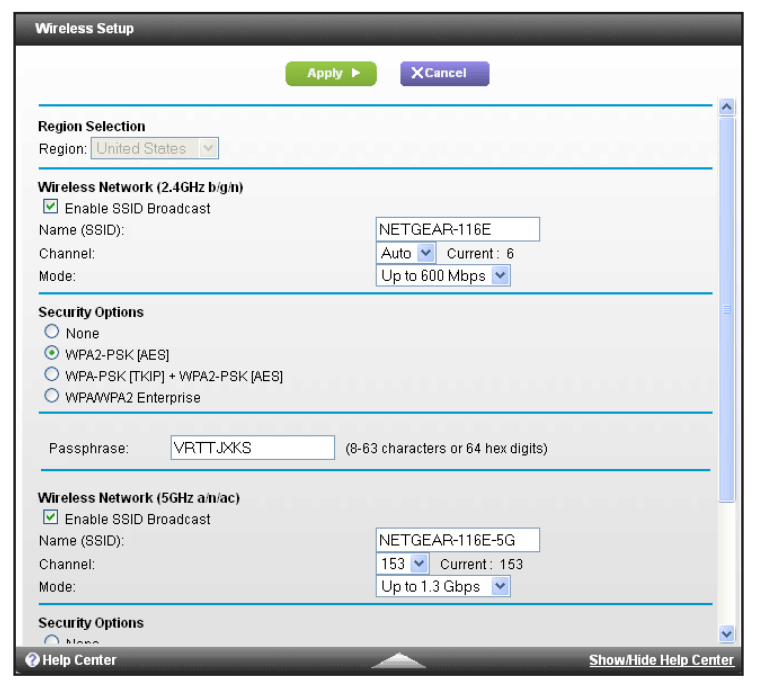
Select Wireless.
In the Region list, select your region. In some locations, you cannot change this setting.
To control the SSID broadcast, select or clear the Enable SSID Broadcast check box. When this check box is selected, the modem router broadcasts its network name (SSID) so that it displays when you scan for local WiFi networks on your computer or wireless device.
To change the network name (SSID), type a new name in the Name (SSID) field. The name can be up to 32 characters long and it is case-sensitive. The default SSID is randomly generated and is on the modem router label. If you change the name, make sure to write down the new name and keep it in a safe place.
To change the wireless channel, select a number in the Channel list. In some regions, not all channels are available. Do not change the channel unless you experience interference (shown by lost connections or slow data transfers). If this happens, experiment with different channels to see which is the best. When you use multiple access points, it is better if adjacent access points use different channels to reduce interference. For the 2.4 GHz band, the recommended channel spacing between adjacent access points is four channels (for example, use channels 1 and 5, or 6 and 10). For the 5 GHz band, the recommended channel selection between adjacent access points is channels that are in a different bonded channel groups (for example, use channels 40 and 153).
To change the mode, select it from the Mode list. For 2.4 GHz, Up to 600 Mbps is the default setting. The other settings are Up to 289 Mbps and Up to 54 Mbps. At 5 GHz, Up to 1300 Mbps is the default setting, which allows 802.11ac and 802.11a wireless devices to join the network. The other settings are Up to 600 Mbps and Up to 289 Mbps.
Click the Apply button.
Your settings are saved.
If you connected wirelessly to the network and you changed the SSID, you are disconnected from the network.
Make sure that you can connect to the WiFi network with the new settings.
If you cannot connect wirelessly, check the following:
Is your computer or wireless device connected to another wireless network in your area? Some wireless devices automatically connect to the first open network without wireless security that they discover.
Is your computer or wireless device trying to connect to your network with its old settings (before you changed the settings)? If so, update the wireless network selection in your computer or wireless device to match the current settings for your network.
Change the WiFi Security Option
Your modem router comes with preset WPA2 or WPA security. The password that you enter to connect to your network is unique to your modem router and is on the modem router label. NETGEAR recommends that you use the preset security, but you can change them. NETGEAR recommends that you do not disable security.
To change the WPA settings:
Launch a web browser from a computer or mobile device that is connected to the modem router network.
Enter http://192.168.0.1. A login window opens.
Enter the modem router user name and password. The user name is admin. The default password is password. The user name and password are case-sensitive. The BASIC Home page displays.
Select Wireless.
Under Security Options, select a WPA option. The WPA2 options use the newest standard for the strongest security, but some older computers and wireless devices cannot use WPA2. By default, the WPA2-PSK [AES] radio button is selected. The Passphrase field displays.
In the Passphrase field, enter the network key (password) that you want to use. It is a text string from 8 to 63 characters.
Write down the new password and keep it in a secure place for future reference.
Click the Apply button.
Your changes are saved.
Set Up a Guest Network
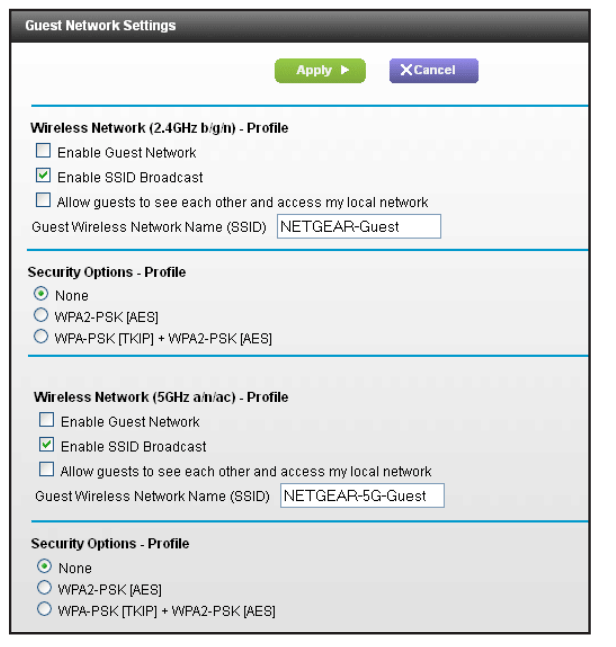
A guest network allows visitors at your home to use the Internet without using your wireless security key. You can add a guest network to each wireless network: 2.4 GHz b/g/n and 5.0 GHz a/n.
To set up a guest network:
Launch a web browser from a computer or mobile device that is connected to the modem router network.
Enter http://192.168.0.1. A login window opens.
Enter the modem router user name and password. The user name is admin. The default password is password. The user name and password are case-sensitive. The BASIC Home page displays.
Select Guest Network.
Select any of the following wireless settings:
Enable Guest Network. When this check box is selected, the guest network is enabled, and guests can connect to your network using the SSID of this profile.
Enable SSID Broadcast. If this check box is selected, the wireless access point broadcasts its name (SSID) to all wireless stations. Stations with no SSID can adopt the correct SSID for connections to this access point.
Allow guests to see each other and access my local network. If this check box is selected, anyone who connects to this SSID can access your local network, not just the Internet.
Give the guest network a name. The guest network name is case-sensitive and can be up to 32 characters. You then manually configure the wireless devices in your network to use the guest network name in addition to the main SSID.
Select a radio button for a security option. The WPA2 options use the newest standard for the strongest security, but some older computers and wireless devices cannot use WPA2. By default, the WPA2-PSK [AES] radio button is selected.
Click the Apply button.
Your settings are saved.
Control the Wireless Radios
The modem router has internal wireless radios that broadcast signals in the 2.4 GHz and 5 GHz range. By default, they are on so that you can connect wirelessly to the modem router. When the wireless radios are off, you can still use an Ethernet cable for a LAN connection to the modem router.
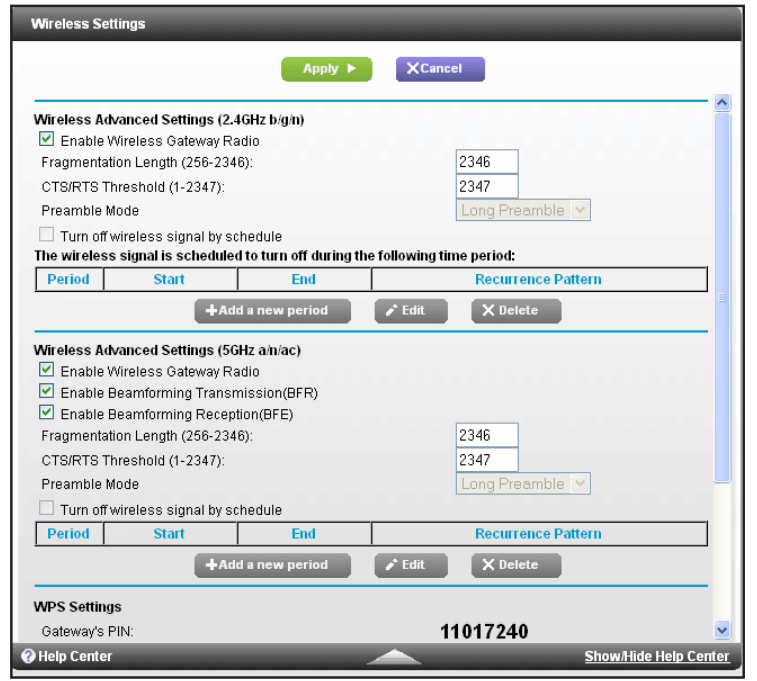
You can turn the wireless radios on and off with the WiFi On/Off button on the modem router, or you can log in to the modem router and enable or disable the wireless radios. If you are close to the modem router, it might be easier to press its WiFi On/Off button. If you are away from the modem router or you already logged in, it might be easier to enable or disable them. You can also turn the WiFi radios off and on based on a schedule. (See Set Up a Wireless Schedule on page 75).
Use the WiFi On/Off Button
To turn the wireless radios off and on with the WiFi On/Off button:
Press the WiFi On/Off button on the front of the modem router for two seconds.
If you turned off the wireless radios, the WiFi On/Off LED and the WPS LED turn off. If you turned on the wireless radios, the WiFi On/Off LED and the WPS LED light.
Enable or Disable the Wireless Radios
If you used the WiFi On/Off button to turn off the wireless radios, you can’t log in to the modem router to turn them back on. You must press the WiFi On/Off button again for two seconds to turn the wireless radios back on.
To enable or disable the wireless radios:
Launch a web browser from a computer or mobile device that is connected to the modem router network.
Enter http://192.168.0.1. A login window opens.
Enter the modem router user name and password. The user name is admin. The default password is password. The user name and password are case-sensitive. The BASIC Home page displays.
Select or clear the Enable Wireless Gateway Radio check boxes in the 2.4 GHz and 5 GHz sections of the page. Clearing this check box turns off the WiFi feature of the modem router.
Click the Apply button.
If you turned off both wireless radios, the WiFi On/Off LED and the WPS LED turn off. If you turned on the wireless radios, the WiFi On/Off LED and the WPS LED light.
Manage Your Network
Set Up Password Recovery
We recommend that you enable password recovery if you change the password for the router user name admin. Then you can recover the password if it is forgotten.This recovery process is supported in Internet Explorer, Firefox, and Chrome browsers but not in the Safari browser.
To set up password recovery:
Launch a web browser from a computer or mobile device that is connected to the modem router network.
Enter http://192.168.0.1. A login window opens.
Enter the user name and password. The user name is admin. The default password is password. The user name and password are case-sensitive. The BASIC Home page displays.
Select ADVANCED > Administration > Set Password. The Set Password page displays.
Select the Enable Password Recovery check box.
Select two security questions and provide answers to them.
Click the Apply button.
Your settings are saved.
Manage the Modem Router Configuration File
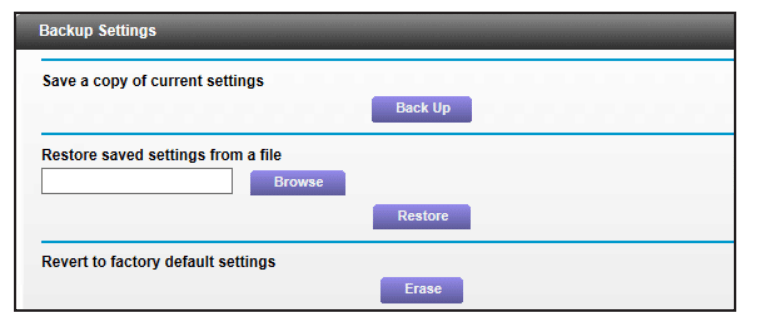
The configuration settings of the modem router are stored within the modem router in a configuration file. You can back up (save) this file to your computer, restore it, or reset it to the factory default settings.
Back Up Settings
To back up the modem router’s configuration settings:
Launch a web browser from a computer or mobile device that is connected to the modem router network.
Enter http://192.168.0.1. A login window opens.
Enter the modem router user name and password. The user name is admin. The default password is password. The user name and password are case-sensitive. The BASIC Home page displays.
Specify a location on your network. A confirmation message displays.
Click the OK button.
A copy of the current settings is saved in the location you specified
Restore Configuration Settings
To restore configuration settings that you backed up:
Launch a web browser from a computer or mobile device that is connected to the modem router network.
Enter http://192.168.0.1. A login window opens.
Enter the modem router user name and password. The user name is admin. The default password is password. The user name and password are case-sensitive. The BASIC Home page displays.
Click the Browse button to find and select the .cfg file.
Click the Restore button.
The file is uploaded to the modem router and the modem router reboots.
Application Example: Port Triggering for Internet Relay Chat
Some application servers, such as FTP and IRC servers, send replies to multiple port numbers. Using port triggering, you can tell the modem router to open more incoming ports when a particular outgoing port starts a session.
An example is Internet Relay Chat (IRC). Your computer connects to an IRC server at destination port 6667. The IRC server not only responds to your originating source port, but also sends an "identify” message to your computer on port 113. Using port triggering, you can tell the modem router, "When you initiate a session with destination port 6667, you must also allow incoming traffic on port 113 to reach the originating computer.” The following sequence shows the effects of this port triggering rule:
You open an IRC client program to start a chat session on your computer.
Your IRC client composes a request message to an IRC server using a destination port number of 6667, the standard port number for an IRC server process. Your computer then sends this request message to your modem router.
Your modem router creates an entry in its internal session table describing this communication session between your computer and the IRC server. Your modem router stores the original information, performs Network Address Translation (NAT) on the source address and port, and sends this request message through the Internet to the IRC server.
Noting your port triggering rule and observing the destination port number of 6667, your modem router creates another session entry to send any incoming port 113 traffic to your computer.
The IRC server sends a return message to your modem router using the NAT-assigned source port (for example, port 33333) as the destination port. The IRC server also sends an "identify” message to your modem router with destination port 113.
When your modem router receives the incoming message to destination port 33333, it checks its session table to see if a session is active for port number 33333. Finding an active session, the modem router restores the original address information replaced by NAT and sends this reply message to your computer.
When your modem router receives the incoming message to destination port 113, it checks its session table and finds an active session for port 113 associated with your computer. The modem router replaces the message’s destination IP address with your computer’s IP address and forwards the message to your computer.
When you finish your chat session, your modem router eventually senses a period of inactivity in the communications. The modem router then removes the sessio information from its session table, and incoming traffic is no longer accepted on port numbers 33333 or 113
Troubleshooting
Troubleshoot With the LEDs
You can use the LEDs on the top panel of the modem router for troubleshooting.
Power LED Is Off
Make sure that the power adapter is securely connected to your modem router and securely connected to a working power outlet.
Check that you are using the power adapter that NETGEAR supplied for this product.
If the problem persists, contact technical support for help at www.netgear/support.
LEDs Never Turn Off
When the modem router is turned on, the LEDs light for about 10 seconds and then turn off. If all the LEDs stay on, this indicates a fault within the modem router.
If all LEDs are still lit one minute after power-up, do the following:
Cycle the power to see if the modem router recovers.
Press and hold the Reset button to return the modem router to its factory settings. For more information, see Factory Settings on page 114.
If the error persists, a hardware problem might be the cause. Contact technical support.
Internet LED Is Off
If the Internet LED is off and the modem router is connected to the cable television cable, try the following:
Make sure that the coaxial cable connections are secure at the modem router and at the wall jack.
Make sure that your cable Internet provider provisioned your cable Internet service. Your provider can verify that the signal quality is good enough for modem router service.
Remove any excessive splitters that on your cable line.
Troubleshoot the Cable Internet Connection
When your modem router cannot access the Internet and your Internet LED is on, register the cable MAC address or device MAC address of your modem router with your cable Internet provider.
Additionally, make sure that the modem router is specified as the TCP/IP gateway for your computer. If your computer obtains its information from the modem router by DHCP, reboot the computer and verify the gateway address.
Cannot Log In to the Modem Router
If you are unable to log in to the modem router from a computer or mobile device on your local network, check the following:
Make sure that you are connected to the modem router’s wired or WiFi network.
For a wired Ethernet connection, make sure that the Ethernet connection is secure and the modem router is powered on (its Power LED is lit).
For a WiFi connection, make sure that you selected the correct network. If you cannot find the WiFi network, make sure that the modem router is powered on (its Power LED is lit). If the modem router is powered on, it is possible someone turned off the SSID broadcast or turned off the wireless radios. See Wireless Connectivity on page 110.
If you are connected to the modem router network, but the web browser does not display the login window, check the following:
Make sure that Java, JavaScript, or ActiveX is enabled in your browser. If you are using Internet Explorer, click the Refresh button to be sure that the Java applet is loaded.
Try quitting the browser and launching it again.
If the browser displays the login window, but you cannot access the modem router, make sure that you are using the correct login information. The user name is admin, and the default password is password. Both are case-sensitive. Make sure that Caps Lock is off when you enter this information.
If you customized advanced home network settings such as the IP address scheme, check the following:
Make sure that the IP address of your computer is on the same subnet as the modem router. If you are using the recommended addressing scheme, your computer’s address is in the range of 192.168.0.2 to 192.168.0.254.
If your computer’s IP address is shown as 169.254.x.x, recent versions of Windows and Mac OS generate and assign an IP address if the computer cannot reach a DHCP server. These autogenerated addresses are in the range of 169.254.x.x. If your IP address is in this range, check the connection from the computer to the modem router, and reboot your computer.
If your modem router’s IP address was changed and you do not know the current IP address, clear the modem router’s configuration to factory defaults. This sets the modem router’s IP address to 192.168.0.1. For more information, see Factory Settings on page 114.
Changes Not Saved
If the modem router does not save the changes that you make in the modem router interface, check the following:
When entering configuration settings, always click the Apply button before moving to another page or tab, or your changes are lost.
Click the Refresh or Reload button in the web browser. The changes might be saved, but the old settings might be in the web browser’s cache.
Wireless Connectivity
If you are experiencing trouble connecting wirelessly to the modem router, try to isolate the problem:
The computer or WiFi device that you are using does not find the WiFi network. This can happen for the following reasons:
Someone pressed the WiFi On/Off button on the modem router, which turned off the wireless radios.
Check the 2.4 GHz and 5 GHz LEDs on the front of the modem router. If they are off, press the WiFi On/Off button to turn the wireless radios back on.
Someone logged in to the modem router and disabled its wireless radios or set up a wireless schedule. In this case, pressing the WiFi On/Off button does not turn the wireless radios back on. You must log in to enable the wireless radios. Use an Ethernet cable to for a wired connection to the modem router. Then log in and change the settings. For more information, see Control the Wireless Radios on page 74.
Someone logged in to the modem router and disabled its SSID broadcast. Your wireless network is hidden and does not display in your wireless client’s scanning list. (By default, SSID broadcast is enabled.)
To connect with WiFi, you must type the network SSID and password. For information about how to enable the SSID broadcast, see Specify Basic WiFi Settings on page 69.
You can find the WiFi network, but you can’t connect. Check the following:
Make sure that your computer or mobile device supports the security that you are using for your wireless network (WPA or WPA2).
You are not sure what the WiFi password is. The preset WiFi password is on the modem router label. If you changed it and do not remember the new password, you can use a wired Ethernet connection to log in to the modem router and view or change the WiFi password. For more information, see Change the WiFi Security Option on page 72
The WiFi signal strength is weak in your location.
Is your modem router too far from your computer, or too close? Place your computer near the modem router, but at least 6 feet (1.8 meters) away, and see if the signal strength improves.
Check for sources of WiFi interference that might block the signal. See Position Your Modem Router on page 11.
Troubleshoot Your Network Using the Ping Utility
Most network devices and routers contain a ping utility that sends an echo request packet to the designated device. The device then responds with an echo reply. You can easily troubleshoot a network using the ping utility in your computer or workstation.
Test the LAN Path to Your Modem Router
You can ping the modem router from your computer to verify that the LAN path to your modem router is set up correctly.
To ping the modem router from a Windows-based computer:
From the Windows toolbar, click Start and select Run.
In the field provided, type ping followed by the IP address of the modem router
Click the OK button.
You should see a message like this one:
Pinging <IP address > with 32 bytes of data
If the path is working, you see this message:
Reply from < IP address >: bytes=32 time=NN ms TTL=xxx
If the path is not working, you see this message:
Request timed out
If the path is not functioning correctly, you might be experiencing one of the following problems:
Wrong physical connections
For a wired connection, make sure that the numbered LAN port LED is lit for the port to which you are connected.
Check that the appropriate LEDs are on for your network devices. If your modem router and computer are connected to a separate Ethernet switch, make sure that the link LEDs are lit for the switch ports that are connected to your computer and modem router.
Wrong network configuration
Verify that the Ethernet card driver software and TCP/IP software are both installed and configured on your computer.
Verify that the IP address for your modem router and your computer are correct and that the addresses are on the same subnet.
Test the Path From Your Computer to a Remote Device
After verifying that the LAN path works correctly, test the path from your computer to a remote device.
From the Windows toolbar, click the Start button and select Run.
In the Windows Run window, type:
ping -n 10 <IP address>
where <IP address> is the IP address of a remote device such as your ISP DNS server.
If the path is functioning correctly, messages like those shown in Test the LAN Path to Your Modem Router on page 111 display.
If you do not receive replies, check the following:
Check to see that the IP address of your modem router is listed as the default gateway on your computer. If DHCP assigns the IP configuration of your computers, this information is not visible in your computer Network Control Panel. Verify that the IP address of the modem router is listed as the default gateway.
Check to see that the network address of your computer (the portion of the IP address specified by the subnet mask) is different from the network address of the remote device.
Check that your cable or DSL modem is connected and functioning.
If your ISP assigned a host name to your computer, enter that host name as the account name on the Internet Setup page.
Your ISP might be rejecting the Ethernet MAC addresses of all but one of your computers.
Many broadband ISPs restrict access by allowing traffic only from the MAC address of your broadband modem. If your ISP additionally restricts access to the MAC address of a single computer connected to that modem, configure your modem router to "clone” or "spoof” the MAC address from the authorized computer.


 The main page displays.