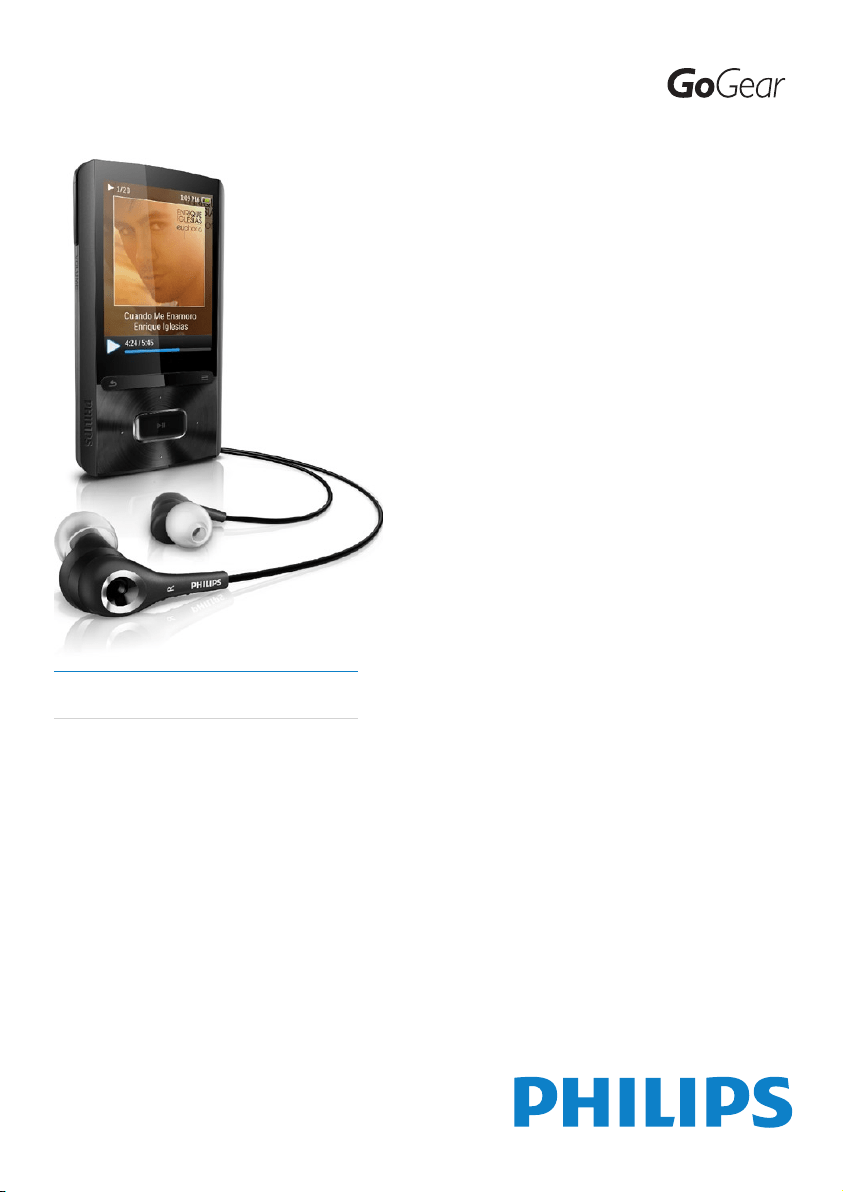

ii EN

3
English
EN
English
EN
Contents
1 Important safety information 5
General maintenance 5
Recycling the product and the built-in
battery 8
2 Your new ARIAZ 10
What’s in the box 10
Software loaded on the player 10
Files loaded on the player 10
3 Get started 11
Charge power 11
Switch the player on or off 11
Automatic standby and shut-down 11
4 Overview 12
Controls 12
Home screen 13
Navigate from the Home screen 13
Select a theme 13
Lock/unlock the keys 14
Select the safe volume 14
Screen on/off 14
5 Sync with PC media library 15
Install Philips Songbird 15
Collect media files from the PC 16
Set the watch folder 1
6
Import media files 17
Get contents from online sources 17
Search online 18
Play online 18
Add to Philips Songbird 18
Search in Philips Songbird 19
Search by metadata 19
Search by keyword 20
Create playlists in Philips Songbird 20
Create a playlist 20
Generate LikeMusic playlists 21
Save the play queue as a playlist 22
Play a playlist 23
Manage media files in Philips Songbird 23
Edit metadata 23
Get album artwork 24
Remove media files from the library 24
Sync the player with Philips Songbird 25
Select auto or manual sync 25
Auto sync 26
Manual sync 26
6 Music 27
Find music on the player 27
Find music by song information 27
Find music by playlist 27
Find music by file folder 27
Superscroll 27
Play music 28
Play from the same collection 28
Select play options 28
Playlists 28
Add songs to a playlist-on-the-go 29
Remove songs from a playlist-on-
the-go 29
Delete songs from the player 29
7 Audiobooks 30
Sync audio books to the player 30
Install AudibleManager on the PC 30
Download audiobooks to the PC 30
Sync to the player 30
Find audiobooks on the player 31
Play audiobooks 31
Use bookmarks 32
Delete audiobooks from the player 32
8 Rhapsody 33
Transfer from Rhapsody to the player 33
Rate the songs 33
Add songs to the music library 33
Renew the subscription tracks 33

4 ENEN
Need help?
Please visit
www.philips.com/welcome
where you can access a full set of supporting
materials such as the user manual, the latest
software updates, and answers to frequently
asked questions.
9 Videos 34
Add videos to the player 34
Find videos on the player 34
Play videos 34
Select brightness 34
Delete videos from the player 34
10 Pictures 35
Add pictures to the player 35
Find pictures on the player 35
View pictures 35
Start a slideshow 35
Select play options 35
Delete pictures from the player 36
11 FM radio 37
Tune in to radio stations 37
Store preset stations 38
12 Recordings 39
Make recordings 39
Record audio/voices 39
Listen to recordings 39
Delete recordings from the pla
yer 39
Upload your recordings to a computer 39
13 Text reader 40
Add text files to the player 40
Find text files on the player 40
Read text files 40
Delete recordings from the player 40
14 Folder view 41
15 Settings 42
Play mode 42
Sound settings 42
SafeSound 42
Sleep timer 43
Display settings 43
Backlight timer 43
Screensaver 44
Date and time 44
Slideshow settings 44
Language 44
PC connection preference 45
Information 45
Rhapsody information 45
Format device 45
Factory settings 45
CD installer 46
16 Update the firmware through
Philips Songbird 47
17 Repair the player through Philips
Songbird 48
18 Technical data 49
System requirements 49
5
English
EN
Replacement parts/accessories:
Visit www.philips.com/support to order
replacement parts/accessories.
Hearing Safety
Listen at a moderate volume:
Using headphones at a high volume can impair
your hearing. This product can produce sounds
in decibel ranges that may cause hearing loss for
a normal person, even for exposure less than
a minute. The higher decibel ranges are offered
for those that may have already experienced
some hearing loss.
Sound can be deceiving. Over time your hearing
‘comfort level’ adapts to higher volumes of
sound. So after prolonged listening, what sounds
‘normal’ can actually be loud and harmful to
your hearing. To guard against this, set your
volume to a safe level before your hearing
adapts and leave it there.
To establish a safe volume level:
Set your volume control at a low setting.
Slowly increase the sound until you can hear it
comfortably and clearly, without distortion.
Listen for reasonable periods of time:
Prolonged exposure to sound, even at normally
‘safe’ levels, can also cause hearing loss.
Be sure to use your equipment reasonably and
take appropriate breaks.
Be sure to observe the following guidelines
when using your headphones.
Listen at reasonable volumes for reasonable
periods of time.
Be careful not to adjust the volume as your
hearing adapts.
Do not turn up the volume so high that you
can’t hear what’s around you.
You should use caution or temporarily
discontinue use in potentially hazardous situations.
Do not use headphones while operating a
motorized vehicle, cycling, skateboarding, etc.; it
may create a traffic hazard and is illegal in many
areas.
1 Important safety
information
General maintenance
The translation of this document is for
reference only.
In the event of any inconsistency between the
English version and the translated version, the
English version shall prevail.
Caution
To avoid damage or malfunction: •
Do not expose the product to excessive heat •
caused by heating equipment or direct sunlight.
Do not drop the product or allow objects to
•
fall on your player.
Do not allow the product to be submerged
•
in water. Do not expose headphone socket
or battery compartment to water, as water
entering the set may cause major damage.
Active mobile phones in the vicinity may cause
•
interference.
Back up your files. Ensure that you retain the
•
original files you have downloaded to your
device. Philips is not responsible for any loss of
data if the product becomes damaged or not
readable / legible.
Manage (transfer, delete, etc.) your music files
•
only with the supplied music software to avoid
problems.
Do not use any cleaning agents containing
•
alcohol, ammonia, benzene, or abrasives as
these may harm the product.
About operating and storage temperatures
Operate in a place where temperature is •
always between 0 and 35ºC (32 to 95ºF)
Store in a place where temperature is •
always between -20 and 45ºC (-4 to
113ºF).
Battery life may be shortened in low •
temperature conditions.
English
EN

6 EN
owner of the work. Such instruction may
state that no further copies shall be made.
Video streams may include copy protection
technology that prohibits further copying. For
such situations the recording function will not
work and you will be notified with a message.
Data logging
Philips is committed to improving the quality
of your product and enhancing the Philips user
experience. To understand the usage profile of
this device, this device logs some info / data to
the non-volatile memory region of the device.
These data are used to identify and detect
any failures or problems you as a user may
experience while using the device. The data
stored, for example, will be the duration of
playback in music mode, duration of playback
in turner mode, how many times battery low
was encountered, etc. The data stored do not
reveal the content or media used on the device
or the source of downloads. The data stored on
the device are retrieved and used ONLY if the
user returns the device to the Philips service
center and ONLY to simplify error detection
and prevention. The data stored shall be made
available to user on user’s first request.
Monkey’s Audio decoder
a The Monkey’s Audio SDK and source
code can be freely used to add
APE format playback, encoding, or
tagging support to any product, free
or commercial. Use of the code for
proprietary efforts that don’t support
the official APE format require written
consent of the author.
b Monkey’s Audio source can be included
in GPL and open-source software,
although Monkey’s Audio itself will
not be subjected to external licensing
requirements or other viral source
restrictions.
c Code changes and improvements must
be contributed back to the Monkey’s
Modifications
Modifications not authorized by the
manufacturer may void user’s authority to
operate the product.
Copyright information
All other brands and product names are
trademarks of their respective companies or
organizations.
Unauthorized duplication of any recordings
whether downloaded from the Internet or
made from audio CDs is a violation of copyright
laws and international treaties.
The making of unauthorized copies of copy-
protected material, including computer
programs, files, broadcasts and sound
recordings, may be an infringement of
copyrights and constitute a criminal offense.
This equipment should not be used for such
purposes.
The Windows Media and the Windows logo are
registered trademarks of Microsoft Corporation
in the United States and/or other countries.
Be responsible! Respect copyrights.
Philips respects the intellectual property of
others, and we ask our users to do the same.
Multimedia content on the internet may have
been created and/or distributed without the
original copyright owner’s authorization.
Copying or distributing unauthorized content
may violate copyright laws in various countries
including yours.
Compliance with copyright laws remains your
responsibility.
The recording and transfer to the portable
player of video streams downloaded to your
computer is intended only for use with public
domain or properly licensed content. You
may only use such content for your private,
non-commercial use and shall respect eventual
copyright instructions provided by the copyright
EN

7
English
EN
ARE DISCLAIMED. IN NO EVENT SHALL
THE FOUNDATION OR CONTRIBUTORS
BE LIABLE FOR ANY DIRECT, INDIRECT,
INCIDENTAL, SPECIAL, EXEMPLARY, OR
CONSEQUENTIAL DAMAGES (INCLUDING,
BUT NOT LIMITED TO, PROCUREMENT OF
SUBSTITUTE GOODS OR SERVICES; LOSS
OF USE, DATA, OR PROFITS; OR BUSINESS
INTERRUPTION) HOWEVER CAUSED
AND ON ANY THEORY OF LIABILITY,
WHETHER IN CONTRACT, STRICT LIABILITY,
OR TORT (INCLUDING NEGLIGENCE OR
OTHERWISE) ARISING IN ANY WAY OUT
OF THE USE OF THIS SOFTWARE, EVEN IF
ADVISED OF THE POSSIBILITY OF SUCH
DAMAGE.
© 2009, Xiph.Org Foundation
Redistribution and use in source and binary
forms, with or without modification, are
permitted provided that the following
conditions are met:
Redistributions of source code must •
retain the above copyright notice, this list
of conditions and the following disclaimer.
Redistributions in binary form must •
reproduce the above copyright notice,
this list of conditions and the following
disclaimer in the documentation and/
or other materials provided with the
distribution.
Neither the name of the Xiph.org •
Foundation nor the names of its
contributors may be used to endorse
or promote products derived from this
software without specific prior written
permission.
This software is provided by the copyright
holders and contributors “as is” and any express
or implied warranties, including, but not limited
to, the implied warranties of merchantability and
fitness for a particular purpose are disclaimed.
In no event shall the foundation or contributors
be liable for any direct, indirect, incidental,
special, exemplary, or consequential damages
(including, but not limited to, procurement of
substitute goods or services; loss of use, data,
Audio project free from restrictions or
royalties, unless exempted by express
written consent of the author.
d Any source code, ideas, or libraries used
must be plainly acknowledged in the
software using the code.
e Although the software has been tested
thoroughly, the author is in no way
responsible for damages due to bugs or
misuse.
If you do not completely agree with all of the
previous stipulations, you must cease using this
source code and remove it from your storage
device.
FLAC decoder
Copyright (C) 2000,2001,2002,2003,2004,2005,
2006,2007,2008,2009 Josh Coalson
Redistribution and use in source and binary
forms, with or without modification, are
permitted provided that the following
conditions are met:
Redistributions of source code must •
retain the above copyright notice, this list
of conditions and the following disclaimer.
Redistributions in binary form must •
reproduce the above copyright notice,
this list of conditions and the following
disclaimer in the documentation and/
or other materials provided with the
distribution.
Neither the name of the Xiph.org •
Foundation nor the names of its
contributors may be used to endorse
or promote products derived from this
software without specific prior written
permission.
THIS SOFTWARE IS PROVIDED BY
THE COPYRIGHT HOLDERS AND
CONTRIBUTORS “AS IS” AND ANY EXPRESS
OR IMPLIED WARRANTIES, INCLUDING,
BUT NOT LIMITED TO, THE IMPLIED
WARRANTIES OF MERCHANTABILITY AND
FITNESS FOR A PARTICULAR PURPOSE
English
EN
8 EN
Recycling the product and the
built-in battery
Your product is designed and manufactured
with high quality materials and components,
which can be recycled and reused.
Never dispose of your product with other
household waste. Please inform yourself about
the local rules on the separate collection of
electrical and electronic products and batteries.
The correct disposal of these products helps
prevent potentially negative consequences on
the environment and human health.
Please visit www.recycle.philips.com for
additional information on a recycling center in
your area.
Caution
Removal of the built-in battery invalidates the •
warranty and can destroy the product.
Philips ARIAZ
Notice for the USA
This equipment has been tested and found
to comply with the limits for a Class B digital
device, pursuant to part 15 of the FCC Rules.
These limits are designed to provide reasonable
protection against harmful interference in a
residential installation. This equipment generates,
uses, and can radiate radio frequency energy
and, if not installed and used in accordance
with the instruction manual, may cause harmful
interference to radio communications.
However, there is no guarantee that
interference will not occur in a particular
installation. If this equipment does cause harmful
interference to radio or television reception,
which can be determined by turning the
equipment off and on, the user is encouraged
to try to correct the interference by one or
more of the following measures:
or profits; or business interruption) however
caused and on any theory of liability, whether
in contract, strict liability, or tort (including
negligence or otherwise) arising in any way out
of the use of this software, even if advised of
the possibility of such damage
XPAT XML Parser
Copyright (c) 1998, 1999, 2000 Thai Open
Source Software Center Ltd
Permission is hereby granted, free of charge, to
any person obtaining a copy of this software
and associated documentation files (the
“Software”), to deal in the Software without
restriction, including without limitation the rights
to use, copy, modify, merge, publish, distribute,
sub-license, and/or sell copies of the Software,
and to permit persons to whom the Software
is furnished to do so, subject to the following
conditions:
The above copyright notice and this permission
notice shall be included in all copies or
substantial portions of the Software.
THE SOFTWARE IS PROVIDED “AS IS”,
WITHOUT WARRANTY OF ANY KIND,
EXPRESS OR IMPLIED, INCLUDING BUT
NOT LIMITED TO THE WARRANTIES
OF MERCHANTABILITY, FITNESS FOR
A PARTICULAR PURPOSE AND NON-
INFRINGEMENT. IN NO EVENT SHALL THE
AUTHORS OR COPYRIGHT HOLDERS
BE LIABLE FOR ANY CLAIM, DAMAGES
OR OTHER LIABILITY, WHETHER IN AN
ACTION OF CONTRACT, TORT OR
OTHERWISE, ARISING FROM, OUT OF OR
IN CONNECTION WITH THE SOFTWARE
OR THE USE OR OTHER DEALINGS IN THE
SOFTWARE.
EN

9
English
EN
Relocate the receiving antenna.•
Increase the separation between •
equipment and receiver.
Connect the equipment into an outlet on •
a circuit different from that to which the
receiver is connected.
Consult the dealer or an experienced •
radio/TV technician for help.
Notice for Canada
This Class B digital apparatus complies with
Canadian ICES-003.
The set complies with the FCC-Rules, Part-15
and with 21 CFR 1040.10. Operation is subject
to the following two conditions:
This device may not cause harmful •
interference, and
This device must accept any interference •
received, including interference that may
cause undesired operation.
English
EN
10 EN
Note
The images serve as reference only. Philips •
reserves the right to change color/design
without notice.
Software loaded on the player
ARIAZ comes with the following software:
• Philips Songbird (helps you update the
firmware of the player, and manage your
media library on a PC and the player).
Files loaded on the player
The following files are loaded on ARIAZ:
User manual•
Frequently asked questions•
2 Your new
ARIAZ
On ARIAZ, you can do the following:
Play music;•
Watch videos;•
View pictures;•
Listen to audiobooks;•
Tune in to the FM radio;•
Make recordings;•
Read text files (.txt files).•
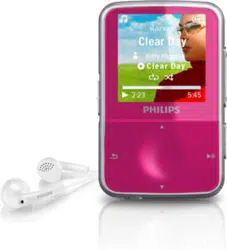
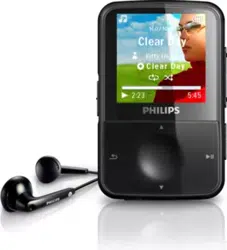
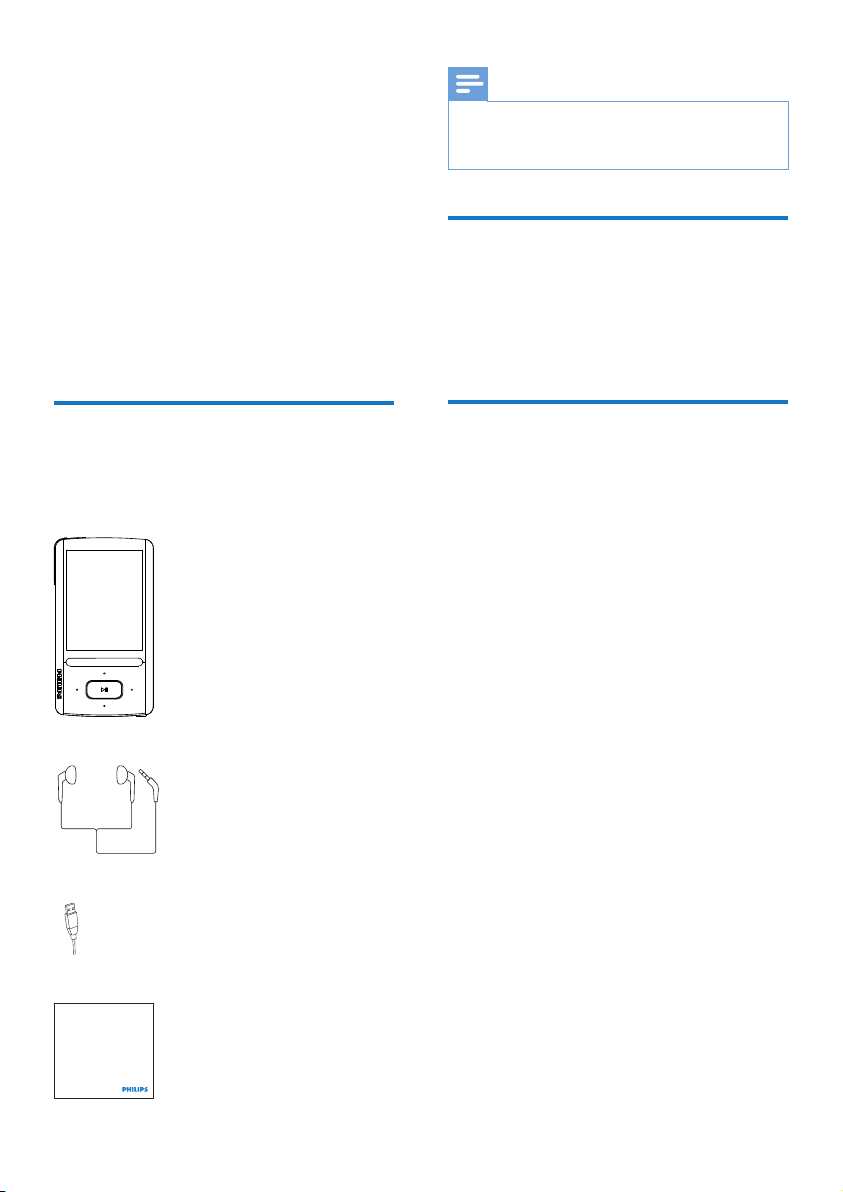
What’s in the box
Check that you have received the following
items:
Player
Earphones
USB cable
Quick start guide
Philips GoGear audio player
Quick start guide
EN
11
English
EN
Note
Rechargeable batteries have a limited number •
of charge cycles. Battery life and number of
charge cycles vary by use and settings.
The charging animation stops and the
•
icon is displayed when the charging process is
completed.
To conserve battery power and increase the
play time, do the following on ARIAZ:
Set the backlight timer to a low value •
(go to
> [Display settings] >
[Backlight timer]).
Switch the player on or off
Press and hold / until the ARIAZ is switched
on or off.
Automatic standby and shut-down
The player has an automatic standby and shut-
down feature that can save battery power.
After 10 minutes in idle mode (no play, no
button is pressed), the player switches off.
3 Get started
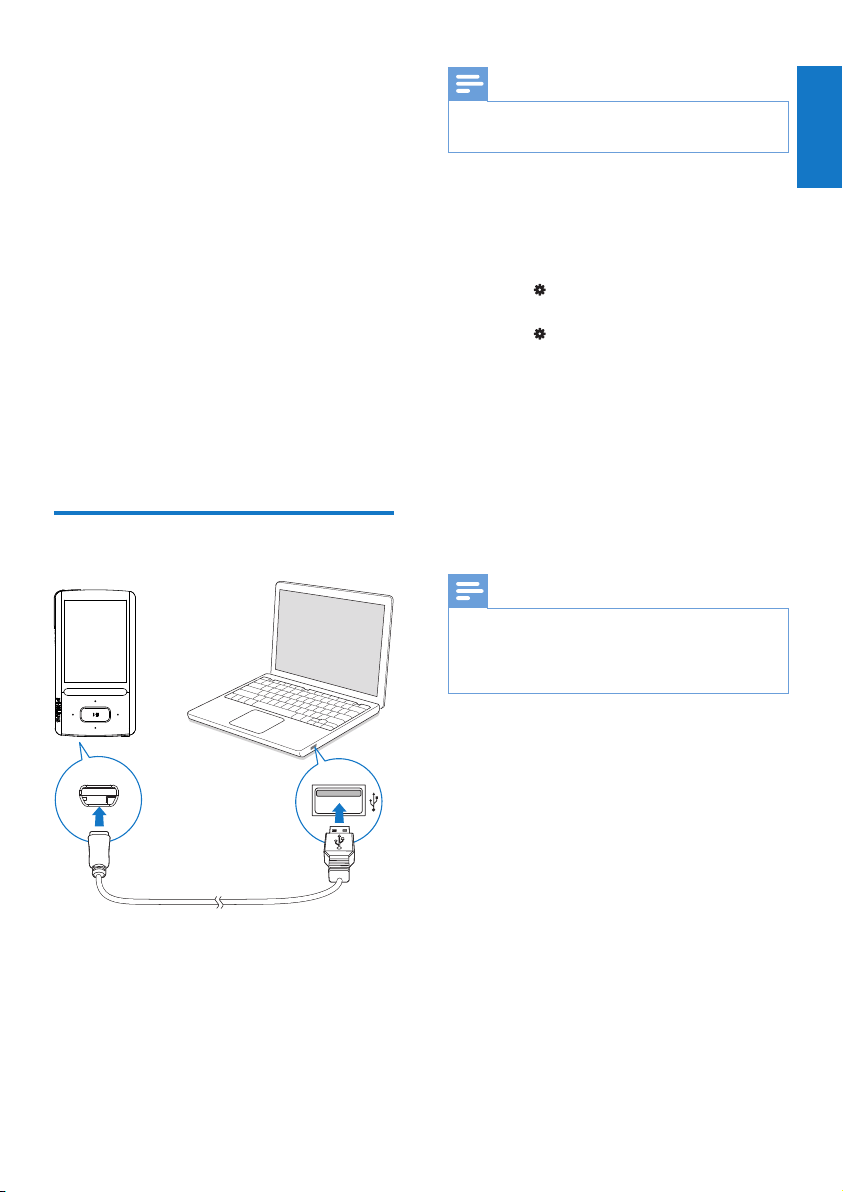
Charge power
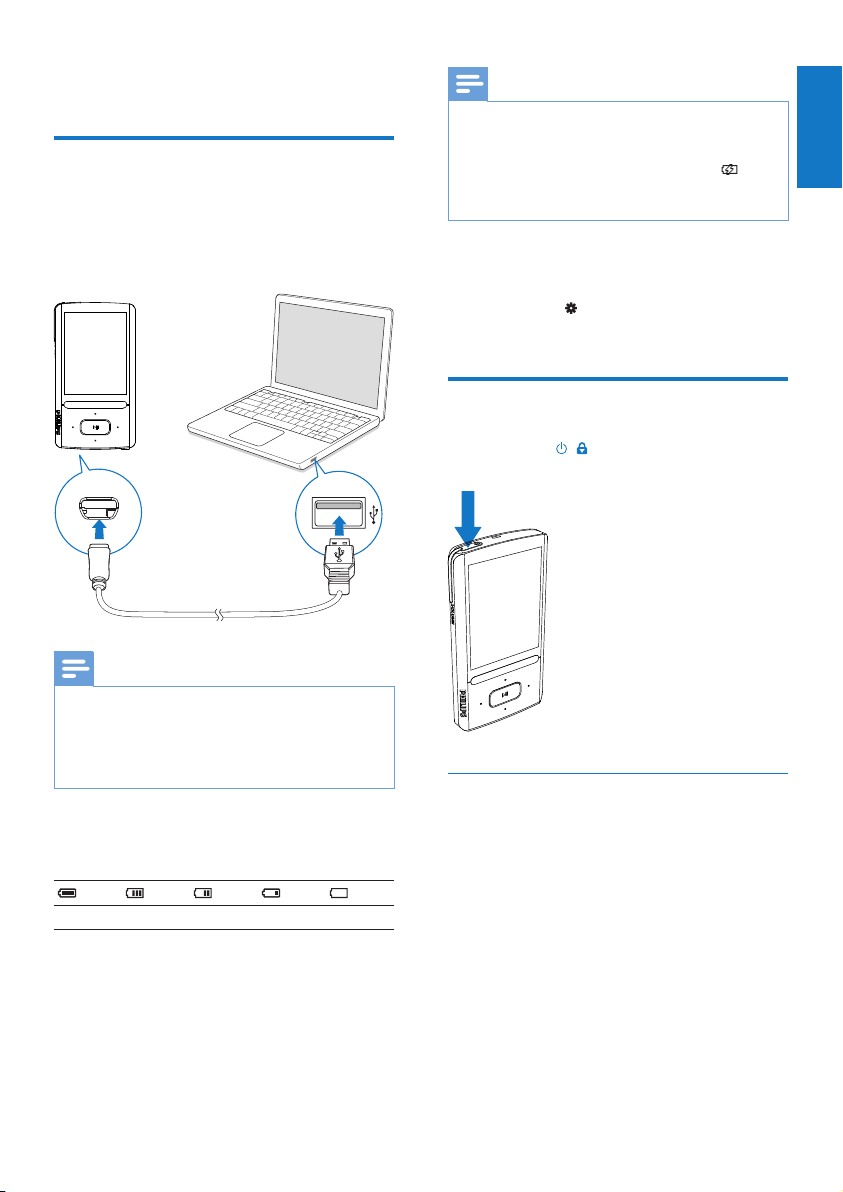
ARIAZ has a built-in battery that can be
charged through the USB port of a computer.
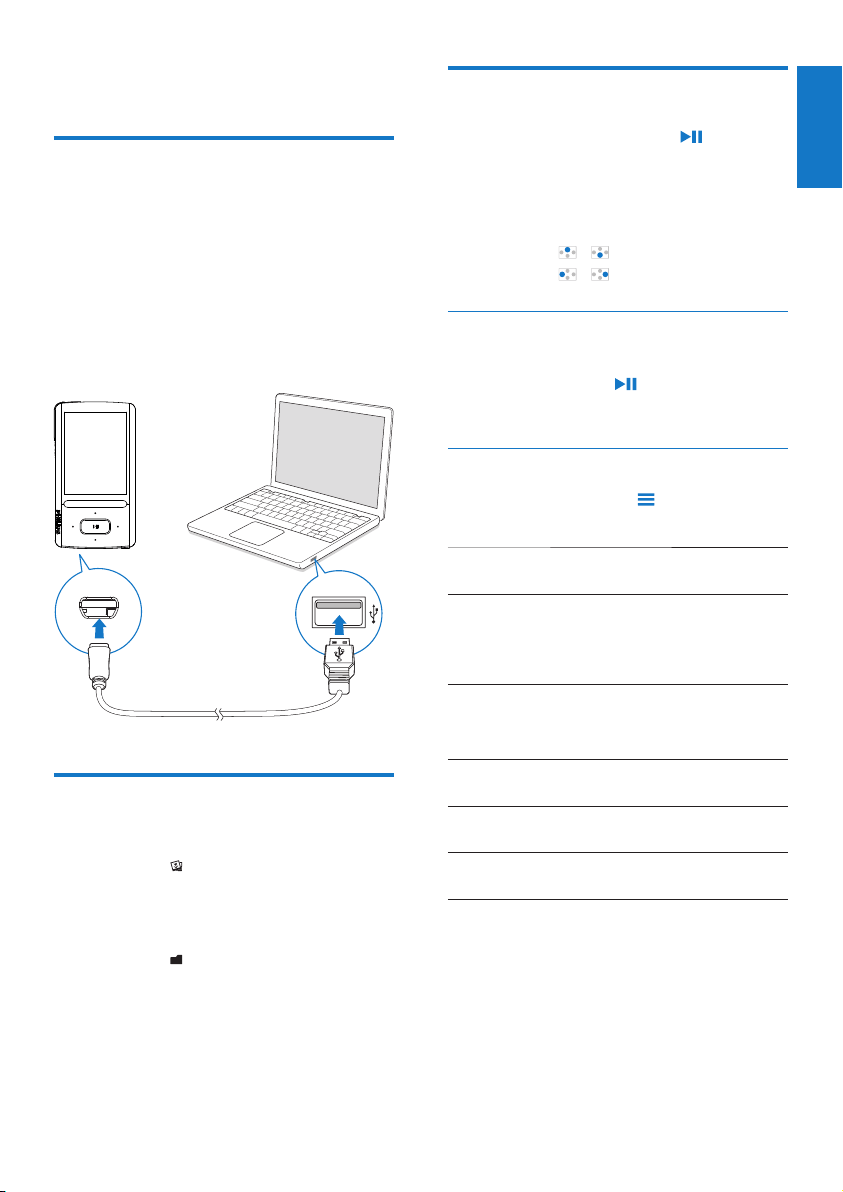
As shown, connect the ARIAZ to a PC by using
the USB cable.
Note
When you connect • ARIAZ to a computer,
you are briefly prompted to select: [Charge &
transfer] or [Charge & play].
• ARIAZ automatically applies [Charge &
transfer], if no new selection is made.
Battery level indication
The display indicates the approximate levels of
the battery status as follows:
100% 75% 50% 25% 0%
A flashing battery screen indicates »
that the battery is low. The player
saves all settings and switches off
within 60 seconds.
English
EN
12 EN
a
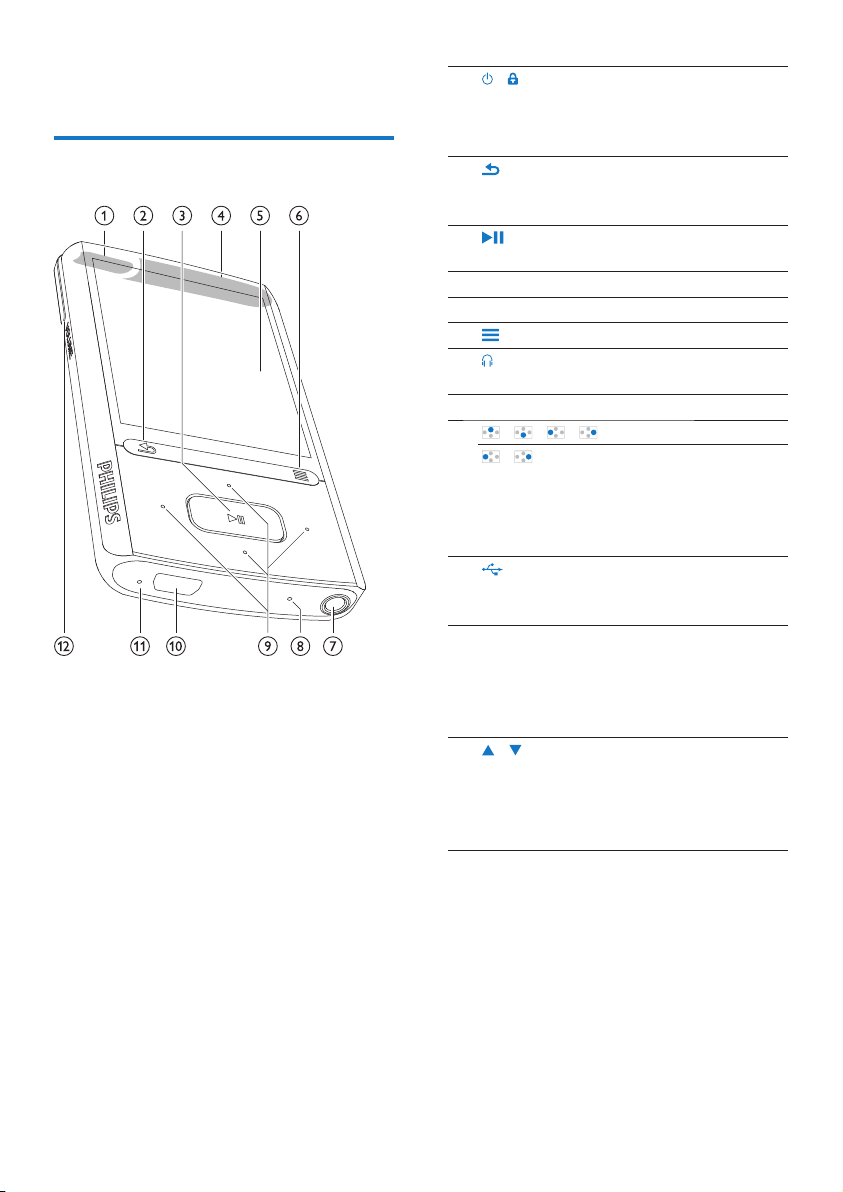
/ press and hold: switch
on/off the player
press: lock/unlock all
buttons
b
press: back one level
press and hold: return
to the Home screen
c
press: select options, or
start/pause/resume play
d
speaker
e
display
f
show options menu
g
3.5mm headphone
connector
h
MIC microphone
i
/ / / navigation buttons
/ on the play screen:
press: skip to the next/
previous option
press and hold: search
within current file
j
USB connector for
power charging and
data transfer
k
RESET press the hole by using
the tip of a ball pen
when the screen does
not respond to the
pressing of keys
l
/ VOLUME press: increase/decrease
the volume
press and hold:
increase/decrease the
volume quickly
4 Overview
Controls
EN
13
English
EN
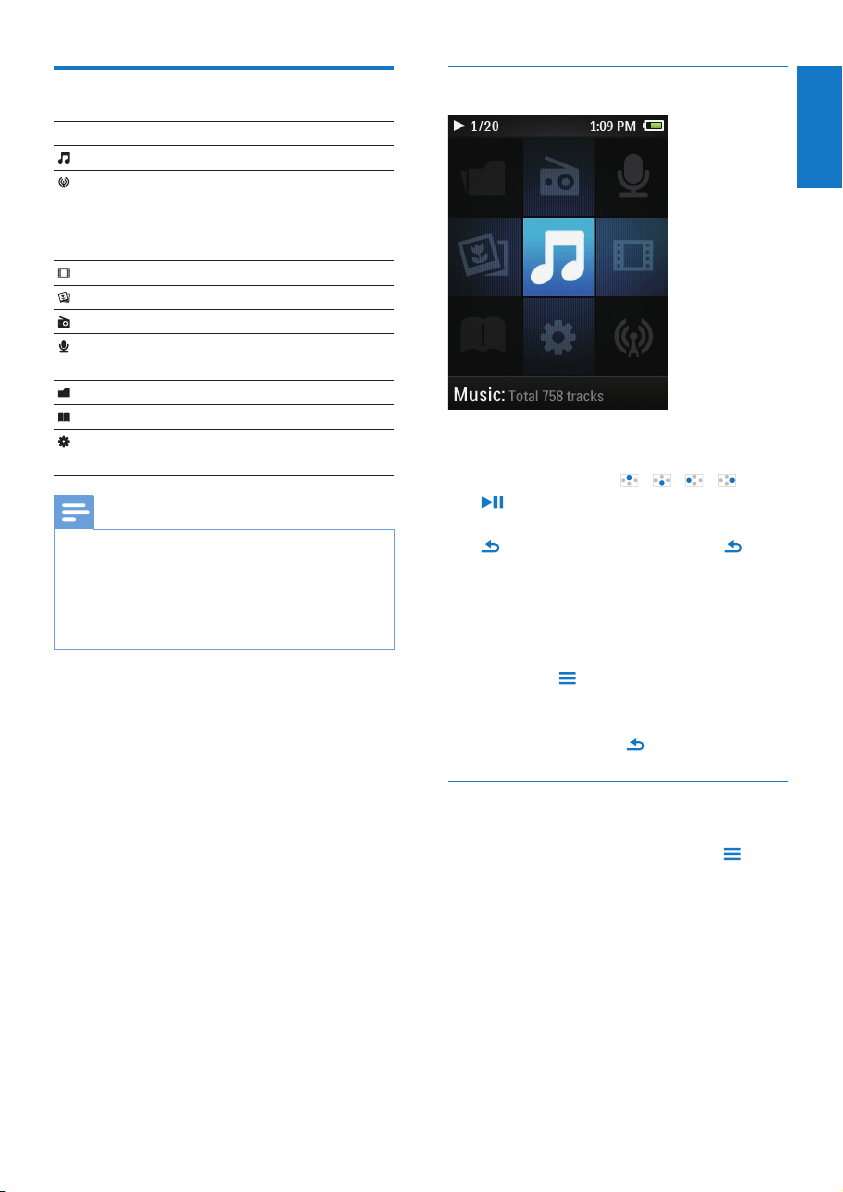
Navigate from the Home screen
From the Home screen, you can access •
functional menus by pressing the
navigation buttons
/ / / and
.
To go back to to previous screens, press •
repeatedly; or, press and hold to
return to the Home screen.
Switch between the Home screen and play
screen
On the Home screen,
During music play or radio play,
Press •
and select [Now playing]
or[Last played].
On the play screen,
Press and hold •
.
Select a theme
To select a theme for the display,
On the Home screen, press •
and
select [Theme].
Home screen
Menu Mode To
Music play audio files
Rhapsody*
channels
listen to channel lists
that you download and
transfer through the
Rhapsody software
Video watch videos
Pictures view pictures
FM radio tune in to the FM radio
Recordings create or listen to
recordings
Folder view view files in folders
Text reader read text files
Settings customize the settings
of ARIAZ
Note
* Rhapsody channels becomes part of the •
Home screen after you connect ARIAZ to
a computer that has the Rhapsody software
installed. Rhapsody channels services require
an active Rhapsody account and is available in
some regions only.
English
EN
14 EN
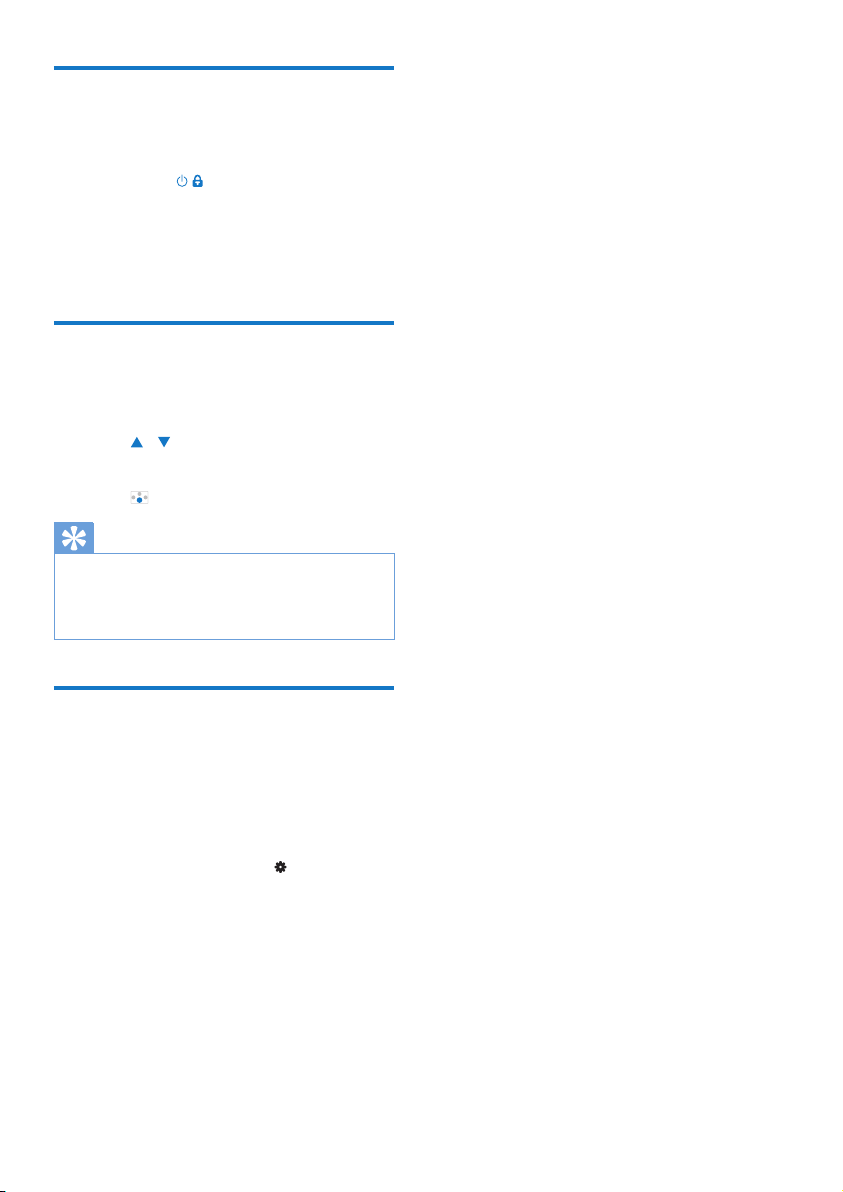
Lock/unlock the keys
When the player is on, use the lock to prevent
accidental operation.
Briefly press•
/ to lock or unlock the
keys.
All buttons except the volume keys »
are locked and the display shows a
lock icon.
Select the safe volume
Select the safe volume when you listen through
the by-packed earphones.
1 Press / VOLUME.
The volume screen is displayed. »
2 Press to select the safe volume.
Tip
For the • SafeSound options, see ‘Sound
settings’ (see ‘SafeSound’ on page 42).
For video play, exit the play screen to select
•
the safe volume.
Screen on/off
To save power, the screen switches off
automatically after the pre-defined time
duration if
no new action is taken on • ARIAZ;
and
a value is selected in •
> [Display
settings] > [Backlight timer].
To exit the power-saving mode
Press any key. •
EN
15
English
EN
Note
The installation requires you to agree to the •
license terms.
If the pop-up window is not displayed
automatically:
1 On the player, make sure that you have
selected the following options:
In •
> [PC connection preference],
select [MSC];
In •
> [CD installer], select
[Enable].
2 On the PC, select My Computer
(Windows XP / Windows 2000) /
Computer (Windows Vista / Windows
7).
The » Philips Songbird drive is
displayed.
3 To start installation, double click the
Philips Songbird drive.
Note
The installation requires you to agree to the •
license terms.
After the installation, the PC connection
•
changes to the MTP mode.
5 Sync with PC
media library
With Philips Songbird, you can do the following:
Manage your media collections on •
a PC;
Sync • ARIAZ with your PC media
library;
Register • ARIAZ on www.philips.
com/welcome;
• Update the firmware of ARIAZ (see
‘Update the firmware through Philips
Songbird’ on page 47);
• Repair the ARIAZ (see ‘Repair the
player through Philips Songbird’ on
page 48).
Install Philips Songbird
Install Philips Songbird for the first time
When you connect ARIAZ to a PC for the
first time, a pop-up window appears:
1 Select your language and country.
2 Follow the on-screen instructions to
complete the installation.
English
EN
16 EN
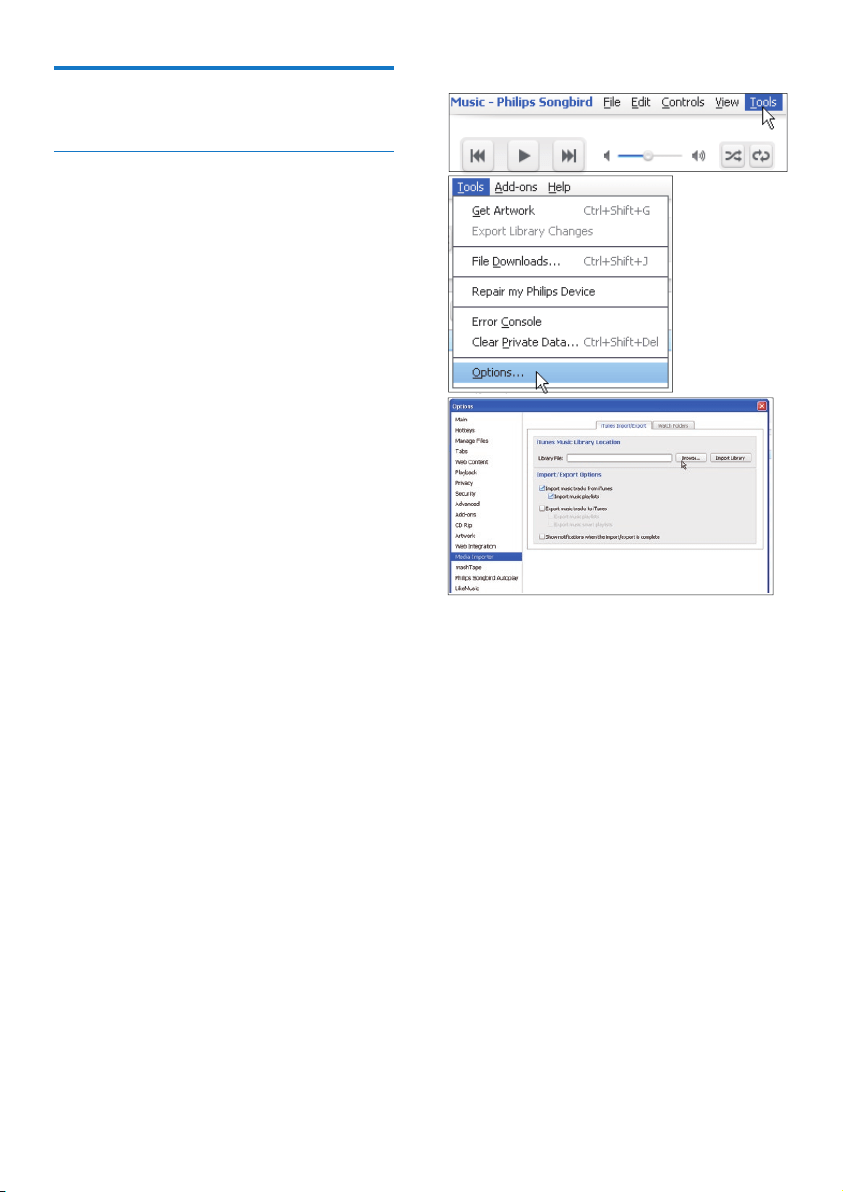
To set iTunes media folder
1 On Philips Songbird, go to Tools >
Options...
2 Select Media Importer, and then the
iTunes Importer tab.
3 Verify your library location and options.
4 Click the Import Library button next to
the library location.
The software imports the iTunes »
library into Philips Songbird.
Collect media files from the
PC
Set the watch folder
Create a central folder
You may wish to have all media files
automatically added to your library when
you copy them to a folder. Creating a central
folder is recommended. In Philips Songbird,
set the central folder as the watch folder. Each
time you launch Philips Songbird,songs are
added to/ removed from Philips Songbird as
they are on the central folder.
On the PC, create a central folder to save all
media files, for example, D:\Songbird media.
First-time launch
The first time you launch Philips Songbird on
a PC, do the following as prompted to import
existing media files into Philips Songbird:
Select the iTunes media folder to •
import an existing iTunes library;
Select the central folder to scan and •
import the existing media files.
The central folder is set as the »
watch folder of Philips Songbird.
EN
17
English
EN
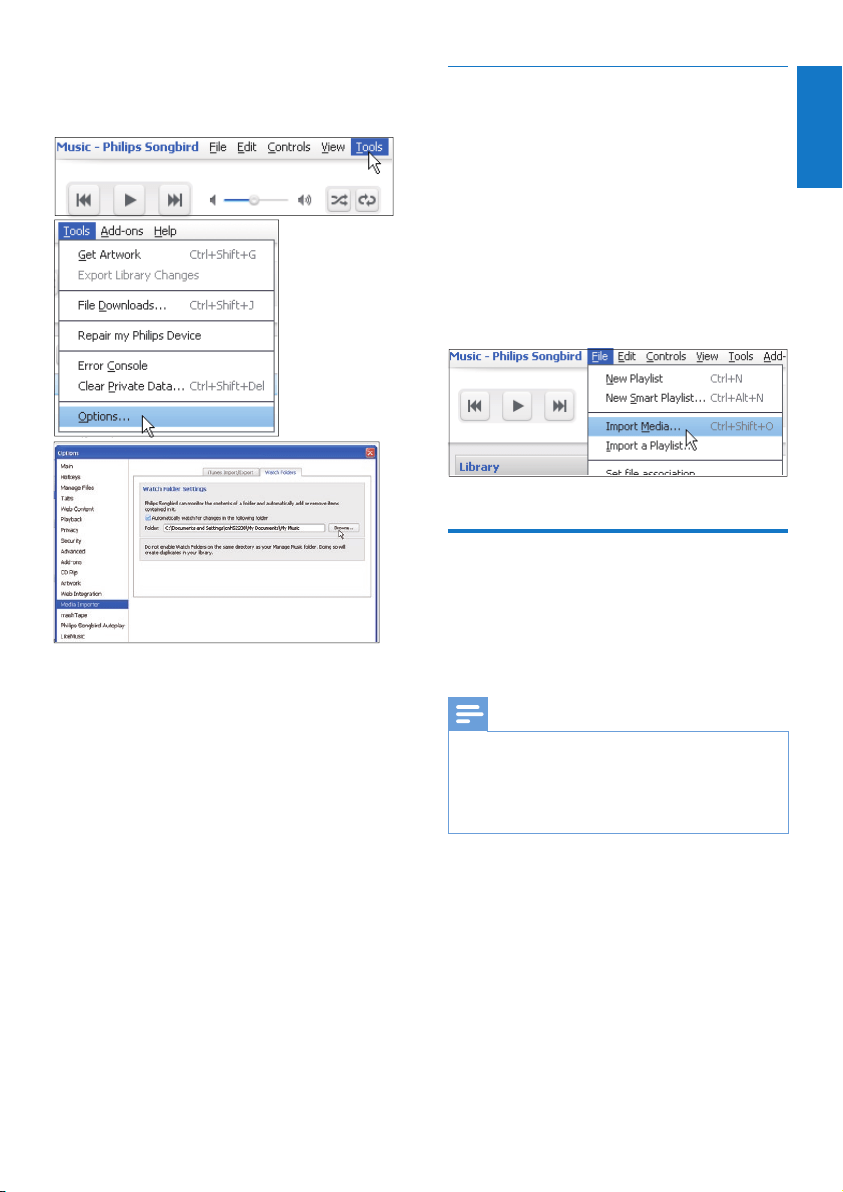
Import media files
Import media files from other folders
In Philips Songbird,
go to • File > Import Media to select
folders on the PC.
Media files are added under »
Library.
or, go to • File > Import a playlist to
select playlists on the PC.
Media files are added under »
Playlists.
Get contents from online
sources
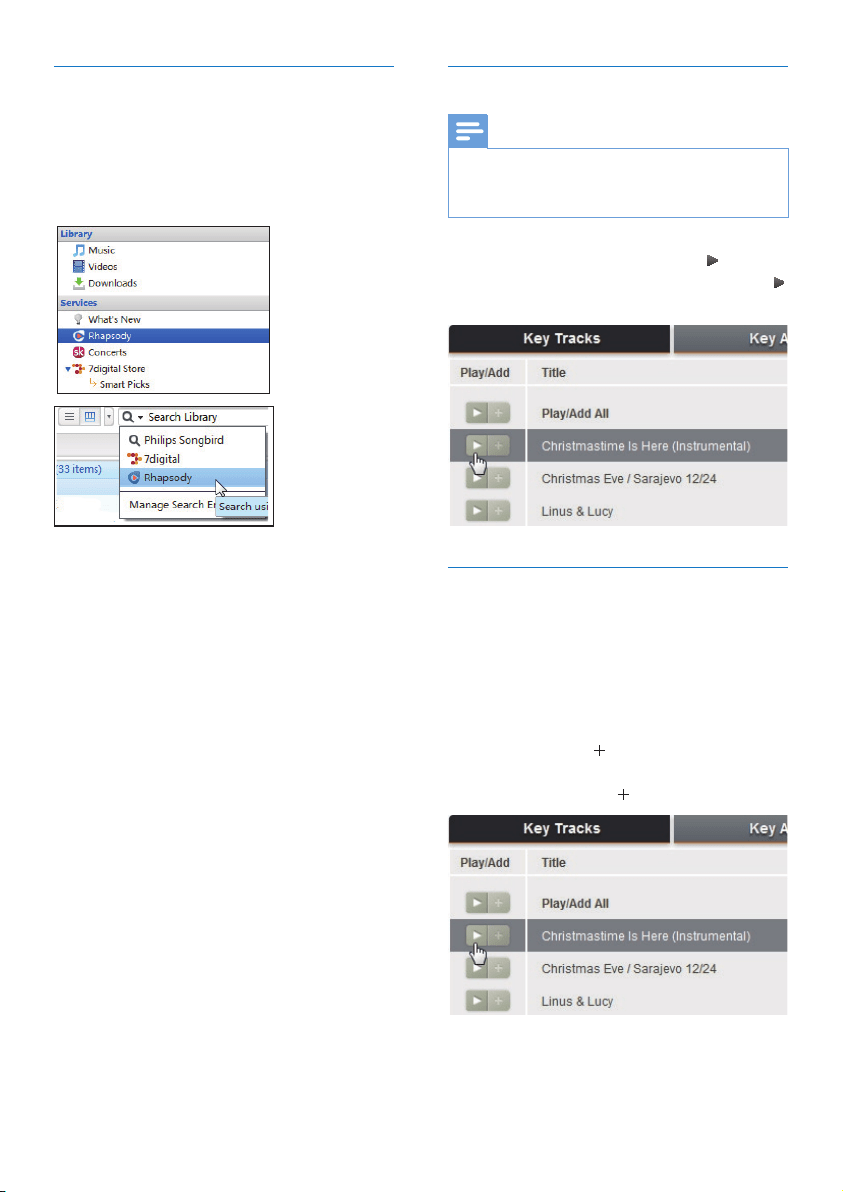
You can access and purchase content from
online sources. Find the available online services
under Services on the source selector pane.
Note
Before you download or purchase content •
from online services, subscribe to the online
service and log in to your account.
Some of the services are available in certain
•
countries.
To set the watch folder
In Philips Songbird, set the watch folder as
follows:
1 Select Tools > Options.
2 In Options, select Media Importer. Then,
select the Watch Folders tab.
3 In Watch Folders, tick the check box as
shown.
4 Click Browse, and select the central
folder (e.g.D:\Songbird media) as the
watch folder.
In » Philips Songbird, media files are
added or removed as they are in the
central music folder.
English
EN
18 EN
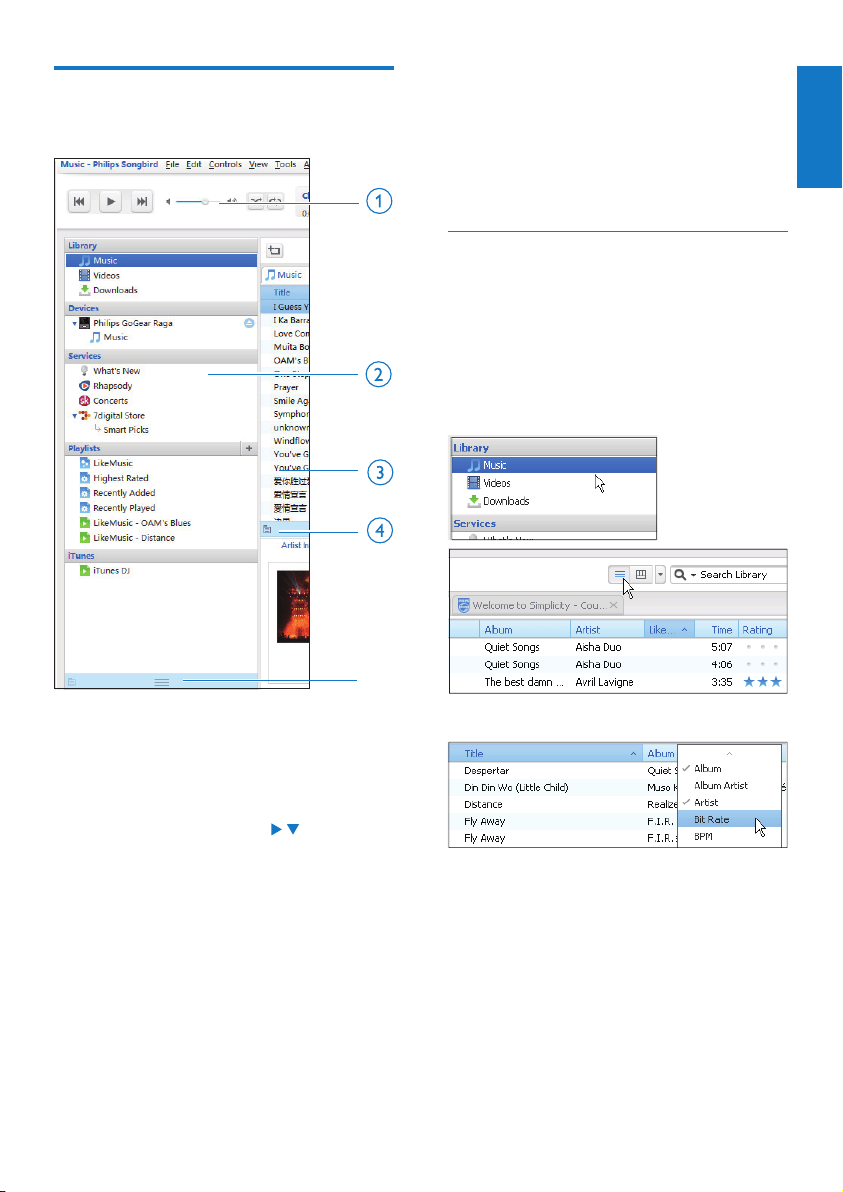
Play online
Note
Before you play music from • Rhapsody,
subscribe to the service and log in to your
account.
On the Rhapsody webpage,
To play the entire playlist, click •
Play All;
To play a song, select the song and click •
next to it.
Add to Philips Songbird
To transfer songs from Rhapsody to Philips
Songbird, add the songs to a playlist in Philips
Songbird (see ‘Create playlists in Philips
Songbird’ on page 20).
On the Rhapsody webpage,
To add the entire playlist to • Philips
Songbird, click
Add All;
To add a song to • Philips Songbird, select
the song and click
next to it.
Search online
1 Select an online service:
Select an option under • Services;
Alternatively, in the search box, click •
the down arrow to select an online
service.
You enter the webpage of the »
online source.
2 Search for your media file.
If necessary, use the search box to •
enter a keyword.
EN
19
English
EN
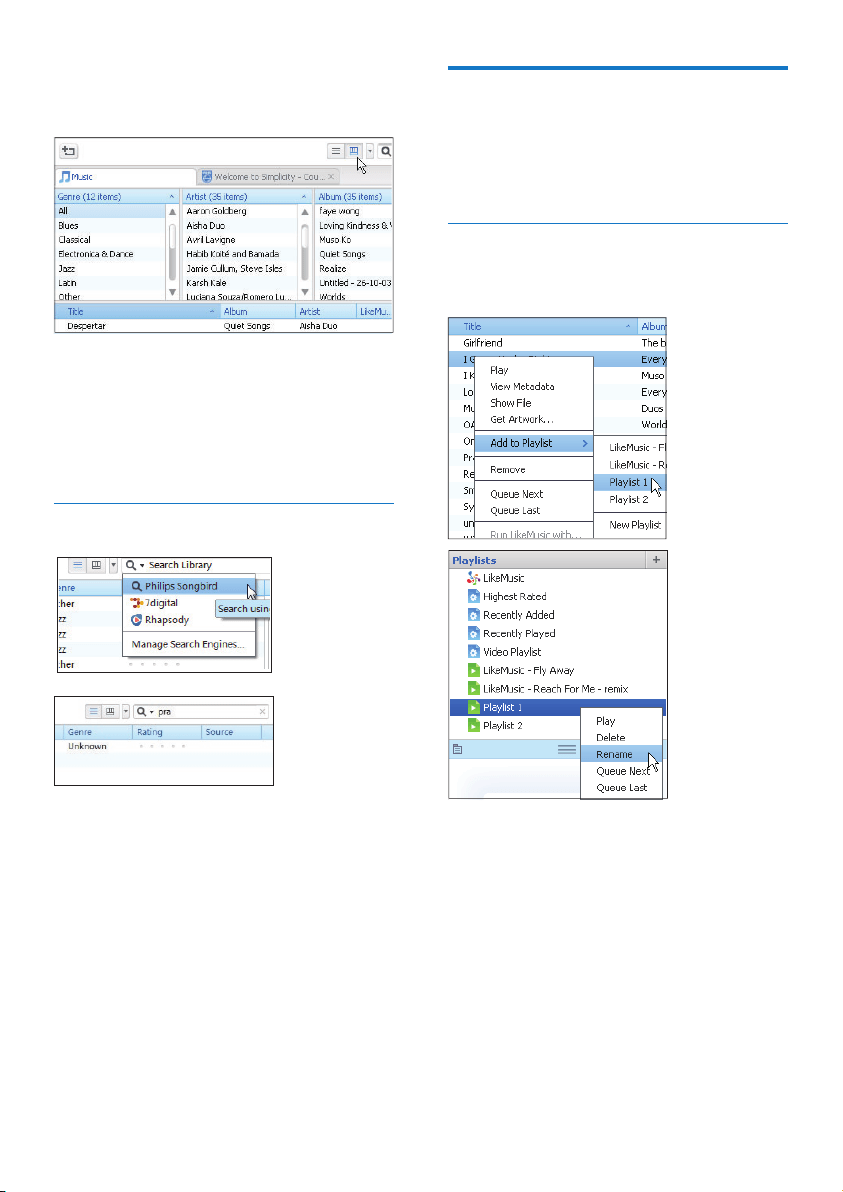
d Information pane: From the Internet
sources, MashTape can collect
information available about the media file
being played.
e Artwork pane: Drag the up arrow to
show the pane.
Search by metadata
In the media library of Philips Songbird, media
files are sorted by metadata. To search for
media files by metadata, click the icon to
select the list or filter pane view.
List view
In the list view, media files are listed by
metadata.
To select what metadata to show,
1 In Library > Music or Videos, right click
on the bar of metadata tags.
A list of metadata tags appears. »
2 Click on the tag that you want to show
on the metadata bar.
Search in Philips Songbird
Philips Songbird is structured as follows:
a Player pane: Click the buttons to play
media files in the media library of Philips
Songbird.
b Source selector pane: Click to select a
source of contents; Click
/ to show or
hide the sub-sources.
• Library: media library of Philips
Songbird;
• Devices: player that is connected to
the PC;
• Services: online media sources;
• Playlists: Playlists that you create
or generate in the media library of
Philips Songbird.
c Contents pane: View contents in current
source of contents.
English
EN
20 EN
Create playlists in Philips
Songbird
With a playlist, you can manage and sync your
songs as needed.
Create a playlist
Select songs that you want to play. Add the
songs to a playlist.
1 In Library > Music, select songs.
To select multiple songs, hold down •
the Ctrl button when you click
songs.
Filter pane view
In the filter pane view, media files can be
filtered by three metadata tags.
To select a filter pane,
1 Right click on the bar of metadata tags.
A list of metadata tags appears. »
2 Click on the tag that you want to show
on the metadata bar.
Search by keyword
1 In the search box, click the down arrow
to select Philips Songbird as the source of
content.
2 Enter the keyword in the search box.
3 Press the Enter key.
You start the search in the library. »
EN
21
English
EN
Generate LikeMusic playlists
Based on the LikeMusic analysis, a playlist can
be generated from a seed song.
LikeMusic analyzes songs in your library
and, based on their music characteristics,
creates relationships between them. These
relationships help LikeMusic to create playlists
of songs that sound great together.
When you import songs into the music library
of Philips Songbird, the LikeMusicanalysis
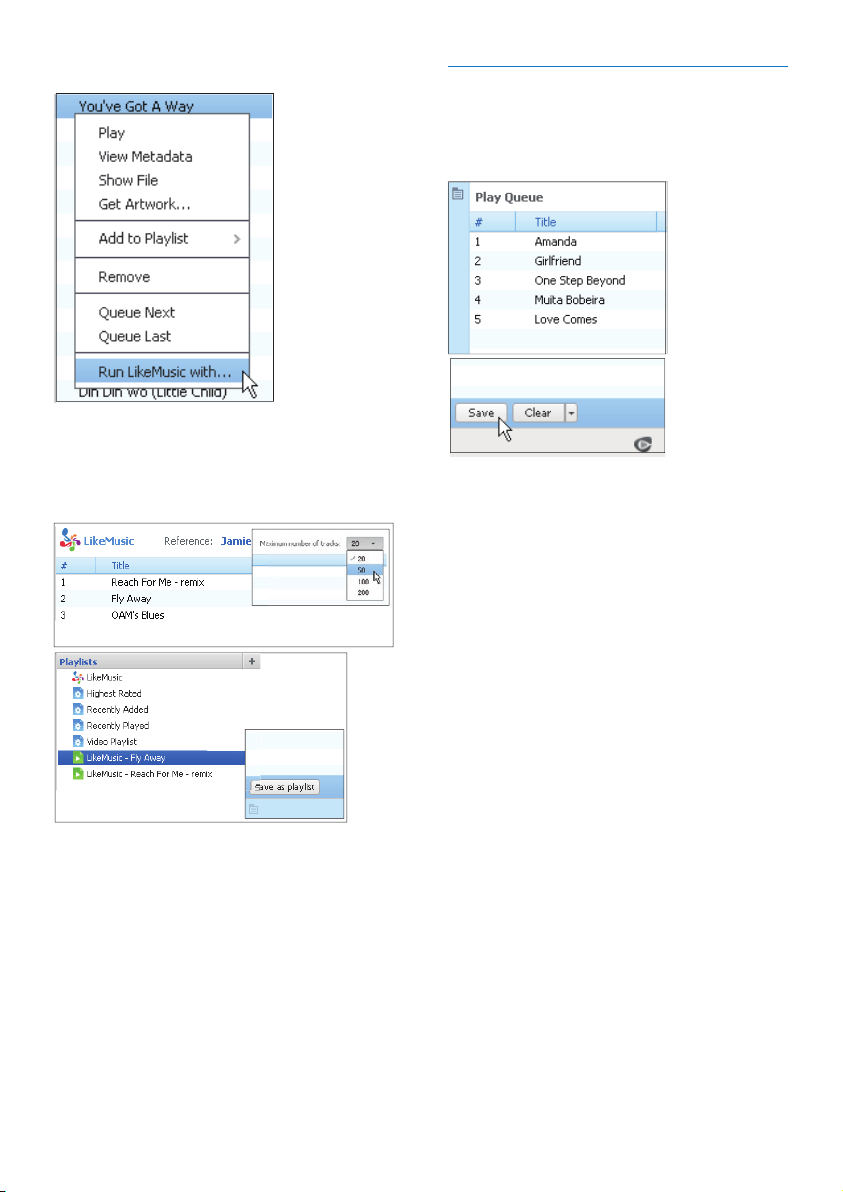
starts. For the song that completes the
analysis, the LikeMusic icon lights up; For the
song that cannot complete the analysis, the
icon remains gray.
Select a seed song
Make sure that the seed song has completed
the LikeMusic analysis.
In • Library > Music, double click the
blue LikeMusic icon of the song;
2 To add the songs to a playlist:
Right click on the songs, and select •
Add to Playlist;
Select a playlist;•
The songs are added to the »
playlist.
To create a playlist, select • New
Playlist.
A new playlist is created for the »
songs.
Under » Playlists, name the playlist
as needed.
Alternatively,
Create a playlist. Add selected songs to the
playlist.
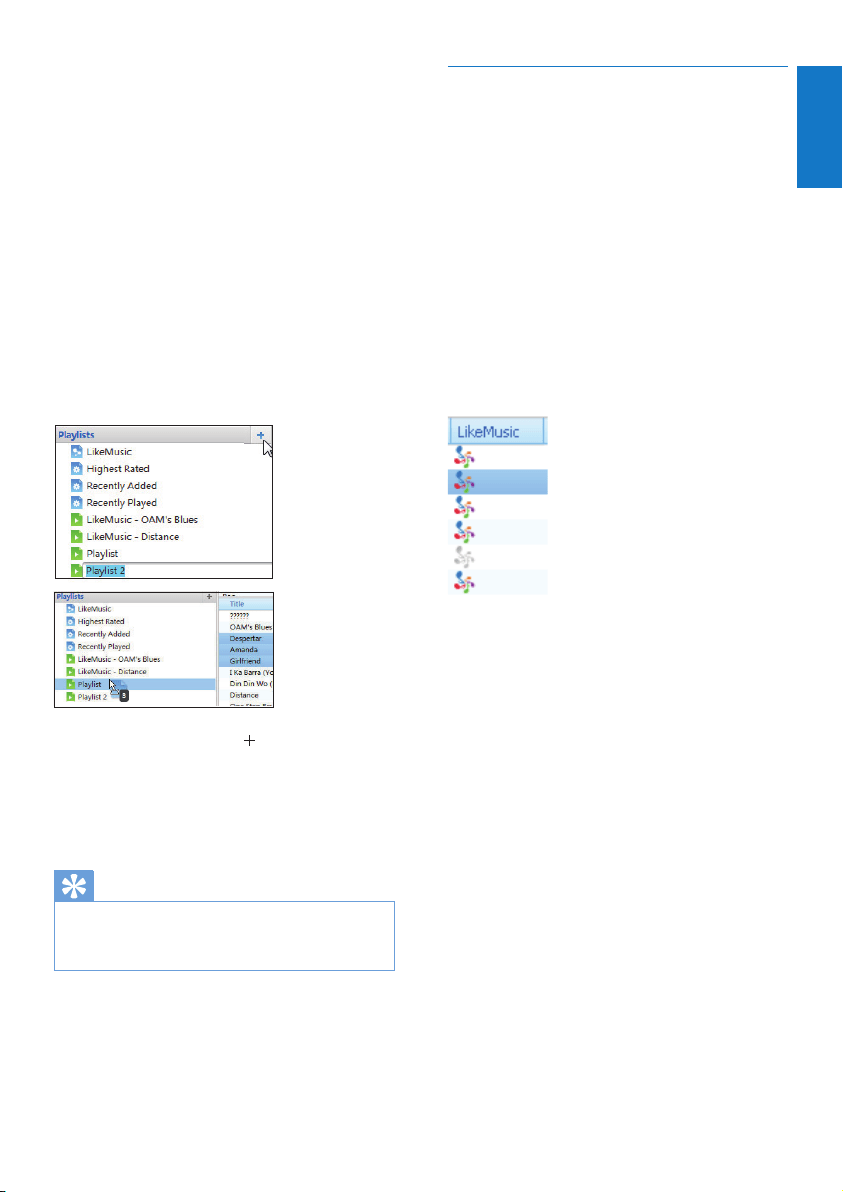
1 Under Playlists, click to create a
playlist.
A new playlist is created. »
2 Name the new playlist as desired.
3 Drag and drop media files to the playlist.
Tip
To drag and drop multiple files at the same •
time, hold down the Ctrl button when you
click on selections.
English
EN
22 EN
Save the play queue as a playlist
Create a play queue
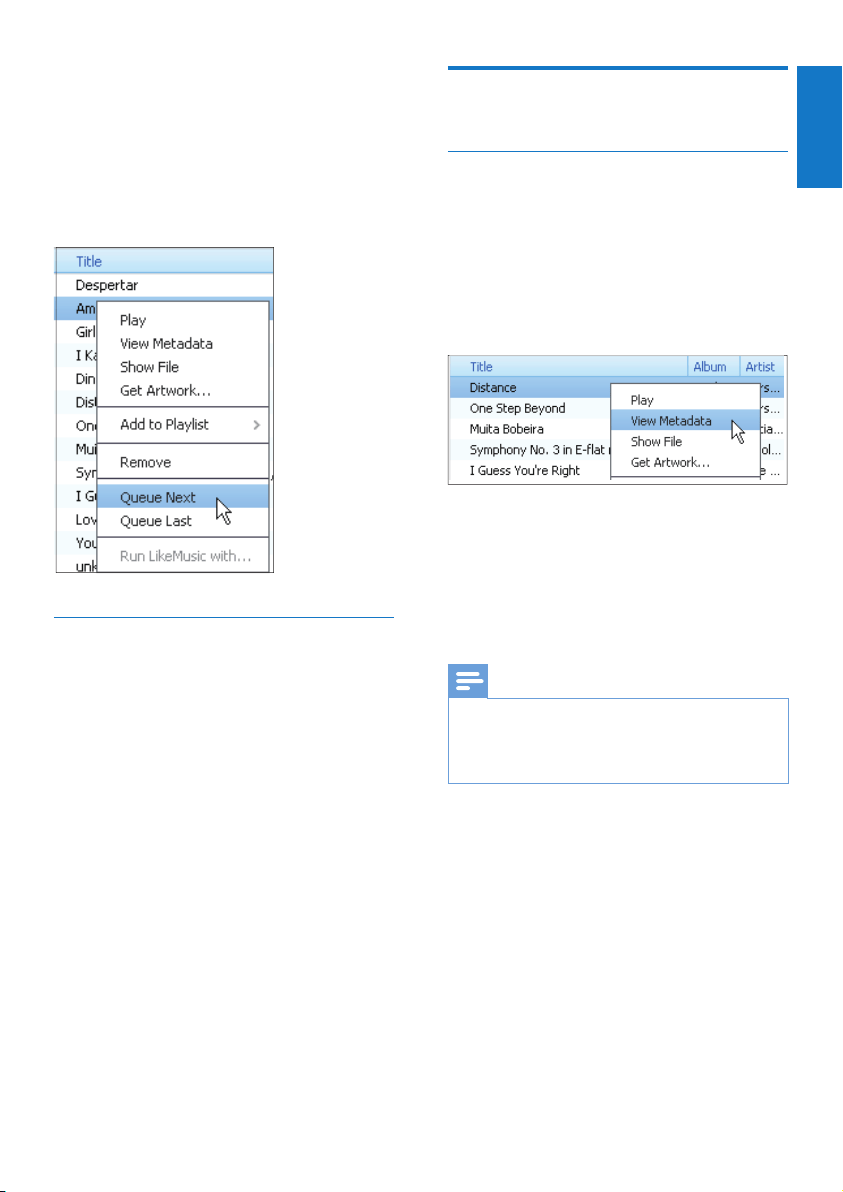
Drag and drop songs or playlists to •
the Play Queue pane.
Save the play queue as a playlist
1 Click Save.
The play queue is saved as a »
playlist under Playlists.
2 Under Playlists, name the playlist as
needed.
Alternatively,
In• Library > Music, right click on a
song and select Run LikeMusic with.
A » LikeMusic playlist is displayed
in the LikeMusic page.
Select the maximum number of songs in the
playlist
As shown, select a number in the •
drop-down list.
Save the LikeMusicplaylist
As shown, click • Save as playlist in the
LikeMusic page.
The » LikeMusic playlist is saved
under Playlists.
EN
23
English
EN
Manage media files in Philips
Songbird
Edit metadata
By editing file information (metadata or
ID3 tag), you can have media files sorted
automatically by song title, artist, album, and
other information.
After you sync the media files to the player,
you can browse the media library by
metadata.
1 In Library > Music or Videos, select a
media file.
2 Right click on the file to select View
Metadata.
A metadata table appears for you to »
edit the information.
Note
To sort the music files from • Rhapsody as
needed, edit the metadata in the media library
of Philips Songbird. The song information
remains unchanged on the play screen.
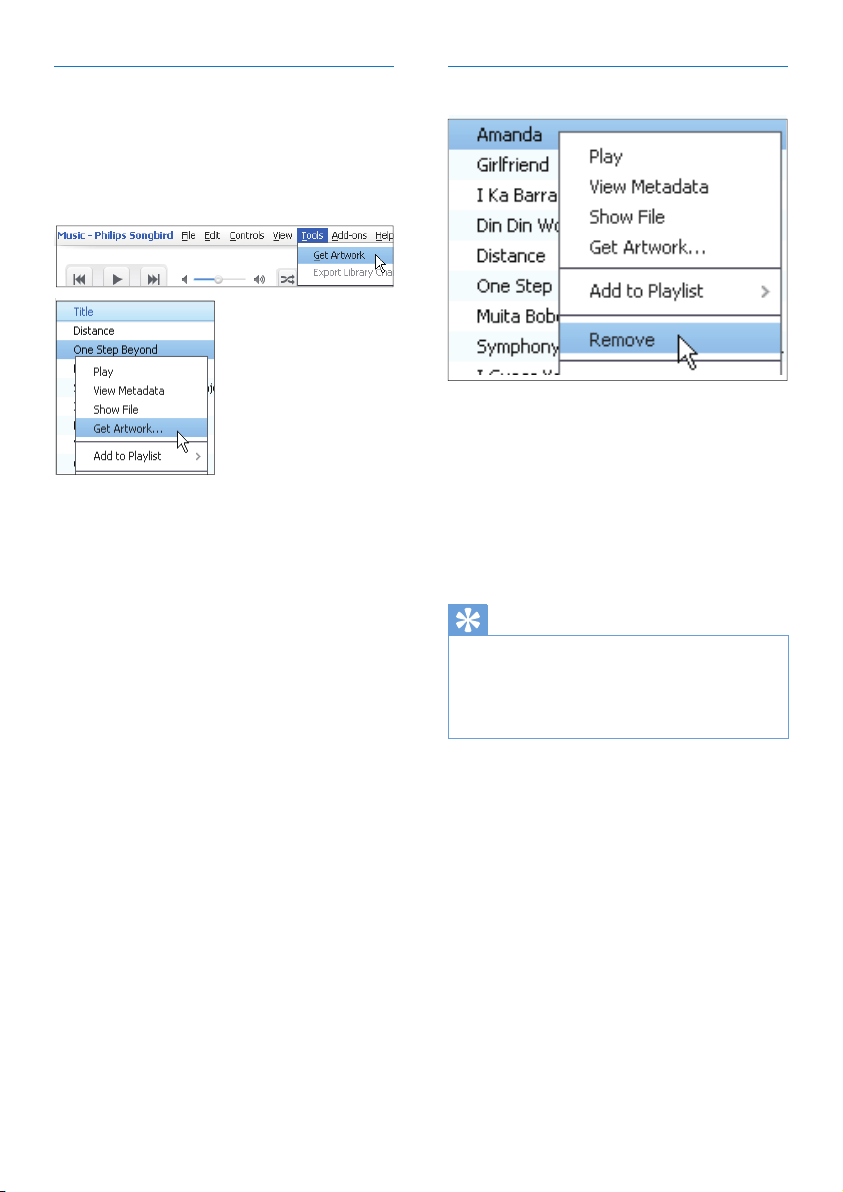
Add songs to the top or end of the play
queue
To add songs to the top, right click •
on the options and select Queue
Next;
To add songs to the end, right click •
on the options and select Queue
Last.
Play a playlist
1 To play the entire playlist, right click on
the playlist and select Play.
To start play from a song, double •
click on the song.
2 To select play options, click buttons on
the player pane.
English
EN
24 EN
Remove media files from the library
1 Right click on a media file. Select Remove.
2 Confirm as prompted.
The selected file is removed from »
the library and from all playlists. (By
default, the file is only “removed”,
not “deleted”. The file still exists in its
original location on the computer or
computer network.)
Tip
To select multiple files, hold down the • Ctrl
button when you click on selections.
To select multiple consecutive files, hold down
•
the Shift button when you click on the first
and last selections.
Get album artwork
Artwork is sometimes available for music
downloads. With Philips Songbird, you can
insert artwork for songs.
After you sync the songs to some players, you
can browse the media library by artwork.
On • Philips Songbird, select Tools > Get
Artwork.
Artwork is fetched for all titles in the »
library.
Right click on selected titles, and select •
Get Artwork.
Artwork is fetched for all selected »
titles.
EN
25
English
EN
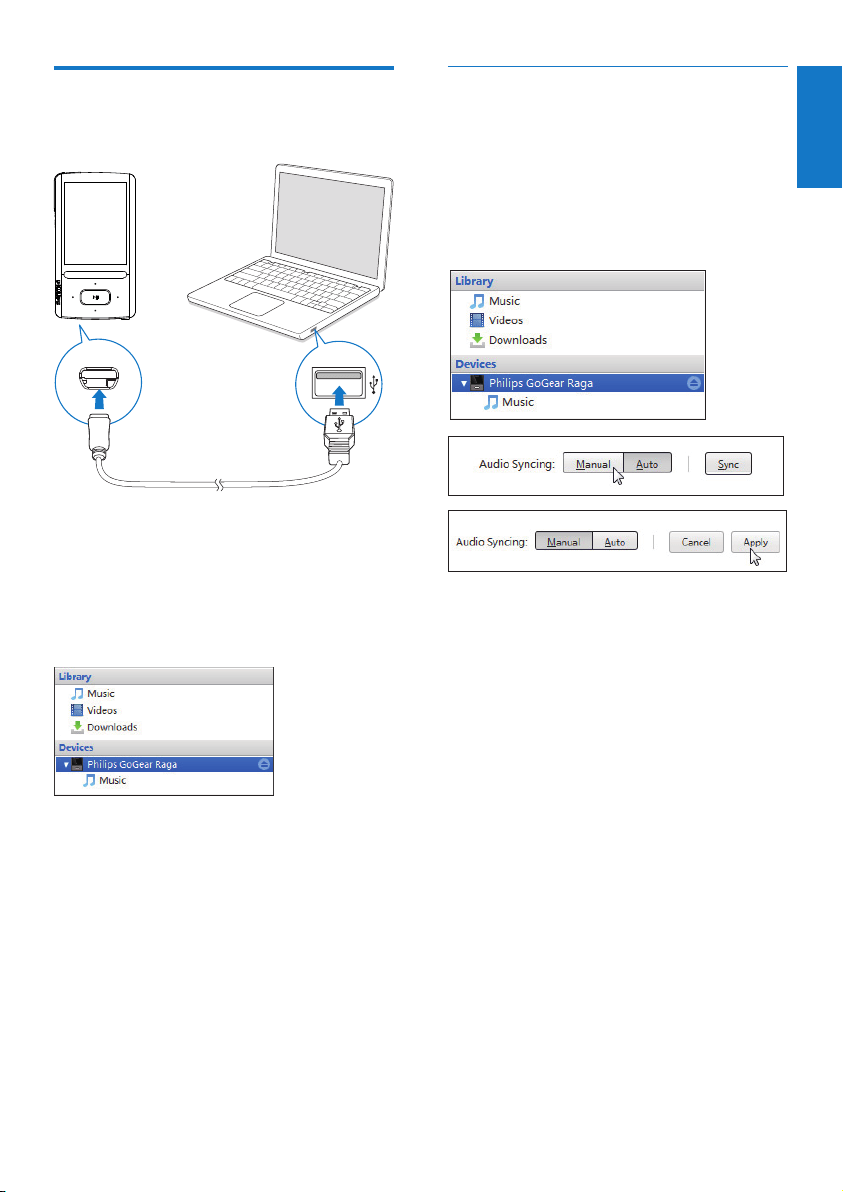
Select auto or manual sync
The first time you connect the player
to Philips Songbird, select auto sync as
prompted. The player sync with Philips
Songbird automatically.
If you didn’t select auto sync, you switch on
the manual sync.
To select auto or manual sync,
1 Select the player under Devices.
2 Select Manual or Auto.
3 To confirm the option, click Apply.
Sync the player with Philips
Songbird
1 On the PC, launch Philips Songbird.
2 Connect the player to the PC by using a
USB cable.
On » Philips Songbird, the player is
displayed when it is recognized by
the PC.
English
EN
26 EN
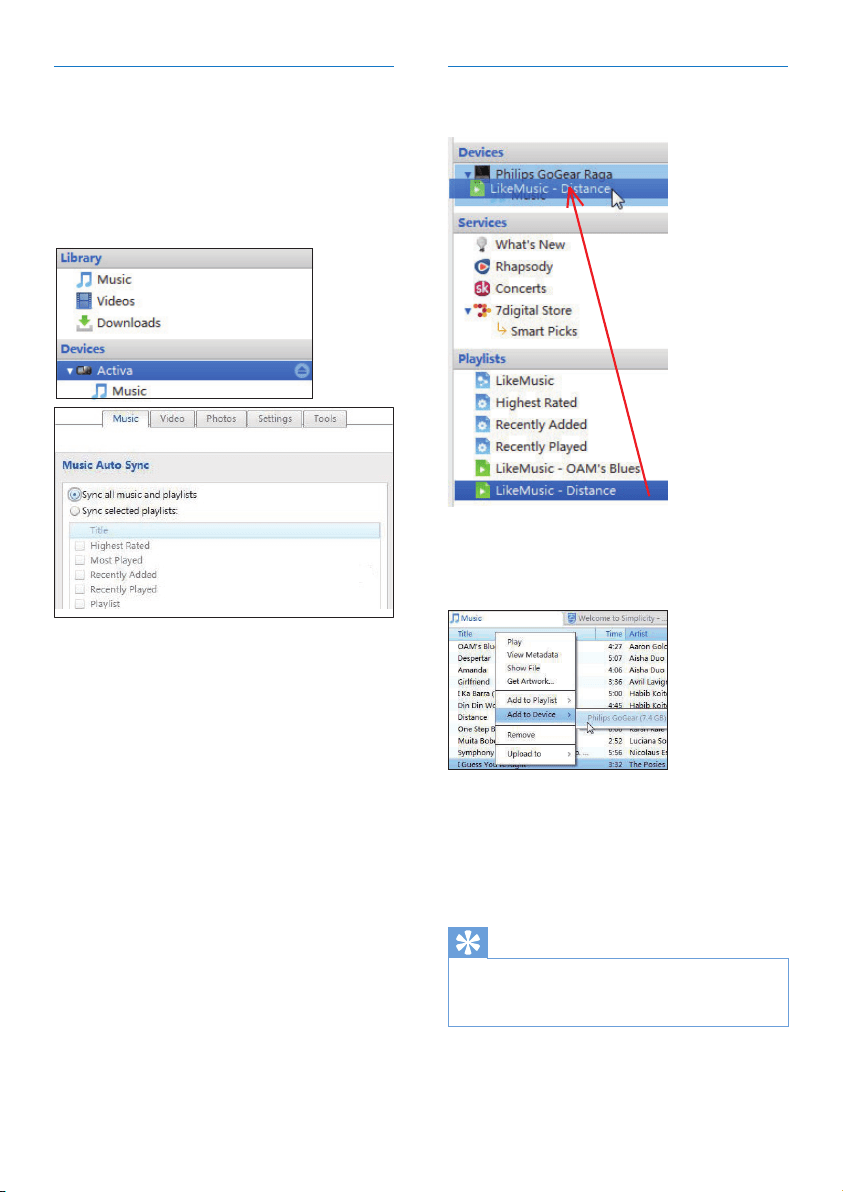
Manual sync
To manually transfer selected playlists,
1 Select playlists.
2 Drag and drop the playlists to ARIAZ.
To manually transfer selected media files,
1 On the Content pane, right click on a
selected media file.
2 Select Add to Device > ARIAZ.
Selected files are transferred to »
ARIAZ.
Tip
To select multiple files at the same time, hold •
down the Ctrl button when you click on
selections.
Auto sync
If you have selected auto sync, auto •
sync starts automatically when you
connect the player to a PC;
Alternatively, select the player under •
Devices, and click Sync.
To select auto sync settings,
1 Select the player under Devices.
2 On the pop-up window, click the Music
or Videos tab.
3 Click to select an option.
EN
27
English
EN
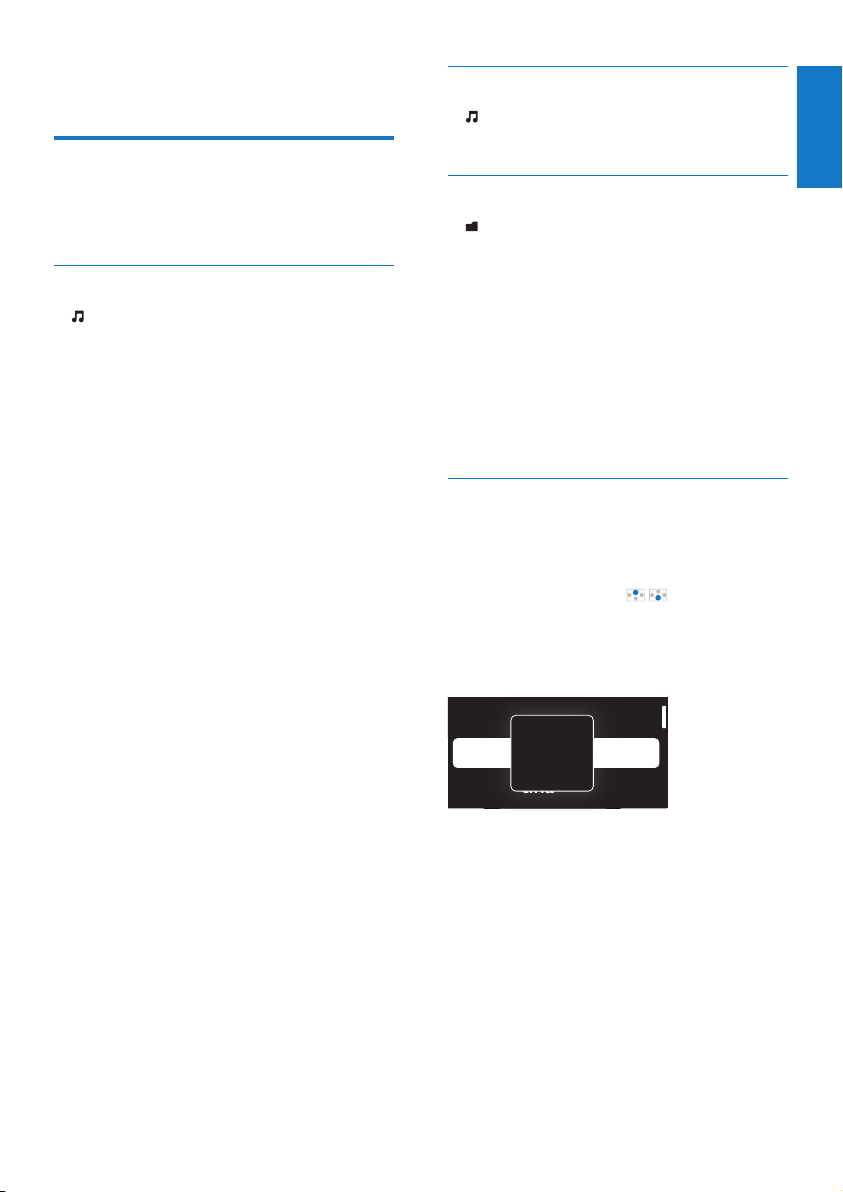
Find music by playlist
In > [Playlists], find the playlist that you
transfer from the PC media library.
Find music by file folder
In , find music by file folder.
To organize music files by file folder,
1 Connect ARIAZ to a PC.
2 On the PC, under My Computer or
Computer,
select • ARIAZ, and create file folders.
3 On the PC, drag and drop music files to
the file folders on the ARIAZ.
Alternatively, drag and drop file •
folders from the PC to ARIAZ.
Superscroll
In a list of options that are sorted by alphabet,
Superscroll allows you to browse the options
by initial.
Press and hold •
/ to start
Superscroll.
On the screen, you can see the »
initials of current options.
Alive
Argentina
All of Your Life
iv
e
r
gentina
l
o
o
f
f
Y
Y
o
o
ur
L
L
i
f
e
e
A
6 Music
Find music on the player
After you sync the player with your PC media
library, find the music on the player.
Find music by song information
In , songs are sorted by metadata or ID3
tag under different collections: [All songs],
[Artists], [Album art], [Albums], or [Genres].
[All songs]
Songs are sorted by song title in •
alphabetical order.
[Artists]
Songs are sorted by artist in alphabetical •
order;
Under each artist, songs are sorted by •
album in alphabetical order.
[Album art]
Thumbnails of album art are listed for •
albums in alphabetical order.
[Albums]
Songs are sorted by album in alphabetical •
order.
[Genres]
Songs are sorted by genre, such as pop, •
rock.
English
EN
28 EN
Play from the same collection
During the song play, you can switch to a
collection the same as that of current song.
1 On the play screen, press and select
[Play mode].
2 In [Play music from…], select [… this
artist], [… this album], or [… this genre].
Press
.
You start to play current artist, »
album, or genre.
To play all the songs on the player,
1 On the play screen, press and select
[Play mode].
2 In [Play music from…], select [All songs].
Press
.
Select play options
On the play screen, press to select play
options, such as play mode, sound settings,
and sleep timer (see ‘Settings’ on page 42).
Playlists
On the players, you can find the following
playlists:
playlists that you transfer from the •
PC media library;
three playlists-on-the-go for you to •
add songs on the player.
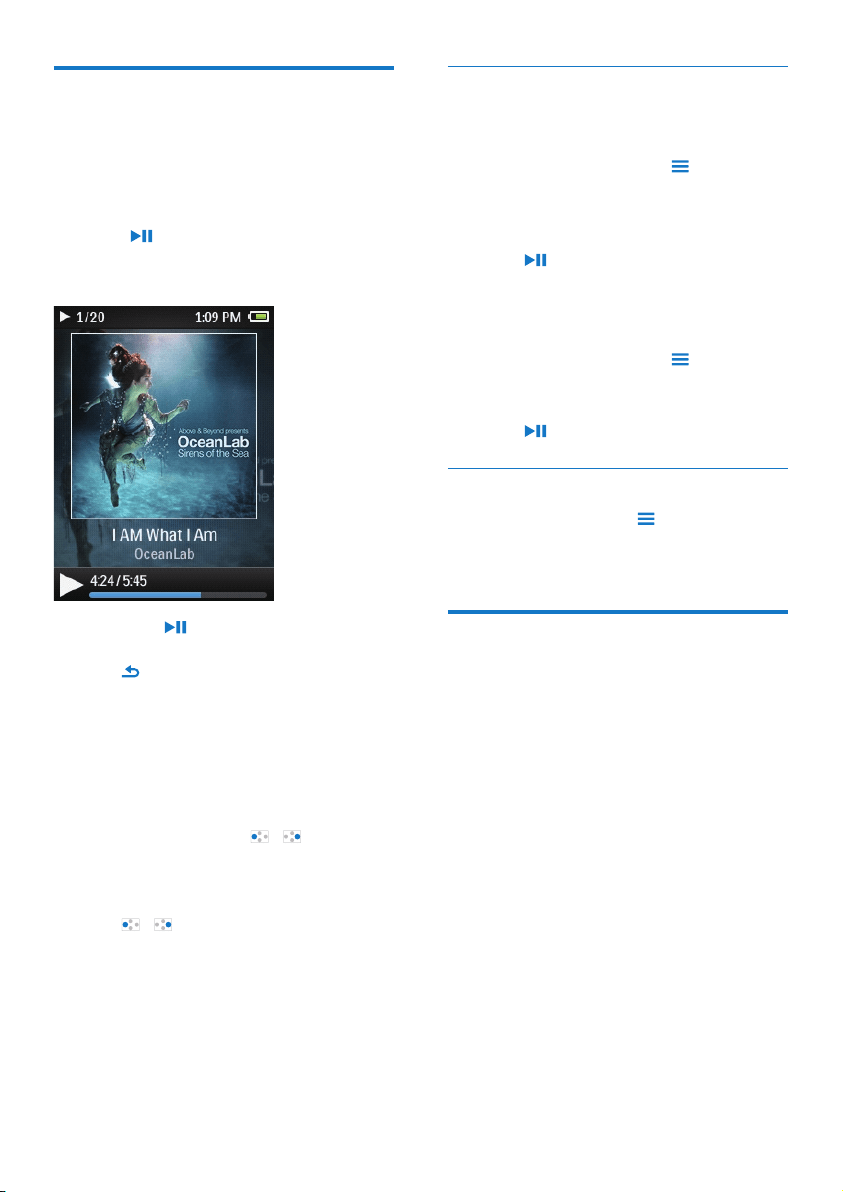
Play music
You can start play from a song, or play an entire
album or artist.
To start play from a song,
1 Select a song.
2 Press to start play.
Play starts from current song. »
On the play screen,
Press •
to pause and resume play.
To go to the previous screen, press •
.
The play screen returns a few »
seconds later.
On the play screen, you can see »
the file information and play
status.
To select a music file on the play screen,
Repeatedly press •
/ .
To rewind or fast forward within current
song,
On the play screen, press and hold •
/ .
EN

29
English
EN
Delete songs from the player
To delete a song,
1 Select or play a song.
2 On the list of songs or play screen,
press •
and select [Delete].
3 Select [Yes].
Current song is deleted from the »
player.
To delete an artist or album,
1 Select an artist or album.
2 On the list of artists or albums,
press •
and select [Delete].
3 Select [Yes].
Current artist or album is deleted »
from the player.
Add songs to a playlist-on-the-go
To add current song,
1 Select or play a song.
2 On the list of songs or play screen,
press •
and select [Add to playlist].
3 Select a playlist-on-the-go. Press .
You save current song to the playlist. »
To add an album or artist,
1 Select an album or artist.
2 On the list of albums or artists,
press •
and select [Add to playlist].
3 Select a playlist-on-the-go. Press .
You save the album or artist to the »
playlist.
Remove songs from a playlist-on-the-
go
Remove current song from a playlist
1 On the play screen, press > [Remove
from Playlist].
2 Select a playlist-on-the-go. Press .
You remove current song from the »
selected playlist.
Remove all the songs in a playlist
1 Select [Playlists] > [Clear playlist].
2 Select a playlist-on-the-go. Press .
You remove all the songs from the »
playlist.
English
EN
30 EN
Download audiobooks to the PC
1 Connect your PC to the Internet.
2 Launch AudibleManager on your PC.
3 On AudibleManager, click the My Library
Online button to connect to www.
audible.com.
4 Select and download audio books:
Log in to your account with • www.
audible.com;
Download audio books in the format •
of
or .
The downloaded books are »
automatically added to your
library on AudibleManager.
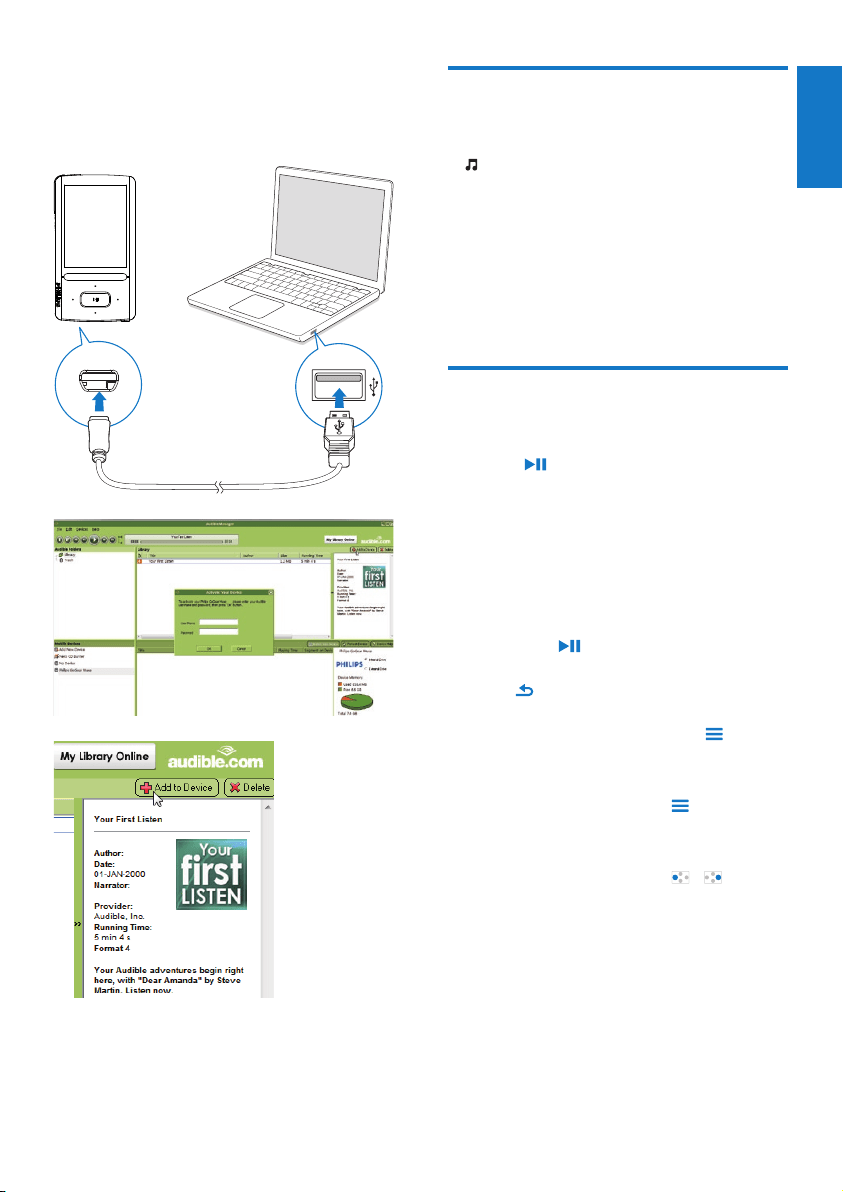
Sync to the player
1 Launch AudibleManager on your PC.
2 Connect the player to the PC.
Wait till the player is recognized by
AudibleManager.
On the player, make sure that you •
have selected [MTP] in
> [PC
connection preference].
7 Audiobooks
Go to > [Audiobooks] to play books in
audio formats that you have downloaded from
www.audible.com.
Sync audio books to the
player
From www.audible.com, download and install
the AudibleManager software on your PC.
Through the software, you can
download audiobooks from • www.
audible.com to your PC library of
audio books;
sync the audiobooks to your player. •
Install AudibleManager on the PC
1 Connect your PC to the Internet.
2 From www.audible.com, download the
AudibleManager software for MP3/ MP4
players.
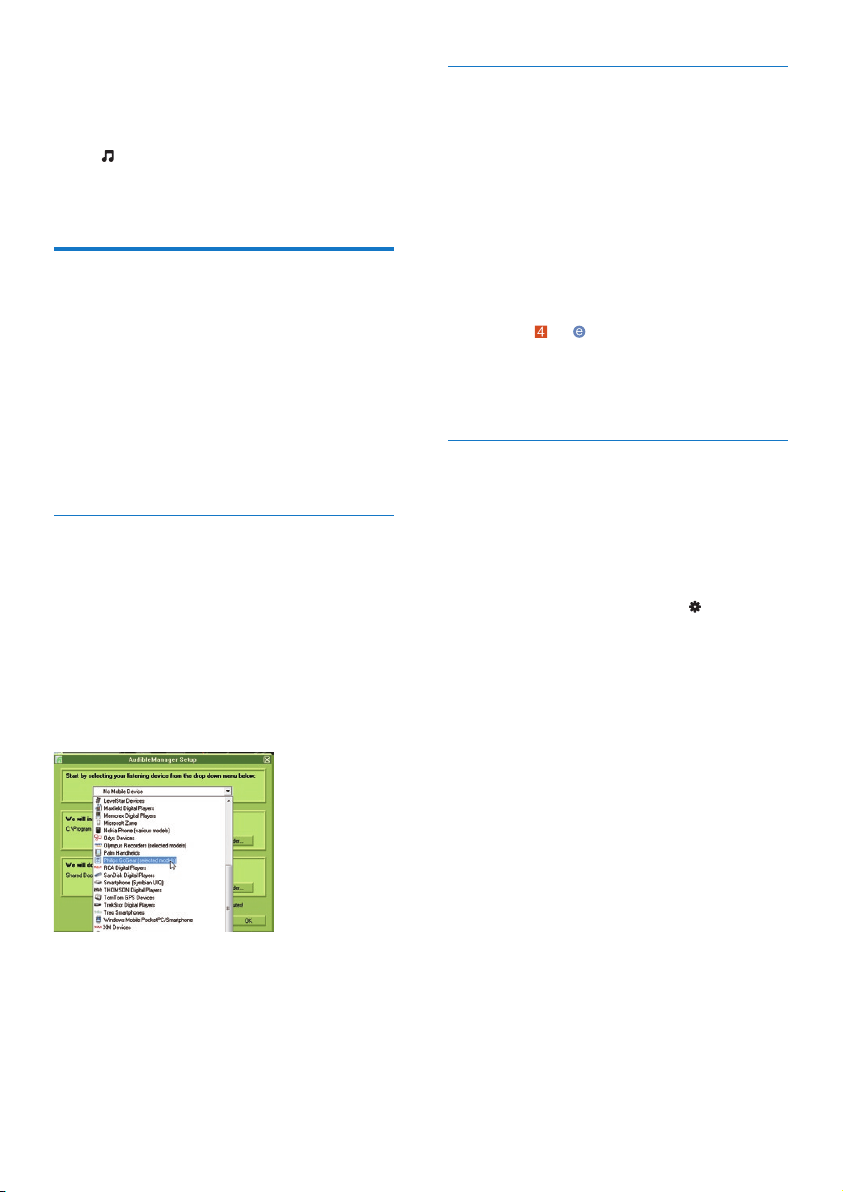
3 Install the software on your PC:
On the setup screen, select • Philips
GoGear (selected models) from the
drop-down list of listening devices;
Follow onscreen instructions to •
complete the installation.
EN
31
English
EN
Find audiobooks on the
player
In > [Audiobooks], audiobook files are
organized by book title or author.
[Books]
Books are sorted by book title in •
alphabetical order.
[Authors]
Books are sorted by author in •
alphabetical order.
Play audiobooks
1
Select a book.
2 Press to start play.
On the play screen, you can see »
the book information and play
status.
To resume the last played book,
In • [Audiobooks], select [Resume
[book name]].
On the play screen,
Press •
to pause and resume play.
To go to the previous screen, press •
.
To select the play speed during play,
On the play screen, press •
>
[Playback speed]. Select an option.
To skip titles or sections during play,
1 On the play screen, press >
[Navigation mode]. Select [Titles] or
[Section].
2 On the play screen, press / .
3 On AudibleManager, click Add to Device.
The first time you connect the player •
to AudibleManager, activate the
player as prompted.
To check the audio books transferred to the
player,
See the player pane on AudibleManager.
If necessary, click • Refresh Device.
English
EN

32 EN
Use bookmarks
On an audiobook, you can add up to 10
bookmarks to the play time. Start play from the
bookmarked play time as needed.
To add a bookmark,
1 On the play screen, press and select
[Bookmarks] > [Add bookmark].
2 Select a location.
Current play time is added to the »
location in the list of bookmarks.
To play from a bookmarked play time,
On the play screen, press •
and
select [Bookmarks] > [Go to
bookmark]. Select an option.
Play starts from the selected play »
time.
To delete a bookmark,
On the play screen, press •
and
select [Bookmarks] > [Delete
bookmark]. Select an option.
You remove the play time from »
the list of bookmarks.
Delete audiobooks from the
player
On the play screen, press • >
[Delete Audiobook].
Current audiobook is deleted »
from the player.
EN
33
English
EN
Add songs to the music
library
Add the Rhapsody songs to . You can find and
play the songs as you do in
.
1 In , select a channel list.
2 Press and select [Add to music
library].
The channel list is added to »
.
Renew the subscription
tracks
With your Rhapsody subscription, you can
play the subscription songs on the player for a
period of time.
If the time period expires, do the following for
renewal:
1 Make sure that your Rhapsody
subscription is active;
2 On your PC, launch the Rhapsody
software, and log in to your Rhapsody
account.
3 Connect the player to your PC.
To check the subscription information on the
player,
In •
, press > [Subscription
information].
8 Rhapsody
Go to to play the Rhapsody channel lists that
you have downloaded and transferred through
the Rhapsody software.
Note
The • Rhapsody service is available in certain
countries.
Transfer from Rhapsody to
the player
1
Go to www. rhapsody.com to get the
Rhapsody software.
2 Connect the player to a PC with the
Rhapsody software installed.
3 Through the Rhapsody software, transfer
channel lists to the player.
On the player, »
is displayed on the
Home screen.
On the player, find the channel lists »
under
.
Rate the songs
Assign rating to the songs, or ban the songs that
you don’t want to listen to. You can customize
the channel list as needed.
1 On the play screen, press and select
[Rate track].
2 Press / to select the rating. Press
to confirm the option.
English
EN
34 EN
Play videos
1
Select a video.
2 Press to start play.
The video plays in the landscape view. »
On the play screen,
Press •
to pause and resume play.
To select a video file on the play screen,
Repeatedly press •
/ .
To rewind or fast forward within current
video,
On the play screen, press and hold •
/ .
Select brightness
1 On the play screen, press and select
[Brightness].
2 Press / to select an option.
3 Press .
Delete videos from the player
1
Select or play a video.
2 On the list of videos or play screen,
press •
and select [Delete video].
Current video is deleted from »
the player.
9 Videos
Add videos to the player
You can add videos to the player in two ways:
• through Philips Songbird (see ‘Sync
with PC media library’ on page 15),
in Windows Explorer. •
To transfer videos in Windows Explorer,
1 Connect ARIAZ to a computer.
2 On the PC, under My Computer or
Computer,
select • ARIAZ, and create file folders.
3 On the PC, drag and drop files to the file
folders on the ARIAZ.
Alternatively, drag and drop file •
folders from the PC to ARIAZ.
Find videos on the player
Find videos by file name
Go to •
.
Videos are listed by file name in »
alphabetical order.
Find videos by file folder
Go to •
.
Videos are organized by file »
folder as on the PC.
EN
35
English
EN
View pictures
Select a picture. Press • to view
the picture in full screen.
The picture is displayed in the »
landscape view.
On the play screen,
Press •
/ to rotate the picture.
Press •
/ to select a picture.
Start a slideshow
When you view pictures in full •
screen, press
to start a slideshow.
Pictures play one by one. »
Select play options
On the play screen, press to select play
options:
[Brightness] Select the brightness of the
screen.
[Backlight
timer]
Select a value. After the
selected time duration,
the screen switches off
automatically.
In [Slideshow settings], select your options for
slideshow:
[Time per
slide]
Select the time interval between
two slides.
[Repeat] Play pictures in current folder
repeatedly.
[Shuffle] Play pictures in current folder in
random order.
10 Pictures
Add pictures to the player
1
Connect ARIAZ to a computer.
2 On the PC, under My Computer or
Computer,
select • ARIAZ, and create file folders.
3 On the PC, drag and drop files to the file
folders on the ARIAZ.
Alternatively, drag and drop file •
folders from the PC to ARIAZ.
Find pictures on the player
Find pictures by file name
Go to •
.
Pictures are listed by file name in »
alphabetical order.
Find pictures by file folder
Go to •
.
Pictures are organized by file »
folder as on the PC.
English
EN

36 EN
Delete pictures from the
player
1
Select or play a picture.
2 On the list of pictures or play screen,
press •
and select [Delete picture].
Current picture is deleted from »
the player.
EN
37
English
EN
Alternatively,
Press •
and select [Presets].
The list of presets is displayed. »
Tip
When you move to a new place (such as a new •
city or country), restart auto tune for better
reception. On the play screen, press
and
select [Auto tune].
Manual tune
To search for a frequency or station,
On the play screen, press and hold •
or .
You tune in to the next station »
from current frequency.
For fine tuning, press •
or
repeatedly.
To mute or unmute the radio play,
On the play screen, press •
.
11 FM radio
Note
Plug in the supplied earphones when you tune •
in to radio stations. The earphones double
as antenna. For better reception, move the
earphone cable in different directions.
Tune in to radio stations
Auto tune
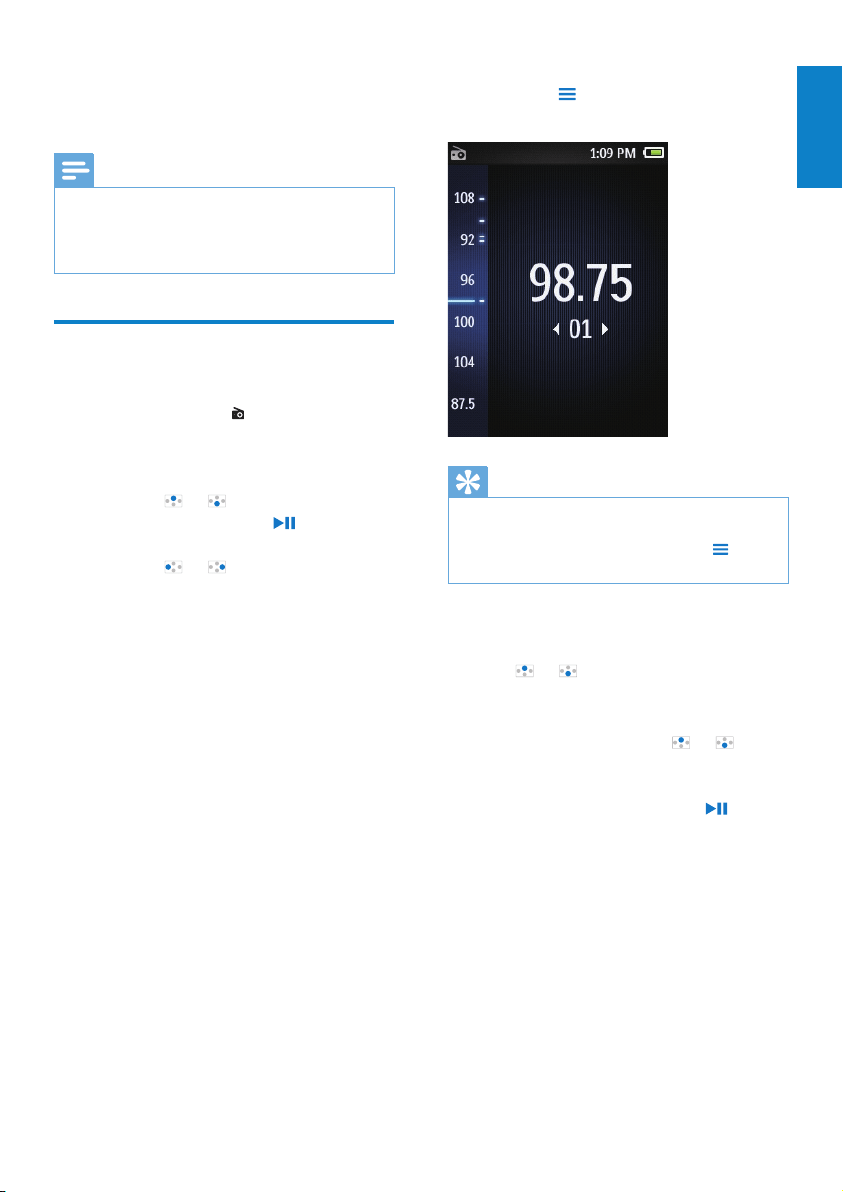
The first time you go to
, start Auto tune
to search for stations as prompted. Up to 30
stations are stored as presets.
On the list of preset stations,
Press •
or repeatedly to select a
preset station. Press
to start play.
To select a preset on the play screen,
Press •
or repeatedly.
English
EN

38 EN
Store preset stations
On ARIAZ, you can store up to 30 preset
stations.
1 Tune in to a radio station.
2 On the play screen, press and select
[Save to preset].
3 Press or to select a location in the
list of presets. Press
.
Current station is saved to the »
location.
To remove current preset station,
1 On the play screen, press and select
[Remove preset].
2 Select [Yes].
Current station is removed from the »
list of presets.
EN
39
English
EN
Listen to recordings
1
In > [Recordings library], select a
recording.
2 Press to start play.
To select a file on the play screen,
Repeatedly press •
/ .
To rewind or fast forward within current file,
On the play screen, press and hold •
/ .
Delete recordings from the
player
1
Select or play a recording.
2 On the list of recordings or play screen,
press •
and select [Delete].
Current recording is deleted »
from the player.
To delete all the recordings on the player,
In •
> [Recordings library], select a
recordings library. Select [Delete all].
Upload your recordings to a
computer
1
Connect ARIAZ to a computer.
2 On the PC, under My Computer or
Computer,
select • ARIAZ;
in • ARIAZ, select recordings in
Recordings > Voice.
3 Drag and drop the recording files to a
location on the PC.
12 Recordings
Make recordings
With ARIAZ, you can record:
voices or audio through the built-in •
microphone.
Record audio/voices
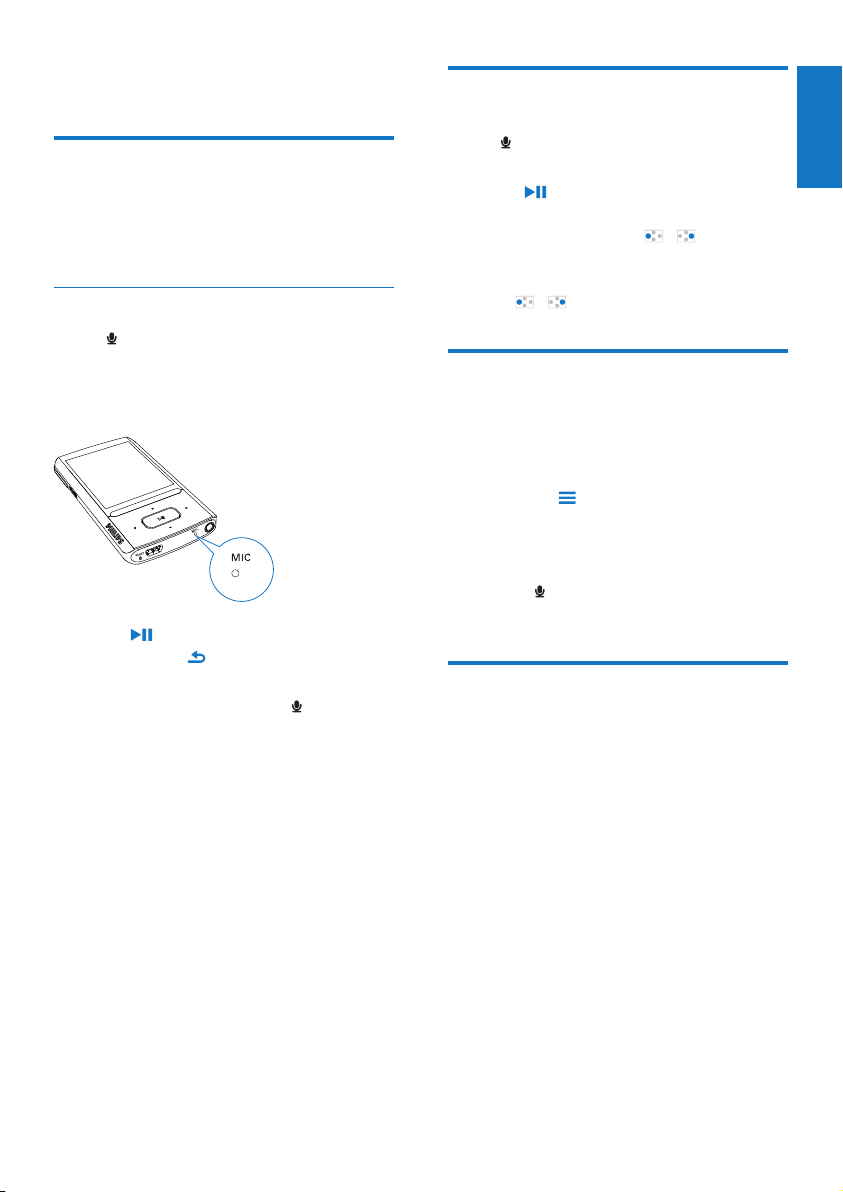
1 In , select [Start voice recording].
Recording screen appears. »
2 Ensure that the microphone is close to
the sound source to be recorded.
3 Press to toggle between pause and
record. Press
to stop.
4 Select [Yes] to save the recording.
Recordings are saved to »
>
[Recordings Library] > [Voice
recordings].(Filename format:
VOICEXXX.MP3, where XXX is the
recording number that is generated
automatically.)
English
EN
40 EN
Read text files
1
Select a text file.
2 Press to start play.
3 On the play screen,
Press •
or to turn over pages;
Press •
or to scroll up or down.
To increase or decrease the font size,
On the play screen, press •
to
select an option.
Delete recordings from the
player
1
Select or play a text file.
2 On the list of text files or play screen,
press •
and select [Delete].
Current text file is deleted from »
the player.
13 Text reader
You can read text files (.txt files) on the player.
Add text files to the player
1
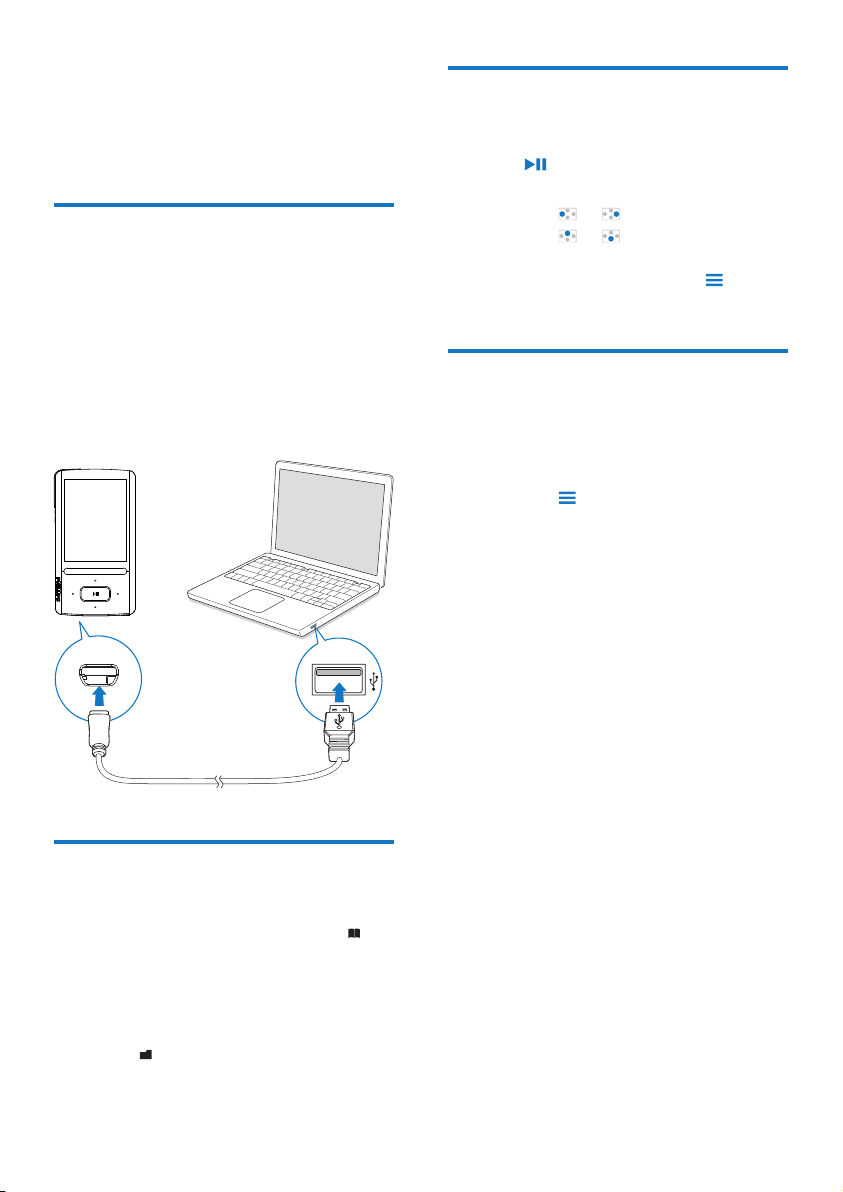
Connect ARIAZ to a computer.
2 On the PC, under My Computer or
Computer,
select • ARIAZ, and create file folders.
3 On the PC, drag and drop files to the file
folders on the ARIAZ.
Alternatively, drag and drop file •
folders from the PC to ARIAZ.
Find text files on the player
Find text files in the file list
From the Home screen, select •
.
A list of text files is displayed. »
The text files are sorted by file »
folder in alphabetical order.
Find text files by file folder
In •
, select file folders and files as
you organize them on the PC.
EN
41
English
EN
14 Folder view
Go to to view and play media files from the
media library on the player.
Music: for music files that you sync to the player
through Philips Songbird;
Video: for video files that you sync to the player
through Philips Songbird;
Playlists: for playlists that you sync to the player,
and the playlists-on-the-go that you create on
the player;
SERVICE: for the audiobooks that you sync
to the player through AudibleManager, or the
Rhapsody channel lists that you sync to the
player through the Rhapsody software;
Recordings: for voice or *FM recordings that
you make on the player.
To find files transferred in Windows Explorer,
Locate the files as you organized in •
Windows Explorer on the PC.
Note
*The feature of FM radio recording is available •
with some versions only. Refer to the onscreen
menu of the player to find out which features
are available to you.
English
EN
42 EN
SafeSound
With the by-packed earphones, SafeSound
allows you to listen to music in a safe way.
When you listen to music through the
earphones, the sound pressure on your
ears is estimated¹ based on the electrical
characteristics of the player and earphones;
Then, the estimate is compared against
the reference levels² of sound pressure;
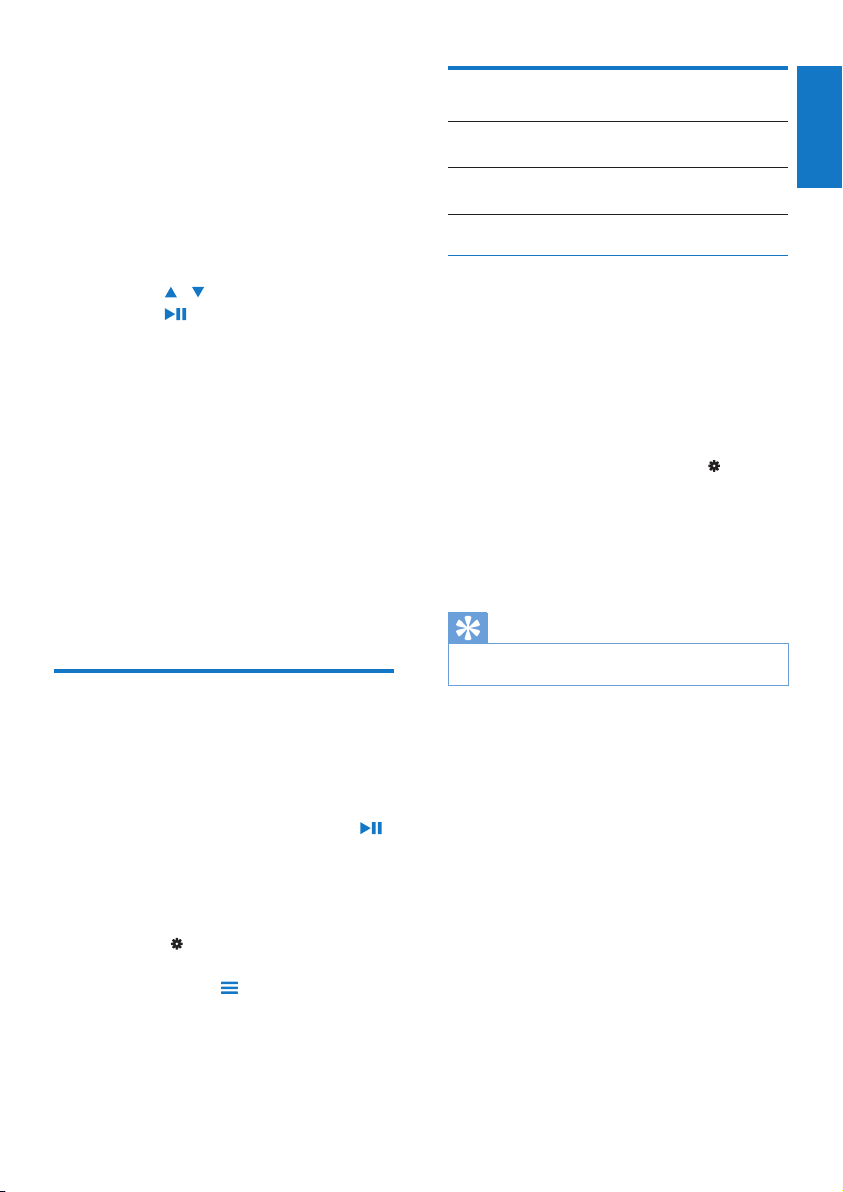
As a result, icons of different colors can be
displayed to indicate status of sound pressure
and the levels of risks to hearing damage.
Tip
¹The methodology is based on European norm •
(50332-1/2).
²The reference levels come from the minimum
•
requirement for health and safety that the
European directive 2003/10/EC provides for
the noises exposed to individuals.
Switch onSafeSound
In • [SafeSound], select [On].
Monitor current status of sound pressure
During music play, check the color of the icon
to monitor current status of sound pressure.
Accordingly, have a break or adjust the volume
level when you listen to music in the volume
over a certain period of time.
Level of sound
pressure
Maximum
duration
more than 90
decibels
30 minutes a
day
85 to 90 decibels 2 hours a day
80 to 85 decibels 5 hours a day
safe more than 5
hours a day
Select the safe volume level
1 Press / VOLUME.
The volume screen is displayed. »
2 Press to select the safe volume.
15 Settings
In , select your options for the player.
1 Press / to select an option.
2 Press to confirm.
Play mode
In [Play mode], select play modes for music play:
[Play music from…]
switches to a collection the same
as that of current song
[Repeat]
[Repeat 1] repeats current song.
[Repeat all] repeats all songs in current
folder.
[Shuffle]
[On] plays all songs in current folder in
random order.
If both [Repeat all] and [Shuffle]are activated,
All songs in current folder are •
repeated in random order.
Sound settings
[FullSound] Restores the sonic details that
music compression loses (e.g.
MP3, WMA).
[Equalizer] Defines sound settings as
desired.
Note
Equalizer is deactivated when you select •
FullSound.
EN
43
English
EN
Display settings
[Brightness] Adjusts the brightness of the
screen.
[Theme] Selects the theme for the
display.
Backlight timer
The screen enters the idle mode, if no new
action is taken on the player. After the
pre-defined time duration, the idle screen is
switched off automatically. To save battery
power, select a low value for the time
duration.
To set the time duration
1 From the Home screen, select >
[Display settings] > [Backlight timer].
2 Select a time duration.
After the selected time duration, »
the idle screen is switched off
automatically.
Tip
For power-saving purpose, select a low value. •
To exit the power-saving mode
Press any key. •
Auto safe volume
If you select a volume level higher than the
safe one, [Auto safe volume] can have the
volume level gradually adjusted to the safe
one.
In • [SafeSound settings], select [Auto
safe volume] > [On].
Set the volume limit
To set a volume limit for yourself, select
[SafeSound settings] > [Volume limit].
Press •
/ to set the volume limit.
Press
to confirm.
To lock the volume limit, set a four-•
digit password in [Volume limit] >
[Lock volume limit].
To unlock the volume limit, enter the •
four-digit password in [Volume limit]
> [Unlock volume limit].
Overview of accumulated sound pressure
In [Weekly overview], find the accumulated
sound pressure that your ears receive on each
day over the past week.
Different colors are used to represent the
risks to hearing damage. For your hearing
safety, adjust your time of music listening on
each day.
Sleep timer
Switch on the sleep timer. The ARIAZ can
switch off automatically after a certain time
duration.
In • [Sleep timer] > [Set sleep
timer…], select an option. Press
.
After the selected time duration, »
the device is switched off
automatically.
After the sleep timer is switched on,
Select •
> [Sleep timer];
Alternatively, on the music play •
screen, press
> [Sleep timer].
You can see the time left before »
the player is switched off.
English
EN
44 EN
[Date settings]
[Set date
format]
selects a date format
[Set date] press
/ repeatedly, or
press and hold
/ to enter
digits; press
/ to select the
position of entries; press
to
confirm.
Slideshow settings
[Time per
slide]
selects play time for each slide.
[Repeat] plays all slides repeatedly, if
activated.
[Shuffle] plays all slides in random order,
if activated.
Language
You can change the language selection in
[Language].
Screensaver
If you have selected a screensaver, the
screensaver appears on the idle screen after
the pre-defined time duration.
To select a screensaver
1 From the Home screen, select >
[Display settings] > [Screensaver].
2 In [Screensaver], press / and to
select an option:
[None] shows blank screen.
[Digital clock] shows time in digits.
[Album art] shows the CD cover of
current song or last played
song, if available.
[Screen off] switches off the screen.
[Demo mode] shows major features of the
player.
To exit the screensaver
Press any key. •
Date and time
To set the clock
Press •
/ and to select an
option:
[Time settings]
[Set time
format]
selects a 12-hour or 24-hour
clock
[Set time] press
/ repeatedly, or
press and hold
/ to enter
digits; press
/ to select the
position of entries; press
to
confirm.
EN
45
English
EN
[Disk space]
[Free space:] space available
[Total space:] memory size
[Songs] space that songs occupy
[Pictures] space that pictures occupy
[Videos] space that videos occupy
[File type supported]
[Music] supported types of music files
[Pictures] supported types of picture
files
[Videos] supported types of video files
Rhapsody information
If you have synced to your player the channel
lists from Rhapsody, find the subscription
information in [Rhapsody information]. Renew
the subscription tracks when the time expires.
Format device
Format the player. You remove all the data that
are stored on the player.
Select • [Format device], and then,
select [Yes] as prompted.
Factory settings
In [Factory settings], restore the player to
factory settings. Files transferred to the player
are retained.
PC connection preference
In [PC connection preference], select how the
player is connected to a PC. The player allows
the access by a PC through USB Mass Storage
Class (MSC), or Media Transfer Protocol (MTP).
[MSC] *allows the player to also work as
Philips Songbird drive. Click the
Philips Songbird drive to start the
program installation on the PC.
[MTP] during the sync to the player,
allows copyright-protected music
to be converted to playable
formats through Philips Songbird.
Tip
*Make sure that you select • [Enable] in >
CD-ROM.
Information
In [Information], learn the following information
about the player:
[Player information]
[Model:] full product name
Check the full product name
when updating firmware from
the support website.
[Firmware
version:]
current firmware version
Check the firmware version
when updating firmware from
the support website.
[Support
site:]
web site that provides support
for the player
English
EN

46 EN
CD installer
If you have selected [MSC] in > [PC
connection preference], the [CD installer]
options are displayed.
In [CD installer], select [Enable] to allow
the player to work as Philips Songbird drive.
Double click on the drive to start the program
installation on the PC.
Tip
•
After you repair the player, the CD-ROM
partition and Philips Songbird installer are
removed from the player (see ‘Repair the
player through Philips Songbird’ on page 48).
More space is available on the player.
47
English
EN
16 Update the
firmware
through Philips
Songbird
ARIAZ is controlled by an internal program
called firmware. Newer versions of the
firmware may have been released after you
have purchased ARIAZ.
Through Philips Songbird, you can check for
and install firmware updates for ARIAZ over
the Internet.
Tip
Your music files are not affected by a firmware •
update.
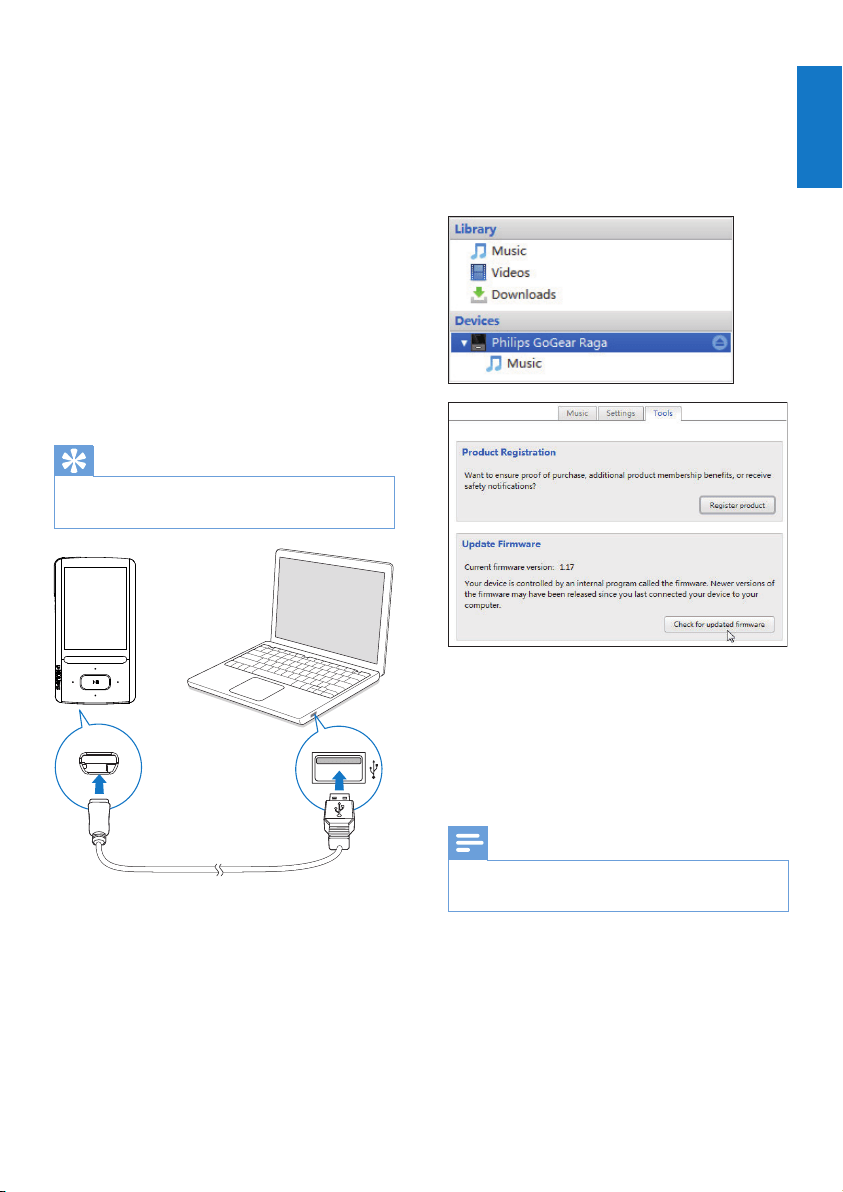
1 Make sure that you have connected your
PCto the Internet.
2 As shown, connect the ARIAZ to the PC
by using a USB cable.
3 On the PC, launch Philips Songbird.
If necessary, click• Start > Programs
> Philips > Philips Songbird.
4 Click ARIAZ in the Player pane. Then,
select Tools > Check for updated
firmware in the pop-up window.
» Philips Songbird checks for updates
and installs new firmware from the
Internet, if available.
5 Follow the on-screen instructions.
Downloading and installation of »
firmware update start automatically.
The » ARIAZ restarts after the
firmware is updated and is ready for
use again.
Note
Wait until the update is completed, then •
disconnect the ARIAZ from the computer.
48 EN
17 Repair the
player through
Philips Songbird
If ARIAZ is not working properly or the display
freezes, you can reset it without losing data:
To reset ARIAZ?
Insert a pen tip or other object into the •
reset hole located at the base of ARIAZ.
Hold until the player shuts down.
If you fail to reset the player, repair the player
throughPhilips Songbird:
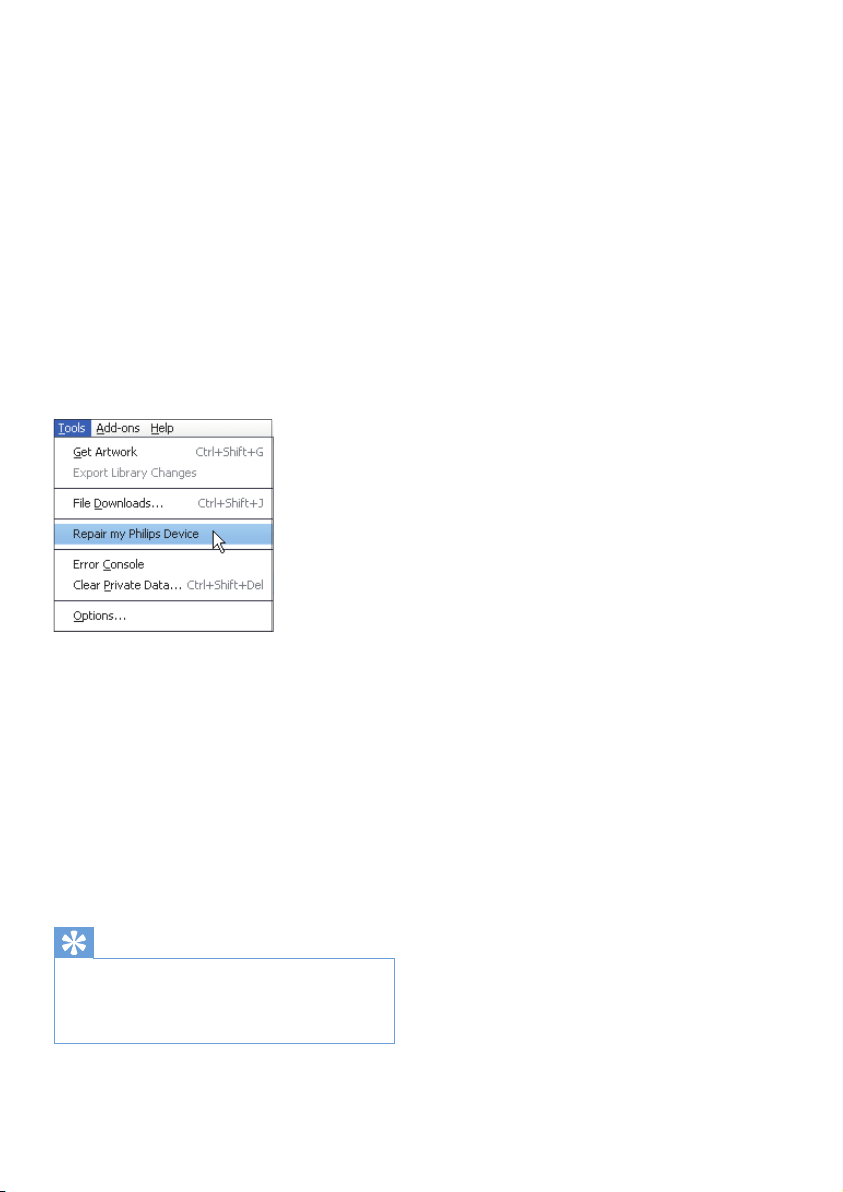
1 On your PC, launch Philips Songbird.
2 In Philips Songbird,
select • Tools > Repair my Philips
Device;
select • ARIAZ in the pop-up list.
3 Connect the player to the PC.
• Make sure that you follow the
onscreen instructions on how to
connect the player to the PC.
4 Follow the onscreen instructions to
complete the repair.
Tip
After you repair the player, the CD-ROM •
partition and the Philips Songbird installer
are removed from the player. More space is
available on the player.
49
English
EN
18 Technical data
Power
Power supply: 520 mAh Li-ion polymer
internal rechargeable battery
Play time¹
- music: up to 30 hours (SafeSound on); up to
15 hours (FullSound on, SafeSound on); up
to 15 hours (FullSound on); up to 36 hours
(FullSound off)
- video (WMV): up to 5 hours
- FM radio: up to 16 hours
Software
Philips Songbird: to update firmware and
transfer music
Connectivity
Headphone 3.5 mm
USB 2.0 High speed
Sound
Channel separation: 45 dB
Frequency Response: 80 - 18,000 Hz
Output power: 2 x 2.4 mW
Signal to noise ratio: > 84 dB
Audio playback
Supported formats:
Bit rates Sampling rates
MP3:
8 - 320 kbps and VBR 8, 11.025, 16,
22.050, 32, 44.1,
48 kHz
WMA:
5 - 320 kbps 8, 11.025, 16,
22.050, 32, 44.1,
48 kHz
FLAC:
up to 1.1 Mbps 48 kHz
APE:
up to 1.3 Mbps 48 Khz
Video playback
Supported formats:
MJPEG (in .mp4)
WMV
Picture display
Supported formats:
JPEG
BMP
Storage media
Built-in memory capacity²:
SA3ARA04 4GB NAND Flash
SA3ARA08 8GB NAND Flash
SA3ARA16 16GB NAND Flash
SA3ARA32 32GB NAND Flash
Display
Color LCD 320 x 240 pixels
Note
¹ Rechargeable batteries have a limited number •
of charge cycles. Battery life and number of
charge cycles vary by use and settings.
² 1GB = 1 billion bytes; available storage
•
capacity is less. Full memory capacity may
not be available as some memory is reserved
for the player. Storage capacity is based on 4
minutes per song and 128 kbps MP3 encoding.
System requirements
Windows® XP (SP3 or above) / Vista / 7•
Pentium III 800 MHz processor or higher•
512 MB RAM•
500 MB hard disk space•
Internet connection•
Windows® Internet Explorer 6.0 or later•
CD-ROM drive•
USB port•

© 2011 Koninklijke Philips Electronics N.V.
All rights reserved.
SA3ARA_37_UM_EN_V1.3
wk11071