1. Overview
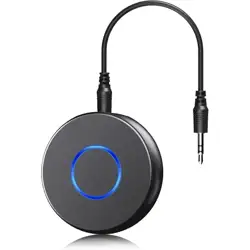
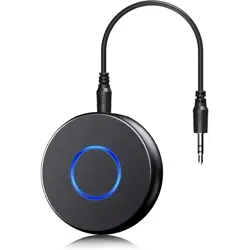
The SONRU Bluetooth 5.3 Aux Adapter (Model BT1011) is a wireless audio receiver that converts wired audio systems to Bluetooth. It allows you to stream audio from Bluetooth-enabled devices to systems with a 3.5mm AUX or RCA input.

Primary Use Cases:
- Adding Bluetooth connectivity to car stereos without built-in Bluetooth.
- Streaming audio to home stereo systems, wired speakers, or headphones.
- Connecting to in-flight entertainment systems, PCs, MP3/MP4 players, and gym equipment.
2. What's in the Box
- 1 x SONRU Bluetooth Jack Adapter (Model BT1011)
- 1 x 3.5mm AUX Plug-to-Plug Cable
- 1 x 3.5mm Audio Cable
- 1 x RCA Audio Cable (Red/White connectors)
- 1 x USB Type-C Charging Cable
- 1 x User Manual (this document)
3. Features and Specifications
3.1 Core Technology
- Bluetooth Version: 5.3 for improved stability, lower latency, and reduced power consumption compared to older versions.
- Noise Reduction: CVC 8.0 technology for clearer hands-free calls by filtering echoes and background noise.
- Dual Device Pairing: Can connect to two Bluetooth source devices simultaneously.
3.2 Physical Ports and Connections
- Dual Audio Outputs: One 3.5mm AUX output port and one RCA (Red/White) output port.
- Charging Port: USB Type-C port for recharging the internal battery.
3.3 Battery and Power
- Battery Type: Integrated Lithium-Ion (3.7V, 1Wh).
- Battery Life: Up to 16 hours of continuous use on a full charge.
- Charging Time: Approximately 1.5 hours to full charge via the provided USB-C cable.
- Use While Charging: The adapter supports pass-through charging, allowing you to use it while it is plugged in.
3.4 Controls and Display
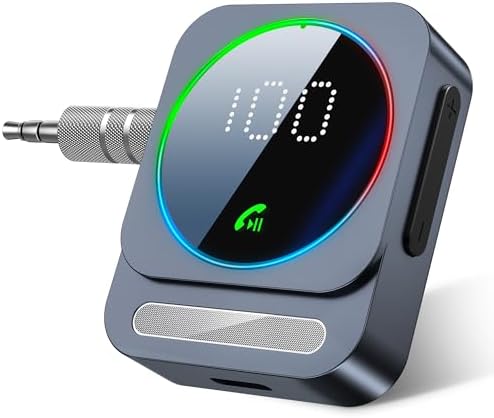
- LED Display: Shows volume level, battery status, and connection mode.
- Control Buttons: Physical buttons for power, pairing, volume, and track control.
3.5 Compatibility
- Audio Sources: Smartphones, tablets, laptops, MP3 players, TVs, and other Bluetooth audio devices.
- Audio Systems: Any device with a 3.5mm AUX input or RCA input (red/white).
- Wireless Range: Up to 33 feet (10 meters) in open space without obstacles.
4. Use Guide
4.1 Initial Setup and Connection
- Charge the Adapter: Connect the USB-C charging cable to the adapter and a power source (e.g., USB wall charger, car charger, or computer USB port) until the battery is full. The LED screen will indicate charging status.
- Connect to Your Audio System:
- For systems with a 3.5mm AUX input, use the provided 3.5mm AUX cable.
- For systems with RCA inputs (red/white), use the provided RCA audio cable.
- Power On: Press and hold the power button on the adapter until the LED screen lights up and you hear a prompt tone.
- Pair with Your Device:
- On the adapter, press the pairing button (usually indicated by a Bluetooth icon). The LED screen will show "Pairing" mode.
- On your smartphone or other Bluetooth device, go to Bluetooth settings, search for new devices, and select "SONRU BT1011" from the list.
- Confirm pairing if prompted. A confirmation tone will sound from the adapter.

4.2 Using Dual Device Connection
The adapter can remember two paired devices. To connect a second device:
- Ensure the first device is connected.
- Put the adapter into pairing mode again by pressing the pairing button.
- On your second Bluetooth device, search and select "SONRU BT1011" to pair.
- The adapter will manage connections to both devices. Audio will typically play from the most recently activated device.
4.3 Basic Operations
- Play/Pause Music: Press the multifunction button once.
- Volume Control: Use the volume up (+) and volume down (-) buttons on the adapter. The current volume level is shown on the LED screen.
- Track Control: Press and hold the volume up button to skip to the next track. Press and hold the volume down button to go back to the previous track.
- Answer/End Calls: When a call comes in, press the multifunction button once to answer. Press again to end the call.
- Reject Calls: Press and hold the multifunction button to reject an incoming call.
- Voice Assistant: Press the multifunction button twice quickly to activate your phone's voice assistant (e.g., Siri, Google Assistant).
4.4 Charging and Battery Management
- The LED screen displays the remaining battery level.
- To charge, connect the USB-C cable. You can continue to use the adapter while it charges.
- For long-term storage, charge the battery to approximately 50% and store in a cool, dry place.
5. Troubleshooting
- No Power/Will Not Turn On:
- Ensure the battery is charged. Connect to a power source for at least 30 minutes before trying again.
- Check that the USB-C cable is firmly connected.
- Cannot Pair with Device:
- Ensure the adapter is in pairing mode (LED screen shows "Pairing").
- Move your Bluetooth device closer to the adapter (within 3 feet).
- Restart both the adapter and your Bluetooth device.
- Delete "SONRU BT1011" from your device's Bluetooth memory and try pairing again.
- Audio Distortion or Poor Call Quality:
- Ensure the adapter and your phone are within the 33-foot range without major obstructions.
- Check that the audio cables are fully inserted into both the adapter and your sound system.
- Reduce background noise when making calls for better microphone performance.
- Adapter Disconnects Frequently:
- Check for low battery and recharge if necessary.
- Potential interference from other wireless devices. Move the adapter away from routers, microwaves, or other Bluetooth devices.
6. Safety and Care
- Keep the device away from extreme heat, direct sunlight, and moisture.
- Do not disassemble the device. The internal lithium-ion battery must only be serviced by qualified personnel.
- Use only the provided USB-C cable or a certified equivalent for charging.
- Be aware that the adapter may cause interference with other nearby wireless devices.
- Clean the device with a soft, dry cloth. Do not use liquids or abrasive cleaners.
7. Technical Specifications
- Model: BT1011
- Bluetooth Version: 5.3
- Profiles: A2DP, AVRCP, HFP
- Noise Cancellation: CVC 8.0
- Output Ports: 3.5mm AUX, RCA (L/R)
- Charging Port: USB Type-C
- Battery Capacity: 3.7V, 1Wh (Lithium-Ion)
- Play Time: Up to 16 hours
- Charging Time:
- Wireless Range: Up to 33 ft (10 m)
- Dimensions: 6.38" L x 2.78" W x 0.83" H
- Weight: Approx. 1 gram (battery weight)