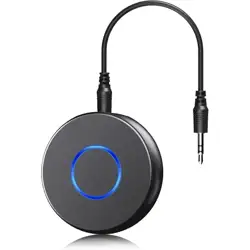
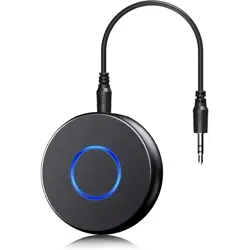
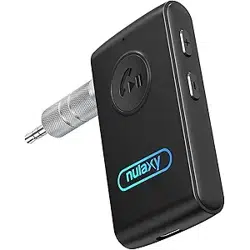
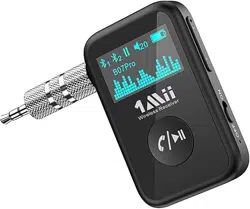
The SONRU Bluetooth Aux Adapter is a wireless audio receiver that adds Bluetooth connectivity to non-Bluetooth audio systems. It is designed for use in vehicles, home stereos, and with wired headphones.
Key capabilities include:
Streaming music wirelessly from a Bluetooth-enabled device.
Hands-free phone calls via a built-in microphone.
Connecting to two source devices simultaneously.
2. Features and Specifications
2.1 Physical Features
Dimensions: 1.6" L x 1.6" W x 0.5" H
Weight: 0.4 oz
Button: One multifunction button for power and control.
Indicator Lights: Blue and red LEDs for status.
Ports: 3.5mm AUX output port, Micro-USB charging port.
Material: Acrylonitrile Butadiene Styrene (ABS) and metal enclosure.
2.2 Technical Specifications
Bluetooth Version: 5.0
Supported Profiles: A2DP, AVRCP, HSP, HFP
Wireless Range: Up to 33 feet (10 meters) without obstacles.
Compatibility: Devices with Bluetooth and audio systems with a 3.5mm AUX input or RCA inputs (using included adapter). Compatible with smartphones (iOS & Android), tablets, MP3 players, etc.
2.3 In the Box
SONRU Bluetooth 5.0 Receiver (Model SR03)
3.5mm AUX Audio Cable
AUX to RCA Audio Cable
3.5 mm Metal Audio Adapter
Micro-USB Charging Cable
User Manual
3. Use Guide
3.1 Initial Setup and Pairing
Power On: Press and hold the multifunction button for approximately 3 seconds. The blue and red indicator lights will flash alternately, indicating the device is in pairing mode.
Connect to Audio System: Plug the 3.5mm end of the included AUX cable into the adapter. Plug the other end into the AUX input port on your car stereo, home stereo, or headphones.
For systems with only RCA inputs (red and white), use the included AUX-to-RCA cable.
Pair with Your Device: On your smartphone or other Bluetooth device, enable Bluetooth. Search for available devices and select "Link-BT4831" from the list. Confirm the pairing if prompted.
Confirmation: Once connected, the indicator light will typically become solid or change its flashing pattern. Audio from your device will now play through your speakers.
3.2 Basic Operation
Multifunction Button Controls:
Play/Pause Music: Press the button once.
Answer a Call: Press the button once when the phone rings.
End/Reject a Call: Press and hold the button for about 2 seconds during a call or while ringing.
Redial Last Number: Press the button twice quickly.
Power Off: Press and hold the button for approximately 5 seconds.
3.3 Dual Device Connection
The adapter can remember and connect to two devices simultaneously.
Pair the first device as described in section 3.1.
With the first device connected, put the adapter back into pairing mode (press and hold for 3 seconds until lights flash).
Pair the second device from its Bluetooth settings menu.
The adapter will manage audio from the last active device. If a call comes in on either device, it will typically prioritize the call.
3.4 Charging
Connect the included Micro-USB cable to the port on the adapter and plug the other end into a USB power source (e.g., a computer, USB wall charger, or car USB port). The red indicator light will illuminate during charging and turn off when charging is complete.
Note: For best battery life, fully charge the device before first use. You can use the adapter while it is charging.
4. Troubleshooting
No Power / Won't Turn On: Ensure the device is charged. Connect it to a USB power source for at least 30 minutes before attempting to turn it on again.
Can't Find "Link-BT4831" for Pairing: Ensure the adapter is in pairing mode (blue and red lights flashing alternately). Restart the Bluetooth function on your source device.
Audio Not Playing / Poor Sound Quality:
Check that the AUX cable is fully inserted into both the adapter and your speaker system.
Ensure the volume on your source device and your audio system is turned up.
Verify the audio system is set to the correct input (e.g., "AUX" mode).
Move the source device closer to the adapter to rule out wireless interference.
Static or Interference During Charging: This can sometimes occur. Try unplugging the charging cable while using the adapter to see if the static disappears.
Microphone Not Working on Calls: Ensure you are speaking towards the adapter. The built-in microphone is located on the device itself. Reduce background noise in your environment.
Reset: If the device is unresponsive, press and hold the multifunction button for 10 seconds to force a reset, then try pairing again.
5. Safety and Care
Use only the provided or recommended 5V Micro-USB cable for charging.
Do not expose the device to extreme temperatures, moisture, or direct sunlight for prolonged periods.
Do not disassemble the device. There are no user-serviceable parts inside.
Keep the device away from other wireless transmitters to minimize potential interference.
Dispose of the battery and device according to your local electronic waste regulations.