Overview
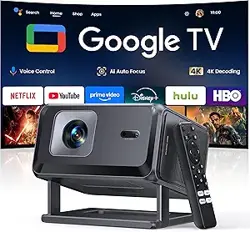
The PANSEBA Smart WiFi Projector (Model QK06) is a portable, HD home theater projector designed for indoor and outdoor use. It features a built-in telescopic stand, electric focus, auto keystone correction, and a pre-installed Netflix app. The projector supports dual-band WiFi (2.4GHz and 5GHz), two-way Bluetooth, and multiple connectivity options including HDMI, USB, and 3.5mm audio.

The projector uses a high-refractive-index 5-layer glass lens and diffuse reflection imaging to produce clear images while reducing eye strain. It is compatible with streaming devices, gaming consoles, laptops, smartphones, and external speakers.
What's in the Box
- PANSEBA Smart WiFi Projector (Model QK06)
- Telescopic Stand (integrated)
- Remote Control
- Power Cord
- HDMI Cable
- User Manual
Features
Telescopic Stand & 270° Viewing Angle
The projector includes a unique telescopic stand that allows you to adjust the height and provides a 270° angle of view, making it easy to position the image on walls or screens without needing a separate tripod.
Electric Focus (2-Second Fast Focus)
Instead of a manual focus ring, the projector uses an electric focus system. You can adjust the focus using the F+ and F- buttons on the remote control. The image typically becomes clear within 2 seconds.
Auto Keystone Correction
The projector automatically corrects keystone distortion (trapezoid effect) when the projector is placed at an angle, ensuring a rectangular image without manual adjustment.
100% – 50% Zoom Function
You can reduce the image size from 100% down to 50% using the zoom function, without moving the projector. This is useful for fitting the image to different screen sizes or wall spaces.
Short Throw Projection (1.26:1 Ratio)
The projector features a 1.26:1 projection ratio. It can project an image from 40 inches to 260 inches (diagonal) at distances between 3.6 feet and 18.7 feet.
Dual-Band WiFi (2.4GHz & 5GHz)
Supports both 2.4GHz and 5GHz WiFi bands for stable, high-speed wireless streaming. 5GHz is recommended for HD video and gaming to reduce lag.
Two-Way Bluetooth
- Bluetooth Output: Connect Bluetooth headphones or speakers for enhanced audio.
- Bluetooth Speaker Mode: Use the projector as a standalone Bluetooth speaker by pairing it with your phone or other device.
Hi-Fi Stereo Speakers
The projector is equipped with built-in Hi-Fi stereo speakers that provide clear sound for movies, games, and presentations.
Multiple Connectivity Options
- HDMI: Connect Fire TV Stick, Chromecast, Roku, gaming consoles (PS5, Xbox), laptops, and more.
- USB: Play media files directly from a USB drive.
- 3.5mm Audio Jack: Connect external speakers or headphones.
- WiFi: Wireless screen mirroring and streaming.
- Bluetooth: Wireless audio output or speaker mode.
Eye Protection (Diffuse Reflection)
The projector uses diffuse reflection imaging, which is gentler on the eyes compared to direct light from TV screens. This makes it suitable for children and extended viewing sessions.
Pre-Installed Netflix App
The projector comes with the Netflix app pre-installed, allowing you to stream content directly after connecting to WiFi.

Specifications
| Specification | Details |
|---|---|
| Model | QK06 |
| Native Resolution | 1920 x 1080 (Full HD) |
| Display Type | LED |
| Maximum Image Size | 300 inches (diagonal) |
| Minimum Image Size | 48 inches (diagonal) |
| Projection Ratio | 1.26:1 |
| Throw Distance Range | 1.1 m – 5 m (3.6 ft – 18.7 ft) |
| Contrast Ratio | 9000:1 |
| Light Source Life | Up to 50,000 hours |
| Connectivity | WiFi (2.4/5GHz), Bluetooth, HDMI, USB, 3.5mm Audio |
| Built-in Speaker | Yes, Hi-Fi stereo |
| Controller Type | Remote Control |
| Voltage | 120V (US standard) |
| Wattage | 60W |
| Dimensions (L x W x H) | 9 x 7 x 3 inches |
| Weight | 3.3 lbs |
| Mounting Options | Ceiling, floor, tabletop, tripod, wall mount |
| Video Encoding | H.264 / H.265 |
Indicators and Controls
Projector Body
- Lens: 5-layer glass lens located at the front.
- Telescopic Stand: Built-in adjustable stand at the bottom; pull to extend, rotate for 270° angle.
- Ventilation Grilles: Located on the sides and back; do not block during use.
- Power Input: DC power jack on the rear panel.
- HDMI Port: Standard HDMI input.
- USB Port: USB-A input for media playback.
- 3.5mm Audio Out: For external speakers or headphones.
Remote Control
- Power Button: Turn the projector on/off.
- F+ / F- Buttons: Electric focus adjustment (press to sharpen the image).
- Directional Pad: Navigate menus and settings.
- OK/Enter Button: Confirm selections.
- Back Button: Return to previous menu.
- Home Button: Return to the main interface.
- Volume +/-: Adjust speaker volume.
- Zoom +/-: Adjust image size (100% to 50%).
On-Screen Indicators
- WiFi Icon: Shows wireless connection status.
- Bluetooth Icon: Indicates Bluetooth pairing status.
- Focus Indicator: Displayed when adjusting focus.
- Keystone Indicator: Shows auto keystone correction is active.
Setup Guide
Step 1: Unpack and Inspect
Remove the projector and all accessories from the box. Verify that all items listed in "What's in the Box" are present. Remove any protective film from the lens.
Step 2: Position the Projector
- Place the projector on a stable, flat surface, or extend the telescopic stand for elevated placement.
- Adjust the stand height and angle (up to 270°) to aim the lens at your screen or wall.
- Ensure the projector is at a distance of 3.6 ft to 18.7 ft from the projection surface, depending on your desired image size.
Step 3: Connect Power
Plug the power cord into the DC input on the rear of the projector and connect to a 120V AC outlet. Press the power button on the remote or the projector to turn it on.
Step 4: Initial Focus and Keystone
- Press the F+ or F- button on the remote to adjust the focus until the image is sharp.
- The auto keystone correction will activate automatically. If needed, fine-tune keystone settings in the menu.
Step 5: Connect to WiFi
- Navigate to the Settings menu using the remote.
- Select Network > WiFi.
- Choose your network (2.4GHz or 5GHz) and enter the password.
Step 6: Sign in to Netflix (or Other Streaming Apps)
- From the home screen, select the Netflix app.
- Sign in with your Netflix account credentials.
- You can also install or use other streaming apps via the built-in app store (if available) or by connecting an external streaming device via HDMI.
Step 7: Adjust Image Size (Zoom)
Press the Zoom +/- buttons on the remote to reduce the image size from 100% down to 50% without moving the projector.
Step 8: Connect External Devices (Optional)
- HDMI: Connect a Fire TV Stick, gaming console, laptop, or other HDMI device.
- USB: Insert a USB drive to play media files (photos, videos, music).
- Bluetooth Audio: Go to Settings > Bluetooth, pair your headphones or speaker.
- Bluetooth Speaker Mode: On the projector, select Bluetooth Speaker mode, then pair your phone.

Use Guide
Watching Movies and TV Shows
- Ensure the projector is connected to WiFi and you are signed in to your streaming service (Netflix, etc.).
- Select the desired app from the home screen.
- Browse and play content. Use the remote to control playback.
- For best results, use in a dark or dimly lit room.
Gaming
- Connect your gaming console (PS5, Xbox, Switch, etc.) to the projector via HDMI.
- Switch the input source to HDMI using the remote.
- Adjust focus and keystone as needed. The 5GHz WiFi mode is recommended for low-latency online gaming.
Screen Mirroring (Smartphone/Tablet)
- Ensure your mobile device and the projector are on the same WiFi network.
- On the projector, select the Screen Mirroring option (for Android) or AirPlay (for iOS).
- On your device, enable screen mirroring and select the projector from the list.
Using as a Bluetooth Speaker
- On the projector, navigate to Settings > Bluetooth and select Speaker Mode.
- On your phone or tablet, enable Bluetooth and search for devices.
- Select "PANSEBA QK06" (or similar name) to pair. The projector will now play audio from your device.
Outdoor Use
- Place the projector on a stable surface or use the telescopic stand.
- Use a portable screen or a smooth, light-colored wall.
- Ensure the projector is protected from moisture and direct sunlight.
- Connect a Bluetooth speaker for louder audio in open spaces.

Troubleshooting
| Issue | Possible Cause | Solution |
|---|---|---|
| No image / black screen | Power not connected; lens cap on; input source not selected | Check power; remove lens cap; press Input button to select correct source |
| Image is blurry | Focus not adjusted; projector too close/far from screen | Press F+ / F- to focus; adjust distance (3.6–18.7 ft) |
| Image is trapezoid (keystone) | Projector not perpendicular to screen | Enable auto keystone in settings; adjust projector angle |
| No sound | Volume muted; external audio not connected properly | Check volume; ensure 3.5mm or Bluetooth device is correctly paired |
| WiFi not connecting | Wrong password; router issue; distance too far | Re-enter password; restart router; move projector closer |
| Remote not working | Batteries dead; remote not paired | Replace batteries; point remote directly at IR sensor on projector |
| Overheating / fan noise | Vents blocked; high ambient temperature | Ensure 6 inches clearance around vents; use in cooler environment |
Warranty and Support
PANSEBA offers a 12-month replacement and 3-year maintenance policy for this projector.
If you encounter any issues, contact PANSEBA support through your Amazon order page or the contact information provided in the product packaging. Include your order number and a description of the problem for faster service.
Safety Precautions
- Do not look directly into the lens while the projector is on.
- Do not block the ventilation grilles; keep at least 6 inches of clearance on all sides.
- Use only the provided power cord and adapter.
- Keep the projector away from water, moisture, and extreme heat.
- Unplug the projector during thunderstorms or if not in use for extended periods.
- Clean the lens with a soft, dry microfiber cloth. Do not use liquid cleaners.