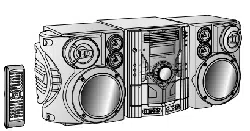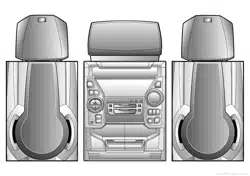
CD-G7500DVD (S)
TINSZA159AWZZ
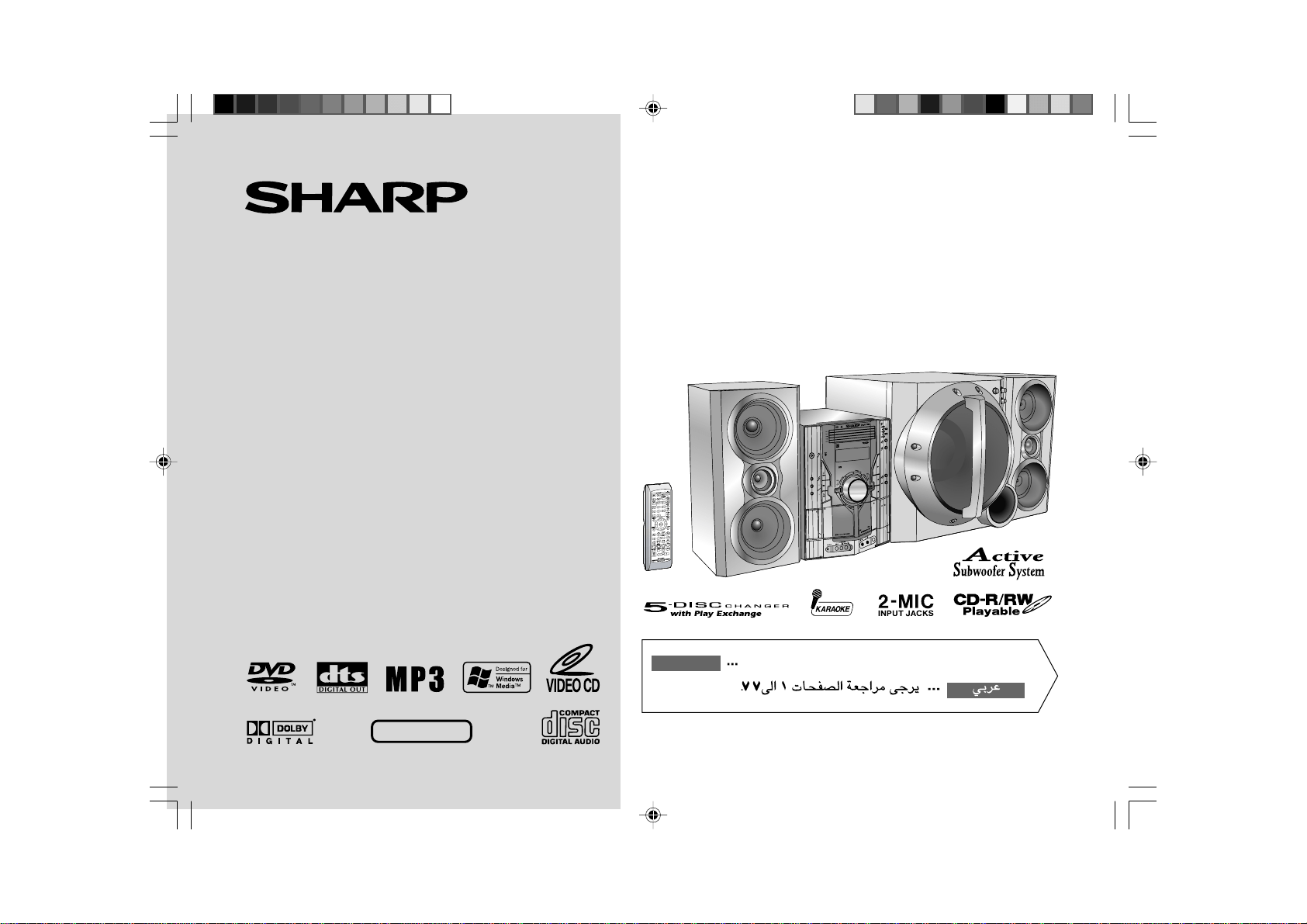
DVD MINI SYSTEM
MODEL
CD-G7500DVD
SPEAKER SYSTEM
MODEL
CP-G7500
OPERATION MANUAL
NTSC/PAL
VIDEO CD MINI SYSTEM
CD-VC656
V
I
D
E
O
C
D
C
D
/
P.B.C
OSD
DIGEST
5
-DISC
GHANGER
AUTO REVERSE
MIC LEVEL
MIN MAX
MIC
1
2
DVD MINI SYSTEM
CD-G7500DVD
D
V
D
/
C
D
5
-DISC
GHANGER
AUTO REVERSE
MIC LEVEL
MIN
MAX
MIC
1
2
Thank you for purchasing this SHARP product.
To obtain the best performance from this product, please read this
manual carefully. It will guide you in operating your SHARP product.
CD-G7500DVD
CD-G7500DVD DVD Mini System consisting of CD-G7500DVD (main unit).
CP-G7500
CP-G7500 Speaker System consisting of CP-G7500 (front speaker system) and CP-
SW7500 (active subwoofer).
SHARP CORPORATION
Please refer to pages E-1 to E-77.
ENGLISH
*CD-G7500DVD(EN)Cover 05.1.13, 14:461
Downloaded from: http://www.usersmanualguide.com/
E-1
ENGLISH
Important Instruction
CD-G7500DVD (S)
TINSZA159AWZZ
CD-G7500DVD
CP-G7500
WARNINGS
I When the ON/STAND-BY button is set at STAND-BY position, mains voltage
is still present inside the unit. When the ON/STAND-BY button is set at
STAND-BY position, the unit may be brought into operation by the timer
mode or remote control.
I This unit contains no user serviceable parts. Never remove covers unless
qualified to do so. This unit contains dangerous voltages, always remove
mains plug from the socket before any service operation and when not in use
for a long period.
I To prevent fire or shock hazard, do not expose this appliance to dripping or splashing.
No objects filled with liquids, such as vases, shall be placed on the apparatus.
CAUTION
I This product is classified as a CLASS 1 LASER product.
I This product contains a low power laser device. To ensure continued safety
do not remove any cover or attempt to gain access to the inside of the prod-
uct. Refer all servicing to qualified personnel.
NOTE
Audio-visual material may consist of copyrighted works which must not be re-
corded without the authority of the owner of the copyright.
Please refer to the relevant laws in your country.
Special notes
ENGLISH
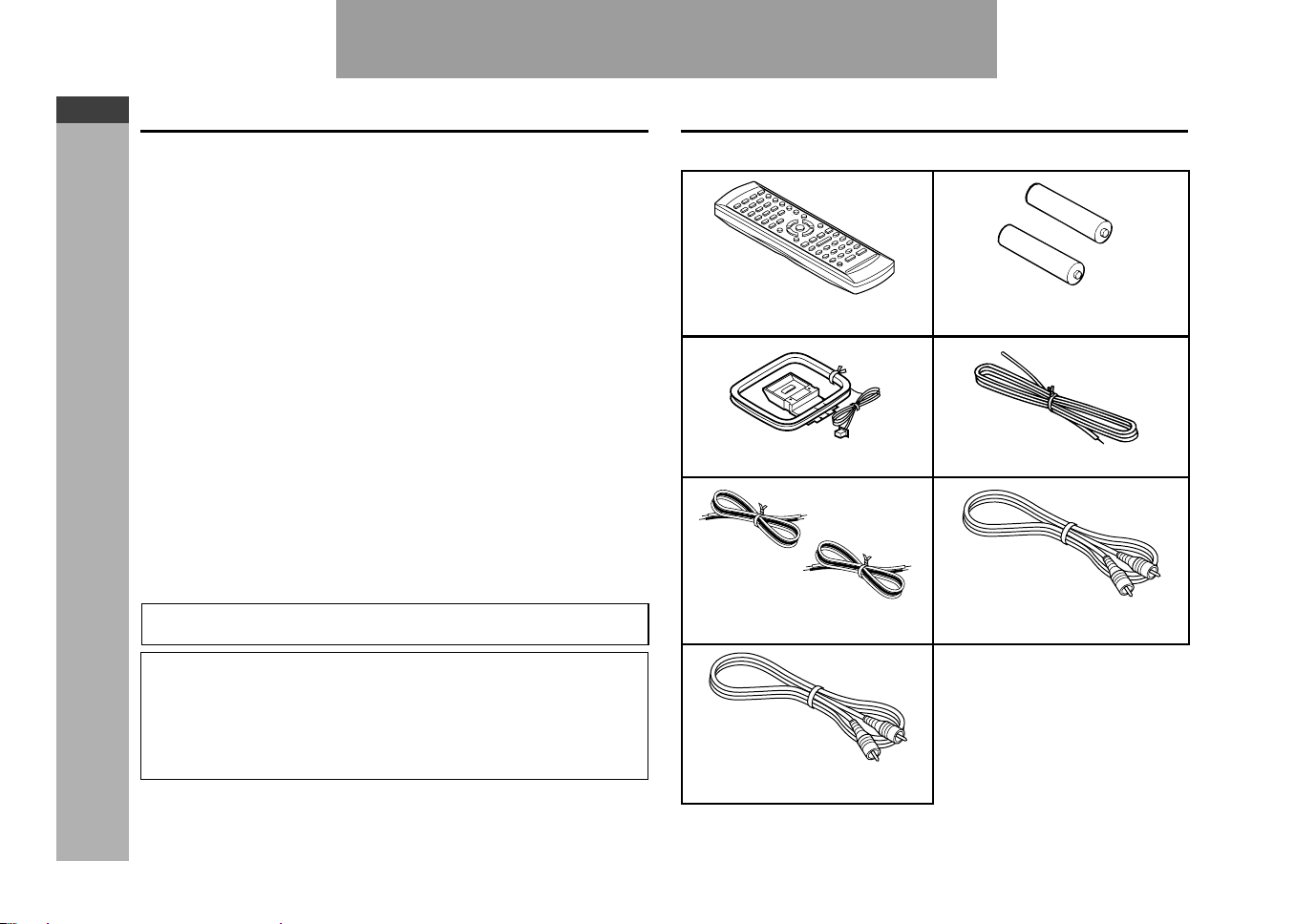
Remote control × 1
“AA” size battery (UM/SUM-3,
R6, HP-7 or similar) × 2
AM loop aerial × 1 FM aerial × 1
Accessories
Please confirm that the following accessories are included.
Subwoofer cable × 1
(Black)
Note:
Only the above accessories are included.
Video cable × 1
(Yellow)
Speaker wire × 2
(Red/Black)
Copy Protection
This Player supports Macrovision copy protection. On DVDs that include a
copy protection code, if the contents of the DVD are copied using a VCR, the
copy protection code prevents the videotape copy from playing normally.
Apparatus Claims of U.S. Patent Nos. 4,631,603, 4,577,216, 4,819,098
and 4,907,093 licensed for limited viewing uses only.
This product incorporates copyright protection technology that is protected
by method claims of certain U.S. patents and other intellectual property
rights owned by Macrovision Corporation and other rights owners. Use of
this copyright protection technology must be authorized by Macrovision
Corporation, and is intended for home and other limited viewing uses only
unless otherwise authorized by Macrovision Corporation. Reverse engi-
neering or disassembly is prohibited.
*CD-G7500DVD(EN)01 05.1.13, 14:401
Downloaded from: http://www.usersmanualguide.com/
E-2
ENGLISH
General Information
CD-G7500DVD (S)
TINSZA159AWZZ
CD-G7500DVD
CP-G7500
7
Contents
H Video CD/CD Playback Page
Video CD...................................................................................... 45
Preparation for video CD playback ........................................... 45
Video CD playback ............................................................. 46 - 47
CD playback ........................................................................ 48 - 51
MP3/WMA disc .................................................................... 52 - 53
H Karaoke
Playing karaoke .................................................................. 54 - 55
H Radio
Listening to the radio ......................................................... 56 - 57
H Tape Playback
Listening to a cassette tape (TAPE 1 or TAPE 2) ............. 58 - 60
H Tape Recording
Recording to a cassette tape............................................. 60 - 65
H Advanced Features
Timer and sleep operation ................................................. 66 - 69
Enhancing your system ..................................................... 70 - 71
H References
Troubleshooting chart ........................................................ 72 - 74
Maintenance ................................................................................ 75
Specifications ..................................................................... 75 - 76
Glossary ...................................................................................... 77
H General Information Page
Precautions ...................................................................................3
Controls and indicators ......................................................... 4 - 9
H Preparation for Use
System connections........................................................... 10 - 15
Subwoofer control ...................................................................... 16
Remote control ........................................................................... 17
H Basic Operation
General control ...........................................................................18
Setting the clock ......................................................................... 19
H DVD Explanation
Types of playable discs ..................................................... 20 - 21
Preparing to watch a DVD (DVDs)............................................. 22
H DVD Setting
Initial setup (OSD language setup) ...........................................23
Setting up for playback of an NTSC disc ................................. 24
TV mode setup ............................................................................ 25
Parental setting................................................................... 26 - 27
Audio setting....................................................................... 28 - 29
Disc language setting ........................................................ 29 - 31
Changing the display mode....................................................... 32
H DVD Playback
Playing a DVD (DVDs) ................................................................ 33
Other disc play features..................................................... 34 - 35
H Advanced DVD Features
Using the function control ................................................. 36 - 41
Repeat playback ......................................................................... 42
Programme playback ................................................................. 43
Selecting titles from the menu .................................................. 44
Setting parameters using the disc menu ................................. 44
1
2
3
4
5
6
7
8
9
SHARP TINSZA159AWZZ
(S)
10
*CD-G7500DVD(EN)02-05 05.1.13, 14:402
Downloaded from: http://www.usersmanualguide.com/
E-3
ENGLISH
General Information
CD-G7500DVD (S)
TINSZA159AWZZ
CD-G7500DVD
CP-G7500
H General
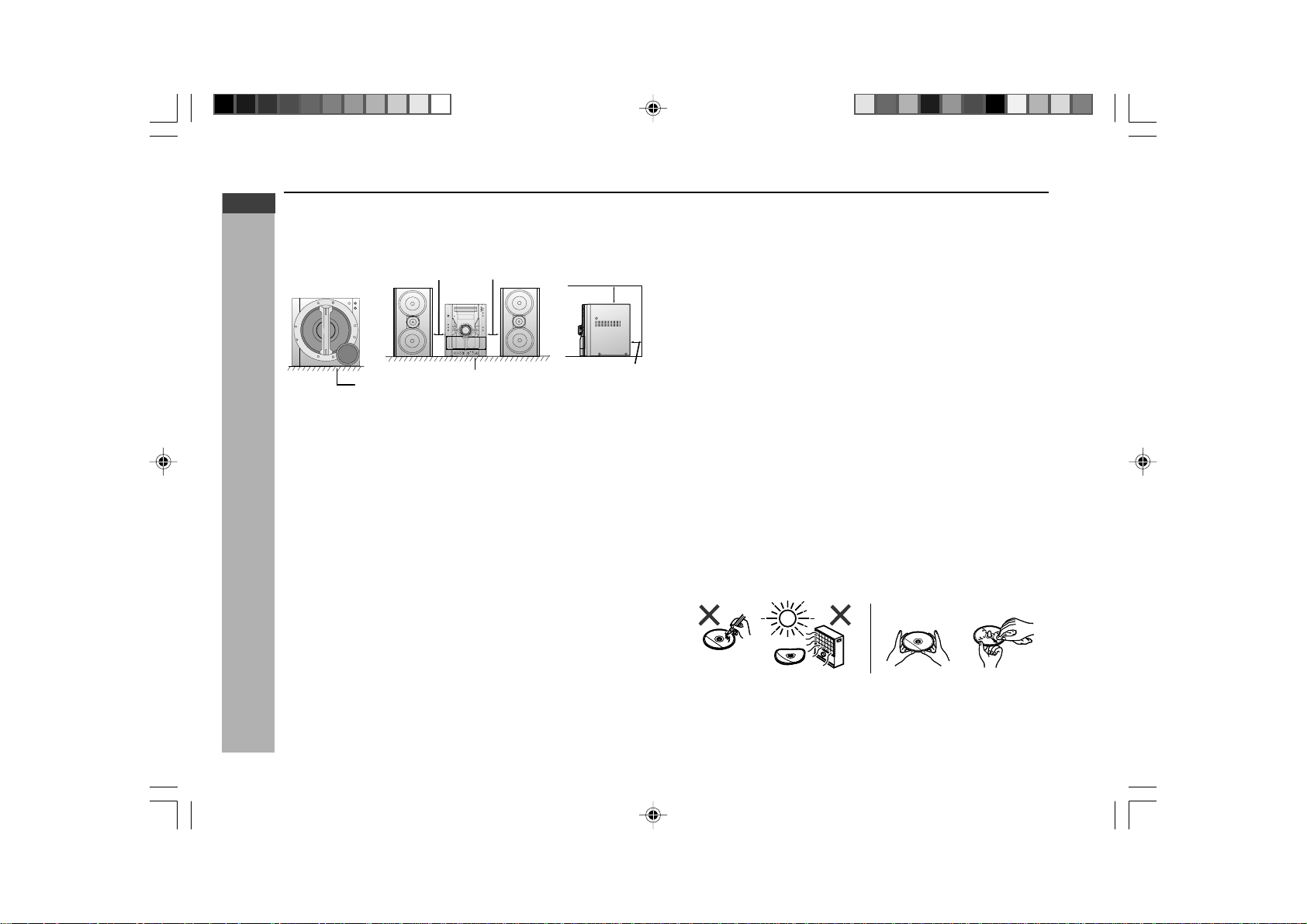
I Please ensure that the equipment is positioned in a well ventilated area
and ensure that there is at least 10 cm (4") of free space along the sides,
top and back of the equipment.
I Do not place active subwoofer system on the same surface as main
unit to prevent sound interruption during playback.
I Use the unit on a firm, level surface free from vibration.
I Keep the unit away from direct sunlight, strong magnetic fields, excessive
dust, humidity and electronic/electrical equipment (home computers,
facsimiles, etc.) which generate electrical noise.
I Do not place anything on top of the unit.
I Do not expose the unit to moisture, to temperatures higher than 60°C (140°F)
or to extremely low temperatures.
I If your system does not work properly, disconnect the AC power lead from
the wall socket. Plug the AC power lead back in, and then turn on your
system.
I In case of an electrical storm, unplug the unit for safety.
I Hold the AC power plug by the head when removing it from the wall socket,
as pulling the lead can damage internal wires.
I Do not remove the outer cover, as this may result in electric shock.
Refer internal service to your local SHARP service facility.
I The ventilation should not be impeded by covering the ventilation openings
with items, such as newspapers, tablecloths, curtains, etc.
I No naked flame sources, such as lighted candles, should be placed on the
apparatus.
I Attention should be drawn to the environmental aspects of battery disposal.
I This unit should only be used within the range of 5°C - 35°C (41°F- 95°F).
Precautions
10 cm (4") 10 cm (4")
10 cm (4")
10 cm (4")
Warning:
The voltage used must be the same as that specified on this unit.
Using this product with a higher voltage other than that which is specified is
dangerous and may result in a fire or other type of accident causing damage.
SHARP will not be held responsible for any damage resulting from use of this
unit with a voltage other than that which is specified.
H Volume control
The sound level at a given volume setting depends on speaker efficiency,
location and various other factors. It is advisable to avoid exposure to high
volume levels. Do not turn the volume on to full at switch on and listen to music
at moderate levels.
H Care of DVD/Video CD/CD discs
DVD/Video CD/CD discs are fairly resistant to damage, however mistracking
can occur due to an accumulation of dirt on the disc surface. Follow the
guidelines below for maximum enjoyment from your DVD/Video CD/CD
collection and player.
I Do not write on either side of the disc, particularly the non-label side from
which signals are read. Do not mark this surface.
I Keep your discs away from direct sunlight, heat, and excessive moisture.
I Always hold the DVD/Video CD/CDs by the edges. Fingerprints, dirt, or
water on the DVD/Video CD/CDs can cause noise or mistracking. If a DVD/
Video CD/CD is dirty or does not play properly, clean it with a soft, dry
cloth, wiping straight out from the centre, along the radius.
YES
Correct
NO
Floor
Table
*CD-G7500DVD(EN)02-05 05.1.13, 14:403
Downloaded from: http://www.usersmanualguide.com/
E-4
ENGLISH
General Information
CD-G7500DVD (S)
TINSZA159AWZZ
CD-G7500DVD
CP-G7500
7
Controls and indicators
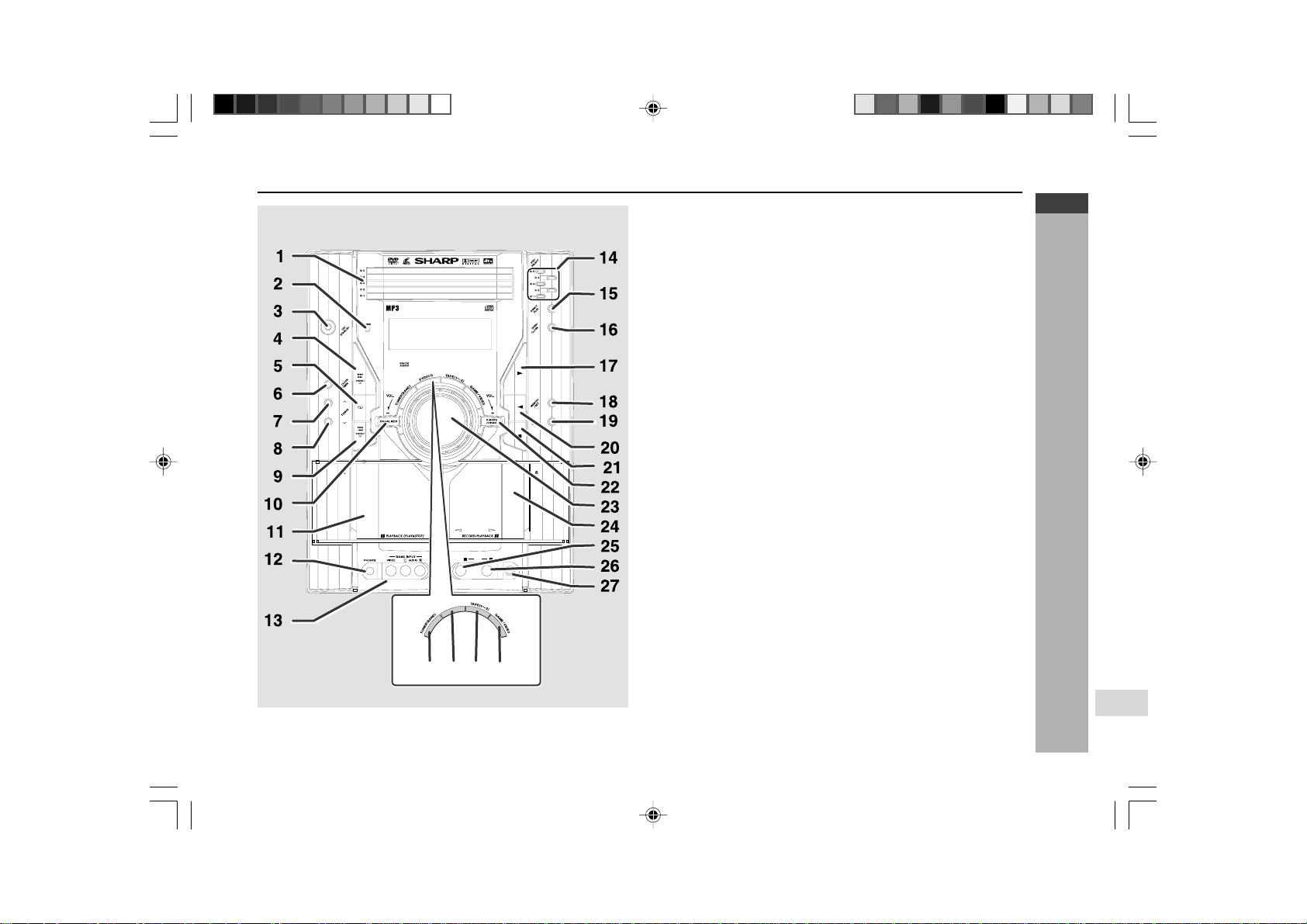
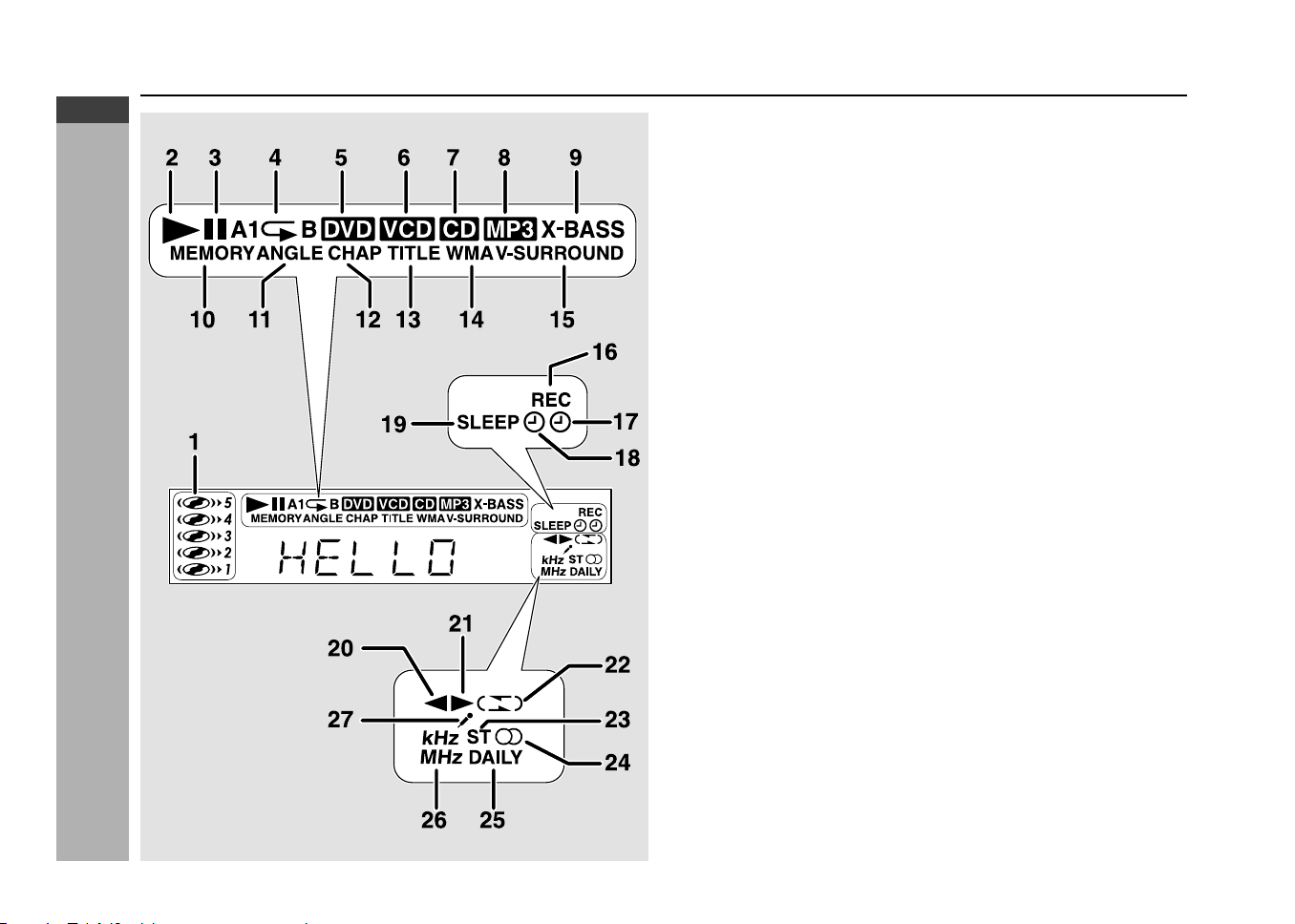
H Front panel
Reference page
1. Disc Trays ............................................................................................ 22
2. Timer Set Indicator ............................................................................. 67
3. On/Stand-by Button ...................................................................... 18, 22
4.
DVD Chapter Skip/DVD/Video CD/CD/MP3/WMA Track Up or
Fast Forward, Tape 2 Fast Forward, Tuner Preset Up,
Time Up Button ....................................................... 19, 34, 49, 57, 60, 66
5. Tape 2 Reverse Mode Select Button .................................................
59
6. Clock/Timer Button...........................................................
19, 66, 68, 69
7. Tuning Up Button ................................................................................
56
8. Tuning Down Button ...........................................................................
56
9.
DVD Chapter Skip/DVD/Video CD/CD/MP3/WMA Track Down or
Fast Reverse, Tape 2 Rewind, Tuner Preset Down,
Time Down Button .................................................. 19, 34, 49, 57, 60, 66
10. Equaliser Mode Select Button ...........................................................
18
11. Tape 1 Cassette Compartment ..........................................................
58
12. Headphone Socket .............................................................................
70
13. Game/Video Input Sockets ................................................................
70
14.
Disc Number select Buttons .............................................................
22, 33
15.
Disc Direct Play Button ...........................................................................
33
16. Disc Tray Open/Close Button ......................................................
22, 33
17.
DVD/Video CD/CD/MP3/WMA
Play, Tape 1 Play,
Tape 2 Forward Play Button .........................................................
33, 58
18. Memory/Set Button ...............................................
19, 43, 51, 57, 66, 69
19.
Tape 2 Record Pause Button ............................................................... 61
20.
Tape 2 Reverse Play
Button ...............................................................
59
21.
DVD/Video CD/CD/MP3/WMA or Tape Stop
Button .....................
33, 60
22. Extra Bass/Demo Mode Button .........................................................
18
23. Volume Control ...................................................................................
18
24. Tape 2 Cassette Compartment ..........................................................
59
25. Microphone Socket 1..........................................................................
54
26. Microphone Socket 2..........................................................................
54
27. Microphone Level Control .................................................................
54
28.
Tuner (Band) Button ............................................................................. 56
29. DVD/Video CD/CD/MP3/WMA Button ..........................................
22, 33
30. Tape (1V2) Button ........................................................................
58, 59
31. Game/Video Button ......................................................................
54, 70
CD-G7500DVD
DVD MINI SYSTEM
5
-DISC
GHANGER
AUTO REVERSE
MIC
MIC LEVEL
MIN MAX
12
31302928
D
V
D
/
C
D
*CD-G7500DVD(EN)02-05 05.1.13, 14:404
Downloaded from: http://www.usersmanualguide.com/
E-5
ENGLISH
General Information
CD-G7500DVD (S)
TINSZA159AWZZ
CD-G7500DVD
CP-G7500
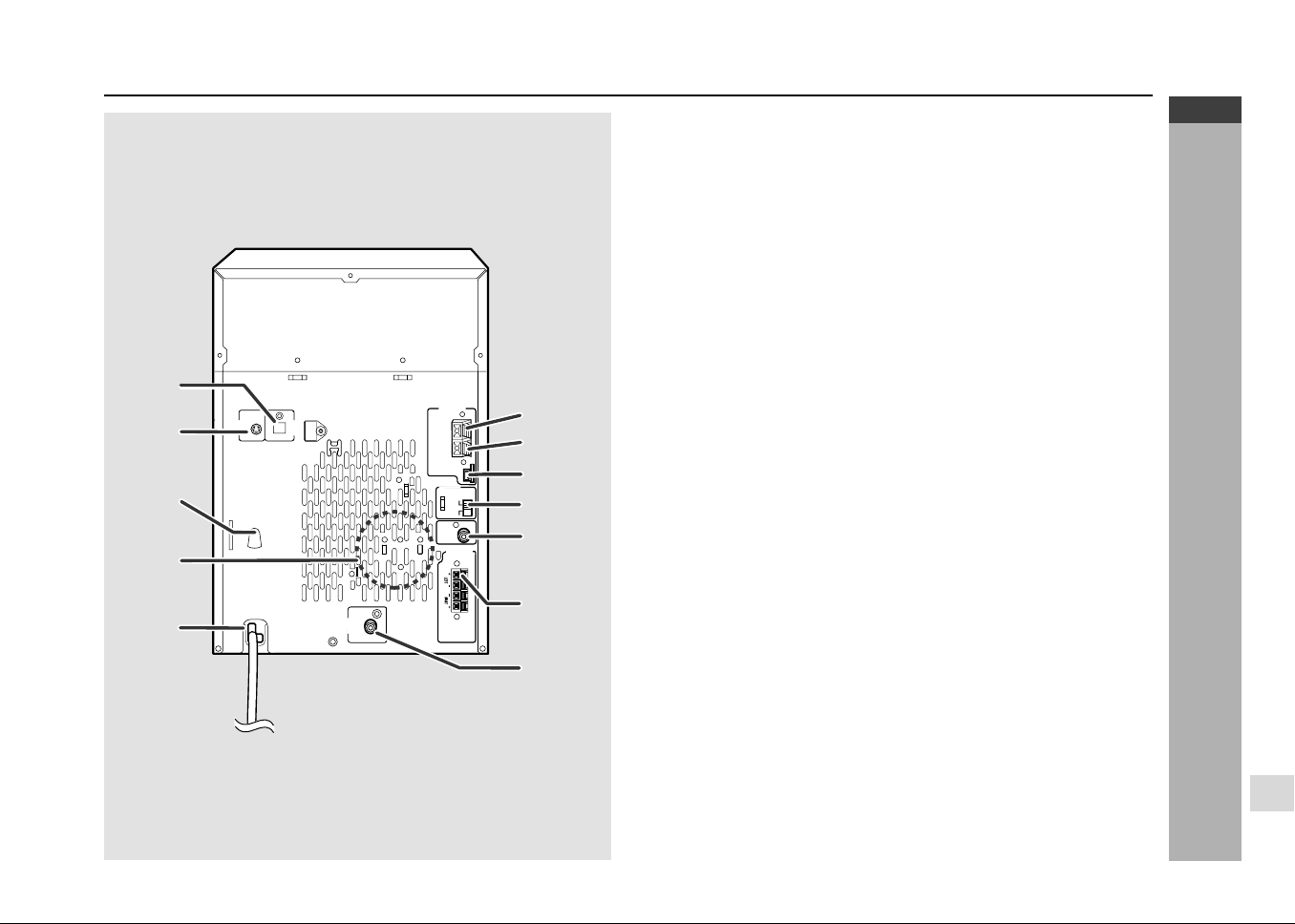
H Display
1. Disc Number Indicators
2. DVD/Video CD/CD/MP3/WMA Play Indicator
3. DVD/Video CD/CD/MP3/WMA Pause Indicator
4. DVD/Video CD/CD/MP3/WMA Repeat Indicator
5. DVD Indicator
6. VCD Indicator
7. CD Indicator
8. MP3 Indicator
9. Extra Bass Indicator
10. Memory Indicator
11. DVD Angle Indicator
12. DVD Chapter Indicator
13. DVD Title Indicator
14. WMA Indicator
15. Virtual Surround Indicator
16. Tape Record Indicator
17. Timer Recording Indicator
18. Timer Play Indicator
19. Sleep Indicator
20. Tape 2 Reverse Play Indicator
21. Tape Forward Play Indicator
22. Tape 2 Reverse Mode Indicator
23. FM Stereo Mode Indicator
24. FM Stereo Receiving Indicator
25. Daily Timer Indicator
26. Tuner Receiving Frequency Indicators
27. Karaoke Mode Indicator
Controls and indicators (continued)
*CD-G7500DVD(EN)02-05 05.1.13, 14:415
Downloaded from: http://www.usersmanualguide.com/
E-6
ENGLISH
General Information
CD-G7500DVD (S)
TINSZA159AWZZ
CD-G7500DVD
CP-G7500
7
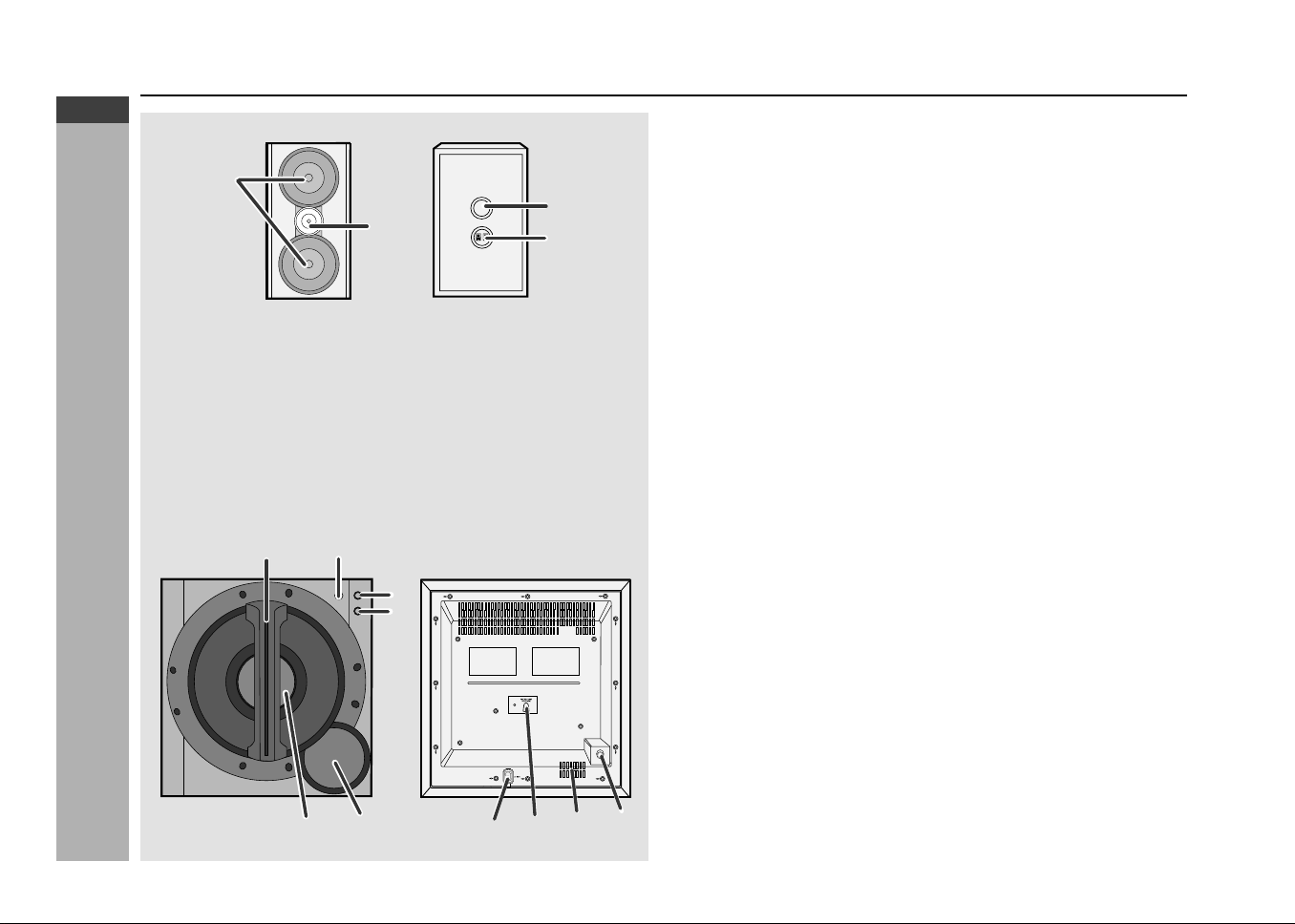
H Rear panel
Reference page
1. Audio Digital Out Socket.................................................................... 71
2. S-Video Output Socket ....................................................................... 22
3. AC Voltage Selector ...................................................................... 13, 14
4. Cooling Fan
5. AC Power Lead ............................................................................. 13, 14
6. FM 75 Ohms Aerial Terminal ........................................................ 10, 11
7. FM Aerial Earth Terminal .............................................................. 10, 11
8. AM Loop Aerial Socket ................................................................. 10, 11
9. Span Selector Switch ......................................................................... 15
10. Video Output Socket .......................................................................... 12
11. Speaker Terminals ........................................................................ 10, 11
12. Subwoofer Pre-output Socket ..................................................... 10, 14
Cooling fan:
This product is equipped with a cooling fan inside, which begins to run once the
power is on for better heat radiation.
VIDEO
OUT
S-VI DEO
OUT
RATED LINE
VOLTAGE
RATED SPEAKER
IM PEDANCE:
6 OHM S MI N.
AUDIO
DIGITAL
OUT
DVD/CD
AC INPUT
50/ 9
100 /10
FM/ AM
(
kHz
)
GND
FM
75 OHM S
AM
LOOP
ANTENNA
SPAN
SELECTOR
FRONT
SPEAKERS
6
SUBWOOFER
PRE-OUT
3
1
5
4
2
8
11
12
9
10
7
*CD-G7500DVD(EN)06-09 05.1.13, 14:416
Downloaded from: http://www.usersmanualguide.com/
E-7
ENGLISH
General Information
CD-G7500DVD (S)
TINSZA159AWZZ
CD-G7500DVD
CP-G7500
6
5
3
4
2 1
1
2
43
8
7
9
10
H Active Subwoofer
Reference page
1. Bass Reflex Duct
2. Subwoofer
3. Power Indicator ................................................................................... 14
4. Power Switch ...................................................................................... 14
5. Volume Control ................................................................................... 14
6. Crossover Frequency Control ........................................................... 14
7. Cooling Fan
8. AC Power Lead ............................................................................. 10, 14
9. AC Voltage Selector ............................................................................ 14
10. Subwoofer Input Socket............................................................... 10, 14
H Speaker system
1. Woofers
2. Tweeter
3. Bass Reflex Duct
4. Speaker Terminals
Controls and indicators (continued)
*CD-G7500DVD(EN)06-09 05.1.13, 14:417
Downloaded from: http://www.usersmanualguide.com/
E-8
ENGLISH
General Information
CD-G7500DVD (S)
TINSZA159AWZZ
CD-G7500DVD
CP-G7500
7
1
2
20
21
22
23
24
25
26
27
28
3
4
5
6
7
8
9
10
18
19
11
15
33 34 35 36
37 38 39 40
29 30 31 32
16 17
12 13 14
GAME
/VIDEO
RRMCGA015AWSA
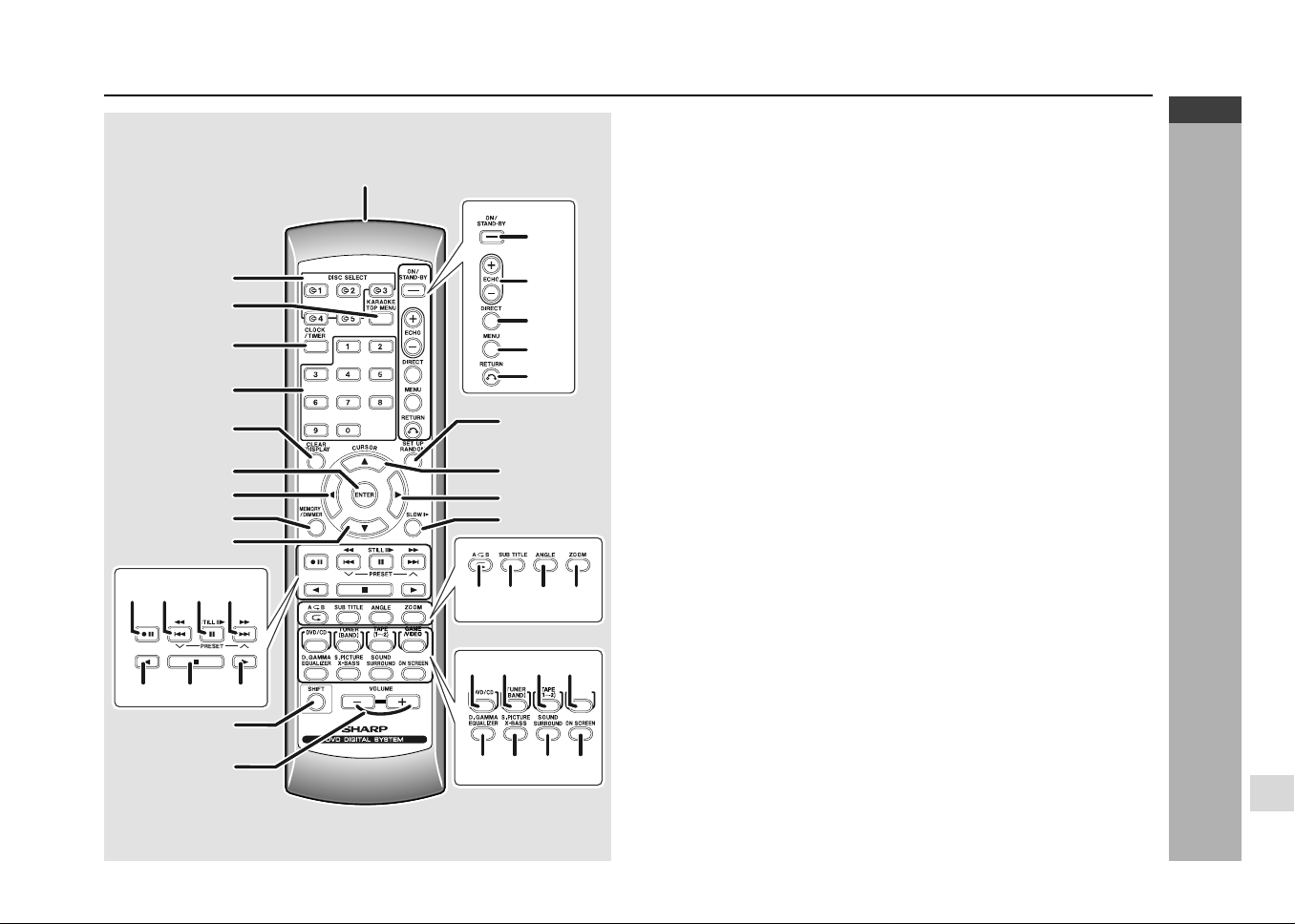
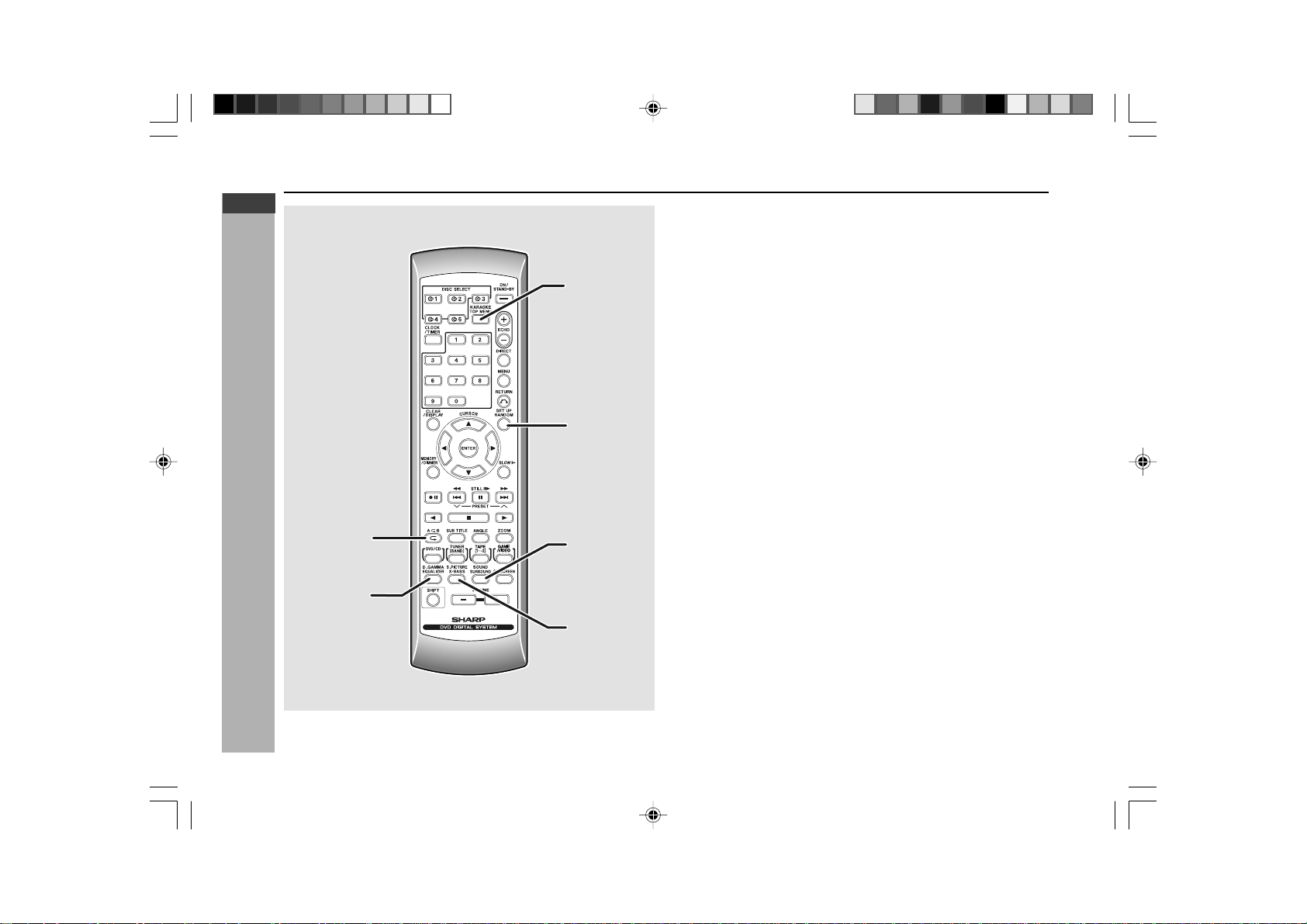
H Remote control
Reference page
1. Remote Control Transmitter ................................................................ 17
2. Disc Number Select Buttons ................................................... 22, 33, 46
3. DVD Top Menu Button ......................................................................... 44
4. Clock/Timer Button ............................................................ 19, 66, 68, 69
5. Direct Search Button ..................................................................... 51, 52
6. Clear/Display Button ............................................................................ 43
7. Enter Button ................................................................................... 24, 28
8. Cursor Left Button ......................................................................... 27, 51
9. Memory/Dimmer Button ................................... 18, 19, 43, 51, 57, 66, 67
10. Cursor Down Button ................................................................ 24, 28, 51
11. Tape Record Pause Button ......................................... 61, 62, 63, 64, 65
12. DVD Chapter Skip/DVD/Video CD/MP3/ WMA Fast Reverse/Video CD/
CD/MP3/WMA Track Down/Tape Fast Wind and Tuner Preset Down,
Time Down Button ................................................................... 34, 35, 50
13. DVD/Video CD/CD/MP3/WMA Pause Button ...................................... 35
14. DVD Chapter Skip/DVD/Video CD/MP3/WMA Fast Forward/Video CD/
CD/MP3/WMA Track Up/Tape Fast Wind and Tuner Preset Up,
Time Up Button ........................................................................ 34, 35, 50
15. Tape 2 Reverse Play Button .........................................55, 59, 61, 62, 63
16. DVD/Video CD/CD/MP3/WMA/Tape Stop Button .......................... 33, 51
17. DVD/Video CD/CD/MP3/WMA/Tape 1 Play/
Tape 2 Forward Play Button .......................................................... 33, 51
18. Shift Button .................................................................................... 24, 55
19. Volume Up or Down Button................................................................. 18
20. On/Stand-by Button ....................................................................... 18, 23
21. Echo Level Up/Down Button .............................................................. 54
22. DVD Direct Button ................................................................................ 37
23. DVD Menu Button ................................................................................ 44
24. Return Button ................................................................................. 38, 39
25. CD Random Button .............................................................................. 50
26. Cursor Up Button ..................................................................... 24, 28, 51
27. Cursor Right Button....................................................................... 27, 51
28. DVD/Video CD Slow Button ................................................................. 34
29. DVD/Video CD/CD/MP3/WMA Repeat Button ..................................... 42
30. DVD Subtitle Button ............................................................................. 38
31. DVD Angle Button ................................................................................ 38
32. DVD Zoom Button ................................................................................ 41
33. DVD/Video CD/CD/MP3/WMA Button ............................................ 23, 33
34. Tuner (Band) Button ............................................................................ 56
35. Tape (1
VV
VV
V 2) Button ....................................................................... 58, 59
36. Game/Video Button ........................................................................ 54, 70
37. Equaliser Mode Select Button............................................................. 18
38. Extra Bass Button ................................................................................ 18
39. DVD 3-D Virtual Surround Button ....................................................... 39
40. DVD On Screen Button ........................................................................ 32
*CD-G7500DVD(EN)06-09 05.1.13, 14:418
Downloaded from: http://www.usersmanualguide.com/
E-9
ENGLISH
General Information
CD-G7500DVD (S)
TINSZA159AWZZ
CD-G7500DVD
CP-G7500
1
2
3
4
5
6
RRMCGA015AWSA
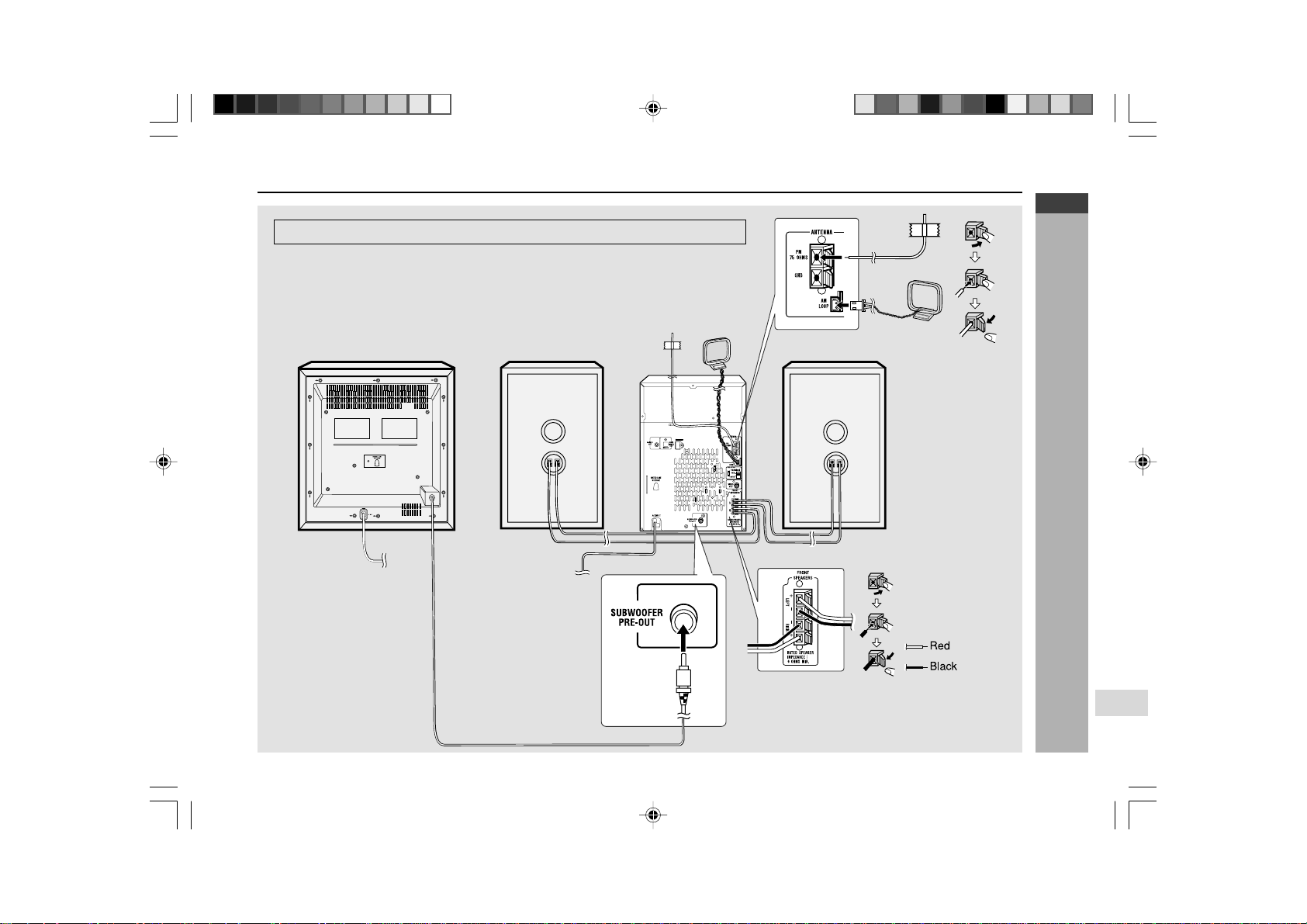
H Remote control with shift button
Reference page
1. Karaoke/Audio Mode Button ....................................................... 54, 55
2. DVD Setup Button......................................................................... 24, 28
3. DVD Sound Button ............................................................................. 39
4. DVD Super Picture Button ................................................................. 41
5. DVD/Video CD/CD A-B Repeat Button .............................................. 42
6. DVD Digital Gamma Button ............................................................... 40
Controls and indicators (continued)
*CD-G7500DVD(EN)06-09 05.1.13, 14:419
Downloaded from: http://www.usersmanualguide.com/
E-10
ENGLISH
Preparation for Use
CD-G7500DVD (S)
TINSZA159AWZZ
CD-G7500DVD
CP-G7500
7
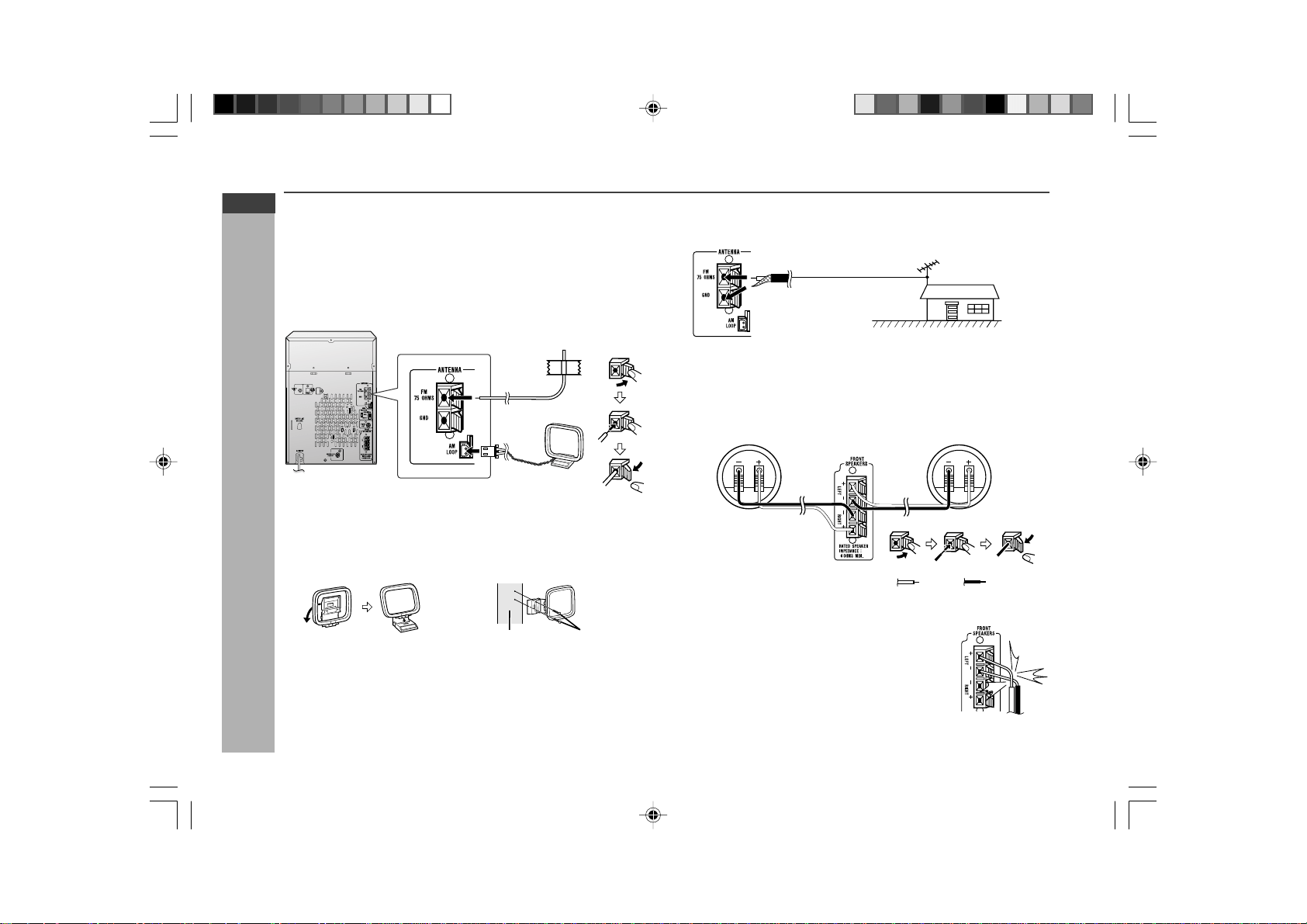
System connections
Active Subwoofer Right speaker
To a wall socket
(See page 13)
To a wall socket
(See page 14)
Left speaker
FM Aerial
AM Loop
Aerial
Make sure to unplug the AC power lead before making any connections.
*CD-G7500DVD(EN)10-17 05.1.13, 14:4110
Downloaded from: http://www.usersmanualguide.com/
E-11
ENGLISH
Preparation for Use
CD-G7500DVD (S)
TINSZA159AWZZ
CD-G7500DVD
CP-G7500
System connections (continued)
Incorrect
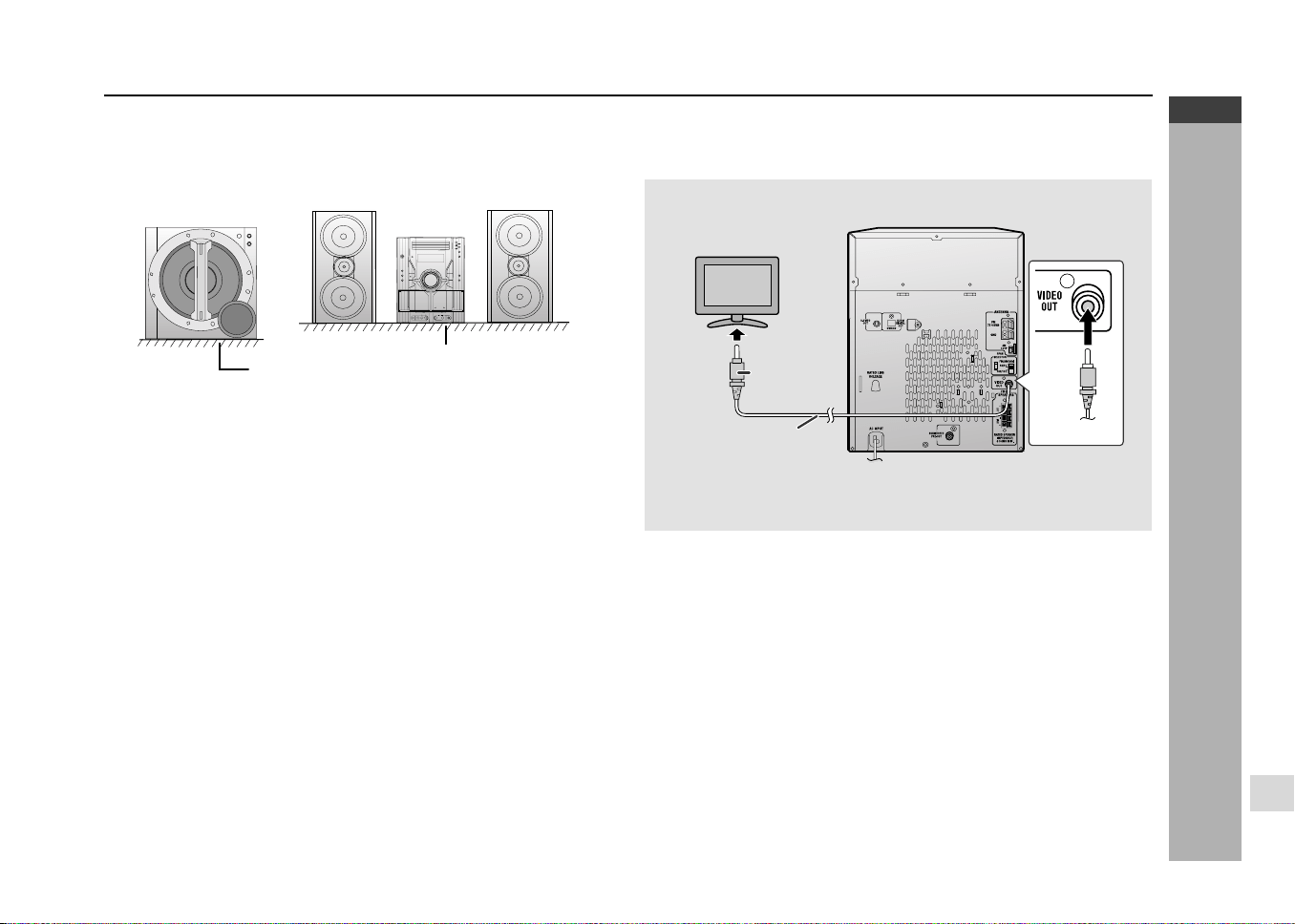
H Aerial connection
Supplied FM aerial:
Connect the FM aerial wire to the FM 75 OHMS terminal and position the FM
aerial wire in the direction where the strongest signal can be received.
Supplied AM loop aerial:
Connect the AM loop aerial to the AM LOOP socket. Position the AM loop
aerial for optimum reception. Place the AM loop aerial on a shelf, etc., or attach
it to a stand or a wall with screws (not supplied).
Note:
Placing the aerial on the unit or near the AC power lead may cause noise
pickup. Place the aerial away from the unit for better reception.
Installing the AM loop aerial:
< Assembling > < Attaching to the wall >
Screws (not supplied)
Wall
External FM aerial:
Use an external FM aerial if you require better reception. Consult your dealer.
External
FM aerial
75 ohm
coaxial cable
Note:
When an external FM aerial is used, disconnect the supplied FM aerial wire.
Red
Black
H Speaker connection
Connect the black wire to the minus (-) terminal, and the red wire to the plus (+)
terminal.
Caution:
I Connect the speaker wires to the speakers first, then
to the unit.
I Use speakers with an impedance of 6 ohms or more,
as lower impedance speakers can damage the unit.
I Do not mistake the right and the left channels. The
right speaker is the one on the right side when you
face the unit.
I Do not let the bare speaker wires touch each
other.
I Do not allow any objects to fall into or to be placed in
the bass reflex ducts.
I Do not stand or sit on the speakers. You may be
injured.
Right speaker Left speaker
*CD-G7500DVD(EN)10-17 05.1.13, 14:4111
Downloaded from: http://www.usersmanualguide.com/
E-12
ENGLISH
Preparation for Use
CD-G7500DVD (S)
TINSZA159AWZZ
CD-G7500DVD
CP-G7500
7
H Placing the speaker system
There is no distinction between the right and the left speakers.
Note:
The speaker grilles are not removable.
Caution:
I Do not place active subwoofer system on the same surface as main unit to
prevent sound interruption during playback.
Notes:
I The speakers are magnetically shielded.
Therefore, they do not affect the display even you use them near the TV.
However, some colour variation may occur, depending on the type of TV
used.
If colour variation occurs...
Turn off the TV (from the power switch).
After 15 - 30 minutes, turn the TV on again.
If the colour variation is still present...
Move the speakers further away from the TV.
I If any kind of magnet or an electromagnet is placed too close to the TV and
the system, irregular colours may appear on the TV screen.
H TV/monitor connection
If the TV/monitor has a video input, connect it to the VIDEO OUT socket on the
rear of the unit.
TV
To video
input socket
Video cable
(Yellow)
Yellow
Yellow
Active subwoofer
Main unit
Right
speaker
Floor
Table
Left
speaker
*CD-G7500DVD(EN)10-17 05.1.13, 14:4112
Downloaded from: http://www.usersmanualguide.com/
E-13
ENGLISH
Preparation for Use
CD-G7500DVD (S)
TINSZA159AWZZ
CD-G7500DVD
CP-G7500
System connections (continued)
Main Unit
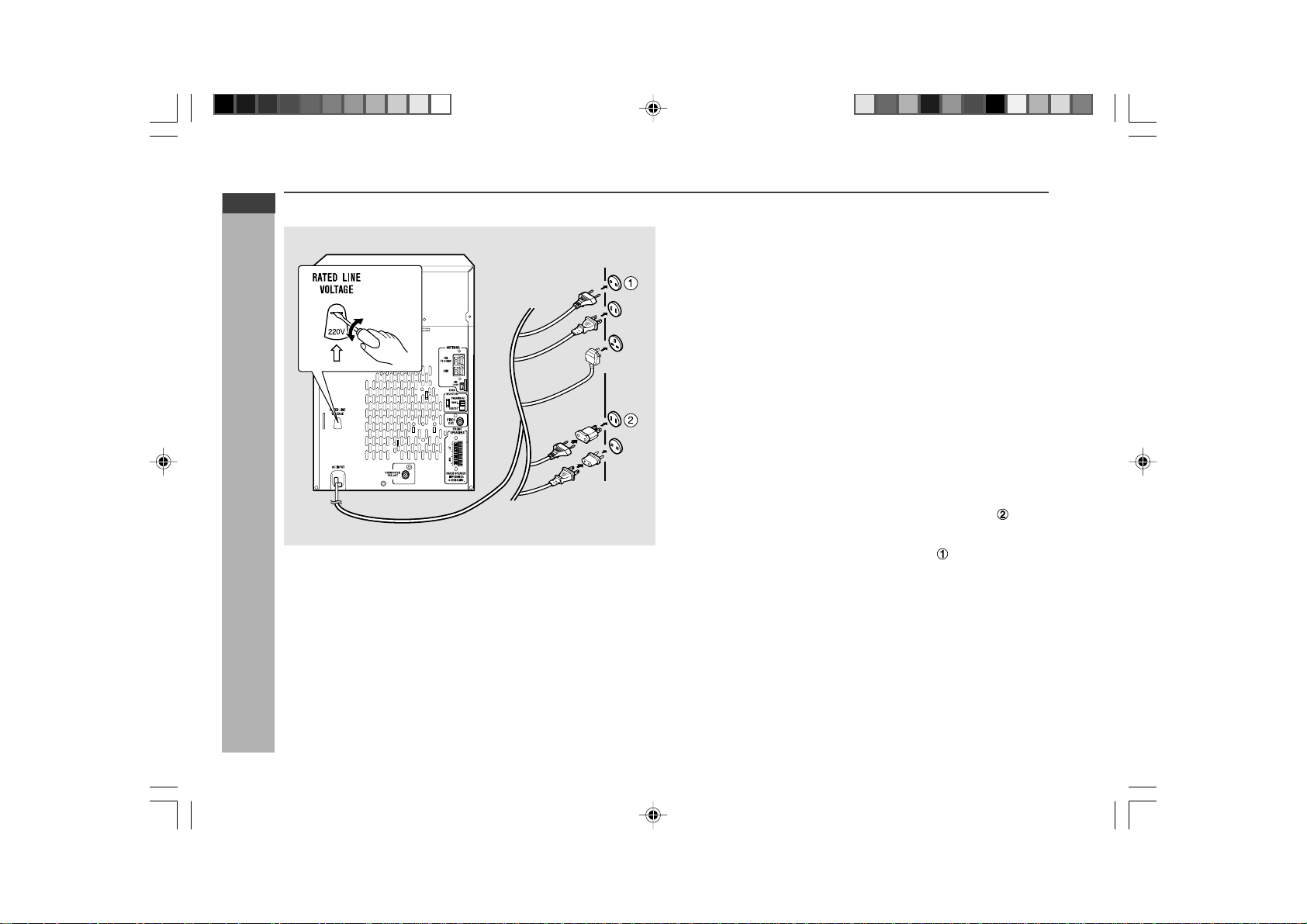
H Setting the AC voltage selector
Check the setting of the AC voltage selector located on the rear panel before
plugging the unit into a wall socket. If necessary, adjust the selector to correspond
to the AC power voltage used in your area.
Turn the selector with a screwdriver until the appropriate voltage number
appears in the window (110 V, 127 V, 220 V or 230 V - 240 V AC).
H Connecting the AC power lead
After checking all the connections have been made correctly, plug the AC power
lead of this unit into the wall socket. If you plug the unit first, the unit will enter
the demonstration mode (see page 15).
Notes:
I The unit will start the tape initialisation when plugged in to the AC socket.
During this process, initialising sound will be heard and the unit cannot be
turned on. Wait until the process is finished.
I Unplug the AC power lead from the wall socket if the unit will not be in use
for a prolonged period of time.
AC Plug Adaptor
In areas (or countries) where a wall socket as shown in illustration
is used,
connect the unit using the AC plug adaptor supplied with the unit, as illustrated.
The AC plug adaptor is not included in areas where the wall socket and AC
power plug can be directly connected (see illustration
).
*CD-G7500DVD(EN)10-17 05.1.13, 14:4113
Downloaded from: http://www.usersmanualguide.com/

E-14
ENGLISH
Preparation for Use
CD-G7500DVD (S)
TINSZA159AWZZ
CD-G7500DVD
CP-G7500
7
Active Subwoofer
H Setting the AC voltage selector
Check the setting of the AC voltage selector located on the rear panel before
plugging the unit into a wall socket. If necessary, adjust the selector to correspond
to the AC power voltage used in your area.
Turn the selector with a screwdriver until the appropriate voltage number
appears in the window (110 V, 127 V, 220 V or 230 V - 240 V AC).
H Connecting the AC power lead
After checking all the connections have been made correctly, plug the AC power
lead of this unit into the wall socket.
Note:
I Unplug the AC power lead from the wall socket if the unit will not be in use
for a prolonged period of time.
AC Plug Adaptor
In areas (or countries) where a wall socket as shown in illustration
is used,
connect the unit using the AC plug adaptor supplied with the unit, as illustrated.
The AC plug adaptor is not included in areas where the wall socket and AC
power plug can be directly connected (see illustration
).
H Connecting the subwoofer
Use the subwoofer cable to connect the SUBWOOFER PRE-OUT socket on
the main unit and the SUBWOOFER IN socket on the active subwoofer.
SUBWOOFER
IN
To subwoofer
input socket
*CD-G7500DVD(EN)10-17 05.1.13, 14:4114
Downloaded from: http://www.usersmanualguide.com/
E-15
ENGLISH
Preparation for Use
CD-G7500DVD (S)
TINSZA159AWZZ
CD-G7500DVD
CP-G7500
System connections (continued)
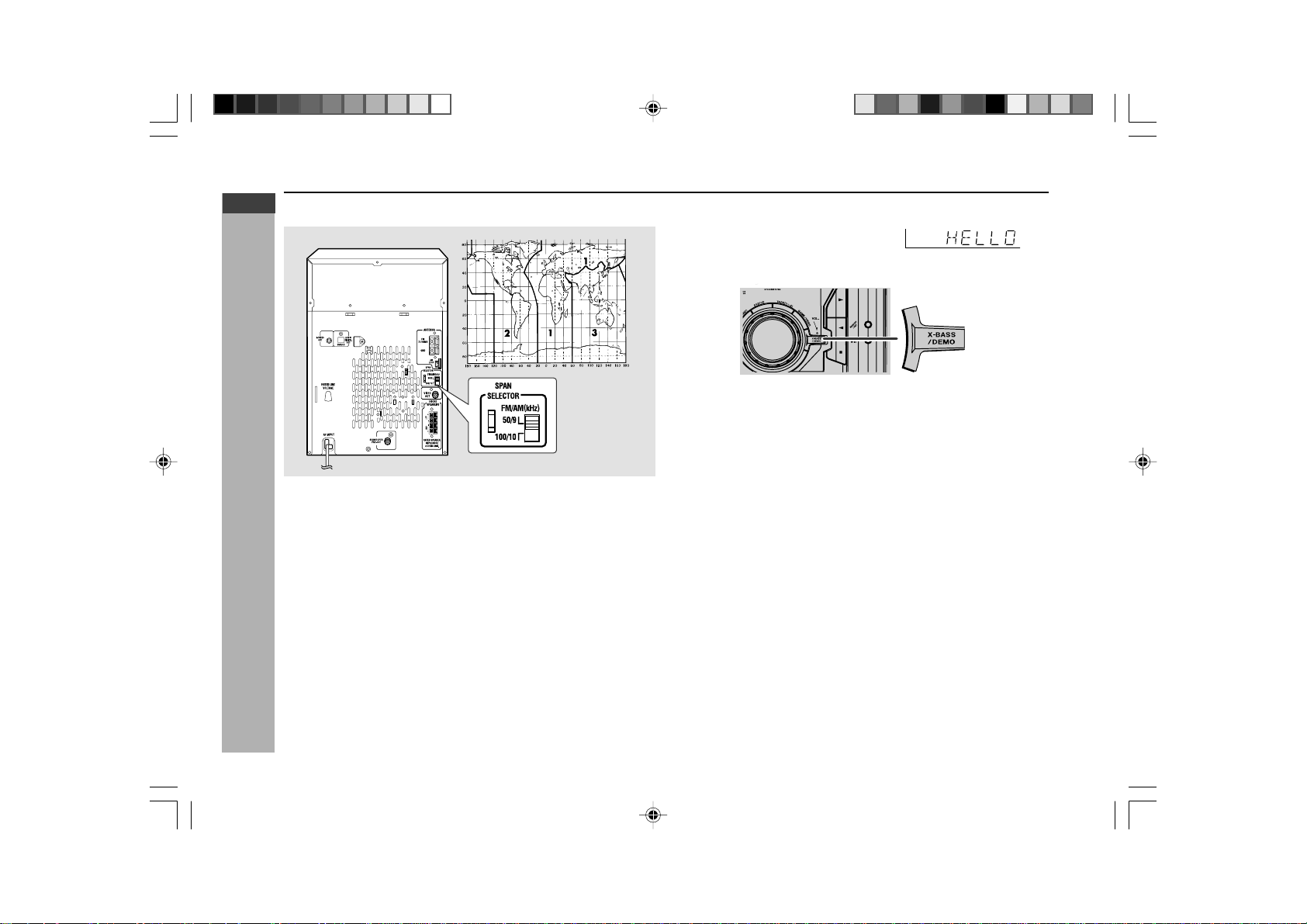
H Setting the FM/AM span selector
The International Telecommunication Union (ITU) has established that member
countries should maintain either a 100 kHz or a 50 kHz interval between
broadcasting frequencies of FM stations and 10 kHz or 9 kHz for AM station.
The illustration shows the 50/9 kHz zones (regions 1 and 3), and the 100/10
kHz zone (region 2).
Before using the unit, set the SPAN SELECTOR switch (on the rear panel) to
the interval (span) of your area.
To change the tuning zone:
1. Press the ON/STAND-BY button to enter the stand-by mode.
2. Set the SPAN SELECTOR switch (on the rear panel) as follows.
I For 50 kHz FM interval (9 kHz in AM) → 50/9
I For 100 kHz FM interval (10 kHz in AM) → 100/10
3. Whilst pressing down the I6 button and the X-BASS/DEMO button, press
the 5 3 PRESET X button until “CLEAR AL” appears.
Caution:
This operation will erase all data stored in memory including clock, timer settings,
tuner preset, and CD programme.
H Demonstration mode
The first time the unit is plugged in, the unit
will enter the demonstration mode.
You will see words scroll.
To cancel the demonstration mode:
When the unit is in the power stand-by mode (demonstration mode), press the
X-BASS/DEMO button. The demonstration mode will be cancelled and the
display will disappear.
To return to the demonstration mode:
When the unit is in the power stand-by mode, press the X-BASS/DEMO button.
Note:
When the power is on, the X-BASS/DEMO button can be used to select the
extra bass mode.
CD-G7500DVD
*CD-G7500DVD(EN)10-17 05.1.13, 14:4115
Downloaded from: http://www.usersmanualguide.com/
E-16
ENGLISH
Preparation for Use
CD-G7500DVD (S)
TINSZA159AWZZ
CD-G7500DVD
CP-G7500
7
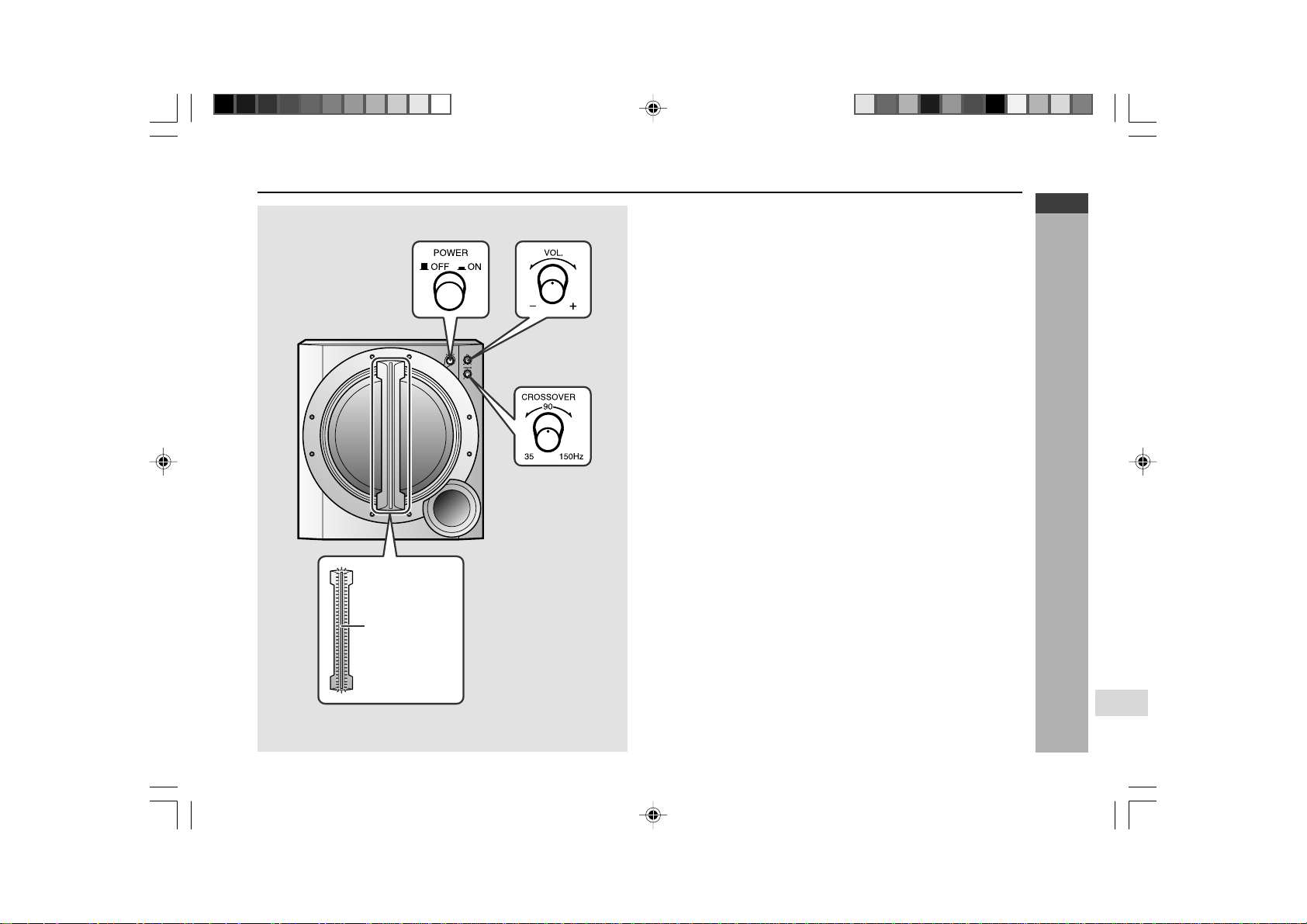
Subwoofer control
H Power Switch
The POWER indicator lights up when you press the POWER switch to : ON.
Notes:
Observe the following to avoid malfunction and sound distortion.
I Do not set the volume too high on the main unit. The subwoofer may be
damaged.
I Before you switch on/off on the main unit, minimise the volume on the main
unit.
H Crossover frequency control
Adjusts the high frequency cut-off point. Frequencies higher than the set
frequency are removed.
To emphasise the bass, turn this control towards 35 Hz and increase the
volume.
H Volume control
Turn the VOLUME control clockwise to increase the volume, and turn it anti-
clockwise to decrease the volume.
Power Indicator
*CD-G7500DVD(EN)10-17 05.1.17, 15:0916
Downloaded from: http://www.usersmanualguide.com/

E-17
ENGLISH
Preparation for Use
CD-G7500DVD (S)
TINSZA159AWZZ
CD-G7500DVD
CP-G7500
Remote control
H Battery installation
1 Open the battery cover.
2 Insert the batteries according to the direction indicated in the battery
compartment.
When inserting or removing the batteries, push them towards the ë battery
terminal.
3 Close the cover.
Precautions for battery use:
I Replace all old batteries with new ones at the same time.
I Do not mix old and new batteries.
I Remove the batteries if the unit is not to be to used for long periods of time.
This will prevent potential damage due to battery leakage.
Caution:
I Do not use rechargeable batteries (nickel-cadmium battery, etc.).
I Installing the batteries incorrectly may cause the unit to malfunction.
Notes concerning use:
I Replace the batteries if the operating distance is reduced or if the operation
becomes erratic. Purchase 2 “AA” size batteries (UM/SUM-3, R6, HP-7 or
similar).
I Periodically clean the transmitter on the remote control and the sensor on
the unit with a soft cloth.
I Exposing the sensor on the unit to strong light may interfere with operation.
Change the lighting or the direction of the unit.
I Keep the remote control away from moisture, heat, shock and vibrations.
H Test of the remote control
Check the remote control after checking all the connections have been made
correctly. (See pages 10 - 15).
Point the remote control directly at the remote sensor on the unit.
The remote control can be used within the range shown below:
Press the ON/STAND-BY button. Does the power turn on? Now, you can enjoy
music.
CD-G7500DVD
0.2 m - 6 m
(8" - 20')
Remote sensor
1
2
3
4
5
6
7
8
9
SHARP TINSZA159AWZZ
(S)
10
*CD-G7500DVD(EN)10-17 05.1.13, 14:4117
Downloaded from: http://www.usersmanualguide.com/
E-18
ENGLISH
Basic Operation
CD-G7500DVD (S)
TINSZA159AWZZ
CD-G7500DVD
CP-G7500
7
CD-G7500DVD
DVD MINI SYSTEM
5
-DISC
CHANGER
AUTO REVERSE
MIC
MIC LEVEL
MIN
MAX
12
Remote control operation:
Press the VOLUME (+ or -) button to increase or decrease the volume.
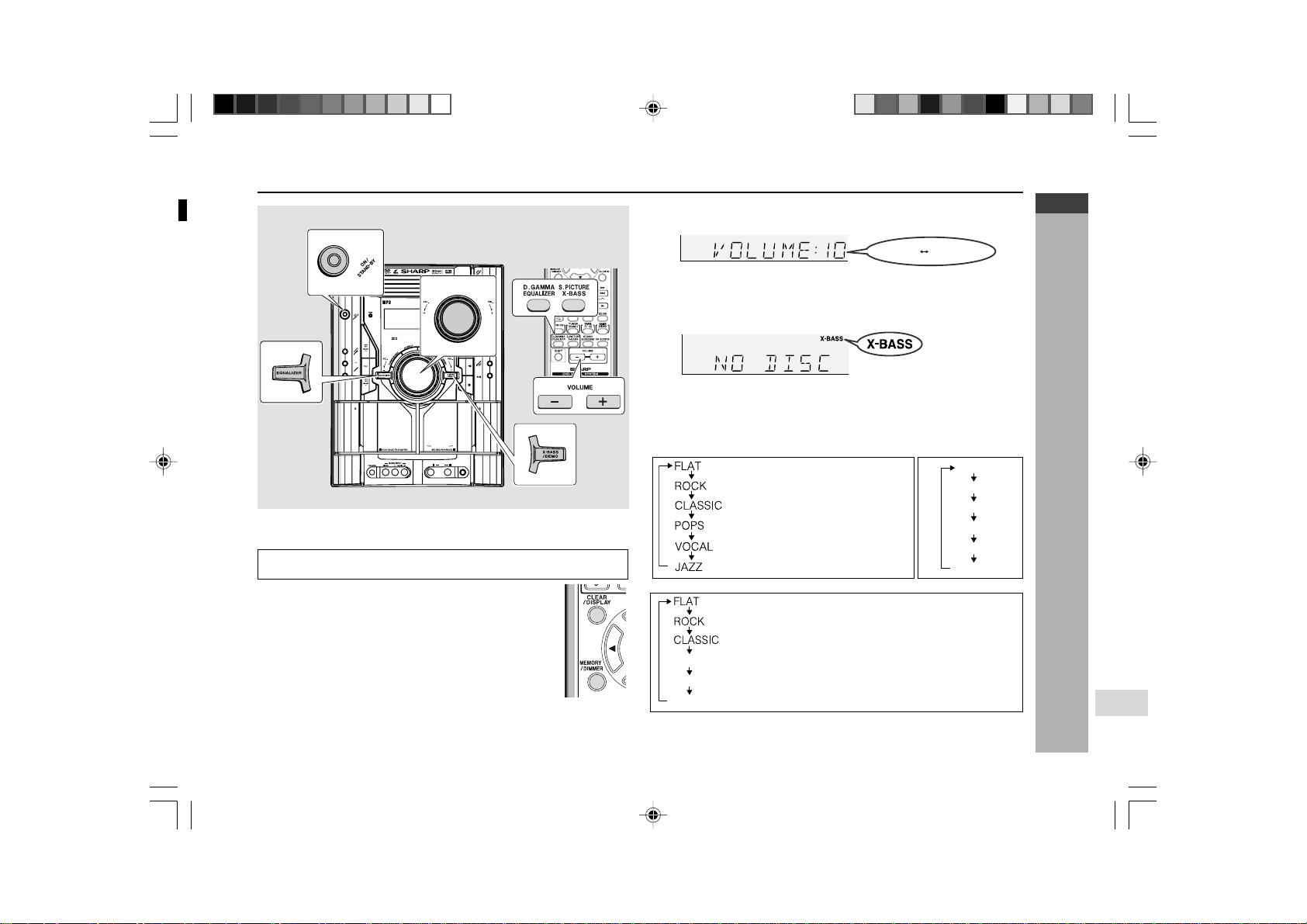
General control
H To turn the power on
Press the ON/STAND-BY button to turn the power on.
H Illumination light control
When the power is turned on, light illuminates around
the display. To turn on/off the light, hold down MEMORY/
DIMMER button on the remote control for more than 2
seconds.
After Use:
Press the ON/STAND-BY button to enter the power stand-by mode.
30 MAXIMUM0
.....
The Sound is not modified.
Bass and treble are emphasised.
Treble is cut a little.
Bass and treble are slightly emphasised.
Vocals (midrange tones) are emphasised.
Treble is slightly emphasised.
FLAT
MODE-1
MODE-2
MODE-3
MODE-4
MODE-5
H Volume control
Main unit operation:
When the VOLUME control is turned clockwise, the volume will increase. When
it is turned anti-clockwise, the volume will decrease.
ACTION
SPORTS
RACING
The Sound is not modified.
Bass and treble are emphasised.
Treble is cut a little.
Bass is emphasised.
Vocals and treble are emphasised.
Bass and treble are emphasised more.
For Game/Video mode
Note:
If the EQUALIZER button is pressed in the extra bass mode, it will be cancelled
automatically.
For Tuner, Tape and other than DVD/VCD disc For DVD/VCD disc only
H Equaliser
When the EQUALIZER button is pressed, the current mode setting will be
displayed. To change to a different mode, press the EQUALIZER button
repeatedly until the desired sound mode appears.
H Bass control
When the power is first turned on, the unit will enter the extra bass mode which
emphasises the bass frequencies, and “X-BASS” will appear. To cancel the
extra bass mode, press the X-BASS/DEMO (X-BASS) button.
1
2
3
4
5
6
7
8
9
SHARP TINSZA159AWZZ
(S)
10
*CD-G7500DVD(EN)18-19 05.1.13, 14:4118
Downloaded from: http://www.usersmanualguide.com/
E-19
ENGLISH
Basic Operation
CD-G7500DVD (S)
TINSZA159AWZZ
CD-G7500DVD
CP-G7500
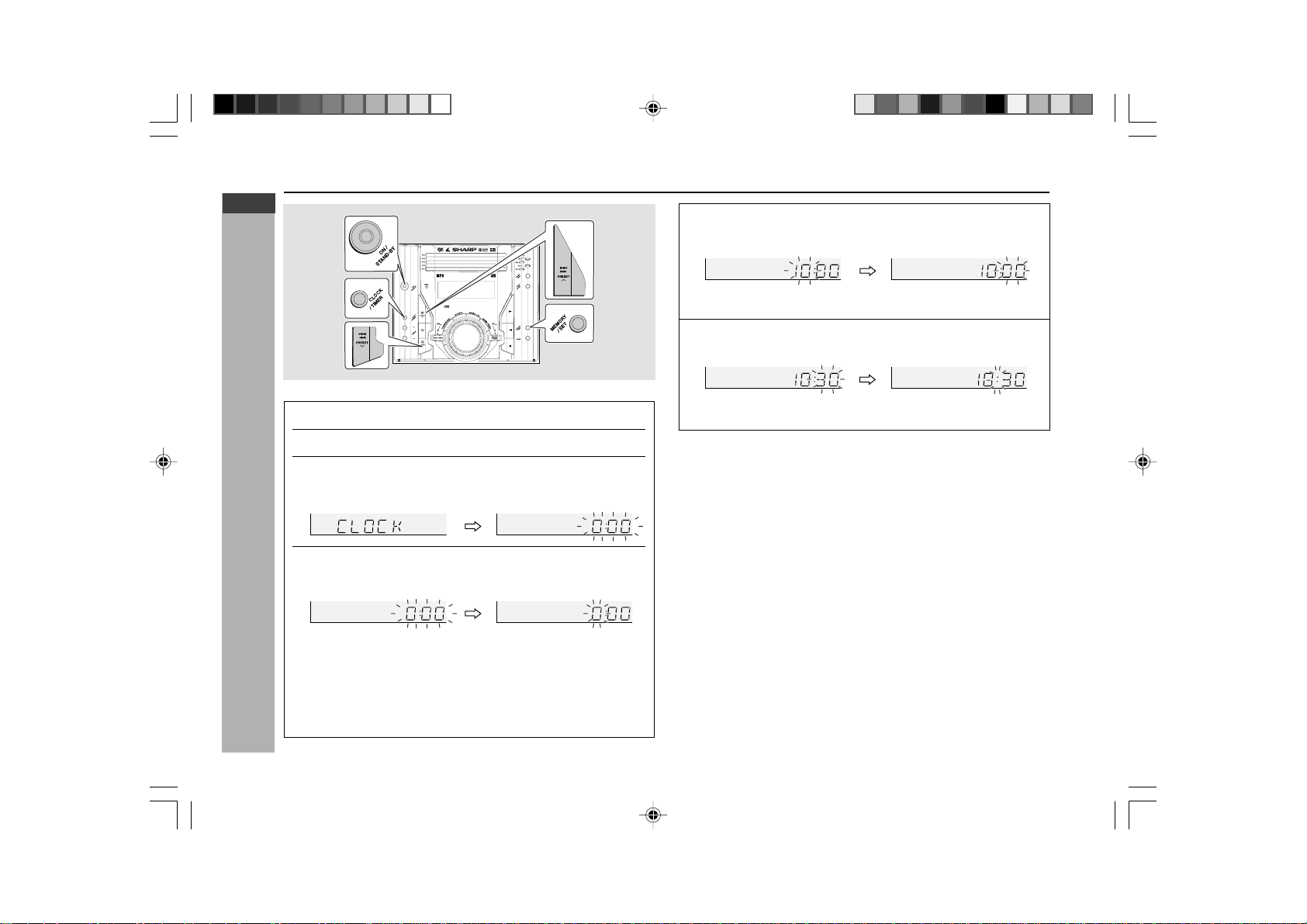
In this example, the clock is set for the 24-hour (0:00) display.
1
Press the ON/STAND-BY button to turn the power on.
2
Press the CLOCK/TIMER button.
3
Within 10 seconds, press the 5 3 or 2 4 button to
select “CLOCK”, and press the MEMORY/SET button.
4
Press the 5 3 or 2 4 button to select 24-hour or 12-
hour display and then press the MEMORY/SET button.
Setting the clock
CD-G7500DVD
DVD MINI SYSTEM
5
-DISC
CHANGER
5
Press the 5 3 or 2 4 button to adjust the hour and
then press the MEMORY/SET button.
Press the 5 3 or 2 4 button once to advance the time by 1
hour. Hold it down to advance continuously.
6
Press the 5 3 or 2 4 button to adjust the minutes
and then press the MEMORY/SET button.
Press the 5 3 or 2 4 button once to advance the time by 1
minute. Hold it down to change the time in 5-minutes intervals.
To confirm the time display:
[When the unit is in the stand-by mode]
Press the CLOCK/TIMER button.
The time display will appear for about 10 seconds.
[When the power is on]
Press the CLOCK/TIMER button.
Within 10 seconds, press the 5 3 or 2 4 button to display the time.
The time display will appear for about 10 seconds.
Note:
The “CLOCK” will appear or time will flash to confirm the time display when the
AC power supply is restored after a power failure or unplugging the unit. If
incorrect, readjust the clock as follows.
To readjust the clock:
Perform “Setting the clock” from step 1. If the “CLOCK” does not appear in step
3, step 4 (for selecting the 24-hour or 12-hour display) will be skipped.
To change the 24-hour or 12-hour display:
1 Clear all the programmed contents. [Refer to “Clearing all the memory
(reset)” on page 74 for details.]
2 Perform “Setting the clock” from step 1.
Note:
The clock can also be set with the remote control.
“0:00” → The 24-hour display will appear.
(0:00 - 23:59)
“AM 12:00” → The 12-hour display will appear.
(AM 12:00 - PM 11:59)
“AM 0:00” → The 12-hour display will appear.
(AM 0:00 - PM 11:59)
*CD-G7500DVD(EN)18-19 05.1.13, 14:4119
Downloaded from: http://www.usersmanualguide.com/
E-20
ENGLISH
DVD Explanation
CD-G7500DVD (S)
TINSZA159AWZZ
CD-G7500DVD
CP-G7500
7
Types of playable discs
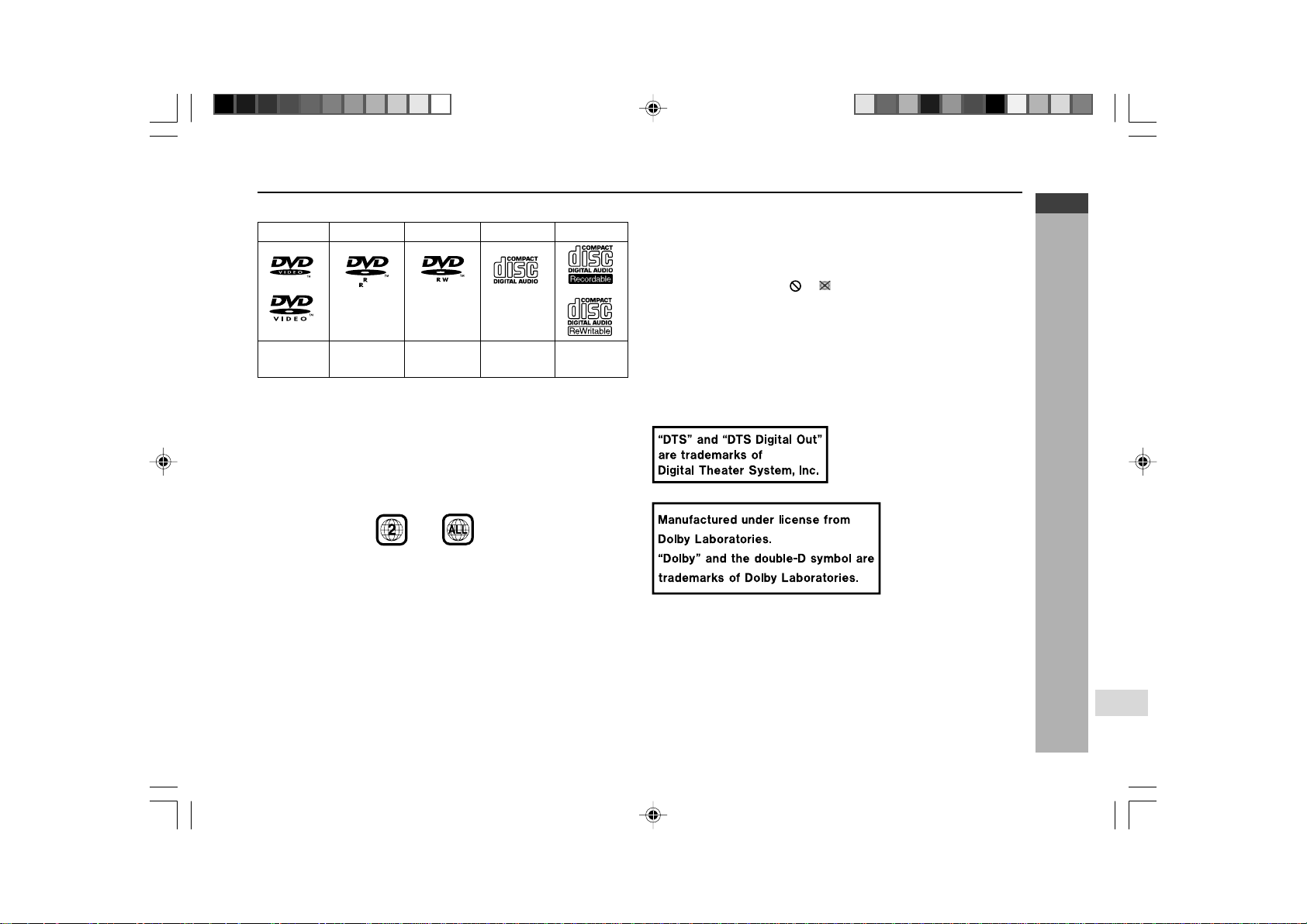
The unit can playback discs bearing any of the following marks:
See Note 1.
See Note 2.
See Note 3.
Note 1:
DVD video players and discs are designed with region numbers which dictate
the regions in which a disc can be played. If the region number on the disc you
want to play does not match the region number in your system, you will not be
able to play the disc.
The region number for this system is 2.
Sample disc display:
or
4.7
CD-R/CD-RW disc
recorded in MP3/
WMA format file
Disc recorded in
Video Mode (*)
Disc recorded in
Video Mode (*)
(*) playability depends on recording device or disc condition
(special disc, scratches, dirt or dirt on pick-up)
Note 2:
The specific playback functionality for some DVD discs is determined by the
disc manufacturer. Because this system plays disc data in accordance with the
disc manufacturer’s guidelines, some functions may not be available on some
discs. Be sure to read the instructions provided with the disc.
The “Prohibited” indicator
or displayed during operation indicates
that such manufacturer-imposed restrictions apply.
Note 3:
This product supports the following modes.
I 2-channel (L/R) PCM audio
I Dolby Digital
I 2-channel MPEG audio
I 5.1 channel MPEG audio
I DTS audio (External decoder is required)
H DVD-R/DVD-RW Playback
I DVD-R disc that has been recorded in Video Mode.
I DVD-RW disc that has been recorded in Video Mode.
I Make sure the DVD-R/DVD-RW disc has been finalized after recording
process before playback on this unit.
I Further information about Video Mode, refer to DVD-R/DVD-RW recorder
operation manual.
DVD Video DVD-R
DVD-RW
Audio CD
CD-R/CD-RW
*CD-G7500DVD(EN)20-22 05.1.13, 14:4120
Downloaded from: http://www.usersmanualguide.com/
E-21
ENGLISH
DVD Explanation
CD-G7500DVD (S)
TINSZA159AWZZ
CD-G7500DVD
CP-G7500
H MP3 File Format
MP3 file format song data which is compressed in “MPEG 1 audio layer 3”
format file. MP3 file is file with [ .mp3 ] extensions. ( If file with [ .mp3 ] extensions
but not recorded in MP3 format, only noise could be heard if it is possible to
playback).
H WMA File Format
WMA is an audio file format developed by Microsoft with [ .wma ] extensions.
This type of audio file is being recorded through Microsoft Windows Operating
system.
H Disc that cannot be played
I This unit does not support below disc types:
Title, chapter and track
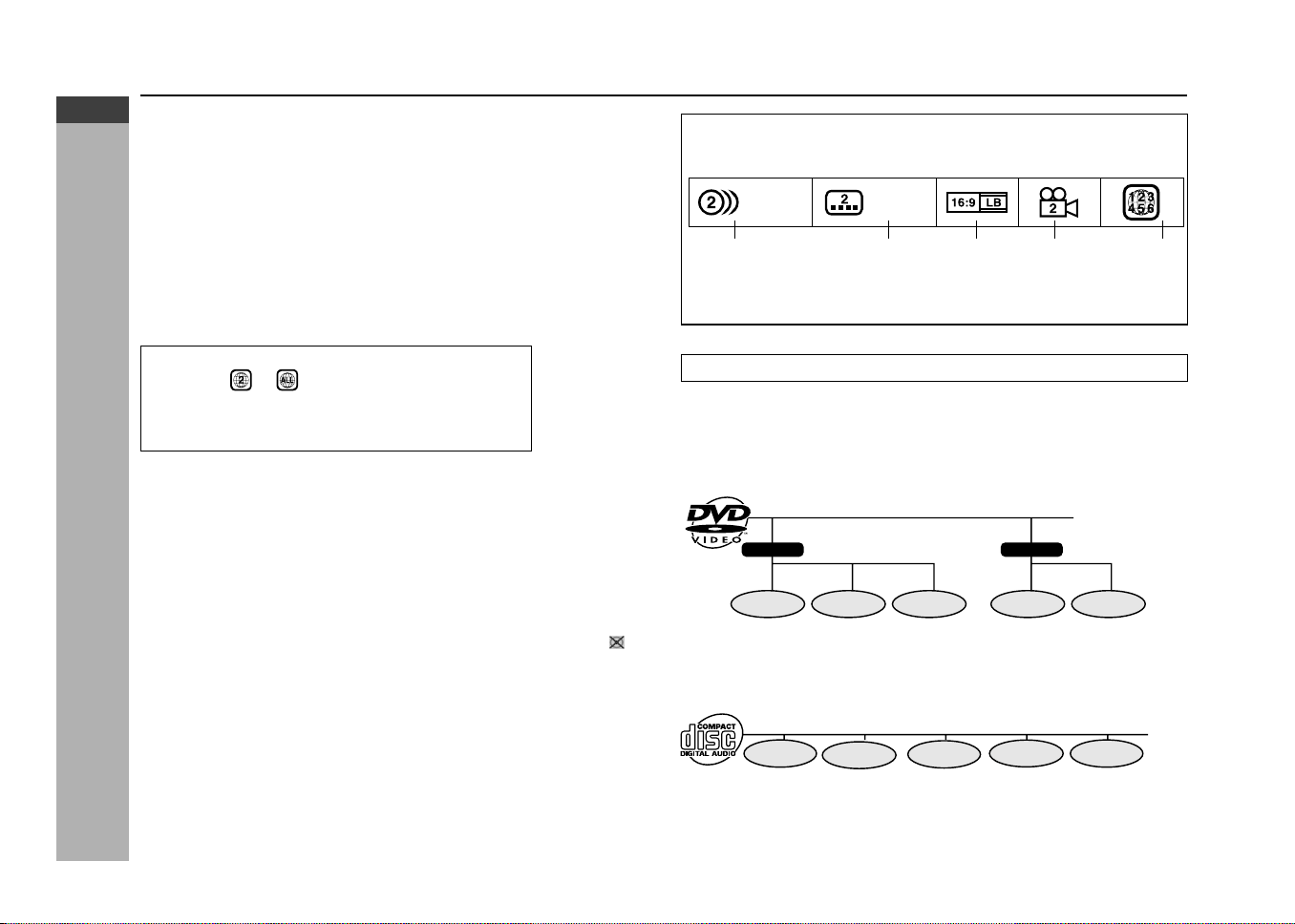
DVDs are divided into “titles” and “chapters”. If the disc has more than one
movie on it, each movie would be a separate “title”. “Chapters” are subdivisions
of titles.
Example: DVD
Audio CDs are divided into “tracks”. You can think of a “track” as one tune on
an audio CD.
Example: Audio CD
Note:
Numbers identify each title, chapter and track on a disc. Most discs have these
numbers recorded on them.
Chapter 1
Title 1 Title 2
Chapter 2
Chapter 3 Chapter 1
Chapter 2
Track 1 Track 2 Track 3 Track 4 Track 5
1. English
2. Japanese
Type of subtitles
recorded
Video
format
Disc with
multiple
camera
angles
Region code
indicator
(See page 20.)
Number of
recorded audio
tracks
1. English
2. Japanese
Icons used on DVD discs
Sample Icons
II
II
I DVD discs that are not included
in region or
II
II
I SECAM system DVD
II
II
I DVD-ROM
II
II
I DVD-RAM
II
II
I DVD-Audio
II
II
I CDG
II
II
I Photo CD
II
II
I CD-ROM
II
II
I SACD
I Above disc sometimes cannot be playback, sometimes only pictures without
sound will appear or only sound can be heard. Playing the disc may damage
the speakers due to the possibility of enormous sound output or may even
cause hearing injuries whilst using headphone.
I If DVD disc with DTS is playback, no sound can be heard. Select other
sound output format to hear sound output.
I Disc that is sold in other region sometimes does not fit to standard. This
type of disc cannot be played.
I Depending on DVD restriction, operation of the disc may be different than
operation manual.
I When the system detects an incompatible disc, it displays indicator
.
When this happens, check the disc type.
Types of playable discs (continued)
*CD-G7500DVD(EN)20-22 05.1.13, 14:4121
Downloaded from: http://www.usersmanualguide.com/
E-22
ENGLISH
DVD Explanation
CD-G7500DVD (S)
TINSZA159AWZZ
CD-G7500DVD
CP-G7500
7
Preparing to watch a DVD (DVDs)
VIDEO
OUT
S-VIDEO
OUT
RATED LINE
VOLTAGE
AUDIO
DIGITAL
OUT
DVD/CD
50/9
100/ 10
FM/AM
(
kHz
)
GND
FM
75 OHM S
AM
LOOP
ANTENNA
SPAN
SELECTOR
FRONT
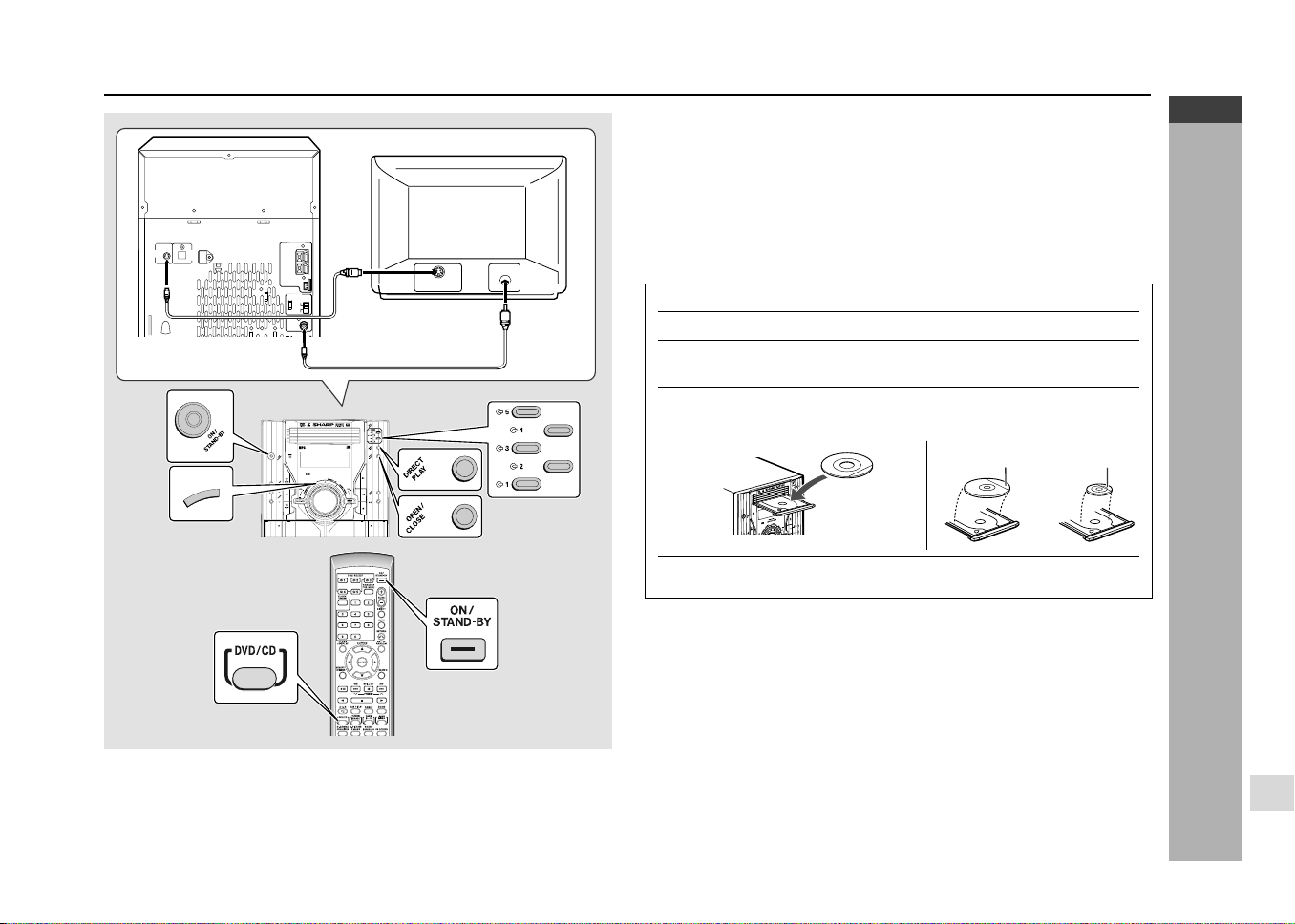
Video cable
(Supplied)
To TV with external terminals
S-VIDEO INPUT
VIDEO IN
CD-G7500DVD
DVD MINI SYSTEM
D
V
D
/
C
D
5
-DISC
GHANGER
S-Video cable
(commercially available)
D
V
D
/
C
D
To watch DVD video images on the TV:
1 Turn on the TV.
2 Set the TV to “AV”, “VIDEO”, etc.
3 Turn on the unit and start play.
See page 33 for playing disc.
Note:
There is no audio signal supplied to the TV.
H Loading a DVD (DVDs)
1 Press the ON/STAND-BY button to turn the power on.
2 Press the DVD/CD button.
3 Press the s 1 button and within 5 seconds, press the OPEN/
CLOSE button to open the disc tray 1.
4 Place the DVD on the disc tray 1, label side up.
I
Be sure to place 8 cm (3
"
) DVD(s) in the middle of the disc positions.
5 Press the OPEN/CLOSE button to close the disc tray.
Caution:
I Do not place two discs in one disc tray.
I Do not play discs of special shapes (heart, octagon, etc.). It may cause
malfunctions.
I Do not push the disc tray whilst it is moving.
I If the power fails whilst the tray is open, wait until the power is restored.
I If the disc tray is stopped with force, “ER-CD20” will appear on the display
for 3 seconds and the unit will not function. If this occurs, press the ON/
STAND-BY button to enter the power stand-by mode and then turn the
power on again.
I If TV or radio interference occurs during CD operation, move the unit away
from the TV or radio.
I If a disc is damaged, dirty or loaded upside down, the disc will skip.
H Connecting to TV
Besides the supplied video cable, you can use a commercially available S-
video cable to connect your system to television equipped with an S-video
input socket and enjoy viewing high-quality images on the TV screen. Be sure
to turn both the system and the TV equipment off before connecting them.
12 cm (5")
8 cm (3")
*CD-G7500DVD(EN)20-22 05.1.13, 14:4122
Downloaded from: http://www.usersmanualguide.com/
E-23
ENGLISH
DVD Setting
CD-G7500DVD (S)
TINSZA159AWZZ
CD-G7500DVD
CP-G7500
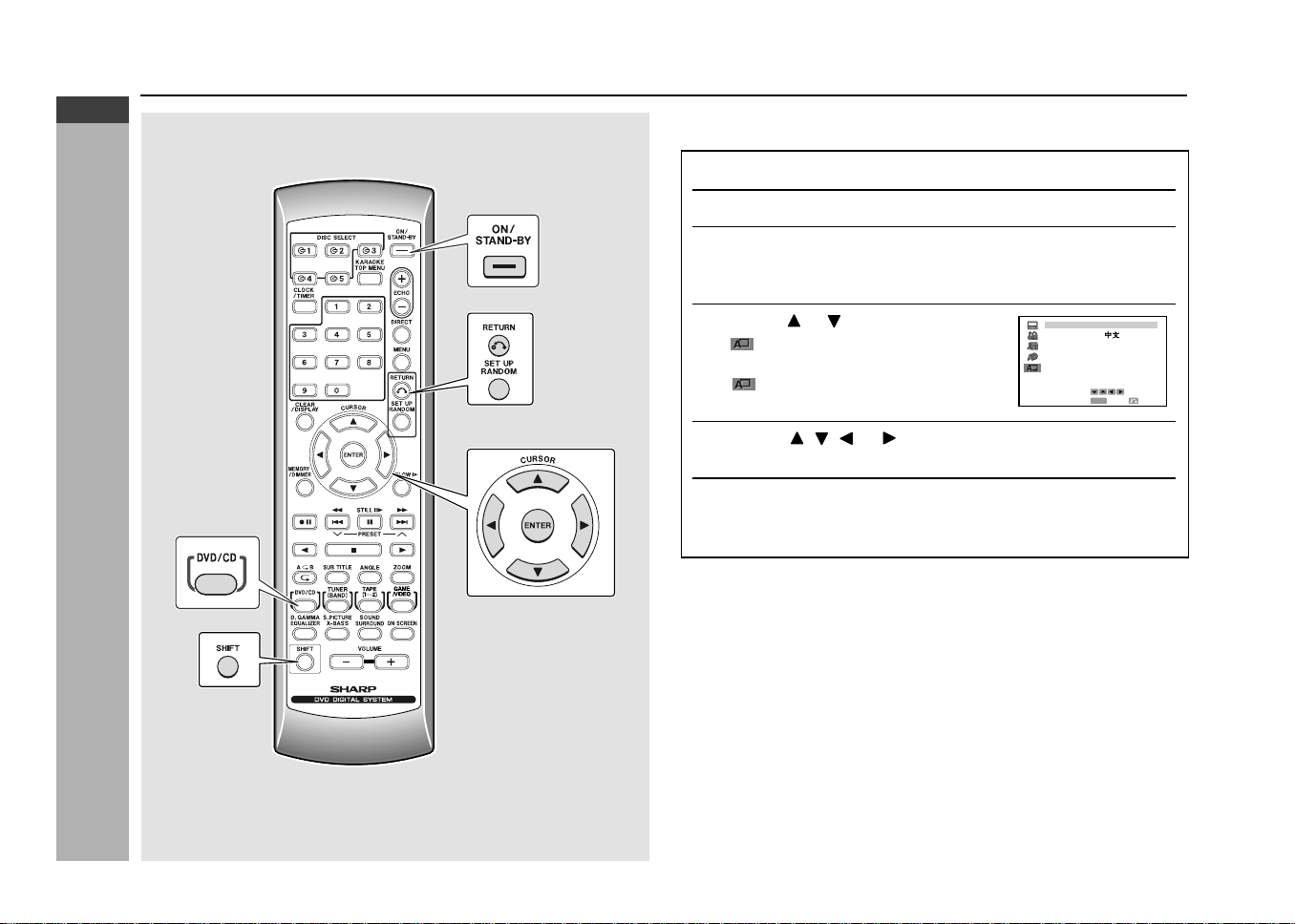
When you use the unit for the first time, you should set the language to be used
for the OSD (On Screen Display).
1
Press the ON/STAND-BY button to turn the power on.
2
Press the DVD/CD button.
3
Whilst the disc is stopped, press the SET UP button whilst
pressing down the SHIFT button to display the setup
screen.
4
Use the or button to select the
“
OSD LANGUAGE SETUP” and
then press the ENTER button.
“
OSD LANGUAGE SETUP”
screen appears.
5
Use the , , or button to select the language you
want to use.
6
Press the ENTER button to confirm the setting.
To exit the setup screen and return to the startup screen, press the SET
UP button whilst pressing down the SHIFT button or the RETURN button.
Notes:
I Once you go through this procedure, the screen appears in the language
selected in step 5 above from the next operation.
I You cannot open the setup screen whilst a playback operation is in progress.
If a disc is playing, stop playback first.
Initial setup (OSD language setup)
LSD ANGUAGEO
SELECT
ENTER
ENTER
RETURN
DEUTSCH
SVENSKA
NEDERLANDSFRANÇAIS
ITALIANO
ESPAÑOL
ENGL I SH
RRMCGA015AWSA
*CD-G7500DVD(EN)23-28 05.1.13, 14:4223
Downloaded from: http://www.usersmanualguide.com/
E-24
ENGLISH
DVD Setting
CD-G7500DVD (S)
TINSZA159AWZZ
CD-G7500DVD
CP-G7500
7
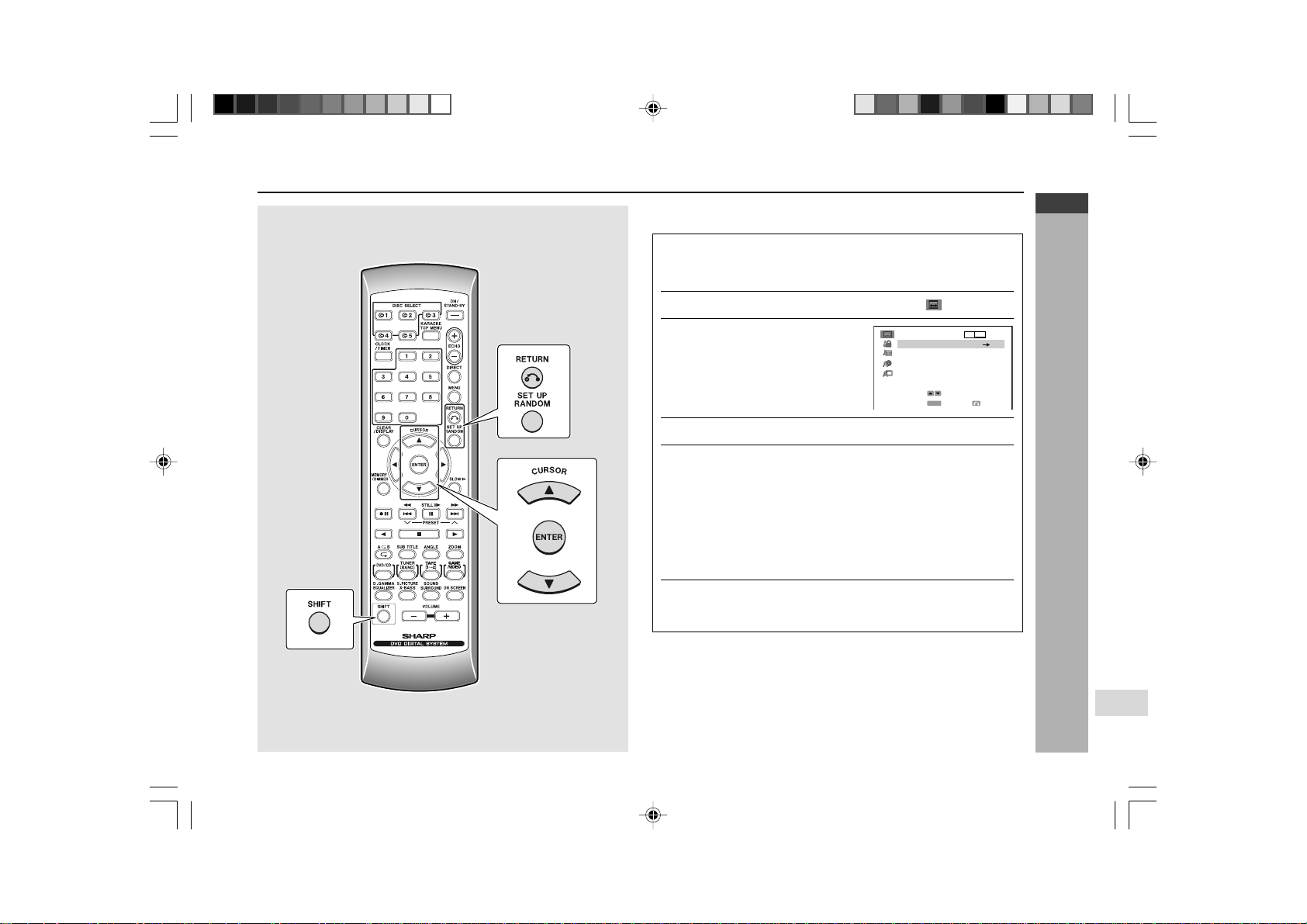
Used to specify the colour system in accordance with the TV connected when
playing back an NTSC disc.
1
Whilst a disc is stopped, press the SET UP button whilst
pressing down the SHIFT button to display the setup
screen.
2
Use the cursor ▲ or ▼ button to select the “ TV MODE ”.
3
Press the ENTER button and
then use the
cursor ▲ or ▼
button to select “NTSC”.
4
Press the ENTER button to display the setting selection.
5
Use the cursor ▲ or ▼ button to select “NTSC” or
“NTSC
→→
→→
→ PAL”.
About the NTSC settings:
NTSC:
Select this setting when you have an NTSC TV or
an NTSC-compatible Multi-System TV connected
to the unit.
NTSC
→→
→→
→ PAL:
Select this setting when you have a PAL TV
connected to the unit. This setting converts the
NTSC signal to a modified PAL signal.
6
Press the ENTER button to confirm the setting.
To exit the setup screen and return to the startup screen, press the SET
UP button whilst pressing down the SHIFT button or the RETURN button.
Notes:
I When you playback the PAL discs, either setting of “NTSC → PAL” or “NTSC”
can be used on a PAL TV or a Multi-System TV.
I PAL signal can not be converted to NTSC signal.
I This setting disable during play operation.
TV MODE
NTSC
SELECT
ENTER RETURN
4:3 LB
ENTER
NTSC PAL
Setting up for playback of an NTSC disc
RRMCGA015AWSA
*CD-G7500DVD(EN)23-28 05.1.13, 14:4224
Downloaded from: http://www.usersmanualguide.com/
E-25
ENGLISH
DVD Setting
CD-G7500DVD (S)
TINSZA159AWZZ
CD-G7500DVD
CP-G7500
TV mode setup
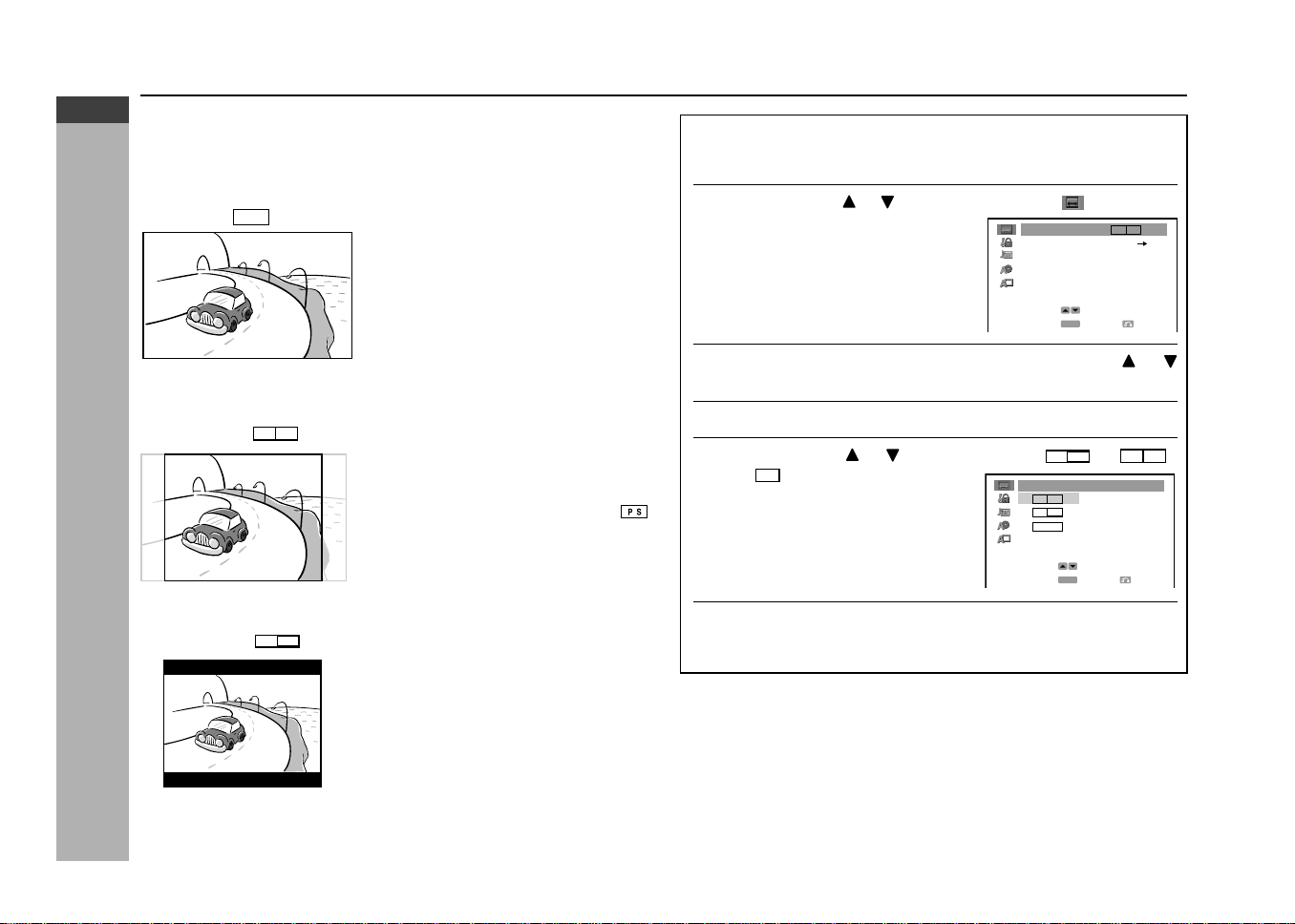
The following describes how to select the DVD playback display format.
A. Viewing on a wide screen TV screen (16:9):
Using a 16:9 wide image
Select
16 : 9
for wide DVD video output.
I A wide image size is displayed when
playing a wide image disc.
I When playing a 4:3 image disc, you can
select the image size you want for the
connected TV.
B. Viewing on a normal size TV screen (4:3):
1. Using pan scan
Select
PS
4:3
.
When playing a wide image disc, the left and
right sides of the image are cut (pan scan) to
display a natural-looking 4:3 size image.
A wide image disc without pan scan
is
played back in letter box.
A 4:3 disc is played in 4:3.
2. Using letter box
Select
LB
4:3
.
When playing a wide image disc, black bands
are inserted at the top and bottom to make a
4:3 size image.
A 4:3 disc is played in 4:3.
1
Whilst a disc is stopped, press the SET UP button whilst
pressing down the SHIFT button to display the setup
screen.
2
Use the cursor or button to select the “ TV MODE”.
3
Press the ENTER button and then use the cursor or
button to select “TV MODE”.
4
Press the ENTER button to display the setting selection.
5
Use the cursor or button to select “
LB
4:3
”, “
PS
4:3
”
or “
16
:
9
”.
6
Press the ENTER button to confirm the setting.
To exit the setup screen and return to the startup screen, press the SET
UP button whilst pressing down the SHIFT button or the RETURN button.
Note:
If you select 16:9 whilst a 4:3 TV is connected, playing a 16:9 disc will produce
a vertically stretched image.
TV MODE
NTSC
SELECT
ENTER RETURN
4:3 LB
ENTER
NTSC PAL
TV MODE
SELECT
ENTER RETURN
4:3 PS
ENTER
4:3 LB
16:9
*CD-G7500DVD(EN)23-28 05.1.13, 14:4225
Downloaded from: http://www.usersmanualguide.com/
E-26
ENGLISH
DVD Setting
CD-G7500DVD (S)
TINSZA159AWZZ
CD-G7500DVD
CP-G7500
7
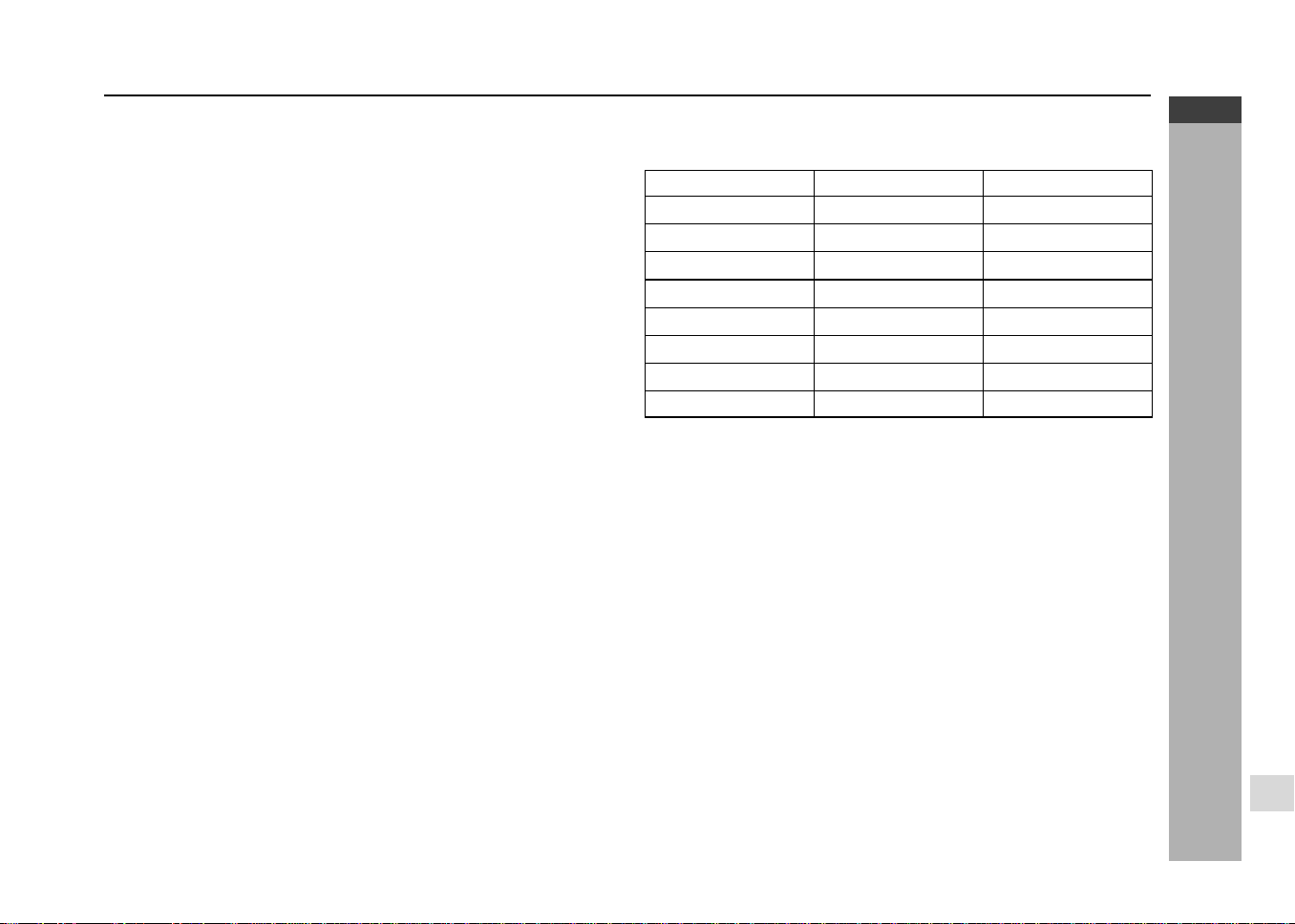
Country codes:
This system supports country codes for the following countries.
Country code list
USA SWEDEN MALAYSIA
CANADA HOLLAND INDONESIA
JAPAN NORWAY TAIWAN
GERMANY DENMARK PHILIPPINES
FRANCE FINLAND AUSTRALIA
UK BELGIUM RUSSIA
ITALY HONG KONG CHINA
SPAIN SINGAPORE –
SWISS THAILAND –
Passwords:
The parental level setting of this system can be protected by a password against
unauthorised changes. Once you set a password, it must be input to perform
the following operations.
I To change the parental level.
I To temporarily change the parental level during playback.
Parental setting
H
Parental level
Certain discs come preset with country codes and parental level settings that
are defined for particular countries. Discs equipped with the parental lock function
are rated according to their content. The rated content allowed by a parental lock
level and the way a DVD can be controlled may vary from disc to disc. Some
discs, for example, may let you edit out violent scenes and replace them with
scenes more suitable for viewing by children. You can also use the parental lock
to disable playback of the DVD entirely.
This system supports the following parental level settings.
Parental level ................. Defines the parental level, which controls the types
of scenes that are played back from a disc.
Code .............................. Allows selection of a country code available on a disc.
Notes:
I You can use the parental lock function only with DVDs that are equipped
with the parental lock feature.
I The parental level depends on countries. If you do not set the country code
correctly, it fails to work correctly.
I When you cancel parental setting, DVD discs can be played back regard-
less of the parental level.
I On some DVDs, the parental level setting is fixed and cannot be modified.
*CD-G7500DVD(EN)23-28 05.1.13, 14:4226
Downloaded from: http://www.usersmanualguide.com/
E-27
ENGLISH
DVD Setting
CD-G7500DVD (S)
TINSZA159AWZZ
CD-G7500DVD
CP-G7500
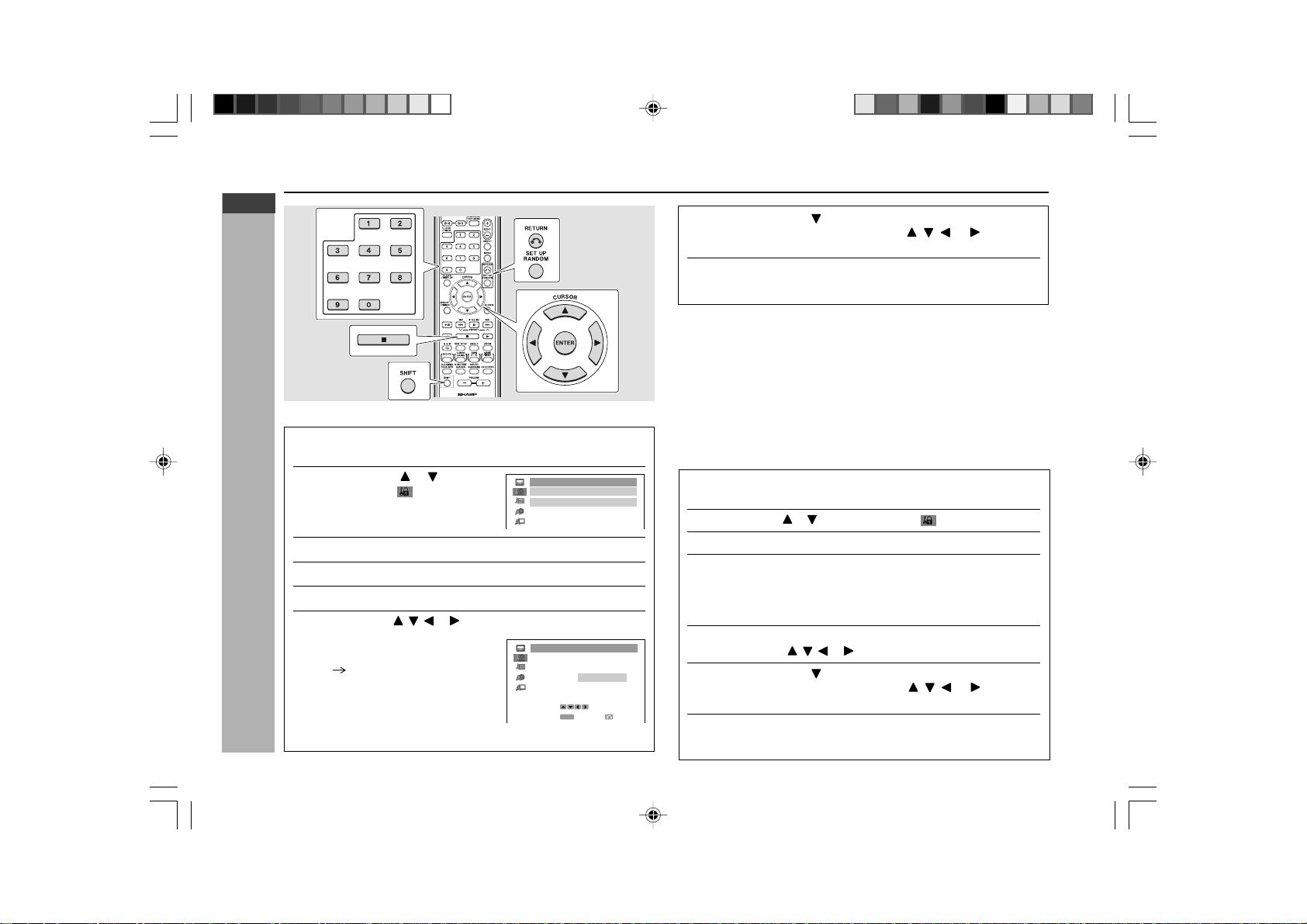
H
Setting the parental level for the first time
1
Whilst a disc is stopped, press the SET UP button whilst pressing
down the SHIFT button to display the setup screen.
2
Use the cursor or button to
select the “ PARENTAL
SETUP”.
3
Press the ENTER button to display the password specification screen.
4
Use the 0 - 9 buttons to enter a 4-digit password.
5
Press the ENTER button to select level.
6
Use the cursor , , or button to change the parental level.
Then press the ENTER button.
I Level 1: for most restrictive viewing
Level 8: for adult viewing
(The smaller the number, the
greater the level of restriction.)
I When the parental level is set to
“OFF”, DVDs can be played back
regardless of the parental level.
7
Press the cursor button to select “CODE”, then press
ENTER and then use the cursor , , or button to
select the desired country code (see page 26).
8
Press the ENTER button to confirm the setting.
To exit the setup screen and return to the startup screen, press the SET
UP button whilst pressing down the SHIFT button or the RETURN button.
Caution:
Be sure to try playing back the disc to confirm that the parental level setting is
working correctly. If it is not working correctly, try changing the country code.
Notes:
I
You must input the correct password to make any changes in the parental level.
Be sure to keep a separate record of your password somewhere for later reference.
I
Some DVDs allow the viewer to temporarily change the parental level setting to
view the original scenes. When this prompt appears, enter the password to view the
original scenes.
I
You cannot open the setup screen whilst a playback operation is in progress. If a
disc is playing, stop playback first.
H
Changing the parental level
1
Whilst a disc is stopped, press the SET UP button whilst pressing
down the SHIFT button to display the setup screen.
2
Use the cursor or button to select the “ PARENTAL SETUP”.
3
Press the ENTER button to display the password verification screen.
4
Use the 0 - 9 buttons to enter the 4-digit password that was set previously.
I If you enter the wrong number three times in succession, the normal
screen reappears.
I If you forget your password, you can erase your current password
by pressing DVD STOP H button four times.
5
Press the ENTER button to select level.
Use the cursor , , or button to change the parental level.
6
Press the cursor button to select “CODE”, then press
ENTER and then use the cursor , , or button to
select the desired country code (see page 26).
7
Press the ENTER button to confirm the setting.
To exit the setup screen and return to the startup screen, press the SET
UP button whilst pressing down the SHIFT button or the RETURN button.
PARENTAL
PASSWORD
LEVEL OFF
PASSWORD
----
CODE CHINA
PARENTAL
ENTER RETURN
LEVEL 1
LEVEL 2
LEVEL 3
LEVEL 4
LEVEL 5
LEVEL 6
LEVEL 7
LEVEL 8
OFF
SELECT
ENTER
Parental setting (continued)
*CD-G7500DVD(EN)23-28 05.1.13, 14:4227
Downloaded from: http://www.usersmanualguide.com/
E-28
ENGLISH
DVD Setting
CD-G7500DVD (S)
TINSZA159AWZZ
CD-G7500DVD
CP-G7500
7
Audio setting
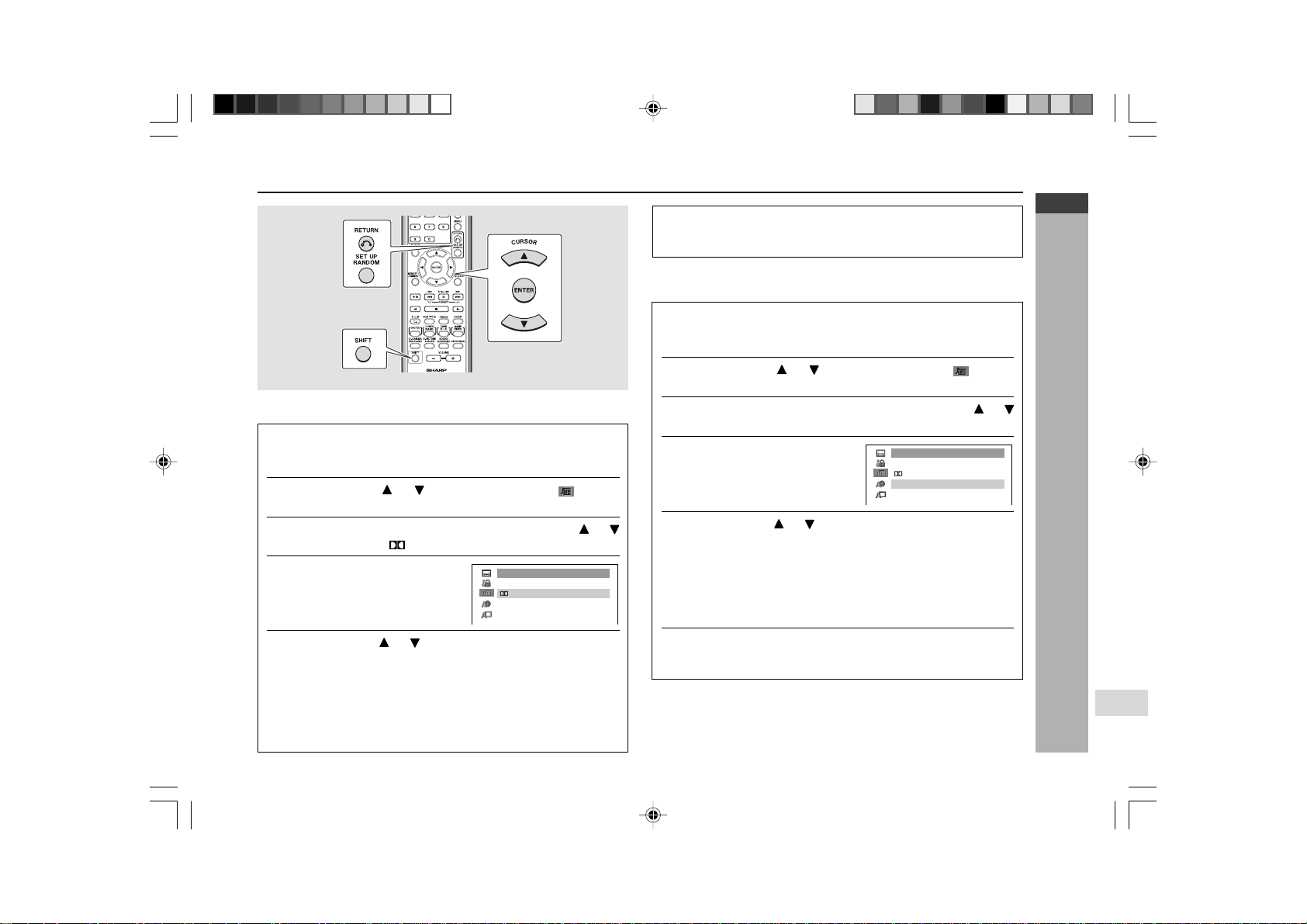
H
Setting the Dolby Digital Out
1
Whilst a disc is stopped, press the SET UP button whilst
pressing down the SHIFT button to display the setup
screen.
2 Use the cursor or button to select the “ AUDIO
SETUP”.
3 Press the ENTER button and then use the cursor or
button to select “ DIGITAL”.
4
Press the ENTER button to
display the settings you can
select.
5 Use the cursor or button to select “BITSTREAM” or
“D-PCM”.
BITSTREAM:
Use this setting for a digital connection of a receiver
(amplifier) equipped with a Dolby Digital decoder.
D-PCM:
Use this setting for a digital connection to the PCM
digital input socket of a DAT or MD, or for a digital
connection to a receiver (amplifier) that does not
have a Dolby Digital decoder.
H
Setting the MPEG Audio Out
1
Whilst a disc is stopped, press the SET UP button whilst
pressing down the SHIFT button to display the setup
screen.
2 Use the cursor or button to select the “ AUDIO
SETUP”.
3 Press the ENTER button and then use the cursor or
button to select “MPEG”.
4
Press the ENTER button to
display the settings you can
select.
5 Use the cursor or button to select “BITSTREAM” or
“PCM”.
BITSTREAM:
Use this setting for a digital connection of a receiver
(amplifier) equipped with an MPEG audio decoder.
PCM:
Use this setting for a digital connection to the PCM
digital input socket of a DAT or MD, or for a digital
connection to a receiver (amplifier) that does not
have an MPEG audio decoder.
6 Press the ENTER button to confirm the setting.
To exit the setup screen and return to the startup screen, press the SET
UP button whilst pressing down the SHIFT button or the RETURN button.
6
Press the ENTER button to confirm the setting.
To exit the setup screen and return to the startup screen, press the SET
UP button whilst pressing down the SHIFT button or the RETURN button.
AUDIO
COMPRESSION
MPEG
DIGITAL
CINEMA VOICE
BITSTREAM
BITSTREAM
OFF
ON
AUDIO
COMPRESSION
MPEG
DIGITAL
CINEMA VOICE
BITSTREAM
BITSTREAM
OFF
ON
*CD-G7500DVD(EN)23-28 05.1.13, 14:4228
Downloaded from: http://www.usersmanualguide.com/
E-29
ENGLISH
DVD Setting
CD-G7500DVD (S)
TINSZA159AWZZ
CD-G7500DVD
CP-G7500
Audio setting (continued)
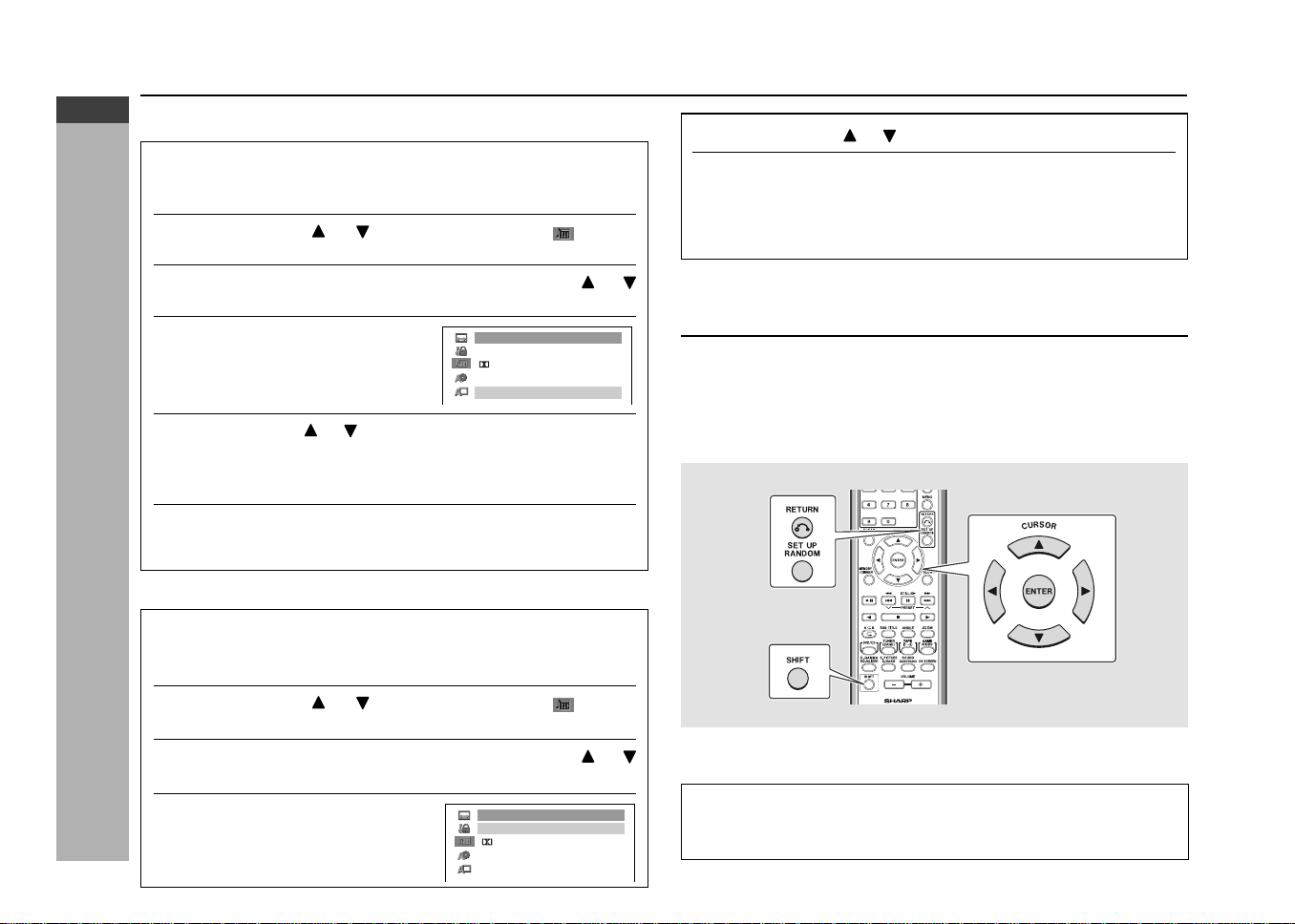
H
Setting the cinema voice
1
Whilst a disc is stopped, press the SET UP button whilst
pressing down the SHIFT button to display the setup
screen.
2
Use the cursor or button to select the “ AUDIO
SETUP”.
3
Press the ENTER button and then use the cursor or
button to select “CINEMA VOICE”.
4
Press the ENTER button to
display the settings you can
select.
5
Use the cursor or button to select “ON” or “OFF”.
Note:
Sometimes it is hard to hear voice because of the background music, set
ON to hear clear voice.
6 Press the ENTER button to confirm the setting.
To exit the setup screen and return to the startup screen, press the SET
UP button whilst pressing down the SHIFT button or the RETURN button.
AUDIO
COMPRESSION
MPEG
DIGITAL
CINEMA VOICE
BITSTREAM
BITSTREAM
OFF
ON
H
Setting the compression
1
Whilst a disc is stopped, press the SET UP button whilst
pressing down the SHIFT button to display the setup
screen.
2
Use the cursor or button to select the “ AUDIO
SETUP”.
3
Press the ENTER button and then use the cursor or
button to select “COMPRESSION”.
4
Press the ENTER button to
display the settings you can
select.
AUDIO
COMPRESSION
MPEG
DIGITAL
CINEMA VOICE
BITSTREAM
BITSTREAM
OFF
ON
5
Use the cursor or button to select “ON” or “OFF”.
6 Press the ENTER button to confirm the setting.
To exit the setup screen and return to the startup screen, press the SET
UP button whilst pressing down the SHIFT button or the RETURN button.
Note:
V-surround is not function if set to ON.
Disc language setting
Use this setting for selecting languages of subtitle, audio and disc menu.
I
Note that the language you select is not displayed or does not sound if it is not
recorded on the disc you are playing.
I
With some discs, it is intentionally disabled by the disc manufacturer to change the
language of the subtitle, audio and disc menu through this setup screen. When
playing such discs, try using the function control (page 36).
Setting SUBTITLE, AUDIO and MENU languages from 8 languages
Example: Selecting “FRENCH”
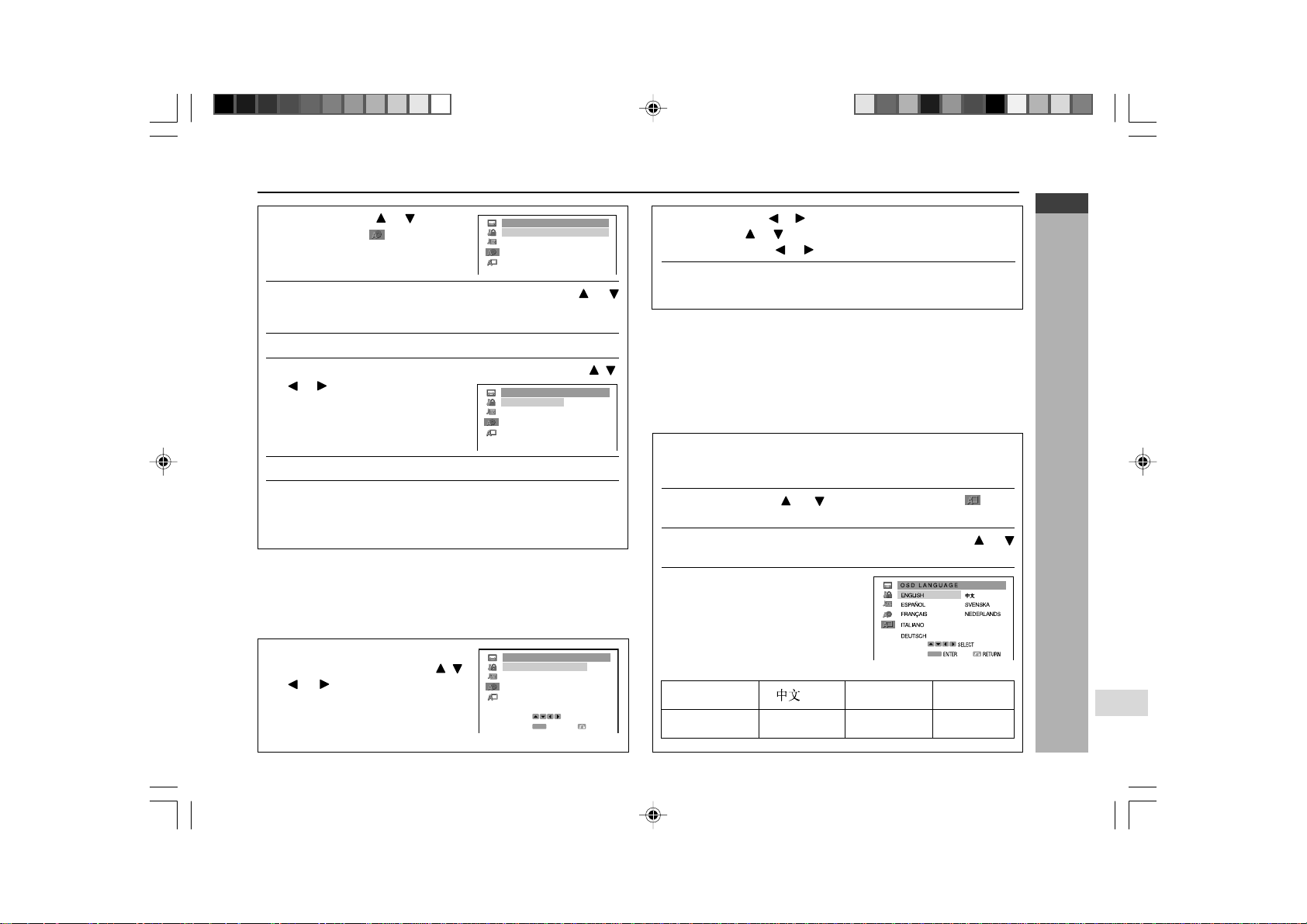
1
Whilst a disc is stopped, press the SET UP button whilst
pressing down the SHIFT button to display the setup
screen.
Audio setting (continued)
*CD-G7500DVD(EN)29-32 05.1.13, 14:4229
Downloaded from: http://www.usersmanualguide.com/
E-30
ENGLISH
DVD Setting
CD-G7500DVD (S)
TINSZA159AWZZ
CD-G7500DVD
CP-G7500
7
DISC LANGUAGE
AUDIO
MENU
SUB TITLE OFF
ENGLISH
ENGLISH
DISC LANGUAGE
SWEDISH
CHINESE
DUTCH
OTHER
SPANISH
ENGLISH
FRENCH
ENGLISH
GERMAN
Note:
To set the changed language setting effective, the disc information should be
read again by removing the disc (or loading another disc).
Selecting a language from others
Example: To select “AF” (Afrikaans)
1
In step 5 to the left, select
“OTHER” with the cursor
, ,
or button, then press the
ENTER button to set the
“OTHER” input item (two
letters).
OTHER
ENTER RETURN
AUDIO 1 A
AUDIO 2 F
SELECT
ENTER
2
Use the cursor or
button to select “A” as the first letter,
the cursor
or button to move to the second place, and
then the cursor or
button to select “F”.
3
Press the ENTER button to confirm the setting.
To exit the setup screen and return to the startup screen, press the SETUP
button whilst pressing down the SHIFT button or the RETURN button.
Notes:
I You cannot open the setup screen whilst a playback operation is in progress.
If a disc is playing, stop playback first.
I When “A” is selected for the first letter, only letters on the right side of codes
beginning with “A” can be selected as the second letter. Refer to the codes
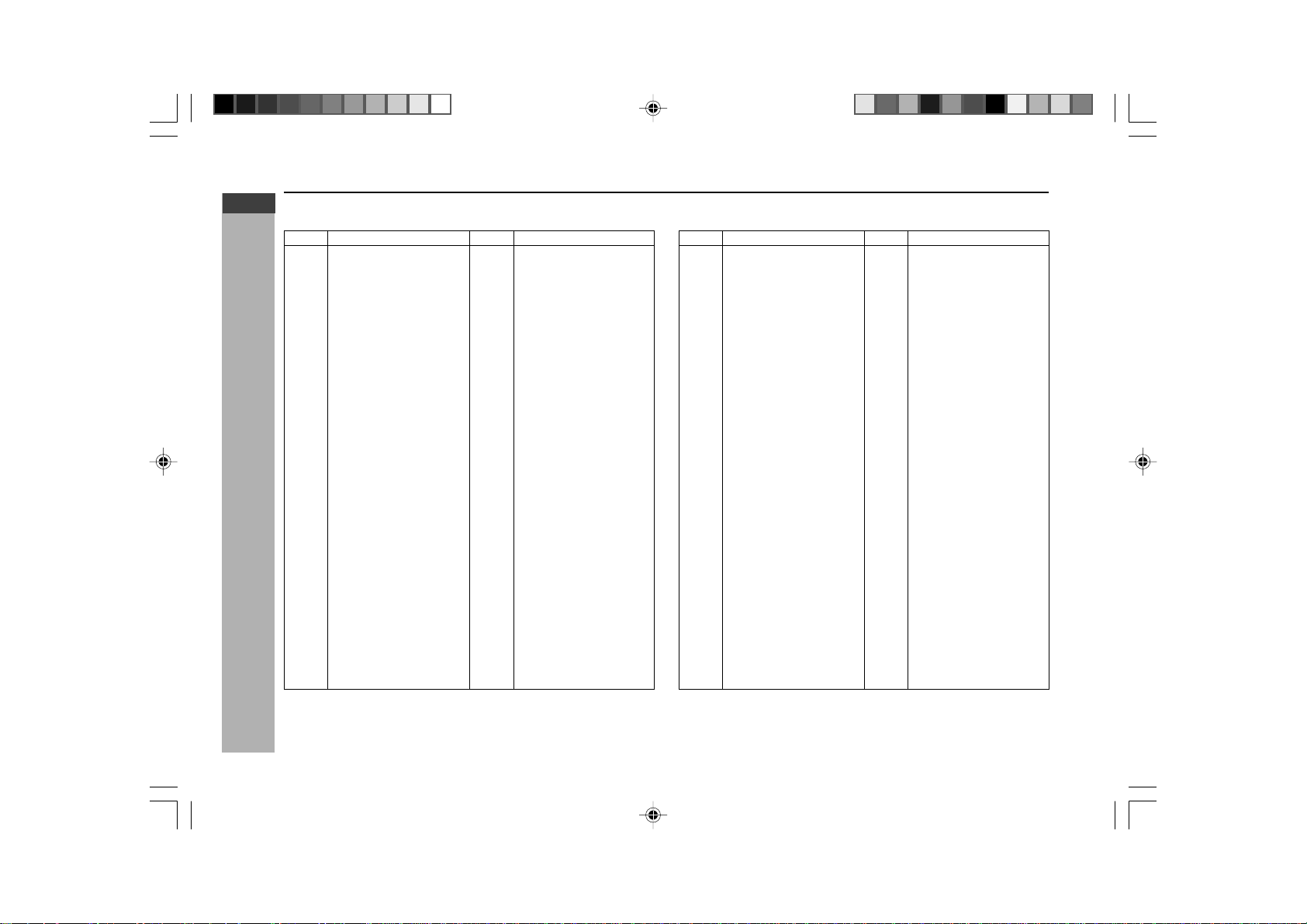
beginning with “A” on “Language code list for disc language” (see page 31).
H
OSD language setting
1
Whilst a disc is stopped, press the SET UP button whilst
pressing down the SHIFT button to display the setup
screen.
2
Use the cursor or button to select the “ OSD
LANGUAGE”.
3
Press the ENTER button and then use the cursor or
button to select desired language.
4
Press the ENTER button to
change OSD to selected
language.
Only language below can be set.
ENTER
ENGLISH
NEDERLANDS ITALIANO
ESPAÑOL
DEUTSCH
SVENSKA
FRANÇAIS
Disc language setting (continued)
2
Use the cursor or button
to select the “
DISC
LANGUAGE”.
3
Press the ENTER button and then use the cursor or
button to select “SUBTITLE”, “AUDIO” or “MENU”.
You can set “SUBTITLE”, “AUDIO” and “MENU” individually.
4
After selecting the item, press the ENTER button.
5
Select the language you want to use with the cursor , ,
or button.
If you want to use any languages
that are not on OSD, proceed to
step 1 to the right “Selecting a
language from others”.
6 Press the ENTER button to confirm the setting.
7 Repeat steps 3 to 6 above to go on with other disc
language settings in succession.
To exit the setup screen and return to the startup screen, press the SET
UP button whilst pressing down the SHIFT button or the RETURN button.
*CD-G7500DVD(EN)29-32 05.1.13, 14:4230
Downloaded from: http://www.usersmanualguide.com/
E-31
ENGLISH
DVD Setting
CD-G7500DVD (S)
TINSZA159AWZZ
CD-G7500DVD
CP-G7500
Language code list for disc language
Code Language name Code Language name
AA Afar
AB Abkhazian
AF Afrikaans
AM Ameharic
AR Arabic
AS Assamese
AY Aymara
AZ Azerbaijani
BA Bashkir
BE Byelorussian
BG Bulgarian
BH Bihari
BI Bislama
BN Bengali;
Bangla
BO Tibetan
BR Breton
CA Catalan
CO Corsican
CS Czech
CY Welsh
DA Danish
DE German
DZ Bhutanese
EL Greek
EN English
EO Esperanto
ES Spanish
ET Estonian
EU Basque
FA Persian
FI Finnish
FJ Fiji
FO Faroese
FR French
FY Frisian
GA Irish
GD Scots Gaelic
GL Galician
GN Guarani
GU Gujarati
HA Hausa
HI Hindi
HR Croatian
HU Hungarian
HY Armenian
IA Interlingua
IE Interlingue
IK Inupiaq
IN Indonesian
IS Icelandic
IT Italian
IW Hebrew
JA Japanese
JI Yiddish
JW Javanese
KA Georgian
KK Kazakh
KL Greenlandic
KM Cambodian
KN Kannada
KO Korean
KS Kashmiri
KU Kurdish
KY Kirghiz
LA Latin
LN Lingala
LO Laotian
LT Lithuanian
LV Latvian, Lettish
Code Language name Code Language name
MG Malagasy
MI Maori
MK Macedonian
ML Malayalam
MN Mongolian
MO Moldavian
MR Marathi
MS Malay
MT Maltese
MY Burmese
NA Nauruan
NE Nepali
NL Dutch
NO Norwegian
OC Occitan
OM (Afan) Oromo
OR Oriya
PA Panjabi
PL Polish
PS Pashto, Pushto
PT Portuguese
QU Quechua
RM Rhaeto-Romance
RN Kirundi
RO Romanian
RU Russian
RW Kinyarwanda
SA Sanskrit
SD Sindhi
SG Sango
SH Serbo-Croatian
SI Singhalese
SK Slovak
SL Slovenian
SM Samoan
SN Shona
SO Somali
SQ Albanian
SR Serbian
SS Siswat
ST Sesotho
SU Sundanese
SV Swedish
SW Swahili
TA Tamil
TE Telugu
TG Tajik
TH Thai
TI Tigrinya
TK Turkmen
TL Tagalog
TN Setswana
TO Tonga
TR Turkish
TS Tsonga
TT Tatar
TW Twi
UK Ukrainian
UR Urdu
UZ Uzbek
VI Vietnamese
VO Volapük
WO Wolof
XH Xhosa
YO Yoruba
ZH Chinese
ZU Zulu
Disc language setting (continued)
*CD-G7500DVD(EN)29-32 05.1.13, 14:4231
Downloaded from: http://www.usersmanualguide.com/
E-32
ENGLISH
DVD Setting
CD-G7500DVD (S)
TINSZA159AWZZ
CD-G7500DVD
CP-G7500
7
Changing the display mode
H
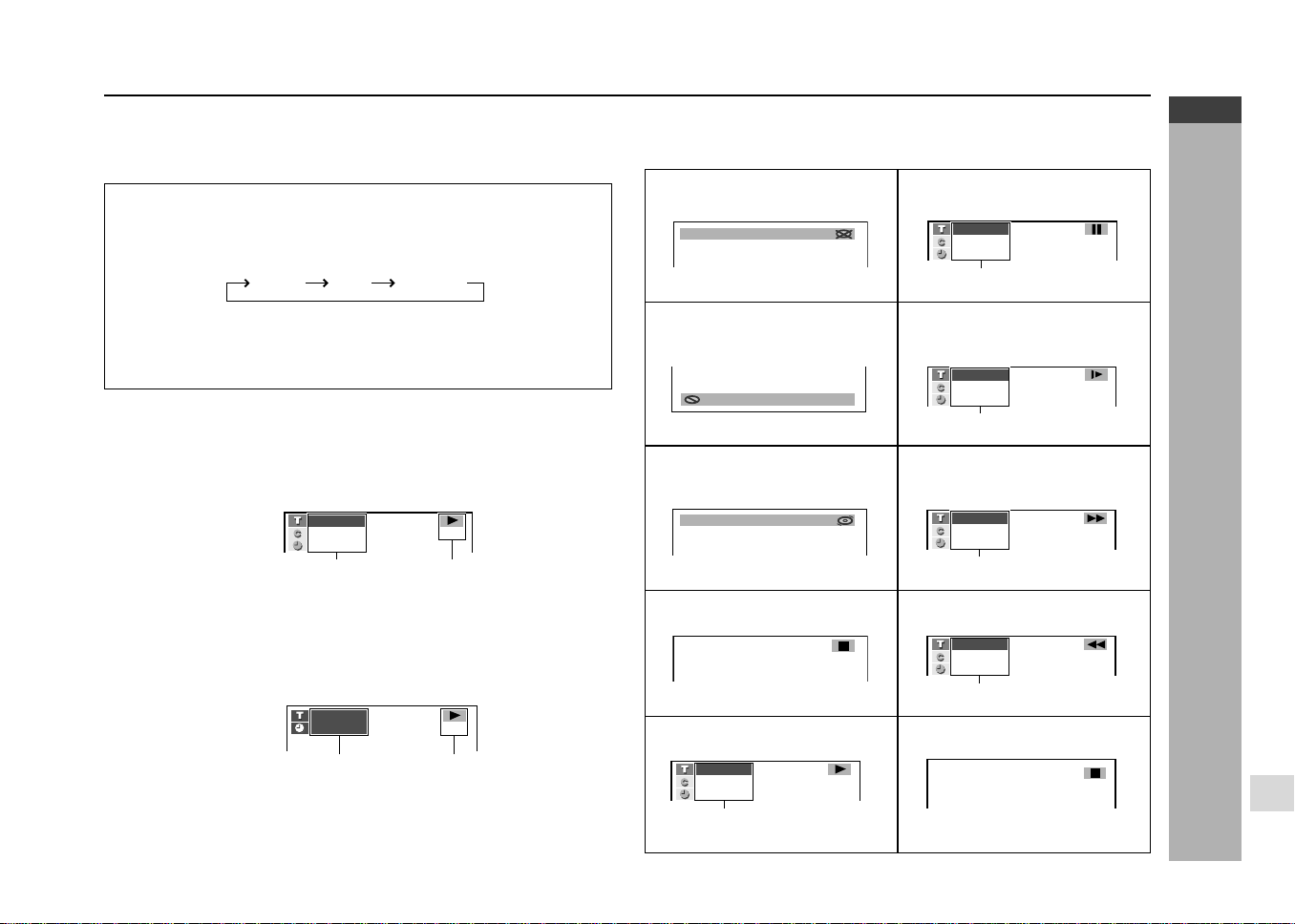
DVD mode operation indicators
The following are examples of display indicators that appear during DVD playback.
H
To change the display mode
You can select “auto”, “on”, or “off” as the display mode. The following shows
what appears on the display when “auto” or “on” is selected.
Press the ON SCREEN button on the remote control.
Each press of the ON SCREEN button cycles through the display mode
settings as follows:
auto .... Display indicators appear for about three seconds and then disappear.
on ....... Display indicators remain displayed.
off ....... Display indicators are not displayed.
Note:
With some discs, chapter numbers and elapsed playing time may not appear.
on
off
auto
01: :23 40
3 21/0
50:00
CD
01
83/
25/
0
::23 40
DVD
CD
Title number/Chapter number/Elapsed
playing time
Operation indicator
Track number/Elapsed playing time
Operation indicator
DVD
Play attempted without a disc
Play attempted with a non-
compatible disc
Loading (data being read from
disc)
Stop
Play
Appears when display mode is “on”.
Pause
Appears when display mode is “on”.
Slow
Appears when display mode is “on”.
Fast Forward
Appears when display mode is “on”.
Fast Reverse
Appears when display mode is “on”.
When resume function can be used
15/
NO SDI C
C
01
83/
15/
0
::23 40
DDV
01
83/
15/
0
::23 40
DDV
1
15/
WRO NG D CIS T EYP
DA
15/
NOW LOADING...
01
83/
15/
0
::23 40
DDV
1
DDV
01
83/
15/
0
::23 40
DDV
1
C
01
83/
15/
0
::23 40
DDV
C
01
83/
15/
0
::23 40
DDV
UEMRSE
*CD-G7500DVD(EN)29-32 05.1.13, 14:4232
Downloaded from: http://www.usersmanualguide.com/
E-33
ENGLISH
DVD Playback
CD-G7500DVD (S)
TINSZA159AWZZ
CD-G7500DVD
CP-G7500
Playing a DVD (DVDs)
CD-G7500DVD
DV D MINI SYSTEM
5
-DISC
GHANGER
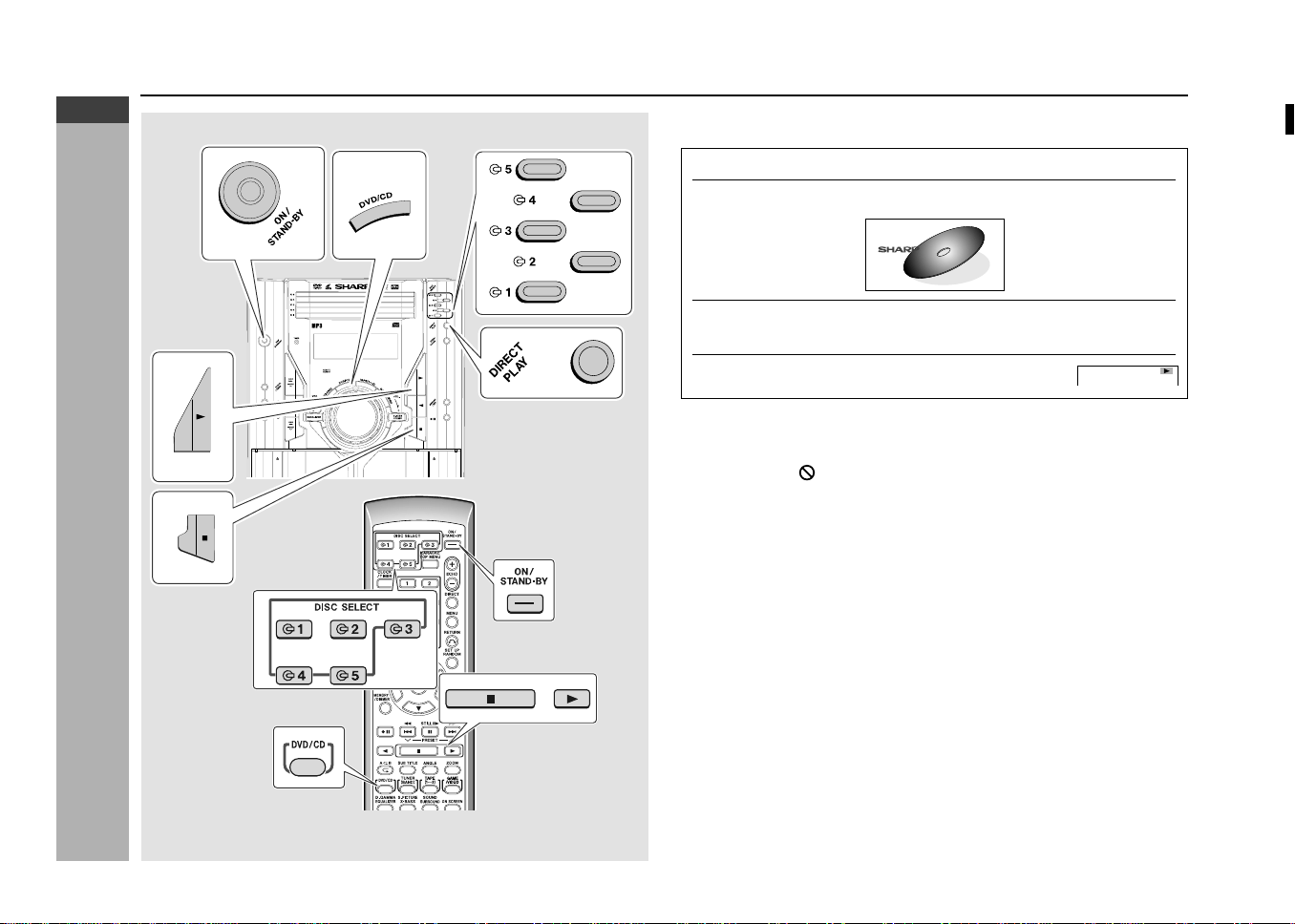
H To play a disc
1
Press the ON/STAND-BY button to turn the power on.
2
Press the DVD/CD button to display the startup screen
shown.
3
Load the disc(s) you want to play.
See page 22 for information about loading discs.
4
Press the
0
button to start playback.
Notes:
I If the disc you are using supports auto start, it starts to play automatically
(even if you do not press the 0 button), as soon as you close the disc tray.
I The indicator “
WRONG DISC TYPE” appears on the display if the disc
you are using is damaged, if you load the disc upside down, or if the region
number of the disc you are using is one that is not supported by this unit. If
the above indicator appears, reload the disc or replace it with another one.
I A safety feature automatically sets the unit to the power stand-by mode if
you set the volume level too high whilst playing certain types of discs. If this
happens, lower the volume level and restart playback.
I The unit also can directly power on at CD function by pressing DVD/CD
button or direct playback (if last function is CD) by pressing 0 button during
stand-by mode.
To play the desired disc:
Press one of the s 1 - s 5 buttons to select the desired disc and then press the
DIRECT PLAY button.
To stop disc playback:
Press the H button.
DDV
1
2
3
4
5
6
7
8
9
SHARP TINSZA159AWZZ
(S)
10
*CD-G7500DVD(EN)33-35 05.1.13, 14:4233
Downloaded from: http://www.usersmanualguide.com/
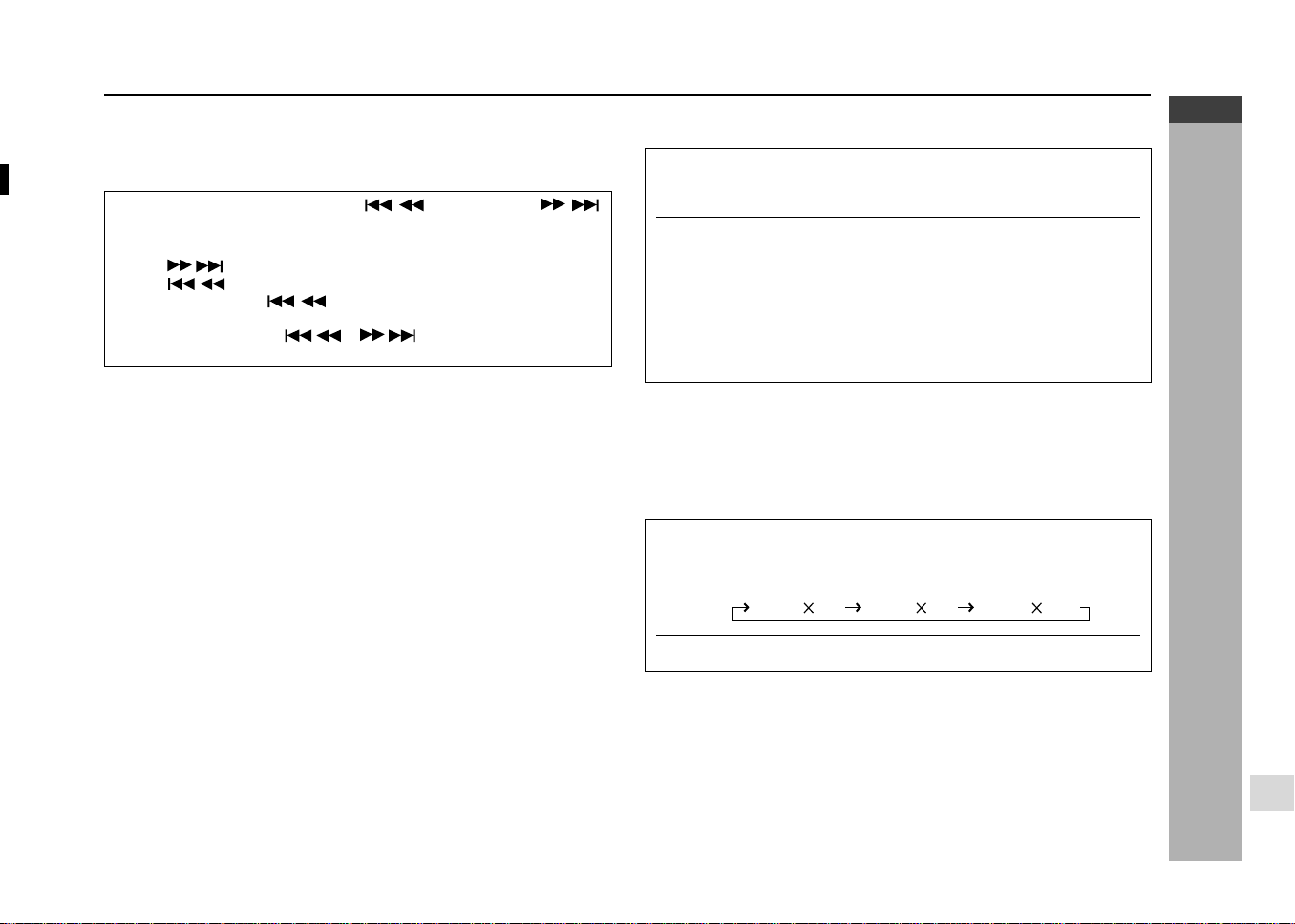
E-34
ENGLISH
DVD Playback
CD-G7500DVD (S)
TINSZA159AWZZ
CD-G7500DVD
CP-G7500
7
Other disc play features
This section explains how to use skip, resume, slow motion, and other playback
features.
H Chapter skip
Whilst a disc is playing, press the
PRESET X or
PRESET W button.
I The
PRESET W button skips to the next chapter.
I The PRESET X button skips to the beginning of the current
chapter. Press the
PRESET X button again to skip to the
beginning of the previous chapter.
I You can also press the
/ or / button on the remote control
for the same operation.
Notes:
I Chapter information on some discs may not appear on the screen.
I You may not be able to use this function with certain discs.
H To resume playback after stopping
1
Whilst the disc is playing, press the
H
button at the point
you want to stop.
The system stores the point you stopped.
2
To restart play, press the
0
button.
I Play resumes from a point slightly before the point it was stopped.
I Press the
0 button to resume disc play.
This resume operation does not work in the following cases:
I If you press the H button twice.
I If you press the H button during auto playback.
I If you remove a disc and then load another one.
Notes:
I After you press the H button to stop playback, you can press the H button
again and
0 button to resume playback from the beginning of the disc.
I This operation may not be performed with certain types of discs.
I Resume may not be performed during menu playback.
H Slow-motion play
1
Whilst a disc is playing, press the SLOW
?
button.
Three speeds are available. Each time the button is pressed, the speed
of slow-motion playback changes in the following sequence:
2
Press the
0
button to return to the normal playback.
Notes:
I On some discs, the slow-motion playback functions are disabled.
I Slow-motion playback is disabled on audio CDs.
1 (about 1/2)
2 (about 1/8)
3 (about 1/16)
1
2
3
4
5
6
7
8
9
SHARP TINSZA159AWZZ
(S)
10
*CD-G7500DVD(EN)33-35 05.1.13, 14:4234
Downloaded from: http://www.usersmanualguide.com/
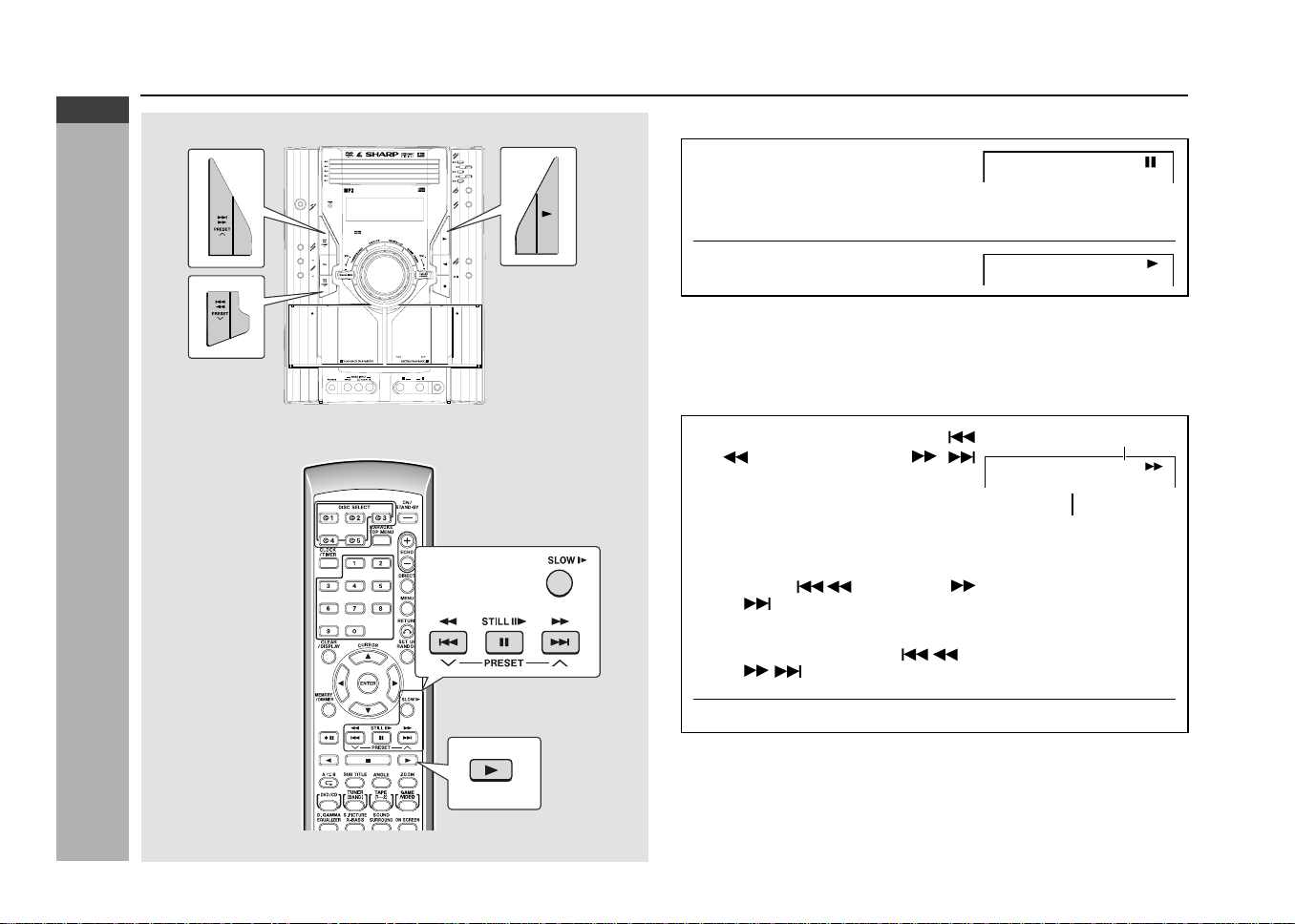
E-35
ENGLISH
DVD Playback
CD-G7500DVD (S)
TINSZA159AWZZ
CD-G7500DVD
CP-G7500
H Still (Pause) and frame advance
1
Whilst a disc is playing, press the
STILL
60
button.
I This freezes the image on the screen.
I Each press of the STILL 60 button advances the frame in the still
mode.
2
To cancel still picture and return to
normal play, press the
0
button.
Notes:
I You may not be able to use these functions with some discs.
I Frame advance cannot be used with audio CDs.
I This operation performs the audio CD pause function.
H Fast forward/Fast reverse
1 Press and hold down the
PRESET
XX
XX
X or
PRESET
WW
WW
W button for more
than 1.5 seconds whilst a disc
is playing.
I The disc begins fast scan at x 2
speed (1).
I Three speeds are available. Each
time the
PRESET X or
PRESET W button is pressed,
the speed of fast scan changes in the
sequence shown on the right:
I You can also press the / or
/ button on the remote
control for the same operation.
2
Press the
0
button to return to normal playback.
Notes:
I On some discs, the fast scan function is disabled.
I On DVD video discs, sound and subtitles are not played back during the
fast scan playback. (Only at fast forward 1 speed sound can be heard.)
I With a DVD video disc, you can search within one title only. Playback starts
from the beginning of the title.
DVD
DVD
CD-G7500DVD
DV D MINI SYSTEM
5
-DISC
GHANGER
AUTO REVERSE
MIC
MIC LEVEL
MIN
MAX
12
Scanning speed selection
Fast scan image appears here
DVD
1
1 (about X 2)
↓
2 (about X 8)
↓
3 (about X 32)
Other disc play features (continued)
*CD-G7500DVD(EN)33-35 05.1.13, 14:4335
Downloaded from: http://www.usersmanualguide.com/
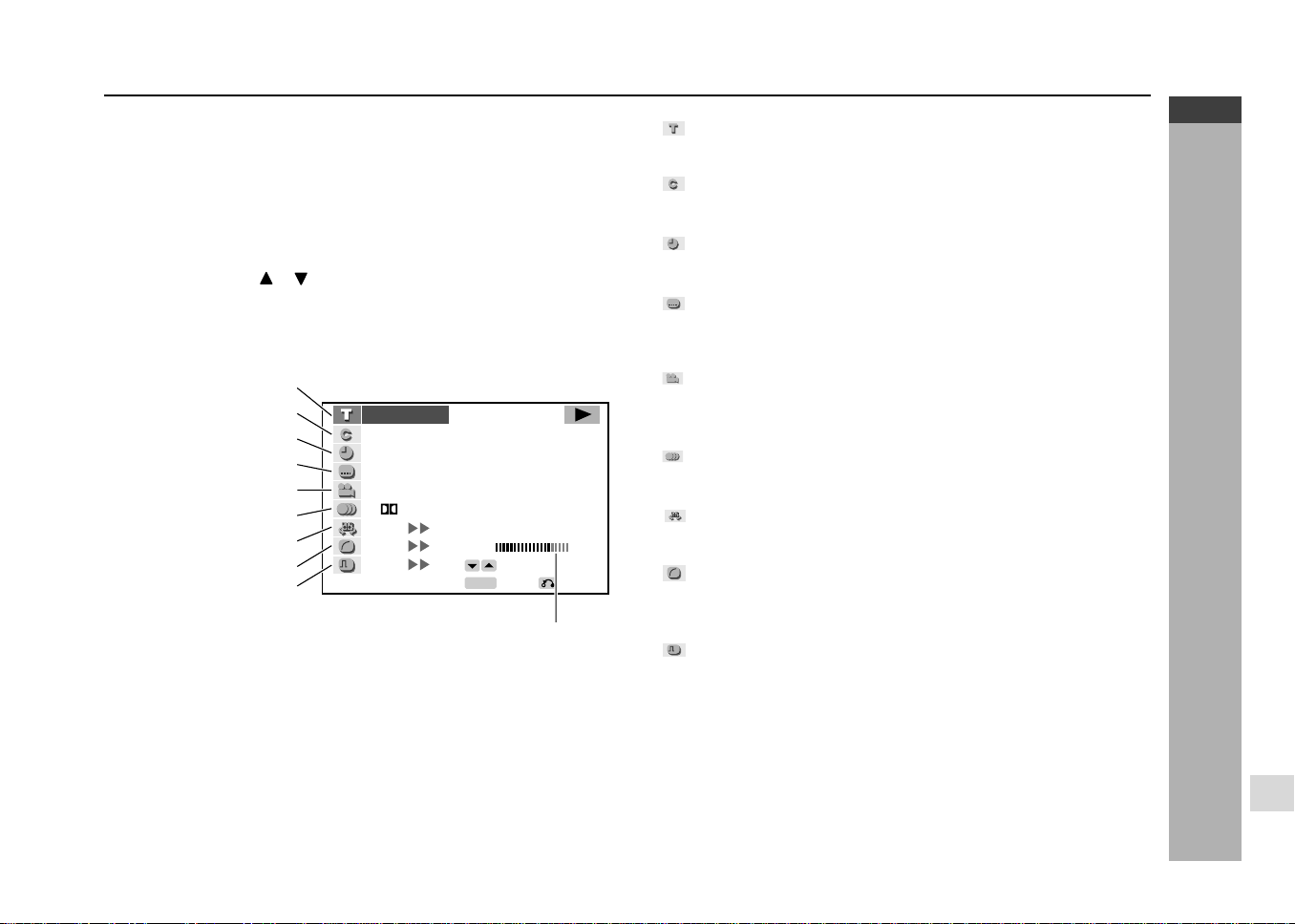
E-36
ENGLISH
Advanced DVD Features
CD-G7500DVD (S)
TINSZA159AWZZ
CD-G7500DVD
CP-G7500
7
Using the function control
H
About the function control screen
Using function control, you can check at a glance and change the current set-
tings of the following items: subtitle, angle, audio, digital gamma and digital
super picture.
Function control also allows you three ways of direct skips (title, chapter and
time).
I Whilst the disc is playing, press the SET UP
button whilst pressing down
the SHIFT button to display the screen shown below.
I Pressing the cursor
or button changes the currently selected item.
Note:
To exit the setup operation, press the RETURN button. This returns to the
screen that was shown before the setup screen was displayed.
1. Direct title skip
2. Direct chapter skip
3. Direct time skip
4. Subtitle
5. Angle
6. Audio
7. 3-D Virtual surround
8. Digital gamma
9. Digital super picture
BITRATE indicates the amount of data that
is being transferred to the unit per second.
However, note that picture quality is not
always in proportion to the bit rate.
1
Direct title skip (page 37)
I The number of the title currently played back is displayed.
I You can skip directly to the desired title.
2
Direct chapter skip (page 37)
I The number of the chapter currently played back is displayed.
I You can skip directly to the desired chapter.
3
Direct time skip (page 38)
I Elapsed time from the beginning of the disc is displayed.
I You can skip directly to the point from which you want to start playback.
4
Subtitle language setting (page 38)
I The subtitle number and language currently selected are displayed.
(When a disc with no subtitle is played back, “xx” is displayed.)
I You can select the desired subtitle language.
5
Angle setting (page 38)
I The current angle is displayed. (When a disc with no angle is played
back, “xx” is displayed.)
I You can select the desired angle.
6
Audio setting (page 39)
I The type of audio currently selected is displayed.
I You can select the desired type of audio.
7
3-D virtual surround setting (page 39)
I Only function if Dolby Disc recorded DVD is played.
I You can activate/deactivate the setting or change the level.
8
G
Digital gamma setting (page 40)
I You can make the entire image easier to see by brightening the darker
and obscure portions.
I You can activate/deactivate the setting or change the level.
9
S
Digital super picture setting (page 41)
I This function enhances the fine details of the image and outlines of
the objects by reducing the amount of picture noise.
I You can activate/deactivate the setting or change the level.
Note:
In function control mode, you can return to the previous setting screen by
pressing the RETURN button or the SET UP button whilst pressing down the
SHIFT button.
SELECT
BITRATE
Mbps
00 10
ENTER
1
1
2
01
83/
25/
0
::30 08
D
ON
ON
NGL I SH
hc15
.
E
DVD
ENTER
RETURN
ON
S
G
1
2
3
4
5
6
7
8
9
*CD-G7500DVD(EN)36-39 05.1.13, 14:4336
Downloaded from: http://www.usersmanualguide.com/
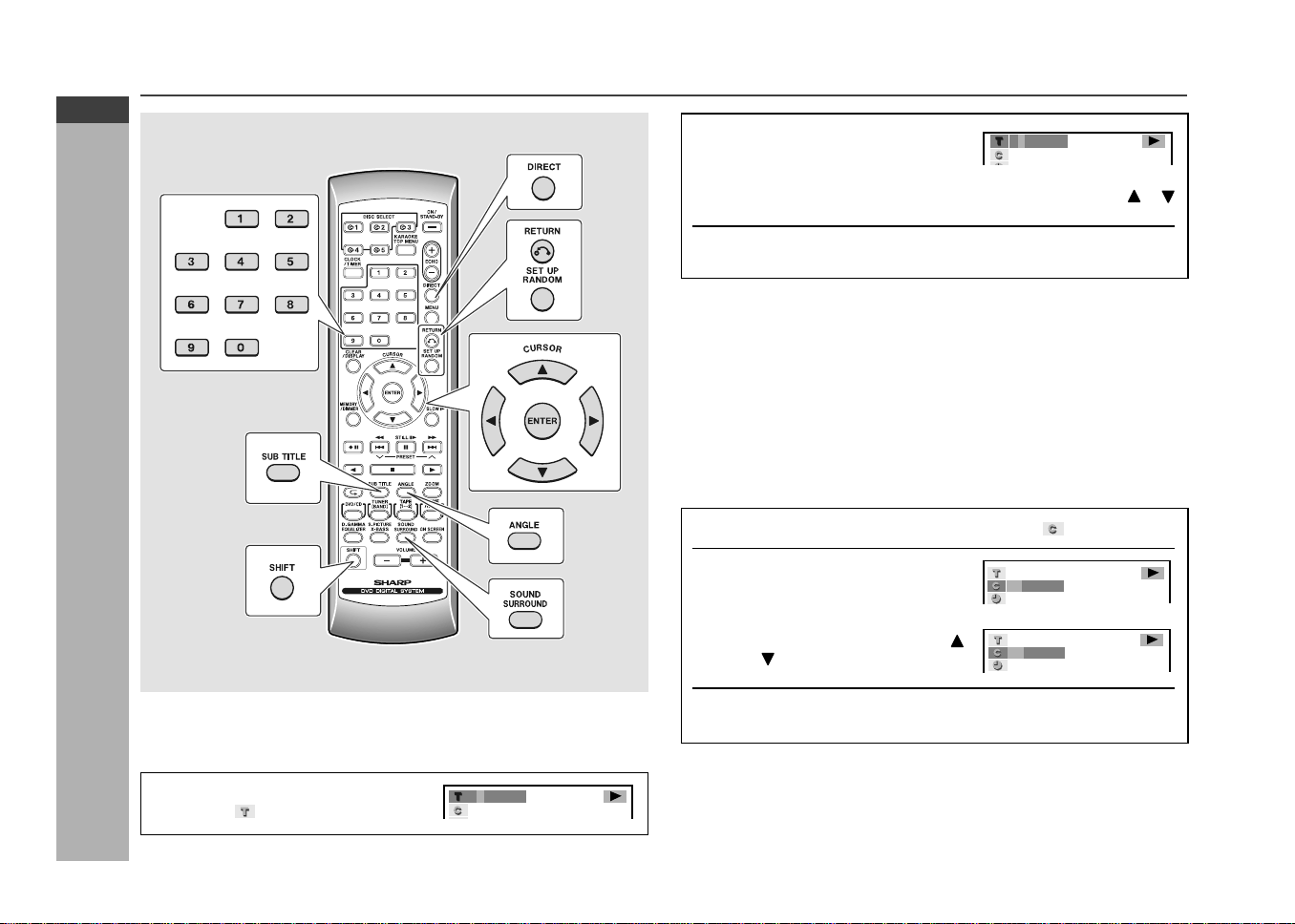
E-37
ENGLISH
Advanced DVD Features
CD-G7500DVD (S)
TINSZA159AWZZ
CD-G7500DVD
CP-G7500
H
Direct chapter skip
Example: Selecting chapter 10
1
Press the DIRECT button twice to select .
2
Use the 0 - 9 buttons to select
the chapter number to which
you want to skip.
I You can also select the chapter
number by pressing the cursor
or button.
3
Press the ENTER button.
The image changes to the beginning of the specified chapter.
Note:
The number of chapters you can enter depends on that of the chapters recorded
on the disc.
2
Use the 0 - 9 buttons to select
the title number to which you
want to skip.
I You can also select the title number by pressing the cursor or
button.
3
Press the ENTER button.
The image changes to the beginning of the specified title.
Notes:
I The number of titles you can enter depends on that of the titles recorded on
a disc you play.
I The direct title skip function is not performed with discs on which no titles
are recorded.
DVD
––
3/0
DDV
10 3/0
Using the function control (continued)
RRMCGA015AWSA
H
Direct title skip
Example: Selecting title 5
1
Press the DIRECT button to
select
.
DDV
5/–
DDV
5/5
*CD-G7500DVD(EN)36-39 05.1.13, 14:4337
Downloaded from: http://www.usersmanualguide.com/
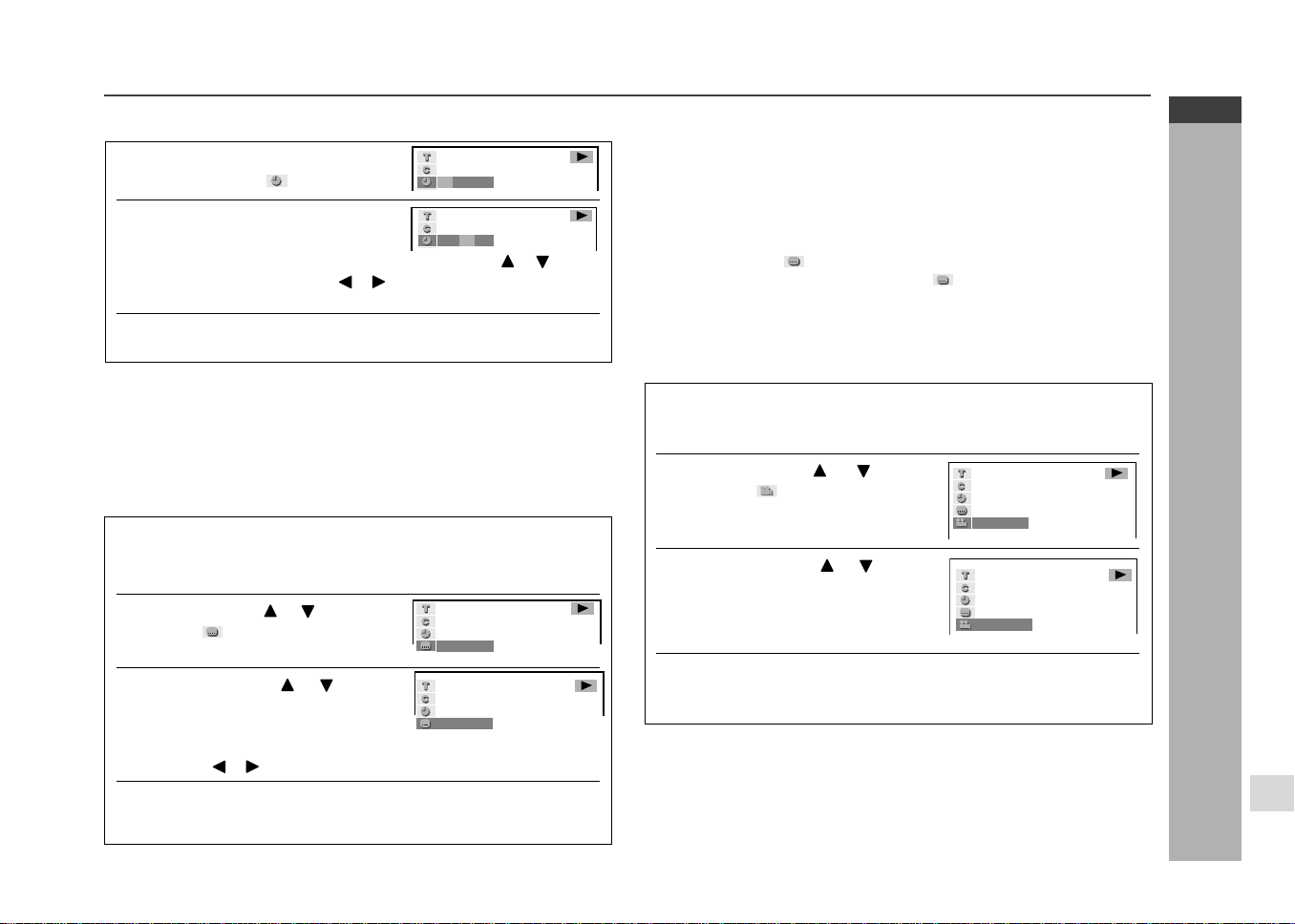
E-38
ENGLISH
Advanced DVD Features
CD-G7500DVD (S)
TINSZA159AWZZ
CD-G7500DVD
CP-G7500
7
H
Direct time skip
1
Press the DIRECT button three
times to select
.
2
Use the 0 - 9 buttons to enter the
time to which you want to skip.
I You can also enter the time by pressing the cursor or button.
To do so, press the
cursor
or
button to select the place where
you want to enter the time.
3 Press the ENTER button.
The image jumps to the point you specified.
Notes:
I
The time you can enter depends on the time recorded on a disc.
I The direct time skip function is not performed with discs on which no
times are recorded.
H
Subtitle language setting
Example: Selecting “3 SPANISH”
1
Press the SET UP button whilst pressing down the SHIFT
button during playback.
The function control screen appears.
2
Use the cursor or button to
select
and then press the
ENTER button.
3
Press the cursor or button
to select the subtitle language
you want to use.
You can also toggle the setting between “ON” and “OFF” by pressing
the
cursor
or
button.
4 Press the ENTER button to confirm the setting.
You can exit the function control screen by pressing the SET UP button
whilst pressing down the SHIFT button or the RETURN button.
Notes:
I You can also press the SUB TITLE button on the remote control for the
same operation in step 3.
(You do not need to do the steps 1 and 2.)
I This function can only be used for discs on which subtitles have been
recorded with multiple subtitles.
I Some DVD discs are marked “Forced Display”, indicating that the subtitling
cannot be suppressed. With such discs, the subtitles will be displayed even
when you select “
OFF”. This does not indicate a fault with your unit.
I If no subtitles are recorded on the disc, “
xx” is displayed.
––
10
2
5/
DDV
3/0
:
––::––
DDV
01: 06 ––
DDV
2
ENGLISH
DDV
3
PANI SHS
H
Angle setting
You can change the angle of view when playing a DVD video disc that contains
scenes recorded from multiple angles.
1
Press the SET UP button whilst pressing down the SHIFT
button during playback.
The function control screen appears.
2
Use the cursor or button
to select
and then press the
ENTER button.
3
Press the cursor or button
to select the angle number you
want.
The number of recorded angles differs
depending on the disc used.
4 Press the ENTER button to confirm the setting.
You can exit the function control screen by pressing the SET UP button
whilst pressing down the SHIFT button or the RETURN button.
Notes:
I You can also press the ANGLE button on the remote control for the same
operation in step 3.
(You do not need to do the steps 1 and 2.)
I This function can only be used for discs on which scenes shot from multiple
angles have been recorded.
H
DDV
1
DDV
*CD-G7500DVD(EN)36-39 05.1.13, 14:4338
Downloaded from: http://www.usersmanualguide.com/
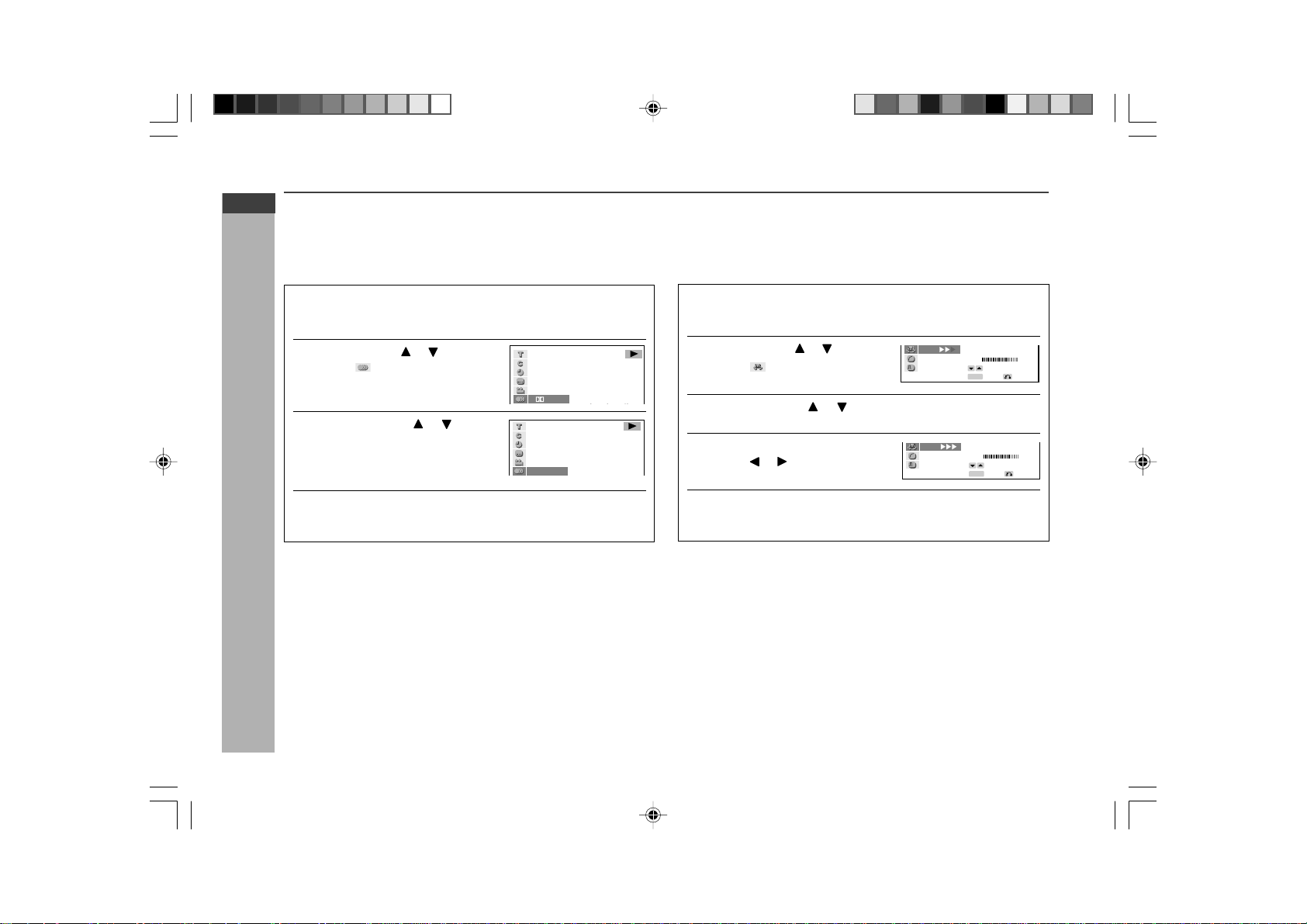
E-39
ENGLISH
Advanced DVD Features
CD-G7500DVD (S)
TINSZA159AWZZ
CD-G7500DVD
CP-G7500
H
Audio setting
A number of different methods are used to record audio onto a DVD video disc, including
multi-channels (used for voiceovers in other languages), DTS, MPEG audio and Linear
PCM. Your system provides a number of different audio modes from which you can
choose to suit the type of disc you are playing.
1
Press the SET UP button whilst pressing down the SHIFT
button during playback.
The function control screen appears.
2
Use the cursor or button to
select
and then press the
ENTER button.
3
Press the cursor or button
to select the audio format you
want to use.
4
Press the ENTER button to confirm the setting.
You can exit the function control screen by pressing the SET UP button
whilst pressing down the SHIFT button or the RETURN button.
Notes:
I This function can only be used for discs on which the sound has been
recorded in multiple formats.
I With certain types of discs, you can change the audio using the disc menu
(see page 44).
I You can also press SURROUND button whilst pressing down the
SHIFT button on the remote control for same operation in step 3.
(You can skip steps 1 and 2).
1
Press the SET UP button whilst pressing down the SHIFT
button during playback.
The function control screen appears.
2
Use the cursor or button to
select
and then press the
ENTER button.
3
Press the cursor or button to select “ON” or “OFF”.
4
Whilst “ON” is selected, use the
cursor
or button to change
the level setting.
5
Press the ENTER button to confirm the setting.
You can exit the function control screen by pressing the SET UP button
whilst pressing down the SHIFT button or the RETURN button.
2
H
00 10
DDV
1
D
hc15
.
hc15
.
N
2
ISH
06
10
2
00 10
5/
DDV
3/0
01: :––
2
CMP
L
Using the function control (continued)
H 3-D Virtual surround setting
I You can enjoy 3-D surround with DVD which recorded with Dolby Digital
Sound.
I You also can enjoy 3-D surround with 3 speakers.
Notes:
I
3-D Virtual Surround will not function when Compression is in [ ON ] setting.
(Refer page 29)
I 3-D Virtual Surround will function when headphone is in used.
I The Equaliser mode will change to FLAT mode when 3-D Virtual surround
is ON.
I You can also press the SURROUND button on the remote control for the
same operation in step 3. (You do not need to do the steps 1 and 2).
hc15
.
N
2
CMP
L
ON
SELECT
BITRATE
Mbps
00 10
ENTER
ENTER
RETURN
S
G
ON
hc15
.
N
2
CMP
L
ON
SELECT
BITRATE
Mbps
00 10
ENTER
ENTER
RETURN
S
G
ON
*CD-G7500DVD(EN)36-39 05.1.13, 14:4339
Downloaded from: http://www.usersmanualguide.com/
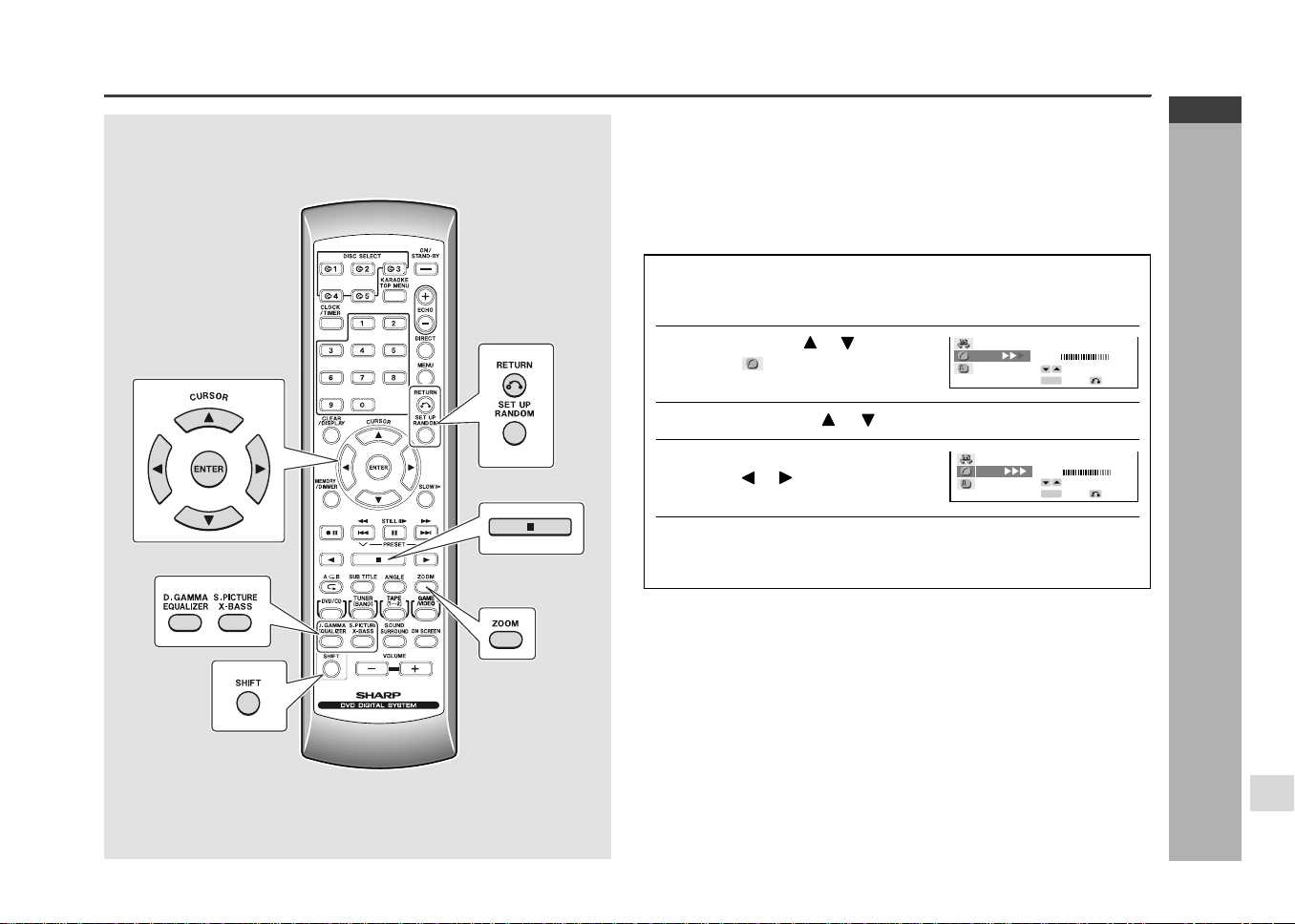
E-40
ENGLISH
Advanced DVD Features
CD-G7500DVD (S)
TINSZA159AWZZ
CD-G7500DVD
CP-G7500
7
Using the function control (continued)
H
Digital gamma setting
Digital gamma is a digital image quality enhancement function that gives a
richer image by brightening the darker and more obscure portions of the image
without altering the brightness of the brighter portions, thereby making the entire
image easier to see.
Use the following procedure to change the setting between “ON” and “OFF”,
and the level for the digital gamma setting.
1
Press the SET UP button whilst pressing down the SHIFT
button during playback.
The function control screen appears.
2
Use the cursor or button to
select
G
and then press the
ENTER button.
3
Press the cursor or button to select “ON” or “OFF”.
4
Whilst “ON” is selected, use the
cursor
or button to change
the level setting.
5
Press the ENTER button to confirm the setting.
You can exit the function control screen by pressing the SET UP button
whilst pressing down the SHIFT button or the RETURN button.
Note:
You can also press the D.GAMMA button whilst pressing down the SHIFT
button on the remote control for the same operation in step 3.
(You do not need to do the steps 1 and 2.)
hc15
.
N
2
CMP
L
ON
SELECT
BITRATE
Mbps
00 10
ENTER
ENTER
RETURN
S
G
ON
hc15
.
N
2
CMP
L
ON
SELECT
BITRATE Mbps
00 10
ENTER
ENTER
RETURN
S
G
ON
RRMCGA015AWSA
Using the function control (continued)
*CD-G7500DVD(EN)40-44 05.1.13, 14:4340
Downloaded from: http://www.usersmanualguide.com/
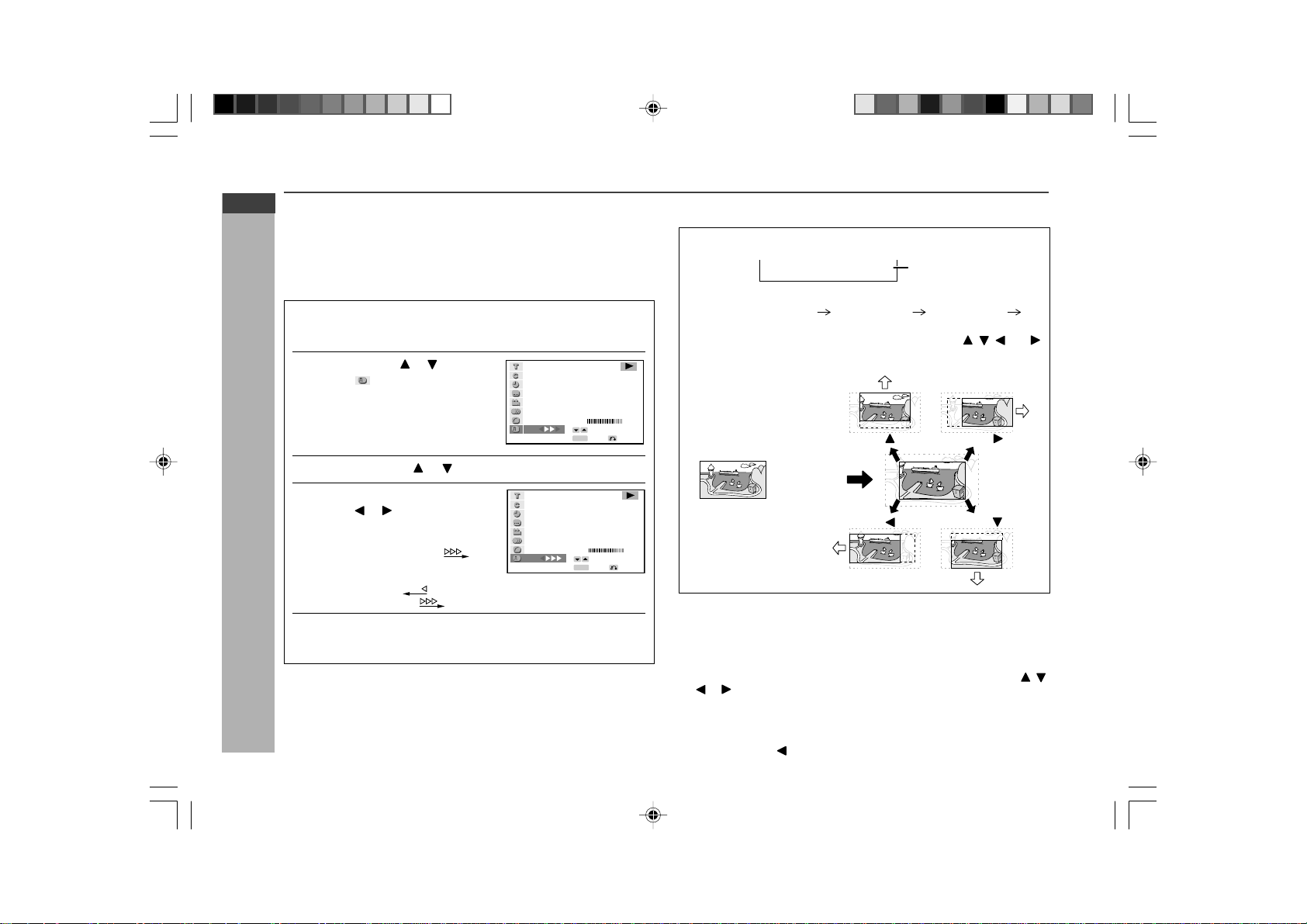
E-41
ENGLISH
Advanced DVD Features
CD-G7500DVD (S)
TINSZA159AWZZ
CD-G7500DVD
CP-G7500
Using the function control (continued)
H
Digital super picture setting
Digital super picture is a digital image quality enhancement function that gives
a clearer image by sharpening the details and outlines in the image and reducing
the amount of picture noise.
Use the following procedure to change the setting between “ON” and “OFF”,
and the level for the digital super picture setting.
1
Press the SET UP button whilst pressing down the SHIFT
button during playback.
The function control screen appears.
2
Use the cursor or button to
select
S
and then press the
ENTER button.
3
Press the cursor or button to select “ON” or “OFF”.
4
Whilst “ON” is selected, use the
cursor
or button to change
the level setting.
I To see more details in very intricate
images, set the level to
.
I To obtain a subtle softening of the
outlines of the displayed images,
set the level to
.
I Setting the level to
for DVD playback improves image quality.
5
Press the ENTER button to confirm the setting.
You can exit the function control screen by pressing the SET UP button
whilst pressing down the SHIFT button or the RETURN button.
Note:
You can also press the S. PICTURE button whilst pressing down the SHIFT
button on the remote control for the same operation in step 3.
(You do not need to do the steps 1 and 2.)
SELECT
BITRATE
Mbps
00 10
ENTER
DDV
ENTER
RETURN
S
G
ON
SELECT
BITRATE
Mbps
00 10
ENTER
DDV
ENTER
RETURN
S
G
ON
H
To zoom an image
Whilst a disc is playing, press the ZOOM button.
I Each press of the ZOOM button cycles through the zoom settings as
follows: ZOOM: 1 (X 1.2)
ZOOM: 2 (X 1.5) ZOOM: 3 (X 2.0) Off.
Note that all of the above zoom factors are approximate only.
I Whilst an image is zoomed, you can press the cursor
, , and
button to shift the view and display the part you want.
ZOOM indicator
ZOOM:1
Press the button.Press the button.
Press the button.
Press the
ZOOM button.
Press the
button.
Notes:
I An image may become distorted when zoomed.
I When you press the H button or the SET UP button whilst pressing down
the SHIFT button, the zoom operation is cancelled and the image returns to
normal size.
I The zoom setting is cancelled automatically whenever you display a DVD
screen that enables you to change the scene by pressing the cursor
, ,
or button.
I Subtitles cannot be zoomed.
I The ZOOM indicator changes from white to red to inform you that you are
trying to perform an illegal shift of view. If you are already at the far left side
of the image, for example, the ZOOM indicator will become red when you
press the cursor
button.
*CD-G7500DVD(EN)40-44 05.1.13, 14:4341
Downloaded from: http://www.usersmanualguide.com/
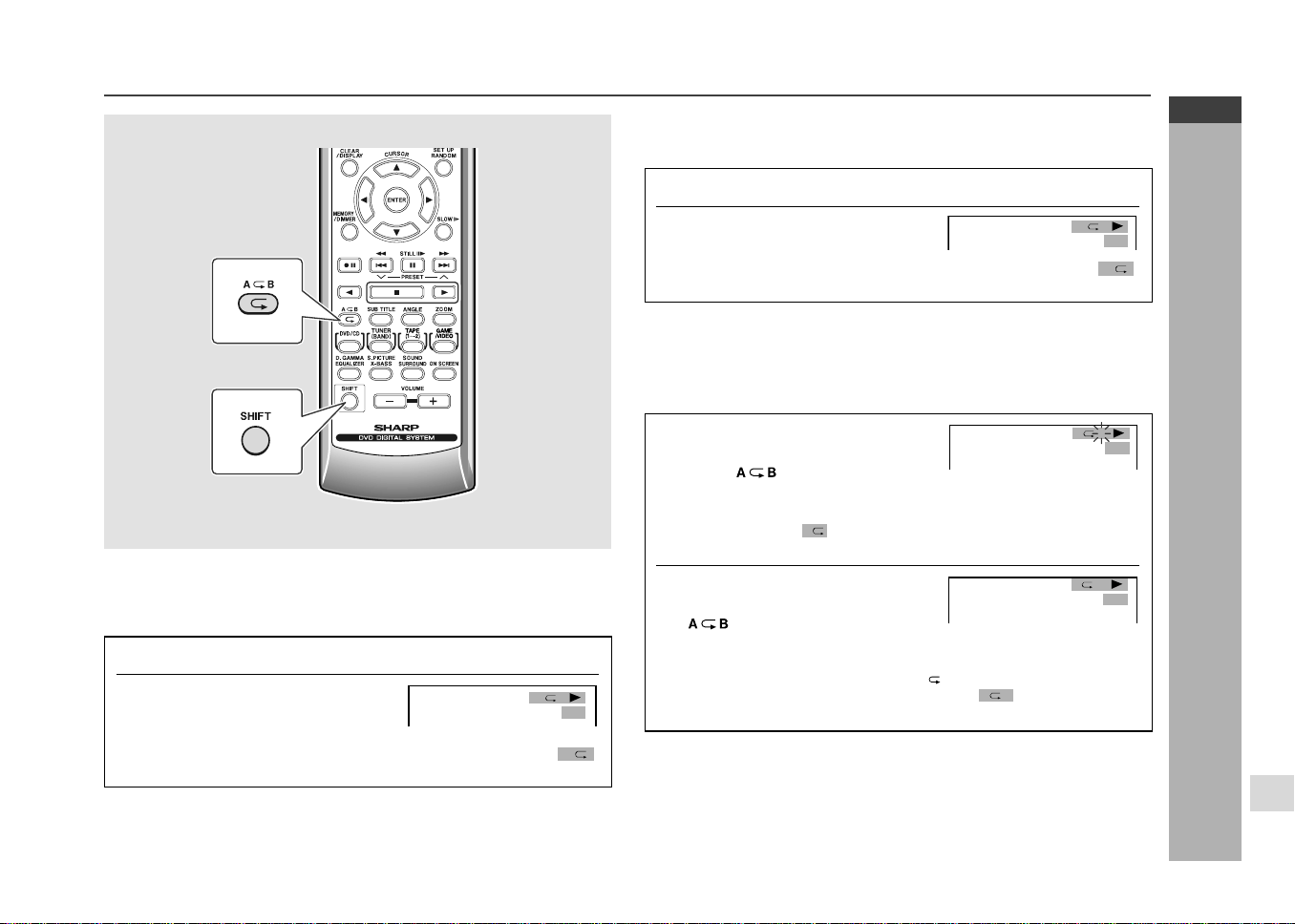
E-42
ENGLISH
Advanced DVD Features
CD-G7500DVD (S)
TINSZA159AWZZ
CD-G7500DVD
CP-G7500
7
Repeat playback
H
Chapter repeat
Example: To repeat the chapter you are currently viewing
1
Play the chapter you want to repeat.
2
Press the
RR
RR
R
button to repeat
the chapter.
To cancel repeat play, press the R button twice. This clears the “
C
”
indicator from the display.
Note:
You may not be able to use this function with some discs.
H
Title repeat
Example: To repeat the title you are currently viewing
1
Play the title you want to repeat.
2
Press the
RR
RR
R
button twice to
repeat the title.
To cancel repeat play, press the R button again. This clears the “
T
”
indicator from the display.
Note:
You may not be able to use this function with some discs.
H
A-B repeat
1
When playback reaches the
start point of the scene, press
the
button whilst
pressing down the SHIFT
button.
I This displays “
A
” (repeat) indicator.
I This registers the start point (A).
2
When playback reaches the end
point of the scene, press the
button whilst pressing
down the SHIFT button again.
I This starts A-B repeat from the start point (A) to the end point (B).
I To cancel A-B repeat, press the A
B button whilst pressing down
the SHIFT button again. This clears the “
AB
” indicator from the
display.
Notes:
I A-B repeat cannot be used with the multi-angle function (see page 38).
I You may not be able to use this function with some discs.
C
DDV
RRMCGA015AWSA
83/
25/
0
T
DDV
01
83/
25/
0
::30 08
A B
DDV
01
83/
25/
0
::30 08
AB
DDV
*CD-G7500DVD(EN)40-44 05.1.13, 14:4342
Downloaded from: http://www.usersmanualguide.com/
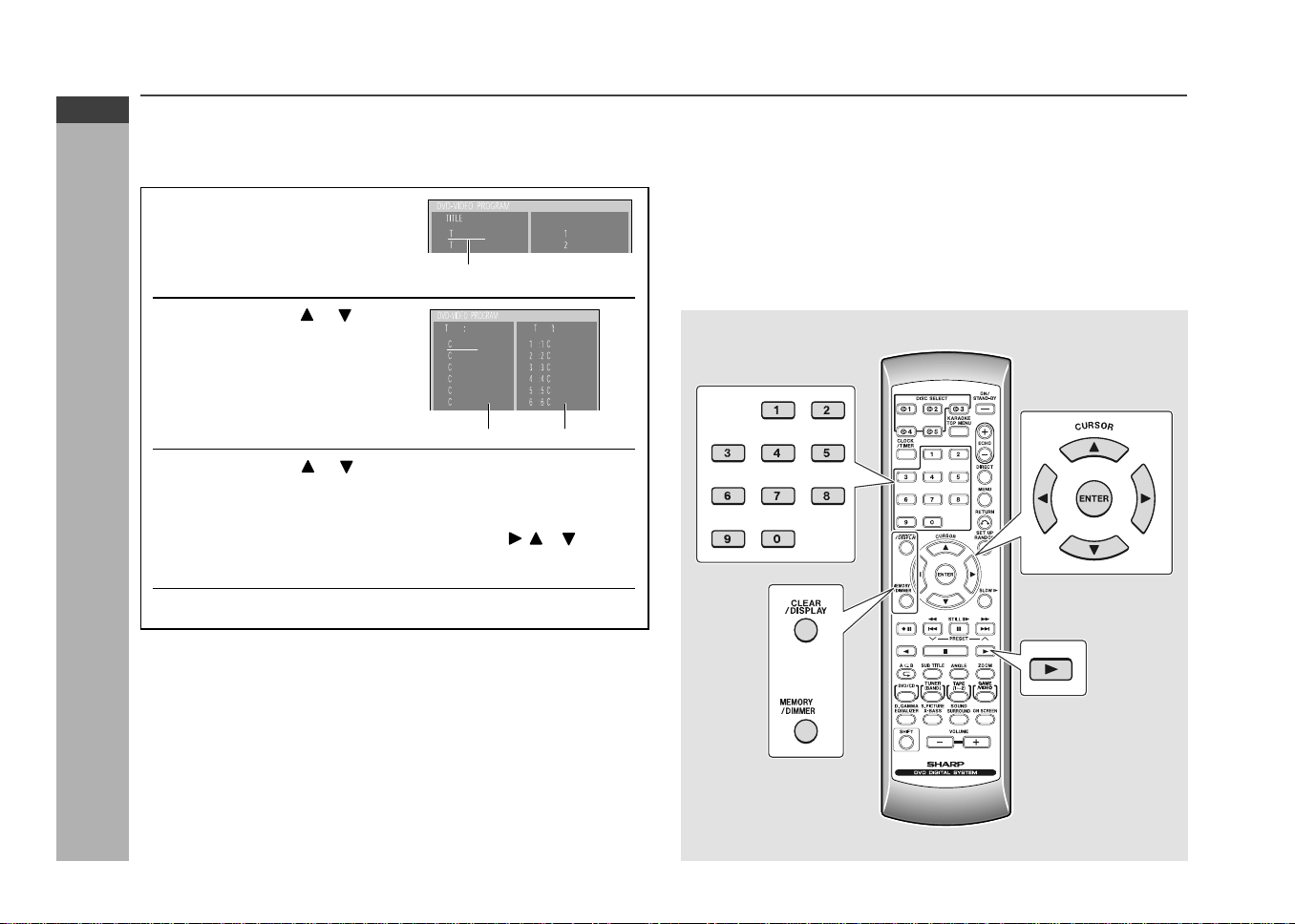
E-43
ENGLISH
Advanced DVD Features
CD-G7500DVD (S)
TINSZA159AWZZ
CD-G7500DVD
CP-G7500
Programme playback
H
Chapter programmed playback
You can choose up to 24 favorite chapters for playback in the order you like
using this function. (Title cannot be programmed)
1 Whilst a disc is stopped,
press the MEMORY/
DIMMER button to display
the programme screen.
2
Use the cursor or button
to select the desired title and
then press the ENTER button.
3
Use the cursor or button to select the desired chapter
and then press the ENTER button.
I Selected chapter will be register on confirmation area.
I Repeat steps 2 - 3 for another chapter.
I To clear the programmed chapter, press cursor
, or button to
select unwanted number in confirmation area and press the CLEAR/
DISPLAY button. Press
1 button to go back to selection area.
4
Press the
0
button to start play.
Adding chapters into the programme:
Follow steps 1 - 3, the new chapter number will be added after last number of
original programme.
To clear the programme:
1. Whilst in the stop mode, press MEMORY/DIMMER button.
2. To clear all programme, press and hold down the CLEAR/DISPLAY button
for more than 3 seconds whilst in the confirmation area.
Notes:
I Direct search button [1] to [0] can be used to select the title and chapter.
I Disc without title or chapter registered cannot be programmed.
I To programme other chapters sequentially, use the direct search buttons to
select and press the ENTER button.
I Programme cannot be executed during playback or in pause mode.
I To discontinue the programme, press MEMORY/DIMMER button.
I To play the same programme again, press MEMORY/DIMMER button and
then press 0 button.
I Chapter from different title cannot be programme at the same time.
RRMCGA015AWSA
Cursor
Selection area
Confirmation area
*CD-G7500DVD(EN)40-44 05.1.13, 14:4343
Downloaded from: http://www.usersmanualguide.com/
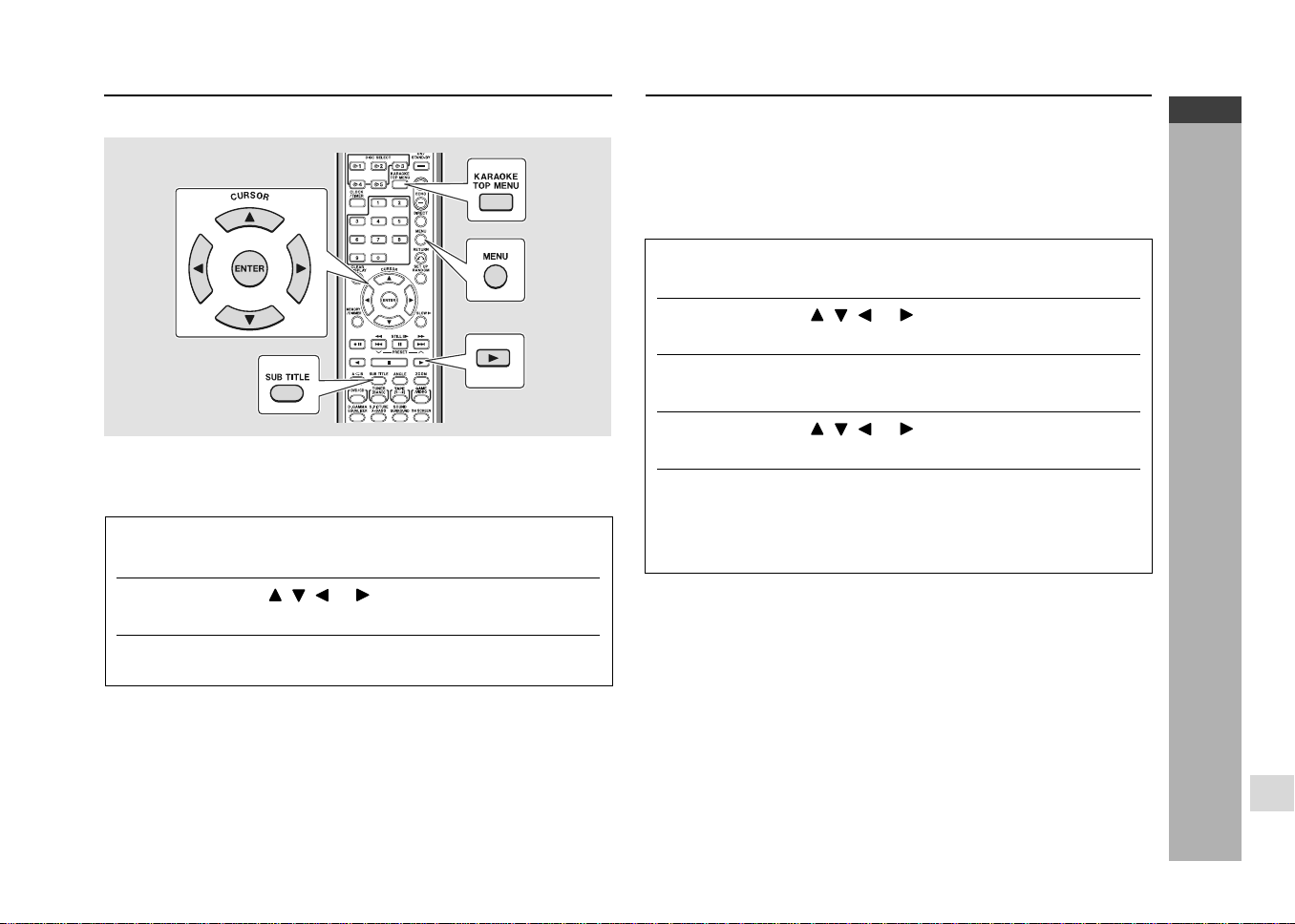
E-44
ENGLISH
Advanced DVD Features
CD-G7500DVD (S)
TINSZA159AWZZ
CD-G7500DVD
CP-G7500
7
Selecting titles from the menu
Setting parameters using the disc menu
Some DVDs have a title menu that you use to select the title you want to play.
H
To select a title
This function can be performed with only discs that have been played once,
totally or partially.
1
Whilst the disc is stopped, press the TOP MENU button to
display its title menu.
2
Use the cursor , , or button to select the title you
want.
3
Press the 0 or ENTER button to start playing the selected
title.
Notes:
I Some DVDs use the term “top menu” instead of “title menu”.
I If the disc you are using does not have a title menu, nothing appears on the
screen even if you press the TOP MENU button.
I The procedure shown here provides only general steps. The actual
procedure for using the title menu depends on the disc you are using. See
the disc jacket for details.
I The title menu does not appear immediately after you load a disc. It appears
only if the disc has been played once, totally or partially.
Some DVDs include a disc menu that you can use to select subtitle set, audio
channel, and DTS or MPEG audio. You can also turn disc menu on and off.
H
To turn on subtitling (example)
This function can be performed with only discs that have been played once,
totally or partially.
1
Whilst the disc is stopped, press the MENU button to
display the disc menu.
2
Use the cursor , , or button to select the subtitle
item on the disc menu.
3
Press the ENTER button to display the subtitle language
selection screen.
4
Use the cursor , , or button to select the desired
subtitle language.
5
Press the ENTER button to register your selection and
display the subtitles in the language you have set.
Repeat the above procedure to make other settings (audio
channel, DTS, MPEG audio, etc.).
Notes:
I The procedure shown here provides only general steps. The actual
procedure for using the disc menu depends on the disc you are using. See
the disc jacket for details.
I The disc menu does not appear immediately after you load a disc. It appears
only if the disc has been played once, totally or partially.
I During playback, you can also press the SUB TITLE button on the remote
control for the same operation in steps 1 - 3.
*CD-G7500DVD(EN)40-44 05.1.13, 14:4344
Downloaded from: http://www.usersmanualguide.com/
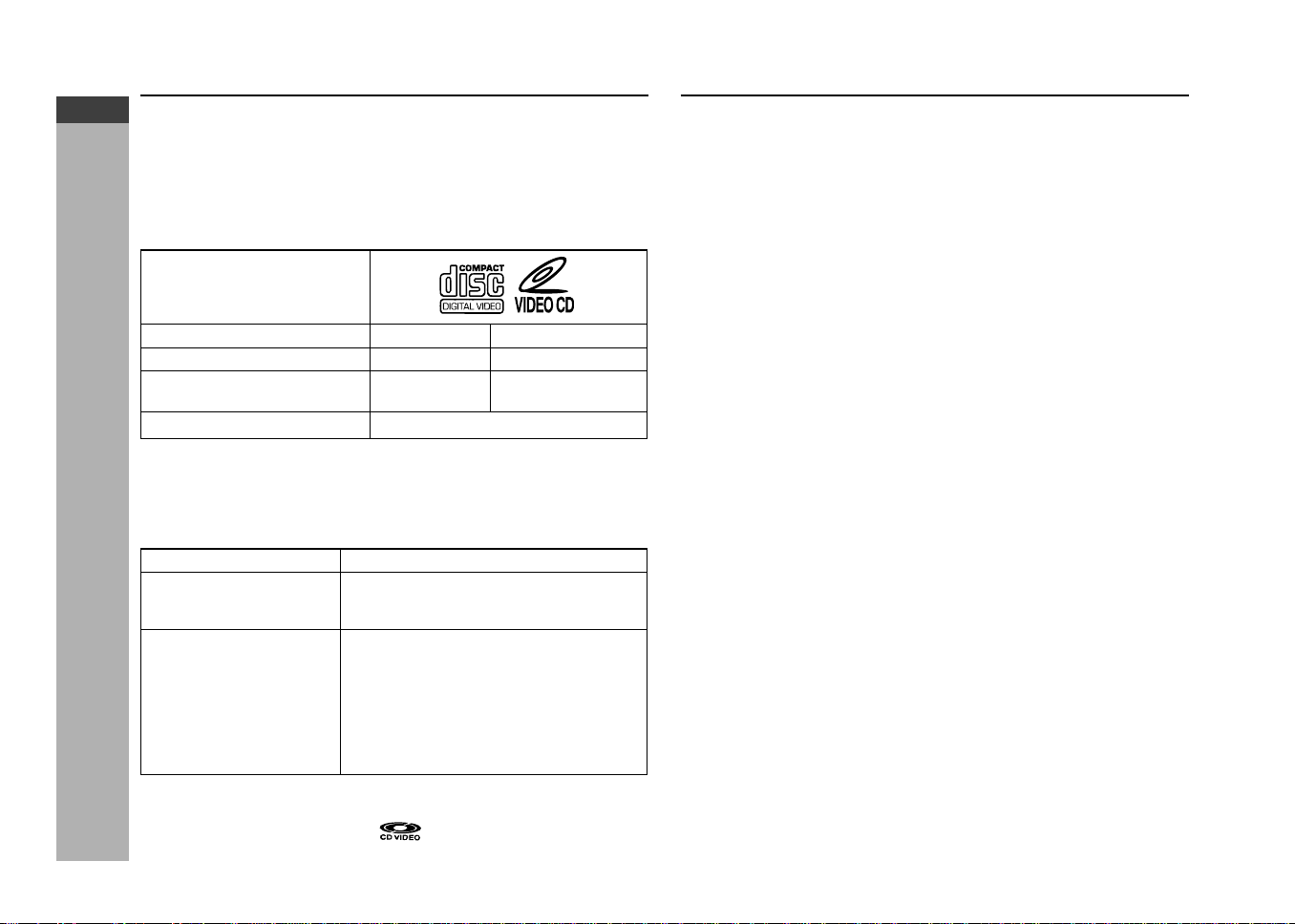
E-45
ENGLISH
Video CD/CD Playback
CD-G7500DVD (S)
TINSZA159AWZZ
CD-G7500DVD
CP-G7500
Video CD
Preparation for video CD playback
H Selecting the video output format
Video CD is recorded in PAL or NTSC format.
Select the video output format (NTSC or PAL) according to your TV or VCR.
Refer page 24 (Setting up for playback of an NTSC disc).
Any CD that contains motion pictures can be played.
You can enjoy motion pictures with the sound quality of MDs and the picture
quality of VHS tapes.
Digital compression technology allows the continuous playback of up to 74
minutes from a 12 cm disc.
With video CDs, you can select the items you want to watch from the on-screen
menu.
The disc symbols are found on the disc labels or jackets.
Symbol
Size 8 cm (3") 12 cm (5")
Label sides 1 side 1 side
Audio recording format Digital Digital
(max. 20 min) (max. 74 min)
Video recording format MPEG 1
H Types of discs
This unit handles video CDs that support P.B.C. (version 2.0). (P.B.C. is an
abbreviation of “Playback control”.)
You can enjoy the following two types of playback, depending on the disc.
Disc type Features
Video CDs without P.B.C. Sound and motion pictures can be played
(version 1.1) using the same control operations as applied
to music CDs.
Video CDs with P.B.C. In addition to the features shown above
(version 2.0) (for discs without P.B.C.), P.B.C. CDs have a
menu that is displayed on the TV screen.
You can play interactive games and make
use of other software with the retrieval
function (menu playback). You can also
display high resolution or normal still
pictures.
Notes:
I Video CDs are recorded in PAL or NTSC format.
I Analogue system CDVs (12 cm)
cannot be played.
I Photo CDs and CD-ROMs cannot be played.
*CD-G7500DVD(EN)45-48 05.1.13, 14:4345
Downloaded from: http://www.usersmanualguide.com/
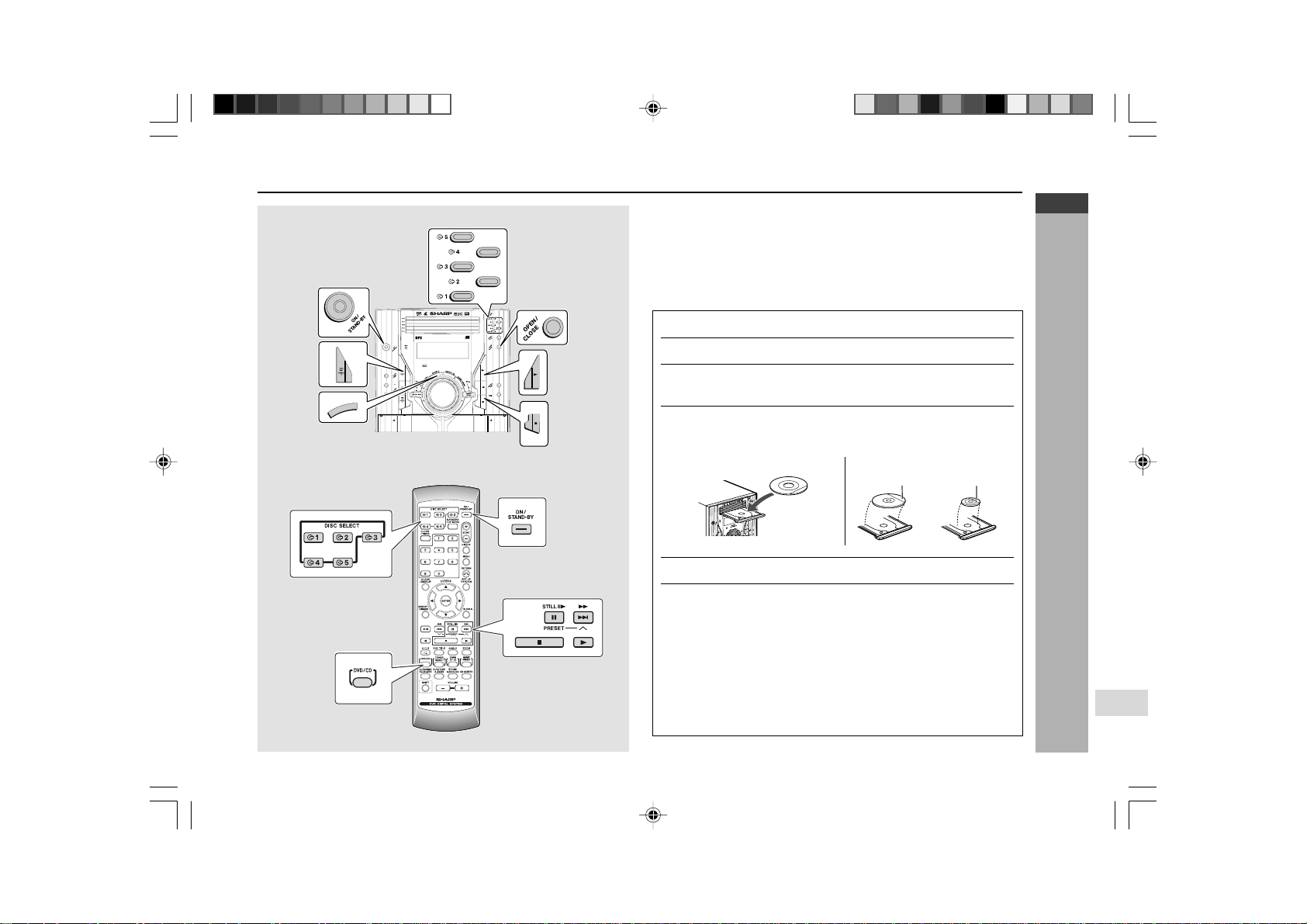
E-46
ENGLISH
Video CD/CD Playback
CD-G7500DVD (S)
TINSZA159AWZZ
CD-G7500DVD
CP-G7500
7
H Playback
1
Press the ON/STAND-BY button to turn the power on.
2
Press the DVD/CD button.
3
Press the
s
1 button and within 5 seconds, press the OPEN/
CLOSE button to open the disc tray 1.
4
Place discs on the disc tray, label side up.
I Be sure to place 8 cm (3") discs in the middle of the disc positions.
5
Press the OPEN/CLOSE button to close the disc tray.
6
To select the disc you want to listen to first, press one of
the
s
1 -
s
5 buttons and within 5 seconds, press
0
button
to start playback.
I Playback will begin from track 1 on the disc you have selected to
play. After that disc finishes playing, the next disc will automatically
start playback.
I When the last track on the fifth disc has finished playing, the CD
player will automatically stop.
I When there is no disc in one of the disc 1 - 5 trays, that tray will be
skipped and the next disc will begin to play.
Video CD playback
Playback control:
Video CDs that support “Playback control” can display still pictures. This function
can be used with video CD software (video CDs with playback control) that have
a playback method recorded on them. You can select items you want to watch
from the menu displayed on the TV screen, or you can show still pictures.
Turn on the TV and set the input selector to “VCR”.
12 cm (5
"
)
8 cm (3
"
)
CD-G7500DVD
DV D MINI SYSTEM
5
-DISC
GHANGER
RRMCGA015AWSA
D
V
D
/
C
D
*CD-G7500DVD(EN)45-48 05.1.13, 14:4346
Downloaded from: http://www.usersmanualguide.com/

E-47
ENGLISH
Video CD/CD Playback
CD-G7500DVD (S)
TINSZA159AWZZ
CD-G7500DVD
CP-G7500
Video CD playback (continued)
To interrupt playback:
Press the
6
/STILL 60 button on the remote control.
To resume playback from the same point, press the
0
button.
To stop playback:
Press the
H
button.
To exchange to other disc whilst playing:
Press one of the
s
1 -
s
5 buttons of the stopped disc and within 5 seconds,
press the OPEN/CLOSE button and exchange discs.
To remove the discs:
Whilst in the stop mode, press the
s
1 -
s
5 buttons and within 5 seconds,
press the OPEN/CLOSE button.
Notes:
I Playback control allows a video CD to be played back according to
instructions recorded on the disc. The “previous”, “next”, “return” and “select”
operations may function differently, depending on the P.B.C. CDs.
I Some video CDs with playback control may have an “auto pause” recorded
on them. When such a disc is played, the screen will stop automatically at
the point where an “auto pause signal” has been inserted.
I If the picture looks dirty when a video CD is played back, there may be a
scratch on the video CD. Replace it with another video CD in good condition.
Caution:
I Do not place two discs in one disc tray.
I Do not play discs of special shapes (heart, octagon, etc.). It may cause
malfunctions.
I Do not push the disc tray whilst it is moving.
I Do not turn the disc tray by hand. This may cause malfunctions.
I If the power fails whilst the tray is open, wait until the power is restored.
I If the disc tray is stopped with force, “ER-CD20” will appear on the display
for 3 seconds and the unit will not function. If this occurs, press the ON/
STAND-BY button to enter the power stand-by mode and then turn the
power on again.
I If TV or radio interference occurs during CD operation, move the unit away
from the TV or radio.
I If a disc is damaged, dirty, or loaded upside down, the disc will skip or not
play back.
H To play without activating the playback control
function (Video CD with P.B.C. only)
You can play a video CD with P.B.C. without activating the playback control
function.
In this case, the menu screen will not appear, and the disc will be played in the
same way as a video CD without P.B.C..
1
Whilst in the stop mode, press the 2 4 PRESET
W W
W W
W ( 2
/ 4 ) button to cancel the P.B.C. mode and press 0 but-
ton to start playback.
Notes:
I The P.B.C. function cannot be cancelled whilst in the playback mode.
I Some video CDs with P.B.C. cannot be played back when the P.B.C. mode
is off.
I P.B.C. mode will automatically set after stop the playback.
*CD-G7500DVD(EN)45-48 05.1.13, 14:4347
Downloaded from: http://www.usersmanualguide.com/
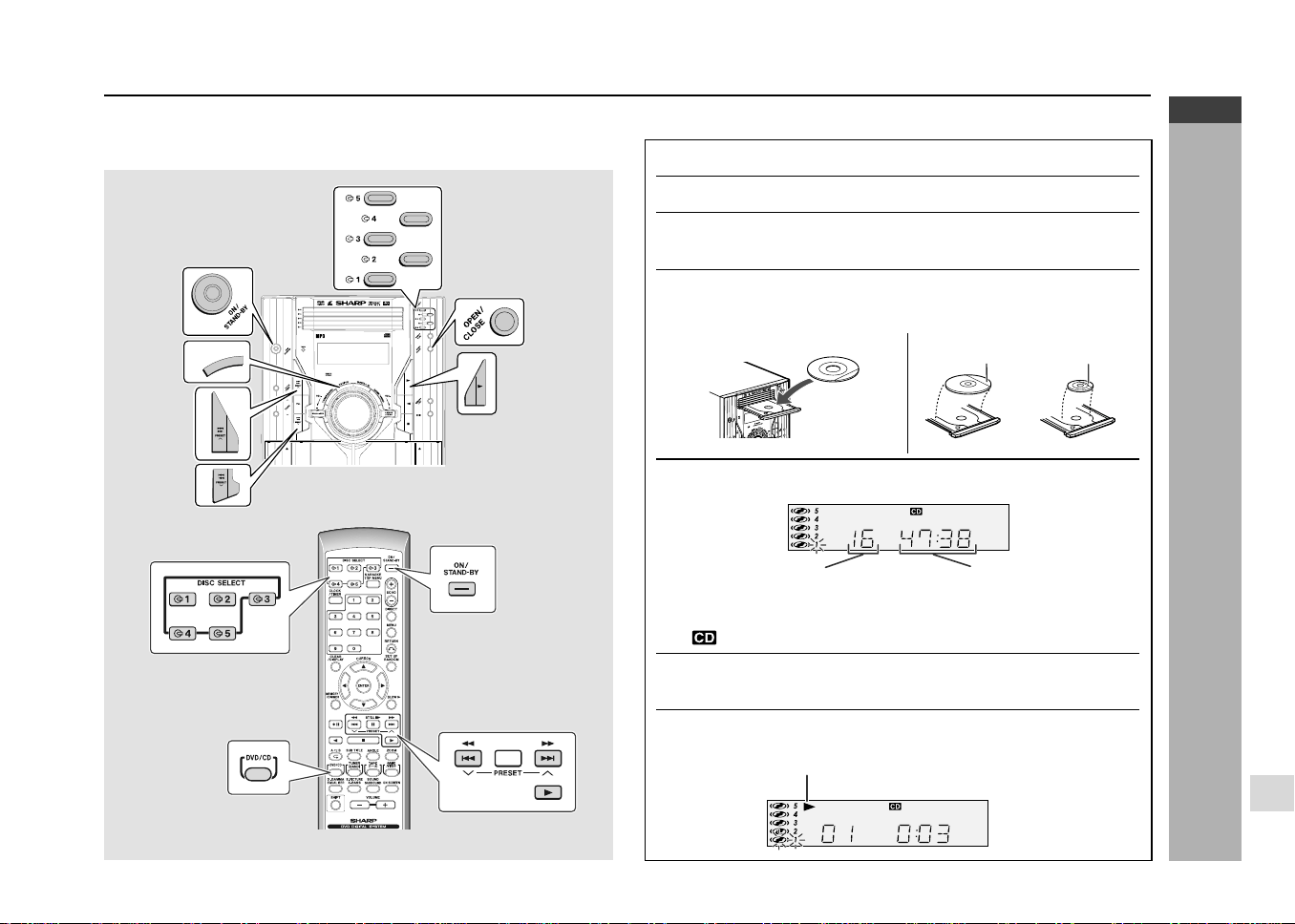
E-48
ENGLISH
Video CD/CD Playback
CD-G7500DVD (S)
TINSZA159AWZZ
CD-G7500DVD
CP-G7500
7
CD playback
This system can also play audio CD-R and CD-RW discs, but cannot record.
Some audio CD-R and CD-RW discs may not be playable due to the state of
disc or the device that was used for recording.
CD-G7500DVD
DV D MINI SYSTEM
5
-DISC
GHANGER
D
V
D
/
C
D
H CD playback
1
Press the ON/STAND-BY button to turn the power on.
2
Press the DVD/CD button.
3
Press the
s
1 button and within 5 seconds, press the OPEN/
CLOSE button to open the disc tray 1.
4
Place the CD on the disc tray 1, label side up.
I Be sure to place 8 cm (3") discs in the middle of the disc positions.
5
Press the OPEN/CLOSE button to close the disc tray 1.
“ ” will appear.
6
You can place discs on the trays 2 - 5 by following steps
3 - 5.
7
Press the
0
button to start playback.
12 cm (5
"
)
8 cm (3
"
)
CD play indicator
Total number of tracks on
the CD whose number is
flashing
Total playing time of the
CD whose number is
flashing
*CD-G7500DVD(EN)45-48 05.1.13, 14:4348
Downloaded from: http://www.usersmanualguide.com/
E-49
ENGLISH
Video CD/CD Playback
CD-G7500DVD (S)
TINSZA159AWZZ
CD-G7500DVD
CP-G7500
H Starting playback with a desired track
You can play a disc starting with the desired track.
H To locate the beginning of a track
To move to the beginning of the next track:
Press the
2 4
PRESET W button for less than 1.5 seconds during playback.
I You can skip to any track by pressing the 2 4
PRESET W
button
repeatedly until the desired track number appears.
To restart the track being played:
Press the
5 3
PRESET X button for less than 1.5 seconds during playback.
I You can skip to any track by pressing the 5 3 PRESET X button
repeatedly until the desired track number appears.
Notes:
I You can locate the beginning of a track on a single disc only.
I The 5/3 or 2/4 button on the remote control allows you the same
operation.
H To locate the desired portion
For fast forward:
Press and hold down the 2 4 PRESET W button for more than 1.5
seconds during playback.
For fast reverse:
Press and hold down the 5 3 PRESET X button for more than 1.5
seconds during playback.
I Three speeds are available. Each time the 5 3 PRESET X or 2
4 PRESET W button is pressed, the speed of fast scan changes in
the following sequence:
Notes:
I Normal playback will resume when the 0
button is pressed.
I You can locate the desired portion on a single disc only.
I When the end of the last track is reached during fast forward, CD will go to
next CD and start playback. When the beginning of the first track is reached
during fast reverse, the unit will enter the playback mode.
I The 5/3 or 2/4 button on the remote control allows you the same
operation.
1
Whilst in the stop mode, press one of the
s
1 -
s
5 buttons
to select the desired disc and press
0
button to start play-
back.
2
Press the
5
3
PRESET
XX
XX
X
or 2
4
PRESET
WW
WW
W
button
to select the desired track and its playback starts
automatically.
I You can also press the 5/3 or 2/4 button on the remote
control for the same operation.
I You can also select the desired track by pressing the 0 - 9 buttons,
then press 0 button on the remote control.
I The playback of the selected track is started.
When the last track of the disc with the selected track is finished, the
next disc will be automatically started.
I Playback will begin from track 1 on the DISC 1. After that disc finishes
playing, the next disc will automatically play.
I After the last track on the fifth disc is played, the CD player stops
automatically.
I When there is no CD in one of the disc trays (1 - 5), the empty tray will be
skipped to the next tray with a CD.
To exchange other CDs whilst playing a disc:
Press one of the
s
1 -
s
5 buttons of the stopped disc and within 5 seconds,
press the OPEN/CLOSE button and exchange discs.
To remove the discs:
In the stop mode, press the
s
1 -
s
5 buttons and within 5 seconds, press the
OPEN/CLOSE button.
Auto power on function:
When you press any of the following buttons, the unit turns on.
I DVD/CD button (main unit and remote control): The unit turns on and the
“CD” function is activated.
I0 button on the main unit or remote control: The unit turns on and playback
of the last function starts (DVD/CD, TAPE, TUNER, GAME).
1 (about 2)
2 (about 8)
3 (about 32)
CD playback (continued)
1
2
3
4
5
6
7
8
9
SHARP TINSZA159AWZZ
(S)
10
*CD-G7500DVD(EN)49-53 05.1.13, 14:4449
Downloaded from: http://www.usersmanualguide.com/
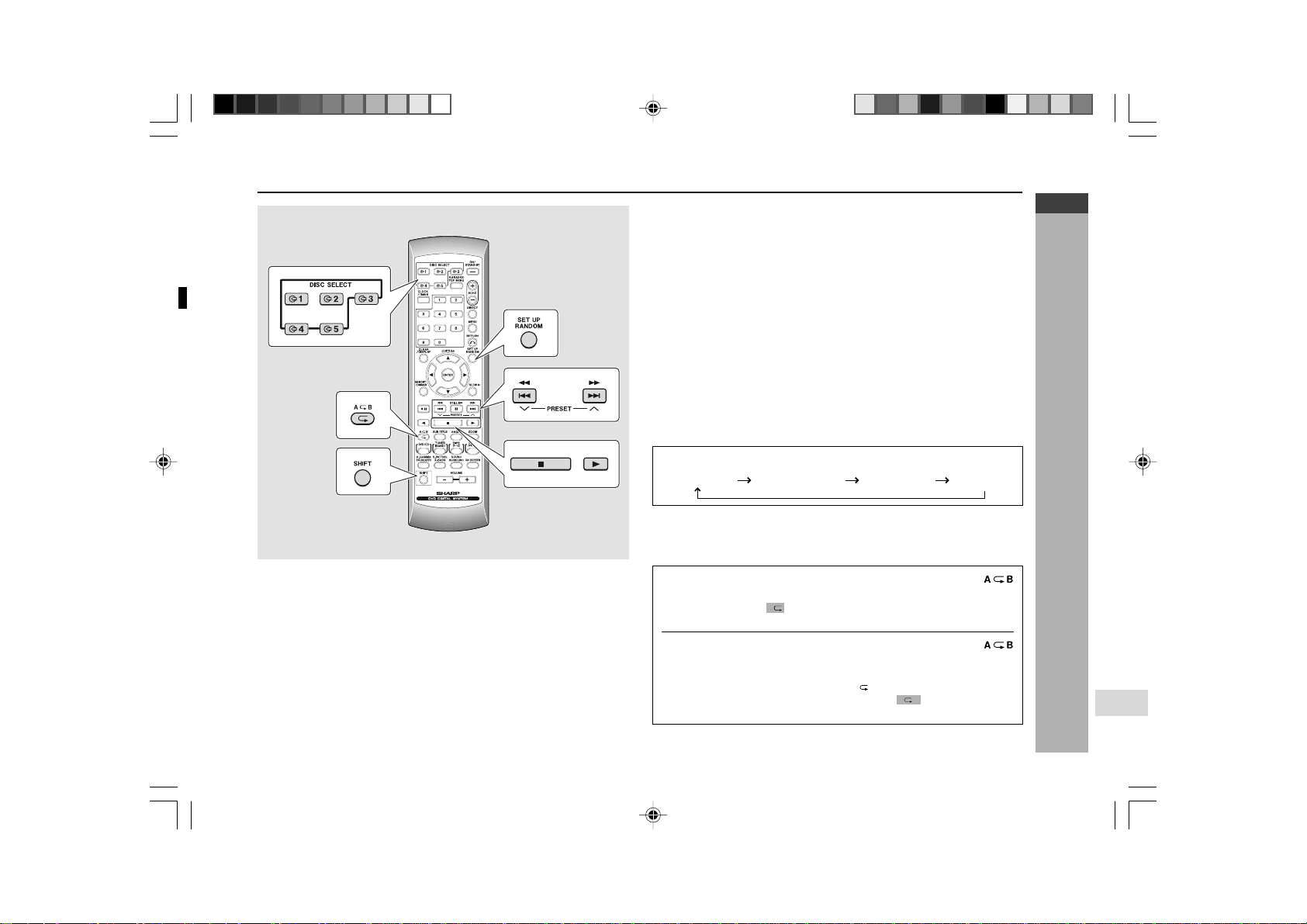
E-50
ENGLISH
Video CD/CD Playback
CD-G7500DVD (S)
TINSZA159AWZZ
CD-G7500DVD
CP-G7500
7
H Random play
The tracks on the disc(s) can be played in random order automatically.
To random play all tracks on up to 5 discs:
Press the RANDOM button on the remote control.
To random play all tracks on the chosen discs:
1. Press one of the
s
1 -
s
5 buttons.
2. Within 5 seconds, press DIRECT PLAY button on the main unit.
3. Press the RANDOM button on the remote control.
To cancel random play:
Press the 0 button again.
Notes:
I
If you press the 2 4 PRESET W (2/4) button during random play, you
can move to the track selected next by the random operation. On the other
hand, the 5 3 PRESET X (5/3) button does not allow you to move to
the previous track. The beginning of the track being played will be located.
I In random play, the CD player will select and play tracks automatically.
(You cannot select the order of the tracks.)
I The DVD, MP3 and WMA disc will be skipped and random playback will be
disabled.
I This function is invalid for WMA, MP3 and DVD discs.
I Repeat play cannot function during random play.
I To random play all disc press 0 button instead of pressing DIRECT PLAY
button.
Caution:
After using repeat or random play, be sure to press the ■ button.
Otherwise, the disc(s) will play continuously.
RRMCGA015AWSA
H Repeat play
CD playback can be repeated according to below sequence.
Press the
RR
RR
R
button repeatedly on the remote control.
To cancel repeat play:
Press the
R
button repeatedly to extinguish the “
R
”.
H A-B repeat
1
When play reaches the start point of sound, press the
button whilst pressing down the SHIFT button.
I This displays “
A
” (repeat) indicator.
I This registers the start point (A).
2
When play reaches the end point of sound, press the
button whilst pressing down the SHIFT button again.
I This starts A-B repeat from the start point (A) to the end point (B).
I To cancel A-B repeat, press the A
B
button whilst pressing down
the SHIFT button again. This clears the “
AB
” indicator from the
display.
Notes:
I This function is invalid for WMA and MP3 discs.
I Random play cannot function during repeat play.
All disc repeat
Normal playback
Track repeat
Disc repeat
1
2
3
4
5
6
7
8
9
SHARP TINSZA159AWZZ
(S)
10
*CD-G7500DVD(EN)49-53 05.1.13, 14:4450
Downloaded from: http://www.usersmanualguide.com/
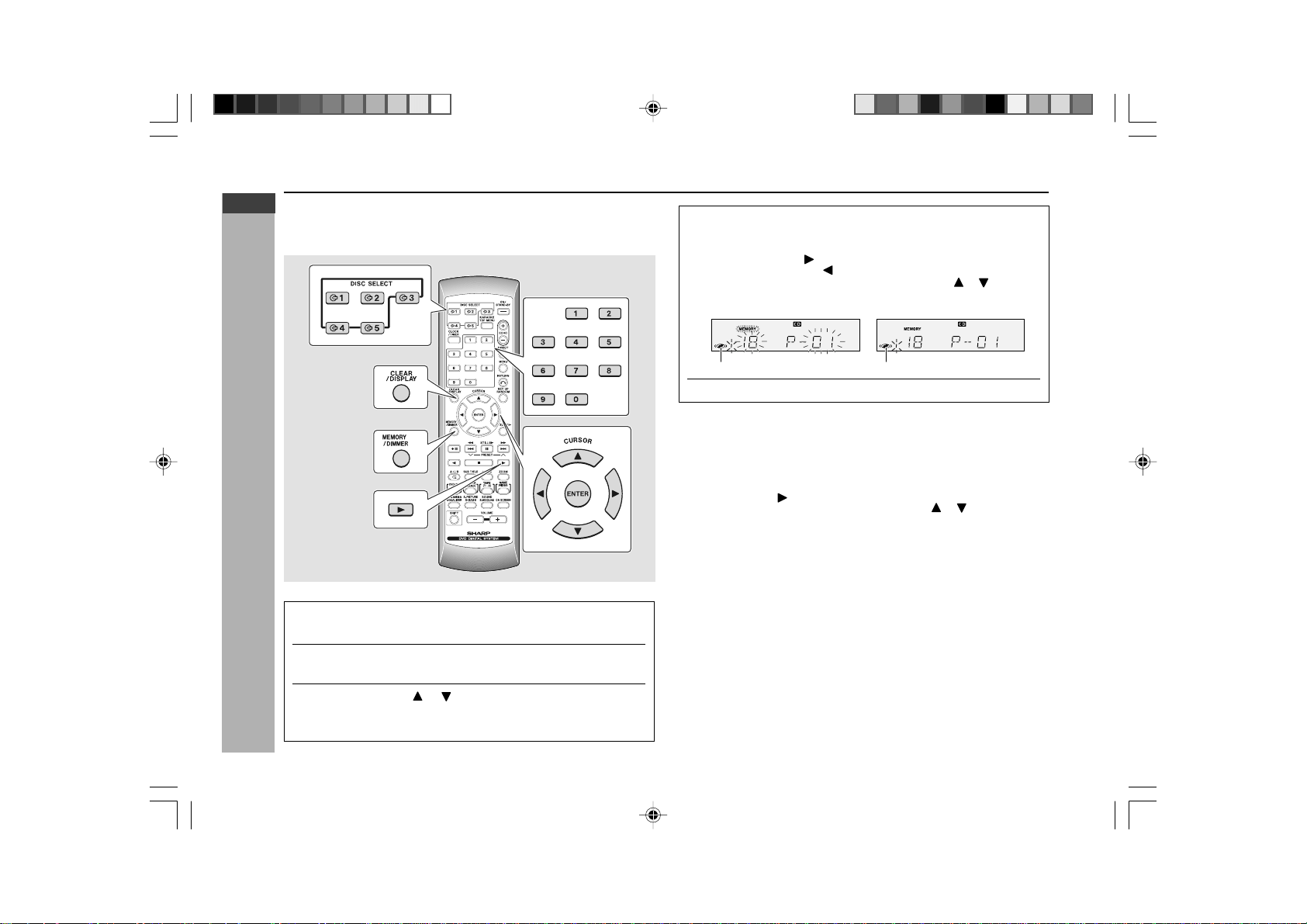
E-51
ENGLISH
Video CD/CD Playback
CD-G7500DVD (S)
TINSZA159AWZZ
CD-G7500DVD
CP-G7500
H Programmed play
By specifying discs from 1 to 5, and tracks from 1 to 99, you can choose up to
32 selections for playback in the order you like.
1 Whilst in the stop mode, press the MEMORY/DIMMER
button.
2
Press one of the s 1 - s 5 buttons to select the desired
disc.
3
Press the cursor or button to select the desired track
and then press the ENTER button.
You can also select the track number by pressing the 0 - 9 buttons.
Adding tracks to the programme:
Programme setting has been previously stored.
Follow steps 1 - 3 to add tracks. The new tracks will be stored after the last
track of the original programme.
To clear the programmed selections:
1. Whilst in the stop mode, press the MEMORY/DIMMER button.
2. Press the cursor
to go to confirmed condition.
3. Select the track to be erased, by pressing cursor
or .
4. Press the CLEAR/DISPLAY button.
Notes:
I If there is no disc to select the disc number or there is a DVD disc or MP3
disc, the disc will be skipped.
I Opening the disc tray automatically cancels the programmed sequence.
I Even if you press the ON/STAND-BY button to enter the stand-by mode,
the programmed selections will not be cleared.
I During programme playback, random play is not possible.
I Once programmed, the contents will be memorised. When the unit is stopped
and then the 0 button is pressed, however, normal CD playback will be
resumed. To play back the memorised programme, press the 0 button
after press the MEMORY/DIMMER button.
I To exit the programming procedure halfway through, press the MEMORY/
DIMMER button.
I This function is invalid for WMA and MP3 discs.
I Direct search buttons on the remote control also can be used to select the
desired track.
I If the CLEAR/DISPLAY button is pressed more than 2 seconds whilst in
confirm condition, all programmed tracks will be cleared.
I Programme mode cannot be enter whilst in repeat mode.
4
Repeat steps 2 - 3 for other tracks. Up to 32 tracks can be
programmed.
If you make a mistake, the programmed tracks can be cleared by
pressing the cursor
to go to confirm condition, then press CLEAR /
DISPLAY button. Press
cursor to go to track select condition to add
programme again. During confirm condition, press
or to check a
programmed track.
5
Press the
0
button to start playback.
RRMCGA015AWSA
Track select condition
Track confirm condition
Select disc
Select disc
CD playback (continued)
*CD-G7500DVD(EN)49-53 05.1.13, 14:4451
Downloaded from: http://www.usersmanualguide.com/
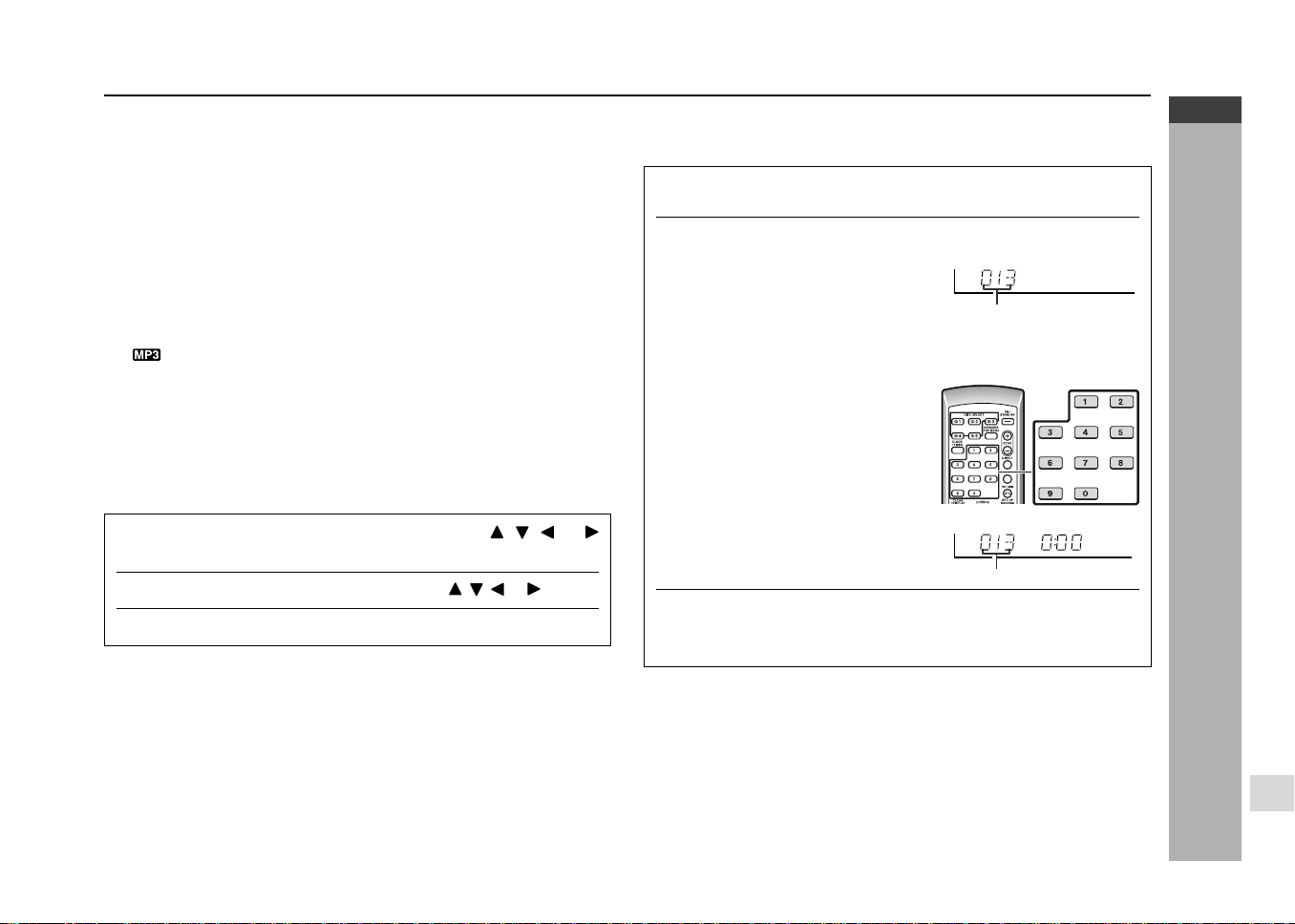
E-52
ENGLISH
Video CD/CD Playback
CD-G7500DVD (S)
TINSZA159AWZZ
CD-G7500DVD
CP-G7500
7
MP3/WMA disc
H Direct search of the track MP3/WMA
By using the direct search buttons, the desired tracks can be played.
1
Whilst in the stop mode, press the
s
1 -
s
5 buttons
and
0 button to select the desired disc.
2
Use the direct search buttons on the remote control to
select the desired track.
Selected track number before press ENTER button
I The direct search buttons allow you to select all track.
I When selecting number 10 or more, press directly the number in
sequence order directly.
A.For example, to choose 13
1 Press the “1” button once.
2 Press the “3” button.
B.For example, to choose 30
1 Press the “3” button.
2 Press the “0” button.
Selected track number after press ENTER button
3
Press the ENTER button to start playback.
Playback of the selected track is started. When the end of last track is
reached, the next disc will automatically be started.
To stop playback:
Press the ■ button.
Notes:
I The selected track can be started simply by pressing the direct search
buttons followed by ENTER button during playback.
I A track number higher than the number of tracks on the disc cannot be
selected.
I During random play, direct search is not possible.
I If the ENTER button is not pressed after direct search buttons, the track will
not be selected.
H MP3/WMA discs playback
1
Select the desired folder by pressing the , , or
button and press the ENTER button.
2
Select the desired track by pressing the , , or button.
3
Press the ENTER button to begin playback.
To interrupt playback:
Press the
6
/ STILL
60
button on the remote control.
To resume playback from the same point, press the
0
button.
Note:
The display will only indicate the track number for the each track.
MP3
MP3 is a form of compression. It is an acronym which stands for MPEG Audio
Layer 3.
MP3 is a type of audio code which is processed by significant compression
from the original audio source with very little loss in sound quality.
WMA
WMA files are Advanced System Format files that include audio files which are
compressed with Windows Media Audio codec. WMA is developed by Microsoft
as an audio format file for Windows Media Player.
Notes:
I Due to the structure of its disc information, it takes longer to read an MP3/
WMA disc than a normal CD (approximately 20 to 90 seconds).
I “
” indicator will light up if an MP3 disc is initialised.
I “WMA” indicator will light up if an WMA disc is initialised.
I This system supports MPEG 1 Layer 3 and VBR files.
I During VBR file playback, time counter in the FL display may differ from its
actual playback time.
I Please use a TV to accompany in order to see the MP3/WMA folder.
*CD-G7500DVD(EN)49-53 05.1.13, 14:4452
Downloaded from: http://www.usersmanualguide.com/
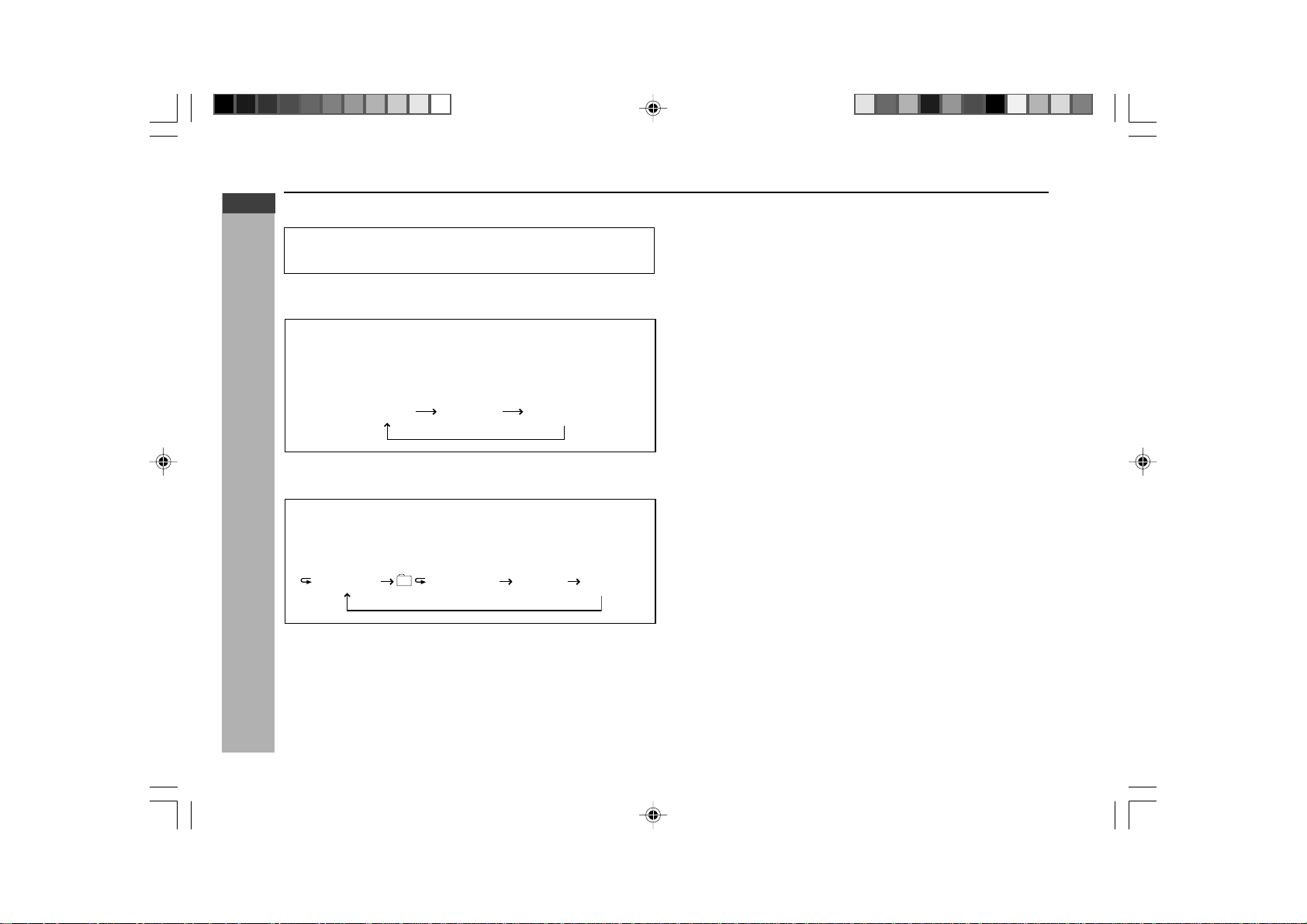
E-53
ENGLISH
Video CD/CD Playback
CD-G7500DVD (S)
TINSZA159AWZZ
CD-G7500DVD
CP-G7500
MP3/WMA disc (continued)
Notes:
I During playback, if cursor is moved to another track, without changing
anything, after 10 seconds, it will automatically playback the selected
track.
I Sometimes, the system does not follow the arrangement of the song as per
recorded on that specific MP3/WMA disc.
I It can detect up to 8 layers of folder in an MP3 disc.
I A maximum of 256 tracks can be detected by this system.
I This unit can playback a multi-session disc. If the first session is an Audio
CD format, then, it will judge it as an Audio CD and will play the tracks of
that format only.
I Longer time will be taken to TOC READ an MP3/WMA disc which contains
many folders. The arrangement of folders (folder structure) also will affect
the time taken to TOC READ.
I The unit can display only up to 8 characters of a folder of track name.
Sometimes, symbols or certain letters may not be displayed correctly.
I Noise may be heard during playback of an MP3 disc which recorded at a
very high speed.
I A disc containing both MP3 and WMA format files will not be correctly played.
Unit will play one type of format only depending on the recording condition.
Please use disc containing recorded files of the same format.
I Elapsed time for WMA discs may not display correctly during the speed
search (x8 or x32).
H To skip during playback
1
During playback, press
5
button to go to previous track,
or press
4
button for next track of the same folder.
H Speed search during playback
1
Press
5
or
4
button for more than 1.5 seconds during
playback.
I Press repeatedly will toggle its different speeds.
1 ( x 2 ) 2 ( x 8 ) 3 ( x 32 )
1
Press
R
button during playback.
I Press repeatedly will toggle its type of repeat as below:
H Repeat playback
T
(Track repeat)
(Folder repeat) All Repeat Cancel Repeat
*CD-G7500DVD(EN)49-53 05.1.13, 14:4453
Downloaded from: http://www.usersmanualguide.com/
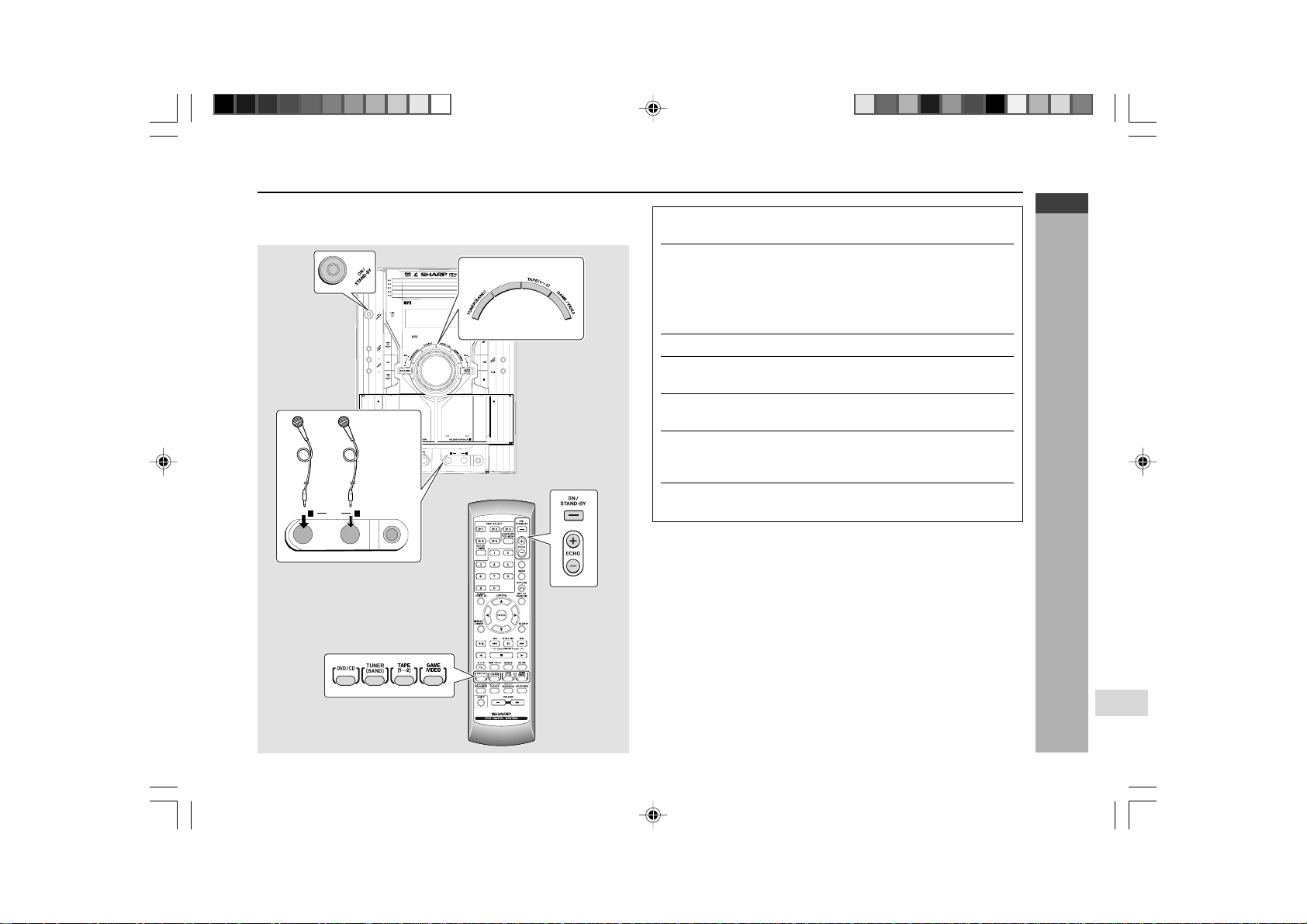
E-54
ENGLISH
Karaoke
CD-G7500DVD (S)
TINSZA159AWZZ
CD-G7500DVD
CP-G7500
7
Playing karaoke
1
Set the MIC LEVEL control to MIN to protect the speakers
from shock noise and to avoid disturbing noises.
2
Connect the microphone(s) to the MIC 1 or MIC 2 socket or
both sockets for enjoying duets.
I Use a microphone with a 6.3 mm (1/4") plug, an impedance of 600
ohms.
I Use a standard plug adaptor when using a microphone with a 3.5
mm (1/8") diameter plug.
3
Press the ON/STAND-BY button to turn the power on.
4
Press the DVD/CD, TUNER (BAND), TAPE
(1V2)
or GAME/
VIDEO button to select the audio source and play it.
5
Adjust the volume of the audio source using the VOLUME
control.
6
To control the volume of both microphones, turn the MIC
LEVEL control towards MAX to increase and towards MIN
to decrease.
7
Press the ECHO + or – button on the remote control to
increase or decrease the microphone echo.
Notes:
I
When you sing too loud through the microphone, your voice may be distorted
depending on the devices connected. If this happens, lower the microphone volume.
I
If an extremely sensitive microphone is used, howling may be generated.
I
Unidirectional microphone is more appropriate for vocal use.
I
The volume of both microphones is set simultaneously. It is recommended to use
microphones of the same sensibility.
If squealing occurs:
I
Reduce the microphone volume.
I
Change the direction of the microphone.
I
Reduce the volume of the main unit.
I
Move the microphone away from the speakers.
I
Keep microphones away from each other.
Caution:
I
When not using the microphone, remove it from the MIC socket.
I
When connecting or disconnecting the microphone, set the MIC LEVEL control to
MIN.
I
When using only one microphone, unplug the other.
You can enjoy karaoke to DVDs, video CDs, CDs, MP3 Discs, radio, cassettes,
and other external devices by connecting a separately available microphone
to this unit.
CD-G7500DVD
DVD MINI SYSTEM
5
-DISC
GHANGER
AUTO REVERSE
MIC
MIC LEVEL
MIN
MAX
12
RRMCGA015AWSA
MIC
MIC LEVEL
MIN
MAX
12
D
V
D
/
C
D
*CD-G7500DVD(EN)54-55 05.1.13, 14:4454
Downloaded from: http://www.usersmanualguide.com/
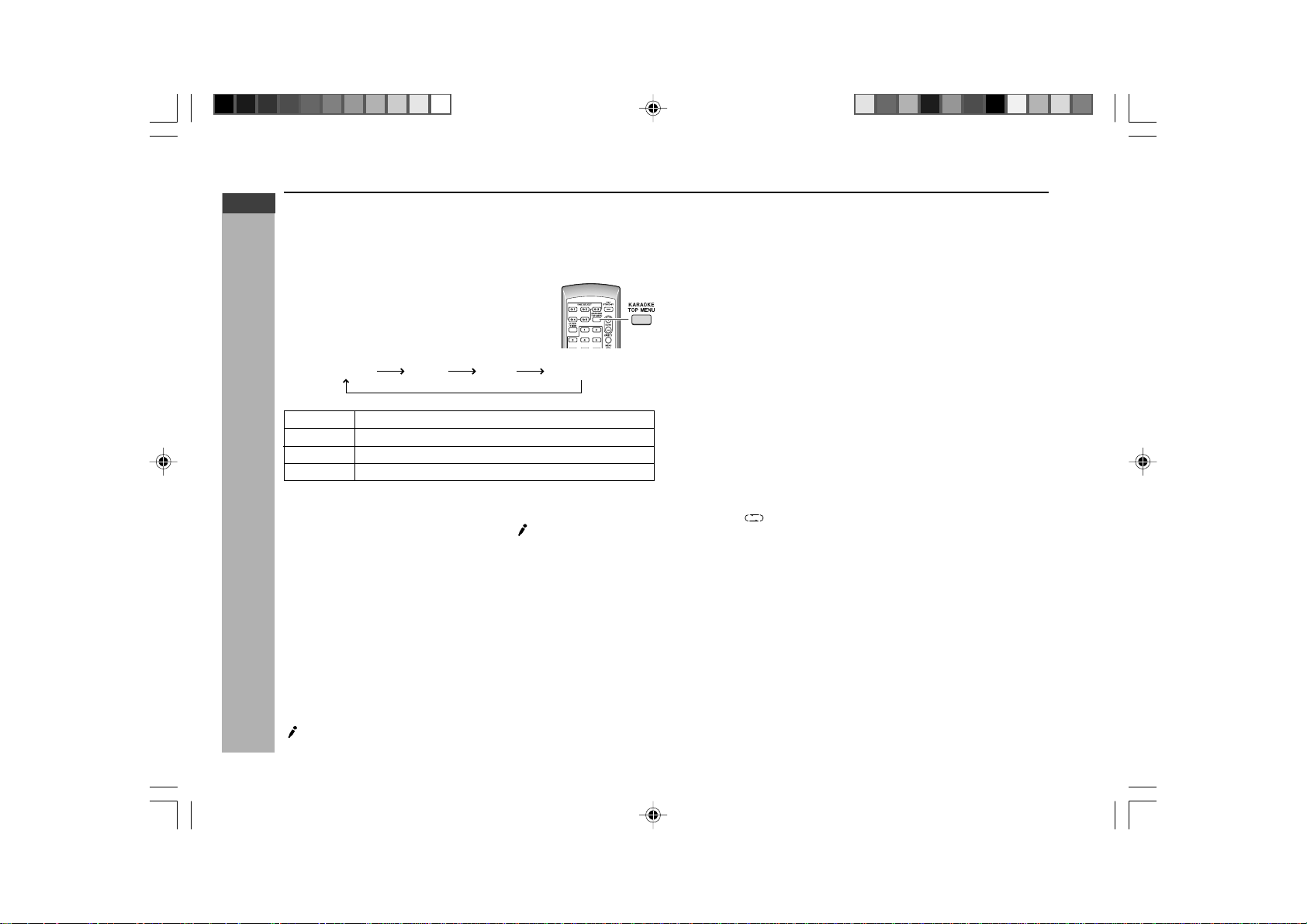
E-55
ENGLISH
Karaoke
CD-G7500DVD (S)
TINSZA159AWZZ
CD-G7500DVD
CP-G7500
STEREO Sounds on the left and right channels are played.
L-CH Sounds on the left channel only are played.
R-CH Sounds on the right channel only are played.
V-CANCEL The main vocal is lowered.
H To change the audio mode
Sound of the playback source can be switched among the STEREO, L-CH, R-
CH, and V-CANCEL (VOCAL CANCEL) modes.
The audio mode function is used when the left and right channels have individual
signals from each other.
Press the KARAOKE button whilst pressing down
the SHIFT button on the remote control until the
desired audio mode is displayed.
Each time the KARAOKE button is pressed, the mode
will change as follows:
STEREO L-CH
R-CH
V-CANCEL
Notes:
I The initial audio mode setting is “STEREO”.
I In any mode other than the STEREO mode, “
” will appear.
I The setting will remain unchanged when you change the disc, you set the
unit to the stand-by mode or the function is changed from the CD to another
function.
I When playing a sound multiplexed disc on which a vocal and music have
been separately recorded, select the audio mode as desired.
H To change general stereo source to karaoke
source
Even ordinary discs and tapes not recorded specifically for karaoke can be
used for karaoke just by toning down the main vocal.
Press the KARAOKE button whilst pressing down the SHIFT button on
the remote control until “V -CANCEL” appears in the display.
“
” will appear.
Notes:
I Use discs recorded in stereo. The function will not work with mono sources.
I With some discs and tapes the original vocals may still be heard.
Notes on sound multiplexed karaoke discs:
Sound multiplexed karaoke discs are discs on which the main vocal and the
BGM (Background music) have been recorded on one of the two channels and
only the BGM on the other.
I The function will not work properly with discs which do not belong to this
group.
I Discs on which vocal has been recorded on the left channel and music on
the right may not play properly.
H Recording of mixed sound to a cassette tape
You can record mixed sound from the microphone and DVD/CD, TUNER, TAPE 1
or GAME/VIDEO.
1.
Perform steps 1 - 3 in “Playing karaoke” on page 54.
2. Press the DVD/CD, TUNER (BAND), TAPE (1V2) or GAME/VIDEO button
to select the audio source.
I To record mixed sound from TAPE 1, press the TAPE (1V2) button and
select “TAPE 1”.
3. Load a cassette into the TAPE 2 cassette compartment with side A facing
you.
4. Perform steps 5 - 7 in “Playing karaoke” on page 54.
5. Press the
button to choose one side or both sides.
6. Press the I6 button.
7. Press the 0 button to record on side A, or the 1 button for side B.
H Recording of the microphone signals only to a
cassette tape
1.
Perform step 1 above.
2.
Press the TAPE (1V2) button until “TAPE 2” appears on the display.
3.
Perform steps 3 - 7 above.
Playing karaoke (continued)
*CD-G7500DVD(EN)54-55 05.1.13, 14:4455
Downloaded from: http://www.usersmanualguide.com/
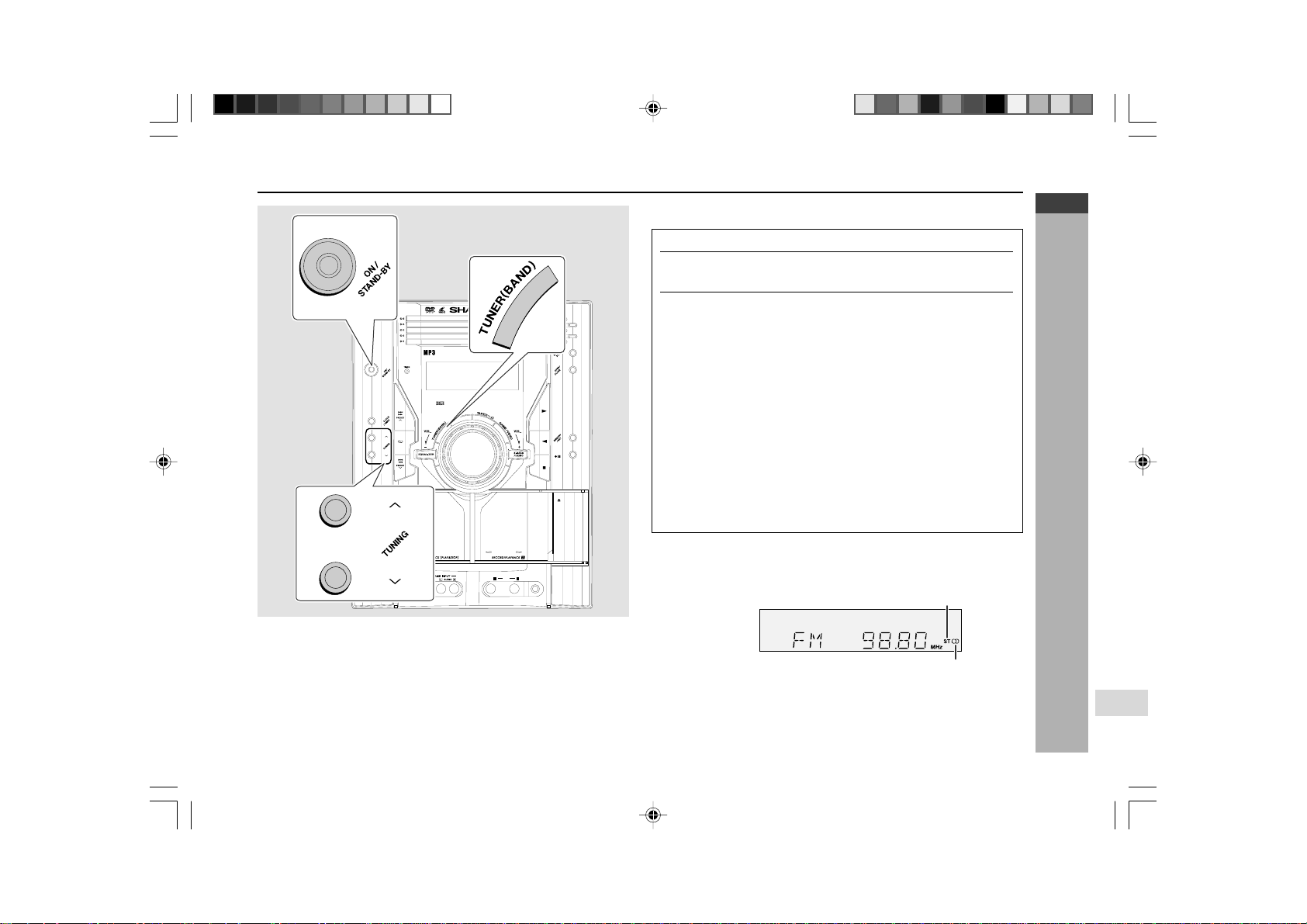
E-56
ENGLISH
Radio
CD-G7500DVD (S)
TINSZA159AWZZ
CD-G7500DVD
CP-G7500
7
Listening to the radio
H Tuning
CD-G7500DVD
DVD MINI SYSTEM
C
D
/
D
V
D
5
-DISC
GHANGER
AUTO REVERSE
MIC
MIC LEVEL
MIN
MAX
12
1
Press the ON/STAND-BY button to turn the power on.
2
Press the TUNER (BAND) button repeatedly to select the
desired frequency band (FM or AM).
3
Press the TUNING (
X
or
W
) button to tune in to the desired
station.
Manual tuning:
Press the TUNING button as many times as required to tune in to the
desired station.
Auto tuning:
When the TUNING
button is pressed for more than 0.5 seconds,
scanning will start automatically and the tuner will stop at the first
receivable broadcast station.
Notes:
I When radio interference occurs, auto scan tuning may stop
automatically at that point.
I
Auto scan tuning will skip weak signal stations.
I To stop the auto tuning, press the TUNING
button again.
To receive an FM stereo transmission:
Press the TUNER (BAND) button to display the “ST” indicator.
I “j” will appear when an FM broadcast is in stereo.
I If the FM reception is weak, press the TUNER (BAND) button to extinguish
the “ST” indicator. The reception changes to monaural, and the sound
becomes clearer.
FM stereo mode indicator
FM stereo receiving indicator
Auto power on function:
When you press any of the following buttons, the unit turns on.
I TUNER (BAND) button (main unit and remote control): The unit turns on
and the “TUNER” function is activated.
I0 button on the remote control or main unit: The unit turns on and playback
of the last function starts (DVD/CD, TAPE, TUNER, GAME).
*CD-G7500DVD(EN)56-57 05.1.13, 14:4456
Downloaded from: http://www.usersmanualguide.com/
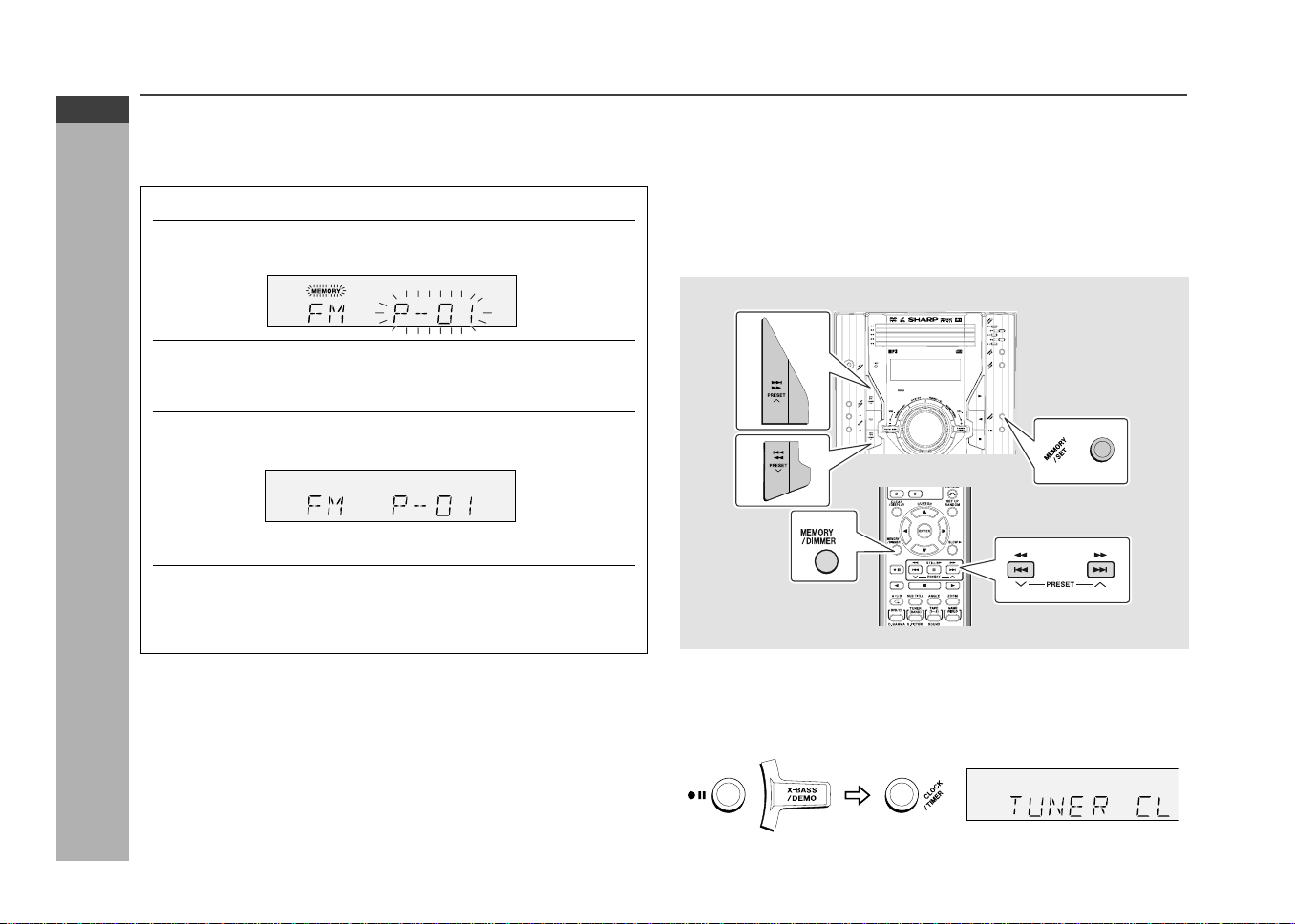
E-57
ENGLISH
Radio
CD-G7500DVD (S)
TINSZA159AWZZ
CD-G7500DVD
CP-G7500
Listening to the radio (continued)
H Memorising a station
You can store 40 AM and FM stations in memory and recall them at the push of
a button. (Preset tuning)
1
Perform steps 1 - 3 in “Tuning” on page 56.
2
Press the MEMORY/SET (MEMORY/DIMMER) button to
enter the preset tuning saving mode.
3
Within 30 seconds, press the PRESET (
X
or
W
) button to
select the preset channel number.
Store the stations in memory, in order, starting with preset channel 1.
4
Within 30 seconds, press the MEMORY/SET (MEMORY/
DIMMER) button to store that station in memory.
If the “MEMORY” and preset number indicators go out before the station
is memorised, repeat the operation from step 2.
5
Repeat steps 1 - 4 to set other stations, or to change a
preset station.
When a new station is stored in memory, the station previously
memorised for that preset channel number will be erased.
Note:
The backup function protects the memorised stations for a few hours should
there be a power failure or if the AC lead is disconnected.
H To recall a preset station
1.
Press the PRESET (X or W
)
button for less than 0.5 seconds to select the
desired station.
H To scan the preset stations
The stations saved in memory can be scanned automatically. (Preset memory
scan)
1.
Press the PRESET (X or W
)
button for more than 0.5 seconds.
The preset number will flash and the programmed stations will be tuned in
sequentially, for 5 seconds each.
2. Press the PRESET (X or W) button again when the desired station is
located.
CD-G7500DVD
DVD MINI SYSTEM
5
-DISC
CHANGER
H To erase entire preset memory
1. Press the ON/STAND-BY button to enter the stand-by mode.
2. Whilst pressing down the I6 button and the X-BASS/DEMO button, press
the CLOCK/TIMER button until “TUNER CL” appears.
*CD-G7500DVD(EN)56-57 05.1.13, 14:4457
Downloaded from: http://www.usersmanualguide.com/
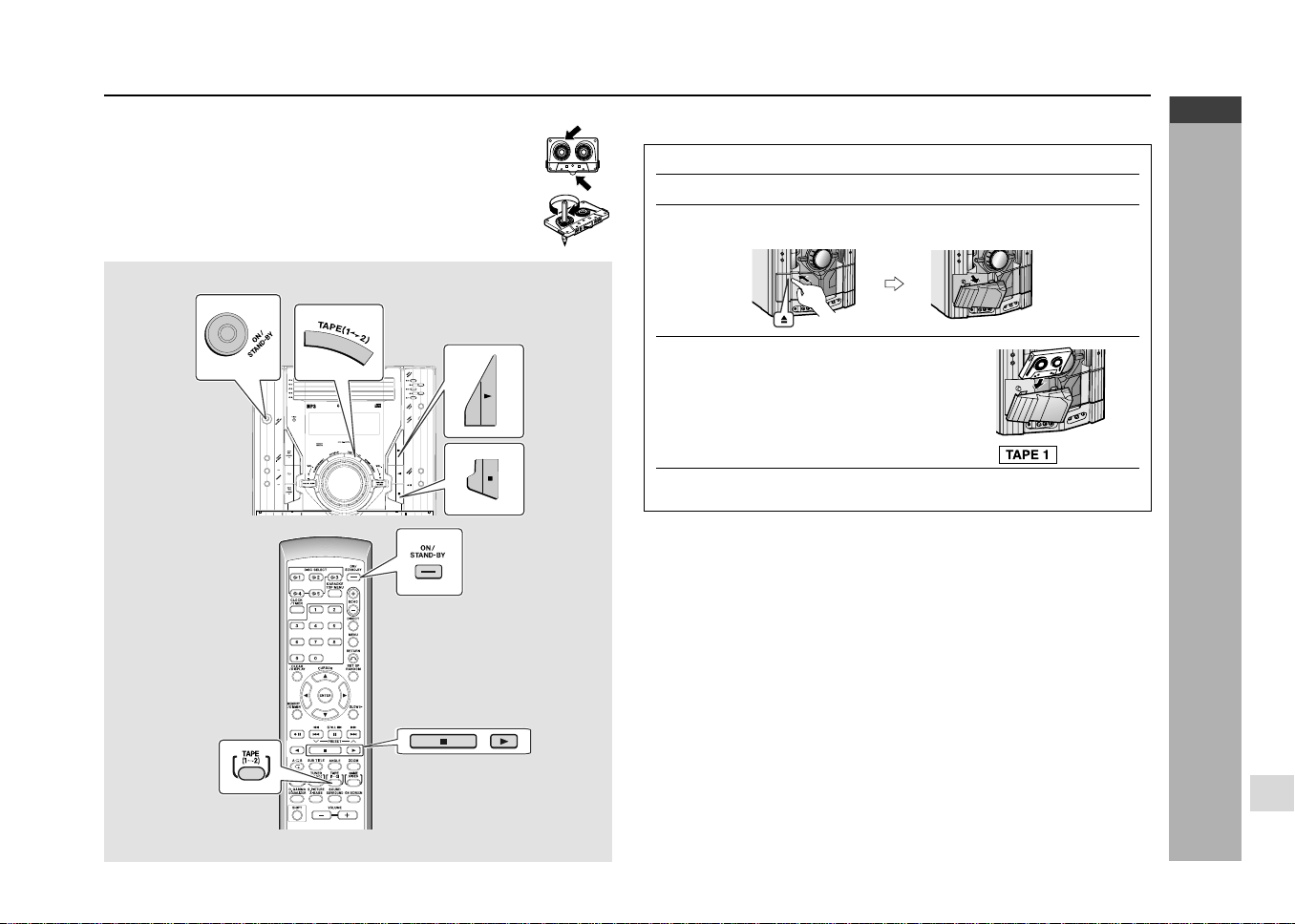
E-58
ENGLISH
Tape Playback
CD-G7500DVD (S)
TINSZA159AWZZ
CD-G7500DVD
CP-G7500
7
Listening to a cassette tape (TAPE 1 or TAPE 2)
Before playback:
I For playback, use normal or low-noise tapes for the best
sound. (Metal or CrO
2
tapes are not recommended.)
I Do not use C-120 tapes or poor-quality tapes, as they may
cause malfunctions.
I Before loading a tape into the cassette compartment, tighten
the slack with a pen or a pencil.
CD-G7500DVD
1
Press the ON/STAND-BY button to turn the power on.
2
Press the TAPE
(1V2)
button to select TAPE 1.
3
Open the cassette door by pushing the area marked “
7
”.
4
Load a cassette into the TAPE 1
cassette compartment with the
side to be played facing towards
you.
5
Press the 0 button to start playback.
Auto power on function:
When you press any of the following buttons, the unit turns on.
I TAPE (1 V 2 ) button (main unit and remote control): The unit turns on and
the “TAPE” function is activated.
I0 button on the remote control or main unit: The unit turns on and playback
of the last function starts (DVD/CD, TAPE, TUNER, GAME).
H Tape 1 playback
*CD-G7500DVD(EN)58-59 05.1.13, 14:4458
Downloaded from: http://www.usersmanualguide.com/
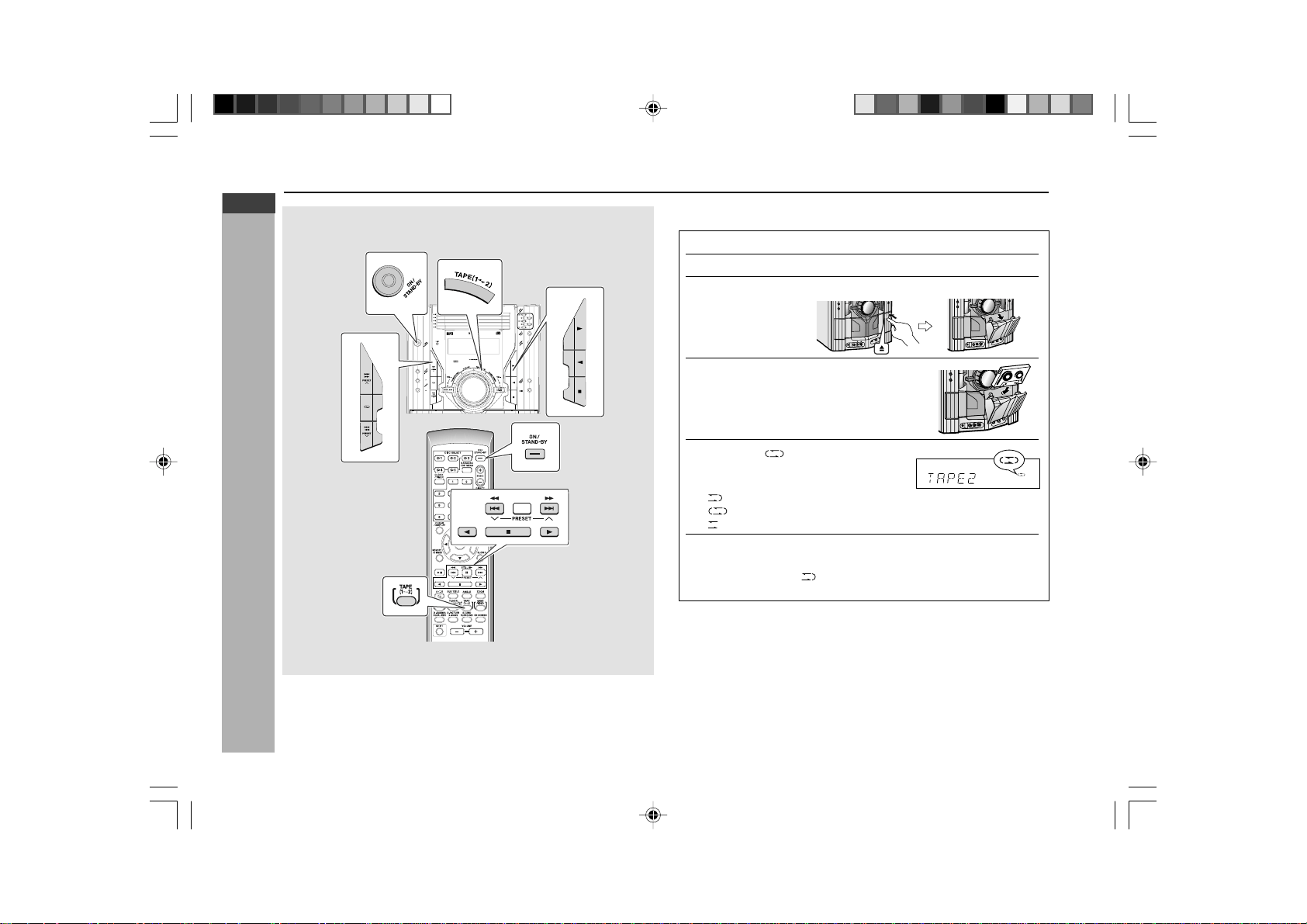
E-59
ENGLISH
Tape Playback
CD-G7500DVD (S)
TINSZA159AWZZ
CD-G7500DVD
CP-G7500
1
Press the ON/STAND-BY button to turn the power on.
2
Press the TAPE
(1V2)
button to select TAPE 2.
3
Open the cassette door by pushing the area marked “
7
”.
4
Load a cassette into the TAPE 2
cassette compartment with side A
facing towards you.
5
Press the button to choose one
side or both sides.
… To listen to both sides.
… For endless repeat play of both sides.
… To listen to one side.
6
Press the 0 button to listen to side A, or the 1 button for
side B.
To play both sides ( ), start from side A. When playback starts from
side B, side A will not be played.
Listening to a cassette tape (TAPE 1 or TAPE 2) (continued)
CD-G7500DVD
H Tape 2 playback
*CD-G7500DVD(EN)58-59 05.1.17, 13:3759
Downloaded from: http://www.usersmanualguide.com/
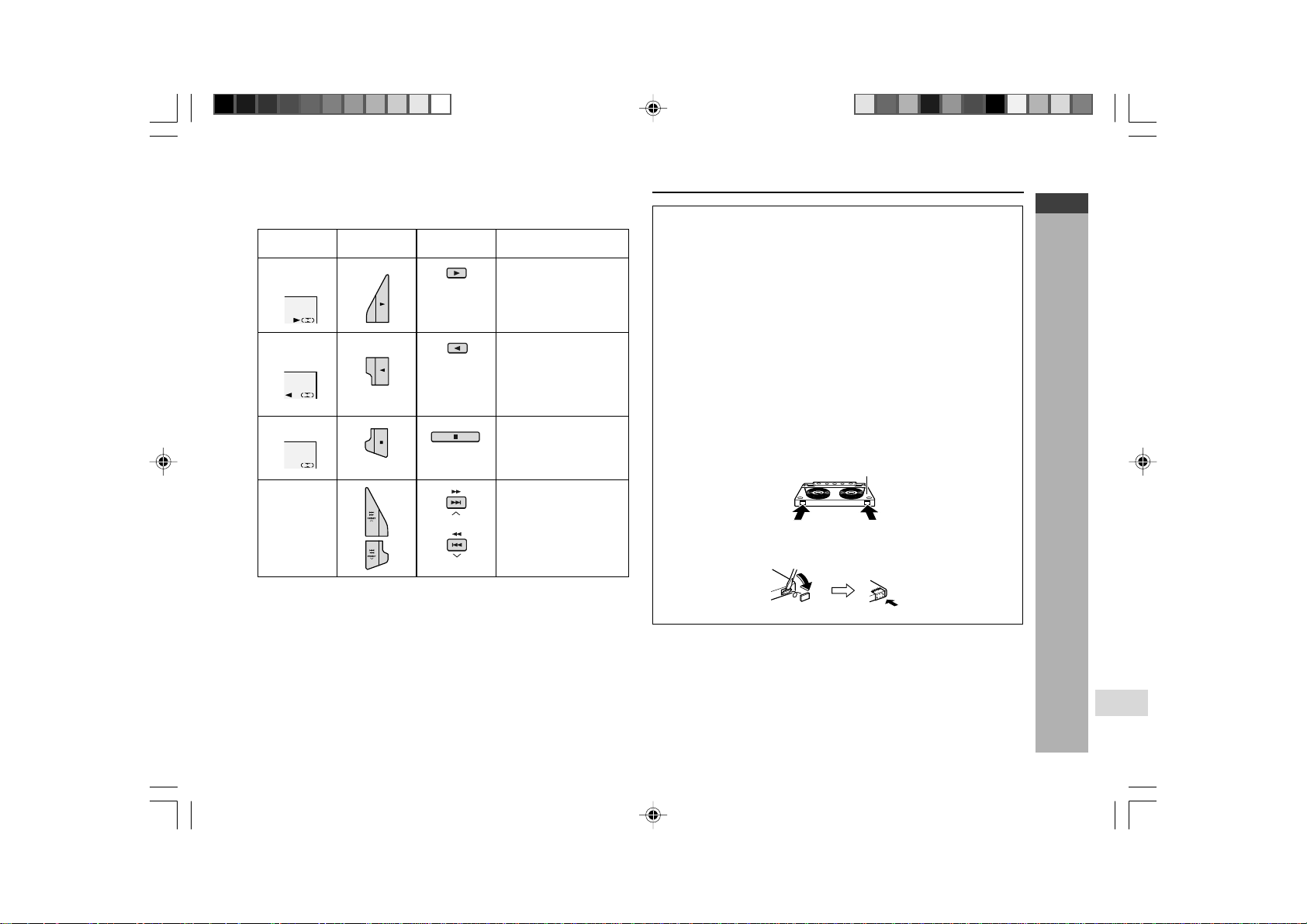
E-60
ENGLISH
Tape Recording
CD-G7500DVD (S)
TINSZA159AWZZ
CD-G7500DVD
CP-G7500
7
Recording to a cassette tape
Caution:
I To remove the cassette, press the H button, and then open the compartment.
I Before changing from one tape operation to another, press the H button.
I If a power failure occurs during tape operation, the tape head will remain
engaged with the tape and the cassette door will not open. In this case,
wait until the power is restored.
Before recording:
I When recording important selections, make a preliminary test to ensure
that the desired material is properly recorded.
I SHARP is not liable for damage or loss of your recording arising from
malfunction of this unit.
I The volume and sound controls can be adjusted with no effect on the
recorded signal (Variable Sound Monitor).
I For recording, use only normal tapes. Do not use metal or CrO
2
tapes.
Erase-prevention tab of cassette tapes:
I When recording on a cassette tape, make sure that the erase-prevention
tabs are not removed. Cassettes have removable tabs that prevent
accidental recording or erasing.
I To protect the recorded sound, remove the tab after recording. Cover
the tab hole with adhesive tape to record on the tape without the tab.
Tab for side B
Tab for side A
Side A
H Various tape function
Remote
control
Side A
playback
Operation
Function
Main unit
Press in the stop mode.
Side B
playback
Press in the stop mode.
Stop
Press in the playback, fast
forward or fast rewind
mode.
Fast forward/
Fast rewind
Press in the playback or
stop mode.
(TAPE 2 only)
(TAPE 2 only)
*CD-G7500DVD(EN)60-65 05.1.13, 14:4560
Downloaded from: http://www.usersmanualguide.com/
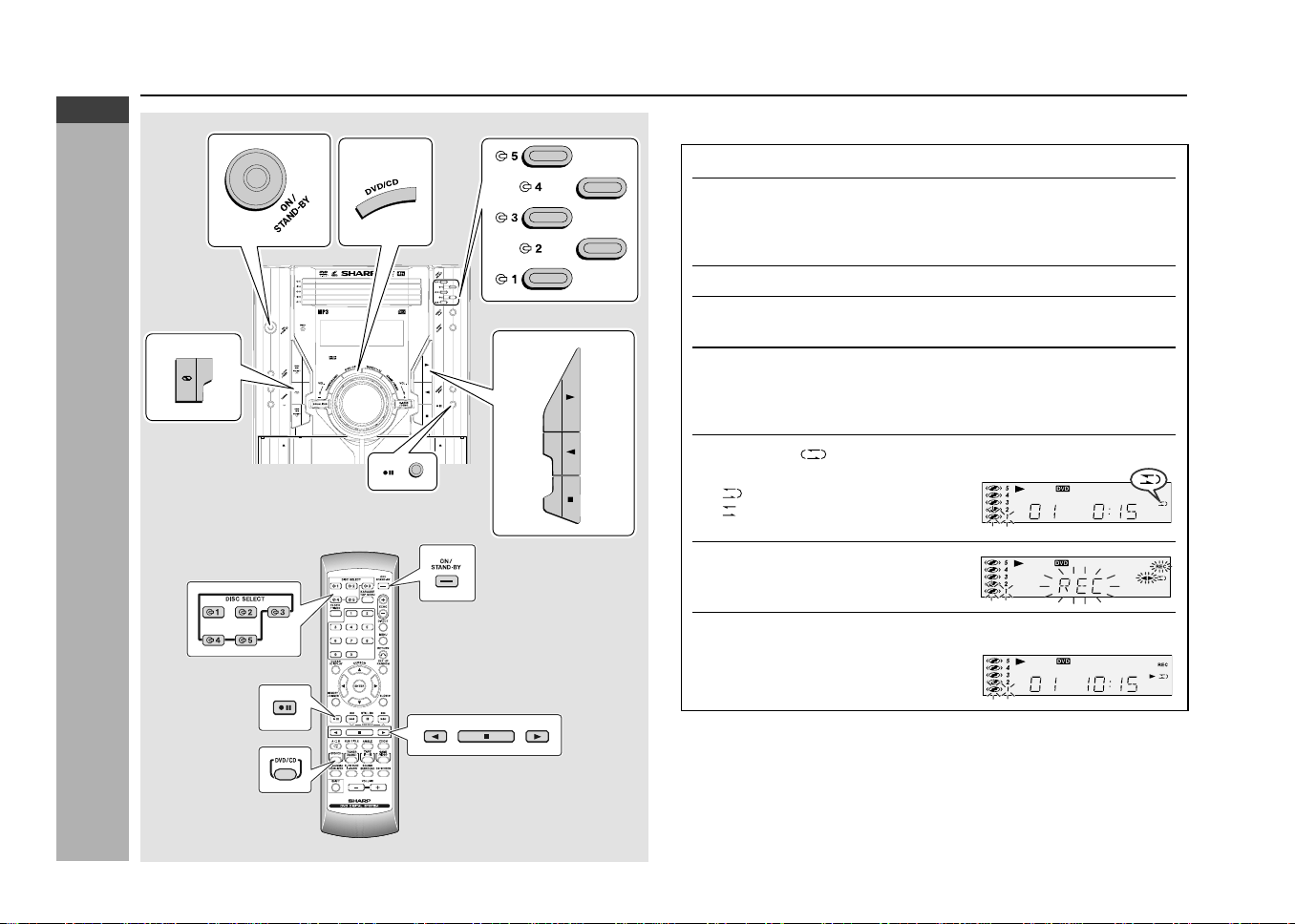
E-61
ENGLISH
Tape Recording
CD-G7500DVD (S)
TINSZA159AWZZ
CD-G7500DVD
CP-G7500
CD-G7500DVD
DVD MINI SYSTEM
5
-DISC
CHANGER
RRMCGA015AWSA
Recording to a cassette tape (continued)
H Recording from a DVD (DVDs)
1
Press the ON/STAND-BY button to turn the power on.
2
Load a cassette into the TAPE 2 cassette compartment with
the side A facing you.
Wind past the leader of the tape, on which recording cannot be
performed.
3
Press the DVD/CD button and load the desired disc.
4
Press one of the
s
1 -
s
5 buttons to select the disc to be
recorded.
5
Press the
0
button to start DVD playback.
If the disc you are using supports auto start, it starts to play automatically
(even if you do not press the 0 button), as soon as you close the disc
tray.
6
Press the button to choose one side or both sides.
… To record on both sides.
… To record on only one side.
7
Press the
I6
button.
Recording will be paused.
8
When DVD playback reaches the desired point, press the
0
button to start recording on
side A or the
1
button for side
B.
To stop recording:
Press the ■ button.
I It will stop the tape only. Another press of the ■ button will stop DVD playback.
I Even when the DVD playback is finished, the tape will not stop. To stop the
tape, press the ■ button.
*CD-G7500DVD(EN)60-65 05.1.13, 14:4561
Downloaded from: http://www.usersmanualguide.com/
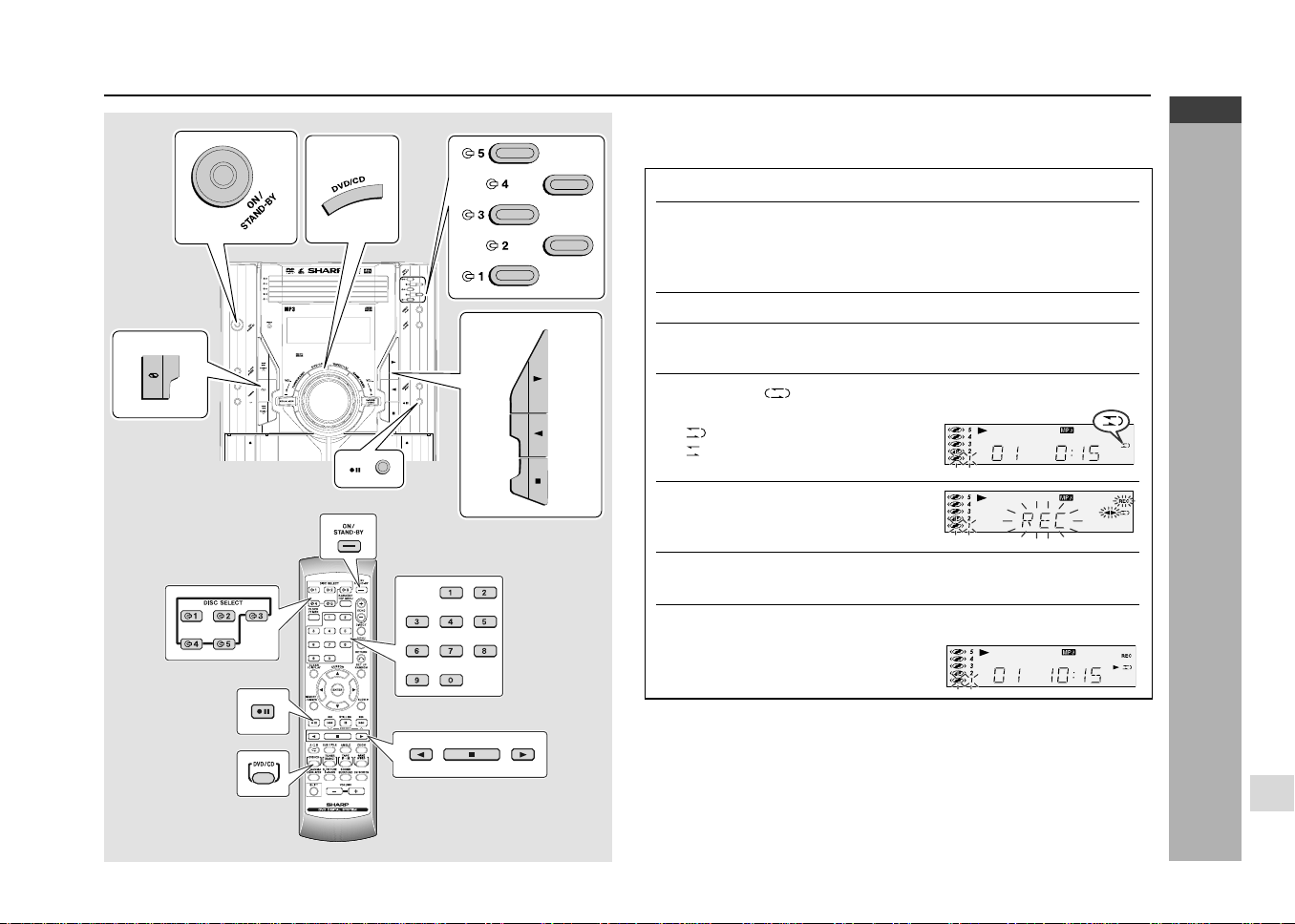
E-62
ENGLISH
Tape Recording
CD-G7500DVD (S)
TINSZA159AWZZ
CD-G7500DVD
CP-G7500
7
RRMCGA015AWSA
CD-G7500DVD
DVD MINI SYSTEM
5
-DISC
CHANGER
H Recording from MP3/WMA disc
You can record 5 CDs continuously.
1
Press the ON/STAND-BY button to turn the power on.
2
Load a cassette into the TAPE 2 cassette compartment with
the side A facing you.
Wind past the leader of the tape, on which recording cannot be
performed.
3
Press the DVD/CD button and load the desired disc.
4
Press one of the
s
1 -
s
5 buttons to select the disc to be
recorded and press
0
button to start playback.
5
Press the button to choose one side or both sides.
… To record on both sides.
… To record on only one side.
6
Press the
I6
button.
Recording will be paused.
7
Select the desired track number by pressing the direct key
(0~9) on the remote control.
8
Press the
0
button to start recording on side A or the
1
button for side B.
To stop recording:
Press the ■ button 2 times.
The MP3/WMA and tape will stop.
Recording to a cassette tape (continued)
*CD-G7500DVD(EN)60-65 05.1.13, 14:4562
Downloaded from: http://www.usersmanualguide.com/
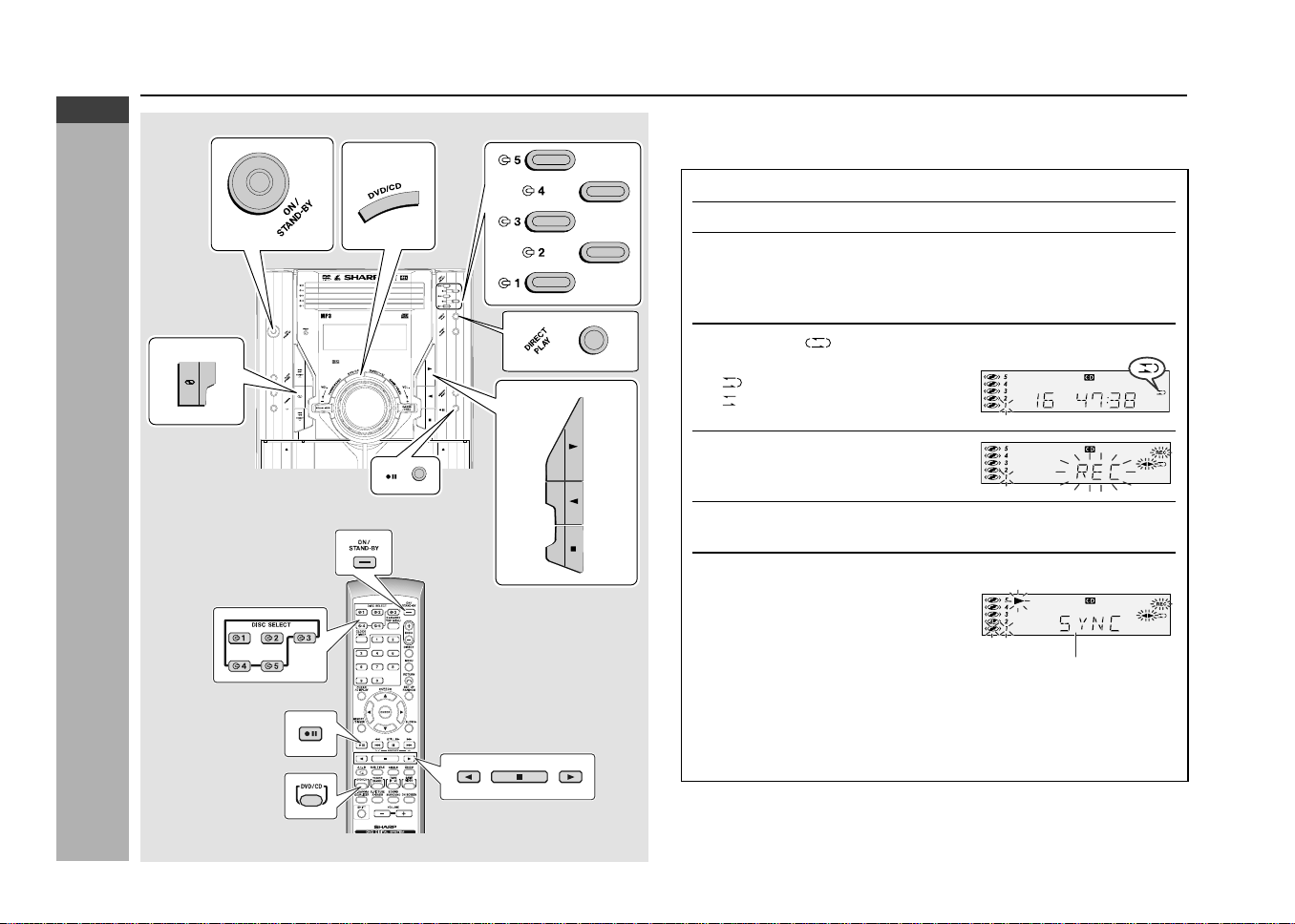
E-63
ENGLISH
Tape Recording
CD-G7500DVD (S)
TINSZA159AWZZ
CD-G7500DVD
CP-G7500
CD-G7500DVD
DVD MINI SYSTEM
5
-DISC
CHANGER
Recording to a cassette tape (continued)
H Recording from a CD (CDs)
You can record the desired CD using the DIRECT PLAY button.
1
Press the ON/STAND-BY button to turn the power on.
2
Press the DVD/CD button
.
3
Load a cassette into the TAPE 2 cassette compartment with
the side A facing you.
Wind past the leader of the tape, on which recording cannot be
performed.
4
Press the button to choose one side or both sides.
… To record on both sides.
… To record on only one side.
5
Press the
I6
button.
Recording will be paused.
6
Press one of the
s
1 -
s
5 buttons to select the desired
disc.
7
Within 5 seconds, press the DIRECT PLAY button to start
recording.
I Recording starts from side A.
I Recording is started from the selected CD. When the playback of
the last track is finished or the end of the tape is reached, the CD
and the cassette will stop automatically.
I CD playback will start approximately 7 seconds after the tape starts.
To stop recording:
Press the ■ button.
The CD and tape will stop.
Will disappear after short while display
*CD-G7500DVD(EN)60-65 05.1.13, 14:4563
Downloaded from: http://www.usersmanualguide.com/
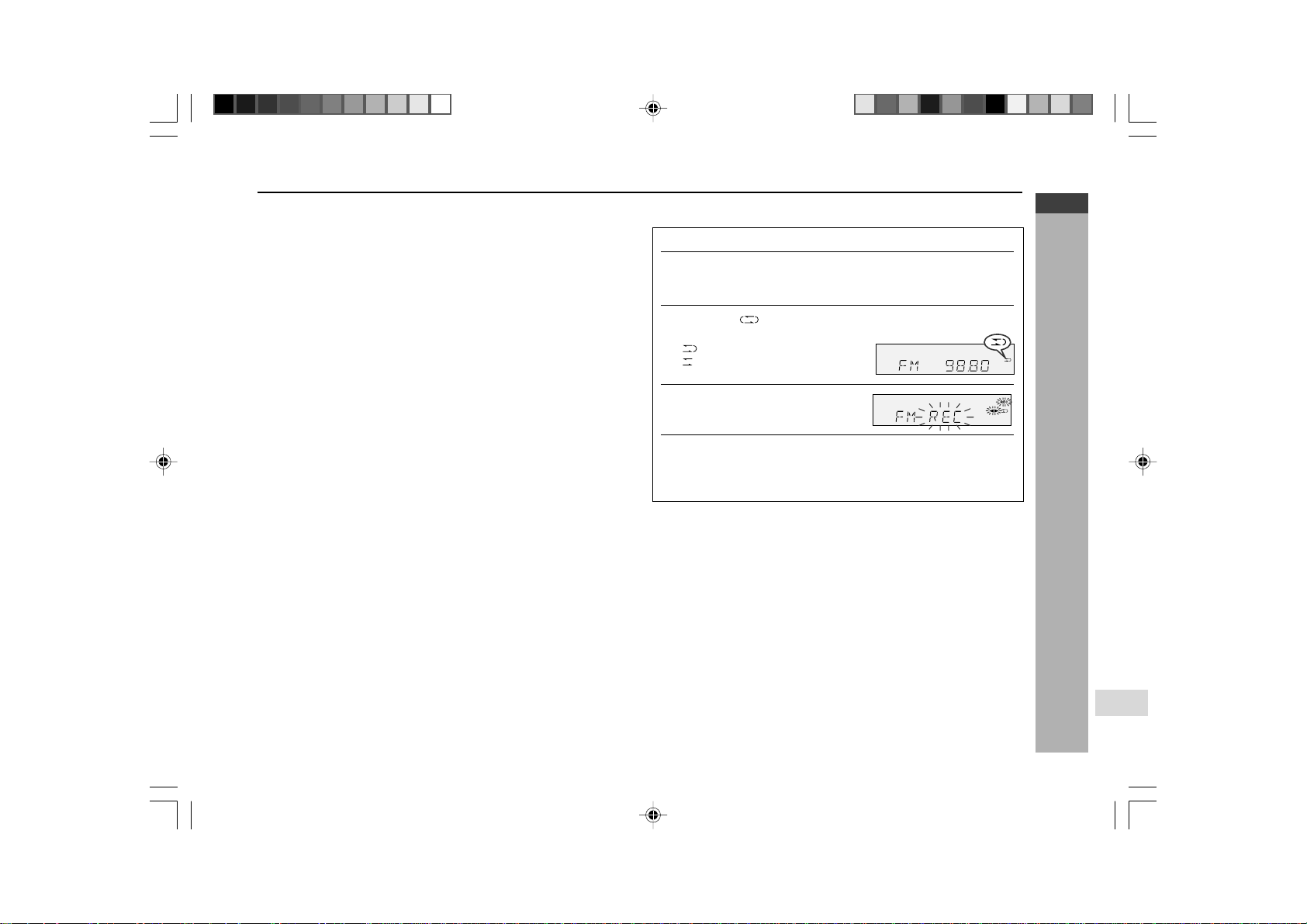
E-64
ENGLISH
Tape Recording
CD-G7500DVD (S)
TINSZA159AWZZ
CD-G7500DVD
CP-G7500
7
H Recording from the radio
1
Tune in to the desired station. (See page 56.)
2
Load a cassette into the TAPE 2 cassette compartment with
side A facing you.
Wind past the leader of the tape, on which recording cannot be performed.
3
Press the button to choose one side or both sides.
… To record on both sides.
… To record on only one side.
4
Press the
I6
button.
Recording will be paused.
5
Press the
0
button to record on side A, or the
1
button
for side B.
To record on both sides, begin with side A. (If recording is started from
side B, the tape will not switch over to side A.)
To interrupt recording:
Press the I6 button.
To resume recording, press the same recording button you pressed in step 5.
Other buttons do not allow resuming.
To stop recording:
Press the H button.
Note:
If you hear a whistling noise whilst recording an AM station, move the AM loop
aerial.
Recording from several CDs continuously:
1. Perform steps 1 - 6 in “Recording from a CD (CDs)” on page 63.
2. Within 5 seconds, press the 0 button to record on side A, or the 1 button
for side B.
To perform programmed recording:
1. Programme discs and tracks. (See page 51.)
2. Press the I6 button.
3. Press the 0 button to record on side A, or the 1 button for side B.
Note:
To record on both sides, begin with side A. (If recording is started from side B,
the tape will not switch over to side A.)
Auto restart function:
If the recording side is switched from side A to B during recording, the system
will record the interrupted track on side B from its beginning. The recording will
be made without cutting the beginning of the track on side B.
Recording to a cassette tape (continued)
*CD-G7500DVD(EN)60-65 05.1.13, 14:4564
Downloaded from: http://www.usersmanualguide.com/
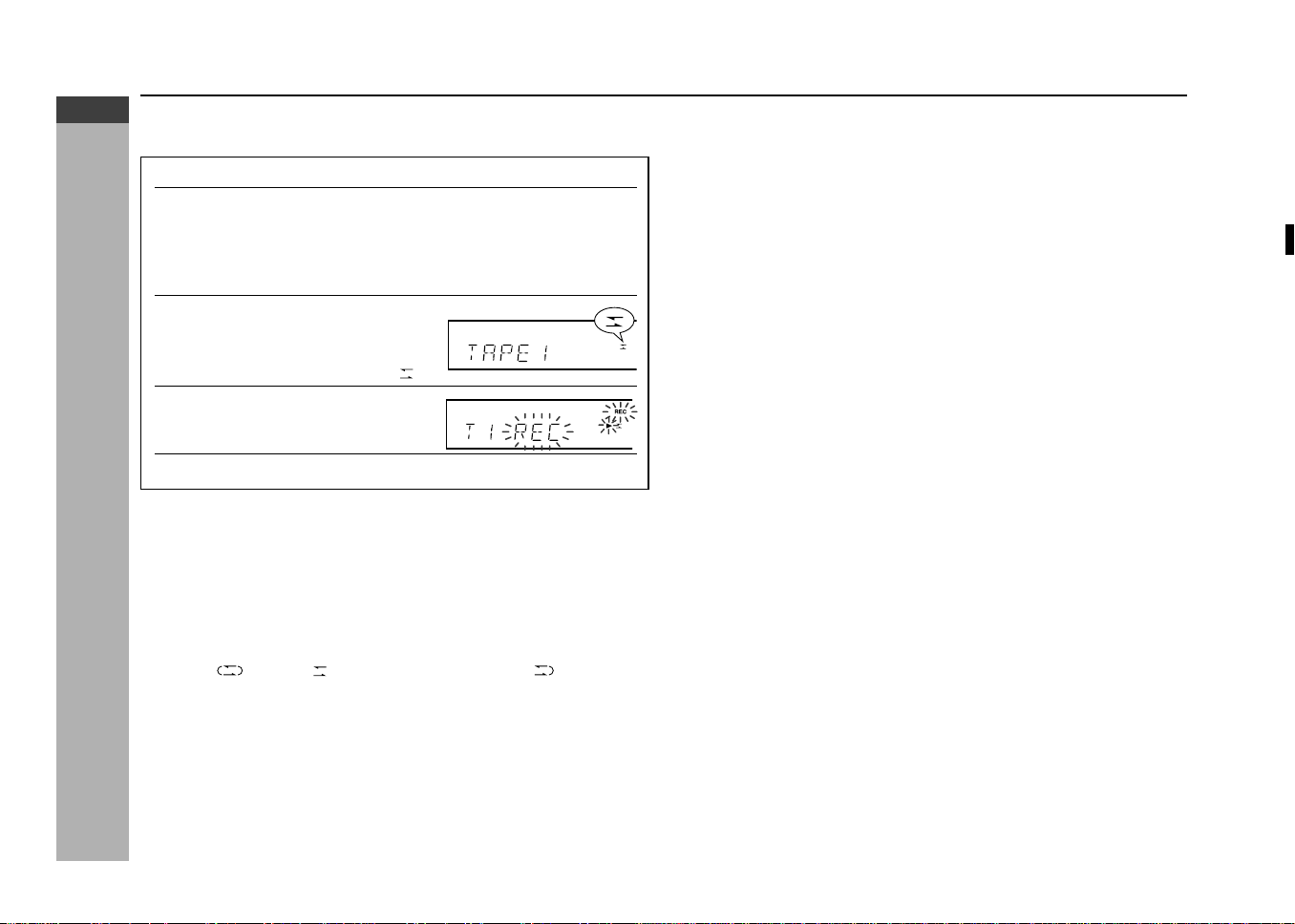
E-65
ENGLISH
Tape Recording
CD-G7500DVD (S)
TINSZA159AWZZ
CD-G7500DVD
CP-G7500
H Dubbing from tape to tape
You can record from TAPE 1 to TAPE 2.
1
Press the ON/STAND-BY button to turn the power on.
2
Load a prerecorded cassette into the TAPE 1 cassette
compartment. Insert a blank tape into the TAPE 2 cassette
compartment.
It is recommended that the recording tape is the same length as the
master tape.
3
Press the TAPE (1
V
2) button
until “TAPE 1” appears on the
display.
The reverse mode will be set to “ ”.
4
Press the
I6
button.
Recording will be paused.
5
Press the
0
button to start dubbing.
To stop dubbing:
Press the H button.
TAPE 1 and TAPE 2 will simultaneously stop.
H Erasing recorded tapes
1. Load the tape to be erased into the TAPE 2 cassette compartment with the
side to be erased facing toward you.
2. Press the TAPE (1 V 2) button until “TAPE 2” appears on the display.
3. Set the
button to “ ” to erase only one side and to “ ” to erase both
sides.
4. Press the I6 button.
5. Press the 0 button to erase side A, or the 1 button to erase side B.
To erase both sides, begin with side A. (If erasing is started from side B, the
tape will not switch over to side A.)
Note:
Make sure that the TAPE 1 is not in use.
Recording to a cassette tape (continued)
1
2
3
4
5
6
7
8
9
SHARP TINSZA159AWZZ
(S)
10
*CD-G7500DVD(EN)60-65 05.1.13, 14:4565
Downloaded from: http://www.usersmanualguide.com/
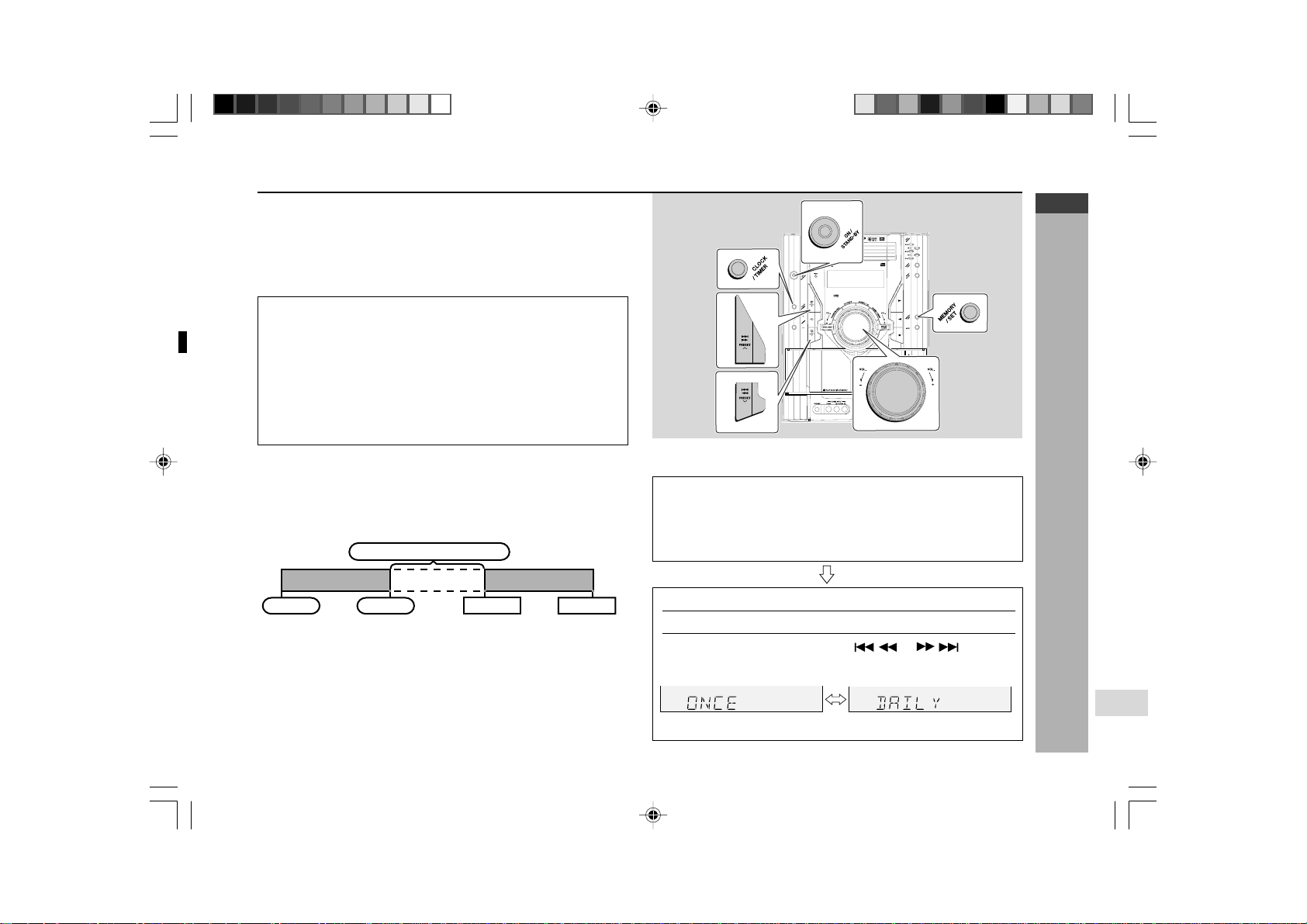
E-66
ENGLISH
Advanced Features
CD-G7500DVD (S)
TINSZA159AWZZ
CD-G7500DVD
CP-G7500
7
Timer and sleep operation
Timer playback:
The unit turns on and plays the desired source (DVD, CD, Video CD, MP3 disc,
tuner, tape) at the preset time.
Timer recording:
The unit turns on and starts recording from the tuner at the preset time.
This unit has 2 types of timer: ONCE TIMER and DAILY TIMER.
Once timer: Once timer play and once timer recording works for one
time only at a preset time.
For example, if you are away but want to record a programme on a radio
station.
Daily timer: Daily timer play and daily timer recording works at the same
preset time everyday.
For example, set the timer to wake up every morning.
Using the once timer and daily timer in combination:
For example, use the once timer to record a radio programme, and use the
daily timer to wake up.
1. Set the daily timer (pages 66 - 68).
2. Set the once timer (pages 66 - 68).
Note:
When set times for the daily timer and once timer overlap, the once timer takes
priority. Allow an interval of at least 1 minute between operations.
H Timer playback or timer recording
Before setting timer:
1. Check that the clock is set to the correct time (refer to page 19). If it is
not set, you cannot use the timer function.
2. For timer playback:
Load a cassette or discs to be played.
For timer recording:
Load a cassette for recording in the TAPE 2 cassette compartment.
1
Press the ON/STAND-BY button to turn the power on.
2
Press the CLOCK/TIMER button.
3
Within 10 seconds, press the
or
button to
select “ONCE” or “DAILY”, and press the MEMORY/SET
button.
Set the unit to the correct time if “ONCE” or “DAILY” does not appear.
CD-G7500DVD
DV D MINI SYSTEM
5
-DISC
GHANGER
AUTO REVERSE
MIC
MIC LEVEL
MIN
MAX
12
1 minute or more
Daily timer Once timer
Start
Stop
Start
Stop
Continued to the next page
1
2
3
4
5
6
7
8
9
SHARP TINSZA159AWZZ
(S)
10
*CD-G7500DVD(EN)66-71 05.1.13, 14:4566
Downloaded from: http://www.usersmanualguide.com/
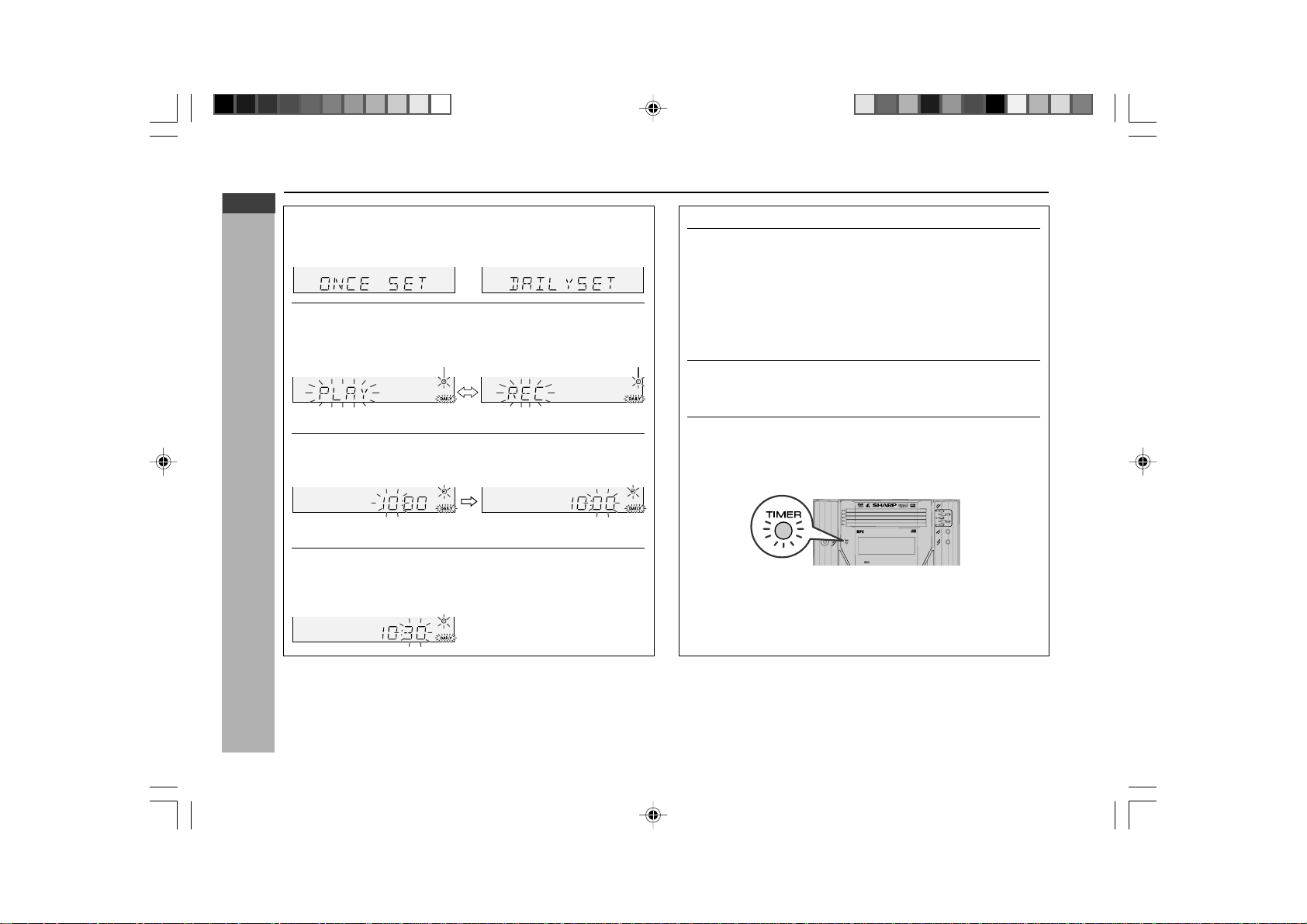
E-67
ENGLISH
Advanced Features
CD-G7500DVD (S)
TINSZA159AWZZ
CD-G7500DVD
CP-G7500
Timer and sleep operation (continued)
4
Within 10 seconds, press the
5 3
or
2 4
button to
select “ONCE SET” or “DAILY SET”, and press the MEMORY/
SET button.
5
Press the
5 3
or
2 4
button to select “PLAY” or
“REC”, and press the MEMORY/SET button.
The illustrations show the daily timer setting.
6
Press the
5 3
or
2 4
button to adjust the hour and
then press the MEMORY/SET button.
The illustrations show the timer playback setting in the daily timer mode.
7
Press the
5 3
or
2 4
button to adjust the minutes
and then press the MEMORY/SET button.
White
Red
8
Set the time to finish as in steps 6 and 7 above.
9
Switch input with the
5 3
or
2 4
button, and then
press the MEMORY/SET button.
To select the timer playback source: DVD/CD, TUNER, TAPE 1 or TAPE 2.
To select the timer recording source: TUNER.
I When you select the tuner, select a station by pressing the 5 3
or 2 4
button, and then press the MEMORY/SET button.
I If a station has not been programmed, “NO P.SET” will be displayed
and timer setting will be cancelled.
10
Adjust the volume using the VOLUME control, and then press
the MEMORY/SET button.
Do not turn the volume up too high.
11
Press the ON/STAND-BY button to enter the power stand-by
mode.
The “TIMER” indicator lights up and the unit is ready for timer playback
or timer recording.
CD-G7500DVD
DV D MINI SYSTEM
5
-DISC
GHANGER
*CD-G7500DVD(EN)66-71 05.1.13, 14:4567
Downloaded from: http://www.usersmanualguide.com/
E-68
ENGLISH
Advanced Features
CD-G7500DVD (S)
TINSZA159AWZZ
CD-G7500DVD
CP-G7500
7
12
When the preset time is reached, playback or recording will
start.
In the timer playback mode, the volume will increase gradually until it
reaches the volume you were listening to before your system entered
the timer stand-by mode.
13
When the timer end time is reached, the system will enter
the power stand-by mode automatically.
Once timer:
The timer will be cancelled.
Daily timer:
The timer will operate at the same time every day. It will continue until
the daily timer setting is cancelled. Cancel the daily timer when it is not
used.
Timer and sleep operation (continued)
Note:
When performing timer playback or recording using another unit connected
to the GAME INPUT sockets, select “GAME” in step 9. This unit will turn on or
enter the power stand-by mode automatically, however, the connected unit
will not turn on or off.
Checking the timer setting in the timer stand-by mode:
1. Press the CLOCK/TIMER button.
2. Within 10 seconds, press the 5 3 or 2 4 button to select “ONCE”
or “DAILY”, and press the MEMORY/SET button.
3. Within 10 seconds, press the 5 3 or 2 4 button to select “ONCE
CAL” or “DAILY CAL”, and press the MEMORY/SET button.
The unit returns to the timer stand-by mode after displaying the settings in
order.
Cancelling the timer setting in the timer stand-by mode:
1. Press the CLOCK/TIMER button.
2. Within 10 seconds, press the 5 3 or 2 4 button to select “ONCE”
or “DAILY”, and press the MEMORY/SET button.
3. Within 10 seconds, press the 5 3 or 2 4 button to select “ONCE
OFF” or “DAILY OFF”, and press the MEMORY/SET button.
Timer will be cancelled (the setting will not be cancelled).
Reusing the memorised timer setting:
The timer setting will be memorised once it is entered. To reuse the same
setting, perform the following operations.
1. Turn the power on and press the CLOCK/TIMER button.
2. Within 10 seconds, press the 5 3 or 2 4 button to select “ONCE”
or “DAILY”, and press the MEMORY/SET button.
3. Within 10 seconds, press the 5 3 or 2 4 button to select “ONCE
ON” or “DAILY ON”, and press the MEMORY/SET button.
4. Press the ON/STAND-BY button to enter the power stand-by mode.
Note:
The timer can also be set with the remote control.
Timer and sleep operation (continued)
*CD-G7500DVD(EN)66-71 05.1.13, 14:4568
Downloaded from: http://www.usersmanualguide.com/
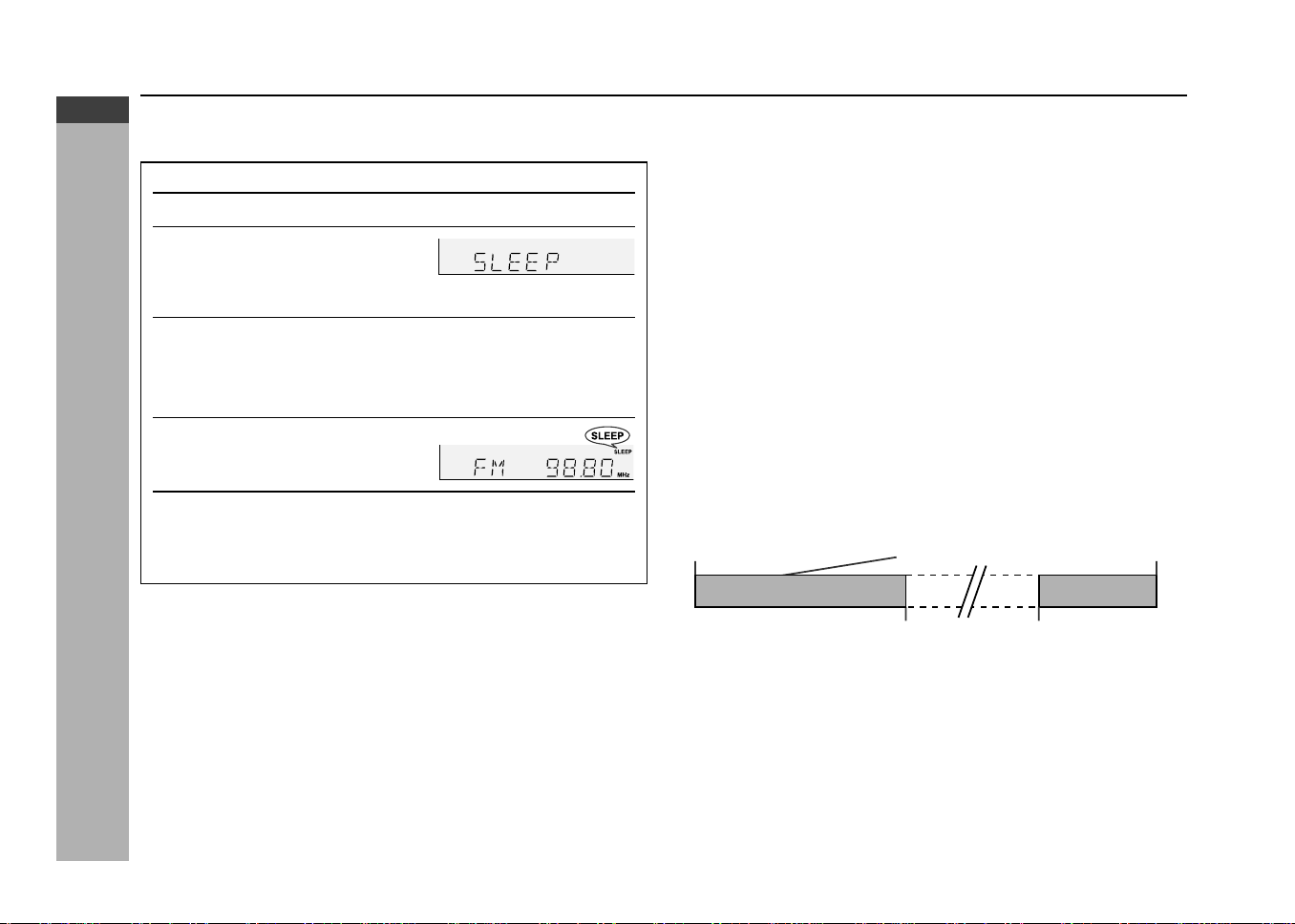
E-69
ENGLISH
Advanced Features
CD-G7500DVD (S)
TINSZA159AWZZ
CD-G7500DVD
CP-G7500
H Sleep operation
The radio, compact disc and cassette tape can all be turned off automatically.
1
Play back the desired sound source.
2
Press the CLOCK/TIMER button.
3
Within 10 seconds, press the
5 3 or 2 4 button to
select “SLEEP”, and press the
MEMORY/SET button.
4
Press the 5 3 or 2 4 button to select the time.
(Maximum: 3 hours - Minimum: 1 minute)
I 3 hours - 5 minutes 5-minute intervals
I 5 minutes - 1 minute 1-minute intervals
5
Press the MEMORY/SET button.
“SLEEP” will appear.
6
The unit will enter the power stand-by mode automatically
after the preset time has elapsed.
The volume will be turned down 1 minute before the sleep operation
finishes.
To confirm the remaining sleep time:
1. Whilst “SLEEP” is indicated, press the CLOCK/TIMER button.
2. Within 10 seconds, press the 5 3 or 2 4 button to select “SLEEP
X : XX”.
“X : XX” is sleep remaining time.
I The remaining sleep time is displayed for about 10 seconds.
I You can change the remaining sleep time whilst it is displayed by pressing
the MEMORY/SET button (steps 4 - 5).
To cancel the sleep operation:
Press the ON/STAND-BY button whilst “SLEEP” is indicated.
To cancel the sleep operation without setting the system to the stand-by mode,
proceed as follows.
1. Whilst “SLEEP” is indicated, press the CLOCK/TIMER button.
2. Within 10 seconds, press the 5 3 or 2 4 button to select “SLEEP
OFF”, and press the MEMORY/SET button.
H To use timer and sleep operation together
Sleep and timer playback:
For example, you can fall asleep listening to the radio and wake up to CD in the
next morning.
Sleep and timer recording:
For example, you can fall asleep listening to the CD and record radio
programmes whilst sleeping.
1. Set the sleep time (see left, steps 1 - 5).
2. Whilst the sleep timer is set, set the timer playback or recording (steps 2 -
10, pages 66 - 67).
Caution:
When using the cassette deck, be sure the tape length is long enough to perform
both functions. If you want to sleep and wake up listening to a tape, and the
length of the tape is shorter than the sleep timer setting, timer playback will not
be possible.
1 minute - 3 hours
Desired time
Timer playback or
recording setting
Sleep operation will
automatically stop
Timer playback or recording
start time
Sleep timer setting End time
Timer and sleep operation (continued)
*CD-G7500DVD(EN)66-71 05.1.13, 14:4569
Downloaded from: http://www.usersmanualguide.com/
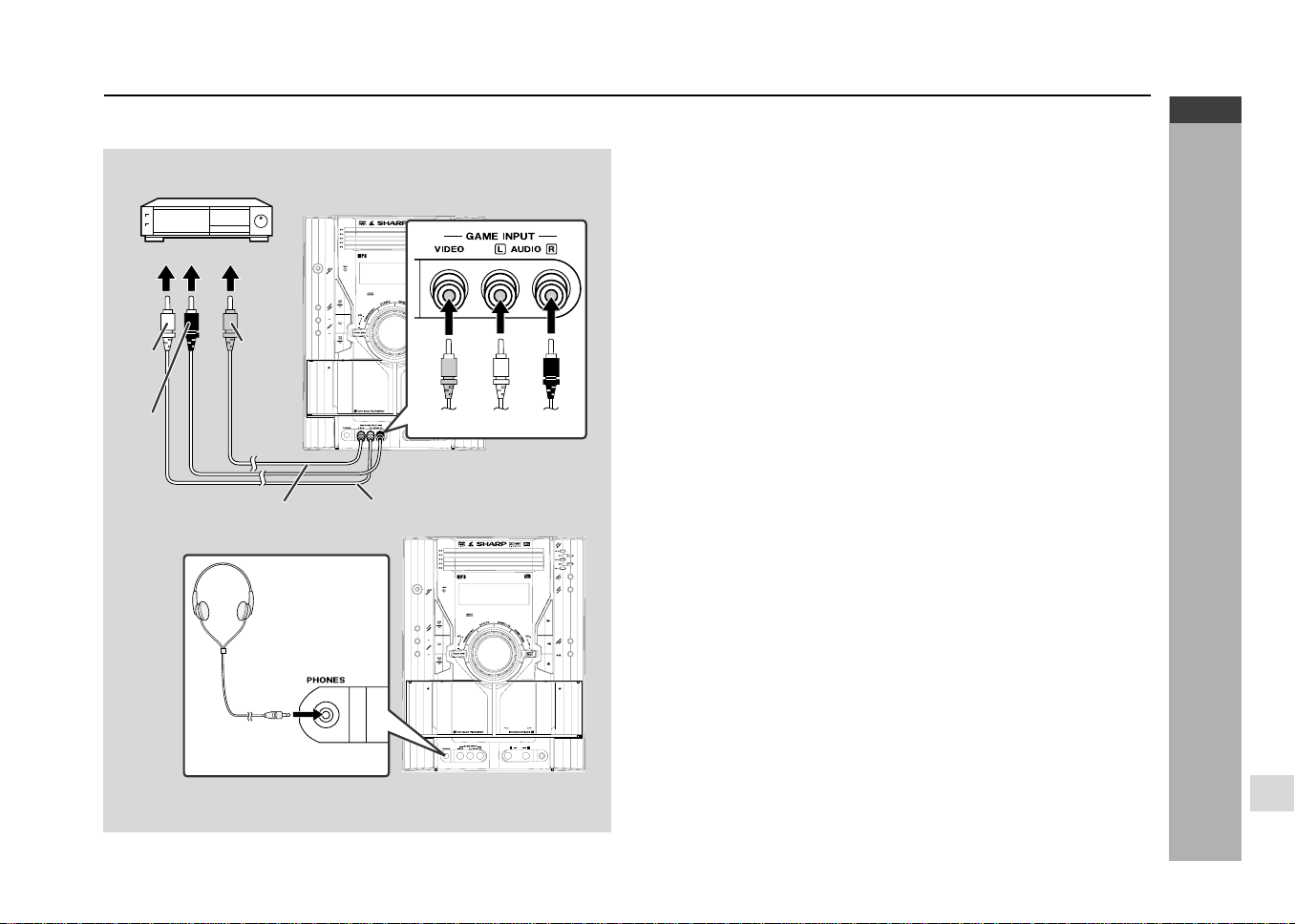
E-70
ENGLISH
Advanced Features
CD-G7500DVD (S)
TINSZA159AWZZ
CD-G7500DVD
CP-G7500
7
CD-G7500DVD
DV D MINI SYSTEM
5
-DISC
GHANGER
AUTO REVERSE
MIC
MIC LEVEL
MIN
MAX
12
CD-G7500DVD
DV D MINI SYSTEM
5
-DISC
GHANGER
AUTO REVERSE
MIC
MIC LEVEL
MIN
MAX
12
RedWhiteYellow
The connection lead is not included. Purchase a commercially available lead
as shown below.
H Listening to the playback sounds of Game, VCR,
DVD, etc.
1. Connect a video game system, VCR, DVD, etc. to the front
GAME INPUT (VIDEO, AUDIO L and R) sockets.
2. Connect a TV to the rear VIDEO OUT socket.
Switch the TV input to auxiliary.
3. Press the ON/STAND-BY button to turn the power on.
4. Press the GAME/VIDEO button.
5. Play the connected equipment.
You can enjoy sounds from the supplied speakers and images on the TV.
Note:
To prevent noise interference, place the unit away from the television.
Auto power on function:
When you press any of the following buttons, the unit turns on.
I GAME/VIDEO button (main unit and remote control): The unit turns on and
the "GAME" function is activated.
I 0 button (main unit and remote control): The unit turns on and playback
of the last function starts (DVD/CD, TAPE, TUNER, GAME).
H To record on a tape from Game, VCR, etc.
1. Load a cassette in the TAPE 2 cassette compartment.
2. Press the GAME/VIDEO button.
3. Press the I6 button.
4. Press the 0 or 1 button.
5. Play the game system, VCR, DVD, etc.
H Headphones
I Before plugging in or unplugging the headphones, reduce the volume.
I Be sure your headphones have a 3.5 mm (1/8") diameter plug and are
between 16 ohms and 50 ohms impedance. The recommended impedance
is 32 ohms.
I Plugging in the headphones disconnects the speakers automatically. Adjust
the volume using the VOLUME control.
Enhancing your system
GAME or VCR, DVD, etc.
Red
White
RCA lead
(not supplied)
To the line output sockets
Yellow
Video cable
(not supplied)
*CD-G7500DVD(EN)66-71 05.1.13, 14:4570
Downloaded from: http://www.usersmanualguide.com/
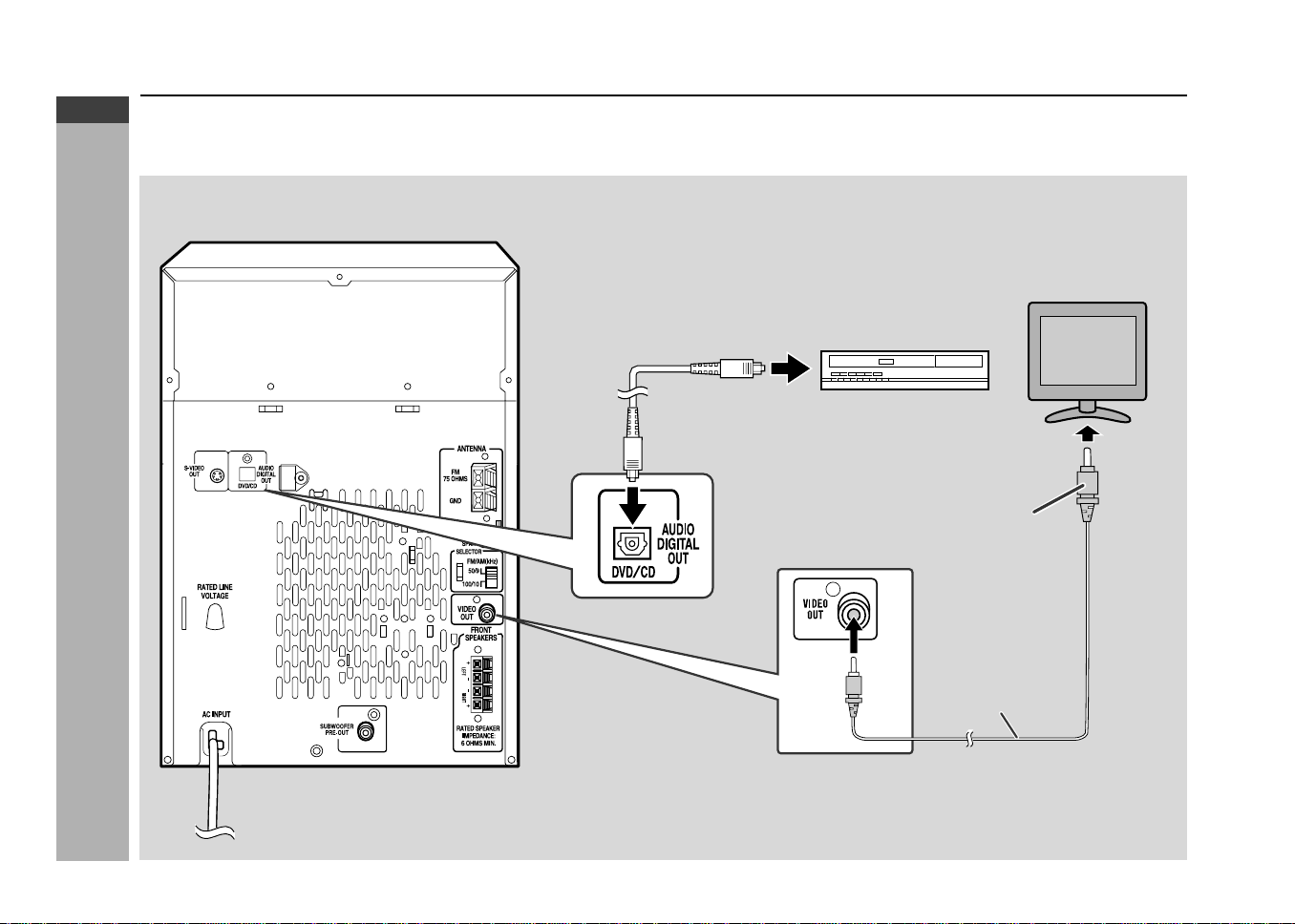
E-71
ENGLISH
Advanced Features
CD-G7500DVD (S)
TINSZA159AWZZ
CD-G7500DVD
CP-G7500
To the digital
input socket
Optical digital lead
(not supplied)
To video
input socket
MD recorder, DTS/MPEG
audio processor or amplifier
TV
H Leads required to connect external units
When external units are connected, you need commercially available leads.
Enhancing your system (continued)
Yellow
Video Cable
Yellow
*CD-G7500DVD(EN)66-71 05.1.13, 14:4571
Downloaded from: http://www.usersmanualguide.com/
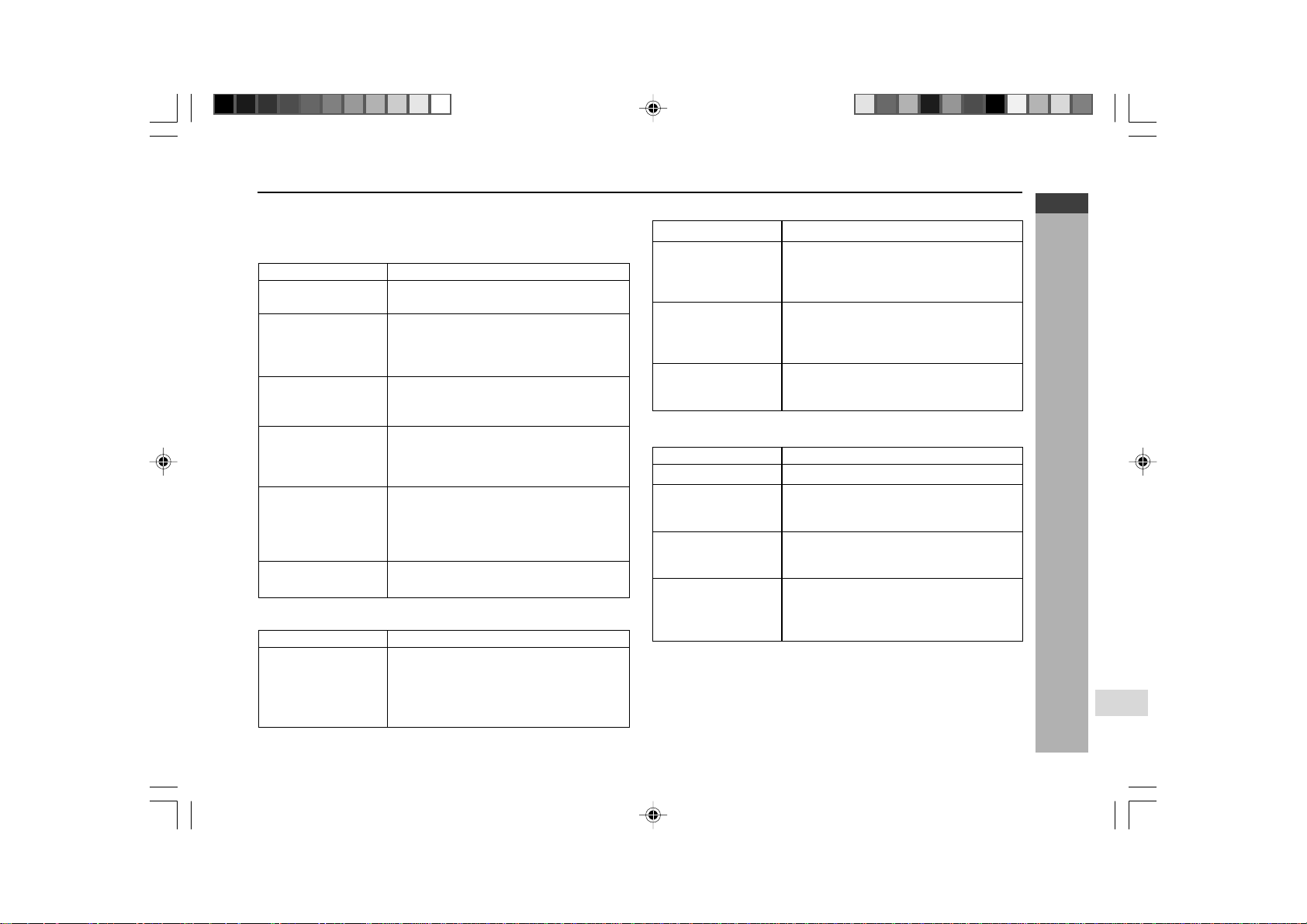
E-72
ENGLISH
References
CD-G7500DVD (S)
TINSZA159AWZZ
CD-G7500DVD
CP-G7500
7
Troubleshooting chart
Many potential “problems” can be resolved by the owner without calling a ser-
vice technician. If something is wrong with this product, check the following
before calling your authorised SHARP dealer or service centre.
H General
Symptom
● The clock is not
accurate.
● When a button is
pressed, the unit does
not respond.
● No sound is heard.
● The balance between
the left and right
channels is bad.
● Hum or excessive
noise.
● The timer indicator is
flashing.
Possible cause
● Did a power failure occur?
Reset the clock. (Refer to page 19.)
● Set this unit to the power stand-by mode and
then turn it back on.
● If the unit still malfunctions, reset it. (Refer to
page 74)
● Is the volume level set to “0”?
● Are the headphones connected?
● Are the speaker wires disconnected?
● Are the speakers connected to the wrong
channels?
● If an external unit is connected, are the left and right
channels connected improperly?
● Is the speaker lead plugged in incorrectly?
● Does the speaker lead run past other electronic
equipment?
● Are the plugs or terminals dirty?
● Is the volume too low?
● Is the speaker wire shorted?
● Was the unit used at high volume for many hours?
H Tuner
Symptom
● Radio makes constant
unusual noise or
static.
Possible cause
● Is the unit placed near the TV or computer?
● Is the FM aerial or AM loop aerial placed
improperly?
Move the AC power lead away from the aerial if
located near.
H DVD/CD player
Symptom
● No image from the DVD
video appears on the
screen of a connected
device.
● Playback does not start.
● Playback stops in the
middle or is not per-
formed properly.
● Playback sounds are
skipped, or stopped in
the middle of a track.
H Cassette deck
Symptom
● Cannot record.
● Cannot record tracks with
proper sound quality.
● Cannot erase completely.
● Sound skipping.
● Cannot hear treble.
● Sound fluctuation.
● Cannot remove the
tape.
Possible cause
● Make sure the channel of the connected TV is set
to VIDEO or AV.
● Make sure video cables are connected correctly.
● Is the disc loaded upside down?
● Does the disc dissatisfy the standards?
● Is the disc distorted or scratched?
● Is the unit located near excessive vibrations?
● Is the disc very dirty?
● Has condensation formed inside the unit?
Possible cause
● Is the erase-protection tab removed?
● Is it a normal tape?
(You cannot record on a metal or CrO2 tape.)
● Is there any slack?
● Is the tape stretched?
● Are the capstans, pinch rollers, or heads dirty?
● If a power failure occurs during playback, the
heads remain engaged with the tape. Do not
open the compartment forcibly.
Wait until electricity resumes.
*CD-G7500DVD(EN)72-78 05.1.13, 14:4572
Downloaded from: http://www.usersmanualguide.com/
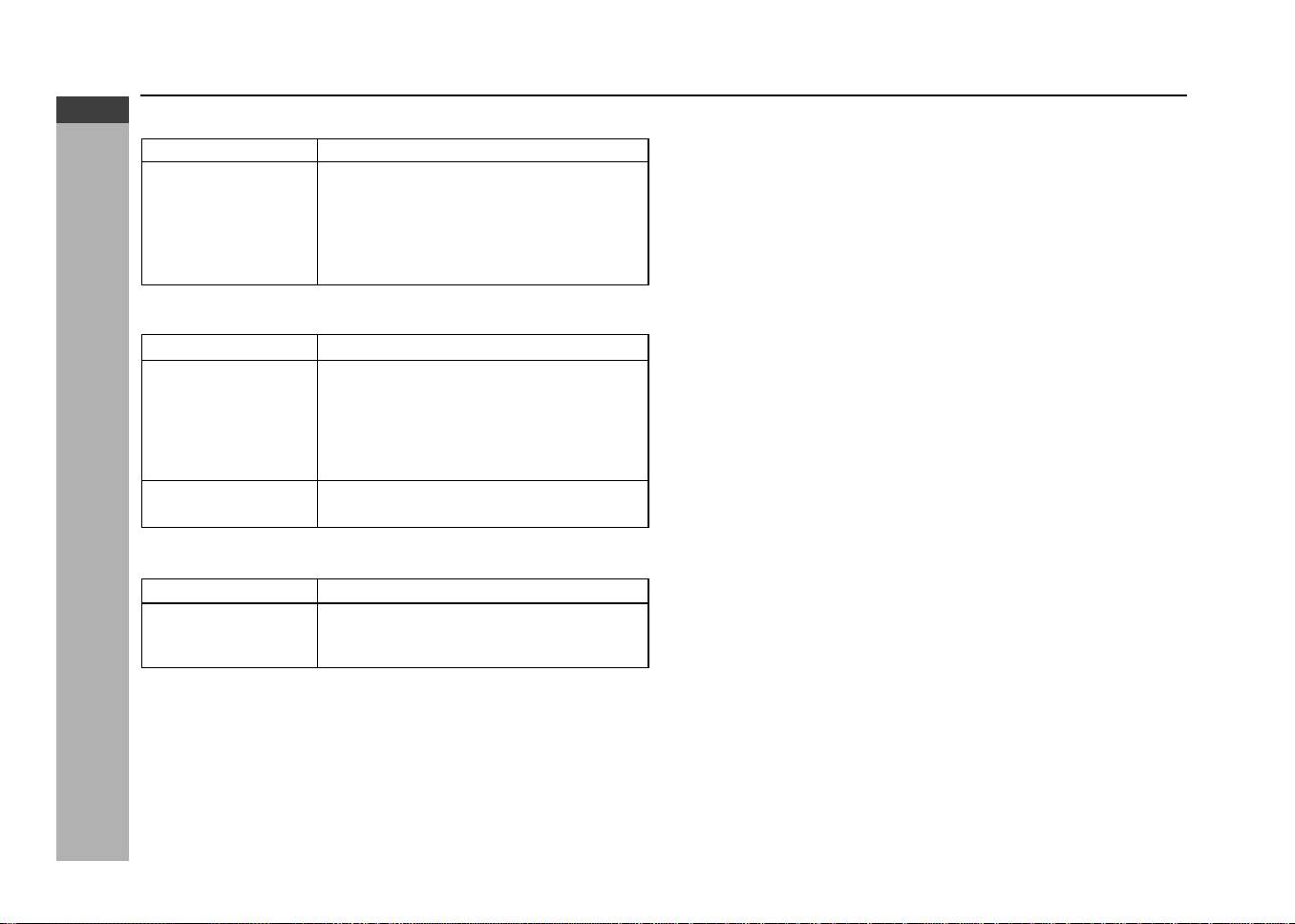
E-73
ENGLISH
References
CD-G7500DVD (S)
TINSZA159AWZZ
CD-G7500DVD
CP-G7500
H Remote control
Symptom
● The remote control
does not operate.
H Video CD
Symptom
● The picture is not
displayed during
playback.
● The picture quality is
poor, or it is distorted.
H Karaoke
Symptom
● The vocal part of a
multiplexed disc is not
heard.
Possible cause
● Is the AC power lead of the unit unplugged?
● Is the battery polarity wrong?
● Are the batteries dead?
● Is the distance or angle incorrect?
● Does the remote control sensor receive strong
light?
Possible cause
● Is the TV unplugged?
● Is the unit connected improperly?
● Is the input selector on the TV set to other than
“VCR”?
● Is the unit being played without selecting video
CD?
● Is the disc very dirty?
Possible cause
● Is the karaoke mode set to “L-CH”, “R-CH” or “V-
CANCEL”?
H If trouble occurs
When this product is subjected to strong external interference (mechanical shock,
excessive static electricity, abnormal supply voltage due to lightning, etc.) or if
it is operated incorrectly, it may malfunction.
If such a problem occurs, do the following:
1. Set the unit to the stand-by mode and turn the power on again.
2. If the unit is not restored in the previous operation, unplug and plug in the
unit, and then turn the power on.
Note:
If neither operation above restores the unit, clear all the memory by resetting it.
H Before transporting the unit
Remove all CDs from the unit. Make sure there is no CD in the disc tray. Then,
set the unit to the power stand-by mode. Carrying the unit with discs left inside
can damage the unit.
Troubleshooting chart (continued)
*CD-G7500DVD(EN)72-78 05.1.13, 14:4573
Downloaded from: http://www.usersmanualguide.com/
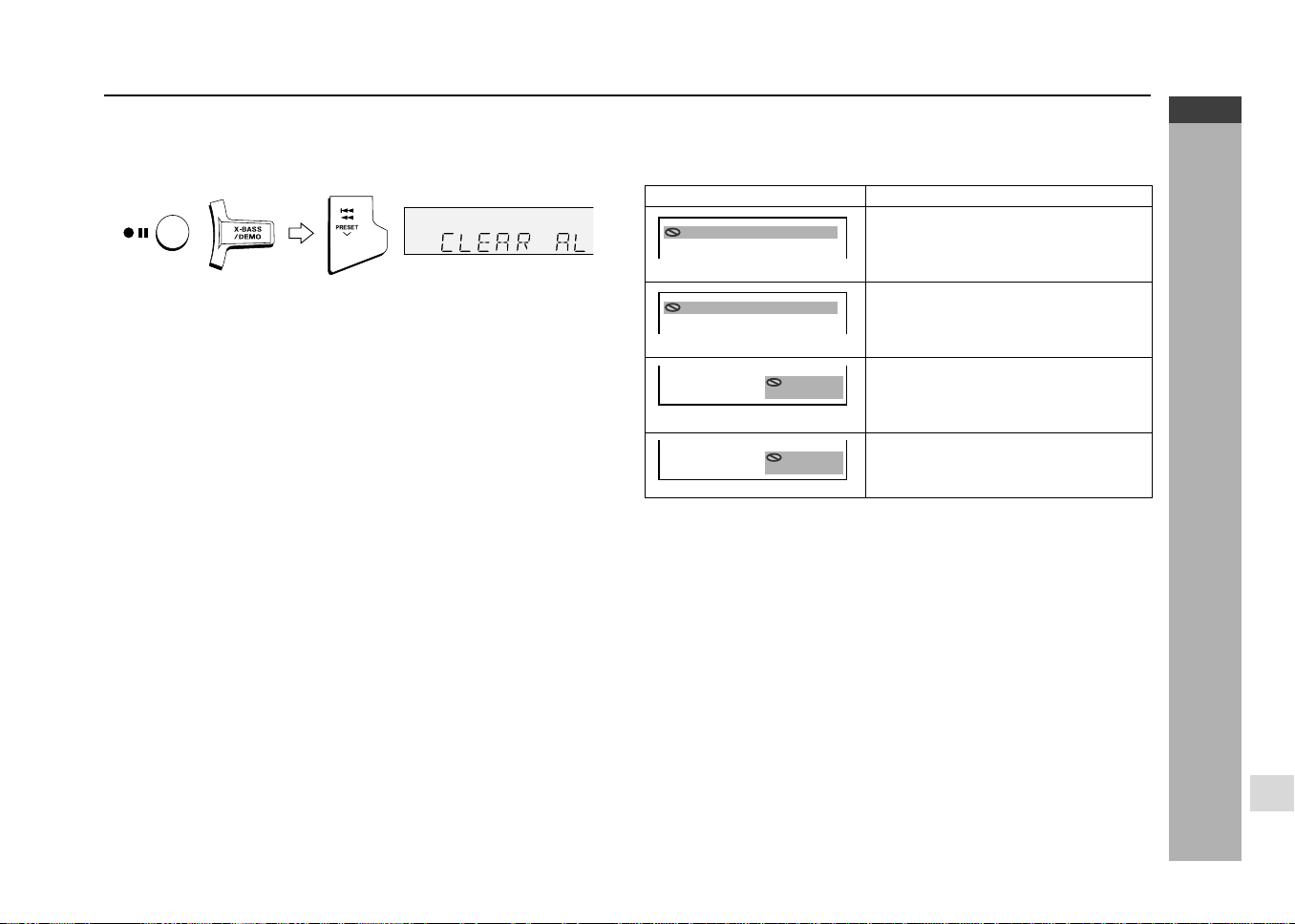
E-74
ENGLISH
References
CD-G7500DVD (S)
TINSZA159AWZZ
CD-G7500DVD
CP-G7500
7
Troubleshooting chart (continued)
H Clearing all the memory (reset)
1. Press the ON/STAND-BY button to enter the power stand-by mode.
2. Whilst pressing down the
I6I6
I6I6
I6 button and the X-BASS/DEMO button, press
the
5 35 3
5 35 3
5 3 PRESET
X X
X X
X button until “CLEAR AL” appears.
Caution:
This operation will erase all data stored in memory including clock, timer settings,
tuner preset, and CD programme.
H Condensation
Sudden temperature changes, storage or operation in an extremely humid
environment may cause condensation inside the cabinet (CD pickup, tape heads,
etc.) or on the transmitter on the remote control.
Condensation can cause the unit to malfunction. If this happens, leave the
power on with no disc (or cassette) in the unit until normal playback is possible
(about 1 hour). Wipe off any condensation on the transmitter with a soft cloth
before operating the unit.
H Error indicators and warnings
The error indicators and warnings described below appear on the display when-
ever there is a disc play problem, operational problem. etc.
Display Meaning
C
01
83/
15/
0
::23 40
WRO NG D CIS T EYP
●
The disc is not compatible with this unit.
C
01
83/
15/
0
::23 40
REG NIO DCO E RER OR
●
The region number of the DVD is not 2
or ALL.
NOT
ALL EOW D
●
You are trying to perform an incorrect
operation.
ACC SES
DEN DIE
●
The disc does not support the opera-
tion described in this operation manual.
*CD-G7500DVD(EN)72-78 05.1.13, 14:4574
Downloaded from: http://www.usersmanualguide.com/

E-75
ENGLISH
References
CD-G7500DVD (S)
TINSZA159AWZZ
CD-G7500DVD
CP-G7500
Troubleshooting chart (continued)Maintenance
H Cleaning the tape-handling parts
I Dirty heads, capstans or pinch rollers can cause poor sound and tape jams.
Clean these parts with a cotton swab moistened with commercial head/
pinch roller cleaner or isopropyl alcohol.
I When cleaning the heads, pinch rollers, etc., unplug the unit which contains
high voltages.
Playback head Erase head
Capstan Recording/Playback head
Pinch Roller
I After long use, the deck’s heads and capstans may become magnetised,
causing poor sound. Demagnetise these parts once every 30 hours of
playing/recording time by using a commercial tape head demagnetiser. Read
the demagnetiser’s instructions carefully before use.
H Cleaning the cabinet
Periodically wipe the cabinet with a soft cloth and a diluted soap solution, then
with a dry cloth.
Caution:
I Do not use chemicals for cleaning (petrol, paint thinner, etc.). It may damage
the cabinet finish.
I Do not apply oil to the inside of the unit. It may cause malfunctions.
Specifications
As part of our policy of continuous improvement, SHARP reserves the right to
make design and specification changes for product improvement without prior
notice. The performance specification figures indicated are nominal values of
production units. There may be some deviations from these values in individual
units.
H General
Power source AC 110/127/220/230-240 V, 50/60 Hz
Power consumption 170 W
Dimensions Width: 260 mm (10-1/4")
Height: 330 mm (13")
Depth: 326 mm (12-7/8")
Weight 10.5 kg (23.15 lbs.)
H Amplifier
A
C
CC
D
E
B
BB
Output power
MPO: 740 W (370 W + 370 W) (10 % T.H.D.)
RMS: 400 W (200 W + 200 W) (10 % T.H.D.)
RMS: 290 W (145 W + 145 W) (0.9 % T.H.D.)
Output terminals
Speakers: 6 ohms
Headphones: 16 - 50 ohms (recommended:
32 ohms)
Subwoofer pre-output (audio signal):
200mV/10 k ohms at 70 Hz
Input terminals
Game/auxiliary (audio input): 500 mV/47 k ohms
Microphone 1/2: 1 mV/600 ohms
Game/Video: 1 Vp-p
H Cassette deck
Frequency response 50 - 14,000 Hz (normal tape)
Signal/noise ratio
55 dB (TAPE 1 playback)
50 dB (TAPE 2 recording/playback)
Wow and flutter 0.3 % (WRMS)
Main Unit
*CD-G7500DVD(EN)72-78 05.1.13, 14:4575
Downloaded from: http://www.usersmanualguide.com/
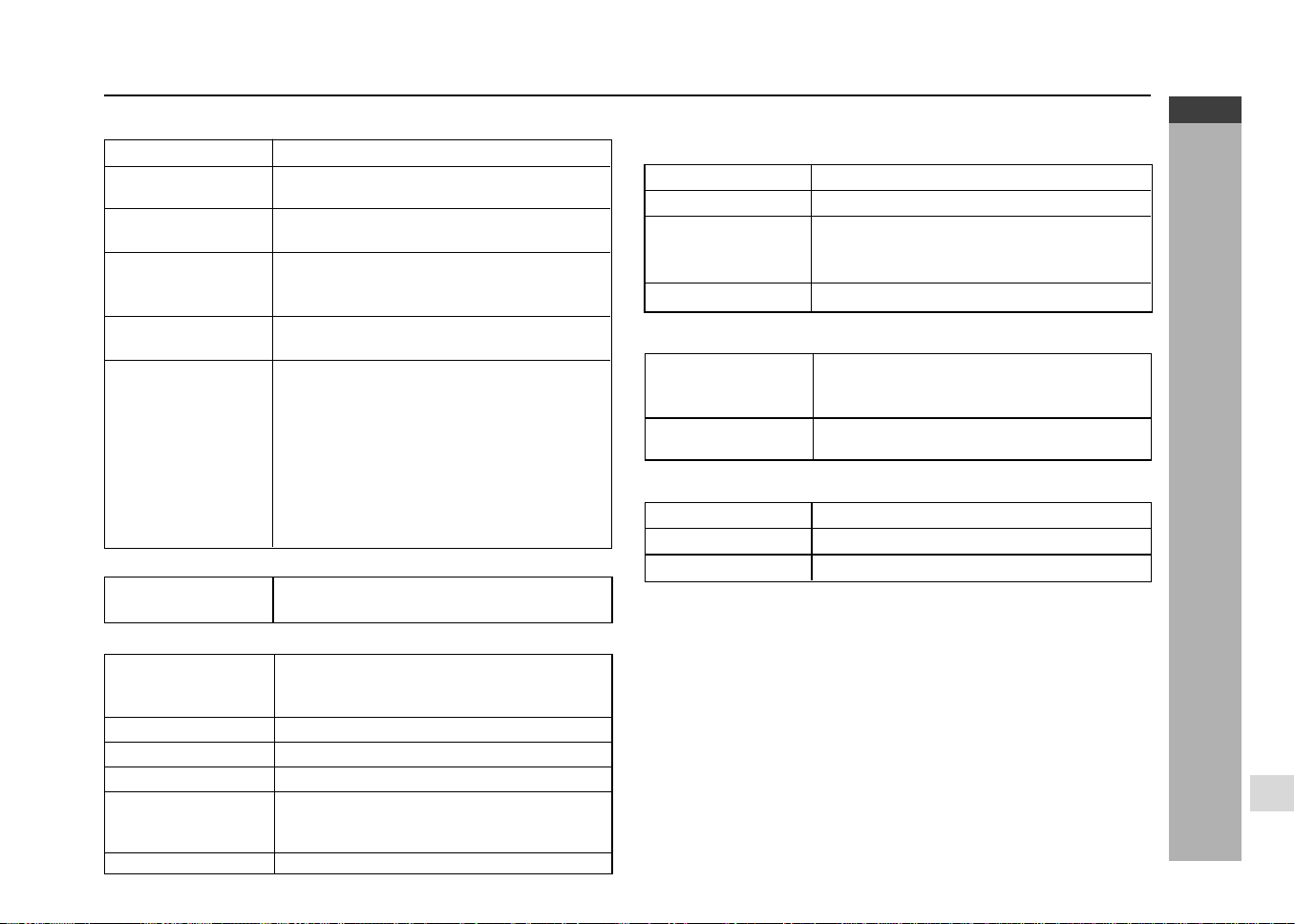
E-76
ENGLISH
References
CD-G7500DVD (S)
TINSZA159AWZZ
CD-G7500DVD
CP-G7500
7
Specifications (continued)
H DVD/VCD/CD player
Signal system
NTSC/PAL
Supported disc types
DVD (Region number 2, ALL), audio CD, CD-R,
CD-RW, VCD, MP3, WMA
Video output
Output socket: Pin socket x 1
Output level: 1 Vp-p (75 ohms)
S-Video output
Y output level: 1 Vp-p (75 ohms)
C output level: 0.628 Vp-p (75 ohms)
Output socket: S-Video connector x 1
Video signal
Horizontal resolution: 500 lines
S/N ratio: 60 dB
Audio signals
Frequency characteristics:
Linear PCM DVD:
4 Hz to 22 kHz (48 kHz sampling)/
4 Hz to 44 kHz (96 kHz sampling)
CD: 4 Hz to 20 kHz
S/N ratio: 96 dB 1 kHz (CD)
Dynamic range: 96 dB (Linear PCM DVD)
96 dB (CD)
Total harmonic distortion ratio:
0.006 % maximum
Subwoofer
H General
Power source AC 110/127/220/230-240, 50/60Hz
Power consumption
83 W
Dimensions Width: 400 mm (15-3/4")
Height: 420 mm (16-9/16")
Depth: 470 mm (18-1/2")
Weight 18.0 kg (39.6 lbs.)
H Subwoofer Speaker
Type 25 cm (10") woofer
Rated input power
200
W
Impedance 6 ohms
Output power
MPO : 280 W (10% THD)
RMS : 200 W (10% THD)
RMS : 140 W (0.9% THD)
Input Terminals Subwoofer input (audio signal):
200mV / 10 k ohms at 70 Hz
H Subwoofer Amplifier
H Speaker
Type
2-way type speaker system
5 cm (2") tweeter
13 cm (5-1/8") woofer x 2
Maximum input power
400 W
Rated input power
200 W
Impedance
6 ohms
Dimensions
Width: 220 mm (8-11/16")
Height: 420 mm (16-9/16")
Depth: 430 mm (16-15/16")
Weight
5.5 kg (12.1 lbs.)/each
Frequency range
FM: 88 - 108 MHz
AM: 531 - 1,602 kHz
H Tuner
*CD-G7500DVD(EN)72-78 05.1.13, 14:4576
Downloaded from: http://www.usersmanualguide.com/
E-77
ENGLISH
References
CD-G7500DVD (S)
TINSZA159AWZZ
CD-G7500DVD
CP-G7500
Chapter
A section inside a title.
DIGITAL GAMMA
Corrects for gradations in dark areas of images to make them clearer.
DIGITAL SUPER PICTURE
Enhances the fine details of the image and outlines of the objects.
DTS
Theatre audio system by Digital Theater Systems, Inc. Six audio channels
are used to create accurate sound field positioning and realistic sound.
Letter box
LB
4:3
Screen size that black bands are inserted at the top and bottom of the image
to allow playing of wide (16:9) software on a connected 4:3 TV.
Linear PCM audio
Audio signal recording system used for audio CDs.
Pan scan
PS
4:3
Screen size that cuts off the sides of the image to allow playing of wide (16:9)
software on a connected 4:3 TV.
Glossary
Parental level
Setting that makes it possible to control the types of scenes that can be played
by this unit.
This setting helps to keep children from viewing adult material.
Pickup
Laser device that reads the data from a disc for playback.
Region number
Number identifying a geographic region of compatibility for a DVD.
Title
When a DVD contains multiple movies, each movie is called a “title”.
Title menu
This is a menu displayed by some DVDs for selection of chapters and subtitle
set. The title menu is also called a “top menu”.
Track
One tune on an audio CD.
View angle
Some DVDs have recordings from multiple angles, so you can select a view
angle when playing the disc.
Zoom
Allows you to zoom in and enlarge a specific part of an image.
*CD-G7500DVD(EN)72-78 05.1.13, 14:4577
Downloaded from: http://www.usersmanualguide.com/

This file has been downloaded from:
www.UsersManualGuide.com
User Manual and User Guide for many equipments like mobile phones, photo cameras, monther board, monitors, software, tv, dvd, and othes..
Manual users, user manuals, user guide manual, owners manual, instruction manual, manual owner, manual owner's, manual guide,
manual operation, operating manual, user's manual, operating instructions, manual operators, manual operator, manual product,
documentation manual, user maintenance, brochure, user reference, pdf manual
Downloaded from: http://www.usersmanualguide.com/