1
ENGLISH
Projector
CP-AW100N
User's Manual (concise)
Thank you for purchasing this projector.
Please read through this manual before using this product, in order to use safely
and utilize well the product.
WARNING ►Before using this product, be sure to read all manuals for this
product. See the “Using the CD manual” (
22) to read the manuals in the CD.
After reading them, store them in a safe place for future reference.
►Heed all the warnings and cautions in the manuals or on the product.
►Follow all the instructions in the manuals or on the product.
First of all ............................................ 2
Entries and graphical symbols explanation ......2
Important safety instruction ..............................2
Regulatory notices .............................. 3
About Electro-Magnetic Interference ................
3
About Waste Electrical and Electronic Equipment
...4
Contents of package........................... 5
Arrangement ....................................... 6
Connecting your devices .................... 7
Using the cable cover ......................... 9
Preparing for the remote control ....... 10
Starting the projector ........................ 11
Connecting power supply ................. 12
Turning on the power ........................ 12
Adjusting the projector's elevator ..... 13
Displaying the picture ....................... 14
Turning off the power ........................ 15
Replacing the lamp ........................... 16
Cleaning and replacing the air lter .. 19
Caring for the mirror and lens ........... 20
Replacing the internal clock battery.. 21
Using the CD manual ....................... 22
Specications ................................... 23
Troubleshooting
- Warranty and after-service ........... 24
Contents
NOTE • In this manual, unless any comments are accompanied, “the
manuals” means all the documents provided with this product, and “the product”
means this projector and all the accessories came with the projector.
01CP-AW100N_CO_ENG_7th.indd 1 2009/11/18 14:52:18
2
First of all
Entries and graphical symbols explanation
The following entries and graphical symbols are used for the manuals and the
product as follows, for safety purpose. Please know their meanings beforehand,
and heed them.
Important safety instruction
The followings are important instructions for safely using the product. Be sure to
follow them always when handling the product. The manufacturer assumes no
responsibility for any damage caused by mishandling that is beyond normal usage
dened in these manuals of this projector.
WARNING
This entry warns of a risk of serious personal injury or even death.
CAUTION This entry warns of a risk of personal injury or physical damage.
NOTICE This entry notices of fear of causing trouble.
WARNING ►
Never use the product in or after an abnormality (ex. giving
off smoke, smelling strange, took a liquid or an object inside, broken, etc.).
If an
abnormality should occur, unplug the projector urgently.
►Situate the product away from children and pets.
►Do not use the product when there is fear of a thunderbolt.
►Unplug the projector from the power outlet if the projector is not used for the
time being.
►Do not open or remove any portion of the product, unless the manuals direct
it. For internal maintenance, leave it to your dealer or their service personnel.
►Use only the accessories specied or recommended by the manufacturer.
►Modify neither the projector nor accessories.
►Let neither any things nor any liquids enter to the inside of the product.
►Do not wet the product.
►Apply neither a shock nor pressure to this product.
- Do not place the product on an unstable place such as the uneven surface or
the leaned table.
- Do not place the product unstably. Place the projector so that it does not
protrude from the surface where the projector is placed on.
- Remove all the attachments including the power cord and cables, from the
projector when carrying the projector.
►Do not look into the lens and the openings on the projector, while the lamp is
on.
►Do not approach the lamp cover and the exhaust vents, while the projection
lamp is on. Also after the lamp goes out, do not approach them for a while, since
too hot.
01CP-AW100N_CO_ENG_7th.indd 2 2009/11/18 14:52:18
3
ENGLISH
Regulatory notices
About Electro-Magnetic Interference
In CANADA
This Class B digital apparatus complies with Canadian ICES-003.
In the US, and other places where the FCC regulations are applicable
Declaration of Conformity
Trade name HITACHI
Model Number CP-AW100N
Responsible Party Hitachi America, Ltd.
Address 900 Hitachi way, Chula Vista, CA 91914-3556 U.S.A.
Telephone Number +1 -800-225-1741
This device complies with part 15 of the FCC Rules. Operation is subject
to the following two conditions: (1) This device may not cause harmful
interference, and (2) this device must accept any interference received,
including interference that may cause undesired operation.This equipment has
been tested and found to comply with the limits for a Class B digital device,
pursuant to Part 15 of the FCC Rules.
These limits are designed to provide reasonable protection against harmful
interference in a residential installation. This equipment generates, uses, and can
radiate radio frequency energy and, if not installed and used in accordance with the
instructions, may cause harmful interference to radio communications. However,
there is no guarantee that interference will not occur in a particular installation. If this
equipment does cause harmful interference to radio or television reception, which
can be determined by turning the equipment off and on, the user is encouraged to
try to correct the interference by one or more of the following measures:
- Reorient or relocate the receiving antenna.
- Increase the separation between the equipment and receiver.
- Connect the equipment into an outlet on a circuit different from that to which the
receiver is connected.
- Consult the dealer or an experienced radio/TV technician for help.
INSTRUCTIONS TO USERS: This equipment complies with the requirements
of the FCC (Federal Communication Commission) equipment provided that the
following conditions are met. Some cables have to be used with the core set. Use
the accessory cable or a designated-type cable for the connection. For cables that
have a core only at one end, connect the core to the projector.
CAUTION: Changes or modications not expressly approved by the party
responsible for compliance could void the user’s authority to operate the
equipment.
01CP-AW100N_CO_ENG_7th.indd 3 2009/11/18 14:52:18
4
About Waste Electrical and Electronic Equipment
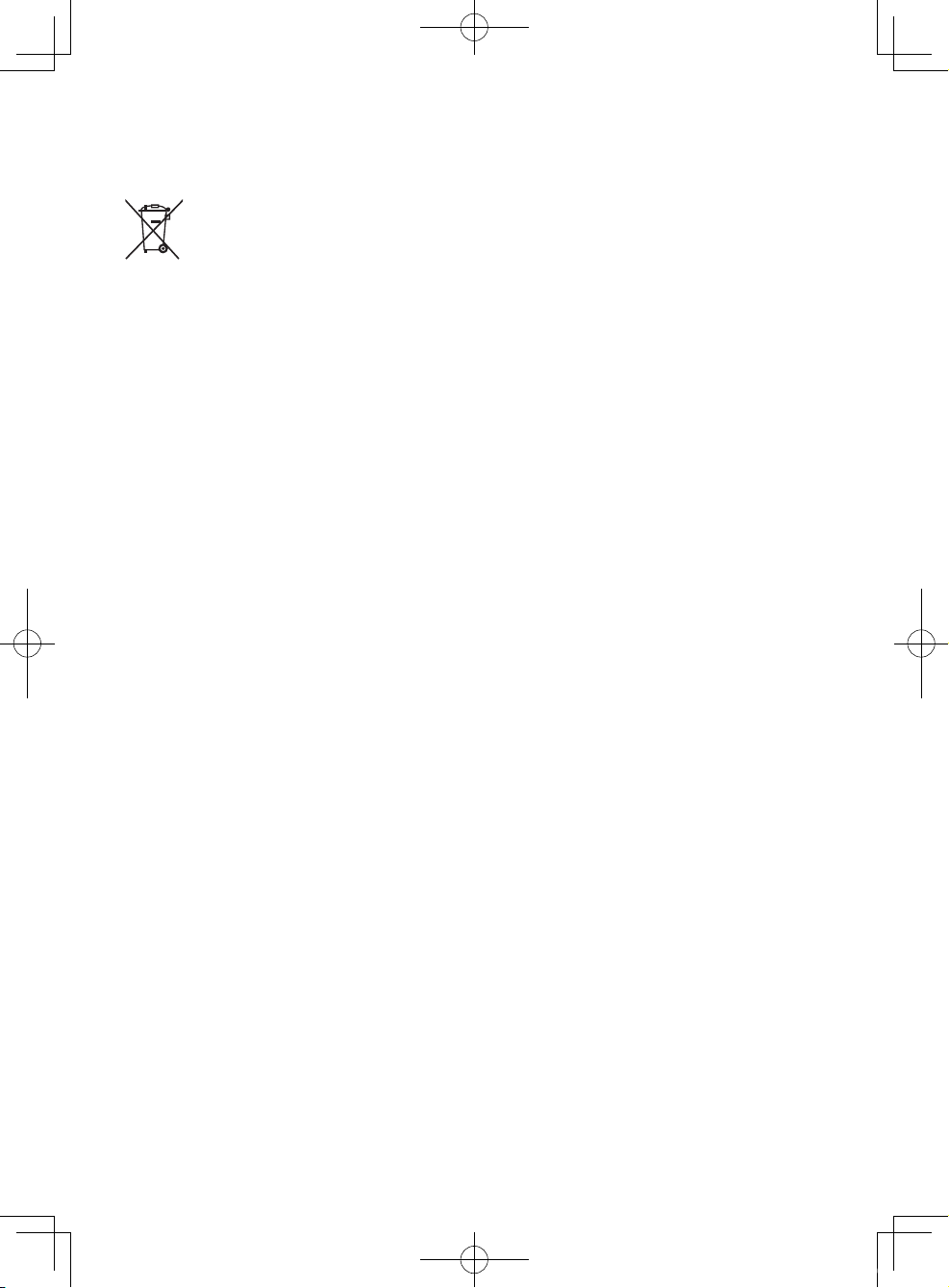
The mark is in compliance with the Waste Electrical and Electronic
Equipment Directive 2002/96/EC (WEEE).
The mark indicates the requirement NOT to dispose the equipment
including any spent or discarded batteries or accumulators as unsorted
municipal waste, but use the return and collection systems available.
If the batteries or accumulators included with this equipment, display
the chemical symbol Hg, Cd, or Pb, then it means that the battery has a
heavy metal content of more than 0.0005% Mercury or more than, 0.002%
Cadmium, or more than 0.004% Lead.
Regulatory notices (continued)
01CP-AW100N_CO_ENG_7th.indd 4 2009/11/18 14:52:19
5
ENGLISH
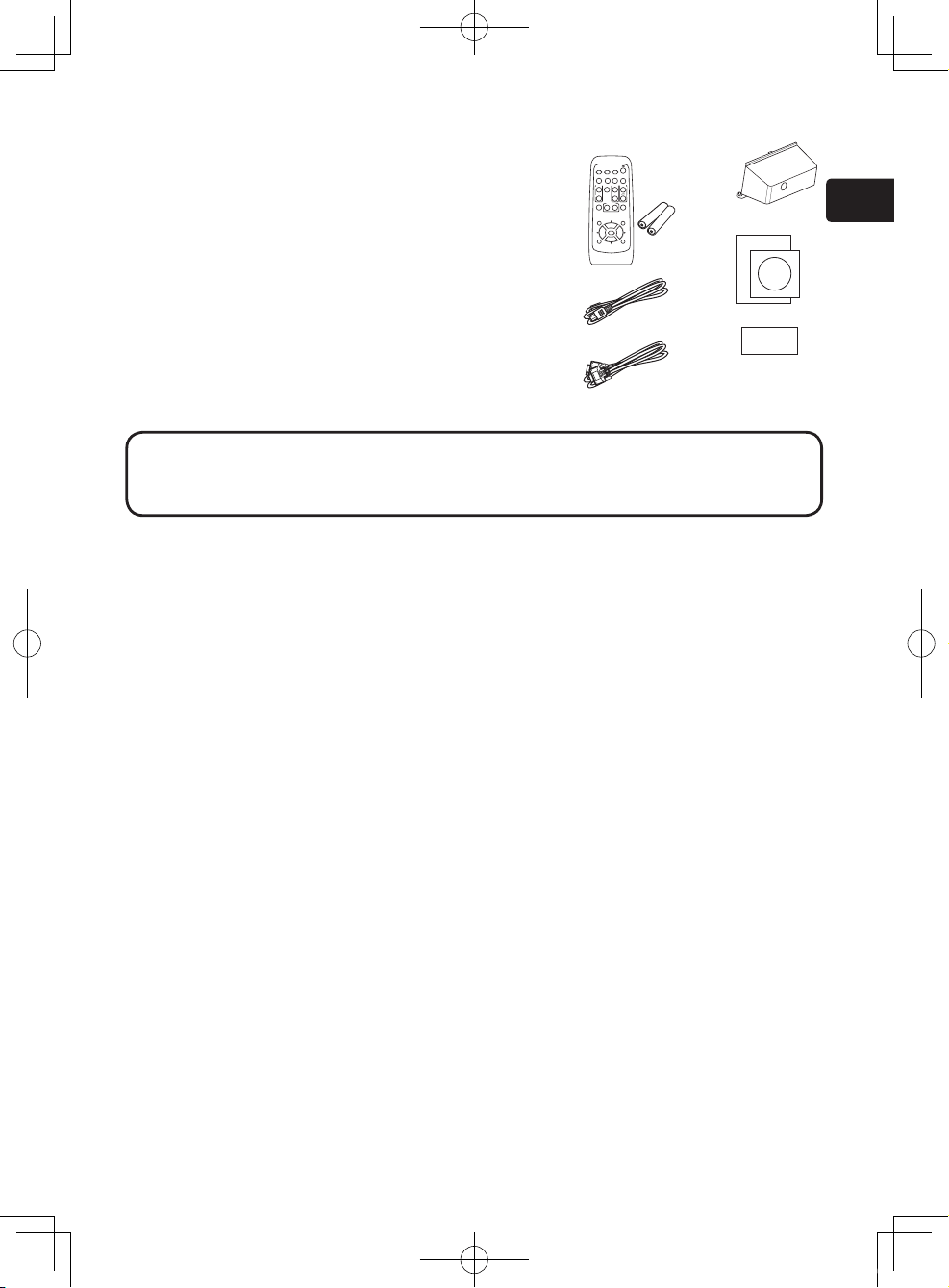
Contents of package
Your projector should come with the items
shown below. Check that all the items are
included. Require of your dealer immediately if
any items are missing.
(1) Remote control with the two AA batteries
(2) Power cord
(3) Computer cable
(4) Cable cover
(5) User’s manuals (Book x1, CD x1)
(6) Security label
NOTE • Keep the original packing materials for future reshipment. Be sure
to use the original packing materials when moving the projector. Use special
caution for the lens.
(5)
(6)
(2)
(3)
(4)(1)
VIDEO
DOC.CAMERA
KEYSTONE
ASPECT SEARCH
BLANK
MUTE
MY BUTTON
POSITION
12
ESC
ENTER
MENU
RESET
COMPUTER
MY SOURCE/
AUTO
MAGNIFY
PAGE
UP
VOLUME
DOWN
ON
OFF
㧗
FREEZE
01CP-AW100N_CO_ENG_7th.indd 5 2009/11/18 14:52:19
6
WARNING ►Install the projector in a stable horizontal position.
►
Place the projector in a cool place, and ensure that there is sufcient ventilation. Do not
place the projector where the air from an air conditioner or similar unit will blow on it directly.
►Do not place the projector anyplace where it may get wet.
►
Use only the mounting accessories the manufacturer specied, and leave installing
and removing the projector with the mounting accessories to the service personnel.
► Read and keep the user's manual of the mounting accessories used.
CAUTION ►Avoid placing the projector in smoky, humid or dusty place.
►
Position the projector to prevent light from directly hitting the projector’s remote sensor.
•
The projector may make a rattling sound when tilted, moved or shaken,
since a ap to control the air ow inside of the projector has moved. Be aware that
this is not a failure or malfunction.
NOTE
a
c2
c1
b
a
c2
c1
b
Arrangement
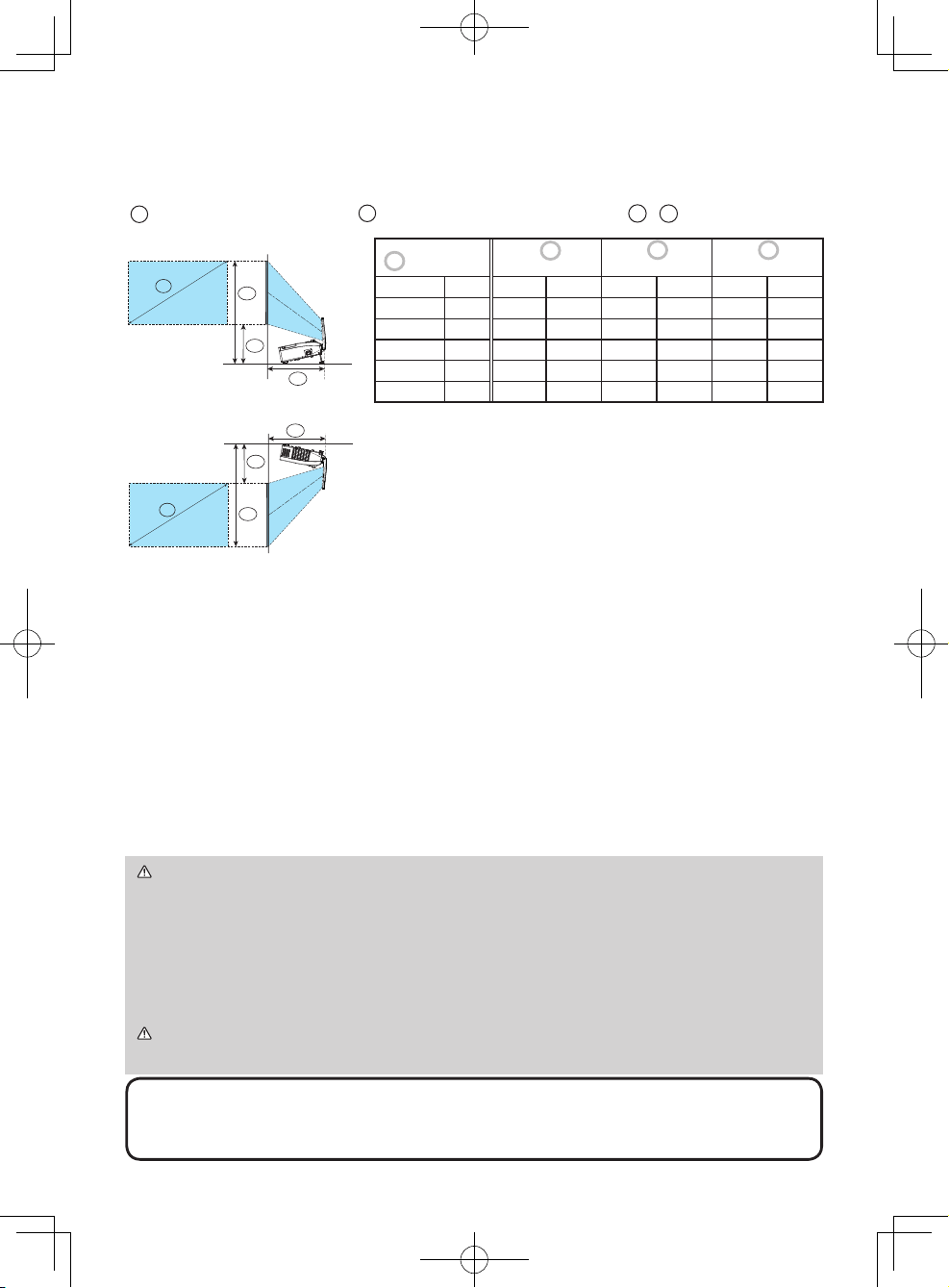
Refer to the illustrations and tables below to determine screen size and projection distance.
The values shown in the table are calculated for a full size screen: 1280 x 800
a
Screen size (diagonal)
b
Projection distance (±8%)
c1
,
c2
Screen height
•
The screen position may shift after installation if the projector is suspended from the
ceiling or other location due to the exibility of the plastic projector body. If readjustment
is necessary, consult with your dealer or service personnel.
•
The projected image position and/or focus may change during warm-up (approx. 30
minutes after the lamp is turned on) or when the ambient conditions change. Readjust
the image position and/or focus as necessary.
•
Since the projector features an ultra short throw, be aware that it is required to select a
screen carefully to have better performance.
- A soft screen such as a pull-down screen may cause serious distortion of a projected image.
A hard screen such as a board screen is recommended for use with this projector.
- A high-gain screen such as a bead screen that has narrow viewing angle is not suitable
for this projector. A low-gain screen (around 1.0) such as a matte screen that has wide
viewing angle is recommended for use with this projector.
-
A screen with a weave pattern may cause moiré on the projected image, which is not a failure
of the projector. A screen that has less moiré effects is recommended for use with this projector.
Screen size
(diagonal)
b
Projection distance
c1
Screen height
c2
Screen height
type(inch)
m m inch m inch m inch
60 1.5 0.592 23 0.316 12 1.124 44
70 1.8 0.705 28 0.349 14 1.292 51
80 2.0 0.819 32 0.383 15 1.460 57
90 2.3 0.933 37 0.416 16 1.627 64
100 2.5 1.046 41 0.449 18 1.795 71
a
• On a horizontal surface
• Suspended from the ceiling
•
Keep a space of 30 cm or more between the sides of the
projector and other objects such as walls. Do not place or
attach anything that would block the lens or vent holes.
•
For the case of installation in a special state such as
ceiling mount, the specied mounting accessories
(
23) and service may be required. Before installing the
projector, consult your dealer about your installation.
01CP-AW100N_CO_ENG_7th.indd 6 2009/11/18 14:52:21
7
ENGLISH
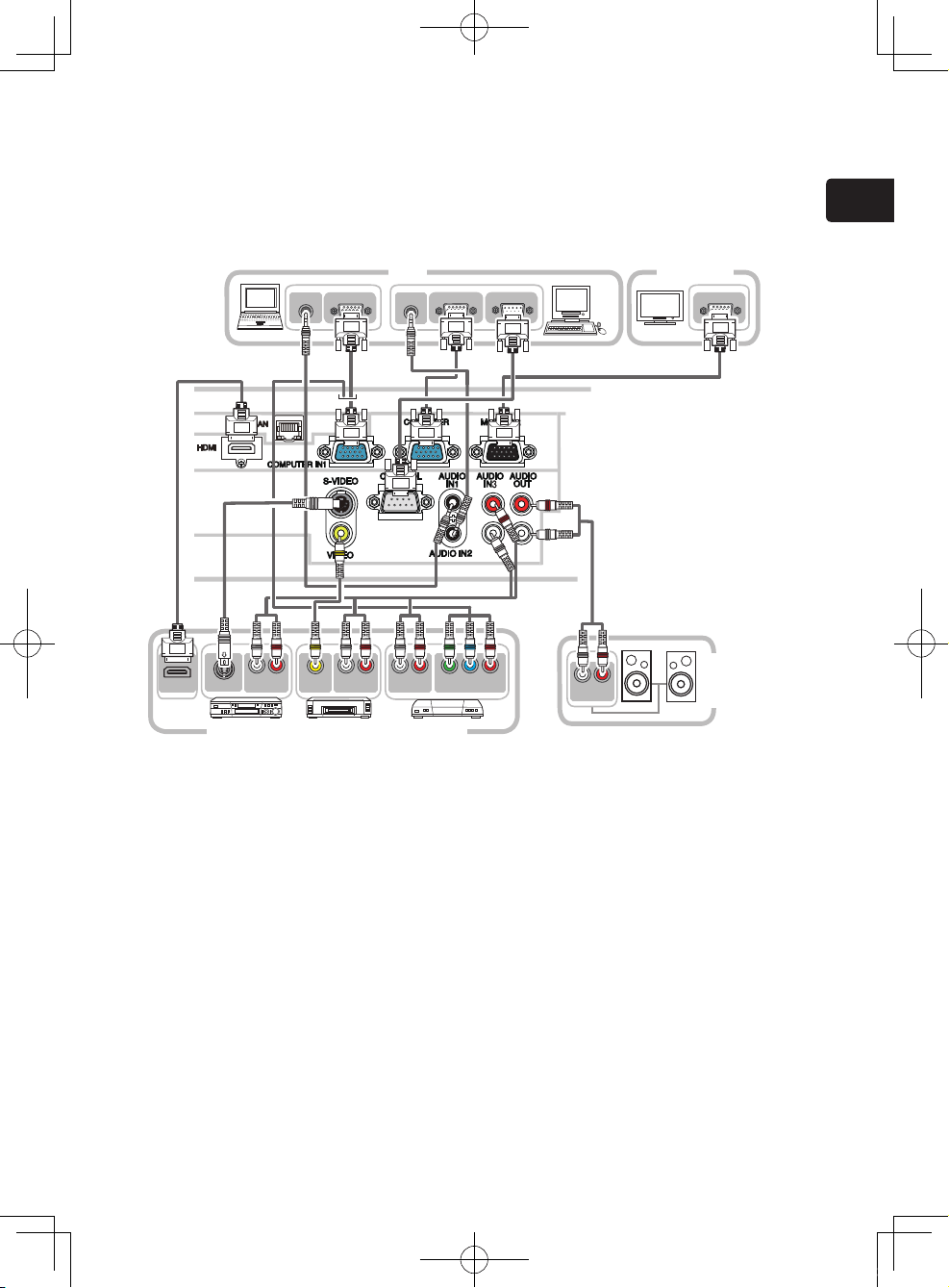
Connecting your devices
Be sure to read the manuals for devices before connecting them to the projector.
Make sure that all the devices are suitable to be connected with this product, and
prepare the cables required to connect. Please refer to the following illustrations
to connect them.
LAN
HDMI
AUDIO OUT
RGB OUT
AUDIO OUT
RGB OUT
RS-232C
RGB IN
Y CB/PB CR/PR
COMPONENT VIDEO OUT
L R
AUDIO OUT
VIDEO OUT
L R
AUDIO OUT
L R
AUDIO OUT
S-VIDEO OUT
L R
AUDIO IN
HDMI
VCR/DVD/Blu-ray Disc player
Speakers
(with an
ampli er)
PC
Monitor
01CP-AW100N_CO_ENG_7th.indd 7 2009/11/18 14:52:22
8
Connecting your devices (continued)
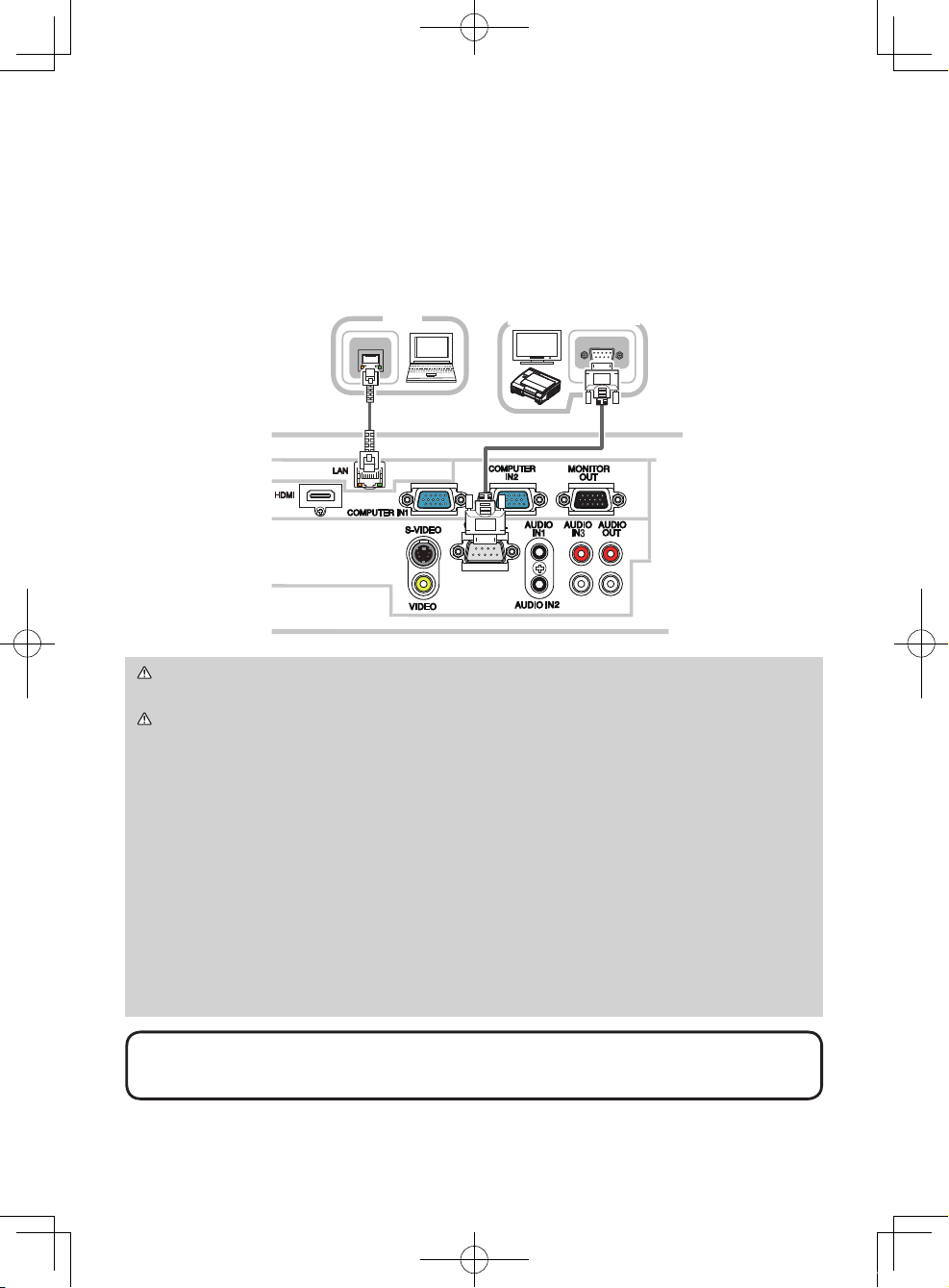
To use network functions of the projector, connect the LAN port to the computer's
LAN port.
To use NETWORK BRIDGE function, also connect the CONTROL port and an
RS-232C port of the external device to communicate as a network terminal. See
the “Network Guide” in the CD for details of network functions.
WARNING ►Do not disassemble or modify the projector and accessories.
►Be careful not to damage the cables, and do not use damaged cables.
CAUTION ►Turn off all devices and unplug their power cords prior to
connecting them to projector. Connecting a live device to the projector may
generate extremely loud noises or other abnormalities that may result in
malfunction or damage to the device and the projector.
►
Use appropriate accessory or designated cables. Ask your dealer about non-accessory
cables which may be required a speci c length or a ferrite core by the regulations. For
cables with a core only at one end, connect the end with the core to the projector.
►Make sure that devices are connected to the correct ports. An incorrect
connection may result in malfunction or damage to the device and the projector.
►Be sure to consult the administrator of the network. Do not connect LAN port
to any network that might have the excessive voltage.
NOTICE ►Use the cables with straight plugs, not L-shaped ones, as the input
ports of the projector are recessed.
•
The COMPUTER IN1/2 port can support a component signal also. The speci c
adapter or the speci c cable is required for a component video input to the projector.
NOTE
LAN
HDMI
RS-232C
LAN
PC
External device
01CP-AW100N_CO_ENG_7th.indd 8 2009/11/18 14:52:24
9
ENGLISH
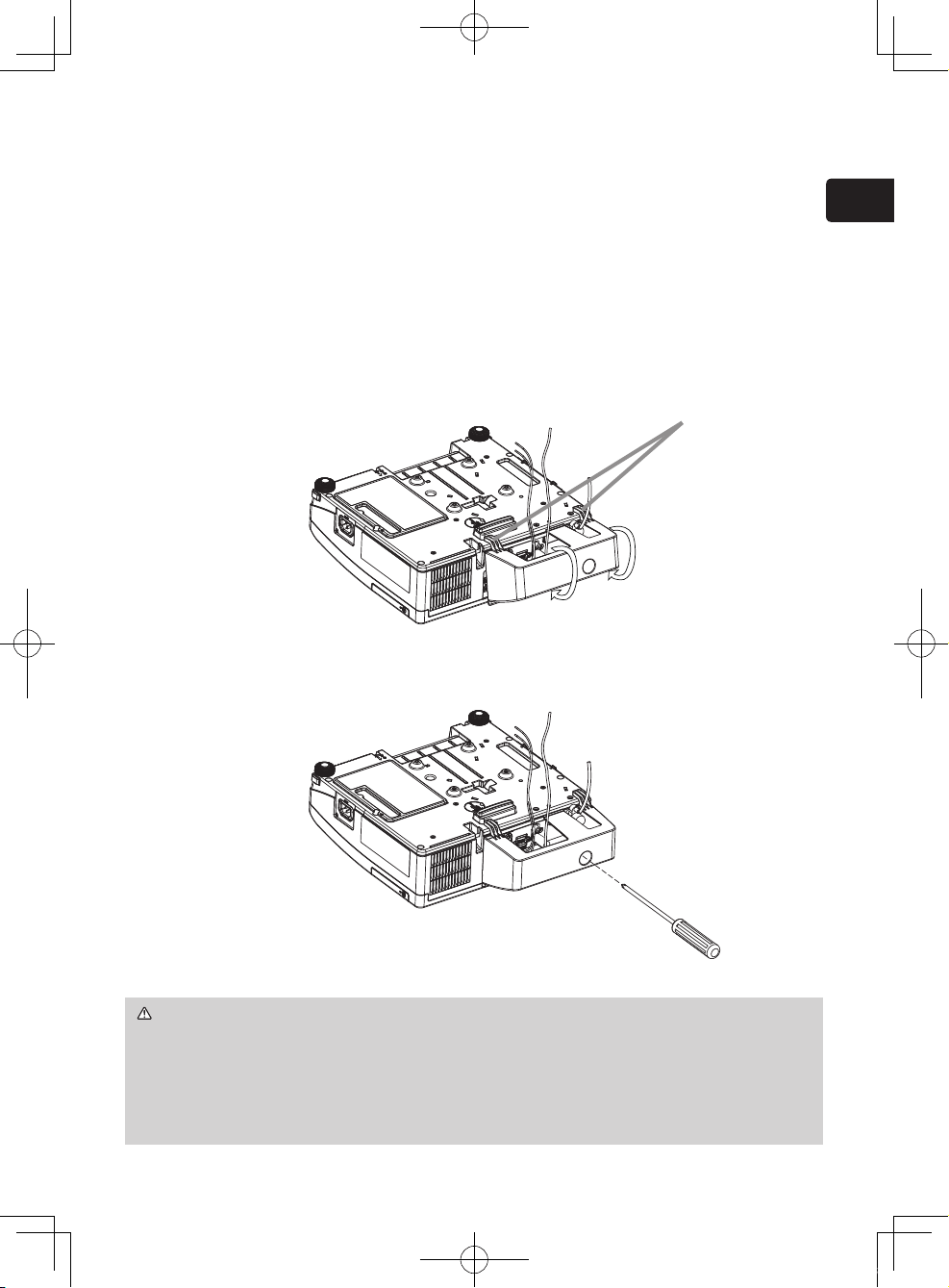
Using the cable cover
Utilize the cable cover as the guard and blind for the connecting parts.
1.
Connect the signal cables to the projector rst.
2.
Insert the two knobs on the cable cover into the two holes on the bottom of
the projector as shown in the gure. Pass the cables through the holes on the
bottom of the cable cover. Place the cable cover on the back of the projector by
rotating the cover in the direction of the arrow.
3
.
Tighten the screw to x the cable cover.
CAUTION ► Be careful not to pinch the cables in the cable cover, to
prevent damage to the cables.
► Install the cable cover rmly. The cable cover will drop if the screw is
loosened, and it may cause injury.
► Use the cable cover that is supplied with the projector. Do not attempt any
modications to the cable cover.
knobs
01CP-AW100N_CO_ENG_7th.indd 9 2009/11/18 14:52:26
10
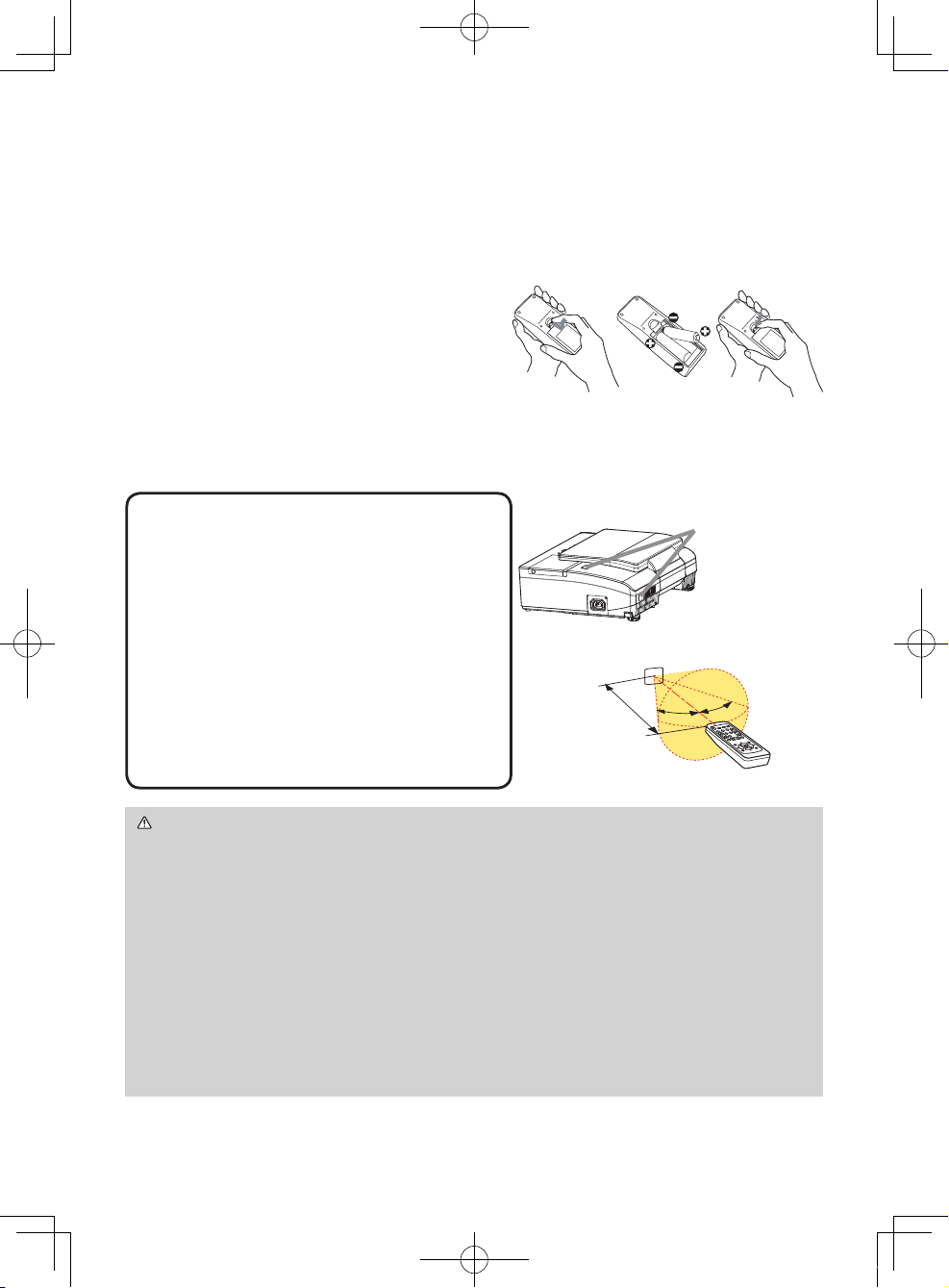
Preparing for the remote control
Please insert the batteries into the remote control before using it. If the remote
control starts to malfunction, try to replace the batteries. If you will not use the
remote control for long period, remove the batteries from the remote control and
store them in a safe place.
1.
Holding the hook part of the battery
cover, remove it.
2.
Align and insert the two AA batteries
(HITACHI MAXELL, Part No.LR6 or R6P)
according to their plus and minus terminals
as indicated in the remote control.
3.
Replace the battery cover in the direction of the arrow and snap it back into
place.
WARNING ►Always handle the batteries with care and use them only as
directed. Improper use may result in battery explosion, cracking or leakage,
which could result in re, injury and/or pollution of the surrounding environment.
• Be sure to use only the batteries specied. Do not use batteries of different
types at the same time. Do not mix a new battery with used one.
•
Make sure the plus and minus terminals are correctly aligned when loading a battery.
• Keep a battery away from children and pets.
• Do not recharge, short circuit, solder or disassemble a battery.
•
Do not place a battery in a re or water. Keep batteries in a dark, cool and dry place.
•
If you observe battery leakage, wipe out the leakage and then replace a battery.
If the leakage adheres to your body or clothes, rinse well with water immediately.
•
Obey the local laws on disposing the battery.
21
3
• Try changing the batteries when the remote
control malfunctions.
• This remote control works with the remote
sensors on the projector using infrared light
(Class 1 LED). The active sensor senses
the remote control signal assigned within 60
degrees to right and left, and within 3 meters.
For details, see the Operating Guide in the CD.
• Prevent the remote sensors from being hit by
a strong ray. It may cause malfunction of the
projector and remote control.
NOTE
Remote sensors
3m
(approx.)
30°
30°
01CP-AW100N_CO_ENG_7th.indd 10 2009/11/18 14:52:27

11
ENGLISH
Starting the projector
For this projector, follow the procedure below.
This projector needs to be tilted slightly as shown in the gure to project the image
properly. Follow the procedure below for set up.
(1) Hold both sides of the projector, and tilt the projector.
(2) Push the elevator buttons to release the elevator feet while you hold the
projector tilted.
(3)
Release the elevator button to lock the elevator feet and put the projector down gently.
WARNING ►The mirror of this machine is made of glass. It can be
damaged by excessive force or an impact. Safety lm is attached to the back
surface of the mirror. However, small pieces of broken glass could fall from
the surface of the mirror and scatter. Read the following important warnings
carefully, and follow them for your own safety.
•
Do not apply excessive force on or allow impact to the lens door, as it incorporates a mirror.
• Keep the projector out of the reach of children.
•
Do not stand under a ceiling mounted projectpr when its lens door is opening or closing.
Moreover, do not look at the mirror when the lens door is opening or closing.
•
If the mirror is broken, the projected image will be distorted. Never touch a
broken mirror. Close the lens door, and contact your dealer.
►Do not handle the portion on the projector shown by the arrow in the gure
above when you carry the projector. It could cause malfunction or injury.
►When the lens door is opening or closing, keep your ngers away from the
portion shown by the arrow in the gure above to avoid pinching your ngers.
CAUTION ► Do not handle the elevator buttons without holding the
projector, since the projector may drop down.
OPEN
CLOSE
01CP-AW100N_CO_ENG_7th.indd 11 2009/11/18 14:52:29
12
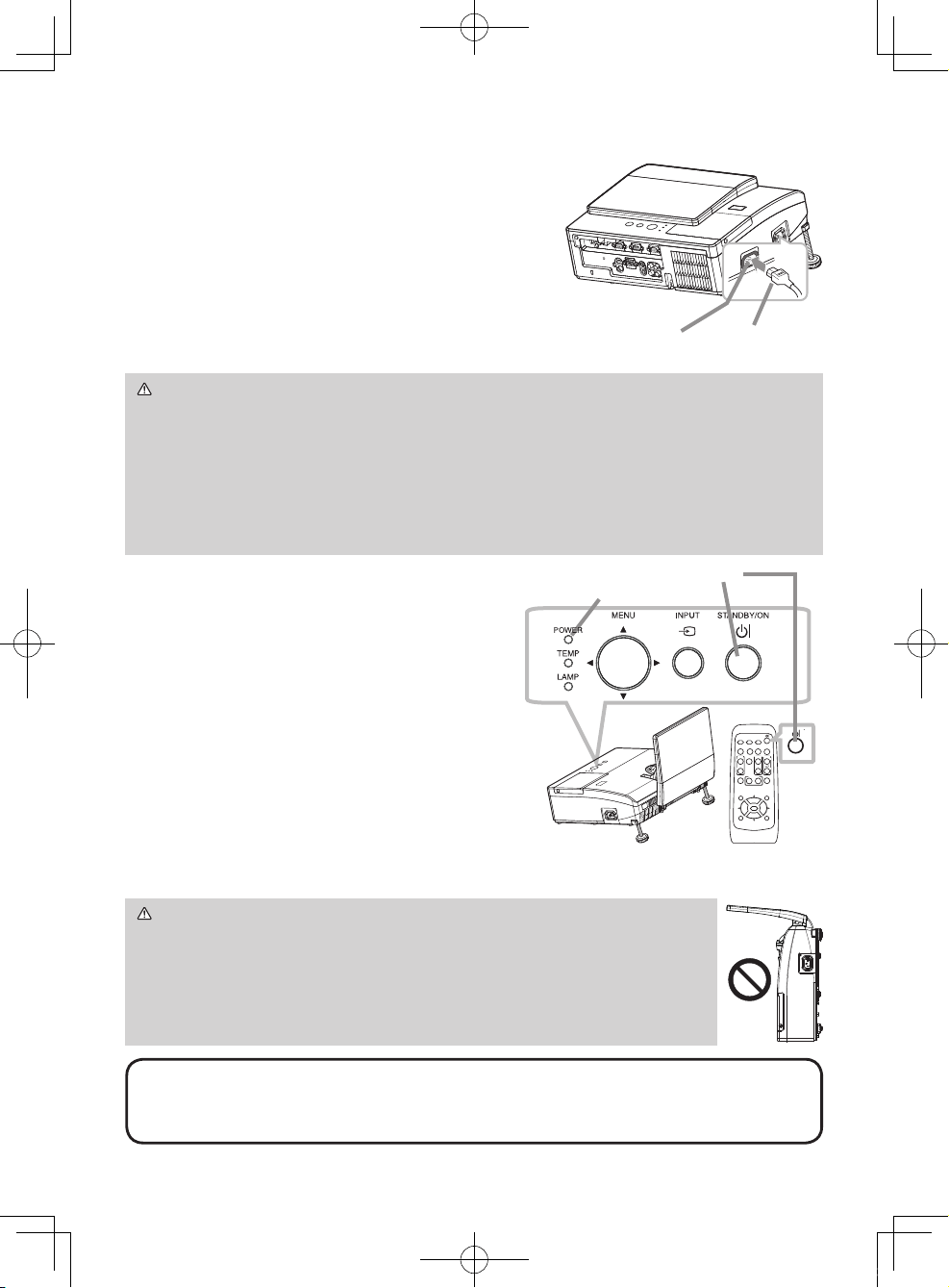
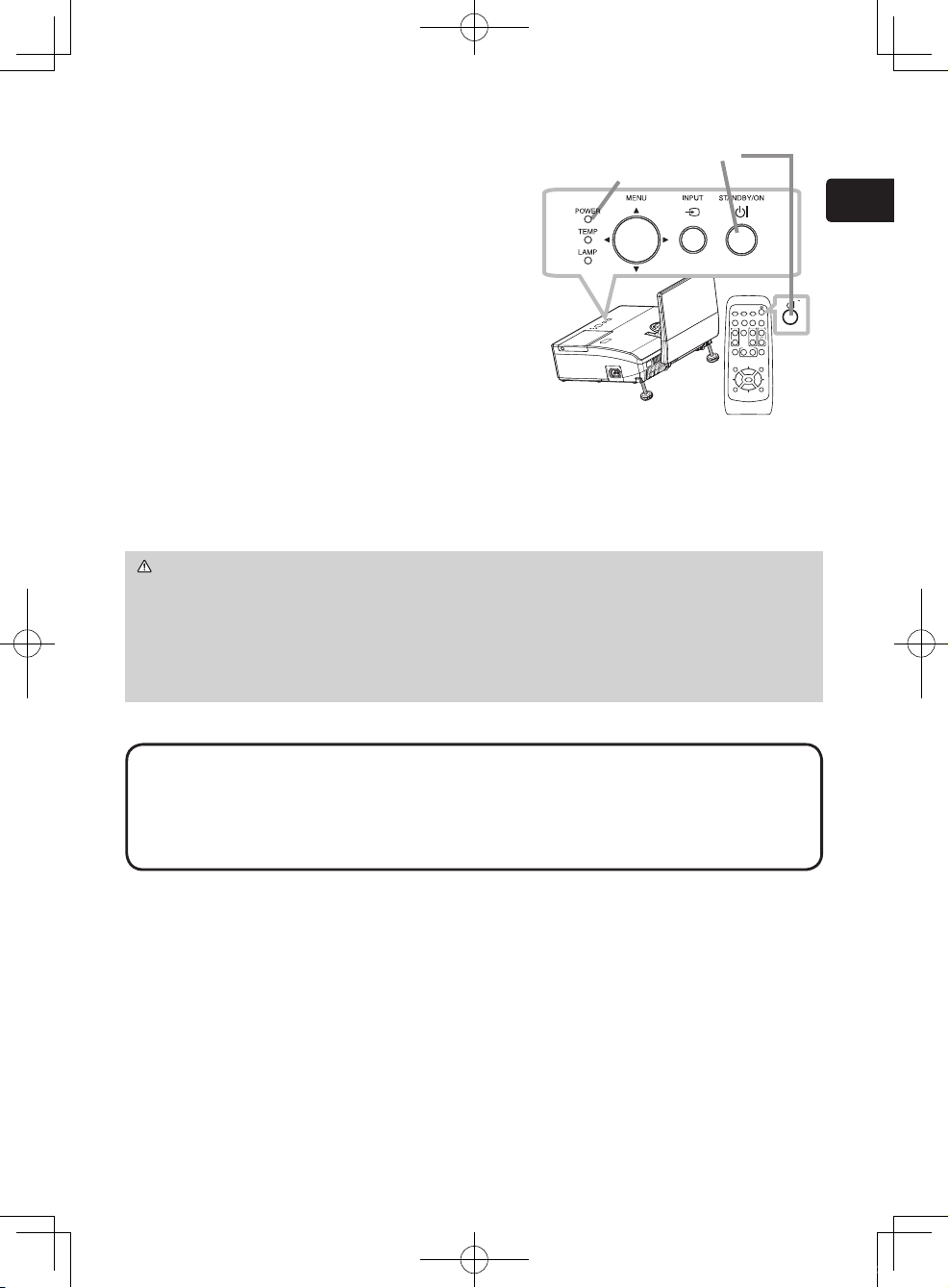
Turning on the power
1.
Make sure that the power cord is rmly
and correctly connected to the projector
and the outlet.
2.
Make sure that the POWER indicator is
steady orange.
3.
Conrm that there is nothing that the
lens door hits while opening. Press the
STANDBY/ON button on the projector or
the remote control. The lens door opens, the
projection lamp lights up, and the POWER
indicator begins to blink green. When the
power is completely on, the indicator will stop blinking and light in steady green.
VIDEO
DOC.CAMERA
KEYSTONE
ASPECT SEARCH
BLANK
MUTE
MY BUTTON
POSITION
12
ESC
ENTER
MENU
RESET
COMPUTER
MY SOURCE/
AUTO
MAGNIFY
PAGE
UP
VOLUME
DOWN
ON
OFF
㧗
FREEZE
VIDEO
DOC.CAMERA
KEYSTONE
ASPECT SEARCH
BLANK
MUTE
MY BUTTON
POSITION
12
ESC
ENTER
MENU
RESET
COMPUTER
MY SOURCE/
AUTO
MAGNIFY
PAGE
UP
VOLUME
DOWN
ON
OFF
㧗
FREEZE
Connecting power supply
1.
Put the connector of the power cord into the
AC IN (AC inlet) of the projector.
2.
Firmly plug the power cord’s plug into the
outlet. In a couple of seconds after the power
supply connection, the POWER indicator will
light up in steady orange.
Please remember that when the DIRECT POWER
ON function activated, the connection of the
power supply make the projector turn on.
WARNING ►Please use extra caution when connecting the power cord, as
incorrect or faulty connections may result in re and/or electrical shock.
• Only use the power cord that came with the projector. If it is damaged, consult
your dealer to get a new one.
• Only plug the power cord into an outlet whose voltage is matched to the power
cord. The power outlet should be close to the projector and easily accessible.
Remove the power cord for complete separation.
• Never modify the power cord.
WARNING ►Never look into the projection lens or mirror while
the projection lamp lights, since the projection lamp ray may cause
a trouble on your eyes.
►
Be careful not to pinch your nger with the lens door, to prevent an injury.
►Do not place the projector vertically with the lens door open as
shown in the gure on the right. It could cause malfunction or injury.
NOTE • Please power on the projector prior to the connected devices.
•
The projector has the DIRECT POWER ON function, which can make the projector
automatically turn on. For more information, please see the “Operating Guide” in the CD.
AC IN
STANDBY/ON button
POWER indicator
Power cord
01CP-AW100N_CO_ENG_7th.indd 12 2009/11/18 14:52:32
13
ENGLISH
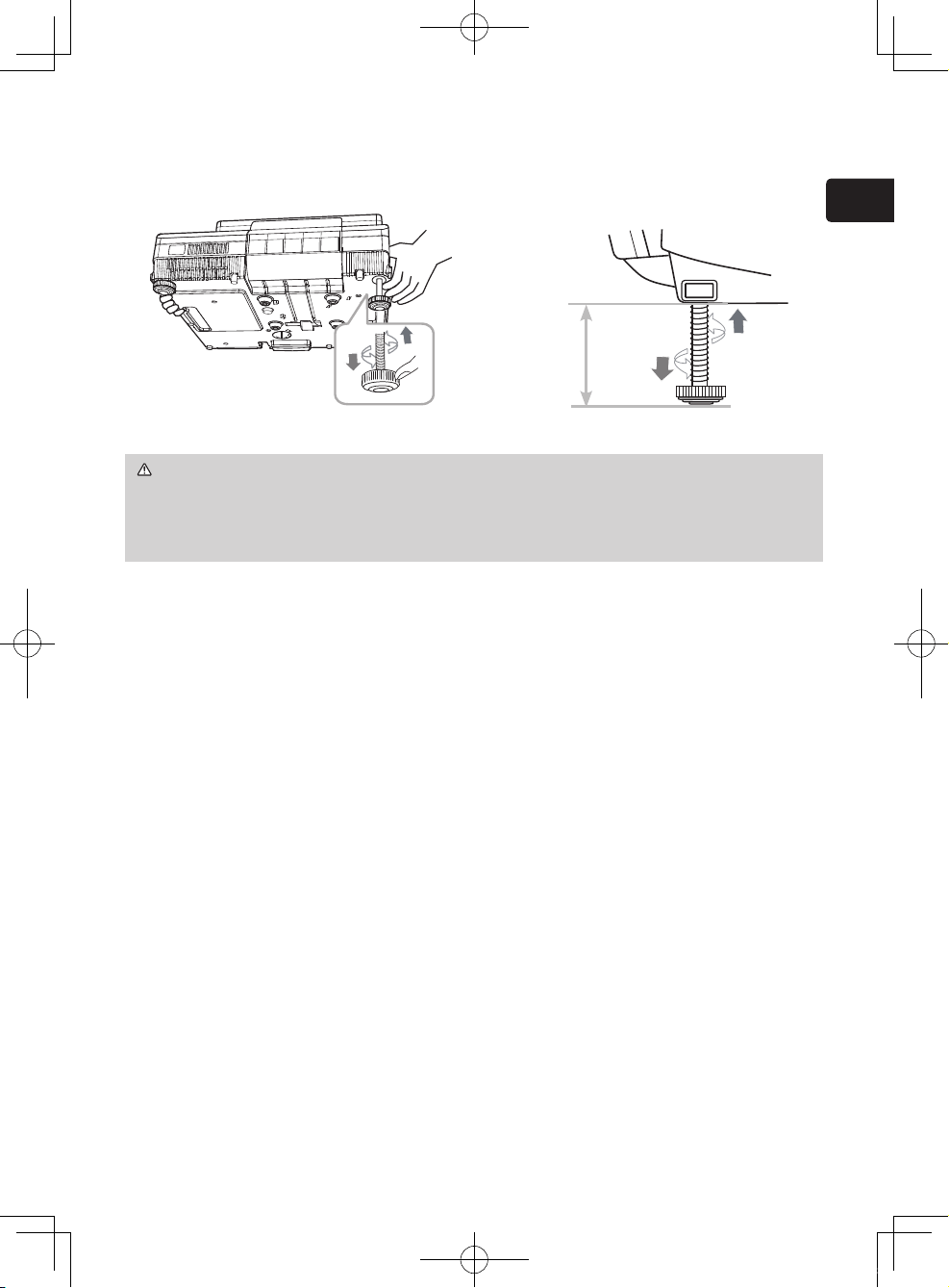
Adjusting the projector's elevator
If necessary, the elevator feet can be manually twisted to make more precise
adjustments. Hold the projector when twisting the feet.
CAUTION ►Do not handle the elevator buttons without holding the
projector, since the projector may drop down.
►Do not lengthen the elevator feet to 70 mm or more. The foot lengthened
exceeding the limit may come off from the projector, and result in an injury.
To nely adjust, twist the foot.
max. 70mm
OPEN
CLOSE
01CP-AW100N_CO_ENG_7th.indd 13 2009/11/18 14:52:33
14
VIDEO
DOC.CAMERA
KEYSTONE
ASPECT SEARCH
BLANK
MUTE
MY BUTTON
POSITION
12
ESC
ENTER
MENU
RESET
COMPUTER
MY SOURCE/
AUTO
MAGNIFY
PAGE
UP
VOLUME
DOWN
ON
OFF
㧗
FREEZE
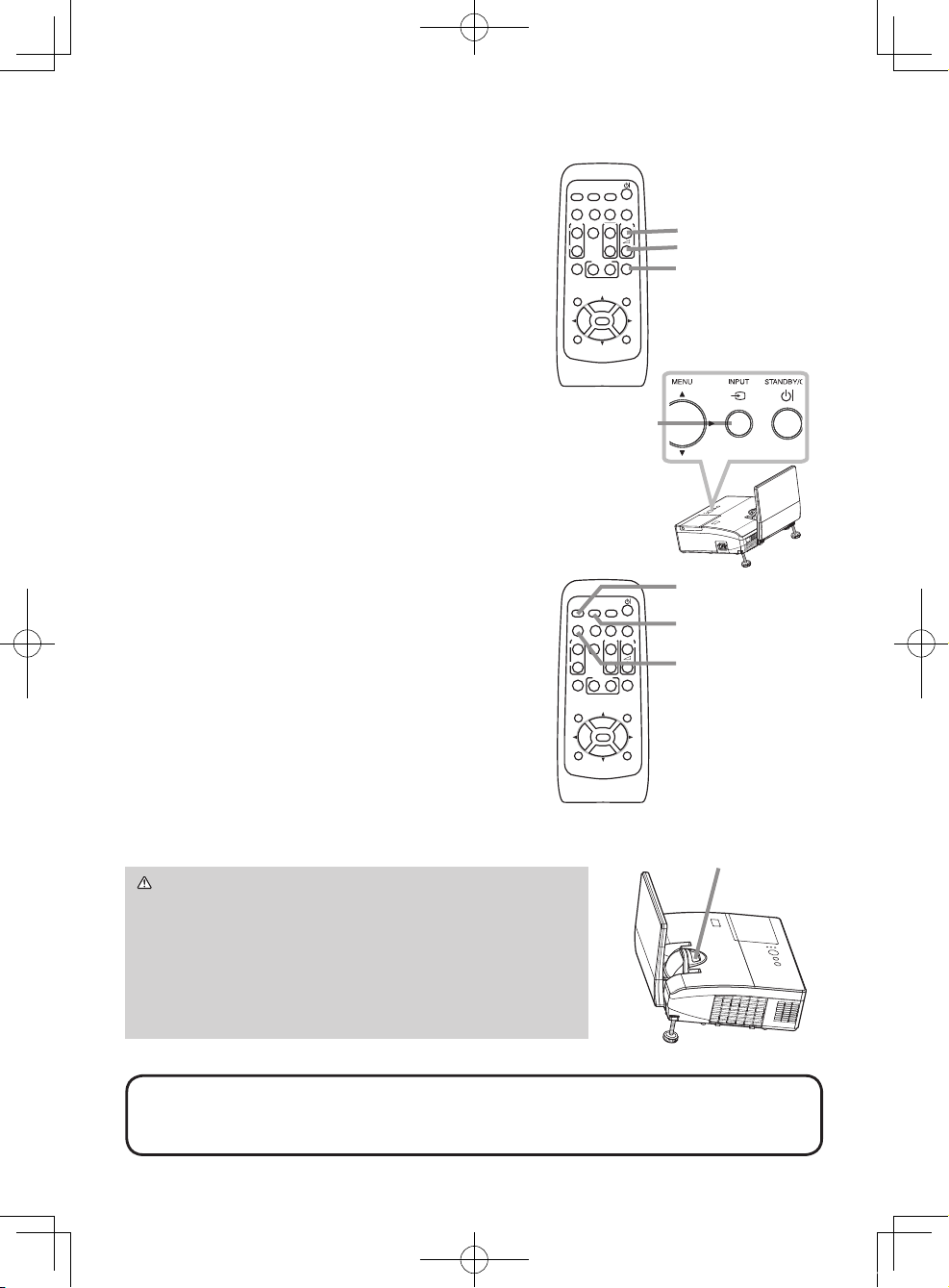
Displaying the picture
1.
Activate your signal source. Turn the signal
source on, and make it send the signal to
the projector.
2.
Use the VOLUME + / VOLUME - buttons
to adjust the volume.
To have the projector silent, press the MUTE
button on the remote control.
3.
Press the INPUT button on the projector.
Each time you press the button, the
projector switches its input port in turn.
You can also use the remote control to
select an input signal. Press the VIDEO
button for selecting an input signal from the
S-VIDEO or VIDEO port, or the COMPUTER
button for selecting an input signal from the
COMPUTER IN1, COMPUTER IN2 or HDMI
port.
4.
Press the ASPECT button on the remote
control. Each time you press the button,
the projector switches the mode for aspect
ratio in turn.
5.
Use the focus ring to focus the picture.
INPUT button
VOLUME+ button
VOLUME- button
MUTE button
NOTE • The ASPECT button does not work when no proper signal is inputted.
• For the details of how to adjust the picture, please see the “Operating Guide”
in the CD.
VIDEO
DOC.CAMERA
KEYSTONE
ASPECT SEARCH
BLANK
MUTE
MY BUTTON
POSITION
12
ESC
ENTER
MENU
RESET
COMPUTER
MY SOURCE/
AUTO
MAGNIFY
PAGE
UP
VOLUME
DOWN
ON
OFF
㧗
FREEZE
VIDEO button
COMPUTER button
ASPECT button
Focus ring
CAUTION ►If you wish to have a blank screen
while the projector's lamp is on, use the BLANK
function (see the Operating Guide).
Any other method of blocking the projection light,
such as attaching something to the lens or placing
something in front of the lens, may cause the
damage to the projector.
01CP-AW100N_CO_ENG_7th.indd 14 2009/11/18 14:52:34
15
ENGLISH
Turning off the power
1.
Press the STANDBY/ON button on the
projector or the remote control.
The message “Power off?” will appear on
the screen for about 5 seconds.
2.
Conrm that there is nothing that the
lens door hits while closing. Press the
STANDBY/ON button again while the
message appears.
The projector lamp will go off, and the
POWER indicator will begin blinking in
orange. Then the POWER indicator will
stop blinking and light in steady orange
when the lamp cooling is complete.
Do not turn the projector on for about 10 minutes or more after turning it off.
Turning the projector on again too soon could shorten the lifetime of some
consumable parts of the projector.
VIDEO
DOC.CAMERA
KEYSTONE
ASPECT SEARCH
BLANK
MUTE
MY BUTTON
POSITION
12
ESC
ENTER
MENU
RESET
COMPUTER
MY SOURCE/
AUTO
MAGNIFY
PAGE
UP
VOLUME
DOWN
ON
OFF
㧗
FREEZE
VIDEO
DOC.CAMERA
KEYSTONE
ASPECT SEARCH
BLANK
MUTE
MY BUTTON
POSITION
12
ESC
ENTER
MENU
RESET
COMPUTER
MY SOURCE/
AUTO
MAGNIFY
PAGE
UP
VOLUME
DOWN
ON
OFF
㧗
FREEZE
WARNING ►Be careful not to pinch your nger with the lens door, to
prevent an injury.
►Do not touch around the lamp cover and the exhaust vents during use or just
after use, since it is too hot.
►Remove the power cord for complete separation. The power outlet should be
close to the projector and easily accessible.
NOTE • Please power off the projector after any connected devices are
powered off.
• This projector has the AUTO POWER OFF function that can make the
projector turn off automatically. For more information, please see the “Operating
Guide” in the CD.
STANDBY/ON button
POWER indicator
01CP-AW100N_CO_ENG_7th.indd 15 2009/11/18 14:52:35
16
Replacing the lamp
A lamp has nite product life. Using the lamp for long periods of time could cause
the pictures darker or the color tone poor. Note that each lamp has a different
lifetime, and some may burst or burn out soon after you start using them.
Preparation of a new lamp and early replacement are recommended. To prepare
a new lamp, make contact with your dealer and tell the lamp type number.
Type number : DT01091
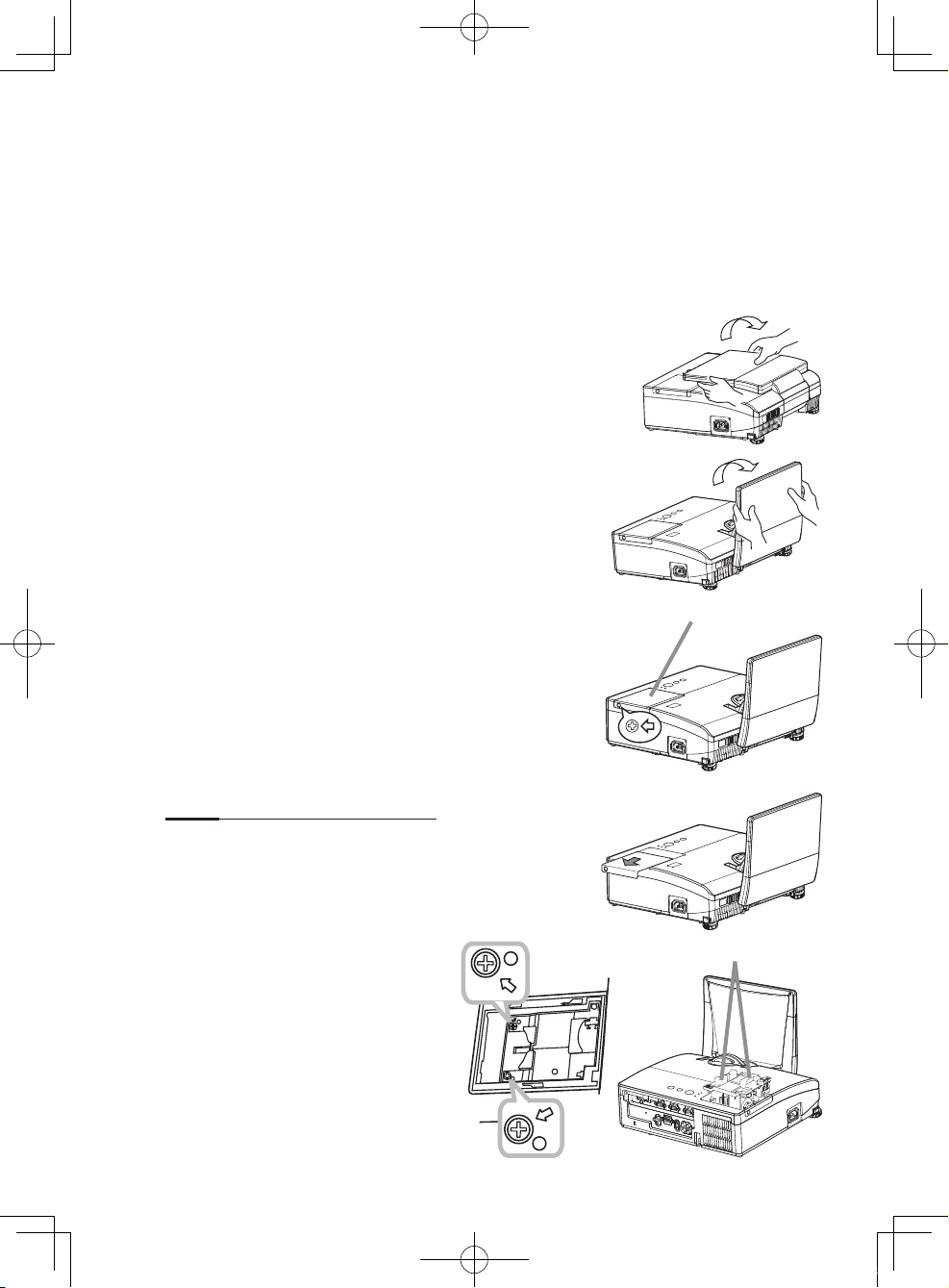
1.
Turn the projector off, and unplug the power cord.
Allow the projector to cool for at least 45 minutes.
2.
Prepare a new lamp. If the projector is mounted
on a ceiling, or if the lamp has broken, also ask
the dealer to replace the lamp.
In case of replacement by yourself, follow the
following procedure.
3.
You can open the lens door by hand. Hold both
sides of the lens door as shown in the gure. Open
the lens door slowly in the direction of the arrow
till it clicks. Do not touch the surface of the mirror
when you open the lens door.
4.
Loosen the screw (marked by arrow) of the lamp
cover and then slide and lift the lamp cover to the
side to remove it.
5.
Loosen the 2 screws (marked by arrow) of the
lamp, and slowly pick up the lamp by the handles.
Never loosen any other screws.
6.
Insert the new lamp, and retighten rmly the
2 screws of the lamp that are loosened in the
previous process to lock it in place.
7.
While putting the interlocking
parts of the lamp cover and the
projector together, slide the lamp
cover back in place. Then rmly
fasten the screw of the lamp
cover.
lamp cover
Handles
01CP-AW100N_CO_ENG_7th.indd 16 2009/11/18 14:52:38
17
ENGLISH
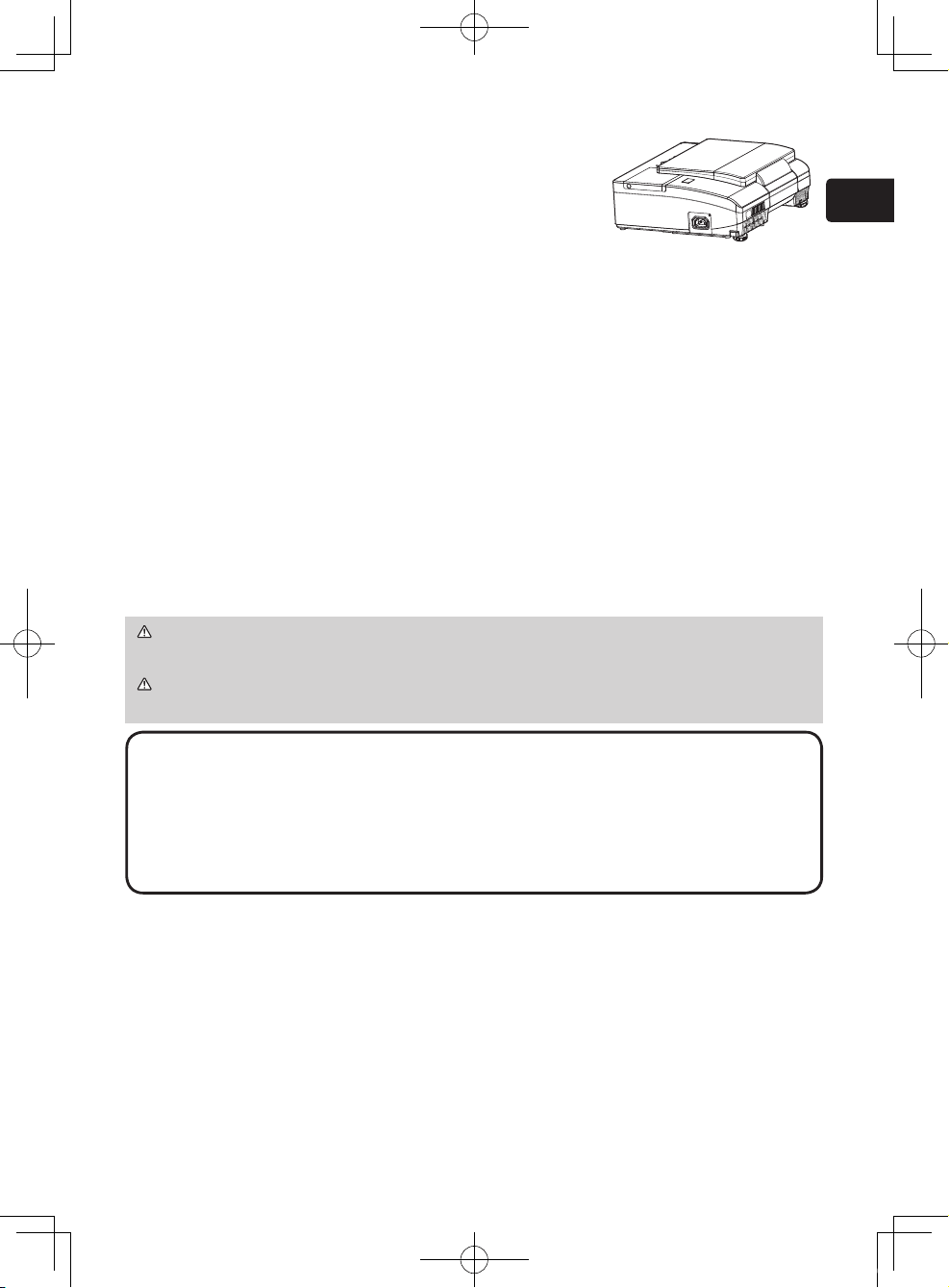
8.
Follow the procedure below to close the lens door
properly.
(1) Insert the power cord with the lens door opened.
(2) The power indicator will light in orange, and the
lens door closes automatically. Do not touch the
lens door when the door is closing. Do not allow
anything to obstruct the lens door.
9.
Turn the projector on and reset the lamp time
using the LAMP TIME item in the OPTION menu.
(1) Press the MENU button to display a menu.
(2) Point at the ADVANCED MENU in the menu using the
▲/▼ cursor buttons, then press the ► cursor (or the
ENTER) button.
(3) Point at the OPTION in the left column of the menu
using the ▲/▼cursor buttons, then press the ► cursor
(or the ENTER) button.
(4) Point at the LAMP TIME using the ▲/▼ cursor buttons,
then press the ► cursor (or the ENTER / the RESET)
button. A dialog will appear.
(5) Press the ► cursor button to select the “OK” on the dialog. It performs
resetting the lamp time.
NOTE • Please reset the lamp time only when you have replaced the lamp,
for a suitable indication about the lamp.
• When the lens door is closed manually, it may not shut properly.
• The lens door may not close when the LENS DOOR LOCK function of the
SERVICE item in the OPTION menu is set to ON. For more information, please
see the “Operating Guide” on the CD.
CAUTION ►Do not touch any inner space of the projector, while the lamp
is taken out.
WARNING ►Be careful not to pinch your nger with the lens door, to prevent
an injury.
01CP-AW100N_CO_ENG_7th.indd 17 2009/11/18 14:52:39
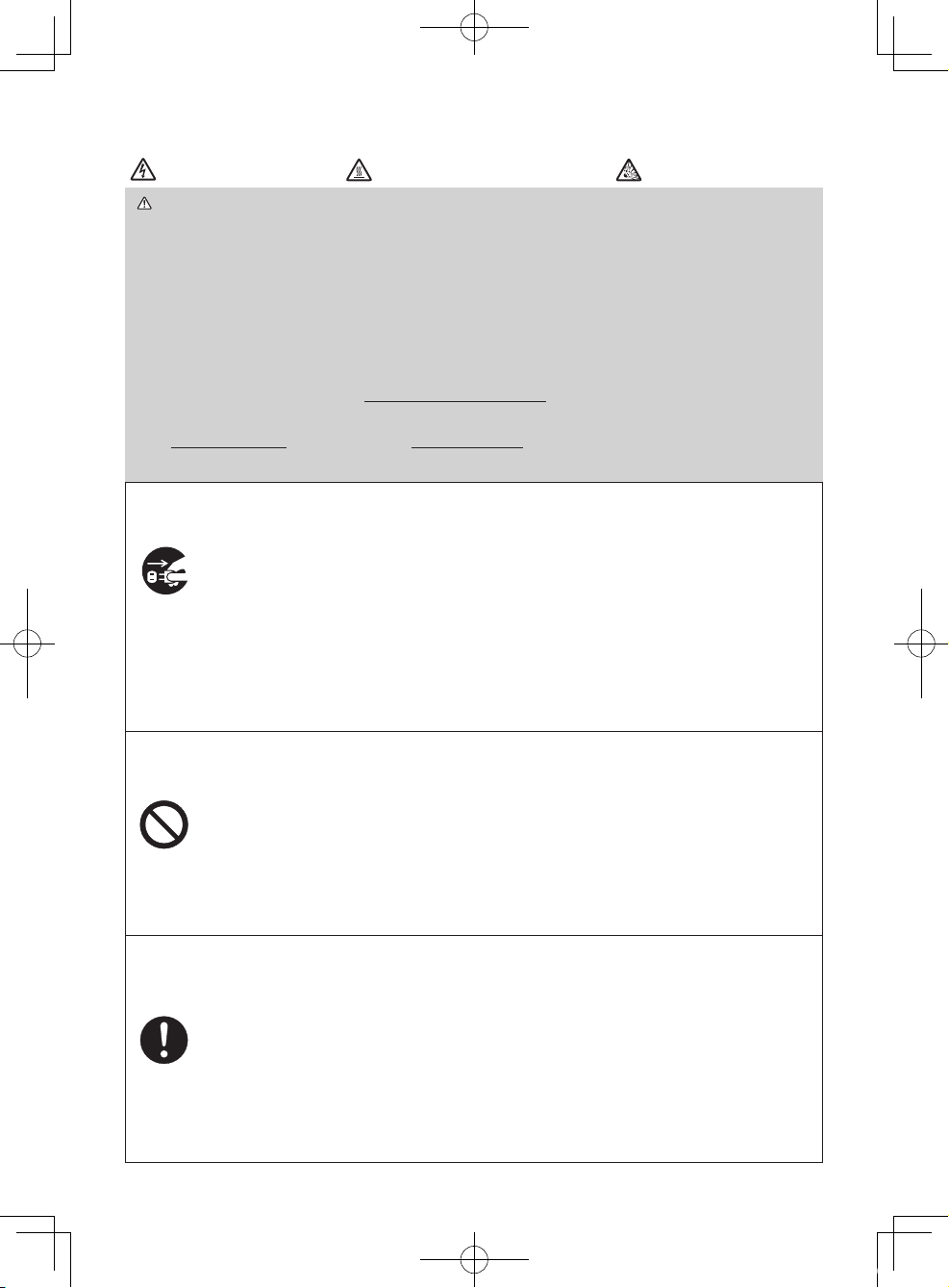
18
HIGH VOLTAGE
HIGH TEMPERATURE HIGH PRESSURE
WARNING ►
The projector uses a high-pressure mercury glass lamp. The lamp
can break with a loud bang, or burn out, if jolted or scratched, handled while hot, or
worn over time. Note that each lamp has a different lifetime, and some may burst or
burn out soon after you start using them. In addition, if the bulb bursts, it is possible
for shards of glass to y into the lamp housing, and for gas containing mercury and
dust containing ne particles of glass to escape from the projector’s vent holes.
►About disposal of a lamp: This product contains a mercury lamp; do not put
it in a trash. Dispose of it in accordance with environmental laws.
• For lamp recycling, go to www.lamprecycle.org (in the US).
• For product disposal, consult your local government agency
or www.eiae.org (in the US) or www.epsc.ca (in Canada).
For more information, ask your dealer.
• If the lamp should break (it will make a loud bang when it does),
unplug the power cord from the outlet, and make sure to request a
replacement lamp from your local dealer. Note that shards of glass
could damage the projector’s internals, or cause injury during handling,
so please do not try to clean the projector or replace the lamp yourself.
• If the lamp should break (it will make a loud bang when it does), ventilate the
room well, and make sure not to inhale the gas or ne particles that come out
from the projector's vent holes, and not to get them into your eyes or mouth.
• Before replacing the lamp, turn the projector off and unplug the power
cord, then wait at least 45 minutes for the lamp to cool sufficiently.
Handling the lamp while hot can cause burns, as well as damaging the lamp.
• Never unscrew except the appointed (marked by an arrow) screws.
• Do not open the lamp cover while the projector is suspended from
a ceiling. This is dangerous, since if the lamp’s bulb has broken, the
shards will fall out when the cover is opened. In addition, working in
high places is dangerous, so ask your local dealer to have the lamp
replaced even if the bulb is not broken.
• Do not use the projector with the lamp cover removed. At the lamp
replacing, make sure that the screws are screwed in firmly. Loose
screws could result in damage or injury.
•
Use only the lamp of the specied type. Use of a lamp that does not meet the
lamp specications for this model could damage or shorten the life of this product.
• If the lamp breaks soon after the first time it is used, it is possible
that there are electrical problems elsewhere besides the lamp. If this
happens, consult your local dealer or a service representative.
•
Handle with care: jolting or scratching could cause the lamp bulb to burst during use.
• Using the lamp for long periods of time, could cause it dark, not to light
up or to burst. When the pictures appear dark, or when the color tone
is poor, please replace the lamp as soon as possible. Do not use old
(used) lamps; this is a cause of breakage.
Disconnect
the plug
from the
power
outlet
Replacing the lamp (continued)
01CP-AW100N_CO_ENG_7th.indd 18 2009/11/18 14:52:40
19
ENGLISH
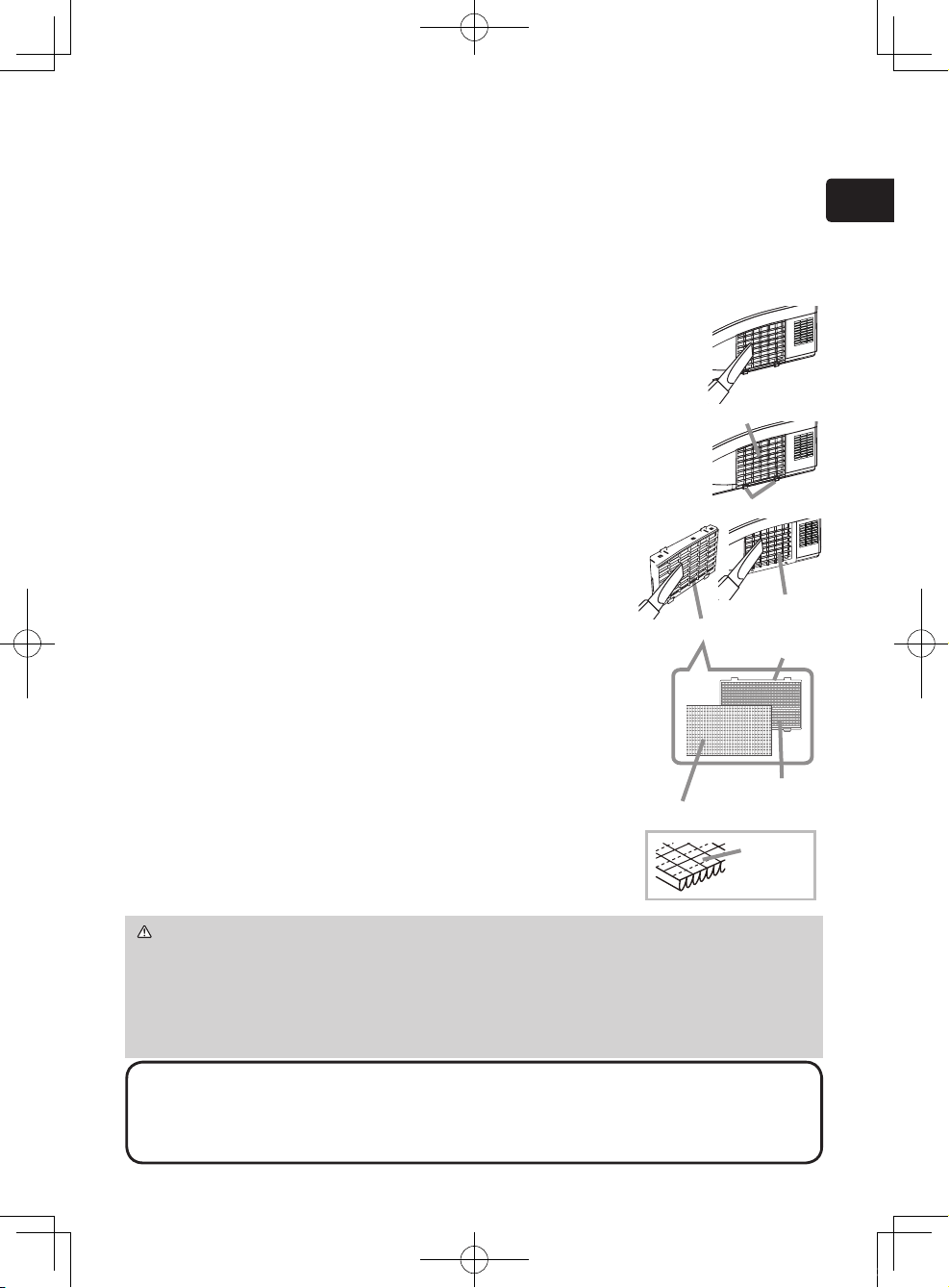
The air lter has two kinds of lters inside. Please check and clean the air lter periodically.
When the indicators or a message prompts you to clean the air lter, comply with it as soon
as possible. If the lters are damaged or heavily soiled, replace them with the new ones. To
prepare the new lters, make contact with your dealer and tell the following type number.
Type number : UX35971 (Filter unit)
When you replace the lamp, please replace the air lter. An air lter of specied type will
come together with a replacement lamp for this projector.
1.
Turn the projector off, and unplug the power cord.
Allow the projector to sufciently cool down.
2.
Use a vacuum cleaner on and around the lter cover.
3.
Pick and pull up the lter cover knobs to take it off.
4.
Use a vacuum cleaner for the lter vent of the projector.
5.
Take the ne meshed lter out while holding the lter
cover. It is recommended to leave the coarse meshed
lter in the lter cover as it is.
6.
Use a vacuum cleaner on both sides of the ne
meshed lter while holding it so it will not be sucked in.
Use a vacuum cleaner for the inside of the lter cover
to clean up the coarse meshed lter. If the lters are damaged
or heavily soiled, replace them with new ones.
7.
Put the ne meshed lter on the coarse meshed one, turning
its stitched side up.
8.
Put the lter unit back into the projector.
9.
Turn the projector on and reset the lter time using the FILTER
TIME item in the EASY MENU.
(1) Press the MENU button to display a menu.
(2) Point at the FILTER TIME using the ▲/▼ cursor buttons, then
press the ► cursor (or the ENTER / the RESET) button. A
dialog will appear.
(3) Press the ► cursor button to select the “OK” on the dialog. It
performs resetting the lter time.
Cleaning and replacing the air lter
WARNING ►Before taking care of the air lter, make sure the power cable
is not plugged in, then allow the projector to cool sufciently.
►
Use only the air lter of the specied type. Do not use the projector without the
air lter or the lter cover. It could result in a re or malfunction to the projector
.
►
Clean the air lter periodically. If the air lter becomes clogged by dust or the like,
internal temperatures rise and could cause a re, a burn or malfunction to the projector.
NOTE • Please reset the lter time only when you have cleaned or replaced
the air lter, for a suitable indication about the air lter.
• The projector may display the message such as the “CHECK THE AIR FLOW”
or turn off the projector, to prevent the internal heat level rising.
Filter cover
Filter cover knobs
3.
Filter unit
Intake vent
Stitched
side
Filter cover
Filter
(coarse meshed)
Filter (ne meshed)
7.
2.
4.
01CP-AW100N_CO_ENG_7th.indd 19 2009/11/18 14:52:42
20
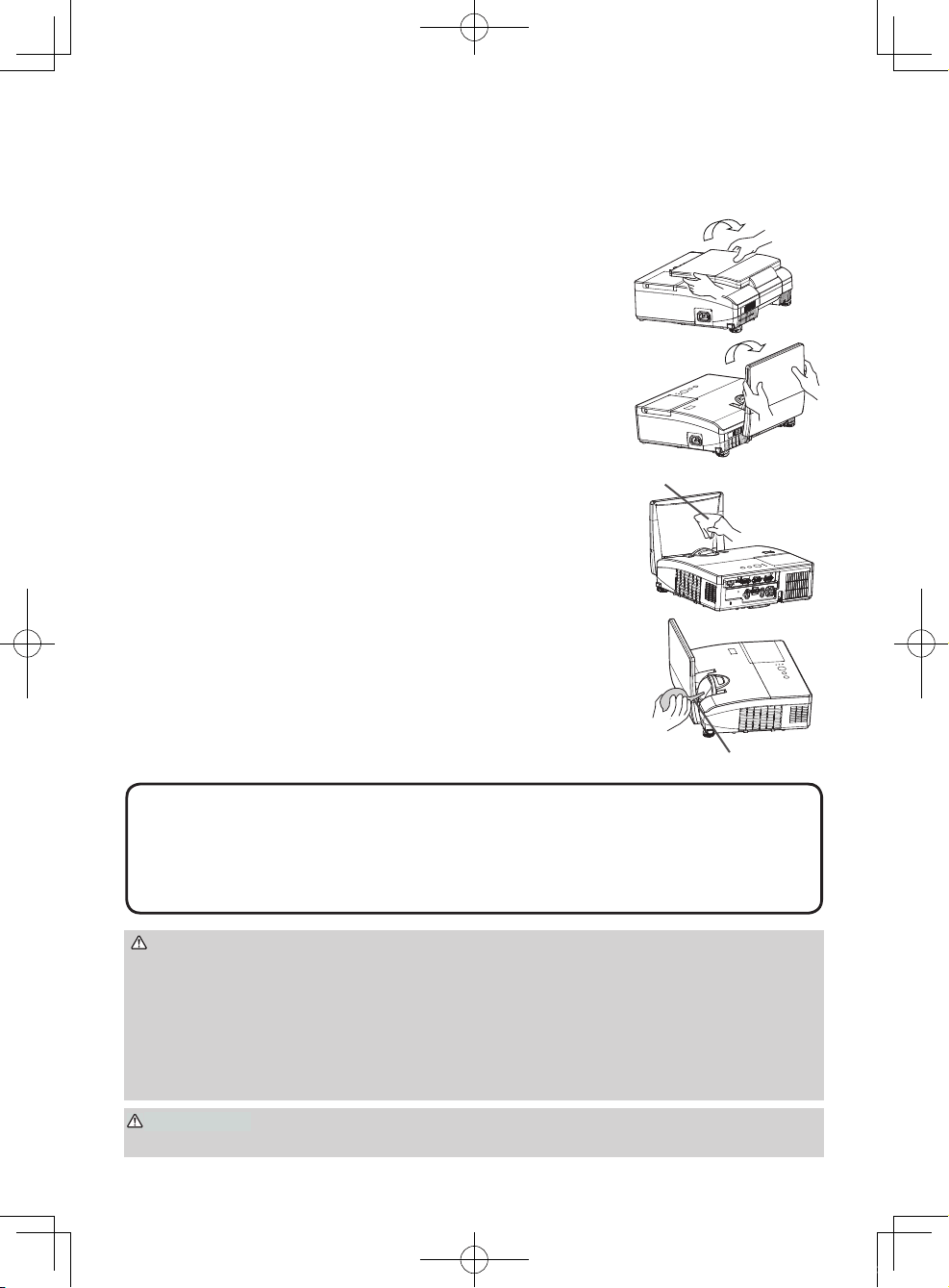
Caring for the mirror and lens
If the projection mirror or lens is awed, soiled or fogged, it could cause deterioration
of display quality. Please take care of the mirror and lens, being cautious of handling.
1.
Turn the projector off and unplug the power cord
from the power outlet. And cool the projector down
by leaving it for a while as it is.
2.
The lens door can be opened manually.
Please hold both side of the lens door and slowly
open it until it is locked with clicking sound.
3.
Wipe softly the mirror and lens with a cleaning cloth
for lens on the market, being careful not to give any
damage on the mirror and lens.
For around edge of the mirror and lens where might
be difcult to be wiped out, please use an air blower
for cameras on the market to clean up.
4.
To close the lens door properly, please take the
following procedure.
(1) Insert the power cord with the lens door opened.
(2) The power indicator will light in orange, and the
lens door closes automatically. Do not touch the
lens door when the door is closing. Do not allow
anything to obstruct the lens door.
• When the lens door is closed manually, it may not shut properly.
• The lens door may not close when the LENS DOOR LOCK function of the
SERVICE item in the OPTION menu is set to ON. For more information, please
see the “Operating Guide” on the CD.
NOTE
►Before caring for the projection mirror and lens, turn the
projector off and unplug the power cord, then cool the projector sufciently.
►Do not use a vacuum cleaner to clean the projection mirror or lens, since it
might give some damage.
►Do not use cleaners or chemicals other than those specied in this manual.
Pay special attention to the mirror and lens as these materials could cause
serious damage to either.
WARNING
►Be careful not to pinch your nger with the lens door, to prevent
an injury.
CAUTION
Cleaning cloth
Blower
01CP-AW100N_CO_ENG_7th.indd 20 2009/11/18 14:52:45
21
ENGLISH
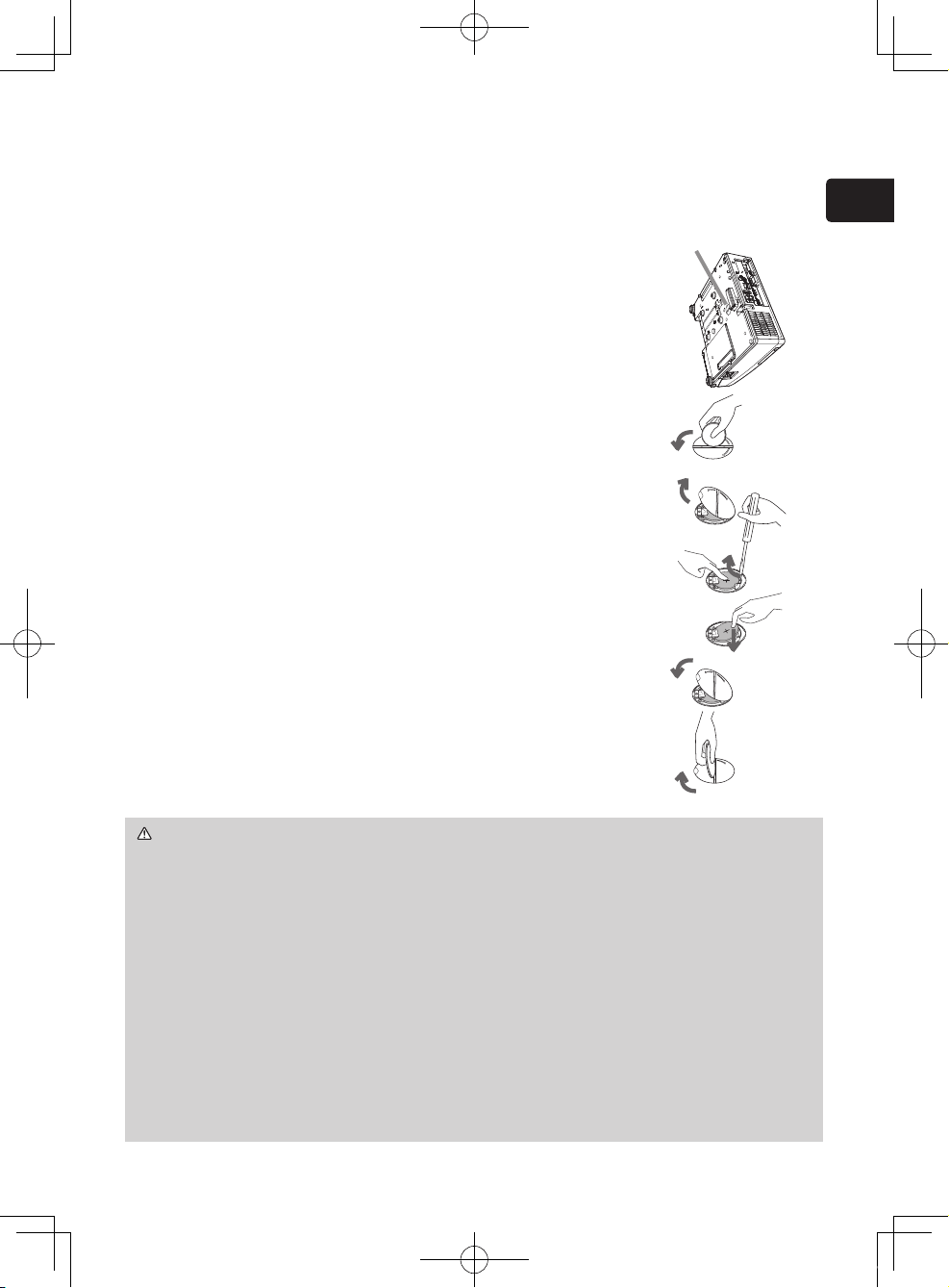
Replacing the internal clock battery
Consumption of the battery makes the clock not to work correctly. When the clock
is wrong or it has stopped, please replace the battery according to the following
procedures.
1.
Turn the projector off, and unplug the power cord. Allow the
projector to cool sufciently.
2.
After making sure that the projector has cooled adequately,
slowly turn over the projector, so that the bottom is facing.
3.
Turn the battery cover fully in the direction indicated “OPEN”
using a coin or the like, and pick the cover up to
remove it.
4.
Pry up the battery using a athead screwdriver or the like
to take it out. While prying it up, put a nger lightly on the
battery since it may pop out of the holder.
5.
Replace the battery with a newHITACHI MAXELL, Part
No.CR2032 or CR2032H.
Slide the battery in under the plastic claw, and push it
into the holder until it clicks.
6.
Replace the battery cover in place, then turn it in the
direction indicated “CLOSE” using such as coins, to x.
WARNING ►Always handle the batteries with care and use them only as
directed. Battery may explode if mistreated. Do not recharge, disassemble or
dispose of in re.
And also improper use may result in cracking or leakage, which could result in
re, injury and/or pollution of the surrounding environment.
・ Be sure to use only the batteries specied.
・ Make sure the plus and minus terminals are correctly aligned when loading a battery.
・
Keep a battery away from children and pets. If swallowed consult a physician
immediately for emergency treatment.
・ Do not short circuit or solder a battery.
・ Do not allow a battery in a re or water. Keep batteries in a dark, cool and dry place.
・
If you observe battery leakage, wipe out the leakage and then replace a battery. If the
leakage adheres to your body or clothes, rinse well with water immediately.
・ Obey the local laws on disposing a battery.
OPEN
CLOSE
OPEN
CLOSE
OPEN
CLOSE
90°
OPEN
CLOSE
90°
Battery Cover
01CP-AW100N_CO_ENG_7th.indd 21 2009/11/18 14:52:47
22
Using the CD manual
The other manuals for this product are written into the included CD-ROM titled
“User’s Manual (detailed)”. Before using the CD-ROM, please read the following
to ensure the proper use.
System requirements
The system for using the CD-ROM requires the following.
Windows
®
: OS:Microsoft
®
Windows
®
98, Windows
®
98SE,
Windows NT
®
4.0, Windows
®
Me,
Windows
®
2000/Windows
®
XP or later
CPU:Pentium
®
processor 133MHz / Memory:32MB or more
Macintosh
®
: OS:Mac OS
®
10.2 or later
CPU:PowerPC
®
/ Memory:32MB or more
CD-ROM drive: 4x CD-ROM drive
Display: 256 color / 640x480 dots resolution
Applications: Microsoft
®
Internet Explorer
®
4.0 and
Adobe
®
Acrobat
®
Reader
®
4.0 or later
How to use the CD
1. Insert CD into PC’s CD-ROM drive.
Windows
®
: In a while, Web browser automatically starts. Start up
window comes up.
Macintosh
®
: (1) Double-click on the “Projectors” icon appeared on the
desktop screen.
(2) When “main.html” file is clicked, Web browser will start
and Initial window will appear.
2. Click the model name of your projector first, and then click language you want
from the displayed list. The User’s manual (detailed) will open.
CAUTION ►Only use the CD-ROM in a computer CD drive. The CD-
ROM is designed for PC use only. NEVER INSERT THE CD-ROM INTO A
NON-COMPUTER CD PLAYER! Inserting the CD-ROM into an incompatible
CD drive may produce a loud noise, which in turn MAY RESULT IN EAR AND
SPEAKER DAMAGE!
• After using CD-ROM, please put it into CD case and keep it. Please keep
the CD neither in direct sunlight nor in a high temperature and high humidity
environment.
NOTE • The information in the CD-ROM is subject to change without notice.
• No responsibility is taken for any obstacle and defect to hardware and
software of your PC as a result of the use of the CD-ROM.
• All or Any part of the information in the CD-ROM must not be copied,
reproduced or republished without notice to our company.
01CP-AW100N_CO_ENG_7th.indd 22 2009/11/18 14:52:47
23
ENGLISH
Specications
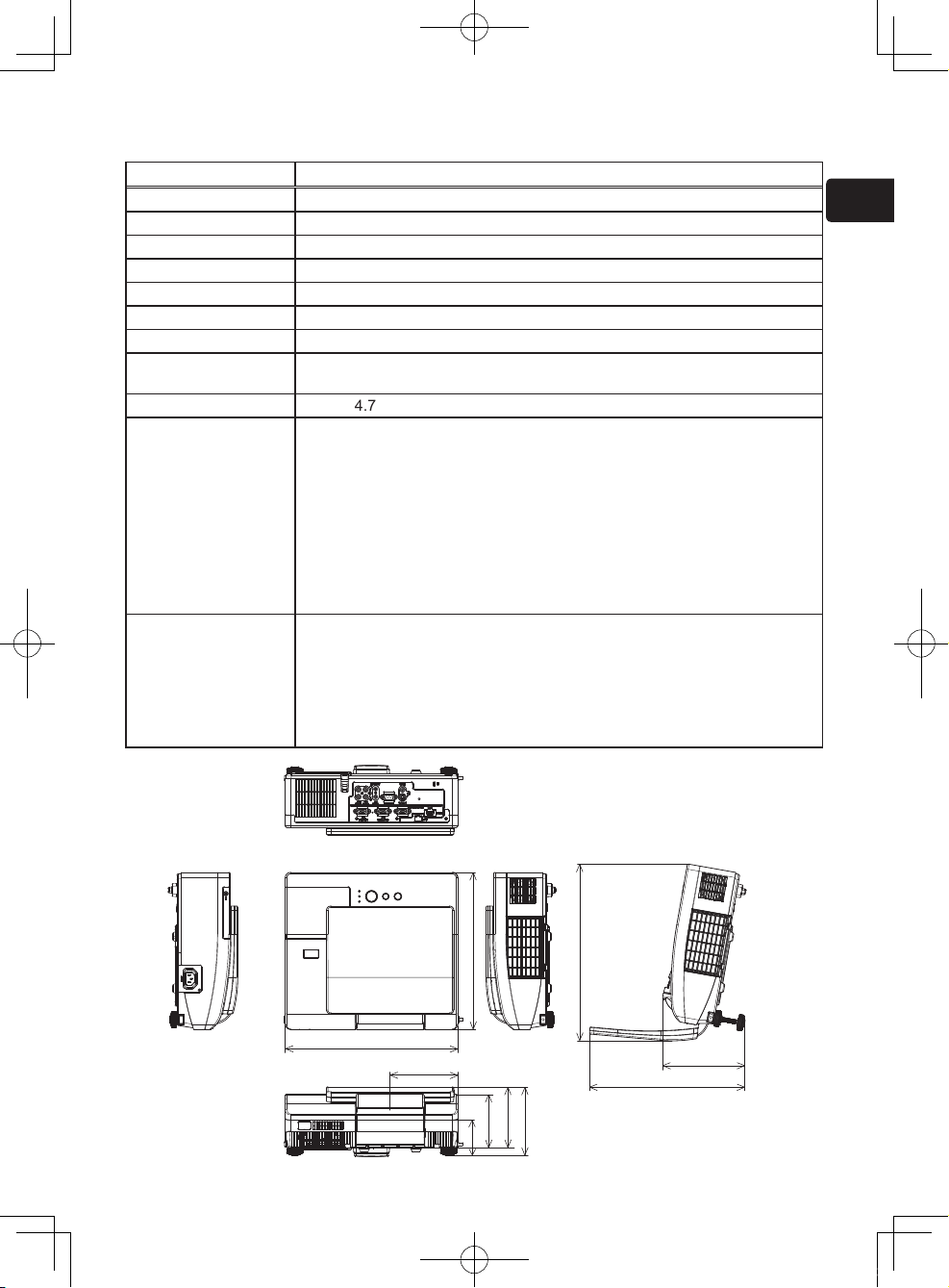
Item Specication
Product name Liquid crystal projector
Liquid Crystal Panel 1,024,000 pixels (1280 horizontal x 800 vertical)
Lamp 180W UHB
Speaker 10W
Power supply AC 100-120V / 3.1A, AC220-240V / 1.5A
Power consumption 270 W
Temperature range 5 ~ 35°C (Operating)
Size
333 (W) x 118 (H) x 303 (D) mm
* Not including protruding parts. Please refer to the following gure.
Weight (mass) approx. 4.7 kg
Ports
Computer input port
COMPUTER IN1
....................... D-sub 15 pin mini x1
COMPUTER IN2
....................... D-sub 15 pin mini x1
Computer output port
MONITOR OUT
....................... D-sub 15 pin mini x1
Video input port
S-VIDEO ..............mini DIN 4 pin x1
VIDEO ................................. RCA x1
HDMI input port
HDMI ............... HDMI connector ×1
Audio input/output port
AUDIO IN1 ................ Stereo mini x1
AUDIO IN2 ................ Stereo mini x1
AUDIO IN3 (R, L) ................. RCA x2
AUDIO OUT (R, L) ............... RCA x2
Others
CONTROL ................. D-sub 9 pin x1
LAN ..................................... RJ45 x1
Optional parts
Lamp: DT01091
Filter set: UX35971
Mounting accessary: HAS-AW100 (Bracket for ceiling mount)
HAS-203L (Fixing adaptor for low ceilings)
HAS-P100 (Fixing adaptor for high ceilings)
Laser remote control: RC-R008
* For more information, please consult your dealer.
305
163
341
333
303
131
72
103
118
137
01CP-AW100N_CO_ENG_7th.indd 23 2009/11/18 14:52:52
24
Troubleshooting - Warranty and after-service
If an abnormal operation (such as smoke, strange odor or excessive sound)
should occur, stop using the projector immediately. Otherwise if a problem occurs
with the projector, rst refer to the “Troubleshooting” of the “Operating Guide” in
the CD and run through the suggested checks.
If this does not resolve the problem, please consult your dealer or service
company. They will tell you what warranty condition is applied.
Please check the following web address where you may nd the latest information
for this projector.
http://www.hitachi.us/digitalmedia
or
http://www.hitachidigitalmedia.com
Trademark acknowledgment
• Mac
®
, Macintosh
®
and Mac OS
®
are registered trademarks of Apple Inc.
• Pentium
®
is a registered trademark of Intel Corp.
• Adobe
®
and Acrobat
®
, Reader
®
are registered trademarks of Adobe Systems
Incorporated.
• Microsoft
®
and Internet explorer
®
, Windows
®
, Windows NT
®
, Windows Vista
®
are registered trademarks of Microsoft Corporation.
• PowerPC
®
is a registered trademark of International Business Machines
Corporation.
• HDMI, the HDMI logo and High-Denition Multimedia Interface are trademarks
or registered trademarks of HDMI Licensing LLC.
• "Blu-ray Disc" is a trademark.
All other trademarks are the properties of their respective owners.
NOTE • The information in this manual is subject to change without notice.
• The manufacturer assumes no responsibility for any errors that may appear in
this manual.
• The reproduction, transfer or copy of all or any part of this document is not
permitted without express written consent.
01CP-AW100N_CO_ENG_7th.indd 24 2009/11/18 14:52:52