Many cable or satellite TV boxes have more than one connection type. To get the best video, you should use the best connection type available. See Jacks on page 5.
You can connect a cable or satellite box using:
HDMI (best)
AV (good)
Coaxial (good)
HDMI (best)
1 Make sure that your TV’s power cord is unplugged and all connected equipment is turned off.
2 Connect a coaxial cable (not provided) to the cable wall jack and to the cable-in jack on the cable or satellite box.
3 Connect an HDMI cable (not provided) to one of the HDMI jacks on your TV and to the HDMI out jack on the cable or satellite box.
4 Plug your TV’s power cord into a power outlet, turn on your TV, then turn on the cable or satellite box.
5 Press INPUT to open the INPUT SOURCE list, select the HDMI jack you connected the cable or satellite box to, then press ENTER.
Note: An HDMI cable carries both audio and video. You do not need to use any audio cables.
AV (good)
Note: Cables are often color-coded to match color-coded jacks.
1 Make sure that your TV’s power cord is unplugged and all connected equipment is turned off.
2 Connect a coaxial cable (not provided) to the cable wall jack and to the cable-in jack on the cable or satellite box.
3 Connect an AV cable (not provided) to the AV jacks on your TV and to the AV out jacks on the cable or satellite box. IMPORTANT: When you connect the audio using the AV jacks, the audio output is analog.
4 Plug your TV’s power cord into a power outlet, turn on your TV, then turn on the cable or satellite box.
5 Press INPUT to open the INPUT SOURCE list, select AV, then press ENTER.
Coaxial (good)
1 Make sure that your TV’s power cord is unplugged and all connected equipment is turned off.
2 Connect the coaxial cable to the cable wall jack and to the cable-in jack on the cable or satellite box.
3 Connect a coaxial cable (not provided) to the antenna/cable jack on your TV and to the coaxial out jack on the cable or satellite box.
4 Plug your TV’s power cord into a power outlet, turn on your TV, then turn on the cable or satellite box.
5 Press INPUT to open the INPUT SOURCE list, select TV, then press ENTER. 6 If you cannot tune to channels you know exist, scan for channels. See the Auto Channel Search option in Changing channel settings on page 26.
Connecting an antenna or cable TV (no box)
1 Make sure that your TV’s power cord is unplugged and all connected equipment is turned off.
2 Connect a coaxial cable (not provided) to the antenna/cable jack on your TV and to the antenna or cable TV wall jack.
3 Plug your TV’s power cord into a power outlet, then turn on your TV.
4 Press INPUT to open the INPUT SOURCE list, select TV, then press ENTER.
5 If you cannot tune to channels you know exist, scan for channels. See the Auto Channel Search option in Changing channel settings on page 26.
Notes:
Use a coaxial cable to eliminate interference and noise from radio waves.
If the antenna is not installed correctly, contact qualified service personnel to correct the problem.
If the signal level for a channel is weak, the picture may be distorted. Adjust the antenna or use a highly directional outdoor or set-top antenna with a built-in amplifier.
If the picture quality is good on some channels and poor on others, the problem may be caused by a poor or weak signal from the broadcaster or cable TV provider.
If you connect to cable TV without a set-top box and experience poor picture quality, you may need to install a set-top box to improve signal reception and picture quality. Contact your cable TV provider about upgrading to a set-top box.
Many high-definition (HD) channels upscale standard-definition (SD) content. The picture displayed on your TV is still displayed as SD, thus the picture quality will not be as clear or crisp as it would be if the content was originally recorded in HD.
Connecting a DVD or Blu-ray player
Many DVD or Blu-ray players have more than one connection type. To get the best video, you should use the best connection type available. See Jacks on page 5.
You can connect a DVD or Blu-ray player using:
• HDMI (best)
• AV (good)
HDMI (best)
1 Make sure that your TV’s power cord is unplugged and the DVD or Blu-ray player is turned off.
2 Connect an HDMI cable (not provided) to one of the HDMI jacks on your TV and to the HDMI out jack on the DVD or Blu-ray player.
3 Plug your TV’s power cord into a power outlet, then turn on your TV and DVD or Blu-ray player.
4 Press INPUT to open the INPUT SOURCE list, select the HDMI jack you connected the player to, then press ENTER.
Note: An HDMI cable carries both audio and video. You do not need to use any audio cables.
AV (good)
Note: Cables are often color-coded to match color-coded jacks.
1 Make sure that your TV’s power cord is unplugged and the DVD or Blu-ray player is turned off.
2 Connect an AV cable (not provided) to the AV jacks on your TV and to the AV out jacks on the DVD or Blu-ray player. IMPORTANT: When you connect the audio using the AV jacks, the audio output is analog.
3 Plug your TV’s power cord into a power outlet, then turn on your TV and DVD or Blu-ray player.
4 If needed, set the player to the correct output mode. See the documentation that came with the player.
5 Press INPUT to open the INPUT SOURCE list, select AV, then press ENTER.
Connecting a game console
You can connect a game console using:
• HDMI (best)
• AV (good)
HDMI (best)
1 Make sure that your TV’s power cord is unplugged and the game console is turned off.
2 Connect an HDMI cable (not provided) to one of the HDMI jacks on your TV and to the HDMI out jack on the game console.
3 Plug your TV’s power cord into a power outlet, then turn on your TV.
4 Turn on the game console, then set it to the correct output mode. See the documentation that came with the console.
5 Press INPUT to open the INPUT SOURCE list, select the HDMI jack you connected the console to, then press ENTER.
Note: An HDMI cable carries both audio and video. You do not need to use any audio cables.
AV (good)
Note: Cables are often color-coded to match color-coded jacks.
1 Make sure that your TV’s power cord is unplugged and the game console is turned off.
2 Connect the console-specific AV cable to the AV jacks on your TV and to the AV jack(s) on the game console.
3 Plug your TV’s power cord into a power outlet, then turn on your TV.
4 Turn on the game console, then set it to the correct output mode. See the documentation that came with the console.
5 Press INPUT to open the INPUT SOURCE list, select AV, then press ENTER.
Connecting a computer
1 Make sure that your TV’s power cord is unplugged and the computer is turned off.
2 Connect an HDMI cable (not provided) to one of the HDMI jacks on your TV and to the HDMI out jack on the computer.
3 Plug your TV’s power cord into a power outlet, then turn on your TV and the computer.
4 Press INPUT to open the INPUT SOURCE list, select the HDMI jack you connected the computer to, then press ENTER.
5 Adjust the display properties on the computer, if necessary
Connecting a USB flash drive
1 Plug a USB flash drive into the USB port on your TV.
CAUTION: Do not remove the USB flash drive or turn off the TV while using the USB flash drive. You may lose data or damage the USB flash drive.
2 Select Yes in the message that appears. The PHOTOS menu opens.
OR
If you switch to a different video input source after you plug in the USB flash drive and want to switch back to the drive, press INPUT to open the INPUT SOURCE list, select USB(Photos), then press ENTER. The PHOTOS menu opens.
Note: The Photos viewer only supports JPEG format images (with “.jpg” file extensions) and not all JPEG files are compatible with your TV. See Using a USB flash drive on page 21.
Connecting headphones
When you connect headphones, the TV speakers are muted.
WARNING: Loud noise can damage your hearing. When using headphones, use the lowest volume setting on your headphones that still lets you hear the sound.
1 Connect the headphones to the headphone jack on your TV.
2 In the screen that opens, select Headphones/Audio Out Variable, then press ENTER. See Selecting the audio out mode on page 25.
Notes:
If you connect headphones when your TV is turned off, then you turn on your TV, the TV speakers are muted and the audio plays through the headphones.
You can also connect a home theater system, sound bar, or external speaker system to the headphone jack.
Connecting external speakers or a sound bar
You can connect external speakers or a sound bar using:
• Digital audio
• Analog audio
Digital audio
Depending on the model, your TV may have a digital optical or digital coaxial audio jack.
1 Make sure that your TV’s power cord is unplugged and the digital speaker system or sound bar is turned off.
2 Connect a digital coaxial or digital optical audio cable (not provided) to the digital output jack on your TV and to the audio in jack on the digital speaker system or sound bar.
3 Plug your TV’s power cord into a power outlet, then turn on your TV.
4 Turn on the digital speaker system or sound bar, then set it to the correct source. See the documentation that came with the digital speaker system or sound bar.
5 On your TV’s Audio menu, select Digital Audio Format / Audio Delay, then set the Audio Format option to PCM. See the Digital Audio Format / Audio Delay option in Adjusting sound settings on page 24.
Analog audio
When you connect an analog speaker system or sound bar to the audio out jack, the TV speakers are muted.
1 Make sure that your TV’s power cord is unplugged and the analog speaker system or sound bar is turned off.
2 Connect an audio cable (not provided) to the audio out jack on your TV and to the audio in jacks on the analog speaker system or sound bar.
3 Plug your TV’s power cord into a power outlet, then turn on your TV.
4 Turn on the analog speaker system or sound bar, then set it to the correct source. See the documentation that came with the analog speaker system or sound bar.
5 On your TV, set the Headphones / Audio Out option on the Audio menu to Headphones/Audio Out Variable or Audio Out Fixed. See the Headphones / Audio Out option in Adjusting sound settings on page 24.
Connecting power
1 If your power cord is not permanently connected to your TV, connect it to the power connector on your TV.
2 Connect the power cord to a power outlet.
CAUTION:
Your TV should only be operated from the power source indicated on the label.
Always unplug the power cord from the power outlet when you will not be using your TV for an extended period of time.
If the power cord is permanently attached to your TV, do not try to unplug it from your TV.
Turning on your TV for the first time
The first time you turn on your TV, the Easy Setup wizard opens. The wizard guides you through setting up basic settings including the menu language, time setting, picture mode, TV signal source, and the channel list.
1 Make sure that you have:
Installed the remote control batteries.
Connected an antenna, cable TV, or satellite TV. (See page 7 through page 8.)
2 Press (power) to turn on your TV. The Easy Setup wizard opens.
3 Press or to highlight a language, then press ENTER.
4 Press or to select Yes (to turn on the Voice Guide) or No (to turn off the Voice Guide), then press ENTER.
5 Press or to highlight Home Use Mode or Store Display Mode, then press ENTER.
If you selected Store Display Mode, a message asks if you are sure you want this mode. Select OK to continue using Store Display Mode, or select Cancel to change to Home Use Mode. Store Display Mode is not an energy savings mode.
6 Press or to highlight an option, then press ENTER. You can select:
Watch TV to skip the customization options. You can press MENU later to customize settings. Go to Finish the wizard on page 16.
Customize my TV to set options to maximize your experience. Go to Customize my TV on page 15.
Customize my TV
7 Press or to highlight a time zone, then press ENTER.
8 Press or to select On to turn on Daylight Saving or Off to turn off Daylight Saving, then press ENTER.
9 Press or to highlight Month, Day, or Year, press or to adjust the setting, then press ENTER one or more times to highlight Next. When Next is highlighted, press ENTER again.
10 Press or to highlight Hour, Minute, or the AM/PM field, press or adjust the option, then press ENTER one or more times to highlight Next. When Next is highlighted, press ENTER again.
11 Press or to highlight a video input source, then press to move to the label area.
12 Press or to highlight a preset label or Custom.
13 If you select a preset label, press to select Next, then press ENTER.
OR
If you select Custom, press ENTER, then press or to enter the first character in your custom label. Press or to move to the previous or next character position. Use the arrow buttons to enter additional characters. You can enter 12 characters (letters or numbers). When you have finished creating your label, press ENTER, press to select Next, then press ENTER again.
Finish the wizard
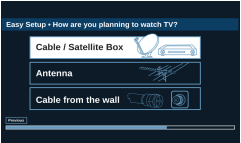
14 Press or to highlight Cable/Satellite Box, Cable from the wall, or Antenna, then press ENTER.
• If you select Cable/Satellite Box, the screen that opens shows you the ways you can connect the box.
Press ENTER.
If you select Cable from the wall or Antenna your TV starts scanning for channels and displays a progress screen.
Note: You can press EXIT to stop the auto channel search, but you will need to run the auto channel search again to create a channel list.
15 Press ENTER to close the wizard. If you selected:
Cable from the wall or Antenna, your TV tunes to the first channel it found in the scan.
Cable/Satellite box, press INPUT to open the INPUT SOURCE list, press or to select the video input (HDMI or AV) you connected the box to, then press ENTER. Your TV switches to the input you selected.
Understanding the basics
This section covers basic information for:
Turning your TV on or off
Selecting the video input source
On-screen menu overview
Navigating the menus
Selecting a channel
Adjusting the volume
Viewing channel information
Turning your TV on or off
Make sure that the power cord is connected to a power outlet.
Press (power) to turn on your TV. The power indicator turns off.
Press (power) again to turn off your TV. Your TV enters standby mode, and the power indicator turns red.
WARNING: When your TV is in standby mode, it is still receiving power. To completely disconnect power, unplug the power cord.
Note: If your TV does not receive an input signal for several minutes, it automatically goes into standby mode.
Selecting a channel
Press CH or CH to go to the next or previous channel on the memorized channel list.
Press the number buttons to enter the channel number you want, then wait for the channel to change or press ENTER to immediately change the channel.
To select a digital sub-channel, press the number buttons to select the main digital channel, press (sub-channel), then press the number button for the sub-channel. Wait for the channel to change, or press ENTER to immediately change the channel. For example, to tune to channel 5.1, press 5, (sub-channel), then 1.
Note: Button presses must be within three seconds of each other.
Press (return) to go to the last viewed channel.
Adjusting the volume
Press VOL+ or VOL– to increase or decrease the volume.
Press MUTE to turn off the sound. Press MUTE again to turn the sound back on.
Viewing channel information
Press INFO* to view an information banner. The information banner shows the current program information, such as channel number, video input source, and resolution.
Digital channel information—Displays the channel number, station name, channel label, broadcast program name, TV rating, signal type, audio information, resolution, current time, signal strength, day of the week, date, and current program start and end times, if provided by the broadcaster.
Analog channel information—Displays channel number, channel label (if present), signal type, audio information, day of the week, date, and resolution, if provided by the broadcaster.
Navigating the menus
Using INlink
INlink lets you control HDMI CEC-compatible devices connected to the HDMI jacks on your TV using the remote control that came with your TV.
Note: You can use the media buttons on your remote control to control playback.
To use INlink, you must set the INlink Control option on the INlink menu to On.
Notes:
HDMI cables must be used to connect HDMI CEC-compatible devices to your TV.
The connected device’s HDMI CEC feature must be turned on.
If you connect an HDMI device that is not HDMI CEC-compatible, none of the INlink Control features work.
Depending on the connected HDMI device, some INlink Control features may not work.
1 Select the SETTINGS menu, then select INlink(HDMI-CEC).
2 Select an option, then adjust the setting. You can select:
INlink Control—Turns the INlink feature on or off. You must set this option to On to use the other INlink options.
Device Auto Power Off—Automatically turns off HDMI CEC devices when you turn off your TV.
TV Auto Power On—Automatically turns on your TV when an HDMI CEC device is turned on, if the device has this feature.
Audio Receiver—Lets you use your TV’s remote control to control the volume on an HDMI CEC-compatible audio receiver connected to your TV.
INlink Device List—Lets you display a list of HDMI CEC devices that are connected to your TV.
Connect—When you have more than one INlink-compatible device connected, lets you select the device you want to use.
Root Menu—Lets you open an INlink-compatible device’s root menu, then use your TV’s remote control to control the device, if the device has this feature.
3 Press MENU to return to the previous menu, or press EXIT to close the menu.
Using a USB flash drive
You can connect a USB flash drive to your TV to view compatible JPEG pictures.
Notes:
Never remove the USB flash drive or turn off your TV while viewing JPEG pictures.
The JPEG picture viewer only supports JPEG format images (with “.jpg” file extensions) and not all JPEG files are compatible with your TV.
Switching to USB mode
Make sure that you have connected the USB flash drive to the USB port on your TV.
Press or to highlight Yes in the message that appears, then press ENTER.
OR
If you connected the USB flash drive, then changed to a different video input source, press INPUT, select USB(Photos), then press ENTER.
Note: To exit USB mode, press INPUT, then select another input source.
3 Select one of the following options:
• Browse Photos
• Start Slideshow
Adjusting the picture
This section covers:
• Adjusting the TV picture
• Automatically adjusting the aspect ratio
• Setting the power on picture mode
Adjusting the TV picture
You can adjust various settings to improve the quality of the TV picture. Also, you can reset all picture settings to the factory default.
1 Select the PICTURE menu.
2 Select an option, then adjust the setting. You can select:
Picture Mode—Selects the picture mode. You can select:
Vivid—(a bright and vivid picture). Significantly increases the contrast, brightness, and sharpness. This selection is good for video games, animation, and in bright light environments.
Standard—(a standard picture). Moderately increases the contrast, brightness, and sharpness. This selection is good for standard TV broadcasts.
Energy Savings—(the backlight brightness is decreased). Your TV has a backlight that provides light for displaying a picture. By reducing the amount of light, your TV uses less energy.
Movie—(a finely detailed picture). Adjusts the brightness and contrast and lowers the sharpness for a more realistic picture. This selection is good for watching the highest quality video such as Blu-ray Discs, DVDs, and HDTV.
Game—Adjusts the picture for the ultimate gaming experience.
Custom—(customized picture). Lets you manually adjust picture settings, such as brightness, contrast, and sharpness.
Advanced Settings—Opens the Advanced Settings menu where you can adjust additional video options.
Aspect Ratio—Adjusts how the picture fills the screen. You can select:
OverScan—Extends text and images past the screen edges to hide edge artifacts. You can select On or Off.
Dynamic Backlight—Enhances the contrast ratio between light and dark areas of the picture. You can select Off, Low, or High.
Color Temperature—Selects the color temperature. You can select Cool (to enhance the blues), Normal, or Warm (to enhance the reds).
Noise Reduction—Selects the noise reduction mode to reduce picture noise (snow). You can select Off, Low, Middle, or High.
Dynamic Contrast—Automatically adjusts picture detail and brightness. You can select On or Off.
Backlight—Sets the overall brilliance of the screen.
Brightness—Adjusts the brightness of the dark areas of the picture.
Contrast—Adjusts the brightness of the light areas of the picture.
Color—Adjusts the color intensity of the picture. A low setting may make the color look faded. A high setting may make the color look artificial.
Tint—Adjusts the color balance of the picture. Use this control to make skin tones look more natural.
Sharpness—Adjusts the color detail of images. If you set this control too high, dark images may appear with light or white edges.
Reset Picture Settings—Resets all picture settings to factory mode.
3 Press MENU to return to the previous menu, or press EXIT to close the menu.
Automatically adjusting the aspect ratio
Auto Aspect Ratio automatically changes how the picture looks on the screen (aspect ratio) based on the TV program you are viewing.
1 Select the CHANNELS menu.
2 Select Auto Aspect Ratio, then select On (automatically adjust the aspect ratio) or Off (does not automatically adjust the aspect ratio).
3 Press MENU to return to the previous menu, or press EXIT to close the menu.
Setting the power on picture mode
You can set the picture mode your TV uses when you turn it on.
1 Select the HELP menu, then select Power on in Vivid Mode.
2 Select On (when you turn on your TV, it will be in Vivid picture mode) or Off (when you turn on your TV, it will be in the picture mode it was in before you turned it off).
3 Press MENU to return to the previous menu, or press EXIT to close the menu.
Changing channel settings
You can scan for channels, control which channels are displayed, set up and view favorite channels, change channel labels, and check a digital channel’s signal strength.
1 Select the CHANNELS menu.
2 Select an option, then adjust the setting. You can select:
Auto Channel Search—Lets you scan for channels with signals. Your TV stores the channel information in the channel list. When you press CH or CH , your TV goes to the next or previous channel in the channel list. You should scan for channels if the TV signal source changes, for example you change from an outdoor antenna to cable TV (no box). You can select Cable / Satellite Box, Cable from the wall, or Antenna.
Add/Skip Channels—Lets you hide channels in the channel list. When you press CH or CH, your TV skips the hidden channels. You can still tune to a hidden channel by pressing the number buttons for the channel.
Favorite Channel Setup—Lets you create a list of favorite channels so you can quickly browse through your favorite channels.
Favorite Channel List—Lets you select a channel from the favorite channel list.
Channel Labels—Lets you add or change a channel label to make it easier to identify the channel.
Channel Strength—Lets you check the digital signal strength to determine if you need to adjust your antenna or digital cable input. The higher the signal strength, the less likely you are to experience picture degradation.
3 Press MENU to return to the previous menu, or press EXIT to close the menu.
Setting parental controls
Parental controls let you prevent your children from watching inappropriate material on TV. When set, parental controls read the rating of the program (with some exceptions, such as news and sports) and deny access to programs that exceed the ratings level you select. To watch programs that exceed the selected rating, you must enter a password.
1 Select the SETTINGS menu, then select Parental Controls.
2 Use the number buttons to enter your parental controls password. The default password is 0000.
3 Select an option, then adjust the setting. You can select:
Block Unrated TV—Some TV programs, such as news and sports shows are not rated. When Block Unrated TV is turned on, TV programs that do not have ratings are blocked. When you try to watch a blocked program, you are prompted to enter the parental controls password.
USA Parental Locks—Lets you block U.S. TV shows based on ratings and content types and movies based on MPAA ratings.
Note: When you block a rating, that rating and all higher ratings are blocked.
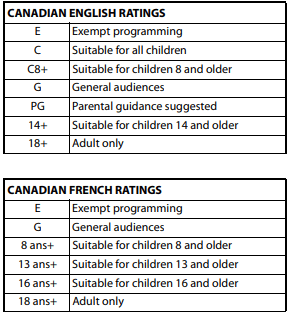
Canadian Parental Locks - Let you block Canadian TV shows based on ratings and content types.
Note: When you block a rating, that rating and all higher ratings are blocked.
Change Password - Lets you change the parental control password.
RRT5 - If the program you are viewing has downloadable rating information, lets you download the information to use when setting parental controls.
Note: If the program you are viewing does not have RRT5 rating information, the RRT5 option is grayed.
Reset RRt5 - Resets the RRt5 information to the factory default.
4. Press MENU to return to the previous menu, or press EXIT to close the menu.
Locking the power button on your TV
When the button lock is turned On, the power button on your TV is locked, and you can only turn your TV on or off or change the video input source using the remote control.
1 Select the SETTINGS menu, then select Button Lock.
2 Select On (locks the power button) or Off (unlocks the power button).
3 Press MENU to return to the previous menu, or press EXIT to close the menu.
Using closed captioning
Closed captioning displays a text version of the TV program audio or displays information provided by the broadcaster.
You can turn closed captioning on or off, select the analog or digital captioning mode, and change the style of the digital captioning display.
1 Select the ACCESSIBILITY menu, then select Closed Caption.
2 Select an option, then adjust the setting. You can select:
Caption Control—Turns captioning on or off. You can select CC Off (turns off closed captioning), CC On (turns on closed captioning), or CC on when mute (turns on closed captioning when the sound is muted).
Analog Caption—Lets you select the captioning mode for analog channels. The CC1 mode usually displays a text version of the TV program audio in a small banner. The other CC modes display information provided by the broadcaster. You can select CC1 through CC4. The Text modes display information in a box that covers half of the screen. You can select Text1 through Text4.
Digital Caption—Lets you select the captioning mode for digital channels. Digital channels usually have one or more closed captioning modes. The CS1 mode usually displays a text version of the TV program audio in a small banner. The other CS modes display information provided by the broadcaster. You can select CS1 through CS6.
Digital CC Settings—Lets you customize how the digital captioning appears on the screen. Set Style to Custom, then select a style and adjust the setting.
3 Press MENU to return to the previous menu, or press EXIT to close the menu.
Troubleshooting
Using the HELP menu
The HELP menu provides information about frequently asked questions.
1 Select the HELP menu.
2 Select an option. You can select:
System Info—Displays system information during troubleshooting. If your TV uses open source code, press ENTER to display the open source code information.
Learn More—Displays remote control codes and information about connecting a soundbar.
Update Firmware—If your TV is behaving oddly and you have tried all the solutions in the troubleshooting pages, lets you update your TV’s firmware. To update the TV firmware, you need a:
Computer with an available USB port
High-speed Internet connection
USB flash drive
CAUTIONS:
Make sure that you have tried all other solutions before you upgrade the firmware.
While the firmware is updating, do not turn off your TV.
Notes:
Firmware updates may not be available for your model.
If you see a message that says the firmware file is incorrect, make sure that you have downloaded the correct file for your model.
If you see a message that says the update failed or the TV screen is blank and the power LED blinks red then blue, turn your TV off and on, then run the upgrade again.
Customize my TV—If you did not complete the customization part of the Easy Setup wizard the first time you turned on your TV, run the wizard again to customize settings.
TV Speaker Test—Tests your TV’s speakers to make sure that they are working correctly.
Reset to Default—Resets all settings (except parental controls) to the factory defaults and runs the Easy Setup wizard. See Turning on your TV for the first time on page 16.
Video and audio
Picture does not fill the screen. There are black bars around the picture.
Change the aspect ratio. See the Aspect Ratio option in Adjusting the TV picture on page 23.
PROBLEM
SOLUTION
Picture does not fill the screen. There are black bars around the picture.
Change the aspect ratio. See the Aspect Ratio option in Adjusting the TV picture on page 22.
No picture (screen is not lit) and no sound.
Press on the TV or the remote control.
Make sure that the Audio Only option is set to Off. See Playing TV audio only on page 25.
Make sure that the video cables are connected correctly and securely to your TV.
Adjust the contrast and brightness. See Adjusting the TV picture on page 22.
Make sure that the power cord is plugged into a working outlet.
Press INPUT and make sure that the correct video input source is selected. See Selecting the video input source on page 18.
Try another channel. The station may be experiencing problems.
Make sure that the incoming signal is compatible.
Make sure that the antenna or cable TV is connected correctly and securely. See Connecting a cable or satellite box on page 7 or Connecting an antenna or cable TV (no box) on page 8.
Check the closed caption settings. Some TEXT modes can block the screen. See Using closed captioning on page 29.
Dark, poor, or no picture (screen is lit), but sound is good.
Try another channel. The station may be experiencing problems.
Make sure that the antenna or cable TV is connected correctly and securely. See Connecting a cable or satellite box on page 7 or Connecting an antenna or cable TV (no box) on page 8.
Adjust the brightness. See Adjusting the TV picture on page 22.
Press PICTURE to change to a different picture mode. See Adjusting the TV picture on page 22.
If you are using an antenna, the digital channel signal may be low. To check the digital channel signal strength, see the Channel Strength option in Changing channel settings on page 26.
If you are using an antenna and the signal strength is low, adjust the antenna or use a highly directional outdoor antenna or set-top antenna with a built-in amplifier.
Make sure that the video cables are connected correctly and securely to your TV.
The video cable(s) you are using may be bad. Try a new set.
No color, dark picture, or color is not correct.
Try another channel. The station may be experiencing problems.
Adjust the color settings. See Adjusting the TV picture on page 22.
Make sure that the video cables are connected correctly and securely to your TV.
Make sure that the antenna or cable TV is connected correctly and securely. See Connecting a cable or satellite box on page 7 or Connecting an antenna or cable TV (no box) on page 8.
If you are using an antenna, the digital channel signal may be low. To check the digital channel signal strength, see Channel Strength option in Changing channel settings on page 26.
If you are using an antenna and the signal strength is low, adjust the antenna or use a highly directional outdoor antenna or set-top antenna with a built-in amplifier.
Only snow (noise) appears on the screen.
Try another channel. The station may be experiencing problems.
Make sure that the antenna or cable TV is connected correctly and securely. See Connecting a cable or satellite box on page 7 or Connecting an antenna or cable TV (no box) on page 8.
If you are using an antenna, the digital channel signal may be low. To check the digital channel signal strength, see Channel Strength option in Changing channel settings on page 26.
If you are using an antenna and the signal strength is low, adjust the antenna or use a highly directional outdoor antenna or set-top antenna with a built-in amplifier.
Picture quality is good on some channels and poor on others. Sound is good.
The problem may be caused by a poor or weak signal from the broadcaster or cable TV provider.
If you connect to cable TV without a set-top box and experience poor picture quality, you may need to install a set-top box to improve signal reception and picture quality. Contact your cable TV provider about upgrading to a set-top box.
Dotted lines or stripes appear on the screen.
Make sure that the antenna or cable TV is connected correctly and securely. See Connecting a cable or satellite box on page 7 or Connecting an antenna or cable TV (no box) on page 8.
If you are using an antenna, the digital channel signal may be low. To check the digital channel signal strength, see Channel Strength option in Changing channel settings on page 26.
If you are using an antenna and the signal strength is low, adjust the antenna or use a highly directional outdoor antenna or set-top antenna with a built-in amplifier.
Make sure that the video cables are connected correctly and securely to your TV.
The video cable(s) you are using may be bad. Try a new set.
Other devices (for example, a surround sound receiver, external speakers, fans, or hair dryers) may be interfering with your TV. Try turning off one device at a time to determine which device is causing interference. After you have determined which device is causing interference, move it further from the TV to eliminate the interference.
The picture has a few bright or dark spots.
A few bright or dark spots on an LCD screen is normal. It does not affect the operation of your TV.
Video description or voice guide does not work.
Make sure that your TV is not muted and the volume is turned up.
Make sure that the options listed under the Accessibility menu are turned on. See Adjusting accessibility settings on page 30.
Video descriptions are not available on all broadcasts.
Some remote functions are not narrated.
Good picture, but no sound.
Increase the volume.
Make sure that the sound is not muted.
Make sure that you do not have headphones connected. When headphones are connected, no sound comes from the TV speakers.
Change to a different audio mode. See the Audio Mode option in Adjusting sound settings on page 24.
If you are using a home theater system, soundbar, or external speaker system, make sure that it is turned on and is not muted.
If you are using a home theater system, soundbar, or external speaker system, make sure that you have selected the correct output mode.
If you are using a home theater system, soundbar, or external speaker system and have connected it with a digital audio cable, select Digital Audio Format/Audio Delay on the Audio menu, then set Audio Format to PCM. See the Digital Audio Format/Audio Delay option in Adjusting sound settings on page 24.
Make sure that the audio cables are connected correctly and securely to your TV.
Make sure that the antenna or cable TV is connected correctly and securely. See Connecting a cable or satellite box on page 7 or Connecting an antenna or cable TV (no box) on page 8. • If you are using an antenna, the digital channel signal may be low. To check the digital channel signal strength, see Channel Strength option in Changing channel settings on page 26.
If you are using an antenna and the signal strength is low, adjust the antenna or use a highly directional outdoor antenna or set-top antenna with a built-in amplifier.
The audio cables you are using may be bad. Try a new set.
Poor picture.
Make sure that the room is not too bright. Light reflecting off the screen can make the picture difficult to see.
If an S-VHS camera or a camcorder is connected while another connected device is turned on, the picture may be poor. Turn off one or more devices.
Good sound, but poor color.
Adjust the contrast, color, and brightness settings. See Adjusting the TV picture on page 22.
Audio noise.
Other devices (for example, a surround sound receiver, external speakers, fans, or hair dryers) may be interfering with your TV. Try turning off one device at a time to determine which device is causing interference. After you have determined which device is causing interference, move it further from the TV to eliminate the interference.
No output from one of the speakers.
Adjust the audio balance. See Adjusting sound settings on page 24.
Test the TV’s speakers. See the TV Speaker Test option in Using the HELP menu on page 31. If one or both of the speakers fails, try one of the following solutions:
Make sure that the audio cables are connected correctly and securely to your TV.
Make sure that the audio cables are connected to the AUDIO OUT jacks on the connected device.
Try a different set of audio cables.
Make sure that the sound on the connected device is not muted.
Try connecting the device to a different TV. If you do not hear sound, the problem is with the device.
After images appear.
Do not display a still image, such as a logo, game, or computer image, for an extended period of time. This can cause a permanent after-image to be burned into the screen. This type of damage is not covered by your warranty.
Remote control
PROBLEM
SOLUTION
Remote control does not work.
• Make sure that the power cord is plugged into a working outlet.
• Make sure that there are no obstructions between the remote control and the remote control sensor on the front of the TV.
• Point the remote control directly at the remote control sensor on your TV.
• The supplied batteries are wrapped tightly in clear plastic. Make sure that you have removed this plastic from the batteries.
• Make sure that the batteries are installed correctly.
• Replace dead batteries with new batteries.
Trouble programming your existing universal remote control.
• See instructions in Programming universal remote controls on page 14.
• Codes are subject to change. For up-to-date codes.
• Replace dead batteries with new batteries.
• Refer to the User Guide that accompanied your universal remote control and contact the manufacturer if problems persist.
General
PROBLEM
SOLUTION
No power.
• Make sure that the power cord is plugged into a working outlet.
• Unplug the power cord, wait 60 seconds, then plug the cord back in and turn on your TV.
• Other devices (for example, a surround sound receiver, external speakers, fans, or hair dryers) may be interfering with your TV. Try turning off one device at a time to determine which device is causing interference. After you have determined which device is causing interference, move it further from the TV to eliminate the interference.
“No signal” error message is displayed.
• Press INPUT and make sure that you have selected the correct input for the device or service you are trying to use.
• If you are using a cable or satellite box, use the remote that came with that box to change channels.
After Auto Channel Search, there are no channels.
• Reception can vary by channel depending on the broadcast power level of a given station. Contact your cable or satellite TV provider.
• Make sure that the antenna or cable/satellite TV is connected securely to your TV.
• Try replacing the cable between the antenna/cable or cable/satellite box and your TV.
When I press INPUT, I cannot select my device (it is grayed out).
• Turn on the device. Your TV automatically detects and displays which video jacks have devices connected to them when the devices are turned on.
• Turn off Auto Input Sensing. See Adjusting menu settings on page 29.
One or more channels do not display.
• Make sure that the channels are not blocked. See Setting parental controls on page 27.
• Make sure that the channels are not hidden. The channel may have been deleted from the channel list. You can tune to the channel by pressing the number buttons or you can add the channel back to the channel list. See the Add/Skip Channels option in Changing channel settings on page 26.
• If you are using a cable or satellite box, use the remote that came with that box to change channels.
• Press INPUT and make sure that you have selected the correct input for the device or service you are trying to use.
• If you are using an antenna, the digital channel signal may be low. To check the digital channel signal strength, see the Channel Strength option in Changing channel settings on page 26.
Password is lost.
• Enter 9999 to access parental controls, then set a new password. See the Change Password option in Changing channel settings on page 26.
Some settings cannot be accessed.
• If a setting is grayed, the setting is not available in the current video input mode (for example TV mode). Change to a different video input source. See Selecting the video input source on page 18.
TV cabinet creaks.
• When the TV is in use, the temperature rises naturally and may cause the cabinet to expand or contract which can cause a creaking noise. This is not a malfunction.
button does not work.
• Make sure that the Button Lock option is set to Off. See Locking the power button on your TV on page 28.
• Unplug the power cord, wait a few seconds, then plug the cord back in and turn on your TV.
TV keeps turning off.
• Make sure that the sleep timer is not turned on. See the Sleep Timer option in Adjusting time settings on page 29.
A retail banner is displayed.
• You selected Store Display Mode when you ran the Easy Setup wizard. Run the Easy Setup wizard and select Home User Mode on the Viewing Environment screen. See the Customize my TV option in Using the HELP menu on page 31.
INlink (CEC-compatible) device
PROBLEM
SOLUTION
My TV is not displaying the video from the connected CEC device.
• Make sure that the HDMI cable is connected securely to your TV and the device.
• Make sure that the device is connected to your TV with an HDMI cable.
• Make sure that the device is a CEC device. See the documentation that came with the device for more information.
• Press INPUT and make sure that the correct video input source is selected. See Selecting the video input source on page 18.
• Make sure that the INlink feature is turned on. See the INlink Control option in Using INlink on page 20.
• Try adjusting the TV picture. See Adjusting the TV picture on page 22.
My TV is not playing the audio from the connected CEC device.
• Make sure that the HDMI cable is connected securely to your TV and the device.
• Make sure that the device is connected to your TV with an HDMI cable.
• Make sure that the device is a CEC device. See the documentation that came with the device.
• Make sure that the TV volume is turned up and not muted.
• Try adjusting the TV sound. See Adjusting sound settings on page 24.
• Make sure that the TV speakers are turned on and not muted. See Adjusting sound settings on page 24.
• Make sure that the INlink feature is turned on. See INlink Control option in Using INlink on page 20.
• If you have connected an HDMI CEC audio receiver, adjust the volume on the receiver. When your TV detects an audio receiver, the TV speakers turn off and sound plays through receiver speakers only. • If you are using a home theater system, soundbar, or external speaker system, make sure that it is turned on and is not muted.
• If you are using a home theater system, soundbar, or external speaker system, make sure that you have selected the correct output mode.
• If you are using a home theater system, soundbar, or external speaker system and have connected it with a digital audio cable, select Digital Audio Format/Audio Delay on the Audio menu, then set Audio Format to PCM. See the Digital Audio Format/Audio Delay option in Adjusting sound settings on page 24.
My TV’s remote control does not control the device.
• Make sure that there are no obstructions between the remote control and the remote control sensors on your TV and the device.
• Depending on the device, all the buttons may not work.
• After you switch to an INlink device, use the remote control that came with the device to control playback.
• Make sure that the INlink feature is turned on. See INlink Control option in Using INlink on page 20.
• If you are trying to control the volume on an HDMI CEC audio receiver using your TV remote control, make sure that the TV Speakers option on the Audio menu is set to On. See Adjusting sound settings on page 24.
• If you are trying to control the volume on an HDMI CEC audio receiver using your TV remote control, make sure that the Audio Receiver option on the INlink menu is set to On. See the Audio Receiver option in Using INlink on page 20.
• The device may not support this feature. See the documentation that came with the device for more information.
The device does not show up in the INlink Device list.
• Make sure that the device is turned on.
• Make sure that the HDMI cable is connected securely to your TV and the device.
• Make sure that the device is connected to your TV with an HDMI cable.
• Make sure that the INlink feature is turned on. See the INlink Control option in Using INlink on page 20.
• Make sure that the device is a CEC device. See the documentation that came with the device.
My device does not turn off when I turn off my TV.
• Make sure that the INlink feature is turned on. See the INlink Control option in Using INlink on page 20.
• Make sure that Device Auto Power Off is set to On on the INlink menu. See the Device Auto Power Off option in Using INlink on page 20.
• The device may not support this feature. See the documentation that came with the device for more information.
My TV does not turn on when I turn on my device.
• Make sure that the INlink feature is turned on. See the INlink Control option in Using INlink on page 20.
• Make sure that TV Auto Power On is set to On on the INlink menu. See the TV Auto Power On option in Using INlink on page 20.
• The device may not support this feature. See the documentation that came with the device for more information.
The Audio Receiver setting on the INlink menu keeps turning back on after it is turned off.
• When Audio Receiver is set to Off and INlink Control is set to On and you make an adjustment to the audio receiver (for example, turn the volume knob or press a button), Audio Receiver is automatically set to On. To prevent this from happening, turn off the INlink feature. See the INlink Control option in Using INlink on page 20.
Two volume bars appear when adjusting the volume.
• When you adjust the volume on the audio receiver or with the TV remote control, a double volume bar appears, one for the TV volume and one for the audio receiver volume.
I cannot select the Root Menu option on the INlink menu.
OR
The device’s root menu does not open when I select Root Menu on the INlink menu.
• The device may not support this feature. See the documentation that came with the device for more information.
Note: If the problem is not solved by using these troubleshooting instructions, turn off your TV, then turn it on again.


 (power) to turn on your TV. The Easy Setup wizard opens.
 or
or  to highlight a language, then press ENTER.

 or
or  to highlight Home Use Mode or Store Display Mode, then press ENTER.




 or CH
or CH  to go to the next or previous channel on the memorized channel list.
 (sub-channel), then press the number button for the sub-channel. Wait for the channel to change, or press ENTER to immediately change the channel. For example, to tune to channel 5.1, press 5,
  (return) to go to the last viewed channel.




 on the TV or the remote control.