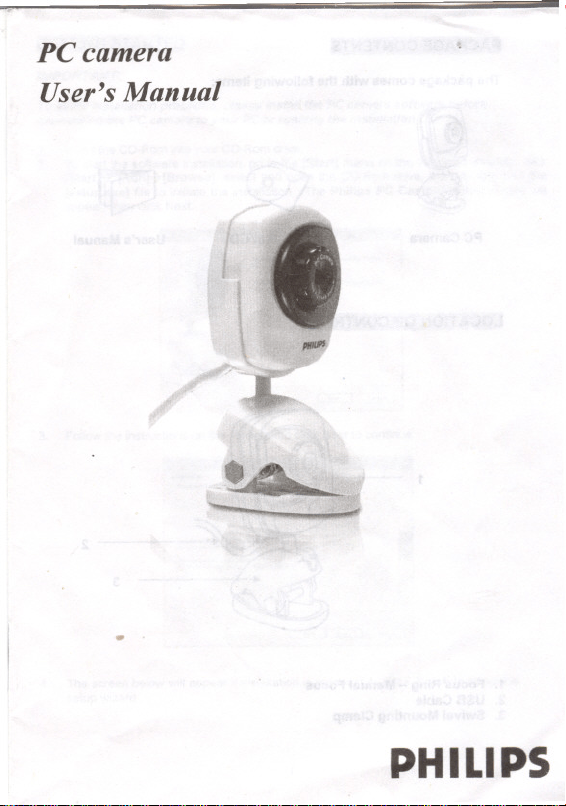
PC camera
User's Manual
.
.
prI1IIS
"
Jc..
~
~ ~
PHILIPS
PACtMGE CONI~NIS
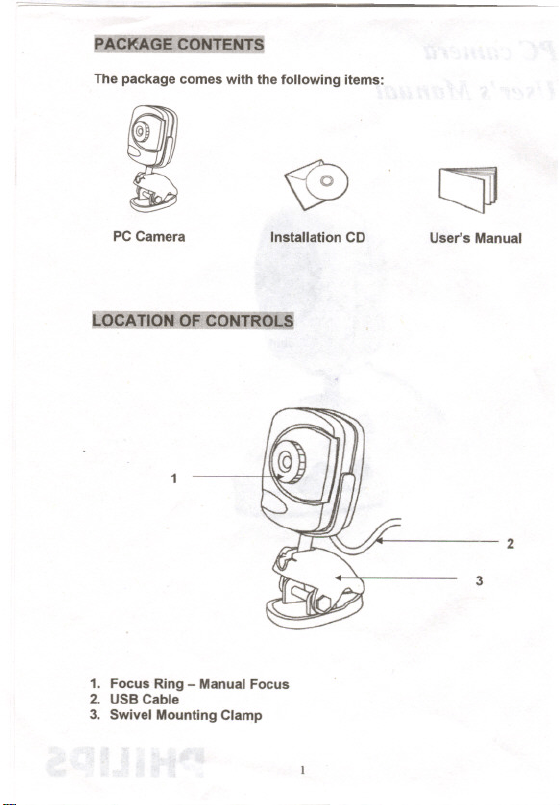
The package comes with the following items:
LO..cATION OF'CONTROL:.S
2
3
1. Focus Ring- ManualFocus
2. USBCable
3. SwivelMountingClamp
2
\0
CJ1
PC Camera Installation CD
User's Manual
~j{~~rn~Riltm1
IMPORTANT:
To avoid installation problems, please install the PC camera software before
connecting the PC camera to your PC or running the Installation CD.
1.
2.
Insert the CD-Rom into your CD-Rom drive.
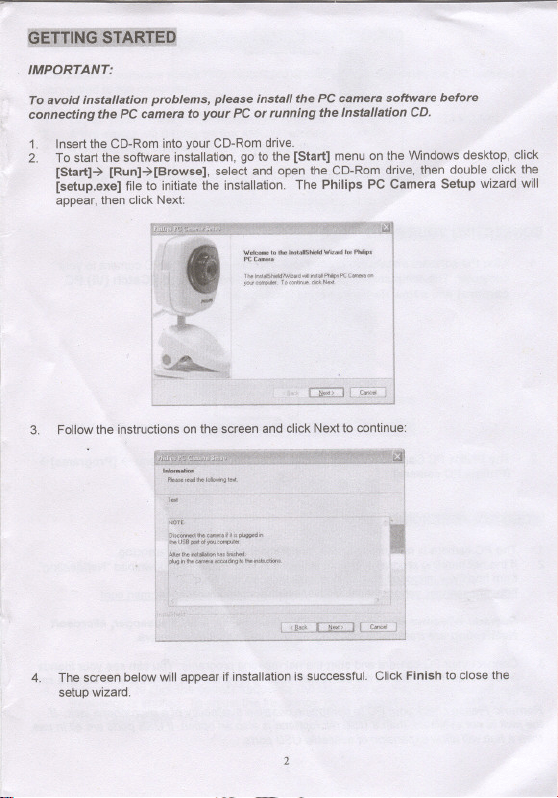
To start the software installation, go to the [Start] menu on the Windows desktop, click
[Start]-'7 [Run]-'7[Browse], select and open the CD-Rom drive, then double click the
[setup.exe] file to initiate the installation. The Philips PC Camera Setup wizard will
appear, then click Next:
I
.{diI'
~.!=~.""M'__~,"'.'_'
"""""""""".'"'._"",",'00
--""_.",,.,
..
3. Follow the instructions on the screen and click Next to continue:
4.
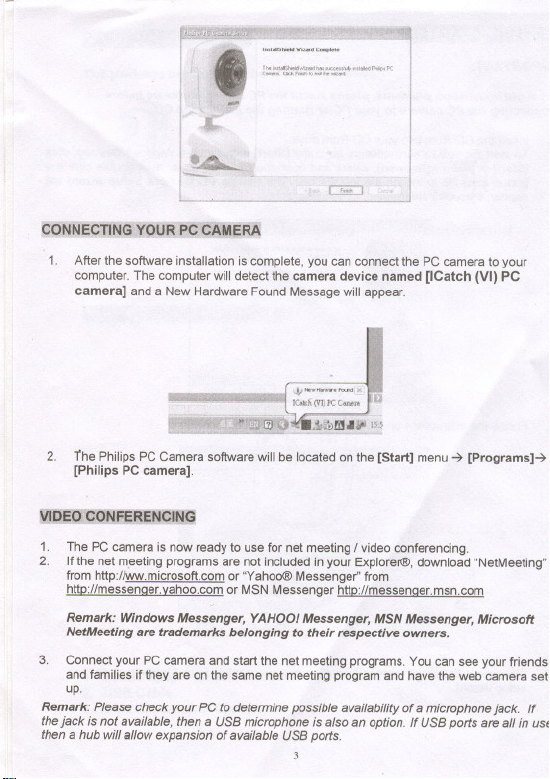
The screen below will appear ifinstallation is successful. Click Finish to close the
setup wizard.
I
~
'~~_W~"--
r::?;;D
edNffeor{N§:'Y'~!{m ~r;;ERA
1.
After the software installation is complete, you can connect the PC camera to your
computer. The computer will detect the camera device named [ICatch (VI)PC
camera] and a New Hardware Found Message will appear.
2
Ihe Philips PC Camera software will be located on the [Start] menu ~ [Programs]~
[Philips PC camera].
m~~~
1.
2.
The PC camera is now ready to use for net meeting I video conferencing.
If the net m.eetingprograms are not included in your Explorer@,download "NetMeeting"
from http://ww.microsoft.com or "Yahoo@Messenger" from
http://messenaer.vahoo.com or MSN Messenger http://messenaer.msn.com
Remark: Windows Messenger, YAHOOI Messenger, MSN Messenger, Microsoft
NetMeeting are trademarks belonging to their respective owners.
3. Connect your PC camera and start the net meeting programs. You can see your friends
and families ifthey are on the same net meeting program and have the web camera set
up.
Remark: Please check your PC to determine possible availability of a microphone jack. If
thejack is not available, then a usa microphone is also an option. If usa ports are all in use
then a hub willallowexpansionofavailableusa ports.
3
".
.,
RECORDING VIDEO ICAPTURING IMAGE
The installed software allows recording video or capturing image when the PC camera is
connected to the computer.
1.
2.
3.
Go to [Start] menu -7 [Programs]-7 [Philips PC camera]-7 open [AMCAP]
A live image will display on the AMCAP screen.
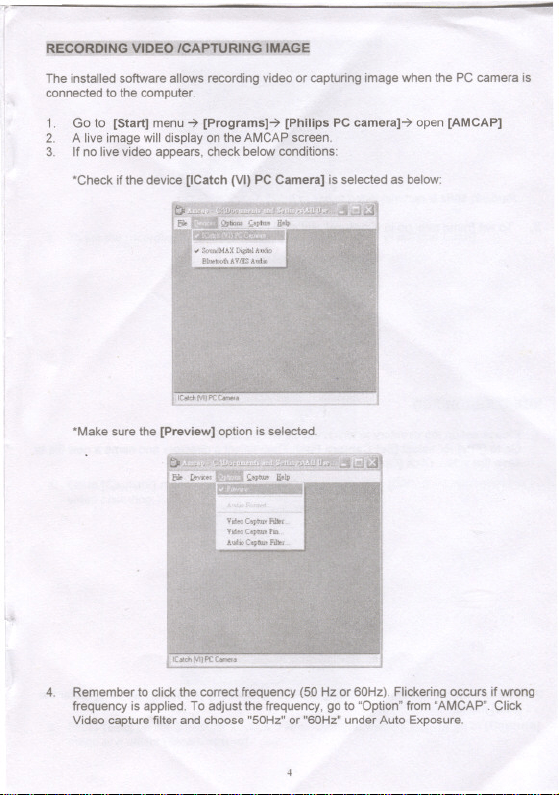
If no live video appears, check below conditions:
'Check ifthe device [ICatch (VI)PC Camera] is selected as below:
'Make sure the [Preview] option is selected.
4.
Remember to click the correct frequency (50 Hz or 60Hz). Flickering occurs if wrong
frequency is applied. To adjust the frequency, go to "Option" from "AMCAP". Click
Video capture filter and choose "50Hz" or "60Hz" under Auto Exposure.
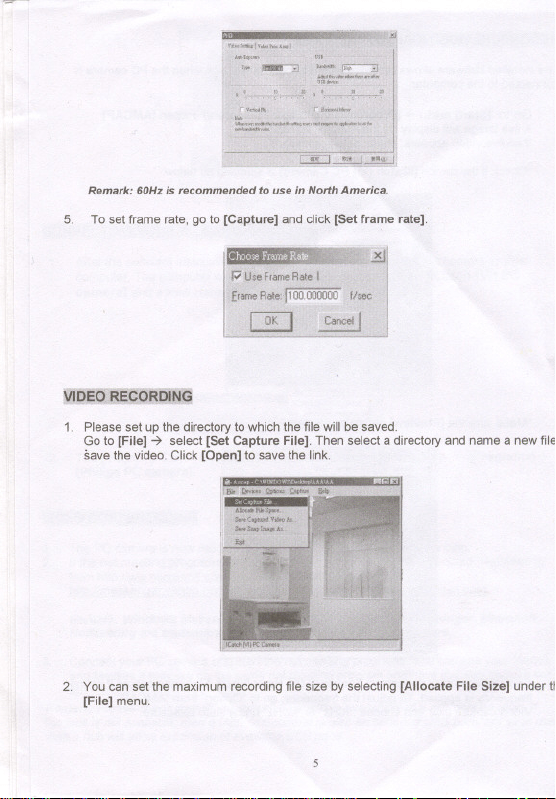
Remark: 60Hz is recommended to use in North America.
5.
To set frame rate, go to [Capture] and click[Set frame rate].
17IJjI~~~~mm~
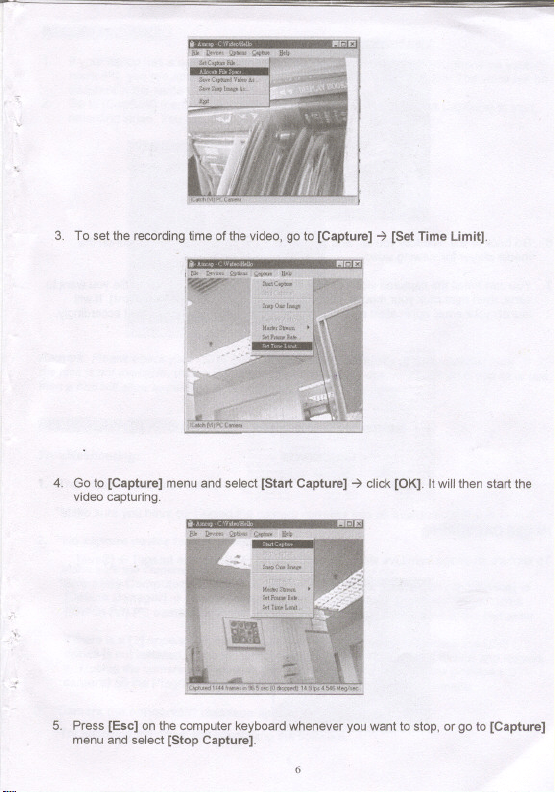
1. Please set up the directory to which the file wiil be saved.
Go to [File] ~ seiect [Set Capture File]. Then select a directory and name a new fiie
save the video. Click [Open] to save the link.
2. You can set the maximum recording file size by selecting [Allocate File Size] under It
[File] menu.
"
3. To set the recording time of the video, go to [Capture] ~ [Set Time Limit].
4. Go to [Capture] menu and select [Start Capture] ~ click [OK]. It will then start the
video capturing.
:t
l
5. Press [Esc] on the computer keyboard whenever you want to stop, or go to [Capture]
menu and select [Stop Capture].
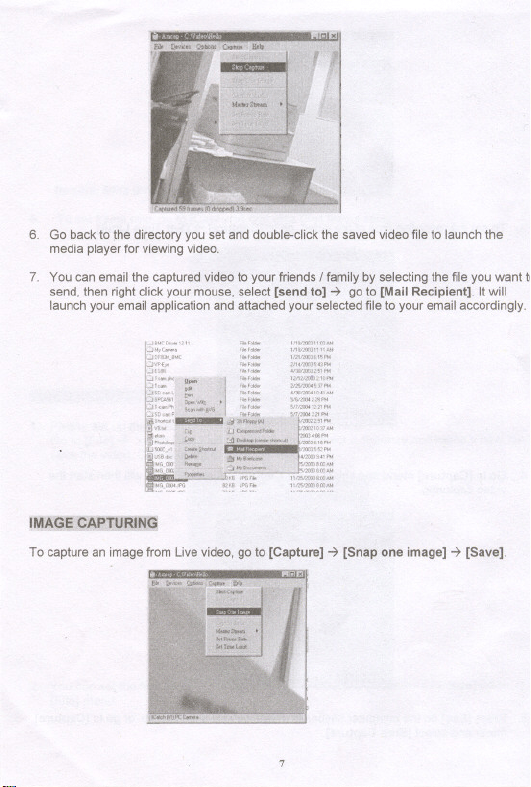
6. Go back to the directory you set and double-click the saved video file to launch the
media player for viewing video.
7. You can email the captured video to your friends I family by selecting the file you want tl
send, then right click your mouse, select [send to] -7 go to [Mail Recipient]. It will
launch your email application and attached your selected file to your email accordingly.
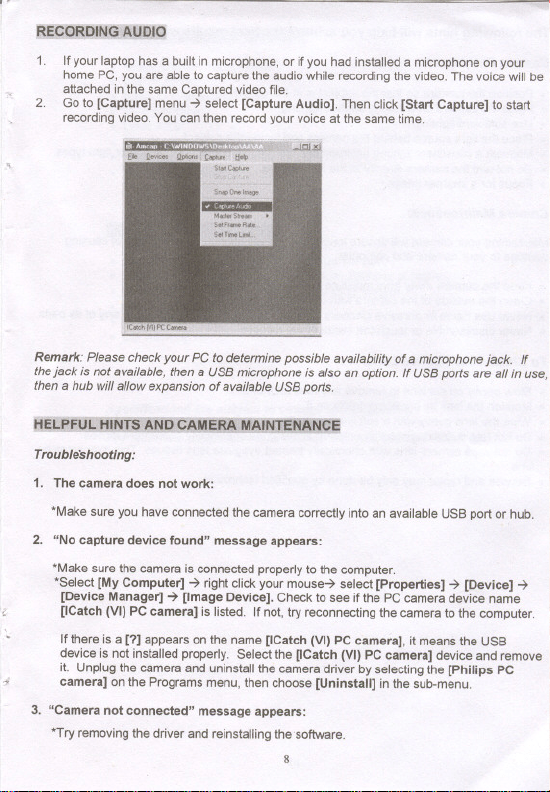
IMA,~~Am~
To capture an image from Live video, go to [Capture] -7 [Snap one image] -7 [Save].
m;;Q~~i~IiU1t!!:>
1.
If your laptop has a built in microphone. or if you had installed a microphone on your
home PC, you are able to capture the audio while recording the video. The voice will be
attached in the same Captured video file.
Go to [Capture] menu ~ select [Capture Audio]. Then click [Start Capture] to start
recording video. You can then record your voice at the same time.
2.
Remark: Please check your PC to determine possible availability of a microphone jack. If
thejack is not available, then a usa microphone is also an option. If usa ports are all in use,
then a hub will allow expansion of available usa ports.
i1ti.t~m~I!~AMsmt;'flDs:E~
Troubleshooting:
1. The camera does not work:
'Make sure you have connected the camera correctly into an available USB port or hub.
2. "No capture device found" message appears:
'Make sure the camera is connected properly to the computer.
'Select [My Computer] ~ right click your mouse~ select [Properties] ~ [Device] ~
[Device Manager] ~ [Image Device]. Check to see if the PC camera device name
[ICatch (VI) PC camera] is listed. If not, try reconnecting the camera to the computer.
~
If there is a [1] appears on the name [ICatch (VI) PC camera], it means the USB
device is not installed properly. Select the [ICatch (VI) PC camera] device and remove
it. Unplug the camera and uninstall the camera driver by selecting the [Philips PC
camera] on the Programs menu, then choose [Uninstall] in the sub-menu.
i
3. "Camera not connected" message appears:
'Try removing the driver and reinstalling the software.
The following hints will help you achieve the best results with your camera:
Camera Placement:
0 Position the camera so that the subject is at the centre.
0 Place the camera on a steady surface lighting.
0 Use sufficient lighting.
0 Place the light source behind the camera and facing the subject.
0 Maintain a consistent lighting environment. Do not mix fluorescent and other light types.
0 Do not aim the camera directly at the light source.
0 Focus for a sharper image.
Camera Maintenance:
Maintaining your camera will ensure longer life and will minimize the chances of causing
damage to your camera and computer.
0 Keep the camera away from moisture and extreme temperature.
0 Clean the outside of the camera with a clean, dry cloth.
0 Never use harsh or abrasive cleaners or organic solvents on camera or on any of its parts
0 Never disassemble or touch the inside of the camera.
To Clean Your Camera Lens:
0 Blow gently on the lens to remove any dust and/ or dirt.
0 Moisten the lens by breathing lightly on it.
0 Wipe the iens gently with a soft lint-free cloth
0 Do not use a cleaning solution unless it is designed specifically for camera lenses.
0 Do not wipe camera lens with chemically treated eyeglass lens tissues. This may scratch
lens.
0 Serviceandrepairmayonlybedonebyqualifiedtechnician.
PS'QAMI!!RA:rSRIiliJlliilml:iBBN9
.Image sensor: 100K Pixels
.CMOS sensor
.Video Conferencing mode
.USB interface
.Lens: f/2.8
.Frame rate: 24f/s @352 x 288
.Unit size: 1.85" x 1.95" x 4"( Wx D x H)
.Weight about 80g
B¥S:liCM_SIRIBIIIENm
.Available Universal Serial bus (USB port of hub)
.Desktop or notebook PC with a Pentium 200MHz or higher
.Windows 98SE / ME / 2000 / XP operating system
.50MB available hard disk space
.64MB RAM recommended
.CDRomdrive
Specifications are subject to change without notice.
For technical support, please call toll free number 866-892-4765.
10
FCC Statement
This device complies with Part 15 of the FCC Rules. Operation is subject to the
following two conditions: (1) This device may not cause harmful interference, and (2)
This device must accept any interference received, including interference that may caus.
undesired operation.
Warning: Changes or modifications to this unit not expressly approved by the party
responsible for compliance could void the user's authority to operate the equipment.
NOTE: This equipment has been tested and found to comply with the limits for a Class
B digital device, pursuant to Part 15 of the FCC Rules. These limits are designed to
provide reasonable protection against harmful interference in a residential installation.
This equipment generates, uses and can radiate radio frequency energy and, if not
installed and used in accordance with the instructions, may cause harmful interference t,
radio communications.
However, there is no guarantee that interference will not occur in a particular installation
If this equipment does cause harmful interference to radio or television reception, which
can be determined by turning the equipment off an~ on, the user is encouraged to try to
correct the interference by one or more of the following measures:
1. Reorient or relocate the receiving antenna.
2. Increase the separation between the equipment and receiver.
3. Connect the equipment into an outlet on a circuit different from that to which the
receiver is connected.
4. Consult the dealer or an experienced technician for help.
Shielded cables must be used with this unit to ensure compliance with the Class B FCC
limits.