www.lg.com
OWNER’S MANUAL
IPS LED MONITOR
27MB65V
Please read this manual carefully before operating
your set and retain it for future reference.
IPS LED MONITOR MODEL
ENGLISH

2
ENG
ENGLISH
TABLE OF CONTENTS
CONTENTS
3 LICENSE
4 ASSEMBLINGANDPREPAR-
ING
4 Unpacking
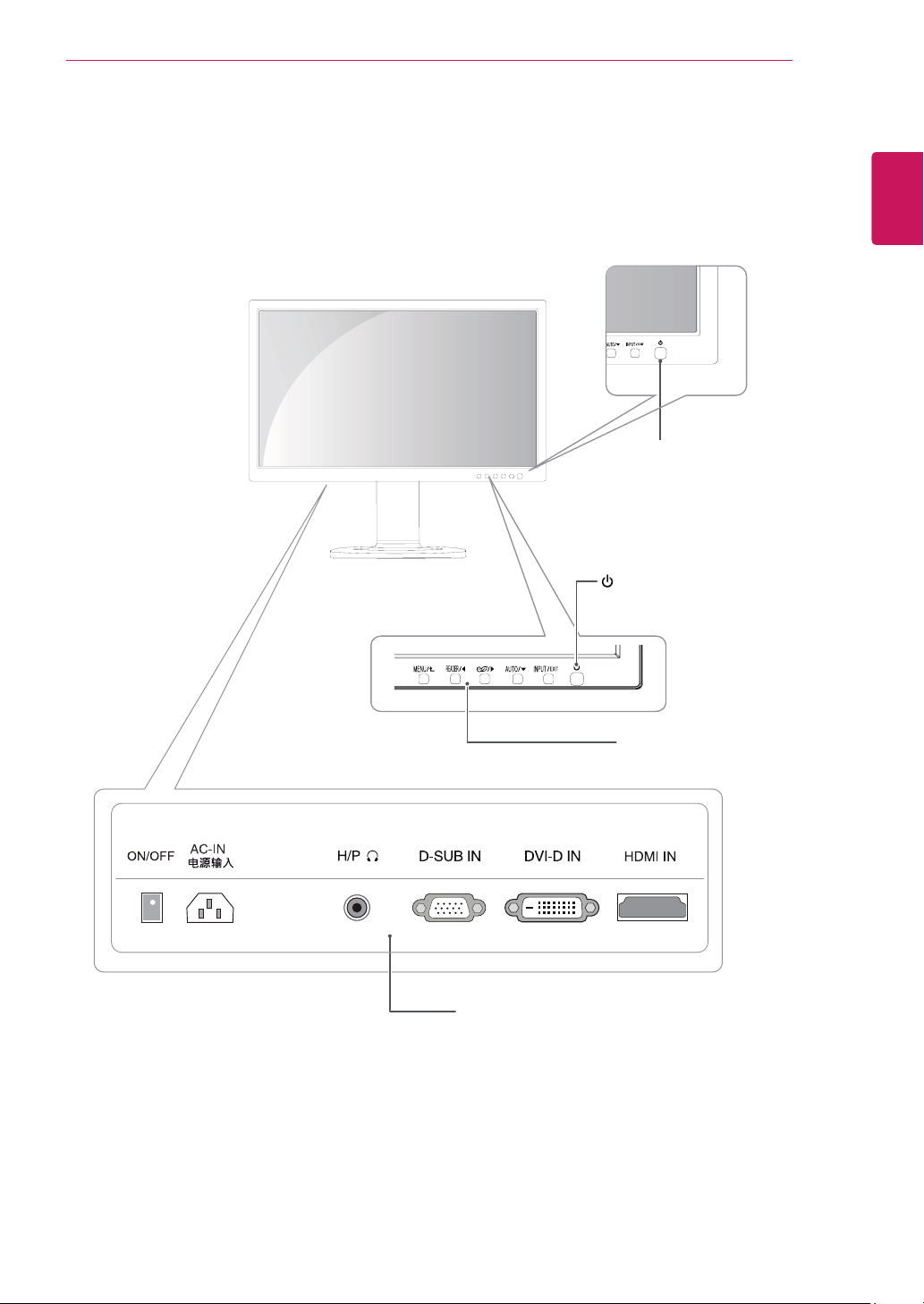
5 Partsandbuttons
6 MovingandLiftingtheMonitor
7 SettinguptheMonitorset
7 - AttachingtheStandBase
7 - DetachingtheStandBase
8 - Mountingonatable
9 - UsingtheKensingtonlockingdevice
10 - Mountingonawall
11 USINGTHEMONITORSET
11 ConnectingtoaPC
11 - D-SUBconnection
11 - DVI-Dconnection
11 - HDMIconnection
12 ConnectingtoAVDevices
12 - HDMIconnection
12 ConnectingtoExternalDevices
12 - Peripheraldeviceconnection
14 CUSTOMIZINGSETTINGS
15 CustomizingSettings
15 - MenuSettings
16 -Picture
17 -Color
18 -Display
18 -Audio
19 -Others
20 READERSetting
21 SMARTENERGYSAVING
22 TROUBLESHOOTING
24 SPECIFICATIONS
24 27MB65V
25 PresetModes(Resolution)
25 Indicator

3
ENG
ENGLISH
LICENSE
LICENSE
Eachmodelhasdifferentlicenses.Visitwww.lg.comformoreinformationonthelicense.
ThetermsHDMIandHDMIHigh-DefinitionMultimediaInterface,andthe
HDMIlogoaretrademarksorregisteredtrademarksofHDMILicensingLLC
intheUnitedStatesandothercountries.
ThefollowingcontentisonlyappliedtothemonitorwhichissoldinEuropemarketandwhichneedsto
meettheErPDirective:
*Thismonitorissettobeturnedoffautomaticallyin4hoursafteryouturnedondisplayifthereisno
adjustmenttodisplay.
*Tomakethissettingbedisabled,changetheoptionto‘Off’inOSDmenuof“AutomaticStandby”.

4
ENG
ENGLISH
ASSEMBLING AND PREPARING
ASSEMBLINGANDPREPARING
Unpacking
Checkyourproductboxforthefollowingitems.Ifthereareanymissingaccessories,contactthelocal
dealerwhereyoupurchasedyourproduct.Theillustrationsinthismanualmaydifferfromtheactualproduct
andaccessories.
Donotuseanyunapprovedaccessoriestoensurethesafetyandproductlifespan.
Anydamagesorinjuriesbyusingunapprovedaccessoriesarenotcoveredbythewarranty.
Theaccessoriessuppliedwithyourproductmayvarydependingonthemodel.
Productspecificationsorcontentsinthismanualmaybechangedwithoutpriornoticeduetoupgrade
ofproductfunctions.
CAUTION
NOTE
CD(Owner'sManual)/
Card
D-SUBCable
(Thiscableisnotincludedinall
countries.)
PowerCord
DVI-DCable
(Thiscableisnotincludedinall
countries.)
StandBase
HDMICable
(Thiscableisnot
includedinallcountries.)
6
ENG
ENGLISH
ASSEMBLING AND PREPARING
MovingandLiftingtheMonitor
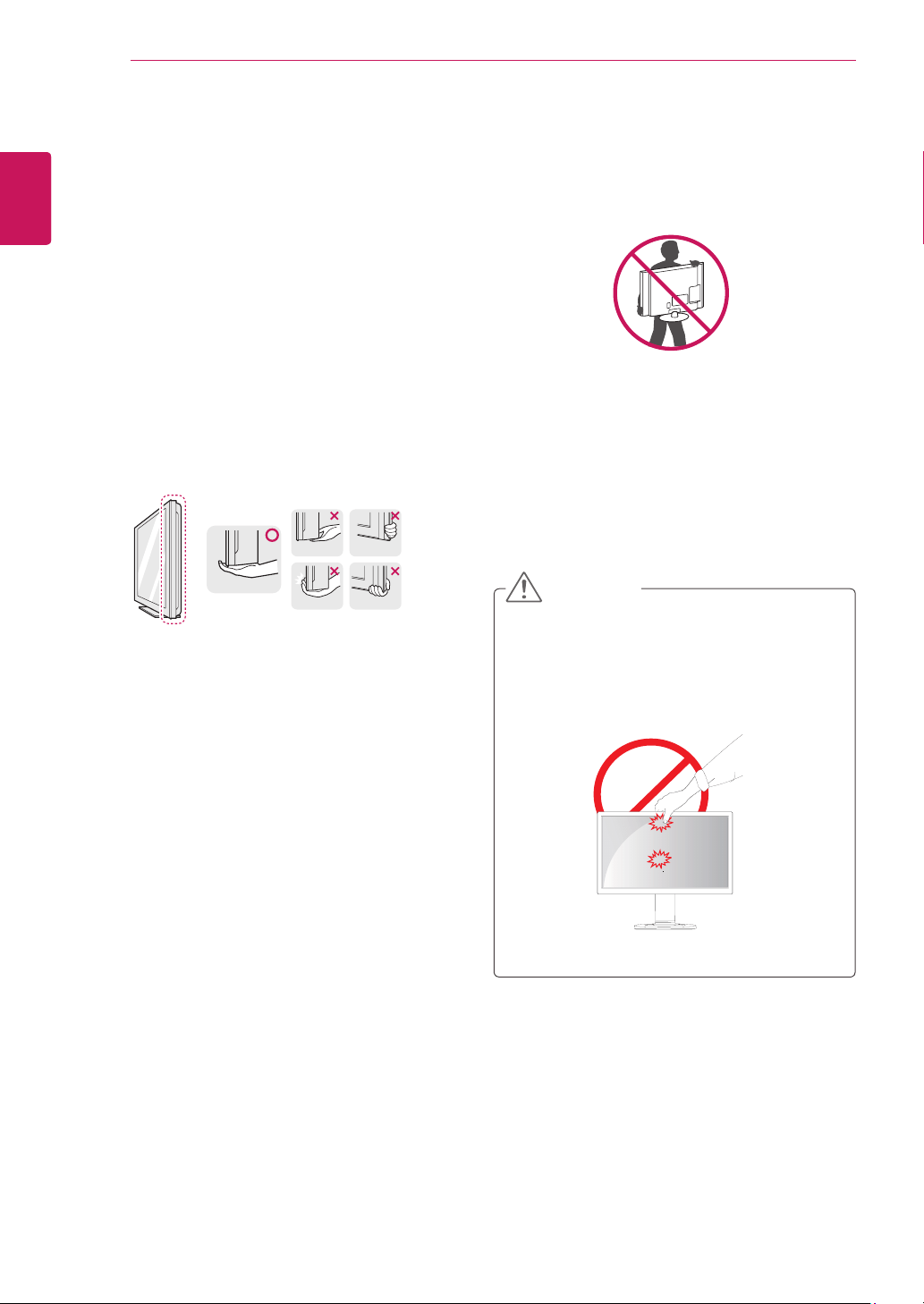
Whenmovingorliftingthemonitor,followthese
instructionstopreventthemonitorfrombeing
scratchedordamagedandtoensuresafetrans-
portationregardlessofitsshapeorsize.
Asfaraspossible,avoidtouchingthemoni-
torscreen.Thismayresultindamagetothe
screenorsomeofthepixelsusedtocreate
images.
Itisadvisabletoplacethemonitorinthe
originalboxorpackingmaterialbeforeat-
temptingtomoveit.
Beforemovingorliftingthemonitor,discon-
nectthepowercordandallcables.
Holdthetopandbottomofthemonitorframe
firmly.Donotholdthepanelitself.
Whenholdingthemonitor,thescreenshould
faceawayfromyoutopreventitbeing
scratched.
Whenmovingthemonitor,avoidanystrong
shockorvibrationstotheproduct.
Whenmovingthemonitor,keepitupright,
neverturnthemonitoronitssideortiltit
sideways.
CAUTION
7
ENG
ENGLISH
ASSEMBLING AND PREPARING
SettinguptheMonitorset
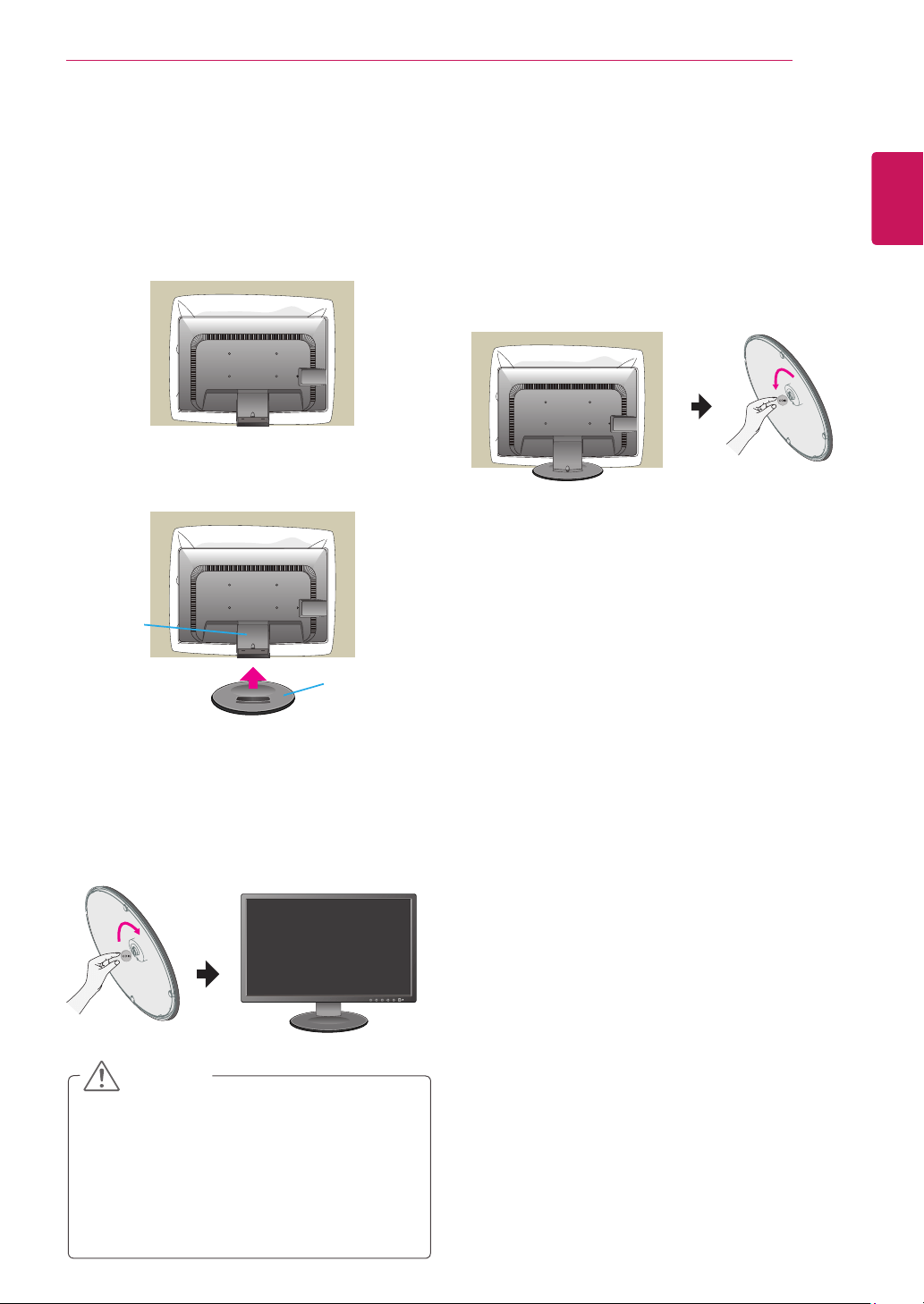
AttachingtheStandBase
1
Placethemonitorwithitsfrontfacing
downwardonasoftcloth.
2
AssembletheStandBase(Front,Rear)into
theStandBodyinthecorrectdirection.
3
Useacoinonthebackofthestandbaseand
turnthescrewclockwisetotighten.
4
Onceassembledtakethemonitorupcarefully
andfacethefrontside.
StandBase
StandBody
DetachingtheStandBase
1
Placethemonitorwithitsfrontfacing
downwardonacushionorsoftcloth.
2
Whenyoudesiretodisintegratethemonitor
fromthestandbase,useacointoturnthe
screwcounterclockwise.
Thisillustrationdepictsthegeneralmodelof
connection.Yourmonitormaydifferfromthe
itemsshowninthepicture.
Donotcarrytheproductupsidedownholding
onlythestandbase.Theproductmayfall
andgetdamagedorinjureyourfoot.
CAUTION
8
ENG
ENGLISH
ASSEMBLING AND PREPARING
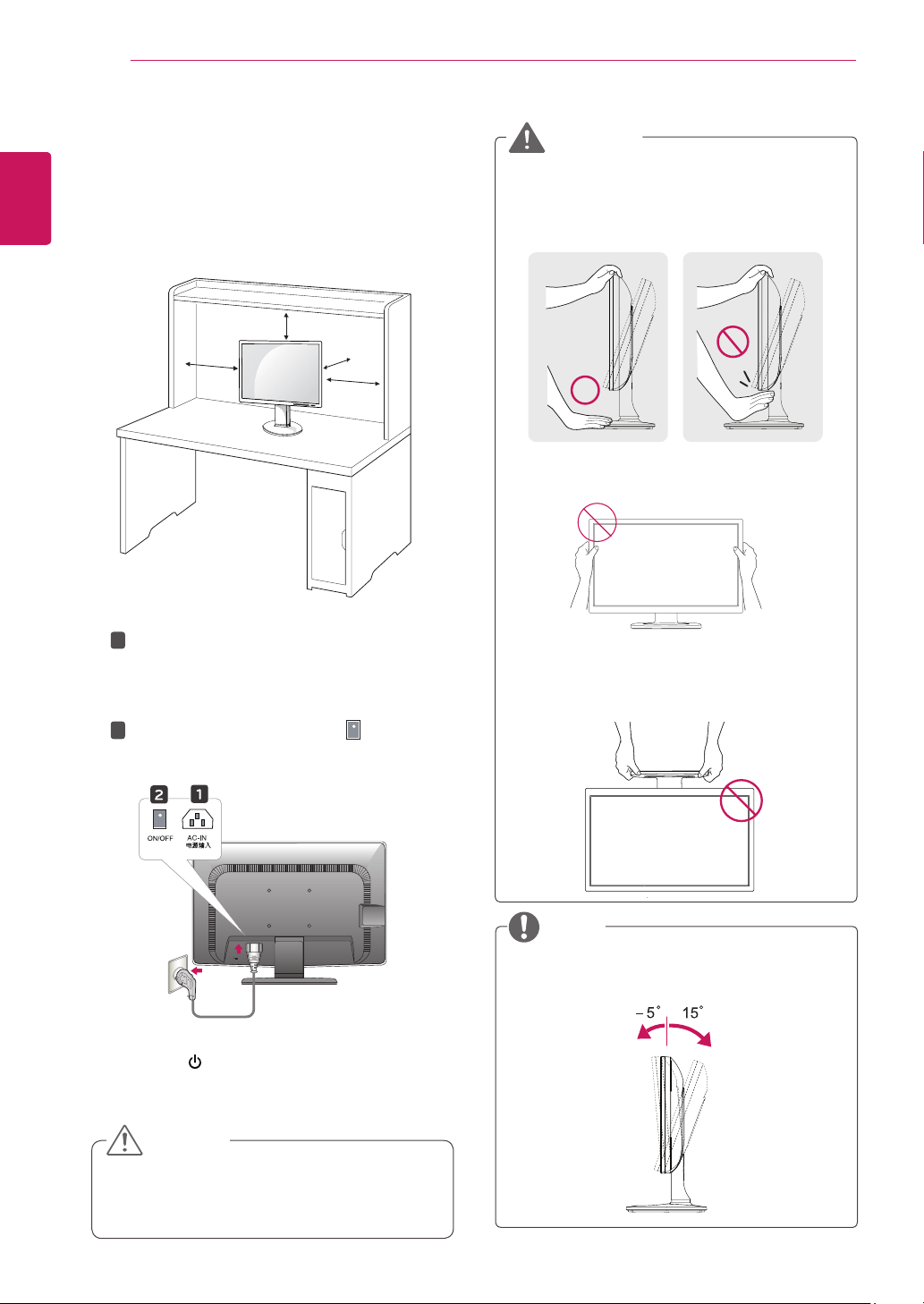
Mountingonatable
1
Liftthemonitorandplaceitonthetableinan
uprightposition.
Installatleast
10cm
awayfromthewallto
ensuresufficientventilation.
3
Pressthe (Power)buttononthefrontofthe
monitortoturnonthemonitor.
10 cm
10 cm
10 cm
10 cm
Unplugthepowercordpriortomovingor
installingthemonitor.Thereisriskofelectric
shock.
CAUTION
Whenyouadjusttheangle,donotholdthe
bottomoftheMonitorsetframeasshownon
thefollowingillustration,asmayinjureyour
fingers.
Donottouchorpressthescreenwhen
adjustingtheangleofthemonitor.
Donotholdthissetlikebelowpicture.Monitor
screencandetachfromstandbaseandinjure
yourbody.
WARNING
Tiltfrom+15to-5degreesupordowntoadjust
theangleoftheMonitorsettosuityourview.
NOTE
Front Rear
2
1
2
ConnectthePowercordtothemonitor,then
plugthepowercordintothewalloutlet.
(Beforeconnectpleasecheckthe“ON/OFF”
knobin“O”state).
Pressthe“ON/OFF”knobin“ ”state(Open
thepower).
9
ENG
ENGLISH
ASSEMBLING AND PREPARING
Using the Kensington locking
device
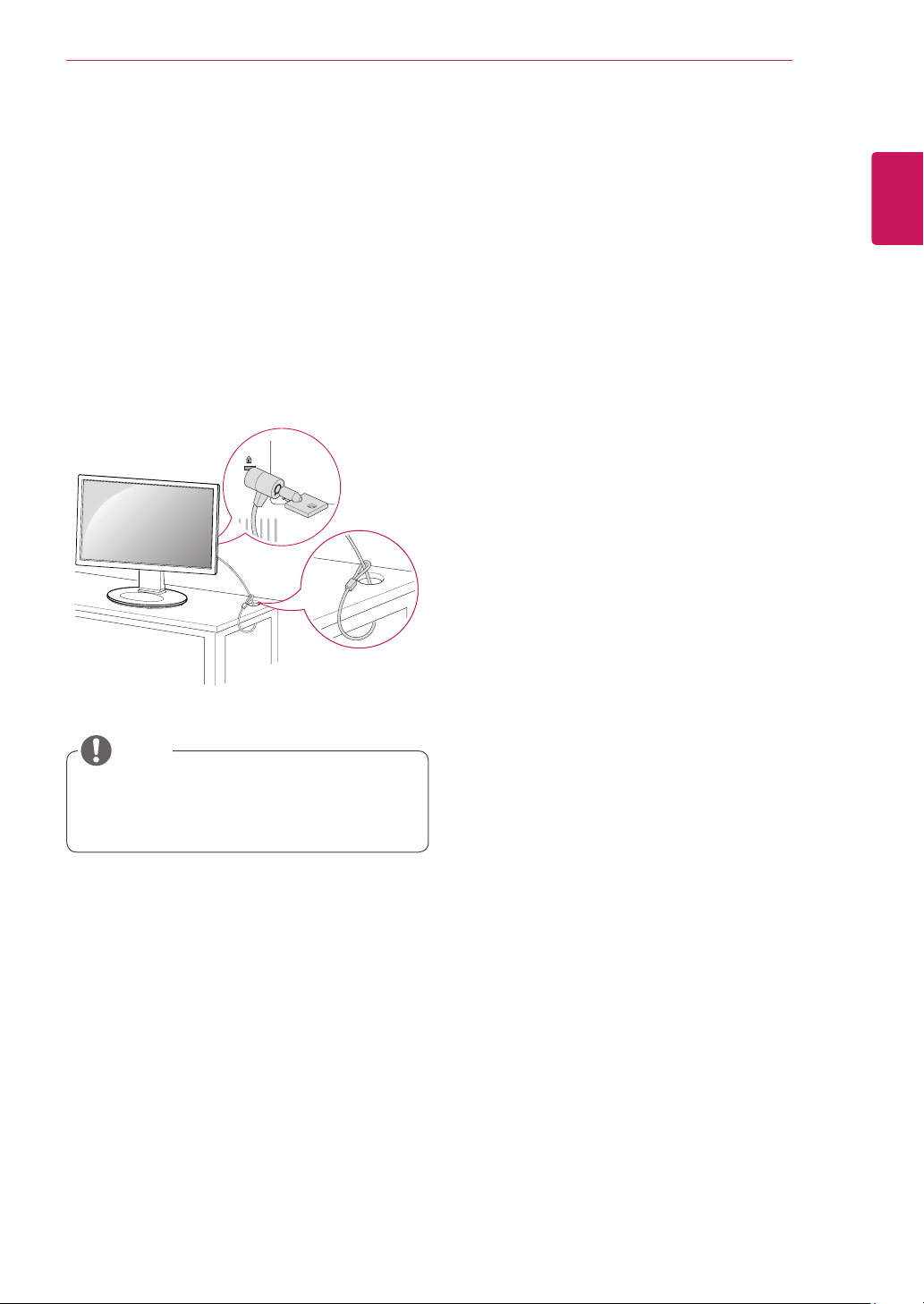
TheconnectorfortheKensingtonlockislocated
ontherearofthemonitor.
Formoreinformationoninstallationandusage,
refertotheKensingtonlockusermanualorvisit
thewebsiteathttp://www.kensington.com.
ConnectthemonitortothetablewiththeKensing-
tonlockcable.
UsingtheKensingtonlockisoptional.The
accessoriescanbepurchasedatyourlocal
electronicsstore.
NOTE
10
ENG
ENGLISH
ASSEMBLING AND PREPARING
Mountingonawall
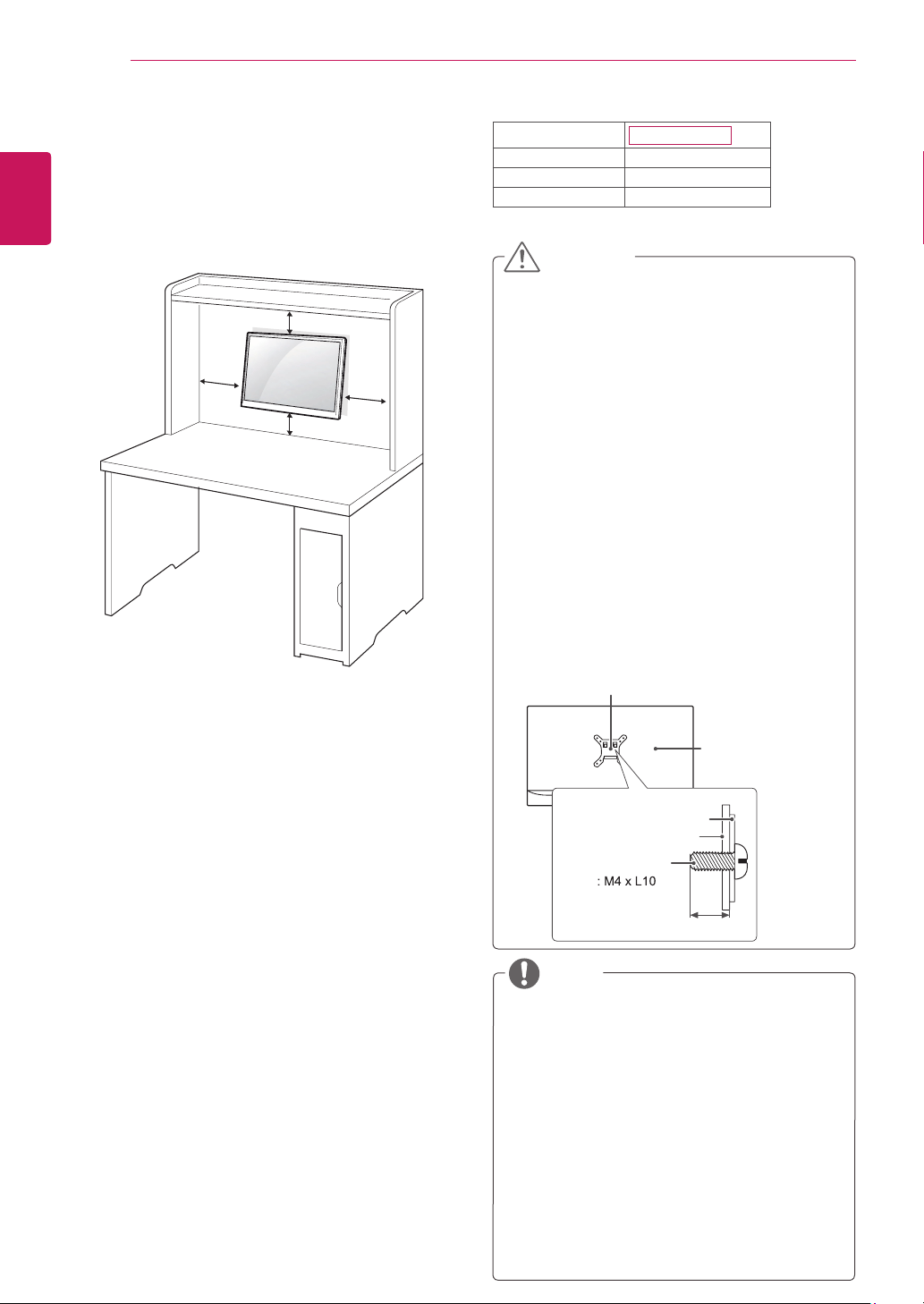
Forproperventilation,allowaclearanceof10cm
oneachsideandfromthewall.Detailed
instructionsareavailablefromyourdealer,seethe
optionalTiltWallMountingBracketInstallationand
SetupGuide.
IfyouintendtomounttheMonitorsettoawall,
attachWallmountinginterface(optionalparts)to
thebackoftheset.
WhenyouinstalltheMonitorsetusingawall
mountinginterface(optionalparts),attachit
carefullysoitwillnotdrop.
1
Please,Usethescrewandwallmountinterface
inaccordancewithVESAStandards.
2
Ifyouusescrewlongerthanstandard,the
monitormightbedamagedinternally.
3
Ifyouuseimproperscrew,theproductmightbe
damagedanddropfrommountedposition.In
thiscase,LGElectronicsisnotresponsiblefor
it.
4
VESAcompatibleonlywithrespecttoscrew
mountinginterfacedimensionsandmounting
screwspecifications.
5
PleaseuseVESAstandardasbelow.
784.8mm(30.9inch)andunder
*WallMountPadThickness:2.6mm
*Screw:Φ4.0mmxPitch0.7mmx
Length10mm
787.4mm(31.0inch)andabove
*PleaseuseVESAstandardwallmountpad
andscrews.
10 cm
10 cm
10 cm
10 cm
Disconnectthepowercordfirst,andthen
moveorinstalltheMonitorset.Otherwise
electricshockmayoccur.
IfyouinstalltheMonitorsetonaceilingor
slantedwall,itmayfallandresultinsevere
injury.
UseonlyanauthorizedLGwallmount
andcontactthelocaldealerorqualified
personnel.
Donotovertightenthescrewsasthismay
causedamagetotheMonitorsetandvoid
yourwarranty.
Useonlyscrewsandwallmountsthat
meettheVESAstandard.Anydamages
orinjuriesbymisuseorusinganimproper
accessoryarenotcoveredbythewarranty.
Screwlengthfromoutersurfaceofback
covershouldbeunder8mm.
UsethescrewsthatarelistedontheVESA
standardscrewspecifications.
Thewallmountkitwillincludeaninstallation
manualandnecessaryparts.
Thewallmountbracketisoptional.Youcan
obtainadditionalaccessoriesfromyourlocal
dealer.
Thelengthofscrewsmaydifferdepending
onthewallmount.Besuretousetheproper
length.
Formoreinformation,refertothe
instructionssuppliedwiththewallmount.
CAUTION
NOTE
BackCover
WallmountPad
WallmountPad
BackCover
Standardscrew
Max.8mm
Model
27MB65V
VESA(AxB) 200x100
Standardscrew M4
Numberofscrews 4
11
ENG
ENGLISH
USING THE MONITOR SET
USINGTHEMONITORSET
ConnectingtoaPC
YourMonitorsetsupportsPlug&Play*.
*Plug&Play:APCrecognizesaconnected
devicethatusersconnecttoaPCandturn
on,withoutdeviceconfigurationoruser
intervention.
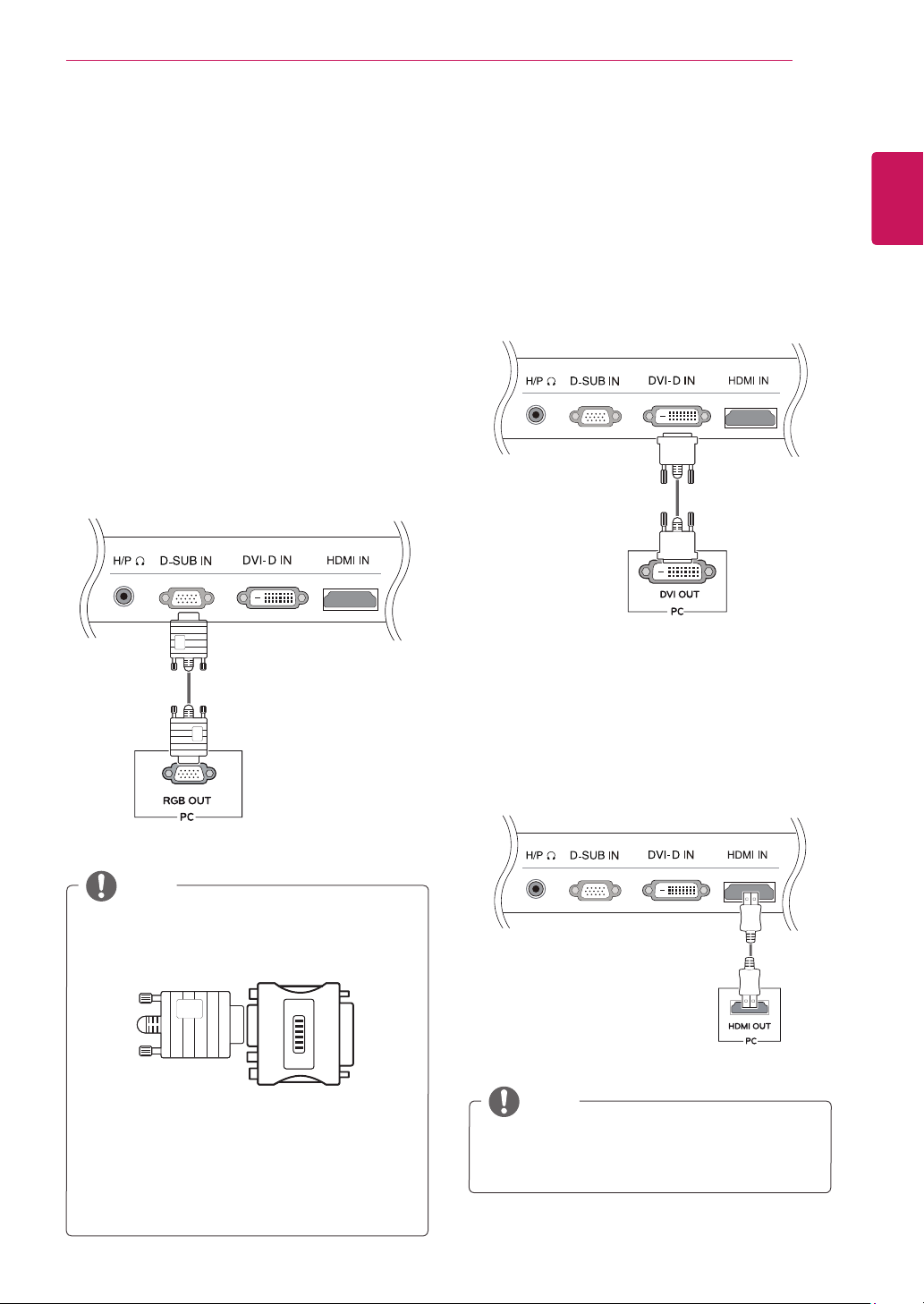
D-SUBconnection
TransmitsanalogvideofromyourPCtothe
Monitorset.ConnectthePCandtheMonitorset
withthesuppliedD-sub15pinsignalcableas
showninthefollowingillustrations.
Macadapter
ForAppleMacintoshuse,aseparateplug
adapterisneededtochangethe15pin
highdensity(3row)D-SUBVGAconnector
onthesuppliedcabletoa15pin2row
connector.
WhenusingaD-Subsignalinputcable
connectorforMacintosh
NOTE
HDMIconnection
Transmitsthedigitalvideoandaudiosignalsfrom
yourPCtotheMonitorset.ConnectthePCand
theMonitorsetwiththeHDMIcableasshownin
thefollowingillustrations.
IfyouuseHDMIPC,itcancausecompatibility
problem.
NOTE
DVI-Dconnection
TransmitsadigitalvideosignalfromyourPCto
theMonitorset.ConnectthePCandtheMonitor
setwithaDVIcableasshowninthefollowing
illustrations.
12
ENG
ENGLISH
USING THE MONITOR SET
Connectthesignal
inputcableandtighten
itbyturningthescrews
clockwise.
Donotpressthescreen
withyourfingerforalongtimeasthismay
resultintemporarydistortiononthescreen.
Avoiddisplayingafixedimageonthe
screenforalongperiodoftimetoprevent
imageburn.Useascreensaverifpossible.
CAUTION
WhenyouwanttousetwoPCinourMonitor,
pleaseconnectthesignalcable(D-SUB/
DVI-D/HDMI)respectivelyinMonitorset.
IfyouturntheMonitorsetonwhileitiscold,
thescreenmayflicker.Thisisnormal.
Somered,green,orbluespotsmayappear
onthescreen.Thisisnormal.
NOTE
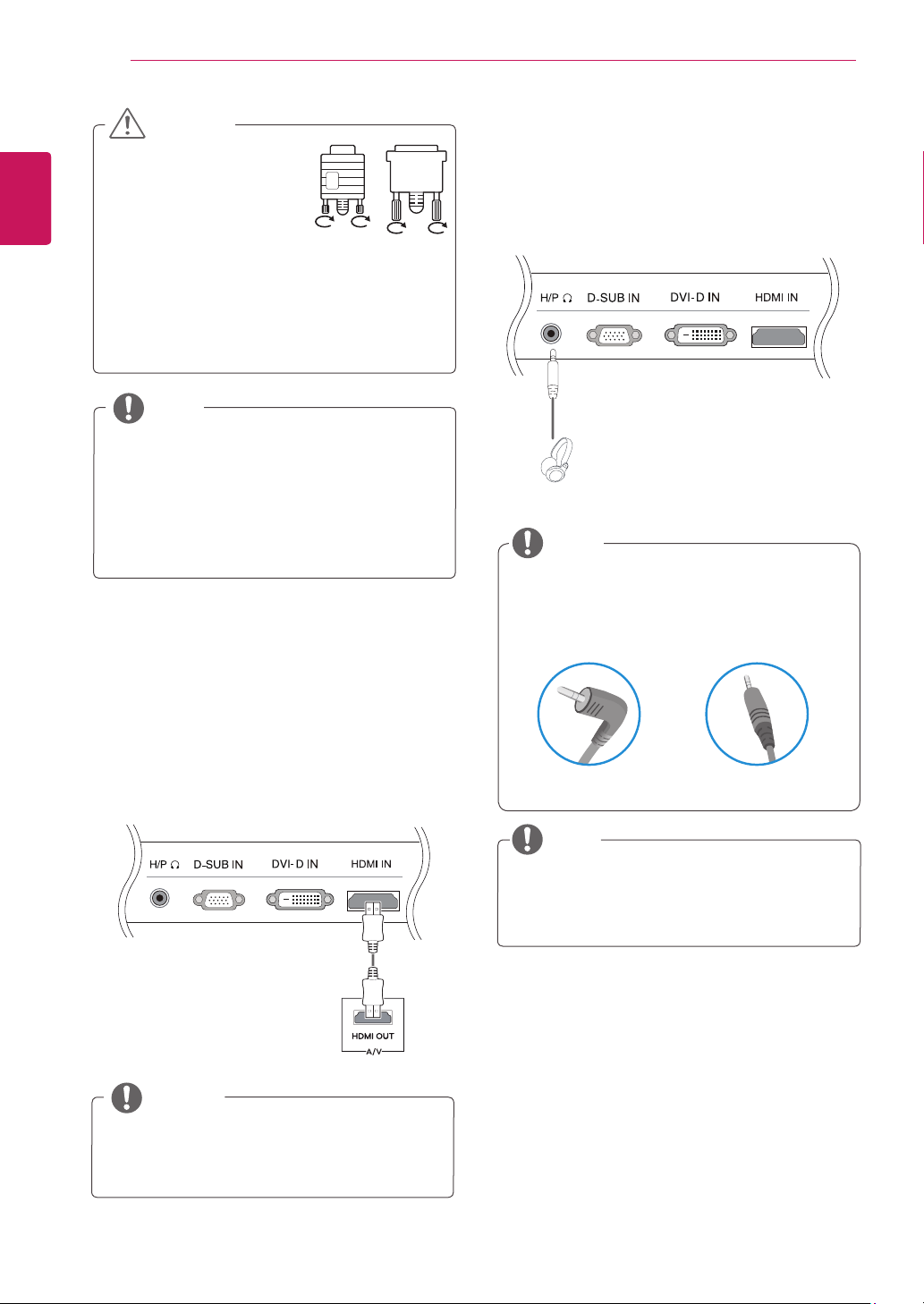
ConnectingtoAVDevices
HDMIconnection
Transmitsthedigitalvideoandaudiosignalsfrom
yourAVdevicestothemonitor.ConnectyourAV
devicetothemonitorwiththeHDMIcableasil-
lustratedbelow.
UsingaDVItoHDMIcablemaycausecom-
patibilityissues.
NOTE
ConnectingtoExternalDevices
Peripheraldeviceconnection
Connectperipheraldevicestothemonitorusing
headphoneports.
Peripheraldevicesaresoldseparately.
Cableswithangledplugsmayhaveclear-
anceissues,usestraightplugswhenpos-
sible.
AngleType StraightType
NOTE
NOTE
Headphonesorspeakersmaynotworknor-
mally,dependingontheserverPCsettings.
13
ENG
ENGLISH
USING THE MONITOR SET
"SelfImageSetting"Function.
Thisfunctionprovidestheuserwithoptimal
displaysettings.Whentheuserconnects
themonitorforthefirsttime,thisfunction
automaticallyadjuststhedisplaytooptimal
settingsforindividualinputsignals.(Only
supportedinAnalogMode)
‘AUTO’Function.
Whenyouencounterproblemssuchas
blurryscreen,blurredletters,screenflicker
ortiltedscreenwhileusingthedeviceor
afterchangingscreenresolution,pressthe
AUTOfunctionbuttontoimproveresolution.
(OnlysupportedinAnalogMode)
NOTE
SelfImageSettingFunction
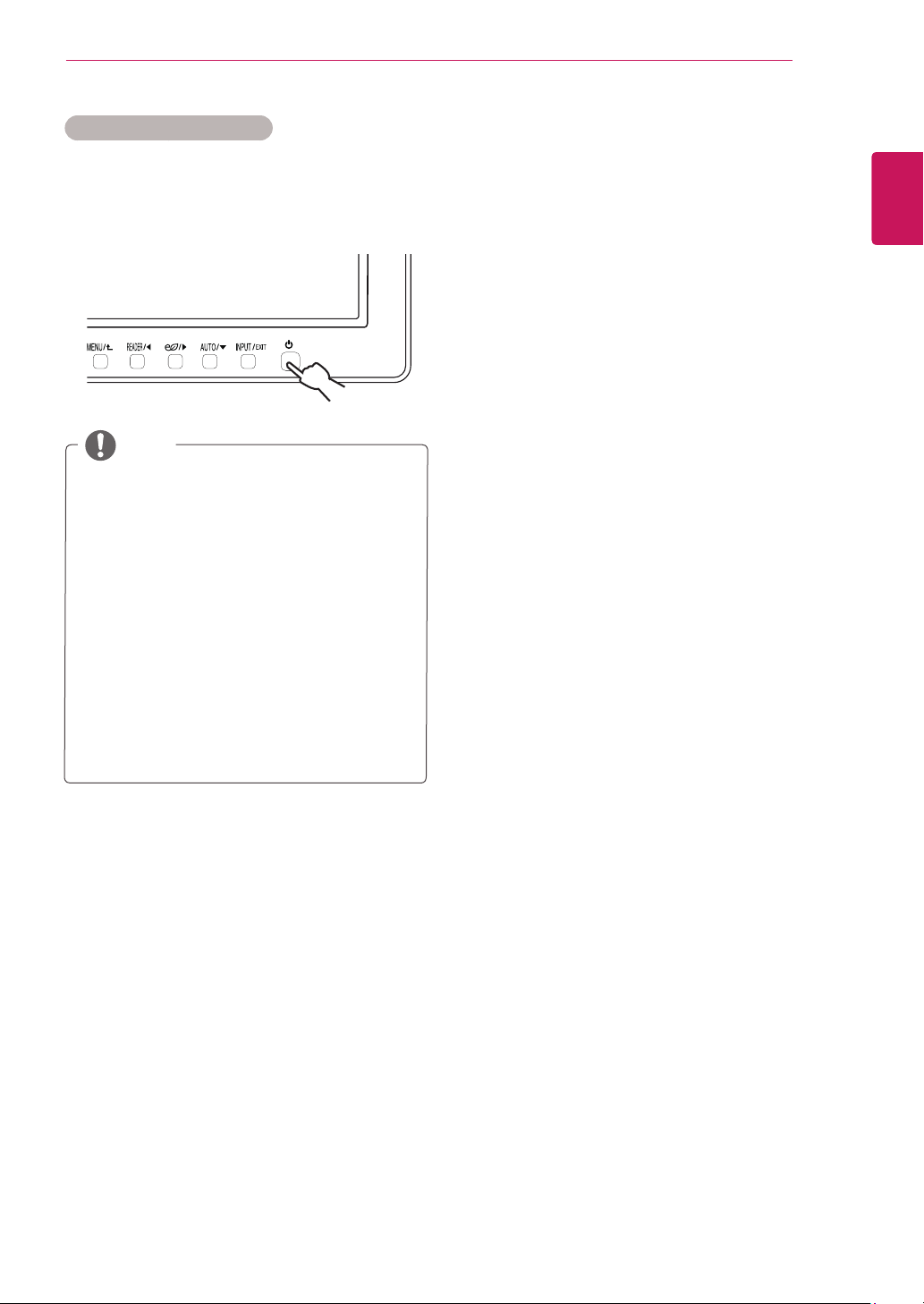
Pressthepowerbuttononthebottompanelto
turnthepoweron.Whenmonitorpoweristurned
on,the"
SelfImageSetting
"Functionisexecuted
automatically.(OnlysupportedinAnalogMode)
14
ENG
ENGLISH
CUSTOMIZING SETTINGS
CUSTOMIZINGSETTINGS
1
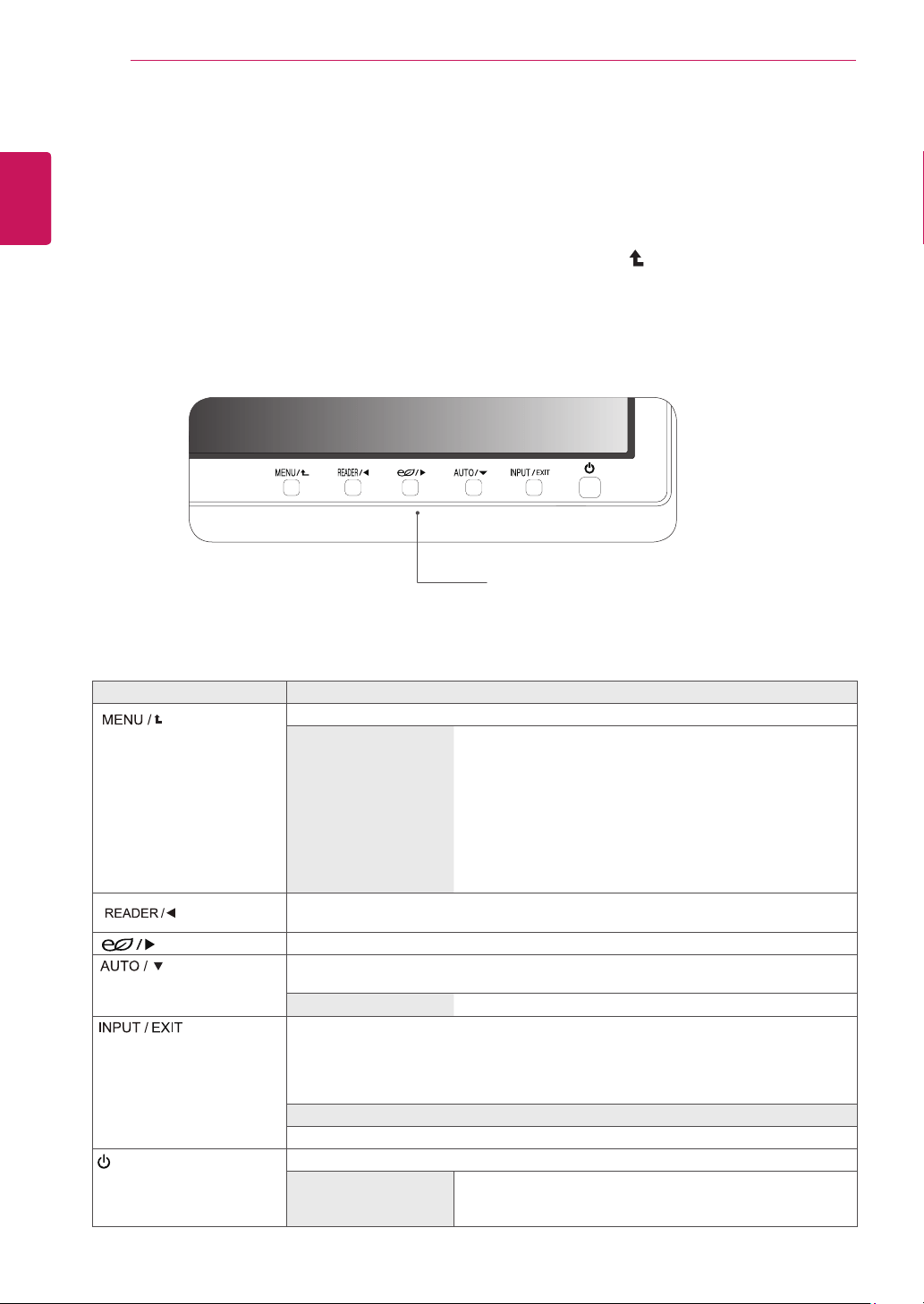
PressthedesiredbuttononthebottomoftheMonitorset.
2
ChangethevalueofthemenuitembypressingthebuttonsonthebottomoftheMonitorset.
Toreturntotheuppermenuorsetothermenuitems,usetheuparrow( )button.
3
Select
EXIT
toleavetheOSDmenu.
MonitorsetButtons
Button Description
Accessesthemainmenus.(Seep.15)
OSDLocked/OSD
Unlocked
Thisfunctionallowyoutolockthecurrentcontrolsettings,so
thattheycannotbeinadvertentlychanged.
PressandholdtheMENUbuttonforseveralseconds.Then
OSDof“OSDLock”willappear.Afterthat,usercanselect
lockorunlockbypressingleft/rightbutton.
Ifuserselectsthe“Lock”iconbypressingthe“OK”button,
themessage“OSDLocked”willappear.Otherwise,“OSD
Unlocked”willappear.Afterselectingthe“Lock”,Ifyouwant
tochangetoUnlock,youcanpushthe“MENU”buttonfor
severalseconds.Themessage“OSDUnlocked”willappear.
UsethisbuttontoenterReaderModemenu.Itsfunctionworkstodisplayscreenas
paper-likepictureforEyecomfort.Ifyouwanttomoreinformation(Seep.20).
UsethisbuttontoenterSMARTENERGYSAVINGmenu.(Seep.21)
Whenadjustingyourdisplaysettings,alwayspresstheAUTObuttonontheMONITOR
SETUPOSD.(OnlysupportedinAnalogMode)
Thebestdisplaymode
1920x1080
Youcanchoosetheinputsignal.
• Whentwoinputsignalsareconnected,youcanselecttheinputsignal(D-SUB/DVI/
HDMI)youwant.
• Whenonlyonesignalisconnected,itisautomaticallydetected.Thedefaultsettingis
D-SUB.
EXIT
EXITtheOSD(OnScreenDisplay).
(PowerButton)
Turnsthepoweronoroff.
PowerIndicator
Thepowerindicatorstayswhiteifthedisplayisrunning
properly(OnMode).IfthedisplayisinSleepMode,thepower
indicatorblinkswhite.
15
ENG
ENGLISH
CUSTOMIZING SETTINGS
CustomizingSettings
MenuSettings
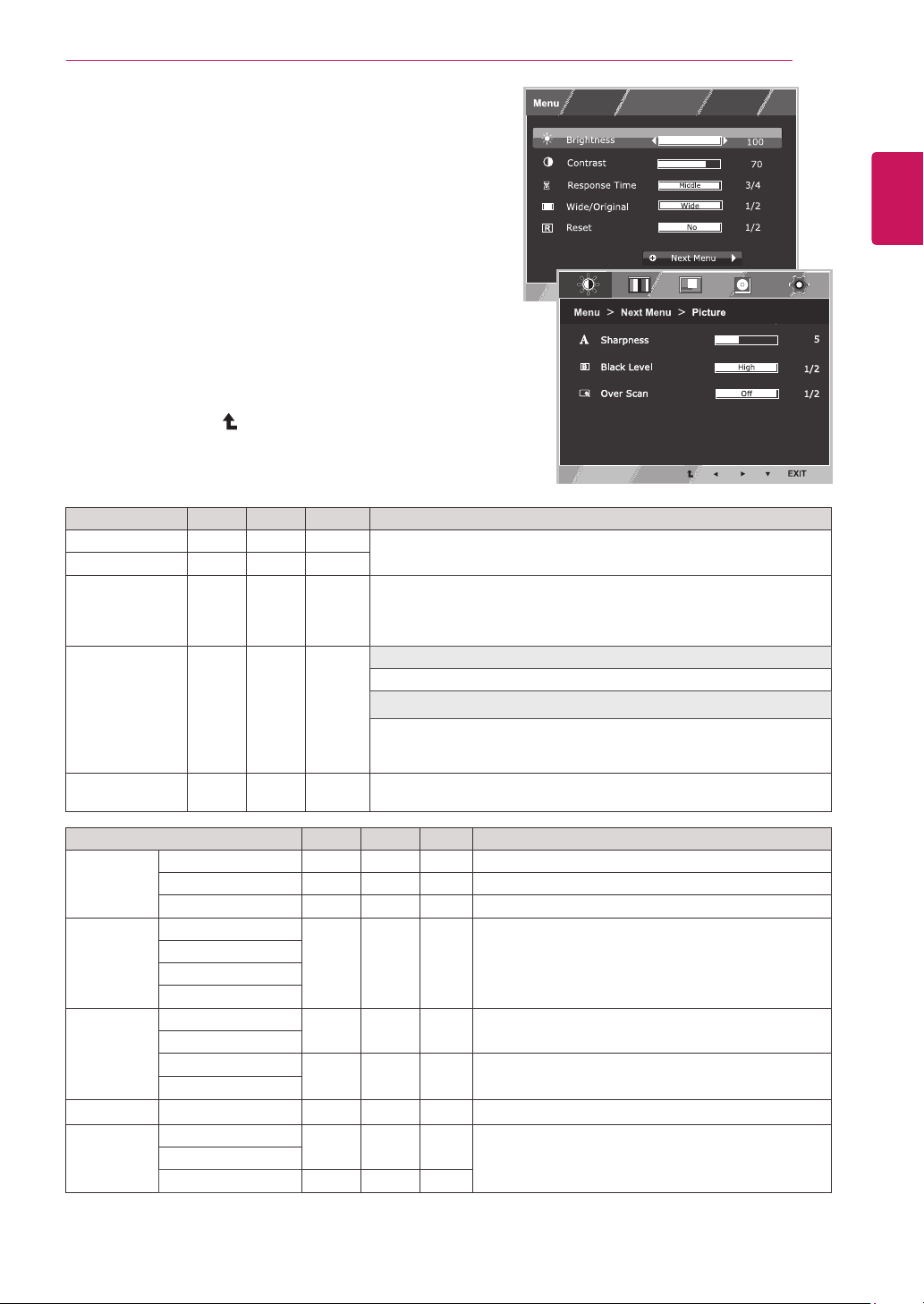
1
Press
MENU
buttononthebottomoftheMonitorset
todisplaythe
Menu
OSD.
2
Settheoptionsbypressingthe◄or►or▼
buttons.
3
Selectthe"
NextMenu
"buttontoenterthemore
optionsettings.
4
Select
EXIT
toleavetheOSDmenu.
Toreturntotheuppermenuorsetothermenuitems,
usetheuparrow( )button.
Eachoptionisexplainedbelow.
Menu Analog Digital HDMI Description
Brightness ● ● ●
Toadjustthebrightness,contrastofthescreen.
Contrast ● ● ●
ResponseTime
● ● ●
Youcansetaresponsetimefordisplayedpicturesbasedonthespeed
ofthescreen.Foranormalenvironment,itisrecommendedthatyou
use'Off'.Forafast-movingpicture,itisrecommendedthatyouuse
'High'.
Wide/Original
● ● ●
Wide
Switchtofullscreenmodeaccordingtoinputimagesignal.
Original
Changetheinputimagesignalratiotooriginal.
*ThisfunctionworksonlyifinputresolutionislowerthanMonitorset
ratio(16:9).
Reset
● ● ●
Restoreallfactorydefaultsettings.Pressthe
◄
,
►
buttonstoreset
immediately.
Menu>NextMenu Analog Digital HDMI Description
Picture Sharpness ● ● ●
Toadjusttheclearnessofthescreen
BlackLevel ●
Tosetoffsetlevel
OverScan ●
Toimprovetheclarityandstabilityofthescreen
Color Gamma
● ● ●
Tocustomizethecolorofthescreen
ColorTemp
SixColor
ColorReset
Display Horizontal
●
Toadjustthepositionofthescreen
Vertical
Clock
●
Toimprovetheclarityandstabilityofthescreen
Phase
Audio
Volume ●
Toadjustthevolume
Others Language
● ● ●
Tocustomizethescreenstatusforauser'soperating
environment
PowerIndicator
AutomaticStandby ● ● ●
Analog:
D-SUB(Analogsignal)input.
Digital:
DVI-D(Digitalsignal)input.
HDMI:
HDMI(Digitalsignal)input.
16
ENG
ENGLISH
CUSTOMIZING SETTINGS
Picture
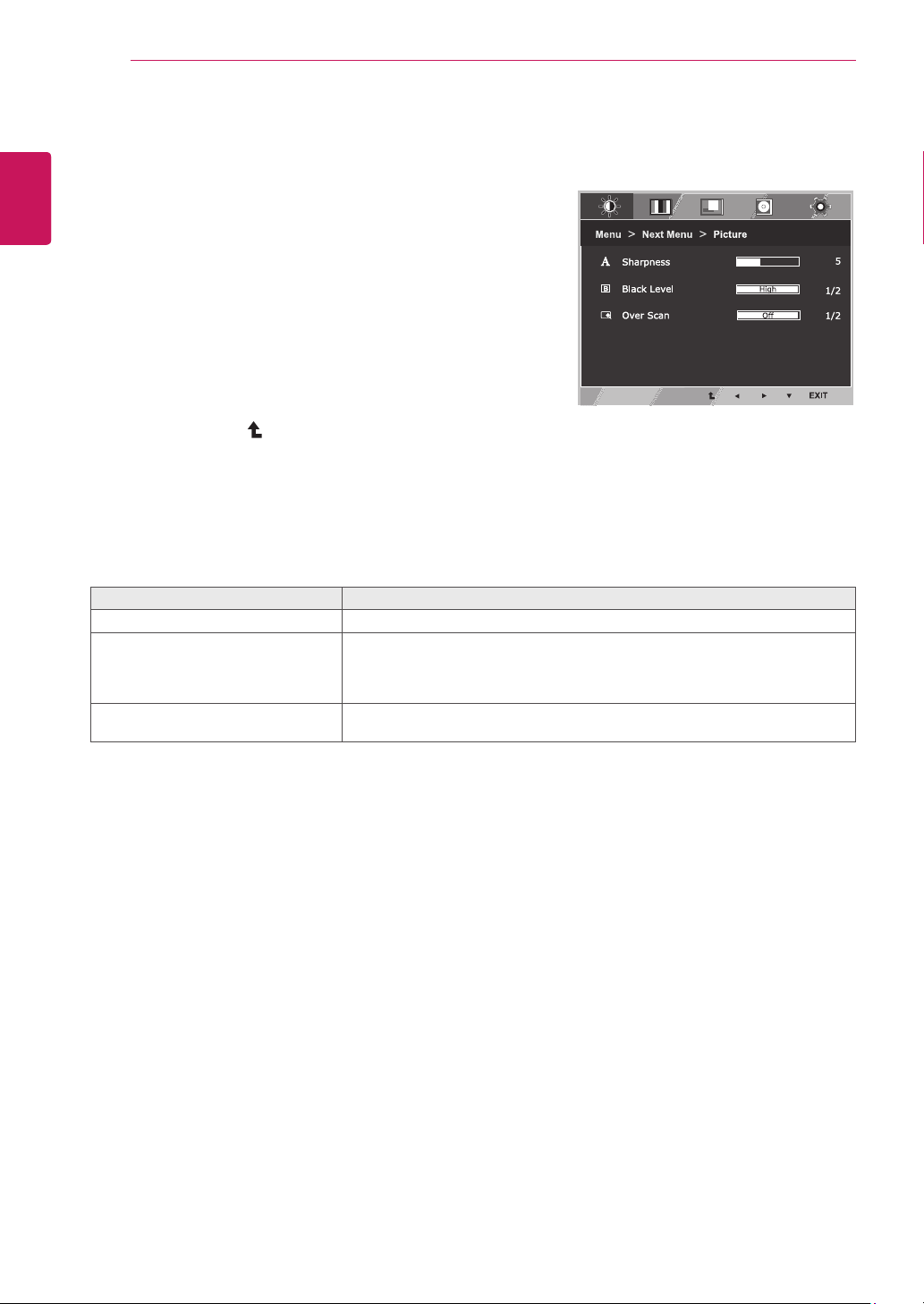
1
Press
MENU
buttononthebottomoftheMonitorset
todisplaythe
Menu
OSD.
2
Selectthe"
NextMenu
"buttontoenterthemore
optionsettings.
3
Enterto
Picture
bypressingthe▼button.
4
Settheoptionsbypressingthe◄or►or▼
buttons.
5
Select
EXIT
toleavetheOSDmenu.
Toreturntotheuppermenuorsetothermenuitems,
usetheuparrow( )button.
Eachoptionisexplainedbelow.
Menu>NextMenu>Picture Description
Sharpness
Toadjusttheclearnessofthescreen.
BlackLevel Youcansettheoffsetlevel.Ifyouselect'High',thescreenwillbebrightandif
youselect‘Low’,thescreenwillbedark.(onlyforHDMIinput)
*Offset?Asthecriteriaforvideosignal,itisthedarkestscreenthemonitorcan
show.
OverScan ToselecttherangeofoutputimageforDTVtiminginHDMIinput.(onlyforHDMI
input)RecommendoverscanfunctiontoturnonwhenconnectAVequipment.
17
ENG
ENGLISH
CUSTOMIZING SETTINGS
Color
1
Press
MENU
buttononthebottomoftheMonitorset
todisplaythe
Menu
OSD.
2
Selectthe"
NextMenu
"buttontoenterthemore
optionsettings.
3
Select
Color
bypressingthe►button.
4
Enterto
Color
bypressingthe▼button.
5
Settheoptionsbypressingthe◄or►or▼
buttons.
6
Select
EXIT
toleavetheOSDmenu.
Toreturntotheuppermenuorsetothermenuitems,
usetheuparrow( )button.
Eachoptionisexplainedbelow.
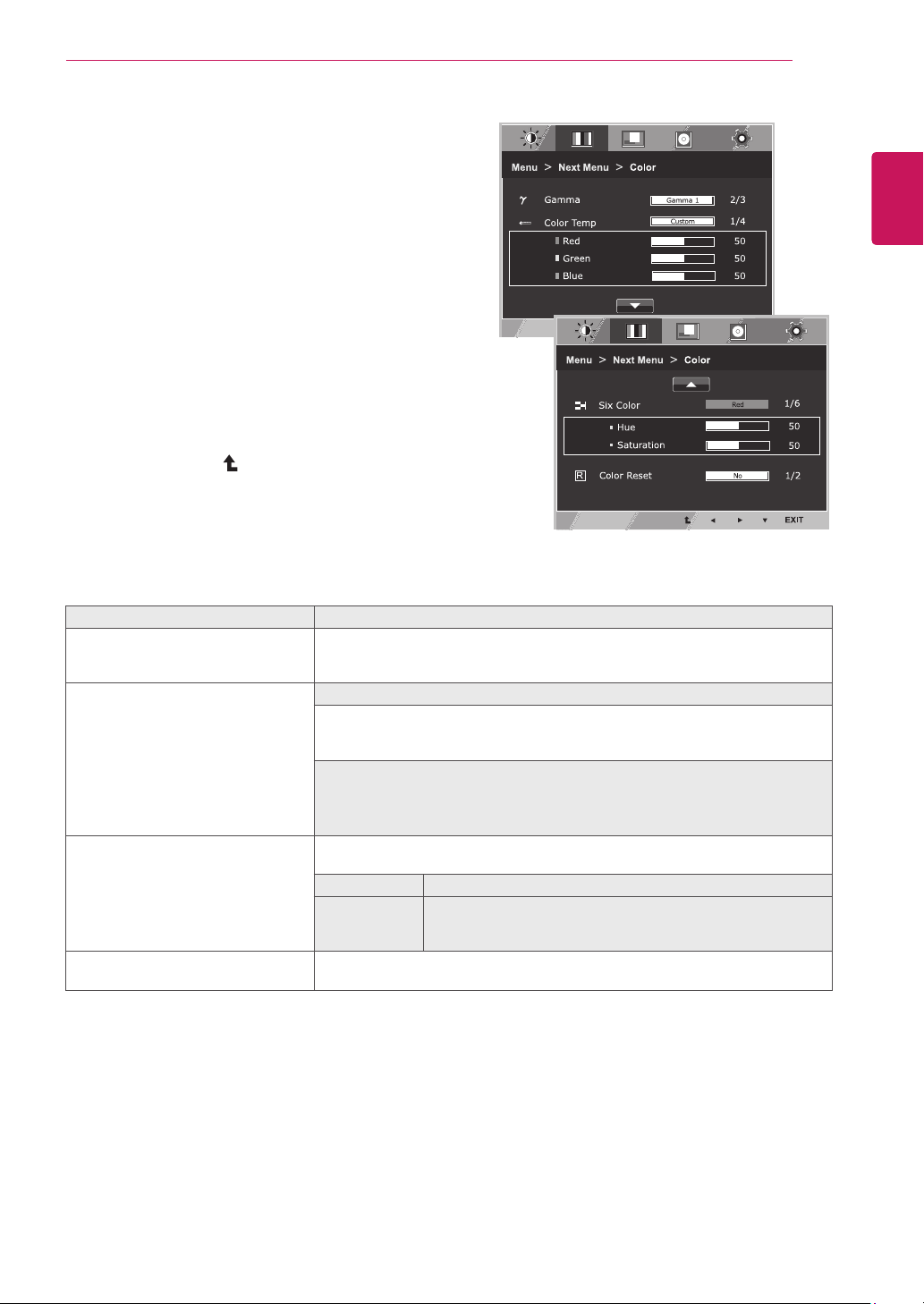
Menu>NextMenu>Color Description
Gamma
Setyourowngammavalue.:Gamma0,Gamma1,Gamma2onthemonitor,
highgammavaluesdisplaywhitishimagesandlowgammavaluesdisplay
blackishimages.
ColorTemp Custom
•Red:
Setyourownredcolorlevels.
•Green:
Setyourowngreencolorlevels.
•Blue:
Setyourownbluecolorlevels.
Selectthescreencolor.
Warm:
Setthescreentowarmcolortemperature(morered).
Medium:
Setthescreentomediumcolortemperature.
Cool:
Setthescreentocoolcolortemperature(moreblue).
SixColor
Setsandstoresthehueandsaturationforsixcolors(Red/Green/Blue/Cyan/
Magenta/Yellow)tosatisfythecolorrequirementsofauser.
Hue
Adjuststhescreenhue.
Saturation
Adjuststhecolorsharpnessonthescreen.Lowervaluesmake
thecolorsharpnessweakerandcolorslighterwhilehigher
valuesmakethecolorsharpnessstrongerandcolorsdark.
ColorReset
Resetsthecolorsettingstothefactorydefaultsettingsforthecurrentinput
device.
18
ENG
ENGLISH
CUSTOMIZING SETTINGS
Display
1
Press
MENU
buttononthebottomoftheMonitorset
todisplaythe
Menu
OSD.
2
Selectthe"
NextMenu
"buttontoenterthemore
optionsettings.
3
Select
Display
bypressingthe►button.
4
Enterto
Display
bypressingthe▼button.
5
Settheoptionsbypressingthe◄or►or▼
buttons.
6
Select
EXIT
toleavetheOSDmenu.
Toreturntotheuppermenuorsetothermenuitems,
usetheuparrow( )button.
Eachoptionisexplainedbelow.
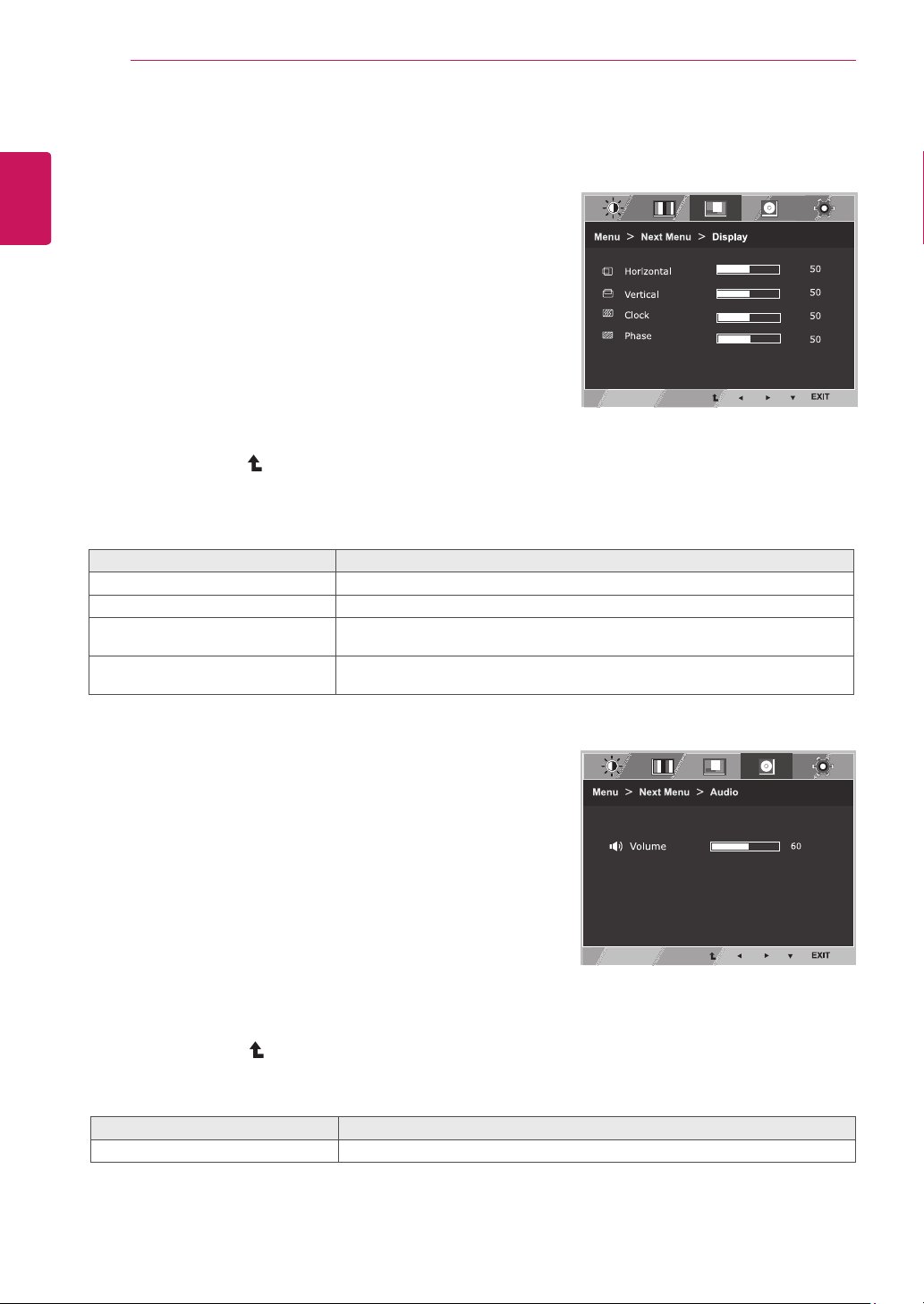
Menu>NextMenu>Display Description
Horizontal
Tomoveimageleftandright.
Vertical
Tomoveimageupanddown.
Clock
Tominimizeanyverticalbarsorstripesvisibleonthescreenbackground.The
horizontalscreensizewillalsochange.
Phase
Toadjustthefocusofthedisplay.Thisitemallowsyoutoremoveanyhorizontal
noiseandclearorsharpentheimageofcharacters.
Eachoptionisexplainedbelow.
Menu>NextMenu>Audio Description
Volume ToadjusttheVolumeofheadphone/earphone.(OnlyforHDMIinput)
Audio
1
Press
MENU
buttononthebottomoftheMonitorset
todisplaythe
Menu
OSD.
2
Selectthe"
NextMenu
"buttontoenterthemore
optionsettings.
3
Select
Audio
bypressingthe►button.
4
Enterto
Volume
bypressingthe▼button.
5
Settheoptionsbypressingthe◄or►buttons.
6
Select
EXIT
toleavetheOSDmenu.
Toreturntotheuppermenuorsetothermenuitems,
usetheuparrow( )button.
19
ENG
ENGLISH
CUSTOMIZING SETTINGS
Others
1
Press
MENU
buttononthebottomoftheMonitorset
todisplaythe
Menu
OSD.
2
Selectthe"
NextMenu
"buttontoenterthemore
optionsettings.
3
Select
Others
bypressingthe►button.
4
Enterto
Others
bypressingthe▼button.
5
Settheoptionsbypressingthe◄or►or▼
buttons.
6
Select
EXIT
toleavetheOSDmenu.
Toreturntotheuppermenuorsetothermenuitems,
usetheuparrow( )button.
Eachoptionisexplainedbelow.
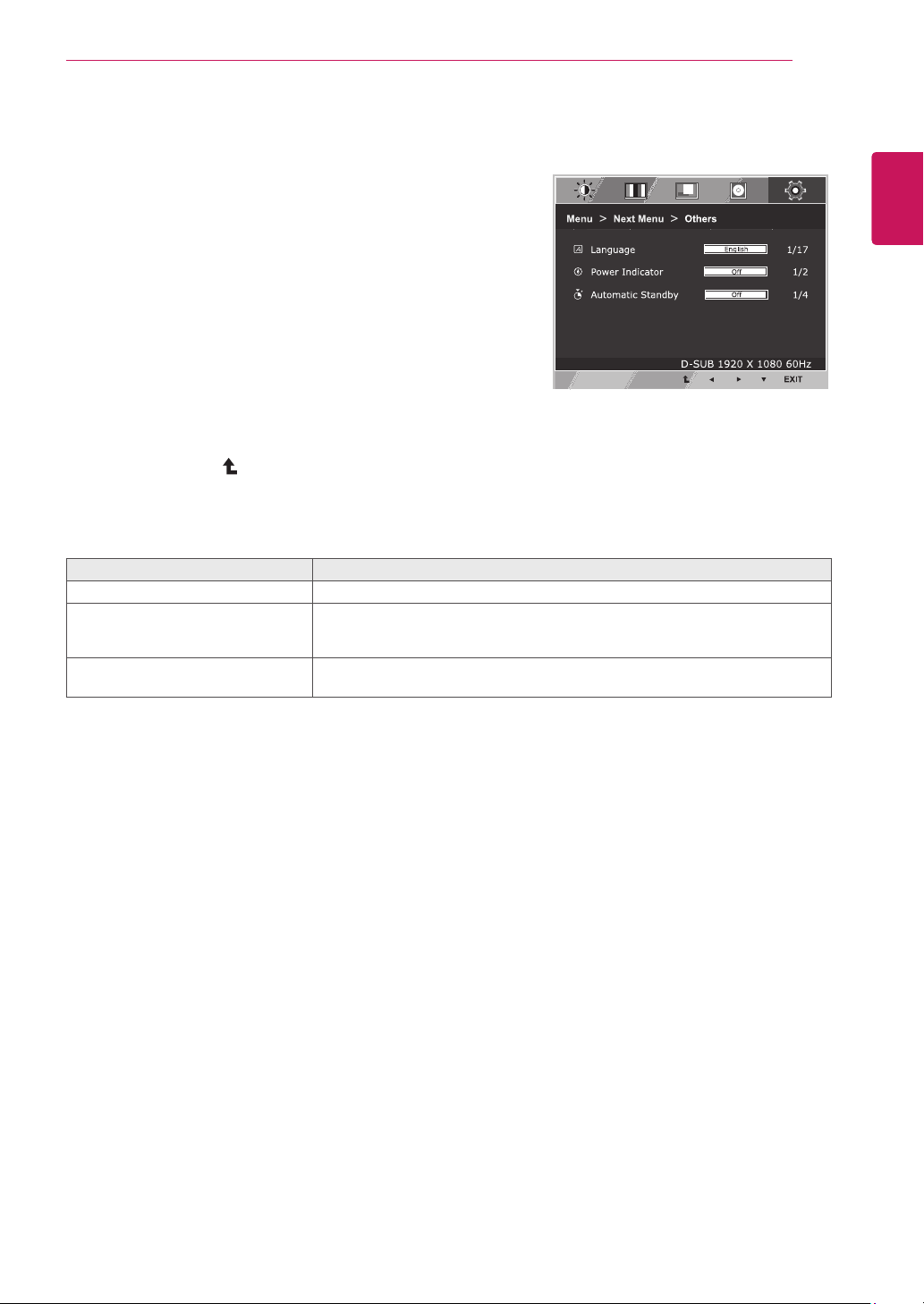
Menu>NextMenu>Others Description
Language
Tochoosethelanguageinwhichthecontrolnamesaredisplayed.
PowerIndicator
Usethisfunctiontosetthepowerindicatoronthebottomsideofthemonitorto
OnorOff.IfyousetOff,itwillgooff.
IfyousetOnatanytime,thepowerindicatorwillautomaticallybeturnedon.
AutomaticStandby Ifyoudonotpressanybuttononthemonitorsetforacertainperiod,themonitor
setwillautomaticallyswitchtostandbymode.
20
ENG
ENGLISH
CUSTOMIZING SETTINGS
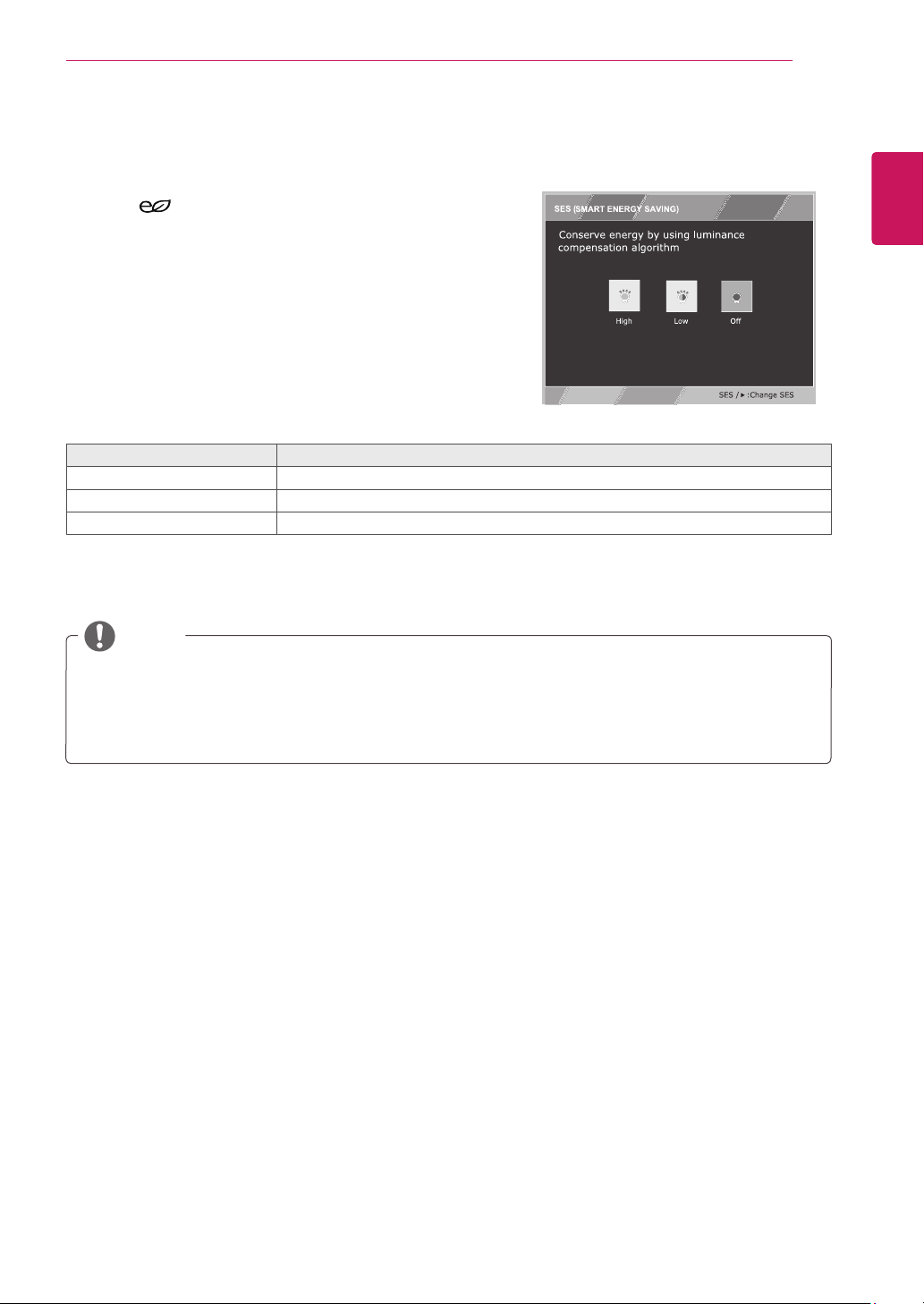
READERSetting
1
Press
READER
buttononthebottomoftheMonitor
settodisplaythe
ReaderMode
OSD.
2
Settheoptionsbypressssingthe◄buttons.
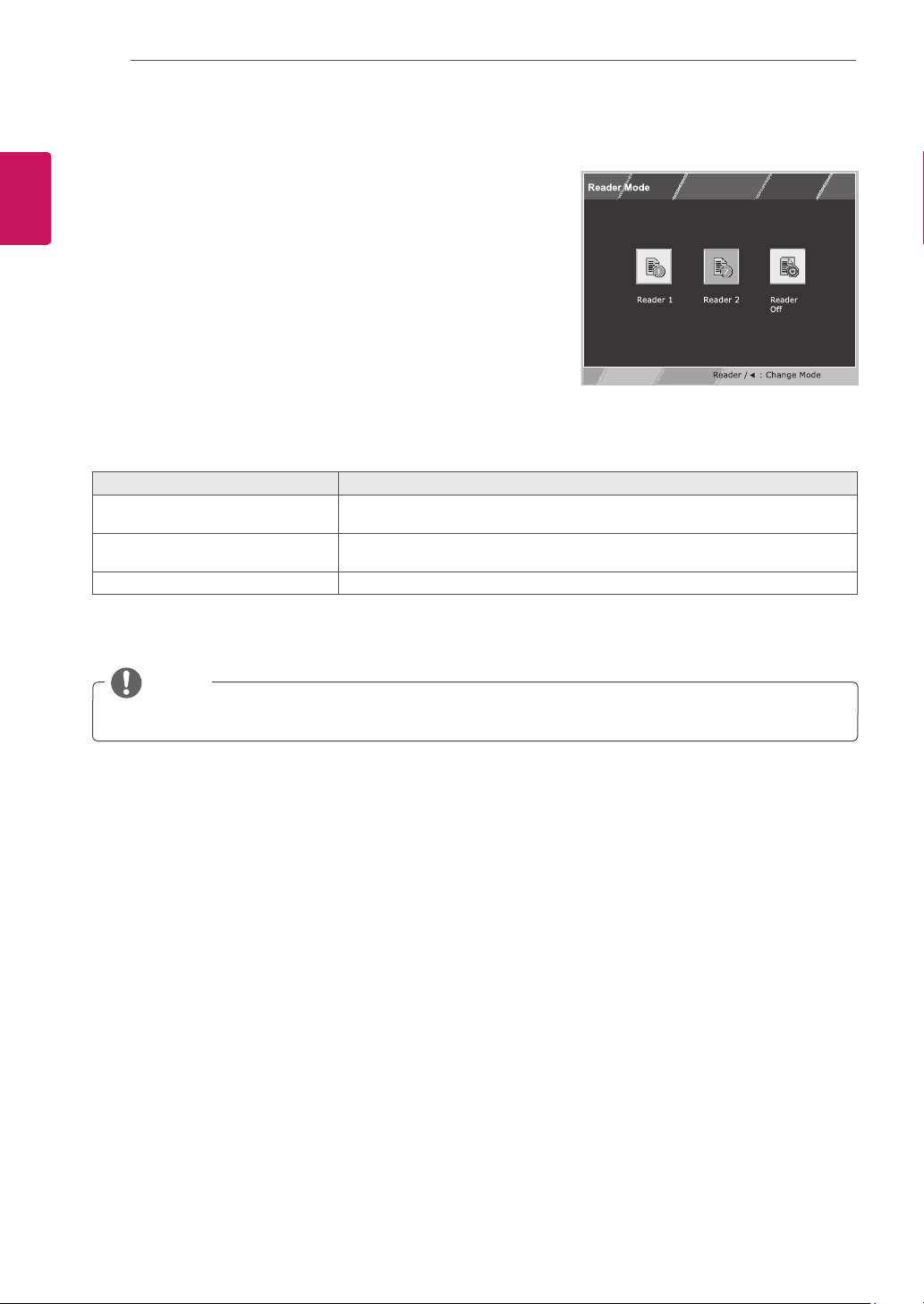
ReaderMode
Description
Reader1 Itisamodethatthescreenisadjustedtothebestforthenewspaper.Ifyou
wantscreenmorebright,youcancontrolbrightnessinMenuOSD.
Reader2 Itisamodethatthescreenisadjustedtothebestforthecartoon.Ifyouwant
screenmorebright,youcancontrolbrightnessinMenuOSD.
ReaderOff Itisamodethatreadermodeisoff.
Eachoptionisexplainedbelow.
NOTE
IfoptionofReaderModeisReader1orReader2,SMARTENERGYSAVINGwillautomaticallybeOff.
21
ENG
ENGLISH
CUSTOMIZING SETTINGS
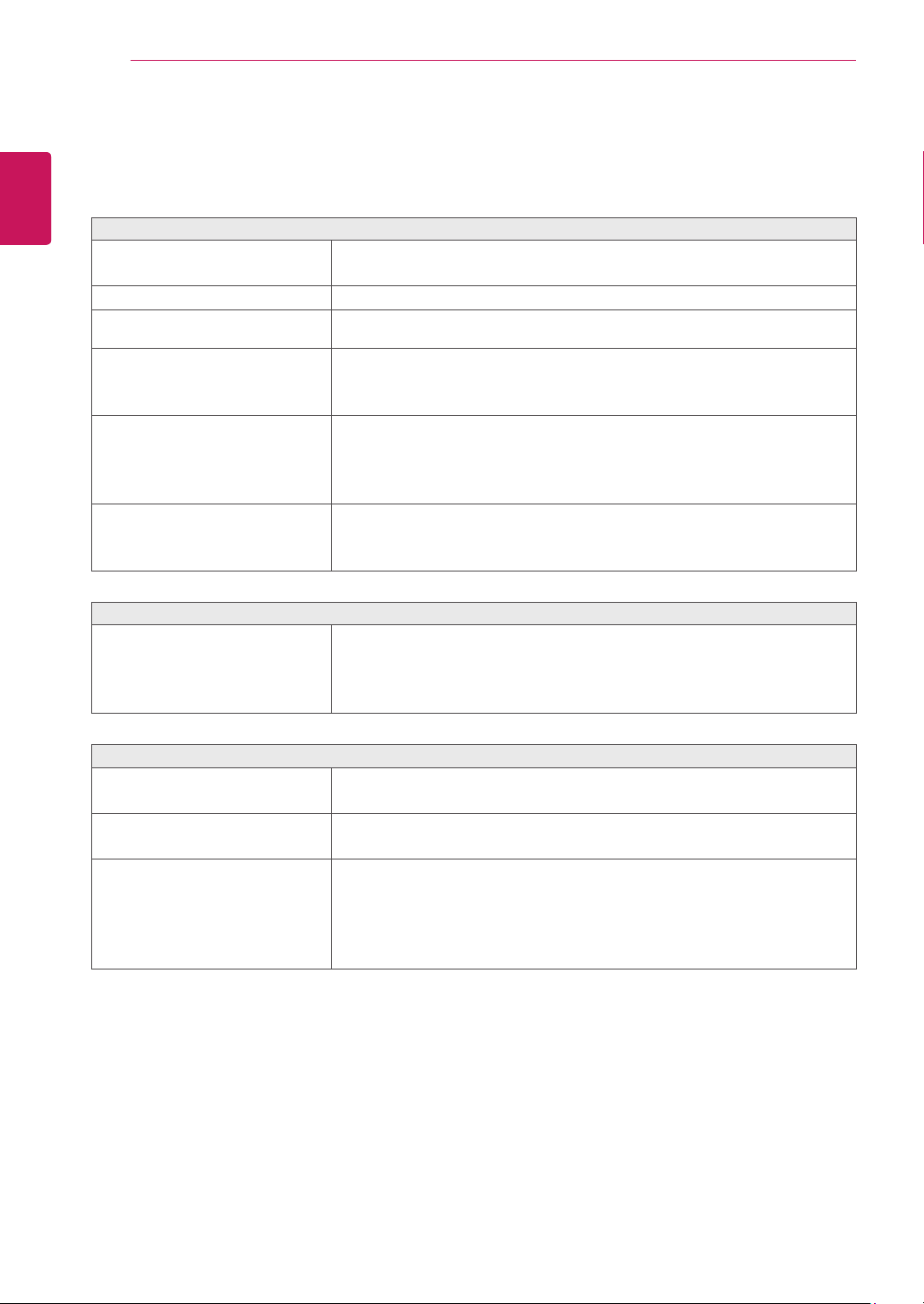
SMARTENERGYSAVING
1
Press
buttononthebottomoftheMonitorsetto
displaythe
SMARTENERGYSAVING
OSD.
2
Settheoptionsbypressingthe►buttons.
Eachoptionisexplainedbelow.
SMARTENERGYSAVING Description
High
EnablesSMARTENERGYSAVINGyoucansaveenergywiththisenergy-highefficientfunction.
Low
EnablesSMARTENERGYSAVINGyoucansaveenergywiththisenergy-lowefficientfunction.
Off DisablesSMARTENERGYSAVING.
SavingDatadependsonthePanel.So,thosevaluesshouldbedifferentfromeachpanelandpanel
vendor.IfoptionofSMARTENERGYSAVINGisHighorLow,monitorluminancebecomehigheror
lowerdependonsource.
IfoptionofSMARTENERGYSAVINGisHighorLow,ReaderModewillautomaticallybeReaderOff.
NOTE
*
SMARTENERGYSAVING:
Conserveenergybyusingluminancecompensationalgorithm.
22
ENG
ENGLISH
TROUBLESHOOTING
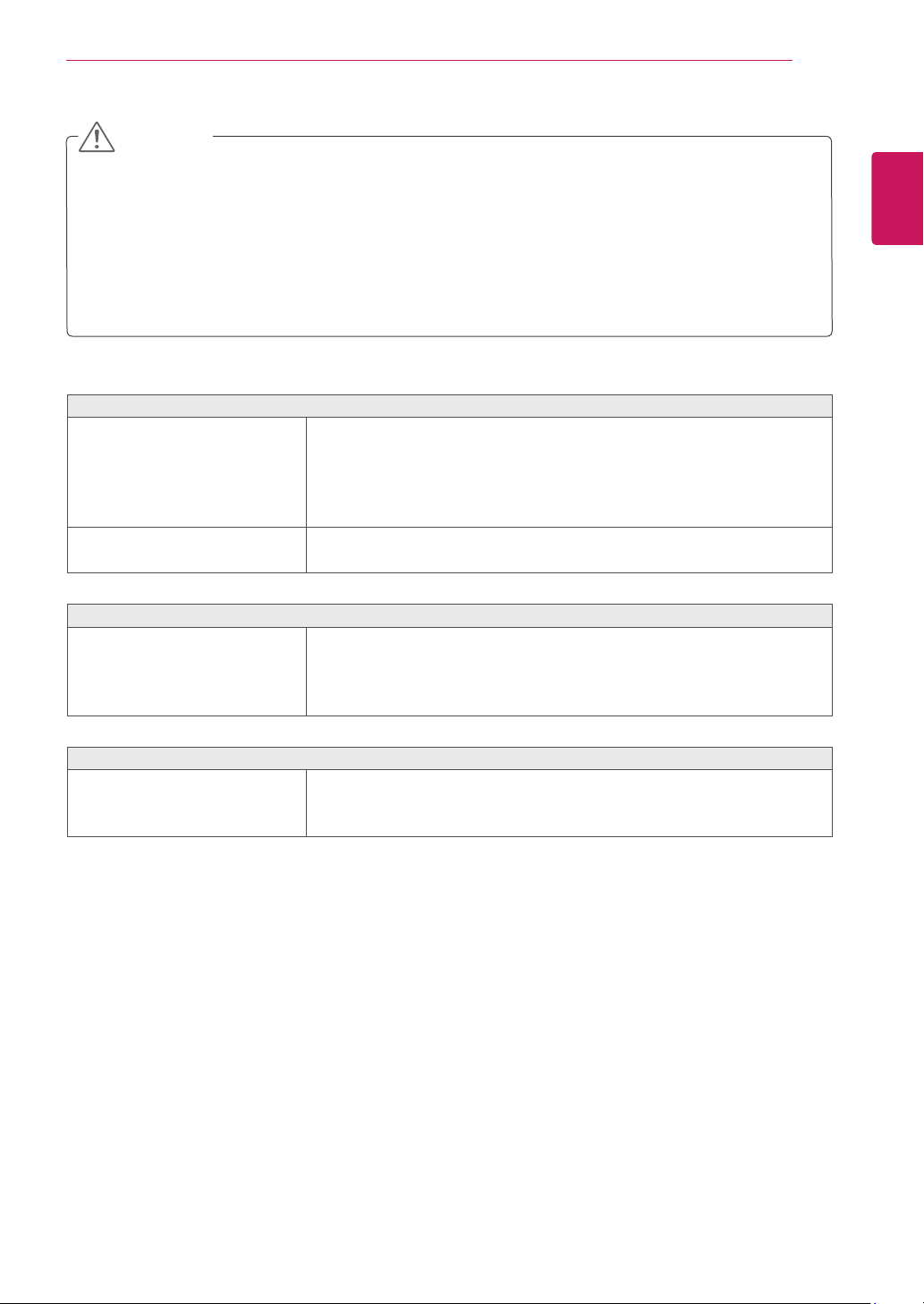
TROUBLESHOOTING
Checkthefollowingbeforecallingforservice.
Noimageappears
Isthepowercordofthedisplay
connected?
Checkandseeifthepowercordisconnectedproperlytothepower
outlet.
Isthepowerindicatorlighton?
PressthePowerbutton.
Isthepoweronandthepower
indicatorWhite?
Adjustthebrightnessandthecontrast.
Isthepowerindicatorflickering?
Ifthedisplayisinpowersavingmode,trymovingthemouseor
pressinganykeyonthekeyboardtobringupthescreen.
TrytoturnonthePC.
Doyouseean"OUTOFRANGE"
messageonthescreen?
ThismessageappearswhenthesignalfromthePC(videocard)is
outofhorizontalorverticalfrequencyrangeofthedisplay.Seethe
'Specifications'sectionofthismanualandconfigureyourdisplay
again.
Doyouseea"NOSIGNAL"
messageonthescreen?
Afterthemonitorison"NOSIGNAL",themonitorgoestoDPMmode.
ThisisdisplayedwhenthesignalcablebetweenthePCandthe
monitorismissingordisconnected.Checkthecableandreconnectit.
Doyouseea"OSDLOCKED"messageonthescreen?
Doyousee“OSDLOCKED”when
youpushMENUbutton?
Youcansecurethecurrentcontrolsettings,sothattheycannotbe
inadvertentlychanged.YoucanunlocktheOSDcontrolsatanytime
bypushingtheMENUbuttonforseveralseconds:themessage“OSD
UNLOCKED”willappear.
Displayimageisincorrect
DisplayPositionisincorrect.
Pressthe
AUTO
buttontoautomaticallyadjustyourdisplayimageto
theidealsetting.
Onthescreenbackground,vertical
barsorstripesarevisible.
Pressthe
AUTO
buttontoautomaticallyadjustyourdisplayimageto
theidealsetting.
Anyhorizontalnoiseappearingin
anyimageorcharactersarenot
clearlyportrayed.
Pressthe
AUTO
buttontoautomaticallyadjustyourdisplayimageto
theidealsetting.
Check
ControlPanel►Display►Settings
andadjustthedisplay
totherecommendedresolutionoradjustthedisplayimagetotheideal
setting.Setthecolorsettinghigherthan24bits(truecolor).
23
ENG
ENGLISH
TROUBLESHOOTING
Check
ControlPanel►Display►Settings
andseeifthefrequencyortheresolutionwere
changed.Ifyes,readjustthevideocardtotherecommendresolution.
Iftherecommendedresolution(optimalresolution)isnotselected,lettersmaybeblurredandthe
screenmaybedimmed,truncatedorbiased.Makesuretoselecttherecommendresolution.
ThesettingmethodcandifferbycomputerandO/S(OperationSystem),andresolutionmentioned
abovemaynotbesupportedbythevideocardperformance.Inthiscase,pleaseasktothecomputer
orthevideocardmanufacturer.
CAUTION
Displayimageisincorrect
Thescreencolorismonoor
abnormal.
Checkifthesignalcableisproperlyconnectedanduseascrewdriver
tofastenifnecessary.
Makesurethevideocardisproperlyinsertedintheslot.
Setthecolorsettinghigherthan24bits(truecolor)at
ControlPanel
►
Settings
.
Thescreenblinks.
Checkifthescreenissettointerlacemodeandifyes,changeittothe
recommendresolution.
Doyouseean"Unrecognizedmonitor,Plug&Play(VESADDC)monitorfound"message?
Haveyouinstalledthedisplay
driver?
BesuretoinstallthedisplaydriverfromthedisplaydriverCD(or
diskette)thatcomeswithyourdisplay.Or,youcanalsodownloadthe
driverfromourwebsite:http://www.lg.com.
MakesuretocheckifthevideocardsupportsPlug&Playfunction.
Thescreenisflickering.
Didyouselecttherecommended
resolution?
IftheselectedresolutionisHDMI
1080i
60/50Hz,thescreenmay
beflickering.Changetheresolutiontotherecommendedresolution
1080P
.
24
ENG
ENGLISH
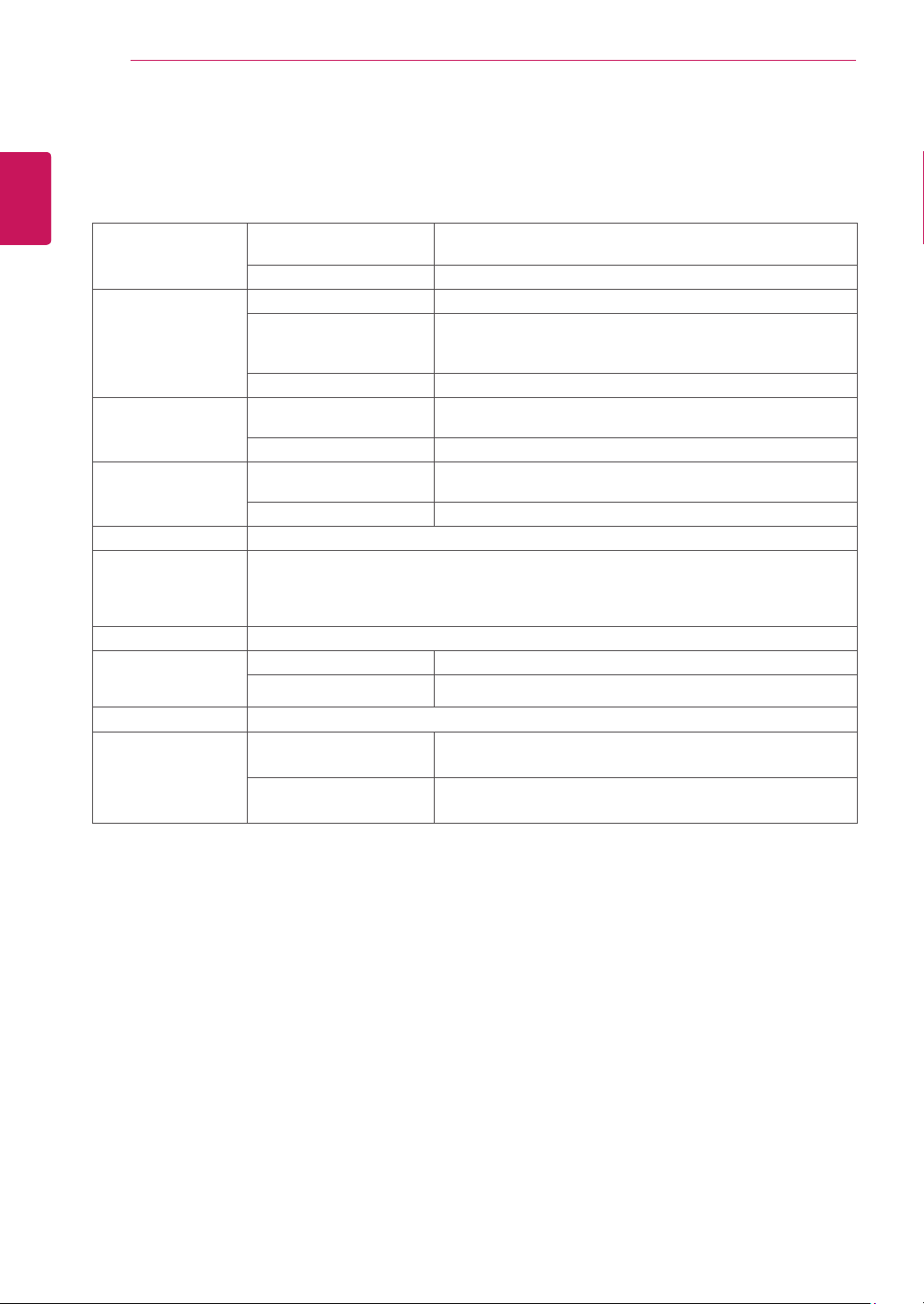
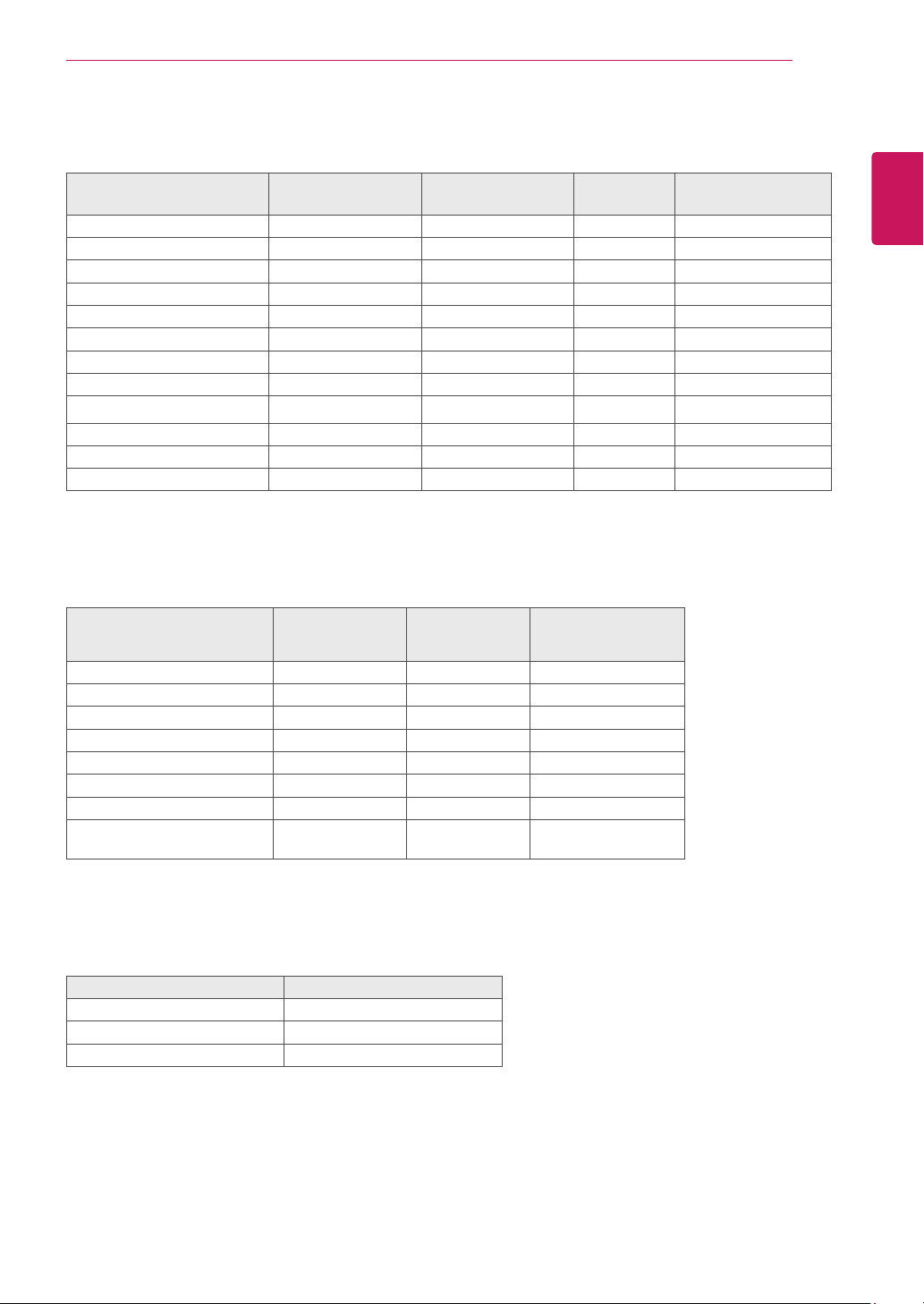
SPECIFICATIONS
SPECIFICATIONS
Display ScreenType
FlatPanelActivematrix-TFTLCD
Anti-Glarecoating
PixelPitch
0.3114(H)mmx0.3114(V)mm
SyncInput HorizontalFrequency
30kHzto83kHz(Automatic)
VerticalFrequency
56Hzto75Hz(D-SUB,DVI-D)
AV)25Hzto60Hz(HDMI)
PC)56Hzto61Hz(HDMI)
InputForm
SeparateSync.Digital
VideoInput SignalInput
15pinD-SUBConnector/DVI-DConnector(Digital)
HDMIConnector
InputForm
RGBAnalog(0.7Vp-p/75ohm),Digital
Resolution Max
D-SUB(Analog):1920x1080@60Hz
DVI/HDMI(Digital):1920x1080@60Hz
Recommend
VESA1920x1080@60Hz
Plug&Play
DDC2B(Analog,Digital,HDMI)
Power
Consumption
OnMode:20.3WTyp.(ENERGYSTAR®standard)*
29.4WTyp.(Outgoingcondition)**
SleepMode≤0.3W
OffMode≤0.3W
PowerInput
AC100-240V~50/60Hz1.5A
Dimensions
(WidthxHeightx
Depth)
WithStand
64.4cmx47.7cmx24.0cm
WithoutStand
64.4cmx46.6cmx7.2cm
Weight
6.5kg
Environmental
conditions
OperatingTemperature
OperatingHumidity
10°Cto35°C
10%to80%
StorageTemperature
StorageHumidity
-20°Cto60°C
5%to90%non-Condensing
Productspecificationsshownabovemaybechangedwithoutpriornoticeduetoupgradeofproduct
functions.
*Thepowerconsumptionlevelcanbedifferentbyoperatingconditionandmonitorsetting.
*TheOnmodepowerconsumptionismeasuredwithENERGYSTAR®teststandard.
**TheOnmodepowerconsumptionismeasuredwithLGEteststandard(FullWhitepattern,Maximum
resolution)
27MB65V
25
ENG
ENGLISH
SPECIFICATIONS
PresetModes(Resolution)
DisplayModes(Resolution)
Horizontal
Frequency(kHz)
Vertical
Frequency(Hz)
Polarity(H/V)
720x400 31.468 70 -/+
640x480 31.469 60 -/-
640x480 37.500 75 -/-
800x600 37.879 60 +/+
800x600 46.875 75 +/+
1024x768 48.363 60 -/-
1024x768 60.023 75 +/+
1152x864 67.500 75 +/+
1280x1024 63.981 60 +/+
1280x1024 79.976 75 +/+
1680x1050 65.290 60 -/+
1920x1080 67.500 60 +/+ RecommendMode
HDMITiming
Factorysupportmode
(PresetMode)
Horizontal
Frequency(kHz)
Vertical
Frequency(Hz)
HDMI
480P 31.50 60 O
576P 31.25 50 O
720P 37.50 50 O
720P 45.00 60 O
1080i 28.12 50 O
1080i 33.75 60 O
1080P 56.25 50 O
1080P 67.50 60
O
RecommendMode
Indicator
Mode LEDColor
OnMode
White
SleepMode
BlinkingWhite
OffMode Off
Make sure to read the Safety Precautions before
using the product.
Keep the Owner’s Manual (CD) in an accessible
place for future reference.
The model and serial number of the SET is
located on the back and one side of the SET.
Record it below should you ever need service.
As an ENERGY STAR Partner LGE
U. S. A.,Inc. has determined that this
product meets the ENERGY STAR
guidelines for energy efficiency.
ENERGY STAR is a set of power-saving
guidelines issued by the U.S.Environmental
Protection Agency(EPA).
MODEL
SERIAL
*above information is only for USA FCC Regulatory
Declaration of Conformity
Trade Name: LG
Model : 27MB65VK
Responsible Party: LG Electronics Inc.
Address : 1000 Sylvan Ave. Englewood Cliffs
NJ 07632 U.S.A
TEL: 201-266-2534