
OWNER'S MANUAL


VÄLKOMMEN!
We hope you will enjoy many years of driving pleasure in your Volvo. The
car has been designed for the safety and comfort of you and your pas-
sengers. Volvo is one of the world's safest passenger vehicles. Your
Volvo is also designed to meet applicable safety and environmental
requirements.
In order to increase your enjoyment of your Volvo, we recommend that
you read the instructions and maintenance information in this owner's
manual. The owner's manual is also available as a mobile app (Volvo
Manual) and on the Volvo Cars support site (support.volvocars.com).

2
INTRODUCTION
This is how you find owner's information
14
Digital owner's manual in the car
15
Navigating in the digital owner's manual
16
Owner's Manual in mobile devices
18
Volvo Cars support site
19
Reading the owner's manual
19
Recording data
22
Important information on accesso-
ries, extra equipment and diagnostic
socket
23
Volvo ID
23
Drive-E - cleaner driving pleasure
25
IntelliSafe-driver support
28
Sensus - online connectivity and
entertainment
29
The owner's manual and the environment
32
Windows, glass and mirrors
32
Overview of the centre display
33
Operating the centre display
36
Navigating in the centre display's views
40
Symbols in the centre display's status bar
45
Change settings for the centre display
46
Function view with buttons for car
functions
47
Using the keyboard in the centre display
49
Writing characters/words by hand on
the screen
53
SAFETY
Safety
56
Safety during pregnancy
56
Whiplash Protection System
57
Seatbelt
58
Seatbelt tensioner
59
Fastening/unfastening a seatbelt
60
Door and seatbelt reminder
61
Airbags
63
Driver and passenger airbags
63
Activating/deactivating the passen-
ger airbag*
65
Side airbag
67
Inflatable curtain
68
Safety mode
69
Starting/moving the car after safety
mode
69
Child safety
70
Child seats
71
Upper mounting points for child seats
74
Lower mounting points for child seats
75
Table for location of child seats
using the car's seatbelts
76
i-Size/ISOFIX mounting points
78
Table for location of ISOFIX child seats
79
Table for location of i-Size child seats
82
TABLE OF CONTENTS

3
Integrated child seat*
83
Folding up the integrated child seat
cushion*
84
Folding down the integrated child
seat cushion*
84
INSTRUMENTS AND CONTROLS
Instruments and controls, left-hand
drive car
88
Instruments and controls, right-hand
drive car
89
Driver display
92
Driver display settings
96
Indicator symbols in the driver display
97
Warning symbols in the driver display
99
Outside temperature gauge
100
Clock
101
Fuel gauge
101
License agreement for the driver display
102
Application menu in the driver display
107
Using the application menu in the
driver display
108
Messages in the driver display and
the centre display
109
Managing messages in the driver
display and the centre display
111
Managing messages saved from the
driver display and centre display
112
Head-up display*
114
Voice recognition
117
Using voice recognition
118
Settings for voice recognition
119
Voice recognition control of the phone
120
Voice recognition control of radio
and media
120
Voice recognition control of climate
control
121
Voice recognition and map navigation
122
Manual front seat
123
Power front seat*
124
Adjusting the power front seat*
124
Using the memory function in the
power front seat*
125
Multi-functional front seat*
126
Adjusting functions in the multi-func-
tional front seat*
126
Adjusting the passenger seat from
the driver's seat*
128
Adjusting the head restraints in the
second seat row
129
Adjusting the seat longitudinally in
the second seat row*
130
Adjusting the backrest rake in the
second seat row
131
Lowering backrests in the second
seat row
132
Entry/exit for third seat row*
134
Lowering backrests in the third seat
row*
134
Steering wheel
135
Adjusting the steering wheel
136

6
Type approval for the remote control
key system
266
DRIVER SUPPORT
Speed-dependent steering force
276
Stability system
276
Electronic Stability Control ESC
277
Sport mode for electronic stability control
278
Symbols and messages for elec-
tronic stability control
279
Speed limiter*
281
Activating and starting the Speed limiter
282
Managing speed for the Speed limiter
282
Deactivating/reactivating the Speed
Limiter
283
Switching off the speed limiter
284
Automatic speed limiter*
285
Activating/deactivating the automatic
speed limiter
286
Changing the tolerance for the Auto-
matic speed limiter
287
Cruise control
288
Activating and starting the Cruise control
289
Managing speed for the Cruise control
290
Deactivating/reactivating the cruise
control
291
Deactivating Cruise Control
292
Distance Warning*
293
Activating and setting the time inter-
val for Distance warning*
295
Limitations of Distance Warning*
296
Adaptive cruise control*
296
Activating and starting the Adaptive
cruise control*
300
Managing the speed of the Adaptive
cruise control*
301
Setting the time interval for the
adaptive cruise control*
302
Deactivating/activating the Adaptive
cruise control*
304
Overtaking assistance with adaptive
cruise control* or Pilot Assist*
306
Change of target and automatic
braking with the Adaptive Cruise Control
307
Limitations of the adaptive cruise control*
308
Change between Cruise control and
adaptive cruise control*
309
Symbols and messages for the
Adaptive cruise control*
311
Pilot Assist*
313
Activating and starting the Pilot Assist*
317
Managing the speed for Pilot Assist*
319
Setting the time interval for Pilot Assist*
320
Deactivating/activating the Pilot Assist*
321
Change of target and automatic
braking with Pilot Assist*
323
Limitations of Pilot Assist*
325

7
Symbols and messages for Pilot Assist*
326
Radar unit
328
Limitations of the radar unit
330
Type approval for radar units
334
Camera unit
338
Limitations of the camera unit
339
City Safety
342
Setting the warning distance for City
Safety
345
Detection of obstacles with City Safety
346
City Safety in cross traffic
348
City Safety when evasive manoeu-
vres are prevented
349
Limitations of City Safety
350
Messages for City Safety
353
Rear Collision Warning
354
BLIS*
354
Activate/deactivate BLIS*
356
Limitations of BLIS*
356
Cross Traffic Alert*
357
Activate/deactivate Cross Traffic Alert*
358
Limitations of Cross Traffic Alert
359
Messages for BLIS* and Cross
Traffic Alert*
361
Road Sign Information*
362
Sign display with Road Sign Information
363
Road Sign Information with Speed
Warning and Settings
365
Road Sign Information with Speed
Camera Information*
366
Limitations of Road Sign Information*
367
Driver Alert Control
368
Activate/deactivate Driver Alert Control
369
Limitations of Driver Alert Control
370
Lane Keeping Aid
370
Activate/deactivate Lane Keeping Aid
373
Symbols and messages for lane
assistance
374
Assistance upon risk of collision
376
Symbols and messages for assis-
tance upon risk of collision
377
Steering assistance upon risk of lane
departure
378
Steering assistance upon risk of
head-on collision
380
Steering assistance upon risk of
rear-end collision*
381
Park Assist*
383
Activating/deactivating Park Assist Pilot*
385
Limitations of Park Assist Pilot*
386
Symbols and messages for Park
Assist Pilot*
388
Park assist camera*
389
Park assist lines and fields for the
park assist camera*
391
Starting the Park assist camera*
393
Limitations for park assist camera*
394
Symbols and messages for Park
assist camera*
396
Park Assist Pilot*
398
Parking with Park Assist Pilot*
399
Limitations of Park Assist Pilot*
402
Messages for Park Assist Pilot*
405


INTRODUCTION

INTRODUCTION
14
This is how you find owner's
information
Owner's information is available in several differ-
ent product formats, both digital and printed.
The owner's manual is available in the car's cen-
tre display, as a mobile app and on the Volvo
Cars support site. There is a Quick Guide and a
supplement to the owner's manual available in
the glovebox, with specifications and fuse infor-
mation, amongst other things. A printed owner's
manual can be ordered.
The car's centre display
1
In the centre display, drag down
the top view and tap on
Owner's manual. Available
here are options for visual navi-
gation with exterior and interior
images of the car. The informa-
tion is searchable and is also
divided into categories.
Mobile app
In App Store or Google Play,
search for "Volvo Manual",
download the app to your
smartphone or tablet and select
the car. Available in the app are
video tutorials and options for
visual navigation with exterior
and interior images of the car. It is easy to navi-
gate between the different sections in the
owner's manual and the content is searchable.
Volvo Cars support site
Go to support.volvocars.com
and select your country. Here
you can find owner's manuals,
both online and in PDF format.
On the Volvo Cars support site
there are also video tutorials
and further information and
help regarding your Volvo and your car owner-
ship. The page is available for most markets.
Printed information
There is a supplement to the
owner's manual
1
in the glove-
box that contains information
on fuses and specifications, as
well as a summary of important
and practical information.
There is also a Quick Guide available in printed
format that helps you to get started with the most
commonly used functions in the car.
Depending on equipment level selected, market,
etc. additional owner's information may also be
available in printed format in the car.
A printed owner's manual and associated supple-
ment can be ordered. Contact a Volvo dealer to
order.
Changing the language in the car's
centre display
Changing the language in the centre display may
mean that some owner's information does not
correspond to national or local laws and regula-
tions. Don't change to a language that's difficult
to understand, it may then be difficult to find your
way back in the structure on the screen.
1
A complete printed manual is included with the car for markets without owner's manual in the centre display.
INTRODUCTION
}}
15
IMPORTANT
The driver is always responsible that the vehi-
cle is driven safely in traffic and that applica-
ble laws and regulations are followed. It is
also important that the car is maintained and
handled in accordance with Volvo's recom-
mendations in the owner's information.
If there should be a difference between the
information in the centre display and the prin-
ted information then it is always the printed
information that applies.
Related information
•
Digital owner's manual in the car (p. 15)
•
Owner's Manual in mobile devices (p. 18)
•
Volvo Cars support site (p. 19)
•
Reading the owner's manual (p. 19)
Digital owner's manual in the car
A digital
2
version of the owner's manual is availa-
ble in the car's centre display.
The digital owner's manual is accessed from the top
view.
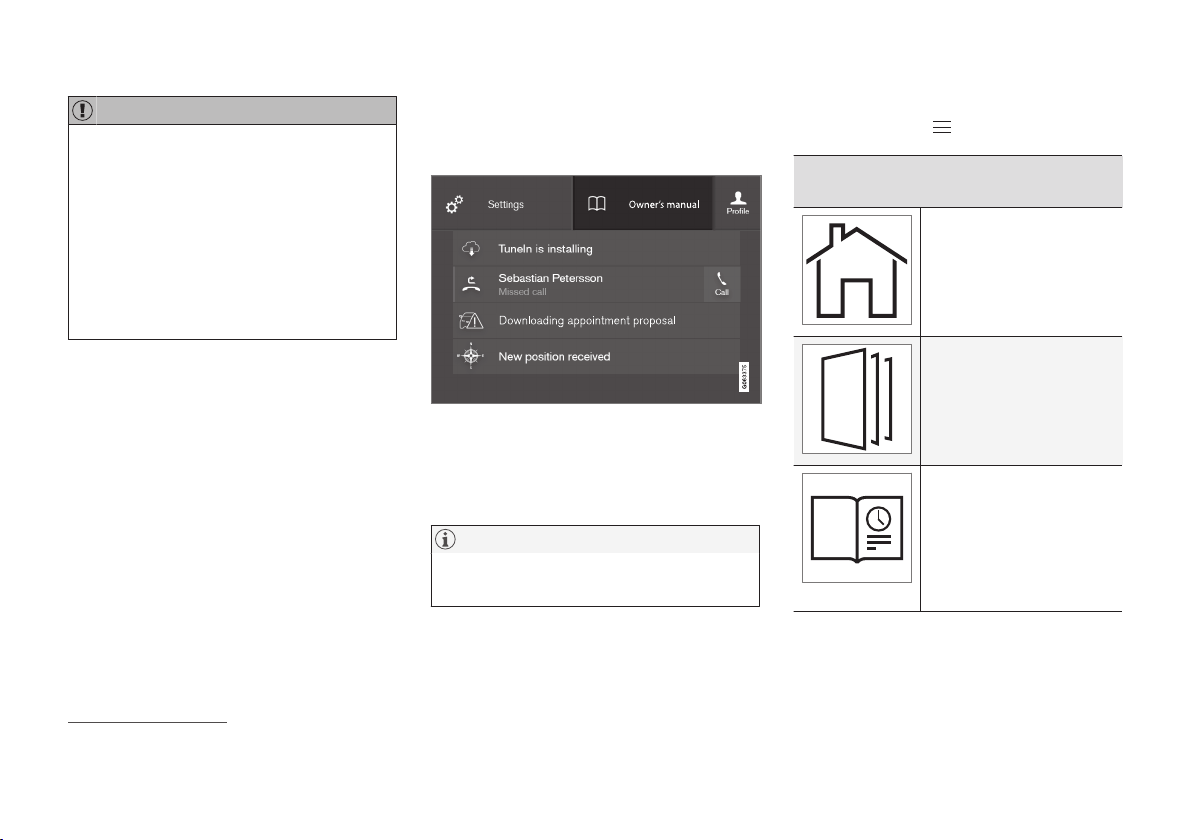
To open the digital owner's manual - drag down
the top view in the centre display and tap on
Owner's manual.
NOTE
The digital owner's manual is not available
while driving.
There is a range of different options for finding
information in the digital owner's manual. The
options can be reached from the start page of
the owner's manual. One way is from the top
menu, with a tap on
.
Symbols and their meaning in the owner's
manual menu
Leads to the start page of
the Owner's Manual.
Articles grouped by cate-
gory. The same article may
appear in several catego-
ries.
Leads to a Quick Guide
page with links for a selec-
tion of articles that can be
particularly useful to read.
Provides answers to com-
mon questions about the
car.
2
Applies for most markets.

||
INTRODUCTION
16
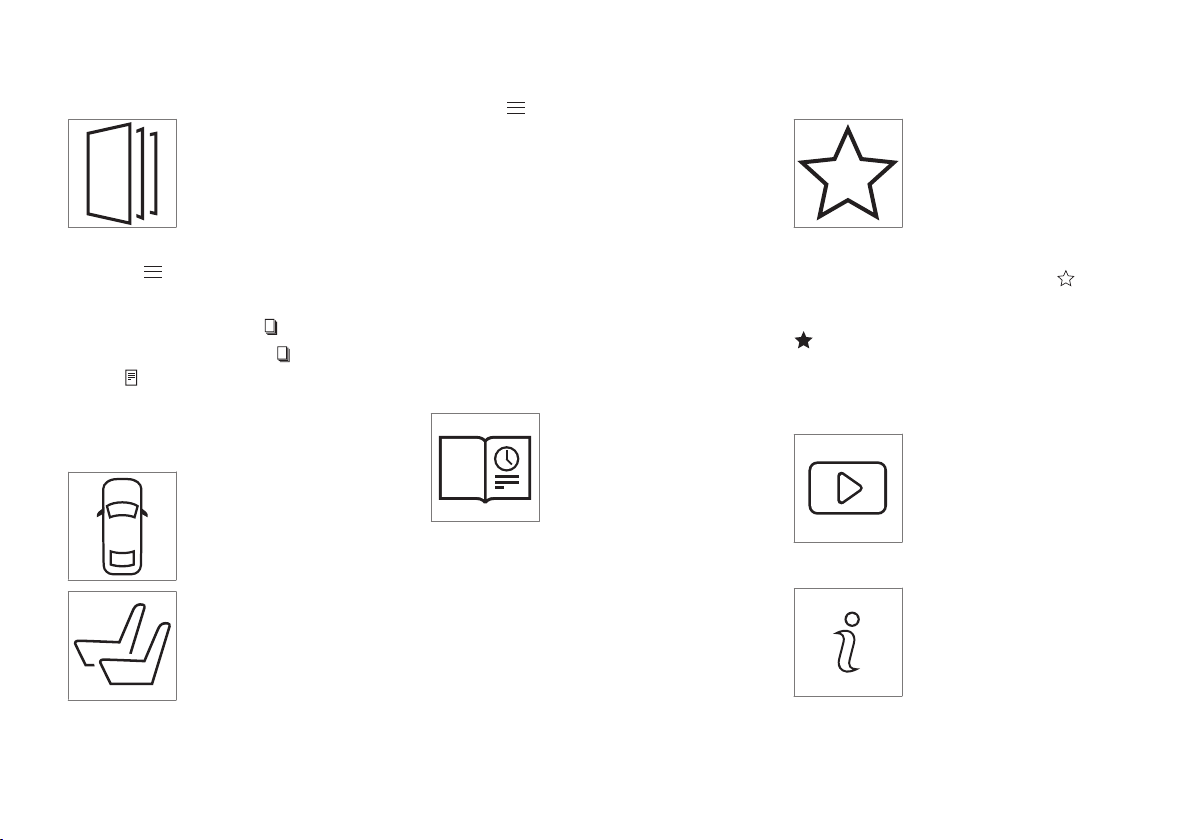
Symbols and their meaning in the owner's
manual menu
Exterior and interior over-
view images of the car. Dif-
ferent parts are designated
with hotspots that lead to
articles about those parts
of the car.
All articles that have been
favourited are compiled
here.
Symbols and their meaning in the owner's
manual menu
Leads to short video tutori-
als for different functions in
the car.
Indicates what version of
the Owner's Manual is
available in the car and pro-
vides other useful informa-
tion.
Related information
•
Navigating in the digital owner's manual
(p. 16)
Navigating in the digital owner's
manual
The digital owner's manual can be accessed
from the centre display in the car. The content is
searchable and it is easy to navigate between
different sections.
The digital owner's manual is accessed from the top
view.
Open the digital owner's manual
–
To open the digital owner's manual - drag
down the top view in the centre display and
tap on
Owner's manual.
There is a range of different options for finding
information in the digital owner's manual. To
access the owner's manual menu – press
in
the upper bar of the owner's manual.
INTRODUCTION
}}
17
Searching using categories
The articles in the owner's
manual are structured into
main categories and subcate-
gories. The same article can be
found in several appropriate
categories in order to be found
more easily.
1.
Press
and then select Categories.
> The main categories are shown in a list.
2.
Tap on a main category (
).
>
A list of subcategories (
) and articles
(
) is shown.
3. Tap on an article to open it. To go back,
press the back arrow.
Hotspots for exterior and interior
Exterior and interior overview
images of the car. Different
parts are designated with hot-
spots that lead to articles about
those parts of the car.
1.
Press
and then select Exterior/
Interior.
> Exterior/interior images are shown with
so-called hotspots in place. The hotspot
leads to articles about the corresponding
part of the car. Swipe horizontally over the
screen to browse among the images.
2. Tap on a hotspot.
> The title of the article about the area is
shown.
3. Tap on the title to open the article. To go
back, press the back arrow.
Learn about the car's most common
functions with the Quick Guide
Leads to a page with links for a
selection of articles that can be
particularly useful to read in
order to get to know the most
common functions of the car.
The articles can also be
accessed via categories, but
are collected here for quick access. Tap on an
article in order to read it in its entirety.
Favourites
Located here are the articles
that have been saved as
favourites. Tap on an article in
order to read it in its entirety.
Saving/deleting articles as favourites
Save an article as favourite by pressing at the
top right when an article is open. When an article
has been saved as a favourite the star is filled in:
.
To remove an article as a favourite, press the star
again in the current article.
Video
Leads to short video tutorials
for different functions in the
car.
Information
Tap on the symbol to obtain
information about which version
of the owner's manual is availa-
ble in the car as well as other
useful information.
||
INTRODUCTION
18
Start page
Tap on the symbol to go back
to the start page in the owner's
manual.
Using the search function
1.
Tap on
in the top menu of the owner's
manual. A keyboard appears in the lower part
of the screen.
2. Type in a keyword, such as "seatbelt".
> Suggestions for articles and categories
are shown while letters are being entered.
3. Tap on the article/category to access it.
Related information
•
Digital owner's manual in the car (p. 15)
•
Using the keyboard in the centre display
(p. 49)
Owner's Manual in mobile devices
The owner's manual is available as a mobile
app
3
from both the App Store and Google Play.
The app is adapted for smartphones and tablets.
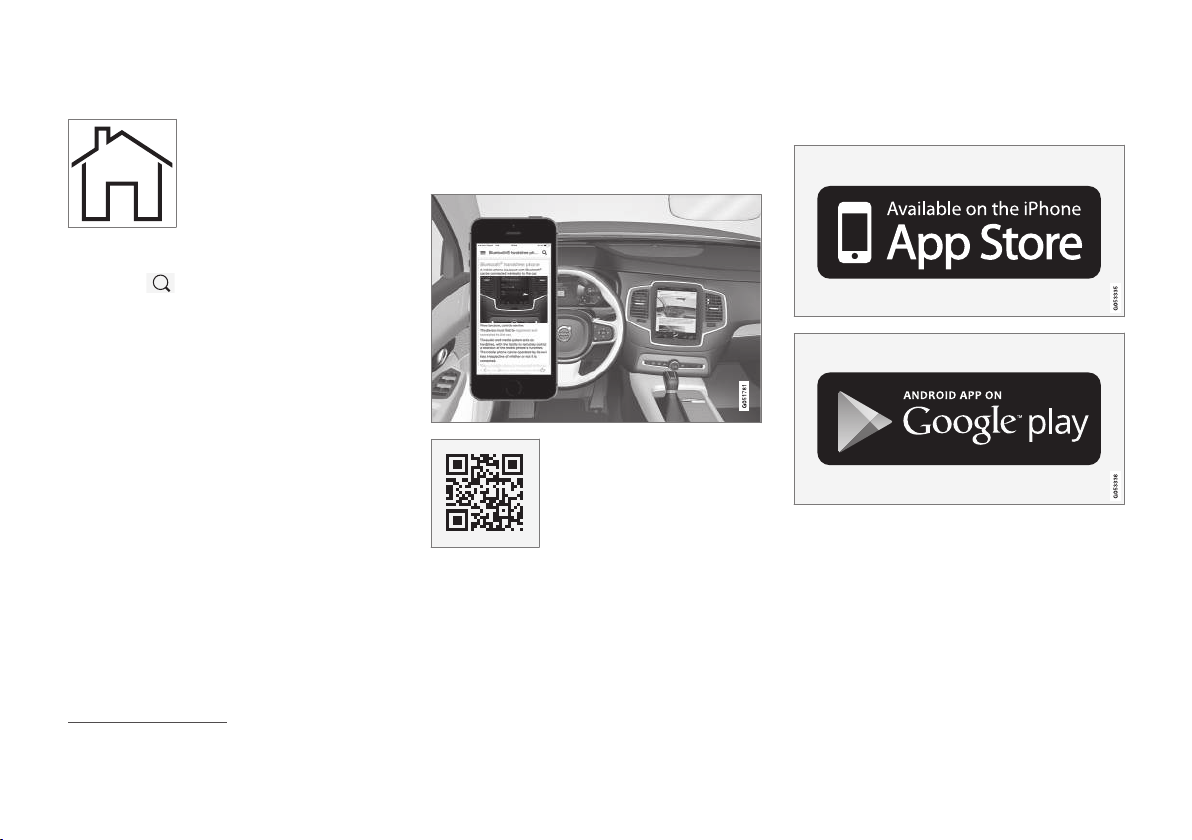
The owner's manual can be
downloaded as a mobile app
from the App Store or Google
Play. The QR code provided
here takes you directly to the
app. Alternatively, you can
search for "Volvo manual" in
the App Store or Google Play.
The app contains a video along with exterior and
interior images where different parts of the car
are highlighted with so-called hotspots, which
lead to articles about the area in question. It is
easy to navigate between the different sections
in the owner's manual and the content is search-
able.
The mobile app is available from both the App Store and
Google Play.
Related information
•
Reading the owner's manual (p. 19)
•
Volvo Cars support site (p. 19)
3
For certain mobile devices.

INTRODUCTION
}}
* Option/accessory.
19
Volvo Cars support site
More information on your car is available on the
Volvo Cars website and support site.
Support on the Internet
Go to support.volvocars.com to visit the site. The
support site is available for most markets.
It contains support for functions such as web-
based services and functions, Volvo On Call*, the
navigation system* and apps. Videos and step-
by-step instructions explain different procedures,
e.g. how to connect the car to the Internet via a
mobile phone.
Downloadable information
Maps
For cars equipped with Sensus Navigation, there
is the facility to download maps from the support
page.
Owner's manuals as PDF
Owner's manuals are available for download in
PDF format. Select car model and model year to
download the manual as required.
Contact
The support site contains contact details to cus-
tomer support and your nearest Volvo dealer.
Log in to Volvo Cars website
Create a personal Volvo ID and log in to
www.volvocars.com. When you have logged in it is
possible to get an overview of service, agree-
ments and warranties. Here there is also informa-
tion about accessories and software adapted for
your car model.
Related information
•
Volvo ID (p. 23)
Reading the owner's manual
A good way of getting to know your new car is
to read the owner's manual, ideally before your
first journey.
Reading the owner's manual is a good way to
become familiar with new functions, get advice
on how best to handle the car in different situa-
tions and learn how to make the best use of all
the car's features. Please pay attention to the
safety instructions contained in the owner's man-
ual.
Development work is constantly underway in
order to improve our product. Modifications may
mean that information, descriptions and illustra-
tions in the owner's manual differ from the equip-
ment in the car. We reserve the right to make
modifications without prior notice.
Do not remove this manual from the car - if prob-
lems should arise then the necessary information
about where and how to seek professional help
will be missing.
© Volvo Car Corporation
Options/accessories
In addition to standard equipment, the owner's
manual also describes options (factory fitted
equipment) and certain accessories (retrofitted
extra equipment).
All types of option/accessory are marked with an
asterisk: *.
||
INTRODUCTION
20
The equipment described in the owner's manual
is not available in all cars - they have different
equipment depending on adaptations for the
needs of different markets and national or local
laws and regulations.
In the event of uncertainty over what is standard
or an option/accessory, contact a Volvo dealer.
Special texts
WARNING
Warning texts appear if there is a risk of
injury.
IMPORTANT
"Important" texts appear if there is a risk of
damage.
NOTE
NOTE texts give advice or tips that facilitate
the use of e.g. features and functions.
Footnote
The owner's manual contains information in cer-
tain locations in the form of a footnote at the bot-
tom of the page or at the end of a table. This
information is an addition to the text that it refers
to via a number. If the footnote refers to text in a
table then letters are used instead of numbers
for referral.
Message texts
There are displays in the car that show menu and
message texts. In the owner's manual the
appearance of these texts differs from the normal
text. Examples of menu texts and message texts:
Phone, New message.
Decals
The car contains different types of decal which
are designed to convey important information in a
simple and clear manner. The decals in the car
have the following descending degree of impor-
tance for the warning/information.
Warning of personal injury
Black ISO symbols on yellow warning field, white
text/image on black message field. Used to indi-
cate the presence of danger which, if the warning
is ignored, may result in serious personal injury or
fatality.
Risk of property damage
White ISO symbols and white text/image on
black or blue warning field and message field.
Used to indicate the presence of danger which, if
the warning is ignored, may result in damage to
property.
INTRODUCTION
21
Information
White ISO symbols and white text/image on
black message field.
NOTE
It is not intended that the decals illustrated in
the owner's manual should be exact replicas
of those in the car. They are included to show
their approximate appearance and location in
the car. The information that applies to your
particular car is available on the respective
decals for your car.
Procedure lists
Procedures where action must be taken in a cer-
tain sequence are numbered in the owner's man-
ual:
When there is a series of illustrations for
step-by-step instructions each step is num-
bered in the same way as the corresponding
illustration.
Lists of letters appear adjacent to the series
of illustrations where the order of the instruc-
tions is not significant.
Arrows appear numbered and unnumbered
and are used to illustrate a movement.
Arrows with letters are used to clarify a
movement when the relative order is of no
relevance.
If there is no series of illustrations for step-by-
step instructions then the different steps are
numbered with normal numbers.
Position lists
Red circles containing a number are used in
overview images where different components
are pointed out. The number recurs in the
position list featured in connection with the
illustration that describes the item.
Bulleted lists
A bulleted list is used when there is a list of
points in the owner's manual.
Example:
•
Coolant
•
Engine oil
Related information
Related information refers to other articles con-
taining closely associated information.
Images
Illustrations used in the owner's manual are
sometimes schematic and are intended to pro-
vide an overall picture or example of a certain
function. Illustrations may deviate from the car's
appearance depending on equipment level and
market.
To be continued
}} This symbol is located furthest down to the
right when an article continues on the following
page.
Continued from previous page
|| This symbol is located furthest up to the left
when an article continues from the previous
page.
Related information
•
Digital owner's manual in the car (p. 15)
•
Owner's Manual in mobile devices (p. 18)
•
Volvo Cars support site (p. 19)

INTRODUCTION
22
Recording data
As part of Volvo's safety and quality assurance,
certain information about the vehicle's operation,
functionality and incidents are recorded in the
car.
This vehicle is equipped with an "Event Data
Recorder" (EDR). Its primary purpose is to regis-
ter and record data related to traffic accidents or
collision-like situations, such as times when the
airbag deploys or the vehicle strikes an obstacle
in the road. The data is recorded in order to
increase understanding of how vehicle systems
work in these types of situations. The EDR is
designed to record data related to vehicle
dynamics and safety systems for a short time,
usually 30 seconds or less.
The EDR in this vehicle is designed to record
data related to the following in the event of traffic
accidents or collision-like situations:
•
How the various systems in the car worked
•
Whether the driver and passenger seatbelts
were fastened/tensioned
•
The driver's use of the accelerator or brake
pedal
•
The travel speed of the vehicle
This information can help us better understand
the circumstances in which traffic accidents, inju-
ries and damage occur. The EDR only records
data when a non-trivial collision situation occurs.
The EDR does not record any data during normal
driving conditions. Similarly, the system never
registers who is driving the vehicle or the geo-
graphic location of the accident or near-miss sit-
uation. However, other parties, such as the police,
could use the recorded data in combination with
the type of personally identifiable information
routinely collected after a traffic accident. Special
equipment and access to either the vehicle or the
EDR is required to be able to interpret the regis-
tered data.
In addition to the EDR, the car is equipped with a
number of computers designed to continually
check and monitor the function of the car. They
can record data during normal driving conditions,
but in particular register faults affecting the vehi-
cle's operation and functionality, or upon activa-
tion of the vehicle's driver support function (e.g.
City Safety and the auto brake function).
Some of the recorded data is required to enable
service and maintenance technicians to diagnose
and remedy any faults that occurred in the vehi-
cle. The registered information is also needed to
enable Volvo to satisfy legal requirements laid out
in laws and by government authorities. Informa-
tion registered in the vehicle is stored in its com-
puter until the vehicle is serviced or repaired.
In addition to the above, the registered informa-
tion can be used in aggregate form for research
and product development with the aim of contin-
uously improving the safety and quality of Volvo
cars.
Volvo will not contribute to the above-described
information being disclosed to third parties with-
out the vehicle owner's consent. To comply with
national legislation and regulations, Volvo may be
forced to disclose information of this nature to
the police or other authorities who may assert a
legal right to access such. Special technical
equipment which Volvo and workshops that have
entered into agreements with Volvo have access
to is required to be able to read and interpret the
recorded data. Volvo is responsible that the infor-
mation, which is transferred to Volvo during serv-
icing and maintenance, is securely stored and
managed and that its management complies with
relevant legal requirements. For further informa-
tion - contact a Volvo dealer.
INTRODUCTION
}}
* Option/accessory.
23
Important information on
accessories, extra equipment and
diagnostic socket
Incorrect connection and installation of accesso-
ries, extra equipment or software/diagnostic
tools may have a negative effect on the car's
electronic system.
Certain accessories only function when associ-
ated software is installed in the car's computer
system. Volvo therefore recommends always
making contact with an authorised Volvo work-
shop before the installation of accessories or
extra equipment that are connected to or affect
the electrical system.
Connection of equipment to the car's
diagnostic socket
WARNING
Volvo Cars accepts no liability for the conse-
quences if unauthorised equipment is con-
nected to the On-board Diagnostic socket
(OBDII). This socket should only be used by
trained and qualified Volvo service techni-
cians.
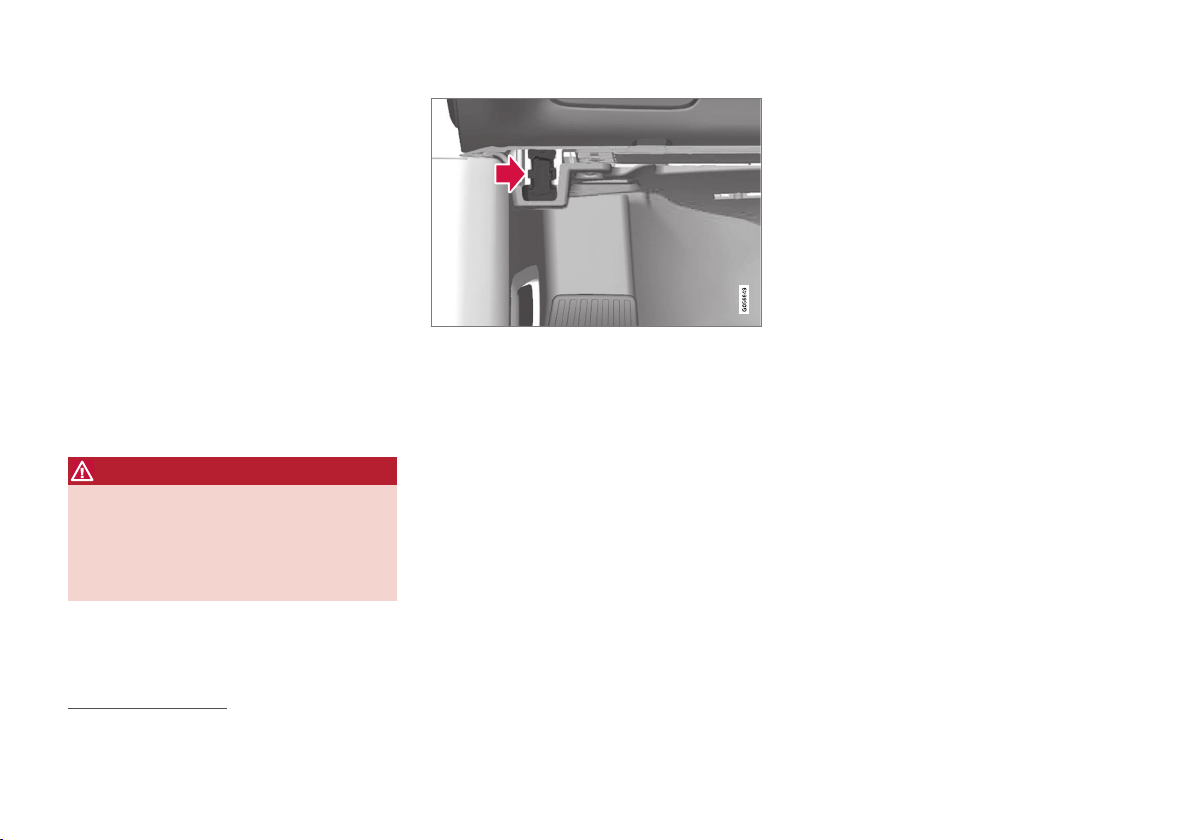
Data link connector OBDII is under the instrument panel
on the driver's side
Volvo ID
Volvo ID provides access to a wide range of per-
sonalized Volvo services
4
online.
It is possible to create a Volvo ID from the car,
volvocars.com or Volvo On Call app
5
. Certain
functions and services require that the car is reg-
istered to a personal Volvo ID. Registering the
Volvo ID to the car makes a wide range of Volvo
services available directly from the car.
Examples of services:
•
Volvo On Call* - Volvo ID is used when log-
ging in to the Volvo On Call app.
•
Send to Car - Makes it possible to send an
address from an Internet map service directly
to the car.
•
Book Service and Repair - Register your pre-
ferred workshop/dealer at volvocars.com to
be able to book service directly from the car.
Creating a Volvo ID
It is possible to create a Volvo ID in different
ways. If the Volvo ID is created at volvocars.com
or with Volvo On Call app, the Volvo ID must also
be registered to the car to enable use of the vari-
ous Volvo ID services.
4
The services available may vary over time and vary depending on equipment level and market.
5
If you have Volvo On Call*.

INTRODUCTION
* Option/accessory.
28
IntelliSafe-driver support
IntelliSafe is the Volvo Cars concept concerning
car safety. It comprises a number of systems,
both standard and optional, that contribute to
making a car journey safe, to the prevention of
injuries and to the protection of passengers and
other road users.
Support
There are systems incorporated in IntelliSafe that
help the driver to drive the car in a safe manner.
The driver support functions incorporated in the
car include e.g. adaptive cruise control*, which
ensures that a constant distance is held between
the car and the vehicle in front.
Pilot Assist* helps the driver to keep the car
between the lane's edge markings, combined
with maintaining a preset time interval to the
vehicle ahead.
Park Assist Pilot* helps the driver park the car by
sensing the area around it.
Other examples of systems that help the driver
are the Active main beam, Cross Traffic Alert
(CTA)* and Blind Spot Information (BLIS)* sys-
tems.
Prevention
An example of a function that helps to prevent
accidents is City Safety. The function warns the
driver of risks of collision with another vehicle,
pedestrians, cyclists or larger animals. If the driver
does not react to the warning and the risk of col-
lision is imminent then City Safety can automati-
cally brake the car.
Lane Keeping Aid (LKA)* is another example of a
function that helps to prevent accidents by warn-
ing the driver and giving corrective steering inter-
ventions if the car is about to cross a lane side
line.
Also available is the steering assistance function,
whose purpose is to reduce the risk of the car
unintentionally leaving the road and actively steer
the car back onto the road.
Protection
To protect the driver and passengers, the car is
equipped with seatbelt tensioners which can ten-
sion the seatbelts in critical situations and in col-
lisions. It also has airbags and inflatable curtains,
as well as Whiplash Protection System (WHIPS)
which protects against whiplash injuries.
Related information
•
Adaptive cruise control* (p. 296)
•
Park Assist Pilot* (p. 398)
•
Activating/deactivating main beam (p. 141)
•
Activate/deactivate Cross Traffic Alert*
(p. 358)
•
BLIS* (p. 354)
•
City Safety (p. 342)
•
Lane Keeping Aid (p. 370)
•
Stability system RSC
1
(p. 276)
•
Seatbelt (p. 58)
•
Safety (p. 56)
•
Airbags (p. 63)
•
Pilot Assist* (p. 313)
•
Steering assistance upon risk of lane depar-
ture (p. 378)
•
Whiplash Protection System (p. 57)
1
Roll Stability Control

INTRODUCTION
}}
33
Overview of the centre display
Many of the car's functions are controlled from
the centre display. Presented here is the centre
display and its options.

||
INTRODUCTION
34
Three of the centre display's basic views. Swipe right or left to access the function or app view respectively
10
.
Function view - car functions that are acti-
vated/deactivated with a press. Certain func-
tions are also so-called trigger functions,
which means they open a window with set-
ting options. Examples of such are
Camera
and parking functions. Settings for the head-
10
The views are reversed for right-hand drive cars.

INTRODUCTION
* Option/accessory.
35
up display* are also made from the function
view, but adjustments are made using the
steering wheel's right-hand keypad.
Home view - the first view that is shown
when the screen is started.
Application view (app view) - apps that have
been downloaded (third-party apps) and
apps for embedded functions, such as
FM
radio
. Tap on an app icon to open the app.
Status bar - the activities in the car are
shown right at the top of the screen. Net-
work/connection information is shown on the
left-hand side of the status bar, while media-
related information, the clock and indication
about on-going background activity are
shown on the right.
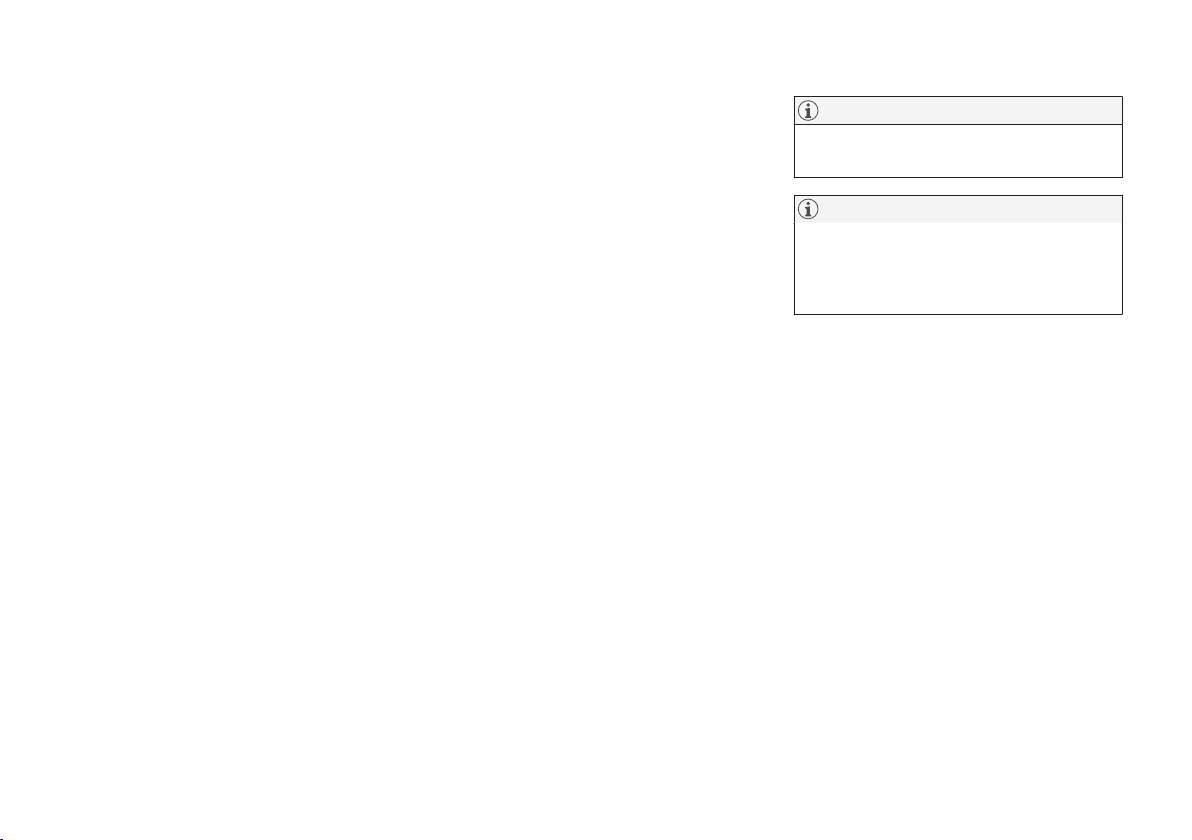
Top view - drag the tab down in order to
access the top view.
Settings, Owner's
manual
, Profile and the car's saved mes-
sages are accessed from here.
Navigation - leads to map navigation, with
e.g. Sensus Navigation*. Tap on the subview
to expand it.
Media - recently used apps associated with
media. Tap on the subview to expand it.
Phone - the phone function can be reached
from here. Tap on the subview to expand it.
Extra subview - recently used apps/car func-
tions that do not belong in any of the other
subviews. Tap on the subview to expand it.
Climate row - information and direct interac-
tion to set temperature, seat heating level*
and fan speed. Tap on the symbol in the cen-
tre of the climate row in order to open the
climate view with more setting options.
Related information
•
Operating the centre display (p. 36)
•
Navigating in the centre display's views
(p. 40)
•
Function view with buttons for car functions
(p. 47)
•
Changing settings for apps (p. 180)
•
Symbols in the centre display's status bar
(p. 45)
•
Settings in the centre display (p. 172)
•
Head-up display* (p. 114)
•
Media player (p. 467)
•
Phone (p. 481)
•
Climate controls in the centre display
(p. 187)
•
Cleaning the centre display (p. 576)
INTRODUCTION
}}
* Option/accessory.
37
Procedure Execution Result
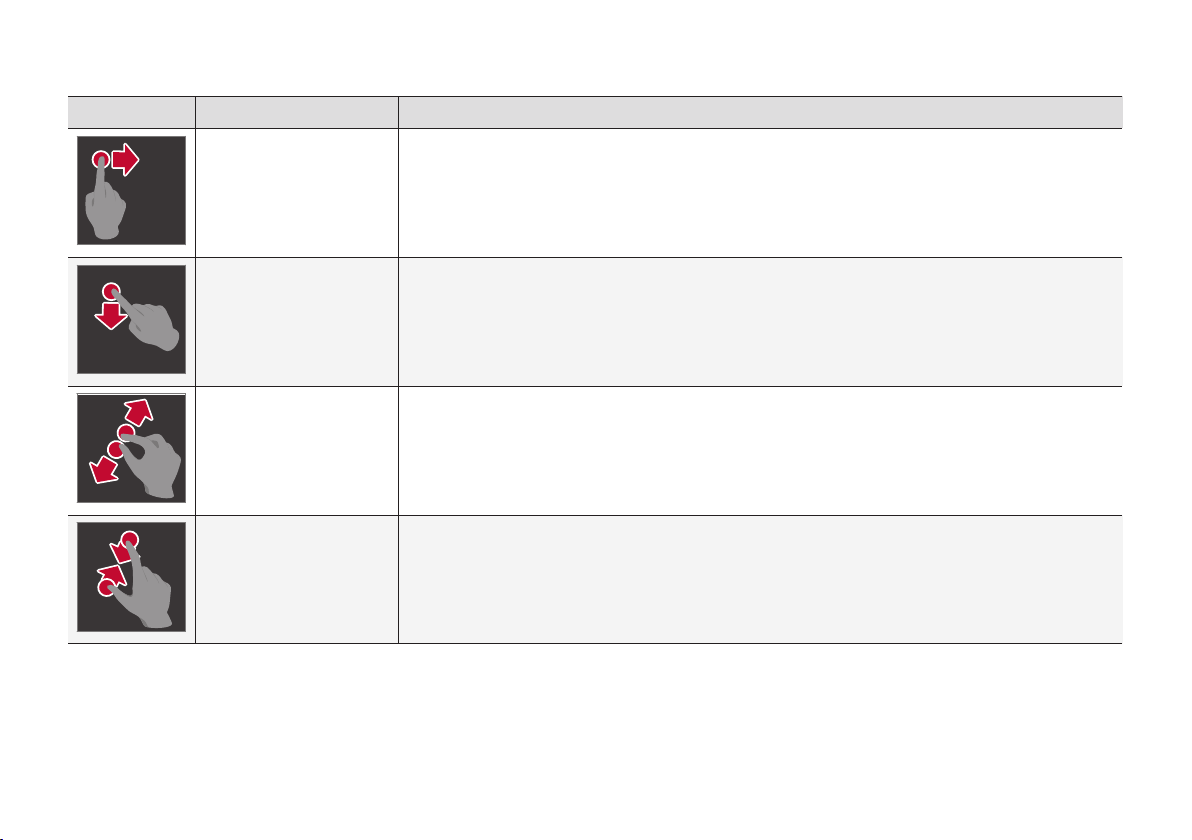
Drag Changes between different views, scrolls a list, text or view. Hold depressed and drag in order to move
apps or map points on the map*. Drag horizontally or vertically across the screen.
Swipe/drag quickly Changes between different views, scrolls a list, text or view. Drag horizontally or vertically across the
screen.
Drag apart Zooms in.
Drag together Zooms out.
||
INTRODUCTION
* Option/accessory.
38
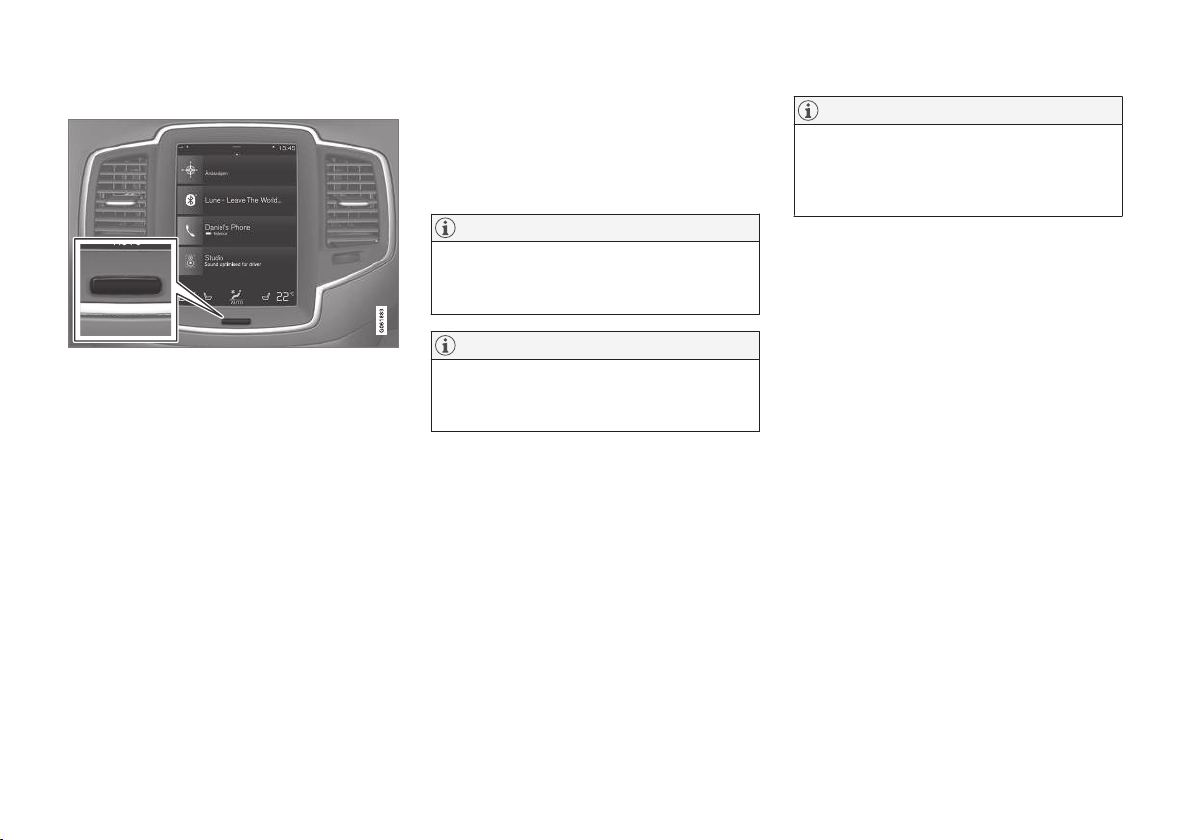
Turn off the screen and reactivate it
Home button for the centre display.
When the centre display is switched off, the
screen is dimmed so as not to be disruptive
whilst driving. The climate row will still be visible,
and apps and other functions connected to the
screen will continue to run.
1. Give a long press on the physical home but-
ton below the screen.
> The screen goes dark except for the cli-
mate row, which continues to be shown.
All functions continue to run, such as cli-
mate control, audio, guiding* and apps. In
this mode, the screen can be cleaned with
the cloth supplied; see the section
"Cleaning the centre display".
2. Reactivate the screen - briefly tap on the
home button.
> The view that was displayed before the
screen was switched off will be shown
again.
NOTE
The screen cannot be deactivated when a
prompt to perform an action is shown on the
screen.
NOTE
The centre display deactivates automatically
when the engine is off and the driver's door is
opened.
Returning to home view from another
view
1. Briefly press the home button.
> The last position of the home view is
shown.
2. Briefly press again.
> All subviews of the home view are set to
their default mode.
NOTE
In home view standard mode - briefly press
the home button. An animation that describes
access to the different views is shown on the
screen.
Moving apps and buttons for car
functions
The apps and buttons for car functions in the app
view and function view respectively can be moved
and organised as desired.
1. Tap on an app/button and hold depressed.
> The app/button changes size and
becomes slightly transparent. It is then
possible to move it.
2. Drag the app/button to a vacant space in the
view.
The maximum number of rows available for use in
order to position apps/buttons is 48. To move an
app/button outside the visible view, drag it to the
bottom of the view. New rows are then added,
where the app/button can be located.
An app/button can thus be located further down
and is then not visible in the normal mode for the
view.
Swipe across the screen to scroll upward/down-
ward in the view.
INTRODUCTION
40
Navigating in the centre display's
views
There are five different basic views in the centre
display: home view, top view, climate view, appli-
cation view (app view) and function view. The
screen is started automatically when the driver's
door is opened.
Home view
Home view is the view that is shown when the
screen is started. It consists of four subviews:
Navigation, Media, Phone and an extra sub-
view.
An app/car function selected from the app/func-
tion view starts in the respective subview of the
home view. For example FM radio starts in the
Media subview.
The extra subview contains the last used app/car
function that is not associated with any of the
other three areas.
The subviews show brief information about each
different app.
NOTE
The first time the car is used, some of the
home view's subviews have no content.
NOTE
In home view standard mode - briefly press
the home button. An animation that describes
access to the different views is shown on the
screen.

INTRODUCTION
}}
41
Expanding a subview from default mode
Standard mode and expanded mode of a subview in the centre display.
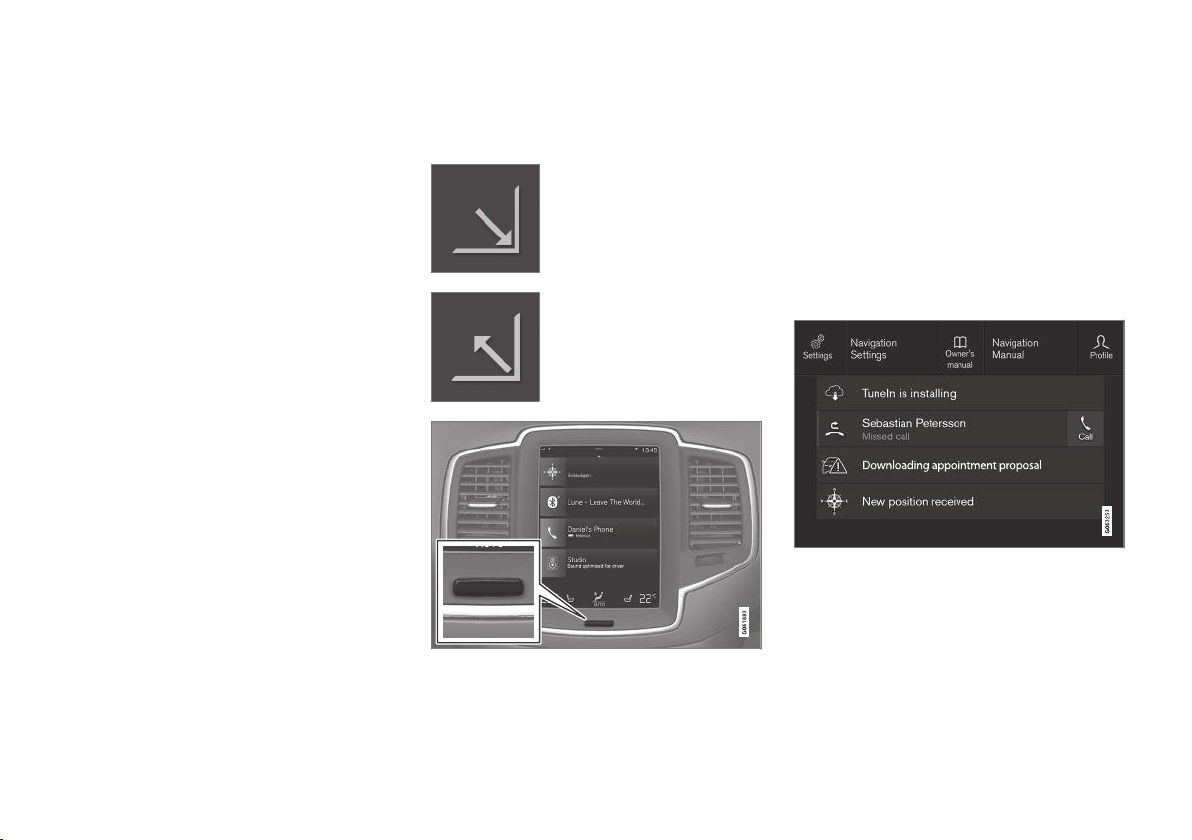
||
INTRODUCTION
42
Expanding a subview:
–
For subview one, two and three: Press any-
where on the subview. When a subview is
expanded, the fourth subview in the home
view is temporarily forced away. The other
two are minimised and only certain informa-
tion is shown. When the fourth sub view is
pressed, the other three subviews are mini-
mised and only certain information is dis-
played.
The expanded view provides access to the
basic functions of the app.
Closing an expanded subview:
–
The subview can be closed in three different
ways.
•
Tap on the upper part of the expanded
subview.
•
Tap on another subview (that subview will
then open in expanded mode instead).
•
Briefly press the physical home button
below the centre display.
Opening/closing a subview in full screen
mode
The extra subview and the subview for
Navigation can be opened out in full screen
mode, with even more information and more set-
ting options.
When a new subview is opened in full-screen
mode, no information from the other subviews is
shown.
In expanded mode, open the
app in full screen - press on
the symbol.
Press on the symbol to go back
to the expanded mode, or press
the home button at the bottom
of the screen.
Home button for the centre display.
There is always the option to go back to home
view by pressing the home button. Go back to the
home view's standard view from full screen mode
- press twice on the home button.
Status bar
The activities in the car are shown at the top of
the screen. Network/connection information is
shown on the left-hand side of the status bar,
while media-related information, the clock and
indication that background activity is in progress
are shown on the right.
Top view
Top view dragged down.
A tab is located in the centre of the status bar at
the top of the screen. Open the top view by
pressing on the tab or by dragging/swiping from
the top downwards across the screen.
||
INTRODUCTION
* Option/accessory.
44
app view, such as the number of unread text
messages for
Messages.
Tap on an app to open it. It then opens in the
subview to which it belongs, such as
Media.
Depending on the amount of apps, it is possible
to scroll downward in the app view. Do this by
swiping/dragging from the bottom and up.
To move an app:
1. Tap on the app and hold depressed.
> The app becomes slightly transparent and
larger when it is ready to be moved.
2. Drag the app to the desired location.
NOTE
Apps and car function buttons cannot be
added to locations that are already occupied.
Go back to the home view again by swiping from
left to right
11
across the screen, or by pressing
the home button.
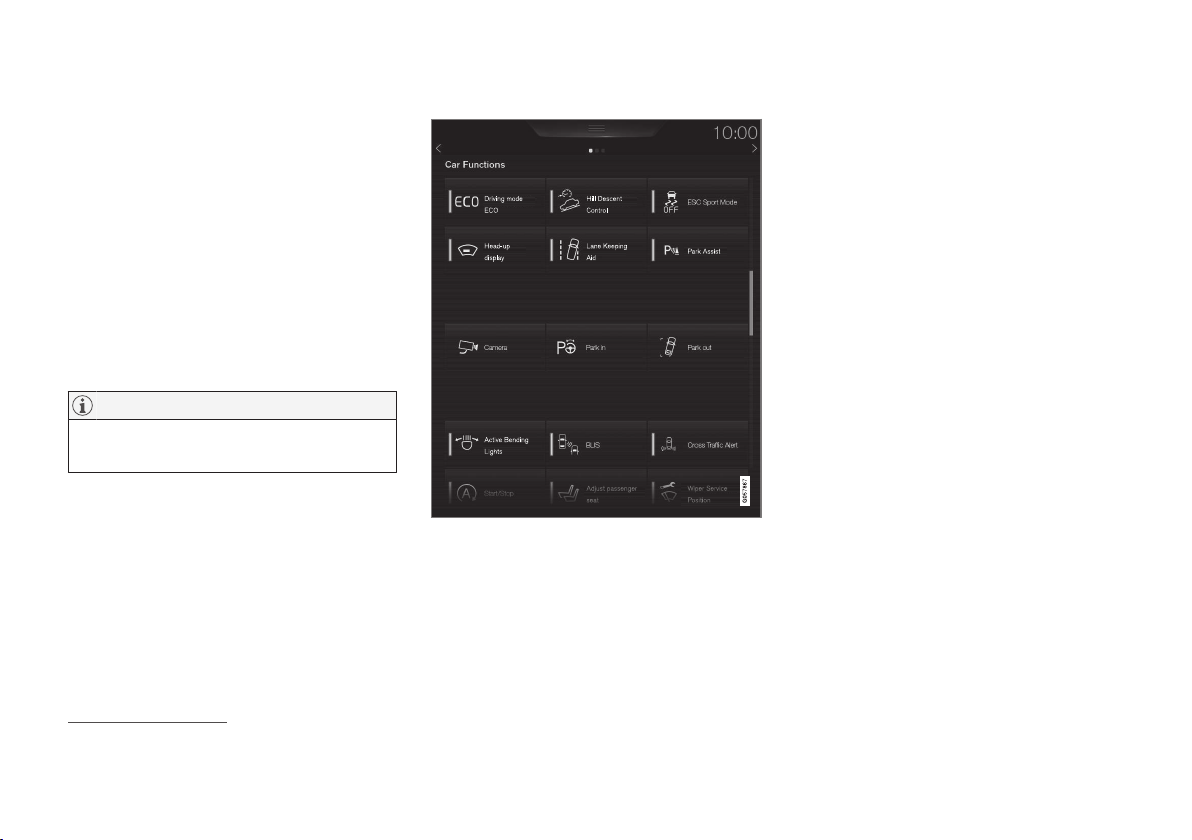
Function view
The function view with buttons for different car func-
tions.
Swipe from left to right
11
across the screen in
order to access the function view from the home
view. From here you can activate/deactivate dif-
ferent car functions, e.g.
Lane Departure
Warning
, Lane Keeping Aid* and Park Assist*.
Depending on the amount of functions, it is also
possible here to scroll downward in the view. Do
this by swiping/dragging from the bottom and up.
Unlike in app view, where an app is opened with
a press, a function is activated/deactivated by
pressing the relevant function button. Some func-
tions (trigger functions) open in a new window
when pressed.
Just as in app view, it is possible to move the
function buttons around and arrange them in the
desired order.
Related information
•
Operating the centre display (p. 36)
•
Overview of the centre display (p. 33)
•
Digital owner's manual in the car (p. 15)
•
Function view with buttons for car functions
(p. 47)
•
Changing settings for apps (p. 180)
•
Symbols in the centre display's status bar
(p. 45)
•
Climate controls in the centre display
(p. 187)
11
Applies to left-hand drive cars. For right-hand drive cars - swipe in the opposite direction.

INTRODUCTION
45
Symbols in the centre display's
status bar
Overview of the symbols that can be shown in
the centre display's status bar.
The status bar shows activities in progress and, in
some cases, their status. Not all symbols are
shown all the time due to the limited space in the
status bar.
Symbol Specification
Connected to the Internet.
Connection to the Internet failed.
Roaming activated.
Signal strength in mobile phone net-
work.
Bluetooth device connected.
Bluetooth activated but no device
connected.
Information sent to and from GPS.
Connected to Wi-Fi network.
Tethering activated (Wi-Fi hotspot).
The car then shares the available
connection.
Symbol Specification
Car modem activated.
USB sharing active.
Process in progress.
Timer for preconditioning active.
Audio source being played back.
Audio source stopped.
Phone call in progress.
Audio source muted.
News is received from the radio
channel.
Traffic information is received.
Clock.
Related information
•
Messages in the driver display and the centre
display (p. 109)
•
Navigating in the centre display's views
(p. 40)
•
Messages in the driver display and the centre
display (p. 109)

INTRODUCTION
46
Change settings for the centre
display
The centre display is started automatically when
the driver's door is opened. The settings can be
changed for the centre display to personalise
sound and themes. The screen can be switched
off so as not to be disruptive whilst driving.
Switching off/changing the system
sounds volume in the centre display.
The system sounds volume in the centre display
can be adjusted or switched off:
1.
Press
Settings in the top view in the centre
display.
2.
Press
Sound System Volumes.
3.
Under
Touch Sounds, drag the control to
change the volume/switch off screen touch
sounds. Drag the control to the desired vol-
ume.
Changing the appearance of the screen
1.
Press
Settings in the top view.
2.
Press
My Car Displays Display
Themes
.
3.
Then select theme, e.g.
Minimalistic or
Chrome Rings.
As a supplement to these appearances, it is pos-
sible to choose between
Normal and Bright.
With Normal, the screen background is dark and
the text is light. This alternative is the default for
all themes. A light variant can also be selected, in
which the background is light and the text is dark.
This alternative can be useful in e.g. strong day-
light.
This alternative is always available for the user
and is not affected by the surrounding lighting.
Related information
•
Settings in the centre display (p. 172)
•
Sensus - online connectivity and entertain-
ment (p. 29)
•
Cleaning the centre display (p. 576)
•
Operating the centre display (p. 36)
INTRODUCTION
}}
47
Function view with buttons for car
functions
All the buttons for car functions are located in
the function view, one of the centre display's
basic views. Navigate to the function view from
home view by swiping from left to right across
the screen
12
.
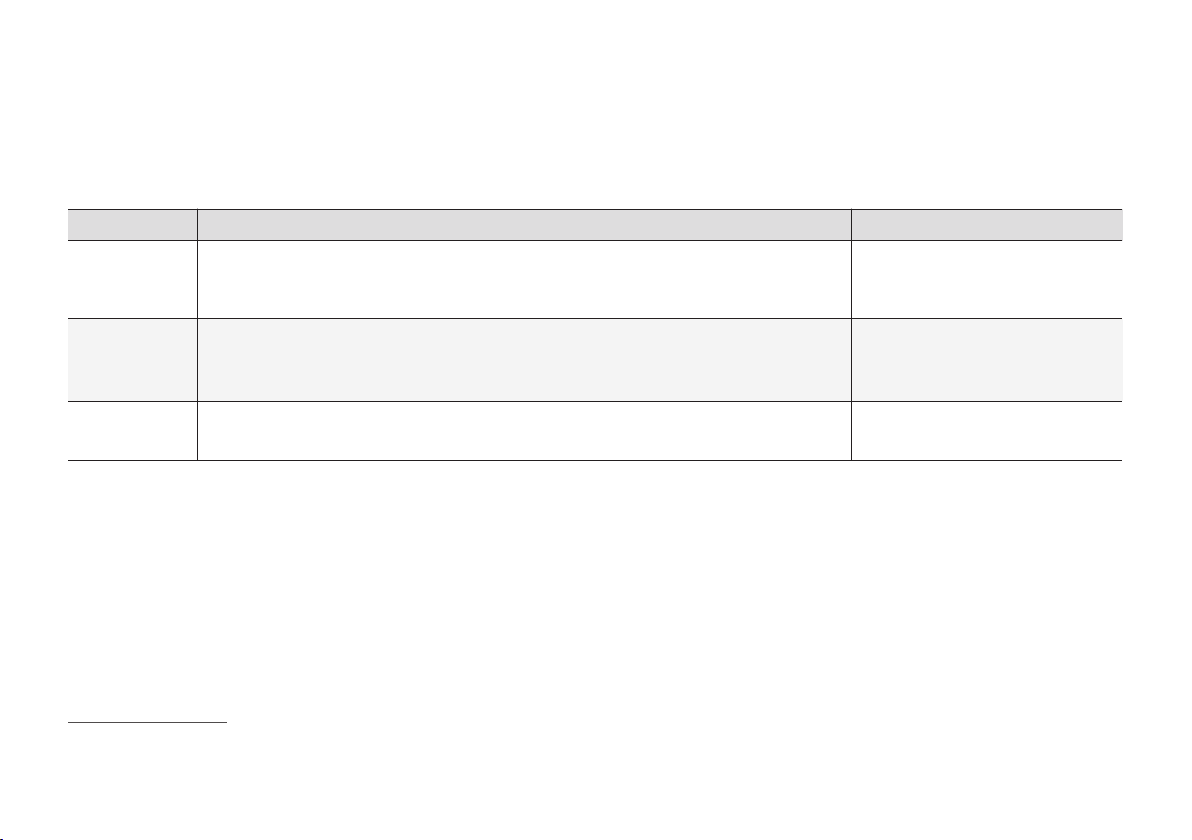
Different types of buttons
There are three different types of buttons for car
functions; see below:
Type of button Property Affects car function
Function buttons Have on/off positions.
When a function is running, an LED indicator illuminates to the left of the icon for the button.
Press the button to activate/deactivate a function.
Most buttons in function view are
function buttons.
Trigger buttons Do not have on/off positions.
When a trigger button is pressed, a window for the function opens. For example, it may be a
window for changing a seat's position.
•
Camera
•
Headrest fold
•
Head-up display adjustments
Parking buttons Have on, off and scan modes.
Similar to the function buttons but with an extra position for parking scanning.
•
Park In
•
Park Out
12
Applies to left-hand drive cars. For right-hand drive cars - swipe in the opposite direction.
||
INTRODUCTION
48
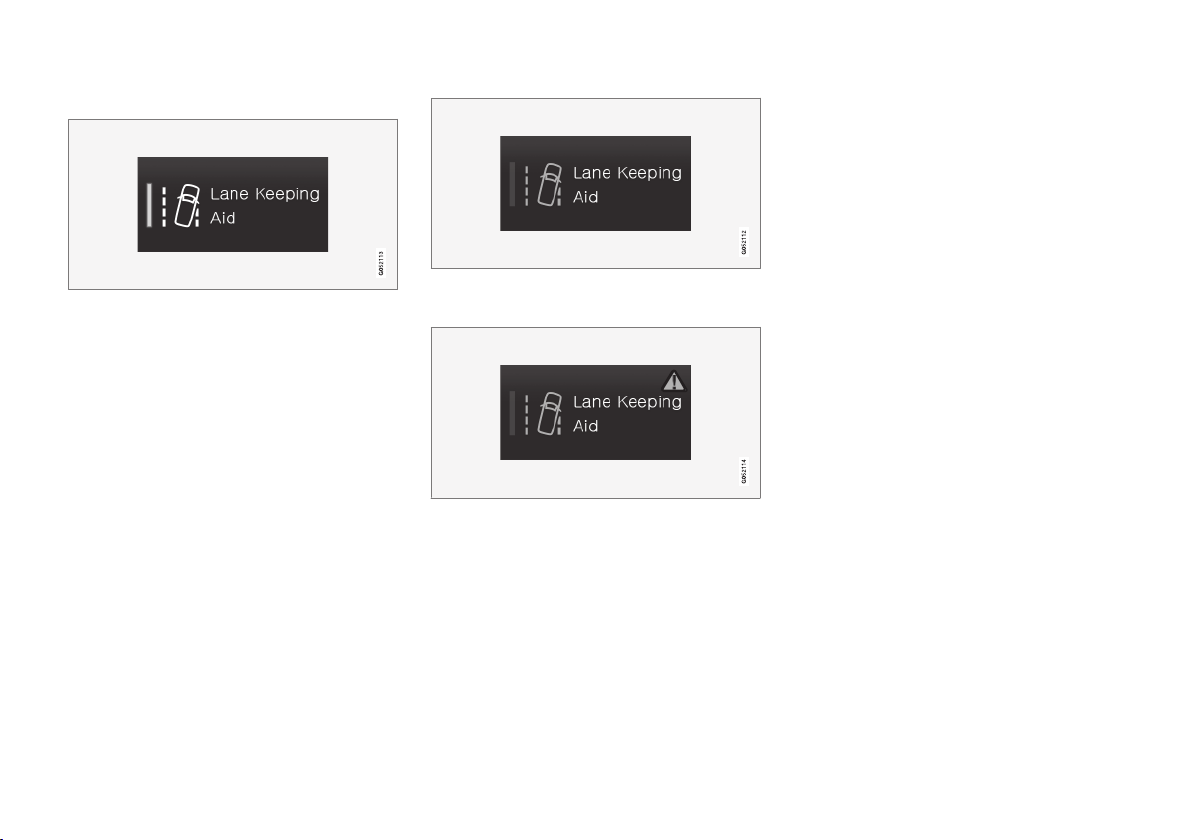
The buttons' different modes
When the LED indicator illuminates in green on a
function or parking button, the function is acti-
vated. When a function is activated, extra text
with an explanation for certain functions is
shown. The text is shown for a few seconds and
then the button is shown with the LED indicator
illuminated.
For Lane Keeping Aid, the text Works only at
certain speeds is shown, for example, when the
button is depressed.
Briefly tap on the button once in order to acti-
vate/deactivate the function.
The function is deactivated when the LED indica-
tor is extinguished.
When a warning triangle is shown in the right-
hand section of the button there is something not
working as intended.
Related information
•
Overview of the centre display (p. 33)
•
Navigating in the centre display's views
(p. 40)
•
Categories in the settings menu (p. 173)

INTRODUCTION
}}
49
Using the keyboard in the centre
display
The centre display keyboard makes it possible
make entries using keys. It is also possible to
"draw in" letters and characters on the screen
by hand.
Making entries with the keyboard
The keyboard can be used to enter characters,
letters and numbers, e.g. to write text messages
from the car, enter passwords or search for arti-
cles in the digital owner's manual.
The keyboard is only shown when entries can be
made on the screen.
||
INTRODUCTION
50
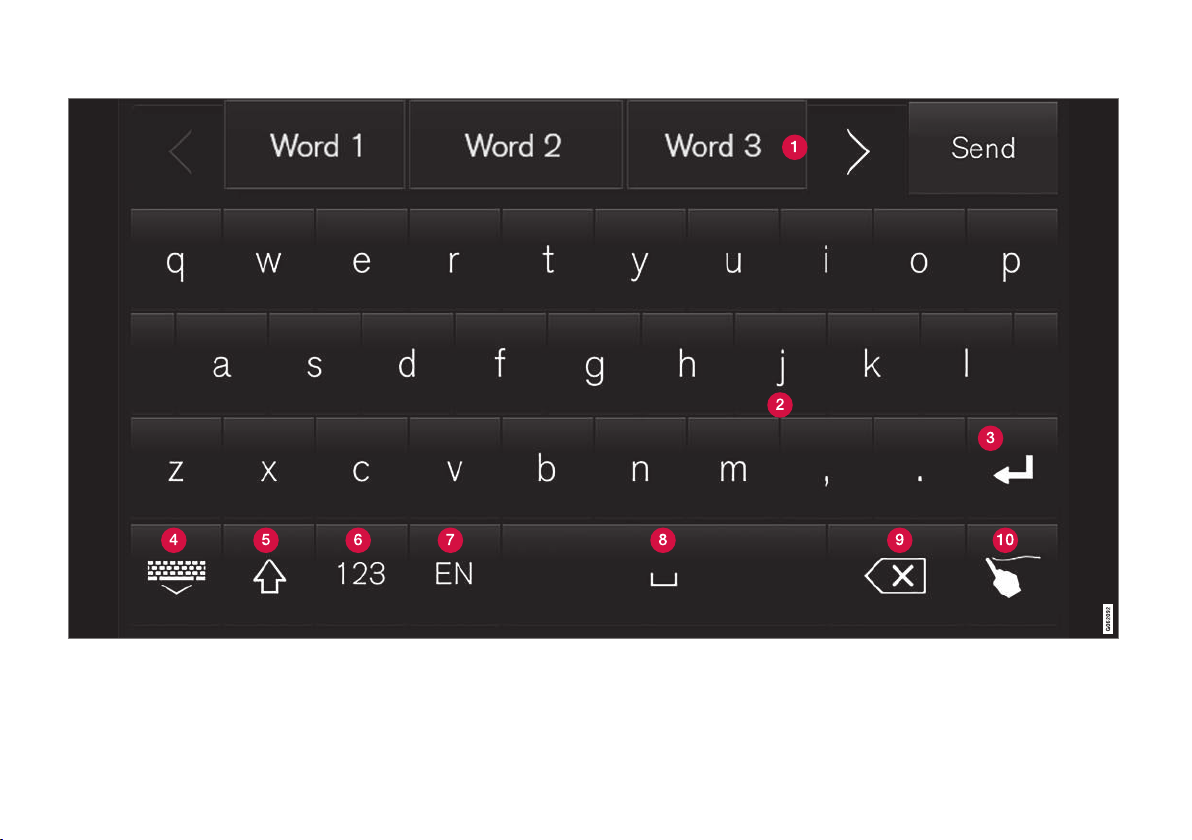
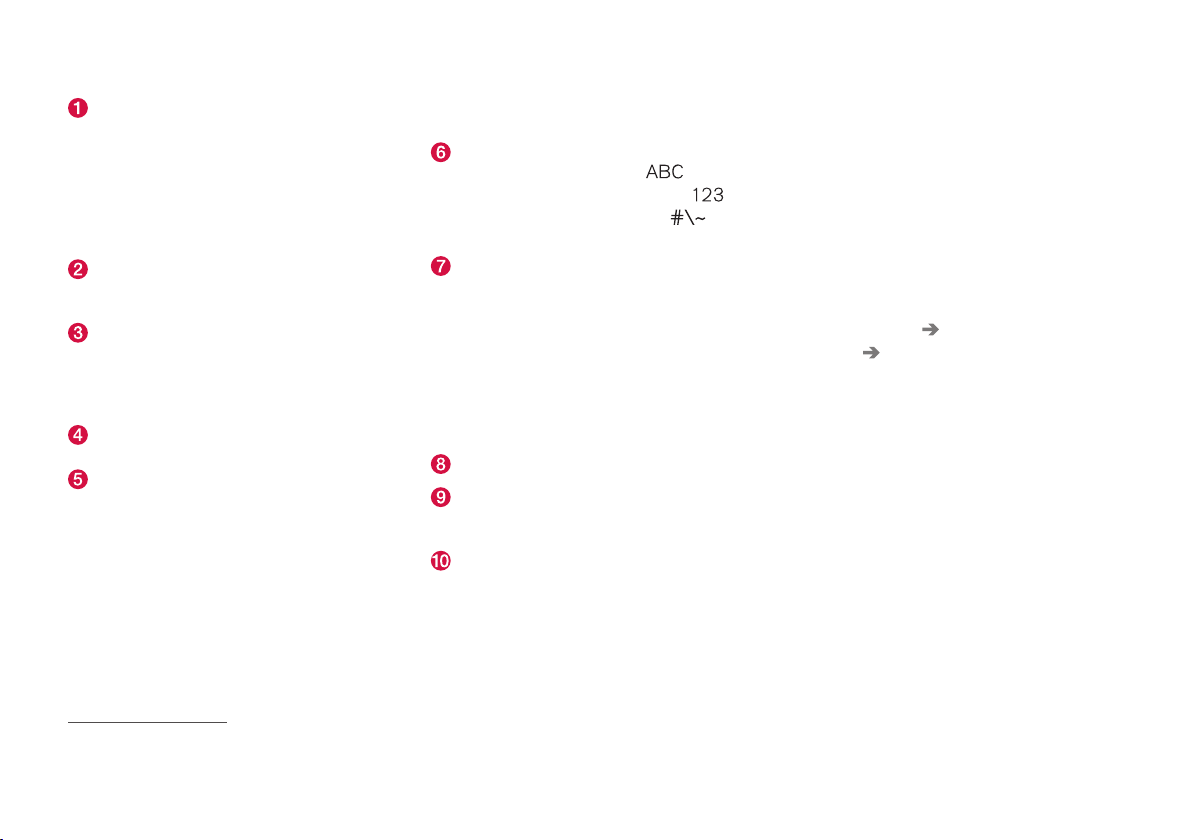
The image shows an overview of some of the buttons which may be shown in the keyboard. The appearance varies depending on language settings and the context in which the
keyboard is being used.
INTRODUCTION
}}
51
Row of suggested words or characters
13
.
The suggested words are adjusted as new
letters are being entered. Browse among the
suggestions by pressing on the right and left
arrows. Tap on a suggestion to select it. Note
that this function is not supported by all lan-
guage selections. If not available, the row will
not be shown on the keyboard.
The characters available on the keyboard
depend on which language was selected
(see point 7). Tap on a character to enter it.
The button works in different ways, depend-
ing on the context in which the keyboard is
used - either to enter @ (when an email
address is entered) or to create a new row
(for normal text input).
Hides the keyboard. If this is not possible, the
button is not shown.
Used to enter capital letters. Press again to
enter one capital letter and then continue
with lower-case letters. Another press makes
all letters capital letters. The next press
restores the keyboard to lower-case letters.
In this mode, the first letter after a full stop,
exclamation mark or question mark is a capi-
tal letter. The first letter in the text field is
also a capital letter. In text fields intended for
names or addresses, each word automatically
starts with a capital letter. In text fields for
password, web address or email address
entry, all letters are automatically lower case
unless otherwise set with the button.
Number entry. The keyboard (2) is then
shown with numbers. Press
, which in
number mode is shown instead of
, to
return to the letter keyboard, or
to
open the keyboard with special characters.
Changes text input language, e.g. EN. The
available characters and word suggestions
(1) vary depending on the selected language.
One long press opens a list of languages
and then tap on the language to be used. A
short press changes to the next language on
the list without showing the list. To add addi-
tional languages in the keyboard - see the
heading "Changing keyboard language"
below.
Space.
Undoes entered text. Press briefly to delete
one character at a time. Hold the button
depressed to delete characters more quickly.
Changes keyboard mode to write letters and
characters by hand instead. Read more in the
section "Writing characters/letters by hand
on the screen".
Press the confirmation button above the key-
board (not visible in the image) to confirm the
entered text. The appearance of the button dif-
fers depending on context.
Changing the keyboard language
To make it possible to switch between different
languages for the keyboard, the languages must
first be added under
Settings.
Adding/deleting languages in settings
The keyboard is automatically set to the same
languages as the system language. The keyboard
language can be manually adapted without
affecting the system language.
1.
Press
Settings in the top view.
2.
Press
System System Languages and
Units
Keyboard Layouts.
3. Select one or more languages from the list.
> It is now possible to switch between the
selected languages directly from the key-
board for text input.
If no languages have been actively selected
under
Settings, the keyboard uses the same lan-
guage as the car's system language; see the
section "Changing system settings in the set-
tings menu".
13
Applies to Asiatic languages.

||
INTRODUCTION
52
Switching between different languages in
the keyboard
When a number of languages
have been selected in
Settings, the keyboard button
(shown in context as number 7
in the illustration above) is used
to switch between different lan-
guages.
To change keyboard language with list:
1. One long press on the button (see image
above).
> A list opens.
2. Select the required language. If more than
four languages have been selected under
Settings, it is possible to scroll in the list
from the keyboard.
> The keyboard is adapted to the selected
language and other word suggestions are
given.
To change the keyboard language without dis-
playing the list:
–
One short press of the button.
> The keyboard is adapted to the next lan-
guage in the list without displaying the list.
Variants of a letter or character
To enter a variant of a letter/character, e.g. é or
è:
1. Press and hold the letter/character.
> A box with possible variants of the letter/
character opens.
2. Press the required variant. If none of the vari-
ants are selected, the original letter/charac-
ter is entered.
Related information
•
Writing characters/words by hand on the
screen (p. 53)
•
Settings in the centre display (p. 172)
•
Operating the centre display (p. 36)
•
Managing text messages (p. 485)
•
Changing system settings in the settings
menu (p. 175)

SAFETY

SAFETY
}}
* Option/accessory.
57
cle as they drive (which means that they must be
able to easily operate the foot pedals and steer-
ing wheel). The aim should be to position the
seat with as large a distance as possible between
abdomen and steering wheel.
Related information
•
Safety (p. 56)
•
Seatbelt (p. 58)
•
Manual front seat (p. 123)
•
Power front seat* (p. 124)
Whiplash Protection System
Whiplash Protection System (WHIPS) reduces
the risk of whiplash injuries. The system consists
of energy-absorbing backrests and seat cush-
ions, and specially designed head restraints in
the front seats.
WHIPS is deployed in the event of a rear-end
collision, where the angle and speed of the colli-
sion and the nature of the colliding vehicle all
have an influence.
When WHIPS is deployed, the front seat back-
rests are lowered backward and the seat cush-
ions move downward to change the seating posi-
tion of the driver and front seat passenger. Its
movement helps to absorb some of the forces
that can arise and cause whiplash.
WARNING
WHIPS is a supplement to the seatbelts.
Always use a seatbelt.
WARNING
Never modify or repair the seat or WHIPS
yourself. Volvo recommends that an author-
ised Volvo workshop should be contacted.
If the front seats have been subjected to a
major load, such as in conjunction with a colli-
sion, the seats must be replaced. Some of the
seats' protective properties may have been
lost even if they do not appear damaged.
Do not leave any objects on the floor behind or under
the front seats or in the rear seat that may prevent
WHIPS from functioning.
||
SAFETY
* Option/accessory.
58
WARNING
Do not squeeze rigid objects between the
rear seat cushion and the front seat's back-
rest.
If a backrest in the rear seat is lowered then
any load must be secured to prevent it from
sliding up to the front seat backrest in the
event of a collision.
WARNING
If a backrest in the rear seat is lowered or a
rear-facing child seat is used in the rear seat,
the corresponding front seat must be moved
forward so that it does not make contact with
the lowered backrest or child seat.
Seating position
For optimum protection from WHIPS the driver
and passenger must have the correct seating
position and make sure that the system's func-
tion is not obstructed.
Set the correct seating position in the front seat
before driving starts.
Driver and front seat passenger should sit in the
centre of the seat with as little space as possible
between the head and the head restraint.
WHIPS and child seats
The protection provided by the car to children
seated in a child seat or on a booster cushion is
not diminished by WHIPS.
Related information
•
Safety (p. 56)
•
Manual front seat (p. 123)
•
Power front seat* (p. 124)
•
Rear Collision Warning (p. 354)
•
Child seats (p. 71)
Seatbelt
Heavy braking can have serious consequences
if the seatbelts are not used.
It is important that the seatbelt lies against the
body so it can provide maximum protection. Do
not lean the backrest too far back. The seatbelt is
designed to protect in a normal seating position.
WARNING
Remember not to clip or hook the seatbelt to
hooks or other interior fittings, as this pre-
vents the belt from tightening properly.
WARNING
The seatbelts and airbags interact. If a seat-
belt is not used or is used incorrectly, this may
diminish the protection provided by the airbag
in the event of a collision.
SAFETY
}}
59
WARNING
Never modify or repair the seatbelts yourself.
Volvo recommends that an authorised Volvo
workshop should be contacted.
If the seatbelt has been subjected to a major
load, such as in conjunction with a collision,
the entire seatbelt must be replaced. Some of
the seatbelt's protective properties may have
been lost even if the seatbelt does not appear
damaged. The seatbelt must also be replaced
if it shows signs of wear or damage. The new
seatbelt must be type-approved and designed
for installation at the same location as the
replaced seatbelt.
Related information
•
Safety (p. 56)
•
Seatbelt tensioner (p. 59)
•
Fastening/unfastening a seatbelt (p. 60)
•
Door and seatbelt reminder (p. 61)
Seatbelt tensioner
The car is fitted with pyrotechnic and electric
seatbelt tensioners that can tension the seat-
belts in critical situations and collisions.
Seatbelt tensioner during collision
All the seatbelts are equipped with a pyrotechnic
seatbelt tensioner.
The pyrotechnic seatbelt tensioner tensions the
seatbelt in the event of a collision with sufficient
force in order to more effectively restrain the
occupant.
Seatbelt tensioner during critical
situations
The driver and front passenger seatbelts are
equipped with an electric seatbelt tensioner.
The seatbelt tensioners work together and can
be activated together with the driver support sys-
tems City Safety and Rear Collision Warning. In
critical situations, such as panic braking, driving
off the road (e.g. the car rolls into a ditch, lifts off
the ground or hits something in the terrain), skid-
ding, or risk of collision, the seatbelt can be ten-
sioned by the seatbelt tensioner's electric motor.
The electric seatbelt tensioner adjusts the occu-
pant to a better position, reducing the risk of
striking the car's interior and improving the effect
of safety systems, such as the car's airbags.
IMPORTANT
If the passenger airbag is deactivated, the
electric seatbelt tensioner on the passenger
side will also be deactivated.
Resetting the electric seatbelt tensioner
Once the critical situation has passed, the seat-
belt and electric seatbelt tensioner are reset
automatically.
If the belt still remains tensioned:
1. Stop the car at a safe place.
2. Unfasten the seatbelt and then refasten it.
> The seatbelt and electric seatbelt ten-
sioner are reset.
WARNING
Never modify or repair the seatbelts yourself.
Volvo recommends that an authorised Volvo
workshop should be contacted.
If the seatbelt has been subjected to a major
load, such as in conjunction with a collision,
the entire seatbelt must be replaced. Some of
the seatbelt's protective properties may have
been lost even if the seatbelt does not appear
damaged. The seatbelt must also be replaced
if it shows signs of wear or damage. The new
seatbelt must be type-approved and designed
for installation at the same location as the
replaced seatbelt.

SAFETY
}}
61
The seatbelt must pass over the shoulder (not down over
the arm).
4. Tension the hip strap over the lap by pulling
the diagonal shoulder belt up towards the
shoulder.
The hip strap must be positioned low down (not over the
abdomen).
WARNING
Each seatbelt is designed for only one person.
WARNING
Remember not to clip or hook the seatbelt to
hooks or other interior fittings, as this pre-
vents the belt from tightening properly.
WARNING
Do not make any damages on seatbelts nor
insert any foreign objects into a buckle. The
seatbelts and buckles would then possibly not
function as intended in the event of a colli-
sion. There is a risk of serous injury.
Unfastening a seatbelt
1. Press the red button on the seatbelt buckle
and then let the belt retract.
2. If the seatbelt does not retract fully, feed it in
by hand so that it does not hang loose.
Make sure that the seatbelt is correctly in the
belt guide available for the second seat row's
centre seat.
Related information
•
Seatbelt (p. 58)
•
Seatbelt tensioner (p. 59)
•
Door and seatbelt reminder (p. 61)
Door and seatbelt reminder
The system reminds unbelted occupants to wear
a seatbelt, and also warns about an open door,
bonnet, tailgate or fuel filler flap.
Driver display graphics
Graphics in the driver display with different types of
warnings. The warning colour on the door and tailgate is
dependent on the vehicle's speed.
The driver display's graphics show which seats in
the car are occupied by belted and unbelted pas-
sengers.
The same graphic also shows if the bonnet, tail-
gate, fuel filler flap or any door is open.
The graphic can be acknowledged by pressing
the O button on the right-hand steering wheel
keypad.

SAFETY
}}
63
Airbags
The car is equipped with airbags and inflatable
curtains for driver and passengers.
WARNING
The airbag system's control module is located
in the centre console. If the centre console is
drenched with water or other liquid, discon-
nect the cables to the starter battery. Do not
attempt to start the car since the airbags may
deploy. Recovering the car. Volvo recom-
mends that it is transported to an authorised
Volvo workshop.
Deployed airbags
If any of the airbags have deployed, the following
is recommended:
•
Recovering the car. Volvo recommends that it
is transported to an authorised Volvo work-
shop. Do not drive with deployed airbags.
•
Volvo recommends engaging an authorised
Volvo workshop to handle the replacement of
components in the car's safety systems.
•
Always contact a doctor.
WARNING
Never drive with deployed airbags. They can
make steering difficult. Other safety systems
may also be damaged. The smoke and dust
created when the airbags are deployed can
cause skin and eye irritation/injury after inten-
sive exposure. In case of irritation, wash with
cold water. The rapid deployment sequence
and airbag fabric may cause friction and skin
burns.
Related information
•
Safety (p. 56)
•
Driver and passenger airbags (p. 63)
•
Side airbag (p. 67)
•
Inflatable curtain (p. 68)
Driver and passenger airbags
As a supplement to the seatbelts, the vehicle is
equipped with airbags on the driver and passen-
ger sides in the front seat.
Driver and passenger airbags.
In the event of a frontal collision, the airbags help
to protect the head, face and chest of the driver
and passenger as well as the knees and legs of
the driver.
A sufficiently violent collision trips the sensors
and the airbag/airbags is inflated. The airbag
cushions the initial collision impact for the occu-
pant. The airbag deflates when compressed by
the collision. When this occurs, smoke escapes
into the car. This is completely normal. The entire
process, including inflation and deflation of the
airbag, occurs within tenths of a second.

||
SAFETY
64
NOTE
The detectors react differently depending on
the nature of the collision and whether or not
the seatbelts are fastened. Applies to all belt
positions.
It is therefore possible that only one (or none)
of the airbags may inflate in a collision. The
detectors sense the force of the collision on
the vehicle and the action is adapted accord-
ingly so that none, one or more airbags are
deployed.
WARNING
The seatbelts and airbags interact. If the belt
is not used or is used incorrectly, this may
diminish the protection provided by the airbag
in the event of a collision.
To minimise the risk of injury if the airbag
deploys, passengers must sit as upright as
possible with their feet on the floor and backs
against the backrest.
WARNING
Volvo recommends that an authorised Volvo
workshop should be contacted for repair.
Defective work in the airbag system could
cause malfunction and result in serious per-
sonal injury.
Driver airbags
Airbag in the steering wheel
This airbag is fitted into the centre of the steering
wheel. The steering wheel is marked AIRBAG.
Knee airbag
The airbag is folded up in the lower part of the
instrument panel on the driver's side. Its cover
panel is marked AIRBAG.
WARNING
Do not place or attach any object on the top
or front of the panel where the knee airbag is
stowed.
Passenger airbag
The airbag is folded up into a compartment
above the glovebox. Its cover panel is marked
AIRBAG.
WARNING
Do not put objects in front of or above the
dashboard where the passenger airbag is
located.
Label for passenger airbag
Label on the passenger side's sun visor.
Label on the passenger side's door pillar. The label
becomes visible when the passenger door is opened.
The warning label for the passenger airbag is
positioned as shown above.
||
SAFETY
66
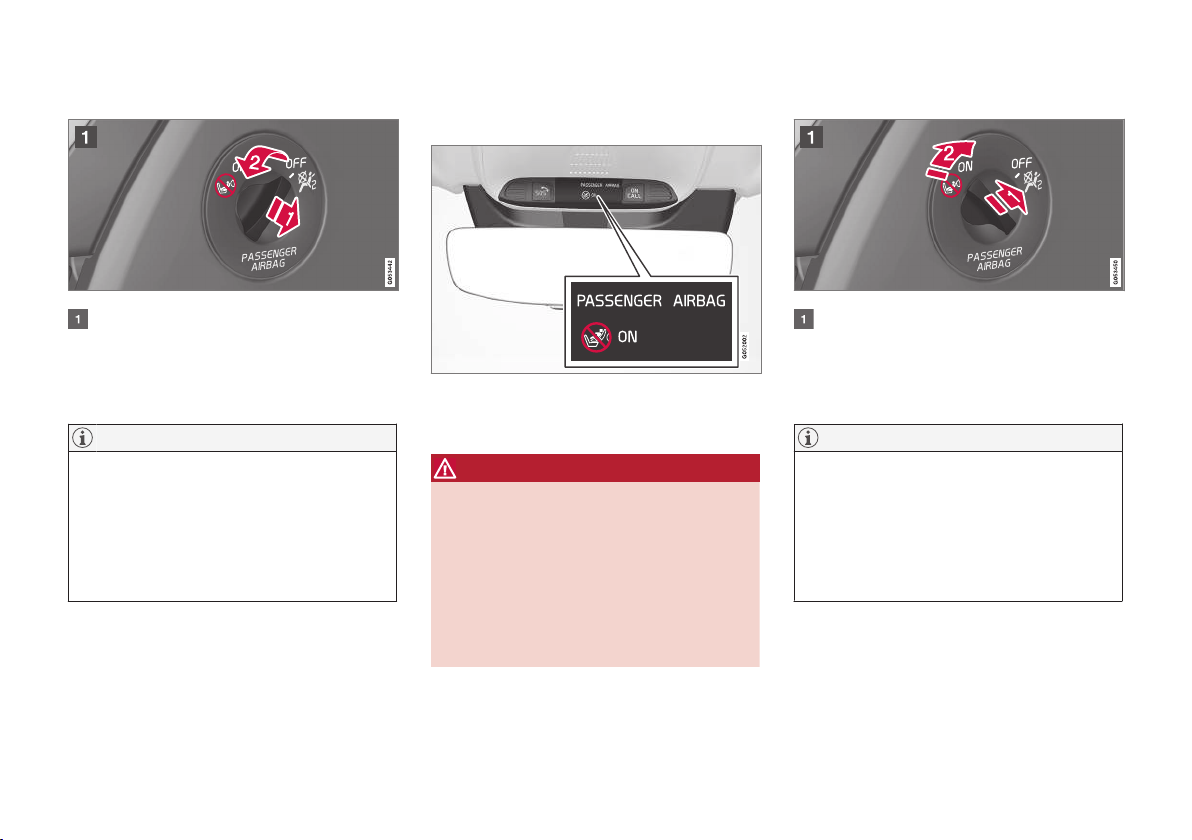
Activating the passenger airbag
Pull the switch outward and turn from OFF
(B) to ON (A).
> The driver display shows the message
Passenger airbag on Please
acknowledge.
NOTE
If the passenger airbag has been activated/
deactivated with the car in ignition position I
or lower, a message is shown in the driver
display and the following indicator in the roof
console approx. 6 seconds after the car's
electrical system has been set in ignition
position II.
2. Confirm the message by pressing the right-
hand steering wheel keypad's O button.
> A text message and a warning symbol in
the roof console indicate that the airbag
for the front passenger seat is activated.
WARNING
Never use a rear-facing child seat on the front
passenger seat when the airbag is activated.
The passenger airbag must always be acti-
vated when front-facing passengers (children
and adults) are sitting in the front passenger
seat.
Failure to follow the advice given above can
endanger life or lead to serious personal
injury.
Deactivating the passenger airbag
Pull the switch outward and turn from ON
(A) to OFF (B).
> The driver display shows the message
Passenger airbag off Please
acknowledge.
NOTE
If the passenger airbag has been activated/
deactivated with the car in ignition position I
or lower, a message is shown in the driver
display and the following indicator in the roof
console approx. 6 seconds after the car's
electrical system has been set in ignition
position II.
||
SAFETY
70
3. Then try to start the car.
> The car's electronics carry out a systems
check and then try to resume normal sta-
tus.
IMPORTANT
If the message Safety mode See Owner's
manual is still shown on the display the car
must not be driven or towed but a vehicle
recovery service must then be used instead.
Even if the car appears to be driveable, hid-
den damage may make the car impossible to
control once moving.
Moving the car after safety mode
1. If the driver display shows the message
Normal mode The car is now in normal
mode after a start attempt, the car can be
carefully moved if standing in a dangerous
position.
2. Do not move the car further than necessary.
WARNING
If the car is in safety mode it must not be
towed. It must be transported from its loca-
tion. Volvo recommends that it is transported
to an authorised Volvo workshop.
Related information
•
Safety mode (p. 69)
•
Recovering the car (p. 458)
Child safety
Volvo has child safety equipment (child seats,
booster cushions and attachment devices)
which is designed for fitting in this particular car.
Using Volvo's child safety equipment, the opti-
mum conditions are obtained for the child to
travel safely in the car. In addition, the child safety
equipment fits well and is simple to use.
Children of all ages and sizes must always sit
correctly secured in the car. Never allow a child to
sit on the knee of a passenger.
Volvo recommends that children travel in rear-
facing child seats until as late an age as possible,
at least up to 3-4 years of age, and then in front-
facing booster cushions/child seats until the
child is 140 cm tall.
NOTE
Legal provisions about the type of child seat
that must be used for children of different
ages and heights vary from country to coun-
try. Check what does apply.
NOTE
In the event of questions when fitting child
safety products, contact the manufacturer for
clearer instructions.

SAFETY
}}
* Option/accessory.
71
Related information
•
Safety (p. 56)
•
Child seats (p. 71)
•
Integrated child seat* (p. 83)
Child seats
The position of a child in the car and the choice
of equipment are dictated by the child's weight
and size.
Children should sit comfortably and safely. Make
sure that the child seat is being used correctly.
Look in the installation instructions for the child
seat for the correct fitting.
NOTE
When using child safety products it is impor-
tant to read the installation instructions
included.
NOTE
Never leave a child seat unsecured in the car.
Always secure it according to the instructions
for the child seat, even when it is not in use.
Location of child seats
Rear-facing child seat and airbag are not compatible.
Always fit rear-facing child seats in the second or
third* seat row if the passenger airbag is acti-
vated. If a child is sitting on the front passenger
seat then he/she could suffer serious injury if the
airbag deploys.
If the passenger airbag is deactivated then rear-
facing child seats can be fitted on the front pas-
senger seat.
NOTE
Regulations regarding the placement of chil-
dren in cars vary from country to country.
Check what does apply.
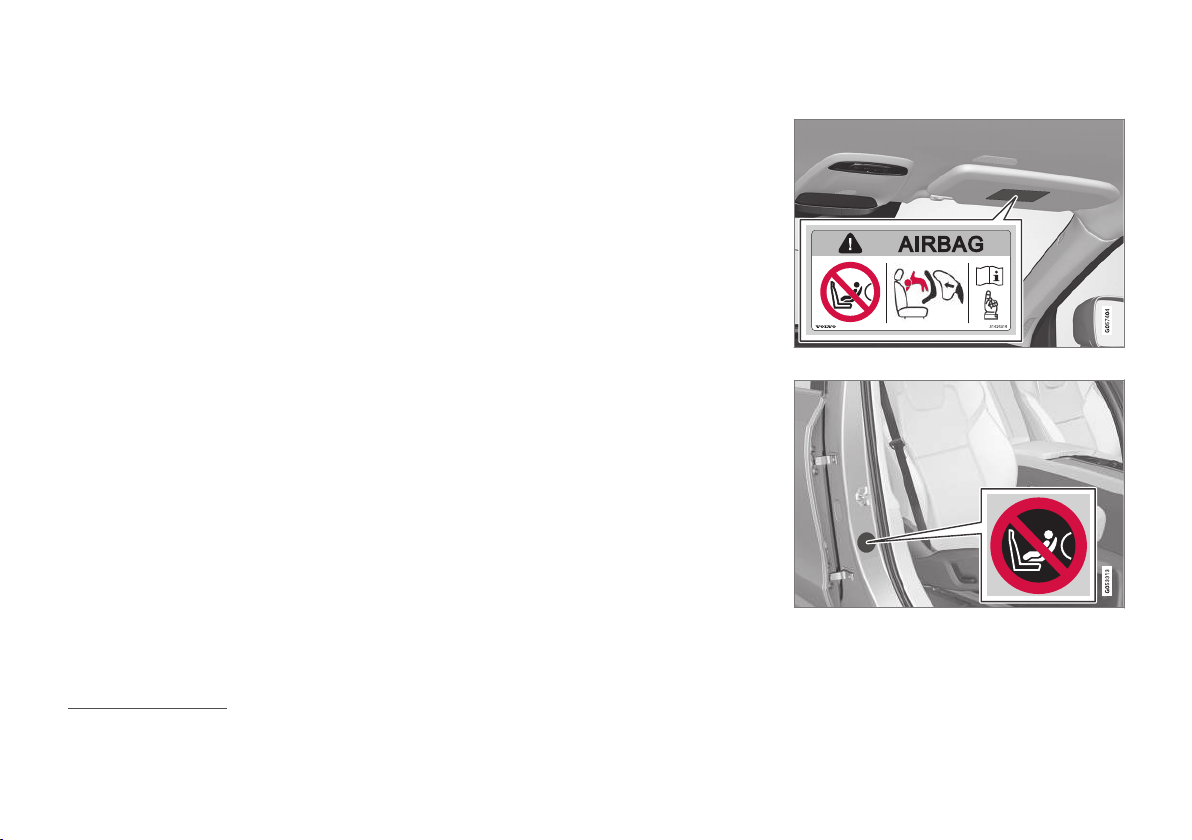
SAFETY
}}
* Option/accessory.
73
Installation in the second seat row
•
Only use child seats that are recommended
by Volvo, are universally approved
2
or are
semi-universal, and where the car is included
on the manufacturer's vehicle list.
•
A child seat with support legs must not be
fitted in the centre seat.
•
The outer seats are equipped with the
ISOFIX fixture system and are approved for i-
Size
3
.
•
The outer seats are equipped with upper
mounting points. Volvo recommends that
child seat's upper straps should be pulled
through the hole in the head restraint before
being tensioned at the mounting point. If this
is not possible, follow the recommendations
from the child seat manufacturer.
•
In cars with a third seat row*, the second
seat row must be adjusted to its rearmost
position. If a child seat is also used in the
third row then an exception can be made. In
which case, always check that the child seat
is still fitted in accordance with the manufac-
turer's instructions.
•
If the child seat is equipped with lower
straps, never adjust the position of the seat
in front after the straps have been fitted in
the lower mounting points. Always remember
to remove the lower straps when the child
seat is not installed.
•
The ISOFIX guide must not be used when fit-
ting child seats.
Installation in the third seat row*
•
Only use child seats that are recommended
by Volvo, are universally approved or are
semi-universal, and where the car is included
on the manufacturer's vehicle list.
•
Child seats with support legs must not be fit-
ted in the third row of seats.
•
If necessary, adjust the second seat row for-
ward in order to make enough space. If a
child seat is also fitted on the second seat
row, check that the child seat is still fitted in
accordance with the manufacturer's instruc-
tions.
Label for passenger airbag
Label on the passenger side's sun visor.
Label on the passenger side's door pillar. The label
becomes visible when the passenger door is opened.
The warning label for the passenger airbag is
positioned as shown above.
2
Does not apply to the centre seat.
3
Varies depending on market.

SAFETY
* Option/accessory.
75
Lower mounting points for child
seats
The vehicle is equipped with lower mounting
points for child seats in the front seat* and the
second row of seats.
The lower mounting points are designed to be
used in conjunction with certain rear-facing child
seats.
Always follow the manufacturer's installation
instructions when connecting a child seat to the
lower mounting points.
The location of the mounting points
Mounting point locations in the front seat.
The mounting points in the front seat are located
on the sides of the passenger seat's legroom.
The mounting points in the front seat are only
mounted if the vehicle is equipped with a switch
to activate/deactivate the passenger airbag*.
Mounting point locations in the second row of seats.
The mounting points in the second row of seats
are located on the rear section of the front seat's
floor rails.
Related information
•
Child seats (p. 71)
•
Upper mounting points for child seats (p. 74)
•
i-Size/ISOFIX mounting points (p. 78)
•
Table for location of child seats using the
car's seatbelts (p. 76)
•
Activating/deactivating the passenger air-
bag* (p. 65)
SAFETY
* Option/accessory.
76
Table for location of child seats
using the car's seatbelts
The table gives a recommendation for which
child seats suit which locations, and for what
size of child.
NOTE
Always read the section "Child seats" before
fitting a child seat in the car.
Weight Front seat (with deactivated
airbag, only rear-facing child
seats)
Front seat (with activated air-
bag, only front-facing child
seats)
Second row of seats, outer
seat
Second row of seats, centre
seat
Third seat row*
Group 0
max 10 kg
U
A, B
X
U
B
L
B
U
Group 0+
max 13 kg
U
A, B
X
U
B
L
B
U
Group 1
9-18 kg
L
C
UF
A, D
U, L
C
L U
Group 2
15-25 kg
L
C
UF
A, E
U
E
, L
C
B*
, F
, L
E
U
E

SAFETY
* Option/accessory.
77
Weight Front seat (with deactivated
airbag, only rear-facing child
seats)
Front seat (with activated air-
bag, only front-facing child
seats)
Second row of seats, outer
seat
Second row of seats, centre
seat
Third seat row*
Group 3
22-36 kg
X
UF
A, G
U
G
B*
, F
, L
G
U
G
U: Suitable for universal category restraints approved for use in this mass group.
UF: Suitable for front-facing universally approved child seats.
L: Suitable for particular child restraints. These restraints may be of the specific vehicle, restricted or semi-universal categories.
B: Built-in restraint approved for this mass group.
X: The seat is not suitable for children in this mass group.
A
Adjust the backrest to a more upright position.
B
Volvo recommends: Volvo infant seat (type approval E1 04301146).
C
Volvo recommends: Volvo reversible seat in the rear-facing position (type approval E5 04192); Volvo rear-facing seat (type approval E5 04212).
D
Volvo recommends rear-facing child seat for children in this mass group.
E
Volvo recommends: Volvo reversible seat in the front-facing position (type approval E5 04192); booster cushion with and without back (type approval E5 04216); Volvo booster cushion with backrest (type
approval E1 04301169); Volvo booster seat (type approval E1 04301312).
F
Volvo recommends: Integrated child seat (type approval E5 04218).
G
Volvo recommends: Booster cushion with and without back (type approval E5 04216); Volvo booster cushion with backrest (type approval E1 04301169); Volvo booster seat (type approval E1 04301312).
WARNING
Never use a rear-facing child seat on the front
passenger seat if the passenger airbag is
activated.
Related information
•
Child seats (p. 71)
•
Upper mounting points for child seats (p. 74)
•
Table for location of ISOFIX child seats
(p. 79)
•
Table for location of i-Size child seats
(p. 82)
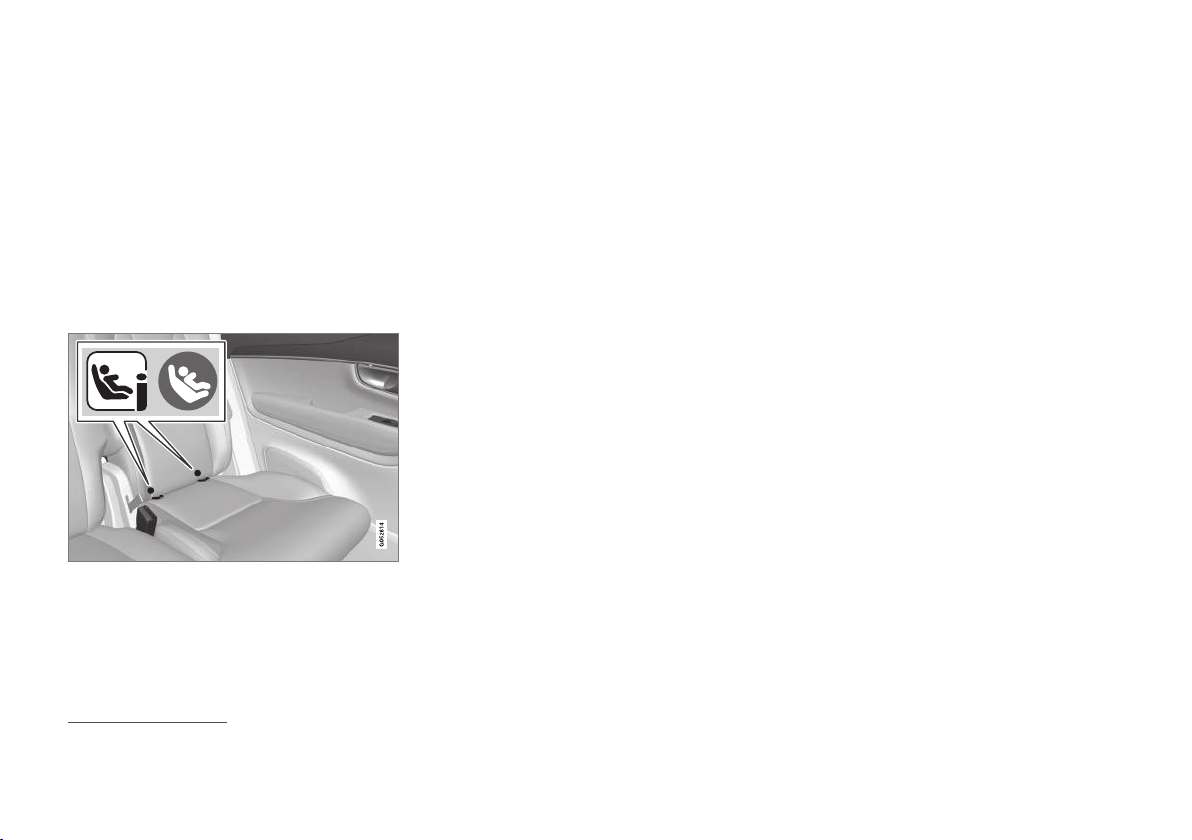
SAFETY
78
i-Size/ISOFIX mounting points
The vehicle is equipped with i-Size/ISOFIX
4
mounting points for child seats in the second
row of seats.
i-Size/ISOFIX is a fixture system for car child
seats that is based on an international standard.
Always follow the manufacturer's installation
instructions when connecting a child seat to the
i-Size/ISOFIX mounting points.
The location of the mounting points
Mounting point locations are indicated by symbols
4
on
the upholstery of the backrest.
The mounting points for i-Size/ISOFIX are con-
cealed behind the lower section of the second
seat row's backrest, in the outer seats.
Press the seat cushion down to access the
mounting points.
Related information
•
Child seats (p. 71)
•
Upper mounting points for child seats (p. 74)
•
Lower mounting points for child seats (p. 75)
•
Table for location of i-Size child seats
(p. 82)
•
Table for location of ISOFIX child seats
(p. 79)
4
Names and symbols change depending on market.

SAFETY
}}
* Option/accessory.
79
Table for location of ISOFIX child
seats
The table gives a recommendation for which
ISOFIX child seats suit which locations, and for
what size of child.
The child seat must be approved in accordance
with UN Reg R44 and the car model must be
included in the manufacturer's vehicle list.
NOTE
Always read the section "Child seats" before
fitting a child seat in the car.
Weight
Size class
A
Type of child seat Front seat (with
deactivated airbag,
only rear-facing child
seats)
B
Front seat (with
activated airbag,
only front-facing
child seats)
B
Second row of
seats, outer seat
Second row of
seats, centre seat
Third seat row*
Group 0
max 10 kg
E
Rear-facing infant
seat
IL
B, C
, X
D
X
IL
C
X X
Group 0+
max 13 kg
E
Rear-facing infant
seat
IL
B, C
, X
D
X
IL
C
X X
C Rear-facing child seat
D Rear-facing child seat

||
SAFETY
* Option/accessory.
80
Weight
Size class
A
Type of child seat Front seat (with
deactivated airbag,
only rear-facing child
seats)
B
Front seat (with
activated airbag,
only front-facing
child seats)
B
Second row of
seats, outer seat
Second row of
seats, centre seat
Third seat row*
Group 1
9-18 kg
A
Front-facing child
seat
X
IL
B, E
, X
D
IL
E
, IUF
E
X XB
Front-facing child
seat
B1
Front-facing child
seat
C Rear-facing child seat
IL
B
, X
D
X
IL
F
X X
D Rear-facing child seat
IL: Suitable for particular ISOFIX child restraint systems. These child restraint systems are those of the specific vehicle, restricted or semi-universal catego-
ries.
IUF: Suitable for ISOFIX forward child restraint systems of universal category approved for use in the mass group.
X: Not suitable for ISOFIX child restraint systems.
A
For child seats with the ISOFIX fixture system there is a size classification to help users choose the right type of child seat. The size class can be read on the child seat's label.
B
Works for the installation of ISOFIX child seats that are semi-universally approved (IL) if the car is equipped with the ISOFIX console accessory (the accessory range varies depending on market).
C
Volvo recommends: Volvo infant seat secured using the ISOFIX fixture system (type approval E1 04301146).
D
Applicable if the car is not fitted with an ISOFIX bracket.
E
Volvo recommends rear-facing child seat for children in this mass group.
F
Volvo recommends: BeSafe iZi Kid X3 ISOfix (type approval E5 04200).
WARNING
Never use a rear-facing child seat on the front
passenger seat if the passenger airbag is
activated.
NOTE
If an i-Size/ISOFIX child seat has no size
classification, the car model must be included
on the vehicle list for the child seat.
NOTE
Volvo recommends contacting an authorised
Volvo dealer for information about which i-
Size/ISOFIX child seats Volvo recommends.

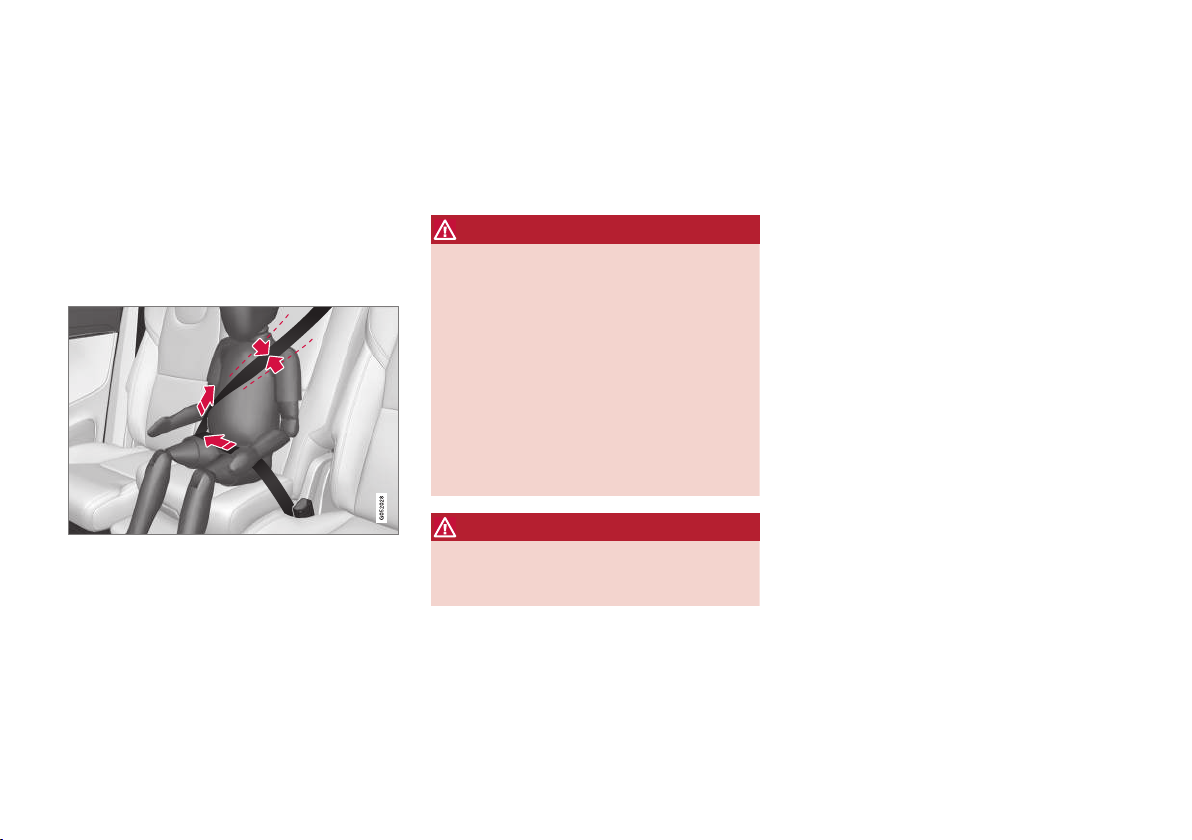
SAFETY
* Option/accessory.
83
Integrated child seat*
The integrated child seat on the centre seat in
the second seat row allows children to sit com-
fortably and safely.
The child seat is especially designed to provide
good safety for the child together with the car's
seatbelt.
The child seat is approved for children weighing
between 15 and 36 kg and at least 97 cm tall.
Correct position, the seatbelt must pass over the shoul-
der.
Check before driving that:
•
the seat cushion is locked in position
•
the head restraint is adjusted at the same
height as the child's head, if possible, so that
it covers the entire back of the head
•
the seatbelt is in contact with the child's
body and is not slack or twisted
•
the seatbelt does not lie across the child's
throat or below the shoulder
•
the lap section of the seatbelt is positioned
low over the pelvis to provide optimal protec-
tion.
WARNING
Volvo recommends that repair or replacement
of the integrated child seat is only performed
by an authorised Volvo workshop. Do not
make any modifications or additions to the
child seat. If an integrated child seat has been
subjected to a heavy load, e.g. in connection
with a collision, then the seat cushion, seat-
belt and backrest, or possibly the whole seat,
must be replaced. Even if the child seat
appears to be undamaged, it may not afford
the same level of protection. This also applies
if the seat cushion was in lowered position
during a collision or similar. The seat cushion
must also be replaced if it is heavily worn.
WARNING
If the instructions for the integrated child seat
are not followed then the child could sustain
serious injury in the event of an accident.
Related information
•
Child safety (p. 70)
•
Folding up the integrated child seat cushion*
(p. 84)
•
Folding down the integrated child seat cush-
ion* (p. 84)

INSTRUMENTS AND CONTROLS

INSTRUMENTS AND CONTROLS
* Option/accessory.
88
Instruments and controls, left-hand
drive car
The overviews show where the displays and
controls near the driver are located.
Display/function/control
Position lamps, daytime running lights,
dipped beam, main beam, direction indi-
cators, front fog lamps/cornering lights*,
rear fog lamp, resetting the trip meter
Steering wheel paddles for manual gear
changing in an automatic gearbox*
Head-up display*
Driver display
Wipers and washing, rain sensor*
Display/function/control
Right-hand steering wheel keypad
Steering wheel adjustment
Horn
Left-hand steering wheel keypad
Bonnet opening
Display lighting, tailgate unlocking, tail-
gate opening/closing*, halogen head-
lamp levelling
Display/function/control
Front reading lamps and interior lighting
Panorama roof*
Display in roof console
Manual dimming of interior rearview mir-
ror
Display/function/control
Centre display
Hazard warning flashers, max defroster/
heated windscreen*, media, glovebox
door opening
Gear selector
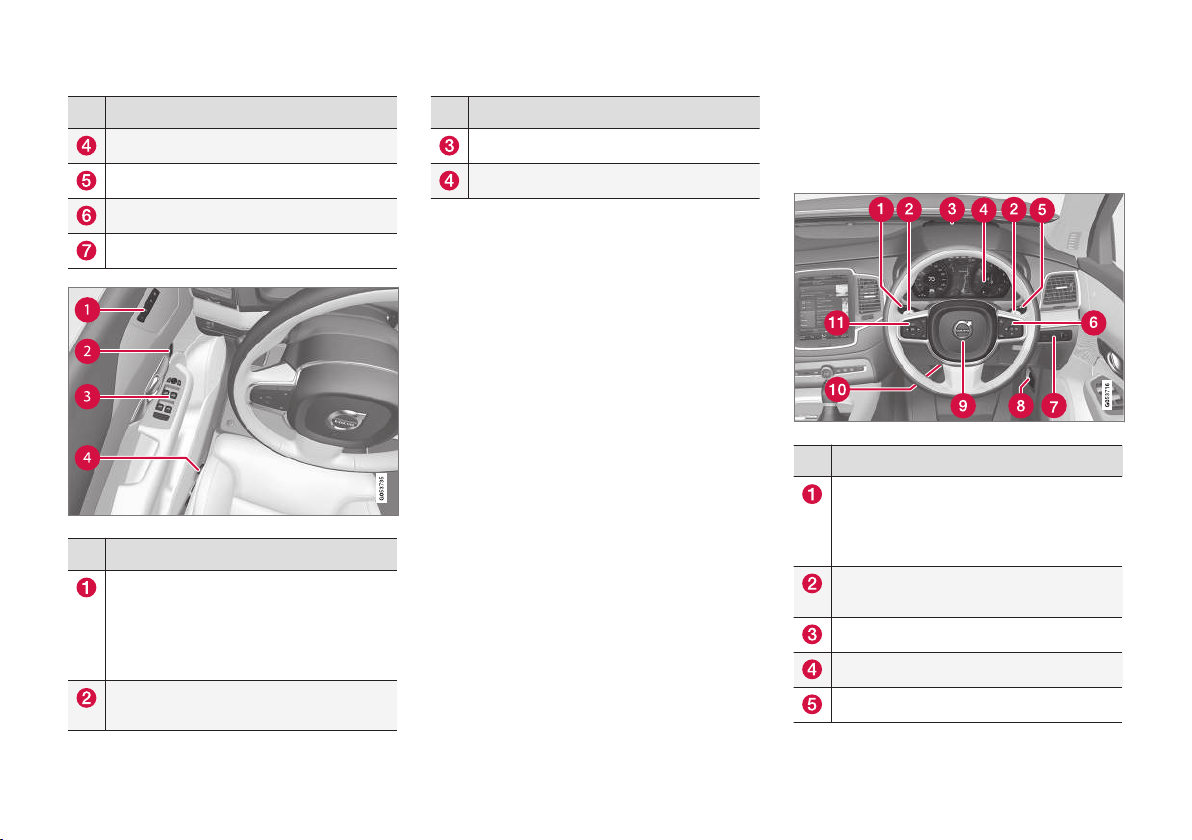
INSTRUMENTS AND CONTROLS
}}
* Option/accessory.
89
Display/function/control
Start knob
Drive mode control*
Parking brake
Automatic braking when stationary
Display/function/control
Memory for setup of:
•
Power front seat*
•
Door mirrors
•
Head-up display*
Door opening, locking/unlocking of side
doors and tailgate
Display/function/control
Power windows, door mirrors
Adjusting front seat
Related information
•
Steering wheel (p. 135)
•
Manual front seat (p. 123)
•
Adjusting the power front seat* (p. 124)
•
Lighting control (p. 137)
•
Climate controls (p. 186)
•
Overview of the centre display (p. 33)
Instruments and controls, right-
hand drive car
The overviews show where the displays and
controls near the driver are located.
Display/function/control
Position lamps, daytime running lights,
dipped beam, main beam, direction indi-
cators, front fog lamps/cornering lights*,
rear fog lamp, resetting the trip meter
Steering wheel paddles for manual gear
changing in an automatic gearbox*
Head-up display*
Driver display
Wipers and washing, rain sensor*
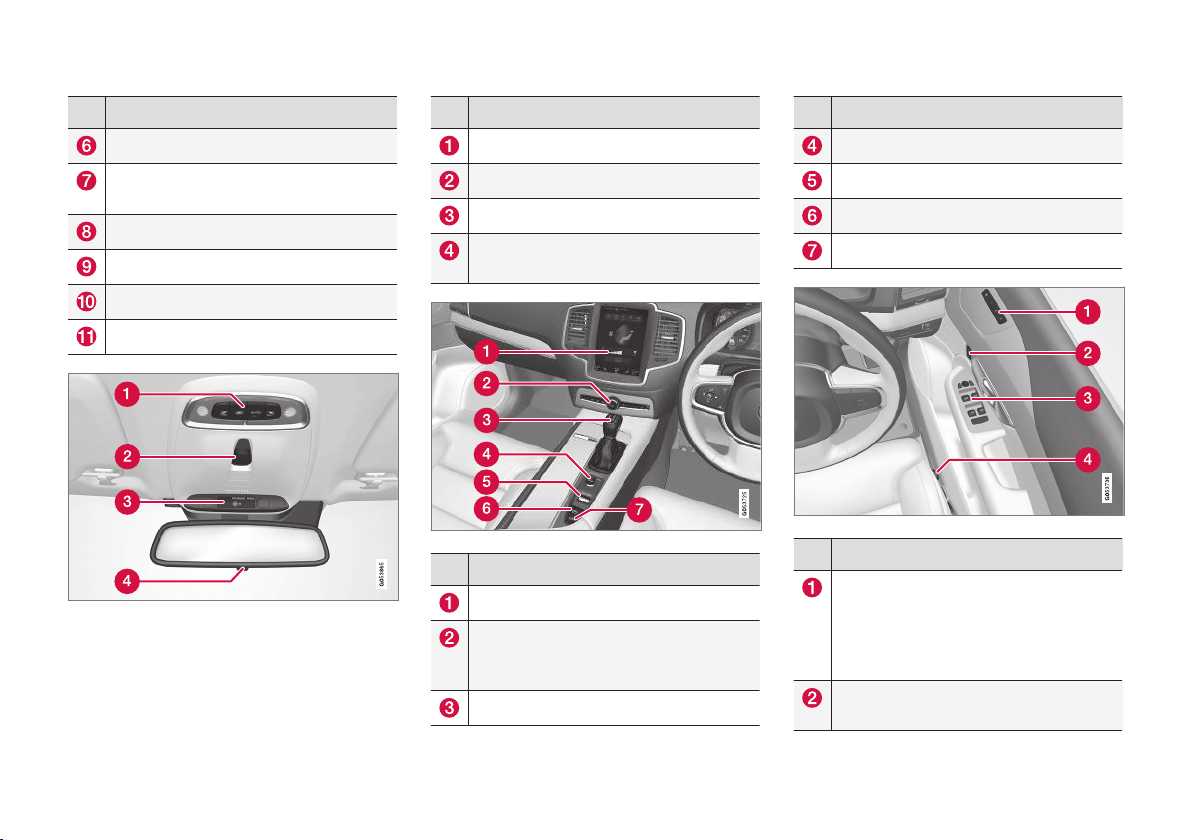
||
INSTRUMENTS AND CONTROLS
* Option/accessory.
90
Display/function/control
Right-hand steering wheel keypad
Display lighting, unlocking the tailgate,
opening/closing the tailgate*
Bonnet opening
Horn
Steering wheel adjustment
Left-hand steering wheel keypad
Display/function/control
Front reading lamps and interior lighting
Panorama roof*
Display in roof console
Manual dimming of interior rearview mir-
ror
Display/function/control
Centre display
Hazard warning flashers, max defroster/
heated windscreen*, media, glovebox
door opening
Gear selector
Display/function/control
Start knob
Drive mode control*
Parking brake
Automatic braking when stationary
Display/function/control
Memory for setup of:
•
Power front seat*
•
Door mirrors
•
Head-up display*
Door opening, locking/unlocking of side
doors and tailgate

INSTRUMENTS AND CONTROLS
* Option/accessory.
92
Driver display
The driver display shows information about the
car and driving.
The driver display contains gauges, indicators and
indicator and warning symbols. The content of
the driver display depends on the car's equip-
ment, settings and which functions are active at
that time.
The driver display is available in two versions, 12-
inch* and 8-inch.
WARNING
In the event of a fault in the driver display the
information on e.g. brakes, airbags or other
safety systems may not be shown. In which
case, the driver cannot check the status of
the car's systems or receive current warnings
and information.
WARNING
If the driver display should extinguish, not illu-
minate on activation/start or be fully or parti-
ally illegible, the car must not be used. You
should visit a workshop immediately. Volvo
recommends an authorised Volvo workshop.
Driver display, 12-inch*
Location in the driver display:
On the left In the middle On the right
Speedometer Indicator and warning symbols
Tachometer/ECO gauge
A
Trip meter Outside temperature gauge Gear shift indicator
Odometer
B
Clock Drive mode
(Comfort, Off Road, Eco, Dynamic or Individual)
Cruise control and speed limiter information Messages, in some cases with graphics Fuel gauge

INSTRUMENTS AND CONTROLS
}}
* Option/accessory.
93
On the left In the middle On the right
Road Sign Information*
Door and seatbelt information Status of the Start/Stop function
– Media player Distance to empty tank
–
Navigation map*
Instantaneous fuel consumption
– Phone App menu (activated via steering wheel keypad)
– Voice recognition –
–
Compass
A
–
A
Depends on drive mode selected.
B
Accumulated mileage.
Driver display, 8-inch

||
INSTRUMENTS AND CONTROLS
* Option/accessory.
94
Location in the driver display:
On the left In the middle On the right
Fuel gauge Speedometer Media player
Drive mode
(Comfort, Off Road, Eco, Dynamic or Individual)
Road Sign Information*
Phone
Gear shift indicator Cruise control and speed limiter information
Navigation information*
Tachometer/ECO gauge
A
Door and seatbelt information Clock
Distance to empty tank Status of the Start/Stop function App menu (activated via steering wheel keypad)
Outside temperature gauge – Instantaneous fuel consumption
Indicator and warning symbols –
Odometer
B
– – Trip meter
– – Indicator and warning symbols
– – Voice recognition
– – Engine temperature gauge
– – Messages, in some cases with graphics
– –
Compass
A
A
Depends on drive mode selected.
B
Accumulated mileage.
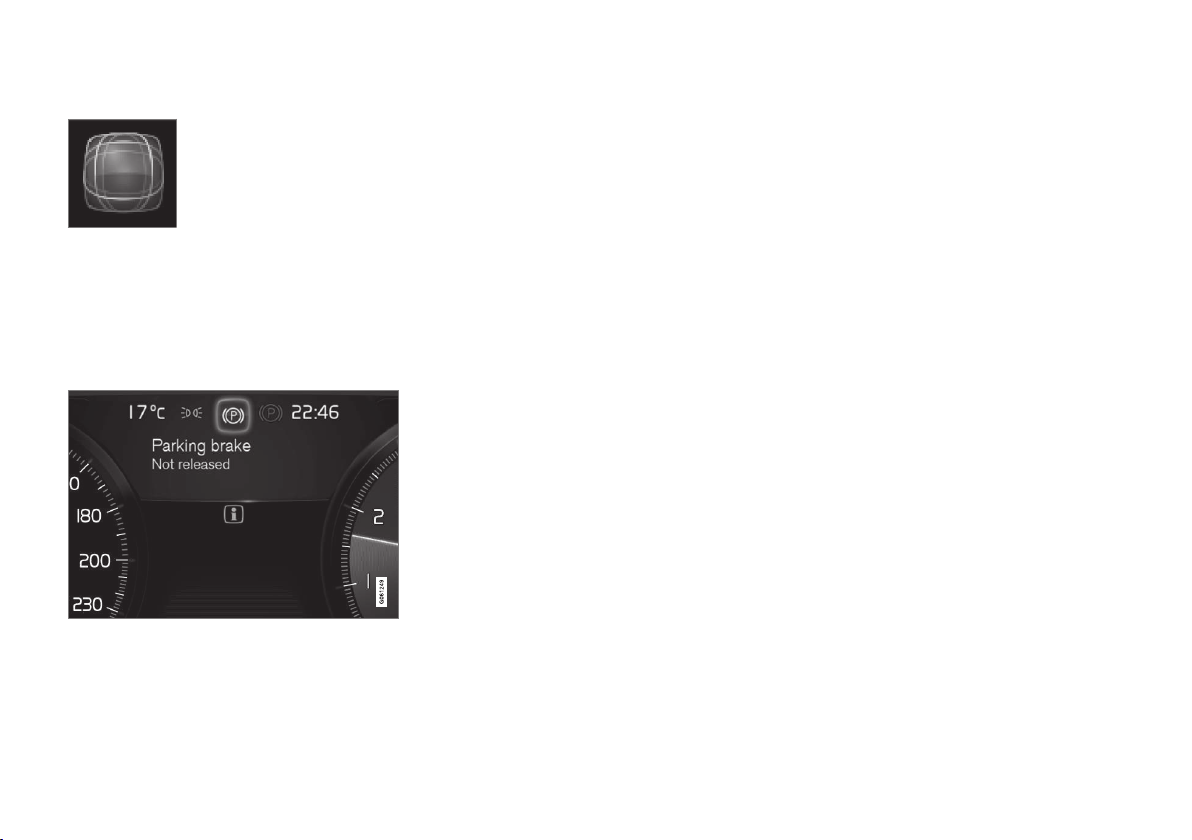
INSTRUMENTS AND CONTROLS
95
Dynamic symbol
The dynamic symbol in its basic
form.
The centre of the driver display contains a
dynamic symbol that changes appearance for dif-
ferent types of message. It can show an indicator
or warning symbol, or consist of an image
sequence that starts from this position and is
then converted to a larger image to clarify infor-
mation.
Example of indicator symbol in the 12-inch driver display.
Activating the driver display
The driver display is activated as soon as a door
is opened, i.e. in ignition position 0. The driver
display extinguishes after a while if it is not used.
To reactivate it, proceed with one of the following:
•
Depress the brake pedal.
•
Turn the ignition knob to ignition position to I.
•
Open one of the doors.
Related information
•
Driver display settings (p. 96)
•
Indicator symbols in the driver display
(p. 97)
•
Warning symbols in the driver display
(p. 99)
•
Application menu in the driver display
(p. 107)
•
Fuel gauge (p. 101)
•
License agreement for the driver display
(p. 102)

INSTRUMENTS AND CONTROLS
* Option/accessory.
96
Driver display settings
Settings for the driver display can be made in
the driver display's application menu and in the
centre display's
Settings menu.
Settings in the app menu
In the app menu, you can choose which informa-
tion is shown on the driver display from
•
trip computer
•
media player
•
phone
•
navigation system*.
The application menu in the driver display is
opened and navigated using the steering wheel's
right-hand keypad, see the section "Using the
application menu in the driver display".
Settings in the centre display
Selecting information type
1.
Tap on
Settings in the centre display's top
view.
2.
Press
My Car Displays Driver
Display Information
.
3. Select what should be shown in the back-
ground:
•
Show no information in background
•
Show information for current playing
media
•
Show navigation even if no route is
set
1
.
The 12-inch driver display* shows the infor-
mation in the centre, and the 8-inch driver
display shows the information in the top
right-hand field.
Selecting theme
1.
Tap on
Settings in the centre display's top
view.
2.
Tap on
My Car Displays Display
Themes
3. Select a theme (appearance) for the driver
display:
•
Glass
•
Minimalistic
•
Performance
•
Chrome Rings.
Selecting language
1.
Tap on
Settings in the centre display's top
view.
2.
Tap on
System System Languages and
Units
System Language to select lan-
guage.
> A change will affect the language in all
displays.
Related information
•
Driver display (p. 92)
•
Application menu in the driver display
(p. 107)
•
Settings in the centre display (p. 172)
1
The map is only shown with 12-inch driver display*. In the 8-inch driver display, only guidance is shown. For more information, see the section "Displays and controls for map navigation" and "Map navigation in
the driver display".
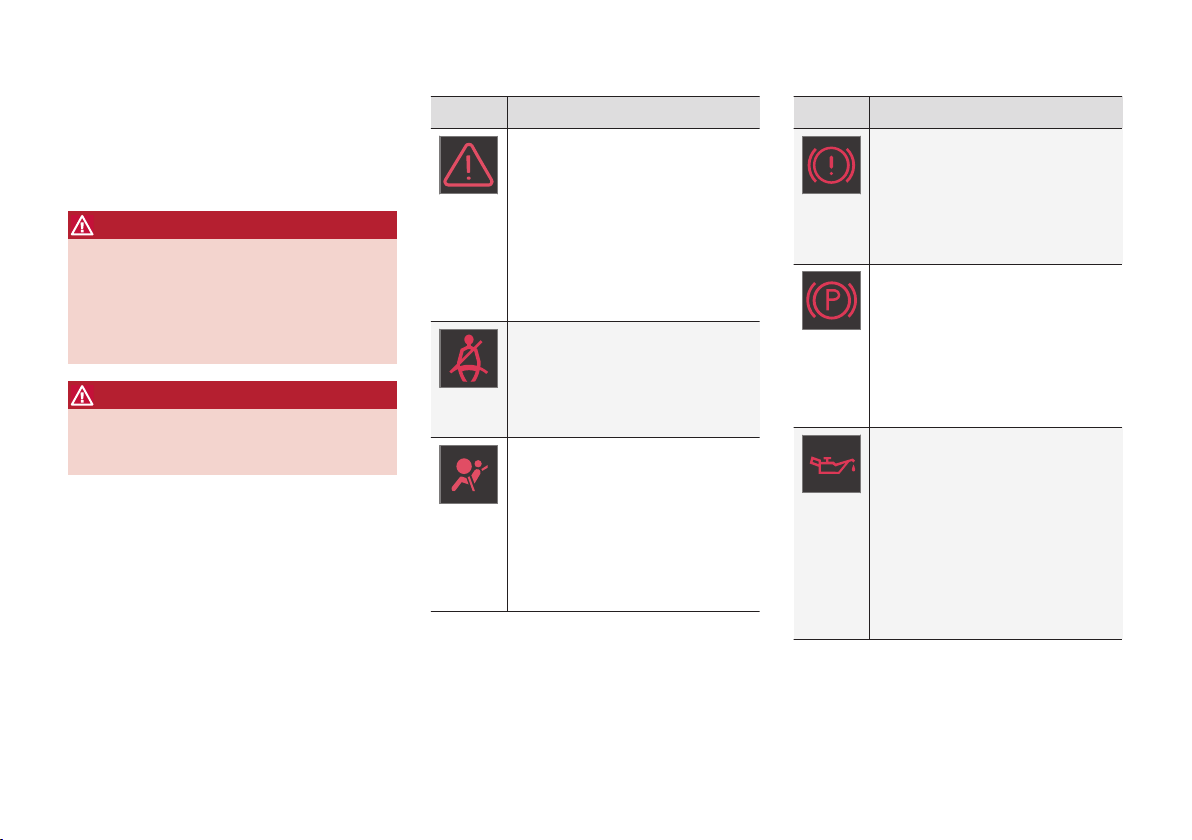
INSTRUMENTS AND CONTROLS
}}
99
Warning symbols in the driver
display
The warning symbols alert the driver that an
important function is activated or that a serious
fault or condition exists.
WARNING
If the brake fluid is below the MIN level in the
brake fluid reservoir, do not drive further
before topping up the brake fluid.
The loss of brake fluid must be investigated
by a workshop. Volvo recommends contacting
an authorised Volvo workshop.
WARNING
If the BRAKE and ABS symbols are lit at the
same time, there is a risk that the rear end will
skid during heavy braking.
Symbol Specification
Warning
The red warning symbol illuminates
when a fault has been indicated
which could affect the safety
and/or driveability of the car. An
explanatory text is shown on the
driver display at the same time. The
warning symbol can also illuminate
in conjunction with other symbols.
Seatbelt reminder
This symbol flashes if someone in
a front seat has not put on their
seatbelt or if someone in a rear
seat has taken off their seatbelt.
Airbags
If the symbol remains illuminated or
illuminates while driving, a fault has
been detected in one of the car's
safety systems. Read the message
in the driver display. Volvo recom-
mends that an authorised Volvo
workshop is contacted.
Symbol Specification
Fault in brake system
If this symbol illuminates, the brake
fluid level may be too low. Visit the
nearest authorised workshop to
have the brake fluid level checked
and rectified.
Parking brake applied
This symbol illuminates with a con-
stant glow when the parking brake
is applied.
A flashing symbol means that a
fault has arisen. Read the message
in the driver display.
Low oil pressure
If this symbol illuminates during
driving then the engine's oil pres-
sure is too low. Stop the engine
immediately and check the engine
oil level, top up if necessary. If the
symbol illuminates and the oil level
is normal, contact a workshop.
Volvo recommends that an author-
ised Volvo workshop is contacted.

||
INSTRUMENTS AND CONTROLS
100
Symbol Specification
Alternator not charging
This symbol illuminates during driv-
ing if a fault has occurred in the
electrical system. Visit a workshop.
Volvo recommends that an author-
ised Volvo workshop is contacted.
Collision risk
City Safety warns of a risk of colli-
sion with other vehicles, pedes-
trians, cyclists or large animals.
Reminder for doors, bonnet, tailgate
and fuel filler flap
If the bonnet, tailgate, fuel filler flap or door is not
closed properly then the information or warning
symbol and graphics illuminate in the driver dis-
play.
Related information
•
Driver display (p. 92)
•
Indicator symbols in the driver display (p. 97)
•
Door and seatbelt reminder (p. 61)
•
Safety (p. 56)
Outside temperature gauge
The outside temperature gauge is shown in the
driver display.
A sensor detects the temperature outside of the
car.
Outside temperature gauge location in the 12-inch and
8-inch driver display.
If the car has been stationary, the gauge may dis-
play a temperature reading that is too high.
When the outside temperature is within the range
-5 °C to +2 °C (23 till 36 °F) a snowflake symbol
is also shown in the driver display as a warning
for potentially slippery conditions. The snowflake
symbol is also illuminated briefly in the head-up
display, if the car is equipped with one.
Outside temperature gauge setting
Change the unit for the temperature gauge via
the centre display's top view.
–
Select Settings System System
Languages and Units
Units of
Measurement
and select the required unit
type,
Metric, Imperial or US.
Related information
•
Driver display (p. 92)
•
Climate control - sensors (p. 183)
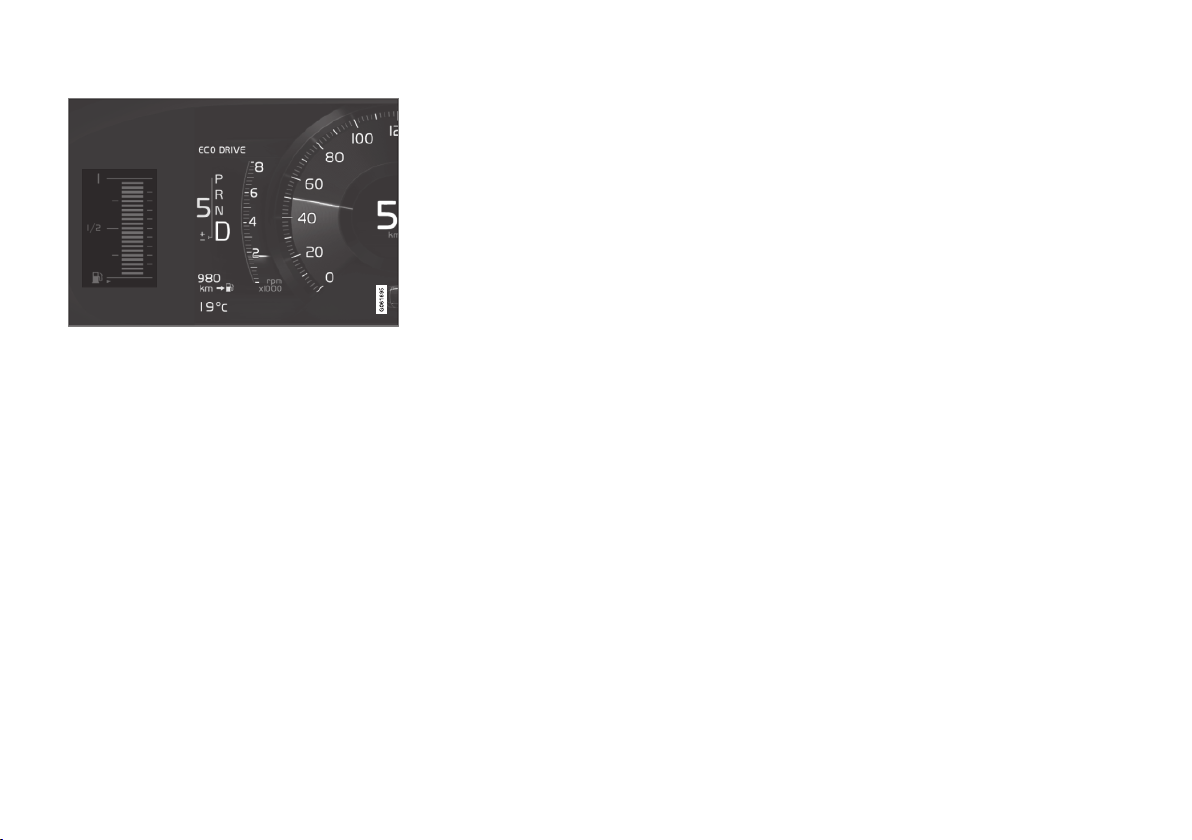
||
INSTRUMENTS AND CONTROLS
102
Fuel gauge in the 8-inch driver display.
The bars in the fuel gauge indicate the quantity
of fuel in the tank.
When the fuel level is low and it is soon time to
refuel, the fuel pump symbol illuminates and
changes to amber colour. The trip computer also
indicates distance to empty tank, see the section
"Trip computer". When the fuel level is critically
low, only one amber-coloured bar remains. Refuel
the car as soon as possible.
Related information
•
Trip computer (p. 168)
•
Opening/closing the fuel filler flap and refu-
elling (p. 443)
License agreement for the driver
display
A license is an agreement for the right to oper-
ate a certain activity or the right to use someone
else's entitlement according to the terms and
conditions in the agreement. The following text is
Volvo's agreement with the manufacturer/devel-
oper.
BSD 4-clause "Original" or "Old"
License
Copyright (c) 1982, 1986, 1990, 1991, 1993
The Regents of the University of California. All
rights reserved.
Redistribution and use in source and binary
forms, with or without modification, are permitted
provided that the following conditions are met:
1. Redistributions of source code must retain
the above copyright notice, this list of
conditions and the following disclaimer.
2. Redistributions in binary form must
reproduce the above copyright notice, this list
of conditions and the following disclaimer in
the documentation and/or other materials
provided with the distribution.
3. All advertising materials mentioning features
or use of this software must display the
following acknowledgement: This product
includes software developed by the
University of California, Berkeley and its
contributors.
4. Neither the name of the University nor the
names of its contributors may be used to
endorse or promote products derived from
this software without specific prior written
permission.
THIS SOFTWARE IS PROVIDED BY THE
REGENTS AND CONTRIBUTORS ``AS IS'' AND
ANY EXPRESS OR IMPLIED WARRANTIES,
INCLUDING, BUT NOT LIMITED TO, THE
IMPLIED WARRANTIES OF MERCHANTABILITY
AND FITNESS FOR A PARTICULAR PURPOSE
ARE DISCLAIMED. IN NO EVENT SHALL THE
REGENTS OR CONTRIBUTORS BE LIABLE
FOR ANY DIRECT, INDIRECT, INCIDENTAL,
SPECIAL, EXEMPLARY, OR CONSEQUENTIAL
DAMAGES (INCLUDING, BUT NOT LIMITED TO,
PROCUREMENT OF SUBSTITUTE GOODS OR
SERVICES; LOSS OF USE, DATA, OR PROFITS;
OR BUSINESS INTERRUPTION) HOWEVER
CAUSED AND ON ANY THEORY OF LIABILITY,
WHETHER IN CONTRACT, STRICT LIABILITY,
OR TORT (INCLUDING NEGLIGENCE OR
OTHERWISE) ARISING IN ANY WAY OUT OF
THE USE OF THIS SOFTWARE, EVEN IF
ADVISED OF THE POSSIBILITY OF SUCH
DAMAGE.
BSD 3-clause "New" or "Revised"
License
Copyright (c) 2011-2014, Yann Collet.

INSTRUMENTS AND CONTROLS
}}
103
Redistribution and use in source and binary
forms, with or without modification, are permitted
provided that the following conditions are met:
1. Redistributions of source code must retain
the above copyright notice, this list of
conditions and the following disclaimer.
2. Redistributions in binary form must
reproduce the above copyright notice, this list
of conditions and the following disclaimer in
the documentation and/or other materials
provided with the distribution.
3. Neither the name of the organisation nor the
names of its contributors may be used to
endorse or promote products derive from this
software without specific prior written
permission.
THIS SOFTWARE IS PROVIDED BY THE
COPYRIGHT HOLDERS AND CONTRIBUTORS
"AS IS" AND ANY EXPRESS OR IMPLIED
WARRANTIES, INCLUDING, BUT NOT LIMITED
TO, THE IMPLIED WARRANTIES OF
MERCHANTABILITY AND FITNESS FOR A
PARTICULAR PURPOSE ARE DISCLAIMED. IN
NO EVENT SHALL THE COPYRIGHT HOLDER
OR CONTRIBUTORS BE LIABLE FOR ANY
DIRECT, INDIRECT, INCIDENTAL, SPECIAL,
EXEMPLARY, OR CONSEQUENTIAL DAMAGES
(INCLUDING, BUT NOT LIMITED TO,
PROCUREMENT OF SUBSTITUTE GOODS OR
SERVICES; LOSS OF USE, DATA, OR PROFITS;
OR BUSINESS INTERRUPTION) HOWEVER
CAUSED AND ON ANY THEORY OF LIABILITY,
WHETHER IN CONTRACT, STRICT LIABILITY,
OR TORT (INCLUDING NEGLIGENCE OR
OTHERWISE) ARISING IN ANY WAY OUT OF
THE USE OF THIS SOFTWARE, EVEN IF
ADVISED OF THE POSSIBILITY OF SUCH
DAMAGE.
BSD 2-clause “Simplified” license
Copyright (c) <YEAR>, <OWNER> All rights
reserved.
Redistribution and use in source and binary
forms, with or without modification, are permitted
provided that the following conditions are met:
1. Redistributions of source code must retain
the above copyright notice, this list of
conditions and the following disclaimer.
2. Redistributions in binary form must
reproduce the above copyright notice, this list
of conditions and the following disclaimer in
the documentation and/or other materials
provided with the distribution.
THIS SOFTWARE IS PROVIDED BY THE
COPYRIGHT HOLDERS AND CONTRIBUTORS
"AS IS" AND ANY EXPRESS OR IMPLIED
WARRANTIES, INCLUDING, BUT NOT LIMITED
TO, THE IMPLIED WARRANTIES OF
MERCHANTABILITY AND FITNESS FOR A
PARTICULAR PURPOSE ARE DISCLAIMED. IN
NO EVENT SHALL THE COPYRIGHT OWNER
OR CONTRIBUTORS BE LIABLE FOR ANY
DIRECT, INDIRECT, INCIDENTAL, SPECIAL,
EXEMPLARY, OR CONSEQUENTIAL DAMAGES
(INCLUDING, BUT NOT LIMITED TO,
PROCUREMENT OF SUBSTITUTE GOODS OR
SERVICES; LOSS OF USE, DATA, OR PROFITS;
OR BUSINESS INTERRUPTION) HOWEVER
CAUSED AND ON ANY THEORY OF LIABILITY,
WHETHER IN CONTRACT, STRICT LIABILITY,
OR TORT (INCLUDING NEGLIGENCE OR
OTHERWISE) ARISING IN ANY WAY OUT OF
THE USE OF THIS SOFTWARE, EVEN IF
ADVISED OF THE POSSIBILITY OF SUCH
DAMAGE.
The views and conclusions contained in the
software and documentation are those of the
authors and should not be interpreted as
representing official policies, either expressed or
implied, of the FreeBSD Project.
FreeType Project License
1. 1 Copyright 1996-1999 by David Turner,
Robert Wilhelm, and Werner Lemberg
Introduction The FreeType Project is
distributed in several archive packages; some
of them may contain, in addition to the
FreeType font engine, various tools and
contributions which rely on, or relate to, the
FreeType Project. This license applies to all
files found in such packages, and which do
not fall under their own explicit license. The
license affects thus the FreeType font
engine, the test programs, documentation
and makefiles, at the very least. This license
was inspired by the BSD, Artistic, and IJG
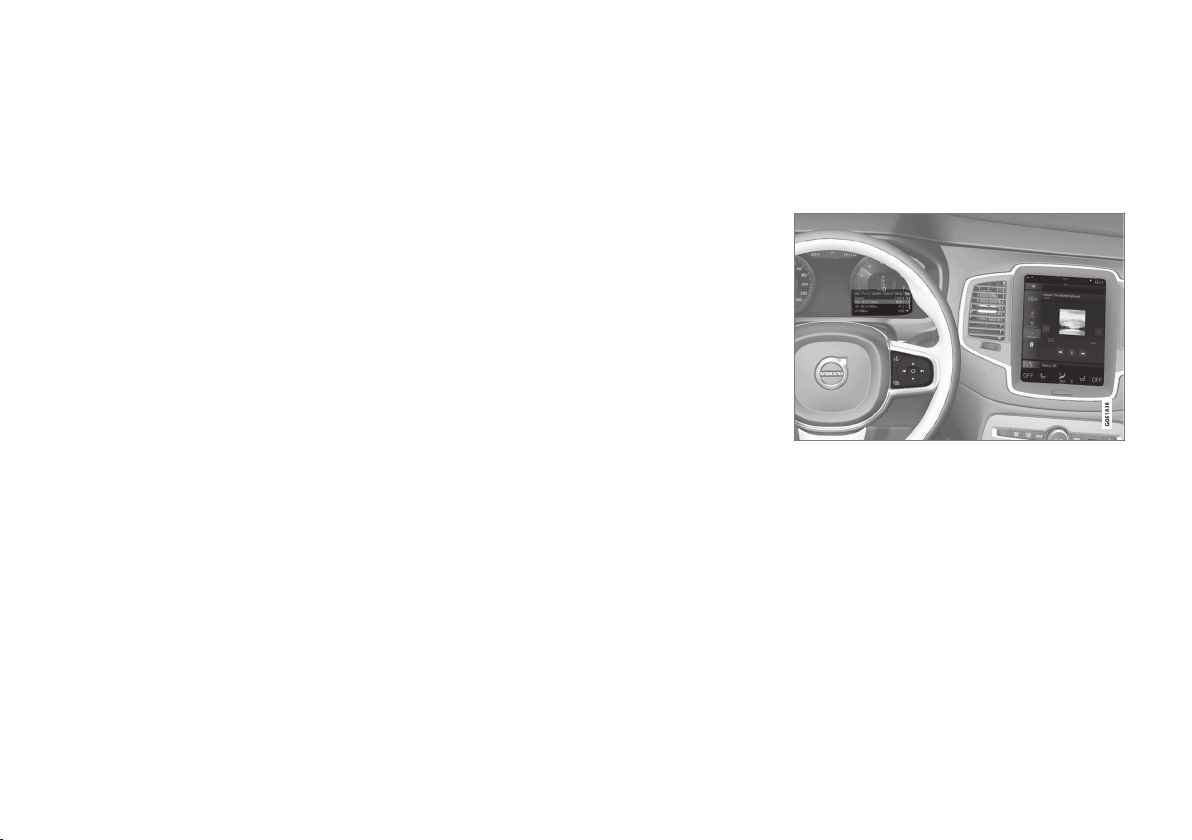
INSTRUMENTS AND CONTROLS
}}
107
SGI Free Software B License Version
2.0.
SGI FREE SOFTWARE LICENSE B (Version 2.0,
Sept. 18, 2008)
Copyright (C) [dates of first publication] Silicon
Graphics, Inc. All Rights Reserved. Permission is
hereby granted, free of charge, to any person
obtaining a copy of this software and associated
documentation files (the "Software"), to deal in
the Software without restriction, including without
limitation the rights to use, copy, modify, merge,
publish, distribute, sublicense, and/or sell copies
of the Software, and to permit persons to whom
the Software is furnished to do so, subject to the
following conditions: The above copyright notice
including the dates of first publication and either
this permission notice or a reference to http://
oss.sgi.com/projects/FreeB/ shall be included in
all copies or substantial portions of the Software.
THE SOFTWARE IS PROVIDED "AS IS",
WITHOUT WARRANTY OF ANY KIND,
EXPRESS OR IMPLIED, INCLUDING BUT NOT
LIMITED TO THE WARRANTIES OF
MERCHANTABILITY, FITNESS FOR A
PARTICULAR PURPOSE AND
NONINFRINGEMENT. IN NO EVENT SHALL
SILICON GRAPHICS, INC. BE LIABLE FOR ANY
CLAIM, DAMAGES OR OTHER LIABILITY,
WHETHER IN AN ACTION OF CONTRACT,
TORT OR OTHERWISE, ARISING FROM, OUT
OF OR IN CONNECTION WITH THE SOFTWARE
OR THE USE OR OTHER DEALINGS IN THE
SOFTWARE.
Except as contained in this notice, the name of
Silicon Graphics, Inc. shall not be used in
advertising or otherwise to promote the sale, use
or other dealings in this Software without prior
written authorization from Silicon Graphics, Inc.
Related information
•
Driver display (p. 92)
Application menu in the driver
display
Application menu (app menu) in the driver dis-
play provides quick access to commonly used
functions for certain apps.
The app menu in the driver display can be used instead
of using the centre display.
The app menu is shown in the driver display and
is controlled using the steering wheel's right-
hand keypad. The app menu makes it easy to
switch between different apps or functions within
the apps without having to let go of the steering
wheel and take your eyes off the road.
App menu functions
Different apps give access to different types of
functions. The following apps and their associ-
ated functions can be controlled from the app
menu:
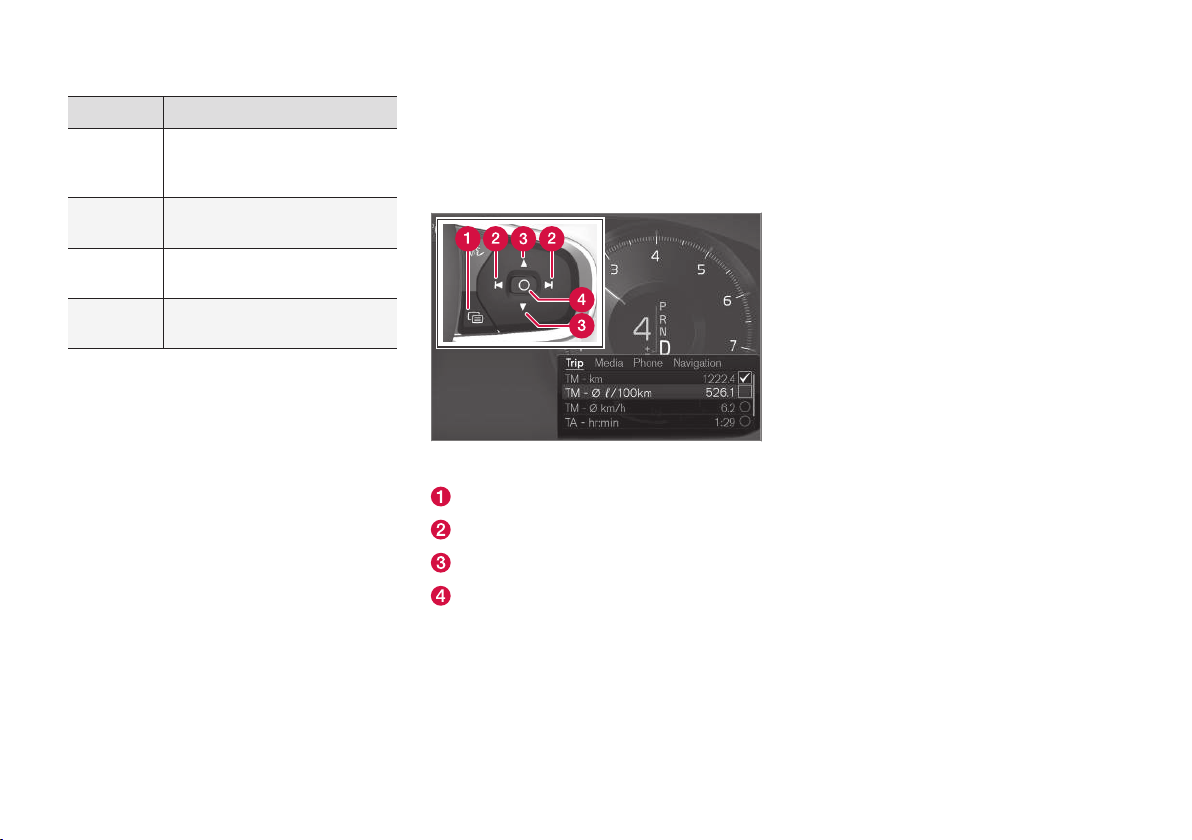
||
INSTRUMENTS AND CONTROLS
108
App Functions
Trip com-
puter
Selection of trip meter, selection
of what to show in the driver dis-
play, etc.
Media
player
Selection of active source for
the media player.
Phone Calling a contact from the call
list.
Navigation Pause guide, start guide to
recently used destination, etc.
Related information
•
Driver display (p. 92)
•
Overview of the centre display (p. 33)
•
Using the application menu in the driver dis-
play (p. 108)
Using the application menu in the
driver display
The application menu (the app menu) in the
driver display is operated with the steering
wheel's right-hand keypad.
The app menu and the steering wheel's right-hand key-
pad.
Open/close
Left/right
Up/down
Confirm
Opening/closing the app menu
–
Press on open/close (1).
(It is not possible to open the app menu
while there is an unacknowledged message
in the driver display. The message must be
confirmed before the app menu can be
opened.)
> The app menu opens/closes.
The app menu closes automatically after a period
of inactivity or after certain options have been
selected.
Navigating and selecting in the app
menu
1. Navigate between the different apps that are
available by tapping on left or right (2).
> Functions for previous/next app are
shown in the app menu.
2. Browse through the functions for the
selected app by tapping on up or down (3).
3. Confirm or highlight an option for the func-
tion by pressing on confirm (4).
> The function is activated and for some
options the app menu then closes.
If the app menu is opened again, the functions of
the most recently selected app are shown first.

INSTRUMENTS AND CONTROLS
}}
109
Related information
•
Application menu in the driver display
(p. 107)
•
Managing messages in the driver display and
the centre display (p. 111)
Messages in the driver display and
the centre display
The driver display and centre display can show
messages to inform or assist the driver in the
event of different events.
Driver display
Message in the driver display
2
.
Message in the driver display
3
.
The driver display shows messages that are of
high priority for the driver.
The messages can be shown in different parts of
the driver display depending on what other infor-
mation is currently being displayed. After a while,
or when the message has been acknowledged/
action taken if required, the message disappears
from the driver display. If a message needs to be
saved, it is placed in the
Car status app, which is
opened from the app view in the centre display.
Message composition may vary and they can be
shown together with graphics, symbols or buttons
for acknowledging the message or accepting a
request, for example.
2
With 8-inch driver display.
3
With 12-inch driver display.
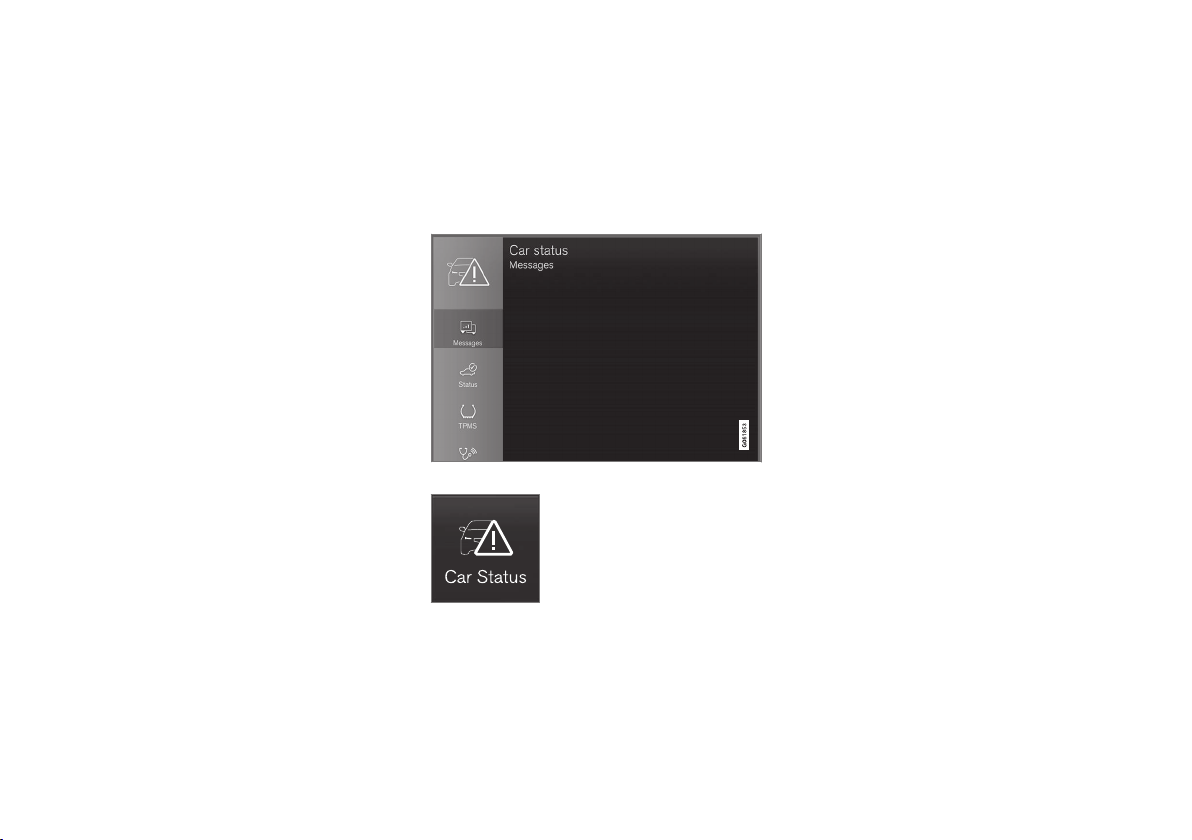
||
INSTRUMENTS AND CONTROLS
112
e.g. activating/deactivating a function linked to
the message.
Managing a new message
For messages with buttons:
–
Press the button to perform the action or
allow the message to close automatically
after a while.
> The message disappears from the status
bar.
For messages without buttons:
–
Close the message by tapping on it, or allow
the message to close automatically after a
while.
> The message disappears from the status
bar.
If a message needs to be saved, it is positioned
in the top view in the centre display.
Related information
•
Messages in the driver display and the centre
display (p. 109)
•
Managing messages saved from the driver
display and centre display (p. 112)
Managing messages saved from
the driver display and centre display
Whether saved from the driver display or the
centre display, messages are managed in the
centre display.
Messages saved from the driver display
Saved messages can be seen in the Car Status app.
Messages that are shown in
the driver display and that need
to be saved are added in the
Car status app in the centre
display. The message Car
message stored in Car
Status application is shown
in the centre display in conjunction with this.
Reading a saved message
To read a saved message immediately:
–
Press the button to the right of the Car
message stored in Car Status
application message in the centre display.
>
The saved message is shown in the
Car
status app.
To read a saved message later:
1.
Open the
Car status app from the app view
in the centre display.
> The app is opened in the bottom subview
of the home view.
2.
Select the
Messages tab in the app.
> A list of saved messages is shown.
3. Press on the arrow to the right to maximise/
minimise a message.
> More information on the message is
shown in the list and the image to the left
in the app shows information about the
message graphically.
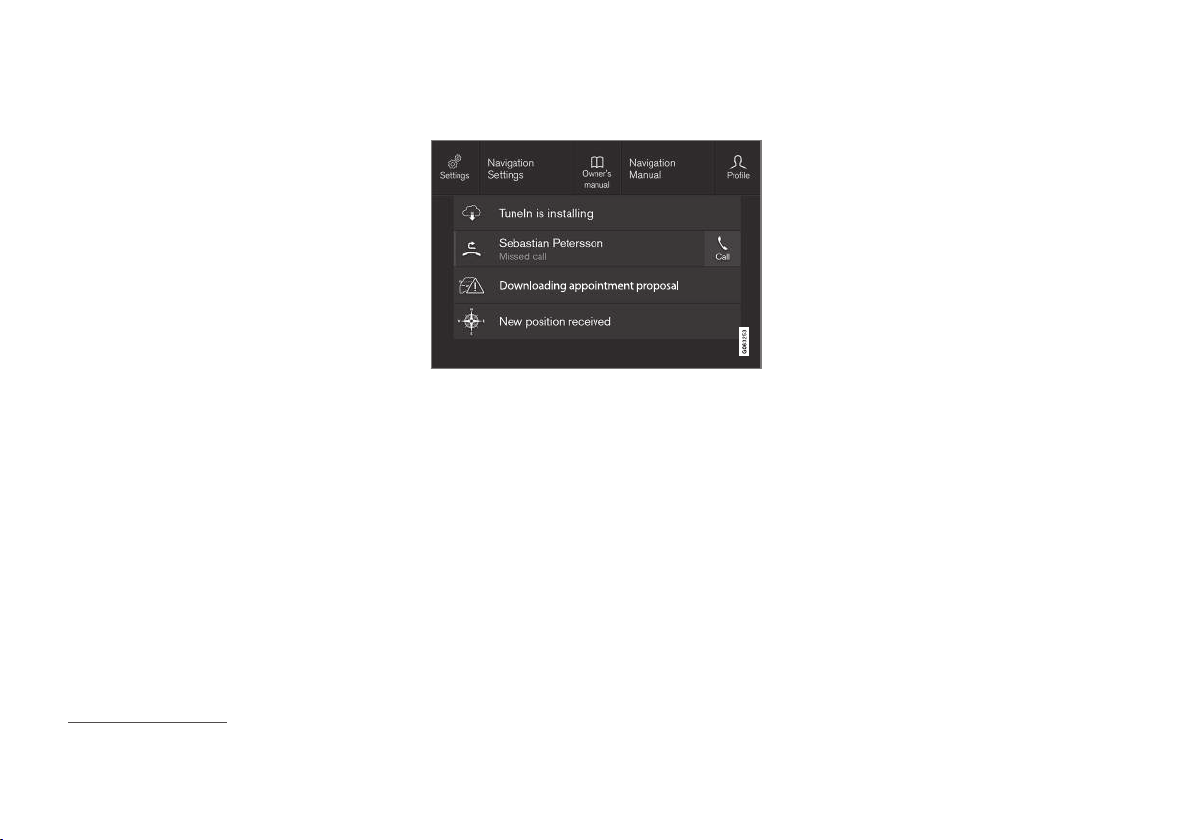
INSTRUMENTS AND CONTROLS
113
Managing a saved message
In maximised mode, some messages have two
buttons available to book service or read the
owner's manual.
To book service for a saved message:
–
In maximised mode for the message, press
Request appoint.Call to make
Appointment
6
for help in booking service.
>
With
Request appoint.: The
Appointments tab opens in the app and
creates a request to book service and
repair work.
With
Call to make Appointment: The
phone app is initiated and calls a service
centre to book service and repair work.
To read the owner's manual for a saved mes-
sage:
–
In maximised mode for the message, press
Owner's manual to read about the mes-
sage in the owner's manual.
> The owner's manual opens in the centre
display and shows information linked to
the message.
Saved messages in the app are deleted automat-
ically each time the engine is started.
Messages saved from the centre
display
Saved messages and possible options in the top view.
Messages that are shown in the centre display
that need to be saved are added in the top view
of the centre display.
Reading a saved message
1. Open the top view in the centre display.
> A list of saved messages is shown. Mes-
sages with an arrow to the right can be
maximised.
2. Press on the arrow to maximise/minimise
the message.
Managing a saved message
Some messages have a button for e.g. activating/
deactivating a function linked to the message.
–
Press the button to perform the action.
Saved messages in the top view are deleted
automatically when the car is switched off.
Related information
•
Messages in the driver display and the centre
display (p. 109)
•
Managing messages in the driver display and
the centre display (p. 111)
6
Depending on market.

INSTRUMENTS AND CONTROLS
* Option/accessory.
114
Head-up display*
The head-up display supplements the car's
driver display and projects information from the
driver display onto the windscreen. The projec-
ted image can only be seen from the driver posi-
tion.
Incoming phone calls.
The head-up display shows warnings and infor-
mation relating to speed, cruise control functions,
navigation, etc. in the driver's field of vision. Road
sign information and incoming phone calls are
also shown in the head-up display.
NOTE
The driver's ability to see the information in
the head-up display is impaired by the follow-
ing:
•
use of polarising sunglasses
•
a driving position which means that the
driver is not sitting centred in the seat
•
objects on the display unit's cover glass
•
unfavourable light conditions.
IMPORTANT
The display unit from which the information is
projected is located in the instrument panel.
To avoid damage to the display unit's cover
glass - do not store any objects on the cover
glass and make sure that no objects fall down
onto it.
Examples of what can be shown in the display.
Speed
Cruise control
Navigation
Road signs
A number of symbols can be shown temporarily
in the head-up display, e.g.:
If the warning symbol illuminates - read
the warning message in the driver dis-
play.
If the information symbol illuminates -
read the message in the driver display.
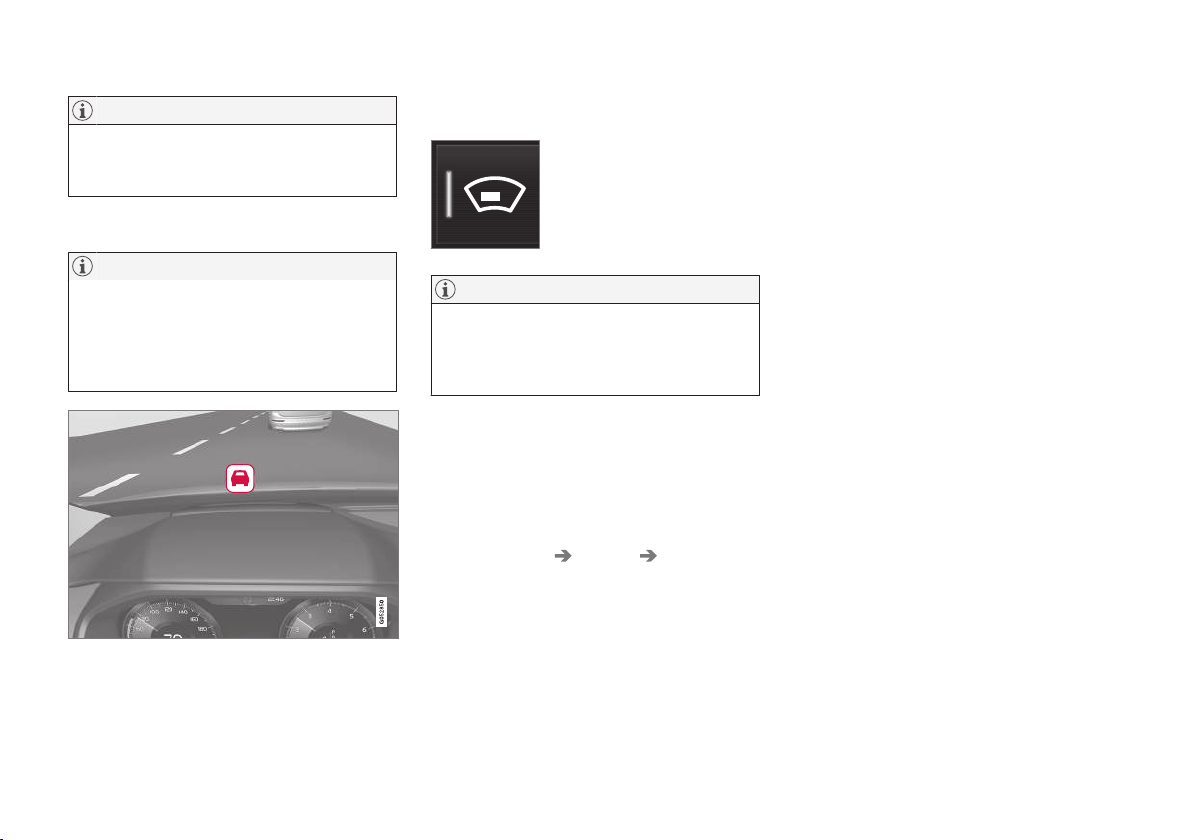
INSTRUMENTS AND CONTROLS
}}
* Option/accessory.
115
NOTE
Certain visual defects may cause headaches
and a feeling of stress during the use of the
head-up display.
City Safety in the head-up display
NOTE
When City Safety* is activated, the informa-
tion in the head-up display is replaced by a
graphic for City Safety. This graphic is illumi-
nated even if the head-up display is switched
off.
The graphic for City Safety flashes in order to catch the
driver's attention.
Activating/deactivating the head-up
display
Press the Head-up display
button in the centre display
function view.
NOTE
Activation/deactivation and adjustment of the
head-up-display can only be performed when
it shows a projected image. The car's engine
must be running.
Settings for head-up display
Select the option and adjust the settings for the
head-up display's projection onto the windscreen.
Selecting display options
1.
Tap on
Settings in the centre display's top
view.
2.
Press
My Car Displays Head-Up
Display Options
.
3. Select which functions should be shown:
•
Show Navigation
•
Show Road Sign Information
•
Show Driver Support
•
Show Phone.
The setting can be saved as a personal setting in
the driver profile.

INSTRUMENTS AND CONTROLS
}}
* Option/accessory.
117
When replacing the windscreen - contact an
authorised workshop
7
. The correct version of the
windscreen must be fitted in order that the head-
up display's graphics shall be displayed correctly.
Related information
•
Function view with buttons for car functions
(p. 47)
•
Settings in the centre display (p. 172)
•
Steering wheel (p. 135)
•
Using the memory function in the power
front seat* (p. 125)
•
Driver display (p. 92)
Voice recognition
8
The voice recognition system allows the driver to
use voice recognition to control certain functions
of the media player, Bluetooth-connected phone,
the climate system and Volvo's navigation sys-
tem*.
Voice commands offer convenience and assist
the driver to not be distracted so that he or she
can concentrate on driving, the road and the traf-
fic situation.
WARNING
The driver always holds overall responsibility
for driving the vehicle in a safe manner and
complying with all applicable rules of the road.
Voice control system microphone
Voice control is done in dialogue form with the
user saying commands and receiving verbal
responses from the system. The voice recognition
system uses the same microphone as the
Bluetooth handsfree system and the voice recog-
nition system's replies come via the car's speak-
ers. In some cases, a text message is also shown
in the driver display. Functions are controlled
from the right-hand steering wheel keypad. Set-
tings are made via the centre display.
System updating
The voice recognition system is continuously
improved. Download updates for optimal perform-
ance, see support.volvocars.com.
7
An authorised Volvo workshop is recommended.
8
Applies to certain markets.

||
INSTRUMENTS AND CONTROLS
* Option/accessory.
118
Related information
•
Using voice recognition (p. 118)
•
Voice recognition control of the phone
(p. 120)
•
Voice recognition control of radio and media
(p. 120)
•
Voice recognition control of climate control
(p. 121)
•
Voice recognition and map navigation
(p. 122)
•
Settings for voice recognition (p. 119)
Using voice recognition
9
Basic instructions for using voice recognition
control.
Depress the steering wheel
button for voice recognition
to activate the system and
initiate a dialogue using voice
commands.
Remember the following during communication:
•
For a command - speak after the tone in a
normal voice at normal speed.
•
Do not speak while the system is replying
(the system cannot understand commands
during this time).
•
Avoid background noise in the passenger
compartment by having the doors, windows
and panoramic roof* closed.
Voice recognition can be deactivated as follows:
•
by saying "
Cancel".
•
with a long press on the voice recognition
button on the steering wheel
.
To speed up communication and skip the
prompts from the system, press the steering
wheel button for voice recognition
when the
system voice is speaking and say the next com-
mand.
Example of voice recognition control
Press , say “Call [Forename] [Surname]
[number category]" - calls the selected contact
from the phone book if the contact has more
than one phone number (e.g. home, mobile,
work), e.g.:
Press
, say "Call Robin Smith Mobile".
Commands/phrases
The following commands are always available for
use:
•
"
Repeat" - repeats the last voice instruction
in the ongoing dialogue.
•
"
Cancel" - discontinue the dialogue.
•
"
Help" - starts a help dialogue. The system
replies with the commands available in the
current situation, a prompt or an example.
Commands for specific functions are described in
the corresponding sections, e.g. Voice recogni-
tion control of the phone.
9
Applies to certain markets.

INSTRUMENTS AND CONTROLS
119
Digits
The number commands are stated differently
depending on the function to be controlled:
•
Phone numbers and postcodes must be
spoken individually, number by number, e.g.
zero three one two two four four three
(03122443).
•
House numbers can be spoken individually
or in groups, e.g. two two or twenty-two (22).
For English and Dutch, several groups can
be said in sequence, e.g. twenty-two twenty-
two (22 22). For English, double or triple can
be used, e.g. double zero (00). Numbers can
be given within the range 0-2300.
•
Frequencies can be spoken as ninety eight
point eight (98.8), a hundred and four point
two or hundred four point two (104.2).
Related information
•
Voice recognition (p. 117)
•
Voice recognition control of the phone
(p. 120)
•
Voice recognition control of radio and media
(p. 120)
•
Voice recognition control of climate control
(p. 121)
•
Voice recognition and map navigation
(p. 122)
•
Settings for voice recognition (p. 119)
Settings for voice recognition
10
Several settings for the voice recognition system
can be made.
1.
Press
Settings in top view.
2.
Continue to
System Voice Control and
select settings.
•
Repeat Voice Command
•
Gender
•
Speech Rate
Audio settings
1.
Press
Settings in top view.
2.
Continue to
Sound System Volumes
Voice Control and select settings.
Change language
Voice recognition is not possible for all lan-
guages. Languages available for voice recogni-
tion are marked with an icon in the language list -
.
Changing the language also affects menu, mes-
sage and help texts.
1.
Press
Settings in top view.
2.
Continue to
System System Language
and select language.
Related information
•
Voice recognition (p. 117)
•
Using voice recognition (p. 118)
•
Voice recognition control of the phone
(p. 120)
•
Voice recognition control of radio and media
(p. 120)
•
Voice recognition control of climate control
(p. 121)
•
Voice recognition and map navigation
(p. 122)
10
Applies to certain markets.

INSTRUMENTS AND CONTROLS
}}
* Option/accessory.
121
•
"
Radio" - starts FM radio.
•
"
Radio FM" - starts FM radio.
•
"
Radio AM" - starts AM radio.
•
"
DAB " - starts DAB radio.
•
"
TV" - starts playback from TV*.
•
"
CD" - starts playback from CD*.
•
"
USB" - starts playback from USB.
•
"
iPod" - starts playback from iPod.
•
"
Bluetooth" - starts playback from a Blue-
tooth-connected media source.
•
"
Similar music" — plays back music similar
to the music currently playing back from USB
devices.
Related information
•
Voice recognition (p. 117)
•
Using voice recognition (p. 118)
•
Settings for voice recognition (p. 119)
Voice recognition control of climate
control
14
Voice recognition commands for the climate
control system to e.g. change temperature, acti-
vate a heated seat* or change fan level.
Press and say one of the following com-
mands:
•
"
Climate" - starts a dialogue for climate
control and shows examples of commands.
•
"
Set temperature to X degrees" - sets
the desired temperature.
•
"
Raise temperature"/"Lower
temperature" - raise/lower the temperature
setting one step.
•
"
Sync temperature" - synchronises the
temperature for all climate zones in the car
with the temperature set for the driver's side.
•
"
Air on feet"/"Air on body" - opens the
desired air flow.
•
"
Air on feet off"/"Air on body off" - closes
the desired air flow.
•
"
Set fan to max"/"Turn off fan" - changes
the air flow to Max/Off.
•
"
Raise fan speed"/"Lower fan speed" -
raises/lowers the fan level one step.
•
"
Turn on auto" - activates automatic climate
regulation.
•
"
Air condition on"/"Air condition off" -
activates/deactivates the air conditioning.
•
"
Recirculation on"/"Recirculation off" -
activates/deactivates the air circulation.
•
"
Turn on defroster "/"Turn off defroster"
- activates/deactivates defrosting of windows
and door mirrors.
•
"
Turn on max defroster"/"Turn max
defroster off" - activates/deactivates the
max defroster.
•
"
Turn on electric defroster"/"Turn off
electric defroster
" - activates/deactivates
the heated windscreen*.
•
"
Turn on rear defroster"/"Turn off rear
defroster" - activates/deactivates the
heated rear window and door mirrors.
•
"
Turn steering wheel heat on"/"Turn
steering wheel heat off" - activates/deac-
tivates the heated steering wheel*.
•
"
Raise steering wheel heat"/"Lower
steering wheel heat" - raises/lowers the
setting for the heated steering wheel* one
step.
•
"
Turn on seat heat"/"Turn off seat heat"
- activates/deactivates the heated seat*.
•
"
Raise seat heat"/"Lower seat heat" -
raises/lowers the setting for the heated
seat* one step.
14
Applies to certain markets.

INSTRUMENTS AND CONTROLS
* Option/accessory.
124
Power front seat*
The car's front seats have different setting
options for optimum seating comfort. The power
seat can be moved forward/backward and up/
down. The front edge of the seat cushion can be
raised/lowered and the backrest rake can be
changed. The lumbar support can be adjusted
upward/downward/forward/backward.
The power seats have overload protection which
is tripped if a seat is blocked by an object. If this
happens, remove the object and then operate the
seat again.
The seat can be adjusted for a period of time
after unlocking the door without the engine run-
ning. Seat adjustment can always be performed
when the engine is running. Adjustment can also
be performed for a period of time after the
engine has been switched off.
Related information
•
Multi-functional front seat* (p. 126)
•
Adjusting the power front seat* (p. 124)
•
Using the memory function in the power
front seat* (p. 125)
•
Manual front seat (p. 123)
•
Activating/deactivating heating of the seats*
(p. 203)
Adjusting the power front seat*
Set to desired sitting position using the control
on the front seat's seating section.
Change the lumbar support by pressing the
button upward/downward/forward/back.
Raise/lower the seat cushion front edge by
adjusting the control up/down.
Raise/lower the seat by means of adjusting
the control up/down.
Move the seat forward/backward by adjust-
ing the control forward/backward.
Change the backrest rake by adjusting the
control forward/backward.
Only one movement (forward/back/up/down)
can be made at a time.
The backrests of the front seats cannot be low-
ered fully forward.
Related information
•
Power front seat* (p. 124)
•
Using the memory function in the power
front seat* (p. 125)
•
Multi-functional front seat* (p. 126)
•
Seatbelt (p. 58)

INSTRUMENTS AND CONTROLS
* Option/accessory.
125
Using the memory function in the
power front seat*
The memory function stores settings for the seat,
door mirrors, and head-up display*.
It is possible to store three different settings with
the memory function. The memory function key-
pad is located either on one front door or both*.
Memory button
Memory button
Memory button
Button M for storing settings.
Store setting
1. Adjust seat, door mirrors and head-up display
to the desired position.
2.
Push the M button and release. The light
indicator in the button illuminates.
3.
Within three seconds, depress the 1, 2 or 3
button.
> When the position has been stored in the
selected memory button an acoustic sig-
nal sounds and the light indicator in the M
button extinguishes.
If none of the memory buttons is depressed
within three seconds then the M button extin-
guishes and no storing takes place.
The seat must be adjusted again before a new
memory can be set.
Using a stored setting
A stored setting can be used with the front door
either open or closed:
Open front door
–
Press one of the memory buttons 1 - 3 with
a brief touch. Seat, door mirrors and head-up
display move and then stop at the positions
stored in the selected memory button.
Closed front door
–
Hold one of the memory buttons 1 - 3
depressed until seat, door mirrors and head-
up display stop in the positions that are
stored in the selected memory button.
If the memory button is released, the movement
of the seat, door mirrors and head-up display will
be stopped.
WARNING
•
Because the driver's seat can be adjusted
with the ignition off, children should never
be left unattended in the vehicle.
•
Movement of the seat can be STOPPED
at any time by pressing any button on the
power seat control panel.
•
Do not adjust the seat while driving.
•
Make sure there is nothing under the
seats when they are being adjusted.
Related information
•
Power front seat* (p. 124)
•
Adjusting the power front seat* (p. 124)

INSTRUMENTS AND CONTROLS
* Option/accessory.
126
Multi-functional front seat*
Enhance the seating comfort using the multi-
function control.
Multi-function control, located on the side of the seat's
seating section.
The multi-function control can, in some variants,
be used to adjust the lumbar support*, side sup-
port*, cushion length and massage settings*. Set-
tings made with the multi-function control are
shown in the centre display*. Certain function
selections can also be made directly in the centre
display.
Centre display
The driver and the passenger seat settings that
are made with the multi-function control are
shown in the centre display. If the settings for
only one of the front seats are shown in the cen-
tre display, the settings are positioned centred in
the screen. When it is possible to show setting
options for both the front seats, the driver's set-
ting options are shown in the upper half and the
passenger's in the lower half.
To stop showing the seat settings view in the
centre display, press the home button, which is
located under the centre display.
Related information
•
Power front seat* (p. 124)
•
Adjusting functions in the multi-functional
front seat* (p. 126)
•
Activating/deactivating heating of the seats*
(p. 203)
Adjusting functions in the multi-
functional front seat*
Both the multi-function control on the seat and
the centre display can be used in order to
change the settings. The range of settings is
shown in the centre display*.
Multi-function control, located on the side of the seat's
seating section.
To activate the multi-function control, turn the
control upwards/downward.
Adjusting massage settings* in the
front seat
The front seat has massage in the backrest. The
massage is performed by air cushions that can
massage with different settings.

INSTRUMENTS AND CONTROLS
}}
* Option/accessory.
127
1. Activate the multi-function control by turning
the control upward/downward. The seat set-
tings view will be shown on the centre dis-
play.
2.
Select
Massage in the seat settings view.
3. To choose between the different massage
functions, select either directly in the touch
screen or by moving the cursor up/down
using the multi-function control's upper/
lower button. Change the setting in the
selected function by selecting directly in the
touch screen or by pressing the arrows, or by
using the multi-function control's front/rear
button.
Settings for massage
The following setting options are available for
massage:
•
On/Off: Select On/Off in order to switch
on/off the massage function.
•
Programs 1-5: There are 5 preset massage
programs. Select between Swell, Tread,
Advanced, Lumbar and Shoulder.
•
Intensity: Select between Low, Normal and
High.
•
Speed: Select between Slow, Normal and
Fast.
Restarting massage
The massage function is deactivated automati-
cally after 20 minutes. The function is reactivated
manually.
–
Tap on Restart, which is shown in the centre
display, to restart the selected massage pro-
gram.
> The massage program restarts. If no
action is taken, the message remains
shown in the top view.
It is not possible to use the massage function
when the engine is switched off.
Adjusting side support* in the front seat
backrests
The sides of the backrest can be adjusted to pro-
vide side support.
To adjust the side support:
1. Activate the multi-function control by turning
the control upward/downward. The seat set-
tings view will be shown on the centre dis-
play.
2.
Select
Side bolsters in the seat settings
view.
•
Press the front seat button in order to
increase the side support.
•
Press the rear seat button in order to
reduce the side support.
Adjusting the lumbar support* in the
front seat
The lumbar support can be adjusted upward/
downward/forward/backward.
To adjust the lumbar support:
1. Activate the multi-function control by turning
the control upward/downward. The seat set-
tings view will be shown on the centre dis-
play.
2.
Select
Lumbar in the seat settings view.
•
Press the seat button up/down to move
the lumbar support up/down.
•
Press the front seat button in order to
increase the lumbar support.
•
Press the rear seat button in order to
decrease the lumbar support.
Extending the seat cushion in the front
seat
Seat cushion length can be adjusted by using the
multi-function control on the seat.
1. Activate the multi-function control by turning
the control upward/downward. The seat set-
tings view will be shown on the centre dis-
play.
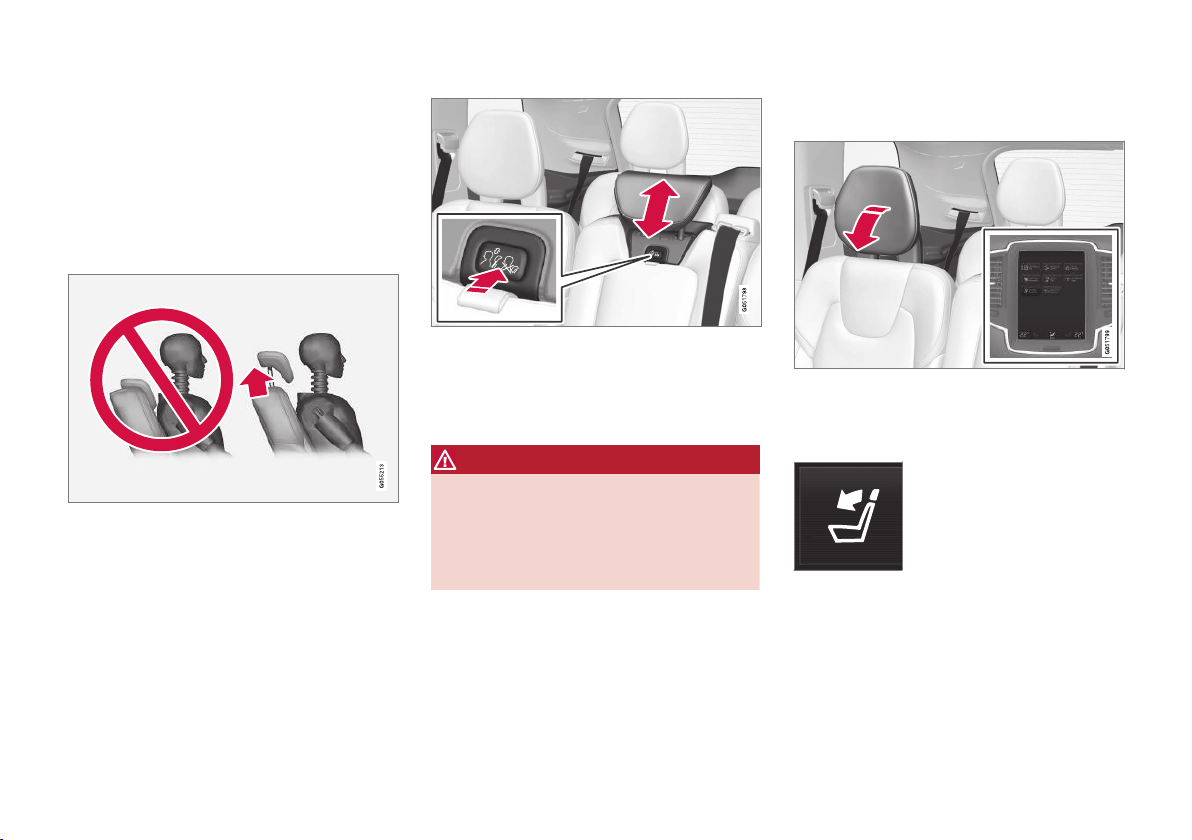
INSTRUMENTS AND CONTROLS
}}
* Option/accessory.
129
Adjusting the head restraints in the
second seat row
Adjust the centre seat head restraint according
to the height of the passenger. Fold down the
outer seat head restraints* to improve rearward
visibility.
Adjusting the head restraint, centre
seat
The centre seat's head restraint must be
adjusted according to the passenger's height so
that, if possible, the whole of the back of the
head is covered. Slide it up manually as required.
To lower the head restraint, the button (located in
the centre between the backrest and head
restraint, see illustration) must be pressed in
while the head restraint is pressed down care-
fully.
WARNING
The centre seat head restraint must be in its
lowest position when the centre seat is not
used. When the centre seat is used, the head
restraint must be correctly adjusted to the
height of the passenger so that it covers the
whole of the back of the head if possible.
Electrical lowering of the rear seat's
outer head restraints*
The outer head restraints can be lowered in two
ways via the centre display:
Via the function view
Press the Headrest fold but-
ton to activate/deactivate low-
ering.
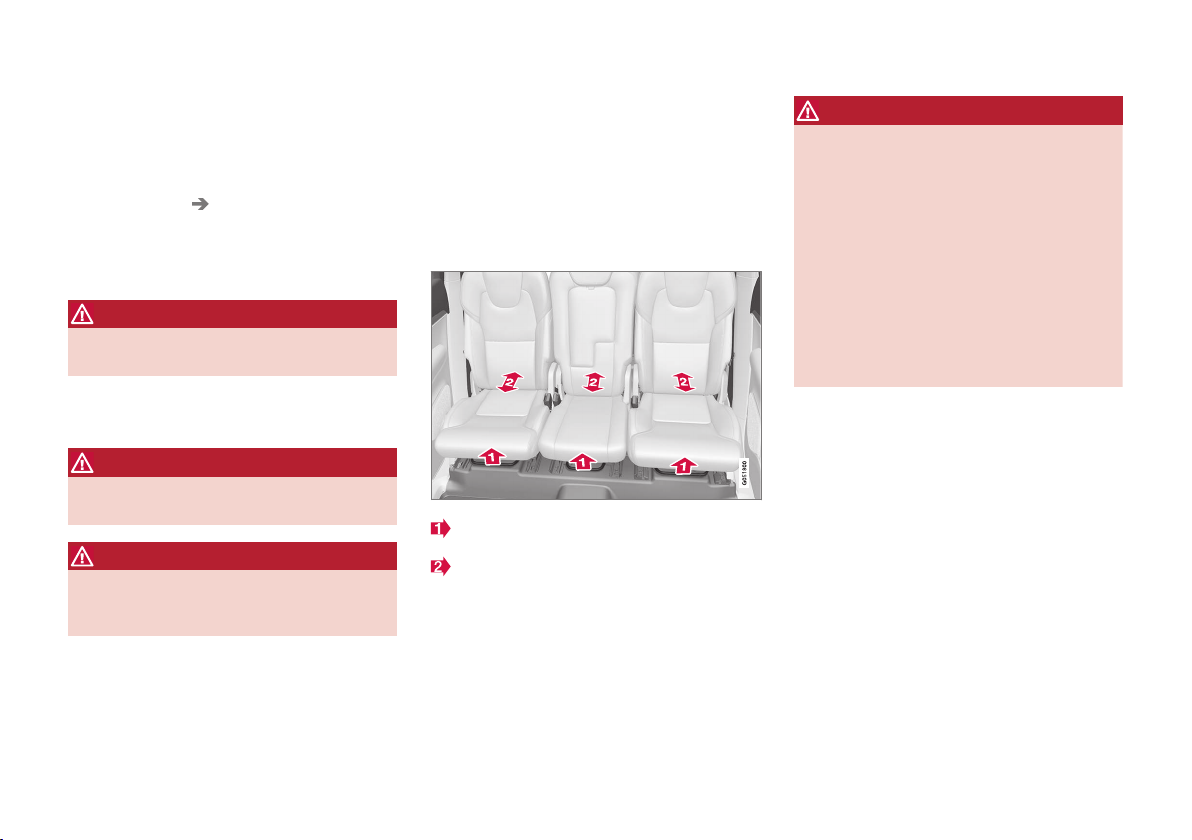
||
INSTRUMENTS AND CONTROLS
* Option/accessory.
130
Via settings
The car's electrical system must be in the ignition
position II.
1.
Press
Settings in the top view.
2.
Press
My Car Seats.
3.
Select
Fold Headrest On Second Row
Seats to lower the rear outer head
restraints.
WARNING
Do not lower the outer head restraints if there
are passengers in any of the outer rear seats.
Move the head restraint back manually until a
click is heard.
WARNING
The head restraint must be in locked position
after being folded up.
WARNING
The head restraints on the outer seats in the
second seat row must always be raised when
the third seat row* is occupied by passengers.
Related information
•
Lowering backrests in the second seat row
(p. 132)
Adjusting the seat longitudinally in
the second seat row*
In a car with 7 seats*, the seats in the second
seat row can be adjusted forward or back indi-
vidually in order to create optimal legroom for
the second and third row passengers. It is not
possible to adjust the rear seat longitudinally in a
car with 5 seats.
Lift the handle that is located under the seat.
Slide the seat forward or backward to the
desired position.
3. Release the handle and slide the seat until
the catch engages.
Check that the seat is locked after the position
has been adjusted.
WARNING
•
Adjust the seat and fix it before driving
away. Take care when adjusting the seat.
Uncontrolled or careless adjustment can
lead to trapping injuries.
•
When loading long objects, they must
always be strapped in securely to avoid
injury and damage during sudden braking.
•
Always switch off the engine and apply
the parking brake when loading and
unloading the car.
•
Set the gear selector in P to prevent it
from being moved by mistake.
Related information
•
Adjusting the backrest rake in the second
seat row (p. 131)
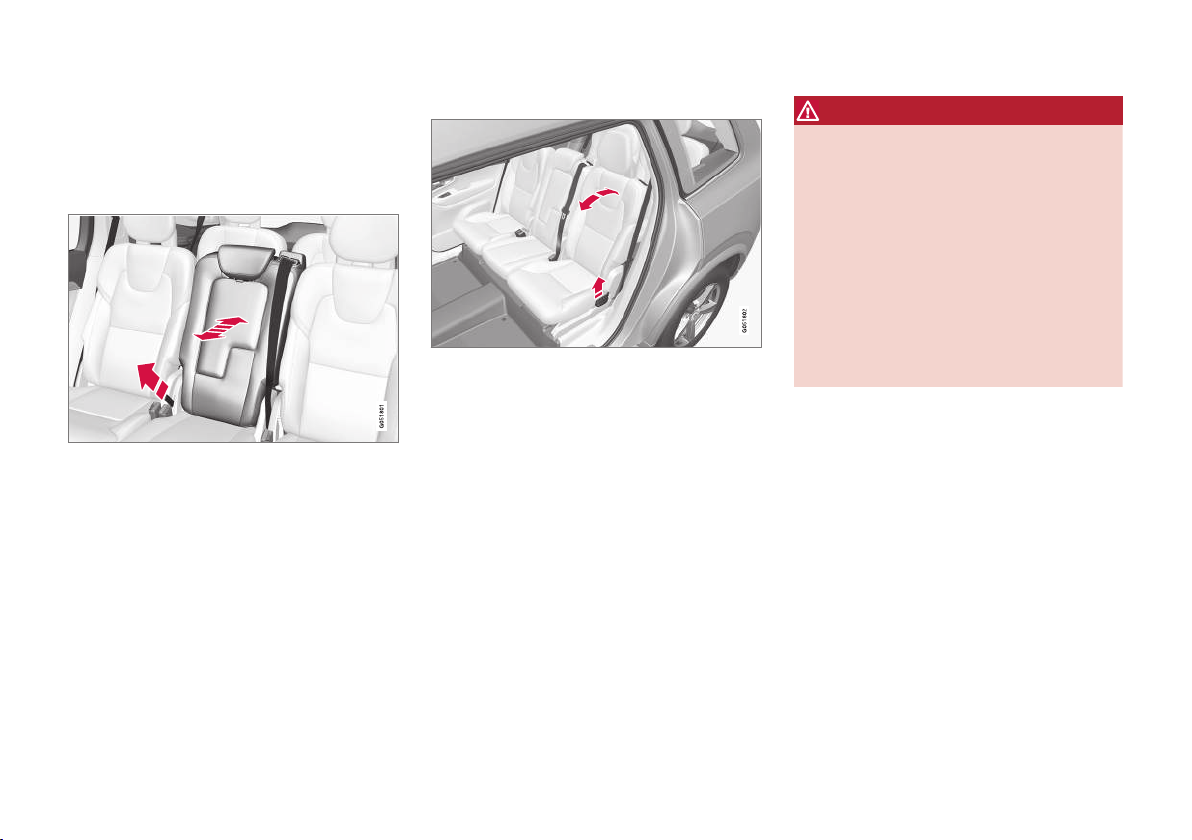
INSTRUMENTS AND CONTROLS
* Option/accessory.
131
Adjusting the backrest rake in the
second seat row
Backrest rake can be adjusted individually for
each seat in the second seat row.
Centre seat
1. Pull the strap located on the centre seat's
right-hand side.
2. Adjust the backrest rake forward/backward
by reducing/increasing the load against the
backrest.
3. Release the strap to lock the backrest posi-
tion and slide the backrest until the catch
engages.
Check that the seat is locked after the position
has been adjusted.
Outer seats
1. Pull the handle on the side of the seat
upwards.
2. Adjust the backrest rake forward/backward
by reducing/increasing the load against the
backrest.
3. Release the handle to lock the backrest
position and slide the backrest until the
catch engages.
Check that the seat is locked after the position
has been adjusted.
WARNING
•
Adjust the seat and fix it before driving
away. Take care when adjusting the seat.
Uncontrolled or careless adjustment can
lead to trapping injuries.
•
When loading long objects, they must
always be strapped in securely to avoid
injury and damage during sudden braking.
•
Always switch off the engine and apply
the parking brake when loading and
unloading the car.
•
Set the gear selector in P to prevent it
from being moved by mistake.
Related information
•
Adjusting the seat longitudinally in the sec-
ond seat row* (p. 130)
•
Lowering backrests in the second seat row
(p. 132)
•
Seatbelt (p. 58)
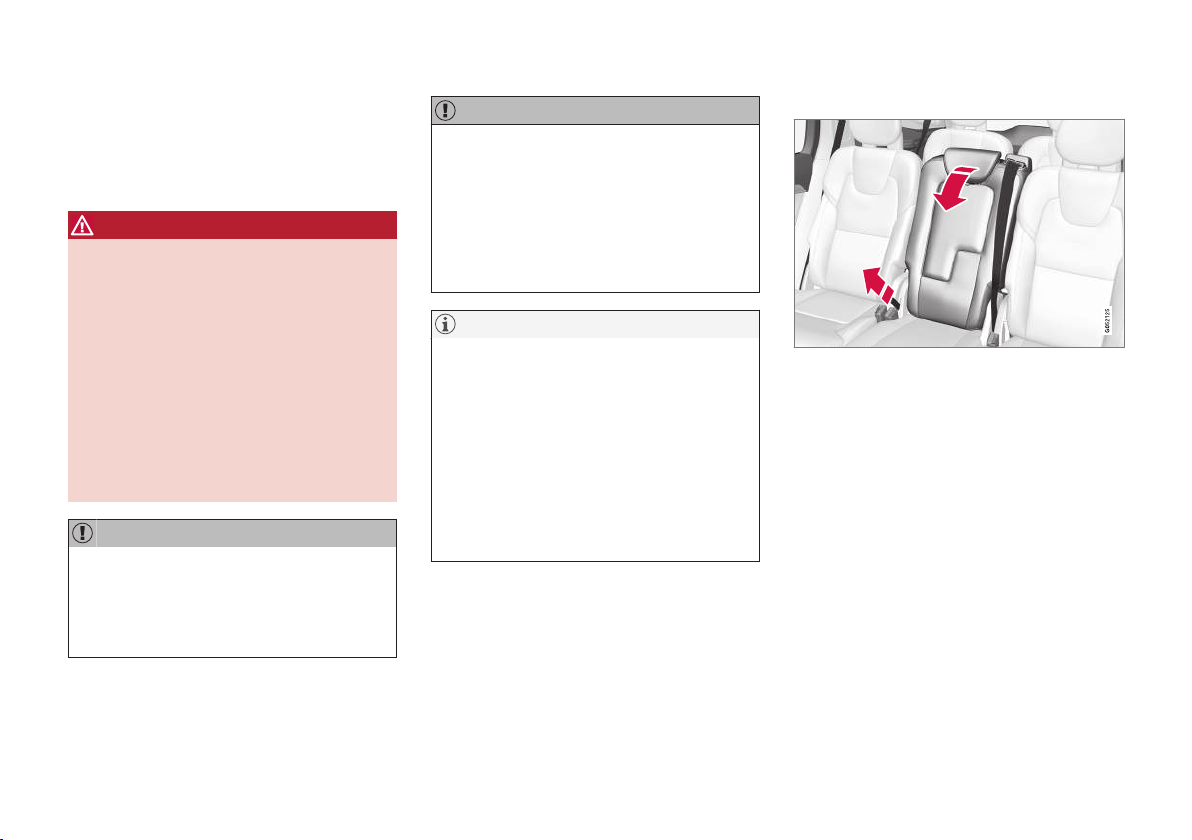
INSTRUMENTS AND CONTROLS
* Option/accessory.
132
Lowering backrests in the second
seat row
The second seat row has three individual seats.
The backrests can be lowered forward individu-
ally.
WARNING
•
Adjust the seat and fix it before driving
away. Take care when adjusting the seat.
Uncontrolled or careless adjustment can
lead to trapping injuries.
•
When loading long objects, they must
always be strapped in securely to avoid
injury and damage during sudden braking.
•
Always switch off the engine and apply
the parking brake when loading and
unloading the car.
•
Set the gear selector in P to prevent it
from being moved by mistake.
IMPORTANT
There must be no objects on the rear seat
when the backrest is to be folded down. The
seat belts must not be connected either. Oth-
erwise there is a risk of damaging the rear
seat upholstery.
IMPORTANT
The seat cushion on the integrated child
seat* must be in lowered position before low-
ering the centre seat backrest.
The armrest* for the centre seat must be
raised before lowering the seat.
If the car has private locking*, the tailgate
must be closed before lowering the seat.
NOTE
The front seats may need to be pushed for-
wards, and/or the backrests adjusted
upwards, in order that the rear backrests can
be fully folded forward.
The rear seats may also need to be moved
backwards.
The seats must be in raised position when the
second seat row is lowered, they should not
be lowered when they are tilted forward for
entry/exit to/from the third seat row.
Centre seat
To lower the backrest:
1. Lower the head restraint manually.
2. Pull the strap located on the centre seat's
right-hand side.
3. Lower the backrest forward until it locks into
position. The seat cushion folds down/
forward when the backrest is lowered in
order to create a flat surface.
To raise the backrest to the upright position:
1. Pull the strap.
2. Raise the backrest and release the strap.
Slide the backrest until the catch engages.
3. If necessary, raise the head restraint.
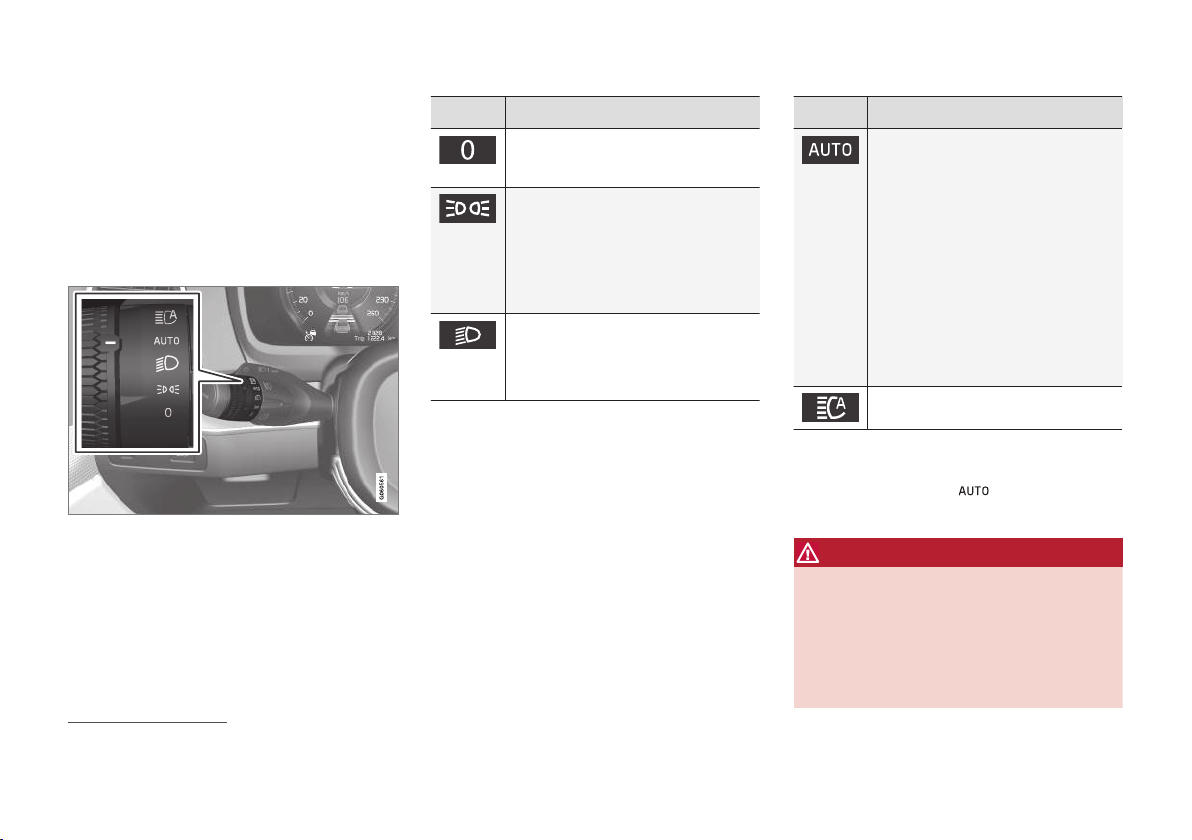
INSTRUMENTS AND CONTROLS
}}
* Option/accessory.
137
Lighting control
The different lighting controls are used to control
both exterior and interior lighting. The left-hand
stalk switch activates and adjusts the exterior
lighting. Use the thumbwheel in the instrument
panel to adjust headlamp levelling
20
and the
brightness of the interior lighting.
Exterior lighting
Rotating ring in the left-hand stalk switch.
When the car's electrical system is in ignition
position II or when the car is running, the follow-
ing functions are available in the rotating ring's
different positions.
Position Specification
Daytime running lights.
Main beam flash can be used.
Daytime running lights and position
lamps.
Position lamps when the car is
parked
A
.
Main beam flash can be used.
Dipped beam and position lamps.
Main beam can be activated.
Main beam flash can be used.
Position Specification
Daytime running lights and position
lamps.
Dipped beam and position lamps in
weak daylight or darkness, or when
the front fog lamp* and/or rear fog
lamp are activated.
The Active main beam function can
be activated.
Main beam can be activated when
dipped beam is switched on.
Main beam flash can be used.
Active main beam on/off.
A
Also at stationary when the car is running, provided that the
rotating ring is moved to this position from another position.
Volvo recommends that mode is used
when the vehicle is driven.
WARNING
The car's audio system is not able to deter-
mine when daylight is too weak or sufficiently
strong, e.g. in fog and rain, in all situations.
The driver is always responsible for ensuring
that the car is driven with a beam pattern suit-
able for the traffic situation and in accordance
with applicable traffic regulations.
20
Applies to vehicles with halogen headlamps.
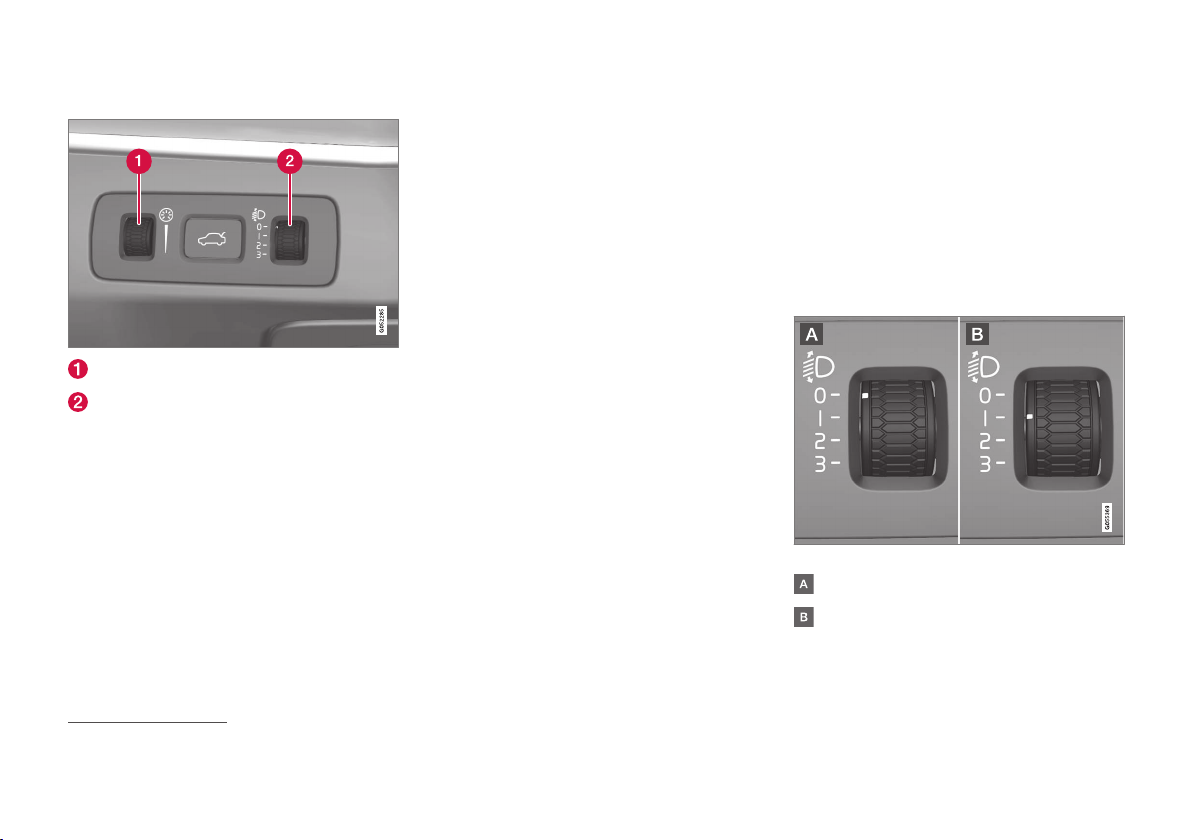
||
INSTRUMENTS AND CONTROLS
* Option/accessory.
138
Thumbwheel in the instrument panel
Thumbwheel for adjusting interior brightness
Thumbwheel for headlamp levelling
A car with LED
21
headlamps* has automatic
headlamp levelling and therefore does not have
the thumbwheel for headlamp levelling.
Adjusting the interior brightness
The lamps inside the car come on differently
depending on the ignition position used.
The thumbwheel adjusts the brightness of display
lighting, control lighting, ambient light and ambi-
ence light*.
Headlamp levelling
The load in the car changes the vertical align-
ment of the headlamp beam, which could dazzle
oncoming motorists. Avoid this by adjusting the
height of the beam. Lower the beam if the car is
heavily laden.
For different load cases and settings, see the
section "Headlamp levelling".
Related information
•
Passenger compartment lighting (p. 147)
•
Activating/deactivating main beam (p. 141)
•
Ignition positions (p. 409)
•
Position lamps (p. 139)
•
Headlamp levelling (p. 138)
Headlamp levelling
Headlamp levelling
22
is adjusted using one of
the thumbwheels in the instrument panel.
1. Leave the engine running, or have the car's
electrical system in ignition position I.
2. Roll the thumbwheel up/down to raise/lower
beam alignment.
The position in which the thumbwheel should be
set for a number of load cases is shown below.
Examples of thumbwheel position.
Thumbwheel in position 0
Thumbwheel in position 1
21
LED (Light Emitting Diode)

INSTRUMENTS AND CONTROLS
}}
* Option/accessory.
139
Load case Thumb-
wheel
position
Only driver. 0
Driver and passenger in the front
passenger seat.
0
Driver and passenger in the front
passenger seat.
Three passengers in the second
seat row.
1
Driver and passenger in the front
passenger seat.
Three passengers in the second
seat row.
220 kg load in the cargo area.
1
Driver and maximum load in the
cargo area.
2
Driver and passenger in the front
passenger seat.
Three passengers in the second
seat row.
Two passengers in the third seat
row*.
1
Load case Thumb-
wheel
position
Driver and passenger in the front
passenger seat.
Two passengers in the third seat
row*.
0
Driver and passenger in the front
passenger seat.
Three passengers in the second
seat row.
Two passengers in the third seat
row*.
70 kg load in the cargo area.
1
Related information
•
Lighting control (p. 137)
Position lamps
The position lamps are switched on with the
rotating ring on the stalk switch.
Stalk switch rotating ring in position lamps position.
Turn the rotating ring to the position - the
position lamps are switched on (number plate
lighting is switched on at the same time).
If the tailgate is opened when it is dark outside,
the rear position lamps come on (if not already
switched on) to warn road users approaching
from behind. This takes place irrespective of the
position of the rotating ring or the ignition posi-
tion of the car's electrical system.
When driving for more than 30 seconds at max.
10 km/h (approx. 6 mph), or if the speed
exceeds 10 km/h (approx. 6 mph), the daytime
22
Applies to vehicles with halogen headlamps.
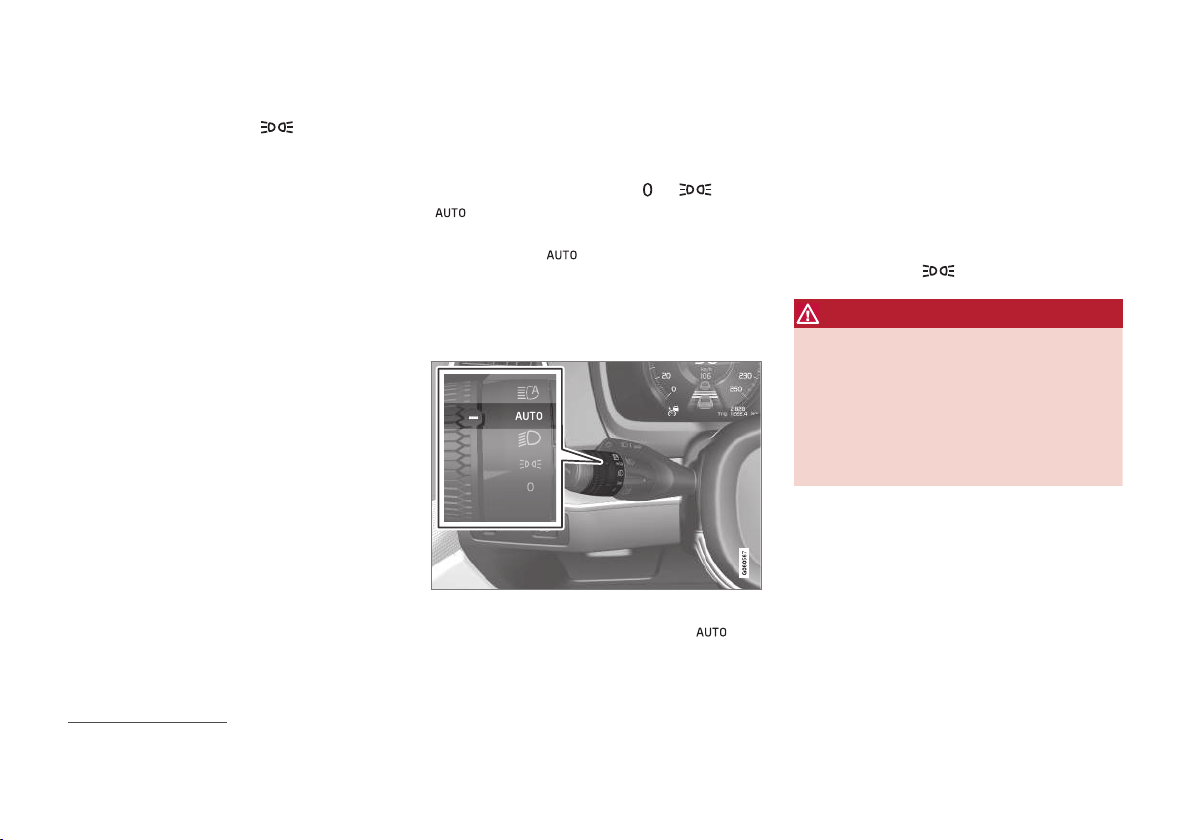
||
INSTRUMENTS AND CONTROLS
* Option/accessory.
140
running lights are switched on. The driver should
turn to a position other than
.
Related information
•
Lighting control (p. 137)
•
Ignition positions (p. 409)
Daytime running lights
The car has sensors that detect the light condi-
tions in the surroundings. The daytime running
lights are switched on when the rotating ring on
the stalk switch is in position
, or
as well as when the car's electrical system
is in ignition position II or when the car is run-
ning. In position
, the headlamps change
automatically to dipped beam in weak daylight or
darkness.
Daytime running lights during the day.
DRL
Stalk switch rotating ring in AUTO position.
If the stalk switch rotating ring is in the
position, the daytime running lights (DRL
23
) are
switched on when the car is driven in daylight.
The car automatically changes lighting from day-
time running light to dipped beam in weak day-
light or darkness. Changing to dipped beam also
takes place if the front fog lamp* and/or rear fog
lamp are activated.
At stationary when the car is running, the posi-
tion lamps are switched on instead of other light-
ing, if the rotating ring is moved to the position
for position lamps,
, from another position.
WARNING
This system help to save energy - it cannot
determine in all situations when daylight is too
weak or sufficiently strong, e.g. in mist and
rain.
The driver is always responsible for ensuring
that the car is driven with the correct beam
pattern for the traffic situation and in accord-
ance with applicable traffic regulations.
Related information
•
Lighting control (p. 137)
•
Dipped beam (p. 141)
•
Ignition positions (p. 409)
23
Daytime Running Lights

||
INSTRUMENTS AND CONTROLS
* Option/accessory.
142
24
or
. Activate main beam by moving
the stalk switch forwards. Deactivate by moving
the stalk switch backwards.
When main beam has been activated the
symbol illuminates in the driver display.
Active main beam
Active main beam is a function which uses a
camera sensor at the top edge of the windscreen
to detect the headlamp beams from oncoming
traffic or the rear lights of vehicles in front, and
then switches from main beam to dipped beam.
The function can also take streetlights into
account.
Main beam is reactivated when the camera sen-
sor no longer sees any oncoming vehicles or
vehicles ahead.
Car with halogen headlamps
The lighting returns to main beam about a sec-
ond after the camera sensor no longer detects
the headlamp beams from oncoming traffic or the
rear lights from vehicles in front.
Car with LED
25
headlamps*
If the active main beam has the on/off functional-
ity
26
then the lighting returns to main beam about
a second after the camera sensor no longer
detects the headlamp beams from oncoming
traffic or the rear lights from vehicles in front.
If the active main beam has adaptive functional-
ity
26
then, unlike what happens during conven-
tional dimming, the light beam continues to illu-
minate with main beam on both sides of oncom-
ing traffic or vehicles ahead - only the part of the
light beam that points directly to the vehicle is
dimmed.
Adaptive functionality: Dipped beam directly towards
oncoming vehicle, but continued main beam on both
sides of the vehicle.
The lighting returns to full main beam about a
second after the camera sensor no longer
detects the headlamp beams from oncoming
traffic or the rear lights from vehicles in front.
Activate/deactivate
The function can start while driving in the dark
when the car's speed is approx. 20 km/h (approx.
12 mph) or higher.
Activate/deactivate active main beam by turning
the stalk switch's rotating ring to position
and release. If active main beam is deactivated
while main beam is on, the lighting is immediately
reset to dipped beam.
When active main beam is activated, the symbol
illuminates with a white glow in the driver
display.
When main beam is activated, the symbol shines
blue. This also applies for LED headlamps if the
main beam is partially dimmed, i.e. if the light
24
When dipped beam is activated.
25
LED (Light Emitting Diode)
26
Depending on the car's equipment level.
INSTRUMENTS AND CONTROLS
143
beam shines with slightly more than dipped
beam.
Manual operation
NOTE
Keep the windscreen surface in front of the
camera sensor free from ice, snow, mist and
dirt.
Do not stick or attach anything to the wind-
screen in front of the camera sensor as this
may reduce effectiveness or cause one or
more of the systems dependent on the cam-
era to stop working.
If this symbol is shown in the driver dis-
play, together with the message
Active
High Beam Temporarily
unavailable, then switching between
main and dipped beam must be performed man-
ually. The rotating ring on the stalk switch can still
be in the
position. The symbol extin-
guishes when these message are shown.
The same applies if this symbol is
shown together with the message
Windscreen sensor Sensor
blocked, see Owner's manual
.
Active main beam may be temporarily unavailable
e.g. in situations with dense fog or heavy rain.
When active main beam becomes available again,
or the windscreen sensors are no longer blocked,
the message goes out and the
symbol illu-
minates.
WARNING
Active main beam is an aid for using the opti-
mum beam pattern when conditions are
favourable.
The driver always bears responsibility for man-
ually switching between main and dipped
beam when traffic situations or weather con-
ditions so require.
IMPORTANT
Examples of when manual switching between
main and dipped beam may be required:
•
In heavy rain or dense fog
•
In freezing rain
•
In snow flurries or slush
•
In moonlight
•
When driving in poorly lit built-up areas
•
When the traffic ahead has weak lighting
•
If there are pedestrians on or beside the
road
•
If there are highly reflective objects such
as signs in the vicinity of the road
•
When the lighting from oncoming traffic
is obscured by e.g. a crash barrier
•
When there is traffic on connecting roads
•
On the brow of a hill or in a hollow
•
In sharp bends.
Read more about the camera sensor's limitations
in the section "Limitations for City Safety".
Related information
•
Lighting control (p. 137)
•
Limitations of City Safety (p. 350)

INSTRUMENTS AND CONTROLS
* Option/accessory.
146
Brake lights
The brake light automatically comes on during
braking.
The brake light is switched on when the brake
pedal is depressed. In addition, it is switched on
when one of driver support systems Adaptive
cruise control*, City Safety or Rear Collision
Warning brakes the car.
Related information
•
Emergency brake lights (p. 431)
•
Adaptive cruise control* (p. 296)
•
City Safety (p. 342)
•
Rear Collision Warning (p. 354)
Hazard warning flashers
Hazard warning flashers warn other road users
by means of all the car's direction indicators
being activated simultaneously. The function can
be used to warn in the event of traffic hazards.
Button for hazard warning flashers.
Press the button to activate the hazard warning
flashers.
The hazard warning flashers are automatically
activated when the car brakes so powerfully that
the emergency brake lights are activated and the
speed is low. The hazard warning flashers start to
flash after the emergency brake lights have stop-
ped flashing and are then deactivated automati-
cally when the car drives away again or are deac-
tivated if the button is depressed.
NOTE
Regulations for the use of hazard warning
flashers may vary between countries.
Related information
•
Using direction indicators (p. 147)
•
Emergency brake lights (p. 431)

INSTRUMENTS AND CONTROLS
}}
* Option/accessory.
147
Using direction indicators
The car's direction indicators are operated with
the left-hand stalk switch. The direction indicator
lamps flash three times or continuously, depend-
ing on how far up or down the stalk switch is
moved.
Direction indicators.
Short flash sequence
Move the stalk switch up or down to the first
position and release. The direction indicator
lamps flash three times. The function can be
activated/deactivated via the centre display.
NOTE
•
This automatic flashing sequence can be
stopped by moving the stalk switch
immediately in the opposite direction.
•
If the symbol for direction indicators in
the driver display flashes more quickly
than normal - see the message in the
driver display.
Continuous flash sequence
Move the stalk switch up or down to its end
position.
The stalk switch remains in its position and is
moved back manually, or automatically by the
steering wheel movement.
Related information
•
Lighting control (p. 137)
•
Hazard warning flashers (p. 146)
•
Settings in the centre display (p. 172)
Passenger compartment lighting
The passenger compartment lighting is acti-
vated/deactivated with the buttons in the over-
head controls above the front seats and the rear
seat/rear seats*.
All lighting in the passenger compartment can be
switched on and off manually within 7 minutes
from when:
•
the car has been switched off and its electri-
cal system is in ignition position 0
•
the car has been unlocked but it has not
been started.
Front lighting
Controls in roof console for the front reading lamps and
passenger compartment lighting.
Reading lamp, left-hand side
Passenger compartment lighting

INSTRUMENTS AND CONTROLS
* Option/accessory.
151
Approach light duration
Approach lighting is switched on when the car is
unlocked and is used to switch on the car's
lighting at a distance.
When the function is activated with the remote
control key during unlocking, the position lamps,
lighting in outer handles*, number plate lighting,
interior roof lighting and floor lighting will switch
on. If a door is opened within the activation time,
the time for the lighting in the outside handles*
and the interior lighting will be extended.
The function can be deactivated/activated via the
centre display.
Related information
•
Home safe light duration (p. 150)
•
Remote control key (p. 236)
•
Settings in the centre display (p. 172)
Using windscreen wipers
The windscreen wiper cleans the windscreen.
Different settings for the windscreen wiper are
made with the right-hand steering wheel stalk
switch.
Right-hand stalk switch.
Thumbwheel, used to set rain sensor* sensi-
tivity and wiper swipe frequency.
Single sweep
Lower the stalk switch and release to
make one sweep.
Windscreen wipers off
Move the stalk switch to position 0 to
switch off the windscreen wipers.
Intermittent wiping
Set the number of sweeps per time unit
with the thumbwheel when intermittent
wiping is selected.
Continuous wiping
Raise the stalk switch for the wipers to
sweep at normal speed.
Raise the stalk switch further for the wip-
ers to sweep at high speed.
IMPORTANT
Before activating the wipers - ensure that the
wiper blades are not frozen in, and that any
snow or ice on the windscreen and rear win-
dow is scraped away.
IMPORTANT
Use plenty of washer fluid when the wipers
are cleaning the windscreen. The windscreen
must be wet when the windscreen wipers are
operating.
Related information
•
Activating/deactivating the rain sensor
(p. 152)
•
Windscreen and headlamp washers (p. 153)
•
Rear window wiper and washer (p. 153)
•
Wiper blades in service position (p. 550)
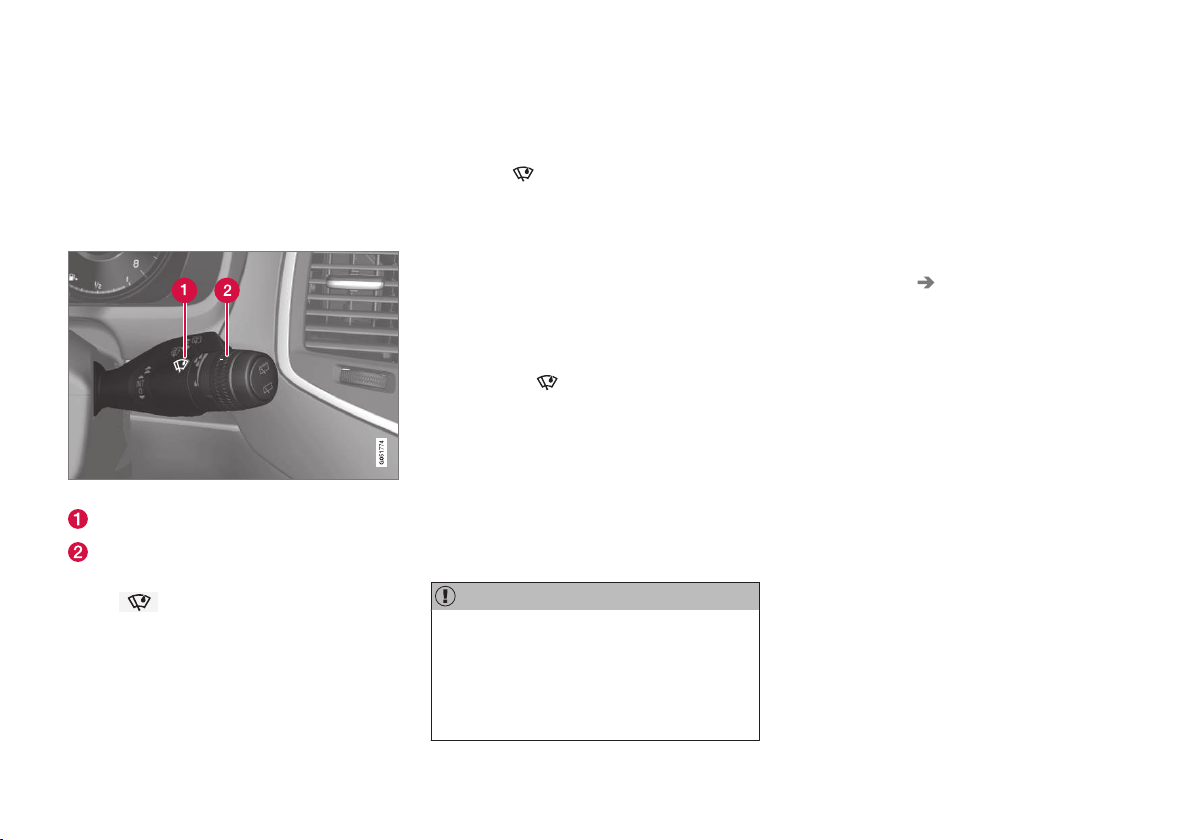
INSTRUMENTS AND CONTROLS
152
Activating/deactivating the rain
sensor
The rain sensor automatically starts the wind-
screen wipers based on how much water it
detects on the windscreen. Rain sensor sensitiv-
ity can be adjusted with the thumbwheel on the
right-hand stalk switch.
Right-hand stalk switch.
Rain sensor button
Thumbwheel sensitivity/frequency
When the rain sensor is activated, the rain sensor
symbol
is shown in the driver display.
Activating the rain sensor
When activating the rain sensor, the car must be
running or the electrical system in ignition posi-
tion I or II while the windscreen wiper stalk
switch must be in position 0 or in the position for
a single sweep.
Activate the rain sensor by pressing the rain sen-
sor button
.
Press the stalk switch down for the wipers to
make an extra sweep.
Turn the thumbwheel upward for higher sensitiv-
ity and downward for lower sensitivity. An extra
sweep is made when the thumbwheel is turned
upward.
Deactivating the rain sensor
Deactivate the rain sensor by pressing the rain
sensor button
or moving the stalk switch
up to another wiper program.
The rain sensor is deactivated automatically in
ignition position 0 or when the engine is
switched off.
The rain sensor is deactivated automatically when
wiper blades are set in service position. The rain
sensor is reactivated when service position has
been deactivated.
IMPORTANT
The windscreen wipers could start and be
damaged in an automatic car wash. Deacti-
vate the rain sensor while the car is running
or when the car's electrical system is in igni-
tion position I or II. The symbol in the driver
display extinguishes.
Activating/deactivating the memory
function
The memory function for the rain sensor can be
activated in such a way that the rain sensor but-
ton does not need to be depressed each time the
car is started:
1.
Press
Settings in the top view in the centre
display.
2.
Press
My Car Wipers.
3.
Select
Rain Sensor Memory to activate/
deactivate the memory function.
Related information
•
Using windscreen wipers (p. 151)
•
Wiper blades in service position (p. 550)
•
Rear window wiper and washer (p. 153)
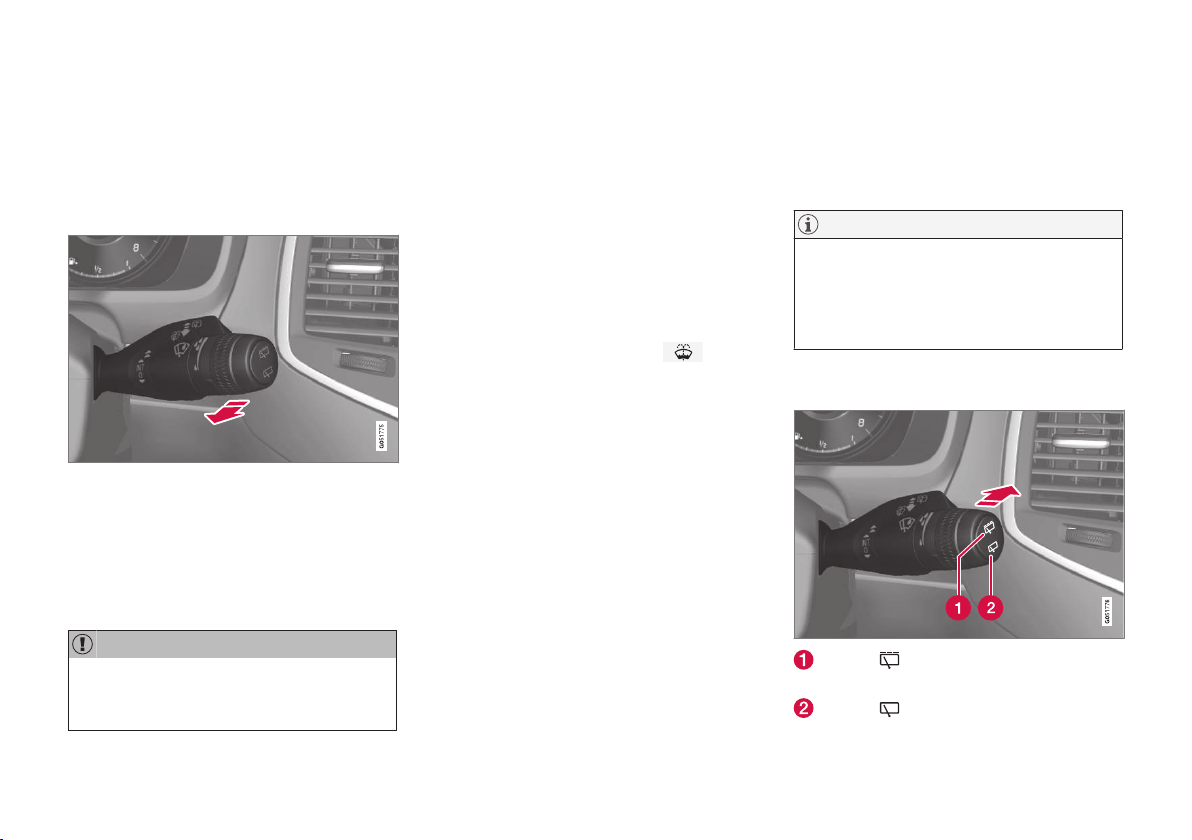
INSTRUMENTS AND CONTROLS
}}
* Option/accessory.
153
Windscreen and headlamp washers
Windscreen and headlamp washers clean the
windscreen and headlamps. Washing/wiping is
started by means of the right-hand stalk switch.
Starting windscreen and headlamp
washers
Washing function, right-hand stalk switch.
–
Move the right-hand stalk switch toward the
steering wheel to start the windscreen and
headlamp washers.
> The windscreen wipers will make several
more sweeps once the stalk switch has
been released.
IMPORTANT
Avoid activating the washer system when it is
frozen or the washer reservoir is empty, other-
wise there is a risk of damaging the pump.
Heated washer nozzles*
The washer nozzles are heated automatically in
cold weather to prevent the washer fluid from
freezing.
Headlamp washing*
To save fluid, the headlamps are washed auto-
matically at a defined interval when the head-
lamps are switched on.
Reduced washing
If only approx. 1 litre of washer fluid remains in
the reservoir and the message
Washer fluid
Level low, refill
, together with the symbol,
is shown in the driver display, then the supply of
washer fluid to the headlamps is switched off.
This is in order to prioritise cleaning the wind-
screen and the visibility through it.
Related information
•
Using windscreen wipers (p. 151)
•
Rear window wiper and washer (p. 153)
•
Filling washer fluid (p. 553)
Rear window wiper and washer
Rear window wiper and washer clean the rear
window. Washing/wiping is started and settings
are changed by means of the right-hand steering
wheel stalk switch.
NOTE
The rear window wiper is equipped with over-
heating protection which means that the
motor is switched off if it overheats. The rear
window wiper works again after a cooling-
down period.
Using the rear window wiper and
washer
Select for intermittent wiping with the
rear window wiper.
Select for continuous speed with the
rear window wiper.
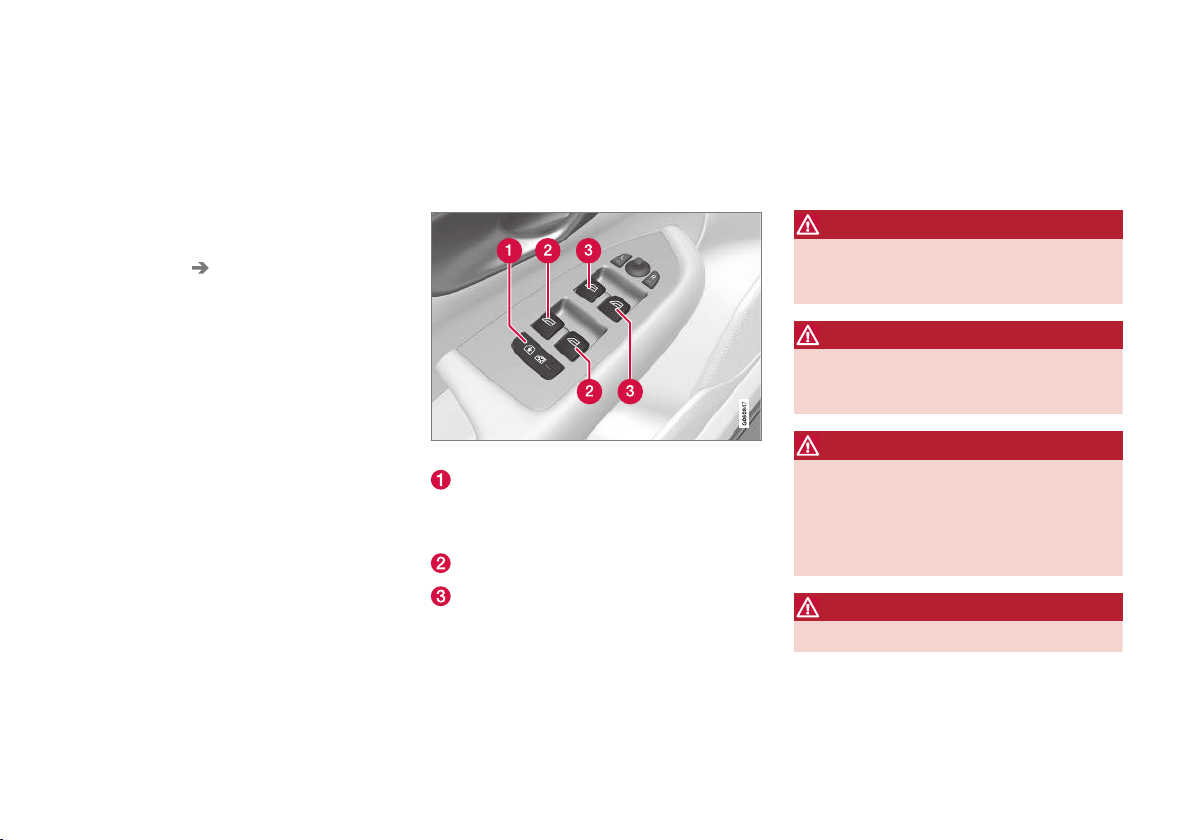
||
INSTRUMENTS AND CONTROLS
* Option/accessory.
154
–
Move the right-hand steering wheel stalk
switch forward to start rear window washing
and wiping.
Activating/deactivating wiping when
reversing
1.
Press
Settings in the top view in the centre
display.
2.
Press
My Car Wipers.
3.
Select
Auto Rear Wiper to activate/deacti-
vate wiping when reversing.
Engaging reverse gear while the windscreen wip-
ers are on initiates rear window wiping. The func-
tion stops when reverse gear is disengaged.
If the rear window wiper is already on at continu-
ous speed, no change is made.
Related information
•
Using windscreen wipers (p. 151)
•
Windscreen and headlamp washers (p. 153)
•
Activating/deactivating the rain sensor
(p. 152)
•
Filling washer fluid (p. 553)
Power windows
Using the driver's door control panel, all power
windows can be operated - using the control
panels in the other doors operates the power
window in the individual door.
Driver's door control panel.
Electric child safety locks* that prevent chil-
dren from being able to open the rear doors
from inside and open/close the rear win-
dows.
Controls for rear windows.
Controls for front windows.
Related information
•
Operating power windows (p. 154)
•
Child safety locks (p. 262)
Operating power windows
Using the driver's door control panel, all power
windows can be operated - using the control
panels in the other doors operates the power
window in the individual door.
WARNING
Check that no children or other passengers
are trapped when the windows are closed
from the driver's door.
WARNING
Check that no children or other passengers
are trapped if/when the windows are closed
using the remote control key.
WARNING
If there are children in the car - remember to
always switch off the power supply to the
power windows by setting the car's electrical
system in ignition position 0 and then take
the remote control key with you when leaving
the car.
WARNING
Never leave children alone in the car.

INSTRUMENTS AND CONTROLS
* Option/accessory.
156
•
Locking/unlocking from the outside (p. 241)
•
Locking/unlocking from the inside (p. 245)
Using the sun blind*
Sun blinds can be installed, built into each rear
door.
In the rear door - manually operated
Hook with associated catch
–
Pull up the sun blind and attach it to the
hook in the upper door frame.
The window can still be opened and closed with
the sun blind up.
Related information
•
Operating power windows (p. 154)
Adjusting the door mirrors
The door mirror positions are adjusted with the
joystick in the driver's door control panel.
Controls for door mirrors.
Adjusting
1.
Press the L button for the left-hand door mir-
ror or the R button for the right-hand door
mirror. The light in the button illuminates.
2. Adjust the position with the joystick in the
centre.
3.
Press the L or R button again. The light
should no longer be illuminated.
WARNING
Both mirrors are bent to provide optimal
vision. Objects may appear further away than
they actually are.

INSTRUMENTS AND CONTROLS
}}
* Option/accessory.
157
Memory function in power front seat*
Door mirror positions can be saved in the mem-
ory function of the power front seat.
Retractable power door mirrors*
The mirrors can be retracted for parking/driving
in narrow spaces:
1.
Depress the L and R buttons simultaneously
(ignition position must be at least I).
2. Release them after approximately 1 second.
The mirrors automatically stop in the fully
retracted position.
Fold out the mirrors by pressing down the L and
R buttons simultaneously. The mirrors automati-
cally stop in the fully extended position.
Angling the door mirror when parking
29
The door mirror can be angled down for the
driver to view the side of the road when parking
for example.
–
Engage reverse gear and press the L or R
button.
When reverse gear is disengaged the mirror
automatically returns to its original position after
approx. 10 seconds, or earlier by pressing the
button labelled L or R respectively.
Automatic angling of the door mirror
when parking
29
When reverse gear is engaged the door mirror is
automatically angled down so that the driver can
see the side of the road when parking for exam-
ple. When reverse gear is disengaged the mirror
automatically returns to its original position after
a short time.
Settings for this function are set via the centre
display:
1.
Press
Settings in the top view.
2.
Press
My Car Mirrors and Easy Entry.
3.
Under
Exterior Mirror Tilt at Reverse,
select Off, Driver, Passenger or Both to
activate/deactivate and to select which
review mirror should be angled.
Automatic retraction when locking*
When the car is locked/unlocked with the remote
control key the door mirrors are automatically
retracted/extended.
The function can be activated/deactivated via the
centre display:
1.
Press
Settings in the top view.
2.
Press
My Car Mirrors and Easy Entry.
3.
Select
Fold Mirror When Locked to acti-
vate/deactivate.
Resetting to neutral
Mirrors that have been moved out of position by
an external force must be reset electrically to the
neutral position for electric retracting/extending
to work correctly:
1.
Retract the mirrors with the L and R buttons.
2.
Fold them out again with the L and R but-
tons.
3. Repeat the above procedure as necessary.
The mirrors are now reset in neutral position.
Automatic dimming*
Bright light from behind is automatically dimmed
by the interior rearview and door mirrors.
For the door mirrors to be fitted with this function
requires that the interior rearview mirror also has
automatic dimming, see the section "Interior rear-
view mirror".
Automatic dimming is always active while driving,
apart from when gearbox reverse position is
selected. Dimming sensitivity can be adjusted in
three levels and will affect the interior rearview
and the door mirrors.
29
Only in combination with power seat with memory.

INSTRUMENTS AND CONTROLS
* Option/accessory.
160
Calibrating the compass*
The earth is divided into 15 magnetic zones. The
compass should be calibrated if the car is
moved between several magnetic zones.
Proceed as follows to perform calibration:
1. Stop the car in a large open area free from
steel structures and high-voltage power lines.
2. Start the car and switch off all electrical
equipment (air conditioning, wipers, etc.) and
ensure that all doors are closed.
NOTE
Calibration may fail or not start at all if electri-
cal equipment is not switched off.
3. Hold the button on the underside of the rear-
view mirror depressed (use a paper clip or
similar) for approx. 3 seconds. The number of
the current magnetic zone is shown.
Magnetic zones.
4. Press the button repeatedly until the
required magnetic zone (
1–15) is shown.
See the map of magnetic zones for the com-
pass.
5. Wait until the display returns to showing the
character C, or hold the button on the under-
side of the rearview mirror depressed for
approx. 6 seconds until the character C is
shown.
6. Drive slowly in a circle at a speed of no more
than 10 km/h (6 mph) until a compass direc-
tion is shown in the display, indicating that
calibration is complete. Then drive a further 2
circles to fine-tune calibration.
7.
Cars with heated windscreen*: If the char-
acter
C is shown in the display when the
heated windscreen is activated, perform the
calibration in accordance with point 6 above
with the heated windscreen activated.
8. Repeat the above procedure as necessary.
Related information
•
Compass* (p. 159)

INSTRUMENTS AND CONTROLS
* Option/accessory.
161
Panorama roof*
The panorama roof is divided into two glass sec-
tions. The front section can be opened vertically
at the rear edge (ventilation position) or horizon-
tally (open position). The rear section is fixed
roof glass.
The panoramic roof has a wind deflector.
The panorama roof has a sun blind made of per-
forated fabric and located under the glass roof to
provide extra protection from factors such as
strong sunlight.
The panoramic roof and sun blind are operated
with a control located in the roof.
The control is activated when the car's electrical
system is in ignition position I or II.
WARNING
Children, other passengers or objects may be
trapped by the panoramic roof's moving parts.
•
Always operate the panoramic roof with
caution.
•
Do not allow children to play with the
controls.
•
Never leave children alone in the car.
•
Remember to always switch off the power
supply to the panoramic roof by setting
the car's electrical system in ignition posi-
tion 0, and then take the remote control
key with you when leaving the car.
•
Never put an object or part of the body
through the panoramic roof, even if the
car's electrical system is fully discon-
nected.
IMPORTANT
•
Do not open the panoramic roof when
load carriers are fitted.
•
Do not place any heavy objects on the
panoramic roof.
IMPORTANT
•
Remove ice and snow before opening the
panoramic roof.
•
Do not operate the panoramic roof if it
has frozen closed.
Wind deflector
The panorama roof has a wind deflector that is
raised when the panorama roof is in the open
position.
Related information
•
Operating the panorama roof* (p. 162)
•
Ignition positions (p. 409)
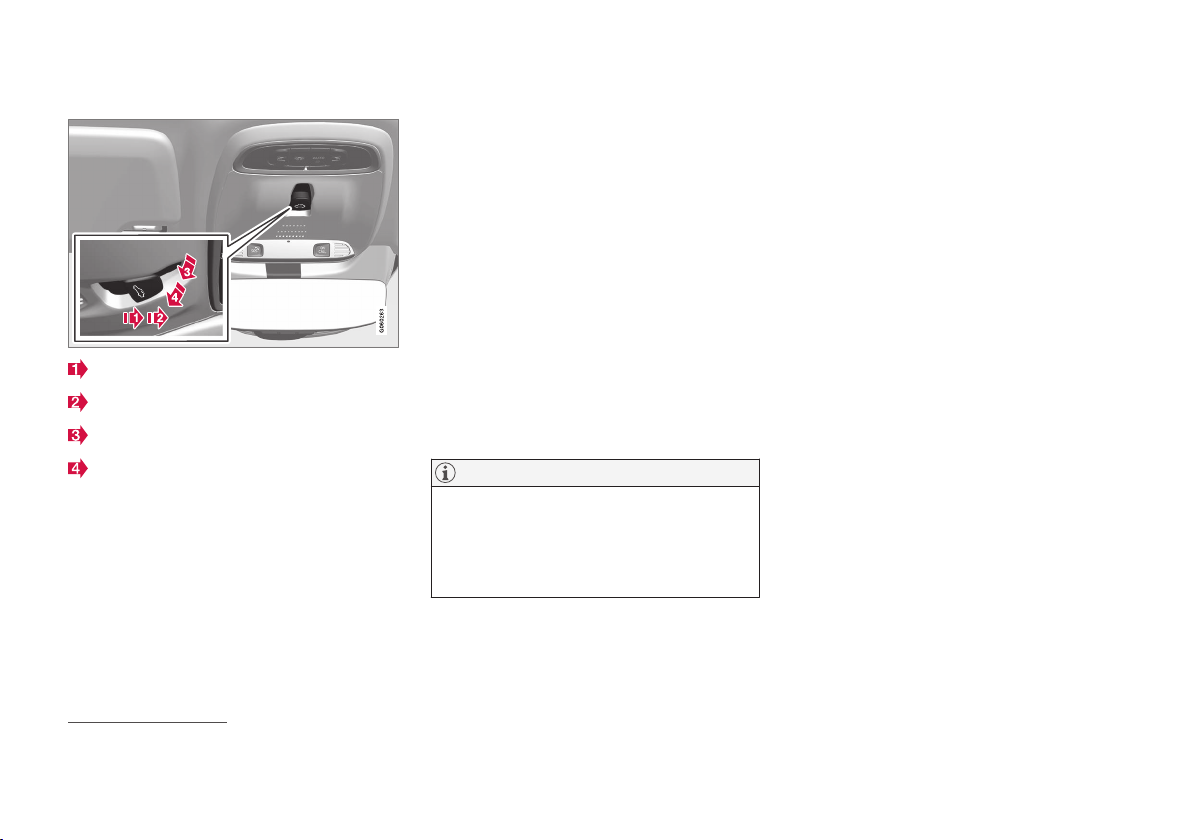
INSTRUMENTS AND CONTROLS
}}
163
Operating with the control in the roof
Opening, manual
Opening, automatic
Closing, manual
Closing, automatic
Manual operation
1. To open the sun blind - press the control
backwards to the position for manual open-
ing. The sun blind moves towards maximum
opening position for as long as the control is
held depressed rearward.
2. Open the panorama roof - press the control
backwards a second time to the position for
manual opening. The panoramic roof first
reaches comfort position
30
. In order to open
to maximum opening position - press the
control backwards a third time.
Close the roof/blind by repeating the preceding
procedure in reverse order - press the control
forward/downward to the manual closing position
instead.
The movement of the roof is stopped if the con-
trol is released or when the glass reaches the
comfort position or the maximum opening or
closing position. The movement is also stopped if
the control is operated again in the opposite
direction to the direction of movement in pro-
gress.
NOTE
For manual opening, the sun blind must be
fully open before the panoramic roof can be
opened. When the procedure is reversed, the
panoramic roof must be fully closed before
the sun blind can be fully closed.
Automatic operation
1. Open the sun blind to maximum position -
press the control backward to the position
for automatic opening and release.
2. To open the panorama roof, press the control
backwards a second time to the position for
automatic opening and release. The panor-
amic roof first reaches comfort position
30
. To
open to the maximum opening position -
press the control a third time backward to
the position for automatic opening and
release.
Close the roof/blind by repeating the preceding
procedure in reverse order - press the control
forward/downward to the automatic closing posi-
tion instead.
The movement of the roof is stopped when the
glass reaches the comfort position or the maxi-
mum opening or closing position. The movement
is also stopped if the control is operated again in
the opposite direction to the direction of move-
ment in progress.
The movement of the roof is not stopped when
the glass reaches the comfort position when
closing from maximum opening position.
30
Comfort position is an open position for the glass cover, where wind noise and resonance noise are at a comfortably low level while driving.

||
INSTRUMENTS AND CONTROLS
* Option/accessory.
164
Automatic operation - rapid opening/closing
The panorama roof and sun blind can be
opened/closed simultaneously:
–
To open - press the control rearward to the
automatic operation position twice and
release.
–
To close - press the control forward/down-
ward to the automatic operation position
twice and release.
The movement of the roof is stopped when the
glass reaches the comfort position or the closing
position. When closing from maximum opening
position, the movement is not stopped at comfort
position. The movement of the blind is not stop-
ped when the roof reaches comfort position. The
movement is also stopped if the control is oper-
ated again in the opposite direction to the direc-
tion of movement in progress.
Automatic closing of the sun blind
When the car is parked in hot weather, the sun
blind closes automatically 15 minutes after the
car has been locked. This is in order to lower the
passenger compartment temperature and protect
the car upholstery from being bleached by the
sun.
The function is deactivated when the car is sup-
plied from the factory and can be activated/deac-
tivated:
1.
Press
Settings in the top view in the centre
display.
2.
Press
My Car Locking.
Select Auto Close Sunroof Curtain to
activate/deactivate.
Closing using the remote control key,
central locking button or door handles
Remote control key
–
Give a long press on the remote control key's
lock button
until the panorama roof and
sun blind start moving towards the closed
position. Then release the lock button.
Movement stops if the remote control key's lock
button is pressed again or when the roof/blind
has reached the closed position.
Central locking button
Central locking button.
When the car's electrical system is set in at least
ignition position I, the central locking button in
the driver's door or passenger door* can be used
to close the panoramic roof.
–
Give a long press on the central locking but-
ton
until the panorama roof and sun blind
start moving towards the closed position.
Then release the button.
Movement stops if the central locking button is
pressed again or when the roof/blind has
reached the closed position.
Door handle
Cars equipped with keyless locking/unlocking*
have a touch-sensitive recess on the outer part of
the outside door handle.
–
Place your finger against the touch-sensitive
recess on the outside of one of the door
handles until the panorama roof and sun
blind start moving towards the closed posi-
tion. Then remove your finger from door han-
dle's recess.
Movement stops if you place your finger against
the door handle recess again or once the roof/
blind has reached the closed position.
WARNING
If the panorama roof is closed with the remote
control key, the central locking button or door
handle, check that no one risks being trapped.
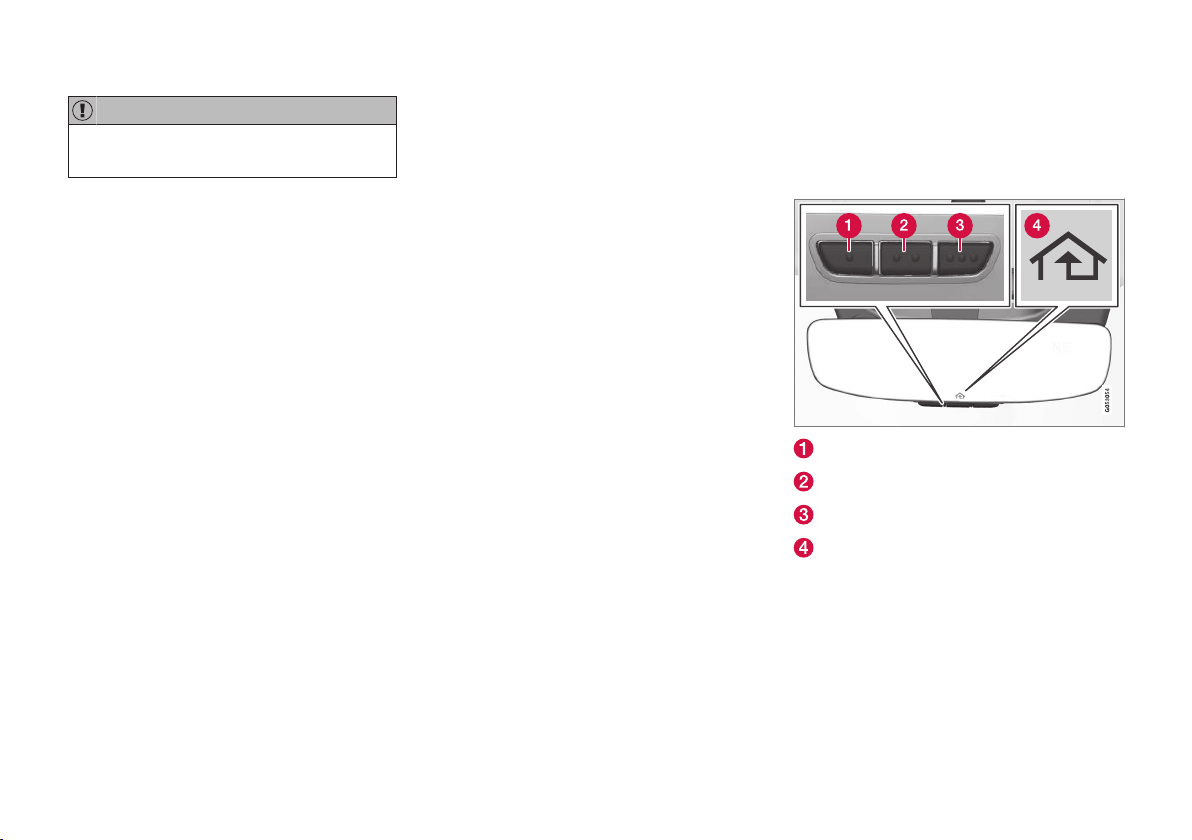
INSTRUMENTS AND CONTROLS
}}
* Option/accessory.
165
IMPORTANT
Check that the panoramic roof is properly
closed when closing.
Pinch protection
The panorama roof has pinch protection that is
triggered if the glass cover or the sun blind is
blocked by an object during closing. In the event
of blocking, the glass cover or sun blind stops
and is then opened automatically to approx.
50 mm (approx. 2 inches) from the blocked posi-
tion (or to full ventilation position). The pinch pro-
tection is also active when the glass cover or sun
blind is opened.
If the pinch protection has deployed then it is still
possible to operate the glass cover and/or sun
blind once more in the same direction without
pinch protection, if this is done within 10 seconds
after pinch protection deployment. It is therefore
possible to override the pinch protection when
closing has been interrupted e.g. if ice has
formed around the glass cover, by continually
pressing the control forward/downward until the
glass cover and/or sun blind is closed.
Related information
•
Panorama roof* (p. 161)
•
Ignition positions (p. 409)
•
Remote control key (p. 236)
•
Locking/unlocking from the inside (p. 245)
•
Locking/unlocking from the outside (p. 241)
HomeLink
®
*
31
HomeLink
®
is a programmable remote control
that is integrated into the car's electrical system.
General
Button 1
Button 2
Button 3
Indicator lamp
HomeLink
®32
is a programmable remote control
that can remotely control up to three different
devices (e.g., garage door openers, alarm sys-
tems, outdoor and indoor lighting, etc.) and thus
replace their remote controls. HomeLink
®
is sup-
plied built into the interior rearview mirror. The
HomeLink
®
panel consists of three programma-

||
INSTRUMENTS AND CONTROLS
* Option/accessory.
168
Operation
When HomeLink
®
is fully programmed it can be
used in place of the separate original remote
controls.
Depress the programmed button. The garage
door, gate, alarm system or similar is activated
(may take a few seconds). If the button is
depressed for more than 20 seconds then the
programming is deleted. The indicator lamp illu-
minates or flashes when the button has been
depressed. Naturally the original remote controls
can still be used in parallel with HomeLink
®
if
required.
NOTE
If the ignition is switched off, HomeLink
®
will
work for 30 minutes after the driver's door
has been opened.
In the event of programming problems, contact
HomeLink
®
at www.HomeLink.com,
www.youtube.com/HomeLinkGentex or call the
toll-free number 00 8000 466 354 65 (or the
toll number +49 6838 907 277).
Resetting the HomeLink
®
buttons
It is only possible to reset all of the HomeLink
®
buttons at the same time, not each button indi-
vidually. However, individual buttons can be
reprogrammed; see the section "Programming
individual buttons" below.
1.
Depress buttons 1 and 3 on HomeLink
®
and
hold them depressed until the indicator lamp
begins flashing green (about 10 seconds).
2. Release the buttons.
>
HomeLink
®
is now set to "learn mode"
and is ready to be reprogrammed; see the
section "Programming HomeLink
®
"
above.
Programming individual buttons
To reprogram an individual HomeLink
®
button,
proceed as follows:
1.
Depress the required button and do not
release.
2. After approx. 20 seconds when the indicator
lamp on HomeLink
®
starts to flash yellow,
start with step 1 from the section "Program-
ming HomeLink
®
" above.
Note: If the button to be reprogrammed is
not programmed with a new unit, it will
resume the previously saved programming.
For more information or to provide feedback
about HomeLink
®
, visit www.HomeLink.com,
www.youtube.com/HomeLinkGentex or call the
toll-free number 00 8000 466 354 65 (or the
toll number +49 6838 907 277).
Related information
•
HomeLink
®
* (p. 165)
Trip computer
The car's trip computer records and calculates
vales such as e.g. distance, fuel consumption
and average speed whilst driving.
In order to facilitate fuel-efficient driving, informa-
tion is recorded about both instantaneous and
average fuel consumption. The information from
the trip computer can be shown in the driver dis-
play.

INSTRUMENTS AND CONTROLS
}}
* Option/accessory.
171
2.
Press
System System Languages and
Units
Units of Measurement.
3.
Select the required unit standard:
Metric,
Imperial or US.
NOTE
In addition to in the trip computer, these units
are also changed in Volvo's navigation sys-
tem*.
Related information
•
Trip computer (p. 168)
•
Show trip statistics in the centre display
(p. 171)
•
Using the application menu in the driver dis-
play (p. 108)
Show trip statistics in the centre
display
Trip statistics from the trip computer are dis-
played graphically in the centre display and pro-
vide an overview that facilitates more fuel-effi-
cient driving.
Open the Driver performance
app in app view in order to
show the trip statistics.
Each bar in the diagram sym-
bolises a distance of 1, 10 or
100 km, alternatively miles. The
bars are filled in from the right as driving pro-
gresses. The bar on the far right shows the value
for the current distance.
The average fuel consumption and total driving
time are calculated since the last time the trip
statistics were reset.
Trip statistics from the trip computer
37
.
Settings for trip statistics
Press Preferences to
•
change graph scale. Select resolution 1, 10
or 100 km/miles for the bar.
•
reset data after every trip. Performed when
the car has been stationary for more than
4 hours.
•
reset data for the current trip.
Trip statistics, calculated average consumption
and total driving time are always reset simultane-
ously.
Change unit
Change the unit for mileage, fuel consumption,
etc. via the centre display as follows:
37
The figure is schematic, the layout may vary depending on selected unit standard or updated software.
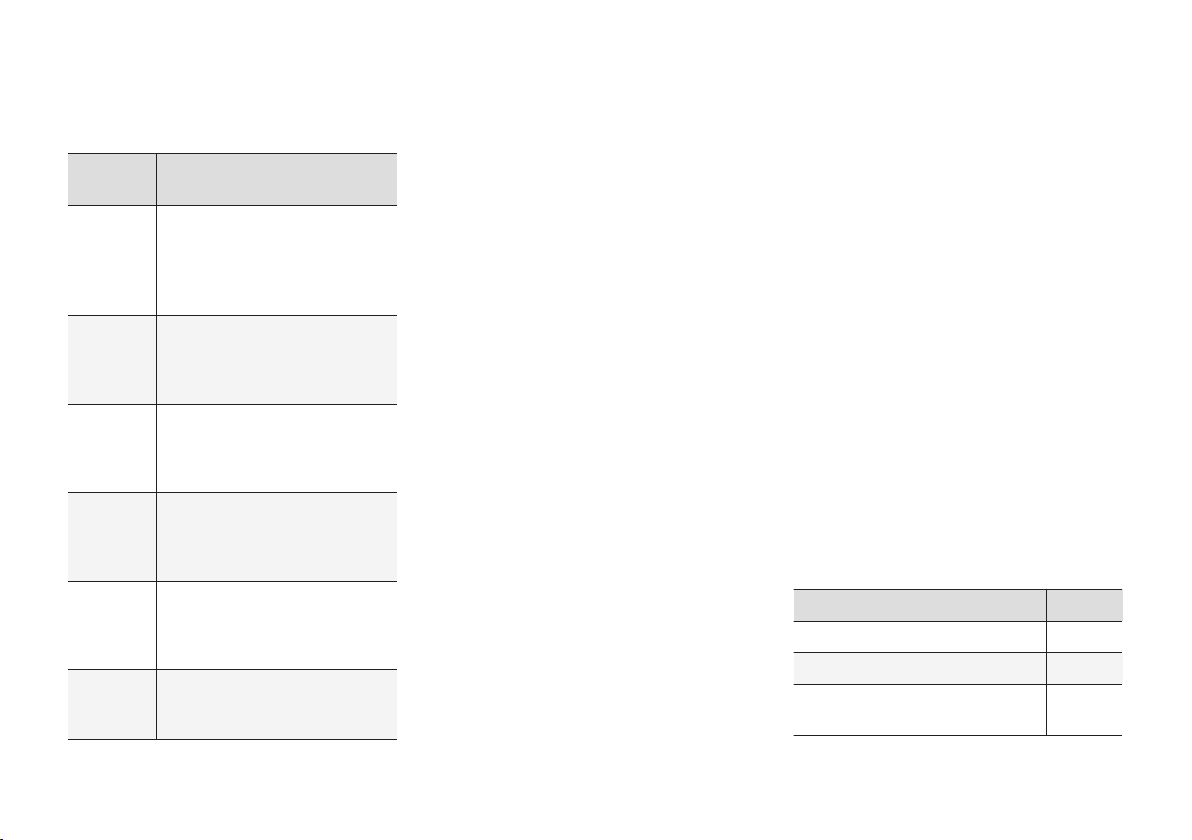
INSTRUMENTS AND CONTROLS
}}
* Option/accessory.
173
Types of settings
There are several different types of settings:
Setting
type
Description
Trigger
function
Starts an app or separate view
for more advanced settings
through a press on the text, e.g.
to connect a device with
Bluetooth
®
.
Radio but-
ton
Select a setting from several
options by pressing the required
radio button, e.g. to select a sys-
tem language.
Multi-
selector
button
Select a level for something by
pressing the required part of the
button, e.g. to select a sensitivity
level for City Safety.
Checkbox Activate/deactivate a function by
pressing on the box to select/
deselect it, e.g. to select auto-
matic start of seat heating.
Slider Select a level for something
within an interval by pressing and
dragging the slider, e.g. to select
volume level.
Display of
informa-
tion
No actual setting. Shows infor-
mation about something, e.g. the
car's identification number.
Related information
•
Overview of the centre display (p. 33)
•
Navigating in the centre display's views
(p. 40)
•
Categories in the settings menu (p. 173)
•
Changing system settings in the settings
menu (p. 175)
Categories in the settings menu
The settings menu in the centre display has a
number of main categories and subcategories
where settings and information for many of the
car's functions are collected.
There are 7 main categories under settings: My
Car, Sound, Navigation, Media,
Communication, Climate and System.
In turn, each category contains a number of sub-
categories and setting options. The tables below
show the first level of subcategories. The setting
options for a function or area are described in
more detail in the corresponding section of the
owner's manual. For system settings not descri-
bed in the corresponding section, see the section
"Changing system settings in the settings menu".
Some settings are personal, which means that
they can be saved to
Driver Profiles. Other set-
tings are global, which means they are not linked
to a driver profile. The tables below provide an
overview showing whether a category's settings
are personal, global or a mixture of both.
My Car
Subcategories Settings
Displays
Personal
IntelliSafe
Mixed
Drive Mode/Individual Drive
Mode
*
Mixed

||
INSTRUMENTS AND CONTROLS
* Option/accessory.
174
Subcategories Settings
Lights and Lighting
Mixed
Mirrors and Easy Entry
Mixed
Locking
Mixed
Parking Brake and Suspension
Global
Wipers
Personal
Sound
Subcategories Settings
Tone
Personal
Balance
Personal
System Volumes
Mixed
Navigation
Subcategories Settings
Map
Personal
Route and Guidance
Personal
Traffic
Personal
Media
Subcategories Settings
AM/FM radio
Personal
DAB
Personal
Gracenote®
Personal
TV*
Personal
Video
Personal
Communication
Subcategories Settings
Phone
–
Text Messages
–
Android Auto*
–
Apple CarPlay*
–
Bluetooth Devices
–
Wi-Fi
Global
Car Wi-Fi Hotspot
Global
Car Modem Internet*
Global
Volvo On Call*
–
Volvo Service Networks
Global
Climate
The main category Climate has no subcatego-
ries.
System
Subcategories Settings
Driver Profile
Personal
Date and Time
–
System Languages and Units
Personal
Keyboard Layouts
Global
Voice Control*
Personal
Factory reset
–
System Information
Global
Related information
•
Settings in the centre display (p. 172)
•
Changing system settings in the settings
menu (p. 175)

INSTRUMENTS AND CONTROLS
175
Changing system settings in the
settings menu
The
System category in the centre display set-
tings menu collects general settings and infor-
mation for car systems, such as language and
units.
The system settings under Driver Profile, Date
and Time, System Languages and Units,
Keyboard Layouts, Voice Control, Factory
reset and System Information are described in
the corresponding section of the owner's manual.
Changing system language
1.
Press
Settings in the top view in the centre
display.
2.
Continue to
System System Languages
and Units
.
3. Select system language. Languages that
support voice recognition have a voice recog-
nition symbol.
> The language in the driver display, centre
display and head-up display is changed.
Changing system units
Changing length and volume units
1.
Press
Settings in the top view in the centre
display.
2.
Continue to
System System Languages
and Units
Units of Measurement.
3. Select from the following unit standards:
•
Metric - kilometres, litres and degrees
Celsius.
•
Imperial - miles, gallons and degrees
Celsius.
•
US - miles, gallons and degrees Fahren-
heit.
> The units in the driver display, centre dis-
play and head-up display are changed.
See storage information
1.
Press
Settings in the top view in the centre
display.
2.
Continue to
System System
Information
Storage.
> Storage information for the car's hard disk
is shown, including total capacity, available
capacity and how much space installed
applications are using.
See the car's vehicle identification
number
1.
Press
Settings in the top view in the centre
display.
2.
Continue to
System System
Information
Vehicle Identification
Number
.
> The car's vehicle identification number
(VIN
38
) is shown.
Related information
•
Categories in the settings menu (p. 173)
•
Driver profiles (p. 176)
•
Clock (p. 101)
•
Using the keyboard in the centre display
(p. 49)
•
Settings for voice recognition (p. 119)
•
System updates (p. 535)
•
Resetting settings in the settings menu
(p. 176)
•
Book service and repair (p. 532)
38
Vehicle Identification Number.

INSTRUMENTS AND CONTROLS
177
Global settings
The global settings and parameters are not
changed when changing between driver profiles.
They remain the same regardless of which driver
profile is active.
Keyboard layout settings are an example of
global settings. If driver profile X is used to add
additional languages to the keyboard, these
remain available for use even if driver profile Y is
used. The keyboard layout settings are not saved
to a specific driver profile - the settings are
global.
Personal preferences
If driver profile X was used to e.g. set centre dis-
play brightness, driver profile Y is not affected by
this setting. It has been saved to driver profile X -
the brightness setting is a personal setting.
Refer to the section "Categories in the settings
menu" for more information on which settings
are personal and which are global.
Related information
•
Editing a driver profile (p. 178)
•
Categories in the settings menu (p. 173)
•
Selecting driver profile (p. 177)
Selecting driver profile
The last used driver profile is the one selected
when the car is unlocked. It is possible to
change to another driver profile after the car has
been unlocked.
When the centre display has been started, the
selected driver profile is shown at the top of the
screen. The driver profile last used is the one that
will be active next time the car is unlocked. How-
ever, if the remote control key has been linked to
a driver profile then this is what is selected when
the car is started. See "Linking remote control
key to driver profile".
There are two options for changing to another
driver profile.
Option 1:
1. Tap on the name of the driver profile shown
in the top of the centre display when the dis-
play has been started.
> A list of selectable driver profiles is shown.
2. Select the driver profile required.
3.
Press
Confirm.
> The driver profile is selected and the sys-
tem loads the settings for the new driver
profile.
Option 2:
1. Drag down the top view in the centre display.
2.
Press
Profile.
> The same list as for Option 1 is shown.
3. Select the driver profile required.
4.
Press
Confirm.
> The driver profile is selected and the sys-
tem loads the settings for the new driver
profile.
Related information
•
Driver profiles (p. 176)
•
Editing a driver profile (p. 178)
•
Linking remote control key to driver profile
(p. 179)
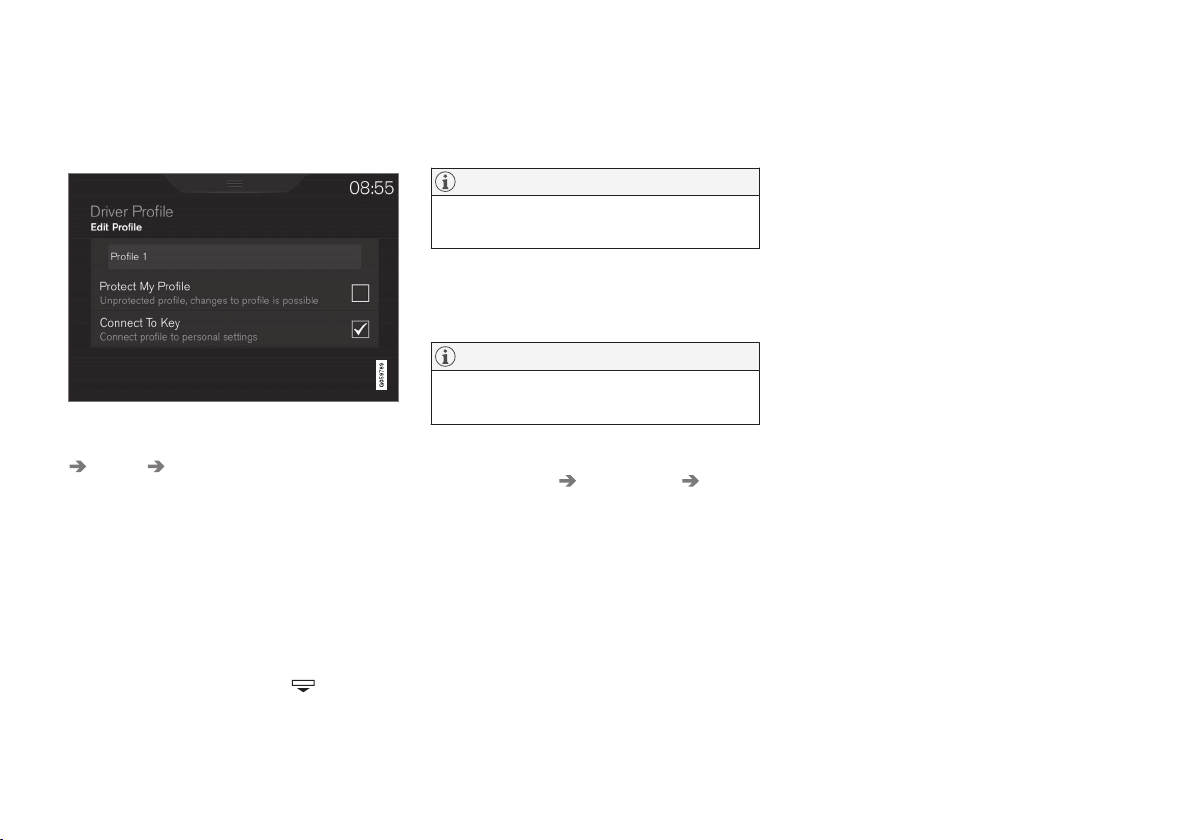
INSTRUMENTS AND CONTROLS
178
Editing a driver profile
It is possible to change the name of the different
driver profiles used in the car.
All types of changes to driver profiles are made
from the top view in the centre display -
Settings
System Driver Profiles.
Renaming a driver profile
Rename a driver profile starting from the Driver
Profile window:
1.
Press
Edit Profile.
> A menu opens, where the profile can be
edited.
2.
Tap in the box
Profile Name.
> A keyboard appears, and it is possible to
change the name. Tap on
to close
the keyboard.
3.
Save the name change by tapping on
Back/
Close.
> The name has now been changed.
NOTE
A profile name cannot start with a space, as
the profile name will not then be saved.
Resetting settings in the driver profiles
Settings that have been saved to one or more
driver profiles can be reset if the car is stationary.
NOTE
Factory reset is only possible when the car
is stationary.
1.
Press
Settings in the top view.
2.
Press
System Factory Reset Reset
Personal Settings
.
3.
Select one of the options
Reset for the
active profile, Reset for all profiles or
Cancel.
Related information
•
Driver profiles (p. 176)
•
Resetting settings in the settings menu
(p. 176)
•
Navigating in the centre display's views
(p. 40)
•
Using the keyboard in the centre display
(p. 49)
•
Selecting driver profile (p. 177)
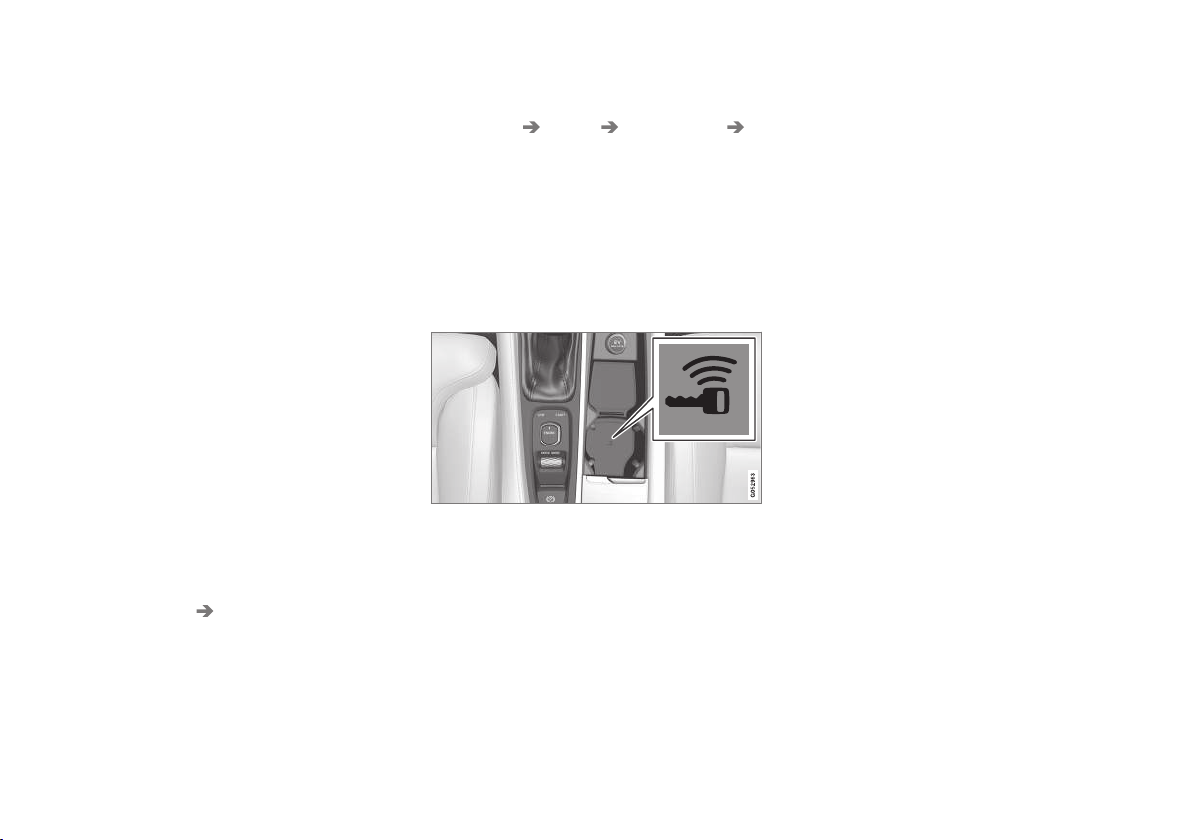
INSTRUMENTS AND CONTROLS
179
Linking remote control key to driver
profile
It is possible to link your key to a driver profile.
The driver profile along with all of its settings will
then be automatically selected every time the car
is used with that specific remote control key.
The first time the remote control key is used, it is
not linked to any specific driver profile. When the
car is started, the
Guest profile will automatically
be activated.
A driver profile can be selected manually without
linking it to the key. When the car is unlocked,
the last active driver profile is activated. Once the
key has been linked to a driver profile, a driver
profile does not need to be selected when that
specific key is used.
Linking a remote control key to a driver
profile
First select the profile to be linked to the key, if
the profile to be linked is not already active. The
active profile can then be linked to the key.
1.
Press
Settings in the top view in the centre
display.
2.
Press
System Driver Profiles.
3. Select the desired profile. The display returns
to the home view. The
Guest profile cannot
be linked to a key.
4. Drag down the top view again and tap on
Settings System Driver Profiles
Edit Profile.
5.
Select
Connect key to link the profile with
the key. It is not possible to link a driver pro-
file to a different key than the one currently
being used in the car. If there are multiple
keys in the car, the message More than one
key is found, put the key you want to
connect on backup reader will be dis-
played.
Backup reader's location in the tunnel console.
>
When the message
Profile connected
to key is shown, the key and the driver
profile are linked.
6.
Press
OK.
> This key is now linked to the driver profile
and will remain linked as long as the
Connect key box is not unticked.
Related information
•
Driver profiles (p. 176)
•
Editing a driver profile (p. 178)
•
Remote control key (p. 236)

INSTRUMENTS AND CONTROLS
* Option/accessory.
180
Changing settings for apps
All of the car's apps are listed in the app view.
The app settings that relate to the car's embed-
ded functions can be changed from the centre
display's top view.
Apps for embedded functions - basic
apps
The apps installed in the car from the beginning,
e.g.
FM radio and USB, are a part of Sensus and
are part of the car's embedded functions. Set-
tings for these apps can be changed directly in
the top view in the centre display.
Change the settings for a basic app
1.
Tap on the app, e.g.
FM radio.
2. Drag down the top view.
3.
Press
FM Radio Settings.
4. Change settings as desired and confirm the
selections.
5. Press either the physical home button or the
virtual close button.
Most of the car's basic apps have this contextual
setting option, but not all. Refer to the section
"Categories in the settings menu" for more infor-
mation on how settings are changed.
Third party apps
Third party apps are not included in the car's sys-
tem from the beginning, but are the type that can
be downloaded e.g.
Volvo ID. Here the settings
are always made inside the app and not from the
top view.
Related information
•
Navigating in the centre display's views
(p. 40)
•
Settings in the centre display (p. 172)
•
Downloading, updating and uninstalling apps
(p. 493)
•
Categories in the settings menu (p. 173)
Resetting user data for change of
ownership
In the event of a change of ownership, user data
and system settings should be restored to fac-
tory settings.
The settings in the car can be reset at different
levels. Restore all user data and system settings
to the original factory settings in the event of a
change of ownership. In the event of a change of
ownership it is also important to change the
owner of the Volvo On Call* service.
Related information
•
Resetting settings in the settings menu
(p. 176)
•
Volvo ID (p. 23)

CLIMATE CONTROL

CLIMATE CONTROL
* Option/accessory.
182
Climate control
The car is equipped with electronic climate con-
trol. The climate control system cools or heats as
well as dehumidifies the air in the passenger
compartment.
2-zone climate
Climate zones with 2-zone climate.
With 2-zone climate, the temperature in the pas-
senger compartment can be set separately for
the left and right-hand sides.
All climate control system functions are con-
trolled from the centre display and physical but-
tons in the centre console.
4-zone climate*
Climate zones with 4-zone climate.
With 4-zone climate the temperature in the pas-
senger compartment can be set separately for
the left and right-hand sides in both the front and
rear seat.
All climate control system functions are con-
trolled from the centre display and physical but-
tons in the centre console. The functions for the
rear seat can also be controlled from the climate
panel at the rear of the tunnel console.
Related information
•
Climate control - sensors (p. 183)
•
Perceived temperature (p. 183)
•
Air quality (p. 184)
•
Climate controls (p. 186)
•
Air distribution (p. 198)
•
Parking climate* (p. 206)
•
Voice recognition control of climate control
(p. 121)

CLIMATE CONTROL
}}
* Option/accessory.
187
Climate controls in the centre
display
All climate functions can be regulated from the
climate row and the climate view in the centre
display.
Climate row
The most common climate functions can be
regulated from the climate row.
Temperature controls for driver and passen-
ger side.
Controls for heated* and ventilated* driver
and front passenger seat, as well as heated
steering wheel*.
Button for access to the climate view. The
graphic on the button shows activated cli-
mate settings.
Climate view
One tap on the centre button in the climate row
gives access to the climate view. The climate view
is divided into the tabs
Main climate, Rear
climate
* and Parking climate*. Change
between the tabs by swiping left/right or by
pressing the respective heading.
Main climate
In addition to the climate row's functions, other
main climate functions can also be controlled in
the
Main climate tab.
Max, Electric, Rear - Controls for defrosting
the windows and door mirrors.
AC - Controls for air conditioning.
Recirc - Controls for air recirculation.
Controls for air distribution.
Fan control for front seat (with 2-zone cli-
mate, the control is shared with the rear
seat).
AUTO - Auto regulating the climate.

CLIMATE CONTROL
}}
* Option/accessory.
189
ture. When the screen is locked, only the seat
controls* and the unlocking button are shown.
After unlocking, the fan speed and temperature
can be changed via the climate panel and all
selected climate settings are shown. The screen
locks automatically after a period of inactivity.
Related information
•
Climate controls (p. 186)
•
Activating/deactivating heating of the seats*
(p. 203)
•
Regulating the fan level (p. 194)
•
Regulating the temperature (p. 191)
Auto-regulating the climate
With auto climate control activated, multiple cli-
mate functions are controlled automatically.
Auto-regulation button in the climate view.
1. Open the climate view in the centre display.
2.
Give a short or long press on
AUTO.
•
Short press - air recirculation, air condi-
tioning and air distribution are controlled
automatically.
•
Long press - air recirculation, air condi-
tioning and air distribution are controlled
automatically, temperature and fan level
are changed to standard settings: 22
°C/72 °F and level
3 (level 2 in the rear
seat
1
).
> Auto-regulation of the climate is activated
and the button illuminates.
NOTE
Temperature and fan speed can be changed
without deactivating the automatically-regula-
ted climate control system. The automatically-
regulated climate control system is deacti-
vated when the air distribution is changed
manually or when maximum defroster is acti-
vated.
Related information
•
Climate controls in the centre display
(p. 187)
•
Activating/deactivating air conditioning
(p. 190)
1
For cars with 4-zone climate*.
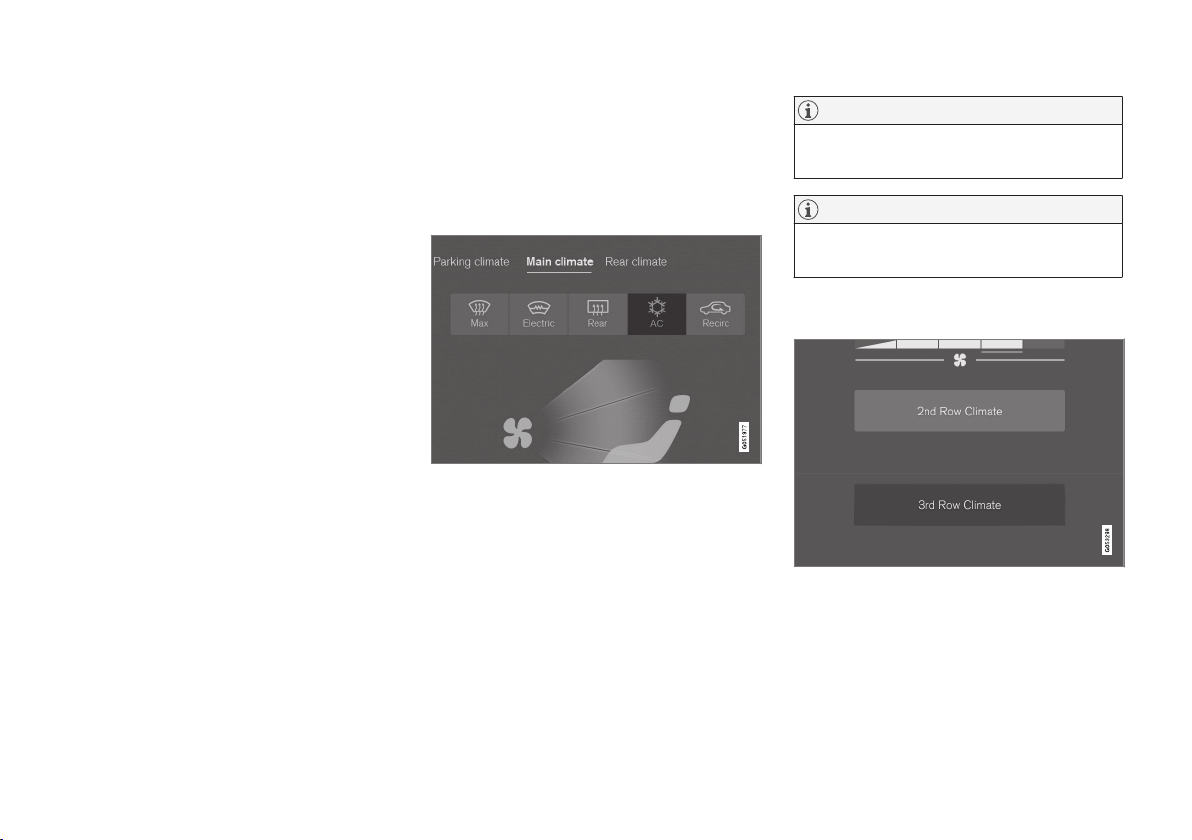
CLIMATE CONTROL
* Option/accessory.
190
•
Activating/deactivating air recirculation
(p. 197)
•
Changing the air distribution (p. 199)
•
Regulating the temperature (p. 191)
•
Regulating the fan level (p. 194)
Activating/deactivating air
conditioning
The air conditioning cools and dehumidifies
incoming air as required.
Activating/deactivating the main air
conditioning
The air conditioning button in the climate view.
1. Open the climate view in the centre display.
2.
Press
AC.
> The air conditioning is activated/deacti-
vated and the button illuminates/extin-
guishes.
When the air conditioning is activated, the
climate control system automatically con-
trols starting and switching off as
required.
NOTE
Close all side windows and the panoramic
roof* for air conditioning to work optimally.
NOTE
It is not possible to activate the air condition-
ing when the fan control is in
Off position.
Activating/deactivating the third seat
row's air conditioning*
The air conditioning button in the tab Rear climate in
the climate view.
1. Open the climate view in the centre display
and select the tab for
Rear climate.
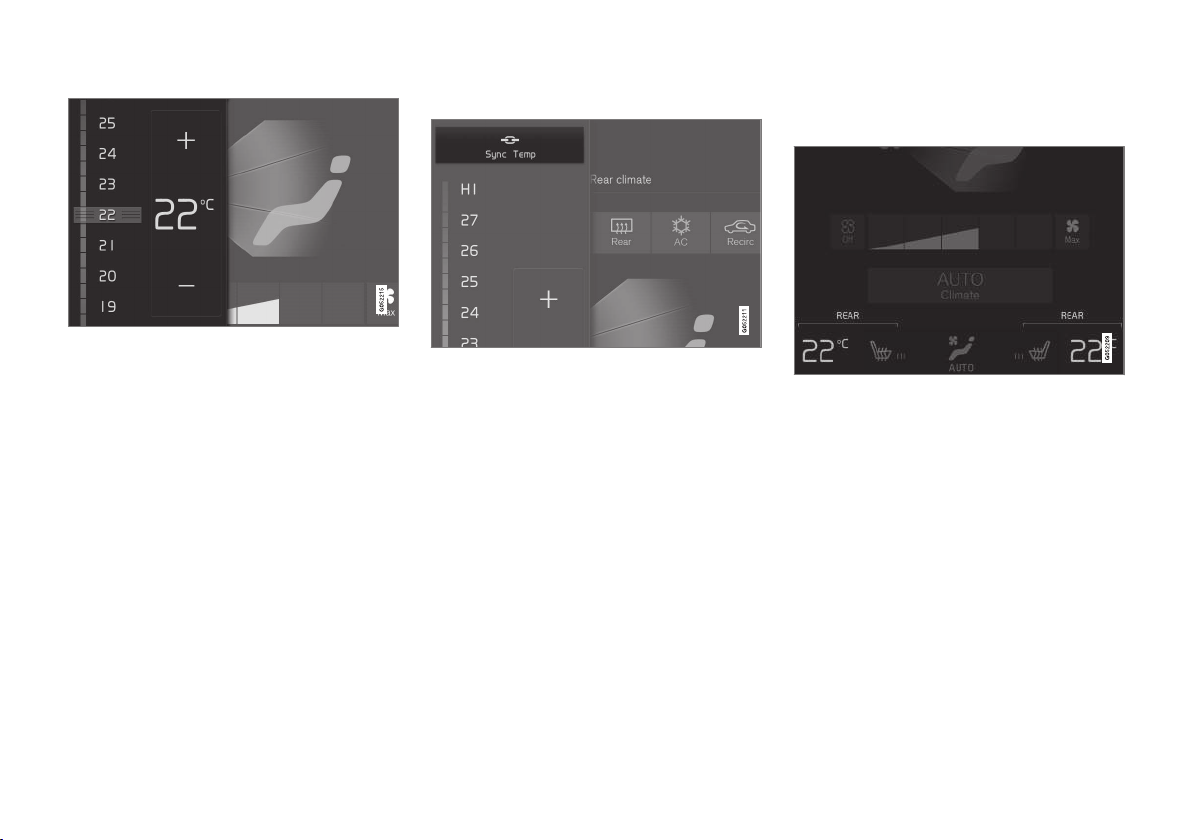
||
CLIMATE CONTROL
* Option/accessory.
192
Temperature control.
2. Regulate the temperature by either of the
following:
•
drag the control to the desired tempera-
ture, or
•
press
+/− to raise/lower the temperature
gradually.
> The temperature changes and the button
shows the set temperature.
Synchronising the temperature
Synchronisation button on the driver's side temperature
controls.
1. Press the driver's side temperature button in
the centre display's climate row in order to
open the controls.
2.
Press
Synchronise temperature.
> The temperature for all zones in the car is
synchronised with the temperature set for
the driver's side and the synchronisation
symbol is shown adjacent to the tempera-
ture button.
Synchronisation is stopped by a further press on
Synchronise temperature or by changing the
passenger side or rear seat* temperature set-
tings.
Regulating temperature for rear seat*
From the front seat
Temperature buttons in the Rear climate tab in the cli-
mate view.
1. Open the climate view in the centre display
and select the tab for
Rear climate.
2. Press the left or right-hand side temperature
button to open the control.

CLIMATE CONTROL
}}
* Option/accessory.
195
NOTE
The climate control system automatically
adjusts the air flow within the selected fan
level based on requirements. This means that
the fan speed may change even though the
fan level is the same.
Related information
•
Climate controls in the centre display
(p. 187)
•
Climate controls at the rear of the tunnel
console* (p. 188)
•
Auto-regulating the climate (p. 189)
Activating/deactivating defrost of
windows and door mirrors
The three functions max defroster, heated wind-
screen*, and heated rear window and door mir-
rors are used to quickly remove misting and ice
from the windows and door mirrors.
From physical buttons in the centre
console
The centre console contains physical buttons for
quick access to the defrost functions.
With heated windscreen* the max defroster can
only be activated individually from the climate
view in the centre display.
Physical buttons in the centre console.
Button for heated windscreen* and max
defroster.
Button for heated rear window and door mir-
rors.
Cars without heated windscreen:
–
Press the button (1).
> Max defroster is activated/deactivated
and the button illuminates/extinguishes.
Cars with heated windscreen:
–
Press the button (1) repeatedly in order to
switch between the three levels:
•
Activated heated windscreen
•
Activated heated windscreen and max
defroster
•
Deactivated.
> Heated windscreen and max defroster are
activated/deactivated and the button illu-
minates/extinguishes.
NOTE
Max defroster starts with a certain delay in
order to avoid a short increase in fan level if
the heated windscreen is deactivated by two
quick presses of the button.
Rear window and door mirror defrosters:
–
Press the button (2).
> Heated rear window and door mirrors are
activated/deactivated and the button illu-
minates/extinguishes.
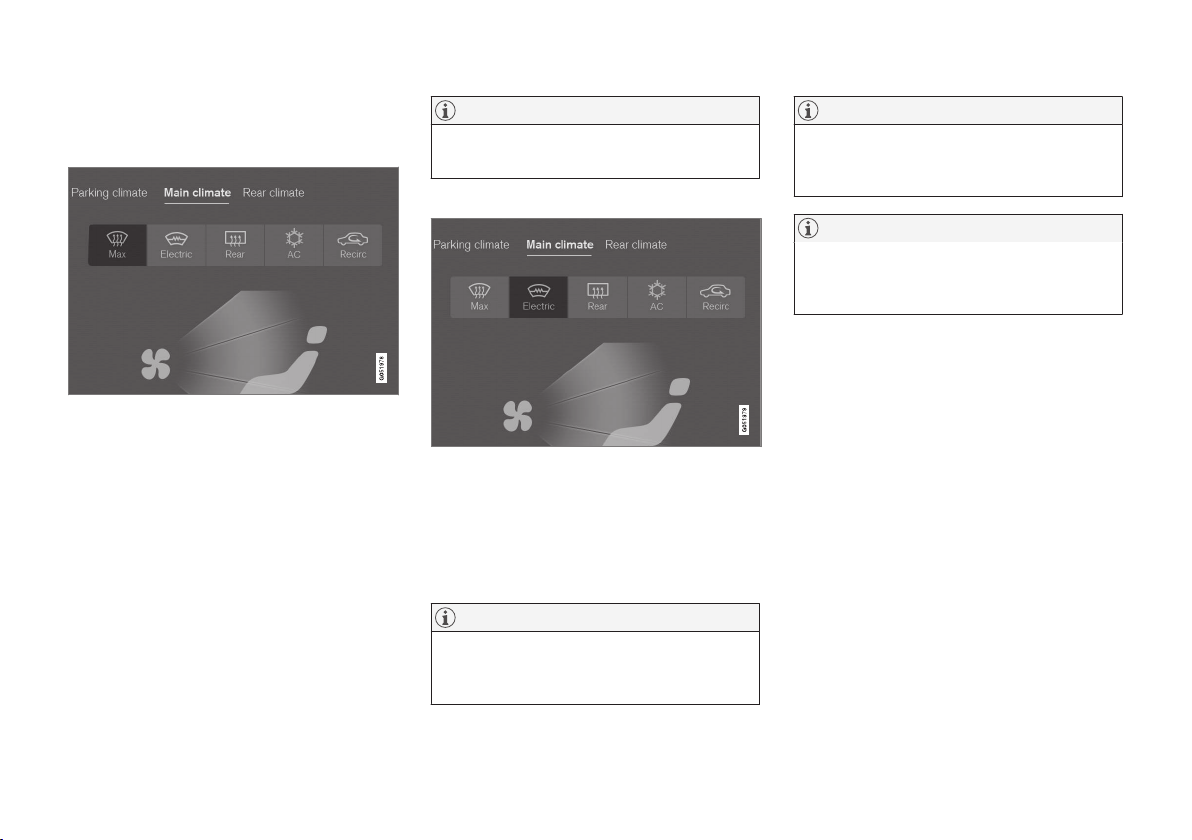
||
CLIMATE CONTROL
* Option/accessory.
196
From the climate view in the centre
display
Activating/deactivating max defroster
Max defroster button in the climate view.
1. Open the climate view in the centre display.
2.
Press
Max.
> Max defroster is activated/deactivated
and the button illuminates/extinguishes.
Max defroster deactivates auto-regulation
of the climate and air recirculation, acti-
vates air conditioning and changes the
fan level to
5 and the temperature to HI.
When max defroster is deactivated, the
climate control system returns to the pre-
vious settings.
NOTE
Changing the fan level to 5 increases the
noise level.
Activating/deactivating heated windscreen*
The button for heated windscreen in the climate view.
1. Open the climate view in the centre display.
2.
Press
Electric.
> Heated windscreen is activated/deacti-
vated and the button illuminates/extin-
guishes.
NOTE
A triangular area at the end of each side of
the windscreen is not electrically heated,
where de-icing may take longer.
NOTE
The heated windscreen may affect the per-
formance of transponders and other commu-
nication equipment.
NOTE
If the heated windscreen is activated when
the Start/Stop function has auto-stopped the
engine then the engine will be restarted.
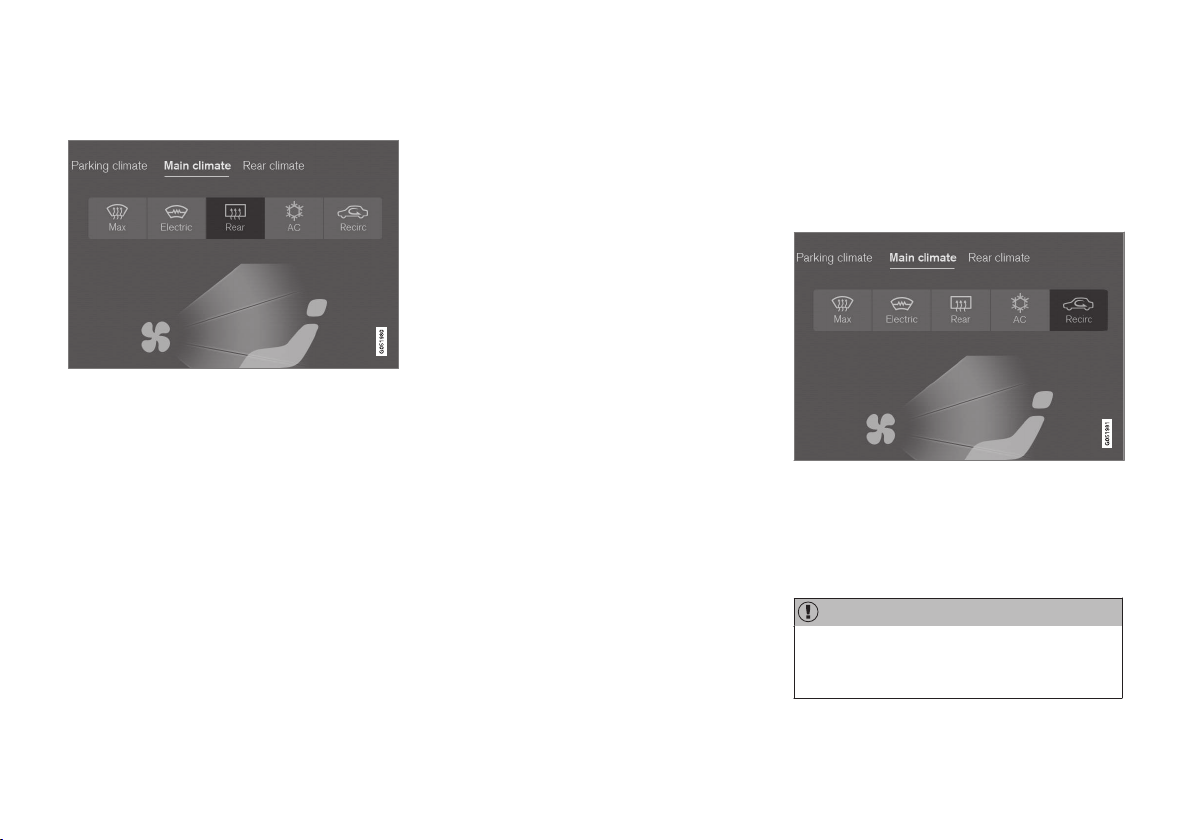
CLIMATE CONTROL
}}
* Option/accessory.
197
Activating/deactivating heated rear window
and door mirrors
The button for heated rear window and door mirrors in
the climate view.
1. Open the climate view in the centre display.
2.
Press
Rear.
> Heated rear window and door mirrors are
activated/deactivated and the button illu-
minates/extinguishes.
Activating/deactivating automatic start
of heated windows
It is possible to set whether automatic start of
heated windscreen* and heated rear window and
door mirrors should be activated/deactivated
when the engine is started. With automatic start
activated, heating will start when there is a risk of
ice or misting on the windscreen/window. The
heating switches off automatically when the
windscreen/window is sufficiently warm and the
ice or misting is gone.
1.
Press
Settings in the top view in the centre
display.
2.
Press
Climate.
3.
Select
Auto Front Defroster to activate/
deactivate automatic start of heated wind-
screen.
Select
Auto Rear Defroster to activate/
deactivate automatic start of heated rear
window and door mirrors.
Related information
•
Climate controls (p. 186)
•
Climate controls in the centre display
(p. 187)
Activating/deactivating air
recirculation
Air recirculation shuts out bad air, exhaust
gases, etc. from outside the car by the climate
control system reusing the air in the passenger
compartment.
The air recirculation button in the climate view.
1. Open the climate view in the centre display.
2.
Press
Recirc.
> Air recirculation is activated/deactivated
and the button illuminates/extinguishes.
IMPORTANT
If the air in the car is recirculated for too long
then there is a risk of misting on the insides
of the windows.

||
CLIMATE CONTROL
* Option/accessory.
198
NOTE
It is not possible to activate air recirculation
when max defroster is activated.
Activating/deactivating the timer for air
recirculation
It is possible set whether the air recirculation
timer should be activated/deactivated. When the
timer is activated, air recirculation is automatically
switched off after 20 minutes.
1.
Press
Settings in the top view in the centre
display.
2.
Press
Climate.
3.
Select
Recirculation Timer to activate/
deactivate the air recirculation timer.
Related information
•
Climate controls in the centre display
(p. 187)
•
Auto-regulating the climate (p. 189)
Air distribution
The climate control system distributes the
incoming air via a number of different vents in
the passenger compartment.
Overview of air distribution
Air distribution in the passenger compartment with 4-
zone climate.
Automatic and manual air distribution
With auto-regulated climate running the air distri-
bution takes place automatically. If necessary, the
air distribution can be controlled manually.
Adjustable air vents
There are 6, 8* or 10* adjustable air vents in the
passenger compartment depending on the num-
ber of climate zones and number of seats.
Location of adjustable air vents in the passenger com-
partment.
With 2-zone climate - four on the instrument
panel and one on each of the door pillars
between the front and rear doors.
Addition with 4-zone climate* - two at the
rear of the tunnel console.
Addition with 4-zone climate* and seven
seats - one on each of the door pillars
behind the rear doors.
Related information
•
Climate control (p. 182)
•
Changing the air distribution (p. 199)
•
Opening/closing and aiming the air vents
(p. 199)
•
Table of air distribution options (p. 201)
•
Auto-regulating the climate (p. 189)

||
CLIMATE CONTROL
200
Aiming the air vents
The air vent's lever
4
.
–
Move the lever sideways/vertically in order to
aim the air flow from the nozzle.
Related information
•
Air distribution (p. 198)
•
Changing the air distribution (p. 199)
•
Table of air distribution options (p. 201)
4
The illustration is schematic - nozzle design varies depending on location.
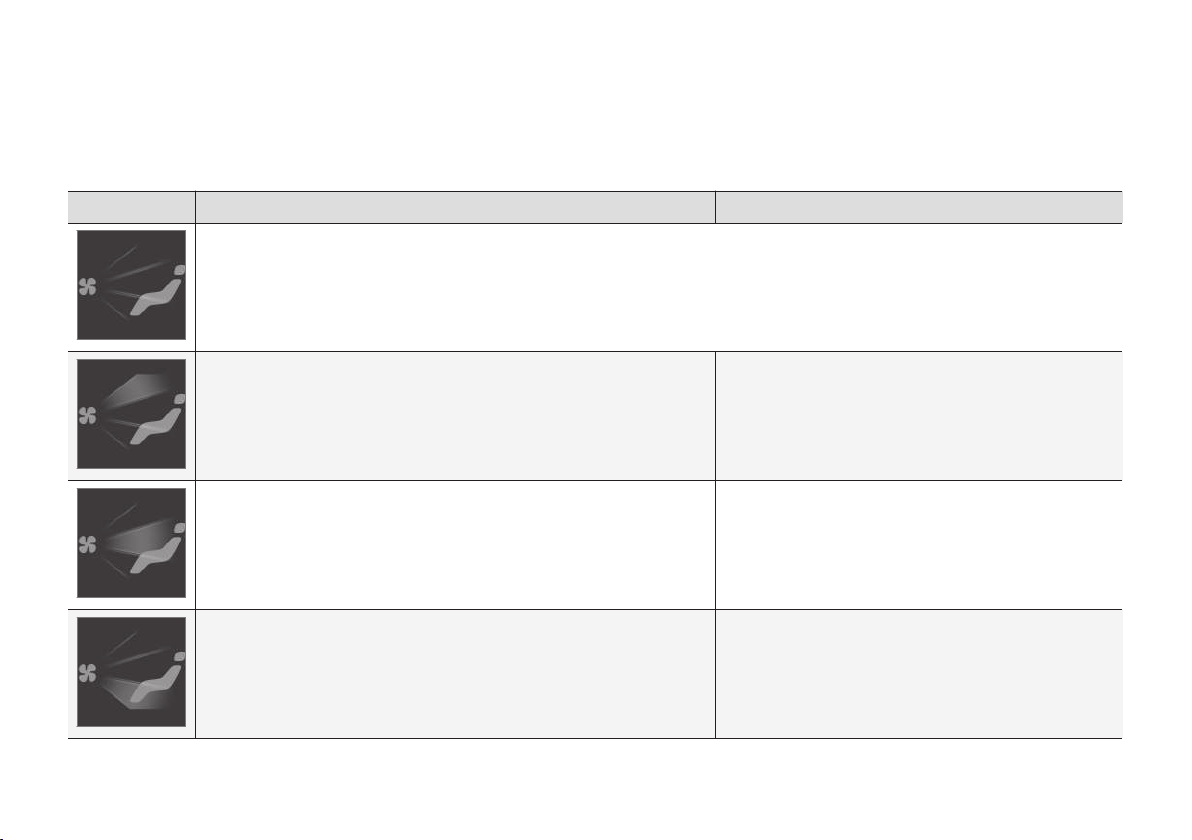
CLIMATE CONTROL
}}
201
Table of air distribution options
The air distribution can be changed manually if
required. The following options are available for
setting.
Air distribution Purpose
If all air distribution buttons are deselected in manual mode, the climate control system returns to automatically regulated climate control.
Main air flow from the defroster vents. Some air flows from other air vents. Counteracts misting and icing in a cold and humid climate
(to achieve this, fan level must not be low).
Main air flow from the air vents in the instrument panel. Some air flows from
other air vents.
Provides efficient cooling in a hot climate.
Main air flow from the air vents at the floor. Some air flows from other air
vents.
Provides heat or cooling to the floor.
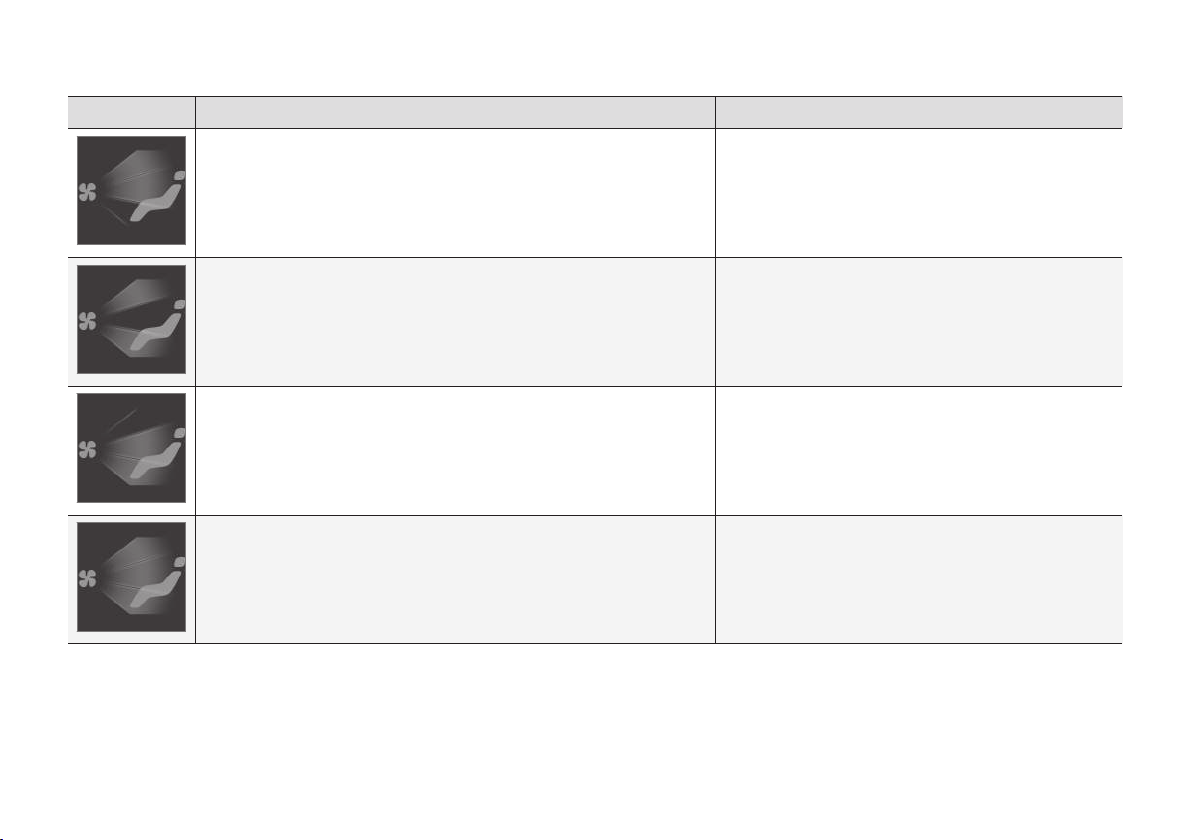
||
CLIMATE CONTROL
202
Air distribution Purpose
Main air from the defroster vents and air vents in the instrument panel.
Some air flows from other air vents.
Provides good comfort in hot and dry climates.
Main air flow from the defroster vents and air vents at the floor. Some air
flows from other air vents.
Provides good comfort and good demisting in a cold or
humid climate.
Main air flow from the air vents in the instrument panel and air vents at the
floor. Some air flows from other air vents.
Provides good comfort in sunny weather with cool outdoor
temperatures.
Main air flow from the defroster vents, from the air vents in the instrument
panel and air vents at the floor.
Gives balanced comfort in the passenger compartment.
Related information
•
Air distribution (p. 198)
•
Changing the air distribution (p. 199)
•
Opening/closing and aiming the air vents
(p. 199)
•
Climate controls in the centre display
(p. 187)
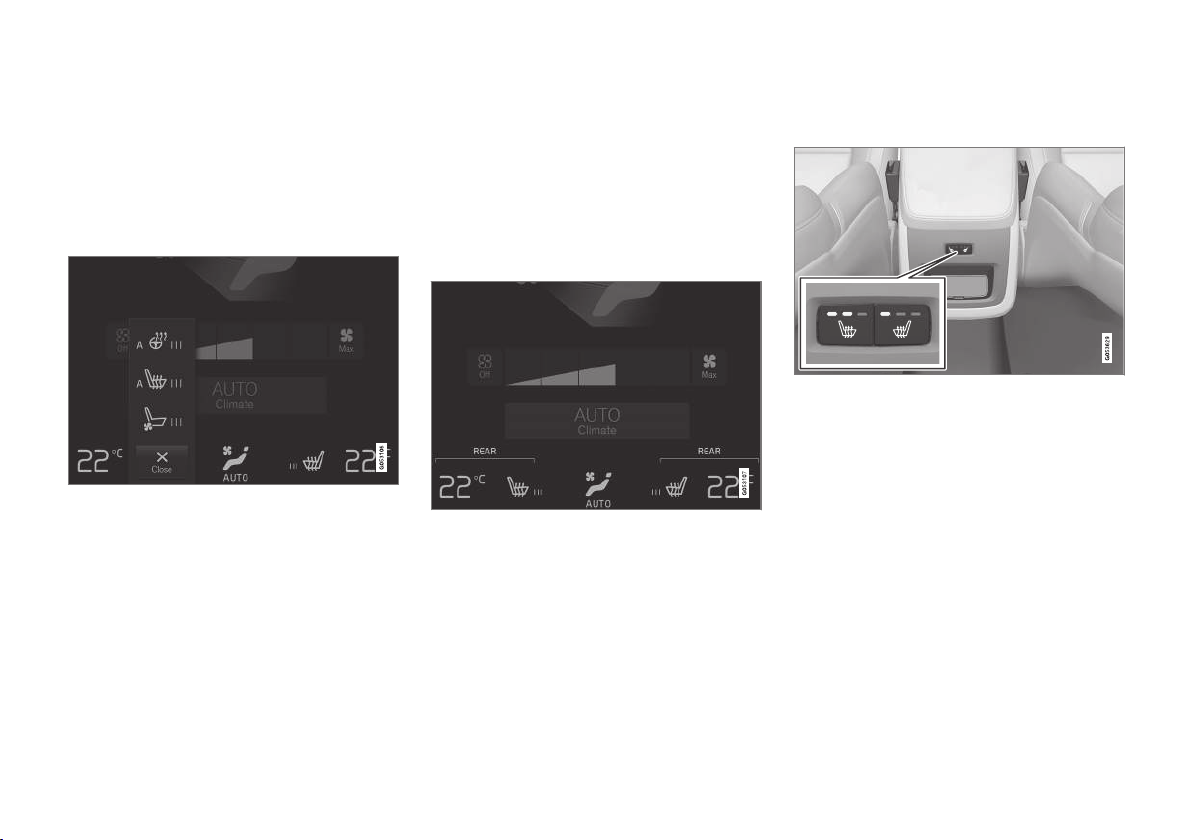
CLIMATE CONTROL
}}
* Option/accessory.
203
Activating/deactivating heating of
the seats*
The seats can be heated in order to increase
comfort for driver and passengers when it is
cold.
Activating/deactivating heating of the
front seat*
Steering wheel and seat buttons in the climate row.
1. Press the left or right-hand side's steering
wheel and seat button in the climate row in
the centre display in order to open the con-
trols for seat and steering wheel.
If the car is not equipped with ventilated
seats or heated steering wheel, the button
for heated seats is immediately available in
the climate row.
2. Repeatedly press the button for heated seats
in order to change between the four levels:
Off, High, Medium and Low.
> The level changes and the button shows
the set level.
Activating/deactivating heating of the
rear seat*
From the front seat*
Buttons for heated seats in the group Rear climate in
the climate view.
1. Open the climate view in the centre display
and select the tab for
Rear climate.
2. Repeatedly press the button for heated seats
in order to change between the four levels:
Off, High, Medium and Low.
> The level changes and the button shows
the set level.
From the rear seat
With 2-zone climate:
Buttons for heated seats at the rear of the tunnel con-
sole.
–
Press repeatedly on the left or right-hand
side's physical buttons for heated seats at
the rear of the tunnel console to switch
between the four levels:
Off, High, Medium
and Low.
> The level changes and the LEDs in the
button show the set level.
With 4-zone climate*:

CLIMATE CONTROL
}}
* Option/accessory.
205
Activating/deactivating ventilation of
the front seat*
Steering wheel and seat buttons in the climate row.
1. Press the left or right-hand side's steering
wheel and seat button in the climate row in
the centre display in order to open the con-
trols for seat and steering wheel.
If the car is not equipped with heated seats
or heated steering wheel, the button for ven-
tilated seats is immediately available in the
climate row.
2. Repeatedly press the button for ventilated
seats in order to change between the four
levels:
Off, High, Medium and Low.
> The level changes and the button shows
the set level.
Related information
•
Climate controls (p. 186)
•
Climate controls in the centre display
(p. 187)
Activating/deactivating heating of
steering wheel*
The steering wheel can be heated in order to
increase comfort for the driver when it is cold.
Activating/deactivating heating of
steering wheel
Steering wheel and seat buttons in the climate row.
1. Press the driver's side steering wheel and
seat button in the climate row of the centre
display in order to open the controls for seat
and steering wheel.
If the car is not equipped with heated seats
or ventilated seats, the button for heated
steering wheel is immediately available in the
climate row.

CLIMATE CONTROL
* Option/accessory.
209
3.
Press
Add timer.
> A pop-up window is shown.
NOTE
It is not possible to add a time setting if there
already are 8 settings entered for the timer.
Delete a time setting in order to be able to
add a new one.
4.
Tap on
Date to set the time for a single date.
Tap on Days to set the time for one or more
days of the week.
With
Days: Activate/deactivate repetition by
ticking/unticking the box for Repeat
weekly.
5.
With
Date: Select the date for precondition-
ing by scrolling the date list with the arrows.
With
Days: Select the days of the week for
preconditioning by tapping on the buttons for
the days of the week.
6. Set the time when the preconditioning
should be finished by scrolling with the
arrows.
7.
Tap on
Confirm in order to add the time set-
ting.
> The time setting is added to the list and is
activated.
WARNING
Do not use preconditioning if the car is equip-
ped with a heater*:
•
In unventilated spaces indoors. Exhaust
gases are emitted if the heater starts.
•
In locations with combustible or flamma-
ble material nearby. Fuel, gas, long grass,
sawdust, etc. may ignite.
•
When there is a risk that the heater’s
exhaust line may be blocked. For exam-
ple, deep snow inside the front right-hand
wheel housing can obstruct the heater’s
ventilation.
Remember that the preconditioning can be
started by a timer that has been set for a long
time in advance.
Editing a time setting
1. Open the climate view in the centre display.
2.
Select the
Parking climate tab.
3. Press the time setting that is to be changed.
> A pop-up window is shown.
4. Edit the time setting in the same way as
described in "Adding a time setting" above.
Deleting a time setting
The button for editing the list/deleting the time setting
in the tab Parking climate in the climate view.
1. Open the climate view in the centre display.
2.
Select the
Parking climate tab.
3.
Press
Edit list.
4. Press the delete icon to the right in the list.
>
The icon changes to the text
Delete.
5.
Press
Delete to confirm.
> The time setting is removed from the list.
Related information
•
Timer for preconditioning* (p. 208)
•
Activating/deactivating the timer for precon-
ditioning* (p. 210)
•
Heater* (p. 213)

CLIMATE CONTROL
* Option/accessory.
211
NOTE
It is not possible to start climate comfort
retention if there is not enough residual heat
in the engine to maintain the passenger com-
partment climate, or if the outside tempera-
ture is above approx. 20 °C.
NOTE
Climate comfort retention is switched off
when the car is locked from the outside to
avoid using residual heat unnecessarily. Use
of the function is intended to maintain climate
comfort when driver or passengers remain
inside the car.
Related information
•
Parking climate* (p. 206)
•
Starting/stopping preconditioning* (p. 207)

CLIMATE CONTROL
* Option/accessory.
212
Symbols and messages for parking
climate control*
A number of symbols and messages regarding
parking climate control can be shown in the
driver display.
This symbol illuminates in the driver
display when the parking heater is
active.
Symbol Message Specification
Parking climate
Service required
Parking climate control is disengaged. Contact a workshop
A
to check the function as soon as possible.
Parking climate
Temporarily unavailable
Parking climate control is temporarily disengaged. If the problem persists for some time, contact a work-
shop
A
to check the function.
Parking climate
Unavailable Fuel level too low
Parking climate control cannot be activated when the fuel level is too low to start the parking heater*. Fill-
ing the vehicle's normal fuel tank.
Parking climate
Unavailable Charge level too low
Parking climate control cannot be activated if the charge level of the starter battery is too low to start the
parking heater*. Charging the battery.
A
An authorised Volvo workshop is recommended.
Related information
•
Parking climate* (p. 206)
•
Starting/stopping preconditioning* (p. 207)
•
Starting/switching off climate comfort reten-
tion* (p. 210)
•
Timer for preconditioning* (p. 208)
•
Heater* (p. 213)
•
Managing messages in the driver display and
the centre display (p. 111)

LOADING AND STORAGE
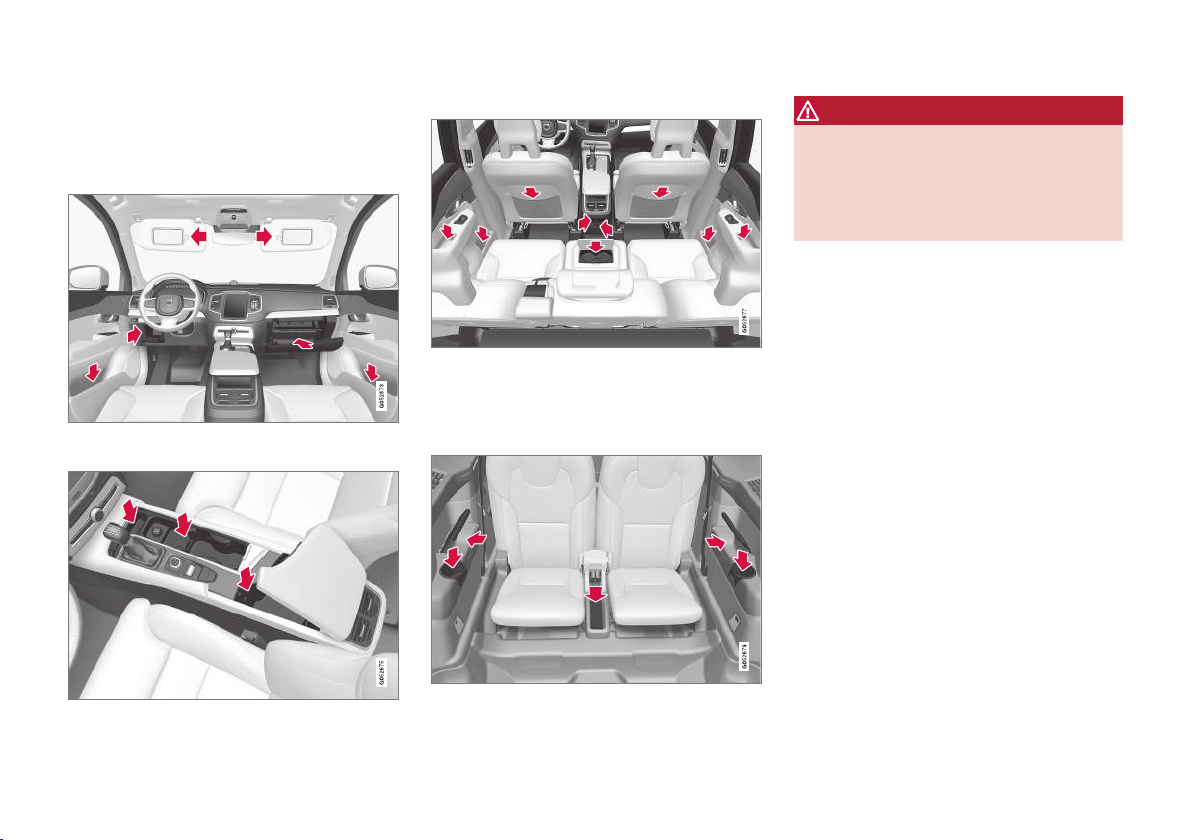
LOADING AND STORAGE
* Option/accessory.
218
Passenger compartment interior
Overview of the passenger compartment's inte-
rior and storage locations.
Front seat
Storage compartment in the door panel and by the
steering wheel, glovebox and sun visors.
Storage spaces with cup holder, electrical socket and
USB port in the tunnel console.
Second seat row
Storage compartment in the door panel, cup holder* in
the centre seat backrest, storage pocket* on the front
seat backrest and also electrical sockets in the tunnel
console.
Third seat row*
Storage compartment and cup holder in the side panel
and storage space between the seats.
WARNING
Keep loose objects such as mobile phones,
cameras, remote controls for accessories, etc.
in the glove compartment or other compart-
ments. Otherwise they may injure people in
the car in the event of sudden braking or a
collision.
Related information
•
Tunnel console (p. 219)
•
Using the glovebox (p. 224)
•
Sun visors (p. 224)
•
Electrical sockets (p. 220)

LOADING AND STORAGE
* Option/accessory.
219
Tunnel console
The tunnel console is located between the front
seats.
Storage compartment with hatch*. The hatch
is opened/closed with a push on the handle.
Storage compartment with cup holder for
driver and passenger as well as 12V socket.
Storage compartment and USB port under
the armrest.
Climate controls for the rear seat climate
functions* or storage compartment.
NOTE
One of the detectors for the alarm* is located
under the tunnel console's cup holder. Avoid
leaving coins, keys and other metal objects in
the cup holder, since this may trigger the
alarm.
Related information
•
Passenger compartment interior (p. 218)
•
Electrical sockets (p. 220)
•
Connecting a device via USB port (p. 472)
•
Climate controls at the rear of the tunnel
console* (p. 188)
LOADING AND STORAGE
* Option/accessory.
220
Electrical sockets
In the tunnel console there are two 12 V electri-
cal sockets and one 230 V electrical socket*, in
the cargo area there is one 12 V electrical
socket*.
For the sockets to supply current, the car's elec-
trical system must be set in the lowest ignition
position I. The sockets are then active as long as
the starter battery level does not become too low.
If the engine is switched off and the car is locked,
the sockets are deactivated. If the engine is
switched off and the car is not locked, or is
locked with blocked lock position temporarily
deactivated, then the sockets continue to be
active for a further ten minutes.
NOTE
Remember that use of the electrical socket
with the engine switched off entails a risk of
discharging the starter battery, which can limit
functionality.
Accessories that are connected to the electri-
cal sockets may be activated even when the
car's electrical system is disconnected or if
preconditioning is used. For this reason, dis-
connect the connectors when they are not in
use in order to avoid the starter battery being
discharged.
Electrical socket in the tunnel console -
rear seat*
Electrical socket in the tunnel console, second seat row.
The socket can be used for various accessories
requiring a 230 V supply, e.g. chargers and lap-
top computers.
Using the socket
1. Pull down the socket cover and insert the
accessory's plug.
>
The LED
1
lamp on the socket indicates
the status.
2. Check that the lamp is illuminated with a
steady green light - only then is current avail-
able at the socket.
3. Disconnect the accessory by pulling out the
plug - do not pull on the cable.
Pull up the cover when the socket is not
being used or the socket is left unattended.
IMPORTANT
Maximum socket output is 150 W.
IMPORTANT
•
Do not use accessories with large or
heavy connectors - they can damage the
socket or come loose when driving.
•
Do not use accessories that can cause
interference to the car's radio receiver or
electrical system for example.
•
Position the accessory so that it is not at
risk of injuring the driver or passengers in
the event of heavy braking or collision.
•
Keep an eye on connected accessories
as they can generate heat that can burn
passengers or the interior.
WARNING
•
Only use accessories that are undam-
aged and fault-free. The accessories
must be rated for 230 V and 50 Hz with
connectors designed for the socket. The
1
LED (Light Emitting Diode)
LOADING AND STORAGE
}}
221
accessories must have a CE marking, UL
marking or an equivalent safety marking.
•
Never allow sockets, connectors or
accessories to come into contact with
water or other liquids. Do not touch or
use the socket if it appears to be dam-
aged or has come into contact with water
or other liquid.
•
Do not connect junction sockets, adapt-
ers or extension cables to the socket as
these can override the socket's safety
features.
•
The socket is equipped with a protective
cover, ensure that nothing protrudes in or
damages the socket preventing the cover
from doing its job. Do not leave children
in the car unsupervised when the socket
is active.
Failure to follow the advice given above can
lead to severe or fatal electric shocks.
Status indication
An LED
2
lamp on the socket indicates the status
of the socket:
Status indication Reason Action
Steady green light The socket is delivering current to a connected device. None.
2
LED (Light Emitting Diode)
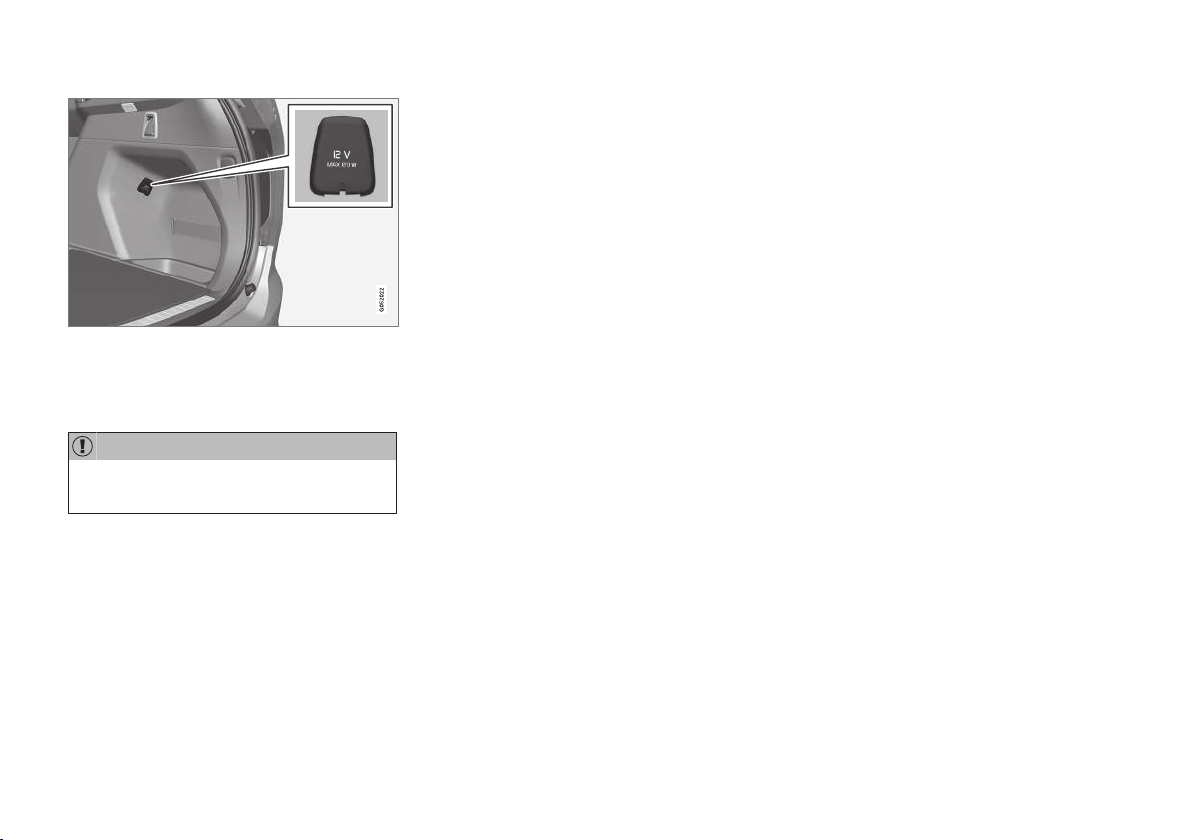
LOADING AND STORAGE
* Option/accessory.
223
12 V electrical socket in cargo area*.
The sockets can be used for various accessories
designed for 12 V, such as music players, cooler
boxes and mobile phones.
IMPORTANT
Maximum socket output is 120 W (10 A) per
socket.
Using the sockets
1. Remove the blanking plug (tunnel console)
or fold down the cover (cargo area) and plug
in the accessory.
2. Unplug the accessory's connector and refit
the blanking plug (tunnel console) or fold up
the cover (cargo area) when the socket is
not being used or if the socket is left unat-
tended.
Related information
•
Passenger compartment interior (p. 218)

LOADING AND STORAGE
* Option/accessory.
224
Using the glovebox
The glovebox is located on the passenger side.
Glovebox and opening button in the centre console.
The printed owner's manual and maps can be
kept in the glovebox, for example. There is also a
pen holder on the inside of the lid. There is also a
card holder at the upper edge of the glovebox.
Opening the glovebox
–
Press the opening button in the centre con-
sole.
> The glove box opens.
Locking/unlocking the glovebox
The glovebox can be locked, so-called private
locking, e.g. when the car is taken in for service,
left at a hotel or similar. Private locking also locks
the tailgate.
Using the glovebox as a cooled area*
The glovebox can be used for cooling of e.g.
drinks or food. The cooling works when the cli-
mate control system is active (i.e. when the car is
set in ignition position II or when the engine is
running).
Cooling activated
Cooling deactivated
–
Activate/deactivate the cooling by moving
the control to the end position toward the
passenger compartment/glovebox.
Related information
•
Passenger compartment interior (p. 218)
•
Using private locking (p. 250)
Sun visors
The rear of each sun visor includes a vanity mir-
ror with card holder.
Vanity mirror with lighting plus card holder.
The vanity mirror lighting* is switched on auto-
matically when the lid is lifted.
The vanity mirror frame incorporates a holder for
e.g. cards or tickets.
Related information
•
Passenger compartment interior (p. 218)
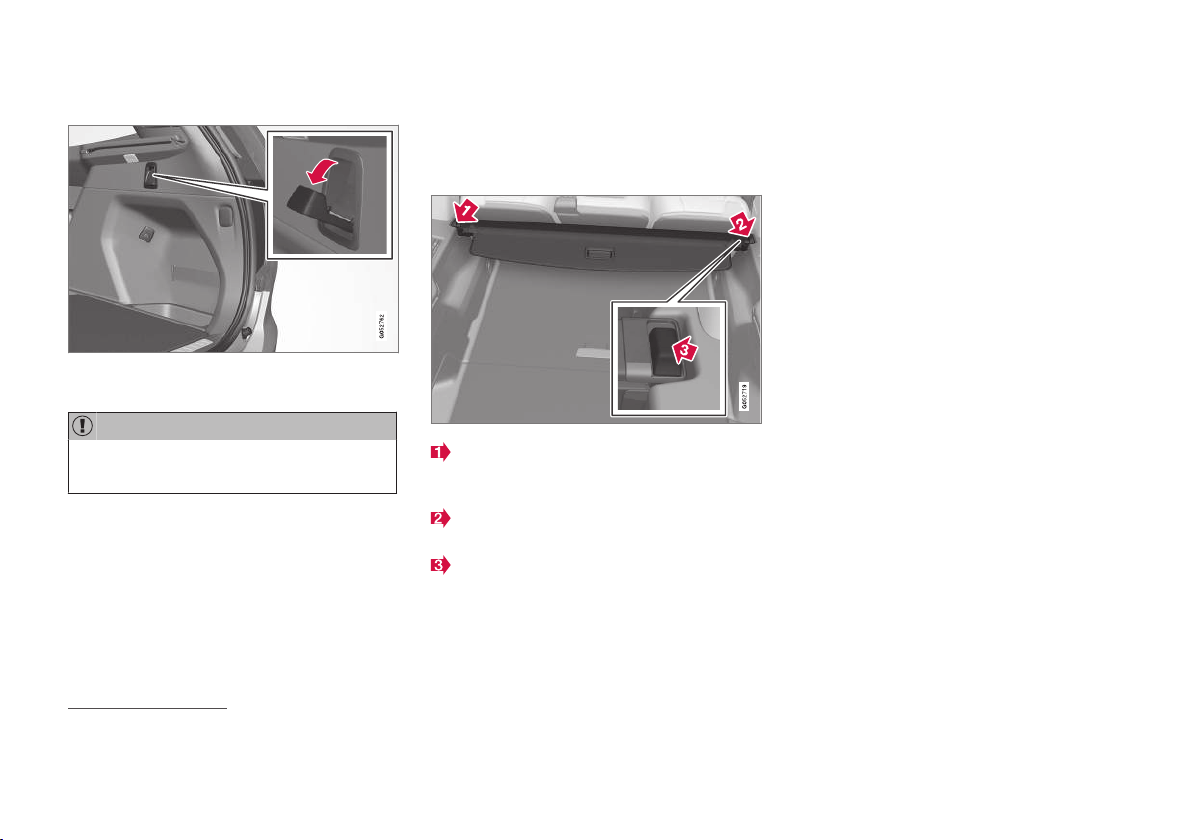
||
LOADING AND STORAGE
* Option/accessory.
228
Along the sides
There are also two extensible bag hooks in side
panels - one on each side of the cargo area.
IMPORTANT
The bag hooks may be loaded with a maxi-
mum of 5 kg (11 lbs).
Related information
•
Recommendations for loading (p. 225)
•
Safety grille* (p. 233)
•
Safety net* (p. 231)
•
Cargo cover* (p. 228)
Cargo cover*
In the extended position, the cargo cover pre-
vents visual access to the cargo area.
Installation
Insert one of the cargo cover's end pieces in
the recess in the side panel in the cargo
area.
Then insert the other end piece in the recess
in the side panel on the opposite side.
Press down the end pieces on both sides -
one by one.
> When a "click" is heard and the red mark-
ing on each end piece has disappeared,
the cargo cover is attached - check that it
is affixed securely.
Usage
There are two extended positions for the cargo
cover - a full-cover position and a loading posi-
tion, where it is partially extended to make it eas-
ier to reach further into the cargo area.
4
Applies to cars with 5 seats.
5
It is possible to reorder additional elastic straps at a Volvo dealer.

LOADING AND STORAGE
}}
229
Full-cover position
For 7-seat car
1.
Hang up the locking tabs of the seatbelts for
the third seat row on the designated hooks in
the side panels.
Grip the handle and pull out the cargo cover
so that it slides over the side panels in the
cargo area. Pull to the end position.
When the cargo cover is extended so that it
covers the cargo area - guide the cover's
attachment pins into the grooves in the side
panels and release, while at the same time
angling the handle with a light downward
pressure.
> The cargo cover is locked in the full-cover
position.
For 5-seat car
Grip the handle and pull out the cargo cover
so that it slides over the side panels in the
cargo area. Pull to the end position.
When the cargo cover is extended so that it
covers the cargo area - guide the cover's
attachment pins into the grooves in the side
panels and release, while at the same time
angling the handle with a light downward
pressure.
> The cargo cover is locked in the full-cover
position.
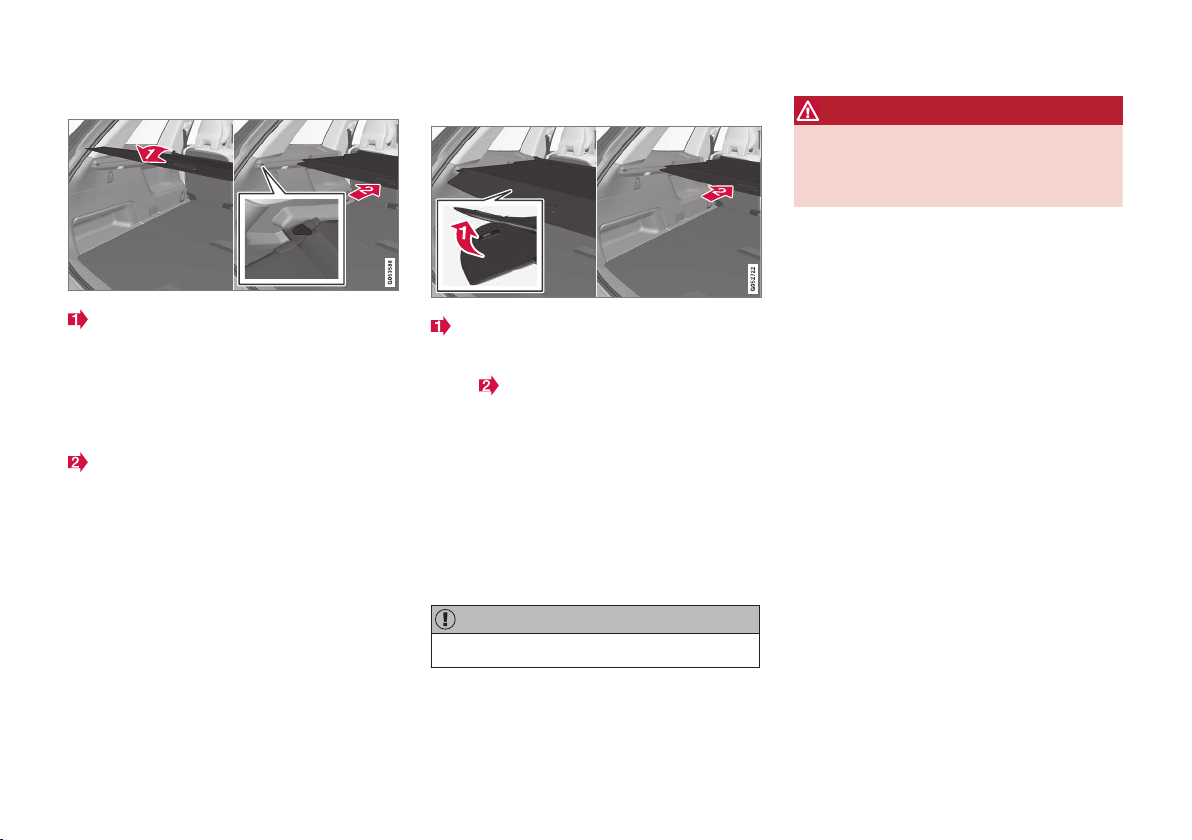
||
LOADING AND STORAGE
230
Loading mode
From retracted position - grip the handle and
pull out the cover so it slides over the side
panels in the cargo area - pull to the end
position and guide the cargo cover's attach-
ment pins into the grooves in the side panels.
(If the cover is already in the full-cover posi-
tion - see the next point)
From full-cover position - grip the handle and
guide the cargo cover's attachment pins into
the grooves in the side panels and release.
> Retract the cover until it stops in the load-
ing position.
In the event that your hands are occupied:
In the extended full-cover position - lightly
push the handle part of the cargo cover
upward, e.g. with an elbow.
>
The cover retracts until it stops in the
loading position.
To return to full-cover position from loading posi-
tion:
1. Grip the handle and pull the cargo cover out
to the end position.
2. Release slightly and angle the handle by
means of a light downward pressure.
> The cover is locked in the full-cover posi-
tion.
IMPORTANT
Do not load objects on top of the cargo cover.
WARNING
In a 7-seat car, never have the cargo cover fit-
ted when there are passengers in the rear
seats. This may lead to serious injury in the
event of a collision.
Retracting
1. From the full-cover position:
Lift up the handle and pull it backward to dis-
engage the cargo cover's attachment pins
and then release.
From loading position:
Grip the handle and pull out the cargo cover
in the grooves - pull to the full-cover position.
Lift up the handle and pull it backward to dis-
engage the attachment pins and then
release.
2. Retract the cover with its attachment pins
outside of the side panels until it stops in the
retracted position.
Removal
In retracted position:
1. Depress the button on one of the retracted
cargo cover's end pieces and lift out that
end.
In a 7-seat car - release the third seat row's
seatbelt locking tabs from the hooks above
the side panels.
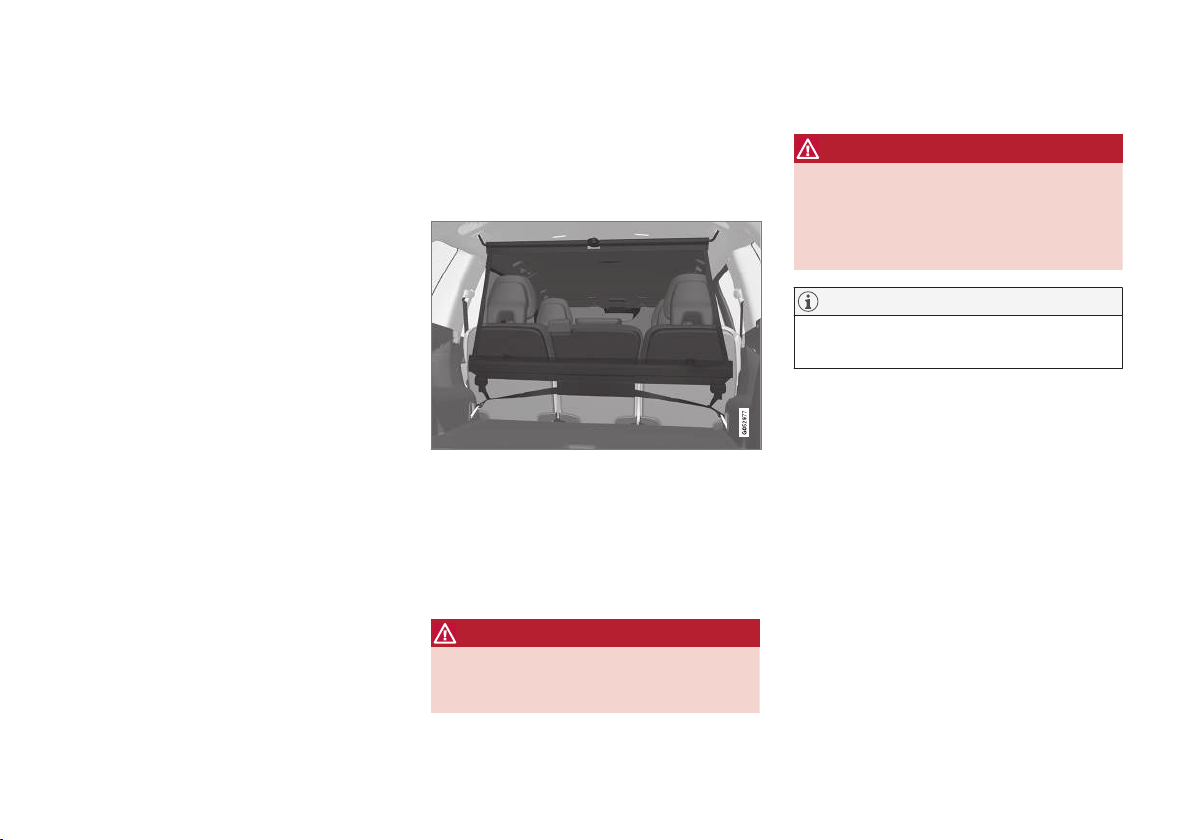
LOADING AND STORAGE
}}
* Option/accessory.
231
2. Angle the cover up/out carefully.
> The other end piece loosens automatically
and the cover can be lifted out of the
cargo area.
Related information
•
Recommendations for loading (p. 225)
•
Safety grille* (p. 233)
•
Safety net* (p. 231)
•
Load retaining eyelets (p. 227)
Safety net*
The safety net prevents loads from being thrown
forward in the passenger compartment in the
event of sudden braking.
The safety net is fitted into four mounting points.
For reasons of safety, the safety net must always
be fastened and anchored as described below.
The net is made of a strong nylon fabric and can
be secured two different locations in the car:
•
Rear fitting - behind second seat row.
•
Front fitting - behind the front seats.
WARNING
Loads in the luggage compartment must be
anchored well, and also using a correctly fit-
ted safety net.
Installation
WARNING
It is necessary to ensure that the upper secur-
ing points of the safety net are fitted correctly
and that the puller-straps are hooked in prop-
erly.
Damaged safety nets must not be used.
NOTE
With forward mounting, the safety net is most
easily mounted via one of the rear doors.
1. Unfold the safety net and make sure that the
split upper rod in the net is locked in its
extended position.
2. Hook one retaining hook of the net into the
front or rear roof mounting with the anchor-
ing strap locks turned towards you.
3. Hook the net's other retaining hook into the
roof mounting on the opposite side - the
telescopic spring-loaded retaining hooks
facilitate alignment.
Take care to press forward the net's retain-
ing hooks for each respective roof moun-
ting's front end position.

||
LOADING AND STORAGE
* Option/accessory.
234
4. Hook the attaching brace's hook through the
load securing eyelet at the cargo floor from
underneath, and guide the threaded part
through the cargo grille's lower attachment
hole from underneath (1).
Slide a plastic sleeve on the threaded part of
the attaching brace - the sleeve flange
should face up - and guide it down through
the hole. Then screw on the screw cap until
its lower edge is approx. 5 mm from the grille
(2).
5. Repeat the steps in point 4 on the other
side.
6. Centre the safety grille and then tighten the
two attaching braces alternately until the
grille is properly secured.
Removal
Remove the safety grille by performing the above
steps in reverse order.
Note that the attaching braces can be removed
before the plastic sleeves are removed from the
holes in the grille.
Related information
•
Recommendations for loading (p. 225)
•
Load retaining eyelets (p. 227)
•
Safety net* (p. 231)
•
Cargo cover* (p. 228)
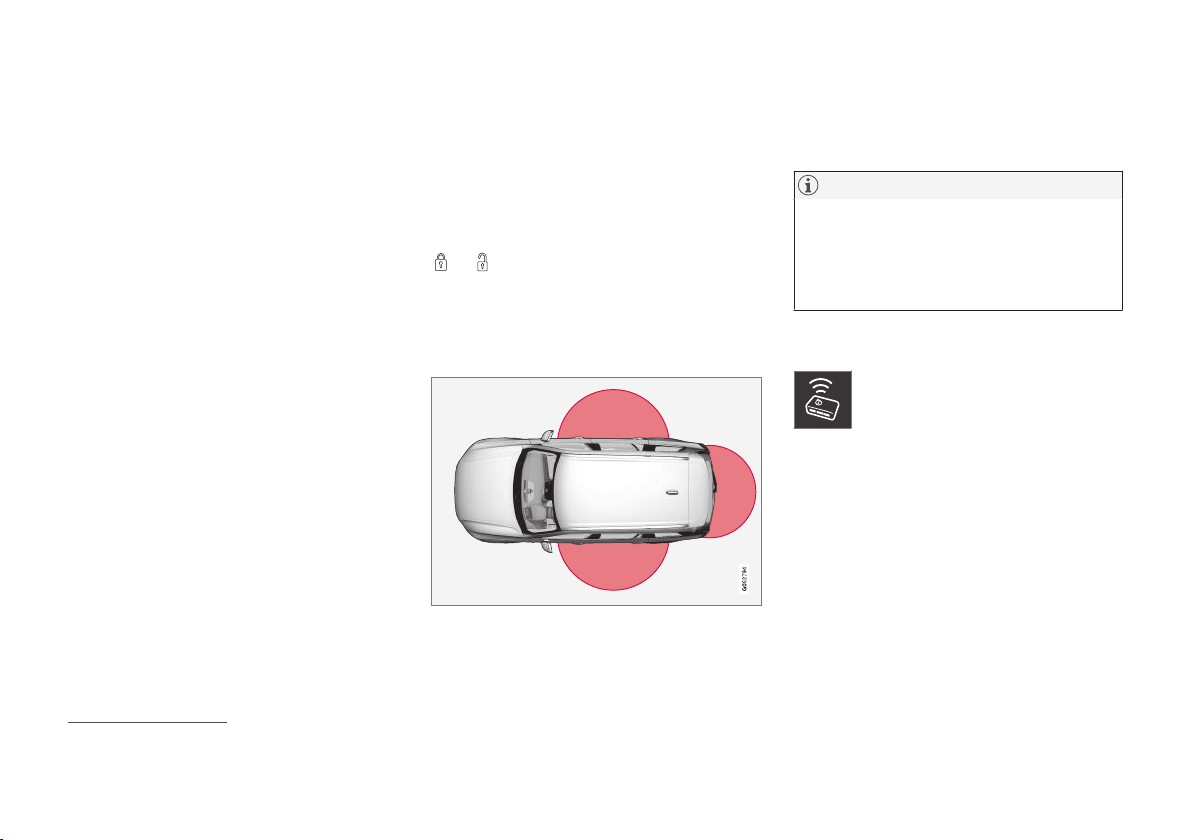
LOCKS AND ALARM
* Option/accessory.
238
•
Replacing the battery in the remote control
key (p. 258)
•
Locking/unlocking from the inside (p. 245)
•
Locking/unlocking from the outside (p. 241)
•
Driver profiles (p. 176)
•
Starting the car (p. 410)
•
Red Key - Restricted remote control key*
(p. 239)
Remote control key range
In order for the remote control key to work prop-
erly it needs to be within a certain distance from
the car.
For manual use
The remote control key's functions for e.g. lock-
ing/unlocking that are activated by pressing on
or have a range that extends approx.
20 metres (65 feet) from the car.
If the car does not verify a button being pressed -
move closer and try again.
For keyless use
3
The marked area in the illustration shows areas covered
by the system's antennas.
For keyless use, a remote control key or the but-
ton-less key (Key Tag) must be within a semicir-
cular area with a radius of approx. 1.5 metres
(5 feet) on both long sides and approx. 1 metre
(3 feet) from the tailgate.
NOTE
The remote control key functions may be dis-
rupted by surrounding radio waves, buildings,
topographical conditions, etc. The car can
always be locked/unlocked with the key
blade.
If the remote control key is removed
from the car
If the remote control key is removed
from the car when the engine is run-
ning, the warning message
Car key
not found Removed from car is
shown in the driver display and an acoustic
reminder sounds when the last door is closed.
The message extinguishes when the key is
returned to the car, followed by a press of the
right-hand keypad's O button, or when the last
door is closed.
Related information
•
Remote control key (p. 236)
•
Antenna locations for the start and lock sys-
tem (p. 240)
3
Only applies to cars equipped with the keyless locking/unlocking option (Passive Entry*).

LOCKS AND ALARM
}}
* Option/accessory.
239
Red Key - Restricted remote control
key*
A Red Key enables the car owner to set limits for
certain car properties. The restrictions are
intended to promote safe driving of the car, e.g.
when it is loaned out.
For a Red Key, it is possible to define the car's
maximum speed, set speed reminders and deter-
mine the loudspeaker system's maximum volume.
In addition, some of the car's driver support sys-
tems will always be active. Other functions of the
key are the same as those of a normal remote
control key.
One or more Red Keys can be ordered from a
Volvo dealer. A total of eleven keys with restric-
tions can be programmed and used for a single
car - at least one must be a normal remote con-
trol key.
The settings for Red Key are made by the user of
the normal remote control key from the centre
display's top view; go to:
Settings System
Driver Profiles Red Keys
Some of the car's driver support functions cannot
be deactivated by the user of a Red Key.
The restrictions are intended to act as measures
to reduce the risk of accidents, thereby making it
feel safer to hand over the car to e.g. young dri-
vers, valet parking or a workshop. The settings
cannot be changed by the person using a Red
Key.
Possible settings
The following settings can be made to apply for a
Red Key:
Speed limiter (Speed Limiter)
4
(On/Off):
•
Setting interval: 50-250 km/h (30-160 mph)
•
Setting during first use is 120 km/h
(75 mph)
•
Increments: 1 km/h (1 mph)
The driver display shows the symbol
and message
Red key Speed limitation cannot
be exceeded.
Speed reminder
4
(On/Off):
•
Setting interval: 0-250 km/h (0-160 mph)
•
Setting during first use is: 50, 70 and
90 km/h (30, 45 and 55 mph)
•
Increments: 1 km/h (1 mph)
•
Max. number of simultaneous reminders: 6
Muted max. volume
4
(On/Off):
•
Setting at first use: On
Adaptive cruise control*:
•
Setting at first use: Longest intervals
•
See the section "Adaptive cruise control" for
more information
Driver support functions
The following driver support functions will always
be active for the user of a Red Key:
•
Blind Spot Information (BLIS)* - see section
"Blind Spot Information"
•
Lane assistance (LDW and LKA)* - see sec-
tion "Lane assistance"
•
Distance warning* - see section "Distance
warning"
•
City Safety - see section "City Safety"
•
Driver Alert Control (DAC)* - see section
"Driver Alert Control"
•
Road Sign Information* - see section "Road
Sign Information".
4
Option, only available with Red Key.
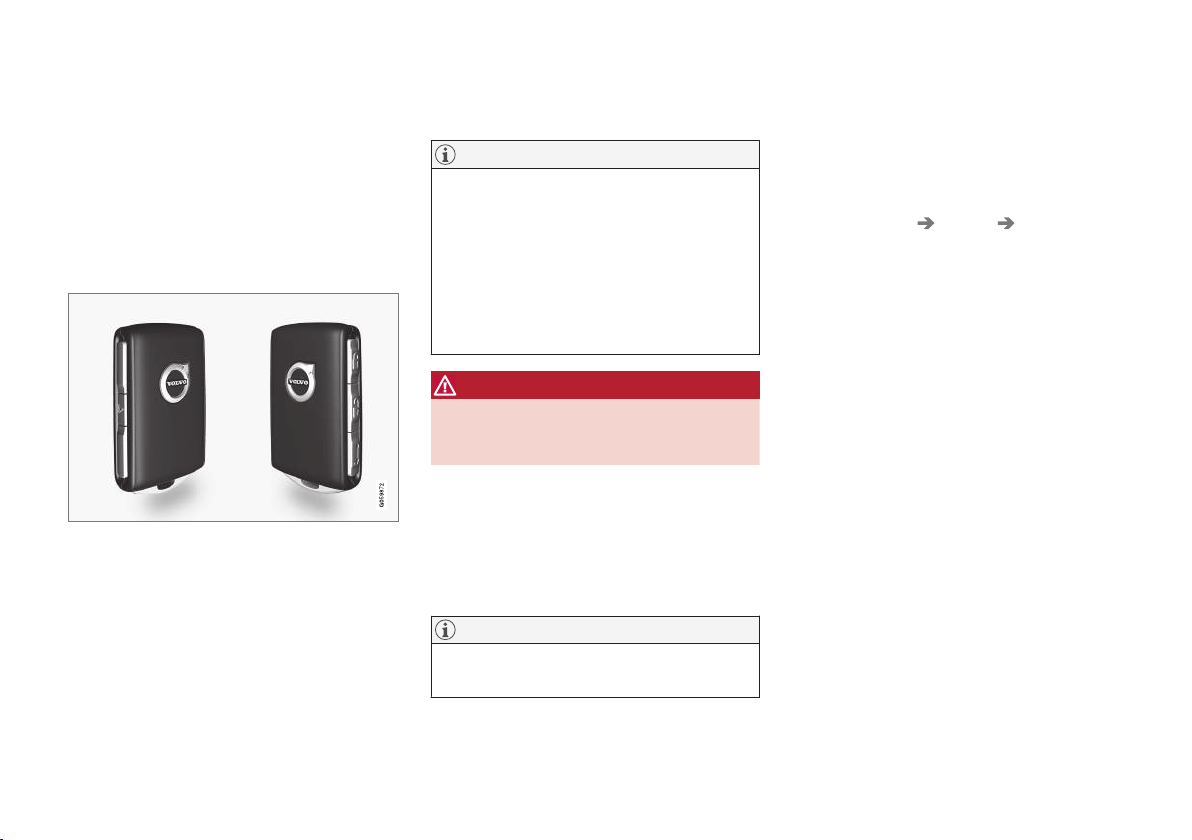
LOCKS AND ALARM
}}
* Option/accessory.
241
Locking/unlocking from the outside
The car is locked/unlocked from the outside
using buttons on the remote control key or with
the door or tailgate handles if the car is equip-
ped with keyless locking/unlocking (Passive
Entry)*. The tailgate can be operated via power
operation* and/or foot movement*.
Locking/unlocking with the remote
control key
The buttons on the remote control key can be
used to lock/unlock all doors and the tailgate
simultaneously.
Locking
The driver's door must be closed in order for the
lock sequence to be activated. If any of the other
doors or the tailgate is open, then these are not
locked and their alarms armed* until they are
closed. The alarm's movement detectors* are
activated when all the doors and the tailgate are
closed and locked.
NOTE
Be aware of the risk of locking the remote
control key/Key Tag in the car.
A remote control key/Key Tag left in the car
will be deactivated when the car is locked and
the alarm is armed using another valid key.
The "Deadlock" function is also deactivated.
The deactivated key is reactivated when the
car is unlocked.
WARNING
Do not allow anyone to remain in the car with-
out first deactivating the deadlocks in order to
avoid the risk of anyone being locked in.
Unlocking
If it is not possible to lock/unlock with the remote
control key, the battery may be discharged - in
which case, lock or unlock the driver's door with
the detachable key blade. See the section
"Detachable key blade" for more information.
NOTE
Always try moving closer to the car and mak-
ing another unlock attempt.
Settings for remote-controlled unlocking
It is possible to select different sequences for
unlocking.
1.
Tap on
Settings in the centre display's top
view.
2.
Press
My Car Locking Remote and
Interior Unlock
.
3. Select option:
•
All Doors
- unlocks all doors simultaneously.
•
Single Door
- unlocks the driver's door. Unlocking all of
the doors requires two presses on the
remote control key's unlock button.
The settings made for the Remote and Interior
Unlock function also affect central unlocking via
opening handles from the inside. For more infor-
mation about how unlocking from the inside is
affected, see the section "Locking/unlocking
from the inside".
Keyless* locking/unlocking
If the car is equipped with keyless locking/
unlocking*, it is sufficient to have the remote con-
trol key in the vicinity e.g. in a pocket or a bag,
making it more convenient to open the car if your
hands are full. For information on the system's
range, see the section "Remote control key
range".

LOCKS AND ALARM
}}
* Option/accessory.
243
Settings for Keyless entry
It is possible to select different sequences for
Keyless entry.
1.
Tap on
Settings in the centre display's top
view.
2.
Tap on
My Car Locking Keyless
Unlock
3. Select option:
•
All Doors
- unlocks all doors simultaneously.
•
Single Door
- unlocks selected door.
Automatic relocking
If none of the doors or the tailgate is opened
within two minutes of unlocking, they are locked
automatically. This function prevents the car from
being left unlocked unintentionally.
Unlocking with Volvo On Call
It is possible to remotely unlock the car with the
Volvo On Call* app.
See separate supplement for Volvo On Call.
Related information
•
Remote control key (p. 236)
•
Locking/unlocking the tailgate (p. 248)
•
Power operated tailgate* (p. 253)
•
Remote control key range (p. 238)
•
Detachable key blade (p. 251)
•
Alarm* (p. 263)
Indication on locking/unlocking the
car
When the car is locked or unlocked using the
remote control key, the direction indicators con-
firm that locking/unlocking was correctly per-
formed.
It is possible to separately adapt the indication for
locking/unlocking, see the heading "Select how
the car confirms locking and unlocking" for set-
ting options.
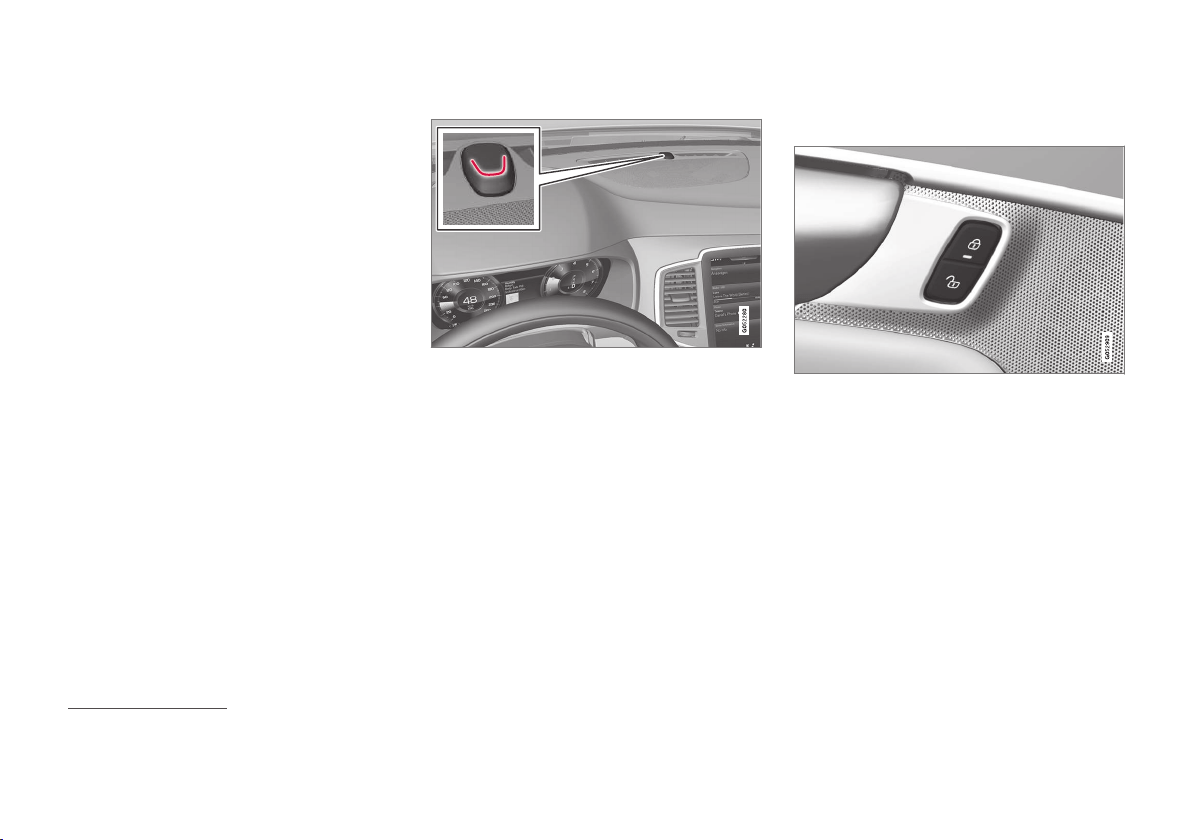
||
LOCKS AND ALARM
* Option/accessory.
244
Exterior indication
Locking
•
The car's hazard warning flashers indicate
locking by flashing and retracting the door
mirrors
8
.
Unlocking
•
The car's hazard warning flashers indicate
unlocking by two flashes and extending the
door mirrors
8
.
All doors, tailgate and bonnet must be closed to
indicate the car is locked. If locking is performed
with only the driver's door closed
9
, the car will be
locked but indication will only occur after all
doors, tailgate and bonnet have been closed.
Lock and alarm indicator
The lock and alarm indicator on the instrument panel
show the status of the alarm system.
Long flash indicates locking of the car. When the
car is locked, this will be indicated by short, pul-
sating flashes.
Indication in lock buttons
Front doors
Lock buttons with indicator lamp in the front door.
An illuminated indicator lamp in the lock button
of either front door indicates that all doors are
locked. If any door is opened, the lamp will extin-
guish in both doors.
8
Only for cars with retractable power door mirrors.
9
Does not apply to cars equipped with the keyless locking/unlocking (Passive Entry*).

LOCKS AND ALARM
}}
* Option/accessory.
245
In all doors*
Lock button with indicator lamp in the rear door.
An illuminated indicator lamp in the lock button
for one of the doors indicates that the door in
question is locked. If any door is unlocked, its
lamp will extinguish while the others will continue
to illuminate.
Select how the car confirms locking
and unlocking
Different options for indicating locking/unlocking
can be set via the centre display.
1.
Tap on
Settings in the centre display's top
view.
2.
Press
My Car Locking.
3.
Select setting for
Audible Locking
Feedback and Visible Locking Feedback
respectively.
Read more about indication of locking/unlocking
in section "Approach lighting" and "Adjusting the
door mirrors".
Related information
•
Locking/unlocking from the outside (p. 241)
•
Approach light duration (p. 151)
•
Adjusting the door mirrors (p. 156)
Locking/unlocking from the inside
The doors and tailgate can be locked and
unlocked from inside using the central locking
controls in the front doors. The lock controls* on
the rear doors each lock their own rear door.
Central locking
Locking/unlocking button with indicator lamp in the
front door.
–
Press the button to lock and the but-
ton to unlock.
Unlocking
–
Press the button to unlock all side doors
and the tailgate.

LOCKS AND ALARM
* Option/accessory.
248
Locking/unlocking the tailgate
The tailgate can be locked/unlocked and
opened in different ways depending on the
equipment level of the car.
Unlocking the tailgate with the remote
control key
The alarm for the tailgate can be disarmed and the tail-
gate unlocked by using the remote control key's
button.
1.
Press the remote control key's
button.
> The lock and alarm indicator on the instru-
ment panel extinguishes in order to show
that the alarm is not armed for the whole
of the car.
The alarm's level and movement sensors
and the sensors for opening the tailgate
are disconnected.
The tailgate is unlocked, but remains
closed while the doors remain locked and
their alarm functions armed.
To open the tailgate, grip the rubber pres-
sure plate beneath the tailgate handle
and open the tailgate.
If the tailgate is not opened within
2 minutes then it is relocked and the
alarm is re-armed.
2.
With the power operated tailgate option* -
Long press (approx. 1.5 seconds) on the
remote control key's
button
> The tailgate is unlocked and opened,
while the doors remain locked and their
alarm functions armed.
Keyless unlocking of the tailgate*
Rubber plate with pressure-sensitive surface.
The tailgate is held closed by an electrical lock.
You simply need to have the remote control key
in the vicinity e.g. in a pocket or a bag.
1. To open the tailgate - lightly press on the
rubberised pressure plate beneath the tail-
gate handle.
> The lock is released.
NOTE
If the remote key is not detected sufficiently
close to the tailgate, locking/unlocking will
not work. See the section "Remote key
range" for more information.

LOCKS AND ALARM
* Option/accessory.
249
2. Lift by the outside handle in order to fully
open the tailgate.
IMPORTANT
•
Minimal force is required to release the
rear hatch lock - just gently press the rub-
berised panel.
•
Do not place the lift force on the rubber
panel when opening the rear hatch - lift
the handle. Using too much force may
damage the electrical contacts on the rub-
ber panel.
WARNING
Do not drive with an open tailgate! Toxic
exhaust fumes could be drawn into the car
through the cargo area.
Unlocking the tailgate from the inside
of the car
1.
Brief press on the button on the instru-
ment panel.
> The tailgate can be unlocked and opened
from the outside by grasping the rubber-
ised pressure plate.
2.
With the power operated tailgate option* -
Long press on the
button on the instru-
ment panel.
> The tailgate opens.
Locking with the remote control key
–
Press the remote control key's button.
> The lock and alarm indicator on the instru-
ment panel starts to flash - the car is
locked and the alarm* is armed.
Related information
•
Remote control key (p. 236)
•
Remote control key range (p. 238)
•
Power operated tailgate* (p. 253)
•
Opening/closing the tailgate with foot move-
ment* (p. 256)

||
LOCKS AND ALARM
* Option/accessory.
254
Opening/closing button on the instrument panel.
Closing
The tailgate can be closed via the instrument
panel's button, with foot movement*, with the
remote control key or the buttons
14
along the
bottom edge of the tailgate.
Choose one of the following options to close the
tailgate:
–
Long press on the instrument panel's
button or the remote control key's but-
ton.
> The tailgate closes automatically and
acoustic signals sound - the tailgate
remains unlocked.
–
Press the button
14
on the underside of
the tailgate to close.
Button for closing and locking on the underside of the
tailgate.
> The tailgate closes automatically - the tail-
gate remains unlocked.
NOTE
The button is active 24 hours after the hatch
has been left open. Thereafter, it must be
closed manually.
Closing and locking
–
Press the button
14
on the underside of
the tailgate to close it and simultaneously
lock the tailgate and doors (all doors must be
closed for locking).
> The tailgate closes automatically - the tail-
gate and doors are locked, and the alarm*
is armed.
NOTE
If the remote key is not detected sufficiently
close to the tailgate, locking/unlocking will
not work. See the section "Remote key
range" for more information.
NOTE
When using key-free* blocking/closing, three
signals will sound if the key is not detected
sufficiently close to the tailgate. See the sec-
tions "Remote key range" and "Locks and
remote keys" for more information.
IMPORTANT
During manual tailgate operation, open or
close it slowly. Do not use force to open/
close it if there is resistance. It may be dam-
aged and stop working correctly.
14
A car with keyless locking/entry (Passive Entry*) has one button for closing and one button for closing and locking.

LOCKS AND ALARM
}}
* Option/accessory.
255
Cancel opening/closing
–
Cancel opening/closing in one of the follow-
ing ways:
•
Press the button on the instrument panel.
•
Press the remote control key's button.
•
Press the close button
14
along the bottom
edge of the tailgate.
•
Press the rubberised pressure plate
beneath the outside handle.
•
Using the foot movement* (see section
"Opening/closing power operated tailgate
with foot movement" for more informa-
tion).
> Tailgate movement will be interrupted and
the tailgate will stop and can then be
manoeuvred manually.
Programmable max. opening
The maximum opening position of the tailgate
can be adjusted, e.g. to suit a low ceiling height in
a garage.
To adjust max. opening:
1. Open the tailgate - stop it in the open posi-
tion.
2.
Press the
button on the underside of
the tailgate for at least 3 seconds.
> Two short acoustic signals sound to indi-
cate that the set position has been saved.
To reset max. opening:
–
Manually move the tailgate to its highest
possible position - press the
button on
the tailgate for at least 3 seconds.
> Two acoustic signals sound to indicate
that the set position has been cleared.
The tailgate will then assume its max.
position when opened.
NOTE
•
If the system has been operating continu-
ously for a long time, it is switched off to
avoid overload. It can be used again after
about 2 minutes.
Pinch protection
If something with sufficient resistance prevents
the tailgate from opening/closing then the pinch
protection is activated.
•
During opening - movement is interrupted,
the tailgate stops and a long acoustic signal
sounds.
•
During closing - movement is interrupted, the
tailgate stops, a long acoustic signal sounds
and the tailgate returns to the programmed
max. position.
WARNING
Observe the risk of trapping when opening/
closing. Before starting opening/closing,
check that there is nobody near to the tailgate
as trapping may have serious consequences.
Always operate the tailgate with caution.
Pre-tensioned springs
The pre-tensioned springs for the power operated tail-
gate.
14
A car with keyless locking/entry (Passive Entry*) has one button for closing and one button for closing and locking.
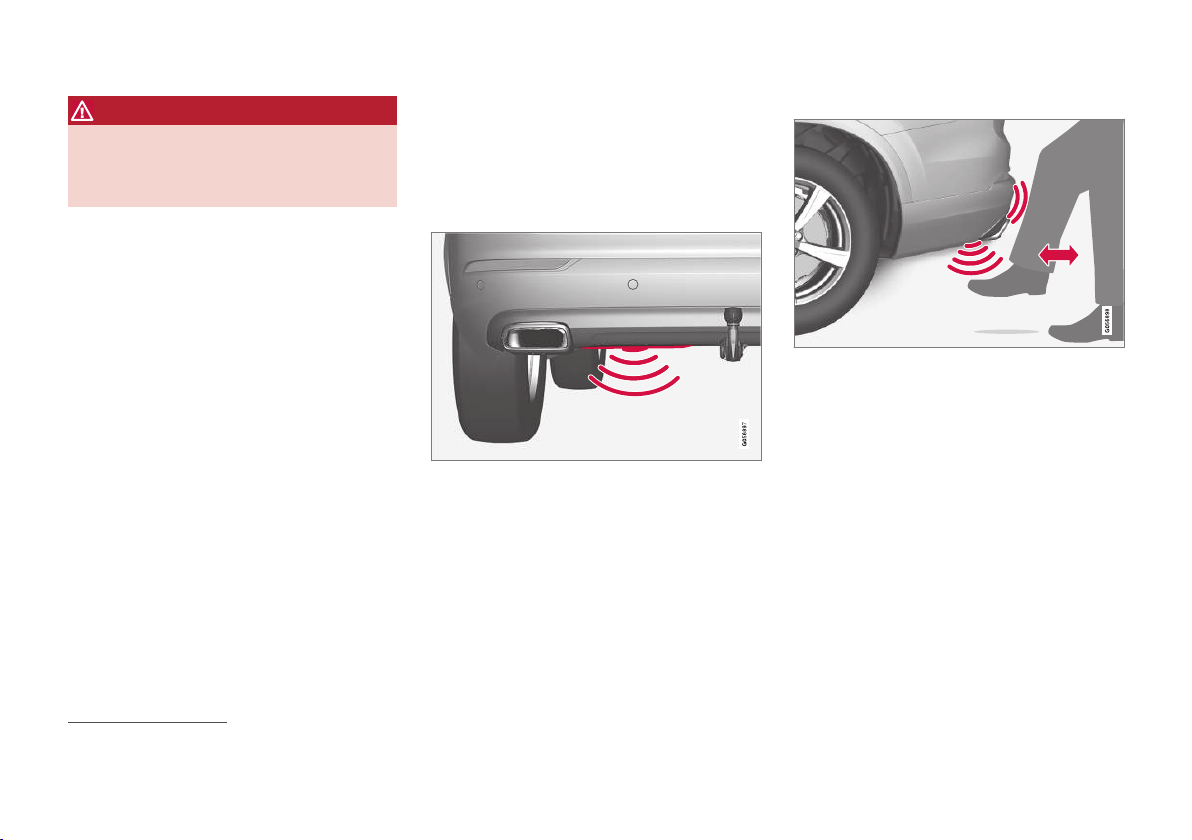
||
LOCKS AND ALARM
* Option/accessory.
256
WARNING
Do not open the pre-tensioned springs for the
power operated tailgate. They are pre-ten-
sioned with high pressure and can cause
injury if opened.
Related information
•
Locking/unlocking the tailgate (p. 248)
•
Opening/closing the tailgate with foot move-
ment* (p. 256)
•
Remote control key range (p. 238)
Opening/closing the tailgate with
foot movement*
To facilitate the operation of the tailgate when
your hands are occupied, it can be opened/
closed by means of a forward kicking motion
under the rear bumper.
The sensor is positioned to the left of centre in the
bumper.
One of the car's remote control keys must be
within range
15
behind the car in order for open-
ing/closing to be possible. This also applies to an
already unlocked car in order to avoid accidental
opening e.g. in a car wash.
Operation
Kicking motion within the detector's valid activation area.
15
See the section "Remote control key range" for more information.
LOCKS AND ALARM
* Option/accessory.
257
Opening/closing
NOTE
The foot-operated tailgate function is availa-
ble in two versions:
•
Opening and closing with foot movement
•
Only unlocking with foot movement (lift
up the tailgate manually to open it)
Note that the function for opening and clos-
ing with foot movement requires the "Power
operated tailgate"* option.
–
Make one slow, forward kicking motion
under the left part of the rear bumper. Then
take a step back. The bumper must not be
touched.
> A short acoustic signal sounds when
opening/closing is activated - the tailgate
is opened/closed.
If the tailgate is on open position then it is
always closed on activation via foot move-
ment.
The tailgate can also be closed via the instrument
panel's button, the remote control key or the but-
ton(s)
16
under the tailgate. For more information,
see the section "Power operated tailgate".
If several kicking motions take place without an
approved remote control key being located
behind the car, opening will not be possible until
after a certain delay.
Do not leave your foot positioned under the car
during the kicking motion. This could cause acti-
vation to fail.
Cancel opening/closing
–
Make one slow forward kicking motion when
opening/closing is in progress in order to
stop the movement of the tailgate.
The remote control key does not have to be in
the vicinity of the car to cancel opening/closing.
NOTE
There is a risk of reduced function, or no
function, if the rear bumper is loaded with
large amounts of ice, snow, dirt or similar. For
this reason, make sure you keep it clean.
NOTE
Pay attention to the possibility that the sys-
tem may be activated in a car wash or similar
if the remote key is within range.
Related information
•
Locking/unlocking the tailgate (p. 248)
•
Power operated tailgate* (p. 253)
•
Remote control key range (p. 238)
16
Only applies to a car equipped with keyless locking/entry (Passive Entry)*.
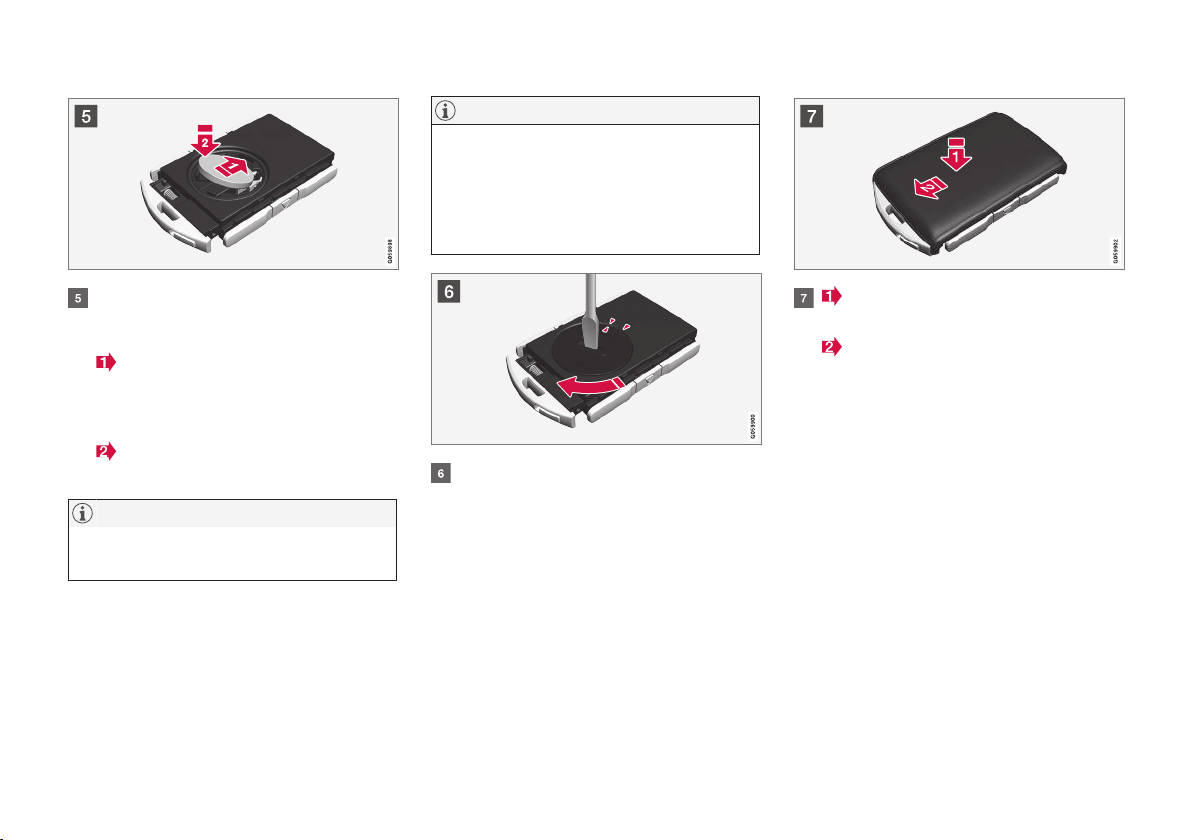
||
LOCKS AND ALARM
260
Install a new battery with the (+) side up.
Avoid touching the remote control key's bat-
tery contacts with your fingers.
Place the battery in the holder with the
edge down. Then slide the battery forwards
so that it fastens under the two plastic
catches.
Press the battery down so that it fastens
under the upper black plastic catch.
NOTE
Use batteries with the designation CR2032,
3 V.
NOTE
Volvo recommends that the batteries to be
used in the remote control key fulfil UN
Manual of Test and Criteria, Part III, sub-
section 38.3. Batteries fitted in the factory or
replaced by an authorised Volvo workshop
fulfil the above criteria.
Refit the battery cover and turn it clockwise
until the marking aligns with the CLOSE text.
Reposition the rear side's shell and press
it down until a clicking sound can be heard.
Then slide the shell back sedan.
> A further click will indicate that the shell is
properly positioned and securely attached.
LOCKS AND ALARM
}}
* Option/accessory.
263
The door is blocked against opening from
the inside.
The door can be opened from both the out-
side and the inside.
NOTE
•
A door's knob control only blocks that
particular door - not both rear doors
simultaneously.
•
Cars with an electric child safety lock do
not have a manual child lock.
Related information
•
Detachable key blade (p. 251)
•
Ignition positions (p. 409)
Alarm*
The alarm alerts e.g. in the event of a break-in in
the car.
When armed, the alarm is triggered if:
•
a door, the bonnet or the tailgate is opened
19
•
a movement is detected in the passenger
compartment (if fitted with a movement
detector*)
•
the car is raised or towed away (if fitted with
a tilt detector*)
•
the starter battery's cable is disconnected
•
the siren is disconnected.
If there is a fault in the alarm system,
the driver display shows the symbol
and the message
Alarm system
failure Service required. In which
case, contact a workshop - an authorised Volvo
workshop is recommended.
NOTE
Do not attempt to repair or alter components
in the alarm system yourself. Any such
attempts may affect the terms of the insur-
ance.
NOTE
The movement sensors trigger an alarm in
the event of movement in the passenger
compartment - air currents are also regis-
tered. For this reason the alarm is triggered if
the car is left with a window or the panoramic
roof* open or if the passenger compartment
heater is used.
To avoid this: Close the window/panoramic
roof when leaving the car. If the car's inte-
grated parking heater (or a portable electric
heater) shall be used - direct the airflow from
the air vents so that they are not pointing
upwards into the passenger compartment.
Alternatively, reduced alarm level can be used
- see the section further down in this article.
Arming the alarm
Lock and arm the car alarm as follows:
•
press the remote control key's lock button
•
touch in the marked area on the outside of
the door handle
20
•
push on the tailgate's rubberised pressure
plate
20
.
If the car is equipped with a power-operated tail-
gate, the button on the underside of the tailgate
can also be used to lock the car and arm the car
alarm.
19
Applies to certain markets.
20
Only applies to a car with keyless locking/entry (Passive Entry*)
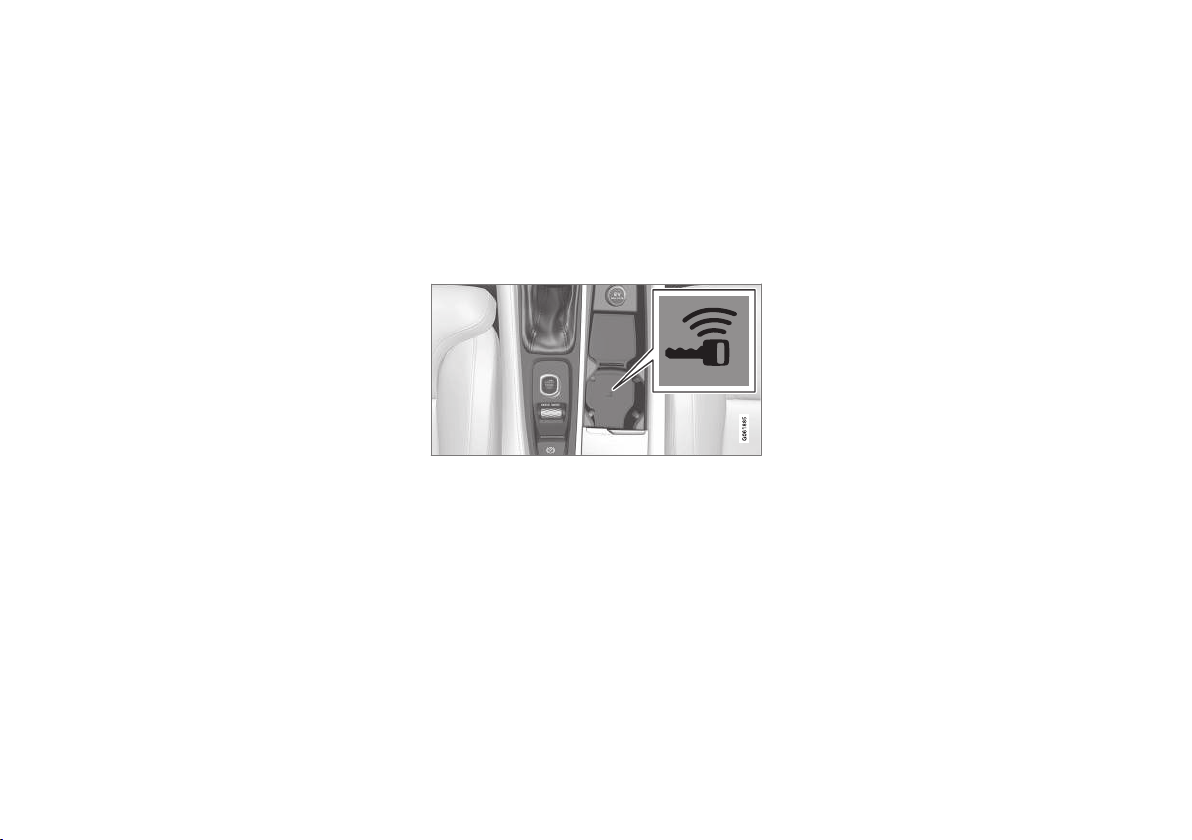
LOCKS AND ALARM
* Option/accessory.
265
Automatic arming/rearming of the
alarm*
Automatic rearming of the alarm prevents the car
being left with the alarm disarmed unintention-
ally.
If the car is unlocked with the remote control key
(which disarms the alarm) but none of the doors
or the tailgate is opened within two minutes, then
the alarm is automatically re-armed. The car is
relocked at the same time.
In certain markets, the alarm is re-armed auto-
matically after a certain delay after the driver's
door has been opened and closed without being
locked.
Related information
•
Alarm* (p. 263)
•
Disarming the alarm* without working remote
control key (p. 265)
Disarming the alarm* without
working remote control key
The car can be unlocked and disarmed even if
the remote control key does not work, e.g. if the
remote control key's battery is dead.
1. Open the driver's door with the detachable
key blade.
> The alarm is triggered.
The backup reader's location in the cup holder.
2. Place the remote control key in the backup
reader in the tunnel console's cup holder.
3. Turn the start knob clockwise and release it.
> The alarm is deactivated.
Related information
•
Alarm* (p. 263)
•
Automatic arming/rearming of the alarm*
(p. 265)
•
Detachable key blade (p. 251)
•
Starting the car (p. 410)
LOCKS AND ALARM
}}
267
Country/Area Type approval
Brazil MT-3245/2015
Indonesia Nomor: 38301/SDPPI/2015
Malaysia RAAT/37A/0315/S(15-0663)
Mexico IFETEL: RLVDEVO15-0396
Russia
The United Arab Emirates ER37847/15
DA0062437/11

DRIVER SUPPORT
* Option/accessory.
277
Electronic Stability Control ESC
2
Electronic Stability Control (ESC) helps the
driver to avoid skidding and improves the car's
traction.
The activation of the ESC sys-
tem during braking may be
noticed as a throbbing sound.
The car may accelerate slower
than expected when the accel-
erator pedal is depressed.
WARNING
•
The stability system ESC is supplemen-
tary driver support intended to facilitate
driving and make it safer – it cannot han-
dle all situations in all traffic, weather and
road conditions.
•
ESC is not a substitute for the driver's
attention and judgement. The driver is
always responsible for ensuring the car is
driven in a safe manner, at the appropri-
ate speed, with an appropriate distance to
other vehicles, and in accordance with
current traffic rules and regulations.
The ESC system consists of the following func-
tions:
•
Active Yaw Control
•
Spin Control
•
Traction control system
•
Engine Drag Control
•
Trailer stability assist
Active Yaw Control
The function checks the driving and brake force
of the wheels individually in order to stabilise the
car.
Spin Control
The function prevents the driving wheels from
spinning against the road surface during acceler-
ation.
Traction control system
The function is active at low speed and transfers
power from the driving wheel that is spinning to
the one that is not.
Engine Drag Control
Engine Drag Control (EDC
3
) prevents involuntary
wheel locking, e.g. after shifting down or engine
braking when driving in low gear on slippery road
surfaces.
Involuntary wheel locking while driving can,
amongst other things, impair the driver's ability to
steer the car.
Trailer stability assist*
4
Trailer Stability Assist (TSA
5
) stabilises a car with
attached trailer in situations where snaking
occurs. Also see section "Trailer Stability Assist"
for more information.
NOTE
The TSA function is deactivated if sport mode
is activated.
Related information
•
Sport mode for electronic stability control
(p. 278)
•
Symbols and messages for electronic stabil-
ity control (p. 279)
•
Stability system RSC
1
(p. 276)
•
Trailer Stability Assist* (p. 455)
1
Roll Stability Control
2
Electronic Stability Control
3
Engine Drag Control
4
Trailer stability assist is included when installing the Volvo genuine towbar.
5
Trailer Stability Assist

DRIVER SUPPORT
* Option/accessory.
278
Sport mode for electronic stability
control
The ESC
7
system is always activated — it can-
not be switched off. However, the driver can
select Sport mode, which allows for a more
active driving experience.
In Sport mode the ESC system detects whether
the accelerator pedal, steering wheel movements
and cornering are more active than in normal
driving and then allows a certain degree of con-
trolled skidding with the rear section before ESC
intervenes and stabilises the car.
For example, if the driver stops a controlled skid
by releasing the accelerator pedal, the ESC sys-
tem intervenes and stabilises the car.
Sport mode also provides maximum traction if the
car has become bogged down or is driving on a
loose surface, such as sand or deep snow.
Select/deselect Sport mode
The Sport mode is activated/
deactivated in the centre dis-
play's function view.
–
Tap on the ESC Sport Mode button in
function view.
> Sport mode is activated/deactivated, a
green/grey indicator is displayed in the
button.
The driver display indicates Sport mode
by displaying this symbol with a con-
stant glow until the function is deacti-
vated or the engine is switched off. The
next time the engine is started, the ESC system
is back in its normal mode again.
Limitations for Sport mode
The ESC Sport Mode function cannot be
selected when one of the functions from speed
limiter, cruise control or adaptive cruise control is
activated.
Related information
•
Electronic Stability Control ESC (p. 277)
•
Speed limiter* (p. 281)
•
Cruise control (p. 288)
•
Adaptive cruise control* (p. 296)
7
Electronic Stability Control

DRIVER SUPPORT
}}
279
Symbols and messages for
electronic stability control
A number of symbols and messages regarding
electronic stability control (Electronic Stability
Control -ESC) can be shown on the driver dis-
play.
The following table shows some examples.
Symbol Message Specification
Constant glow for
approx. 2 seconds.
System check when the engine is started.
Flashing light. ESC system is being activated.
Constant glow. Sport mode is selected.
NOTE: The ESC system is not deactivated in this mode — it is partly reduced.
ESC
Temporarily off
ESC system has been temporarily reduced due to excessive brake temperature - the function is reactiva-
ted automatically when the brakes have cooled.
See message in the driver display.
ESC
Service required
ESC system disengaged.
•
Stop the car in a safe place, switch off the engine and start it again.
•
Visit a workshop if the message remains - an authorised Volvo workshop is recommended.
A text message can be cleared by briefly press-
ing the
button, located in the centre of the
steering wheel's right-hand keypad.
If a message remains: Contact a workshop – an
authorised Volvo workshop is recommended.

||
DRIVER SUPPORT
* Option/accessory.
284
Temporary increase in speed with the
accelerator pedal
The speed limiter can also be temporarily overrid-
den with the accelerator pedal without the speed
limiter being set in standby mode - e.g. to be able
to quickly accelerate the car out of a situation.
In which case, proceed as follows:
1. Fully depress the accelerator pedal and
release it so that acceleration is interrupted
when the desired speed has been reached.
> In this case, the speed limiter is still acti-
vated and the driver display's symbol is
therefore WHITE.
2. Fully release the accelerator pedal when the
temporary acceleration is finished.
> The car is then braked automatically
below the last stored maximum speed.
Related information
•
Speed limiter* (p. 281)
•
Activating and starting the Speed limiter
(p. 282)
•
Managing speed for the Speed limiter
(p. 282)
•
Switching off the speed limiter (p. 284)
Switching off the speed limiter
The speed limiter (SL
13
) can be deactivated.
NOTE: The illustration is schematic - details may vary
depending on car model.
1.
Press the steering wheel button
(2).
> The speed limiter is set in standby mode.
2.
Press the steering wheel button ◀ (1) or ▶
(3) to change to another function.
> The driver display's symbol and indicator
for speed limiter (4) are switched off -
which deletes the set/stored maximum
speed.
3.
Press the steering wheel button
(2)
again.
> Another function is activated.
Related information
•
Speed limiter* (p. 281)
•
Activating and starting the Speed limiter
(p. 282)
•
Managing speed for the Speed limiter
(p. 282)
•
Deactivating/reactivating the Speed Limiter
(p. 283)
13
Speed Limiter
||
DRIVER SUPPORT
* Option/accessory.
286
The ASL symbol
The sign symbol (displayed alongside
the stored speed, "70", in the centre of
the speedometer) can be shown in
three colours with the following mean-
ings:
Colour of sign
symbol
Meaning
Greenish yellow ASL is active
Grey ASL has been set in
standby mode
Amber/Orange ASL is in temporary standby
mode - e.g. due to a traffic
sign not being read.
Limitations of ASL
Automatic speed limitation takes place using
speed information from the RSI
16
function - not
from the speed limit road signs that the car
passes.
If RSI
16
cannot interpret and provide speed infor-
mation to the ASL, then the ASL is set in standby
mode and changes over to SL. In such cases the
driver must intervene and brake to a suitable
speed.
The ASL will be reactivated when the RSI
16
func-
tion can once again interpret and provide speed
information to the ASL.
See also the heading "Limitations for Road Sign
Information".
Related information
•
Speed limiter* (p. 281)
•
Activating/deactivating the automatic speed
limiter (p. 286)
•
Changing the tolerance for the Automatic
speed limiter (p. 287)
•
Road Sign Information* (p. 362)
•
Limitations of Road Sign Information*
(p. 367)
Activating/deactivating the
automatic speed limiter
The automatic speed limiter function (ASL
17
)
can be activated and deactivated as a supple-
ment to the speed limiter (SL
18
).
Activate ASL
The Speed Sign Assist but-
ton is located in the function
view of the centre display.
To activate the automatic speed limiter:
1.
Press the
Speed Sign Assist button.
> ASL is set in standby mode, a green indi-
cator appears on the button, and the
driver display shows a sign symbol in the
centre of the speedometer.
2.
Press the steering wheel button
.
> ASL is activated with the car’s current
speed.
16
Road Sign Information – RSI
17
Automatic Speed Limiter
18
Speed Limiter

DRIVER SUPPORT
}}
* Option/accessory.
287
Deactivate ASL
To deactivate the automatic speed limiter:
–
Tap on the Speed Sign Assist button in
function view.
> ASL is deactivated and the button's indi-
cation becomes GREY - SL is activated
instead.
WARNING
After switching from ASL to SL the car will no
longer follow the signed speed limit but only
the maximum speed stored in memory.
Related information
•
Automatic speed limiter* (p. 285)
•
Changing the tolerance for the Automatic
speed limiter (p. 287)
Changing the tolerance for the
Automatic speed limiter
The Automatic Speed Limiter function (ASL
19
)
can be set for different tolerance levels.
It is possible to increase/decrease the signed
speed limit. If, for example, the car follows a
signed speed limit of 70km/h (43 mph) the
driver can instead choose to allow the car to
maintain 75 km/h (47 mph).
Buttons and symbols for functions
20
.
–
Press the steering wheel button (1)
until 70 km/h (43 mph) in the centre of the
speedometer (4) changes to 75 km/h
(47 mph).
> After which, the car uses the selected tol-
erance 5 km/h (4 mph) as long as signs
passed are showing 70 km/h (43 mph).
The tolerance is followed until a road sign
with a lower or higher speed is passed -
then the car follows the new signed
speed limit instead and the tolerance is
deleted from the memory.
If the Road Sign Information* function is
activated, the signed speed limit will then
be shown with a RED indicator on the
speedometer.
The tolerance is adjusted in the same way as the
speed setting is in the speed limiter.
NOTE
The maximum selectable tolerance is
+/- 10 km/h (5 mph).
Related information
•
Automatic speed limiter* (p. 285)
•
Activating/deactivating the automatic speed
limiter (p. 286)
19
Automatic Speed Limiter
20
NOTE: The illustration is schematic - details may vary depending on car model.
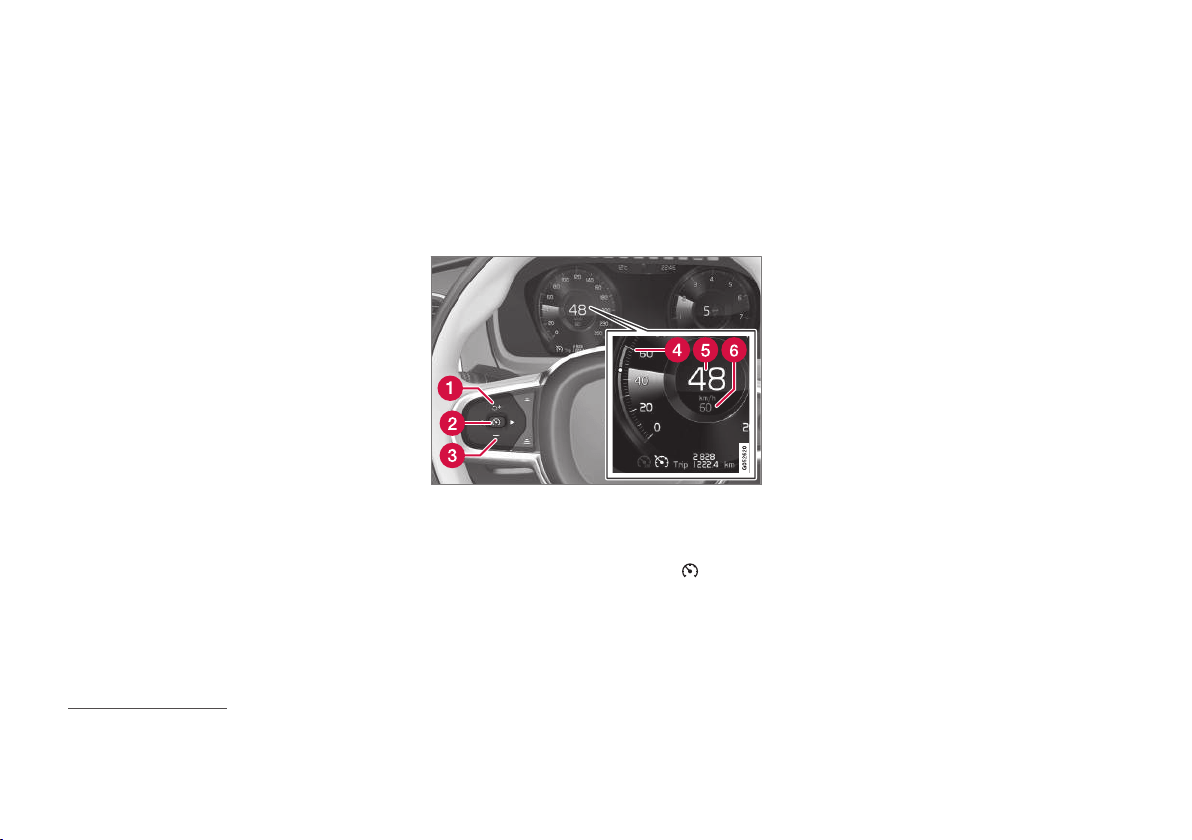
DRIVER SUPPORT
}}
* Option/accessory.
291
Cruise control dependence on drive
mode
The cruise control's way of maintaining a speed
may vary depending on the selected drive
mode
25
.
Cruise control Eco Cruise
In ECO drive mode the cruise control's accelera-
tions and decelerations become smoother com-
pared to other drive modes to optimise fuel and
environmental economy. This can cause the car's
speed to be temporarily above or below the set
speed.
See supplementary information in "ECO drive
mode" under "Cruise control Eco Cruise".
Cruise control Dynamic Cruise
In Dynamic drive mode, the cruise control's accel-
erations and decelerations are felt more strongly
and seem more direct compared to other modes.
Related information
•
Cruise control (p. 288)
•
Activating and starting the Cruise control
(p. 289)
•
Deactivating/reactivating the cruise control
(p. 291)
•
Deactivating Cruise Control (p. 292)
•
Drive modes* (p. 422)
•
Drive mode ECO (p. 425)
Deactivating/reactivating the cruise
control
Cruise control (CC
26
) can be temporarily deacti-
vated so that it is set in the standby mode and
can be reactivated later.
Deactivate Cruise Control and set in
standby mode
NOTE: The illustration is schematic - details may vary
depending on car model.
To set cruise control in standby mode:
–
Press the steering wheel button (2).
> The cruise control markings and symbols
in the driver display change colour from
WHITE to GREY - cruise control is now
temporarily deactivated and the driver
must then manually control the speed.
Standby mode on driver intervention
The cruise control is temporarily deactivated and
set in standby mode if:
•
the foot brake is used
•
the gear selector is moved to N position
•
the clutch pedal is held depressed for longer
than 1 minute
•
the driver maintains a speed higher than the
stored speed for longer than 1 minute.
The driver must then control the speed himself/
herself.
A temporary increase in speed with the accelera-
tor pedal, e.g. during overtaking, does not affect
the setting - the car returns to the last stored
speed when the accelerator pedal is released.
Automatic standby mode
Cruise control is temporarily disengaged and set
in standby mode if:
•
wheels lose traction
•
engine speed is too low/high
•
brake temperature is too high
•
speed falls below 30 km/h (20 mph).
The driver must then control the speed himself/
herself.
25
See supplementary information in the section "Drive modes".
26
Cruise Control
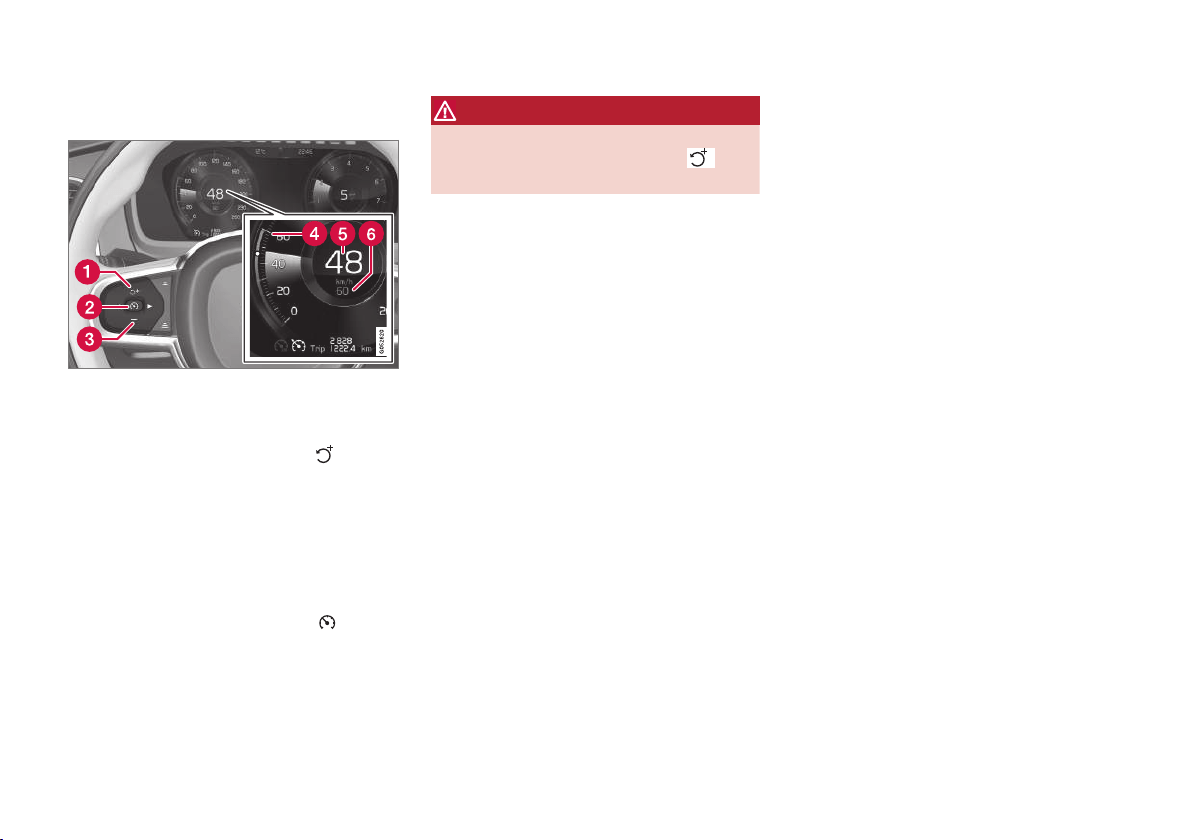
||
DRIVER SUPPORT
292
Reactivating cruise control from
standby mode
NOTE: The illustration is schematic - details may vary
depending on car model.
To start cruise control from standby mode:
–
Press the steering wheel button (1).
> The cruise control markings and symbols
in the driver display change colour from
GREY to WHITE — the car will now follow
the most recently stored speed again.
or
To start cruise control from standby mode:
–
Press the steering wheel button (2).
> The cruise control markings and symbols
in the driver display change colour from
GREY to WHITE — the car will now follow
the current speed.
WARNING
A significant increase in speed may follow
when the speed is resumed with the
steering wheel button.
Related information
•
Cruise control (p. 288)
•
Activating and starting the Cruise control
(p. 289)
•
Managing speed for the Cruise control
(p. 290)
•
Deactivating Cruise Control (p. 292)
Deactivating Cruise Control
Cruise control Cruise Control — CC can be
deactivated.
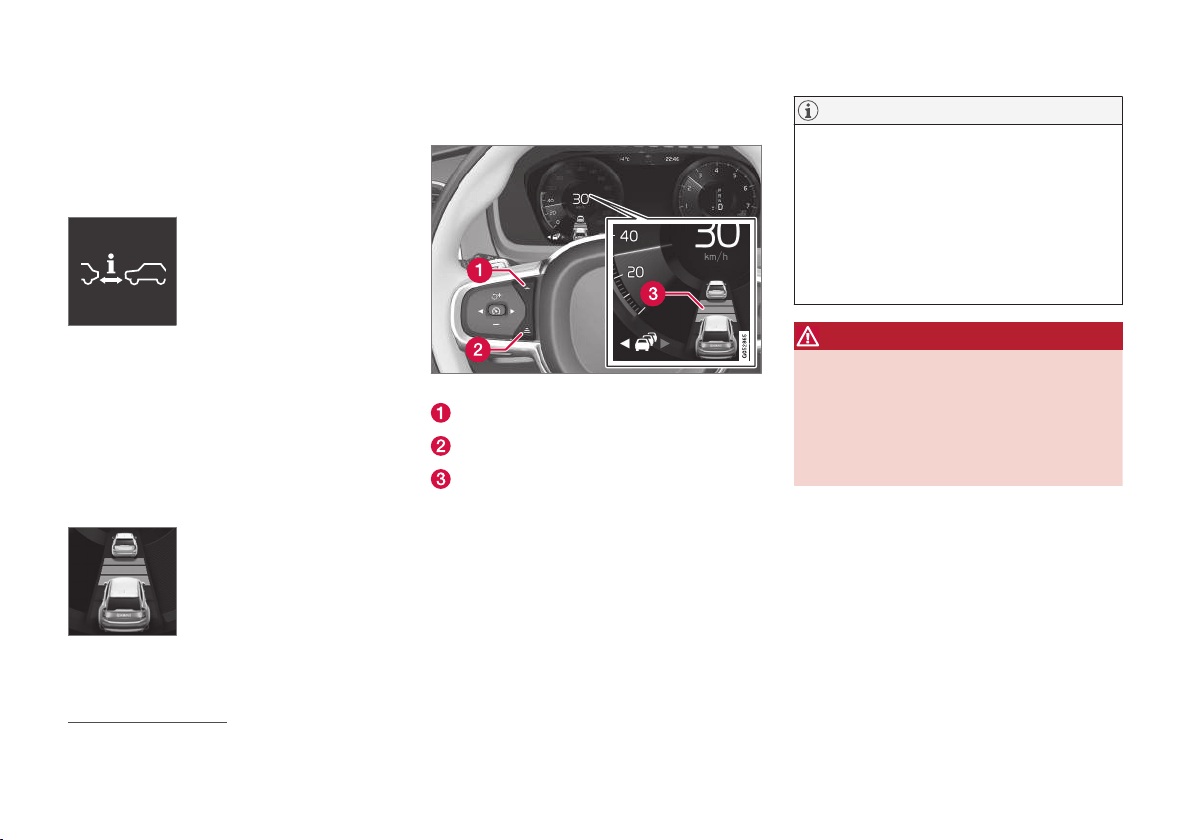
DRIVER SUPPORT
* Option/accessory.
295
Activating and setting the time
interval for Distance warning*
The Distance Warning
30
function can be set
with different time intervals or switched off.
On/Off
Press the Distance Alert but-
ton in the centre display's func-
tion view.
•
GREEN button indication - Distance Alert is
activated.
•
GREY button indication - Distance Alert is
deactivated.
Distance Alert is activated automatically each
time the engine is started.
Setting the time interval for Distance
warning
Different time intervals to the
vehicle in front can be selected
and shown in the driver display
as 1-5 horizontal lines - the
more lines the longer the time
interval. One line represents
about 1 second to the vehicle
in front, 5 lines represents about 3 seconds.
The same symbol is also shown when the adap-
tive cruise control function is activated.
Control for time interval.
Decrease time interval
Increase time interval
Distance indicator
–
Press the steering wheel button (1) or (2) to
increase or decrease the time interval.
> The distance indicator (3) shows the cur-
rent time interval.
NOTE
•
The higher the speed the longer the cal-
culated distance in metres for a given
time interval.
•
Only use the time intervals permitted by
local traffic regulations.
•
The set time window is also used by the
adaptive cruise control and Pilot Assist
functions.
WARNING
•
Only use a time window that suits the
current traffic conditions.
•
The driver should be aware that short
time windows limit the amount of time
available to react and take action if an
unexpected traffic situation arises.
Related information
•
Distance Warning* (p. 293)
•
Limitations of Distance Warning* (p. 296)
•
Adaptive cruise control* (p. 296)
30
Distance Alert
DRIVER SUPPORT
}}
297
is clear again the car returns to the selected
speed.
WARNING
•
The adaptive cruise control function is
supplementary driver support intended to
facilitate driving and make it safer – it
cannot handle all situations in all traffic,
weather and road conditions.
•
The driver is advised to read all sections
in the Owner's Manual that relate to this
function to learn about factors such as its
limitations and what the driver should be
aware of before using the system (see
the list of links at the end of this article).
•
The adaptive cruise control is not a sub-
stitute for the driver's attention and
judgement. The driver is always responsi-
ble for ensuring the car is driven in a safe
manner, at the appropriate speed, with an
appropriate distance to other vehicles,
and in accordance with current traffic
rules and regulations.
Adaptive cruise control regulates the speed with
acceleration and braking. It is normal for the
brakes to emit a low sound when they are being
used to adjust the speed.
The adaptive cruise control aims to control the
speed in a smooth way. In situations that demand
sudden braking the driver must brake himself/
herself. This applies in case of large speed differ-
ences or if the vehicle in front brakes suddenly.
Due to the limitations of the radar unit, braking
may come unexpectedly or not at all.
The adaptive cruise control aims to follow the
vehicle ahead in the same lane at a time interval
set by the driver. If the radar unit cannot see any
vehicle in front then the car will instead maintain
the speed set and stored by the driver. This also
takes place if the speed of the vehicle ahead
increases and exceeds the stored speed.
The following applies for cars with automatic
gearbox:
•
Adaptive cruise control can follow another
vehicle at speed from 0 km/h up to
200 km/h (125 mph).
The following applies for cars with manual gear-
box:
•
The Adaptive cruise control can follow
another vehicle at speeds from 30 km/h
(20 mph) up to 200 km/h (125 mph).
WARNING
•
Adaptive cruise control is not a collision
avoidance system. The driver is always
responsible and must intervene if the sys-
tem does not detect a vehicle ahead.
•
The adaptive cruise control does not
brake for humans or animals, and not for
small vehicles such as bicycles and
motorcycles. Nor for low trailers, oncom-
ing, slow or stationary vehicles and
objects.
•
Do not use the adaptive cruise control in
demanding situations, such as in city traf-
fic, at junctions, on slippery surfaces, with
a lot of water or slush on the road, in
heavy rain/snow, in poor visibility, on
winding roads or on slip roads.
IMPORTANT
Maintenance of adaptive cruise control com-
ponents must only be performed at a work-
shop - an authorised Volvo workshop is rec-
ommended.
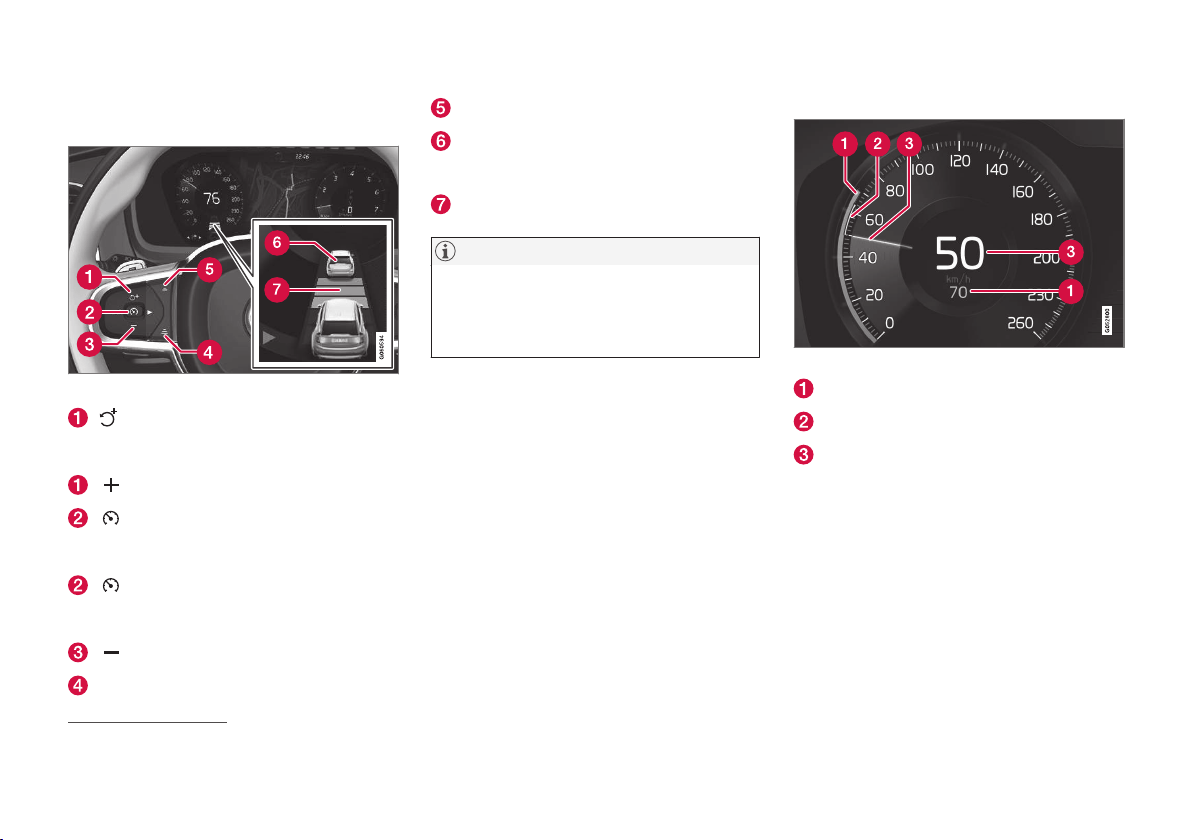
||
DRIVER SUPPORT
* Option/accessory.
298
Overview
Controls
Buttons and symbols for functions
33
.
: Activates the adaptive cruise control
from standby mode and resumes stored
speed
: Increases the stored speed
: From standby mode - activates the
adaptive cruise control and stores current
speed
: From active mode - deactivates/
changes the adaptive cruise control to
standby mode
: Reduces stored speed
Increases the time interval to vehicles ahead
Reduces the time interval to vehicles ahead
Target vehicle indicator: ACC has detected
and is following a target vehicle at the preset
time interval
Symbol for time interval to vehicles ahead
NOTE
In cars equipped with Adaptive Cruise Con-
trol*, it is possible to switch between cruise
control and Adaptive Cruise Control – see the
heading "Switch between CC and ACC".
Driver display
Indication of speeds
33
.
Stored speed
Speed of vehicle ahead.
Current speed of your car.
To see different combinations of symbols
depending on traffic situation - see the heading
"Symbols and messages for the adaptive cruise
control".
33
NOTE: The illustration is schematic - details may vary depending on car model.
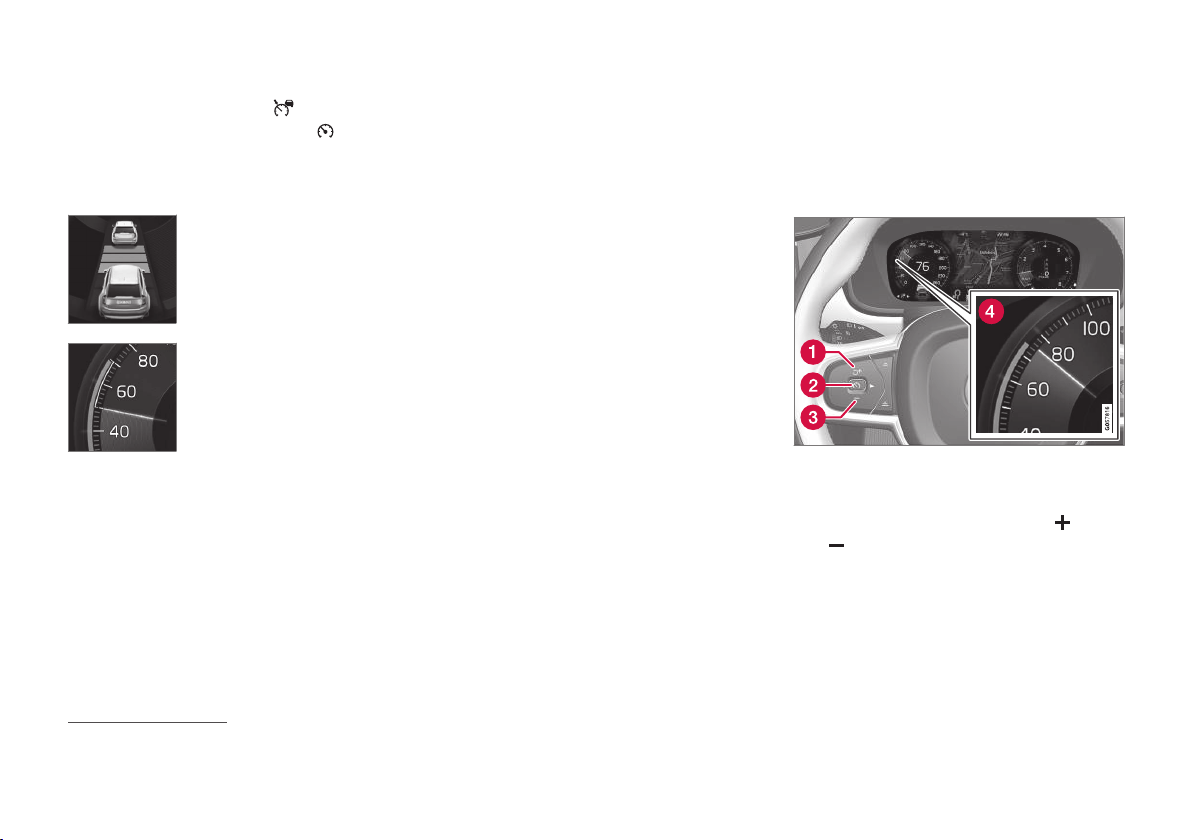
DRIVER SUPPORT
}}
* Option/accessory.
301
–
With the symbol/function (4) displayed,
press the steering wheel button
(1).
> Adaptive cruise control starts and the cur-
rent speed is stored, which is shown in
figures in the centre of the speedometer.
The time interval is only
adjusted to the vehicle ahead
by the ACC when the distance
symbol shows two vehicles.
At the same time a speed
range is marked.
The higher speed is the
stored/selected speed and the
lower speed is that of the vehi-
cle ahead (target vehicle).
Related information
•
Adaptive cruise control* (p. 296)
•
Managing the speed of the Adaptive cruise
control* (p. 301)
•
Setting the time interval for the adaptive
cruise control* (p. 302)
•
Deactivating/activating the Adaptive cruise
control* (p. 304)
•
Overtaking assistance with adaptive cruise
control* or Pilot Assist* (p. 306)
•
Change of target and automatic braking with
the Adaptive Cruise Control (p. 307)
•
Limitations of the adaptive cruise control*
(p. 308)
•
Symbols and messages for the Adaptive
cruise control* (p. 311)
•
Change between Cruise control and adaptive
cruise control* (p. 309)
•
Distance Warning* (p. 293)
Managing the speed of the Adaptive
cruise control*
The adaptive cruise control (ACC
35
) can be set
to different speeds.
Setting/changing the stored speed
NOTE: The illustration is schematic - details may vary
depending on car model.
–
Change the set speed with short or long
presses on steering wheel button
(1) or
(3):
•
Short press: Each press changes the
speed in increments of +/- 5 km/h
(+/- 5 mph).
•
Press and hold: Release the button when
the set speed indicator (4) has moved to
the desired speed.
35
Adaptive Cruise Control

||
DRIVER SUPPORT
* Option/accessory.
302
•
The speed set after the last button press is
stored in the memory.
If the driver increases the car’s speed using the
accelerator pedal before pressing the steering
wheel button
, the speed stored will be the
car’s speed when the button is depressed, provi-
ded the driver’s foot is on the accelerator pedal at
the moment when the button is depressed.
A temporary increase in speed with the accelera-
tor pedal, e.g. during overtaking, does not affect
the setting - the car returns to the last stored
speed when the accelerator pedal is released.
Automatic gearbox
Adaptive cruise control can follow another vehicle
at speeds from 0 km/h up to 200 km/h
(125 mph).
Note that the lowest programmable speed for the
adaptive cruise control is 30 km/h (20 mph) -
even though it is capable of following another
vehicle down to 0 km/h, a speed lower than
30 km/h (20 mph) cannot be selected/stored.
The maximum speed selectable is 200 km/h
(125 mph).
Manual gearbox
The Adaptive cruise control can follow another
vehicle at speeds from 30 km/h (20 mph) up to
200 km/h (125 mph).
The lowest programmable speed for the adaptive
cruise control is 30 km/h (20 mph) - the maxi-
mum speed is 200 km/h (125 mph).
Related information
•
Adaptive cruise control* (p. 296)
•
Activating and starting the Adaptive cruise
control* (p. 300)
•
Setting the time interval for the adaptive
cruise control* (p. 302)
•
Deactivating/activating the Adaptive cruise
control* (p. 304)
•
Overtaking assistance with adaptive cruise
control* or Pilot Assist* (p. 306)
•
Change of target and automatic braking with
the Adaptive Cruise Control (p. 307)
•
Limitations of the adaptive cruise control*
(p. 308)
•
Symbols and messages for the Adaptive
cruise control* (p. 311)
•
Change between Cruise control and adaptive
cruise control* (p. 309)
•
Distance Warning* (p. 293)
Setting the time interval for the
adaptive cruise control*
The Adaptive Cruise Control (ACC
36
) can be
set to different time intervals.
Different time intervals to the
vehicle in front can be selected
and shown in the driver display
as 1-5 horizontal lines - the
more lines the longer the time
interval. One line represents
about 1 second to the vehicle
in front, 5 lines represents about 3 seconds.
The same symbol is also shown when the Dis-
tance Warning function is activated.
NOTE
When the symbol in the driver display shows
two cars, ACC is following the vehicle in front
at a pre-set time interval.
When only one car is shown, there is no vehi-
cle within a reasonable distance ahead.

DRIVER SUPPORT
}}
305
Standby mode on driver intervention
The Adaptive cruise control is temporarily deacti-
vated and set in standby mode if:
•
the foot brake is used
•
the gear selector is moved to N position.
•
the driver maintains a speed higher than the
stored speed for longer than 1 minute.
•
the clutch pedal is depressed for approx. 1
minute - applies to cars with manual gearbox.
A temporary increase in speed with the accelera-
tor pedal, e.g. during overtaking, does not affect
the setting - the car returns to the last stored
speed when the accelerator pedal is released.
Automatic standby mode
The adaptive cruise control is dependent on
other systems, e.g. Electronic Stability Control
ESC
38
. If any of the other systems stops working,
the adaptive cruise control is deactivated auto-
matically.
WARNING
With automatic standby mode, the driver is
warned via an acoustic signal and a message
on the driver display.
•
The driver must then regulate the car's
speed, apply the brakes as needed and
maintain a safe distance to other vehicles.
Automatic standby mode may occur if:
•
the speed is below 5 km/h (3 mph) and ACC
is uncertain whether the vehicle ahead is a
stationary vehicle or an object, such as a
speed bump.
•
the speed is below 5 km/h (3 mph) and the
vehicle ahead turns off so that ACC no
longer has a vehicle to follow.
•
speed is reduced to below 30 km/h
(20 mph) - only applies to cars with manual
gearbox.
•
the driver opens the door
•
the driver takes off the seatbelt
•
engine speed is too low/high
•
one or more wheels lose traction
•
brake temperature is high
•
the parking brake is applied
•
the camera and radar unit is covered by e.g.
snow or heavy rainfall (camera lens/radio
waves are blocked).
Reactivating adaptive cruise control
from standby mode
NOTE: The illustration is schematic - details may vary
depending on car model.
To reactivate ACC from standby mode:
–
Press the steering wheel button (1).
> The speed is then set to the most recently
stored speed.
WARNING
A significant increase in speed may follow
when the speed is resumed with the
steering wheel button.
38
Electronic Stability Control

||
DRIVER SUPPORT
* Option/accessory.
310
2.
Tap on the
Cruise control button in the
function view - the button's indicator
changes colour from GREEN to GREY.
> The symbol in the driver display changes
from
CC to ACC. Adap-
tive Cruise Control is now activated and
set to standby mode.
3.
Press the steering wheel button
.
> Adaptive cruise control starts and stores
the current speed, together with the pre-
set time interval to the vehicle ahead.
Related information
•
Cruise control (p. 288)
•
Adaptive cruise control* (p. 296)

DRIVER SUPPORT
}}
* Option/accessory.
311
Symbols and messages for the
Adaptive cruise control*
A number of symbols and messages regarding
the adaptive cruise control (ACC
45
) can be
shown via the driver display and/or the head-up
display*.
Here are some examples
46
.
The previous illustration
47
shows that the adap-
tive cruise control is set to maintain 110 km/h
(68 mph) and that there is no vehicle ahead to
follow.
The previous illustration
47
shows that the adap-
tive cruise control is set to maintain 110 km/h
(68 mph) and at the same time is following a
vehicle ahead which is keeping the same speed.
45
Adaptive Cruise Control
46
In the following illustrative example, the RSI (Road Sign Information) function informs the driver that the maximum permitted speed is 130 km/h (80 mph).
47
NOTE: The illustration is schematic - details may vary depending on car model.
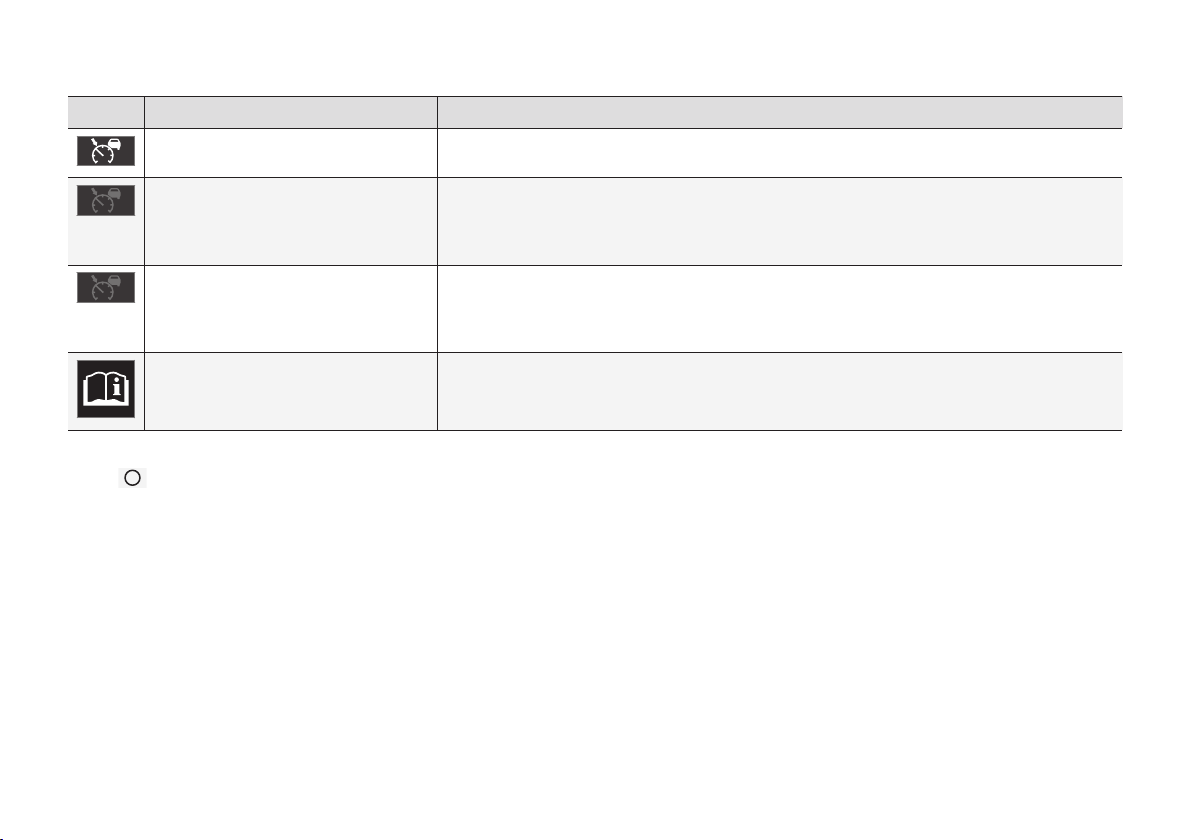
||
DRIVER SUPPORT
* Option/accessory.
312
Symbol Message Specification
The symbol is WHITE The car is maintaining the stored/selected speed.
Adaptive cruise
Unavailable
The symbol is GREY.
Adaptive cruise control is set to standby mode.
Adaptive cruise
Service required
The symbol is GREY.
The system does not function as it should. A workshop should be contacted - an authorised Volvo
workshop is recommended.
Windscreen sensor
Sensor blocked, see Owner's manual
Clean the windscreen in front of the camera and radar unit's detectors.
A text message can be cleared by briefly press-
ing the
button, located in the centre of the
steering wheel's right-hand keypad.
If a message remains: Contact a workshop – an
authorised Volvo workshop is recommended.
Related information
•
Adaptive cruise control* (p. 296)
•
Road Sign Information* (p. 362)
•
Head-up display* (p. 114)
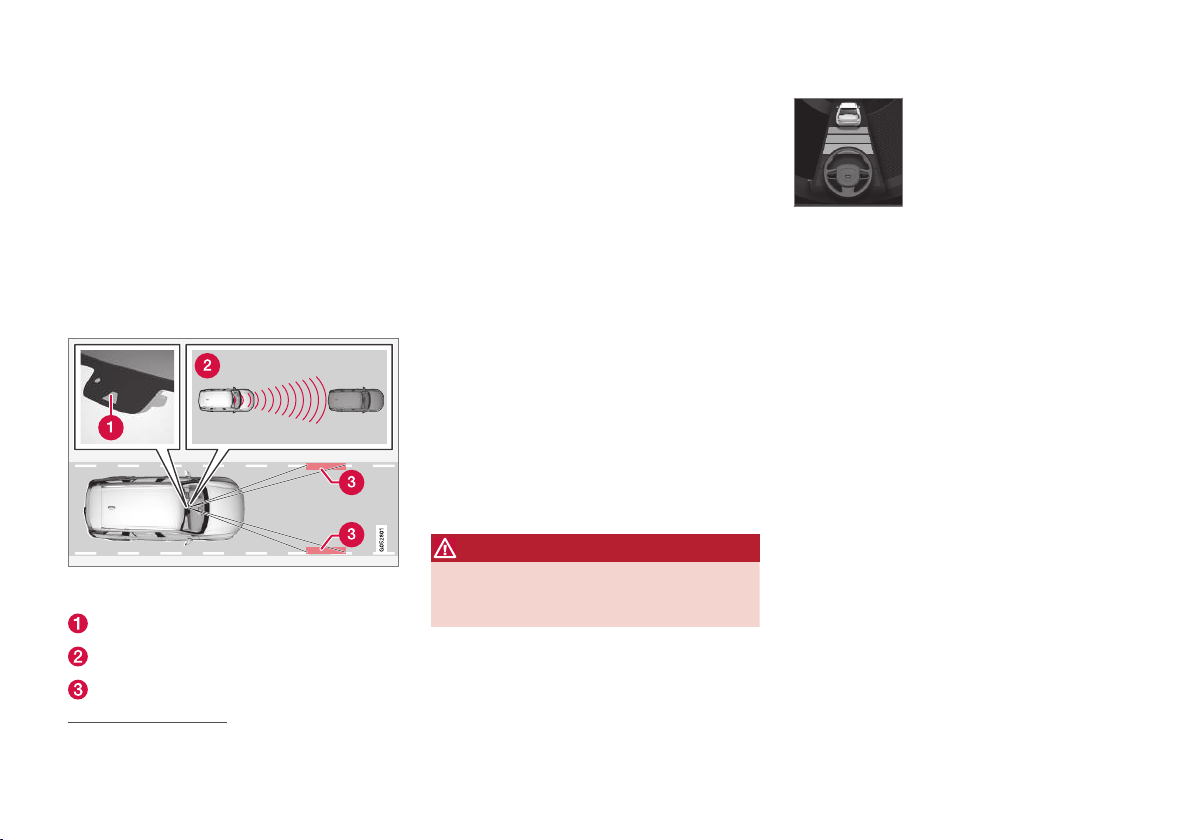
DRIVER SUPPORT
}}
* Option/accessory.
313
Pilot Assist*
Pilot Assist helps the driver to drive the car
between the lane's side markings using steering
assistance as well as to maintain an even speed,
combined with a preselected time interval to the
vehicle ahead.
How Pilot Assist works
The Pilot Assist function gives more comfortable
driving and a more relaxed driving experience
during, for example, long journeys on motorways
in even traffic flows.
The camera and radar unit measures the distance to the
vehicle ahead and detects side markings
48
.
Camera and radar unit
Distance readers
Readers, side markings
The driver selects the desired speed and a time
interval to the vehicle ahead. Pilot Assist scans
the distance to the vehicle ahead and the lane's
side markings on the road surface using the
camera and radar unit. The preset time interval is
maintained with automatic speed adjustment
whilst the steering assistance helps to position
the car in the lane.
Pilot Assist steering assistance takes into
account the speed of the preceding car and the
lane markings. The driver can at any time ignore
the Pilot Assist steering recommendation and
steer in another direction, e.g. to change lane or
avoid an obstruction on the road.
If Pilot Assist cannot interpret the lane unambig-
uously, e.g. if the camera and radar unit does not
see the lane's side markings, Pilot Assist tempo-
rarily deactivates steering assistance, but
resumes it if the lane can be interpreted again -
although the speed and distance control func-
tions remain active.
WARNING
Pilot Assist steering assistance is automati-
cally deactivated and is resumed without prior
warning.
The current status of steering
assistance is indicated by the
colour of the steering wheel's
symbol:
• GREEN steering wheel indi-
cates active steering assis-
tance
• GREY steering wheel (as in illustration) indi-
cates deactivated steering assistance.
48
NOTE: The illustration is schematic - details may vary depending on car model.

||
DRIVER SUPPORT
314
WARNING
•
The Pilot Assist function is supplementary
driver support intended to facilitate driv-
ing and make it safer – it cannot handle
all situations in all traffic, weather and
road conditions.
•
The driver is advised to read all sections
in the Owner's Manual that relate to this
function to learn about factors such as its
limitations and what the driver should be
aware of before using the system (see
the list of links at the end of this article).
•
Pilot Assist must only be used if there are
clear lane lines painted on each side of
the lane. All other use involves increased
risk of contact with surrounding obstacles
that cannot be detected by the function.
•
Pilot Assist is not a substitute for the driv-
er's attention and judgement. The driver
is always responsible for ensuring the car
is driven in a safe manner, positioned cor-
rectly in the lane, at the appropriate
speed, with an appropriate distance to
other vehicles, and in accordance with
current traffic rules and regulations.
Pilot Assist regulates the speed with acceleration
and braking. It is normal for the brakes to emit a
low sound when they are being used to adjust
the speed.
Pilot Assist attempts to regulate the speed
smoothly. In situations that demand sudden brak-
ing the driver must brake himself/herself. This
applies in case of large speed differences or if
the vehicle in front brakes suddenly. Due to the
limitations of the camera and radar unit, braking
may come unexpectedly or not at all.
Pilot Assist aims to follow the vehicle ahead in
the same lane at a time interval set by the driver.
If the radar unit cannot see any vehicle in front
then the car will instead maintain the speed set
and stored by the driver. This also takes place if
the speed of the vehicle ahead increases and
exceeds the stored speed.
The following applies for cars with automatic
gearbox:
•
Pilot Assist can follow another vehicle at
speeds from 0 km/h up to 200 km/h
(125 mph).
•
Pilot Assist can give steering assistance from
almost stationary up to 140 km/h (87 mph).
The following applies for cars with manual gear-
box:
•
Pilot Assist can follow another vehicle at
speeds from 30 km/h (20 mph) up to
200 km/h (125 mph).
•
Pilot Assist can give steering assistance from
30 km/h (20 mph) up to 140 km/h
(87 mph).
WARNING
•
Pilot Assist is not a collision avoidance
system. The driver must intervene if the
system does not detect a vehicle in front.
•
Pilot Assist does not brake for people,
animals, objects, small vehicles (e.g.
cycles and motorcycles), low trailers as
well as oncoming, slow or stationary vehi-
cles.
•
Do not use Pilot Assist in demanding sit-
uations, such as in city traffic, at junctions,
on slippery surfaces, with a lot of water or
slush on the road, in heavy rain/snow, in
poor visibility, on winding roads, on slip
roads, or with a trailer connected to the
car.
IMPORTANT
Maintenance of Pilot Assist internal compo-
nents must only be performed at a workshop
- an authorised Volvo workshop is recom-
mended.
Round bends and when the road splits
Pilot Assist interacts with the driver, who should
therefore not await the steering assistance from
Pilot Assist but should always be prepared to
increase his/her own steering input, especially on
bends.
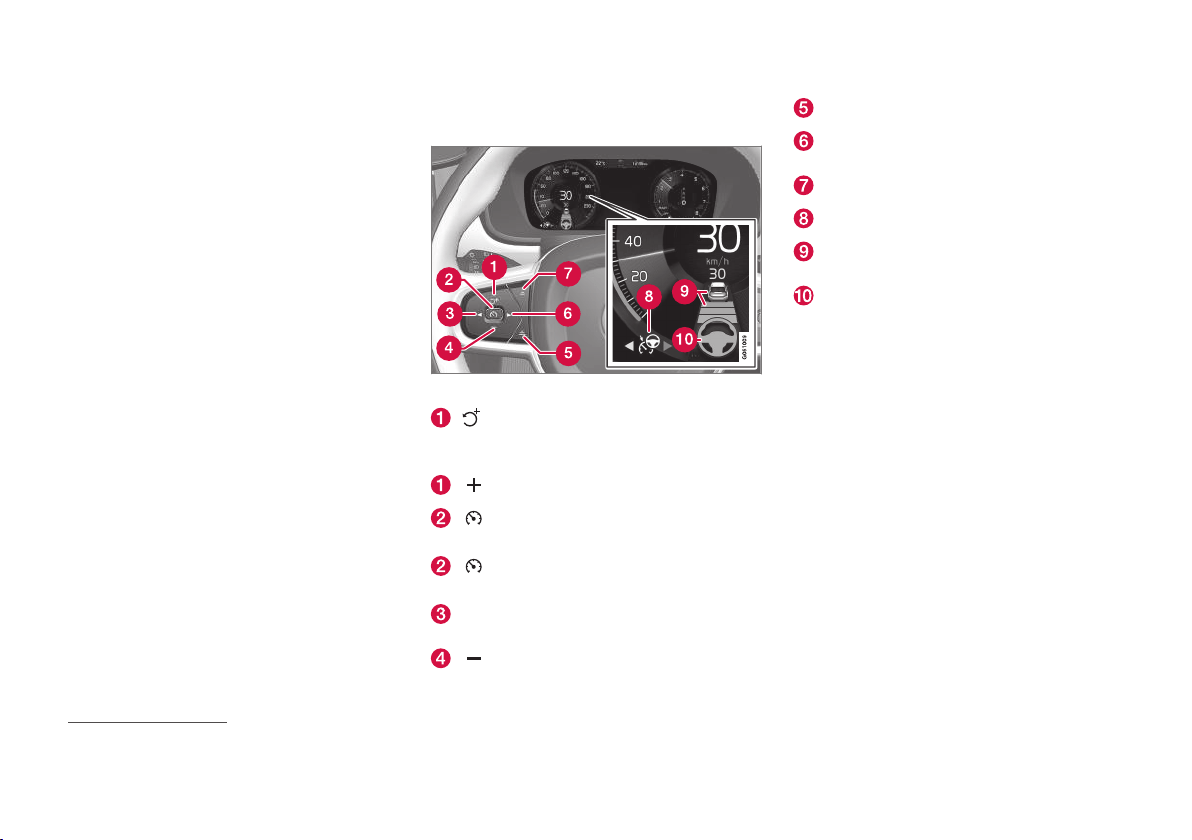
DRIVER SUPPORT
}}
315
When the car approaches an exit or if the lane
splits, the driver should steer towards the desired
lane so that Pilot Assist can specify the desired
direction.
Pilot Assist strives to keep the car in
the middle of the lane
When Pilot Assist helps to steer, it strives to posi-
tion the car in between the lane markings and
therefore it is recommended to let the car find
the optimal placement to achieve as smooth a
driving experience as possible. The driver checks
that the car is positioned safely in the lane, and
always has the ability to adjust the position by
making his/her own steering corrections.
If Pilot Assist does not position the car in an
appropriate way in the lane, it is recommended to
turn Pilot Assist off or switch to Adaptive cruise
control.
Overview
Controls
Buttons and symbols for functions
48
.
: Activates Pilot Assist from standby
mode and resumes the stored speed and
time interval
: Increases the stored speed
: From standby mode - activates Pilot
Assist and stores the current speed
: From active mode - deactivates/
changes Pilot Assist to standby mode
◀: Switches from Pilot Assist to adaptive
cruise control
: Reduces stored speed
Increases the time interval to vehicles ahead
▶: Switches from adaptive cruise control to
Pilot Assist
Reduces the time interval to vehicles ahead
Function symbol
Symbols for target vehicle and time interval
to vehicles ahead
Symbol for activated/deactivated steering
assistance
48
NOTE: The illustration is schematic - details may vary depending on car model.
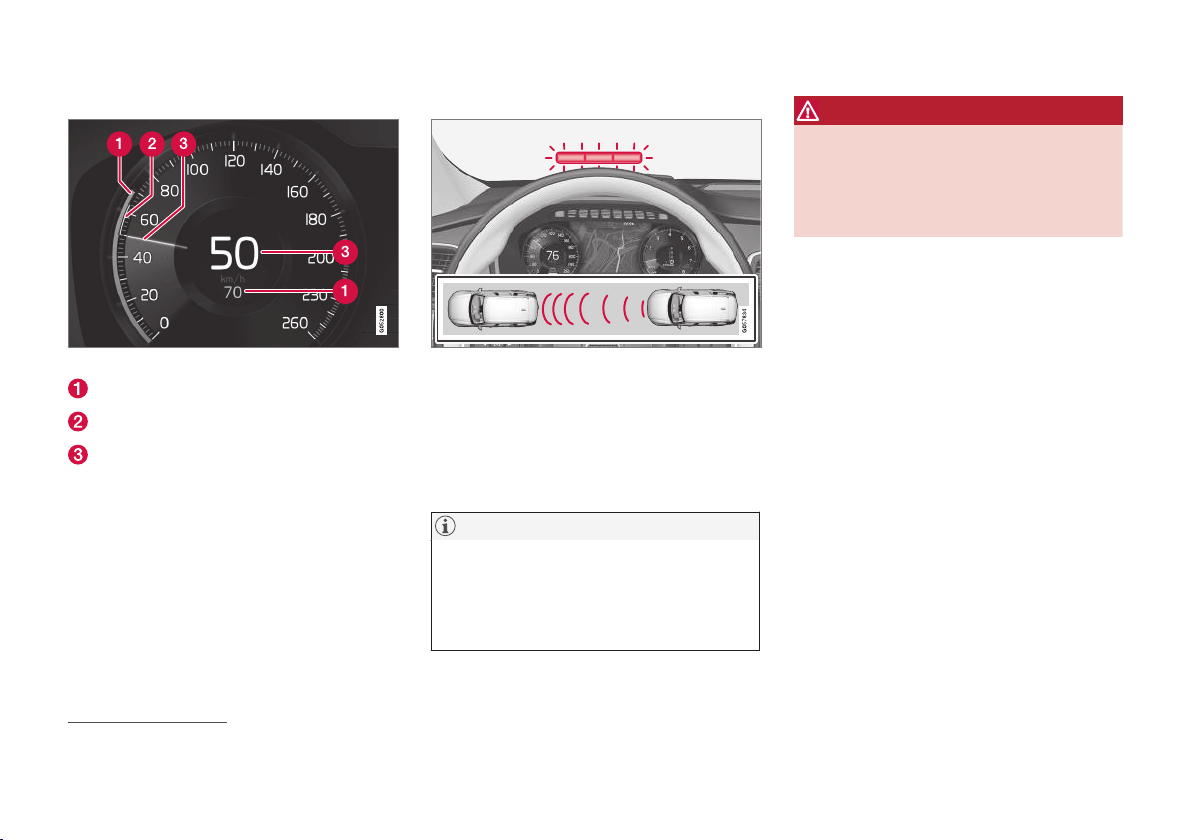
||
DRIVER SUPPORT
316
Driver display
Indication of speeds
48
.
Stored speed
Speed of vehicle ahead.
Current speed of your car.
To see different combinations of symbols
depending on traffic situation - see the heading
"Symbols and messages for Pilot Assist".
Collision risk warning
Warning light for collision warning on the windscreen
48
.
Pilot Assist uses approx. 40% of the foot brake's
capacity. If the car needs to be braked more
heavily than Pilot Assist is capable of and the
driver does not brake, the warning lamp and
acoustic warning are activated to alert the driver
that immediate intervention is required.
NOTE
Strong sunlight, reflections, extreme light con-
trasts, the use of sunglasses, or if the driver is
not looking straight ahead may make the vis-
ual warning signal in the windscreen difficult
to recognise.
WARNING
Pilot Assist only gives warning about vehicles
detected by its camera and radar unit – there-
fore a warning may not occur or be delayed.
•
Never wait for a warning. Apply the
brakes when the situation requires!
48
NOTE: The illustration is schematic - details may vary depending on car model.
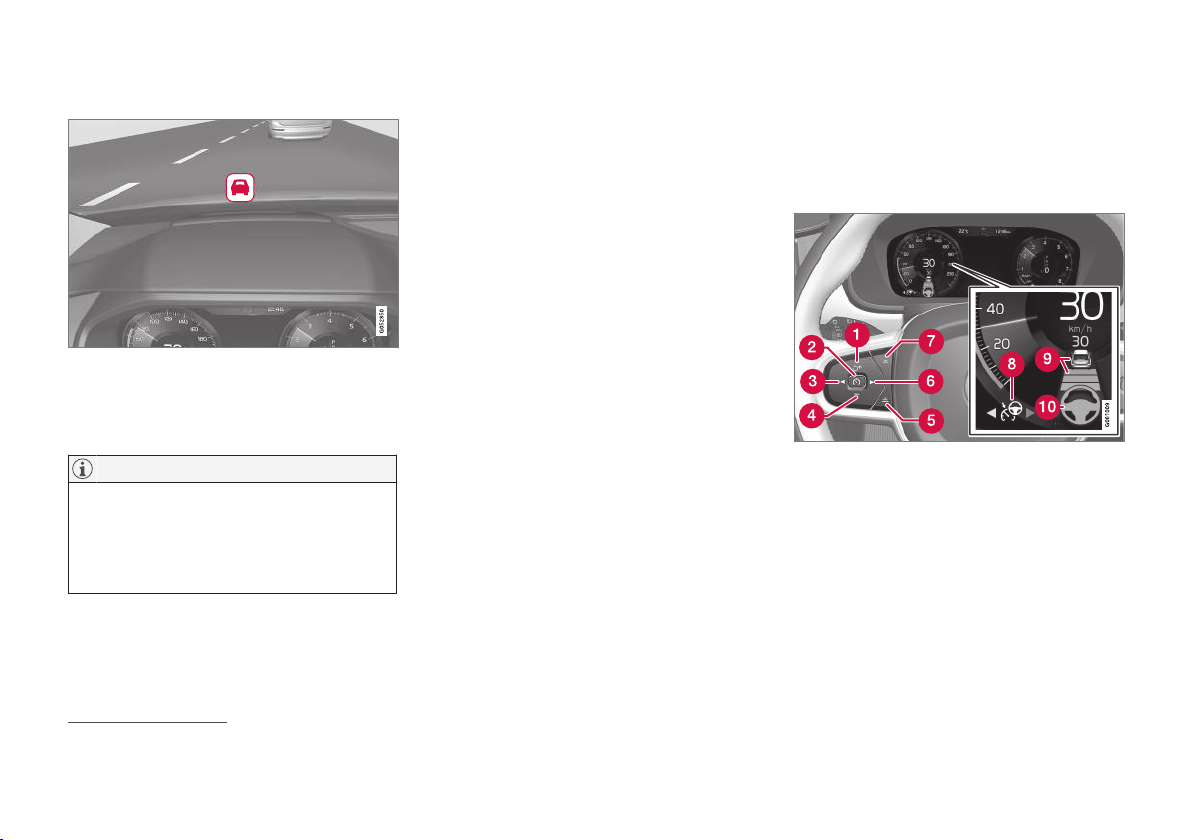
DRIVER SUPPORT
}}
* Option/accessory.
317
Head-up display*
Symbol for collision warning on the windscreen
48
.
In cars equipped with a head-up display, the
warning is shown on the windscreen by a flashing
symbol.
NOTE
Strong sunlight, reflections, extreme light con-
trasts, the use of sunglasses, or if the driver is
not looking straight ahead may make the vis-
ual warning signal in the windscreen difficult
to recognise.
Related information
•
Activating and starting the Pilot Assist*
(p. 317)
•
Managing the speed for Pilot Assist*
(p. 319)
•
Setting the time interval for Pilot Assist*
(p. 320)
•
Change of target and automatic braking with
Pilot Assist* (p. 323)
•
Deactivating/activating the Pilot Assist*
(p. 321)
•
Overtaking assistance with adaptive cruise
control* or Pilot Assist* (p. 306)
•
Limitations of Pilot Assist* (p. 325)
•
Symbols and messages for Pilot Assist*
(p. 326)
•
Adaptive cruise control* (p. 296)
•
Distance Warning* (p. 293)
•
Head-up display* (p. 114)
•
Limitations of the radar unit (p. 330)
•
Limitations of the camera unit (p. 339)
Activating and starting the
Pilot Assist*
Pilot Assist must first be activated and then
started to be able to control speed and distance
and to give steering assistance.
NOTE: The illustration is schematic - details may vary
depending on car model.
In order to start the Pilot Assist it is required that:
•
The driver's seatbelt must be buckled and
the driver's door must be closed.
•
There must be a vehicle (the "target vehicle")
within reasonable distance in front of the car,
or the current speed must be at least
15 km/h (9 mph).
•
For cars with manual gearbox. Speed must
be at the lowest 30 km/h (20 mph).
48
NOTE: The illustration is schematic - details may vary depending on car model.
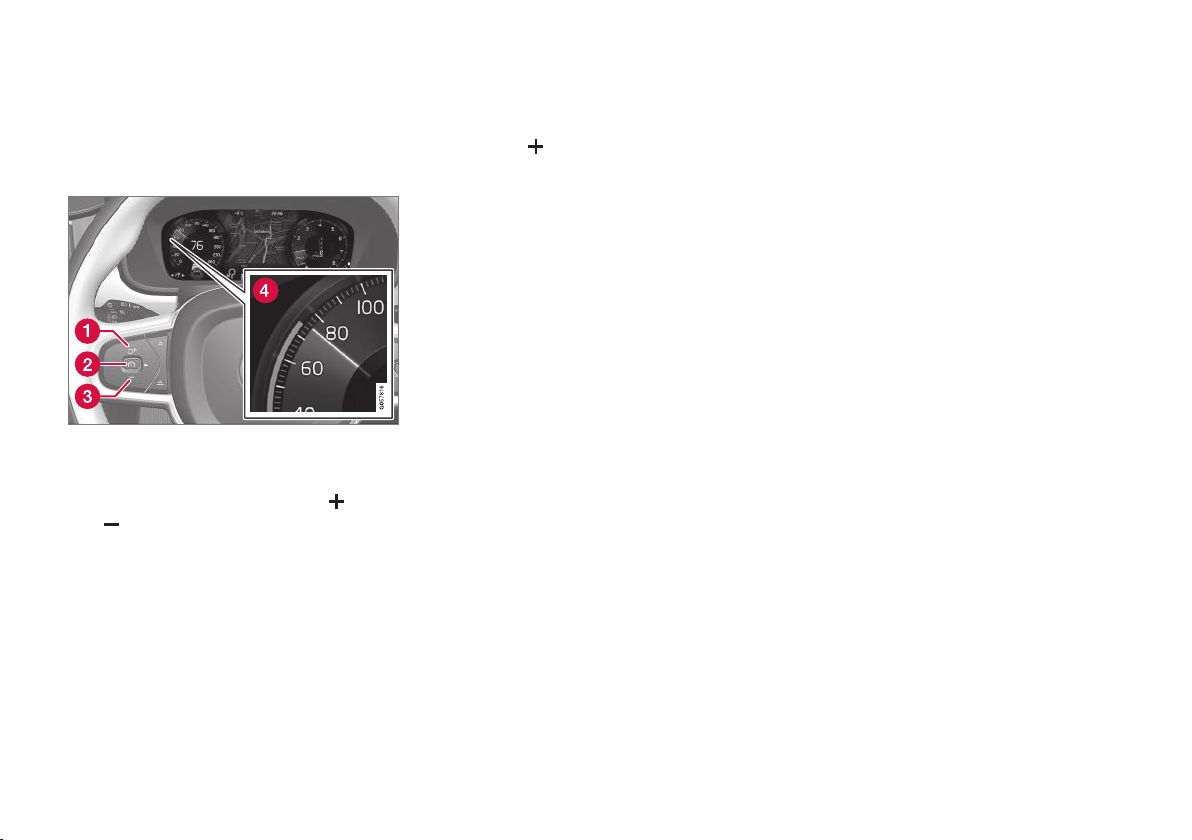
DRIVER SUPPORT
* Option/accessory.
319
Managing the speed for
Pilot Assist*
Pilot Assist can be set to different speeds.
Setting/changing the stored speed
NOTE: The illustration is schematic - details may vary
depending on car model.
–
Change the set speed with short or long
presses on steering wheel button
(1) or
(3):
•
Short press: Each press changes the
speed in increments of +/- 5 km/h
(+/- 5 mph).
•
Press and hold: Release the button when
the set speed indicator (4) has moved to
the desired speed.
•
The speed set after the last button press is
stored in the memory.
If the driver increases the car’s speed using the
accelerator pedal before pressing the steering
wheel button
, the speed stored will be the
car’s speed when the button is depressed, provi-
ded the driver’s foot is on the accelerator pedal at
the moment when the button is depressed.
A temporary increase in speed with the accelera-
tor pedal, e.g. during overtaking, does not affect
the setting - the car returns to the last stored
speed when the accelerator pedal is released.
Automatic gearbox
Pilot Assist can follow another vehicle at speeds
from 0 km/h up to 200 km/h (125 mph).
Note that the lowest programmable speed for
Pilot Assist is 30 km/h (20 mph) - even though it
is capable of following another vehicle down to 0
km/h, a speed lower than 30 km/h (20 mph)
cannot be selected/stored.
The maximum speed selectable is 200 km/h
(125 mph).
Manual gearbox
Pilot Assist can follow another vehicle at speeds
from 30 km/h (20 mph) up to 200 km/h
(125 mph).
The lowest programmable speed for Pilot Assist
is 30 km/h (20 mph) - the maximum speed is
200 km/h (125 mph).
Related information
•
Pilot Assist* (p. 313)
•
Activating and starting the Pilot Assist*
(p. 317)
•
Setting the time interval for Pilot Assist*
(p. 320)
•
Change of target and automatic braking with
Pilot Assist* (p. 323)
•
Deactivating/activating the Pilot Assist*
(p. 321)
•
Overtaking assistance with adaptive cruise
control* or Pilot Assist* (p. 306)
•
Limitations of Pilot Assist* (p. 325)
•
Symbols and messages for Pilot Assist*
(p. 326)
||
DRIVER SUPPORT
322
–
Press the steering wheel button ◀ (3).
> Pilot Assist is switched off and changes
to the Adaptive cruise control in active
mode.
WARNING
•
With Pilot Assist in standby mode, the
driver must intervene and steer, regulat-
ing both speed and distance to the vehi-
cle ahead.
•
When Pilot Assist is in standby mode and
the car comes too close to a vehicle
ahead, the driver is warned of the short
distance by the Distance Warning func-
tion instead.
Standby mode on driver intervention
Pilot Assist is temporarily deactivated and set in
standby mode if:
•
the foot brake is used
•
the gear selector is moved to N position
•
the direction indicators are used for longer
than 1 minute.
•
the driver maintains a speed higher than the
stored speed for longer than 1 minute.
•
the clutch pedal is depressed for
approx. 1 minute - applies to cars with man-
ual gearbox.
A temporary increase in speed with the accelera-
tor pedal, e.g. during overtaking, does not affect
the setting - the car returns to the last stored
speed when the accelerator pedal is released.
When the direction indicators are used, Pilot
Assist steering assistance is temporarily disen-
gaged. When this is no longer the case, steering
assistance is automatically reactivated if the
lane's side markings can still be detected.
Automatic standby mode
Pilot Assist is dependent on other systems, e.g.
stability control/anti-skid ESC
49
. If any of these
other systems stops working, Pilot Assist is
switched off automatically.
WARNING
With automatic standby mode, the driver is
warned via an acoustic signal and a message
on the driver display.
•
The driver must then regulate the car's
speed, apply the brakes as needed and
maintain a safe distance to other vehicles.
Automatic standby mode may occur if, for exam-
ple:
•
the driver opens the door
•
brake temperature is high
•
the driver's hands are not on the steering
wheel
•
the parking brake is applied
•
engine speed is too low/high
•
the driver takes off the seatbelt
•
one or more wheels lose traction
•
the camera and radar unit is covered by e.g.
snow or heavy rainfall (camera lens/radio
waves are blocked)
•
the speed is below 5 km/h (3 mph) and Pilot
Assist is uncertain whether the vehicle ahead
is a stationary vehicle or an object, such as a
speed bump.
•
the speed is below 5 km/h (3 mph) and the
vehicle ahead turns off so that Pilot Assist no
longer has a vehicle to follow.
•
speed is reduced to below 30 km/h
(20 mph) - only applies to cars with manual
gearbox.
49
Electronic Stability Control
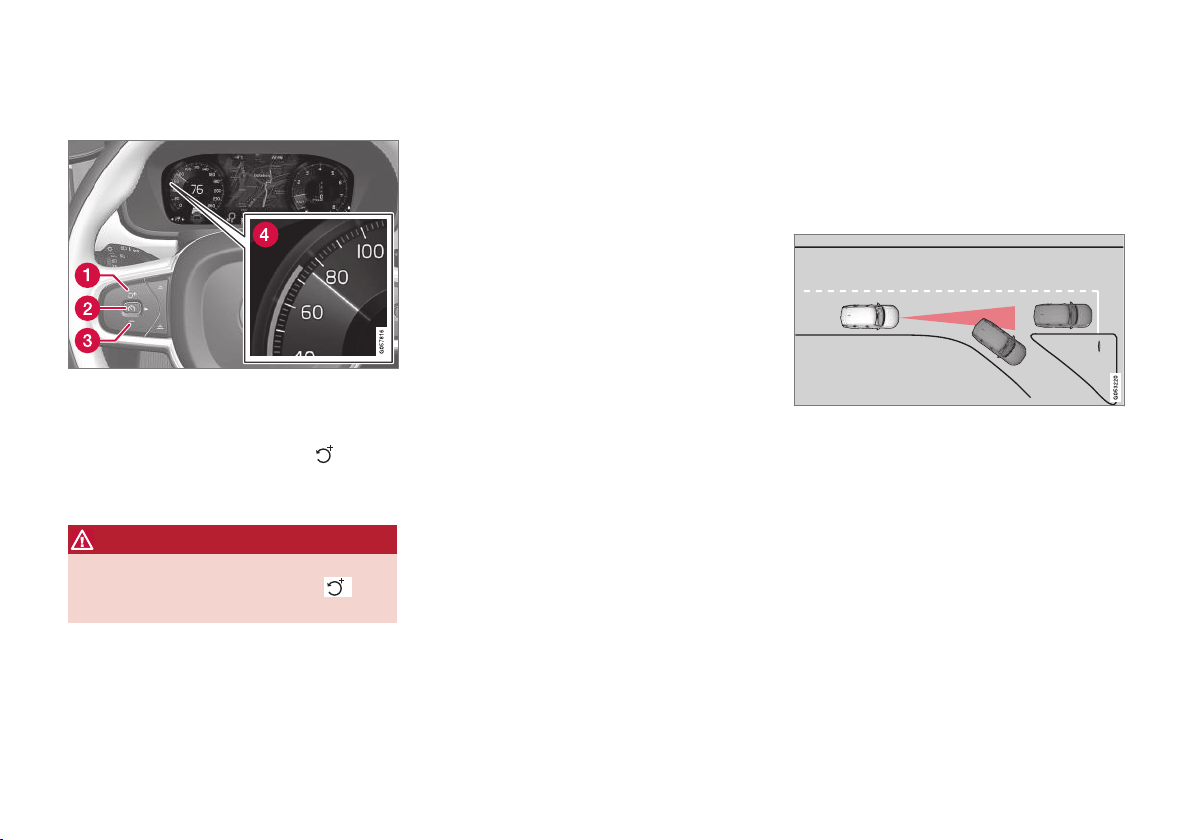
DRIVER SUPPORT
}}
* Option/accessory.
323
Reactivating Pilot Assist from the
standby mode
NOTE: The illustration is schematic - details may vary
depending on car model.
To reactivate Pilot Assist:
–
Press the steering wheel button (1).
> The speed is then set to the most recently
stored speed.
WARNING
A significant increase in speed may follow
when the speed is resumed with the
steering wheel button.
Related information
•
Pilot Assist* (p. 313)
•
Activating and starting the Pilot Assist*
(p. 317)
•
Managing the speed for Pilot Assist* (p. 319)
•
Setting the time interval for Pilot Assist*
(p. 320)
•
Change of target and automatic braking with
Pilot Assist* (p. 323)
•
Overtaking assistance with adaptive cruise
control* or Pilot Assist* (p. 306)
•
Limitations of Pilot Assist* (p. 325)
•
Symbols and messages for Pilot Assist*
(p. 326)
•
Distance Warning* (p. 293)
•
Electronic Stability Control ESC (p. 277)
Change of target and automatic
braking with Pilot Assist*
In combination with automatic gearbox, Pilot
Assist has functionality for change of target and
braking at certain speeds.
Change of target
If the target vehicle in front suddenly turns then there
may be stationary traffic in front.
When Pilot Assist is following another vehicle at
speeds below 30 km/h (20 mph) and changes
target from a moving to a stationary vehicle, Pilot
Assist will slow down for the stationary vehicle.
||
DRIVER SUPPORT
* Option/accessory.
324
WARNING
When Pilot Assist is following another vehicle
at speeds in excess of approx. 30 km/h
(20 mph) and the target is changed from a
moving vehicle to a stationary vehicle, Pilot
Assist will ignore the stationary vehicle and
instead accelerate to the stored speed.
•
The driver must then intervene him/
herself and brake.
Automatic standby mode with change of
target
Pilot Assist is disengaged and set in standby
mode:
•
when the speed is below 5 km/h (3 mph)
and Pilot Assist is uncertain whether the tar-
get object is a stationary vehicle or some
other object, e.g. a speed bump.
•
when the speed is below 5 km/h (3 mph)
and the vehicle in front turns off so the Pilot
Assist no longer has a vehicle to follow.
Automatic braking
For shorter stops in connection with inching in
slow traffic or at traffic lights, driving is automati-
cally resumed if the stops do not exceed
approx. 3 seconds - if it takes longer before the
vehicle in front starts moving again then Pilot
Assist is set in standby mode with automatic
braking.
–
Pilot Assist is reactivated in the following
way:
•
Press the steering wheel button
.
•
Depress the accelerator pedal.
> Pilot Assist resumes following the vehicle
ahead if it starts moving forward within
6 seconds.
NOTE
Pilot Assist can hold the car stationary for a
maximum of 5 minutes - then the parking
brake is applied and the function is disen-
gaged.
Before Pilot Assist can be reactivated, the
parking brake must be released.
Cessation of automatic braking
In some situations, automatic braking ceases on
coming to a standstill and Pilot Assist is set in
standby mode. This means that the brakes are
released and the car may start to roll - the driver
must therefore intervene and brake the car him-
self/herself to keep it stationary.
This may take place in the following situations:
•
the driver puts his/her foot on the brake
pedal
•
the parking brake is applied
•
the gear selector is moved to P, N, or R posi-
tion
•
the driver sets Pilot Assist in the standby
mode.
Automatic activation of parking brake
In certain situations, the parking brake is applied
in order to keep the car stationary.
This takes place if Pilot Assist is holding the car
stationary with the foot brake and:
•
the driver opens the door or takes off his/her
seatbelt
•
Pilot Assist has kept the car stationary for
more than approx. 5 minutes
•
the brakes have overheated
•
the engine is switched off.
Related information
•
Pilot Assist* (p. 313)
•
Activating and starting the Pilot Assist*
(p. 317)
•
Managing the speed for Pilot Assist* (p. 319)
•
Setting the time interval for Pilot Assist*
(p. 320)
•
Deactivating/activating the Pilot Assist*
(p. 321)
•
Overtaking assistance with adaptive cruise
control* or Pilot Assist* (p. 306)
•
Limitations of Pilot Assist* (p. 325)
•
Symbols and messages for Pilot Assist*
(p. 326)

DRIVER SUPPORT
}}
* Option/accessory.
325
Limitations of Pilot Assist*
The Pilot Assist function may have limitations in
certain situations.
The Pilot Assist function is an aid which can help
the driver in many situations. But the driver is at
all times responsible for maintaining a safe dis-
tance to surrounding objects and a correct posi-
tion in the lane.
WARNING
In certain situations, Pilot Assist steering
assistance may have difficulty helping the
driver in the right way or it may be automati-
cally deactivated - in which case, the use of
Pilot Assist is not recommended. Examples of
such situations may be that:
•
the lane markings are worn, missing or
cross each other.
•
lane division is unclear, for example, when
the lanes divide or merge or at exits or in
the event of multiple sets of markings.
•
edges or other lines than lane markings
are present on or near the road, e.g.
kerbs, joints or repairs to the road sur-
face, edges of barriers, roadside edges or
strong shadows.
•
the lane is narrow or winding.
•
the lane contains ridges or holes.
•
weather conditions are poor, e.g. rain,
snow or fog or slush or impaired view with
poor light conditions, back-lighting, wet
road surface etc.
The driver should also note that Pilot Assist
has the following limitations:
•
High kerbs, roadside barriers, temporary
obstacles (traffic cones, safety barriers,
etc.) are not detected. Alternatively, they
may be detected incorrectly as lane mark-
ings, with a subsequent risk of contact
between the car and such obstacles. The
driver must ensure him/herself that the
car is at a suitable distance from such
obstacles.
•
The camera and radar sensor does not
have the capacity to detect all oncoming
objects and obstacles in traffic environ-
ments, e.g. potholes, stationary obstacles
or objects which completely or partially
block the route.
•
Pilot Assist does not "see" pedestrians,
animals, etc.
•
The recommended steering input is force
limited, which means that it cannot always
help the driver to steer and keep the car
within the lane.
The driver always has the possibility of correcting
or adjusting a steering intervention imposed by
Pilot Assist and can turn the steering wheel to
the desired position.
Steep roads and/or heavy load
Bear in mind that Pilot Assist is primarily
intended for use when driving on level road surfa-
ces. The function may have difficulty in keeping
the correct distance from the vehicle ahead when
driving on steep downhill slopes - in which case,
be extra attentive and ready to brake.
•
Do not use Pilot Assist if the car has a heavy
load or a trailer is connected to the car.
||
DRIVER SUPPORT
* Option/accessory.
326
NOTE
Pilot Assist cannot be activated if a trailer,
bicycle rack or similar is connected to the
car's electrical system.
Miscellaneous
•
Off Road drive mode cannot be selected
when Pilot Assist is activated.
NOTE
The function uses the car's camera unit,
which has some general limitations, see the
"Limitations for camera unit" section.
NOTE
The function uses the car's radar unit, which
has some general limitations, see the section
"Limitations for radar unit".
Related information
•
Pilot Assist* (p. 313)
•
Activating and starting the Pilot Assist*
(p. 317)
•
Managing the speed for Pilot Assist* (p. 319)
•
Setting the time interval for Pilot Assist*
(p. 320)
•
Change of target and automatic braking with
Pilot Assist* (p. 323)
•
Deactivating/activating the Pilot Assist*
(p. 321)
•
Overtaking assistance with adaptive cruise
control* or Pilot Assist* (p. 306)
•
Symbols and messages for Pilot Assist*
(p. 326)
•
Limitations of the camera unit (p. 339)
•
Limitations of the radar unit (p. 330)
•
Drive modes* (p. 422)
Symbols and messages for
Pilot Assist*
A number of symbols and messages regarding
Pilot Assist can be shown via the driver display
and/or the head-up display*.
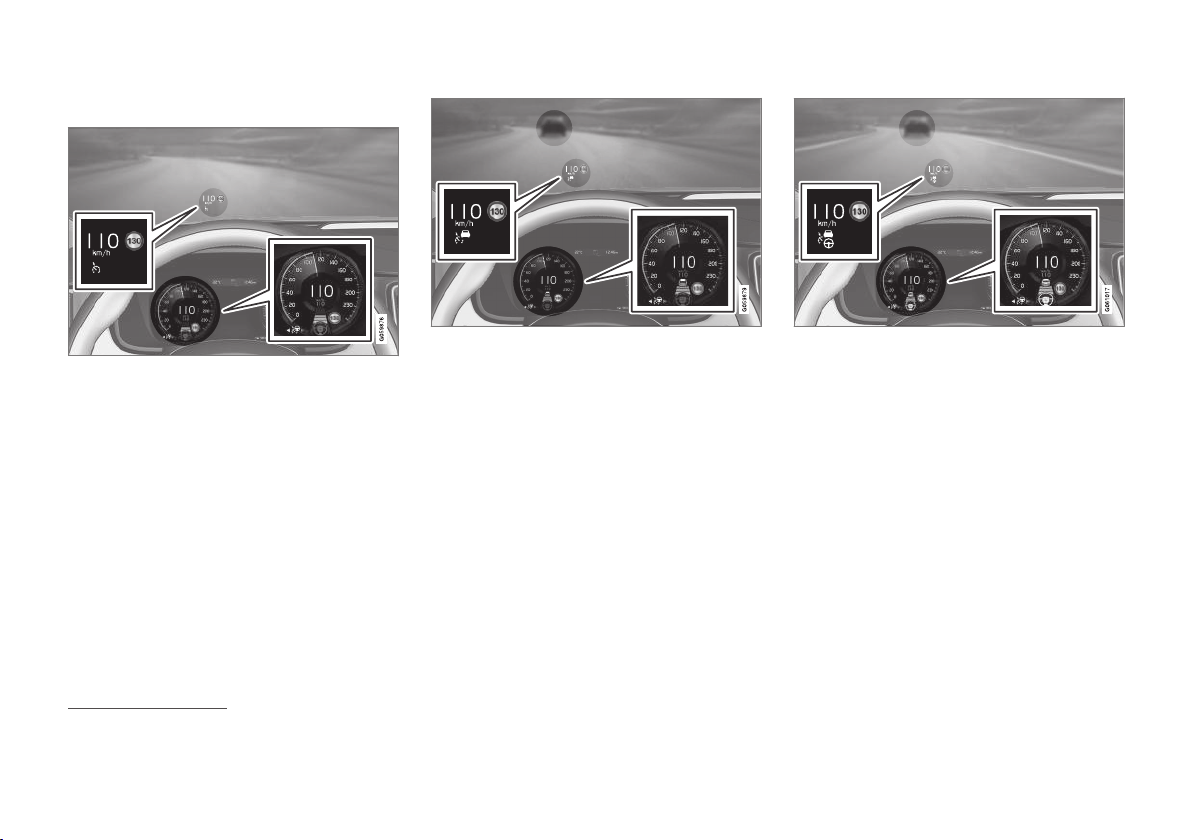
DRIVER SUPPORT
}}
327
Here are some examples
50
.
The previous illustration
51
shows that Pilot Assist
is set to maintain 110 km/h (68 mph) and that
there is no vehicle ahead to follow.
Pilot Assist provides no steering assistance since
the lane's side markings cannot be detected.
The previous illustration
51
shows that Pilot Assist
is set to maintain 110 km/h (68 mph) and at the
same time is following a vehicle ahead which is
keeping the same speed.
Pilot Assist provides no steering assistance since
the lane's side markings cannot be detected.
The previous illustration
51
shows that Pilot Assist
is set to maintain 110 km/h (68 mph) and at the
same time is following a vehicle ahead which is
keeping the same speed.
Here, Pilot Assist also provides steering assis-
tance since the lane's side markings can be
detected.
50
In the following illustrative example, the RSI (Road Sign Information) function informs the driver that the maximum permitted speed is 130 km/h (80 mph).
51
NOTE: The illustration is schematic - details may vary depending on car model.


DRIVER SUPPORT
330
Limitations of the radar unit
The radar unit has certain limitations - which in
turn also limits those functions that use the unit.
Blocked unit
The marked area must be kept free from stickers,
objects, shade film, etc.
52
.
The radar unit is placed inside the upper section
of the windscreen together with the car's camera
unit.
IMPORTANT
Do not place, stick or mount anything on the
outside or inside of the windscreen in front of
or around the camera and radar unit — this
can interfere with camera and radar-depend-
ent functions.
This may mean that functions are reduced,
deactivated completely or give incorrect func-
tion response.
If the driver display shows this symbol
with the message "
Windscreen
sensor Sensor blocked, see
Owner's manual", it means that the
camera and radar unit cannot detect other vehi-
cles in front of the car.
The following table presents examples of possible causes for a message being shown, along with the appropriate action:
Cause Action
The windscreen surface in front of the camera and radar unit is dirty or cov-
ered with ice or snow.
Clean dirt, ice and snow from the windscreen surface in front of the camera
and radar unit.
Thick fog and heavy rain or snow block the radar signals or the camera
view.
No action. Sometimes the unit does not work during heavy rain or snowfall.
52
NOTE: The illustration is schematic - details may vary depending on car model.
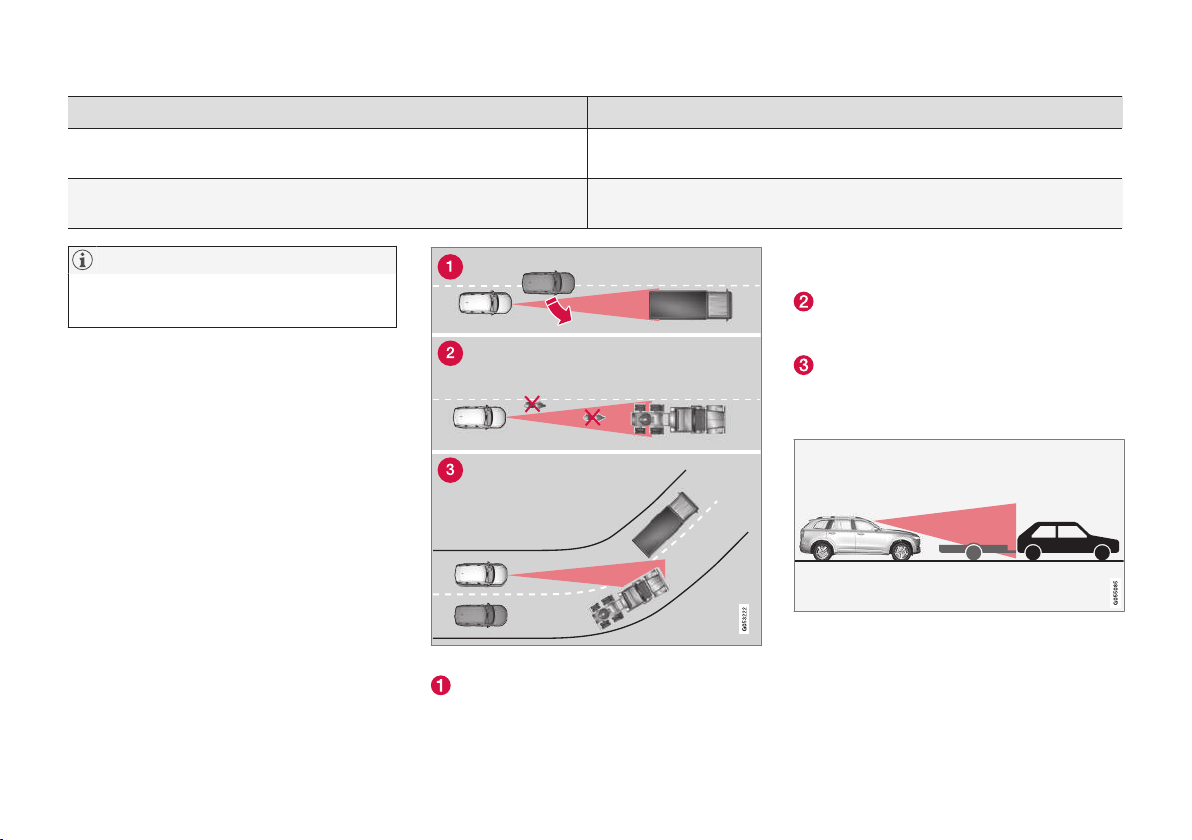
DRIVER SUPPORT
}}
331
Cause Action
Water or snow from the road surface swirls up and blocks the radar signals
or camera view.
No action. Sometimes the unit does not work on a very wet or snow-covered
road surface.
Dirt has appeared between the inside of the windscreen and the camera
and radar unit.
Visit a workshop to have the windscreen inside the unit's cover cleaned - an
authorised Volvo workshop is recommended.
NOTE
Keep the windscreen clean in front of the
camera and radar unit.
Vehicle speed
The capacity of the radar unit to detect vehicles
ahead is reduced significantly if:
•
the speed of the vehicle ahead is signifi-
cantly different from that of your own car
Limited field of vision
The radar unit has a limited field of vision. In
some situations another vehicle is not detected,
or the detection is made later than expected.
The radar unit's field of vision.
Sometimes the radar unit is late at detecting
vehicles at close distances - e.g. a vehicle
that drives in between your car and the vehi-
cle ahead.
Small vehicles, such as motorcycles, or vehi-
cles not driving in the centre of the lane can
remain undetected.
In bends, the radar unit may detect the
wrong vehicle or lose a detected vehicle from
view.
Low trailers
Low trailer in radar shadow.
Low trailers can also be difficult for the radar unit
to detect, or are not detected at all - the driver
should therefore be particularly careful when driv-
ing behind low trailers when the adaptive cruise
control or Pilot Assist is activated.

||
DRIVER SUPPORT
* Option/accessory.
332
High temperature
At very high temperatures the camera and radar
unit can temporarily be switched off for
about 15 minutes after the engine is started so
as to protect the unit's electronics. The camera
and radar unit restarts automatically when the
temperature has fallen sufficiently.
Damaged windscreen
IMPORTANT
If a crack, scratch or stone chip in the wind-
screen in front of one of the camera and
radar unit “windows” covers an area of
approx. 0.5 × 3.0 mm (0.02 × 0.12 in.) or
larger, a workshop must be contacted to have
the windscreen replaced – an authorised
Volvo workshop is recommended.
If not rectified it can lead to reduced perform-
ance for the driver support systems that use
the camera and radar unit.
This may mean that functions are reduced,
deactivated completely or give incorrect func-
tion response.
To avoid the risk of failed, deficient or
reduced operation of driver support systems
that use the radar unit, the following also
applies:
•
Volvo recommends against repairing
cracks, scratches or stone chips in the
area in front of the camera and radar unit.
Instead, the whole windscreen should be
replaced.
•
Before replacing a windscreen, contact
an authorised Volvo workshop to verify
that the correct windscreen is ordered
and fitted.
•
The same type or Volvo-approved wind-
screen wipers must be fitted during
replacement.
IMPORTANT
When the windscreen is replaced, the camera
and radar unit must be recalibrated at the
workshop to ensure the functionality of all the
car’s camera and radar-based systems. An
authorised Volvo workshop is recommended.
Maintenance
In order that the camera and radar unit shall
function correctly, the windscreen in front of the
unit must be kept clear of dirt, ice and snow, and
be cleaned regularly with water and car shampoo.
NOTE
Dirt, ice and snow covering the camera and
radar unit will reduce its function and may
prevent measurement.
This may mean that functions are reduced,
deactivated completely or give incorrect func-
tion response.
Related information
•
Radar unit (p. 328)
•
Limitations of the camera unit (p. 339)
•
Limitations of Distance Warning* (p. 296)
DRIVER SUPPORT
334
Type approval for radar units
Type approval for the car's radar units can be seen in the following table.
Market
ACC
A
BLIS
B
Symbol Type approval
Brazil
✓
Este equipamento opera em caráter secundário, isto é, não tem direito à proteção contra
interferência prejudicial, mesmo de estações do mesmo tipo, e não pode causar interferência
a sistemas operando em caráter primário.
Modelo: L2C0055TR
1500-15-8065
EAN: 07897843840978
✓
Modelo: L2C0054TR
4122-14-8645
EAN: (01)07897843840855
Europe
✓ ✓
Hereby, Delphi Electronics & Safety declares that L2C0054TR / L2C0055TR are in
compliance with the essential requirements and other relevant provisions of Directive
1999/5/EC. The Declaration of Conformity may be consulted at Delphi Electronics & Safety /
2151 E. Lincoln Road / Kokomo, Indiana 46902 USA
The United Arab Emi-
rates
✓
TRA
REGISTERED No: ER37536/15
DEALER No: DA37380/15
✓
TRA
REGISTERED No: ER37357/15
DEALER No: DA37380/15
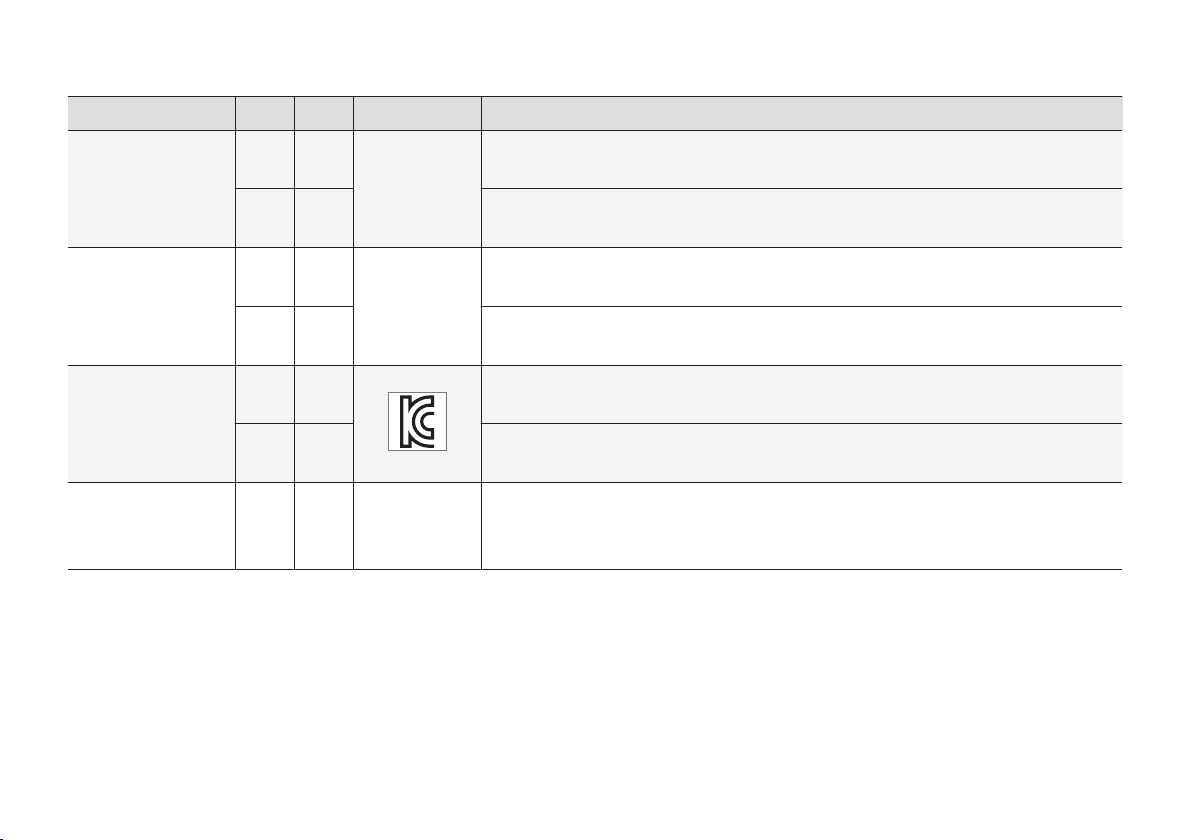
DRIVER SUPPORT
}}
335
Market
ACC
A
BLIS
B
Symbol Type approval
Indonesia
✓
37295/POSTEL/2014
4927
✓
38806/SDPPI/2015
4927
Jordan
✓
Type Approval No.: TRC/LPD/2014/255
Equipment Type: Low Power Device (LPD)
✓
Type Approval No.: TRC/LPD/2015/3
Equipment Type: Low Power Device (LPD)
Korea
✓
Certification No.
MSIP-CMI- DPH-L2C0054TR
✓
Certification No.
MSIP-CMI-DPH-L2C0055TR
Morocco
✓ ✓
AGREE PAR L’ANRT MAROC
NUMÉRO D’AGRÉMENT: MR 9929 ANRT 2014
DATE D’AGRÉMENT: 26/12/2014

||
DRIVER SUPPORT
336
Market
ACC
A
BLIS
B
Symbol Type approval
Malaysia
✓
This device has been certified under the Communications & Multimedia Act of 1998,
Communications and Multimedia (Technical Standards) Regulations 2000.
To retrieve your device’s serial number, please visit (support.volvocars.com) and search for
“SIRIM Label Verification”.
Type Approval No.:
RALM/21A/0315/S(150520)
✓
Type Approval No.:
RALM/21A/0315/S(150618)
Moldavia
✓ ✓
1024
Singapore
✓ ✓
Complies with IDA Standards DA105753
South Africa
✓
TA-2014/1824
APPROVED
✓
TA-2014/2390
APPROVED

DRIVER SUPPORT
* Option/accessory.
337
Market
ACC
A
BLIS
B
Symbol Type approval
Taiwan
✓
CCAB15LP0560T3
✓
CCAB15LP0680T0
A
ACC = Adaptive Cruise Control
B
BLIS = Blind Spot Information
Related information
•
Radar unit (p. 328)
•
Limitations of the radar unit (p. 330)
•
Adaptive cruise control* (p. 296)
•
Pilot Assist* (p. 313)
•
BLIS* (p. 354)

DRIVER SUPPORT
* Option/accessory.
338
Camera unit
The camera unit is used by several driver sup-
port systems and has the task of for example
detecting lane lines or traffic signs.
NOTE: The illustration is schematic - details may vary
depending on car model.
The camera unit is used by the following func-
tions:
•
Adaptive cruise control*
•
Lane assistance*
•
Driver Alert Control*
•
Pilot Assist*
•
City Safety
•
Steering assistance upon risk of lane depar-
ture
•
Road Sign Information*
•
Active main beam*
Related information
•
Limitations of the camera unit (p. 339)
•
Adaptive cruise control* (p. 296)
•
Lane Keeping Aid (p. 370)
•
Driver Alert Control (p. 368)
•
Pilot Assist* (p. 313)
•
City Safety (p. 342)
•
Steering assistance upon risk of lane depar-
ture (p. 378)
•
Road Sign Information* (p. 362)
•
Activating/deactivating main beam (p. 141)
||
DRIVER SUPPORT
340
Cause Action
The windscreen surface in front of the camera and radar unit is dirty or
covered with ice or snow.
Clean dirt, ice and snow from the windscreen surface in front of the camera and
radar unit.
Thick fog and heavy rain or snow block the radar signals or the camera
view.
No action. Sometimes the unit does not work during heavy rain or snowfall.
Water or snow from the road surface swirls up and blocks the radar
signals or camera view.
No action. Sometimes the unit does not work on a very wet or snow-covered road
surface.
Dirt has appeared between the inside of the windscreen and the cam-
era and radar unit.
Visit a workshop to have the windscreen inside the unit's cover cleaned - an
authorised Volvo workshop is recommended.
Strong oncoming light No action. The camera unit is reset automatically in more favourable light condi-
tions.
NOTE
Keep the windscreen clean in front of the
camera and radar unit.
High temperature
At very high temperatures the camera and radar
unit can temporarily be switched off for
about 15 minutes after the engine is started so
as to protect the unit's electronics. The camera
and radar unit restarts automatically when the
temperature has fallen sufficiently.
Damaged windscreen
IMPORTANT
If a crack, scratch or stone chip in the wind-
screen in front of one of the camera and
radar unit “windows” covers an area of
approx. 0.5 × 3.0 mm (0.02 × 0.12 in.) or
larger, a workshop must be contacted to have
the windscreen replaced – an authorised
Volvo workshop is recommended.
If not rectified it can lead to reduced perform-
ance for the driver support systems that use
the camera and radar unit.
This may mean that functions are reduced,
deactivated completely or give incorrect func-
tion response.
To avoid the risk of failed, deficient or
reduced operation of driver support systems
that use the radar unit, the following also
applies:
•
Volvo recommends against repairing
cracks, scratches or stone chips in the
area in front of the camera and radar unit.
Instead, the whole windscreen should be
replaced.
•
Before replacing a windscreen, contact
an authorised Volvo workshop to verify
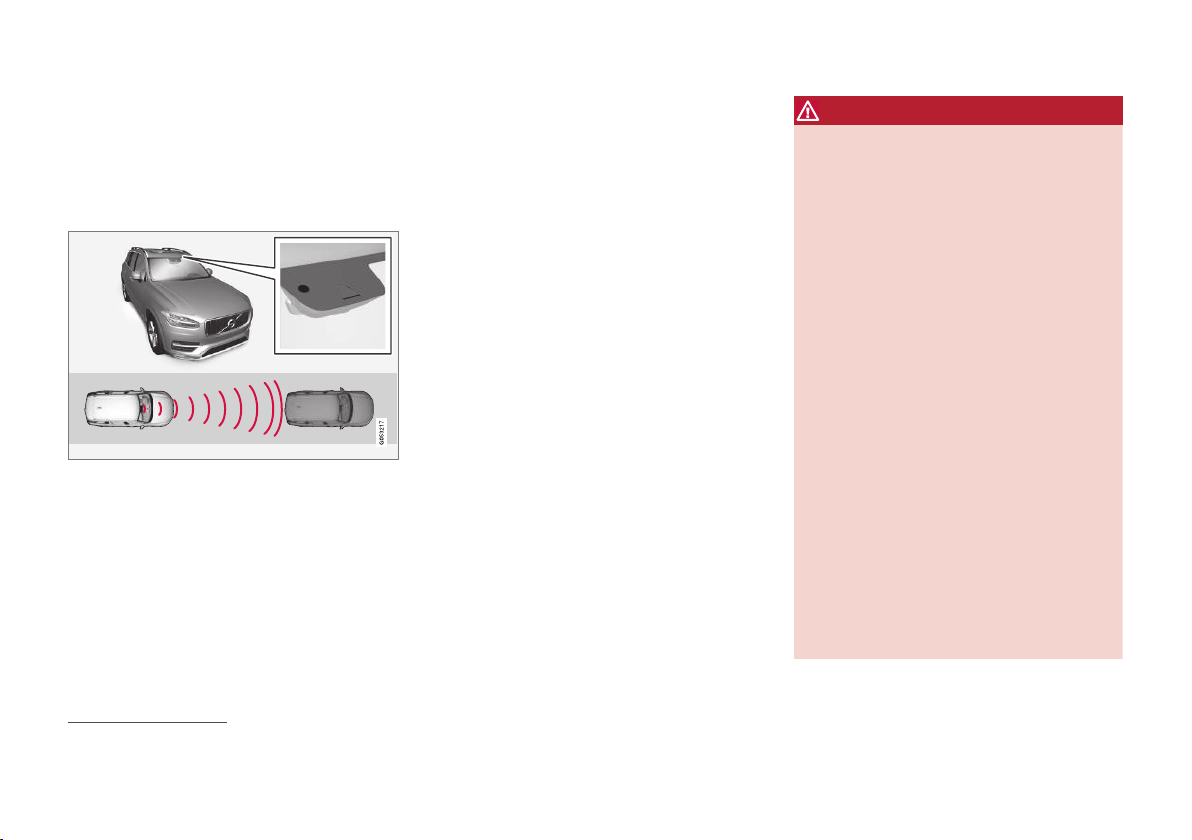
DRIVER SUPPORT
342
City Safety
City Safety uses visual, haptic and acoustic sig-
nals to alert the driver of any pedestrians,
cyclists, large animals and vehicles that appear.
The car then brakes automatically unless the
driver him/herself acts within a reasonable time.
Location of the radar unit
54
.
City Safety can prevent a collision or reduce colli-
sion speed.
City Safety is an aid to assist a driver who is at
risk of colliding with a pedestrian, large animal,
cyclist or a vehicle.
The City Safety function can help the driver to
avoid a collision when driving in queues, e.g.
when changes in the traffic ahead, combined with
a lapse in attention, could lead to an incident.
The function helps the driver by automatically
braking the car in the event of an imminent risk
of collision if the driver does not react in time by
braking and/or swerving.
City Safety activates a short, sharp braking proce-
dure, normally stopping the car just behind the
vehicle in front. For most drivers this is well out-
side normal driving style and may be perceived as
uncomfortable.
City Safety is activated in situations where the
driver should have started braking earlier, which
is why it cannot help the driver in every situation.
City Safety is designed to be activated as late as
possible in order to avoid unnecessary interven-
tion.
The driver or passengers are not normally aware
of City Safety - it only intervenes in a situation
where a collision is immediately imminent.
WARNING
•
The City Safety is supplementary driver
support intended to improve driving safety
– it cannot handle all situations in all traf-
fic, weather and road conditions.
•
The City Safety auto-brake function can
prevent a collision or reduce collision
speed, but to ensure full brake perform-
ance the driver should always depress the
brake pedal – even if the car auto-brakes.
•
The warning and steering assistance are
only activated if there is a high risk of col-
lision – you must therefore never wait for
a collision warning or for City Safety to
intervene.
•
The warning and brake intervention for
pedestrians and cyclists are deactivated
at vehicle speeds exceeding 70 km/h
(43 mph).
•
City Safety does not activate any auto-
brake functions in the event of heavy
acceleration.
•
City Safety is not a substitute for the driv-
er's attention and judgement. The driver
is always responsible for ensuring the car
is driven in a safe manner, at the appro-
priate speed, with an appropriate distance
54
NOTE: The illustration is schematic - details may vary depending on car model.
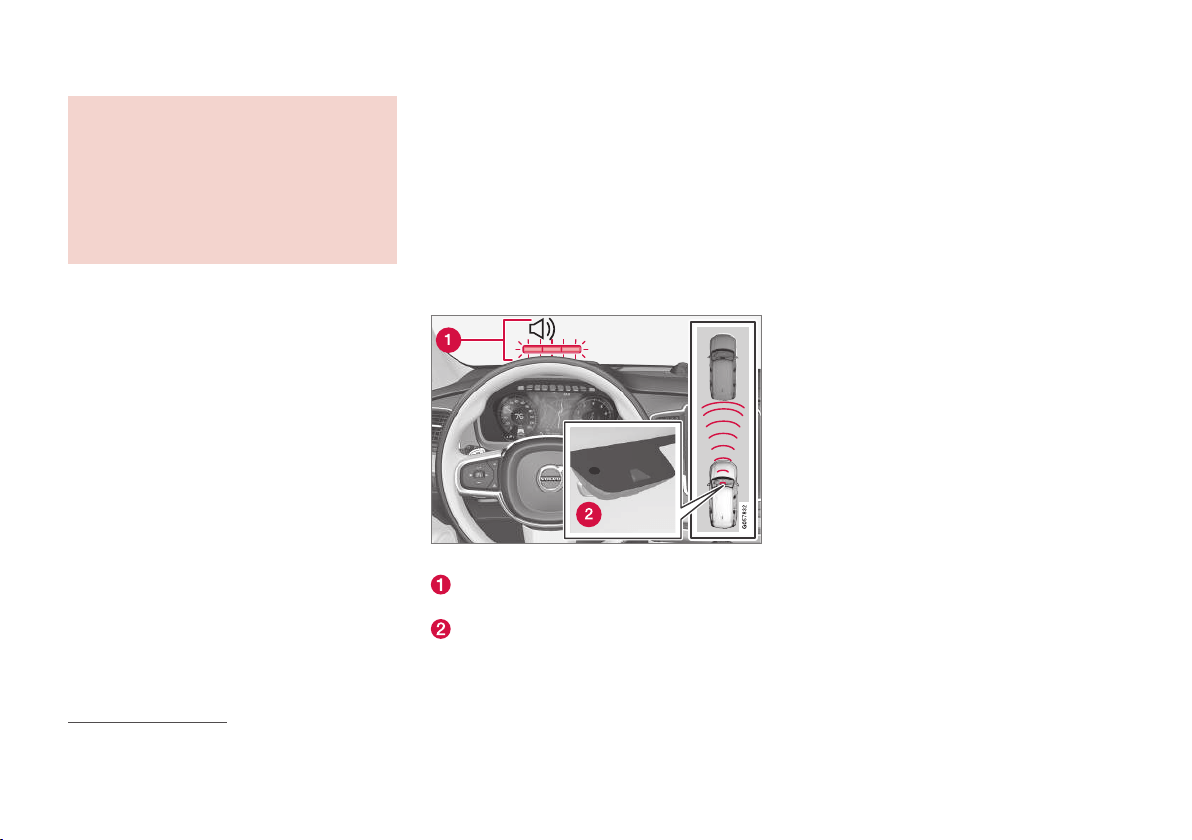
DRIVER SUPPORT
}}
343
to other vehicles, and in accordance with
current traffic rules and regulations.
•
The driver is advised to read all sections
in the Owner's Manual that relate to City
Safety to learn about factors such as its
limitations and what the driver should be
aware of before using the system (see
the list of links at the end of this article).
Parameters for City Safety
City Safety can avoid a collision with a vehicle, a
cyclist, a pedestrian or a larger animal in front by
reducing the car's speed with the auto-brake
function.
If the speed difference is greater than the follow-
ing specified speeds, the City Safety auto-brake
function cannot prevent a collision but mitigates
the consequences of it.
Vehicles
For a vehicle in front, City Safety can reduce the
speed by up to 60 km/h (37 mph).
cyclists
For a cyclist, City Safety can reduce the speed by
up to 50 km/h (30 mph).
Pedestrians
For a pedestrian, City Safety can reduce speed by
up to 45 km/h (28 mph).
Large animals
In the event of a risk of a collision with a large
animal, City Safety can reduce the car's speed by
up to 15 km/h (9 mph).
The brake function for large animals is primarily
intended to reduce the force of the impact at
higher speeds and is most effective at speeds
above 70 km/h (43 mph) but less effective at
lower speed.
Overview
Function overview
54
.
Audio-visual warning signal in the event of a
collision risk
Distance measurement with the camera and
radar unit
City Safety carries out three steps in the follow-
ing order:
1. Collision warning
2. Brake support
3. Auto Brake
The following text explains what happens during
the three steps:
1 - Collision warning
The driver is first warned of a potentially immi-
nent collision.
City Safety can detect pedestrians, cyclists or
vehicles that are stationary or moving in the same
direction as the car and are ahead. City Safety
can also detect pedestrians, cyclists or large ani-
mals that are crossing the road in front of the car.
In the event of a risk of collision with a pedes-
trian, large animal, cyclist or vehicle (including
vehicles described in the "City Safety in cross
traffic" section), the driver's attention is alerted by
means of a red flashing warning signal, an acous-
tic signal and a haptic warning in the form of a
brake pulse. At lower speeds or with hard braking
or acceleration there will be no haptic warning.
The brake pulse frequency varies according to
the car's speed.
54
NOTE: The illustration is schematic - details may vary depending on car model.
||
DRIVER SUPPORT
344
2 - Brake support
If the risk of collision has increased further after
the collision warning then the brake support is
activated.
Brake support reinforces the driver’s braking
action if the system considers that the braking is
not sufficient to avoid a collision.
3 - Auto Brake
The automatic brake function is activated last.
If in this situation the driver has not yet started to
take evasive action and the risk of collision is
imminent then the automatic braking function is
deployed - this takes place irrespective of
whether or not the driver brakes. Braking then
takes place with full brake force in order to
reduce collision speed, or with limited brake force
if it is sufficient to avoid a collision.
In connection with automatic braking the seatbelt
tensioner may also be activated. For more infor-
mation see the "Seatbelt tensioner" section.
In some situations, the action of Auto-brake may
begin with light braking and then progress to full
brake action.
When City Safety has prevented a collision with a
stationary object, the car remains stationary in
anticipation of positive action by the driver. If the
car has been braked to avoid collision with a
slower vehicle in front, its speed is reduced to
match that of the vehicle in front.
NOTE
On cars with manual gearbox, the engine
stops when the Auto-brake function has stop-
ped the car, unless the driver has managed to
depress the clutch pedal beforehand.
The driver can always interrupt a braking inter-
vention by firmly depressing the accelerator
pedal.
NOTE
When City Safety brakes, the brake lights
come on.
When City Safety is activated and brakes the
vehicle, the driver display shows a text message
to the effect that the function is/has been active.
WARNING
City Safety must not be used as an excuse for
the driver to change his/her driving style. If
the driver relies solely on City Safety to do the
braking, there might be a risk of a collision
sooner or later.
Market limitation
City Safety is not available in all countries. If City
Safety does not appear in the centre display's
Settings menu, the car is not equipped with this
function.
Search path in the top view of the centre display:
•
Settings My Car IntelliSafe
Related information
•
Setting the warning distance for City Safety
(p. 345)
•
Detection of obstacles with City Safety
(p. 346)
•
City Safety when evasive manoeuvres are
prevented (p. 349)
•
City Safety in cross traffic (p. 348)
•
Limitations of City Safety (p. 350)
•
Messages for City Safety (p. 353)
•
Seatbelt tensioner (p. 59)
DRIVER SUPPORT
345
Setting the warning distance for City
Safety
City Safety is always activated but the driver can
select the warning distance for the function.
NOTE
The City Safety function cannot be deacti-
vated. It is activated automatically when the
engine/electric operation is started and
remains switched on until the engine/electric
operation is switched off.
The warning distance determines the sensitivity
of the system and regulates the distance at
which the visual, acoustic and haptic warnings
shall be triggered.
To select warning distance:
1.
Select
Settings My Car IntelliSafe in
the centre display's top view.
2.
Under
City Safety Warning, select Late,
Normal or Early to set the desired warning
distance.
If the
Early setting produces too many warnings,
which could be perceived as irritating in certain
situations, the
Normal or Late warning distance
can be selected.
When warnings are perceived as being too fre-
quent or disturbing, the warning distance can be
reduced, which reduces the total number of
warnings and instead leads to City Safety giving a
warning at a later stage.
The
Late warning distance should therefore only
be used in exceptional cases, as in dynamic driv-
ing.
WARNING
•
No automatic system can guarantee
100 % correct function in all situations.
Therefore, never test City Safety by driv-
ing at people, animals or vehicles - this
may cause severe damage and injury and
risk lives.
•
City Safety warns the driver when there is
a risk of a collision, but it cannot shorten
the driver’s reaction time.
•
Even if the warning distance has been set
to
Early warnings could be perceived as
being late in certain situations, e.g. when
there are large differences in speed or if
vehicles ahead suddenly brake heavily.
•
With the warning distance set at
Early,
the warnings will come more in advance.
This may mean that the warnings come
more frequently than at the warning dis-
tance Normal, but it is recommended
since it can make City Safety more effec-
tive.
NOTE
The warning with direction indicators for Rear
Collision Warning is deactivated if the warn-
ing distance for collision warning in the City
Safety function is set at the lowest level
"
Late".
The seat belt pre-tensioning and braking
functions are, however, still active.
Related information
•
City Safety (p. 342)
•
Detection of obstacles with City Safety
(p. 346)
•
City Safety when evasive manoeuvres are
prevented (p. 349)
•
City Safety in cross traffic (p. 348)
•
Limitations of City Safety (p. 350)
•
Messages for City Safety (p. 353)
•
Rear Collision Warning (p. 354)
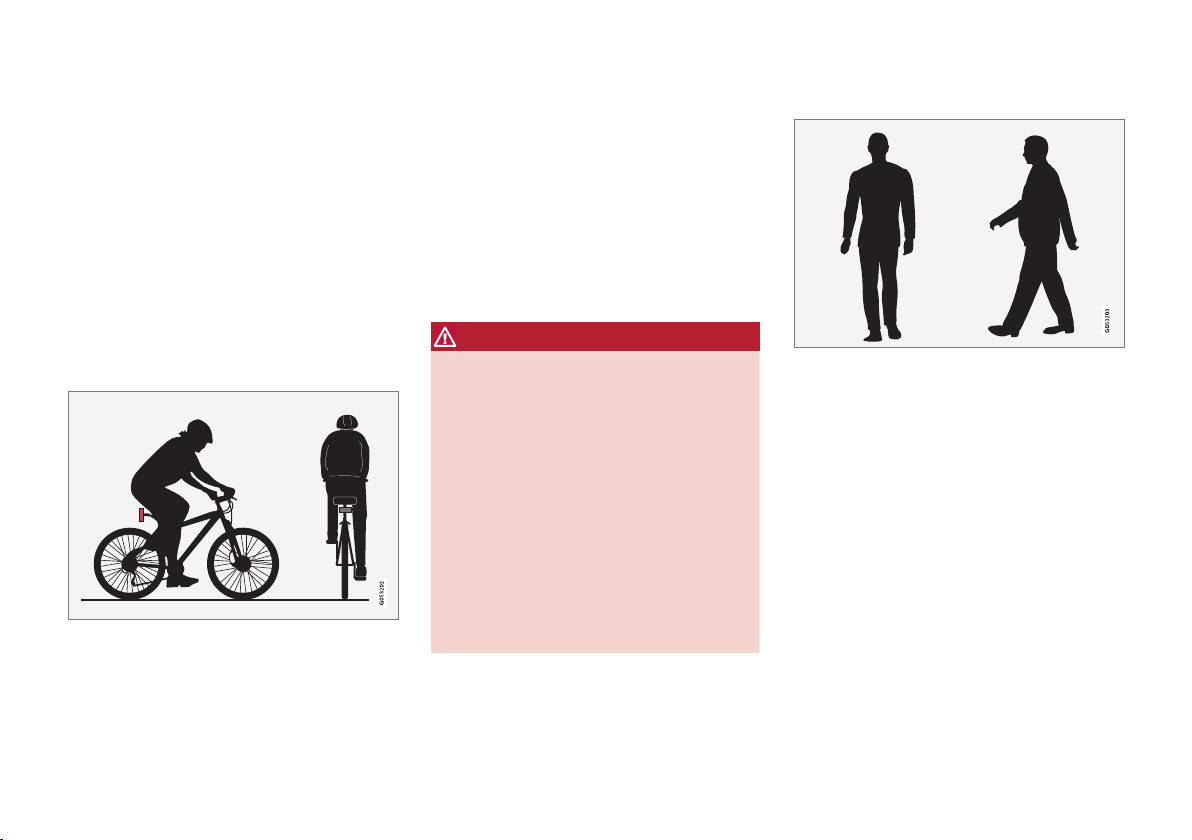
DRIVER SUPPORT
346
Detection of obstacles with City
Safety
The obstructions that City Safety can detect are
vehicles, cyclists, large animals and pedestrians.
Vehicles
City Safety detects most vehicles that are either
stationary or moving in the same direction as your
car, as well as vehicles described in the "City
Safety in cross traffic" section.
In order that City Safety shall be able to detect a
vehicle in the dark, the vehicle's front and rear
lights must be working and clearly illuminated.
Cyclists
Optimal examples of what City Safety interprets as a
cyclist — with clear body outline and bicycle outline.
Optimal performance requires that the system
function that detects a cyclist must receive the
clearest possible information about the body and
bicycle outline, requiring the ability to identify the
bicycle, head, arms, shoulders, legs, upper and
lower body plus a normal human pattern of move-
ment.
If large parts of the cyclist's body or bicycle are
not visible to the function's camera then the sys-
tem cannot detect a cyclist.
For the function to be able to detect a cyclist,
he/she must be an adult and riding a bicycle
designed for adults.
WARNING
City Safety is supplementary driver support,
but it cannot detect all cyclists in all situations
and, for example, cannot see:
•
partially obscured cyclists.
•
cyclists if the background contrast of the
cyclist is poor – warning and brake inter-
ventions may then be late or not occur at
all.
•
cyclists wearing clothing that obscures
the body outline.
•
bicycles loaded with large objects.
The driver is always responsible that the vehi-
cle is driven correctly and with a safety dis-
tance adapted to the speed.
Pedestrians
Optimal examples of what the system regards as pedes-
trians with clear body outlines.
For optimal performance, the system function
that detects pedestrians must receive the clear-
est possible information about the body outline,
requiring the ability to identify the head, arms,
shoulders, legs, upper and lower body plus a nor-
mal human pattern of movement.
In order that it shall be possible to detect a
pedestrian there must be a contrast with the
background and this will be affected by such
things as clothes, the background and the
weather. With poor contrast the pedestrian may
either be detected late or not at all, which may
mean that warnings and braking are late or omit-
ted.
DRIVER SUPPORT
}}
351
Driver intervention
Reversing
When your own car is reversing, City Safety is
temporarily deactivated.
Low speed
City Safety is not activated at very low speeds -
below 4 km/h (3 mph) - and the system there-
fore does not intervene in situations where your
car is approaching a vehicle ahead very slowly,
e.g. when parking.
Active driver
Driver commands are always prioritised, which is
why City Safety does not intervene or postpone
warning/intervention in situations where the
driver is steering and accelerating in a decisive
manner, even if a collision is unavoidable.
Active and aware driving behaviour can therefore
delay a collision warning and intervention in order
to minimise unnecessary warnings.
Miscellaneous
WARNING
•
Warnings and brake interventions could
be implemented late or not at all if a traf-
fic situation or external influences mean
that the camera and radar unit cannot
detect pedestrians, cyclists, large animals
or vehicles correctly.
•
For vehicles to be detected at night, their
headlamps and rear lamp cluster must be
switched on and shining clearly.
•
The camera and radar unit has a limited
range for pedestrians and cyclists. The
system can provide effective warnings
and brake interventions as long as the
relative speed is below 50 km/h
(30 mph). For stationary or slow-moving
vehicles, warnings and brake interven-
tions are effective at vehicle speeds up to
70 km/h (43 mph). Speed reduction for
large animals is less than 15 km/h
(9 mph) and can be achieved at vehicle
speeds above 70 km/h (43 mph). The
warning and brake intervention for large
animals is less effective at lower speeds.
•
Warnings for stationary or slow-moving
vehicles and large animals could be dis-
engaged due to darkness or poor visibil-
ity.
•
Warnings and brake interventions for
pedestrians and cyclists are deactivated
at vehicle speeds exceeding 70 km/h
(43 mph).
•
Do not place, stick or mount anything on
the outside or inside of the windscreen in
front of or around the camera and radar
unit — this can interfere with camera-
dependent functions.
•
Objects, snow, ice or dirt in the area of
the camera sensor may reduce its func-
tionality, fully deactivate it or give incor-
rect function response.
NOTE
The function uses the car's camera unit,
which has some general limitations, see the
"Limitations for camera unit" section.
NOTE
The function uses the car's radar unit, which
has some general limitations, see the section
"Limitations for radar unit".
Related information
•
City Safety (p. 342)
•
Setting the warning distance for City Safety
(p. 345)

||
DRIVER SUPPORT
352
•
Detection of obstacles with City Safety
(p. 346)
•
City Safety when evasive manoeuvres are
prevented (p. 349)
•
City Safety in cross traffic (p. 348)
•
Messages for City Safety (p. 353)
•
Limitations of the camera unit (p. 339)
•
Limitations of the radar unit (p. 330)
•
Electronic Stability Control ESC (p. 277)
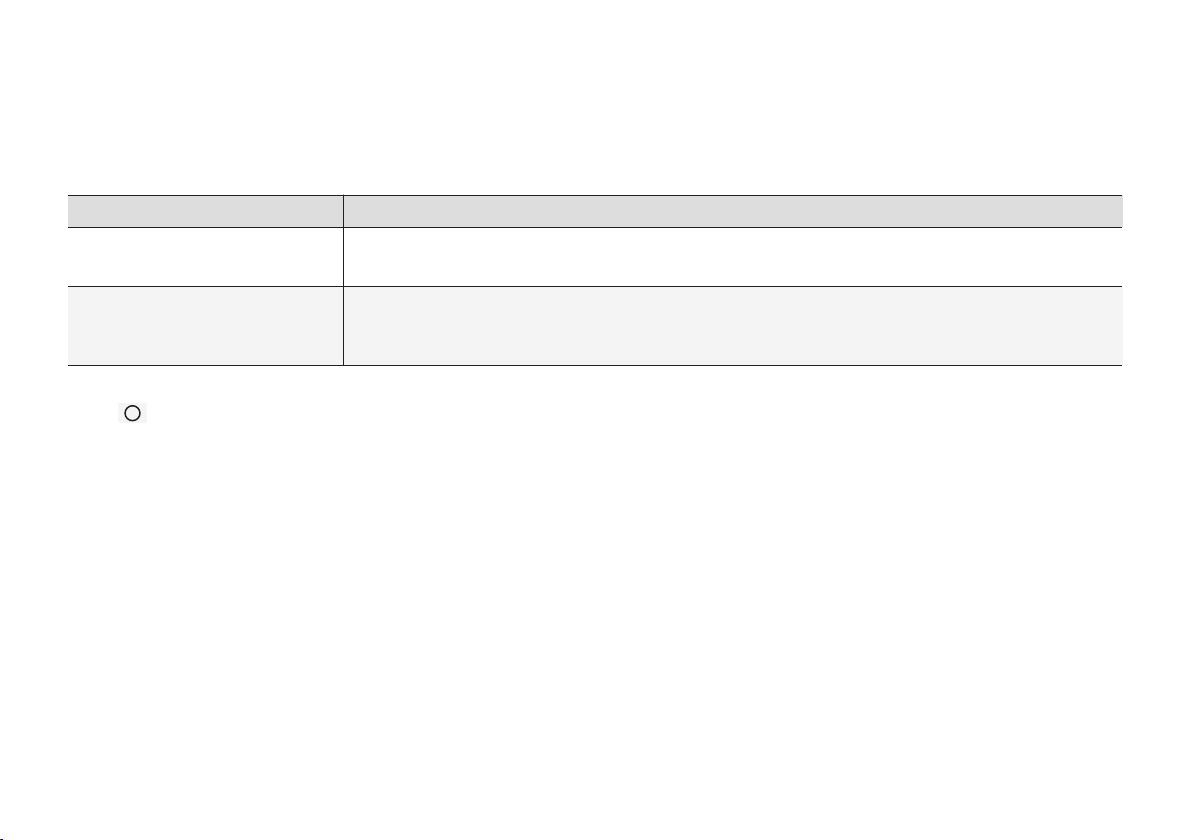
DRIVER SUPPORT
353
Messages for City Safety
A number of messages regarding City Safety
can be shown in the driver display.
The following table shows some examples.
Message Specification
City Safety
Automatic intervention
When City Safety brakes or has done an automatic braking, several of the driver display symbols may be illuminated
in connection with a text message being shown.
City Safety
Reduced functionality Service
required
The system does not function as it should. A workshop should be contacted - an authorised Volvo workshop is
recommended.
A text message can be cleared by briefly press-
ing the
button, located in the centre of the
steering wheel's right-hand keypad.
If a message remains: Contact a workshop – an
authorised Volvo workshop is recommended.
Related information
•
City Safety (p. 342)
•
Setting the warning distance for City Safety
(p. 345)
•
Detection of obstacles with City Safety
(p. 346)
•
City Safety when evasive manoeuvres are
prevented (p. 349)
•
City Safety in cross traffic (p. 348)
•
Limitations of City Safety (p. 350)

DRIVER SUPPORT
* Option/accessory.
354
Rear Collision Warning
The Rear Collision Warning (RCW) function can
help the driver to avoid being hit by a vehicle
approaching from behind.
RCW is activated automatically each time the
engine is started.
The RCW can warn the driver in a vehicle
approaching from behind that a collision is immi-
nent by rapidly flashing the direction indicators.
If, at a vehicle speed below 30 km/h (20 mph),
the RCW function detects that the car is in dan-
ger of being hit from behind, the seatbelt ten-
sioners may tension the front seatbelts and the
Whiplash Protection System safety system is
activated.
Immediately before the collision, RCW may also
activate the foot brake in order to reduce the for-
ward acceleration of the car during the collision.
However, the foot brake is only activated if the
car is stationary. The foot brake releases immedi-
ately if the accelerator pedal is depressed.
Limitations
In certain cases the RCW may have difficulty
helping the driver in the event of a collision risk.
This can be for example:
•
if the vehicle approaching from the rear is
detected too late
•
if the vehicle approaching from the rear
changes lane at the last moment
•
if the vehicle approaching from the rear has a
speed exceeding 80 km/h (50 mph).
NOTE
In certain markets, RCW does not give a
warning with the direction indicators due to
local traffic regulations - in such cases, this
part of the function is deactivated.
NOTE
The warning with direction indicators for Rear
Collision Warning is deactivated if the warn-
ing distance for collision warning in the City
Safety function is set at the lowest level
"
Late".
The seat belt pre-tensioning and braking
functions are, however, still active.
Related information
•
City Safety (p. 342)
•
Setting the warning distance for City Safety
(p. 345)
•
Seatbelt tensioner (p. 59)
•
Whiplash Protection System (p. 57)
BLIS*
The BLIS
56
function is designed to give a warn-
ing of vehicles diagonally behind and to the side
of your car so as to give assistance in heavy traf-
fic on roads with several lanes in the same direc-
tion.
BLIS is a driver aid intended to give a warning of:
•
vehicles in the car's blind spot
•
quickly approaching vehicles in the left and
right lanes closest to the car.
Location of BLIS lamp
57
.
Indicator lamp
The function is activated/deactivated using
the BLIS button in the centre display's func-
tion view.

DRIVER SUPPORT
* Option/accessory.
355
Principle of BLIS
Zone in blind spot
Zone for quickly approaching vehicle.
The BLIS function is active at speeds
above 10 km/h (6 mph).
The system is designed to react when:
•
your car is overtaken by other vehicles
•
another vehicle is quickly approaching your
car.
When BLIS detects a vehicle in Zone 1 or a
quickly approaching vehicle in Zone 2, the indica-
tor lamp on the door mirror on the affected side
illuminates with a constant glow. If the driver acti-
vates the direction indicator on the same side as
the warning, the indicator lamp will change over
from a constant glow to flashing with a more
intense light.
NOTE
The lamp illuminates on the side of the car
where the system has detected the vehicle. If
the car is overtaken on both sides at the
same time then both lamps illuminate.
WARNING
•
The BLIS function is supplementary driver
support intended to facilitate driving and
make it safer – it cannot handle all situa-
tions in all traffic, weather and road condi-
tions.
•
The responsibility for changing lanes
safely and using good judgement always
rests with the driver.
•
BLIS is not a substitute for the driver's
attention and judgement. The driver is
always responsible for ensuring the car is
driven in a safe manner, at the appropri-
ate speed, with an appropriate distance to
other vehicles, and in accordance with
current traffic rules and regulations.
Related information
•
Activate/deactivate BLIS* (p. 356)
•
Limitations of BLIS* (p. 356)
•
Messages for BLIS* and Cross Traffic Alert*
(p. 361)
•
Cross Traffic Alert* (p. 357)
56
Blind Spot Information Systems
57
NOTE: The illustration is schematic - details may vary depending on car model.

DRIVER SUPPORT
* Option/accessory.
356
Activate/deactivate BLIS*
The BLIS
58
function can be activated/deacti-
vated.
Location of BLIS lamp
59
.
Indicator lamp
The function is activated/deactivated using
the BLIS button in the centre display's func-
tion view.
–
Tap on the BLIS button in function view.
> BLIS is activated/deactivated - a green/
grey indicator is shown in the button.
If BLIS is activated when starting the engine, the
function is confirmed by the door mirror indicator
lamps blinking once.
If BLIS was deactivated when the engine was
switched off, it will continue to be deactivated
when the engine is next started and no indicator
lights will then be illuminated.
Related information
•
BLIS* (p. 354)
•
Limitations of BLIS* (p. 356)
•
Messages for BLIS* and Cross Traffic Alert*
(p. 361)
Limitations of BLIS*
The BLIS
60
function may have limitations in cer-
tain situations.
Examples of limitations:
•
Dirt, ice and snow covering the sensors may
reduce the functions and deactivate alerts.
•
The BLIS function is automatically deacti-
vated if a trailer, bicycle rack or similar is con-
nected to the car's electrical system.
•
For optimal performance of BLIS, no bicycle
rack, luggage carrier or similar should be
mounted on the car's towbar.
WARNING
•
BLIS does not work on sharp bends.
•
BLIS does not work when the car is
reversing.
Sensors
The sensors for BLIS are located inside each
corner of the rear wing/bumper. The sensors are
also used by the Cross Traffic Alert (CTA) func-
tion.
58
Blind Spot Information
59
NOTE: The illustration is schematic - details may vary depending on car model.
60
Blind Spot Information

DRIVER SUPPORT
}}
* Option/accessory.
357
Keep the surface clean - on both the left and right-hand
sides of the car.
•
To ensure optimal functionality, the surfaces
in front of the sensors must be kept clean.
•
Do not affix any objects, tape or labels in the
area of the sensors.
IMPORTANT
Repair of the BLIS and CTA functions' com-
ponents or repainting the bumpers must only
be performed by a workshop - an authorised
Volvo workshop is recommended.
Related information
•
BLIS* (p. 354)
•
Activate/deactivate BLIS* (p. 356)
•
Cross Traffic Alert* (p. 357)
•
Messages for BLIS* and Cross Traffic Alert*
(p. 361)
•
Limitations of Cross Traffic Alert (p. 359)
Cross Traffic Alert*
CTA
61
is a driver support that supplements
BLIS
62
and is designed to warn of traffic cross-
ing behind the car when it is reversing.
Principle of CTA.
CTA supplements BLIS by detecting the
approach of crossing traffic during reversing,
such as when reversing out of a parking space.
CTA is primarily designed to detect vehicles. In
favourable conditions it may also be able to
detect smaller objects, such as cyclists and
pedestrians.
CTA is only active if the car rolls backwards or if
reverse gear has been selected.
61
Cross Traffic Alert
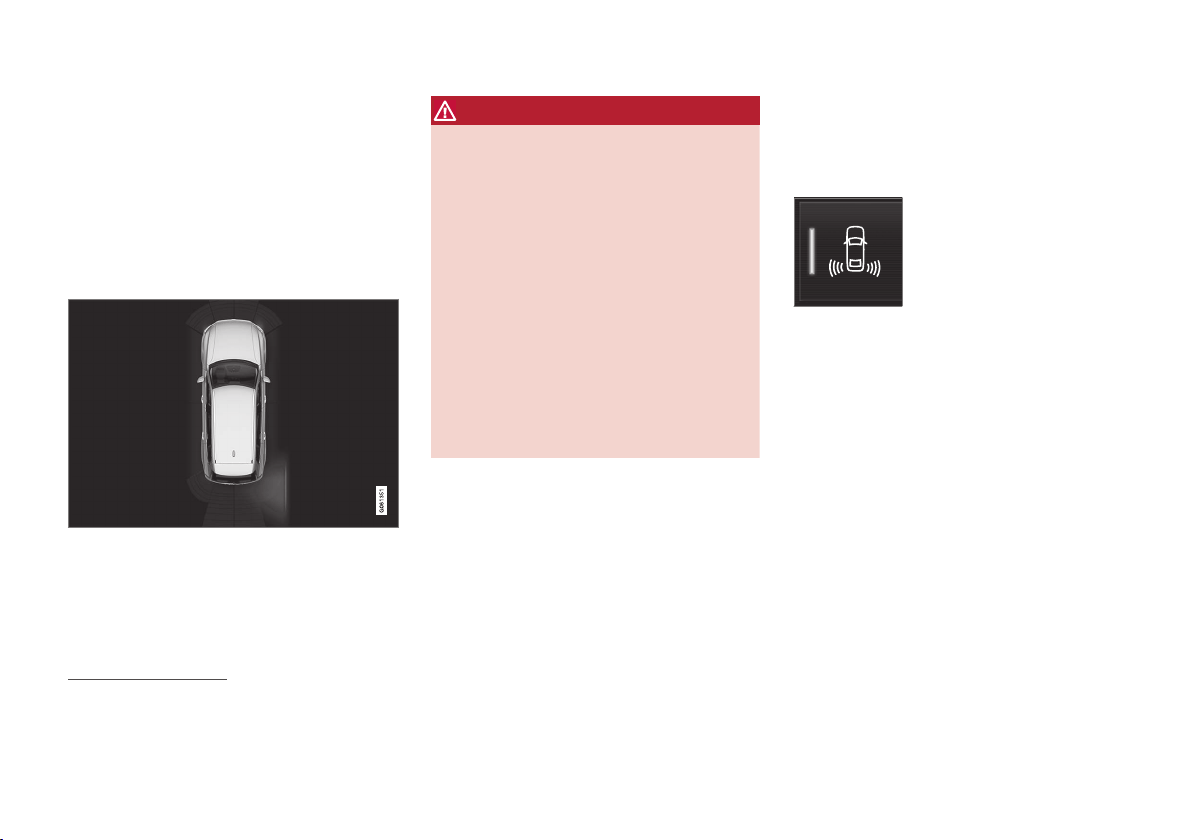
||
DRIVER SUPPORT
* Option/accessory.
358
If CTA has sensed that something is approaching
from the side, this is also indicated with:
•
an acoustic signal - the sound is heard in the
left-hand or right-hand speaker according to
the direction from which the object
approaches.
•
an illuminated icon in the PAS
63
graphics on
the screen.
•
an icon on the Park assist camera top view.
Illuminated icon for CTA in the PAS graphics on the
screen
64
.
WARNING
•
The Cross Traffic Alert function is supple-
mentary driver support intended to facili-
tate driving and make it safer – it cannot
handle all situations in all traffic, weather
and road conditions.
•
The responsibility for reversing the car
safely and using good judgement always
rests with the driver.
•
Cross Traffic Alert is not a substitute for
the driver's attention and judgement. The
driver is always responsible for ensuring
the car is driven in a safe manner, at the
appropriate speed, with an appropriate
distance to other vehicles, and in accord-
ance with current traffic rules and regula-
tions.
Related information
•
Activate/deactivate Cross Traffic Alert*
(p. 358)
•
Messages for BLIS* and Cross Traffic Alert*
(p. 361)
•
Limitations of Cross Traffic Alert (p. 359)
•
BLIS* (p. 354)
•
Park Assist* (p. 383)
Activate/deactivate Cross Traffic
Alert*
The CTA
65
function can be deactivated.
On/Off
Press the Cross Traffic Alert
button in the centre display's
function view.
•
GREEN button indication - CTA is activated.
•
GREY button indication - CTA is deactivated.
CTA is activated automatically each time the
engine is started.
Related information
•
Cross Traffic Alert* (p. 357)
•
Limitations of Cross Traffic Alert (p. 359)
•
Messages for BLIS* and Cross Traffic Alert*
(p. 361)
•
BLIS* (p. 354)
62
Blind Spot Information
63
Park Assist
64
NOTE: The illustration is schematic - details may vary depending on car model.
65
Cross Traffic Alert
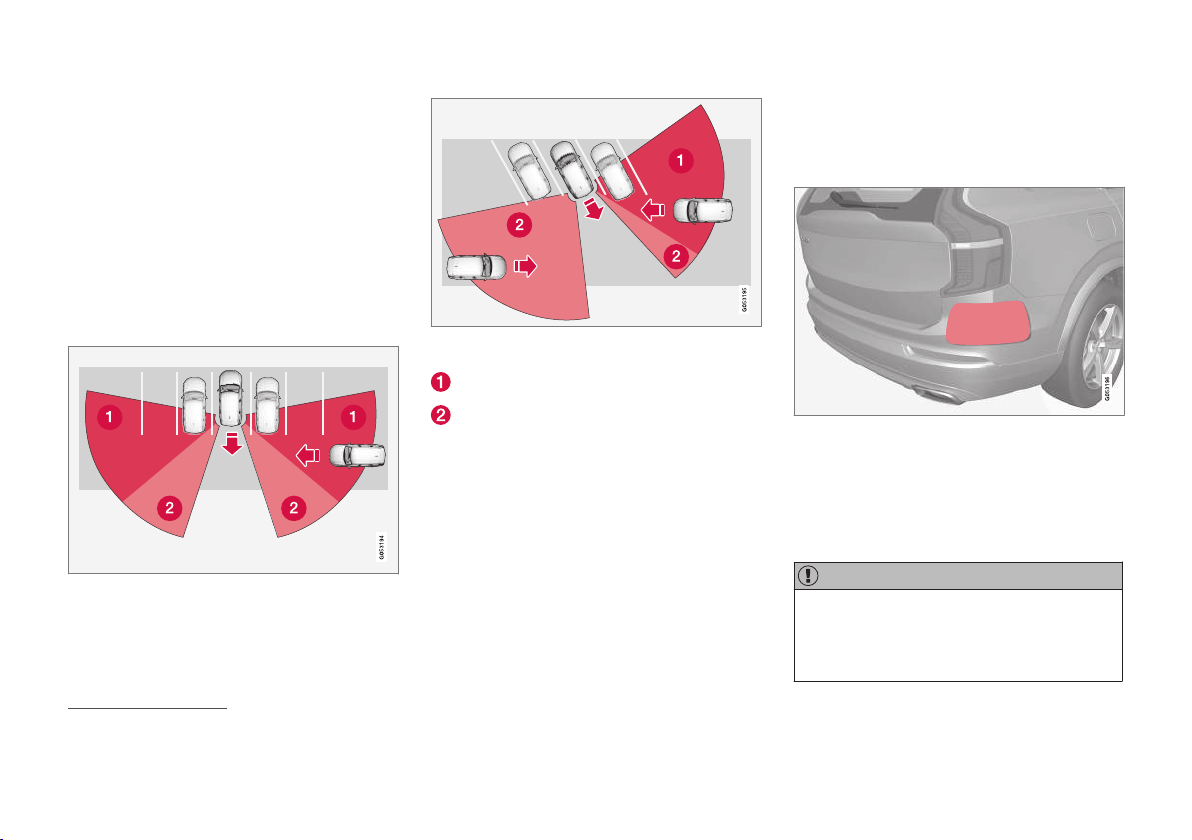
DRIVER SUPPORT
}}
359
Limitations of Cross Traffic Alert
The CTA
66
function may have limitations in cer-
tain situations.
CTA does not perform optimally in all situations
but has some limitations. For example, the CTA
sensors cannot "see" through other parked vehi-
cles or obstructing obstacles.
Here are some examples of situations where
CTA’s "field of vision" may be already limited and
approaching vehicles cannot therefore be
detected until they are very close:
The car is parked deep inside a parking slot.
In an angled parking slot CTA may be completely “blind”
on one side.
Blind CTA sector.
Sector in which CTA can detect/“see”.
However, as your car slowly reverses, the angle it
makes with the obstructing vehicle/object
changes and the blind sector rapidly decreases.
Examples of further limitations:
•
Dirt, ice and snow covering the sensors may
reduce the functions and deactivate alerts.
•
CTA is automatically deactivated if a trailer,
bicycle rack or similar is connected to the
car's electrical system.
•
For optimal performance of CTA, no bicycle
rack, luggage carrier or similar should be
mounted on the car's towbar.
Sensors
The sensors for CTA are located inside each cor-
ner of the rear wing/bumper. The sensors are
also used by the BLIS
67
function.
Keep the surface clean - on both the left and right-hand
sides of the car.
•
To ensure optimal functionality, the surfaces
in front of the sensors must be kept clean.
•
Do not affix any objects, tape or labels in the
area of the sensors.
IMPORTANT
Repair of the BLIS and CTA functions' com-
ponents or repainting the bumpers must only
be performed by a workshop - an authorised
Volvo workshop is recommended.
66
Cross Traffic Alert
67
Blind Spot Information

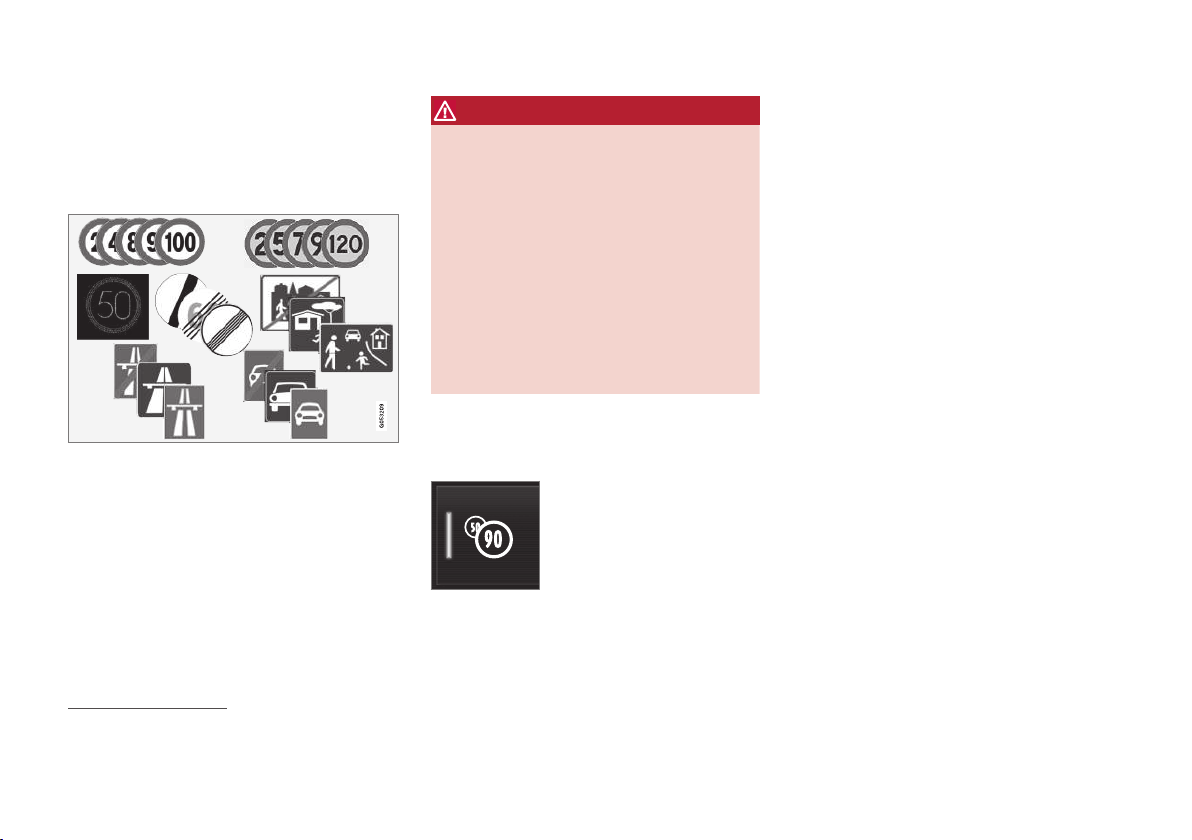
DRIVER SUPPORT
* Option/accessory.
362
Road Sign Information*
The Road Sign Information function (RSI
70
)
helps the driver to observe speed-related road
signs and certain prohibition signs as the car
passes them.
Examples of readable signs
71
.
RSI provides information about such things as
current speed, when a motorway or road is star-
ting/ending, when overtaking is prohibited or
when the direction of travel is one-way.
In the case where both a sign for motorway/dual
carriageway and a sign for the speed limit are
passed, RSI selects to show a sign symbol for
motorway/dual carriageway. The new speed limit
is shown directly with a line in the driver display's
speed scale.
WARNING
•
The Road Sign Information function is
supplementary driver support intended to
facilitate driving and make it safer – it
cannot handle all situations in all traffic,
weather and road conditions.
•
Road Sign Information is not a substitute
for the driver's attention and judgement.
The driver is always responsible for
ensuring the car is driven in a safe man-
ner, at the appropriate speed, with an
appropriate distance to other vehicles,
and in accordance with current traffic
rules and regulations.
Activate/deactivate RSI
The Road Sign Information function is selectable
- the driver can select On or Off.
Press the
Road Sign
Information button in the cen-
tre display's function view.
•
GREEN button indication - RSI is activated.
•
GREY button indication - RSI is deactivated.
Related information
•
Sign display with Road Sign Information
(p. 363)
•
Road Sign Information with Speed Warning
and Settings (p. 365)
•
Road Sign Information with Speed Camera
Information* (p. 366)
•
Limitations of Road Sign Information*
(p. 367)
70
Road Sign Information
71
Road signs are market-dependent - illustrations in these instructions only show a few examples.

DRIVER SUPPORT
}}
* Option/accessory.
363
Sign display with Road Sign
Information
The Road Sign Information function (RSI
72
) reg-
isters and shows road signs in different ways
depending on the sign and the situation.
Example
73
of detected speed information.
When RSI detects a road sign with an imposed
speed limit, the driver display shows the sign as a
symbol plus an indication in red on the speedom-
eter.
An additional
73
sign, such as
"no overtaking", may be shown
together with the speed limit
symbol.
If the driver enters a road
marked with a no-entry sign at
the roadside, the symbol for
this sign
73
flashes on and off
on the driver display as a warn-
ing.
If the car is equipped with Sensus Navigation*
then information from the map is also used to
determine whether the car is being driven in the
wrong direction.
The driver can also get an acoustic warning when
driving towards a no-entry entrance if the
Audio
Warning function is activated - see the heading
"Activating/deactivating the acoustic warning" in
the section "Activating/deactivating Road Sign
Information".
Speed limit or end of motorway
When RSI detects an "indirect speed limit sign"
stating the end of the current speed limit - e.g. at
the end of a motorway - a symbol appears with
the corresponding road sign in the driver's dis-
play.
Example of indirect speed limit sign
73
:
End of all restrictions.
End of motorway.
The driver display symbol extinguishes after
10-30 seconds and remains so until the next
speed related sign is passed.
Changed speed limit
When passing a direct speed limit sign when a
speed limit changes, a symbol with the corres-
ponding road sign appears in the driver's display.
Example of direct speed limit
sign
73
.
72
Road Sign Information
73
Road signs are market-dependent - the illustrations in these instructions only show examples.
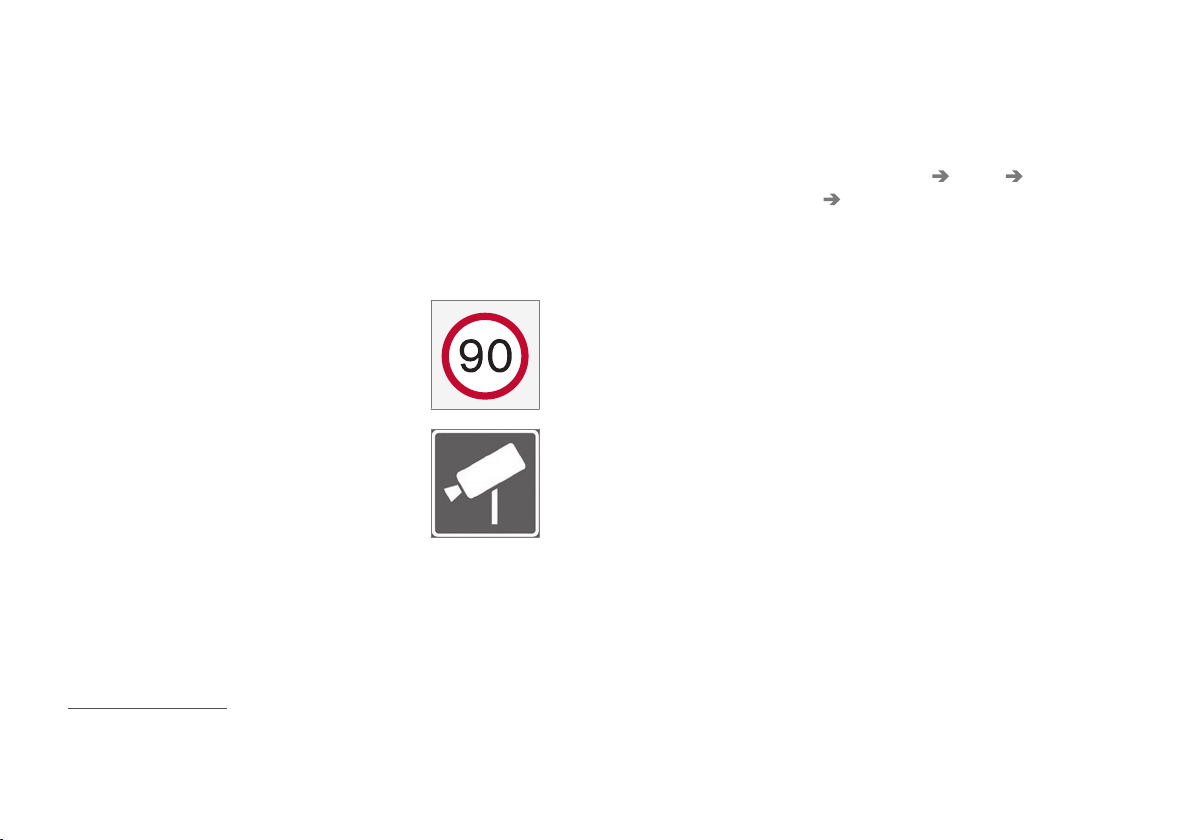
DRIVER SUPPORT
}}
* Option/accessory.
365
•
Road Sign Information with Speed Camera
Information* (p. 366)
•
Limitations of Road Sign Information*
(p. 367)
Road Sign Information with Speed
Warning and Settings
The subfunction
Speed Limit Warning for
RSI
75
is selectable - the driver can select On or
Off.
Speed Limit Warning alerts the driver when the
applicable speed limit or set "speed limit" is
exceeded. The warning is repeated once if the
driver does not reduce speed.
The speed warning is given by
the driver display symbol
76
showing the applicable maxi-
mum permitted speed tempo-
rarily flashing when this speed
is exceeded.
A speed warning is always
given if the speed limit is
exceeded in connection with
speed camera information.
Activating/deactivating speed warnings
The subfunction Speed Limit Warning is acti-
vated as follows:
1.
Select
Settings My Car IntelliSafe
Road Sign Information in the centre
display's top view.
2.
Select
Speed Limit Warning.
> The function is activated and a speed limit
selector appears.
(see description for "speed limit selector "
under following heading)
75
Road Sign Information
76
Road signs are market-dependent - the illustration in these instructions only show one example.
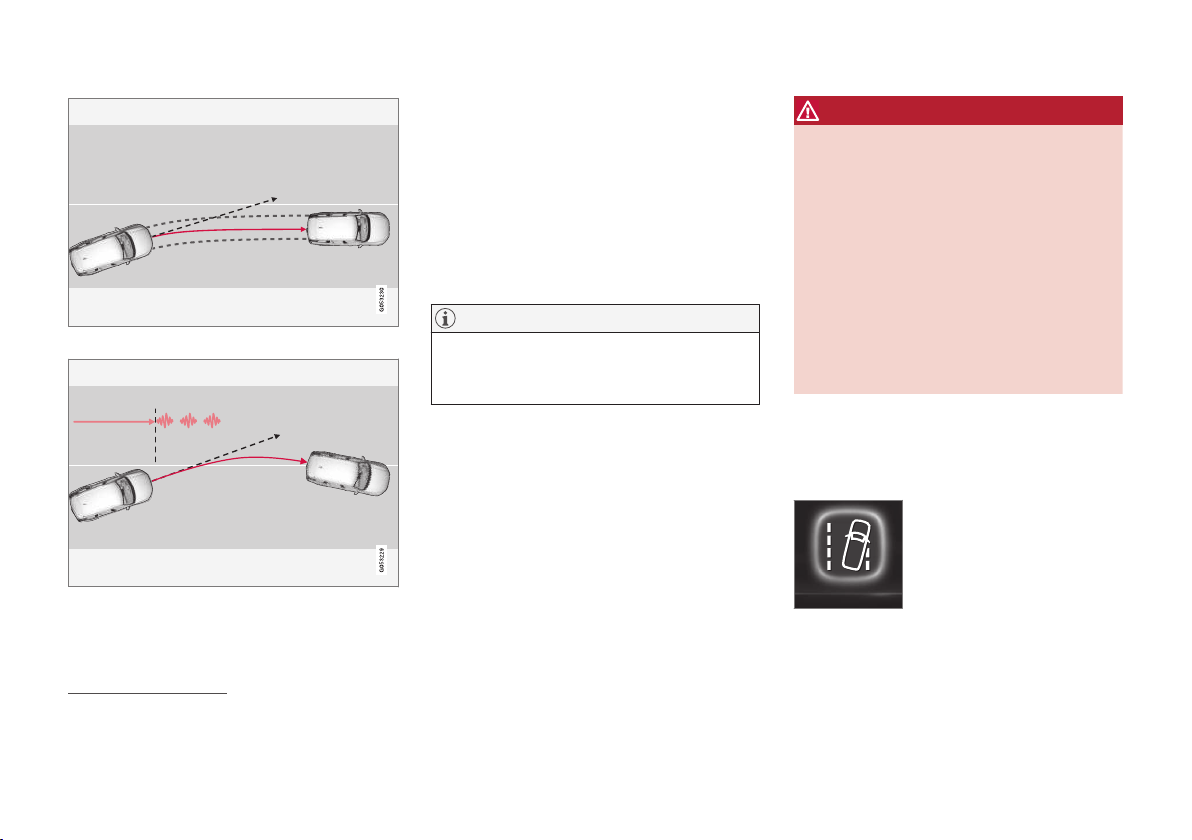
DRIVER SUPPORT
}}
371
Lane assistance steers the car back into its lane.
Lane assistance warns with steering wheel vibrations
83
.
Depending on settings, lane assistance acts in
accordance with the following:
•
Assist
84
activated: When the car is
approaching a lane line, LKA will actively
steer the car back into its lane by applying a
slight torque to the steering wheel.
•
Warning
84
activated: If the car is about to
cross a lane line, the driver is warned by
means of vibrations in the steering wheel.
NOTE
When a direction indicator is switched on,
there are no steering corrections or alerts
from Lane assistance.
WARNING
•
The Lane Keeping Aid function is supple-
mentary driver support intended to
improve driving safety – it cannot handle
all situations in all traffic, weather and
road conditions.
•
The function is not a substitute for the
driver's attention and judgement. The
driver is always responsible for ensuring
the car is driven in a safe manner, at the
appropriate speed, with an appropriate
distance to other vehicles, and in accord-
ance with current traffic rules and regula-
tions.
Steering assistance
In order for LKA to function, the driver’s hands
must be on the steering wheel. The system moni-
tors this continuously.
If the driver does not keep
his/her hands on the steering
wheel, the driver display shows
this symbol and the following
message, to prompt the driver
to actively steer the car:
•
Lane Keeping Aid Apply steering
82
Lane Keeping Aid
83
The steering wheel vibration varies - the longer the car remains outside the lane lines, the longer the vibration.
84
See the heading "Assistance alternatives for LKA" in the section "Activating/Deactivating Lane Keeping Aid".

DRIVER SUPPORT
* Option/accessory.
373
Activate/deactivate Lane Keeping
Aid
The Lane Keeping Aid (LKA
85
) function is select-
able - the driver can select On or Off - and cer-
tain subfunctions can be selected.
On/Off
Press the Lane Keeping Aid
button in the centre display's
function view.
•
GREEN button indication - LKA is activated.
•
GREY button indication - LKA is deactivated.
Select assistance option for LKA
The driver can select how LKA should react if the
car leaves its lane.
1.
Select
Settings My Car IntelliSafe in
the centre display's top view.
2.
In the event of
Lane Keeping Aid Mode,
select how LKA should react:
•
Assist - the driver is given steering assis-
tance without a warning.
•
Both - the driver is given both a warning
and steering assistance.
•
Warning — warning to driver only.
Related information
•
Steering assistance upon risk of lane depar-
ture (p. 378)
•
Lane Keeping Aid (p. 370)
•
Steering assistance upon risk of rear-end
collision* (p. 381)
•
Steering assistance upon risk of head-on
collision (p. 380)
•
Symbols and messages for lane assistance
(p. 374)
85
Lane Keeping Aid
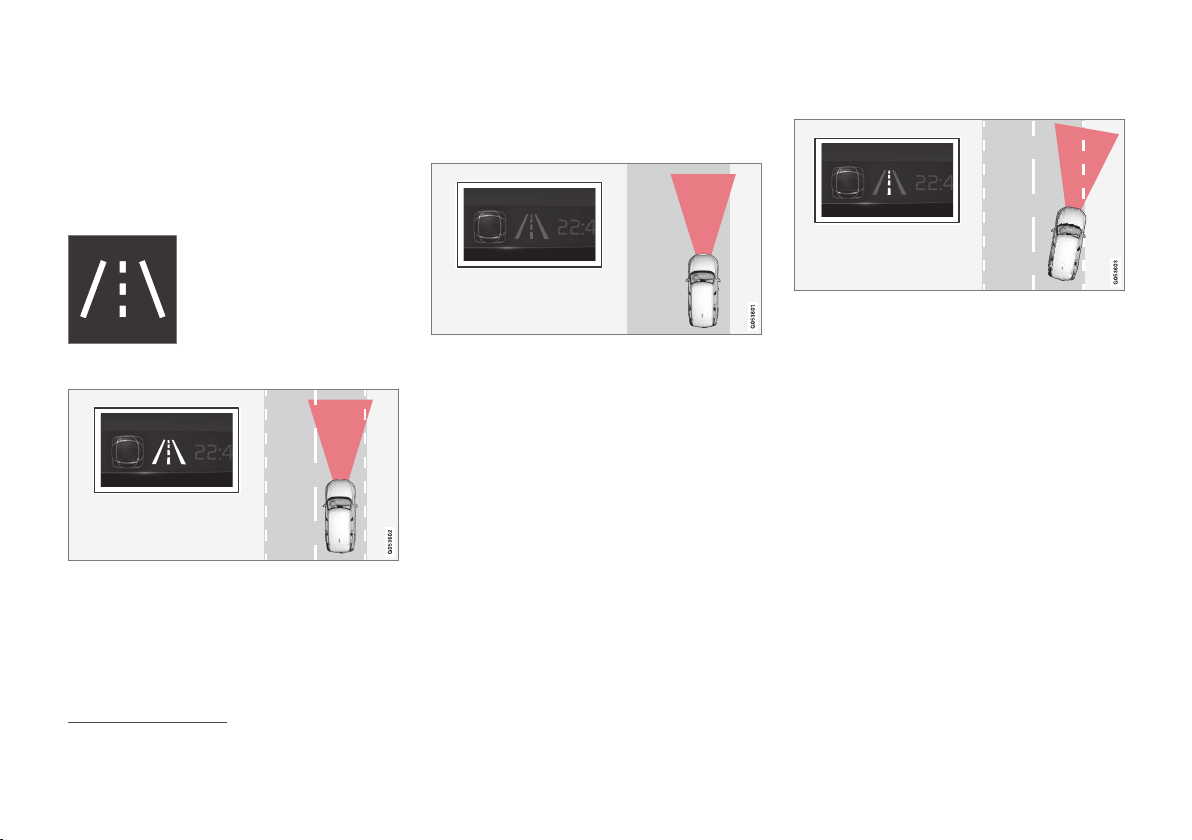
DRIVER SUPPORT
374
Symbols and messages for lane
assistance
A number of symbols and messages regarding
Lane assistance (LKA
86
) can be shown on the
driver display.
Symbol in the driver display
Lane assistance is visualised by
symbols in the driver display
depending on the situation.
Here are some examples of
symbols and the situations in
which they are shown:
Available
Available — the lane lines in the symbol are white.
Lane assistance is scanning one or both lane
lines.
Unavailable
Unavailable — the lane lines in the symbol are grey.
The Lane assistance cannot detect the lane lines,
the speed is too low or the road is too narrow.
Indication of steering assistance/warning
Steering assistance/warning - the lane lines in the sym-
bol are in colour.
Lane assistance indicates that the system is giv-
ing a warning and/or attempting to steer the car
back into the lane.
86
Lane Keeping Aid
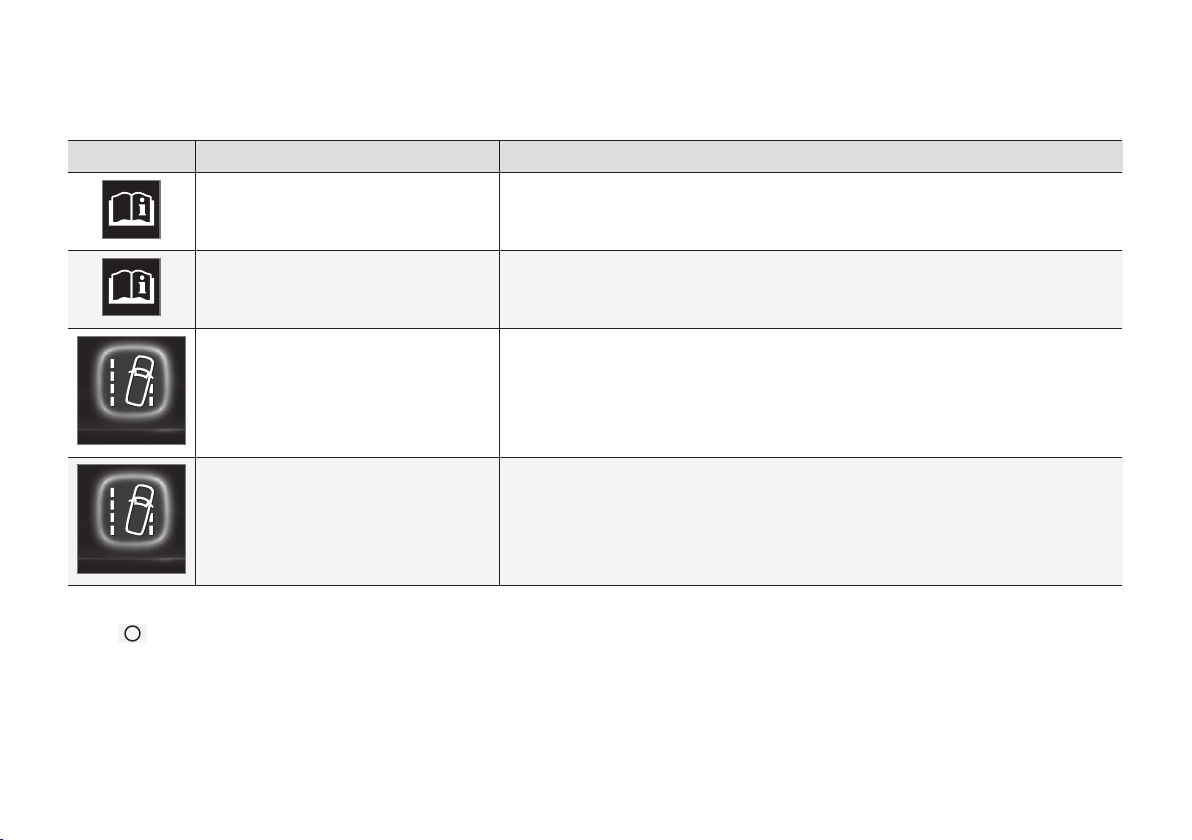
DRIVER SUPPORT
* Option/accessory.
375
Symbols and messages
The following table shows some examples.
Symbol Message Specification
Driver support system
Reduced functionality Service required
The system does not function as it should. A workshop should be contacted - an authorised
Volvo workshop is recommended.
Windscreen sensor
Sensor blocked, see Owner's manual
The ability of the camera to scan the roadway in front of the car is reduced.
Lane Keeping Aid
Apply steering
The LKA steering assistance does not function if the driver does not have his/her hands on
the steering wheel. Follow the instruction and steer the car.
Lane Keeping Aid
Standby until steering applied
LKA is set in standby mode until the driver starts to steer the car again.
A text message can be cleared by briefly press-
ing the
button, located in the centre of the
steering wheel's right-hand keypad.
If a message remains: Contact a workshop – an
authorised Volvo workshop is recommended.
Related information
•
Lane Keeping Aid (p. 370)
•
Activate/deactivate Lane Keeping Aid
(p. 373)
•
Steering assistance upon risk of rear-end
collision* (p. 381)
•
Steering assistance upon risk of head-on
collision (p. 380)
•
Steering assistance upon risk of lane depar-
ture (p. 378)
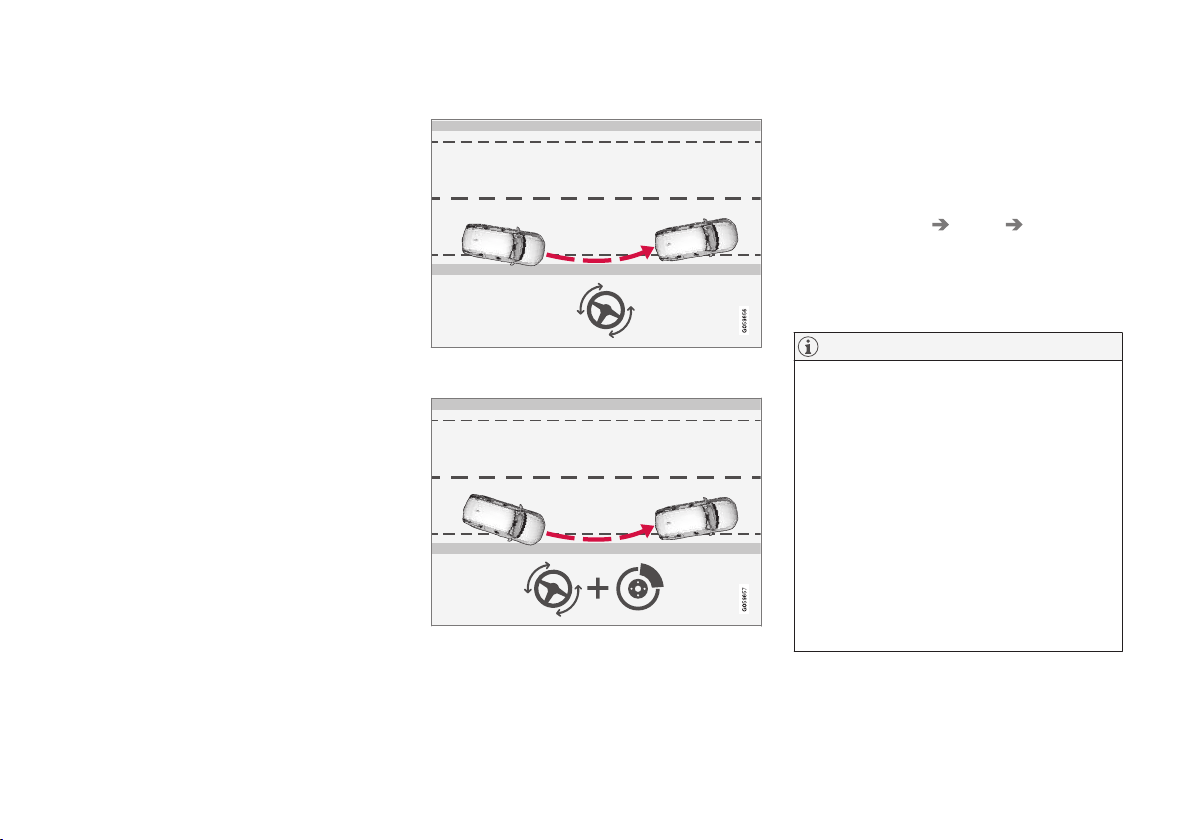
DRIVER SUPPORT
378
Steering assistance upon risk of
lane departure
The subfunction's task is to help the driver
reduce the risk of the car accidentally leaving the
road by actively steering the car back onto the
road.
The function is active within the speed range
65-140 km/h (40-87 mph) on roads with clearly
visible lane markings/lines.
A camera scans the edges of the road and the
painted side markings. If the car is about to leave
the side of the road, the car is steered back onto
the road and if the steering intervention is not
enough to avoid run-off, the brakes are also acti-
vated.
The function does not intervene however with
steering assistance or braking if the direction
indicators are used and if the function detects
that the driver is actively driving the car, activation
of the function will be delayed.
After automatic engagement, the driver indicates
that this has occurred via a text message:
•
Collision avoidance
assistance: Automatic intervention
Level of steering assistance
The function has two activation levels:
•
Steering assistance only
•
Steering assistance with brake intervention
Steering assistance only
Intervention with steering assistance.
Steering assistance with brake intervention
Intervention with steering assistance and braking.
Brake intervention helps in situations where
steering assistance alone is not sufficient. The
brake force is adapted automatically depending
on the situation at the time of road run-off.
Activating/deactivating Steering
assistance in the event of run-off risk
The function can be selected - the driver can
choose to have it On or Off.
Proceed as follows to switch it off:
1.
Select
Settings My Car IntelliSafe in
the centre display's top view.
2.
Deselect
Collision Avoidance Assistance.
> The function is then disengaged.
NOTE
When the Collision Avoid. Assistance
function is deactivated, all subfunctions are
switched off:
•
Steering assistance at risk of lane depar-
ture
•
Steering assistance at risk of oncoming
collision
•
Steering assistance at risk of rear-end
collision
Even though it is possible to deactivate the
function, it is advisable for the driver to always
have it activated since it improves driving
safety in most cases.
DRIVER SUPPORT
* Option/accessory.
379
Limitations for steering assistance
upon risk of running off the road
In certain demanding conditions the function may
have difficulty helping the driver correctly. In such
cases it is recommended to switch off this func-
tion.
Examples of such conditions are:
•
road works
•
winter road conditions
•
narrow roads
•
poor road surface
•
a very “sporty” driving style
•
poor weather with reduced visibility
•
roads with unclear or non-existent side mark-
ings
•
sharp edges or lines other than the lane's
side markings.
WARNING
•
The "Steering assistance at risk of lane
departure" subfunction is supplementary
driver support intended to improve driving
safety – it cannot handle all situations in
all traffic, weather and road conditions.
•
The function cannot detect barriers, rails
or similar obstacles at the side of the
road.
•
"Steering assistance at risk of lane
departure" is not a substitute for the driv-
er's attention and judgement. The driver
is always responsible for ensuring the car
is driven in a safe manner, at the appro-
priate speed, with an appropriate distance
to other vehicles, and in accordance with
current traffic rules and regulations.
NOTE
The function uses the car's camera unit,
which has some general limitations, see the
"Limitations for camera unit" section.
NOTE
The function uses the car's radar unit, which
has some general limitations, see the section
"Limitations for radar unit".
Related information
•
Lane Keeping Aid (p. 370)
•
Steering assistance upon risk of rear-end
collision* (p. 381)
•
Steering assistance upon risk of head-on
collision (p. 380)
•
Symbols and messages for lane assistance
(p. 374)
•
Symbols and messages for assistance upon
risk of collision (p. 377)
•
Limitations of the camera unit (p. 339)
•
Limitations of the radar unit (p. 330)

DRIVER SUPPORT
380
Steering assistance upon risk of
head-on collision
The subfunction can help a distracted driver who
does not notice that the car is drifting into the
oncoming lane.
The function can assist by guiding the car back to its
own lane.
Oncoming vehicles
Your car
The function is active within the speed range
60-140 km/h (37-87 mph) on roads with clearly
visible lane markings/lines.
If the car is about to leave its own lane while an
oncoming vehicle is approaching at the same
time, the function can help the driver to steer the
car back into its own lane.
The function does not intervene with steering
assistance if the direction indicator is used. And if
the function detects that the driver is actively
driving the car, activation of the function will be
delayed.
After automatic engagement, the driver indicates
that this has occurred via a text message:
•
Collision avoidance
assistance: Automatic intervention
WARNING
•
The "Steering assistance at risk of
oncoming collision" subfunction is sup-
plementary driver support intended to
improve driving safety – it cannot handle
all situations in all traffic, weather and
road conditions.
•
Steering assistance is only activated if
there is a high risk of collision – you must
therefore never wait for the function to
intervene.
•
The function is not a substitute for the
driver's attention and judgement. The
driver is always responsible for ensuring
the car is driven in a safe manner, at the
appropriate speed, with an appropriate
distance to other vehicles, and in accord-
ance with current traffic rules and regula-
tions.
Activating/deactivating Steering
assistance in the event of a collision
risk with oncoming
The function can be selected - the driver can
choose to have it On or Off.
Proceed as follows to switch it off:
1.
Select
Settings My Car IntelliSafe in
the centre display's top view.
2.
Deselect
Collision Avoidance Assistance.
> The function is then disengaged.
NOTE
When the Collision Avoid. Assistance
function is deactivated, all subfunctions are
switched off:
•
Steering assistance at risk of lane depar-
ture
•
Steering assistance at risk of oncoming
collision
•
Steering assistance at risk of rear-end
collision
Even though it is possible to deactivate the
function, it is advisable for the driver to always
have it activated since it improves driving
safety in most cases.

||
DRIVER SUPPORT
382
without noticing that another vehicle is approach-
ing.
The function is active within the speed range
60-140 km/h (37-87 mph) on roads with clearly
visible lane markings/lines.
After automatic engagement, the driver indicates
that this has occurred via a text message:
•
Collision avoidance
assistance: Automatic intervention
Activating/deactivating Steering
assistance upon risk of rear-end
collision
The function can be selected - the driver can
choose to have it On or Off.
Proceed as follows to switch it off:
1.
Select
Settings My Car IntelliSafe in
the centre display's top view.
2.
Deselect
Collision Avoidance Assistance.
> The function is then disengaged.
NOTE
When the Collision Avoid. Assistance
function is deactivated, all subfunctions are
switched off:
•
Steering assistance at risk of lane depar-
ture
•
Steering assistance at risk of oncoming
collision
•
Steering assistance at risk of rear-end
collision
Even though it is possible to deactivate the
function, it is advisable for the driver to always
have it activated since it improves driving
safety in most cases.
Limitations for steering assistance
upon risk of rear-end collision
In certain situations the function may have limited
functionality and fail to intervene e.g.:
•
for small vehicles, such as motorcycles
•
if the majority of the car has steered into the
adjacent lane
•
on roads/in lanes with unclear or non-exis-
tent lane markings
•
outside the speed range 60-140 km/h
(37-87 mph).
Other demanding situations can include:
•
road works
•
winter road conditions
•
narrow roads
•
poor road surface
•
a very “sporty” driving style
•
poor weather with reduced visibility.
WARNING
•
The "Steering assistance at risk of rear-
end collision" subfunction is supplemen-
tary driver support intended to improve
driving safety – it cannot handle all situa-
tions in all traffic, weather and road condi-
tions.
•
Steering assistance is only activated if
there is a high risk of collision – you must
therefore never wait for the function to
intervene.
•
The function is not a substitute for the
driver's attention and judgement. The
driver is always responsible for ensuring
the car is driven in a safe manner, at the
appropriate speed, with an appropriate
distance to other vehicles, and in accord-
ance with current traffic rules and regula-
tions.

DRIVER SUPPORT
}}
* Option/accessory.
383
NOTE
The function uses the car's camera unit,
which has some general limitations, see the
"Limitations for camera unit" section.
NOTE
The function uses the car's radar unit, which
has some general limitations, see the section
"Limitations for radar unit".
In addition to the camera and radar unit, the func-
tion uses the car's rear-facing radar, which has
certain general imitations that a driver should be
aware of - see section "Limitations for BLIS" for
more information.
Related information
•
Lane Keeping Aid (p. 370)
•
Activate/deactivate Lane Keeping Aid
(p. 373)
•
Steering assistance upon risk of lane depar-
ture (p. 378)
•
Steering assistance upon risk of head-on
collision (p. 380)
•
Limitations of the camera unit (p. 339)
•
Limitations of the radar unit (p. 330)
•
Limitations of BLIS* (p. 356)
Park Assist*
Park Assist Pilot assists the driver when
manoeuvring in tight spaces by indicating the
distance to obstacles through acoustic signals
combined with graphics on the centre display.
Screen view showing obstacle zones and sensor sectors.
The centre display shows an overview of the rela-
tionship between the car and detected obstacles.
The highlighted sector indicates the location of
the obstacle. The closer the car symbol is to a
highlighted sector box, the shorter the distance
between the car and detected obstacle.
The shorter the distance to the obstacle, the
faster the signal sounds. Other sound from the
audio system is muted automatically.
The acoustic signal for obstacles ahead and to
the sides is active when the car is moving but
stops after the car has been stationary for
approx. 2 seconds. The acoustic signal for obsta-
cles behind is also active when the car is station-
ary.
At a distance within 30 cm from an obstacle
behind or in front of the car, the tone is constant
and the active sensor's field closest to the car
symbol is filled.
The volume of the parking assistance signal can
be adjusted while the signal is sounding by
means of the [>II] knob on the centre console.
Adjustment can also be performed in the top
view's
Settings menu option.
NOTE
•
Acoustic warnings are only given for
objects directly on the vehicle's route.
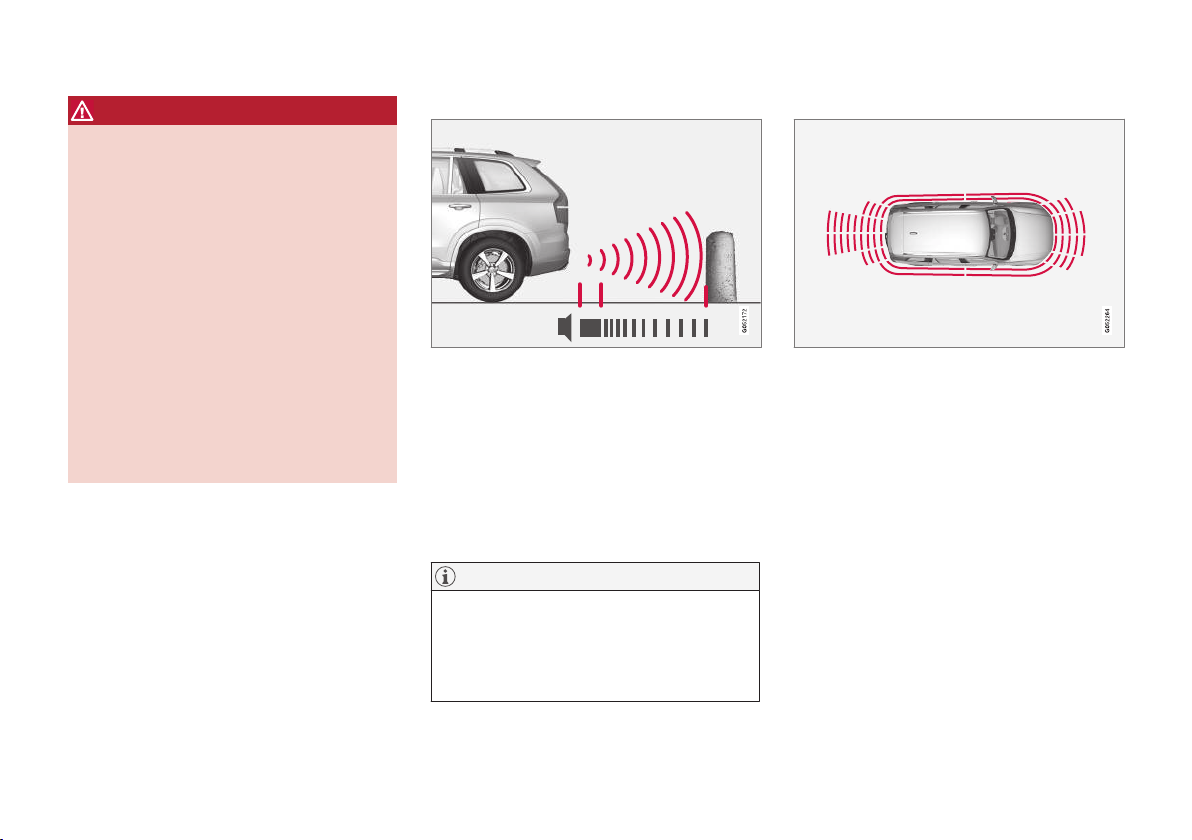
||
DRIVER SUPPORT
384
WARNING
•
The Park Assist function is supplemen-
tary driver support intended to facilitate
driving and make it safer – it cannot han-
dle all situations in all traffic, weather and
road conditions.
•
The parking sensors have blind spots
where obstacles cannot be detected.
•
Be particularly aware of people and ani-
mals near the car.
•
The Park Assist system is not a substitute
for the driver's attention and judgement.
The driver is always responsible for
ensuring the car is driven in a safe man-
ner, at the appropriate speed, with an
appropriate distance to other vehicles,
and in accordance with current traffic
rules and regulations.
Backwards
NOTE: The illustration is schematic - details may vary
depending on car model.
The sensors for reverse are activated if the car
rolls backward without a gear engaged or when
the gear lever is moved to reverse position.
The measuring range starts approx. 1.5 metres
( 5 ft) behind the car.
When reversing with a hitched trailer, parking
assistance backward is deactivated automatically.
NOTE
When reversing with e.g. a trailer or bike car-
rier on the towbar - without Volvo genuine
trailer wiring - parking assistance may need to
be switched off manually in order that the
sensors do not react to them.
Along the sides
Parking assistance side sensors are activated
automatically when the engine is started. They
are active at speeds below 10 km/h (6 mph).
The measuring range starts approx. 30 cm (1 ft)
from the sides. The acoustic signal for obstacles
on the sides comes from the side loudspeakers.
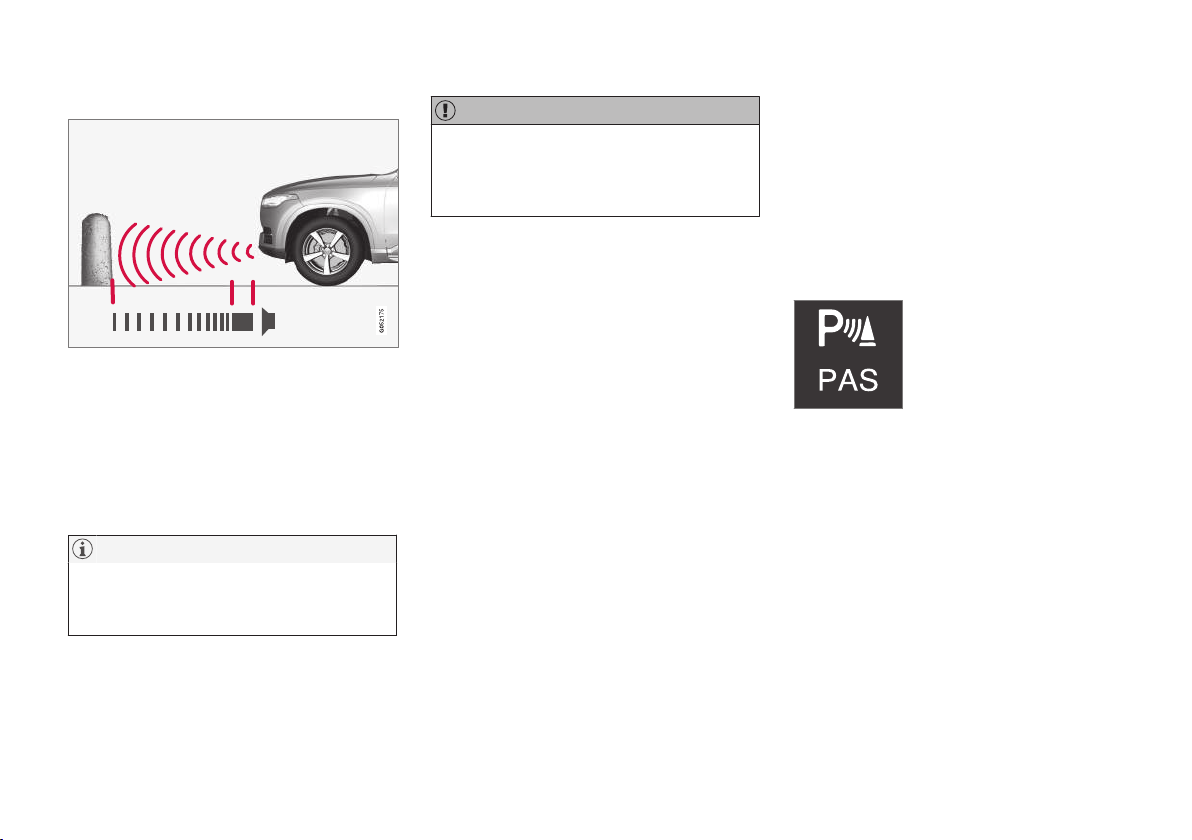
DRIVER SUPPORT
* Option/accessory.
385
Forwards
NOTE: The illustration is schematic - details may vary
depending on car model.
The front parking assistance sensors are acti-
vated automatically when the engine is started.
The front sensors are active at speeds
below 10 km/h (6 mph).
The measuring range starts approx. 80 cm
(2.5 ft) in front of the car.
NOTE
Parking assistance is deactivated when the
parking brake is applied or P mode is
selected in a car with an automatic gearbox.
IMPORTANT
When auxiliary lamps are fitted: Remember
that these must not obscure the sensors - the
auxiliary lamps may then be perceived as an
obstacle.
Related information
•
Activating/deactivating Park Assist Pilot*
(p. 385)
•
Limitations of Park Assist Pilot* (p. 386)
•
Symbols and messages for Park Assist Pilot*
(p. 388)
•
Park assist camera* (p. 389)
•
Park Assist Pilot* (p. 398)
Activating/deactivating Park Assist
Pilot*
The Park Assist Pilot function can be activated/
deactivated.
On/Off
The front and side parking assistance sensors
are activated automatically when the engine is
started. The rear sensors activate if the car rolls
backwards or if reverse gear in engaged.
The function is activated/deac-
tivated in function view in the
centre display.
Park Assist Pilot can also be
activated/deactivated from the
camera views.
–
Tap on the Park Assist button in function
view.
> Park Assist Pilot is activated/deactivated,
a GREEN/GREY indicator is displayed in
the button.
Related information
•
Park Assist* (p. 383)
•
Limitations of Park Assist Pilot* (p. 386)
•
Symbols and messages for Park Assist Pilot*
(p. 388)

DRIVER SUPPORT
}}
* Option/accessory.
389
Park assist camera*
The park assist camera helps the driver when
manoeuvring in tight spaces by indicating obsta-
cles with a camera image and graphics in the
centre display.
Overview
The parking assistance camera is a support func-
tion which is activated automatically when reverse
gear is selected or manually via the centre dis-
play.
Example of camera view
88
.
Zoom
89
- zoom in/out
360° view* - activate/deactivate all cameras
PAS* - activates/deactivates Park Assist
Pilot
Lines - activates/deactivates park assist
lines
Towbar* - activates/deactivates the towbar
assist line*
90
CTA* - activate/deactivate Cross Traffic Alert
WARNING
•
The parking camera function is supple-
mentary driver support intended to facili-
tate driving and make it safer – it cannot
handle all situations in all traffic, weather
and road conditions.
•
The parking cameras have blind spots
where obstacles cannot be detected.
•
Be particularly aware of people and ani-
mals near the car.
•
Objects/obstacles on the display screen
may be closer to the car than they appear
to be on the screen.
•
The parking cameras are not a substitute
for the driver's attention and judgement.
The driver is always responsible for
ensuring the car is driven in a safe man-
ner, at the appropriate speed, with an
appropriate distance to other vehicles,
and in accordance with current traffic
rules and regulations.
Camera views
The function can display a composite 360° view
and separate views for each of the four cameras:
rear, front, left or right camera view.
88
The illustration is schematic - details may vary depending on car model.
89
The park assist lines are switched off when zooming in.
90
Not available in all markets.
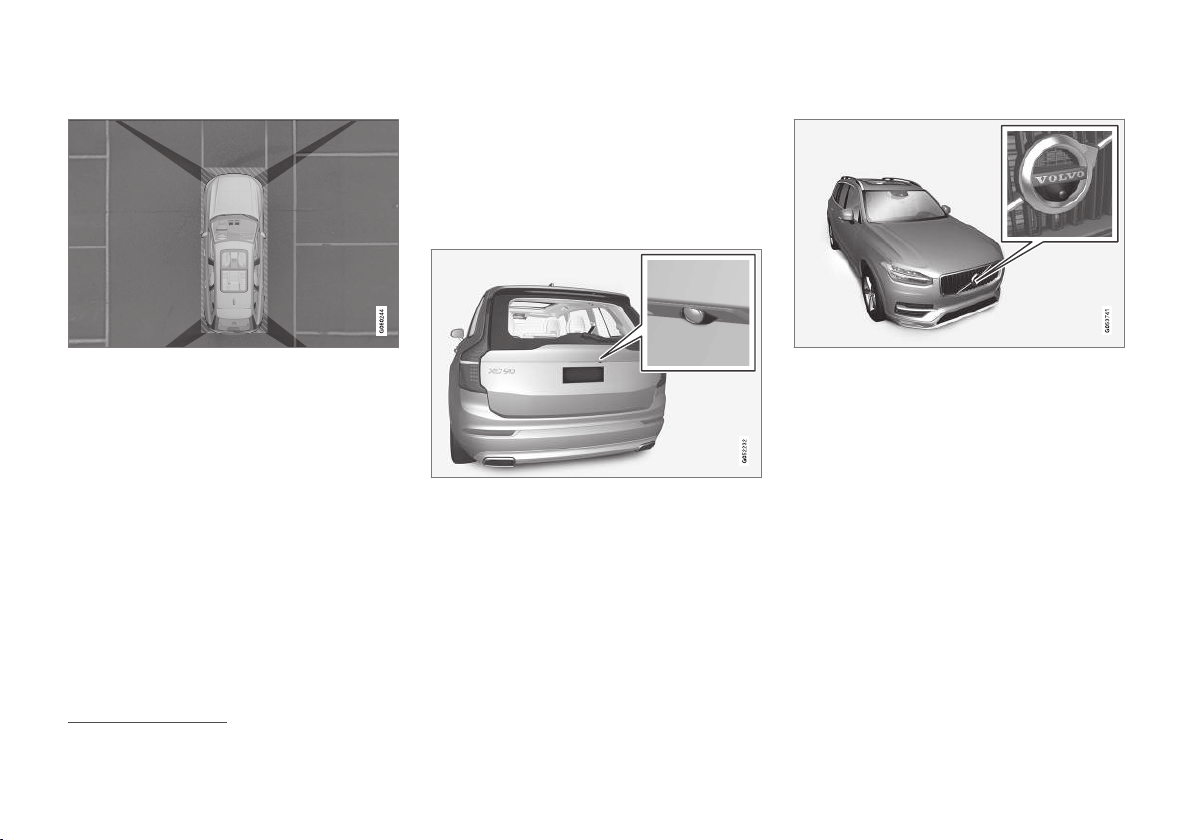
||
DRIVER SUPPORT
* Option/accessory.
390
360° view*
The "field of vision" of the parking cameras with approxi-
mate coverage area.
The function activates all parking cameras,
whereupon the four sides of the car are shown
simultaneously in the centre display, which helps
the driver to observe what is around the car when
manoeuvring at slow speeds.
From the 360° view, each camera view can be
activated separately:
•
Press the screen for the desired “field of
vision” of the camera, e.g. in front of/above
the front camera.
The cameras that are active are indicated at the
top of the screen in the selected view.
If the car is also equipped with
Park Assist
System
* then distance to detected obstacles is
illustrated with fields in different colours.
The cameras can be activated automatically or
manually, see article "Starting the Park assist
camera".
Backwards
The backwards-facing camera
88
is fitted above the reg-
istration plate.
The backward-facing camera shows a wide area
behind the car. For certain models, part of the
bumper can be seen as well as the towbar in
some cases.
Objects shown in the centre display may appear
slightly tilted — this is normal.
Forwards
The forwards parking camera
88
is located in the grille.
The front camera can be helpful on an exit road
with limited visibility to the sides, e.g. when there
are high hedges. It is active at speeds up to
25 km/h (16 mph) - following which, the front
camera is switched off.
If the car does not reach 50 km/h (30 mph) and
the speed falls below 22 km/h (14 mph) within
1 minute after the forward-facing camera has
been extinguished, the camera is reactivated.
88
The illustration is schematic - details may vary depending on car model.

DRIVER SUPPORT
}}
* Option/accessory.
391
The sides
The side cameras
88
are positioned in each door mirror.
The side cameras show what is along each side
of the car.
Related information
•
Park assist lines and fields for the park assist
camera* (p. 391)
•
Starting the Park assist camera* (p. 393)
•
Limitations for park assist camera* (p. 394)
•
Park Assist* (p. 383)
•
Park Assist Pilot* (p. 398)
•
Cross Traffic Alert* (p. 357)
Park assist lines and fields for the
park assist camera*
The Park assist cameras indicate the position of
the car in relation to its surroundings by display-
ing lines on the screen.
Park assist lines
Example
91
of park assist lines.
Park assist lines show the intended route for the
car's external dimensions with the current steer-
ing wheel angle - this facilitates parallel parking,
reversing into tight spaces and when connecting
a trailer.
The lines on the screen are projected as if they
were at ground level behind the car and respond
directly to steering wheel movements, showing
the driver the path the car will take - also when
the car is turning.
These park assist lines include the car's most
protruding parts, e.g. towbar, door mirrors and
corners.
NOTE
•
When reversing with a trailer which is not
connected electrically to the car, the park
assist lines on the display show the route
the car will take – not the trailer.
•
The screen shows no park assist lines
when a trailer is connected electrically to
the car's electrical system.
•
Park assist lines are not shown when
zooming in.
88
The illustration is schematic - details may vary depending on car model.
91
The illustration is schematic - details may vary depending on car model.

||
DRIVER SUPPORT
* Option/accessory.
392
IMPORTANT
•
Remember, that with the rear camera
view selected, the monitor only displays
the area behind the car. Be aware of the
sides and front of the car when manoeu-
vring in reverse.
•
The same applies vice versa - note what
happens to the rear parts of the car when
the front camera view is selected.
•
Note that the park assist lines show the
shortest route. Therefore, pay extra
attention to the car's sides so that they
do not go against/over something when
the steering wheel is turned when driving
forward or that the front sweeps against/
over something when the steering wheel
is turned when reversing.
Park assist lines in 360° view*
360° view with park assist lines
91
.
With the 360° view, park assist lines are shown
behind, in front of and at the side of the car
(depending on the direction of travel):
•
When driving forwards: Front lines
•
When reversing: Side lines and reversing
lines.
With front or rear camera selected, the park
assist lines appear regardless of the car's direc-
tion of travel.
With one side camera selected, the park assist
lines only appear when reversing.
Towbar assist line*
Towbar with park assist line
91
.
Towbar - activates the towbar assist line.
Zoom - zoom in/out.
The camera can facilitate connecting up to a
trailer by showing an assist line representing the
towbar's intended "path" to the trailer.
1.
Press
Towbar (1).
> The park assist lines for the towbar's
intended "path" appear - the car's park
assist lines disappear simultaneously.
Park assist lines for both car and towbar
cannot be shown at the same time.
2.
Press
Zoom (2) when a more precise
manoeuvring is required.
> The camera view zooms in.
91
The illustration is schematic - details may vary depending on car model.
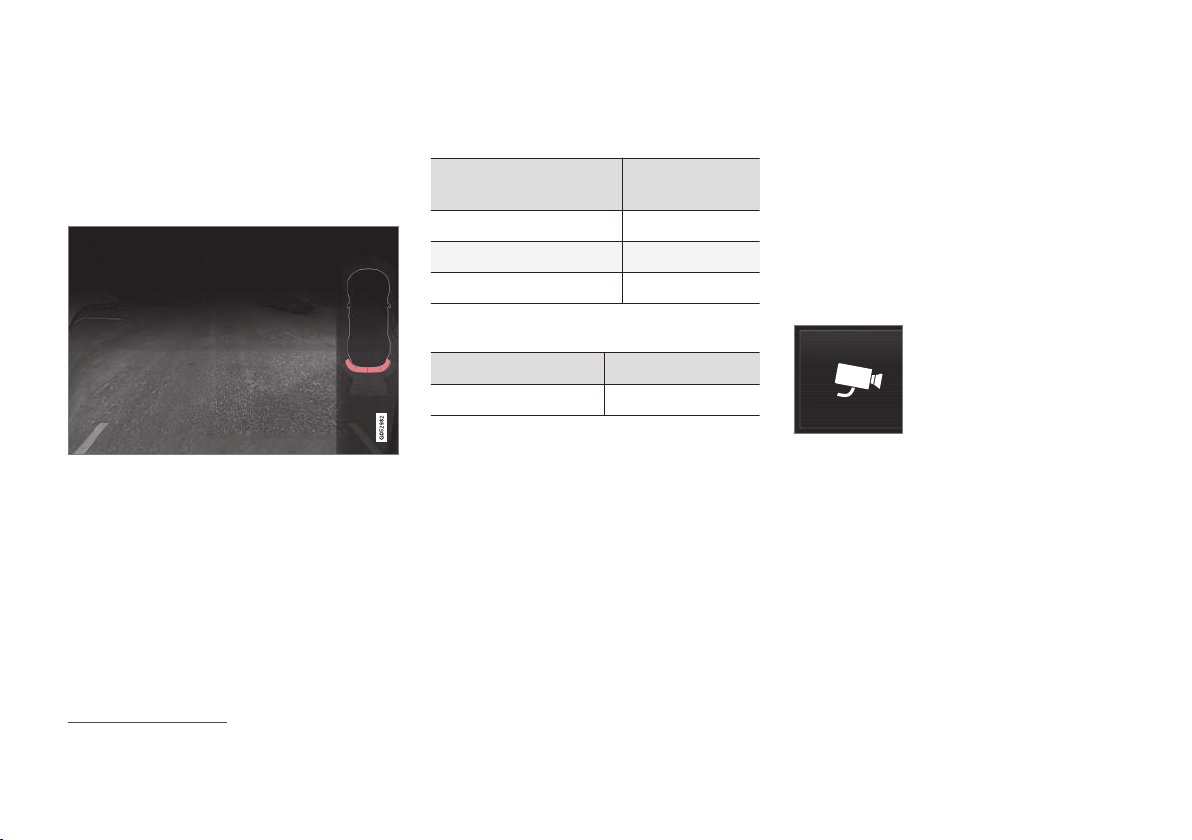
DRIVER SUPPORT
}}
* Option/accessory.
393
Sensor field from Parking assistance*
If the car is equipped with Parking assistance
then the distance is shown in the 360° view with
coloured fields for each sensor that registers an
obstacle.
Sensor fields backwards and forwards
The screen can show coloured sensor fields on the car
symbol
91
.
The fields for the front and reversing sensors
change colour as the distance to the obstacle
decreases — from yellow through orange to red.
Colours of front and
reversing fields
Distance (metres)
Yellow 0,6–1,5
Orange 0,4–0,6
Red 0–0,4
Sensor field to the sides
The side fields are only shown in orange.
Colour of side fields Distance (metres)
Orange 0–0.3
Related information
•
Park assist camera* (p. 389)
•
Starting the Park assist camera* (p. 393)
•
Limitations for park assist camera* (p. 394)
Starting the Park assist camera*
The park assist camera starts automatically
when reverse gear is engaged or manually with
one of the centre display's function buttons.
Camera view when reversing
When reverse gear is engaged, the screen shows
the 360° view if it or any of the side views was
the last used camera view, otherwise the rear
view is shown.
Camera view for manual camera start
Start the parking camera with
this button in the centre dis-
play's function view.
The screen initially shows the last used camera
view. However, after each engine start, the previ-
ously shown side view is replaced by the 360°
view and the previously shown zoomed rear view
is replaced by the rear view.
Automatic deactivation of camera
The front view extinguishes at 25 km/h (16 mph)
to avoid distracting the driver - it reactivates auto-
matically if the speed drops to 22 km/h (14 mph)
within 1 minute, on the condition that the speed
has not exceeded 50 km/h (31 mph).
91
The illustration is schematic - details may vary depending on car model.
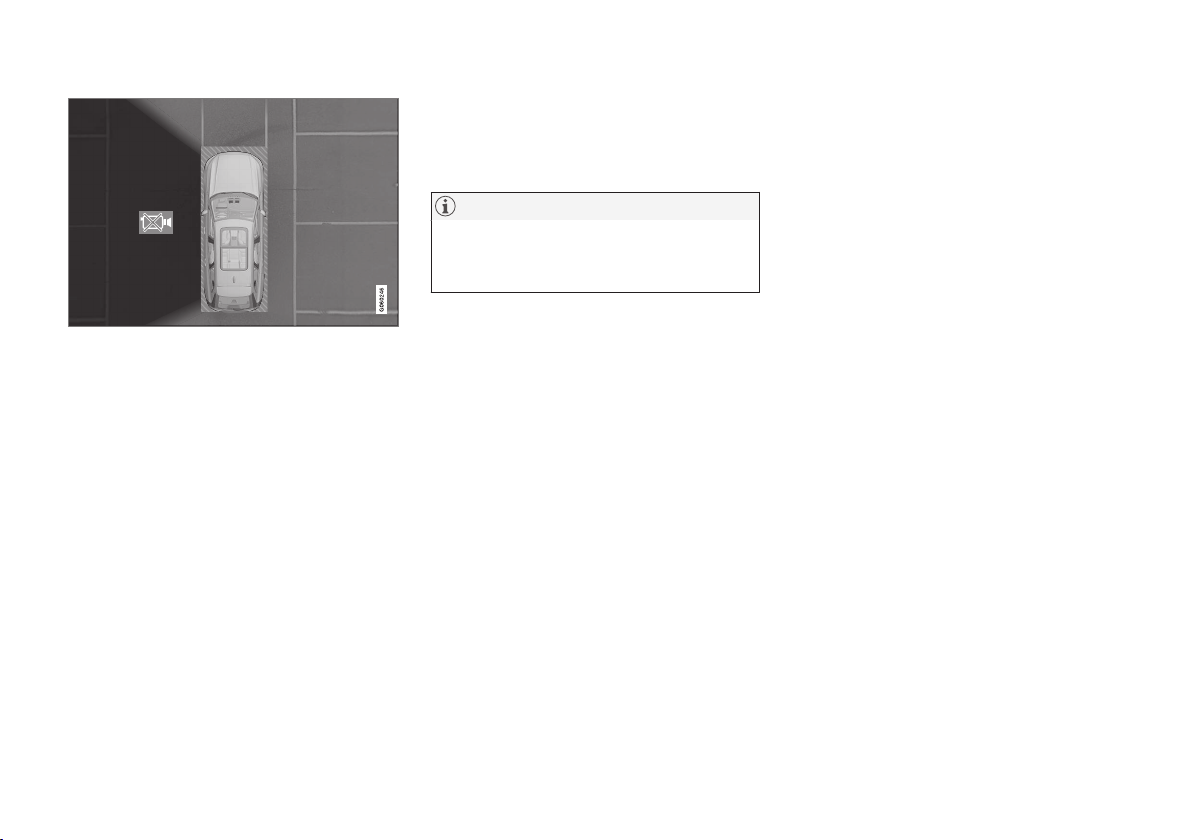
DRIVER SUPPORT
* Option/accessory.
395
The car's left-hand camera is out of order.
Black camera sector
A black camera sector is also shown in the fol-
lowing instances, but then without the symbol for
defective camera:
•
open door
•
open tailgate
•
folded-in door mirror.
Light conditions
The camera image is adjusted automatically
according to prevailing light conditions. Because
of this, the image may vary slightly in brightness
and quality. Poor light conditions can result in
reduced image quality.
Maintenance
Clean camera lenses regularly with lukewarm
water and car shampoo - be careful not to
scratch the lenses.
NOTE
Keep the camera lens clear of dirt, snow and
ice to ensure optimum function. This is partic-
ularly important in poor light.
Related information
•
Park assist camera* (p. 389)
•
Park assist lines and fields for the park assist
camera* (p. 391)
•
Starting the Park assist camera* (p. 393)
•
Symbols and messages for Park assist cam-
era* (p. 396)
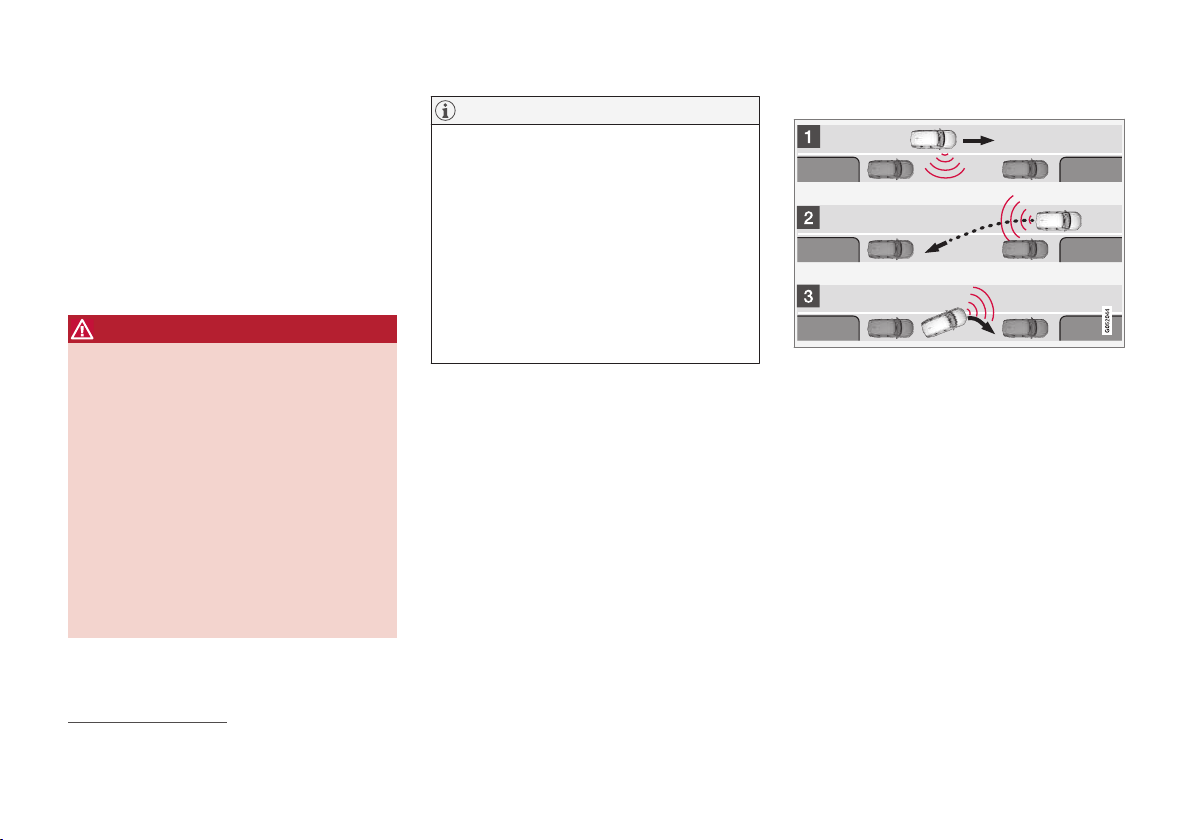
DRIVER SUPPORT
* Option/accessory.
398
Park Assist Pilot*
Park Assist Pilot (PAP
92
) helps the driver to park
in or leave a parking space.
PAP checks first if a space is sufficiently big and
thereafter helps the driver to turn the steering
wheel and manoeuvre the car into the space.
The centre display indicates with symbols, graph-
ics and text the various operations to be carried
out and when to do so.
WARNING
•
The PAP function is supplementary driver
support intended to facilitate driving and
make it safer – it cannot handle all situa-
tions in all traffic, weather and road condi-
tions.
•
Be particularly aware of people and ani-
mals near the car.
•
PAP is not a substitute for the driver's
attention and judgement. The driver is
always responsible for ensuring the car is
driven in a safe manner, at the appropri-
ate speed, with an appropriate distance to
other vehicles, and in accordance with
current traffic rules and regulations.
NOTE
The PAP function measures the space and
steers the car - the driver's task is to:
•
keep a close watch around the car
•
follow the instructions in the centre dis-
play
•
select gear (reverse/forward) - a "ping"
sound indicates when the driver should
change gear
•
control and maintain a safe speed
•
brake and stop.
Types of parking situations
PAP can be used for the following different park-
ing situations.
Parallel parking
The principal of parallel parking.
The PAP function parks the car using the follow-
ing steps:
1. A parking space is identified and measured.
2. The car is reversed into the space.
3. The car is positioned in the space by means
of driving forward/backward.
Using the
Park Out function, a parallel-parked
car can also be assisted by PAP to leave the
parking space - see the heading "Leaving a park-
ing space" in the section "Parking with Park
Assist Pilot".
92
Park Assist Pilot
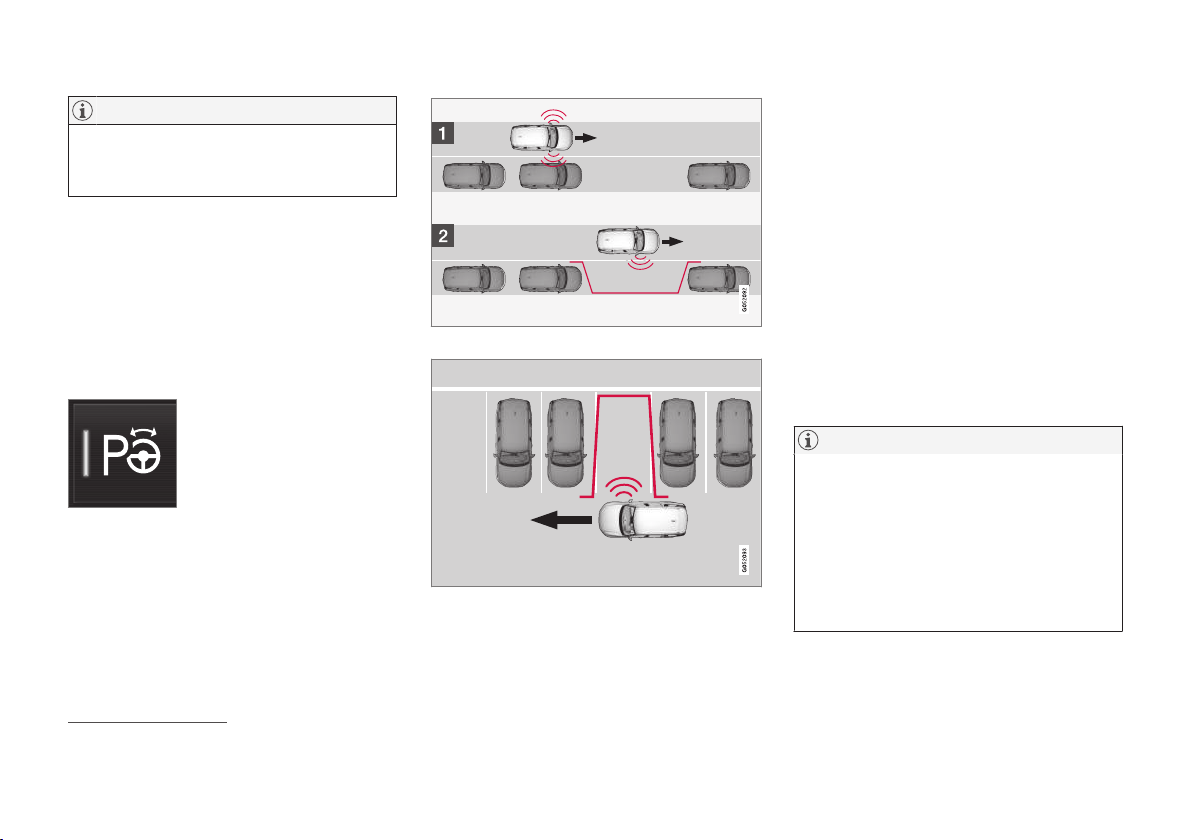
||
DRIVER SUPPORT
400
NOTE
The distance between the car and parking
spaces should be 0.5-1.5 metres (1.6-5.0 ft)
while PAP is searching for a parking space.
Parking
PAP parks the car using the following steps:
1. A parking space is identified and measured.
2. The car is reversed into the space.
3. The car is positioned into the space - the
system may then request that the driver
changes gear.
Finding and measuring parking spaces
The function can be activated
in the centre display's function
view.
It can also be accessed from
the camera views.
Principle for parallel parking.
Principle for perpendicular parking.
Proceed as follows:
1. Drive no faster than 30 km/h (20 mph) for
parallel parking or 20 km/h (12 mph) for
perpendicular parking.
2.
Tap on the
Park In button in function view.
> PAP searches for a parking space and
checks whether it is big enough.
3. Be prepared to stop the car when the
graphic and message on the centre display
state that a suitable parking space has been
found.
> A pop-up window is shown.
4.
Select
Parallel parking or Perpendicular
parking and select reverse gear.
NOTE
PAP searches the area for parking, displays
instructions and guides the car in on its pas-
senger side. But if required the car can also
be parked on the driver's side of the street:
•
Activate the direction indicator to the
driver's side - then the system searches
for a parking space on that side of the
car instead.
93
Park Assist Pilot
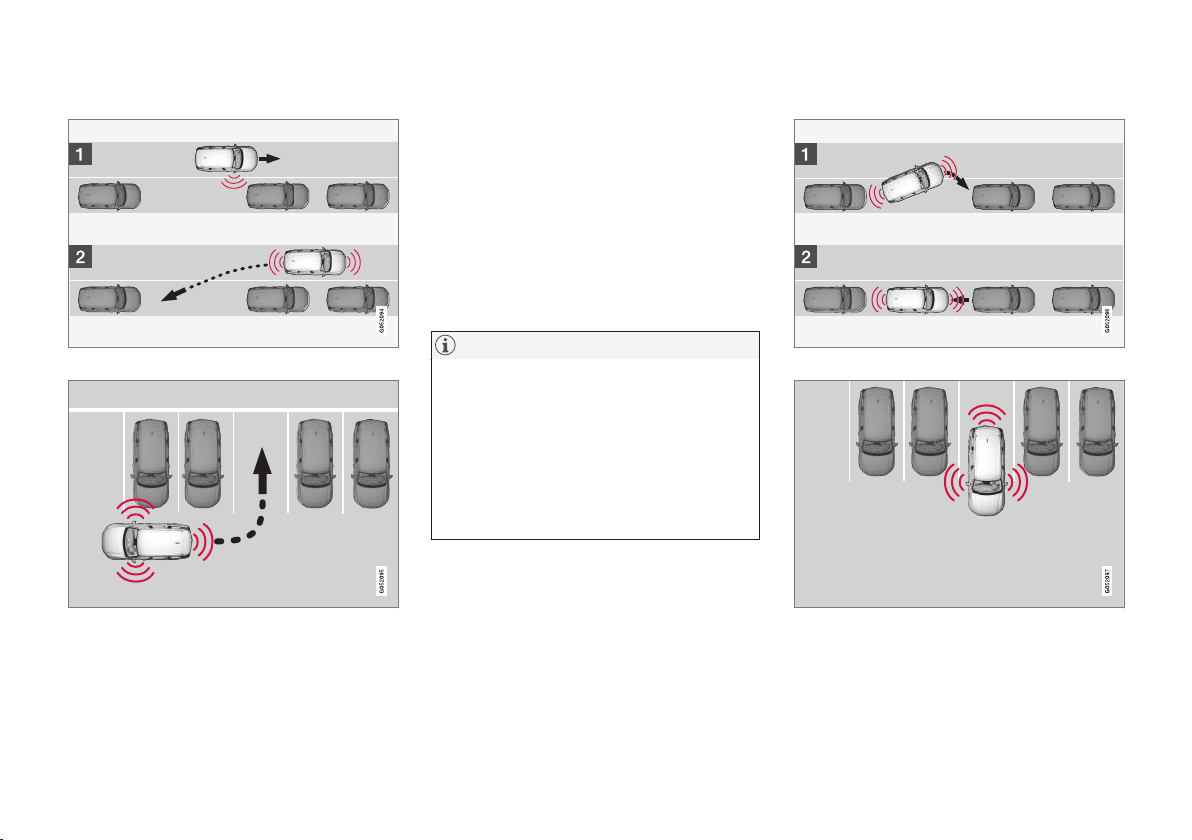
DRIVER SUPPORT
}}
401
Reversing in to the parking space
Parallel.
Perpendicular.
Perform the following to reverse the car into the
parking space:
1. Check that the area behind the car is clear,
then engage reverse gear.
2. Reverse slowly and carefully without touching
the steering wheel - and no faster than
7 km/h (4 mph).
3. Be prepared to stop the car when instructed
by the graphic and message on the centre
display.
NOTE
•
Keep your hands away from the steering
wheel when the PAP function is acti-
vated.
•
Make sure that the steering wheel is not
hindered in any way and can rotate freely.
•
To achieve optimum results - wait until
the steering wheel is fully turned before
starting to drive backward/forward.
Positioning the car in the parking space
Parallel.
Perpendicular.
Proceed as follows:
1.
Move the gear selector into the D position,
wait until the steering wheel has been turned
and drive slowly forward
||
DRIVER SUPPORT
* Option/accessory.
402
2. Be prepared to stop the car when instructed
by the graphic and message on the centre
display.
3. Select reverse gear and drive slowly back-
wards.
4. Be prepared to stop the car when instructed
by the graphic and message on the centre
display.
The function is deactivated automatically and the
graphics and message show that parking is com-
plete. It may be necessary for the driver to correct
the car’s position. Only the driver can determine
whether the car is properly parked.
IMPORTANT
The warning distance is shorter when the
sensors are used by PAP compared with
when Park Assist uses the sensors.
Leaving a parking space
NOTE
When leaving a parking space, the Park Out
function must only be used for a parallel-
parked car - it does not work for a perpendic-
ular-parked car.
The Park Out function is acti-
vated in the centre display's
function view.
Proceed as follows:
1.
Tap on the
Park Out button in function view.
2. Use the direction indicator to select the
direction in which the car should leave the
parking space.
3. Be prepared to stop the car when instructed
by the graphic and message on the centre
display - follow the instructions in the same
way as for the parking procedure.
Note the steering wheel can "spring" back when
the function is completed - the driver may then
need to turn the steering wheel back to the maxi-
mum steering angle in order to leave the parking
space.
If PAP considers that the driver can leave the
parking space without any extra manoeuvring
then the function will be stopped, even if the
driver may consider that the car is still in the
parking space.
Related information
•
Park Assist Pilot* (p. 398)
•
Limitations of Park Assist Pilot* (p. 402)
•
Messages for Park Assist Pilot* (p. 405)
Limitations of Park Assist Pilot*
The Park Assist Pilot (PAP
94
) function cannot
detect everything in all situations and may there-
fore have limited functionality.
WARNING
•
The PAP function is supplementary driver
support intended to facilitate driving – it
cannot handle all situations in all traffic,
weather and road conditions.
•
Be particularly aware of people and ani-
mals near the car.
•
Bear in mind that the front of the car may
swing out towards oncoming traffic dur-
ing the parking manoeuvre.
•
Objects situated higher than the sensor
detection area are not included when cal-
culating the parking manoeuvre, which
could cause PAP to swing into the park-
ing space too early – such parking
spaces should be avoided for this reason.
•
PAP is not a substitute for the driver's
attention and judgement. The driver is
always responsible for ensuring the car is
driven in a safe manner, at the appropri-
ate speed, with an appropriate distance to
other vehicles, and in accordance with
current traffic rules and regulations.
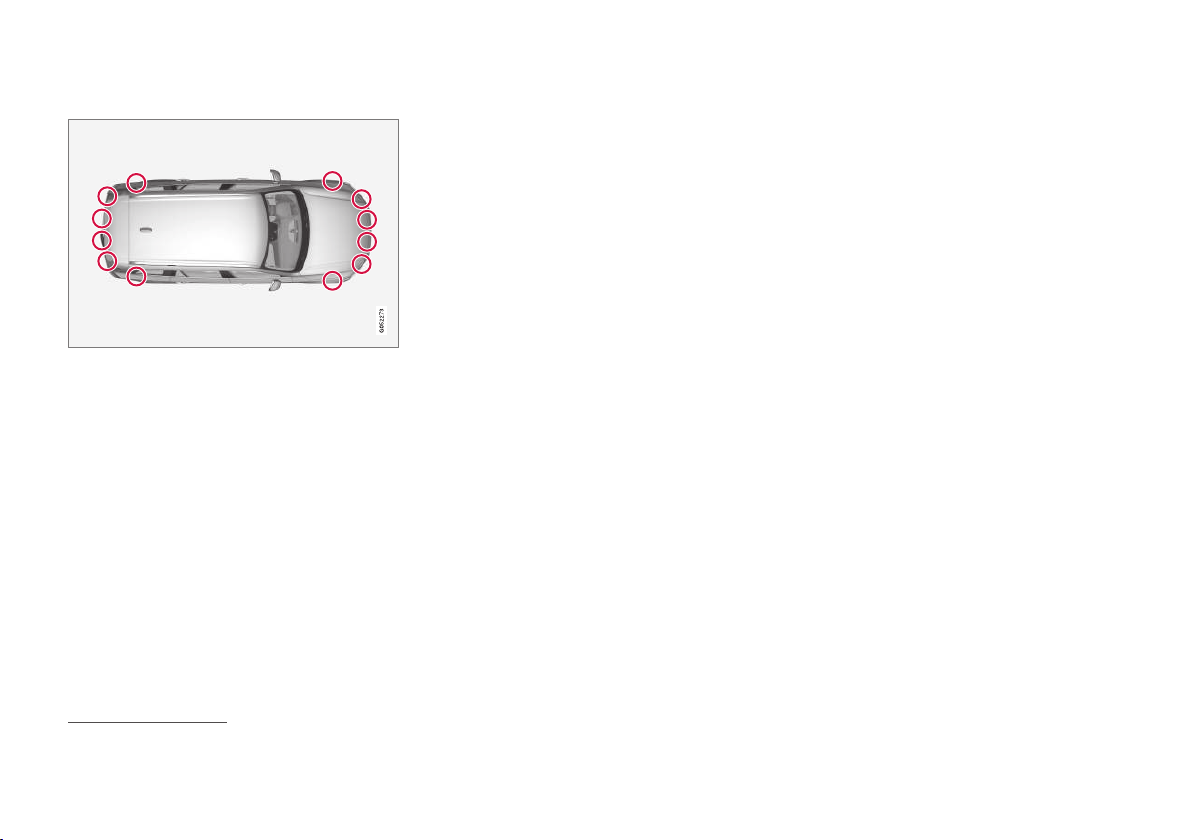
||
DRIVER SUPPORT
* Option/accessory.
404
Maintenance
PAP sensor locations
96
.
For the PAP function to work correctly, its sen-
sors must be cleaned regularly with water and car
shampoo.
Related information
•
Park Assist Pilot* (p. 398)
•
Parking with Park Assist Pilot* (p. 399)
•
Messages for Park Assist Pilot* (p. 405)
96
NOTE: The illustration is schematic - details may vary depending on car model.


STARTING AND DRIVING
* Option/accessory.
408
Alcohol lock*
The function of the alcohol lock is to prevent the
car from being driven by individuals under the
influence of alcohol. Before the engine can be
started the driver must take a breath test that
verifies that he/she is not under the influence of
alcohol. Alcohol lock calibration takes place in
accordance with each market's limit value in
force for driving legally.
The car has an interface for the electrical con-
nection of the different makes and models of
alcohol lock recommended by Volvo. The inter-
face facilitates alcohol lock connection, and gives
the option of an integrated function including
messages related to the alcohol lock in the car's
main display. For information about a specific
alcohol lock, please refer to its owner's manual.
WARNING
The alcohol lock is an aid and does not
exempt the driver from responsibility. It is
always the responsibility of the driver to be
sober and to drive the car safely.
Bypass of the alcohol lock*
In the event of an emergency situation or the
alcohol lock is out of order, it is possible to
bypass the alcohol lock in order to drive the car.
For deactivation via the alcohol lock, see the sep-
arate instructions for that specific lock.
Activating the bypass function (Bypass)
NOTE
All bypass activation is logged and saved in
the memory in the alcohol lock's control unit.
It is not possible to undo a bypass.
The message, Blow into alcolock Bypass
instead?, is shown in the screen:
–
Select Bypass by pressing once on the O
button on the steering wheel's right-hand
keypad.
> The alcohol lock is now bypassed and the
car can be started.
The number of bypasses possible before service
is required is selected during alcohol lock instal-
lation.
Related information
•
Before starting the engine with the alcohol
lock (p. 408)
•
Starting the car (p. 410)
Before starting the engine with the
alcohol lock
The alcohol lock is activated automatically and is
then ready for use when the car is opened.
To bear in mind
In order to obtain correct function and as accu-
rate a measurement result as possible:
•
Avoid eating or drinking approx. 5 minutes
before the breath test.
•
Avoid excess windscreen washing - the alco-
hol in the washer fluid may result in an incor-
rect measurement result.
NOTE
After a completed period of driving, the
engine can be restarted within 30 minutes
without a new breath test.
Related information
•
Bypass of the alcohol lock* (p. 408)
•
Starting the car (p. 410)
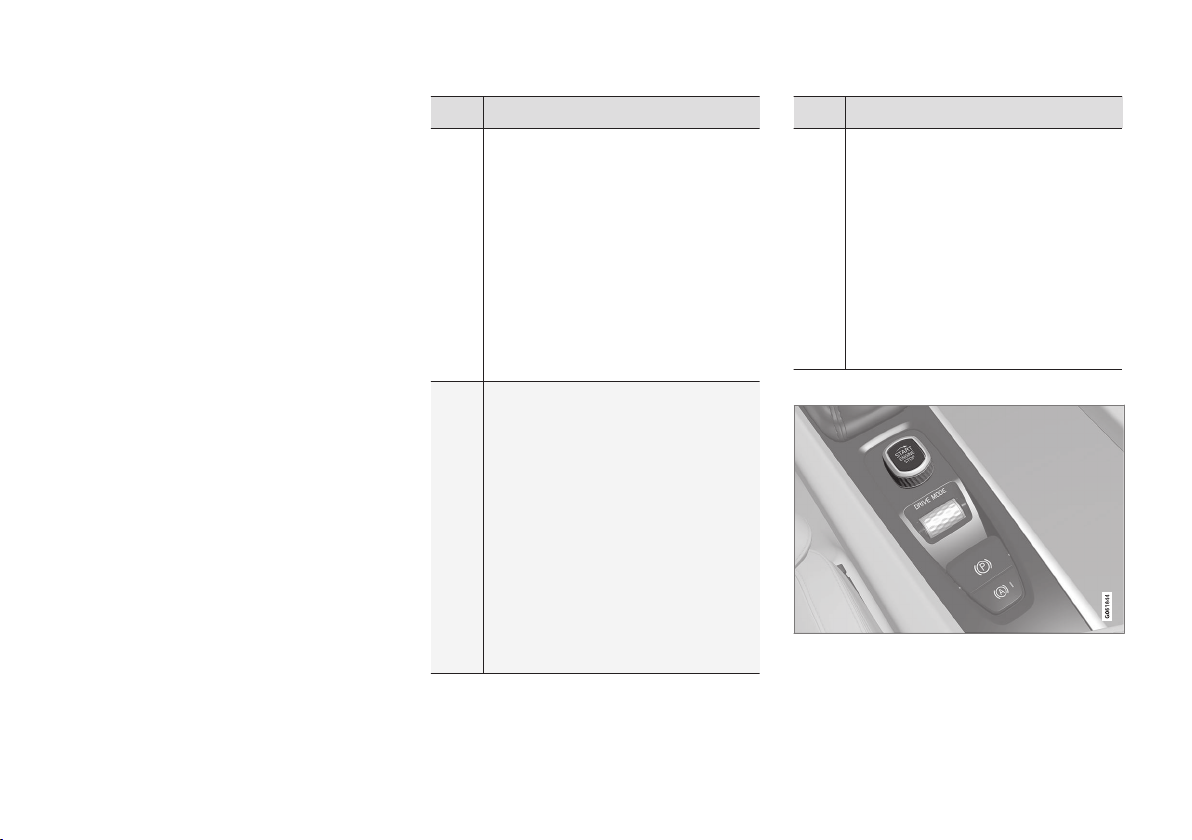
STARTING AND DRIVING
}}
* Option/accessory.
409
Ignition positions
The car's electrical system can be set in different
levels/positions and in this way make the differ-
ent functions available.
In order to facilitate the use of a limited number
of functions with the engine switched off, the
car's electrical system can be set in 3 different
levels - 0, I and II. These levels are described
with the denomination "ignition position"
throughout the owner's manual.
The following table shows the functions available
in each ignition position/level:
Level Functions
0
•
Odometer, clock and temperature
gauge are illuminated.
•
The power seats* can be adjusted.
•
The power windows can be used.
•
The centre display is started and
can be used.
•
The infotainment system can be
used.
The functions are time-controlled in
this ignition position and are switched
off automatically after a period of time.
I
•
Panorama roof, power windows,
12V socket in the passenger com-
partment, Bluetooth, navigation,
phone, ventilation fan and wind-
screen wipers can be used.
•
Power seats can be adjusted.
•
12 V sockets in the cargo area
can be used.
•
The infotainment system is started
automatically if it was running
when the car was left.
Power is taken from the battery in
this ignition position.
Level Functions
II
•
The headlamps come on.
•
Warning/indicator lamps illuminate
for 5 seconds.
•
Several other systems are acti-
vated. However, heating in seat
cushions and the rear window can
only be activated after the car has
been started.
This ignition position consumes a
lot of current from the battery and
should therefore be avoided!
Selecting ignition position
Start knob in the tunnel console.
•
Ignition position 0 - Unlock the car and
store the remote control key inside the car.
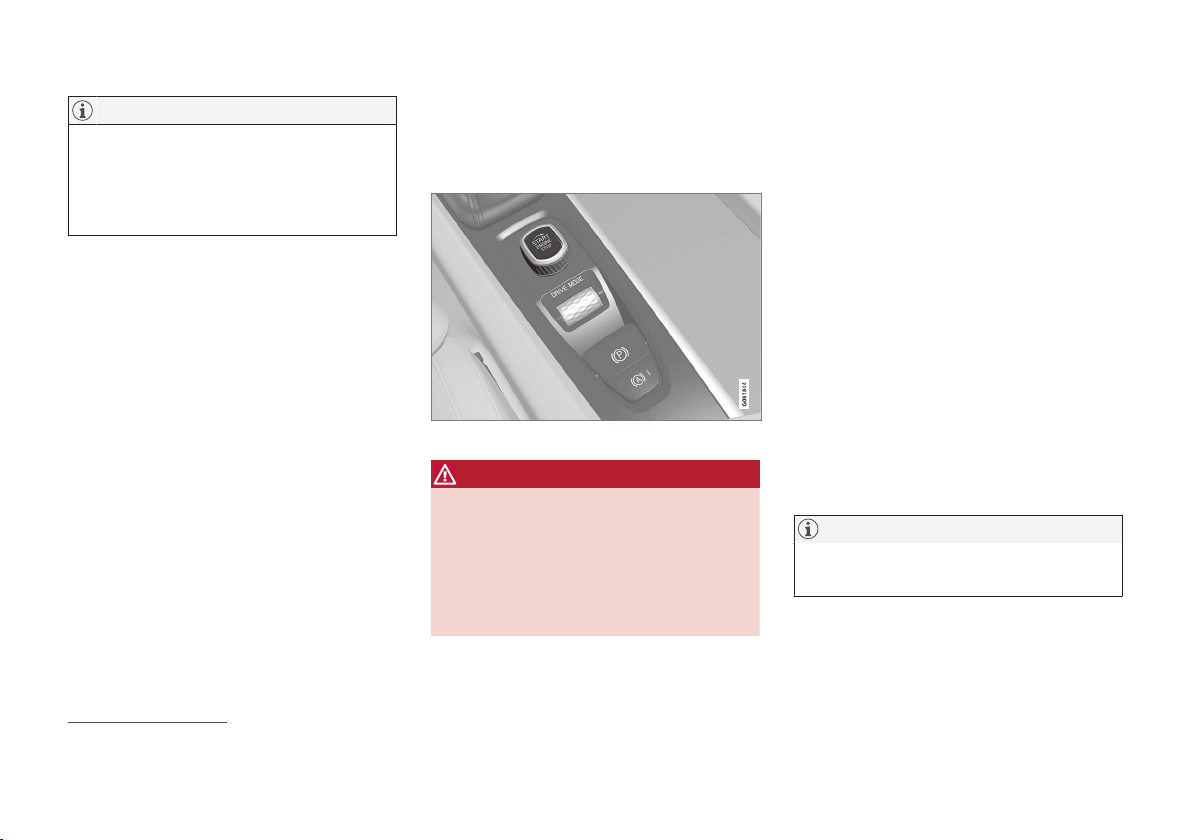
||
STARTING AND DRIVING
* Option/accessory.
410
NOTE
To reach level I or II without starting the
engine - do not depress the brake pedal, or
the clutch pedal for cars with manual gear
changing, when these ignition positions are to
be selected.
•
Ignition position I - Turn the start knob
clockwise and release it. The control auto-
matically returns to its starting position.
•
Ignition position II - Turn the start knob
clockwise and hold it in position for
approx. 4 seconds. Then release the knob,
which automatically returns to its starting
position.
•
Back to ignition position 0 - To return to
ignition position 0 from position I and II -
Turn the start knob clockwise and release.
The control automatically returns to its star-
ting position.
Related information
•
Starting the car (p. 410)
•
Switching off the car (p. 411)
•
Driver display (p. 92)
Starting the car
The car is started using the start knob in the tun-
nel console when the remote control key is in
the passenger compartment.
Start knob in the tunnel console.
WARNING
Before starting:
•
Fasten the seatbelt.
•
Adjust the seat, steering wheel and mir-
rors.
•
Make sure that the brake pedal can be
fully depressed.
The remote control key is not physically used
when starting the car since it is equipped with
support for keyless starting (Passive start).
To start the car:
1. The remote control key must be inside the
car. For cars with Passive Start, the key
needs to be located in the front part of the
passenger compartment. With keyless lock-
ing/unlocking of the car*, the key can be
anywhere in the car.
2.
Hold the brake pedal depressed
1
fully. For
cars with automatic gear changing, make
sure that gear position P or N is selected.
For cars with a manual gearbox, make sure
that the gear lever is in neutral position or
that the clutch pedal is depressed.
3. Turn the start knob clockwise and release it.
The control automatically returns to its star-
ting position.
NOTE
For diesel-engined cars, there may be a slight
delay before starting is initiated.
When the engine is started the starter motor
works until the engine is started or until its over-
heating protection triggers.
1
If the car is moving, the engine can be started by turning the start knob clockwise.
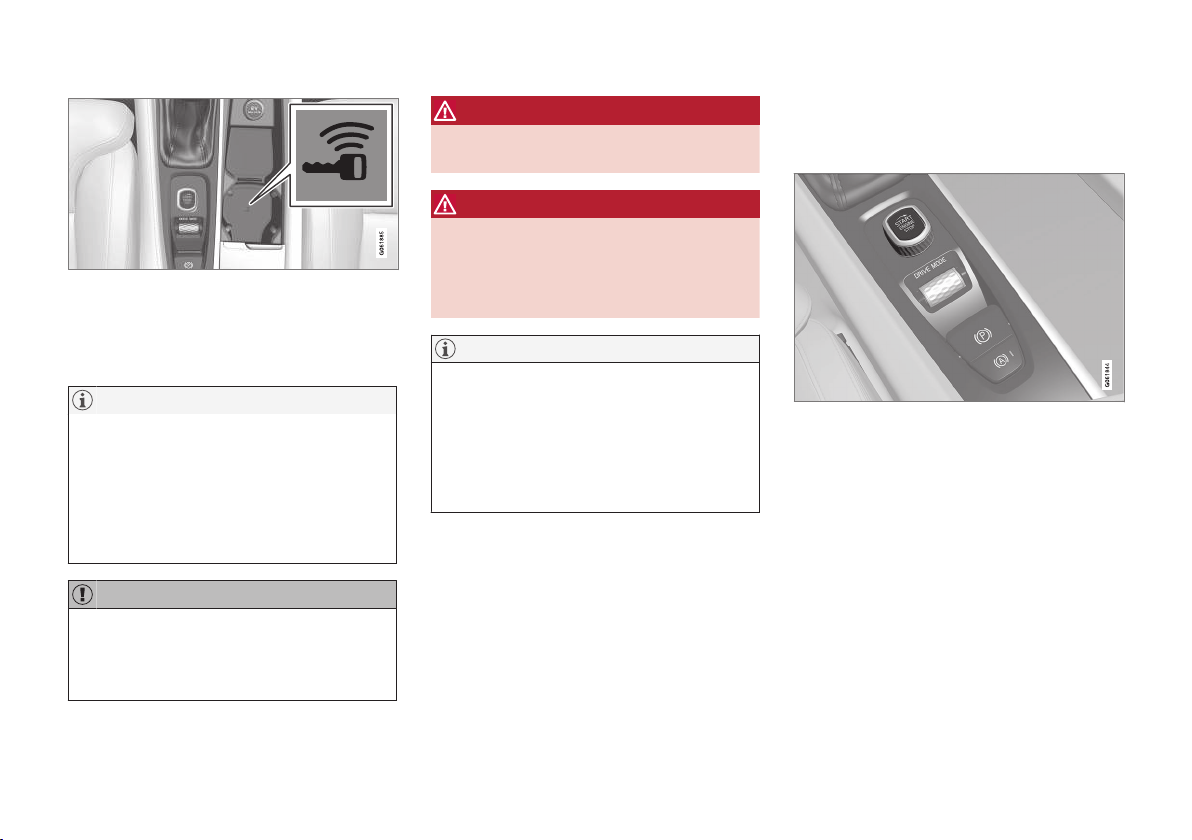
STARTING AND DRIVING
411
Backup reader's location in the tunnel console.
If the message Car key not found is shown in
the driver display when starting, place the remote
control key on the backup reader in the cup
holder. Then try to start again.
NOTE
When the remote control key is placed in the
cup holder, make sure that no other car keys,
metal objects or electronic apparatus (e.g.
mobile phones, tablets, laptops or chargers)
are in the cup holder. Several car keys close
to each other in the cup holder can cause
interference with each other.
IMPORTANT
If the engine fails to start after 3 attempts -
wait for 3 minutes before making a further
attempt. Starting capacity increases if the bat-
tery is allowed to recover.
WARNING
Never remove the remote control key from
the car while driving or during towing.
WARNING
Always take the remote control key out from
the car when leaving the car and make sure
the car's electrical system is in ignition posi-
tion 0 - especially if there are children in the
car.
NOTE
The idling speed can be noticeably higher
than normal for certain engine types during
cold starting. This is done in order that the
emissions system can reach normal operating
temperature as quickly as possible, which
minimises exhaust emissions and protects the
environment.
Related information
•
Ignition positions (p. 409)
•
Switching off the car (p. 411)
•
Remote control key (p. 236)
•
Replacing the battery in the remote control
key (p. 258)
Switching off the car
The car is switched off using the start knob in
the tunnel console.
Start knob in the tunnel console.
To switch off the car:
–
Turn the start knob clockwise and release it -
the car is switched off. The control automati-
cally returns to its starting position.
If the gear selector for cars with an automatic
gearbox is not in position P or if the car rolls:
–
Turn the knob clockwise and hold it until the
car is switched off.
Related information
•
Starting the car (p. 410)
•
Ignition positions (p. 409)
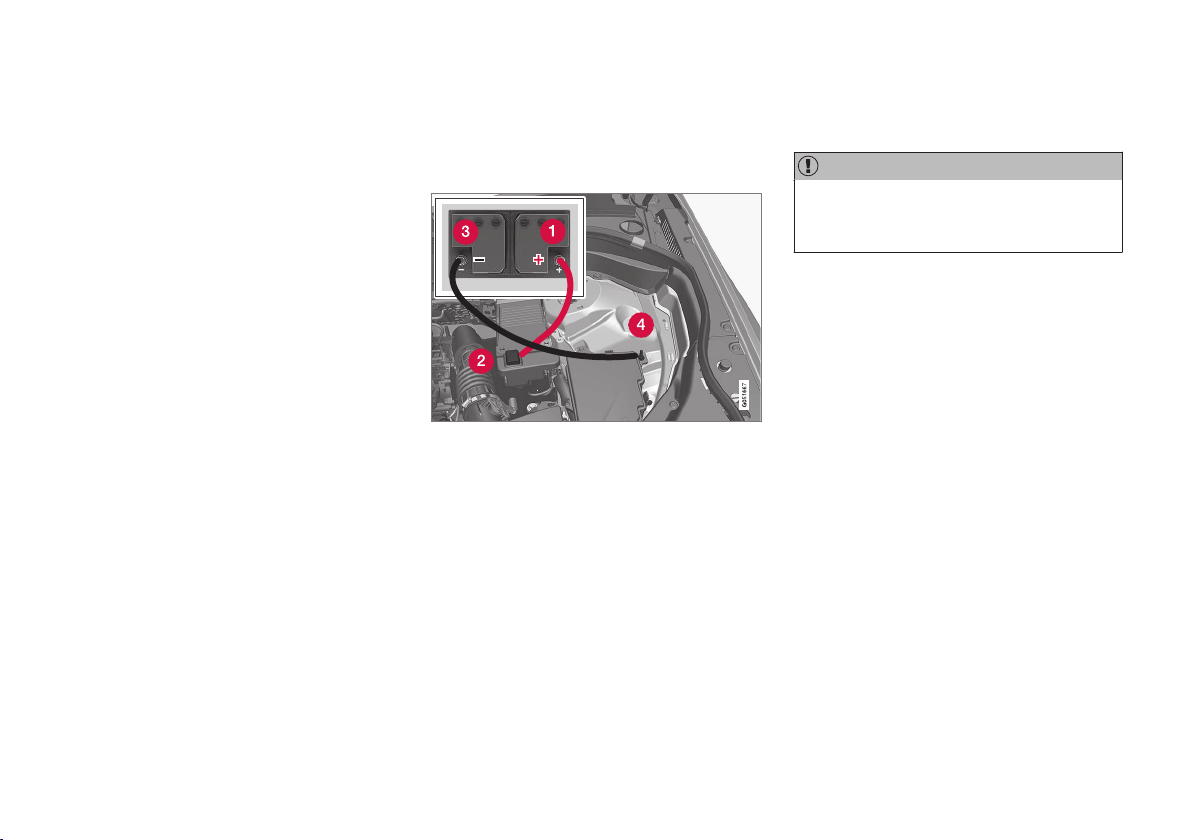
STARTING AND DRIVING
412
Steering lock
The steering lock makes steering difficult if the
car is e.g. taken unlawfully. A mechanical noise
can be perceived when the steering lock locks
or unlocks.
Activating the steering lock
The steering lock is activated when the car is
locked from the outside and the engine is
switched off. If the car is left unlocked then the
steering lock will lock automatically after a while.
Deactivating the steering lock
The steering lock is deactivated when the car is
unlocked from outside. If the car is not locked,
the steering lock will deactivate if the remote
control key is inside the passenger compartment
and the car is started by turning the start knob
clockwise to unlock the steering lock.
Related information
•
Starting the car (p. 410)
•
Switching off the car (p. 411)
•
Steering wheel (p. 135)
Using jump starting with another
battery
If the starter battery is discharged then the car
can be started with current from another battery.
Attachment points for the jump leads.
When jump starting the car, the following steps
are recommended to avoid short circuits or other
damage:
1. Set the car's electrical system in ignition
position 0.
2. Check that the donor battery has a voltage of
12 V.
3. If the donor battery is installed in another car
- switch off the donor car's engine and make
sure that the two cars do not touch each
other.
4. Connect one of the red jump lead's clamps
to the donor battery's positive terminal (1).
IMPORTANT
Connect the start cable carefully to avoid
short circuits with other components in the
engine compartment.
5. Open the positive jump-starting point's cover
(2).
6. Connect the red jump lead's other clamp
onto the car's positive jump-starting point
(2).
7. Connect one of the black jump lead's clamps
to the donor battery's negative terminal (3).
8. Connect the black jump lead's other clamp
onto the car's negative jump-starting point
(4).
9. Check that the jump lead clamps are affixed
securely so that there are no sparks during
the starting attempt.
10. Start the engine of the "donor car" and allow
it to run a few minutes at a speed slightly
higher than idle approx. 1500 rpm.

STARTING AND DRIVING
}}
413
11. Start the engine in the car with the dis-
charged battery.
IMPORTANT
Do not touch the connections between cable
and car during the starting attempt. There is a
risk of sparks forming.
12. Remove the jump leads in reverse order -
first the black and then the red.
Make sure that none of the black jump lead's
clamps comes into contact with the car's
positive jump-starting point/donor battery's
positive terminal or the clamp connected to
the red jump lead.
WARNING
•
The battery can generate oxyhydrogen
gas, which is highly explosive. A spark can
be formed if a jump lead is connected
incorrectly, and this can be enough for
the battery to explode.
•
Do not connect the jump leads to any
fuel system component or any moving
part. Be careful of hot engine parts.
•
The battery contains sulphuric acid, which
can cause serious burns.
•
If sulphuric acid comes into contact with
eyes, skin or clothing, flush with large
quantities of water. If acid splashes into
the eyes - seek medical attention imme-
diately.
•
Never smoke near the battery.
Related information
•
Starter battery (p. 554)
•
Ignition positions (p. 409)
•
Starting the car (p. 410)
•
Opening and closing the bonnet (p. 539)
Gearbox
The gearbox is part of the car's powertrain
(power transmission) between engine and drive
wheels. The function of the gearbox is to change
the gear ratio depending on speed and power
requirements.
The car has an eight-speed automatic gearbox.
The number of gear changes means that the
engine's torque and power range can be used
effectively. Two of the gears are overdrive gears
that save fuel when driving at constant engine
speed. It is also possible to select gears man-
ually. The driver display shows which gear posi-
tion is currently in use.
IMPORTANT
To prevent damage to any drive system com-
ponents, the working temperature of the
gearbox is checked. If there is a risk of over-
heating, a warning symbol illuminates in the
driver display and a text message is shown -
follow the recommendation given.
Symbols in the driver display
If a fault should occur in the gearbox, the driver
display shows a symbol and a message.

||
STARTING AND DRIVING
* Option/accessory.
414
Symbol Specification
Information or error message for
gearbox. Follow the recommenda-
tion given.
Hot or overheated gearbox. Follow
the recommendation given.
Reduced performance/Acceler-
ation performance reduced.
In the event of a temporary power-
train fault, the car can go into a
Limp home mode with reduced
engine power to prevent damage
to the powertrain.
Related information
•
Gear positions for automatic gearbox
(p. 414)
•
Gear shift indicator* (p. 416)
Gear positions for automatic
gearbox
With an automatic gearbox, the system chooses
the gear so that driving is optimal. The gearbox
also has a manual gearshift mode.
Gear positions in the driver display
The driver display shows the gear selector's posi-
tion:
P, R, N, D or M.
In manual gearshift mode, the gear being used is
also shown.
Gear positions
Park position - P
Select the P position when the car is parked or
when starting the engine. The car must be sta-
tionary when the park position is selected.
To be able to move the gear selector from the
park position, the brake pedal must be depressed
and the ignition position must be II.
The gearbox is mechanically blocked when the P
position is engaged. Apply the parking brake first
when the car is parked.
WARNING
Always use the parking brake when parking
on an inclined surface. Engaging a gear or the
automatic transmission's P position is not suf-
ficient to hold the car stationary in all situa-
tions.
NOTE
The gear selector must be in P position to
allow the car to be locked and alarmed.
Reverse position - R
Select position R to reverse. The car must be sta-
tionary when reverse position is selected.
Neutral position - N
No gear is engaged and the engine can be
started. Apply the parking brake if the car is sta-
tionary with the gear selector in N position.
To be able to change from the neutral position to
another gear position, the brake pedal must be
depressed and the ignition position must be II.

STARTING AND DRIVING
* Option/accessory.
416
Gear shift indicator*
The gear shift indicator in the driver display
shows the current gear during manual gearshift-
ing and when it is appropriate to engage the
next gear for optimum fuel economy.
For eco-driving during manual gear changing, it is
important to drive in the right gear and to change
gear in good time.
The gear shift indicator shows the current gear in
the driver display and uses an up arrow to indi-
cate when shifting to a higher gear is recom-
mended.
Gear shift indicator in the 12-inch driver display*.
Gear shift indicator in the 8-inch driver display.
Related information
•
Gearbox (p. 413)
•
Gear positions for automatic gearbox
(p. 414)
Gear selector inhibitor
The gear selector inhibitor prevents accidental
changing between different gear positions in an
automatic gearbox.
There are two different types of gear selector
inhibitor - mechanical and automatic.
Mechanical gear selector inhibitor
The gear selector can be moved forward and
back freely between N and D. Other positions are
locked with a latch that is released with the inhib-
itor button on the gear selector.
With the inhibitor button depressed the lever can
be moved forwards or backwards between P, R,
N and D.
Automatic gear selector inhibitor
The automatic gear selector inhibitor has special
safety systems.
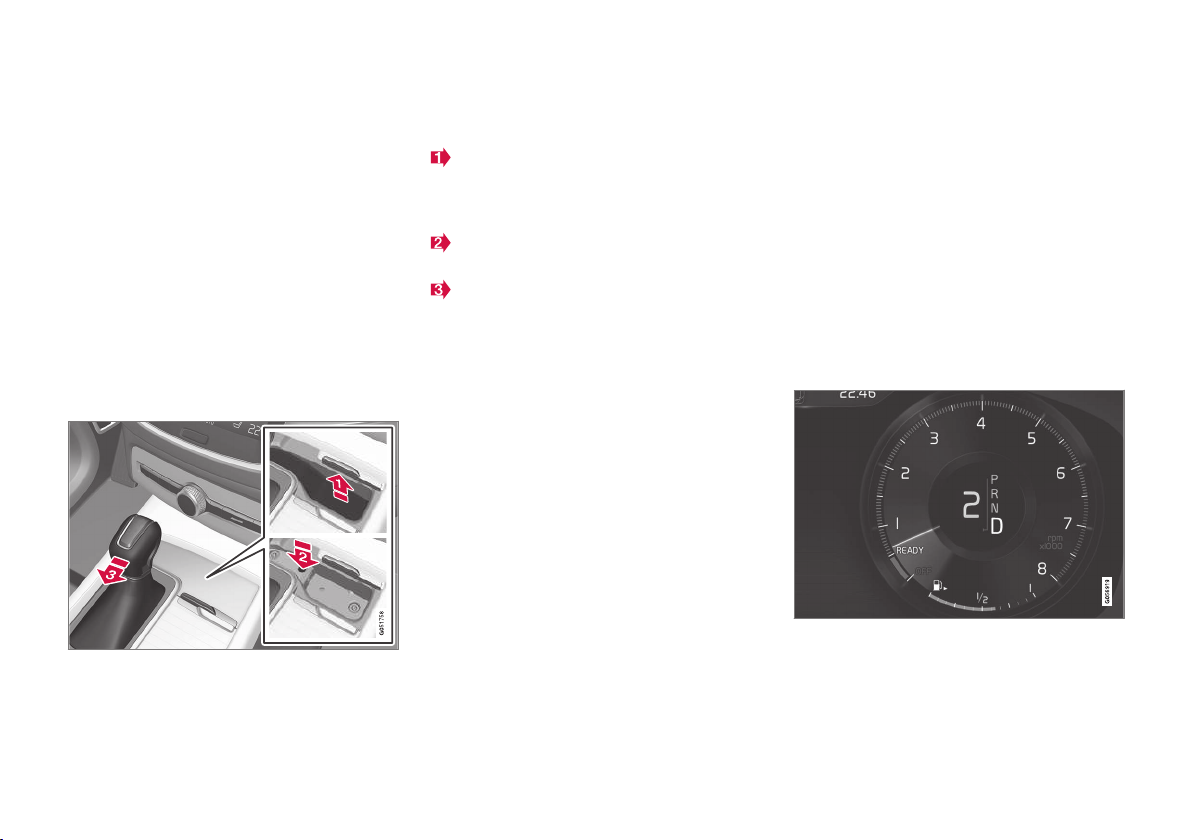
STARTING AND DRIVING
}}
* Option/accessory.
417
From park position - P
To be able to move the gear selector from the P
position, the brake pedal must be depressed and
the ignition position must be II.
From neutral position - N
If the gear selector is in the N position and the
car has been stationary for at least 3 seconds
(irrespective of whether the engine is running)
then the gear selector is locked.
To be able to move the gear selector from the N
position to another gear position, the brake pedal
must be depressed and the ignition position must
be II.
Deactivate automatic gear selector
inhibitor
If the car cannot be driven, e.g. due to a dis-
charged battery, the gear selector must be
moved to the N position so that the car can be
moved.
Lift the rubber mat in the compartment in
front of the gear selector. Locate the hole
with a spring-loaded button in the bottom of
the compartment.
Press a small screwdriver into the hole and
hold.
Move the gear selector to position N and
release the button.
4. Put the rubber mat back in place.
Related information
•
Gear positions for automatic gearbox
(p. 414)
•
Ignition positions (p. 409)
Changing gear with steering wheel
paddles*
The steering wheel paddles are a complement
to the gear selector and make it possible to
change gear manually without releasing hands
from the steering wheel.
Activating the steering wheel paddles
To be able to change gear with the steering
wheel paddles they must first be activated:
–
Pull one of the paddles toward the steering
wheel.
> A figure in the driver display indicates cur-
rent gear.
Driver display when changing gear with steering wheel
paddles.
||
STARTING AND DRIVING
* Option/accessory.
422
WARNING
Do not open the bonnet when the engine has
auto-stopped. Switch off the engine normally
before lifting up the bonnet.
Related information
•
Start/Stop (p. 419)
•
Using the Start/Stop function (p. 419)
•
Support battery (p. 557)
Drive modes*
Selection of drive mode affects the car's driving
characteristics in order to enhance the driving
experience and facilitate driving in special situa-
tions.
Using the drive modes it is possible to quickly
have access to the car's numerous functions and
settings for different driving needs. The following
systems are adapted to obtain the best possible
driving characteristics in each respective drive
mode:
•
Steering
•
Engine/gearbox/all-wheel drive*
•
Brakes
•
Air suspension* and shock absorption
•
Driver display
•
Start/Stop function
•
Climate settings
Select the drive mode that best suits the current
driving conditions. Remember that not all drive
modes are available in all situations.
Selecting drive mode
1.
Press the drive mode control DRIVE MODE.
> A pop-up menu is opened in the centre
display.
2. Roll the wheel upward or downward until the
desired drive mode is highlighted.
3. Press the drive mode control or tap directly
on the touch screen to confirm the selection.
> The selected drive mode is indicated in
the driver display.
A message is shown when a drive mode is unse-
lectable.
For example:
•
Cannot be selected because gear is in
manual
•
Cannot be selected due to low battery
STARTING AND DRIVING
}}
423
•
Cannot be selected due to low
temperature
•
Cannot be selected due to limitations
•
Cannot be selected because speed is
too high.
Selectable drive modes
COMFORT
•
This is the car's normal mode.
When the car starts, it is in Comfort mode and
the Start/Stop function is activated. These set-
tings mean that the car feels comfortable, the
steering is light, the shock absorption is soft and
body's movement is smooth.
This drive mode is the certification mode for car-
bon dioxide emissions.
ECO
•
Adapt the car for more energy-efficient and
environmentally-conscious driving with the
Eco mode.
The drive mode means e.g. that the Start/Stop
function is activated, the ground clearance is
lower to reduce wind resistance and the output
of certain climate settings is reduced.
The driver display has an ECO gauge that facili-
tates fuel-efficient driving.
More information on this drive mode is found in
the section "Drive mode ECO".
OFF ROAD
•
Maximise the car's traction when driving in
difficult terrain and on poor roads.
The drive mode provides high ground clearance,
steering is light, all-wheel drive and the function
for low speed control with hill descent control
(Hill Descent Control) are activated. Start/Stop
function is deactivated.
The drive mode can only be activated at low
speeds and the speedometer shows the range
for speed limitation. If this speed is exceeded, Off
road mode is suspended and another drive mode
is activated.
In the Off road mode the driver display has a
compass between the speedometer and tachom-
eter.
NOTE
The driving mode is not designed to be used
on public roads.
NOTE
If the car is switched off in OFF ROAD mode,
and therefore has high ground clearance, the
car is lowered next time it is started.
IMPORTANT
The OFF ROAD drive mode must not be used
while driving with a trailer without trailer con-
nector. Otherwise, there is a risk of damage to
the air bellows.
DYNAMIC
•
Dynamic mode means that the car has sport-
ier characteristics and faster response to
accelerating.
The gear changes become faster and more dis-
tinct, and the gearbox prioritises a gear with
greater traction.
Steering response is faster, shock absorption is
harder and a low ground clearance means that
the body follows the roadway in order to reduce
roll during cornering.
Start/Stop function is deactivated.

||
STARTING AND DRIVING
* Option/accessory.
426
Activating the freewheel function
The function is activated when the accelerator
pedal is fully released, in combination with the
following parameters:
•
Drive mode
Eco is activated.
•
The gear selector is in D position.
•
Speed within the range of
approx. 65-140 km/h (40-87 mph).
•
The road's downhill gradient is not steeper
than approx. 6%.
The driver display shows
COASTING when the
freewheel function is being used.
Limitations
The freewheel function is not available if:
•
Engine and/or gearbox are not at normal
operating temperature.
•
The gear selector is moved from the D posi-
tion and the manual position.
•
The speed is outside the range of
approx. 65-140 km/h (40-87 mph).
•
The road's downhill gradient is steeper than
approx. 6%.
•
Manual gear changing is performed with the
steering wheel paddles*.
Deactivating and switching off the freewheel
function
In certain situations it may be desirable to deacti-
vate or switch off the function in order to use
engine braking. Examples of such situations may
be on steep downhill gradients or before an
imminent overtaking manoeuvre - in order to be
able to do it in the safest way possible.
Deactivate the freewheel function as follows:
•
Actuate the accelerator or brake pedal.
•
Move the gear selector to manual position.
•
Changing gear with steering wheel paddles*.
Switch off the freewheel function as follows:
•
Change drive mode*, or switch off the
Driving mode ECO in the function view.
Even without the freewheel function, it is possible
to freewheel for short distances. This, in turn,
reduces consumption. However, for the best fuel
economy it is better to have the freewheel func-
tion activated and be able to freewheel for longer
distances.
Cruise control Eco Cruise
When using the cruise control in the Eco drive
mode, the car's acceleration and deceleration will
be lower compared to other drive modes, which
enables further fuel savings. This means that the
car's speed can be slightly above or below the
set speed.
•
On a smooth road, the car's speed can devi-
ate from the set speed when the cruise con-
trol is active and the car free-rolls.
•
On a steep uphill slope, the car's speed
drops until a downshift is made, then
reduced acceleration starts in order to
achieve the set speed.
•
On a downhill slope where the car free-rolls,
the car's speed can be slightly above or
below the set speed. The function uses nor-
mal engine braking to maintain the set
speed. The foot brake is also used if neces-
sary.
ECO gauge in the driver display
The ECO gauge indicates how fuel-efficient the
driving is:
•
With fuel-efficient driving, the gauge shows a
low value with the pointer in the green zone.
•
With non-fuel-efficient driving, e.g. during
heavy braking or heavy acceleration, the
gauge shows a high value.
The ECO gauge also has an indicator to show
how a reference driver would drive the car under
the same driving conditions. This is indicated with
the short pointer on the gauge.
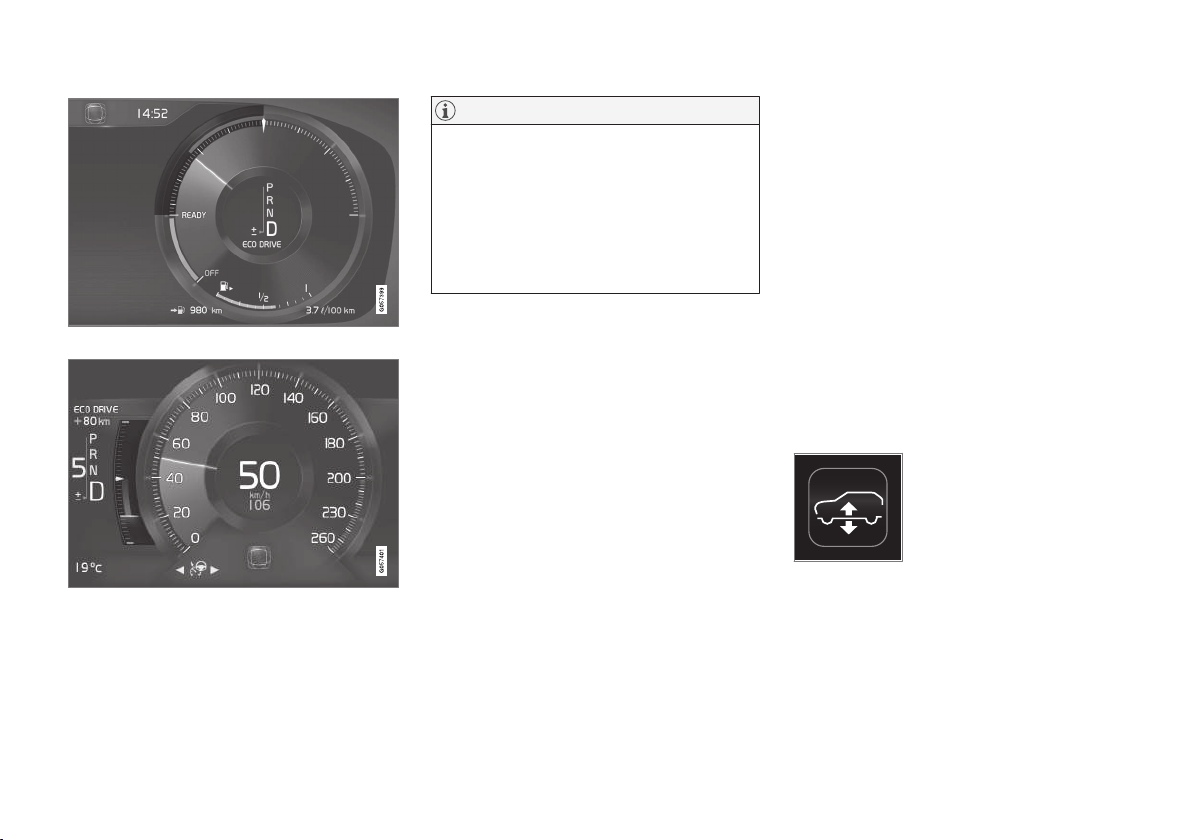
STARTING AND DRIVING
}}
* Option/accessory.
427
Eco gauge in the 12-inch driver display*.
Eco gauge in the 8-inch driver display.
ECO climate control
In the Eco drive mode, ECO climate control is
activated automatically in the passenger com-
partment in order to reduce energy consumption.
NOTE
When the ECO function is activated, several
parameters in the climate control system's
settings are changed, and several electricity
consumer functions are reduced. Certain set-
tings can be reset manually, but full function-
ality is only regained by switching off the ECO
function or adapting
Individual* drive mode
with full climate functionality.
In the event of difficulties due to misting, press
the button for max. defroster which has normal
functionality.
Related information
•
Economical driving (p. 448)
•
Start/Stop (p. 419)
•
Drive modes* (p. 422)
•
Setting the time interval for the adaptive
cruise control* (p. 302)
•
Activating/deactivating defrost of windows
and door mirrors (p. 195)
Level control* and shock absorption
Level control regulates the car's suspension and
shock absorption characteristics automatically to
ensure the best comfort and functionality while
driving. It is also possible to adjust the level
manually in order to facilitate loading or entry
and exit.
Air suspension and shock absorption
The system is adapted according to the selected
drive mode and according to the speed of the
car. Using the air suspension, the car's ground
clearance is adjusted to a lower level at higher
speeds, which reduces wind resistance and
increases stability. Shock absorption is normally
set for the best possible comfort and is regulated
continuously depending on the road surface, the
car's acceleration, braking and cornering.
The driver display indicates
when level control is in pro-
gress.
The level cannot be regulated when the bonnet
or any side door is open.

STARTING AND DRIVING
}}
* Option/accessory.
429
All-wheel drive*
All-wheel drive, AWD (All Wheel Drive), means
that the car is driving all four wheels at the same
time, which improves traction.
To achieve the best possible traction and prevent
wheel spin the motive force is distributed auto-
matically to the wheels with the best grip. The
system continuously calculates the need for tor-
que to the rear wheels, and can immediately
redistribute up to half of the motor's torque to the
rear wheels.
All-wheel drive also has a stabilising effect at
higher speeds. Under normal driving conditions,
the majority of power is transmitted to the front
wheels. When stationary, the all-wheel drive is
always engaged in preparation for maximum trac-
tion during acceleration.
All-wheel drive characteristics vary depending on
the selected drive mode*.
Related information
•
Drive modes* (p. 422)
•
Low speed control* (p. 437)
Brake functions
The car's brakes are used to reduce the speed
or prevent the car from rolling.
Besides the foot brake and parking brake, the car
is equipped with several automatic brake assist
functions. These can assist the driver by not
needing to keep his/her foot on the brake pedal
when stationary at a traffic light, when starting on
an uphill gradient or when driving on a downhill
gradient.
Depending on the car's equipment, the following
auto braking functions are available:
•
Automatic braking when stationary (Auto
Hold)
•
Hill start assist (Hill Start Assist)
•
Auto braking after a collision
•
City Safety
•
Hill descent control (Hill Descent Control)*
Related information
•
Foot brake (p. 429)
•
Parking brake (p. 432)
•
Hill descent control* (p. 438)
•
Hill start assist (p. 435)
•
Automatic braking when stationary (p. 436)
•
Auto braking after a collision (p. 432)
Foot brake
The foot brake is part of the brake system.
The car is equipped with two brake circuits. If a
brake circuit is damaged, the brake pedal will
engage deeper. Higher pressure on the pedal will
therefore be needed to produce the normal brak-
ing effect.
The driver's brake pedal pressure is assisted by a
brake servo.
WARNING
The brake servo only works when the engine
is running.
If the foot brake is used when the engine is
switched off then the pedal will feel stiff and a
higher pedal pressure must be used to brake the
car.
In very hilly terrain or when driving with a heavy
load the brakes can be relieved by using engine
braking in manual gearshift mode. Engine braking
is most efficiently used if the same gear is used
downhill as up. Use drive mode
Off Road* for
increased engine braking while driving on steep
downhill gradients at low speeds.
Anti-lock braking system
The car has anti-lock brakes, Anti-lock Braking
System (ABS), which can prevent the wheels
from locking while braking and allows maintained
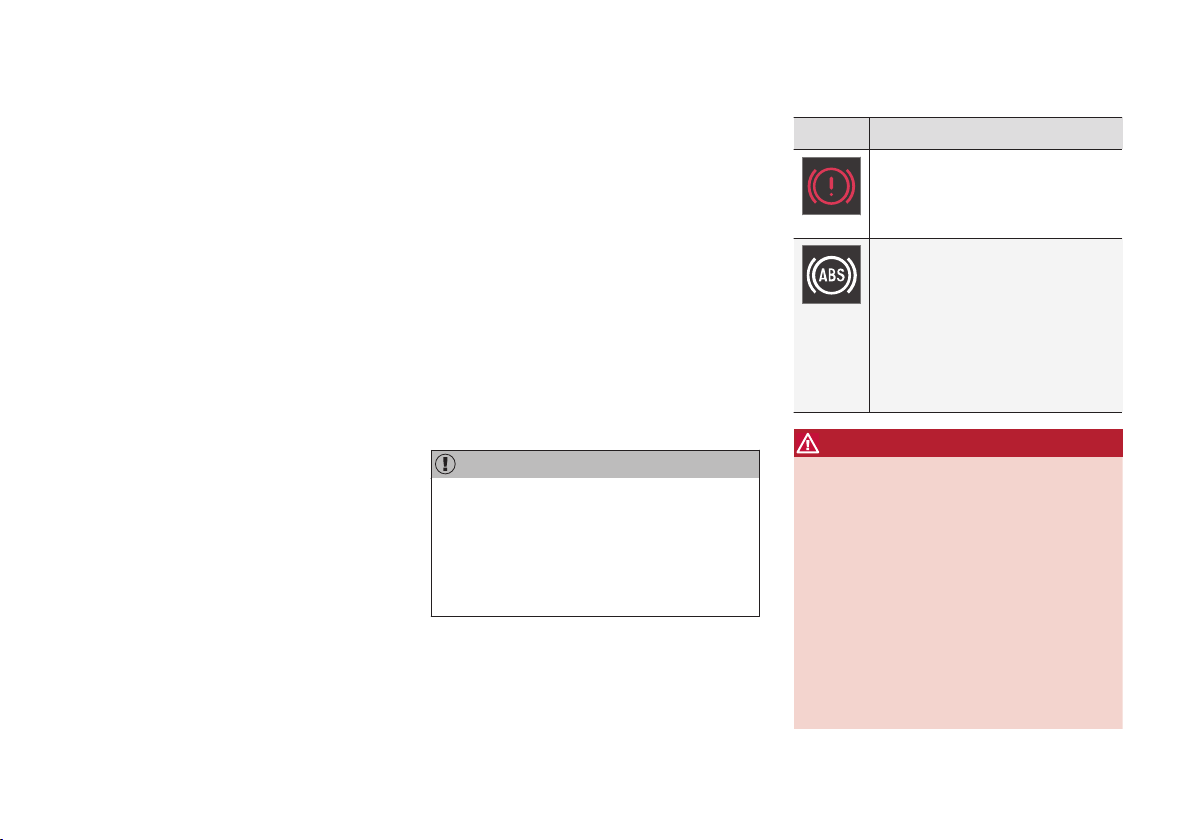
||
STARTING AND DRIVING
430
steering control. Vibration may be felt in the
brake pedal when this is engaged and this is nor-
mal.
A short test of the ABS system is made automat-
ically after the car has been started when the
driver releases the brake pedal. A further auto-
matic test of the system may be made at low
speed. The test may be felt as pulses in the
brake pedal.
Braking on wet roads
When driving for a prolonged period of time in
heavy rain without braking, the braking effect may
be delayed slightly when next using the brakes.
This may also be the case after a car wash. It is
then necessary to depress the brake pedal more
forcefully. You should therefore maintain a
greater distance to the vehicles in front.
Brake the car firmly after driving on wet roads or
using a car wash. This warms up the brake discs,
enabling them to dry faster and protecting them
against corrosion. Bear in mind the current traffic
situation when braking.
Braking on salted roads
When driving on salted roads, a layer of salt may
form on the brake discs and brake linings. This
may extend braking distance. You should there-
fore maintain a greater safety distance to vehi-
cles in front. In addition, make sure you do the
following:
•
Brake now and again to remove any layer of
salt. Make sure that other road users are not
put at risk by the braking.
•
Gently depress the brake pedal after finish-
ing driving and before starting your next trip.
Maintenance
To keep the car as safe and reliable as possible,
follow the Volvo service intervals as specified in
the Service and Warranty Booklet.
New and replaced brake linings and brake discs
do not provide optimal braking effect until they
have been "worn in" a few hundred kilometres.
Compensate for the reduced braking effect by
depressing the brake pedal harder. Volvo recom-
mends only fitting brake linings that are approved
for your Volvo.
IMPORTANT
The wear on the brake system's components
must be checked regularly.
Contact a workshop for information about the
procedure or engage a workshop to carry out
the inspection - an authorised Volvo work-
shop is recommended.
Symbols in the driver display
Symbol Specification
Check the brake fluid level. If the
level is low, fill with brake fluid and
check for the cause of the brake
fluid loss.
Constant glow for 2 seconds when
the engine is started: Automatic
function check.
Constant glow for more than 2
seconds: Fault in the ABS system.
The car's normal brake system is
still working, but without the ABS
function.
WARNING
If both the warning lamps for brake fault and
ABS fault illuminate at the same time, a fault
has occurred in the brake system.
•
If the level in the brake fluid reservoir is
normal at this stage, drive carefully to the
nearest workshop and have the brake
system checked - an authorised Volvo
workshop is recommended.
•
If the brake fluid is below the MIN level in
the brake fluid reservoir, do not drive fur-
ther before topping up the brake fluid.
The reason for the loss of brake fluid
must be investigated.
STARTING AND DRIVING
431
Related information
•
Brake functions (p. 429)
•
Brake assistance (p. 431)
•
Brake lights (p. 146)
•
Emergency brake lights (p. 431)
Emergency brake lights
Emergency brake lights are activated to alert
vehicles behind about heavy braking. The func-
tion means that the brake light flashes instead of
- as in normal braking - shining with a constant
glow.
The emergency brake lights are activated during
heavy braking or if the ABS system is activated at
high speeds. After emergency braking to a low
speed, the brake lights return from flashing to the
normal constant glow. The car's hazard warning
flashers are activated at the same time. These
flash until the driver accelerates the car to a
higher speed again or switches off the hazard
warning flashers.
Related information
•
Foot brake (p. 429)
•
Hazard warning flashers (p. 146)
•
Brake lights (p. 146)
Brake assistance
The brake assist system, BAS (Brake Assist
System), helps to increase brake force during
braking, thereby shortening the braking distance.
The system detects the way in which the driver
brakes and increases brake force where neces-
sary. The brake force can be boosted up to the
level when the ABS system is engaged. The
function is suspended when the pressure on the
brake pedal decreases.
NOTE
When BAS is activated the brake pedal low-
ers slightly more than usual, depress (hold)
the brake pedal as long as necessary.
When the brake pedal is released, all braking
ceases.
Related information
•
Foot brake (p. 429)
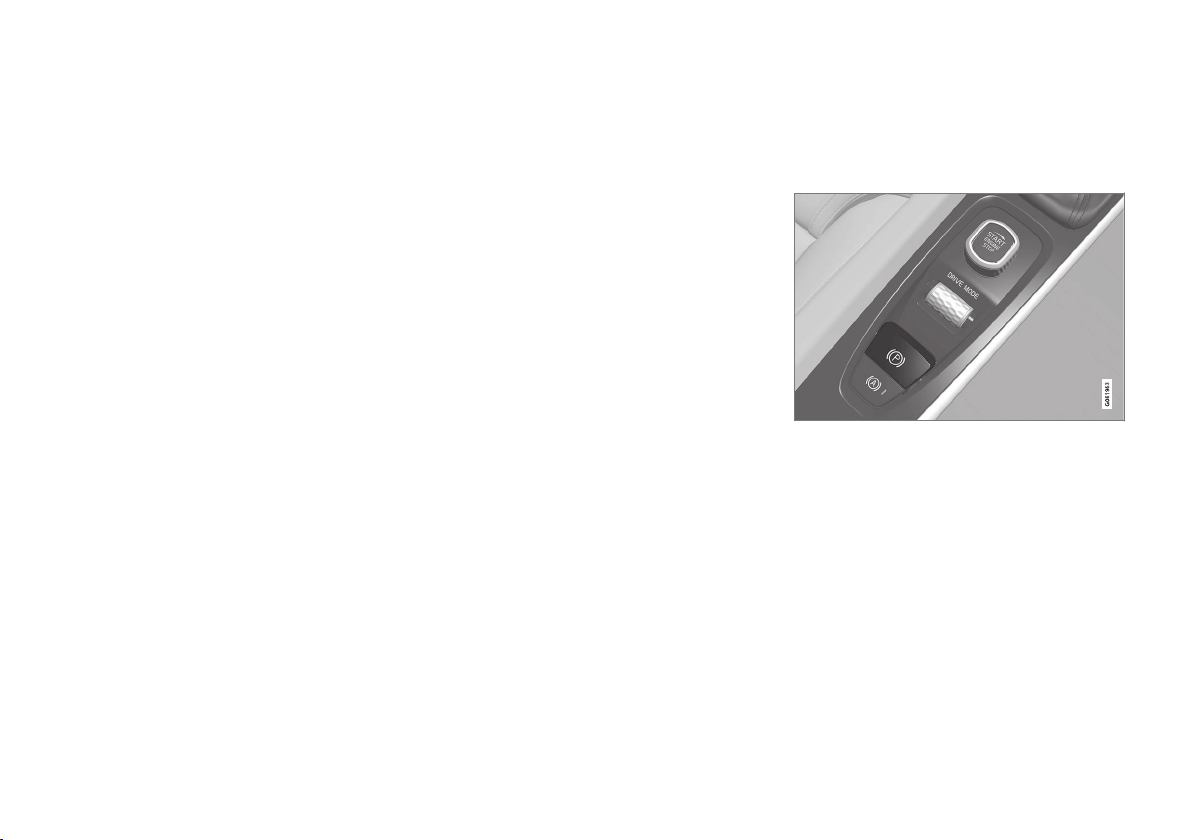
STARTING AND DRIVING
* Option/accessory.
432
Auto braking after a collision
In the event of a collision in which the activation
level is reached for the pyrotechnic seatbelt ten-
sioners or airbags, or if a collision with a large
animal is detected, the car's brakes are automat-
ically applied. This function is to prevent or
reduce the effects of any subsequent collision.
After a serious collision there is a risk that it is no
longer possible to control and steer the car. In
order to avoid or mitigate a possible further colli-
sion with a vehicle or an object in the vehicle's
path, the auto braking system is activated auto-
matically and brakes the car in a safe manner.
Brake lights and hazard warning lights are acti-
vated during braking. When the car has stopped,
the hazard warning lights continue to flash and
the parking brake is applied.
If braking is not appropriate, e.g. if there is a risk
of being hit by following traffic, the system can be
overridden by the driver depressing the accelera-
tor pedal.
The function assumes that the brake system is
intact after the collision.
See also the sections "Rear Collision Warning"
and "Blind Spot Information".
Related information
•
Brake functions (p. 429)
•
Seatbelt tensioner (p. 59)
•
Airbags (p. 63)
•
Rear Collision Warning (p. 354)
•
BLIS* (p. 354)
Parking brake
The parking brake prevents the car from rolling
away from stationary by means of mechanically
locking/blocking two wheels.
The control for the parking brake is located in the tunnel
console between the seats.
A faint electric motor noise can be heard when
the electrically-operated parking brake is being
applied. The noise can also be heard during the
automatic function checking of the parking brake.
If the car is stationary when the parking brake is
applied then it only acts on the rear wheels. If it is
applied when the car is moving then the normal
foot brake is used, i.e. the brake acts on all four
wheels. Brake function changes over to the rear
wheels when the car is almost stationary.
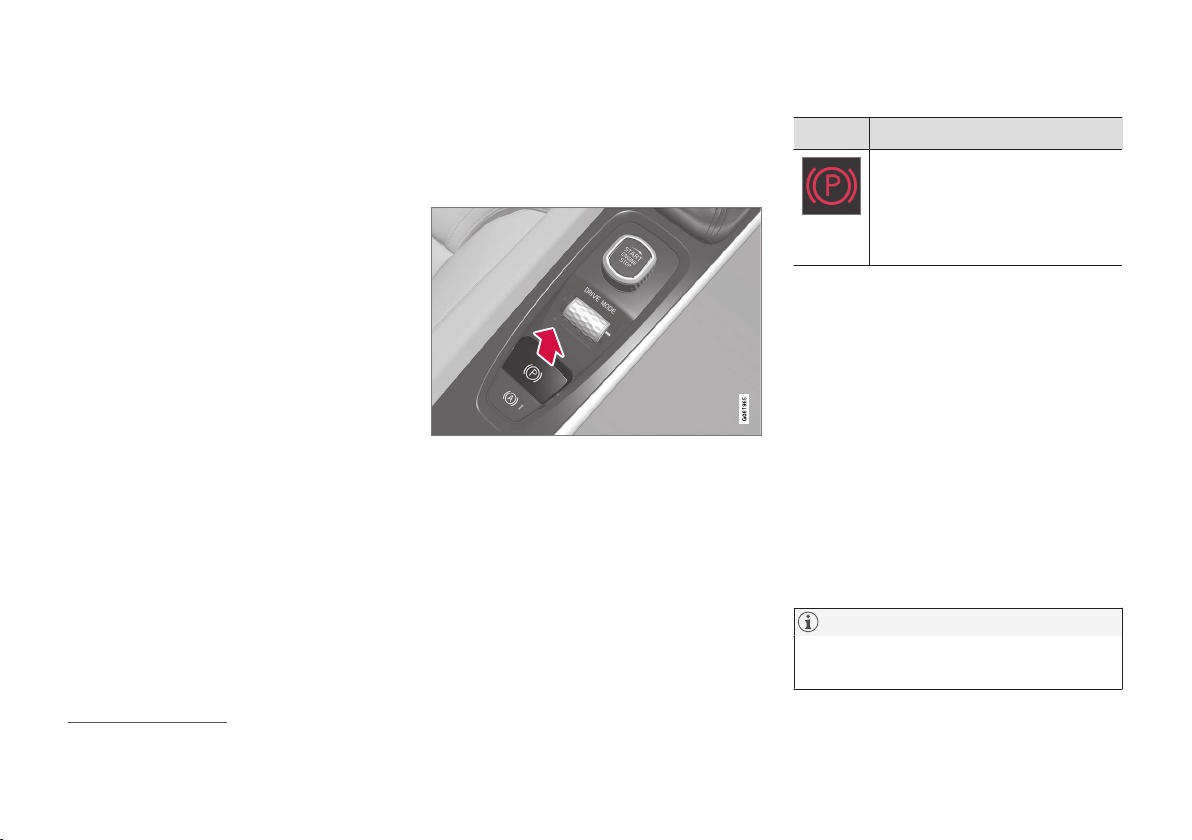
STARTING AND DRIVING
}}
433
Related information
•
Brake functions (p. 429)
•
Using the parking brake (p. 433)
•
In the event of a fault in the parking brake
(p. 435)
Using the parking brake
Use the parking brake to prevent the car from
rolling from stationary.
Applying the parking brake
1. Pull the control upward.
> The symbol in the driver display illumi-
nates when the parking brake is applied.
2. Check that the car is stationary.
Symbol in the driver display
Symbol Specification
The symbol is illuminated when the
parking brake is applied.
If the symbol flashes, it indicates a
fault has occurred. Read the mes-
sage on the driver display.
Automatic application
The parking brake is applied automatically:
•
if the Auto hold function (automatic braking
when stationary) is activated and the car has
been stationary for approx. 5 minutes.
•
when gear position P is selected on a steep
hill.
•
when the car is switched off and the "Auto-
matic activation of parking brake" is acti-
vated
6
.
Emergency brake
In an emergency, the parking brake can be
applied when the car is in motion by pulling and
holding up the control. Braking stops when the
control is released.
NOTE
An acoustic signal sounds while emergency
braking is active at high speeds.
6
See heading "Settings for parking brake".
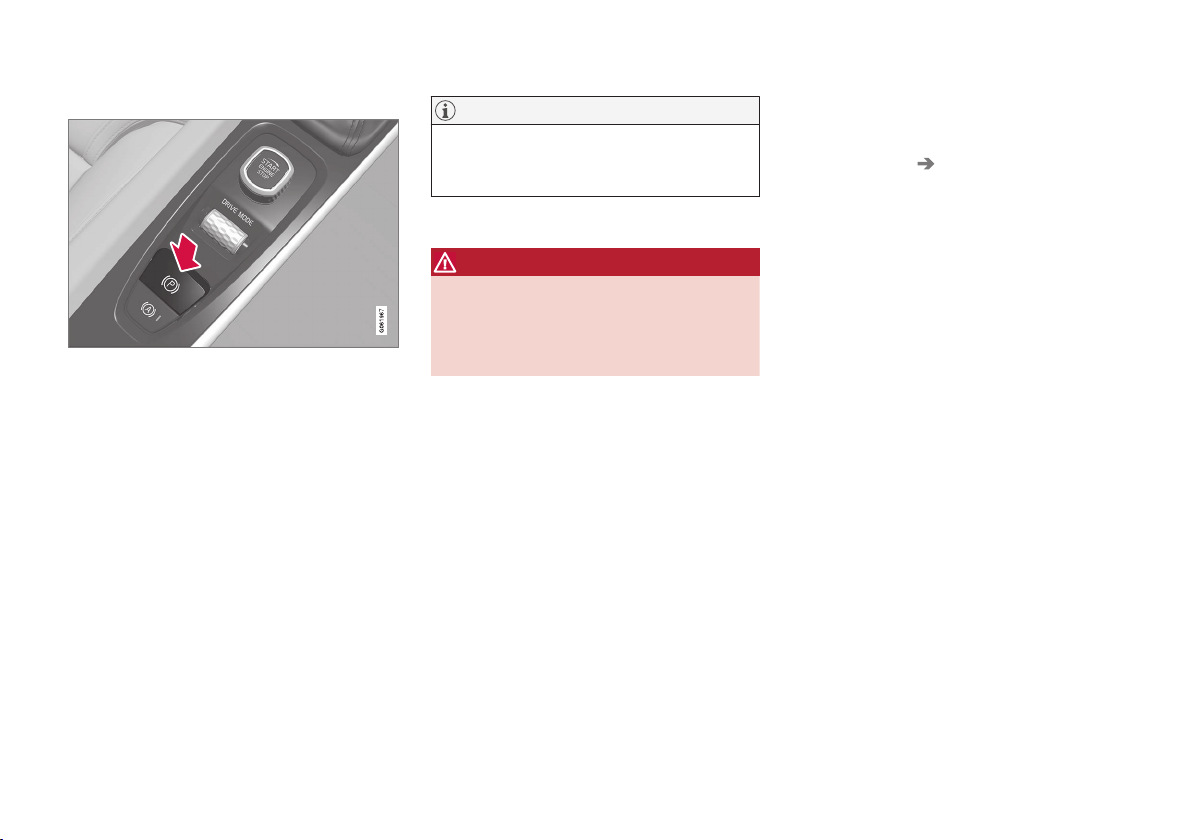
||
STARTING AND DRIVING
434
Releasing the parking brake
Releasing manually
1. Depress the brake pedal firmly.
2. Press the control down.
> The parking brake releases and the sym-
bol in the driver display extinguishes.
Releasing automatically
1. Put the seatbelt on.
2. Depress the brake pedal firmly.
3. Start the car.
4.
Select gear position D or R and depress the
accelerator pedal.
> The parking brake releases and the sym-
bol in the driver display extinguishes.
NOTE
When the car is first started, the parking
brake can be released automatically without
the seatbelt fastened.
Parking on a hill
WARNING
Always use the parking brake when parking
on an inclined surface. Engaging a gear or the
automatic transmission's P position is not suf-
ficient to hold the car stationary in all situa-
tions.
If the car is parked facing uphill:
•
Turn the wheels away from the kerb.
If the car is parked facing downhill:
•
Turn the wheels towards the kerb.
Heavy load uphill
A heavy load, such as a trailer, can cause the car
to roll backward when the parking brake is
released automatically on a steep incline. Avoid
this by pulling the control upwards while driving
the car away. Release the control when the
engine achieves traction.
Settings for parking brake
Automatic activation of the parking brake is
selected via the centre display.
Automatic activation when the car is switched off:
1.
Press
Settings in the top view.
2.
Press
My Car Parking Brake and
Suspension
and deselect/select the func-
tion
Auto Activate Parking Brake.
Related information
•
Parking brake (p. 432)
•
In the event of a fault in the parking brake
(p. 435)
•
Automatic braking when stationary (p. 436)

STARTING AND DRIVING
435
In the event of a fault in the parking
brake
Contact an authorised Volvo workshop if it is not
possible to release or apply the parking brake
after several attempts.
An acoustic warning signal sounds when driving
with the parking brake applied.
If the car must be parked before a possible fault
is rectified, then the wheels must be turned as for
parking on a hill
7
and the gear selector must be
in position P.
Low battery voltage
If the battery voltage is too low then the parking
brake can neither be released nor applied. Con-
nect a donor battery if the battery voltage is too
low.
Replacing the brake linings
The rear brake linings must be replaced at a
workshop due to the design of the electrically-
operated parking brake - an authorised Volvo
workshop is recommended.
Symbols in the driver display
Symbol Specification
If the symbol flashes, it indicates a
fault has occurred. See the mes-
sage in the driver display.
Fault in brake system. See the
message in the driver display.
Information message in driver dis-
play.
Message examples:
•
Parking brake Service required
•
Parking brake System overheated
•
Parking brake Not released
•
Parking brake Cannot hold car
•
Parking brake Temporarily unavailable
Related information
•
Brake functions (p. 429)
•
Using the parking brake (p. 433)
•
Parking brake (p. 432)
•
Using jump starting with another battery
(p. 412)
Hill start assist
Hill start assist, Hill Start Assist (HSA), prevents
the car from rolling backwards when starting on
an uphill gradient. When reversing uphill, it pre-
vents the car from rolling forwards.
The function means that the pedal pressure in
the brake system remains for several seconds
while the driver's foot is moved from brake pedal
to accelerator pedal.
The temporary braking effect releases after sev-
eral seconds or when the driver accelerates.
Hill start assist is available even if the function for
automatic braking when stationary (Auto hold) is
deactivated.
Related information
•
Brake functions (p. 429)
•
Automatic braking when stationary (p. 436)
7
See section "Using the parking brake".

STARTING AND DRIVING
436
Automatic braking when stationary
Automatic braking when stationary (Auto hold)
means that the driver can release the brake
pedal while maintaining braking effect when the
car has stopped at traffic lights or a junction.
Function
When the car has stopped, the brakes are acti-
vated automatically. The function can use either
foot brake or parking brake to hold the car sta-
tionary and it works on all gradients. When the
accelerator pedal is depressed again, the brakes
are released.
When braking to a stop on a downhill or uphill
gradient - depress the brake pedal a bit harder
before releasing to ensure that the car does not
roll at all.
When stationary or when is the car is switched
off, the parking brake is applied after approx. 5
minutes.
Automatic deactivation
The function is deactivated automatically:
•
when the driver's door is open and the driv-
er's seatbelt is unfastened.
Switch for automatic brake
An indicator in the button illuminates when the function
is activated.
Activate or deactivate Auto hold with the switch
in the tunnel console. The function remains deac-
tivated until it is reactivated.
If the function is active and holds the
car with the foot brake (A-symbol illu-
minated) then the brake pedal must be
depressed at the same time as the
button is depressed in order to deactivate.
When the function is deactivated, hill start assist
(HSA) remains active to prevent the car from roll-
ing backwards when starting on an uphill gradi-
ent.
Symbols in the driver display
Symbol Specification
The symbol is illuminated when the
function uses the foot brake to
keep the car stationary.
The symbol is illuminated when the
function uses the parking brake to
keep the car stationary.
Related information
•
Brake functions (p. 429)
•
Hill start assist (p. 435)
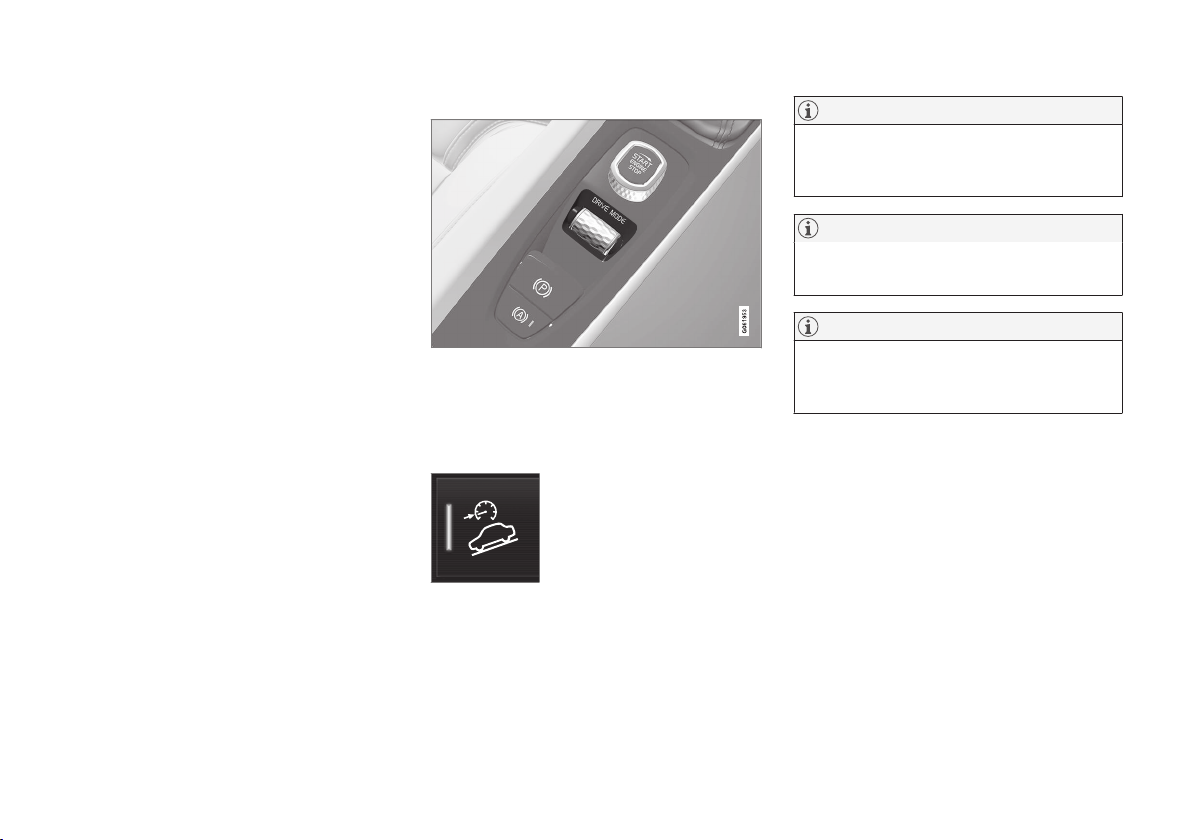
STARTING AND DRIVING
* Option/accessory.
437
Low speed control*
The low speed control function Low Speed
Control (LSC) facilitates and improves traction
for driving off-road and on slippery surfaces,
such as with a caravan on grass or a boat trailer
on a launch ramp.
In a car with drive mode control*, the function is
included in the Off Road drive mode.
The function is adapted for off-road driving and
driving with a trailer at low speed, up to approx.
40 km/h (25 mph).
With low-speed control, low gears and all-wheel
drive are prioritised, which help to avoid wheel-
spin and provides better traction on all wheels.
The accelerator pedal is less responsive in order
to facilitate traction and speed control at low
speed.
The function is activated together with Hill
Descent Control (HDC) which means that the
speed down steep downhill gradients can be
controlled with the accelerator pedal and it
reduces the need to use the brake pedal. The
system facilitates a low and even speed while
driving on steep downhill gradients.
Activating low speed control, LSC
The function is activated in different ways
depending on the car's equipment.
With drive mode control*
•
Select the Off Road drive mode in order to
activate the function.
•
Select a different drive mode in order to
deactivate.
In the centre display's function view
A car without drive mode con-
trol has a function button for
low speed control with
Hill
Descent Control in the centre
display's function view.
–
Press the button in order to activate the
function.
> An indicator in the button illuminates
when the function is activated.
NOTE
When LSC with HDC is activated, the feel of
the accelerator pedal and engine response
are changed.
NOTE
The driving mode is not designed to be used
on public roads.
NOTE
The function is deactivated when driving at
higher speeds and must be reactivated at a
lower speed, if required.
Related information
•
Brake functions (p. 429)
•
Hill descent control* (p. 438)
•
Drive modes* (p. 422)
STARTING AND DRIVING
* Option/accessory.
439
NOTE
When LSC with HDC is activated, the feel of
the accelerator pedal and engine response
are changed.
NOTE
The driving mode is not designed to be used
on public roads.
NOTE
The function is deactivated when driving at
higher speeds and must be reactivated at a
lower speed, if required.
Related information
•
Brake functions (p. 429)
•
Low speed control* (p. 437)
•
Drive modes* (p. 422)
Driving in water
Driving in water means that the car is driven
through deep water on a water-covered road-
way. Driving in water must be carried out with
great caution.
The car can be driven through water to a maxi-
mum depth of 45 cm (17.7 inches) at no more
than walking speed. Extra caution should be
exercised when passing through flowing water.
During driving in water, maintain a low speed and
do not stop the car. When the water has been
passed, depress the brake pedal lightly and
check that full brake function is achieved. Water
and mud for example can make the brake linings
wet resulting in delayed brake function.
•
If necessary, clean the contacts for the elec-
tric heater and trailer coupling after driving in
water and mud.
•
Do not let the car stand with water over the
sills for any long period of time - this could
cause electrical malfunctions.
IMPORTANT
•
Engine damage can occur if water enters
the air filter.
•
If water enters the transmission, it
reduces the lubricating ability of the oil,
which shortens the service life of related
systems.
•
Damage to any component, engine,
transmission, turbocharger, differential or
its internal components caused by flood-
ing, hydrostatic locking or oil shortage, is
not covered by the warranty.
•
In the event of the engine stalling in
water, do not try restart - tow the car from
the water to a workshop - an authorised
Volvo workshop is recommended. Risk of
engine breakdown.
Related information
•
Towing (p. 457)
•
Recovering the car (p. 458)
STARTING AND DRIVING
440
Overheating in the engine and drive
system
Under special conditions, for example hard driv-
ing in hilly terrain and hot climate, there is a risk
that the engine and drive system may overheat -
in particular with a heavy load.
•
In the event of overheating, the engine's
power may be limited temporarily.
•
Remove any auxiliary lamps from in front of
the grille when driving in hot climates.
•
If the temperature in the engine's cooling
system becomes too high then a warning
symbol is illuminated and the driver display
shows the message
Engine temperature
High temperature Stop safely. Stop the
car in a safe way and allow the engine to run
at idling speed for several minutes and cool
down.
•
If the message
Engine temperature High
temperature Turn off engine or Engine
coolant Level low, turn off engine is
shown, stop the car and switch off the
engine.
•
In the event of overheating in the gearbox, an
alternative gear shift program will be
selected. In addition, a built-in protection
function is activated that, amongst other
things, illuminates a warning symbol and the
driver display shows the message
Transmission warm Reduce speed to
lower temperature or Transmission hot
Stop safely, wait for cooling
. Follow the
recommendation given, reduce speed or stop
the car in a safe way and allow the engine to
run at idling speed for several minutes to
enable the gearbox to cool down.
•
If the car overheats, the air conditioning may
be switched off temporarily.
•
Do not turn the engine off immediately you
stop after a hard drive.
NOTE
It is normal for the engine's cooling fan to
operate for a time after the engine has been
switched off.
Symbols in the driver display
Symbol Specification
High engine temperature. Follow
the recommendation given.
Low level, coolant. Follow the rec-
ommendation given.
Gearbox hot/overheated/cooled.
Follow the recommendation given.
Related information
•
Topping up coolant (p. 543)
•
Driving with a trailer (p. 452)
•
Preparations for a long trip (p. 441)

STARTING AND DRIVING
* Option/accessory.
441
Overloading the starter battery
The electrical functions in the car load the starter
battery to varying degrees. Avoid using the igni-
tion position II when the car is switched off.
Instead, use ignition position I - which uses less
power.
Also, be aware of different accessories that load
the electrical system. Do not use functions which
use a lot of power when the car is switched off.
Examples of such functions are:
•
ventilation fan
•
headlamps
•
windscreen wiper
•
audio system (high volume).
If the starter battery voltage is low, the message
12 V Battery Low charge, will soon enter
power save mode is shown in the driver display.
The energy-saving function then shuts down cer-
tain functions or reduces certain functions such
as the ventilation fan and/or audio system.
–
In which case, charge the starter battery by
starting the car and then running it for at
least 15 minutes - starter battery charging is
more effective during driving than running
the engine at idling speed while stationary.
Related information
•
Ignition positions (p. 409)
•
Starter battery (p. 554)
Preparations for a long trip
Before a driving holiday or some other type of
long journey, it is important to check the car's
functions and equipment particularly carefully.
Check that:
•
the engine is working normally and that fuel
consumption is normal
•
there are no leaks (fuel, oil or other fluid)
•
brake force during braking is optimal
•
all lamps are working - adjust headlamp level
if the car is heavily laden
•
the tyres have sufficient tread depth and
pressure. Change to winter tyres when driv-
ing to areas where there is a risk of snowy or
icy road surfaces.
•
starter battery charging is good
•
the wiper blades are in good condition
•
a warning triangle and high-visibility vest are
located in the car - legally required in certain
countries.
Related information
•
Fuel consumption and CO2 emissions
(p. 594)
•
Checking the tyre pressures (p. 510)
•
Filling washer fluid (p. 553)
•
Winter driving (p. 442)
•
Economical driving (p. 448)
•
Settings for car modem* (p. 492)
•
Recommendations for loading (p. 225)
•
Pilot Assist* (p. 313)
•
Speed limiter* (p. 281)
•
Road Sign Information with Speed Camera
Information* (p. 366)
•
Driving with a trailer (p. 452)
•
Driving in water (p. 439)
•
Alarm* (p. 263)
•
Level control* and shock absorption (p. 427)
•
Warning triangle (p. 527)
•
Emergency puncture repair kit (p. 516)
•
Spare wheel* (p. 524)
STARTING AND DRIVING
* Option/accessory.
442
Winter driving
For winter driving it is important to perform cer-
tain checks of the car in order to ensure that it
can be driven safely.
Check the following in particular before the cold
season:
•
The engine coolant must contain 50% glycol.
This mixture protects the engine against
frost down to approx. -35°C (-31°F). To avoid
health risks, different types of glycol must not
be mixed.
•
The fuel tank must be kept filled to prevent
condensation.
•
Engine oil viscosity is important. Oils with
lower viscosity (thinner oils) facilitate starting
in cold weather and also reduce fuel con-
sumption while the engine is cold. Read
more about suitable oils in the section
"Adverse driving conditions for engine oil".
IMPORTANT
Low viscosity oil must not be used for hard
driving or in hot weather.
•
The condition of the starter battery and
charge level must be inspected. Cold
weather places great demands on the starter
battery and its capacity is reduced by the
cold.
•
Use washer fluid with antifreeze to avoid ice
forming in the washer fluid reservoir.
Slippery driving conditions
To achieve optimum roadholding Volvo recom-
mends using winter tyres on all wheels if there is
a risk of snow or ice.
NOTE
The use of winter tyres is a legal requirement
in certain countries. Studded tyres are not
permitted in all countries.
Practise driving on slippery surfaces under con-
trolled conditions to learn how the car reacts.
Related information
•
Topping up coolant (p. 543)
•
Adverse driving conditions for engine oil
(p. 590)
•
Starter battery (p. 554)
•
Winter wheels (p. 525)
•
Filling washer fluid (p. 553)
•
Replacing a wiper blade (p. 551)
•
Parking climate* (p. 206)
•
Activating/deactivating defrost of windows
and door mirrors (p. 195)
•
Drive modes* (p. 422)
•
Foot brake (p. 429)
•
All-wheel drive* (p. 429)
•
Electronic Stability Control ESC (p. 277)
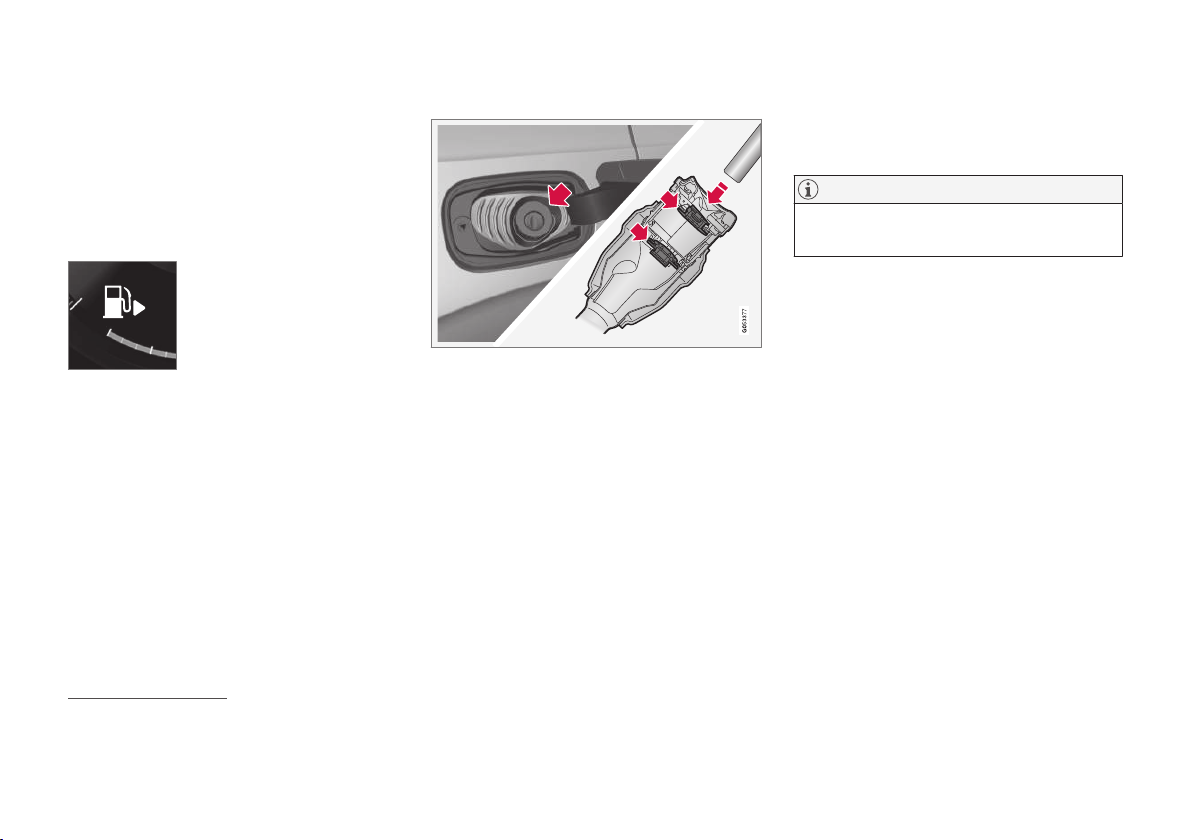
STARTING AND DRIVING
}}
443
Opening/closing the fuel filler flap
and refuelling
The fuel tank is fitted with a coverless fuel filler
system.
Opening/closing the fuel filler flap
The car must be unlocked for the fuel filler flap to
be opened.
In the driver display, the arrow
next to the tank symbol indi-
cates which side of the car the
fuel filler flap is located.
1. Open the fuel filler flap with a gentle press
on the rear of the flap.
2. After refuelling is finished - close the flap
with a gentle press.
Refuelling at a petrol station
Refuelling is carried out as follows.
1. Switch off the car and open the fuel filler
flap.
2. Choose fuel that is approved for use in the
car in accordance with the identifier
8
on the
inside of the fuel filler flap. See information
on approved fuels and the identifier in the
sections on "Petrol" and "Diesel" respec-
tively.
3. Insert the pump nozzle in the fuel filler open-
ing. The filler pipe has two opening caps. The
pump nozzle must be pushed past both caps
before refuelling is started.
4. Do not overfill the tank but fill until the pump
nozzle cuts out the first time.
> The tank is full.
NOTE
Overfilled fuel in the tank can overflow in hot
weather.
Filling with a fuel can
9
When filling with a fuel can, use the funnel
located under the floor hatch in the cargo area.
1. Open the fuel filler flap.
2. Insert the funnel in the fuel filler opening.
The filler pipe has two opening caps. The
funnel's pipe must be pushed past both caps
before filling can be started.
Label
Never use the fuel-driven heater when the car is
in a filling station area.
8
The identifier in accordance with the CEN standard EN16942 is located on the inside of the fuel filler flap, and will be on corresponding fuel pumps and their nozzles at filling stations throughout Europe by the
end of 2018 at the latest.
9
Only applies to a car with diesel engine.

||
STARTING AND DRIVING
444
Decal on the inside of the fuel filler flap.
Related information
•
Handling of fuel (p. 444)
•
Petrol (p. 445)
•
Diesel (p. 446)
•
Fuel gauge (p. 101)
Handling of fuel
Do not use fuel with a lower quality than that rec-
ommended by Volvo, as this will negatively affect
engine power and fuel consumption.
WARNING
Always avoid inhaling fuel vapour and getting
fuel splashes in the eyes.
In the event of fuel in the eyes, remove any
contact lenses and rinse the eyes in plenty of
water for at least 15 minutes and seek medi-
cal attention.
Never swallow fuel. Fuels such as petrol, bioe-
thanol and mixtures of them and diesel are
highly toxic and could cause permanent injury
or be fatal if swallowed. Seek medical atten-
tion immediately if fuel has been swallowed.
WARNING
Fuel which spills onto the ground can be igni-
ted.
Switch off the fuel-driven heater before star-
ting to refuel.
Never carry an activated mobile phone when
refuelling. The ring signal could cause spark
build-up and ignite petrol fumes, leading to
fire and injury.
IMPORTANT
Mixtures of various fuel types or use of fuels
which are not recommended will invalidate
Volvo's guarantees and any supplementary
service agreements; this is applicable to all
engines.
NOTE
Extreme weather conditions, driving with a
trailer or driving at high altitudes in combina-
tion with fuel grade are factors that could
affect the car's performance.
Related information
•
Petrol (p. 445)
•
Diesel (p. 446)
•
Opening/closing the fuel filler flap and refu-
elling (p. 443)
•
Economical driving (p. 448)
STARTING AND DRIVING
446
Diesel
Diesel is a type of engine fuel that is intended for
cars with a diesel engine.
Only use diesel fuel from well-known producers.
Never use fuel of dubious quality. Diesel fuel
must fulfil the EN 590 or SS 155435 standard.
Diesel engines are sensitive to contaminants in
the fuel, such as excessively high volumes of sul-
phur and metals.
Identifier
The identifier in accordance with the CEN stand-
ard EN16942 is located on the inside of the fuel
filler flap, and will be on corresponding fuel
pumps and their nozzles at filling stations
throughout Europe by the end of 2018 at the lat-
est.
This is the identifier that applies for current
standard fuel in Europe. Diesel with the following
identifiers may be used in cars with diesel
engine:
B7 is diesel with maximum
7 volume % fatty acid methyl
ester (FAME).
At low temperatures (lower than 0 °C) a paraffin
precipitate may form in the diesel fuel, which may
lead to ignition problems. The fuel qualities that
are sold must be adapted for season and climate
zone, but for extreme weather conditions, old fuel
or moving between climate zones, paraffin precip-
itate may occur.
The risk of condensation in the fuel tank is
reduced if the tank is kept well filled.
When refuelling, check that the area around the
fuel filler pipe is clean. Avoid spilling fuel onto the
paintwork. Wash off any spillage with detergent
and water.
IMPORTANT
Diesel fuel must:
•
fulfil the EN 590 and/or SS 155435
standards
•
have a sulphur content not exceeding
10 mg/kg
•
have a maximum of 7 vol % FAME
10
(B7).
IMPORTANT
Diesel type fuels that must not be used:
•
Special additives
•
Marine diesel fuel
•
Heating oil
•
FAME
11
and vegetable oil.
These fuels do not fulfil the requirements in
accordance with Volvo recommendations and
generate increased wear and engine damage
that is not covered by the Volvo warranty.
Related information
•
Empty tank and diesel engine (p. 447)
•
Diesel particulate filter (p. 447)
10
Fatty Acid Methyl Ester
11
Diesel fuel with maximum 7 vol % FAME (B7) is permitted.

||
STARTING AND DRIVING
448
When driving short distances at low
speeds in a diesel car
The capacity of the diesel emission control sys-
tem is affected by how the car is driven. It is
important to drive varying distances at different
speeds to achieve optimal performance.
Driving short distances at low speeds (or in cold
climates) frequently, where the engine does not
reach normal operating temperature, can lead to
problems that can eventually cause a malfunction
and trigger a warning message. If the vehicle is
mostly driven in city traffic, it is important to regu-
larly drive at higher speeds to allow the diesel
emission control system to regenerate.
•
The car should be driven on A-roads at
speeds in excess of 60 km/h (38 mph) for at
least 20 minutes between each refuel.
Related information
•
Diesel (p. 446)
Economical driving
Drive economically and eco-consciously by driv-
ing smoothly, thinking ahead, and adjusting your
driving style and speed to the prevailing condi-
tions.
•
For lower fuel consumption, activate Eco
drive mode.
•
Use the Eco Coast
12
freewheel function -
engine braking will cease and the car's
kinetic energy can be used to freewheel for
longer distances.
•
Drive in the highest gear
13
possible, adapted
to the current traffic situation and road -
lower engine speeds result in lower fuel con-
sumption. Use the gear shift indicator.
•
Drive at a steady speed and keep a good dis-
tance to other vehicles and objects to mini-
mise braking.
•
High speed results in increased fuel con-
sumption - the wind resistance increases
with speed.
•
Drive with the correct air pressure in the
tyres and check this regularly - select ECO
tyre pressure for best results.
•
Choice of tyres can affect fuel consumption -
seek advice on suitable tyres from a dealer.
•
Remove unnecessary items from the car -
the greater the load the higher the consump-
tion.
•
Use engine braking to slow down, when it
can take place without risk to other road
users.
•
A roof load and space box increase wind
resistance, leading to higher consumption -
remove the load carriers when not in use.
•
Avoid driving with open windows.
WARNING
Never switch off the engine while moving,
such as downhill, this deactivates important
systems such as the power steering and
brake servo.
Related information
•
Drive mode ECO (p. 425)
•
Approved tyre pressures (p. 598)
•
Fuel consumption and CO2 emissions
(p. 594)
•
Drive-E - cleaner driving pleasure (p. 25)
12
See the section "Drive mode ECO".
13
Applies to driving with manual gear changing.
STARTING AND DRIVING
}}
* Option/accessory.
449
Towing bracket*
The car can be equipped with a towing bracket
that makes it possible to tow e.g. a trailer after
the car.
There may be different towing bracket variants
available for the car; contact a Volvo dealer for
more information.
For information on towing capacity and towball
load, see the section "Towing capacity and tow-
ball load".
IMPORTANT
When the engine is switched off, the constant
battery voltage to the trailer connector can be
switched off automatically so as not to drain
the starter battery.
IMPORTANT
The towball needs regular cleaning and lubri-
cation with grease in order to prevent wear.
NOTE
When a hitch with a vibration damper is used,
the towball must not be lubricated.
This also applies when fitting a bicycle rack
that is clamped in around the towball.
NOTE
If the car is equipped with a towing bracket,
there is no rear mounting for a towing eye.
Related information
•
Driving with a trailer (p. 452)
•
Towing capacity and towball load (p. 586)
•
Trailer Stability Assist* (p. 455)
•
Towing bracket specifications* (p. 451)
•
Extendable/retractable towing brackets*
(p. 449)
Extendable/retractable towing
brackets*
The extendable/retractable towing hitch is
always easily accessible and simple to extend or
retract as needed. In the retracted position, the
towing hitch is completely concealed.
WARNING
Follow the instructions for retracting and
extending the towing bracket carefully.
Extending the towing hitch
WARNING
Avoid standing close to the bumper in the
centre behind the car when extending the
towing hitch.
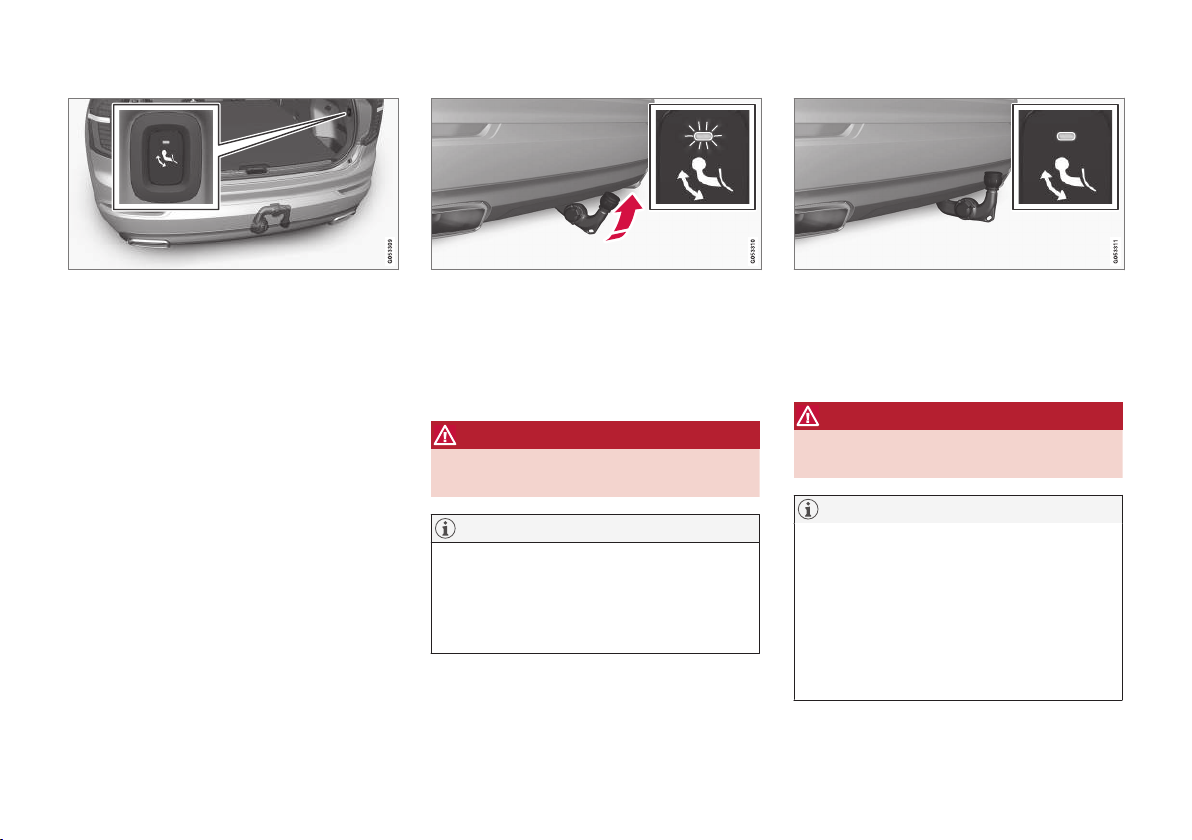
||
STARTING AND DRIVING
450
1. Open the tailgate. A button for extending/
retracting the towbar is located on the right-
hand side at the rear of the cargo area. An
indicator lamp in the button must illuminate
with a constant orange glow for the exten-
sion function to be active.
2. Press and release the button - extension
might not start if the button is pressed for
too long.
> The towbar extends out and down in an
unlocked position - the indicator lamp
flashes orange.
WARNING
Do not press the extend/retract button if a
trailer is attached to the towing bracket.
NOTE
The towbar must finish the extension proce-
dure before it can then be moved to locked
position. This procedure may take several
seconds. If the towbar is not fixed in locked
position, wait a few seconds and try again.
3. Move the towbar to its end position, where it
is secured and locked in place - the indicator
lamp illuminates with a constant orange
glow.
> The towbar is ready for use.
WARNING
Take care to secure the trailer's safety cable
in the intended bracket.
NOTE
Power save mode activates after a while and
the indicator lamp goes out. The system is
reactivated by closing and opening the tail-
gate. This applies when retracting or extend-
ing the towing bracket.
If the car detects a connected trailer electri-
cally, the indicator lamp stops illuminating
with a constant glow.

STARTING AND DRIVING
* Option/accessory.
453
IMPORTANT
When the engine is switched off, the constant
battery voltage to the trailer connector can be
switched off automatically so as not to drain
the starter battery.
Trailer weights
Information about Volvo's permitted trailer
weights is available in the article "Towing
capacity and towball load".
WARNING
Follow the stated recommendations for trailer
weights. Otherwise, the car and trailer may be
difficult to control in the event of sudden
movement and braking.
NOTE
The stated maximum permitted trailer weights
are those permitted by Volvo. National vehicle
regulations can further limit trailer weights
and speeds. Towbars can be certified for
higher towing weights than the car can
actually tow.
Level control*
The car's system for level control endeavours to
maintain a constant height regardless of load (up
to the maximum permissible weight). When the
car is stationary the rear of the car lowers slightly,
which is normal.
When driving in hilly terrain and hot
climates
Under certain circumstances, there may be a risk
of overheating when towing a trailer. In the event
of overheating, a warning symbol illuminates in
the driver display together with a message, see
section "Overheating in the engine and drive sys-
tem".
The automatic gearbox selects the optimum gear
related to load and engine speed.
Steep inclines
Do not lock the automatic gearbox in a higher
gear than the engine "can cope with" - it is not
always a good idea to drive at a high gear with
low engine speed.
Parking on a hill
1. Depress the brake pedal fully.
2. Activate the parking brake.
3.
Select gear position P.
4. Release the brake pedal.
Block the wheels with chocks when parking a car
with hitched trailer on a hill.
Starting on a hill
1. Depress the brake pedal fully.
2.
Select gear position D.
3. Releasing the parking brake.
4. Release the brake pedal and start driving off.
Related information
•
Towing bracket* (p. 449)
•
Trailer lamps (p. 454)
•
Towing capacity and towball load (p. 586)
•
Trailer Stability Assist* (p. 455)
•
Approved tyre pressures (p. 598)
•
Low speed control* (p. 437)
•
Overheating in the engine and drive system
(p. 440)

STARTING AND DRIVING
* Option/accessory.
454
Trailer lamps
When connecting a trailer - check that all the
trailer lamps work before departure.
Direction indicators and brake lights on
the trailer
If one or more of the trailer's direction indicators
or brake light bulbs is broken, the driver display
shows a symbol and a message. Other lamps on
the trailer must be checked manually by the
driver before departure, see the heading "Check-
ing trailer lamps".
Symbol Message
•
Trailer turn indicator Right
turn indicator malfunction
•
Trailer turn indicator Left
turn indicator malfunction
•
Trailer brake light Malfunc-
tion
If any lamp for the trailer's direction indicators is
broken, the driver display symbol for direction
indicators will also flash more quickly than nor-
mal.
Rear fog lamp on trailer
When connecting the trailer, the rear fog lamp
may not light up on the car. In such cases, the
rear fog lamp function switches to the trailer.
Upon activation of the rear fog lamp, check
therefore that the trailer is equipped with a rear
fog lamp to travel safely.
Checking trailer lamps*
Automatic checking
After a trailer is connected electrically, it is possi-
ble to check that the trailer lamps are working via
an automatic lamp activation. The function helps
the driver check that the trailer lamps are working
before starting off.
The engine must be switched off to perform the
check.
1. When a trailer is connected to the towing
bracket, the
Automatic Trailer Lamp
Check message is shown in the driver dis-
play.
2. Confirm the message by pressing the right-
hand steering wheel keypad's O button.
> The lamp check starts.
3. Exit the car to check lamp functionality.
> All trailer lamps start to flash - then the
lamps are switched on one at a time.
4. Visually check that all lamps available on the
trailer are operational.
5. After a moment, all lamps on the trailer flash
again.
> The check is complete.
Switching off automatic checking
The automatic checking function can be switched
off in the centre display.
1.
Press
Settings in the top view.
2.
Press
My Car Lights and Lighting.
3.
Deselect
Automatic Trailer Lamp Check.
Manual checking
If the automatic checking is switched off then it is
possible to start the check manually.
1.
Press
Settings in the top view.
2.
Press
My Car Lights and Lighting.
3.
Select
Manual Trailer Lamp Check.
> The lamp check starts. Exit the car to
check lamp functionality.
Related information
•
Driving with a trailer (p. 452)
•
Towing bracket* (p. 449)
STARTING AND DRIVING
* Option/accessory.
455
Trailer Stability Assist*
The function of the trailer stability assist (TSA
14
)
is to stabilise cars with attached trailers in situa-
tions where they begin snaking. The function is
included in the stability system ESC
15
.
Reasons for snaking
The snaking phenomenon can occur with any
car/trailer combination. Snaking normally occurs
at high speeds. But, there is a risk of it occurring
at lower speeds if the trailer is overloaded or the
load is improperly distributed, e.g. too far back.
In order for snaking to occur, there must be a
triggering factor, e.g.:
•
Car with trailer subjected to a sudden and
powerful side wind.
•
Car with trailer drives on an uneven road sur-
face or in a pothole.
•
Sweeping steering wheel movements.
If snaking has started, it could be difficult or even
impossible to suppress. This makes the car/
trailer combination difficult to control and there is
a risk that you could, for example, end up in the
wrong lane or leave the carriageway.
Trailer Stability Assist function
The trailer stability assist function continually
monitors car movements, particularly lateral
movements. If snaking is detected, the front
wheels are individually braked. This serves to sta-
bilise the car/trailer combination. This is often
enough to help the driver regain control of the
car.
If snaking is not eliminated the first time that
trailer stability assist comes into action, the car/
trailer combination is braked with all wheels and
engine power is reduced. Once snaking has been
gradually suppressed and the car/trailer combi-
nation is stable once again, the system stops
regulating and the driver once again has full con-
trol of the car.
NOTE
The stability function is deactivated if the
driver selects Sport mode by deactivating
ESC via the menu system in the centre dis-
play.
The trailer stability assist may fail to engage if the
driver uses severe steering wheel movements to
try to rectify the snaking because in such a situa-
tion the system cannot determine whether it is
the trailer or the driver that is causing the snak-
ing.
When trailer stability assist is
operating, the ESC symbol
flashes in the driver display.
Related information
•
Driving with a trailer (p. 452)
•
Electronic Stability Control ESC (p. 277)
14
Trailer Stability Assist
15
Electronic Stability Control (Electronic stability control)
STARTING AND DRIVING
}}
457
The towing eye may be used to pull the car up
onto a recovery vehicle with a flatbed platform.
The car's position and ground clearance deter-
mine whether it is possible.
If the slope of the recovery vehicle's ramp is too
steep, or if the ground clearance under the car is
inadequate, then the car may be damaged if you
try to pull it up using the towing eye.
If necessary, raise the car by using the recovery
vehicle's lifting device. Do not use the towing eye.
WARNING
No one/nothing is allowed to remain behind
the recovery vehicle while the car pulled up
onto the flatbed platform.
IMPORTANT
The towing eye is only designed for towing on
roads - not for pulling the car unstuck or out
of a ditch. Call a recovery service for recovery
assistance.
Related information
•
Towing (p. 457)
•
Recovering the car (p. 458)
Towing
During towing, the car is towed by another vehi-
cle by means of a towline.
Find out the statutory maximum speed limit for
towing before the towing begins.
Preparations and towing
1. Activate the car's hazard warning flashers.
2. Secure the towline in the towing eye.
3. Deactivate the steering lock by unlocking the
car.
NOTE
In ignition position II the steering lock is
deactivated if the car has been unlocked. See
section “Ignition position” for more informa-
tion.
4.
Set the car in ignition position II by turning
the start knob clockwise and holding the
start knob in position for approx. 4 seconds.
Then release the knob, which automatically
returns to its starting position.
To reach level II without starting the engine -
do not depress the brake pedal, or the clutch
pedal for cars with manual gearbox, when
selecting the ignition position.
5.
Move the gear selector to neutral position N
and release the parking brake.
If the battery voltage is too low, the parking
brake cannot be disengaged. Connect a
donor battery if the battery voltage is too low.
> The towing vehicle can now start towing.
6. Keep the towline taut when the towing vehi-
cle reduces speed by holding your foot gen-
tly pressed on the brake pedal - thereby
avoiding unnecessary jerking.
7. Be prepared to brake to stop.
IMPORTANT
Note that the car must always be towed with
the wheels rolling forward.
•
Do not tow cars with automatic transmis-
sion at speeds higher than 80 km/h
(50 mph) or for distances in excess of 80
km.
WARNING
•
Check that the steering lock is unlocked
before towing.
•
Ignition position II must be active - in
ignition position I all airbags are deacti-
vated.
•
Always keep the remote control key in the
car when it is being towed.

AUDIO AND MEDIA
* Option/accessory.
461
Certain apps are only available for use if the car
is connected to the Internet.
–
Tap on an app in the app view to launch it.
Related information
•
Online car* (p. 488)
•
Downloading, updating and uninstalling apps
(p. 493)
•
Changing settings for apps (p. 180)
Audio settings
The audio system is preset for optimal sound
reproduction, but can be adapted according to
needs.
The volume is normally adjusted with the volume
control below the centre display or with the right-
hand steering wheel keypad.
Setting for optimal sound reproduction
The audio system is pre-calibrated for optimum
sound reproduction by means of digital signal
processing. This calibration takes into account
loudspeakers, amplifiers, passenger compartment
acoustics, listener position, etc., for each combi-
nation of car model and audio system. There is
also a dynamic calibration that takes into account
the setting of the volume control and vehicle
speed.
Audio settings are described in the correspond-
ing section in the owner information. To access
the settings, open the top view and tap on
Settings Sound.
Active noise reduction*
Certain cars are equipped with an active noise
reduction function that suppresses engine noise
in the passenger compartment via the audio sys-
tem. Microphones in the car's roof detect disrup-
tive noise and the audio system outputs anti-
noise in order to dampen the noise.
Microphones in the car's roof.
NOTE
Do not cover the car's microphones.
Related information
•
Audio settings for media (p. 473)
•
Settings for voice recognition (p. 119)
•
Settings for phone (p. 487)
•
Audio and media (p. 460)
•
Online car* (p. 488)
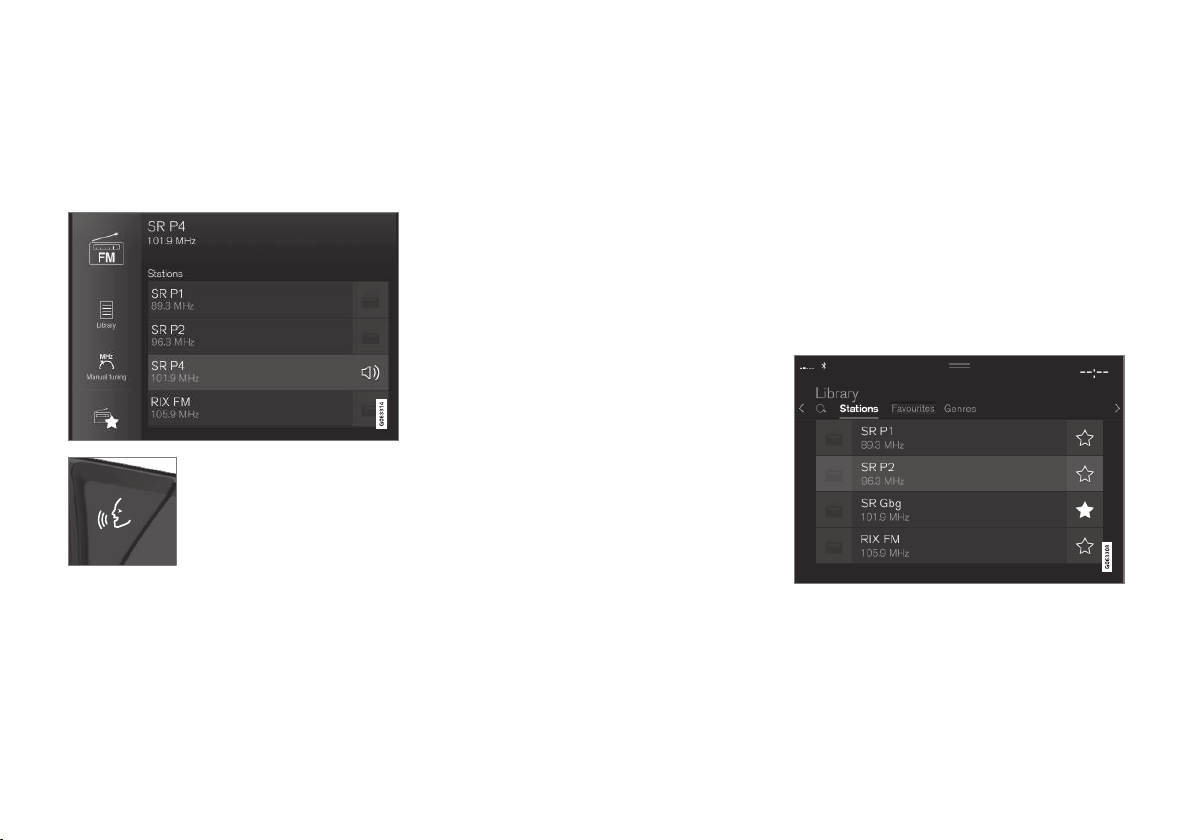
AUDIO AND MEDIA
* Option/accessory.
462
Radio
It is possible to listen to the AM and FM bands
and to digital radio (DAB)*. When the car is
online it is also possible to listen to Internet
radio.
The radio can be operated
using voice recognition, the
steering wheel keypad or the
centre display.
Related information
•
Changing and searching radio stations
(p. 462)
•
Digital radio (p. 465)
•
RDS radio (p. 464)
•
Online car* (p. 488)
•
Voice recognition control of radio and media
(p. 120)
•
Media player (p. 467)
•
Settings for radio (p. 466)
Changing and searching radio
stations
The radio automatically compiles a station list of
the radio stations within the area that are trans-
mitting the strongest signals.
Starting the radio
1.
Open the required frequency band (e.g.
FM)
from the app view.
2. Select station.
Changing lists within the frequency
band
1.
Press
Library.
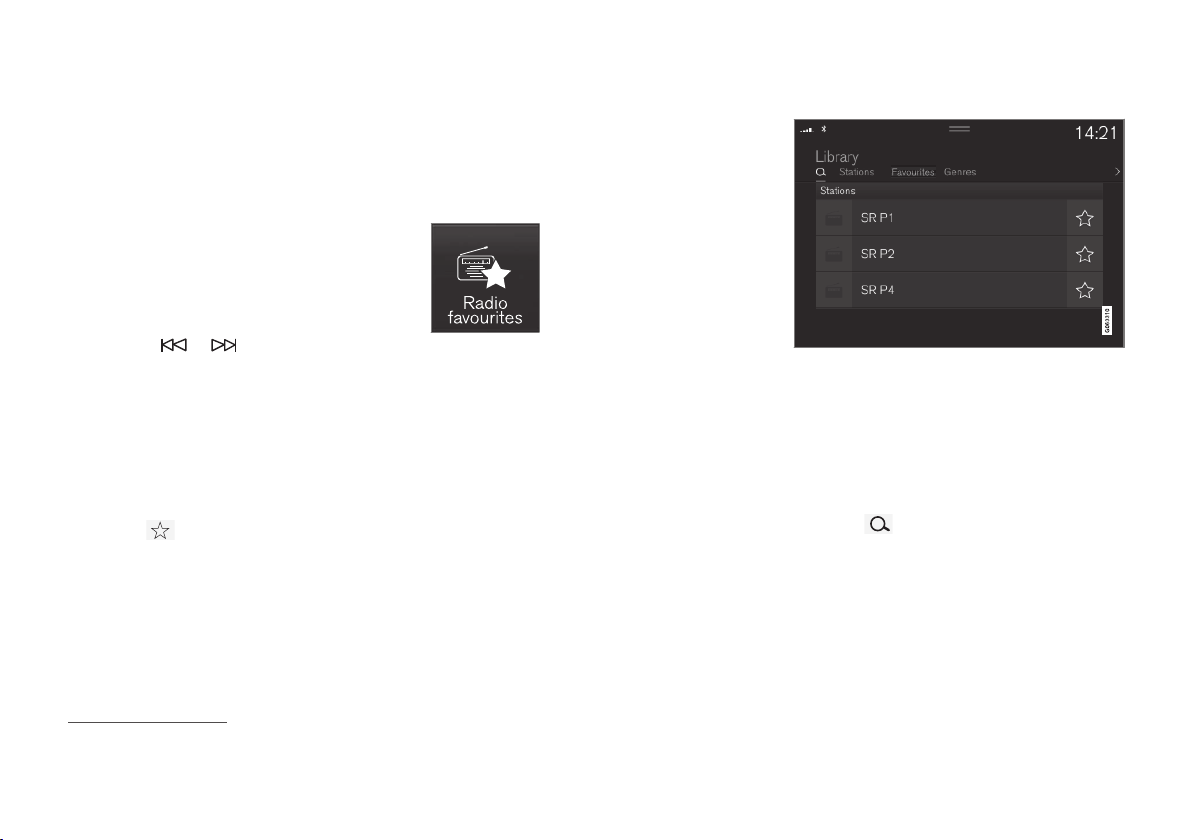
AUDIO AND MEDIA
}}
463
2.
Select playback from
Stations, Favourites,
Genres or Ensembles
1
.
3. Tap on the desired station from the list.
Favourites — only plays back selected favourite
channels, see heading “Favourites” below.
Genres — only plays back channels broadcast-
ing the selected genre/programme type, e.g. pop
or classical.
Changing stations within the selected
list
–
Press on or under the centre dis-
play or the steering wheel's right-hand key-
pad.
> The highlight moves up or down one
place in the selected playlist.
You can also change stations from the centre
display.
Favourites
–
Tap on to add or remove a channel to or
from frequency band favourites and Radio
Favourites.
When a favourite is saved from a station list, the
radio will automatically search for the best fre-
quency. But if a favourite is saved from a manual
station search, the radio does not automatically
change to a stronger frequency.
To choose among favourites within the frequency
band, see the heading “Changing lists within the
frequency band” above. To choose from among
all favourites, see the heading “Radio Favourites”
below.
Radio Favourites
Radio Favourites shows saved
favourites from all frequency
bands.
1.
Open the app
Radio favourites from the
app view.
2. Tap on the desired station in the list to start
listening.
When you remove a favourite, it will also be
removed from frequency band favourites.
Changing radio band
–
Return to the app view and press the
required frequency band (e.g.
FM) or open
the app view with the right steering wheel
keypad and select from there.
Searching for radio stations
The parameters you can search on depend on
the frequency band selected:
•
AM — station and frequency.
•
FM — station, genre and frequency.
•
DAB - ensembles and stations.
1.
Press
Library.
2.
Press
.
> Search view with keyboard is opened.
3. Enter the search terms.
> Searching takes place with each input of
a character and the search results are
shown by category.
1
Only applies to digital radio (DAB).
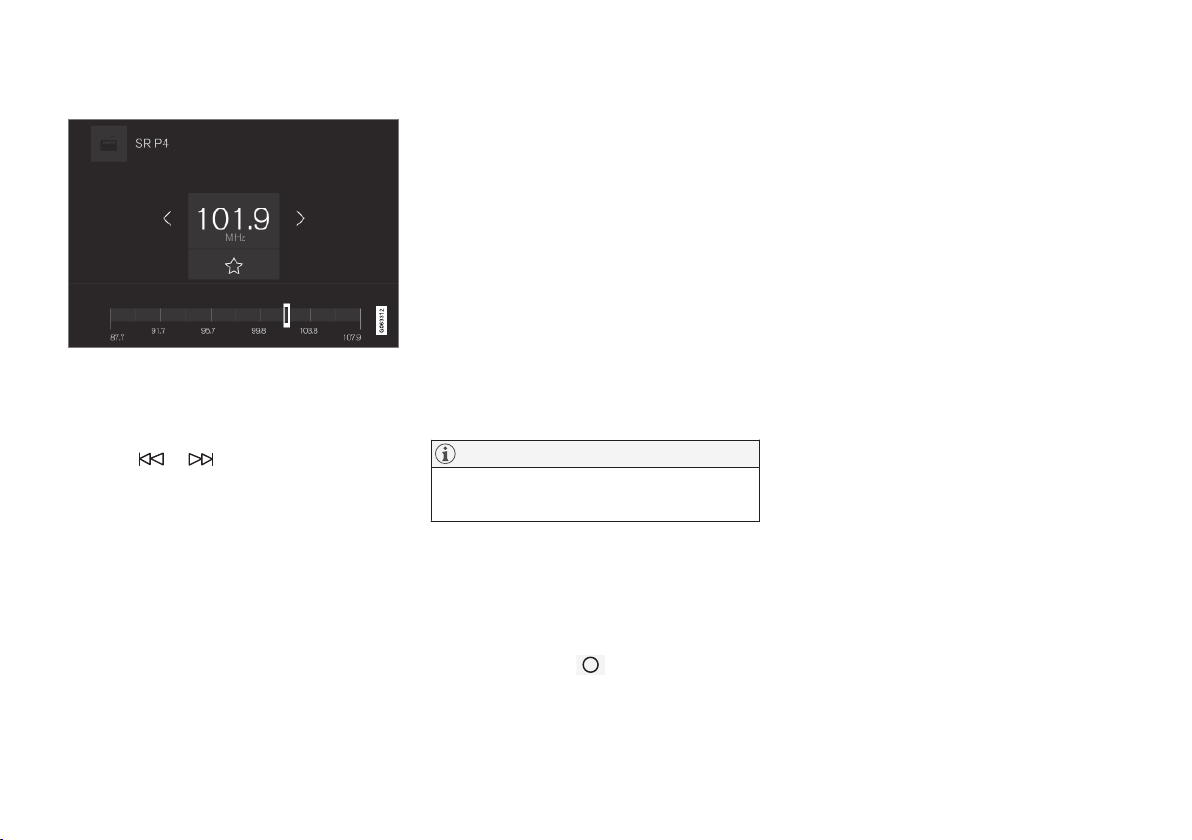
||
AUDIO AND MEDIA
464
Manual tuning
On changing over to manual tuning, the radio no
longer changes frequency automatically when
reception is poor.
–
Press Manual tuning, pull the control or
press
or . With a long press, the
search jumps to the next available station in
the frequency band. It is also possible to use
the right keypad on the steering wheel.
Related information
•
Radio (p. 462)
•
Voice recognition control of radio and media
(p. 120)
•
Digital radio (p. 465)
RDS radio
With RDS (Radio Data System) the radio can
automatically change to the strongest transmit-
ter. RDS provides the ability to receive e.g. traffic
information and to search for certain programme
types.
RDS links FM transmitters into a network. An FM
transmitter in such a network sends information
that gives an RDS radio the following functions:
•
Switch automatically to a stronger transmitter
if reception in the area is poor.
•
Search for programme category, e.g. pro-
gramme types or traffic information.
•
Receive text information on current radio
programme.
NOTE
Some radio stations do not use RDS or only
selected parts of its functionality.
When broadcasting news or traffic messages, the
radio can switch stations, interrupting the audio
source currently in use. For example, if the CD
player is in use, it is paused. The radio returns to
the previous audio source and volume when the
set programme type is no longer broadcast. To
go back earlier, press
on the right-hand
steering wheel keypad or tap
Cancel in the cen-
tre display.
Related information
•
Radio (p. 462)
•
Settings for radio (p. 466)

AUDIO AND MEDIA
466
Settings for radio
Settings for the different radio bands.
The broadcast of traffic messages etc. can be
temporarily interrupted by tapping on
in the
right-hand steering wheel keypad or by tapping
on
Cancel in the centre display.
Drag down the top view and select Settings
Media and the desired radio band. Activating/
deactivating functions.
AM/FM
•
Show Broadcast Information — shows
information on programme content, artists,
etc.
•
Freeze Program Name — select to stop
the programme service name from scrolling
continuously. Instead it freezes after 20 sec-
onds.
•
News - interrupts the current media play-
back and broadcasts news. Playback of pre-
vious media source is resumed when the
news broadcast is finished.
•
Traffic Announcements - interrupts the
current media playback and broadcasts infor-
mation about traffic disruptions. Playback of
previous media source is resumed when the
message is finished.
•
Local Interruptions — interrupts the cur-
rent media playback and broadcasts informa-
tion about traffic disruptions in the neigh-
bourhood. Playback of previous media source
is resumed when the message is finished.
The
Local Interruptions function is a geo-
graphically restricted version of the Traffic
Announcements function. The Traffic
Announcements function must be acti-
vated at the same time.
•
Alarm - interrupts the current media play-
back and sends alerts about major accidents
and disasters. Playback of previous media
source is resumed when the message is fin-
ished.
DAB
•
Sort Services - selection for how channels
will be sorted. Either alphabetically or by
service number.
•
DAB To DAB Handover - starts the func-
tion for linking within DAB. If reception of a
radio channel is lost, another channel is
found automatically in another channel group
(ensemble).
•
DAB To FM Handover - starts the function
for linking between DAB and FM. If reception
of a radio channel is lost, an alternative FM
frequency is searched for automatically.
•
Select Announcements — select the
types of messages to be received while DAB
is playing. Selected messages will interrupt
the current media playback to play back the
message. Playback of previous media source
is resumed when the message is finished.
Alarm - interrupts the current media play-
back and sends alerts about major accidents
and disasters. Playback of previous media
source is resumed when the message is fin-
ished.
Traffic Flash — receives information about
traffic disruptions.
News Flash — receives news.
Transport Flash — receives information
about public transport, e.g. ferry and train
timetables.
Warning/Services — receives information
about incidents of lower significance than
the Alarm function, e.g. power failures.
•
Show Broadcast Information — select to
show radio text or selected types of radio
text, e.g. artist.
•
Show Program Related Images — select
whether or not to show images for pro-
grammes on the screen.
Related information
•
Radio (p. 462)
•
Symbols in the centre display's status bar
(p. 45)
•
Digital radio (p. 465)

AUDIO AND MEDIA
}}
* Option/accessory.
467
Media player
The media player can play back audio from the
CD player*, from external audio sources via the
USB port or via Bluetooth. It can also play video
via the USB port.
When the car is connected to the internet, it is
also possible to listen to web radio, audio books
and music services via apps.
The radio is operated in the media player and is
described in a separate section.
The media player is operated
from the centre display, but
several functions can be oper-
ated using the steering wheel's
right-hand keypad or voice con-
trol.
Related information
•
Media playback (p. 467)
•
Voice recognition control of radio and media
(p. 120)
•
Apps (p. 460)
•
Radio (p. 462)
•
CD player* (p. 471)
•
Media via Bluetooth
®
(p. 471)
•
Media via USB port (p. 472)
•
video (p. 473)
Media playback
The media player is controlled from the centre
display. Several functions can also be operated
using the steering wheel's right-hand keypad or
voice control.
The media player also operates the radio, which
is described in a separate section.
Starting the media source
Application view. (Generic image, basic apps vary by
market and model.)
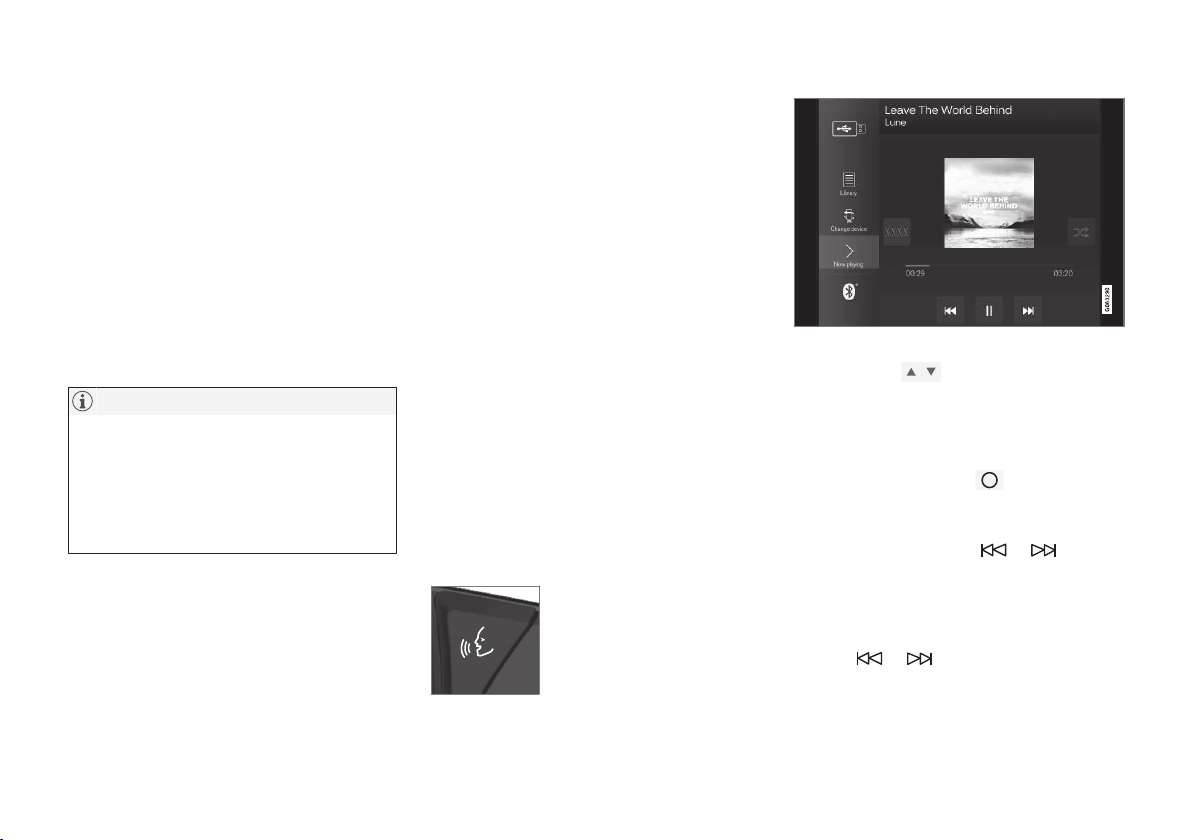
||
AUDIO AND MEDIA
* Option/accessory.
468
CD*
1. Insert a CD.
2.
Open the app
CD from the app view.
3. Select what to play back.
> Playback begins.
USB memory
1. Insert the USB memory.
2.
Open the app
USB from the app view.
3. Select what to play back.
> Playback begins.
Mp3 player and iPod
®
NOTE
To start playback from iPod, use the iPod app
(not USB).
When an iPod is used as audio source, the
car's audio and media system has a menu
structure that is similar to the iPod player's
own menu structure.
1. Connect media source.
2. Start playback from the connected media
source.
3.
Open the app (
iPod, USB) from the app
view.
> Playback begins.
Bluetooth connected device
1. Activate Bluetooth in the media source.
2. Connect media source.
3. Start playback from the connected media
source.
4.
Open the app
Bluetooth from the app view.
> Playback begins.
Internet media
1. Connecting the car.
2. Open the app from the app view.
> Playback begins.
video
1. Connect media source.
2.
Open the app
USB from the app view.
3. Tap on the title of the desired item to play
back.
> Playback begins.
Apple CarPlay
Apple CarPlay is described in a separate section.
Controlling and changing media
The media player can be oper-
ated by voice recognition, from
the steering wheel keypad or
the centre display.
Volume - turn the control knob under the centre
display or press
on the steering wheel's
right-hand keypad in order to increase or
decrease the volume.
Play/pause - tap on the image belonging to the
song being played back, the physical button
under the centre display or
on the steering
wheel's right-hand keypad.
Change track/song - tap on the desired track in
the centre display, press on
or under
the centre display or on the steering wheel's
right-hand keypad.
Fast forward/move in time - tap on the time axis
in the centre display and drag sideways, or press
and hold
or under the centre display or
on the steering wheel's right-hand keypad.

AUDIO AND MEDIA
* Option/accessory.
469
Changing media - select from previous sources
in the app, in the app view, press on the desired
app or select with the steering wheel's right-hand
keypad via the app menu
.
Library - tap on the button to
play back from the library.
Shuffle - tap on the button to
shuffle the playback order.
Similar - tap on the button in
order to use Gracenote to
search for similar music on the
USB device and to create a
playlist from it. The playlist can
contain a maximum of 50
songs.
Change device - tap on the
button in order to switch
between USB devices when
several are connected.
Settings for video
With the video player in full screen mode, or by
opening the top view and pressing
Settings
Video, the following can be adjusted: Audio
Language, Off and Subtitle Language.
Playing back DivX
®
This DivX Certified
®
device must be registered in
order to play back purchased DivX Video-on-
Demand (VOD) films.
1.
Press
Settings in top view.
2.
Tap
Video DivX® VOD and retrieve the
registration code.
3. Go to vod.divx.com for more information and
to complete the registration.
Related information
•
Using the application menu in the driver dis-
play (p. 108)
•
Voice recognition control of radio and media
(p. 120)
•
Connecting the car (p. 488)
•
Apps (p. 460)
•
Searching media (p. 470)
•
Connecting a device via Bluetooth
®
(p. 472)
•
Connecting a device via USB port (p. 472)
•
CD player* (p. 471)
•
Radio (p. 462)
•
Gracenote
®
(p. 470)
•
video (p. 473)
•
Audio settings for media (p. 473)
•
TV* (p. 474)
•
Apple CarPlay* (p. 475)
•
Android Auto* (p. 477)
•
Technical specifications for media (p. 479)
AUDIO AND MEDIA
470
Gracenote
®
Gracenote identifies artist, album, song titles
and associated images, which are shown during
playback.
Gracenote MusicID
®
is a standard for music rec-
ognition.
1.
Press
Settings in top view.
2.
Press
Media Gracenote®.
3. Select settings for Gracenote data:
•
Gracenote® Online Search - searches in
Gracenote's online database for playing
media.
•
Gracenote® Multiple Results - selects
how to display Gracenote data if there are
more than one search results.
1 - the file's original data are used.
2 - Gracenote data are used.
3 - Gracenote or original data can be
selected.
•
None - no results are shown.
Updating Gracenote
The content of the Gracenote database is upda-
ted continuously. Download the latest update for
optimal functionality. For information and down-
load, see support.volvocars.com.
Related information
•
Media playback (p. 467)
•
License agreement for audio and media
(p. 495)
Searching media
It is possible to search by artist, composer, song
titles, album, video, audio book, playlist and, with
an online connected car, podcasts (digital media
via Internet).
1.
Press
.
> Search view with keyboard is opened.
2. Enter the search terms.
3.
Press
Search.
> Connected devices are searched and the
search results are listed by category.
Swipe sideways across the screen to show each
category separately.
Related information
•
Media player (p. 467)
•
Media playback (p. 467)

AUDIO AND MEDIA
* Option/accessory.
471
•
Using the keyboard in the centre display
(p. 49)
•
Online car* (p. 488)
CD player*
The media player can play back CD discs with
audio files. See technical specifications for sup-
ported formats.
Disc insert and eject slot.
Disc eject button.
Related information
•
Media playback (p. 467)
•
Voice recognition control of radio and media
(p. 120)
•
Media player (p. 467)
•
Technical specifications for media (p. 479)
Media via Bluetooth
®
The car's media player is equipped with
Bluetooth
®
and can wirelessly play audio files
from external devices with Bluetooth
®
, such as
mobile phones and PDAs.
Related information
•
Connecting a device via Bluetooth
®
(p. 472)
•
Media playback (p. 467)
•
Voice recognition control of radio and media
(p. 120)
•
Media player (p. 467)
•
Ignition positions (p. 409)
•
Technical specifications for media (p. 479)
AUDIO AND MEDIA
* Option/accessory.
474
TV*
2
No images are shown once the car reaches a
certain speed but the sound will be heard the
whole time. The picture returns once more when
the car is almost or completely stationary.
The TV is controlled from the centre display. Sev-
eral functions can also be controlled from the
right keypad on the steering wheel or with voice
recognition.
Related information
•
Using the TV* (p. 474)
Using the TV*
3
Start the TV
1.
Open the app
TV from the app view.
2. Select a channel.
Change or search for TV channels
The TV automatically searches for the channels
with best reception.
Change the list of visible channels
1.
Press
Library
2.
Select playback from
TV-channels or
Favourites.
3. Select the desired channel.
Change channel from selected list
–
Press on or under the centre dis-
play or on the steering wheel keypad.
> The highlight moves up or down one
place in the selected playlist
You can also change stations from the centre
display.
Favourites
A TV channel can be saved as a favourite:
–
Tap on in order to add/remove a chan-
nel to/from the favourites list.
TV guide
A programme guide is available with information
about TV programmes for up to 48 hours.
–
Tap on Guide to show information about TV
programmes.
NOTE
If the car is moved within the country, e.g.
from city to city, it is not certain that
Favourites are available since the frequency
may have changed.
Change the format of the TV picture
Tapping on Picture format enables you to
choose which format the TV picture should be
shown in.
1.
Auto - The TV picture is shown in the image
format being transmitted.
2.
Auto fill - The TV picture is maximised with-
out cropping.
Settings for TV
The option to make certain settings is available,
both in the top view or when TV-viewing takes
place in full screen mode.
2
Applies to certain markets.
3
Applies to certain markets.
AUDIO AND MEDIA
* Option/accessory.
476
Using Apple CarPlay*
To use Apple CarPlay, Siri voice control must be
activated in your phone. The phone must also
have an Internet connection via Wi-Fi or the
mobile network.
Connect an iPhone and start
Apple CarPlay
NOTE
Apple CarPlay can only be used if Bluetooth
is deactivated. A phone or media player con-
nected to the car via Bluetooth will therefore
not be available when Apple CarPlay is active.
An alternative Internet source must be used
to connect to the Internet for the car's apps.
Use Wi-Fi or the car's built-in modem*.
1. Connect an iPhone to the USB port. In the
cases where there are two USB ports, the
one with the white frame around the port
must be used.
2. Read the information in the pop-up message
and then tap on
OK.
3.
Tap on
Apple CarPlay in the app view.
4. Read the terms and conditions and then tap
on
Accept to connect.
> The subview with Apple CarPlay is opened
and compatible apps are shown.
5. Tap on the desired app.
> The app starts.
Starting Apple CarPlay
Apple CarPlay is started according to the follow-
ing after an iPhone has been connected.
1. Connect an iPhone to the USB port. In the
cases where there are two USB ports, the
one with the white frame around the port
must be used.
>
If the setting for automatic start is
selected - the subview with
Apple CarPlay is opened and compatible
apps are shown.
2. If the subview with Apple CarPlay is not
opened, tap on
Apple CarPlay in the app
view.
> The subview with Apple CarPlay is opened
and compatible apps are shown.
3. Tap on the desired app.
> The app starts.
Apple CarPlay runs in the background if another
app is started in the same subview. To show
Apple CarPlay in the subview again - tap on the
Apple CarPlay icon in the app view.
Switch the connection between
Apple CarPlay and iPod
Apple CarPlay to iPod
1.
Press
Settings in top view.
2.
Continue to
Communication Apple
CarPlay
.
3. Untick the box for the Apple device that shall
no longer start Apple CarPlay automatically
when the USB cable is connected.
4. Disconnect and connect the Apple device to
the USB port.
5.
Open the app
iPod from the app view.
iPod to Apple CarPlay
1.
Tap on
Apple CarPlay in the app view.
2. Read the information in the pop-up message
and then tap on
OK.
3. Disconnect and connect the Apple device to
the USB port.
> The subview with Apple CarPlay is opened
and compatible apps are shown.
Related information
•
Media player (p. 467)
•
Media playback (p. 467)
•
Connecting a device via USB port (p. 472)
•
Settings for Apple CarPlay* (p. 477)
•
Connecting the car (p. 488)

AUDIO AND MEDIA
}}
* Option/accessory.
477
Settings for Apple CarPlay*
Settings for Apple device connected with Apple
CarPlay.
Automatic start
1.
Press
Settings in top view.
2.
Continue to
Communication Apple
CarPlay
and select setting:
•
Tick the box - Apple CarPlay starts auto-
matically when the USB cable is con-
nected.
•
Untick the box - Apple CarPlay does not
start automatically when the USB cable is
connected.
A maximum of 20 Apple devices can be stored in
the list. When the list is full and a new device is
connected the oldest one is deleted.
A factory reset is required in order to delete the
list; see the section "Resetting settings in the
settings menu".
System volumes
1.
Press
Settings in top view.
2.
Tap on
Sound System Volumes and
make the settings for the following:
•
Voice Control
•
Navi Voice Guidance
•
Phone Ringtone
Related information
•
Apple CarPlay* (p. 475)
•
Resetting settings in the settings menu
(p. 176)
Android Auto*
Android Auto gives you the option to listen to
music, make phone calls, get directions and use
car-adapted apps from an Android device.
Android Auto works with selected Android devi-
ces.
Information about which apps are supported and
which phones are compatible is available on the
website: www.android.com/auto/. For third-party
apps, see Google Play. Please note that Volvo is
not responsible for the content in Android Auto.
Android Auto is started from the app view. After
Android Auto has been started once, the applica-
tion will be started automatically the next time the
device is connected. Automatic start can be
deactivated under settings.

||
AUDIO AND MEDIA
* Option/accessory.
478
NOTE
When a phone is connected to Android Auto
it is possible to stream via Bluetooth to
another media player. Bluetooth is active
while Android Auto is being used.
When using map navigation via Android Auto
there is no guidance in the driver display or head-
up display, but only in the centre display.
Android Auto can be controlled via the centre
display using the steering wheel's right-hand key-
pad or voice control. A long press on the steering
wheel button
starts voice recognition control
and a short press deactivates.
By using Android Auto, you acknowledge
the following: Android Auto is a service
provided by Google Inc. under its terms and
conditions. Volvo Cars is not responsible for
Android Auto or its features or applications.
When you use Android Auto, your car
transfers certain information (including its
location) to your connected Android phone.
You are fully responsible for your and any
other person’s use of Android Auto.
Starting Android Auto
The first time an Android is connected
1. Connect the Android to the USB port. In the
cases where there are two USB ports, the
one with the white frame around the port
must be used.
2. Read the information in the pop-up message
and then tap on
OK.
3.
Tap on
Android Auto in the app view.
4. Read the terms and conditions and then tap
on
Accept to connect.
> The subview with Android Auto is opened
and compatible apps are shown.
5. Tap on the desired app.
> The app starts.
Previously connected Android
1. Connect the phone to the USB port.
>
If the setting for automatic start is
selected - the subview with Android Auto
is opened and compatible apps are
shown.
2.
If the setting for automatic start is not
selected - open the
Android Auto app from
the app view.
> The subview with Android Auto is opened
and compatible apps are shown.
3. Tap on the desired app.
> The app starts.
Android Auto runs in the background if another
app is started in the same subview. To show
Android Auto in the subview again - tap on the
Android Auto icon in the app view.
Related information
•
Media player (p. 467)
•
Media playback (p. 467)
•
Connecting a device via USB port (p. 472)
•
Settings for Android Auto* (p. 479)
•
Connecting the car (p. 488)
•
Overview of the centre display (p. 33)
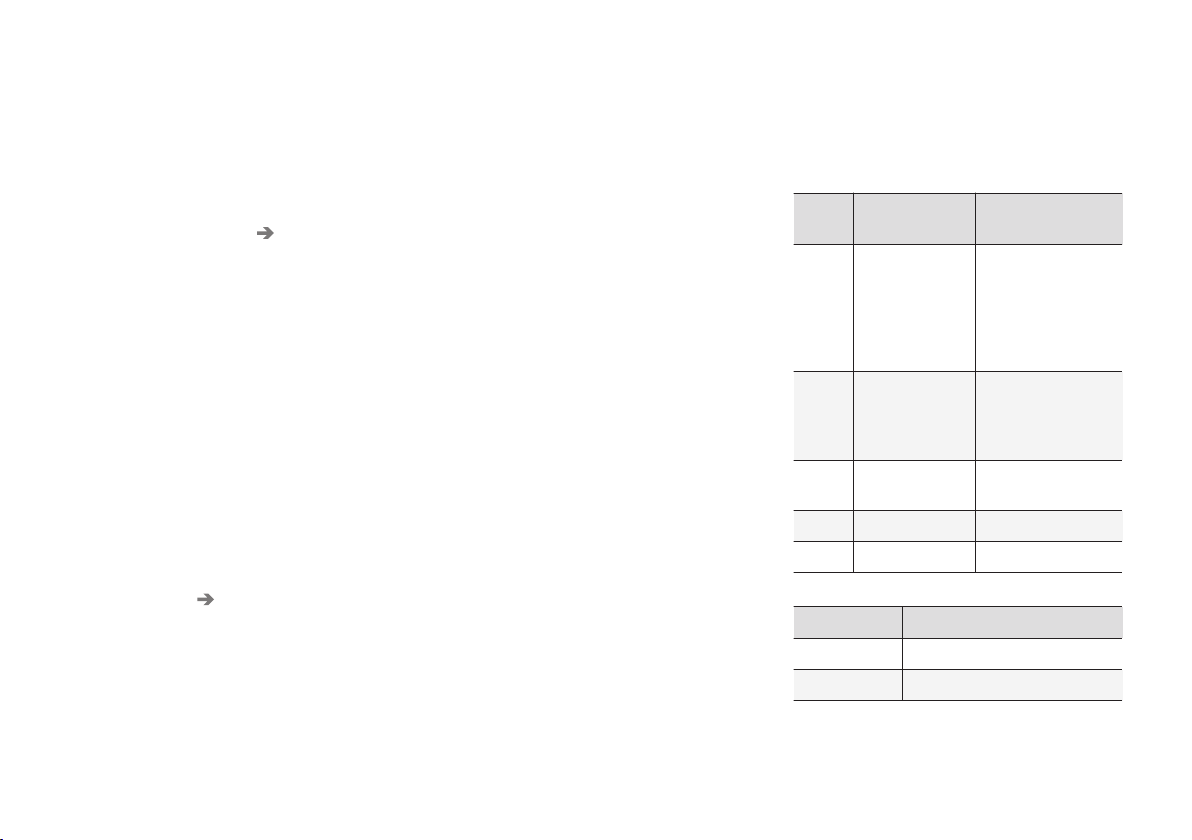
AUDIO AND MEDIA
}}
* Option/accessory.
479
Settings for Android Auto*
Settings for a phone that has been connected
the first time with Android Auto.
Automatic start
1.
Press
Settings in top view.
2.
Press
Communication Android Auto
and select setting:
•
Tick the box - Android Auto starts auto-
matically when the USB cable is con-
nected.
•
Untick the box - Android Auto does not
start automatically when the USB cable is
connected.
A maximum of 20 Android devices can be stored
in the list. When the list is full and a new device is
connected the oldest one is deleted.
A factory reset is required in order to delete the
list; see the section "Resetting settings in the
settings menu".
System volumes
1.
Press
Settings in top view.
2.
Tap on
Sound System Volumes and
make the settings for the following:
•
Voice Control
•
Navi Voice Guidance
•
Phone Ringtone
Related information
•
Android Auto* (p. 477)
•
Resetting settings in the settings menu
(p. 176)
•
Overview of the centre display (p. 33)
Technical specifications for media
Compatible file formats, audio specifications
and USB.
Audio files
For-
mat
File extension Codec
MP3 .mp3 MPEG1 Layer III,
MPEG2 Layer III,
MP3 Pro (mp3
compatible),
MP3 HD (mp3
compatible)
AAC .m4a, .m4b, .aac AAC LC (MPEG-4
part III Audio),
HE-AAC (aacPlus
v1/v2)
WMA .wma WMA8/9,
WMA9/10 Pro
WAV .wav LPCM
FLAC .flac FLAC
Video files
Format File extension
MP4 .mp4, m4v
MPEG-PS .mpg, .mp2, .mpeg, .m1v

||
AUDIO AND MEDIA
480
Format File extension
AVI .avi
AVI (DivX) .avi, divx
ASF .asf, .wmv
MKV .mkv
Subtitles
Format File extension
SubViewer .sub
SubRip .srt
SSA .ssa
DivX
®
DivX certified devices have been tested for high-
quality DivX (.divx, .avi) video playback. When you
see the DivX logo, you have the freedom to play
DivX films.
Profile DivX Home Theater
Video codec DivX, MPEG-4
Resolution 720x576
Bit rate 4.8Mbps
Frame rate 30 fps
File extension .divx, .avi
Max file size 4 GB
Audio codec MP3, AC3
Subtitles XSUB
Special func-
tions
Multiple subtitles, multiple
audio, resume play
Reference Meets all requirements of
the DivX Home Theater pro-
file. Visit divx.com for more
information and software
tools to convert your files
into DivX Home Theater
video.
Storage on USB device
In order for the system to read the USB device
correctly, the following specifications must be fol-
lowed. No folder structure will be shown in the
centre display during playback.
Max number
Files 15000
Folders 1000
Folder levels 8
Playlists 100
Items in a playlist 1000
Subfolders No limit
Technical specification for USB
connector
•
Type A socket
•
Version 2.0
•
Voltage supply 5 V
•
Current supply max. 2.1 A
Related information
•
Media player (p. 467)
•
Media playback (p. 467)
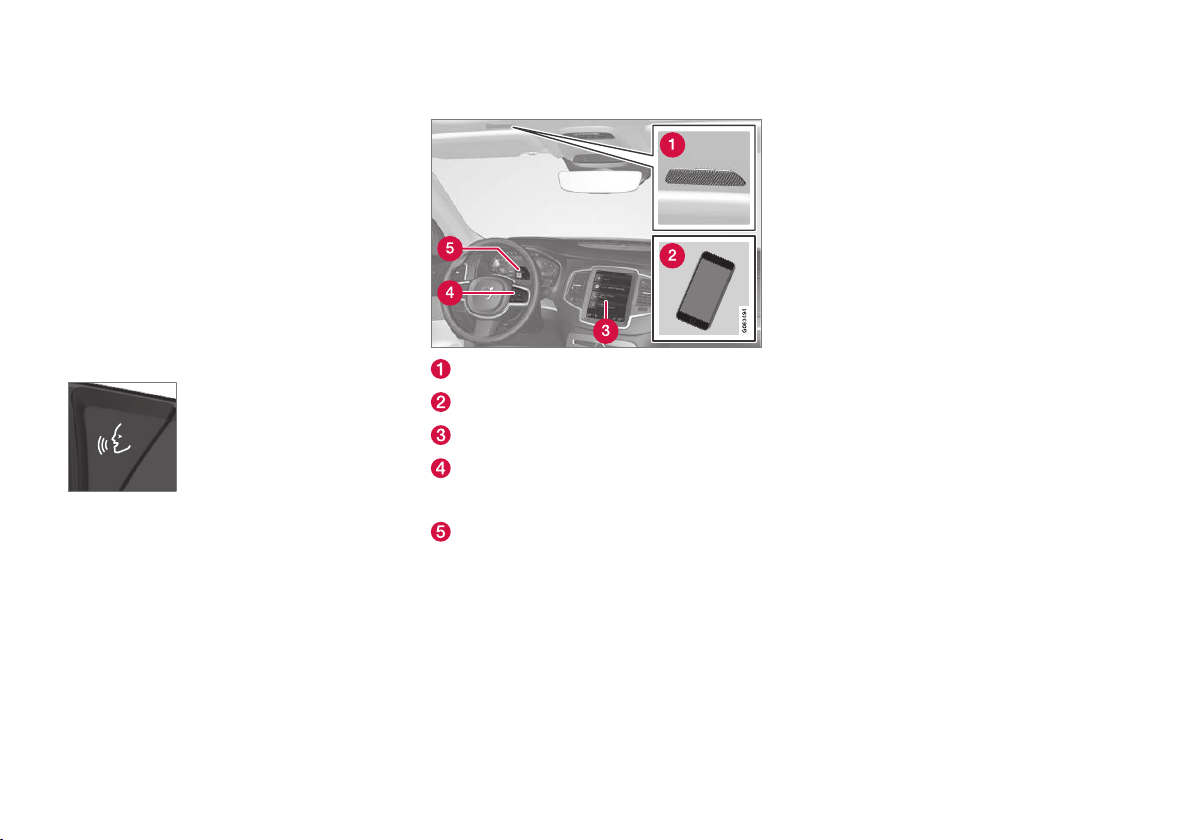
AUDIO AND MEDIA
481
Phone
A mobile phone equipped with Bluetooth can be
connected wirelessly to the car's built-in hands-
free system.
The audio and media system acts as a handsfree,
with the facility to remotely control a selection of
the mobile phone's functions. The mobile phone
can still be operated with its own keys if it is con-
nected to the car.
When a mobile phone has been paired with the
car and connected, it can be used make calls,
send/receive messages, stream media and used
as an Internet connection.
The phone is operated from the
centre display, but some opera-
tions are also available via voice
recognition and the app menu,
which are accessed from the
right-hand steering wheel key-
pad.
Overview
Microphone.
Mobile phone.
Phone operation from centre display.
Keypad for operating phone functions that
are shown in the driver display and voice rec-
ognition.
Driver display.
Related information
•
Connect phone (p. 482)
•
Connecting/disconnecting the phone
(p. 483)
•
Managing phone calls (p. 484)
•
Managing text messages (p. 485)
•
Settings for phone (p. 487)
•
Settings for text messages (p. 487)
•
Bluetooth
®
settings (p. 487)
•
Voice recognition (p. 117)
•
Using the application menu in the driver dis-
play (p. 108)
•
Media player (p. 467)

AUDIO AND MEDIA
482
Connect phone
Connect a Bluetooth-activated phone to the car
to make calls, send/receive messages, stream
media and connect the car to the Internet.
It is possible to have two Bluetooth devices con-
nected at once, in which case one of them can
only be streaming media. The most recently con-
nected phone will automatically be connected to
make calls, send/receive messages, stream
media and provide an Internet connection. To
change the use of the phone, see section
"Bluetooth settings".
Connection is performed once per device. After
connection, the Bluetooth device no longer
needs to be visible/searchable but only needs to
have Bluetooth activated. To connect the car to
the Internet via a phone, tethering must be acti-
vated on the phone. A maximum of 20 connected
Bluetooth devices can be stored in the car.
There are two options for connecting. Either
search the phone from the car or search the car
from the phone.
Option 1 - search phone from car
1. Make the phone searchable/visible via
Bluetooth.
2. To connect the car to the Internet via the
phone’s Bluetooth, activate tethering (porta-
ble/personal hotspot) via Bluetooth on the
phone.
3. Open the subview for phone.
•
If there is no phone connected to the car,
tap on
Add phone.
•
If there is a phone connected to the car,
tap on
Change . In the pop-up win-
dow, tap on Add phone.
> Available Bluetooth devices are listed. The
list is updated as new devices are
detected.
4. Tap on the name of the phone to be con-
nected.
5. Check that the specified number code in the
car matches that in the phone. In which case,
choose to accept in both places.
6. On the phone, choose to accept or reject any
options for phone contacts and messages.
NOTE
•
The message function must be activated
in certain phones.
•
Not all mobile phones are fully compati-
ble and may therefore not show contacts
and messages in the car.
Option 2 - search car from phone
1. Open the subview for phone.
•
If there is no phone connected to the car,
tap on
Add phone Make car
discoverable
.
•
If there is a phone connected to the car,
tap on
Change . In the pop-up win-
dow, tap on
Add phone Make car
discoverable
.
2. Activate Bluetooth on the phone.
3. To connect the car to the Internet via the
phone’s Bluetooth, activate tethering (porta-
ble/personal hotspot) via Bluetooth on the
phone.
4. Search on the phone for Bluetooth devices.
> Available Bluetooth devices are listed.
5. Select the name of the car on the phone.
6. Check that the specified number code in the
car matches that in the external device. In
which case, choose to accept in both places.
7. On the phone, choose to accept or reject any
options for phone contacts and messages.

AUDIO AND MEDIA
}}
* Option/accessory.
483
NOTE
•
The message function must be activated
in certain phones.
•
Not all mobile phones are fully compati-
ble and may therefore not show contacts
and messages in the car.
NOTE
If the phone's operating system is updated
then the connection may be broken. In which
case, delete the phone from the car and then
connect again.
Compatible phones
Many phones on the market now have wireless
Bluetooth technology, but not all of them are fully
compatible with the car. For compatibility, see
support.volvocars.com.
Related information
•
Phone (p. 481)
•
Connecting/disconnecting the phone
(p. 483)
•
Bluetooth
®
settings (p. 487)
•
Managing phone calls (p. 484)
•
Managing text messages (p. 485)
•
Online car* (p. 488)
Connecting/disconnecting the
phone
Connect, change or disconnect a connected
phone.
Connecting the phone automatically
It is only the two last connected phones that can
be connected automatically.
1. Activate Bluetooth in the phone before set-
ting the car in ignition position I.
To connect the car to the Internet at the
same time, tethering (portable/personal hot-
spot) in the phone must be activated.
2.
Set the car in ignition position I or higher.
> The phone will connect.
Connect the phone manually
1. Activate Bluetooth on the phone.
To connect the car to the Internet at the
same time, tethering (portable/personal hot-
spot) in the phone must be activated.
2. Open the subview for phone.
> Connected phones are listed.
3. Tap on the name of the phone to be con-
nected.
> The phone will connect.
Disconnecting the phone
–
Deactivate Bluetooth on the phone.
When the phone is out of range of the car it is
automatically disconnected. If disconnection
occurs during an active call then the call can be
continued on the phone.
Changing phones
1. Open the subview for phone.
2.
Press
Change .
> Available Bluetooth devices are listed.
3. Tap on the phone to be connected.
Removing a phone
1. Open the subview for phone.
2.
Press
Settings Communication
Bluetooth Devices.
> A list of connected Bluetooth devices is
displayed.
3. Tap on the phone to be removed.
4.
Tap on
Remove device and confirm your
selection.
> The phone is no longer connected with
the car.
Related information
•
Phone (p. 481)
•
Connect phone (p. 482)
•
Settings for phone (p. 487)
•
Bluetooth
®
settings (p. 487)
AUDIO AND MEDIA
}}
485
Private call
–
During the current call, press Privacy and
select setting:
•
Switch to mobile phone - the hands-
free function is disconnected and the call
continues on your mobile phone.
•
Driver focused - the microphone in the
roof on the passenger side is switched off
and the call continues with the car's
handsfree function.
Related information
•
Phone (p. 481)
•
Voice recognition control of the phone
(p. 120)
•
Using the application menu in the driver dis-
play (p. 108)
•
Using the keyboard in the centre display
(p. 49)
•
Settings for phone (p. 487)
Managing text messages
Message handling in the car for a Bluetooth-
connected phone.
In some phones, the message function must be
activated. Not all mobile phones are compatible.
In such cases, they cannot display contacts and
messages in the car. For compatibility, see
support.volvocars.com.
Managing text messages in the centre
display
Text messages are only shown in the centre dis-
play if the setting is selected; see the section
"Settings for text messages".
Press Messages in the app
view to manage text messages
in the centre display.
Reading a text message in the centre display
–
Press Read out to get the message read
aloud.
Sending text messages in the centre display
1. It is not possible to reply to a message or
create a new message.
•
Reply to message — tap on the contact
whose message you wish to reply to, then
tap on
Answer.
•
To create a new message – press
Create
new and then +. Select a contact or enter
a number.
2. Compose the message.
3.
Press
Send.
Managing text messages in the driver
display
Text messages are only shown in the driver dis-
play if the setting is selected; see the section
"Settings for text messages".
Reading a new text message in the driver
display
–
To have the message read aloud – select
Read out with the steering wheel keypad.
Dictating a reply in the driver display
After the text message is read aloud, a brief reply
can be created through dictation.
–
Press Answer with the steering wheel key-
pad. A dictation dialogue starts. For this func-
tion to work, the car must be connected to
the Internet.
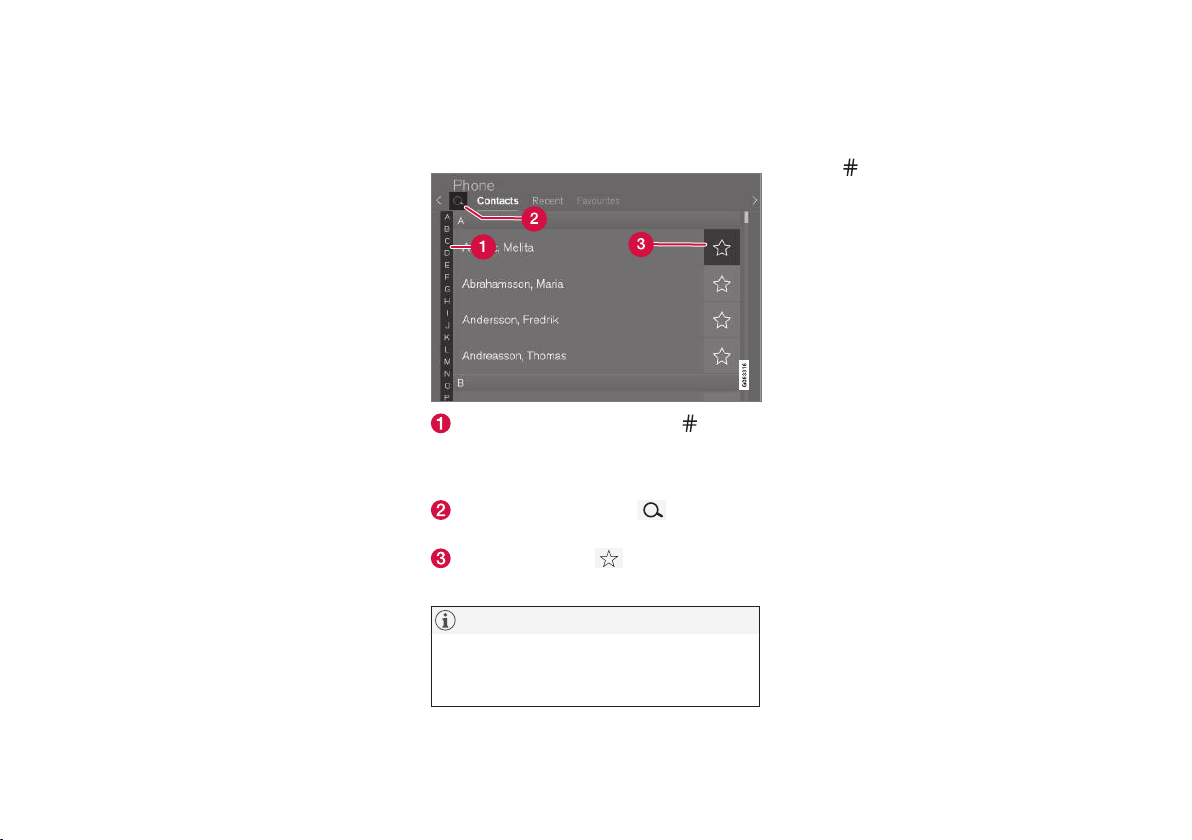
||
AUDIO AND MEDIA
486
Message notification
For notification settings, see section "Settings for
text messages".
Related information
•
Phone (p. 481)
•
Settings for text messages (p. 487)
•
Settings for phone (p. 487)
•
Voice recognition control of the phone
(p. 120)
•
Using the keyboard in the centre display
(p. 49)
•
Connecting the car (p. 488)
Managing the phone book
Contact handling in the car for a Bluetooth-con-
nected phone.
Browse between the letters and to find
a matching contact. Depending on existing
contacts in the phone book, only matching
letters are shown.
Search contacts - tap on to search for
a phone number of name in the contact list.
Favourites - tap on to add/remove a
contact to/from the favourites list.
NOTE
Only contacts from an active Bluetooth-con-
nected phone are shown in the centre display.
Up to 3000 contacts can be shown.
Sorting
The contact list is sorted in alphabetical order
where special characters and numbers are sorted
under
. The sort order can be made by first or
last name, see the section "Settings for phone"
for more information.
Related information
•
Phone (p. 481)
•
Voice recognition control of the phone
(p. 120)
•
Using the application menu in the driver dis-
play (p. 108)
•
Using the keyboard in the centre display
(p. 49)
•
Settings for phone (p. 487)

AUDIO AND MEDIA
* Option/accessory.
488
Online car*
An online car provides the ability to use e.g.
Internet radio and music services via apps as
well as contact dealers in the car and download
software.
The car is connected via Bluetooth, Wi-Fi or with
the car's built-in modem*.
When the car is connected to the Internet, its
Internet connection (Wi-Fi hotspot) can be
shared to allow other devices to use the Internet
connection
4
.
Connection status is indicated by the symbol in
the centre display's status bar.
Related information
•
Connecting the car (p. 488)
•
Apps (p. 460)
•
Book service and repair (p. 532)
•
System updates (p. 535)
•
Volvo ID (p. 23)
•
Symbols in the centre display's status bar
(p. 45)
•
Sharing Internet via Wi-Fi hotspot (p. 490)
Connecting the car
Connect the car to the phone via Bluetooth,
Wi-Fi or with the car's built-in modem*.
The mobile phone and network operator must
support tethering (sharing the Internet connec-
tion) and the plan must include data.
NOTE
Data is transferred when using the internet
(data traffic), which can have a cost.
Activation of data roaming can result in fur-
ther charges.
Contact your network operator about the cost
for data traffic.
NOTE
When using Apple CarPlay, it is only possible
to connect the car to the Internet using Wi-Fi
or car modem*.
NOTE
When using Android Auto, it is possible to
connect the car to the Internet using Wi-Fi,
Bluetooth or car modem*.
4
This does not apply in the case of connection with Wi-Fi.

AUDIO AND MEDIA
* Option/accessory.
491
Press
Connected devices to see a list of the
currently connected devices.
Related information
•
Online car* (p. 488)
•
Wi-Fi technologies and security (p. 492)
•
Symbols in the centre display's status bar
(p. 45)
•
No or poor connection (p. 491)
No or poor connection
Factors affecting the network.
The amount of data transferred is dependent on
the services or apps in use in the car. For exam-
ple, streaming audio can require large amounts of
data which requires a good connection and good
signal strength.
Mobile phone to car
The speed of the connection may vary depending
on the location of the mobile phone in the car.
Move the mobile phone handset closer to the
centre display in order to increase the signal
strength. Ensure that there is no source of inter-
ference in between.
Mobile phone to network
The speed of the mobile network varies depend-
ing on the coverage in the present location. Poor
network coverage may occur, for example in tun-
nels, in mountainous country, in deep valleys or
indoors. The speed also depends on the agree-
ment you have with your network.
NOTE
In the event of problems with data traffic, con-
tact your network operator.
Restarting the phone
If there are problems with the connection then it
may help to restart the phone.
Related information
•
Online car* (p. 488)
•
Connecting the car (p. 488)
AUDIO AND MEDIA
}}
* Option/accessory.
493
Change PIN - a maximum of 4 digits can be
entered.
Disable PIN - select whether the PIN code
shall be required for access to the SIM card.
•
Send request code — used e.g. to top up
or check the balance on a prepaid card.
Functionality depends on the provider.
Related information
•
Online car* (p. 488)
•
Sharing Internet via Wi-Fi hotspot (p. 490)
Downloading, updating and
uninstalling apps
Once the car is connected, it is possible to
download new apps, update existing apps or
uninstall apps.
NOTE
Data download may affect other services that
transmit data, e.g. Internet radio. If the effect
on other services is experienced as disruptive
then the download can be interrupted. Alter-
natively, it may be appropriate to switch off or
interrupt other services.
NOTE
When downloading using a mobile phone,
note the data download costs.
The apps are managed via
Download Centre in applica-
tion view.
To be able to download, update
or uninstall apps, the car must
be online.
Downloading an app
1.
Open the app
Download Centre.
2.
Select
New apps in order to open a list of
apps that are available but not installed in
the car.
3. Tap anywhere on the row for an app in order
to expand in the list and get more informa-
tion about the app.
4.
Select
Install in order to start the download
and installation of the desired app.
> The status of the download and installa-
tion is shown while it is in progress.
A message is shown if a download cannot
be started for the moment. The app will
remain in the list and it is possible to try to
start a download again.
Cancelling a download
–
Tap on Abort to cancel a download in pro-
gress.
Note that only the download can be cancelled —
installation cannot be cancelled once it has
begun.
Updating apps
If an app is being used during an ongoing update,
it will be restarted in order for the installation to
be completed.
Update all
1.
Open the app
Download Centre.
2.
Select
Install all.
> Updating is started.

AUDIO AND MEDIA
}}
495
License agreement for audio and
media
A license is an agreement granting a right to
conduct some activity or to make use of another
person's right under the terms and conditions of
the agreement. The following texts are Volvo's
agreements with manufacturers/developers.
Bowers & Wilkins
Bowers & Wilkins and B&W are trademarks of
the B&W Group Ltd. Nautilus is a trademark of
B&W Group Ltd. Kevlar is a registered trademark
of DuPont.
Dirac Unison
®
Dirac Unison co-optimises the loudspeakers in
frequency, time and space for the best possible
bass integration and clarity. It enables a faithful
reproduction of the acoustic characteristics of
specific performance venues. Using advanced
algorithms, Dirac Unison controls all loudspeak-
ers digitally based on acoustic high-precision
measurements. Like a conductor of an orchestra,
it guarantees that the loudspeakers perform in
perfect unison.
DivX
®
DivX
®
, DivX Certified
®
and associated logotypes
are trademarks belonging to DivX, LLC and are
used under licence.
This DivX Certified
®
device can play back DivX®
Home Theater video files up to 576p (includ-
ing .avi, .divx). Download free software on
www.divx.com to create, play back and stream
digital video.
ABOUT DIVX VIDEO-ON-DEMAND: This DivX
Certified
®
device must be registered in order to
play back purchased DivX Video-on-Demand
(VOD) films. Get the registration code by locating
the DivX VOD section in the device's settings
menu. Go to vod.divx.com for more information on
how to complete the registration.
Patent numbers
Protected by one or more of the following US
patents. 7,295,673; 7,460,668; 7,515,710;
8,656,183; 8,731,369; RE45,052.
Gracenote
®

||
AUDIO AND MEDIA
496
Parts of the content are copyright © of
Gracenote or its suppliers.
Gracenote,Gracenote logo and logotype,
"Powered by Gracenote" and Gracenote MusicID
are either registered trademarks or trademarks of
Gracenote, Inc. in the USA and/or other coun-
tries.
Gracenote
®
End User License Agreement
This program or device contains software from
Gracenote, Inc. of Emeryville, California, USA
("Gracenote"). The software from Gracenote
("Gracenote software") activates this program to
perform disc and/or file identification and obtain
music-related information, including name, artist,
track and title ("Gracenote data") from online
servers or embedded databases (together called
"Gracenote servers") and in order to perform
other actions. You may only use Gracenote data
in accordance with the intended end-user func-
tions for this program or this device.
You agree to only use Gracenote data, Gracenote
software and Gracenote servers for your own
personal non-commercial use. You agree not to
assign, copy, transfer or transmit this Gracenote
software or any Gracenote data to any third party.
YOU AGREE NOT TO USE OR EXPLOIT
GRACENOTE DATA, GRACENOTE SOFTWARE
OR GRACENOTE SERVERS, EXCEPT AS
EXPRESSLY PERMITTED IN THIS AGREEMENT.
You agree that your non-exclusive right to use
Gracenote data, Gracenote software and Grace-
note servers will be terminated if you violate
these restrictions. If your license is terminated
you agree to cease all use of Gracenote data,
Gracenote software and Gracenote servers.
Gracenote holds exclusive rights to all Gracenote
data, all Gracenote software and all Gracenote
servers, including all ownership rights. Gracenote
will under no circumstances have any obligation
to pay you for any information you provide. You
agree that Gracenote, Inc. may enforce the com-
pany's rights under this agreement against you
directly in its own name.
The Gracenote service uses a unique identifier to
track enquiries for statistical purposes. The pur-
pose of a randomly assigned numeric identifier is
to enable the Gracenote service to count enqui-
ries without knowing anything about who you are.
Additional information is available on the web
page for Gracenote's privacy policy for the Grace-
note service.
The Gracenote software and everything included
in Gracenote data are licensed to you "as is".
Gracenote provides no undertakings or warran-
ties, express or implied, as to the accuracy of the
Gracenote data contained in the Gracenote serv-
ers. Gracenote reserves the right to delete data
from the Gracenote servers or to change data
categories for any reason that Gracenote deems
sufficient. No warranty is provided that the Grace-
note software or Gracenote servers are fault-free
or that the Gracenote software or Gracenote
servers will operate without interruption. Grace-
note has no obligation to provide you with new,
improved or additional data types or categories
that Gracenote may provide in the future, and the
company reserves the right to discontinue its
services at any time.
GRACENOTE DISCLAIMS ALL WARRANTIES,
EITHER EXPRESS OR IMPLIED, INCLUDING,
BUT NOT LIMITED TO, THE IMPLIED WARRAN-
TIES OF MERCHANTABILITY, FITNESS FOR A
PARTICULAR PURPOSE, TITLE AND NON-
INFRINGEMENT OF INTELLECTUAL PROP-
ERTY RIGHTS. GRACENOTE DOES NOT GUAR-
ANTEE THE RESULTS OBTAINED THROUGH
YOUR USE OF THE GRACENOTE SOFTWARE
OR A GRACENOTE SERVER. GRACENOTE
WILL IN NO EVENT BE LIABLE FOR ANY CON-
SEQUENTIAL DAMAGE OR FOR ANY LOST
PROFITS OR REVENUES.
© Gracenote, Inc. 2009
Sensus software
This software uses parts of sources from clib2
and Prex Embedded Real-time OS - Source
(Copyright (c) 1982, 1986, 1991, 1993, 1994),
and Quercus Robusta (Copyright (c) 1990,
1993), The Regents of the University of
California. All or some portions are derived from
material licensed to the University of California by
American Telephone and Telegraph Co. or Unix
System Laboratories, Inc. and are reproduced
herein with the permission of UNIX System
Laboratories, Inc. Redistribution and use in

AUDIO AND MEDIA
}}
499
dealings in these Data Files or Software without
prior written authorization of the copyright holder.
Declaration of Conformity for
Bluetooth
®
module
AUDIO AND MEDIA
}}
501
Country/
Area
Kazakh-
stan:
Model name: NR 0V
Manufacturer: Mitsubishi Electric Corporation
Exporting country: Japan

AUDIO AND MEDIA
}}
503
Country/
Area
Korea:
B 급 기기 (가정용 방송통신기자재)
이 기기는 가정용(B 급) 전자파적합기기로서 주로
가정에서 사용하는 것을 적으로 하며, 든
지역에서 사용할 수 있습니다.
해당 무선설비는 전파혼신 가능성이 있으므로 인명안전과 관련된 서비스는 할 수 없습니다.
Malaysia
This device has been certified under the Communications & Multimedia Act of 1998, Communications and Multimedia (Technical Standards)
Regulations 2000.To retrieve your device’s serial number, please visit (support.volvocars.com) and search for “SIRIM Label Verification”.
Device category: Navigation equipment for vehicle (Bluetooth)
Model: NR-0V
Type Approval No.:
RBAY/18A/1015S(15-4067)


WHEELS AND TYRES
508
Tyres
Amongst other things, the function of the tyres is
to carry load, provide grip on the road surface,
dampen vibration and protect the wheel from
wear.
The tyres greatly affect the car's driving characte-
ristics. The type of tyre, dimensions, tyre pressure
and speed rating are important for how the car
performs.
Recommended tyres
On delivery, the car is equipped with Volvo origi-
nal tyres that have the VOL
1
marking on the side
of the tyres. These tyres are carefully adapted to
the car. In the event of changing tyres, it is there-
fore important that the new tyres also have this
marking in order for the car's driving characteris-
tics, comfort and fuel consumption to be main-
tained.
New tyres
Tyres are perishable. After a few years they begin
to harden at the same time as the friction
capacity/characteristics gradually deteriorate. For
this reason, aim to get as fresh tyres as possible
when you replace them. This is especially impor-
tant with regard to winter tyres. The last four dig-
its in the sequence mean the week and year of
manufacture. This is the tyre's DOT marking
(Department of Transportation), and this is stated
with four digits, for example 0717. The tyre in the
figure was manufactured in week 07 of 2017.
Tyre age
All tyres older than 6 years old should be
checked by an expert even if they seem undam-
aged. Tyres age and decompose, even if they are
hardly ever or never used. The function can
therefore be affected. This applies to all tyres that
are stored for future use. Examples of external
signs which indicate that the tyre is unsuitable for
use are cracks or discoloration.
Wear and maintenance
Correct tyre pressure results in more even wear.
Driving style, tyre pressure, climate and road con-
dition affect how quickly the tyres age and wear.
To avoid differences in tread depth and to pre-
vent wear patterns forming on the tyres, the front
and rear wheels can be switched with each other.
A suitable distance for the first change is approx.
5000 km and then at 10000 km intervals.
Volvo recommends the an authorised Volvo work-
shop is contacted for checking if you are uncer-
tain about tread depth. If significant differences in
wear (> 1 mm difference in tread depth) between
tyres have already occurred, then the least worn
tyres must always be fitted on the rear. Under-
steer is normally easier to correct than oversteer,
and leads to the car continuing forwards in a
straight line rather than having the rear end skid-
ding to one side, resulting in possible complete
loss of control over the car. This is why it is
important for the rear wheels never to lose grip
before the front wheels.
WARNING
A damaged tyre may lead to loss of control
over the car.
1
There may be deviations for certain tyre dimensions.

||
WHEELS AND TYRES
* Option/accessory.
512
General information on the tyre monitoring
system
In the information below, the tyre monitoring sys-
tem is referred to generically as TPMS.
Each tyre, including the spare tyre*, should be
checked once a month. When checking, the tyre
should be cold and have the air pressure recom-
mended by the car manufacturer specified on the
tyre pressure label or in the tyre pressure table. If
the car has tyres of a different size than that rec-
ommended by the manufacturer, find out what
the correct air pressure level is for these.
As an extra safety feature, the car is equipped
with a tyre pressure monitoring system (TPMS),
which shows when the air pressure in one or
more tyres is too low. When the indicator symbol
for low air pressure is lit, stop and check the tyres
as soon as possible and inflate to the correct air
pressure.
Driving with tyres that have tyre pressure that is
too low may cause the tyre to overheat, which
can cause a puncture. Low tyre pressure also
reduces fuel efficiency as well as tyre service life,
and can affect car handling and stopping ability.
Note that TPMS does not replace regular tyre
maintenance. It is the driver's responsibility to
maintain correct tyre pressure, even if the limit for
low tyre pressure has not been reached so that
the indicator symbol illuminates.
The car is also equipped with a TPMS system
fault indicator, which indicates when the system
is not functioning correctly. The TPMS system
fault indicator is combined with the indicator sym-
bol for low tyre pressure. When the system
detects a fault, the symbol in the driver display
will flash for about one minute and then remain
illuminated. This procedure will be repeated when
the car is started until the fault has been rectified.
When the symbol is illuminated, the system's abil-
ity to detect or warn of low tyre pressure may be
affected.
A TPMS system fault can occur for several rea-
sons, such as after changing to a spare tyre, or
changing tyres or wheels that prevent TPMS from
functioning correctly.
Always check the indicator symbol for TPMS
after changing one or more tyres in order to
ensure the new tyre or wheel is working correctly
with TPMS.
Messages in the driver display
The following messages may be shown when the
indicator symbol is illuminated:
•
Tyre pressure low Check tyres, calibrate
after fill
•
Tyre pressure system Temporarily
unavailable
•
Tyre pressure system Service required.
If the system cannot determine which tyre has
low pressure, all four tyres will be indicated in the
centre display.
To bear in mind
•
Always calibrate the system after a wheel
change or tyre pressure adjustment. See the
tyre pressure label on the driver's side door
pillar for Volvo's recommended tyre pres-
sures.
•
The system does not replace normal tyre
maintenance.
•
There is no option to deactivate ITPMS.
Related information
•
Tyres (p. 508)
•
Checking tyre pressure with the tyre monitor-
ing system* (p. 513)
•
Calibrating tyre monitoring* (p. 515)
•
Rectifying low tyre pressure with tyre moni-
toring* (p. 514)
||
WHEELS AND TYRES
518
5. Screw in the bottle to the bottom of the bot-
tle holder.
> The bottle and the bottle holder are
equipped with a reverse catch to prevent
sealant leakage. When the bottle is
screwed in it cannot be unscrewed from
the bottle holder again. Bottle removal
must be performed at a workshop, Volvo
recommends an authorised Volvo work-
shop.
WARNING
•
In the event of skin contact with the seal-
ing fluid, it must be washed off immediately
with soap and plenty of water.
•
Sealing fluid that makes contact with an
eye must be rinsed away immediately with
eye wash fluid or with plenty of water. If the
discomfort persists then the eye should be
examined by a doctor.
WARNING
Do not unscrew the bottle, it is equipped with
a reverse catch to prevent leakage.
6. Unscrew the tyre's dust cap.
Check that the pressure reducing valve on
the air hose is fully screwed on, and screw in
the air hose's valve connection to the bottom
of the tyre valve's thread.
7. Connect the electrical cable to the closest
12 V socket and start the car.
NOTE
Make sure that none of the other 12 V sock-
ets is in use when the compressor is operat-
ing.
WARNING
Do not leave children in the car without
supervision when the engine is running.
8. Start the compressor by flicking the switch to
position I (On).
WARNING
Never stand next to the tyre when the com-
pressor is running. If cracks or unevenness
arise then the compressor must be switched
off immediately. The journey should not be
continued. Call roadside assistance for recov-
ery to a tyre centre. Volvo recommends an
authorised tyre centre.
NOTE
When the compressor starts, the pressure
can increase up to 6 bar (88 psi) but the
pressure drops after approximately
30 seconds.
9. Inflate the tyre for 7 minutes.
IMPORTANT
The compressor must not be operated for
longer than 10 minutes - risk of overheating.
WHEELS AND TYRES
}}
519
10. Switch off the compressor to check the pres-
sure on the pressure gauge. Minimum pres-
sure is 1.8 bar (22 psi) and maximum is
3.5 bar (51 psi). Release air using the pres-
sure reducing valve if the tyre pressure is too
high.
WARNING
If the pressure is below 1.8 bar (22 psi) then
the hole in the tyre is too big. The journey
should not be continued. Call roadside assis-
tance for recovery to a tyre centre. Volvo rec-
ommends an authorised tyre centre.
11. Switch off the compressor and detach the
electrical cable.
12. Unscrew the air hose from the tyre valve and
refit the dust cap on the tyre.
13. Fit the protective cap on the air hose in order
to avoid leakage of the remaining sealing
fluid. Place the equipment in the cargo area.
14. As soon as possible, drive at least 3 km
(2 miles) at a maximum speed of 80 km/h
(50 mph) so that the sealing fluid can seal
the tyre, and then perform a follow-up check.
NOTE
Sealant will spurt out of the puncture during
the first few rotations of the tyre.
WARNING
Make sure that nobody is standing near the
car and gets the sealing fluid splashed onto
them when the car is driven away. The dis-
tance should be at least 2 metres (7 feet).
15.
Follow-up inspection
Connect the air hose on the tyre valve and
screw in the valve connection to the bottom
of the tyre valve's thread. The compressor
must be switched off.
16. Read the tyre pressure on the pressure
gauge.
•
If it is below 1.3 bar (19 psi) then the tyre
is insufficiently sealed. The journey should
not be continued. Call roadside assistance
for recovery.
•
If the tyre pressure is higher than 1.3 bar
(19 psi), the tyre must be inflated to the
pressure specified in accordance with the
tyre pressure label on the driver's side
door pillar (1 bar = 100 kPa). Release air
using the pressure reducing valve if the
tyre pressure is too high.
17. If the tyre needs to be inflated:
1. Connect the electrical cable to the closest
12 V socket and start the car.
2. Start the compressor and inflate the tyre
to the pressure specified in accordance
with the tyre pressure label.
3. Switch off the compressor.

||
WHEELS AND TYRES
520
18. Remove the tyre sealing equipment.
Fit the protective cap on the air hose in order
to avoid leakage of the remaining sealing
fluid.
WARNING
Do not unscrew the bottle, it is equipped with
a reverse catch to prevent leakage.
19. Refit the dust cap on the tyre.
NOTE
•
After a tyre has been inflated, always refit
the dust cap in order to avoid damage to
the valve from gravel, dirt, etc.
•
Only use plastic dust caps. Metal dust
caps can rust and become difficult to
unscrew.
NOTE
The sealing fluid bottle and the hose must be
replaced after use. Volvo recommends that
this replacement is performed by an author-
ised Volvo workshop.
WARNING
Check the tyre pressure regularly.
Volvo recommends that the car is driven to the
nearest authorised Volvo workshop for the
replacement/repair of the damaged tyre. Advise
the workshop that the tyre contains sealing fluid.
WARNING
•
You should not drive faster than 80 km/h
(50 mph) after the emergency tyre repair
kit has been used.
•
Maximum mileage with tyres containing
sealing fluid is 200 km (120 miles).
•
Volvo recommends visiting an authorised
Volvo workshop as soon as possible for
inspection of the sealed tyre. The staff
there can determine whether or not the
tyre can be repaired or if it needs to be
replaced.
Related information
•
Emergency puncture repair kit (p. 516)
Inflate tyres with the compressor
from the emergency puncture repair
kit
The car's original tyres can be inflated using the
compressor in the emergency puncture repair
kit.
1. The compressor must be switched off. Make
sure that the switch is in position 0 (Off), and
take out the electrical cable and the air hose.
2. Unscrew the tyre's dust cap and screw in the
air hose's valve connection to the bottom of
the thread on the tyre's air valve. Check that
the pressure reducing valve on the air hose
is fully screwed in.
3. Connect the electrical cable to the closest
12 V socket and start the car.
WARNING
Inhaling car exhaust fumes could result in
danger to life. Never leave the engine running
in sealed areas or areas that lack sufficient
ventilation.
WARNING
Do not leave children in the car without
supervision when the engine is running.
4. Start the compressor by flicking the switch to
position I (On).
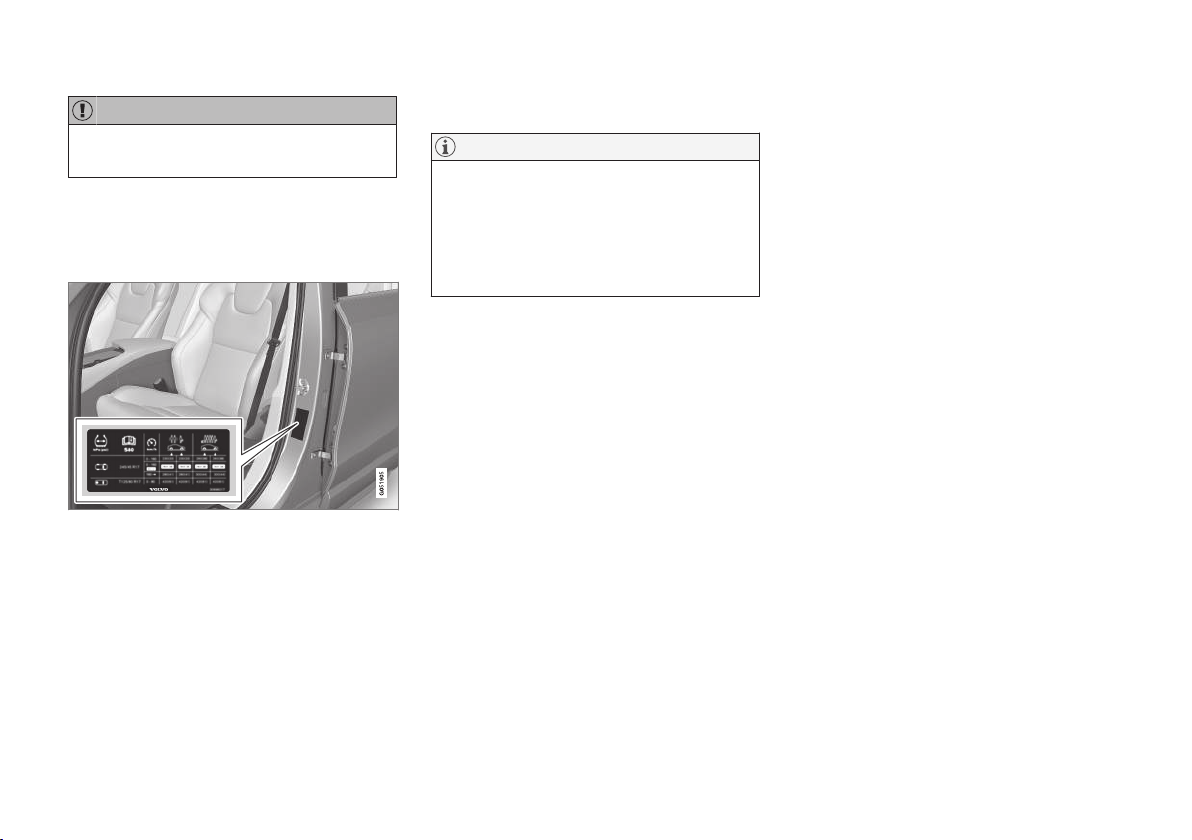
WHEELS AND TYRES
* Option/accessory.
521
IMPORTANT
Risk of overheating. The compressor must not
run for more than 10 minutes.
5. Inflate the tyre to the pressure specified on
the tyre pressure label on the driver side door
pillar. Release air using the pressure reduc-
ing valve if the tyre pressure is too high.
6. Switch off the compressor. Detach the air
hose and the electrical cable.
7. Refit the dust cap on the tyre.
NOTE
•
After a tyre has been inflated, always refit
the dust cap in order to avoid damage to
the valve from gravel, dirt, etc.
•
Only use plastic dust caps. Metal dust
caps can rust and become difficult to
unscrew.
Related information
•
Emergency puncture repair kit (p. 516)
•
Approved tyre pressures (p. 598)
When changing wheels
The car's wheels can be changed, e.g. to winter
wheels or a spare wheel.
Follow the relevant instructions for removing and
fitting wheels.
When changing to another tyre
dimension
Check that the tyre dimension is approved for
use on the car.
Contact an authorised Volvo workshop for updat-
ing the software at each change of tyre dimen-
sion. A software download may be necessary
both when changing to larger and smaller dimen-
sions, and also when switching between summer
and winter wheels.
Related information
•
Removing a wheel (p. 522)
•
Fitting the wheels (p. 523)
•
Approved wheel and tyre sizes (p. 596)
•
Tool kit (p. 526)
•
Winter wheels (p. 525)
•
Spare wheel* (p. 524)
•
Wheel bolts (p. 524)
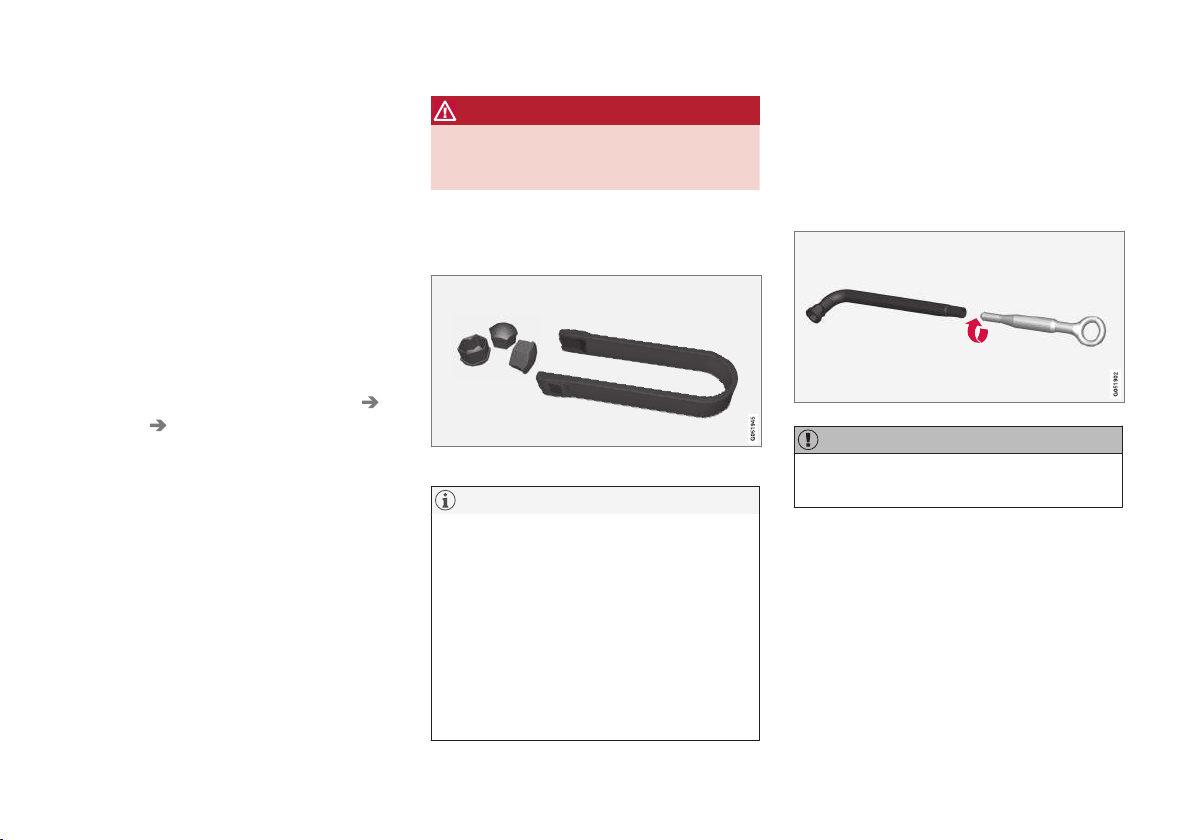
WHEELS AND TYRES
* Option/accessory.
522
Removing a wheel
Instructions for removing a wheel when chang-
ing wheels.
1. Set up the warning triangle and activate the
hazard warning lights if a tyre is being
changed in a trafficked location.
2. Apply the parking brake and engage gear
position P.
Applies to cars with
Leveling Control*: If
the car is equipped with air suspension, this
must be disabled before the car is raised
with a jack*.
Deactivate the function via the top view of
the centre display by pressing
Settings
My Car Parking Brake and Suspension
and selecting Disable Leveling Control.
WARNING
Check that the jack is not damaged, that the
threads are thoroughly lubricated and that it is
free from dirt.
3.
Take out the jack*, wheel wrench* and tools
for the wheel bolts' plastic caps that are fitted
in the foam block.
Tool for removing the plastic caps on the wheel bolts.
NOTE
The normal car jack is only designed for occa-
sional, short-term use, such as when chang-
ing a wheel after a puncture, changing to win-
ter/summer wheels, etc. Only the jack for the
specific car model may be used to raise the
car. If the car is to be jacked up more often, or
for a longer time than is required just to
change a wheel, use of a garage jack is rec-
ommended. In this instance, follow the
instructions for use that come with the equip-
ment.
4. Place chocks in front of and behind the
wheels which will remain on the ground to
prevent them from rolling. Use heavy wooden
blocks or large stones for example.
5. Screw together the towing eye with the
wheel wrench* to the stop position.
IMPORTANT
The towing eye must be screwed all the way
into the wheel bolt wrench*.
6. Remove the plastic caps from the wheel
bolts with the intended tool.
7. Loosen the wheel bolts ½-1 turn anticlock-
wise with the wheel wrench*.

WHEELS AND TYRES
}}
* Option/accessory.
523
WARNING
Never position anything between the ground
and the jack, nor between the jack and the
car's jacking point.
IMPORTANT
The ground must be firm, smooth and level.
8. When raising the car, it is important that the
jack* or lifting arms are fitted in the intended
points on the car's underbody. The triangle
markings in the plastic cover indicate the
locations of the jacking/lifting points. There
are two jacking points on each side of the
car. There is a recess for the jack at each
point.
Crank up the jack* so that it makes contact
with the car's jacking point. Check that the
head of the jack is correctly positioned in the
jacking point so that the bump in the centre
of the head fits into the jacking point hole
and the base is positioned vertically below
the jacking point. Also make sure you turn
the jack so that the crank is as far away from
the side of the car as possible, at which point
the jack's arms are perpendicular to the
direction of the car.
WARNING
Never crawl under the car when it is raised on
the jack.
Passengers must leave the car when it is
raised on the jack. If a wheel must be
changed in a trafficked environment, passen-
gers must stand in a safe place.
9. Lift the car so that the wheel is free. Remove
the wheel bolts and lift off the wheel.
Related information
•
When changing wheels (p. 521)
•
Raise the car (p. 537)
•
Fitting the wheels (p. 523)
•
Tool kit (p. 526)
Fitting the wheels
Instructions for fitting a wheel when changing
wheels.
WARNING
Never crawl under the car when it is raised on
the jack.
Passengers must leave the car when it is
raised on the jack. If a wheel must be
changed in a trafficked environment, passen-
gers must stand in a safe place.
1. Clean the contact surfaces between wheel
and hub.
2. Put on the wheel. Tighten the wheel bolts
thoroughly.
Do not use lubricant on the threads of the
wheel bolts.
3. Lower the car so that the wheels cannot
rotate.
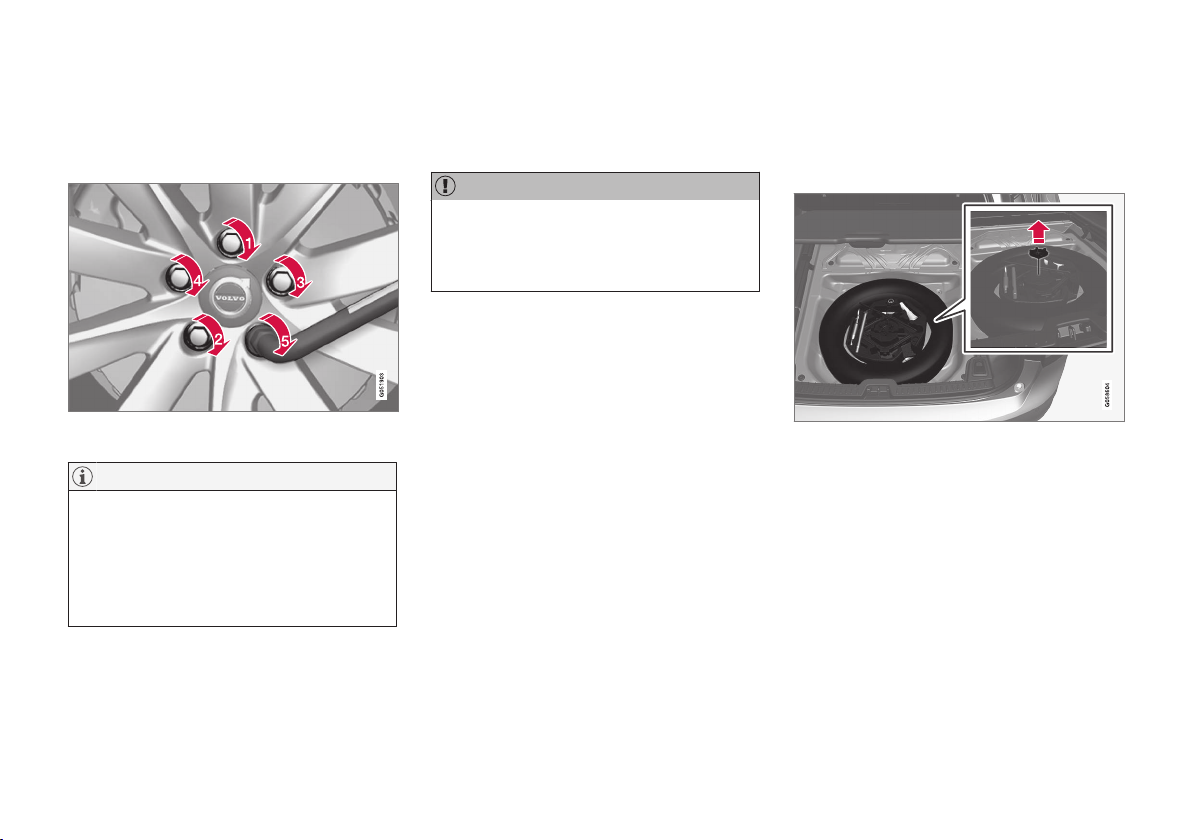
||
WHEELS AND TYRES
* Option/accessory.
524
4. Tighten the wheel bolts crosswise. It is impor-
tant that the wheel bolts are tightened prop-
erly. Tighten to 140 Nm (103 ft.lbs.). Check
the tightening torque with a torque wrench.
5. Refit the plastic caps on the wheel bolts.
NOTE
•
After a tyre has been inflated, always refit
the dust cap in order to avoid damage to
the valve from gravel, dirt, etc.
•
Only use plastic dust caps. Metal dust
caps can rust and become difficult to
unscrew.
Related information
•
Removing a wheel (p. 522)
•
When changing wheels (p. 521)
•
Spare wheel* (p. 524)
Wheel bolts
Wheel bolts are used to attach the wheels to the
hubs.
IMPORTANT
The wheel bolts must be tightened to
140 Nm (103 ft. lbs.). Overtightening or loose
tightening may damage the nuts and the
bolts.
Only use rims that are tested and approved by
Volvo and which are Volvo genuine accessories.
Check the tightening torque of the wheel bolts
with a torque wrench.
Do not use lubricant on the threads of the wheel
bolts.
Locking wheel bolts*
In the foam block under the cargo area floor
there is space for the sleeve for the lockable
wheel bolts.
Related information
•
When changing wheels (p. 521)
Spare wheel*
The spare wheel, the Temporary spare type, can
be used to temporarily replace a punctured nor-
mal wheel.
The illustration is schematic - the shape of the foam
block may vary depending on car model.
The spare wheel is located in the spare wheel
well with the outside down. The same bolt runs
through to secure the spare wheel and the foam
block. The foam block contains all tools for
changing a wheel, see the section "Tool kit".
The car's handling may be altered by the use of
the spare wheel. The spare wheel must be
replaced by a normal wheel as soon as possible.
The spare wheel is smaller than the regular
wheel, which will affect the car's ground clear-
ance. Pay attention to high kerbs and do not
machine wash the car.
WHEELS AND TYRES
}}
* Option/accessory.
525
•
Follow the manufacturer's recommended tyre
pressure for the spare wheel.
•
On all-wheel drive cars the drive on the rear
axle can be disconnected.
•
If the spare wheel is fitted on the front axle, it
is not possible to use snow chains at the
same time.
•
The spare wheel must not be repaired.
IMPORTANT
•
Never drive faster than 80 km/h
(50 mph) with a spare wheel on the car.
•
The car must never be driven fitted with
more than one "Temporary Spare" wheel.
Taking out the spare wheel
1. Fold up the cargo area floor, from the rear
and forwards.
2. Undo the retaining screw.
3. Lift out the foam block with its tools.
4. Lift out the spare wheel.
Storing the punctured tyre
1. Take out the wheel bag enclosed in the foam
block and put the wheel in the bag.
2. Put the tools back in their right place in the
foam block and lift it back into the car.
3. Screw in the foam block using the mounting
screws and then fold down the cargo area
floor.
4. Place the punctured tyre in the cargo area.
Related information
•
Removing a wheel (p. 522)
•
Fitting the wheels (p. 523)
•
Tool kit (p. 526)
•
Jack* (p. 527)
Winter wheels
Winter wheels are adapted for winter road con-
ditions.
Volvo recommends winter tyres with particular
dimensions. Tyre dimensions are dependent on
engine variant. When driving on winter tyres, the
correct type of tyres must be fitted to all four
wheels.
NOTE
Contact a Volvo dealer for advice about which
wheel rim and type of tyre are most suitable.
Tips for changing to winter tyres
When summer and winter wheels are changed,
mark which side of the car they were mounted
on, for example L for left and R for right.
Studded tyres
Studded winter tyres should be run in gently for
500-1000 km so the studs settle properly into
the tyres. This gives the tyre, and especially the
studs, a longer service life.
NOTE
The legal provisions for the use of studded
tyres vary from country to country.
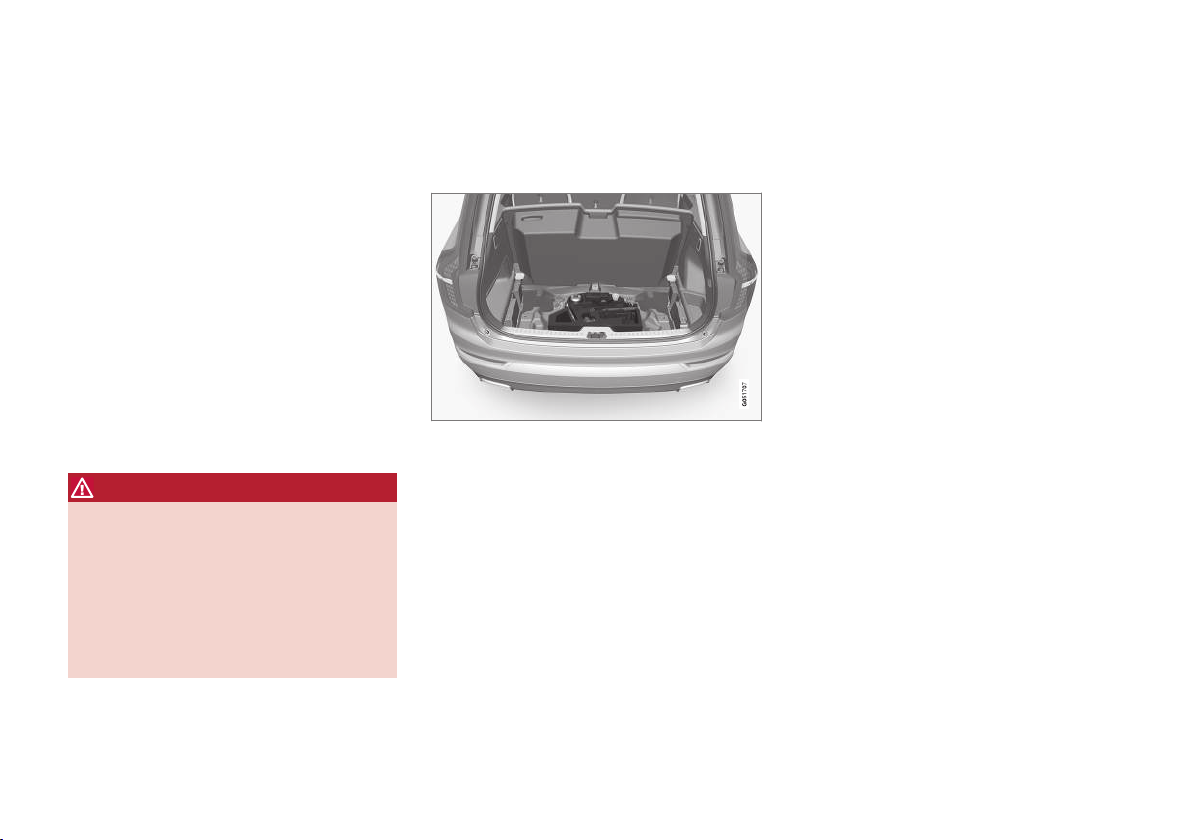
||
WHEELS AND TYRES
* Option/accessory.
526
Tread depth
Road conditions with ice, slush and low tempera-
tures place considerably higher demands on tyres
than summer conditions. Volvo therefore recom-
mends not to drive on winter tyres that have a
tread depth of less than 4 mm.
Snow chains
Volvo recommends that snow chains are not
used on wheel dimensions greater than
19 inches.
Mounting instructions are supplied with Volvo
original snow chains.
Snow chains may only be used on the front
wheels (also applies to all-wheel drive cars).
Never drive faster than 50 km/h (30 mph) with
snow chains. Avoid driving on bare ground as this
wears out both the snow chains and tyres.
WARNING
Use Volvo genuine snow chains or equivalent
chains designed for the car model, and tyre
and rim dimensions. Only single-sided snow
chains are permitted.
In the event of uncertainty about the show
chain, Volvo recommends that an authorised
Volvo workshop should be contacted. The
wrong snow chains may cause serious dam-
age to the car and lead to an accident.
Related information
•
When changing wheels (p. 521)
Tool kit
Tools that can be useful during towing, wheel
changes or similar are found in the car's cargo
area.
The foam block under the cargo area floor con-
tains the car's towing eye, puncture repair kit, tool
for removing the plastic caps from the wheel
bolts and a socket for the lockable wheel bolts.
If the car is equipped with spare wheel* then a
jack* and wheel wrench* are included, as well as
a package* with disposable gloves and a bag for
the damaged wheel.
Related information
•
When changing wheels (p. 521)
•
Jack* (p. 527)
•
Warning triangle (p. 527)
•
First aid kit (p. 528)
•
Towing eye (p. 456)
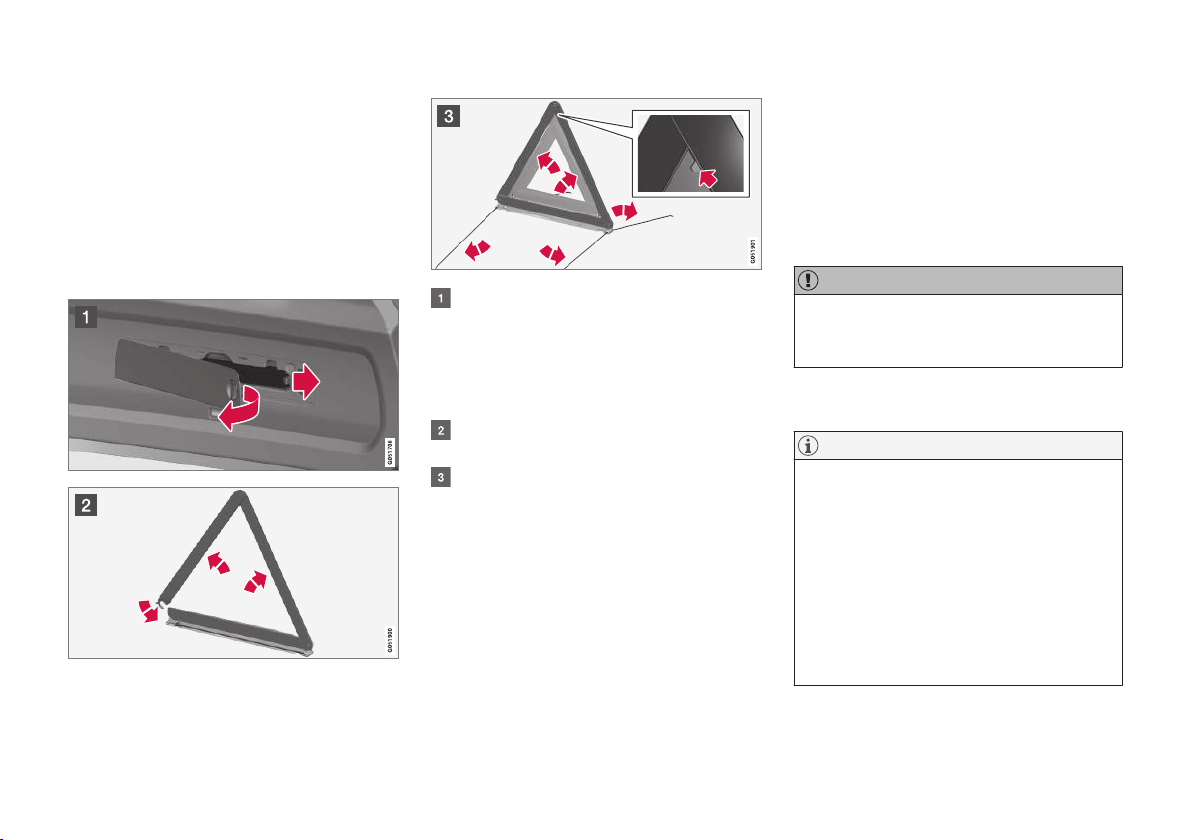
WHEELS AND TYRES
}}
* Option/accessory.
527
Warning triangle
Use the warning triangle to warn other road
users if the car is stationary in traffic.
Also activate the hazard warning flashers.
Storage spaces
The warning triangle is located in the compart-
ment on the inside of the tailgate.
Folding up the warning triangle
Open the hatch by first turning the knob a
quarter turn and then pulling the hatch from
its brackets in the top and bottom edges.
Press the latch that secures the warning tri-
angle slightly to the right and remove the
case.
Remove the warning triangle from the case,
unfold it and put the ends together.
Fold out the warning triangle's support legs.
Follow the regulations for the use of a warning
triangle. Position the warning triangle in a suita-
ble place with regard to traffic.
Make sure that the warning triangle and case are
properly secured in their storage space and that
the hatch is fully closed after use.
Related information
•
Tool kit (p. 526)
•
Hazard warning flashers (p. 146)
Jack*
Use the jack to raise the car when changing a
wheel.
Only use the original jack when fitting a spare
wheel or when changing between summer and
winter wheels. The jack's thread must always be
well greased.
IMPORTANT
The tools and jack* must be stored in the
intended location in the car's cargo area
when not in use.
The jack needs to be cranked together to the
correct position in order to have space.
NOTE
The normal car jack is only designed for occa-
sional, short-term use, such as when chang-
ing a wheel after a puncture, changing to win-
ter/summer wheels, etc. Only the jack for the
specific car model may be used to raise the
car. If the car is to be jacked up more often, or
for a longer time than is required just to
change a wheel, use of a garage jack is rec-
ommended. In this instance, follow the
instructions for use that come with the equip-
ment.

WHEELS AND TYRES
529
Dimension designation for tyre
Designations for tyre dimension, load index and
speed rating.
The car has an approval for the complete vehicle
with certain combinations of wheel rims and
tyres.
Designation of dimensions
All tyres have a dimension designation, such as
235/60 R18 103 H.
235 Tyre width (mm)
60 Ratio between tyre wall height and tyre
width (%)
R Radial ply
18 Rim diameter in inches
103 Codes for the maximum permitted tyre
load, tyre load index (LI)
H Speed rating for maximum permitted
speed, speed rating (SS). (In this case
210 km/h (130 mph).)
Load index
Each tyre has a certain capacity to carry a load, a
load index (LI). The car's weight determines the
load capacity required of the tyres. The lowest
permitted load index is specified in a load index
table.
Speed rating
Each tyre can withstand a certain maximum
speed. Tyre speed rating, SS (Speed Symbol),
must at least correspond with the car's top
speed. The table below shows the maximum per-
mitted speed for each speed rating (SS). The
only exception to these regulations is winter
tyres
3
, where a lower speed rating may be used.
If such a tyre is chosen, the car must not be
driven faster than the speed rating of the tyre (for
example, class Q can be driven at a maximum of
160 km/h (100 mph).) The top speed at which
the car can be driven depends on road condi-
tions, not the speed rating of the tyres.
NOTE
The maximum permitted speed is specified in
the table.
Q 160 km/h (100 mph) (used only on win-
ter tyres)
T 190 km/h (118 mph)
H 210 km/h (130 mph)
V 240 km/h (149 mph)
W 270 km/h (168 mph)
Y 300 km/h (186 mph)
WARNING
The lowest permitted tyre load index (LI) and
speed rating (SS) for the tyres for each
respective engine variant are shown in the
table, "Load index and speed rating". If a tyre
with too low a load index or speed rating is
used, it may overheat and be damaged.
Related information
•
Tyres (p. 508)
•
Dimension designation for wheel rim (p. 528)
•
Approved wheel and tyre sizes (p. 596)
•
Approved tyre pressures (p. 598)
•
Load index and speed rating (p. 597)
3
Both those with metal studs and those without.


MAINTENANCE AND SERVICE
MAINTENANCE AND SERVICE
* Option/accessory.
532
Volvo service programme
To keep the car as safe and reliable as possible,
follow the Volvo service programme as specified
in the Service and Warranty Booklet.
Volvo recommends engaging an authorised Volvo
workshop to perform the service and mainte-
nance work. Volvo workshops have the personnel,
special tools and service literature to guarantee
the highest quality of service.
IMPORTANT
For the Volvo warranty to apply, check and
follow the instructions in the Service and
Warranty Booklet.
Related information
•
Servicing the climate control system
(p. 544)
•
Book service and repair (p. 532)
Car status
The car's general status can be shown in the
centre display along with the opportunity to book
service
1
.
The Car status app is started
from app view in the centre dis-
play and has four tabs:
•
Messages - saved status messages
•
Status - checking the oil level
•
TPMS - checking the tyre pressure
•
Appointments - booking of service and
repair work
1
.
Related information
•
Managing messages saved from the driver
display and centre display (p. 112)
•
Checking tyre pressure with the tyre monitor-
ing system* (p. 513)
•
Checking and filling with engine oil
(p. 542)
•
Book service and repair (p. 532)
Book service and repair
2
Manage service, repair and booking information
directly from your online car.
The information is handled in the
Car status
app, which is opened from the app view in the
centre display.
This service provides, for certain markets, a con-
venient way to book service and workshop visits
directly from your car. Vehicle data is sent to your
dealer, who can prepare the workshop visit. The
dealer will get back to you with a booking sug-
gestion. For certain markets, the system will
remind you of a scheduled appointment time as it
approaches and the navigation system
3
can also
guide you to the workshop when the time comes.
You also have information on your dealer availa-
ble in the car and can contact your workshop at
any time.
Before the service can be used
Volvo ID
•
Create a Volvo ID, see section "Volvo ID".
•
Register the Volvo ID for your car, see sec-
tion "Volvo ID". If a Volvo ID already exists,
use the same e-mail address that was used
when the Volvo ID was created.
1
Applies to certain markets.
2
Applies to certain markets.
3
Applies to Sensus Navigation*.

MAINTENANCE AND SERVICE
}}
533
Changing contact address
If you would like to change to another e-mail
address, you can contact a Volvo dealer.
Selecting a Volvo dealer
Select the Volvo dealer you would like to contact
for service and repairs by going to
www.volvocars.com and logging in.
Prerequisite for booking from car
For the car to send and receive booking informa-
tion, it must be connected to the Internet, see
section "Online car".
Using the service
When it is time for service, and in some cases
when the car is in need of repair, a message will
appear in the driver display and at the top of the
centre display. The service date is determined by
how much time has passed, hours that the
engine has been running, or distance driven
since the last service.
Book service or repair
Fill in the appointment request when desired or
when a message stating that service or repairs
are needed is shown in the driver display and at
the top of the centre display.
Filling in and sending an appointment
request.
1.
Open the
Car status app from the app view
in the centre display.
2.
Press the
Appointments button.
3.
Press the
Request appointment button.
4.
Make sure that the correct
Volvo ID is filled
in.
5.
Make sure that the desired
Workshop is
filled in.
6. Fill in information for the workshop in the
field Tap to write information to the
workshop, e.g. if there is anything you would
like done during the workshop visit or any
other important information to your work-
shop.
7.
Press the
Send appointment request but-
ton.
> You will receive an appointment sugges-
tion to your car within a couple of days.
4
.
You will also receive the same communi-
cation via e-mail and when you go to
www.volvocars.com and log in.
In certain markets, once you have sent the
appointment request, the message that
the car needs service is extinguished in
the driver display.
8.
Press the
Cancel request button to cancel
your request.
The appointment request contains vehicle data
when it is sent from your car to the workshop via
your Internet connection. This information facili-
tates planning for the workshop.
4
This time frame may vary depending on market.
||
MAINTENANCE AND SERVICE
* Option/accessory.
534
Accept the appointment suggestion
The car will retrieve appointment suggestions via
your Internet connection when it is available.
When the car has received an appointment sug-
gestion, a message will be shown at the top of
the centre display.
1. Tap the message.
2. If the suggested booking is acceptable, tap
on the
Accept button. Otherwise press
either of the Send new proposal or
Decline buttons.
When an appointment suggestion is accepted,
the reply will be sent to the workshop via your
Internet connection.
Sending vehicle data
You can send vehicle data at any time from your
car, e.g. if you book a workshop visit and want to
help your workshop with better basic information.
The vehicle data sent is the last saved (last time
the car was running).
1.
Open the
Car status app from the app view
in the centre display.
2.
Press the
Appointments button.
3.
Press the
Send car data button.
> A message that vehicle data are being
sent is shown at the top of the centre dis-
play. You can cancel data transmission by
tapping the X in the activity indicator.
The vehicle data are sent via your Internet
connection.
See workshop information
1.
Open the
Car status app from the app view
in the centre display.
2.
Press the
Appointments button.
3.
Press the
Workshop information button.
> A pop-up window with information on your
dealer will open.
4. Call your dealer if you like, or tap on the
address or GPS coordinates to start naviga-
tion to your workshop
3
.
Booking information and vehicle data
When you decide to book a service or send data
from your car, the booking information and vehi-
cle data will be sent via your Internet connection
5
.
The vehicle data make it easier for your workshop
to plan your next visit.
The vehicle data consists of information in the
following areas:
•
service requirement
•
time since last service
•
function status
•
fluid levels
•
meter reading
•
the car's vehicle identification number (VIN
6
)
•
the car's software version
•
the car's diagnostics data.
3
Applies to Sensus Navigation*.
5
Data is transferred (data traffic) when using the Internet, and this may involve a cost.
6
Vehicle Identification Number.
MAINTENANCE AND SERVICE
}}
* Option/accessory.
535
Related information
•
Volvo ID (p. 23)
•
Online car* (p. 488)
•
Car status (p. 532)
Remote updates
Several of the car's systems can be updated
from the centre display with an online car.
The Download Centre app is
started from app view in the
centre display and enables:
•
searching for and updating system software
•
updating map data for Sensus Navigation*
•
downloading, updating and uninstalling apps.
Related information
•
System updates (p. 535)
•
Downloading, updating and uninstalling apps
(p. 493)
System updates
System updates are intended for the Internet-
connected and infotainment components of the
car. If system software updates are available, the
updates can be made all at once or one at a
time.
System updates are handled
via the
Download Centre app
in the centre display's applica-
tion view. A tap on the button
starts a download application in
the home view's bottom sub-
view. If no search for available
updates has been performed since the last time
the infotainment system was started, a search is
performed. No search is performed if a software
installation is in progress. An icon in the down-
load application's button
System updates
shows how many updates are available. A tap on
the button shows a list of updates that can be
installed in the car. For more information and
answers to common questions regarding function
and to download certain system updates, go in to
support.volvocars.com.
For system updates to be possible, the car must
be connected to the Internet, see section "Online
car".
Searching for software updates is activated when
the car is supplied from the factory.
||
MAINTENANCE AND SERVICE
* Option/accessory.
536
NOTE
Data download may affect other services that
transmit data, e.g. Internet radio. If the effect
on other services is experienced as disruptive
then the download can be interrupted. Alter-
natively, it may be appropriate to switch off or
interrupt other services.
NOTE
An update can be interrupted when the igni-
tion is switched off and the car is left.
However, the update does not have to be
completed before the car is left, this is
because the update is resumed the next time
the car is used.
Update all system software
–
Select Install all at the bottom of the list.
If no list is desired, then Install all can be
selected at the System updates button instead.
Update individual system software
programs
–
Select Install for the software required.
Cancelling the download
–
Tap on X in the activity indicator that has
replaced the button
Install at the start of the
download.
Note that only the download can be cancelled,
when the installation phase has started, this can-
not be cancelled.
Background search for software
updates
The function can be deactivated via the centre
display:
1.
Press
Settings in the top view.
2.
Press
System Download Centre.
3.
Deselect
Auto Software Update.
If an update is available, the message
New
software updates available is shown in the
centre display's status bar. A tap on the message
starts a download application in the home view's
bottom subview. As soon as the download appli-
cation has started, an icon in the download appli-
cation's button System updates shows how
many updates are available.
Related information
•
Online car* (p. 488)
•
Downloading, updating and uninstalling apps
(p. 493)
•
Remote updates (p. 535)

MAINTENANCE AND SERVICE
}}
* Option/accessory.
537
Raise the car
When raising the car it is important that the car
jack or the workshop/garage jack is fitted to the
intended points on the car’s underbody.
For cars with level control*, air suspension, if fit-
ted, must be switched off before the car is raised.
Switch off the function via the centre display:
1.
Press
Settings in the top view.
2.
Press
My Car Suspension .
3.
Select
Disable Leveling Control.
NOTE
Volvo recommends only using the jack that
belongs to the car model in question. If a jack
is selected other than the one recommended
by Volvo, follow the instructions supplied with
the equipment.
The normal car jack is only designed for occa-
sional, short-term use, such as when chang-
ing a wheel after a puncture. If the car is to be
jacked up more often, or for a longer time
than is required just to change a wheel, use
of a garage jack is recommended. In this
instance, follow the instructions for use that
come with the equipment.
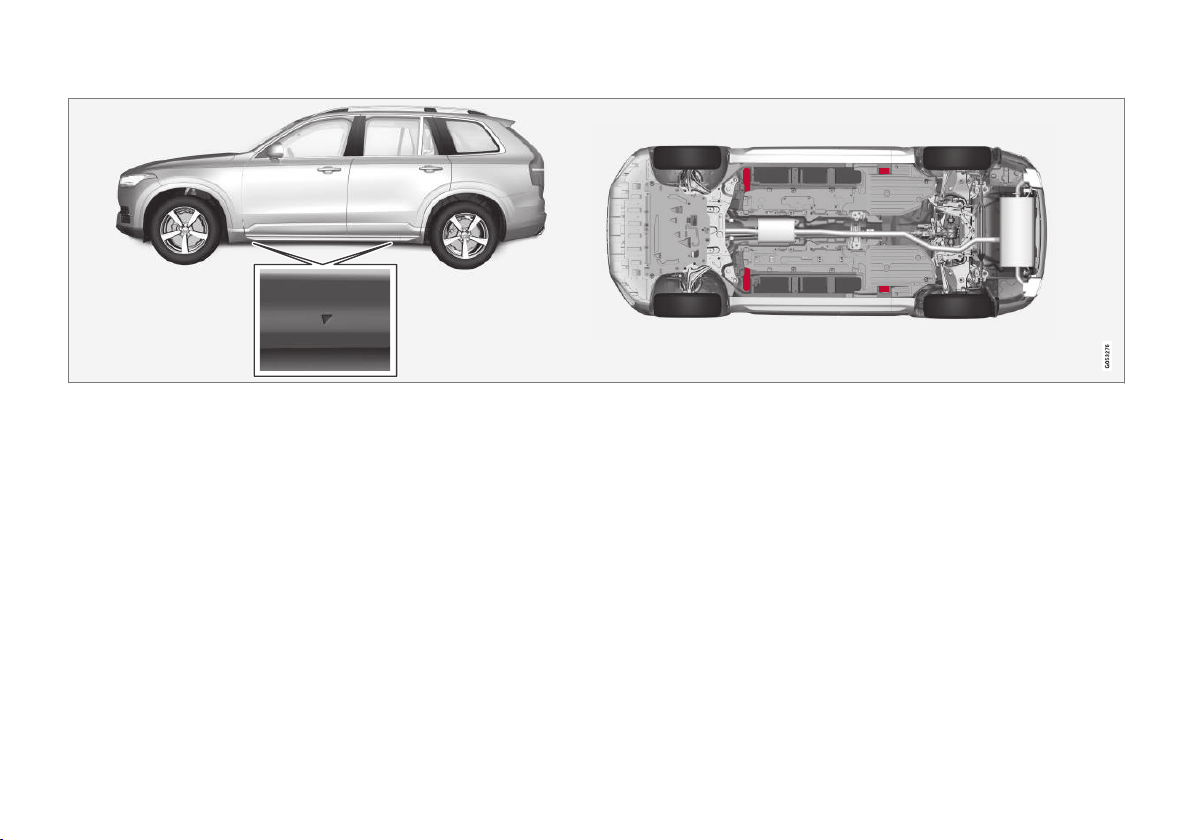
||
MAINTENANCE AND SERVICE
* Option/accessory.
538
The triangles in the plastic cover indicate the locations of the lifting points (marked in red).
If the car is raised with a workshop jack, it must
be positioned under one of the four lifting points.
Ensure that the workshop jack is positioned so
that the car cannot slide off the jack. Make sure
the jack plate is equipped with a rubber pad so
that the car will be stable and not be damaged.
Always use axle stands or similar.
Related information
•
When changing wheels (p. 521)
•
Jack* (p. 527)
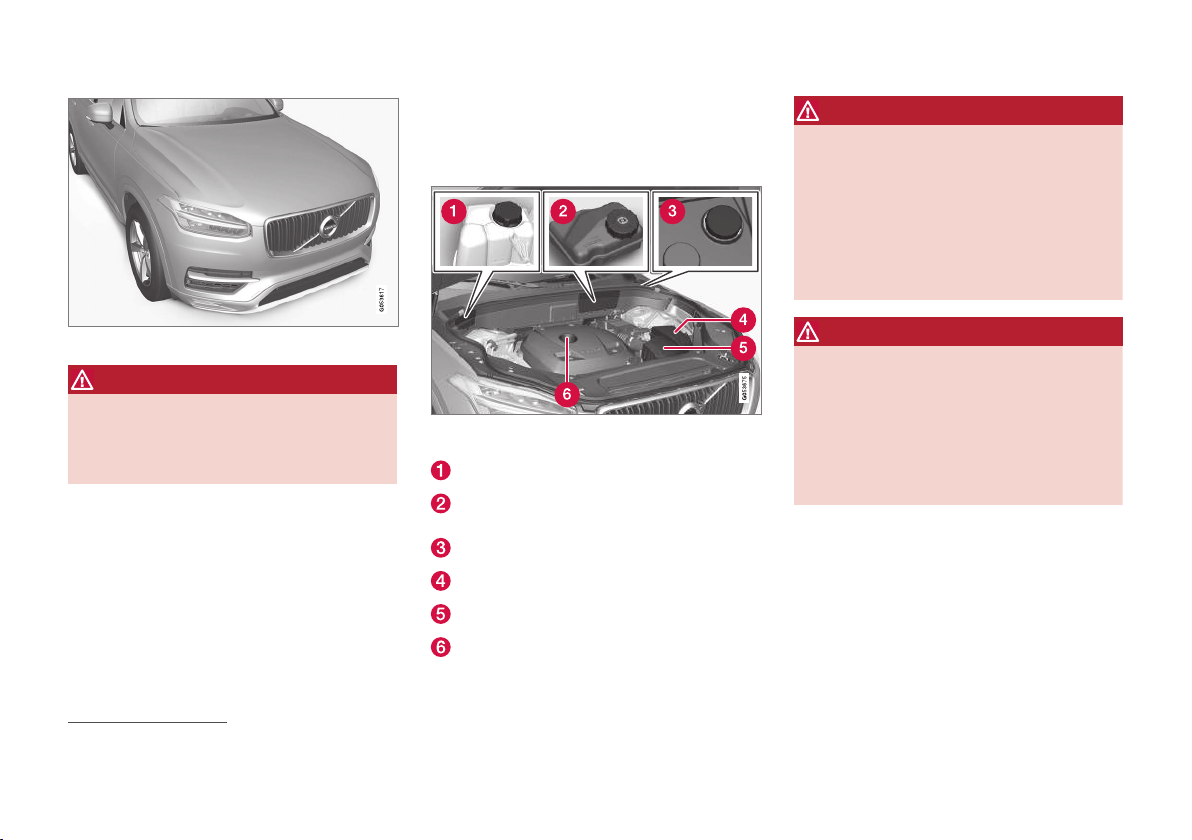
||
MAINTENANCE AND SERVICE
540
Bonnet completely closed.
WARNING
Never drive with an open bonnet!
If there are any signs that the bonnet is not
properly closed whilst driving, stop immedi-
ately and close it.
Related information
•
Engine compartment overview (p. 540)
•
Door and seatbelt reminder (p. 61)
Engine compartment overview
The overview shows some service-related com-
ponents.
The appearance of the engine compartment may differ
depending on model and engine variant.
Coolant expansion tank
Reservoir for brake fluid (located on the driv-
er's side)
Washer fluid filler pipe
7
Central electrical unit
Air filter
Engine oil filler pipe
WARNING
Remember that the radiator fan (located at
the front of the engine compartment, behind
the radiator) may start or continue to operate
automatically for up to approx. 6 minutes after
the engine has been switched off.
Always have the engine cleaned by a work-
shop - an authorised Volvo workshop is rec-
ommended. There is a risk of fire if the engine
is hot.
WARNING
The ignition system works at a very high and
hazardous voltage. The car's electrical system
must always be in ignition position 0 when
work is being performed in the engine com-
partment.
Do not touch the spark plugs or ignition coil
when the car's electrical system is in ignition
position II or when the engine is hot.
Related information
•
Opening and closing the bonnet (p. 539)
•
Filling washer fluid (p. 553)
•
Topping up coolant (p. 543)
•
Fuses in engine compartment (p. 560)
•
Checking and filling with engine oil
(p. 542)
•
Ignition positions (p. 409)
7
Fill the washer fluid at regular intervals, e.g. when refuelling.
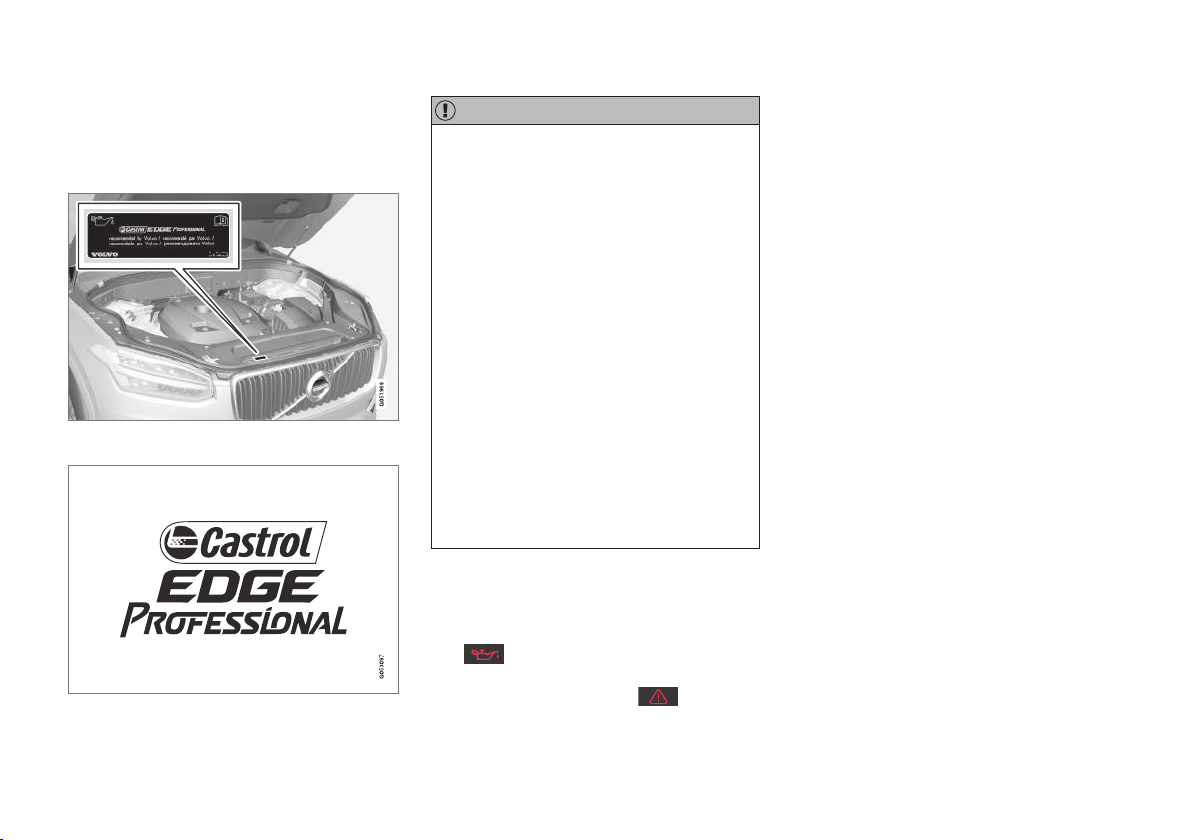
MAINTENANCE AND SERVICE
541
Engine oil
An approved engine oil must be used in order
that the recommended service intervals can be
applied.
Volvo recommends:
IMPORTANT
In order to fulfil the requirements for the
engine's service intervals all engines are filled
with a specially adapted synthetic engine oil
at the factory. The choice of oil has been
made very carefully with regard to service life,
starting characteristics, fuel consumption and
environmental impact.
An approved engine oil must be used in order
that the recommended service intervals can
be applied. Only use a prescribed grade of oil
for both filling and oil change, otherwise there
is a risk of the service life, starting characte-
ristics, fuel consumption and environmental
impact of the car being affected.
If engine oil of the prescribed grade and vis-
cosity is not used, engine related components
may become damaged. Volvo Car Corporation
disclaims any liability for any such damage.
Volvo recommends that oil changes are car-
ried out at an authorised Volvo workshop.
Volvo uses different systems for warning of low/
high oil level or low oil pressure. Certain engine
variants have an oil pressure sensor, and then the
driver display's warning symbol for low oil pres-
sure
is used. Other variants have an oil
level sensor, when the driver is informed via the
driver display's warning symbol and display
texts. Certain variants have both systems. Contact
a Volvo dealer for more information.
Change the engine oil and oil filter in accordance
with the intervals specified in the Service and
Warranty Booklet.
Using oil of a higher than specified grade is per-
mitted. If the car is driven in adverse conditions,
Volvo recommends using an oil of a higher grade
than the one specified.
Related information
•
Checking and filling with engine oil
(p. 542)
•
Adverse driving conditions for engine oil
(p. 590)
•
Engine oil — specifications (p. 589)

MAINTENANCE AND SERVICE
}}
543
NOTE
If the right conditions for measuring the oil
level (time after engine shutdown, the car's
inclination, outside temperature, etc.) are not
met, then the message
No value available
will be shown in the centre display. This does
not mean that there is something wrong in
the car's systems.
Related information
•
Engine oil (p. 541)
•
Engine oil — specifications (p. 589)
•
Adverse driving conditions for engine oil
(p. 590)
•
Ignition positions (p. 409)
•
Car status (p. 532)
Topping up coolant
The coolant cools the internal combustion
engine to the correct operating temperature. The
heat that is transferred from the engine to the
coolant can be used to heat the passenger com-
partment.
When topping up the coolant, follow the instruc-
tions on the packaging. Never top up with water
only. The risk of freezing increases with both too
little and too much coolant concentrate.
If there is coolant under the car, if there is cool-
ant smoke, or if more than 2 litres have been
filled, always call for recovery to avoid the risk of
engine damage due to a defective cooling sys-
tem when attempting to start the car.
WARNING
Coolant can be very hot. If the coolant
requires topping up when the engine is at
operating temperature, unscrew the expan-
sion tank cap slowly to gently release the
overpressure.
Coolant expansion tank.

||
MAINTENANCE AND SERVICE
544
Lift off the rubber strip by pressing it inward
in the engine compartment.
Detach the flap in the plastic cover by folding
out the release catch and turning the flap
upward.
Screw off the cap and top up with coolant.
The coolant level must lie between the MIN
and MAX marks on the expansion tank.
IMPORTANT
•
A high content of chlorine, chlorides and
other salts may cause corrosion in the
cooling system.
•
Always use coolant with anti-corrosion
agent as recommended by Volvo.
•
Ensure that the coolant mixture is 50%
water and 50% coolant.
•
Mix the coolant with approved quality
water. In the event of any doubt about
water quality, used ready-mixed coolant in
accordance with Volvo recommendations.
•
When changing coolant/replacing cool-
ing system components, flush the cooling
system clean with approved quality water
or flush with ready-mixed coolant.
•
The engine must only be run with a well-
filled cooling system. Otherwise, tempera-
tures that are too high may occur result-
ing in the risk of damage (cracks) in the
cylinder head.
Related information
•
Coolant — specifications (p. 591)
Servicing the climate control system
The air conditioning system must only be serv-
iced and repaired by an authorised workshop.
Troubleshooting and repair
The air conditioning system contains fluorescent
tracing agents. Ultraviolet light must be used dur-
ing leak detection.
Volvo recommends that you contact an author-
ised Volvo workshop.
Cars with R134a refrigerant
WARNING
The air conditioning system contains pressur-
ised refrigerant R134a. This system must only
be serviced and repaired by an authorised
workshop.
Cars with R1234yf refrigerant
WARNING
The air conditioning system contains pressur-
ised refrigerant R1234yf. In accordance with
SAE J2845 (Technician Training for Safe
Service and Containment of Refrigerants
Used in Mobile A/C System), service and
repair of the refrigerant system must only be
performed by trained and certified technicians
in order to ensure the safety of the system.
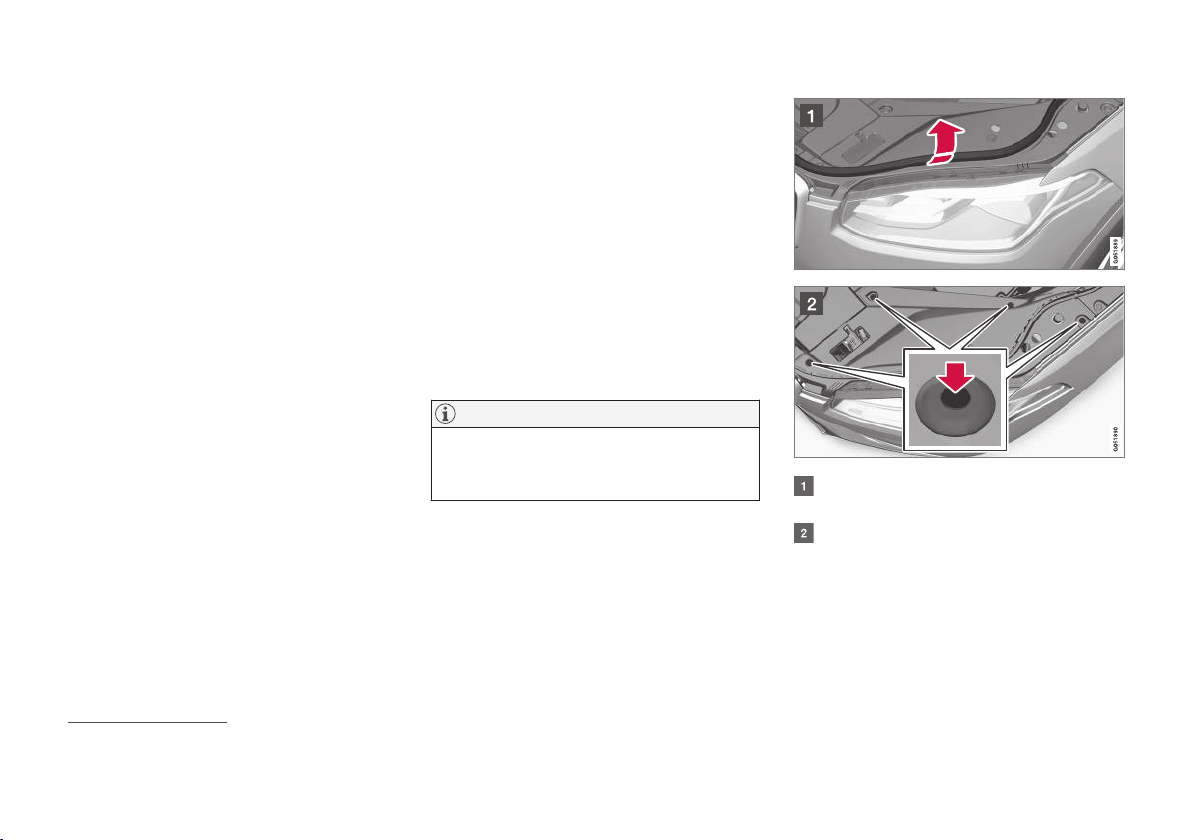
MAINTENANCE AND SERVICE
}}
545
Related information
•
Volvo service programme (p. 532)
Bulb replacement
The bulb in the halogen headlamp can be
replaced by the driver.
Halogen headlamps are not available for all
models and markets. Contact a Volvo dealer for
more information.
An LED
9
type lamp must be replaced by a work-
shop. An authorised Volvo workshop is recom-
mended.
The bulb in the halogen headlamp can be
replaced without the help of a workshop, but the
plastic cover over the headlamp must be removed
before a bulb can be replaced.
NOTE
For information about bulbs not covered in
this article, contact a Volvo dealer or a certi-
fied Volvo service technician.
Lift off the rubber strip by pressing it inward
in the engine compartment.
Press down the pins into the plastic cover's
four clips using a screwdriver or similar and
lift away the cover.
Refit the cover in reverse order.
The dipped beam bulb becomes accessible when
the headlamp's round rubber cover is removed.
9
LED (Light Emitting Diode)
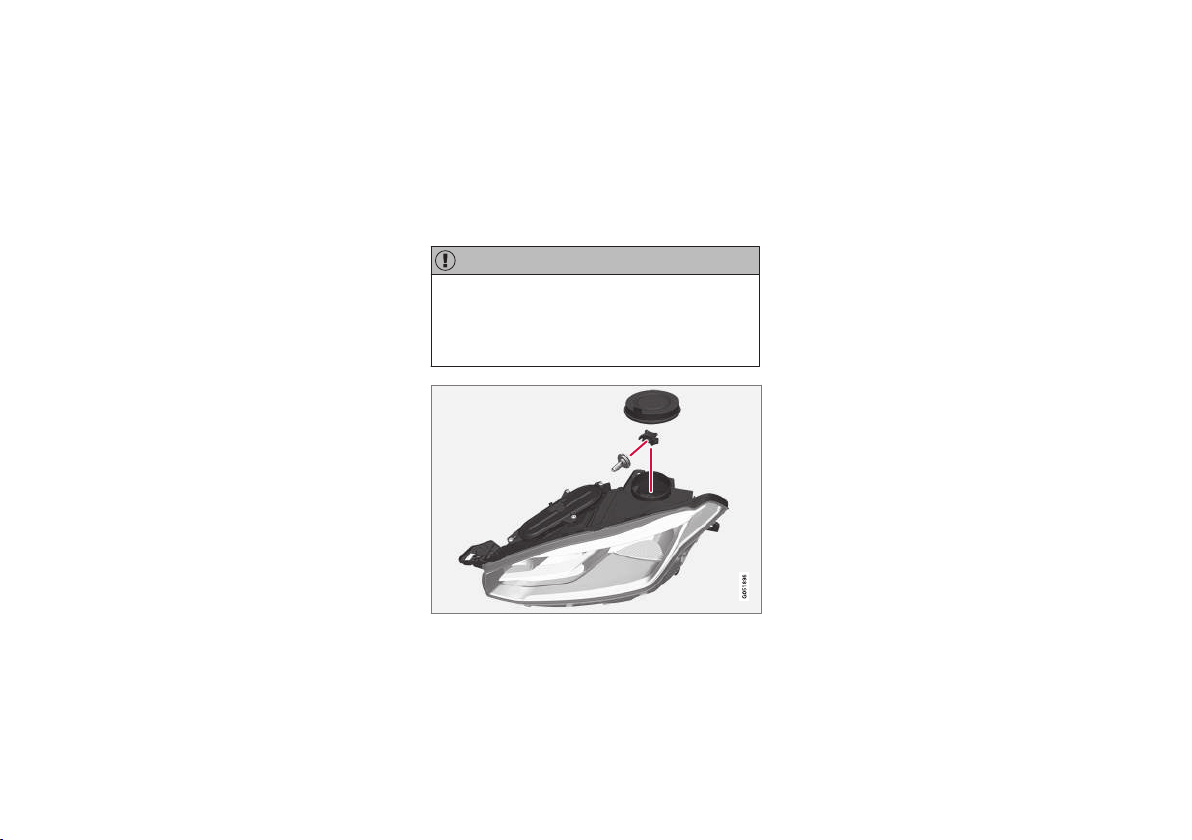
MAINTENANCE AND SERVICE
547
Related information
•
Replacing the dipped beam bulb (p. 547)
•
Removing the headlamp's oval cover
(p. 548)
•
Bulb specifications (p. 550)
•
Ignition positions (p. 409)
Replacing the dipped beam bulb
The dipped beam bulb in halogen headlamps
can be replaced by the driver.
Before the bulb can be replaced, the oval cover
of the headlamp must be removed; see the sec-
tion "Removing the headlamp's oval cover".
IMPORTANT
Never touch the glass part of the bulbs with
your fingers. Grease from your fingers is
vaporised by the heat, coating the reflector
and then causing damage.
Left-hand headlamp.
1. Detach the headlamp's round rubber cover.
2. Unplug the connector from the bulb.
3. Detach the bulb by pushing it gently upwards
and pulling it straight out.
4. Fit a new bulb in the socket. The bulb's guide
pin must be aimed straight upwards.
5. Press in the connector.
6. Refit the headlamp's round rubber cover.
Related information
•
Bulb replacement (p. 545)
•
Bulb specifications (p. 550)
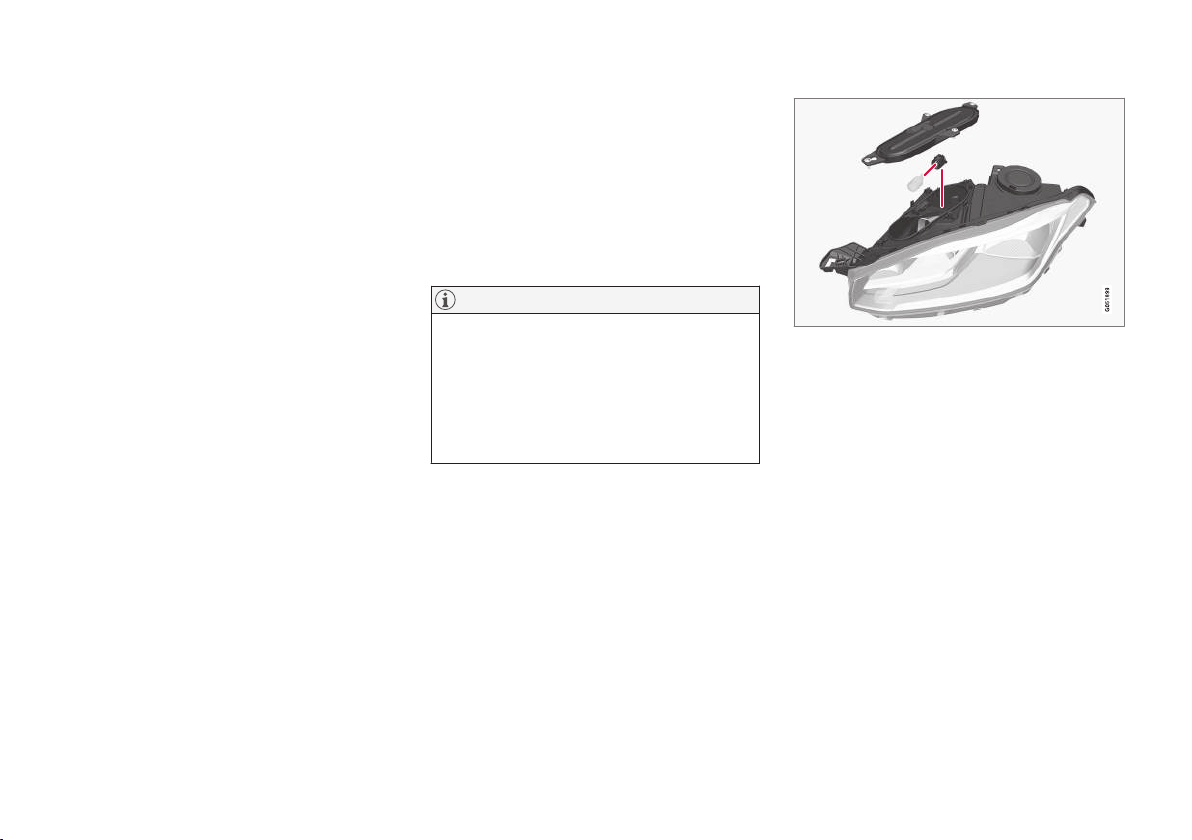
MAINTENANCE AND SERVICE
549
2. Carefully prize the plastic cover at the con-
nector's lock lug so that the lock lug relea-
ses.
3. Unplug the connector from the bulb.
4. Replace the bulb.
5. Fit the bulb in the socket and turn downward.
Related information
•
Bulb replacement (p. 545)
•
Bulb specifications (p. 550)
•
Removing the headlamp's oval cover (p. 548)
Replacing daytime running light
bulb/position lamp bulb, front
The bulb for the daytime running light/position
lamp in halogen headlamps can be replaced by
the driver.
Before the bulb can be replaced, the oval cover
of the headlamp must be removed; see the sec-
tion "Removing the headlamp's oval cover".
NOTE
The bulb for the daytime running light/posi-
tion lamp is easier to access if the main beam
bulb is detached. The main beam bulb is fitted
diagonally above the daytime running light
bulb/position lamp bulb. Detach the main
beam bulb by rotating its bulb holder upwards
and then pulling straight out.
Left-hand headlamp.
1. Pull the bulb holder for the daytime running
light bulb/position lamp bulb straight out.
2. Detach the bulb by pulling it straight out.
3. Replace the bulb.
4. Fit the bulb holder into the socket and press
it into place.
5. If the main beam bulb's bulb holder has been
removed, fit it into the socket and screw in.
Related information
•
Bulb replacement (p. 545)
•
Bulb specifications (p. 550)
•
Removing the headlamp's oval cover (p. 548)

MAINTENANCE AND SERVICE
550
Replacing the front direction
indicator bulb
The direction indicator bulb in halogen head-
lamps can be replaced by the driver.
Before the bulb can be replaced, the oval cover
of the headlamp must be removed; see the sec-
tion "Removing the headlamp's oval cover".
Left-hand headlamp.
1. Press the catches together and pull the bulb
holder straight out.
2. Replace with a new bulb holder with bulb.
3. Fit the bulb holder into the socket and press
it into place.
Related information
•
Bulb replacement (p. 545)
•
Bulb specifications (p. 550)
•
Removing the headlamp's oval cover (p. 548)
Bulb specifications
The specifications apply to bulbs in halogen
headlamps. Contact a workshop
13
if faults occur
in other lamps.
Function
W
A
Type
Dipped beam 55 H7
Main beam 65 H9
Front direction indicators 24 PY24W
daytime running lights/
position lamps, front
21/5 W21/5W
A
Watt
Related information
•
Bulb replacement (p. 545)
Wiper blades in service position
The windscreen wiper blades must be in service
position (vertical position) when, for example,
they are being replaced.
Wiper blades in service position.
In order to change, clean or lift the wiper blades
(e.g. for scraping off ice from the windscreen)
they must be in service position.
IMPORTANT
Before placing the wiper blades in the service
position, make sure that they are not frozen
down.
Activating/deactivating service mode
Service mode can be activated/deactivated when
the car is stationary and the windscreen wipers
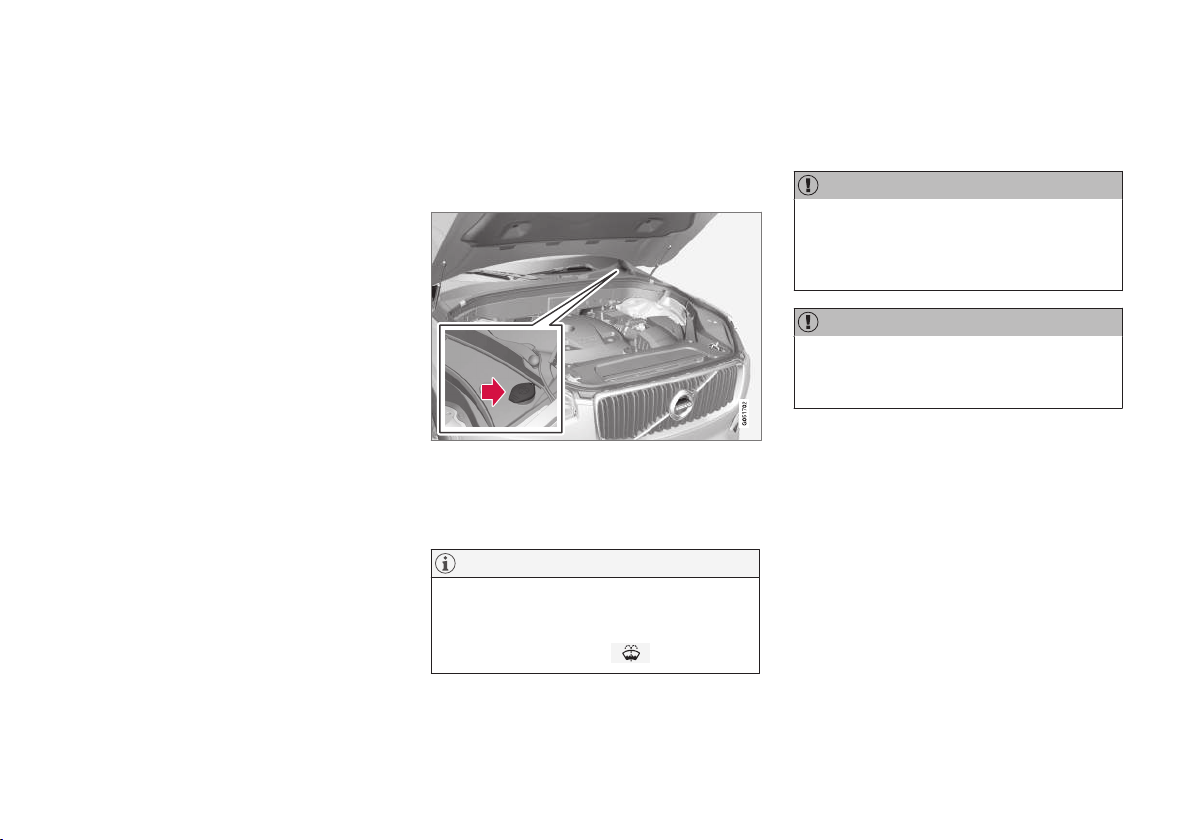
MAINTENANCE AND SERVICE
* Option/accessory.
553
Related information
•
Wiper blades in service position (p. 550)
•
Cleaning the exterior (p. 571)
Filling washer fluid
Washer fluid is used for cleaning the headlamps
as well as the windscreen and rear window.
Washer fluid with antifreeze must be used when
the temperature is under the freezing point.
Filling of washer fluid takes place in the reservoir
with a blue cap. The reservoir is used for wind-
screen washer, rear window washer and head-
lamp washers*
NOTE
When approx. 1 litre of washer fluid remains
in the reservoir the message
Washer fluid
Level low, refill is shown in the driver display
together with the symbol
.
Prescribed grade: Washer fluid recommended
by Volvo - with frost protection during cold
weather and below freezing point.
IMPORTANT
Use Volvo genuine washer fluid or equivalent
with a recommended pH of between 6 and 8,
in working dilution (e.g. 1:1 with neutral
water).
IMPORTANT
Use washer fluid with antifreeze when the
temperature is below freezing to avoid freez-
ing in the pump, reservoir and hoses.
Volume:
•
Cars with headlamp washing: 5.5 litres.
•
Cars without headlamp washing: 3.5 litres.
Related information
•
Windscreen and headlamp washers (p. 153)
•
Opening and closing the bonnet (p. 539)

MAINTENANCE AND SERVICE
554
Starter battery
The electrical system is single-pole and uses the
chassis and engine casing as a conductor.
The starter battery is used to start up the electri-
cal system and drive the starter motor as well as
other electrical equipment in the car.
The starter battery should be replaced by a
workshop
14
.
The car has a voltage-regulated AC alternator.
The starter battery is a 12 V AGM battery
(Absorbed Glass Mat), designed for the carbon
dioxide reducing functions Start/Stop and regen-
erative charging, and to support the functionality
of the car's different systems.
The service life and function of the starter battery
is influenced by factors such as the number of
starts, discharging, driving style, driving condi-
tions, climatic conditions etc.
•
Never disconnect the starter battery when
the engine is running.
•
Check that the cables to the starter battery
are correctly connected and properly tight-
ened.
WARNING
•
The battery can generate oxyhydrogen
gas, which is highly explosive. A spark can
be formed if a jump lead is connected
incorrectly, and this can be enough for
the battery to explode.
•
Do not connect the jump leads to any
fuel system component or any moving
part. Be careful of hot engine parts.
•
The battery contains sulphuric acid, which
can cause serious burns.
•
If sulphuric acid comes into contact with
eyes, skin or clothing, flush with large
quantities of water. If acid splashes into
the eyes - seek medical attention imme-
diately.
•
Never smoke near the battery.
When connecting an external starter battery or
battery charger, use the car's charging points in
the engine compartment. The battery terminals
on the car's starter battery in the cargo area must
not be used.
During charging, both the starter battery and the
support battery are charged.
Positive charging point
Negative charging point
IMPORTANT
When charging the starter battery and the
support battery, only use a modern battery
charger with controlled charging voltage. Fast
charging function must not be used since it
may damage the battery.
14
An authorised Volvo workshop is recommended.

MAINTENANCE AND SERVICE
}}
555
IMPORTANT
If the following instruction is not observed
then the energy saving function for infotain-
ment may be temporarily disengaged, and/or
the message in the driver display about the
starter battery's state of charge may be tem-
porarily inapplicable, following the connection
of an external starter battery or battery
charger:
•
The negative battery terminal on the car's
starter battery must never be used for
connecting an external starter battery or
battery charger - only the car's negative
charging point may be used as the
grounding point.
NOTE
The life of the battery is shortened if it
becomes discharged repeatedly.
The life of the battery is affected by several
factors, including driving conditions and cli-
mate. Battery starting capacity decreases
gradually with time and therefore needs to be
recharged if the car is not used for a longer
time or when it is only driven short distances.
Extreme cold further limits starting capacity.
To maintain the battery in good condition, at
least 15 minutes of driving/week is recom-
mended or that the battery is connected to a
battery charger with automatic trickle charg-
ing.
A battery that is kept fully charged has a
maximum service life.
The starter battery is located in the cargo area.
The following table shows specifications for the
starter battery.
Battery
H7 AGM
Voltage (V) 12
Cold start
capacity
A
- CCA
B
(A)
800
Size , L×W×H
(mm)
315×175×190
(12.4×6.9×7.5 inches)
Capacity (Ah) 80
A
According to EN standard.
B
Cold Cranking Amperes.
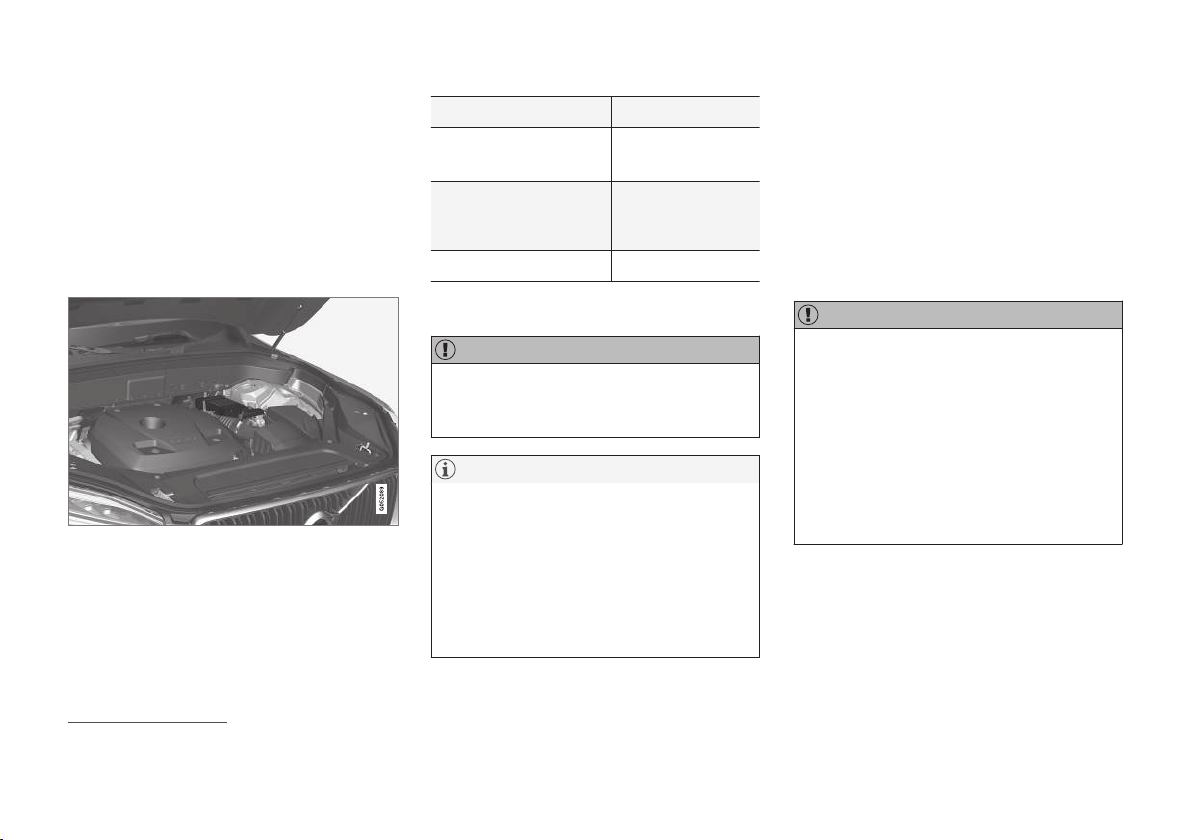
MAINTENANCE AND SERVICE
}}
557
Support battery
Cars with Start/Stop function, in addition to the
starter battery, are equipped with a support bat-
tery.
Cars with the Start/Stop function are equipped
with two 12 V batteries - one extra powerful
starter battery for starting and one support bat-
tery that helps during the Start/Stop function's
starting sequence.
The support battery is located in a box next to the strut
tower.
The following table shows specifications for the
support battery.
Voltage (V) 12
Cold start capacity
A
-
CCA
B
(A)
170
Size, L×W×H (mm)
150×90×130
(5.9×3.5×5.1
inches)
Capacity (Ah) 10
A
According to EN standard.
B
Cold Cranking Amperes.
IMPORTANT
When replacing the starter battery or support
battery, a battery of AGM
16
type must be fit-
ted.
NOTE
•
The higher the current take-off in the car,
the more the alternator must be working
and the batteries charging = Increased
fuel consumption.
•
When the capacity of the starter battery
has fallen below the lowest permissible
level then the Start/Stop function is dis-
engaged.
Temporarily reduced Start/Stop function due to
high current take-off means:
•
The engine auto-starts without the driver lift-
ing his/her foot from the foot brake pedal.
The support battery normally requires no more
service than the normal starter battery. A work-
shop should be contacted in the event of ques-
tions or problems - an authorised Volvo workshop
is recommended.
IMPORTANT
If the following instruction is not observed
then the Start/Stop function may temporarily
cease to work after the connection of an
external starter battery or battery charger:
•
The negative battery terminal on the car's
starter battery must never be used for
connecting an external starter battery or
battery charger - only the car's negative
charging point may be used as the
grounding point.
16
Absorbed Glass Mat.
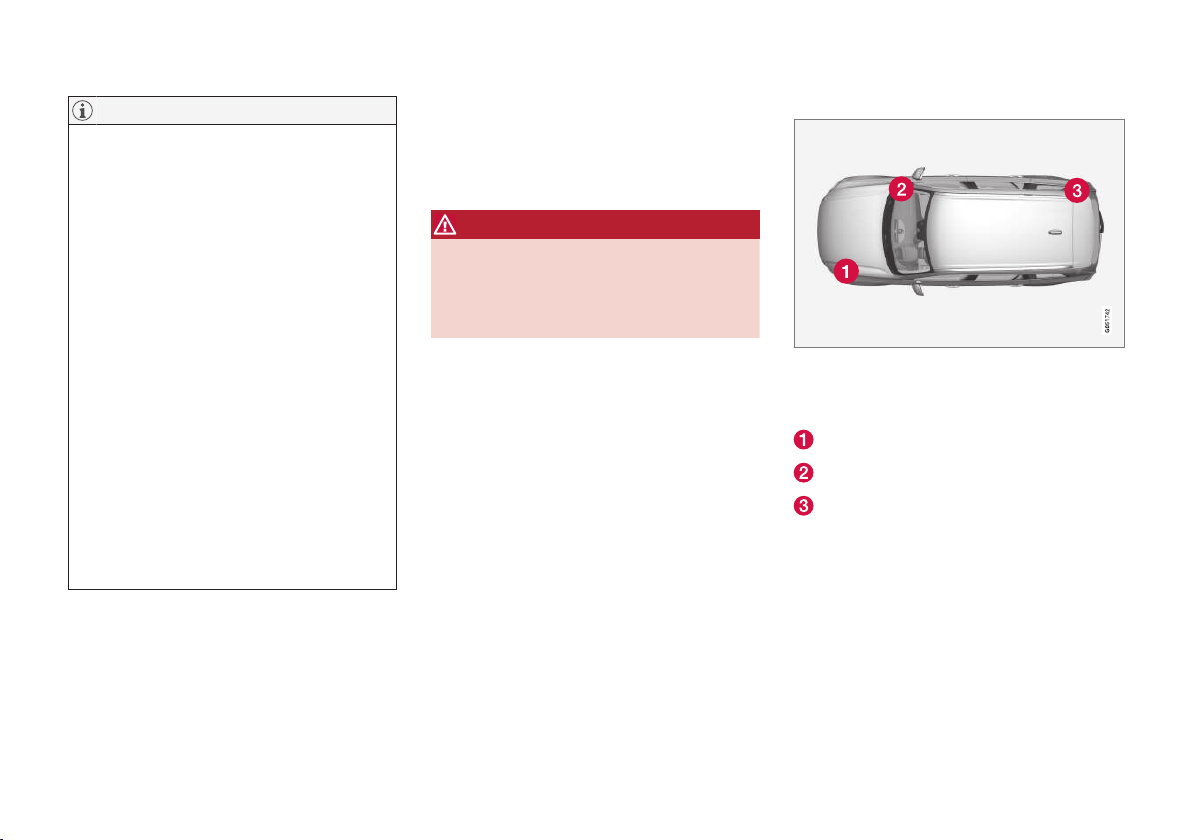
||
MAINTENANCE AND SERVICE
558
NOTE
If the starter battery has been discharged so
much that the car has no normal electrical
functions and the engine is then jump-started
with an external battery or a battery charger,
the Start/Stop function will continue to be
activated. If the Start/Stop function then
auto-stops the engine shortly after, there is a
great risk that engine auto-start will fail due
to insufficient battery capacity, because the
battery has not had the opportunity to
recharge.
If the car has been jump-started, or if there is
insufficient time to charge the battery with a
battery charger, the recommendation is to
temporarily deactivate the Start/Stop function
until the battery has been recharged by the
car. In an outside temperature of approx.
+15 °C (approx. 60 °F), the battery needs to
be charged for at least 1 hour by the car. In a
lower outside temperature, the charging time
may increase to 3-4 hours. The recommenda-
tion is to charge the battery using an external
battery charger.
Related information
•
Starter battery (p. 554)
•
Start/Stop (p. 419)
•
Using jump starting with another battery
(p. 412)
•
Symbols on the batteries (p. 556)
Fuses
All electrical functions and components are pro-
tected by a number of fuses in order to protect
the car's electrical system from damage by short
circuiting or overloading.
WARNING
Never use a foreign object or a fuse with an
amperage higher than that specified when
replacing a fuse. This could cause significant
damage to the electrical system and possibly
lead to fire.
If an electrical component or function does not
work, it may be because the component's fuse
was temporarily overloaded and failed. If the
same fuse fails repeatedly then there is a fault in
the circuit. Volvo recommends contacting an
authorised Volvo workshop for checking.
Location of central electrical units
Central electrical unit locations in a left-hand
drive car. In a right-hand drive car the central
electrical units under the glovebox change sides.
Engine compartment
Under the glovebox
Cargo area
Related information
•
Replacing a fuse (p. 559)

MAINTENANCE AND SERVICE
559
Replacing a fuse
All electrical functions and components are pro-
tected by a number of fuses in order to protect
the car's electrical system from damage by short
circuiting or overloading.
Changing
1. Look in the fuse diagram to locate the fuse.
2. Pull out the fuse and check from the side to
see whether the curved wire has blown.
3. If this is the case, replace it with a new fuse
of the same colour and amperage.
WARNING
Never use a foreign object or a fuse with an
amperage higher than that specified when
replacing a fuse. This could cause significant
damage to the electrical system and possibly
lead to fire.
Related information
•
Fuses (p. 558)
•
Fuses in engine compartment (p. 560)
•
Fuses under glovebox (p. 563)
•
Fuses in cargo area (p. 567)
||
MAINTENANCE AND SERVICE
* Option/accessory.
562
Function
A
A
- -
Heated windscreen* left-hand
side
Shunt
Heated windscreen* left-hand
side
40
Headlamp washers*
25
Windscreen washers 25
Transmission control module 15
Horn 20
Siren*
5
Control module for brake system
(valves, parking brake)
40
Windscreen wipers 30
Rear window washer 25
Heated windscreen* right-hand
side
40
20
Control unit for brake system
(ABS pump)
40
- -
Function
A
A
Heated windscreen* right-hand
side
Shunt
Supplied when the ignition is
switched on: Engine control
module; Transmission compo-
nents; Electric steering servo;
Central electronic module; Con-
trol module for brake system
5
- -
Right-hand headlamp 7.5
Right-hand headlamp, certain
variants of LED
B
7.5
- -
- -
Module for controlling battery
engagement
5
Airbags 5
Left-hand headlamp 7.5
Left-hand headlamp, certain
variants of LED
B
7.5
Accelerator pedal sensor 5
A
Ampere
B
LED (Light Emitting Diode)
Related information
•
Replacing a fuse (p. 559)
•
Fuses under glovebox (p. 563)
•
Fuses in cargo area (p. 567)

MAINTENANCE AND SERVICE
}}
563
Fuses under glovebox
Fuses under the glovebox protect, amongst
other things, the 230 V socket, displays and
door modules.

MAINTENANCE AND SERVICE
}}
* Option/accessory.
565
Positions
•
Fuses 1, 3-21, 23-36, 39-53 and 55-59 are
of the "Micro" type.
•
Fuses 2, 22, 37-38 and 54 are of the
"MCase" type and should be replaced by a
workshop
18
.
Function
A
A
- -
230 V socket in tunnel console, by
legroom for second seat row*
30
- -
Movement detector*
5
Media player 5
Driver display 5
Keypad in centre console 5
Sun sensor 5
- -
- -
Steering wheel module 5
Function
A
A
Module for start knob and for park-
ing brake control
5
Steering wheel module for heated
steering wheel*
15
- -
- -
- -
- -
Control module for climate control
system
10
Steering lock 7.5
Diagnostic socket OBDII 10
Centre display 5
Fan module for climate control sys-
tem, front
40
USB HUB 5
Function
A
A
Controls lighting; Interior lighting;
Dimming of interior rearview mir-
ror*; Rain and light sensor*; Keypad
in tunnel console, by legroom for
rear seat*; Power front seats*; Con-
trol panels in rear doors
7.5
Control module for driver support
functions
5
Panorama roof with sun blind*
20
Head-up display*
5
Passenger compartment lighting 5
- -
Display in roof console (Seatbelt
reminder/Indicator for airbag on
the front passenger seat)
5
- -
Humidity sensor 5
Door module in right-hand rear
door
20
Fuses in cargo area 10
18
An authorised Volvo workshop is recommended.

||
MAINTENANCE AND SERVICE
568
The central electrical unit is located under the storage compartment on the right-hand side.
On the inside of the cover there are tweezers that
facilitate the procedure for the removal and fitting
of fuses.
The fuse box in the engine compartment also
provides space for several spare fuses.
MAINTENANCE AND SERVICE
}}
* Option/accessory.
569
Positions
•
Fuses 13-17 and 21-36 are of the "Micro"
type.
•
Fuses 1-12, 18-20 and 37 are of the
"MCase" type and should be replaced by a
workshop
19
.
Function
A
A
Rear window defroster 30
- -
Compressor for air suspension*
40
Electric additional heaters right-
hand side rear*
30
- -
Electric additional heaters left-hand
side rear*
30
- -
Control module for reduction of
nitrous oxides (diesel)
30
Power operated tailgate*
25
Electrically operated front passen-
ger seat*
20
Function
A
A
Towbar control module*
40
Seatbelt pretensioner module,
right-hand side
40
Internal relay coils 5
Control module for reduction of
nitrous oxides (diesel)
15
Module for detecting foot move-
ment* (for opening the power oper-
ated tailgate)
5
Alcohol lock 5
Module for lowering the backrest in
the third seat row*
20
Towbar control module*
25
Power driver seat*
20
Seatbelt pretensioner module, left-
hand side
40
Parking camera*
5
- -
- -
Function
A
A
- -
- -
Control module for airbags and
seatbelt tensioners
5
- -
Seat heating left-hand side rear*
15
- -
Blind Spot Information (BLIS)*:
control module, exterior reversing
sound
5
- -
Seatbelt pretensioner modules 5
Actuator for exhaust gases (petrol,
certain engine variants)
5
- -
All Wheel Drive (AWD) control
module*
15
19
An authorised Volvo workshop is recommended.
||
MAINTENANCE AND SERVICE
572
to achieve a good result, or to supplement auto-
matic car washes with washing by hand.
NOTE
The car must only be washed by hand over
the first few months. This is because the paint
is more delicate when it is new.
IMPORTANT
Before driving the car into an automatic car
wash, deactivate the functions for automatic
braking when stationary and automatic park-
ing brake application. If these functions are
not deactivated, the brake system will jam
when the car is stationary and the car will not
be able to move.
In car washes where the car is towed through
with rolling wheels, the following applies:
1. Drive into the automatic car wash.
2. Deactivate the function for Automatic brak-
ing when stationary using the switch in the
tunnel console.
3. Deactivate the function for automatic appli-
cation of parking brake via the centre dis-
play's top view.
4.
Move the gear lever to position N.
5. Switch off the engine by turning the start
knob in the tunnel console clockwise. Hold
the knob in place at least 4 seconds.
> The car is ready for the automatic car
wash.
IMPORTANT
•
Before washing the car, make sure that
the automatic rain sensor is deactivated,
otherwise there is the risk of it starting
and damaging the wiper arms.
•
Make sure that the door mirrors are
retracted, any auxiliary lamps secured,
antennas retracted or removed, otherwise
they risk being damaged by the auto-
matic car wash.
High-pressure washing
When using high-pressure washing, use sweep-
ing movements and make sure that the nozzle
does not come closer than 30 cm to the surface
of the car. Do not spray directly onto the locks.
Testing the brakes
Lightly depress the brake pedal now and then
when driving long distances in rain or slush. The
heat from the friction causes the brake linings to
warm up and dry. Do the same thing after starting
in very damp or cold weather.
WARNING
Always test the brakes after washing the car,
including the parking brake, to ensure that
moisture and corrosion do not attack the
brake linings and reduce braking perform-
ance.
Wiper blades
Asphalt, dust and salt residue on wiper blades, as
well as insects, ice etc. on the windscreen, impair
the service life of wiper blades.
When cleaning, set the wiper blades in service
position.
NOTE
Wash the wiper blades and windscreen regu-
larly with a lukewarm soap solution or car
shampoo. Do not use any strong solvents.
Exterior plastic, rubber and trim
components
A special cleaning agent available from Volvo
dealers is recommended for the cleaning and
care of coloured plastic parts, rubber and trim
components, e.g. glossy trim mouldings. When
using such a cleaning agent the instructions
must be followed carefully.
Avoid washing the car with detergent with a pH
value below 3.5 or above 11.5. This can cause
discolouration of anodised aluminium compo-

||
MAINTENANCE AND SERVICE
574
IMPORTANT
Only paint treatment recommended by Volvo
should be used. Other treatment such as pre-
serving, sealing, protection, lustre sealing or
similar could damage the paintwork. Paint-
work damage caused by such treatments is
not covered by Volvo warranty.
Related information
•
Cleaning the exterior (p. 571)
•
Paint damage (p. 577)
•
Repairing paint damage (p. 577)
Rustproofing
The car has effective protection against corro-
sion.
Anti-corrosion protection for the body consists of
modern metallic protective coatings on the sheet
metal, a high-quality painting process, corrosion-
protected and minimised metal overlap, and
shielding plastic components, abrasion protection
and supplemental rust inhibitor in exposed areas.
This combination guarantees that the body will
remain free from corrosion problems over time. In
the chassis, exposed components of the wheel
suspension are made of corrosion-resistant cast
aluminium.
Inspection and maintenance
The car's anti-corrosion protection normally
requires no maintenance, but a good way to fur-
ther reduce the risk of corrosion is to keep the
car clean. Strong alkaline or acidic cleaning solu-
tions must always be avoided on glossy trim com-
ponents. Any stone chips should be rectified as
soon as they are discovered.
Related information
•
Cleaning the exterior (p. 571)
•
Paint damage (p. 577)
Cleaning the interior
Only use cleaning agents and car care products
recommended by Volvo. Clean regularly and
treat stains at once for best results. Vacuuming
is important prior to using cleaning agents.
IMPORTANT
•
Certain items of coloured clothing (e.g.
dark jeans and suede garments) may
stain the upholstery. If this occurs, it is
important to clean and treat these parts
of the upholstery as soon as possible.
•
Never use strong solvents such as
washer fluid, pure petrol or white spirit to
clean the interior, since this may damage
the upholstery as well as other interior
materials.
•
Never spray the cleaning agent directly
onto components that have electrical but-
tons and controls. Wipe them instead
using a moistened cloth containing the
cleaning agent.
•
Sharp objects and Velcro may damage
the fabric upholstery.
Fabric upholstery and ceiling upholstery
Never scrape or rub a stain since this risks
destroying the upholstery. Never use strong stain
removers since this risks destroying the colour of
the upholstery.

||
MAINTENANCE AND SERVICE
576
Related information
•
Cleaning the centre display (p. 576)
Cleaning the centre display
Dirt, stains and grease from fingers can affect
the centre display's performance and readability.
Clean the screen frequently with a microfibre
cloth.
Home button for the centre display.
1. Turn off the centre display with a long press
on the home button.
2. Wipe the screen with the microfibre cloth
supplied or use another microfibre cloth of
equivalent quality. The screen should be
wiped with a clean and dry microfibre cloth
with small circular movements. If necessary,
lightly moisten the microfibre cloth with clean
water.
3. Activate the display with a short press on the
home button.
IMPORTANT
The microfibre cloth used to clean the centre
display must be free from sand and dirt.
IMPORTANT
When cleaning the centre display, only use
gentle pressure on the screen. Heavy pres-
sure can damage the screen.
IMPORTANT
Do not spray any liquid or caustic chemicals
directly on the centre display. Do not use win-
dow cleaning agent, other cleaning agents,
aerosol spray, solvents, alcohol, ammonia or
cleaning agent containing abrasive.
Never use abrasive cloths, paper towels or tis-
sue paper, these can scratch the centre dis-
play.
Related information
•
Cleaning the interior (p. 574)
•
Overview of the centre display (p. 33)
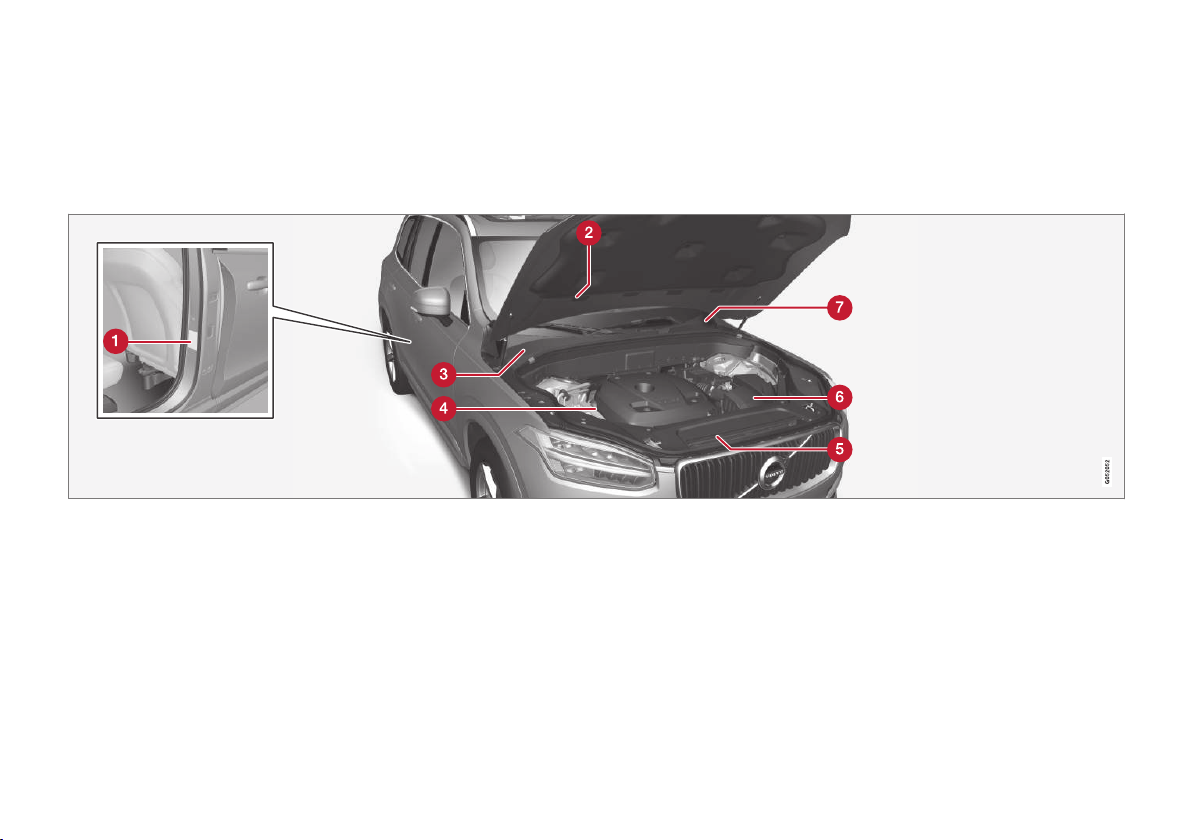
SPECIFICATIONS
580
Type designations
The decals in the car contain information such
as chassis number, type designation, colour
code, etc.
Label location
The illustration is schematic - details may vary depending on market and model.
Knowing the car's type designation, vehicle iden-
tification and engine numbers can facilitate all
contact with an authorised Volvo dealer regarding
the car and when ordering spare parts and
accessories.
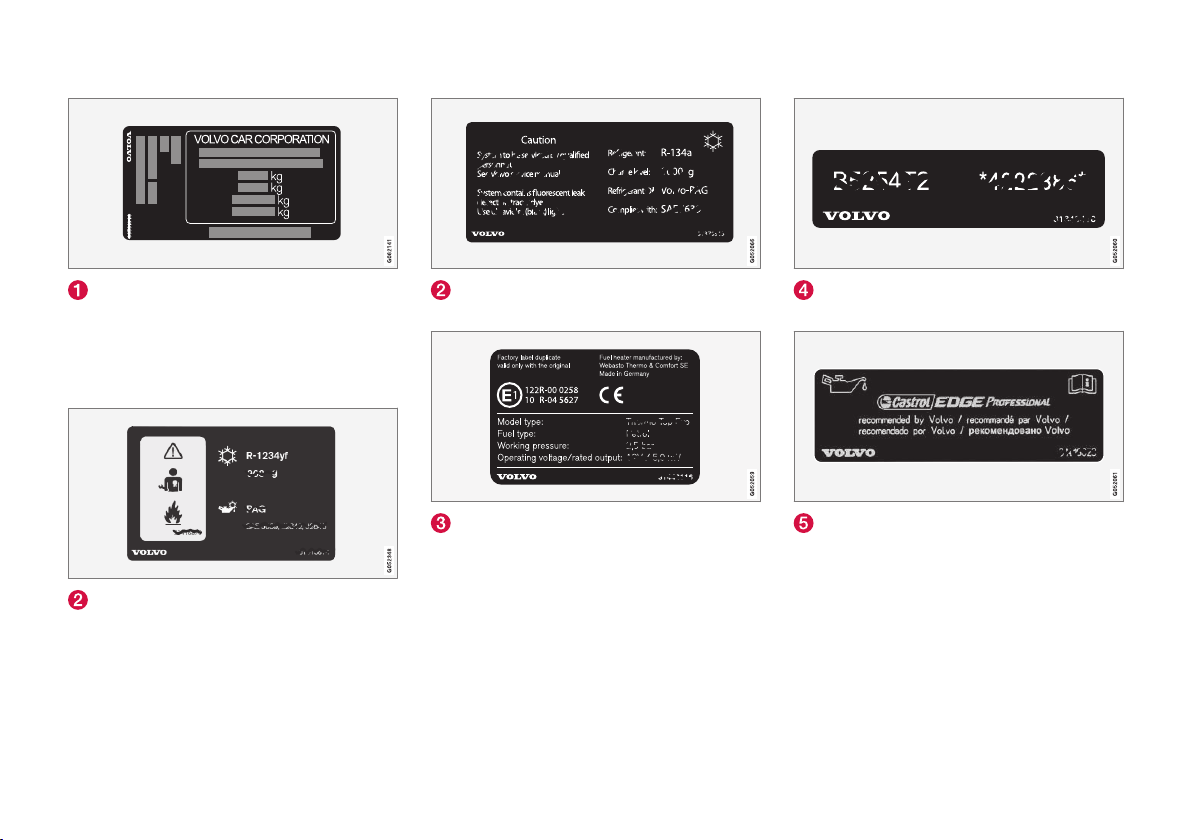
SPECIFICATIONS
}}
581
Decal for type designation, vehicle identifica-
tion number, permissible maximum weights and
code designation for exterior colour and type
approval number. The decal is positioned on the
door pillar, and will be visible when the right-hand
rear door is opened.
Decal A/C system for cars with refrigerant
R1234yf.
Decal A/C system for cars with refrigerant
R134a.
Label for parking heater.
Decal for engine code and the engine's serial
number.
Label for engine oil.

||
SPECIFICATIONS
582
Decal for gearbox type designation and serial
number.
Decal for the car's identification number - VIN
(Vehicle Identification Number).
Further information on the car is presented in the
registration document.
NOTE
It is not intended that the decals illustrated in
the owner's manual should be exact replicas
of those in the car. They are included to show
their approximate appearance and locations
in the car. The information that applies to your
particular car can be found on the decal on
the car.
Related information
•
Air conditioning — specifications (p. 592)

SPECIFICATIONS
}}
* Option/accessory.
583
Dimensions
Measurement of car length, height, etc. can be
read in the table.
Dimensions mm inches
A
Ground clearance
A
227 8.9
B Wheelbase 2984 117,5
C Length 4950 194,9
D Load length, floor,
folded seat
2040
1260
B
80,3
49,6
B
E Load length, floor
1220
C
554
D
48,0
C
21,8
D
Dimensions mm inches
F Height 1776 69,9
G Load height 816 32,1
H
Front track
E
1673
F
1665
G
65,9
F
65,6
G
Front track
H
1676
F
1668
G
66,0
F
65,7
G
Dimensions mm inches
I
Rear track
E
1675
F
1667
G
65,9
F
65,6
G
Rear track
H
1679
F
1671
G
66,1
F
65,8
G
J Load width, floor 1192 46,9

||
SPECIFICATIONS
584
Dimensions mm inches
K Width
1923
I
1931
J
1958
K
75,7
I
76,0
J
77,1
K
L Width including door
mirrors
2140 84,3
M Width including folded-
in door mirrors
2008 79,1
A
For kerb weight + 2 people. Varies slightly depending on tyre
dimension, chassis alternative, etc.).
B
From the second seat row in a car with 7 seats.*
C
Car with 5 seats.
D
Car with 7 seats.
E
Car without air suspension.
F
Applies to cars with 20, 21 and 22 inch wheels.
G
Applies to cars with 18 and 19 inch wheels.
H
Car with air suspension.
I
Body width.
J
Width for car with 18- and 19-inch wheels.
K
Width for car with 20-, 21- and 22-inch wheels.

SPECIFICATIONS
586
Towing capacity and towball load
Towing capacity and towball load for driving with
a trailer can be read in the tables.
Max. weight braked trailer
NOTE
The use of a stabiliser hitch on the towing
bracket is recommended for trailers heavier
than 1800 kg.
Engine
Engine code
A
Gearbox Max. weight braked trailer (kg) Max. towball load (kg)
T5 AWD B4204T20 Automatic 2400 140
T5 AWD B4204T23 Automatic 2400 140
T6 AWD B4204T27 Automatic 2700 140
D4 D4204T14 Automatic 1800 140
D4 AWD D4204T6 Automatic 2400 140
D5 AWD D4204T23 Automatic 2700 140
A
The engine code, component number and serial number can be found on the engine.
IMPORTANT
When driving with a trailer, it is permitted to
exceed the vehicle's gross vehicle weight
(including towball load) by a maximum of 100
kg, provided that speed is limited to 100
km/h (62 mph). National legal requirements
for the vehicle combination, such as speed,
etc. must be observed.
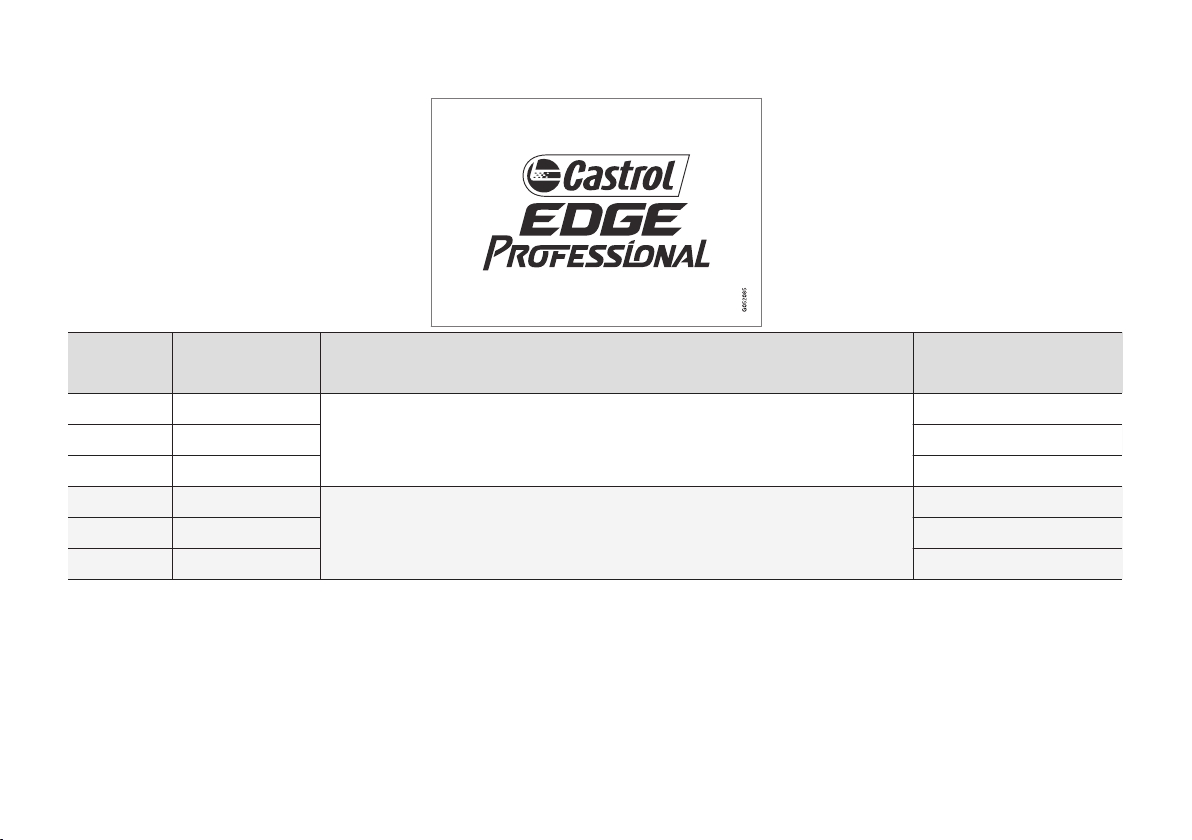
SPECIFICATIONS
589
Engine oil — specifications
Engine oil grade and volume for each respective
engine alternative can be read in the table.
Volvo recommends:
Engine
Engine code
A
Oil grade Volume, incl. oil filter
(litres)
T5 AWD B4204T20 Castrol Edge Professional V 0W-20 or VCC RBS0-2AE 0W-20 approx. 5.6
T5 AWD B4204T23 approx. 5.6
T6 AWD B4204T27 approx. 5.6
D4 D4204T14 Castrol Edge Professional V 0W-20 or VCC RBS0-2AE 0W-20 approx. 5.2
D4 AWD D4204T6 approx. 5.2
D5 AWD D4204T23 approx. 5.2
A
The engine code, component number and serial number can be found on the engine.
Related information
•
Type designations (p. 580)
•
Adverse driving conditions for engine oil
(p. 590)
•
Checking and filling with engine oil (p. 542)
•
Engine oil (p. 541)
SPECIFICATIONS
590
Adverse driving conditions for
engine oil
Adverse driving conditions can lead to abnor-
mally high oil temperature or oil consumption.
Below are some examples of adverse driving
conditions.
Check the oil level more frequently for long jour-
neys:
•
towing a caravan or trailer
•
in mountainous regions
•
at high speeds
•
in temperatures colder than -30 °C or hotter
than +40 °C.
The above also apply to shorter driving distances
at low temperatures.
Choose a fully synthetic engine oil for adverse
driving conditions. It provides extra protection for
the engine.
Volvo recommends:
IMPORTANT
In order to fulfil the requirements for the
engine's service intervals all engines are filled
with a specially adapted synthetic engine oil
at the factory. The choice of oil has been
made very carefully with regard to service life,
starting characteristics, fuel consumption and
environmental impact.
An approved engine oil must be used in order
that the recommended service intervals can
be applied. Only use a prescribed grade of oil
for both filling and oil change, otherwise there
is a risk of the service life, starting characte-
ristics, fuel consumption and environmental
impact of the car being affected.
If engine oil of the prescribed grade and vis-
cosity is not used, engine related components
may become damaged. Volvo Car Corporation
disclaims any liability for any such damage.
Volvo recommends that oil changes are car-
ried out at an authorised Volvo workshop.
Related information
•
Engine oil — specifications (p. 589)
•
Engine oil (p. 541)
SPECIFICATIONS
591
Coolant — specifications
Prescribed grade: Coolant recommended by
Volvo mixed with 50% water
1
, see the packag-
ing. Consult a Volvo dealer if unsure.
To prevent health risks, do not mix different types
of glycol.
Transmission fluid — specifications
Under normal driving conditions, the transmis-
sion fluid does not need to be changed during
its service life. However, it may be necessary in
adverse driving conditions.
Automatic gearbox
Prescribed transmission fluid:
AW1
Brake fluid — specifications
The medium in a hydraulic brake system is
called brake fluid, and it is used to transfer pres-
sure from e.g. a brake pedal via a master brake
cylinder to one or more slave cylinders, which in
turn act on a mechanical brake.
Prescribed grade: Volvo Original Dot 4 class 6
or equivalent.
NOTE
It is recommended that brake fluid is changed
or filled by an authorised Volvo workshop.
Related information
•
Engine compartment overview (p. 540)
1
Water quality must fulfil the standard STD 1285.1.
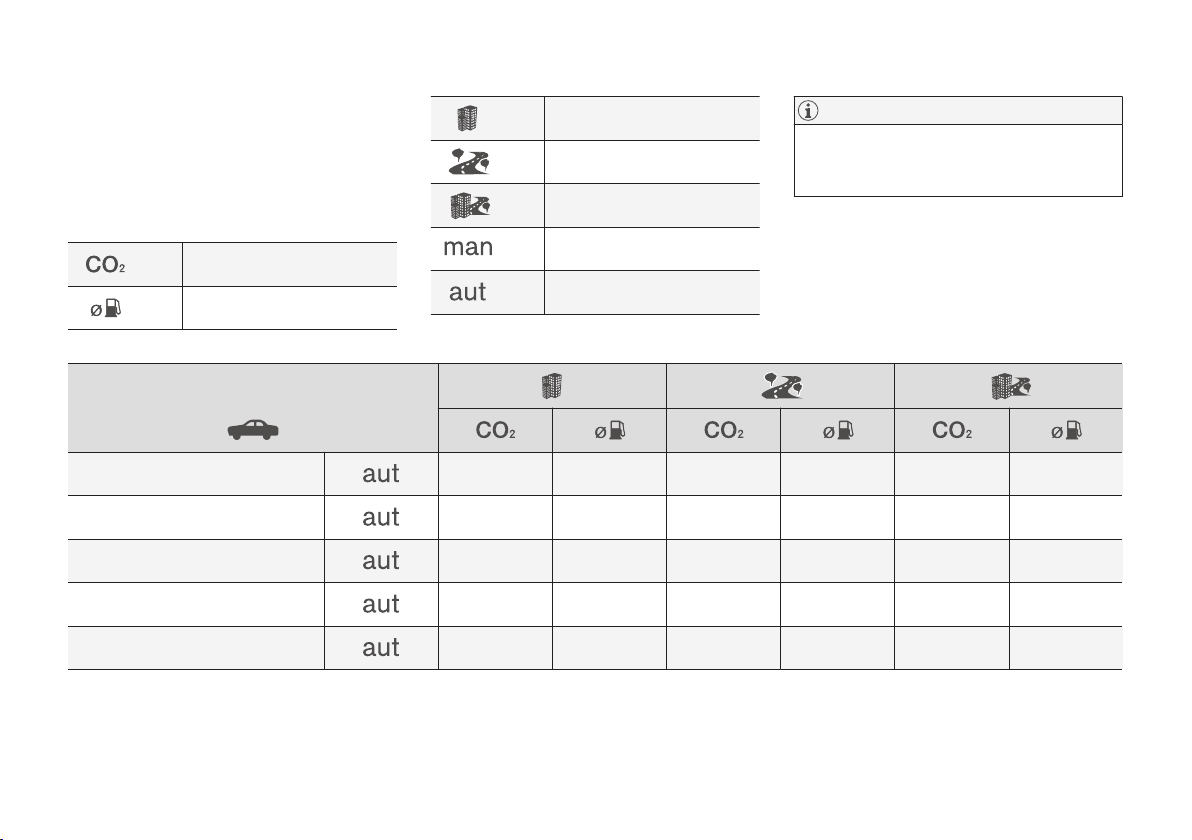
SPECIFICATIONS
594
Fuel consumption and CO2
emissions
The fuel consumption for a vehicle is measured
in litres per 100 km and CO2 emissions are
measured in gram CO2 per km.
Explanation
gram CO
2
/km
litres/100 km
urban driving
motorway driving
mixed driving
manual gearbox
automatic gearbox
NOTE
If the consumption and emission data is miss-
ing then it is included in the enclosed supple-
ment.
T5 AWD (B4204T23) 219 9,5 152 6,7 176 7,7
T6 AWD (B4204T27)
230 10,1 158 7,0 184 8.1
D4 (D4204T14)
152 5,8 127 4,9 136 5,2
D4 AWD (D4204T6)
162 6,2 142 5,4 149 5,7
D5 AWD (D4204T23)
165 6,3 140 5,4 149 5,7
The fuel consumption and emission values in the
above table are based on special EU driving
cycles (see below), which apply for cars with kerb
weight in basic version and without extra equip-
ment. The car's weight may increase depending
on its equipment level. This, along with how heav-
SPECIFICATIONS
597
Load index and speed rating
The table below shows the minimum permitted
load index (LI) and speed rating (SS).
Engine man/
aut
Minimum permitted load index (LI)
A
Minimum permitted speed rating (SS)
B
T5 AWD B4204T20 aut
101 (104
D
) V
C
T5 AWD B4204T23 aut
101 (104
D
) V
C
T6 AWD B4204T27 aut
101 (104
D
) V
C
D4 D4204T14 aut
101 (104
D
)
H
D4 AWD D4204T6 aut
101 (104
D
)
H
D5 AWD D4204T23 aut
101 (104
D
) V
C
A
The tyre's load index must be at least equal to or greater than indicated in the table.
B
The tyre's speed rating must be at least equal to or greater than indicated in the table.
C
Cars with a top speed limiter of 210 km/h (130 mph) must have at least speed rating H.
D
Extra load (Extra Load).
Related information
•
Approved wheel and tyre sizes (p. 596)
•
Approved tyre pressures (p. 598)
•
Type designations (p. 580)
•
Dimension designation for tyre (p. 529)
•
Dimension designation for wheel rim (p. 528)
SPECIFICATIONS
598
Approved tyre pressures
Approved tyre pressures for each engine alterna-
tive can be found in the table.
NOTE
All engines, tyres or combinations of these
are not always available in all markets.
Engine Tyre size Speed
(km/h)
Load, 1-3 persons Max. load
ECO pressure
A
Front
(kPa)
B
Rear
(kPa)
Front
(kPa)
Rear
(kPa)
Front/rear
(kPa)
All engines
235/60 R18
235/55 R19
275/40 R21
275/35 R22
0 - 160
C
240 240 270 270 270
160+
D
240 240 270 270 -
275/45 R20
0 - 160
C
240 220 270 270 270
160+
D
240 240 270 270 -
Temporary Spare Tyre
max. 80
E
420 420 420 420 -
A
Economical driving.
B
In certain countries the "bar" unit is used alongside the SI unit "Pascal": 1 bar = 100 kPa.
C
0 - 100 mph
D
100+ mph
E
max 50 mph
Related information
•
Type designations (p. 580)
•
Checking the tyre pressures (p. 510)
•
Approved wheel and tyre sizes (p. 596)

ALPHABETICAL INDEX
599
1, 2, 3 ...
4WD 429
A
A/C (Air conditioning) 190
ABS
anti-lock brakes 429
ACC – Adaptive cruise control 296, 307
Accessories and extra equipment 23
Active bending lights 144
Active main beam 142
Active Park Assist 398
function 398
Limitations 402
operation 399
Symbols and messages 405
Active Yaw Control 277
Adapting driving characteristics 276, 422
Adaptive Cruise Control 296, 307
change cruise control functionality 309
fault tracing 308
function 296
managing speed 300, 301
overtaking 306
radar sensor 328
setting the time interval 302
standby mode 304
temporary deactivation 304
Additional heater (Auxiliary heater) 215
Adjusting the steering wheel 136
Aerial
location 240
Airbag 63
Activating/deactivating 65
driver's side 63
passenger side 63, 65
Airbag, see Airbag 63
Air conditioning 190
Air conditioning, fluid
volume and grade 592
Air conditioning system 182, 186
repair 544
Air distribution 198
Air vents 198, 199
change 199
defrosting 195
Recirculation 197
table of options 201
Air quality 184, 185
allergies and asthma 185
passenger compartment filter 185
Air recirculation 197
Alarm 263
automatic re-arming 265
deactivation 265
reduced alarm level 263
Alcohol lock 408
Allergy and asthma inducing substances. 185
All Wheel Drive, (AWD) 429
All Wheel Drive (AWD) 429
Android Auto 477
settings 479
Apple CarPlay 475, 476
Applications
settings 180
Approach lighting 151
Apps 460
download, update and uninstall 493
Assistance at risk of collision 376
Audio and media 460
Audio settings 461, 487
media 473
phone 487
play media 467
Text message 485
Auto climate control 189
Automatic brake 436
after collision 432
ALPHABETICAL INDEX

ALPHABETICAL INDEX
600
Automatic car washes 571
Automatic engine stop
auto-stop 419
Automatic gearbox 414
oil 591
trailer 452
Automatic relocking 243
Automatic speed limiter 285, 286, 287
Auxiliary heater 215
AWD, All Wheel Drive 429
B
Backrest
front seat, adjusting 123, 124, 126
rear seat, adjusting 131, 134
rear seat, lowering 132, 134
Bag holder 227
Battery 412, 554
jump starting 412
maintenance 554
overload 441
start 554
support 557
symbols on the battery 556
warning symbols 556
BLIS 354, 356
Bluetooth
connect 472
connect car to Internet 488
phone 481
settings 487
Bonnet, opening 539
Book service and repair 532
Brake assist
after collision 432
Brake fluid
grade 591
Brake functions 429
Brake light 146
Brakes 429
Anti-lock braking system, ABS 429
automatic when stationary 436
brake assist system, BAS 431
brake light 146
brake system 429
emergency brake lights 431
handbrake 432, 433, 435
Brake system
fluid 591
bulbs, specifications 550
C
Camera sensor 350
Camera unit 338
Car care 571
Leather upholstery 575
Car functions
in centre display 47
Cargo area 225
electrical socket 220
lighting 149
mounting points 227
protective net 231
Cargo cover 228
Cargo grille 233
Car holiday 441
Car key battery low 258
Car modem
connect car to Internet 488
settings 492
Car status 532
Tyre pressure 513
Car upholstery 574
Car washing 571
Catalytic converter
Recovery 458
CD player 471

ALPHABETICAL INDEX
601
central locking 245
Centre display
change settings 46
cleaning 576
climate control 187
Keyboard 49, 53
messages 109
operation 36, 40
overview 33
symbols in status bar 45
Checking the engine oil level 542
Checking the level 427
Child safety 70
Child safety locks 262
Child seat 70, 71
integrated child seat 83
i-Size/ISOFIX mounting points 78
lower mounting points 75
positioning/fitting 71
table for location 76
table of i-Size 82
table of ISOFIX 79
Upper mounting points 74
City Safety in crossing traffic 348
City Safety with obstructed evasive
manoeuvre 349
City Safety™ 342, 345, 346, 350, 353
Cleaning
automatic car wash 571
car washing 571
centre display 576
Fabric upholstery 574
rims 573
seatbelts 575
upholstery 574
Clean Zone Interior Package 185
Climate control 182, 186
auto-regulation 189
centre display 187
experienced temperature 183
fan control 194
Parking 206
rear seat 188
sensors 183
temperature control 191
voice control 121
zones 182
Climate control system
Refrigerant 592
Clock, adjustment 101
CO
2
emissions 594
Collision 56, 58, 63, 69
Collision warning 342
Collision warning system
Pedestrian detection 346
Radar sensor 328
Colour code, paint 577
Combined instrument panel 92
settings 96
Compass 159
calibration 160
Condensation in headlamps 571
Controls lighting 138
Coolant 591
Coolant, filling 543
Cooling system
overheating 440
Cornering lights 145
Corner Traction Control 277
Cover
cargo area 228
Crash, see Collision 56
Cross Traffic Alert – CTA 357, 358, 359
Cruise control 288, 289
deactivate 292
managing speed 289, 290
temporary deactivation 291
CTA – Cross Traffic Alert 357, 358, 359
Cyclist detection 346

ALPHABETICAL INDEX
603
Engine compartment
coolant 543
Engine oil 541
overview 540
Engine drag control 277
Engine oil 541, 590
adverse driving conditions 590
filter 541
grade and volume 589
Engine oil, filling 542
Engine specifications 588
Engine temperature
high 440
Environment 25
Error messages
Adaptive Cruise Control 311
see Messages and symbols 311, 326
Error messages in BLIS 361
Ethanol content
maximum 10 percent by volume 445
External dimensions 583
F
Fan
Air distribution 199
Air vents 199
Control 194
Fault tracing for the camera sensor 339
Ferry transport 427
First aid 528
First aid kit 528
Flooded road 439
Fluids, capacities 553, 592
Fluids and oils 591, 592
Fog lamp
front 144
rear 145
Foot brake 429, 431
Four-C 427
Front seat
Climate control 187
Fan 194
heating 203
Temperature 191
Ventilation 204
Front seat, manual 123
Front seat, power 124, 126
adjusting seat 124, 128
massage 126
memory function 125
multi-function control 126
FSC, ecolabelling 32
Fuel 444, 445, 446
fuel consumption 594
identifier 445, 446
fuel gauge 101
Fuelling
filling 443
Fuel tank
volume 592
Fuel vapour 444
Fuse box 558
Fuses
changing 559
General 558
in cargo area 567
in engine compartment 560
under glovebox 563
G
Gearbox 413
automatic 414
Gear positions
automatic gearbox 414

ALPHABETICAL INDEX
605
ITPMS - Indirect Tyre Pressure Monitoring
System 511, 513, 514, 515
J
Jack 527
Journey statistics 171
Jump starting 412
K
Kerb weight 585
Key 179, 236, 239, 243
Keyboard 49, 53
Keypad in the steering wheel 135
Key tag 236
L
Labels
location of 580
Laminated glass 32
Lamps 545
trailer 454
Lane assistance
operation 373
Lane assistance – Lane Keeping Aid
(LKA) 370, 373, 374
Lane Keeping Aid (LKA) 370, 373, 374
Leather upholstery, washing instructions 575
License agreement 495
Lifting tool 527
Lighting
active bending lights 144
approach lighting 151
automatic lighting, passenger compart-
ment 148
Automatic main beam 142
bulbs, specifications 550
controls 137, 147
controls lighting 138
cornering lights 145
daytime running lights 140
dipped beam 141
display lighting 138
fog lamp 144
headlamp levelling 138
home safe lighting 150
instrument lighting 138
in the passenger compartment 147
main beam 141
position lamps 139
rear fog lamp 145
Lighting, bulb replacement 545
daytime running lights/position lamps
front 549
dipped beam 547
direction indicators front 550
main beam 548
Limitations for Driver Alert Control 370
Limp home 413
Loading
General 225
load retaining eyelets 227
long load 225
Loading hooks 227
Load retaining eyelets
cargo area 227
Lock
locking 241, 245
unlocking 241, 245
Lockable wheel bolts 524
Lock confirmation 243
Locking/unlocking
tailgate 248, 250
Low battery voltage
Battery 441
Lowering the rear section 225
Low speed control 437

ALPHABETICAL INDEX
606
M
Main beam 141
Maintained climate comfort 206
start/shut-off 210
maintenance
Rustproofing 574
Max. roof load 585
Media player 467
compatible file formats 479
voice control 120
Messages and symbols
Adaptive Cruise Control 311
Collision Warning with Auto Brake 353
Messages in BLIS 361
Messages in displays 109
manage 111
saved 112
Meters
fuel gauge 101
Metric, Imperial, US 100
Mileage 168
Misting
condensation in headlamps 571
Mobile phone, see Phone 482
Mood lighting 149
N
Net
cargo area 231
O
octane rating 445
Oil, see also Engine oil 589, 590
Oil level low 542
Online car 488
book service and repair 532
connect car 488
no or poor connection 491
system updates 535
Options/accessories 19
Output 588
outside temperature gauge 100
Overheating 440, 452
Overtaking Assistance 306
Owner's manual 19
ecolabelling 32
in centre display 15, 16
Owner information 14
Owner’s Manual in mobile 18
P
PACOS (Passenger Airbag Cut Off Switch) 65
Paddle on the steering wheel 135
Paintwork
colour code 577
damage and touch-up 577
Panorama roof
opening and closing 162
pinch protection 165
sun blind 161
ventilation position 162
PAP - Active Park Assist 398
Park Assist 383, 386, 388
function 383, 385
Park assist camera 389, 391, 394, 396
settings 393
Park assist camera's limitations 394
Park assist lines for Park assist camera 391
Parking brake 432, 433, 435
Parking climate 206
Symbols and messages 212
Parking heater 214
Passenger Airbag Cut Off Switch 65
Passenger compartment filter 185
Passenger compartment heater (Parking
heater) 214

ALPHABETICAL INDEX
609
getting started 282
temporary deactivation 283
Speed ratings, tyres 529
Spin control 277
Stabiliser
trailer 455
Stability and traction control system 277, 279
operation 278
Stability system 277
Stains 574
Start/Stop 419, 421
function and operation 419
the engine does not stop 421
Starting the engine 410
after collision 69
Start the car 410
Steering assistance at risk of collision 376
Steering assistance at risk of head-on colli-
sion 380
Steering assistance at risk of rear-end col-
lision 381
Steering force, speed related 276
Steering force level, see Steering force 276
Steering lock 412
Steering wheel 135, 136
heating 205
keypad 135
paddle 135
steering wheel adjustment 136
Steering wheel paddles 417
Stickers
location of 580
Stone chips and scratches 577
Stop/start function 419
Storage spaces 218
glovebox 224
tunnel console 219
Sun blind
panorama roof 161
Rear door 156
Sun visor 224
Support battery 557
Switching off the engine 411
Switch off engine 411
Symbols
indicator symbols 97
Symbols and messages
Adaptive Cruise Control 311
centre display status field 45
Collision Warning with Auto Brake 353
parking climate 212
Symbols and messages for Assistance at
risk of collision 377
System
updates 535
T
Tailgate
Locking/unlocking 248, 250
opening/closing with foot movement 256
power 253, 256
Temperature
Control 191
experienced 183
Temporary spare
spare wheel 524
Tools 456, 526
Towbar
foldable 449
Towing 457, 458
Towing bracket 449
specifications 451
Towing capacity and towball load 586
Towing eye 456
Traction control 277
Traffic information 466
Trailer 455
cable 452

ALPHABETICAL INDEX
610
driving with a trailer 452
snaking 455
Trailer stability assist 277, 455
Transmission 413
Transmission oil
grade 591
Tread 510
Tread depth 510, 525
Tread wear indicators 510
Trip computer 168, 170, 171
Trip meter 168
Trip meter, resetting 170
Troubleshooting
Adaptive Cruise Control 308
TSA - trailer stability assist 277, 455
Tunnel console 219
Tunnel detection 141
TV 474
Type approval
radar system 334
remote control key system 266
Type designations 580
Tyre dimension 521, 529
Tyre load index 529
Tyre monitoring 511
Tyre pressure label 510
Tyre pressure monitoring
Calibrate 515
low tyre pressure 514
Tyre pressure table 598
Tyres 508
dimensions 596
direction of rotation 509
installation 523
pressure 510, 598
puncture repair 516
removal 522
specifications 596, 597, 598
storage 508
tread depth 525
tread wear indicators 510
tyre pressure monitoring 511
tyre pressure table 598
winter tyres 525
U
Unit standard
Trip computer 170
Unlocking
from the outside 241
with key blade 252
USB
connect car to Internet 488
jack for connecting media 472
V
Vanity mirror
lighting 148
Ventilation 198, 199
seats 204
Vibration damper 449
Video 472, 473
settings 467
Voice control
Climate control 121
map navigation 122
phone 120
radio and media 120
settings 119
Voice recognition 117
VOL marking 508
Volvo ID 23

ALPHABETICAL INDEX
611
W
Warning lamp
Adaptive Cruise Control 296
stability and traction control system 277
Warning lamps
Airbags – SRS 99
alternator not charging 99
Fault in brake system 99
Low oil pressure 99
Parking brake applied 99
seatbelt reminder 99
starter battery not charging 99
Warning 99
Warning sound
Parking brake 435
Warning symbols 99
Safety 56
Warning triangle 527
Washer fluid 553
Washer nozzles, heated 153
Washers
Headlamps 153
rear window 153
washer fluid, filling 553
windscreen 153
Waxing 573
Weights
kerb weight 585
Wheel bolts 524
lockable 524
Wheel change 521
Wheel rim, dimensions 528
Wheel rims
cleaning 573
Wheels
installation 523
removal 522
snow chains 525
Wheels and tyres
approved dimensions 596
tyre load index and speed rating 529, 597
whiplash protection 57
Whiplash Protection System 57
WHIPS (Whiplash Protection System) 57
Wi-Fi
connect car to Internet 488
delete network 492
share internet connection, hotspot 490
technology and security 492
Window
sun blind 156
Windows and glass 32
Windscreen
heating 195
projected image 114
Windscreen washing 153
Windscreen wiper 151
rain sensor 152
Winter driving 442
Winter tyres 525
Winter wheels 525
Wiper blades
changing 551
Service position 550
Wipers and washing 151


TP 23231 (English), AT 1717, MY18, Copyright © 2000-2017 Volvo Car Corporation