8
2.
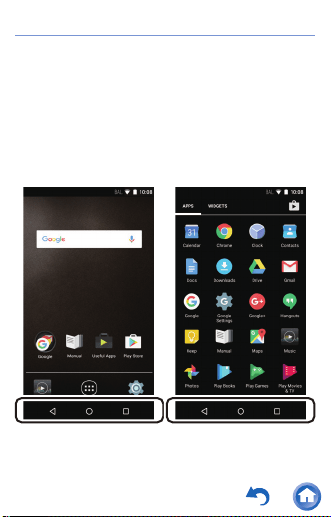
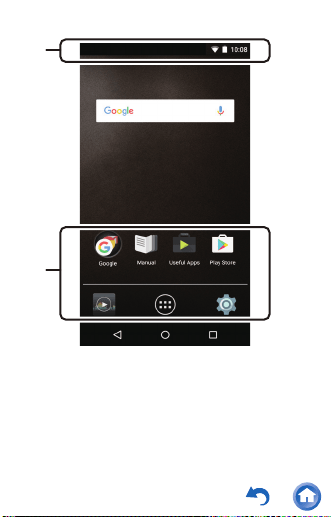
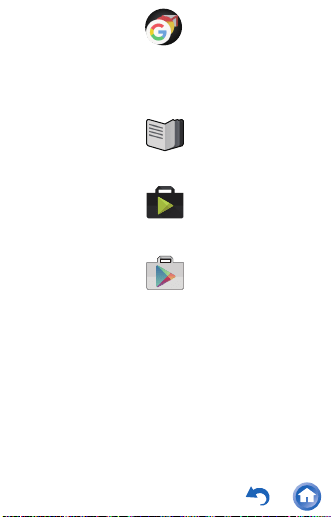
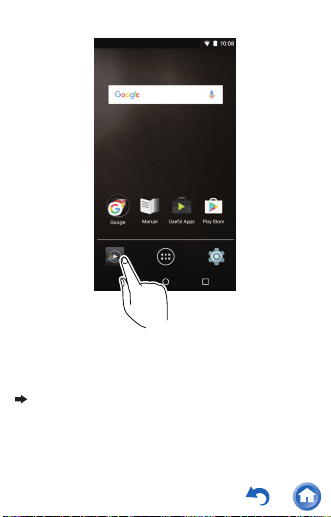
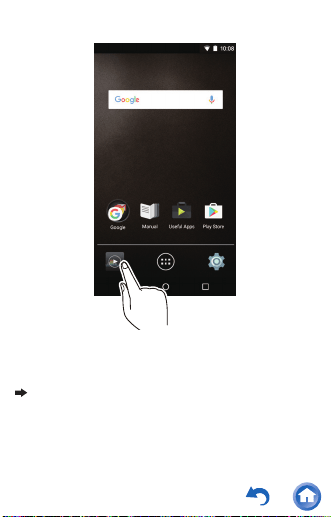
A folder containing a collection of Google
TM
apps, such as the Google Chrome browser
to view web pages and the YouTube
TM
app.
Gives you access to this document.
A collection of installers to download apps.
Gives you access to the "Google Play
TM
Store" where you can download apps for the
Android OS. You may not be able to access
this store in some areas.
Google
Manual
Useful Apps
Play Store
11
4.
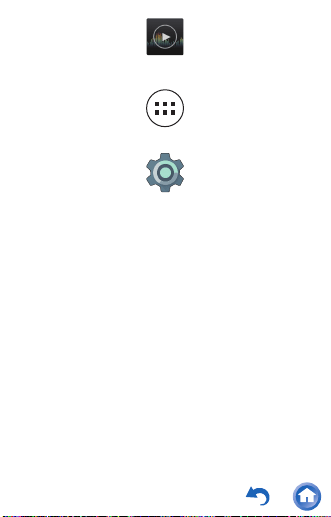
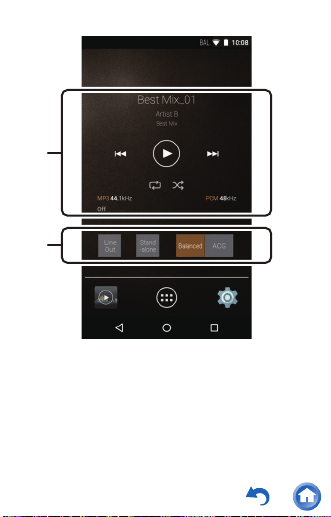
You can switch the headphone output to the
line output mode to connect external
equipment.
You can improve sound quality by turning off
Wi-Fi
®
, the Bluetooth
®
function, and the
LCD.
A mode suitable for when you have
connected balanced headphones. Compared
to the normal single-ended operation, you
can get a larger output and the high voltage
is not grounded together with the small
signal, so you can anticipate a superior effect
in the background of the music. Because you
get a larger output, you can drive
headphones with a higher impedance.
Ìéîå
Ïõô
Óôáîä
áìïîå
Âáìáîãåä

12
A mode suitable for when you have
connected balanced headphones. The basic
operating method is the same as the
balanced mode, but uses technology to even
more forcefully fix grounding standards, so
you can enjoy a sound quality with improved
clarity and more stability than the balanced
mode. Output volume is the same as the
regular single-ended operation, however.
ÁÃÇ

15
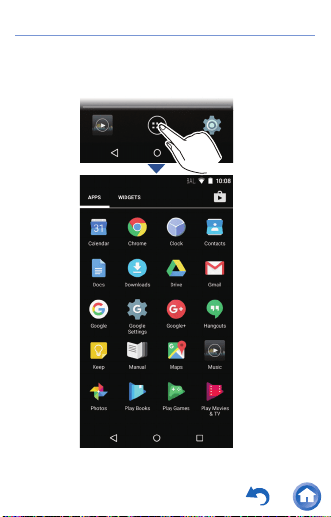
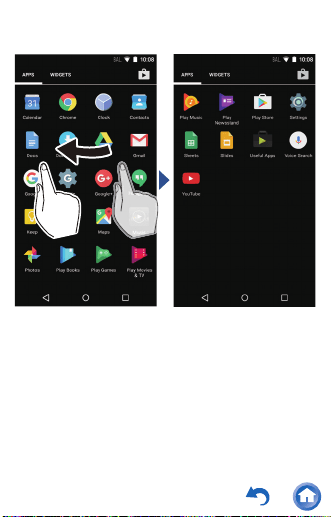
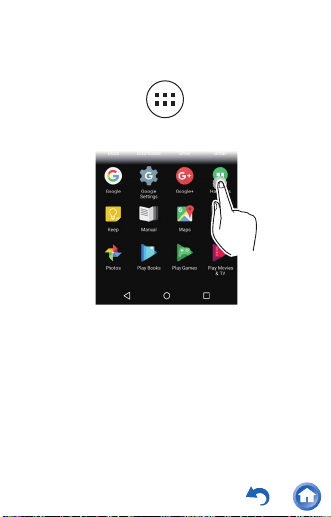
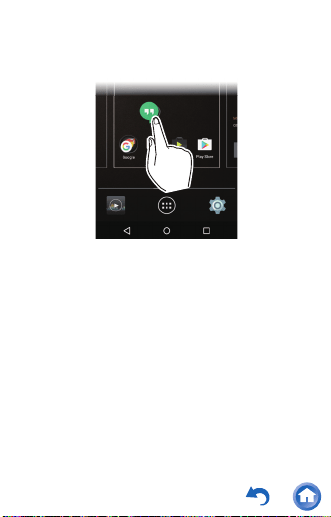
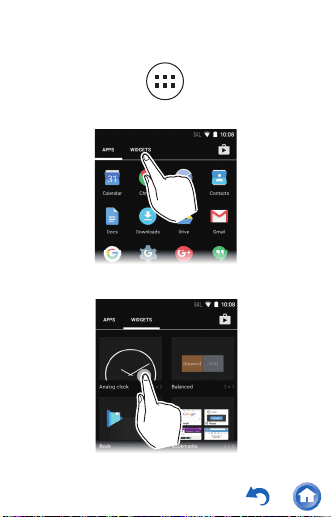
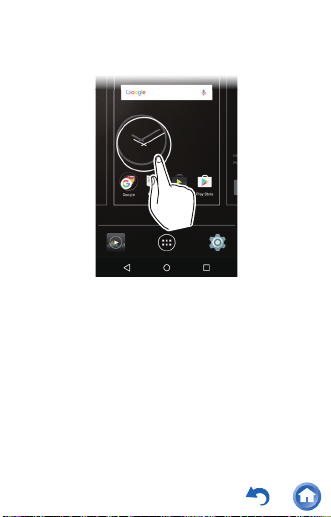
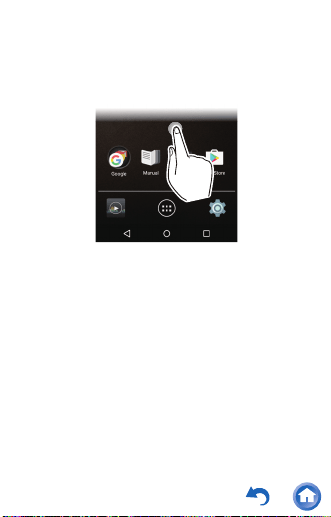
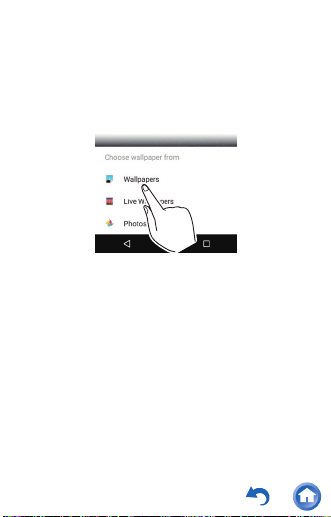
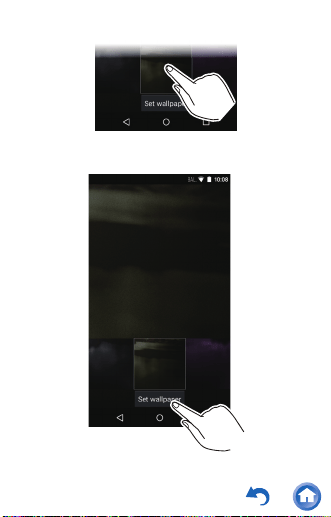
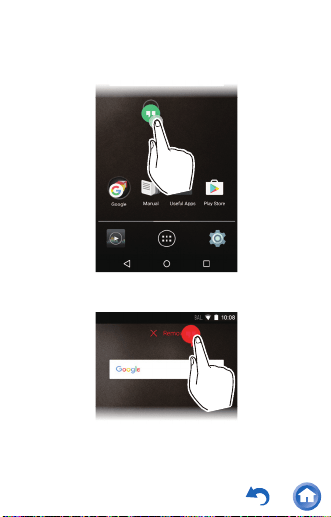
Customizing the home screen
You can put shortcuts for apps and widgets*
such as clocks on the home screen, and you can
customize it to suit yourself.
* Widgets are small apps that you can put in the
home screen so that a clock is shown all the
time or shortcuts to your favorite home pages
can be shown.
24
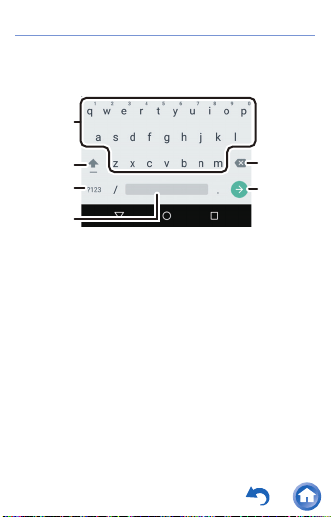
Entering text
When you tap a text box or other place to enter
text, a keyboard is automatically displayed.
1. Tap to enter text.
2. Tap to switch between upper case and lower
case. Double-tap to lock upper-case.
3. Tap to change the type of text.
4. Enters a space.
5. Removes a character on the left of the
cursor.
6. Tap to confirm.
²
³
±
µ

´
29
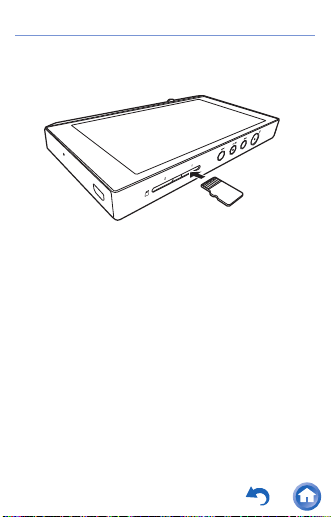
∫ Removing the microSD card
Unmount the microSD card using the following
procedure before removing it. The card can be
damaged or may stop working properly if you fail
to unmount the card first.
1
Tap "Settings" in the home screen.
2
Tap "Storage" - "Unmount SD card" - "OK".
3
Push the microSD card in until you hear a
click and then pull straight out.
0 The microSD card will spring out so take
care not to lose it.
Settings

30
Copying from a computer and
playing
You can copy music data stored on your
computer to the built-in storage on this unit or to
a microSD card in this unit.
∫ Copy with the data copying software
"X-DAP Link" and play
X-DAP Link is compatible with Windows 10 (32
bit/64 bit), Windows 8/8.1 (32 bit/64 bit),
Windows 7 (32 bit/64 bit), and Mac OS X 10.11
and OS X 10.10.
1
Start your computer and download the
installer for X-DAP Link from the following
site.
http://pioneer-headphones.com/support.html
2
On a Windows computer double-click
"setup.exe" and on a Macintosh computer
double-click "XDAPLink.pkg" to install.
0 Follow the on-screen instructions to install.
A shortcut is created on the desktop after
installation on a Windows computer. On a
Macintosh computer, "X-DAP Link.app" is
added within the "Applications" folder.
31
3
Turn on the power of the unit.
0 To copy to a microSD card, insert a
microSD card into the card slot (1 or 2).
4
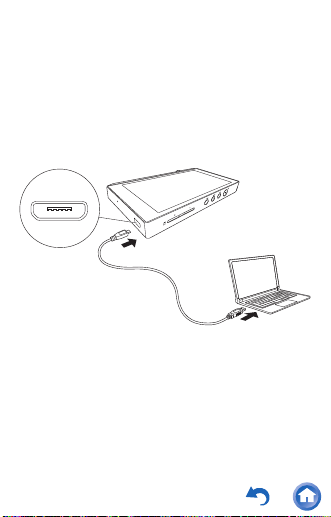
Connect this unit to the computer with the
supplied USB cable and start X-DAP Link.
0 Connect so the wider side of the plug is
up. You may damage the plug or jack if
you try to insert it the wrong way.
0 If the message such as "Connection of the
device is not recognized" is displayed on
the unit, close all running applications and
retry starting at step 3.
33
5
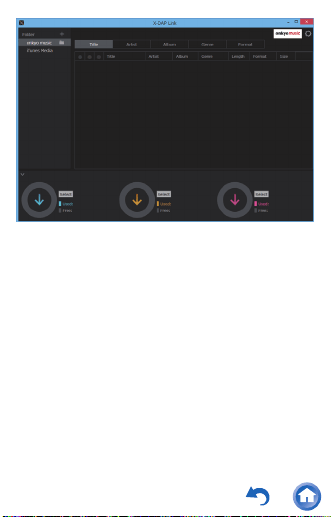
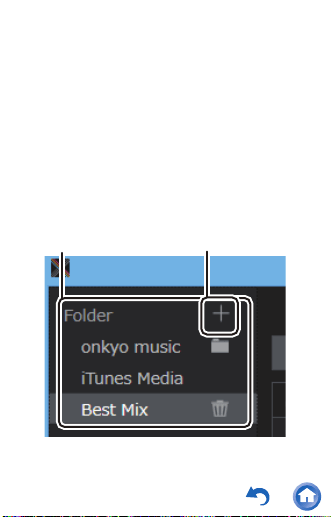
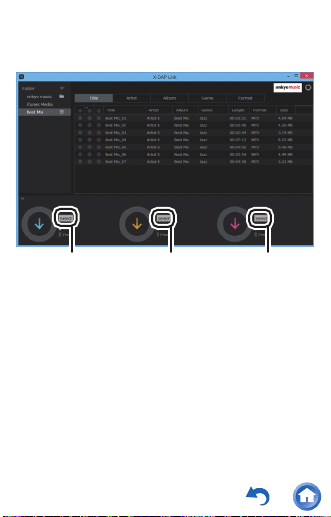
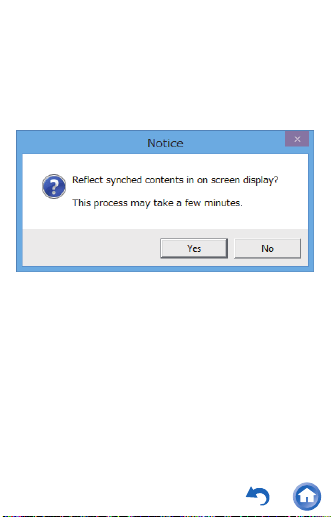
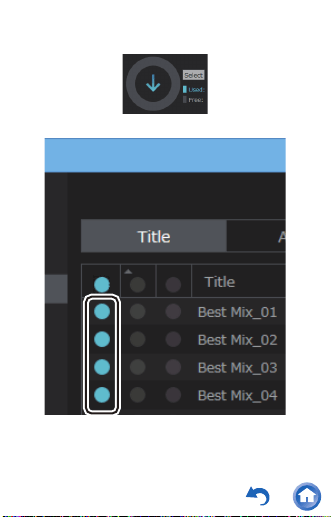
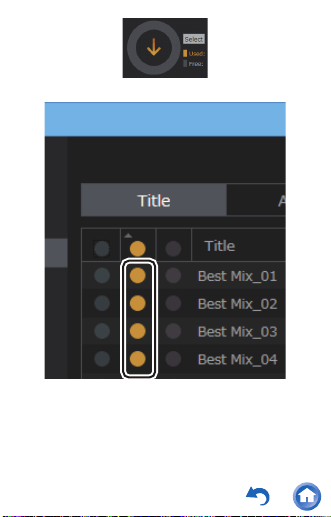
Select the folder that contains the file(s) you
want to copy from 1.
onkyo music
If there are files you have downloaded from
onkyo music (a site that distributes music
files), select this folder.
iTunes Media
If you are using iTunes
®
, a play list and
content are displayed.
When adding a folder in the computer, click
2 and add the folder you want to display.
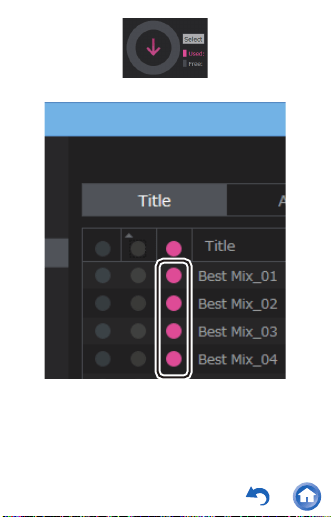
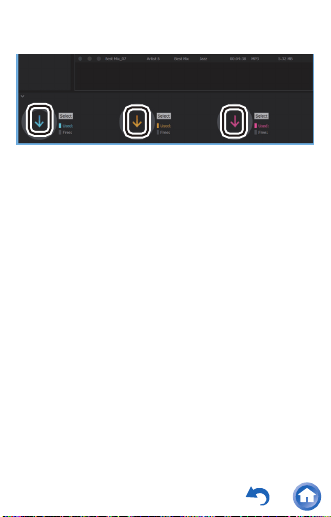
42
∫ Drag and drop to copy and play
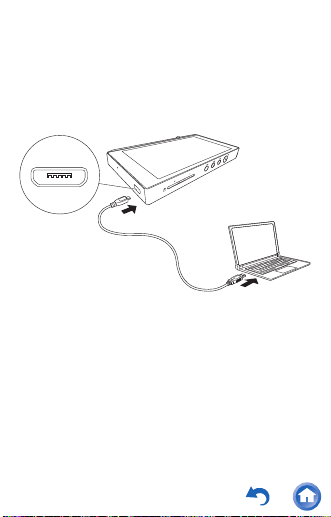
1
Use the supplied USB cable to connect this
unit to a computer.
0 Connect so the wider side of the plug is
up. You may damage the plug or jack if
you try to insert it the wrong way.
0 If "AutoPlay" or similar is displayed on your
computer, select "Open folder to view files"
and then proceed to step 3.
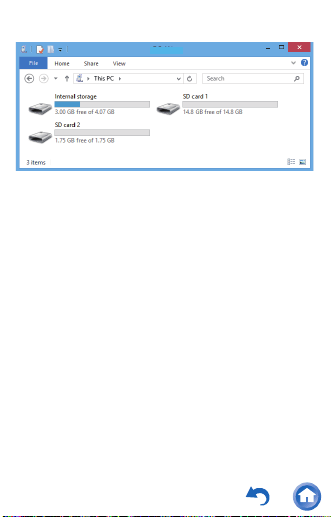
2
Select this unit from the "PC" option on your
computer.
43
3
Open the folder you want to save to.
0 To copy to the built-in storage, open the
"Music" folder in the built-in storage.
0 To copy to a microSD card, open the folder
for the microSD card you want to copy to.
4
Drag and drop the folder on your computer
that contains the music files that you want to
copy to the copy destination folder.
XDP-300R
XDP-300
R
XDP-300
R
46
Play operation details
∫ Library display
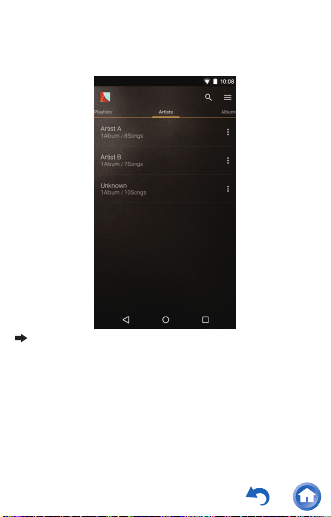
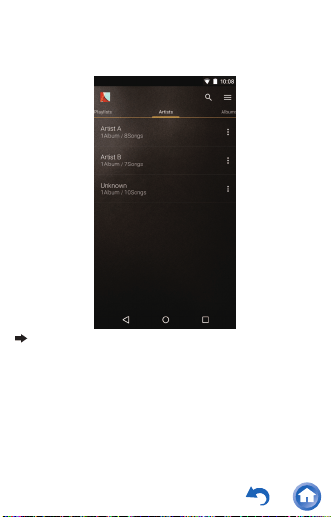
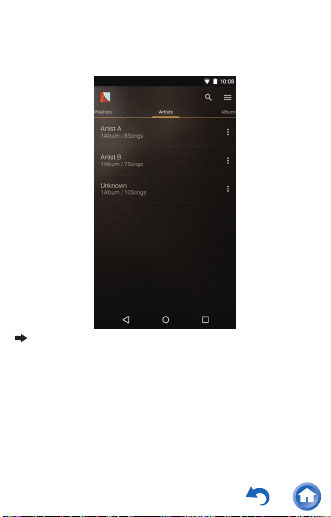
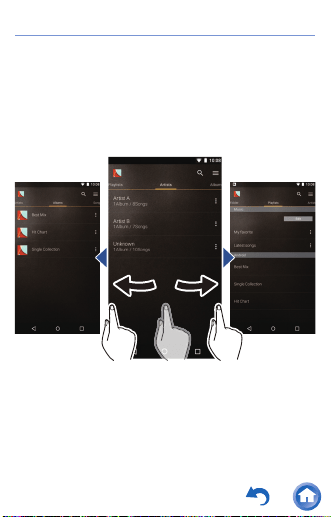
When Music starts the library (a list of tracks
synched with Music) is displayed. Flick the
library screen left or right to change the
categorization.
Folder
All tracks saved in the same folder level are
displayed.
Playlists
Displays a list of play lists you have created.
47
Artists
Displays by artist.
Albums
Displays by album.
Songs
Displays all tracks.
Genres
Displays by genre.
Compilations
Displays by compilation albums.
Composers
Displays by song writer.
Format
Displays by data format.
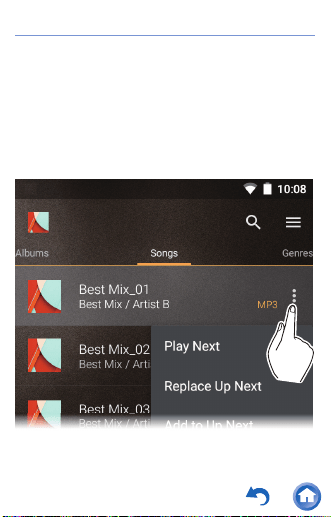
0 Tap the search icon above the list
screen to search for a track.
0 When "Auto Sync" or "Music Folders" have
not been set up, tracks may not be
displayed.
Tap or click here to read "HD Library Sync"
for more details.
53
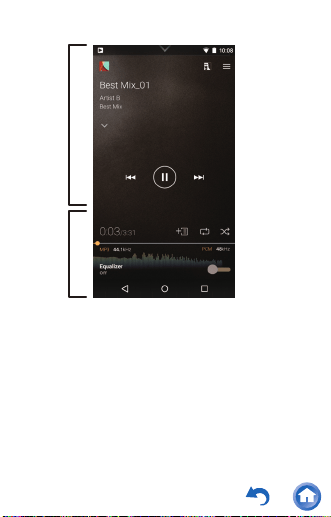
A
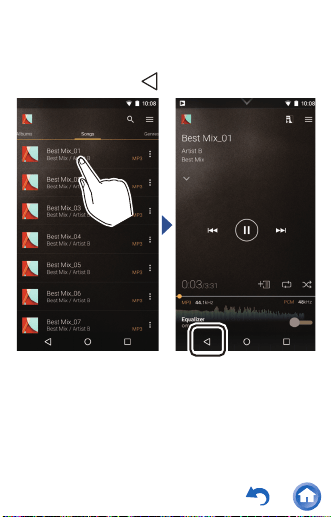
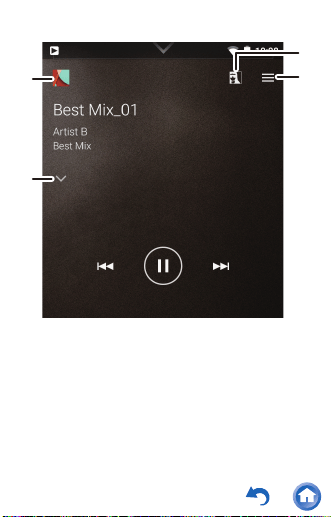
1. Returns you to the play screen when you
have switched to the queue screen or
equalizer screen.
2. Tap to see details about the track.
3. Displays the jacket images of the album
being played as wallpaper. When you turn
this off, the jacket images go dark.
4. Displays the slide menu where you can
change play and sound settings.
±
²
³
´
54
B
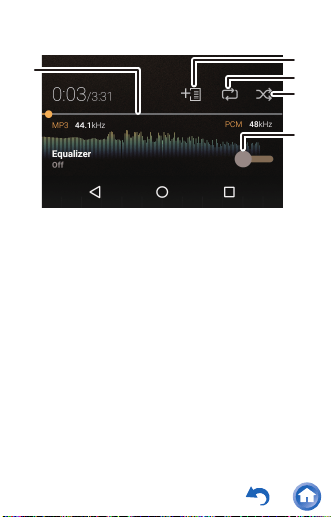
5. Seek bar
Progresses along with the track's progress.
Tap on the bar to skip to that position in the
track.
6. The track being played is added to the
playlist.
7. Repeat mode
Tap to change the mode: 1 track repeat Æ all
track repeat Æ no repeat.
8. Shuffle mode
Tap to turn random play on or off.
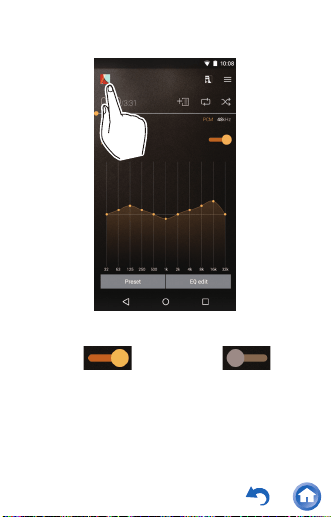
9. Tap to turn the equalizer ON or OFF.
·

¹
¸
µ
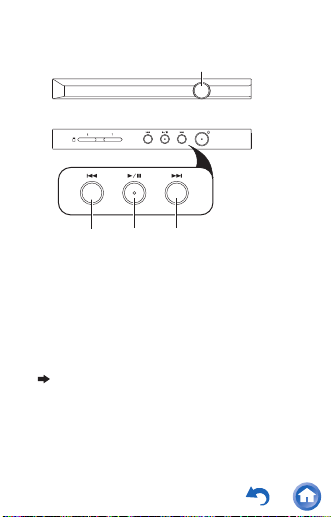

56
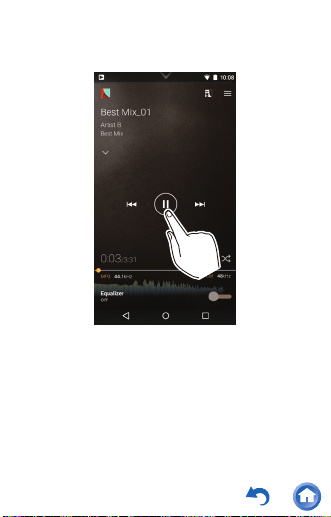
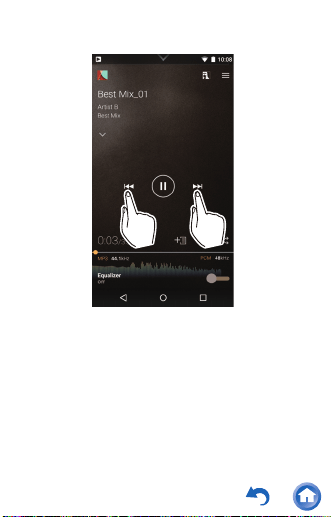
2. Skip (:) button
Skip to the beginning of the track or to the
previous track.
3. Play/pause (1/;) button
4. Skip (9) button
Skip to the next track.
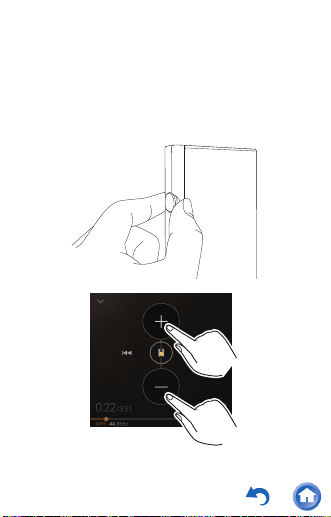
Volume settings (Only for countries/areas
complying with European Directives)
0 A warning is displayed when the volume
level exceeds 130. Check the message and
tap "OK".
0 When the volume level is 130 or over and
the elapsed play time exceeds 20 hours, a
message is displayed and the level is set to
130. (The elapsed play time is reset when
the unit shuts down.)
63
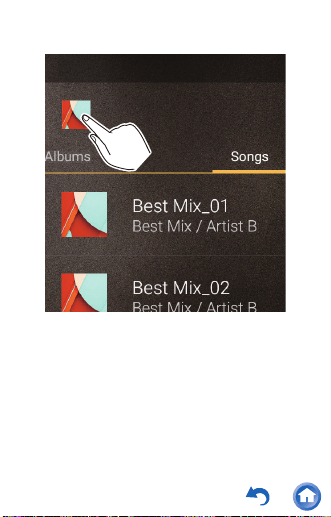
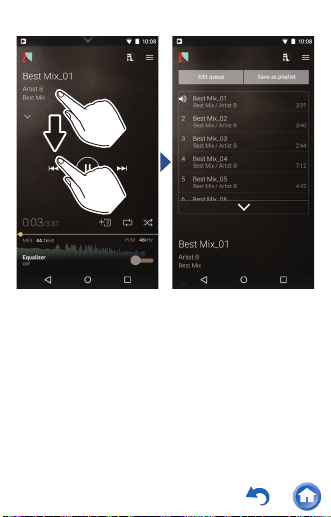
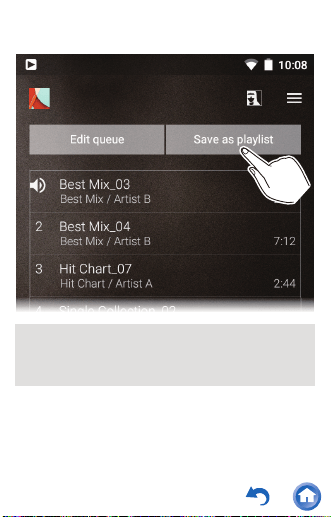
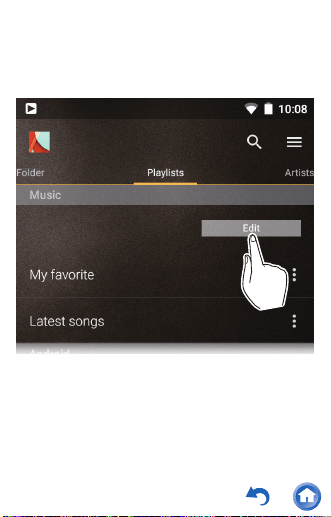
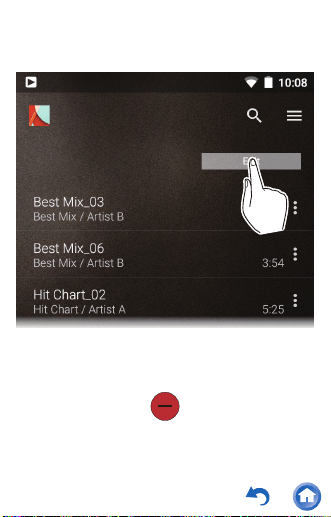
To delete a play list:
Tap the icon of the play list you want to delete
then tap "OK".
To change the order of a play list:
Drag the icon of the play list you want to reorder.
To change the name of a play list:
Tap the play list you want to rename, enter the
name and tap "OK".
To finish editing:
Tap "Done".
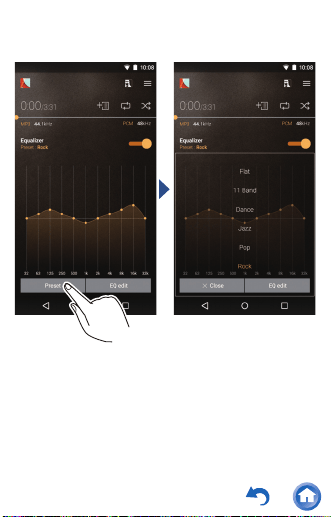

71
3
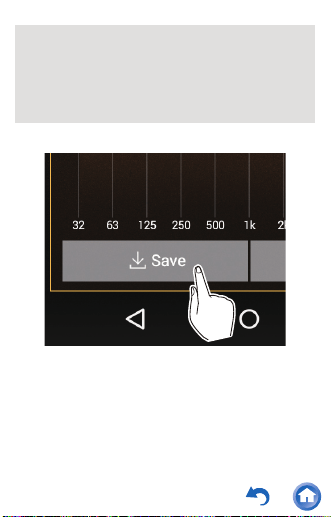
Tap "Save", enter the name and tap "SAVE".
To delete a saved equalizer
Select the equalizer you want to delete from
"Preset" and tap "Delete".
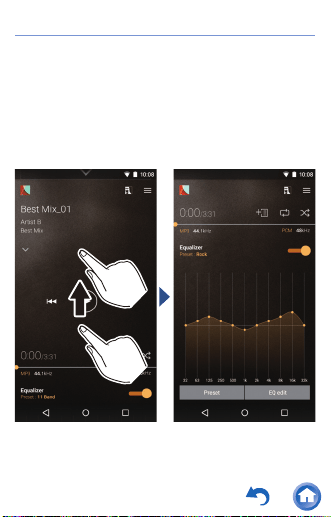
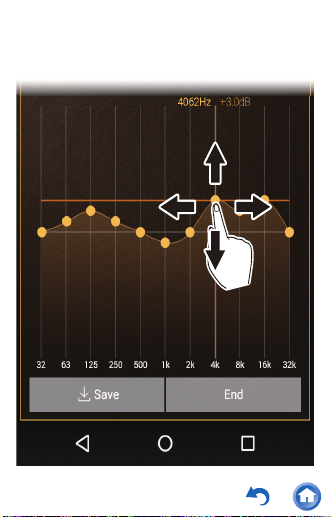
0 You can add a point by tapping on the curve
where there isn't a point.
0 You can move all equalizer points up or
down by dragging from a point off the
equalizer curve.

73
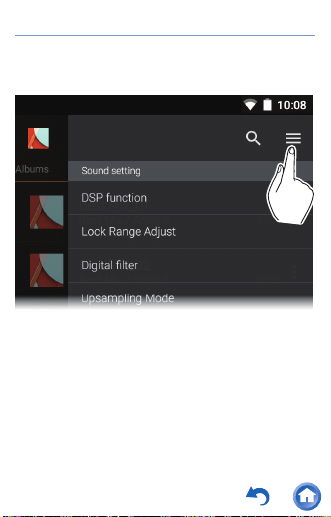
∫ Sound setting
DSP function
Use to turn ON or OFF the equalizer and
other items in the slide menu ("Upsampling
Mode", "Club Sound Boost", and "Real-time
DSD Conversion").
Lock Range Adjust
You can improve sound quality by adjusting
the lock range of the audio input signal's jitter
(modulation). The lock range can be adjusted
from the more precise Narrow up to Wide in
seven steps.
0 If you change the lock range and the
sound is interrupted, adjust to the Normal
or Wide ends.
Digital filter
By modifying the filter characteristics of the
built-in digital converter you can modify the
audio sound quality for output to
headphones.
SHARP/SLOW/SHORT

74
Upsampling Mode
You can upsample the sampling frequency of
tracks to suit the specifications of the unit or a
device connected via USB. (The initial setting
is a maximum of 192 kHz.)
Off/On
Upsampling upper limit
Set the limit for upsampling.
96 kHz/192 kHz/384 kHz (USB audio only)
Club Sound Boost
Set the ultra deep bass mode used in the DJ
scene.
Eco Mode
The Boost function operates in a mode that
reduces energy consumption.
OFF/Boost 1/Boost 2/Boost 3
0 Plays using the optimum frequency
characteristics when using Pioneer
headphones.

75
∫ External device
Select playback device
A list of output destinations is displayed,
including headphones, Bluetooth enabled
device, and USB devices. Select from the list
to change the audio output destination.
0 Tap "SEARCH FOR USB DEVICES" to
search for USB devices connected to this
unit.
∫ Settings
Settings
HD Library Sync
Auto sync
Automatically synchronize music files you
have copied to this unit from a computer or
music files on a microSD card with the files
in the library.
Music Folders
You can select a folder to synchronize with
the library.

76
Sync Now
Manually synchronize music files you have
copied to this unit from a computer or
music files on a microSD card with the files
in the library.
SYNC ALL:
Select to synchronize all transferred
tracks.
SYNC ADDED SONGS:
Select to synchronize only tracks that have
been added.
FAQ
Display a list of frequently asked questions
and their answers.
Playback
Crossfade
At the point where one song ends and
another begins, you can fade out the song
ending and fade into the song beginning.
Gain setting
You can set the volume level when
converting DSD format music files to PCM.
0db/-3db

77
Always keep screen on
Turns the function that keeps the light on
all the time on or off.
Output Audio Route
A list of output destinations is displayed,
including headphones, Bluetooth enabled
device, and USB devices. Select from the
list to change the audio output destination.
0 Tap "SEARCH FOR USB DEVICES" to
search for USB devices connected to this
unit.
SEARCH FOR USB DEVICES
Searches for USB devices connected to
this unit.
USB Audio
USB Host Audio Driver is valid.
You can output high-res sources by USB
when you enable this setting.
Enables volume control in the
background.
This setting allows you to control the
volume of a connected USB device with
this unit.

78
DSD Output Format
This allows you to select the format output
from the USB when playing DSD format
music files.
PCM/DoP/Direct Transfer
0 You need to have a device that supports
direct transferring before you can select
"Direct Transfer". (Supported devices:
DAC-HA300, XPA-700)
Direct transfer output frequency
maximum
Set the upper limit for frequency when
"Direct Transfer" is selected in "DSD
Output Format". Select the frequency that
your connected USB device can process.
Auto/2.8 MHz/5.6 MHz/11.2 MHz
DoP Pause Operation
When you select "Output DSD Zero", you
can reduce the reoccurrence of noise
when DoP is paused by outputting a muted
DSD signal for a maximum of 10 minutes
even while sound is not being output.
Stop Output/Output DSD Zero

79
Output DSD 3/6 MHz via DoP
Outputs DSD format music files as DoP
format.
0 When the setting is canceled, even if DoP
is selected in "DSD Output Format", only
DSD 3 MHz and 6 MHz are automatically
converted to PCM.
Real-time DSD Conversion
Converts in real time music files such as
MP3, WAV, and FLAC to DSD. You can
enjoy non-high-resolution music files with
high quality sound.
Off/DSD 2.8 MHz/High-Precision DSD
2.8 MHz/DSD 5.6 MHz/High-Precision
DSD 5.6 MHz
0 You can enjoy a better sound quality if you
select one of the high-precision modes,
but the burden on the CPU increases and
power consumption rises, which may lead
to some jumping of the sound under some
usage conditions.

80
Other
Home screen wallpaper setting
Makes the wallpaper of the home screen
the jacket image.
0 This cannot be selected when "Album
artwork" is OFF.
About
Displays the licenses for open source
software.
Version
Displays the version information for this
unit.
Build
Displays the Build Number.
Reset Settings
Reset the settings for Music to the initial
settings.

81
Album artwork
Displays the jacket images of the album
being played as wallpaper. When you turn
this OFF, the jacket image goes dark and the
"Home screen wallpaper setting" is also
turned OFF.
Change playback screen mode
Select playback screen mode
Select the desired mode from two types.
edit tab
You can edit the display or hide settings for
the tab categories displayed in the library
and also change the display order.
SNS
You can post the track currently playing to a
social network.
A list of usable SNS apps is displayed.
0 You need to install an SNS app to use the
SNS service.
82
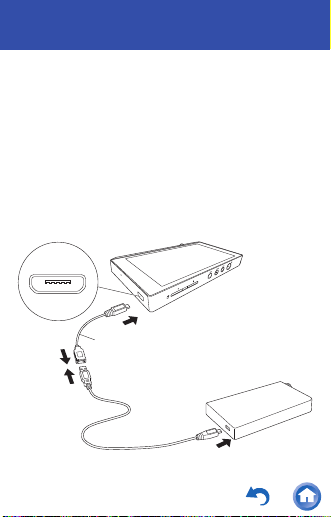
USB output
You can connect a headphone amplifier or D/A
converter, for example, that has a USB
connector. You will need a USB OTG (On-The-
Go) cable (commercially available) to connect to
this unit. Make sure you have the correct type of
USB cable for the USB port of the device you are
connecting to the OTG cable. (If it is a microUSB
port, you can use the USB cable included with
this unit.)
OTG cable
83
If the device connected supports high-res
sources, connect after performing the following
procedure to enable high-res output. Proceed to
step 4 if not supported.
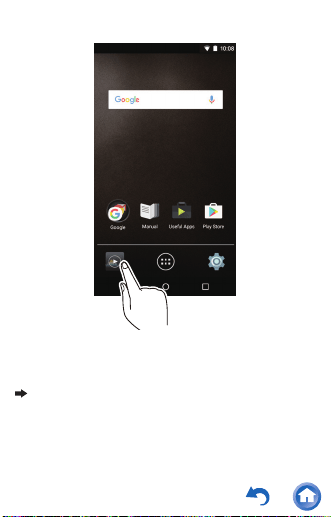
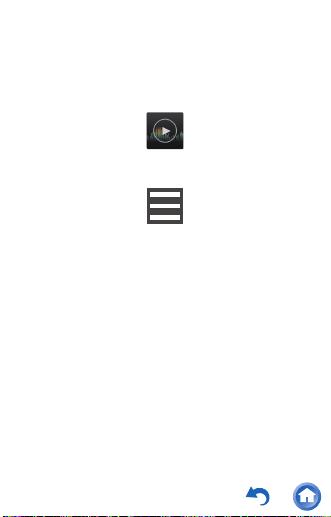
1
Tap Music in the home screen.
2
Tap the icon at the top right of the screen.
3
Tap "Settings" - "USB Host Audio Driver is
valid." to turn on.
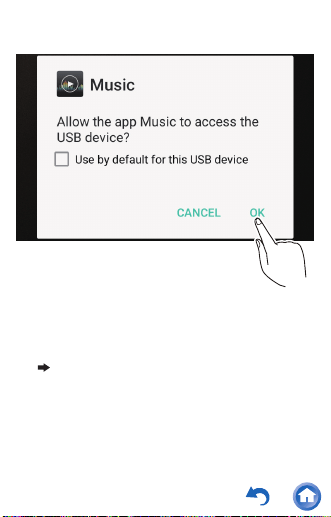
4
Turn on the device you are connecting to this
unit and connect, using an OTG cable, etc.
0 Make sure you plug the cable in the right
way up when connecting. You may
damage the plug or jack if you try to insert
it the wrong way.
Music

85
Bluetooth
®
function
You can listen to music wirelessly by using
Bluetooth enabled devices such as headphones
or speakers. Reception is possible over a
distance of 10 m with a clear line of sight. The
communication distance will be reduced in some
conditions.
0 This unit supports aptX. You can enjoy higher
quality wireless sound by connecting
headphones and wireless speakers that
support aptX.
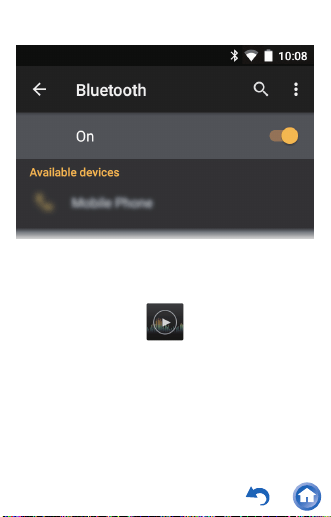
∫ Pairing for play
Pairing is necessary when connecting the
Bluetooth enabled devices for the first time.
Make sure the Bluetooth enabled device you
want to connect is ready to be detected.
1
Tap "Settings" in the home screen.
2
Tap "Bluetooth".
0 If it is "Off", tap it to turn it "On".
Settings
87
When connecting after the first time
1
Tap "Settings" in the home screen.
2
Tap "Bluetooth" and tap the device you want
to connect in "Paired devices".
∫ Canceling a connection
1
Tap "Settings" in the home screen.
2
Tap "Bluetooth".
3
Select the device you want to disconnect and
tap "OK".
0 Pairing information is not deleted even if you
cancel the connection. Tap the icon displayed
with the device whose pairing information you
want to delete and tap "FORGET".
Settings
Settings
88
Various settings
Make sound and output settings
Updating
Backing up and resetting
Make sound and output settings
This section explains the items in "Sound &
notification" in "Settings" that help you enjoy
high-quality sound.
1
Tap "Settings" in the home screen.
2
Tap "Sound & notification" and select the
item to change the setting.
Settings

89
Output select
Switching the headphone output.
Balanced
A mode suitable for when you have
connected balanced headphones. Compared
to the normal single-ended operation, you
can get a larger output and the high voltage is
not grounded together with the small signal,
so you can anticipate a superior effect in the
quality of the music, which means you can
drive headphones that have a high
impedance.
A.C.G.
A mode suitable for when you have
connected balanced headphones. The basic
operating method is the same as the
balanced mode, but uses technology to even
more forcefully fix grounding standards, so
you can enjoy a sound quality with improved
clarity and stability than the balanced mode.
Output volume is the same as the single-
ended operation, however.

90
OFF
0 If Auto Volume is turned ON, the volume is
automatically set to a level between
Balanced and A.C.G. to moderate the
volume level. (For areas other than
Europe, Singapore, and Hong Kong)
0 This unit does not support simultaneous
use of the balanced headphone jack and
the headphone jack. Using both jacks at
the same time may result in damage.
Fixed line out mode
You can switch the headphone output to the
line output mode to connect external
equipment.
0 When you have "Fixed line out mode" on,
output through the headphone jack is at
maximum volume, so do not use
headphones. Adjust the volume on the
connected device.
Stand-alone mode
You can improve sound quality by turning off
Wi-Fi, the Bluetooth function, and the LCD.


92
Lock range adjust
You can improve sound quality by adjusting
the lock range of the audio input signal's jitter
(modulation). The lock range can be adjusted
from the more precise Narrow up to Wide in
seven steps.
0 If you change the lock range and the
sound is interrupted, adjust to the Normal
or Wide ends.
Volume Limiter
Set the limit for maximum volume.
Gain setting
You can select the headphone output level to
suit your headphones.
HIGH/NORMAL/LOW1/LOW2
0 Lower the volume first if you intend to
select "HIGH".
0 When connecting a pair of headphones for
the first time, set to "LOW1" and change
the volume level gradually.

94
Updating
Updates the software on this unit to the latest
version. A message is displayed on the screen
when an update file is released for the software.
Tap the message and follow the on screen
instructions to update.
∫ Check whether there is an update file
You can check whether there is an update file for
the software.
1
Tap "Settings" in the home screen.
2
Tap "Device Information" - "System updates".
Settings
95
Backing up and resetting
∫ Backing up
You can back up your apps and settings to a
Google server.
1
Tap "Settings" in the home screen.
2
Tap "Backup & reset" and turn "Back up my
data" on.
∫ Resetting
Reset the unit to the condition it was in when you
purchased it. All data, downloads, etc. are
deleted when you reset the unit.
1
Tap "Settings" in the home screen.
2
Tap "Backup & reset" - "Factory data reset" -
"RESET DEVICE".
Settings
Settings

97
Specifications
Platform:
Android5.1.1
Display:
4.7-inch, 1280 × 720 dot resolution
Interfaces and input/output jacks:
0 Headphone jack
3-conductor, ø3.5 mm, impedance: 16 to
300 Ω*
0 Headphone jack (balanced output)
4-conductor, ø2.5 mm, impedance: 32 to
600 Ω*
* Do not connect headphones that have an
impedance outside the rated range as this
may result in damage.
0 1 microUSB port, 2 microSD card slots
Network Section:
0 Wireless LAN: IEEE802.11 b/g/n/ac
compliant
0 Bluetooth: A2DP, AVRCP, HSP, OPP, HID,
PAN
Rated input:
5 V dc, 1.5 A

98
Battery power:
1,630 mAh
Operating temperature:
5°C to 35°C
Internal memory:
32 GB (including system area for Android)
Mass of main unit:
200 g (7.1 oz)
External dimensions (excluding protrusions):
128.9 mm × 75.9 mm × 13 mm
(5-1/6" × 3" × 1/2") (height/width/depth)
Specifications and features are subject to
change without notice.
Recommended Apps
There is a collection of app installers in the
"Useful Apps" section of the app list. This is an
introduction to a selection of these.
Onkyo Music
An app to help you access the Onkyo Music site,
where high-res sources are distributed.

99
Integra remote
An app that enables you to wirelessly stream
music from this unit to an Integra receiver.
You can also use this unit as a remote controller.
Pioneer ControlApp
An app that allows you to use this unit as a
remote controller to operate Pioneer audio
products.
SX-N30 Control App (Except for Japan)
An app that allows you to use this unit as a
remote control to operate SX-N30.
Onkyo Remote
An app that enables you to wirelessly stream
music from this unit to Onkyo audio devices.
You can also use this unit as a remote controller.
iControlAV5
An app that allows you to use this unit as a
controller to operate Pioneer AV receivers and
BD players.

100
Supported playback formats
0 MP3/AAC (up to 48 kHz)*
1
0 DSF/DSDIFF (2.8 MHz/3 MHz/5.6 MHz/
6 MHz/11.2 MHz PCM conversion/DoP
output)*
2
0 FLAC/ALAC/WAV/AIFF/MQA (up to
384 kHz), OggVorbis (up to 192 kHz)
*1 Files that are protected by DRM cannot
be played.
*2 Converted to PCM for playback on the
main device.

101
Continuous play time
Times shown are a guide. Playback times
depend on settings.
0 FLAC lossless 24 bit 96 kHz
*
16 hours
0 MP3 128 kbps 16 bit 44.1 kHz
*
18 hours
0 DSD 5.6 MHz
*
12 hours
* With the screen off, playing with Music,
and using a 3-contact ø3.5 mm
headphone connection
Battery charge retention time
Maximum 300 hours (Wi-Fi and Bluetooth
function off, no devices connected)

102
Number of music files recordable
This is a guide to the number of music files you
can record to the internal memory of this unit.
0 Internal memory
Approximately 4,000 tracks (available space:
approximately 20 GB, MP3 format: when
5MB)
Approximately 100 tracks (available space:
approximately 20 GB, FLAC lossless 24 bit/
192 kHz: when 200 MB)

103
Cautions for use
∫ This unit
0 Use a 4-conductor plug for the 2.5 mm
diameter headphone jack of this unit, and use
a 3-conductor plug for the 3.5 diameter
headphone jack. The jacks are not
compatible with microphone input.
0 This unit does not support simultaneous use
of the balanced headphone jack and the
headphone jack. Using both jacks at the
same time may result in damage.
0 Take care that dust and foreign objects do not
get into the entrance of the microSD card
slot, as this can cause a malfunction.
0 Do not press down with force on the unit
when the unit is placed with the screen facing
down. This can damage the LCD and the
volume dial.

104
0 The antenna is built into the bottom of the
back of the main unit. The transmission
speed of the unit may be adversely affected if
you block the antenna area with your hand.
∫ Recharging
0 If you turn this unit off and connect it by USB
to a computer, the recharging mark is
displayed on the screen. The recharging
mark may not appear immediately depending
on the condition of this unit. When this
occurs, the recharging mark is displayed as
recharging occurs, so please wait for a few
minutes.

105
∫ Playing audio
0 Play may stop momentarily when you turn the
Bluetooth function OFF while using balanced
headphone output. If this happens, start play
again.
0
Play may stop momentarily when you turn
"Stand-alone mode" ON. If this happens, start
play again.
0 If you have connected a USB device and are
in the middle of playing it, sound may cease
to be output if you switch the output to
"Balanced". Disconnect the USB device to
play in this case.
∫ Copying music files
0 When copying a music file with X-DAP Link
and an error message is displayed, restart
this unit and perform the copy operation
again. If the error message is displayed
again, use your computer to delete the
"xdaplink" folder from the built-in storage of
this unit.
108
The Wi-Fi CERTIFIED Logo is a certification
mark of the Wi-Fi Alliance
®
.
Windows and the Windows logo are trademarks
or registered trademarks of Microsoft
Corporation in the United States and/or other
countries.
iTunes is a trademark of Apple Inc., registered in
the U.S. and other countries.
Google, Android, Google Play and other marks
are trademarks of Google Inc.
DSD and the Direct Stream Digital logo are
trademarks of Sony Corporation.

SN 29402719
© 2016 Onkyo & Pioneer Innovations Corporation All rights reserved.