

Return your Warranty Registration card today to ensure
you receive all the benefits you’re entitled to
Registering your model with PHILIPS makes you eligible for all of the valuable benefits
listed below, so don’t miss out. Complete and return your Product Registration Card at
once to ensure:
* Proof of Purchase
Returning the enclosed card
guarantees that your date of
purchase will be on file, so no
additional paperwork will be
required from you to obtain
warranty service.
* Product Safety
Notification
By registering your product
you’ll receive notification -
directly from the
manufacturer - in the rare
case of a product recall or
safety defect.
* Additional Benefits
of Product Ownership
Registering your product
guarantees that you’ll receive
all of the privileges to which
you’re entitled, including
special money-saving offers.
Congratulations on your purchase, and
welcome to the “family!”
Dear PHILIPS product owner:
Thank you for your confidence in PHILIPS.You’ve
selected one of the best-built, best-backed
products available today.We’ll do everything in
our power to keep you happy with your
purchase for many years to come.
As a member of the PHILIPS “family,” you’re
entitled to
protection by one of the most comprehensive
warranties and outstanding service networks in
the industry.
What’s more, your purchase guarantees you’ll
receive all the information and special offers for
which you qualify, plus easy access to accessories
from our convenient home shopping
network.
Most importantly, you can count on our
uncompromising commitment to your total
satisfaction.
All of this is our way of saying welcome - and
thanks for investing in a PHILIPS product.
P.S. To get the most from your PHILIPS
purchase, be sure to complete and
return your Product Registration
Card at once.
For Customer Use
Enter below the Serial No., which is
located on the rear of the cabinet. Retain
this information for future reference.
Model No. __________________________
Serial No. __________________________
Know these
safety symbols
This “bolt of lightning” indicates
uninsulated material within your unit
may cause an electrical shock. For the safety
of everyone in your household, please do not
remove product covering.
The “exclamation point” calls attention
to features for which you should read
the enclosed literature closely to prevent
operating and maintenance problems.
WARNING:To reduce the risk of fire or
electric shock, this apparatus should not be
exposed to rain or moisture and objects
filled with liquids, such as vases, should not
be placed on this apparatus.
CAUTION: To prevent electric shock,
match wide blade of plug to wide slot, fully
insert.
ATTENTION : Pour éviter les choc
électriques, introduire la lame la plus large de
la fiche dans la borne correspondante de la
prise et pousser jusqu’au fond.
CAUTION
RISK OF ELECTRIC SHOCK
DO NOT OPEN
CAUTION: TO REDUCE THE RISK OF ELECTRIC SHOCK, DO NOT
REMOVE COVER (OR BACK). NO USER-SERVICEABLE PARTS
INSIDE. REFER SERVICING TO QUALIFIED SERVICE PERSONNEL.
t
s
Visit our World Wide Web Site at http://www.philips.com
1. Read these instructions.
2. Keep these instructions.
3. Heed all warnings.
4. Follow all instructions.
5. Do not use this apparatus near water.
6. Clean only with a dry cloth.
7. Do not block any of the ventilation openings. Install in
accordance with the manufacturers instructions.
8. Do not install near any heat sources such as radiators, heat
registers, stoves, or other apparatus (including amplifiers) that
produce heat.
9. Do not defeat the safety purpose of the polarized or
grounding-type plug. A polarized plug has two blades with one
wider than the other. A grounding type plug has two blades
and third grounding prong.The wide blade or third prong are
provided for your safety.When the provided plug does not fit
into your outlet, consult an electrician for replacement of the
obsolete outlet.
10. Protect the power cord from being walked on or pinched
particularly at plugs, convenience receptacles, and the point
where they exit from the apparatus.
11. Only use attachments/accessories specified by the
manufacturer.
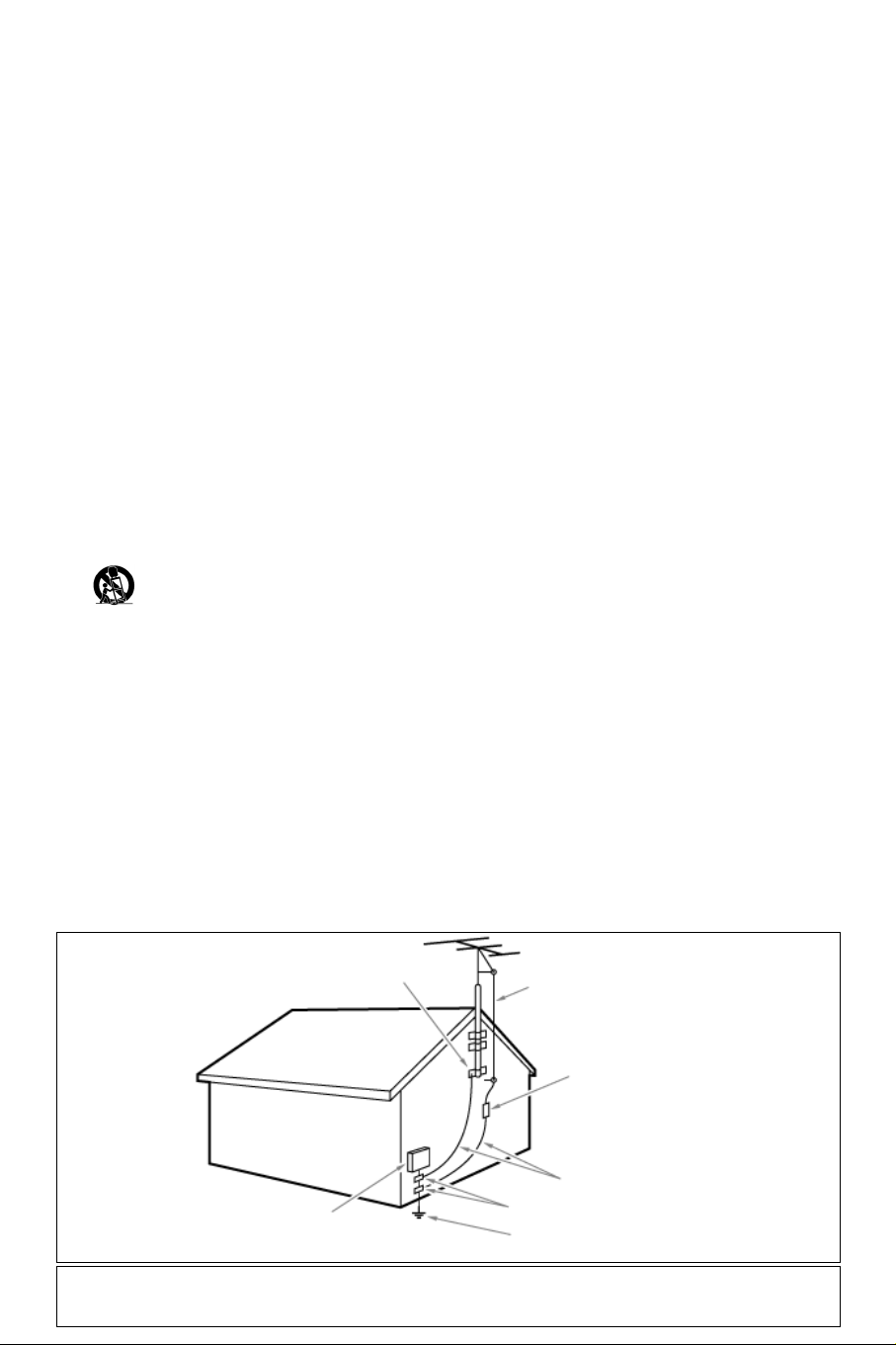
12. Use only with a cart, stand, tripod, bracket, or
table specified by the manufacturer, or sold with
the apparatus.When a cart is used, use caution
when moving the cart/apparatus combination to avoid injury
from tip-over.
13. Unplug this apparatus during lightning storms or when unused
for long periods of time.
14. Refer all servicing to qualified service personnel. Servicing is
required when the apparatus has been damaged in any way,
such as power-supply cord or plug is damaged, liquid has been
spilled or objects have fallen into apparatus, the apparatus has
been exposed to rain or moisture, does not operate normally,
or has been dropped.
15. This product may contain lead or mercury. Disposal of these
materials may be regulated due to environmental
considerations. For disposal or recycling information, please
contact your local authorities or the Electronic Industries
Alliance: www.eiae.org.
16. Damage Requiring Service - The appliance should be
serviced by qualified service personnel when:
A. The power supply cord or the plug has been damaged; or
B. Objects have fallen, or liquid has been spilled into the
appliance; or
C. The appliance has been exposed to rain; or
D. The appliance does not appear to operate normally or
exhibits a marked change in performance; or
E. The appliance has been dropped, or the enclosure damaged.
17. Tilt/Stability - All televisions must comply with
recommended international global safety standards for tilt and
stability properties of its cabinets design.
• Do not compromise these design standards by applying
excessive pull force to the front, or top, of the cabinet
which could ultimately overturn the product.
• Also, do not endanger yourself, or children, by placing
electronic equipment/toys on the top of the cabinet. Such
items could unsuspectingly fall from the top of the set and
cause product damage and/or personal injury.
18. Wall or Ceiling Mounting - The appliance should be
mounted to a wall or ceiling only as recommended by the
manufacturer.
19. Power Lines - An outdoor antenna should be located away
from power lines.
20. Outdoor Antenna Grounding - If an outside antenna is
connected to the receiver, be sure the antenna system is
grounded so as to provide some protection against voltage
surges and built up static charges.
Section 810 of the National Electric Code, ANSI/NFPA No.
70-1984, provides information with respect to proper
grounding of the mats and supporting structure grounding of
the lead-in wire to an antenna-discharge unit, size of
grounding connectors, location of antenna-discharge unit,
connection to grounding electrodes and requirements for the
grounding electrode. See Figure below.
21. Objects and Liquid Entry - Care should be taken so that
objects do not fall and liquids are not spilled into the
enclosure through openings.
a) Warning:To reduce the risk of fire or electric shock, this
apparatus should not be exposed to rain or moisture and
objects filled with liquids, such as vases should not be placed
on this apparatus.
22. Battery Usage CAUTION - To prevent battery leakage
that may result in bodily injury, property damage, or damage
to the unit:
• Install all batteries correctly, with + and - alignment as
marked on the unit.
• Do not mix batteries (old and new or carbon and alkaline,
etc.)
• Remove batteries when the unit is not used for a long time.
IMPORTANT SAFETY INSTRUCTIONS
Read before operating equipment
Note to the CATV system installer: this reminder is provided to call the CATV system installer’s attention to Article 820-40
of the NEC that provides guidelines for proper grounding and, in particular, specifies that the cable ground shall be connected to
the grounding system of the building, as close to the point of cable entry as practical.
EXAMPLE OF ANTENNA GROUNDING AS PER
NATIONAL ELECTRICAL CODE (NEC)
GROUND CLAMP
ANTENNA LEAD IN WIRE
ANTENNA DISCHARGE UNIT
(
NEC SECTION 810-20)
GROUNDING CONDUCTORS
(NEC SECTION 810-21)
GROUND CLAMPS
POWER SERVICE GROUNDING ELECTRODE SYSTEM
(
NEC ART 250, PART H)
ELECTRIC SERVICE EQUIPMENT

1
Contents
R End of life directives
Philips is paying a lot of attention to
producing environmentally-friendly in
green focal areas.Your new TV contains
materials which can be recycled and
reused. At the end of its life specialized
companies can dismantle the
discarded TV to concentrate the
reusable materials and to minimize
the amount of materials to be
disposed of.
Please ensure you dispose of your old
TV according to local regulations.
Help?
If this instruction manual does
not give an answer or if ‘Before
Calling Service’ do not solve your
TV problem, you can call your
Local Philips Customer or Service
Centre. See the supplied World-
wide guarantee booklet.
Please, have the Model and
Product number which you can
find at the back of your
television set or on the
packaging, ready, before calling
the Philips helpline.
(800-531-0039)
Model: 42/50PF9956/37
Product No: ............................................
Care of the screen
See Tips, p. 26.
Preparation. . . . . . . . . . . . . . . . . . . . . . . . . . . . . . . . . . . . . 2
Buttons on the right side of the TV . . . . . . . . . . . . . . . . . . 2
Use of the remote control RC4306 . . . . . . . . . . . . . . . . . . 3
To use the menus . . . . . . . . . . . . . . . . . . . . . . . . . . . . . . . . 5
Installation . . . . . . . . . . . . . . . . . . . . . . . . . . . . . . . . . . . . . 5
Select the menu language 5
Store TV channels 6
Settings menu. . . . . . . . . . . . . . . . . . . . . . . . . . . . . . . . . . . 6
General 6
Clock 8
Source 9
Demo . . . . . . . . . . . . . . . . . . . . . . . . . . . . . . . . . . . . . . . . . 9
TV menu . . . . . . . . . . . . . . . . . . . . . . . . . . . . . . . . . . . . . . 10
Picture menu 10
Active Control 11
Sound 12
Features menu 12
Channels menu 13
Connect Accessory Devices . . . . . . . . . . . . . . . . . . . . . . . 16
Recorder (vcr-dvd+rw) 16
Recorder and other A/V devices 16
Recorder and Cable Box with RDF output 17
Satellite Receiver / Cable Box with AV outputs 17
Recorder and Satellite Receiver / Cable Box with AV outputs 17
DVD Player or other accessory digital source devices 18
HDMI (High Definition Multimedia Interface) connector 19
Multi channel Surround receiver 19
Connect extra subwoofer 20
Side connections 20
To select connected devices 20
Audio- and video equipment buttons. . . . . . . . . . . . . . . . 21
Record with your recorder . . . . . . . . . . . . . . . . . . . . . . . . 21
Setting the remote control to work accessory devices . . 22
Before Calling Service . . . . . . . . . . . . . . . . . . . . . . . . . . . 25
Tips . . . . . . . . . . . . . . . . . . . . . . . . . . . . . . . . . . . . . . . . . . 26
2
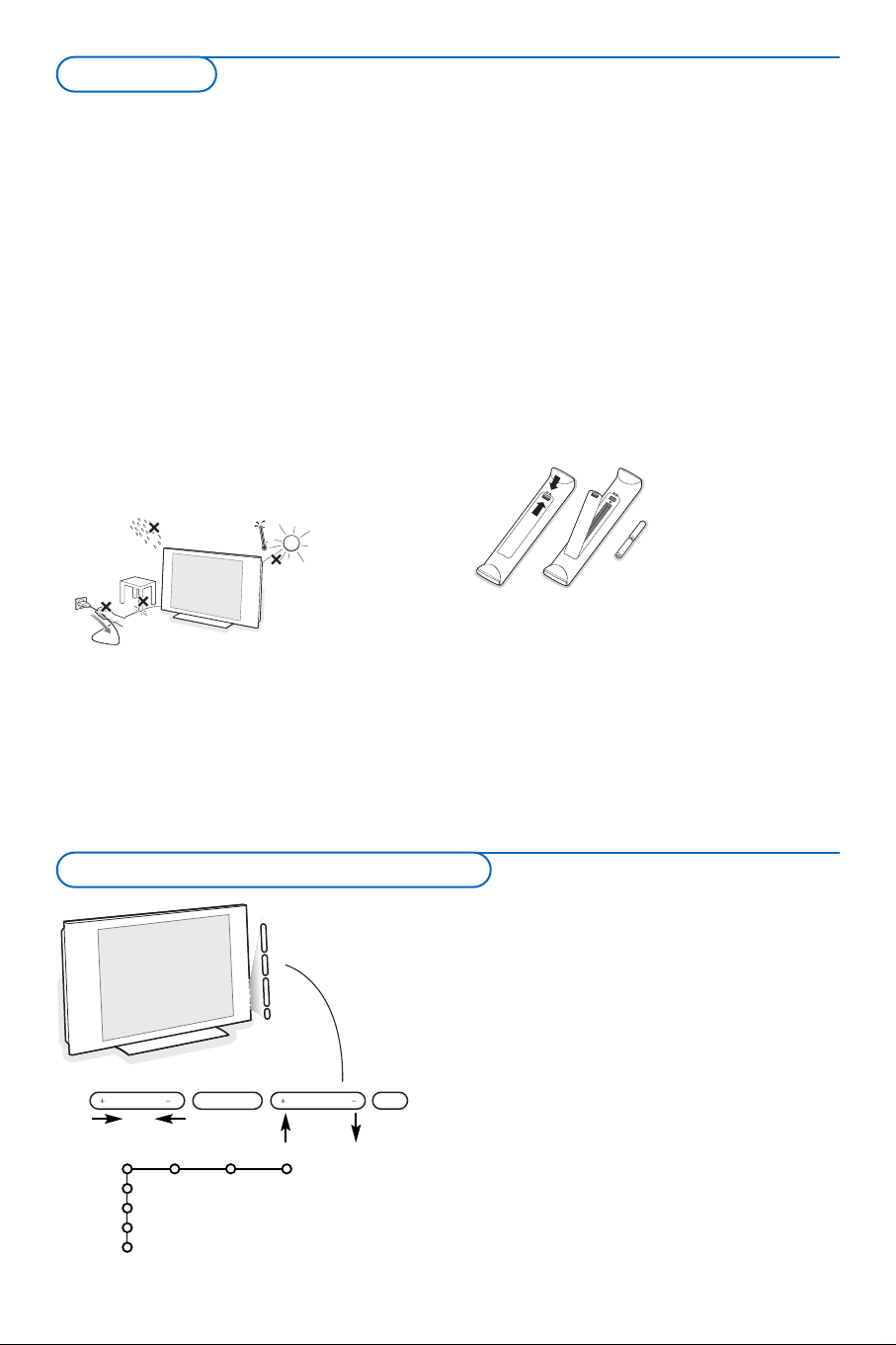
Do not insert the power plug in a wall socket
before all connections are made.
& Wall mounting instructions/Table stand
For the wall mounting instructions follow the
illustrated steps printed on the separate
template. Make sure that the wall mount is
being fixed securely enough so that it meets
safety standards.
The weight of the TV (excl. packaging) is about
77 Lbs (42PF9956); 127 Lbs (50PF9956).
How to mount the supplied stand, see the
separate leaflet.
Note: other (not supplied) stands are optional
accessories. Consult your dealer.
é Place or hang the TV wherever you want, but
make sure that air can circulate freely through
the ventilation slots. Do not install the TV in a
confined space such as a book case or a similar
unit.
To prevent any unsafe situations, no naked
flame sources, such as lighted candles, should
be placed on or in the vicinity. Avoid heat,
direct sunlight and exposure to rain or water.
The equipment shall not be exposed to
dripping or splashing and no objects filled with
liquids, such as vases, shall be placed on it.
“ Insert the aerial plug firmly into the aerial
socket x at the bottom of the TV.
‘ To connect other accessory devices, see p. 16.
In order to obtain the best result, please use
only the supplied aerial cables between the TV
and recorder, and between recorder and aerial
connector.
( Insert the power plug supplied into the mains
at the bottom of the TV and in the wall socket.
Refer to the back of the TV set for the correct
operation voltage. Consult your local dealer if
your AC power supply is different.To prevent
damaging the power (AC) cord which could
cause a fire or electric shock, do not place the
TV on the cord.
§ Remote control: Insert the 2 batteries
supplied (Type R6-1,5V).
The batteries supplied
do not contain the heavy
metals mercury and
cadmium. Please check
on how to dispose of
exhausted batteries
according to local
regulations.
è Turn the TV on : Press the power button B
at the right side of the TV.
A blue LED and the screen light on.
The blue LED blinks every time you press a button
on the remote control. When you turn on your set
for the first time, the menu language automatically
appears on the screen. Alternately the explanation
appears in different languages.
Should your remote be lost or broken you can still
change some of the basic settings with the buttons
on the right side of your TV.
Press:
• the
+ V - button to adjust the volume;
• the
+ P/CH - button to select the TV channels or
sources.
Press the
MENU button to summon the main menu
without the remote control.
Use:
• the
+ V - button and the + P/CH - button to
select menu items in the directions as shown;
• the
MENU button to confirm your selection.
Note: When activated via the
MENU button on the right
side of the TV, only
Exit lets you remove the menu.
Navigate to
Exit and press the MENU button.
TV
Settings
Demo
Install
Exit
Picture Sound Features
MENU P/CHV
B
Buttons on the right side of the TV
Preparation
MENU
+
-
+
-
CBLDVD/R TV VCR AUX
MENU
MUTE
PIP
VOL CH
123
456
789
0
Ò
®
‡π
º
†
®
®
®
®
INFO
POWER
TV CC
SCREEN
SURF
FORMAT
HD
SURR
SELECT
CONTROL
ACTIVE
CLOCKSAP
AV+
-
OK
DNM
33
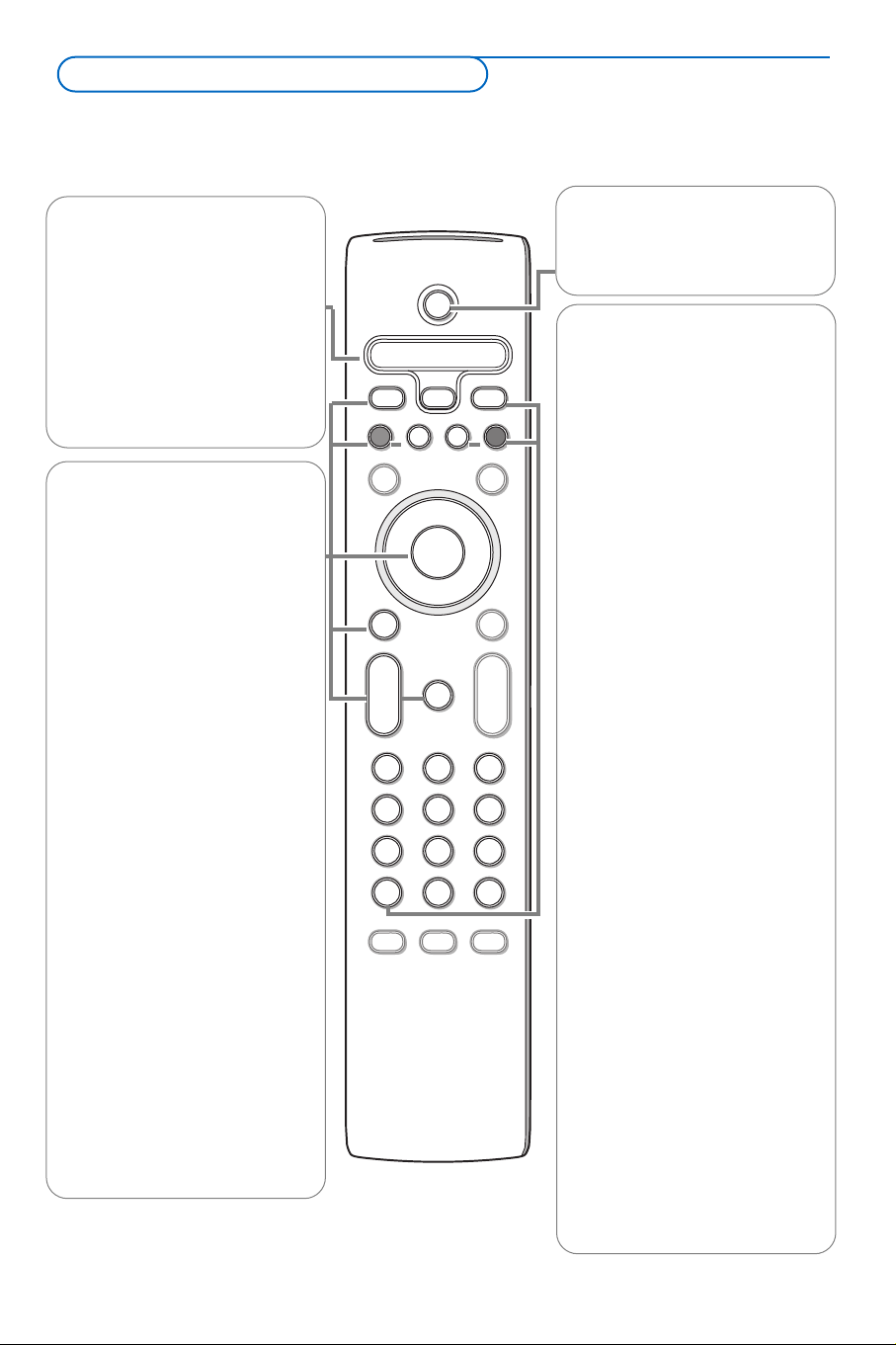
POWER
Press to turn on/off the TV from or
to standby mode.
The TV is never powered off completely
unless it is physically unplugged.
DNM
Digital Natural Motion on/off
In the right part of the screen
Digital natural motion is turned on.
Keep the button pressed a bit longer
to set the different modes for flicker
reduction, motion compensation and
resolution enhancement.
SURR Sound mode
Incredible surround
With stereo transmission, and when
Incredible surround is selected, it
seems as though the loudspeakers
are spread further apart from one
another.
Virtual Dolby Surround
Optimal with Dolby Surround
signals. Enables you to experience
the effect of Dolby Surround Pro
Logic, reproducing a rear sound
effect. See Sound menu, 3D
Surround effect, p. 12.
Note:You can make the same selection
in the Sound menu, Sound mode, p. 12.
HD Press this button to use the
remote control directly in the HD
mode for HD devices (eg. Set Top
box).
0/9 Digit buttons
To select a TV channel.
For a two digit program number,
enter the second digit before the
dash disappears.To switch
immediately to a selected one digit
TV channel, keep the digit button
pressed a bit longer.
AV+ Keep this button pressed and
then press repeatedly to select
AV1,
AV2, AV3 (HDMI), SIDE or TV
channels when in TV mode,
according to where you connected
the accessory devices (p. 20).
- To type the dot (.) for digital
channels.
Note: For most buttons pressing a button once will activate the function. Pressing a second time will de-activate it.
When a button enables multiple options, a small list will be shown. Press repeatedly to select the next item in the
list.The list will be removed automatically after 6 seconds or press
OK to remove immediately.
DVD/R CBL TV VCR AUX
Press the Select button
repeatedly to select one of the
system modes in which the
remote control can be used.
If no action is being undertaken
within 2 seconds, the remote
control returns to TV mode.
After an action in the selected
system mode the remote control
will remain in this mode for 60
seconds and will then return to
TV mode.
INFO Display information
Press to display (when available)
information about the selected
TV channel and program.
Menu/Remote control info
When a menu is on screen, press
the
INFO button to display info
on the selected menu item.
While the menu info is displayed,
press any button (except the
MENU or digit buttons) to
display remote control info.The
normal function of the button is
not executed.
®ºÒ‡π†
Audio and Video equipment
buttons. See p. 21.
TV For direct selection of antenna
input e.g. to easily swap between
the HD input and your TV
channels.
CC Closed Caption
On/Off/On during mute
OK Press this button to activate
your choice or to confirm when
in the menus.
PIP no function
VOL Volume
Press + or - to adjust the
volume.
MUTE Interrupt the sound or
restore it.
Use of the remote control RC4306
4
MENU
+
-
+
-
CBLDVD/R TV VCR AUX
MENU
MUTE
PIP
VOL CH
123
456
789
0
Ò
®
‡π
º
†
®
®
®
®
INFO
POWER
TV CC
SCREEN
SURF
FORMAT
HD
SURR
SELECT
CONTROL
ACTIVE
CLOCKSAP
AV+
-
OK
DNM
SURF
With this feature you can easily switch between different TV
channels/sources that currently interest you.
In the menu system, you can set surf to two- or nine-channel.
(See Settings, General, Surf, p. 6.)
Press this button to select the previously viewed TV channel or source in
case of a Two channel surf, or to select the surf ring in case of a Nine
channel surf.
In case of a Nine channel surf, a list appears at the right side of the
screen. On top, the most recently channel is displayed. The puck is on the
channel number or source currently viewed.
Press the
SURF button to turn to the next channel or source in the list
or press cursor up/down to immediately select the desired TV channel or
source of the list.
To add a new channel or source to the 9 channels list: tune to the
channel or source you wish to add.
Press the
SURF button. Press the cursor right to add.
If there are already nine channels/sources in the list, the one at the
bottom of the list will be removed.
To remove a channel or source: select the channel number you want to
remove.
Press the
SURF button. Press the cursor right to remove.
Press the
OK button or wait for the time out to dismiss the Surf display.
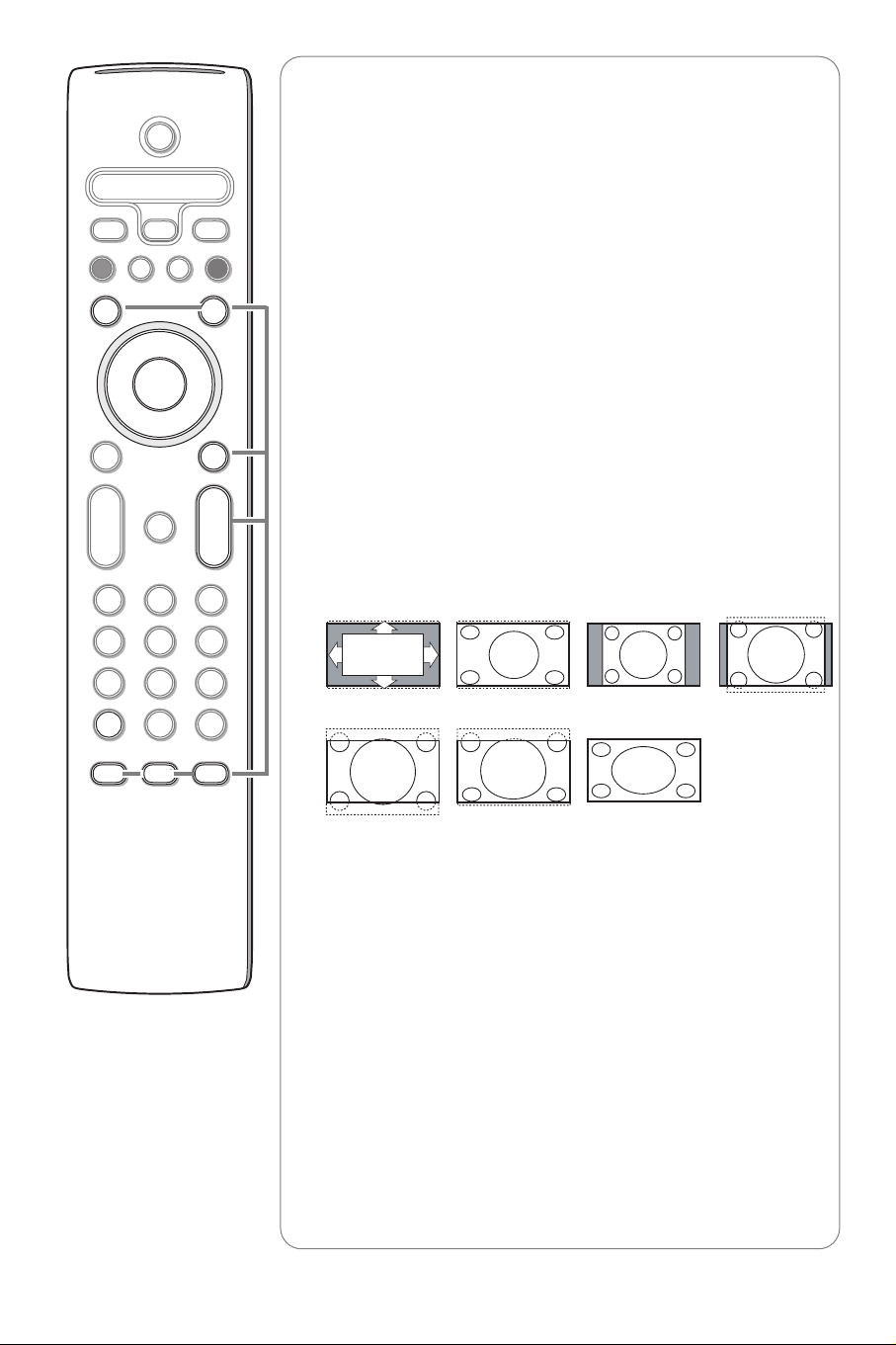
SCREEN FORMAT
Press this button to summon a list of available display formats for showing
video images in the traditional 4:3 proportions.
Press this button repeatedly or press the cursor up/down to select
another picture format: Automatic, Super zoom, 4:3, Movie expand 14:9,
Movie expand 16:9, 16:9 subtitle or Wide screen.
Automatic makes the picture fill the screen as much as possible.
Super zoom removes the black bars on the sides of 4:3 programs with
minimal distortion.
When in Movie expand 14:9, Movie expand 16:9 or Super zoom picture
format, you can make subtitles visible with the cursor up/down.
Note: in HDMI mode press the SCREEN FORMAT button to switch
between a 4:3, 16:9 or a Wide screen picture format.
MENU Main menu on/off. See p. 5.
CH Channel selection
To browse through the TV channels or sources stored.
SAP When you tune a channels where SAP (Second Audio Program) is
available, you can toggle between Main and sap. If not available only Main
can be selected.
ACTIVE CONTROL See p. 11.
CLOCK Time display
Automatic Super zoom 4:3 Movie expand 14:9
Movie expand 16:9 16:9 subtitle Wide screen
5
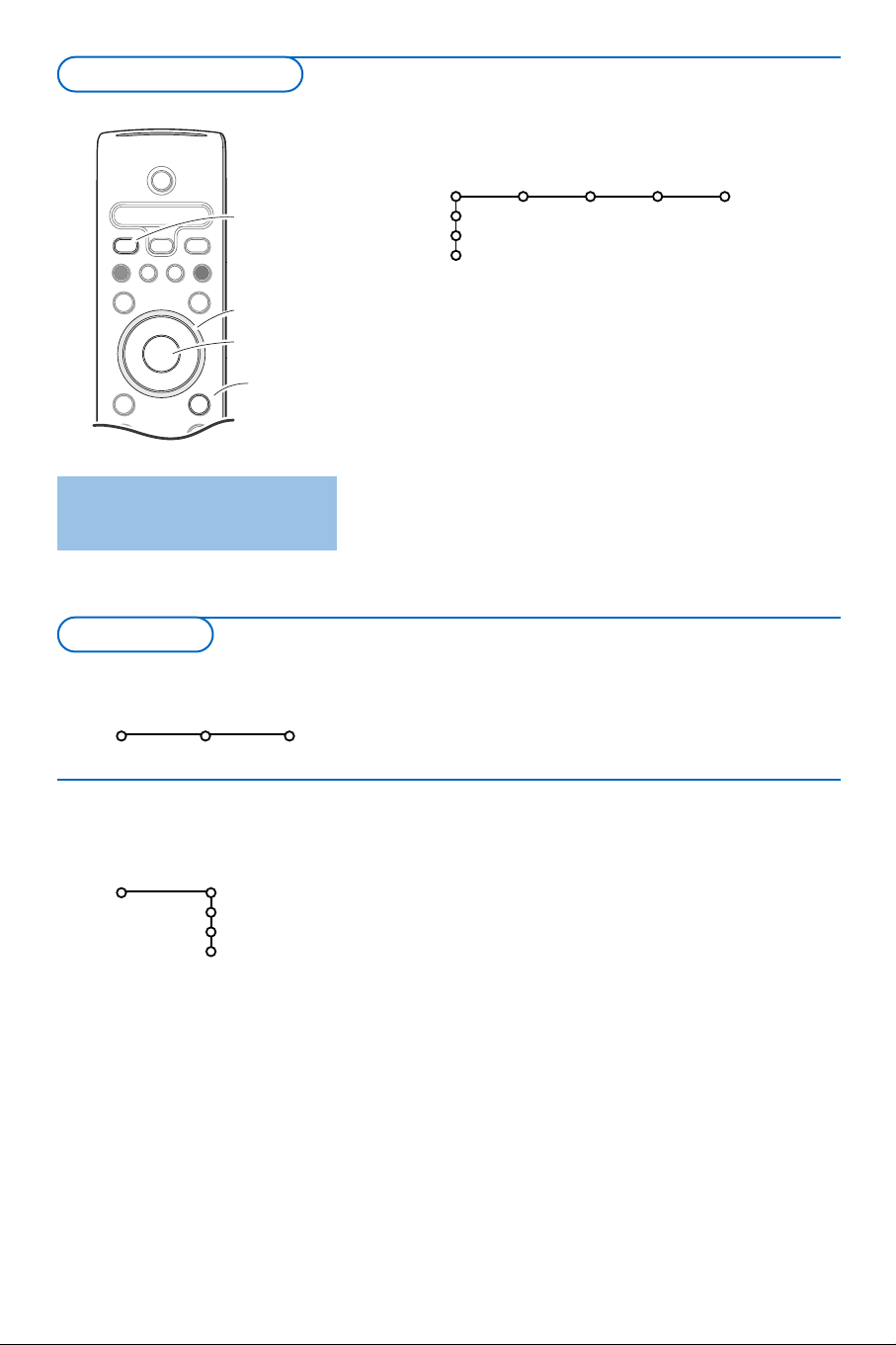
& Press the MENU button on the remote control.
é Use the cursor down to select Install.
“ Use the cursor right to select Language.
Follow the instructions on screen.
‘ Use the cursor up/down to select your preferred language
and press the
OK button to confirm your selection.
( Proceed with the Install menu.
The installation menu contains the following items:
Language
English
Français
Español
Install
Install
Language Autoprogram
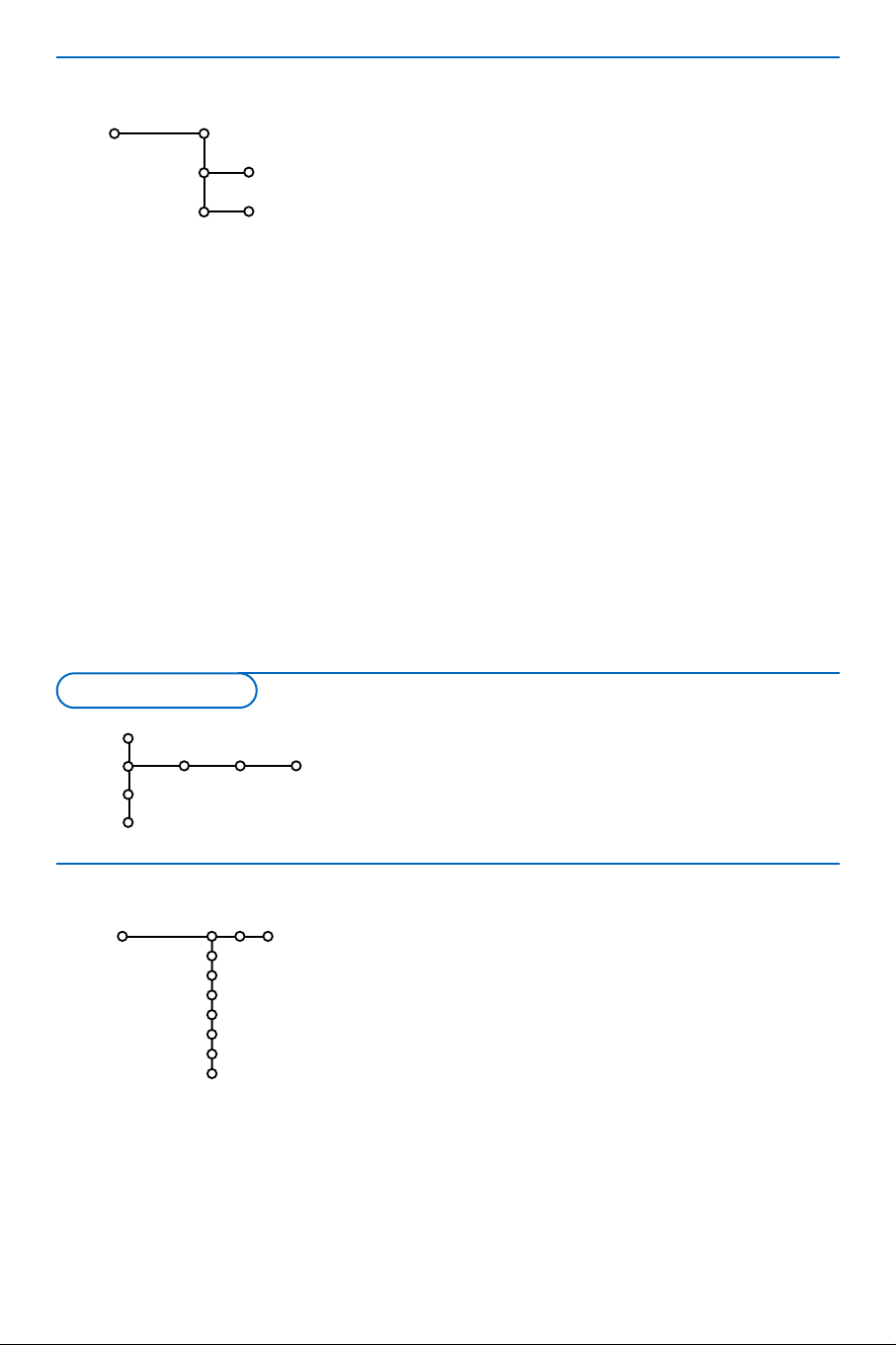
& Press the MENU button on the remote control to summon
the main menu.At any moment you can exit the menu by
pressing the
MENU button again.
é Use the cursor in the up/down direction to select the TV,
Settings, Demo or Install menu. Use the cursor left/right
to select
Picture, Sound, Features or Channels.
Note: Sometimes not all the menu items are visible on the screen
(indicated by a cluster of blue balls). Use the cursor down or right
to reveal all items.
“ Use the cursor in the left/right direction to select the menu
item.
‘ Use the cursor up/down again to select the control you
want to select or to adjust.
Note: Items temporary not available or not relevant are displayed in a
light grey colour and cannot be selected.
MENU
++
CBLDVD/R TV VCR AUX
MENU
MUTE
PIP
VOL CH
Ò
®
‡π
º
†
®
®
®
®
INFO
POWER
TV CC
SCREEN
SURF
FORMAT
HD
SURR
SELECT
OK
DNM
cursor to select
adjustments
INFO button
OK button to
activate
return or switch
main menu on/off
Press the
INFO
button to get
information about the selected
menu item.
TV
Settings
Demo
Install
Picture Sound Features Channels
Select the menu language
Installation
To use the menus
6
General Clock Source
TV
Settings
Demo
Install
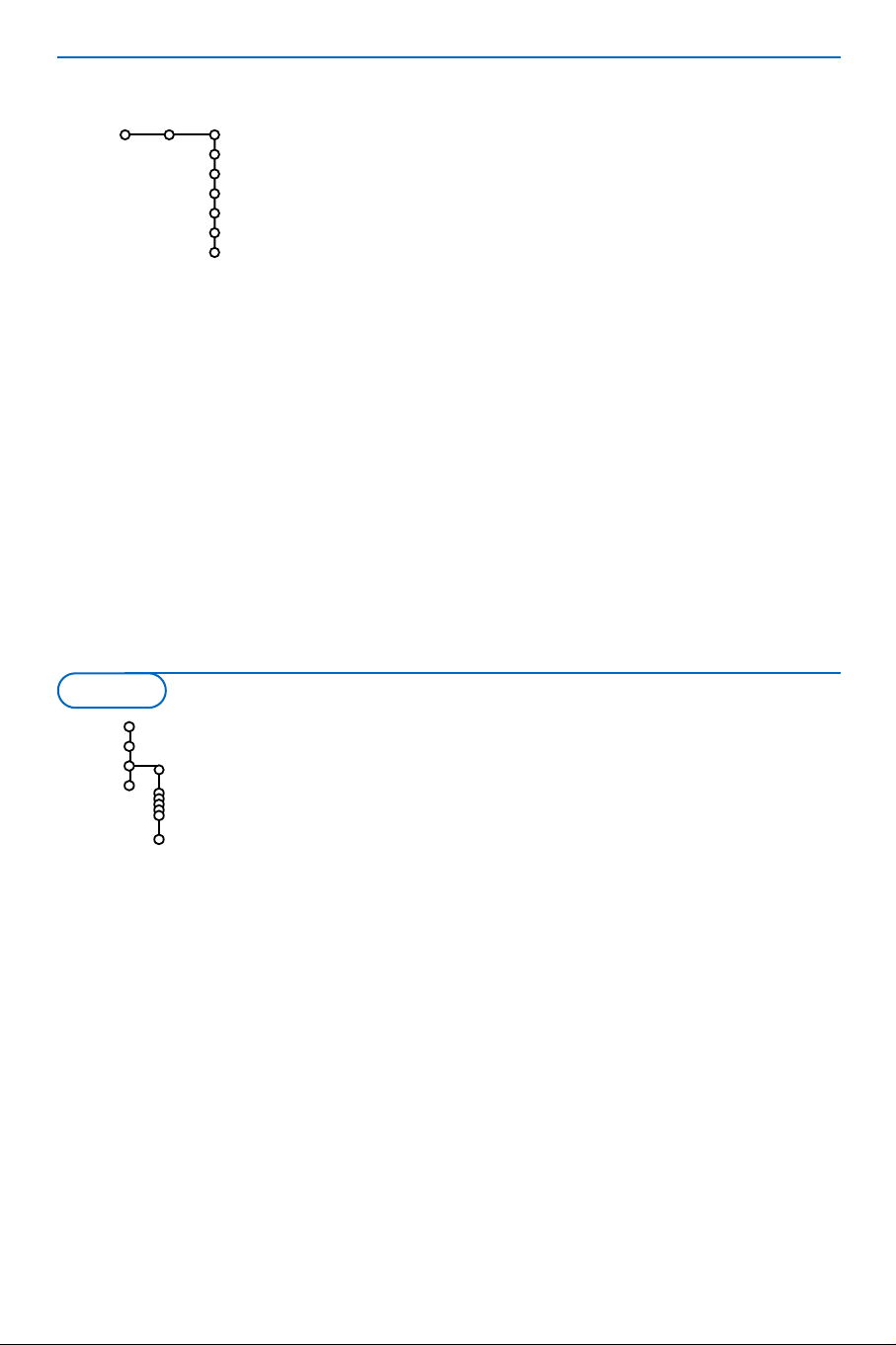
The General menu allows you to change settings that will
typically be accessed only occasionally.
The
Clock menu allows you to use your TV as a clock.
For the correct working of On timer and lock after features,
helps you select the correct option.
The
Source menu allows you to select a source.
General
Menu background
Surf
Reset AV settings
Caption Service
OSD
Set/Change pin
Subwoofer
Settings
& Select Autoprogram in the Install menu.
é Press the cursor down to select Install mode.
“ Press the cursor right.
Note: It is recommended to keep the predefined
Automatic way of autoprogramming. In case of
difficulties in autoprogramming with the automatic
method, choose for Antenna or Cable whether
antenna or cable signals are present.
When
Automatic is selected, the TV will
automatically detect whether or not cable
signal input is present.
When
Antenna is selected, the TV will detect
antenna signals and will search for all antenna
TV channels available in your local area.
When
Cable is selected, the TV will detect
cable signals and will search for all cable TV
channels available in your local area.
‘ Press the cursor down to select Install.
Note: All channels must be unlocked in order to
autoprogram. If requested, enter your PIN code to
unlock all channels. (See Channels in the TV menu,
p. 12.)
( Press the cursor right.
§ The message Searching appears and the
progress of autoprogramming is displayed.
When Autoprogramming is complete, the puck
navigates to Stop.A message appears
confirming the completion together with the
total number of channels found.
Note: when you navigate to Stop before
autoprogramming is complete, you are given the
option to continue.
Available channels:
- with cable: max. from 1 to 125
- off air: max. from 2 to 69
Note: In case a particular channel is too weak for
the autoprogramming to identify, after installation is
complete, you should tune to that channel by using
the digit buttons on the remote control.
If the channel is not acquired, a message will
appear that the channel is not available.
Autoprogram
Install mode
Install
Install
Start
Antenna
Automatic
Cable
Menu background
& Select Menu Background with the cursor down and press the
cursor right.
é Select On or Off to turn the menu background on or off.
Surf
& Select Surf.
é With the cursor left/right, select
•
2 channels if you want the SURF button to toggle between the
current and the previously selected channel,
•
9 channels if you want the SURF button to summon a list of
up to 9 channels which can be selected.
To add/remove a channel or source to the 9 channels list:
Tune to the channel or source you wish to add or remove.
Press the
SURF button and press the cursor right to add or
remove.
Note: If there are already 9 channels/sources in the list, the one at
the bottom of the list will be removed.
General
Settings menu
Store TV channels

7
Reset AV settings
This function allows you to reset most of the
picture and sound settings to their predefined
factory states.
& Select
Reset AV settings with the cursor
down.
é Press OK to erase settings and reset them to
their default values.
Caption Service
Closed Captioning allows you to read the voice
content of television programs on the TV
screen. Designed to help the hearing impaired,
this feature uses on-screen ‘text boxes’ to
show dialogue and conversations while the TV
program is in progress. Captions will appear on
the screen during captioned broadcasts.
Note:The captions do not always use correct
spelling and grammar. Not all TV programs and
product commercials are made for broadcast with
Closed Caption information included. Refer to your
area’s TV program listings for the TV channels and
times of Closed Caption shows. The captioned
programs are usually noted in the TV listings with
service marks such as ‘CC’.
& Select Caption service with the cursor down.
é Press the cursor right.
“ Select the desired Caption Service:
• CC 1, 2, 3 or 4
Dialogue (and descriptions) for the action on
the captioned TV program shows on screen.
Usually CC 1 is the most used. CC 2 may be
used for alternate languages if they are being
transmitted.
• T 1, 2, 3 or 4
Often used for channel guide, schedules,
bulletin board information for Closed Caption
programs, news, weather informations or
stock market reports.
Not all Caption Services are necessarily being
used by a TV channel during the transmission of a
Closed Caption program.
‘ See Closed Captions in the TV, Features menu,
see p. 12, to turn the
Caption service On or
Off.
Note:This television provides display of television
closed captioning conforming with the EIA-608
standard and in accordance with Sections 15.119
of the FCC rules.
OSD (On Screen Display)
& Select OSD with the cursor down.
é Press the cursor right to select Normal or
Minimum.
Normal to activate the continuous display of
the channel number and extended display of TV
channel and channel information on screen.
Minimum to activate the display of reduced
channel information.
See Use of the Remote Control, p. 3, Display
information.
Note: When Closed Captions is switched on, see
Features, p. 12, continuous display of the channel
number is not possible
Set/Change PIN
& Select Set or Change PIN with the cursor
down.
é If no PIN-code exists yet, the menu item is set
to
Set PIN. Follow the instructions on screen.
If a PIN-code has previously been entered, the
menu item is set to
Change PIN. Follow the
instructions on screen.
All number combinations from 0000 to 9999
are valid numbers.
“ The General menu reappears with a message
confirming that the PIN has been created.
Important:You have forgotten your PIN !
& Select Change PIN in the General menu and
press
OK.
é Press the cursor right to enter the overriding
PIN-code 0-7-1-1.
“ Press the cursor again and enter a new
personal 4-digit PIN code.The previous code is
erased and the new PIN-code is stored.
Subwoofer
Select
Ye s if you installed an external
subwoofer. See Connect Peripheral Equipment,
Connect extra subwoofer, p. 20.

8
Most of the TV channels are not transmitting clock information.There are few cable channels but they are
at the end of the channel ring.There is no clock transmission in antenna channels. In such cases either
clock extraction is taking a long time or there is no clock
Clock
Auto clock mode
Auto clock channel
Time
Day
Time zone
Daylight saving
Settings
Auto clock mode
& Select Clock with the cursor right.
é Press the cursor down to select the Auto clock mode.
“ Press the cursor right to instruct the TV to get the time
automatically or manually.
Auto clock channel
With the cursor buttons, select the channel number where time
can be found by the TV.Typically time can be found on PBS as
well as some other channels.
Note: If
Manual has been selected in the Auto clock mode, the Auto
clock channel menu item can not be selected;
Time - Day
With the cursor buttons, select and enter the correct time and
day.
Though the Auto clock mode is automatic, you can enter the
time and day which, together with the selected channel, will be
overwritten once the clock information has been found.
If
Auto clock mode Manual has been selected, and no clock
search has been done, the system will keep the entered time
and day.
Time zone (only available when Auto clock mode is set to Automatic)
This function allows you to select your local time zone.
Broadcasted time information will correct the clock display for
your local time.
& Select Time zone with the cursor down.
é Press the cursor right to select your local time zone.
Daylight saving (only available when Auto clock mode is set to
Automatic)
Daylight saving time is automatically set by specially broadcasted
signals.This menu item allows you to disable the automatic
setting of daylight saving time.This is useful if you live in an area
or state where daylight saving is not applied, but you receive
channels from other areas where daylight saving signals are
broadcasted.
& Select Daylight saving with the cursor down.
é Press the cursor right to select Automatic for automatic clock
correction for daylight saving time, based on specially
broadcasted signals.
“ Select Off to disable automatic clock correction based on the
specially broadcasted signals.
Clock
9
Auto demo
...........
Dealer demo
- Digital processing
- Light sensor
- 3D Y/C Comb filter
TV
Settings
Demo
Install
Source
AV1
AV2
AV3
Side
Center input
(Center in volume)
Settings
& Select Demo in the Main menu with the cursor down.
é Select Auto demo or one of the features with the cursor right
and press the
OK button on the remote control.
If
Auto demo has been selected the demo will automatically
present all the features sequentially in a loop. Press one of the
cursor buttons to stop the Auto demo.
If one of the features has been selected, this particular feature
demo will run one time only, until activated again, and the Demo
menu will reappear.
Digital processing, Light sensor and 3D Y/C Comb filter On
or Off
Select
Digital processing, Light sensor and 3D Y/C Comb filter
On
or Off to really see the difference in picture quality.
In Dealer Demo mode it is possible to change channels with
- CH +
and to adjust the volume.
Note: the Dealer Demo is not part of the automatic sequence and can
only be activated separately.
Demo
& Select Source with the cursor right.
é Press the cursor down to select one of the external AV inputs.
“ Press the cursor right to enter the list of types of devices
attached to the selected input.
‘ Select the accessory device with the cursor up/down.
Once you have named the source, e.g.VCR, this source will
automatically be selected when your remote control is in VCR
mode, see p. 5, and when you press the
AV+ button on the
remote control.
( Press the MENU button on the remote control to turn off all
menus on screen.
§ Press the AV+ button on the remote control.
The Source Select menu appears in which you may select a
source or peripheral connected to be displayed on screen.
Center input - Center in volume
When you have connected a multichannel surround receiver to
the TV, the loudspeakers of the monitor can act as center
speaker, making a separate center speaker unnecessary;
Select
Center input On.
When having selected On you can adjust the Center in
volume
with the cursor left/right to correct volume level
differences of the external audio receiver and speakers.
Source

10
Press the MENU button on the remote control to summon the main menu.
Note: Dependent on the input signal, one or more menu items may not be selectable.
Picture Sound Features Channels
Auto picture
Contrast
Brightness
Color
Sharpness
Color temperature
Digital processing
Dynamic contrast
DNR
Color enhancement
Tint
Picture format
TV
Note: Sharpness, Digital natural motion,
Dynamic Contrast, DNR, Color
enhancement,Tint and Picture format
are not available for HD sources.
Press the
INFO
button on the
remote control to get
information about the selected
menu item.
& Press the cursor right to select Picture.
é Select the menu items in the Picture menu with the cursor
up/down.
“ Adjust the settings with the cursor left/right or enter the
list of submenu items with the cursor right. Select a
submenu item with the cursor up/down.
Note:To remove the menu background before adjusting the
picture settings, see Select TV Settings, General, p. 6.
Auto picture
Select
Auto picture to display a list of predefined picture
settings, each corresponding with specific factory settings.
Personal refers to the personal preference settings of
picture in the picture menu.
Note: this Philips Flat TV has been set at the factory to look best
in bright store environments which typically use florescent lighting.
As your home will likely not be as well lit as a store, we
recommend that you cycle through the various Auto Picture
modes to find the one that best suits your own viewing conditions.
Most consumers will find that
Natural is the correct choice.
Digital processing
• Standard: line doubling eliminates line flicker.
•
Dig. natural motion: For everyday viewing, Dig. natural
motion
is the most ideal setting, as it fully processes the
image to make every single pixel the best it can be,
improving contrast, sharpness, picture depth, and color
reproduction and brilliance from every source, including
High Definition. For the most optimum motion
reproduction of all source materials, select the
Movie Plus
setting. Standard Mode is recommended only for very
noisy or poorly mastered sources or for those who find the
smoothness of Digital natural motion (which eliminates
jutter in the picture) unsettling.
Dynamic contrast
Automatically makes the contrast in the darker and the
brighter picture areas more noticeable as the image on the
screen changes.
Normally, select
Medium. It may be preferred to select
Minimum, Maximum or Off.
& Press the cursor right to enter the list.
é Select one of the settings with the cursor up/down.
“ Press the cursor left to return to the picture menu.
Picture menu
TV menu

11
The TV continuously measures and corrects all
incoming signals in order to provide the best
picture possible.
& Press the ACTIVE CONTROL button on the
remote control.
Note:Turn off all menus on screen.
é The Active Control menu appears.
“ Press the cursor up/down to select the Active
Control values
Off, Minimum, Medium
(recommended) or Maximum.
The picture settings are being optimized
continuously and automatically which is
displayed by bars.Those menu items can not be
selected.
‘ Press the cursor right to select Auto Picture.
( Press the cursor up/down to select one of the
predefined picture settings.
§ Press the cursor right to select Active
Display
.
è Press the cursor up/down to select Show bars,
one of the Dual screen demos or
Off.When
you select Dynamic contrast, Digital Noise
Reduction or Digital processing, the TV screen
is divided into two parts: in the left part the
selected picture quality setting is switched off;
in the right part it is switched on.
Note: Dependent on the input signal, one or more
Dual screen demos may not be selectable.
! Press the ACTIVE CONTROL button again to
switch off the Active Control menu.
Note: Active Control is not available for digital
signals via HDMI.
Active Control
DNR (Digital Noise Reduction)
Automatically filters out and reduces the image noise and
improves picture quality when receiving weak video signals.
& Press the cursor right to enter the list.
é Select Off, Minimum, Medium or Maximum according to the
image noise.
“ Press the cursor left to return to the picture menu.
Color enhancement
When activated, this feature automatically controls green
enhancement and blue stretch. It makes the colors more vivid.
& Press the cursor right.
é Select On or Off in order to activate/de-activate Color
enhancement with the cursor right.
Tint
Allows you to select the color mix (hue) of the picture.
Picture format
This menu item performs the same as the
SCREEN FORMAT
button on the Remote Control. See Use of the Remote
Control, p. 4.
12
Off
On
On during mute
Features
Closed Captions
Sleep Timer
On timer
TV
Sound
Auto sound
Equalizer
Volume
Balance
Headphone volume
Sound mode
Alt audio
(Mono/Stereo)
3D surround effect
AVL
Audio Only
Delta volume
TV
Press the
INFO
button on the
remote control to get
information about the selected
menu item.
Press the
INFO
button on the
remote control to get
information about the selected
menu item.
& Press the cursor right to select Features.
é Select the menu items with the cursor up/down
and adjust the settings with the cursor left/right.
Closed Captions
See also Caption Service, Settings menu, General, p. 7.
& Select Closed Captions with the cursor down.
é Press the cursor right.
“ Select On, Off or On during mute
When On is selected, the TV will display the
currently display Caption Service, assuming that the
service is available in the broadcast.
When
Off is selected, the TV will not display
Closed Captions information;
When
On during Mute is selected, the TV will
display the currently selected Caption Service
when the mute function is active.
When the mute function is not active, the TV will
not display Closed Captions informations.
Features menu
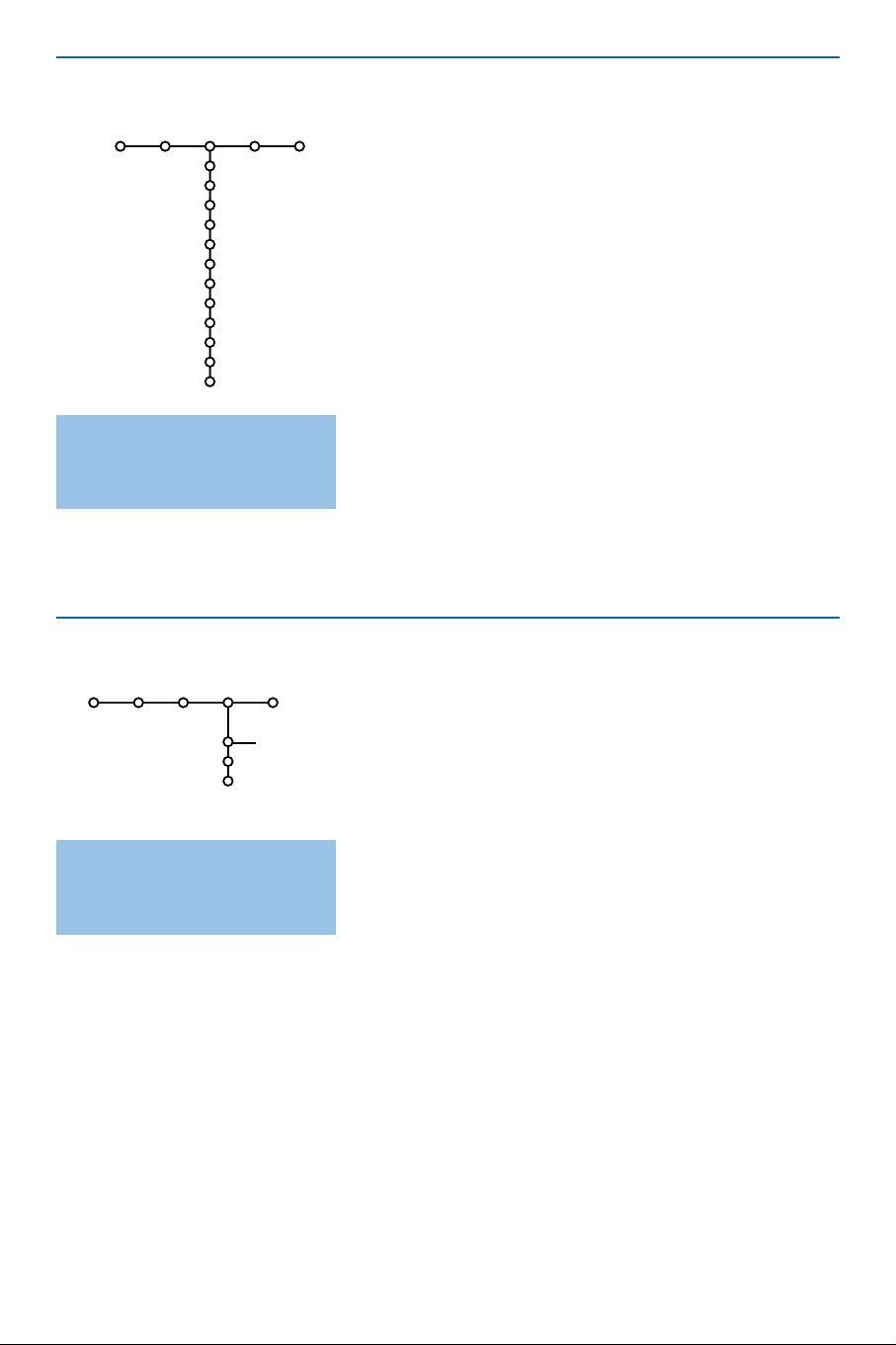
& Press the cursor right to select Sound.
é Select the menu items in the Sound menu with the
cursor up/down and adjust the settings with the cursor
left/right. Remember, control settings are at normal mid-
range levels when the bar scale is centered.
Auto sound
Select
Auto sound to display a list of predefined sound
settings, each corresponding with specific factory
settings of Treble and Bass.
Press the cursor right to enter the list.
Press the cursor up/down to select a predefined sound
setting.
Personal refers to the personal preference settings of
sound in the Sound menu.
Note: the moment you are in a predefined Auto sound setting
and you modify a setting in the Sound menu, all values of the
menu will overwrite the previously made personal setting.
Sound
13
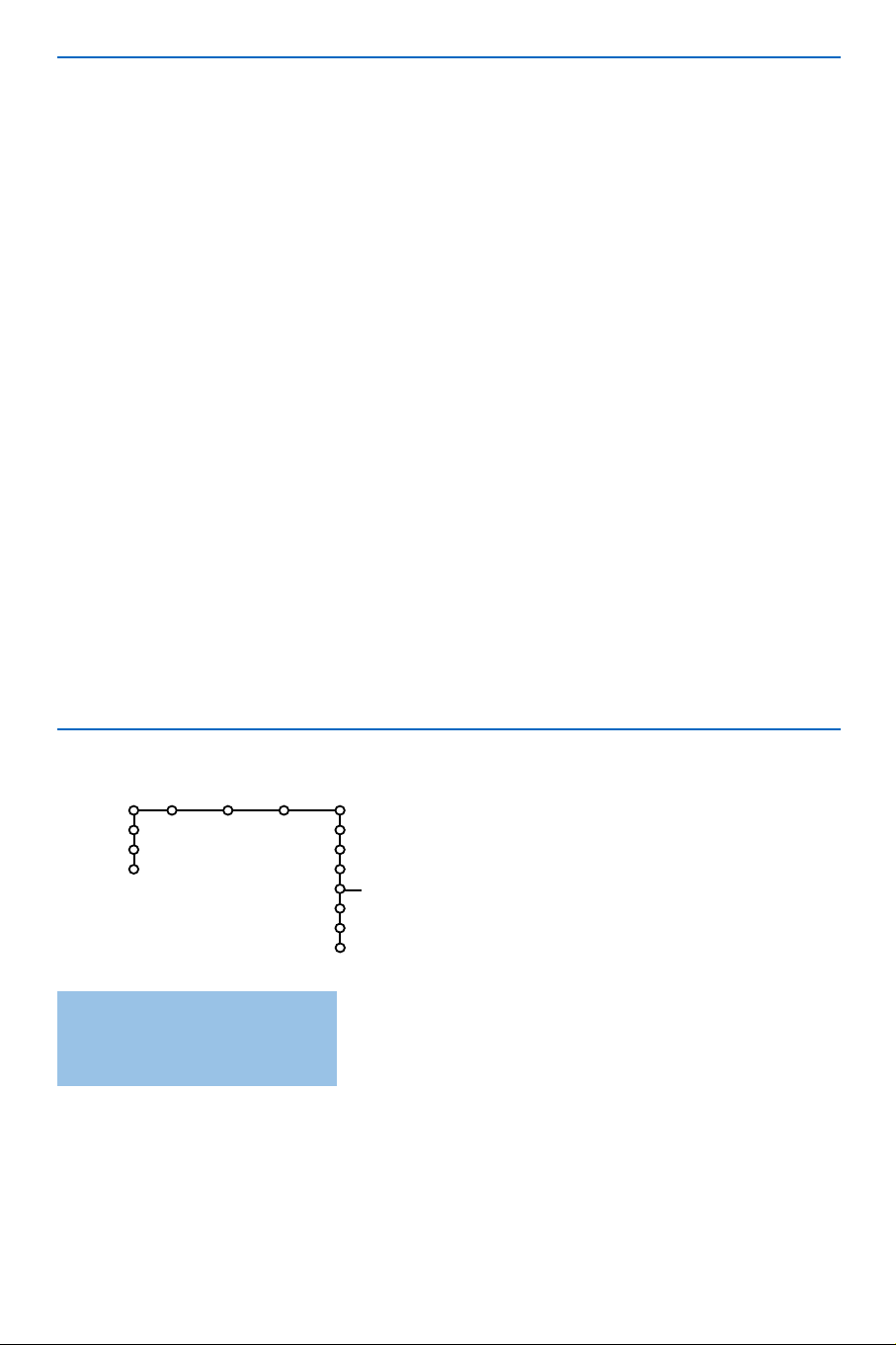
& Press the cursor right to select Channels.
é Select the menu items with the cursor up/down and adjust
the settings with the cursor left/right.
Note: Lock after is only selectable if time and date are known. See
Settings, Clock, p. 8.
Image Son Options Chaînes
Channel list
Lock after
Channel lock
TV ratings lock
Movie ratings lock
Channel remove
(Antenna attenuator)
TV
Settings
Demo
Install
...
TV-Y
TV-Y7 (D) Dialogue
TV-PG (L) Language
TV-14 (S) Sex
TV-MA (V) Violence
Press the
INFO
button on the
remote control to get
information about the selected
menu item.
Channels menu
Sleep Timer
With the Sleep timer function you can set a time
period after which the TV will turn itself off.
& Select Sleep Timer with the cursor down.
é Press the cursor right to set the time
The cursor runs from 0 up to 180 mins
(in 5-min increments).
When set to 0, the sleep timer is turned off.
One minute before the sleep timer expires, a
message appears that the TV will turn off in
60 seconds or you may cancel the sleep timer
by pressing the
OK button.You can always turn
off your TV earlier or change the set time.
On timer
Note:The On timer function is only available if time
information is available via the local PBS channel.
& Select On timer with the cursor down.
é Press the cursor right and select On or Off to
set the On timer On or Off.
“ When you have selected On press the cursor
right.
‘ Select the TV channel or external source you
want the On timer to activate with the cursor
up/down.
( Press the cursor right to select the day you
would like the On timer to become active.
Select
Daily to set the On timer for daily
operation on the selected TV channel or
source.
§ Press the cursor right to select AM or PM.
è Press the cursor right to enter the time with
the digit buttons or with the cursor up/down,
left/right.
! Press the OK button to confirm.
ç Press the
MENU button to turn off all menus
on screen.
14
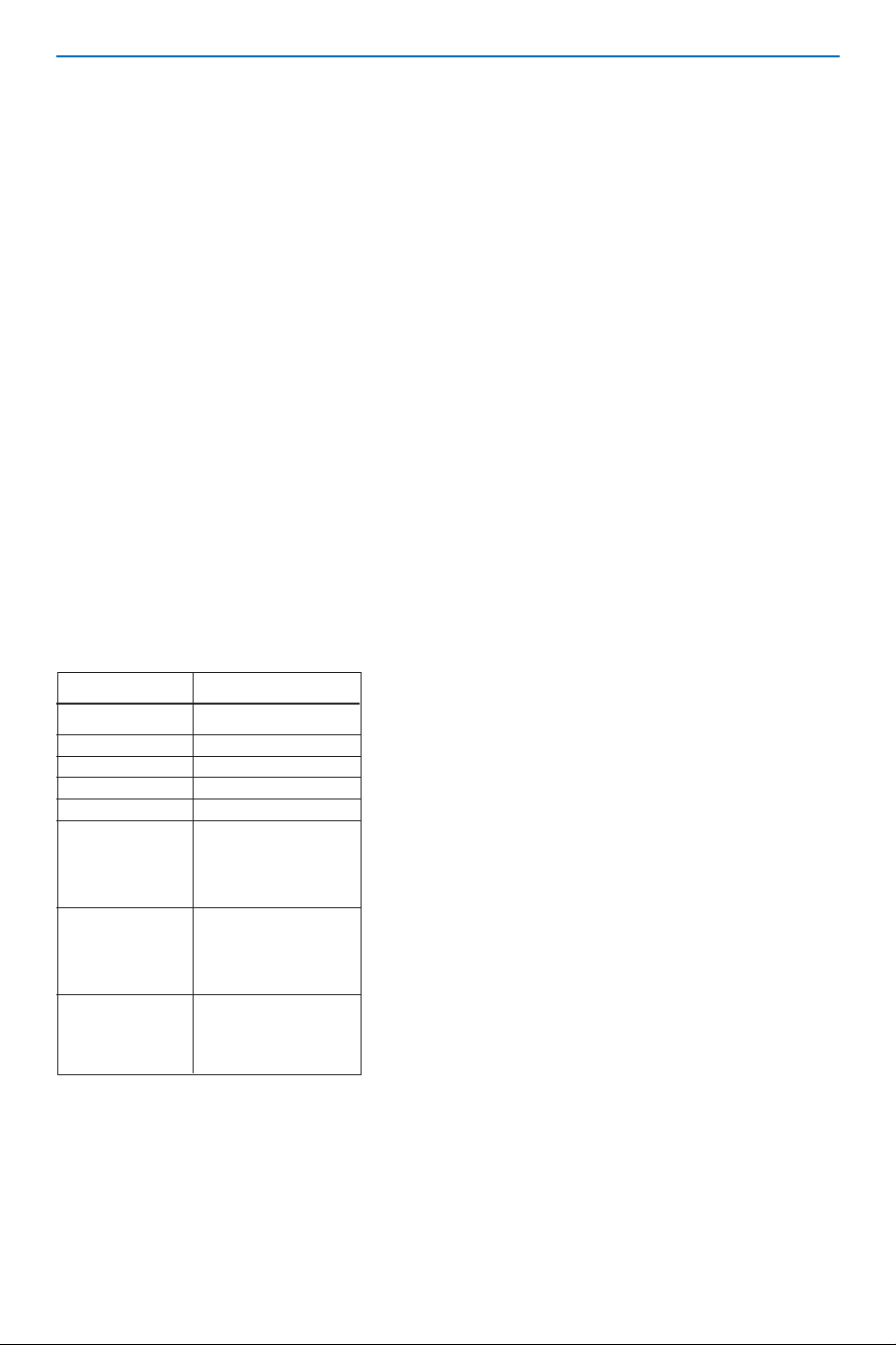
Age-based Rating Content-based Rating
All none
None none
TV-Y none
TV-Y7 (FV) Fantasy Violence
TV-G none
TV-PG (D) Dialog
(L) Language
(S) Sex
(V) Violence
TV-14 (D) Dialog
(L) Language
(S) Sex
(V) Violence
TV-MA (L) Language
(S) Sex
(V) Violence
TV-Y appropriate for children of all ages with themes
and elements suitable for children aged 2-6
TV-Y7 programs designed for children age 7 and older
TV-Y7-FV programs include fantasy violence more intense
than other programs in the TV-Y7 category
TV-G programs suitable for all ages.These programs
contain little or no violence, no strong language
and little or no sexual dialogue or situations
TV-PG programs contain elements that some parents may
find unsuitable for younger children and which may
need parental guidance.
The program may contain moderate violence,
sexual dialogue and/or situations and some strong
language.
TV-14 programs contain elements that may not be
suitable for children under 14 years of age.These
programs include one or more of the following:
intense violence, intense sexual
situations,suggestive dialogue and strong language.
TV-MA programs are designed to be viewed by adults and
may be unsuitable for children under the age of 17.
These programs may contain graphic violence,
explicit sexual activity and/or crude or indecent
language.
TV Ratings Lock
Your TV is equipped with a V-chip.This allows
you to control access to individual programs
based on their movie and TV ratings.All
settings apply to all AV inputs, except HDMI.
The program content advisory data are sent by
the broadcaster or program provider.
& Select TV ratings lock with the cursor down.
A list appears, showing the age-based TV ratings
and a corresponding content-based ratings list.
é Press the cursor right to enter the list.
“ Select an age-based TV rating with the cursor
up/down, and enter, if present, the list with
content-based ratings with the cursor right, and
select one content-based rating.
‘ Press OK to activate/de-activate the selected
rating.You are asked to enter your PIN. (See
Set/Change PIN, p. 7). If the code is correct, the
TV ratings lock menu reappears.
( Select another content-based rating if you like
and press
OK again.
You need only enter your PIN-code once while
the menu is active.You can lock/unlock any
number of ratings on the list without re-
entering your code.
Each ratings item has a box-graphic in front of it to
indicate whether or not programs carrying that
rating are currently locked:
• a yellow-colored box: all items in the contents-
based list are locked as well;
• a blue-colored box: the item is unselected;
• a half blue, half yellow-colored box: some
content-based ratings are selected/unselected.
When
All has been selected, all items in the age-
based and in the contents-based lists are locked.
If, while
All is selected, any other item, either an
age-based or content-based item, is unselected,
then All is automatically unselected.
None is the selection for items that either have no
rating information or have a rating of None. Both
will be locked.
When an item on the age-based list is selected, all
items below that item of the same group are
locked as well.
When you select a content-based rating, all
identical content-based ratings in the younger age-
based categories are also selected.
15
Channel remove
This feature provides the ability to remove a
channel number from the channel list.
& Select Channel remove with the cursor down.
é Press the cursor right to enter a list with all
stored channel numbers.
“ Select the channel you want to remove with
the cursor down.
‘ Press OK.
( Repeat to remove other channels.
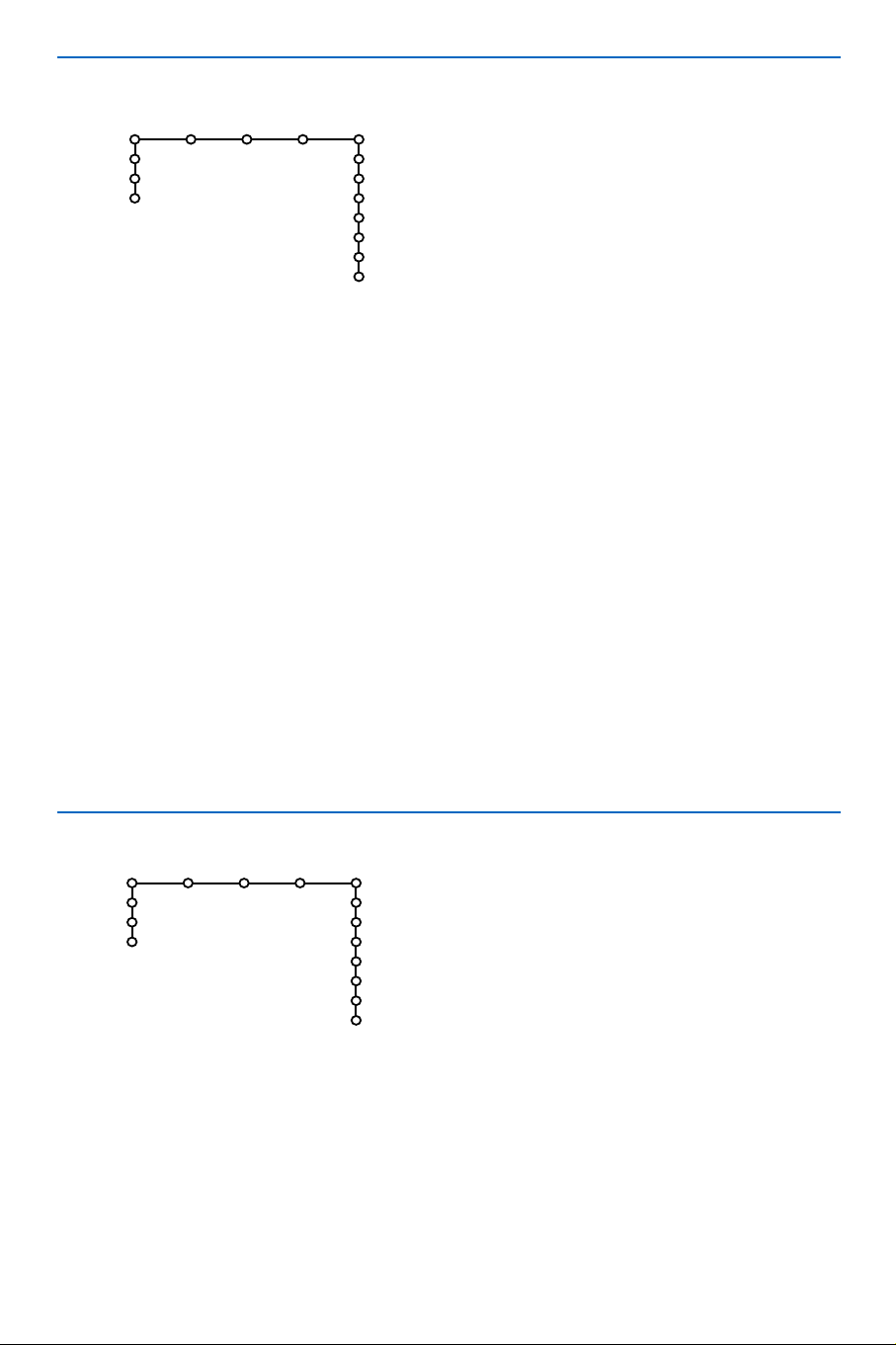
Picture Sound Features Channels
Channel list
Lock after
Channel lock
TV ratings lock
Movie ratings lock
Channel remove
(Antenna attenuator)
TV
Settings
Demo
Install
Movie Ratings Lock
This function allows you to control access to
individual movies based on their MPAA ratings
(Motion Picture Association of America).
& Select Movie ratings lock with the cursor
down.A list appears, showing all valid MPAA
content ratings.
é Press the cursor right to enter the list.
“ Select a movie rating with the cursor up/down.
‘ Press OK to activate/de-activate the selected
rating.
You are asked to enter your code. (See
Set/Change PIN, p. 7.) If the code is correct, the
Movie ratings lock menu reappears.
Each rating item has a box-graphic in front of it to
indicate whether or not programs carrying that
rating are currently locked:
• a yellow-colored box: movies with this rating are
locked;
• a blue-colored box: movies with this rating are
unlocked.
When
All has been selected, all items on the
movie ratings list become selected. (All movies are
locked.)
If, while
All is selected, any other item is
unselected, then
All is automatically unselected.
When
NR has been selected, no other item is
selected.
When any other item has been selected, all ratings
below are selected as well, thus all movies with
those ratings will be locked.
NR not rated
G movies with a mild content, suitable for all
ages
PG movies for which parental guidance is
recommended.
They may contain a few racy or violent
scenes or maybe some bad language
PG-13 movies for which parental guidance may be
recommended if under age 13
R restricted.The movies usually contain
offensive sex or bad language and may be
unsuitable for children under the age of 17.
Parental guidance or permission needed.
NC-17 even with parental permission, forbidden
under age 17.
More offensive sex, violence or bad
language.
X movies which generally focus on sex,
violence and/or bad language. Also known
as pornography.
Picture Sound Features Channels
Channel list
Lock after
Channel lock
TV ratings lock
Movie ratings lock
Channel remove
(Antenna attenuator)
TV
Settings
Demo
Install
16
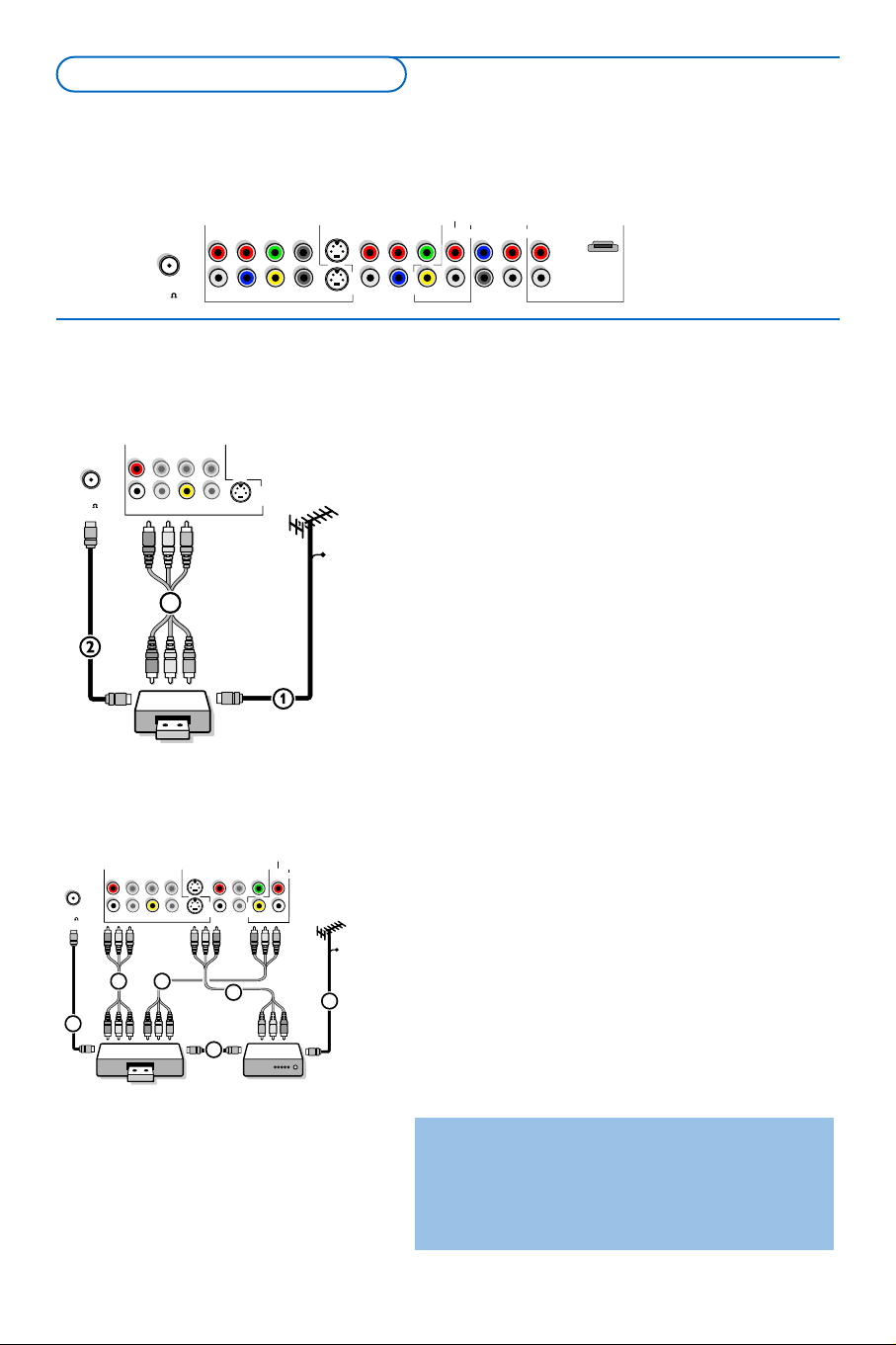
There is a wide range of audio and video devices that can be connected to your TV.The following
connection diagrams show you how to connect them to the TV.
AV1 can handle YPbPr,Y/C and CVBS; AV2 YPbPr (RGB), CVBS and Y/C; AV3 (HDMI); Side: CVBS and Y/C.
& Connect the RF Antenna or Cable TV cable (eventually
via an optional two-way signal splitter and/or Cable TV
converter box) 1 to the
RF IN socket of your
recorder.
é Connect another RF cable 2 from the output OUT of
your recorder to the TV’s input 75 ø x jack.
“ Better playback quality can be obtained if you also
connect the Video,Audio Left and Right (only for stereo
devices) AV cables 3 to the
CVBS, AUDIO L and R
input jacks of AV2.
If your recorder has an S-VHS video jack:
For improved picture quality, connect an S-video cable
with the
S-VIDEO input instead of connecting the
recorder to the
CVBS jack of AV2.
S-Video does not provide audio, so audio cables must
still be connected to provide sound.
AV2
R
L
V
H
Y/G
CVBS S-VIDEO
Pr/R
Pb/B
75
ANT IN
CABLE
RECORDER
OUT IN
OUT
3
AUDIO
RECEIVER
MONITOR
OUT
AV1 AV3AV2
R
L
V
H
S-VIDEO
S-VIDEO
Y/G
CVBS
Pr/R
Pb/B
R
L
Pr
Pb
Y
VIDEO
R
L
R
L
CENTRE
SUBW.
R
L
HDMI
75
ANT IN
5 6
RECORDER
MONITOR
OUT
AV1AV2
S-VIDEO
S-VIDEO
R
L
Pr
Pb
Pr/R
Pb/B
V
H
Y/G Y
VIDEO
R
L CVBS
R
L
3
2
75
ANT IN
1
CABLE
4
OUT IN OUT IN
& Connect the RF antenna cable 1 of the RF IN socket
of your other AV device.
é Connect the RF output of the AV device to the RF input
of the recorder 2.
“ Connect another RF cable 4 from the output OUT of
your recorder to the TV’s input 75 Ohm x jack.
‘ To obtain better picture quality, also connect the Video,
Audio left and Audio right cables of both devices to
AV1
(Y or S-VIDEO, AUDIO L and R,) 3 and to AV2
(CVBS or S-VIDEO, AUDIO L and R) 5.
Note: in case of mono equipment, only the left loudspeaker
reproduces sound. Use a mono to stereo adapter (not
supplied) for sound reproduction via all internal loudspeakers.
The
MONITOR OUT
connector can be used for a daisy
chaining or to record programs from your TV 6. Only
when a recorder is connected to
MONITOR OUT it is
possible to record a program from other devices
connected to the TV.
See Record with your recorder, p. 21.
Recorder and other A/V devices
Recorder (
VCR-DVD+
RW)
Note: Do not place your recorder too close to the screen as some recorders may be susceptible for signals from the
display. Keep a minimum distance of 20” from the screen.
Connect Accessory Devices
17
CABLE
RECORDER
Cable Box
3
2
OUT
OUT IN OUT IN
75
SIGNAL
SPLITTER
ANTENNA
4
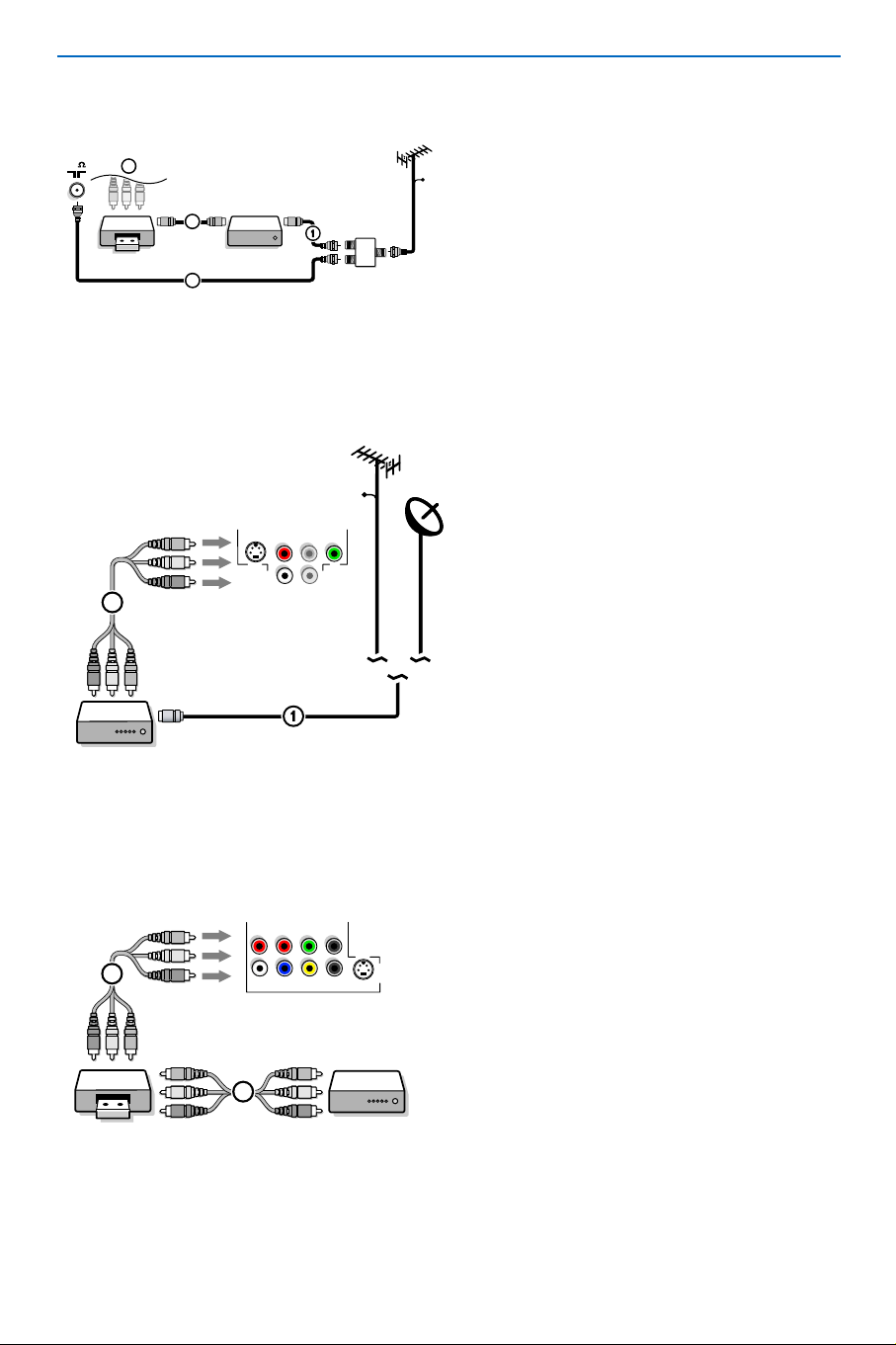
& Use an optional signal splitter.
é Connect one of the cable TV signal splitter
outputs 1 to the cable box’s
IN jack.
“ Connect the other cable TV signal splitter
output 2 to the 75 ø x plug on the bottom
of the TV.
‘ Connect the cable box’s OUT jack 3 to the
recorders
RF IN socket.
( Connect the Video, Audio Left and Right (only
for stereo sound) AV cables 4 to the
CVBS,
audio
L and R input AV2 jacks on the TV.
& Connect the RF Antenna or Cable TV cable as
described above.
é Connect the AV cables 1 to the satellite
receiver’s or cable box’s
AV OUT jacks and to
the recorder’s
AV IN jacks.
“ Connect the recorder’s AV OUT jacks 2 to
the TV’s
AV2 jacks as described above.
AV1
S-VIDEO R
L
Pr
Pb
Y
SAT / Cable Box
IN
CABLE
OUT
VIDEO
L/ Mono
R
2
AV2
R
L
V
H S-VIDEO
Y/G
CVBS
Pr/R
Pb/B
RECORDER
OUT
OUT
IN
VIDEO
L/ Mono
R
2
1
OUT
SAT / Cable Box
Recorder and Satellite Receiver / Cable Box with AV outputs
& Connect the satellite antenna cable or the Cable
TV cable 1 to the satellite receiver’s or cable
box’s
IN jack.
é Connect the Video, Audio left and right AV
cables 2 to the
Y, L audio and R AUDIO input
jacks of
AV1.
If your satellite receiver or cable box has
an S-Video jack:
For improved picture quality, connect an S-Video
cable to the
S-VIDEO input instead of
connecting the satellite receiver or cable box to
the
Y jack.
Connect the audio cables to the device’s
AUDIO
L and R jacks and to the L and R audio AV1
jacks on the TV.
Satellite Receiver / Cable Box with AV outputs
Recorder and Cable Box with RDF output
18
Notes
- The labels for the component video sockets may differ depending on the DVD player or the device connected.
Although the abbreviations may vary, the letters B and R stand for the blue and red component signals,
respectively, and Y indicates the luminance signal. Refer to the DVD player’s or devices instructions for use for
definitions and connection details.
- This television is designed to accept high definition signal standards 480p, 720p (not with 42PF9956), 1080i
and 1152i as specified by the Electronic Industries Association standard EIA770.3.
Digital devices from different manufacturers have the possibility of differing output standards which may
cause difficulties for the television to properly display.
Warning: in case you notice scrolling images, wrong colors or no colour, no picture, or even combinations of
these on your screen, check if the connections are done in the correct way or move your digital device further
away from your TV.
AV1AV2
R
L
V
H
S-VIDEO
S-VIDEO
Y/G
CVBS
Pr/R
Pb/B
R
L
Pr
Pb
Y
1 2
DVD / Cable Box
3
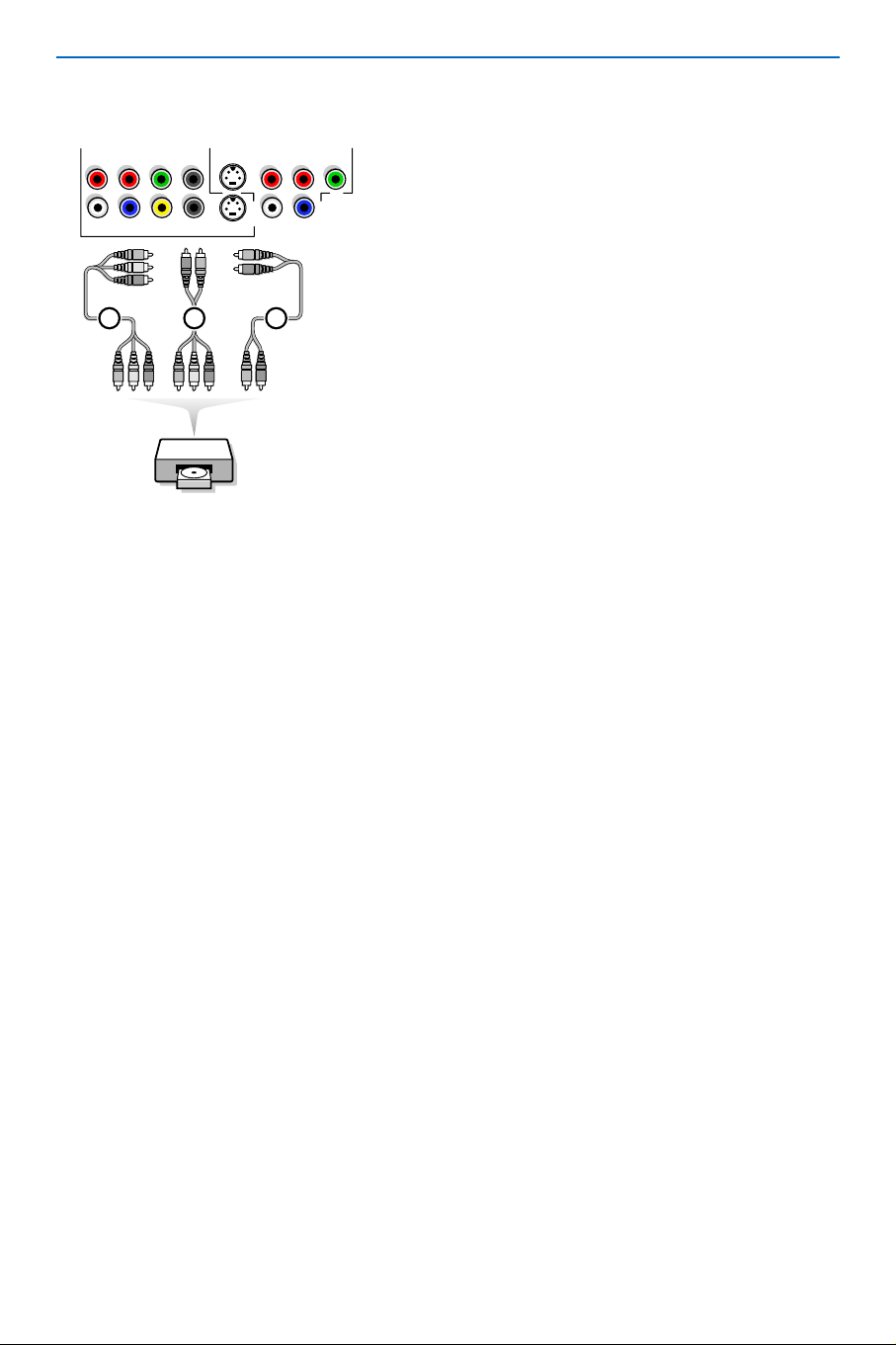
Devices with Component Video Output Connectors
(YPbPr)
& Connect the three separate component video cables 1
to the device having component video outputs (YPbPr),
such as DVD-players, laser-disc players, videogame
players, satellite receivers or other equipment, and to
the
Y, Pb and Pr jacks of AV1 or AV2 on the TV.
é Connect the audio cable to device’s AUDIO L and R
2 jacks and to the L an R audio YPbPr jacks of AV1
or AV2.
Devices with RGB output
& Connect the device with RGB output with separate
Horizontal and Vertical sync to the
Pr/R Pb/B Y/G input
jacks and to the
H and V jacks of AV2 3.
é Connect the audio cables to the L and R AUDIO jacks
of
AV2.
Devices with an S-Video connector
& Connect an S-Video cable to the AV1 or AV2 S-VIDEO
input.
Note: When using the
S-VIDEO connector do not connect
any device to the
AV2 CVBS input.
é Connect the audio cables to the device’s AUDIO L and
R jacks and to the L and R audio AV1 or AV2 jacks on
the TV.
DVD Player or other accessory digital source devices
19
HDMI
R
L
HDMI IN
CENTRE
SUBW.
R
L
AUDIO
1
2
1
HDMI is the leading new standard for Digital High
Definition video and audio interconnection. Eg. with a Digital
Set top box, with HDMI-equipped devices like a PC, DVD-R,
AV receiver...
Note: the HDMI connector is compatible with DVI-devices and a
HDMI to DVI conversion cable is included. (Then also connect the
audio cables.)
The
HDMI IN connector allows
- the following TV and monitor display modes:
EDTV 640/720 x 480p
HDTV 1920 x1080i
1280 x 720p (only with 50PF9956)
VGA 640 x 480 60 Hz
SVGA 800 x 600 60 Hz
XGA 1024 x 768 60 Hz (only with 50PF9956)
- uncompressed HD content
- encrypted or non encrypted signals.
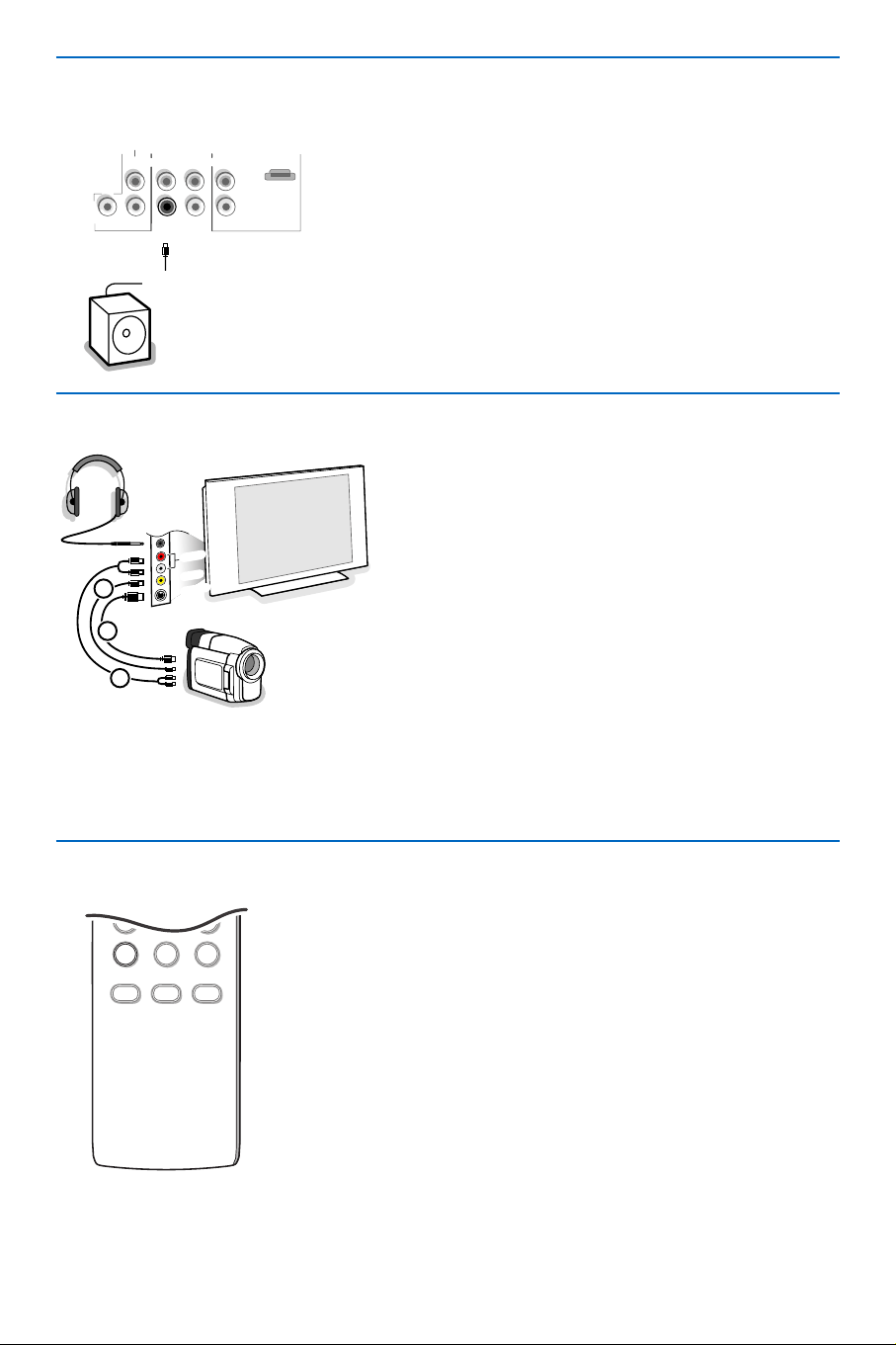
& Connect the audio cable to the multi channel Surround receiver
and to
AUDIO RECEIVER L and R next to the CENTRE
connector of your TV 1.
Note: turn off the TV and your surround receiver before connecting
them. Set the Surround receiver’s volume to minimum.
é If you want the loudspeakers of your TV to act as center
speaker, also connect an audiocable to the multi channel
Surround receiver and to the
CENTRE connector of your TV
2.
“ Select Center Input On in the Source menu. See p. 9.
The loudspeakers of the TV will now only produce center
sound, the loudspeakers connected to the audio receiver will
produce Surround Sound.The volume has to be controlled via
the multi channel Surround receiver.
Note: No sound will be heard when a TV channel or external source is
blocked via the Channel Lock menu (see p. 13).
AUDIO
R
L
CENTRE
SUBW.
2
1
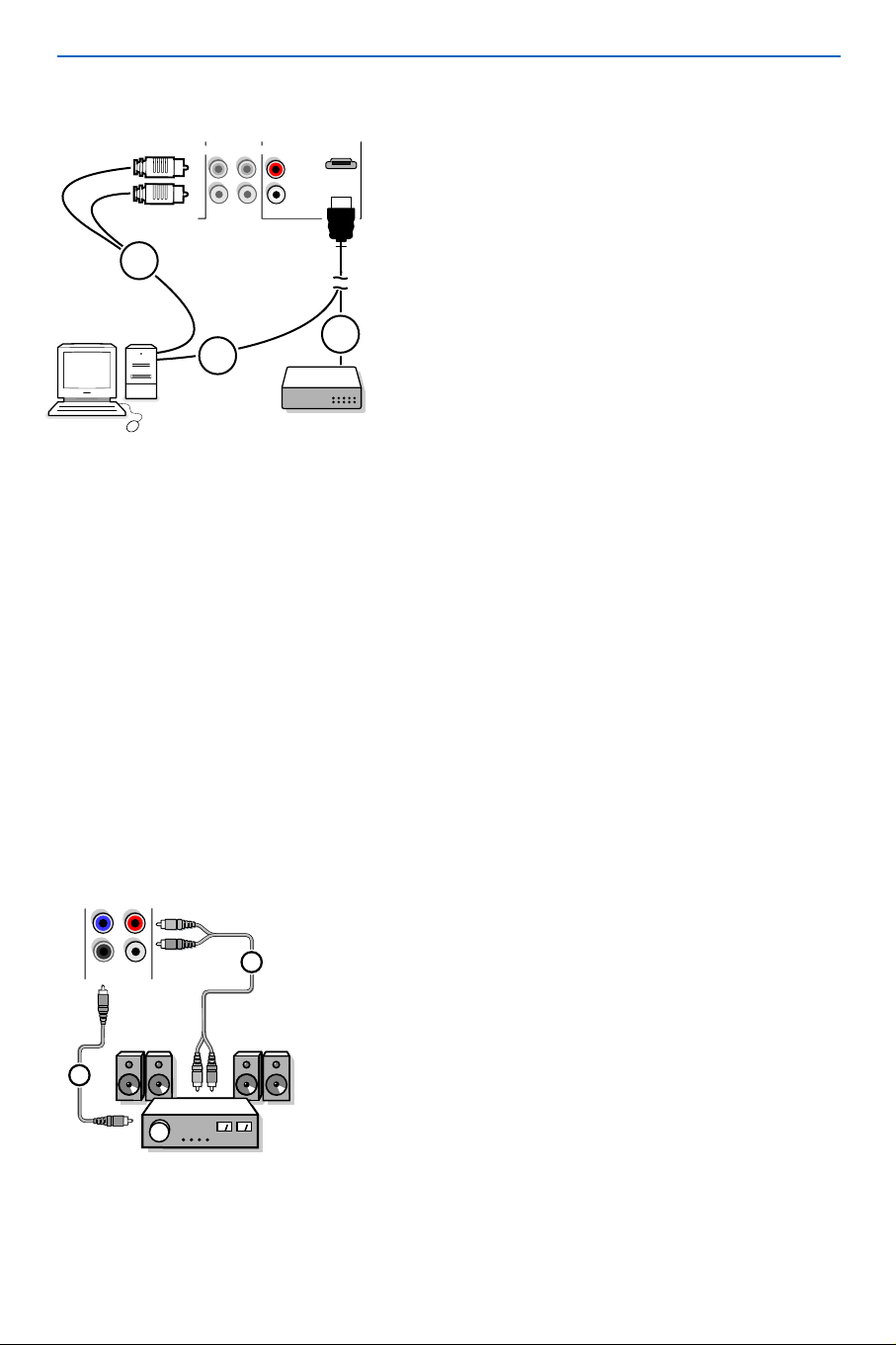
& Connect the digital HDMI output of your HD device (e.g. PC, DVD player, Set Top Box..) 1 to the
HDMI connector of your TV.
é In case a HD-DVI device (and if audio is present) is connected also connect the audio cable 2 to the
AUDIO outputs of your HD device and to the AUDIO RECEIVER R (right) and L (left) HDMI (AV3)
inputs of the panel of the TV.
Notes:
- Proper working is only guaranteed with HDMI compliant consumer products.
- Digital devices from different manufacturers have the possibility of differing output standards which may cause
difficulties for the television to properly display;
- If the set is cold, there may be a small “flicker” when the set is turned on.This is normal, there is nothing wrong
with the set.
- In case no signal is detected from your HDMI device, turn off the HDMI device and then on again.
To get an optimal viewing, it is advised to switch your DVD player to one of the following TV display standards:
720x480p, 720x480i, 1280x720p or 1920x1080i.
Multi channel Surround receiver
HDMI (High Definition Multimedia Interface) connector
20
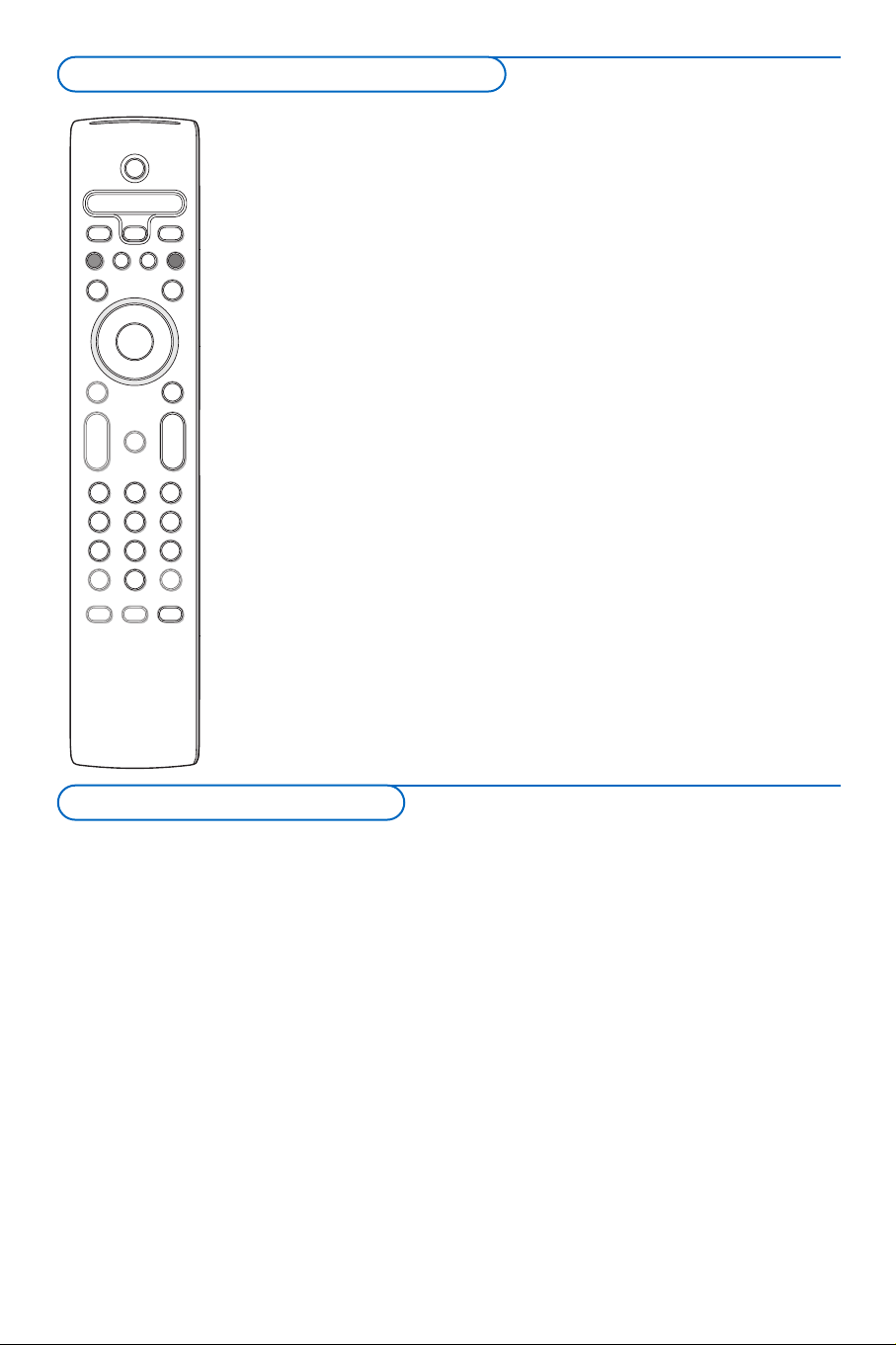
To enhance the sound reproduction of your TV you can
connect an externally powered subwoofer (between 20 and
250 Hz).
& Connect the audio cable of the external subwoofer to
the
SUBWOOFER socket at the bottom of your TV.
é Select Subwoofer in the Settings, General menu, p. 8.
“ Adjust the frequency of the external subwoofer to 100-
120 Hz (according to your personal preference) if
present on the subwoofer.
‘ Adjust the volume level of the external subwoofer,
presumed this control is present on the subwoofer.
See also the instruction manual of the external
subwoofer.
SUBWOOFER
AUDIO
RECEIVER
R
L
CENTRE
SUBW.
MONITOR
OUT
AV3
VIDEO
R
L
R
L
HDMI
VIDEO
3
2
1
S•VIDEO
AUDIO
& Press the AV+ button repeatedly or select Source in the
Settings menu (see p. 9) to select
AV1, AV2, AV3 (HDMI), Side
or TV channels, according to where you connected your
devices.
é Press the cursor up/down.
“ Press OK.
Remark: Most equipment (decoder, recorder) carries out the switching
itself. This is however never the case with a computer connected to
the HDMI input.
789
0
CONTROL
ACTIVE
CLOCKSAP
AV+
-
To select connected devices
Camera, Camcorder or Game
& Connect your camera, camcorder or game as shown.
é Connect to VIDEO 2 and AUDIO L 3 for mono
equipment. For stereo equipment also connect
AUDIO R 3.
S-VHS quality with an S-VHS camcorder is obtained by
connecting the S-VHS cables with the
S-VIDEO input
1 and
AUDIO inputs 3.
Do not connect cable 1 and 2 at the same time. This
may cause picture distortion !
Headphone
& Insert the plug into the headphone socket L as shown.
é Press ¬ on the remote control to switch off the
internal loudspeakers of the TV.
The headphone impedance must be between 8 and 4000
Ohm.The headphone socket has a 3.5 mm jack.
In the Sound menu select
Headphone volume to adjust
the headphone volume.
Side connections
Connect extra subwoofer
21
MENU
+
-
+
-
CBLDVD/R TV VCR AUX
MENU
MUTE
PIP
VOL CH
123
456
789
0
Ò
®
‡π
º
†
®
®
®
®
INFO DNM
POWER
TV CC
SCREEN
SURF
FORMAT
HD
SURR
SELECT
CONTROL
ACTIVE
CLOCKSAP
AV+
-
OK
Most of the audio and video equipment from our range of products can be
operated with the remote control of your TV.
Press one of the buttons after you pressed the
Select button repeatedly
according to the equipment you want to operate with this remote control.
See Use of the remote control, p. 3.
POWER to switch to standby
(
VCR)
º for pause,
® for record,
Ò for rewind (
VCR, CD);
search down (
DVD, AMP)
‡ for stop,
π for play,
† for fast forward (
VCR, CD);
search up (
DVD/AMP)
INFO display information
MENU to switch the menu on or
off
- CH + for chapter, channel, track
selection
0 to 9 digit entry,
- tape index (
VCR),
select a DVD chapter,
select a frequency (
AMP)
CLOCK VCR timer
SURR surround on/off (AMP, CD)
cursor up/down
to select the next or the
previous disc (
CD)
cursor left/right
to select the previous or
following track (
CD)
Notes:
- If no action is being undertaken within 60 seconds, the remote control returns to
TV mode.
- After an action in the selected system mode, the remote control will remain in
this mode for 60 seconds and will then return to TV mode or press the
Select
button to return to TV mode immediately.
To record S-VHS quality, connect an S-VHS
peripheral directly to the recorder.
Record a TV program
You can record a TV program using your recorders
tuner without affecting your TV.
& Select the channel number on your recorder.
é Set your recorder to record.
See the handbook for your recorder.
Switching channel numbers on your TV does not
disturb recording !
Record a recorder from
MONITOR OUT
You can record a program on your recorder from
the TV tuner via
MONITOR OUT.
& Switch on the device.
é Select the correct channel on your TV and the
correct input on your recorder.
“ Set your recorder to record.
You record the tuner channel of the TV, even
when you switch to an AV input using the
AV+
button on the remote control.
Do not switch channels or turn off your TV when
you are recording through
MONITOR OUT.
Note: When a TV channel or AV source is blocked
because of a rating set via the Channels menu (see
p. 13), also the record output picture and sound are
muted.
Record with your recorder
Audio- and video equipment buttons

22
Your remote control is set to work your TV and many infrared remote (IR) control VCRs, Cable TV
Converter Boxes, DVD players, Satellite Receivers, etc.
Press the
Select button repeatedly to select DVD/R, CBL, VCR or AUX according to the accessory
device you want to operate with this remote control. See Use of the Remote control, p. 3. Press the
POWER button.
If the function buttons on the remote control also work the selected accessory device, then the remote is
ready and no further steps are needed.
If the function buttons do not work with the selected accessory device, according to the device(s) you
own, you may make your remote control ready for them by a direct entry code. Proceed as following.
Code setup
& Press the Select and POWER buttons at the
same time, then release.
é NOTE:When inputting the digits as described
below, you must not allow more than 20
seconds to pass between the input of each digit
or you will need to return to step 1 and begin
the programming process again.
Input the appropriate digit provided below for
the type of accessory device you want to
operate:
1 DVD/R
2 CBL (HD-STB)
3 CBL-SAT
4 VCR
5 AUX (AMP, CD).
“ Input the 4-digit code for the type and brand of
accessory device.The codes are listed on pages
23-24.
‘ The green light behind the POWER button will
blink for 3 seconds to show that a valid code
was input.
If a valid code was not entered, the light will
stay on continuously for 3 seconds. If that
occurs, go back to step 1 and begin the
programming process again.
( Now you will try to use the TV remote with
the accessory device. Press the
Select button
on the remote to cycle across the accessory
mode dial. Stop pressing the button when the
mode you desire is lighted.The light will stay on
for 2 seconds and then begin blinking.The
blinking means that the remote is in the
accessory mode you have selected.
§ Within 60 seconds from the time the blinking
starts, point the remote toward the accessory
device and press the
POWER button. If the
device does not respond to the
POWER
command, follow the steps for programming
the remote again using a different setup code
for the type and brand of accessory device you
wish to operate. Refer again to the code list on
pages 23-24. If no more codes are listed for the
type and brand of accessory device, the remote
likely will not operate your particular model of
accessory device.
Notes:
- Your TV remote is not necessarily capable of being
programmed to operate all models of the brands of
accessory devices listed on pages 23-24. You may
want to try the programming process again.Try using
the number(s) that are listed for your type and brand
of device to be sure you did not make a mistake in
inputting the digits during your first attempt at
programming.
- If the remote control is in one of the accessory
modes (a mode light is flashing) — DVD/R, CBL, SAT,
VCR or AUX — and you don’t press any of the
remote buttons for sixty seconds, a “time-out” occurs,
returning the remote to TV mode.
Setting the remote control to work accessory devices

23
Amplifier
Carver ..................................................0296
Curtis Mathes ....................................0327
GE..........................................................0105
JVC ........................................................0358
Linn........................................................0296
Magnavox .............................................0296
Marantz ................................................0296
Optimus ...................................0422, 0327
Philips....................................................0296
Pioneer .................................................0327
Polk Audio ...........................................0296
RCA ......................................................0327
Realistic ................................................0422
Sony............................................0716, 0247
Soundesign...........................................0105
Victor....................................................0358
Wards ...................................................0105
Yamaha..................................................0381
Cable Box
ABC.................................0030, 0034, 0035
Allegro ......................................0180, 0342
Americast ...........................................0926
Archer .......................................0180, 0824
BellSouth .............................................0926
Century ...............................................0180
Citizen ......................................0180, 0342
Comtronics .........................................0067
Contec ................................................0046
Emerson ..............................................0824
Everquest .................................0042, 0067
Focus.....................................................0427
Garrard ...............................................0180
Gemini .................................................0042
General Instrument ................0503, 0837
GoldStar....................................0067, 0171
Goodmind ..........................................0824
Hamlin .................0047, 0036, 0286, 0061
Hytex ...................................................0034
Jasco................................0042, 0180, 0342
Jerrold.................0030, 0039, 0503, 0042,
...............................................................0837
Memorex ............................................0027
Motorola..............................................1133
Movie Time..........................................0090
NSC ......................................................0090
Oak ............................................0046, 0034
Optimus ...............................................0048
Panasonic .......................0048, 0134, 0027
Paragon ...............................................0027
Philips..............................0180, 0332, 0344
Pioneer ...........................0171, 0560, 0904
Popular Mechanics.............................0427
Pulsar ....................................................0027
Quasar..................................................0027
RCA ......................................................0048
Radio Shack........0042, 0910, 0342, 0824
Recoton................................................0427
Regal...........................................0047, 0286
Runco....................................................0027
SL Marx ...............................................0067
Samsung.....................................0067, 0171
Scientific Atlanta ..........0035, 0504, 0904
Signal ..........................................0042, 0067
Sprucer.................................................0048
Starcom ....................................0030, 0042
Stargate .........................0067, 0042, 0824
Starquest..............................................0042
TV86 .....................................................0090
Teleview................................................0067
Tocom .................................................0039
Toshiba..................................................0027
Tusa .......................................................0042
Unika.....................................................0180
United Artists .....................................0034
Universal ...................................0180, 0218
Viewstar ...............................................0090
Zenith .............................0027, 0552, 0926
Zentek ..................................................0427
Surround Sound Receiver
ADC......................................................0558
Aiwa .....................................................0148
Capetronic .........................................0558
Carver ...........................0069, 1116, 1216
Casio.....................................................0222
Clarinette.............................................0222
Denon........................................1187, 1131
Fisher ....................................................0069
Garrard ...............................................0490
Harman/Kardon ................................0137
JVC ........................................................0101
Kenwood.............1054, 0069, 0213, 1340
....................................................1596, 1597
Lloyd's...................................................0222
MCS ......................................................0066
Magnavox ............0418, 1116, 0558, 1216
...............................................................0222
Marantz .........................1116, 1216, 0066
Modulaire ...........................................0222
Nakamichi............................................0124
Onkyo...................................................0162
Optimus ..............1050, 0213, 0558, 0069
Panasonic ..................................0066, 1545
Penney ..................................................0222
Philips...................1116, 1216, 1296, 0418
Pioneer ...........................0177, 0558, 1050
Proscan ...............................................1281
Quasar..................................................0066
RCA ................................1281, 0558, 1050
Realistic ................................................0222
Sansui....................................................1116
Sharp.....................................................0213
Sherwood.............................................0529
Sony.................................1185, 1085, 1285
Sunfire .................................................1340
Teac .......................................................0490
Technics...............0066, 1335, 1545, 1336
Thorens................................................1216
Victor....................................................0101
Yamaha............................0203, 0213, 1203
Yorx.......................................................0222
Satellite Receiver
AlphaStar .............................................0799
Echostar ....................................1032, 0802
Expressvu.............................................0802
GE ........................................................0593
General Instrument ....0388, 0896, 0654
HTS .......................................................0802
Hitachi .................................................0846
Hughes Network Systems ...............0776
JVC ........................................................0802
Jerrold ......................................0388, 0654
Magnavox .................................0749, 0751
Memorex .............................................0751
Next Level...........................................0896
Panasonic ............................................0728
Philips..............................1103, 0749, 0751
Primestar...................................0654, 0388
RCA .....................0593, 0170, 0419, 0882
Radio Shack.........................................0896
Samsung................................................1136
Sony .....................................................0666
Star Choice .........................................0896
Toshiba .....................................0776, 0817
Uniden .......................................0751, 0749
Zenith ...................................................0883
VCR
Admiral......................................0075, 0236
Adventura............................................0027
Aiko.......................................................0305
Aiwa ...........................................0027, 0064
Akai .......................................................0068
America Action .................................0305
American High....................................0062
Asha ......................................................0267
Audiovox ............................................0064
Beaumark.............................................0267
Bell & Howell......................................0131
Broksonic 0148, 0211, 0029, 0236, 0506
CCE ..........................................0099, 0305
Calix ....................................................0064
Canon ..................................................0062
Carver ..................................................0108
Cineral..................................................0305
Citizen ......................................0305, 0064
Colt .......................................................0099
Craig .........0064, 0099, 0074, 0267, 0298
Curtis Mathes ....0062, 0068, 0087, 0189
...............................................................0787
Cybernex ............................................0267
Daewoo.....................................0305, 0072
Denon...................................................0069
Dynatech..............................................0027
Electrohome ......................................0064
Electrophonic......................................0064
Emerex .................................................0059
Emerson .............0211, 0029, 0236, 0305,
.............................0148, 0506, 0027, 0064,
...............................................................0070
Fisher ........................................0074, 0131
Fuji.........................................................0062
Funai......................................................0027
GE........................0062, 0087, 0075, 0267,
...............................................................0787
Garrard ................................................0027
Go Video...................................0459, 0553
GoldStar....................................0064, 0065
Gradiente.............................................0027
HI-Q......................................................0074
Harley Davidson.................................0027
Harman/Kardon.......................0065, 0108
Harwood ............................................0099
Hitachi ............................0069, 0027, 0068
Hughes Network Systems ...............0069
JVC .............................................0094, 0068
Jensen....................................................0068
KEC ..........................................0064, 0305
KLH.......................................................0099
Kenwood ......................0068, 0094, 0065
Kodak.........................................0062, 0064
LXI .......................................................0064
Lloyd's...................................................0027
Logik ....................................................0099
MEI .......................................................0062
MGA ..........................................0070, 0267
MGN Technology ...............................0267
Remote Control Direct Entry Codes for Accessory Devices

24
VCR (continued)
MTC .........................................0027, 0267
Magnasonic .........................................0305
Magnavox .0062, 0108, 0027, 0066, 0176
Magnin ...................................................0267
Marantz ......................................0108, 0062
Marta .....................................................0064
Matsushita..................................0062, 0189
Memorex .............0131, 0074, 0506, 0027
................................0064,0075, 0062, 0267
...............................0066, 0189, 0236, 1189
Minolta ..................................................0069
Mitsubishi........................0070, 0075, 0094
Motorola....................................0062, 0075
Multitech....................................0027, 0099
NEC......................0065, 0068, 0094, 0131
Nikko.....................................................0064
Noblex ..................................................0267
Olympus................................................0062
Optimus..............0189, 1189, 0075, 0064,
.....................................................0131, 0459
Orion ..................0506, 0029, 0211, 0236
Panasonic .............0062, 0189, 1189, 0643
Penney.......0062, 0267, 0064, 0069, 0065
Pentax....................................................0069
Philco ...............................0062, 0236, 0506
Philips...............................0108, 0062, 0645
Pilot........................................................0064
Pioneer..................................................0094
Polk Audio ............................................0108
Profitronic.............................................0267
Proscan.......................................0087, 0787
Protec....................................................0099
Pulsar .....................................................0066
Quasar.............................0062, 0189, 1189
RCA .....................0087, 0176, 0069, 0062,
..........................................0075, 0267, 0787
Radio Shack..........................................0027
Radix......................................................0064
Randex...................................................0064
Realistic...............0027, 0131, 0074, 0075,
.....................................................0064, 0062
ReplayTV....................................0641, 0643
Runco ....................................................0066
STS .........................................................0069
Samsung .....................................0072, 0267
Sanky...........................................0066, 0075
Sansui0068, 0506, 0027, 0094, 0236, 0298
Sanyo................................0074, 0131, 0267
Scott .....................0211, 0148, 0070, 0072
Sears ....................0064, 0069, 0027, 0062,
.....................................................0074, 0131
Semp ......................................................0072
Sharp......................................................0075
Shintom ................................................0099
Shogun...................................................0267
Singer.....................................................0099
Sony ......................0059, 0027, 0062, 0063
Sylvania.................0062, 0108, 0027, 0070
Symphonic ............................................0027
TMK.......................................................0267
Tatung ....................................................0068
Teac .............................................0027, 0068
Technics......................................0062, 0189
Teknika ............................0027, 0062, 0064
Thomas..................................................0027
Tivo.............................................0645, 0663
Toshiba .......................................0072, 0070
Totevision ..................................0064, 0267
Unitech..................................................0267
Vector....................................................0072
Vector Research..................................0065
Video Concepts ..................................0072
Videosonic............................................0267
Wards..................0062, 0087, 0027, 0074,
...............................0267, 0069, 0075, 0099
..........................................0108, 0176, 0787
White Westinghouse....0099, 0305, 0236
XR-1000..........................0099, 0027, 0062
Yamaha ..................................................0065
Zenith...................0066, 0027, 0236, 0506
Digital Video Disc (DVD)
Apex.......................................................0699
Denon ..................................................0517
Fisher .....................................................0697
GE...........................................................0549
Hitachi ..................................................0691
Hiteker ..................................................0699
JVC ..............................................0650, 0585
Kenwood ..................................0709, 0561
Konka ...................0746, 0738, 0747, 0748
Magnavox...................................0530, 0702
Marantz .................................................0566
Mitsubishi..............................................0548
Onkyo....................................................0530
Optimus ................................................0598
Oritron..................................................0678
Panasonic ..................................0517, 0659
Philips..........................................0566, 0530
Pioneer............................0598, 0552, 0659
Proscan..................................................0549
RCA ............................................0549, 0598
Samsung ...............................................0600
Sharp......................................................0657
Sony........................................................0560
Technics.................................................0517
Theta Digita .........................................0598
Toshiba .................................................0530
Yamaha .......................................0517, 0572
Zenith ........................................0618, 0530
This equipment has been tested and found to comply
with the limits for a Class B digital device, pursuant to
part 15 of the FCC Rules.These limits are designed to
provide reasonable protection against harmful
interference in a residential installation.This
equipment generates, uses, and can radiate radio
frequency energy and, if not installed and used in
accordance with the instructions, may cause harmful
interference to radio communications. However, there
is no guarantee that interference will not occur in a
particular installation. If this equipment does cause
harmful interference to radio or television reception,
which can be determined by turning the equipment off
and on, the user is encouraged to try to correct the
interference by one or more of the following
measures:
Reorient or relocate the receiving antenna.
Increase the separation between the equipment and
the receiver.
Connect the equipment into an outlet on a circuit
different from that to which the receiver is connected.
Consult the dealer or an experienced radio or
television technician for help.
Modifications -
The FCC requires the user to be notified that any
changes or modifications made to this device that are
not expressly approved by Philips Consumer
Electronics may void the user’s authority to operate
the equipment.
Cables -
Connections to this device must be made with
shielded cables with metallic RFI/EMI connector hoods
to maintain compliance with FCC Rules and
Regulations.
Canadian notice -
This Class B digital apparatus meets all requirements
of the Canadian Interference-Causing Equipment
Regulations.
Avis Canadien -
Cet appareil numérique de la classe B respecte toutes
les exigences du Règlement sur le matériel brouilleur
du Canada.
Regulatory Notices - Federal Communications Commission Notice
Remote Control Direct Entry Codes for Accessory Devices
25
Standby Your TV consumes energy in the standby mode. Energy consumption contributes
to air and water pollution. Power consumption: 2 W.
Miscellaneous See Extras, Specifications on this CD.
Tips
Symptoms Items to Check and Actions to follow
“Ghost” or • This may be caused by obstruction to the antenna due to high rise buildings or hills.
double images Using a highly directional antenna may improve the picture.
No power • Check that the TV’s AC power cord is plugged into the mains socket.
• Unplug the television, wait for 60 seconds.
The re-insert plug into the mains socket and turn on the television again.
No picture • Check antenna connections at the bottom of the TV to see if it properly connected
to the TV.
• Possible broadcast station trouble.Try another channel.
• Adjust the contrast and brightness settings.Try another auto picture setting.
• Check the Closed Captions control. Some TEXT modes could block the screen.
• Switch your HDMI-source to a correct display mode.
No picture and • Your TV has a protective mode in case there is too much heat build-up.
power switched on Check the clearance around the vents of the device to be certain there are no
blocking walls or cabinets which would limit the air flow.
No sound • Increase the VOLUME.
• Check that the TV is not muted, press the
MUTE
button on the remote control.
• When no signal is detected, the TV automatically switches off the sound.
This is proper operation and does not indicate a malfunction.
Good sound but • Adjust the contrast, color, tint and brightness setting.
poor color or Try another auto picture setting.
no picture
Poor picture • Check the HDMI connection.
Snowish picture • Check the antenna connection.
and noise
Television not • Check whether the batteries are working. Replace if necessary.
responding to • Clean the remote control sensor lens on the TV.
remote control • Operating range between TV and the remote control should not be > 240”.
• You can still use the buttons on the right side of your TV.
• Check if the remote control is in the correct mode.
Control of • The infrared signals of the screen may influence the reception sensibility of
accessory devices other peripherals.
Solution: replace the batteries of the remote control of other devices.
E.g. keep away a wireless headphone from within a radius of 50”.
No stable or not
Check if you have selected the correct VGA mode in your PC.
synchronized VGA
picture
Before Calling Service

26
If your problem is not solved
Turn your TV off and then on again once.
Never attempt to repair a defective TV
yourself.
Check with your dealer or call a TV technician.
Telephone number Philips Customer
Care Center: 800-531-0039
Warning concerning stationary images on the TV screen
A characteristic of Plasma Display Panels is that displaying the same image for a long time can
cause a permanent after-image to remain on the screen.This is called phosphor burn in.
Normal use of the TV should involve the showing of pictures that contain constantly moving and
changing images that fill the screen.
Examples of stationary images (this is not an all-inclusive list, you may encounter others in your
viewing):
•
TV menus;
•
Black bars: when black bars appear at the left and right side of the screen, it is recommended
to change to a picture format so that the picture fills the entire screen;
•
TV channel logo: present a problem if they are bright and stationary. Moving or low-contrast
graphics are less likely to cause uneven aging of the screen;
•
Stock market stickers: presented at the bottom of the TV screen;
•
Shopping channel logos and pricing displays: bright and shown constantly or repeatedly in
the same location on the TV screen.
Examples of still pictures also include logos, computer images, time display, teletext and images
displayed in 4:3 mode, static images or characters, etc.
Notes:
- reduce contrast and brightness when viewing
- once burn-in occurs it will never disappear completely.
Care of the screen
Do not touch, push or rub or strike the screen with anything hard as this may scratch, mar or damage
the screen permanently. And please do not rub with dust clothes with chemical treatment.
Do not touch the surface with bare hands or greasy cloth (some cosmetics are detrimental to the
screen). Unplug the TV before cleaning the screen.
When the surface becomes dusty, please wipe gently with absorbent cotton or other soft materials
like chamois soaks.
Do not use acetone, toluene and alcohol because they cause chemical damage. Do not use liquid
cleaners or aerosol cleaners.Wipe off saliva or water drops as soon as possible.Their long time
contact with the screen causes deformations and colour fading..
How to dispose of batteries?
The batteries supplied do not contain the heavy metals mercury and cadmium. Nevertheless in many
areas batteries may not be disposed of with your household waste. Please ensure you dispose of
batteries according to local regulations.
Tips

27
WHO IS COVERED?
You must have proof of purchase to receive
warranty service.A sales receipt or other
document showing that you purchased the
product is considered proof of purchase.
WHAT IS COVERED?
Warranty coverage begins the day you buy
your product. For one year thereafter, all parts
will be repaired or replaced and labor is free.
After one year from the day of purchase, you
pay for the replacement or repair of all parts,
and for all labor charges.
All parts, including repaired and replaced parts,
are covered only for the original warranty
period.When the warranty on the product
expires, the warranty on all replaced and
repaired parts also expires.
WHAT IS EXCLUDED?
Your warranty does not cover:
• labor charges for installation or setup of the
product, adjustment of customer controls on
the product, and installation or repair of
antenna systems outside of the product.
• product repair and/or part replacement
because of misuse, accident, unauthorized
repair or other cause not within the control of
Philips Consumer Electronics Company.
• reception problems caused by signal conditions
or cable or antenna systems outside the unit.
• a product that requires modification or
adaptation to enable it to operate in any
country other than the country for which it
was designed, manufactured, approved and/or
authorized, or repair of products damaged by
these modifications.
• incidental or consequential damages resulting
from the product. (Some states do not allow
the exclusion of incidental or consequential
damages, so the above exclusion may not apply
to you.This includes, but is not limited to,
prerecorded material, whether copyrighted or
not copyrighted.)
• a product used for commercial or institutional
purposes.
WHERE IS SERVICE AVAILABLE?
Warranty service is available in all countries
where the product is officially distributed by
Philips Consumer Electronics Company. In
countries where Philips Consumer Electronics
Company does not distribute the product, the
local Philips service organization will attempt to
provide service (although there may be a delay
if the appropriate spare parts and technical
manual(s) are not readily available).
MAKE SURE YOU KEEP ...
Please keep your sales receipt or other
document showing proof of purchase.Attach it
to this owner’s manual and keep both nearby.
Also keep the original box and packing material
in case you need to return your product.
Please check your owner’s manual before
requesting service.Adjustments of the controls
discussed there may save you a service call.
TO GET WARRANTY SERVICE....
Repair must be performed by an authorized
service center or a factory service center. If
you do not live near a factory service center,
contact your dealer. If your dealer is an
authorized service center, he will arrange
repair. If your dealer is not an authorized
service center he will direct you to the
authorized service center engaged by him to
service the products he sells.
(In U.S.A., Puerto Rico and U.S.Virgin Islands, all
implied warranties, including implied warranties
of merchantability and fitness for a particular
purpose, are limited in duration to the duration
of this express warranty. But, because some
states do not allow limitations on how long an
implied warranty may last, this limitation may
not apply to you.)
(In Canada, this warranty is given in lieu of all
other warranties. No other warranties are
expressed or implied, including any implied
warranties of merchantability or fitness for a
particular purpose. Philips is not liable under
any circumstances for any direct, indirect,
special, incidental or consequential damages,
howsoever incurred, even if notified of the
possibility of such damages.)
IF YOU HAVE QUESTIONS IN CANADA
Please contact Philips at:
1-800-661-6162 (French speaking)
1-800-363-7278 (English speaking)
REMEMBER...
Please record the model and serial numbers
found on the product below. Also, please fill out
and mail your warranty registration card
promptly. It will be easier for us to notify you if
necessary.
MODEL #
SERIAL #
One Year Free Labor
One Year Free Service on Parts
This warranty gives you specific legal rights.You may have other rights which vary from state/province to state/province.
Philips Consumer Electronics Company, P.O. Box 520890, Miami, FL 33152, (402) 536-4171
LIMITED WARRANTY
FACTORY SERVICE LOCATIONS
Note: If you reside in one of our Philips Factory Service Branch areas (see directory on back), you can
contact the nearest Service Branch to obtain efficient and expedient repair for your product. If your
product is In-Warranty, you should have proof-of-purchase to ensure No Charge Service. For Out-of-
Warranty service, call the location nearest you.
Nota: Si vous résidez dans une des régions desservies par une succursale de service après vente du
fabricant Philips (voir liste ci-dessous), vous pourrez contacter la branche de service après vente la plus
près de chez vous pour obtenir un service après vente rapide et efficace. Si le produit est sous garantie, il
suffira de présenter une preuve d`achat pour bénéficier d'un service sans frais. Pour les produits non
couverts par la garantie, contactez le center le plus près de chez vous.
Nota: Si Ud. reside en una de nuestras zonas para sucursales Philips de servicio al de fábrica (ver
directorio más abajo), Ud. puede comunicarse con la sucursal de servicio más cercana para obtener una
reparación oportuna y eficaz de su producto. Si su producto está todavía bajo garantía, Ud. debe
presentar comprobante de compra para no ocasionar ningunos cargos por servicio. Para servicio después
del vencimiento de la garantía, llame al lugar más cercano de los abajo indicados.
In Canada
How you can obtain efficient and expedient carry-in, mail-in, or in-home service for your product
Please contact Philips at 1-800-661-6162 (French speaking)
1-800-531-0039 (English or Spanish speaking)
Au Canada
Comment obtenir le service après-vente pour les produits apportés ou envoyés par la poste à notre
center de service ou le service à domicile
Veuillez contacter philips á: 1-800-661-6162 (Francophone)
1-800-531-0039 (Anglais ou Espagnol)
En el Canadá
Cómo recibir servicio efficiente para su producto, en persona, por correo o a domicillo
Favor de comunicarse con Philips al: 1-800-661-6162 (Francés)
1-800-531-0039 (Inglés o Español)
★
•
Tampa/W Florida
★
•
San Francisco/Metro Area
•
¥
•
Philadelphia/S New Jersey
•
Atlanta/N Georgia
•
Houston
Knoxville/E Tennessee
Charlotte
Los Angeles★
★
★
Indicates In-Home Service Only
Milwaukee: call Chicago
Cincinnati and Columbus: call Cleveland
Nashville and Chattanooga: call Knoxville
Washington/Baltimore: call Philadelphia
Charlotte: call Atlanta
All Florida locations: call Tampa
Los Angeles: call San Francisco
Toll-free numbers provided on the next page
• Indicates In-Home/Carry-In Service
Toll-free numbers provided on the next page
★
Milwaukee
Nashville
★
Chattanooga
★
★
Cincinnati
Orlando
Ft. Myers/SW Florida
Miami/SE Florida
•
Dallas-Fort Worth
★
Washington/Baltimore
★
Cleveland/N Ohio
★
Columbus
•
Chicago
•
Detroit/Toledo
•

FACTORY SERVICE LOCATIONS
Qualiy service is as close as your telephone! Simply look over the list below for the number of a Factory
Service Center near you.
Your product will receive efficient and expedient carry-in, mail-in, or in-home service, and you will receive
peace of mind, knowing youru product is being given the expert attetin of Philips’ Factory Service.
Comment obtenir notre service après vente rapide et efficace soit par courrier, à domicile, ou en se
présentant à un centre de service Philips. Plus de 600 centres de réception de produits à réparer à travers
le pays: contacter le centre de service aux consommateurs le plus proche pour savoir l’emplacement de
ces dépôts dans un rayon de 50 à 75 miles (80 km à 120 km) du centre de service local.
Cómo obtener un servicio oportuno y eficiente por correo, en casa o en persona para su producto a
través de un centro Philips de servicio. Mas de 600 sitios por todo el país para la recepción de productos
necesitados de reparaciones: comunicarse con el centro de servicio de fabrica mas cercano para estos
lugares dentro de un radio de 80 a 120 km (50 a 75 millas) del centro de servicio local.
ATLANTA
Philips Factory Service
550 Franklin Road., Suite F
Marietta, GA 30067
800-273-1501
TAMPA
Philips Factory Service
1911 US Highway 301 North
Tampa, FL 33619
800-442-2027
SAN FRANCISCO
Philips Factory Service
681 East Brokaw Rd.
San Jose, CA 95112
800-300-9103
HOUSTON
Philips Factory Service
1110 N. Post Oak Rd., Suite
100
Houston,TX 77055
800-952-3254
CLEVELAND
Philips Factory Service
950 Keynote Circle
Brooklyn Heights, OH 44131
800-331-7037
DETROIT
Philips Factory
25173 Dequindre
Madison Heights, MI 48071
800-438-1398
DALLAS-FORT WORTH
Philips Factory Service
415 N. Main Street, #107
Euless,TX 76040
800-952-3254
CHICAGO
Philips Factory Service
1279 W. Hamilton Pkwy.
Itasca, IL 60143
800-531-2922
KNOXVILLE
Philips Factory Service
6700 D Papermill Rd.
Knoxville,TN 37919
800-821-1767
PHILADELPHIA
Philips Factory Service
352 Dunks Ferry Rd.
Bensalem, PA 19020
800-847-9320

28